3-266-450-11(1)
Portable
MiniDisc Recorder
Operating Instructions
Recorder Operation
_
____________________________
_
Software Operation
_
____________________________
_
page 12
page 98
© 2004 Sony Corporation
MZ-NH1
“WALKMAN” is a registered trademark of Sony Corporation to
represent Headphone Stereo products. is a
trademark of Sony Corporation.
Portable MiniDisc Recorder MZ-NH1

2
To prevent fire or shock hazard, do
not expose the unit to rain or
moisture.
To prevent fire, do not cover the
ventilation of the apparatus with news
papers, table cloths, curtains, etc. And
don’t place lighted candles on the
apparatus.
To prevent fire or shock hazard, do not
place objects filled with liquids, such as
vases, on the apparatus.
Certain countries may regulate disposal of
the battery used to power this product.
Please consult with your local authority.
Caution
The use of optical instruments with this
product will increase eye hazard.
CAUTION
— INVISIBLE LASER
RADIATION WHEN OPEN
AVOID EXPOSURE TO BEAM
CAUTION — CLASS 1M INVISIBLE
LASER RADIATION WHEN OPEN
DO NOT VIEW DIRECTLY WITH
OPTICAL INSTRUMENTS
Information
For customers who purchased
this product in the USA
Owner’s Record
The serial number is located at the rear of
the disc compartment lid and the model
number is located at the top and bottom.
Record the serial number in the space
provided below. Refer to them whenever
you call upon your Sony dealer regarding
this product.
Model No. MZ-NH1
Serial No.
Product registration
Please register this product on line at
www.sony.com/walkmanreg
<http://www.sony.com/walkmanreg>
Proper registration will enable us to send
you periodic mailings about software
upgrades, new products, services and
other important announcements. Thank
you.
If you have any questions about
this product, contact:
— http://www.sony.com/
walkmansupport
— Sony Network Portable Audio
Support Line
1-(866)-456-7669
— Sony Customer Information
Services Center
12451 Gateway Blvd. Fort Myers,
FL 33913
Do not install the appliance in a
confined space, such as a bookcase or
built-in cabinet.
WARNING
IN NO EVENT SHALL SELLER BE
LIABLE FOR ANY DIRECT,
INCIDENTAL OR
CONSEQUENTIAL DAMAGES OF
ANY NATURE, OR LOSSES OR
EXPENSES RESULTING FROM
ANY DEFECTIVE PRODUCT OR
THE USE OF ANY PRODUCT.

3
This equipment has been tested and found
to comply with the limits for a Class B
digital device, pursuant to Part 15 of the
FCC Rules. These limits are designed to
provide reasonable protection against
harmful interference in a residential
installation. This equipment generates,
uses, and can radiate radio frequency
energy and, if not installed and used in
accordance with the instructions, may
cause harmful interference to radio
communications. However, there is no
guarantee that interference will not occur
in a particular installation. If this
equipment does cause harmful
interference to radio or television
reception, which can be determined by
turning the equipment off and on, the user
is encouraged to try to correct the
interference by one or more of the
following measures:
— Reorient or relocate the receiving
antenna.
— Increase the separation between the
equipment and receiver.
— Connect the equipment into an outlet
on a circuit different from that to
which the receiver is connected.
— Consult the dealer or an experienced
radio/TV technician for help.
You are cautioned that any changes or
modifications not expressly approved in
this manual could void your authority to
operate this equipment.
The validity of the CE marking is
restricted to only those countries where it
is legally enforced, mainly in the
countries EEA (European Economic
Area).
Declaration of Conformity
Trade Name: SONY
Model No.: MZ-NH1
Responsible Party: Sony Electronics
Inc.
Address: 16450 W. Bernardo Dr, San
Diego, CA 92127 USA
Telephone No.: 858-942-2230
This device complies with Part 15 of
the FCC Rules. Operation is subject to
the following two conditions: (1) This
device may not cause harmful
interference, and (2) this device must
accept any interference received,
including interference that may cause
undesired operation.
RECYCLING LITHIUM-ION
BATTERIES
Lithium-ion batteries are
recyclable.
You can help preserve
our environment by
returning your used
rechargeable batteries to the collection
and recycling location nearest you.
For more information regarding
recycling of rechargeable batteries, call
toll free 1-800-822-8837, or visit http://
www.rbrc.org/
Caution: Do not handle damaged or
leaking Lithium-ion batteries.

4
Notice for users
On the supplied software
• Copyright laws prohibit reproducing the
software or the manual accompanying it
in whole or in part, or renting the
software without the permission of the
copyright holder.
• In no event will SONY be liable for any
financial damage, or loss of profits,
including claims made by third parties,
arising out of the use of the software
supplied with this recorder.
• In the event a problem occurs with this
software as a result of defective
manufacturing, SONY will replace it.
However, SONY bears no other
responsibility.
• The software provided with this
recorder cannot be used with equipment
other than that which is so designated.
• Please note that, due to continued efforts
to improve quality, the software
specifications may be changed without
notice.
• Operation of this recorder with software
other than that provided is not covered
by the warranty.
• SonicStage and SonicStage logo are
trademarks or registered trademarks of
Sony Corporation.
• MD Simple Burner, OpenMG,
“Magic
Gate
”, “MagicGate Memory Stick”,
“Memory Stick”, Hi-MD, Net MD,
ATRAC, ATRAC3, ATRAC3plus and
their logos are trademarks of Sony
Corporation.
• Microsoft, Windows, Windows NT and
Windows Media are trademarks or
registered trademarks of Microsoft
Corporation in the United States and /or
other countries.
• IBM and PC/AT are registered
trademarks of International Business
Machines Corporation.
• Macintosh is a trademark of Apple
Computer, Inc. in the United States and/
or other countries.
• Pentium is a trademark or registered
trademark of Intel Corporation.
• All other trademarks and registered
trademarks are trademarks or registered
trademarks of their respective holders.
• ™ and ® marks are omitted in this
manual.
• CD and music-related data from
Gracenote, Inc., copyright © 2000-2003
Gracenote. Gracenote CDDB
R
Client
Software, copyright 2000-2003
Gracenote. This product and service
may practice one or more of the
following U.S. Patents: #5,987,525;
#6,061,680; #6,154,773, #6,161,132,
#6,230,192, #6,230,207, #6,240,459,
#6,330,593 and other patents issued or
pending.
Gracenote and CDDB are registered
trademarks of Gracenote. The
Gracenote logo and logotype, the
Gracenote CDDB logo, and the
“Powered by Gracenote” logo are
trademarks of Gracenote.
Program © 2001, 2002, 2003, 2004 Sony
Corporation
Documentation © 2004 Sony Corporation

5

6
Table of contents
About available functions and supplied
manuals ...........................................................10
Recorder Operation
Looking at controls .............................................13
Getting started ....................................................17
Recording a disc right away! ..............................20
Playing a disc right away! ...................................25
Using menus ........................................................27
How to use the menu items .........................................................................27
List of menus ...............................................................................................29
Various ways of recording ..................................32
Before recording .........................................................................................32
Viewing various information ......................................................................32
Recording from a microphone ....................................................................34
Recording from a TV or radio (Analog Recording) ...................................36
Selecting the recording mode ......................................................................36
Adjusting the recording level manually ......................................................38
Adding track marks while recording ...........................................................39
Using the group function when recording ..................................................40
To start/stop recording in sync with the sound source
(Synchro-recording) ...............................................................................41

7
Various ways of playback ...................................43
Viewing various information ......................................................................43
Selecting the play mode ..............................................................................44
Searching for a track (Search) .....................................................................48
Adjusting the sound (Virtual-Surround • 6-Band Equalizer) ......................49
Changing playback speed (Speed Control) .................................................51
Connecting to a stereo system (LINE OUT) ...............................................51
Editing recorded tracks ......................................53
Before editing ..............................................................................................53
Adding titles (Title) .....................................................................................53
Assigning tracks or groups as a new group (Group Set) .............................57
Releasing a group setting (Group Release) .................................................58
Moving recorded tracks or groups (Move) .................................................58
Erasing tracks and the entire disc (Erase) ...................................................60
Dividing a track (Divide) ............................................................................62
Combining tracks (Combine) ......................................................................63
Formatting the disc (Format) .......................................................................64
Other operations .................................................66
Changing the displayed menu items (Menu Mode) ....................................66
Protecting your hearing (AVLS) .................................................................66
Turning off the beep sound .........................................................................67
Turning on/off the backlight .......................................................................67
Storing the settings for individual discs (Disc Memory) ............................68
Starting the playback quickly (Quick Mode) ..............................................69
Selecting the disc mode (Disc Mode) .........................................................69
Adjusting the contrast of the display window (Contrast Adjustment) ........70
Changing the operational direction of the display ......................................70
Setting the clock ..........................................................................................71
Using the recorder with a computer ..................72
What you can do through connection with a computer ...............................72
Connecting the recorder to your computer ..................................................72
Storing non-audio data to a disc ..................................................................74
Additional information ........................................76
Precautions ..................................................................................................76
Specifications ..............................................................................................78

8
Troubleshooting and explanations .....................80
Troubleshooting ..........................................................................................80
Messages .....................................................................................................88
Explanations ................................................................................................93

9
Software Operation
What you can do with MD Simple Burner/
SonicStage ......................................................98
Installing ...........................................................100
Providing the required system environment ..............................................100
Installing the software onto your computer ...............................................101
Using MD Simple Burner ...................................103
Before using MD Simple Burner ..............................................................103
Recording using MD Walkman operations (Simple mode) ......................104
Recording by computer operations (Standard mode) ................................105
Using SonicStage ..............................................107
Importing audio data .................................................................................107
Transferring audio data from your computer to the MD Walkman ..........109
Transferring back audio data from the MD Walkman to your computer ..111
Using SonicStage Help ..............................................................................114
Referring to SonicStage Help ....................................................................116
Other information ..............................................118
Uninstalling SonicStage/MD Simple Burner ............................................118
On copyright protection ............................................................................119
Troubleshooting ........................................................................................120
Index ..........................................................................................................123
10
About available functions and supplied
manuals
This section explains the functions of this portable MiniDisc recorder and the manuals that
have been supplied with it. Please refer to the manual that applies to each use of the
recorder.
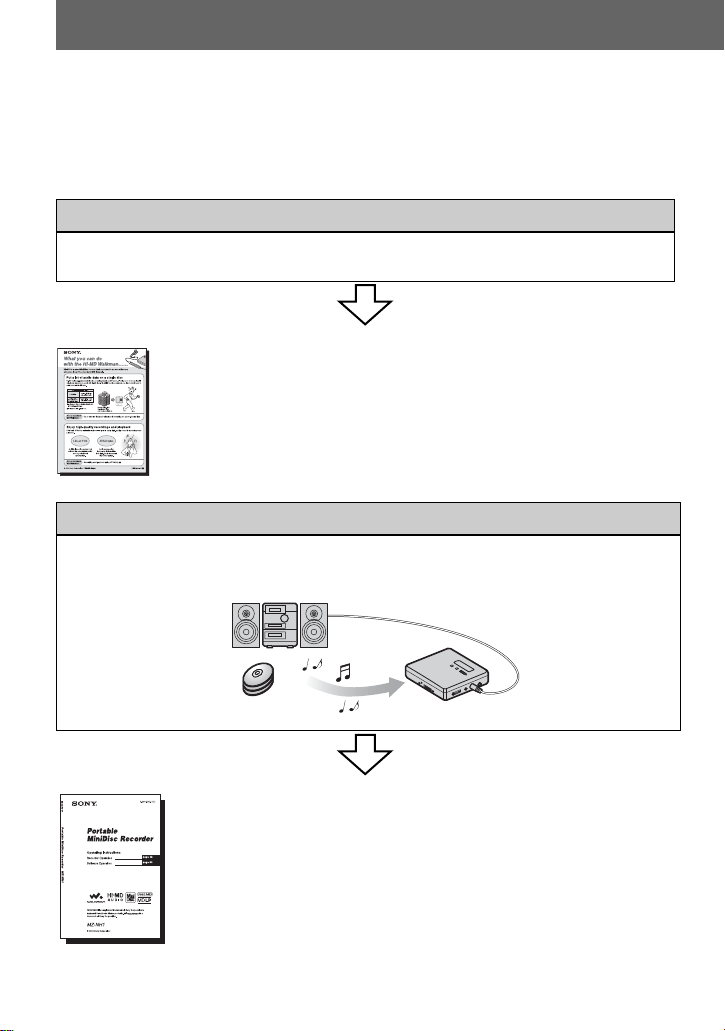
The “What you can do with the Hi-MD Walkman” flyer
This flyer explains the major features of Hi-MD Walkman and how it
differs with standard MD Walkman.
Recorder Operation (pages 12 to 97)
This section explains all of the recorder functions. It also gives details
on the problems you may encounter while using the recorder and how
to solve them, and about what to do when a message appears in the
display.
, When you encounter any problems or need more
explanation
Refer to “Troubleshooting and explanations” (page 80).
Learning more about Hi-MD
“Hi-MD” is a new MiniDisc format with advanced capabilities over the standard MD
format.
Using the recorder
You can enjoy recording from a CD player or a microphone, then enjoy listening to the
recordings that you made.
11
Software Operation (pages 98 to 122)
This section explains the installation and basic operations of the supplied SonicStage/MD
Simple Burner software.
SonicStage Help
This is an online help that you can view on your computer
screen.
Online help explains the detailed operations and information
about SonicStage software. You can also refer to online help
if you encounter any problems while using the SonicStage.
Notes on the “Software Operation” section
•
In Software Operations section, “Net MD” refers to the recorder with a standard disc inserted and “Hi-
MD” refers to the recorder with a Hi-MD disc or a standard disc in Hi-MD mode inserted.
•The displayed items in the illustrations that appear in this section may differ from the actual items
displayed by the software.
•Explanations in this section assume familiarity with basic Windows operations. For details on the use
of your computer and the operating system, please refer to the respective manuals.
•Explanations in this section cover general Hi-MD/Net MD products. For this reason, some
explanations (and some illustrations) may not be applicable to your Hi-MD/Net MD. Please refer to
the operating instructions of your Hi-MD/Net MD as well.
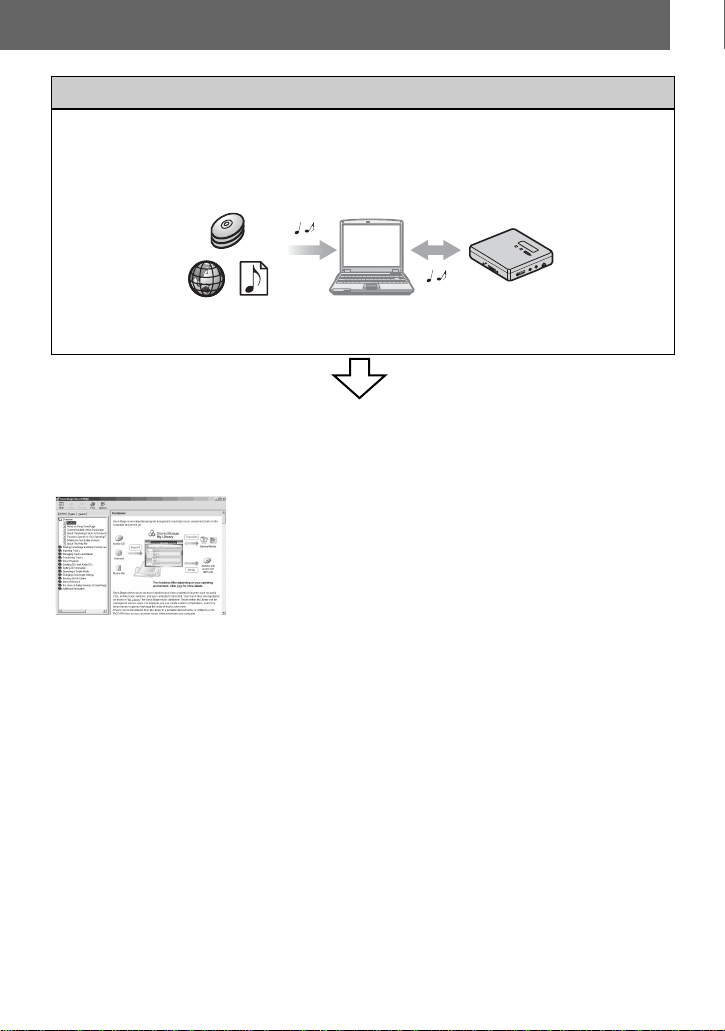
Using the recorder while it is connected to a computer
The supplied SonicStage software allows you to transfer audio data between the recorder
and the computer.
The supplied MD Simple Burner software allows you to record audio data to the recorder.
Internet
Audio CDs
Music files
12
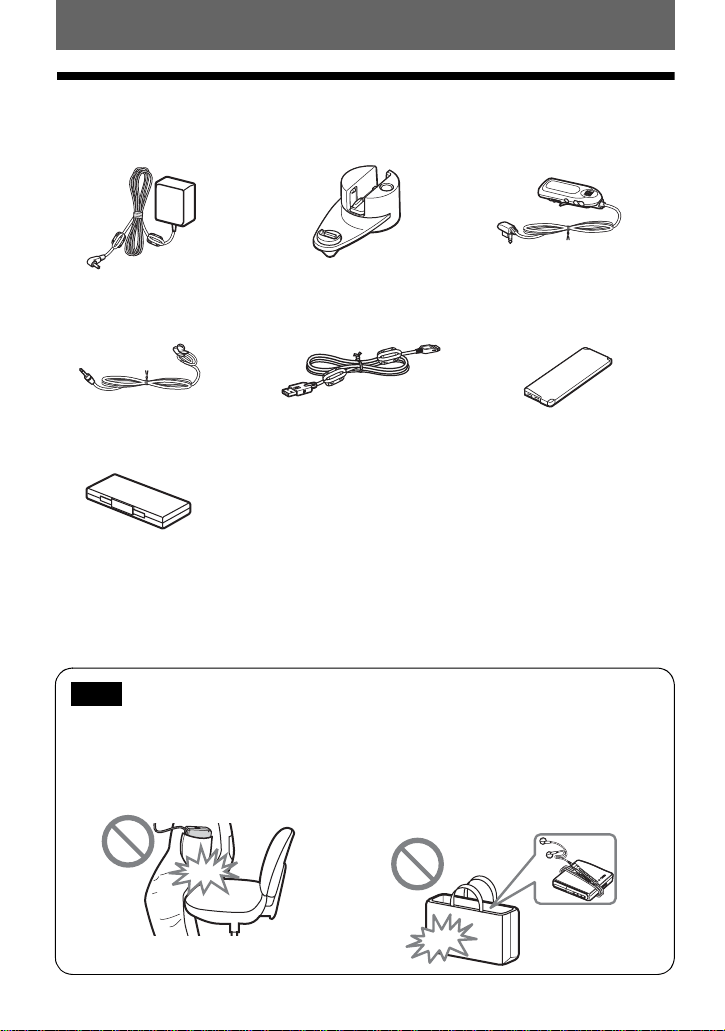
Checking the supplied accessories
Optical cable (1)
CD-ROM (SonicStage/MD Simple Burner) (1)*
Carrying pouch (except USA model) (1)
* Do not play a CD-ROM on an audio CD player.
AC power adaptor (1) Battery charging stand (1) Remote control (1)
Dedicated USB cable (1) LIP-4WM Lithium-ion
rechargeable battery (1)
Rechargeable battery case (1)
Headphones/earphones (1)
When using this unit, remember to follow the precautions below in order to avoid warping the
cabinet or causing the unit to malfunction.
Note
•Make sure not to sit down with the unit in
your back pocket.
•Make sure not to put the unit into a bag with the
remote control or the headphones/earphones
cord wrapped around it and then subject the bag
to strong impact.
13
Recorder Operation
Looking at controls
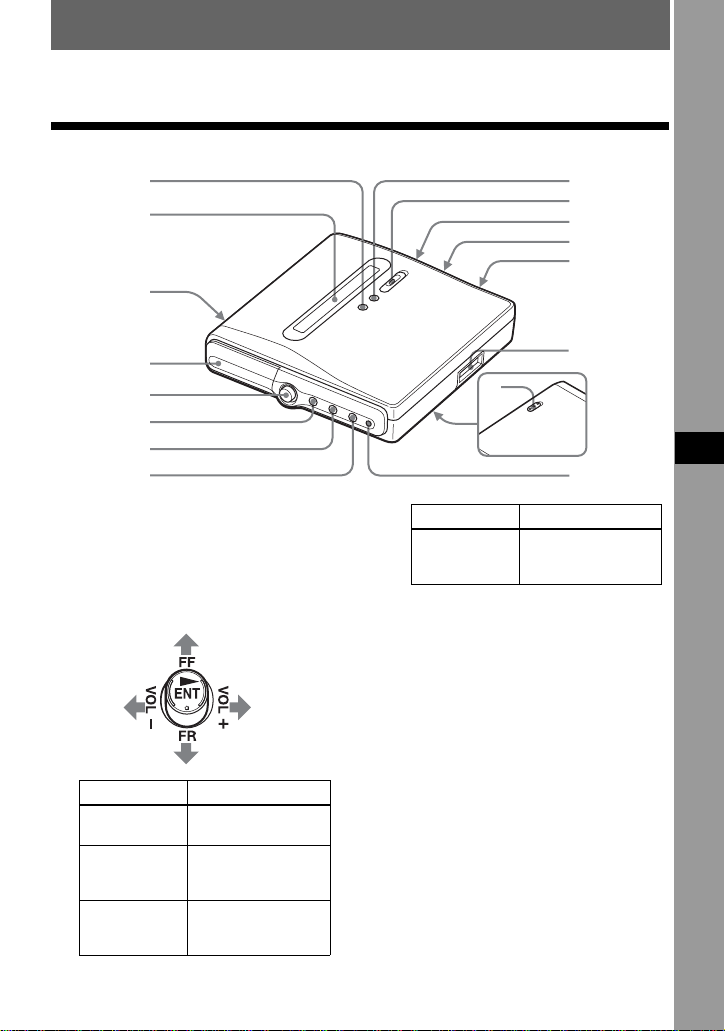
The recorder
A x (stop) • CANCEL button
B Display window
C OPEN switch
D Battery compartment
E 5-way control key
F MENU button
G GROUP button
H T MARK button
I X (pause) button
J zREC (record) switch/lamp
K LINE IN (OPT) jack
L MIC (PLUG IN POWER) jack
There is a tactile dot beside the MIC
(PLUG IN POWER) jack.
M i (headphones/earphones)/LINE
OUT jack
N USB connecting jack
1
2
3
4
8
5
6
7
9
0
qa
qs
qd
qf
qg
qh
Operation Function
Press NENT
1)
play, enter
Press towards
FR
find the beginning
of the previous
track, rewind
Press towards
FF
find the beginning
of the next track,
fast forward
Press towards
VOL +
1)
or
VOL –.
volume
1)
There are tactile dots beside the
NENT and VOL + buttons.
Operation Function
14
O HOLD switch (at the rear)
Slide the switch in the direction of the
arrow to disable the buttons on the
recorder. To prevent the buttons from
being accidentally operated when you
carry the recorder, use this function.
P CHG (Charge) lamp
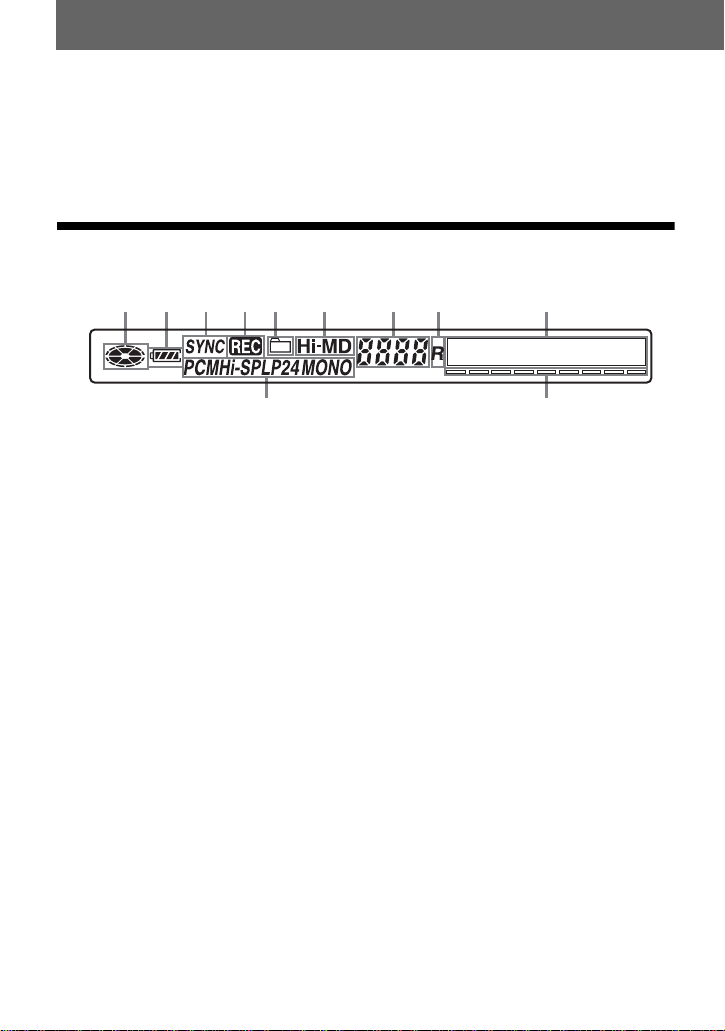
The display window of the recorder
A Disc indication
Shows that the disc is rotating for
recording or playing.
B Battery indication
Shows the approximate remaining
battery power. If the rechargeable
battery is weak, the indication
becomes empty and starts flashing.
C SYNC (synchro-recording) indication
D REC indication
Lights up during recording or file
transfers from the computer. When
flashing, the recorder is in record
standby mode.
E Group indication
F Hi-MD/MD indication
“Hi-MD” lights up when the
operation mode of the recorder is in
Hi-MD mode and “MD” lights up
when the operation mode is in MD
mode.
G Track number display
H “R” (Remain) indication
Lights up when remaining recordable
time is displayed.
I Character information display
Displays the menu items, date, error
messages, etc.
J Track mode (PCM, Hi-SP, Hi-LP, SP,
LP2, LP4, MONO) indication
K Level meter
12345 6 7 8
9
qa0
15
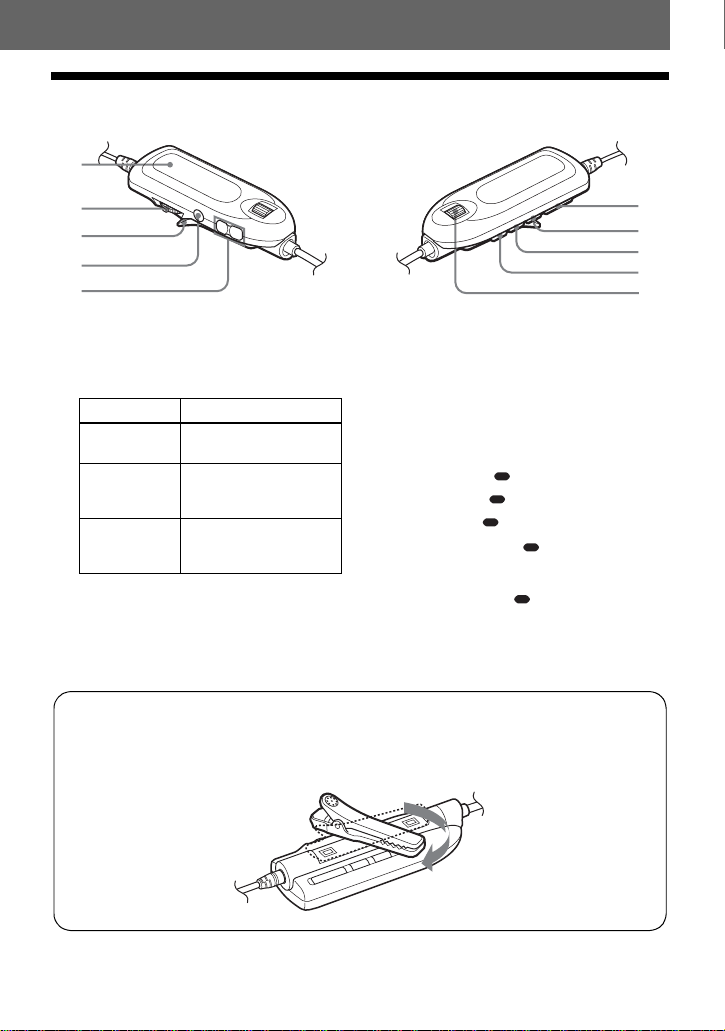
The headphones/earphones with a remote control
A Display window
B Jog lever (NX • ENTER, .,
>)
C Clip
D x (stop) • CANCEL button
E VOL +, – buttons
F HOLD switch
Slide the switch in the direction of the
arrow (a yellow mark appears) to
disable the buttons on the remote
control. To prevent the buttons from
being accidentally operated when you
carry the recorder, use this function.
G •DISPLAY, BACKLIGHT button
*
H •P-MODE, REPEAT button
*
I •SOUND, SOUND SET button
*
J Jog dial (•NAVI/ MENU/ENTER)
*
* • indicates a function that requires a slight
press of the button. indicates a function
that requires pressing the button for 2 seconds
or more.
1
2
3
4
5
0
9
8
7
6
Operation Function
Press NX •
ENTER
play, pause, enter
Slide towards
.
cue to the beginning of
the previous track,
rewind
Slide towards
>
cue to the beginning of
the next track, fast
forward
Using the clip for the remote control
It may be hard for you to read the indications in the display if the remote control is
attached upside down with the clip in its current position. In this case, turn the clip in the
opposite direction until it attaches firmly, as shown below.

16
The display window of the remote control
A Character information display
B Battery level indication
C Disc indication
D SND (sound), SUR (surround)
indications
123
4
17
Getting started
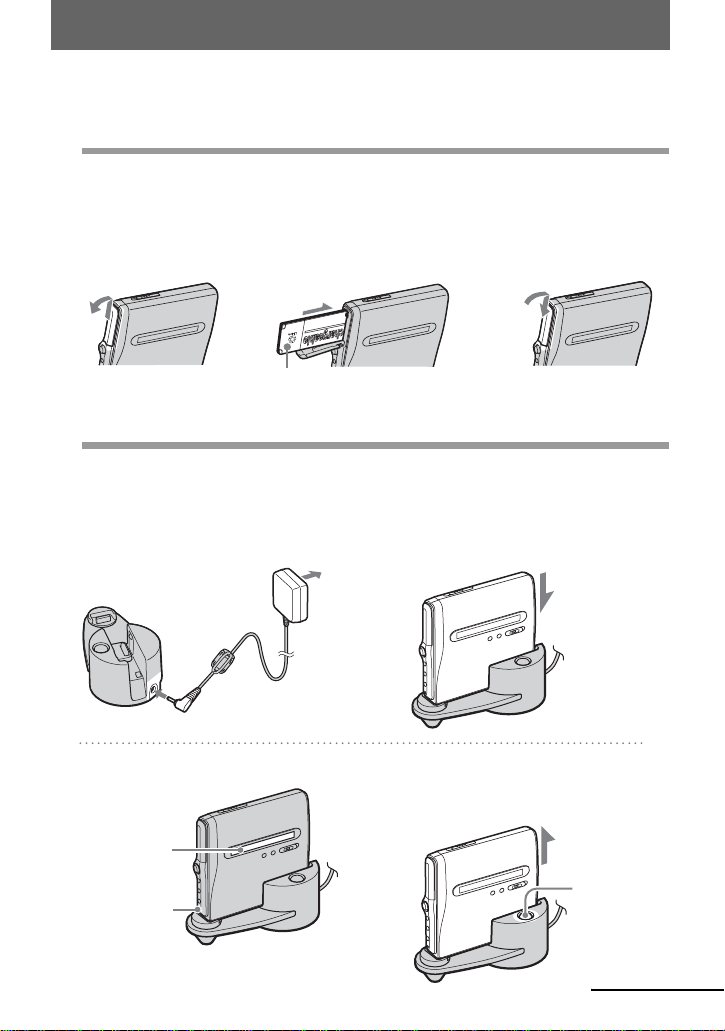
Charge the rechargeable battery before using.
1
Insert the rechargeable battery.
2
Charging the rechargeable battery.
1Connect the AC power adaptor to the
battery charging stand and the AC
power adaptor to a wall outlet.
2Place the recorder on the battery
charging stand.
Press the recorder onto the battery
charging stand.
3Verify that the charge lamp lights up. 4After the charging has finished, press
RELEASE to remove the recorder from
the battery charging stand.
2Insert the lithium-ion
rechargeable battery.
Insert the battery starting with
the e and E terminal end.
3Close the lid.1Slide the battery
compartment lid.
Insert the rechargeable battery with
the front side facing forward.
AC power
adaptor
To DC IN 6V
To a wall
outlet
Battery charging
stand
To DC IN 6V
CHG (charge)
lamp
“CHG:--min”
appears when
charging starts.
RELEASE
continued
18
z
•
Display changes as follows:
“CHG:--min” t “CHG:60min” (60 minutes
to end of charging) t “CHG:59min” t
...t “CHG:00min” t No display (CHG
lamp goes off)
When the CHG lamp goes off, the battery is
about 80% charged and the recorder can then
be used.
•If the CHG lamp turns off after a short time,
the rechargeable battery is sufficiently
charged.
•If the battery is completely drained at the start
of charging, it will take about one hour for the
CHG lamp to go off and the battery to become
sufficiently charged to allow use of the
recorder. At the point the CHG lamp goes off,
the battery is about 80% charged. After 2
more hours, the battery will be fully charged.
3
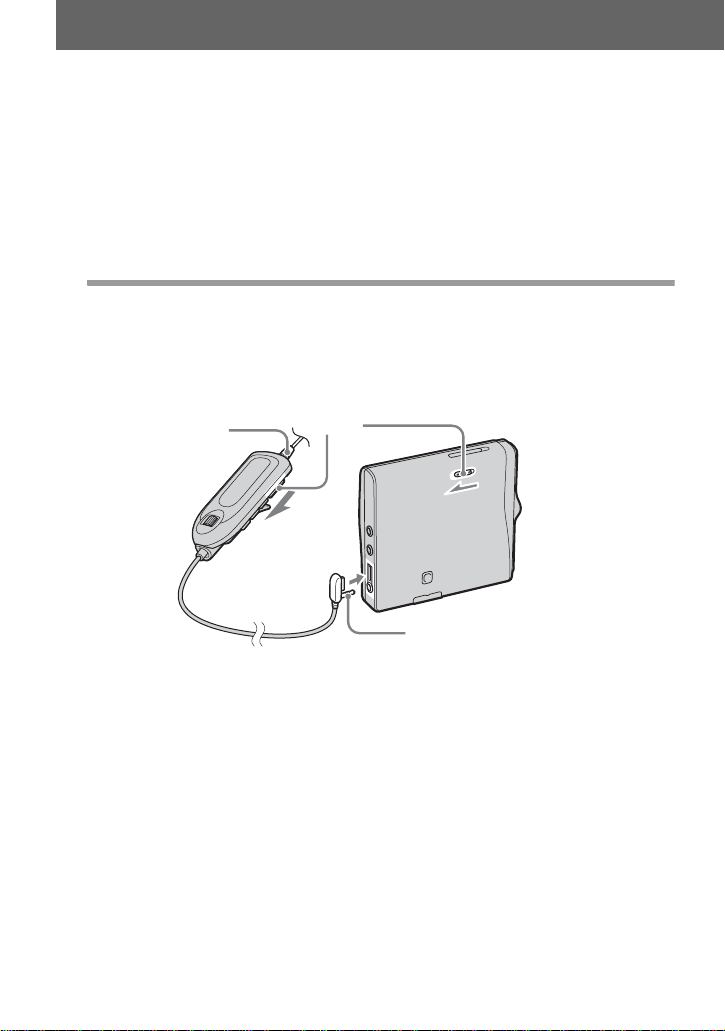
Make connections and unlock the controls.
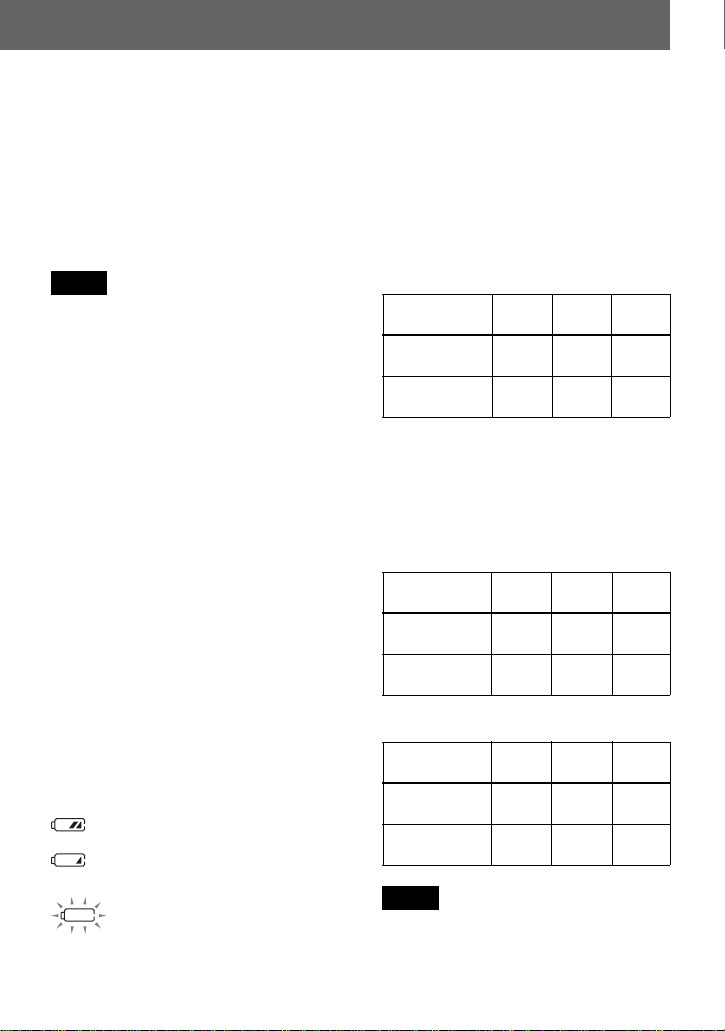
1Connect the headphones/earphones
with the remote control to i/LINE OUT.
2Slide HOLD to the opposite direction of
the arrow (.) on the recorder or the
remote control to unlock the controls.
HOLD
Connect firmly
To i/LINE OUT
Connect firmly
19
z
Operations can be done on the recorder or the
remote control while charging. However, the
remaining charging time will not be displayed
during this time.
For models supplied with the
AC plug adaptor
If the AC power adaptor does not fit the
wall outlet, use the AC plug adaptor.
•Make sure to insert the rechargeable battery
before placing the recorder on the battery
charging stand. Charging cannot be done if
you insert the rechargeable battery after
placing the recorder on the battery charging
stand.
•Because of the battery’s characteristics, the
capacity of the rechargeable battery may be
smaller than normal when it is used for the
first time or after a long period of disuse. In
this case, charge and discharge the battery
several times. The normal battery life will be
restored.
•Charge the rechargeable battery at a
temperature of +5°C (+41°F) to +35°C
(+95°F). The charging time may vary
according to the surrounding temperature.
•It is preferable to use the recorder on house
current when recording or editing. When
powering the recorder with batteries, make
sure the rechargeable battery is fully charged.
When to charge the
rechargeable battery
You can check the rechargeable battery
condition in the following ways.
•By viewing the battery indication in the
display window of the recorder or the remote
control.
Battery power decreasing
m
Weak battery
m
The battery is drained.
“LOW BATT” flashes in the
display on the recorder (“LOW
BATTERY” on the remote
control), and the power goes off.
The battery level indicator is approximate. It
may be more or less than the indication
depending on the operating condition or the
operating environment.
•By pressing the DISPLAY button on the
remote control to view the battery level.
(Refer to “Viewing various information” on
page 32 and 43.)
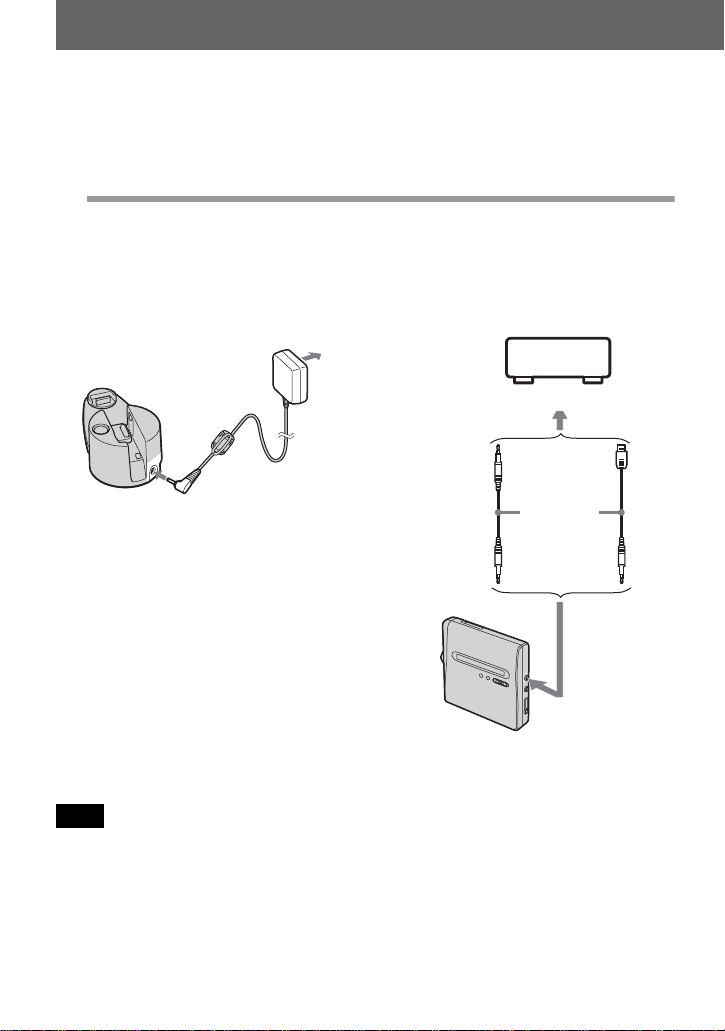
Hi-MD mode (When using a 60/74/80-
minute standard disc)
(Unit: approx.hours)(JEITA)
MD mode
(Unit: approx.hours)(JEITA)
•Stop the recorder before replacing the battery.
•When using a 1GB Hi-MD disc, the
continuous recording time may be shortened if
you repeatedly make short recordings.
Notes
Battery life
1)
Hi-MD mode (When using a 1GB Hi-
MD disc)
(Unit: approx.hours)(JEITA
2)
)
1)
When using a 100% fully charged lithium-ion
rechargeable battery
2)
Measured in accordance with the JEITA
(Japan Electronics and Information
Technology Industries Association) standard.
When Linear
PCM
Hi-SP Hi-LP
Recording
continuously
6 8.5 9.5
Playing
continuously
10 15.5 18
When Linear
PCM
Hi-SP Hi-LP
Recording
continuously
589
Playing
continuously
8 14.5 17.5
When SP
Stereo
LP2
Stereo
LP4
Stereo
Recording
continuously
8 10 10.5
Playing
continuously
14.5 17 18.5
Notes
20
Recording a disc right away!
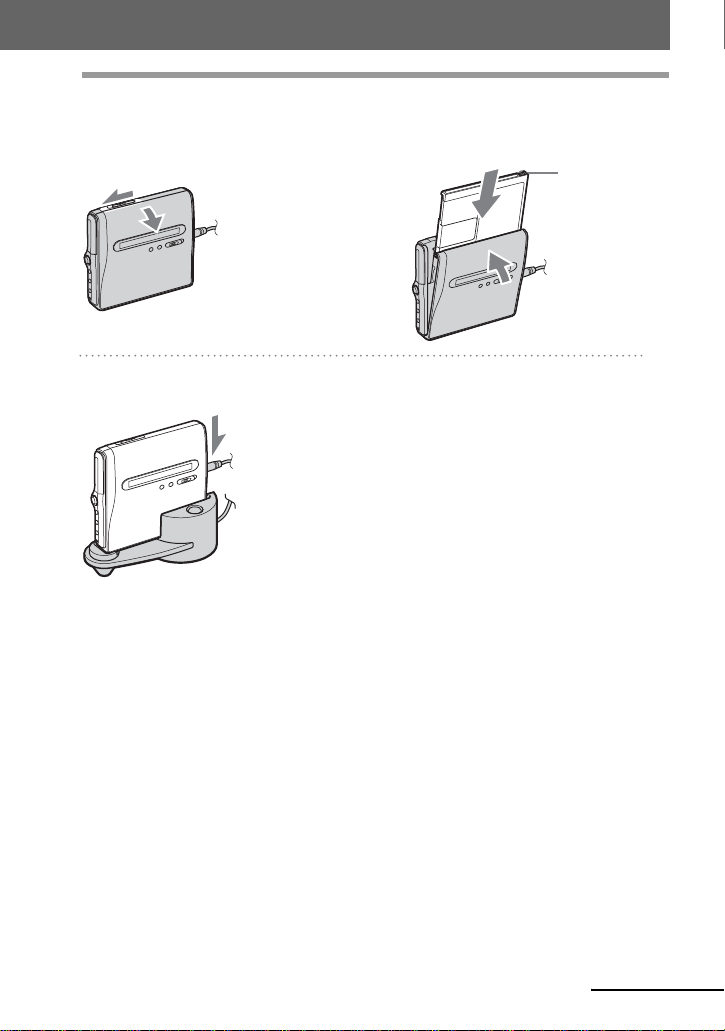
This section explains the basic procedure for making digital recordings using
an optical cable connected to a CD player, Digital TV or other digital
equipment. Make sure to use the optical cable.
1
Make connections.
(Insert the cables firmly and completely into
the appropriate jacks.)
1Connect the AC power adaptor to the
battery charging stand and the AC
power adaptor to a wall outlet.
2Connect the optical cable to the
recorder and an external component.
Make sure to disconnect the dedicated USB cable before recording.
To a wall
outlet
AC power
adaptor
To DC IN 6V
Battery charging
stand
Optical
cable*
To LINE IN
(OPT)
Optical
plug
Optical
mini-plug
CD player,
MD player,
DVD video
player, etc.
To a digital (optical) out jack
∗ See “Optional accessories” (page 79).
Note
21
2
Insert a recordable disc.
1Slide OPEN to open the lid. 2Insert a disc with the label side facing
front, and press the lid down to close.
3Place the recorder on the battery
charging stand.
Make sure to
check the
record-protect
tab is closed.
continued
22
3
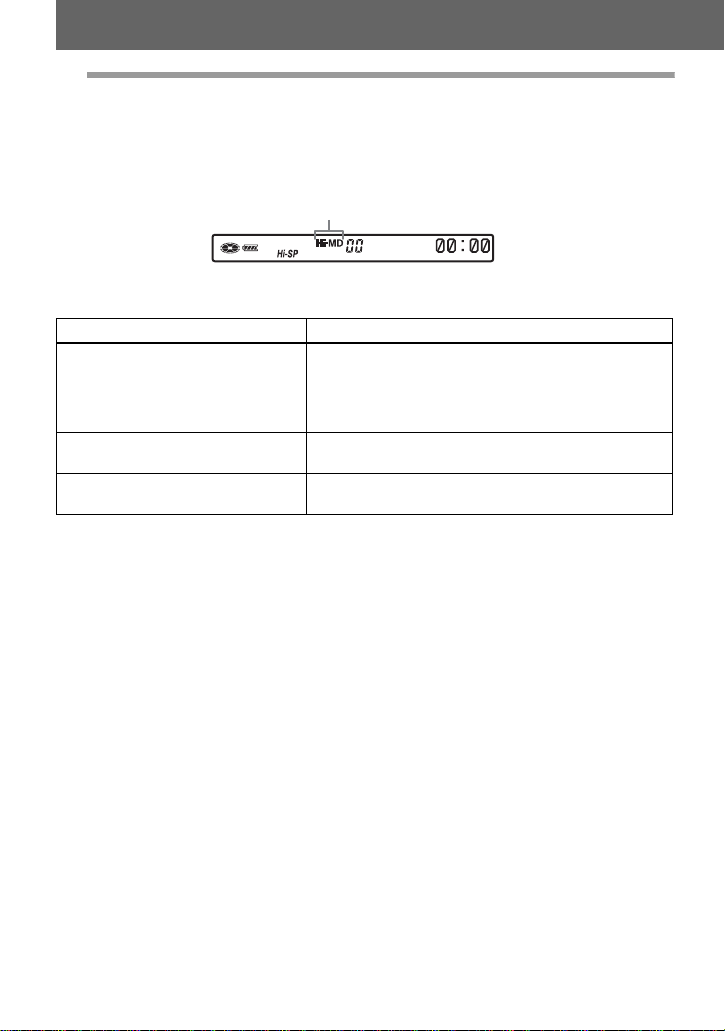
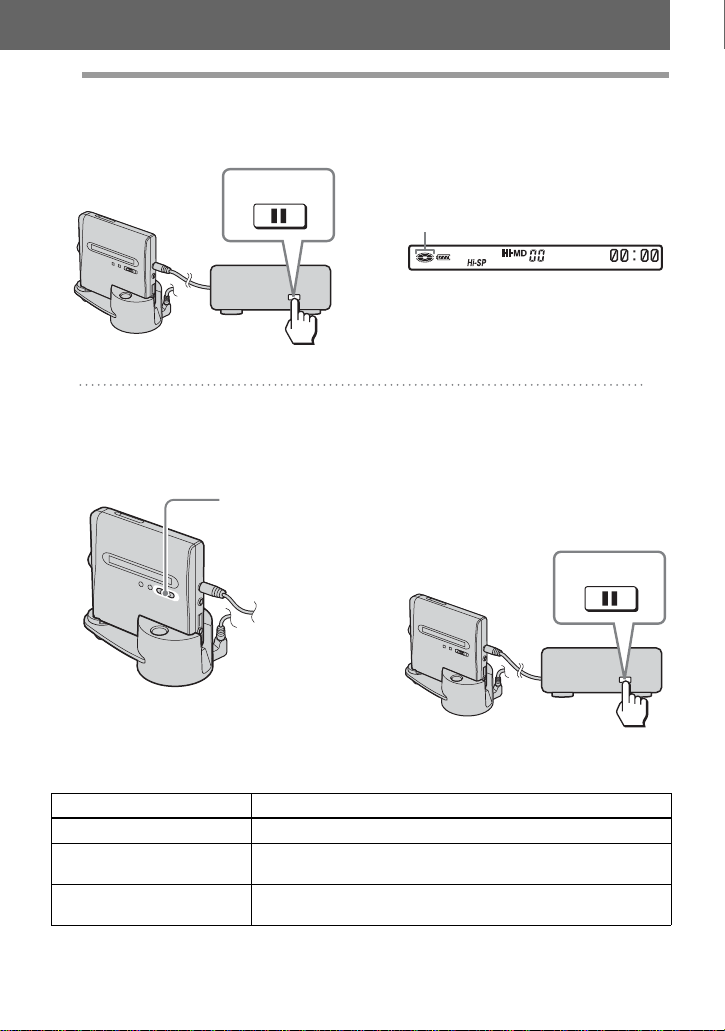
Confirm the operation mode.
This recorder has two operation modes, “Hi-MD mode” and “MD mode”. The operation
mode is automatically recognized whenever the disc is inserted. After you insert a disc,
check the operation mode on the display window of the recorder.
• When using a 1GB Hi-MD disc, the operation mode will only be Hi-MD.
• When using a standard disc (60/74/80 minutes), the operation mode can be set as follows.
Disc condition Operation mode
Blank disc The mode set for “Disc Mode” in the menu.
1)
The “Disc Mode” is factory set to “Hi-MD”.
If you want to use the disc on another component that
does not support Hi-MD, set the “Disc Mode” to “MD”
to use the disc in MD mode.
1)
Refer to “Selecting the disc mode (Disc Mode)” (page 69) for the “Disc Mode” setting.
The disc contains material
recorded in
Hi-MD mode
Hi-MD
The disc contains material
recorded in
MD mode
MD
“Hi-MD” lights up when the operation mode is Hi-MD and
“MD” lights up when the operation mode is MD.
23
4
Record a disc.
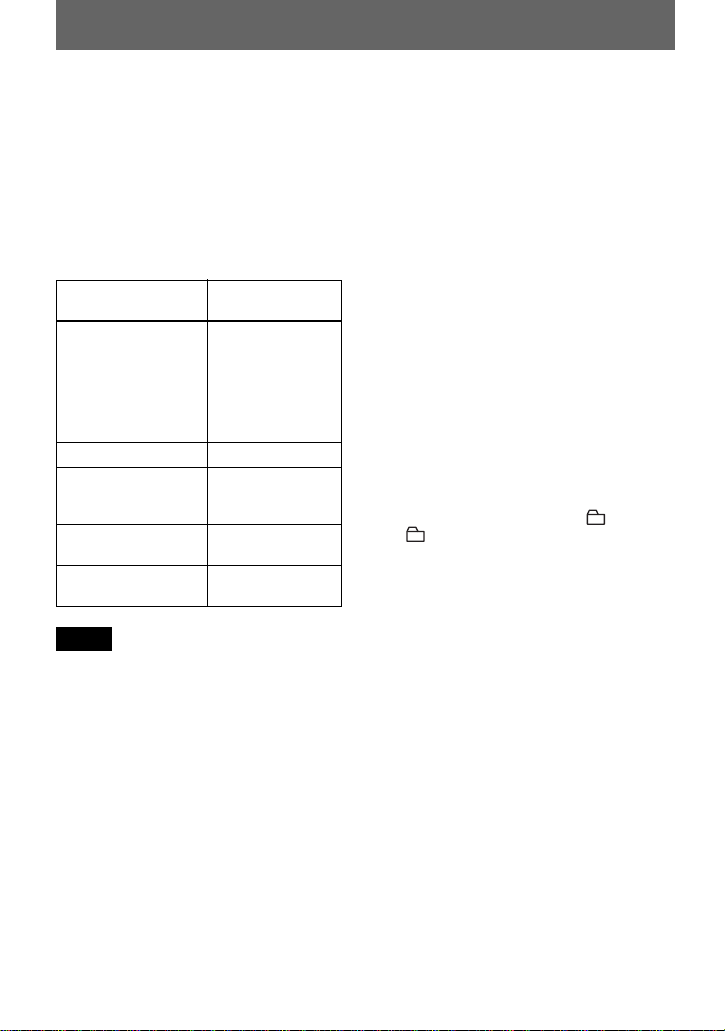
1Select and pause the sound source to
be recorded.
2Make sure that disc indication has
stopped rotating in the display window
on the recorder.
3While the recorder is stopped, press
and slide zREC on the recorder.
“REC” and the REC lamp light up and
recording starts.
4Play the source you want to record.
If you insert a previously recorded disc,
the recording starts after the existing
contents.
Track marks are automatically added at
the same point as the sound source, and
the contents are recorded together as a
group.
PAUSE
Connected component
Make sure that disc indication has
stopped.
zREC
PAUSE
Connected component
To Press
Stop Press x.
Pause Press X
1)
.
Press X again to resume recording.
Remove the disc Press x and open the lid. (The lid does not open while “SYS
WRITE” flashing in the display.)
1)
A track mark is added at the point where you press X again to resume recording while pausing; thus
the remainder of the track will be counted as a new track.
24
If the recording does not start
•Make sure the recorder is not locked (pages
14, 18).
•Make sure the disc is not record-protected
(pages 21, 78).
•Premastered discs cannot be recorded over.
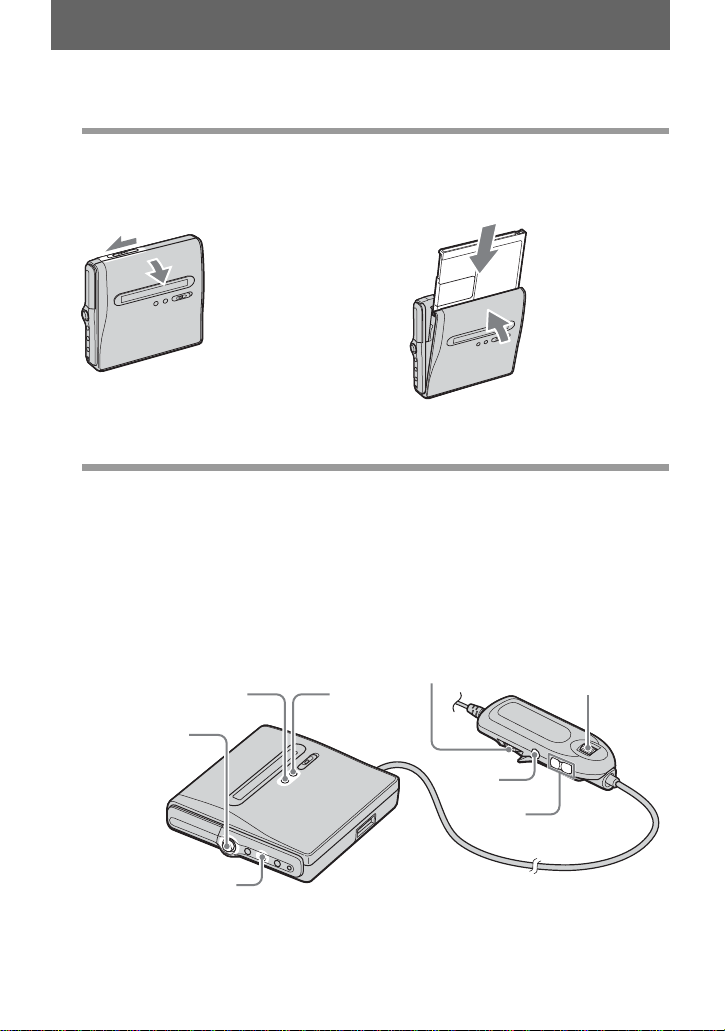
To know the recording
condition
The REC lamp lights up or flashes according to
the recording condition.
•Make sure to place the recorder at a stable,
vibration-free place during recording.
•If you start recording when the disc indication
is still rotating in the display, the first few
seconds of the material may not be recorded.
Make sure that the disc indication has stopped
rotating before you start recording.
•Do not move the recorder, jog the recorder or
disconnect the power source while recording,
or while “DATA SAVE” or “SYS WRITE” is
flashing in the display. If you do, the data
recorded up to that point may not be recorded
to the disc, or data on the disc may be
damaged.
•Recording cannot be done when the disc does
not have enough space for recording.
•If the power supply is disrupted (i.e. the
battery is removed or becomes exhausted or
the AC power adaptor is disconnected) during
a recording or editing operation, or while
“DATA SAVE” or “SYS WRITE” appears in
the display, then it will not be possible to open
the lid until power is restored.
•Note the following when recording from a
portable CD player:
—Some portable CD players may not be
capable of digital out when the AC power
adaptor is disconnected. If this is the case,
connect the AC power adaptor to the
portable CD player and use it on AC power
as the power source.
—On some portable CD players, optical
output may not be possible when using an
anti-skip function (e.g., ESP* or
G-PROTECTION). If this is the case, turn
off the anti-skip function.
∗ Electronic Shock Protection
z
•The recorder is factory set to make a new
group whenever recording is done. If you do
not want to make a group, set “ :REC” to
“ :REC Off” (page 40).
•To start recording from a specific point on the
disc, pause the recorder at the desired point,
and then start recording from that point.
•You can monitor the sound during recording.
Connect the headphones/earphones with
remote control to i/LINE OUT and adjust the
volume by pressing VOL + or – on the remote
control (pressing the 5-way control key
towards VOL + or – on the recorder). This
does not affect the recording level.
Recording
condition
REC LED
While recording lights up
flashes according
to the loudness of
the source while
recording with a
microphone (voice
mirror)
Recording standby flashes
Less than 3 minutes’
recording time
available
flashes slowly
A track mark has
been added manually
goes off
momentarily
While transferring
from the computer
flashes faster
Notes
25
Playing a disc right away!
1
Insert a recorded disc.
1Slide OPEN to open the lid. 2Insert a disc with the label side facing
front, and press the lid down to close.
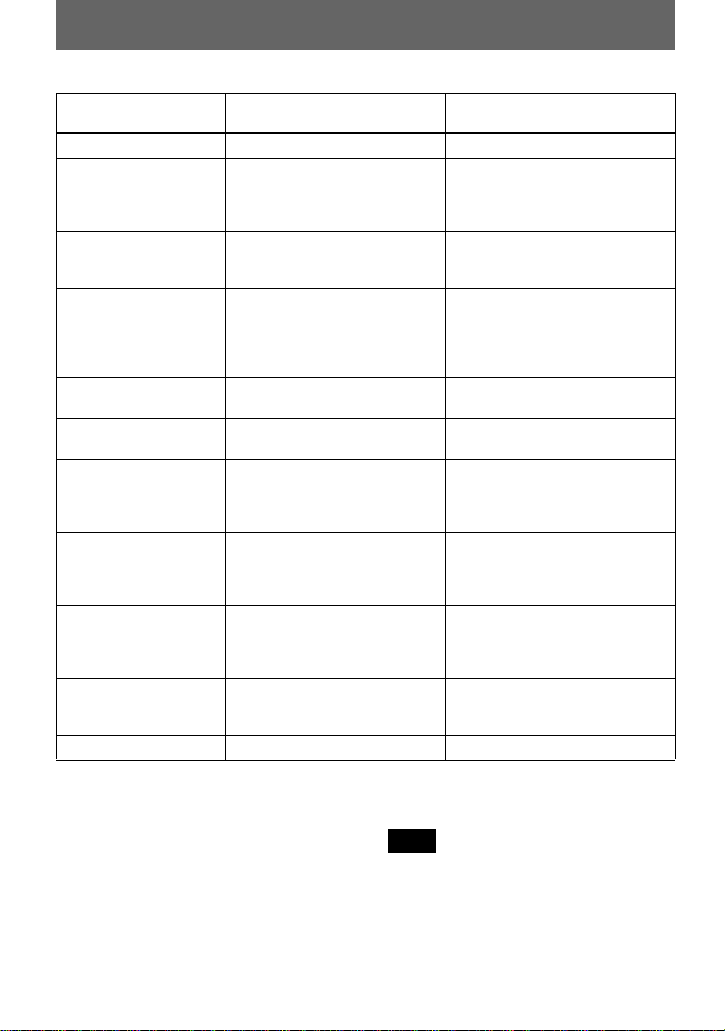
2
Play a disc.
1Press the 5-way control key (NENT)
on the recorder.
Press the jog lever (NX • ENTER) on
the remote control.
A short beep sounds in the headphones/
earphones when you operate.
2Press the 5-way control key towards
VOL + or – to adjust the volume on the
recorder.
Press VOL + or – on the remote control.
The volume will be shown in the
display.
To stop play, press x.
A long beep sounds in the headphones/earphones when you operate. Playback starts from the point
you last stopped playing.
VOL +, –
x
5-way control key
(NENT, FR, FF,
VOL +, –)
x
X
Jog lever
(NX • ENTER,
., >)
Jog dial
GROUP
26
If the play does not start
Make sure the recorder is not locked (pages 14,
15, 18).
The playback sound may skip if:
•the recorder is subjected to strong, repeated
shocks.
•a dirty or scratched disc is played.
When using a disc in Hi-MD mode, the sound
may drop out for a maximum of about 12
seconds.
To Operation on the recorder Operation on the remote
control
Stop Press x. Press x.
Pause Press X. Press X again to
resume play.
Press the jog lever (NX •
ENTER).
Press the jog lever again to
resume play.
Select a track directly
viewing track number or
name
— Turn the jog dial to select a track,
and then press the dial to enter.
Find the beginning of
the current track
Press the 5-way control key
towards FR. Press the 5-way
control key towards FR
repeatedly until you reach the
beginning of the desired track.
Slide the jog lever towards ..
Slide the jog lever towards .
repeatedly until you reach the
beginning of the desired track.
Find the beginning of
the next track
Press the 5-way control key
towards FF.
Slide the jog lever towards >.
Go backwards or
forward while playing
Press and hold the 5-way
control key towards FR or FF.
Slide and hold the jog lever
towards . or >.
Search for a point in a
track while viewing the
elapsed time (Time
search)
While pausing, press and hold
the 5-way control key towards
FR or FF.
While pausing, slide and hold the
jog lever towards . or >.
Search for a specific
track while viewing
track numbers (Index
search)
While the recorder is stopped,
press and hold the 5-way control
key towards FR or FF.
While the recorder is stopped,
slide and hold the jog lever
towards . or >.
Cue to the next or
previous group while
playing track in a group
(Group skip)
1)
Press GROUP, and then press
the 5-way control key towards
FR or FF.
—
Start with the first track
of the disc
While the recorder is stopped,
press NENT for 2 seconds or
more.
While the recorder is stopped,
press
the jog lever (NX •
ENTER
) for 2 seconds or more.
Remove the disc Press x and open the lid.
2)
Press x and open the lid.
2)
1)
Cues to the beginning of every 10th track during playback of the disc with no group settings.
2)
Once you open the lid, the point to start play will change to the beginning of the first track.
Note
27
Using menus
How to use the menu items
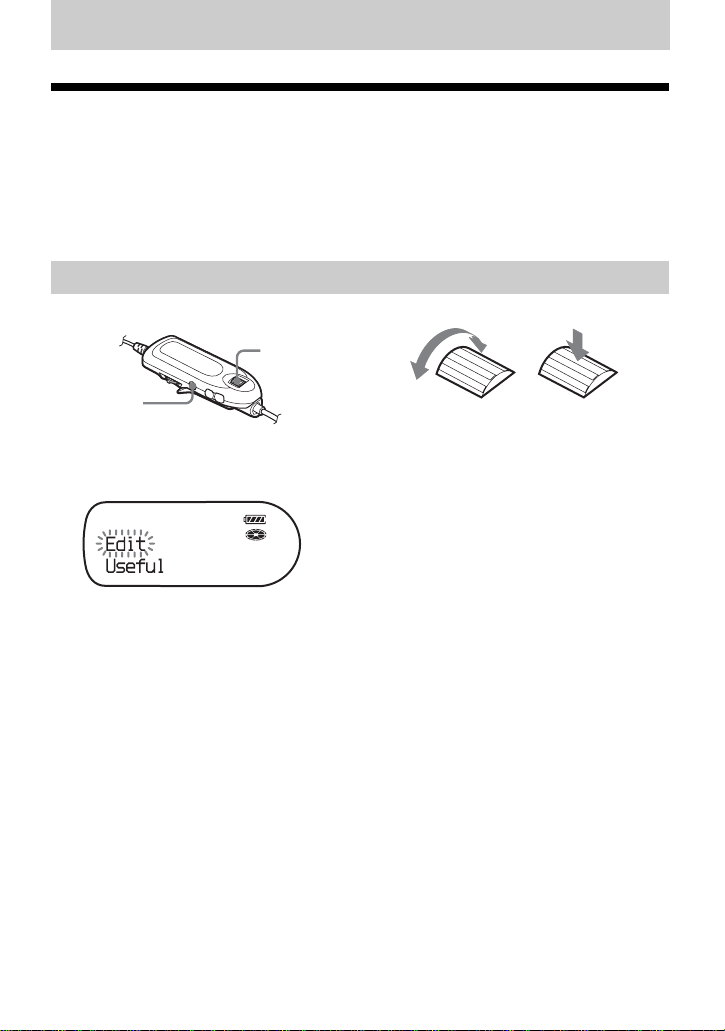
The menus provide useful functions for recording, playback, and editing, etc. To set the
menu items, do the following procedure.
If you are doing a menu operation for the first time after purchasing the recorder, “Menu
Mode” flashes in the display. Before the menu operation, you can set “Menu Mode” to
“Simple” (only basic menu items appear) or “Advanced” (all menu items appear). Refer to
“Changing the displayed menu items (Menu Mode)” (page 66) for menu mode setting.
1 Press the jog dial (NAVI/MENU/ENTER) for 2 seconds or more to enter the menu.
2 Turn the jog dial repeatedly to select the item.
3 Press the jog dial to enter the selection.
4 Repeat steps 2 and 3.
The setting will be entered when you press the jog dial at the last.
To return the preceding setting
Press x • CANCEL.
To cancel the operation while setting
Press x • CANCEL for 2 seconds or more.
On the remote control
Jog dial
Turn to select Press to enter
x • CANCEL

28
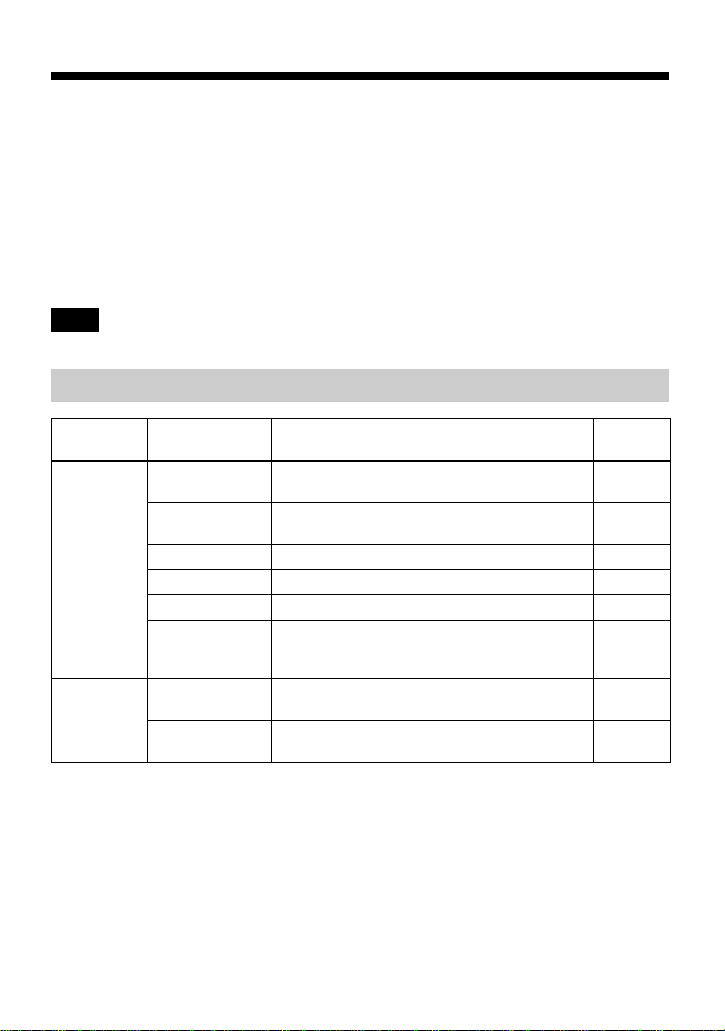
1 Press MENU to enter the menu.
2 Press the 5-way control key towards FR or FF to select the item.
3 Press the 5-way control key (NENT) to enter the selection.
4 Repeat steps 2 and 3.
The setting will be entered when you press the 5-way control key at the last.
To return the preceding setting
Press x • CANCEL.
To cancel the operation while setting
Press x • CANCEL for 2 seconds or more.
On the recorder
5-way control key
(NENT, FR, FF)
MENU
x • CANCEL
29
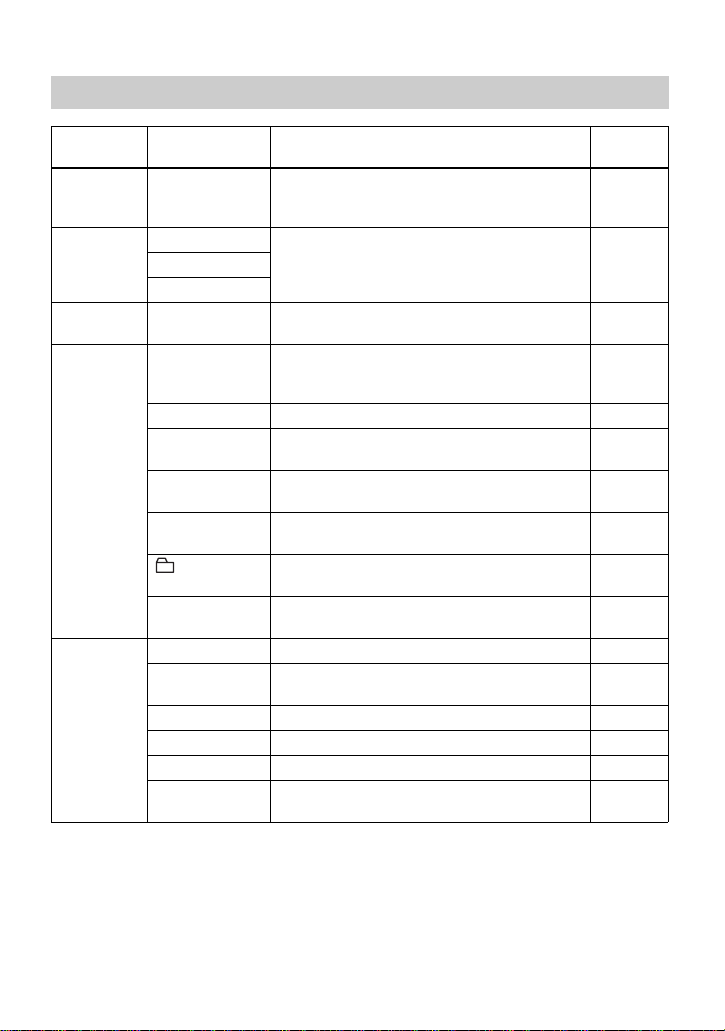
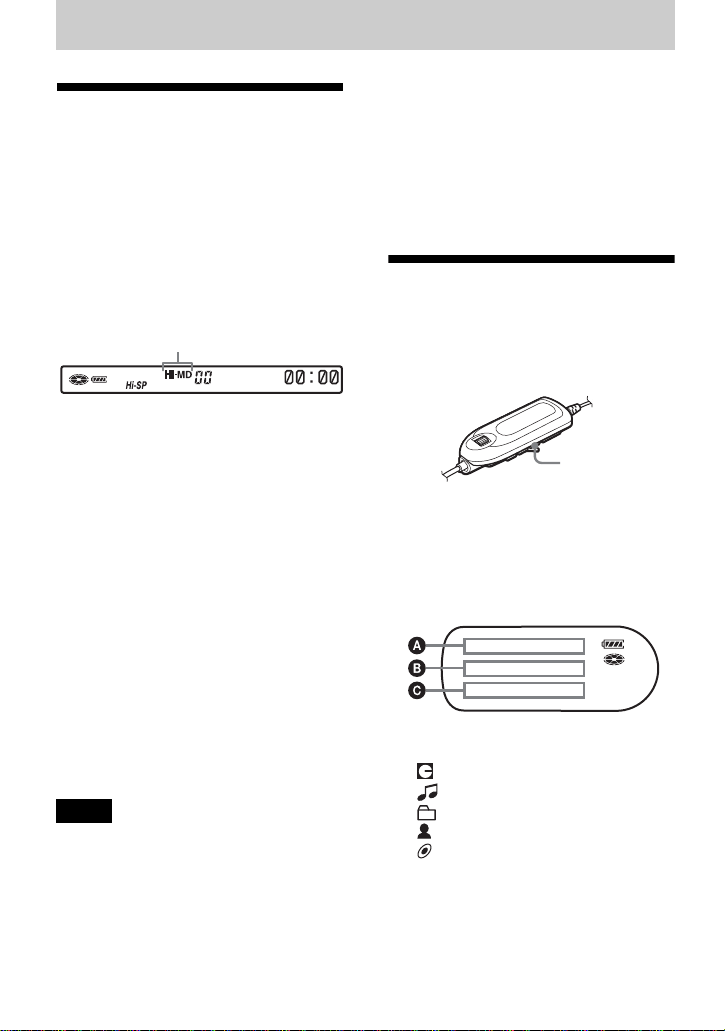
List of menus
The following table shows the menu items that you can select. Some items can be set with
both the recorder and the remote control, and some can be set with either the recorder or the
remote control.
Items listed under “Menu 1” are the selectable items which appear when you enter the
menu, and items listed under “Menu 2” are the selectable items which appear when you
select an item in Menu 1.
It is possible to display all menu items only when “Menu Mode” is set to “Advanced”.
Menu items with an asterisk (*) are not displayed when “Menu Mode” is set to “Simple”.
For details, see “Changing the displayed menu items (Menu Mode)” (page 66).
Different indication may be displayed depending on the operating conditions and disc settings.
Note
Menus of the remote control
Menu 1 Menu 2 Function Site
page
Edit Title Input* Adding a track name, artist name, album name,
group name, or disc name.
page 53
Group Set* Assigns recorded tracks or groups to a new
group.
page 57
GroupRelease* Releases group settings. page 58
Move* Changes the order of tracks or groups. page 58
Erase Erases tracks, groups, or the entire disc contents. page 60
Format* Formats the disc and restores it to the condition
it was in at the time of purchase (in Hi-MD
mode only).
page 64
Useful* Search* Searches for tracks by track name, group name,
artist name, or album name.
page 48
SpeedControl* Varies the playback speed without changing the
pitch.
page 51

30
REC
Settings
REC Mode Selects the recording mode (PCM, Hi-SP, or Hi-
LP for Hi-MD mode/SP, LP2, LP4, or monaural
for MD mode).
page 36
REC Volume* Manually adjusts the recording level. page 38
MIC AGC* Sets the microphone recording level adjustment
mode.
page 35
MIC Sens* Sets the microphone sensitivity to suit the
source sound.
page 34
Time Mark* Adds track marks automatically in a specific
time interval.
page 39
Group REC* Sets the recorder to create a new group with
each recording operation (Group Recording).
page 40
SYNC REC* Simplifies operations during digital recording
(Synchro-Recording).
page 41
Option Menu Mode Changes the menu items that are displayed. page 66
AVLS* Sets a limit on the maximum volume to protect
your hearing.
page 66
Beep* Turns the beep sound on or off. page 67
Backlight Selects the status of the backlight in the display
window on the remote control.
page 67
Disc Memory* Stores the recorder settings. page 68
Quick Mode* Sets the recorder to start playback quickly
. page 69
Disc Mode Selects MD mode or Hi-MD mode when a blank
disc is inserted.
page 69
Contrast* Adjusts the contrast of the display window on
the remote control.
page 70
Jog Dial* Changes the operational direction on the display
when turning the jog dial.
page 70
Clock Set Sets the date and time (Clock setting). page 71
Menu 1 Menu 2 Function Site
page
31
Menus of the recorder
Menu 1 Menu 2 Function Site
page
Edit* Format* Formats the disc and restores it to the condition
it was in at the time of purchase (in Hi-MD
mode only).
page 64
Display Lap Time Displays various information such as the
recorder status, etc. in the display window.
page 34
RecRemain
Clock
Useful* Audio Out* Outputs sound from the i/LINE OUT jack
when listening to a connected component.
page 51
REC Set REC Mode Selects the recording mode (PCM, Hi-SP, or Hi-
LP for Hi-MD mode/SP, LP2, LP4, or monaural
for MD mode).
page 36
RECVolume* Manually adjusts the recording level. page 38
MIC AGC* Sets the microphone recording level adjustment
mode.
page 35
MIC Sens* Sets the microphone sensitivity to suit the
source sound.
page 34
Time Mark* Adds track marks automatically in a specific
time interval.
page 39
:REC* Sets the recorder to create a new group with
each recording operation (Group Recording).
page 40
SYNC REC* Simplifies operations during digital recording
(Synchro-Recording).
page 41
Option Menu Mode Changes the displayed menu items. page 66
AVLS* Sets a limit on the maximum volume to protect
your hearing.
page 66
Beep* Turns the beep sound on or off. page 67
Disc Mem* Stores the recorder settings (Disc Memory). page 68
QuickMode* Sets the recorder to start playback quickly. page 70
Disc Mode Selects from MD mode or Hi-MD mode when a
blank disc is inserted.
page 69
32
Various ways of recording
Before recording
Selecting the operation mode
This recorder has two operation modes,
“Hi-MD mode” and “MD mode”. The
operation mode is automatically
recognized whenever the disc is inserted.
After you insert a disc, check the
operation mode on the display window of
the recorder.
When you insert a standard disc (blank)
into the recorder, you can use the Disc
Mode function to specify use of the disc
in Hi-MD mode or MD mode.
If you want to use the disc recorded on
this unit on another component that does
not support Hi-MD, record the disc with
“Disc Mode” in the menu set to “MD”.
Refer to “Selecting the disc mode (Disc
Mode)” (page 69) for details.
Selecting the menu mode
If the “Simple” menu mode is selected,
some menu items will not be displayed. If
you cannot find certain menu items while
operating the recorder, make sure that the
menu mode is set to “Advanced”.
For details on selecting the menu mode,
see “Changing the displayed menu items
(Menu Mode)” (page 66).
•Recording may not occur if the dedicated
USB cable is connected to the recorder. Make
sure to disconnect the dedicated USB cable
before recording.
•If you start recording when the disc indication
is still rotating in the display, the first few
seconds of the material will not be recorded.
Make sure that the disc indication has stopped
rotating before you start recording.
•Do not move the recorder, jog the recorder or
disconnect the power source while recording,
or while “DATA SAVE” or “SYSTEM FILE
WRITING” (“DATA SAVE” or “SYS
WRITE” on the recorder) is flashing in the
display. If you do, the data recorded up to that
point may not be recorded to the disc, or data
on the disc may be damaged.
Viewing various
information
You can check the remaining time, track
number, etc. when recording or during
stop.
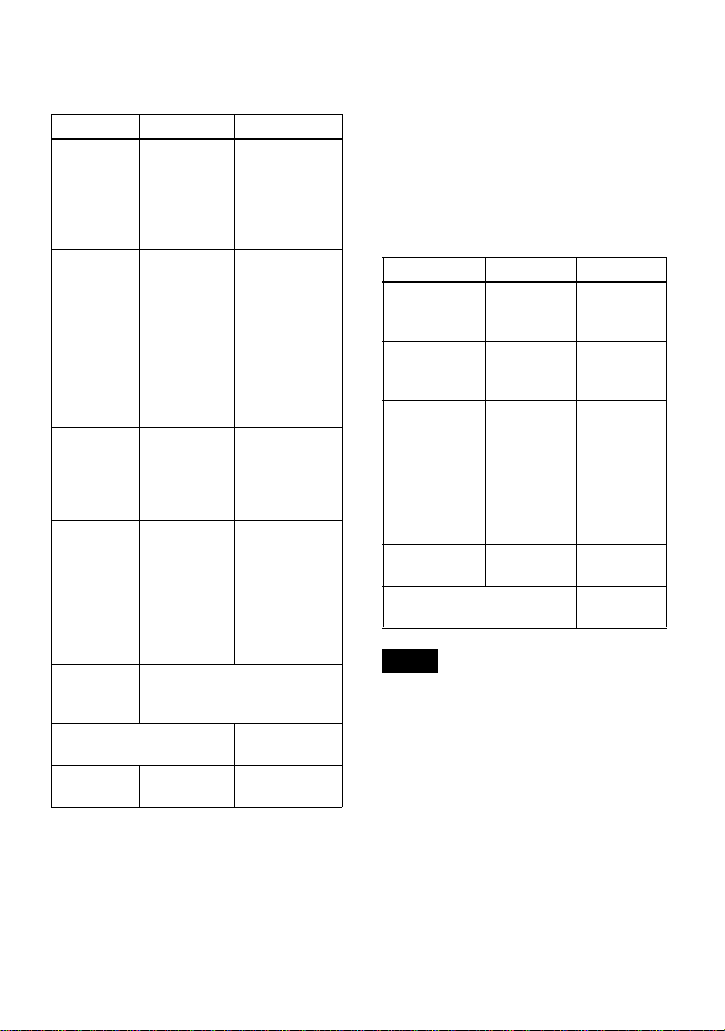
1 Press DISPLAY repeatedly.
Each time you press the button, the
display changes as follows.
Display window on the remote control
The indications have the following
meanings:
: Disc name
: Track name
: Group name
: Artist name
: Album name
Notes
“Hi-MD” lights up when the operation mode
is Hi-MD and “MD” lights up when the
operation mode is MD.
DISPLAY
33
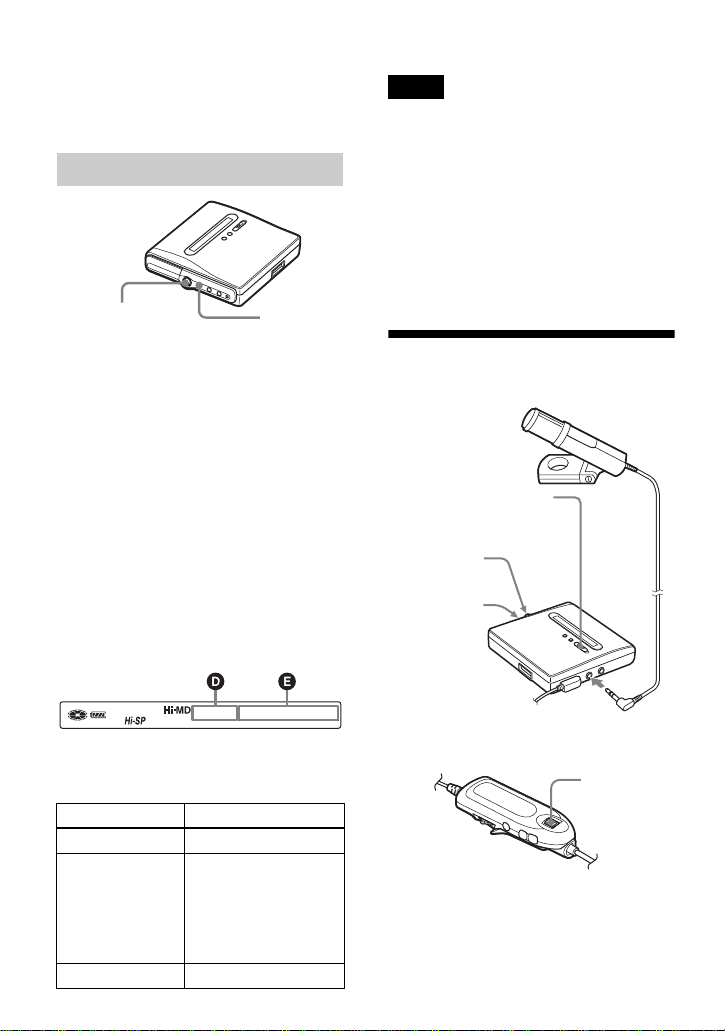
While the recorder is stopped
A/B/C
While recording A/B/C
•
When using the disc in Hi-MD mode, the free
space will show as “2.0MB” when the
remaining recording time becomes
“–0:00:00”. This is a system limitation,
“2.0MB” being the capacity of the reserve
domain.
•Depending on the group settings, the
operating conditions, and the disc settings,
you may not be able to select certain
indications or the indications may appear
differently.
•The remaining battery charge/battery status
appears about one minute after the start of
recording. The remaining battery charge may
not be accurately displayed due to the
operating environment or condition of the
rechargeable battery.
AB C
Group
number
1)
1)
The Main play mode indication appears when
Main play mode is selected.
Track
number and
elapsed time
• Track name
and artist
name (Hi-
MD)
• Track name
(MD)
Track
number
1)
• Remaining
time for
recording/
remaining
free space
(Hi-MD)
• Remaining
time for
recording
(MD)
• “REC
Remain”/
”Free Space”
(Hi-MD)
• “REC
Remain”
(MD)
Numbers of
tracks after
the current
track
1)
Remaining
time after the
current
location in
the disc
“All Remain”
and disc name
• Disc name
and artist
name (Hi-
MD)
2)
• Disc name
(MD)
2)
2)
Track number appears if the currently selected
track is not in a group.
• Group
name and
album
name (Hi-
MD)
5)
• Group
name
(MD)
5)
Track name
Sound
Mode
name
3)
3)
This does not appear when “Menu Mode” is set
to “Simple” (page 66).
Indication of the selected
Sound Mode
Remaining battery charge/
battery status
4)
“Batt Status”
Year, month
and date
Time “Clock”
4)
The displayed time is the approximate duration
for continuous recording at +25°C. “Plenty”
appears in the display when the battery is
sufficiently charged, while “Almost Empty”
appears when the battery is almost exhausted.
These indications do not appear when the AC
power adaptor is being used.
5)
The disc name appears when the currently
selected track is not in a group.
ABC
“REC”, group
number and
track number
Elapsed time Level meter
“REC”, group
number and
track number
Remaining
time for
recording
“
REC
Remain
”
• Disc name
and artist
name (Hi-
MD)
• Disc name
(MD)
•Group
name and
album
name (Hi-
MD)
•Group
name
(MD)
Track name
Year, month
and date
Time “Clock”
Remaining battery charge/
battery status
“Batt
Status”
Notes
34
z
If you want to check the playing position or
track name while playing, see “Viewing various
information” (page 43).
1 Enter the menu and select “Display”.
2 Press the 5-way control key towards
FR or FF until the information you
want appears in the display, and then
press the control key to enter the
selection.
Each press of the 5-way control key
(towards
FR or FF) changes the
display as follows.
Lap Time t RecRemain t Clock
When you press the 5-way control
key, the selected information appears
at D and E.
Display window on the recorder
While the recorder is stopped or
recording
D/E
•When using the disc in Hi-MD mode, the free
space will show as “2.0MB” when the
remaining recording time becomes
“–0:00:00”. This is a system limitation,
“2.0MB” being the capacity of the reserve
domain.
•Depending on the group settings, the
operating conditions, and the disc settings,
you may not be able to select certain
indications or the indications may appear
differently.
Recording from a
microphone
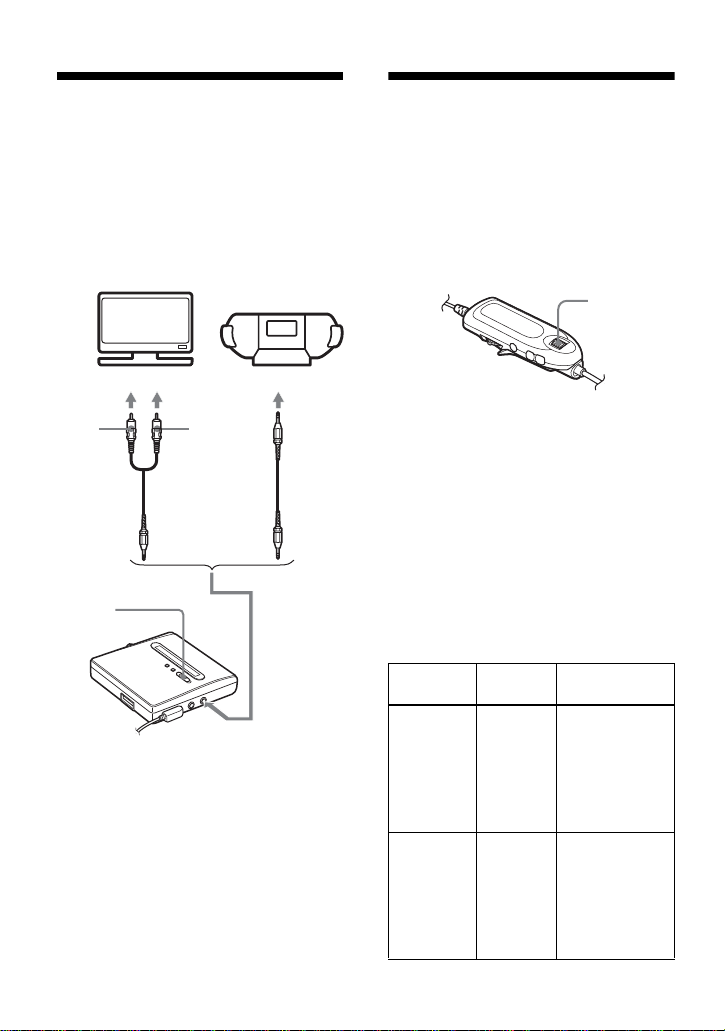
1 Connect the stereo microphone to the
MIC (PLUG IN POWER) jack.
2 Press and slide zREC to start
recording.
On the recorder
DE
Track number Elapsed time
Track number • Remaining
recordable time/
remaining free space
(Hi-MD)
• Remaining
recordable time (MD)
— (none) Time
5-way control key
(NENT, FR, FF)
MENU
Notes
To MIC (PLUG IN POWER)
Stereo
microphone*
zREC
∗ See “Optional accessories” (page 79).
5-way control
key (NENT,
FR, FF)
Jog dial
MENU

35
You can select the microphone sensitivity
depending on the volume of the sound
source.
1 While the recorder is recording or
stopped, enter the menu and select
“REC Set” - “MIC Sens” (“REC
Settings” - “MIC Sens” on the remote
control).
2 Press the 5-way control key towards
FR or FF (turn the jog dial on the
remote control) until “Sens High” or
“Sens Low” appears in the display,
and then press the control key (the jog
dial) to enter the selection.
Sens High: When recording a soft
sound or a sound with a normal
volume.
Sens Low: When recording with a
loud or close-range sounds, such as
those during an oral recording or a
music concert.
When recording with a microphone, you
can select automatic adjustment mode
which sets the microphone recording level
to suit the sound source.
1 While the recorder is recording or
stopped, enter the menu and select
“REC Set” - “MIC AGC” (“REC
Settings” - “MIC AGC” on the
remote control).
2 Press the 5-way control key towards
FR or FF (turn the jog dial on the
remote control) until “Standard” or
“LoudMusic” (“ForLoudMusic” on
the remote control) appears in the
display, and then press the control key
(the jog dial) to enter the selection.
Standard: When recording a sound
source with a normal volume, such as
a conversation or soft music.
LoudMusic (ForLoudMusic) : When
recording a sound source with a
comparatively high volume, such as a
music concert or a practice session
with a musical instrument.
z
•
When “MIC AGC” is set to “LoudMusic”,
sound can be recorded with less distortion
during high volume input, and with natural
volume transitions similar to those of the
original.
•When using a plug-in power-type
microphone, the microphone can be operated
even when its power switch is turned off since
power is supplied from the recorder itself.
•The recorder automatically switches input in
the following order; optical input, microphone
input, and analog input. You cannot record
through the microphone while an optical cable
is connected to the LINE IN (OPT) jack.
•You cannot set the “MIC AGC” setting if you
are recording with the recording level
manually adjusted (page 38).
•The microphone may pick up the operating
sound of the recorder itself. Use the
microphone away from the recorder in such
cases. Please note that the sound of recorder
operations may be picked up if the
microphone that you use has a short
connector.
•Only the left-channel sound is recorded when
a monaural microphone is used.
•Make sure not to touch the plug or the cord of
the microphone when recording with the AC
power adaptor connected. Doing so may
introduce noise into the recording.
•When recording a normal volume sound (soft
music, etc.), set “MIC AGC” to “Standard”. If
an unexpectedly loud sound is input when
“MIC AGC” is set to “LoudMusic”, the
recorded volume thereafter may drop very
low, depending on the sound source.
To select microphone
sensitivity
To change the microphone
recording level adjustment
mode
Notes
36
Recording from a TV or
radio (Analog
Recording)
This section explains how to record from
equipment with analog output, such as a
cassette recorder, radio, or TV.
This operation can be done on the
recorder only.
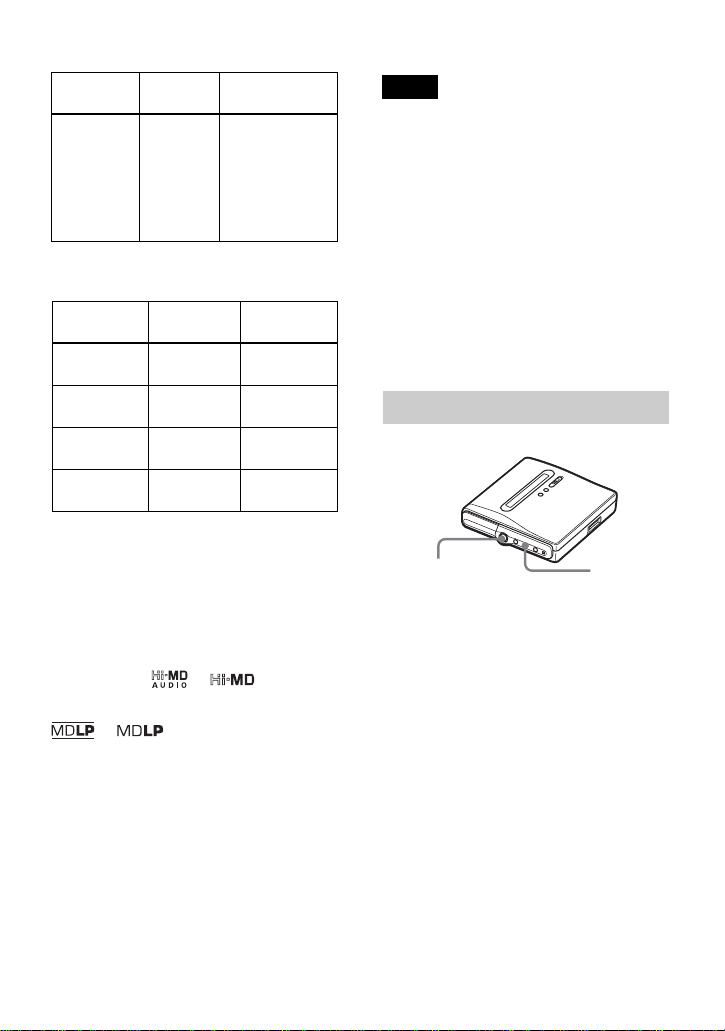
1 Make connections.
Use the appropriate connecting cord
to suit the source equipment. For
details, see “Optional accessories”
(page 79).
2 Press and slide zREC to start
recording.
3 Play the source you want to record.
Selecting the recording
mode
Select each recording mode according to
the recording time that you want.
Discs recorded in Hi-MD or MD
(MDLP) mode can be played back
only on MD players or recorders
with Hi-MD or MD (MDLP) playback
mode.
1 While the recorder is stopped, enter
the menu and select “REC Settings” -
“REC Mode”.
2 Turn the jog dial to select the desired
recording mode, and then press the
jog dial to enter the selection.
The recorder keeps the setting of the
recording mode when you record the
next time.
When recording on a disc used in Hi-
MD mode
TV, cassette
recorder, etc.
R
(red)
L
(white)
Line cable
RK-G129,
RK-G136, etc.
To LINE IN
(OPT)
To LINE OUT jacks, etc.
zREC
Recording
mode
Display Recording
time
Linear PCM
stereo
PCM • Approx. 28
min. on an 80-
minute
standard disc
• Approx. 94
min. on a 1GB
Hi-MD disc
Hi-SP
stereo
Hi-SP • Approx. 140
min. on an 80-
minute
standard disc
• Approx. 475
min. on a 1GB
Hi-MD disc
Jog dial
37
When recording on a disc used in MD
mode
z
Audio components that support the linear PCM
stereo, Hi-SP stereo and Hi-LP stereo mode are
indicated by the or logo marks.
Audio components that support the LP2 stereo
and LP4 stereo mode are indicated by the
or logo marks.
•It is recommended that you use the AC power
adaptor for long-time recordings.
•When you record in LP4 mode, momentary
noise may be produced on very rare occasions
with certain sound sources. This is because of
the special digital audio compression
technology that enables the long time
recording. If noise is produced, it is
recommended that you record in normal
stereo or LP2 mode to obtain better sound
quality.
•It is recommended that you use the recorder to
edit (dividing or combining) long tracks
recorded in linear PCM stereo. Transferring
such tracks and editing them on a computer
may require an extremely long time.
1 While the recorder is stopped, enter
the menu and select “REC Set” -
“REC Mode”.
2 Press the 5-way control key towards
FR or FF to select the desired
recording mode, and then press the
control key to enter the selection.
For the selectable recording mode or
the recording time, refer to step 2 of
the remote control operation.
Hi-LP
stereo
Hi-LP • Approx. 610
min. on an 80-
minute
standard disc
• Approx. 2,040
min. on a 1GB
Hi-MD disc
Recording
mode
1)
1)
For better sound quality, record in normal
stereo (SP
) or LP2 stereo mode.
Display Recording
time
3)
3)
When using an 80-minute recordable disc
SP stereo SP Approx. 80
min.
LP2 stereo LP2 Approx. 160
min.
LP4 stereo LP4 Approx. 320
min.
Monaural
2)
2)
If you record a stereo source in monaural, the
sounds from left and right will be mixed.
MONO Approx. 160
min.
Recording
mode
Display Recording
time
Notes
On the recorder
5-way control key
(NENT, FR, FF)
MENU

38
Adjusting the recording
level manually
The recording level is adjusted
automatically while recording. If
necessary, you can set the recording level
manually during both analog and digital
recording.
1 While pressing X, press and slide
zREC.
The recorder stands by for recording.
2 Enter the menu and select “REC Set”
- “RECVolume” - “Manual” (“REC
Settings” - “REC Volume” -
“Manual” on the remote control).
3 Play the source.
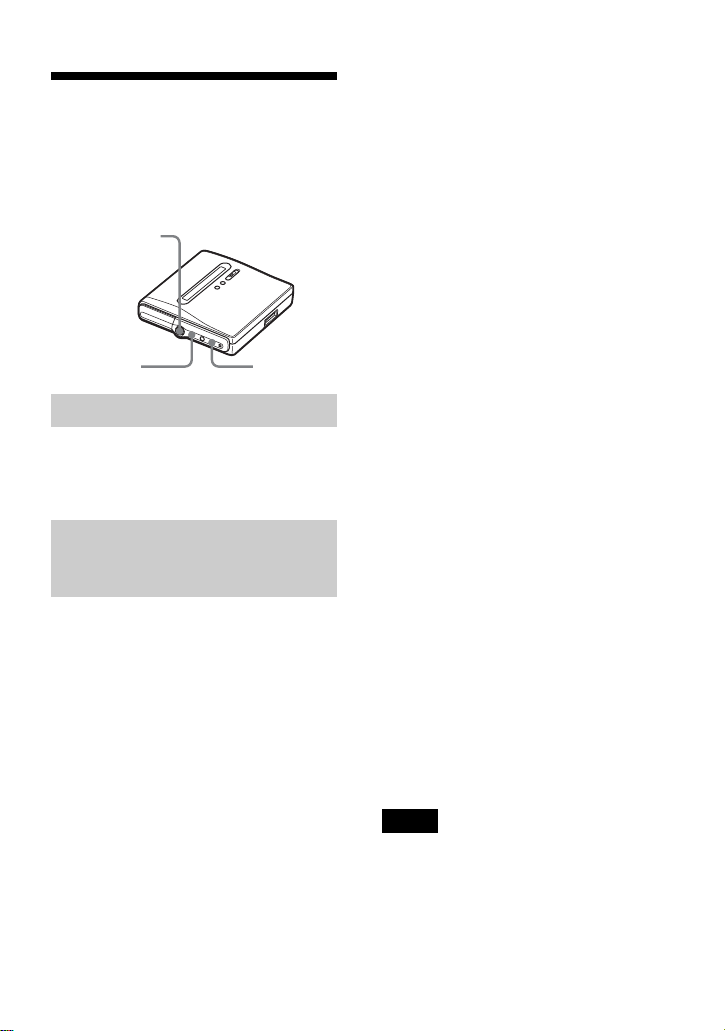
4 While observing the level meter in the
display, adjust the recording level by
pressing the 5-way control key
towards
FR or FF (turn the jog dial on
the remote control).
Set the level so that the meter
segments light up around –12dB
segment.
If a high sound level causes the level
meter to reach the OVER segment,
lower the recording level.
5 Press X again to start recording.
If your source is an externally
connected component, play the
source to the beginning of the
material to be recorded, and then start
recording.
To switch back to automatic
level control
Select “Auto(AGC)” (“Auto (AGC)” on
the remote control) in step 2.
•You cannot adjust the left and right channel
levels separately.
•Once you stop recording, the recorder will
revert to automatic recording level adjustment
mode the next time you start a recording
operation.
•To adjust the recording level manually during
synchro-recording, do steps 1 to 4 of the
procedure in this section with “SYNC REC”
is set to “SYNC REC Off”. Afterwards, set
“SYNC REC” setting to “SYNC REC On”,
and start recording (page 41).
zREC
X
5-way control key
(NENT, FR, FF)
Jog dial
MENU
Notes
Display window on the remote control
Display window on the recorder
Volume
decreases
increases
–12dB OVER
–12dB
OVER
Volume
decreases
increases
39
Adding track marks
while recording
You can add track marks (track number)
while recording to divide the material into
separate parts, that allow you to go to
specific track quickly and easily.
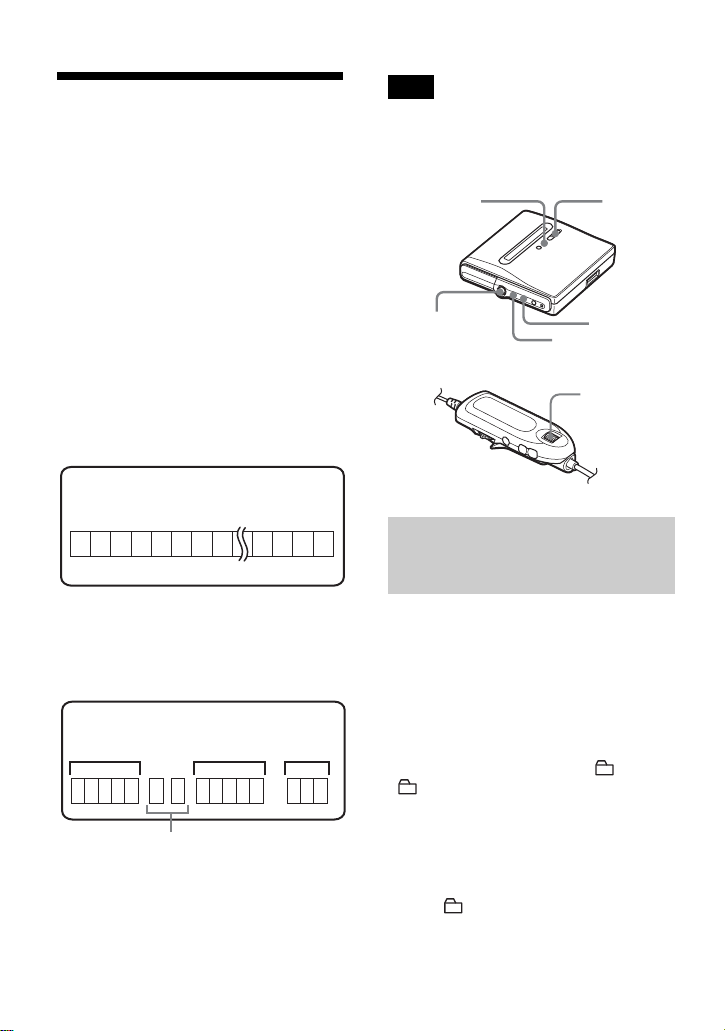
While the recorder is recording, press
T MARK at the point you want to add a
track mark.
Use this feature to add track marks
automatically at specified intervals when
recording through the analog input
connector or a microphone. This function
is convenient for recording long period of
time, such as lectures, meetings, etc.
1 While the recorder is recording or in
recording pause, enter the menu and
select “REC Set” - “Time Mark” -
“On”.
2 Press the 5-way control key towards
FR or FF until the desired time
interval appears in the display, and
then press the control to enter the
selection.
Each press changes the time setting
(Time:) by 1 minute, within the range
of 1 to 60 minutes.
To cancel Time Mark
Select “Off” in step 1.
Using Time Mark to add track
marks while recording
When the elapsed recording time
exceeds the time interval for Time
Mark:
The recorder adds track marks at the point
you set the time interval and from that
point the recorder adds a track mark
whenever the time interval has elapsed.
Example: Eight minutes of recording
has been completed when the Time Mark
time interval is set to 5 minutes.
A track mark will be added at the 8-
minute point (after the start of recording)
and after each 5-minute interval
thereafter.
When the time interval set for Time
Mark exceeds the elapsed recording
time:
The recorder adds track marks when the
set Time Mark time interval has elapsed.
Example: Three minutes of recording
has been completed when the Time Mark
time interval is set to 5 minutes.
A track mark will be added at the 5-
minute point (after the start of recording)
and after each 5-minute interval
thereafter.
z
“T” appears before the time display for track
marks added by Time Mark.
•If you add a track mark by pressing T MARK
or X, etc. while recording, Time Mark will
begin automatically adding track mark each
time the selected time interval as elapsed.
•The setting is canceled when you connect a
digital optical cable to the recorder.
Adding track marks manually
Adding track marks
automatically (Auto Time
Mark)
T MARK
5-way control key
(NENT, FR, FF)
MENU
Notes
40
Using the group
function when
recording
What is the group function?
The group function is provided to allow
playback of discs with group settings. The
group function is convenient for playback
of discs on which several albums or CD
singles have been recorded.
What is a disc with group
settings?
The recorder can operate various
functions in units of group; that is tracks
that have been recorded on a disc as part
of separate groups, as shown below.
You can create a maximum of 255 groups
on a Hi-MD disc or a standard disc in Hi-
MD mode and 99 groups on a standard
disc in MD mode.
It will not be possible to make a group setting if
the tracks, groups and disc name on a disc
exceed the maximum number that can be input
(in MD mode only).
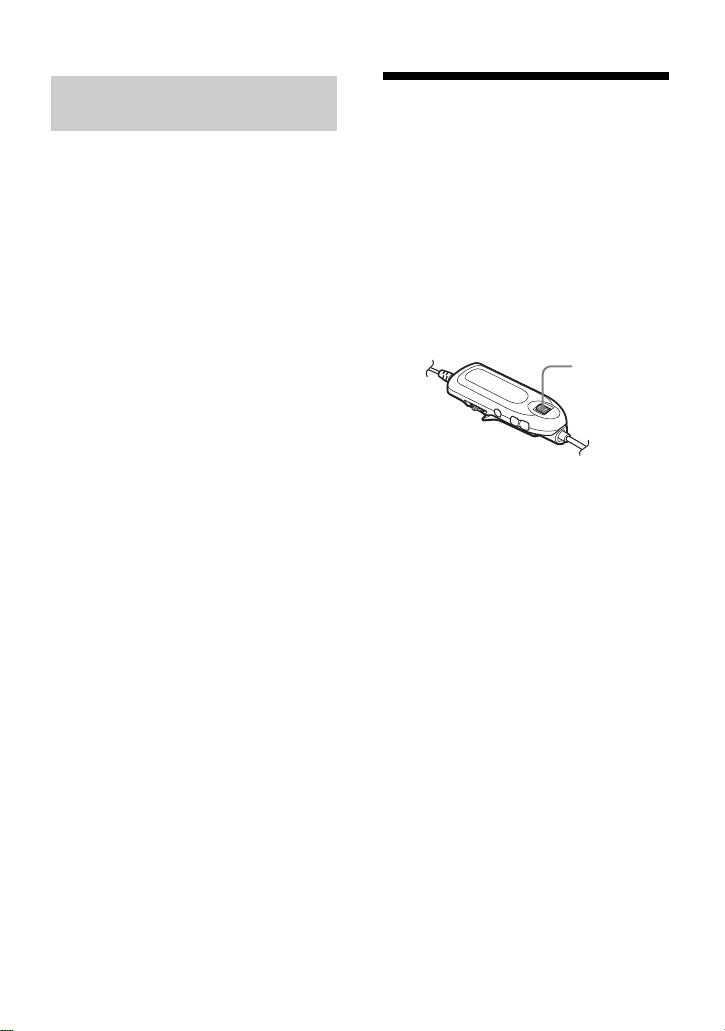
The recorder is factory set to create a new
group automatically by sliding zREC to
the right. This is convenient when
recording several CDs in succession. You
can check the group recording setting as
follows.
While the recorder is stopped, enter the
menu and select “REC Set” - “ :REC” -
“ : REC On” (“REC Settings” - “Group
REC” - “GroupREC On” on the remote
control).
To record without creating a
new group
Select “ :REC Off” (“GroupREC Off
”
on the remote control) at the end of the
procedure above.
1
2 4 5 6 7 8 12 13 14153
1
2345 6
7
1
2345
1
23
Before group settings are made
Disc
After group assignments have been made
Group 1
Group 3
Group 2
Track 1 to 5 are assigned to group 1.
Track 8 to12 are assigned to group 2.
Track 13 to15 are assigned to group 3.
Track 6 to 7 are assigned to no group.
Tracks that were not assigned to a group are
treated as being part of “Group - -”.
Disc
m
Note
To create a new group
automatically when
recording
GROUP
zREC
Jog dial
X
MENU
5-way control key
(NENT, FR, FF)
41
You can add a track to an existing group.
This operation can be done on the
recorder only.
Adding a new track at the end
of the selected group
1 While the recorder is stopped and the
group to which you want to add a
track is selected, slide zREC to the
right while pressing GROUP.
2 Play the sound source.
A new track will be added at the end
of the current contents within the
group.
Adding a track at a desired
position within the selected
group
1 While the recorder is play-paused at
the point within the group where you
want to add a new track, slide zREC
to the right while pressing GROUP.
2 Press X to start recording and play
the sound source.
To start/stop recording
in sync with the sound
source
(Synchro-recording)
During synchro-recording, the starting
and stopping of recording occurs are
synchronized with the sound source. This
simplifies digital recordings (e.g., from a
CD player) since the need to operate the
recorder or the sound source is
eliminated. Synchro-recording is only
possible with the optical cable connected.
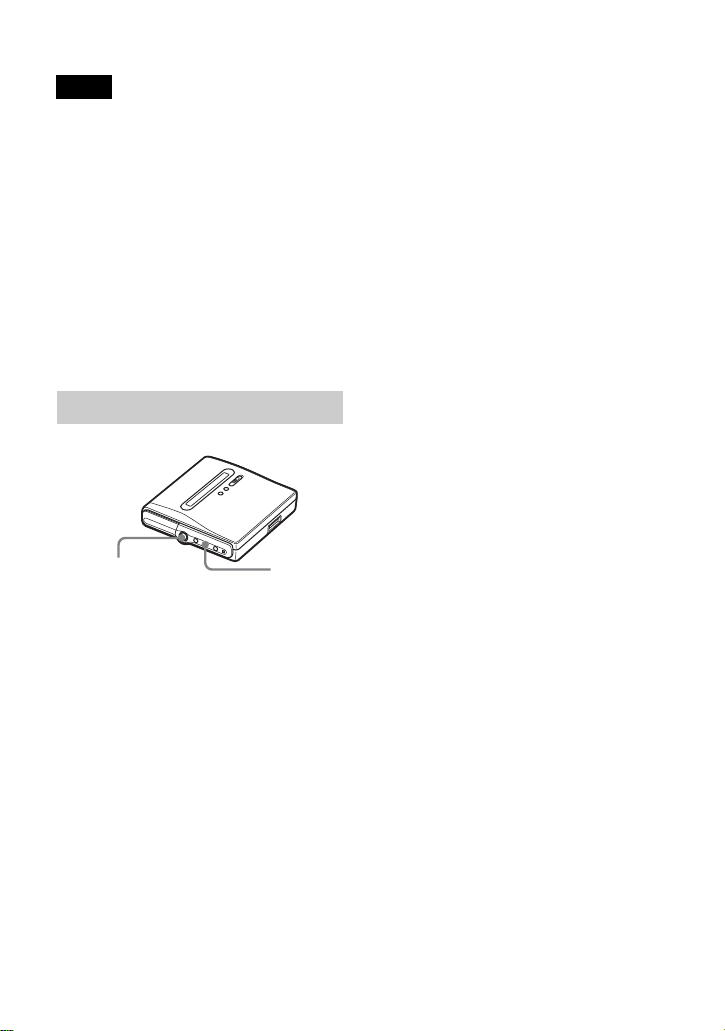
1 Make connections.
Use the appropriate optical cable to
suit the source equipment. For details,
see “Optional accessories” (page 79).
2 While the recorder is stopped, enter
the menu and select “REC Settings” -
“SYNC REC” - “SYNC REC On”.
z
When there is no sound from the player for
about 3 seconds during synchro-recording, the
recorder goes into the standby mode
automatically. When the sound comes from the
player again, the recorder resumes synchro-
recording. If the recorder is kept in the standby
mode for 5 minutes or longer, the recorder stops
automatically.
Recording tracks to an
existing group
Jog dial
42
•The pause function cannot be turned on or off
manually during synchro-recording.
•Do not switch the “SYNC REC” setting while
recording. Recording may not be done
properly.
•Even when there is no sound on the sound
source, there may be cases when recording
does not pause automatically during synchro-
recording due to the noise level emitted from
the sound source.
•If a silent portion is encountered for
approximately 2 seconds during synchro-
recording from a sound source other than a
CD or an MD, a new track mark is
automatically added at the point where the
silent portion ends.
1 Make connections.
Use the appropriate optical cable to
suit the source equipment. For details,
see “Optional accessories” (page 79).
2 While the recorder is stopped, enter
the menu and select “REC Set” -
“SYNC REC” - “SYNC On”.
Notes
On the recorder
MENU
5-way control key
(NENT, FR, FF)
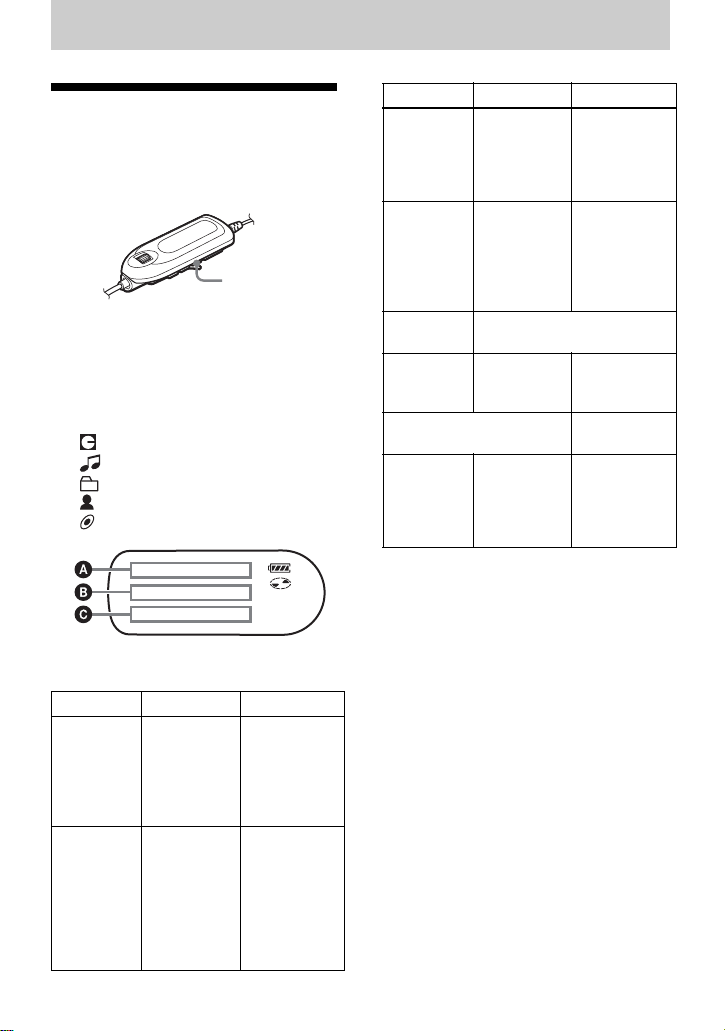
43
Various ways of playback
Viewing various
information
You can check the track name, disc name,
etc. during playback.
1 While playing, press DISPLAY.
Each time you press DISPLAY, the
display changes as follows.
The indications have the following
meanings:
: Disc name
: Track name
: Group name
: Artist name
: Album name
Display window: A/B/C
AB C
Group
number
1)
Track number
and elapsed
time
•Track name
and artist
name (Hi-
MD)
•Track name
(MD)
Track
number
1)
Remaining
time of the
current track
•“1 Remain”,
track name
and artist
name (Hi-
MD)
•“1 Remain”
and track
name (MD)
DISPLAY
Numbers of
tracks after
the current
track
1)
Remaining
time after the
current
location in
the disc
“All Remain”
and disc name
• Disc name
and artist
name (Hi-
MD)
2)
• Disc name
(MD)
2)
• Group name
and album
name (Hi-
MD)
5)
• Group name
(MD)
5)
Track name
Sound Mode
name
3)
Indication of the selected
Sound Mode
Recorded
year, month
and date
Recorded
time
“REC Date”
Remaining battery charge/
battery status
4)
“Batt Status”
• Codec
(Hi-MD)
3)
• (none)
(MD)
3)
• Track mode
and bit rate
(Hi-MD)
• Track mode
(MD)
• “Codec” (Hi-
MD)
• “TrackMode”
(MD)
1)
The Main play mode indication appears when
Main play mode is selected.
2)
Track number appears if the currently selected
track is not in a group.
3)
This does not appear when “Menu Mode” is set
to “Simple” (page 66).
4)
The displayed time is the approximate duration
for continuous recording at +25°C. “Plenty”
appears in the display when the battery is
sufficiently charged, while “Almost Empty”
appears when the battery is almost exhausted.
These indications do not appear when the AC
power adaptor is being used.
5)
The disc name appears when the currently
selected track is not in a group.
AB C
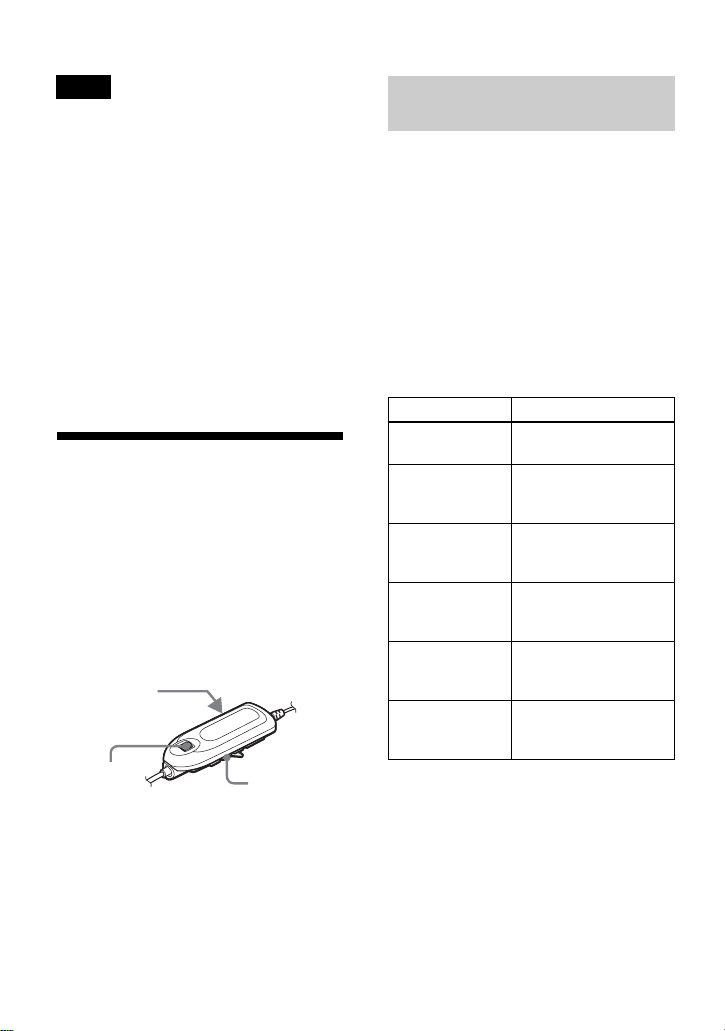
44
•Depending on the group settings, the
operating conditions, and the disc settings,
you may not be able to select certain
indications or the indications may appear
differently.
•The remaining battery charge/battery status
appears about one minute after the start of
playback. The remaining battery charge may
not be accurately displayed due to the
operating environment or condition of the
rechargeable battery.
z
If you want to check the remaining time or the
recording position while recording or in stop
mode, see “Viewing various information”
(page 32).
Selecting the play
mode
You can listen to tracks in various play
modes. The play mode can consist of a
combination of Main play mode, Sub play
mode and Repeat play.
• Main play mode: selects the playback
unit, such as tracks or groups
• Sub play mode: selects the type of play
• Repeat play: selects Repeat play
Enter navigation mode using the jog dial
on the remote control, and then select the
Main play mode and the track to be
played first.
1 While playing, press the jog dial.
The recorder enters navigation mode
and the Main play mode display
appears.
2 Turn the jog dial to select the desired
play mode, and then press the dial to
enter the selection.
Notes
Jog lever
(NX • ENTER)
P-MODE •
REPEAT
Jog dial
Playing tracks in Main play
mode
Indication Play mode
Normal Play Normal play (All
tracks are played once.)
Group Play Group play (Tracks in
the selected group are
played.)
Artist Play
1)
1)
Appears only for discs used in Hi-MD mode.
Artist play (Tracks of a
specified artist are
played.)
Album Play
1)
Album play (Tracks in
a specified album are
played.)
BookmarkPlay Bookmark play
(Bookmarked tracks
are played.)
Program Play Program play (Tracks
are played in a
specified order.)

45
Playing tracks in normal mode
(Normal Play)
1 Do step 1 and select “Normal Play” in
step 2 of “Playing tracks in Main play
mode” (page 44).
2 When selecting a track out of a group,
skip this step.
When selecting a track within a
group, turn the jog dial until the group
that the desired track belongs to
appears in the display, and then press
the dial to enter.
A list of the tracks in the selected
group appears in the display.
3 Turn the jog dial until the desired
track appears in the display, and then
press the dial to enter the selection.
The selected track starts playing. The
recorder plays from the selected track
to the last track in the disc.
Playing tracks in a group
(Group Play)
1 Do step 1 and select “Group Play” in
step 2 of “Playing tracks in Main play
mode” (page 44).
A list of the groups on a disc appears.
2 Turn the jog dial until the desired
group appears in the display, and then
press the dial.
A list of the tracks in the selected
group appears.
3 Turn the jog dial until the desired
track appears in the display, and then
press the dial to enter the selection.
The selected track starts playing. The
recorder plays from the selected track
to the last track in the selected group.
z
You can cue to the start of a group. While
playing, press GROUP on the recorder, and
press the 5-way control key towards
FR or FF
to select a desired group.
Listening to tracks by a
specific artist (Artist Play) (in
Hi-MD mode only)
If the track data includes the artist name,
you can listen to tracks by a specific artist
only.
1 Do step 1 and select “Artist Play” in
step 2 of “Playing tracks in Main play
mode” (page 44).
A list of the artists on the disc appears
in alphabetical order.
2 Turn the jog dial until the desired
artist name appears in the display, and
then press the dial.
A list of the tracks of the selected
artist appears in recorded order.
3 Turn the jog dial until the desired
track appears in the display, and then
press the dial to enter the selection.
The selected track starts playing. The
recorder plays from the selected track
to the last track in the list for the
selected artist.
z
You can cue to the first track of the next or
previous artist. While playing, press GROUP
on the recorder, and press the 5-way control key
towards
FR or FF.
46
Listening to tracks of a
selected album (Album Play)
(in Hi-MD mode only)
If the track data includes the album name,
you can listen to tracks of a selected
album only.
1 Do step 1 and select “Album Play” in
step 2 of “Playing tracks in Main play
mode” (page 44).
A list of the albums on the disc
appears in alphabetical order.
2 Turn the jog dial until the desired
album name appears in the display,
and then press the dial.
A list of the tracks in the selected
album appears in recorded order.
3 Turn the jog dial until the desired
track appears in the display, and then
press the dial to enter the selection.
The selected track starts playing. The
recorder plays from the selected track
to the last track in the album.
z
You can cue to the first track of the next or
previous album. While playing, press GROUP
on the recorder, and press the 5-way control key
towards
FR or FF.
Listening to selected tracks
only (Bookmark Play)
You can bookmark tracks on a disc and
play them only. The sequence of
bookmarked tracks cannot be changed.
To bookmark the tracks
1 While playing the track you want to
bookmark, press the jog lever for 2
seconds or more.
The first track of the bookmark play
is set.
2 Repeat step 1 to bookmark the other
tracks.
To play the bookmarked tracks
1 Do step 1 and select “BookmarkPlay”
in step 2 of “Playing tracks in Main
play mode” (page 44).
2 Turn the jog dial to select a track, and
then press the dial to enter the
selection.
The selected bookmarked tracks start
playing. The recorder plays from the
selected bookmarked track to the last
bookmarked track.
To erase bookmarks
While playing the track for which you
want to erase the bookmark, press the jog
lever for 2 seconds or more.
47
Listening to tracks or groups
in a desired sequence
(Program Play)
You can listen to tracks or groups in a
desired sequence.
Programming tracks (Track Program)
1 Do step 1 and select “Program Play”
in step 2 of “Playing tracks in Main
play mode” (page 44).
2 Turn the jog dial until “Track”
appears in the display, and then press
the dial.
3 Do steps 2 to 4 of “Searching for a
track (Search)” (page 48).
The first track in the program is
stored.
4 Repeat step 3 to program more tracks.
You can program up to 64 tracks.
5 After programming the tracks, press
the jog dial for 2 seconds or more.
The program is stored, “PGM”
appears in the display and the first
track in the program starts playing.
Programming groups (Group
Program)
1 Do step 1 and select “Program Play”
in step 2 of “Playing tracks in Main
play mode” (page 44).
2 Turn the jog dial until “Group”
appears in the display, and then press
the dial.
3 Turn the jog dial until the desired
group appears in the display, and then
press the dial.
4 Repeat step 3 to program more
groups.
You can program up to 20 groups.
5 After programming the groups, press
the jog dial for 2 seconds or more.
The program is stored, “ ” appears
in the display and the first track of the
first group in the program starts
playing.
z
While programming tracks or groups, press the
jog dial to view the tracks or groups that have
been programmed.
By specifying Sub play modes, you can
listen to tracks selected in Main play
mode in various ways.
For example, by selecting “Group Play”
in Main play mode and “SHUF” in Sub
play mode, the recorder will play the
tracks in the selected group in random
order.
Press P-MODE repeatedly.
Each time you press the button, the play
mode changes as follows.
Playing tracks in Sub play
mode
Indication Play mode
— (none) Normal play (All tracks
are played once.)
1 Single-track play (A single
track is played.)
SHUF Shuffle play (All tracks in
the selected Main play
mode are played in
random order.)
A-
(A-B )
1)
1)
“A-” does not appear when the “Menu
Mode
” is set to “Simple”.
A-B Repeat play (Tracks
between the selected
points A and B are played
repeatedly.)
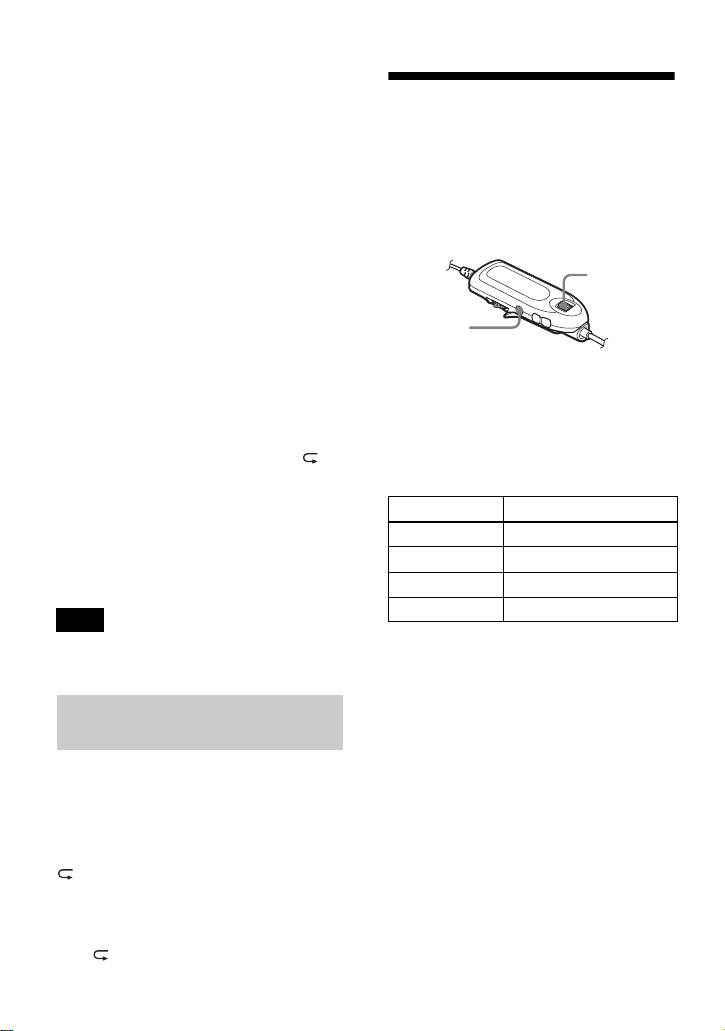
48
Listening to a section of a
track repeatedly (A-B Repeat)
You can listen to a specific section within
a track repeatedly by selecting the starting
point A, and ending point B. Make sure
that points A and B are within the same
track.
1 While playing a track that contains
the section you want to repeat, press
P-MODE repeatedly until “A-”
flashes in the display.
2 Press the jog dial at the starting point
(A).
Point A is entered and “B” flashes in
the display.
3 Press the jog dial at the ending point
(B).
Point B is entered, “A-B” and “ ”
lights up, and the section between
point A and B starts playing
repeatedly.
z
You can reset points A and B by sliding the jog
lever towards > during A-B Repeat play.
If the recorder comes to the end of the last track
on the disc while you are selecting point A, the
setting is canceled.
You can use the Repeat play function to
repeat tracks in all play modes except
when selecting the A-B Repeat play.
Press REPEAT for 2 seconds or more.
appears in the display.
To cancel Repeat Play
Press REPEAT for 2 seconds or more
until disappears in the display.
Searching for a track
(Search)
You can easily search for a track by track
name, group name, artist name, or album
name. Artist names and album names can
be viewed in the case of discs used in Hi-
MD mode only.
1 Enter the menu and select “Useful” -
“Search”.
2 Turn the jog dial to select the item
you want to use for searching, and
then press the dial.
3 If you select “by Track” in step 2,
skip this step.
If you select an item other than “by
Track” in step 2, turn the jog dial to
select the desired group, artist, or
album, and then press the dial.
A list of tracks for the selected group,
artist, or album appears in the display.
4 Turn the jog dial to select the desired
track, and then press the dial to enter
the selection.
The selected track starts playing.
Note
Playing tracks repeatedly
(Repeat Play)
Display To
by Track search by track name
by Group search by group name
by Artist
1)
1)
Appears only for discs used in Hi-MD mode.
search by artist name
by Album
1)
search by album name
Jog dial
x
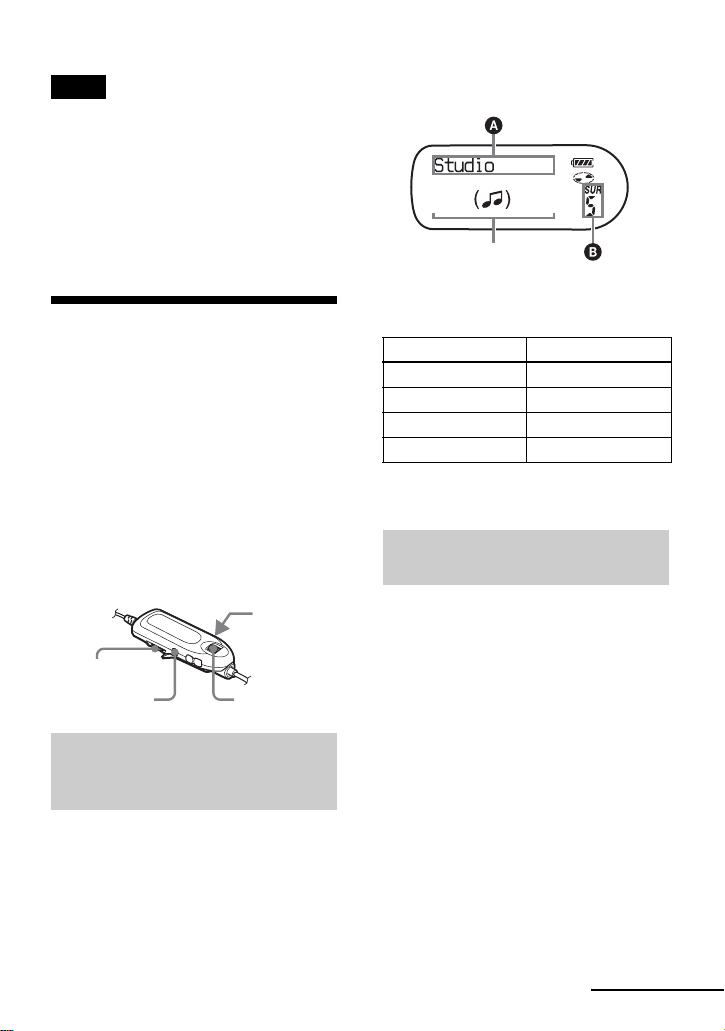
49
•After step 4, Main play mode and Sub play
mode will be canceled (Repeat play will
function).
•During a search, unlabeled tracks will appear
at the end of each list.
•While the recorder is sorting the selected
items, “SORTING” appears in the display.
Wait until this indication disappears from the
display before doing any operation.
Adjusting the sound
(Virtual-Surround • 6-
Band Equalizer)
You can vary the virtual sound to create
different acoustics, or modify the sound to
suit your taste and store it for later use.
The following two effect can be selected.
V-SUR (Virtual-Surround VPT
Acoustic Engine)
Provides 4 kinds of virtual surround
conditions.
6-BAND EQUALIZER
Provides 6 different sound qualities.
1 While playing, press SOUND until
“SUR” appears in the display.
2 Press SOUND for 2 seconds or more.
3 Turn the jog dial to select the
surround mode.
Each time you turn the jog dial, A
and B change as follows:
4 Press the jog dial to enter the selected
surround mode.
1 While playing, press SOUND until
“SND” appears in the display.
2 Press SOUND for 2 seconds or more.
Notes
Varying the virtual sound to
create different acoustics
(Virtual-Surround)
Jog lever
(., >)
SOUND •
SOUND SET
Jog dial
x
AB
Studio SUR S
Live SUR L
Club SUR C
Arena SUR A
Selecting the sound quality
(6-Band Equalizer)
Indication which represents
each sound mode appears.
continued
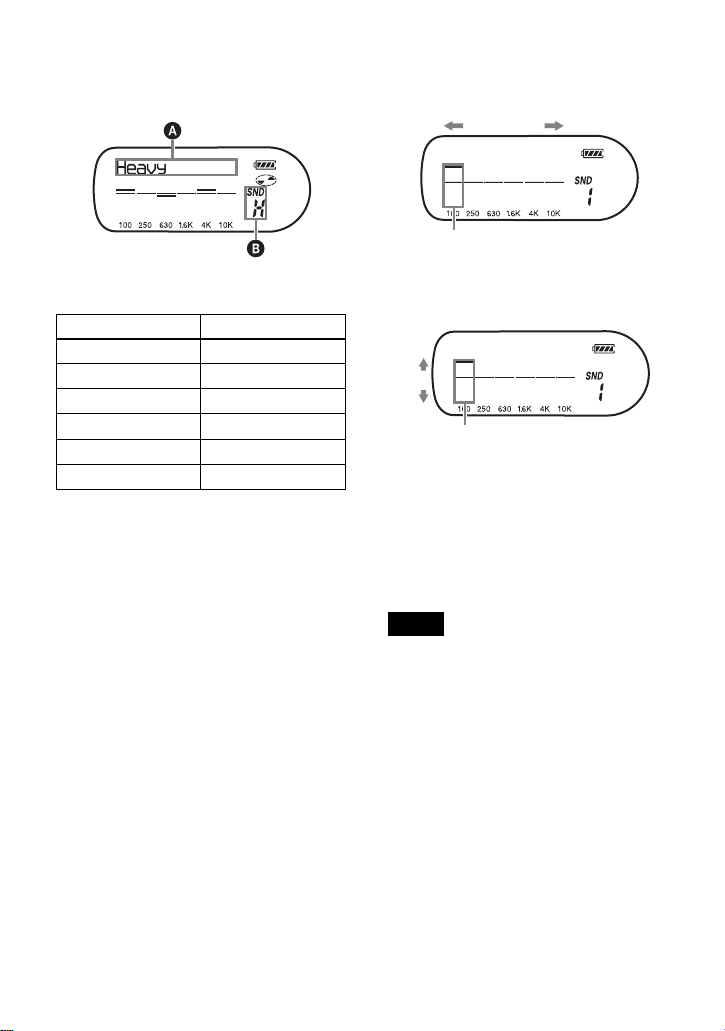
50
3 Turn the jog dial to select the sound
mode.
Each time you turn the jog dial, A
and B change as follows:
4 Press the jog dial to enter the selected
sound mode.
To cancel the setting
Press SOUND repeatedly until “Normal”
appears in A and the indication at B
disappears.
To modify and store the sound
You can modify the sound and store the
results in “Custom1” and “Custom2”.
1 Do steps 1 to 3 of “Selecting the
sound quality (6-Band Equalizer)”
(page 49), and turn the jog dial until
“Custom1” or “Custom2” appears.
2 Press the jog dial.
3 Slide the jog lever repeatedly to select
the frequency.
4 Turn the jog dial to adjust the level.
5 Repeat steps 3 and 4 to adjust the
level for each frequency.
6 Press the jog dial to enter the
selection.
•Virtual-Surround and 6-Band Equalizer will
not function during recording.
•Virtual-Surround and 6-Band Equalizer stop
functioning whenever an external component
is connected to the i/LINE OUT jack.
AB
Heavy SND H
Pops SND P
Jazz SND J
Unique SND U
Custom1 SND 1
Custom2 SND 2
Notes
Custom1
Frequency (100 Hz)
From the left, you can select 100 Hz,
250 Hz, 630 Hz, 1.6 kHz, 4 kHz, or 10 kHz
Custom1
Level (+10 dB)
You can select from among seven levels.
–10 dB, –6 dB, –3 dB, 0 dB, +3 dB, +6 dB,
+10 dB
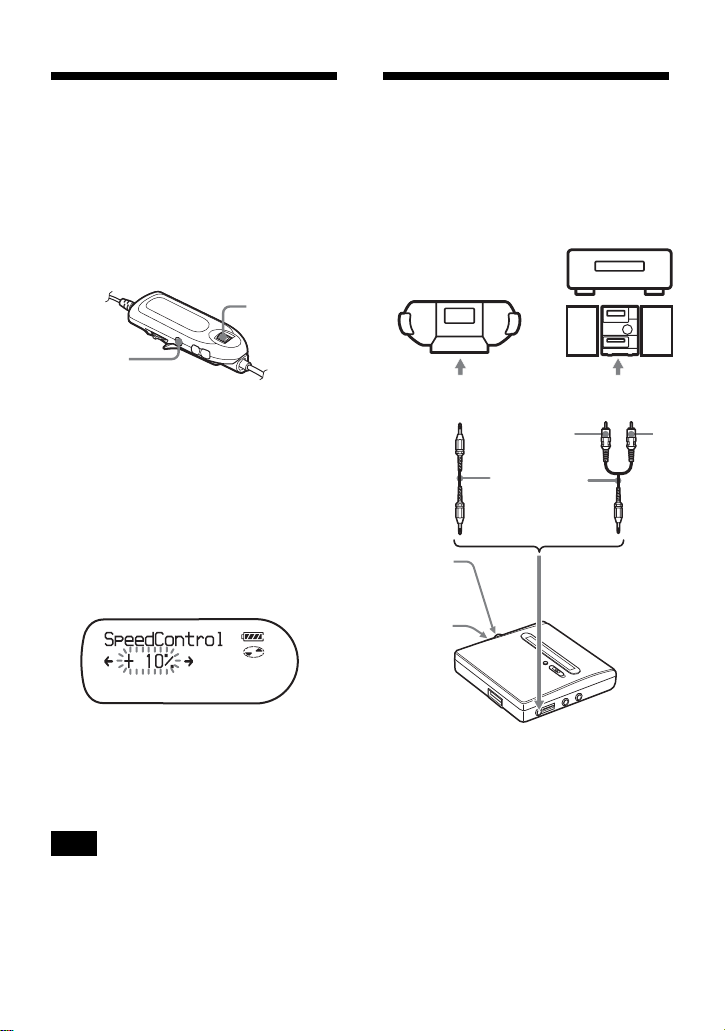
51
Changing playback
speed (Speed Control)
The Speed Control function is useful for
language study and other purpose. This
function changes the playback speed
without changing the playback pitch.
The playback speed can be varied from
+100% to –50% the normal speed, in 13
steps.
1 While playing, enter the menu and
select “Useful” – “SpeedControl”.
The player changes to speed-setting
mode.
2 Turn the jog dial to select the desired
playback speed, and then press the
dial to enter the selection.
Select the speed while listening the
sound.
“SC” appears in the display after you
entered the selection.
To return to normal speed
Set the playback speed to 0% in step 2.
When using Speed Control, you may hear noise
or an echo in the playback.
Connecting to a stereo
system (LINE OUT)
You can listen to the playback sound from
connected component. Connect the i/
LINE OUT jack of the recorder to the
LINE IN jacks of an amplifier or a tape
player with a line cable.
When connecting a line cable to the i/
LINE OUT jack of the recorder, be sure to
set the “Audio Out” parameter for the i/
LINE OUT jack.
This operation can be done on the
recorder only.
1 Remove the headphones/earphones
with a remote control from the
recorder.
Note
Jog dial
x
Stereo System,
etc.
2 phono plugs
Stereo mini-
plug
To LINE IN
L
(white)
R
(Red)
Line cable
To i/LINE OUT
MENU
5-way
control key
(NENT, FR,
FF)

52
2 Enter the menu and select “Useful” -
“Audio Out”.
3 Press the 5-way control key towards
FR or FF until “Line Out” appears in
the display, and then press the control
key to enter the selection.
•If the “Audio Out” parameter for the i/LINE
OUT jack is set to “Line Out”, Virtual
Surround or 6-Band Equalizer will not
function.
•The “Audio Out” parameter for the i/LINE
OUT jack cannot be set to “Line Out” when
the remote control is connected.
•When you connect the headphones/earphones
directly to the recorder, make sure to set the
“Audio Out” parameter for the i/LINE OUT
jack to “Headphone” in step 3.
•When the “Audio Out” parameter for the i/
LINE OUT jack is set to “Line Out”, do not
connect the headphones/earphones. The sound
from the headphones/earphones will be very
loud and the sound distortion occurs.
•If the recorder is connected to a component
such as an active speaker and the “Audio Out”
parameter for the i/LINE OUT jack is set to
“Headphone”, make sure to set the “Beep”
setting to “Beep Off” (page 67).
Notes

53
Editing recorded tracks
Before editing
You can edit your recordings by adding/
erasing track marks or labeling tracks and
discs.
•Premastered discs cannot be edited.
•Close the record-protect tab on the side of the
disc before editing (page 78).
•Do not move or jog the recorder or disconnect
the power source while editing or “SYSTEM
FILE WRITING” (“SYS WRITE” on the
recorder) is flashing in the display. If you do,
the data edited up to that point may not be
recorded to the disc, or data on the disc may
be damaged. “SYSTEM FILE WRITING”
(“SYS WRITE” on the recorder) flashes while
the editing results are being recorded.
•While “SYSTEM FILE WRITING” (“SYS
WRITE” on the recorder) is flashing, the lid
becomes locked.
Adding titles (Title)
You can add titles to tracks, groups and
discs using the remote control’s character
palette. You can add artist names and
album names to tracks on a disc used in
Hi-MD mode.
Some features depend on the model, such
as the number of characters that can be
input and the character palette on the
remote control. Refer to the following
items to verify what input characters are
supported, the maximum number of
characters that can be input and the
character palette.
For the European, North
American and Australian
models
Available characters
•
Capital and small letters of the alphabet
for English and European languages
1)
• Numbers 0 to 9
• Symbols
2)
1)
European alphabets appear only for discs used
in Hi-MD mode.
2)
The available symbols will differ for Hi-MD
mode and MD mode (see “Character palette”
on page 54).
Maximum number of characters that
can be input per title
Track names, group names, and disc
name: Approx. 200 each (containing a
mixture of all available characters)
Maximum number of characters that
can be input per disc*
In Hi-MD mode:
A maximum of about 55,000 characters
In MD mode:
A maximum of about 1,700 characters
* The number of titles that can be stored on a
disc depends on the number of characters that
are input for track names, group names, artist
names, album names and disc name.
Notes
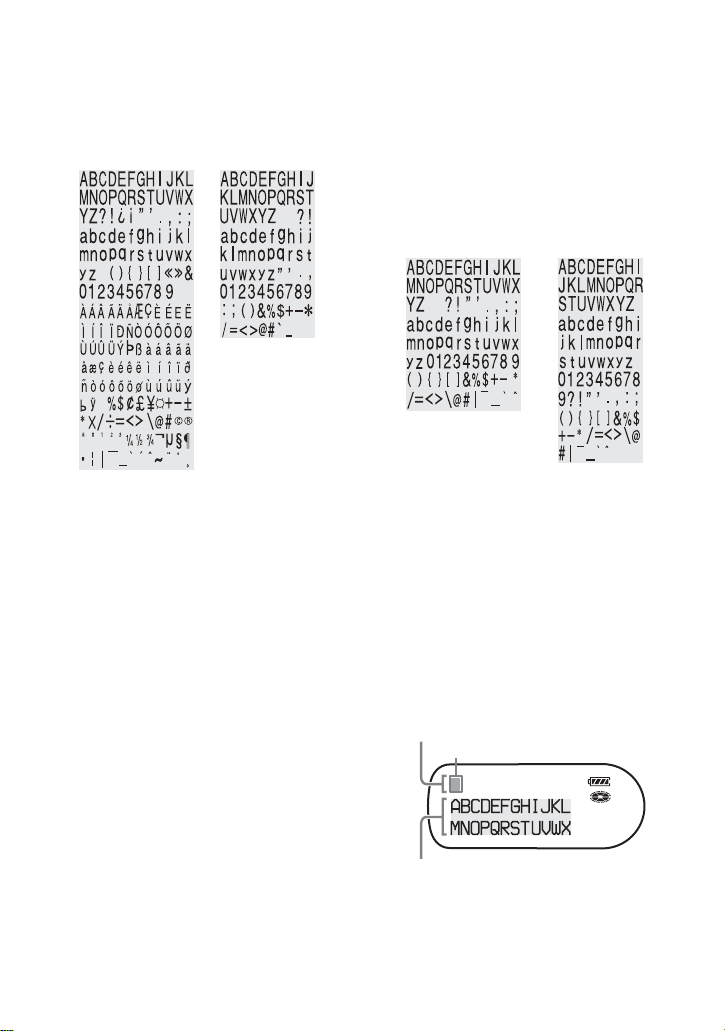
54
Character palette
The character palette has the following
configuration.
For the Asian, African and
tourist models
Available characters
•
Capital and small letters of the English
alphabet
• Numbers 0 to 9
• Symbols
*
*
The available symbols will differ for Hi-MD
mode and MD mode (see “Character palette”
on page 54).
Maximum number of characters that
can be input per title
Track names, group names, and disc
name: Approx. 100 each in Hi-MD mode
and 200 each in MD mode (containing a
mixture of all available characters)
Maximum number of characters that
can be input per disc*
In Hi-MD mode:
A maximum of about 27,000 characters
In MD mode:
A maximum of about 1,700 characters
* The number of titles that can be stored on a
disc depends on the number of characters that
are input for track names, group names, artist
names, album names and disc name.
Character palette
The character palette has the following
configuration.
About the character palette
During operations on the remote control,
characters can be selected from the
character palette in the display window of
the remote control. (See “Character
palette” for the configuration of the
character palette.)
Since only a part of the character palette
is visible on the display, use the controls
or buttons to move the cursor and enter
characters.
Character palette
for Hi-MD mode
Character palette
for MD mode
Character palette
for Hi-MD mode
Character palette
for MD mode
The cursor flashes.
Letter input area
Character palette
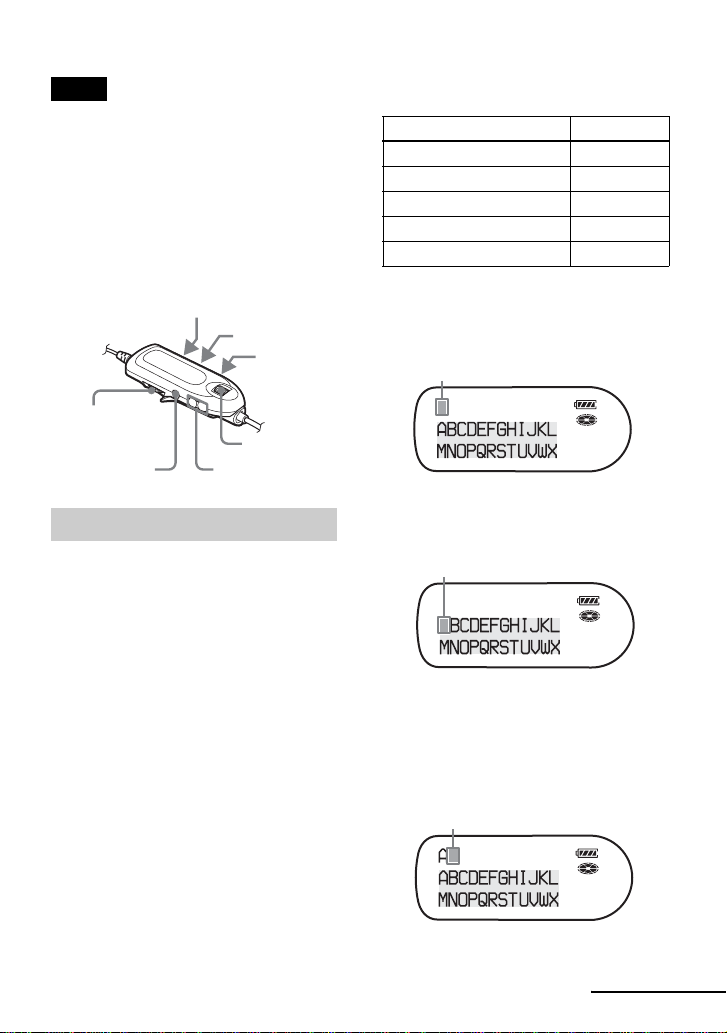
55
•If you enter the symbol “//” between the
characters in disc names such as “abc//def”,
you may be unable to use the group function
(in MD mode only).
•On the remote control for the Asian, African
and tourist models, Chinese characters can be
displayed but cannot be input. You can input
Chinese characters with the SonicStage
software.
You can label a track, group, or disc while
the recorder is stopped, recording or
playing. You can also label artist names
and album names to tracks in a disc used
in Hi-MD mode. Note that if you label a
track name, an artist name, or an album
name to a track while the recorder is
stopped, the track must be the currently
selected.
You can label a group while the recorder
is recording or playing a track in the
group, or while a track in the group is
selected and the recorder is stopped.
1 Enter the menu and select “Edit” -
“Title Input”.
2 Select one of the following, and then
press the jog dial.
The cursor flashes in the letter input
area and input of the title becomes
possible.
3 Press DISPLAY.
The cursor shifts from the letter input
area to the character palette.
4 Select a letter using the buttons and
the controls, and then press the jog
dial to enter.
The selected letter appears in the
letter input area and the cursor moves
to the next input position.
Notes
Labeling
VOL +, –
Jog dial
P-MODE •
REPEAT
DISPLAY •
BACKLIGHT
SOUND •
SOUND SET
Jog lever (NX •
ENTER, .,
>)
x
Title Display
Track name “Track”
Group name “Group”
Artist name (to a track)
1)
1)
Appears only for discs used in Hi-MD mode.
“Artist”
Album name (to a track)
1)
“Album”
Disc name “Disc”
The cursor flashes.
The cursor and character alternate.
The cursor flashes at the next input position.
continued
56
The buttons and control used for
character input and their functions are
listed below.
5 Repeat step 3 and 4 enter all
characters of the label title.
6 Press the jog dial for 2 seconds or
more.
When the recording is stopped or the recording
moves on to the next track while labeling titles
during recording, the input at that point is
entered automatically.
You can change the track name, artist
name, album name, group name, or disc
name by doing the procedure for
“Labeling” (page 55).
To re-label a track name, artist
name, or album name:
Start playing the track you want to re-
label, and then change the track name,
artist name, or album name while the
recorder is playing, or while the recorder
is stopped and the track to be re-labeled is
currently selected.
To re-label a disc:
You can re-label the disc while the
recorder is stopped, recording, or playing.
•The recorder is able to display, but cannot
label using Japanese “Katakana” characters.
•The recorder cannot rewrite a disc or track
name of more than 200 letters that was created
by another device (in MD mode only).
Functions Operation
1)
1)
Functions of the buttons or the controls may
differ depending on when the cursor is in the
letter input area or in the character palette.
To move the cursor to the
left or right in the letter
input area.
Slide the jog lever
(., >).
To select a letter in the
letter input area.
Turn the jog dial.
To enter a letter. Press the jog dial
or the jog lever
(NX • ENTER).
To enter a title. Press the jog dial
or the jog lever
for 2 seconds or
more (NX •
ENTER).
To switch between capital
letters, small letters, and
numbers/marks.
Press P-MODE •
REPEAT.
To insert a blank space. Press VOL +.
To delete a letter. Press VOL –.
To cancel labeling. Press x for 2
seconds or more.
To move the cursor to
the right or left in the
character palette.
Slide the jog
lever
(.,
>)
.
To move the cursor up
and down in the
character palette.
Turn the jog dial.
To move the cursor from
the letter input area to
the character palette.
Press DISPLAY
• BACKLIGHT.
To move the cursor from
the character palette to
the letter input area.
Press
x or
DISPLAY •
BACKLIGHT.
To display “_ (space)”,
“:”, “/”, or “–” at the
input position in the
letter input area.
Press SOUND •
SOUND SET.
To switch between capital
letters and small letters.
Press SOUND •
SOUND SET.
Note
Re-labeling
Notes

57
Assigning tracks or
groups as a new group
(Group Set)
With this function, you can assign
existing tracks or groups to a new group,
and also you can assign a track that
currently belongs to no group to an
existing group.
You can create a maximum of 255 groups
on a Hi-MD disc or a standard disc in Hi-
MD mode and 99 groups on a standard
MD disc.
Registration of non-consecutive tracks is
not possible (for example, track 3 and
tracks 7 and 8 cannot be assigned to a new
group).
It is not possible to make a new group if
the first track or last track of the group has
been selected from the middle of an
existing group.
Track numbers appear according to their
order on the disc, not their order within
the group.
•When the total number of characters in the
titles on a disc exceed the maximum that can
be input:
—If the disc is being used in Hi-MD mode,
you can make a group setting, but cannot
add a group name in step 4.
—If the disc is being used in MD mode, you
cannot make a group setting.
•The tracks or groups must be sequential. If the
desired tracks or groups are not consecutive,
you must move them to make them
consecutive before you can assign them
(“Moving recorded tracks or groups (Move)”,
page 58).
1 While the recorder is stopped, enter
the menu and select “Edit” - “Group
Set”.
2 Turn the jog dial until the number of
the desired first track appears in the
display, and then press
the dial.
This selects the first track of a new
group. If the disc contains groups,
only the first track number of each
group is displayed.
3 Turn the jog dial until the number of
the desired last track appears in the
display, and then press the dial.
This selects the last track of the new
group and the group can be labeled. If
the disc contains groups, only the last
track number of each group is
displayed.
1
24567891011123
1
2456 9101112
378
Group 1
Group 2
Group 2
Group 1
Assigning tracks 1 to 3 to a new
group
Assigning group 1 and group 2 to a
new group
Track number
Disc
Disc
Notes
Jog dial
x
continued
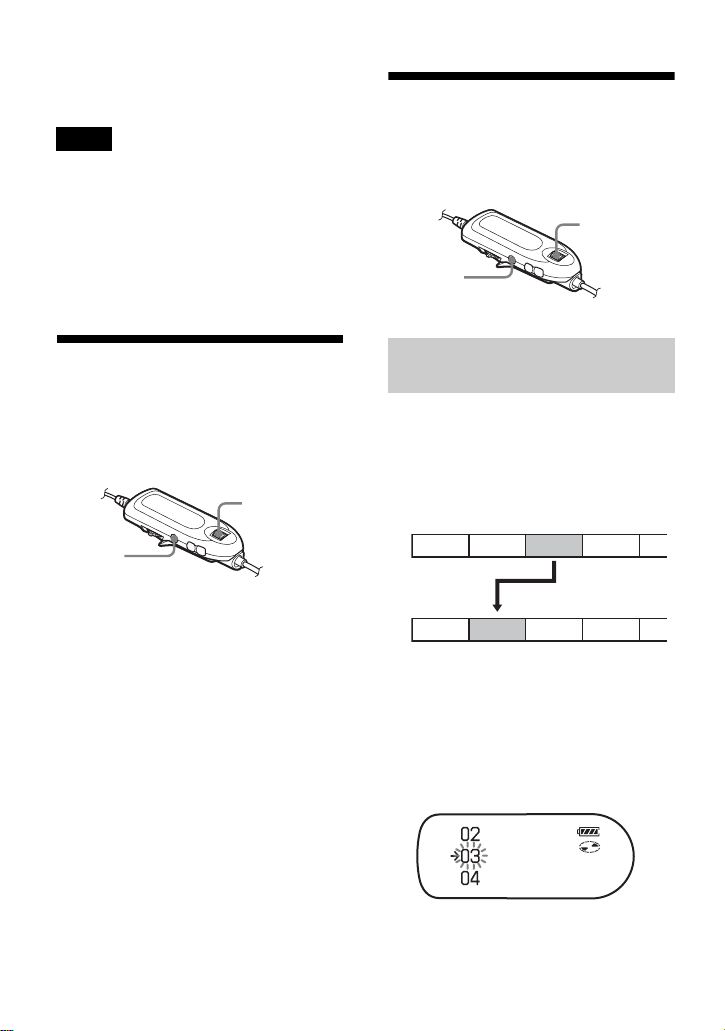
58
4 Label a group (see “Adding titles
(Title)” (page 53)).
•In step 2, the first track must be either the first
track of an existing group or a track that does
not belong to a group.
•When selecting the last track in step 3, make
sure the track comes after the one selected in
step 2. The last track must be either the last
track of an existing group or a track that does
not belong to a group.
Releasing a group
setting (Group Release)
Select a group you want to release and
check the contents (see “Playing tracks in
a group (Group Play)” (page 45)).
1 Select a group that you want to
release and check the contents (see
page 45).
2 Press x.
3 Enter the menu and select “Edit” -
“GroupRelease”.
“Group RELEASE OK?” and “PUSH
YES:ENTER NO:CANCEL” appear
in the display.
4 Press the jog dial to release a group.
The group setting of the selected
group is released.
Moving recorded tracks
or groups (Move)
You can change the order of the recorded
tracks or groups.
When you move tracks, track numbers are
automatically renumbered.
Example
Move track C (track number 3) from the third to the
second track.
1 While playing the track you want to
move, enter the menu and select
“Edit” - “Move” - “Track Move”.
The selected track number flashes in
the middle row of the display.
Notes
Jog dial
x
Changing the order of a track
on a disc
Jog dial
x
A CDB
A BDC
Before moving
After moving
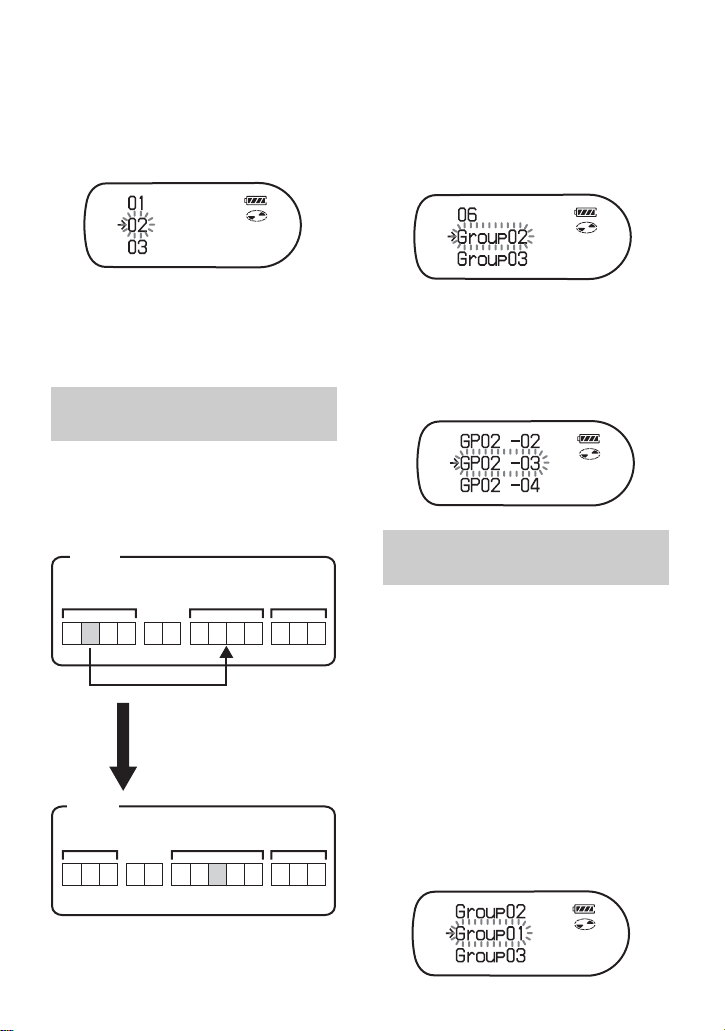
59
2 Turn the jog dial until the destination
track number flashes in the display.
For the example, since track C will be
moved to track “02”, turn the jog dial
until “02” flashes in the display.
3 Press the jog dial to enter the
selection.
The track moves to the selected
destination track.
You can move a track from one group out
of the group or to another group. You can
also move a track that does not belong to a
group to an existing group.
1 Do step 1 of “Changing the order of a
track on a disc” (page 58).
2 When moving a track out of a group,
skip this step.
When moving a track into a different
group, turn the jog dial until the
destination group appears in the
display, and then press the dial.
3 Turn the jog dial until the destination
track number appears in the display,
and then press the dial to enter the
selection.
1 While playing a track within a group
whose order you want to change,
enter the menu and select “Edit” -
“Move” - “Group Move”.
The group number to which the
currently playing track belongs
appears in the middle row of the
display.
2 Turn the jog dial to select the
destination point on the disc, and then
press the dial to enter the selection.
Moving a track in a disc with
group setting
1
4123
3
1
24
35 62
1
4123
3
2
545 123
Group 1
Group 2
Group 2
Group 1
Moving track number 2 in group
1 to track number 3 in group 2
Group 3
Group 3
Disc
Disc
Changing the order of a
group on a disc
Example: When moving the track to the track
number “03” in the second group (GP02).
Example: Moving the first group in the disc
(Group01) to the position between the second
(Group02) and the third (Group03) group.

60
z
If the track or group has been labeled, slide the
jog lever towards > to make the track or
group name appear in the display during
operation. Slide the jog lever towards . to
return to the track or group number display.
If all tracks are moved out of the group, the
group automatically disappears from the disc.
Erasing tracks and the
entire disc (Erase)
You can erase unnecessary tracks or all
tracks on a disc.
When erasing tracks that have
been transferred from the
computer
If you erased tracks that have been
transferred from the computer, the
transfer authorization of the tracks will be
as follows.
• If the tracks were transferred in Hi-MD
mode, the transfer authorization of the
tracks are restored automatically when
you insert the disc into the recorder and
then connect the recorder to the
computer.
• If the tracks were transferred in MD
mode, the transfer authorization of the
tracks is lost. If you do not want to lose
the transfer authorization, restore the
authorization by transferring the tracks
to the computer again before erasing
them.
You cannot erase non-audio data (for example,
text data or image data) on a disc used in Hi-
MD mode.
Note that once a recording has
been erased, you cannot retrieve it.
Make sure of the track you are
erasing.
1 While playing the track you want to
erase, enter the menu and select
“Edit” - “Erase” - “Track Erase”.
“Erase OK?” and “PUSH
YES:ENTER NO:CANCEL” appear
alternately in the display.
If the selected track was transferred
from the computer, “TRK FROM PC
Erase OK?” appears in the display.
2 Press the jog dial to erase the track.
The track is erased and the next track
starts to play. All the tracks after the
one erased are automatically
renumbered.
If all tracks in a group are erased, the group is
automatically deleted from the disc.
To erase a part of a track
Add track marks at the beginning and the
end of the part you want to erase, then
erase the part (page 62).
Note
Note
To erase a track
Note
Jog dial
x

61
You can erase tracks in a selected group.
Note that once a recording has
been erased, you cannot retrieve it.
Be sure to check the contents of
the group before you erase it.
1 Select a group you want to erase and
check the contents (see page 45).
2 Press x.
3 Enter the menu and select “Edit” -
“Erase” - “Group Erase”.
“Group Erase OK?” and “PUSH
YES:ENTER NO:CANCEL” appear
alternately in the display.
If the selected group contains tracks
that have been transferred from the
computer, “TRK FROM PC Erase
OK?” appears in the display.
4 Press the jog dial to erase the group.
The group is erased.
You can quickly erase all the tracks and
data of the disc at the same time.
Note that once a recording has
been erased, you cannot retrieve it.
Be sure to check the contents of
the disc before you erase it.
In case of a Hi-MD disc or standard disc
in Hi-MD mode, only audio data is
erased. Other data such as text or image
data will not be erased.
1 Play the disc you want to erase to
check the contents.
2 Press x.
3 Enter the menu and select “Edit” -
“Erase” - “All Tr Erase”.
“ALL TRACK Erase OK?” and
“PUSH YES:ENTER NO:CANCEL”
appear alternately in the display.
If the disc contains tracks that have
been transferred from the computer,
“TRK FROM PC Erase OK?”
appears in the display.
4 Press the jog dial to erase the whole
disc.
“SYSTEM FILE WRITING” appears
in the display, and all the tracks will
be erased.
When erasing completes, “NO
TRACK” appears in the display in
Hi-MD mode and “BLANKDISC”
and “00:00” appear in MD mode.
To erase a group
To erase the whole disc
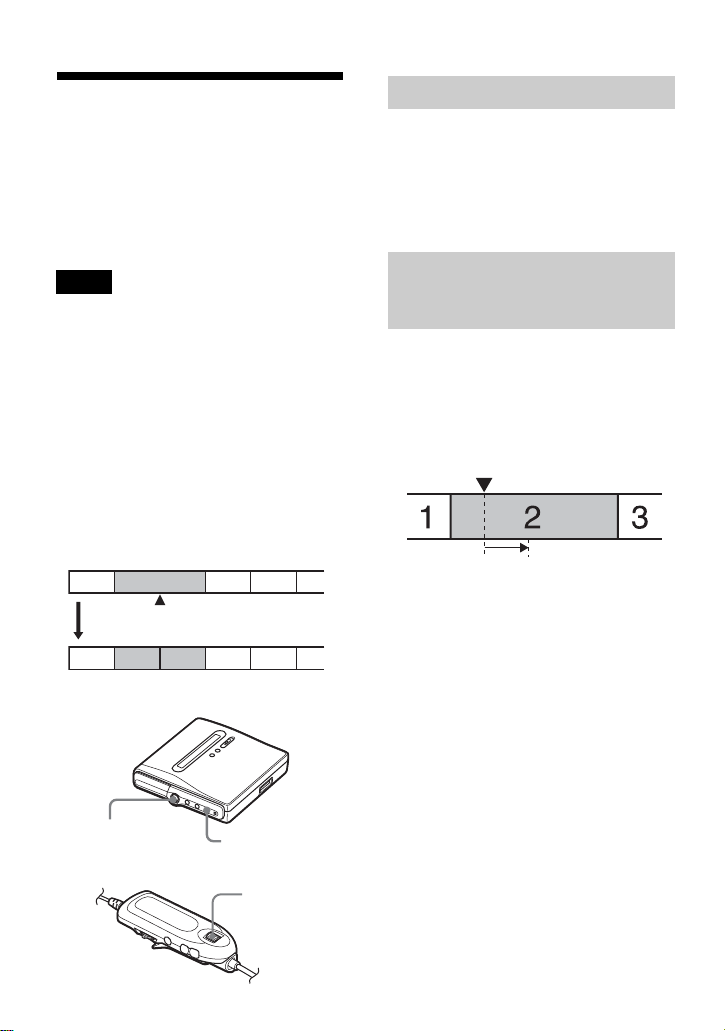
62
Dividing a track (Divide)
You can divide a track with a track mark,
creating a new track from the part
following the track mark. You can also
make fine adjustments to the track mark
position before making the actual
division. The track numbers will increase
as follows.
•You cannot add a track mark on a track that
has been transferred from your computer.
•You cannot divide a track that has been
recorded in Hi-MD mode using the MD
Simple Burner software.
•The Bookmark and Program settings will be
erased if you carry out the Divide function.
•You cannot divide a track at its beginning or
end.
•You cannot divide a track if after the division
causes the total number of tracks on the disc to
exceed the maximum allowed (2,047 tracks
for a disc used in Hi-MD mode or 254 tracks
for a standard disc).
While playing or pausing, press T MARK
on the recorder at the point you want to
mark.
“MARK ON” appears in the display, and
a track mark is added. The track number
will increase by one.
1 While playing, press T MARK for 2
seconds or more.
Four seconds of the track from the
point T MARK is pressed is played
back repeatedly.
Notes
1 342
231 4 5
Track marking
Track numbers increase.
T MARK
5-way control key
(NENT, FR, FF)
Jog dial
Dividing a track directly
Adjusting the dividing point
before dividing a track
(Divide Rehearsal)
The point T MARK is pressed.
Four seconds of the track plays back
repeatedly.
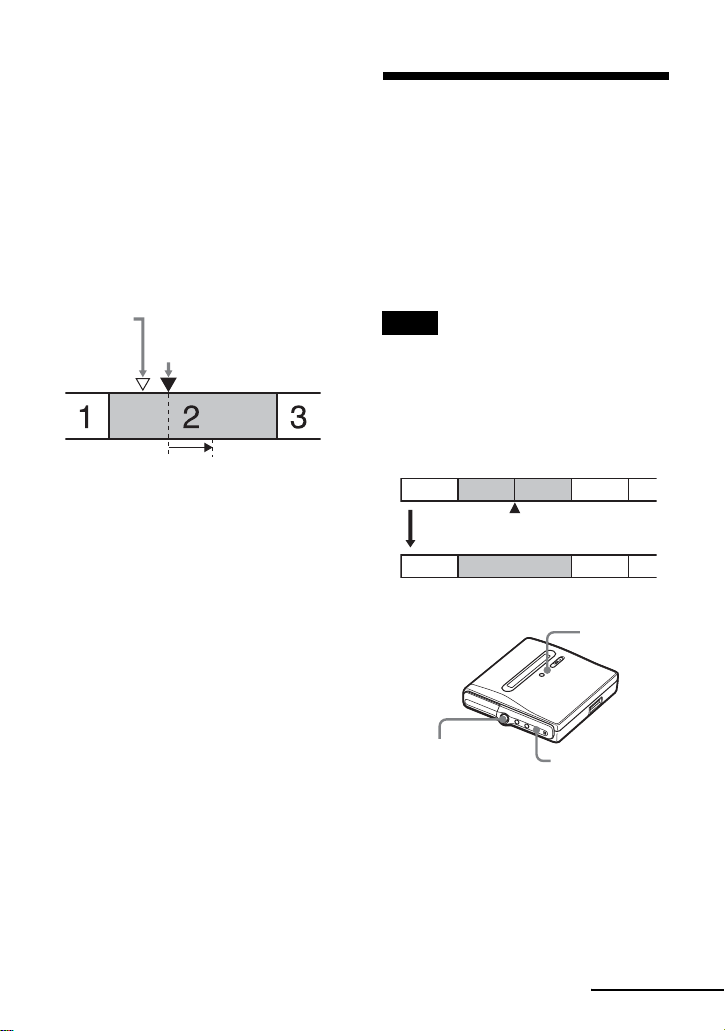
63
2 Press the 5-way control key towards
FR or FF (turn the jog dial on the
remote control) to adjust the point to
divide.
Pressing the control key (turning the
jog dial) moves the dividing point
forward or backwards. The dividing
point can be moved up to a maximum
of 8 seconds forward or backwards
from the point T MARK was pressed
in step 1.
3 Press the 5-way control key (jog dial
on the remote control) to enter the
dividing point.
z
You can use the Speed Control function during
the Divide Rehearsal function. This allows you
to reduce the playback speed (page 51) to carry
out the division more accurately.
To add track marks while
recording (except while
synchro-recording)
Press T MARK on the recorder at the
point you want to add a track mark.
You can use Time Mark to add track
marks automatically at specified intervals
(except while digital recording) (page 39).
Combining tracks
(Combine)
When you record with analog (line) input,
unnecessary track marks may be recorded
where recording level is low. You can
erase a track mark to combine the tracks
before and after the track mark.
The track numbers will change as follows.
This operation can be done on the
recorder only.
•You cannot erase a track mark on a track that
has been transferred from your computer.
•You cannot erase a track mark on a track that
has been recorded in Hi-MD mode using the
MD Simple Burner software.
•You cannot combine tracks recorded in
different recording mode.
1 While playing the track with the track
mark you want to erase, press X to
pause.
The point
T MARK is
pressed in
step 1.
The moved four-second interval plays back
repeatedly.
The dividing point shifts a
maximum of 8 seconds
forward or backwards.
Notes
1 342
132
Erase a track mark
Track numbers decrease
T MARK
5-way control key
(FR)
X
continued

64
2 Find the track mark by pressing the 5-
way control key towards
FR slightly.
For example, to erase the third track
mark, find the beginning of the third
track. “00:00” appears in the display.
“MARK” appears in the display for a
few seconds.
3 Press T MARK to erase the mark.
“MARK OFF” appears in the display.
The track mark is erased and the two
tracks are combined.
z
When a track mark is erased when you combine
two tracks, the recording date and title of the
second track changes to those of the first track.
When you erase a track mark between the two
consecutive tracks that are assigned into
different groups, the second track is re-assigned
into the group containing the first track. In
addition, if you combine a track that is assigned
to a group with a track that is not assigned to a
group (two consecutive tracks), the second
track takes the same registration setting as the
first track.
Formatting the disc
(Format)
When using a disc in Hi-MD mode, you
can use the Format function to restore a
disc to the condition it was in at the time
of purchase.
You can use this function only when using
a disc in Hi-MD mode.
•By formatting a disc, all data (including non-
audio data) will be erased. If you think a disc
contains such data, insert the disc into the
recorder and connect the recorder to the
computer to check the contents of the disc.
•If you format a disc, the transferred tracks on
the disc will also be erased and the number of
transfer authorizations for those tracks will be
decreased by one. To prevent the reduction in
transfer authorizations, restore the transfer
authorization by transferring the tracks to the
computer again before formatting the disc.
•The operation mode set in the “Disc Mode”
menu is applied to a blank 60/74/80-minute
standard disc used on the recorder even if a
different operation mode was selected in the
SonicStage software or a different operation
mode appeared on the display after the disc
was formatted by the SonicStage software.
Note
Disc
type
After disc formatting
1GB
Hi-MD
disc
“NO TRACK” appears.
All data including non-audio
data will be erased.
NOTE: Transfer authorization
of the transferred tracks can be
restored by inserting the disc
into the recorder and
connecting the recorder to the
computer.
60/74/80-
minute
standard
disc
“BLANKDISC” appears.
All data including non-audio
data will be erased. You can
then use the disc again in either
MD mode or Hi-MD mode.
NOTE: Transfer authorization
of the transferred tracks will
decrease by one.
Notes
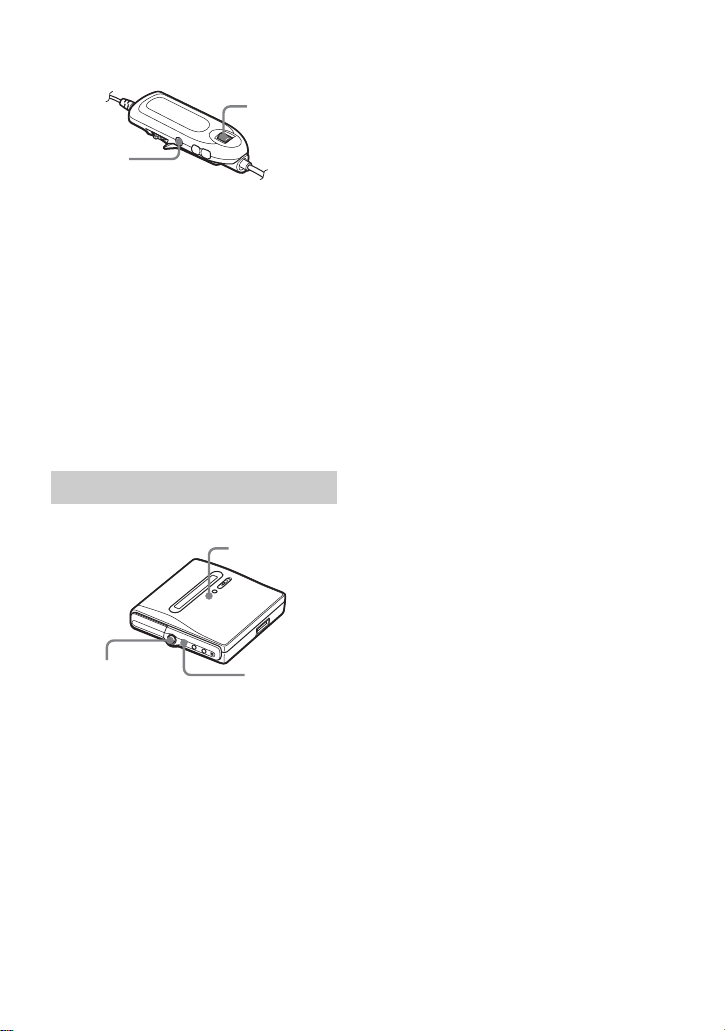
65
1 While the recorder is stopped, enter
the menu and select “Edit” -
“Format”.
2 Turn the jog dial until “YES” appears
in the display, and then press the jog
dial to enter the selection.
When formatting completes, “NO
TRACK” appears in the display if a
1GB Hi-MD disc is inserted in the
recorder, or “BLANKDISC” appears
if a standard disc in Hi-MD mode is
inserted.
1 While the recorder is stopped, enter
the menu and select “Edit” -
“Format”.
2 Press the 5-way control key towards
FR or FF until “YES” appears in the
display, and then press the 5-way
control key to enter the selection.
On the recorder
Jog dial
x
MENU
5-way control key
(NENT, FR, FF)
x
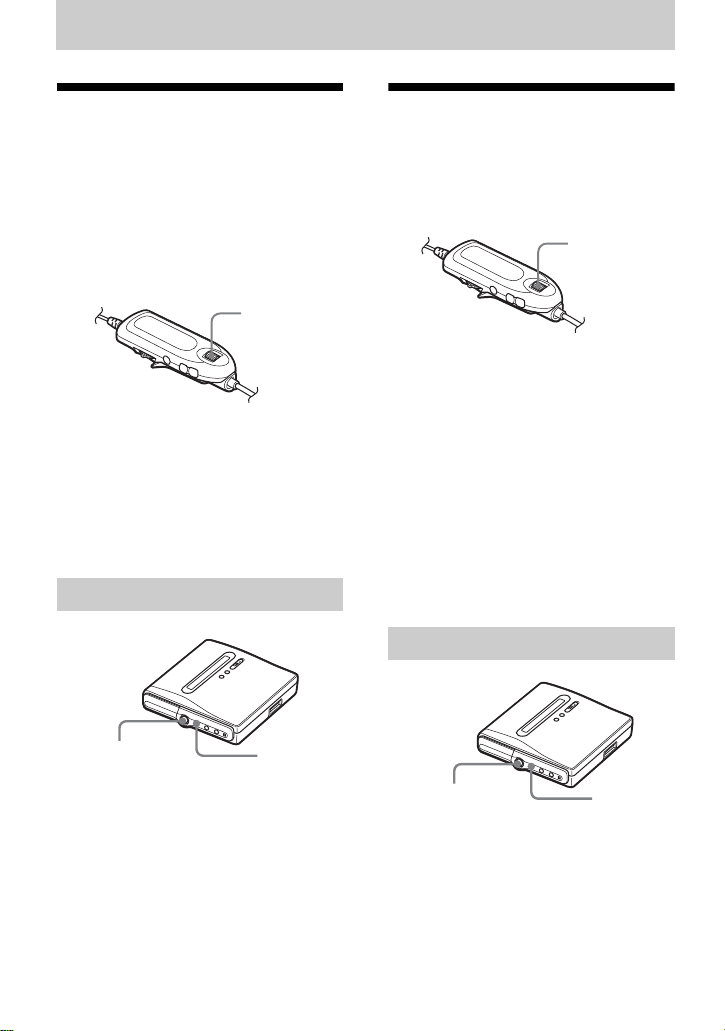
66
Other operations
Changing the displayed
menu items (Menu
Mode)
You can specify the display of all items in
the menu (Advanced mode) or only basic
items (Simple mode).
Refer to “List of menus” (page 29) to
check the menu items that cannot be
displayed.
1 Enter the menu and select “Option” -
“Menu Mode”.
2 Turn the jog dial until “Simple” or
“Advanced” appears in the display,
and then press the dial to enter the
selection.
1 Enter the menu and select “Option” -
“Menu Mode”.
2 Press the 5-way control key towards
FR or FF until “Simple” or
“Advanced” appears in the display,
and then press the control key to enter
the selection.
Protecting your hearing
(AVLS)
The AVLS (Automatic Volume Limiter
System) function keeps down the
maximum volume to protect your ears.
1 Enter the menu and select “Option” -
“AVLS”.
2 Turn the jog dial until “AVLS On”
appears in the display, and then press
the dial to enter the selection.
When you try to turn the volume too
high, “AVLS” appears in the display.
The volume is kept to a moderate
level.
To cancel the AVLS
Select “AVLS Off” in step 2.
1 Enter the menu and select “Option” -
“AVLS”.
2 Press the 5-way control key towards
FR or FF until “AVLS On” appears in
the display, and then press the control
key to enter the selection.
On the recorder
Jog dial
5-way control key
(NENT, FR, FF)
MENU
On the recorder
Jog dial
5-way control key
(NENT, FR, FF)
MENU

67
Turning off the beep
sound
You can turn off/on the beep sound on the
recorder and the remote control.
1 Enter the menu and select “Option” -
“Beep”.
2 Turn the jog dial until “Beep Off”
appears in the display, and then press
the dial to enter the selection.
To turn on the beep sound
Select “Beep On” in step 2.
1 Enter the menu and select “Option” -
“Beep”.
2 Press the 5-way control key towards
FR or FF until “Beep Off” appears in
the display, and then press the control
key to enter the selection.
Turning on/off the
backlight
The backlight of the display window of
the remote control can be set to remain on
or off.
1 While the recorder is stopped, enter
the menu and select “Option” -
“Backlight”.
2 Turn the jog dial until the desired
item appears in the display, and then
press the dial to enter the selection.
Turning on the backlight only
when necessary while the
“Backlight” is set to “Auto”
Press BACKLIGHT for 2 seconds or
more.
The backlight lights up while
BACKLIGHT is pressed.
On the recorder
Jog dial
5-way control key
(NENT, FR, FF)
MENU
Display Setting
Auto The backlight lights when
you operate the recorder or
the remote control, and
automatically turns off when
no operation is made for a
few seconds.
On The backlight lights when
the recorder is operating.
Off The backlight stays off.
Jog dial
BACKLIGHT

68
Storing the settings for
individual discs (Disc
Memory)
The recorder is factory set to
automatically store settings for each disc.
The recorder automatically stores the
settings for a disc and retrieves them
whenever the disc is inserted.
The following setting can be stored:
• Program play
• Bookmark
• “Custom1” and “Custom2” settings of
6-Band Equalizer
You can check the setting as follows.
1 Remove the disc from the recorder,
enter the menu and select “Option” -
“Disc Memory”.
2 Turn the jog dial until “On” appears
in the display, and then press the dial
to enter the selection.
To set the recorder so that
disc settings are not stored
Select “Off” in step 2.
Erasing the disc information
1 Insert the disc whose information is
to be erased and verify its contents.
2 Select “1MemoryErase” in step 2.
The disc information is erased.
z
When “Disc Memory” is set to “On”, “Disc
Memory” appears whenever a disc for which
settings have been stored is inserted.
•Settings for up to 64 discs can be stored. Any
settings stored afterwards will replace the
settings with the lowest frequency of use
among the 64. The numbers of discs that can
be stored depend on the numbers of tracks
recorded on the discs. More tracks recorded
per disc means fewer discs can be stored.
•If you try to erase the disc information of a
disc that have never been stored, “NO DISC
MEMORY” appears in the display for a few
seconds.
1 Remove the disc from the recorder,
enter the menu and select “Option” -
“Disc Mem”.
2 Press the 5-way control key towards
FR or FF until “On” appears in the
display, and then press the control key
to enter the selection.
Erasing the disc information
1 Insert the disc whose information is
to be erased and verify its contents.
2 Select “1MemErase” in step 2.
Jog dial
Notes
On the recorder
5-way control key
(NENT, FR, FF)
MENU
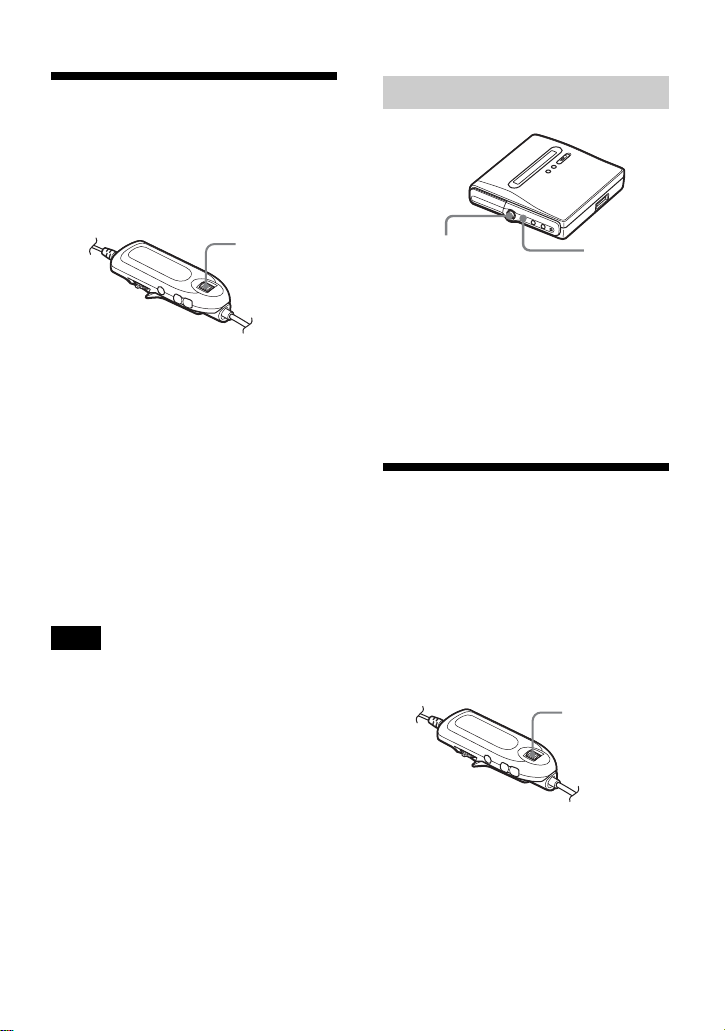
69
Starting the playback
quickly (Quick Mode)
The recorder is factory set to quickly start
playback after the playback button is
pressed.
You can check the setting as follows.
1 While the recorder is stopped or
playing, enter the menu and select
“Option” - “Quick Mode”.
2 Turn the jog dial until “Quick On”
appears in the display, and then press
the dial to enter the selection.
If you will not use the recorder
for a long time
Select “Quick Off” in step 2.
You can minimize battery drain while the
recorder is not being used.
When the quick mode is set to “Quick On”, the
power remains on within the recorder even
when nothing appears in the display. When the
rechargeable battery becomes completely
drained, the internal power supply of the
recorder turns off automatically.
1 Enter the menu and select “Option” -
“QuickMode”.
2 Press the 5-way control key towards
FR or FF until “Quick On” appears in
the display, and then press the control
key to enter the selection.
Selecting the disc
mode (Disc Mode)
When you insert a 60/74/80-minute
standard disc (blank) into the recorder,
you can use this function to specify use of
the disc in Hi-MD mode or MD mode.
If you want to use the disc recorded on
this unit on another component that does
not support Hi-MD, record the disc with
“Disc Mode” in the menu set to “MD”.
1 Enter the menu and select “Option” -
“Disc Mode”.
2 Turn the jog dial until “Hi-MD”
(factory setting) or “MD” appears in
the display, and then press the dial to
enter the selection.
Note
Jog dial
On the recorder
5-way control key
(NENT, FR, FF)
MENU
Jog dial
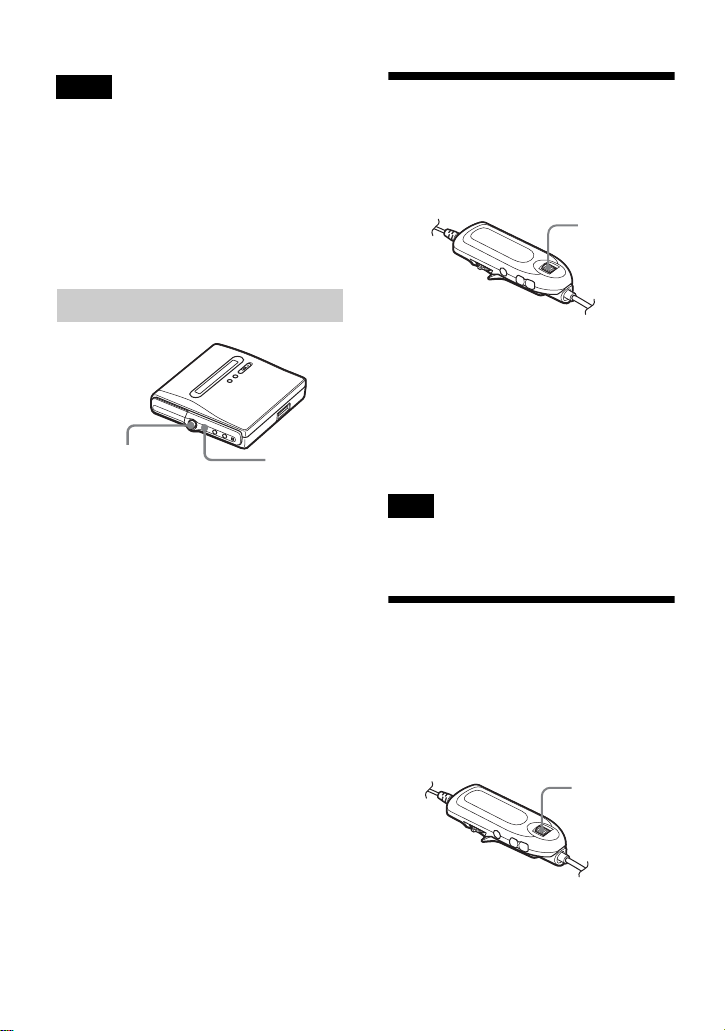
70
•Even if you select “MD” as the “Disc Mode”
setting, the operation mode can only be “Hi-
MD” when using a 1GB Hi-MD disc.
•The operation mode set in the “Disc Mode”
menu is applied to a blank 60/74/80-minute
standard disc used on the recorder even if a
different operation mode was selected in the
SonicStage software or a different operation
mode appeared on the display after the disc
was formatted by the SonicStage software.
1 Enter the menu and select “Option” -
“Disc Mode”.
2 Press the 5-way control key towards
FR or FF until “Hi-MD” or “MD”
appears in the display, and then press
the control key to enter the selection.
Adjusting the contrast
of the display window
(Contrast Adjustment)
You can adjust the contrast of the display
window on the remote control.
1 While the recorder is stopped, enter
the menu and select “Option” -
“Contrast”.
2 Turn the jog dial to adjust the
contrast, and then press the dial to
enter the selection.
You cannot adjust the contrast of the display on
the recorder.
Changing the
operational direction of
the display
When you turn the jog dial downward, the
display scrolls downward. You can
change the display to scroll in the
opposite direction.
1 Enter the menu and select “Option” -
“Jog Dial”.
Notes
On the recorder
5-way control key
(NENT, FR, FF)
MENU
Note
Jog dial
Jog dial
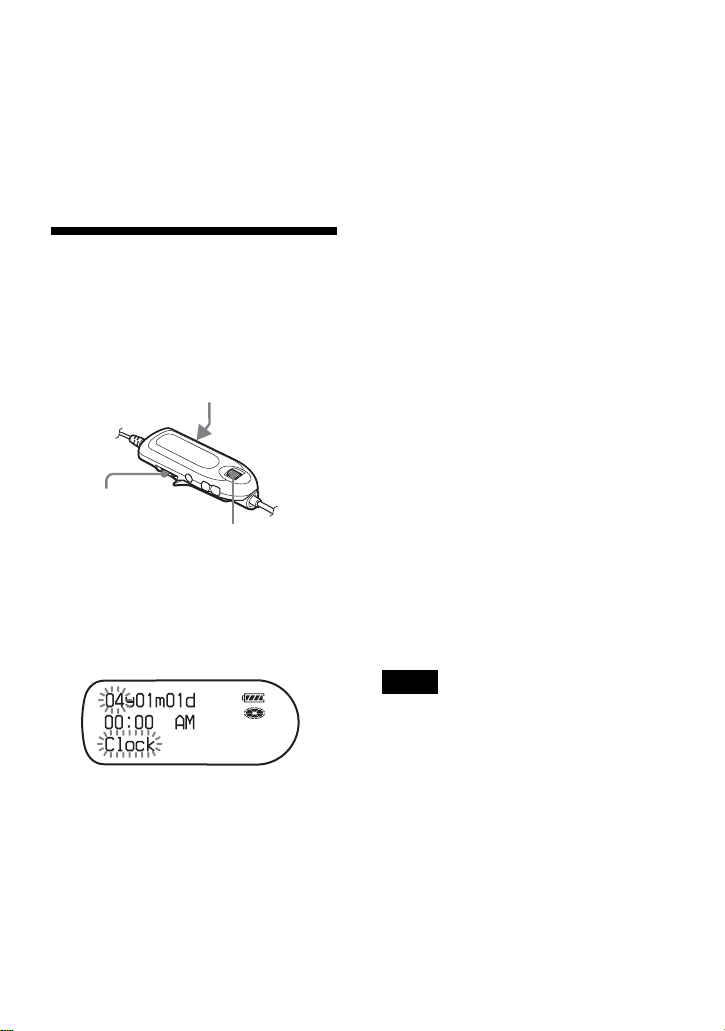
71
2 Turn the jog dial until “Reverse”
appears in the display, and then press
to enter the selection.
To turn the setting to normal
Select “Default” in step 2.
Setting the clock
To stamp the recorded date and time on
the disc, you first need to set the clock.
Once you set the clock, the recorder will
include a time stamp each time you record
something.
1 When the recorder is stopped, enter
the menu and select “Option” -
“Clock Set”.
The digits of the year flash.
2 Change the current year by turning
the jog dial, and then press the dial.
The digit of the month flashes.
3 Repeat step 2 to enter the current
month, date, hour, and minute.
When you press the jog dial to enter
the minute, the clock starts operating.
If you make a mistake while
setting the clock
Slide the jog lever towards . to go
back to the wrongly entered item, and
then enter the correct value. You can skip
a step by sliding the jog lever towards
>.
To display the current time
• On the remote control
While the recorder is stopped or
recording, press DISPLAY repeatedly.
• On the recorder
While the recorder is stopped or
recording, enter the menu, and select
“Display” - “Clock”.
To display the time in the 24-
hour system
While setting the clock, press DISPLAY.
To display the time in the 12-hour system,
press DISPLAY again.
To maintain the correct time
Once you set the clock, it will keep correct time
as long as the recorder is connected to a power
source, such as the charged rechargeable
battery or AC power adaptor. However, if no
power source is connected, the clock setting
will change back to the factory setting after 3
minutes.
•Make sure the time is correctly set if you want
the time stamp to be accurately recorded for
an important recording.
•Under normal conditions, the clock may vary
by about plus or minus 3 minutes per month.
•Transferred tracks will not include recorded
date information even when the clock is set.
•While operating the recorder through bus
power, the clock setting of the recorder will be
lost if the computer changes to system
suspend, sleep or hibernation mode and the
rechargeable battery is either drained or not in
the recorder.
Jog dial
Jog lever
(., >)
DISPLAY
Notes

72
Using the recorder with a computer
What you can do
through connection
with a computer
To use the recorder connected to a
computer, you must install the software
from the supplied CD-ROM. For details
on the installation procedure, refer to the
“Software Operation” section.
When using the supplied
softwares
For detailed explanations, see the
“Software Operations” section or online
help.
• Transfer audio data between the
computer and the recorder
The supplied SonicStage software
enables you to transfer audio data
between the recorder and the computer.
When a disc used in Hi-MD mode is
inserted in the recorder, tracks recorded
with a microphone or from a CD player
to the recorder can be migrated to your
computer.
• Record directly from a CD to an MD
The supplied MD Simple Burner
software enables you to record a CD in
the computer’s CD drive directly to a
disc in the recorder.
When using the disc in the
recorder as a storage device
When using a disc in Hi-MD mode, the
recorder appears in the Windows Explorer
as an external drive, allowing you to
transfer non-audio data such as text and
image files. For details, refer to “Storing
non-audio data to a disc” (page 74).
z
If you play audio files using the software, the
sound is output from the computer speakers
during Hi-MD mode and from the headphones/
earphones connected to the recorder during MD
mode.
Connecting the
recorder to your
computer
Connect the recorder to your computer as
follows.
•When using Windows 2000 Professional
Be sure to disconnect the dedicated USB cable
before turning on or restarting the computer. If
you disconnect the dedicated USB cable
afterwards, the computer may not recognize
the recorder the next time you connect it by
the dedicated USB cable. When the computer
does not recognize the recorder, disconnect
the dedicated USB cable, restart the computer,
and then reconnect the dedicated USB cable.
The problem described here may be resolved
by updating your Windows operating system
so that it contains all the latest features.
•When using Windows ME or Windows 98SE
If you connect the recorder to the computer
with the disc mode on the recorder set to “Hi-
MD” (factory setting), and then insert a 60/74/
80-minute standard disc, the operation mode
of the disc may automatically change to Hi-
MD mode even if you do not record anything.
•When using Windows ME or Windows 98SE
When you disconnect the dedicated USB
cable, the message “Unsafe Removal of
Device” appears in the computer display. This
is not a problem. Merely click “OK” to make
the message disappear.
Notes
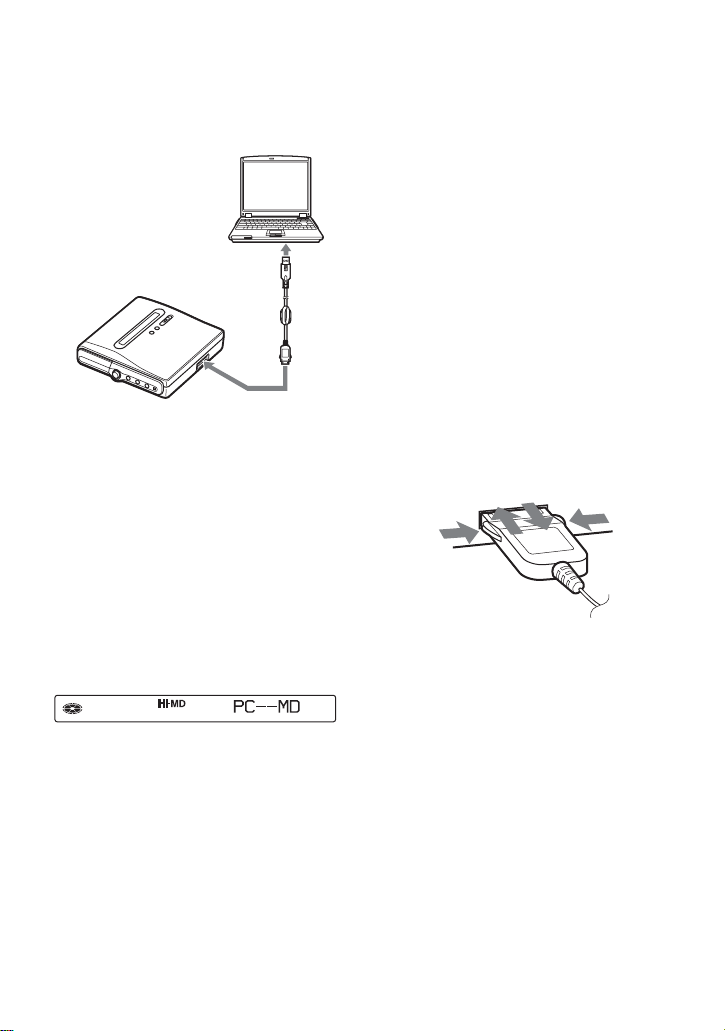
73
Power (bus power) is supplied from the
USB port of the computer. This allows the
recorder to be used without power being
supplied from the rechargeable battery.
1 Insert a recordable disc into the
recorder.
2 Make sure the recorder is stopped and
HOLD is released, and then connect
the dedicated USB cable to the
recorder and the computer.
3 Check the connections.
When the connections have been
properly made, “PC – –MD” appears
in the display of the recorder.
To disconnect the dedicated
USB cable
Be sure to disconnect the dedicated USB
cable as follows. If not, damage to the
data may occur.
1 Make sure that the REC lamp on the
recorder is not lit.
2 Press x on the recorder.
“EJECT OK!” appears in the display.
Depending on the conditions, it may
take some time until “EJECT OK!”
appears in the display.
3 Disconnect the dedicated USB cable.
While pressing the buttons on the
sides of the plug, push the plug
inward, and then pull it outward to
disconnect the dedicated USB cable
from the recorder.
When removing the disc from
the recorder
1 Follow steps 1 and 2 of “To
disconnect the dedicated USB cable”
(page 73).
2 Remove the disc from the recorder.
Computer
To the USB
connecting jack
To the USB port

74
•If you use the recorder connected to the
computer, it is recommended that you insert a
fully charged rechargeable battery as a
precaution against power failures,
disconnection of the dedicated USB cable or
other unforeseen occurrences. We do not
assure the results should there be a mis-
operation, transfer failures, or destruction of
audio data caused by unforeseen occurrences.
•If you disconnect the dedicated USB cable
from the recorder and want to reconnect it,
make sure to wait at least 2 seconds before
connecting it again.
•Make sure to place the recorder at a stable,
vibration-free place during recording.
•Make sure not to connect the recorder to your
computer during recording or playing.
•The system may malfunction if your computer
changes to system suspend, sleep, or
hibernation mode while connecting to the
recorder. Make sure to disable any changes to
suspend, sleep, or hibernation mode.
•Make sure not to connect the recorder and the
computer through a USB hub.
•It is not possible to charge the rechargeable
battery in the recorder while using the bus
power connection.
•While operating the recorder through bus
power, the clock setting of the recorder will be
lost if the computer changes to system
suspend, sleep or hibernation mode and the
rechargeable battery is either drained or not in
the recorder.
•We do not ensure trouble-free operation on all
computers that satisfy the system
requirements.
Storing non-audio data
to a disc
If you connect the recorder to a computer
with a disc in Hi-MD mode inserted, the
disc is recognized as storage media by the
Windows Explorer, allowing you to store
non-audio data such as text data or image
data.
For the storage space for each disc, refer
to the next page.
When you insert a disc in Hi-MD mode
into the recorder and make connection
with the computer, the recorder is
recognized as an external device and can
be viewed on the Windows Explorer. You
can use the recorder in the same way as
other devices.
•When the SonicStage software is active, the
recorder is not recognized as a data storage
device.
•If you format a disc on the computer, make
sure to format the disc using the SonicStage
software.
•Make sure not to delete the file management
folder (HMDHIFI folder and HI-MD.IND
folder) on the Windows Explorer.
Notes
Notes

75
The storage space for each disc (formatted with the recorder/the
SonicStage software)
Disc type Total size Disc management
space
1)2)
1)
This is space that is used for managing the files on the disc.
2)
The size of the disc management space changes according to the operating conditions of your computer
and other factors. Therefore, the actual space available for use may be lower than that displayed by
Windows Explorer.
Free space
60-minute
standard disc
219 MB
(229,965,824 bytes)
832 KB
(851,968 bytes)
218 MB
(229,113,856 bytes)
74-minute
standard disc
270 MB
(283,312,128 bytes)
832 KB
(851,968 bytes)
269 MB
(282,460,160 bytes)
80-minute
standard disc
291 MB
(305,856,512 bytes)
832 KB
(851,968 bytes)
290 MB
(305,004,544 bytes)
Hi-MD disc 964 MB
(1,011,613,696 bytes)
832 KB
(851,968 bytes)
963 MB
(1,010,761,728 bytes)
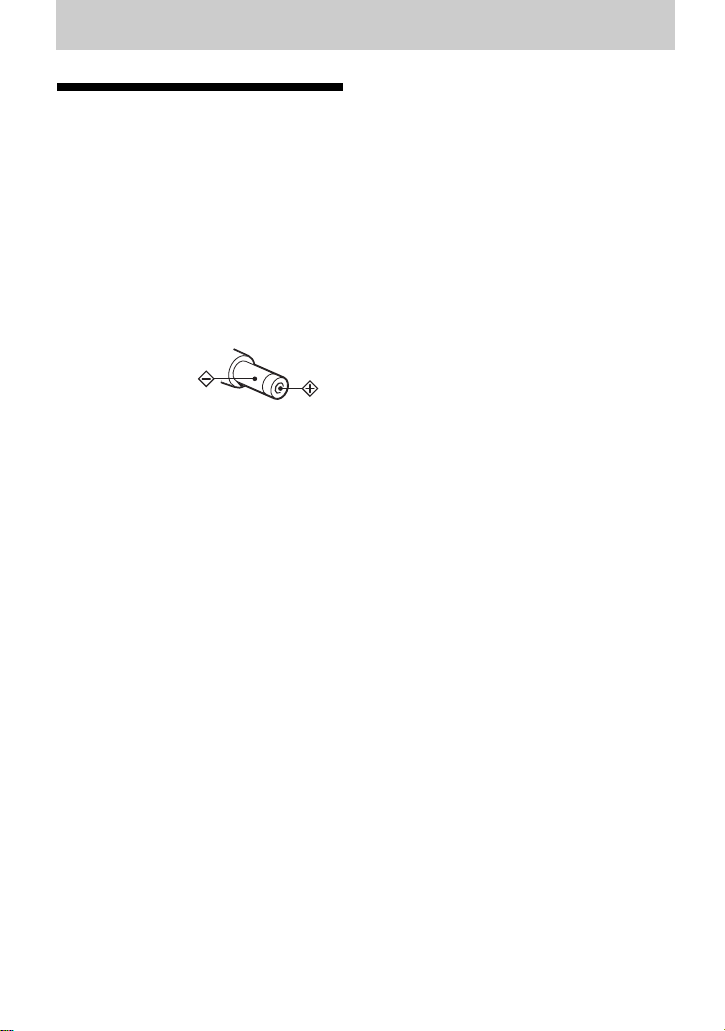
76
Additional information
Precautions
On safety
Do not put any foreign objects in the DC IN 6V
jack.
On power sources
•Use house current or rechargeable battery.
•For use in your house: For the supplied battery
charging stand, use the AC power adaptor
supplied with this recorder. Do not use any
other AC power adaptor since it may cause the
recorder to malfunction.
•Connect the AC power adaptor to an easily
accessible AC outlet. Should you notice an
abnormality in the AC power adaptor,
disconnect it from the AC outlet immediately.
•The recorder is not disconnected from the AC
power source (mains) as long as it is
connected to the wall outlet, even if the
recorder itself has been turned off.
•If you are not going to use this recorder for a
long time, be sure to disconnect the power
supply (AC power adaptor or rechargeable
battery). To remove the AC power adaptor
from the wall outlet, grasp the adaptor plug
itself; never pull the cord.
On heat build-up
Heat may build up in the recorder if it is used
for an extended period of time. This, however,
is not a malfunction.
On installation
•If you use the recorder at a place subject to
static or electrical noise, the recording may
not be properly done or the recorded data may
be lost.
•Never use the recorder where it will be
subjected to extremes of light, temperature,
moisture or vibration.
•Never wrap the recorder in anything when it is
being used with the AC power adaptor. Heat
build-up in the recorder may cause
malfunction or damage.
On the headphones/earphones
Road safety
Do not use headphones/earphones while
driving, cycling, or operating any motorized
vehicle. It may create a traffic hazard and is
illegal in many areas. It can also be potentially
dangerous to play your recorder at high volume
while walking, especially at pedestrian
crossings. You should exercise extreme caution
or discontinue use in potentially hazardous
situations.
Preventing hearing damage
Avoid using headphones/earphones at high
volume. Hearing experts advise against
continuous, loud and extended play. If you
experience a ringing in your ears, reduce the
volume or discontinue use.
Caring for others
Keep the volume at a moderate level. This will
allow you to hear outside sounds and to be
considerate of the people around you.
On the remote control
The supplied remote control is designed for use
with this recorder only. The recorder cannot be
operated with a remote control that was
supplied with another device.
On charging
•The supplied battery charging stand can be
used only with this recorder. Any other
models cannot be charged.
•Do not use the supplied battery charging stand
to charge any other battery beside the supplied
one or the one designated for it (LIP-4WM).
•Be sure to use the supplied AC power adaptor.
•Charge the rechargeable battery at a
temperature of +5°C (+41°F) to +35°C
(+95°F). The charging time will vary
according to the surrounding temperature. (If
the surrounding temperature is low, the
required charging time will be longer. This is a
characteristic of the lithium-ion battery.)
•If you do not use the recorder for a long time,
remove the rechargeable battery from the
recorder and keep it in the cool, dry place. To
prevent degradation of the rechargeable
battery, make sure not to store the
rechargeable battery when it is either
completely discharged or fully charged.
Polarity of the plug

77
•The battery charging stand and the recorder
may become hot during the charging
procedure; this, however poses no danger.
•Because of the battery’s characteristics, the
capacity of the rechargeable battery may be
smaller than normal when it is used for the
first time or after a long period of disuse. In
this case, charge and discharge the battery
several times. The normal battery life will be
restored.
•If the capacity of the rechargeable battery
drops to half the normal amount, replace with
the new one.
•If the recorder will be unused for a long time,
remove the rechargeable battery, remove the
recorder from the battery charging stand and
remove the AC power adaptor from the wall
outlet.
On the MiniDisc cartridge
•When carrying or storing the MiniDisc, keep
it in its case.
•Do not break open the shutter.
•Do not place the cartridge where it will be
subject to light, extreme temperatures,
moisture or dust.
•Attach the supplied disc label only in the
space designated for it on the disc. Do not
stick it on any other disc surface.
On cleaning
•Clean the recorder casing with a soft cloth
slightly moistened with water or a mild
detergent solution. Do not use any type of
abrasive pad, scouring powder or solvent such
as alcohol or benzene as it may mar the finish
of the casing.
•Wipe the disc cartridge with a dry cloth to
remove dirt.
•Dust on the lens may prevent the unit from
operating properly. Be sure to close the disc
compartment lid after inserting or ejecting a
disc.
•To obtain the best sound quality, use a dry
cloth to wipe the plugs of the headphones/
earphones or the remote control. Dirty plugs
may cause sound distortion or intermittent
breaks in the sound.
•Clean the terminals on the rechargeable
battery with a cotton swab or a soft cloth as
illustrated.
On battery
Incorrect battery usage may lead to leakage of
battery fluid or bursting battery. To prevent
such accidents, observe the following
precautions:
•Install the + and – poles of the battery
correctly.
•When the recorder is not to be used for a long
time, be sure to remove the battery.
•If a battery leak should develop, carefully and
thoroughly wipe away battery fluid from the
battery compartment before inserting new
ones.
On mechanical noise
The recorder gives off mechanical noise while
operating, which is caused by the power-saving
system of the recorder and it is not a problem.
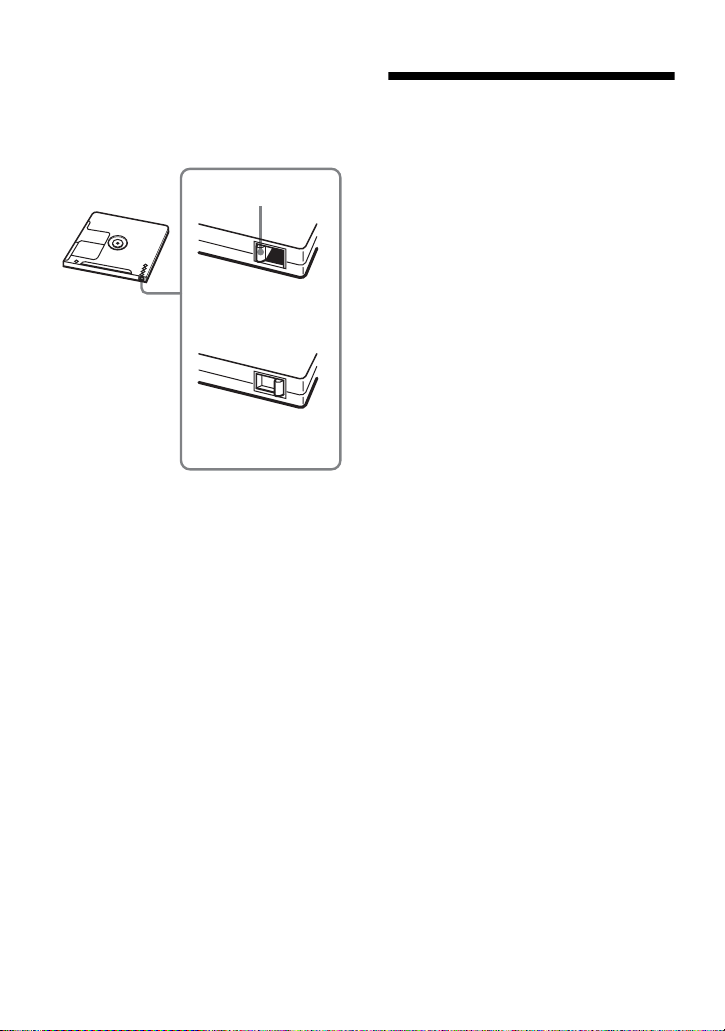
78
To protect a recorded disc
To record-protect a disc, slide open the tab at
the side of the disc. In this position, the disc
cannot be recorded. To record again, slide the
tab back so the tab is visible.
If you have any questions or problems
concerning your recorder, please consult your
nearest Sony dealer. (If a trouble occurred when
the disc was in the recorder, we recommend that
the disc be left in the recorder when you consult
your Sony dealer so that the cause of trouble
may be better understood.)
Specifications
Audio playing system
MiniDisc digital audio system
Laser diode properties
Material: GaAlAs
Wavelength: λ = 790 nm
Emission duration: continuous
Laser output: less than 44.6 µW
(This output is the value measured at a distance
of 200 mm from the lens surface on the optical
pick-up block with 7 mm aperture.)
Recording and playback time (Refer
to page 94 for details)
When using HMD1G (1GB disc):
Maximum 34 hours in Hi-LP stereo
When using MDW-80 in Hi-MD mode:
Maximum 10 hours and 10 min. in Hi-LP
stereo
When using MDW-80 in MD mode:
Maximum 160 min. in monaural
Maximum 320 min. in LP4 stereo
Revolutions
350 rpm to 3,600 rpm (CLV)
Error correction
Hi-MD:
LDC (Long Distance Code)/BIS (Burst
Indicator Subcode)
MD:
ACIRC (Advanced Cross Interleave Reed
Solomon Code)
Sampling frequency
44.1 kHz
Sampling rate converter
Input: 32 kHz/44.1 kHz/48 kHz
Coding
Hi-MD:
Linear PCM (44.1 kHz/16 bit) — PCM
ATRAC3plus (Adaptive TRansform
Acoustic Coding 3 plus)
MD:
AT RAC
ATRAC3 — LP2/LP4
Modulation system
Hi-MD:
1-7RLL (Run Length Limited)/PRML
(Partial Response Maximum Likelihood)
MD:
EFM (Eight to Fourteen Modulation)
Frequency response
20 to 20,000 Hz ± 3 dB
Back of the disc
Recorded material is
not protected.
Tab
Recorded material is
protected.

79
Inputs
1)
MIC: stereo mini-jack
(minimum input level 0.25 mV)
Line in:
stereo mini-jack for analog input
(minimum input level 49 mV)
optical (digital) mini-jack for optical
(digital) input
Outputs
i/LINE OUT
2)
: stereo mini-jack (dedicated
remote control jack)/194 mV (10 kΩ)
Maximum output (DC)
2)
Headphones:
5 mW + 5 mW (16 Ω)
Power requirements
Sony AC Power Adaptor connected at the DC
IN 6V jack:
120 V AC, 60 Hz (Models for USA, Canada,
Mexico, and Taiwan)
240 V AC, 50 Hz (Model for Australia)
230 V AC, 50 Hz (Models for U.K. and
Hong Kong)
220 V AC, 50 Hz (Model for China)
100 - 240 V AC, 50/60 Hz (Other models)
The recorder:
Lithium-ion rechargeable battery
LIP-4WM, 3.7 V, 370 mAh, Li-ion
Battery charging stand:
AC power adaptor DC 6V
Operating temperature
+5°C (+41°F) to +35°C (+95°F)
Battery operation time
3)
See “Battery life” (page 19)
Dimensions
Approx. 81.7 × 76.1 × 14.8 mm (w/h/d)
(3
1
/4 × 3 ×
19
/32 in.) (excluding projecting parts
and controls)
Mass
Approx. 97 g (3.4 oz) (the recorder only)
Approx. 107 g (3.8 oz) (including the
rechargeable battery)
1)
The LINE IN (OPT) jack is used to connect
either a digital (optical) cable or a line
(analog) cable.
2)
The i/LINE OUT jack connects either
headphones/earphones or a line cable.
3)
Measured in accordance with JEITA.
US and foreign patents licensed from Dolby
Laboratories.
Design and specifications are subject to change
without notice.
Optional accessories
Optical Cable
POC-151HG, POC-152HG, POC-MZ1,
POC-MZ2, POC-15B, POC-15AB, POC-
DA12SP
Line Cable
RK-G129, RK-G136
Stereo Microphones
ECM-MS907, ECM-MS957
MDR-series Stereo Headphones/earphones*
SRS-series Active Speakers
Recordable MDs MDW-series
Recordable Hi-MD disc
HMD1G
Your dealer may not handle some of the above
listed accessories. Please ask the dealer for
detailed information about the accessories in
your country.
∗ When using optional headphones, use only
headphones/earphones with stereo mini
plugs. You cannot use headphones/
earphones with micro plugs.

80
Troubleshooting and explanations
Troubleshooting
If a problem occurs during recorder operation, follow the steps described below before
consulting the nearest Sony dealer. If any messages appear, it is recommended to take
notes.
1 Check to see if the problem is listed in, “Troubleshooting” (page 80).
Check “Messages” (page 88) for the problem as well.
2 If after step 1 you still cannot solve the problem, consult your nearest Sony dealer.
While charging
Symptom Cause/Remedy
The rechargeable
battery does not start
charging. The
rechargeable battery
cannot be fully
charged.
• The rechargeable battery has been inserted incorrectly or the AC
power adaptor has been connected incorrectly.
, Insert the rechargeable battery correctly or connect the AC
power adaptor correctly.
• Because of the battery’s characteristics, the capacity of the
rechargeable battery may be smaller than normal when it is used for
the first time or after a long period of disuse.
, Charge and discharge the battery several times. The normal
battery life will be restored.
• The rechargeable battery is drained (nothing appears in the display
window).
, Charge the rechargeable battery. It takes one minute after placing
the recorder on the battery charging stand for an indication to
appear and charging to start. If charging does not start even after
a minute, replace the recorder on the battery charging stand
again.
• The surrounding temperature is too high or too low (“CHARGE
5°C–35°C 41F–95F” appears in the display).
, Charge the battery at a temperature of +5°C (+41°F) to +35°C
(+95°F).
The rechargeable
battery has become
drained even when the
recorder was not used
for a while.
• The quick mode was set to “Quick On”.
, If you set the quick mode to “Quick On”, the power stays on
inside recorder even when there is no operation, causing the
rechargeable battery life to shorten (page 69). If the rechargeable
battery is not fully charged, the battery may become drained
after a while. If this happens, charge the rechargeable battery
again (page 17).
Even when fully
charged, the life of the
battery is only about
half what it normally
is.
• The useful life of the rechargeable battery may be ending.
, Replace the rechargeable battery with the new one.
The battery charging
stand and the recorder
become hot during the
charging procedure.
• This is normal and poses no danger.
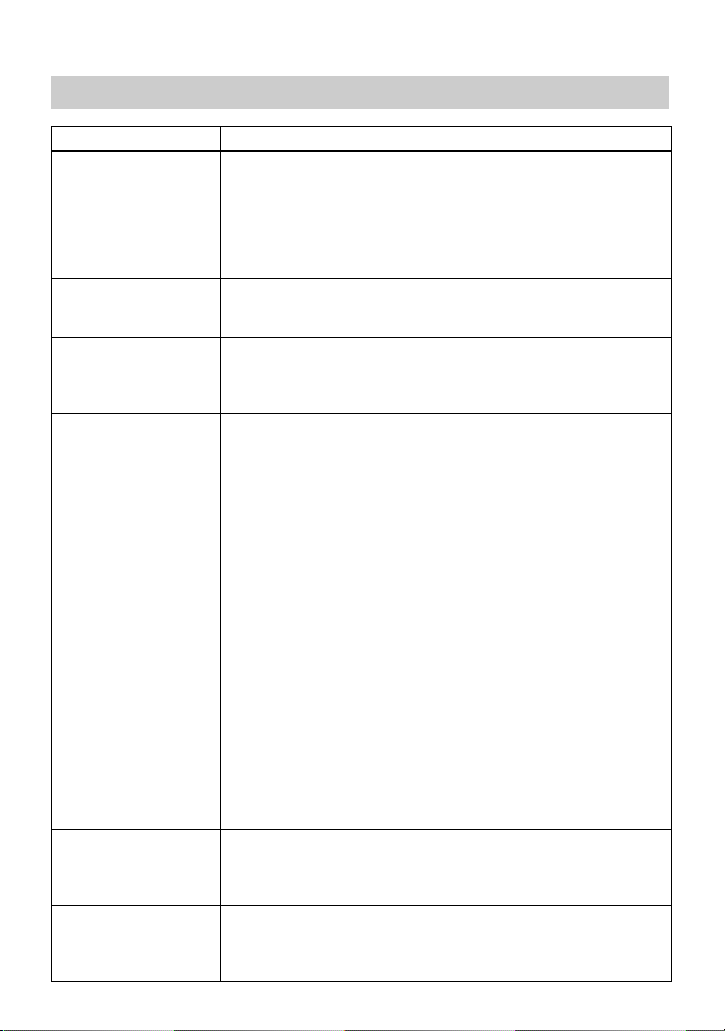
81
While recording
Symptom Cause/Remedy
The remaining
recording time appears
as “–0:00:00” and
recording cannot be
done, even though
2.0MB of free space is
displayed.
• This is a system limitation. 2.0MB is the capacity of the reserve
domain.
The recorder always
creates a new group
when recording.
• The group recording (“Group REC”) is set to “GroupREC On”.
(You cannot overwrite tracks.)
, Set the group recording setting to “GroupREC Off” (page 40).
The first few seconds of
a track cannot be
recorded.
• If you start recording while the disc indication is rotating, data will
not be recorded to the first few seconds of the first track.
, Wait until the disc indication stops rotating before you start
recording.
Recording cannot be
done correctly.
• Audio sources may not be securely connected.
, Disconnect the audio sources once and connect them again
(pages 20 and 36).
• There is no digital signal from the portable CD player.
, When recording digitally from a portable CD player, use the
AC power adaptor and disable the anti-skip function (such as
ESP) on the CD player (page 24).
• The analog recording was made using a connecting cord with an
attenuator.
, Use a connecting cord without an attenuator.
• Recording level is too small to record (when adjusting the
recording level manually).
, Pause the recorder and adjust the recording level (page 38).
• The recorder is connected to the computer.
, Disconnect the recorder from the computer when recording.
• The power sources was disconnected or a power outage occurred
during recording.
, The recording result is not recorded on the disc. Make
recording again.
• The premastered disc is inserted.
, Replace to the recordable disc.
• Recording may not be done if the remaining recordable time on the
disc is 48 seconds or less (“DISC FULL” appears).
, Replace the disc.
Stereo sound is heard in
the headphones/
earphones while
recording in monaural.
• This is normal. During digital recording, the sound will be stereo
in the headphones/earphones, even though the recorded sound is
monaural.
Momentary noise is
heard when recording.
• Due to the special digital audio compression technology used in
LP4 stereo mode, momentary noise may occur on very rare
occasions with certain sound sources.
, Record in SP or LP2 mode.
82
The lid does not open
after recording.
• The lid does not open until “SYSTEM FILE WRITING”
disappears in the display.
“TRACK FULL”
appears even before the
disc has reached the
maximum recording
time and the recording
cannot be done.
• This is due to the MiniDisc system limitation. When 254 tracks (on
a standard disc) or 2,047 tracks (on a disc used in Hi-MD mode)
have been recorded on the disc, “TRACK FULL” appears
regardless of the total recorded time. More than 254 or 2,047 tracks
cannot be recorded on the disc.
, To continue recording, erase unnecessary tracks.
The remaining
recording time does not
increase even after
erasing numerous short
tracks.
• This is due to the MiniDisc system limitation (in MD mode only).
Tracks of under 12 seconds (in SP stereo), 24 seconds (in LP2
stereo mode or monaural), or 48 seconds (in LP4 stereo mode) in
length are not counted and so erasing them may not lead to an
increase in the recording time.
The total recorded time
and the remaining time
on the disc may not total
the maximum recording
time (60, 74, or 80
minutes).
• This is due to the MiniDisc system limitation (in MD mode only).
Normally, recording is done in minimum units of approximately 2
seconds (in SP stereo), 4 seconds (in LP2 stereo mode or
monaural), or 8 seconds (in LP4 stereo mode). When recording is
stopped, the last unit of recording always uses this unit of 2
seconds, 4 seconds, or 8 seconds even if the actual recording is
shorter. Likewise, when recording is restarted after the stop, the
recorder will automatically insert a blank space amounting to 2
seconds, 4 seconds, or 8 seconds before the next recording. (This is
to prevent accidental erasing of a previous track whenever a new
recording is started). Therefore, the actual recording time will
decrease whenever a recording is stopped by a maximum of 6
seconds, 12 seconds, or 24 seconds.
“TRACK FULL”
appears even before the
disc has reached the
maximum track number
or recording time.
• This is due to the MiniDisc system limitation. Repeated recording
and erasing may cause fragmentation and scattering of data.
Although those scattered data can be read, each fragment is
counted as a track. In this case, the number of tracks may reach
254 (on a standard disc) or 2,047 (on a disc used in Hi-MD mode)
and further recording is not possible.
, To continue recording, erase unnecessary tracks.
Symptom Cause/Remedy
While playing
Symptom Cause/Remedy
A disc is not played
normally.
• Repeat play is selected.
, Press P-MODE • REPEAT to change back to the normal play
(page 44).
• Playback mode is changed.
, Enter the Main play mode or Sub play mode to change back to
the normal play (page 44).
A disc is not played
from the first track.
• Disc playing stopped before it came to the last track.
, Press the jog lever (NX • ENTER) on the remote control or
press the 5-way control key (NENT) on the recorder for 2
seconds or more to start playing.

83
Playback sound skips. • The recorder is placed where it receives continuous vibration.
, Put the recorder on a stable place.
• A very short track may cause sound to skip.
, Try not to create a short track.
Sound has a lot of
static.
• Strong magnetism from a television or such device is interfering
with operation.
, Move the recorder away from the source of strong magnetism.
The volume of the
recorded track is low.
• The track was recorded in analog mode (in digital mode, the
recording level is automatically set to the same level as that of the
sound source). Or you used a connecting cord with an attenuator.
, Use a correct connecting cord without an attenuator.
• The recording level was low.
, Adjust the recording level manually while recording (page 38).
Volume cannot be
turned up.
• AVLS is on.
, Release AVLS settings (page 66).
No sound comes
through the
headphones/earphones.
• The headphones/earphones plug is not firmly connected.
, Plug in the plug of the headphones/earphones firmly to the
remote control. Plug in the plug of the remote control firmly to
i/LINE OUT.
• The plug is dirty.
, Clean the plug.
Virtual Surround or 6-
Band Equalizer does
not function or noise is
heard.
• The “Audio Out” parameter is set to “Line Out”.
, Set to “Headphone” (page 51).
The volume from
connected speaker or
amplifier is low (when
analog connection)
• The “Audio Out” parameter is set to “Headphone”.
, Set to “Line Out” (page 51).
The volume from the
headphones/earphones
is too loud.
• The “Audio Out” parameter is set to “Line Out”.
, Set to “Headphone” (page 51).
The disc cannot be
played on another
component
• The component does not support Hi-MD.
, Discs used in Hi-MD
mode can be played only on components
that supports Hi-MD.
The recorder skips to
the next or previous
group (or skips several
tracks ahead or behind)
when you press the 5-
way control key
towards . or >.
• You pressed GROUP before pressing the 5-way control key
towards . or >.
, The recorder returns to normal if no operation is made for 5
seconds.
The edited tracks may
exhibit sound dropout
during search
operations.
• This occurs due to the MiniDisc system limitation. The
fragmentation of data may cause sound dropout while searching
because the tracks are played in higher speed than normal
playback.
Symptom Cause/Remedy
84
There is no R-channel
sound output when
playing a track recorded
from a cassette deck or
through an amplifier, or
when listening to sound
from a cassette deck or
amplifier.
• There is no R-channel output if the cassette deck or an amplifier is
connected with a monaural cord.
, Make sure to use a stereo connecting cord. If, however, the
connected equipment is monaural, there will be no R-channel
sound output even with a stereo connecting cord.
While editing
Symptom Cause/Remedy
The lid does not open. • The power sources have been disconnected during recording or
editing, or the battery have been exhausted.
, Set the power sources again, or replace the exhausted battery
with new ones.
Editing cannot be done. • The power source has been disconnected or a power outage has
occurred during editing.
, The editing done to that point is not saved to the disc. Do the
editing operation again.
Non-audio data cannot
be erased
• Non-audio data cannot be erased with the Erase function.
, Confirm the contents by connecting the recorder to your
computer. If it is okay to delete the contents, then perform the
Format function (page 64).
Tracks cannot be
combined.
• This is due to the MiniDisc system limitations. When the tracks are
scattered and the length of each track is short*, you may not be
able to combine the tracks.
* Combining tracks of the following lengths may not be possible.
Hi-MD mode
Linear PCM stereo: 9 seconds or less
Hi-SP stereo: 8 seconds or less
Hi-LP stereo: 32 seconds or less
MD mode
SP stereo: 12 seconds or less
LP2 stereo/Monaural: 24 seconds or less
LP4 stereo: 48 seconds or less
• You cannot combine tracks recorded in different recording modes,
e.g., a track recorded in stereo and a track recorded in monaural;
nor can you combine a track recorded with digital connection and a
track recorded with analog connection.
The disc cannot edit on
other component.
• The component does not support MDLP or Hi-MD.
, Edit on other component that support MDLP or Hi-MD.
Symptom Cause/Remedy
85
While using group function
Symptom Cause/Remedy
The group function does
not operate.
• While using a disc without group setting, an attempt was made to
select some group-related menu.
, Use a disc with group setting.
A track cannot be
recorded to a new group.
A new group cannot be
created.
• This is due to the MiniDisc system limitations (in MD mode
only). Group information has been written to the area where the
disc name is stored. The disc name and track names are recorded
in the same area, which can store a maximum of approximately
1,700 characters. If the total number exceeds this amount, a new
group cannot be created even though group mode is on. It is also
impossible to make group settings at this time.
While the recorder is connected to the computer
Symptom Cause/Remedy
The recorder is not
recognized by the
computer.
• The dedicated USB cable is not firmly connected.
, Connect the dedicated USB cable firmly to the recorder and
the computer.
• A USB hub is used.
, Connect the dedicated USB cable directly to the USB port of
the computer.
• Network communication has failed.
, Disconnect the dedicated USB cable, wait at least 2 seconds,
and then reconnect it. If the recorder is still not recognized,
disconnect the dedicated USB cable, restart the computer, and
then connect the dedicated USB cable again.
Even though the recorder
is recognized by the
computer, it does not
operate normally.
• A USB hub is used.
, Connect the dedicated USB cable directly to the USB port of
the computer.
• You are using the recorder at a place with vibration.
, Use the recorder at a place with no vibration.
The recorder cannot be
used as a storage device.
• The SonicStage or MD Simple Burner software is active.
, Close the SonicStage or MD Simple Burner software.
• A standard disc is inserted.
, Insert a disc used in Hi-MD mode. Only discs used in Hi-MD
mode can be used as a storage media.
The playing time of a
transferred track is
different from the time
that appears on your
computer monitor.
This is due to a calculation discrepancy between the recorder and
the computer.
86
You cannot transfer
audio data from your
computer that will fill up
the remaining recording
time on the disc.
• The minimum recordable time on a disc is normally 2 seconds in
stereo, 4 seconds in LP2 stereo mode, and 8 seconds in LP4 stereo
mode. When you transfer a track from your computer, the
recorder needs a 2-second (or 4- or 8-second) space for a track
even if the track is under 2 seconds (or 4 or 8 seconds) in length.
Also, the recorder inserts a 2-second (or 4 -or 8-second) space in
between tracks during transfer operation. For this reason, the
recorder needs an additional 6 seconds (or 12 or 24 seconds) for
each track. This reduces the maximum recording time for each
track by 6 seconds (or 12 or 24 seconds) during transfer operation
(in MD mode only).
The disc size displayed
on the computer is not
the same as the disc size
printed on the disc.
• The difference is due to the use of the binary system to indicate
the disc size on the computer and the decimal system to express
the disc size on the disc and other recording media. For details on
the disc size, see page 75.
You cannot operate the
recorder (“PC – –MD”
appears).
• You cannot operate the recorder while the recorder is connected
to the computer.
The lid does not open. • It happens if you disconnect the dedicated USB cable in the
middle of a data transfer, recording, or editing operation on the
computer, but while the rechargeable battery is missing from the
recorder or is drained.
, Reconnect the dedicated USB cable or insert a fully charged
rechargeable battery into the recorder, and then press x.
Others
Symptom Cause/Remedy
“Simple/Advanced” is
displayed in the display
window of the remote
control. (“Simple” is
displayed in the display
window of the recorder.)
• You attempted to do a menu operation for the first time after
purchase of the recorder (by pressing the jog dial on the remote
control for 2 seconds or more or pressing MENU on the recorder).
, Set the Menu mode (page 66).
Some menu items cannot
be displayed.
• “Menu Mode” is set to “Simple”.
, Set the “Menu Mode” to “Advanced” to display all the menu
items.
The recorder does not
work or works poorly.
• The rechargeable battery is not charged.
, Charge the rechargeable battery.
• The volume is low.
, Turn up the volume.
• No disc is inserted.
, Insert a recorded disc.
• The HOLD function is turned on (“HOLD” appears in the display
when you press an operation button on the recorder).
, On the recorder, disable HOLD by sliding the HOLD switch
to the opposite direction of the arrow
(pages 14, 18).
Symptom Cause/Remedy

87
The recorder does not
work or works poorly.
• The lid is not firmly closed.
, Close the lid until it clicks. Then slide OPEN to open the lid.
• Moisture has condensed inside the recorder.
, Take the disc out and leave the recorder in a warm place for
several hours until the moisture evaporates.
• The AC power adaptor is not firmly connected.
, Connect the AC power adaptor firmly to the DC IN 6V jack
on the battery charging stand.
• The rechargeable battery is weak (“LOW BATTERY” flashes or
nothing appears).
, Charge the rechargeable battery, or use the supplied AC power
adaptor.
• The disc is damaged or does not contain proper recording or
editing data.
, Reinsert the disc. Rerecord the disc. If the error message still
appears, replace it with another disc.
• There is a built-in malfunction in the system.
• While operating, the recorder received a mechanical shock, too
much static, abnormal power voltage caused by lightning, etc.
, Restart the operation as follows.
1 Disconnect all the power sources and the dedicated USB
cable.
2 Leave the recorder for about 30 seconds.
3 Connect the power source.
The clock does not work
correctly, the clock does
not appear, or time and
date stamping did not
occur when recording.
• The rechargeable battery becomes all drained.
, Charge the rechargeable battery, and then set the clock again.
• The clock is not set.
, Set the clock (page 71).
• Time and date will not be stamped on tracks which are transferred
from a computer.
The display window is
not normal.
• The recorder was disconnected from the power source.
, Let the recorder sit for a while, or disconnect the power
source, reconnect it, and then press any of the operation
buttons.
When using with the AC
power adaptor, the
display window remains
faintly lit even when the
recorder is not operating.
• The display window lights up when charging of the rechargeable
battery reaches approximately 80% and stays lit until charging
reaches 100%.
The operation mode of
the blank 60/74/80-
minute standard disc
differs from the mode
following formatting or
the mode selected in the
SonicStage software.
• When using a blank 60/74/80-minute standard disc in the
recorder, the operation mode set in the “Disc Mode” menu is
applied.
, Use the “Disc Mode” menu to change the operation mode as
desired.
Symptom Cause/Remedy

88
Messages
If the following messages flash in the display window on the remote control, check the
chart below.
Message Meaning/Remedy
AVLS NO
VOLUME
OPERATION
• AVLS is set to “AVLS On” and so the volume cannot rise higher.
, Set AVLS to “AVLS Off” (page 66).
BLANKDISC • A disc with no recording on it is inserted.
BUSY WAIT A
MOMENT
• The recorder is accessing disc information.
• You tried to operate the recorder while it was accessing the recorded
data.
, Wait until the message goes out (in rare cases, it may take a few
minutes).
CANNOT EDIT • You selected, “Group Set”, “GroupRelease”, “Move”, or “Erase” while
recording.
• You tried to erase the track mark at the beginning of the first track or
group.
• You tried to erase a track mark to combine tracks the recorder cannot
combine (a track recorded in stereo and in mono, for example).
• You tried to overwrite a track marks.
• You tried to change a title that includes characters the recorder cannot
edit.
, Editing titles cannot be done if the title includes characters that
cannot be input on the recorder.
CANNOT
OPERATE
• You tried to press X or T MARK during synchro-recording.
CANNOT
RECORD OR
PLAY
• There is no audio data that can be played on the recorder.
• The audio data or disc management file has been damaged.
, Erase the whole disc (page 61) or perform the Format function
(page 64).
CANNOT SET • You tried to make the Time Mark setting during synchro-recording.
• You selected “REC Volume” while the recorder is not in recording-
pause.
, Set “REC Volume” while the recorder is in recording-pause.
• You tried to make the following settings while recording.
— Disc Memory
— Speed Control
— Play mode
— Recording mode
— Recording level
— Selection of “Group REC” in menu
CHARGE
5°C–35°C
41F–95F
• You tried to charge the rechargeable battery at a place with a temperature
outside the specified range for the recorder.
, Charge the battery at a temperature of +5°C (+41°F) to +35°C
(+95°F).
Charging • The rechargeable battery is being charged.

89
DATA SAVE • The recorder is writing information to the system file, such as the
recorded data or editing information.
, Wait until the message disappears from the display.
DC IN TOO
HIGH
• Voltage of the power supply is too high (The supplied AC power adaptor
or the recommended car battery cord is not used).
, Use the supplied AC power adaptor or the recommended car battery
cord.
DISC FULL • Recording may not be done if the remaining recordable time on the disc
is 48 seconds or less.
, Replace the disc.
D-L READY • MD Simple Burner is now ready to record an audio CD to the disc in the
recorder using Simple mode. (Refer to “Software Operation” section.)
EJECT DISC OK • The recorder has finished communicating with the computer and it is
safe to eject the disc from the recorder or disconnect the dedicated USB
cable.
End • The recorder reached to the end of the disc while playing or pressing
>.
ERROR • There is an internal malfunction in the system.
, Restart the operation by doing steps 1 to 3 on page 87.
ERROR XX • There is an internal malfunction in the system.
, Restart the operation by doing steps 1 to 3 on page 87. If the message
appears again, please consult your nearest Sony dealer.
FORMAT
ERROR DISC
• A disc with a format that the recorder does not support was inserted.
• A disc formatted on the computer was inserted.
, Insert a standard MD or a disc used in Hi-MD mode.
, When formatting a disc on the computer, make sure to use the
SonicStage software.
GROUP FULL • You tried to create a 256th group on a disc used in Hi-MD mode or 100th
group on a standard disc.
, You can create only up to 255 groups (on a disc used in Hi-MD
mode) or 99 groups (on a standard disc) on a disc. Keep the group
number within 255 or 99.
HOLD • The recorder is locked.
, Slide HOLD against the arrow to unlock the recorder (page 18).
IN MENU • You pressed a key on the remote control while selecting a menu on the
recorder.
• You pressed a key on the recorder while selecting a menu on the remote
control.
MEMORY
OVER
• You tried to record with the recorder placed where it receives continuous
vibration.
, Put the recorder on a stable place, and start recording again.
NAVI
(on the recorder)
• You pressed a key on the recorder while selecting the Main play mode on
the remote control.
NO BATTERY • Recharging was attempted with a non-rechargeable battery inserted.
, Insert a rechargeable battery and start the charging process again.
Message Meaning/Remedy

90
NO
BOOKMARKED
TRACK
• You selected bookmark play without setting bookmarks.
, Set bookmarks (page 46).
NO DIGITAL
COPY
• You tried to make a copy from a disc that is protected by the Serial Copy
Management System. You cannot make copies from a digitally
connected source which was itself recorded using digital connection.
, Use analog connection instead (page 36).
NO DISC • You tried to play or record with no disc in the recorder.
, Insert a disc.
NO DISC
MEMORY
• You tried to erase a setting in the Disc Memory on a disc that contains no
settings in the Disc Memory (page 68).
NO GROUP • You selected “Group Erase” with a disc without group setting.
, You cannot erase groups with a disc with no groups.
• You tried to release a group setting with a disc that has no groups.
, Insert a disc with group settings.
NO INPUT
SIGNAL
• The recorder could not detect digital input signals.
, Make sure that the source is connected firmly (page 20).
NO NAME • You tried to select “Artist” in the Main play mode with a disc that has no
artist name information.
• You tried to select “by Artist” in the Search function with a disc that has
no artist name information.
NON GROUPED
TRACK
• You selected “Group Move” or “Group Erase”, or you tried to label a
group name while the recorder is stopped or while playing a track that
does not belong to a group.
, Select a track within a group you want to edit, and then do the editing
operation again.
NO OPERATE • You tried to operate Group Skip function while programming a track
using the remote control.
NO TITLE • You tried to select “Album” in the Main play mode with a disc that has
no album name information.
• You tried to select “by Album” in the Search function with a disc that has
no album name information.
NO TRACK • You tried to play a disc with no recorded tracks.
, Insert a recorded disc.
NO TRACK IS
SELECTED
• You selected “Track Move” or “Track Erase”, or you tried to label a track
name without first selecting a track.
, Do the editing operation again after selecting the desired track first.
P/B ONLY DISC • You tried to record or edit on a premastered disc (P/B stands for
“playback”).
, Insert a recordable disc.
PC – –MD
(on the recorder)
• The recorder is connected to the computer.
PROTECTED
DISC
• You tried to record or edit on a disc with the tab in the record-protect
position.
, Slide the tab back (page 78).
Message Meaning/Remedy

91
PUSH STOP
BUTTON
• You tried to open the lid by sliding the OPEN switch while the recorder
was storing disc information with the dedicated USB cable connecting
the recorder to a computer.
, Operation must be done only after pressing x and “SYSTEM FILE
WRITING” has disappeared from the display.
READ ERROR • The recorder cannot read the disc information correctly.
, Reinsert the disc.
REC ERROR • Recording was not correctly done.
, Place the recorder at a place with no vibrations and record again.
• The disc is soiled with an oil film or finger prints, is scratched, or is not a
standard disc.
, Try recording again with another disc.
SYSTEM FILE
WRITING
• The recorder is storing information (track start and end position) from
the memory to the disk.
, Wait until this process is completed. Do not expose the player to
physical shock, nor disrupt power supply.
TEMP OVER
REC STOP
• Heat has built up in the recorder.
, Let the recorder cool down.
TITLE FULL • You tried to enter characters that exceeds the maximum number for a
title.
—For the European, North American and Australian models:
More than 200 characters to label a single track, group, or disc.
—For the Asian, African and tourist models:
More than 100 characters (in Hi-MD mode) or 200 characters (in MD
mode) to label a single track, group, or disc.
• You tried to enter characters that exceeds the maximum number for a
disc.
—For the European, North American and Australian models:
A total of more than approximately 55,000 characters (in Hi-MD
mode) or 1,700 characters (in MD mode) for titles in a disc.
—For the Asian, African and tourist models:
A total of more than approximately 27,000 characters (in Hi-MD
mode) or 1,700 characters (in MD mode) for titles in a disc.
TOC DATA
ERROR
• The recorder cannot read the disc information correctly.
, Insert another disc.
, If it is no problem to erase the entire disc, do so (page 61).
TRACK FULL • You tried to record more than 2,047 tracks on a disc in Hi-MD mode or
more than 254 tracks on a disc in MD mode.
, Erase unnecessary tracks (page 60).
TRK FROM PC
NO EDIT
• You tried to combine or divide tracks that were transferred from the
computer.
, You cannot combine or divide transferred tracks.
• You tried to combine or divide tracks that were recorded in Hi-MD mode
using the MD Simple Burner software.
, You cannot combine or divide tracks recorded in Hi-MD mode with
the MD Simple Burner software.
Message Meaning/Remedy

92
TRK FROM PC
NO REC
• You tried to record in the middle of a protected track that has been
transferred from the computer.
• You tried to record in the middle of a track that was recorded in Hi-MD
mode with the MD Simple Burner software.
, You cannot record new material in the middle of a protected track or
a track that was recorded in Hi-MD mode with the MD Simple
Burner software.
Message Meaning/Remedy

93
Explanations
About Hi-MD
“Hi-MD” is a new MiniDisc format.
Incorporating the new ATRAC3plus audio compression technology, Hi-MD is a new recording format
that delivers longer recording times than standard MD discs. Hi-MD discs can also be used as a
computer storage medium for non-audio data such as text and images.
For more details on Hi-MD, refer to the supplied flyer “What you can do with the Hi-MD Walkman”.
About ATRAC3plus
ATRAC3plus is an enhanced version of ATRAC3.
Compared to ATRAC3 (used in LP2 and LP4 mode of the recorder), which attains a compression ratio
10 times higher than that of a CD, ATRAC3plus (used in Hi-SP and Hi-LP mode of the recorder)
achieves a higher compression ratio that is 20 times higher than that of a CD, but with no loss in sound
quality.
“Hi-MD mode” and “MD mode”
This recorder has two operation modes, “Hi-MD mode” and “MD mode” that are automatically
recognized whenever a disc is inserted. If you insert a blank disc, the recorder allows you to specify
either of these operation modes for disc recording (except in the case of Hi-MD discs that support Hi-
MD mode only). When using a blank disc, set the “Disc Mode” setting to select either “Hi-MD” or
“MD”.
About Linear PCM
Linear PCM is a digital, non-compressed audio coding system. You can enjoy high-quality sound equal
to that of CDs by recording in this mode.
The meaning of “no sound”
“No sound” describes a recorder condition in which the input level is about 4.8 mV during analog input
or less than –89 dB during optical (digital) input (with 0 dB as full bit (the maximum recordable level
for a MiniDisc)).
About “System File”
The system file is space on the disc that is used to store information other than audio files; for instance,
track numbers.
If the MiniDisc were a book, the system file would correspond with the index or table of contents.
The recorder rewrites the system file whenever an operation such as recording, adding or deleting track
marks, or moving tracks has been done. (“SYSTEM FILE WRITING” appears in the display when the
recorder is rewriting the system file.) While the recorder is writing disc information, make sure not to
move or jog the recorder or disconnect the power source as this may cause the information to be
incorrectly recorded or the disc contents to be lost.
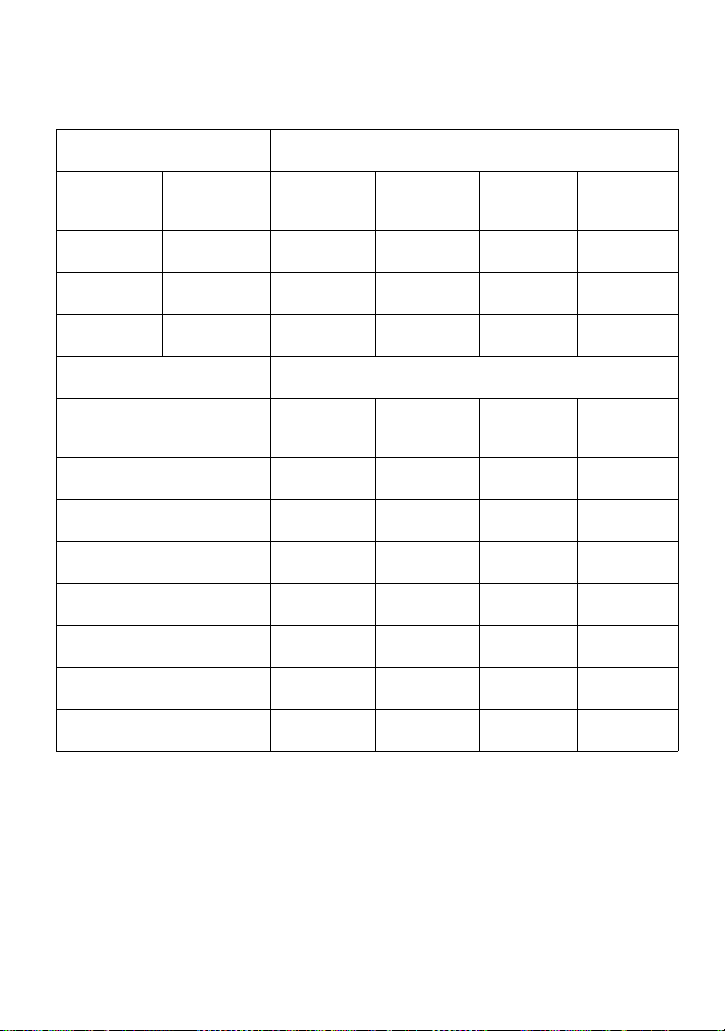
94
List of the recording time for each disc
When using a disc in Hi-MD mode
When recording on the
recorder
Recording time
1)
1)
Approximate time
Recording
mode on
the recorder
Codec/
Bit rate
1GB Hi-MD
disc
80-minute
standard
disc
74-minute
standard
disc
60-minute
standard
disc
PCM Linear PCM/
1.4Mbps
1 hour and 34
minutes
28 minutes 26 minutes 21 minutes
Hi-SP ATRAC3plus/
256kbps
7 hours and
55 minutes
2 hours and
20 minutes
2 hours and
10 minutes
1 hour and 45
minutes
Hi-LP ATRAC3plus/
64kbps
34 hours 10 hours and
10 minutes
9 hours and
25 minutes
7 hours and
40 minutes
When transferring from
the computer
Recording time
1)2)
2)
When transferring 5-minute tracks
Codec/Bit rate 1GB Hi-MD
disc
80-minute
standard
disc
74-minute
standard
disc
60-minute
standard
disc
Linear PCM/1.4Mbps 1 hour and 34
minutes
28 minutes 26 minutes 21 minutes
ATRAC3plus/256kbps 7 hours and
55 minutes
2 hours and
20 minutes
2 hours and
10 minutes
1 hour and 45
minutes
ATRAC3plus/64kbps 34 hours 10 hours and
10 minutes
9 hours and
25 minutes
7 hours and
40 minutes
ATRAC3plus/ 48 kbps 45 hours 13 hours and
30 minutes
12 hours and
30 minutes
10 hours and
10 minutes
ATRAC3/132kbps 16 hours and
30 minutes
4 hours and
50 minutes
4 hours and
30 minutes
3 hours and
40 minutes
ATRAC3/105kbps 20 hours and
50 minutes
6 hours and
10 minutes
5 hours and
40 minutes
4 hours and
40 minutes
ATRAC3/66kbps 32 hours and
50 minutes
9 hours and
50 minutes
9 hours 7 hours and
20 minutes
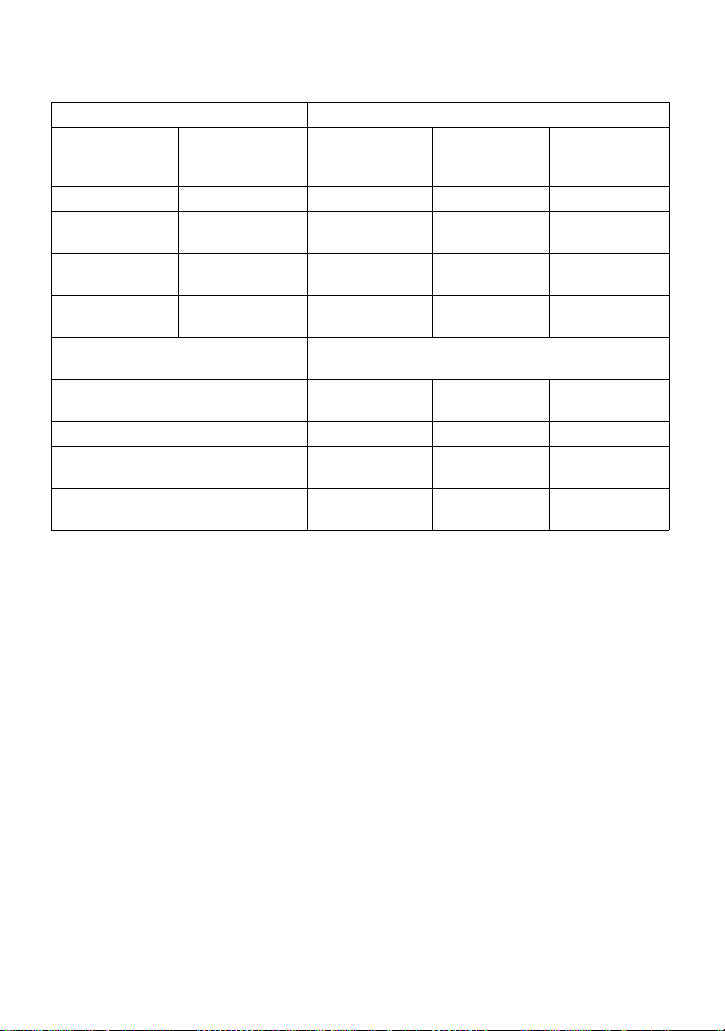
95
When using a disc in MD mode
When recording on the recorder Recording time
1)
1)
Approximate time
Recording
mode on the
recorder
Codec/
Bit rate
80-minute
standard disc
74-minute
standard disc
60-minute
standard disc
SP ATRAC/292kbps 80 minutes 74 minutes 60 minutes
LP2 ATRAC3/
132kbps
2 hours and 40
minutes
2 hours and 28
minutes
2 hours
LP4 ATRAC3/66kbps 5 hours and 20
minutes
4 hours and 56
minutes
4 hours
MONO
(monaural)
Monaural 2 hours and 40
minutes
2 hours and 28
minutes
2 hours
When transferring from the
computer
Recording time
1)2)
2)
When transferring 5-minute tracks
Codec/Bit rate 80-minute
standard disc
74-minute
standard disc
60-minute
standard disc
ATRAC(stereo)/292kbps 80 minutes 74 minutes 60 minutes
ATRAC3/132, 105kbps 2 hours and 40
minutes
2 hours and 28
minutes
2 hours
ATRAC3/66kbps 5 hours and 20
minutes
4 hours and 56
minutes
4 hours
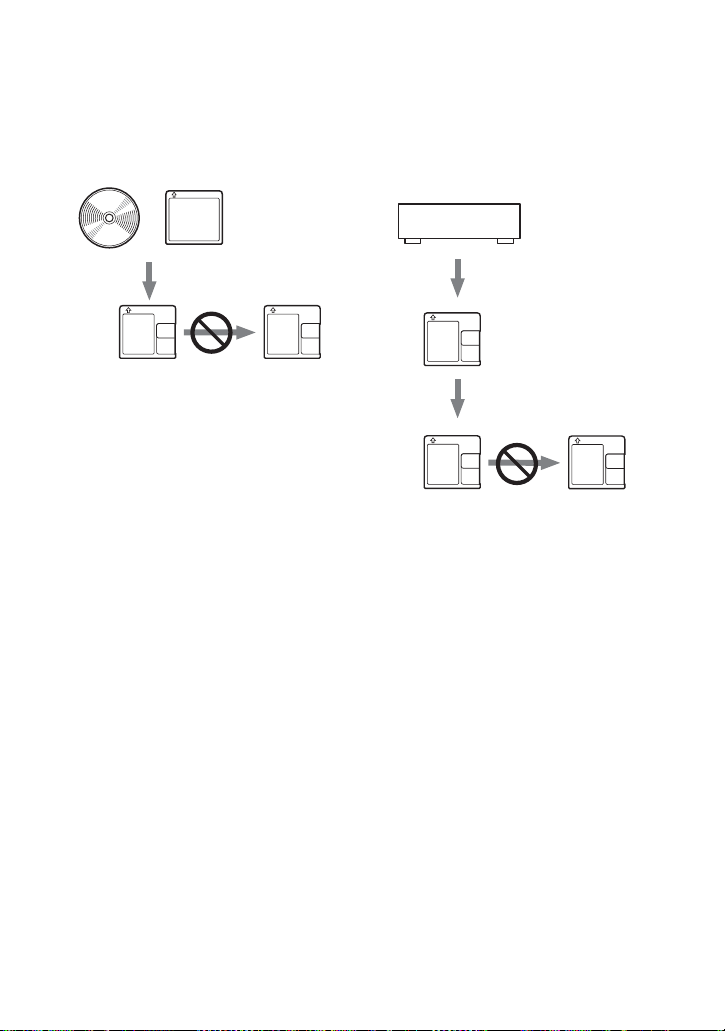
96
Note on digital recording
This recorder uses the Serial Copy Management System, which allows only first-generation digital
copies to be made from premastered software. You can only make copies from a home-recorded disc by
using the analog (line out) connections.
Restrictions on the editing of tracks transferred from your
computer
This unit was designed so that editing functions (i.e., adding track marks and erasing track
marks) do not function for tracks that have been transferred from your computer. This is to
prevent the loss of transfer authorization by the transferred tracks. To edit these tracks, first
transfer them into the computer, and then edit them on the computer.
About the DSP TYPE-S for ATRAC/ATRAC3
This recorder supports DSP TYPE-S, a specification for high-level Sony MiniDisc decks
equipped with digital signal processors (DSP). This specification allows the recorder to produce
high-quality sound from tracks recorded in MDLP mode. Since it retains DSP TYPE-R support,
the recorder produces superior results during recording or playback in SP (normal stereo) mode.
Suppressing the skips of the sound (G-PROTECTION)
The G-PROTECTION function was developed to provide a higher level of shock resistance than
that of existing players.
Premastered software such as CDs or MDs.
Digital recording
Home-
recorded
disc
No
digital
recording
Recordable
disc
Microphone, record player, tuner, etc. (with
analog output jacks).
Analog recording
No
digital
recording
Recordable
disc
Digital recording
Home-recorded disc
Recordable
disc

97
Difference between digital (optical) and analog (line) inputs
The input jack of this recorder works as both digital and analog input jacks. Connect the
recorder to a CD player or a cassette recorder using either digital (optical) input or analog
(line) input. To record, see “Recording a disc right away!” (page 20) to record using digital
(optical) input, and “Recording from a TV or radio (Analog Recording)” (page 36) to
record using analog (line) input.
Track marks may be copied incorrectly:
•when you record from some CD players or multi disc players using digital (optical) input.
•when the source is in shuffle or program play mode while recording using digital (optical) input. In
this case, play the source in normal play mode.
•when programs with audio that is digitally broadcast (e.g., digital TV) are recorded through the digital
(optical) input.
Difference Digital (optical) input Analog (line) input
Connectable
source
Equipment with a digital (optical) output
jack (CD player, DVD player, etc.)
Equipment with an analog (line)
output jack (Casette deck, radio,
record player, etc.)
Usable cord Optical cable (with an optical or an
optical-mini plug) (page 20)
Line cable (with 2 phono plugs or a
stereo-mini plug) (page 36)
Signal from
the source
Digital Analog
Even when a digital source (such as
a CD) is connected, the signal sent
to the recorder is analog.
Track marks
1)
1)
You can erase unnecessary marks after recording. (“Combining tracks (Combine)”, page 63).
Marked (copied) automatically
• at the same positions as the source
(when the sound source is a CD or an
MD).
• after more than 2 seconds of no sound
(page 93) or low-level segment (with a
sound source other than a CD or an
MD).
• when the recorder is paused (3 seconds
of no sound is encountered while
synchro-recording)
Marked automatically
• after more than 2 seconds of no
sound (page 93) or low-level
segment.
• when the recorder is paused while
recording.
Recorded
sound level
Same as the source.
Can also be adjusted manually (Digital
REC level control) (“Adjusting the
recording level manually”, page 38).
Adjusted automatically. Can also
be adjusted manually (“Adjusting
the recording level manually”,
page 38).
Note
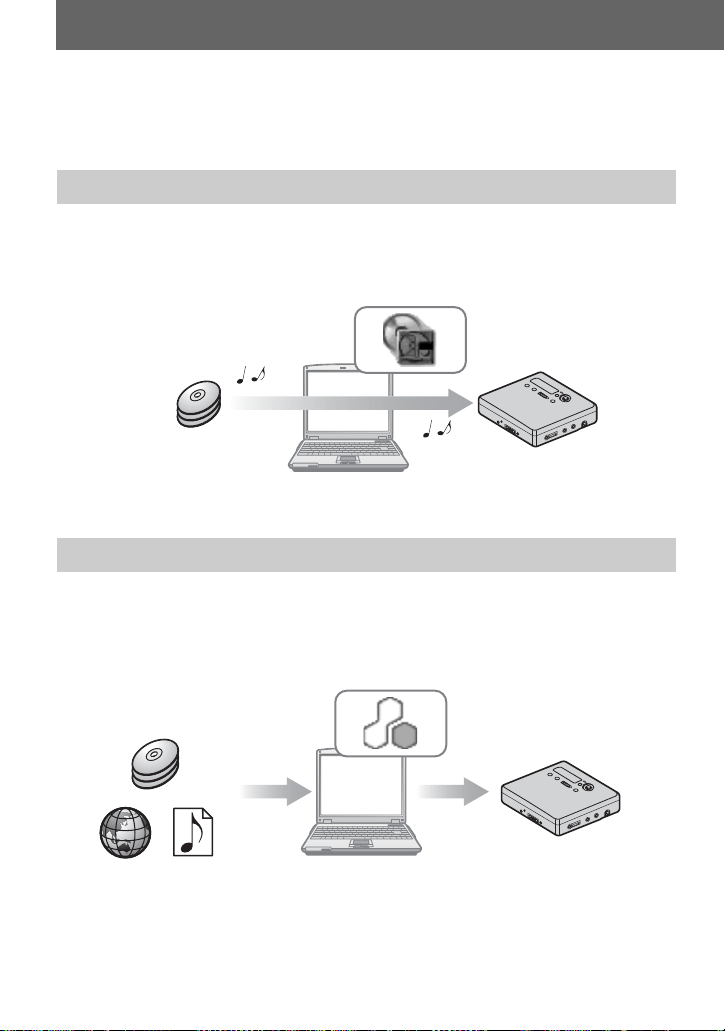
98
What you can do with MD Simple
Burner/SonicStage
MD Simple Burner allows you to record music tracks from an audio CD in the CD drive of
your computer to an MD Walkman, without first recording the music tracks to the
computer.
SonicStage allows you to import audio data to your computer from music sources such as
audio CDs and the Internet, and then transfer the audio data stored in your computer to an
MD.
What you can do with MD Simple Burner
What you can do with SonicStage
Audio CD
MD Walkman
Audio CD
MD Walkman
Internet
Music files in the
MP3,WAV formats
Import
Transfer
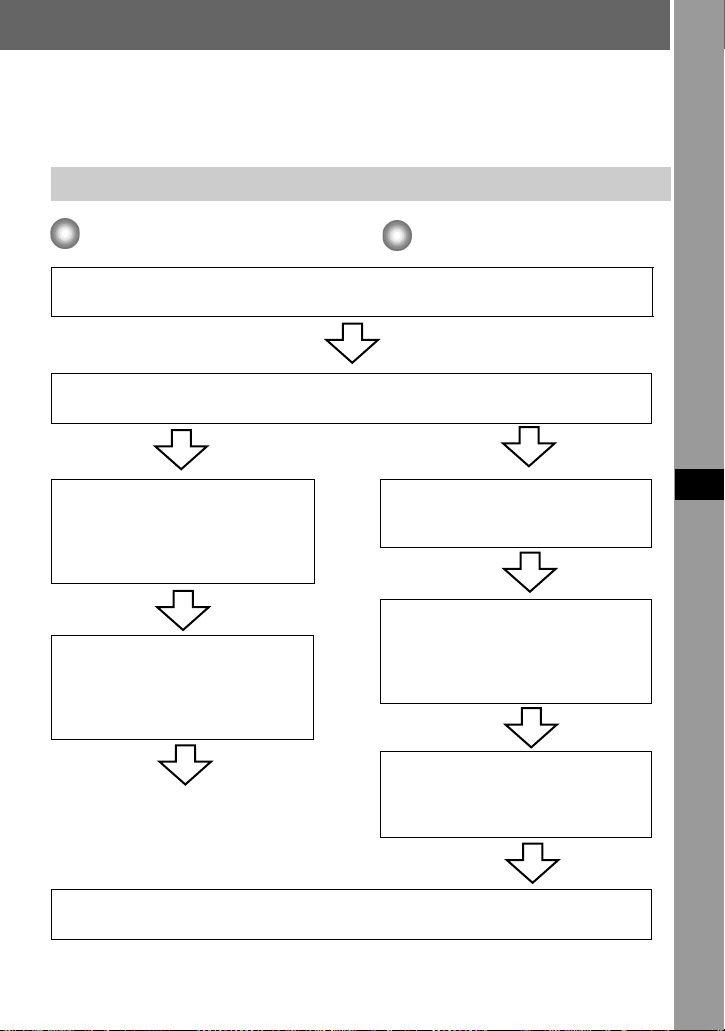
99
Software Operation
Basic operational flow using an MD Walkman
Providing the required system environment (page 100)
Installing the software onto your computer (page 101)
SonicStage
MD Simple Burner
Connecting an MD
walkman to your
computer (see “Recorder
Operation”)
Recording music tracks
from an audio CD in the
CD drive of your
computer (page 103)
Importing audio data to
your computer (page 107)
Connecting an MD
walkman to your
computer (see “Recorder
Operation”)
Transferring audio data
from your computer
(page 109)
Listening to an MD
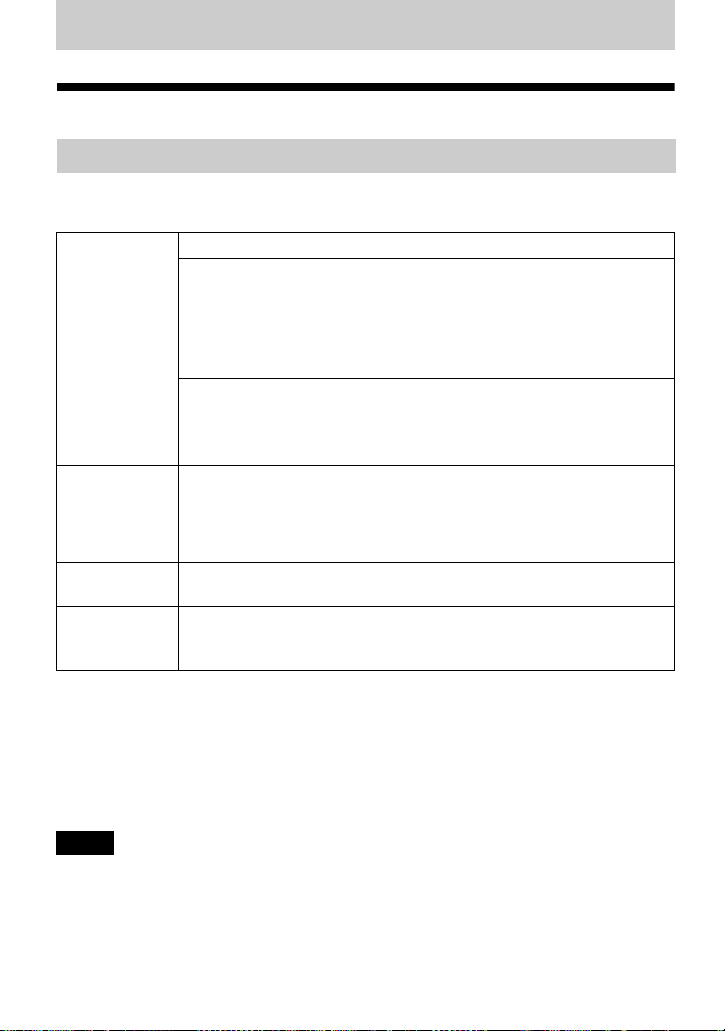
100
Installing
Providing the required system environment
The following system environment is required in order to use the SonicStage/MD Simple
Burner software for the MD Walkman.
This software is not supported by the following environments:
• OSs other than the indicated above
• Personally constructed PCs or operating systems
• An environment that is an upgrade of the original manufacturer-installed operating system
• Multi-boot environment
• Multi-monitor environment
• Macintosh
• We do not ensure trouble-free operation on all computers that satisfy the system requirements.
• The NTFS format of Windows XP/Windows 2000 Professional can be used only with the standard
(factory) settings.
• We do not ensure trouble-free operation of the system suspend, sleep, or hibernation function on all
computers.
• For Windows 2000 Professional users, install Service Pack 3 or later version before using the
software.
System requirements
Computer IBM PC/AT or Compatible
• CPU: Pentium II 400 MHz or higher (Pentium III 450 MHz or higher
is recommended.)
• Hard disk drive space: 200 MB or more (1.5 GB or more is
recommended) (The amount space will vary according to Windows
version and the number of music files stored on the hard disk.)
• RAM: 64 MB or more (128 MB or more is recommended)
Others
• CD drive (capable of digital playback by WDM)
• Sound Board
• USB port (supports USB (previously USB 1.1))
Operating
System
Factory installed:
Windows XP Media Center Edition 2004/Windows XP Media Center
Edition/Windows XP Professional/Windows XP Home Edition/
Windows 2000 Professional/Windows Millennium Edition/Windows
98 Second Edition
Display High Color (16bit) or higher, 800 × 600 dots or better (1024× 768 dots
or better is recommended)
Others • Internet access: for Web registration, EMD services and CDDB
• Windows Media Player (version 7.0 or higher) installed for playing
WMA files
Notes

101
Installing the software onto your computer
Before installing the software
• Make sure to close any virus-check software, as such software usually demands a large
amount of system resources.
• When you use the MD Walkman, make sure to install the software with the supplied CD-
ROM.
— If OpenMG Jukebox, SonicStage or Net MD Simple Burner is installed already, the
previous software will be overwritten by the new version. The new version retains the
functions of the older version, but with new functions added.
— If SonicStage Premium or SonicStage Simple Burner is installed already, the previous
software will co-exist with the new version.
— You will still be able to use music data registered by an older software version even
after SonicStage has been installed. As a precaution, we recommend that you back up
your music data. To back up the data, refer to [Backing Up My Library]
– [Backing
Up Data to a Disk] on SonicStage Help
.
• If the MD Walkman is connected to the computer with the USB cable, make sure to
disconnect the USB cable first before installing the software.
1 Turn on your computer and start up Windows.
2 Insert the supplied CD-ROM into the CD drive of your computer.
The setup program starts up automatically and the installation window appears.
Depending on the region, a window may appear asking you to select your country. In
this case, follow the displayed instructions.
continued
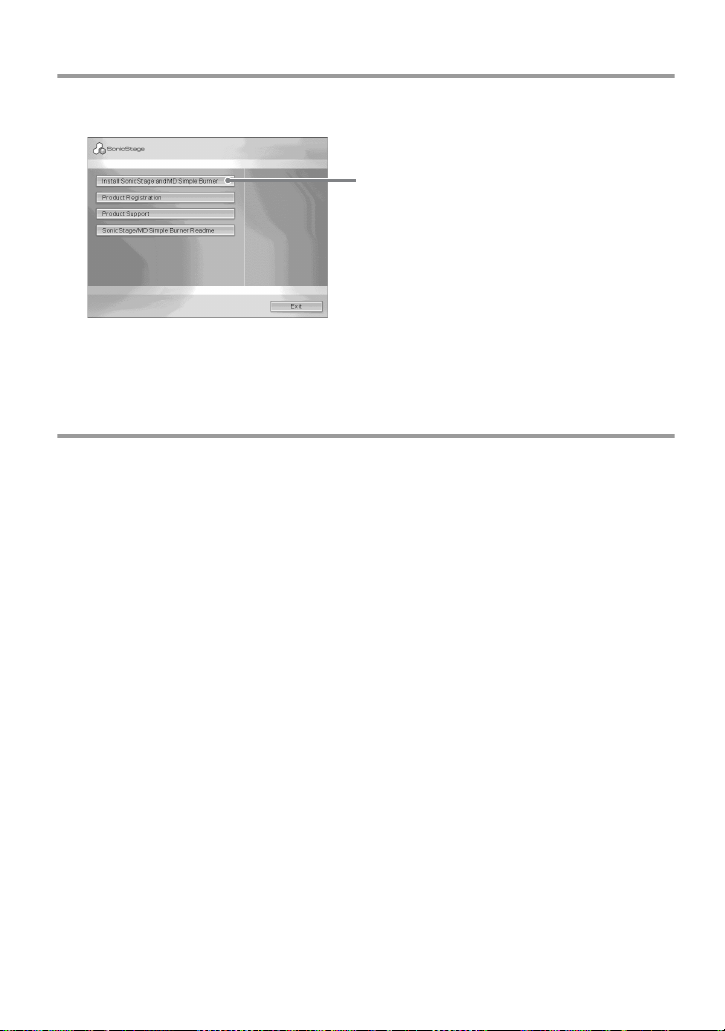
102
3 Click [Install SonicStage and MD Simple Burner] and then follow the
displayed instructions.
Read the instructions carefully.
Depending on your region, the buttons other than [Install SonicStage and MD Simple
Burner] may differ from those in the illustration above.
The installation may take 20 to 30 minutes, depending on your system environment.
Make sure to restart your computer only after the installation is completed.
Was the installation successful?
If any trouble occurs during the installation, see “Troubleshooting” (page 120).
Click [Install SonicStage and MD Simple
Burner]
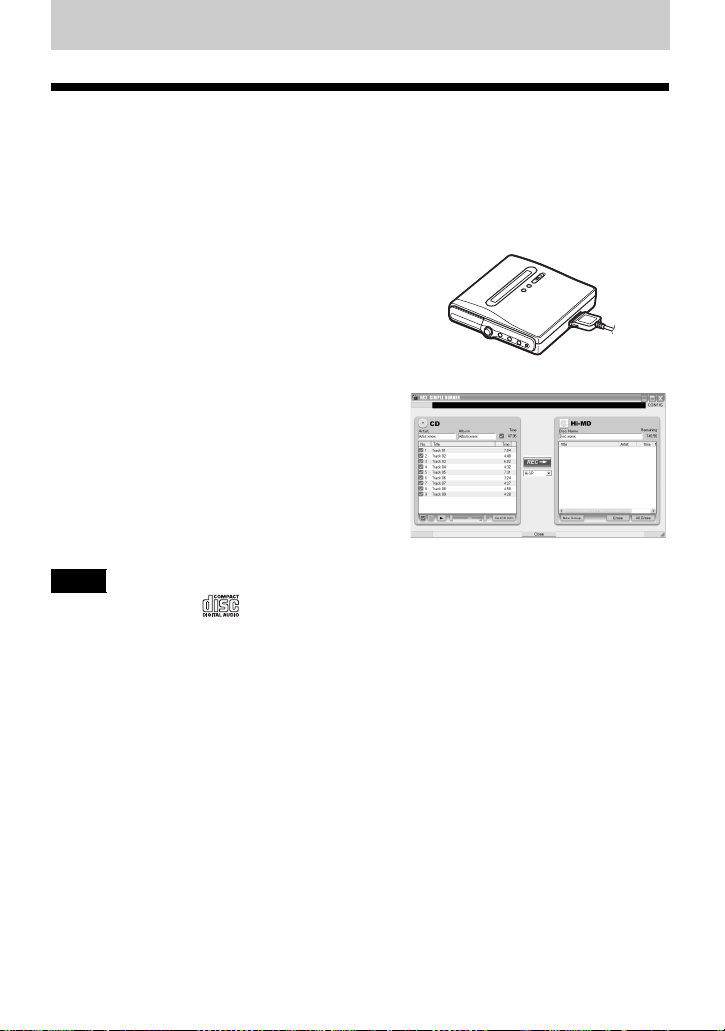
103
Using MD Simple Burner
Before using MD Simple Burner
MD Simple Burner allows you to record music tracks from an audio CD in the CD drive of
your computer to the MD Walkman.
There are two ways to record from
an audio CD.
• Simple mode (page 104)
You can use MD Walkman operations to record
an entire CD or only the first track without
launching MD Simple Burner.
• Standard mode (page 105)
You can launch MD Simple Burner to record
using computer operations. Record an entire CD
or selected tracks.
• Only audio CDs with a mark can be used with MD Simple Burner.
• We do not guarantee normal operation in the case of the copy-controlled CDs.
• You cannot record in simple mode while the MD Simple Burner in standard mode or OpenMG
software (SonicStage, OpenMG Jukebox, etc.) is active.
Notes
104
Recording using MD Walkman operations (Simple mode)
1 Insert a recordable disc into the MD Walkman and then connect the MD
Walkman to the computer.
For details about connections, see the “Recorder Operation” section.
Do not disconnect the power source or the dedicated USB cable before the transfer has
completed.
2 Insert the audio CD that you want to record into the CD drive of your
computer.
The CDDB registration window appears when you use the CDDB for the first time.
You need to connect the computer to the Internet in order to use the CDDB.
3 Press and slide zREC on the MD Walkman.
The recording starts.
All tracks on the CD are recorded as a new group.
To stop recording
Click on the computer display.
While the first track is being recorded, you can use x (stop) button to stop on the MD
Walkman.
Setting the recording mode
Before starting recording, right-click the MD Simple Burner icon in the task tray, and
then select in [recording mode].
Recording first track only
Before starting recording, right-click the MD Simple Burner icon in the task tray, and
then select [Recording settings]
– [Record 1st Track Only].
Setting when the CDDB has more than one item of information
Right-click the MD Simple Burner icon in the task tray, and then select the setting by
clicking [CDDB(r)]
– [Multiple Matches].
— [User Selection]: A selection window is displayed
— [No Resolve]: No CD information is downloaded
— [First Choice]: The first item is downloaded
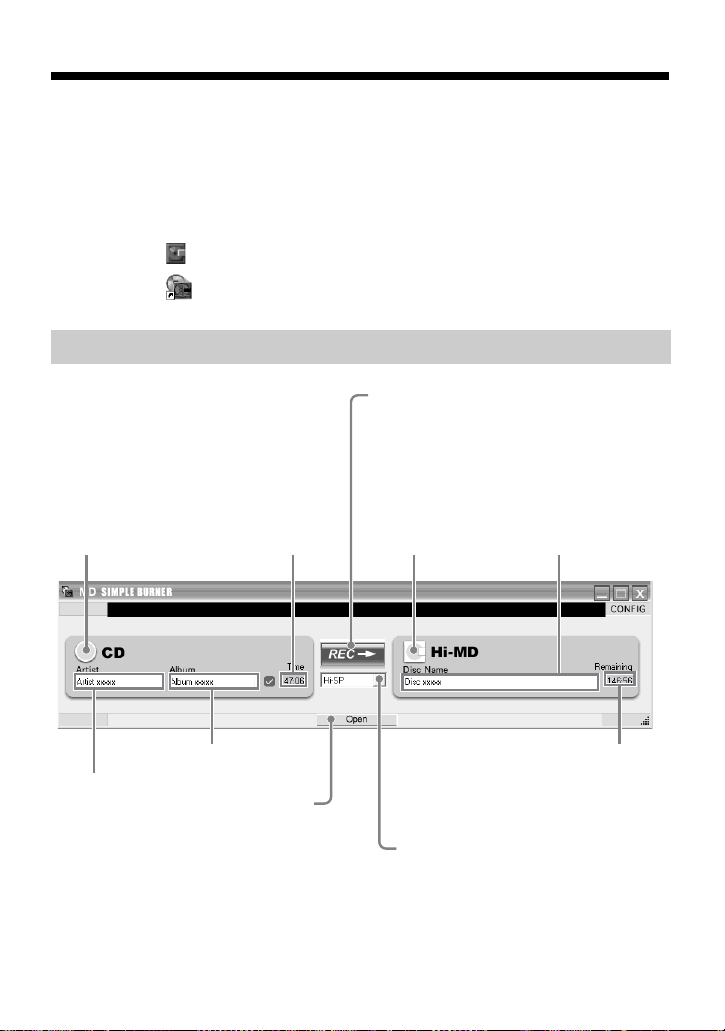
105
Recording by computer operations (Standard mode)
To start MD Simple Burner, click [Start] – [All Programs]* – [MD Simple Burner] – [MD
Simple Burner].
∗ [Programs] in the case of Windows 2000 Professional/Windows Millennium Edition/Windows 98
Second Edition
z
There are other ways to start up MD Simple Burner as follows:
• Double-click the MD Simple Burner icon in the task tray, or right-click and select [Show
Standard Mode].
• Double-click the MD Simple Burner shortcut icon on the desktop.
The window for recording all tracks on the CD
[OPEN]
To open the display
as shown on page
106, click here.
Disc name (MD)
Total time of the
selected tracks of CD
CD icon
MD icon
Album name (CD)
Recording mode drop down menu
Remaining
recording time of
the inserted MD
[REC/STOP]
To start recording all tracks on the CD as
a new group, click here.
To stop recording, click [Stop].
Artist name (CD)
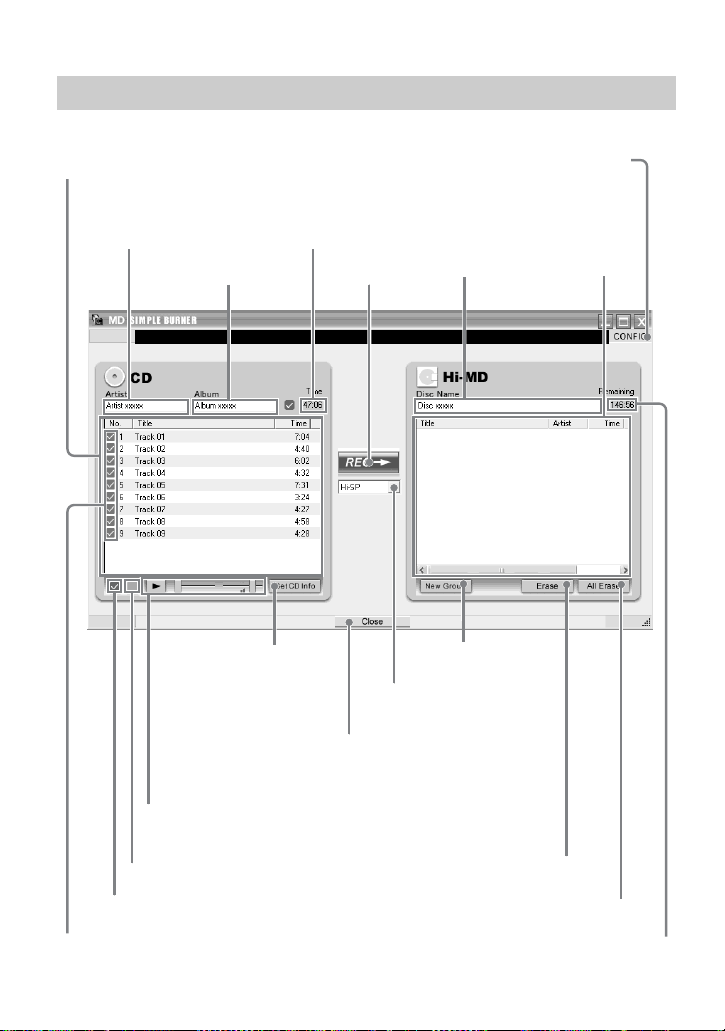
106
The window for recording selected tracks from an audio CD
[Erase]
Disc name
(MD)
Track information
(CD)
Album Title
Recording mode
drop down menu
[REC/
STOP]
Track information (MD)
You can change the
track name and track
number
[CLOSE]
To close the display as shown
on page 105, click here.
[New Group]
Remaining time of the inserted MD
To deselect all tracks, click here.
[All Erase]
Check boxes
Check the box of the tracks
that you want to record
To select all tracks, click here.
[Get CD info]
Information of an audio CD
(album name, track title,
etc.) will be reflected in the
track list.
CD operating section
Use these controls to confirm the tracks on audio CD to
be recorded
[CONFIG]
Click here to do the following:
-Set the CD-ROM drive
-View version information for MD Simple Burner
-Confirm CD information registered in the CDDB
Artist name
Total time of the
selected tracks of CD
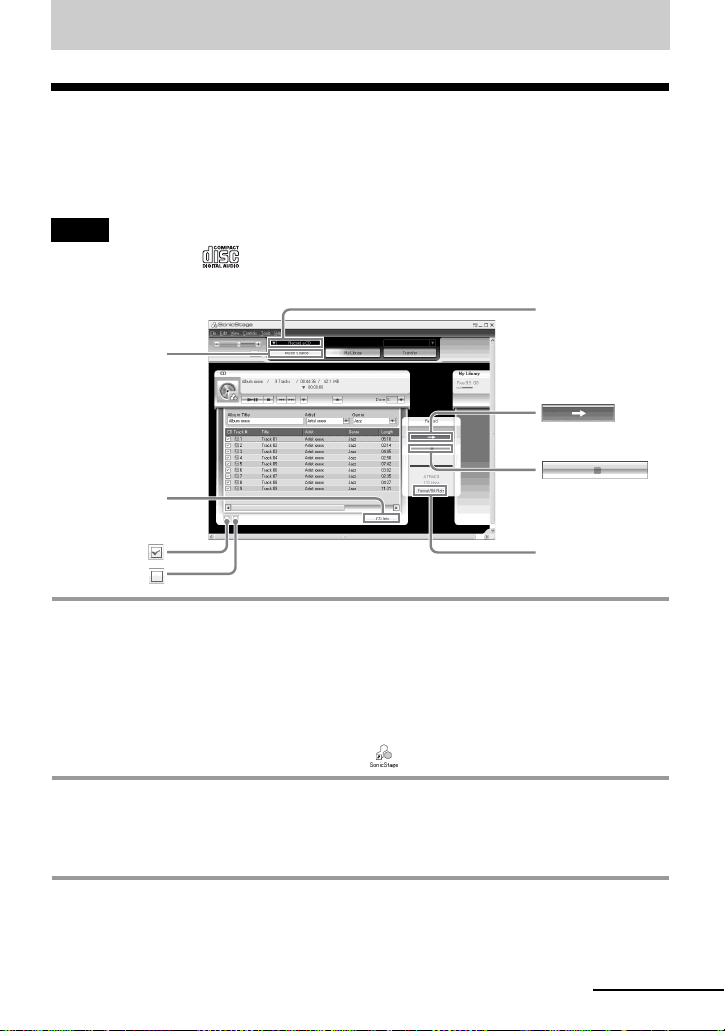
107
Using SonicStage
Importing audio data
This section explains how to record and store audio data from an audio CD to My Library
of SonicStage on the hard disk drive of your computer.
You can record or import music from other sources such as the Internet and your
computer’s hard disk. Refer to SonicStage Help for details.
• Only audio CDs with a mark can be used with SonicStage.
• We do not guarantee normal operation in the case of the copy-controlled CDs.
1 Start up SonicStage.
Select [Start] – [All Programs]
*
– [SonicStage] – [SonicStage].
∗[Programs] in the case of Windows 2000 Professional/Windows Millennium Edition/Windows 98
Second Edition
SonicStage starts up and the main window appears.
z
You can also start SonicStage with double click ([SonicStage] icon) on the desktop.
2 Insert the audio CD that you want to record into the CD drive of your
computer.
The source indication in the top-left of the display changes to [Record a CD].
3 Click [Music Source].
The contents of the audio CD appear in the music source list (on the left side of the
screen).
Notes
Source indication
[Music Source]
[CD Info]
[Format/Bit Rate]
continued

108
4 If necessary, click to uncheck tracks you do not want to record.
If you unchecked a box by mistake, click it again to restore the check.
To check all boxes, click
.
To uncheck all boxes, click .
5 If necessary, change the format and bit rate for audio CD recording.
When you click [Format/Bit Rate] on the right side of the screen, “CD Recording
Format [My library]” dialog box will appear. The dialog box will ask you to select the
format and bit rate for recording the audio CD.
6 Click .
The recording of the tracks selected in step 4 starts.
To stop recording
Click .
z
If CD information such as album title, artist name, and track names could not be obtained
automatically, click [CD Info] on the right side of the screen. When you do this, your computer must be
connected to the Internet.
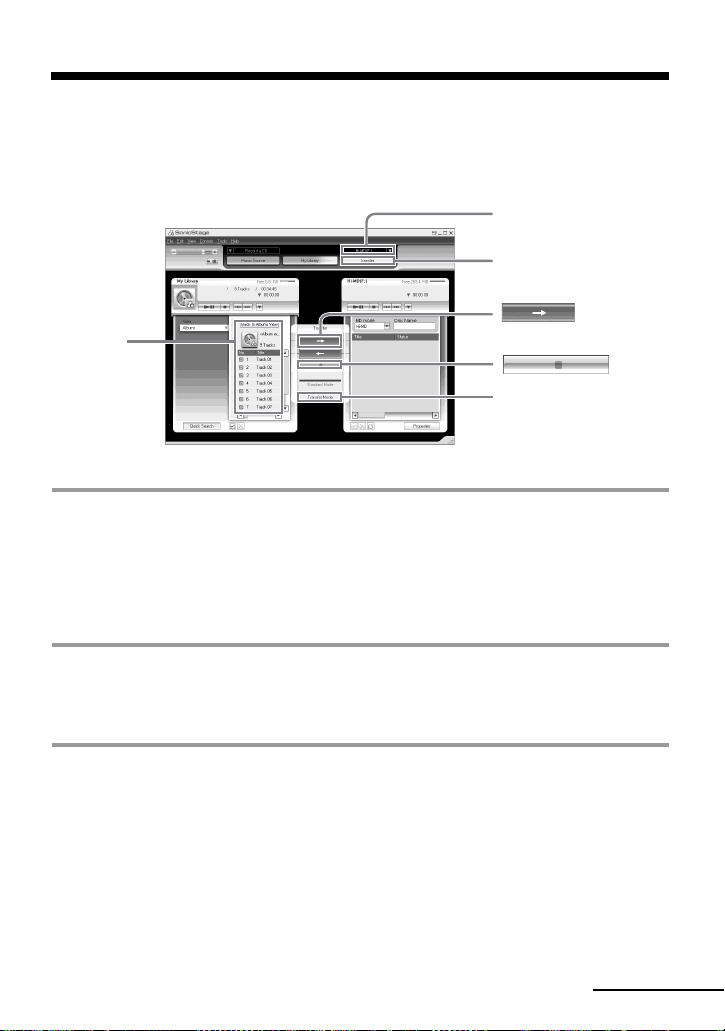
109
Transferring audio data from your computer to the
MD Walkman
Audio data stored in My Library of SonicStage can be transferred to your MD Walkman an
infinite number of times.
1 Connect your MD Walkman to the computer.
After making the connections, “Hi-MD” or “Net MD” is displayed in the Transfer
Destination list in the upper right of the screen.
For details about connections, see “Recorder Operation”.
Do not disconnect the power source or the dedicated USB cable before the transfer has
completed.
2 Select the transfer destination and click [Transfer] on the right side of the
screen.
The screen is switched to the Transfer (Hi-MD or Net MD) screen.
3 Click the tracks you want to transfer in the My Library list on the left side of
the screen.
To transfer more than one track, hold down the [Ctrl] key while selecting the tracks.
To transfer all tracks of the album, click the album.
Transfer Destination list
[Transfer Mode]
[Transfer]
The My Library
list
continued

110
4 If necessary, change the transfer mode.
As the default setting, tracks in the OpenMG (PCM/ATRAC3/ATRAC3plus) format
will be transferred in the same format and bit rate (normal transfer).
If the device connected to the computer does not support the above format, the format
and bit rate will be converted to those of the device. In some case, this process may
take time.
If you want to change the format and bit rate, click [Transfer Mode] in the center of the
screen to display “Transfer Mode Settings” dialog box.
5 Click .
Transfer of the tracks selected in step 3 begins.
To stop transferring
Click .
When transferring to a Hi-MD Walkman
If you want to play the transferred tracks on a Net MD Walkman that does not support Hi-
MD, select [Net MD] for the mode (operation mode) on the right side of the screen after
step 2. This operation mode can be selected only when using a standard disc in Hi-MD
mode for recording.
• A transfer will fail and an error message will appear in the following cases:
—When there is no enough free space on the disc.
—When the track is subject to playback restrictions.
• During the transfer, the system suspend, sleep, or hibernation function will not operate.
• Depending on the type of the text and number of characters, the text entered by SonicStage may not be
displayed on the connected MD Walkman. This is due to the limitations of the connected MD
Walkman.
Notes
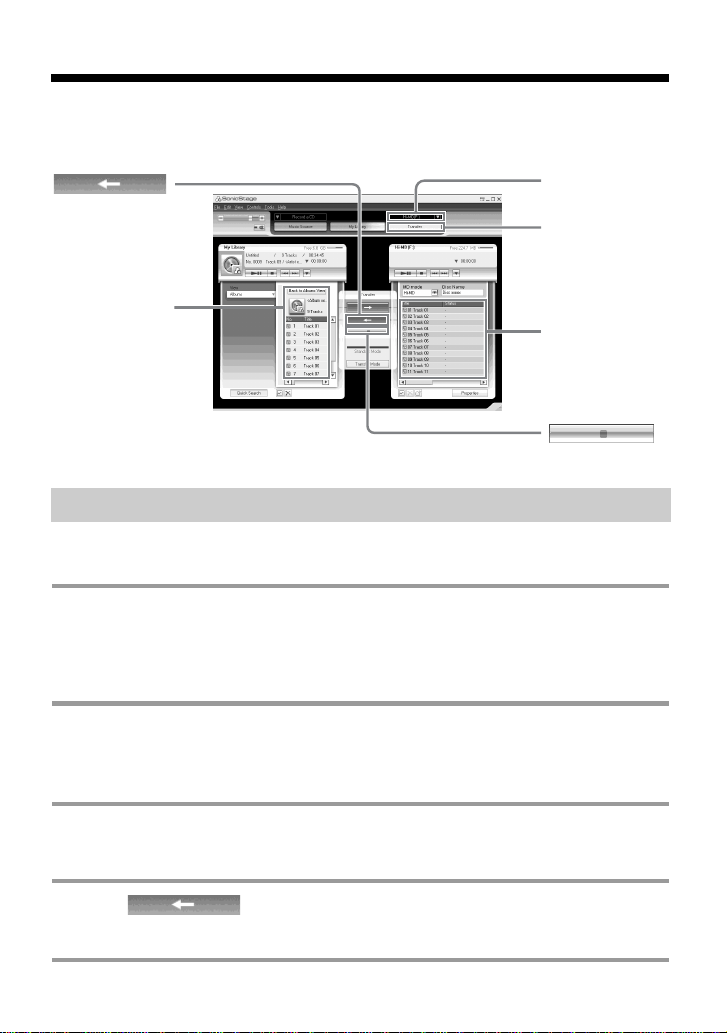
111
Transferring back audio data from the MD Walkman
to your computer
Audio data that has been transferred from your computer and stored on the MD can be
transferred back to My Library of SonicStage on your computer.
1 Connect your MD Walkman to the computer.
For details about connections, see “Recorder Operation”.
Do not disconnect the power source or the dedicated USB cable before the transfer has
completed.
2 Select the transfer destination and click [Transfer] on the right side of the
screen.
The screen is switched to the Transfer (Hi-MD or Net MD) screen.
3 In the list on the right side of the screen, click to select the tracks you want to
transfer to your computer.
4 Click in the middle of the screen.
The transferring of the tracks selected in step 3 starts.
Transferring from the MD Walkman back to your computer
Transfer
Destination list
The My Library list
[Transfer]
List of tracks on
the MD
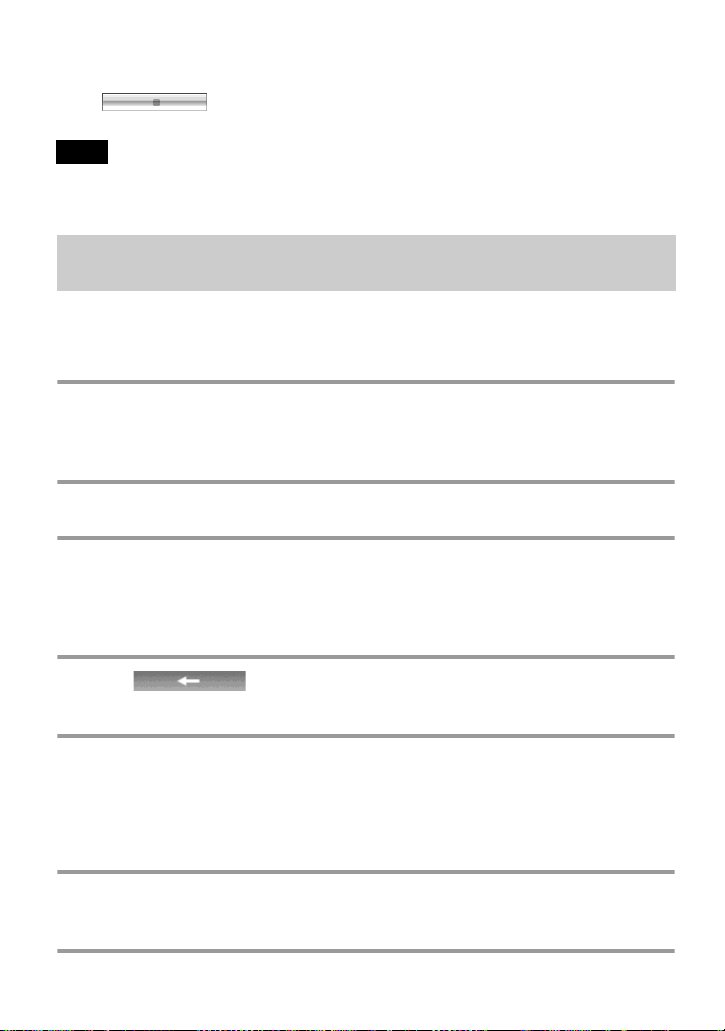
112
To stop transferring
Click .
Tracks transferred to the MD Walkman from another computer cannot be transferred back to My
Library on your computer.
Tracks that have been recorded on a Hi-MD Walkman* can be imported to My Library of
SonicStage on your computer only once.
∗ Only tracks recorded in Hi-MD mode
1 Insert recordable disc into the Hi-MD Walkman and connect the device to
your computer.
“Hi-MD” is displayed in the Transfer Destination list in the upper right of the screen.
2 Click [Transfer].
3 Click the tracks you want to transfer in the Hi-MD list on the right side of the
screen.
To transfer more than one track, hold down the [Ctrl] key while selecting the tracks.
To transfer all tracks of the group, click the group.
4 Click in the middle of the screen.
The “Import” dialog box appears.
5 Specify the transfer destination in the dialog box.
To import tracks to a new album, select “Import to a new album” and enter the desired
album name in the text box.
To add the tracks to an existing album in My Library, select “Import to an existing
album” and click “Browse” to select the album.
6 Click “OK”.
The importing of the tracks selected in step 3 starts.
Note
Importing tracks recorded on a Hi-MD Walkman* to your
computer

113
To stop importing
Click .
Note
• You cannot import tracks that were recorded in a Net MD mode to your computer, or tracks that have
been recorded on a device that does not support Hi-MD mode.
• Before importing tracks recorded on the Hi-MD Walkman to the computer, click [Properties] on the
right side of the screen to confirm the status of the [Import Settings] check box (it is checked by
default). Then do as follows:
—To import tracks to My Library while deleting them on the Hi-MD Walkman, uncheck the box.
—To edit imported tracks in SonicStage, uncheck the box.
—To import tracks to My Library while leaving the copy of them on the Hi-MD Walkman, check the
box. Tracks left on the Hi-MD Walkman are treated the same as tracks that have been automatically
transferred from the computer. For this reason, they cannot be divided or combined on the Hi-MD
Walkman.
• When you transfer tracks recorded in linear PCM on the Hi-MD Walkman to a computer for editing
(dividing or combining) in My Library, the editing may take a long time, depending on the length of
the tracks and capabilities of your computer. This is due to limitations in the MiniDisc system. If you
want to edit long tracks recorded in linear PCM, we recommend that you do the editing on the Hi-MD
Walkman first, and then transfer the edited data to a computer afterwards.
Notes
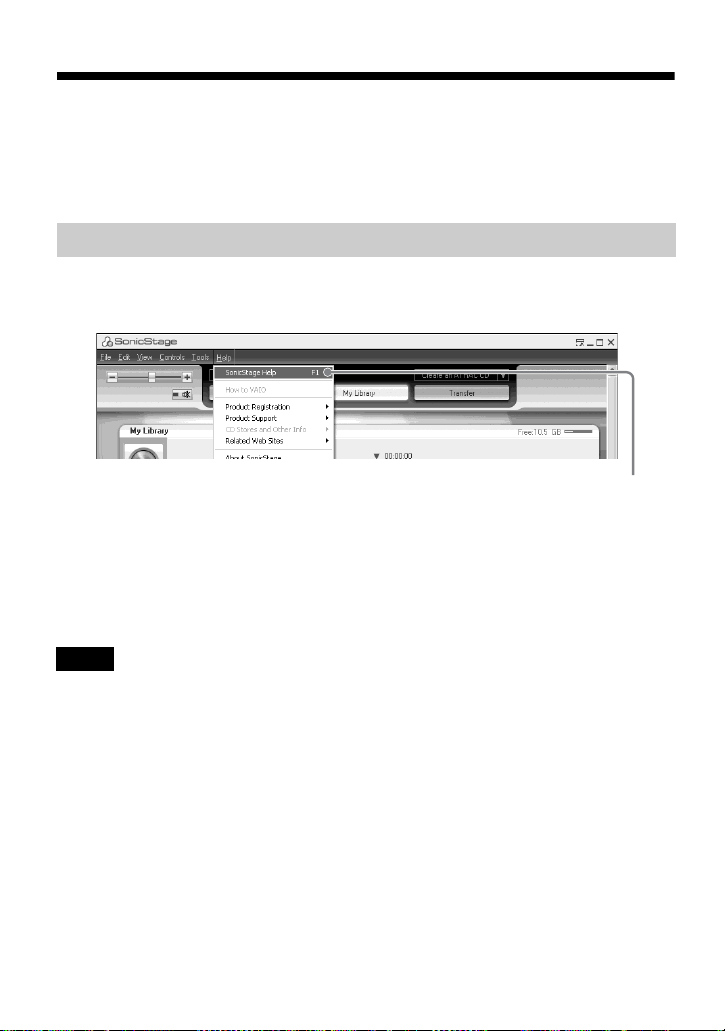
114
Using SonicStage Help
SonicStage Help provides further details on how to use SonicStage. SonicStage Help
allows you to search easily for information from a list of operations, such as “Importing
Tracks” or “Transferring Tracks”, or from large list of keywords, or by typing in words that
might lead you to the appropriate explanations.
Click [Help]
– [SonicStage Help] while SonicStage is running.
z
You can display SonicStage Help by selecting the following:
[Start] – [All Programs]*– [SonicStage] – [SonicStage Help]
.
∗ [Programs] in the case of Windows 2000 Professional/Windows Millennium Edition/Windows 98
Second Edition
• In SonicStage Help, “Device/Media” is the general term for the external device such as the MD
Walkman, the Network Walkman, and the CD Walkman.
• Follow the instructions of your internet provider regarding such things as recommended system
environment when using EMD services.
To display SonicStage Help
Notes
[SonicStage Help]
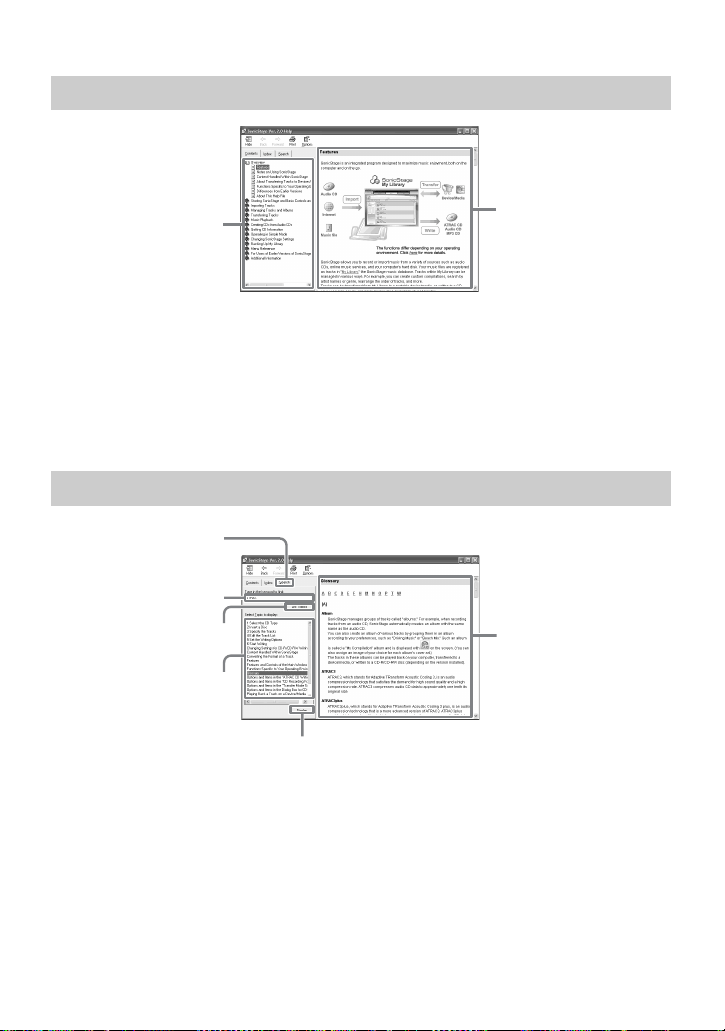
115
1 Double click [Overview] in the left-side frame.
2 Click [About This Help File].
The explanation will appear in the right-side frame.
3 Read the text.
Scroll the display if necessary.
Click underlined words to jump to their explanations.
1 Click [Search] to open the “Search” window.
2 Type in the words.
3 Click [List Topics].
A list of the words that were searched is displayed.
4 Click to select the desired item among those displayed.
5 Click [Display].
An explanation of the selected item is displayed.
Understanding SonicStage Help
Searching for a word inside an explanation
The right side frame
The left side frame
An explanations of the
selected item
“Type in the keyword
to find” text box
[Search]
List Topics
The list of the words
that you searched
[Display]
116
Referring to SonicStage Help
Click [Contents] on the left side of the Help window to view a list of items for each
operation. Click on any items for details.
Importing audio data to the computer
To SonicStage Help
Import audio data from the
Internet
[Importing Tracks]
– [Purchasing Tracks from a Music
Service Site]
Import audio files on the
computer in SonicStage
[Importing Tracks]
– [Importing Music Files]
Listening to audio data on the computer
To SonicStage Help
Listen to audio data from the
CD drive or My Library
[Music Playback]
– [Playing Back an Audio CD] or
[Playing Back a Track in My Library]
Listen to audio data on the MD
Walkman connected to the
computer
[Music Playback]
– [Playing Back a Track on a Device/
Media]
Managing and editing imported tracks
To SonicStage Help
Change information related to
CD information downloading
[Changing SonicStage Settings]
– [Changing Settings
for Getting CD information]
Edit an album
Delete the tracks
[Managing Tracks and Albums]
– [Creating/Editing
Albums]
Change the destination directly
for track storage
[Changing SonicStage Settings]
– [Changing the
Location for Saving Recorded Files]
117
We recommend that you back up your music data as a precaution against hard disk crashes
or computer replacement.
Backing up audio data
To SonicStage Help
Back up audio data in My
Library
[Backing Up My Library]
– [Backing Up Data to a
Disk]
Look up about SonicStage
backup
[Backing Up My Library]
– [FAQ-About SonicStage
Backup Tool]
Troubleshooting
To SonicStage Help
Look up troubleshooting
procedure
[Additional Information]
– [Troubleshooting]
When you want to know
To SonicStage Help
Look up unknown words [Additional Information]
– [Glossary]
Look up the kinds of audio data
that can be managed by
SonicStage
[Overview]
– [Content Handled Within SonicStage]
Look up the kinds of functions
that can be used with
SonicStage
[Overview]
– [Features]

118
Other information
Uninstalling SonicStage/MD Simple Burner
To uninstall SonicStage/MD Simple Burner, follow the procedures below.
1 Click [Start]–[Control Panel]*.
∗ [Settings]–[Control Panel] in the case of Windows 2000 Professional/Windows Millennium
Edition/Windows 98 Second Edition
2 Double-click [Add/Remove Programs].
3 Click [SonicStage 2.x.xx] or [MD Simple Burner 2.0.xx] in the “Currently
Installed Programs” list, and then click [Change and Remove]
*
.
Follow the displayed instruction and restart your computer. The uninstallation is
completed when the computer has restarted.
∗ [Change/Remove] in the case of Windows 2000 Professional, [Add/Remove] in the case of
Windows Millennium Edition/Windows 98 Second Edition
When you install SonicStage Ver. 2.x/MD Simple Burner Ver. 2.0, OpenMG Secure Module x.x is
installed at the same time. Do not delete OpenMG Secure Module x.x since it may be used by other
software.
Note

119
On copyright protection
The OpenMG technology allows you to enjoy digital music, while maintaining the
copyrights of its holders. SonicStage encrypts audio files in OpenMG format and stores
them on the hard disk of your computer to prevent unauthorized distribution.
Restrictions on audio content
High-quality digital audio content is widely available through music distribution services
on the Internet. To protect the copyrights of its holders from unauthorized distribution,
some audio content is distributed with certain restrictions on recording and playback. For
example, the playback period or playback count for the data may be limited.

120
Troubleshooting
Please refer to the following steps if you encounter a problem while using SonicStage/MD
Simple Burner.
1 Check the symptoms in this “Troubleshooting” section.
2 Check the symptoms in SonicStage Help when you use SonicStage.
3 If the problem cannot be solved after checking the above references.
Check the following table and then consult your nearest Sony dealer.
Computer
• Manufacturer:
•Model:
• Type: Desktop type / Laptop type
Name of operating system:
RAM capacity:
Hard disk drive (containing SonicStage/MD Simple Burner and audio data)
• Capacity of the drive:
• Free space:
Version of the software
• SonicStage Ver. 2.x
1)
• MD Simple Burner Ver. 2.0
2)
1)
To check the SonicStage software version, go to [Help] – [About SonicStage] in the SonicStage
window.
2)
To check the MD Simple Burner software version, go to [CONFIG] – [Version] in the MD Simple
Burner window.
Error Message (if one appear):
If an externally connected CD-ROM drive is used
• Manufacturer:
• Model:
• Type: CD-ROM / CD-R/RW / DVD-ROM / Other ( )
• Type of connection to the computer: PC card / USB / IEEE1394 / Other ( )
If another device with USB connection is used
• Name of the device (or devices):

121
The software cannot be installed onto your computer
Problem Cause/Remedy
The installation was not
successful.
You are using an OS that does not support this software.
tSee page 100 for more details.
All windows applications are not closed.
tIf you start the installation while other programs are
running, a malfunction may occur. This is especially
true for programs that require large amounts of
system resources, such as virus-check software.
There is not enough hard disk space on your hard disk.
tYou need 200MB or more free space on your hard
disk.
The installation appears to have
stopped before it has
completed.
Check for the appearance of an error message beneath
the installation window.
t Press the [Tab] key while holding down the [Alt]
key. If an error message has appeared, press the
[Enter] key. The installation will resume. If there is
no message, the installation is still in progress. Wait
a little while longer.
The progress bar on the display
is not moving. The access lamp
has not lit for a few minutes.
The installation is progressing normally. Please wait.
The installation may take 30 minutes or more,
depending on your CD drive or system environment.

122
Using a MD Walkman connected to the computer
Problem Cause/Remedy
Your computer does not
recognize the MD Walkman.
The MD Walkman is not firmly connected with the
supplied dedicated USB cable to the computer.
tReconnect the MD Walkman to the computer firmly.
tRemove and reconnect the MD Walkman. If the
computer still does not recognize the MD Walkman,
disconnect the cable, restart the computer, and then
make the connection again.
A disc is not inserted in the MD Walkman.
tCheck if a disc is inserted in the MD Walkman.
The Net MD driver is not be installed.
tInstall the SonicStage/MD Simple Burner software
using the supplied CD-ROM.
The software installation failed.
tDisconnect the connected device and install the
software again using the supplied CD-ROM.
The supplied dedicated USB cable is disconnected.
tConnect the supplied dedicated USB cable firmly.
The connections are made through a USB hub.
tOperations are not guaranteed for USB-hub
connections. Connect the MD Walkman directly to
the USB connector on the computer.
Even though the dedicated
USB cable is used to connect
the MD Walkman to the
computer, the display on the
MD Walkman does not indicate
it is connected.
It takes time to recognize SonicStage. Please wait.
The other application software is running.
tReconnect the supplied dedicated USB cable after a
while. If the computer still does not recognize the
MD Walkman, disconnect the MD Walkman, restart
the computer, and connect the dedicated USB cable
again.
Even though your computer
recognize the MD Walkman, it
does not operate normally.
The supplied dedicated USB cable is disconnected.
tConnect the supplied dedicated USB cable firmly.
The connections are made through a USB hub.
tOperations are not guaranteed for USB-hub
connections. Connect the MD Walkman directly to
the USB connector on the computer.

123
Index
Numerics
6-Band Equalizer 49
A
Accessories
optional
79
supplied 12
AVLS 66
B
Backlight 67
Battery
battery life
19
rechargeable battery 17
BEEP 67
Bookmark
add
46
play 46
C
CD drive 100
CDDB 100, 104
CD-ROM 101
Charging 17
Checking
clock
71
playing position 43
remaining time 32, 43
Cleaning 77
Clock 71
Combining tracks 63
Connecting 103, 104
analog 36
computer 72
digital 20
when charging 17
Contrast 70
Copyright protection 119
D
Data storage 74
Disc memory 68
Disc Mode 69
Divide
directly
62
rehearsal 62
DSP TYPE-S 96
E
EMD service 100
Erasing
a whole disc
61
groups 61
tracks 60
F
Format 64
G
G-PROTECTION 96
Group
erasing
61
moving 59
recording 40
releasing 58
setting 57
H
Hard disk
free space
100
Hi-MD 93
HOLD 14
I
Importing 107
Installing 100
L
Labeling 55
Linear PCM 93
M
Manual recording 38
MD Simple Burner 103
MDLP 36
Menu 29
Menu Mode 66
Move
groups
59
tracks 58
My Library 107
N
Net MD 103
O
OpenMG Secure Module x.x 118

124
P
Play mode
Main play mode
44
Repeat play 48
Sub play mode 47
Q
Quick mode 69
R
Recording
adding track marks
39
analog 36
digital 20
from microphone 34
level 38
MDLP mode 36
Recording mode 104
Recording mode (Bit rate) 108, 112
Relabeling 56
S
Simple Mode 104
SonicStage 107
SonicStage Help 114
Speed Control 51
Start (software)
MD Simple Burner
105
SonicStage 107
Synchro-recording 41
System environment 100
System limitations 100
T
Time Mark 39
Title 53
Track mark
Add (Divide)
62
Erase (Combine) 63
Transferring
to the MD Walkman
109
to your computer 111
U
Uninstalling 118
USB
cable
12
cradle 17
USB port 100
V
Virtual Surround 49
W
Windows 2000 Professional 100, 105,
107, 114, 118
Windows 98 Second Edition 100, 105,
107, 114, 118
Windows Media Player 100
Windows Millennium Edition 105, 107,
114, 118
Windows XP Home Edition 100
Windows XP Media Center Edition 100
Windows XP Media Center Edition 2004
100
Windows XP Professional 100
WMA 100



Printed in Japan
*326645011 (1)*
This warranty is valid only in the United States.