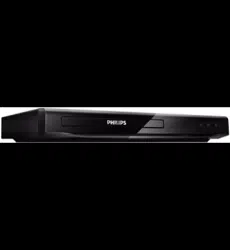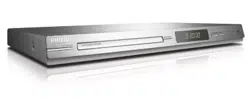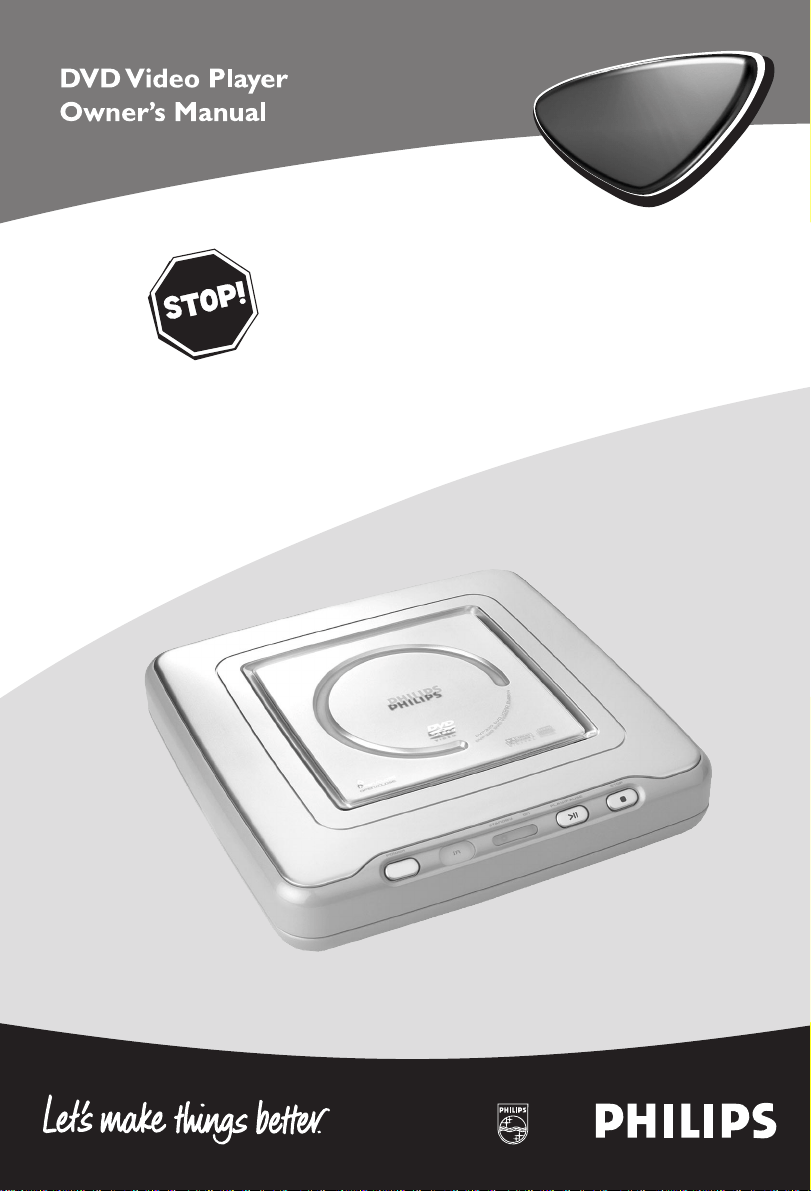
DVP 320
DVP 320
Read this manual first!
Congratulations on purchasing this Philips product.
We’ve included everything you need to get started.
If you have any problems, Philips Representatives can
help you get the most from your new product by explaining:
• Hookups,
• First Time Setup, and
• Feature Operation.
Before you return this product to the store,
For fast help, call us first!
Tel: see back page of your manual
Thank you for making Philips a part of your home!

2
Important Note
DK
Advarsel:
Laserrudstråling ved åbning når sikkerhesafbrydere er ude af
funktion.Undgå u tsættelse for stråling.
Bemærk:
Netafbryderen POWER er sekundært indkoblet og afbryder ikke
strømmen fra nette. Den indbyggede netdel er derfor tilsluttet til
lysnettet så længe netstikket sidder i stikkontakten.
S
Klass 1 laserapparat
Varning!
Om apparaten används på annat sätt än i denna bruksanvisning
specificerats,kann användaren utsättas för laserstrålning,som
översjruder gränsen för läserklass 1.
Observera!
Strömbrytaren POWER är sekundärt kopplad och inte bryter
strömmen fråan nätet Den inbyggda nätdelen är därför ansluten till
elnätet så länge stickproppen sitter i v ägguttaget.
N
Observer:
Nettbryteren POWER er sekundert innkoplet.Den
innebygdenetdelen er derfor ikke frakoplet nettet så lenge apparatet
er tilsluttet nettkontakten.
SF
Luokan 1 laserlaite + Klass 1 laserapparat
Varoitus!
Laitteen käyttäminen muulla kuin tässä käyttöohjeessa mainitulla
tavalla saattaa altistaa käyttäjän turvallisuusluokan 1 ylittävälle
lasersäleilille.
Huom.
Toiminnanvalitsin POWER on kytketty toisiopuolelle,eikä se kytke
laitetta irti sähköverkosta.Sisäänrakennettu verkko-osa on
kytkettynä sähköverkkoon aina silloin,kun pistoke on pistorasiassa.
English
CAUTION
VISIBLE AND INVISIBLE LASER RADIATION
WHEN OPEN.
AVOID EXPOSURE TO BEAM.
ADVARSEL
SYNLIG OG USYNLIG LASERSTRÅLING VED
ÅBNING UNDGÅ UDSÆTTELSE FOR
STRÅLING
VARNING s
SYNLIG OCH OSYNLIG LASERSTRÅLNING
NÄR DENNA DEL ÄR ÖPPNAD BETRAKTA
EJ STRÅLEN
VARO!
AVATTAESSA OLET ALTTIINA NÄKYVÄLLE
JA NÄKYMÄTTÖMÄLLE LASER SÄTEILYLLE.
ÄLÄ KATSO SÄTEESEEN
VORSICHT
GEFAHR VON SICHTBARER UND
UNSICHTBARER LASERSTRAHLUNG BEI
GEÖFFNETEM GEHÄUSE.
ATTENTION
RAYONNEMENT LASER VISIBLE ET
INVISIBLE EN CAS D’OUVERTURE
EXPOSITION DANGEREUSE AU FAISCEAU
English...........................................................................5
Language code ......................................................29
4
English
General Information
Since it is usual for DVD movies to be released at
different times in different regions of the world, all
players have region codes and discs can have an
optional region code. If you load a disc of a
different region code to your player, you will see
the region code notice on the screen. The disc
will not playback, and should be unloaded.
CAUTION
(WARNING LOCATION: ON THE
BACKPLATE OF SET)
NEVER MAKE OR CHANGE
CONNECTIONS WITH THE POWER
SWITCHED ON.
Laser safety
This unit employs a laser. Due to the risk of eye
injury, only a qualified service person should
remove the cover or attempt to service this
device.
USE OF CONTROLS OR
ADJUSTMENTS OR PERFORMANCE OF
PROCEDURES OTHER THAN THOSE
SPECIFIED HEREIN MAY RESULT IN
HAZARDOUS RADIATION EXPOSURE.
For Customer Use:
Read carefully the information located at the
rear panel of your DVD VIDEO player and enter
below the Serial No.Retain this information for
future reference.
Model No. DVD VIDEO
Serial No. __________________________
CAUTION
VISIBLE AND INVISIBLE LASER RADIATION
WHEN OPEN.
AVOID EXPOSURE TO BEAM.
LASER
Type Semiconductor laser GaAlAs
Wave length 650 nm (DVD)
780 nm (VCD/CD)
Output Power 7 mW (DVD)
10 mW (VCD/CD)
Beam divergence 60 degree
Important Note:
Due to the numerous versions of new CD-
Audio copy protection or enhanced CD-Audio
protection recently available on certain discs,
Philips is unable to guarantee that this DVD
player is fully compatible with such new discs.
Should you have difficulty playing any such
CD-Audio discs, kindly refer them to your CD-
Audio disc retailer.
2
Manufactured under license from Dolby
Laboratories. “Dolby” and the double-D symbol are
trademarks of Dolby Laboratories.
The DVD VIDEO player is in conformity
with the EMC directive and low-voltage
directive.

5
English
Introduction
Environmental Information ....................................6
Package Content ..............................................6
Safety Information ...................................................6
Symbols Used in this Booklet ...............................6
Functional overview
Top and Rear Panel ...............................................7
Remote Control .......................................................8
Preparation
Before your begin ....................................................9
Connecting to a TV with audio and video cables
directly..........................................................................9
Connecting to a TV with Scart connector
......................................................................................9
Connecting to a TV with audio cable and
component video cable.............................9
Connecting to TV and a 2-channel stereo
......................................................................................10
Connecting to TV and a
receiver........................................................................10
Inserting batteries into the Remote Control ..11
Using the Remote Control ..................................11
Connecting the Power Supply .............................11
Switching On .........................................................11
Smart Power On/Off............................................11
Operation
Basic Playback ..........................................12
General Operation ..................................12
Video control during playback ............................12
Audio control during playback ............................12
Repeat .......................................................................13
Repeat A-B .............................................................13
5 disc Resume .........................................................13
OSD (On-Screen Display).....................................13
Zoom ........................................................................13
Special DVD Features .............................14
Playing a Title .........................................................14
Playing a Chapter ...................................................14
Camera Angle .........................................................14
Changing the Audio Language ...........................14
Subtitles ....................................................................14
Special VCD & SVCD Features .........14-15
Playback Control (PBC) ...................................14
Preview Function ...................................................15
Picture CD & MP3 CD Playback
General Operation.................................16
MP3 & JPEG Navigator...........................................16
Play Mode..................................................................16
Contents
Special JPEG Features..............................17
Function Introduction............................................17
Preview Function.....................................................17
Zoom picture ..........................................................17
Playback with multi-angles ...................................17
Wipe Modes.............................................................17
Special MP3 Features...............................17
Function Introduction............................................17
Playback Speed Control ........................................17
JPEG and MP3 Simultaneous
Playback..................................................................17
Setup menu
Basic operation ........................................19
General Setup menu ...............................19
OSD language .........................................................19
Program ..............................................................19-20
Disc Lock .................................................................20
Screen Saver ............................................................20
Analog Audio Setup menu ...................21
DOWNMIX.............................................................21
D.R.C .......................................................................21
3D Sound..................................................................21
Digital Audio Setup menu.....................21
Digital Output..........................................................22
LPCM Output..........................................................22
Video Setup menu.... ...............................22
TV Type ...................................................................23
TV Display ...............................................................23
Smart Picture ..........................................24
Color Setting......................................................24-25
Preference Setup menu ..........................25
Audio language ......................................................25
Subtitle language ...................................................26
Disc Menu language ..............................................26
Password ..................................................................26
Parental Control ....................................................26
Default Setup...........................................................26
MP3/JPEG Navigator ............................................26
Specifications
Specifications ...........................................................27
Maintenance
Maintenance ........................................................ 27
Troubleshooting
Troubleshooting ....................................................28
6
English
Thank you for purchasing this Philips DVD player.
This Owner’s Manual explains the basic operation
of this DVD player.
Environmental Information
All unnecessary packaging has been omitted. We
have tried to make the packaging easy to separate
into three materials: cardboard (box), polystyrene
foam (buffer) and polyethylene (bags, protective
foam sheet).
Your DVD player consists of materials which can
be recycled and reused if disassembled by a
specialized company. Please observe the local
regulations regarding the disposal of packaging
materials, exhausted batteries and old equipment.
Package Content
– DVD-Video player
– Audio/Video cable
– Audio/Video-Scart adaptor
– Remote control with Battery
– Owner’s Manual
Safety Information
● Before operating the DVD player, check that the
operating voltage indicated on the typeplate is
identical with the voltage of your local power
supply. If not, please consult your dealer.
● Place the DVD player on a flat, hard and stable
surface.
● There must be sufficient room in front of the
player for the drawer to be opened.
● In a cabinet, allow about 2.5cm (1 inch) of free
space all around the player for adequate
ventilation.
● Do not expose your player to extremes of
temperature or humidity
● If the DVD player is brought directly from a cold
to a warm location, or is placed in a very damp
room, moisture may condense on the lens of the
disc unit inside the DVD player. Should this occur,
the DVD player would not operate normally.
Leave the power on for about one hour with no
disc in the DVD player until normal playback is
possible.
● The mechanical parts of the set contain self-
lubricating bearings and must not be oiled or
lubricated.
● When the DVD player is switched to Standby
mode, it is still consuming some power. To
disconnect the system from the power supply
completely, remove the AC power plug from the
wall socket.
Symbols Used in this Booklet
The below symbols appear in some headings and
notes with the following meanings:
Helpful Hints!
●
Some discs limit certain functions during
playback (eg fast forward is not working at
the beginning of certain discs). This is
nomal behaviour because the disc
determines the way in which you can
interact with its content.
Introduction
7
English
Functional Overview
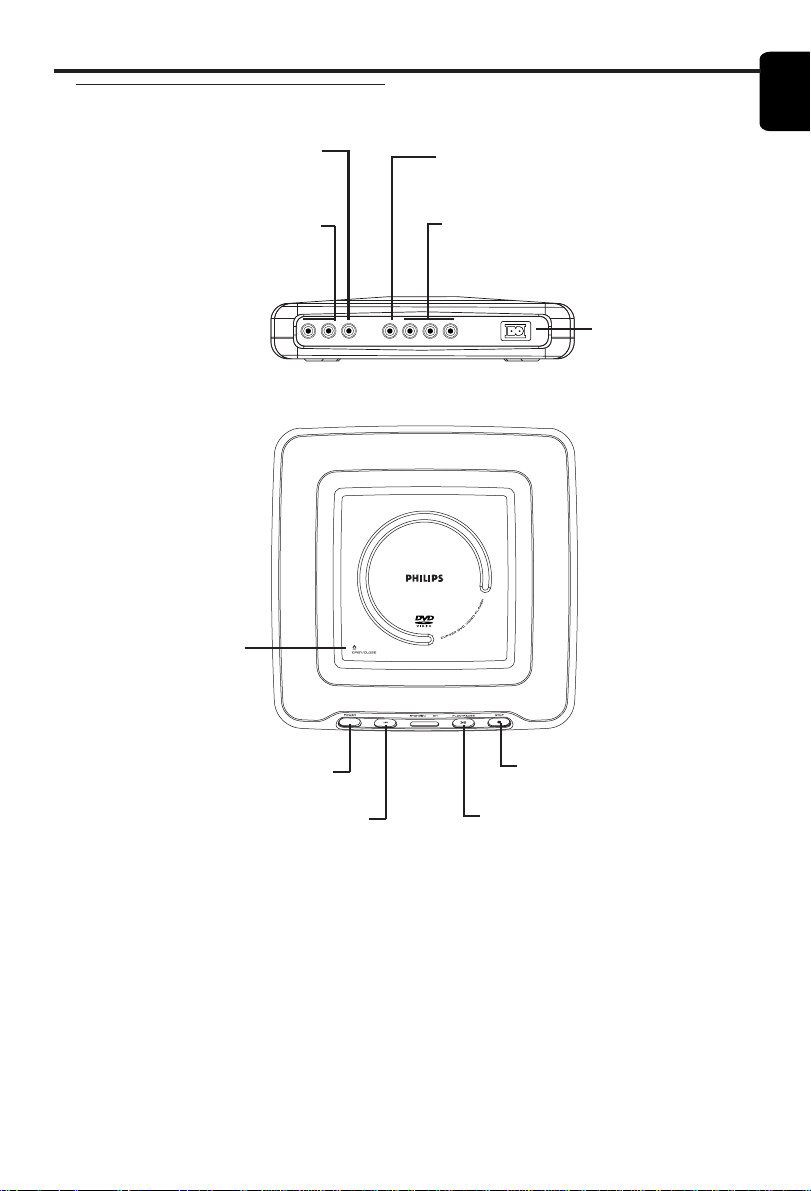
Top and Rear Panels
Caution:
● Do not touch the inner pins of the sockets on the rear panel. Electrostatic discharge
may cause permanent damage to the unit.
● Do not touch the lens inside the Player’s Disc compartment. A damaged lens could
hinder Disc playability. Electrostatic discharge could damage the unit permanently.
OPEN/CLOSE
– open/close the
compartment lid
Mains Socket
– connect to power
cord
AUDIO OUT (Left/Right)
– connect to AUDIO inputs of an
amplifier, receiver or stereo
system
Video out (Y P
b Pr)
– connect to a TV with component video
inputs
POWER
– switch DVD on or off
LR
A
U
D
I
O
V
I
D
E
O
COAXIAL VIDEO Y Pb Pr
PLAY/PAUSE
– start/interrupt playback
STOP
– stop playback
Coaxial output
– connect to a receiver with
coaxial inputs
Video out (CVBS)
– connect to a TV with CVBS inputs
Remote sensor
Receive the commands from the DVD
Player’s remote control. When using the
DVD Player’s remote control to operate
the Player, point the remote here (not
toward your TV).
8
English
Functional Overview
Remote Control
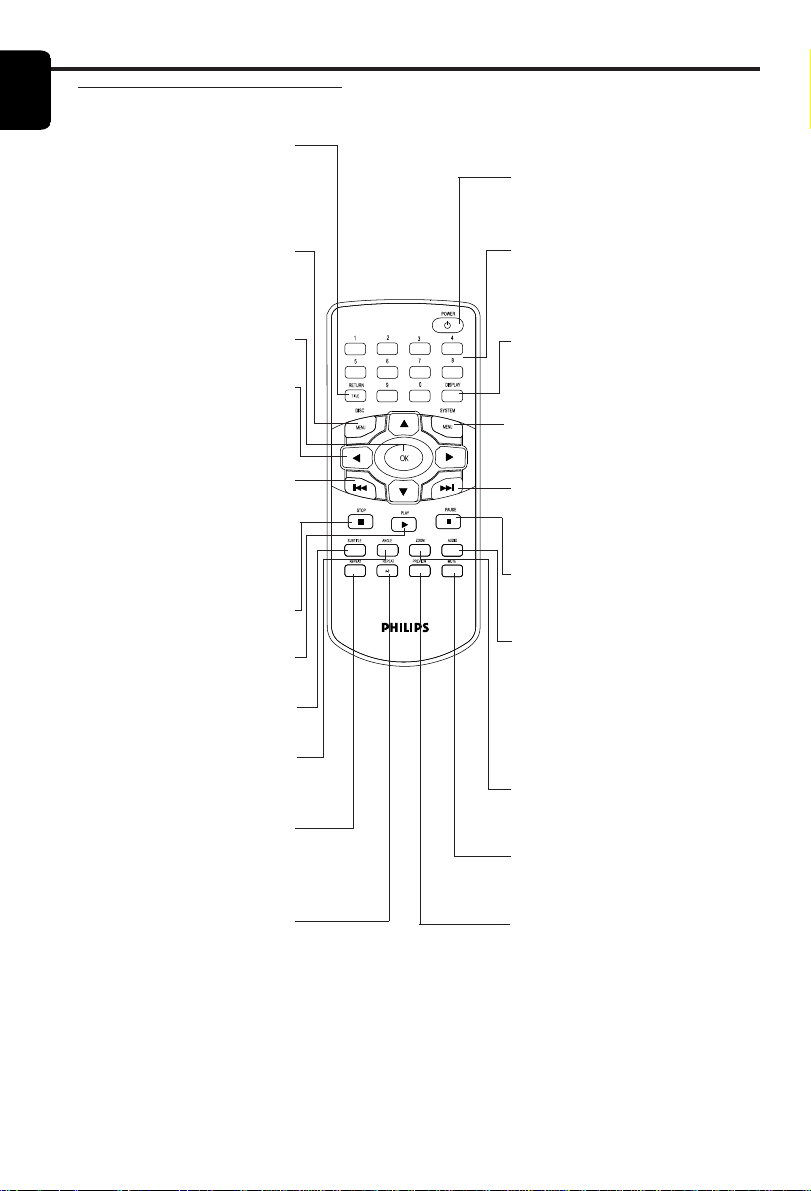
REPEAT (A-B)
Press to set up Repeat A-B
playback, in which a certain
segment of the Disc plays
repeatedly.
MUTE
Press to silence or restore the
volume.
RETURN / TITLE
Press to go to a previous Disc
menu or to access a DVD’s Title
menu. These options are not
available with all Discs.
DISC MENU
Press to access menu of a DVD
disc /switch PBC on or off for
VCD disc
1 2 3 4
Press to select items in a menu.
Press 1 or 2 for fast searching.
Press 3 or 4 for slow motion.
S
Press to go to the beginning of the
current Chapter or Track or to
the previous Chapter or Track.
OK
Press to approve a menu selection.
STOP ( 9 )
Press to stop Disc playback.
PLAY ( B )
Press to begin Disc playback
SUBTITLE
Press to select subtitle language
ANGLE
Press to select a camera angle
during DVD play.
REPEAT
Press to play a Chapter, Title, Track,
or Disc repeatedly. Details are
on Page 10.
POWER B
Press to switch Standby mode.
0-9 numerical key pad
Press to select numbered items in a
menu. Press to select a Chapter,
Title, or Track to play.
DISPLAY
Press during playback to see
current disc information on the TV
screen.
SYSTEM MENU
Press to access or remove the
Setup Menu of the DVD Player.
T
Press to skip to the next Chapter or
Track. Press and hold to activate the
Smart Play function.
PAUSE ( ; )
Press to pause play or to advance a
paused picture one frame at a time.
AUDIO
Press to select a different audio
language or soundtrack during
DVD playback. With some Video
CDs, Super Video CDs, and Audio
CDs, press AUDIO to choose an
audio channel.
ZOOM
Press to reduce or enlarge the
picture during playback.
PREVIEW
Press to enter the Preview menu
for a Video CD or Super Video
CD. Or, press to play the first
several seconds of each Track on
an Audio CD.
9
English
Preparation
Before you begin...
● Refer to the instructions of your TV, VCR, Stereo,
or other devices. Note the style of jacks and
connectors on the other equipment. Determine
how to choose different Audio and Video In
channels/sources on your other equipment.
● Disconnect all equipment from the power outlets.
Connect equipment to power only after hooking
up everything. Never make or change
connections with equipment connected to power.
● Please refer to the below choices we introduce
to you and select either one of them.
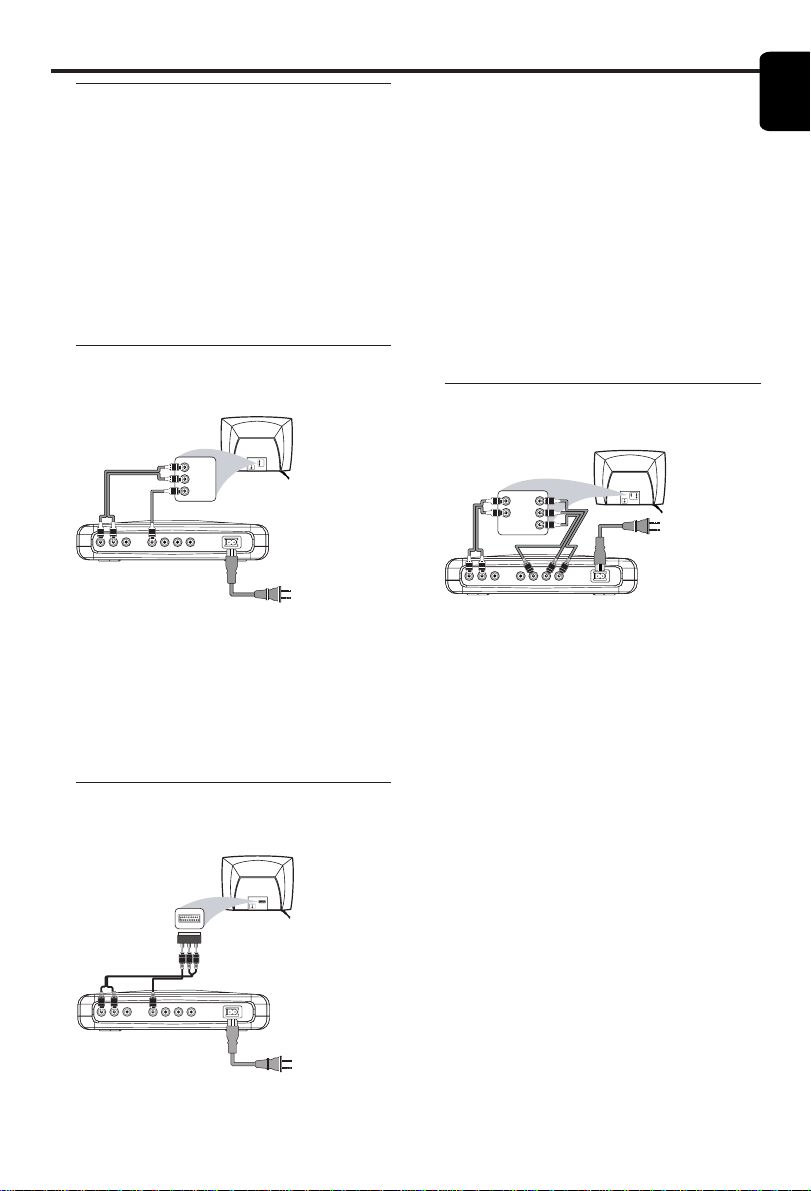
Connecting to a TV with audio
and video cables directly
LR
A
U
D
I
O
V
I
D
E
O
COAXIAL VIDEO Y Pb Pr
Back of TV
(example only)
LEFT AUDIO IN
VIDEO IN
RIGHT AUDIO IN
LEFT AUDIO IN
VIDEO IN
RIGHT AUDIO IN
● Connect the VIDEO jack on the DVD player to
the corresponding CVBS VIDEO IN jack on your
TV (cable supplied).
● Connect the AUDIO OUT (Left/Right) on the
DVD player to the corresponding AUDIO IN
jacks on TV by using audio cable (supplied). Match
the cable colors to the jack colors.
Connecting to a TV with Scart
connector
L R
A
U
D
I
O
V
I
D
E
O
COAXIAL VIDEO Y Pb Pr
Back of TV
(example only)
SCART IN
VIDEO L R
CVBS-SCART Convertor
● If your TV set has scart connectors for video
inputing, connect the VIDEO jack on the DVD
player to the corresponding CVBS VIDEO IN jack
on Audio/Video-Scart adaptor by using the video
cable (supplied).
● Connect the AUDIO OUT (Left/Right) on the
DVD player to the corresponding AUDIO IN
jacks on Audio/Video-Scart adaptor by using
audio cable (supplied). Match the cable colors to
the jack colors.
● Connect Audio/Video-Scart adapter to your TV
set.
● Be sure to set your TV to receive CVBS video
signal instead of RGB video.
Connecting to a TV with audio
cable and component video cable
LR
A
U
D
I
O
V
I
D
E
O
COAXIAL VIDEO Y Pb Pr
Back of TV
(example only)
LEFT
AUDIO IN
RIGHT
AUDIO IN
Pr/Cr
Y
Pb/Cb
RIGHT
AUDIO IN
LEFT
AUDIO IN
Pr/Cr
Y
Pb/Cb
● Connect the Y/Pb/Pr VIDEO OUT on the DVD
player to the corresponding jack on your TV by
using component video cable (not supplied).
Match the cable colors to the jack colors.
● Connect the AUDIO OUT (Left/Right) on the
DVD player to the corresponding AUDIO IN
jacks on TV by using audio cables (supplied).
Match the cables color to the jack colors.
10
English
Preparation
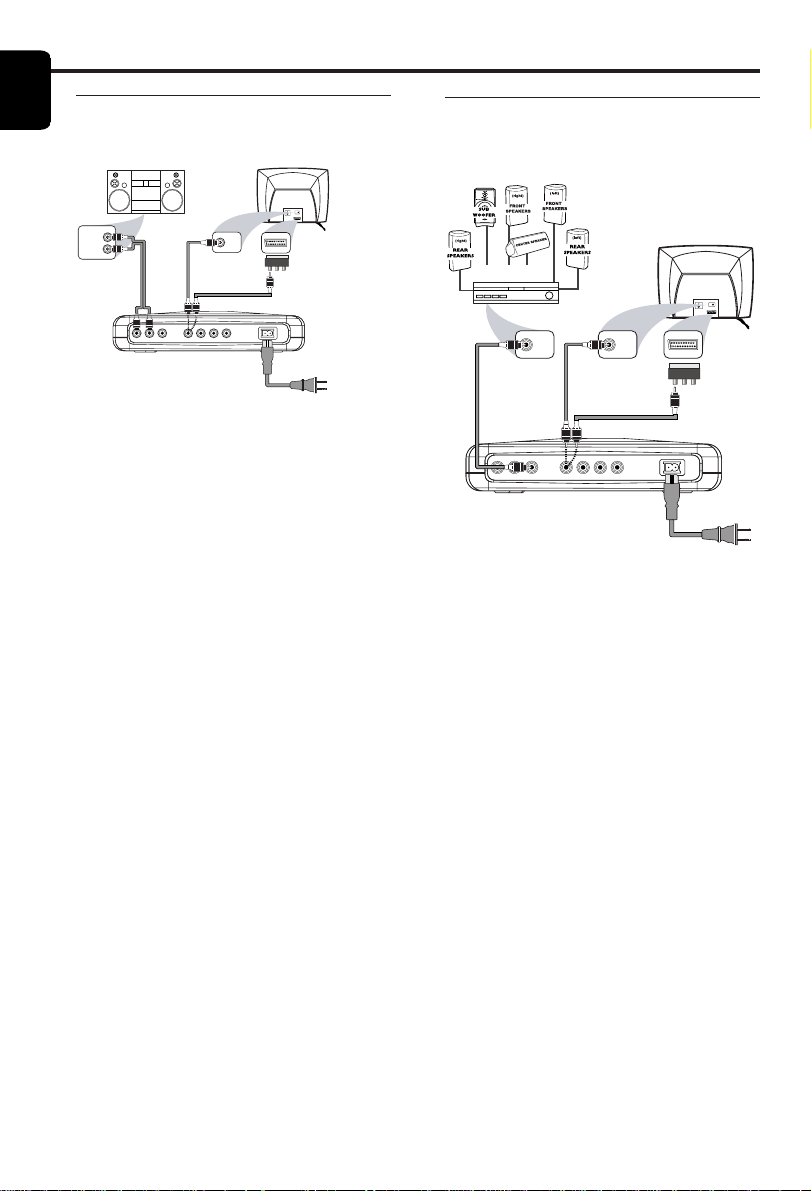
Connecting to a TV and a
receiver
LR
A
U
D
I
O
V
I
D
E
O
COAXIAL VIDEO Y Pb Pr
VIDEO IN
Back of TV
(example only)
VIDEO IN
SCART IN
COAXIAL
DIGITAL
AUDIO IN
AV Receiver
OR
VIDEO L R
CVBS-SCART Convertor
● Connect the COAXIAL jack of the DVD player
to the corresponding DIGITAL AUDIO IN jack
on your AV Receiver (cable not supplied). In this
case, do not use the player's audio left and right
output.
● Connect the VIDEO OUT jack on the DVD
player to the corresponding VIDEO IN jack on
your TV by using composite video cable (cable
supplied).
Or If your TV set has scart connectors for video
inputing, connect the VIDEO jack on the DVD
player to the corresponding CVBS VIDEO IN jack
on Audio/Video-Scart adaptor by using the video
cable (supplied).
● Connect Audio/Video-Scart adapter to your TV
set.
● Be sure to set your TV to receive CVBS video
signal instead of RGB video.
Warning!
– Connect the DVD player directly to your
TV, instead of eg. a VCR, to avoid
distortion because DVD video discs are
copy protected.
– Do not connect the DVD player AUDIO
OUT to PHONO IN of your receiver.
– Set DIGITAL OUTPUT correctly. The
Stereo must support MPEG2 or Dolby
Digital
TM
.
Check the Stereo’s manual to be
sure.
Connecting to a TV and a two-
channel Stereo
VIDEO IN
Stereo
(example only)
Back of TV
(example only)
VIDEO IN
LEFT AUDIO IN
RIGHT AUDIO IN
LR
A
U
D
I
O
V
I
D
E
O
COAXIAL VIDEO Y Pb Pr
SCART IN
VIDEO L R
CVBS-SCART Convertor
OR
● Connect the AUDIO OUT (Left/Right) on the
DVD player to the corresponding AUDIO IN
jacks on stereo system by using audio cables
(supplied). Match the cable colors to the jack
colors.
● Connect the VIDEO jack on the DVD player to
the corresponding CVBS VIDEO IN jack on your
TV (cable supplied).
Or If your TV set has scart connectors for video
inputing, connect the VIDEO jack on the DVD
player to the corresponding CVBS VIDEO IN jack
on Audio/Video-Scart adaptor by using the video
cable (supplied).
● Connect Audio/Video-Scart adapter to your TV
set.
● Be sure to set your TV to receive CVBS video
signal instead of RGB video.
11
English
Preparation
Switching On
1 Be sure that the DVD player has been correctly
connected to the TV and audio equipment.
2 Switch on the TV and DVD player.
3 Set the TV to the correct Video In channel. (eg.
EXT1, EXT2, AV1, AV2, AUDIO/VIDEO, etc.
Please refer to your TV owner's manual for
details.)
➜ The player display lights and the default screen
appears on the TV.
4 If you are using an external equipment (eg. audio
system or receiver), turn it on and select the
appropriate input source for the DVD player
output. Refer to the equipment owner’s manual
for detail.
Smart Power On/Off
When in STOP or NO DISC mode, the DVD
player will switch to standby mode after 15
minutes without any operations for saving energy.
It is easily reactivated by pressing the POWER or
PLAY key on the remote control or the PLAY/
PAUSE button on the front panel.
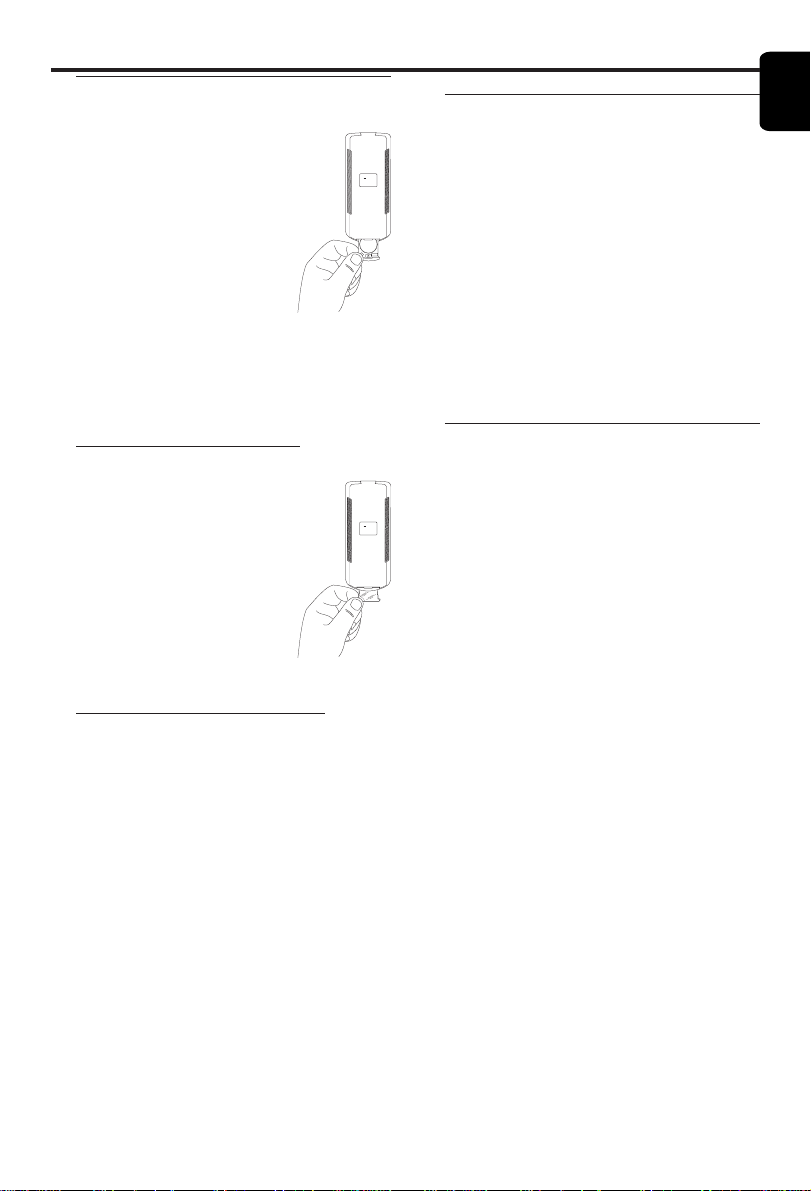
Replacing battery (lithium
CR2025) into the remote control
1 Pull out the lithium battery
compartment.
2 Replace a new battery and fully
insert the battery compartment
back to the original position.
CAUTION!
– Insert the plastic
protective sheet if they are not to be used
for a long time.
– Batteries contain chemical substances,
so they should be disposed off properly and
kept away from children.
Using the Remote Control
● Pull out the plastic protective
sheet which is used to keep the
lithium battery fresh.
● Direct the remote control at the
remote sensor of the DVD player.
● Do not drop or give the remote
control a shock.
● Do not leave the remote control
in extremely hot or humid places.
● Do not spill water or put anything
wet on the remote control.
Connecting the Power Supply
1 Plug the female end of the power cable supplied
into the power connector on the rear of the
player.
2 Plug the male end of the cord into an AC outlet.
Note: When the DVD player is switched to
Standby mode, it is still consuming some power. If
you wish to disconnect your player completely from
the mains, withdraw the plug from the AC Outlet.
LITHIUM BATTERY
DC
---
3V CR2025
CR2025
+
+
3V
C
R
2
0
2
5
LITHIUM BATTERY
DC
---
3V CR2025
12
English
Slow Motion
DVD
1 To get a slow motion effect during playback, press
3 or 4.
2 Press 3 or 4 again, you can get different playback
forward/backward speeds.
3 Press PLAY to return to normal play back.
VCD
1 To get a slow motion effect during playback, press
4.
2 Press 4 again, you can get different playback
forward speeds.
3 Press the PLAY key to return to normal play back.
NOTE:
- The SLOW BACKWARD function is not available
for Super VCD/VCD/CD discs.
Audio control during playback
MUTE
DVD
VCD
CD
1 Press the MUTE key to disable the sound output.
2 Press the MUTE key again to deactivate mute.
Audio channel selection
VCD
CD
1 Super VCD has two stereo audio channels which
are used for playing karaoke or the audio
language selection. ( for instance, you can choose
one channel for only the music background of the
song while you play the karaoke.)
2 Press the AUDIO key on the remote control to
select the audio channels you want.
3 VCD has only one stereo audio channel, you can
select STEREO, LEFT MONO, RIGHT MONO or
MIX-MONO by pressing the AUDIO key on the
remote control.
➜ STEREO: Output the left and right audio
channels of the disc through the left and right
audio sockets accordingly.
➜ LEFT MONO: Output the left audio channels
of the disc through the left and right audio
sockets.
➜ RIGHT MONO: Output the right audio
channels of the disc through the left and right
audio sockets.
➜ MIX-MONO: each of the audio sockets can
output the same audio effect as stereo.
Note: If you choose digital audio output and set
DIGITAL OUTPUT to ALL, you can not select LEFT
MONO and RIGHT MONO with the AUDIO key.
Operation
Basic Playback
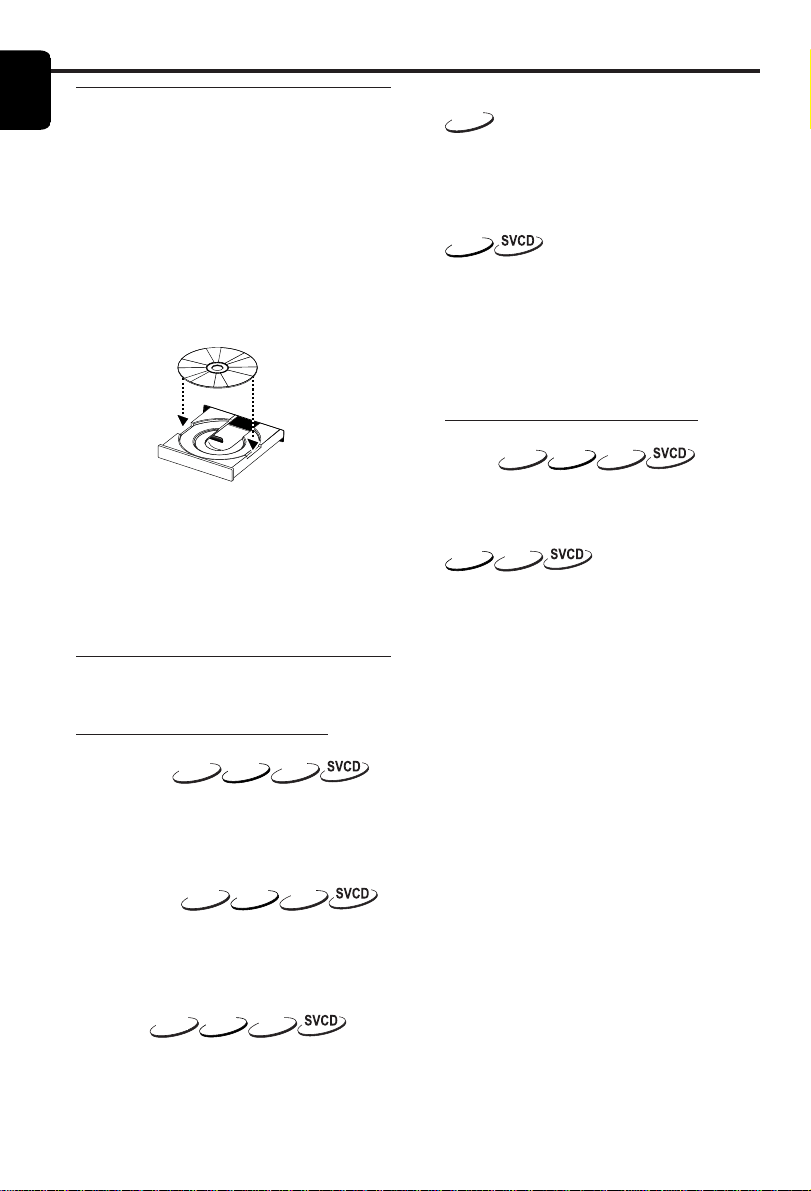
1 Press POWER on the front panel to turn on the
DVD player.
2 Press OPEN/CLOSE on the top panel to open
the disc compartment.
3 Place the Disc on the Disc hub, with the label
facing up and then press the lid down.
➜ After recognizing the disc, the player will start
to playback automatically.
4 Wait for the Disc to stop spinning completely
before you reach to remove the Disc or touch
the Disc.
POWER ON/OFF
Notes:
– DVDs may have a region code. Your player will
not play discs that have a region code different
from the region code of your player.
– If ‘Disc Lock’ is set to LOCK and the disc
inserted is not authorized, the 6-digit code must be
entered and/or the disc must be authorized (see
‘Disc Lock’).
General Operation
Note: All instructions set out below refer to the
remote control, unless otherwise stated.
Video control during playback
STOP/PLAY
DVD
VCD
CD
1 If you press the STOP key once, you can later
resume from the point at which you stopped by
pressing the PLAY key. The player will start from
the beginning of the disc if you pressed the STOP
key twice.
PAUSE/STEP
DVD
VCD
CD
1 To get a still picture, press PAUSE key during
playback.
2 To step forward to the next frame picture, press
PAUSE key again.
3 To resume normal playback, press PLAY.
SEARCH
DVD
VCD
CD
1 To search the contents in fast speed, press the 2
or 1 for fast forward/backward searching.
2 Press the 1 or
2 again to increase the speed for
searching.
3 Press PLAY to return to normal playback.
13
English
Operation
Repeat
DVD
Repeat chapter/title/disc
● To repeat the current chapter, press REPEAT.
● To repeat the current title, press REPEAT a
second time.
● To repeat the whole disc, press REPEAT a third
time.
● To exit REPEAT mode, press REPEAT again.
VCD
CD
Repeat track/disc
With PBC OFF,
● To repeat the current track, press REPEAT.
● To repeat the entire disc, press REPEAT a second
time.
● To exit Repeat mode, press REPEAT again.
Repeat A-B
DVD
VCD
CD
DVD-Video Discs: repeat a sequence in a
title
Video and Audio CDs: repeat a sequence in a
track
1 Press REPEAT A-B at your chosen starting point.
2 Press REPEAT A-B again at your chosen end
point.
➜ The repeat sequence begins.
3 To exit the sequence, press REPEAT A-B.
5 Disc Resume
DVD
VCD
CD
This player can resume playback of the last 5
discs, even if the disc was ejected or the power
switched off.
1 Load one disc, which is one of the last 5 discs.
2
Press PLAY when DVD player is recognizing the
disc. If the information of this disc has been
stored in the memory of DVD player, it will be
played back from the stop point last time.
OSD (On-Screen Display)
DVD
VCD
This function will provide some information about
your playing disc on the screen.
0 Press DISPLAY key on the remote control.
Title Selection
1 Press 1 2 to highlight option Title number.
2 Press 3 4 to change the title number.
➜ DVD player will playback selected title.
Chapter Selection
1 Press 1 2 to highlight option chapter number.
2 Press 3 4 to change the chapter number.
➜ DVD player will playback selected chapter.
Time Search
0 Press 1 2 to highlight time display area.
For DVD discs:
➜ CC refers to the elapsed time of the current
chapter. CR refers to the remaining time of the
current chapter. TC refers to the elapsed time of
the current title. TR refers to the remaining time
of the current title.
For Super VCD or VCD disc
➜ DC refers to the elapsed time of the current
disc. DR refers to the remaining time of the
current disc. TC refers to the elapsed time of the
current track. TR refers to the remaining time of
the current track.
Press 3 to make the selection.
0 Press the 1 2 keys to highlight the item TIME and
you can play from any point of the disc.
➜ Enter hours, minutes and seconds from left to
right in the time edit box using remote control
numerical key pad.( e.g. 0:34:27)
➜ Press the OK key to confirm.
Zoom
DVD
VCD
The Zoom function allows you to change the
image size.
1 Press the ZOOM key to activate the function.
➜ Use the 341 2 key to view other parts of
the zoomed picture.
➜ Playback will continue.
2 Press the ZOOM key repeatedly to return to the
original size.
NOTE: This function is NOT available for some
DVD discs.
14
English
Subtitles
DVD
0 Press SUBTITLE repeatedly to select the different
subtitles.
0 Press SUBTITLE for about 2 seconds to switch
subtitle on or off.
NOTE: The function will be activated, only if the
DVD or Super VCD is recorded with multi-subtitles.
Special VCD & SVCD Features
Playback Control (PBC)
PBC function allows you to enter the index menu
which is used to select a track after loading the
VCD & SVCD disc.
If you want to activate the function during
the playback or after pressing the STOP
key twice,
1 press the DISC MENU key on the remote control
to set the PBC On.
➜ Pay attention to the hint on the screen.
2 Use the ¡1 or
2™ key to select the page you
like.
➜ If the items of the index menus are numbered,
press the appropriate numerical key on the
remote control.
➜ press the OK key to confirm.
3 Press the RETURN key to enter the index menu
during the playback.
NOTE:
- The content of the index menu depends on the
disc. Please refer to the disc’s instructions for
details.
- If the disc doesn't include the PBC information,
this function will have no effect.
If you want to skip the index menu and
playback directly from the beginning,
1 press the DISC MENU key on the remote control
to switch off the function.
Operation
Special DVD Features
Playing a Title
DVD
A DVD disc may have one or more titles. This
depends on the content (a movie, video clips, a
drama series, etc.) on the disc.
0 After you load a disc, information about the
content shows on the screen waiting for your
selection. You can also press the TITLE key on the
remote control to turn back to the title menu
during playback.
➜ Press the appropriate numerical key or 341
2 keys on the remote control to highlight your
selection.
➜ Press the OK key to confirm.
Playing a Chapter
DVD
When you have selected a title, it may include
one or more chapters.
0 Any time you want to watch another chapter
during playback, press DISC MENU key to turn
back to the chapter menu (If disc has chapter
menu).
➜ Press the appropriate numerical key or 341
2 keys on the remote control to highlight your
selection.
➜ Press the OK key to confirm.
➜ After a chapter has been selected, you also can
press the ¡1 or
2™ key to make a change.
Camera Angle
DVD
Some discs contain scenes which have been shot
simultaneously from various angles.
This DVD player allows you to select the desired
camera angle.
0
Press the ANGLE key on your remote control.
NOTE: The function is available only for the DVD
discs which have several angles recorded .
Changing the Audio Language
DVD
0 Press AUDIO repeatedly to select the different
languages.
NOTE: The function will be activated only if the
DVD is recorded with multi-language audio tracks.
15
English
Operation
2 Disc Interval
This function is used to divide a disc into six parts
by regular intervals and display them on one page
to help you preview the whole disc.
- To choose the desired track, please press 341 2
to highlight the second line and input your
numerical selection next to “SELECT”.
- Press the OK key to confirm.
3 Track Interval
This function is used to divide a single track into
six parts by regular intervals and display them on
one page to help you preview the selected track.
- To choose the desired track, please press 341 2
to highlight the second line and input your
numerical selection next to “SELECT”.
- Press the OK key to confirm.
Preview Function
0 Press the PREVIEW key to enter previewing
menu.
0 Press 34 key to highlight TRACK DIGEST, DISC
INTERVAL or TRACK INTERVAL.
0 Press OK key to open one option.
0 After you enter the menu of any digest type,
➜ To quit preview function: Press 341 2 to
highlight EXIT and press OK to confirm.
➜ To return to the previewing menu for selecting
the other digest type: Press 341 2 to highlight
MENU and press OK to confirm.
1 Track Digest
This function will minimize the picture of every
track in order to display every six of these tracks
on the screen to help you know the content of
every track on the disc.
- To choose the desired track, please press 341 2
to highlight the second line and input your selected
track number next to “SELECT”.
➜ Select the others from the current six by
pressing the ¡1 or
2™ key to open the previous
or next page.
- Press the OK key to confirm.

16
English
This player can playback JPEG format pictures and
MP3 files on a personally recorded CD-R/RW
disc or commercial CD, and is compatible with
Kodak Picture CD.
0 Playback pictures or songs one by one
automatically.
0 Album and track selection.
0 Repeat (disc / album / track / picture).
0 Select any music or pictures from the disc to
playback them together.
0 Maximum number of files within one folder is 500
0 Maximum files Programmable is 100.
0 MP3: Maximum supported Bitrate is 256kbits or
48kHz in Variable Bitrate mode
0 JPEG: Maximum supported resolution is 3072 x
2048 (for baseline JPG pictures), or 2000 x 1500
(for progressive JPG pictures).
General Operation
0 If you choose WITH MENU in the Setup Menu
(Please refer to the MP3 & JPEG navigator below
), the Picture CD/MP3 CD menu will be shown
on the screen before playback.
0 At any time during playback, press DISC MENU
to return to the menu for Selection/Repeat /
Shuffle / Single playback.
0 Both columns on every page of the menu contain
six files or folders, you can press 1 2 to highlight
either of the column and then press 2™ or ¡1 to
open the next or previous six files or folders.
MP3 & JPEG Navigator
To select a different playback method, follow the
steps below.
1 At STOP mode, press the SYSTEM MENU key to
open the setup menu.
2 Press the 3 4 key to highlight PREFERENCE.
3 Press OK to open the PREFERENCE menu.
4 Press the 3 4 key to highlight the MP3/JPEG
NAV menu.
5 Press the 2 key to enter the menu.
6 Press the 3 4 key to highlight the WITHOUT
MENU or WITH MENU item.
➜ WITHOUT MENU: automatically playback all
files in according date sequence.
➜ WITH MENU:playback files in the selected
folder.
8 Press the OK key to confirm your selection.
Play Mode
Auto Playback
If you choose WITHOUT MENU, the DVD player
will automatically playback Picture CD/MP3 CD in
sequence when it is loaded.
Playback Selection
0 One way is to press the number of your favourite
file at any time during playback.
0 Another way is to select via the menu (after
pressing STOP).
1 Press DISC MENU to open the Picture CD/MP3
CD menu.
2 When the menu appears on the screen, press the
3 4 key to select the folder you want and press
the OK to open it.
3 Press the 2 to enter the file list.
4 Press the 3 4 key to highlight one option, or
press its number.
➜ You also can press 2™ or ¡1 to go to the
next or previous page.
5 press OK key to confirm.
➜ The playback will start from this selected file to
the last in this folder.
Repeat / Shuffle / Single Playback
0 When the Picture CD/MP3 CD menu is shown
on the screen, Press REPEAT key repeatedly, the
button beside PLAY MODE will display different
option,
➜ SINGLE : The file plays once.
➜ REPEAT ONE: For JPEG files, the current
picture remains on the screen. For MP3 music, the
selected song plays repeatedly.
➜ REPEAT FOLDER : All files in the folder play
repeatedly.
➜ SHUFFLE : All files are played randomly.
0 If you press REPEAT key during playback, the
option will be displayed on the screen accordingly.
Program Playback
1 When the Picture CD/MP3 CD menu is shown
on the screen, Press DISC MENU key.
➜ The left column is the original files and the
right one is the programed files.
2 Press the 3 4 to select one file.
➜ You also can press 2™ or ¡1 to open the
next six files to choose.
Picture CD & MP3 Playback
17
English
3 Press OK or PLAY key to add the selected file
from the left column to the right column.
➜ The maximum is 100 files.
4 Press STOP key to remove the programed file
from the right column.
5 Highlight one file of the right column and press
OK key, then the programed files will start playing
back.
Special JPEG Features
Function Introduction
Picture CD is a disc with a collection of JPEG
format pictures, and all extension filenames should
end with 'JPG'. The CD can be recorded on any
computer, and pictures may be from digital
camera or scanner. If the customers prefer, they
can make this CD become a Digital Album.
You can choose any general function introduced
in GENERAL OPERATION, besides, you also can,
0 Display the thumbnails of 12 pictures.
0 Zoom the picture.
0 Rotate the picture.
0 Flip the picture vertically or horizontally.
0 Scan pictures by different effects.
Preview Function
This function shows the content of the current
folder or the whole disc.
1 Press the STOP key during playback of JPEG
pictures. You will see the thumbnails of 12 pictures
on the screen.
2 Press 2™ or ¡1 key to display the other pictures
on the next or the previous page.
3 Press the 1 2 3 4 key to highlight one of them
and press OK to playback, or,
Move the cursor to highlight SLIDE SHOW on
the bottom of the page to start playback from
the first picture on the current page.
4 Press DISC MENU to go to the Picture CD/MP3
CD menu.
Zoom picture
0 During playback, press ZOOM key to display the
picture with different scales.
0 Press the 1 2 3 4 key to view the rest of the
zoomed picture.
Picture CD & MP3 Playback
Playback with multi-angles
When displaying one picture on TV screen
0 Press the 3 4 1 2 key to get different effects.
3 key: Flip the picture vertically.
4 key: Flip the picture horizontally.
1 key: rotate the picture anti-clockwise.
2 key: rotate the picture clockwise.
Wipe Modes
0 Press ANGLE key repeatedly to choose different
wiping mode.
Special MP3 Features
Function Introduction
“MP3” stands for “MPEG Audio Layer-3”. and is a
part of the MPEG standard. A CD can store up to
10 hours of MP3 audio, which is nearly 10 times
as much as an Audio CD. Each song is recorded
as a file. You can choose any general function
introduced in GENERAL OPERATION. You can
also choose different playback speeds.
Playback Speed Control
Press RETURN/TITLE key to switch to
MP3+NAV mode,
0 Press 1 2, you can get different playback
backward/forward speeds.
0 You also can press 2™ or ¡1 to change the
tracks.
JPEG and MP3 simultaneous
playback
1 Firstly playback MP3 music according to the
instructions introduced in playback Selection.
2 Please switch to MP3+JPEG+NAV by pressing
RETURN/TITLE.
3 Then select a picture to playback. Please refer to
the instructions introduced in playback Selection.
➜ Now the pictures will be played back in
sequence together with MP3 music.
4 To quit simultaneous playback, press DISC MENU
key to return to the Picture CD/MP3 CD menu,
then pictures will be stopped. After that, press
STOP key, then MP3 music will be stopped as
well.
Note: In the function of JPEG and MP3
Simultaneous Playback, 2™ and ¡1 keys are
invalid for MP3.
18
English
Basic Operation
1 Press SYSTEM MENU at the STOP mode to
enter the Setup Menu.
2 Press the OK key to go to the next level
submenu or confirm your selection.
3
Press the 1 2 keys to enter the submenu or
return to the previous menu.
4 Press the 34 keys to highlight the desired menu.
5 Press SYSTEM MENU to quit the setup menu.
➜ When you quit the setup menu, the settings
will be stored in the player’s memory even if the
player is switched to power off.
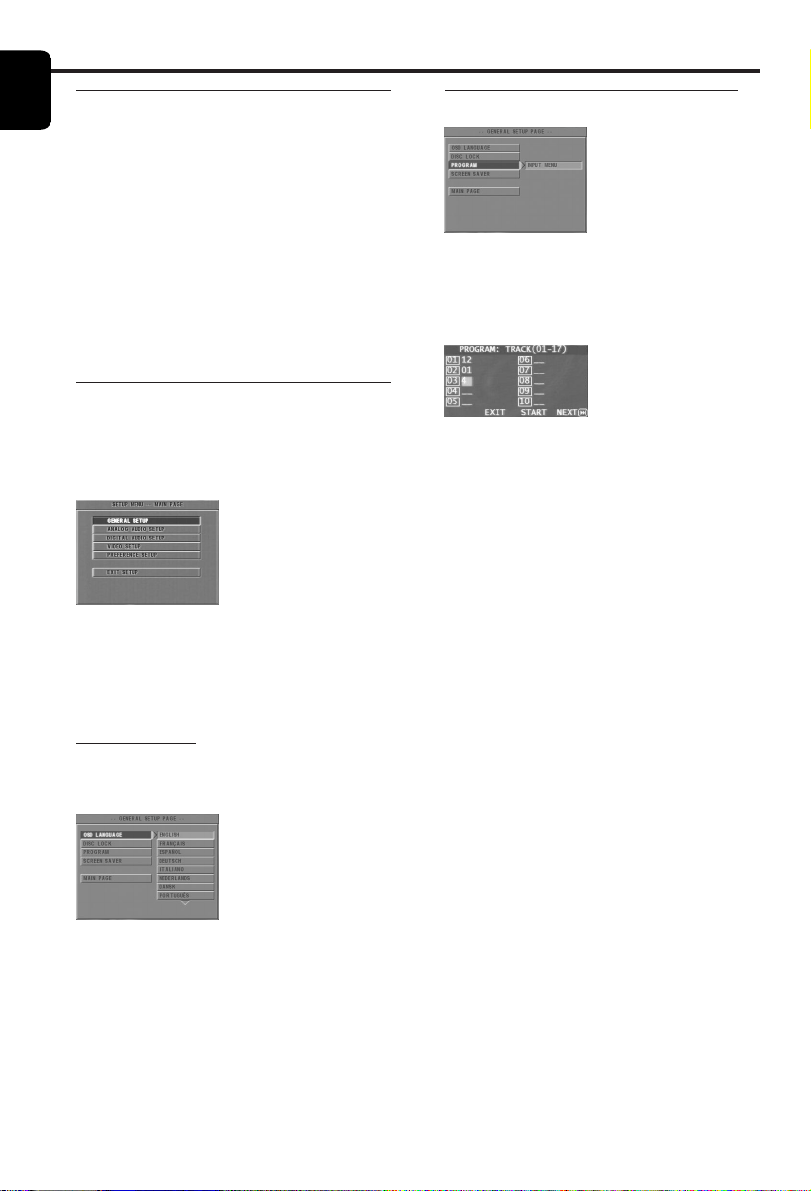
General Setup menu
Some settings need to be made in this menu.
They are: DISC LOCK, PROGRAM, OSD
LANGUAGE and SCREEN SAVER.
Follow the steps below:
1 Press the SYSTEM MENU key to enter the setup
menu.
2 Press the 34 keys to choose the GENERAL
SETUP.
3 Press the OK key to confirm selection.
OSD language
This option is to select a language for information
displayed on TV screen.
1 Press the 34 keys to highlight OSD
LANGUAGE in the GENERAL SETUP menu.
2 Enter its submenu by pressing the 2 key.
3 Move the cursor by pressing the 34 keys to
highlight the selected language.
4 Press the OK key to confirm.
5 Press the 1 key to return to the GENERAL
SETUP menu.
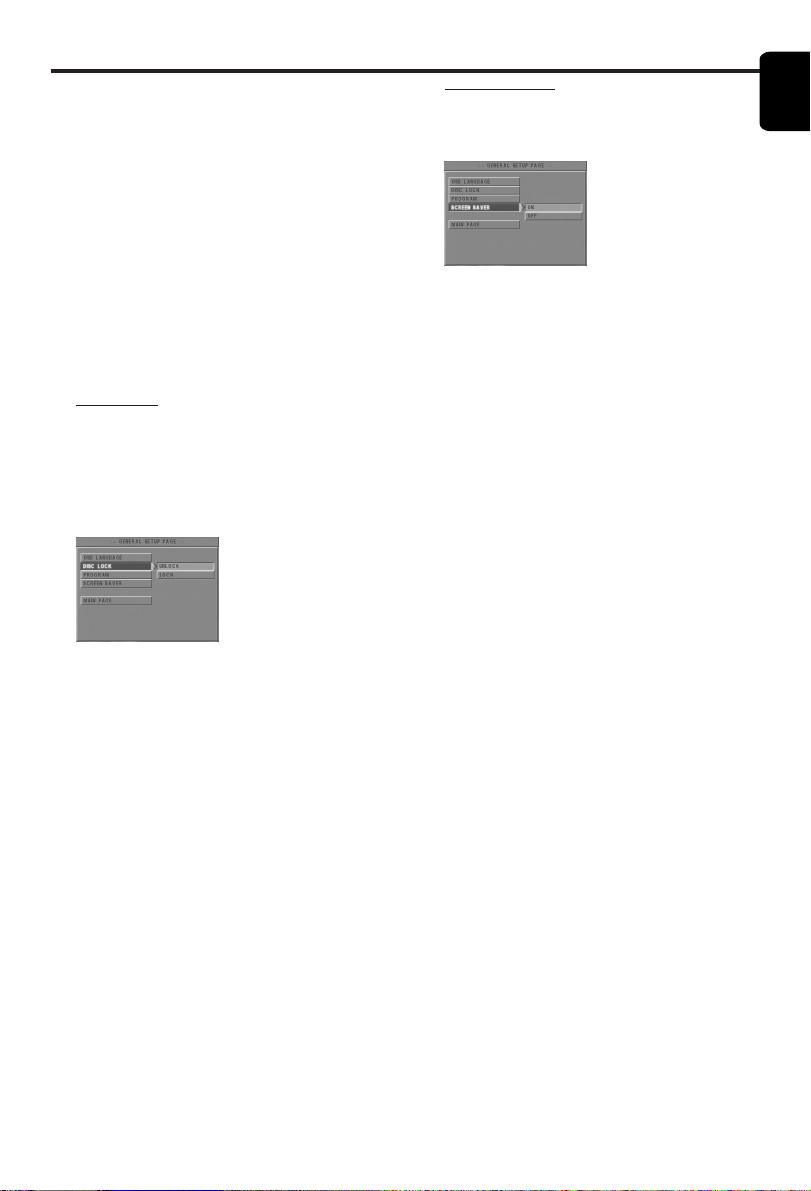
Program (not for Picture CD/MP3)
1 To choose PROGRAM, press 34 keys.
2
Press the 2 key to move the cursor to the field of
the submenu to choose the item INPUT MENU.
➜ INPUT MENU: Enter the PROGRAM item.
3 Press OK to enter the program page.
Input your favorite track
1 Input valid track number by pressing the
numerical keys.
2 Press the 1 234 keys to move the cursor to the
next selected position.
➜ If the track number is more than ten, press
2™ to open the next page and go on programing,
or press 1 234 to highlight NEXT button, and
then press OK.
3
Repeat this steps to input another track number
until the whole program is completed.
Remove a track
1 Press the 1 234 keys to move the cursor to the
track you want to remove.
2 Press OK or PLAY key to remove this track from
the program menu.
Playback tracks
When programing is completed,
1 Press the 1 234 keys to move the cursor to the
START button.
2 Press OK.
➜ DVD player will playback the selected tracks
under the programed sequence.
Setup Menu
19
English
Setup Menu
Screen Saver
This function is used to turn the screen saver on
or off.
1 Press the 34 keys to highlight SCREEN SAVER
in the GENERAL SETUP menu.
2 Enter its submenu by pressing the 2 key.
3 Move the cursor by pressing the 34 keys to
highlight the selected item.
➜ ON: In STOP or No DISC mode, if no actions
are performed within 5~6 minutes, the screen
saver will be activated.
➜ OFF: Screen saver is disabled.
4 Press OK to confirm.
5 Press the 1 key to return to the GENERAL
SETUP menu.
Quit the program playback
In the PROGRAM menu,
1 Press the 1 234 keys to move the cursor to the
EXIT button.
2 Press the OK key to quit this menu.
Stop the program playback
0 During playback of the programmed tracks, press
STOP key. Then after you press PLAY key, the
DVD player will resume normal playback.
Repeat the program playback
0 During playback of the programmed tracks, press
the REPEAT key. The programed tracks can be
played again.
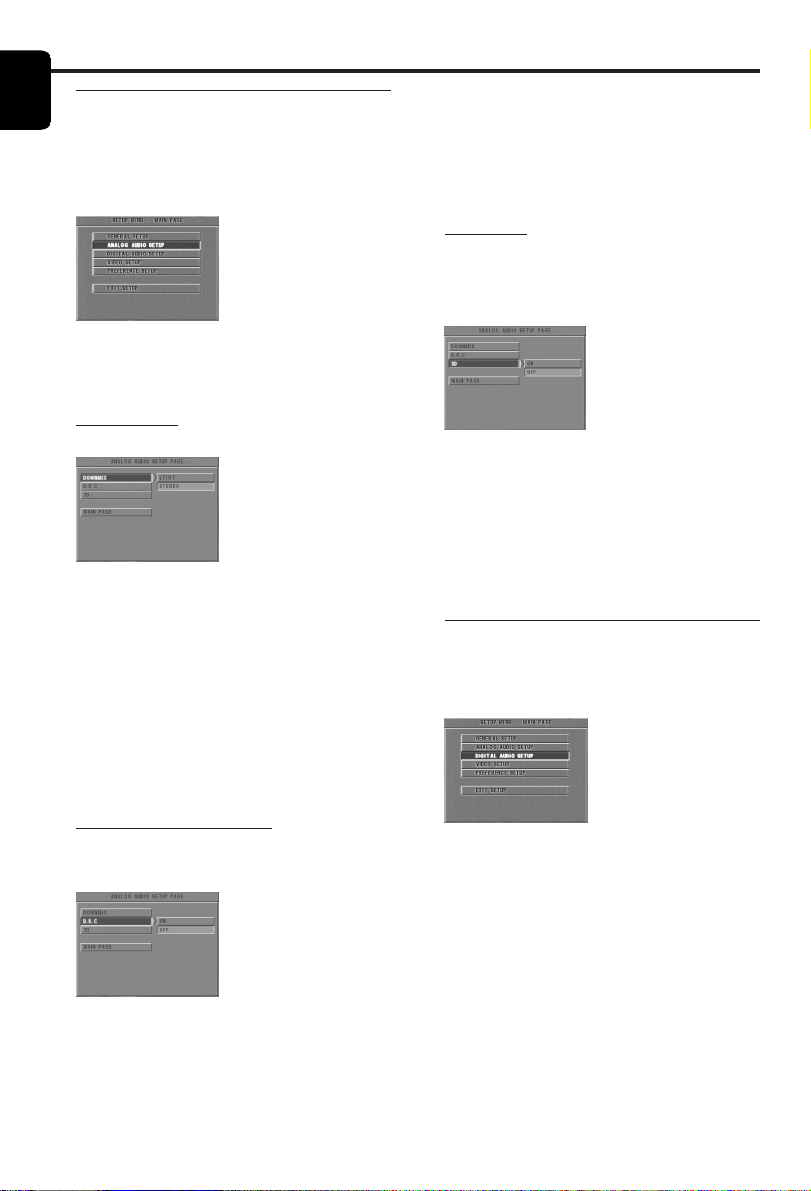
Disc Lock
When the disc is locked, the player will store its
specific code into the memory for future
identification. For the next playback, the DVD
player will prompt you to enter the password.
Then, press OK to load the disc.
1 Press the 34 keys to highlight DISC LOCK in the
GENERAL SETUP menu.
2 Enter its submenu by pressing the 2 key.
➜ LOCK: Lock the disc being played.
➜ UNLOCK: unlock the disc.
3 Press the 1 key to return to the GENERAL
SETUP menu.
NOTE:
1. When a locked disc is loading, the DVD player
will prompt you to enter your password (842100
is the default password).
2. To change the password , refer to the option
PASSWORD in the PREFERENCE SETUP menu .
20
English
3 Move the cursor by pressing the 34 keys to
highlight the selected item.
➜ ON: Enable D.R.C.
➜ OFF: Disable D.R.C.
4 Press OK.
5 Press the 1 key to return to the ANALOG
OUTPUT SETUP menu.
3D Sound
The 3D SOUND can simulate the echoes and
frequencies that may be available in a particular
environment.
1 Press the 34 keys to highlight the 3D.
2 Enter its submenu by pressing the 2 key.
3 Move the cursor by pressing the 34 keys to
highlight the selected item.
➜ ON: Enable 3D sound effect.
➜ OFF: Playback the disc with original sound
effects.
4 Press OK.
Digital Audio Setup menu
In this menu, you can set up the digital audio
output signal from the digital terminals, such as
coaxial etc.
1 Press SYSTEM MENU to enter the SETUP menu.
2 Press the 34 keys to choose the DIGITAL
OUTPUT SETUP.
3 Press OK.
Setup Menu
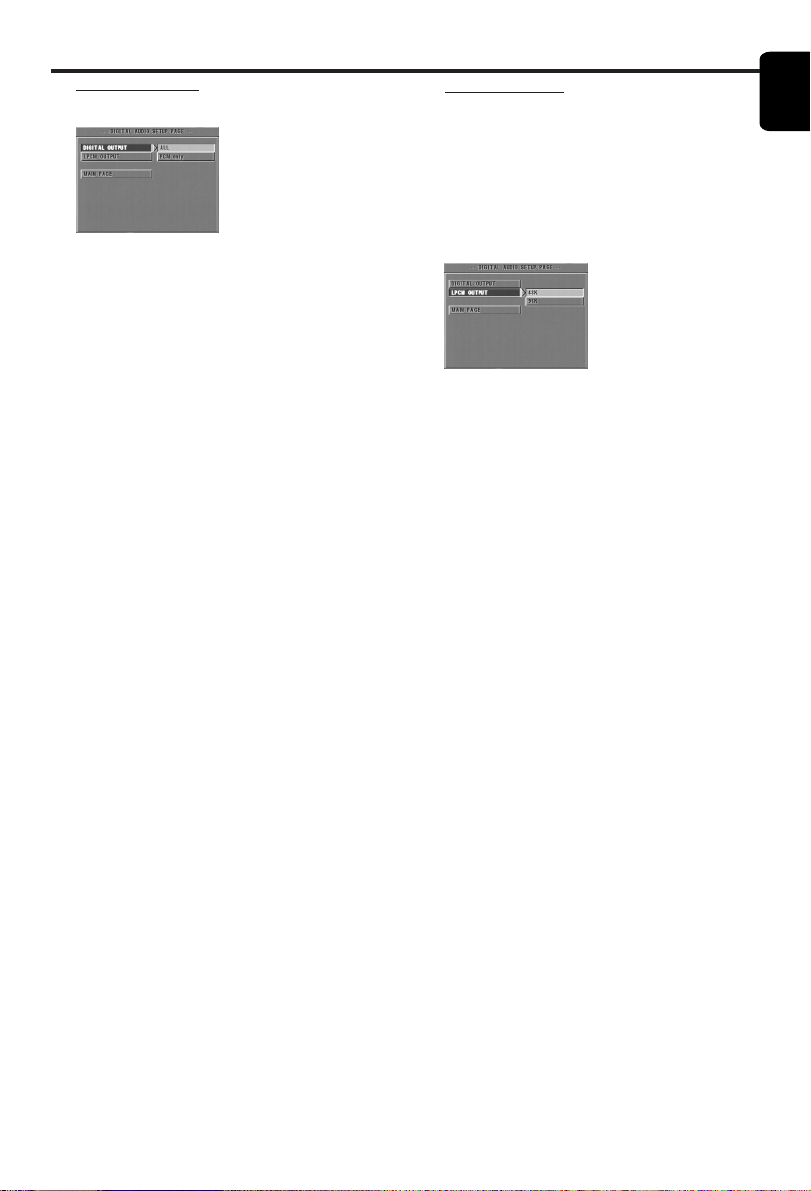
Analog Audio Setup menu
This menu contains setup options for your analog
audio output, such as DOWNMIX, D.R.C.
(Dynamic Range Compression), 3D etc. which
makes the DVD player reproduce high quality
surround sound.
1 Press SYSTEM MENU.
2 Press the 34 keys to highlight the ANALOG
OUTPUT SETUP.
3 Press OK to confirm.
DOWNMIX
1 Press the 34 keys to highlight the DOWNMIX.
2 Enter its submenu by pressing the 2 key.
3 Move the cursor by pressing the 34 keys to
highlight the selected item.
0 LT/RT
➜ This option should be used only if your DVD
player is connected to a Dolby Prologic decoder.
0 STEREO
➜ This option will downmix Dolby Digital signals
directly into analogue stereo from L/R sockets.
4 Press OK.
5 Press the 1 key to return to the ANALOG
OUTPUT SETUP menu.
D.R.C. (Dynamic Range
Compression)
The DVD player will compress the dynamic range
of its sound output for late-night listening.
1 Press the 34 keys to highlight D.R.C..
2 Enter its submenu by pressing the 2 key.
21
English
Setup Menu
Digital Output
1 Press the 34 keys to highlight DIGITAL
OUTPUT.
2 Enter its submenu by pressing the 2 key.
3 Press the 34 keys to highlight the selected item.
➜ ALL: Original digital signal is output.
➜ PCM ONLY: If your receiver is PCM-
compatible, or your receiver can not decode
MPEG-2, Dolby Digital, or DTS audio, choose this
option.
4 Press OK.
5 Press the 1 key and return to the DIGITAL
OUTPUT SETUP menu.
Note: If DIGITAL OUTPUT is set to ALL, all audio
settings except MUTE are invalid.
LPCM Output
If you connect the DVD player to a PCM
compatible receiver via the digital terminals, such
as coaxial etc, you may need to select LPCM
OUTPUT.
Discs are recorded at a certain sampling rate. The
higher the sampling rate, the better the sound
quality.
1 Press the 34 keys to highlight the LPCM
OUTPUT.
2 Enter its submenu by pressing the 2 key.
3 Move the cursor by pressing the 34 keys to
highlight the selected item.
➜ 48K: Playback a disc recorded at the sampling
rate of 48kHz.
➜ 96K: Playback a disc recorded at the sampling
rate of 96kHz.
4 Press OK.
5 Press the 1 key to return to the DIGITAL
OUTPUT SETUP menu.
22
English
Setup Menu
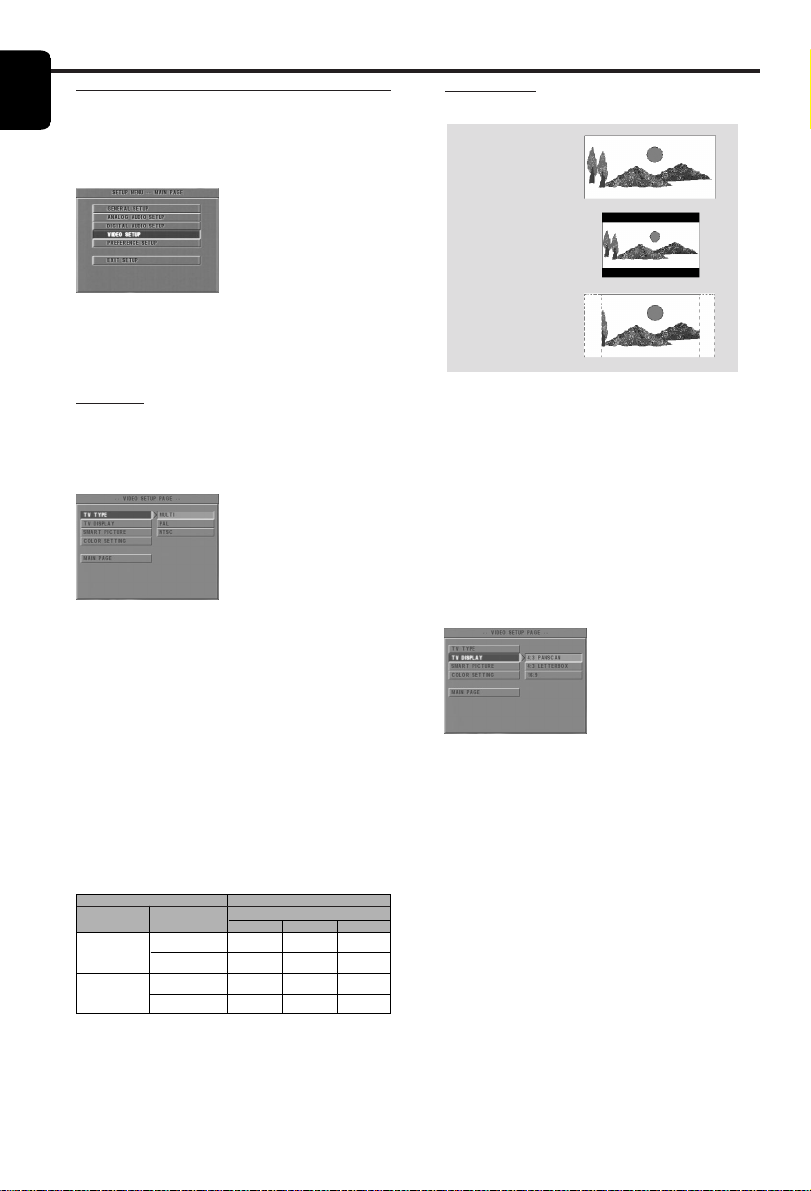
Video Setup menu
There are items included in VIDEO SETUP menu
such as TV TYPE, TV DISPLAY, SMART PICTURE,
COLOR SETTING.
1 Press STOP.
2 Press SYSTEM MENU to enter the menu.
3 Highlight VIDEO SETUP by pressing the 34 keys.
4 Press OK.
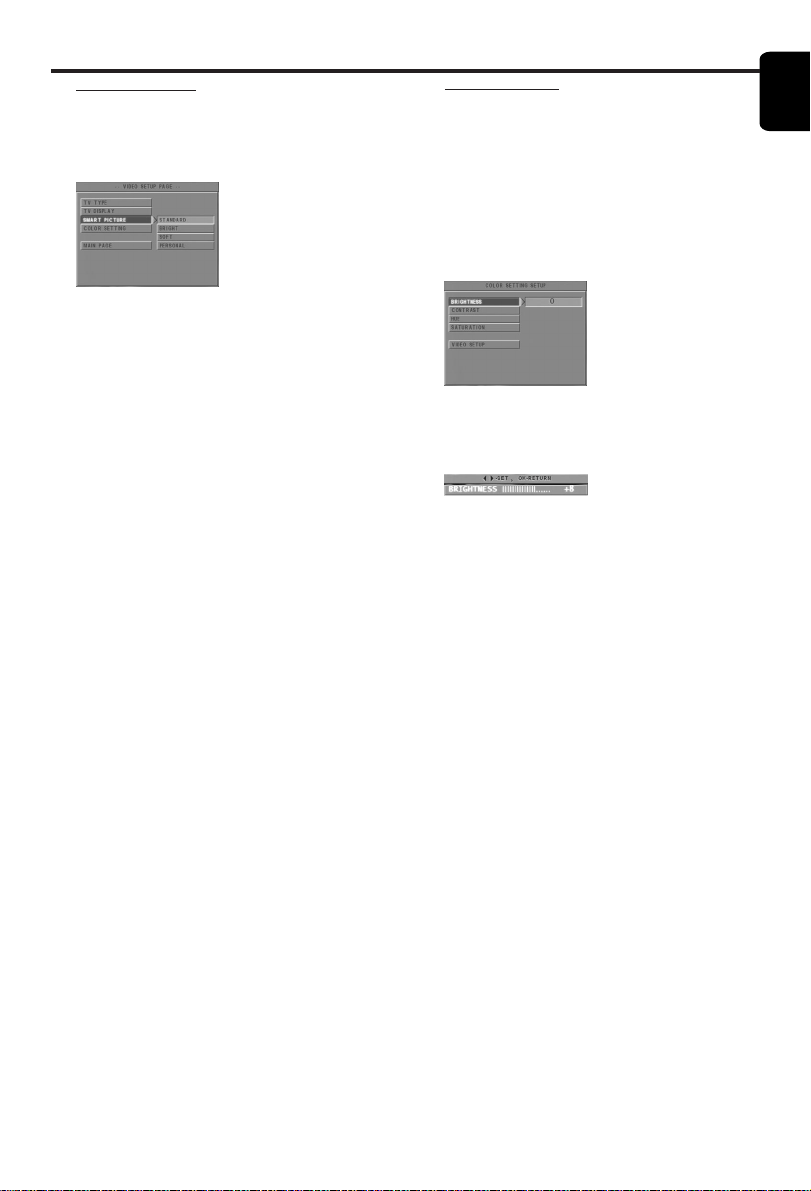
TV Type
Before viewing the DVD or VCD, ensure that the
PAL or NTSC setting of the system matches your
TV set.
1 Press the 34 keys to highlight TV TYPE in the
VIDEO SETUP menu.
2
Enter its submenu by pressing the 2 key.
3 Move the cursor by pressing the 34 keys to
highlight one option.
4 Press OK.
5 Press the 1 key to return to the VIDEO SETUP
menu.
NTSC/PAL Conversion
This player is equipped with a NTSC/PAL
conversion feature to convert the video output
of the disc to match your TV system. The
conversions supported are as below:
TV Display
Select the aspect ratio of the TV to be connected.
16:9 ➜ when you connect a wide-screen TV to
the DVD player.
4:3 LETTER BOX ➜ when you connect a
normal TV to the DVD player. Displays a wide
picture with bands displayed on the upper and
lower portions of the TV screen.
4:3 PAN SCAN ➜ when you connect a normal
TV to the DVD player. Displays the wide picture
on the whole TV screen with a portion
automatically cut off.
Setup the item as follows,
1 Press the 34 keys to highlight the TV DISPLAY
option in the VIDEO SETUP menu.
2
Enter its submenu by pressing the 2 key.
3 Move the cursor by pressing the 34 keys to
highlight the selected item.
4 Press OK.
5 Press the 1 key to return to the VIDEO SETUP
menu.
Note : PanScan output is not available on
all discs.
16:9
4:3
Letter Box
4:3
Pan Scan
NTSC
PAL
NTSC
NTSC
PAL
PAL
NTSC
PAL
NTSC
NTSC
PAL
PAL
Disc Output format
Type
DVD
VCD
NTSC
Format
Selected mode
PAL
NTSC
PAL
NTSC
PAL
MULTI
Notes:
– MULTI can only be selected when using a TV
that has both the NTSC and PAL systems.
– If you have a multi-standard TV (PAL/NTSC),
use the MULTI setting to obtain the best picture
quality.
23
English
Setup Menu
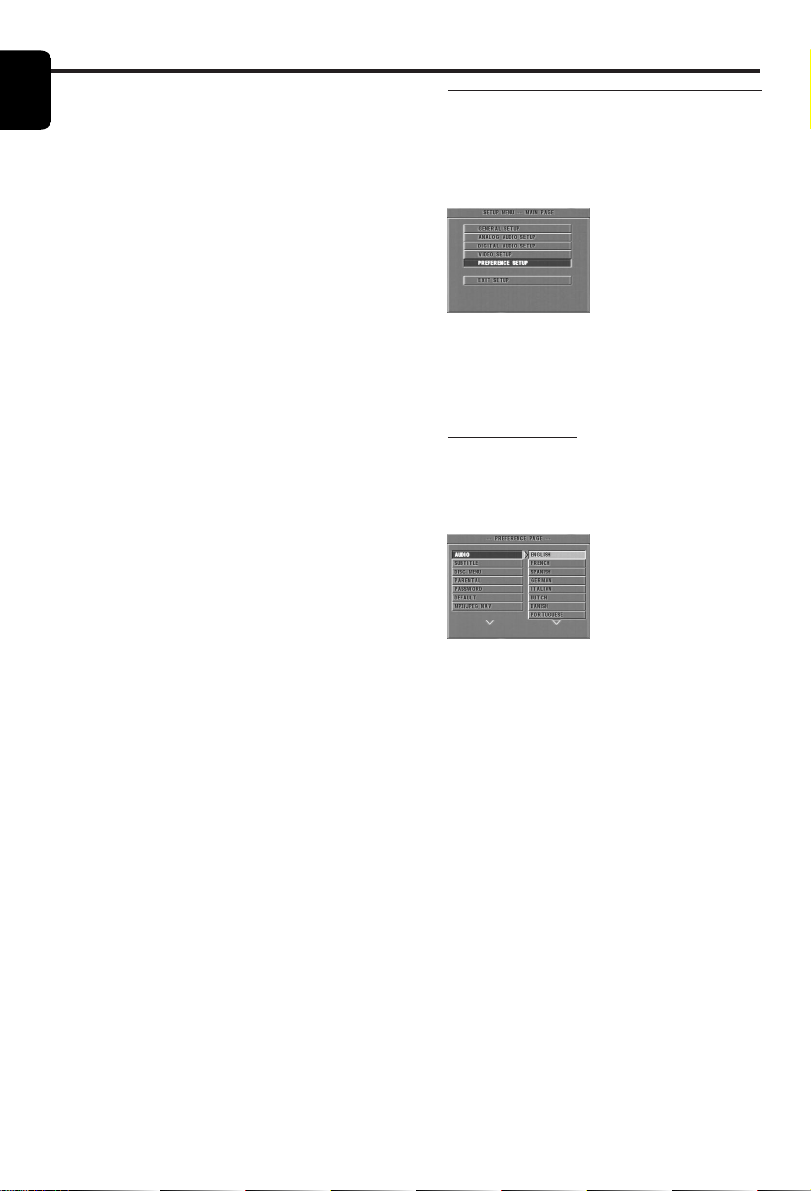
Smart Picture
In this menu, you can choose a picture setting
from a fixed set of ideal predefined picture
settings.
1 Press the 34 keys to highlight SMART PICTURE
in the VIDEO SETUP menu.
2
Press the 2 key to highlight the item of the
submenu.
3 Press the 34 keys to choose an item.
➜ STANDARD: select a standard picture setting.
➜ BRIGHT: make the TV picture brighter.
➜ SOFT: make the TV picture softer.
➜ PERSONAL: achieve the color effect set in
the COLOR SETTING menu.
4 Press OK.
5
Press 1 key to return to the VIDEO SETUP menu.
Color Setting
In this menu you can personalize the picture color
by adjusting brightness, contrast, hue and
saturation.
1 Press the 34 keys to highlight COLOR
SETTING in the VIDEO SETUP menu.
2 Press OK to open its submenu.
Brightness
1 Press the 34 keys to highlight BRIGHTNESS in
the COLOR SETTING menu.
2
Press the 2 key to open the level bar.
➜ Display at the bottom of the screen.
3 Press the 2 1 keys to increase and decrease the
brightness level.
4 Press the 34 or OK key to return to the
COLOR SETTING menu.
24
English
Contrast
1 Press the 34 keys to highlight CONTRAST in
the COLOR SETTING menu.
2
Press the 2 key to open the level bar.
➜ Display at the bottom of the screen.
3 Press the 2 1 keys to increase and decrease the
contrast level.
4 Press the 34 or OK key to return to the
COLOR SETTING menu.
Hue
1 Press the 34 keys to highlight HUE in the
COLOR SETTING menu.
2
Press the 2 key to open the level bar.
➜ Display at the bottom of the screen.
3 Press the 2 1 keys to increase and decrease the
hue level.
4 Press the 34 or OK key to return to the
COLOR SETTING menu.
Saturation
1 Press the 34 keys to highlight SATURATION in
the COLOR SETTING menu.
2
Press the 2 key to open the level bar.
➜ Display at the bottom of the screen.
3 Press the 2 1 keys to increase and decrease the
saturation level.
4 Press the 34 or OK key to return to the
COLOR SETTING menu.
Setup Menu
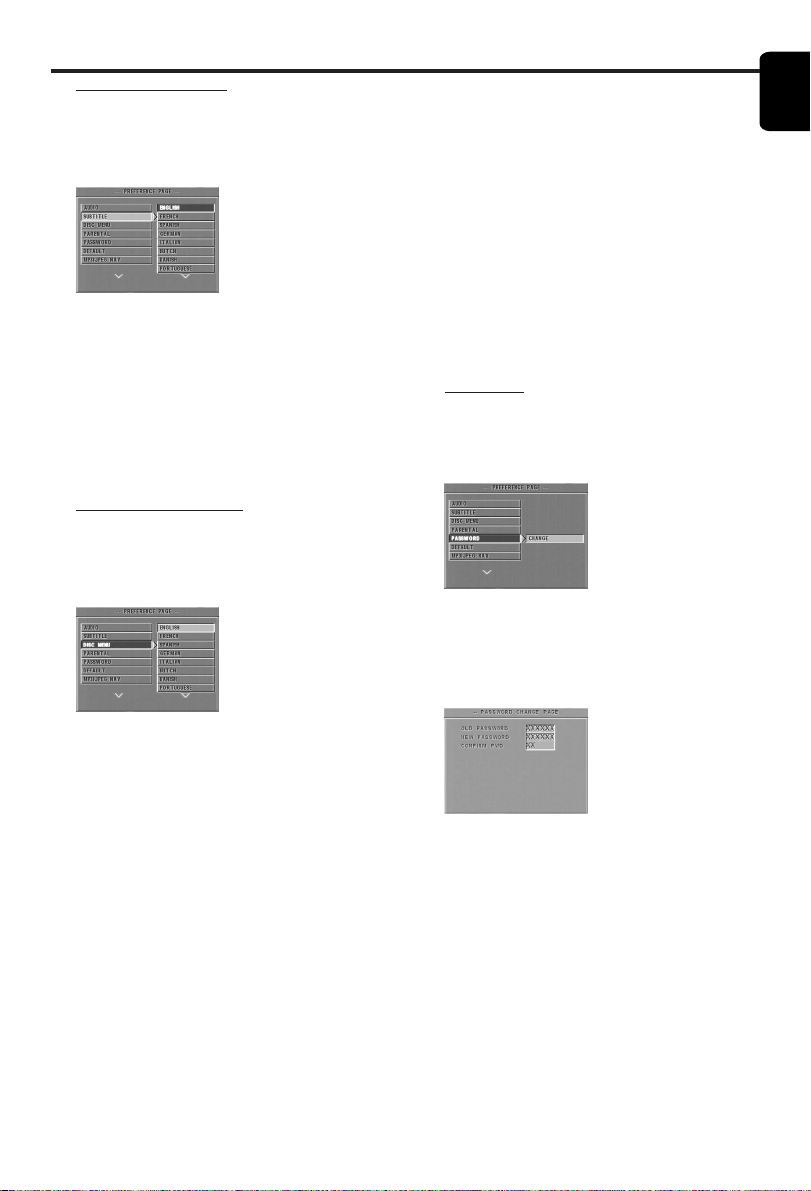
Preference Setup menu
There are options included in PREFERENCE
menu such as AUDIO, SUBTITLE, DISC MENU,
PARENTAL, PASSWORD, DEFAULT and MP3/
JPEG NAV.
1 Press the STOP key twice.
2 Press SYSTEM MENU to enter the menu.
3 Highlight the PREFERENCE SETUP by pressing
the 34 keys.
4 Press OK to confirm your selection.
Audio language
DVD discs are available with multiple audio
languages. Use this option to select the preferred
default audio language.
1 Press the 34 keys to highlight AUDIO.
2 Enter the submenu by pressing the 2 key.
3 Move the cursor by pressing the 34 keys to
highlight the selected option.
4 Press OK.
5 Press the 1 key to return to the PREFERENCE
menu.
NOTE: Your DVD disc may not include the audio
language which you set in the AUDIO menu. If so,
the player will use another audio language instead.
25
English
If you choose OTHERS in AUDIO,
SUBTITLE or DISC MENU menu,
You can select other languages. Please do as
follows,
1 Move the cursor by pressing the 34 keys to
highlight OTHERS.
2 Press OK.
➜ The DVD player will prompt you to enter a
language code (Four digits).
3 Input a language code by pressing numerical keys.
➜ Please look up the preferred language code in
the chapter LANGUAGE CODE, which can be
found at the end of this manual.
4 Press OK.
Password
This item is used for the parental control and disc
lock. Enter your six digit password when a hint is
displayed on the screen.
1 Press the 34 keys to highlight the PASSWORD
option.
2 Enter the submenu by pressing the 2 key.
3 Press OK key to open the PASSWORD
CHANGE page.
4 Enter the current 6 digit code.
5 If successful, the player will prompt for a new one.
6 After that, enter the new password again to
reconfirm.
7 Press the OK key to return to the PREFERENCE
menu.
➜ The new 6 digit code will take effect.
NOTE:
1. You can change the setup of parental control
and load a locked disc with a valid password being
entered.
2. If you forget your password, you can enter the
default password 842100.
Setup Menu
Subtitle language
DVD discs are available with multi-subtitle
languages. Use this option to select the preferred
default subtitle language.
1 Press the 34 keys to highlight SUBTITLE.
2 Enter the submenu by pressing the 2 key.
3 Move the cursor by pressing the 34 keys to
highlight the selected option.
4 Press OK.
5 Press 1 key to return to the PREFERENCE menu.
NOTE: Your DVD disc may not include the subtitle
which you set in the SUBTITLE menu. If so, the
player will use another subtitle language instead.
Disc Menu language
DVD discs are available with multiple disc menu
languages. This option is used to select the default
disc menu language.
1 Press the 34 keys to highlight DISC MENU.
2 Enter the submenu by pressing the 2 key.
3 Move the cursor by pressing the 34 keys to
highlight the selected item.
4 Press OK.
5 Press 1 key to return to the PREFERENCE menu.
NOTE: If your DVD disc doesn’t include the disc
menu language you have set, the player will use
another recorded language instead.
26
English
Default Setup
If problems occur while setting up the DVD
player, the DEFAULT function can be used to
reset all options to the factory defaults and all
your personal settings will be erased.
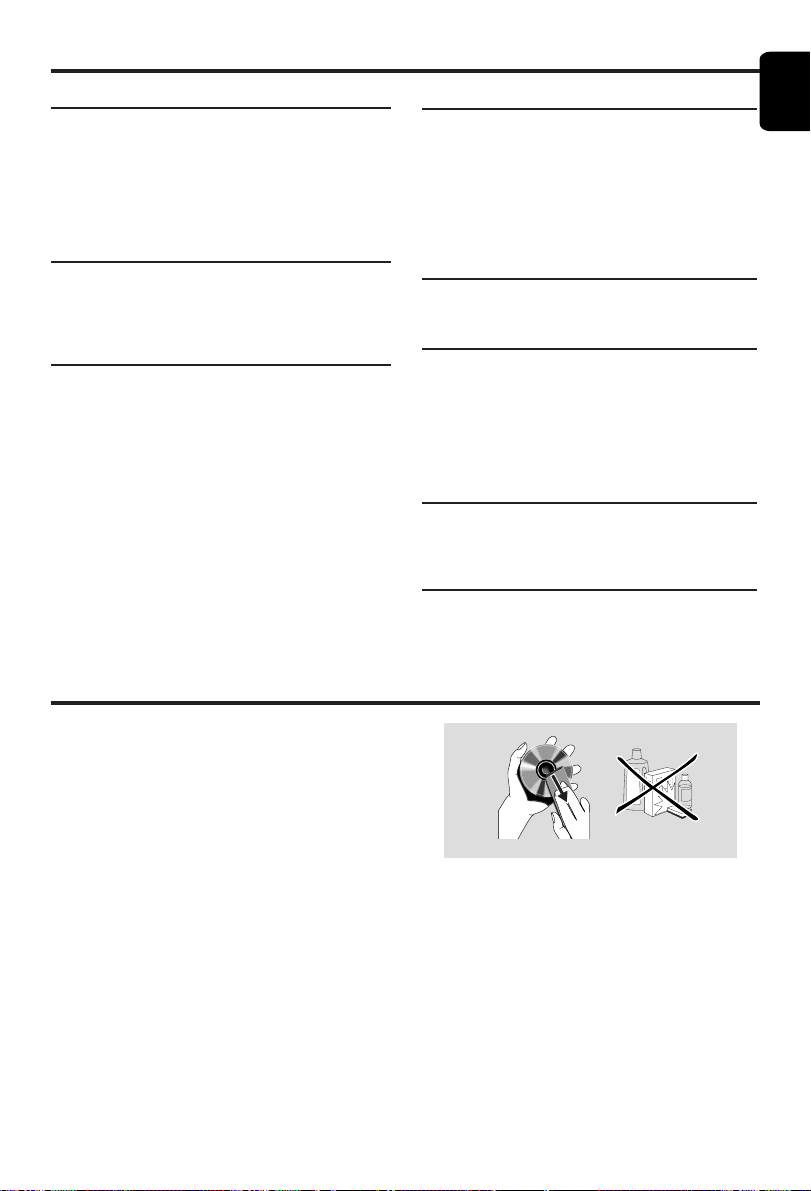
1 Press 34 to highlight DEFAULT.
2 Highlight RESET by pressing the 2 key.
3 Press OK.
CAUTION: When this function is activated, all
setups will be reset to factory defaults.
MP3/JPEG Navigator
This menu allows you to select alternate settings
when you playback picture CD and MP3 CD.
1 Press 3 4 to highlight MP3/JPEG NAV.
2 Press 2 to enter the submenu.
3 Press 3 4 to highlight WITHOUT MENU or
WITH MENU.
➜ WITHOUT MENU: playback all pictures or
MP3 music in sequence automatically.
➜ WITH MENU: playback pictures or MP3 music
in the selected folder.
5 Press OK key to confirm your selection.
Setup Menu
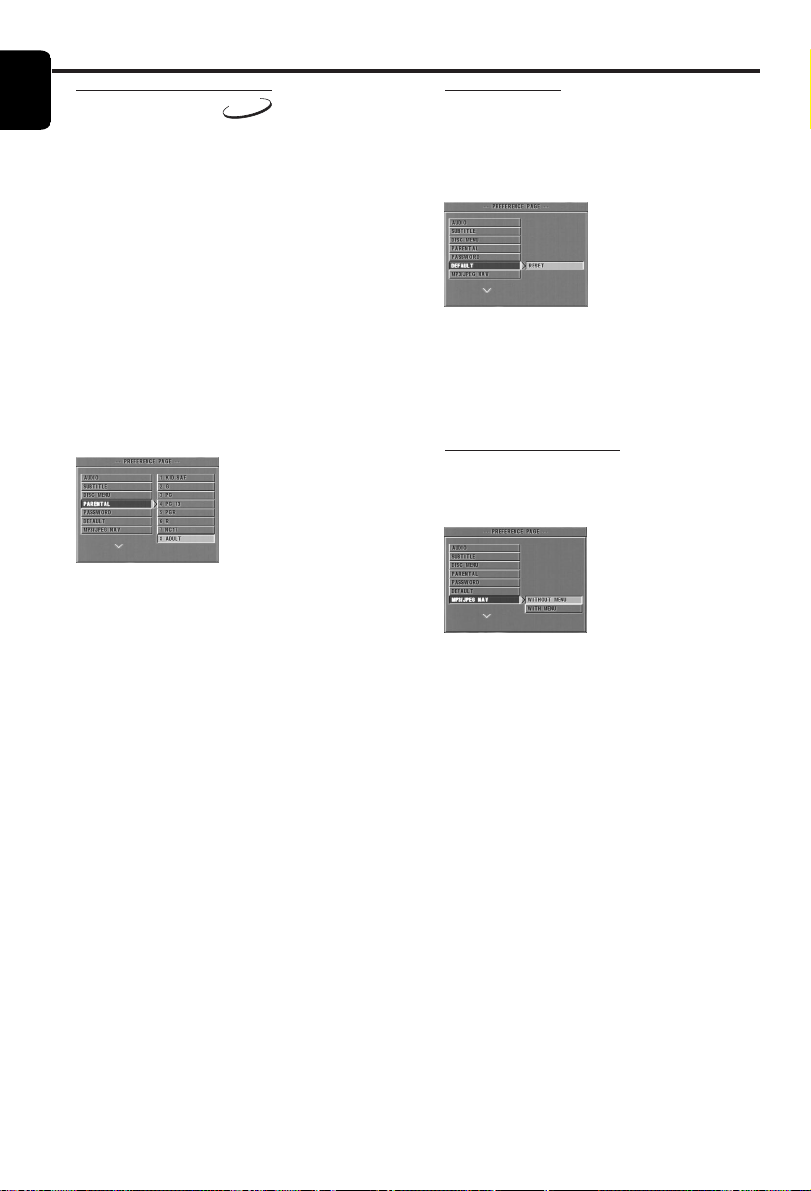
Parental Control
DVD
Movies on DVDs may contain scenes which are
not suitable for children. Therefore, discs may
contain ‘Parental Control’ information which
applies to the complete disc or to certain scenes
on the disc. These scenes are rated from 1 to 8,
and alternative, more suitable scenes are available
on the disc. Ratings are country dependent. The
‘Parental Control’ feature allows you to prevent
discs from being played by your children or to
have certain discs played with alternative scenes.
0 VCD, SVCD, CD have no level indication, so
parental control function has no effect on those
kinds of discs. This applies to most illegal DVD
discs.
0 You can follow the steps below to setup the
parental control:
1 Press the 34 keys to highlight PARENTAL.
2 Move to its submenu by pressing the 2 key.
3 Then use the 3/4 keys to highlight a rating for
the disc inserted.
4 Press OK to confirm, then press the 1 key to
return to the PREFERENCE menu.
No Parental Control
Parental Control is not activated. The Disc will be
played in full.
1 Select ADULT item.
2 Press OK.
Ratings 1 to 7:
Some discs contain scenes which are not suitable
for children. All scenes with a rating higher than
you set will be skipped during playback. However
if the disc contains alternate scenes, these will play
automatically. If not, the playback will stop and the
six digits code will need to be entered again.
27
English
PLAYBACK SYSTEM
DVD Video
Video CD & SVCD
CD
PICTURE CD
MP3-CD
CD-R, CD-RW
DVD+R, DVD+RW
VIDEO PERFORMANCE
CVBS 1Vpp --- 75Ω
Component video Y: 1.00Vpp --- 75Ω
Pr: 0.7Vpp --- 75Ω
Pb: 0.7Vpp --- 75Ω
AUDIO FORMAT
Digital Mpeg/ AC-3/ DTS compressed Digital
PCM 16, 20, 24 bits
fs, 44.1, 48, 96 kHz
MP3(ISO 9660) 24, 32, 56, 64, 96, 128,
256 kbps & variable
bit rate fs, 16, 22.05,
24, 32, 44.1, 48 kHz
Analog Sound Stereo
AUDIO PERFORMANCE
DA Converter 24bit
Signal-Noise (1KHz) 90dB
Dynamic range(1KHz) >85dB
DVD fs 96 kHz 4Hz- 44kHz
fs 48 kHz 4Hz- 22kHz
SVCD fs 48 kHz 4Hz- 22kHz
fs 44.1kHz 4Hz- 20kHz
CD/VCD fs 44.1kHz 4Hz- 20kHz
TV STANDARD (PAL/50Hz) (NTSC/60Hz)
Number of lines 625 525
Playback Multistandard (PAL/NTSC)
CONNECTIONS
Component Video Output Cinch
Video Output Cinch
Audio Output(L+R) Cinch
Digital Output 1 coaxial
IEC958 for CDDA / LPCM/ MPEG1
IEC1937 for MPEG 2, Dolby
Digital and DTS
CABINET
Dimensions (w x d x h) 216 x 216x 45 mm
Weight Approximately 0.8 Kg
POWER CONSUMPTION
Power consumption in Standby mode 1.2W
Specifications
¶ Use a soft cloth slightly moistened with a mild
detergent solution. Do not use a solution
containing alcohol, spirits, ammonia or abrasives.
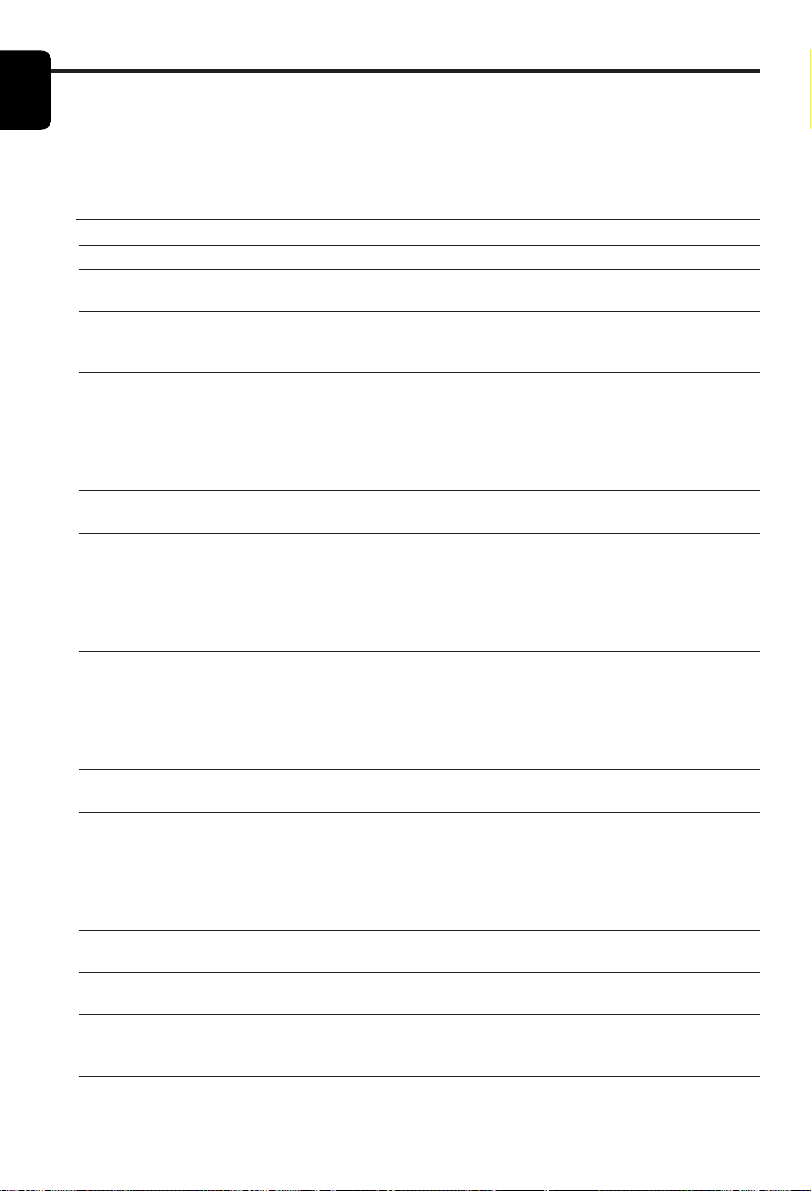
Cleaning Discs
¶ When a disc becomes dirty, clean it with a
cleaning cloth. Wipe the disc from the center out.
Do not wipe in a circular motion.
¶ Do not use solvents such as benzine, thinner,
commercially available cleaners, or antistatic spray
intended for analog records.
Cleaning the disc lens
● After prolonged use, dirt or dust may accumulate
at the disc lens. To ensure good playback quality,
clean the disc lens with Philips CD Lens Cleaner
or any commercially available cleaner. Follow the
instructions supplied with cleaner.
Maintenance
Specifications subject to change without prior notice
28
English
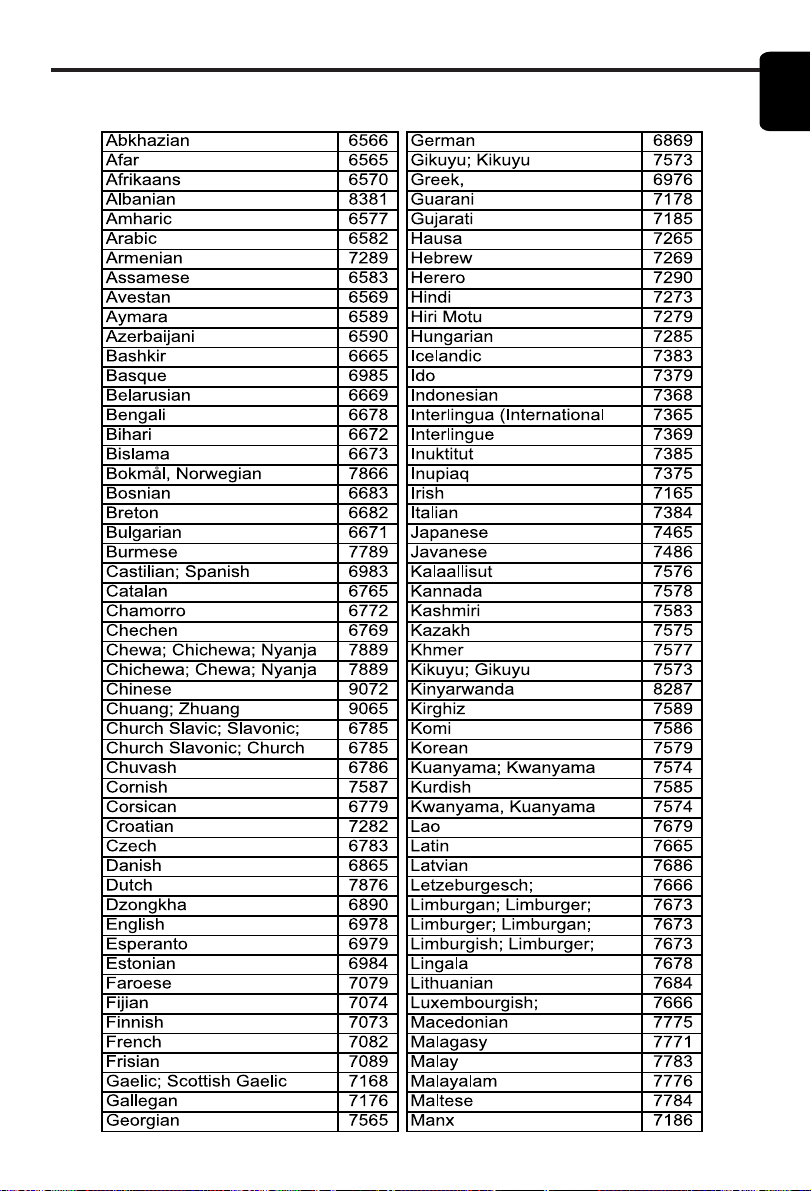
Troubleshooting
WARNING
Under no circumstances should you try to repair the system yourself, as this will invalidate the
warranty. Do not open the system as there is a risk of electric shock.
If a fault occurs, first check the points listed below before taking the system for repair. If you are
unable to remedy a problem by following these hints, consult your dealer or service center.
Problem Solution
No power – Check if the AC power cord is properly connected.
No picture – Check if the TV is switched on.
– Check the video connection.
Distorted picture – The disc is badly scratched or dirty.
– Sometimes a small amount of picture distortion
may appear .This is not a malfunction.
Completely distorted picture or – Make sure the NTSC/PAL setting at the DVD
black/white picture with DVD player matches the video signal of your television.
or Video CD (See NTSC/PAL CONVERSION)
– If the picture becomes distorted after switching
between PAL and NTSC, please set the SMART
PICTURE to STANDARD.
No sound or distorted sound – Adjust the volume.
– Check that the speakers are connected correctly.
No audio at digital output – Check the digital connections.
– Check if your receiver can decode MPEG-2 or DTS
and if not, please make sure the digital output is set
to PCM.
– Check if the audio format of the selected audio
language matches your receiver capabilities.
Disc can’t be played – The DVD+R/DVD+RW/CD-R must be finalized.
– Ensure the disc label is facing up.
– Check if the disc is defective by trying another disc.
_ If you record a Picture CD or MP3 CD yourself,
ensure that your disc contains at least 10 pictures or
5 MP3 tracks.
No return to start-up screen when – Reset the unit by switching the player off, then on
disc is removed again.
The player does not respond to – Aim the remote control directly at the sensor on
the remote control the front of the player.
– Reduce the distance to the player.
– Replace the batteries in the remote control.
– Insert the batteries with their polarities (+/– signs)
as indicated.
Buttons do not work – In order to completely reset the player, unplug the
AC cord from the AC outlet.
Player does not respond to some – Operations may not be permitted by the disc.
operating commands during playback Refer to the instructions of the disc.
DVD Video player cannot read – Use a commonly available cleaning CD/DVD to
CDs/DVDs clean the lens before sending the DVD Video player
for repair.
Any setup changes can’t be stored. – Remove the Setup Menu after make the setup, and
then press POWER key to switch into the Standby
mode.
29
English
Language Code
The following codes can be used to select languages other than those available in the
AUDIO, SUBTITLE or DISC MENU. (see Setup menu)
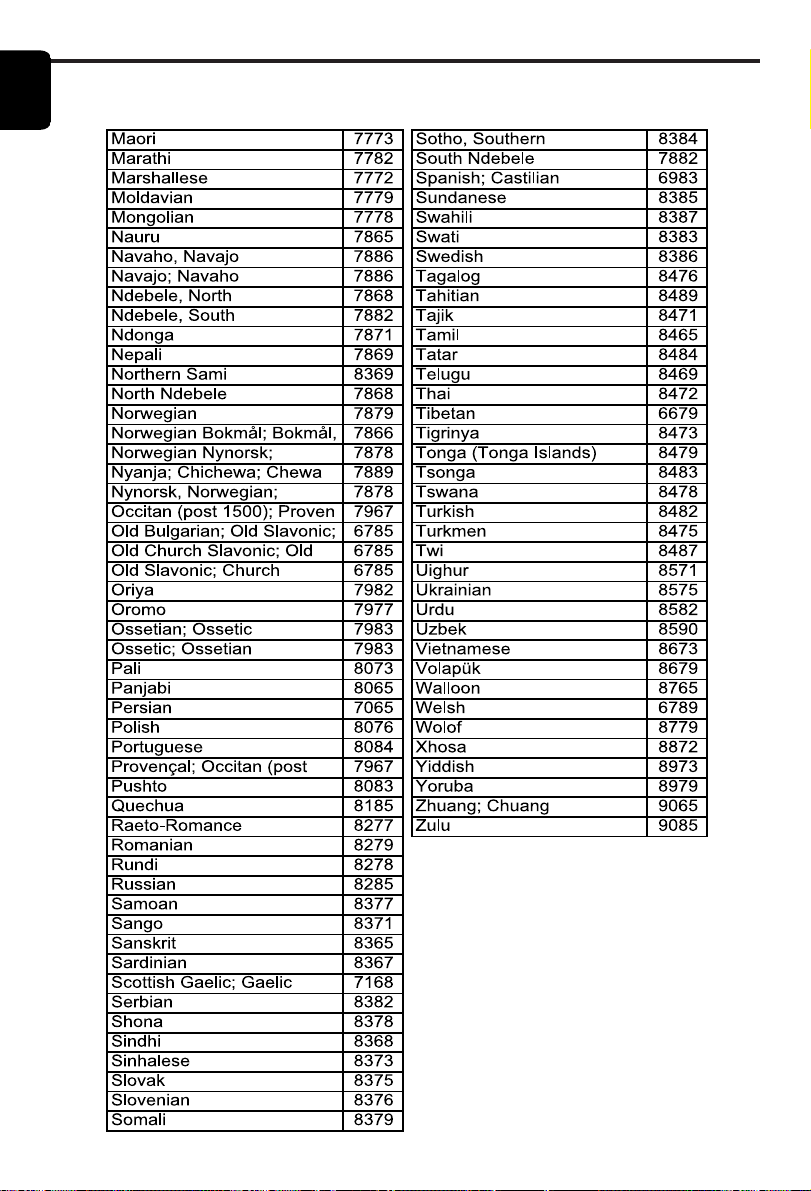
30
English
Language Code
The following codes can be used to select languages other than those available in the
AUDIO, SUBTITLE or DISC MENU. (see Setup menu)
The products and services described herein
are not necessarily available in all countries
Due to continuous product improvements this
document is subject to change without notice.
PHILIPS NORGE AS
Sandstuveien 70,
PO Box 1, Manglerud
N-0612 Oslo
NORWAY
Phone: 2274 8250
OY PHILIPS AB
Sinikalliontie 3,
02630 Espo
Helsinki
FINLAND
puh. 09 615 80 250
PHILIPS KUNDTJäNST
Kollbygatan 7,
Akalla,
16485 Stockholm
SWEDEN
Phone: 08-598 52 250
PHILIPS POLSKA
AL. Jerozolimskie 195B
02-222 Warszawa
POLSKA
Tel.: (022)-571-0-571
PHILIPS SERVICE
V Mezihori 2
180 00 Prage
CZECH REPUBLIC
Phone: (02)-3309 9240
PHILIPS Iberia, S.A.
C/Martinez Villergas, 49
28027 MADRID
SPAIN
Phone: 902-11 33 84
PHILIPS
ö sterreichische Philips Industrie
GmbH
Triesterstrasse 64
1101 Wien
AUSTRIA
Tel: 0810 001 203
PHILIPS INFO CENTER
Alexanderstrasse 1
20099 Hamburg
GERMANY
Tel: 0180-53 56 767
SERVICE
CONSOMMATEURS
PHILIPS
BP 0101
75622 Paris Cédex 13
FRANCE
Phone: 0825-889 789
PHILIPS ELECTRONICS
IRELAND LIMITED
Consumer Information Center
Newstead, Clonskeagh
DUBLIN 14
Phone: 01-7640292
PHILIPS CONSUMER
ELECTRONICS
Servizio Consumatori
Via Casati 23
20052 Monza - Milano
ITALY
Phone: 800 820026
PHILIPS MÁRKASZERVIZ
Kinizsi U 30 - 36
Budapest 1092
HUNGARY
Phone: (01)-2164428
PHILIPS PORTUGUESA,
S.A.
Consumer Information Center
Rua Dr. António Loureiro Borge,
nr.5
Arquiparque, Miraflores
P-2795 L-A-VEHLA
PORTUGAL
Phone: 021-4163063
PHILIPS CE, The Philips
Centre,
420 - 430 London Road,
Croydon, Surrey
CR9 3QR
UNITED KINGDOM
Phone: 0208-665-6350
CONSUMER SERVICES
Prags Boulevard 80. PO Box
1919,
DK-2300 Copenhagen S
DANMARK
TIf: 32 88 32 00
PHILIPS
REPRESENTATION
OFFICE
Ul. Usacheva 35a
119048 MOSCOW
RUSSIA
Phone: 095-937 9300
PHILIPS INFO CENTER
Fegistrasse 5
8957 Spreitenbach
SUISSE
Tel.: 0844-800 544
PHILIPS CUSTOMER CARE
CENTER
Twee Stationsstraat 80/
80 Rue des Deux Gares
1070 BURSSEL/BRUXELLES
BELGIUM (for BENELUX)
Tel: 070-222303
Meet Philips at the Internet
http://www.philips.com
3141 015 26362