3-232-145-12 (1)
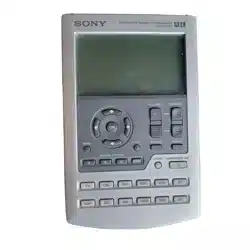
Integrated Remote
Commander
Operating Instructions
© 2001 Sony Corporation
RM-VL700

2
For the customers in the U.S.A.
WARNING
This equipment has been tested and found to comply with the limits for a
Class B digital device, pursuant to Part 15 of the FCC Rules.
These limits are designed to provide reasonable protection against
harmful interference in a residential installation. This equipment
generates, uses, and can radiate radio frequency energy and, if not
installed and used in accordance with the instructions, may cause
harmful interference to radio communications. However, there is no
guarantee that interference will not occur in a particular installation. If
this equipment does cause harmful interference to radio or television
reception, which can be determined by turning the equipment off and on,
the user is encouraged to try to correct the interference by one or more of
the following measures:
— Reorient or relocate the receiving antenna.
— Increase the separation between the equipment and receiver.
— Connect the equipment into an outlet on a circuit different from that
to which the receiver is connected.
— Consult the dealer or an experienced radio/TV technician for help.
You are cautioned that any changes or modifications not expressly
approved in this manual could void your authority to operate this
equipment.

3
Features
The RM-VL700 Remote Commander provides centralized control of all
your AV components from a single remote commander and saves the
trouble of operating different AV components with different remote
control devices. The following are its main features.
Centralized control of Sony AV components with this one remote
commander
This Commander is preset at the factory to operate Sony brand
components, so you can use it out of the box as a control center for your
Sony AV components.
Remote control signals for non-Sony components are also preset
This Commander is preset for most major brands components including
Sony. You can remote control your components by setting the type and
code number of each component (page 8).
Learning function for programming various other remote control
signals
This Commander has a Learning function, to “learn” the remote control
signals needed to operate other non-preset components or functions. (To
“teach” such signals to this Commander, use the remote control supplied
with the non-preset components.) (See page 15.)
In addition, the Commander can “learn” remote control signals (infrared
signals only) of non-Audio Visual components such as air-conditioners,
lights, etc. (Some specific appliances or functions may not be available.)
(page 23.)
Reassigning new components
You can assign Component Select buttons to freely operate other
components. This is useful when you have more than two of the same
kind of AV component (only if a Component Select buttons is free). (See
page 27.)

4
Table of Contents
Getting Started
Installing the Batteries ................................................................................. 6
When to replace the batteries ............................................................................ 6
Location of Controls .....................................................................................7
Basic Operations
Setting the Code for non-Sony Preset Audio
and Visual Components — Setting component codes ............................... 8
Setting a component code .................................................................................. 8
Checking if the code number works .............................................................. 10
Setting a component code by the Search function .................................... 11
Operating Your Components with the Remote Commander ...................... 12
To control the volume ....................................................................................... 13
Notes on operating your components ........................................................... 14
Programming signals of another remote control — Learning Function .... 15
For accurate Learning ....................................................................................... 18
Programming remote control signals to the Component Select buttons ..... 19
Changing or erasing the function of a “learned” button ............................ 21
Notes on programming the signals for an air-conditioner ......................... 23
Advanced Features
Controlling the Volume of Visual Components Connected to an Audio
System ...................................................................................................... 24
Adding an Extra Function to the Component Select Buttons ..................... 26
Programming the Power-On Command of the Selected Component just
by pressing that Component Select button (for Sony Components only)
.......................................................................................................................... 26
Assigning Other Components to the Component Select Buttons .............. 27
Copying the settings of a Component Select button to another button .... 29
Using Other Functions
Locking the Controls — Hold Function .......................................................30
Erasing all settings — To reset the Commander to its factory settings ..... 31
Additional Information
Precautions ................................................................................................. 32
Specifications .............................................................................................. 32
Troubleshooting .......................................................................................... 33

5
Appendix
Table of Preset Functions ............................................................................ 35
TV ........................................................................................................................ 35
VCR ..................................................................................................................... 36
CBL (Cable box) ................................................................................................. 36
SAT ...................................................................................................................... 37
DVD .................................................................................................................... 37
CD ....................................................................................................................... 38
MD ....................................................................................................................... 38
DAT ..................................................................................................................... 38
DECK .................................................................................................................. 38
AMP .................................................................................................................... 39
Digital Cable Box .............................................................................................. 39
Index ............................................................................................. Back cover
6
Getting Started
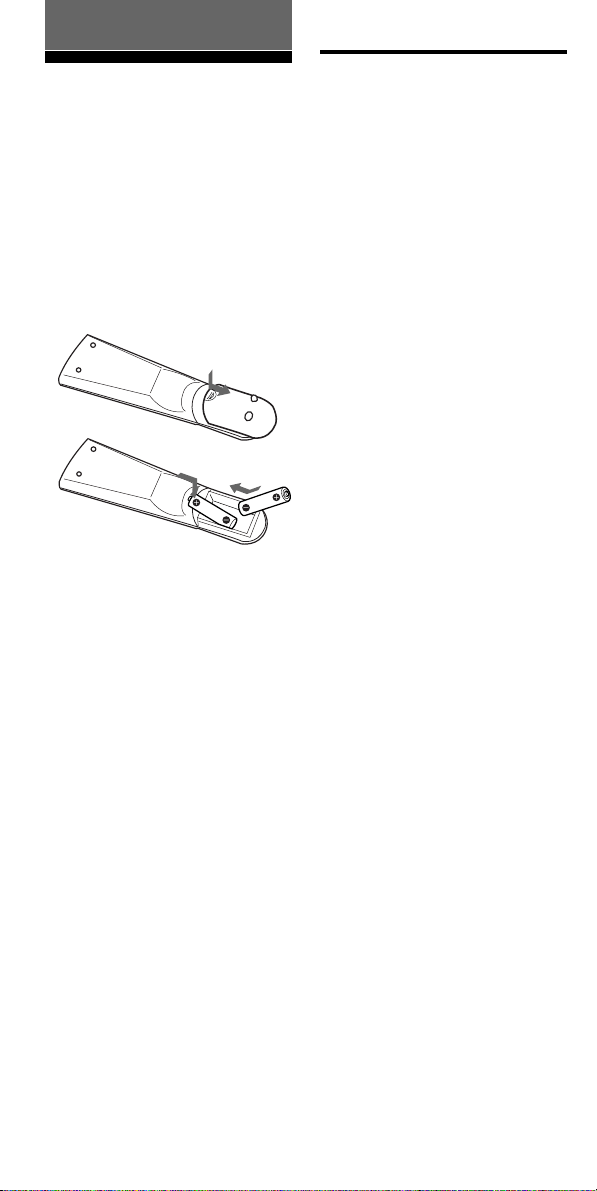
Installing the
Batteries
Slide open the battery
compartment lid and insert two
size AA(R6) batteries (not
supplied). Be sure to match up the
+ and – indications on the
batteries with the + and –
indications on the battery
compartment.
When to replace the
batteries
Batteries for remote control
operation (two size AA (R6)
batteries)
Under normal conditions, the
batteries will last up to six
months. If the Commander does
not operate properly, the batteries
might be drained. When this
happens, replace the batteries with
new ones.
Note
Do not take more than one hour to
replace the batteries. Otherwise, your
setting of the code numbers (page 8)
and “learned” remote control signals
(page 15) will be erased.
Notes on batteries
• Do not use an old battery with a new
one or mix different types of batteries
together.
• If the electrolyte inside the battery
should leak, wipe the contaminated
area of the battery compartment with
a cloth and replace the old batteries
with new ones. To prevent the
electrolyte from leaking, remove the
batteries when you plan not to use
the Commander for a long period of
time.
Insert the batteries negative-and-
first through the guide clamp
within each compartment as
shown above.

7
Location of Controls
1 SET indicator
2 SET button
3 Component Select buttons
Light or flash during operation.
4 TV/VIDEO button
5 DISPLAY button
6 Number buttons
7 PIP button
8 Player Control buttons
9 Cursor Control buttons
0 MENU button
qa VOL +/– buttons*
qs MUTING button*
qd POWER button
qf GUIDE button
qg SLEEP button
qh ENT (enter) button
qj OK button
qk CH (channel) +/– buttons
ql RECALL button
* Note on the VOL +/– and MUTING buttons
The Commander controls or mutes the TV’s volume when you select a visual
component. The Commander controls or mutes the amplifier’s volume when you
select an audio component. You can change this setting also (page 24.)
Note
The function of the control buttons varies depending on settings/operating modes.
The “Table of Preset Functions” (page 35) shows how the Commander generally
operates for each component in the factory preset mode.

8
2 Press SET.
All Component Select buttons
flash.
Example: To set up a Philips’ TV
1 See the tables in the
supplied “Component
Code Numbers”, and find
the three-digit code number
for the desired component.
If more than one code number
is listed, use the number that is
listed first.
For example, to set up a
Philips’ TV, you would use the
code number 056.
Component
Select Button
TV
VCR
CBL/SAT
DVD
AMP
Factory setting
Sony TV
Sony VHS
VCR
Sony DVD
player
Sony amplifier
Preset
component(s)
TV
TV/VCR
Combo
VCR
Cable box
DVD player
Amplifier
Setting a component code
Note
A CD player, an MD player and a
cassette deck can be set to any of the
above Component Select buttons. You
can assign Component Select buttons to
freely set signals of your desired
components. For further information,
see “Assigning Other Components to
the Component Select Buttons” (page
27) .
For the functions of buttons as for each
component, see “Table of Preset
Functions” (page 35).
Basic Operations
Setting the Code for
non-Sony Preset
Audio and Visual
Components
— Setting
component codes
The Commander is preset at the
factory to operate Sony brand AV
components (see the table below).
If you are using the Commander
with a factory-set Sony
components, skip the following
procedures.
You can use the Commander with
other major brand preset AV
components also. To use with
other AV components, or Sony
components which do not
function with the Commander,
you need to follow the procedures
to set the correct codes for each
component.

9
3 Press the Component Select
button for the desired
component.
The selected Component
button lights up, and all other
buttons turn off.
4 Press the Number buttons
to enter the three-digit
component code number.
5 Press ENT.
The Component Select button
turns off.
If the Component Select button
flashes five times before
turning off, it means that the
setup is incomplete. Start over
from Step 2.
Continued
Notes
• If you press a component code
number that is not on the table in the
supplied “Component Code
Numbers”, or if you press a button in
the wrong order, the Component
button flashes five times, and then
turns off. Check the component code
number, and try setting it again.
• If you don’t input anything into the
Commander within 20 seconds
between each step, the setup
procedure will be canceled. To set the
code, start over from Step 2.
• If you press SET while setting the
component code, all code numbers
will be lost, and the setup procedure
will be canceled. Start over from Step
2.
To cancel setup, press SET.

10
Setting the Code for non-Sony
Preset Audio and Visual
Components (continued)
Checking if the code
number works
1 Power on the component
with its power switch.
2 Press the corresponding
Component Select button
for the component you
have set up.
The Component button lights
up when you press it, and
turns off when you release it.
3 Aim the Commander at the
component and press
POWER.
The selected Component
button lights up when you
press a function button, and
turns off when you release it.
The component should power
off.
4 If you have succeeded,
check that the Commander
is operating the other
functions of your
component, such as channel
and volume control.
See page 12 for details.
If the Commander does not
seem to be working
Try repeating the setup procedures
using the other codes listed for your
component, or try setting the code
number using the Search function
(page 11).
Note on the VOL+/– and MUTING
buttons
When you operate a visual
component, the TV button lights
up to indicate that the
Commander is controlling or
muting the TV’s volume.
When you operate an audio
component, the AMP button lights
up to indicate that the
Commander is controlling or
muting the amplifier’s volume.
It is recommended that you first
set the TV and AMP codes before
setting up any other components.
Note on buttons that have
already “learned” remote
control signals
If another signal has already been
programmed on a button using
the Learning function (page 15),
that “learned” signal will continue
to work even after you set the
component code number. To use it
as a preset function button, you
must first erase its “learned”
signal (page 21).

11
Setting a component
code by the Search
function
You can find a code number
available for a component that
doesn’t have one in the supplied
“Component Code Numbers”.
Before starting the Search
function
Set each component to the
following status so that the Search
function works effectively.
TV: Power-on
VCR, CBL/SAT, DVD, AMP:
Power-off
CD player*, MD player*, cassette
deck*: Power-on with a playback
source (disc, cassette tape, etc.)
* If any of these components are
assigned to any of the Component
Select buttons (page 27), you can
set a component code using the
Search function.
Continued
1 Press SET.
All Component Select buttons
flash.
2 Press the Component Select
button for the desired
component.
The selected Component
button lights up, and all other
buttons turn off.
3 Press CH + or CH – and
POWER in turn until the
component reacts as
described in the following.
TV: Powers off
VCR, CBL/SAT, DVD, AMP:
Powers on
CD player, MD player, cassette
deck: Plays back
Press CH + to go to the next
code number.
Press CH – to go back to the
previous code number.
The Component button flashes
three times after the numbers
have turned one cycle.

12
4 Press ENT.
The Component button turns
off.
If the Component Select button
flashes five times before turning
off, it means that the setup is
incomplete. Start over from Step 1.
5 Check if the code number
works by following the
instructions on page 10.
Notes
• If you don’t input anything into the
Commander within 20 seconds
between each step, the setup
procedure will be canceled. To set the
code, start over from the beginning.
• If you press any button other than
CH+/- and POWER while setting the
component code, all code numbers
will be lost, and the setup procedure
will be canceled. Start over from the
beginning.
To cancel setup, press SET.
Setting a component code by
the Search function (continued)
Example: To operate a video
cassette recorder
1 Press the desired
Component Select button.
The Component Select button
lights up when you press it,
and turns off when you release
it.
Operating Your
Components with the
Remote Commander
When you operate a non-Sony
component, make sure you set the
component code first (page 8).

13
To control the volume
Press VOL +/– to control the
volume. Press MUTING to mute
the sound. When you select a
visual component, the TV’s
volume will be controlled (TV
lights up), and when you select an
audio component, the amplifier’s
volume will be controlled (AMP
lights up). You can change this
setting also (page 24).
Notes
• If you used the Learning function
(page 15) to program the VOL +/– or
MUTING buttons to send a signal to
any other component, that signal will
be transmitted instead of the volume
or muting of the TV or amplifier
when you select that component.
• If you used the Learning function
(page 15) to program the VOL +/– or
MUTING buttons for the TV or AMP
to send a signal to any other
Component, that signal will be
transmitted only when you select TV
or AMP. When you select another
component, the preset volume control
signals for TV or AMP will be
transmitted.
• If you have assigned another
component to the TV or AMP buttons
(page 27), the volume of the TV or
amplifier cannot be controlled even if
you select another component.
Continued
2 Press any Player Control
button.
See “Table of Preset Functions”
(page 35) for the functions of
buttons for each component.
Note
The remote control signals may be
different for some components or
functions. In this case, program the
remote control signals with the
Learning function (see page 15). Note,
however, that components and
functions that do not support the
remote control of infrared signals will
not work with this Commander.

14
Notes on operating your
components
About the input select of a TV
Each time TV/VIDEO is pressed,
the input is changed in order. It is
also possible to select directly by
pressing one of following Number
buttons while holding TV/VIDEO
pressed when more than two
VCRs are connecting.
“TV/VIDEO” + “0” : TV tuner
“TV/VIDEO” + “1” : VIDEO1
“TV/VIDEO” + “2” : VIDEO2
“TV/VIDEO” + “3” : VIDEO3
“TV/VIDEO” + “4” : VIDEO4
“TV/VIDEO” + “5” : VIDEO5
“TV/VIDEO” + “6” : VIDEO6
If the above operations do not
work, program the remote control
signals of your component in to
the Commander using the
Learning function (page 15).
About the input select of a VCR
(only for Sony VCR)
Each time TV/VIDEO is pressed,
the input is changed in order. It is
also possible to select directly by
pressing one of following Number
buttons while holding TV/VIDEO
pressed.
“TV/VIDEO” + “0” : Tuner
“TV/VIDEO” + “1” : LINE1
“TV/VIDEO” + “2” : LINE2
“TV/VIDEO” + “3” : LINE3
“TV/VIDEO” + “4” : LINE4
“TV/VIDEO” + “5” : DV in
When you use a Sony VCR, the
above commands are preset. For
other brands, it is possible to
“teach” the above sequential
button operations using the
Learning function (see page 15).
Operating Your Components
with the Remote Commander
(continued)

15
about 2 – 4 inches
(5 – 10 cm) away
Remote control for
your component
RM-VL700
Continued
Programming signals
of another remote
control — Learning
Function
To operate components or
functions which do not work even
if you set a component code
number, use the following
Learning procedure to “teach” any
of the programmable buttons or
the Commander to operate the
functions of another remote
control. You can also use the
Learning function to change the
signals of individual buttons after
setting the component code
number (page 8).
It is recommended that you make
a note of the “learned” key
functions. (It is possible to make a
note on the back of the supplied
“Component Code Numbers.”)
Notes
• Some specific remote control signals
may not be “learned.”
• You can also use a display monitor
for computer display (including a
built-in tuner type), if the
Commander is “learned.”
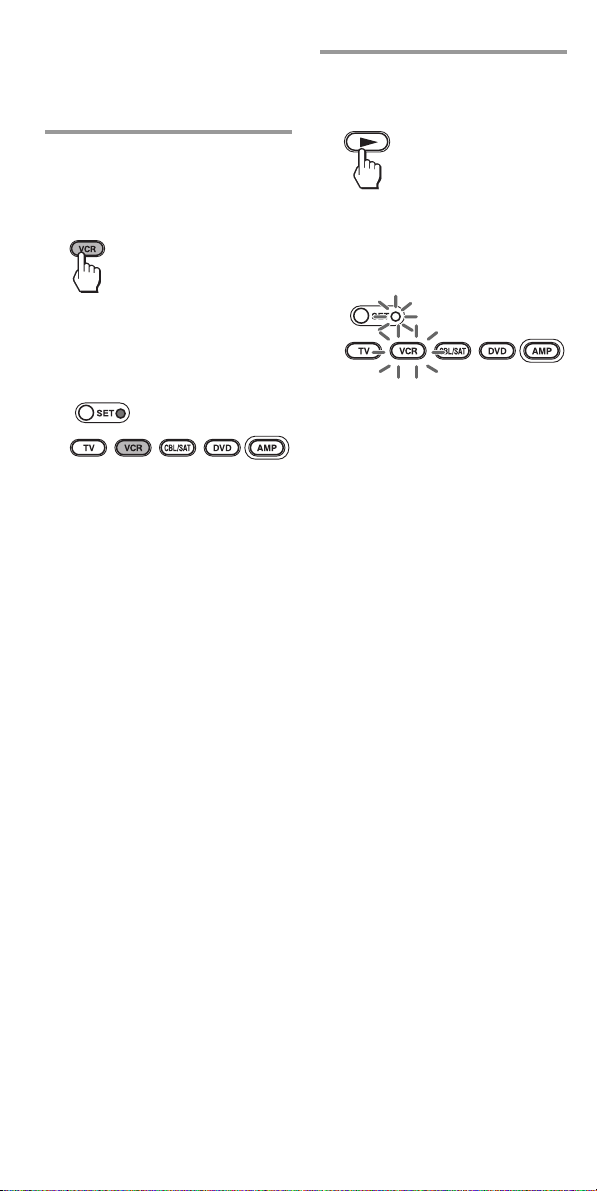
Example: To program the N
(Play) signal of your video
cassette recorder to the VCR N
(Play) button of the Commander
1 Place the RM-VL700 head
to head with your
component’s remote
control.
2 Press and hold SET for over
3 seconds.
The SET indicator lights up,
and all Component Select
buttons flash.
16
Programming signals of another
remote control
— Learning Function (continued)
3 Press the Component Select
button for the component
whose signals are to be
“learned.”
Both the SET indicator and the
selected Component Select
button light up, and all other
buttons turn off.
4 Press the button on the
Commander you want to
“teach.”
Both the SET indicator and the
selected Component Select
button flash (Learning function
standby).
If another signal has already
been “learned” by that
button
The SET indicator flashes
twice, and the Commander
takes no action returning to its
state after the Component
Select button was pressed in
Step 3.
Either “teach” to another free
button, or clear the already
“learned” function (page 21)
and start over from the
beginning.

17
5 Press and hold the button
on the other remote control,
until both the SET indicator
and the Component Select
button lights up again.
During data transfer, only the
SET indicator stays lit, and the
Component Select button turns
off.
After data transfer is complete,
the Commander returns to its
state in Step 3.
If the SET indicator flashes five
times
It means that “learning” is incomplete.
Repeat steps 4 and 5.
6 Repeat Steps 4 and 5 to
“teach” functions to other
buttons.
To “teach” another
component’s remote control
signal
After positioning the two remote
commanders as in Step 1 on page
15, press the corresponding
Component Select button, and then
follow Steps 4 and 5 to perform
Learning.
7 Press SET to finish setting.
during data
transfer
data transfer
complete
Notes
• If you do not perform Learning steps
within 20 seconds at any point during
the process, Learning mode ends.
• If you do not perform Step 5 within
10 seconds after Step 4, the learning
procedure returns to Step 3. Repeat
Step 4.
To cancel setup, press SET.
If the Commander does not
seem to be working
If the “learned” button does not
operate properly, “teach” once again.
(For example, if the volume becomes
very loud after pressing VOL+ only
once, noise may have interfered during
the Learning procedure.)
If you set a component code
after “learning” a signal
If you have programmed any signal on
a button by the Learning function, that
signal will work even after you set a
component code.
Note on the REC z signal
You can only “teach” to one button at a
time. Therefore you cannot teach a
sequential button operation (for
example REC z + B) to a single button
on the Commander. In this case,
“teach” the functions of each button on
your component to the Commander.
Continued
remote control
of component

18
Programming signals of another
remote control
— Learning Function (continued)
When you “teach” signals to
VOL +/– or MUTING
•If you used the Learning
function to program the VOL +/
– or MUTING buttons to send
any signal to components other
than the TV or AMP, that signal
will be transmitted only by
pressing MUTING when you
select that component.
•If you used the Learning
function to program the VOL +/
– or MUTING buttons to send
any signal to the TV or AMP,
that signal will be transmitted
only after you select TV or AMP.
When you select other
components, the “learned”
signal will be transmitted.
To “teach” the signals for an air-
conditioner
See “Notes on programming the
signals for an air-conditioner” on
page 23.
For accurate Learning
•Do not move the remote units
during the Learning procedure.
•Be sure to keep holding down
the “learning” button until your
Commander reacts as described.
•Use fresh batteries in both
remote units.
•Avoid Learning in places subject
to direct sunlight or a strong
fluorescent light. (Noise may
interfere during the Learning
procedure.)
•The remote control detector area
may differ depending on each
remote unit. If Learning does not
work, try changing the positions
of the two remote control units.
•When you teach signals of an
interactive signal exchange
system remote control unit
(supplied with some of Sony’s
amplifiers) to the Commander,
the response signal of the main
unit may interfere with the
learning of the Commander. In
such a case, move to a place
where the signals will not reach
the main unit (e.g. other rooms,
etc.).
IMPORTANT
Be sure to place the
Commander out of the reach of
small children or pets, and lock
the controls using the Hold
function (page 30).
Components such as air
conditioners, heaters, electric
appliances, and electric
shutters or curtains receiving
an infrared signal can be
dangerous if misused.

19
2 Press and hold the
Component Select button
for the component whose
signals are to be “learned”
for over 3 seconds.
SET and all other Component
Select buttons light.
Both the SET indicator and the
selected Component Select
button flash (Learning function
standby).
If another signal has already
been “learned” by that
button
The SET indicator flashes twice,
and the Commander takes no
action, returning to its state after
SET was pressed and held in Step 2.
Either “teach” to another free
button, or clear the already
“learned” function (page 21) and
start over from the beginning.
Continued
Programming remote
control signals to the
Component Select buttons
You can “teach” one operating
procedure to a Component Select
button, so that when you press the
Component Select button, the
operation is also automatically
done.
For example, if it is necessary to
switch the input selection of an
amplifier to DVD when you use a
DVD player, “teach” an input
select signal to the DVD button.
After “learning”, the input
selection of an amplifier is
automatically switched to DVD
just by pressing DVD. (For this
operation, an amplifier should
first be turned on.)
Example: To “teach” the DVD
input remote control signal of
your amplifier to the DVD
button of the Commander
1 Follow Steps 1 to 2 (page
15).

20
Programming signals of another
remote control
— Learning Function (continued)
3 Press and hold the button
on the other remote control,
until the SET indicator
lights and all the
Component Select buttons
flash again.
During data transfer, only the
SET indicator stays lit, and the
Component Select button turns
off.
If the SET indicator flashes
five times
It means that “learning” is
incomplete. Repeat Steps 2 and 3.
4 Repeat Steps 2 and 3 to
“teach” remote control
signals to other buttons.
5 Press SET to finish
“learning.”
Notes
• If you do not perform Learning
steps within 20 seconds at any
point during the process,
Learning mode ends.
• If you do not perform Step 3
within 10 seconds after Step 2, the
Learning procedure returns to
Step 1. Repeat from Step 2 while
the Component Select button
lights.
To cancel “learning,” press SET.

21
Continued
Changing or erasing the
function of a “learned”
button
To change the “learned” function,
clear it first and perform Learning
again.
To clear the “learned” function
of a single button
Example: To erase the “learned”
function from the Number
button 1 in VCR mode
1 Press and hold SET for over
3 seconds.
The SET indicator lights up,
and all Component Select
buttons flash.
2 While holding the desired
Component Select button
pressed, press the button
you want to erase.
The SET indicator turns off,
and the selected Component
Select button lights up.
Note
Be sure to press the button you
want to erase while pressing the
Component Select Button. If you
release the Component Select
button, the Commander changes to
Learning mode.
3 Press SET to finish setting.
To cancel erasing, press SET.
+
during data
erasing
data erasing
complete

22
Programming signals of another
remote control
— Learning Function (continued)
To clear all function signals
“learned” for a specific
Component Select button
Example: To erase all functions
“learned” by the VCR button
1 Press and hold SET for over
3 seconds.
The SET indicator lights up,
and all Component Select
buttons flash.
2 While holding x pressed,
press the Component Select
button you want to erase.
The SET indicator turns off,
and the selected Component
Select button lights up.
Note
With this operation, you can only
erase the “learned” functions of all
buttons for a specific component.
3 Press SET to finish setting.
To cancel erasing, press SET.
during data
erasing
data erasing
complete
To erase the learned function
of the Component Select
button that is TV, VCR, CBL/SAT,
DVD or AMP
Example: To erase the function
“learned” by the TV button
While holding SET pressed for
over 3 seconds, press and hold
the Component Select button
you want to erase for a while.
The SET indicator turns off,
and the Selected Component
Select button lights up.
x

23
Notes on programming the
signals for an air-
conditioner
About seasonal adjustments
If you change the settings of the
air-conditioner for the season, you
have to program the remote
control signals of the new settings
on the Commander.
If the power-on/off operation
does not work correctly
If the Commander can only
operate “ON” with one button
and “OFF” with another, while
your air-conditioner’s remote
control can operate “ON/OFF”
with a single button, program the
signal on two buttons of the
Commander as follows.
1 Clear the “learned” power-on/
off signal on the programmed
button of the Commander.
2 Reprogram only the power-on
signal of the air-conditioner on
the button of the Commander.
3 Program the power-off signal of
the air-conditioner on another
button of the Commander.
The two buttons of the
Commander have been
programmed with the power-on
signal and the power-off signal of
the air-conditioner respectively, so
that you can operate the air-
conditioner with the Commander.

24
Component Select
button
TV
VCR
CBL/SAT
DVD
AMP
Controls the volume of
TV
TV
TV
TV
amplifier
Advanced Features
Controlling the Volume
of Visual Components
Connected to an Audio
System
The Commander is factory preset
based on the assumption that you
hear the sound of your visual
components from your TV
speakers, and that you hear sound
of your audio components from
the loudspeakers connected to
your amplifier.
For example, to control the
volume while using a VCR, you
don’t need to press the TV button
to control the TV volume.
The following table shows the
factory setting of which volume
would be controlled for each
component.
However, if your visual
components are connected to an
audio system, you may want to
hear TV or VCR sound from the
loudspeakers via your amplifier,
not from your TV speakers. In this
case, you need to change the
factory preset so that you can
control the volume of your visual
components without first having
to switch to the amplifier.
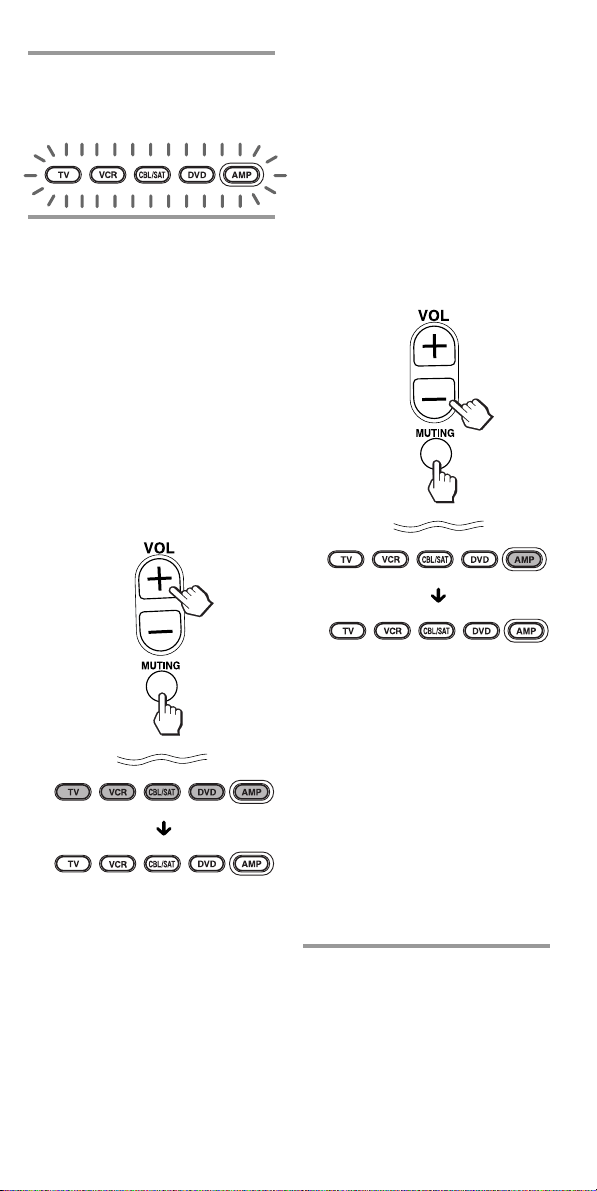
To change the Factory Preset of
the Volume Control
25
To set only the audio
components’ volume controls
to AMP
Press VOL– while holding
MUTING pressed.
Only AMP lights up when you
press these buttons, and then
turns off when you release
them.
When you press VOL-holding
MUTING pressed.
The buttons turn off when you
release them.
Volume control setting
complete.
Visual components are:
TV, video cassette recorder,
analog cable box, digital cable
box, digital satellite, DVD
player
Audio components are:
CD player, MD player,
cassette deck, amplifier
To cancel setting, press SET.
Note
If you used the Learning function to
program the VOL +/– or MUTING
buttons to send a signal to a
component, the procedure above will
not change the function of the VOL +/–
and MUTING buttons.
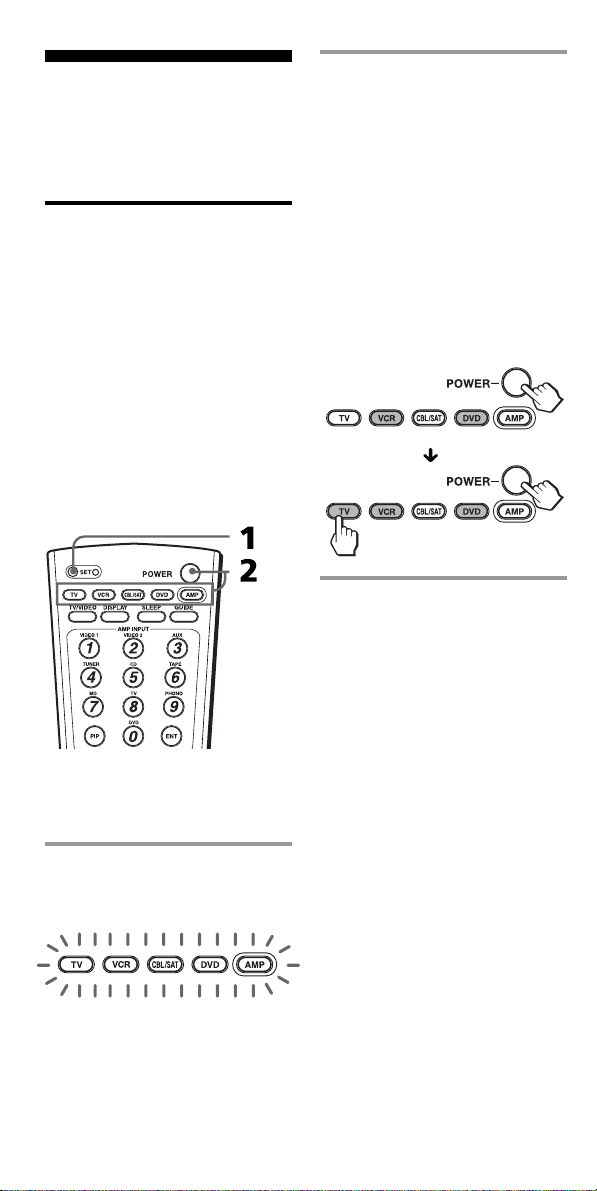
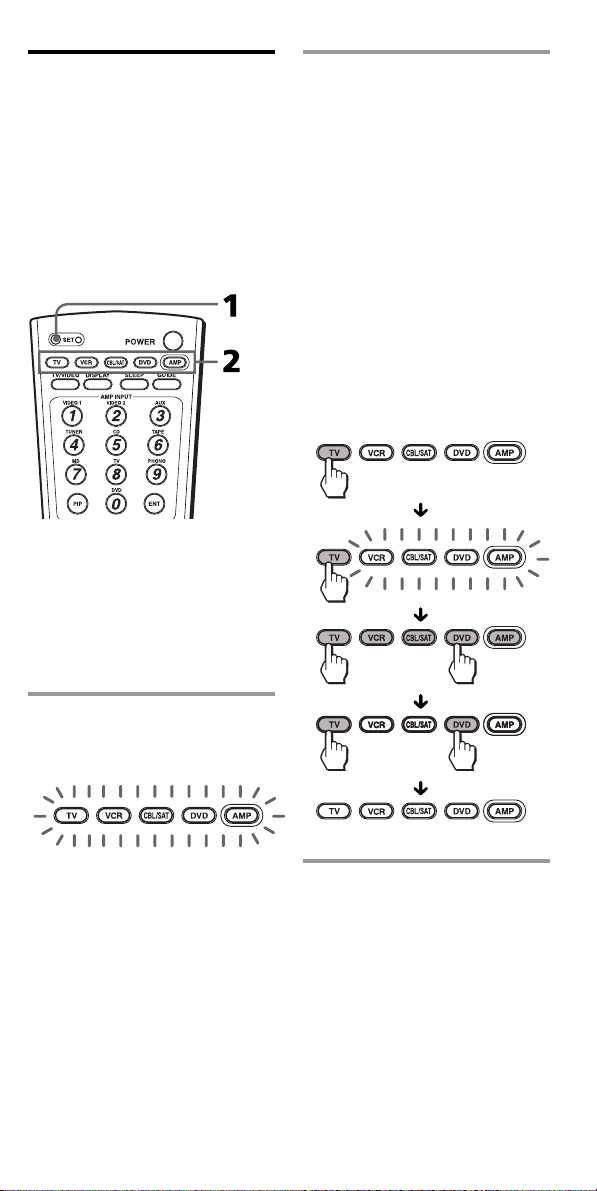
1 Press SET.
All Component Select buttons
flash.
2 While holding MUTING
pressed, press VOL + or
VOL –.
To set all volume controls to
AMP
Press VOL+ while holding
MUTING pressed.
All Component Select buttons
light up when you press these
buttons, and then turn off
when you release them.
When you press VOL+ holding
MUTING pressed.
The buttons turn off when you
release them.
Volume control setting
complete.
26
Adding an Extra
Function to the
Component Select
Buttons
Programming the Power-On
Command of the Selected
Component just by pressing
that Component Select
button (for Sony
Components only)
When using Sony components,
you can program the Power-On
signal for each component on a
Component Select button. You can
select the desired component and
power it on by just pressing that
Component Select button.
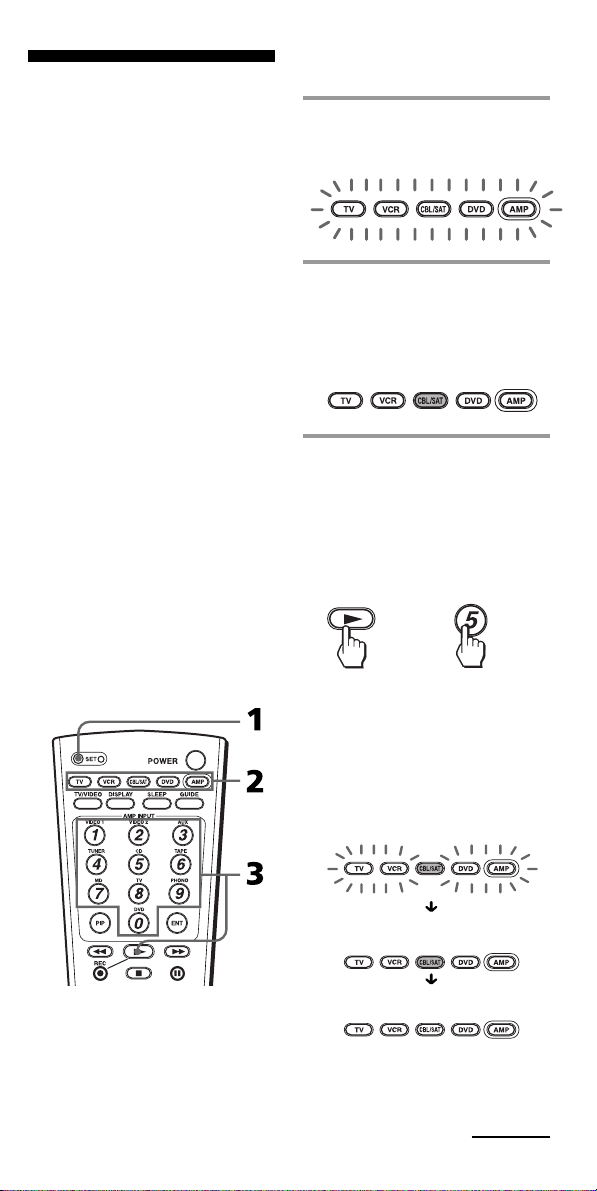
Example: To program the TV
button
1 Press SET.
All Component Select buttons
flash.
2 While holding POWER
pressed, press the desired
Component Select button.
When you first press POWER,
only the Component Select
buttons that have already been
set with the Power-On
command light up.
Example: If the Power-On
command has been
programmed on the VCR and
DVD buttons, these buttons
light up when you first press
POWER.
To cancel setting, press SET.
To clear the Power-On command
Repeat the same procedure,
pressing the desired Component
Select button that lights up when
you press POWER.
Notes
• If the component code of a non-Sony
brand has been set on a Component
Select button, you cannot program
the Power-On function on it. If you
change the component code (page 8)
after setting the Power-On function,
the Power-On function is cleared.
• Even if you used the Learning
function (page 15) to program a
signal on a Component Select button,
you can program the Power-On
function on that button but it cannot
be used. If you clear the “learned”
function on that button, you can use
the Power-On function.
27
Assigning Other
Components to the
Component Select
Buttons
You can assign another
component to any of the
Component Select buttons not
being used.
Notes
• Once you assign another component
to a Component Select button, the
setting of the component code
number will be erased. The
component code number will not
return even if you reset the newly
assigned component and turn back to
the original component.
To use the original component
setting, set the component code
number again (page 8).
• If you have assigned another
component to the TV or AMP button,
the volume of the TV or amplifier
(page 13,24) cannot be controlled
even when you select other
components.
• If you have already programmed any
remote control signals on the
Component Select buttons using the
Learning function, you cannot assign
other components to the Component
Select buttons.
Continued
Example: To assign a CD player
to the CBL/SAT button
1 Press SET.
All Component Select buttons
flash.
2 Press the Component Select
button to which you want
to assign a function.
The selected Component Select
button lights up.
3 While holding N pressed,
press one of the following
Number buttons to select
the one to which you want
to assign the function.
In this example, press the
Number 5 button to select CD.
The Component Select buttons
change as follows, and
assigning to the selected
Component Select button will
be set.
when N is pressed
when N + 5 are pressed
when the buttons are released
+

28
To reset a Component Select
button to its original setting
Perform the setting of the original
component following the
procedure on page 27. Note
however if the original component
has any “learned” signals, setting
cannot be performed.
Assigning Other Components to
the Component Select Buttons
(continued)
Each component is assigned to
the Number Buttons as follows.
1: VCR 7: MD
3: SAT 8: TV
4: AMP 9: CBL
5: CD 0: DVD
6: TAPE
To assign a digital cable box, select
the Number button 3(SAT).
Notes
• In this step, only the factory-set
function is assigned. Other newly
“learned” functions (page 15) are not
assigned.
• If a component to be assigned has
any “learned” signals, the indicator
SET flashes twice. Then setting
cannot be performed. In this case,
clear the “learned” signals and follow
Steps 1 - 3 again, or select another
Component Select button which is
not assigned to “learned” keys or
buttons.
• You can copy the “learned” remote
control signals of a Component Select
button to another button (page 29).
4 •If you need to set the
component code, follow
the steps on pages 8 to 9.
•If you need to program
some signals by the
Learning function, follow
the Steps 1 and 3 to 7 on
pages 15 to 17.
To cancel setting, press SET.
29
2 Press and hold for over 3
seconds the desired
Component Select button to
which you want to copy a
setting from another
component.
While holding down this
button, the other Component
Select buttons flash. Then,
when you press the
Component Select button
which holds the setting you
want to copy, all Component
Select buttons light up. When
copying is complete, any
Component Select buttons
other than the two buttons
pressed, turn off.
To cancel setting, press SET.
To return the setting of the
Component Select button to the
original component setting
Clear the “learned” function (page
21) and perform the original
component setting following the
procedure on page 27.
Tip
Small data will be processed soon.
Copying the settings of a
Component Select button
to another button
You can copy the entire settings of
a Component Select button to
another Component Select button.
The settings of the component
code (page 8) and the “learned”
function (page 15) are copied to a
new button.
Note
You cannot copy the settings to a
Component Select button on which any
“learned” function (page 15) has been
programmed.
Example: To copy the settings of
the DVD button to the TV button
1 Press SET.
All Component Select buttons
flash.
for over 3 seconds

30
Using Other Functions
Locking the Controls
— Hold Function
To prevent accidental operation,
you can lock all the buttons with
the Hold function.
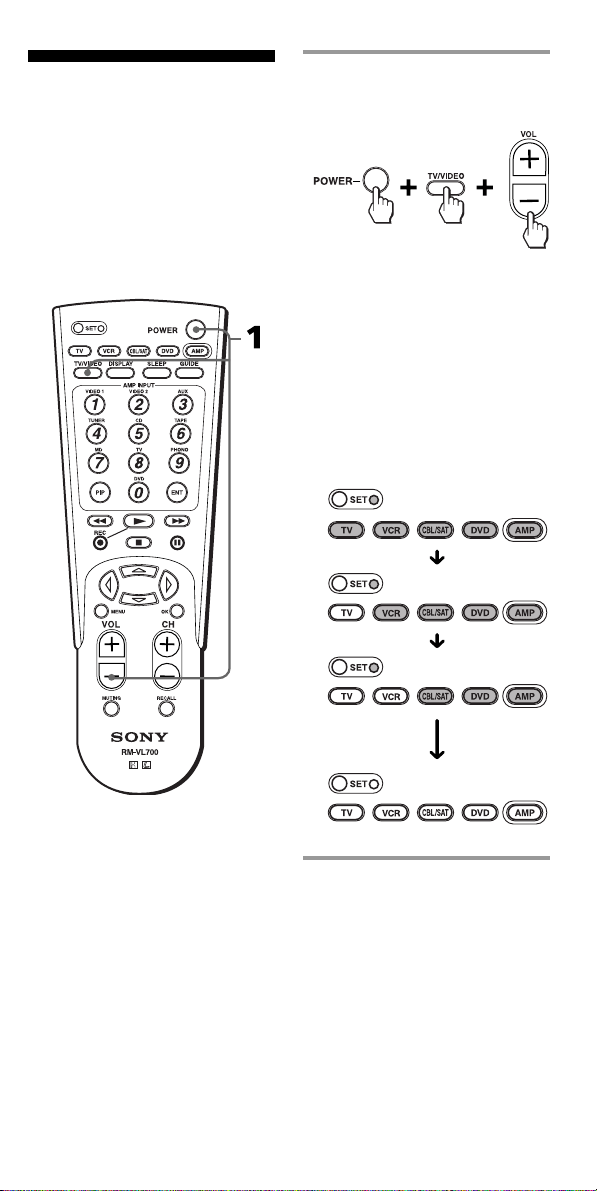
1 While holding POWER
pressed, press MUTING
and RECALL.
The SET indicator flashes once,
and the Hold function is set.
While the Hold function is on,
no function can be operated.
(All Component Select buttons
flash twice.)
To unlock the control
Press the same three buttons in the
same order as the former
procedure.
The SET indicator flashes twice,
and the Hold function is disabled.
(twice)
(twice)
(once)
31
Erasing all settings
— To reset the
Commander to its
factory settings
You can erase all remote control
signals programmed by the
“learned“ function to reset the
Commander to its factory settings.
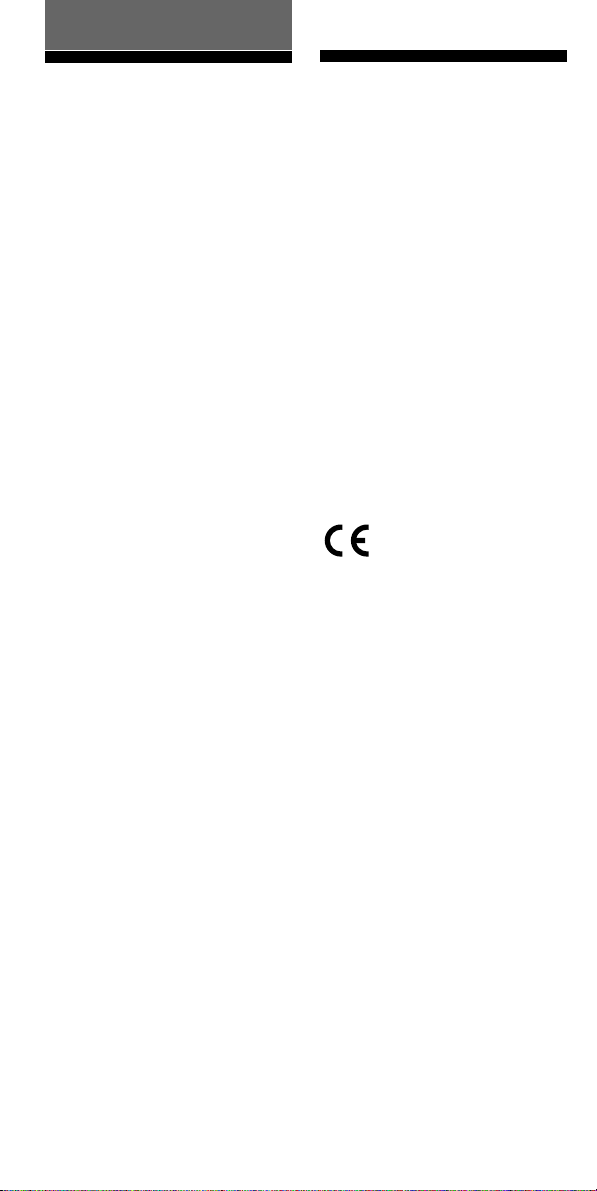
1 While holding POWER
pressed, press TV/VIDEO
and VOL –.
The SET indicator and all
Component Select buttons light
up. Then the Component Select
buttons turn off one by one
from the left, followed by the
SET indicator. When the SET
indicator turns off at last, all
settings are cleared, and
Commander returns to its
original state.
32
Specifications
Operating distance
Approx. 32.8 ft. (10 m) (varies
depending on components of
different manufacturers)
Power requirements
Two size AA (R6) batteries
Battery life
Approx. 6 months (varies depending
on frequency of use)
Dimensions
Approx. 2
1
/2 × 7
7
/8 × 1
5
/16 in. (63 ×
197 × 32 mm) (w × h × d)
Mass
3.7 oz (105 g) (not including batteries)
Design and specifications are subject to
change without notice.
* The operating distance maybe
different depending on the brand or
the component to be used.
The CE mark on the unit
is valid only for products
marketed in the
European Union.
Additional Information
Precautions
•Do not drop the unit or give a
shock to the unit, or it may cause
a malfunction.
•Do not leave the unit in a
location near heat sources, or in
a place subject to direct sunlight,
excessive dust or sand, moisture,
rain or mechanical shock.
•Do not put foreign objects into
the unit. Should any liquid or
solid object fall into the unit,
have it checked by qualified
personnel before operating the
unit any further.
•Do not expose the remote control
detectors of your components to
direct sunlight or other strong
illumination. Too much light
there can interfere with remote
control operations.
•Be sure to place the Commander
out of the reach of small children
or pets. Components such as air
conditioners, heaters, electric
appliances, and electric shutters
or curtains receiving an infrared
signal can be dangerous if
misused.

33
Troubleshooting
If you have problems setting up or using the Remote Commander, first
check the batteries (page 6), then check the items below.
Remedy
• Go closer to the component. The maximum operating
distance is approximately 32.8 ft. (10 m).
• Check that you are aiming the Commander directly at the
compoent, and that there are no obstructions between the
Commander and the component.
• Power on the components first, if necessary.
• Make sure you have pressed the correct Component Select
button. In case of CBL/SAT, or DVD, make sure the desired
component is selected.
• Check that the component has infrared remote capability. For
example, if your component didn’t come with a remote
commander, it probably isn’t capable of being controlled by a
remote commander.
• You have assigned a different component on the Component
Select button. Check the component assigned to that button
and the component code.
• If your visual components are connected to an audio system,
make sure you’ve set up the Commander as described in
“Controlling the Volume of Visual Components Connected to
an Audio System” (page 24).
• You have assigned another component on the TV or AMP
button (page 27). In this case, the volume cannot be controlled
when you select components other than TV or AMP.
• Set the component code correctly. If the code that is listed first
for your component doesn’t work, try all the codes for your
component in the order in which they are listed in the
supplied “Component Code Numbers”.
• Some features may not be preset. If some or all of the buttons
do not function correctly even after you have set the
component codes, then use the Learning function to program
the remote control signals for the component (page 15).
• The component may be operated with a code number that is
not listed in the “Component Code Numbers”. See “Setting a
component code by the Search function” (page 11) and try
setting a code number again with the Search function.
• When you teach signals of an interactive signal exchange
system remote control unit (supplied with some of Sony’s
amplifiers) to the Commander, the response signal of the
main unit may interfere with the learning of the Commander.
In such a case, move to a place where the signals will not
reach the main unit (e.g. other rooms, etc.).
• Make sure that the Remote Commander has “learned” the
correct signals. If not, see “For accurate Learning” (page 18)
and try the Learning procedure again (page 15).
Symptom
You cannot operate the
components.
You cannot control the
volume.
You cannot operate the
components even after
setting the component
code numbers.
The Commander fails to
learn the remote control
signals.
You cannot operate a
component even after
you programmed the
remote control signals
with the Learning
function.
Continued

34
Symptom
The SET indicator falshes
five times during the
Learning procedure.
A Component Select
button flashes five times
during setting.
The SET indicator falshes
twice during the
Learning procedure.
All Component Select
buttons flash twice.
The Component Select
buttons flash by a
constant interval when
you press a button.
Remedy
• Learning has not succeeded. See “For accurate Learning”
(page 18) and try the Learning procedure again (page 15).
• Clear infrequently used Learned functions (page 21), then
carry out learning operations.
• The component codes cannot be set. See the supplied
“Component Code Numbers” and try setting the component
codes again (page 8).
• A selected Component Select button or another button to be
set has any remote control signals programmed by Learning
function (page 15). Clear the “learned” signals (page 21) or
select another button which has no “learned” signals, and try
setting again.
• The Hold function is on. Unlock the Hold function (page 30).
• Batteries are weakened.
Replace them with new ones.
For the customers in the U.S.A
Customer Support Information
After you have read through this manual, if you still cannot get the Remote
Commander to work properly, call the Sony Customer Support Helpline
at 1-800-822-2217.
Troubleshooting (continued)

35
KEY DISPLAY
0POWER
3qd
1 – 9, 0, ENT
1TV/VIDEO
2DISPLAY
qsSLEEP
qaGUIDE
(PIP OFF)
7MENU
TV
FUNCTION
To turn on and off.
To change the channel.
For example, to change
to channel 5, press 0 and
5 (or, press 5 and ENT).
To change the input
mode.
To display the current
channel on TV.
To operate SLEEP
function on the TV
(works only for a TV
with SLEEP function).
To turn off the
“window” picture.
To call up the MENU
display.
Appendix
Table of Preset
Functions
Note
There may be some components or
functions that cannot be operated with
this Commander.
KEY DISPLAY
6f
6F
6G
6g
qfOK
4PIP
5M
(PIP CH +)
5m
(PIP CH –)
5REC z
(PIP INPUT)
5X
(PIP STILL)
5N
(PIP SWAP)
5x
(PIP MOVE)
qgCH +/–
qhRECALL
8VOL +/–
9MUTING
FUNCTION
To move the cursor
upward.
To move the cursor
downward.
To move the cursor to
the right.
To move the cursor to
the left.
To enter the selection of
the MENU display.
To turn on/off the
“window” picture.*
To change the TV
channel + in the
“window” picture.
To change the TV
channel – in the
“window” picture.
To change the input
mode of the “window”
picture.
To freeze the “window”
picture.
To swap the “main”
picture and the
“window” picture.
To move the location of
the “window”picture.
Channel up: +
Channel down: –
To operate JUMP,
FLASHBACK or
CHANNEL RETURN
function on the TV
depending on the setting
of the TV’s
manufacturer.
Volume up: +
Volume down: –
To mute the volume on
the TV. Press again to
turn muting off.
Continued

36
Table of Preset Functions
(continued)
KEY DISPLAY
0POWER
3qd
1 – 9, 0, ENT
2DISPLAY
1TV/VIDEO
(ANT/SW)
qsSLEEP
(INPUT
SELECT)
7MENU
6f
6F
6G
6g
qfOK
5m
5N
5M
5REC z
5x
5X
qgCH +/–
VCR
FUNCTION
To turn on and off.
To change the channel.
For example, to change
to channel 5, press 0 and
5 (or, press 5 and ENT).
To expose the on-screen
display.
To switch the antenna
output.
To change the input
mode.
To call up the MENU
display.
To move the cursor
upward.
To move the cursor
downward.
To move the cursor to
the right.
To move the cursor to
the left.
To enter the selection of
the MENU display.
To rewind.
To play.
To fast-forward.
To record, press N
while pressing REC z**.
First release N, then
release REC z.
To stop.
To pause.
Channel up: +
Channel down: –
** In order to avoid recording by
mistake, the REC z button does not
work by itself.
KEY DISPLAY
0POWER
3qd
1 – 9, 0, ENT
qgCH +/–
qhRECALL
CBL (Cable box)
FUNCTION
To turn on and off.
To change the channel.
For example, to change
to channel 5, press 0 and
5 (or , press 5 and ENT.)
Channel up :+
Channel down : –
To operate JUMP,
FLASHBACK or
CHANNEL RETURN
function.

37
KEY DISPLAY
0POWER
31 – 9, 0
4PIP
(+10)
qdENT
1TV/VIDEO
(AUDIO)
2DISPLAY
qaGUIDE
(CLEAR)
qhRECALL
(RETURN)
5REC z
(TITLE)
qsSLEEP
(SUBTITLE)
7MENU
(DVD
MENU)
6f
6F
6G
6g
qfOK
5m
5N
5M
5x
5X
qgCH + (>)
qgCH – (.)
DVD
FUNCTION
To turn on and off.
Number buttons: To set
items selected from the
screen.
To select numbers 10
and above.
To enter the setting. To
set items selected from
the screen.
To change the sound.
To show the current play
status on the screen.
To clear the selected
characters from the
screen.
To return to the last
previous screen.
To display the title
menu.
To switch the subtitle.
To display the DVD
menu.
To move the cursor
upward.
To move the cursor
downward.
To move the cursor to
the right.
To move the cursor to
the left.
To execute items
selected from the screen.
To rewind.
To play.
To fast-forward
To stop.
To pause.
To proceed to the next
location or song.
To proceed to the
previous location or
song.
KEY DISPLAY
0POWER
3qd
1 – 9, 0, ENT
1TV/VIDEO
2DISPLAY
4PIP
(FAVORITE)
qsSLEEP
(Station
Index)
qaGUIDE
5N (EXIT)
7MENU
6f
6F
6G
6g
qfOK
qgCH +/–
qhRECALL
SAT
FUNCTION
To turn on and off.
To change the channel.
For example, to change
to channel 5, press 0 and
5 ( or, press 5 and ENT)
To switch the output of
the SAT receiver to the
TV. (When you connect
a TV cable or antenna to
the receiver, the output
switches between a TV
and SAT program.)
To turn on the display.
To use the “FAVORITE”
function.
To bring up the Station
Index.
To bring up Master
Guide.
To exit the mode.
To call up the MENU
display.
To move the cursor
upward.
To move the cursor
downward.
To move the cursor to
the right.
To move the cursor to
the left.
To bring up the Station
Index when a program
guide is not displayed.
To select the channel
that is highlighted.
Channel up : +
Channel down : –
To return to the last
tuned station
Continued

38
KEY DISPLAY
0POWER
5m
5N
4PIP (n)
5M
5REC z
5x
5X
qhRECALL
(A/B)
7MENU (z)
6f (N)
6F (x)
6G (M)
6g (m)
qdENT (n)
qfOK (X)
DECK
FUNCTION
To turn on and off.
To rewind.
To play.
To reverse.
To fast-forward.
To record, press N
while pressing REC z.
First release N, then
release REC z.
To stop.
To pause.
To select the tape deck :
Deck A or B (dual
cassette deck only).
To record, press f while
pressing MENU. First
release f, then release
MENU.*
To play.*
To stop.*
To fast-forward.*
To rewind.*
To reverse.
To pause.*
Table of Preset Functions
(continued)
KEY DISPLAY
0POWER
31 – 9, 0
qdENT
5m
5N
5M
5REC z
5x
5X
qgCH + (>)
qgCH – (.)
DAT
FUNCTION
To turn on and off.
To select a program
number.
To enter the setting.
To rewind.
To play.
To fast-forward.
To record, press N
while pressing REC z.
First release N, then
release REC z.
To stop.
To pause.
To proceed to the next
song.
To proceed to the
previous song.
* Activated when using a double
cassette deck
(for deck A of Sony component)
KEY DISPLAY
0POWER
31 – 9, 0
4PIP
(+10)
qdENT
qhRECALL
(D.SKIP)
5m
5N
5M
5x
5X
qgCH + (>)
qgCH – (.)
CD
FUNCTION
To turn on and off.
To select the track
number. 0 selects track
10.
To select track numbers
above 10, see the
descriptions on the +10
button below.
To select numbers 10
and above.
To enter the setting.
To select next disk.
To rewind.
To play.
To fast-forward.
To stop.
To pause.
To select the next track.
To select the previous
track.
KEY DISPLAY
0POWER
31 – 9, 0
4PIP
(+10)
qdENT
qhRECALL
(D.SKIP)
5m
5N
5M
5REC z
5x
5X
qgCH + (>)
qgCH – (.)
MD
FUNCTION
To turn on and off.
To select the track
number. 0 selects track
10.
To select track numbers
above 10, see the
descriptions on the +10
button below.
To select numbers 10
and above.
To enter the setting.
To select the next disc.
To rewind.
To play.
To fast-forward.
To record, press N
while pressing REC z.
First release N, then
release REC z.
To stop.
To pause.
To select the next track.
To select the previous
track.

39
KEY DISPLAY
0POWER
31
32
33
34
35
36
37
38
39
30
qaGUIDE
(INPUT)
qhRECALL
(SHIFT)
qgCH+/–
8VOL +/–
9MUTING
AMP
FUNCTION
To turn on and off.
To select the input
source: VIDEO 1
To select the input
source: VIDEO 2
To select the input
source: AUX
To select the input
source: TUNER
To select the input
source: CD
To select the input
source: TAPE
To select the input
source: MD
To select the input
source: TV
To select the input
source: PHONO
To select the input
source: DVD
To change the input
select cyclically
To shift band or preset
select
Presetting or tuning
frequency up: +
Presetting or tuning
frequency down: –
Volume up: +
Volume down: –
To mute the volume on
the AMP. Press again to
turn muting off.
KEY DISPLAY
0POWER
3qd1-9, 0, ENT
1TV/VIDEO
(INPUT)
**Thumbs Up
2DISPLAY
**Thumbs
Down
4PIP
(Favorite)
qsSLEEP
(Exit/Clear)
qaGUIDE
(EPG)
**Live TV
7MENU
**TiVo
6f
6F
6G
6g
qfOK
qgCH +
(PAGE +)
CH –
(PAGE –)
qhRECALL
5m
5N
5M
5z REC (REC
ON/OFF)
5x
5X
Digital Cable Box
FUNCTION
To turn on and off.
To change the channel.
For example, to change to
channel 5, press 0 and 5
(or, press 5and ENTER).
Select either TV or Cable
for viewing (By pass
mode).
Alls up title bar and
toggles title bar on/off.
To switch the
“FAVORITE” TV
channel list
programmed by a
customer to ON/OFF
To return to the TV
screen from the html
screen or the E-mail
screen, etc.
To switch the EPG
display to ON/OFF.
To call up the MENU
display.
To move the cursor
upward.
To move the cursor
downward.
To move the cursor to
the right.
To move the cursor to
the left.
To command to execute
for EPG.
Channel up: +
Channel down: –
To toggle the current
channel/the last
previous channel.
*To rewind
*To play
*To fast-forward
*To record, press N
while pressing REC.
First release N, then
release REC.
*To stop
*To pause
* The operation is possible when using
the built-in HDD type STB or in
Video-on-demand mode.
**This key display corresponds to TiVo
service or the replay service. Refer to
its instruction manual for details.

40
Index
A, B
Batteries 6
C, D
Changing 21
CH (CHANNEL) button 11
Clearing/Changing
learned signal 21, 22
Power-On command 26
Code number 8, 11
Component Select buttons
assigning other components 27
copying settings 29
programming a signal 15
setting Power-On function 26
Copying
settings of Component Select
buttons 29
E
Erasing 31
F, G, H
Factory setting 28, 31
I, J, K
Input select 14
L
Learning Function 15
Locking control of Commander 30
M
MUTING button 10, 13, 18, 25, 30
N, O
Number buttons 9, 14, 21, 27
P, Q, R, S
Power-On function
setting 26
Preset components 8
T, U
Troubleshooting 33
V, W, X, Y, Z
VOL buttons 10, 13, 17, 18, 25, 31
Volume Control 10, 13, 24
Sony Corporation Printed in Malaysia