User Manual
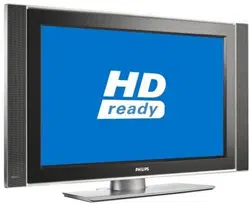
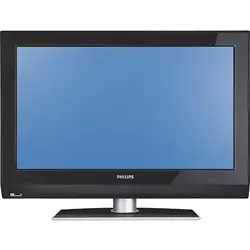
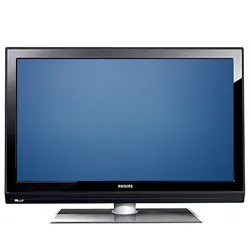
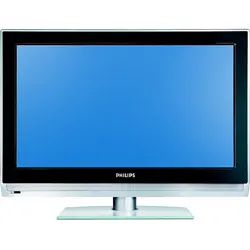
32PT9100D
26PW9100D
30PW9100D
30PW9110D
Thank you for choosing Philips.
Need help fast?
Read your Quick Use Guide and/or
Owner's Manual
first for quick tips
that make using your Philips product
more enjoyable.
If you have read your instructions
and still need assistance,
you may access our online help at
www.usasupport.philips.com
or call
1-888-PHILIPS (744-5477)
while with your product
(and Model / Serial number)
S
T
O
P
For Customer Use
Enter below the Serial No. which is located
on the rear of the cabinet. Retain this
information for future reference.
Model No.
__________________________
Serial No.
_________________________
2
Registering your model with PHILIPS makes you eligible for all of the valuable benefits listed below, so don't miss out.
Complete and return your Product Registration Card at once to ensure:
Return your Product Registration Card today
to get the very most from your purchase.
Visit our World Wide Web Site at http://www.usasupport.philips.com
Congratulations on your purchase,
and welcome to the “family!”
Dear PHILIPS product owner:
Thank you for your confidence in PHILIPS. You’ve selected one
of the best-built, best-backed products available today. We’ll do
everything in our power to keep you happy with your purchase for
many years to come.
As a member of the PHILIPS “family,” you’re entitled to protection
by one of the most comprehensive warranties and outstanding
service networks in the industry. What’s more, your purchase
guarantees you’ll receive all the information and special offers
for which you qualify, plus easy access to accessories from our
convenient home shopping network.
Most importantly, you can count on our uncompromising
commitment to your total satisfaction.
All of this is our way of saying welcome - and thanks for investing in
a PHILIPS product.
P.S. To get the most from your PHILIPS purchase,
be sure to complete and return your Product
Registration Card at once.
Know these
safety
symbols
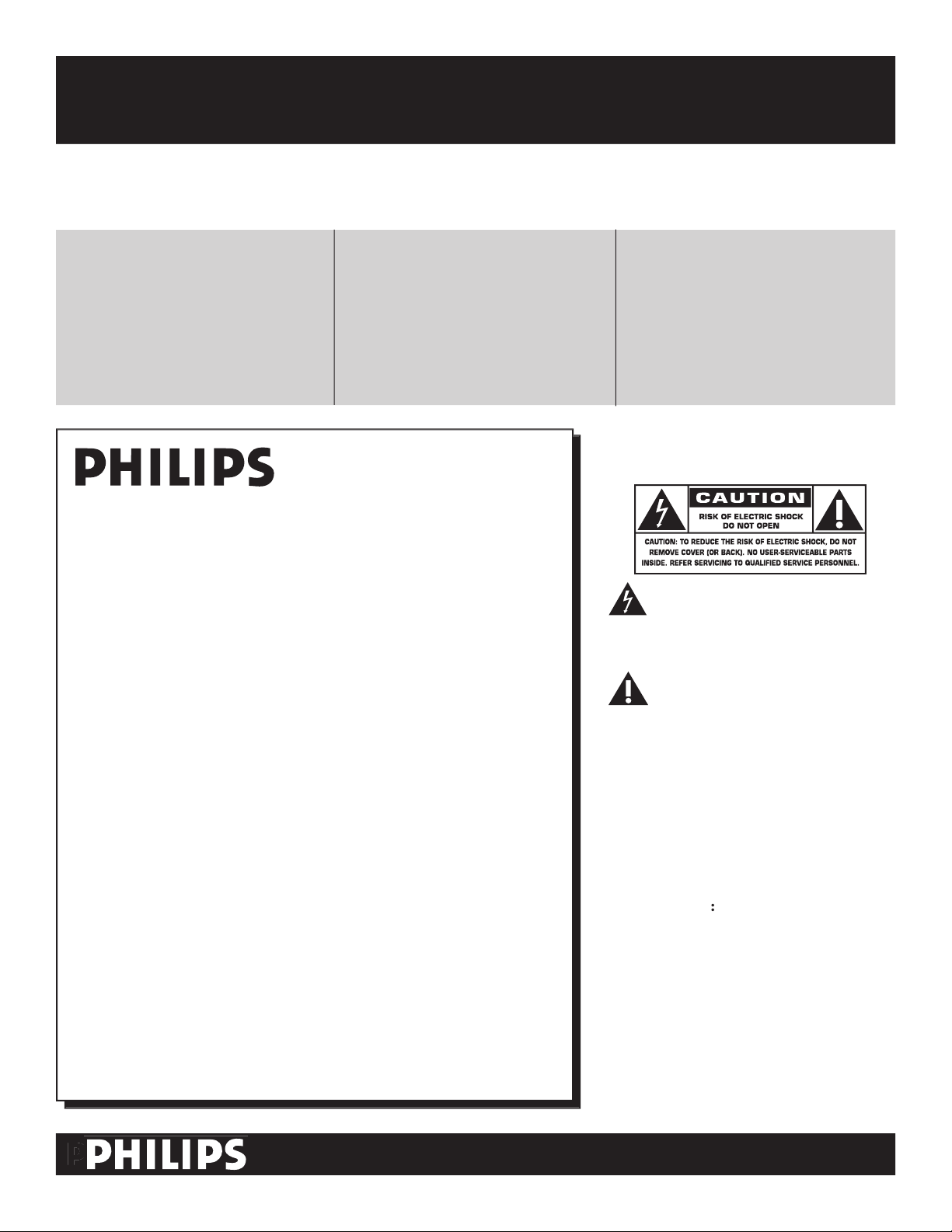
This “bolt of lightning” indicates
uninsulated material within your unit
may cause an electrical shock. For the safety
of everyone in your household, please do not
remove product covering.
The “exclamation point” calls attention
to features for which you should
read the enclosed literature closely to
prevent operating and maintenance problems.
WARNING:
To reduce the risk of fire or
electric shock, this apparatus should not be
exposed to rain or moisture and objects filled
with liquids, such as vases, should not be
placed on this apparatus.
CAUTION:
To prevent electric shock,
match wide blade of plug to wide slot, fully
insert.
ATTENTION
:
Pour éviter les choc
électriques, introduire la lame la plus large de
la fiche dans la borne correspondante de la
prise et pousser jusqu’au fond.
*Proof of
Purchase
Returning the enclosed card guarantees
that your date of purchase will be on
file, so no additional paperwork will be
required from you to obtain warranty
service.
*Product Safety
Notification
By registering your product, you'll receive
notification - directly from the manufac-
turer - in the rare case of a product recall
or safety defect.
*Additional Benefits
of Product Ownership
Registering your product guarantees that
you'll receive all of the privileges to which
you're entitled, including special money-
saving offers.
IMPORTANT SAFETY INSTRUCTIONS
Read before operating equipment
1
. Read these instructions.
2.
Keep these instructions.
3
. Heed all warnings.
4.
Follow all instructions.
5.
Do not use this TV near water.
6.
Clean only with a dry cloth.
7
. Do not block any of the ventilation openings. Install in accordance
with the manufacturers instructions.
8.
Do not install near any heat sources such as radiators, heat
registers, stoves, or other apparatus (including amplifiers) that
produce heat.
9.
Do not defeat the safety purpose of the polarized or grounding-
type plug. A polarized plug has two blades with one wider than the
other. A grounding type plug has two blades and third grounding
prong. The wide blade or third prong are provided for your safety.
When the provided plug does not fit into your outlet, consult an
electrician for replacement of the obsolete outlet.
10
. Protect the power cord from being walked on or pinched
particularly at plugs, convenience receptacles, and the point where
they exit from the apparatus.
11
. Only use attachments/accessories specified by the manufacturer.
12
. Use only with a cart, stand, tripod, bracket, or table
specified by the manufacturer, or sold with the TV
When a cart is used, use caution when moving
the cart/TV combination to avoid injury from tip-over.
13
. Unplug this TV during lightning storms or when unused for long
periods of time.
14.
Refer all servicing to qualified service personnel. Servicing is
required when the TV has been damaged in any way, such as
power-supply cord or plug is damaged, liquid has been spilled or
objects have fallen into apparatus, the TV has been exposed to rain
or moisture, does not operate normally, or has been dropped.
15
. This product may contain lead and mercury. Disposal of these
materials may be regulated due to environmental considerations.
For disposal or recycling information, please contact your local
authorities or the Electronic Industries Alliance: www.eiae.org
16.
Damage Requiring Service - The TV should be serviced by qualified
service personnel when:
A
. The power supply cord or the plug has been damaged; or
B.
Objects have fallen, or liquid has been spilled into the TV; or
C.
The TV has been exposed to rain; or
D.
The TV does not appear to operate normally or exhibits a
marked change in performance; or
E.
The TV has been dropped, or the enclosure damaged.
17. Tilt/Stability
- All televisions must comply with recommended
international global safety standards for tilt and stability properties
of its cabinet design.
• Do not compromise these design standards by applying excessive
pull force to the front, or top, of the cabinet which could ultimately
overturn the product.
• Also, do not endanger yourself, or children, by placing electronic
equipment/toys on the top of the cabinet. Such items could
unsuspectingly fall from the top of the set and cause product
damage and/or personal injury.
18. Wall or Ceiling Mountin
g - The TV should be mounted to a
wall or ceiling only as recommended by the manufacturer.
19. Power Lines
- An outdoor antenna should be located away from
power lines.
20.
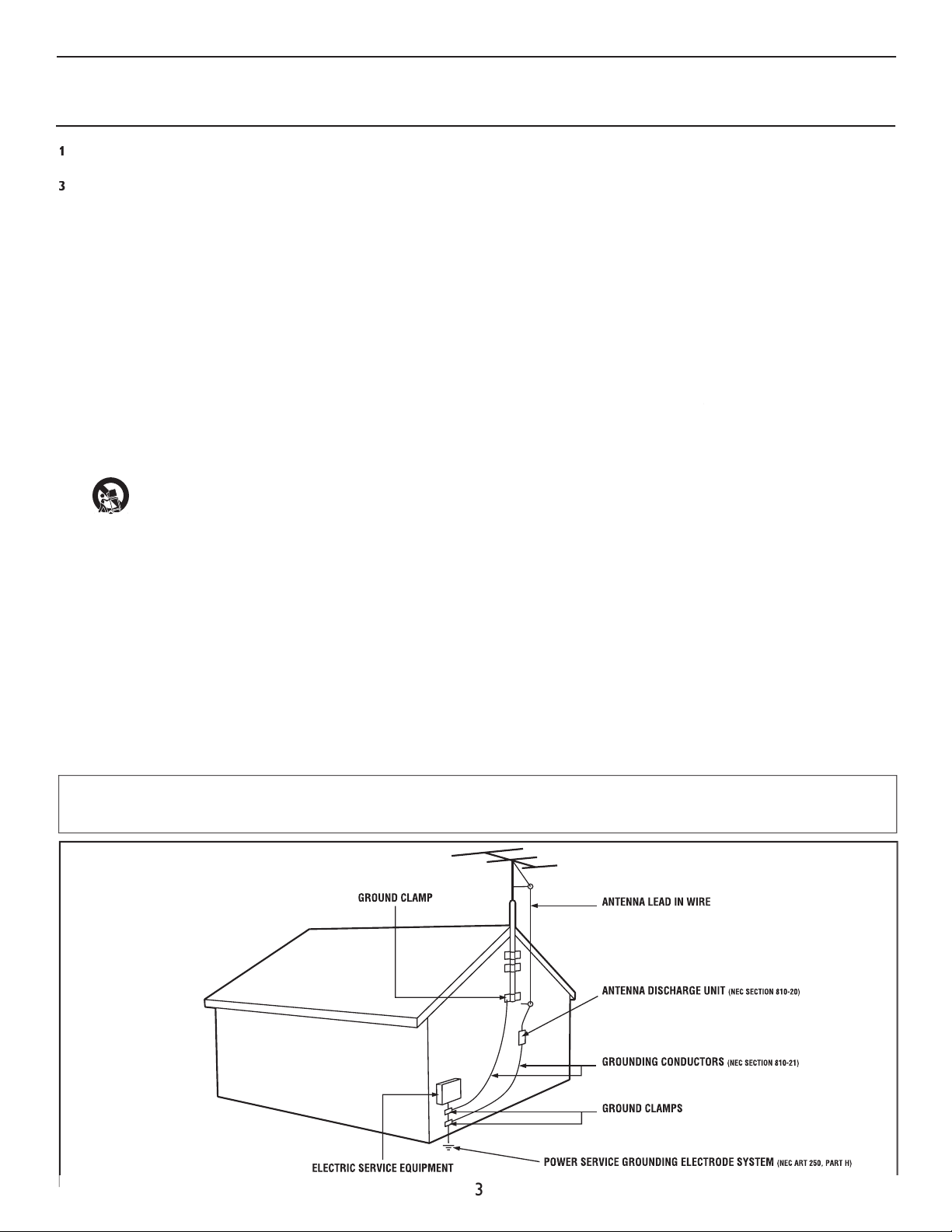
Outdoor Antenna Grounding
- If an outside antenna is
Outdoor Antenna Grounding - If an outside antenna is Outdoor Antenna Grounding
connected to the receiver, be sure the antenna system is grounded so
as to provide some protection against voltage surges and built up static
charges.
Section 810 of the National Electric Code, ANSI/NFPA No. 70-
1984, provides information with respect to proper grounding of
the mast and supporting structure, grounding of the lead-in wire to
an antenna discharge unit, size of grounding connectors, location
of antenna-discharge unit, connection to grounding electrodes, and
requirements for the grounding electrode. See Figure below.
21
.
Object and Liquid Entry
- Care should be taken so that objects
do not fall and liquids are not spilled into the enclosure through
openings.
a)
Warning: To reduce the risk of fire or electric shock, this
apparatus should not be exposed to rain or moisture and objects
filled with liquids, such as vases, should not be placed on this
apparatus.
22.
Battery Usage CAUTION
-
To prevent battery leakage that
may result in bodily injury, property damage, or damage to the unit:
• Install all batteries correctly, with + and - aligned as marked on
the unit.
• Do not mix batteries (old and new or carbon and alkaline, etc.).
• Remove batteries when the unit is not used for a long time.
Example of Antenna Grounding
as per NEC - National Electric Code
Note to the CATV system installer:
This reminder is provided to call the CATV system installer's attention to Article 820-40 of the NEC
that provides guidelines for proper grounding and, in particular, specifies that the cable ground shall be connected to the grounding system of the
building, as close to the point of cable entry as practical.
3

4
A Guide to Digital TV
What is Digital Television (DTV)?
Digital Television (DTV)
is a relatively new type of broadcasting that promises to transform television viewing into a whole
new experience. Digital technology is used to capture images and sound to deliver a better picture quality. DTV technology is
also capable of multicasting and interactive capabilities.
There are many level
s of digital television quality. The most common are:
Standard Definition TV (SDTV)
SDTV is the basic level of quality display and resolution for both analog and digital. Transmission of SDTV can be in the
traditional (4:3) or widescreen (16:9) format.
Enhanced Definition TV (EDTV)
EDTV is better in picture quality than analog television. The formats for EDTV are 480p widescreen (16:9) or traditional (4:3).
EDTV is in the middle range quality between SDTV and HDTV.
High Definition TV (HDTV)
HDTV has the highest quality for digital broadcast formats. Its resolution is widescreen format (16:9). Combined with digitally
enhanced sound technology, HDTV sets new standards for sound and picture quality in television.
Digital Television
is a more flexible and efficient technology than the analog broadcast system. Analog broadcasts can only
provide one program at a time. Digital television can broadcast a high definition program or more than one standard definition
program at the same time. This is often referred to as "multicasting". Digital television can also give you interactive video and
data services through a single digital channel.
Attention !! Quick Tips before you start
1 When the television is
powered-on for the first time
it will always be in
Di
gital Mode
.
2
Press
ing the
A/D
button on the remote control toggles the TV b
etween
Digital
and
Digital and Digital
Analog
Mode
.
3
Select the correct Tuner mode in the te
levision on-screen menu before starting
the Auto Programing (refer to page 9).
4
It is necessary
to
Auto
Program
the television in order to receive the channels that are broadcasted locally (refer to page 10).
5
Auto Program
ing
must be
ing must be ing
activated in
Digital Mode
in order
to install both Digi
tal and Analog channels
.
6 When Auto program is activated in analog mode
ONLY
Analog chann
els will be installed.
7
Auto Program may take
20 to 40 minutes
depending on the number of channels that are transmitted by the cable provider or
broadcaster.
8
When the TV
is not receiving a Digital Signal
from the antenna / cable,
is not receiving a Digital Signal from the antenna / cable, is not receiving a Digital Signal
WEAK DIG.
err
or message
will appear on the
tele
vision screen.
9
You
will not be able to receive pay channels
when using direct antenna / cable connection to the television.
10 When the Set-top box is connected to the television using coaxial cable, it is necessary to auto-program the television for the
single channel (3 or 4) that the Set-top box outputs and change the channels at the Set-top Box to view the program.
11 When the Set-top box is connected to the television using
AV
connection, select the television input source for the
AV connection, select the television input source for the AV
Set-top box to view the program and change the channels at the Set-top Box to view the program.
5
CONTENTS
INTRODUCTION
Welcome/Registration of Your TV
. . . . . . . . . . . . . . . . . . . . . . . . . . .
2
Safety/Precautions
. . . . . . . . . . . . . . . . . . . . . . . . . . . . . . . . . . . . . . . .
2/3
A Guide to Digital TV
. . . . . . . . . . . . . . . . . . . . . . . . . . . . . . . . . . . . .
4
GETTING STARTED
Description of Remote Control buttons
. . . . . . . . . . . . . . . . . . . . . . .
6
Basic TV and Remote Control Operation
. . . . . . . . . . . . . . . . . . . . .
7
INSTALLATION MENU
How to use the Language Controls
. . . . . . . . . . . . . . . . . . . . . . . . . . .
8
How to use the Tuner Mode Controls
. . . . . . . . . . . . . . . . . . . . . . . .
9
Automatic Program
. . . . . . . . . . . . . . . . . . . . . . . . . . . . . . . . . . . . . .
10
Channel Edit (Add or delete channels)
. . . . . . . . . . . . . . . . . . . . . .
11
Auto Chron (Synchronisation of time)
. . . . . . . . . . . . . . . .
12
How to Add or Delete Weak Digital Signals
. . . . . . . . . .
.13
Information Banner - Channel Banner Size
. . . . . . . . . . . .
13
Emergency Alert
. . . . . . . . . . . . . . . . . . . . . . . . . . . . . . . . .
14
Factory Channel Reset
. . . . . . . . . . . . . . . . . . . . . . . . . . . .
14
Picture Menu Controls
. . . . . . . . . . . . . . . . . . . . . . . . . . . . . . . . . . . .
15
Sound Menu Control
s
. . . . . . . . . . . . . . . . . . . . . . . . . . . . . . . . . . . .
16
FEATURES MENU
How to Correct A Tilted Image
. . . . . . . . . . . . . . . . . . . . . . . . . . . .
17
How to Use The Freeze Controls
. . . . . . . . . . . . . . . . . . . . . . . . . .
17
How to Use the Timer Menu Controls
. . . . . . . . . . . . . . . . . . . . . .
18
How to use the PIP (Picture-In-Picture) Controls
. . . . . . . . . . . .
19-20
Active Control Options
. . . . . . . . . . . . . . . . . . . . . . . . . . . . . . . . . . .
20
Understanding AutoLock Controls
. . . . . . . . . . . . . . . . . . . . . . . . . .
21
Setting Up Access Code To Block Channels
. . . . . . . . . . . . . . . . . .
22
How to Block Channels
. . . . . . . . . . . . . . . . . . . . . . . . . . . . . . . . . . .
23
Block/Clear All Channels At The Same Time
. . . . . . . . . . . . . . . . . .
24
Movie Ratings
. . . . . . . . . . . . . . . . . . . . . . . . . . . . . . . . . . . . . . . . . . .
24
TV Ratings
. . . . . . . . . . . . . . . . . . . . . . . . . . . . . . . . . . . . . . . . . . . . . .
25
Blocking Options
. . . . . . . . . . . . . . . . . . . . . . . . . . . . . . . . . . . . . . . .
26
Sleeptimer
. . . . . . . . . . . . . . . . . . . . . . . . . . . . . . . . . . . . . . . . . . . . . .
Sleeptimer . . . . . . . . . . . . . . . . . . . . . . . . . . . . . . . . . . . . . . . . . . . . . . Sleeptimer
26
How to use the Format Control
. . . . . . . . . . . . . . . . . . . . . . . . . . . .
27
Close Captioning
. . . . . . . . . . . . . . . . . . . . . . . . . . . . . . . . . . . . . . . .
28
Close Captioning Services
. . . . . . . . . . . . . . . . . . . . . . . . .
28
Caption Option and Size
. . . . . . . . . . . . . . . . . . . . . . . . . . .
29
OTHER FEATURES
AutoPicture
. . . . . . . . . . . . . . . . . . . . . . . . . . . . . . . . . . . . . . . . . . . .
30
AutoSound
. . . . . . . . . . . . . . . . . . . . . . . . . . . . . . . . . . . . . . . . . . . . .
30
Alternate Channel
. . . . . . . . . . . . . . . . . . . . . . . . . . . . . . . . . . . . . . .
30
Quadrasurf
. . . . . . . . . . . . . . . . . . . . . . . . . . . . . . . . . . . . . . . . . . . . .
31
USING THE REMOTE CONTROL AS A UNIVERSAL RC RELATED FEATURES
Code-Entry for Accessories
. . . . . . . . . . . . . . . . . . . . . . . . . . . . . . . .
32
Search Method for Accessories
. . . . . . . . . . . . . . . . . . . . . . . . . . . . .
32
Remote Control Direct Entry Codes for
Accessory Device
. . . . . . . . . . . . . . . . . . . . . . . . . . . . . . . . . . . . . .
33-35
IMPORTANT INFORMATION
Glossary
. . . . . . . . . . . . . . . . . . . . . . . . . . . . . . . . . . . . . . . . . . . . . . .
36
Troubleshooting Tips
. . . . . . . . . . . . . . . . . . . . . . . . . . . . . . . . . . .
37-39
Cleaning and Care
. . . . . . . . . . . . . . . . . . . . . . . . . . . . . . . . . . . . . . .
39
Specifications
. . . . . . . . . . . . . . . . . . . . . . . . . . . . . . . . . . . . . . . . . . . .
40
Index
. . . . . . . . . . . . . . . . . . . . . . . . . . . . . . . . . . . . . . . . . . . . . . .
41
Digital
Digital
Digital
Digital
Digital
Digital
Digital
As an Energy Star® Partner, Philips Consumer
Electronics has determined this product meets
the Energy Star® guidelines for energy efficiency
Energy Star® is a U.S. registered mark. Using
products with the Energy Star® label can save
energy. Saving energy reduces air pollution and lowers utility
bills.
Active Control, AutoPicture, AutoSound, AutoChron, and
Incredible Surround are trademarks of Philips Consumer
Electronics Company. Copyright 2001 Philips Consumer
Electronics.
*Manufactured under license from Dolby
Laboratories. “Dolby” and the double-D symbol
are trademarks of Dolby Laboratories.
Active Contro
l
continuously measures and corrects all incoming
signals to help provide the best picture quality. This feature
monitors and corrects both the sharpness control and noise
reduction control (Pg. 17).
Audio Volume Leveler (AVL)
Control keeps the TV sound
at an even level. Differences in volume levels during commercial
breaks are reduced, making for a more consistent, comfortable
sound for your listening pleasure (Pg. 19).
AutoChron
sets the clock of the TV automatically or manually. For
automatic selection, there will be queries for Time Zone, Day Light
saving and channel to seek clock. For manual selection, you need to
key in the time.
(Pg. 13).
AutoLock
lets you block channels or programs from viewing with
content not suitable for children or with restricted TV ratings (Pg.
21).
AutoPicture
lets you change the picture settings (color, tint,
contrast, etc.) for various types of programming, such as sports,
movies, multimedia (games), or weak signals with the push of one
button (Pg. 18).
AutoSound
lets you select from four pre-set controls and a
personal control that you set according to your own preferences
through the onscreen Sound menu. The four pre-set controls
(Speech, Movie, Music, and Multimedia) lets you custom set the TV
sound to enhance the particular programming you are watching
(Pg. 19).
Channel Edit
lets you add or delete channels from the list stored
in the TV memory. Channel Edit makes it easy to limit or expand
the number of channels that are available to you when you press
the Channel (+) or (–) buttons on your remote control (Pg. 12).
Closed Captioning
allows the viewer to read TV program
dialogue or voice conversations as onscreen text. (Pg. 27-28).
FEATURES
FEATURES
FEATURES
6
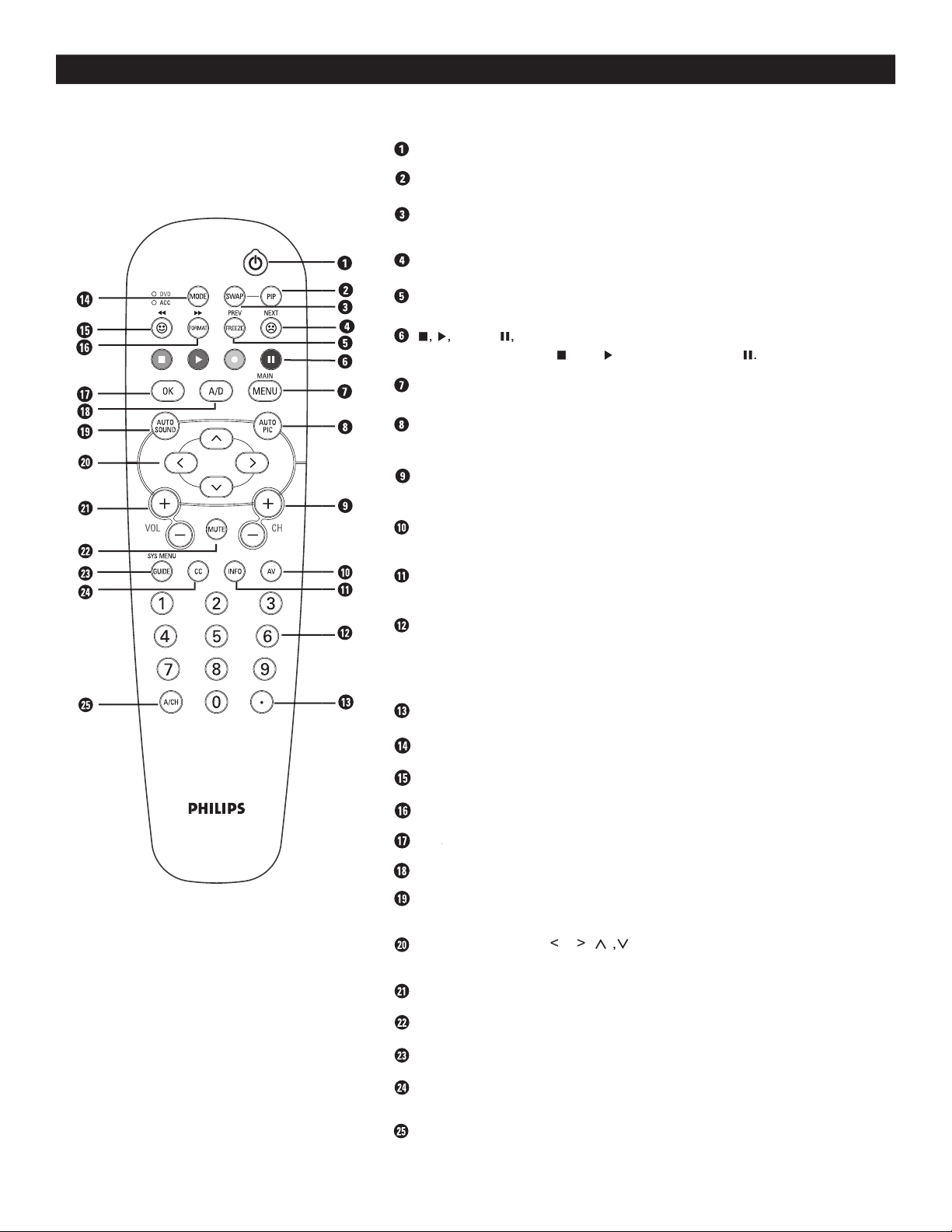
DESCRIPTION OF REMOTE CONTROL BUTTONS
MODE
B
utton
- To control TV, DVD, ACC, DBS, VCR, etc., functions.
SMILEY
Button - To add channels to the “QuadraSurf” lists.
FORMAT
Button - To select picture format.
OK
Button - To activate selection when programming remote control.
OK Button - To activate selection when programming remote control.OK
A/D
(
ANALOG/DIGITAL
)
Button - To select Analog or Digital mode.
AUTO SOUND
Button - To select factory-defined sound settings.
(Theatre, Music, or Voice).
C
URSOR
Buttons (
<
,
>
,
<
,
>
) To highlight and select items on the
TV onscreen menu.
VOL(ume) + / -
Buttons To increase or decrease the TV sound level.
MUTE
Button - To cut out the sound from the TV.
GUIDE
Button - To display current program information.
CC
Button -
Closed Captioning.
A/CH
(Alternate Channel) Button - Toggle between last viewed and current
channel.
POWER
Button - Press to turn the TV On or Off.
SWAP
Button - To swap program on the main screen with program in
the PIP window.
FROWNIE
Button - To delete channels from the Favorite lists.
FREEZE
Button - To freeze picture on the TV screen.
Ê
,
Æ
,
·
, and
∆
,
Buttons -
Used with an external device when the ACC mode
is selected. Press Stop
Ê
, Play
Æ
, Record
·
or Pause
∆
.
MENU
Button - To display the main menu.
AUTO PIC
Button - To select from five pre-defined picture settings.
(
Personal, Movies, Sports, Weak Signal, or Multimedia).
CH(annel) + or CH(annel)-
Buttons To select channels in ascending or
descending order.
AV
Button - To select different signal sources connected to the AV inputs
on the TV.
INFO
Button - To display channel number, sound mode, time and status of
the sleeptimer, etc.
NUMBERIC (0-9)
Buttons - To select TV channels or enter values in the
on-screen menu. For single channel entries, press the numbered button
for the channel you desire. The TV will pause for a second or two before
changing to the chosen channel.
PIP
Button - To activate Picture-in-Picture feature.
DOT
B
utton
- To
enter values for min
or channels eg. 36.4
7
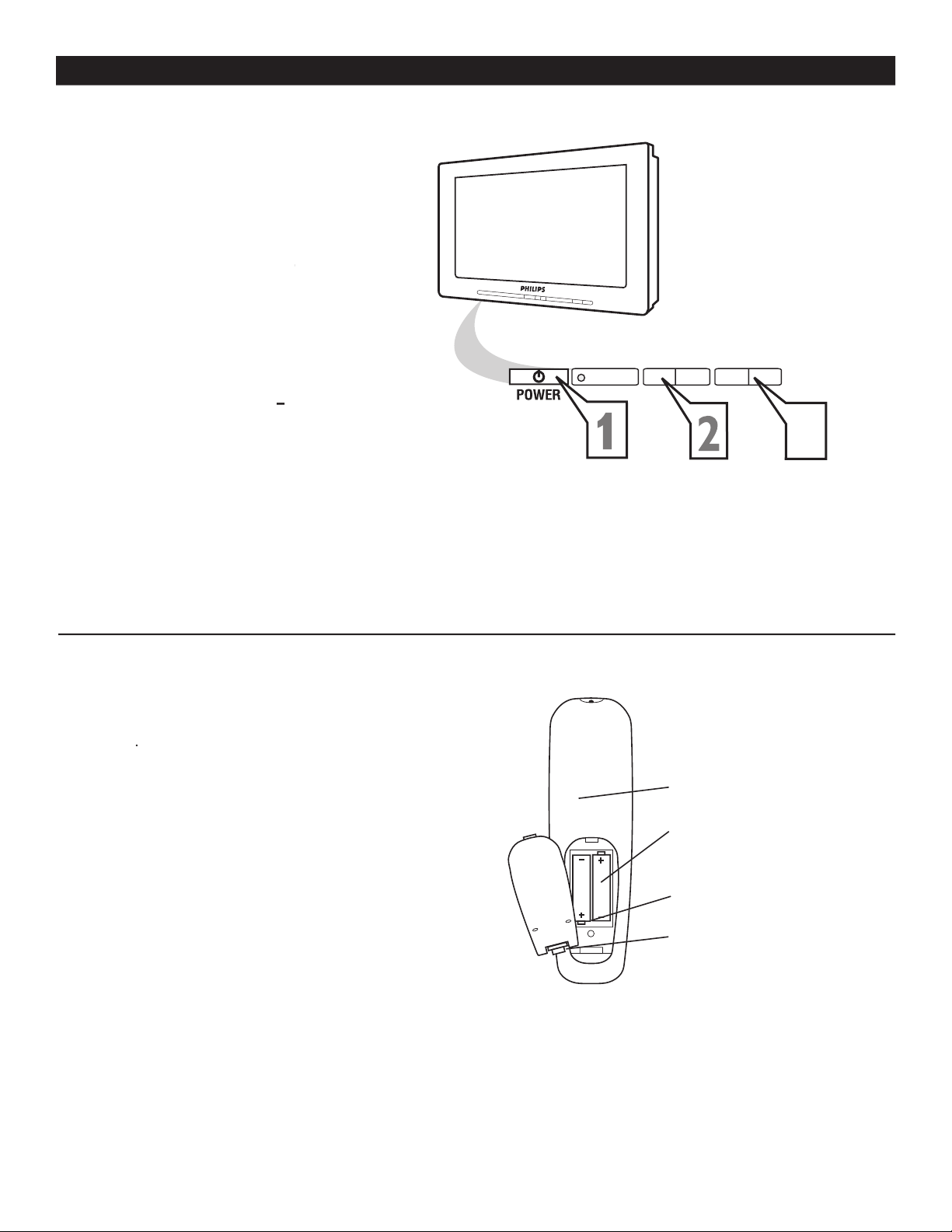
BASIC TV AND REMOTE CONTROL OPERATION
Battery Compartment
2 AA-sized batteries
Battery compartment lid
Back of Remote
1
Press
POWER
button on the TV to turn it
on. Pressing any button on the front panel
of the TV will also turn the TV On.
2
Press the
VOLUME +
to increase the
sound level and
VOLUME –
to lower the
VOLUME – to lower the VOLUME –
sound level.
Pressing both buttons together will display
the onscreen menu. While in menu mode,
use these buttons to make adjustments or
selections.
3
Press
CHANNEL +
or
–
to select TV
– to select TV –
channels.
4
Point the remote
control towards the
remote sensor window on the front of the
TV when using the remote control.
5
Press
MENU
button on the remote to
display the onscreen menu.
-
+
<
>
3
REMOTE CONTROL
H
ow to load the supplied batteries into the remote
control
.
1
Remove the battery compartment lid on the
back of the remote control.
2
Insert two AA
-sized batteries into the battery
compartment
, making sure the positive + and
negative
- polarity line up cor
rectly as indicated
inside the case.
3
Close the battery lid.
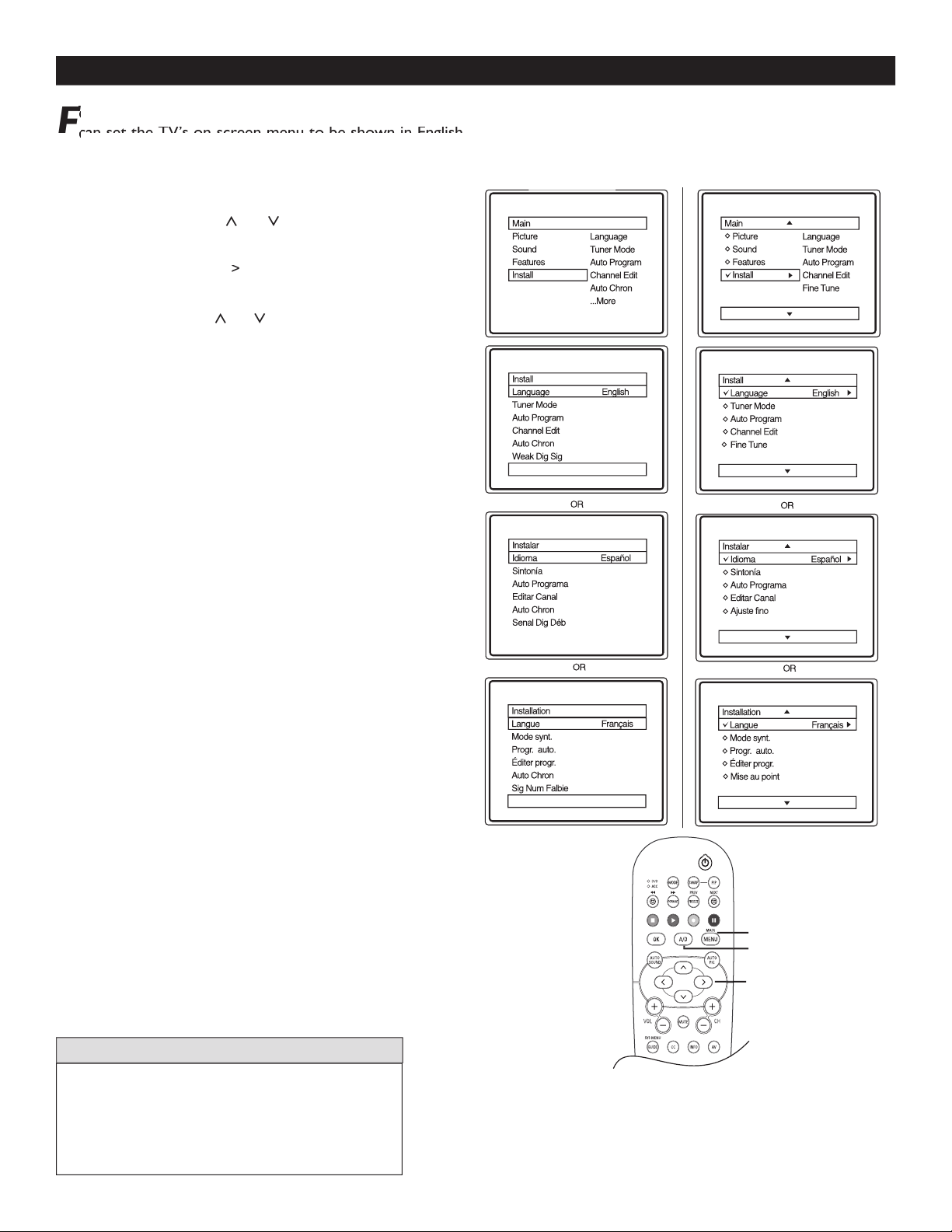
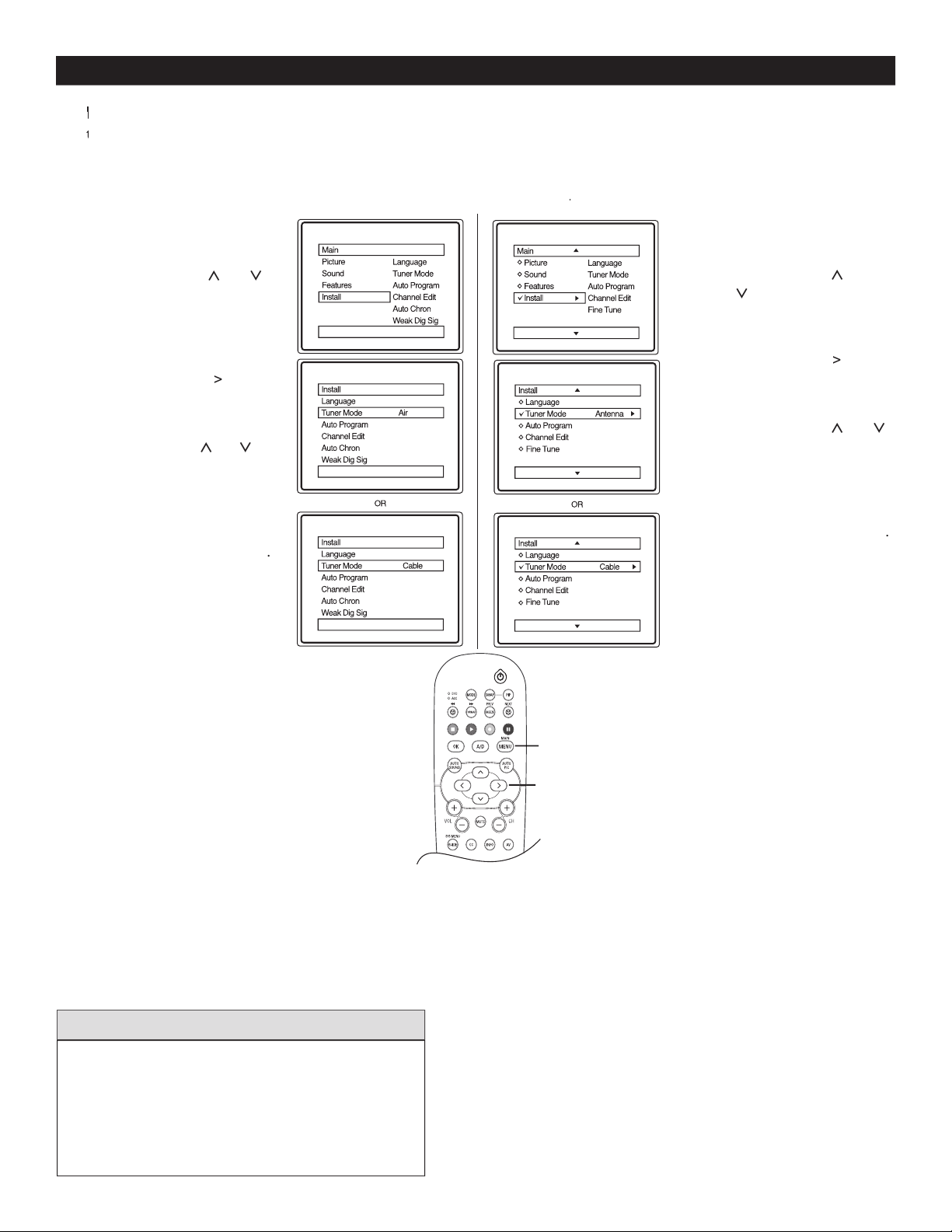
HOW TO USE THE LANGUAGE CONTROL
1
Press
MENU
on the remote control to display the
onscreen menu.
2
Press
CURSOR
<
or
>
to scroll though the
onscreen menu until you see
Install
highlighted.
3
Press
CURSOR
>
to display the Install menu
features.
4
Press
CURSOR
<
or
>
to scroll through the Install
features until you see
L
anguage
highlighted.
5
Press
CURSOR
>
to select English, Français (French)
or Español (Spanish).
6
When finished, press
MENU
twice to exit the menu
from the TV screen.
7
Press
A/D
to switch between Digital and Analog
Channels.
The Language control only makes the TV on-screen
Menu items appear in English, Spanish, or French
text.
It does not change the other on-screen text features
such as Closed Caption (
CC
) TV programmes.
HELPFUL HINT
8
F
F
or French and Spanish speaking TV owners an onscreen Language option is present. With the Language control you
F
or French and Spanish speaking TV owners an onscreen Language option is present. With the Language control you
F
can set the TV’s on-screen menu to be shown in English, French, or Spanish.
can set the TV’s on-screen menu to be shown in English, French, or Spanish.
Fcan set the TV’s on-screen menu to be shown in English, French, or Spanish.F
Fcan set the TV’s on-screen menu to be shown in English, French, or Spanish.F
MENU
>
>
<
>
Digital Mode
Analog
Mode
A/D
9
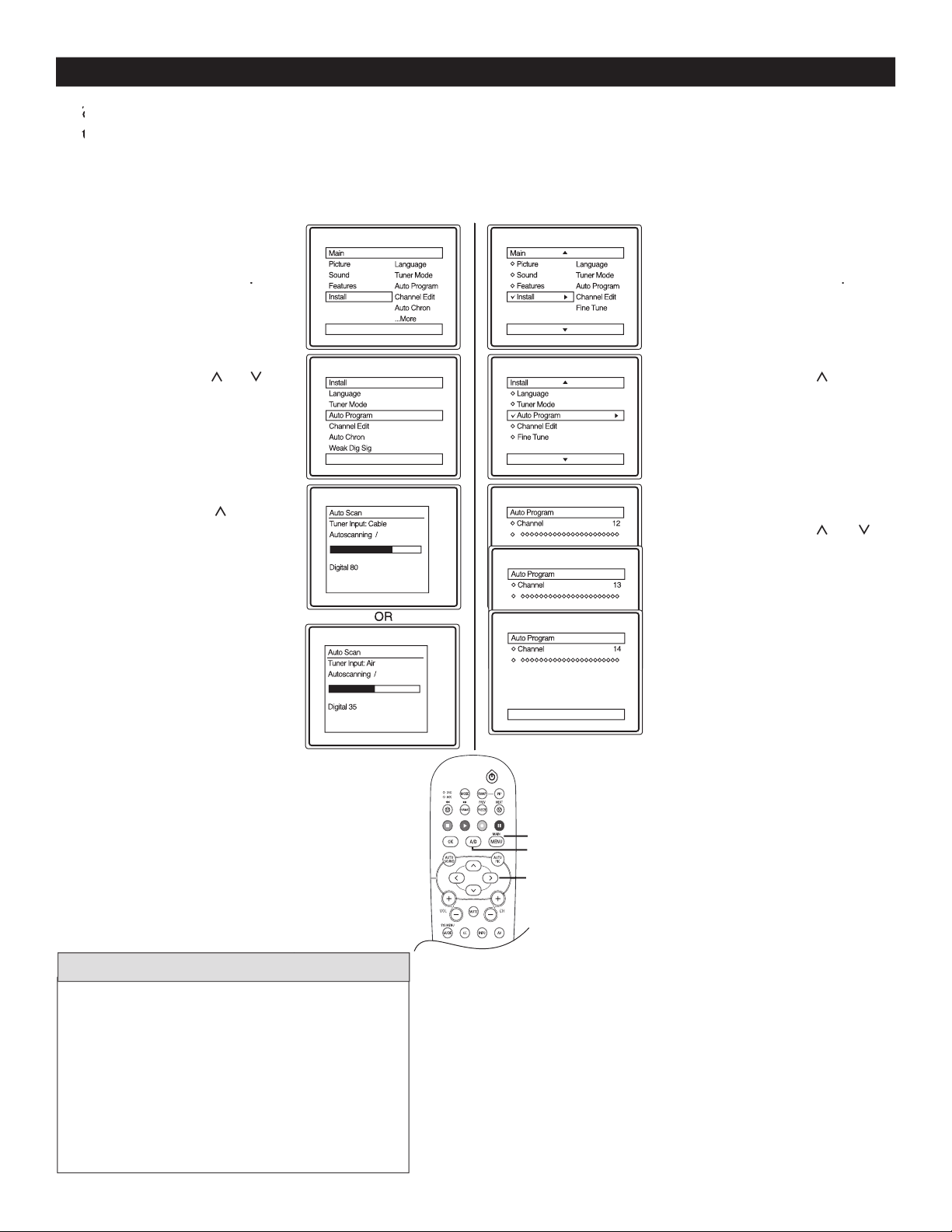
HOW TO USE THE TUNER MODE CONTROL
When
CABLE
is selected, channels 1-125 are
available.
When
ANTENNA
is selected, channels 2-69 are
available.
Use the
A/D
button on the Remote Control to switch
between Digital and Analog channels.
HELPFUL HINTS
T
he TUNER MODE control lets you change the TV input signal to ANTENNA or CABLE mode. It is important
T
he TUNER MODE control lets you change the TV input signal to ANTENNA or CABLE mode. It is important
T
that you know which type of signal to look for (Cable TV or Antenna).
Tthat you know which type of signal to look for (Cable TV or Antenna).T
1
Press
MENU
on the remote
control to display the
onscreen menu.
2
Press
CURSOR
<
or
>
to scroll though the
onscreen menu until you see
Install
highlighted.
3
Press
CURSOR
>
to
display the Install menu
features.
4
Press
CURSOR
<
or
>
to scroll through the Install
features until you see
Tuner
Mode
highlighted.
5
Press
CURSOR
>
to
select
Antenna
or
Cable
.
6
When finished, press
MENU
twice to exit the
menu from the TV screen.
1
Press
MENU
on the
remote control to display
the onscreen menu.
2
Press
CURSOR
<
or
>
to scroll though
the onscreen
menu until you see
Install
highlighted.
3
Press
CURSOR
>
to
display the Install menu
features.
4
Press
CURSOR
<
or
>
to
scroll through the Install
features until you
see
Tuner
Mode
highlighted.
5
Press
CURSOR
>
to
select
Antenna
or
Cable
.
6
When finished, press
MENU
twice to exit the
menu from the TV screen.
Follow these steps for Digital Mode
Follow these steps for Analog Mode
MENU
>
>
<
>
Digital Mode
Analog
Mode
Analog ModeAnalog
AUTOMATIC PROGRAM
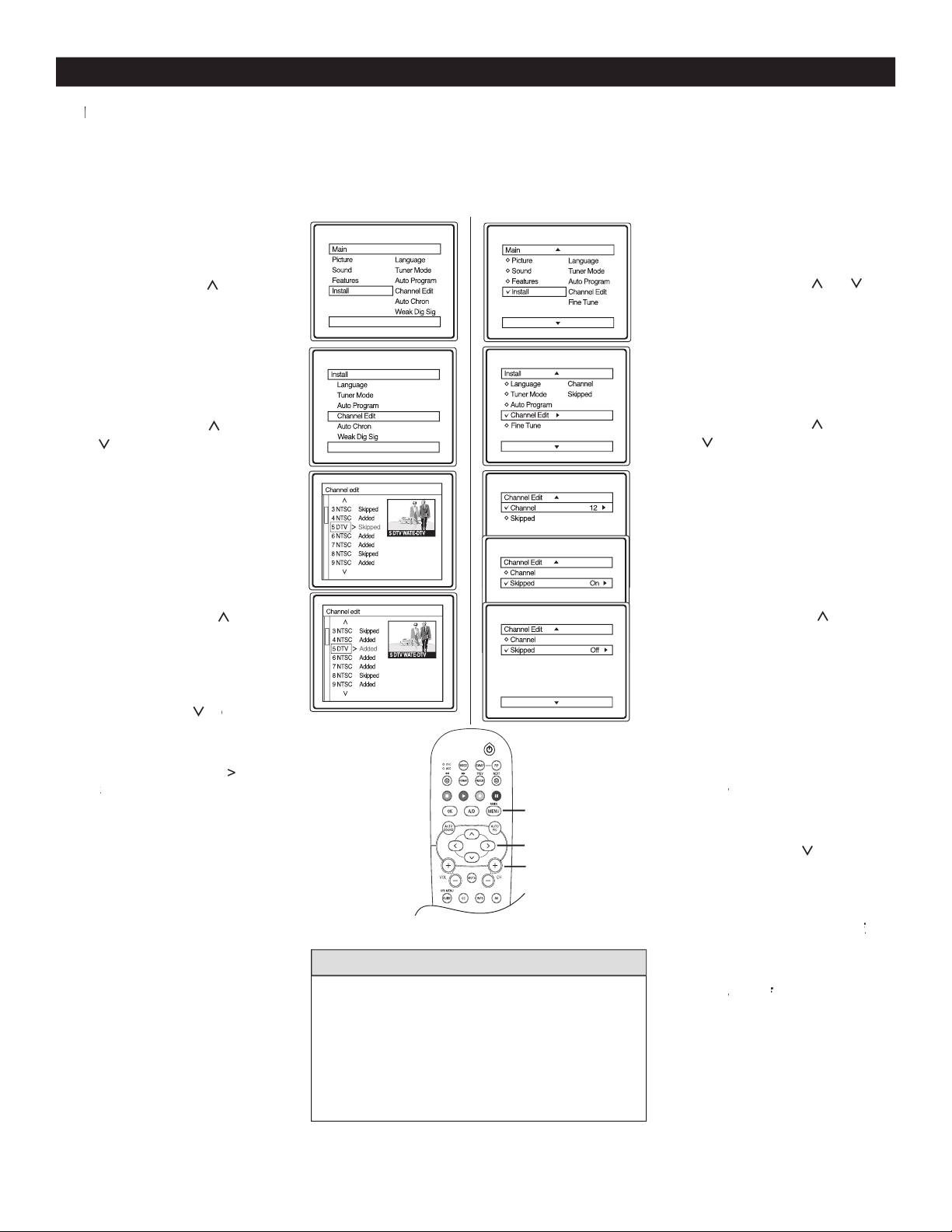
10
1
Complete the antenna
or cable signal connection
before activating
AUTO PROGRAM
.
2
Press
MENU
on the remote
control to display the
onscreen menu.
3
Press
CURSOR
<
or
>
to
scroll though the onscreen
menu until you see
Install
highlighted.
4
Press
CURSOR
>
to display
the Install menu features.
5
Press
CURSOR
<
or
>
to scroll through the
Install features until you see
Auto Program
highlighted.
6
Press
CURSOR
>
to start
the select
antenna
or
cable
mode.
7
Autosc
an
will begin. This m
ay
take
20
to
40
min
utes
depending on the number of
channels available.
When
finished, press
MENU
twice
to exit the menu display from
the TV screen.
8
Press
A/D
to switch between
Digital and Analog channels to
view your programs.
Y
ou can program the TV to automatically set itself for local area (or Cable TV) channels. This makes it easy for you
Y
ou can program the TV to automatically set itself for local area (or Cable TV) channels. This makes it easy for you
Y
to select only the TV stations in your area when the CHANNEL (+), (–) buttons are pressed.
Yto select only the TV stations in your area when the CHANNEL (+), (–) buttons are pressed.Y
1
Complete the antenna or
cable signal connection
before activating
A
UTO PROGRAM
.
2
Press
MENU
on the remote
control to display the
onscreen menu.
3
Press
CURSOR
<
or
>
to
scroll though the onscreen
menu until you see
Install
highlighted.
4
Press
CURSOR
>
to
display the Install menu
features.
5
Press
CURSOR
<
or
>
to scroll through the Install
features until you see
Auto
Program
highlighted.
6
Press
CURSOR
>
to select
antenna
or
cable
mode.
7
When finished, press
MENU
twice to exit the menu from
the TV screen.
8
Press
A/D
to switch
between Digital and
Analog channels to view your
programs.
Follow these steps for Digital Mode
Follow these steps for Analog Mode
MENU
>
>
<
>
A/D
Digital Mode
Analog
Mode
When CABLE is selected, channels 1-135 are
available in Digital Mode and Channels 1-125 are
available in Analog Mode.
When ANTENNA is selected, channels 2-69 are
available for both Digital and Analog Modes.
When you install in
Digital mode, it will
install both Digital and Analog channels
HELPFUL HINTS
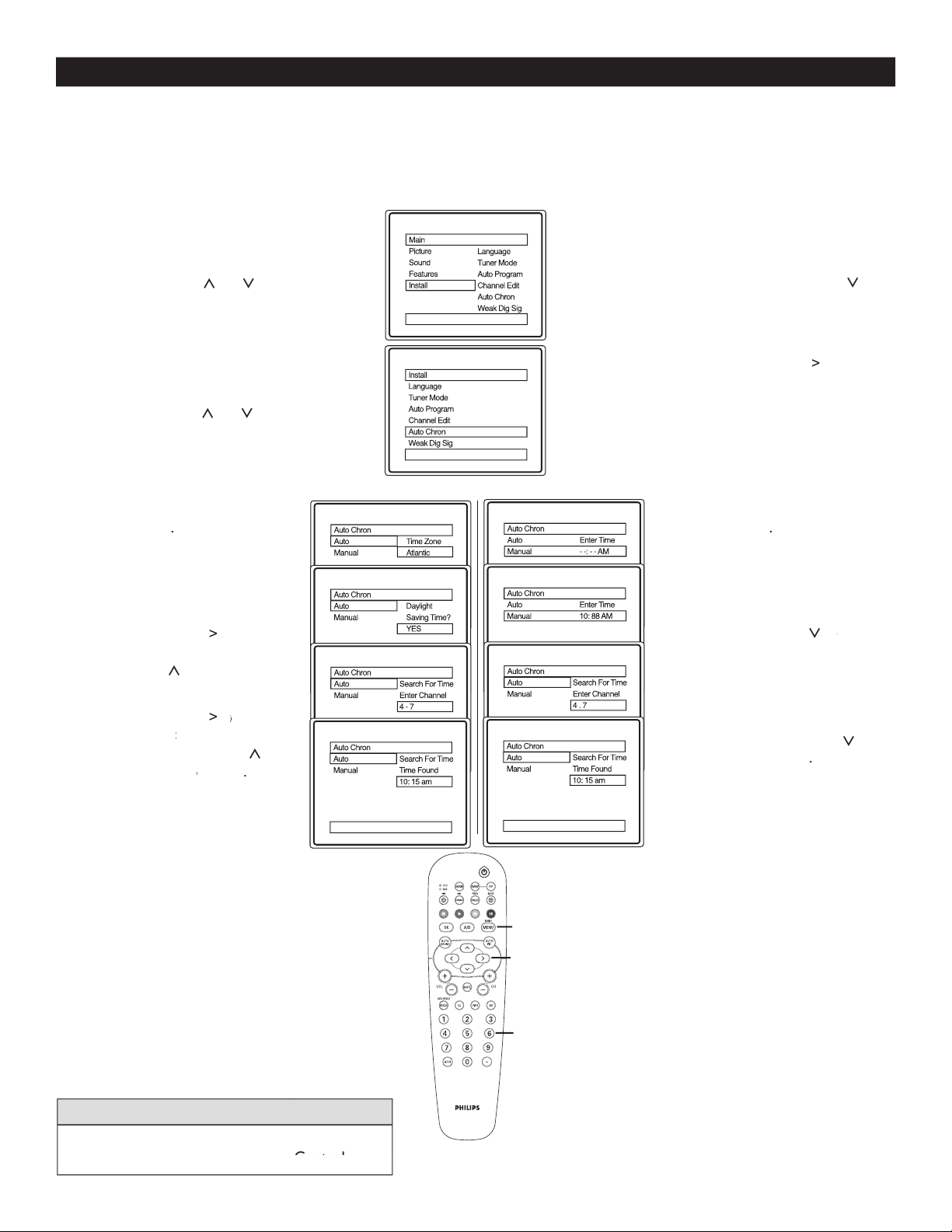
CHANNEL EDIT (ADD OR DELETE CHANNELS)
1
Press
MENU
on the remote
control to display the
onscreen menu.
2
Press
CURSOR
<
or
>
to
scroll though the onscreen
menu until you see
Install
highlighted.
3
Press
CURSOR
>
to
display the Install menu
features.
4
Press
CURSOR
<
or
>
to scroll through the
Install features until you see
Channel Edit
highlighted.
5
Press
CURSOR
>
to
display the
Channel Edit
options.
6
With the
Channel Edit
Channel Edit Channel Edit
options displayed and
Channel
highlighted, you can
use the
CURSOR
CURSOR CURSOR
<
or
>
to scroll through all available
channels that you wish to add
or delete (Skipped) from the TV
memory.
7
U
se
CURSOR
>
to
scroll the
to scroll the to
menu to highlight the channel
you wish to add or skip.
8
N
ow use
CURSOR
>
t
o toggle between
to toggle between t
Added
or
Skipped
. If
Skipped
is
selected, the channels will be
skipped when scrolling channels
with the
CH+
or
CH-
. If
Added
is selected, the channels
will not be skipped when
scrolling channels with the
CH+
or
CH-
.
9
When finished, press
MENU
three times to exit the menu
from the TV screen.
In analog mode, an “X” will be displayed in
front of any channel number to indicate that the
channel has skipped. When the
CH+
or
CH-
buttons are used, those channels will be skipped.
To switch between Digital and Analog channels,
use the
A/D
button on the Remote Control.
HELPFUL HINTS
11
C
hannel Edit lets you ADD or DELETE channels from the list of channels stored in the TV memory.
C
hannel Edit lets you ADD or DELETE channels from the list of channels stored in the TV memory.
C
1
Press
MENU
on the remote
control to display the
onscreen menu.
2
Press
CURSOR
<
or
>
to
scroll through the onscreen
menu until you see
Install
highlighted.
3
Press
CURSOR
>
to
display the Install menu
features.
4
Press
CURSOR
<
or
>
to scroll through the
Install features until you see
Channel Edit
highlighted.
5
Press
CURSOR
>
to
display the Channel Edit
options.
6
With the Channel Edit
options displayed an
d
Channel
highlighted, you can
use the
CURSOR
<
or
>
to
scroll through all the available
channels that you wish to add or
delete (Skipped) from the TV
memory.
You can also use the numeric
buttons to go directly to a
specific numbered channel that
you want to add or skip. Or,
you can also use the
CH+
or
CH-
to quickly scan through
CH- to quickly scan through CH-
the channels that have not been
skipped.
7
U
se
CURSOR
CURSOR CURSOR
>
to
scroll the menu until
SKIPPED
is highlighted.
8
N
ow use
CURSOR
>
to
toggle between
On
and
Off
. If
Off. If Off
On
is selected the channels will
be skipped when scrolling
channels with the
CH+
or
CH-
. If
CH- . If CH-
Off
is selected the
Off is selected the Off
channels will not be skipped
when scrolling channels with the
CH+
or
CH-
.
CH- . CH-
9
When finished, press
MENU
three times to exit the menu
from the TV screen.
Follow these steps for Digital Mode
Follow these steps for Analog Mode
CH + -
MENU
>
>
<
>
Digital Mode
Analog
Mode
12
AUTO CHRON (SYCHRONISATION OF TIME)
A
uto Chron sets the clock of the TV automatically or manually. For automatic selection, there will be queries for Time Zone, Day
Light saving and channel to seek clock. For manual selection, you need to key in the time.
This
feature i
s only available in Digital
Mode.
1
Press
MENU
on the remote
control to display the onscreen
menu.
2
Press
CURSOR
<
or
>
to scroll through the onscreen
menu until you see
Install
highlighted.
3
Press
CURSOR
>
to display
the Install menu features.
4
Press
CURSOR
<
or
>
to
scroll through the Install features
until you see
Auto Chron
highlighted.
5
Press
CURSOR
CURSOR CURSOR
>
to display
the
Auto Chron
options -
Auto
Auto Auto
and
Manual
.
With the Auto Chron options displayed
and
Auto
highlighted, you can set the
clock of the TV automatically.
6
Press
CURSOR
CURSOR CURSOR
>
enter
the Time Zone option. Press
CURSOR
<
or
>
to select
the time zone.
7
Press
CURSOR
>
t
o display
to display t
the
Daylight
or
Daylight or Daylight
Saving Time
Saving Time Saving Time
option. Press
CURSOR
<
or
>
to select
YES
or
YES or YES
NO
.
8
Press
CURSOR
>
to
display the
Search for
Time
,
Enter Channel
option. Use
the
numeric
buttons on the
numeric buttons on the numeric
remote control to enter
the channel you want to seek the
time.
9
When finished, press
MENU
on the remote control
three times
to exit the menu
from the TV screen.
1
Press
MENU
on the remote
control to display the onscreen
menu.
2
Press
CURSOR
<
or
>
to scroll though the onscreen
menu until you see
Install
highlighted.
3
Press
CURSOR
>
to display
the
Install
menu features.
4
Press
CURSOR
<
or
>
to scroll through the Install
features until you see
Auto
Chron
highlighted.
5
Press
CURSOR
>
to display
the
Auto Chron
options - Auto
and Manual
.
With the
Auto Chron
options
displayed
and
Manual
highlighted, you
can set the clock of the TV manually.
6
Use
CURSOR
CURSOR CURSOR
>
to
enter the
to enter the to
value for Enter Time option.
7
Use
CURSOR
>
to set the
time.
8
Press
CURSOR
<
or
>
select
AM
or
PM
.
9
When finished, press
MENU
three times to exit the menu
from the TV screen.
Follow these steps
for Automatic Selection
Follow these steps for M
anual Selection
MENU
>
>
<
>
NUMERIC
BUTTONS
Automatic Selection
Manual
Selection
To switch between Digital and Analog channels,
To switch between Digital and Analog channels,
use the
A/D
button on the Remote Control.
button on the Remote Control.
HELPFUL HINTS
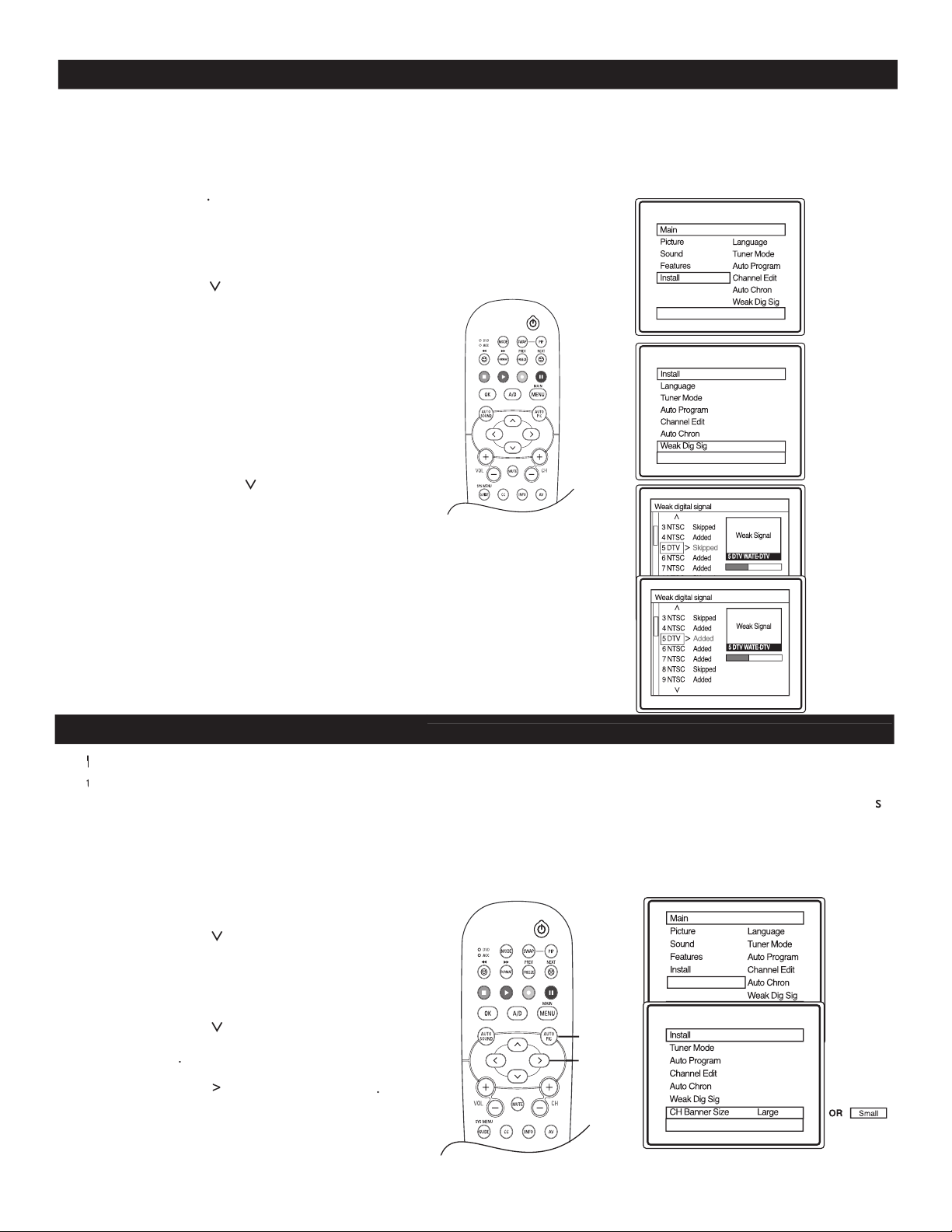
HOW TO ADD OR DELETE WEAK DIGITAL SIGNALS
13
1
-
Press
MENU
on the remote control to display
the onscreen menu.
2
Press
CURSOR
>
to scroll through the
onscreen menu until you see
Install
highlighted.
3
Press
CURSOR
>
to display the Install menu
features.
4
Press
CURSOR
>
to scroll through the
install features until you see
Weak Dig Sig
Weak Dig Sig Weak Dig Sig
highlighted.
5
Press
CURSOR
>
to display the
Weak
Digital Sig
options.
6
Use
CURSOR
CURSOR CURSOR
<
o
r
>
to scroll through the
menu and highlight the channel you wish to add or
skip.
7
U
se
CURSOR
>
to toggle between
Added
or
Skipped.
If
Skipped
is selected the channels will be
skipped when scrolling channels with
CH+
or
CH-
.
If
Added
is selected the channels will not be skipped
when scrolling channels with
CH+
or
CH-
.
8
When finished, press
MENU
three times to
exit the menu from the TV screen.
>
>
<
>
MENU
D
igital broadcasting is still new it is not uncommon for a broadcaster to only send out a digital signal for part of
a day. The reception could also come and go. If you program your channels when the signal is not being sent
or is weak it will not be saved in your channel setup. However, using the
WEAK DIG SIGNAL
feature here you can
add
those channels with weak or no signals to your channel list. Adding or deleting
WEAK DIG SIGNAL
can only be
done in
Digital Mode
.
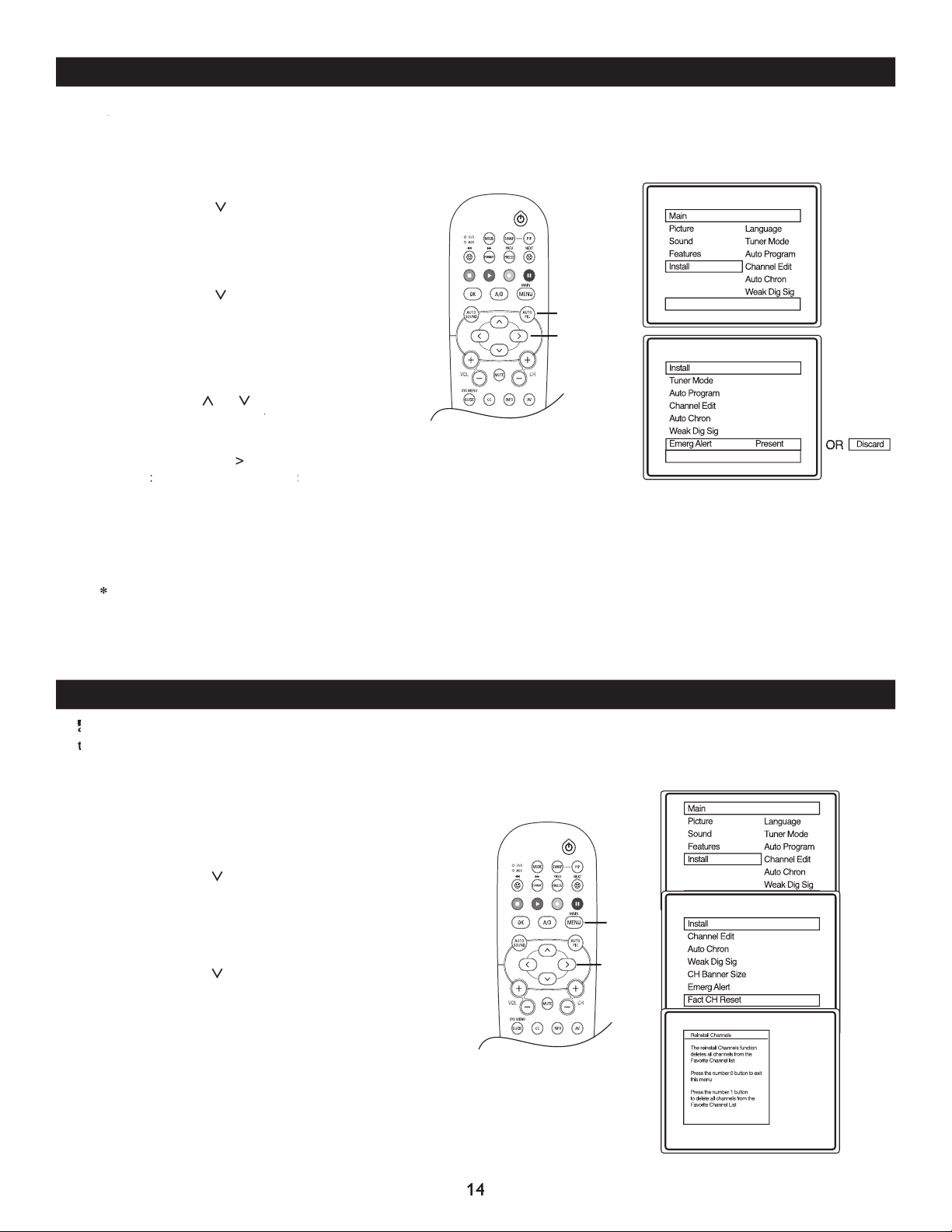
INFORMATION BANNER - CHANNEL BANNER SIZE
1
Press
MENU
on the remote control to display
the onscreen menu.
2
Press
CURSOR
>
t
o scroll through the
onscreen menu until you see
Install
highlighted.
3
Press
CURSOR
>
to display the Install menu
features.
4
Press
CURSOR
>
to scroll through the
Install features until you see
CH Banner Size
highlighted
.
5
Press
CURSOR
>
to select
Small
or
Large
.
6
Press
MENU
twice to exit the menu from the
TV screen.
T
he
T
he
T
INFORMATION BANNER
displays the
channel number
,
channel name
,
sound mode
,
CC
and
rating
of
the program you are watching.
Tthe program you are watching.T
The quality and accuracy of information on the banner is transmitted from the
broadcaster.
You may see a difference in broadcast time if the broadcaster is from a different time zone.
This
feature i
s
only available in Digital Mode.
Channel Banner Size feature lets you select a small or large information banner.
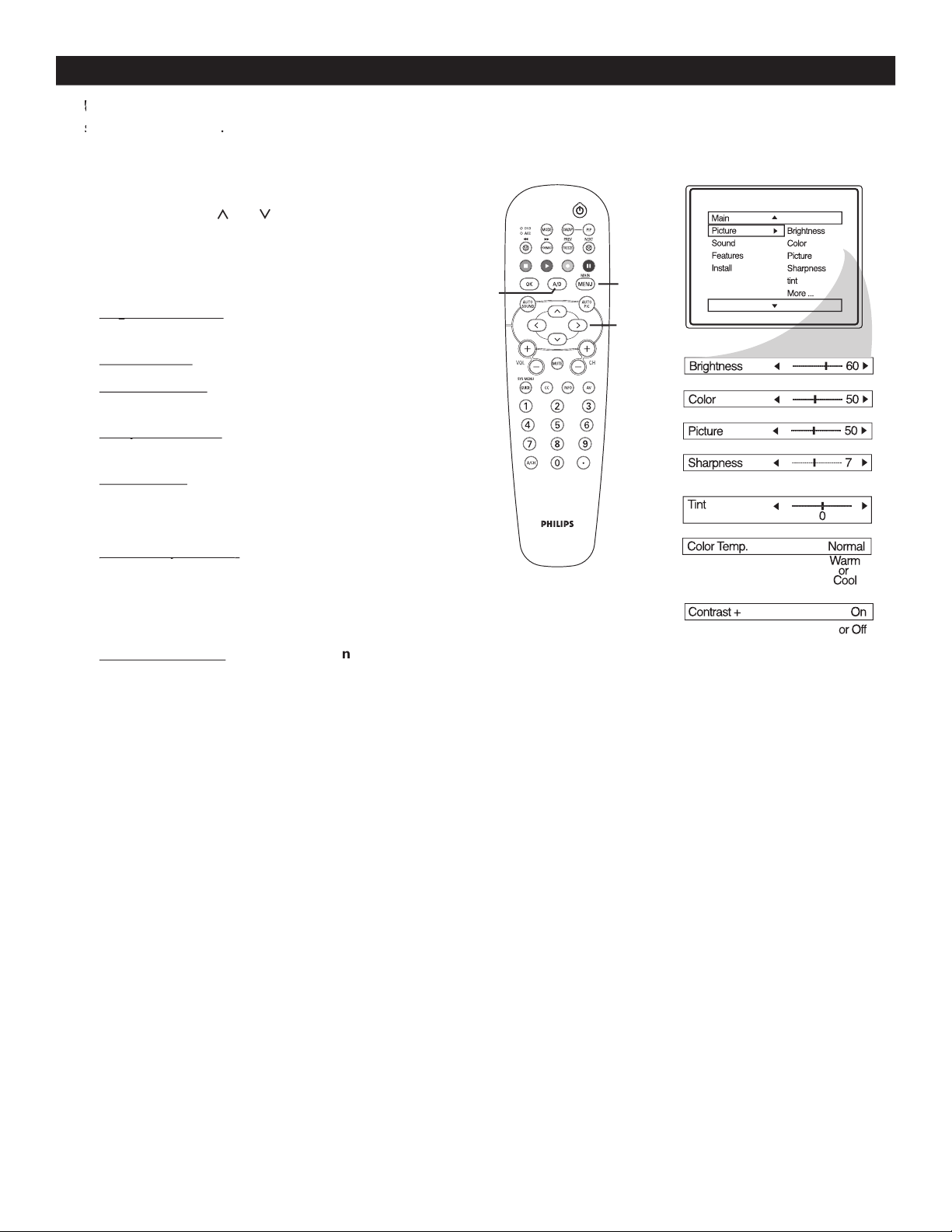
EMERGENCY ALERT
1
Press
MENU
on the remote control to display
the onscreen menu.
2
Press
CURSOR
>
to scroll through the
onscreen menu until you see
Install
highlighted.
3
Press
CURSOR
>
to display the install menu
features.
4
Press
CURSOR
>
to scroll through
the
Install
features until you see
Emerg
Alert
highlighted.
5
Press
CURSOR
>
to display the Emergency
Alert options.
6
Use
CURSOR
<
or
>
to scroll through the
menu and highlight the
Low
or
Low or Low
Medium
priority
alerts.
7
Now use
CURSOR
>
to toggle between
Present
or
Present or Present
Discard
. If
Present
is selected, the
Present is selected, the Present
TV will display the alert of that priority. If
Discard
is selected, the TV will not display the alert of that
priority.
8
When finished, press
MENU
three times to
exit the menu from the TV screen.
*
Emergency Alert may not be visible if no
broadcast is received.
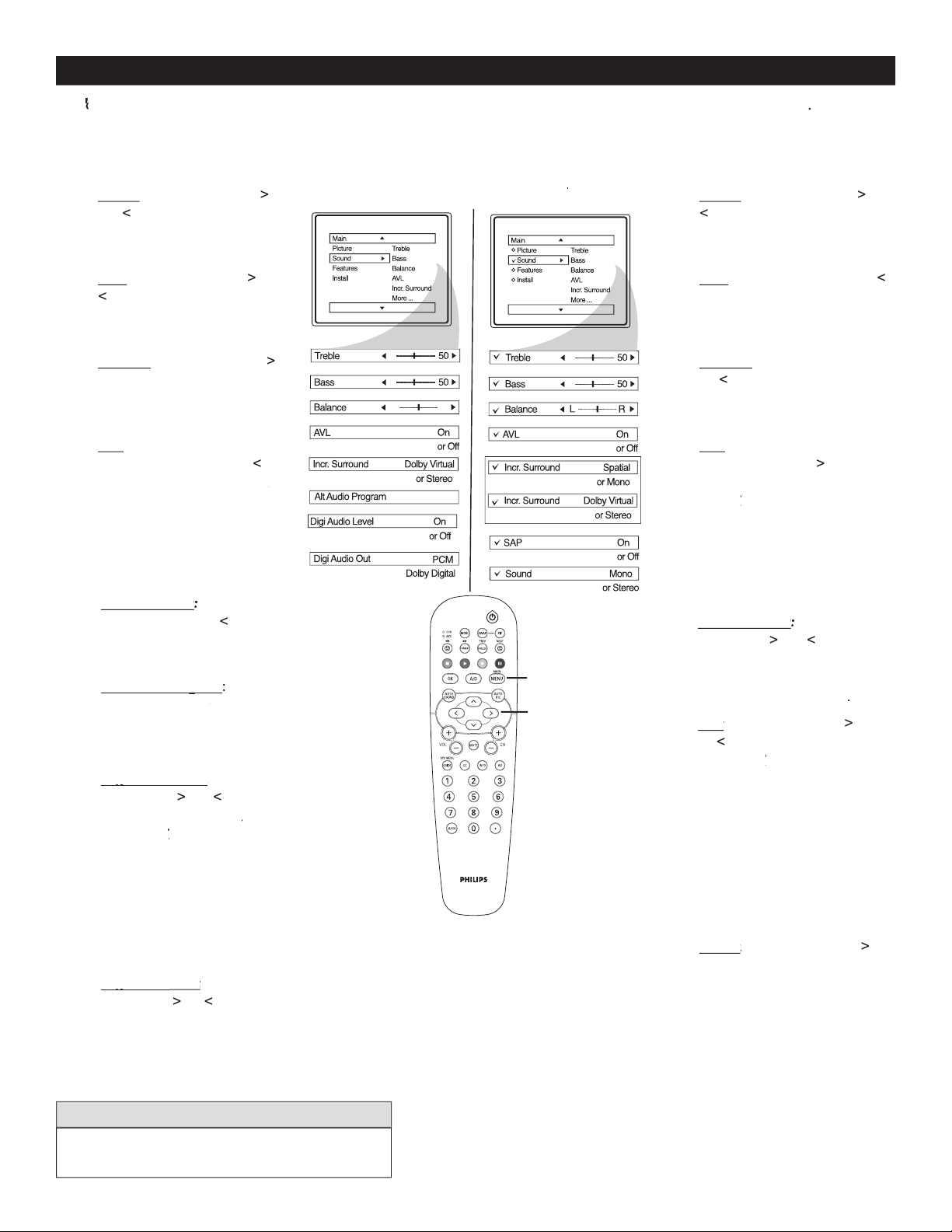
FACTORY CHANNEL RESET
1
Press
MENU
on the remote control to display
the onscreen menu.
2
Press
CURSOR
>
to scroll through the
onscreen menu until you see
Install
highlighted.
3
Press
CURSOR
>
to display the Install menu
features.
4
Press
CURSOR
>
to scroll through the
Install features until you see
Fact CH Reset
highlighted.
5
Press
CURSOR
>
to follow the instructions
in the menu to reset the TV.
6
When finished, press
MENU
button on the
remote control three times to exit
14
>
>
<
>
MENU
>
>
<
>
MENU
E
mergency Alert lets you display or discard emergency alerts for Low or Medium priority. This feature is
o
nly available in
Digital
mode.
mergency Alert lets you display or discard emergency alerts for Low or Medium priority. This feature is
mode.
mergency Alert lets you display or discard emergency alerts for Low or Medium priority. This feature is
F
actory Channel Reset feature lets you erase the contents of the master, user and favorite channel lists. This restores the TV
F
actory Channel Reset feature lets you erase the contents of the master, user and favorite channel lists. This restores the TV
F
to the initial state before the first Auto Program operation.
F to the initial state before the first Auto Program operation. F
This feature is only available in Digital Mode.
For inst
r
uction
s on
how to
Auto Install
the TV again
, refer to page 9.
15
PICTURE MENU CONTROLS
>
>
<
>
MENU
A/D
Digital and Analog Mode
1
-
Press
MENU
button on the remote control to
display the onscreen menu.
2
Press
CURSOR
<
or
>
to until the
P
icture
menu feature is highlighted.
3
Press
CURSOR
>
or
or or
<
to adjust
Brightness Control
Brightness Control
-
until the darkest parts of the
picture are as bright as you want.
Color Control
-
Color Control - Color Control
to add or remove color.
Picture Control
-
until the lightest parts of the
picture show good detail.
Sharpness Control
Sharpness Control
-
Sharpness Control - Sharpness Control
to improve sharpness in the
picture.
Tint Control
-
adjust
natural skin tones in the
picture quality.
Note : Tint is not available in Digital Mode
Color Temp Control
Color Temp Control
-
to select Normal, Cool,
or Warm picture preferences. For Normal, whites
will mainain their whiteness;
Cool will make the whites bluish; and Warm will
make the whites reddish.
Contrast + Control
-
Contrast + Control - Contrast + Control
w
hen set to
O
n
, t
he Contrast
+ control helps to “sharpen” the picture quality. The
black portions of the picture become richer in
darkness and the whites become brighter.
T
o adjust your TV picture controls, select a channel and use the Picture Menu Controls listed below. Your selection is
T
o adjust your TV picture controls, select a channel and use the Picture Menu Controls listed below. Your selection is
T
stored as
Tstored as T
Personal
.
16
SOUND MENU CONTROLS
1
Treble
:
Press
CURSOR
>
or
<
to adjust the treble
levels. The control will enhance
the high frequency sounds.
2
Bass
:
Press
CURSOR
CURSOR CURSOR
>
or
<
to adjust the bass levels. The
control will enhance the low
frequency sounds.
3
Balance
:
Press
CURSOR
>
or
<
to adjust the level of
sound coming from the left and
3
sound coming from the left and
3
right speakers.
4
AVL
:
(Auto Volume Leveler)
Press
CURSOR
CURSOR CURSOR
>
or
<
to
turn the control
On
or
Off
.
Off. Off
When turned
On
, AVL will
level out the sound being heard
when sudden changes in volume
occur during commercial breaks
or channel changes.
5
Incr. Surround
:
Incr. Surround:Incr. Surround
Press
CURSOR
CURSOR CURSOR
>
or
<
to select
between
Dolby Virtual
or
Stereo
settings
.
6
Alt Audio Program
Alt Audio Program
:
Press
CURSOR
CURSOR CURSOR
>
or
<
or < or
to select
the appropriate language.
7
Digi Audio Level
Digi Audio Level
:
Digi Audio Level:Digi Audio Level
Press
CURSOR
CURSOR CURSOR
>
or
<
to turn
the control
On
or
Off
.
Off. Off
When
turned
O
ff
, Digi Audio Level
ff, Digi Audio Level ff
will level out the sound being
heard when sudden changes
in volume occur during
commercial breaks or channel
changes.
8
Digi Audio
Digi Audio
Out
:
Out:Out
Press
CURSOR
>
or
<
t
o
select the
audio system which the TV is
connected to.
1
Treble
:
Press
CURSOR
>
or
<
to adjust the treble levels.
The control will enhance the
high frequency sounds.
2
Bass
:
Press
CURSOR
>
or
<
to adjust the bass levels. The
control will enhance the low
frequency sounds.
3
Balance
:
Press
CURSOR
>
or
<
to adjust the level of
sound coming from the left and
3
sound coming from the left and
3
right speakers.
4
AVL
:
(Auto Volume Leveler)
Press
CURSOR
CURSOR CURSOR
>
or
<
to turn the control
On
or
Off
. When turned
Off. When turned Off
On
, AVL
will level out the sound being
heard when sudden changes
in volume occur during
commercial breaks or
channel changes.
5
Incr. Surround
:
Incr. Surround:Incr. Surround
Press
CURSOR
>
or
<
to select
between
Dolby Virtual
or
Stereo
settings
, or
select
Spatial
or
Mono
.
6
SAP
:
SAP:SAP
Press
CURSOR
>
or
<
to toggle this control to
On
or
Off
. Secondary Audio
Off. Secondary Audio Off
Programming (SAP) is sent as a
third audio channel, a SAP signal
can be heard apart from the
current TV program sound.
Note: If SAP is not present
on a selected show,
No SAP
No SAP No SAP
will be displayed on the TV
screen.
7
Sound
:
Sound:Sound
Press
CURSOR
CURSOR CURSOR
>
or
<
to select between
Stereo
or
Mono
settings.
Note: If Stereo is not present
on a selected show and the
TV is in Stereo mode, the
sound coming from the TV
will remain in the monoaural
(Mono) mode.
Follow these steps
for
Digital Mode
Follow these steps for
Analog Mode
To switch between Digital and Analog channels,
use the A/D button on the Remote Control.
HELPFUL HINTS
>
>
<
>
MENU
Digital Mode
Analog
Mode
Analog ModeAnalog
T
o adjust your TV sound, use the Sound Menu Controls listed below.
T
o adjust your TV sound, use the Sound Menu Controls listed below.
T
Your selection is stored as
Personal
.
17
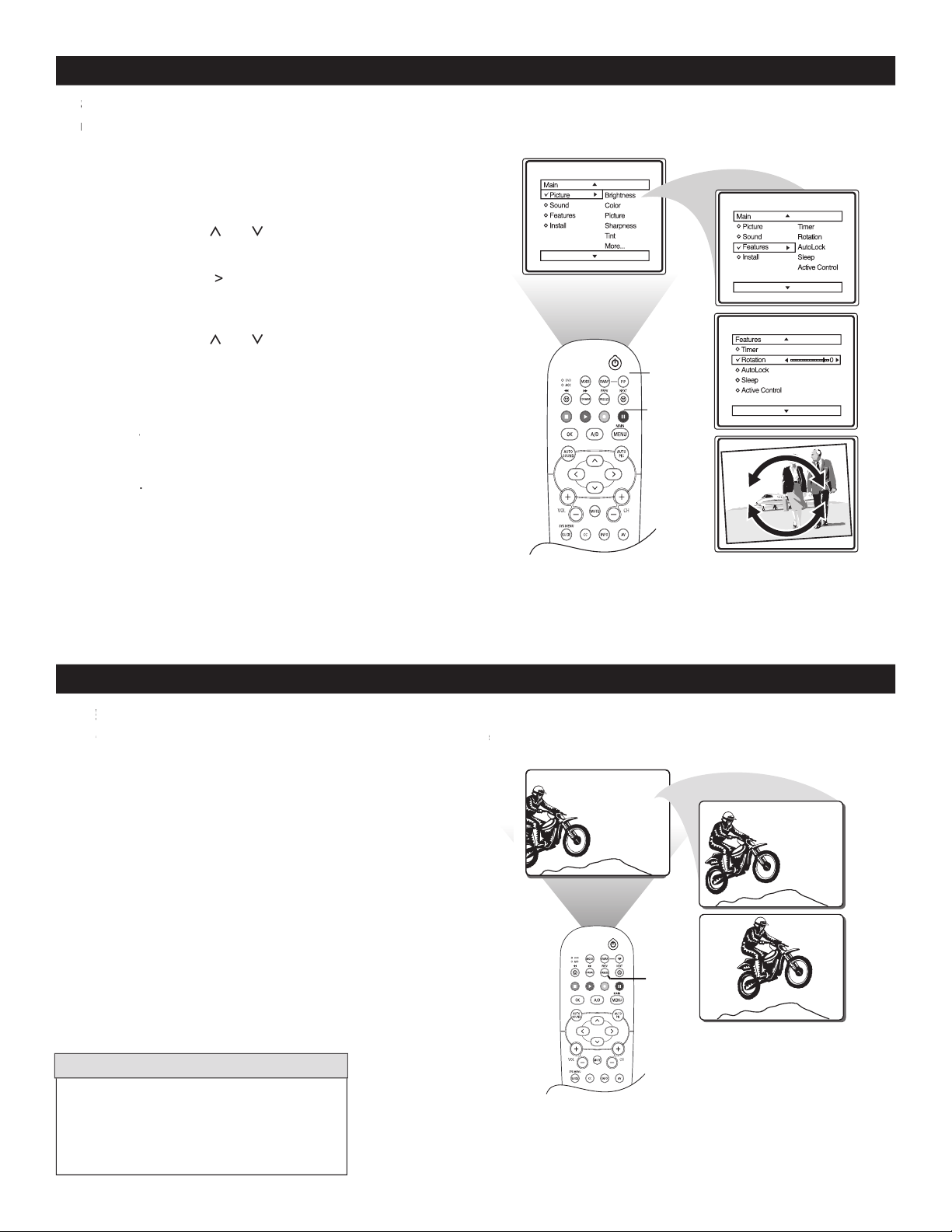
HOW TO CORRECT A TILTED IMAGE
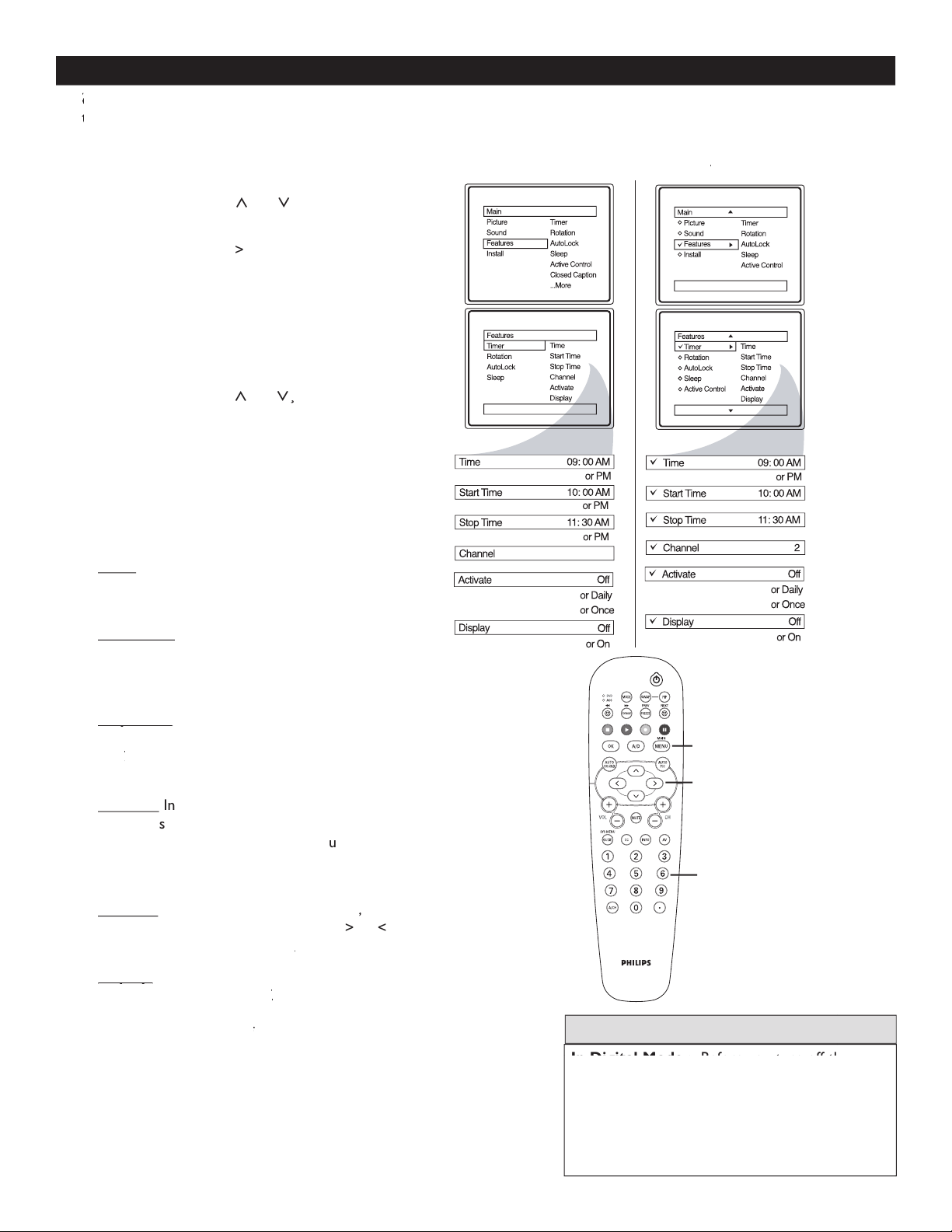
HOW TO USE THE FREEZE CONTROLS
1
While viewing a program on the TV screen, simply
press the
FREEZE
button o
n the
remote control
to
freeze the picture at any given moment.
2
Press the
FREEZE
button on the re
mote control
again
to resume normal viewing.
W
hen the
FREEZE
control is turned
Off,
the normal signal programing will be shown
at its present time. The signals that were
being shown while the picture was frozen
will not be viewable.
HELPFUL HINT
>
>
<
>
MENU
FREEZE
1
Press
MENU
button on the remote control to display
the onscreen menu.
2
Press
CURSOR
<
or
>
until you see
Features
highlighted.
3
Press
CURSOR
>
to display feature menu.
4
Press
CURSOR
<
or
>
until you see
Rotation
control highlighted.
5
Press
CURSOR
>
or
<
to rotate the picture on the
screen clockwise or counter clockwise.
Note :
The amount of rotation will be minimal.
Note : The amount of rotation will be minimal.Note :
6
Press
MENU
twice to exit the menu from the TV
screen
.
S
omet
S
omet
S
imes
the video transmitted to the TV screen might appear slightly tilted
. The
Rotation
control lets you correct the
problem by adjusting the screen in a clockwise or counterclockwise direction.
Sproblem by adjusting the screen in a clockwise or counterclockwise direction. S
H
ave you ever wished you could freeze the picture on the TV
H
ave you ever wished you could freeze the picture on the TV
H
b
r
oadcast to write down a special telephone
number or to
capture a needed address ?
Hcapture a needed address ?H
Your TV has this feature available
with the press of just one button on the remote control.
Your TV has this feature available with the press of just one button on the remote control. Your TV has this feature available
18
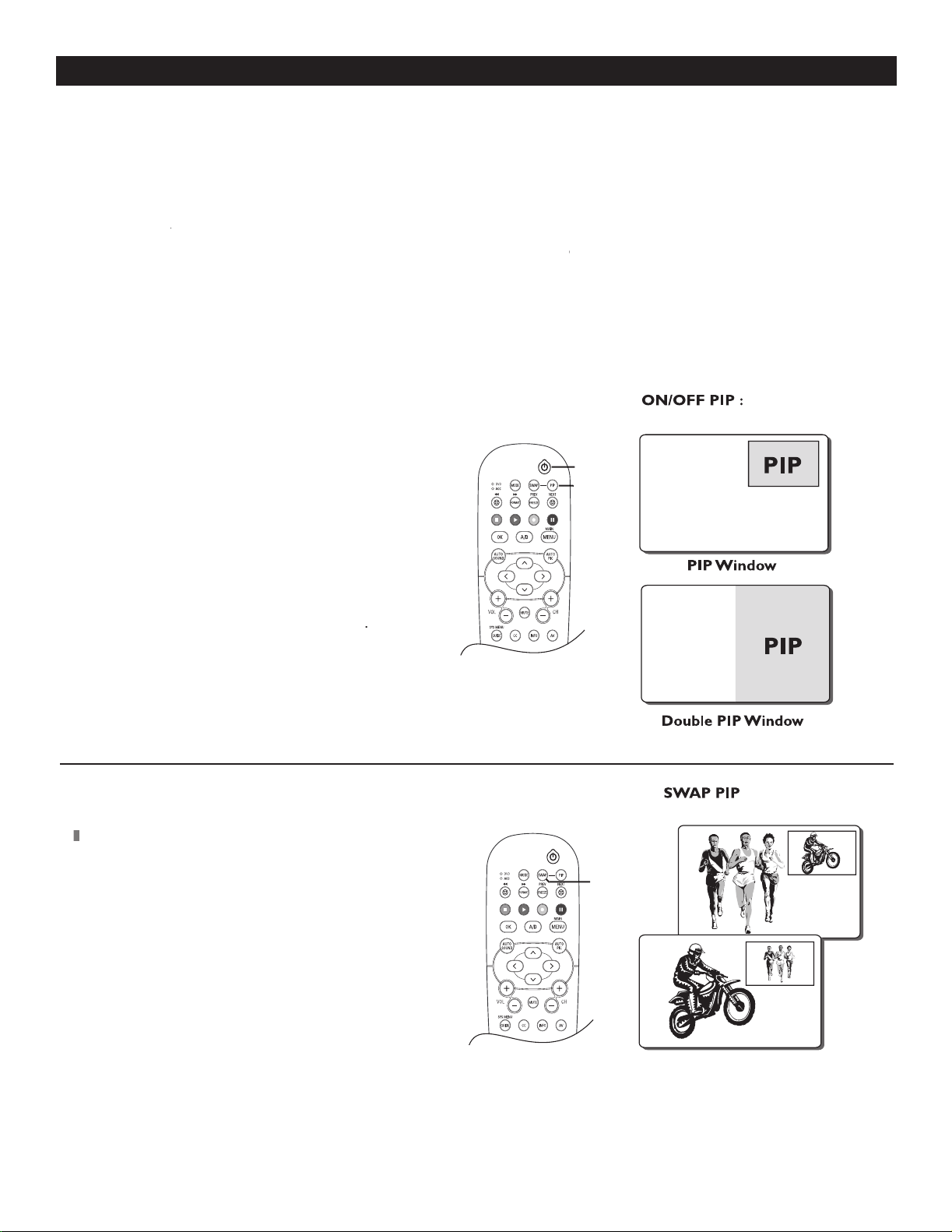
HOW TO USE THE TIMER MENU CONTROLS
DTV
NUMERIC
BUTTONS
>
>
<
>
MENU
Digital Mode
Analog
Mode
Analog ModeAnalog
1
Press the
MENU
button
on the remote
control to display the onscreen menu.
2
Press the
CURSOR
<
or
>
button until
Features
is highlighted.
3
Press the
CURSOR
>
button to
display the Features menu.
4
Press the
CURSOR
>
button to
display the Timer menu.
5
-
Press the
CURSOR
>
button to
access the Timer menu.
6
Press the
CURSOR
<
or
>
¸
until
one
of the Timer controls
(
Time, Start Time,
Stop Time, Channel, Activate, or Display
) is
highlighted.
7
Press the
CURSOR
>
button
to display
the menu for the selected item
Make adjustments to the selected items by
following the steps below.
Time:
Enter the current time using the
NUMERIC
buttons. Use the
CURSOR
> or <
to toggle the
AM
and
PM
setting.
Start Time:
Use the
NUMERIC
buttons to
enter the time you want the TV to turn itself
On. Use the
CURSOR
>
or
<
to toggle the
A
M
and
PM
setting.
Stop Time:
Stop Time:
Use the
NUM
ERIC
buttons to
enter the time you want the TV to turn itself
Off
. Use the
Off. Use the Off
CURSOR
> or <
to toggle the
AM
and
PM
setting.
Channel:
I
n
Digital Mode
, use
CH +
or
CH-
to
s
elect
DTV
wh
ich is the last vie
wed
digital
c
hannel. In
Analog Mode
,
u
se the
NUM
ERIC
buttons or the
CH +
or
CH-
buttons to enter the startup channel.
Activate:
Set the timer to turn itself
Off
,
Off,Off
Once
or
Daily
. Press the
CURSOR
>
or
<
to select
Once
,
Daily
, or
Off
.
Off. Off
Display:
Display:
Press the
CURSOR
>
or <
to
toggle between
On
or
Off
. If
Off. If Off
On
is selected,
the time will be displayed all the time when
the TV is on. When
Off
is selected, the time
Off is selected, the time Off
will only appear when the
INFO
button is
pressed.
NOTE :
Display is not available in Digital
Mode.
8
Press the
MENU
button on the remote
control three times to remove the onscreen
menu from the TV screen.
Y
our television comes with an onscreen clock. The TV can also be set to turn on or off at a specific time and tune
Y
our television comes with an onscreen clock. The TV can also be set to turn on or off at a specific time and tune
Y
to a specific channel when it powers itself on.
Yto a specific channel when it powers itself on.Y
In Digital Mode
In Digital Mode
: Before you turn off the
: Before you turn off the
TV you have to switch to the
desired digital
channel
because the TV will wake up in the last
viewed digital channel.
In Analog Mode
: You can specify which
channel to wake up to.
HELPFUL HINTS
19
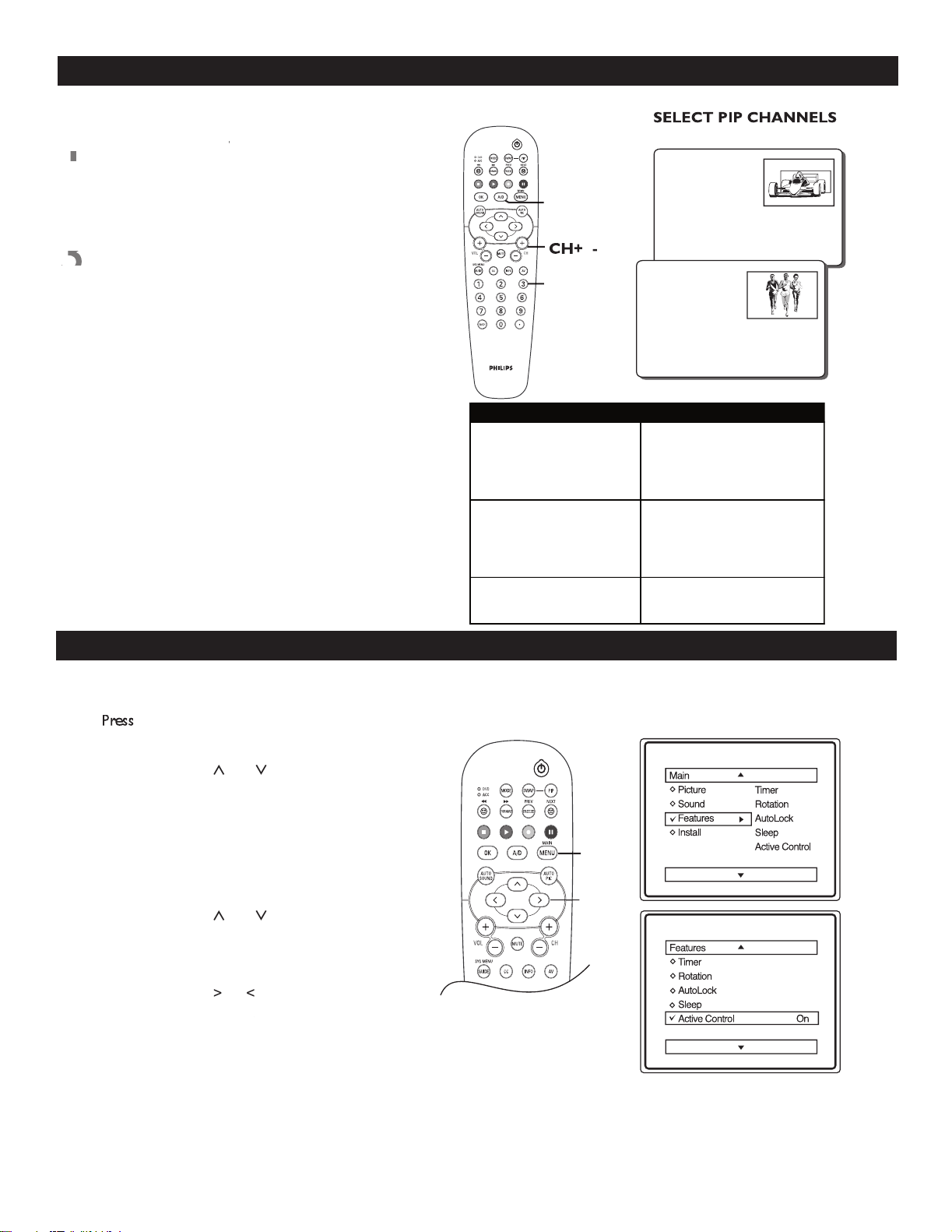
HOW TO USE THE PIP (PICTURE-IN-PICTURE) CONTROLS
ON/OFF PIP:
1
Turn the TV and the external accessory device
(if using one) ON. Choose a digital program
(from TV mode). Choose an analog program
(from TV, AV1, AV2, CV1, Front). Press the
AV button to select which external sources
you want (eg. AV1, AV2, etc).
2
Press
the
PIP
button on the remote control
to display the
PIP
window on the screen’s top
right hand corner.
3
Press the
PIP
button on the remote control
again to display the Double Window
PIP
.
4
Press the
PIP
b
utton on
the remote control
a
third time to switch off the
PIP
feature.
POWER
PIP
P
icture-In-Picture (
PIP
) is a feature that allows the display of two pictures on the TV screen at the same time. (One main screen
picture and one small inset picture or
PIP
picture.) With only a cable or antenna signal connected, the
PIP
feature can display one
channel (an analog channel) on the main screen while showing another channel (a digital channel) in the
PIP
window.
The Double Window
PIP
feature divides the screen in half displaying the main picture and
PIP
window into equal size windows (left
side showing the main picture and right side showing the
PIP
picture).
The
S
WAP PIP
feature interchanges the picture on the main screen and the
PIP
window and vice-versa.
The
CH+
or
CH–
selects all the available channels on the
CH–
CH–
PIP
window.
NOTE:
Pressing the
numeric
buttons will not change the channels in the
PIP
window. They are for use with the main screen
PIP
PIP
picture only.
The signal from an external accessory device can also be used to generate a
PIP
picture. VCRs, DVD players, or similar devices can
be used to create the signal. The
PIP
window can display signals coming from the RF inputs, the AV1, AV2, CVI, S-Video or the Front
Jacks.
For basic connection instructions, please refer to the Audio/Video Input Jacks section in the Connection Guide.
Swap PIP:
1
Press
SWAP
to interchange the picture on
the main screen with that of the
1
PIP
window.
2
Press
SWAP
again to return the pictures to
their original positions.
SWAP
C
M
Y
CM
MY
CY
CMY
K
ATSC_pg19.pdf 2006-08-16 4:49:54 PM
20
ACTIVE CONTROL OPTIONS
1
MENU b
utton on th
e remote co
ntrol
to display the onscreen menu.
2
Press
CURSOR
<
or
>
to scroll through
the onscreen menu until you see
Features
highlighted.
3
Press
CURSOR
>
to display the
Features
menu.
4
Press
CURSOR
<
or
>
repeatedly until you
see
Active Control
highlighted.
5
Press
CURSOR
>
or
<
to toggle the Active
Control to
On
and
Off
.
Off
Off
6
When finished, press the
MENU
button on the
remote control twice to exit the menu from the
TV screen.
>
>
<
>
MENU
A
ctive
control options
a
djusts the
picture
brightness
according to the
condition of the lighting in the room.
HOW TO USE THE PIP (PICTURE-IN-PICTURE) CONTROLS
Select PIP Channels:
1
Press
CH+
or
CH–
on the remote control to
CH–
CH–
select all available channels in the
1
PIP
window.
2
Press the
N
umeric
buttons on the remote
control to select available channels on the main
screen.
3
Press
A/D
button to switch between Digital
and Analog channels.
3
NUMERIC
BUTTONS
A/D
Note
:
PIP feature can display one channel (an analog
channel) on the main screen while showing another
channel (a digital channel) in the PIP window or vice
versa. It cannot show both analog or digital pictures on
both main and PIP window at the same time.
Refer to the following
ATSC PIP Table
for all possible
combination.
Note
:
When the lighting in the room is dim, the brightness of the picture
will be decreased. When the lighting in the room is bright, the brightness
of the picture will be increased.
Main Window PIP Window
· Digital (Cable / Off Air) · Analog (Cable)
· CVI (Component Video)
· Composite Video
· S-Video
· Analog · Digital (Cable / Off Air)
· CVI (Component Video)
· AV (Composit Video0
· S-Video
· HDMI · Cannot activate PIP
· HD CVI
C
M
Y
CM
MY
CY
CMY
K
ATSC_pg20.pdf 2006-08-16 4:56:17 PM

21
UNDERSTANDING AUTOLOCK CONTROLS
MOVIE RATINGS
G: General Audienc
e
- All ages admitted. Suitable for all ages.
PG: Parental Guidance Suggested
- Contains material
unsuitable for younger children.
PG-13: Parents Strongly Cautioned
- Contains material
unsuitable for children under the age of 13.
R: Restricted
- Suitable for adults above 17 years of age only.
NC-17:
No one under the age of 17 will be admitted.
X: Adults Only
- Contains one or more of the following: very
X: Adults Only - Contains one or more of the following: very X: Adults Only
graphic violence, very graphic and explicit or indecent sexual acts,
very coarse and intensely suggestive language.
A
utoLock is a feature that lets the TV receive and process data sent by broadcasters or other program providers with program content
advisory. When programmed by the viewer, a TV with AutoLock can respond to the content advisory and block program content
Aadvisory. When programmed by the viewer, a TV with AutoLock can respond to the content advisory and block program content A
that may be found objectionable (such as offensive language, violence, sexual situations, etc.). This feature is useful for adults to prevent
certain types of programs from being viewed by children.
AutoLock
offers various BLOCKING controls to choose: from:
AutoLock offers various BLOCKING controls to choose: from:AutoLock
Access Code
- An Access Code must be set to prevent children from unblocking questionable or censored programming set by their
parents.
Channel Block
- After an access code has been programmed, you cannot block individual channels including the A/V inputs.
Channel Block - After an access code has been programmed, you cannot block individual channels including the A/V inputs.Channel Block
Clear All
- Lets you clear all channels being blocked from your viewing set with the Channel Block Control.
Block All
- Lets you block ALL channels except A/V inputs.
No Rating / Un
rated
- ALL
programing with no content advisory data can be blocked if
N
O RAT
ING / Unr
O RATING / UnrO RAT
ated
ING / Unrated ING / Unr
is
set to ON.
Movie Ratings
- Certain blocking options exist which will block programming based on ratings patterned by the Motion Pictures
Association of America (MPAA).
TV Ratings
- Like the Movie Ratings, programs can be blocked from viewing using standard TV ratings set by TV broadcasters.
TV RATINGS
TV-Y :
Designed for a very young audience, including children
ages 2-6
TV-Y7:
Appropriate for children age 7 and above who have
acquired the development skills needed to distinguish between
make-believe and reality.
acquired the development skills needed to distinguish between
make-believe and reality.
TV-G :
Suitable for most audiences. Contains little or no violence,
no strong language, and little or no sexual dialogue or situations.
TV-PG:
Contains material unsuitable for younger children.
Could contain Moderate violence (V), some sexual situations (S),
infrequent coarse language (L), or some suggestive dialogue (D).
TV-14:
Contains some material unsuitable for children under
14 years of age. Contains one or more of the following: intense
violence (V), intense sexual situations (S), strong coarse language
(L), or intensely suggestive dialogue (D).
TV-MA
-
Viewed by adults and therefore may be unsuitable for
children under 17. Contains one or more of the following: graphic
violence (V), explicit sexual situations (S), or crude indecent
language (L).
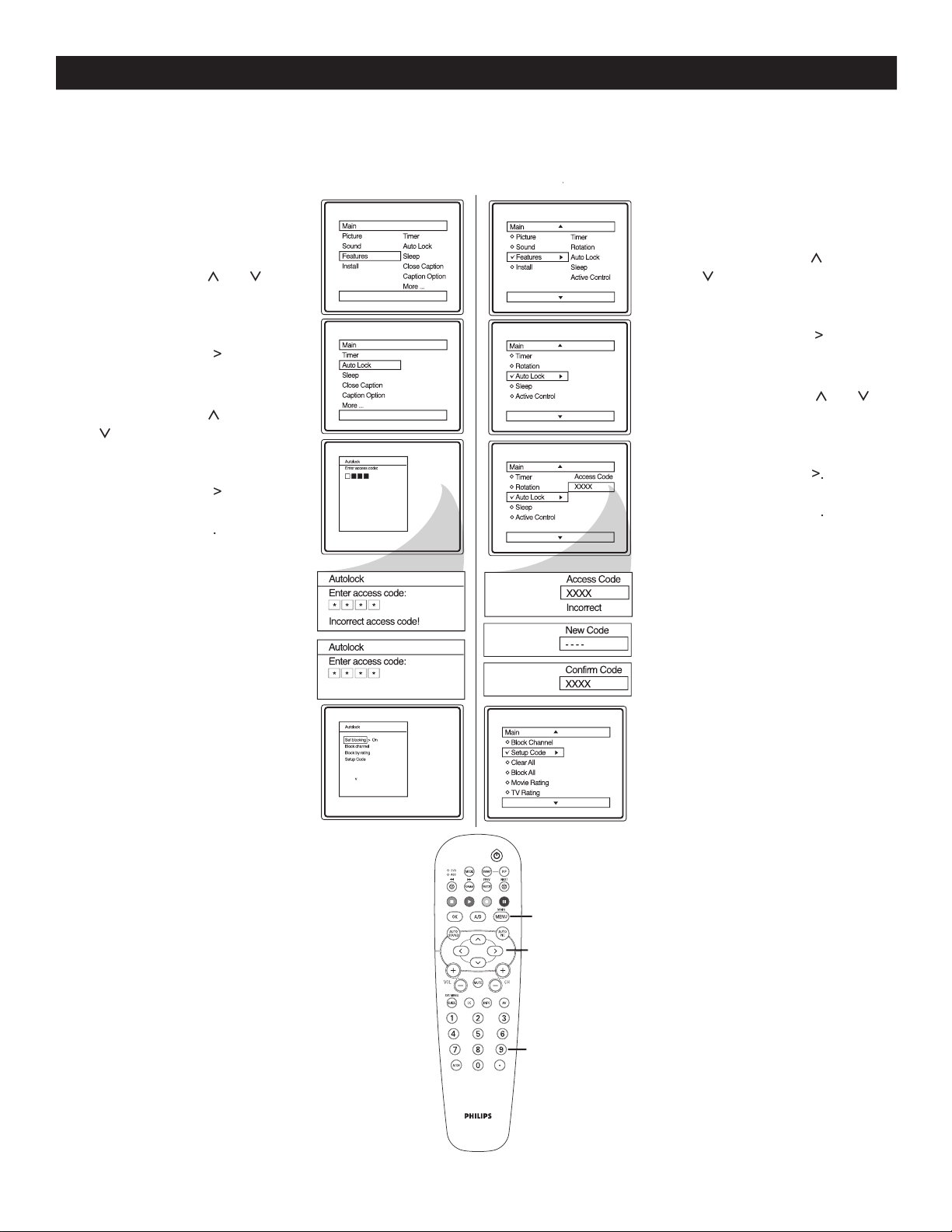
22
SETTING UP ACCESS CODE TO BLOCK CHANNELS
O
ver the next few pages you’ll learn how to block channels and get a better understanding of the ratings used for
certain programming.
1
Press
MENU
on the remote
control to display the onscreen
menu.
2
Press
CURSOR
<
or
>
until you see
Features
highlighted.
3
Press
CURSOR
>
to display
the Features menu options.
4
Press
CURSOR
<
or
>
until you see
Auto Lock
Auto Lock Auto Lock
highlighted.
5
Press
CURSOR
>
.
The
screen will display:
Access Code - - - -
.
6
Using the
NUMERIC
buttons, enter
0, 7, 1, 1
.
“XXXX” appears on the
Access Code screen as you
press the
numeric
buttons.
Incorrect Code
will appear on
the screen and you will need to
enter
0, 7, 1, 1
again.
1
Press
MENU
on the remote to
display the onscreen menu.
2
Press
CURSOR
<
or
>
until you see
Features
highlighted.
3
Press
CURSOR
>
to display
the Features menu options.
4
Press
CURSOR
<
or
>
or
until you see
Auto Lock
highlighted.
5
Press
CURSOR
>
.
The screen will display:
Access Code - - - -
.
6
Using the
NUMERIC
buttons,
enter
0711
. “
XXXX
”
appears on the Access Code
screen as you press the
NUMERIC
buttons.
Incorrect Code
will appear on
the screen and you will need
to enter
0711
again.
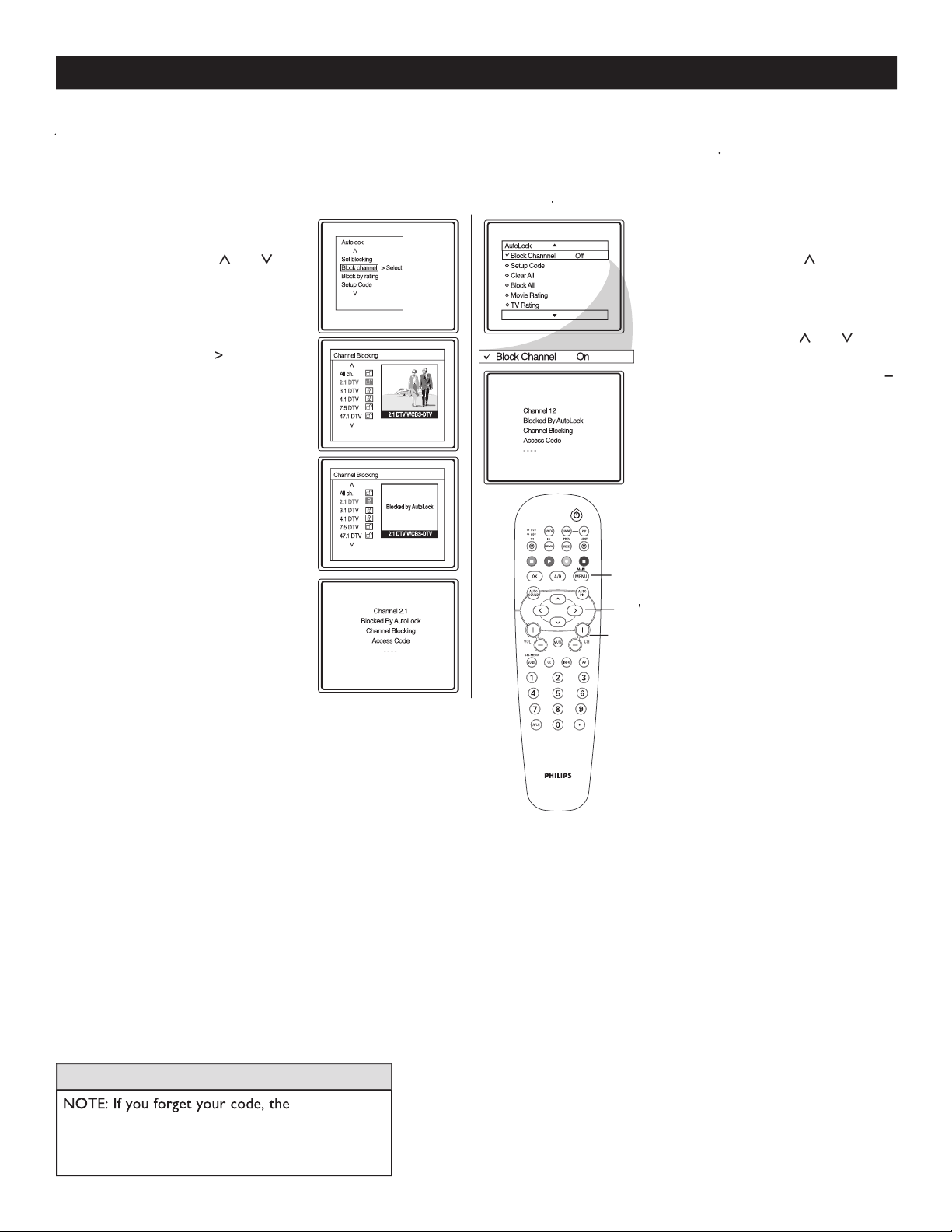
7
The screen will
prompt
you to enter a
New Code
.
Enter a new 4 digit code using
the
NUMERIC
buttons. The
screen will then prompt you
to
CONFIRM
the code you
just entered. Enter your new
code again. “
XXXX
” will
appear when you enter your
new code. AutoLock menu
options will be displayed if the
new code tallies with the one
you have entered earlier.
Follow these steps
for
Digital Mode
Follow these steps for
Analog Mode
>
>
<
>
MENU
NUMERIC
BUTTONS
Digital Mode
Analog
Mode
Analog ModeAnalog
23
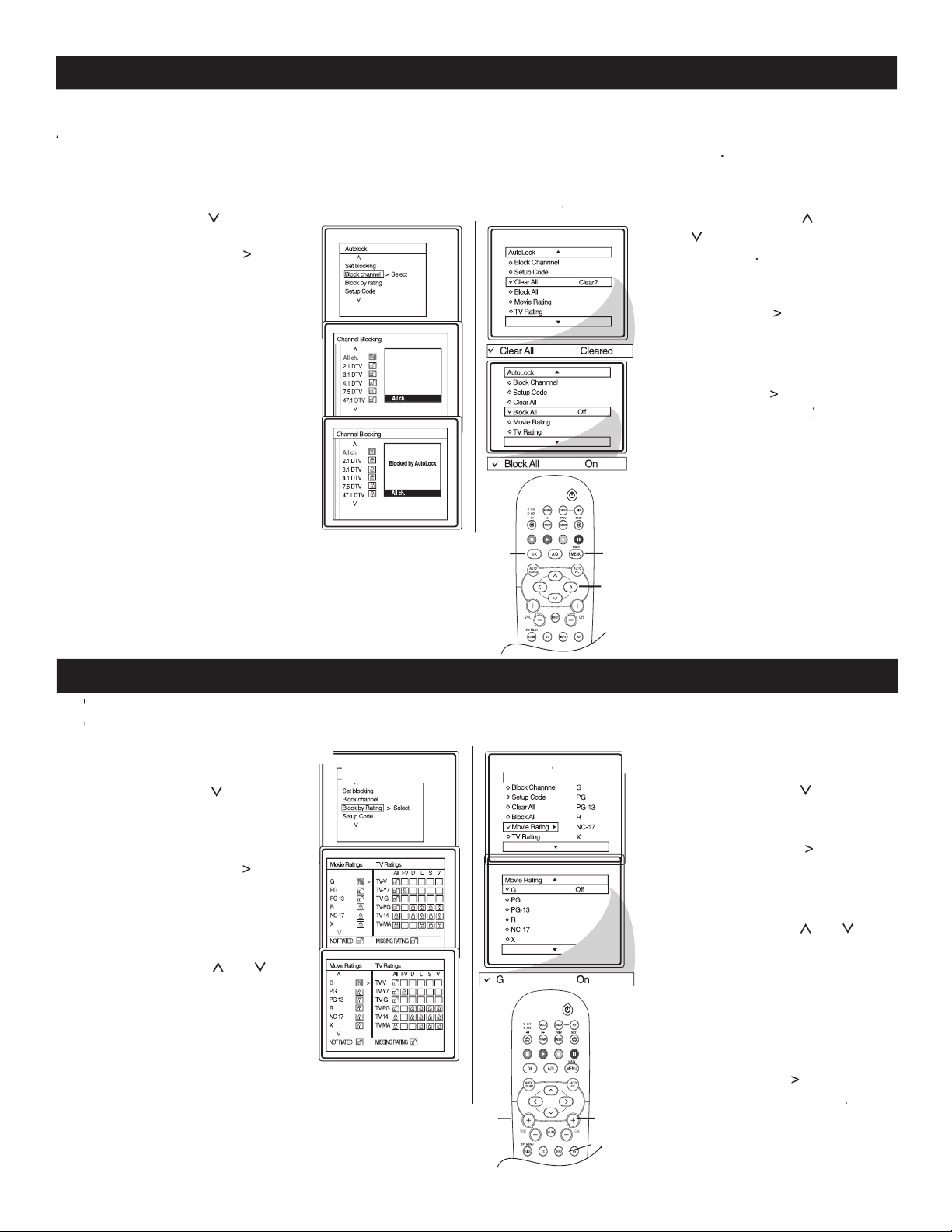
HOW TO BLOCK CHANNELS
1
After Setting your personal
access code (see previous page),
press
CURSOR
<
or
>
until you see
Block Channel
highlighted.
2
Press
CURSOR
>
to enter
the Channel Blocking menu.
Press
OK
to lock or unlock the
OK to lock or unlock the OK
channel.
3
When finished, press
MENU
on the remote control
three
times to exit the menu from the
TV screen.
NOTE: If you forget your code, the
0711
code is
the default and can be used to enter and create a
new access code. Enter the above number twice.
HELPFUL HINTS
A
A
fter your personal access code has been set (see previous page), you are now ready to select the channels you
want to block.
Once you have entered your access code and the AutoLock feature is displayed on the screen
.
1
After Setting your personal
access code (see previous page),
press
CURSOR
<
or
>
until
you see
Block Channel
highlighted.
2
Press
CURSOR
<
or
>
to
select the channels you wish
to block. Press
CH +
or
CH
–
to select other channels you
wish to block.
3
When finished, press
MENU
on the remote control
three
times to exit the menu from
the TV screen.
Follow these steps
for
Digital Mode
Follow these steps for
Analog Mode
CH+ -
CH+ -
>
>
>
<
>
MENU
MENU
Digital Mode
Analog
Mode
Analog ModeAnalog
24
BLOCK / CLEAR ALL CHANNELS AT THE SAME TIME
A
A
fter blocking specific channels there may come a time when you want to block or clear all the channels at the
same time.
Once you’ve entered your access code and the AutoLock features are displayed on the screen
.
1
Press
CURSOR
>
to
select Block channel.
Press the
CURSOR
>
button to enter the Channel
blocking menu.
2
If
All ch.
is locked, press
OK
OK OK
to clear all blocked channels.
All channels will be viewable.
If
All ch.
is unlocked, press
the
OK
button to lock all
OK button to lock all OK
channels. When this is done,
ALL available channels
will be blocked from viewing.
3
When finished, press
MENU
on the remote control four
times to exit the menu from
the TV screen.
1
Press
CURSOR
<
or
>
to select either
Clear All
or
Block All
.
2
If
Clear All
is selected, press
CURSOR
>
to clear all
blocked channels. All channels
will be viewable.
If
Block All
is selected, press
CURSOR
>
to turn the
control
On
or
Off
. When
Off. When Off
On
is selected, ALL available
channels will be blocked from
viewing.
3
When finished, press
MENU
on the remote control four
times to exit the menu from
the TV screen.
Follow these steps
for
Digital Mode
Follow these steps for
Analog mode
OK
OK
>
>
<
>
MENU
MENU
Digital Mode
Analog
Mode
Analog ModeAnalog
1
Press
CURSOR
>
until
you see
Block by Rating
highlighted.
2
Press the
CURSOR
>
to
display the Movie Rating
options (G, PG, PG-13, R,
NC17, or X).
3
Press
CURSOR
<
or
>
or
to highlight any of the
Movie Rating options. When
highlighted, all these options
can be turned
On
(which will
allow blocking) or
Off
(which will allow viewing).
4
Press
OK
to turn the rating
option On or Off.
T
he AutoLock feature can block programs based on the Movie Industry ratings.
T
he AutoLock feature can block programs based on the Movie Industry ratings.
T
Once you’ve entered your access code and the AutoLock features are displayed on the screen:
TOnce you’ve entered your access code and the AutoLock features are displayed on the screen:T
1
Press
CURSOR
>
until you
see
Movie Rating
highlighted.
2
Press
CURSOR
>
to display
the Movie Rating options (G,
PG, PG-13, R, NC17, or X).
3
Press
CURSOR
<
or
>
to highlight any of the Movie
Rating options. When
highlighted, all these options
can be turned
On
(which will
allow blocking) or
Off
(which
will allow viewing).
4
Use
CURSOR
>
to turn the
rating option
On
or
Off
.
Off.Off
Follow these steps
for
Digital Mode
Follow these steps for
Analog mode
MOVIE RATINGS
OK
OK
>
>
>
<
>
MENU
Digital Mode
Analog
Mode
Analog ModeAnalog
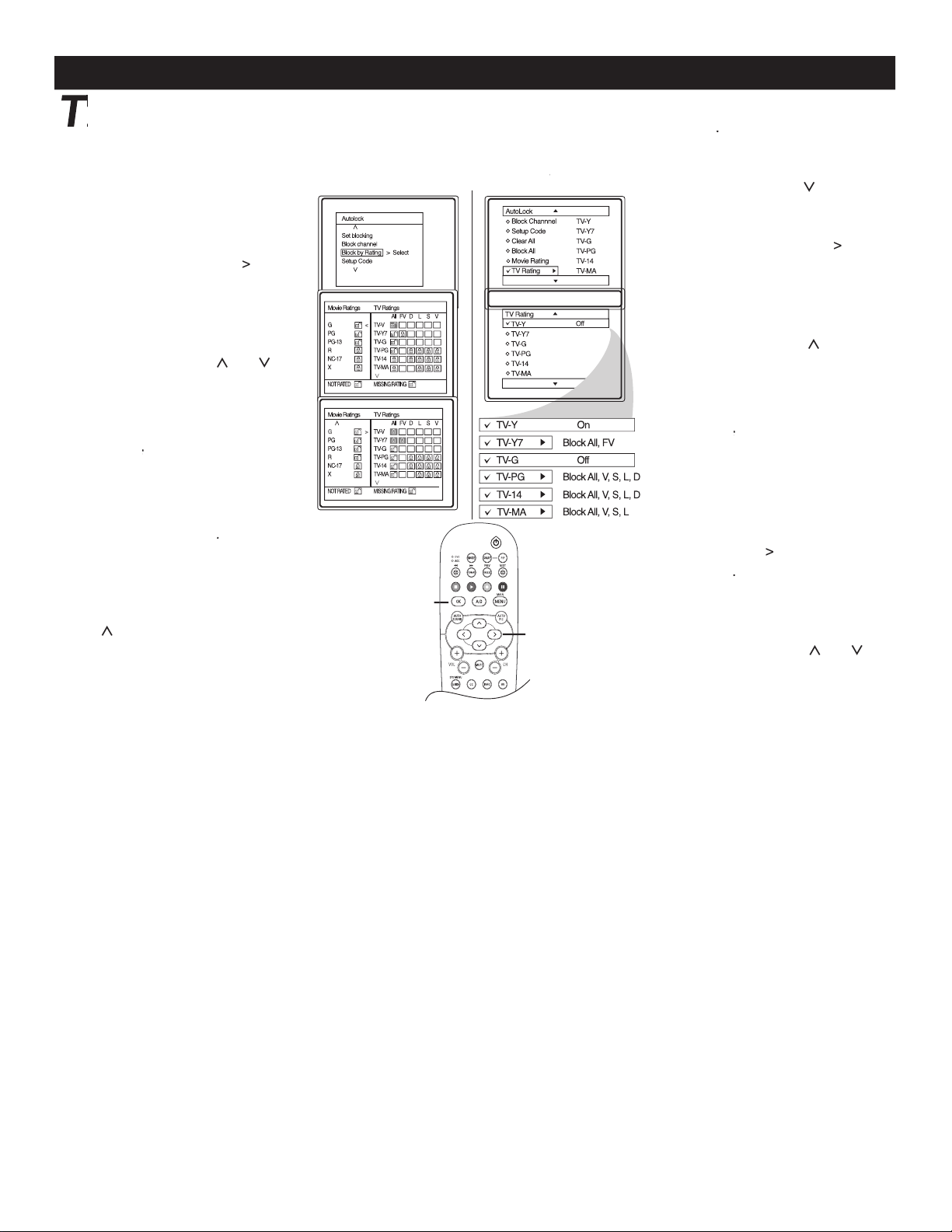
TV RATINGS
T
he AutoLock feature can block programming based on the TV Industry ratings.
T
he AutoLock feature can block programming based on the TV Industry ratings.
T
Once you’ve entered your access code and the AutoLock features are displayed on the screen
T
Once you’ve entered your access code and the AutoLock features are displayed on the screen
T
.
1
Press
CURSOR
>
until
you see
Block by Rating
highlighted.
2
Press the
CURSOR
>
to
display the
TV Rating
options
(TV-Y, TV-Y7, TV-G, TV-PG,
TV-14 or TV-MA).
3
Press
CURSOR
<
or
>
to
highlight any of the TV Rating
options. When highlighted,
all these options can be turned
On
(which will allow blocking)
or
Off
(which will allow
Off (which will allow Off
viewing).
4
Press
OK
to turn the rating
option
On
or
Off
.
Off.Off
5
If the TV-Y7, TV-PG,
TV-14 or TV-MA sub-menu is
accessed, press
C
URSOR
<
or
>
to select one of the
options (Block All, V, S, L
, D or
FV).
Follow these steps
for
Digital Mode
OK
>
>
<
>
25
Digital Mode
Analog
Mode
Analog ModeAnalog
1
Press
CURSOR
>
until you
see
TV Ra
ting
highlighted.
2
Press the
CURSOR
>
to
display the
TV Rating
options
(TV-Y, TV-Y7, TV-G, TV-PG,
TV-14 or TV-MA).
3
Press
CURSOR
<
or
>
to
highlight any of the TV Rating
options. When highlighted,
all these options can be turned
On
(which will allow blocking)
or
Off
(which will allow
Off (which will allow Off
viewing).
4
Press
C
URSOR
>
to turn
the TV-Y or TV-G rating
On
or
Off
. Or, press the
CURSOR
>
to enter the sub-
menus
.
5
If the TV-Y7, TV-PG, TV-14 or
TV-MA sub-menu is accessed,
press
C
URSOR
<
or
>
to
select one of the options
(Block All, V, S, L
, D or FV).
Follow these steps for
Analog mode
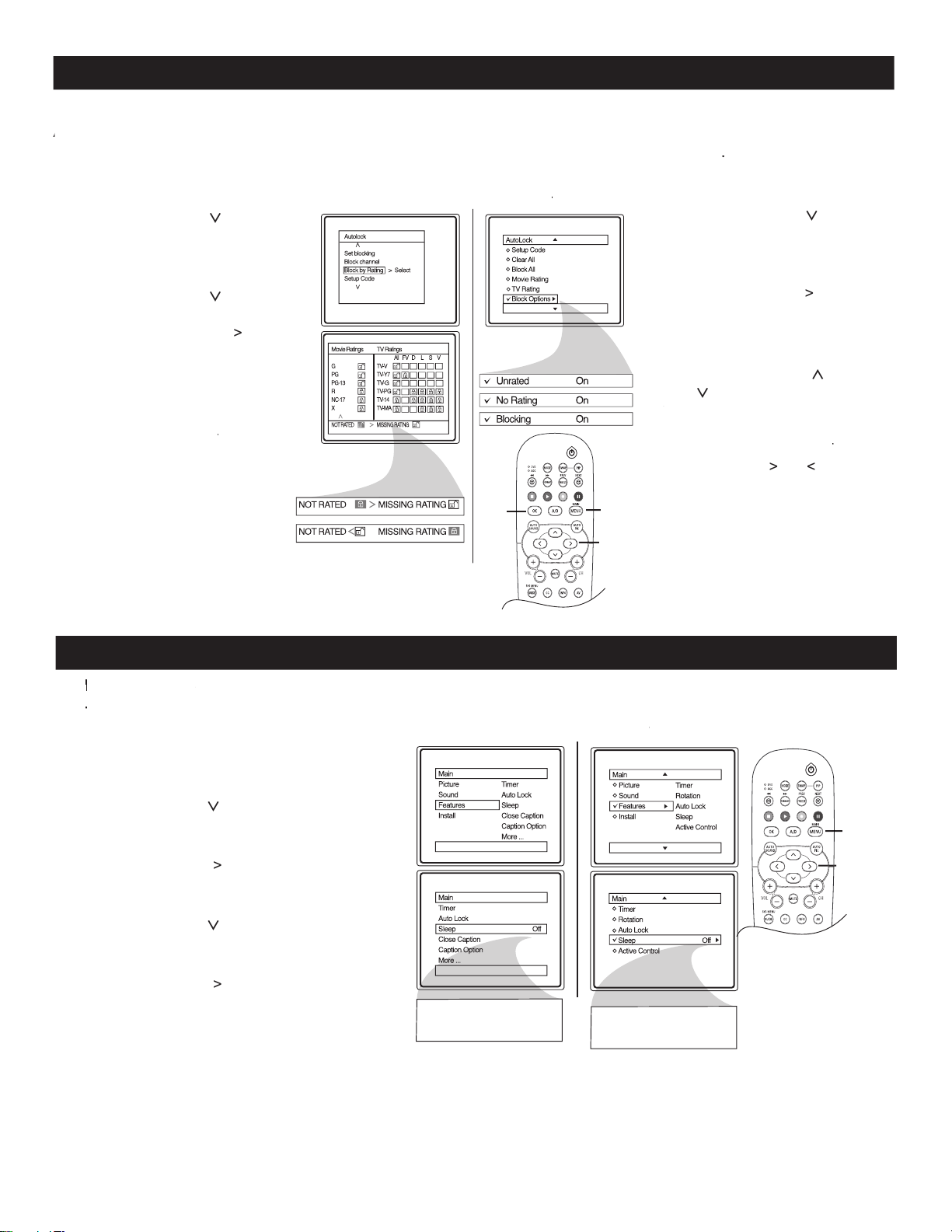
26
BLOCKING OPTIONS
1
Press
CURSOR
>
until
you see
Block by Rating
highlighted.
2
Press
CURSOR
>
until you
see
Not Rated
highlighted
or press
CURSOR
>
until
you see
Missing
Rating
highlighted.
3
Press
OK
to turn the desired
feature
On
or
Off
.
Off. Off
A
A
utoLock offers the viewer other blocking features as well. With these Blocking Options, blocking can be turned
ON or OFF.
When you have entered your access code and the AutoLock feature is displayed
on the screen
.
1
Press
CURSOR
>
until
you see
Block Options
highlighted.
2
Press
CURSOR
>
to display
the
Blocking Options
(Blocking, Unrated, or No
Rating) menu.
3
Press
CURSOR
<
or
>
until you see your desired
feature highlighted. When
3
feature highlighted. When
3
highlighted, each feature can
be turned
On
or
Off
using
Off using Off
CURSOR
>
or
<
on the
remote control.
Follow these steps
for
Digital Mode
Follow these steps for
Analog mode
OK
1
Press
MENU
on the remote control to display
the onscreen menu.
2
Press
CURSOR
>
until you see
Features
highlighted.
3
Press
CURSOR
>
to enter Features menu
options.
4
Press
CURSOR
>
until you see
Sleep
highlighted.
5
Press
CURSOR
>
repeatedly to select the
amount of time (15, 30, 45, 60, 90, 120, 180
or 240 minutes) before the TV automatically
switches Off.
NOTE:
An onscreen countdown will appear during
the last minute before the TV turns
Off. If any button is pressed during the last
minute of the countdown, the Sleep Timer
setting will be cancelled.
15, 30, 45, 60, 90, 120, 180,
240
15, 30, 45, 60, 90, 120, 180,
240
SLEEPTIMER
>
>
<
>
MENU
>
>
<
>
MENU
Digital Mode
Analog
Mode
Analog ModeAnalog
Digital Mode
Analog
Mode
Analog ModeAnalog
T
he
T
he
T
Sl
eepTimer f
e
eepTimer feeepTimer f
ature allows you to set a timer to
auto
matically
turn the TV off after a period of ti
me you choose
- 15, 30, 45
T- 15, 30, 45T
, 60, 90, 120
, 180 or 240 minutes.
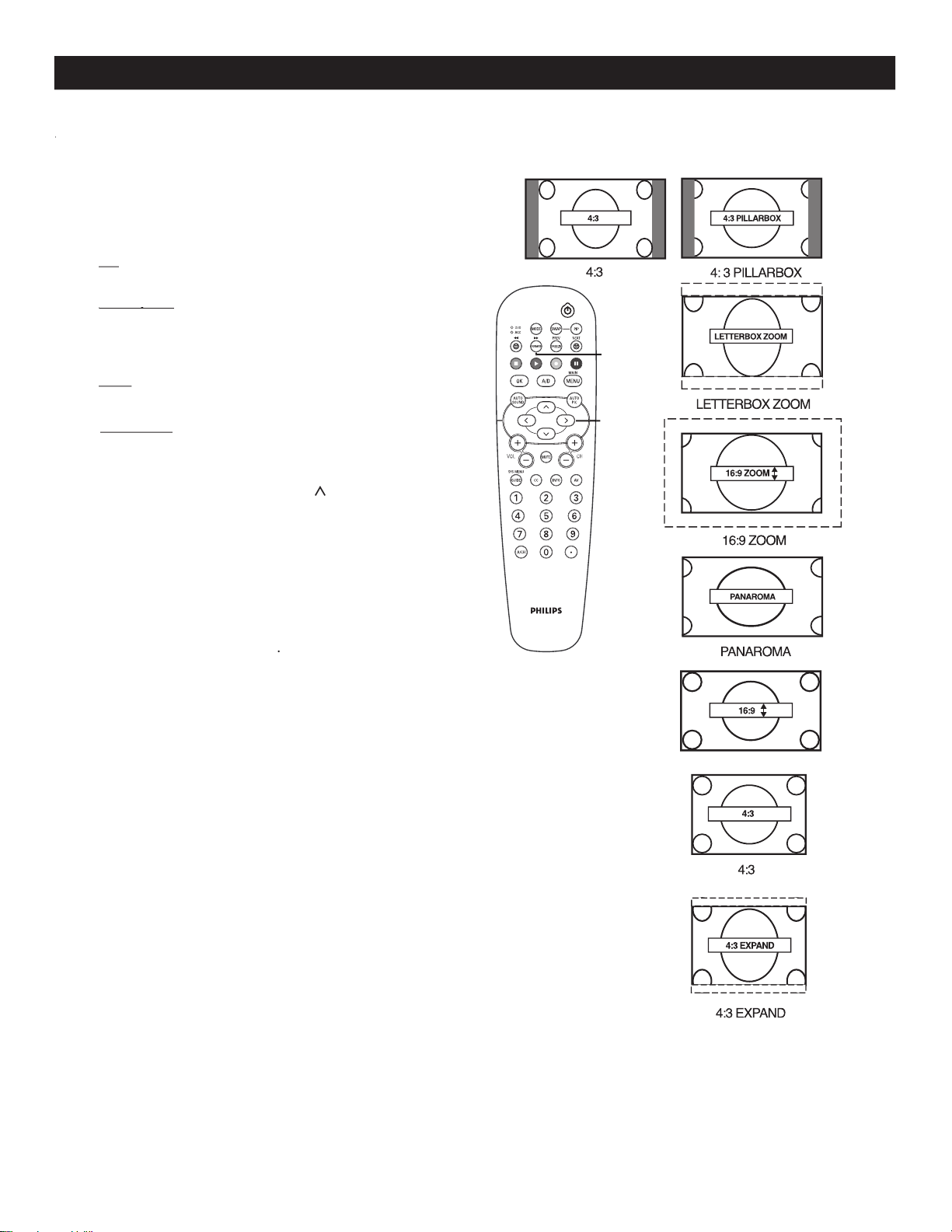
27
HOW TO USE THE FORMAT CONTROL
FORMAT
>
>
<
>
1
Press
FORMAT
on the remote control
to
select one of the
scr
een format options.
4:3
-
Stand
ard format for the TV.
4:3 Expand
4:3 Expand
-
4:3 Expand - 4:3 Expand
Enlarges the picture to fill out the
entire screen area, eliminating the “letter box”
effect.
16:9
-
until the lightest parts of the
picture show good detail.
16:9 Zoom
-
to improve sharpness in the
picture.
While in the
16:9 Zoom
and
16:9
format
options you can press
CURSOR
<
or
>
to
"nudge" the picture up or down.
Note :
4:3 and 4:3 Expand
format options are only
available for model 32PT9100D.
16:9 and 16:9 Zoom
format options are only
available for widescreen models
26PW9100D,
30PW9100D and 30PW9110D
.
M
M
any times while watching movies from a DVD player the image is shown in “letter box” format. This is the
format that is shown in movie theaters. when shown on a TV screen, the image will have areas of black bars on
the top and bottom of the screen.
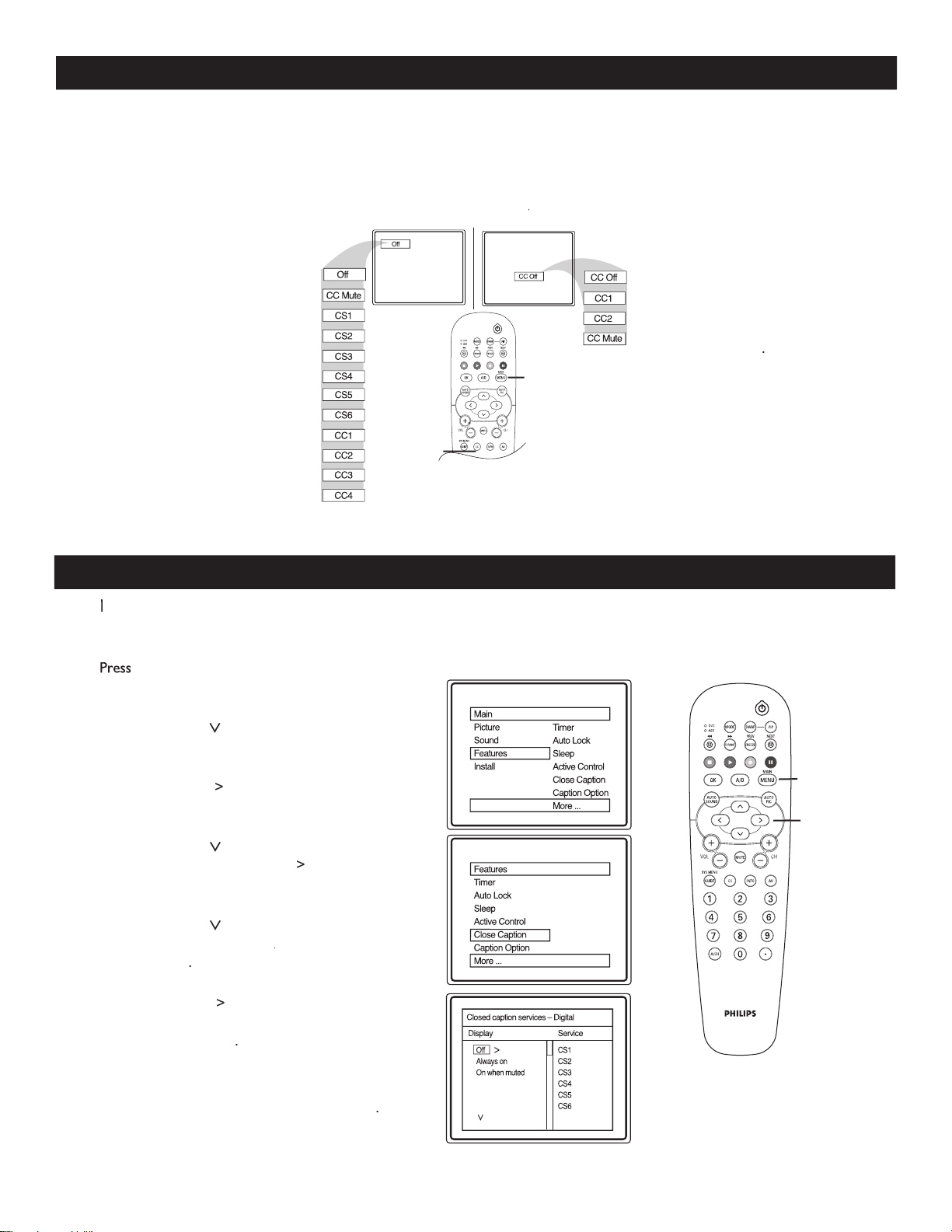
CLOSE CAPTIONING
1
Press
MENU
on the remote control to display
the onscreen menu.
2
Press
CURSOR
>
until you see
Features
highlighted.
3
Press
CURSOR
>
to display the Features menu
options.
4
Press
CURSOR
>
until you see
Close Caption
highlighted. Press
CURSOR
>
to enter
Closed caption services-Digital menu options.
5
Press
CURSOR
>
to highlight the display
options that you want –
Off
,
Off, Off
Always On
or
On
when muted
.
6
Press
CURSOR
>
to highlight the service
you want to assign the display option that
you selected in step 5
.
R
epeat steps 5-6 to
assign
display options to more service.
7
When finished, press
MENU
on the remote
control
to exit the menu from the TV screen
.
CLOSE CAPTIONING SERVICES - DIGITAL
28
C
losed Captioning (
CC
) lets you read the voice content of TV programs on the TV screen. Designed to help
the hearing impaired, this feature uses onscreen “text boxes” to show dialogue and conversations while the TV
program is in progress.
1
Press
CC
to display the current
Closed Caption setting.
2
Press
CC
repeatedly to choose
from the 12 Closed Caption
options
(Off, CC Mute,
CS1 to 6 and CC1 to CC4).
3
When finished, press
MENU
on
the remote control to exit the
menu from the TV screen.
1
Press
CC
to display the current
Closed Caption setting.
2
Press
CC
repeatedly to choose
from the four Closed Caption
options
(CC Off, CC1, CC2,
CC Mute)
.
3
When finished, press
MENU
on the remote control
to
exit the menu from the TV
screen.
Follow these steps
for
Digital Mode
Follow these steps for
Analog mode
MENU
CC
MENU
>
>
<
>
Digital Mode
Analog
Mode
Analog ModeAnalog
W
hen in digital mode, you can assign display options to your closed captioning options.
W
hen in digital mode, you can assign display options to your closed captioning options.
W
Digital Mode
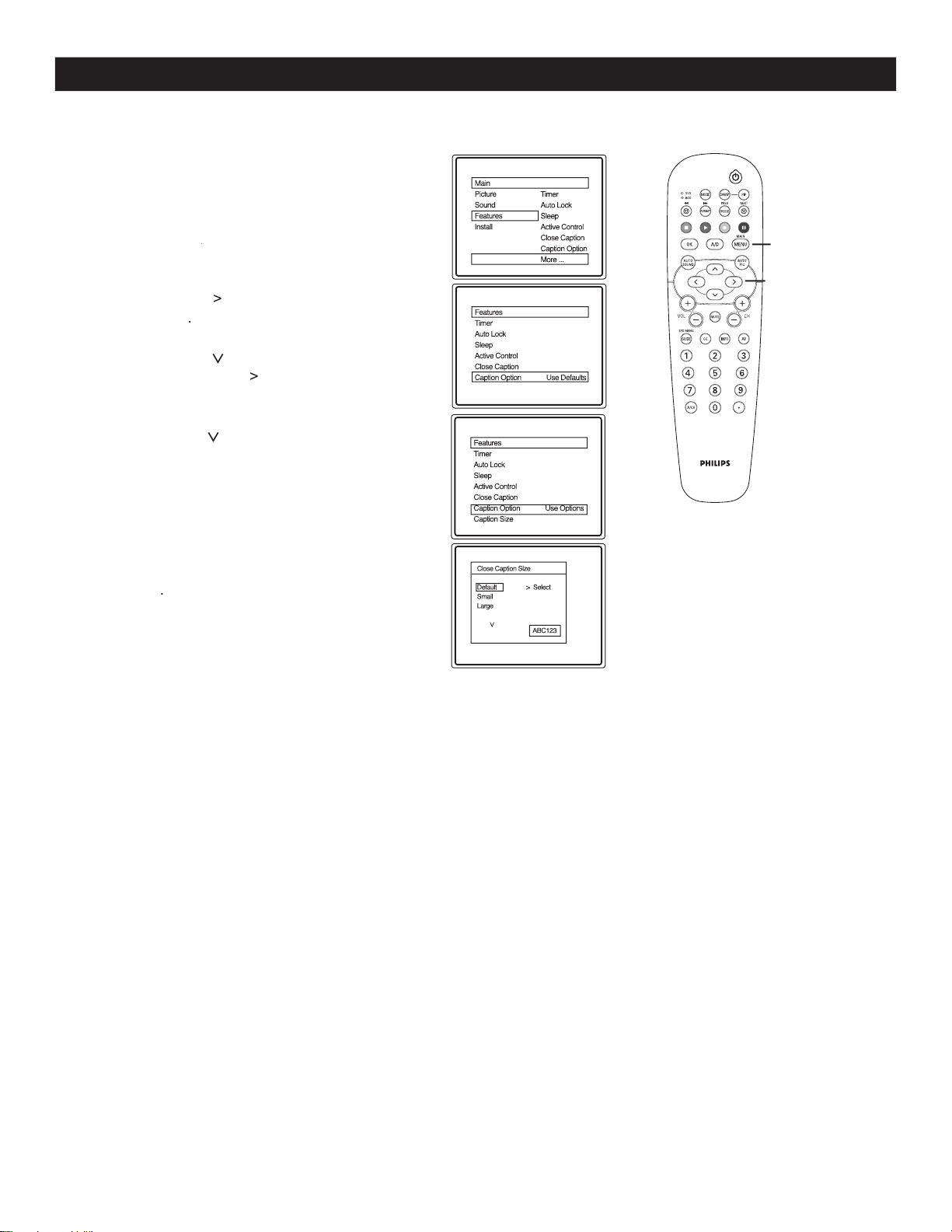
29
CAPTION OPTION AND SIZE - DIGITAL
1
Press
MENU
on the remote control to display the
onscreen menu.
2
Press
CURSOR
>
CURSOR
>CURSOR
until you see
Features
highlighted.
3
Press
CURSOR
>
to select
Use Options
or
Use Defaults
.
4
Press
CURSOR
>
to highlight
Caption Size
followed by
CURSOR
>
to enter Caption
Size options menu.
5
Press
CURSOR
>
to highlight
Close Caption
display size options
–
Default, Small or
Large
. The text size will be displayed at the right
hand corner of the menu to help you make your
choice.
6
When finished, press
MENU
on the remote
control
three times to exit the menu from the
TV screen
.
MENU
>
>
<
>
C
aption Option lets you select the default option or options that you have assigned to your Close captioning
service
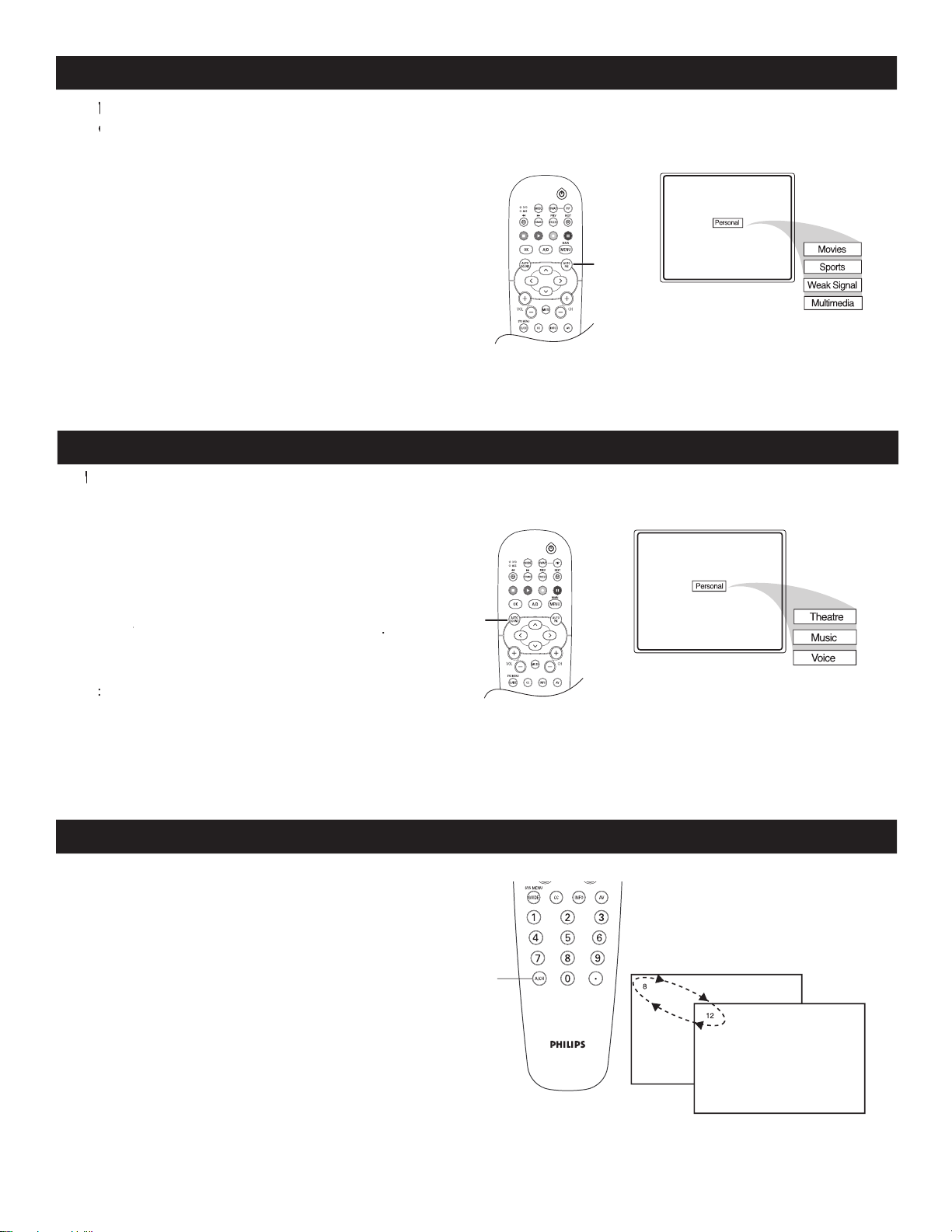
AUTO PICTURE
1
Press
AUTO PICTURE
on the remote control.
The current Auto Picture setting will be displayed
on the TV screen.
2
Press
AUTO PICTURE
repeatedly to
select either
Personal
,
Movies
,
Sports
,
Weak Signal
, or
MULTIMEDIA
picture
settings.
NOTE
:
The way you choose to set the Picture Menu
Controls will become your Personal setting.
AUTO SOUND
1
Press
AUTO SOUND
on the remote control
.
The current Auto Sound setting will be displayed
on the TV screen.
2
Press
AUTO SOUND
repeatedly to select
either
Personal
either Personal either
,
Theatre
,
Music
, or
Voice
.
NOTE
:
The way you choose to set the Sound Menu
Controls will become your Personal setting.
30
1
Your remote control also has an
A/CH
(Alternate Channel) button. Pressing this
button will toggle between the Current and
previously selected channel.
ALTERNATE CHANNEL
A/CH
AUTO
PIC
AUTO
SOUND
W
hether you’re watching a movie or a sporting event, your TV has automatic video control settings to match your
W
hether you’re watching a movie or a sporting event, your TV has automatic video control settings to match your
W
current program source or content.
Wcurrent program source or content. W
T
he Auto Sound feature allows the listener to select between four different pre-set sound options.
T
he Auto Sound feature allows the listener to select between four different pre-set sound options.
T
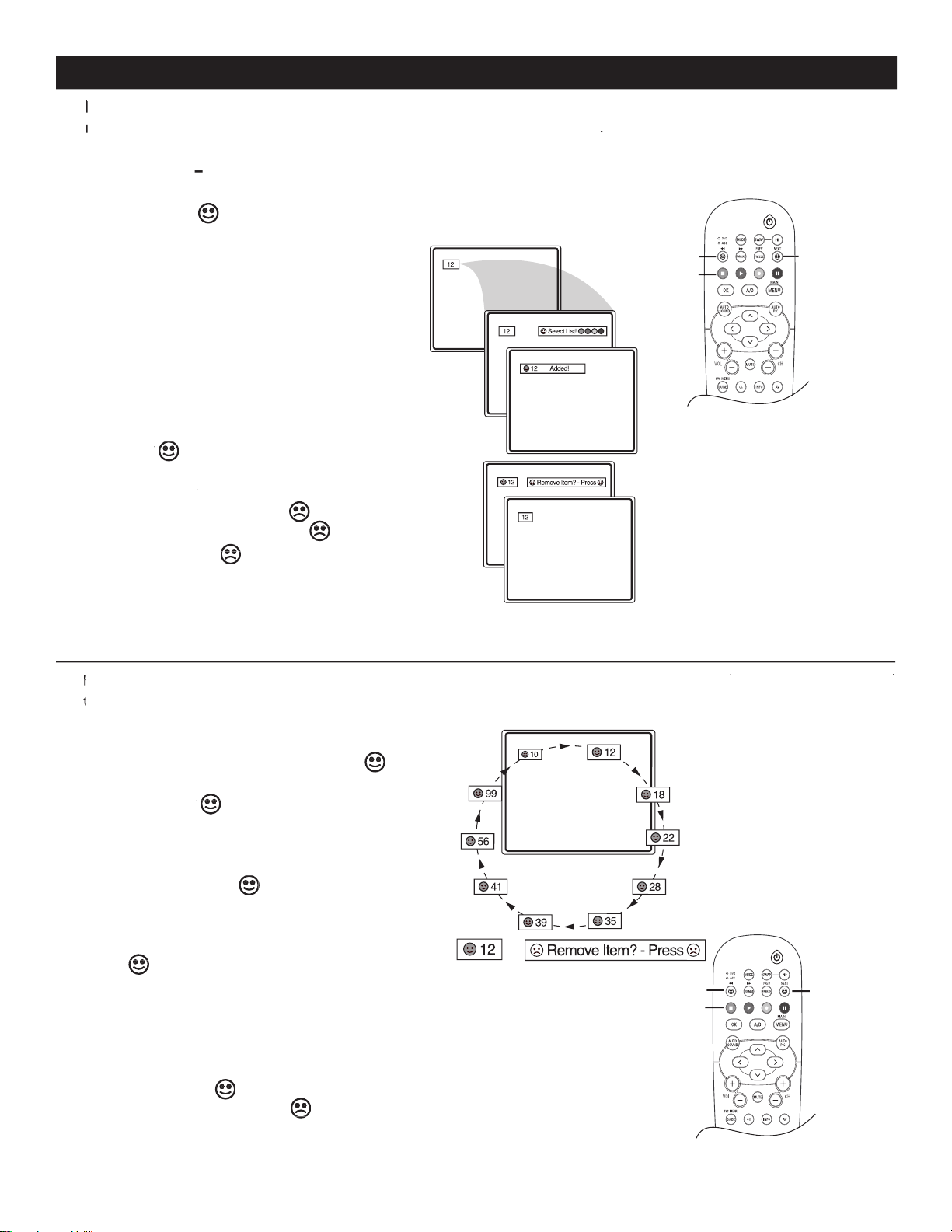
31
1
Press one of the pre-programmed
COLORED
buttons. The screen will display a
SMILEY
with
the first programmed channel for that surf list.
2
While
SMILEY
is displayed, press the
SMILEY is displayed, press the SMILEY
same
COLORED
button to tune the second channel
programmed for that specific surf list.
3
Repeatedly pressing the same
COLORED
button
while
SMILEY
SMILEY SMILEY
is displayed will tune all
the programmed channels. Pressing the
COLORED
button again will return you to the first channel in
the list.
If
SMILEY
disappears from the screen and the same
COLORED
button is pressed, the surf channels will be
displayed starting with the FIRST programmed channel
again.
4
Repeat steps 1-3 for the other three
COLORED
buttons (Surf lists) if desired.
5
Anytime
SMILEY
appears with the channel
number, pressing
FROWNIE
will let you
remove it from the list.
1
Press
CH +
or
–
(or the
numeric
buttons) to select
a channel to add to one of the SURF lists.
2
Press
SMILEY
to ADD the channel to one of
the SURF lists.
3
Press the corresponding
COLORED
button to
add the channel to that button’s Surf list. (Up to ten
channels per button may be stored.)
Repeat steps 1 through 3 to add additional
channels to each of the the SURF lists.
To remove a channel from one of the SURF lists;
4
Press the
COLORED
Quadra Sur
f
button
until the desired channel appears. The screen
will display the channel number with a colored
SMILEY
to indicate the Colored button it
SMILEY
to indicate the Colored button it
SMILEY
corresponds to.
5
While
SMILEY
channel indicator is
SMILEY
channel indicator is
SMILEY
displayed, press
FROWNIE
. The screen
will read, “Remove item? - Press .”
6
Press
FROWNIE
again
to confirm your
decision to remove the channel from the Surf list.
Repeat steps 4-6 to remove other channels from
Surf lists.
QUADRASURF
will display the channel number with a colored
to indicate the Colored button it
to indicate the Colored button it
to indicate the Colored button it
to indicate the Colored button it
will read, “Remove item? - Press .”
will read, “Remove item? - Press .”
will read, “Remove item? - Press .”
will read, “Remove item? - Press .”
again
again
again
again
is displayed, press the
is displayed, press the
is displayed, press the
is displayed, press the
Repeatedly pressing the same
is displayed will tune all
disappears from the screen and the same
disappears from the screen and the same
disappears from the screen and the same
disappears from the screen and the same
appears with the channel
appears with the channel
appears with the channel
appears with the channel
appears with the channel
will let you
will let you
will let you
SMILEY
COLORED
BUTTONS
FROWNIE
SMILEY
COLORED
BUTTONS
FROWNIE
with
with
with
with
T
he QuadraSurf control lets you set up four different personal channel Surf lists using the colored buttons (on the
T
he QuadraSurf control lets you set up four different personal channel Surf lists using the colored buttons (on the
T
remote control), each can hold up to ten channels in its quick viewing
Tremote control), each can hold up to ten channels in its quick viewingT
list
.
T
he Quadra Surf buttons lets you store up to 10 channels per button (40 total). You can program the
T
he Quadra Surf buttons lets you store up to 10 channels per button (40 total). You can program the
T
A/V
Input channels for each of
Input channels for each of
A/V Input channels for each of A/V
the four buttons making them
Tthe four buttons making them T
source
buttons to switch between your external or accessory devices.
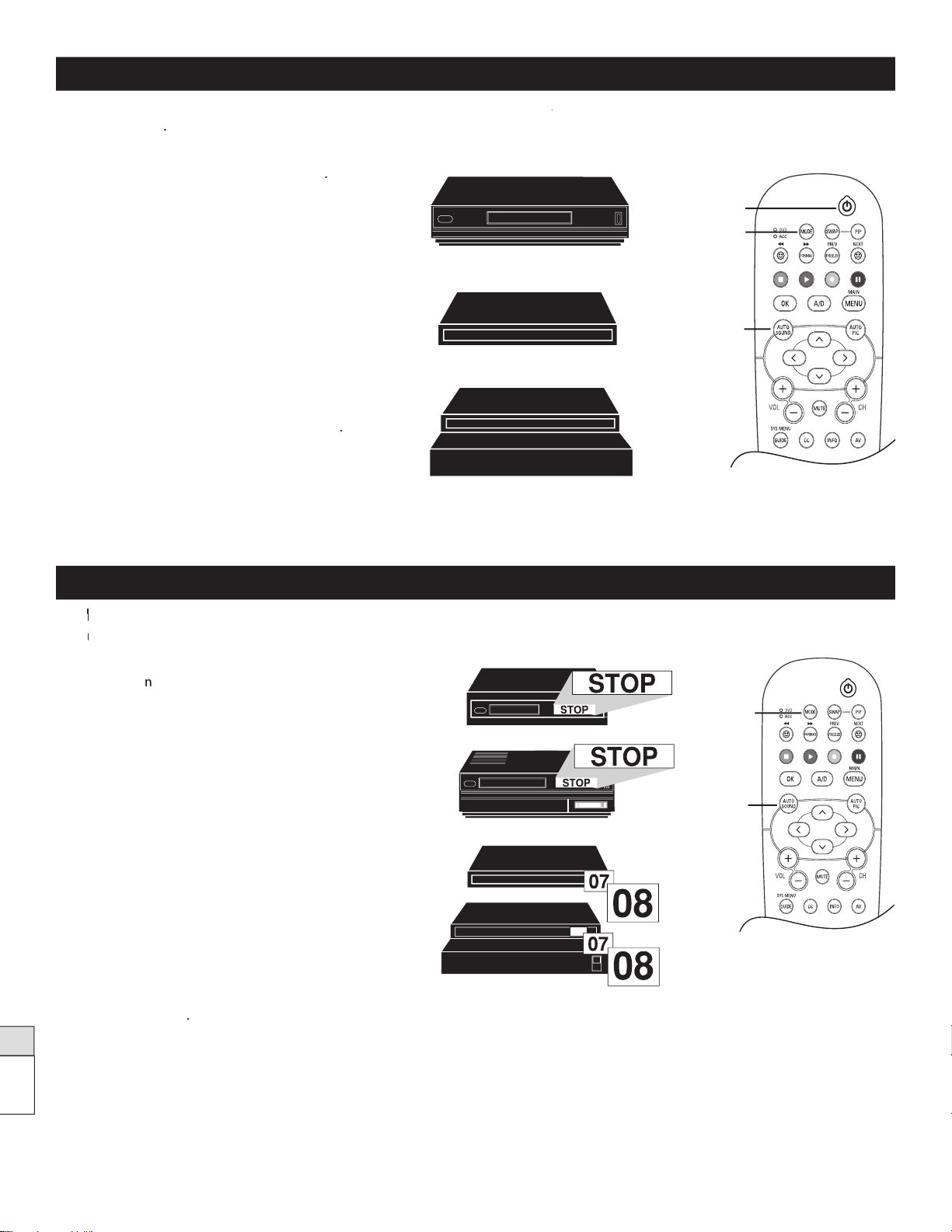
32
AS A UNIVERSAL REMOTE CONTROL - SEARCH METHOD FOR ACCESSORIES
This remote control may not be
AS A UNIVERSAL REMOTE CONTROL - CODE ENTRY FOR ACCESSORIES
VCR
Cable Box
DBS or other Accessory
1
P
ress
MODE
on the remote control
.
2
P
ress the
VCR R
ECORD
butt
on on the
device
and release.
3
P
ress
AUTO
SOUND
on the remote with
in 30
seconds
, then release.
4
Enter the
F
OUR-DIGIT REMOTE CO
DE
NUMBER
for your d
evice. The remote is now
ready to send command to the unit
5
P
oint the remote
at the
Device. Press
POWER
on
the remote control to turn the unit On
.
If this doesn't work the first time, repeat the steps
using another remote code number.
1
Turn
O
n
the device you are attempting to program.
2
Place a VCR
Tape or DVD disc into the devic
e.
Press the
Play
button on the device.
3
P
ress
MODE
on the remote control
. Choose
VCR
for programming Video Casette Recorders
or
ACC
for all other accessories.
4
Press the
VCR R
ECORD
button
on the
device and the
A
UTO SOUND
button on the
remote control simultaneou
sly and hold them
down. As you continue to hold down
the buttons,
the remote will
run through its programmed code
list with a command for the
VCR
or
DVD
to
STOP
or
PLAY
. For Cable Boxes and Satellite
Receivers the command will be to
CHANGE
CHANNELS
.
5
When the
STOP
command
appears
release
the two buttons
. For Cable B
oxes and Satellite
Receivers
, as soon as the C
hannels
changes
ONCE
,
IMMEDIATELY
release the buttons.
DVD
VCR
Cable Box
Satellite
System
AUTO
SOUND
POWER
MODE
AUTO
SOUND
MODE
I
f
your remote control will not operate your accessory devices, look
up the
your remote control will not operate your accessory devices, look up the your remote control will not operate your accessory devices, look
four-digit code listed by your br
and on
pages 33 - 35
.
Read th
rough
steps 1 - 5 before beginning.
T
he search method of programming your remote can ta
T
he search method of programming your remote can ta
T
ke as long as 12 mintu
es to perform so we recommend you
use it as a last reso
Tuse it as a last resoT
rt. Read all the s
teps before beginning.

33
REMOTE CONTROL DIRECT ENTRY CODES FOR ACCESSORY DEVICES
VCR CODES
Admiral
. . . . . . . . . . . . . . . . . .
2027, 2052
Adventura
. . . . . . . . . . . . . . . . . . . . .
2001
Aiko
. . . . . . . . . . . . . . . . . . . . . . . . . .
2059
Aiwa
. . . . .
2001, 2017, 2062, 2070, 2072
Akai
. . . . . .
2021, 2029, 2038, 2060, 2063
Akiba
. . . . . . . . . . . . . . . . . . . . . . . . .
2034
Alba
.
2011, 2034, 2052, 2059, 2063, 2072
Ambassador
. . . . . . . . . . . . . . . . . . .
2011
American Action
. . . . . . . . . . . . . . . .
2059
American High
. . . . . . . . . . . . . . . . .
2015
Amstrad
. . . . . . .
2001, 2059, 2067, 2068
Anam
. . . . . . . . . . . . . . . . . . . .
2017, 2042,
. . . . . . . . .
2054, 2057, 2059, 2082, 2084
Anam National
. . . . . . .
2042, 2054, 2087
Anitech
. . . . . . . . . . . . . . . . . . . . . . .
2034
Asa
. . . . . . . . . . . . . . . . . . . . . .
2017, 2035
Asha
. . . . . . . . . . . . . . . . . . . . . . . . . .
2057
Asuka
. . . . . . . . . . . . . . . . . . . . . . . . .
2017
Audiovox
. . . . . . . . . . . . . . . . . . . . . .
2017
Baird
. . . . . . . . . .
2001, 2021, 2037, 2039
Basic Line
. . . . . . . . . . .
2011, 2034, 2059
Beaumark
. . . . . . . . . . . . . . . . . . . . .
2057
Bell & Howell
. . . . . . . . . . . . . . . . . .
2037
Blaupunkt
. . . . .
2003, 2005, 2010, 2014,
. . . .
2041, 2042, 2048, 2054, 2055, 2075
Brandt
. . . . . . . . . . . . . .
2047, 2064, 2065
Brandt Electronic
. . . . . . . . . . . . . . .
2021
Broksonic
.
2002, 2040, 2046, 2052, 2078
Bush
. . . . . . . . . . .
2034, 2052, 2059, 2072
Calix
. . . . . . . . . . . . . . . . . . . . . . . . .
2017
Canon
. . . . . . . . . . . . . . . . . . . . . . . .
2015
Capehart
. . . . . . . . . . . . . . . . . . . . . .
2011
Carver
. . . . . . . . . . . . . . . . . . . . . . . .
Carver . . . . . . . . . . . . . . . . . . . . . . . . Carver
2035
Catron
. . . . . . . . . . . . . . . . . . . . . . . .
2011
CCE
. . . . . . . . . . . . . . . . . . . . .
2034, 2059
CGE
. . . . . . . . . . . . . . . . . . . . . . . . . .
2001
Cimline
. . . . . . . . . . . . . . . . . . . . . . .
2034
Cineral
. . . . . . . . . . . . . . . . . . . . . . . .
2059
Citizen
. . . . . . . . . . . . . . . . . . .
2017, 2059
Clatronic
. . . . . . . . . . . . . . . . . . . . . .
2011
Colt
. . . . . . . . . . . . . . . . . . . . . . . . . .
2034
Combitech
. . . . . . . . . . . . . . . . . . . .
2072
Condor
. . . . . . . . . . . . . . . . . . . . . . .
Condor . . . . . . . . . . . . . . . . . . . . . . . Condor
2011
Craig
. . . . .
2017, 2026, 2034, 2057, 2058
Crown
. . . . . . . . . . . . . .
2011, 2034, 2059
Curtis Mathes
. . .
2015, 2021, 2032, 2042
Cybernex
. . . . . . . . . . . . . . . . . . . . .
2057
Cyrus
. . . . . . . . . . . . . . . . . . . . . . . . .
2035
Daewoo
. . .
2011, 2024, 2025, 2059, 2083
Dansai
. . . . . . . . . . . . . . . . . . . . . . . .
2034
Daytron
. . . . . . . . . . . . . . . . . . . . . . .
2011
De Graaf
. . . . . . . . . . . . . . . . .
De Graaf . . . . . . . . . . . . . . . . .De Graaf
2022, 2043
Decca
. . . . . . . . . . . . . . . . . . .
2001, 2035
Denon
. . . . . . . . . . . . . . . . . . . . . . . .
2022
Dual
. . . . . . . . . . . . . . . . . . . . . . . . . .
2021
Dumont
. . . . . . . . . . . . .
2001, 2035, 2037
Dynatech
. . . . . . . . . . . . . . . . . . . . . .
2001
Elbe
. . . . . . . . . . . . . . . . . . . . . . . . . .
2018
Elcatech
. . . . . . . . . . . . . . . . . . . . . . .
2034
Electrohome
. . . . . . . . . . . . . . . . . . .
2017
Electrophonic
. . . . . . . . . . . . . . . . . .
2017
Emerex
. . . . . . . . . . . . . . . . . . . . . . .
2012
Emerson
.
2001, 2002, 2017, 2023, 2040,
2046, 2051, 2052, 2059, 2078, 2083
ESC
. . . . . . . . . . . . . . . . . . . . .
2057, 2059
Ferguson
. . . . . . .
2021, 2039, 2064, 2065
Fidelity
. . . . . . . . . . . . . . . . . . . . . . . .
2001
Finlandia
. . . . . . . . . . . . . . . . .
2035, 2037
Finlux
. . . . . . . . . .
2001, 2022, 2035, 2037
Firstline
. . .
2017, 2023, 2024, 2034, 2052
Fisher
. . . . . . . . . .
Fisher . . . . . . . . . .Fisher
2025, 2026, 2030, 2037
Frontech
. . . . . . . . . . . . . . . . . . . . . .
2011
Fuji
. . . . . . . . . . . . . . . . . . . . . . . . . . .
2015
Funai
. . . . . . . . . . . . . . . . . . . . . . . . .
2001
Garrard
. . . . . . . . . . . . . . . . . . . . . . .
2001
GE
. . . . . . . . . . . .
2015, 2027, 2032, 2057
GEC
. . . . . . . . . . . . . . . . . . . . . . . . . .
2035
General
. . . . . . . . . . . . . . . . . . . . . . .
2011
Go Video
. . . . . . . . . . . . . . . . .
2077, 2081
Goldhand
. . . . . . . . . . . . . . . . . . . . . .
2034
Goldstar
. . . . . . .
2017, 2018, 2053, 2079
Goodmans
.
2001, 2017, 2034, 2059, 2075
Gradiente
. . . . . . . . . . . . . . . .
2001, 2008
Graetz
. . . . . . . . .
2005, 2021, 2037, 2057
Granada
. . . . . . . . . . . . .
2025, 2035, 2037
Grandin
. . . . . . . . . . . . .
2001, 2017, 2034
Grundig
. .
2003, 2005, 2007, 2010, 2034,
2035, 2048, 2050, 2054, 2069, 2071, 2075
Hanseatic
. . . . . . . . . . . . . . . . . . . . . .
2017
Harley Davidson
. . . . . . . . . . . . . . . .
2001
Harman/Kardon
. . . . . . . . . . .
2018, 2035
Harwood
. . . . . . . . . . . . . . . . . . . . . .
2034
HCM
. . . . . . . . . . . . . . . . . . . . . . . . .
2034
Headquarter
. . . . . . . . . . . . . . . . . . .
2025
Hinari
. . . . . . . . .
2004, 2034, 2057, 2072
Hi-Q
. . . . . . . . . . . . . . . . . . . . . . . . .
2026
Hitachi
2001, 2004, 2021, 2022, 2043,
2057
Hughes Network Systems
. . . . . . . .
2022
Hypson
. . . . . . . . . . . . . . . . . . . . . . .
2034
Imperial
. . . . . . . . . . . . . . . . . . . . . . .
2001
Ingersol
. . . . . . . . . . . . . . . . . . . . . . .
2004
Interfunk
. . . . . . . . . . . . . . . . . . . . . .
Interfunk . . . . . . . . . . . . . . . . . . . . . . Interfunk
2035
ITT
. . . . . . . . . . . . . . . . .
2005, 2021, 2025,
. . . . . . . . . . . . . . .
2037, 2038, 2057, 2074
ITV
. . . . . . . . . . . . . . . . . . . . . .
2017, 2059
Jensen
. . . . . . . . . . . . . . . . . . . . . . . .
2021
JVC
. . . . . . . . . . . . . . . .
2008, 2021, 2033,
. . . . . . . . . . . . . . .
2049, 2050, 2074, 2080
Kaisui
. . . . . . . . . . . . . . . . . . . . . . . . .
2034
KEC
. . . . . . . . . . . . . . . . . . . . .
2017, 2059
Kendo
. . . . . . . . . . . . . . . . . . .
2038, 2052
Kenwood
. . . . . . . . . . . .
2018, 2021, 2033
KLH
. . . . . . . . . . . . . . . . . . . . . . . . . .
2034
Kodak
. . . . . . . . . . . . . . . . . . .
2015, 2017
Korpel
. . . . . . . . . . . . . . . . . . . . . . . .
2034
Layco
. . . . . . . . . . . . . . . . . . . . . . . . .
2034
Lenco
. . . . . . . . . . . . . . . . . . . . . . . . .
2059
LG
. . . . . . . . . . . . . . . . . . . . . . . . . . .
2079
Lloyd's
. . . . . . . . . . . . . . . . . . .
2001, 2051
Loewe
. . . . . . . . .
2004, 2005, 2017, 2035
Logik
. . . . . . . . . . . . . . .
2004, 2034, 2057
Luxor
. . . . .
Luxor . . . . .Luxor
2023, 2025, 2027, 2037, 2038
LXI
. . . . . . . . . . . . . . . . . . . . . . . . . . .
2017
M Electronic
. . . . . . . . . . . . . . . . . . .
2001
Magnasonic
. . . . . . . . . . . . . . . . . . . .
2059
Magnavox
. . . . . .
2001, 2015, 2019, 2035
Magnin
. . . . . . . . . . . . . . . . . . . . . . . .
2057
Manesth
. . . . . . . . . . . . . . . . . .
2024, 2034
Marantz
. . . . . . . .
2003, 2005, 2015, 2035
Marta
. . . . . . . . . . . . . . . . . . . . . . . . .
2017
Matsui
.
2004, 2016, 2036, 2052, 2070, 2072
Matsushita
. . . . . . . . . . .
2015, 2042, 2055
Mei
. . . . . . . . . . . . . . . . . . . . . . . . . . .
2015
Melectronic
. . . . . . . . . . . . . . . . . . . .
2018
Memorex
. . . . . . . . . . . .
2001, 2015, 2017,
. . . . . . . . .
2019, 2025, 2026, 2027, 2037,
. . . . .
2052, 2057, 2062, 2085, 2087, 2088
Memphis
. . . . . . . . . . . . . . . . . . . . . .
2034
Metz
. . . . . . . . . . . . . . .
2003, 2005, 2017,
. . . . . . . . . . . . . .
2042, 2048, 2055, 2069
MGA
. . . . . . . . . . . . . . . . . . . .
2023, 2057
MGN Technology
. . . . . . . . . . . . . . .
2057
Mincrva
. . . . . . . . . . . . . . . . . . . . . . .
2048
Minerva
. . . . . . . . . . . . .
2005, 2010, 2048
Minolta
. . . . . . . . . . . . . . . . . . . . . . .
2022
Mitsubishi
.
2023, 2027, 2033, 2035, 2045
Motorola
. . . . . . . . . . . . . . . . .
2015, 2027
MTC
. . . . . . . . . . . . . . . . . . . .
2001, 2057
Multitech
. . . . . . . . . . . . . . . . .
2001, 2034
Murphy
. . . . . . . . . . . . . . . . . . . . . . .
2001
NAD
. . . . . . . . . . . . . . . . . . . . . . . . .
2031
National
. . . . . . . . . . . . . . . . . . . . . . .
2054
NEC
. . . . .
2018, 2020, 2021, 2033, 2037
Neckermann
. . . . . . . . . . . . . . . . . . .
2035
Nesco
. . . . . . . . . . . . . . . . . . . . . . . .
2034
Nikko
. . . . . . . . . . . . . . . . . . . . . . . .
2017
Nikon
. . . . . . . . . . . . . . . . . . . . . . . .
2014
Noblex
. . . . . . . . . . . . . . . . . . . . . . .
2057
Nokia
. . . . . . . . . .
2025, 2037, 2038, 2057
Nokia
. . . . .
2021, 2025, 2037, 2038, 2057
Nordmende
2021, 2061, 2064, 2065, 2074
Oceanic
. . . . . . . . . . . . . . . . . .
2001, 2021
Okano
. . . . . . . . . . . . . . . . . . .
2063, 2070
Olympus
. . . . . . . . . . . . . . . . .
2015, 2054
Optimus
. . . . . . . . . . .
2017, 2027, 2031,
. . . .
2037, 2042, 2077, 2086, 2087, 2088
Orion
. . . . . . . . . . . . .
2002, 2004, 2016,
. . . .
2036, 2046, 2052, 2070, 2072, 2078
Osaki
. . . . . . . . . . . . . . .
2001, 2017, 2034

34
REMOTE CONTROL DIRECT ENTRY CODES FOR ACCESSORY DEVICES
VCR Codes Cont’d
Otto Versand
. . . . . . . . . . . . . . . . . .
2035
Palladium
. . . . . . .
2005, 2017, 2021, 2034
Panasonic
. . . . . . . . . . . . . . . .
2015, 2042,
. . . . . . . . . . . . . . .
2053, 2054, 2055, 2087
Pathe Cinema
. . . . . . . . . . . . . . . . . .
2016
Pathe Marconi
. . . . . . . . . . . . . . . . . .
2021
Penny
2015, 2017, 2018, 2020, 2022, 2057
Pentax
. . . . . . . . . . . . . . . . . . . . . . . .
2022
Perdio
. . . . . . . . . . . . . . . . . . . . . . . .
2001
Philco
. . . . . . . . . .
2015, 2018, 2052, 2078
Philips
. . . .
2015, 2035 (DEFAULT VCR),
. . . . . . . . . . . . . . . . . . . . . . . . .
2074, 2075
Phonola
. . . . . . . . . . . . . . . . . . . . . . .
2035
Pilot
. . . . . . . . . . . . . . . . . . . . . . . . . .
2017
Pioneer
. . . . . . . . . . . . .
2031, 2033, 2035
Portland
. . . . . . . . . . . . . . . . . . . . . . .
2011
Profex
. . . . . . . . . . . . . . . . . . . . . . . .
2066
Profitronic
. . . . . . . . . . . . . . . . . . . . .
2057
Proline
. . . . . . . . . . . . . . . . . . . . . . . .
2001
Proscan
. . . . . . . . . . . . . . . . . . . . . . .
2032
Protec
. . . . . . . . . . . . . . . . . . . . . . . .
2034
Pulsar
. . . . . . . . . . . . . . . . . . . . . . . . .
Pulsar . . . . . . . . . . . . . . . . . . . . . . . . .Pulsar
2019
Pye
. . . . . . . . . . . . . . . . . . . . . . . . . . .
2035
Quarter
. . . . . . . . . . . . . . . . . . . . . . .
Quarter . . . . . . . . . . . . . . . . . . . . . . .Quarter
2025
Quartz
. . . . . . . . . . . . . . . . . . . . . . . .
2025
Quasar
. . . . . . . . . . . . . .
Quasar . . . . . . . . . . . . . .Quasar
2015, 2042, 2087
Quelle
. . . . . . . . . . . . . . . . . . . . . . . .
2035
Radio Shack
. . . . . . . . . . . . . . .
Radio Shack . . . . . . . . . . . . . . .Radio Shack
2001, 2085
Radiola
. . . . . . . . . . . . . . . . . . . . . . . .
2035
Radix
. . . . . . . . . . . . . . . . . . . . . . . . .
2017
RCA
2015, 2022, 2027, 2032, 2038, 2057
Realistic
. . . . . . . . . . . . . . . . .
2001, 2015,
. . . . . . . . . .
2017, 2025, 2026, 2027, 2037
REX
. . . . . . . . . . . . . . . . . . . . .
2021, 2074
RFT
. . . . . . . . . . . . . . . . . . . . . . . . . .
2075
Ricoh
. . . . . . . . . . . . . . . . . . . . . . . . .
2014
Roadstar
. . . . . . .
2017, 2034, 2057, 2059
Runco
. . . . . . . . . . . . . . . . . . . . . . . .
2019
Saba
. . . . . . . . . . . . . . .
2021, 2049, 2050,
. . . . . . . . . . . . . .
2061, 2064, 2065, 2074
Saisho
. . . . . . . . .
2004, 2016, 2036, 2052
Salora
. . . . . . . . . . . . . . .
2023, 2025, 2038
Samsung
. . . . . . . .
2024, 2057, 2076, 2077
Sanky
. . . . . . . . . . . . . . . . . . . .
2019, 2027
Sansui
. . . . . . . . . . . . . . . . . .
2001, 2021,
. . . . . . . . . . . . . . .
2033, 2052, 2058, 2078
Sanyo
. . . . . . . . . .
2025, 2026, 2037, 2057
Saville
. . . . . . . . . . . . . . . . . . . . . . . . .
2072
SBR
. . . . . . . . . . . . . . . . . . . . . . . . . .
2035
Schaub Lorenz
. . .
2001, 2005, 2021, 2037
Schneider
. . . . . . . . . . .
2001, 2034, 2035
Scott
. . . . . . . . . .
2023, 2024, 2040, 2046
Sears
. . . . . . . . . . . . . . . . . . .
2001, 2015,
. . . . . . . . . .
2017, 2022, 2025, 2026, 2037
SEG
. . . . . . . . . . . . . . . . . . . . .
2057, 2066
SEI
. . . . . . . . . . . . . . . . . . . . . .
2004, 2035
Seleco
. . . . . . . . . . . . . . . . . . . . . . . .
2021
Semp
. . . . . . . . . . . . . . . . . . . . . . . . .
2024
Sentra
. . . . . . . . . . . . . . . . . . . . . . . .
2011
Sharp
. . . . . . . . . . . . . . . . . . . .
2027, 2073
Shintom
. . . . . . . . . . . . . . . . . .
2034, 2037
Shogun
. . . . . . . . . . . . . . . . . . . . . . . .
2057
Shorai
. . . . . . . . . . . . . . . . . . . . . . . .
2004
Siemens
. . . . . . . . . . . . . . . . .
2003, 2005,
. . . .
2010, 2017, 2030, 2035, 2037, 2048
Silva
. . . . . . . . . . . . . . . . . . . . . . . . . .
2017
Singer
. . . . . . . . . . . . . . . . . . . .
Singer . . . . . . . . . . . . . . . . . . . .Singer
2024, 2034
Sinudyne
. . . . . . . . . . . . . . . . .
2004, 2035
Solavox
. . . . . . . . . . . . . . . . . . . . . . .
2011
Sonolor
. . . . . . . . . . . . . . . . . . . . . . .
Sonolor . . . . . . . . . . . . . . . . . . . . . . .Sonolor
2025
Sontec
. . . . . . . . . . . . . . . . . . . . . . . .
2017
Sony
. . . . . .
2001, 2012, 2013, 2014, 2015
STS
. . . . . . . . . . . . . . . . . . . . . . . . . .
2022
Sunkai
. . . . . . . . . . . . . . . . . . . . . . . .
2070
Sunstar
. . . . . . . . . . . . . . . . . . . . . . .
2001
Suntronic
. . . . . . . . . . . . . . . . . . . . . .
2001
Sylvania
. . . . . . . .
2001, 2015, 2023, 2035
Symhonic
. . . . . . . . . . . . . . . . . . . . . .
2001
Tashiko
. . . . . . . . . . . . . . . . . . . . . . .
2001
Tatung
. . . . . . . . . . . . . .
2001, 2021, 2035
Teac
. . . . . . . . . . . . . . . . . . . . .
2001, 2021
TEC
. . . . . . . . . . . . . . . . . . . . . . . . . .
2011
Technics
. . . . . . . . . . . .
2015, 2042, 2054
Teknika
. . . . . . . .
2001, 2015, 2007, 2017
Teleavia
. . . . . . . . . . . . . . . . . . . . . . .
2021
Telefunken
2021, 2047, 2058, 2064, 2074
Tenosal
. . . . . . . . . . . . . . . . . . . . . . .
2034
Tensai
. . . . . . . . . . . . . . . . . . .
2001, 2066
Thomas
. . . . . . . . . . . . . . . . . . . . . . .
2001
Thomson
. . . . . . . . . . . .
2021, 2064, 2074
Thorn
. . . . . . . . . . . . . .
2016, 2021, 2037
TMK
. . . . . . . . . . . . . . . . . . . .
2051, 2057
Toshiba
. . .
2021, 2023, 2024, 2035, 2074
Totelevision
. . . . . . . . . . . . . .
2017, 2057
Towada
. . . . . . . . . . . . . . . . . . . . . . .
2066
Uher
. . . . . . . . . . . . . . . . . . . . . . . . .
2057
Unitech
. . . . . . . . . . . . . . . . . . . . . . .
2057
Universum
. . . . . . . . . .
2001, 2006, 2010,
. . . .
2017, 2035, 2038, 2048, 2057, 2067
Vector
. . . . . . . . . . . . . . . . . . . . . . . .
Vector . . . . . . . . . . . . . . . . . . . . . . . .Vector
2024
Vector Research
. . . . . . . . . . .
2018, 2020
Victor
. . . . . . . . . . . . . .
2008, 2021, 2033
Video Concepts
. . . . . . . . . . .
2020, 2024
Videosonic
. . . . . . . . . . . . . . . . . . . . .
2057
Wards
. . . . . . . . . . . . .
2001, 2015, 2022,
. . . .
2026, 2027, 2032, 2034, 2035, 2057
White Westinghouse
. . . . . . .
2052, 2059
XR-1000
. . . . . . . . . . . . . . . . . . . . . .
2001
XR-1001
. . . . . . . . . . . . . . . . . . . . . .
2015
XR-1002
. . . . . . . . . . . . . . . . . . . . . .
2034
Yamaha
. . . . . . . . . . . . . . . . . . . . . . .
2018
Yamishi
. . . . . . . . . . . . . . . . . . . . . . .
2034
Yokan
. . . . . . . . . . . . . . . . . . . . . . . .
2034
Yoko
. . . . . . . . . . . . . . . . . . . .
2011, 2057
Zenith
. . . .
2001, 2014, 2019, 2052, 2078
DVD Codes
Akai
. . . . . . . . . . . . . . . . . . . . . . . . . .
5316
Harman/Kardon
. . . . . . . . . . . . . . . .
5314
JVC
. . . . . . . . . . . . . . . . . . . . .
5311, 5318
Kenwood
. . . . . . . . . . . . . . . . . . . . . .
5307
Magnavox
. . . . . . . . . . . . . . . . . . . . .
5302
Mitsubishi
. . . . . . . . . . . . . . . . . . . . .
5303
Onkyo
. . . . . . . . . . . . . .
5302, 5317, 5319
Panasoni
. . . . . . . . . . . . . . . . .
5301, 5322
Philips
. . . .
5302, 5308 (DEFAULT DVD)
Pioneer
. . . . . . . . . . . . .
5305, 5312, 5321
Proscan
. . . . . . . . . . . . . . . . . . . . . . .
5304
RCA
. . . . . . . . . . . . . . . . . . . . . . . . . .
5304
Samsung
. . . . . . . . . . . . . . . . . . . . . . .
5313
Sharp
. . . . . . . . . . . . . . . . . . . . . . . . .
5320
Sony
. . . . . . . . . . . . . . . . . . . . . . . . . .
5306
Technics
. . . . . . . . . . . . . . . . . . . . . .
5301
Theta Digital
. . . . . . . . . . . . . . . . . . .
5312
Thomson
. . . . . . . . . . . . . . . . . . . . . .
5310
Toshiba
. . . . . . . . . . . . . . . . . . . . . . .
5302
Yamaha
. . . . . . . . . . . . . . . . . .
5301, 5309
Cable Box Codes
ABC
. . . . . .
3002, 3003, 3004, 3006, 3008
Andover
. . . . . . . . . . . . . . . . . . . . . .
3037
Bell & Howell
. . . . . . . . . . . . . . . . . .
3006
Birgmingham Cable Communication
. . .
3020
British Telecom
. . . . . . . . . . .
3002, 3012
Cabletime
. . . . . .
3016, 3019, 3025, 3029
Clyde
. . . . . . . . . . . . . . . . . . . . . . . . .
3011
Contec
. . . . . . . . . . . . . . . . . . . . . . .
3009
Cryptovision
. . . . . . . . . . . . . . . . . . .
3038
Daehan
. . . . . . . . . . . . . . . . . . . . . . .
3043
Daeryung
. . . . . . . . . . . . . . . . . . . . . .
3003
Decsat
. . . . . . . . . . . . . . . . . . . . . . . .
3027
Everquesst
. . . . . . . . . . . . . . . . . . . . .
3007
Filmnet
. . . . . . . . . . . . . . . . . . . . . . .
3028
France Telecom
. . . . . . . . . . . . . . . .
3030
GEC
. . . . . . . . . . . . . . . . . . . . . . . . . .
3011
Gemini
. . . . . . . . . . . . . . . . . . . . . . . .
3007
General Instrument
. .
General Instrument . . General Instrument
3004, 3020, 3031, 3046
Goldstar
. . . . . . . . . . . . . . . . .
3014, 3047
Grundig
. . . . . . . . . . . . . . . . . . . . . . .
3035
Hitachi
. . . . . . . . . . . . . . . . . . . . . . . .
3004
Jasco
. . . . . . . . . . . . . . . . . . . . . . . . .
3007
Jerrold
. . . . . . . . . . . . .
3002, 3004, 3005,
. . . . . . . . . .
3006, 3007, 3020, 3031, 3046
LG Alps
. . . . . . . . . . . . . . . . . . . . . . .
3044
Memorex
. . . . . . . . . . . . . . . . . . . . . .
3001
Mnet
. . . . . . . . . . . . . . . . . . . .
3009, 3028
Now
. . . . . . . . . . . . . . . . . . . . . . . . .
3041

35
REMOTE CONTROL DIRECT ENTRY CODES FOR ACCESSORY DEVICES
Cable Box Codes
Now
. . . . . . . . . . . . . . . . . . . . . . . . .
3041
Oak
. . . . . . . . . . . . . . . . . . . . . . . . . .
Oak . . . . . . . . . . . . . . . . . . . . . . . . . .Oak
3009
Pacific
. . . . . . . . . . . . . . . . . . . . . . . .
3039
Panasonic
. . . . . . . . . . . . . . . . .
3001, 3013
Paragon
. . . . . . . . . . . . . . . . . . . . . . .
3001
Pioneer
. . . . . . . . . . . . . . . . . .
3014, 3036
Pulsar
. . . . . . . . . . . . . . . . . . . . . . . . .
Pulsar . . . . . . . . . . . . . . . . . . . . . . . . .Pulsar
3001
PVP Stereo Visual Matrix
. . . . . . . . .
3002
Quasar
. . . . . . . . . . . . . . . . . . . . . . . .
Quasar . . . . . . . . . . . . . . . . . . . . . . . .Quasar
3001
Radio Shack
. . . . . . . . . . . . . . . . . . . .
Radio Shack . . . . . . . . . . . . . . . . . . . .Radio Shack
3007
Rembrandt
. . . . . . . . . . . . . . . . . . . .
3004
Runco
. . . . . . . . . . . . . . . . . . . . . . . .
3001
Salora
. . . . . . . . . . . . . . . . . . . . . . . . .
3026
Samsung
. . . . . . . . . . . . . . . . . .
3014, 3040
Satbox
. . . . . . . . . . . . . . . . . . . . . . . .
3024
Scientific
. . . . . . . . . . . .
3003, 3032, 3049
Scientific Atlanta
. . . . . .
3003, 3008, 3021
Seawoo
. . . . . . . . . . . . . . . . . . . . . . .
3045
Signal
. . . . . . . . . . . . . . . . . . . . . . . . .
3007
Signature
. . . . . . . . . . . . . . . . . . . . . .
3004
Starcom
. . . . . . . . . . . . . . . . . .
3002, 3007
Stargate
. . . . . . . . . . . . . . . . . . . . . . .
3007
Starquest
. . . . . . . . . . . . . . . . . . . . . .
3007
STS
. . . . . . . . . . . . . . . . . . . . . . . . . .
3015
Taihan
. . . . . . . . . . . . . . . . . . . . . . . .
3043
Tele+1
. . . . . . . . . . . . . . . . . . . . . . . .
3028
Teleservice
. . . . . . . . . . . . . . . . . . . .
3022
Tocom
. . . . . . . . . . . . . . . . . . . . . . . .
3005
Tongkook
. . . . . . . . . . . . . . . .
3042, 3048
Toshiba
. . . . . . . . . . . . . . . . . . . . . . .
3001
Tudi
. . . . . . . . . . . . . . . . . . . . . . . . . .
3023
Tusa
. . . . . . . . . . . . . . . . . . . . . . . . . .
3007
United Cable
. . . . . . . . . . . . . . . . . . .
3002
Videoway
. . . . . . . . . . . . . . . . . . . . . .
3017
Visicable+
. . . . . . . . . . . . . . . . . . . . .
3033
Westminster
. . . . . . . . . . . . . . . . . . .
Westminster . . . . . . . . . . . . . . . . . . .Westminster
3012
Wolsey Gene
. . . . . . . . . . . . . . . . . .
3037
Zenith
. . . . . . . . . . . . . . . . . . .
3001, 3034
Satellite Receiver Codes
Absat
. . . . . . . . . . . . . . . . . . . . . . . . .
4006
Alba
. . . . . . . . . . .
4029, 4034, 4037, 4052
Aldes
. . . . . . . . . . . . . . . . . . . . . . . . .
4019
Amstrad
. . . . . . . . . . . . . . . .
4003, 4016,
. . . . . . . . . . . . . . .
4025, 4038, 4039, 4042
Ankard
. . . . . . . . .
4013, 4019, 4030, 4044
Anttron
. . . . . . . . . . . . . . . . . .
4009, 4034
Armstrong
. . . . . . . . . . . . . . . . . . . . .
4015
AST
. . . . . . . . . . . . . . . . . . . . . . . . . .
4027
Astra
. . . . . . . . . . . . . . . . . . . . . . . . .
4005
Astro
. . . . . . . . . . . . . . .
4008, 4039, 4045
Avalon
. . . . . . . . . . . . . . . . . . . . . . . .
4031
Axis
. . . . . . . . . . . . . . . . . . . . .
4030, 4046
Beko
. . . . . . . . . . . . . . . . . . . . . . . . .
4010
Best
. . . . . . . . . . . . . . . . . . . . . . . . . .
4030
Blaupunkt
. . . . . . . . . . . . . . . . . . . . .
4008
Boca
. . . . . . . . . . . . . . . . . . . . .
4015, 4043
Brain Wave
. . . . . . . . . . . . . . . . . . . .
4022
British Sky Broadcasting
. . . . . . . . . .
4058
BT
. . . . . . . . . . . . . . . . . . . . . . . . . . .
4053
Bush
. . . . . . . . . . . . . . . . . . . . . . . . . .
4002
Cambridge
. . . . . . . . . . . . . . . . . . . . .
4024
Canal Satellite
. . . . . . . . . . . . . . . . . .
4059
Canal+
. . . . . . . . . . . . . . . . . . . . . . . .
4059
Channel Master
. . . . . . . . . . . . . . . . .
Channel Master . . . . . . . . . . . . . . . . .Channel Master
4029
CNT
. . . . . . . . . . . . . . . . . . . . . . . . .
4045
Comlink
. . . . . . . . . . . . . . . . . . . . . . .
Comlink . . . . . . . . . . . . . . . . . . . . . . .Comlink
4019
Connexions
. . . . . . . . . . . . . . . . . . . .
4031
Crown
. . . . . . . . . . . . . . . . . . . . . . . .
4015
Cyrus
. . . . . . . . . . . . . . . . . . . . . . . . .
4011
D-Box
. . . . . . . . . . . . . . . . . . . . . . . .
4054
DDC
. . . . . . . . . . . . . . . . . . . . . . . . .
4029
DNT
. . . . . . . . . . . . . . . . . . . .
4011, 4031
Echostar
. . . . . . . . . . . .
4031, 4036, 4061
Emanon
. . . . . . . . . . . . . . . . . . . . . . .
4034
Ferguson
. . . . . . .
4002, 4009, 4010, 4023
Fidelity
. . . . . . . . . . . . . . . . . . . . . . . .
4016
Finlux
. . . . . . . . . .
4005, 4024, 4032, 4037
Fracarro
. . . . . . . . . . . . . . . . . . . . . .
4061
Freecom
. . . . . . . . . . . . . . . . . . . . . .
4034
FTE Humax
. . . . . . . . . . . . . . . . . . . .
4060
Fube
. . . . . . . . . . . . . . . .
4030, 4031, 4034
Galaxis
. . . . . . . . . . . . . .
4019, 4057, 4060
General Instrument
. . . . . . . . . . . . .
4012
Gold Box
. . . . . . . . . . . . . . . . . . . . . .
4059
Gooding
. . . . . . . . . . . . . . . . . . . . . .
4048
Goodmans
. . . . . . . . . . . . . . . . . . . . .
4010
Grundig
. . . . . . . . . . . . .
4008, 4010, 4048
G-sat
. . . . . . . . . . . . . . . . . . . . . . . . .
4009
Hinari
. . . . . . . . . . . . . . . . . . . . . . . .
4009
Hirschimann
. . .
4008, 4032, 4039, 4040, 4049
Hitachi
. . . . . . . . . . . . . . . . . . . . . . . .
4037
Houston
. . . . . . . . . . . . . . . . . . . . . .
4053
Huth
. . . . . . . . . .
4013, 4015, 4019, 4026
Intervision
. . . . . . . . . . . . . . . . . . . . .
4050
Invideo
. . . . . . . . . . . . . . . . . . . . . . . .
4061
ITT
. . . . . . . . . . . . . . . . . . . . . . . . . . .
4005
Johansson
. . . . . . . . . . . . . . . . . . . . .
4022
JVC
. . . . . . . . . . . . . . . . . . . . . . . . . .
4048
Kathrein
.
4004, 4006, 4008, 4011, 4035, 4041
Kreiselmeyer
. . . . . . . . . . . . . . . . . . .
Kreiselmeyer . . . . . . . . . . . . . . . . . . .Kreiselmeyer
4008
Kyostar
. . . . . . . . . . . . . . . . . . . . . . .
4034
La Sat
. . . . . . . . . . . . . . . . . . . .
4043, 4045
Lenco
. . . . . . . . . . . . . . . . . . . . . . . . .
4034
Lennox
. . . . . . . . . . . . . . . . . . . . . . .
4050
Lupus
. . . . . . . . . . . . . . . . . . . . . . . . .
4030
Luxor
. . . . . . . . . . . . . . . . . . . .
Luxor . . . . . . . . . . . . . . . . . . . .Luxor
4005, 4049
Manhattan
. . . . . . . . . . .
4037, 4045, 4050
Marantz
. . . . . . . . . . . . . . . . . . . . . . .
4011
Maspro
. . . . . . . . . . . . . . . . . .
4004, 4023
Matsui
. . . . . . . . . . . . . . . . . . .
4024, 4048
Mediamarkt
. . . . . . . . . . . . . . . . . . . .
4015
Mediasat
. . . . . . . . . . . . . . . . . . . . . .
4059
Minerva
. . . . . . . . . . . . . . . . . . . . . . .
4048
Morgan's
. . . . . . . . . . . . . . . . .
4015, 4043
Navex
. . . . . . . . . . . . . . . . . . . . . . . .
4022
Neuhaus
. . . . . . . . . . . . . . . . . . . . . .
4039
Neusat
. . . . . . . . . . . . . . . . . . . . . . . .
4057
Newhaus
. . . . . . . . . . . . . . . . . . . . . .
4013
Nokia
.
4005, 4032, 4037, 4049, 4054, 4063
Nordmende
. . . . . . . . . . . . . . . . . . .
4029
Orbitech
. . . . . . . . . . . . . . . . . . . . . .
4039
Oxford
. . . . . . . . . . . . . . . . . . . . . . .
4024
Pace
. . . . . . . . . . . . . . .
4002, 4009, 4014,
. . . . . . . . . . . . . . .
4023, 4037, 4055, 4058
Palladium
. . . . . . . . . . . . . . . . . . . . . .
4048
Palsat
. . . . . . . . . . . . . . . . . . . . . . . . .
4039
Panda
. . . . . . . . . . . . . . . . . . . . . . . . .
4037
Philips
. . . . . . . . . . . . . . . . . .
4007, 4011,
. . . . . . . . . . . . . . .
4020, 4037, 4048, 4059
Phonotrend
. . . . . . . . . . . . . . .
4019, 4050
Pioneer
. . . . . . . . . . . . . . . . . .
4021, 4059
Planet
. . . . . . . . . . . . . . . . . . . . . . . . .
4061
Promax
. . . . . . . . . . . . . . . . . . . . . . .
4037
Prosat
. . . . . . . . . . . . . . . . . . . . . . . .
4019
Quadral
. . . . . . . . . . . . . . . . . .
4029, 4044
Radiola
. . . . . . . . . . . . . . . . . . . . . . . .
4011
Radix
. . . . . . . . . . . . . . . . . . . .
4031, 4064
RFT
. . . . . . . . . . . . . . . .
4011, 4013, 4019
Saba
. . . . . . . . . . . . . . . . . . . . .
4023, 4045
Sabre
. . . . . . . . . . . . . . . . . . . . . . . . .
4037
Sagem
. . . . . . . . . . . . . . . . . . . . . . . .
4056
Salora
. . . . . . . . . . . . . . . . . . . . . . . . .
4005
SAT
. . . . . . . . . . . . . . . . . . . . .
4027, 4038
Satcom
. . . . . . . . . . . . . . . . . . .
4026, 4051
Satec
. . . . . . . . . . . . . . . . . . . . . . . . .
4009
Satmaster
. . . . . . . . . . . . . . . . . . . . .
4026
Satpartner
. . . . . .
Satpartner . . . . . .Satpartner
4022, 4034, 4040, 4045
Schwaiger
. . . . . . . . . . . . . . . .
4009, 4041
Seemann
. . . . . . . . . . . . . . . . .
4031, 4046
SEG
. . . . . . . . . . . . . . . . . . . . .
4030, 4034
Siemens
. . . . . . . . . . . . . . . . . . . . . . .
4008
Skymaster
. . . . . . . . . . .
4019, 4044, 4051
Sony
. . . . . . . . . . . . . . . . . . . . .
4017, 4018
Strong
. . . . . . . . . . . . . . . . . . . . . . . .
4062
Sunstar
. . . . . . . . . . . . . . . . . . . . . . .
4043
Tantec
. . . . . . . . . . . . . . . . . . .
4023, 4037
Techniland
. . . . . . . . . . . . . . . . . . . . .
4026
Technisat
. . . . . . . . . . . . . . . . .
4001, 4039
Telefunken
. . . . . . . . . . . . . . . . . . . .
4034
Teleka
. . . . . . . . . . . . . . . . . . .
4015, 4052
36
GLOSSARY
Aspect Ratio
The ratio between the width and height of the TV picture on the screen. In a normal TV set the aspect ratio is 4
to 3 (4:3). The new aspect ratio in HDTV is 16:9 which resembles the aspect ratio in a movie theatre
(Widescreen). New TV systems support both 4:3 and 16:9 aspect ratio and can automatically switch between
them.
Audio Video (A/V)
A term often used when discussing a channel on a TV receiver or on video equipment, which has been
especially designed to accept VCR audio-video signals. This channel automatically activates special circuitry
within the TV set to prevent picture distortion and skewing. It is also used for audio-video processors, which
handle both types of signals.
ATSC
ATSC: Advanced Television Systems Committee. Formed to establish technical standards for advanced
television systems, including digital high definition television (HDTV).
CVBS
Composite Video Baseband Signal. In broadcast television this refers to the video signal,
including the colour information and syncs
DTV
Digital television. Generic term that refers to all digital television formats, including high-definition television
(HDTV) and standard-definition television (SDTV).
DOLBY Digital
Dolby Digital - Six-channel digital audio standard that is part of the U.S. digital television standard; also called AC-3 or Digital
5.1. The channels consist of front left, front right, front center, surround or rear left, surround or rear right, and a separate
subwoofer
Digital Tuner
A digital tuner serves as the decoder required to receive and display digital broadcasts. It can be included inside TV sets or
via a set-top box.
HDTV
The generally agreed upon definition of HDTV is approximately twice the vertical and horizontal picture resolution of today’s
NTSC TV, which essentially makes the picture twice as sharp. HDTV also has a screen ratio of 16:9 as compared with most of
today’s TV screens, which have a screen ratio of 4:3. HDTV offers reduced motion artifacts (i.e. ghosting, dot crawl), and
offers 5.1 independent channels of CD-quality stereo surround sound, (also referred to as AC-3).
HDMI
High-Definition Multimedia Interface. USB-like digital video connectivity standard designed as a successor to DVI; can transmit
both uncompressed digital audio and video signals; protected by HDCP digital copy protection.
Letterbox
A method of presenting widescreen images on a standard screen television. In order to preserve the aspect ratio of the
original video content, the picture is scaled down so that it fits the available width of the television screen. Since the picture
will not fill the screen vertically, dark bars are displayed above and below the picture.
NTSC
National television system committee. The organization that developed the analog television standard currently in use in the
U.S., Canada, and Japan. Now generally used to refer to that standard. The NTSC standard combines blue, red, and green
signals modulated as an AM signal with an FM signal for audio.
Progressive Scan
In Progressive Scanning all the horizontal scan lines are scanned on to the screen at one time. The Digital TV and HDTV
Standards accept both Interlaced Scan and Progressive Scan broadcast and display methods.
PIP
Picture-In-Picture. A digitally based method of inserting one video image into another for special effects purposes and
for monitoring several video images simultaneously on one screen (several PIP units can be used together each compressing
an image into the main screen in a different location).
Resolution
Resolution: A measurement of the finest (smallest) detail that is visible in a video image. TV Resolutions may be expressed as
number of pixels in an image; or more commonly, “As Total Number of (horizontally scanned) Lines used to create the image.
Standard Digital TV Resolutions:
SDTV: 480i - The picture is 740x480 pixels, 480p - The picture is 704x480 pixels.
HDTV: 720p - The picture is 1280x720 pixels, 1080i - The picture is 1920x1080 pixels, 1080p - The picture is 1920x1080
pixels.
Widescreen
A term given to picture displays with a wider aspect ratio than NTSC 4:3. Digital HDTV or SDTV is referred to as “16:9 wide
screen.” Most motion pictures also have a 16:9 wide screen aspect ratio. Most Digital TVs have a screen that is wider than it
is tall (if a Digital TV screen is nine inches high, it’s 16 inches wide.) When watching a show recorded in the wide screen
format on a Digital TV, viewers see more of the movie, while when viewing wide screen format on an analog TV, cropped
edges are evident.
37
SYMPTOMS
SUGGESTED STEPS TO TAKE
Hookup
Can't get external audio
equipment to work with
TV.
Use a digital audio cable for digital program if the audio equipment has a Dolby digital decoder.
Connect one end of the 'SPDIF' output to the back of the TV and the other end to the digital
coaxial input of the audio equipment.
Switch on the TV and select a digital program
Switch on the audio equipment and select the input where the TV is connected
Adjust the volume of the audio equipment to hear the sound
Installation
Television is not adding
any channels after
automatic installation.
Automatic installation was interrupted before installation is completed.
Try again the automatic installation and confi rm if the television is adding your local channels.Note: If
the same channels is still not added, it appears that you may have a signal problem. Contact the cable
provider or local broadcaster regarding the specifi c channel.
Or, you may try adding the weak channels which were deleted during automatic installation.
(Refer to
page 13 for How to Add or Delete Weak Digital Signals).
Check antenna connection:
1. Check the antenna or cable TV input connection to ensure that it is properly secured to the
television’s antenna input.
If connection is good;
2. Check if the antenna or cable TV input is connected via a external device (such as VCR, DVD
Recorder or cable box) before being connected to the television. If so, bypass the external device and
connect the signal directly to your television. (Refer to page 10 for Automatic Program).
Installation
Cannot receive
channels above 13 after
Auto Programming
If sign
al source used is Antenna, the channels need to be re-installed.
(Refer to page 10 for Automatic Program).
Installation
Can't get the AV
channels on the TV
screen.
Press the ‘AV’ button on the remote control repeatedly to select the desired AV channels. Note:
SVHS can only be selected if a S-VHS device is connected and powered on.
Installation
TV Displays Wrong
Channel or no Channels
Above 13
• Repeat channel selection.
• Add the desired channel numbers (using the CHANNEL EDIT control) into the TV’s memory.
• Check to be sure the TUNER MODES are set to the CABLE option and run the Auto Program
feature to find all available channels.
Channel numbers does
not follow the channel
number of the
programs.
Go to
TUNER MODE
in the television menu and select the correct signal source, then perform the
automatic installation again. (Refer to pa
ge 9).
PIP
Picture In Picture (PIP)
is distorted or is in bad
shape.
This is due to improper installation of channels.
Follow the Automatic Program steps on page 10.
Note:
If you interrupt the automatic installation, not all local channels will be installed.
TROUBLESHOOTING TIPS
Check this List of Symptoms and Suggested Steps To Take before requesting Service. You may be able to
solve the problem yourself. Charges for TV installation and adjustments of customer controls are not covered
under your warranty.
38
SYMPTOMS
SUGGESTED STEPS TO TAKE
Settings
Weak Signal message
appears on the screen
- Check incoming cable or antenna. Make sure it is properly secured to the TV's antenna input.
If connection is good:
- Check if the incoming cable or antenna is connected to any external accessory device such as VCR,
VCR or setup box etc.).
- Connect the signal directly to your TV instead of through the external accessory.
- Perform the auto-programming (Refer to page 10) again and make sure all channels are stored in
the TV's memory.
Sound
Sound - Disturbing sound
(such as buzzing, clicking,
cracking,
humming, whistling, etc)
.
It is normal to hear a disturbing sound (such as buzzing, clicking, cracking, humming, whistling, etc)
from a distance less than 2 meters (6 feet) with the television sound muted.
If problem occurs on one channel, you may have a signal problem. Please contact the cable provider
or local broadcaster regarding the specifi c channel.
Sound
Sound i
s not in
stereo.
This could be due to any of the following reasons:
- N
ot all transmitted broadcasts by the cable or broadcast stations are in
STEREO
. Try checking with
several major
network stations to be sure that the station you selected is in
STEREO
.
- SAP is turned ON. When SAP is turned ON, the sound mode is automatically set to MONO.
- Sound mode is set to MONO. Set the sound mode to STEREO. (Refer to page 17).
- STEREO is not displayed on the screen when watching from a playback device (such as DVD, DVD
recorder, VCR, etc.). When using an AV input, the television will not display STEREO even though it
is producing stereo sound.
General
No power to the TV
Check the TV power cord. Unplug the power cord from the TV, wait 10 seconds, then reinsert the
plug into the wall outlet. Power On the TV again.
Plug the power cord directly to the wall socket and not via an extension cord.
If you need to use an extension cord, check that
the fuse on the AC power strip is not blown.
General
T
elevision is not
responding to remote
control.
Check the remote control if necessary. Ensure the batteries are inserted according to the illustration
in the battery compartment. Remove and reinsert the batteries into the remote control to ensure
a good contact. Replace the existing batteries with new ones. When the remote control check is
completed, randomly test some functions of the remote control on the television.
If the television is not responding, it appears that the remote control may be defective.
If the TV appears to be working normally, it may have been locked up because of a power surge.
The television set may not respond to the remote control signals if the power plug is not secured
properly into the wall outlet. Make sure the power plug is plugged directly into the wall outlet instead
of via a power extension cord. Reset the television by disconnecting the power plug from the wall
outlet for 10 seconds and then reconnecting it again.
General
Remote
control is
not working
Clean the remote control and the remote control sensor window on the TV.
Check the TV power cord. Unplug the TV, wait 10 seconds, then reinsert the plug into the wall oul
General
No Picture on the
TV screen
C
heck antenna connections. Are they properly secured to the TV ANT 75
ohm
plug ?
Check the
TUNER MODE
control for the correct tuner setting.
Try running the Auto Program feature to find all available channels.
Press the AV button on the remote control to make sure the correct signal source is selected
(FRONT, AV1, AV2, Current Channel, etc.).
TROUBLESHOOTING TIPS
39
WARNING
Concerning Stationary Images on the TV Screen:
Do not leave stationary or letterbox images on screen for
extended periods of time. This can cause uneven picture-tube
aging.
Normal use of the TV should involve the showing of pictures
that contain constantly moving and changing images that fill the
screen. Be careful not to leave nonmoving images on screen
for extended periods of time, or to display the same images
on screen too frequently, because subtle ghost images can be
left on the picture tubes. Sources of stationary images may be
DVD disks, laser disks, video games, CD-i disks, videotapes,
digital television boxes, broadcast channels, cable channels, sat-
ellite channels, and others. Here are some examples of station-
ary images (this is not an all-inclusive list; you may encounter
others in your viewing):
• DVD menus—listings of DVD disk content
• Letterbox black bars—shown at the top and bottom of the
TV screen when a wide screen (16:9) movie is viewed on a
TV with standard (4:3) aspect ratio.
• Video-game images and scoreboards
• Television station logos—present a problem if they are
bright and stationary; moving or low-contrast graphics are
less likely to cause uneven aging of the picture tube
• Stock-market tickers—presented at the bottom of the TV
screen
• Shopping channel logos and pricing displays—bright and
shown constantly or repeatedly in the same location on the
TV screen.
Placement of the TV
• To avoid cabinet warping, cabinet color changes, and
increased chance of set failure, do not place the TV where
temperatures can become excessively hot; for example, in
direct sunlight or near a heating appliance.
• Be sure to allow a free flow of air to and from the perfo-
rated back cover of the set.
Cleaning
• To avoid possible shock hazard, be sure the TV is unplugged
from the electrical outlet before cleaning.
• Regularly dust the TV with a dry, nonscratching duster to
keep the TV clean.
• When cleaning the TV, take care not to scratch or damage
the screen surface. Avoid wearing jewelry or using anything
abrasive. Do not use household cleaners. Wipe the front
screen with a clean cloth dampened with water. Use even,
easy, vertical strokes when cleaning.
• Gently wipe the cabinet surfaces with a clean cloth or
sponge dampened in a solution of cool, clear water and a
mild soap or detergent. Use a clean, dry cloth to dry the
wiped surfaces.
• Occasionally vacuum the ventilation holes or slots in the
back cover of the set.
• Never use thinners, insecticide sprays, or other chemicals on
or near the cabinet, as they might cause permanent marring
of the cabinet finish.
CLEANING AND CARE
SYMPTOMS
SUGGESTED STEPS TO TAKE
General
TV Displays white
lines in letterbox
when viewing a DVD
disc
Some DVD Discs are encoded with as much as 30% more video information to give the best
possible picture quality. With the DVD Player in the 16:9 picture format, the playback of this
type of disc with extra video information can produce a number of small white lines in the
upper portion of the black letterbox area. With some of these discs, this problem is inherent
and does not require a service call.
General
Can't get the remote
to program my
external devices
Refer to page 32-35 for i
nstructions for programming the remote control for external devices.
peripheral using search method.
TROUBLESHOOTING TIPS
40
Specifications and information are subject to change w
ithout notice.
Specifications and information are subject to change without notice.Specifications and information are subject to change w
SPECIFICATIONS
26PW9100D
30PW9100D
30PW9110D
32PT9100D
PICTURE / DISPLAY
Aspect ratio
16:9
16:9
16:9
4:3
Picture Display
Picture Enhancement
26" Real Flat Picture
tube
2D Comb Filter
Scavem, Auto Picture
(5 modes)
Active Control
Color, Contrast,
Sharpness Control
3
0
" Real Flat Picture tube
2D Comb fi lter, Scavem, Auto Picture
(5 modes)
Active Control
Color, Contrast, Sharpness Control
3
2
" Real Flat Picture tube
2D Comb Filter, Scavem,
Auto Picture
(5 modes)
Active Control
Color, Contrast,
Sharpness Control
SOUND
Sound Power (Output RMS)
Sound Enhancement
CONVENIENCE
ON SCREEN DISPLAY
LANGUAGES
English, French, Spanish
CONNECTIVITY
Rear
Side
WEIGHT & DIMENSIONS :
Weight (incl. Packaging) :
Weight (excl. Packaging) :
Visible diagonal / screen size :
2 x 10w
Virtual Dolby
Picture-in-Picture
Electronic Program Guide
Easy toggle Digital / Analog modes
Closed Captioning Full text
Sleeptimer
Clock
HDMI
Component
Video Input (Y
P
b Pr
)
S-Video
(SVH
S)
Composit
e Video input (CVBS)
Antenna / Cable RF In
SP
DIF Out (Digital Only)
Audio Out (C
inch)
S-Video (SVHS)
Composite Video Input (CVBS)
42
kg / 92.4 lbs
37 kg / 81.4 lbs
26 inch / 66 cm
59
kg / 129.8 lbs
54 kg / 118.8 lbs
30 inch / 76 cm
76
kg /
167.2
lbs
69 kg / 151.8 lbs
32 inch /
80
c
m

41
INDEX
Active Control
. . . . . . . . . . . . . . . . . . . . . . . . . . . . . . . . . . . . .
20
Alternate Channel Control
. . . . . . . . . . . . . . . . . . . . . . . . . . .
30
Audio Out Control
. . . . . . . . . . . . . . . . . . . . . . . . . . . . . . . . .
16
AutoLock Controls
Access Code
. . . . . . . . . . . . . . . . . . . . . . . . . . . . . . . . . . . . .
22
Block Channels
. . . . . . . . . . . . . . . . . . . . . . . . . . . . . . . . . . .
23
Block/Clear All Channels
. . . . . . . . . . . . . . . . . . . . . . . . . . .
24
Movie Ratings
. . . . . . . . . . . . . . . . . . . . . . . . . . . . . . . . . . . .
24
TV Ratings
. . . . . . . . . . . . . . . . . . . . . . . . . . . . . . . . . . . . . . .
25
Blocking Options
. . . . . . . . . . . . . . . . . . . . . . . . . . . . . . . . . .
26
Automatic Program
. . . . . . . . . . . . . . . . . . . . . . . . . . . . . . . . .
10
Auto Picture™
. . . . . . . . . . . . . . . . . . . . . . . . . . . . . . . . . . . . .
30
Auto Sound™
. . . . . . . . . . . . . . . . . . . . . . . . . . . . . . . . . . . . . .
30
AVL (Automatic Volume Leveler) Control
. . . . . . . . . . . . . . .
16
Balance Control
. . . . . . . . . . . . . . . . . . . . . . . . . . . . . . . . . . . .
16
Bass Control
. . . . . . . . . . . . . . . . . . . . . . . . . . . . . . . . . . . . . . .
16
Brightness Control
. . . . . . . . . . . . . . . . . . . . . . . . . . . . . . . . . .
15
Cleaning and Care
. . . . . . . . . . . . . . . . . . . . . . . . . . . . . . . . . .
39
Channel Edit (Add or delete channels)
. . . . . . . . . . . . . . . . . .
11
Closed Captioning
. . . . . . . . . . . . . . . . . . . . . . . . . . . . . . . . . .
28
Color Control
. . . . . . . . . . . . . . . . . . . . . . . . . . . . . . . . . . . . .
15
Color Temperature (Color Temp) Control
. . . . . . . . . . . . . .
15
Feature Highlights
. . . . . . . . . . . . . . . . . . . . . . . . . . . . . . . . . . . .
4
Format Controls
. . . . . . . . . . . . . . . . . . . . . . . . . . . . . . . . . . . .
27
Freeze Controls
. . . . . . . . . . . . . . . . . . . . . . . . . . . . . . . . . . . .
17
Glossary
. . . . . . . . . . . . . . . . . . . . . . . . . . . . . . . . . . . . . . . . . .
36
Guide
To Digital TV
. . . . . . . . . . . . . . . . . . . . . . . . . . . . . . . . . .
4
Incr.(edible) Surround Control
. . . . . . . . . . . . . . . . . . . . . . . .
16
Index
. . . . . . . . . . . . . . . . . . . . . . . . . . . . . . . . . . . . . . . . . . . . .
40
Language Control
. . . . . . . . . . . . . . . . . . . . . . . . . . . . . . . . . . . .
8
Picture Control
. . . . . . . . . . . . . . . . . . . . . . . . . . . . . . . . . . . . .
15
PIP Control
. . . . . . . . . . . . . . . . . . . . . . . . . . . . . . . . . . . . .
19-20
Quadrasurf
. . . . . . . . . . . . . . . . . . . . . . . . . . . . . . . . . . . . . . . .
31
Registration of TV Information
. . . . . . . . . . . . . . . . . . . . . . . . .
2
Remote Control Use with Accessory Devices
Code-Entry for Accessories
. . . . . . . . . . . . . . . . . . . . . . . . .
32
Search Method for Accessories
. . . . . . . . . . . . . . . . . . . . . .
32
Direct-Entry Code for Accessories
. . . . . . . . . . . . . . . .
33-35
How to Correct Tilted Image
. . . . . . . . . . . . . . . . . . . . . . . . .
17
Safety Information
. . . . . . . . . . . . . . . . . . . . . . . . . . . . . . . . . .
2-3
Second Audio Programming (SAP)
. . . . . . . . . . . . . . . . . . . . .
16
Sharpness Control
. . . . . . . . . . . . . . . . . . . . . . . . . . . . . . . . . .
15
Sleep Timer Control
. . . . . . . . . . . . . . . . . . . . . . . . . . . . . . . .
26
Stereo/Mono Control
. . . . . . . . . . . . . . . . . . . . . . . . . . . . . . . .
16
Timer Controls
Activate Control
. . . . . . . . . . . . . . . . . . . . . . . . . . . . . . . . . .
18
Clock, Time Control
. . . . . . . . . . . . . . . . . . . . . . . . . . . . . .
18
Display Control
. . . . . . . . . . . . . . . . . . . . . . . . . . . . . . . . . . .
18
Channel Control
. . . . . . . . . . . . . . . . . . . . . . . . . . . . . . . . . .
18
Start Time Control
. . . . . . . . . . . . . . . . . . . . . . . . . . . . . . . .
18
Stop Time Control
. . . . . . . . . . . . . . . . . . . . . . . . . . . . . . . .
18
Tint Control
. . . . . . . . . . . . . . . . . . . . . . . . . . . . . . . . . . . . . . .
15
Treble Control
. . . . . . . . . . . . . . . . . . . . . . . . . . . . . . . . . . . . .
16
Troubleshooting
. . . . . . . . . . . . . . . . . . . . . . . . . . . . . . . . .
37-39
Tuner Mode Controls
. . . . . . . . . . . . . . . . . . . . . . . . . . . . . . . .
9
Warranty (Limited)
. . . . . . . . . . . . . . . . . . . . . . . . . . . . . . . . . .
4
2

42
Philips, P.O. Box 671539, Marietta, GA. 30006-0026
90 Days Labor & One (1) Year Parts & Two (2) Years Display
90 Days Labor & One (1) Year Parts & Two (2) Years Display
PHILIPS LIMITED WARRANTY
PHILIPS CONSUMER ELECTRONICS
warrants this prod-
uct against defect in material or workmanship, subject to any con-
ditions set forth as follows:
PROOF OF PURCHASE:
You must have proof of the date
of purchase to receive warranted repair on the product. A sales
receipt or other document showing the product and the date
that you purchased the product as well as the authorized retailer
included, is considered such proof.
COVERAGE:
(If the product is determined to be defective)
LABOR:
For a period of ninety (90) days from the date of pur-
chase, Philips will repair or replace the product, at its option, at
no charge, or pay the labor charges to any Philips authorized
repair facility. After the period of ninety (90) days, Philips will no
longer be responsible for charges incurred.
PARTS:
For a period of one (1) year from the date of purchase,
Philips will supply at no charge, new or rebuilt replacement parts
in exchange for defective parts. Philips authorized service centers
will provide removal and installation of the part under the speci-
fied labor warranty.
DISPLAY:
For a period of two (2) years from the date of pur-
chase, Philips will supply, at no charge, a new or rebuilt active
display device in exchange for the defective display. Philips author-
ized service centers will provide removal and installation of the
parts under the specified labor warranty.
EXCLUDED FROM WARRANTY COVERAGE
Your warranty does not cover:
• Labor charges for installation or setup of the product, adjust-
ment of customer controls on the product, and installation or
repair of antenna systems outside of the product.
• Product repair and/or part replacement because of improper
installation, connections to improper voltage supply, abuse,
neglect, misuse, accident, unauthorized repair or other cause
not within the control of Philips.
• A product that requires modification or adaptation to enable
it to operate in any country other than the country for which
it was designed, manufactured, approved and/or authorized, or
repair of products damaged by these modifications.
• Damage occurring to product during shipping when improperly
packaged or cost associated with packaging.
• Product lost in shipment and no signature verification of receipt
can be provided.
• A product used for commercial or institutional purposes
(including but not limited to rental purposes).
• Products sold AS IS or RENEWED.
TO OBTAIN WARRANTY SERVICE IN THE U.S.A.,
PUERTO RICO, OR U.S. VIRGIN ISLANDS…
Contact Philips Customer Care Center at:
1-888-PHILIPS (1-888-744-5477)
TO OBTAIN WARRANTY SERVICE IN CANADA…
1-800-661-6162 (French Speaking)
1-888-PHILIPS (1-888-744-5477) - (English or Spanish
Speaking)
REPAIR OR REPLACEMENT AS PROVIDED UNDER THIS
WARRANTY IS THE EXCLUSIVE REMEDY FOR THE
CONSUMER. PHILIPS SHALL NOT BE LIABLE FOR ANY
INCIDENTAL OR CONSEQUENTIAL DAMAGES FOR
BREACH OF ANY EXPRESS OR IMPLIED WARRANTY ON
THIS PRODUCT. EXCEPT TO THE EXTENT PROHIBITED
BY APPLICABLE LAW, ANY IMPLIED WARRANTY OF
MERCHANTABILITY OR FITNESS FOR A PARTICULAR
PURPOSE ON THIS PRODUCT IS LIMITED IN DURATION TO
THE DURATION OF THIS WARRANTY.
Some states do not allow the exclusions or limitation of incidental
or consequential damages, or allow limitations on how long an
implied warranty lasts, so the above limitations or exclusions may
not apply to you. In addition, if you enter into a service contract
agreement with the PHILIPS partnership within ninety (90) days of
the date of sale, the limitation on how long an implied warranty
lasts does not apply.
This warranty gives you specific legal rights. You may have other rights which vary from state/province to state/province.
(Warranty: 4835 710 27400)

Specifications are subject to change without notice.
Trademarks are the property of Koninklijke Philips Electronics N.V. or their respective owners.
2005 © Koninklijke Philips Electronics N.V. All rights reserved.
www.philips.com
3139 125 33642