

2
ENG
ENGLISH
TABLE OF CONTENTS
CONTENTS
3 LICENSES
4 ASSEMBLING AND
PREPARING
4 Unpacking
5 Optional Accessories
6 Parts and buttons
7 Connecting the Speakers
7 Portrait Layout
8 Installing on a wall
9 REMOTE CONTROL
11 USING THE MONITOR SET
11 Connecting to a PC
11 - Using the input list
12 - RGB connection
12 - HDM/DVI connection
13 - HDMI connection
14 CUSTOMIZING SETTINGS
14 Accessing main menus
15 - PICTURE settings
20 - AUDIO settings
21 - TIME settings
22 - OPTION settings
24 - TILE settings
26 ENTERTAINMENT
26 Using integrated media features
26 - Connecting USB storage devices
27 - Browsing files
29 - Viewing Photos
30 - Listening to Music
31 - Viewing Movies
34 - DivX registration code
34 - Deactivating the DivX feature
35 MAKING CONNECTIONS
36 Connecting to a HD receiver, DVD, Cam-
corder, Camera, Gaming Device or VCR
player
36 - HDMI connection
36 - HDMI/DVI connection
37 - Component connection
37 - AV(CVBS) connection
38 Connecting to the LAN
38 - LAN connection
39 Daisy Chain Monitors
39 - RGB Mode
39 - AV(CVBS) Mode
40 TROUBLESHOOTING
43 SPECIFICATIONS
47 IR CODES
48 CONTROLLING THE MULTIPLE
PRODUCT
48 Connecting the cable
48 RS-232C Configurations
48 Communication Parameter
49 Command reference list
51 Transmission / Receiving protocol

ENGLISH
3
LICENSES
LICENSES
Supported licenses may differ by model. For more information of the licenses, visit www.lg.com.
HDMI, the HDMI logo and High-Definition Multimedia Interface are trademarks
or registered trademarks of HDMI Licensing LLC.
ABOUT DIVX VIDEO: DivX® is a digital video format created by DivX, LLC, a
subsidiary of Rovi Corporation. This is an official DivX Certified® device that
plays DivX video. Visit divx.com for more information and software tools to
convert your files into DivX videos.
ABOUT DIVX VIDEO-ON-DEMAND: This DivX Certified® device must be
registered in order to play purchased DivX Video-on-Demand (VOD) movies.
To obtain your registration code, locate the DivX VOD section in your device
setup menu. Go to vod.divx.com for more information on how to complete
your registration.
DivX Certified® to play DivX® video, including premium content.
DivX®, DivX Certified® and associated logos are trademarks of Rovi
Corporation or its subsidiaries and are used under license.
Covered by one or more of the following U.S. patents: 7,295,673; 7,460,668;
7,515,710; 7,519,274
4
ENG
ENGLISH
ASSEMBLING AND PREPARING
ASSEMBLING AND PREPARING
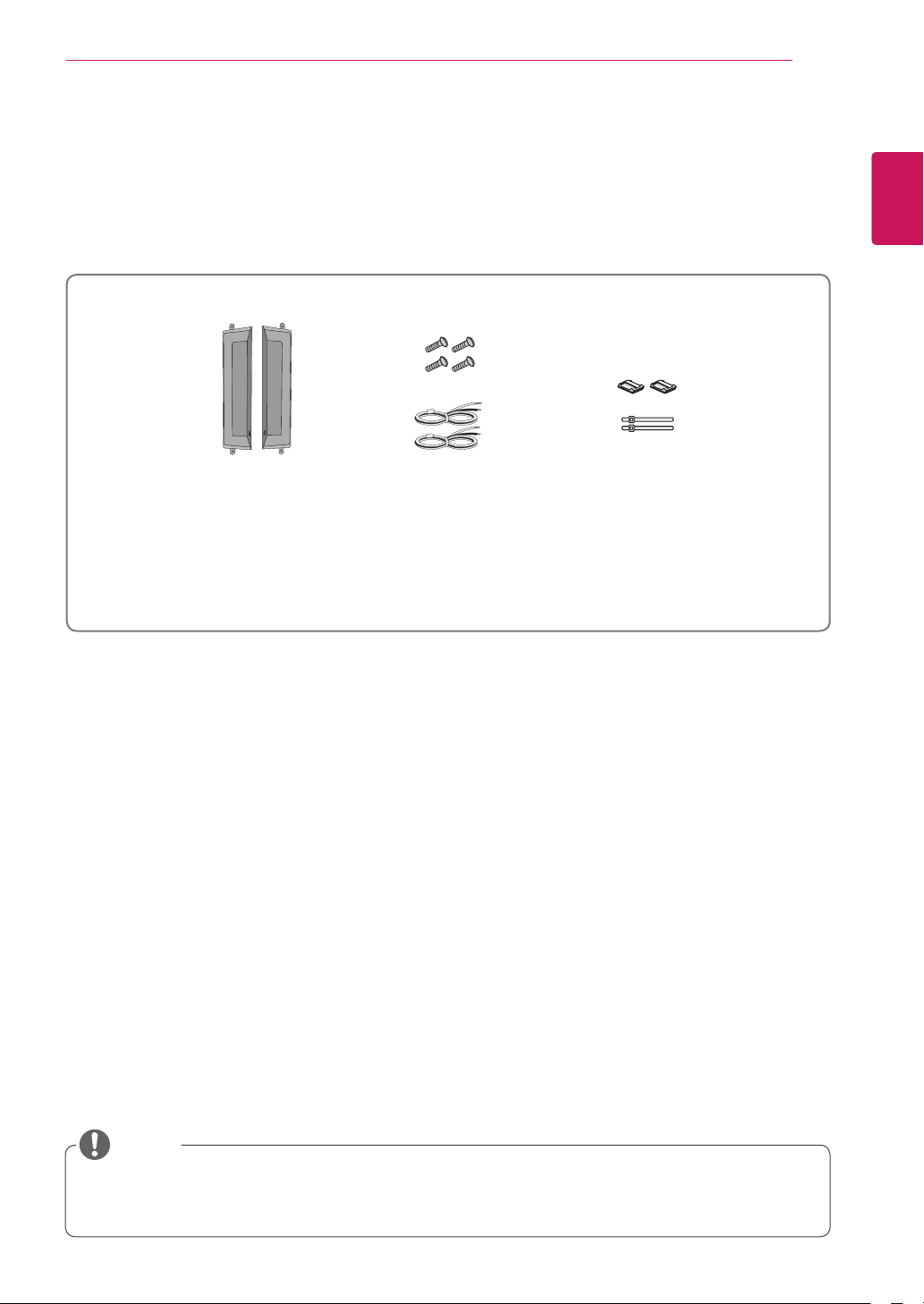
Unpacking
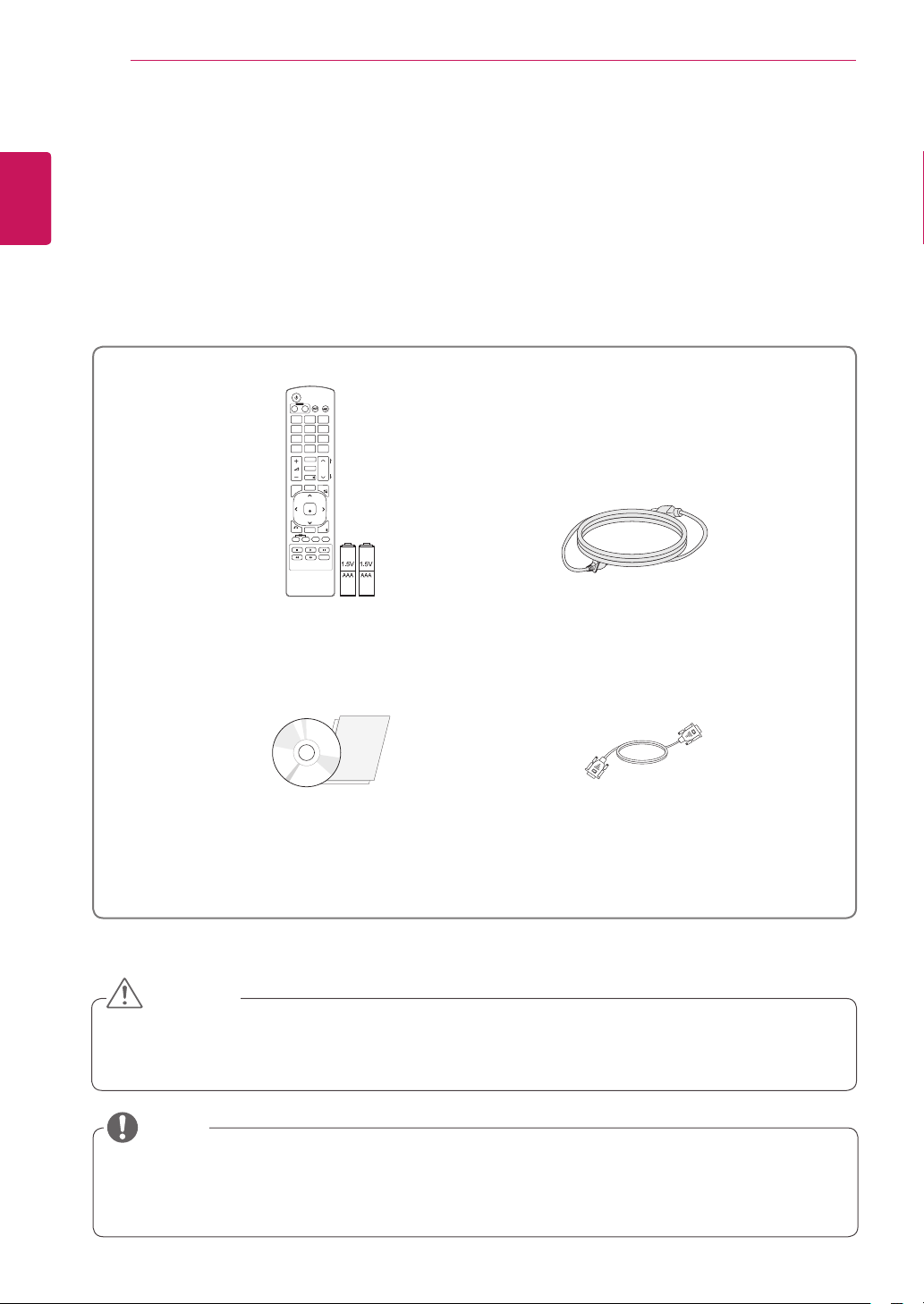
Check your product box for the following items. If there are any missing accessories, contact the local
dealer where you purchased your product. The illustrations in this manual may differ from the actual product
and accessories.
y
Do not use any pirated items to ensure the safety and product life span.
y
Any damages or injuries by using pirated items are not covered by the warranty.
y
The accessories supplied with your product may vary depending on the model.
y
Product specifications or contents in this manual may be changed without prior notice due to upgrade
of product functions.
Remote control and Batteries
Power Cord
CD (Owner's Manual) / Card
D-Sub Signal Cable
CAUTION
NOTE
P
A
G
E
INPUT
ENERGY
SAVING
MARK
ARC
ON
OFF
. , !
ABC
DEF
GHI
JKL
MNO
PQRS
TUV
1/a/A
- * #
WXYZ
CLEAR
MONITOR
PSM
AUTO
MUTE
BRIGHT
NESS
MENU
POWER
OK
S.MENU
ID
BACK
TILE
ON
OFF
EXIT
5
ENG
ENGLISH
ASSEMBLING AND PREPARING
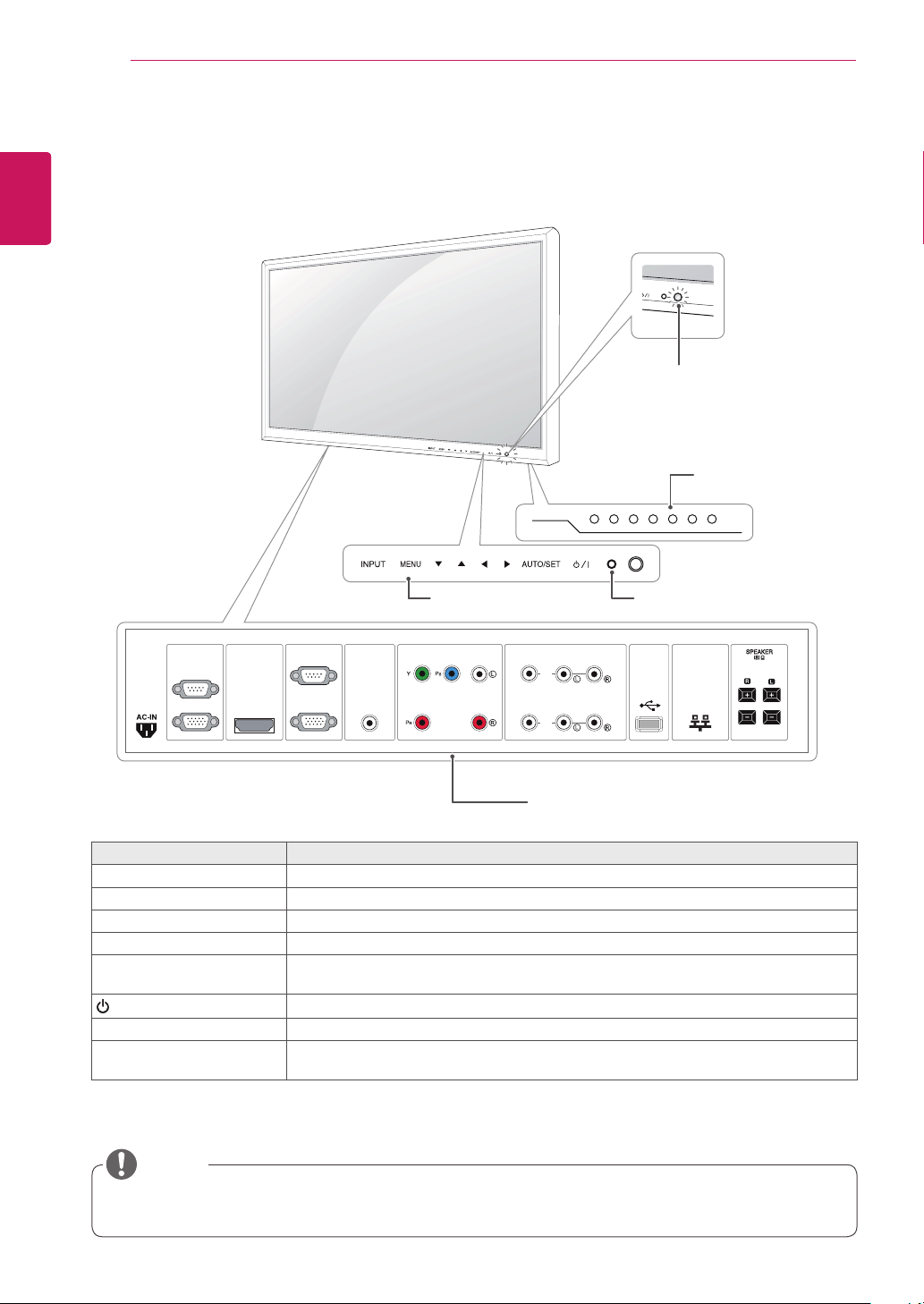
Optional Accessories
Without prior notice, optional accessories are subject to change to improve the performance of the product,
and new accessories may be added. The illustrations in this manual may differ from the actual product and
accessories.
y
Cable holder/Cable tie may not be available in some areas or for some models.
y
Optional accessories are not included for all models.
NOTE
Speaker kit
Cable holder/
Cable Tie
Screws/Cable
Speaker
6
ENG
ENGLISH
ASSEMBLING AND PREPARING
y
You can set the Power indicator to on or off by selecting OPTION in the main menu.
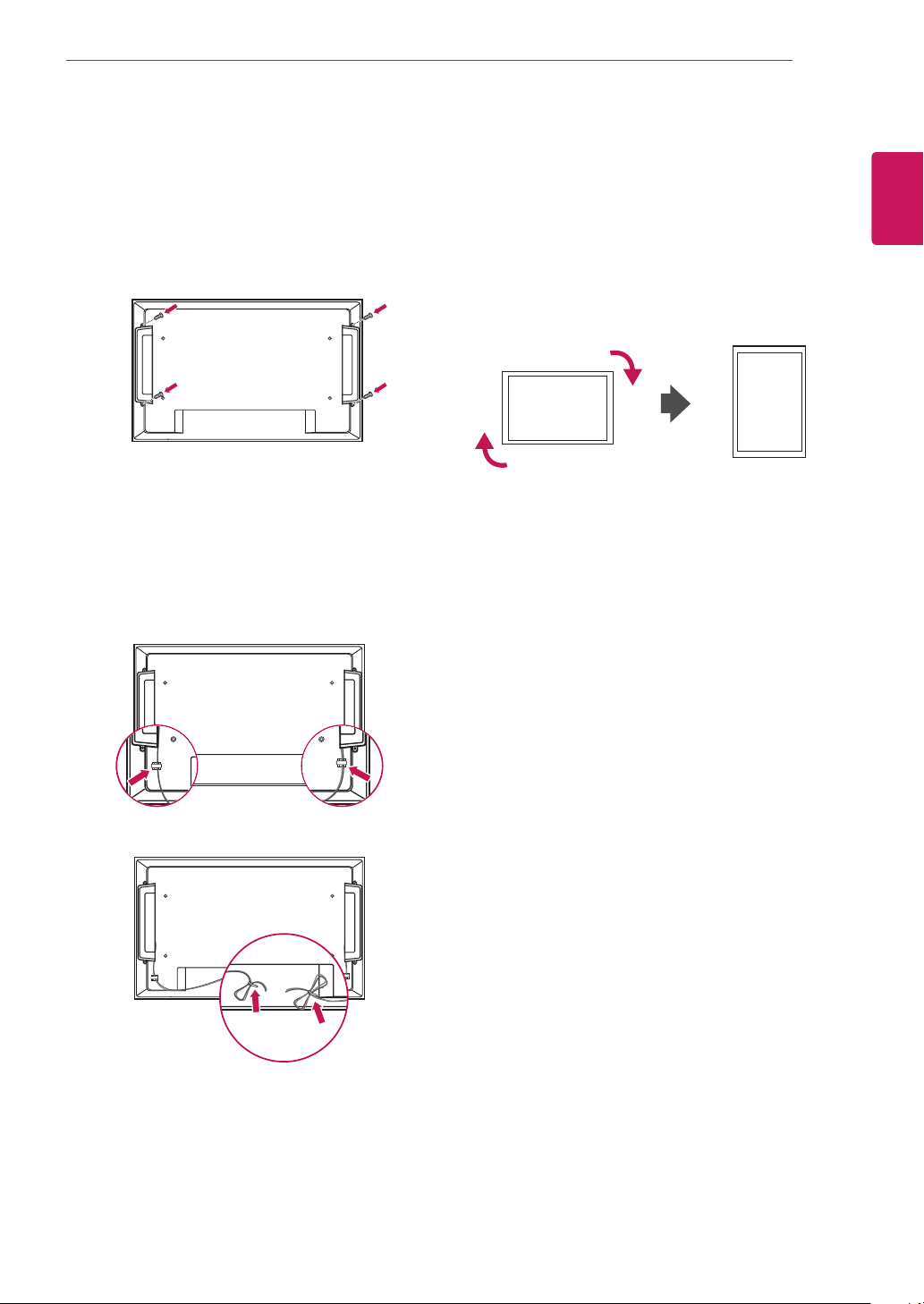
Parts and buttons
Screen Marks Description
INPUT Changes the input source.
MENU Accesses the main menus, or saves your input and exits the menus.
▼▲ Adjust the up and down.
◄ ► Adjusts the volume level.
AUTO/SET Auto setup when using RGB input. It is also the Set or enter button to make changes in
the on-screen menus.
/ I
Turns the power on or off.
IR Receiver This is where the unit receives signals from the remote control.
Power Indicator This Indicator lights up green when the display operates normally(on mode). If the
display is in sleep (Energy Saving) mode, this indicator color changes to amber.
NOTE
RS-232C
(CONTROL)
IN
OUT
HDMI / DVI RGB IN
RGB OUT
AUDIO
(RGB/DVI)
LAN
COMPONENT IN
VIDEO AUDIO
AV IN / OUT
VIDEO
IN
OUT
AUDIO
USB
Connection panel ( See p.36 to p.38 )
Screen Buttons
Screen Marks IR Receiver
Power Indicator
y
Lighting On: Turned on
y
Lighting Off: Turned off
7
ENG
ENGLISH
ASSEMBLING AND PREPARING
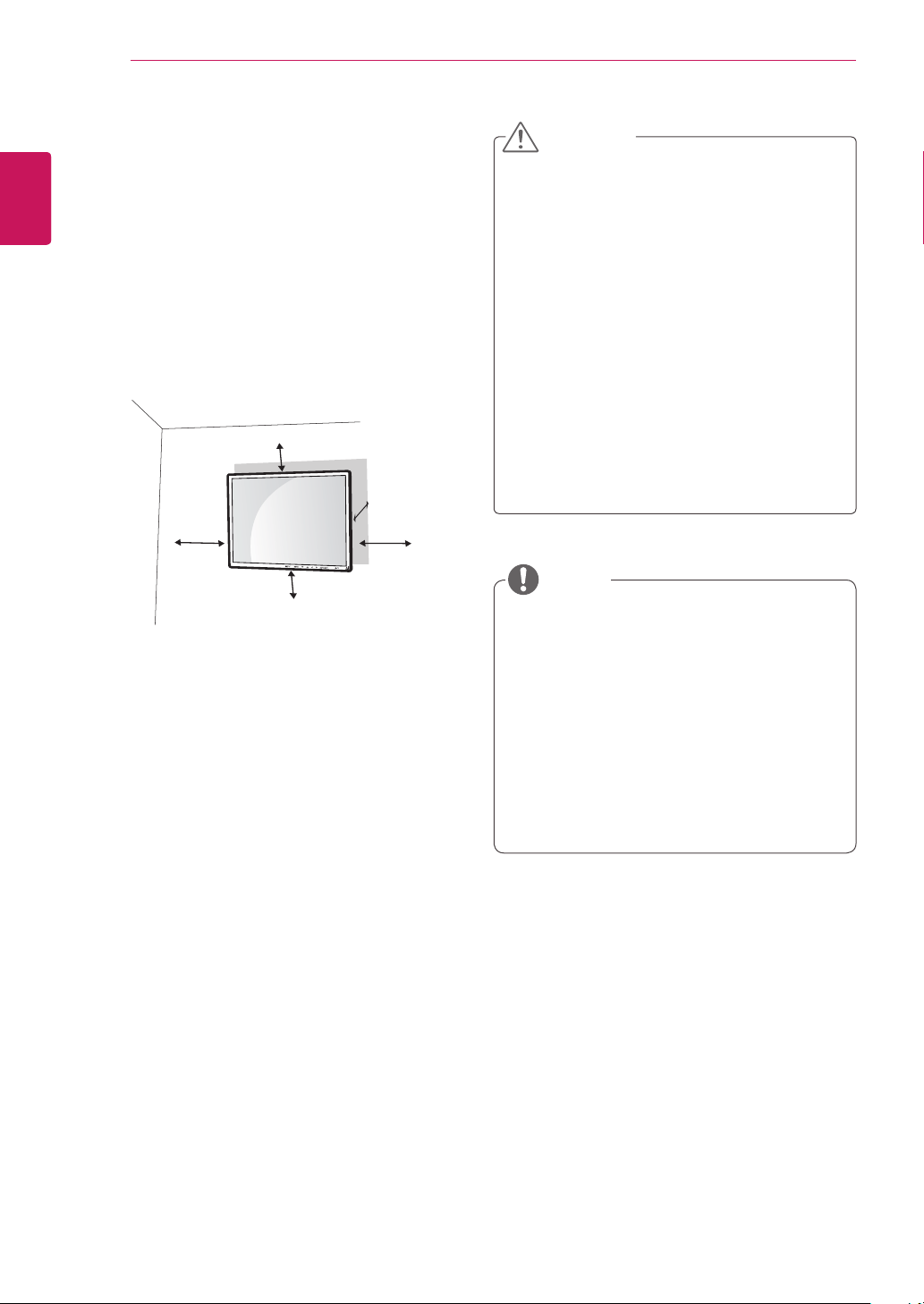
Connecting the Speakers
- Only on some models.
1
Mount the speaker by using a screw as shown
in the following. Then connect the speaker
cable.
2
After installing your speakers, use holders and
cable ties to organize the speaker cables.
Portrait Layout
- Only on some models.
When installing in a Portrait Layout, rotate the
monitor clockwise 90 degrees (when facing the
screen).
8
ENG
ENGLISH
ASSEMBLING AND PREPARING
y
Disconnect the power cord first, and then
move or install the Monitor set. Otherwise
electric shock may occur.
y
If you install the Monitor set on a ceiling or
slanted wall, it may fall and result in severe
injury. Use an authorized LG wall mount
and contact the local dealer or qualified
personnel.
y
Do not over tighten the screws as this may
cause damage to the Monitor set and void
your warranty.
y
Use the screws and wall mounts that
meet the VESA standard. Any damages
or injuries by misuse or using an improper
accessory are not covered by the warranty.
y
The wall mount kit includes an installation
manual and necessary parts.
y
The wall mount bracket is optional. You can
obtain additional accessories from your local
dealer.
y
The length of screws may differ depending
on the wall mount. Be sure to use the proper
length.
y
For more information, refer to the
instructions supplied with the wall mount.
CAUTION
If you want to mount the monitor on the wall (op-
tional), attach the wall mounting bracket to the rear
of the monitor.
Make sure that the wall mounting bracket is se-
curely fixed to the monitor and to the wall.
Use the wall mount plate and screws that comply
with the VESA standard as specified below.
y
785mm(31 inch) or greater
* Fastening screw: Diameter 6.0 mm x Pitch 1.0
mm x Length 10 mm
(32 inch is Diameter 4.0 mm x Pitch 0.7 mm x
Length 10 mm)
Installing on a wall
Install the monitor at least 10 cm away from the
wall and leave about 10 cm of space at each side
of the monitor to ensure sufficient ventilation. De-
tailed installation instructions can be obtained from
your local retail store. Please refer to the manual
to install and set up a tilting wall mounting bracket.
10 cm
10 cm
10 cm
10 cm
10 cm
NOTE
9
ENG
ENGLISH
REMOTE CONTROL
REMOTE CONTROL
P
A
G
E
INPUT
ENERGY
SAVING
MARK
ARC
ON
OFF
. , !
ABC
DEF
GHI
JKL
MNO
PQRS
TUV
1/a/A
- * #
WXYZ
CLEAR
OK
S.MENU
MONITOR
PSM
AUTO
MUTE
BRIGHT
NESS
MENU
ID
BACK
TILE
ON
OFF
EXIT
POWER
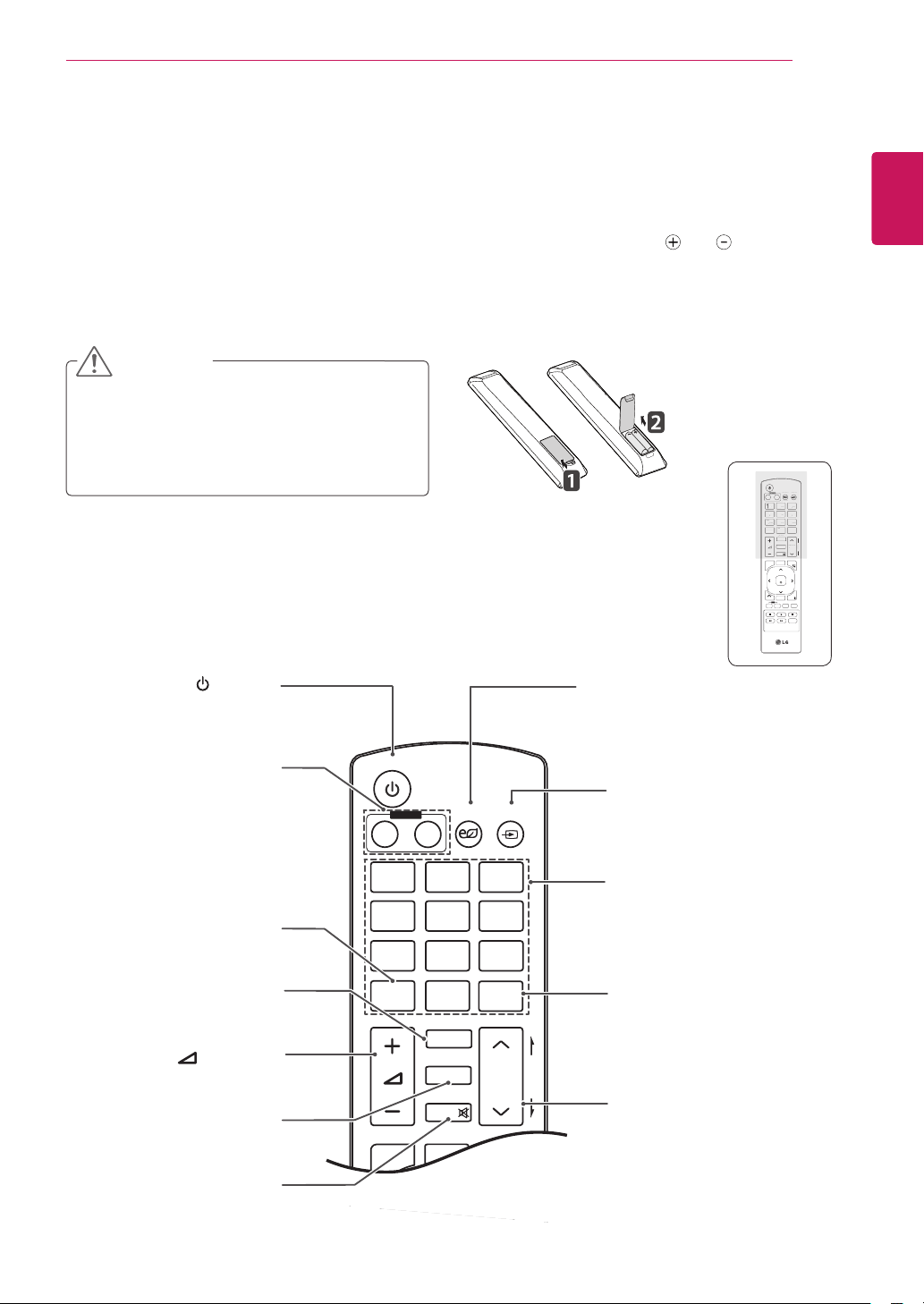
(POWER)
Turns the Monitor set on or off.
Monitor On / Off
Turn off the monitor and then
turn it back on.
1/a/A Button
This button selection is not
applicable.
ENERGY SAVING
Adjusts the brightness of
the screen to reduce energy
consumption.
INPUT
Selects the input mode.
Number and Alphabet buttons
Enters numbers.
The alphabet selection is not
applicable.
Clear
This button selection is not
applicable.
PSM
Selects the Picture Status
Mode.
MUTE
Mutes all sounds.
ARC
Selects the Aspect Ratio
Mode.
P
A
G
E
INPUT
ENERGY
SAVING
MARK
ARC
ON
OFF
. , !
ABC
DEF
GHI
JKL
MNO
PQRS
TUV
1/a/A
- * #
WXYZ
CLEAR
OK
S.MENU
MONITOR
PSM
AUTO
MUTE
BRIGHT
NESS
MENU
ID
BACK
TILE
ON
OFF
EXIT
POWER
(VOLUME)
Adjusts the volume level.
Brightness Key
Adjust the brightness by
pressing the Up and Down
buttons on the remote control.
In USB mode, the OSD menu
has the Page function to
move to the next file list.
P
A
G
E
INPUT
ENERGY
SAVING
MARK
ARC
ON
OFF
1
. , !
2
ABC
3
DEF
4
GHI
5
JKL
6
MNO
7
PQRS
8
TUV
9
1/a/A
0
- * #
WXYZ
CLEAR
OK
S.MENU
MONITOR
PSM
AUTO
MUTE
BRIGHT
NESS
MENU
ID
BACK
TILE
ON
OFF
EXIT
POWER
P
A
G
E
I
NP
U
T
ENER
GY
S
AVIN
G
MARK
ARC
1
.
,
!
2
AB
C
3
D
E
F
4
G
HI
5
J
K
L
6
M
N
O
7
PQ
R
S
7
7
8
T
UV
9
1/a/A
0
- * #
WXY
Z
C
LEAR
O
N
O
F
F
MONITOR
MONITOR
PS
M
MU
T
E
BRI
G
H
T
NESS
PO
WE
R
The descriptions in this manual are based on the buttons of the remote control. Please read this manual
carefully and use the Monitor set correctly.
To replace batteries, open the battery cover, replace batteries (1.5 V AAA) matching and ends to the
label inside the compartment, and close the battery cover.
To remove the batteries, perform the installation actions in reverse.
CAUTION
y
Do not mix old and new batteries, as this
may damage the remote control.
y
Make sure to point the remote control to the
remote control sensor on the Monitor set.
10
ENG
ENGLISH
USING THE MONITOR SET
P
A
G
E
INPUT
ENERGY
SAVING
MARK
ARC
ON
OFF
. , !
ABC
DEF
GHI
JKL
MNO
PQRS
TUV
1/a/A
- * #
WXYZ
CLEAR
OK
S.MENU
MONITOR
PSM
AUTO
MUTE
BRIGHT
NESS
MENU
ID
BACK
TILE
ON
OFF
EXIT
POWER
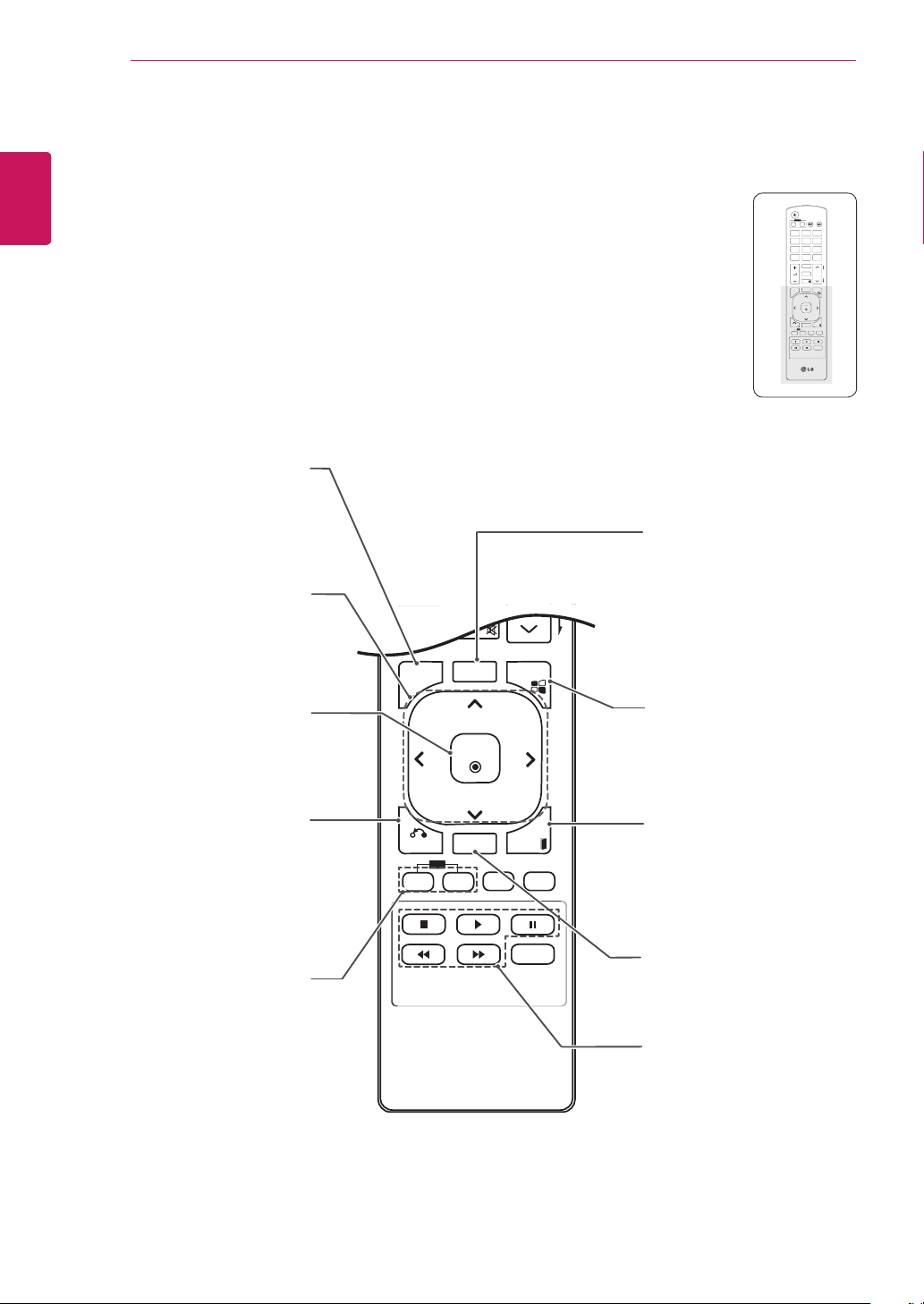
S.MENU
(SuperSign Menu Key)
This button selection is not
applicable.
EXIT
Clears all on-screen displays
and returns to Monitor set
viewing from any menu.
TILE
Selects the TILE Mode.
MENU (See p.14)
Accesses the main menus
or saves your input and exit
menus.
Navigation buttons
Scrolls through menus or
options.
OK
Selects menus or options and
confirms your input.
BACK
Allows the user to move back
one step in an interactive
application, EPG or other user
interaction function.
USB Menu control buttons
Controls media playback.
ID ON/OFF
When the number of input ID
is equal to the number of ID
Mode, you can control the
monitor which you want in the
multi display condition.
AUTO
Automatically adjusts picture
position and minimizes image
instability.(RGB input only)
P
A
G
E
INPUT
ENERGY
SAVING
MARK
ARC
ON
OFF
1
. , !
2
ABC
3
DEF
4
GHI
5
JKL
6
MNO
7
PQRS
8
TUV
9
1/a/A
0
- * #
WXYZ
CLEAR
OK
S.MENU
MONITOR
PSM
AUTO
MUTE
BRIGHT
NESS
MENU
ID
BACK
TILE
ON
OFF
EXIT
POWER
OK
S
.MEN
U
A
U
T
O
MEN
U
ID
BA
C
K
TIL
E
ON
O
F
F
EXI
T
11
ENG
ENGLISH
USING THE MONITOR SET
USING THE MONITOR SET
Connecting to a PC
Your Monitor set supports the Plug & Play* feature.
* Plug & Play: The function when a PC recognizes
a connected device that users connect to a PC
and turn on, without device configuration or user
intervention.
y
It is recommended to use the Monitor set
with an HDMI connection for the best image
quality.
y
If you turn the Monitor set on when cold, the
screen may flicker. This is normal.
y
Some red, green, or blue spots may appear
on the screen. This is normal.
NOTE
y
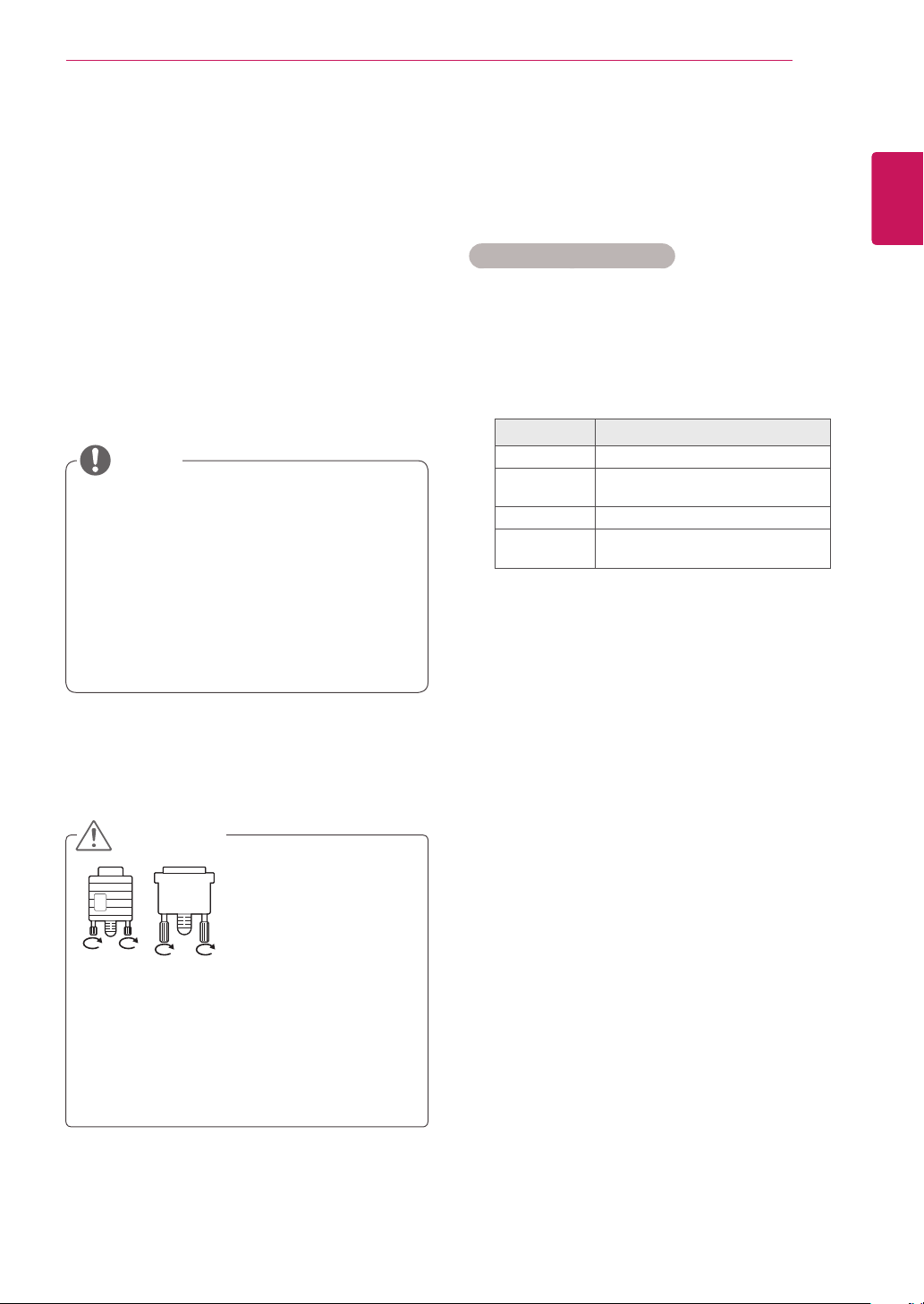
Connect the signal
input cable and tighten
it by turning the screws
clockwise.
y
Do not press the screen with your finger for
a long time as this may result in temporary
distortion on the screen.
y
Avoid displaying a fixed image on the
screen for a long period of time to prevent
image burn. Use a screensaver if possible.
CAUTION
Using the input list
Selecting an input source
1
Press INPUT to access the input source list.
- The connected device displays on each input
source.
2
Press the Navigation buttons to scroll to one of
the input sources and press OK.
Input source Description
AV(CVBS) A VCR or other external devices
Component Older devices that do not have
HDMI.
RGB Computer input.
HDMI/DVI Preferred connection type.
Supports high resolution inputs.
12
ENG
ENGLISH
USING THE MONITOR SET
HDMI/DVI
RGB connection
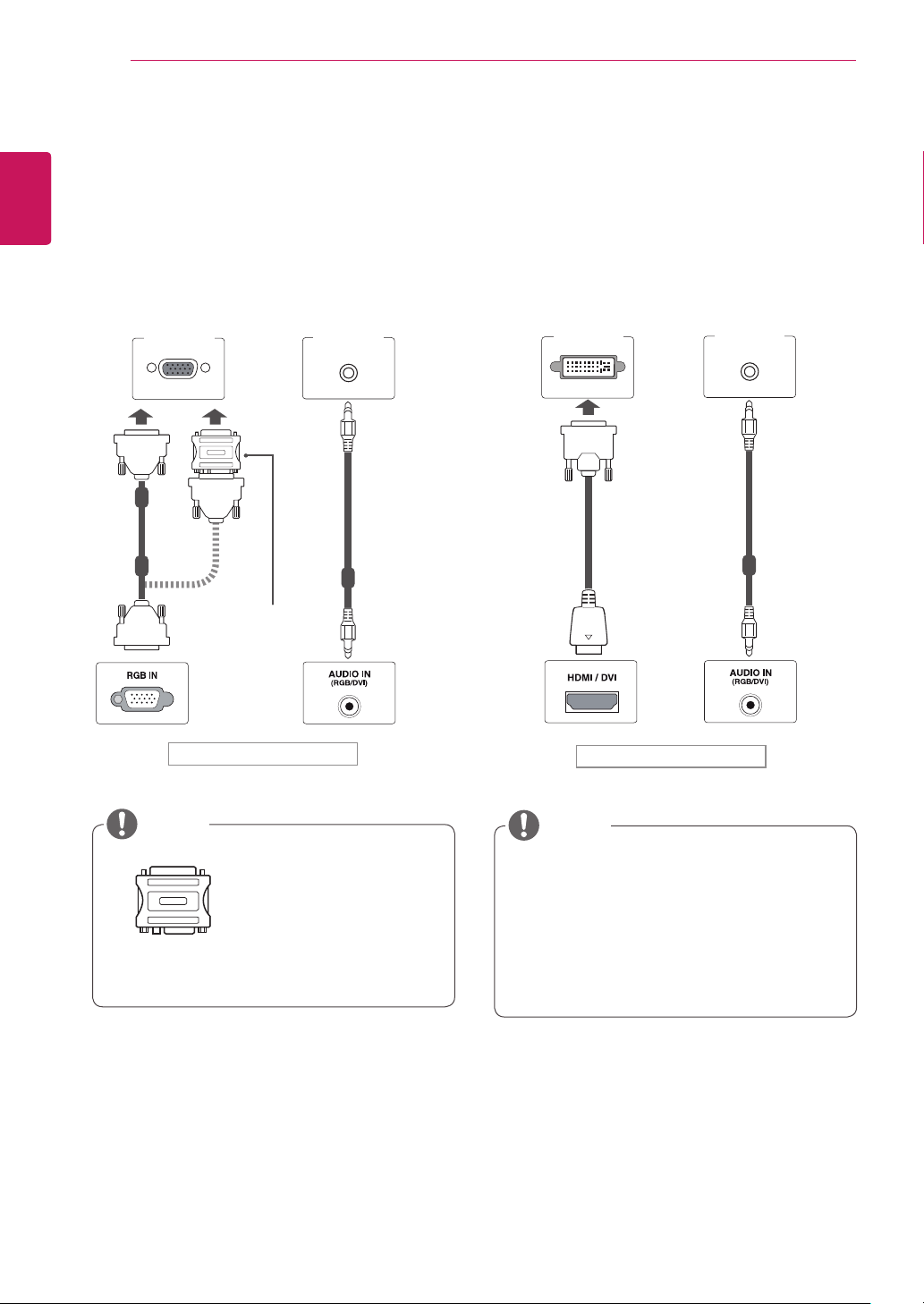
Transmits the analog video signal from your PC to
the Monitor set. Connect the PC and the Monitor
set with the D-sub 15 pin cable as shown the
following illustrations.
Select RGB input source.
y
Apple computers may
require an adapter
to connect to this
monitor. Call or visit
their web site for more
information.
Macintosh Adapter
(not included)
NOTE
Back of the product.
(not included)
HDMI/DVI
PC/MAC
PC
y
When using computer input with HDMI, you
must set the label of that HDMI input to PC.
y
Use a shielded signal interface cable, such
as D-sub 15 pin signal cable and DVI to
HDMI cable, with a ferrite core to maintain
standard compliance for the product.
NOTE
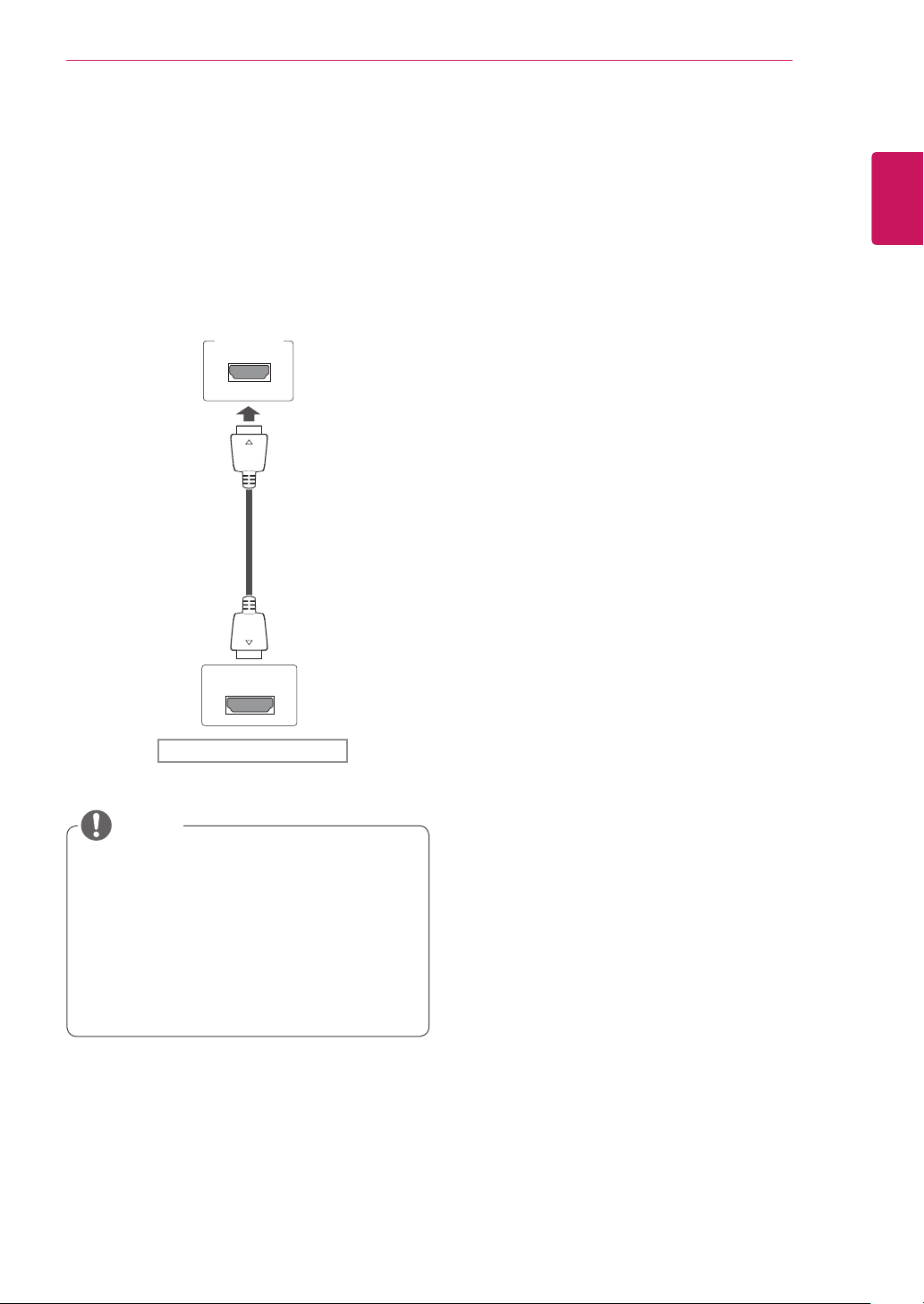
HDM/DVI connection
Transmits the digital video signal from your PC to
the Monitor set. Connect the PC and the Monitor
set with the HDMI/DVI cable as shown the
following illustrations.
Select HDMI/DVI input source.
Back of the product.
(not included)
PC PC
13
ENG
ENGLISH
USING THE MONITOR SET
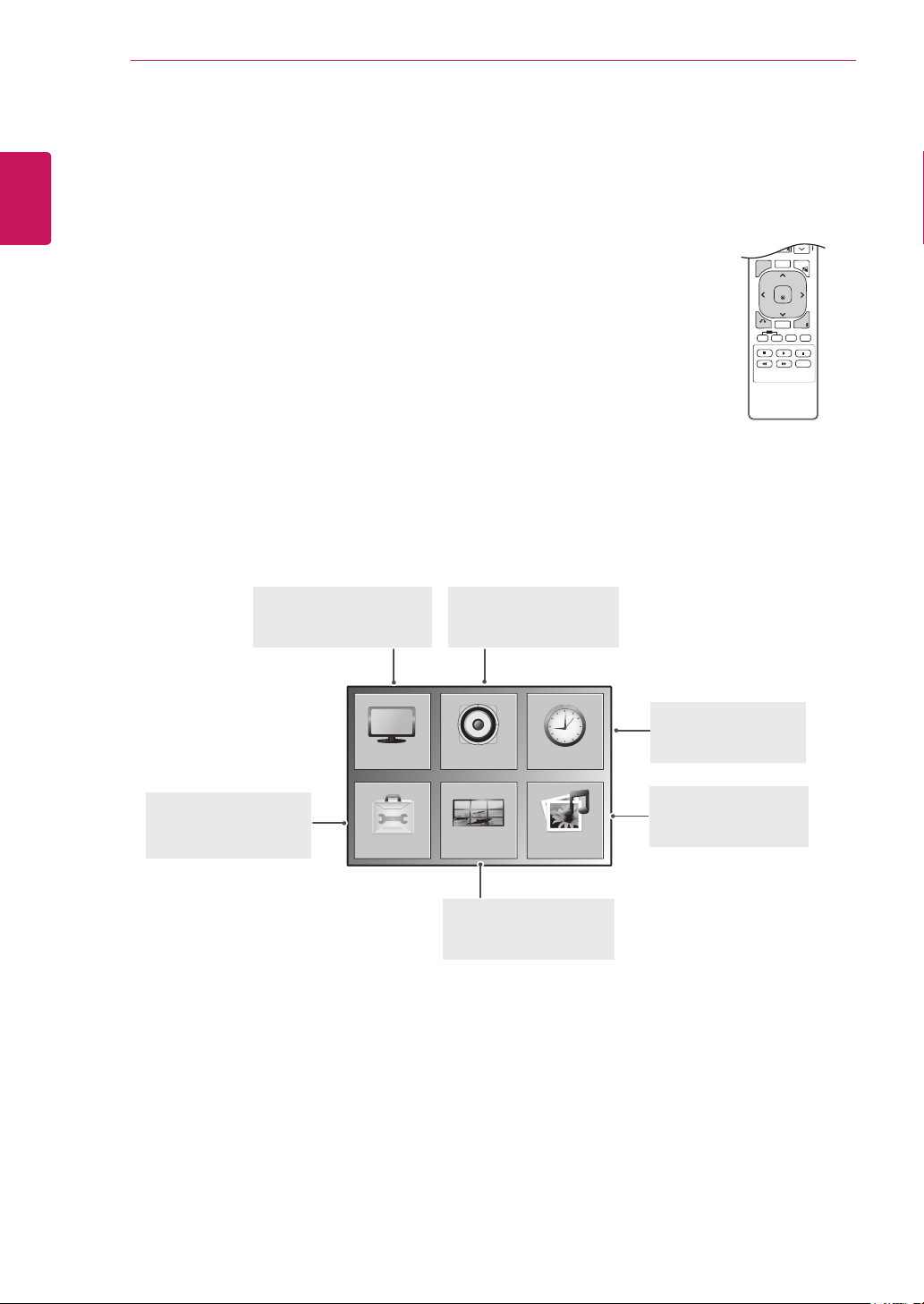
HDMI connection
Transmits the digital video and audio signals from
your PC to the Monitor set. Connect the PC and
the Monitor set with the HDMI cable as shown in
the following illustrations.
Select HDMI/DVI input source.
Back of the product.
y
Use a High Speed HDMI™ Cable.
y
Please check the PC environment if you
cannot hear the sound in HDMI mode. Some
PCs require you to manually change the
default audio output to HDMI.
y
If you want to use HDMI-PC mode, you must
set the input label to PC mode.
NOTE
HDMI/DVI
PC
(not included)
14
ENG
ENGLISH
CUSTOMIZING SETTINGS
CUSTOMIZING SETTINGS
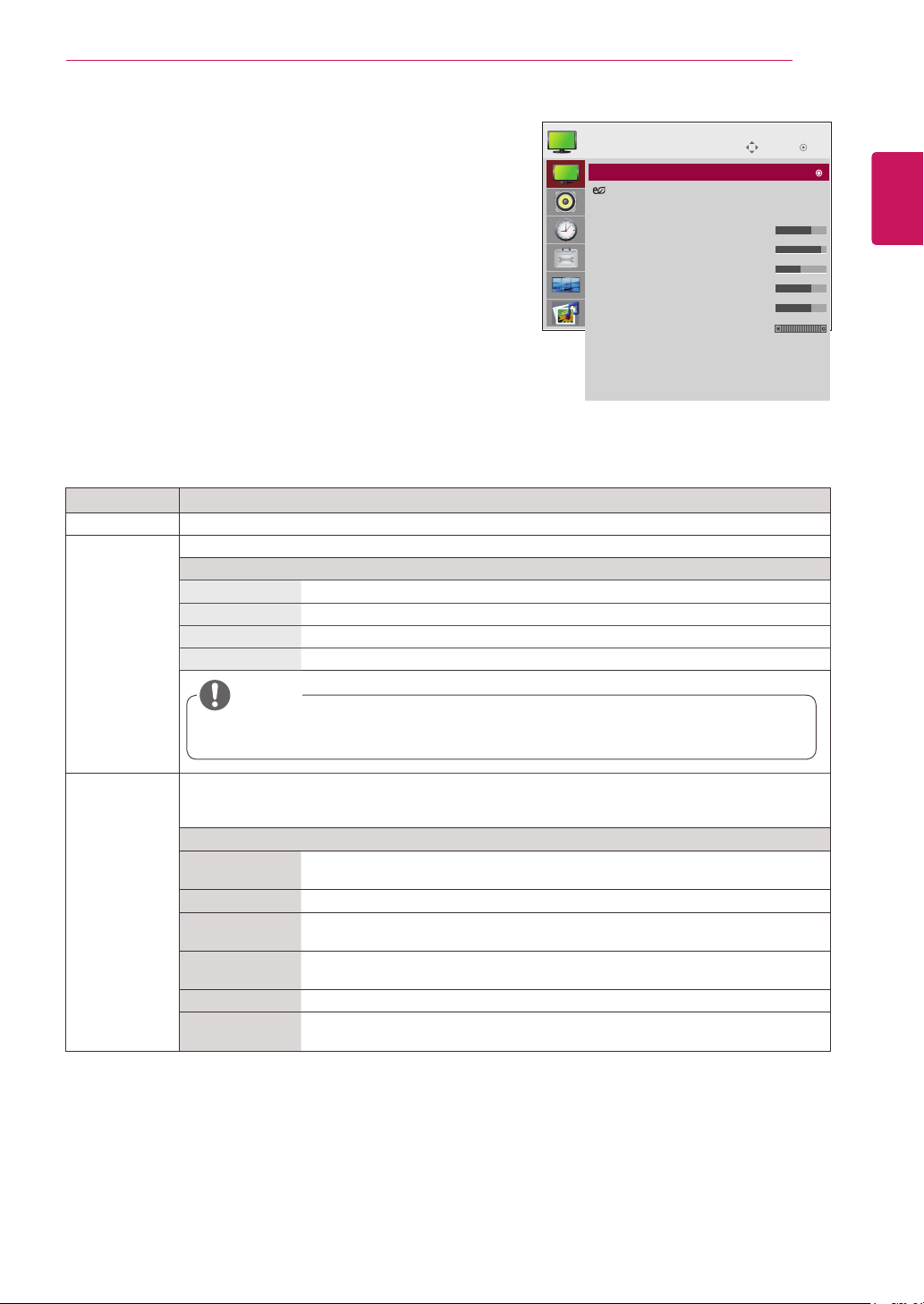
Accessing main menus
1
Press MENU to access the main menus.
2
Press the Navigation buttons to scroll to one of the following menus and
press OK.
3
Press the Navigation buttons to scroll to the setting or option you want
and press OK.
4
When you are finished, press EXIT.
When you return to the previous menu, press BACK.
P
A
G
E
MARK
ARC
OK
S.MENU
PSM
AUTO
MUTE
BRIGHT
NESS
MENU
ID
BACK
TILE
ON
OFF
EXIT
OPTION
PICTURE
TILE
AUDIO TIME
USB
AUDIO (See p.20)
Adjusts the sound quality,
effect, or volume level.
PICTURE (See p.15)
Adjusts the image size,
quality, or effect.
TIME (See p.21)
Sets the time, date, or
Timer feature.
USB (See p.26)
Using integrated media
features.
TILE (See p.24)
Adjusts the tile options.
OPTION (See p.22)
Customizes the general
settings.
15
ENG
ENGLISH
CUSTOMIZING SETTINGS
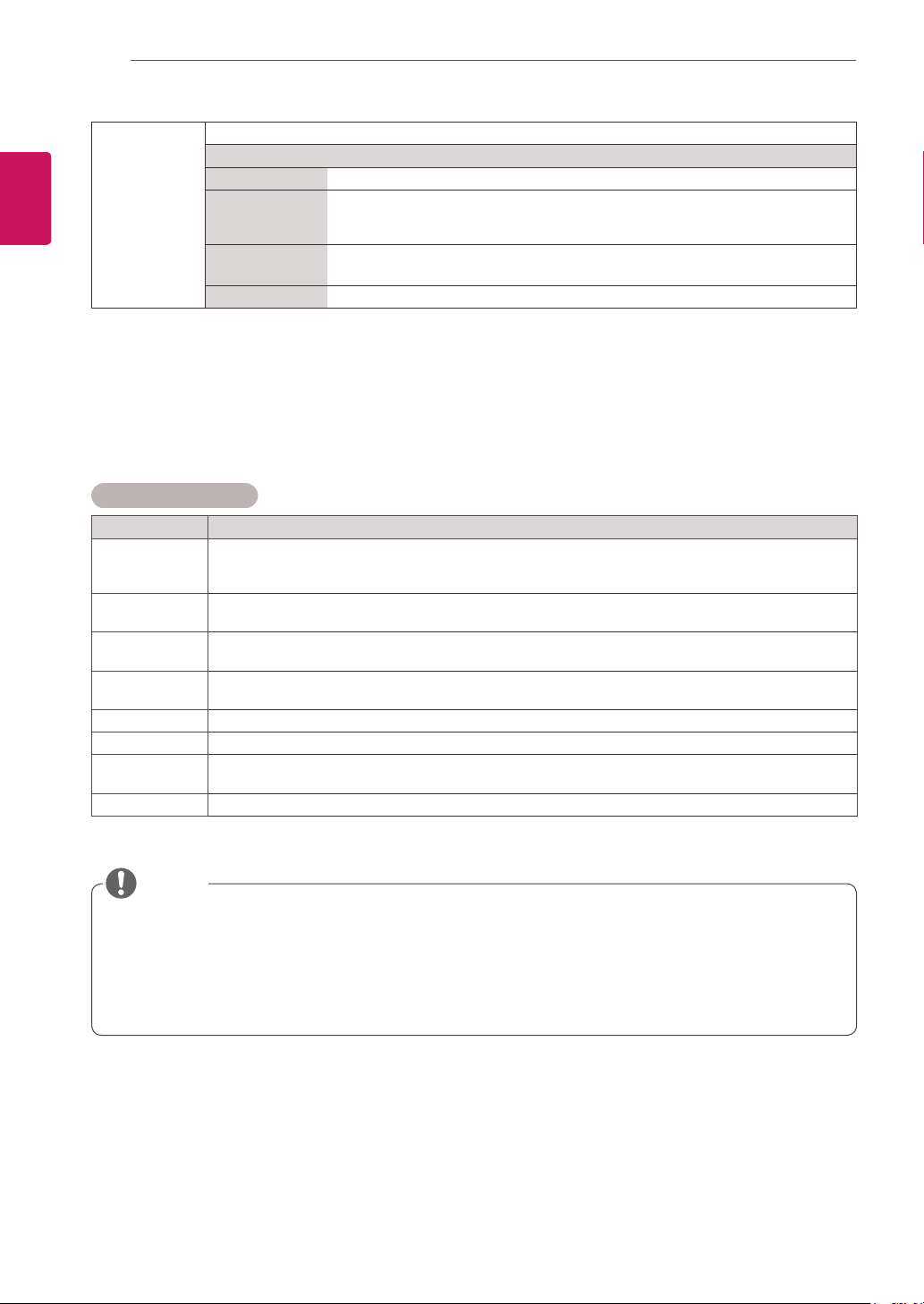
PICTURE settings
1
Press MENU to access the main menus.
2
Press the Navigation buttons to scroll to PICTURE and
press OK.
3
Press the Navigation buttons to scroll to the setting or
option you want and press OK.
- To return to the previous level, press BACK.
4
When you are finished, press EXIT.
When you return to the previous menu, press
BACK.
The available picture settings are described in the following:
Setting Description
Aspect Ratio Changes the image size to view images at its optimal size (See p.18 to p.19).
Energy Saving Sets to automatically adjust the screen brightness corresponding to the surroundings.
Level
Off 100% light
Level 1 80% light
Level 2 60% light
Level 3 40% light
y
If the 'Picture Mode' is set to 'Cinema', the 'Energy saving' mode is disabled.
Picture Mode Selects one of the preset image or customizes options in each mode for the best Monitor set screen
performance. You are also able to customize advanced options of each mode.
The available preset picture modes vary depending on the Monitor set .
Mode
Vivid Adjusts the video image for the retail environment by enhancing the contrast,
brightness, Color, and sharpness.
Standard Adjusts the image for the normal environment.
Cinema Optimizes the video image for a cinematic look to enjoy movies as if you are in a
movie theater.
Sport Optimizes the video image for high and dynamic actions by emphasizing primary
Colors such as white, grass, or sky blue.
Game Optimizes the video image for a fast gaming screen such as PCs or games.
Expert1/2 Adjusts the detailed video image settings for video experts as well as general
viewers. Refer to the Basic image options. (See p.16).
Move
OK
PICTURE
Aspect Ratio : 16:9
Energy Saving : Off
Picture Mode : Standard
•Backlight 70
•Contrast 90
•Brightness 50
•Sharpness 70
•Color 60
•Tint 0
•AdvancedControl
•PictureReset
Screen
NOTE
Aspect Ratio : 16:9
16
ENG
ENGLISH
CUSTOMIZING SETTINGS
NOTE
Basic image options
Setting Description
Backlight Adjusts the brightness of the screen by controlling the LCD backlight. If you decrease the brightness
level, the screen becomes darker and the power consumption will be reduced without any video
signal loss.
Contrast Increases or decreases the gradient of the video signal. You may use Contrast when the bright part
of the picture is saturated.
Brightness Adjusts the base level of the signal in the picture. You may use Brightness when the dark part of the
picture is saturated.
Sharpness Adjusts the level of crispness in the edges between the light and dark areas of the picture. The lower
the level, the softer the image.
Color Adjusts intensity of all colors.
Tint Adjusts the balance between red and green levels.
Advanced
Control
Customizes the advanced options. Refer to the Advanced image options. (See p.17).
Picture Reset Restores the options to the default setting.
y
If the 'Picture Mode' setting in the Picture menu is set to Vivid, Standard, Cinema, Sport or Game
the subsequent menus will be automatically set.
y
You cannot adjust color and tint in the RGB-PC / HDMI-PC mode.
y
When the Expert 1,2 is selected, you can select Backlight, Contrast, Brightness, H Sharpness, V
Sharpness, Color or Tint .
SCREEN
(In RGB
Mode Only)
Customizes the PC display options in RGB mode.
Option
Resolution Selects a proper resolution. See “Customizing PC display options”.
Auto Config. Sets to adjust the screen position, clock, and phase automatically.
The displayed image may be unstable for a few seconds while the configuration is
in progress.
Position/Size/
Phase
Adjusts the options when the picture is not clear, especially when characters are
shaky, after the auto configuration.
Reset Restores the options to the default setting.
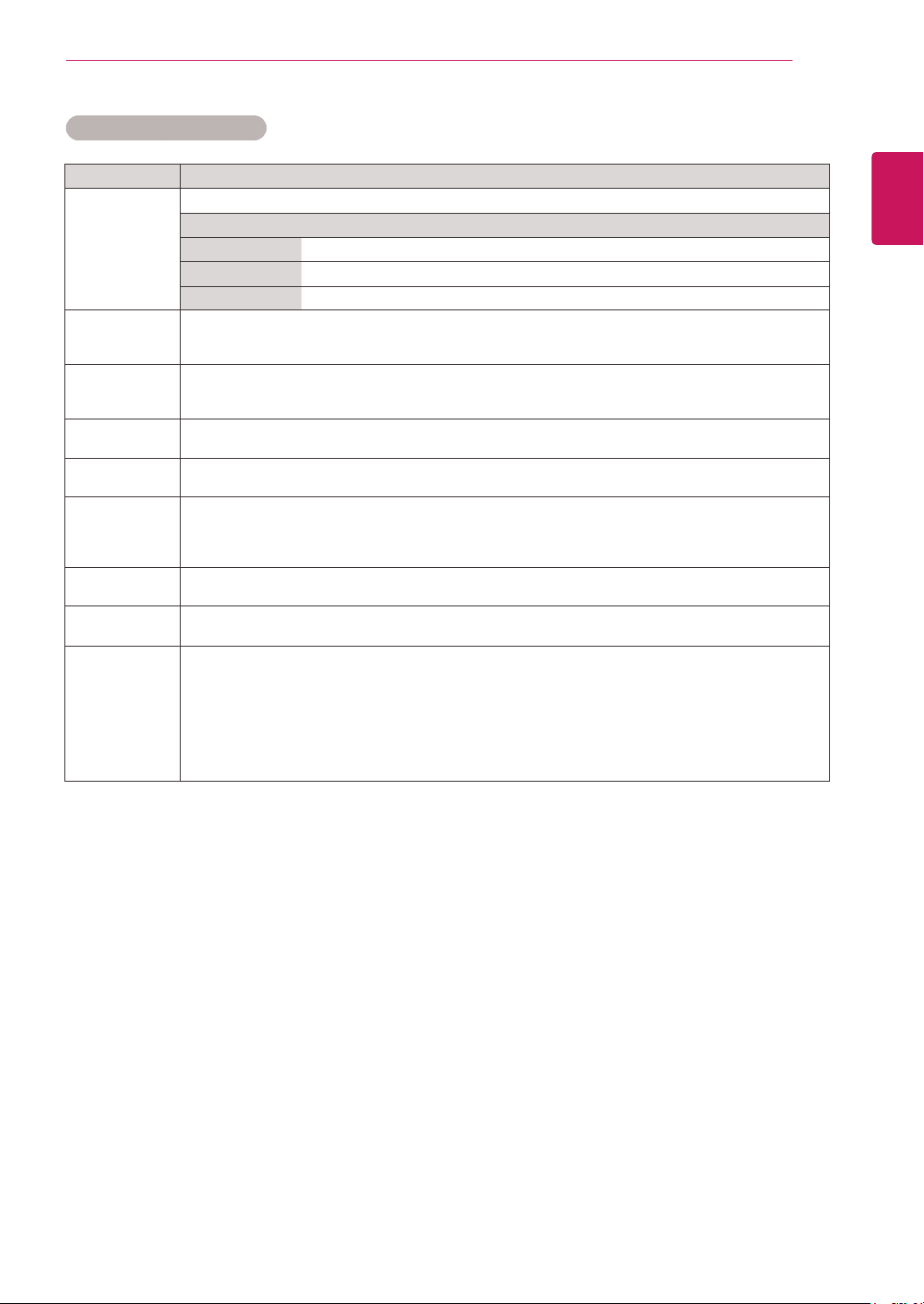
17
ENG
ENGLISH
CUSTOMIZING SETTINGS
Setting Description
Colour
Temperature
Set to warm to enhance hotter Colors such as red, or set to cool to make picture bluish.
Option
Cool Sets the screen color to a bluish tone.
Medium Sets the screen to the standard color.
Warm Sets the screen color to a reddish tone.
Dynamic
Contrast
Adjusts the contrast to keep it at the best level according to the brightness of the screen. The
picture is improved by making bright parts brighter and dark parts darker. (This function can be used
only under AV(CVBS) and Component.)
Dynamic Color Adjusts screen Colors so that they look livelier, richer and clearer. This feature enhances
hue, saturation and luminance so that red, blue, green and white look more vivid. (This function can
be used only under AV(CVBS) and Component.)
Noise
Reduction
Reduces screen noise without compromising video quality. (This function can be used only under
AV(CVBS) and Component.)
Gamma Set your own gamma value. On the monitor, high gamma values display whitish images and low
gamma values display high contrast images.
Black Level » Low: The picture of the screen gets darker.
» High: The picture of the screen gets brighter.
Set black level of the screen to proper level.
(Function works in the following mode - AV(CVBS), Component, HDMI-DTV)
Film Mode You can watch a cinema-like video by eliminating judder effect.
Use this function when you watch movies.
White Balance This is the function to adjust the overall Color of the image to the feeling you want.
(Function works in the following mode - Expert 1, Expert 2 Picture mode)
Color
Management
System
As the tool used by the experts to make adjustments by using the test patterns, this does not
affect other Colors but can be used to selectively adjust the 6 Color areas (Red/Green/Blue/
Cyan/ Magenta/Yellow). Color difference may not be distinctive even when you make the
adjustments for the general video.
Adjusts Red/Green/Blue/Yellow/Cyan/Magenta.
» Red/Green/Blue/Yellow/Cyan/Magenta Color: The adjustment range is -30 to +30.
» Red/Green/Blue/Yellow/Cyan/Magenta Tint: The adjustment range is -30 to +30.
(Function works in the following mode - Expert 1, Expert 2 Picture mode)
Advanced image options
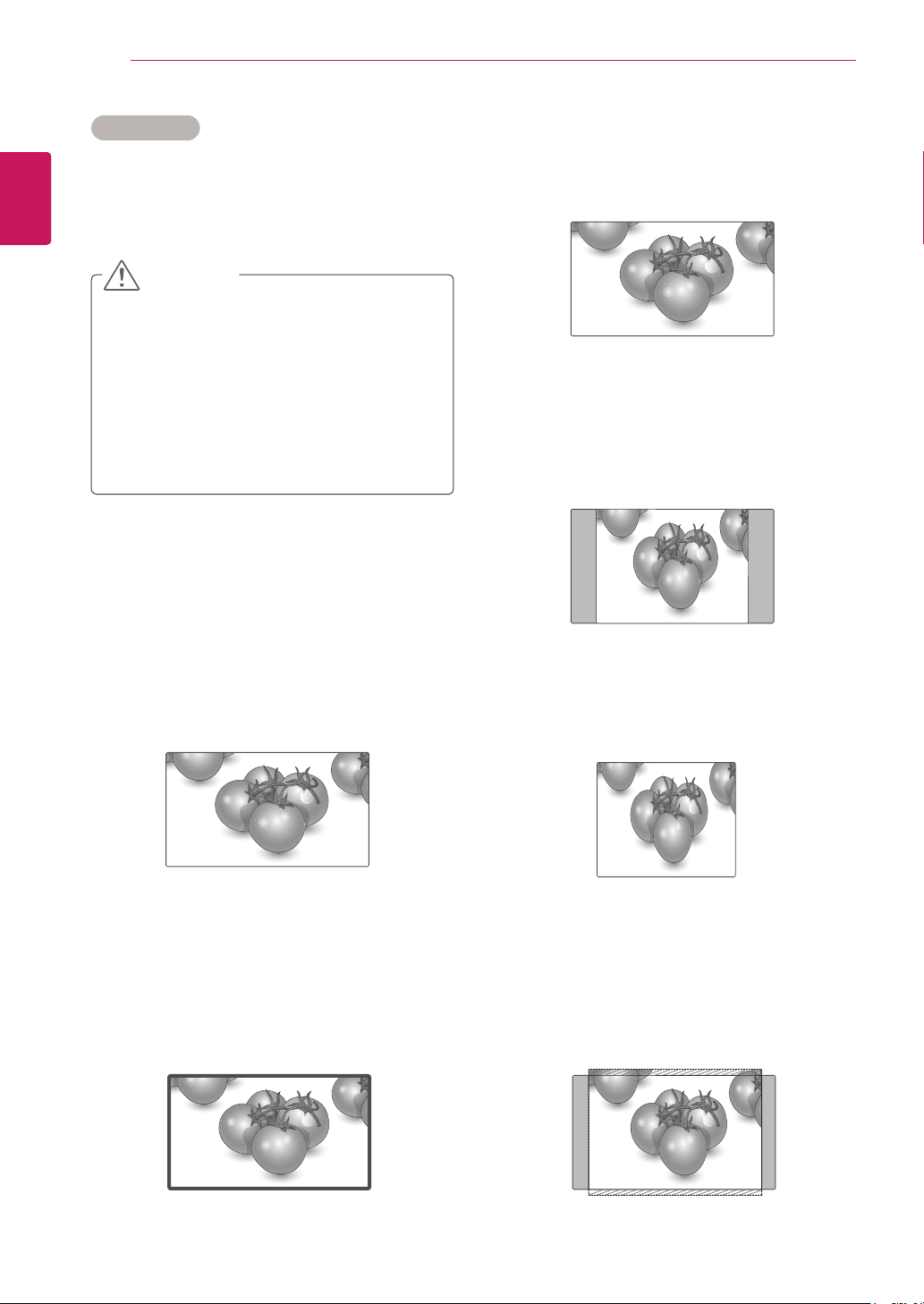
18
ENG
ENGLISH
CUSTOMIZING SETTINGS
- Original : The aspect ratio is not adjusted from
the original. It is set by the program being
watched.
- 4:3 : The following selection will allow you to
view a picture with an original 4:3 aspect ratio,
gray bars will appear on both the left and right of
the screen.
- 1:1 : The aspect ratio is not adjusted from the
original. (Only HDMI/DVI PC, RGB PC)
- 14:9 : You can view a picture format of 14:9 or a
general Monitor set program in the 14:9 mode. The
14:9 screen is viewed in the same way as in 4:3,
but is magnified to the left and right.
Aspect Ratio
Resize the image to view the image at its optimal
size by pressing ARC button.
y
If a fixed image displays on the screen for a
long period of time, it will be imprinted and
become a permanent disfigurement on the
screen. This is “image burn” or “burn-in” and
not covered by the warranty.
y
If the aspect ratio is set to 4:3 for a long
period of time, image burn may occur on
the letterboxed area of the screen.
- 16:9 : The following selection will allow you
to adjust the picture horizontally, in linear
proportion, to fill the entire screen(useful for
viewing 4:3 formatted DVDs).
- Just Scan : Following Selection will lead to you
view the picture of best quality without loss of
original picture in high resolution image. Note: If
there is noise in original Picture, You can see the
noise at the edge.
CAUTION
Just Scan
Original
19
ENG
ENGLISH
CUSTOMIZING SETTINGS
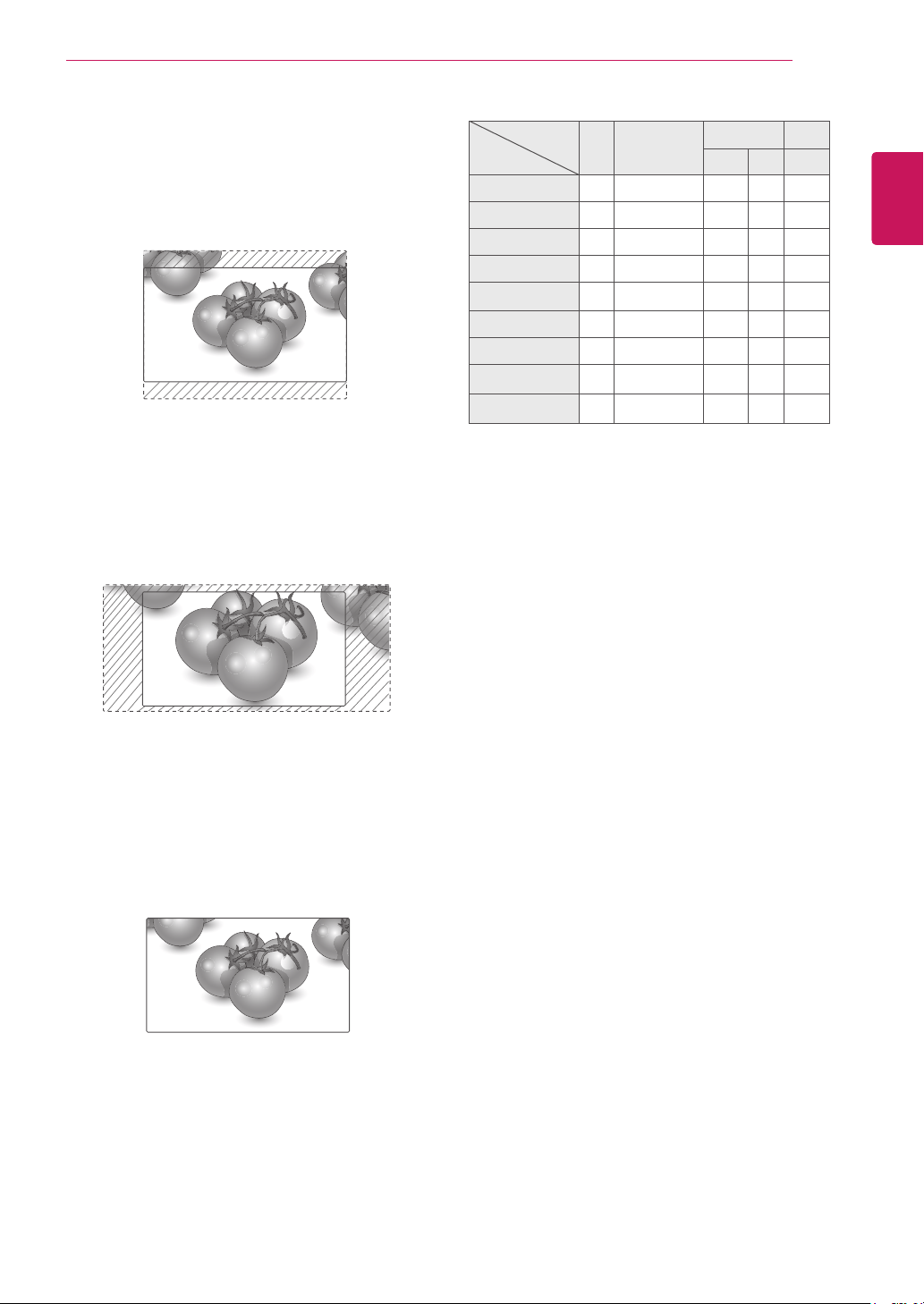
- Zoom : The following selection will allow you
to view the picture without any alteration, while
filling the entire screen. However, the top and
bottom of the picture will be cropped.
- Cinema Zoom 1 : Choose Cinema Zoom
when you want to enlarge the picture in correct
proportion. Note: When enlarging or reducing
the picture, the image may become distorted.
- Full Wide : When Monitor set receives the wide
screen signal,it will lead you to adjust the picture
horizontally or vertically, in a linear proportion,to
fill the entire screen fully.
Full Wide
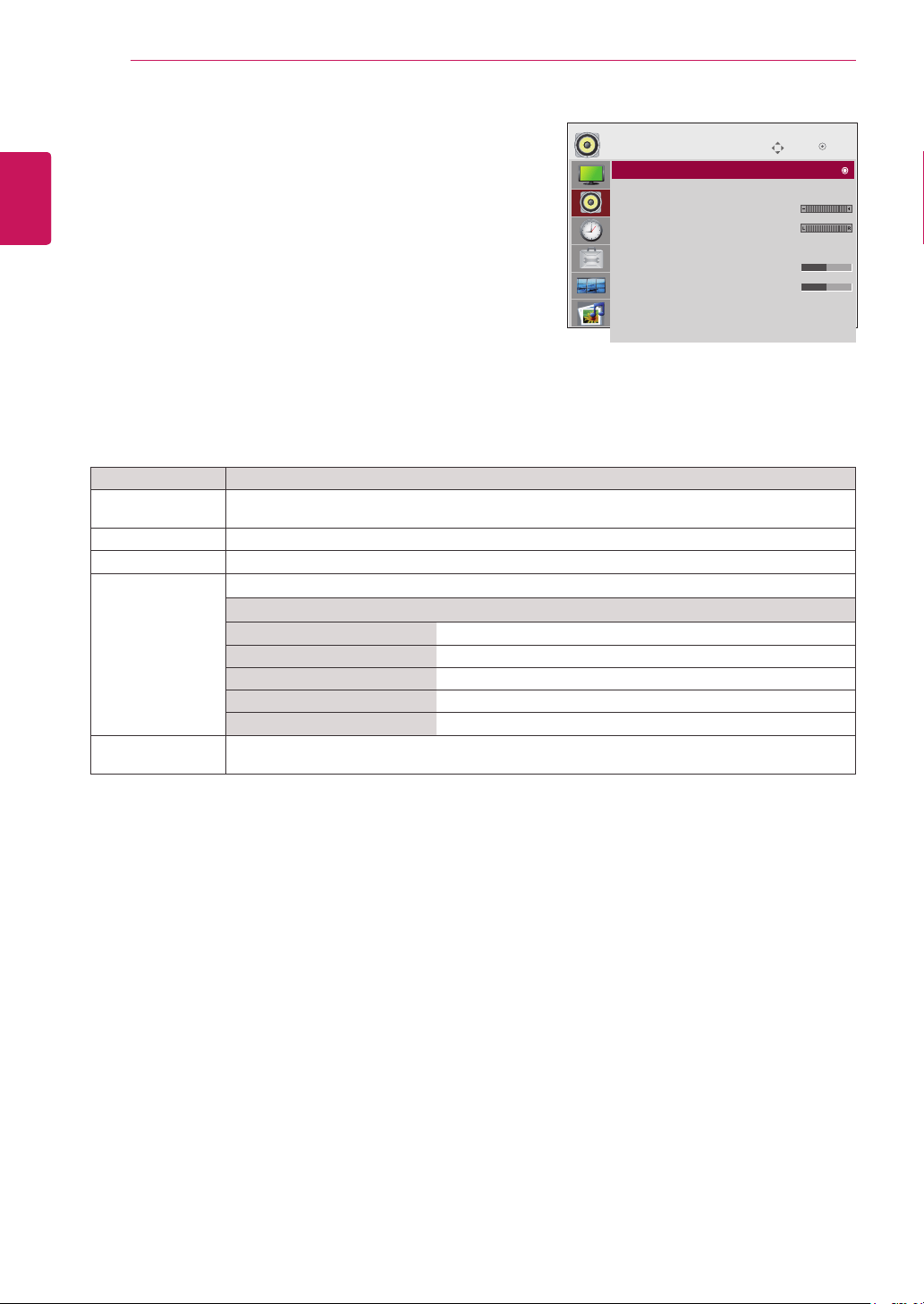
MODE
ARC
AV Component HDMI/DVI RGB
DTV PC PC
16:9 o o o o o
Just Scan x o o x x
Original o x x x x
4:3 o o o o o
1:1 x x x o o
14:9 o o o x x
Zoom o o o x x
Cinema Zoom 1 o o o x x
Full Wide o x x x x
20
ENG
ENGLISH
CUSTOMIZING SETTINGS
AUDIO settings
1
Press MENU to access the main menus.
2
Press the Navigation buttons to scroll to AUDIO and press
OK.
3
Press the Navigation buttons to scroll to the setting or
option you want and press OK.
- To return to the previous level, press BACK.
4
When you are finished, press EXIT.
When you return to the previous menu, press BACK.
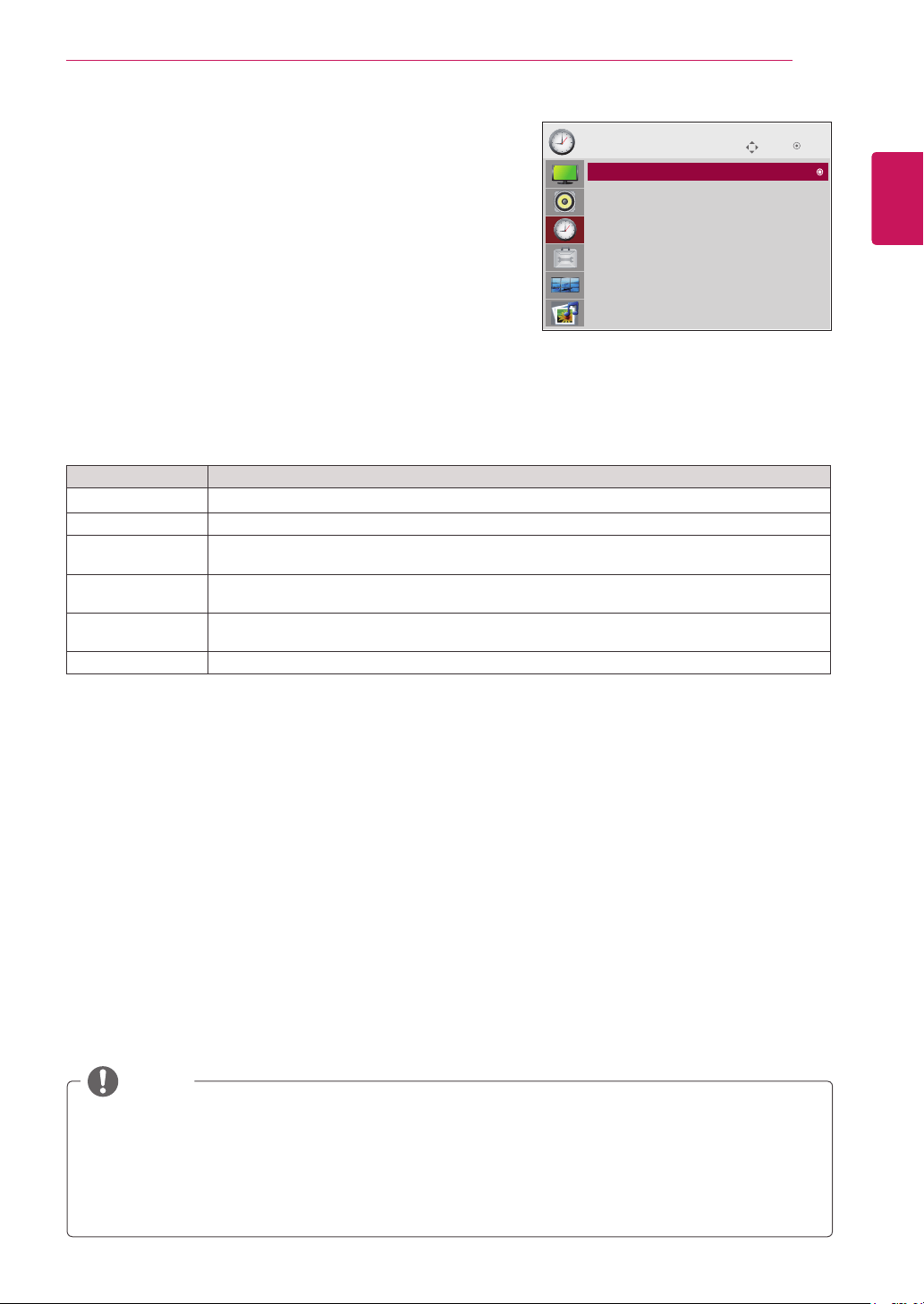
The available audio options are described in the following:
Setting Description
Auto Volume To adjust uneven sound volumes across all channels or signals automatically to the most
appropriate level. To use this feature, select On.
Clear Voice ll By differentiating the human sound range from others,it helps users listen to human voices better.
Balance Adjusts balance between the left and right speakers according to your room environment.
Sound Mode Selects one of the preset sound modes or customize each option in each mode.
Mode
Standard Select when you want standard-quality sound.
Music Select when you listen to music.
Cinema Select when you watch movies.
Sport Select when you watch sports events.
Game Select when you watch game events.
Speaker ON: Enables sound to the monitor speaker. (* The monitor speaker is sold separately.)
OFF: Disables sound to the monitor speaker. Use this option when using an external sound device.
Move
AUDIO
Auto Volume : Off
Clear Voice II : Off
•Level 3
Balance 0
Sound Mode : Standard
•Treble 50
•Bass 50
•Reset
Speaker : On
OK
Auto Volume : Off
21
ENG
ENGLISH
CUSTOMIZING SETTINGS
TIME settings
1
Press MENU to access the main menus.
2
Press the Navigation buttons to scroll to TIME and press
OK.
3
Press the Navigation buttons to scroll to the setting or option
you want and press OK.
- To return to the previous level, press BACK.
4
When you are finished, press EXIT.
When you return to the previous menu, press BACK.
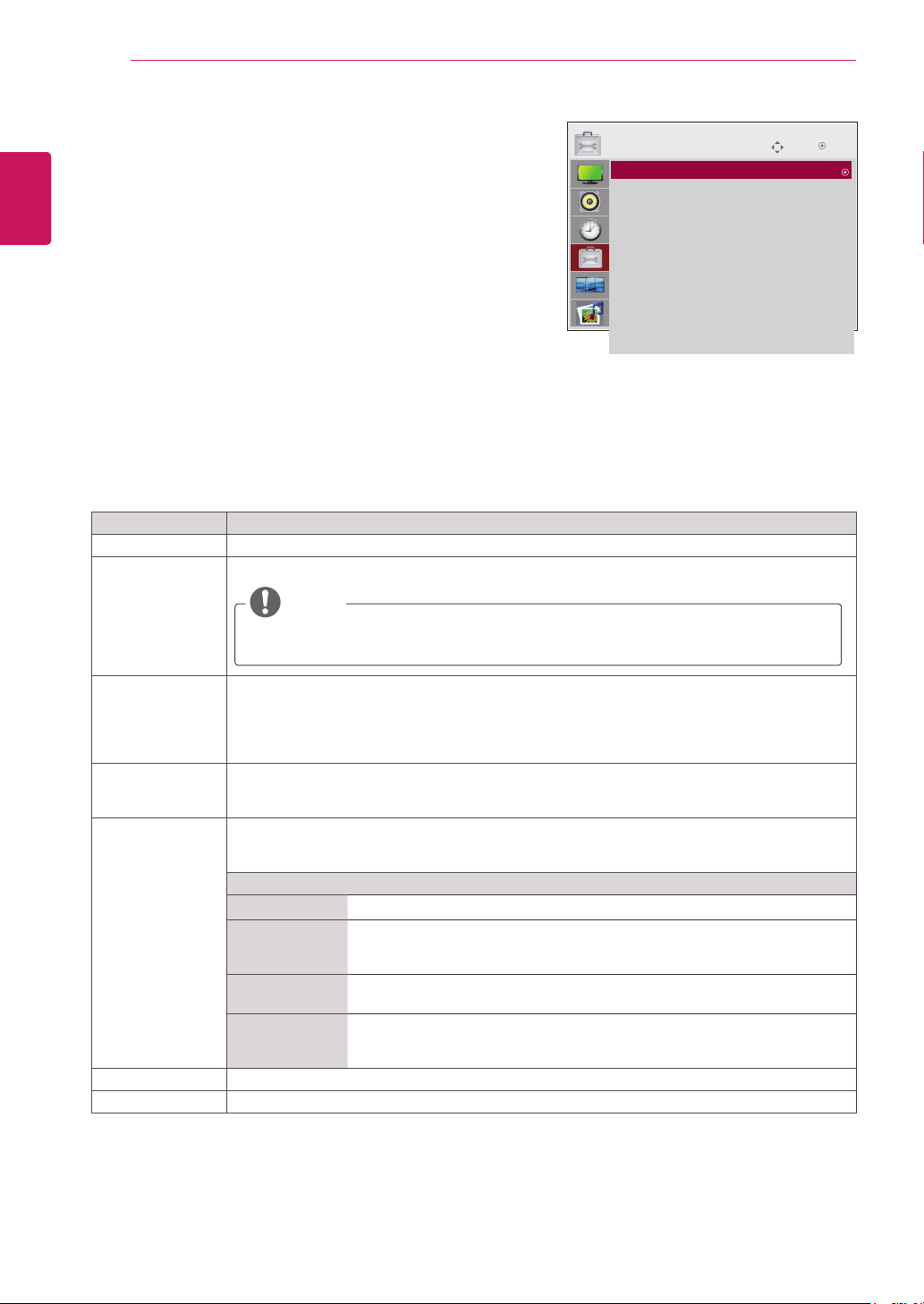
The available time settings are described in the following:
Setting Description
Clock Sets the time feature.
On/Off Time Sets the time to turn on or off the Monitor set.
Sleep Timer Sets the length of time until the Monitor set to turns off. When you turn the Monitor set off and
turn it on again, the Sleep Timer will be set to off.
Auto off If Auto off is active and there is no input signal, the set switches to off mode automatically after
10 minutes.
Power on delay When connecting multiple monitors and turning the power on, the monitors are turned on
individually to prevent overload.
Automatic Standby If you do not use the monitor for more than 4 hours, it will be in standby mode automatically.
Move
TIME
OK
Clock
Off Time : Off
On Time : Off
Sleep Timer : Off
Auto Off : On
Power On Delay : Off
Automatic Standby : On(4hours)
Clock :−−:−−−−−−
NOTE
y
Once the on or off time is set, these functions operate daily at the preset time.
y
The scheduled power-off function works properly only when the device time is set correctly.
y
When the scheduled power-on and power-off times are the same, the power-off time has priority over the
power-on time if the set is turned on, and vice versa if the set is turned off.
y
The 'Automatic Standby' function may not be available depending on the country.
22
ENG
ENGLISH
CUSTOMIZING SETTINGS
Setting Description
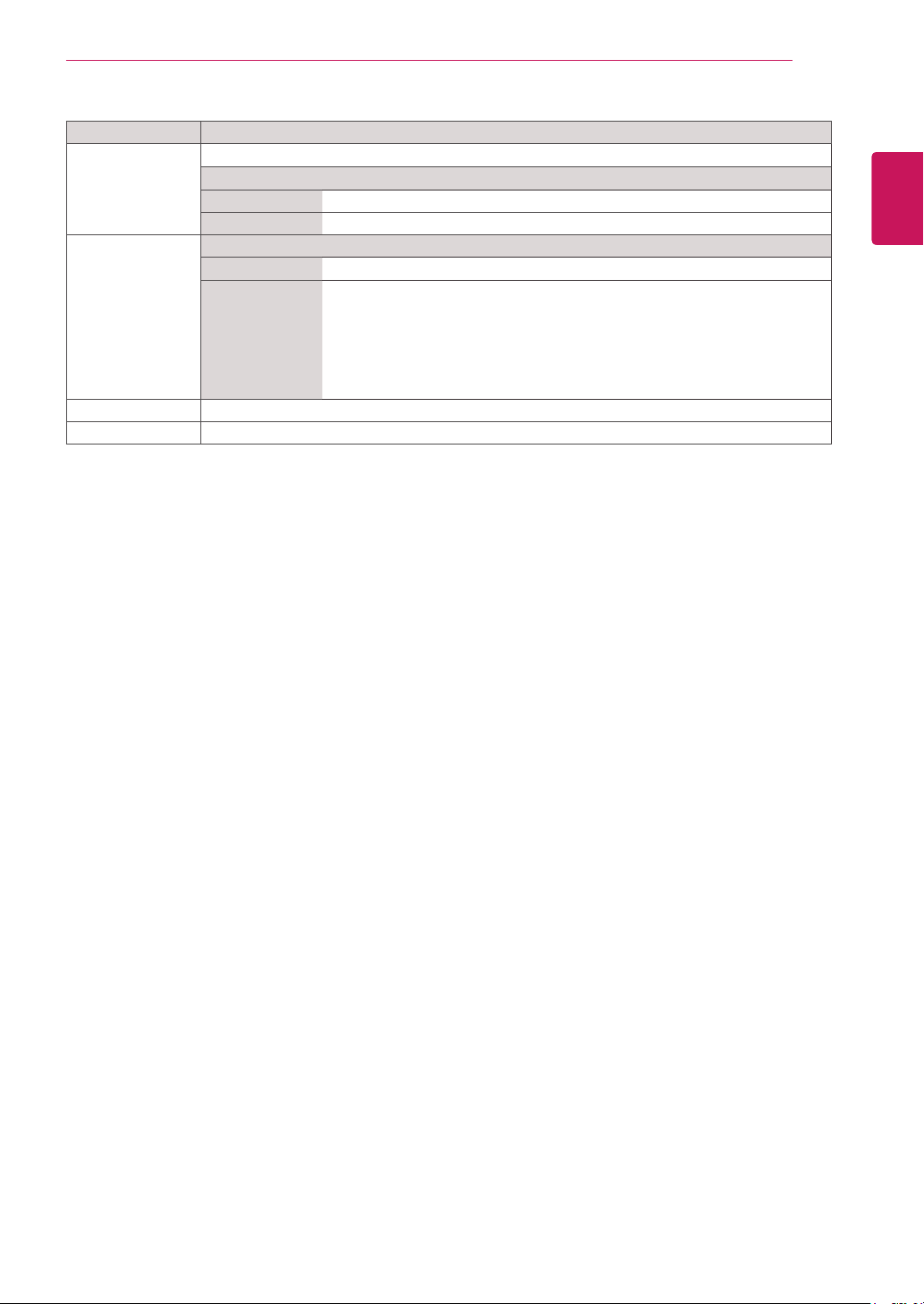
Language To choose the language in which the control names are displayed.
Input Label Selects a label for an input source to identify a device connected to each input source.
y
If you want to use HDMI-PC mode, you must set the input label to PC mode.
Key Lock Use the buttons to select On or Off. The monitor can be set up so that it can only be used with the
remote control. This feature can prevent unauthorized viewing.
In order to lock the OSD screen adjustment, set the Key Lock tab to the 'On' position.
In order to unlock it, do the following :
Push the MENU button on the remote control and set Key Lock to the 'Off' position.
Set ID You can assign a unique Set ID NO (name assignment) to each product when several products
are connected for display. Specify the number (1 to 99) using the button and exit. Use the
assigned Set ID to individually control each product using the Product Control Program.
ISM Method A frozen or still picture from a PC/Video game displayed on the screen for prolonged periods
could result in a ghost image remaining even when you change the image. Avoid allowing a fixed
image to remain on the screen for a long period of time.
Setting
Normal Leave on normal if you don't foresee image burn in being a problem.
Orbiter May help prevent ghost images. However, it is best not to allow any fixed
image to remain on the screen. To avoid a permanent image on the screen,
the screen will move every 2 minutes.
Inversion This function inverts the panel color of the screen. The panel color is
automatically inverted every 30 minutes.
White wash White wash fills the screen with solid white. This helps removes permanent
images burned into the screen. A permanent image may be impossible to clear
entirely with white wash.
DPM Select A user can choose to turn the power saving mode on / off.
Power Indicator Use this function to set the power indicator on the front side of the product to On or Off.
OPTION settings
1
Press MENU to access the main menus.
2
Press the Navigation buttons to scroll to OPTION and press
OK.
3
Press the Navigation buttons to scroll to the setting or option
you want and press OK.
- To return to the previous level, press BACK.
4
When you are finished, press EXIT.
When you return to the previous menu, press BACK.
The available option settings are described in the following:
Move
OPTION
OK
Language : English
Input Label
Key Lock : Off
Set ID : Off
ISM Method : Normal
DPM Select : On
Power Indicator : ON
Interface Select : RS232C
Network Setup
Information
Factory Reset
Language : English
NOTE
23
ENG
ENGLISH
CUSTOMIZING SETTINGS
Setting Description
Interface Select Sets up network connections.
Option
RS-232C Enables communication via Serial.
Network LAN - Enables communication via Ethernet.
Network Setup Option
DHCP Allocates and sets up IP automatically.
Manual Sets up IP address, Gateway, Subnet Mask, Primary DNS and Secondary
DNS.
The setup process is complete when you select Execute, and "IP Setup
Completed" is displayed at the bottom of the screen. While "Wait for IP Setup"
is displayed, you cannot use the local keys and remote control. "Wait for IP
Setup" is displayed for up to 40 seconds.
* If Network select is set to RS232C.DHCP and Manual are disabled.
Information You can find informations about Serial No, F/W version, IP Address and MAC Address.
Factory Reset Select this option to return to the default factory settings.
24
ENG
ENGLISH
CUSTOMIZING SETTINGS
TILE settings
1
Press MENU to access the main menus.
2
Press the Navigation buttons to scroll to TILE and press
OK.
3
Press the Navigation buttons to scroll to the setting or
option you want and press OK.
- To return to the previous level, press BACK.
4
When you are finished, press EXIT.
When you return to the previous menu, press BACK.
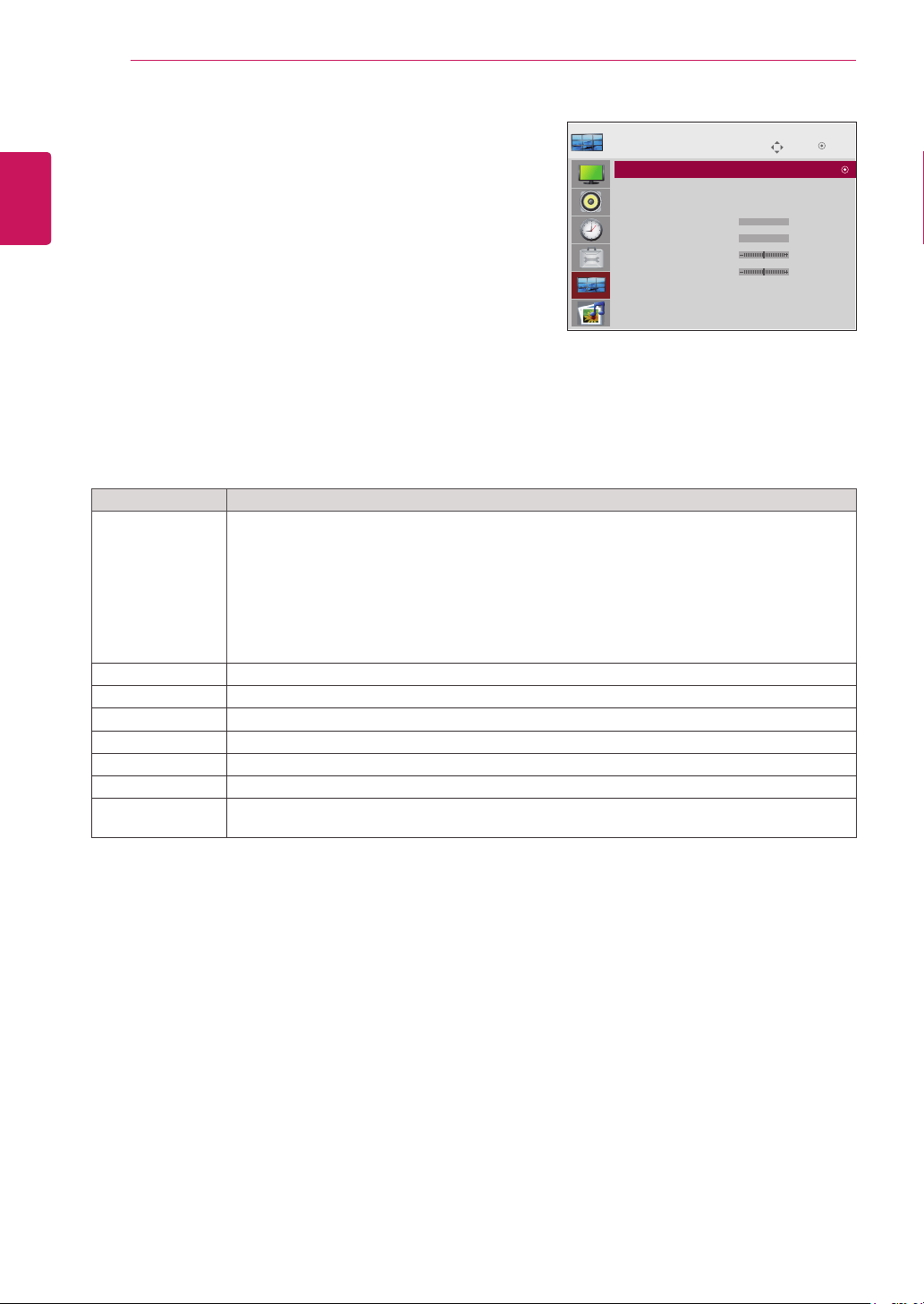
The available lock settings are described in the following:
Move
TILE
OK
Tile Mode : Off
Tile ID : 0
Natural Mode : Off
H Size : 0
V Size : 0
H Position : 0
V Position : 0
Reset
Tile Mode : 2x2
Setting Description
Tile Mode To use this function
- Must be displayed with various other products.
- Must be in a function that can be connected to RGB Cable by distributor and RS-232C.
Tile mode and choose Tile alignment and set the ID of the current product to set location.
* Only after pressing the SET button the adjustments made to the settings will be saved.
- Tile mode : column x row ( c = 1, 2, 3, 4, 5 r = 1, 2, 3, 4, 5)
- 5 x 5 available.
- Configuration of an integration screen is also available as well as configuration of One by one
Display.
Tile ID Select the location of the Tile by setting an ID.
Natural The image is omitted by the distance between the screens to be naturally shown.
H-Size Adjust the horizontal size of the screen taking into account the size of the bezel.
V-Size Adjust the vertical size of the screen taking into account the size of the bezel.
H-Position Moving the screen position horizontally.
V-Position Moving the screen position vertically.
Reset Function to initialize and release Tile.
All Tile setting are released when selecting Tile recall and the screen returns to Full screen.
25
ENG
ENGLISH
CUSTOMIZING SETTINGS
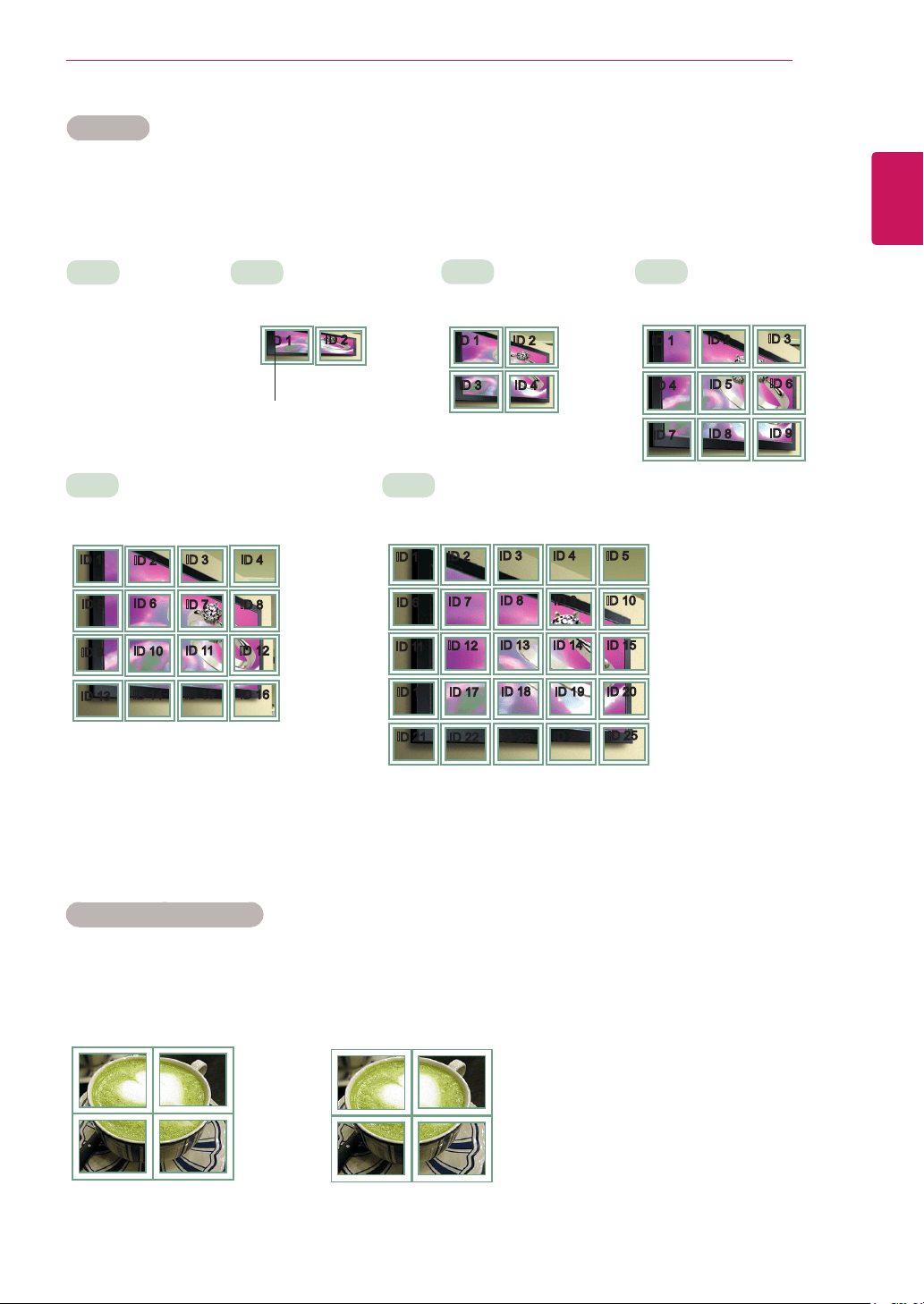
Tile Mode
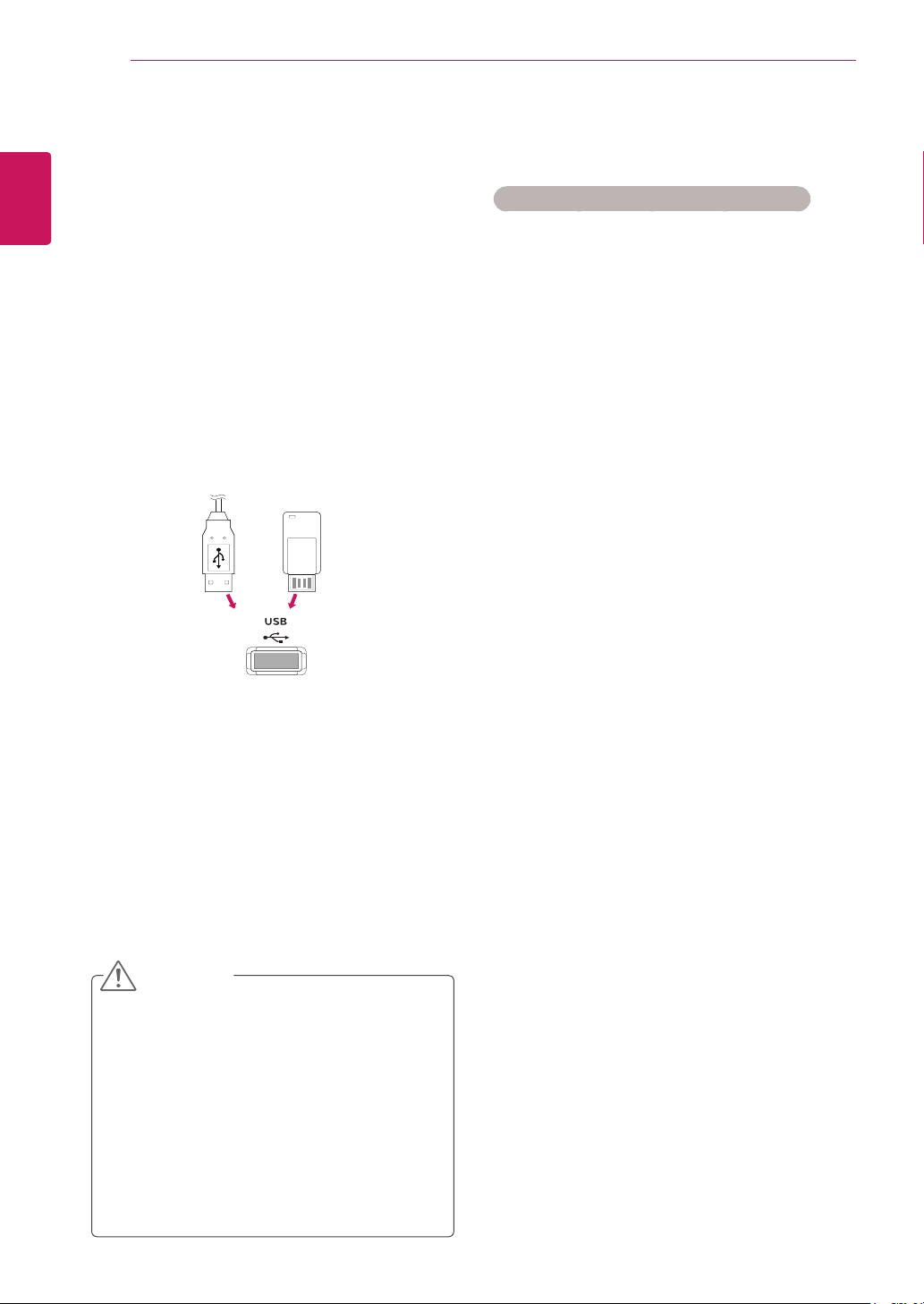
This monitor can be tiled with additional monitors to create a large tiled display.
Tile Mode - Natural mode
When active, the part of the image that would normally be displayed in the gap between the monitors is
omitted.
ID 1
ID 2
ID 3
ID 4
ID 1
ID 2
ID 4
ID 5
ID 3
ID 6
ID 7
ID 8
ID 9
• 3X3:
When using 9 monitors
ID 1
ID 2
ID 5
ID 6
ID 3
ID 7
ID 9
ID 10
ID 11
ID 4
ID 8
ID 12
ID 13
ID 14
ID 15
ID 16
ID 1
ID 2
ID 6
ID 7
ID 3
ID 8
ID 11
ID 12
ID 13
ID 4 ID 5
ID 9 ID 10
ID 14 ID 15
ID 16
ID 21
ID 17
ID 22
ID 18
ID 23
ID 19
ID 24
ID 20
ID 25
• Off:
When the Tile Mode
option is disabled
• 2X1:
When using 2 monitors
• 2X2:
When using 4 monitors
• 5X5:
When using 25 monitors
• 4X4:
When using 16 monitors
ID 1
ID 2
Tile ID
Before After
26
ENG
ENGLISH
ENTERTAINMENT
ENTERTAINMENT
Using integrated media
features
Connecting USB storage devices
Connect USB storage devices such as a USB
flash memory, external hard drive, or MP3 player
to the Monitor set and use multimedia features
(“Browsing files” See p.27).
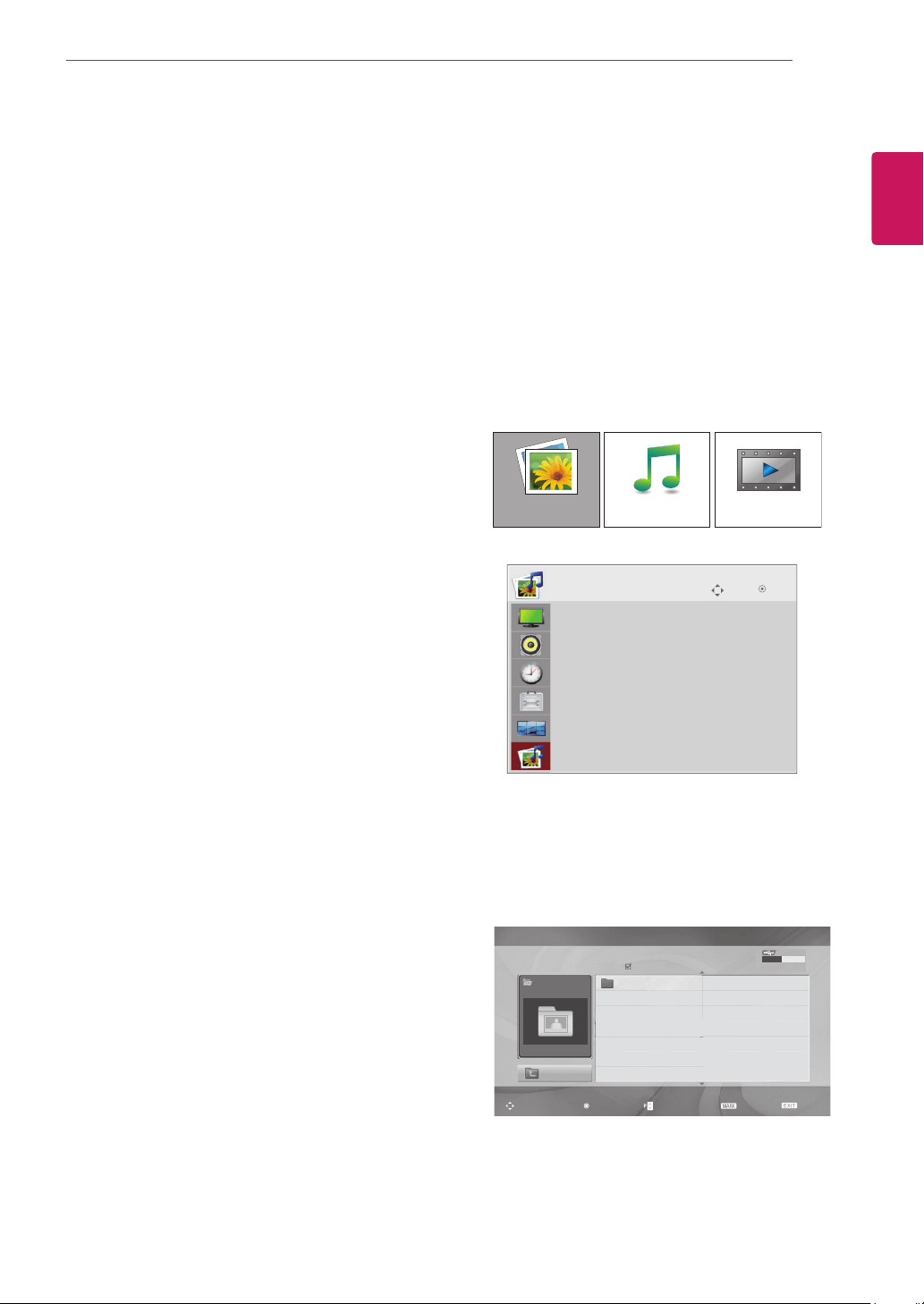
Connect a USB flash memory or USB memory
card reader to the Monitor set as shown on the
following illustration. The USB screen appears.
To disconnect a USB storage device,
make sure to end the connection properly to
prevent damages to the Monitor set or files.
y
Do not turn the Monitor set off or remove a
USB storage device while the USB storage
device is connected to the Monitor set, as
this could result in loss of files or damage to
the USB storage device.
y
Back up your files saved on a USB storage
device frequently, as you may lose or
damage the files and this may be not
covered by the warranty.
CAUTION
Precautions when using the USB device
y
Only a USB storage device is recognizable.
y
If the USB storage device is connected
through a USB hub, the device is not
recognizable.
y
A USB storage device using an automatic
recognition program may not be recognized.
y
A USB storage device which uses its own
driver may not be recognized.
y
The recognition speed of a USB storage
device may depend on each device.
y
Please do not turn off the Set or unplug
the USB device when the connected USB
storage device is working. When such device
is suddenly separated or unplugged, the
stored files or the USB storage device may
be damaged.
y
Please do not connect the USB storage
device which was artificially maneuvered on
the PC. The device may cause the product to
malfunction or fail to be played. Never forget
to use only a USB storage device which has
normal music files or image files.
y
Please use only a USB storage device which
was formatted as a FAT16, FAT32, NTFS file
system provided with the Windows operating
system. In case of a storage device
formatted as a different utility program which
is not supported by Windows, it may not be
recognized. Data in a USB storage device
cannot be deleted in the NTFS file system.
y
Please connect power to a USB storage
device which requires an external power
supply. If not, the device may not be
recognized.
y
Please connect a USB storage device with
cable is offered by USB maker. If connected
with cable is not offered by USB maker or an
excessively long cable, the device may not
be recognized.
y
Some USB storage devices may not be
supported or operated smoothly.
y
Maximum of 999 files and folders can be
recognized.
y
Data in a USB storage device cannot be
aligned. Up to 128 English characters can be
or
27
ENG
ENGLISH
ENTERTAINMENT
recognized as a file name.
y
Please back up the important file because a
data of USB device may be damaged. Data
management is consumer's responsibility
and in consequence the manufactures does
not cover the product bearing data damage.
y
If the USB is connected in Standby Mode,
specific hard disk will automatically be loaded
when the Set is turned on.
y
The recommended capacity is 1TB or less
for a USB external hard disk and 32GB or
less for USB memory.
y
Any device with more than the recommended
capacity may not work properly.
y
If a USB external hard disk with a “Power
Saving” function does not work, turn the
hard disk off and on again to make it work
properly.
y
Names and subtitles of some language files
may not display properly.(Korean, Chinese,
Japanese)
y
When using Korean or Chinese subtitles
or file names, it is recommended to set the
language to the corresponding one.
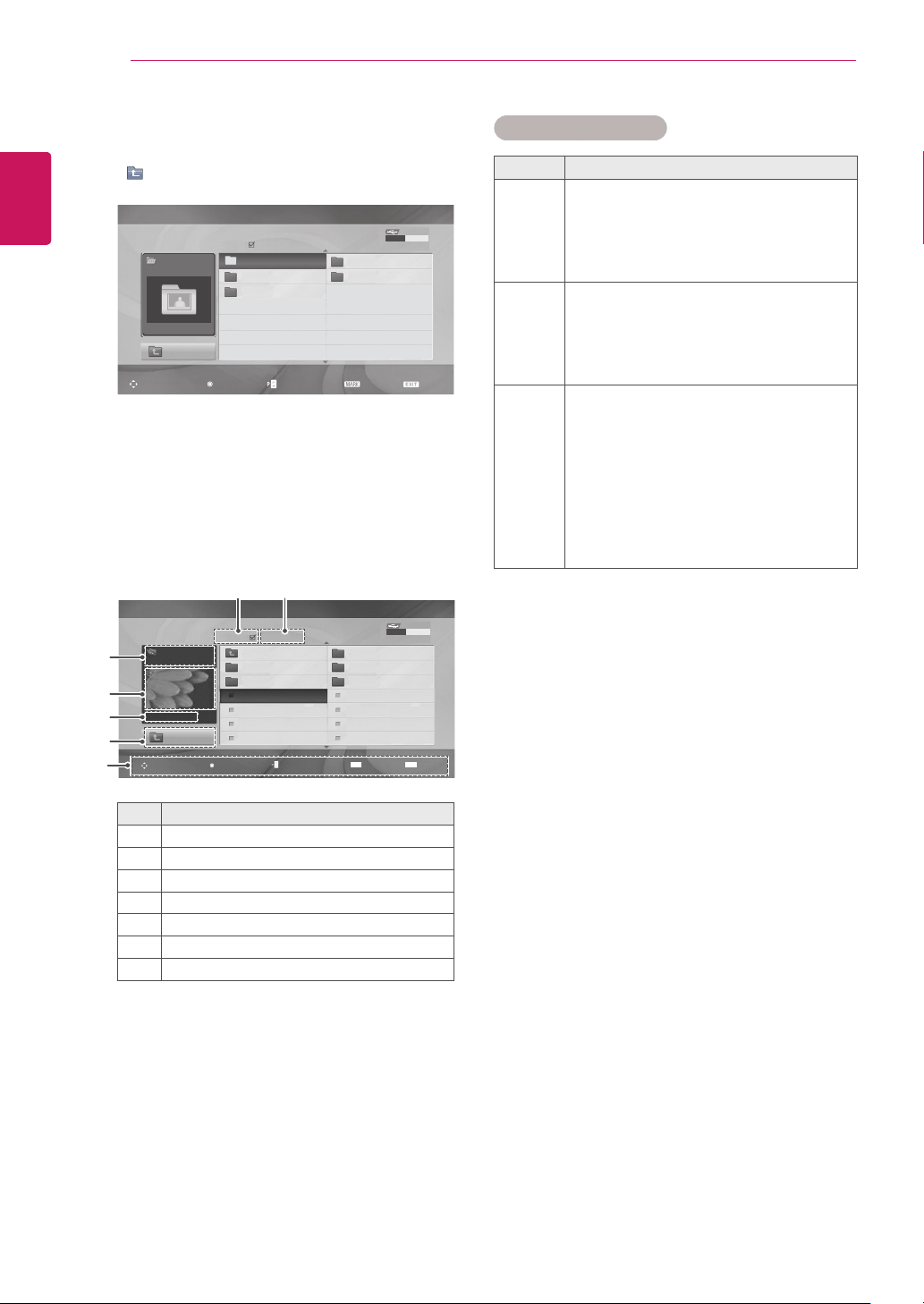
Access the Photo, Music or Movie lists and
browse files.
1
Connect a USB storage device.
2
Press MENU to access the main menus.
3
Press the Navigation buttons to scroll to USB
and press OK.
4
Press the Navigation buttons to scroll to
PHOTO LIST, MUSIC LIST or MOVIE LIST
and press OK.
5
Select Drive1 to access the connected USB
storage device
PHOTO LIST MOVIE LISTMUSIC LIST
Photo List
USB
Up Folder
Drive 1
Drive 1
Page 1/1 No Marked
Navigation
Option
Page Change
Mark
Exit
0 folder(s), 0 file(s)
USB Device
Free Space 150 MB
Move
USB
OK
Photo List
Music List
Movie List
DivX Reg.Code
Deactivation
Browsing files
28
ENG
ENGLISH
ENTERTAINMENT
6
Select a folder you want.
- To return to the previous level, select
Up Folder.
Photo List
USB
Up Folder
Drive 1
HR101
HR103
HR105
HR102
HR104
Page 1/1 No Marked
Navigation
Option
Page Change
Mark
Exit
0 folder(s), 0 file(s)
USB Device
Free Space 150 MB
7
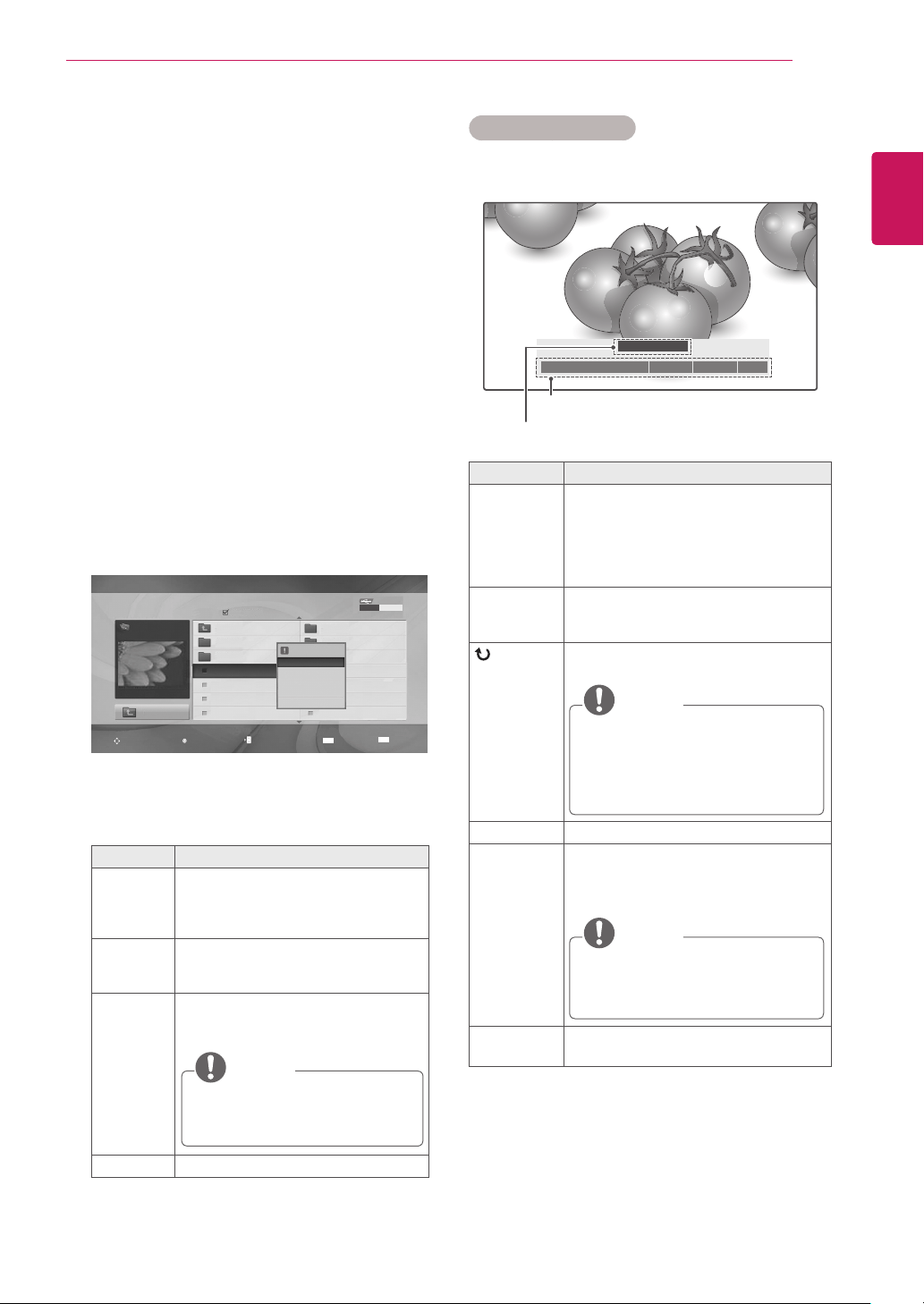
Press the Navigation buttons to browse files.
The highlighted file will display in the preview
window.
No. Description
1
Current page number/total number of pages
2
The number of selected files
3
File and Folder name
4
Preview window
5
File size, information.
6
Return to the previous level
7
Available buttons on the remote control
Supported file format
Type Supported file format
Photo
y
JPG
y
Available size
Baseline: 64 pixel (W) x 64 pixel (H) -
15360 pixel (W) x 8640 pixel (H)
Progressive: 64 pixel (W) x 64 pixel (H) -
1024 pixel (W) x 768 pixel (H)
Music
y
MP3
y
Bit rate range 32 Kbps to 320 Kbps
y
Sampling rate (Sampling Frequency)
MPEG1 layer 3: 32 kHz, 44.1 kHz,
48 kHz
* A copy-protected file will not play.
Video
y
MPEG1, MPEG2, MPEG4(Doesn't
support Microsoft MPEG 4-V2, V3),
DivX 3.xx, DivX 4.xx, DivX 5.xx, DivX
VOD(DRM), XviD, DivX 6.xx(Playback)
y
Audio format: Mpeg, Mp3, PCM
y
Sampling frequency: within 32k to 48khz
y
Bit rate of audio format: within 32k to
320kbps
y
Supported subtitle format: *.smi, *.srt,
*.sub (MicroDVD, SubViewer 2.0), *.ass,
*.ssa, *.txt (DVD Subtitle System)
Drive 1
Up Folder
JMJ001
Up Folder
Navigation
Option
Page Change
Mark
Exit
1366x768, 125KB
HR101 02/21/2010
HR102 02/21/2010
JHR001 02/21/2010
JHR002 02/21/2010
JHR003 02/21/2010
JHR004 02/21/2010
HR103 02/21/2010
HR104 02/21/2010
HR105 02/21/2010
JHR005 02/21/2010
JHR006 02/21/2010
JHR007 02/21/2010
JHR008 02/21/2010
USB Device
Free Space 150 MB
MARK
EXIT
Photo List
Page 2/3 No Marked
3
4
5
6
7
1 2
29
ENG
ENGLISH
ENTERTAINMENT
Using photo options
Use the following options while viewing photos.
Number of selected photos
Options
Option Description
Slideshow Starts or stops a slideshow with selected
photos.
If there are no selected photos, all
photos saved in the current folder
display during a slideshow.
To set a slideshow speed, select Option.
BGM Turns the background music on or off.
To set the background music folder,
select Option.
(Rotate)
Rotates photos clockwise (90°, 180°,
270°, 360°).
NOTE
The supported photo size is limited.
You cannot rotate a photo if the
resolution of the rotated width is
larger than the supported resolution
size.
Delete Deletes a photo.
Option
y
Slide Speed: Selects a slideshow
speed (Fast, Medium, Slow).
y
Music Album: Selects a music folder
for the background music.
NOTE
You cannot change the music folder
while the background music is
playing.
Hide Hides the option window.
To display the options, press
OK
.
◄1/17►
Slideshow◘ BGM◘ Delete Option Hide
꘤
Viewing Photos
View image files saved in a USB storage device.
The displays on the screen may differ from the
model.
1
Press the Navigation buttons to scroll to USB
and press OK.
2
Press the Navigation buttons to scroll to Photo
List and press OK.
3
Press the Navigation buttons to select Drive1
to access the connected USB storage device.
4
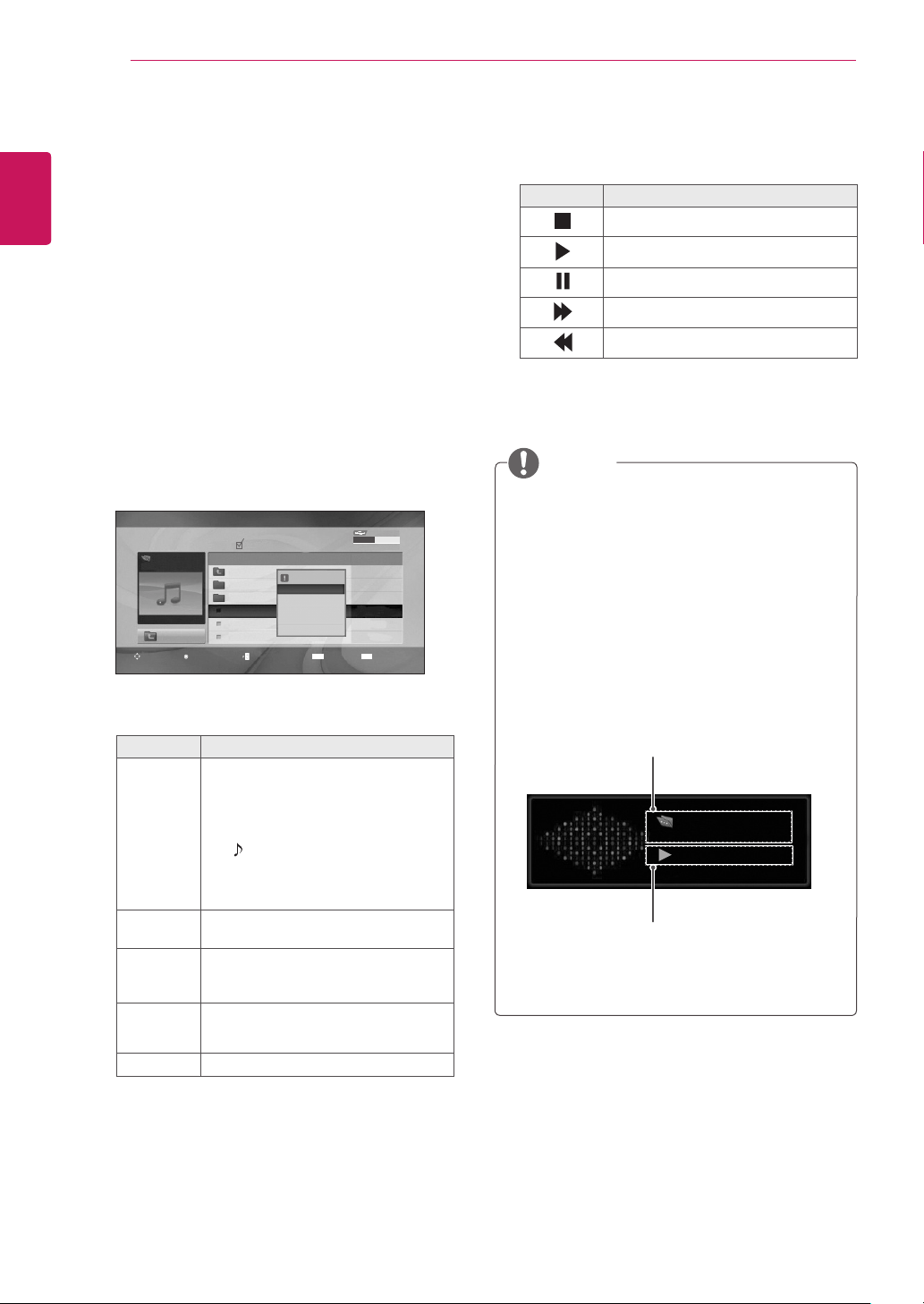
Press the Navigation buttons to scroll to a
folder you want and press OK.
5
Press the Navigation buttons to scroll to a file
you want and press OK.
A pop-up window will appears.
6
View photos by using the following menus.
Menu Description
View Displays the selected photo in a full-
screen view.
y
Drive: Views photos saved in a
USB storage drive.
Mark All
or Unmark
All
Selects all files or clears all of your
selections
Delete Deletes a file saved in a USB storage
device.
NOTE
You cannot delete the files saved
in a shared folder of a PC.
Close Closes the pop-up menu.
Drive 1
Up Folder
JHR001
Up Folder
Navigation
Option
Page Change
Mark
Exit
1366x768, 125KB
HR101 02/21/2010
HR102 02/21/2010
JHR001 02/21/2010
JHR002 02/21/2010
JHR003 02/21/2010
JHR004 02/21/2010
HR103 02/21/2010
HR104 02/21/2010
HR105 02/21/2010
JHR005 02/21/2010
JHR006 02/21/2010
JHR007 02/21/2010
JHR008 02/21/2010
USB Device
Free Space 150 MB
MARK
EXIT
Photo List
Page 2/3 No Marked
1366x768, 125KB
View
Mark All
Delete
Close
30
ENG
ENGLISH
ENTERTAINMENT
Listening to Music
1
Press the Navigation buttons to scroll to USB
and press OK.
2
Press the Navigation buttons to scroll to Music
List and press OK.
3
Select Drive1 to access the connected USB
storage device.
4
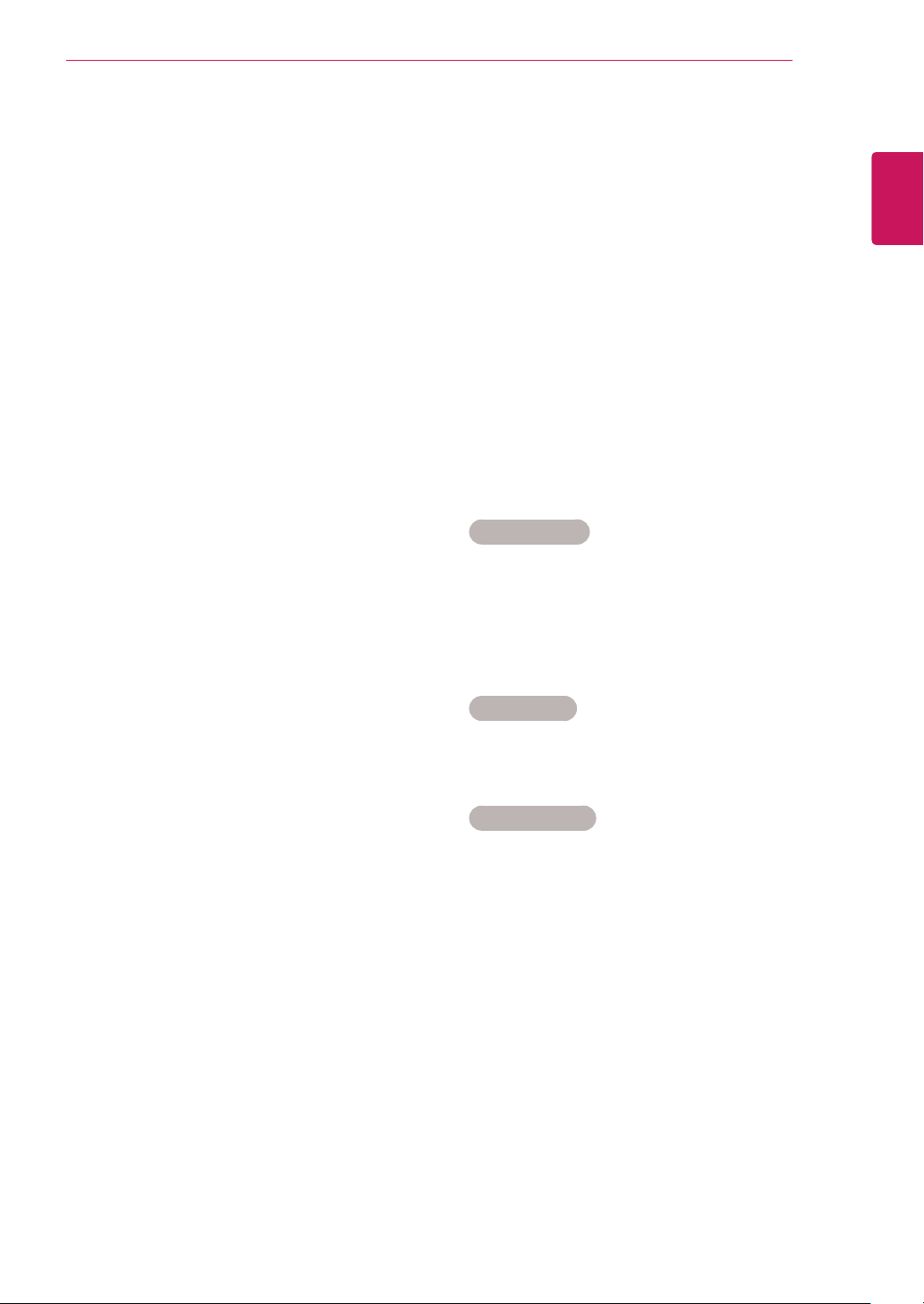
Press the Navigation buttons to scroll to a
folder you want and press OK.
5
Press the Navigation buttons to scroll to a file
you want and press OK.
A pop-up window will appears.
6
Play music by using the following menus.
Menu Description
Play, Stop
Play, or
Play
Marked
Plays music, stops playback, or plays
the selected music file. If you play
music without selecting music files, all
of the music files saved in the current
folder will play.
The icon will appear in front of the
duration on the currently playing file.
y
Drive: Listen to music files saved in
a USB storage drive.
Play with
Photo
Displays photos during playback.
Mark All
or Unmark
All
Selects all files or clears all of your
selections
Delete Deletes a file saved in a USB storage
device.
Close Closes the pop-up menu.
Music List
Page 2/3
Music
S003
00:00/01:34
Up Folder
Title Duration
Up Folder
S001
S002
S003
S004
S005
Up Folder
03:33
04:45
01:30
02:37
01:58
No Marked
4395KB 1Kbps
Play
Play with Photo
Mark All
Delete
Close
USB Device
Free Space 150 MB
Option
Mark
Navigation
Page Change
Exit
MARK
EXIT
Music
S003
0:27 / 3:67
y
A damaged or corrupted file will not play and
the duration of the file display as 00:00.
y
A copy-protected file will not play.
y
If the Monitor set is not in use for some time
during playback, the information box as a
screensaver will appear to prevent image
burn.
y
To return to the Music list screen, press OK,
■ (stop) or BACK.
NOTE
7
Control playback by using the following
buttons.
Button Description
Stops playback
Plays a music file
Pauses or resumes playback
Skips to the next file
Skips to the previous file
Time elapsed /Duration
Folder name/file name
31
ENG
ENGLISH
ENTERTAINMENT
Viewing Movies
Play video files on the Monitor set. Your Monitor
set displays all of the video files saved in a USB
storage device.
y
Movie (*.dat / *.mpg / *.mpeg / *.vob/ *.m4v /
*.avi / *.divx) supporting file.
y
Video format: MPEG1, MPEG2,
MPEG4(Doesn’t support Microsoft MPEG
4-V2, V3), DivX 3.xx, DivX 4.xx, DivX 5.xx,
DivX VOD(DRM), XviD, DivX 6.xx(Playback)
y
Audio format: Mpeg, Mp3, PCM
y
Bit rate: within 32 kbps to 320 kbps (MP3)
y
Subtitle format: *.smi / *.srt / *.sub (Micro
DVD, SubViewer 2.0) / *.ass / *.ssa / *.txt (DVD
Subtitle System).
y
Some user-created subtitles may not work
properly.
y
Some special characters are not supported in
subtitles.
y
HTML tags are not supported in subtitles.
y
Subtitles in languages other than the
supported languages are not available.
y
Time information in an external subtitle file
should be arranged in ascending order to be
played.
y
The screen may suffer temporary interruptions
(image stoppage, faster playback, etc.) when
the audio language is changed.
y
A damaged movie file may not be played
correctly, or some player functions may not be
usable.
y
Movie files produced with some encoders may
not be played correctly.
y
If the video and audio structure of recorded
file is not interleaved, either video or audio is
outputted.
y
HD videos with a maximum of 1920 x 1080
@ 25/30P or 1280 x 720 @ 50/60P are
supported, depending on the frame.
y
Videos with resolutions higher than 1920 x
1080 @ 25/30P or 1280 x 720 @ 50/60P may
not work properly depending on the frame.
y
Movie files other than the specified types and
formats may not work properly.
y
Max bit rate of playable movie file is 20
Mbps.
y
We do not guarantee smooth playback of
profiles encoded level 4.1 or higher in H.264 /
AVC.
y
DTS Audio codec is not supported.
y
A movie file more than 30GB in file size is not
supported for playback.
y
A DivX movie file and its subtitle file must be
located in the same folder.
y
A video file name and its subtitle file name
must be identical for it to be displayed.
y
Playing a video via a USB connection that
doesn’t support high speed may not work
properly.
y
Files encoded with GMC (Global Motion
Compensation) may not be played.
y
When you are watching the movie by Movie
List function, you can adjust an image by
Energy Saving key on the remote control.
User setup for each image mode does not
operate.
Video Decoder
y
mpg, mpeg, vob, dat: MPEG1, MPEG2
y
avi, divx, m4v: MPEG4 SP, MPEG4 ASP,
DivX 3.xx, DviX 4.xx, DviX 5.xx, DviX 6.xx
(Playback), XviD
Audio Codec
y
mpg, mpeg, vob, dat, avi, divx, m4v: AC3,
MPEG, MP3, PCM
Max Resolution
y
720 x 576 @ 25p
y
720 x 480 @ 30p
32
ENG
ENGLISH
ENTERTAINMENT
1
Press the Navigation buttons to scroll to USB
and press OK.
2
Press the Navigation buttons to scroll to Movie
List and press OK.
3
Select Drive1 to access the connected USB
storage device.
4
Press the Navigation buttons to scroll to a
folder you want and press OK.
5
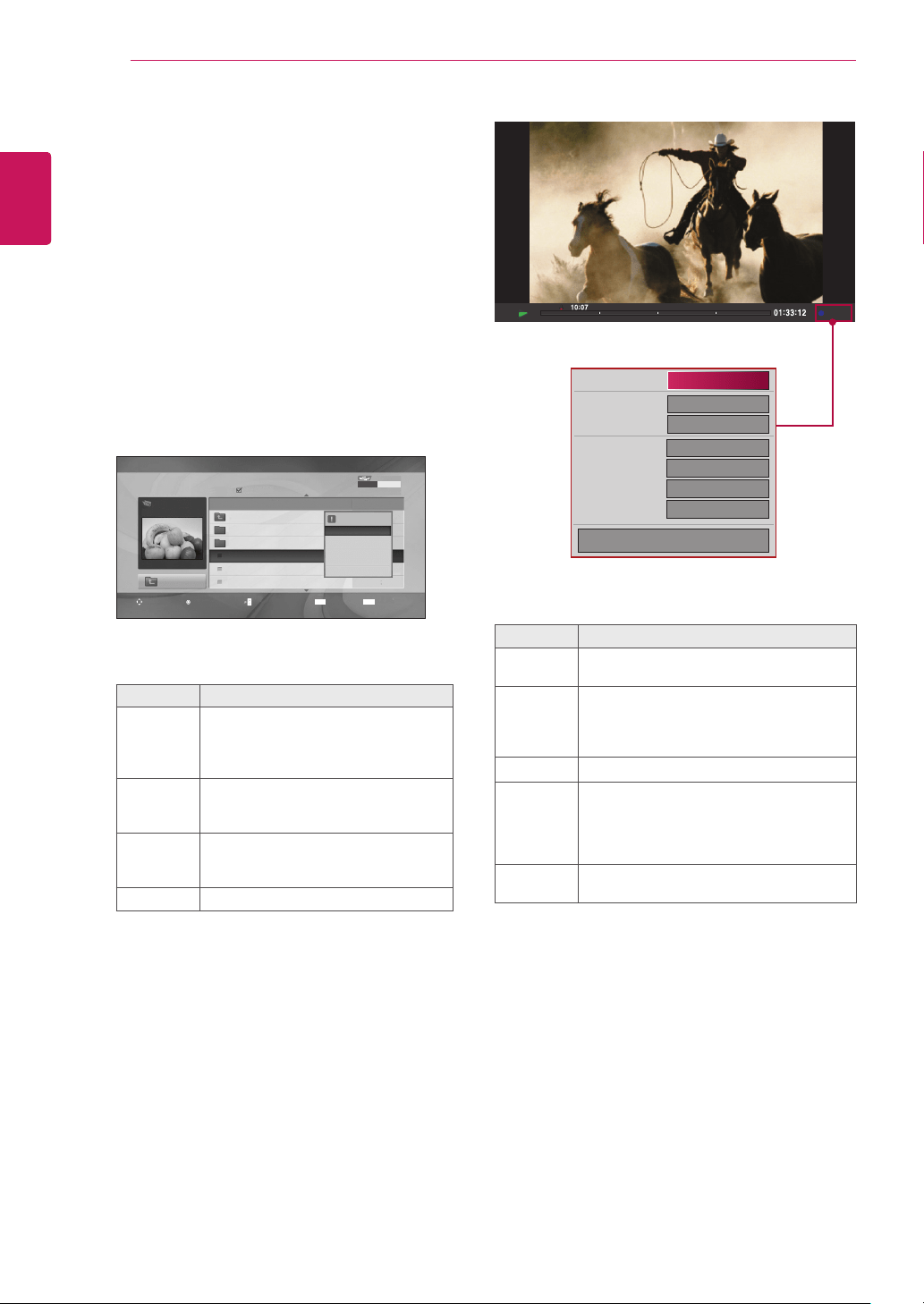
Press the Navigation buttons to scroll to a file
you want and press OK.
A pop-up window will appears.
6
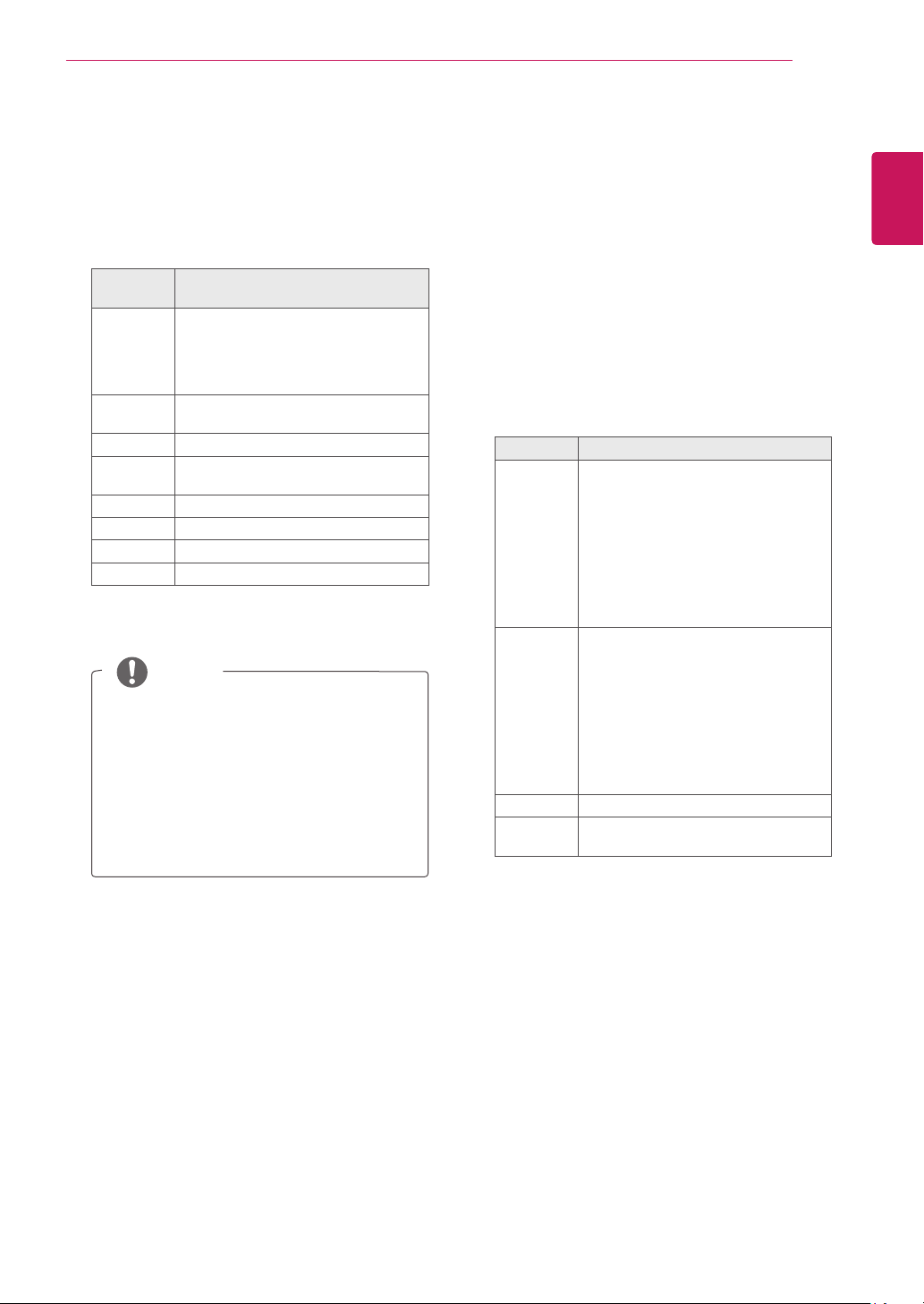
Play video by using the following menus.
Menu Description
Play or
Play
Marked
Plays a movie or plays the selected
movie.
y
Drive: Views videos saved in a USB
storage drive.
Mark All
or Unmark
All
Selects all files or clears all of your
selections.
Delete or
Delete
marked
Deletes a file formatted on the FAT32
file system and saved in a USB
storage device.
Close Closes the pop-up menu.
Option
1/6
1/6
Off
+0.5
Latin 1
15
◀ Full Screen ▶
Picture Size
Subtitle Language
Audio Language
Subtitle File
● Language
● Sync
● Position
OK
When you select the Set Video Play.
Menu Description
Picture
Size
Selects your desired picture format during
movie play
Subtitle
Language
or Audio
Language
Changes the Language Group of the
subtitle/audio during movie play.
Language Selects your desired Language.
Sync Adjusts the time synchronisation of the
subtitle from -10 secs to +10 secs by
steps of 0.5 secs during
movie play.
Position Changes the position of the subtitle either
up or down during movie play.
Page 2/3
Movie
M002
640x480, 720KB
Up Folder
Title Duration
Up Folder
Favorite Music
M001
M002
M001
M001
01:34:15
01:35:30
01:30:20
No Marked
1366x768, 125KB
Play
Mark All
Delete
Close
Movie List
USB Device
Free Space 150 MB
Option
Mark
Navigation
Page Change
Exit
MARK
EXIT
33
ENG
ENGLISH
ENTERTAINMENT
y
Only the files saved in ASCII CODE is
supported for the external subtitles of the
movie.
y
Only 500 alphabets and 500 numbers are
supported for each line of the subtitle.
y
Only 10,000 of sync blocks can be
supported within the subtitle file.
NOTE
When you select the Set Video.
1
Press the Navigation button to make
appropriate adjustments. See p.9
When you select the Set Audio,
1
Press the Navigation button to show the
Sound Mode, Auto Volume, Clear Voice II,
Balance.
2
Press the Navigation button to make
appropriate adjustments.
Using the remote control.
Button Description
ꕚ ꕙ
When playing,
repeatedly, press the REW(
ꔊꔊ
) button
to speed up
ꔊꔊ
(x2)
ꔊꔊꔊ
(x4)
ꔊꔊꔊꔊ
(x8)
ꔊꔊꔊꔊꔊ
(x16)
ꔊꔊꔊꔊꔊꔊ
(x32) .
repeatedly, press the FF(
ꔋꔋ
) button
to speed up
ꔋꔋ
(x2)
ꔋꔋꔋ
(x4)
ꔋꔋꔋꔋ
(x8)
ꔋꔋꔋꔋꔋ
(x16)
ꔋꔋꔋꔋꔋꔋ
(x32).
y
Pressing these buttons repeatedly
increases the fast forward/reverse
speed.
Pause (
ꕘ
) During playback, press the Pause (
ꕘ
)
button.
y
Still screen is displayed.
y
If no buttons are pressed on the
remote control for 10 minutes after
pausing, the Monitor set returns to
the playback state.
y
Press the Pause (
ꕘ
) button and
then use the FF (
ꔋꔋ
) button for slow
motion.
■ During playback, stops the screen.
Play
(ꕖ)
Press the Play
(ꕖ)
button to return to
normal playback.
1
Press the Navigation button to show the
Picture Size, Audio Language or Subtitle
Language.
2
Press the Navigation button to make
appropriate adjustments.
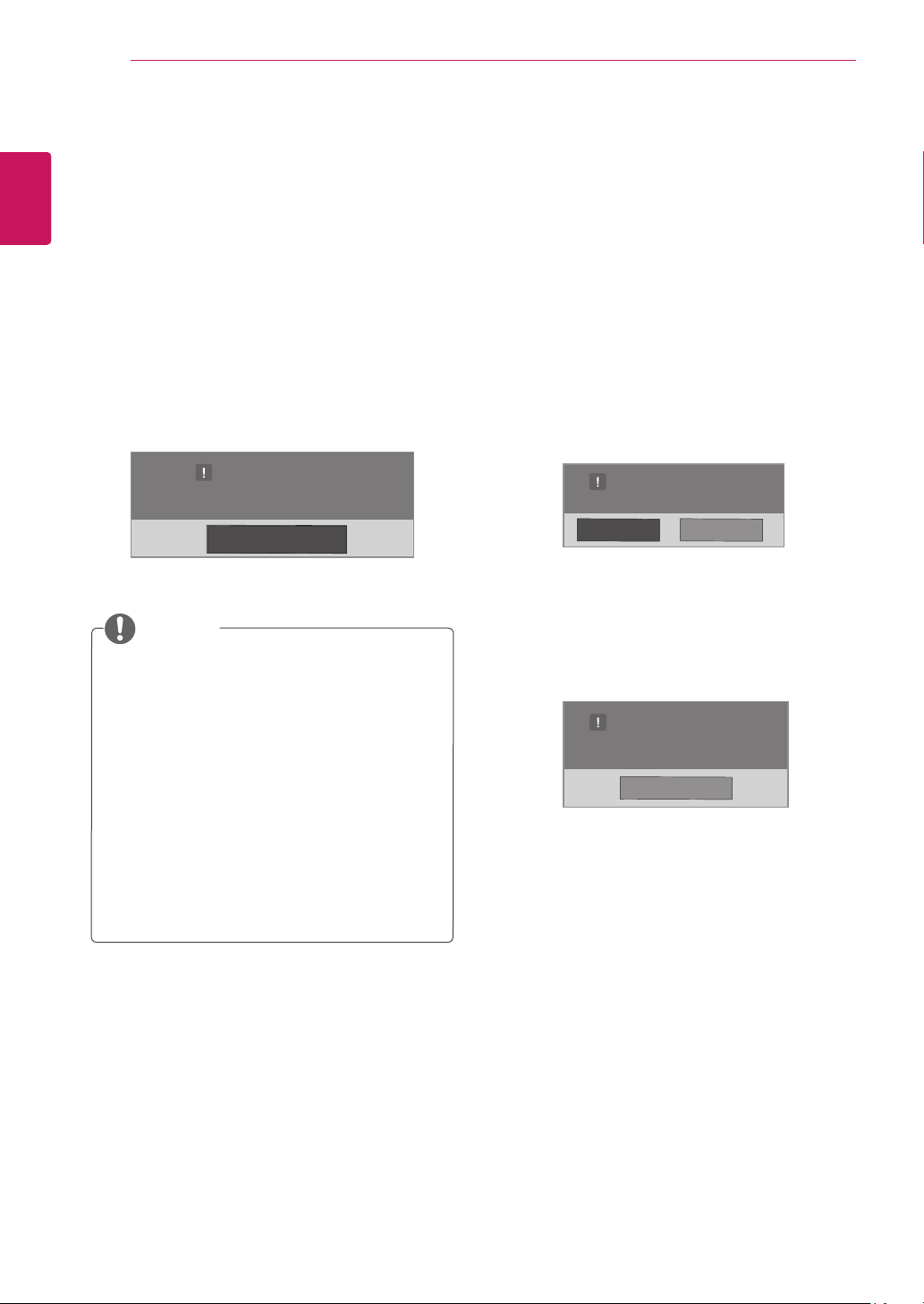
Subtitle
Language
Support Language
Latin1 English, Spanish, French, German,
Italian, Swedish, Finnish, Dutch,
Portuguese, Danish, Romanian,
Norwegian, Albanian, Gaelic, Welsh,
Irish, Catalan, Valencian
Latin2 Bosnian, Polish, Croatian, Czech,
Slovak, Slovenian, Serbian, Hungarian
Latin4 Estonian, Latvian, Lithuanian
Cyrillic Bulgarian, Macedonian, Russian,
Ukrainian, Kazakh
Greek Greek
Hebrew Hebrew
Chinese Chinese
Korean Korean
34
ENG
ENGLISH
ENTERTAINMENT
DivX registration code
Check and register the DivX registration code of
your Monitor set so that you can rent or purchase
the latest movies at
www.divx.com/vod
. To play a
rented or purchased DivX file, the file’s registration
code should be same with your Monitor set’s DivX
registration code.
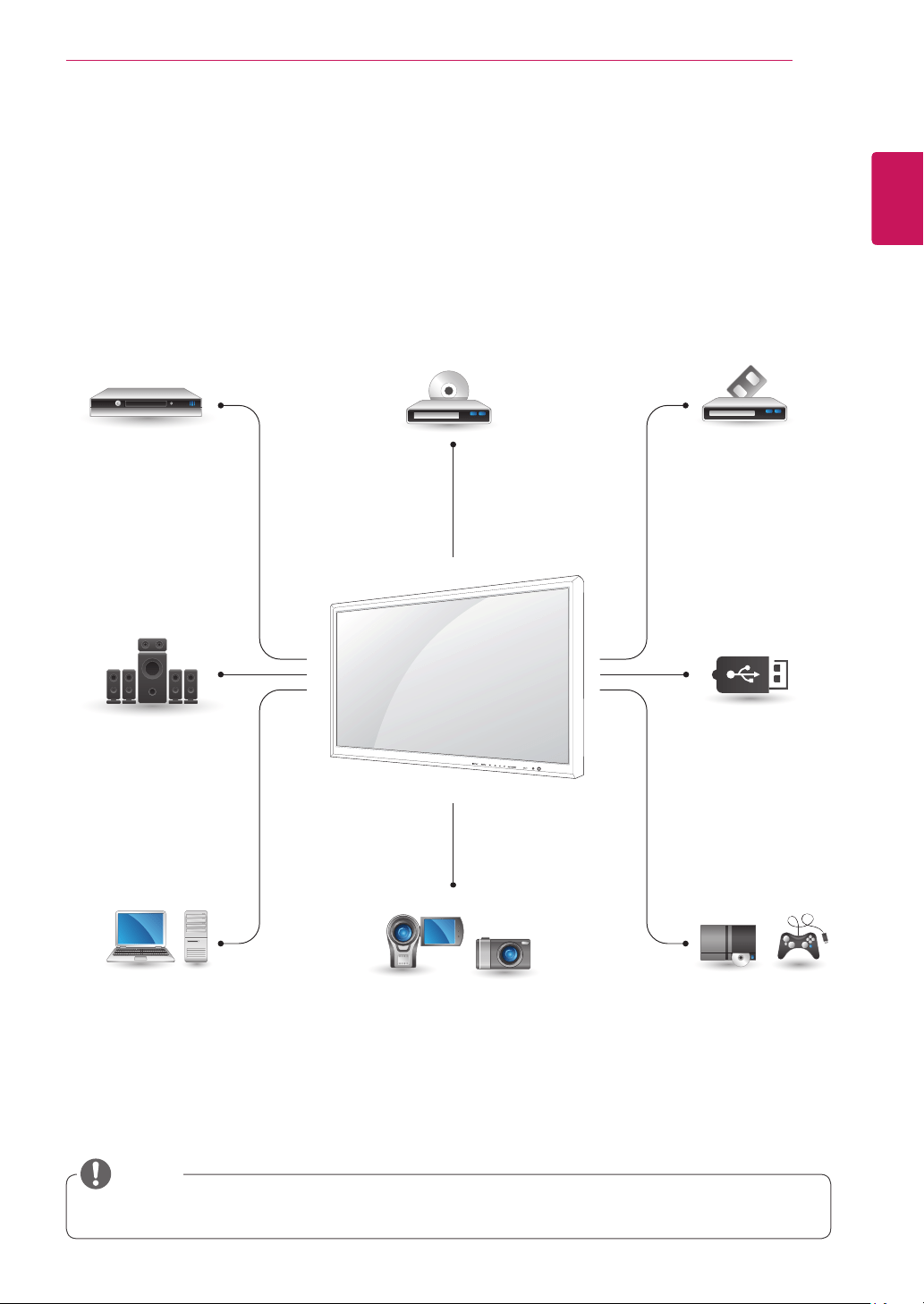
1
Press MENU to access the USB menus.
2
Press the Navigation button to scroll to DivX
Reg. Code and press OK.
3
View the registration code of your Monitor set.
y
While you are checking the registration code,
some buttons may not work.
y
If you use the DivX registration code of
another device, you cannot play the rented
or purchased DivX file. Make sure to use
the DivX registration code assigned to your
Monitor set.
y
The video or audio files that are not
converted by the standard DivX codec may
be corrupted or not be played.
y
The DivX VOD code allows you to activate
up to 6 devices under one account.
NOTE
Deactivating the DivX feature
Deactivate all of the devices through the web
server and block devices from activating.
Delete the existing authentication information to
receive a new DivX user authentication for the
Monitor set. Once this function is executed, a DivX
user authentication is required again to see DivX
DRM files.
1
Press MENU to access the USB menus.
2
Press the Navigation button to scroll to
Deactivation and press OK.
3
Select Yes to confirm.
4
Select Close.
5
When you are finished, press EXIT.
When you return to the previous menu, press
BACK.
DivX(R) Video On Demand
Do you want to deactivate your device?
Yes No
DivX(R) Video On Demand
This device is deactivated.
Your deactivation code is: xxxxxxxx
To learn more visit www.divx.com/vod.
Close
DivX(R) Video On Demand
Your registration Code is: xxxxxxxxxx
To learn more visit www.divx.com/vod.
Close
Close
35
ENG
ENGLISH
MAKING CONNECTIONS
HDMI - See p.36
DVI - See p.36
AV(CVBS) - See p.37
Component - See p.37
HDMI - See p.13
DVI - See p.12
RGB - See p.12
LAN - See p.38
HDMI - See p.36
DVI - See p.36
AV(CVBS) - See p.37
Component - See p.37
HDMI - See p.36
DVI - See p.36
AV(CVBS) - See p.37
Component - See p.37
AV(CVBS)
- See p.37
Component
- See p.37
HDMI - See p.36
AV(CVBS)
- See p.37
Component
- See p.37
MAKING CONNECTIONS
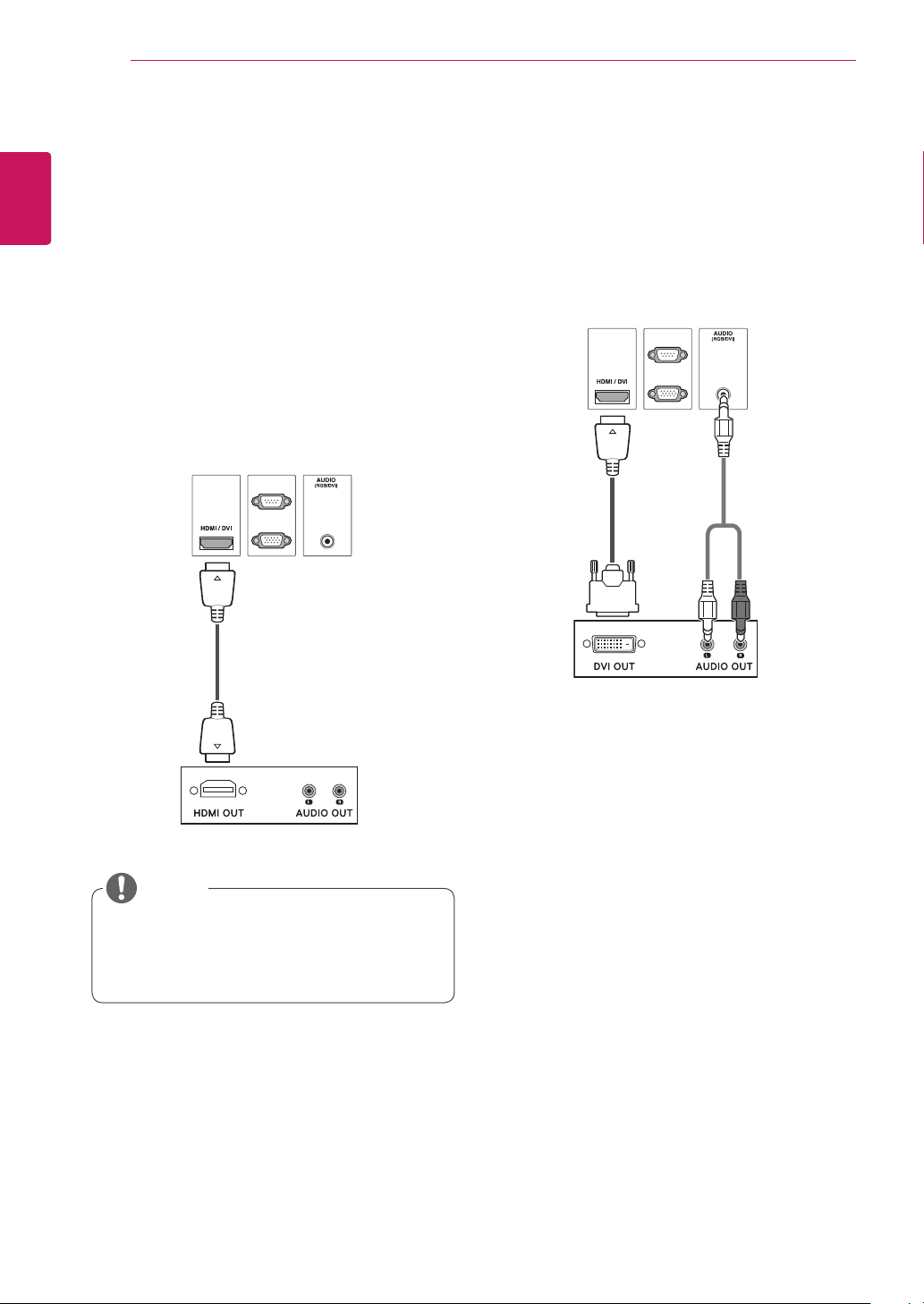
Connect various external devices to the ports on the Monitor set’s back panel.
1
Find an external device you want to connect to your Monitor set shown on the following illustration.
2
Check the connection type of the external device.
3
Go to the appropriate illustration and check the connection details.
y
If you connect a gaming device to the Monitor set, use the cable supplied with the gaming device.
NOTE
HD Receiver DVD VCR
USB
PC
Camcorder/Camera
Gaming device
Speaker
Memory storage
– See p.26
36
ENG
ENGLISH
MAKING CONNECTIONS
RGB IN
RGB OUT
RGB IN
RGB OUT
RGB IN
RGB OUT
RGB IN
RGB OUT
Connecting to a HD receiver,
DVD, Camcorder, Camera,
Gaming Device or VCR player
Connect a HD receiver, DVD, or VCR player to the
Monitor set and select an appropriate input mode.
HDMI connection
Transmits the digital video and audio signals from
an external device to the Monitor set. Connect the
external device and the Monitor set with the HDMI
cable as shown on the following illustration.
HDMI/DVI connection
Transmits the digital video signal from an external
device to the Monitor set. Connect the external
device and the Monitor set with the HDMI/DVI
cable as shown in the following illustration. To
transmit an audio signal, connect an optional audio
cable.
y
Use a High Speed HDMI™ Cable.
y
High Speed HDMI™ Cables are tested to
carry an HD signal up to 1080p and higher.
RCA-PC
Audio Cable
(not included)
HDMI-DVI
Signal Cable
(not included)
HDMI Signal Cable
(not included)
NOTE
37
ENG
ENGLISH
MAKING CONNECTIONS
AV IN / OUT
VIDEO
IN
OUT
AUDIO
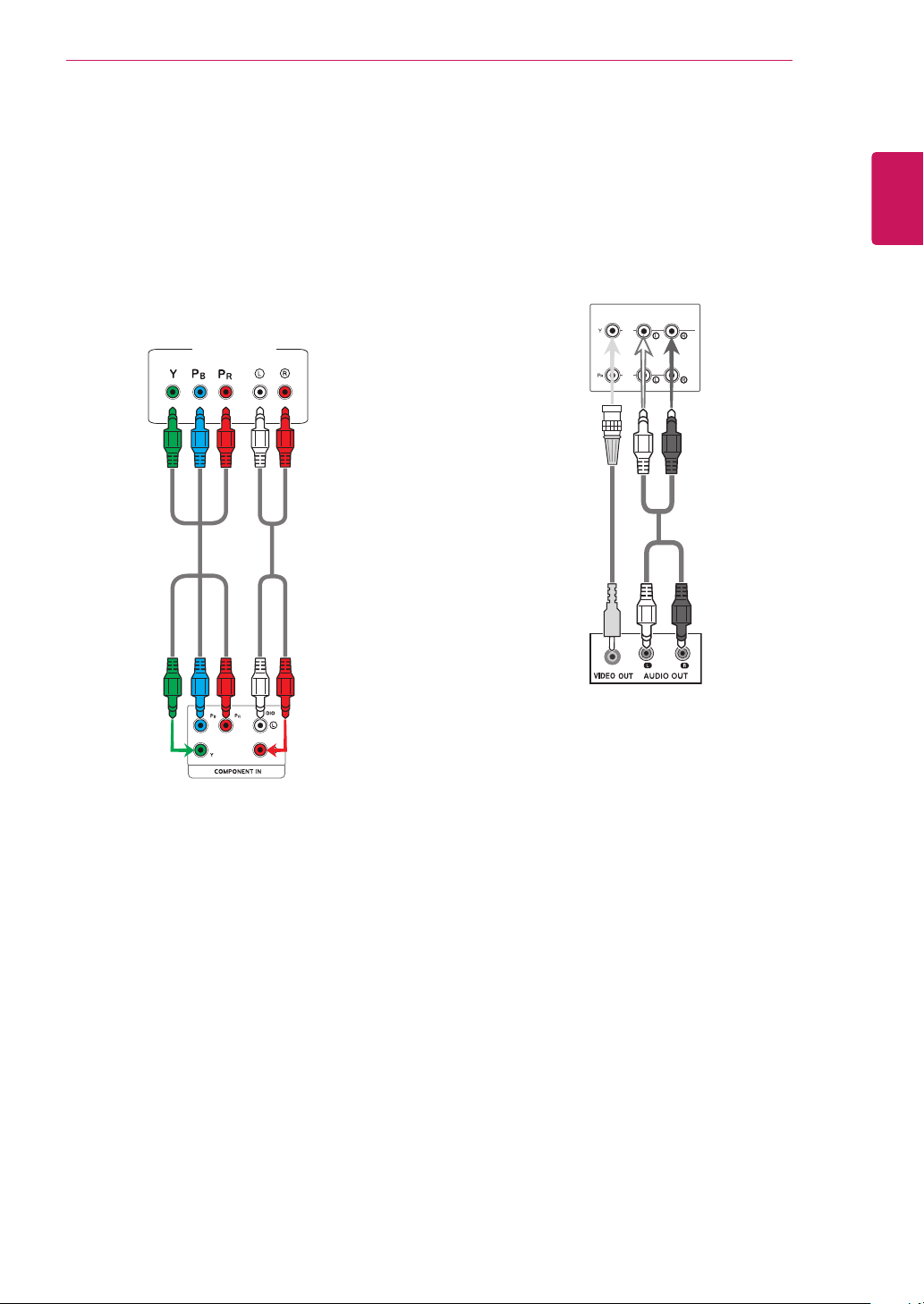
AV(CVBS) connection
Transmits the analog video and audio signals from
an external device to the Monitor set. Connect the
external device and the Monitor set with the BNC
cable as shown on the following illustration.
BNC Cable
(not included)
RCA-PC
Audio Cable
(not included)
Component connection
Transmits the analog video and audio signals from
an external device to the Monitor set. Connect
the external device and the Monitor set with the
component cable as shown on the following
illustration. To display images by using progressive
scan, make sure to use the component cable.
HDMI/DVI IN
HDMI/DVI IN
AUDIO
(RGB/DVI)
PC
38
ENG
ENGLISH
MAKING CONNECTIONS
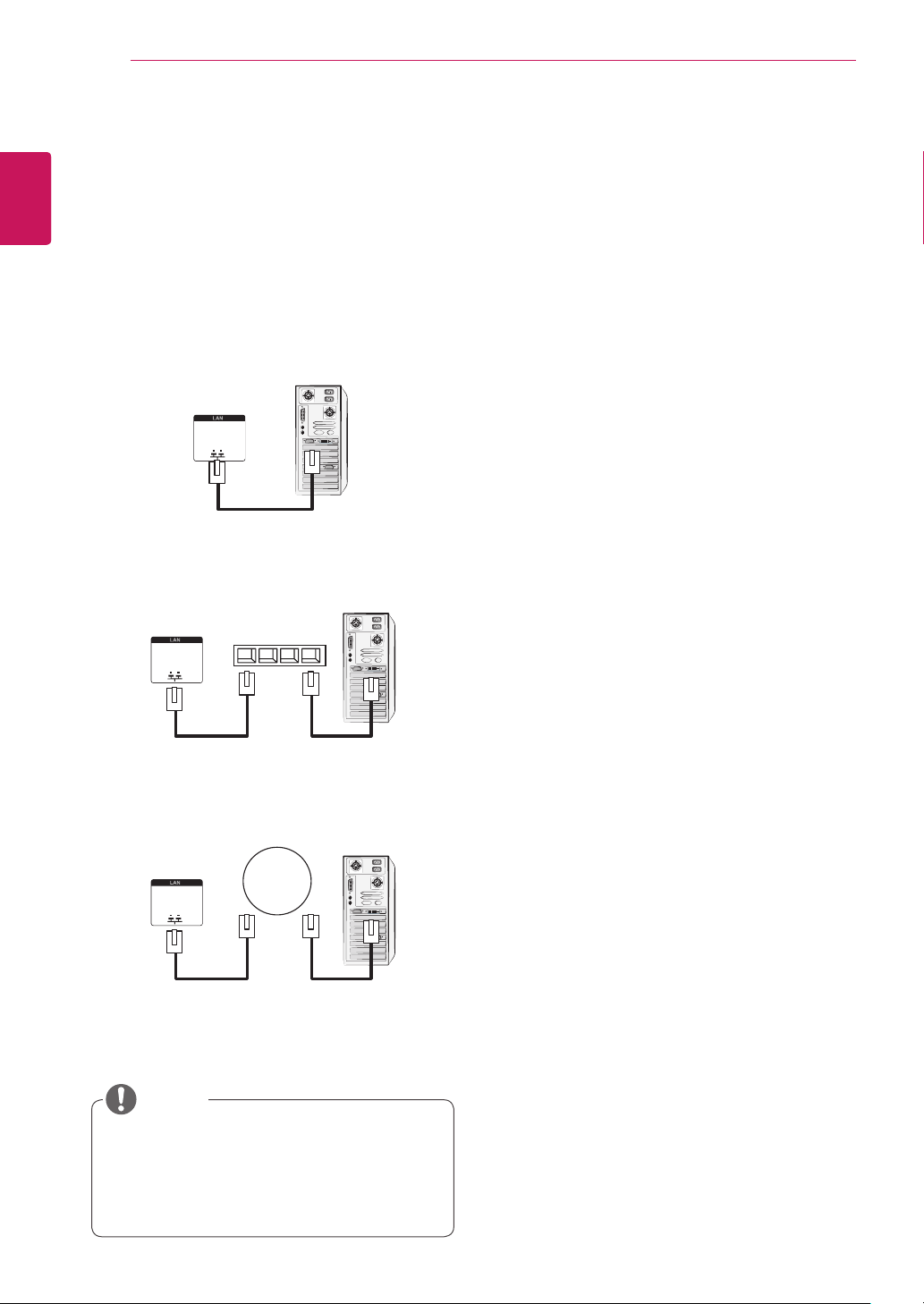
Connecting to the LAN
y
Using LAN establishes communication
between your PC and the monitor and
enables to use the OSD menus on the PC as
well as on the monitor.
LAN connection
Connect the LAN cable and install the eZ-Net
Manager program on the CD-ROM.
For more information about the program, please
refer to eZ-Net Guide in the enclosed CD-ROM.
A
Connect PC to Monitor directly.
B
Using a router(Switch)
PC
Monitor Set
Monitor Set
Monitor Set
Network
LAN
Network
PC
LAN
Network
PC
LAN
Switch
C
Using the Internet.
NOTE
39
ENG
ENGLISH
MAKING CONNECTIONS
AV IN / OUT
VIDEO
IN
OUT
AUDIO
AV IN / OUT
VIDEO
IN
OUT
AUDIO
AV IN / OUT
VIDEO
IN
OUT
AUDIO
AV IN / OUT
VIDEO
IN
OUT
AUDIO
AV IN / OUT
VIDEO
IN
OUT
AUDIO
AV IN / OUT
VIDEO
IN
OUT
AUDIO
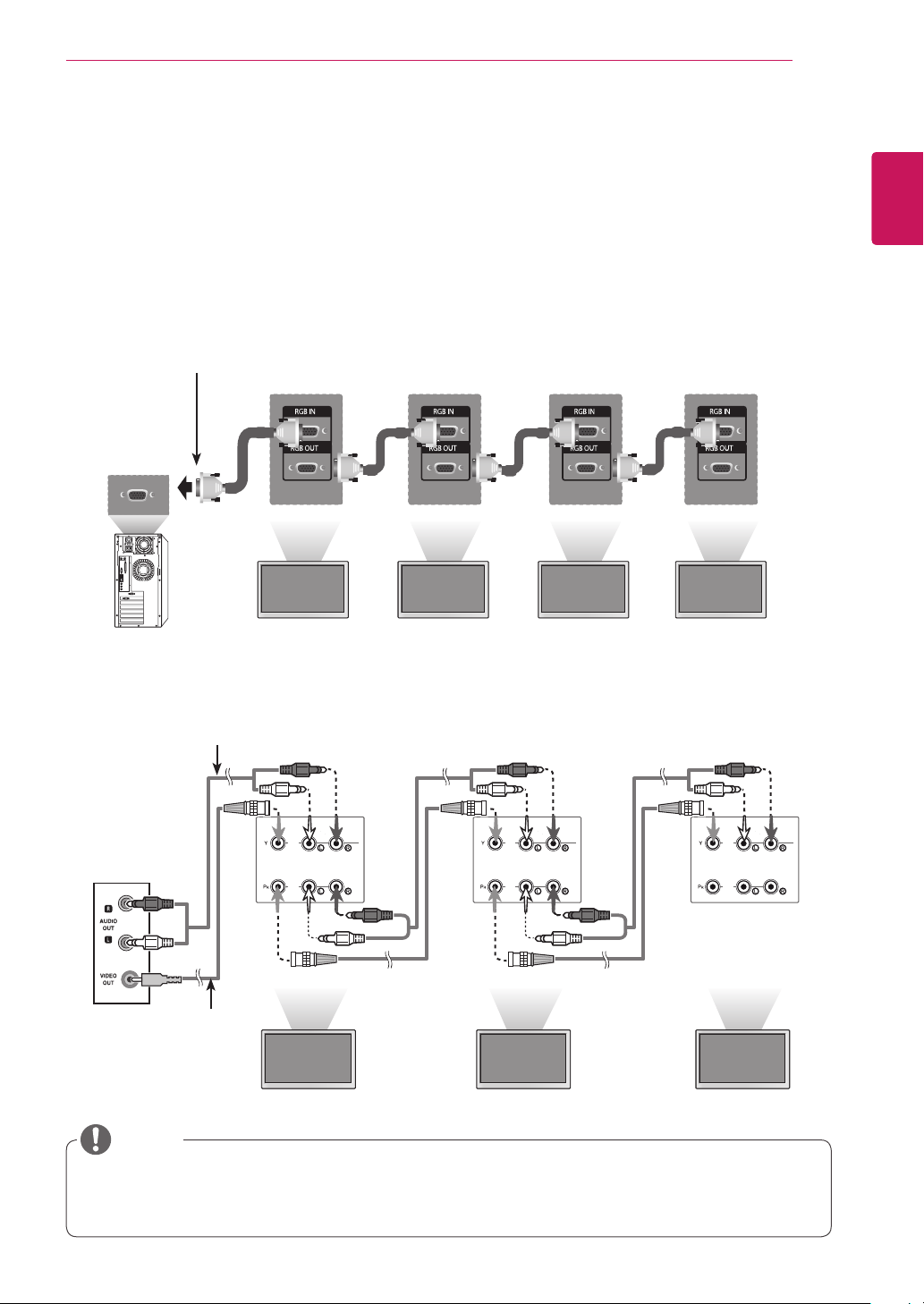
Daisy Chain Monitors
Use this function to share the RGB video signal with other monitors without having to use a separate signal
splitter box.
• To use different products connected to each other Connect one end of the signal input cable (15-pin
D-Sub Signal Cable) to the RGB OUT connector of product 1 and connect the other end to the RGB IN
connector of other products
AV(CVBS) Mode
RGB Mode
15-pin D-Sub Signal Cable
(Max 3m)
Audio Cable
(Not included)
Product 1
Product 1
Product 2
Product 2
Product 3
Product 3
Product 4
BNC Cable
(Not included)
y
When multi-connecting in/out cascade format, no loss cables are recommended.
y
We recommend that you should use cable distributor.
NOTE
40
ENG
ENGLISH
TROUBLESHOOTING
TROUBLESHOOTING
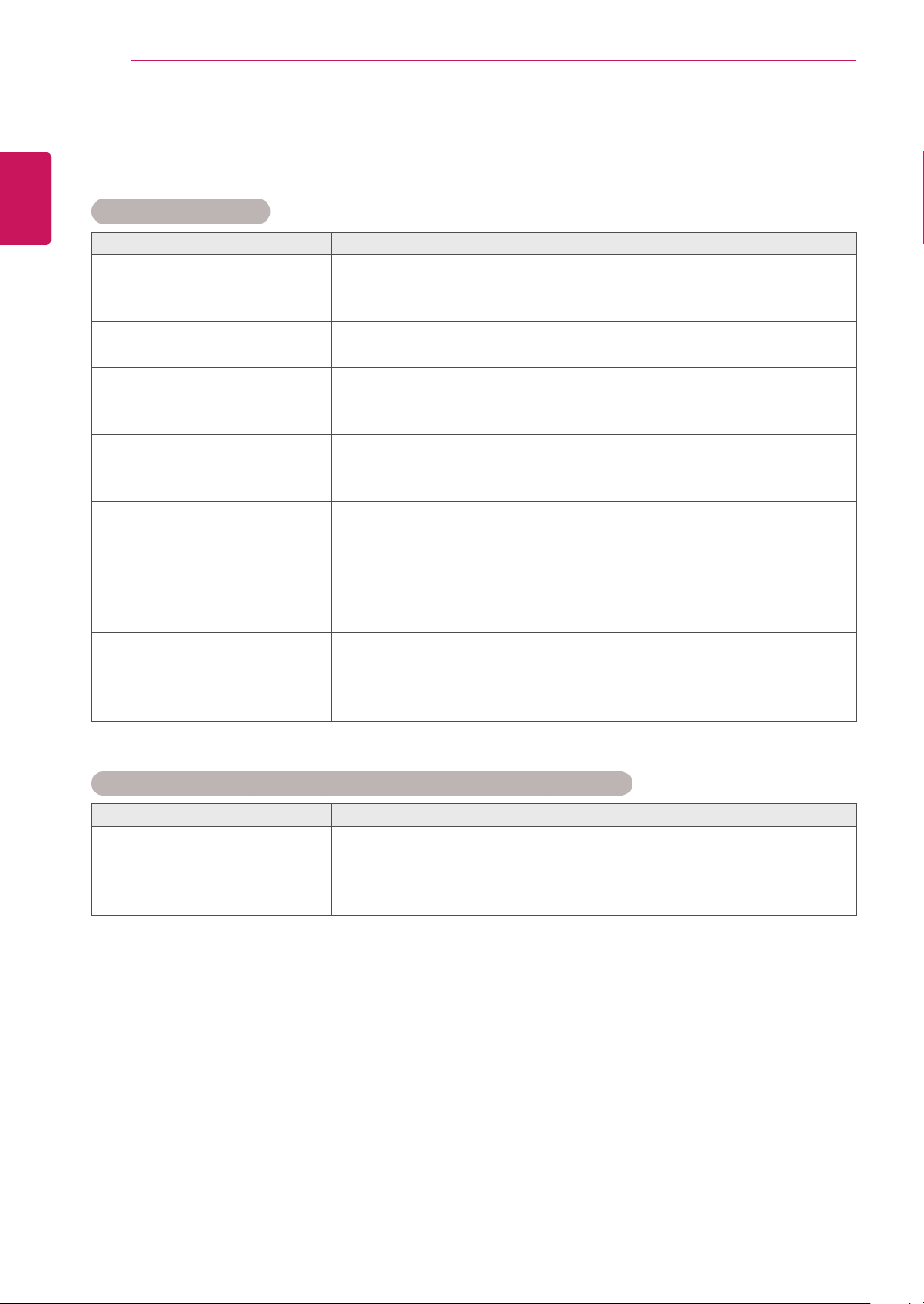
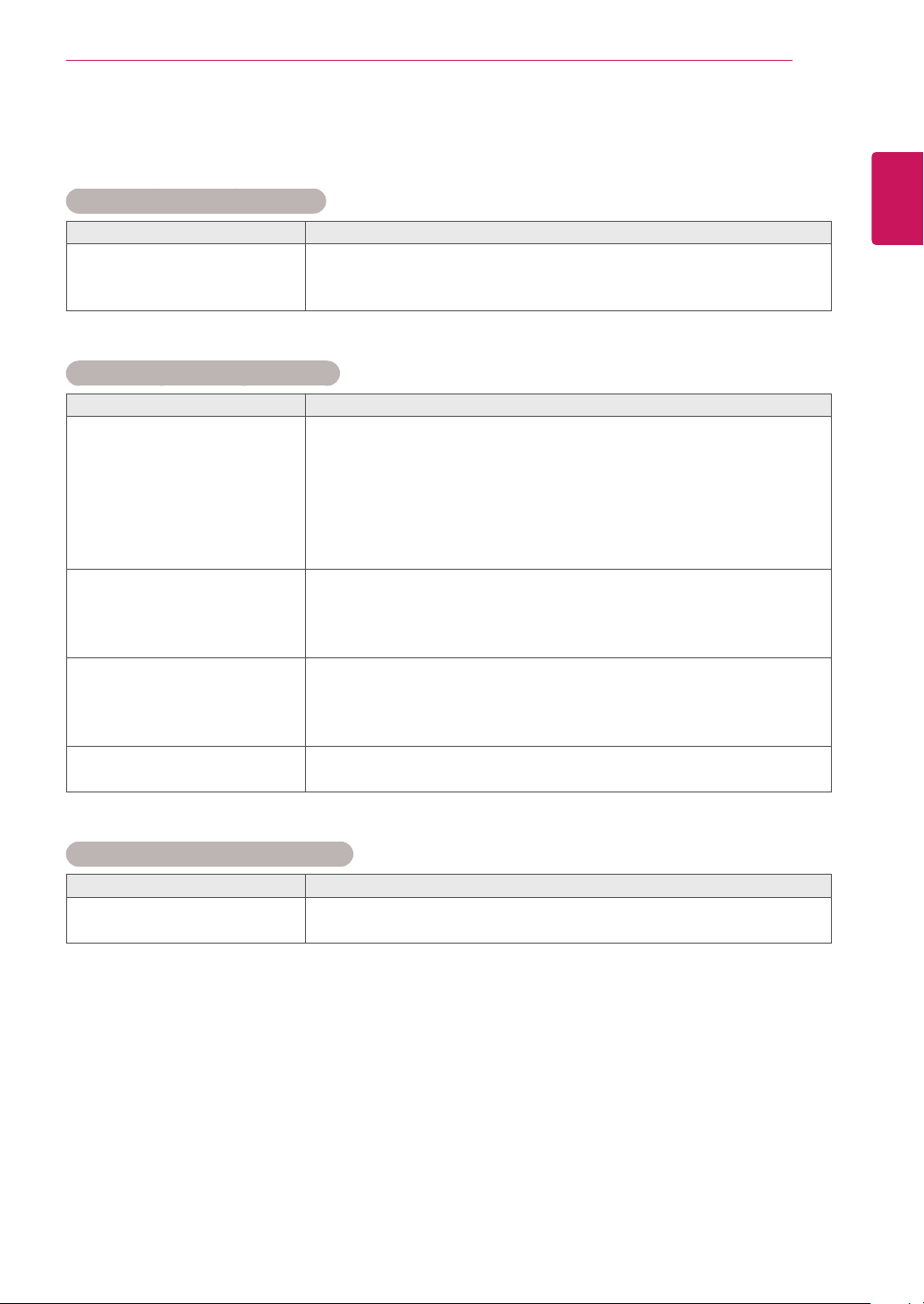
No image is displayed
Problem Resolution
Is the product power cord
connected?
y
See if the power cord is properly connected to the outlet.
Is the power indicator light on?
y
See if the power switch is turned on.
y
May need service.
Power is on, power indicator
is blue but the screen appears
extremely dark.
y
Adjust brightness and contrast again.
y
Backlight may need repair.
The power indicator amber?
y
If the product is in power saving mode, move the mouse or press any
key.
y
Turn both devices off and then back on.
Does the 'Out of range'
message appear?
y
The signal from the PC (video card) is out of the vertical or horizontal
frequency range of the product. Adjust the frequency range by
referring to the Specifications in this manual.
* Maximum resolution
RGB : 1920 x 1080 @ 60 Hz
HDMI/DVI : 1920 x 1080 @ 60 Hz
Does the 'Check signal cable'
message appear?
y
The signal cable between PC and product is not connected. Check
the signal cable.
y
Press the 'INPUT' menu in the remote Control to check the input
signal.
'Unknown Product' message appears when the product is connected.
Problem Resolution
Did you install the driver?
y
Install the product driver, which is provided with the product, or
download it from the web site. (http://www.lg.com)
y
See if the plug&play function is supported by referring to the video
card user manual.
41
ENG
ENGLISH
TROUBLESHOOTING
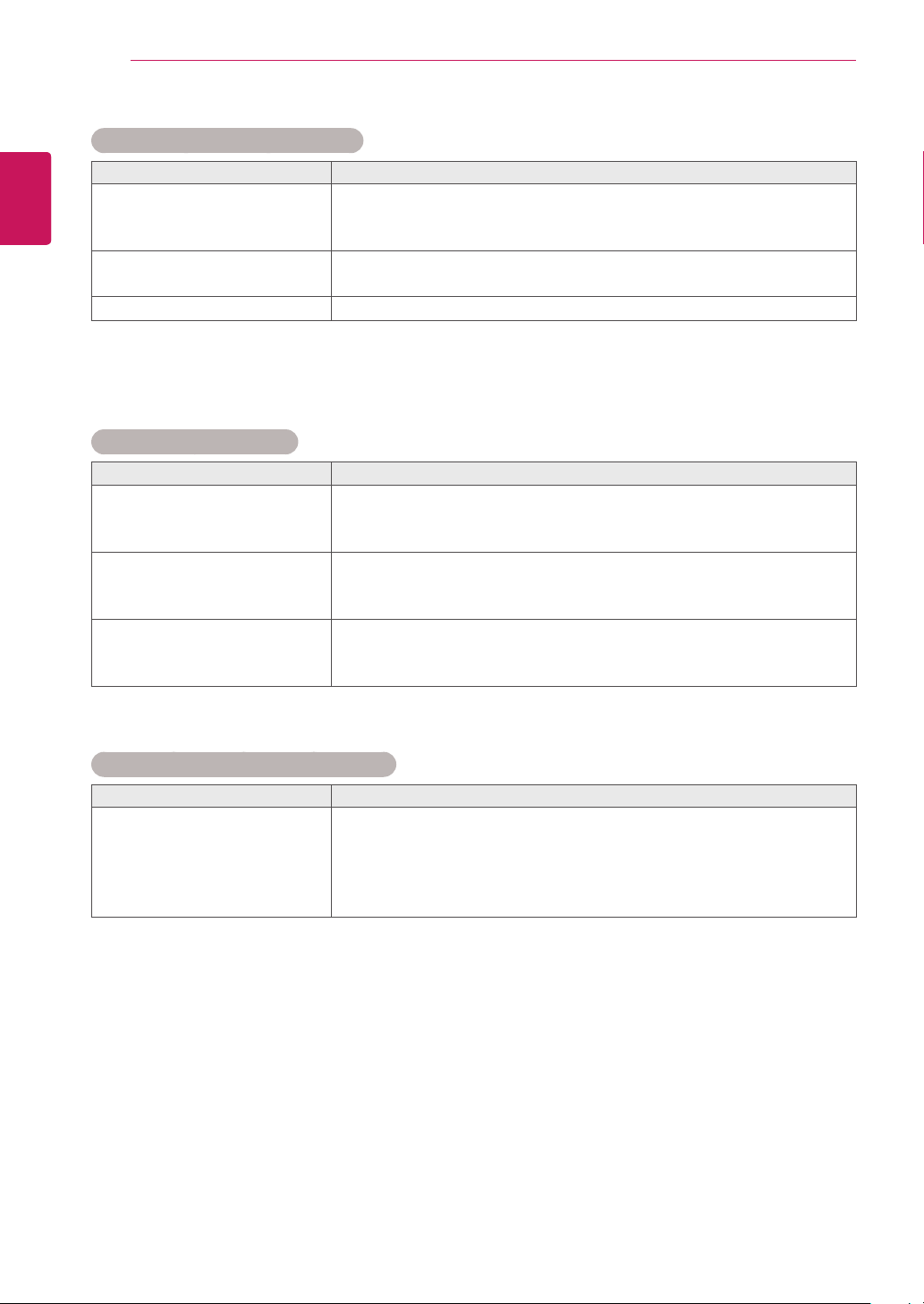
'Key Lock On' message appears.
Problem Resolution
The 'Key Lock On' message
appears when pressing the
Menu button.
y
The Lock function prevents the OSD settings from being changed
inadvertently. To release the lock, go to Menu and Option and disable
the Key Lock option.
The screen image looks abnormal.
Problem Resolution
Is the screen position wrong?
y
D-Sub analog signal - Press the "AUTO" button in the remote control
to automatically select the optimal screen status that fits into the
current mode. If adjustment is not satisfactory, use the Position OSD
menu.
y
See if the video card resolution and frequency are supported by the
product. If the frequency is out of range, set to the recommended
resolution in the Control Panel "Display" Setting menu.
Do thin lines appear on the
background screen?
y
D-Sub analog signal - Press the "AUTO" button in the remote control
to automatically select an optimal screen status that fits into the
current mode. If adjustment is not satisfactory, use the Clock OSD
menu.
Horizontal noise appears or the
characters look blurred.
y
D-Sub analog signal - Press the "AUTO" button in the remote control
to automatically select an optimal screen status that fits into the
current mode. If adjustment is not satisfactory, use the Phase OSD
menu.
The screen is displayed
abnormally.
y
The proper input signal is not connected to the signal port. Connect
the signal cable that matches with the source input signal.
After-image appears on the product.
Problem Resolution
After-image appears when the
product is turned off.
y
If you use a fixed image for a long time, the pixels may be damaged
quickly. Use the screen-saver function.
42
ENG
ENGLISH
TROUBLESHOOTING
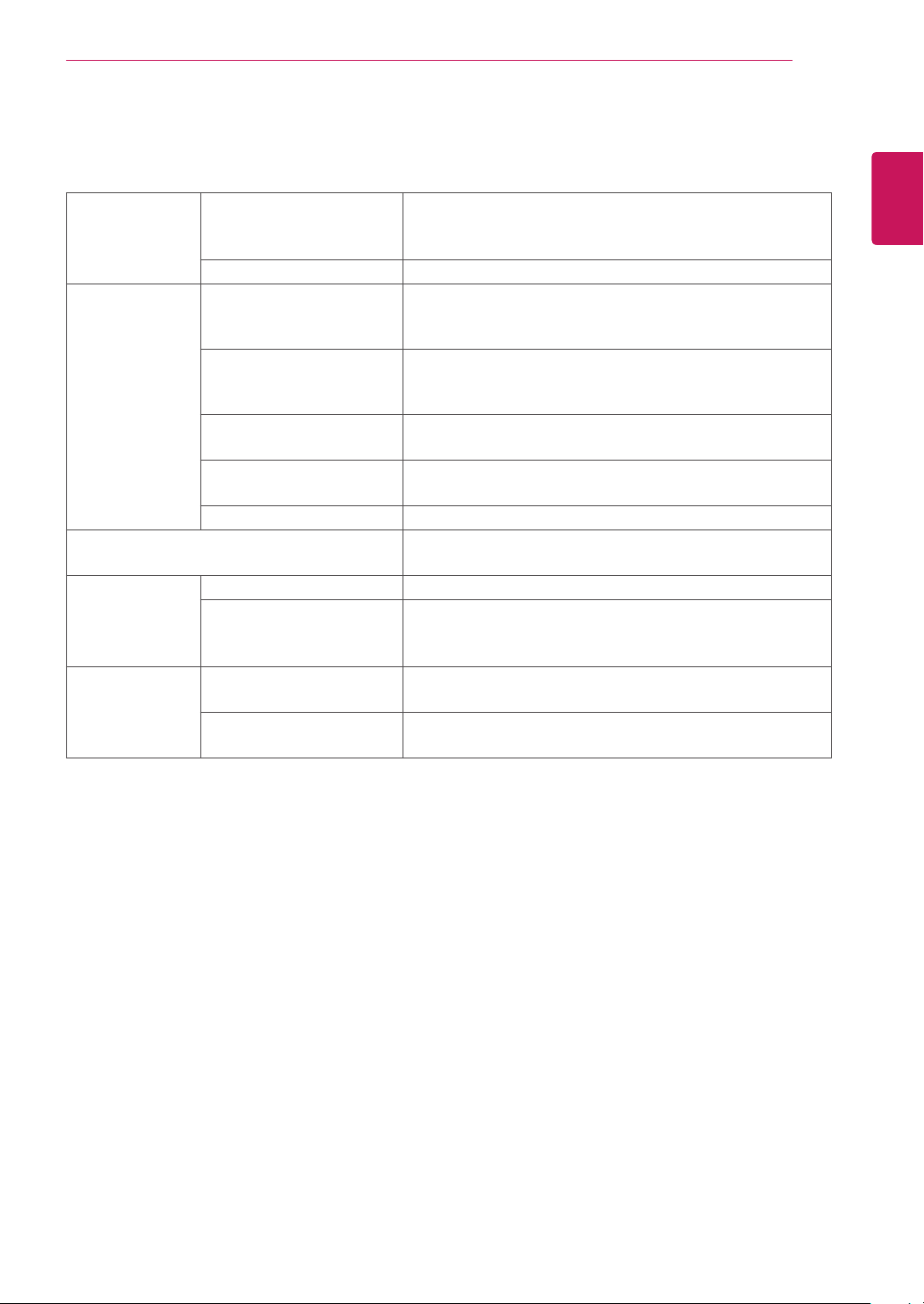
Screen color is abnormal.
Problem Resolution
Screen has poor color resolution
(16 colors).
y
Set the number of colors to more than 24 bits (true color) Select
Control Panel - Display - Settings - Color Table menu in Windows.
Screen color is unstable or
mono-colored.
y
Check the connection status of the signal cable. Or, re-insert the PC
video card.
Do black spots appear on the
screen?
y
Several pixels (red, green, white or black color) may appear on the
screen, which can be attributable to the unique characteristics of the
LCD panel. It is not a malfunction of the LCD.
The operation does not work normally.
Problem Resolution
The power suddenly turned off.
y
Is the sleep timer set?
y
Check the power control settings. Power interrupted.
y
"CAUTION! FAN STOP!"
If the power is turned off after this message appears, it means that
the fan is out of order.In this case, contact your local service center.
The audio function does not work.
Problem Resolution
No sound?
y
See if the audio cable is connected properly.
y
Adjust the volume.
y
See if the sound is set properly.
Sound is too dull.
y
Select the appropriate equalize sound.
Sound is too low.
y
Adjust the volume.
43
ENG
ENGLISH
SPECIFICATIONS
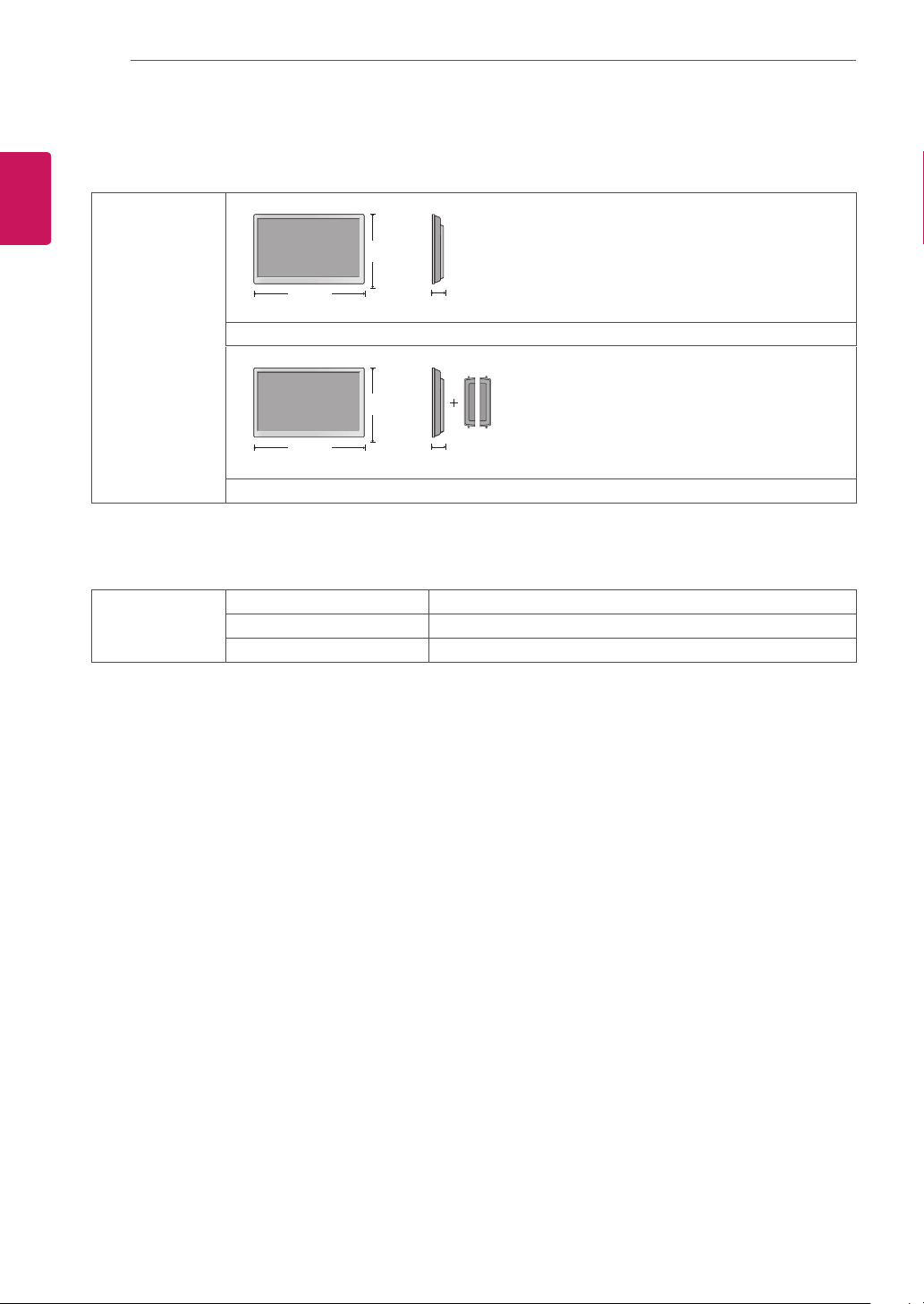
SPECIFICATIONS
LCD Panel Screen Type 1638.3 mm Wide (64.5 inch) TFT (Thin Film Transistor)
LCD (Liquid Crystal Display) Panel.
Visible diagonal size : 1638.3 mm
Pixel Pitch 0.744 mm (H) x 0.744 mm (V)
Video Signal Max. Resolution RGB : 1920 X 1080 @ 60 Hz
HDMI/DVI : 1920 X 1080 @ 60 Hz
- It may not be supported depending on the OS or video card type.
Recommended Resolution RGB : 1920 X 1080 @ 60 Hz
HDMI/DVI : 1920 X 1080 @ 60 Hz
- It may not be supported depending on the OS or video card type.
Horizontal Frequency
RGB : 30 kHz to 83 kHz
HDMI/DVI : 30 kHz to 83 kHz
Vertical Frequency RGB : 56 Hz to 75 Hz
HDMI/DVI : 56 Hz to 60 Hz
Synchronization Type Separate Sync, Composite Sync, Digital
Input Connector 15-pin D-Sub type, HDMI (digital), Composite Video,
RS-232C, LAN
Power Rated Voltage AC 100-240 V~ 50/60 Hz 4.6 A
Power Consumption On Mode : 480 W Typ.
Sleep Mode : ≤ 1 W (RGB) / 2 W (HDMI/DVI)
Off Mode : ≤ 0.5 W
Environmental
conditions
Operating Temperature
Operating Humidity
0 °C to 40 °C
10 % to 80 %
Storage Temperature
Storage Humidity
-20 °C to 60 °C
5 % to 95 %
Product specifications shown above may be changed without prior notice due to upgrade of product
functions.
SPECIFICATIONS
44
ENG
ENGLISH
Dimensions
(Width x Height x
Depth) / Weight
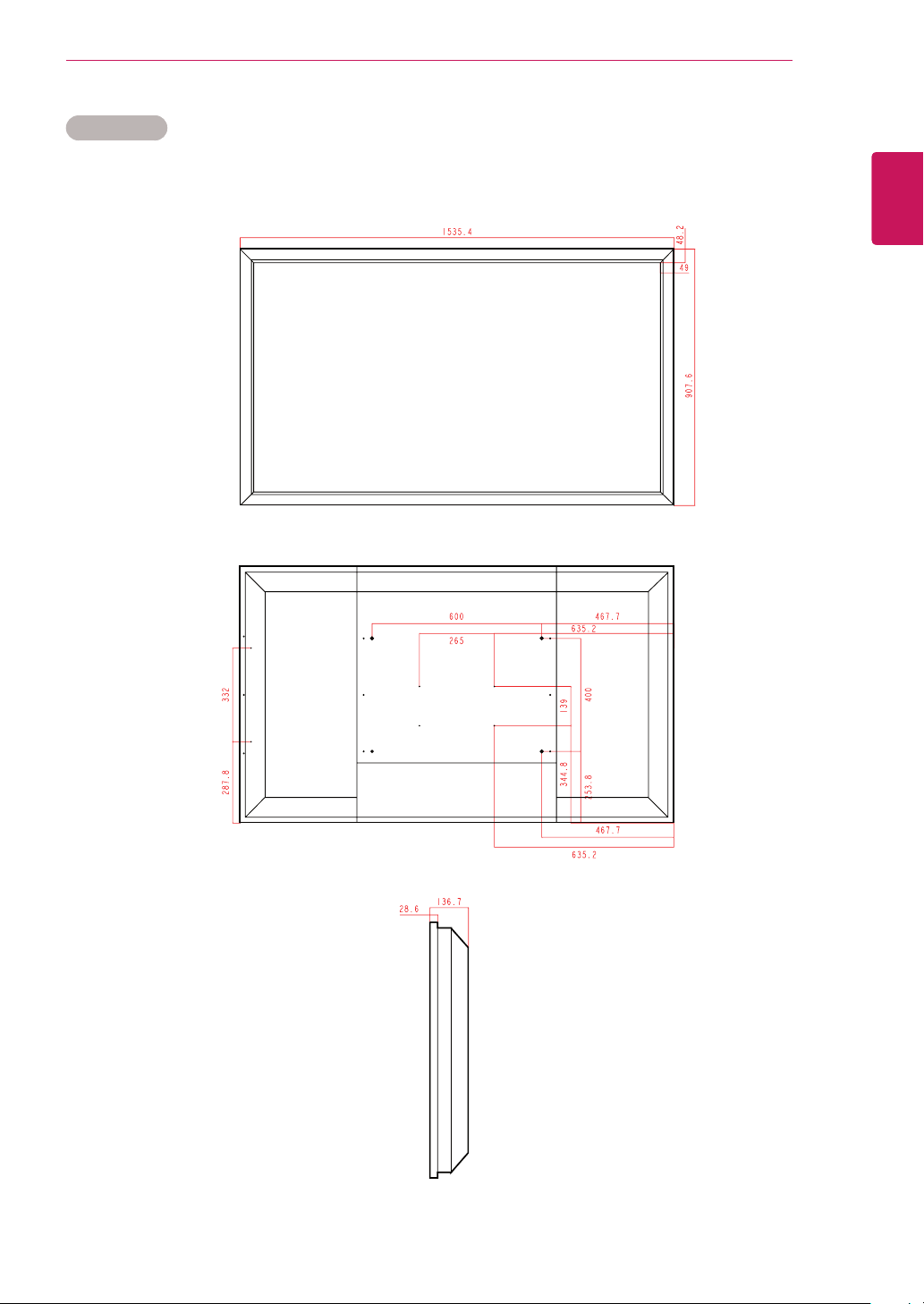
1535.4 mm x 136.7 mm x 907.6 mm / 51.1 kg
1535.4 mm x 136.7 mm x 907.6 mm / 51.85 kg
* Applicable only for models that support the speakers
Audio RMS Audio Output 10 W + 10 W (R + L)
Input Sensitivity 0.7 Vrms
Speaker Impedance 8 Ω
Product specifications shown above may be changed without prior notice due to upgrade of product
functions.
H
W
D
H
W
D
SPECIFICATIONS
46
ENG
ENGLISH
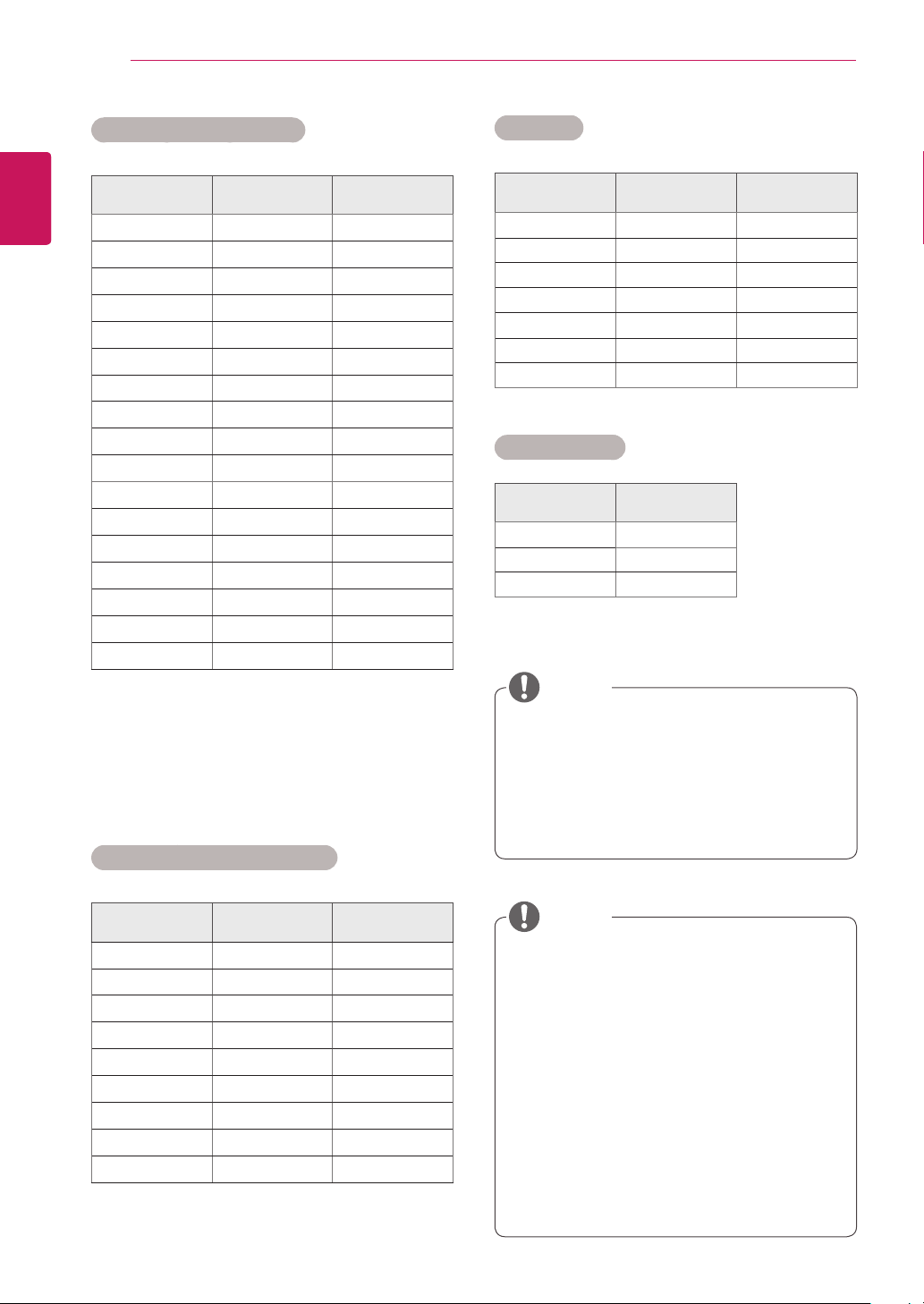
RGB (PC) supported mode
Resolution
Horizontal
Frequency(kHz)
Vertical
Frequency(Hz)
640 x 350
31.469 70.8
720 x 400
31.468 70.8
640 x 480
31.469 59.94
640 x 480
37.5 75
800 x 600
37.879 60.317
800 x 600
46.875 75
832 x 624
49.725 74.55
1024 x 768
48.363 60
1024 x 768
60.123 75.029
1280 x 720
44.772 59.855
1280 x 768
47.7 60
1360 x 768
47.72 59.799
1366 x 768
47.7 60
1280 x 1024
63.981 60.02
1280 x 1024
79.98 75.02
1680 x 1050
65.290 59.954
1920 x 1080
67.5 60
HDMI/DVI(PC) supported mode
Resolution
Horizontal
Frequency(kHz)
Vertical
Frequency(Hz)
640 x 480
31.469 59.94
800 x 600
37.879 60.317
1024 x 768
48.363 60
1280 x 720
44.772 59.855
1360 x 768
47.72 59.799
1366 x 768
47.7 60
1280 x 1024
63.981 60.02
1680 x 1050
65.290 59.954
1920 x 1080
67.5 60
y
DTV/PC selection on RGB and HDMI/DVI
inputs is available for PC resolutions : 640
x 480 / 60 Hz, 1280 x 720 / 60 Hz, 1920 x
1080 / 60 Hz and DTV resolutions : 480p,
720p, 1080p.
DTV Mode
Resolution Component
HDMI/DVI
(DTV)
480i o x
576i o x
480p o o
576p o o
720p o o
1080i o o
1080p o o
Power Indicator
Mode Product
On Mode Green
Sleep Mode Amber
Off Mode -
NOTE
y
Vertical frequency: To enable the user to
watch the product display, screen image
should be changed tens of times every
second like a fluorescent lamp. The vertical
frequency or refresh rate is the times of
image display per second. The unit is Hz.
y
Horizontal frequency: The horizontal interval
is the time to display one horizontal line.
When 1 is divided by the horizontal interval,
the number of horizontal lines displayed
every second can be tabulated as the
horizontal frequency. The unit is kHz.
NOTE
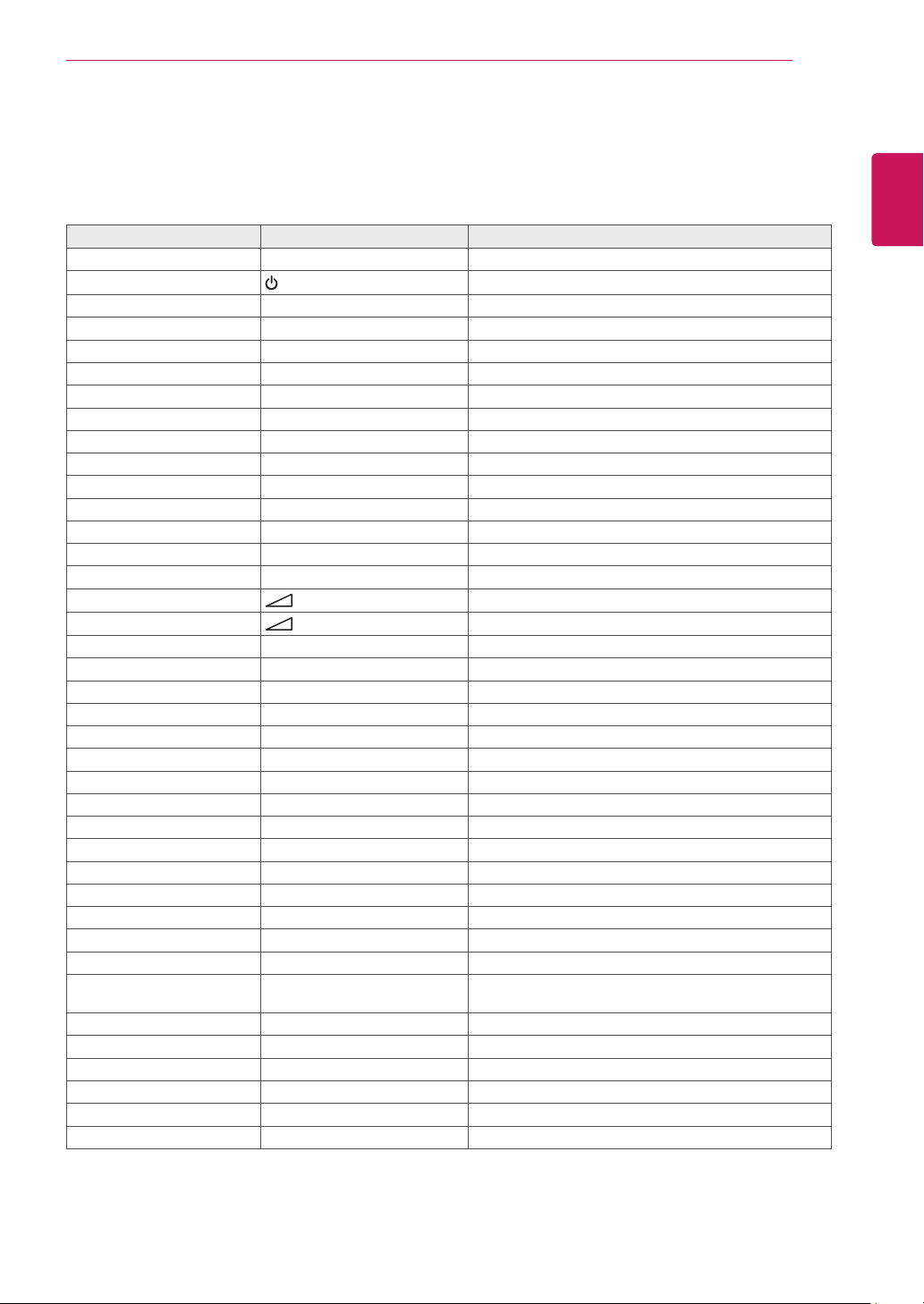
47
ENG
ENGLISH
IR CODES
IR CODES
y
This feature is not available for all models.
Code (Hexa) Function Note
95 Energy Saving (
ꕊ
) R/C BUTTON
08
(POWER)
R/C BUTTON (POWER ON/OFF)
0B INPUT R/C BUTTON
C4 Monitor On R/C BUTTON (Discrete IR Code)
C5 Monitor Off R/C BUTTON (Discrete IR Code)
79 ARC (MARK) R/C BUTTON (Discrete IR Code)
43 MENU R/C BUTTON
40 Up (
ꕌ
) R/C BUTTON
41 Down (
ꕍ
) R/C BUTTON
07 Left (<) R/C BUTTON
06 Right (>) R/C BUTTON
44 OK(
ꔉ
) R/C BUTTON
28 BACK(
ꕉ
) R/C BUTTON
5B EXIT R/C BUTTON
4D PSM R/C BUTTON
02
( + )
R/C BUTTON
03
( - )
R/C BUTTON
09 MUTE R/C BUTTON
E0 Brightness
ꕌ
(Page UP) R/C BUTTON
E1 Brightness
ꕍ
(Page Down) R/C BUTTON
10 to 19 Number Key 0 to 9 R/C BUTTON
72 Red Key R/C BUTTON
71 Green Key R/C BUTTON
63 Yellow Key R/C BUTTON
61 Blue Key R/C BUTTON
7B TILE R/C BUTTON
5A AV(CVBS) Discrete IR Code (Input AV Selection)
BF Component Discrete IR Code (Input Component Selection)
D5 RGB PC Discrete IR Code (Input RGB PC Selection)
C6 HDMI/DVI Discrete IR Code (Input HDMI/DVI Selection)
76 ARC (4:3) Discrete IR Code (Only 4 : 3 mode)
77 ARC (16:9) Discrete IR Code (Only 16 : 9 mode)
AF ARC (ZOOM) Discrete IR Code
(Only Zoom, Cinena Zoom 1 mode)
99 Auto Config. R/C BUTTON (Discrete IR Code)
B1
ꕗ
R/C BUTTON
B0
ꕖ
R/C BUTTON
BA
ꕘ
R/C BUTTON
8F
ꕚ
R/C BUTTON
8E
ꕙ
R/C BUTTON

48
ENG
ENGLISH
CONTROLLING THE MULTIPLE PRODUCT
CONTROLLING THE MULTIPLE PRODUCT
y
Use this method to connect several products to a single PC. You can control several products at a
time by connecting them to a single PC.
y
In the Option menu, Set ID must be between 1 and 99 without being duplicated.
Connecting the cable
Connect the RS-232C cable as shown in the picture.
y
The RS-232C protocol is used for communication between the PC and product. You can turn the
product on/off, select an input source or adjust the OSD menu from your PC.
Communication Parameter
Monitor Set 1 Monitor Set 2 Monitor Set 3 Monitor Set 4
PC
RS-232C Cable
(not included)
RS-232C Configurations
RXD
TXD
GND
DTR
DSR
RTS
CTS
RXD
TXD
GND
DTR
DSR
RTS
CTS
TXD
RXD
GND
DSR
DTR
CTS
RTS
TXD
RXD
GND
DSR
DTR
CTS
RTS
PC Set PC Set
2
3
5
4
6
7
8
3
2
5
6
4
8
7
D-Sub 9 D-Sub 9
(Female) (Female)
D-Sub 9 D-Sub 9
(Female) (Female)
2
3
5
4
6
7
8
3
2
5
6
4
7
8
y
Baud Rate : 9600 buad Rate (UART)
y
Data Length : 8 bit
y
Parity Bit : None
y
Stop Bit : 1bit
y
Flow Control : None
y
Communication Code : ASCII code
y
Use a crossed (reverse) cable
7-Wire Configurations (Standard RS-232C cable)
3-Wire Configurations (Not Standard)
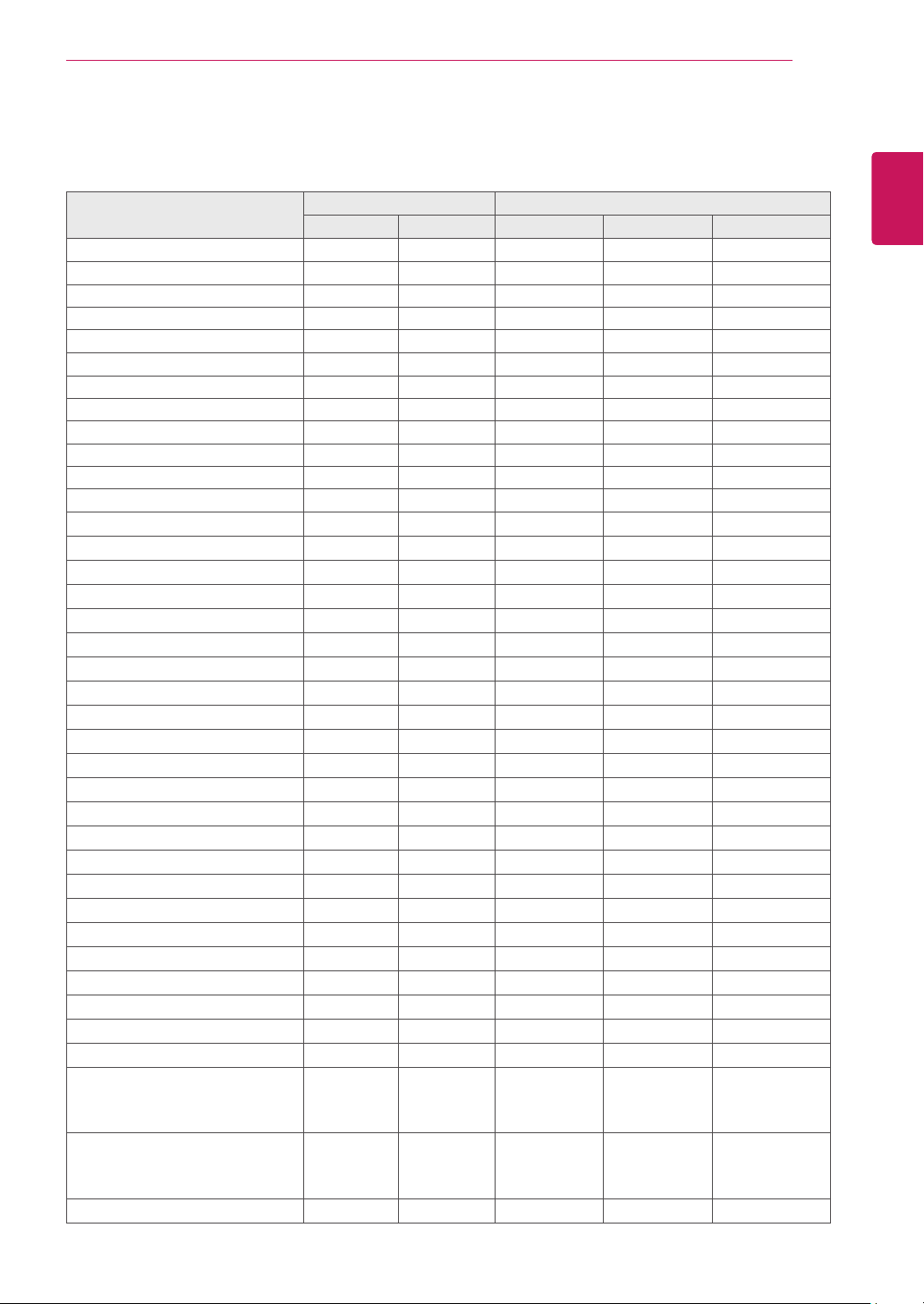
49
ENG
ENGLISH
CONTROLLING THE MULTIPLE PRODUCT
Command reference list
COMMAND DATA
1 2 1 2 3
01. Power k a 00H to 01H
02. Input Select k b 02H to 09H
03. Aspect Ratio k c 01H to 1FH
04. Screen Mute k d 00H to 01H
05. Volume Mute k e 00H to 01H
06. Volume Control k f 00H to 64H
07. Contrast k g 00H to 64H
08. Brightness k h 00H to 64H
09. Color k i 00H to 64H
10. Tint k j 00H to 64H
11. Sharpness k k 00H to 64H
12. OSD Select k l 00H to 01H
13. Remote Lock/ key Lock k m 00H to 01H
14. Balance k t 00H to 64H
15. Color Temperature k u 00H to 02H
16. Abnomal state k z FFH
17. ISM mode j p 01H to 08H
18. Auto configuration j u 01H
19. Key m c Key Code
20. Tile Mode d d 00H to 55H
21. Tile H Position d e 00H to 14H
22. Tile V Position d f 00H to 14H
23. Tile H Size d g 00H to 64H
24. Tile V Size d h 00H to 64H
25. Tile ID Set d i 00H to 19H
26. Natural Mode (In Tile mode) d j 00H to 01H
27. Picture mode (PSM) d x 00H to 06H
28. Sound mode d y 00H to 05H
29. Fan Fault check d w FFH
30. Elapsed time return d l FFH
31. Temperature value d n FFH
32. Lamp fault check d p FFH
33. Auto Volume d u 00H to 01H
34. Speaker d v 00H to 01H
35. Time f a 00H to 06H 00H to 17H 00H to 3BH
36. On Timer (On/Off Timer) Time f d F1H to F4H
E0H to E4H
01H to 80H
00H to 17H 00H to 3BH
37. Off Timer (On/Off Timer) Time f e F1H to F4H
E0H to E4H
01H to 80H
00H to 17H 00H to 3BH
38. Scheduling input select f u F1H to F4H 02H to 09H
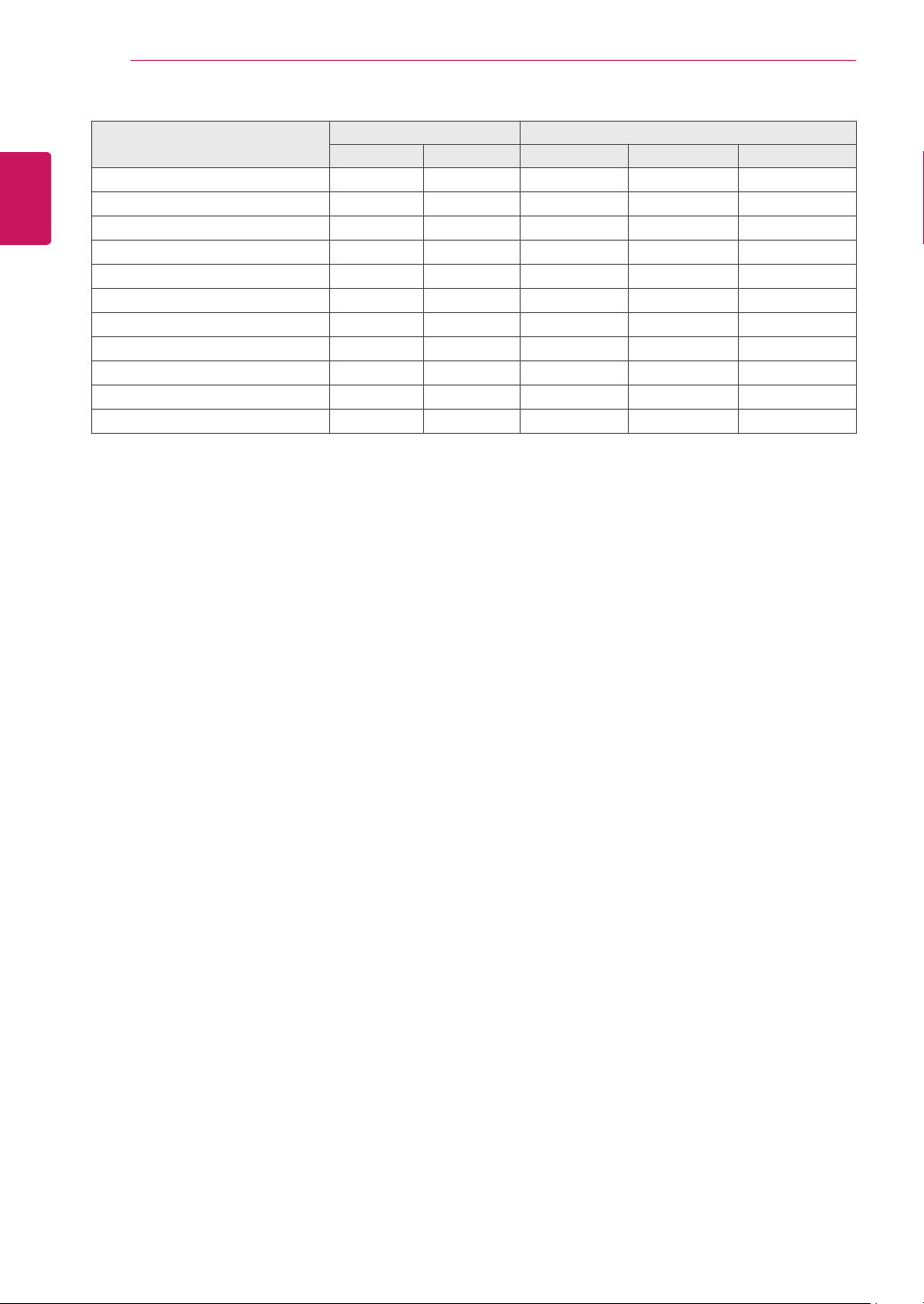
50
ENG
ENGLISH
CONTROLLING THE MULTIPLE PRODUCT
COMMAND DATA
1 2 1 2 3
39. Sleep Time f f 00H to 08H
40. Auto Sleep f g 00H to 01H
41. Power On Delay f h 00H to 64H
42. Language f i 00H to 09H
43. DPM Select f j 00H to 01H
44. Reset f k 00H to 02H
45. Power Saving f l 00H to 03H
46. Power Indicator f o 00H to 01H
47. Serial no. f y FFH
48. S / W Version f z FFH
49. Input Select x b 20H to A0H
y
Note : During USB operations such as Dvix or EMF, all commands except Power(ka) and Key(mc) are
not executed and treated as NG.

51
ENG
ENGLISH
CONTROLLING THE MULTIPLE PRODUCT
Transmission
[Command1][Command2][ ][Set ID][ ][Data][Cr]
* [Command 1]: First command. (k, j, m, d, f, x)
* [Command 2]: Second command.(a to u)
* [Set ID]: Set up the Set ID number of product.
range : 01H to 63H. by setting '0', server can control all products.
* In case of operating with more than 2 sets using set ID as '0' at the same time, it should not be checked the ack
message. Because all sets will send the ack message, so it's impossible the check the whole ack messages.
* [DATA]: To transmit command data.
Transmit 'FF' data to read status of command.
* [Cr]: Carriage Return (ASCII code '0 x 0 D')
* [ ]: ASCII code Space (0 x 20)
OK Acknowledgement
[Command2][ ][Set ID][ ][OK][Data][x]
* The Product transmits ACK (acknowledgement) based on this format when receiving normal data. At this time,
if the data is data read mode, it indicates present status data. If the data is data write mode, it returns the data of
the PC computer.
Error Acknowledgement
[Command2][ ][Set ID][ ][NG][Data][x]
* If there is error, it returns NG
Transmission / Receiving protocol

52
ENG
ENGLISH
CONTROLLING THE MULTIPLE PRODUCT
03. Aspect Ratio (Command: k c)
To adjust the screen format.
You can also adjust the screen format using the ARC
(Aspect Ratio Control) button on remote control or in
the Screen menu.
Transmission
[k][c][ ][Set ID][ ][Data][Cr]
Data 01 : Normal Screen (4 : 3)
02 : Wide Scran (16 : 9)
04 : Zoom (AV(CVBS))
06 : Original (AV(CVBS))
07 : 14 : 9 (AV(CVBS))
09 : Just Scan (HD DTV)
* When the RGB, HDMI / DVI PC mode(1:1)
10 to 1F : Cinema Zoom 1 to 16
B : Full Wide
Acknowledgement
[c][ ][Set ID][ ][OK][Data][x]
04. Screen Mute (Command: k d)
To select screen mute on / off.
Transmission
[k][d][ ][Set ID][ ][Data][Cr]
Data 00 : Screen mute off (Picture on)
01 : Screen mute on (Picture off)
Acknowledgement
[d][ ][Set ID][ ][OK][Data][x]
01. Power (Command: k a)
To control Power On/Off of the set.
Transmission
[k][a][ ][Set ID][ ][Data][Cr]
Data 00 : Power Off Data 01 : Power On
Acknowledgement
[a][ ][Set ID][ ][OK][Data][x]
To show the status of Power On/Off.
Transmission
[k][a][ ][Set ID][ ][FF][Cr]
Acknowledgement
[a][ ][Set ID][ ][OK][Data][x]
Data 00 : Power Off Data 01 : Power On
02. Input Select (Command: k b) (Main Picture Input)
To select input source for the Set.
You can also select an input source using the INPUT
button on the remote control.
Transmission
[k][b][ ][Set ID][ ][Data][Cr]
Data 02 : AV(CVBS)
04 : Component
07 : RGB (PC)
08 : HDMI (DTV)
09 : HDMI (PC)
Acknowledgement
[b][ ][Set ID][ ][OK][Data][x]
Data 02 : AV(CVBS)
04 : Component
07 : RGB (PC)
08 : HDMI (DTV)
09 : HDMI (PC)

53
ENG
ENGLISH
CONTROLLING THE MULTIPLE PRODUCT
05. Volume Mute (Command: k e)
To control On/Off of the Volume Mute.
Transmission
[k][e][ ][Set ID][ ][Data][Cr]
Data 00 : Volume Mute On (Volume Off)
01 : Volume Mute Off (Volume On)
Acknowledgement
[e][ ][Set ID][ ][OK][Data][x]
Data 00 : Volume Mute On (Volume Off)
01 : Volume Mute Off (Volume On)
06. Volume Control (Command: k f)
To adjust Volume.
Transmission
[k][f][ ][Set ID][ ][Data][Cr]
Data Min : 00H to Max : 64H
(Hexadecimal code)
Acknowledgement
[f][ ][Set ID][ ][OK][Data][x]
Data Min : 00H to Max : 64H
* Real data mapping
0 : STEP 0
:
A : STEP 10
:
F : STEP 15
10 : STEP 16
:
64 : STEP 100
07. Contrast (Command: k g)
To adjust screen contrast.
You can also adjust the contrast in the Picture menu.
Transmission
[k][g][ ][Set ID][ ][Data][Cr]
Data Min : 00H to Max : 64H
Acknowledgement
[g][ ][Set ID][ ][OK][Data][x]
Data Min : 00H to Max : 64H
* Refer to 'Real data mapping ’. See p.53
08. Brightness (Command: k h)
To adjust screen brightness.
You can also adjust the brightness in the Picture
menu.
Transmission
[k][h][ ][Set ID][ ][Data][Cr]
Data Min : 00H to Max : 64H
(Hexadecimal code)
* Refer to 'Real data mapping ’. See p.53
Acknowledgement
[h][ ][Set ID][ ][OK][Data][x]
* Refer to 'Real data mapping ’. See p.53
09. Color (Command: k i) (Video Timing only)
To adjust the screen color.
You can also adjust the color in the Picture menu.
Transmission
[k][i][ ][Set ID][ ][Data][Cr]
Data Min : 00H to Max : 64H
(Hexadecimal code)
* Refer to 'Real data mapping ’. See p.53
Acknowledgement
[i][ ][Set ID][ ][OK][Data][x]
Data Min : 00H to Max : 64H
10. Tint (Command: k j)
To adjust the screen tint.
You can also adjust the tint in the Picture menu.
Transmission
[k][j][ ][Set ID][ ][Data][Cr]
Data Min : 00H to Max : 64H
(Hexadecimal code)
00H : Step R50
64H : Step G50
Acknowledgement
[j][ ][Set ID][ ][OK][Data][x]
Data Min : 00H to Max : 64H
* Tint Real data mapping
0 : Step 0 to Red
:
64 : Step 100 to Green
54
ENG
ENGLISH
CONTROLLING THE MULTIPLE PRODUCT
11. Sharpness (Command: k k) (Video input only)
To adjust the screen Sharpness.
You can also adjust the sharpness in the Picture
menu.
Transmission
[k][k][ ][Set ID][ ][Data][Cr]
Data Min : 00H to Max : 64H
(Hexadecimal code)
* Refer to 'Real data mapping ’. See p.53
Acknowledgement
[k][ ][Set ID][ ][OK][Data][x]
Data Min : 00H to Max : 64H
12. OSD Select (Command: k l)
To control OSD on/off to the set.
Transmission
[k][l][ ][Set ID][ ][Data][Cr]
Data 00: OSD Off Data 01: OSD On
Acknowledgement
[l][ ][Set ID][ ][OK][Data][x]
Data 00: OSD Off Data 01: OSD On
13. Remote Lock /Key Lock (Command: k m)
To control Remote Lock on/off to the set.
This function, when controlling RS-232C, locks the
remote control and the local keys.
Transmission
[k][m][ ][Set ID][ ][Data][Cr]
Data 00: Off Data 01: On
Acknowledgement
[m][ ][Set ID][ ][OK][Data][x]
Data 00: Off Data 01: On
14. Balance (Command: k t)
To adjust the sound balance.
Transmission
[k][t][ ][Set ID][ ][Data][Cr]
Data Min : 00H to Max : 64H
(Hexadecimal code)
00H : Step L50
64H : Step R50
Acknowledgement
[t][ ][Set ID][ ][OK][Data][x]
Data Min : 00H to Max : 64H
(Hexadecimal code)
00H : Step 0 to L50
64H : Step 100 to R50
* Balance : L50 to R50
15. Color Temperature (Command: k u)
To adjust the screen color temperature.
Transmission
[k][u][ ][Set ID][ ][Data][Cr]
Data 00 : Medium
01 : Cool
02 : Warm
Acknowledgement
[u][ ][Set ID][ ][OK][Data][x]
Data 00 : Medium
01 : Cool
02 : Warm
16. Abnormal state (Command: k z)
Used to Read the power off status when Stand-by
mode.
Transmission
[k][z][ ][Set ID][ ][Data][Cr]
Data FF : Read
Acknowledgement
[z][ ][Set ID][ ][OK][Data][x]
Data 00 : Normal (Power on and signal exist)
01 : No signal (Power on)
02 : Turn the monitor off by remote control
03 : Turn the monitor off by sleep time function
04 : Turn the monitor off by RS-232C function
08 : Turn the monitor off by off time function
09 : Turn the monitor off by auto off function

55
ENG
ENGLISH
CONTROLLING THE MULTIPLE PRODUCT
20. Tile Mode (Command: d d)
Change a Tile Mode.
Transmission
[d][d][ ][Set ID][ ][Data][Cr]
Data Description
00 or 11 Tile mode is off.
12 1 x 2 mode (column x row)
13 1 x 3 mode
14 1 x 4 mode
...
...
55 1 x 2 mode
* The data can not be set to 0X or X0 except 00.
Acknowledgement
[d][ ][Set ID][ ][OK/NG][Data][x]
21. Tile H Position (Command: d e)
To set the Horizontal position.
Transmission
[d][e][ ][Set ID][ ][Data][Cr]
Data Min : 00H to Max : 14H
00H : Step -10(Left)
14H : Step 10(Right)
Acknowledgement
[e][ ][Set ID][ ][OK/NG][Data][x]
22. Tile V Position (Command: d f)
To set the Vertical position.
Transmission
[d][f][ ][Set ID][ ][Data][Cr]
Data Min : 00H to Max : 14H
00H : Step -10(Down)
14H : Step 10(Up)
Acknowledgement
[f][ ][Set ID][ ][OK/NG][Data][x]
17. ISM mode (Command: j p)
Used to select the afterimage preventing function.
Transmission
[j][p][ ][Set ID][ ][Data][Cr]
Data 01 : Inversion
02 : Orbiter
04 : White Wash
08 : Normal
Acknowledgement
[p][ ][Set ID][ ][OK][Data][x]
18. Auto Configure (Command: j u)
To adjust picture position and minimize image
shaking.
Automatically. NB : Only applies to RGB(PC) mode.
Transmission
[j][u][ ][Set ID][ ][Data][Cr]
Data 01 : To set
Acknowledgement
[u][ ][Set ID][ ][OK][Data][x]
19. Key (Command: m c)
To send IR remote key code.
Transmission
[m][c][ ][Set ID][ ][Data][Cr]
Data Key code : Refer to ‘IR CODES’. See p.47
Acknowledgement
[c][ ][Set ID][ ][OK][Data][x]
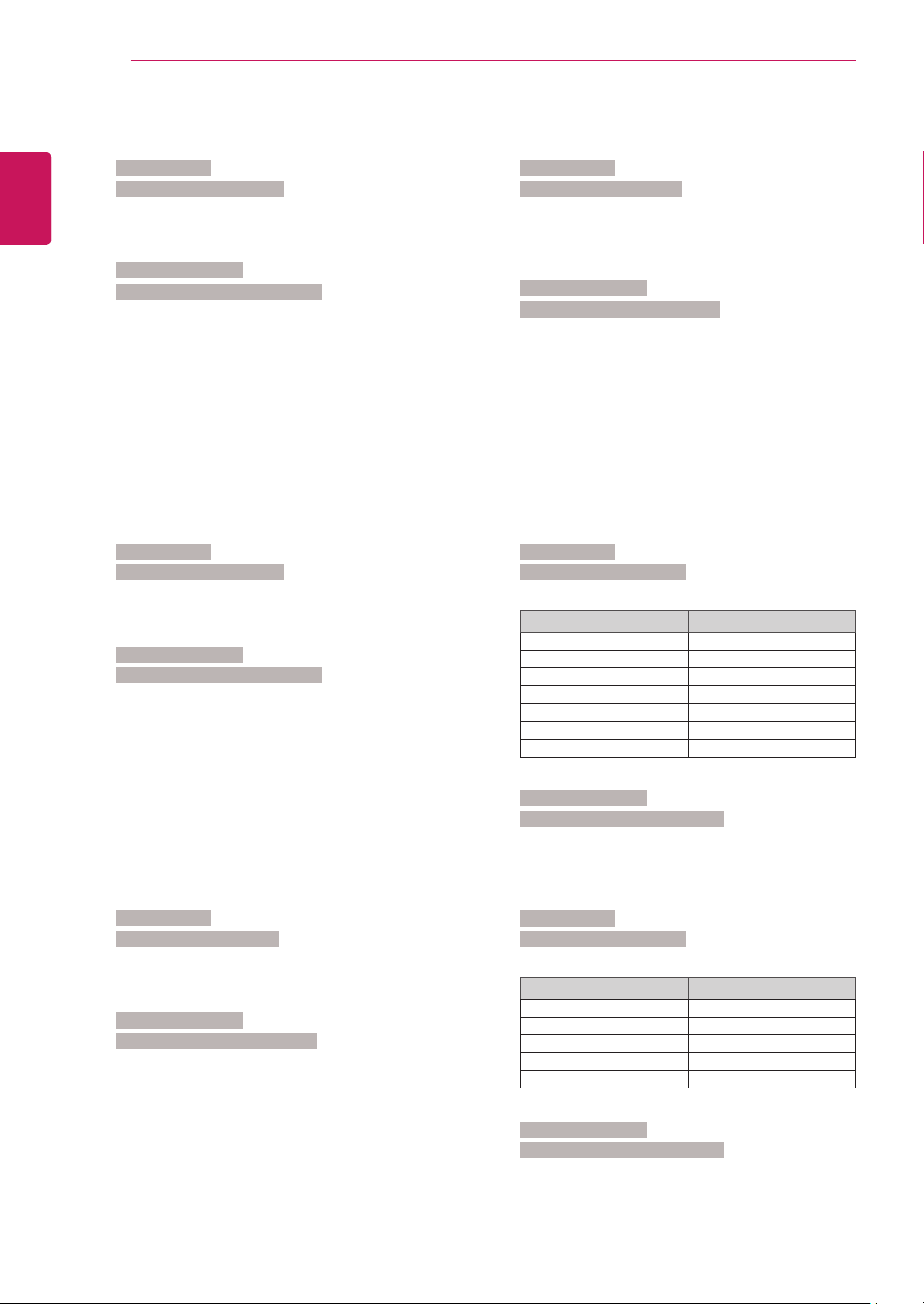
56
ENG
ENGLISH
CONTROLLING THE MULTIPLE PRODUCT
23. Tile H Size (Command: d g)
To set the Horizontal size.
Transmission
[d][g][ ][Set ID][ ][Data][x]
Data Min : 00H to Max : 64H
* Refer to 'Real data mapping ’. See p.53
Acknowledgement
[g][ ][Set ID][ ][OK/NG][Data][x]
24. Tile V Size (Command: d h)
To set the Vertical size.
Transmission
[d][h][ ][Set ID][ ][Data][x]
Data Min : 00H to Max : 64H
* Refer to 'Real data mapping ’. See p.53
Acknowledgement
[h][ ][Set ID][ ][OK/NG][Data][x]
25. Tile ID Set (Command: d i)
To assign the Tile ID for Tiling function.
Transmission
[d][i][ ][Set ID][ ][Data][x]
Data Min : 00H to Max : 19H
(Hexadecimal code)
Acknowledgement
[i][ ][Set ID][ ][OK/NG][Data][x]
26. Natural Mode (Command: d j)
To assign the Tile Natural mode for Tiling function.
Transmission
[d][j][ ][Set ID][ ][Data][x]
Data 00 : Natural Off
01 : Natural On
ff : Read Status
Acknowledgement
[j][ ][Set ID][ ][OK/NG][Data][x]
27. Picture Mode (Command: d x)
To adjust the picture mode.
Transmission
[d][x][ ][Set ID][ ][Data][x]
Data Structure
Data(Hex) Mode
00 Vivid
01 Standard
02 Cinema
03 Sport
04 Game
05 Export 1
06 Export 2
Acknowledgement
[x][ ][Set ID][ ][OK/NG][Data][x]
28. Sound Mode (Command: d y)
To adjust the Sound mode.
Transmission
[d][y][ ][Set ID][ ][Data][x]
Data Structure
Data(Hex) Mode
01 Standard
02 Music
03 Cinema
04 Sport
05 Game
Acknowledgement
[y][ ][Set ID][ ][OK/NG][Data][x]

57
ENG
ENGLISH
CONTROLLING THE MULTIPLE PRODUCT
29. Fan Fault check (Command: d w)
To check the Fan fault of the Set.
Transmission
[d][w][ ][Set ID][ ][Data][x]
* The data is always FF (in Hex).
Data ff : Read Status
Acknowledgement
[w][ ][Set ID][ ][OK/NG][Data][x]
* Data is the status value of the Fan fault.
Data 00 : Fan fault
01 : Fan Ok
02 : N/A (Not Avaliable)
30. Elapsed time return (Command: d l)
To read the elapsed time.
Transmission
[d][l][ ][Set ID][ ][Data][x]
* The data is always FF(in Hex).
Acknowledgement
[l][ ][Set ID][ ][OK/NG][Data][x]
* The data is always FF(in Hex).
(Hexadecimal code)
31. Temperature value (Command: d n)
To read the inside temperature value.
Transmission
[d][n][ ][Set ID][ ][Data][x]
* The data is always FF(in Hex).
Acknowledgement
[n][ ][Set ID][ ][OK/NG][Data][x]
* The data is 1 byte long in Hexadecimal.
32. Lamp fault Check (Command: d p)
To check lamp fault.
Transmission
[d][p][ ][Set ID][ ][Data][x]
* The data is always FF(in Hex).
Acknowledgement
[p][ ][Set ID][ ][OK/NG][Data][x]
* The data is 1 byte long in Hexadecimal.
Data 00 : Lamp Fault
01 : Lamp Ok
02 : N/A (DPM/Power Off)
33. Auto volume (Command: d u)
Automatically adjust the volume level.
Transmission
[d][u][ ][Set ID][ ][Data][x]
Data 00: Off Data 01: On
Acknowledgement
[u][ ][Set ID][ ][OK/NG][Data][x]
34. Speaker (Command: d v)
Turn the speaker on or off.
Transmission
[d][v][ ][Set ID][ ][Data][x]
Data 00: Off Data 01: On
Acknowledgement
[v][ ][Set ID][ ][OK/NG][Data][x

58
ENG
ENGLISH
CONTROLLING THE MULTIPLE PRODUCT
35. Time (Command: f a)
Set the current time.
Transmission
[f][a][ ][Set ID][ ][Data1][ ][Data2][ ][Data3][Cr]
[Data1]
00 : Monday
01 : Tuesday
02 : Wednesday
03 : Thursday
04 : Friday
05 : Saturday
06 : Sunday
[Data2]
0H to 17H (Hours)
[Data3]
00H to 3BH (Minutes)
Acknowledgement
[a][ ][Set ID][ ][OK/NG][Data1][Data2][Data3][x]
*When reading data, FFH is inputted for [Data1],
[Data2] and [Data3]. In other cases, all are treated as
NG.
36. On Timer (On/Off Timer) Time (Command: f d)
Set On Timer.
Transmission
[f][d][ ][Set ID][ ][Data1][ ][Data2][ ][Data3][Cr]
[Data1]
1. f1h to f4h(read one index)
f1: read 1st index of On Time List
f2: read 2nd index of On Time List
f3: read 3rd index of On Time List
f4: read 4th index of On Time List
2. e1h~e4h(delete one index), e0h(delete all indexes)
e0: delete all indexes of On Time List
e1: delete 1st index of On Time List
e2: delete 2nd index of On Time List
e3: delete 3rd index of On Time List
e4: delete 4th index of On Time List
3. 01h to 80h (write) (Day of Week)
bit0 (01h) : Monday
bit1 (02h) : Tuesday
bit2 (04h) : Wednesday
bit3 (08h) : Thursday
bit4 (10h) : Friday
bit5 (20h) : Saturday
bit6 (40h) : Sunday
bit7 (80h) : Everyday
(1fh) : Monday to Friday
(3fh) : Monday to Saturday
(60h) : Saturday to Sunday
[Data 2]
00h to 17h (Hours)
[Data 3]
00h to 3bh (Minutes)
*When you read/delete the current on time list, all of
[Data2][Data3] are have to be FFH.
(ex1: fd 01 f1 ff ff - when you read 1st index of On
Time List
ex2: fd 01 e1 ff ff - when you delete 1st index of On
Time List
ex3: fd 01 3f 02 03 - when you write one On Time
Data, "Monday to Saturday, 02:03"
Acknowledgement
[d][ ][Set ID][ ][OK][Data1][Data2][Data3][x]
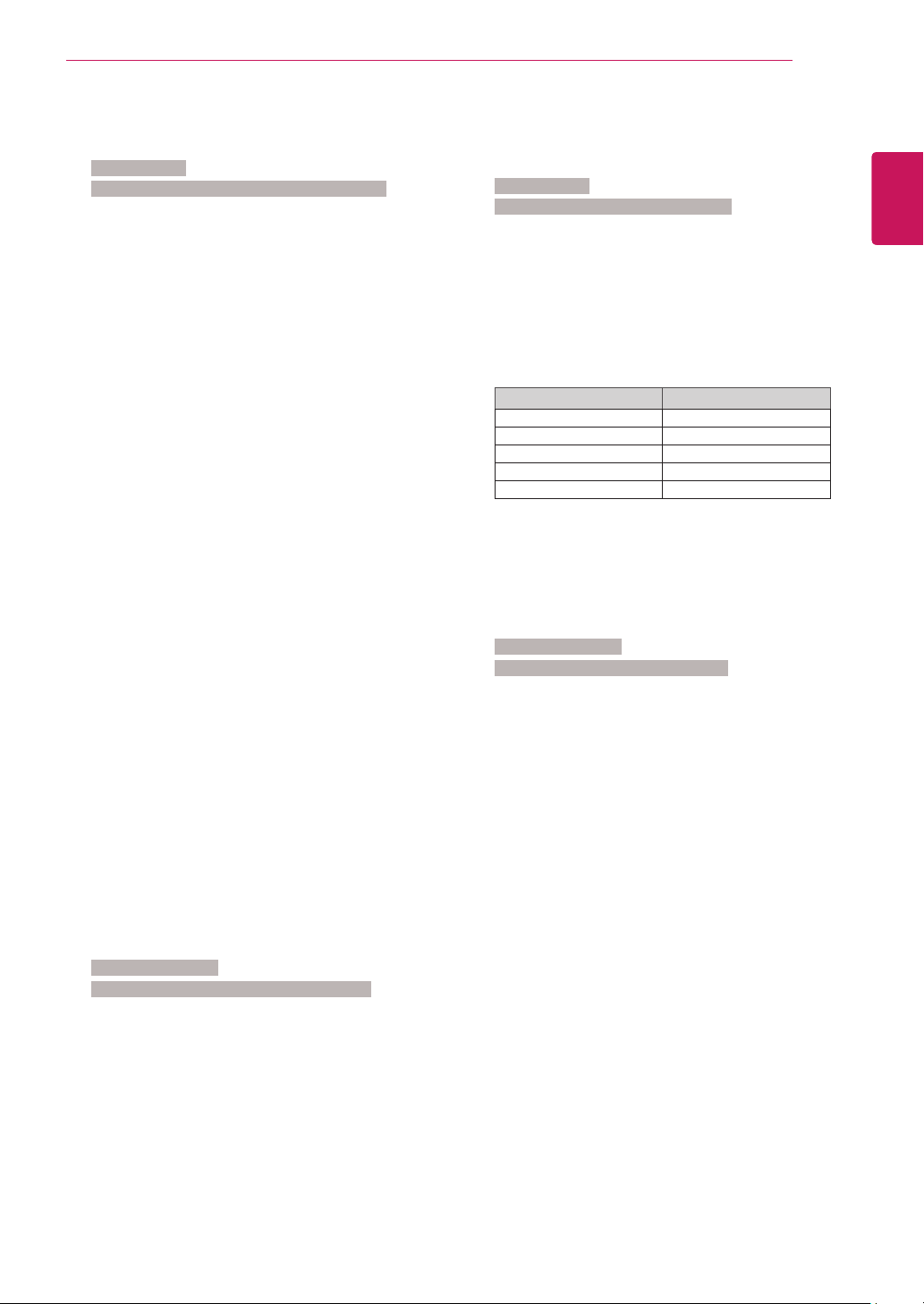
59
ENG
ENGLISH
CONTROLLING THE MULTIPLE PRODUCT
37. Off Timer (On/Off Timer) Time (Command: f e)
Set Off Timer.
Transmission
[f][e][ ][Set ID][ ][Data1][ ][Data2][ ][Data3][Cr]
[Data 1]
1. f1h to f4h(read one index)
f1: read 1st index of Off Time List,
f2: read 2nd index of Off Time List
f3: read 3rd index of Off Time List
f4: read 4th index of Off Time List
2. e1h to e4h(delete one index), e0h(delete all
indexes)
e0: delete all indexes of Off Time List
e1: delete 1st index of Off Time List
e2: delete 2nd index of Off Time List
e3: delete 3rd index of Off Time List
e4: delete 4th index of Off Time List
3. 01h to 80h (write) (Day of Week)
bit0 (01h) : Monday
bit1 (02h) : Tuesday
bit2 (04h) : Wednesday
bit3 (08h) : Thursday
bit4 (10h) : Friday
bit5 (20h) : Saturday
bit6 (40h) : Sunday
bit7 (80h) : Everyday
(1fh) : Monday to Friday
(3fh) : Monday to Saturday
(60h) : Saturday to Sunday
[Data 2]
00h to 17h (Hours)
[Data 3]
00h to 3bh (Minutes)
*When you read/delete the current on time list, all of
[Data2][Data3] are have to be FFH.
(ex1: fd 01 f1 ff ff - when you read 1st index of Off
Time List
ex2: fd 01 e1 ff ff - when you delete 1st index of Off
Time List
ex3: fd 01 3f 02 03 - when you write one Off Time
Data, "Monday to Saturday, 02:03")
Acknowledgement
[e][ ][Set ID][ ][OK][Data1][Data2][Data3][x]
38. Scheduling Input select (Command: f u) (Main
Picture Input)
To select input source for Set depending on day.
Transmission
[f][u][ ][Set ID][ ][Data1][ ][Data2][Cr]
[Data 1]
1. f1h to f4h(write/read one index)
f1: read 1st index of Scheduling Input
f2: read 2nd index of Scheduling Input
f3: read 3rd index of Scheduling Input
f4: read 4th index of Scheduling Input
[Data 2]
Input
Data(Hex) Input
02 AV(CVBS)
04 Component
07 RGB - PC
08 HDMI/DVI - HD - DVD
09 HDMI/DVI - PC
*When you read/delete the current Scheduling Input,
[Data2] needs to be FFH.
(ex1: fu 01 f1 ff - when you read 1st index of
Scheduling Input.
ex2: fu 01 f3 02 - when you write one Scheduling
Input Data in to 3rd index, "AV(CVBS)")
Acknowledgement
[u][ ][Set ID][ ][OK][Data1][Data2][x]

60
ENG
ENGLISH
CONTROLLING THE MULTIPLE PRODUCT
39. Sleep Time (Command: f f)
Set Sleep Time.
Transmission
[f][f][ ][Set ID][ ][Data][Cr]
Data 00 : Off
01 : 10
02 : 20
03 : 30
04 : 60
05 : 90
06 : 120
07 : 180
08 : 240
Acknowledgement
[f][ ][Set ID][ ][OK/NG][Data][x]
40. Auto Sleep (Command: f g)
Set Auto Sleep.
Transmission
[f][g][ ][Set ID][ ][Data][Cr]
Data 00 : Off
01 : On
Acknowledgement
[g][ ][Set ID][ ][OK/NG][Data][x]
41. Power On Delay (Command: f h)
Set the schedule delay when the power is turned on
(Unit: second).
Transmission
[f][h][ ][Set ID][ ][Data][Cr]
Data : 00H to 64H (Data value)
* Refer to 'Real data mapping ’. See p.53
Acknowledgement
[h][ ][Set ID][ ][OK/NG][Data][x]
42. Language (Command: f i)
Set the OSD language.
Transmission
[f][i][ ][Set ID][ ][Data][Cr]
Data 00 : English
01 : French
02 : German
03 : Spanish
04 : Italian
05 : Portuguese
06 : Chinese
07 : Japanese
08 : Korean
09 : Russian
Acknowledgement
[i][ ][Set ID][ ][OK/NG][Data][x]
43. DPM Select (Command: f j)
Set the DPM (Display Power Management) function.
Transmission
[f][j][ ][Set ID][ ][Data][Cr]
Data 00 : Off
01 : On
Acknowledgement
[j][ ][Set ID][ ][OK/NG][Data][x]
44. Reset (Command: f k)
Set the DPM (Display Power Management) function.
Transmission
[f][k][ ][Set ID][ ][Data][Cr]
Data 00 : Picture Reset
01 : Screen Reset
02 : Factory Reset
Acknowledgement
[k][ ][Set ID][ ][OK/NG][Data][x]

61
ENG
ENGLISH
CONTROLLING THE MULTIPLE PRODUCT
45. Power saving (Command: f l)
To set the Power saving mode.
Transmission
[f][l][ ][Set ID][ ][Data][Cr]
Data 00 : Off
01 : static level 1
02 : static level 2
03 : static level 3
Acknowledgement
[l][ ][Set ID][ ][OK/NG][Data][x]
46. Power Indicator (Command: f o)
To set the LED for Power Indicator
Transmission
[f][o][ ][Set ID][ ][Data][Cr]
Data 00 : Off
01 : On
Acknowledgement
[o][ ][Set ID][ ][OK/NG][Data][x]
47. Serial no.Check (Command: f y)
Check the Serial no.
Transmission
[f][y][ ][Set ID][ ][Data][Cr]
Data FF (to read the serial numbers)
Acknowledgement
[y][ ][Set ID][ ][OK/NG][Data1] to [Data13][x]
* The data format is ASCII Code.
48. S/W Version (Command: f z)
Check the software version.
Transmission
[f][z][ ][Set ID][ ][Data][Cr]
Data FFH : Read
Acknowledgement
[z][ ][Set ID][ ][OK/NG][Data][x]
49. Input Select (Command: x b)
To select input source for the Set.
Transmission
[x][b][ ][Set ID][ ][Data][Cr]
Data 20H : AV(CVBS)
40H : Component
60H : RGB(PC)
90H : HDMI/DVI(DTV)
A0H : HDMI/DVI(PC)
Acknowledgement
[b][ ][Set ID][ ][OK/NG][Data][x]
Data 20H : AV(CVBS)
40H : Component
60H : RGB(PC)
90H : HDMI/DVI(DTV)
A0H : HDMI/DVI(PC)
Make sure to read the Safety Precautions
before using the product.
Keep the Owner's Manual(CD) in an accessible
place for future reference.
The model and serial number of the SET is
located on the back and one side of the SET.
Record it below should you ever need service.
MODEL
SERIAL
Temporary noise is normal when powering ON or
OFF this device.