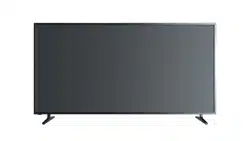
USER MANUAL for TV
Connecting Devices to your TV
You have several options for connecting your TV to different devices. The method you choose will be based upon the type of cables you have and the available outputs on your device.
Connecting an antenna, cable set-top box or satellite receiver
To connect an antenna,cable set-top box or satellite receiver:
1. Connect one end of a coaxial cable (not included) to the RF OUT port on the antenna, cable or satellite box. If you are using an antenna with twin-lead cable, you may need a 300-75 Ohm adapter (not provided) to connect it to the back of your TV. Likewise, if you are using several antennas, you may need a combiner (not provided).
2. Connect the other end of the cable to the ANT/CABLE port on the side of TV.
3. Using your remote, select the  Inputs icon in Home screen and select Channels as the input source.

Connecting a satellite receiver, DVD player or other audio visual (AV) devices with a composite video cable (yellow/white/red)
To connect an AV device with a composite video cable (not provided):
1. Use the audio and video cables to connect the composite video/audio ports of the external AV device to the AV IN ports of the TV. (Video = yellow, Audio Left = white, and Audio Right = red)
2. Plug the connected devices into the AV connectors on the TV before switching it on.
3. Using your remote, select the Inputs icon in Home screen and select Composite as the input source.

Connecting an AV device with an HDMI cable
The high-powered HDMI version 2.0 inputs enable you to connect 4K Ultra-HD external devices, and have a better experience when connected to the HDMI port. For example, if you have an X-box or Blu-ray player that supports the 2.0 standard, more details will be transmitted to the TV screen to maximize your entertainment experience.
Please refer to the User Manual that came with your device for step-by-step instructions.
To connect an AV device with an HDMI cable (not provided):
1. Use an HDMI cable to connect the HDMI output port of the AV device to the HDMI port of the TV.
2. Plug the connected devices into the HDMI port on the TV before switching it on.
3. Using your remote, select the Inputs icon in Home screen and select the corresponding HDMI input.

NOTES
• Because the HDMI connector provides video and audio signals, it is not necessary to connect an audio cable.
• We strongly recommend to use HDMI Cable with 2 cores as shown in the figure.
Connecting a headphone
You can connect headphone (not provided) to the HEADPHONE port on your TV. While the headphone is connected, the sound from the built-in speakers will be disabled.

NOTES
• Headphones with microphones are not supported.
• If "Headphone with Speakers" in the sound menu is selected manually, the headset and the whole machine will have sound at the same time.
Connecting a USB device
You can connect the USB devices such as hard drives, USB sticks and digital cameras for browsing photos, listening to music and watching recorded videos.
1. Connect a USB device into the USB port.
2. Select the content you want to play or view. For more information, see Media on page 32.

NOTES
• When connecting a hard disk or a USB hub, always connect the mains adapter of the connected device to the power supply. Exceeding a total current consumption may result in damage. The USB1.1 and USB2.0 devices maximum current consumption are 500mA.
• For individual non-standard high-capacity mobile hard disk, if its impulse current is greater than 500mA, it may cause TV-rebooting or self-locking. So the TV does not support it.
• The USB port supports a voltage of 5V.
Connecting speakers or other audio receivers
To connect speakers or other audio receivers with an audio cable (not provided):
1. Use an audio cable to connect the digital audio in port of the audio receiver device to the DIGITAL AUDIO OUT port of the TV.
2. Plug the connected devices into the main power socket before switching on the TV.

TIP: If you prefer to use Audio Return Channel, then see Connecting a digital sound bar to use Audio Return Channel (ARC) on page 8.
NOTES
• When a digital audio system is connected to the DIGITAL AUDIO OUT port, decrease the TV and system volume.
• You can connect the DIGITAL AUDIO OUT port on the back of the TV to the Optical port on the Amplifier. Then go to the Settings / Menu > Sound > Advanced Settings > Digital Audio Out to select Dolby Digital to receive the Dolby Digital audio.
Connecting a digital sound bar to use Audio Return Channel (ARC)
If you’d like to use the Audio Return Channel (ARC) feature to have sound sent from the TV back down an HDMI cable to a digital sound bar, then you will need to connect the cable to the HDMI / ARC port. By using this feature, you will also be able to control the sound bar with your TV remote instead of using multiple remotes for each device.
To connect a digital sound bar with an HDMI cable (not provided):
1. Connect the cable that’s attached to the sound bar to the HDMI / ARC port on the TV.
2. Turn on the sound bar by pressing the Power button.
3. Press the  button on your remote and select the
 Settings icon, then go to Sound > Audio Output.

NOTES
• Only digital sound bars that require a wired connection are compatible with the TV.
• If the device has an Input Selector feature then make sure to change it to TV.
• 5.1 CH (channel) audio is available when the TV is connected to an external device that supports a 5.1 channel surround sound. You can go to the Settings / Menu > Sound > Advanced Settings > Digital Audio Out to select Dolby Digital Plus to receive the 5.1 channel audio. You will need to also go into the sound or audio settings of your device to ensure it is set to 5.1 Channel output. It may read ‘Bitstream’, ‘RAW’ or ‘Digital’.
Connecting Your TV to a Wireless or Wired Network
You have the option to connect your TV to a wireless or wired network to access the Internet. For more information about the network settings on TV, see Network & Internet on page 25.
Connecting to a wireless network
Our built-in wireless LAN adapter supports the IEEE 802.11 ac/b/g/n communication protocols and we recommend that you use an IEEE 802.11n or IEEE 802.11ac router. When you play a video over an IEEE 802.11 b/g connection, the video may not play smoothly.

NOTES
• You must use the built-in Wireless LAN Adapter to use a wireless network because the set does not support an external USB network adapter.
• To use a wireless network, your TV must be connected to a wireless IP sharer. If the wireless IP sharer supports Dynamic Host Configuration Protocol (DHCP), your TV can use a DHCP or static IP address to connect to the wireless network.
• Select a channel for the wireless IP sharer that is not currently being used. If the channel set for the wireless IP sharer is currently being used by another device nearby, this will result in interference and communication failure.
• If you apply a security system other than the systems listed below, it will not work with the TV.
• If Pure High-throughput (Greenfield) 802.11N mode is selected and the Encryption type is set to WEP, TKIP or TKIP-AES (WPS2 Mixed) for your Access Point (AP), then the TV will not support a connection in compliance with these Wi-Fi certification specifications.
• If your access point (AP) supports Wi-Fi Protected Setup (WPS), you can connect to the network via Push Button Configuration (PBC) or PIN (Personal Identification Number). WPS will automatically configure the SSID and WPA key in either mode.
Connecting to a wired (Ethernet) network
You can attach your TV to your LAN in one of the three following ways:
You can attach your TV to your LAN by connecting the LAN port on the back of your TV to an external modem using a Cat 5 LAN cable. See the illustration below.

You can attach your TV to your LAN by connecting the LAN port on the back of your TV to an IP Sharer which is connected to an external modem. Use an Ethernet cable for the connection. See the illustration below.

Depending on how your network is configured, you may be able to attach your TV to your LAN by connecting the LAN port on the back of your TV directly to a network wall outlet with an Ethernet cable. See the diagram below.

If you have a Dynamic Network, you should use an ADSL modem or router that supports Dynamic Host Configuration Protocol (DHCP). Modems and routers that support DHCP automatically provide the IP address, subnet mask, gateway, and DNS, so you don’t have to enter them manually. Most home networks are Dynamic Networks.
Some networks require a Static IP address. If your network requires a Static IP address, you must enter the IP address, subnet mask, gateway, and DNS values manually on your TV’s Cable Setup Screen when you set up the network connection. To get the IP address, subnet mask, gateway and DNS values, contact your Internet Service Provider (ISP).
NOTE
• You can use ADSL modems that support DHCP if your network requires a static IP address. ADSL modems that support DHCP also let you use static IP addresses.
Using Your TV Remote Control

NOTES
• The included remote may vary depending on models/countries/regions.
• The buttons are only for reference, and actual remote may vary in appearance.
• The remote supports both infrared and Bluetooth connection mode.
Remote control range information
The remote control can work at a distance of up to 26 feet in front of the TV set.
It can work at a 30 degree horizontal or vertical angle.
Begin using your remote
1. Slide the back cover to open the battery compartment of the remote control.
2. Insert two AAA size batteries. Make sure to match the (+) and (-) ends of the batteries with the (+) and (-) ends indicated in the battery compartment.
3. Replace the battery compartment cover.
NOTES
• Discard batteries in a designated disposal area. Do not throw them into a fire.
• Remove old batteries immediately to prevent them from leaking into the battery compartment.
• If you do not intend to use the remote control for a long time, remove the batteries.
• Battery chemicals can cause a rash. If the batteries leak, clean the battery compartment with a cloth. If chemicals touch your skin then wash it immediately.
• Do not mix old and new batteries.
• Do not mix alkaline, standard (carbon-zinc) or rechargeable (NiCd, NiMH, etc.) batteries.
• Do not continue using the remote if it gets warm or hot.
• Call our Support Center immediately on the support website.
Pairing the Remote Control
1. Pair the remote to the TV after you power it on. Keep the remote control within 10 feet from the TV. Press and hold the [ ] button at least 3 seconds to start pairing.
2. If the remote paired successfully then a confirmation will display on the screen. If it did not pair successfully then an unsuccessful message will display. Repeat step 1.
NOTES
• If an unknown error occurred with the remote then it could have been caused by interference. Try to remove what's causing the interference and pair it again.
• If an unknown error occurred in the remote control while the battery power is normal, you can take out the batteries and press any key for 1~2 seconds, then the remote control can work normally.
• The remote cannot be paired to the TV while the TV is in standby mode.
Other
Program your universal cable or satellite remote control to operate your new television (only for USA)
If you would like to program your other household remote controls to your new television,please refer to the User’s Manual supplied by your Cable or Satellite provider. The Cable or Satellite providers’ User’s Manuals should include instructions on how to program their remote to your television.
A list of codes for the most common Cable and Satellite providers are listed below. Use the code that is associated with your Cable or Satellite provider (if applicable).
DIRECTV
0178, 10178, 10019, 10748, 11314, 11660, 11710, 11780, 12049, 10171, 11204, 11326, 11517, 11564, 11641, 11963, 12002, 12183
Time Warner Cable
386, 0178, 10178, 400, 450, 461, 456, 0748, 1463, 0463, 10463
Comcast
0178, 10178, 10463, 11463, 10748, 11314, 11660, 10171, 11204, 11326, 11517, 11641, 11780, 11785, 11892, 11963, 12002
Cox Communications
0178, 10178, 1326, 1463 Dish Network 505, 627, 538, 720, 659 If the code associated with your Cable or Satellite provider is not listed, does not work or you cannot locate the instructions to program your remote, call your local Cable or Satellite provider’s customer service center.
If your Cable or Satellite provider does not have a code available, please contact us.
Using your cable set-top box or satellite receiver remote as a ‘universal’ remote
If you prefer to use your Cable Set-top Box or Satellite Receiver Remote as a ‘universal’ remote, visit the Support page to view a list of the codes.
Plug the power cord into an AC outlet, the TV will turn on.
After the splash screen that displays the logo appears, begin the Setup Wizard menu.
The guide setting is completed according to the boot navigation prompt. The navigation information is specific to the actual condition.
The Home screen will be your starting point for navigating the TV.
Shortcuts Instructions
You can use shortcuts on the remote control for fast operation.
Turning your TV on or off
To turn your TV on:
1. Connect the power cord to the back of the TV, then plug the power cord into an AC outlet.
2. When the TV is powered on, press the [ ] button on the remote to turn on TV.
- To turn your TV off, press the [ ] button on the remote.
- Only for models with far-field Google Assistant Google Assistant Enabled:
Power ON / Screenless Mode (quick press) / Power Off (long press) Google Assistant Disabled:
Power ON / Standby (quick press) / Power Off (long press)
Please refer to Screenless Mode (only for models with far-field Google Assistant) on page 28
NOTES
• When your TV is in standby mode, it is still consuming power. To completely disconnect power, please remove the plug from the AC outlet.
• If your TV does not receive an input signal for several minutes, it automatically goes into standby mode.
Using the Live TV
To view broadcast programs, press the button on your remote, select the Inputs icon in Home screen and Channels as the input source.
Channel search guide
When you select Channels as input, if no TV channels were saved before, you will be prompted to do a channel search. You can also go to Menu > Channels to change the channel settings.
Launch Live TV
After channel scaning is done for the first time, the screen will display LiveTV operating tutorial, including: how to Load info Bar, how to load the channel list and so on.
Press the UP button to view channel and program information.
Press the OK button to view Channel List Press the MENU button to configure settings of broadcast TV.
Press the BACK button to return to the channel last viewed.
Viewing channel information
As you use the  button on your remote to scroll through channels, an information banner appears on the top of the screen.

The information banner displays the following information:
1. Channel number
2. Lock status
3. Input
4. Program name
5. Show identification
6. Channel name
7. Current date and time
8. Beginning and end time of the next program
9. Start/Stop time progress bar of the current program
10. Prompt
11. Favorite channel
If you are watching a particular channel, you can also press the [ Up ] button of your remote to view channel information.
Viewing a channel list
After you have done an automatic channel scan (if you’re using an antenna) or receiving your channels through a cable provider, you can view your list of channels by pressing [OK] on your remote.
You will see the channel list display on the right side of the screen.
Creating a Favorite List
To quickly access your most-watched channels, you can create a Favorite List in one of two ways.
• The first way is to create your Favorite List in Menu:
1. Press the [ ] button to access the Menu in Channels source.
2. Select Channels > Favorite List.
3. Using the [Up / Down] buttons of your remote, select a channel and press [OK] button.
• The second way is to create your Favorite List in channel list:
1. Press the [OK] button to call out the channel list in Channels source.
2. Select a channel and add it by using the Special function buttons on your remote.
A heart-shaped indicator will appear beside the channel as confirmation that it has been successfully added.
Viewing your Favorite list
To view channels that you’ve added to your Favorite List simply press [OK] on your remote to call out the channel list. The channel list appears on the right side of the screen and heart-shaped icons are shown next to the channels that make up your Favorite List. You can press the [ Left / Right ] buttons to switch the channel list (ANTENNA or CABLE) , FAVORITE and HISTORY list.
Using shortcuts
Google Assistant
You can press the [ ] button to turn on your Google Assistant, use your voice to ask it questions, tell it to do things.
Closed Caption (CC)
You can switch among Off, On and On when mute.
Audio Language (MTS)
You can choose the audio language in DTV mode and you can set MTS for Mono, Stereo or SAP in ATV mode.
Home
Getting familiar with the Home screen
The simple design of the Home screen menu makes it easy to navigate. And you can easily add or delete applications in the Home interface according to your needs.
To access the Home screen, press the [] button on your remote control and use the D-pad to make your selection.
Indicators and Icons on the top of the Home screen
- Google Assistant: You can search movies, TV, and more by speaking.
- Google Search: You can search movies, TV, and more by typing.
- Notifications: Notifications can come from the system, an external device, an application, the media player etc.
- Inputs: Select the Input source depending on the device you have connected to your TV.
- Network & Internet: You can set up the Network & Internet.
- Settings: Settings lets you configure the TV, set app options, add accounts, and change other preferences.
- Time: You can always view the current time at the top right corner of the Home screen.
Names of sections that appear on the Home screen
The Home screen displays the following section names:
• Apps
• Feature Apps
• Recommended content
Your TV comes with many TV setting features to allow you to customize the picture based on your viewing preference and environment. As you navigate throughout different screens to access settings, some of the indicators appear as words On and Off.
Using the Menu
You can press the [ ] button to access the Menu in TV mode. The Menu consists of the following settings:
• Picture
• Sound
• Channels
• Parental Control
• Live TV Closed Captioning
• Audio Language(MTS)
• Audio Only
• Sleep Timer
• Settings
• Help
In each menu, you can:
- Press the [Up / Down] buttons to select an item.
- Press the [OK] buttons to enter the sub-menu or to set on or off.
- Press the [Left / Right] buttons to adjust the value.
- Press the [
 ] button to return to the previous menu.
Picture
- Backlight: Adjust Local Dimming, Backlight Level, Automatic Light Sensor and Minimum Backlight to change the overall brightness of the screen.
- Local Dimming: Enable the TV to automatically adjust the backlight by sections according to the changes in the image and increase the contrast.
NOTE
• Some models don’t support this function.
• Backlight Level: Adjust how bright you want images to appear, lower settings create darker images.
• Automatic Light Sensor: Enable the TV to automatically adjust the picture settings according to the amount of ambient light in you room.
NOTE
• Some models don’t support this function.
• Minimum Backlight: Adjust the lower point of the dynamic backlight adjustment scope. This is a money-saving feature because it reduces power consumption.
NOTE
• Some models don’t support this function.
- Picture Mode: If you’d like to configure the settings for your picture, then there are seven types of picture modes available: Vivid, Standard, Energy Saving, Game, Sports, Theater Day, Theater Night and FILMMAKER MODE. Picture mode options may vary depending on models.
Low Blue Light
Theater Day and Theater Night are designed to reduce the level of blue light to protect your eyes.
You can press the [ ] button to access the Menu in TV mode. Go to Picture > Picture Mode, and select Theater Day/Theater Night.
To reduce the eye strain and protect eyes when you watch TV for a period of time, you are suggested to:
• Take regular and frequent breaks to avoid watching TV for a long period of time. Long time of watching may cause you eye fatigue. It is not recommended to watch TV for more than one hour.
• Look away from the TV screen and look at distance objects during the breaks for at least 10 minutes for eye care.
• Relax yourself during a break by doing eye exercises or outdoor activities.
• The best recommended viewing distance is 3 times the vertical height of the TV screen.
Proper breaks and exercises are proved excellent help to relieve eye strain and fatigue.
This feature may not be applicable in some models/countries/regions. Low blue light certification may vary by model.
Once you choose the mode, you can adjust the picture based on the following settings:
- Contrast: Adjust the Contrast level to increase or decrease how bright images appear.
- Brightness: Adjust the Brightness level to generate lighter or darker images.
- Color: Adjust the color intensity of the picture for a more vibrant image.
- Tint: Adjust the colors from a green to magenta tint to view the natural skin tones of people on the screen.
- Sharpness: Adjust how sharp or soft edges of images appear.
- Picture size: Adjust the Aspect Ratio to stretch or zoom in on your picture. You can choose from the following settings: Auto, Normal, Zoom, Wide, Direct, Dot-by-dot, Panoramic or Cinema.
- HDMI 2.0 format: Match the connected device output format. You can select Standard format and Enhanced format in HDMI mode. Enhanced format for devices of 4K@50/60Hz (YCbCr4:4:4, YCbCr4:2:2).
- Advanced Settings: Adjust advanced picture settings based on your viewing preference.
- Overscan: Change the video size settings to slightly crop the edges of the displayed image.
- Color Temperature: Select a preset color temperature. Adjust how warm(red) or cool(blue) the white areas of an image appears.
- Motion Enhancement: This setting minimizes afterimages that are left on the screen when viewing fast-moving objects. You can adjust it from Off, Custom, Film, Clear, Standard or Smooth. A Smooth setting will produce a smoother picture whereas a Clear setting will result in a picture that has less judder (shaking).
NOTE
- Some models don’t support this function.
- Motion Clearness: Improve how clear the picture appears when viewing.
- Noise Reduction: Improve how clear the picture appears by reducing noise.
- Digital Noise Reduction: Improve picture clarity by reducing video noise.
- HDMI Dynamic Range: Adjust the HDMI signal range to be more suitable for the content.
- Active Contrast: Automatically darken dark areas and lighten light areas of images to see more details.
- Enhanced Viewing Angle: Improve your viewing angle.
NOTE
- Some models don’t support this function.
- Content Type Auto Detection: Turn on or off the Content Type Auto Detection.
- Color Space: Change the range of colors the TV displays.
NOTE
• Some models don’t support this function.
- Calibration Settings: Adjust the color space and Gamma to best suit the content you're viewing.
- Color Tuner: Adjust the Hue, Saturation and Brightness of color settings.
- White Balance: Adjust the intensity of red, green and blue lights to view the true colors of all images in the picture.
- Gamma: Adjust the Gamma to choose how the TV will respond to the content grayscale. In a dark room choose a Higher number. In a brighter area select a Lower number.
NOTE
• Some models don’t support this function.
• Gamma Calibration: Adjust selected Gamma curve.
• RGB only: View images based on default settings or choose the color red,blue or green.
- Apply Picture Settings: Adjust current picture mode to apply to All Sources or just Current Source.
- Reset: Reset current picture settings to factory mode.
Sound
- System sounds: Open the default system sound.
- Sound Mode: Select a preset sound mode to suit the type of content you are listening to: Standard, Theater, Sports, Music, Speech and Late Night. Sound mode options may vary depending on models.
Once you choose the mode, you can adjust the audio based on the following settings:
- Audio Output: Select the speakers which you want to use: TV Speaker, ARC or Bluetooth.
- TV Speaker: Turn on or off the TV speaker. If ARC or Bluetooth is selected in Audio Output, configuration here is unavailable.
- Dolby Atmos: You can turn on the Dolby Atmos On.
- Wall Mount Setup: Automatically optimize the sound based on the position of the TV.
- Advanced Settings: Tune the audio settings and quality of the TV.
• Balance: Adjust the left and right speaker strength to optimize audio for a specific location.
• Auto Volume Control: Turn Auto Volume Control on or off.
• Digital Audio Out: Select the digital audio output format that best suits the audio device type.
• Digital Audio Delay: Adjust the digital audio output delay time to sync sound from an external speaker with the images on the TV.
• Lip Sync: Synchronize the displayed image with the audio output.
• Equalizer: Boost the volume at different frequencies.
• Preferred Audio Language: Set the default audio output language for the type of digital broadcast content that you’re viewing.
• Headphone Mode: Disable the TV speaker when you are using a sound bar, ARC or any other external audio amplifiers.
• Headphone Volume: Change the way audio is sent through the type of device that's connected to your TV Audio Out port.
- Reset: Reset current audio settings to factory mode.
Channels
- Tuner Mode: Select if you receive TV channels over the air (antenna) or through a cable set top box.
- Auto Channel Scan: Automatically scan for channels.
- Manual Scan: Type in a channel to add it manually to your TV.
- Channel Skip: Skip selected channels from your Channel List.
- Favorite List: Add Channels to your Favorite List.
Parental Control
The Parental Control setting allows you to block content that is not appropriate for children to watch.
Turning Parental Control On
1. Press the [OK] button on your remote to turn Parental Control on.
2. Create PIN window displays. Using the number buttons on your remote, create the password.
You will see the other Parental Control settings change from a greyed out state to highlighted. When this occurs, begin adding other settings to the Scheduled blocking, Channel Block, Program Block, Input Block, Change PIN or Reset features.
- Scheduled blocking: Block all selected channels and programs during selected periods of time.
- Channel Block: Block selected channels.
- Program Block: Block programs by ratings. For more information about Ratings, See Description of U.S. TV Ratings on page 22.
• Open V-Chip: Turn this On to automatically block programs based on the US rating.
• Block Unrated: Block or unblock unrated movies.
- Input Block: Block selected inputs.
- Change PIN: Change the PIN that you use to access Parental Control.
NOTE
• If you forget your password, call the Consumer Electronics Care Center.
- Reset: Reset Parental Control back to the factory setting.
Live TV Closed Captioning
- Closed Caption: You can switch between Off, On and On when mute in Channel mode. Analog Closed Caption: Select an Analog Closed Caption setting from Off, CC1-CC4, TEXT1-TEXT4.
• CC1-CC4: Closed Caption appears in a small banner across the bottom of the screen. CC1 is usually the “printed” version of the audio. CC2-CC4 display content provided by the broadcaster.
• TEXT1-TEXT4: Closed Caption that covers half or all of the screen. TEXT1-TEXT4 display content provided by the broadcaster.
• Off: To turn off the Analog Closed Caption.
- Digital Closed Caption: Select a Digital Closed Caption: Off, Service1-Service6.
- Digital Caption Style: There are two caption styles. One is the Auto, while the other is the Custom style where you can adjust the Font Size, Font Style, Font Color, Font Opacity, Background Color etc.
Audio Language (MTS)
You can choose the audio language in DTV mode and you can set MTS for Mono, Stereo or SAP in ATV mode.
Audio Only
When you select this option, the screen will not display the picture. You can only listen the audio. Press any button except the [ ] button, [  ] buttons and [
 ] button to restore operation.
Sleep Timer
Set the sleep timer to automatically turn the TV off within a specified time: off, 10 Minutes, 20 Minutes, 30 Minutes, 40 Minutes, 50 Minutes, 60 Minutes, 90 Minutes and 120 Minutes.
Settings
Settings lets you configure the TV, set app options, add accounts, and change other preferences. For more information about Settings, See Settings on page 25.
Help
- System message: View system message, including: Serial Number, Service Code, Software Version etc.
- Signal information: Display the sound and image information of the signal under the current channel.
Device Preferences
Amazon Alexa Service
Use your voice to control the TV, other smart home devices, and more.
- Amazon Alexa Service: Turn on and off Alexa service.
- Amazon Alexa Service Setup: Set up accounts to use Alexa service.
- Setup Checklist: Check the current settings of Alexa and guide the user to set up.
- Things to try: Show the main functions that the Alexa can support currently.
Date & time
- Automatic date & time: Use network-provided time. You can also set the current time manually when Off is selected.
- Set date: Set the date.
- Set time: Set the time.
- Set time zone: Select your time zone.
- Use 24-hour format: Set the time to display in a 12 or 24-hour format.
Timer
- Sleep Timer: Set the sleep timer to automatically turn the TV off within a specified time: off, 10 Minutes, 20 Minutes, 30 Minutes, 40 Minutes, 50 Minutes, 60 Minutes, 90 Minutes and 120 Minutes.
- Power On Timer Type: Set the type Off, Daily, Once.
- Power On Timer : Set the clock for the time you want the TV to turn on automatically.
- Power Off Timer Type: Set the type Off, Daily, Once.
- Power Off Timer : Set the clock for the time you want the TV to turn off automatically.
Language
Adjust the default Language settings for the TV.
Keyboard
Adjust the default settings for the keyboard.
Storage
You can view the TV storage.
Home screen
- Customize channels: Add or delete the app icon from Home screen.
- Enable video previews: Enables or disables the video previews.
- Enable audio previews: Enables or disables the audio previews.
- Reorder apps / Reorder games: Rearrange the Apps screen.
- Android TV Home / Android TV Core Services: See the information of open source software licences.
Usage Mode
Set the TV to use in Home, Store mode or Store mode with video.
Google Assistant
You can view permissions about accounts and limit the search results.
Screenless Mode (only for models with far-field Google Assistant)
Talk to the Google Assistant even when the screen is off.
In screenless Mode, the Google Assistant is always available to help even when the screen is not on. Just say “OK Google”.
This feature will affect standby power consumption. To turn it off, go to Settings > Device Preferences > Screenless Mode
NOTE
• The Google Assistant and some features are available on limited country/region/language.
Chromecast built-in (Chromecast Android Shell)
Enables you to extend your app to direct its streaming video and audio to the TV.
Screen saver
Enables Screen saver when the TV is idle.
Location
Your TV can use different modes to access location information. Each mode uses different sources to estimate the TV’s location.
Usage & Diagnostics
Help improve Android performance by automatically sending diagnostics information.
Setup assistant
Use the Setup assistant for instructions to help you set up your TV.
Send Diagnostics and Usage
Allow to send the diagnostics and usage of the report.
Enhanced Viewing
You can set Automatic Content Recognition, Picture Mode Auto Adaption, Sound Mode Auto Adaption, etc.
NOTE
• To use Enhanced Viewing, connect your TV to network first.
• This function is not available in some models/countries/regions, or in certain TV modes.
IP Control Port
Allow to turn on IP control port.
Power LED
Set the Power indicator light to stay On or Off when standby mode.
NOTE
• This function is not available in some models/countries/regions.
FAV/TV Button Customization
You can personalize FAV/TV remote button for quick access to customized input source.
NOTE
• This function is not available in some models/countries/regions.
Security & restrictions
Enables unknown sources, checking of apps installed for harmful behavior.
Accessibility
- Captions: Displays and sets the closed captions.
- Live TV Closed Captioning: Displays and sets the TV closed captions.
- High contrast text: Improves contrast for visually impaired.
- Video Description: Enables broadcasted descriptive audio for visually impaired.
- Video Description volume: Adjust the video description volume. TalkBack: Controls spoken feedback for visually impaired users.
- Switch Access: Switch Access can collect all of the text you type, except passwords. This includes personal data such as credit card numbers.
- Kpad: Kpad can collect all of the text you type, except passwords. This includes personal data such as credit card numbers.
NOTE
• This function is not available in some models/countries/regions.
- RemoteNow: RemoteNow can collect all of the text you type, except passwords. This includes personal data such as credit card numbers.
NOTE
• This function is not available in some models/countries/regions.
- Text to speech: Let you specify text-to-speech engine details and speech rate.
Reset
You can reset to the factory data.
Help
See system message and signal information.
Product Registration
Registering the TV with your contact information will keep you updated with related service information and marketing information.
For your convenience, there are two means to register your TV:
1. When you turning the TV on for the first time, connect your TV to network, sign in your Google account, and click on OK on the screen in the Register Your TV step, then your TV will be automatically registered with your logged in email address.
2. If you click on Skip in the Register Your TV step, a QR code will be generated for you to scan and complete the registration process on another smart device (cellphone, tablet...). You can also scan the QR code at Settings > Device Preferences > Product Registration to register your product.
About
You can view the version information, the status of network, and other information. You can also update the software version or change the TV's name.
Quick Problem-Solving Tips
When you experience an issue with your TV, turn it off and on again. If this does not resolve the problem, then refer to the tips below. If the problem is still not resolved, then contact us.
|
ISSUES
|
POSSIBLE SOLUTIONS
|
|
No sound or picture
|
• Check if the power cord is plugged into a powered AC outlet.
• Press the [ ] button on the remote control to activate the unit from ‘Standby’ mode.
• Check to see if the LED light is on or not. If it is, then the TV is receiving power.
|
|
I have connected an external source to my TV and I get no picture and/or sound
|
• Check for the correct output connection on the external source and for the correct input connection on the TV.
• Make sure you have made the correct selection for the input mode for the incoming signal.
|
|
When I turn on my TV, there is a delay for a few seconds before the picture appears. Is this normal?
|
• Yes, this is normal. The TV is initializing and searching for previous setting information.
|
|
The picture is normal but there is no sound
|
• Check the volume settings.
• Check if ‘Mute’ mode is set to On.
|
|
Sound but no picture or black and white picture
|
• If the picture is black and white, unplug the TV from the AC outlet and replug it after 60 seconds.
• Check that the Color is set to 50 or higher.
• Try different TV channels.
|
|
The sound and/or picture is distorted or appears wavy
|
• An electric appliance may be affecting the TV. Turn off any appliances that are nearby and move it farther away from the TV.
• Insert the power plug of the TV set into another power outlet.
|
|
The sound and picture is blurry or cuts out
|
• If using an external antenna, check the direction, position and connection of the antenna.
• Adjust the direction of your antenna or reset or fine tune the channel.
|
|
A horizontal or vertical stripe appears on the picture and/or the picture is shaking
|
• Check if there is an appliance or electric tool nearby that is causing interference.
|
|
The plastic cabinet makes a “clicking” type of sound
|
• The ‘click’ sound can occur when the temperature of the television changes.
This change causes the television cabinet to expand or contract, which makes the sound. This is normal and the TV is OK.
|
|
The remote control does not work
|
• Confirm that TV still has power and is operational.
• Change the batteries in the remote control.
• Check if the batteries are correctly installed.
|
NOTE
• For usage in Mexico , operation of this equipment is subject to the following two conditions : 1 ) it is possible that this device doesn’t cause any detrimental interference and 2 ) this device must take any kind of interference, including that which may cause its malfunctioning.