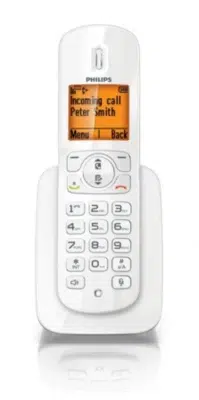
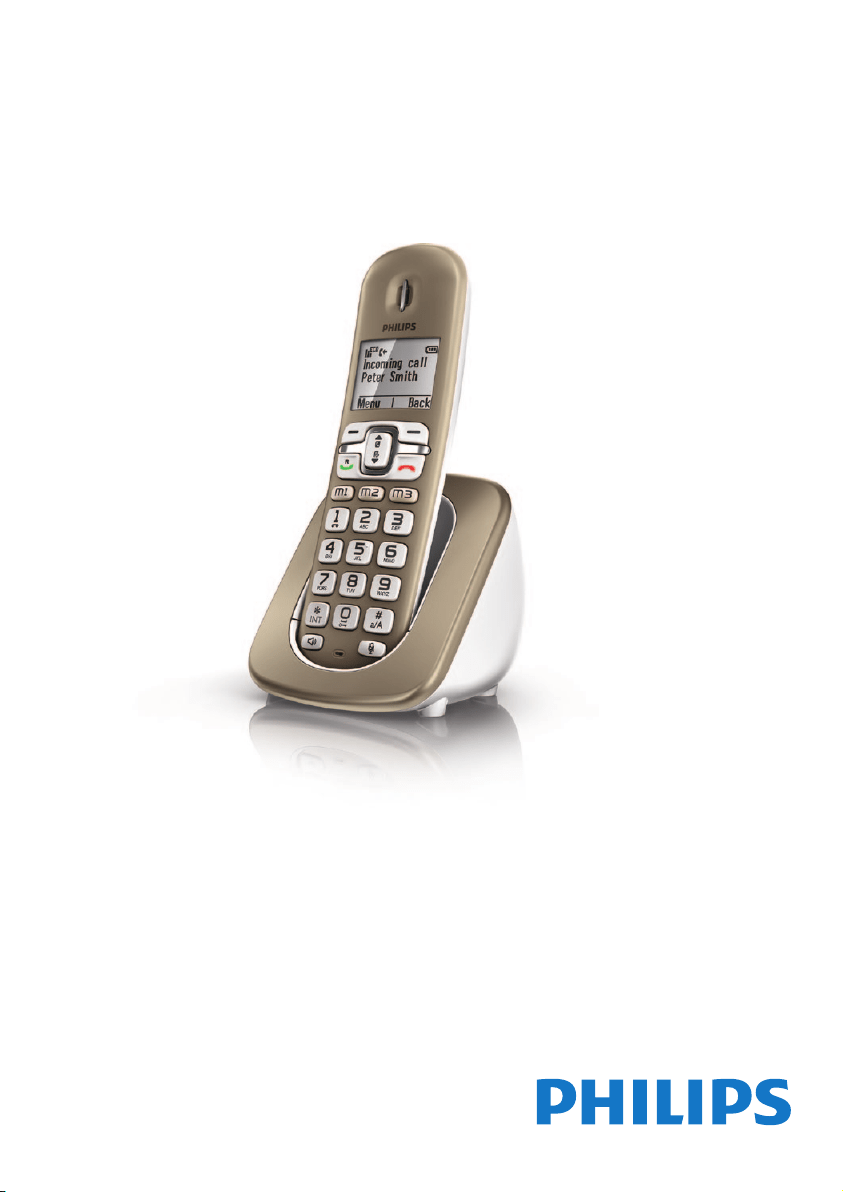
Register your product and get support at
www.philips.com/welcome
XL5950
User manual


English
EN 1
1 Important safety instructions 3
2 Your phone 4
What is in the box 4
Overview of the phone 5
Display icons 6
3 Get started 7
Connect the charger 7
Install the handset 8
Congure your phone (country
dependent) 8
Charge the handset 9
Check the battery level 9
What is standby mode? 9
Check the signal strength 9
4 Calls 10
Make a call 10
End a call 11
Answer a call 11
Adjust the earpiece/speaker volume 11
Mute the microphone 11
Turn the speaker on or off 11
Make a second call 11
Answer a second call 11
Switch between two calls 12
Make a conference call with external
callers 12
5 Intercom and conference calls 13
Make a call to another handset 13
Transfer a call 13
Make a conference call 14
6 Text and numbers 15
Enter text and numbers 15
Switch between uppercase and
lowercase 15
7 Phone settings 16
Sound settings 16
ECO mode 16
Name the handset 17
Set the backlight of the LCD screen 17
Set the date and time 17
Set the display language 17
8 Alarm clock 18
Set the alarm 18
Turn off the alarm 18
9 Services 19
Call list type 19
Auto conference 19
Network type 19
Auto prex 19
Select the recall duration 20
Dial mode 20
Register the handsets 20
Unregister the handsets 21
Restore default settings 21
10 Network services 22
Call forward 22
Call return 22
Call back service 23
Hide your identity 23
11 Technical data 24
12 Notice 25
Declaration of conformity 25
Use GAP standard compliance 25
Compliance with EMF 25
Disposal of your old product and
batteries 25
13 Frequently asked questions 27
Contents
Contents


English
EN 3
• Do not use any cleaning agents containing alcohol,
ammonia, benzene, or abrasives as these may harm
the set.
• Do not expose the phone to excessive heat caused by
heating equipment or direct sunlight.
• Do not drop your phone or allow objects to fall on
your phone.
• Active mobile phones in the vicinity may cause
interference.
About operating and storage temperatures
• Operate in a place where temperature is
always between 0°C to +40°C (up to 90%
relative humidity).
• Store in a place where temperature is
always between -20°C and +45°C (up to
95% relative humidity).
• Battery life may be shorter in low
temperature conditions.
1 Important safety
instructions
Power requirements
• This product requires an electrical supply of
100-240 volts AC. In case of power failure,
the communication can be lost.
• The voltage on the network is classied
as TNV-3 (Telecommunication Network
Voltages), as dened in the standard EN
60950.
Warning
•
The Electrical network is classied as hazardous. The
only way to power down the charger is to unplug the
power supply from the electrical outlet. Ensure that the
electrical outlet is always easily accessible.
To avoid damage or malfunction
Caution
•
Use only the power supply listed in the user instructions.
• Use only the batteries listed in the user instructions.
• Risk of explosion if battery is replaced by an incorrect
type.
• Dispose of used batteries according to the instructions.
• Always use the cables provided with the product.
• Do not allow the charging contacts or the battery to
come into contact with metal objects.
• Do not let small metal objects come into contact with
the product. This can deteriorate audio quality and
damage the product.
• Metallic objects may be retained if placed near or on
the handset receiver.
• Do not use the product in places where there are
explosive hazards.
• Do not open the handset, base station or charger as
you could be exposed to high voltages.
• For pluggable equipment, the socket-outlet shall be
installed near the equipment and shall be easily accessible.
• Handsfree activation could suddenly increase the
volume in the earpiece to a very high level: make sure
the handset is not too close to your ear.
• This equipment is not designed to make emergency
calls when the power fails. An alternative has to be
made available to allow emergency calls.
• Do not allow the product to come into contact with
liquids.
4 EN
User manual
Quick start guide
Note
•
* In some countries, you have to connect the line
adapter to the line cord, then plug the line cord into
the telephone socket.
4XLFNVWDUWJXLGH
2 Your phone
Congratulations on your purchase and welcome
to Philips!
To fully benet from the support that Philips
offers, register your product at www.philips.com/
welcome.
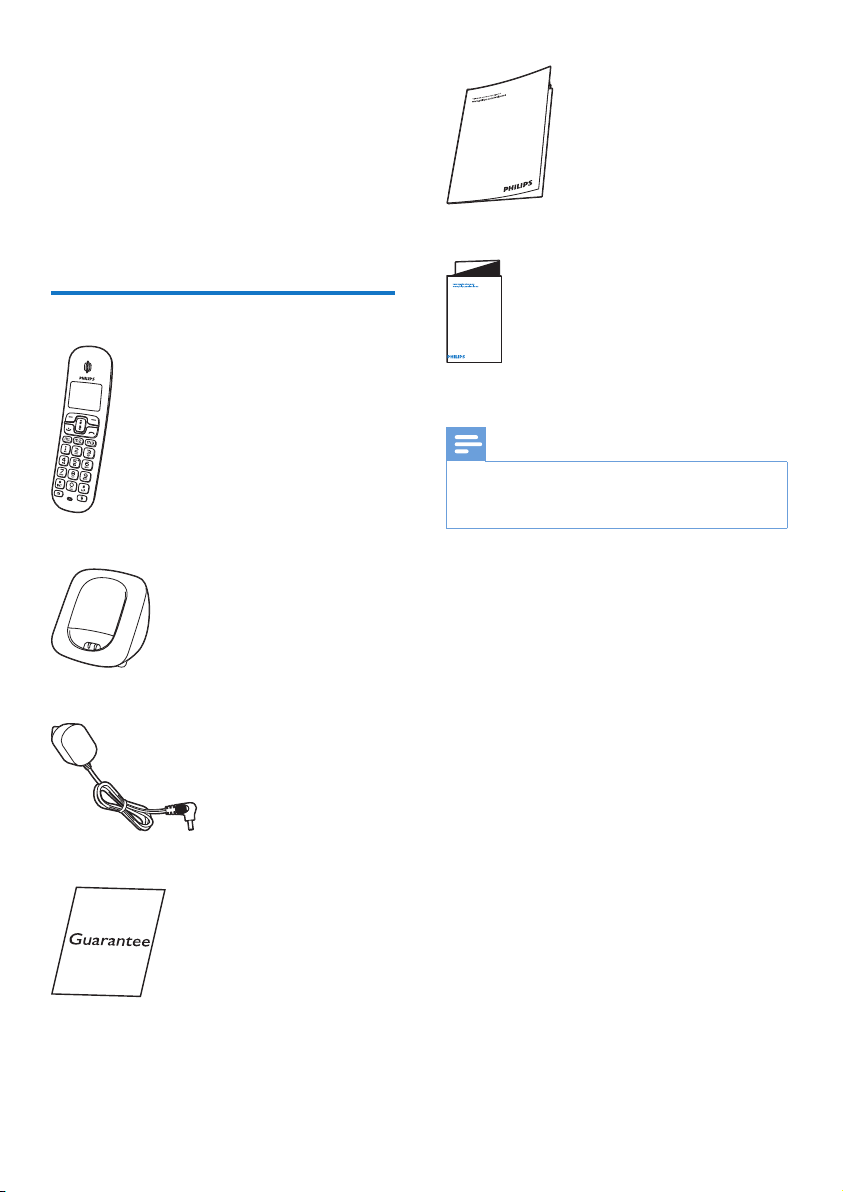
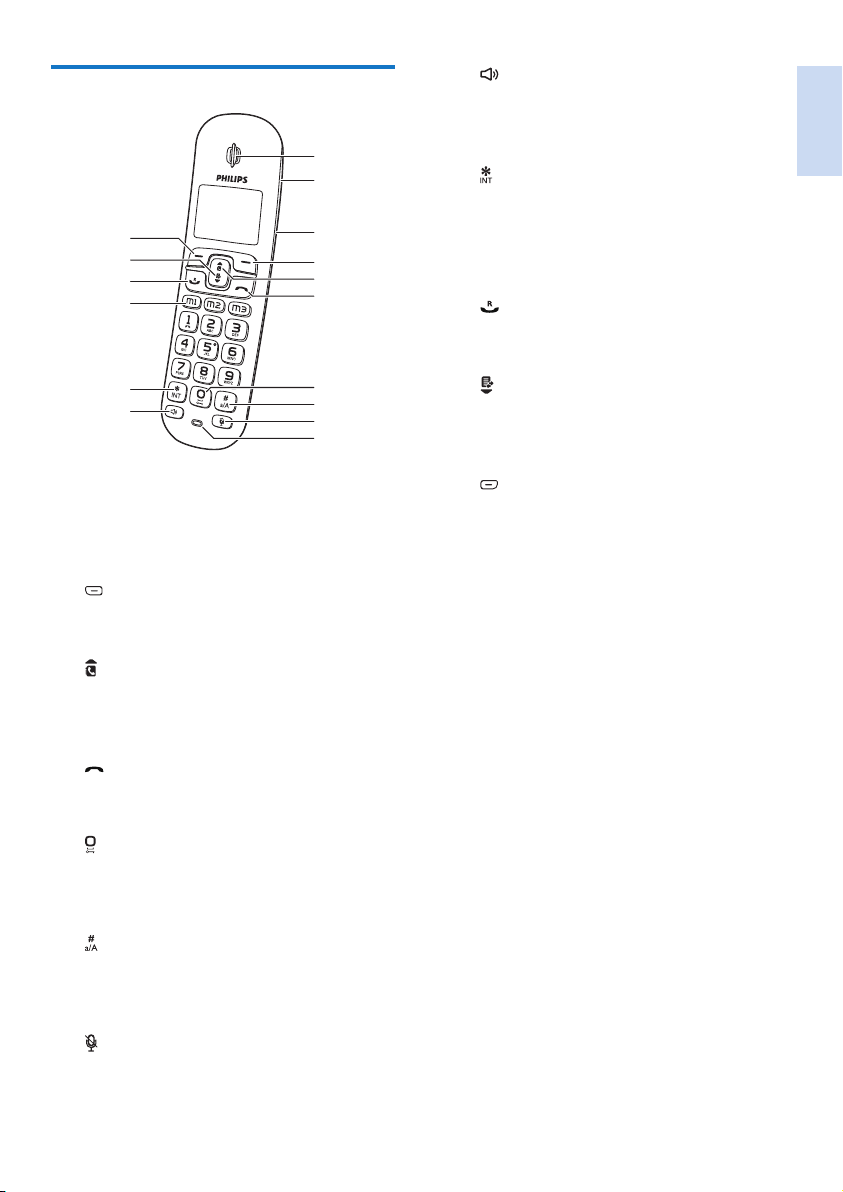
What is in the box
Handset**
Charger**
Power adapter**
Guarantee
English
EN 5
k
• Turn the speaker phone on/off.
• Make and receive calls through the
speaker.
l
Press and hold to make an intercom call
(for multi handset version only).
m M1/M2/M3
Save the call records for quick dial.
n
• Make and receive calls.
• Recall key
o
• Scroll down on the menu.
• Decrease the earpiece/speaker volume.
• Access the call log.
p
• Access the main menu.
• Conrm selection.
• Enter the options menu.
• Select the function displayed on the
handset screen directly above the key.
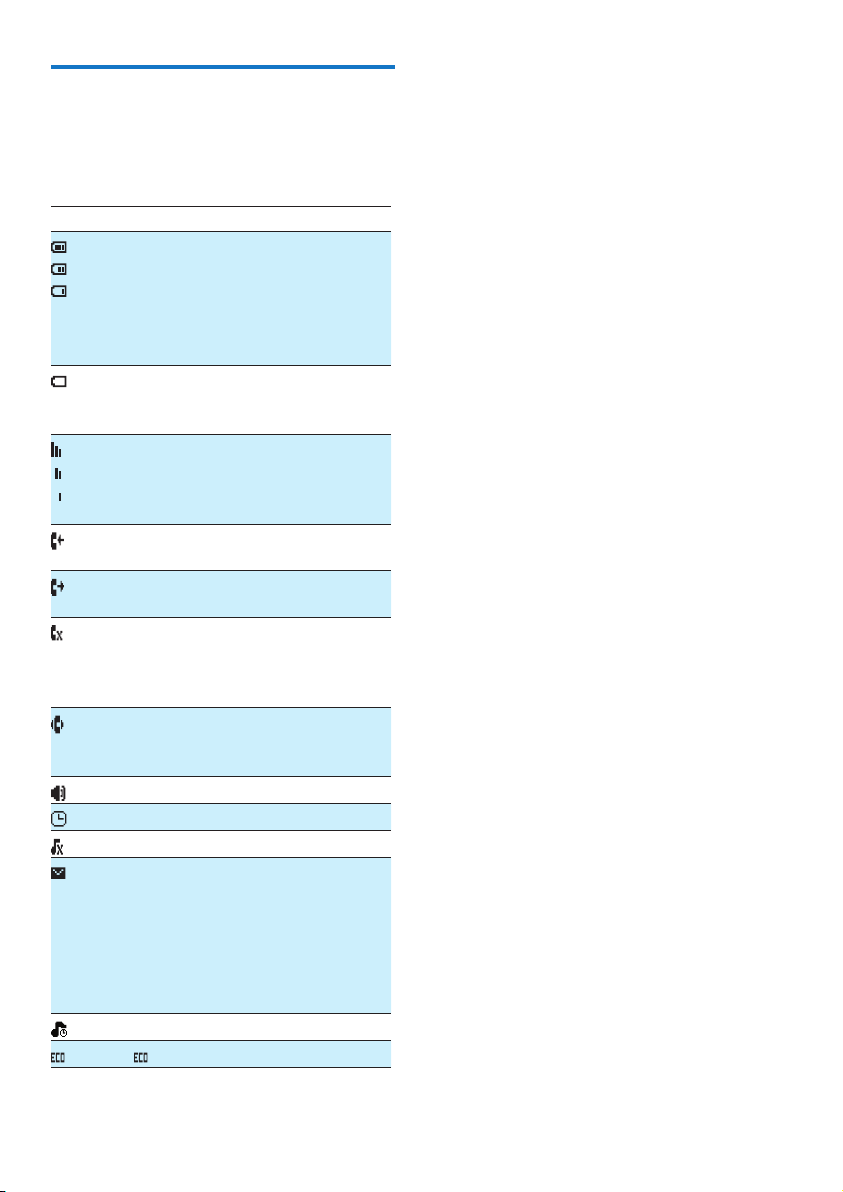
Overview of the phone
a Earpiece
b Loudspeaker
c Battery door
d
• Delete text or digits.
• Cancel operation.
e
• Scroll up on the menu.
• Increase the earpiece/speaker volume.
• Access the phonebook.
f
• End the call.
• Exit the menu/operation.
g
• Press to enter a space during text
editing.
• Press and hold to lock the keypad.
h
• Press and hold to enter a pause.
• Press and hold to switch to uppercase
and lowercase during editing.
i
Mute/unmute the microphone.
j Microphone
a
n
b
c
d
e
f
g
h
i
j
o
m
l
k
p
6 EN
Display icons
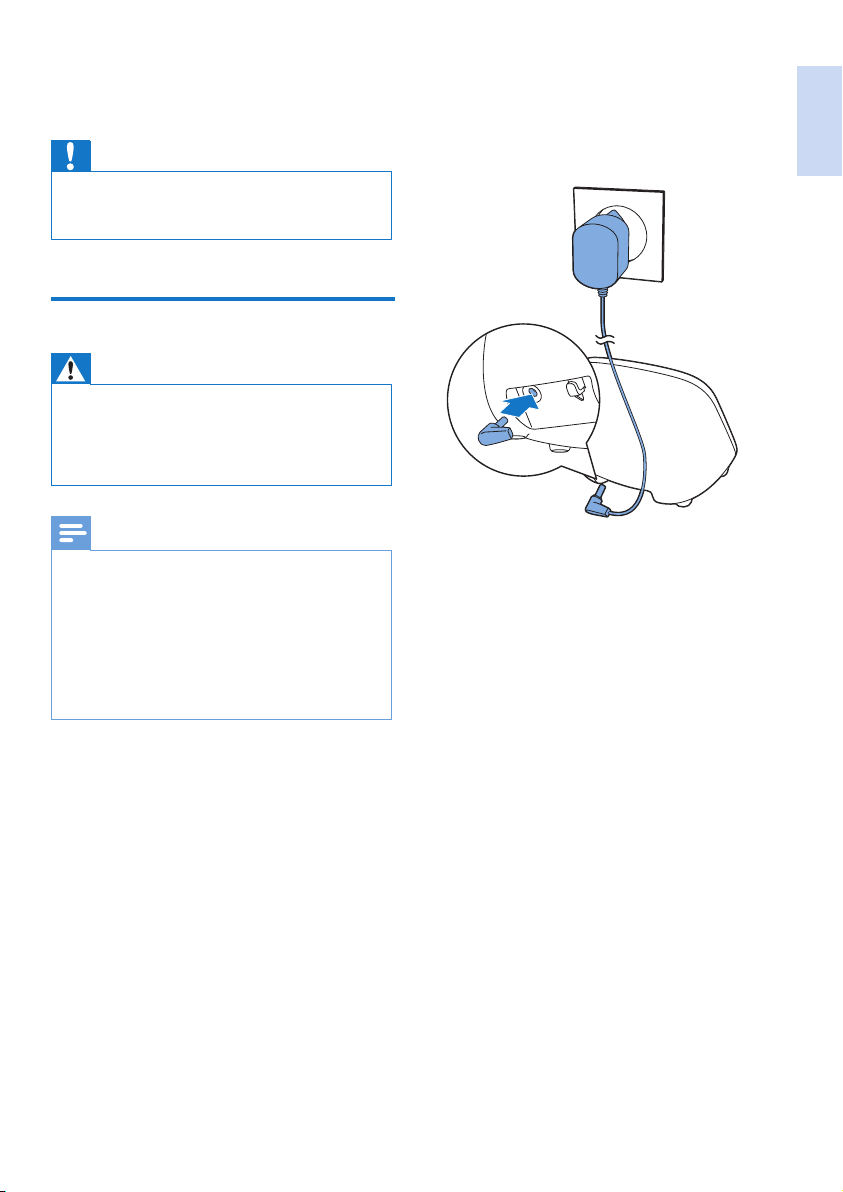
In standby mode, the icons shown on the main
screen tell you what features are available on
your handset.
Icon Descriptions
When the handset is off the base
station/charger, the bars indicate the
battery level (from full to low).
When the handset is on the base
station/charger, the bars keep scrolling
until charging is complete.
The empty battery icon ashes and you
hear an alert tone.
The battery is low and needs recharging.
It displays the link status between the
handset and base station. The more bars
are shown, the better the signal strength
is.
It remains steadily on when browsing
incoming calls in the call log.
It indicates an outgoing call in the
redial list.
It ashes when there is a new missed call
or when browsing new missed calls.
It remains steadily on when the missed
calls in the call log is read.
It ashes when receiving an incoming call.
It remains steadily on when you are in
a call.
The speaker is on.
The alarm clock is activated.
The ringer is off.
It ashes when there is a new voice
message.
It remains steadily on when the voice
messages are already viewed in the call
log.
The icon is not shown when there is no
voice message.
The silent mode is activated.
The mode is activated.
English
EN 7
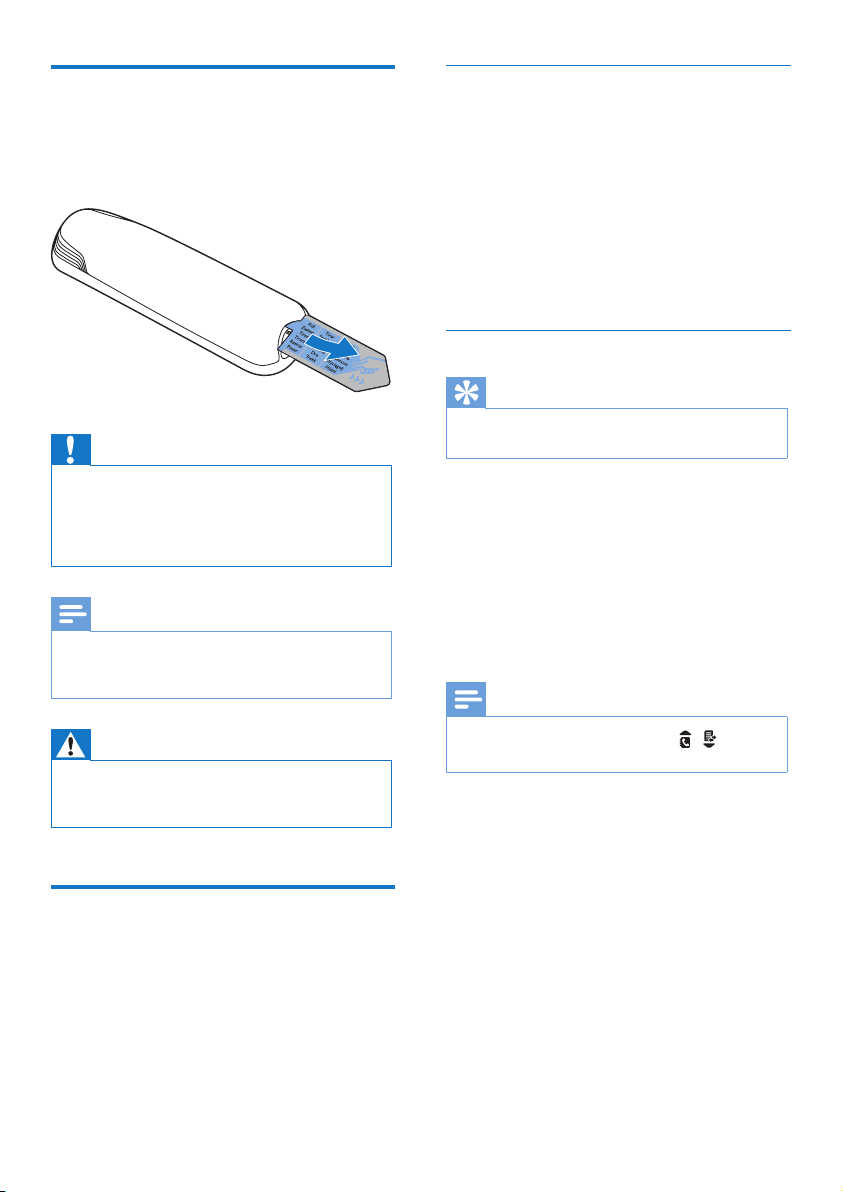
Connect each end of the power adapter to (for
multi handset versions only):
• the DC input jack at the back of the
extra handset charger.
• the power socket on the wall.
3 Get started
Caution
•
Make sure that you have read the safety instructions in
the 'Important safety instruction' section before you
connect and install your handset.
Connect the charger
Warning
•
Risk of product damage! Make sure that the power
supply voltage corresponds to the voltage printed on
the back or underside of the phone.
• Use only the supplied power adapter to charge the
batteries.
Note
•
If you subscribe to the digital subscriber line (DSL)
high speed internet service through your telephone
line, make sure you install a DSL lter between the
telephone line cord and the power socket.. The lter
prevents noise and caller ID problems caused by DSL
interference. For further information on DSL lters,
contact your DSL service provider.
• The type plate is located on the bottom of the base
station.
8 EN
Set the language
Select your language, then press [OK] to conrm.
» The language setting is saved.
To re-set the language, see the following steps.
1
Select [Menu] > [Phone setup] >
[Language], then press [OK] to conrm.
2
Select a language, then press [OK] to
conrm.
» The setting is saved.
Set the date and time
Tip
•
To set the date and time later, press [Back] to skip this
setting.
1
Select [Menu] > [Phone setup] > [Date &
time], then press [OK] to conrm.
2
Press the numeric buttons to enter the
date, then press [OK] to conrm.
» The time setting menu is displayed on
the handset.
3
Press the numeric buttons to enter the time.
Note
•
If the time is in 12-hour format, press / to select
[AM] or [PM].
4
Press [OK] to conrm.
Install the handset
The batteries are pre-installed in the handset.
Pull the battery tape off from the battery door
before charging.
Caution
•
Risk of explosion! Keep batteries away from heat,
sunshine or re. Never discard batteries in re.
• Use only the supplied batteries.
• Risk of decreased battery life! Never mix different
brands or types of batteries.
Note
•
Charge the batteries for 8 hours before rst use.
• If the handset becomes warm when the batteries are
charging, it is normal.
Warning
•
Check the battery polarity when inserting in the
battery compartment. Incorrect polarity may damage
the product.
Congure your phone
(country dependent)
1
When using your phone for the rst time,
you see a welcome message.
2
Press [OK].
English
EN 9
What is standby mode?
Your phone is in standby mode when it is idle.
The standby screen displays the handset name,
handset number, date and time.
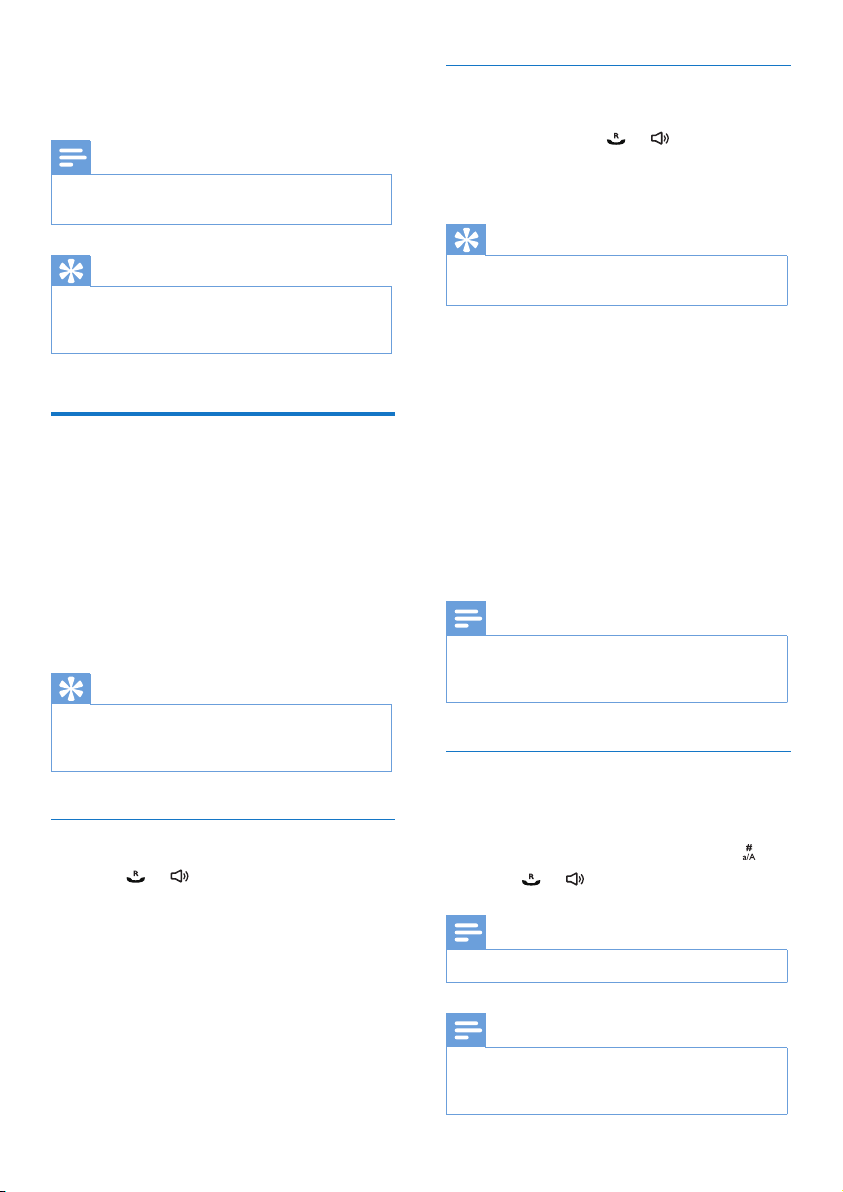
Check the signal strength
The number of bars indicates the link
status between the handset and base
station. The more bars are shown, the
better the connection is.
• Make sure the handset is linked to the base
station before you make or receive calls
and carry out the functions and features.
• If you hear warning tones when you are
on the phone, the handset is almost out
of battery or the handset is out of range.
Charge the battery or move the handset
closer to the base station.
Charge the handset
Place the handset on the charger to charge the
handset. When the handset is placed correctly on
the charger, you hear a docking sound.
» The handset starts charging.
Note
•
Charge the batteries for 8 hours before rst use.
• If the handset becomes warm when the batteries are
being charged, it is normal.
You can activate or deactivate the docking tone
(see 'Set the docking tone' on page 16) .
Your phone is now ready to use.
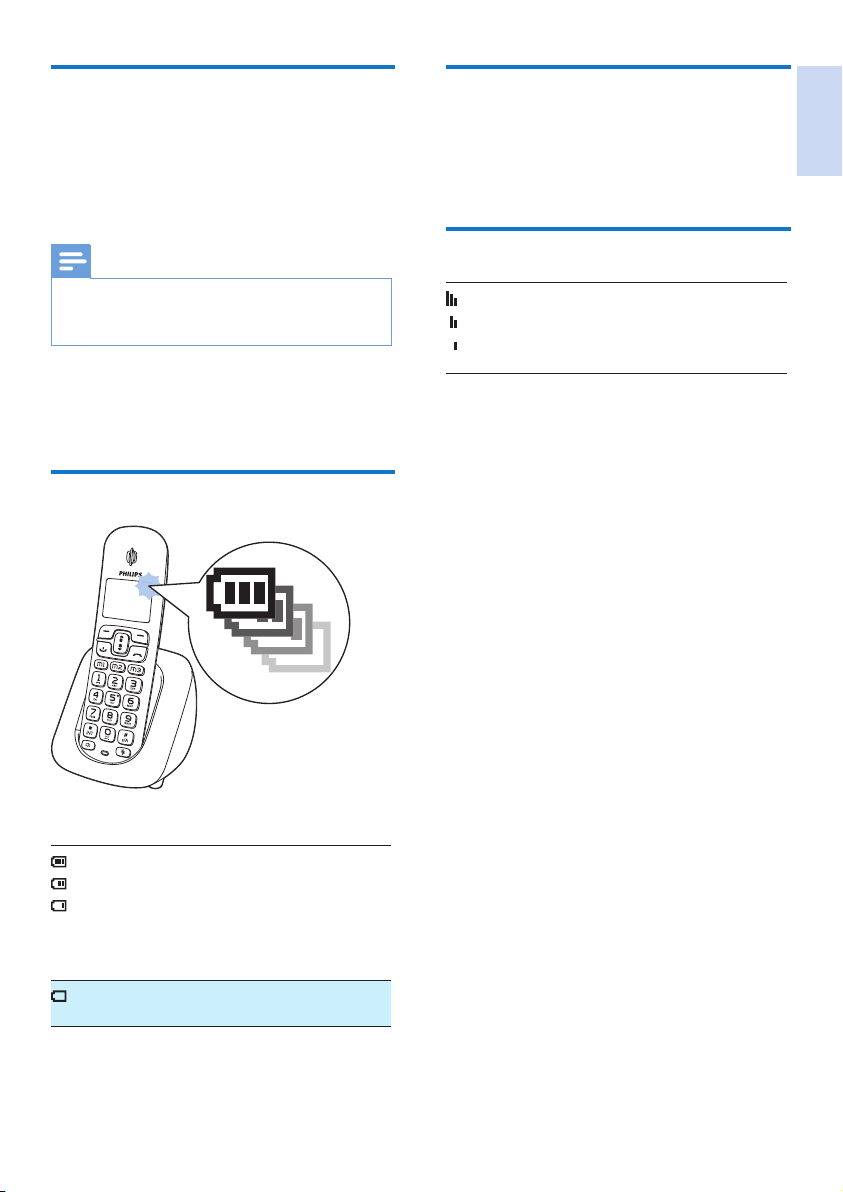
Check the battery level
The battery icon displays the current battery level.
When the handset is off the base
station/charger, the bars indicate the
battery level (full, medium and low).
When the handset is on the base
station/charger, the bars ash until
charging is complete.
The empty battery icon ashes. The
battery is low and needs recharging.
If you are on the phone, you hear warning
tones when the batteries are almost empty.
The handset turns off when the batteries are
completely empty..
10 EN
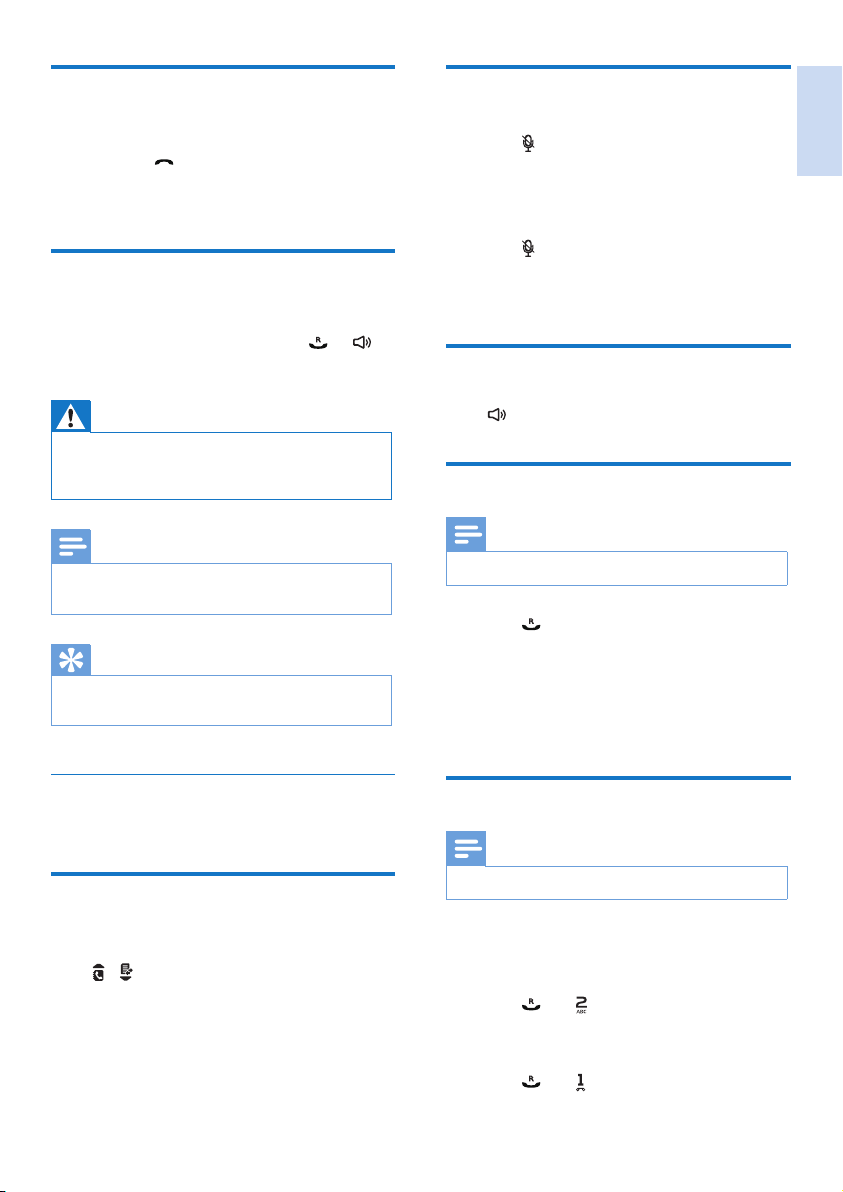
Call through the direct key
To make a quick call from the record pre-saved
in the direct key, press
or , then press M1,
M2 or M3.
» The number is dialed out.
Tip
•
For information of how to set the direct keys, see the
next section.
Set the direct keys
1
Enter the number, the press and hold M1,
M2 or M3.
2
Enter the name, then press [OK] to
conrm.
3
Edit the number if necessary, then press
[Save] to conrm.
4
Select a ring tone, then press [OK] to
conrm.
» The direct key is set.
Note
•
If there is already a record saved in the direct key, you
need to conrm whether you want to replace the old
record with the new one.
Dial before you call
1
Dial the phone number
• To erase a digit, press [Clear].
• To enter a pause, press and hold
.
2
Press or to dial out the call.
Note
•
The call timer displays the talk time of your current call.
Note
•
If you hear warning tones, the handset is almost out
of battery or the handset is out of range. Charge the
battery or move the handset nearer to the base station.
4 Calls
Note
•
When the power fails, the phone cannot access
emergency services.
Tip
•
Check the signal strength before you make a call or
when you are in a call (see 'Check the signal strength'
on page 9).
Make a call
You can make a call in these ways:
• Quick call
• Quick call through the direct keys
• Dial before you call
• Redial the most recent number
• Call from the redial list.
• Call from the phonebook list
• Call from the call log
Tip
•
For information of how to make a call from the redial
list, phonebook list and call log, see the base station's
user manual.
Quick call
1
Press or .
2
Dial the phone number.
» The number is dialed out.
» The duration of your current call is
displayed.
English
EN 11
Mute the microphone
1
Press during a call.
» The handset displays [Mute on].
» The caller cannot hear you, but you can
still hear his voice.
2
Press again to unmute the microphone.
» You can now communicate with the
caller.
Turn the speaker on or off
Press .
Make a second call
Note
•
This service is network dependent.
1
Press during a call.
» The rst call is put on hold.
2
Dial the second number.
» The number displayed on the screen is
dialed out.
Answer a second call
Note
•
This service is network dependent.
When there is a periodical beep to notify you
of an incoming call, you can answer the call in
these ways:
1
Press and to answer the call.
» The rst call is put on hold, and you are
now connected to the second call.
2
Press and to end the current call and
answer the rst call.
End a call
You can end a call in these ways:
• Press
; or
• Place the handset to the base station or
charging cradle.
Answer a call
When there is an incoming call, the phone rings
and the LCD backlight ashes. Press
or to
answer the call.
Warning
•
When the handset rings or when the handsfree is
activated, keep the handset away from your ear to
avoid ear damage.
Note
•
The caller ID service is available if you have registered
to the caller ID service with your service provider.
Tip
•
When there is a missed call, a notication message
appears.
Turn off the ringer for an incoming call
When the phone rings, press [Silent].
Adjust the earpiece/speaker
volume
Press / to adjust the volume during a call.
» The earpiece/speaker volume is
adjusted and the phone is back to the
call screen.
12 EN
Switch between two calls
You can switch your calls in these ways:
• Press
and ; or
• Press [Option] and select [Switch calls],
then press [OK] again to conrm.
» The current call is put on hold, and you
are now connected to the other call.
Make a conference call with
external callers
Note
•
This service is network dependent. Check with the
service provider for additional charges.
When you are connected to two calls, you can
make a conference call in these ways:
• Press
, then ; or
• Press [Option], select [Conference] and
then press [OK] again to conrm.
» The two calls are combined and a
conference call is established.
English
EN 13
While you are on the phone
You can go from one handset to another during
a call:
1
Press and hold .
» The current caller is put on hold.
2
Select a handset number, then press [OK]
to conrm.
» Wait for the other side to answer your
call.
Switch between calls
Press [Extern] to switch between the internal
and external call.
Transfer a call
1
Press and hold during a call.
» The handsets available for intercom are
displayed.
2
Select a handset number, then press [OK]
to conrm.
3
Press when the other side answers your
call.
» The call is now transferred to the
selected handset.
5 Intercom and
conference calls
An intercom call is a call to another handset that
shares the same base station. A conference call
involves a conversation between you, another
handset user and the outside callers.
Make sure that all the handsets registered to the
base station are Philips XL59 models in order
to have this feature functioning properly.
Make a call to another
handset
Note
•
If the base station only has 2 registered handsets, press
and hold
to make a call to another handset.
1
Press and hold .
» The handsets available for intercom are
displayed.
2
Select a handset number, then press [OK]
to conrm.
» The selected handset rings.
3
Press on the selected handset.
» The intercom is established.
4
Press [Cancel] or to cancel or end the
intercom call.
Note
•
If the selected handset is busy, [Busy] is displayed on
the handset screen.
14 EN
Make a conference call
A 3-way conference call is between you, another
handset user and the outside callers. It requires
two handsets to share the same base station.
During an external call
1
Press and hold to initiate an internal call.
» The handsets available for intercom are
displayed.
» The external caller is put on hold.
2
Select or enter a handset number, then
press [OK] to conrm.
» The selected handset rings.
3
Press on the selected handset.
» The intercom is established.
4
Press [Conf].
» You are now in a 3-way conference
call with an external call and a selected
handset.
5
Press to end the conference call.
Note
•
Press to join an ongoing conference with another
handset if [Services] > [Conference] is set to [Auto].
During the conference call
• Press [Int.] to put the external call on hold
and go back to the internal call.
» The external call is put on hold.
• Press [Conf] to establish the conference
call again.
Note
•
If a handset hangs up during the conference call, the
other handset remains connected to the external call.
English
EN 15
6 Text and
numbers
You can enter text and numbers for handset
name, phonebook records, and other menu
items.
Enter text and numbers
1
Press once or several times on the
alphanumeric key to enter the selected
character.
2
Press [Clear] to delete the character.
3
Press to add a space.
Tip
•
For further information on the text and number input,
see the chapter 'Appendix'.
Switch between uppercase
and lowercase
By default, the rst letter of each word in a
sentence is uppercase and the rest is lowercase.
Press and hold
to switch between the
uppercase and lowercase letters.

16 EN
Set the docking tone
Docking tone is the sound made when you
place the handset on the base station or charger.
1
Select [Menu] > [Phone setup] > [Sounds]
> [Docking tone], then press [OK] to
conrm.
2
Select [On]/[Off], then press [OK] to
conrm.
» The setting is saved.
Set the hearing aid compatibility
You can use the phone with a hearing aid device.
1
Select [Menu] > [Phone setup] > [Sounds]
>[Hearing aid], then press [OK] to
conrm.
2
Select [On]/[Off], then press [OK] to
conrm.
» The setting is saved.
ECO mode
The ECO mode reduces the transmission
power of the handset and base station when
you are on a call or when the phone is in
standby mode.
1
Select [Menu] > [Phone setup] > [Eco
mode], then press [OK] to conrm.
2
Select [On]/[Off], and press [OK] to
conrm.
» The setting is saved.
»
is displayed in standby mode.
Note
•
When the ECO mode is set to [On], the connection
range between the handset and the base station can
be reduced.
7 Phone settings
You can customize the settings to make it your
own phone.
Make sure that all the handsets registered to the
base station are Philips XL59 models in order
to have this feature functioning properly.
Sound settings
Set the handset's ringtone volume
You can select among 5 ringtone volume levels,
[Progressive] or [Off].
1
Select [Menu] > [Phone setup] > [Sounds]
> [Ring volume], then press [OK] to
conrm.
2
Select a volume level, then press [OK] to
conrm.
» The setting is saved.
Set the handset's ringtone
You can select from 10 ringtones.
1
Select [Menu] > [Phone setup] > [Sounds]
> [Ring tones], then press [OK] to
conrm.
2
Select a ringtone, then press [OK] to
conrm.
» The setting is saved.
Set the key tone
Key tone is the sound made when you press a
key on the handset.
1
Select [Menu] > [Phone setup] > [Sounds]
> [Key tone], then press [OK] to conrm.
2
Select [On]/[Off], then press [OK] to
conrm.
» The setting is saved.

English
EN 17
Name the handset
The name of the handset can be up to 14
characters. It is displayed on the handset screen
in standby mode.
1
Select [Menu] > [Phone setup] > [Phone
name], then press [OK] to conrm.
2
Enter or edit the name. To erase a character,
select [Clear].
3
Press [OK] to conrm.
» The setting is saved.
Set the backlight of the LCD
screen
You can set the backlight of the LCD screen and
keypad ashing on or off when the phone rings.
1
Select [Menu] > [Phone setup] > [Visual
alert], then press [OK] to conrm.
2
Select [Flashing on]/[Flashing off], then
press [OK] to conrm.
» The setting is saved.
Set the date and time
For information, see 'Set the date and time' in
the Get started section.
Set the display language
Note
•
This feature only applies to models with multiple-
language support.
• Languages available vary from country to country.
1
Select [Menu] > [Phone setup] >
[Language], then press [OK] to conrm.
2
Select a language, then press [OK] to
conrm.
» The setting is saved.
18 EN
8 Alarm clock
Your phone has a built-in alarm clock. Check the
information below to set your alarm clock.
Set the alarm
1
Select [Menu] > [Alarm], then press [OK]
to conrm.
2
Select [On once] or [On daily], then press
[OK] to conrm.
3
Enter an alarm time, then press [OK] to
conrm.
» The alarm is set and
is displayed on
the screen.
Tip
•
Press / to switch between [AM] / [PM].
Turn off the alarm
When the alarm rings
Press any key to turn off the alarm.
Before the alarm rings
Select [Menu] > [Alarm] > [Off], then press
[OK] to conrm.
» The setting is saved.
English
EN 19
Network type
Note
•
This feature only applies to models with network type
support.
1
Select [Menu] > [Services] > [Network
type], then press [OK].
2
Select a network type, then press [OK].
» The setting is saved.
Auto prex
This feature checks and formats your outgoing
call number before it is dialed out. The prex
number can replace the detect number you
set in the menu. For example, you set 604 as
the detect number and 1250 as the prex.
When you have dialed out a number such as
6043338888, your phone changes the number
to 12503338888 when it dials out.
Note
•
The maximum length of a detect number is 5 digits. The
maximum length of an auto prex number is 10 digits.
9 Services
The phone supports a number of features that
help you handle and manage the calls.
Make sure that all the handsets registered to the
base station are Philips XL59 models in order
to have this feature functioning properly.
Call list type
You can view all incoming calls or missed calls
from this menu.
Select the call list type
1
Select [Menu] > [Services] > [Call list
type], then press [OK] to conrm.
2
Select an option, then press [OK] to
conrm.
» The setting is saved.
Auto conference
To join an external call with another handset,
press
.
Activate/Deactivate auto conference
1
Select [Menu] > [Services] >
[Conference], then press [OK] to conrm.
2
Select [Auto]/[Off], then press [OK] to
conrm.
» The setting is saved.
20 EN
Dial mode
Note
•
This feature only applies to models that support both
tone and pulse dial.
Dial mode is the telephone signal used in your
country. The phone supports tone (DTMF) and
pulse (rotary) dial. Consult the service provider
for detailed information.
Set the dial mode
1
Select [Menu] > [Services] > [Dial mode],
then press [OK] to conrm.
2
Select a dial mode, then press [OK] to
conrm.
» The setting is saved.
Note
•
If your phone is in pulse dial mode, press during a
call for temporary tone mode. Digits entered for this
call are then sent out as tone signals.
Register the handsets
You can register additional handsets to the base
station. The base station can register up to 4
handsets.
Auto registration
Place the unregistered handset on the base
station.
» The handset detects the base station
and registers automatically.
» Registration is completed in less
than two minutes. The base station
automatically assigns a handset number
to the handset.
Set auto prex
1
Select [Menu] > [Services] > [Auto
prex], then press [OK] to conrm.
2
Enter the detect number, then press [OK]
to conrm.
3
Enter the prex number, then press [OK]
to conrm.
» The setting is saved.
Note
•
To enter a pause, press and hold .
Note
•
If the prex number is set and the detect number is left
empty, the prex number is added to all outgoing calls.
Note
•
The feature is unavailable if the dialed number starts
with * and #.
Select the recall duration
Make sure that the recall time is set correctly
before you can answer a second call. In normal
case, the phone is already preset for the recall
duration. You can select among 3 options:
[Short], [Medium] and [Long]. The number of
available options varies with different countries.
For details, consult your service provider.
1
Select [Menu] > [Services] > [Recall time],
then press [OK] to conrm.
2
Select an option, then press [OK] to
conrm.
» The setting is saved.
English
EN 21
Unregister the handsets
1
If two handsets share the same base station,
you can unregister a handset with another
handset.
2
Select [Menu] > [Services] >
[Unregistered], then press [OK] to
conrm.
3
Enter the system PIN. Press [Clear] to
make corrections.
4
Select the handset name to be unregistered.
5
Press [OK] to conrm.
» The handset is unregistered.
Tip
•
The handset number displays beside the handset name
in standby mode.
Restore default settings
You can reset your phone settings to the original
factory settings.
1
Select [Menu] > [Services] > [Reset], then
press [OK] to conrm.
» The handset displays a conrmation
request.
2
Press [OK] to conrm.
» All settings are reset.
Manual registration
If auto registration fails, register your handset
manually to the base station.
1
Select [Menu] > [Services] > [Register],
then press [OK] to conrm.
2
Press and hold on the base station for 5
seconds.
Note
•
For models with an answering machine, you hear a
conrmation beep.
3
Press [OK] to conrm.
4
Enter the system PIN. Press [Clear] to
make corrections.
5
Press [OK] to conrm the PIN.
» Registration is completed in less than 2
minutes. The base automatically assigns
a handset number to the handset.
Note
•
If the PIN is incorrect or no base is found within a
certain period, your handset displays a notication
message. Repeat the above procedure if registration
fails.
Note
•
The preset PIN is 0000. No change can be made on it.

22 EN
Edit the activation/deactivation code
You can edit the prex and sufx to the call
forward codes.
1
Select [Menu] > [Netw.services] > [Call
forward]/[Call fwd busy]/[Call fwd unans],
then press [OK] to conrm.
2
Select[Change code] , then press [OK].
3
Then you can either
• Select [Activate] > [Prex]/[Sufx],
then press [OK] to conrm; or
• Select [Deactivate], then press [OK]
to conrm.
4
Enter or edit the code, then press [OK] to
conrm.
» The setting is saved.
Call return
You can check the most recent unanswered call.
Call the return service centre
Select [Menu] > [Netw.services] > [Call
return] > [Call], then press [OK] to conrm.
» Your call is made to the service centre.
Edit the call return service centre
number
1
Select [Menu] > [Netw.services] > [Call
return] > [Settings], then press [OK] to
conrm.
2
Enter or edit the number, then press [OK]
to conrm.
» The setting is saved.
10 Network
services
The network services are network and country
dependent. Contact your service provider for
more information.
Note
•
For the network services to work properly, Make
sure that the activation and/or deactivation codes are
correctly entered.
Call forward
You can divert your calls to another phone
number. You can select among 3 options:
• [Call forward]: divert all incoming calls to
another number.
• [Call fwd busy]: divert calls when the line
is busy.
• [Call fwd unans]: divert calls when no one
answers.
Activate/Deactivate call forward
1
Select [Menu] > [Netw.services] > [Call
forward]/[Call fwd busy]/[Call fwd unans]
2
Select [Activate]/[Deactivate], then press
[OK] to conrm.
3
Enter the telephone number, then press
[OK] to conrm.
» The setting is saved .

English
EN 23
Call back service
The call back service noties you when a party
you have tried to call becomes available. You can
select to cancel this service from the menu after
you have activated it from the service provider.
Cancel the call back service
Select [Menu] > [Netw.services] > [Cancel call
bk] > [Call], then press [OK] to conrm.
» A call is made to the service centre to
cancel the call back option.
Edit the cancel call back service
number
1
Select [Menu] > [Netw.services] >
[Cancel call bk] > [Settings], then press
[OK] to conrm.
2
Enter or edit the number, then press [OK]
to conrm.
» The setting is saved.
Hide your identity
You can hide your identity from the caller.
Activate ID withheld
Select [Menu] > [Netw.services] > [Withhold
ID] > [Activate], then press [OK] to conrm.
» When you make a call to your contact,
your ID is withheld.
Edit the ID withheld code
1
Select [Menu] > [Netw.services] >
[Withhold ID] > [Settings], then press
[OK] to conrm.
2
Enter or edit the number, then press [OK]
to conrm.
» The setting is saved.

24 EN
11 Technical data
Display
• Amber LCD backlight
General telephone features
• Dual mode caller name & number
identication
• Conference call and voicemails
• Intercom
• Maximum talk time: 20 hours
Battery
• HFR: 2 x AAA Ni-MH 1.2V 650mAh
rechargeable batteries
• SANIK: 2 x AAA Ni-MH 1.2V 650mAh
rechargeable batteries
Adapter
Base and charger
• Philips, S003PV0600050, input:100-240Vac,
50-60Hz 0.2A, output 6V 500mA
• Philips, SSW-1920EU-2, input: 100-240Vac,
50-60Hz 0.2A, output: 6V 500mA
Power consumption
• Power consumption at standby mode:
around 0.60W (XL590); 0.65W (XL595)
Weight and dimensions
• Handset: 160 grams
• 182.91 x 53.62 x 34.84 mm (H x W x D)
• Charger: 84 grams
• 89.92 x 94.96 x 89.39 mm (H x W x D)

English
EN 25
Compliance with EMF
Koninklijke Philips Electronics N.V. manufactures
and sells many products targeted at consumers,
which, like any electronic apparatus, in
general have the ability to emit and receive
electromagnetic signals.
One of Philips’ leading Business Principles is to
take all necessary health and safety measures for
our products, to comply with all applicable legal
requirements and to stay well within the EMF
standards applicable at the time of producing
the products.
Philips is committed to develop, produce and
market products that cause no adverse health
effects. Philips conrms that if its products are
handled properly for their intended use, they
are safe to use according to scientic evidence
available today.
Philips plays an active role in the development of
international EMF and safety standards, enabling
Philips to anticipate further developments
in standardization for early integration in its
products.
Disposal of your old product
and batteries
Your product is designed and manufactured with
high quality materials and components, which
can be recycled and reused.
12 Notice
Declaration of conformity
Hereby Philips Consumer Lifestyle, declares
that the XL590/XL595 is in compliance with
the essential requirements and other relevant
provisions of Directive 1999/5/EC. You can nd
the Declaration of Conformity on www.p4c.
philips.com.
This product has been designed, tested and
manufactured according the European R&TTE
directive 1999/5/EC.
Use GAP standard compliance
The GAP standard guarantees that all DECT™
GAP handsets and base stations comply with
a minimum operating standard irrespective of
their make. The handset and base station are
GAP compliant, which means they guarantee
the minimum functions: register a handset,
take the line, make a call and receive a call. The
advanced features may not be available if you
use them with other makes. To register and use
this handset with a GAP compliant base station
of different make, rst follow the procedure
described in the manufacturer's instructions,
then follow the procedure described in this
manual for registering a handset. To register a
handset from different make to the base station,
put the base station in registration mode, then
follow the procedure described in the handset
manufacturer's instructions.

26 EN
When this crossed-out wheeled bin symbol is
attached to a product it means that the product
is covered by the European Directive 2002/96/
EC. Please inform yourself about the local
separate collection system for electrical and
electronic products.
Please act according to your local rules and
do not dispose of your old products with your
normal household waste.
Correct disposal of your old product helps to
prevent potential negative consequences for the
environment and human health.
Your product contains batteries covered by the
European Directive 2006/66/EC, which cannot
be disposed with normal household waste.
Please inform yourself about the local rules on
separate collection of batteries because correct
disposal helps to prevent negative consequences
for the environmental and human health.
When this logo is attached to a product, it
means a nancial contribution has been paid to
the associated national recovery and recycling
system.
Environmental information
All unnecessary packaging has been omitted.
We have tried to make the packaging easy to
separate into three materials: cardboard (box),
polystyrene foam (buffer) and polyethylene
(bags, protective foam sheet.)
Your system consists of materials which can
be recycled and reused if disassembled by
a specialized company. Please observe the
local regulations regarding the disposal of
packaging materials, exhausted batteries and old
equipment.
English
EN 27
The handset on the charger does not charge.
• Make sure the batteries are inserted
correctly.
• Make sure the handset is placed properly
on the charger. The battery icon animates
when charging.
• Make sure the docking tone setting is
turned on. When the handset is placed
correctly on the charger, you can hear a
docking tone.
• The charging contacts are dirty. Disconnect
the power supply rst and clean the
contacts with a damp cloth.
• Batteries are defective. Purchase new ones
from your dealer.
No display
• Make sure the batteries are charged.
• Make sure there is power and the phone is
connected.
Bad audio (crackles, echo, etc.)
• The handset is nearly out of range. Move it
closer to the base station.
• The phone receives interference from the
nearby electrical appliances. Move the base
station away from them.
• The phone is at a location with thick walls.
Move the base away from them.
The handset does not ring.
Make sure the handset ringtone is turned on.
The caller ID does not display.
• The service is not activated. Check with
your service provider.
• The caller's information is withheld or
unavailable.
Note
•
If the above solutions do not help, disconnect the
power supply from both the handset and base station.
Try again after 1 minute.
13 Frequently asked
questions
No signal bar is displayed on the screen.
• The handset is out of range. Move it closer
to the base station.
• If the handset displays [Unregister], put
the handset on the base until the signal bar
appears..
Tip
•
For further information, see chapter 'Service', section
'Register the handsets'.
If I fail to register the additional handsets to
the base station, what do I do?
Your base memory is full. Unregister the unused
handsets and try again.
No dialing tone
• Check your phone connections.
• The handset is out of range. Move it closer
to the base station.
No docking tone
• The handset is not placed properly on the
base station/charger.
• The charging contacts are dirty. Disconnect
the power supply rst and clean the
contacts with a damp cloth.
I cannot change the settings of my voice mail,
what do I do?
The voice mail service is managed by your
service provider but not the phone itself.
Contact your service provider to change the
settings.

28 EN
14 Appendix
Text and number input tables
Key Upper case characters (for English/
French/ German/ Italian/Turkish/
Portuguese/Spanish/Dutch/Danish/
Finnish/Norwegian/ Swedish/ Romanian/
Polish/Czech/Hungarian/Slovakian/
Slovenian/Croatian/Lithuanian/Estonian/
Lativian/Bulgarian)
0 Space . 0 , / : ; " ' ! ¡ ? ¿ * + - % \^ ~|
1 1 @ _ # = < > ( ) & € £ $ ¥ [ ] { } ¤ § ...
2 A B C 2 À Â Æ Á Ã Ä Å Ą Ā Ç Č
3 D E F 3 È É Ê Ë Ė Ę Ē Δ Φ
4 G H I 4 Ğ Í Ï Į Ī İ Γ
5 J K L 5 Λ
6 M N O 6 Ñ Ó Ô Õ Ö
7 P Q R S 7 Ş Š Π Θ Σ
8 T U V 8 Ù Ú Ü Ū Ų
9 W X Y Z 9 Ø Ω Ξ Ψ Ž
Key Lower case characters (for English/
French/ German/ Italian/Turkish/
Portuguese/Spanish/Dutch/Danish/
Finnish/Norwegian/ Swedish)
0 Space . 0 , / : ; " ' ! ¡ ? ¿ * + - % \ ^ ~ |
1 1 @ _ # = < > ( ) & € £ $ ¥ [ ] { } ¤ §
…
2 a b c 2 à â æ á ã ä å ą ā ç č
3 d e f 3 è é ê ë ė ę ē Δ Φ
4 g h i 4 ğ í ì ï į Ī ı Γ
5 j k l 5 Λ
6 m n o 6 ñ ó ô õ ö ò
7 p q r s 7 β ş š Π Θ Σ
8 t u v 8 ù ú ü ū ų μ
9 w x y z 9 ø Ω Ξ Ψ ž
Key Upper case characters (for Greek)
0 Space . 0 , / : ; " ' ! ¡ ? ¿ * + - % \^ ~|
1 1 @ _ # = < > ( ) & € £ $ ¥ [ ] { } ¤ § ...
2 A B Г 2 A B C Æ Å Ç
3 Δ Ε Ζ 3 D E F É
4 Η Θ Ι 4 G H I
5 Κ Λ Μ 5 J K L
6 Ν Ξ Ο 6 M N O Ñ Ö
7 Π Ρ Σ 7 P Q R S ß
8 Τ Υ Φ 8 T U V Ü
9 Χ Ψ Ω 9 W X Y Z Ø
Key Lower case characters (for Greek)
0 Space . 0 , / : ; " ' ! ¡ ? ¿ * + - % \ ^ ~ |
1 1 @ _ # = < > ( ) & € £ $ ¥ [ ] { } ¤ §
…
2 α β γ 2 a b c à æ ä å
3 δ ε ζ 3 d e f è é
4 η θ ι 4 g h i ì
5 κ λ μ 5 j k l Λ
6 ν ξ ο 6 m n o ñ ö ò
7 π ρ σ ς 7 p q r s ß
8 τ υ φ 8 t u v ù ü
9 χ ψ ω 9 w x y z ø

English
EN 29
L
language setting
handset 17
M
mute 11
N
network type 19
P
phone
overview 5
set up 8
phone settings 16
R
recall time 20
register/unregister 20, 21
ringtone 16
S
safety 3
setup 7
signal strength 9
sounds
docking 16
keytone 16
standby mode 9
T
text entry 15, 28
time setting 8
transfer call 13
troubleshooting/FAQ 27
two calls/call on hold 12
V
volume adjustment 11
15 Index
A
additional handsets 20
alarm 18
answer a call 11
auto conference 19
auto prex 19
B
battery 8, 9, 24
C
caller ID 11
calling 10
charging 9
conference 12, 14, 19
D
date setting 8
default setting 21
dial mode 20
display icons 6
disposal 26
E
ECO mode 16
G
GAP 25
H
handset name 17
hearing aid compatibility 16
I
intercom calls 13
internal calls 13

0168
Specifications are subject to change without notice
© 2012 Koninklijke Philips Electronics N.V.
All rights reserved.
UM_XL5950_12_EN_V1.0
WK11495