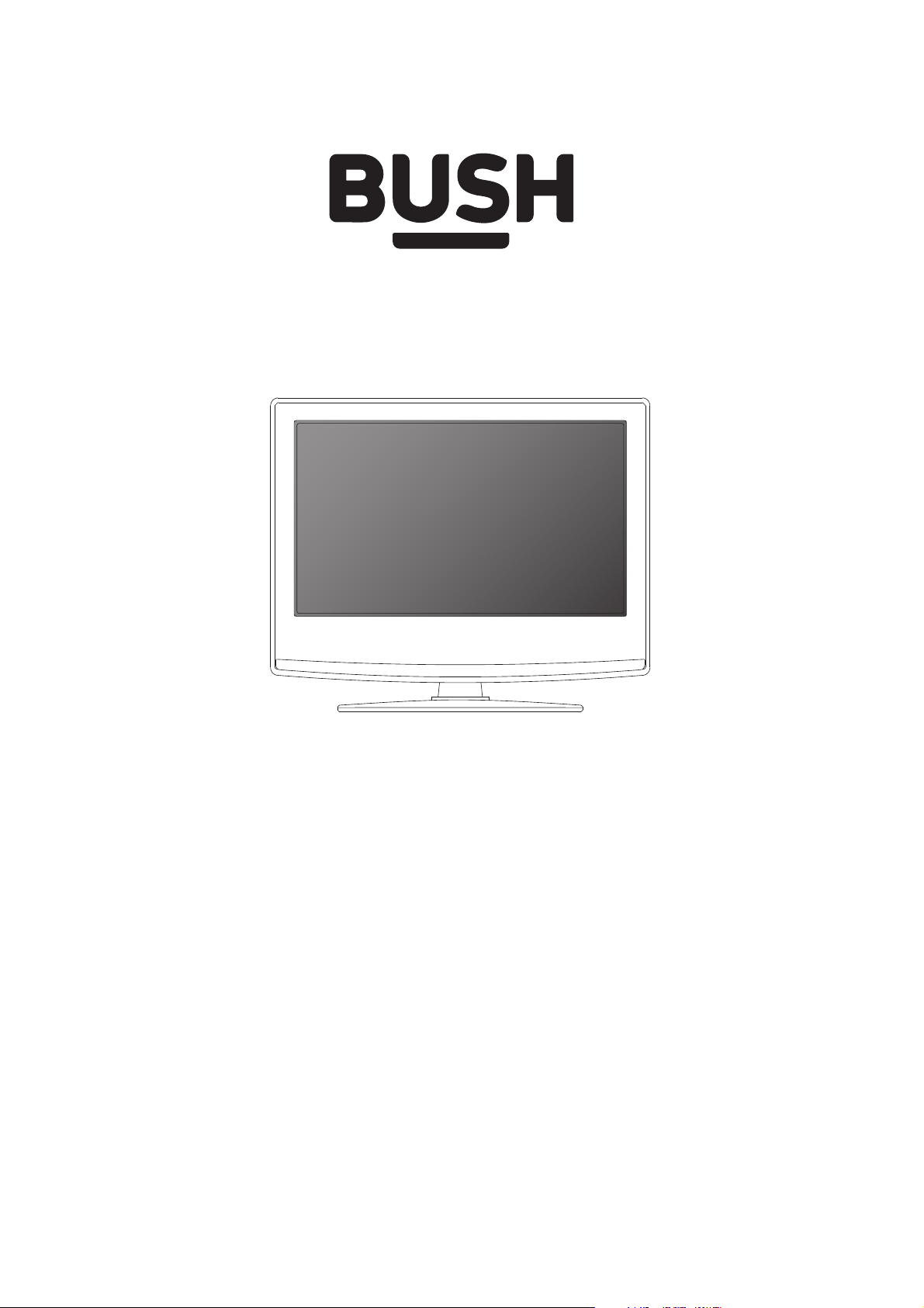
32/133DVDB
32/133DVDW
HD Ready LED TV with Freeview, DVD & USB Media Player
Model No
User Guide
3
For any help concerning set up and use of your TV please call the Customer Helpline on page 3
Important Guarantee Information
Serial No.
Model Ref
Congratulations on purchasing this television. We hope you have many years of trouble free
enjoyment from your purchase.
Your product is covered under the manufacturers guarantee for 12 months from the date
of purchase.
If you experience any diffi culties with your TV, please refer to the ‘Frequently asked questions’ section
in this user guide.
If you are still unable to remedy the issue, try resetting the TV to factory settings. (Details in the
‘Settings menu’ section of this user guide). Alternatively you can contact the helpline on the
number below.
In the event that a fault is diagnosed, the helpline will arrange to collect the TV from your home
or work address, return it to our service centre, repair the item and then return it to you.
If we believe we cannot offer a permanent repair, we will replace the item.
Helpline Information
Telephone UK 0330 024 0805, ROI 01443 3940
Web support: www.umc-uk.co.uk
The telephone opening hours are Monday to Friday 8.30am to 6pm, Saturday 9am – 5pm.
Calls are charged at the standard rate of your network provider.
You must retain all packaging materials, in addition to your proof of purchase/receipt, as you will need
these in the event of warranty/service support.
This guarantee is in addition to and does not affect your statutory rights.
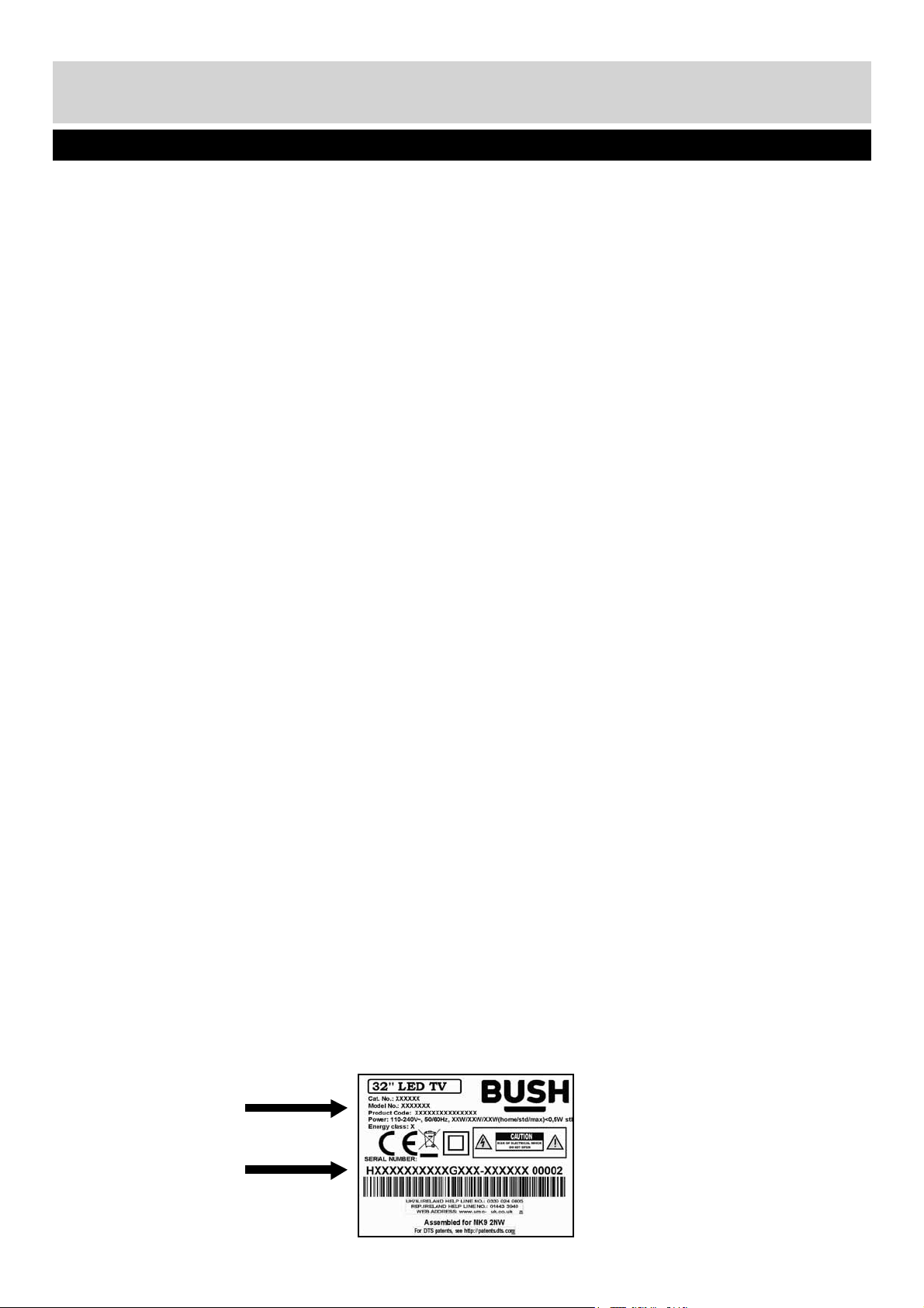
If you need to call the helpline, you will need the following information.
1) Model Ref
_____________________________________ (You can fi nd this on the rear of the TV)
2) Date of purchase
______________________________________ (You can fi nd this on your sales receipt)
3) Serial Number
_____________________________________ (You can fi nd this on the rear of the TV)
User Guide - BUSH-MAN-0020 - 32-133I-GB-5B2-HKDUS-UK, 32-133I-GW-5W2-HKDUS-UK.indd Sec1:3User Guide - BUSH-MAN-0020 - 32-133I-GB-5B2-HKDUS-UK, 32-133I-GW-5W2-HKDUS-UK.indd Sec1:3 26/05/2015 13:54:2126/05/2015 13:54:21
4
For any help concerning set up and use of your TV please call the Customer Helpline on page 3
Important Safety Instructions
IMPORTANT - Please read these instructions. All the safety and operating instructions
should be read before the appliance is operated.
Safety
Packaging
• Television sets which weigh 20kg or more must
be lifted and carried by at least 2 people.
• This television does not contain any parts that
are serviceable by the user. In case of a fault,
contact the manufacturer or authorised service
department. Exposing the internal parts inside the
TV may endanger your life. The manufacturers
guarantee does not extend to faults caused by
repairs carried out by unauthorised third parties.
• To reduce the risk of fi re, electric shock or
damage to the TV, do not expose it to dust, rain
or moisture. Never expose the TV to dripping
or splashing and do not place objects fi lled with
liquids on or near the TV.
• Do not connect any external devices (DVD
player, games console etc) when the TV is
switched on. Disconnect both the TV and device
from the mains before connecting. Only switch
appliances on when the connection process
is complete.
• Do not place the television in a confi ned space
and do not obstruct the ventilation openings at
the rear of the television.
• When installing on a wall, ensure the TV is at
least 5cm from the wall for ventilation.
• Always ensure that the TV’s ventilation openings
are not covered with items such as newspapers,
table-cloths, curtains, etc.
• Dispose of this television and any components
including batteries in an environmentally friendly
manner. If in doubt, please contact your local
authority for details of recycling.
• For your safety, this appliance is fi tted with a
fused 3 pin mains plug. Should the fuse need to
be replaced, ensure that any replacement is of
the same amperage and approved with the
BSI mark.
• Never try and replace the mains plug unless
you have adequate qualifi cations and are
legally authorised to do so. In the event that a
replacement mains cable is required, contact the
manufacturer for a suitable replacement.
• Never use the television if it is damaged in
any way.
• Always place the television on a fl at level surface
avoiding anywhere which may be subject to
strong vibration.
• The ideal distance to watch the television
is approximately fi ve times the length of the
diagonal measurements of the TV screen. Ensure
the television is not placed on top of the power
cable as the weight of the television may damage
the cable and cause a safety hazard.
• Never place mobile phones, speakers or any
other device which may cause magnetic or radio
interference, near the television. If interference
is apparent, move the device causing the
interference away from the television.
• To Isolate the TV from the mains power, please
use the power switch located on the side,
underside or rear of the TV set.
• Ensure that the power switch on the unit and the
mains plug are always easily accessible.
WARNING: Excessive noise when using earphones
and headphones can cause loss of hearing.
• To clean your TV, wipe with a soft, dry cloth. If
the surfaces are extremely dirty, use a soft cloth
dipped in a soap and water solution or a weak
detergent solution.
• Never use alcohol, paint thinner or benzene to
clean this unit.
• Before using a chemically treated cloth, read the
instructions that came with the cloth carefully.
CAUTION: If water or other liquid enters the
television through the display panel surface,
a malfunction may occur.
• The safest way to transport your item is in
the original box/packaging - please save your
packaging for this.
• You will need the original box/packaging in the
event of warranty/service repair or support. We
are unable to carry out warranty/service if you are
unable to package the item correctly.
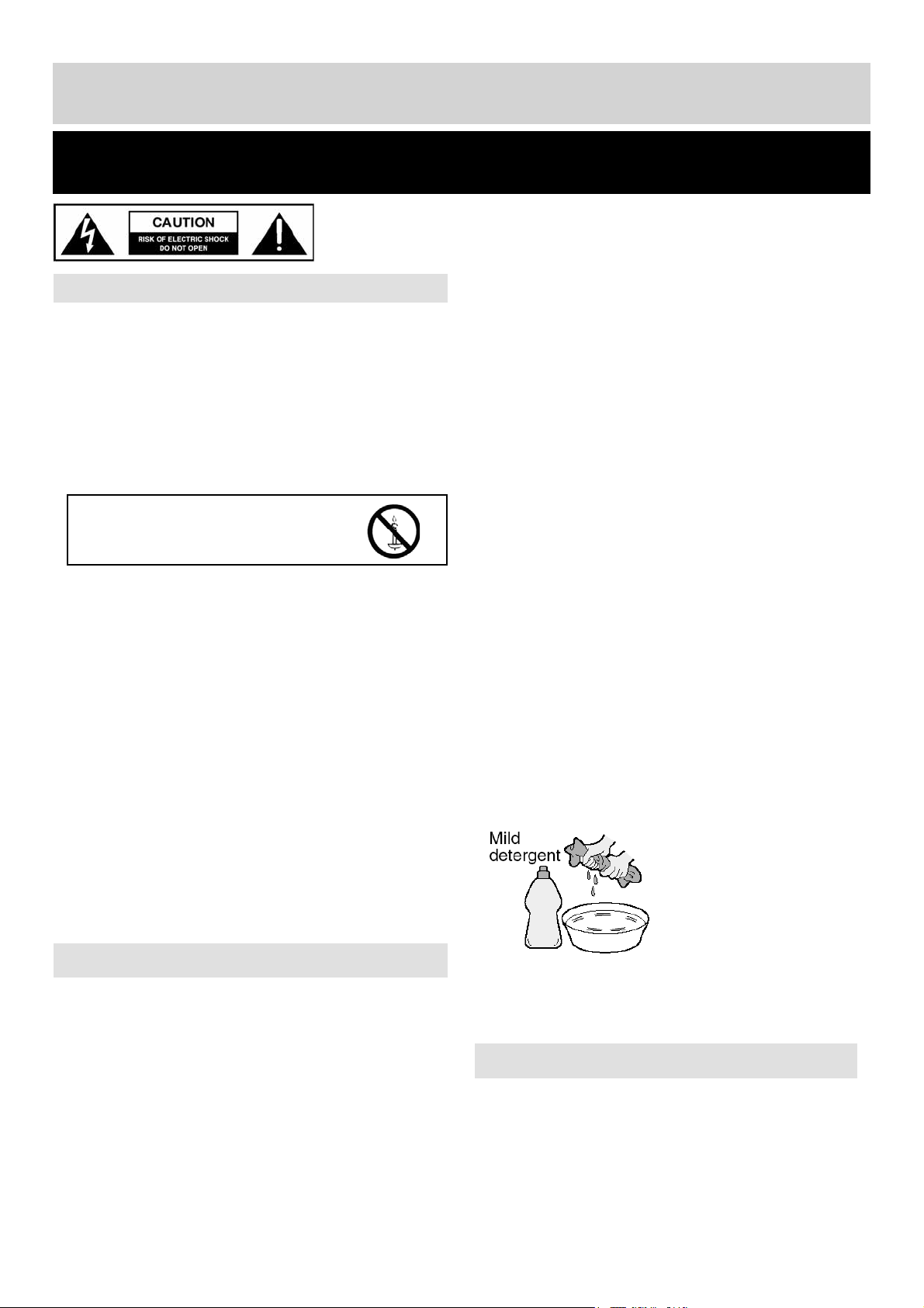
Warnings
To prevent the spread of fi re, keep
candles or other open fl ames away
from this product at all times
User Guide - BUSH-MAN-0020 - 32-133I-GB-5B2-HKDUS-UK, 32-133I-GW-5W2-HKDUS-UK.indd Sec1:4User Guide - BUSH-MAN-0020 - 32-133I-GB-5B2-HKDUS-UK, 32-133I-GW-5W2-HKDUS-UK.indd Sec1:4 26/05/2015 13:54:2126/05/2015 13:54:21
5
For any help concerning set up and use of your TV please call the Customer Helpline on page 3
Cd
How do I dispose of this product?
Important Safety Instructions
IMPORTANT - Please read these instructions. All the safety and operating instructions
should be read before the appliance is operated.
Important information regarding use of video
games, computers, captions or other fi xed
image displays
The extended use of fi xed image program material
can cause a permanent “shadow image” on the LCD/
LED panel, also known as “screen burn”.
This “shadow image” can appear in the background
during normal viewing. This type of irreversible LCD/
LED panel deterioration can be limited by observing
the following steps:
1. Reduce the brightness/contrast setting to a
minimum suitable viewing level.
2. Do not display the fi xed image for extended
periods of time.
3. Turn the power off when not in use.
Examples of images that are more likely to
cause “screen burn” are as follows (this is not an
exhaustive list):
• TV channel logos: e.g. shopping channel logos
and pricing displays - especially if they are bright
and stationary. Moving or low-contrast graphics
are less likely to cause ageing of the screen.
• Time displays.
• Teletext: Do not view a stationary page for a long
period of time
• TV/DVD menus: e.g. listings of DVD disc content.
• Pause mode: Do not leave the TV in pause mode
for long periods of time, e.g. when watching
DVDs or videos.
Important - Once ‘shadow image/screen burn’
occurs, it will never disappear and is not
repairable under warranty.
UK: Waste electrical products should not
be disposed of with household waste. Please dispose
of the product at a designated collection point for
recycling of WEEE. For your nearest facilities, please
see www.recycle-more.co.uk or in store
for details.
ROI: Waste electrical products should
not be disposed of with household waste.
Separate disposal facilities exist.
Check with your local authority or retailer for
recycling advice.
Batteries
• Do not expose batteries to high temperatures,
excessive heat, prolonged sunshine
or fi re as this may cause leakage,
explosion or ignition.
Observe the correct polarity when
inserting batteries.
• Do not use different types of batteries
together or mix old and new batteries.
• Dispose of batteries in an environmentally
friendly way.
• Certain regions may regulate the disposal of
batteries. Please consult your local authority.
CAUTION:
This unit is a class 1 laser product. This unit uses a visible laser beam which could cause hazardous radiation
exposure if directed. Be sure to operate the player correctly as instructed.
When this unit is plugged into the wall outlet, do not place your eyes close to the openings to look into the inside of
this unit.
Use of controls or adjustments or performance of procedures other than those specifi ed herein may result in
hazardous radiation exposure.
Do not open covers and do not repair yourself. refer servicing to qualifi ed personnel.
CLASS 1
LASER PRODUCT
TV Models with built in DVD players
User Guide - BUSH-MAN-0020 - 32-133I-GB-5B2-HKDUS-UK, 32-133I-GW-5W2-HKDUS-UK.indd Sec1:5User Guide - BUSH-MAN-0020 - 32-133I-GB-5B2-HKDUS-UK, 32-133I-GW-5W2-HKDUS-UK.indd Sec1:5 26/05/2015 13:54:2126/05/2015 13:54:21

6
For any help concerning set up and use of your TV please call the Customer Helpline on page 3
• HDMI, the HDMI logo and High-Defi nition
Multimedia Interface are trademarks or registered
trademarks of HDMI Licensing LLC.
• The “HD TV” Logo is a trademark of
DIGITALEUROPE.
• The “HD TV 1080p” Logo is a trademark of
DIGITALEUROPE.
• The DVB logo is the registered trademark of the
Digital Video Broadcasting - DVB – project.
• Manufactured under license from Dolby
Laboratories.
• Dolby and the double-D symbol are trademarks
of Dolby Laboratories.
• Manufactured under license under U.S. Patent
Nos: 5,956,674; 5,974,380; 6,487,535 & other
U.S. and worldwide patents issued & pending.
DTS, the Symbol, & DTS and the Symbol
together are registered trademarks & DTS
2.0+Digital Out is a trademark of DTS, Inc.
Product includes software. © DTS, Inc. All
Rights Reserved.
Trademarks
User Guide - BUSH-MAN-0020 - 32-133I-GB-5B2-HKDUS-UK, 32-133I-GW-5W2-HKDUS-UK.indd Sec1:6User Guide - BUSH-MAN-0020 - 32-133I-GB-5B2-HKDUS-UK, 32-133I-GW-5W2-HKDUS-UK.indd Sec1:6 26/05/2015 13:54:2126/05/2015 13:54:21
7
For any help concerning set up and use of your TV please call the Customer Helpline on page 3
Contents
Manufacturers Guarantee Information 3
Important Safety Instructions 4-5
Trademarks 6
What is included in the box 8
Attaching the stand 9
Detaching the stand and securing the TV
to a wall 10
Wall mounting 11
Getting Started - Initial Set Up 12
TV Buttons and Input Source Menu 13
Remote Control 14
Connections 15-17
TV Menu Operation 18-25
Channel Menu 18
Picture Menu 19-20
Sound Menu 21
Time Menu 22
System/Hotel Lock Menu 23
Setup Menu 24
DVD Setup 25
7 Day TV Guide 27
USB Mode / Media Player 28
General Information 29-33
Using your TV with a Sky digital set top box 29
Frequently Asked Questions 30-31
Technical Specifi cations 32-33
For DTS patents, see http://patents.dts.com. Manufactured under license from DTS Licensing Limited. DTS, the
Symbol, & DTS and the Symbol together are registered trademarks, and DTS TruSurround is a trademark of DTS,
Inc. © DTS, Inc. All Rights Reserved.
User Guide - BUSH-MAN-0020 - 32-133I-GB-5B2-HKDUS-UK, 32-133I-GW-5W2-HKDUS-UK.indd Sec1:7User Guide - BUSH-MAN-0020 - 32-133I-GB-5B2-HKDUS-UK, 32-133I-GW-5W2-HKDUS-UK.indd Sec1:7 26/05/2015 13:54:2126/05/2015 13:54:21
8
For any help concerning set up and use of your TV please call the Customer Helpline on page 3
Please save your box/packaging as you will need this in the event of warranty/service repair or support. We are
unable to carry out warranty/service if you are unable to package it correctly. The safest way to package your
item in the event of warranty/service repair is in it’s original box/packaging.
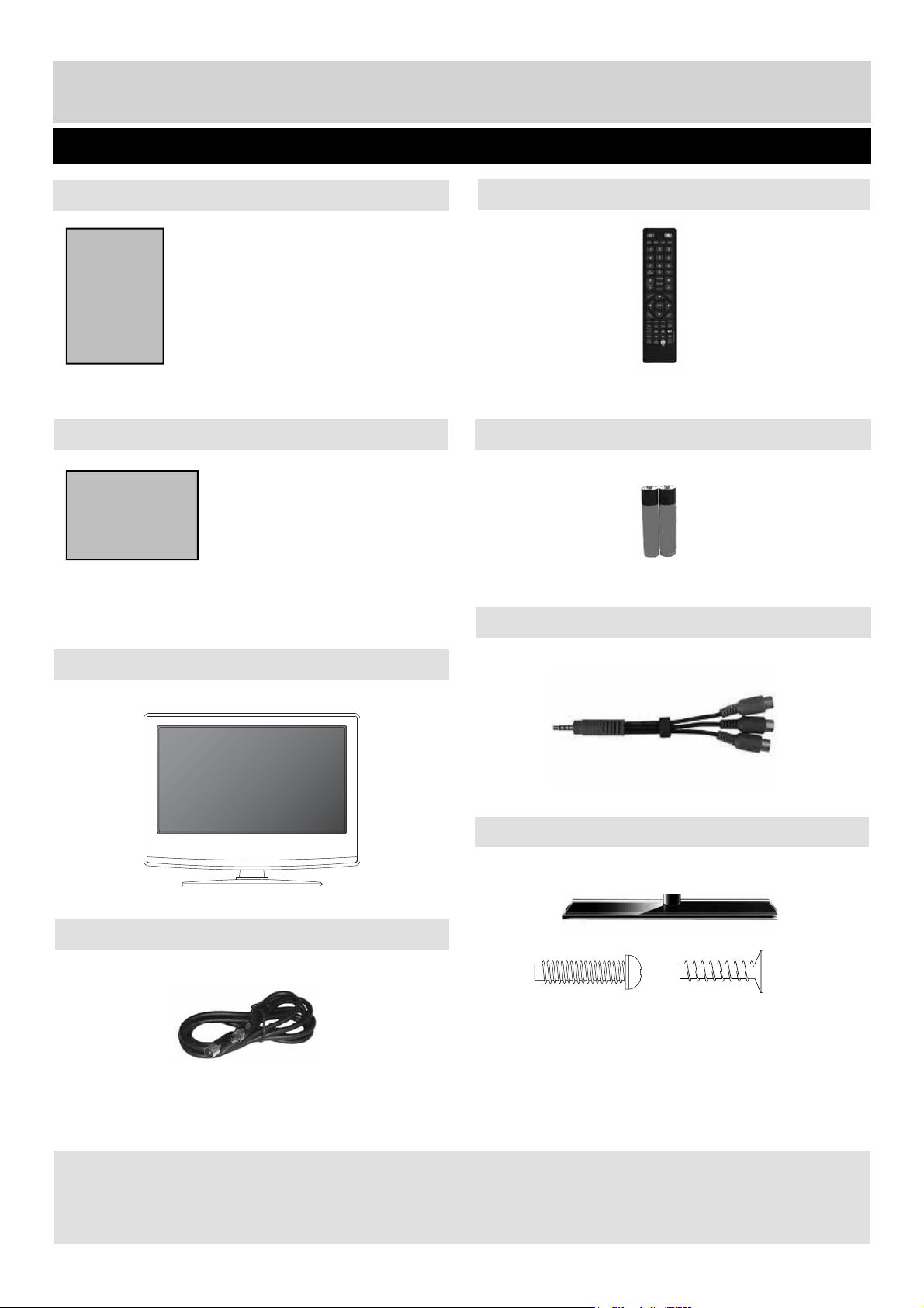
1 x User Guide
1 x Quick Start Guide 2 x AAA Batteries
1 x RF Cable
1 x Remote Control
User Guide
QSG
What Is Included In The Box
Included with this TV are the following accessories:
1 x TV
1 x Mini Component / YPbPr Cable
1 x Stand Installation Pack
(B) 3 x ST(3.7x18)
Counter Sunk
(A) 5 x M(4x10)
User Guide - BUSH-MAN-0020 - 32-133I-GB-5B2-HKDUS-UK, 32-133I-GW-5W2-HKDUS-UK.indd Sec1:8User Guide - BUSH-MAN-0020 - 32-133I-GB-5B2-HKDUS-UK, 32-133I-GW-5W2-HKDUS-UK.indd Sec1:8 26/05/2015 13:54:2126/05/2015 13:54:21
9
For any help concerning set up and use of your TV please call the Customer Helpline on page 3
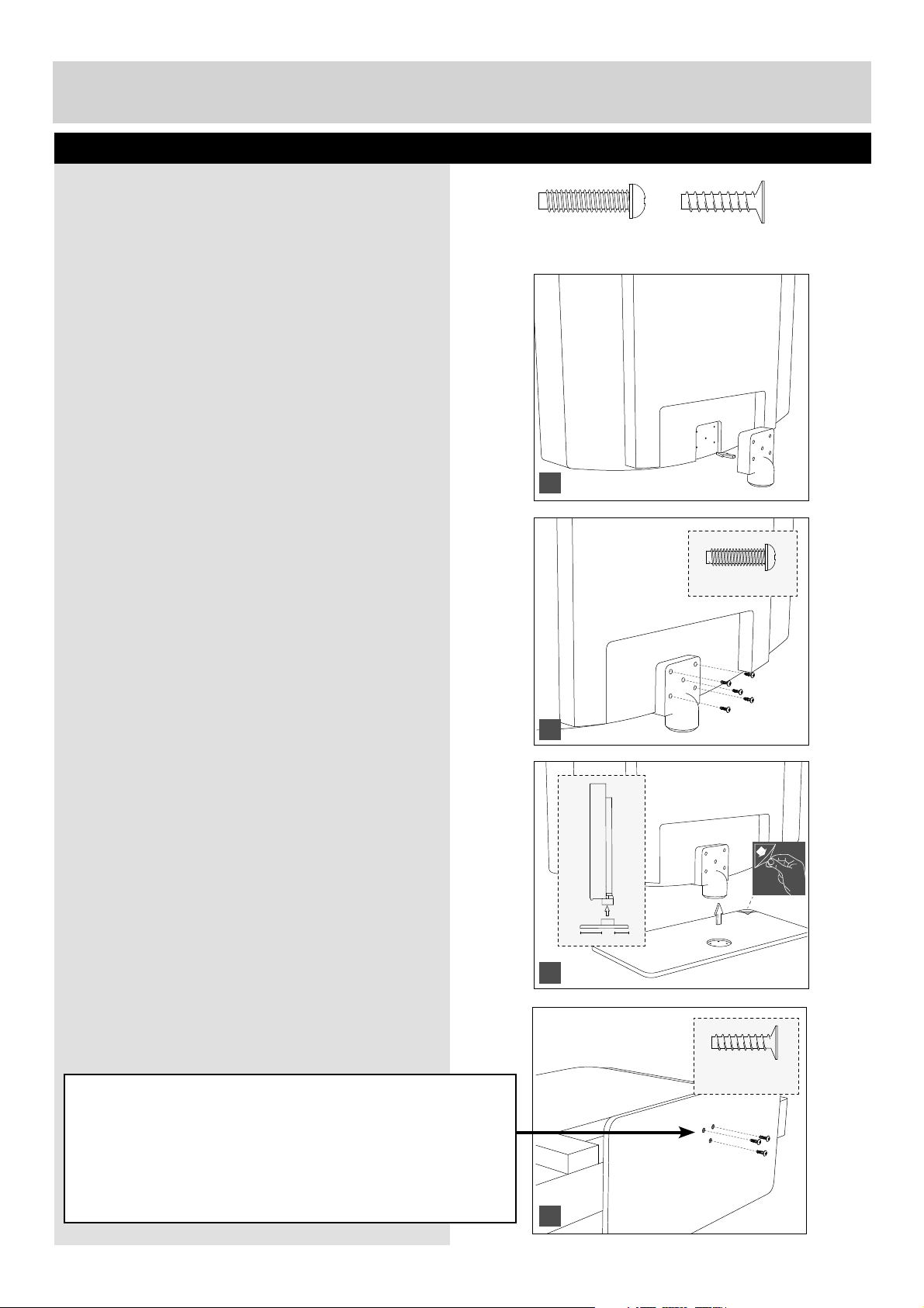
To complete the stand installation you will require a cross head screw driver.
The Stand Installation pack comes with 2 sets
of screws.
fi g 1) Attach the stand neck to the rear of the TV set.
fi g 2) Secure the neck to the TV using the
(A) 5 x M (4x10) screws provided.
fi g 3) Attach the stand base to the neck.
fi g 4) Secure the base to the neck using the
(B) 3 x ST (3.7x18) counter sunk screws provided.
Attaching The Stand
HELPFUL ADVICE FOR FIRST TIME STAND INSTALLATION
When securing the self-tapping screw/s into the base of the TV (on fi rst installation) the screw/s may be
naturally tight as they create a thread in the plastic.
a) Ensure the cross head screw driver tip fi ts correctly into the head of the screw and that it is not too big
or small.
b) Screw in all screws individually and partially before tightening all of the screws fully.
c) If the screws become very tight try loosening and re-tightening, this will continue the process of creating
the thread.
(B) 3 x ST(3.7x18)
Counter Sunk
5 x M(4x10)
1 1/2
3 x ST (3.7x18)
1
2
3
4
(A) 5 x M(4x10)
User Guide - BUSH-MAN-0020 - 32-133I-GB-5B2-HKDUS-UK, 32-133I-GW-5W2-HKDUS-UK.indd Sec1:9User Guide - BUSH-MAN-0020 - 32-133I-GB-5B2-HKDUS-UK, 32-133I-GW-5W2-HKDUS-UK.indd Sec1:9 26/05/2015 13:54:2326/05/2015 13:54:23
10
For any help concerning set up and use of your TV please call the Customer Helpline on page 3
Detaching The Stand And Securing The TV
To A Wall
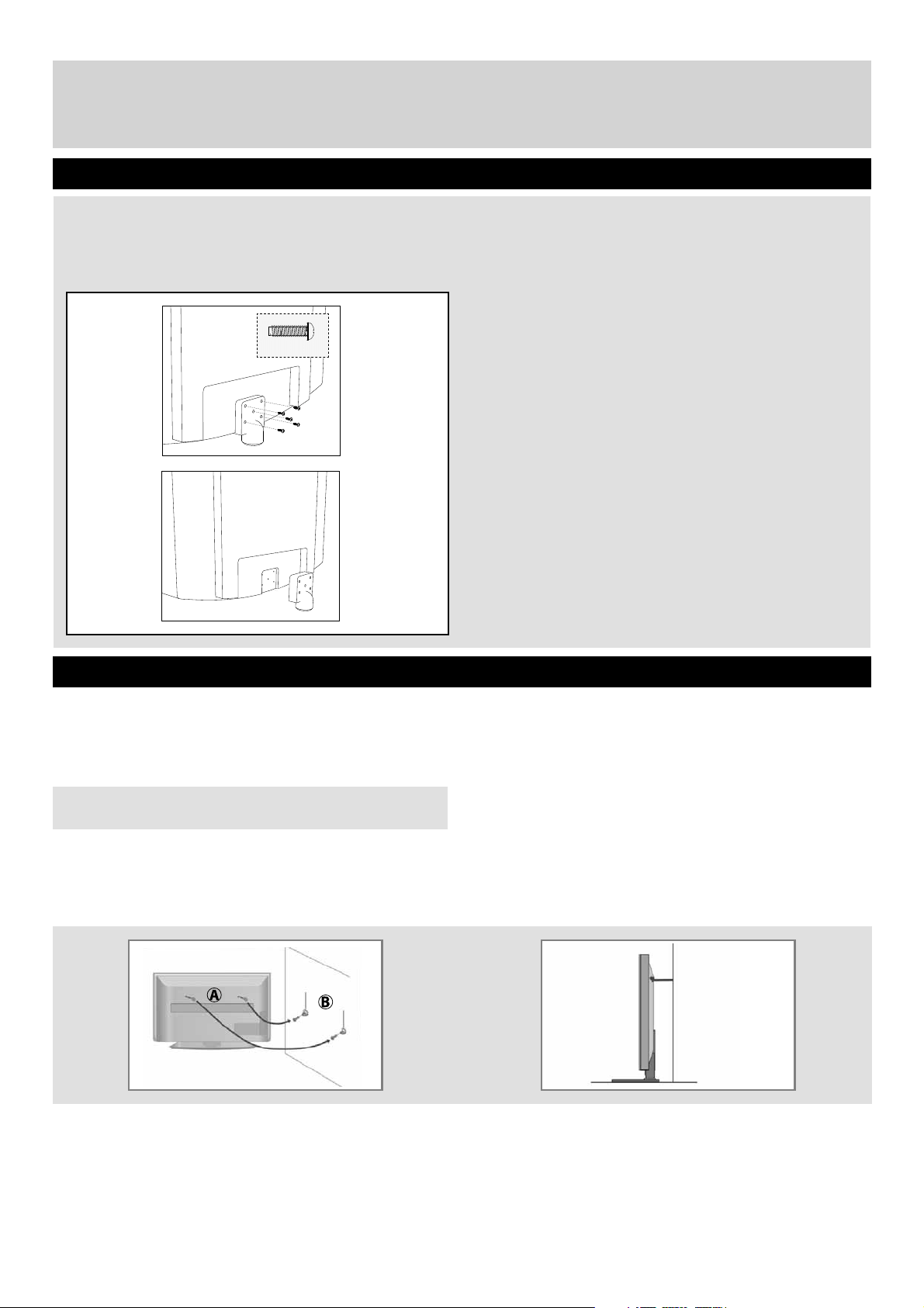
Detaching the Stand
Securing the TV to a Wall
5 x M(4x10)
For maximum security in the home, when using a TV with its stand, anti-tip straps should be fi tted. These are
available from supermarket websites and other websites and are an easy, inexpensive and effective way of
ensuring your TV stays safely upright. Straps are designed to be attached to the rear of the TV and then tethered
to the wall or the furniture the TV is stood on, these are fi tted as follows.
The Royal Society for the Prevention of Accidents is urging people to take care with fl at-screen televisions.
RoSPA stated in 2010 that “Toddlers are particularly at risk of pulling fl at-screen televisions on to themselves. They
are unsteady on their feet and are attracted by colourful television images.”
The risk is increased as televisions become lighter.
A) Using one or both of the top wall-mounting holes
and screws fasten one end of the fastening cord/s to
the TV. (the screws are already supplied in the wall
mounting holes)
B) Secure the other end of the fastening cord/s
to your wall. (you will need screws/fi xings suitable
for your wall type - available separately from most
DIY stores).
Note - Please ensure that children do not climb on the
TV set.
To detach the stand please remove the 5 screws
highlighted then remove the stand neck and base
from the rear of the TV set.
User Guide - BUSH-MAN-0020 - 32-133I-GB-5B2-HKDUS-UK, 32-133I-GW-5W2-HKDUS-UK.indd Sec1:10User Guide - BUSH-MAN-0020 - 32-133I-GB-5B2-HKDUS-UK, 32-133I-GW-5W2-HKDUS-UK.indd Sec1:10 26/05/2015 13:54:2326/05/2015 13:54:23
11
For any help concerning set up and use of your TV please call the Customer Helpline on page 3
IMPORTANT - Before drilling any holes in the wall ensure you are not drilling where there could be any electric wires, water or
gas pipes.
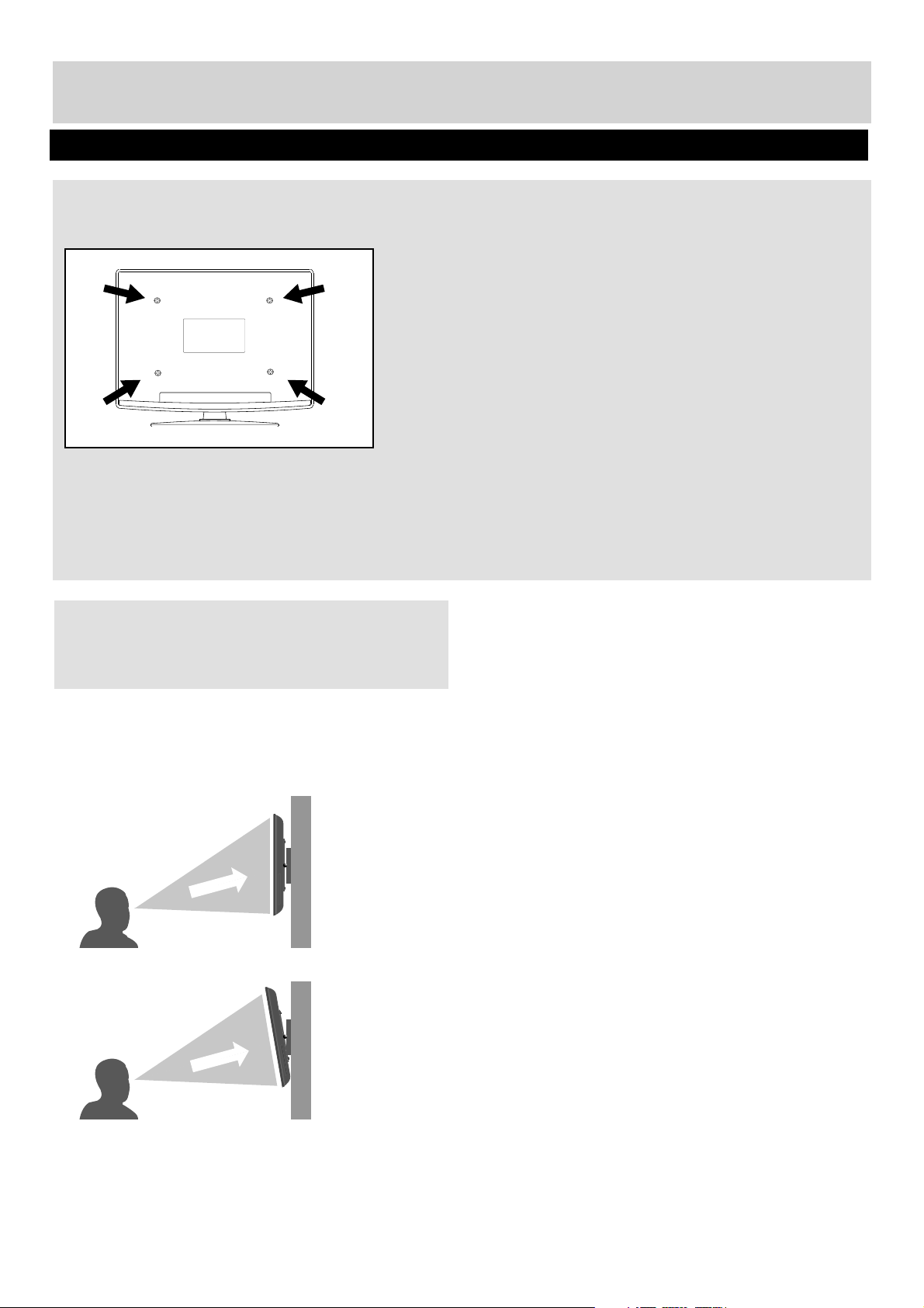
1) Remove the four screws located at the back of the TV set.
2) The wall mount can now be easily attached to the mounting holes, located on the back of the TV, using the same
four screws removed.
For optimum viewing, if wall mounting the TV higher
than eye level, the TV should be tilted downwards so
that the TV’s screen is ‘face on’.
See fi g 1 and 2 below.
For VESA wall mounting information please refer to
the Technical Specifi cation page.
IMPORTANT – If wall mounting this TV, only use the
screws already provided in the wall mounting holes.
Using other screws which are longer could cause
irreparable damage to internal parts.
TV
fi g 1
fi g 2
Viewing angle
Viewing angle
INCORRECT
CORRECT
TV
Wall Mounting
User Guide - BUSH-MAN-0020 - 32-133I-GB-5B2-HKDUS-UK, 32-133I-GW-5W2-HKDUS-UK.indd Sec1:11User Guide - BUSH-MAN-0020 - 32-133I-GB-5B2-HKDUS-UK, 32-133I-GW-5W2-HKDUS-UK.indd Sec1:11 26/05/2015 13:54:2326/05/2015 13:54:23
12
For any help concerning set up and use of your TV please call the Customer Helpline on page 3
2
Power on/off
Getting Started - Intial Set Up
3
1
Fig A
Fig B
4
5
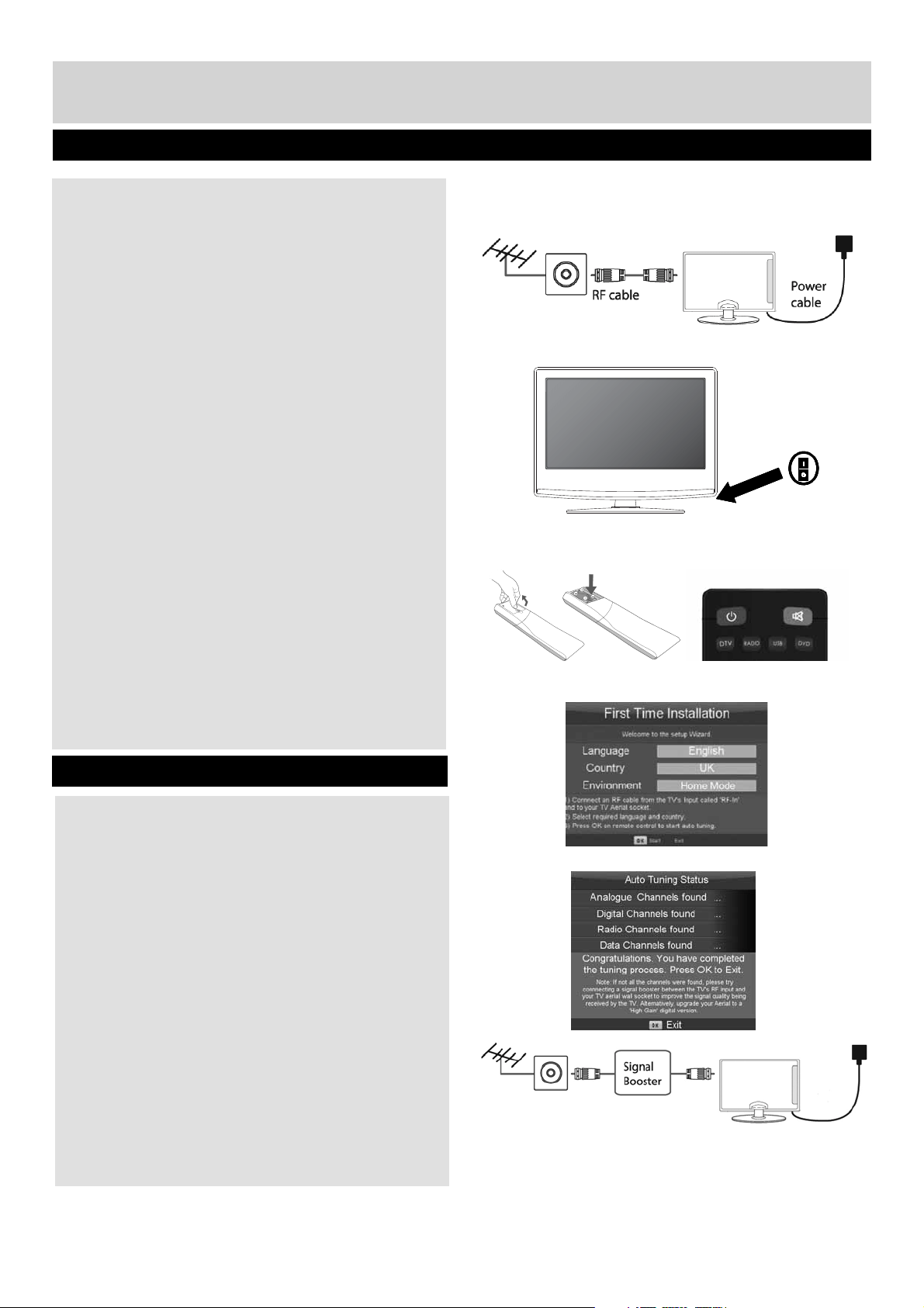
1) Using the RF cable supplied, connect the TV to the
TV Aerial wall socket (Fig A).
Connect the power cable to the Electrical outlet
(Fig B).
2) Switch on the television using the power on/off
switch located on the side, underside or rear of the
TV set.
3) Insert the batteries supplied into the Remote
control and press the standby button to power on
the TV.
4) You will now be welcomed with the initial set-up
screen. If it does not appear, on the remote control,
please press [MENU] then 8-8-8-8 and the menu will
appear. Press OK on the remote control and tuning
will start.*
5) After tuning the following screen will appear.*
If you are missing channels, the reason for this is
likely to be signal strength, you should consider
connecting a signal booster and re-tuning the TV.
Important
As part of our ongoing development to reduce power
consumption, we have added an extra function to
this Television called ‘Home Mode’ (you will see
this during the fi rst time installation set up). Power
consumption using the Home Mode function is
approximately 25% lower than some other modes.
The picture brightness is reduced using the Home
Mode function. If this function is not suitable for your
viewing environment, you can select other modes as
necessary. (Please note, ‘Store mode’ is for optimum
default picture settings, however, power consumption
is approximately 25% higher than ‘Home Mode’).
Please refer to the user guide section ‘Picture
settings’ in order to change the mode to one that
maybe more suitable for your environment. There
is also a shortcut button on the remote control
called ‘P-Mode’ should you wish to change to
another mode.
*Screen shots/images are shown for illustration purposes
only and may change dependent on model/region.
User Guide - BUSH-MAN-0020 - 32-133I-GB-5B2-HKDUS-UK, 32-133I-GW-5W2-HKDUS-UK.indd Sec1:12User Guide - BUSH-MAN-0020 - 32-133I-GB-5B2-HKDUS-UK, 32-133I-GW-5W2-HKDUS-UK.indd Sec1:12 26/05/2015 13:54:2326/05/2015 13:54:23
13
For any help concerning set up and use of your TV please call the Customer Helpline on page 3
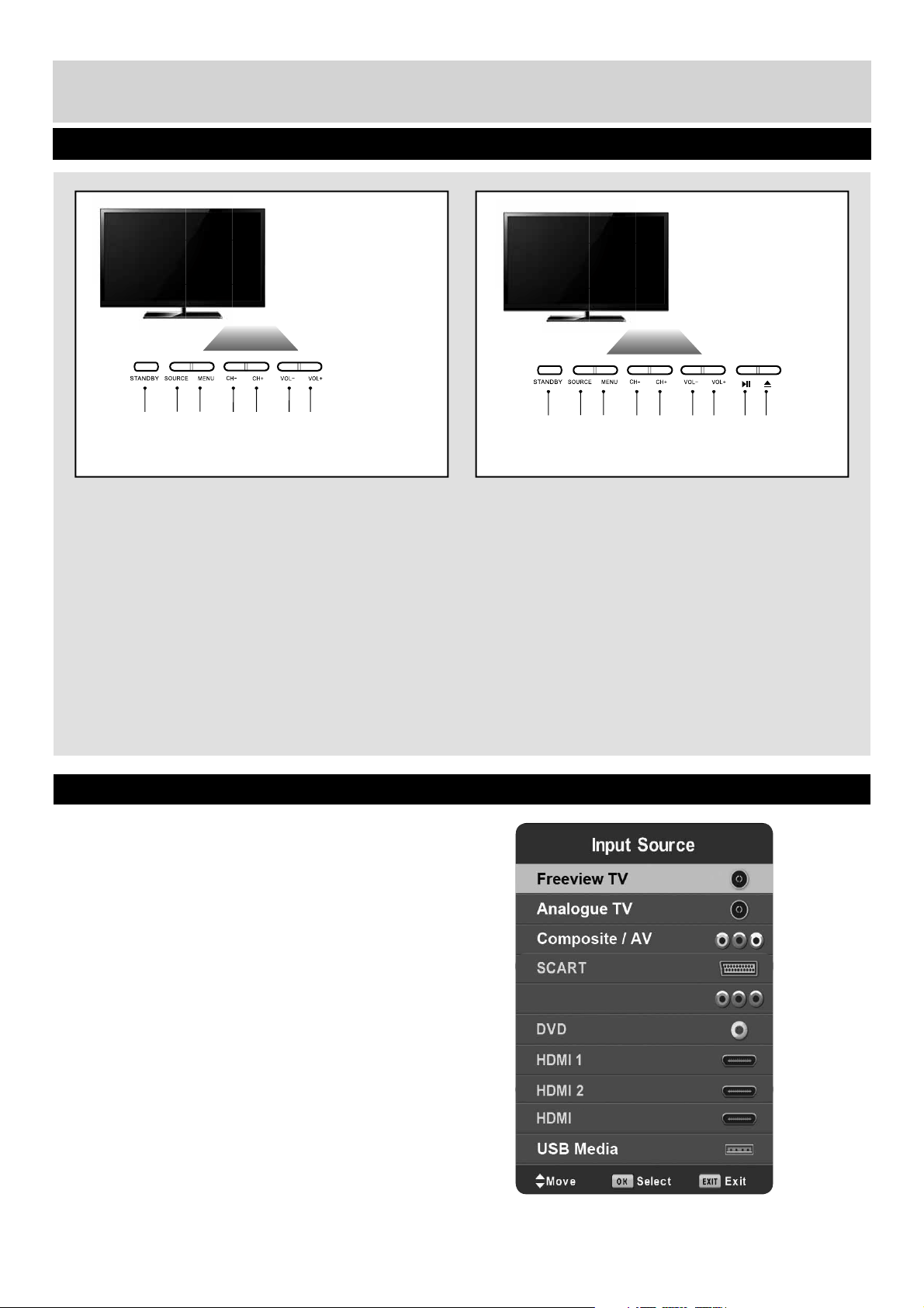
To switch between the different input/connections.
A) Using the buttons on the remote control:
1) Press [SOURCE] - The source menu will appear.
2) Press [\/] or [/\] to select the input you require.
3) Press [OK].
B) Using the buttons on the Television:
1) Press [SOURCE].
2) Scroll up / down using CH+/ CH- buttons to the
input/source you require.
3) Press Vol+ to change input/source to the one
selected.
For further information on input/connections
please view ‘Connections’ pages.
1. Standby Power On/Off
2. Displays the input source menu
3. Displays Menu/OSD
4. Programme/Channel down and menu down
5. Programme/Channel up and menu up
6. Volume down and menu left
7. Volume up and menu right
1. Standby Power On/Off
2. Displays the input source menu
3. Displays Menu/OSD
4. Programme/Channel down and menu down
5. Programme/Channel up and menu up
6. Volume down and menu left
7. Volume up and menu right
8. Play/Pause DVD
9. Stop/Eject DVD
TV Buttons & Source Menu
Choosing Mode Input/Source
For TV models with
built in DVD player
Component / YPbPr
An example of the ‘Input Source’ menu
(will vary by model)
1
1
2
2
3
3
4
4
5
5
6
68
7
79
Component / YPbPr
3
User Guide - BUSH-MAN-0020 - 32-133I-GB-5B2-HKDUS-UK, 32-133I-GW-5W2-HKDUS-UK.indd Sec1:13User Guide - BUSH-MAN-0020 - 32-133I-GB-5B2-HKDUS-UK, 32-133I-GW-5W2-HKDUS-UK.indd Sec1:13 26/05/2015 13:54:2426/05/2015 13:54:24
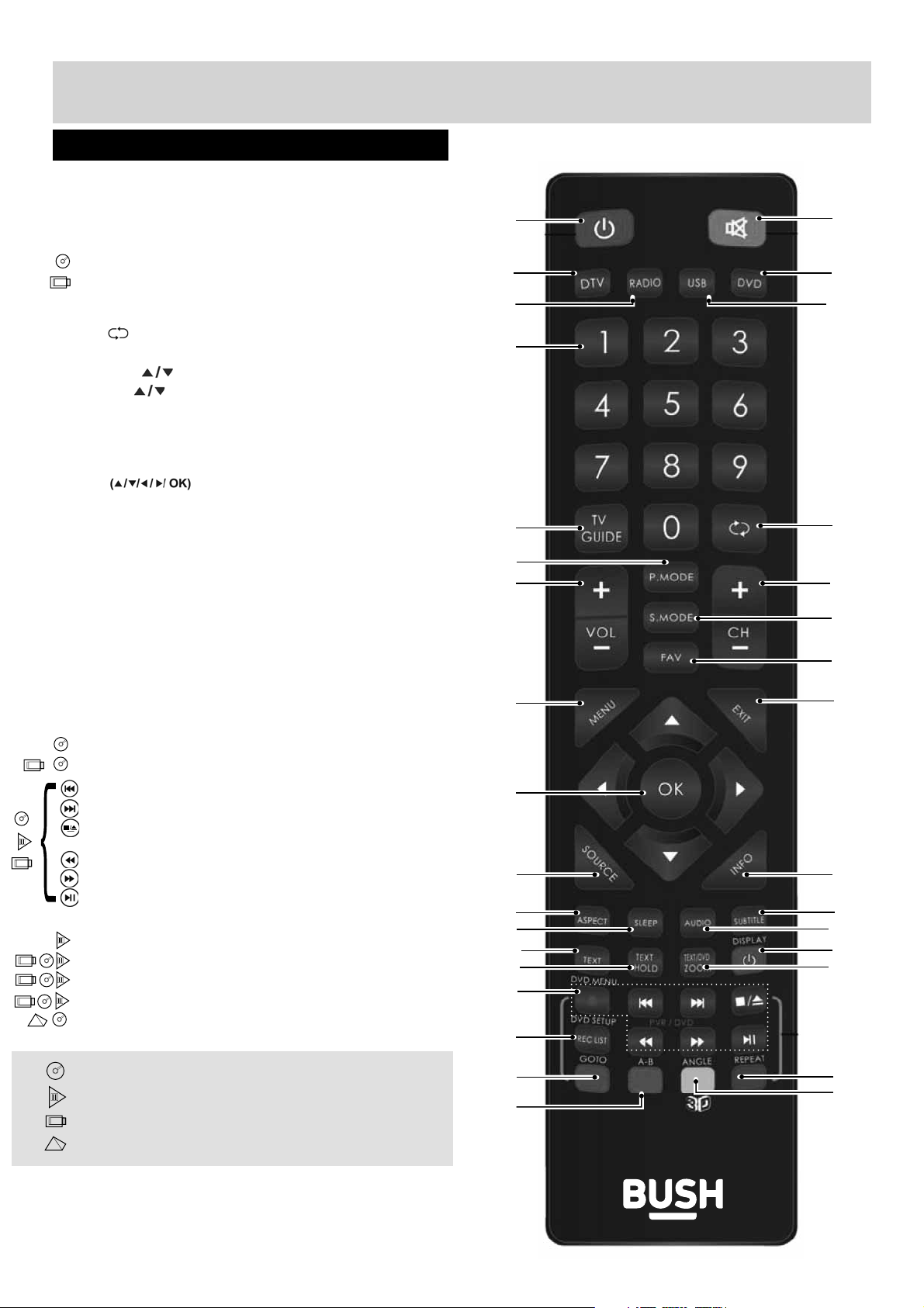
1. STANDBY
2. MUTE
3. DTV
4. RADIO
5. DVD
6. USB
7. NUMBER BUTTONS
8. TV GUIDE
9. - To return to the previous channel viewed
10. P.MODE - Scrolls through picture mode options
11. VOL
12. CH
13. S.MODE - Scrolls through sound mode options
14. FAV - To display favourites menu
15. MENU
16. EXIT
17.
- Allows you to navigate the
on-screen menus and adjust the system settings
to your preference
18. SOURCE/AV
19. INFO - Press once for now/next channel
information. Press twice for programme
information about current programme
20. ASPECT
21. SLEEP
22. SUBTITLE
23. AUDIO
24. TEXT
25. TEXT HOLD
26. DISPLAY
27. TEXTZOOM/DVD ZOOM
28. DVD Menu/Record
- To restart the current chapter
- To advance forward to the next chapter
- To stop/eject Disc
(hold for 4 seconds to eject disc)
- To play in fast rewind mode
- To play in fast forward mode
- To play/pause
29. REC LIST
30. GOTO
31. A-B
32. REPEAT
33. ANGLE/3D - Change to 3D mode
For Models with Integrated DVD players
For Models with PVR Function
For Models with USB Playback
For Models with 3D Feature
Remote Control
Viewing remote control - TV
1
35
4
7
8
10
11
12
13
15
17
18
20
22
24
26
28
29
21
23
25
27
30
31
32
33
19
16
14
9
6
2
14
For any help concerning set up and use of your TV please call the Customer Helpline on page 3
User Guide - BUSH-MAN-0020 - 32-133I-GB-5B2-HKDUS-UK, 32-133I-GW-5W2-HKDUS-UK.indd Sec1:14User Guide - BUSH-MAN-0020 - 32-133I-GB-5B2-HKDUS-UK, 32-133I-GW-5W2-HKDUS-UK.indd Sec1:14 26/05/2015 13:54:3026/05/2015 13:54:30
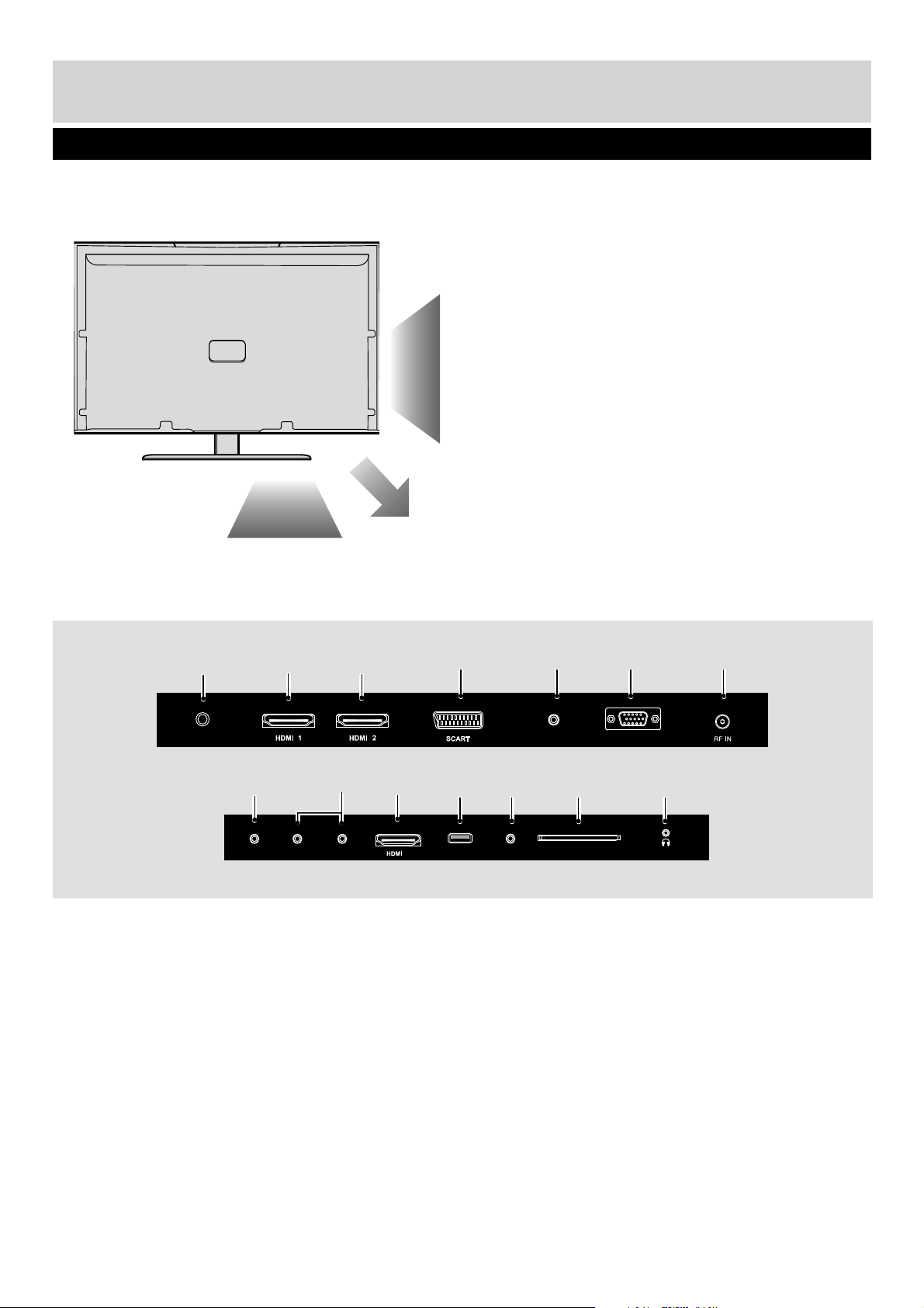
Connections
COAX in Digital Coax output -
HDMI 1 HDMI input
HDMI 2 HDMI input
SCART SCART input
VGA/PC AUDIO IN 3.5mm PC audio input -
VGA/PC VGA/PC input
RF IN RF / TV Aerial input
AV IN Video input
R/L AUDIO IN Component Audio input
HDMI 3 HDMI input
USB USB input
COMPONENT (HD) Component input (YPbPr)
CI CARD IN Common Interface module
EARPHONE Earphone socket
1
2
3
4
5
6
7
8
9
10
11
12
13
14
15
For any help concerning set up and use of your TV please call the Customer Helpline on page 3
Y
Pb
Pr
AV IN
3
USB
CI CARD IN
EARPHONE
R
L
VGA/PC (Audio in)
VGA/PC IN
COAX
1
2
3
9
7564
8
10
11 12
13 14
User Guide - BUSH-MAN-0020 - 32-133I-GB-5B2-HKDUS-UK, 32-133I-GW-5W2-HKDUS-UK.indd Sec1:15User Guide - BUSH-MAN-0020 - 32-133I-GB-5B2-HKDUS-UK, 32-133I-GW-5W2-HKDUS-UK.indd Sec1:15 26/05/2015 13:54:3026/05/2015 13:54:30
16
For any help concerning set up and use of your TV please call the Customer Helpline on page 3
L (white)
R (red)
Video
(yellow)
L (white)
R (red)
Video
(yellow)
HDMI HDMI
Connections
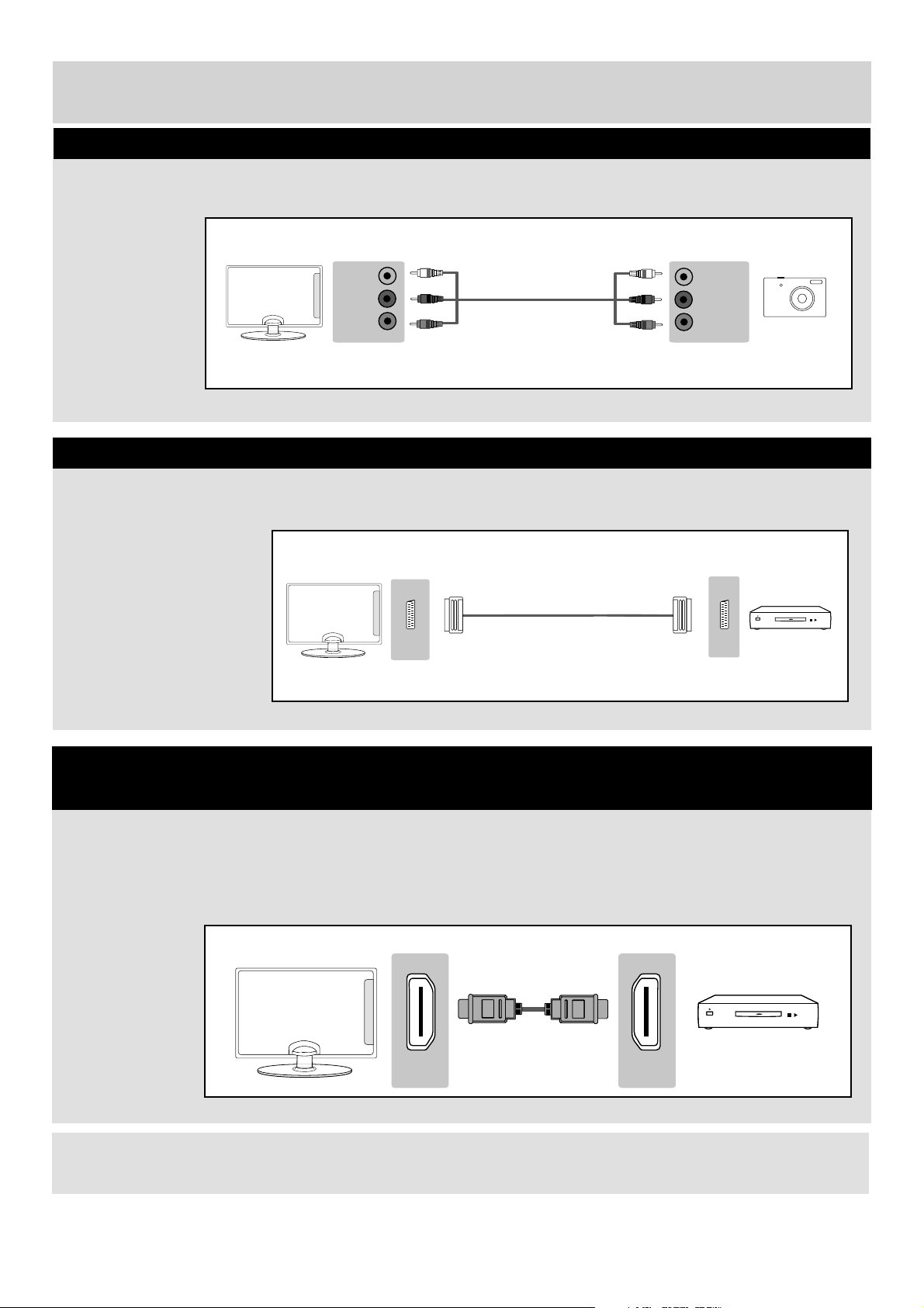
Source should be set to Composite/AV
A HDMI cable can output both video and audio and enables you to enjoy digital-quality video and audio
with minimal loss of quality.
TVs Source should be set to the corresponding HDMI Port (HDMI 1, HDMI 2, etc)
Connecting a Camcorder, Camera or Games Console
Connecting a High Defi nition (HD) Device
Option 1 - via HDMI to HDMI cable
Note: This model TV can not be used as a PC/laptop monitor via HDMI input. The HDMI Input is provided to view
digital content with compatible external devices.
Scart
Scart
TVs Source should be set to SCART
Connecting a DVD Player/Recorder, Video Recorder or Cable/Satellite Box
User Guide - BUSH-MAN-0020 - 32-133I-GB-5B2-HKDUS-UK, 32-133I-GW-5W2-HKDUS-UK.indd Sec1:16User Guide - BUSH-MAN-0020 - 32-133I-GB-5B2-HKDUS-UK, 32-133I-GW-5W2-HKDUS-UK.indd Sec1:16 26/05/2015 13:54:3026/05/2015 13:54:30
17
For any help concerning set up and use of your TV please call the Customer Helpline on page 3
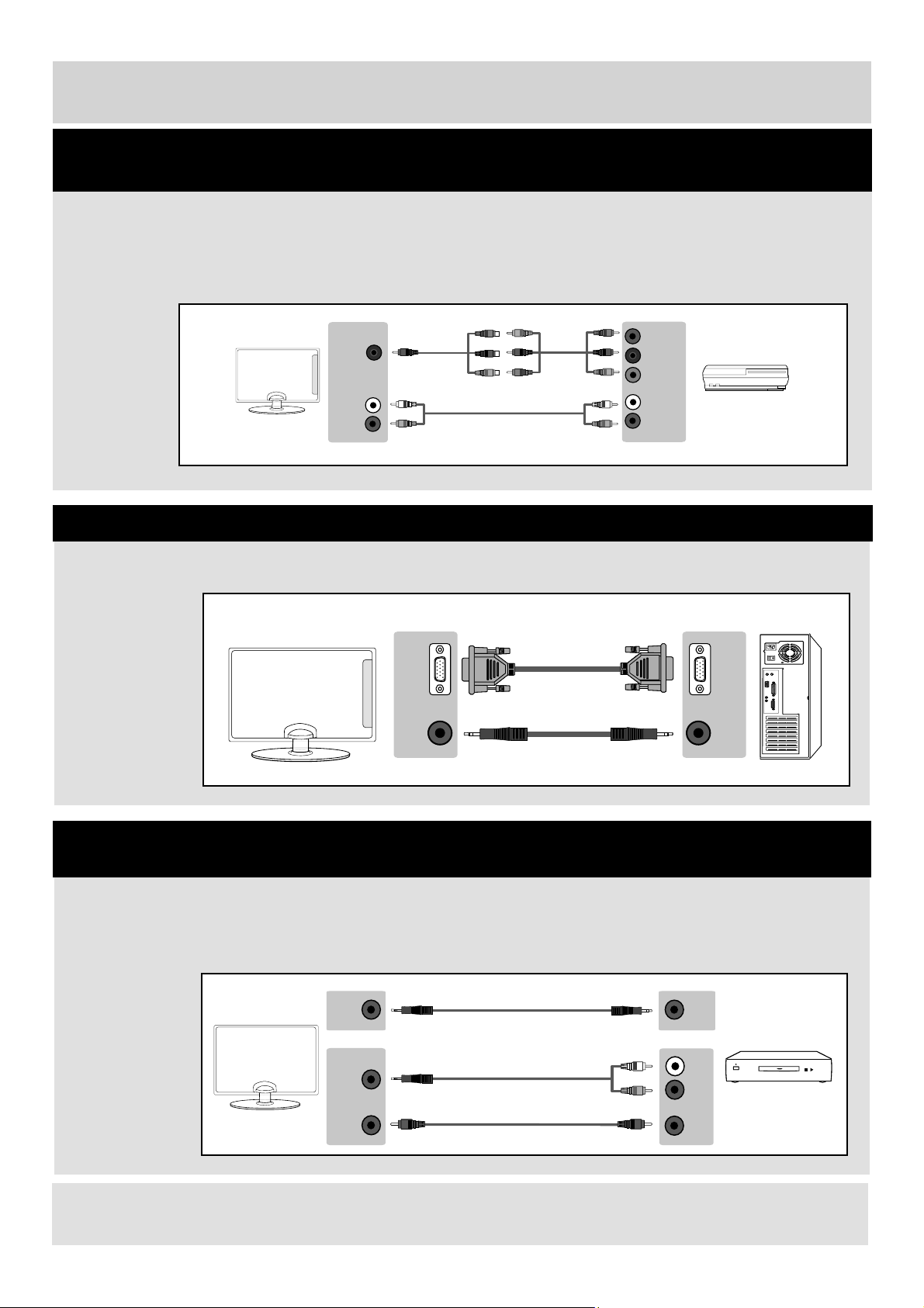
R (red)
L (white)
Mini
YPbPr
Y (green)
PB (blue)
PR (red)
R (red)
L (white)
Connections
If you are supplied with a cable from the device which has RED, GREEN, BLUE, RED & WHITE connectors you
must connect via Component (for picture) and by phono cable (for sound).
TV Source should be set to Component/YPbPr.
Connecting a High Defi nition (HD) Device
Option 2 - via Component cable
VGA/PC
IN
VGA/PC
OUT
VGA/PC
(AUDIO
IN)
AUDIO
OUT
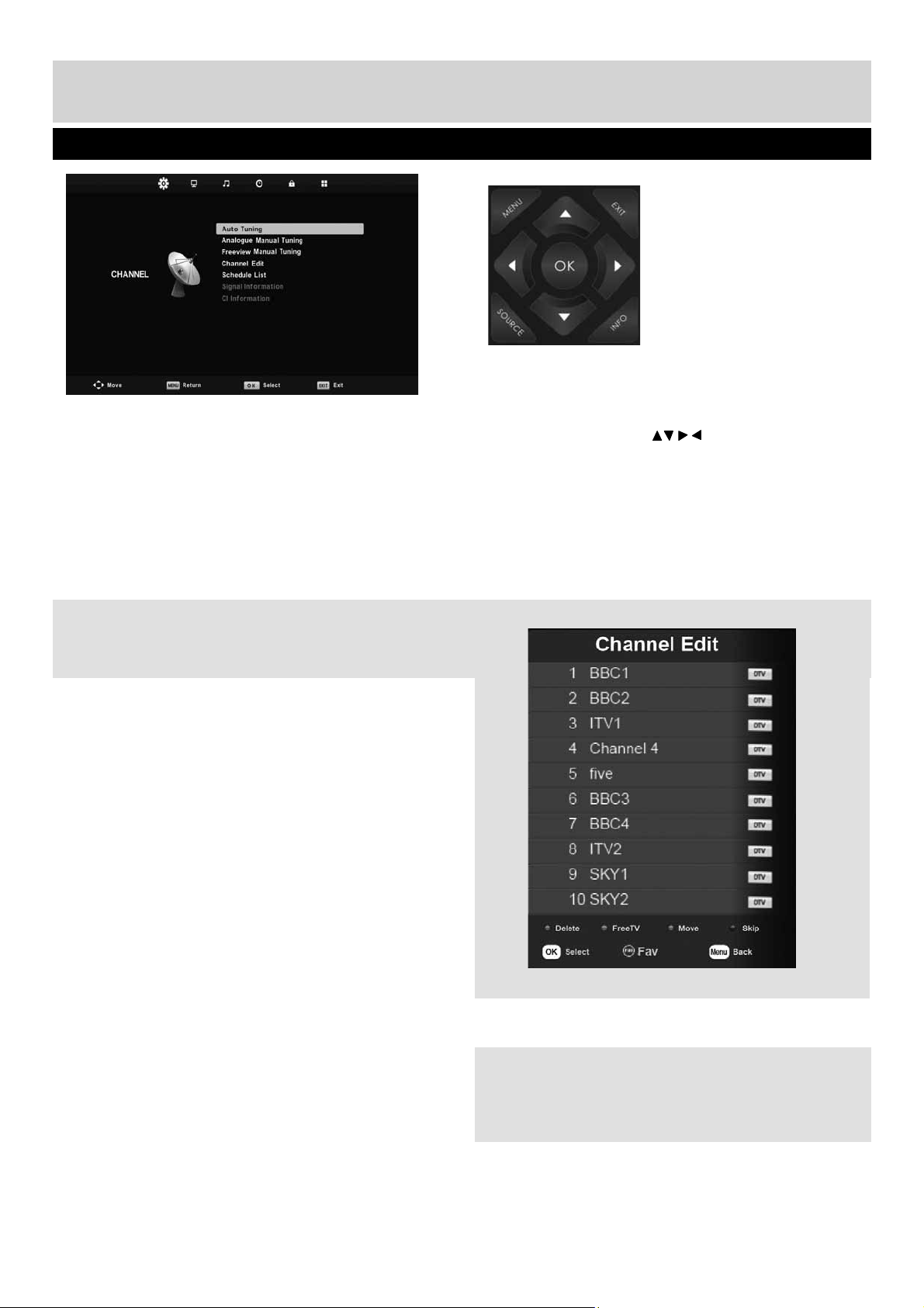
Source should be set to VGA/PC
Connecting to a device with VGA/PC output (Laptop or Desktop Computer)
3.5mm
EARPHONE
3.5mm
EARPHONE
OPTION 1 for 3.5mm EARPHONE Output
OPTION 2 for 3.5mm EARPHONE Output
COAXIAL
OUT
COAXIAL
IN
3.5mm
AUDIO
IN
L
R
When connecting via the TV’s 3.5mm Earphone output, this will disable the TV speakers.
There are two options to connect a device via the 3.5mm Earphone Output.
Connecting to an external audio device (Amplifi ers, Surround Sound,
Sound Bars etc)
Note: Connecting cables are shown for example only and may not be included. Please check ‘What Is Included In
The Box’ page.
User Guide - BUSH-MAN-0020 - 32-133I-GB-5B2-HKDUS-UK, 32-133I-GW-5W2-HKDUS-UK.indd Sec1:17User Guide - BUSH-MAN-0020 - 32-133I-GB-5B2-HKDUS-UK, 32-133I-GW-5W2-HKDUS-UK.indd Sec1:17 26/05/2015 13:54:3026/05/2015 13:54:30
18
For any help concerning set up and use of your TV please call the Customer Helpline on page 3
Tip: If you do not press any buttons for 30 seconds,
the menu will automatically exit. You can change the
length of time before the menu exits automatically -
see ‘Menu Duration’ section.
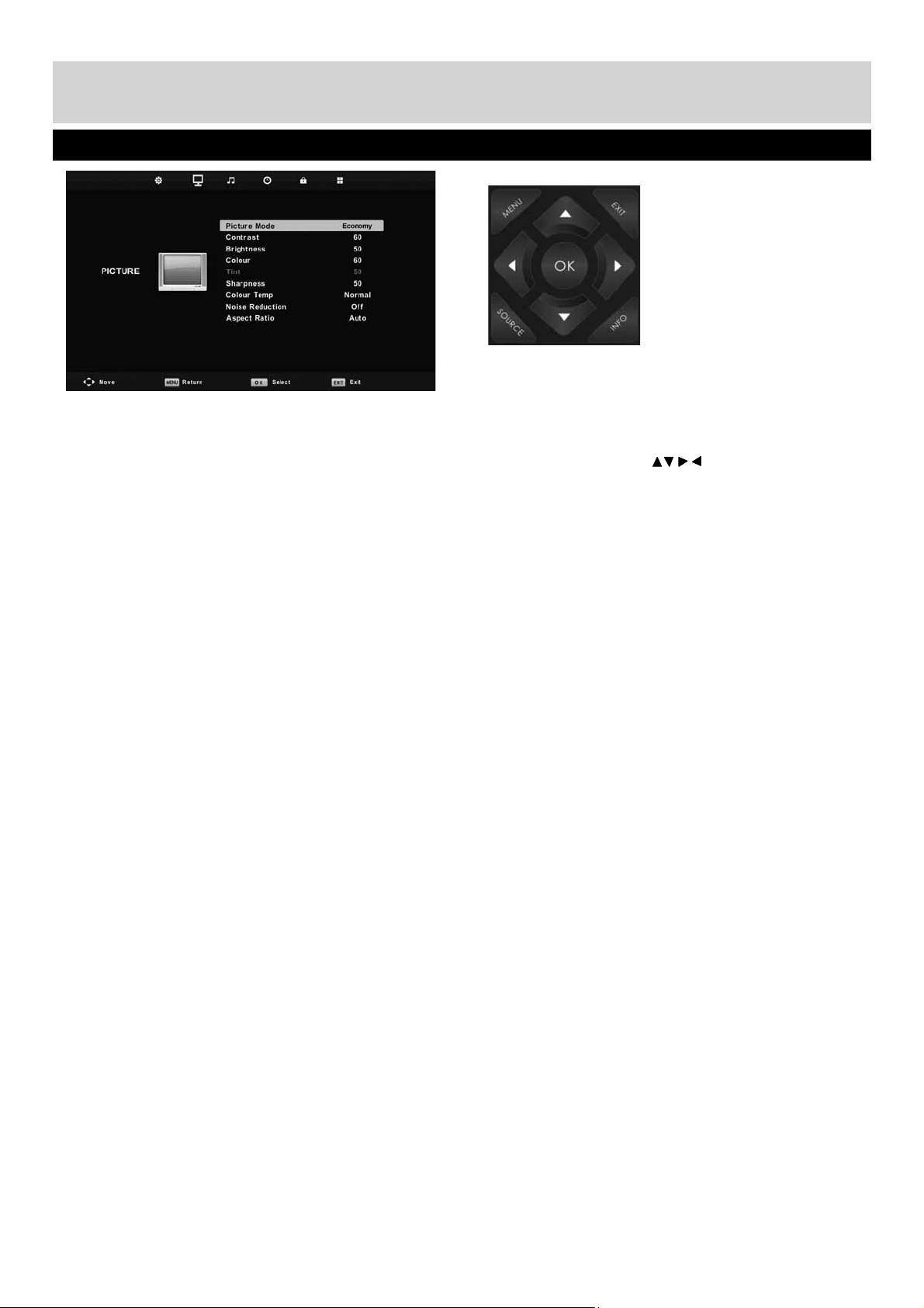
Auto Tuning
Allows you to retune the television for all digital
channels, digital radio stations and analogue
channels.
Analogue Manual Tuning
Allows you to manually tune your analogue signal
Freeview Manual Tuning
Allows you to manually tune your digital signal
Channel Edit
Allows you to delete, move, skip and add
favourite channels.
Schedule List
Lists your programme reminders
Signal Information
Displays signal strength information
CI Information
Pay per view services require a “smartcard” to be
inserted into the TV. If you subscribe to a pay per
view service the provider will issue you with a ‘CAM’
and a “smartcard”. The CAM can then be inserted
into the COMMON INTERFACE PORT (CI Card In).
To access this menu, press [MENU] button on the
remote control. To enter a menu press [OK]
If you wish to make changes to any of the default
settings, use the scroll
buttons. To confi rm
any settings press [OK] button.
To exit this menu at anytime, press [EXIT] button.
Channel Menu
User Guide - BUSH-MAN-0020 - 32-133I-GB-5B2-HKDUS-UK, 32-133I-GW-5W2-HKDUS-UK.indd Sec1:18User Guide - BUSH-MAN-0020 - 32-133I-GB-5B2-HKDUS-UK, 32-133I-GW-5W2-HKDUS-UK.indd Sec1:18 26/05/2015 13:54:3026/05/2015 13:54:30
19
For any help concerning set up and use of your TV please call the Customer Helpline on page 3
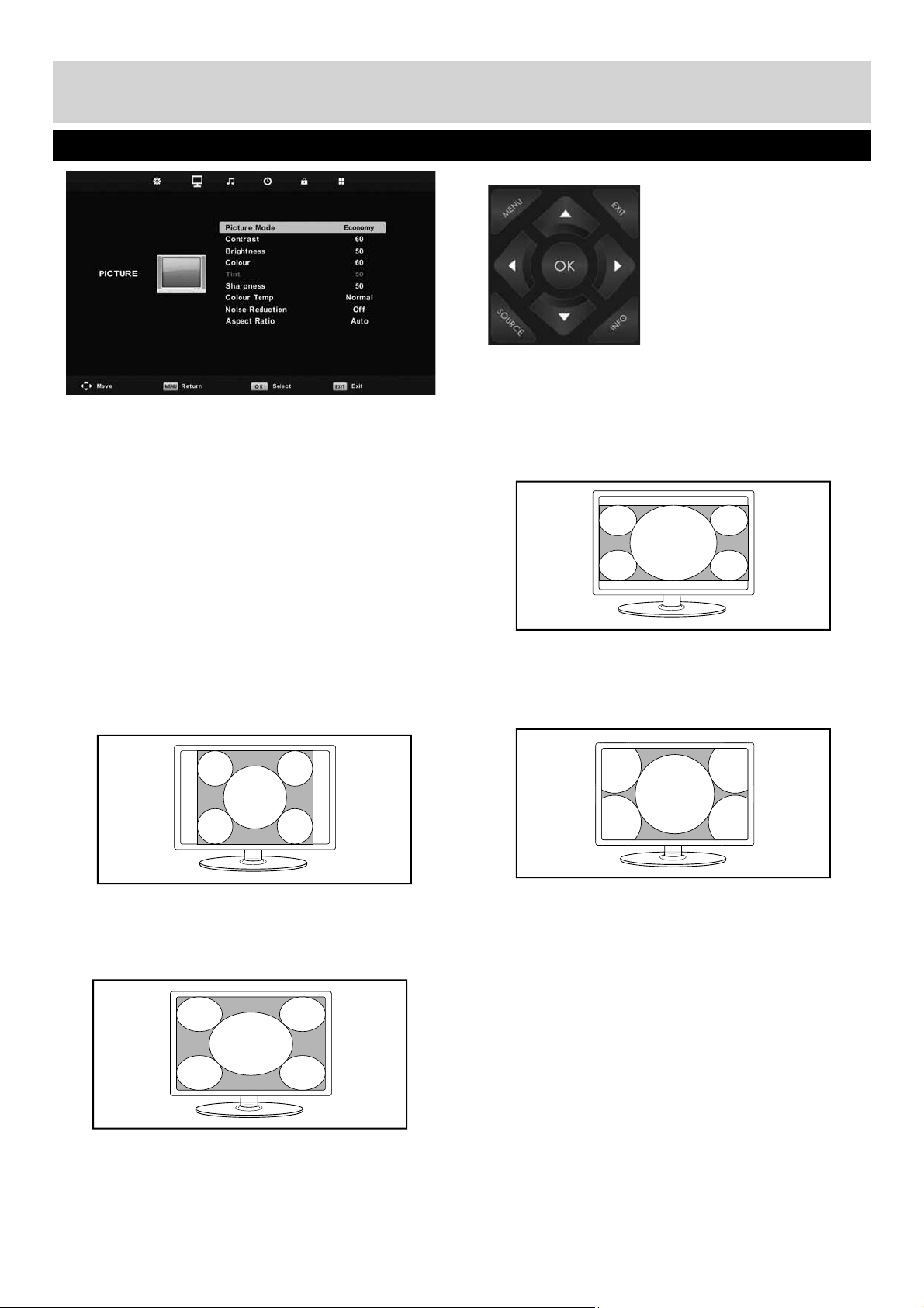
Picture Mode
• Dynamic - Recommended settings for fast
moving pictures
• Standard - Default settings
• Mild - Set to be lighter in colour and less
bright
• Personal - Lets you manually alter all the
settings
• Economy - Power saving mode which reduces
the energy used by up to 25% (by reducing the
power to the LED/LCD panel). In Economy mode,
the TV will switch itself to Standby mode after 3-5
hours in the event that the TV buttons or remote
control buttons are not pressed (change the
picture mode to another setting to de-activate
this function)
Contrast
Switch the balance between black and white
Brightness
Increase or decrease the brightness of the picture
Colour
Increases the colour from black and white
Tint
Lets you increase or decrease the level of tint within
the picture
Sharpness
Increase or decrease the sharpness of the picture
Colour Temperature
• Normal - Default settings
• Warm - Increases red within the picture
• Cool - Increases blue within the picture
Noise Reduction
• Off - Turns noise reduction off
• Low - Minor system adjustment
• Middle - Medium system adjustments
• High - Maximum system adjustments
• Default - Default settings
Picture Menu
To access this menu, press [MENU] button on the
remote control and scroll right.
To enter a menu press [OK]
If you wish to make changes to any of the default
settings, use the scroll
buttons. To confi rm
any settings press [OK] button.
To exit this menu at anytime, press [EXIT] button.
User Guide - BUSH-MAN-0020 - 32-133I-GB-5B2-HKDUS-UK, 32-133I-GW-5W2-HKDUS-UK.indd Sec1:19User Guide - BUSH-MAN-0020 - 32-133I-GB-5B2-HKDUS-UK, 32-133I-GW-5W2-HKDUS-UK.indd Sec1:19 26/05/2015 13:54:3026/05/2015 13:54:30
20
For any help concerning set up and use of your TV please call the Customer Helpline on page 3
• 16:9 - Fills the screen with a regular 16:9 signal
and 4:3 will stretch to fi ll the screen
• 4:3 - Displays the 4:3 picture in its original size.
Side bars are shown to fi ll the 16:9 screen
• 14:9 - Displays the 14:9 picture in the correct
proportion. As a result bars are shown on
the screen
• Zoom - The picture is the correct proportion but
zoomed in to fi ll the screen
Picture Menu
Aspect Ratio
Within the UK the picture format varies depending
on the channel/broadcast. There are a number of
different options to best meet your needs
• Auto - Automatically displays the best picture
format. So the picture is in the correct position.
May have black lines at the top/bottom and/or
sides.
• Original - Will display the picture from the
broadcaster without any change
User Guide - BUSH-MAN-0020 - 32-133I-GB-5B2-HKDUS-UK, 32-133I-GW-5W2-HKDUS-UK.indd Sec1:20User Guide - BUSH-MAN-0020 - 32-133I-GB-5B2-HKDUS-UK, 32-133I-GW-5W2-HKDUS-UK.indd Sec1:20 26/05/2015 13:54:3126/05/2015 13:54:31
21
For any help concerning set up and use of your TV please call the Customer Helpline on page 3
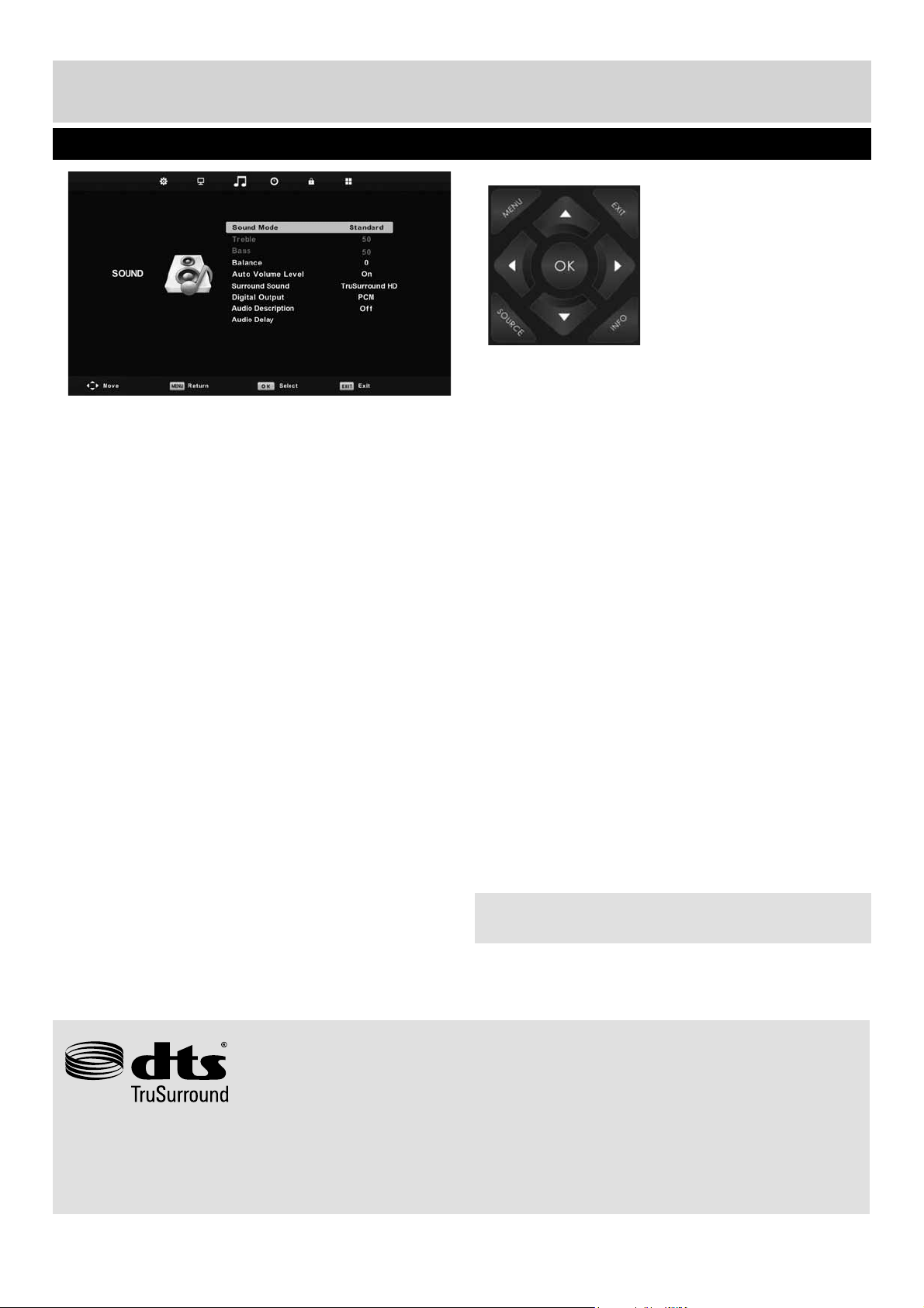
Sound Mode
• Standard - Default settings
• Music - Emphasises music over voices
• Movie - Provides live and full sound for movies
• Sports - Emphasises sound for sports
• Personal - Selects your personal sound settings
Treble
To adjust the amount of high frequency within
the sound
Bass
To adjust the amount of low frequency within
the sound
Balance
To switch the so und between the left and right
speakers
Auto Volume Level (AVL)
When ‘on’ is selected, the volume will stay at a
constant level regardless of input/source
Surround Sound
• Off - Off
• TruSurround HD - TruSurround HD™ creates
an immersive, feature-rich surround sound
experience from two speakers, complete with
rich bass, high frequency detail and clear dialog
Digital Output
• Off - Off
• Auto - Selects the best settings automatically
• PCM - Select this option if you are connecting
to a Stereo Hi-fi via coax cable (Pulse-code
modulation (PCM) is a digital representation of an
analogue signal)
Audio Description
This allows the user to increase and decrease the AD
(Audio Description) volume level.
(Audio Description is a service available on certain
programmes. It provides a description of what is
happening during the selected programme for a
person who is visually impaired)
Audio Delay
Enables the user to adjust setting to sync picture
and audio
Tip: Treble and bass levels can only be adjusted
when the sound mode ‘Personal’ is selected.
Sound Menu
For DTS patents, see http://patents.dts.com. Manufactured under license from DTS Licensing Limited. DTS, the
Symbol, & DTS and the Symbol together are registered trademarks, and DTS TruSurround is a trademark of DTS,
Inc. © DTS, Inc. All Rights Reserved.
User Guide - BUSH-MAN-0020 - 32-133I-GB-5B2-HKDUS-UK, 32-133I-GW-5W2-HKDUS-UK.indd Sec1:21User Guide - BUSH-MAN-0020 - 32-133I-GB-5B2-HKDUS-UK, 32-133I-GW-5W2-HKDUS-UK.indd Sec1:21 26/05/2015 13:54:3126/05/2015 13:54:31
22
For any help concerning set up and use of your TV please call the Customer Helpline on page 3
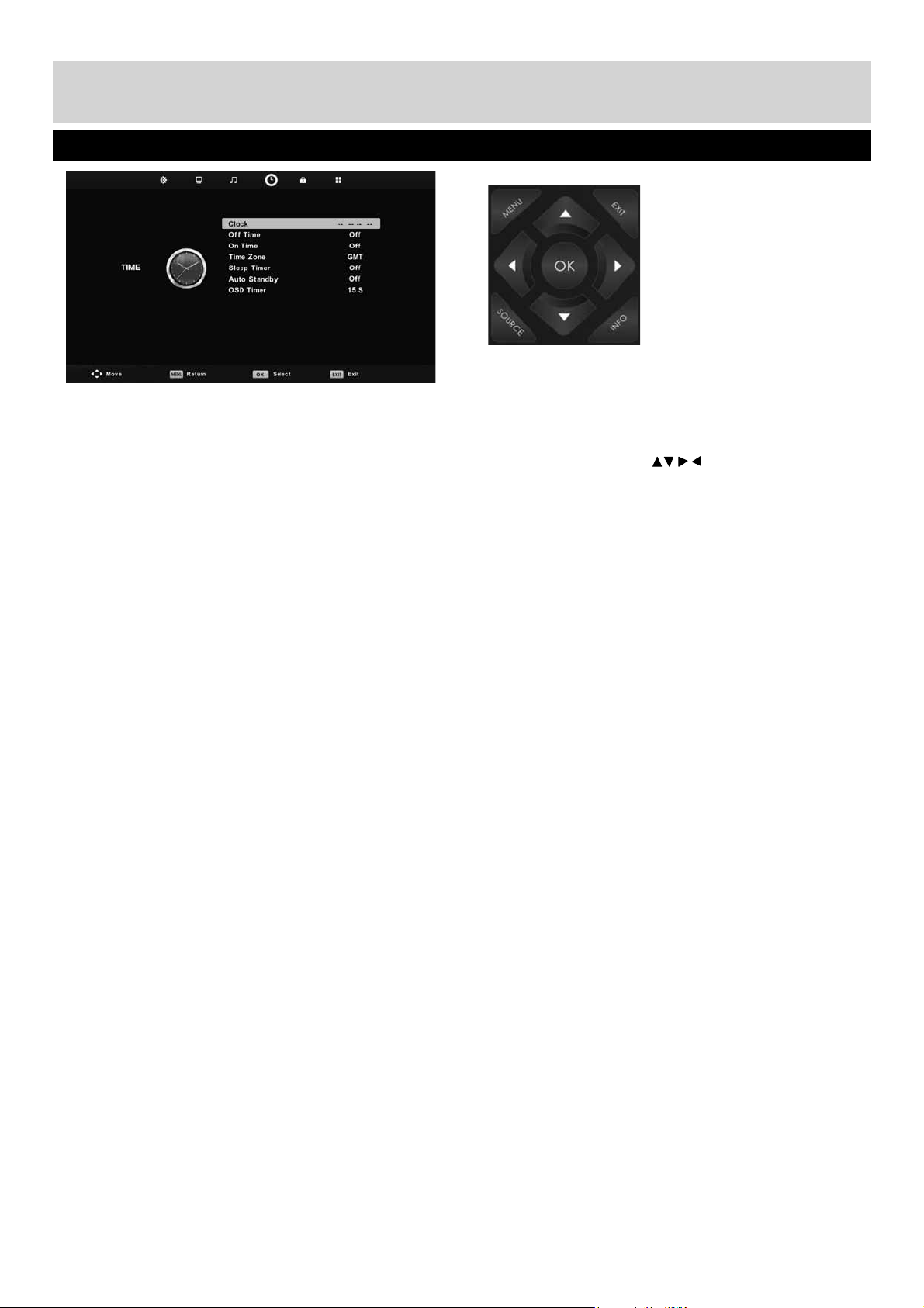
Clock
Shows the date and time
Off Time
Allows you to set a specifi c time for your TV to turn off
On Time
Allows you to set a specifi c time for your TV to turn
on, the channel it will then display, the source it will
be on and also the volume. This function can then be
toggled to repeat every day or a certain day.
Time Zone
Change your current time zone
Sleep Timer
Lets you set the sleep timer so the television
automatically switches off after a set amount of time.
Off -> 10min -> 20min -> 30min -> 60min -> 90min ->
120min -> 180min -> 240min
Auto standby
Set Auto standby between 3 hours, 4 hours and 5
hours ( to turn off this function you must exit Home
Mode in the Picture Menu)
OSD Timer
Lets you adjust the amount of time the On Screen
Menu stays on the screen before disappearing
Time Menu
To access this menu, press [MENU] button on the
remote control and scroll right.
To enter a menu press [OK]
If you wish to make changes to any of the default
settings, use the scroll
buttons. To confi rm
any settings press [OK] button.
To exit this menu at anytime, press [EXIT] button.
User Guide - BUSH-MAN-0020 - 32-133I-GB-5B2-HKDUS-UK, 32-133I-GW-5W2-HKDUS-UK.indd Sec1:22User Guide - BUSH-MAN-0020 - 32-133I-GB-5B2-HKDUS-UK, 32-133I-GW-5W2-HKDUS-UK.indd Sec1:22 26/05/2015 13:54:3126/05/2015 13:54:31
23
For any help concerning set up and use of your TV please call the Customer Helpline on page 3
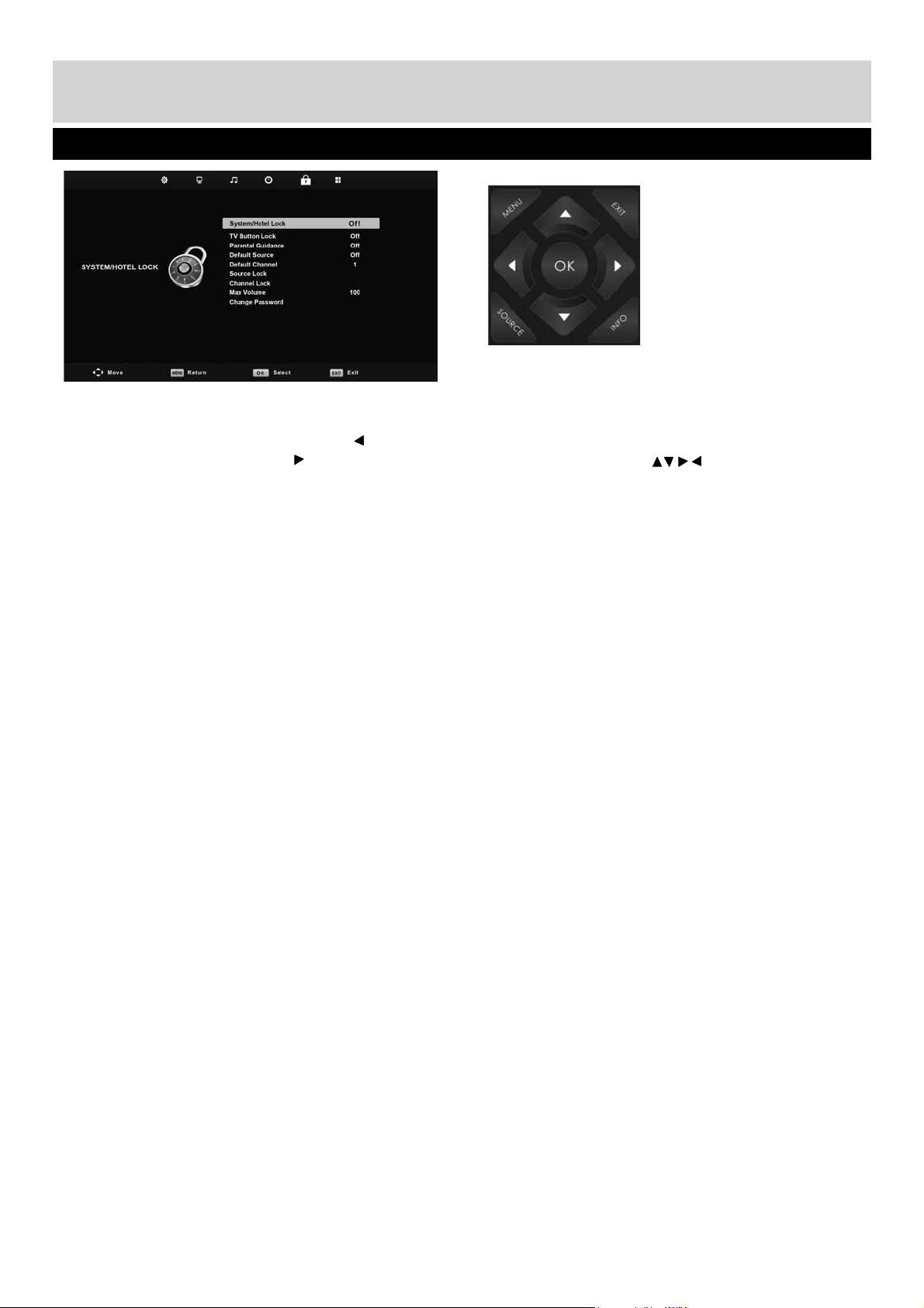
System/Hotel Lock
Allows you to lock or unlock the menu. You will be
asked to enter a 4 digit password use the button to
quit the password input. Use the button to clear.
Default password is 0000
TV Button Lock
Allows you to lock the buttons on the side of the
TV set
Parental Guidance
Allows you to set the rating to block certain content
based on age information
Default Source
Allows the user to set the default source. The default
source is the source the TV starts on when fi rst
switched on
Default Channel
Allows the user to set a channel as the default
channel on the Digital source. The default channel is
the channel the TV starts on when fi rst switched on
Source Lock
Allows you to lock the source menu
Channel Lock
Allows you to lock certain channels manually
Max Volume
Allows you to adjust and set the maximum volume
Change Password
Allows you to change the password
System/Hotel Lock Menu
To access this menu, press [MENU] button on the
remote control and scroll right.
To enter a menu press [OK]
If you wish to make changes to any of the default
settings, use the scroll
buttons. To confi rm
any settings press [OK] button.
To exit this menu at anytime, press [EXIT] button.
User Guide - BUSH-MAN-0020 - 32-133I-GB-5B2-HKDUS-UK, 32-133I-GW-5W2-HKDUS-UK.indd Sec1:23User Guide - BUSH-MAN-0020 - 32-133I-GB-5B2-HKDUS-UK, 32-133I-GW-5W2-HKDUS-UK.indd Sec1:23 26/05/2015 13:54:3126/05/2015 13:54:31
24
For any help concerning set up and use of your TV please call the Customer Helpline on page 3
Setup Menu
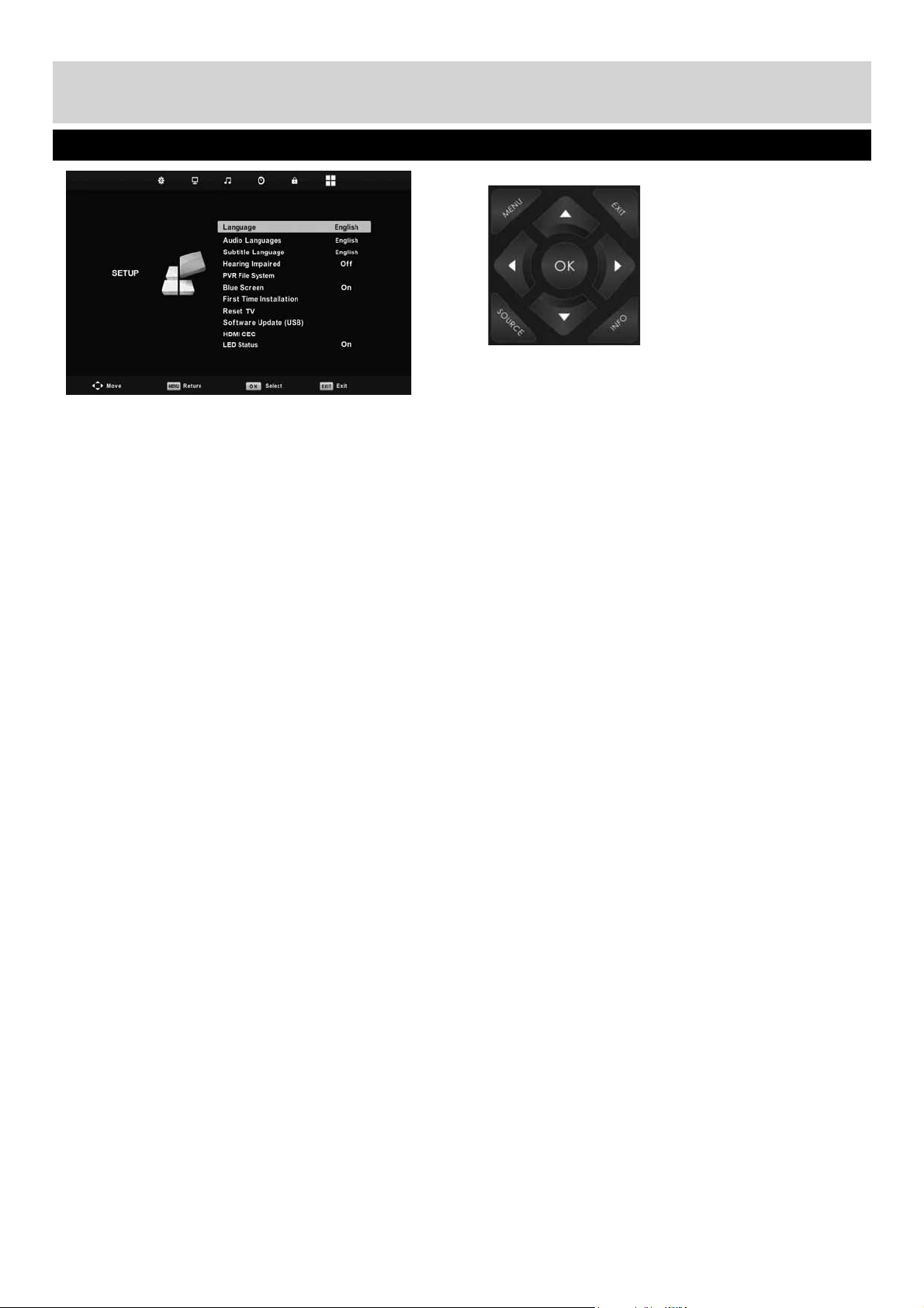
Language
Allows you to change the language of the menu
Audio language
Allows the user to change the audio language
Subtitle Language
Allows the user to change the subtitle language
Hearing Impaired
This allows the user to turn on the Hearing Impaired
function, this produces subtitles on the screen which
provide a description of what is happening during the
selected program.
PVR File System
Allows you to view the format and performance of a
USB key
Blue Screen
Changes the background when there is no input
between clear and a blue background (Only available
on some sources)
First Time Installation
Allows you to retune the television for all digital
channels, digital radio stations and analogue
channels
Reset TV
This resets the menus to factory settings and will
erase all TV channels stored on the television
Software Update (USB)
This menu lets you install the new software/fi rmware
onto the television. Further details of how to do this
will be issued with the fi rmware. Contact the helpline
or refer to the ‘product support’ section of the website
HDMI CEC (Consumer Electronic Control)
Allows HDMI devices to control each other and allows
the user to operate multiple devices with one remote
control. (only available with compatible devices)
LED Status
Allows the user to switch the LED Power indicator
light ON or OFF, when the TV is being operated.
(When this option is set to OFF the LED Power
indicator light will fl ash when the remote control
is used)
User Guide - BUSH-MAN-0020 - 32-133I-GB-5B2-HKDUS-UK, 32-133I-GW-5W2-HKDUS-UK.indd Sec1:24User Guide - BUSH-MAN-0020 - 32-133I-GB-5B2-HKDUS-UK, 32-133I-GW-5W2-HKDUS-UK.indd Sec1:24 26/05/2015 13:54:3226/05/2015 13:54:32
25
For any help concerning set up and use of your TV please call the Customer Helpline on page 3
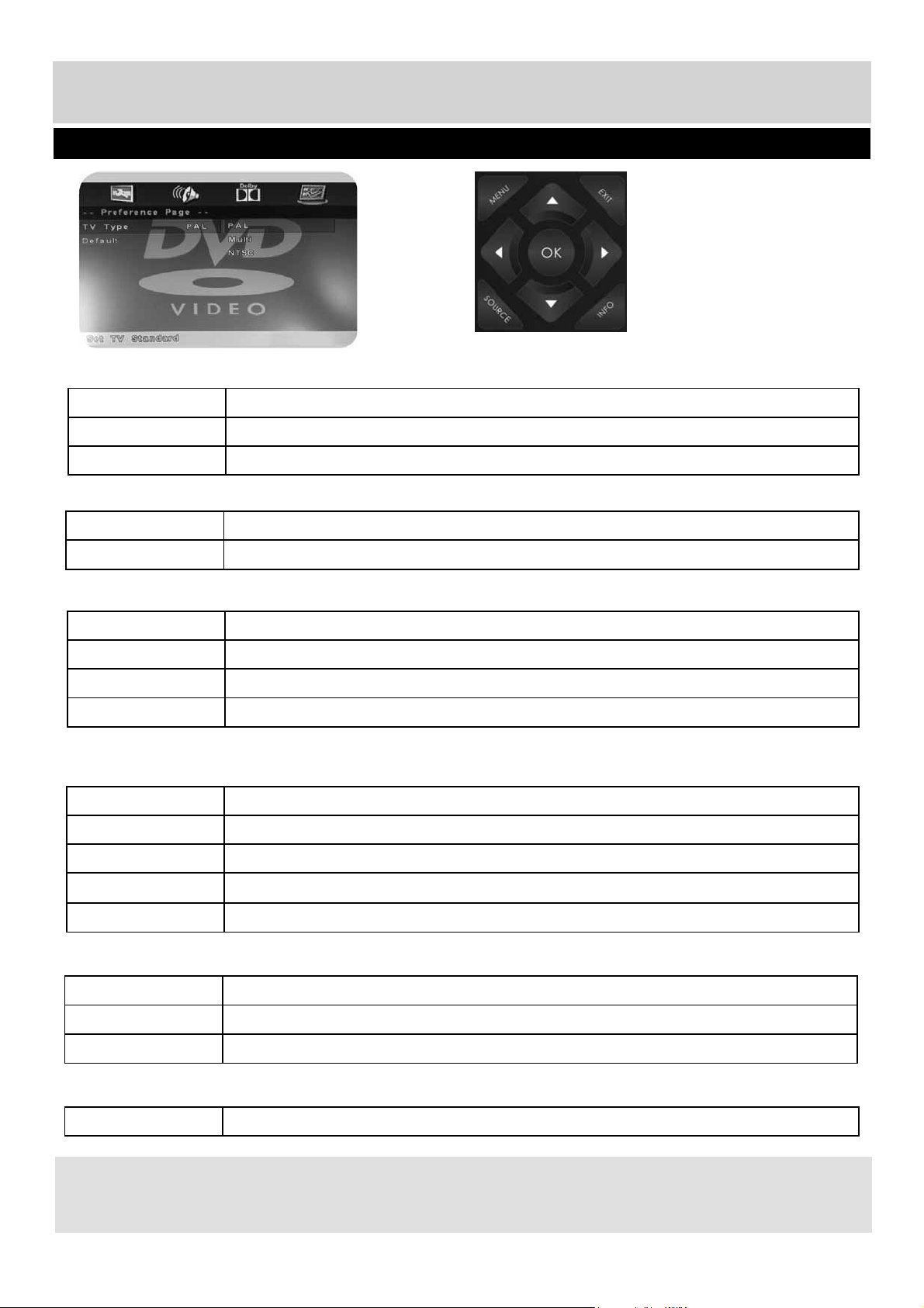
DVD Setup
Applies to models with built in DVD players
TV Display - Choose from the following options
Speaker Setup - Choose from the following options
TV Type - Choose from the following options
Default - Choose from the following options
Dual Mono - Choose from the following options
Dynamic Range - This is the difference between the quietest and loudest sounds. This setting works only with
DVD discs recorded in Dolby digital.
4:3 Pan Scan PS Traditional picture format, often used on old fi lm
4:3 Letter Box LB Traditional picture which has been adapted for widescreen
Wide 16:9 Widescreen picture format
LT/RT Converts from multi-channel sound to mono
Stereo Converts from multi-channel sound to Stereo
PAL For discs from UK/Europe, Asia, Australia etc
Multi For both NTSC and PAL
NTSC For discs from North America, Japan etc
Reset Resets all options in the ‘DVD setup’ menu back to the default settings
Stereo Outputs 2 channels of sound both left and right
Mono L Outputs left side sound
Mono R Outputs right side sound
Mix Mono Outputs a single channel of sound but mix between right and left
Full Set this to listen with the range recorded on the disc
3/4 Set this to listen with a range equivalent to a normal television
1/2 Set this to listen with a smaller difference between the maximum and minimum volume
1/4 Set this to listen with a smaller difference between the maximum and minimum volume
Off Set dynamic range to off
Tip: This TV/DVD player is pre-set to play Region 2 DVDs. In the event you wish to use the TV/DVD in
another country that uses different region discs, please visit www.umc-uk.co.uk. Select ‘Product Support’,
‘Changing Region’.
User Guide - BUSH-MAN-0020 - 32-133I-GB-5B2-HKDUS-UK, 32-133I-GW-5W2-HKDUS-UK.indd Sec1:25User Guide - BUSH-MAN-0020 - 32-133I-GB-5B2-HKDUS-UK, 32-133I-GW-5W2-HKDUS-UK.indd Sec1:25 26/05/2015 13:54:3226/05/2015 13:54:32
27
For any help concerning set up and use of your TV please call the Customer Helpline on page 3
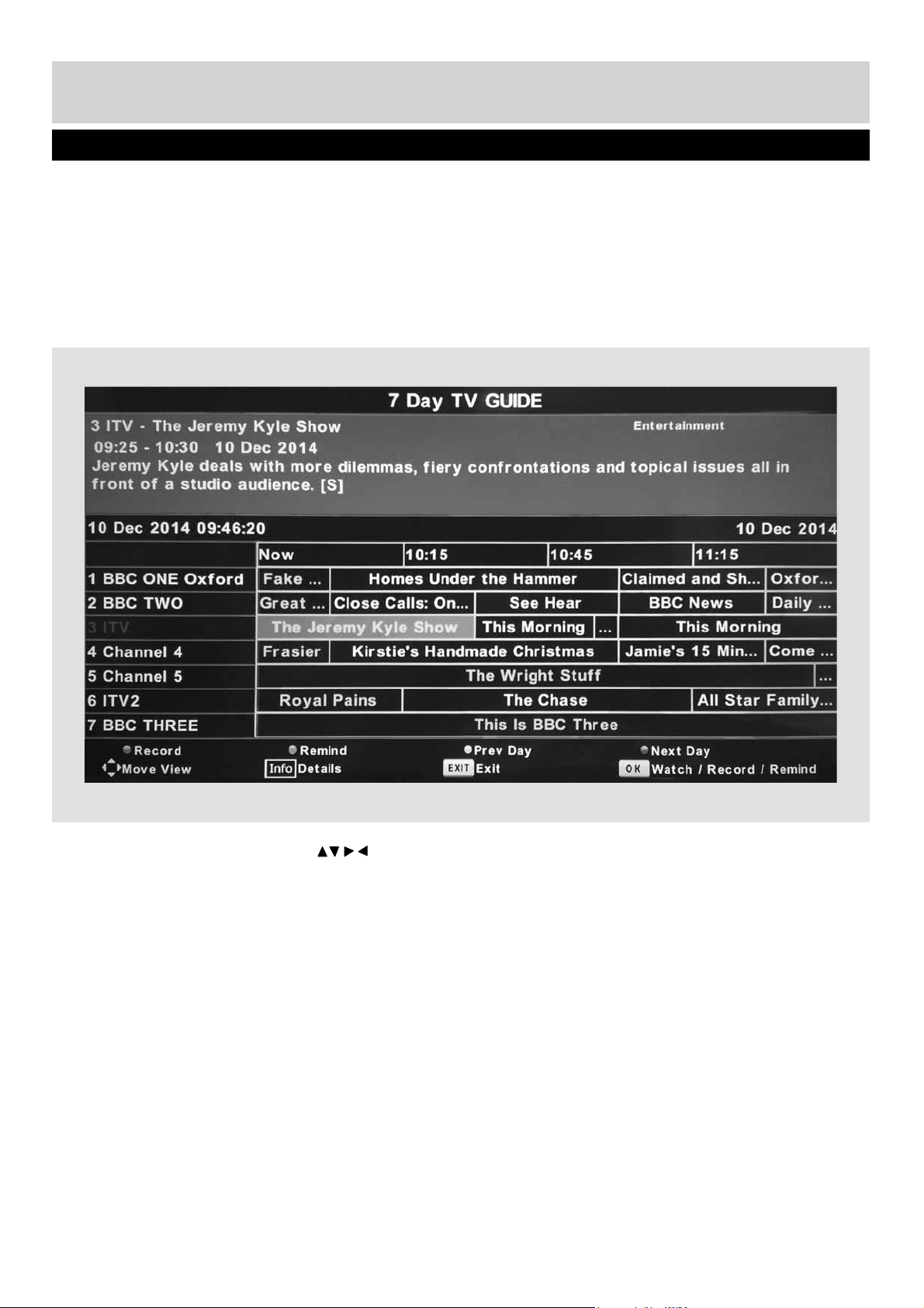
TV Guide is available in Digital TV mode. It provides
information about forthcoming programmes (where
supported by the freeview channel). You can view
the start and end time of all programmes and on all
channels for the next 7 days and set reminders.
1) Press [TV GUIDE]. The following 7 Day TV Guide
will appear.
2) Navigate through the menu using
You can now:
Record a programme by pressing RED (USB device
must be connected)
Set a reminder by pressing GREEN
View a previous day by pressing YELLOW
View the next day by pressing BLUE
3) Press [EXIT] to exit the 7 day TV Guide.
7 Day TV Guide
User Guide - BUSH-MAN-0020 - 32-133I-GB-5B2-HKDUS-UK, 32-133I-GW-5W2-HKDUS-UK.indd Sec1:27User Guide - BUSH-MAN-0020 - 32-133I-GB-5B2-HKDUS-UK, 32-133I-GW-5W2-HKDUS-UK.indd Sec1:27 26/05/2015 13:54:3226/05/2015 13:54:32
28
For any help concerning set up and use of your TV please call the Customer Helpline on page 3
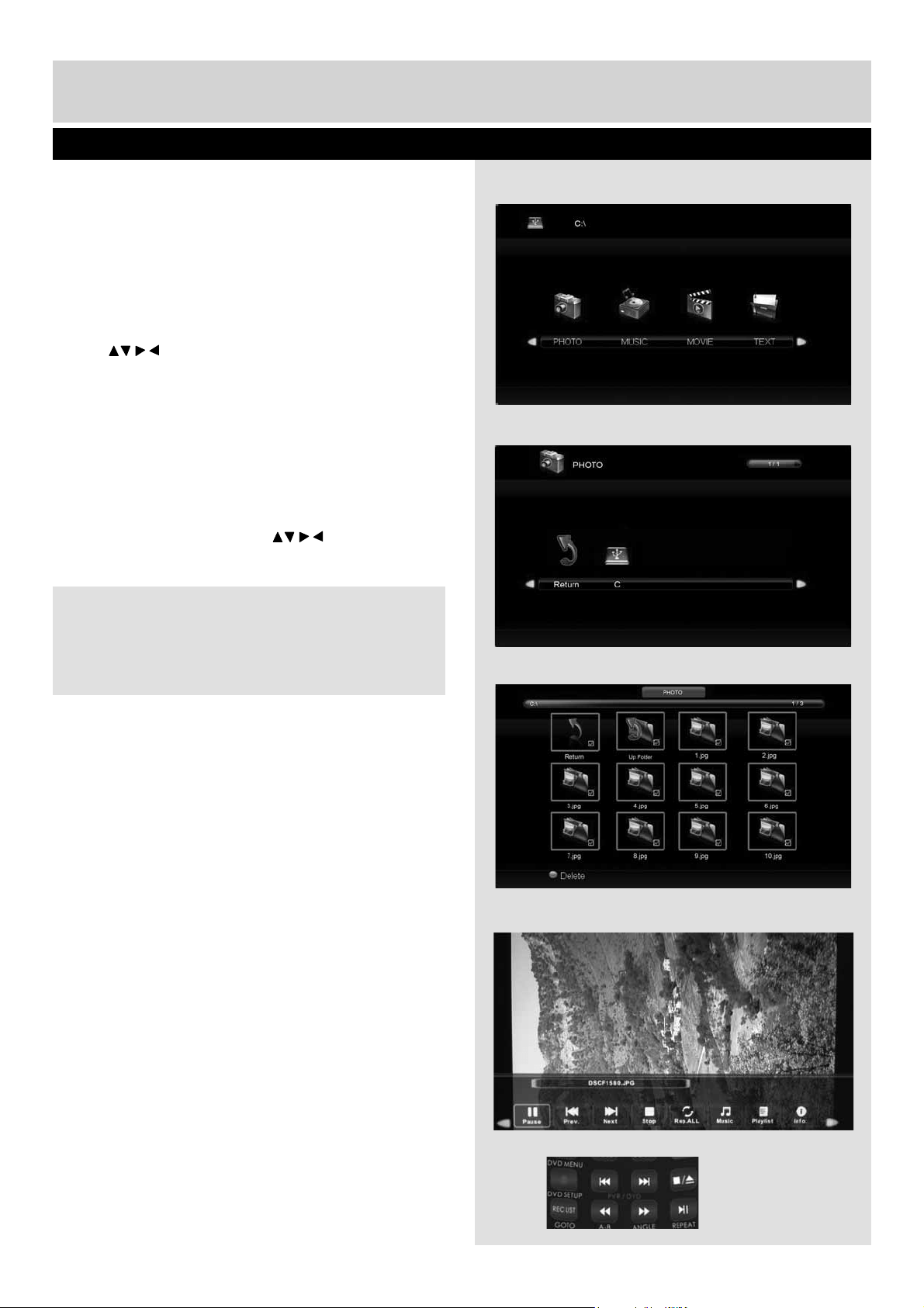
USB mode offers playback of various different types
of content that you have saved on your USB Memory
Stick.
On switching to USB source the menu screen will
appear. The content will be divided into Photo,
Music, Movie and Text based on fi le type.
1) You can navigate through the menus using the
scroll buttons. To confi rm the item you wish
to play/view press [OK] button.
2) Select the drive you require.
(If your drive only has 1 partition you will only see
1 item).
3) You can now access the item. Press OK to view.
4) While viewing you control the item using (Fig A)
or by pressing ( i ) and using and (OK)
USB Mode / Media Player
Fig A
4)
3)
2)
1)
Tip: If you experience a playback issue, please
ensure the fi les being used are the correct format
(example - the picture plays but no sound) See
technical specifi cation page for compatible fi le types
User Guide - BUSH-MAN-0020 - 32-133I-GB-5B2-HKDUS-UK, 32-133I-GW-5W2-HKDUS-UK.indd Sec1:28User Guide - BUSH-MAN-0020 - 32-133I-GB-5B2-HKDUS-UK, 32-133I-GW-5W2-HKDUS-UK.indd Sec1:28 26/05/2015 13:54:3226/05/2015 13:54:32
29
For any help concerning set up and use of your TV please call the Customer Helpline on page 3
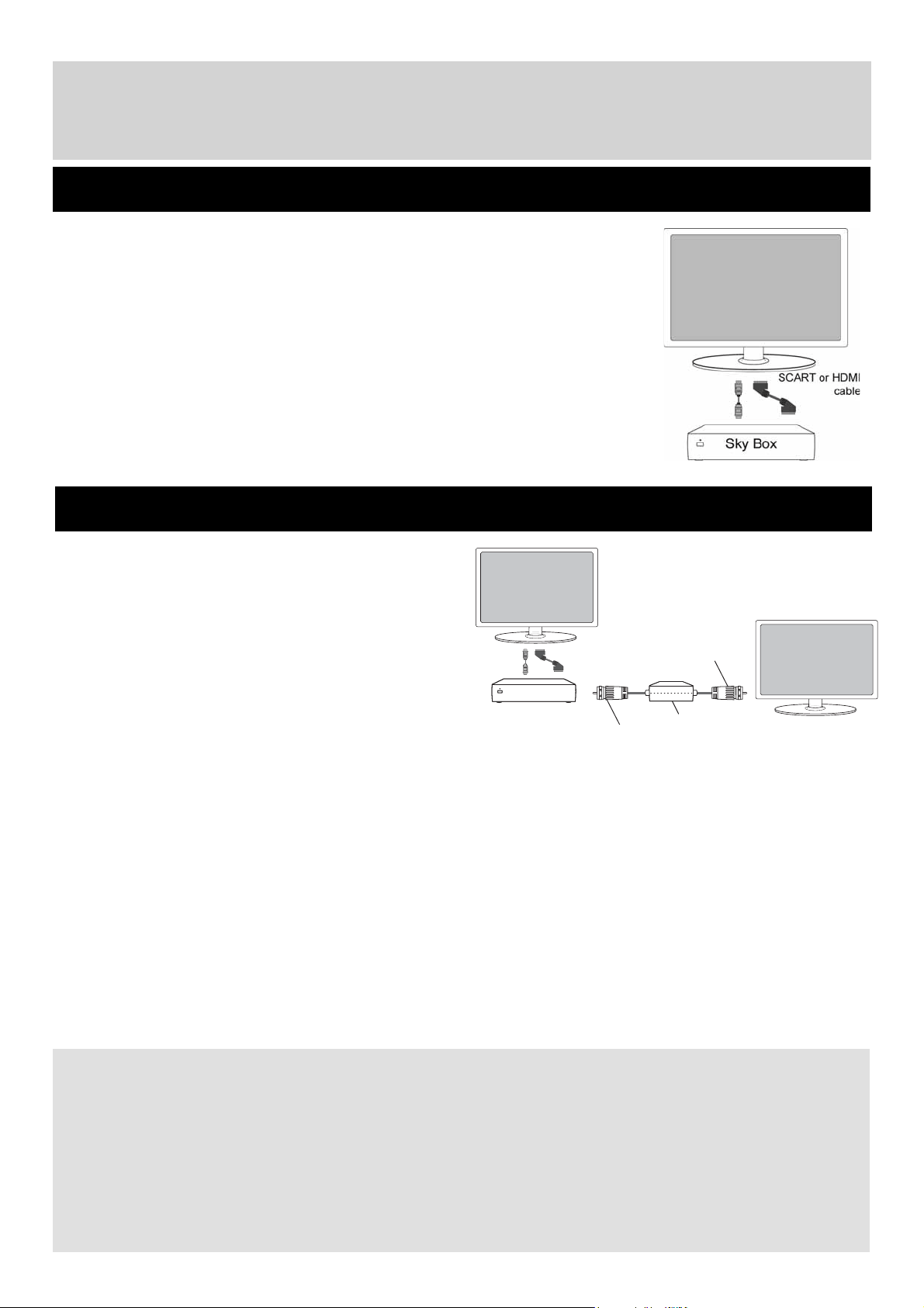
Option 1) Connecting your TV to your Sky box
(when both the TV and Sky Box are located in the same room)
Option 2) Connecting your TV to your Sky box (when your Sky box is located in a different room to the TV)
Depending on your Sky Box & TV model, connect either by SCART or HDMI cables
(available separately)
If connecting by SCART, select the ‘Input source’ on the TV as SCART. If your TV
model does not have SCART, please refer to the ‘Connections’ pages in this user
guide for alternative ways to connect.
If connecting by HDMI, select the ‘Input source’ on the TV as HDMI (if the TV has
more than 1 HDMI port, ensure you select the input source to match the HDMI
numbered port on the rear of the TV)
If you wish to use your Sky remote to operate the TV’s functions, you will need a Sky
remote control (Revision 9 or later) and you will need to program a 4 digit code into it.
See bottom of this page.
RF/COAX cable from
Sky Box to 2nd TV
Connect to RF
or RF2 output
on the Sky box
Connect to the
Aerial/RF input
on the 2nd TV
TV Link/Magic Eye
(optional)
2nd TV in
another room
Sky Box
SCART
or HDMI
cable
Using a Sky Remote or a Universal Remote to operate your TV
Sky Remote Control - If you wish to use your Sky remote to operate the basic functions of your TV, you need to
program a 4 digit code into it. Please note - you will need a Sky Revision 9 remote control (or later). If you wish to
upgrade/replace your existing Sky remote control to the latest version, you can do so on our website.
Universal Remote Control - If you wish to use a Universal remote control to operate your TV, please refer to the
website for a full list of codes. (Please note we only have codes for One for All branded remote controls, if you have
an alternative brand of Universal remote, please refer to the manufacturer for the code.)
Using Your TV With a Sky Digital Set Top Box
Please note, if you are adding a ‘Magic Eye/TV Link’
to your system so that you can use your Sky remote
control to change the Sky channel in the room where
the 2nd TV is located, please refer to the instructions
included with the TV link/magic eye in order to ensure
the RF or RF2 output on your Sky box is powered on.
(The red LED light on the TV link/magic eye will light
up if the RF / RF2 output is correctly set up) If you
do not have the instructions that came with the TV
link/magic eye, instructions on how to do it can be
found on our website.
1) To tune the TV to the Sky box, on the 2nd TV, select the ‘Analogue’ input source.
2) Select the channel that you wish to store the Sky box/channel on. (If you do not use channels 1-5 because you
no longer have analogue terrestrial channels after digital switchover, you may choose to select channel 1 to store
the Sky box/channel, if you still have and use analogue channels 1-5, you may for example decide that channel 6 is
the best option for you)
3) Press the corresponding number on the remote control to select the desired analogue channel chosen as per
point 2 above.
4) On the TV remote control, press Menu. Now navigate through the menus to select Manual Tuning or Analogue
Manual Tuning (refer to the Tuning/Channel menu section of this user guide if necessary)
5) Manually tune in the channel (usually, the Sky box is at a frequency between 800Mhz and 850Mhz) once the
Sky box/channel is found, press ‘OK’ to store it. If you wish to use your Sky remote to operate the TV’s functions,
you will need a Sky remote control (Revision 9 or later) and you will need to program a 4 digit code into it.
If you wish to use your Sky remote to operate the TV’s functions, you will need a Sky remote control
(Revision 9 or later) and you will need to programme a 4 digit code into it. Please see below.
User Guide - BUSH-MAN-0020 - 32-133I-GB-5B2-HKDUS-UK, 32-133I-GW-5W2-HKDUS-UK.indd Sec1:29User Guide - BUSH-MAN-0020 - 32-133I-GB-5B2-HKDUS-UK, 32-133I-GW-5W2-HKDUS-UK.indd Sec1:29 26/05/2015 13:54:3326/05/2015 13:54:33
30
For any help concerning set up and use of your TV please call the Customer Helpline on page 3
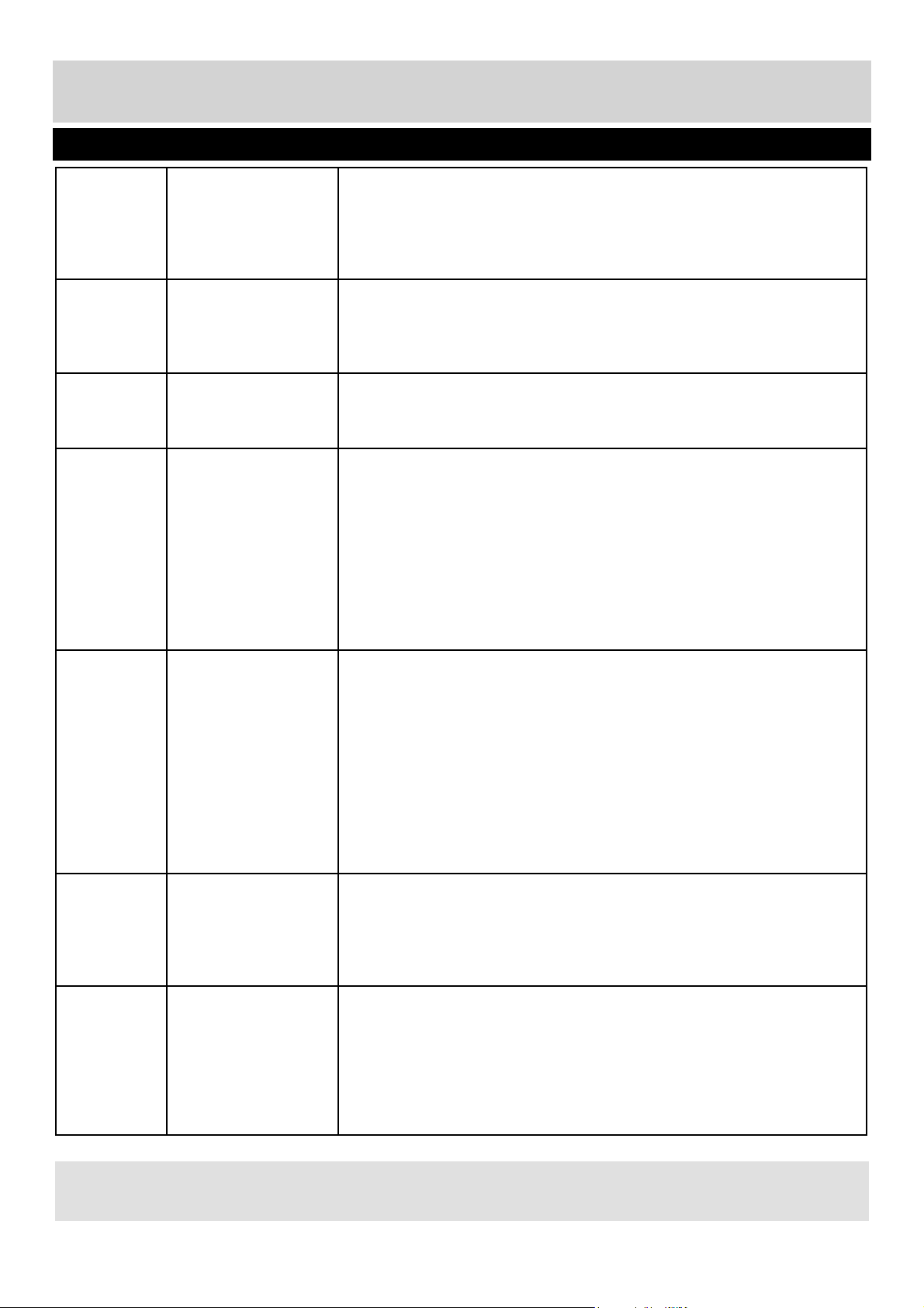
Frequently Asked Questions
Note:
Supplier may change TV software and on screen graphics without warning
General I would like to have
louder sound by
connecting additional
speakers.
1) Use the 3.5mm headphone output and a 3.5mm to phono cable
(available separately) to connect to an amplifi er/surround sound system.
Please note this will deactivate the TV’s built in speakers.
2) Connect a COAX cable from the TV’s COAX output to your amplifi er/
surround systems COAX input.
General Why are some
options in the menu
unavailable and
greyed out.
Some options are only available in certain sources, i.e. HDMI. They are
unavailable in the other sources where they have no affect.
General Can I stop my TV
automatically turning
off after 4hrs?
Yes, in the ‘Time’ menu settings, scroll down to Auto standby and select
OFF.
TV I have tuned in
Digital TV but I am
not receiving any or
all of the channels
and/or the channels I
receive are breaking
up.
1) Check you are in an area that can receive Freeview/Saorview, visit
www.freeview.co.uk or www.saorview.ie
2) Check you are using an aerial that is able to receive a good digital
signal. In most cases, you will need an outdoor digital hi-gain/wideband
aerial. In areas that have excellent digital coverage, you may be able
to use a loft type aerial but it is highly likely that you will also need to
connect a booster between the back of the TV and the TV aerial wall
socket. Unfortunately, to receive a good enough digital signal, it is not
possible to use a portable/indoor type aerial.
TV I have re-tuned my
television but when
I switch it off it is not
storing the channels.
If the TV does not save the channels when you power it off, it’s likely the
channel database has become corrupt.
1) Turn off the TV.
2) Remove the RF/Aerial cable from the rear of the TV and then turn the
TV back on again.
3) Using the remote control, press Menu followed by 8-8-8-8 to enter the
initial setup/fi rst time installation menu.
4) Press OK (let the TV run the full tuning process).
5) Once completed, turn off the TV, reconnect the RF/Aerial cable then
turn the TV back on again.
6) Repeat steps 3 & 4.
VCR/DVD
Recorder
I have connected
the TV to my VCR or
DVD Recorder via
SCART but it is not
recording.
In addition to connecting via SCART, you should connect the aerial cable
from the wall socket to your VCR/DVD Recorder and another aerial cable
from the VCR/DVD Recorder to the TV.
Game
Consoles
I have connected
my Playstation/
Xbox to the TV via
HDMI, but I am
not receiving any
pictures or sound on
my Television.
1) Ensure the TVs’ source is set to HDMI.
2) Check your settings on your Playstation/Xbox are as per the
Playstation/Xbox instruction manual.
User Guide - BUSH-MAN-0020 - 32-133I-GB-5B2-HKDUS-UK, 32-133I-GW-5W2-HKDUS-UK.indd Sec1:30User Guide - BUSH-MAN-0020 - 32-133I-GB-5B2-HKDUS-UK, 32-133I-GW-5W2-HKDUS-UK.indd Sec1:30 26/05/2015 13:54:3326/05/2015 13:54:33
31
For any help concerning set up and use of your TV please call the Customer Helpline on page 3
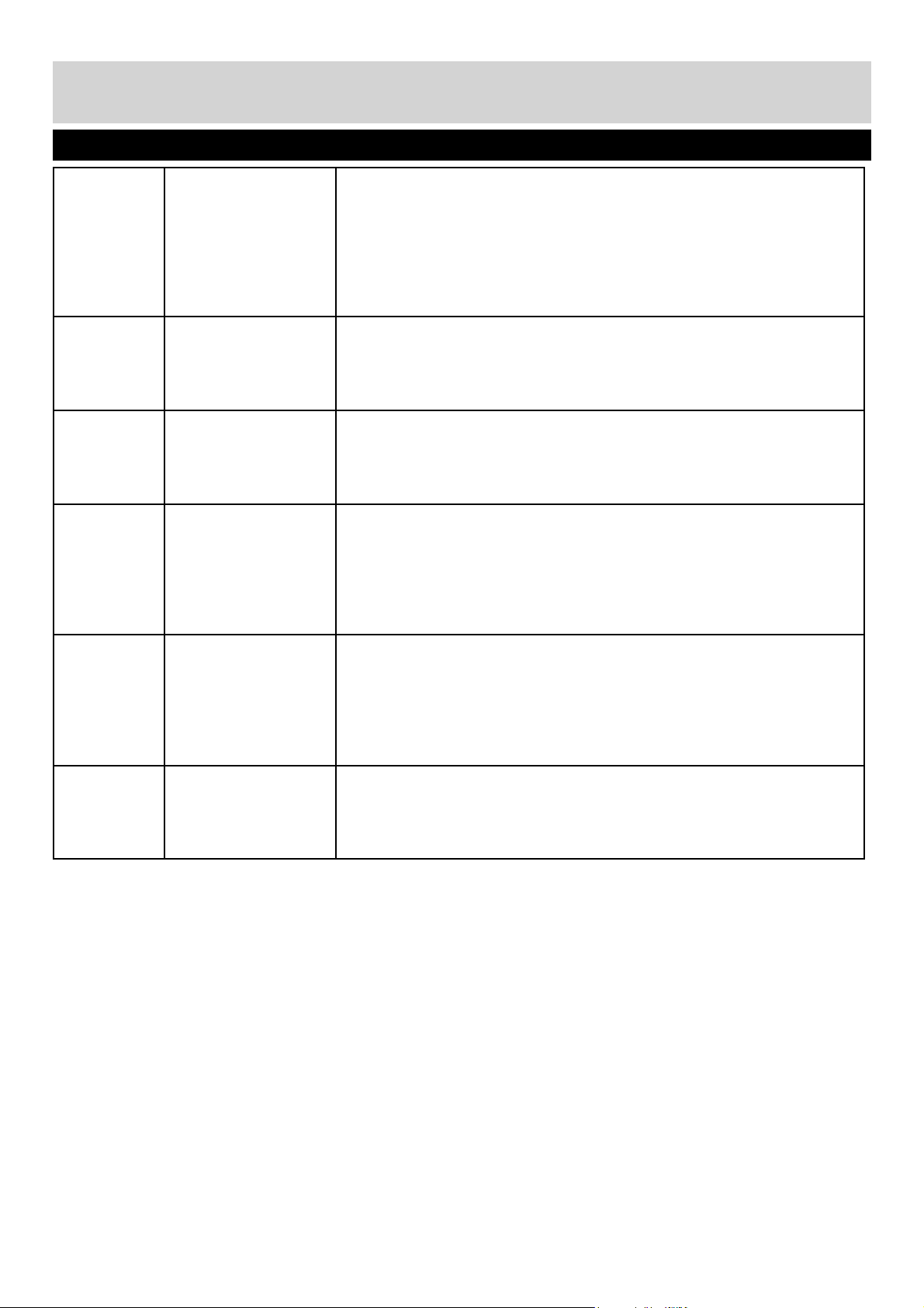
Frequently Asked Questions
Game
Consoles
I have connected
my Playstation/
Xbox to the TV
via Component
cables (red, green
& blue) but I am not
receiving any sound.
Component cables only provide HD pictures. For the sound you will need
to connect the red & white audio cables on the Playstation/Xbox to the
red & white phono inputs (or mini AV input where fi tted) on the rear of the
TV. Please refer to the ‘Connections’ pages.
System
Lock
I have changed the
password on the
television and now
forgotten it.
There is a master password of 4711, to gain access to the TV menu and
reset the normal password.
USB Mode I have inserted a
USB Memory Key,
but the TV does not
recognise it.
Ensure the USB Memory Key is formatted to type FAT32.
USB Mode Using a USB
portable hard drive /
larger than 32GB.
If you wish to use a portable hard drive larger than 32GB, please note
that it must be formatted to the FAT32 fi le system in order to operate on
this TV. Windows XP/Vista computers are only capable of formatting up
to 32GB, therefore, you will need a software programme/utility to format
larger hard drives.
Please refer to the website, www.umc-uk.co.uk, for more information.
DVD I have inserted a
disc but it is not
playing.
1) Ensure you have inserted the disc facing the correct way.
2) Ensure the disc is clean and is not scratched.
3) Some copied discs will not play.
4) Check the DVD is a region 2 disc – to change the region of the DVD
player, refer to www.umc-uk.co.uk, select ‘Changing DVD Region’ in the
‘Product Support’ section
DVD I have pressed the
eject button but the
disc is not coming
out.
To eject the disc hold the stop/eject button for 4 seconds.
User Guide - BUSH-MAN-0020 - 32-133I-GB-5B2-HKDUS-UK, 32-133I-GW-5W2-HKDUS-UK.indd Sec1:31User Guide - BUSH-MAN-0020 - 32-133I-GB-5B2-HKDUS-UK, 32-133I-GW-5W2-HKDUS-UK.indd Sec1:31 26/05/2015 13:54:3326/05/2015 13:54:33
32
For any help concerning set up and use of your TV please call the Customer Helpline on page 3
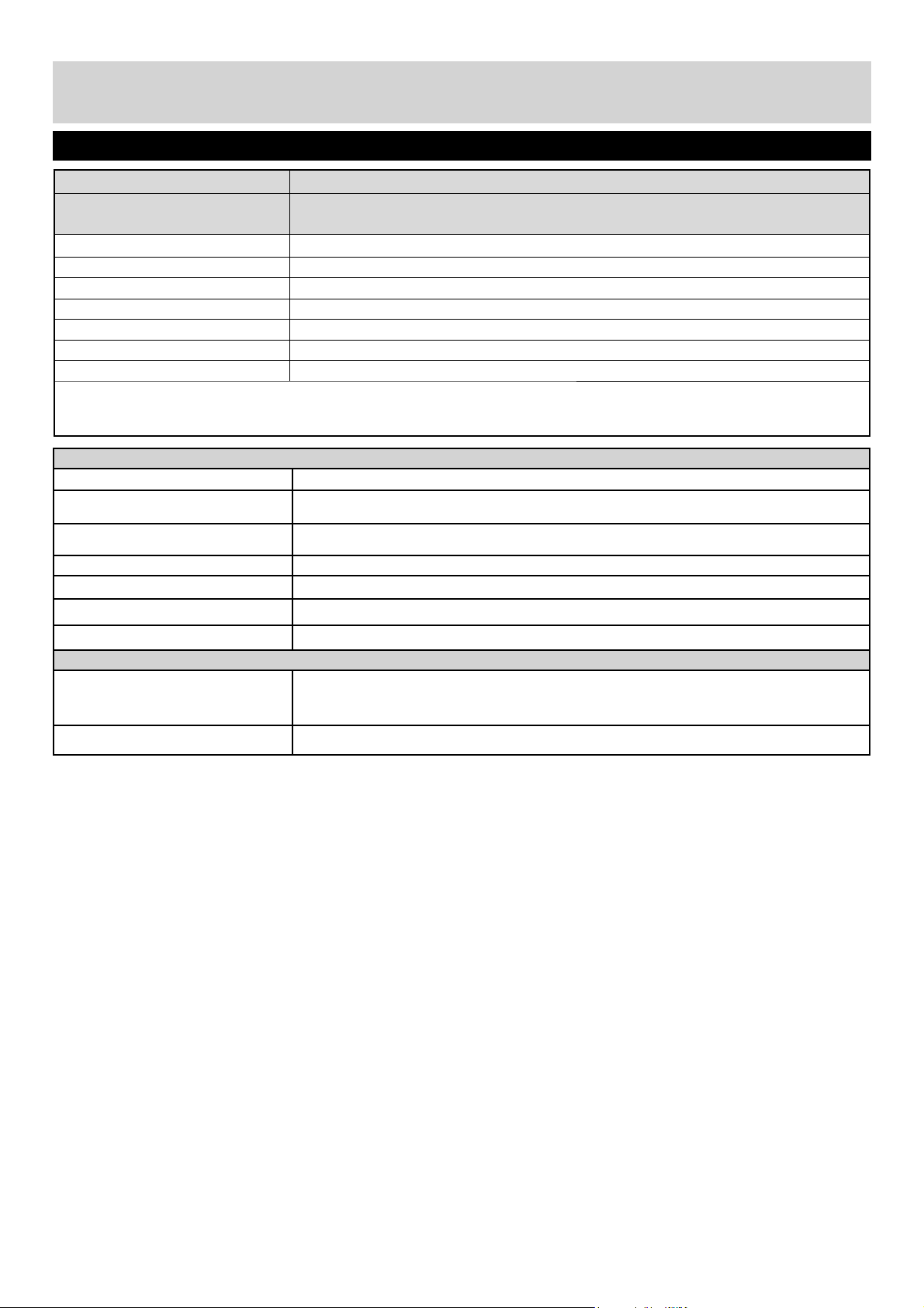
Technical Specification
Additional Technical Information
RF
75 ohm Antenna / Analog / DVB
Video Inputs 3 x HDMI, 1 x USB, 1 x SCART, 1 x Composite/Video,
1 x Mini Component/YPbPr, 1 x VGA/PC,
Sound Inputs
1 x shared audio for Composite/Video & Component/YPbPr,
1 x 3.5mm jack for PC audio input
Sound Outputs 1 x Coax Audio output, 1 x 3.5mm Headphone
Speaker / Amplifi er Watts (RMS) 2 x 10W / 2 x 8W
Dimensions including stand (mm)
739 W x 485 H x 180 D
Net weight
5.8 kgs
Energy Consumption Info
Voltage and power consumption
110-240v 50 / 60Hz
31 / 45 / 80W (home/standard/max)
EEI - A+ (Energy Rating)
Wallmounting VESA
200 x 100 (mm)
Supplier
Bush
Model ID
32/133DVDB
32/133DVDW
Energy effi ciency class A +
Visible screen size (diagonal) 81 cm / 32 inches
On mode average power consumption 31 W
Annual energy consumption *1 45 kWh
Standby power consumption *2 <0.5 W
Off mode power consumption 0 W
Screen resolution 1366 (w) x 768 (H)
*1: Energy consumption XYZ kWh per year, based on the power consumption of the television operating 4 hours per day for 365 days. The actual energy consumption
will depend on how the television is used.
*2: When the TV is turned off with the remote control/standby button and no function is active.
Product Fiche
User Guide - BUSH-MAN-0020 - 32-133I-GB-5B2-HKDUS-UK, 32-133I-GW-5W2-HKDUS-UK.indd Sec1:32User Guide - BUSH-MAN-0020 - 32-133I-GB-5B2-HKDUS-UK, 32-133I-GW-5W2-HKDUS-UK.indd Sec1:32 26/05/2015 13:54:3326/05/2015 13:54:33

33
For any help concerning set up and use of your TV please call the Customer Helpline on page 3
Technical Specification
Media File Ext.
Codec
Remark
Video Audio
Movie
.mpg MPEG-1, MPEG-2
MP3, WMA,
AAC
Max Resolution: 1920x1080
Max Data rate: 40 Mbps
.avi
Xvid, MJPEG,
MPEG-4 SP/ASP,
H.264
Max Resolution: 1920x1080
Max Data rate: 20 Mbps
.ts MPEG-2, H.264
.mov/
.mkv
MPEG-4 SP/ASP,
H.264
.dat MPEG-1
.mp4
MPEG-4 SP/ASP,
H.264
MPEG-1, MPEG-2
Max Resolution: 720x576
Max Data rate: 40 Mbps
.vob MPEG-2
Music
.mp3 - MP3
Sample Rate 8K-48KHz
Bit rate: 32K - 320Kbps
Channel: Mono/Stereo
.wma - WMA
.m4a/
.aac
- AAC
Sample Rate 16K-48KHz
Bit rate: 32K ~ 442Kbps
Channel: Mono/Stereo
Photo
.jpg/
.jpeg
Progressive JPEG Max Resolution: 1024x768
Baseline JPEG Max Resolution: 8192x8192
.bmp BMP
Max Resolution: 6500x6500
Pixel Depth 1/4/8/16/24/32 bpp
.png
Non-Interlaced Max Resolution: 3000x3000
Interlaced Max Resolution: 1500x1500
Compatible fi les in USB Mode
User Guide - BUSH-MAN-0020 - 32-133I-GB-5B2-HKDUS-UK, 32-133I-GW-5W2-HKDUS-UK.indd Sec1:33User Guide - BUSH-MAN-0020 - 32-133I-GB-5B2-HKDUS-UK, 32-133I-GW-5W2-HKDUS-UK.indd Sec1:33 26/05/2015 13:54:3326/05/2015 13:54:33

BUS/MAN/0020
User Guide - BUSH-MAN-0020 - 32-133I-GB-5B2-HKDUS-UK, 32-133I-GW-5W2-HKDUS-UK.indd Sec1:36User Guide - BUSH-MAN-0020 - 32-133I-GB-5B2-HKDUS-UK, 32-133I-GW-5W2-HKDUS-UK.indd Sec1:36 26/05/2015 13:54:3326/05/2015 13:54:33