1
DVD VIDEO PLAYER
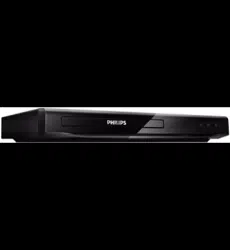
DVP5900
User manual
Thank you for choosing Philips.
Need help fast?
Read your User’s Manual first for quick tips that make using
your Philips product more enjoyable.
If you have read your instructions and still need assistance,
you may access our online help at www.philips.com/support
01-37-DVP5900_Eur3 22/09/05, 2:56 PM1

2
CAUTION
Use of controls or adjustments or
performance of procedures other than
herein may result in hazardous
radiation exposure or other unsafe
operation.
VAROITUS
Muiden kuin tässä esitettyjen
toimintojen säädön tai asetusten
muutto saattaa altistaa vaaralliselle
säteilylle tai muille vaarallisille
toiminnoille.
Important notes for users in the
U.K.
Mains plug
This apparatus is fitted with an approved 13
Amp plug. To change a fuse in this type of plug
proceed as follows:
1 Remove fuse cover and fuse.
2 Fix new fuse which should be a BS1362 5 Amp,
A.S.T.A. or BSI approved type.
3 Refit the fuse cover.
If the fitted plug is not suitable for your socket
outlets, it should be cut off and an appropriate
plug fitted in its place.
If the mains plug contains a fuse, this should
have a value of 5 Amp. If a plug without a fuse
is used, the fuse at the distribution board
should not be greater than 5 Amp.
Note: The severed plug must be disposed of to
avoid a possible shock hazard should it be
inserted into a 13 Amp socket elsewhere.
How to connect a plug
The wires in the mains lead are coloured with
the following code: blue = neutral (N),
brown = live (L).
¶ As these colours may not correspond with the
colour markings identifying the terminals in
your plug, proceed as follows:
– Connect the blue wire to the terminal
marked N or coloured black.
– Connect the brown wire to the terminal
marked L or coloured red.
– Do not connect either wire to the earth
terminal in the plug, marked E (or e) or
coloured green (or green and yellow).
Before replacing the plug cover, make certain
that the cord grip is clamped over the sheath
of the lead - not simply over the two wires.
Copyright in the U.K.
Recording and playback of material may
require consent. See Copyright Act 1956 and
The Performer’s Protection Acts 1958 to 1972.
01-37-DVP5900_Eur3 22/09/05, 2:56 PM2
3
DK
Advarsel: Usynlig laserstråling ved
åbning når sikkerhedsafbrydere er ude
af funktion. Undgå utsættelse for
stråling.
Bemærk: Netafbryderen er sekundært
indkoblet og ofbryder ikke strømmen
fra nettet. Den indbyggede netdel er
derfor tilsluttet til lysnettet så længe
netstikket sidder i stikkontakten.
S
Klass 1 laseraparat
Varning! Om apparaten används på
annat sätt än i denna bruksanvisning
specificerats, kan användaren utsättas
för osynlig laserstrålning, som
överskrider gränsen för laserklass 1.
Observera! Stömbrytaren är sekundärt
kopplad och bryter inte strömmen från
nätet. Den inbyggda nätdelen är
därför ansluten till elnätet så länge
stickproppen sitter i vägguttaget.
SF
Luokan 1 laserlaite
Varoitus! Laitteen käyttäminen muulla
kuin tässä käyttöohjeessa mainitulla
tavalla saattaa altistaa käyttäjän
turvallisuusluokan 1 ylittävälle
näkymättömälle lasersäteilylle.
Oikeus muutoksiin varataan. Laite ei
saa olla alttiina tippu-ja roiskevedelle.
Huom. Toiminnanvalitsin on kytketty
toisiopuolelle, eikä se kytke laitetta irti
sähköverkosta. Sisäänrakennettu
verkko-osa on kytkettynä
sähköverkkoon aina silloin, kun pistoke
on pistorasiassa.
The apparatus shall not be exposed to dripping
or splashing and that no objects filled with
liquids, such as vases, shall be placed on
apparatus.
Due to the inconsistency of disc formats
provided by various disc manufacturers, your
DVD system may require a playability
enhancement or upgrade. As DVD technology
advances, these enhancements will become
common and will be easy to complete.
Go to www.philips.com/support for
software upgrade.
‘CONSUMERS SHOULD NOTE THAT NOT
ALL HIGH DEFINITION TELEVISION SETS
ARE FULLY COMPATIBLE WITH THIS
PRODUCT AND MAY CAUSE ARTIFACTS
TO BE DISPLAYED IN THE PICTURE. IN
CASE OF 525 OR 625 PROGRESSIVE SCAN
PICTURE PROBLEMS, IT IS RECOMMENDED
THAT THE USER SWITCH THE
CONNECTION TO THE ‘STANDARD
DEFINITION’ OUTPUT. IF THERE ARE
QUESTIONS REGARDING OUR TV SET
COMPATIBILITY WITH THIS MODEL 525p
AND 625p DVD PLAYER, PLEASE CONTACT
OUR CUSTOMER SERVICE CENTER.’
01-37-DVP5900_Eur3 22/09/05, 2:56 PM3
4
General Information
CAUTION
(WARNING LOCATION: ON THE
BACKPLATE OF THE SET)
NEVER MAKE OR CHANGE
CONNECTIONS WITH THE
POWER SWITCHED ON.
This DVD player is in conformity
with the EMC directive and low-
voltage directive.
Manufactured under license from Dolby
Laboratories. “Dolby”, “Pro Logic” and the
double-D symbol are trademarks of Dolby
Laboratories.
Laser safety
This unit employs a laser. Due to possible
eye injury, only a qualified service person
should remove the cover or attempt to
service this device.
NOTE:
PICTURES SHOWN MAYBE
DIFFERENT BETWEEN
COUNTRIES.
LASER
Type Semiconductor laser
GaAlAs
Wave length 650 nm (DVD)
780 nm (VCD/CD)
Output Power 7 mW (DVD)
10 mW (VCD/CD)
Beam divergence 60 degree
For Customer Use:
Read carefully the information located at
the bottom of your DVD VIDEO player
and enter below the Serial No. Retain this
information for future reference.
Model No. DVP5900
Serial No. _______________
Environmental Information
All unnecessary packaging has been
omitted. The packaging has been made
easy to separate into three materials:
cardboard (box), polystyrene foam
(buffer) and polyethylene (bags, protective
foam sheet).
Your DVD player consists of materials
which can be recycled and reused if
disassembled by a specialised company.
Please observe the local regulations
regarding the disposal of packaging
materials, exhausted batteries and old
equipment.
Important Note:
Due to the numerous versions of new
CD-Audio copy protection or
enhanced CD-Audio protection
recently available on certain discs.
Should you have difficulty playing
any such CD-Audio discs, kindly refer
them to your CD-Audio disc retailer.
DivX, DivX Certified, and
associated logos are
trademarks of
DivXNetworks, Inc and
are used under license.
01-37-DVP5900_Eur3 22/09/05, 2:56 PM4
5
Index
English ----------------------------------------- 6
Français-------------------------------------- 38
Español -------------------------------------- 70
Deutsch ------------------------------------- 102
Nederlands -------------------------------- 134
English
Español
Nederlands Deutsch
Français
CAUTION
VISIBLE AND INVISIBLE LASER
RADIATION WHEN OPEN.
AVOID EXPOSURE TO BEAM.
ADVARSEL
SYNLIG OG USYNLIG
LASERSTRÅLING VED ÅBNING
UNDGÅ UDSÆTTELSE FOR STRÅLING
VARNING
SYNLIG OCH OSYNLIG
LASERSTRÅLNING NÄR DENNA DEL
ÄR ÖPPNAD BETRAKTA EJ STRÅLEN
VARO!
AVATTAESSA OLET ALTTIINA
NÄKYVÄLLE JA NÄKYMÄTTÖMÄLLE
LASER SÄTEILYLLE. ÄLÄ KATSO
SÄTEESEEN
VORSICHT
GEFAHR VON SICHTBARER UND
UNSICHTBARER LASERSTRAHLUNG
BEI GEÖFFNETEM GEHÄUSE.
ATTENTION
RAYONNEMENT LASER VISIBLE ET
INVISIBLE EN CAS D’OUVERTURE
EXPOSITION DANGEREUSE AU
FAISCEAU
01-37-DVP5900_Eur3 22/09/05, 2:56 PM5

6
English
Contents
Introduction
Supplied accessories ................................... 8
Cleaning discs............................................... 8
Setup .............................................................. 8
Connections
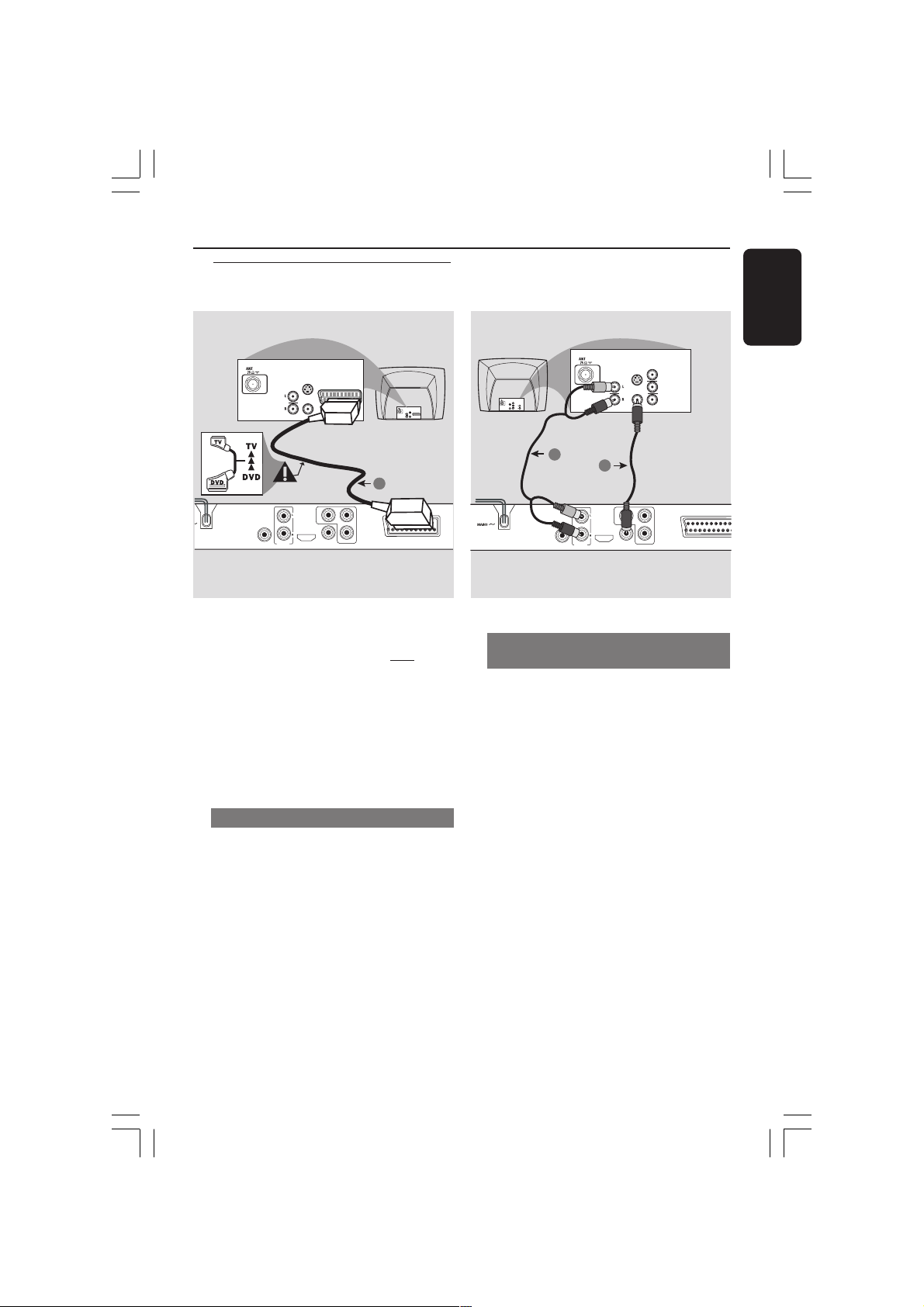
Connecting TV ....................................... 9-10
Using SCART jack ..................................
9
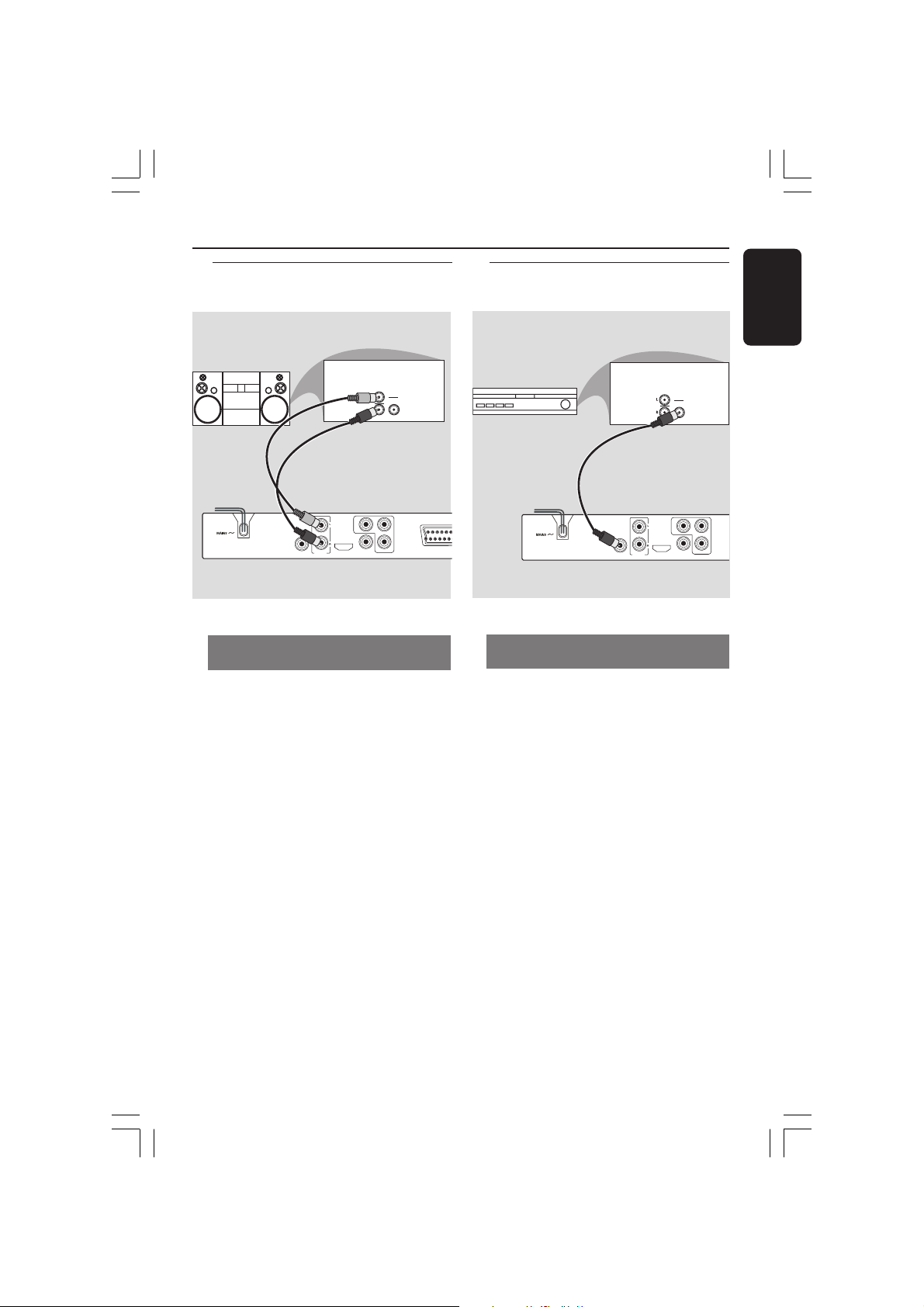
Using Composite Video jacks (CVBS) 9
Using Component Video jacks
(Y Pb Pr)................................................. 10
Using an accessory RF modulator.... 10
Connecting the power cord ................... 11
Optional: Connecting to a HDMI
compatible device ..................................... 12
Using HDMI (High Definition
Multimedia Interface) sockets ...........
12
Optional : Connecting to an Audio
System ......................................................... 13
Stereo system has Dolby Pro Logic or
Right / Left Audio In jack ....................
13
Optional: Connecting Digital AV Receiver
....................................................................... 13
Receiver has a PCM, Dolby Digital, or
MPEG2 decoder ...................................
13
Functional Overview
Front and Rear Panels .............................. 14
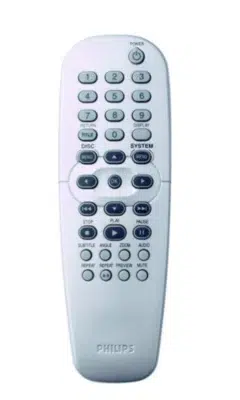
Remote Control ........................................ 15
Getting Started
Step 1: Inserting batteries into the
Remote Control ........................................ 16
Using the Remote Control to operate
the Player ...............................................
16
Step 2: Setting up the TV ................... 16-18
Setting up Progressive Scan feature (for
Progressive Scan TV only) ..................
17
Selecting the colour system that
corresponds to your TV .....................
18
Step 3: Setting language preference....... 19
Setting the OSD Language .................
19
Setting the Audio, Subtitle and DVD
menu language ......................................
19
Disc Operations
Playable Discs ............................................. 20
Region Codes............................................. 20
Playing discs ................................................ 21
Using Disc Menu ....................................... 21
Basic playback controls ...................... 22-23
Pausing playback ...................................
22
Selecting track/chapter ....................... 22
Resuming playback from the last
stopped point ........................................ 22
Zoom ...................................................... 22
Repeat..................................................... 22
Repeat A-B ............................................. 22
Slow Motion .......................................... 23
Forward / Reverse Searching............. 23
Preview ................................................... 23
Special DVD features ............................... 24
Selecting a Title ..................................... 24
Camera Angle........................................ 24
Changing the Audio Language ........... 24
Subtitles .................................................. 24
Playing a DivX disc .................................... 24
Playing MP3/JPEG Picture CD ................ 25
General Operation ..............................
25
Playback selection ................................ 25
Repeat..................................................... 25
Zoom picture........................................ 25
Preview ................................................... 25
01-37-DVP5900_Eur3 22/09/05, 2:56 PM6

English
7
Contents
DVD Menu Options
Language ...................................................... 26
OSD Language ...................................... 26
Audio, Subtitle, DVD Menu ................
26
Setting the DivX Subtitle font ........... 26
Video Setup .......................................... 27-29
TV Display ............................................. 27
TV Type ................................................... 27
Switching the YPbPr/RGB ................... 28
Progressive - turning on/off ............... 28
HD JPEG Mode .................................... 29
HDMI Output ....................................... 29
Audio Setup .......................................... 30-31
Digital Output .......................................
30
LPCM Output ....................................... 31
Night Mode - turning on/off .............. 31
Rating ..................................................... 32-33
Changing the Password....................... 32
Setting the Rating ........................... 32-33
Restoring to original settings ............ 33
DivX registration ................................. 33
Troubleshooting ......................... 34–35
Specifications ...................................... 36
Glossary ...................................................................... 37
01-37-DVP5900_Eur3 22/09/05, 2:56 PM7
8
English
Cleaning discs
To clean a disc, use a micro fibre cleaning
cloth and wipe the disc from the center
to the edge in a straight line.
CAUTION!
Do not use solvents such as benzene,
thinner, commercially available cleaners,
or anti-static sprays intended for discs.
Since the optical unit (laser) of the DVD
system operates at a higher power than
regular DVD or CD players, cleaning CDs
intended for DVD or CD players may
damage the optical unit (laser). Therefore,
refrain from using a cleaning CD.
General Information
Setup
Finding a suitable location
– Place the set on a flat, hard and stable
surface. Do not place the set on a carpet.
– Do not position the set on top of
other equipment that might heat it up
(e.g., receiver or amplifier).
– Do not put anything under the set
(e.g., CDs, magazines).
– Install this system near the AC outlet
and where the AC power plug can be
reached easily.
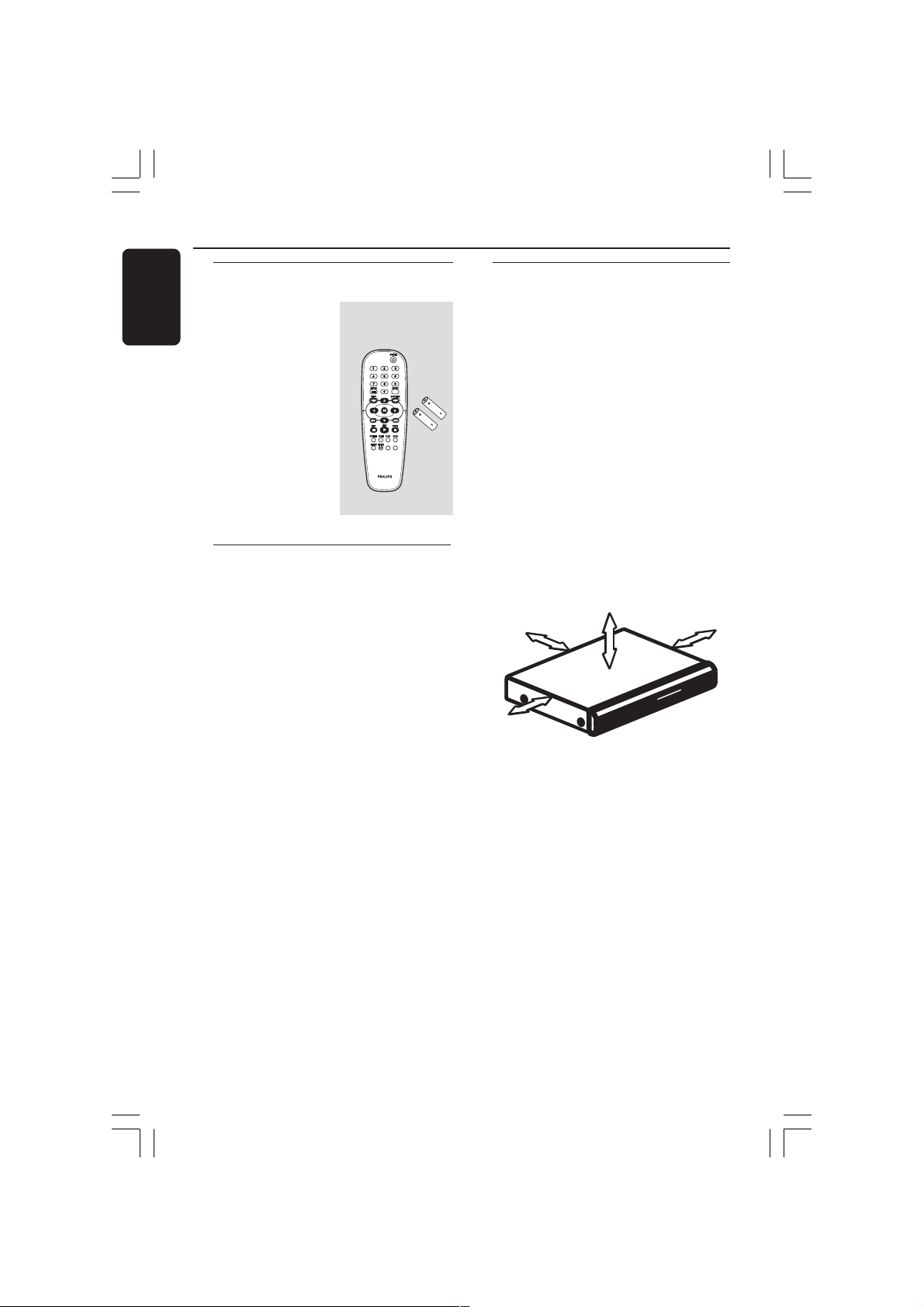
Space for ventilation
– Place the apparatus in a location with
adequate ventilation to prevent internal
heat build up. Allow at least 10 cm (4.5”)
clearance from the rear and the top of
the set and 5cm (2.3”) from the left and
right to prevent overheating.
10cm (4.5")
10cm (4.5")
5cm (2.3")
5cm (2.3")
Avoid high temperatures, moisture,
water and dust
– Apparatus shall not be exposed to
dripping or splashing.
– Do not place any sources of danger on
the apparatus (e.g., liquid filled objects,
lighted candles).
Supplied accessories
Remote Control
and
two AA batteries
PREVIEW
PREVIEW
MUTE
MUTE
01-37-DVP5900_Eur3 22/09/05, 2:56 PM8
English
9
Connections
Connecting TV
DIGITAL
COAXIAL
OUT
CVBS
VIDEO OUT
SCART
YCr/Pr
Cb/Pb
HDMI
AUDIO
OUT
AUDIO
IN
S-VIDEO
IN
VIDEO IN
TV IN
AUDIO
IN
S-VIDEO
IN
VIDEO IN
TV IN
1
IMPORTANT!
– You only need to make one video
connection from the following
options, depending on the
capabilities of your TV system.
– Connect the DVD system
directly to the TV.
– SCART connection will let you
use the features of both the Audio
and Video in the DVD Player.
Using SCART jack
● Use the SCART cable (black) to connect
the DVD Player’s SCART jack (TV OUT)
to the corresponding Scart input jacks on
the TV (cable not supplied).
Helpful Hint:
– Ensure that the “TV” indication
on SCART cable is connected to the
TV set and “DVD” indication on
SCART cable is connected to the
DVD Player.
DIGITAL
COAXIAL
OUT
CVBS
VIDEO OUT
SCART
YCr/Pr
Cb/Pb
HDMI
AUDIO
OUT
AUDIO
IN
V (Pr/Cr)
U (Pb/Cb)
Y
S-VIDEO
IN
VIDEO IN
COMPONENT
VIDEO IN
AUDIO
OUT
V (Pr/Cr)
U (Pb/Cb)
Y
S-VIDEO
IN
VIDEO IN
COMPONENT
VIDEO IN
2
1
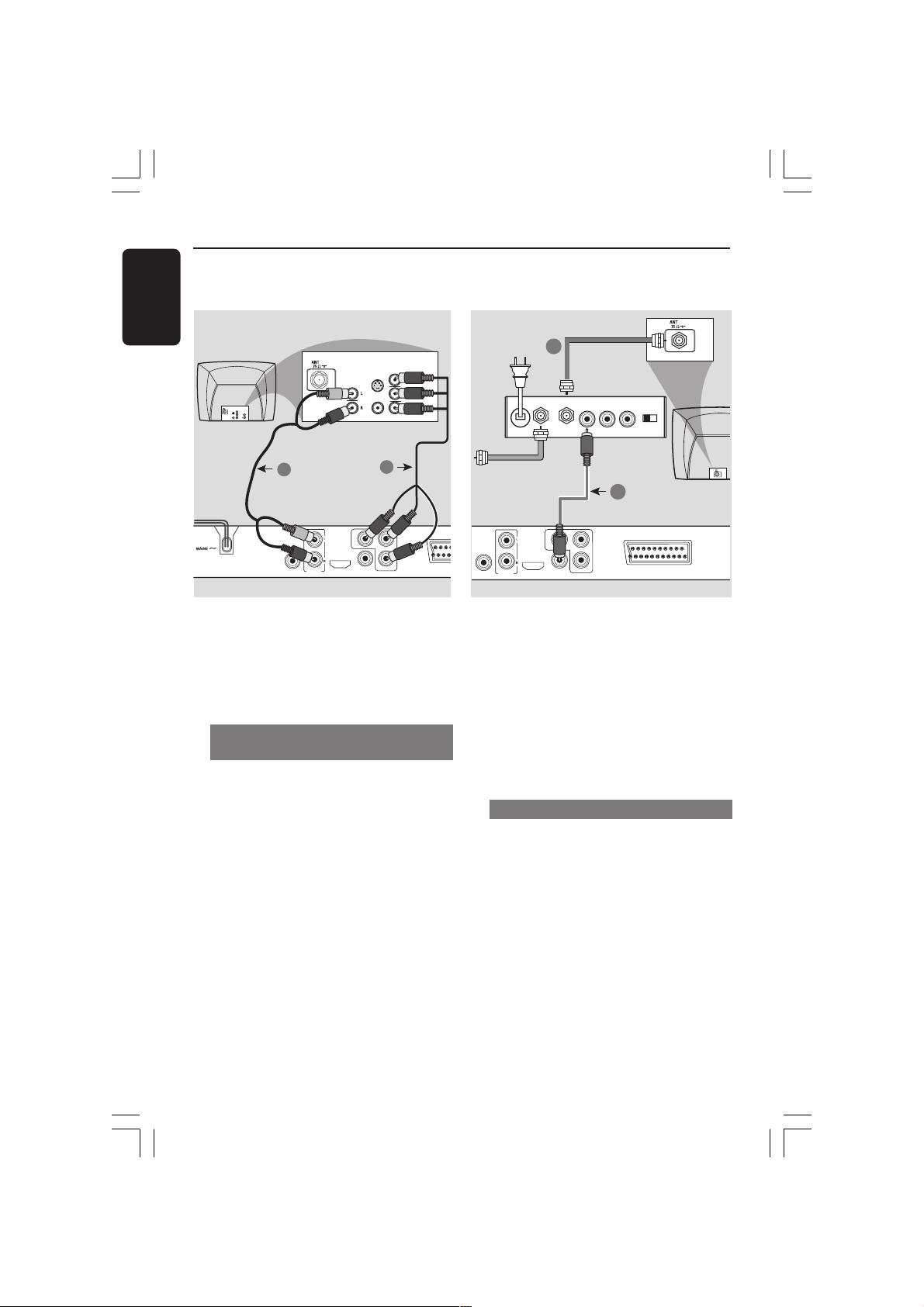
Using Composite Video jacks
(CVBS)
1 Use the composite video cable (yellow) to
connect the DVD Player’s CVBS (VIDEO)
jack to the video input jack (or labeled as
A/V In, Video In, Composite or Baseband)
on the TV (cable not supplied).
2 To hear the sound of this DVD Player
through your TV, use the audio cables
(white/red) to connect AUDIO OUT (L/
R) jacks of the DVD Player to the
corresponding AUDIO IN jacks on the TV
(cable not supplied).
01-37-DVP5900_Eur3 22/09/05, 2:56 PM9
10
English
Connections
DIGITAL
COAXIAL
OUT
CVBS
VIDEO OUT
YCr/Pr
Cb/Pb
HDMI
AUDIO
OUT
AUDIO
IN
V (Pr/Cr)
U (Pb/Cb)
Y
S-VIDEO
IN
VIDEO IN
COMPONENT
VIDEO IN
AUDIO
OUT
V (Pr/Cr)
U (Pb/Cb)
Y
S-VIDEO
IN
VIDEO IN
COMPONENT
VIDEO IN
2
1
IMPORTANT!
– The progressive scan video
quality is only possible when using Y
Pb Pr and a progressive scan TV is
required.
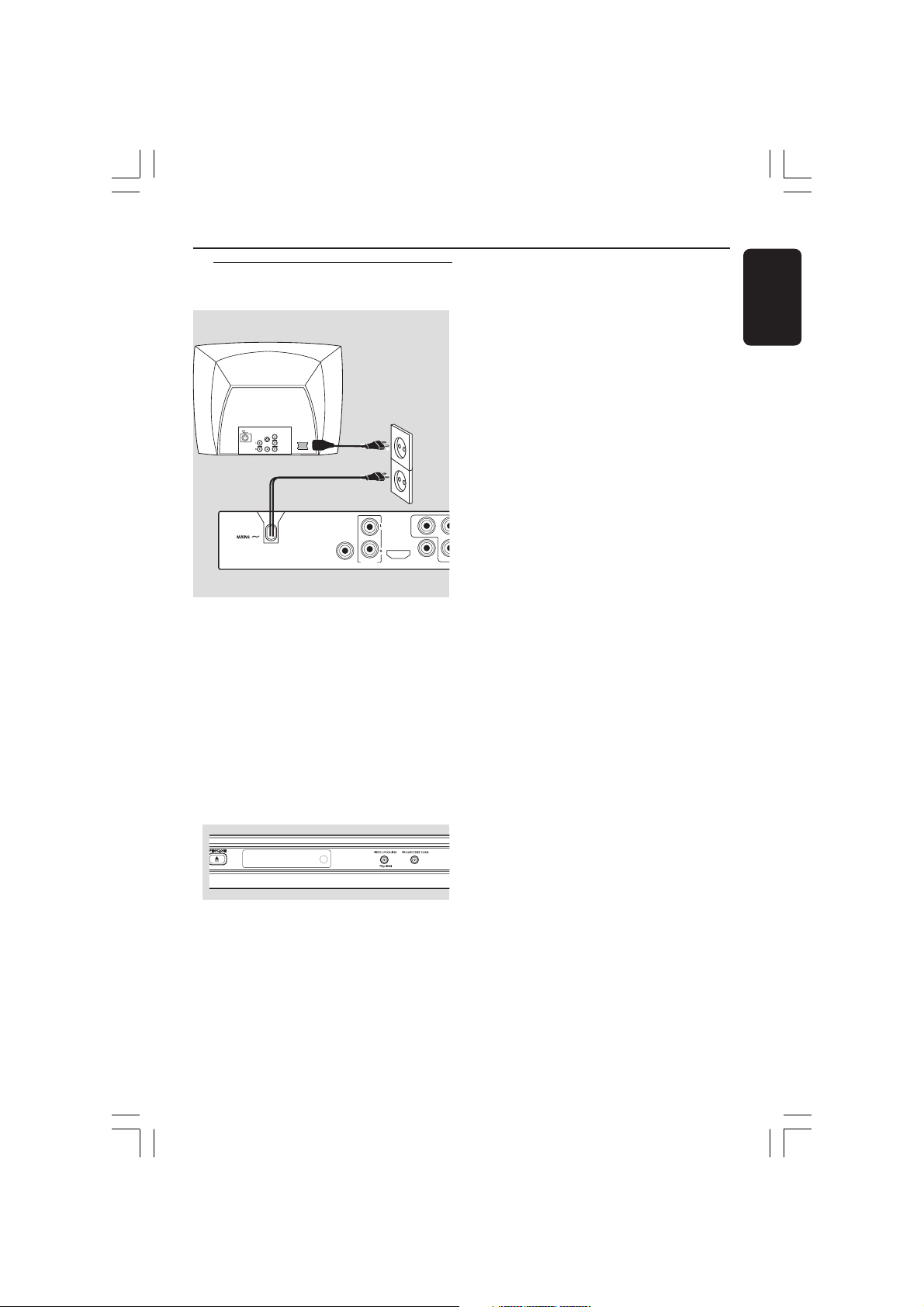
Using Component Video jacks
(Y Pb Pr)
1 Use the component video cables (red/
blue/green) to connect the DVD system’s
Y Pb Pr jacks to the corresponding
Component video input jacks (or labeled
as Y Pb Pr) on the TV (cable not supplied).
2 To hear the sound of this DVD Player
through your TV, use the audio cables
(white/red) to connect AUDIO OUT (L/
R) jacks of the DVD Player to the
corresponding AUDIO IN jacks on the TV
(cable not supplied).
3 Proceed to page 17 for detailed
Progressive Scan set up.
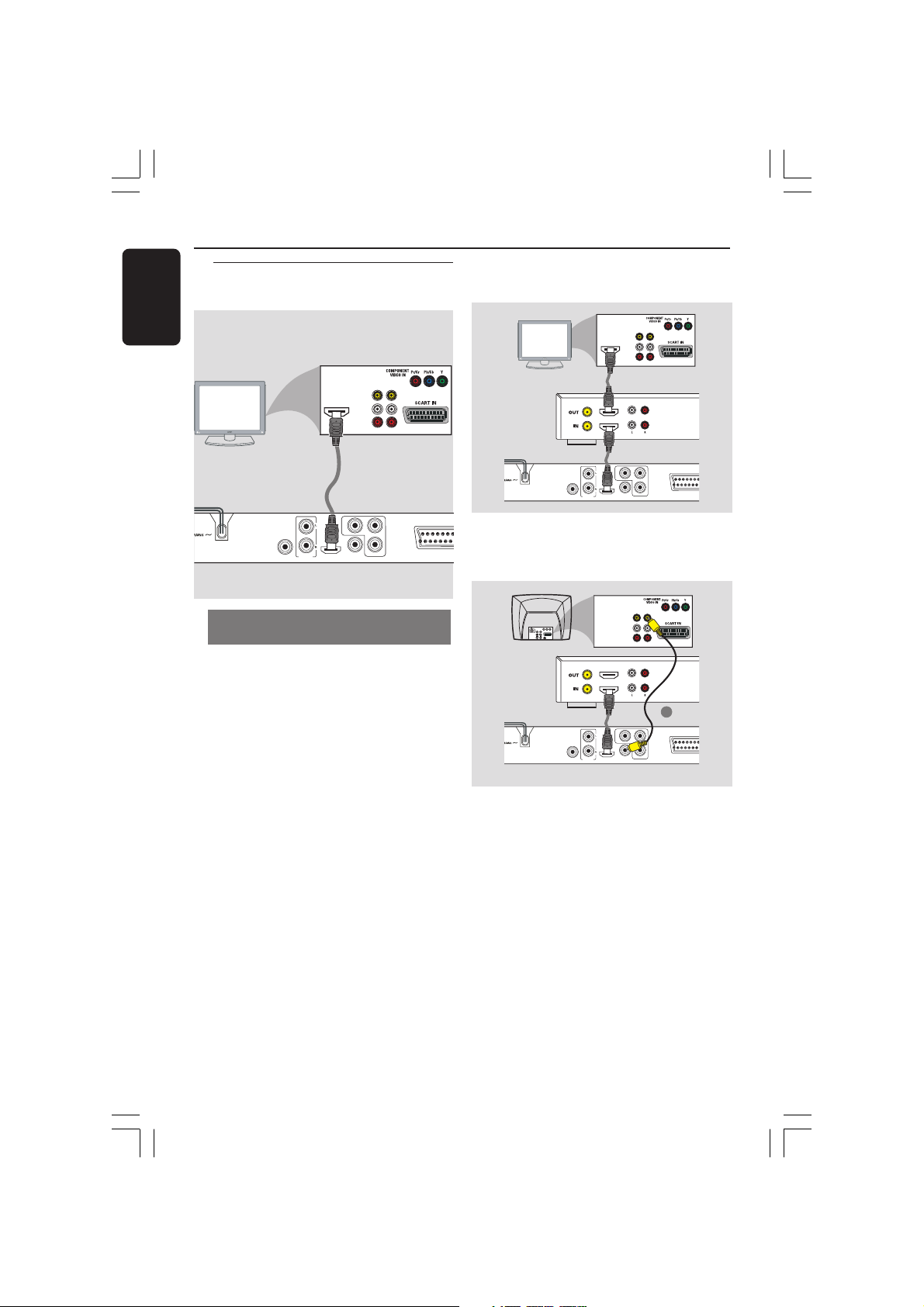
IMPORTANT!
– If your TV only has a single
Antenna In jack (or labeled as 75
ohm or RF In,) you will need an RF
modulator in order to view the DVD
playback on the TV. See your
electronics retailer for details on RF
modulator availability and
operations.
Using an accessory RF modulator
1 Use the composite video cable (yellow) to
connect the DVD Player’s CVBS jack to
the video input jack on the RF modulator.
2 Use the RF coaxial cable (not supplied) to
connect the RF modulator to your TV’s
RF jack.
DIGITAL
COAXIAL
OUT
CVBS
VIDEO OUT
SCART
YCr/Pr
Cb/Pb
HDMI
AUDIO
OUT
AUDIO IN
R L
VIDEO
IN
TO TVINT IN
CH3 CH4
2
1
RF coaxial cable to TV
Back of RF Modulator
(example only)
Antenna or
Cable TV signal
01-37-DVP5900_Eur3 22/09/05, 2:56 PM10
English
11
Connections
DIGITAL
COAXIAL
OUT
CVBS
VIDEO OU
T
Cr/Pr
C
HDMI
AUDIO
OUT
~ AC MAINS
AUDIO
OUT
V (Pr/Cr)
U (Pb/Cb)
Y
S-VIDEO
IN
VIDEO IN
COMPONENT
VIDEO IN
After everything is connected
properly, plug in the AC power cord
to the power outlet.
Never make or change any connections
with the power switched on.
When no disc is loaded, press
STANDBY ON on the DVD Player
front panel,
“NO DISC” may appear on the
display panel.
IR
Connecting the power cord
NO DISC
01-37-DVP5900_Eur3 22/09/05, 2:56 PM11
12
English
Using HDMI (High Definition
Multimedia Interface) sockets
● HDMI connects untouched and
uncompressed digital transmission for the
highest and cripest sound/image quality.
● It has plug and play capability using only
one cable for both audio/video output.
● Use a HDMI cable (not supplied) to
connect the HDMI OUT on the DVD
Player to HDMI IN on an HDMI
compatible device (eg.; PC, DVD Player,
Set Top Box).
➜ It may take a while for the DVD
player and input device to communicate
and initialise.
➜ Playback starts automatically.
● The HDMI is backward compatible with
some DVI devices using an appropriate
adaptor plug.
➜ If a DVI device is connected, an
additional audio cable will be needed for
audio transmission.
➜ This DVD player supports HDCP
compliance devices only.
DIGITAL
COAXIAL
OUT
CVBS
VIDEO OUT
SCART
YCr/Pr
Cb/Pb
HDMI
AUDIO
OUT
VIDEO
AUDIO
OUT IN
HDMI IN
Optional: Connecting to a
HDMI compatible device
Connections
HDMI compatible
device
● To enjoy optimum multi-channel
surround sound
DIGITAL
COAXIAL
OUT
CVBS
VIDEO OUT
SCART
YCr/Pr
Cb/Pb
HDMI
AUDIO
OUT
VIDEO
AUDIO
OUT IN
HDMI VIDEO AUDIO
HDMI IN
● To enjoy optimum multi-channel
surround sound without HDMI-
compatible television
DIGITAL
COAXIAL
OUT
CVBS
VIDEO OUT
SCART
YCr/Pr
Cb/Pb
HDMI
AUDIO
OUT
VIDEO
AUDIO
OUT IN
HDMI VIDEO AUDIO
1
TV
● Most older DVI enable devices are not
HDCP compliant and playback is not
possible.
➜ A pop-up menu will appear on the TV
screen.
Helpful hint:
– HDCP (High-bandwidth Digital Content
Protection) is a specification that provides a
secure transmission of digital contents
between different devices (to prevent
unauthorised copy-right).
HDMI
compatible
TV
HDMI
compatible
amplifier
HDMI
compatible
amplifier
01-37-DVP5900_Eur3 22/09/05, 2:56 PM12
English
13
Connections
Stereo system has Dolby Pro Logic
or Right / Left Audio In jack
1 Select one of the video connections
(CVBS VIDEO IN, SCART or
COMPONENT VIDEO IN) depending on
the options available on your TV.
2 Use the audio cables (white/red) to
connect AUDIO OUT (L/R) jacks of
the DVD Player to the corresponding
AUDIO IN jacks on the stereo system
(cable not supplied).
DIGITAL
COAXIAL
OUT
CVBS
VIDEO OUT
SCA
R
YCr/Pr
Cb/Pb
HDMI
AUDIO
OUT
AUDIO
IN
STEREO
DIGITAL
Optional: Connecting to an
Audio System
Optional: Connecting Digital
AV Receiver
DIGITAL
COAXIAL
OUT
CVBS
VIDEO OUT
YCr/Pr
Cb/Pb
HDMI
AUDIO
OUT
AUDIO
IN
DIGITAL
AV Receiver
Receiver has a PCM, Dolby Digital,
or MPEG2 decoder
1 Select one of the video connections
(CVBS VIDEO IN, SCART or
COMPONENT VIDEO IN) depending on
the options available on your TV.
2 Connect the COAXIAL jack of the DVD
Player to the corresponding Digital Audio
In jack on your Receiver (cable not
supplied).
3 Set the DVD Player’s Digital Output to
PCM or ALL depending on the
capabilities of your Receiver (see page 30
“Digital Output”).
Helpful Hint:
– If the audio format of the Digital Output
does not match the capabilities of your
receiver, the receiver will produce a strong,
distorted sound or no sound at all.
01-37-DVP5900_Eur3 22/09/05, 2:57 PM13
14
English
Functional Overview
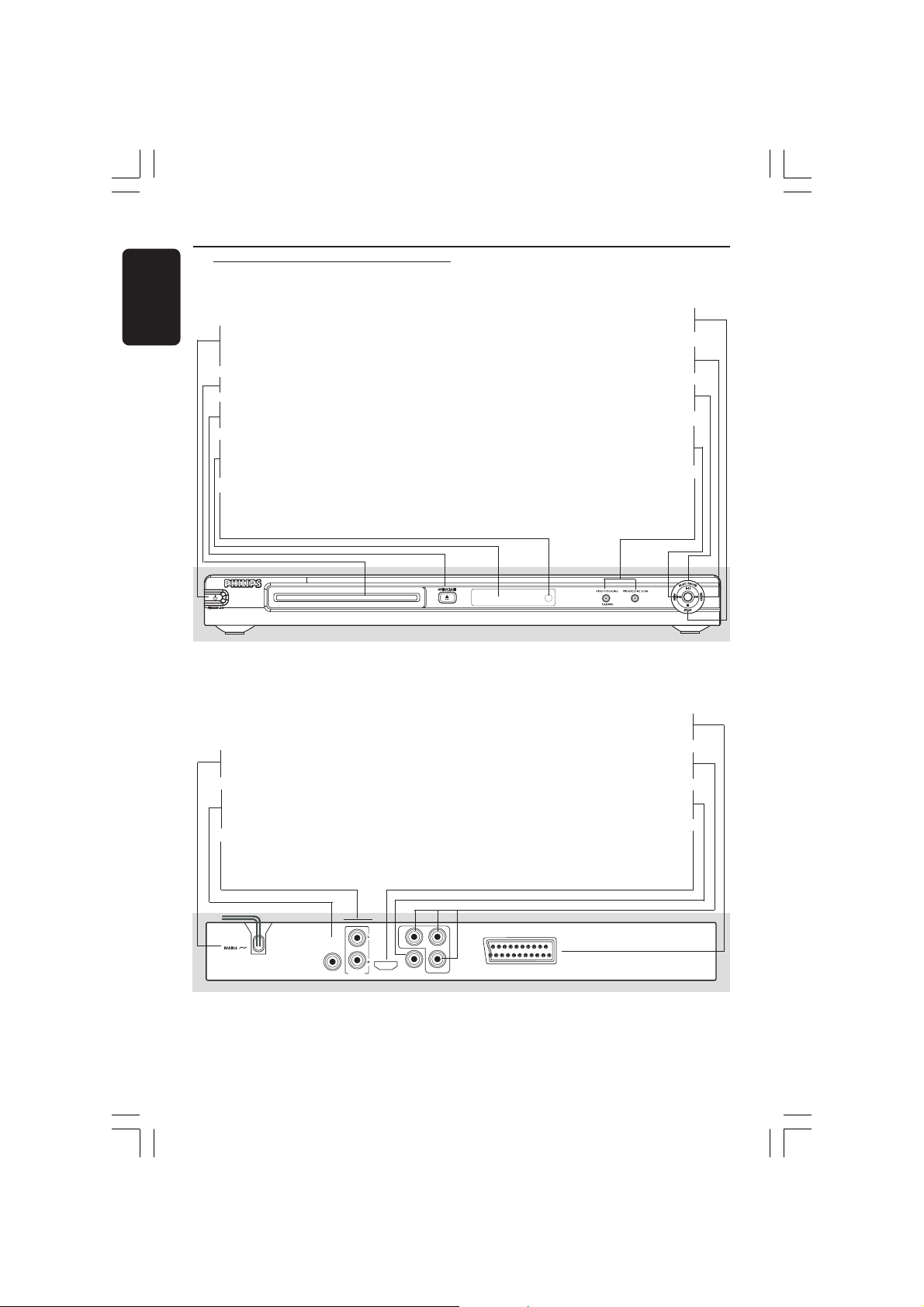
Front and Rear Panels
Scart
– Connect to Scart input of a TV
YPbPr
– Connect to YPbPr input of a TV
CVBS (VIDEO Out)
– Connect to CVBS Video input of a TV
HDMI
– Connect to an HDMI -compatible device
(example; LCD/Projector/Plasma/
Projection TV, HDTV or receiver)
DIGITAL
COAXIAL
OUT
CVBS
VIDEO OUT
SCART
YCr/Pr
Cb/Pb
HDMI
AUDIO
OUT
Mains (AC Power Cord)
– Connect to a standard AC outlet
Digital Coaxial Out
– Connect to coaxial AUDIO input of a
digital audio equipment
Audio Out (Left/Right)
– Connect to AUDIO inputs of an amplifier,
receiver or stereo system
Caution: Do not touch the inner pins of the jacks on the rear panel.
Electrostatic discharge may cause permanent damage to the unit.
IR
9 STOP
– To stop playback
T NEXT
– To search or select next chapter or track
2; PLAY/PAUSE
– To start or interrupt playback
PREV S
– To search or select previous chapter or
track
Video Upscaling and Progressive
Scan LED
– Led ON in Video Upscaling or Progressive
Scan mode
STANDBY-ON B
– To switch the DVD Player to Standby
mode or ON
Disc tray
OPEN/CLOSE /
– Open/Close the disc tray
Display
– Shows the current status of the DVD
Player
IR Sensor
– Point the remote control towards this
sensor
01-37-DVP5900_Eur3 22/09/05, 2:57 PM14
English
15
Functional Overview
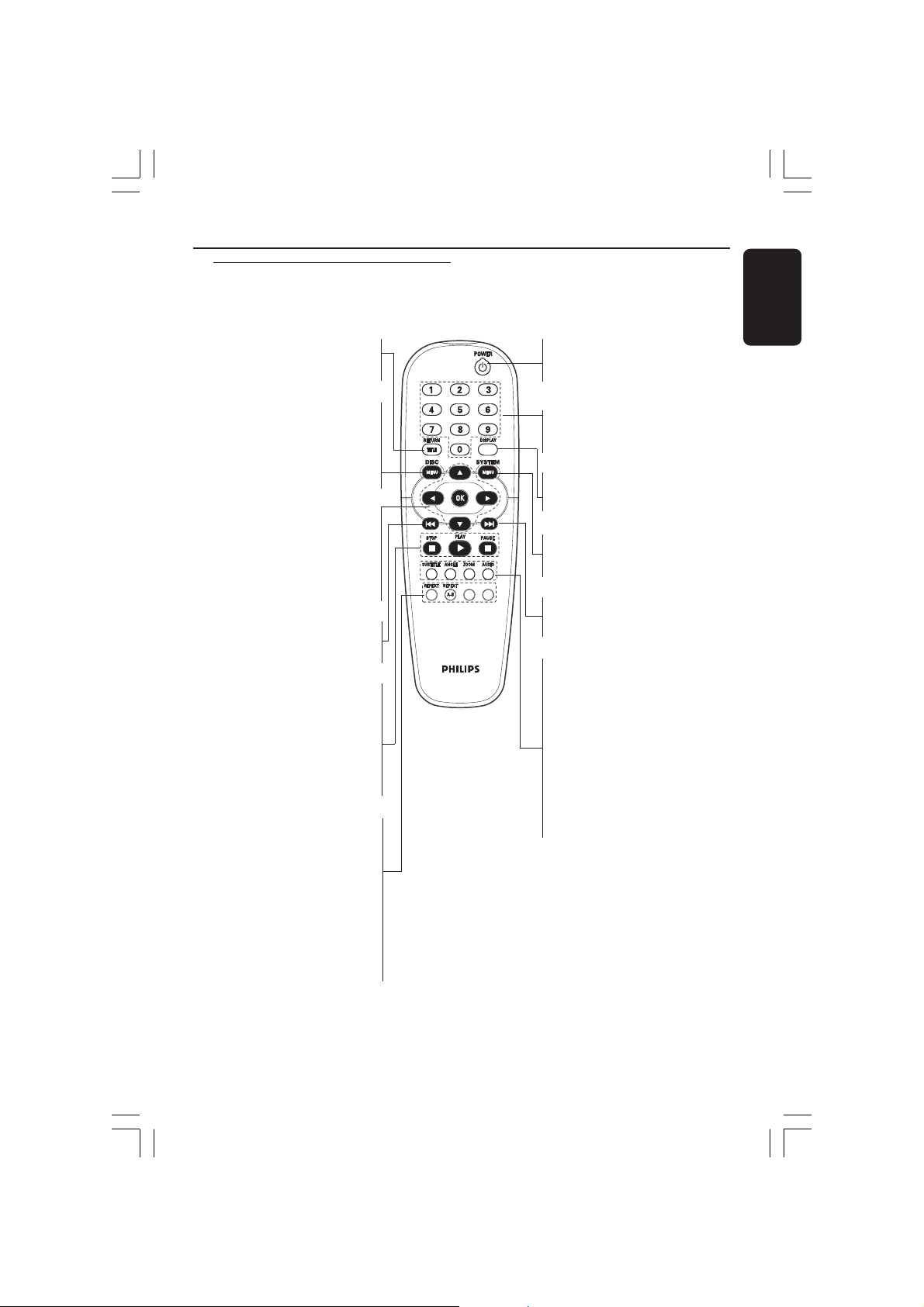
Remote Control
PREVIEW MUTE
RETURN/TITLE
– To go back to previous menu/ show
title menu
DISC MENU
– Enters or exits the disc contents
menu
– Switches on or off the playback
control mode (for VCD version
2.0 only)
1 2 3 4
– Selects an item in the menu/
fast forward/backward, slow forward/
backward
OK
– Acknowledge menu selection
S
– To search or select previous
chapter or track
STOP ( 9 )
– To stop playback
PLAY ( B )
– To start playback
PAUSE ( ; )
– To pause playback temporarily /
frame-by-frame playback
REPEAT
– Selects various repeat modes
REPEAT (A-B)
– Repeats playback a specific section
on a disc
PREVIEW
– To preview the content of a track
or whole disc
MUTE
– Disables or enables sound output
POWER B
– To switch the DVD player to
standby mode or ON
0-9 numerical key pad
– Selects numbered items in a
menu
DISPLAY
– Displays information on TV
screen during playback
SYSTEM MENU
– Access or exit DVD Player’s
system menu
T
– To search or select next chapter
or track
SUBTITLE
– To access subtitle language
system menu
ANGLE
– Selects a DVD camera angle
ZOOM
– Enlarge a picture on the TV
screen
AUDIO
– To access audio language system
menu
01-37-DVP5900_Eur3 22/09/05, 2:57 PM15

16
English
Getting Started
Step 1: Inserting batteries
into the Remote Control
1
3
2
1 Open the battery compartment.
2 Insert two batteries type R06 or AA,
following the indications (+-) inside
the compartment.
3 Close the cover.
Using the Remote Control to
operate the Player
1 Aim the Remote Control
directly at the remote
sensor (iR) on the front
panel.
2 Do not put any objects
between the Remote
Control and the DVD
Player while operating the
DVD Player.
CAUTION!
– Remove batteries if they are
exhausted or if the Remote Control
is not being used for a long time.
– Do not use old and new or
different types of batteries in
combination.
– Batteries contain chemical
substances, so they should be
disposed properly.
Step 2: Setting up the TV
IMPORTANT!
Make sure you have completed all
the necessary connections. (See
page 9-10 “Connecting TV”).
1 Turn on the TV and set to the correct
video-in channel. You should see the
DVD background screen on the TV.
2 Usually these channels are between the
lowest and highest channels and may be
called FRONT, A/V IN, or VIDEO. See
your TV manual for more details.
➜ Or, you may go to channel 1 on your
TV, then press the Channel down button
repeatedly until you see the Video In
channel.
➜ Or, the TV Remote Control may have a
button or switch that chooses different
video modes.
➜ Or, set the TV to channel 3 or 4 if you
are using an RF modulator.
3 If you are using external equipment, (eg.
audio system or receiver), turn it on and
select the appropriate input source for
the DVD Player output. Refer to the
equipment owner’s manual for detail.
IR
PREVIEW MUTE
01-37-DVP5900_Eur3 22/09/05, 2:57 PM16
English
17
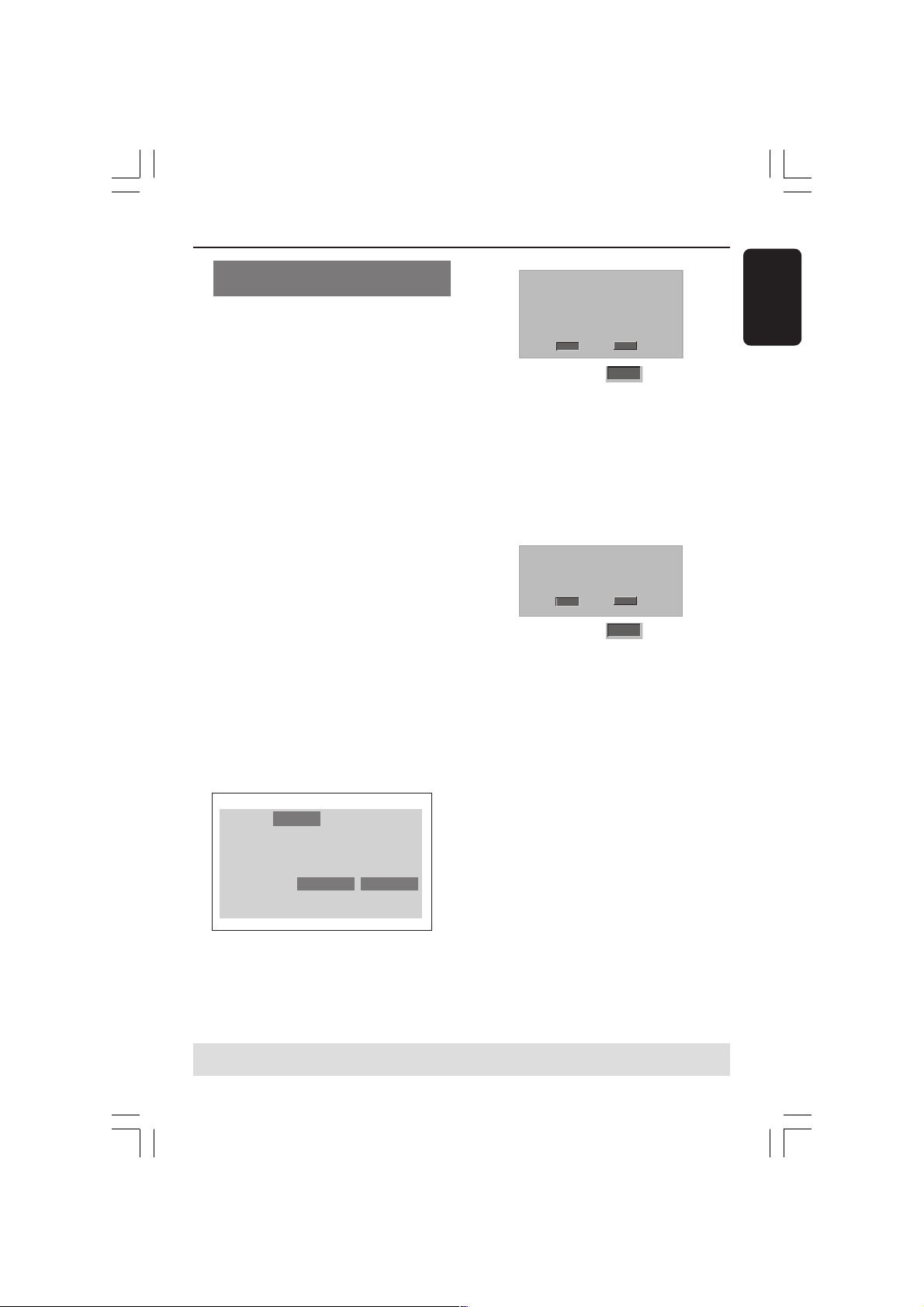
Setting up Progressive Scan feature
(for Progressive Scan TV only)
The progressive scan display twice the
number of frames per seconds than
interlaced scanning (ordinary normal TV
system). With nearly double the number
of lines, progressive scan offers higher
picture resolution and quality.
IMPORTANT!
Before enabling the progressive scan
feature, you must ensure:
1) Your TV can accept progressive signals,
a progressive scan TV is required.
2) You have connected the DVD player to
your TV using Y Pb Pr (see page 10.)
1 Turn on your TV.
2 Turn off your TV progressive scan mode
or turn on interlaced mode (refer to
your TV user manual.)
3 Press POWER on the remote control to
turn on the DVD player.
4 Select the correct Video Input channel.
(See page 16).
➜ The DVD background screen appears
on the TV.
5 Press SYSTEM MENU.
6 Press 2 to select {Video}, then press OK
to confirm.
TV Display
TV Type
Video Output
Progressive
HD JPEG Mode
HDMI Output
Language Audio Track RatingVideo
4:3 LETTERBOX
MULTI
RGB
Off
HD JPEG
Auto
Off
On
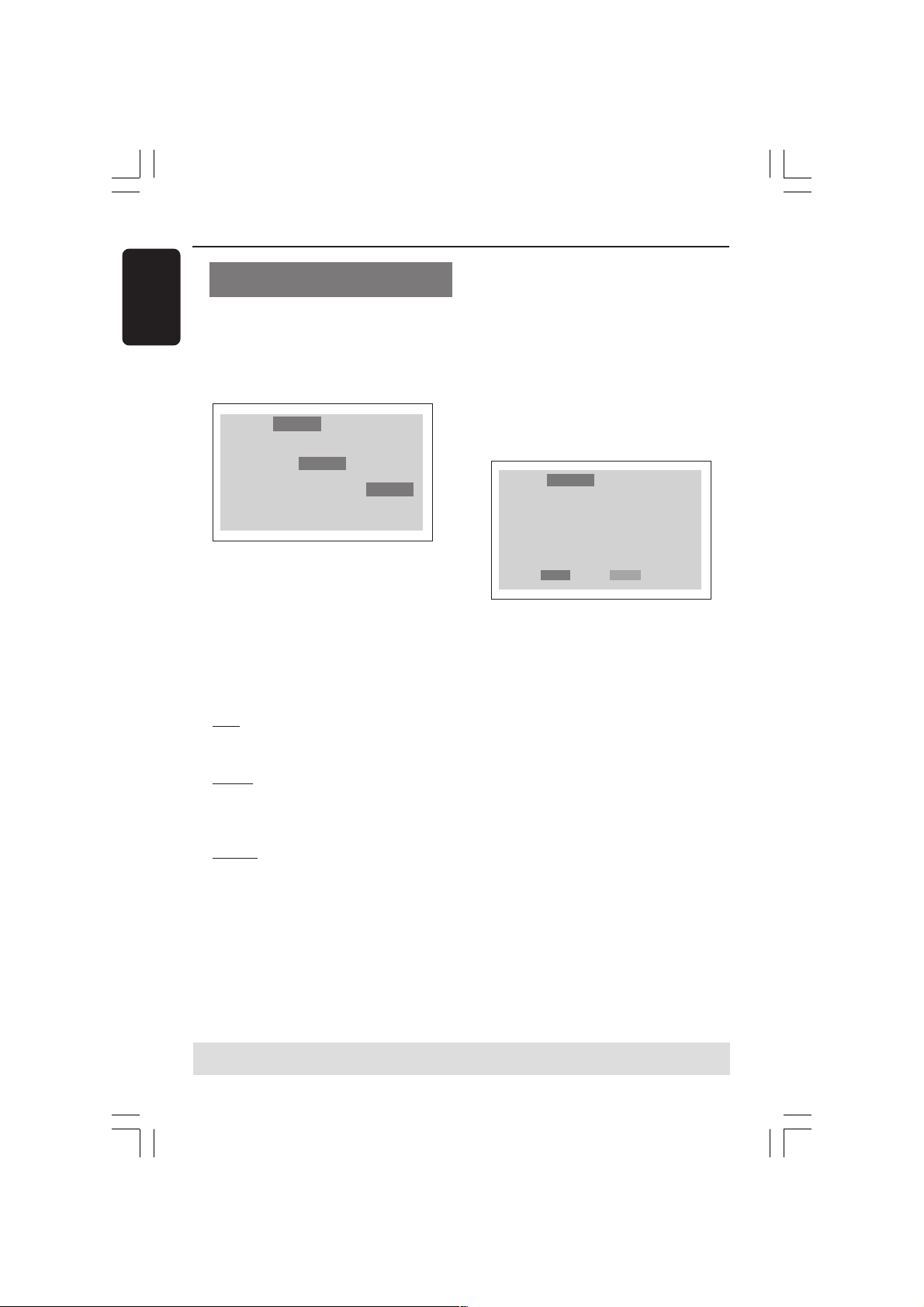
7 Select {Video Output} to {YPbPr}, then
press OK to confirm.
8 Select {Progressive} to {On}, then OK to
confirm.
➜ The below menu will appear on the TV.
1. ENSURE YOUR TV HAS PROGRESSIVE SCAN.
2. CONNECT USING YPBPR (GBR) VIDEO CABLE.
3. IF THERE IS DISTORTED PICTURE
Cancel
OK
ACTIVATING PROGRESSIVE SCAN:
WAIT 15 SECONDS FOR AUTO RECOVERY.
9 Press 1 to highlight
OK
in the menu
and press OK to confirm.
There will be a distorted picture on
your TV at this state until you turn
on the progressive scan mode on
your TV.
0 Turn on your TV progressive scan mode
(refer to your TV user manual.)
➜ The below menu appears on the TV.
CONFIRM AGAIN TO USE PROGRESSIVE
SCAN. IF THE PICTURE IS GOOD,
PRESS OK BUTTON ON REMOTE.
Cancel
OK
! Press 1 to highlight
OK
in the menu
and press OK to confirm.
➜ The set up is complete now and you
can start enjoy the high quality picture.
If no picture:
● Wait for 15 seconds for auto recovery.
OR
1 Press OPEN CLOSE 0 on the DVD
system to open the disc tray.
2 Press 2 followed by AUDIO the remote
control.
➜ The DVD background screen will
appear on the TV.
Helpful Hint:
– There are some progressive scan TV and
High-Definition TV sets that are not fully
compatible with this DVD system, resulting in
the unnatural picture when playing back a
DVD VIDEO disc in the progressive scan
mode. In such a case, turn off the
progressive scan feature on both the DVD
system and your TV set.
Getting Started
TIPS: To return to the previous menu, press OK.
To remove the menu, press SYSTEM MENU.
01-37-DVP5900_Eur3 22/09/05, 2:57 PM17
18
English
Selecting the colour system that
corresponds to your TV
This DVD Player is compatible with both
NTSC and PAL. In order for a DVD disc
to play on this Player, the colour system of
the Disc, the TV and the DVD Player
should match.
Language
TV Display
TV Type
Video Output
Progressive
HD JPEG Mode
HDMI Output
Audio RatingVideo
4:3 LETTERBOX
MULTI
RGB
Off
HD JPEG
Auto
NTSC
PAL
MULTI
1 Press SYSTEM MENU.
2 Press 2 repeatedly to select {Video}, then
press OK.
3 Press 3 4 to select {TV Type}.
4 Enter its submenu by pressing OK.
5 Press 3 4 to highlight one of the options
below:
PAL – Select this if the connected TV is
PAL system. It will change the video signal
of a NTSC disc and output in PAL format.
NTSC – Select this if the connected TV
is NTSC system. It will change the video
signal of a PAL disc (VCD only) and
output in NTSC format.
MULTI – Select this if the connected TV
is compatible with both NTSC and PAL
(multi-system). The output format will be
in accordance with the video signal of the
disc.
Getting Started
TIPS:
To return to the previous menu, press OK.
To remove the menu, press SYSTEM MENU.
6 Select an item and press OK.
➜ Follow the instructions show on the
TV to confirm the selection (if any).
Helpful Hints:
– Before changing the current TV
Type setting, ensure that your TV
supports the ‘selected TV Type’
system.
– If there is no proper picture on
your TV, wait for 15 seconds for auto
recovery.
Language Audio Track RatingVideo
CHANGING PAL TO MULTI
1. ENSURE THAT YOUR TV SYSTEM SUPPORTS
MULTI MODE
2. IF THERE IS A DISTORTED PICTURE DISPLAYED
ON THE TV, WAIT 15 SECONDS FOR AUTO
RECOVER
OK Cancel
To reset to default TV colour
system:
● Wait for 15 seconds for auto recovery.
OR
1 Press OPEN CLOSE 0 on the DVD
system to open the disc tray.
2 Press 2 followed by SUBTITLE the
remote control.
➜ The DVD background screen will
appear on the TV.
01-37-DVP5900_Eur3 22/09/05, 2:57 PM18

English
19
Step 3: Setting language
preference
You can select your preferred language
settings. This DVD Player will
automatically switch to the language for
you whenever you load a disc.
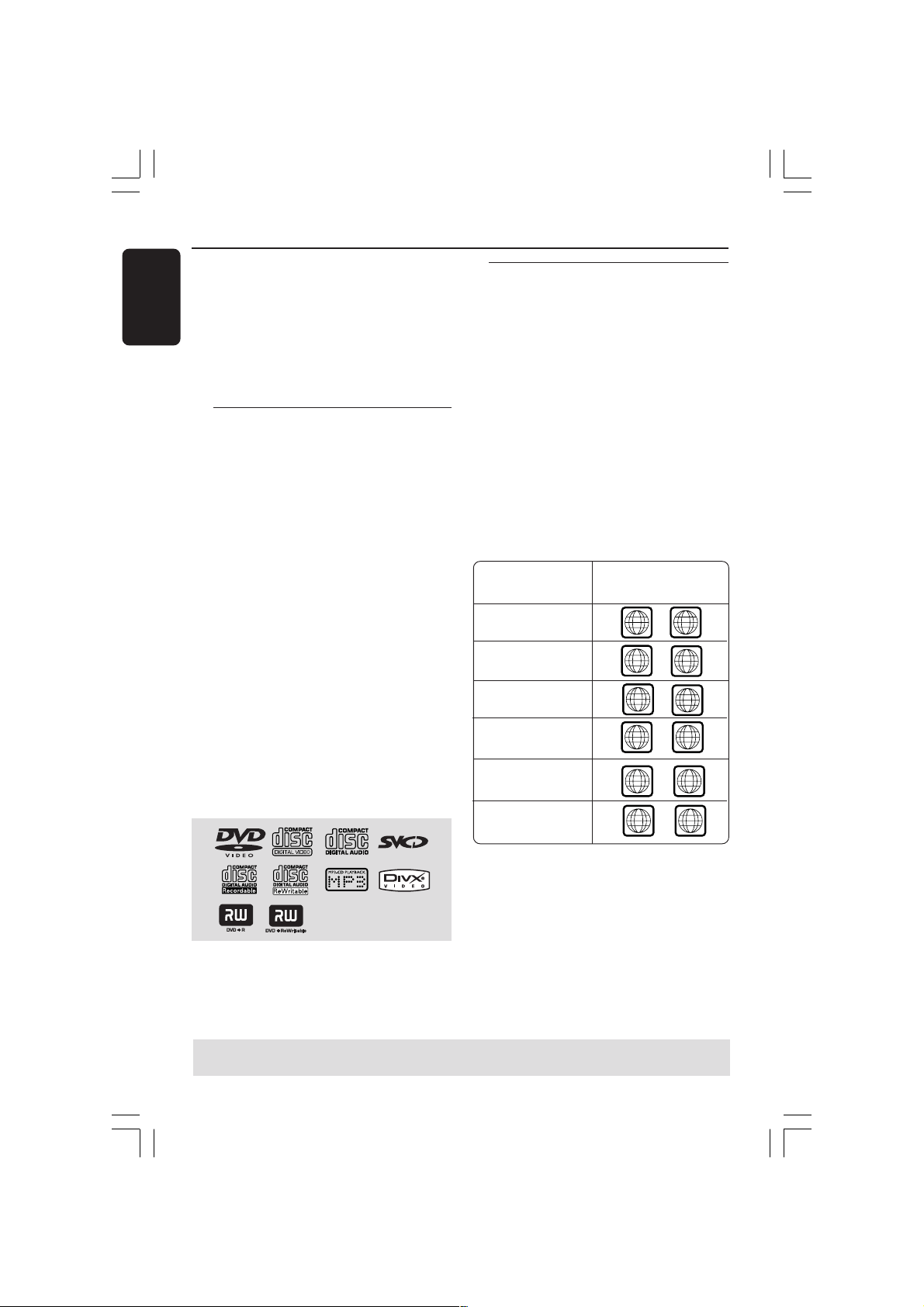
Setting the OSD Language
The On-screen language for the system
menu will remain as you set it, regardless
of various disc languages.
Language Audio Track RatingVideo
English
English
English
English
Cent. Eur.
OSD Language
DVD Subtitle
Audio Track
DVD Menu
DivX Subtitle
English
Français
Deutsch
Italiano
Español
Portugiesisch
Holandês
Danisk
Norsk
1 Press SYSTEM MENU.
2 Press 2 to select {Language}, then press
OK.
3 Press 3 4 to select {OSD Language}.
4 Enter its submenu by pressing OK.
5 Press 3 4 to select a language and press
OK.
Getting Started
Setting the Audio, Subtitle and DVD
menu language
You can choose your own preferred
language or soundtrack from audio,
subtitles and DVD menu languages. If the
language selected is not available on the
disc, the disc’s default language will be
used instead.
Language Audio Track RatingVideo
English
English
English
English
Cent. Eur.
OSD Language
DVD Subtitle
Audio Track
DVD Menu
DivX Subtitle
English
Français
Deutsch
Italiano
Español
Portugiesisch
Holandês
Danisk
Norsk
1 Press SYSTEM MENU.
2 Press 2 to select {Language}, then press
OK.
3 Press 3 4 to select one of the options
below at a time, then press OK.
–‘DVD Subtitle’ (disc’s subtitles)
–‘Audio Track’ (disc’s soundtrack)
–‘DVD Menu’ (disc’s menu)
4 Press 3 4 to select a language and press
OK.
5 Repeat steps 3~4 for other language
settings.
TIPS:
To return to the previous menu, press OK.
To remove the menu, press SYSTEM MENU.
01-37-DVP5900_Eur3 22/09/05, 2:57 PM19
20
English
Disc Operations
IMPORTANT!
– Depending on the DVD or
VIDEO CD, some operations may be
different or restricted.
– Do not push on the disc tray or
put any objects other than disc on
the disc tray. Doing so may cause
the disc player malfunction.
Playable Discs
Your DVD Player will play:
– Digital Versitile Discs (DVDs)
– Video CDs (VCDs)
– Super Video CDs (SVCDs)
– Digital Video Discs + Recordable
[Rewritable] (DVD+R[W])
– Compact Discs (CDs)
– MP3 discs, picture (JPEG) files
on CD-R(W).
– JPEG/ISO 9660 format
– Maximum 15 characters display.
– Supported sampling frequencies :
32 kHz, 44.1 kHz, 48 kHz (MPEG-1)
16 kHz, 22.05 kHz, 24 kHz (MPEG-2)
– Supported Bit-rates : 32~256 kbps
(MPEG-1), 8~160 kbps (MPEG-2)
variable bitrates
– DivX disc on CD-R[W]/DVD+R[W]:
– DivX 3.11, 4.x and 5.x
– Q-pel accurate motion compensation
– Global Motion Compensation (GMC)
playback
– Maximum files/folders per disc:
– Maximum files displayed 1,500
– Maximum folders 150
TIPS:
The operating features described here might not be possible for certain discs. Always refer
to the instructions supplied with the discs.
Region Codes
This DVD Player is designed to support
the Region Management System. Check
the regional code number on the disc
package. If the number does not match
the Player’s region number (see table
below), the Player may be unable to
playback the disc.
Helpful Hints:
– It may not be possible to play CD-R/RW or
DVD-R/RW in all cases due to the type of
disc or condition of the recording.
– If you are having trouble playing a certain
disc, remove the disc and try a different one.
Improper formatted disc will not play on this
DVD Player.
Region
Discs that can
be played
(Example)
U.S.A. and
Canada regions
U.K and
Europe regions
Asia Pacific, Taiwan,
Korea
Australia, New
Zealand, Latam
ALL
ALL
ALL
ALL
1
2
3
4
ALL
5
Russia and India regions
ALL
6
China, Calcos Islands,
Walls and Futuna Islands
01-37-DVP5900_Eur3 22/09/05, 2:57 PM20

English
21
TIPS: The operating features described here might not be possible for certain discs.
Always refer to the instructions supplied with the discs.
IMPORTANT!
If the inhibit icon (ø) appears on the
TV screen when a button is pressed,
it means the function is not available
on the current disc or at the current
time.
Playing discs
1
Connect the power cords of the DVD
Player and TV (and any optional stereo or
AV receiver) to a power outlet.
2 Turn on the TV power and set to the
correct Video In channel. (See page 16
“Setting up the TV”).
3 Press STANDBY-ON on the DVD Player
front panel.
➜ You should see the DVD background
screen on the TV.
4 Press OPEN/CLOSE 0 button to open
the disc tray and load in a disc, then press
the same button again to close the disc
tray.
➜ Make sure the label side is facing up.
For double-sided discs, load the side you
want to play facing up.
5 Playback will start automatically. If not
press PLAY B.
➜ If a disc menu appears on the TV, see
“Using the Disc Menu”.
➜ If the disc is locked by parental control,
you must enter your four-digit password.
(See page 32).
6 At any time, simply press STOP to stop
playback.
Disc Operations
Using the Disc Menu
Depending on the disc, a menu may
appear on the TV screen once you load
the disc.
To select a playback feature or item
● Use the 1 2 3 4 or numeric keypad
(0-9) on the Remote Control, then press
PLAY B to start playback.
To access or exit from the menu
● Press DISC MENU on the Remote
Control.
For VCD with Playback Control
(PBC) feature (version 2.0 only)
PBC playback allows you to play Video
CDs interactively, following the menu on
the display.
● In stop mode, use the numeric keypad
(0-9) to select a track and PBC will turn
off.
➜ Playback will start automatically
● During playback, press DISC MENU;
➜ If PBC was ON, it will switch to OFF
and continue playback.
➜ If PBC was OFF, it will switch to ON
and return to menu screen.
● During playback, pressing RETURN/
TITLE will return to the menu screen (if
PBC is on).
01-37-DVP5900_Eur3 22/09/05, 2:57 PM21

22
English
TIPS: The operating features described here might not be possible for certain discs.
Always refer to the instructions supplied with the discs.
Disc Operations
Basic playback controls
Unless otherwise stated, all operations
described are based on the use of
Remote Control.
Pausing playback
(DVD/VCD/CD/MP3)
1 During playback, press PAUSE ;.
➜ Playback will pause and sound will be
muted.
2 Press PAUSE ; again to select the next
picture frame.
3 To return to normal playback, press
PLAY B.
Selecting track/chapter
(DVD/CD)
1 Press T briefly during playback to go to
the next chapter/track
2 Press S to go to the previous track or
chapter.
3 To go directly to any chapter/track, enter
the chapter/track number using the
numerical keys (0-9).
Resuming playback from the last
stopped point (DVD/VCD/CD)
● Press STOP 9 once to activate the auto
resume mode.
● Press PLAY B and the disc will play from
the last point.
● Press STOP 9 to cancel the resume
mode.
Repeat (DVD/VCD)
● Press REPEAT continuously to choose a
Repeat mode during playback.
REPEAT CHAPTER (DVD)
– to repeat playback of the current
chapter.
REPEAT TITLE (DVD)
– to repeat playback of the current
title.
REPEAT SINGLE (VCD)
– to repeat playback of the current
track.
REPEAT ALL (VCD)
– to repeat playback of all the disc.
OFF (DVD/VCD)
– to cancel the repeat mode.
Helpful Hint:
– REPEAT function is not available for VCD
2.0 when PBC is on.
Repeat A-B (DVD/VCD/CD)
1 Press REPEAT A-B at your chosen
starting point.
2 Press REPEAT A-B again at your chosen
end point.
➜ The section will now repeat
continuously.
3 To exit the sequence, press REPEAT A-B.
Zoom (DVD/VCD/JPEG)
Zooming allows you to enlarge or reduce
the video image during playback.
1 Press ZOOM repeatedly to increase and
decrease the playback video image.
2 Press 1 2 3 4 to pan across the TV
screen (JPEG).
01-37-DVP5900_Eur3 22/09/05, 2:57 PM22

English
23
TIPS: The operating features described here might not be possible for certain discs.
Always refer to the instructions supplied with the discs.
Disc Operations
Forward / Reverse Searching
(DVD/VCD/CD)
1 Press 1 2 during playback to select the
required speed: 2X, 4X, 8X or 20X
(backward or forward).
➜ Sound will be muted (DVD/VCD) or
intermittent (CD).
2 To return to normal speed, press PLAY B.
Slow Motion (DVD/VCD)
1 Press 3 4 during playback to select the
required speed: 1/2, 1/4 or 1/8 (backward
or forward).
➜ Sound will be muted.
2 To return to normal speed, press PLAY B.
Preview (DVD/VCD)
The Time Search function allows you to
start playing at any chosen time on the
disc.
1 Press PREVIEW.
2 Use 1 2 keys to select an option.
3 Enter hours, minutes and seconds from
left to right in the time edit box using
remote control numerical key pad.
(e.g. 0:34:27)
For DVD
➜ Time (example - 00:34:27)
➜ Title/Chapter (example - 000/008)
For VCD
➜ Track Search (example - 00:30:00)
➜ Track (example - 001)
4 Press the OK key to confirm.
➜ Playback starts from the selected time
on the disc.
01-37-DVP5900_Eur3 22/09/05, 2:57 PM23

24
English
TIPS: The operating features described here might not be possible for certain discs.
Always refer to the instructions supplied with the discs.
Disc Operations
Playing a DivX disc
This DVD player supports the DivX
movie playback that you download from
your computer onto a CD-R/RW (see
page 33 for more information).
1 Load a DivX disc.
➜ Playback will start automatically. If not
press PLAY B.
2 Pressing SUBTITLE on the remote
control will turn on or off the subtitle.
3 If the disc has supported subtitle files
(srt/sub/ssa/txt/ass/smi), you’ll be prompt
to select the DivX subtitle file.
● If multilingual subtitles are embedded on
the DivX disc, pressing SUBTITLE will
change the subtitle language during
playback.
Helpful Hint:
– For external subtitles, the system will
display a list of available subtitles, select one
of the DivX movies subtitle and press PLAY.
Special DVD Features
Playing a Title
1 Press DISC MENU.
➜ The disc title menu appears on the TV
screen.
2 Use 3 4 1 2 keys or numeric keypad
(0-9) to select a play option.
3 Press OK key to confirm.
Camera Angle
● Press ANGLE repeatedly to select
different desired angle.
Changing the Audio Language
For DVD
● Press AUDIO repeatedly to select
different audio languages.
Changing the Audio Channel
For VCD
● Press AUDIO to select the available
audio channels provided by the disc (LEFT
MONO, RIGHT MONO, MIX-MONO,
STEREO).
Subtitles
● Press SUBTITLE repeatedly to select
different subtitle languages.
01-37-DVP5900_Eur3 22/09/05, 2:57 PM24
English
25
Disc Operations
TIPS:
The operating features described here might not be possible for certain discs. Always refer
to the instructions supplied with the discs.
Repeat
● Press REPEAT continuously to access
different ‘Play Mode’.
REPEAT SINGLE
– to repeat playback of the current file.
REPEAT ALL
– to repeat playback of all files in the
disc.
OFF
– to cancel the repeat mode.
Zoom picture (JPEG/ DivX)
● During playback, press ZOOM
repeatedly to display the picture with
different scales.
● Use
1 2 3 4 to view the zoomed picture.
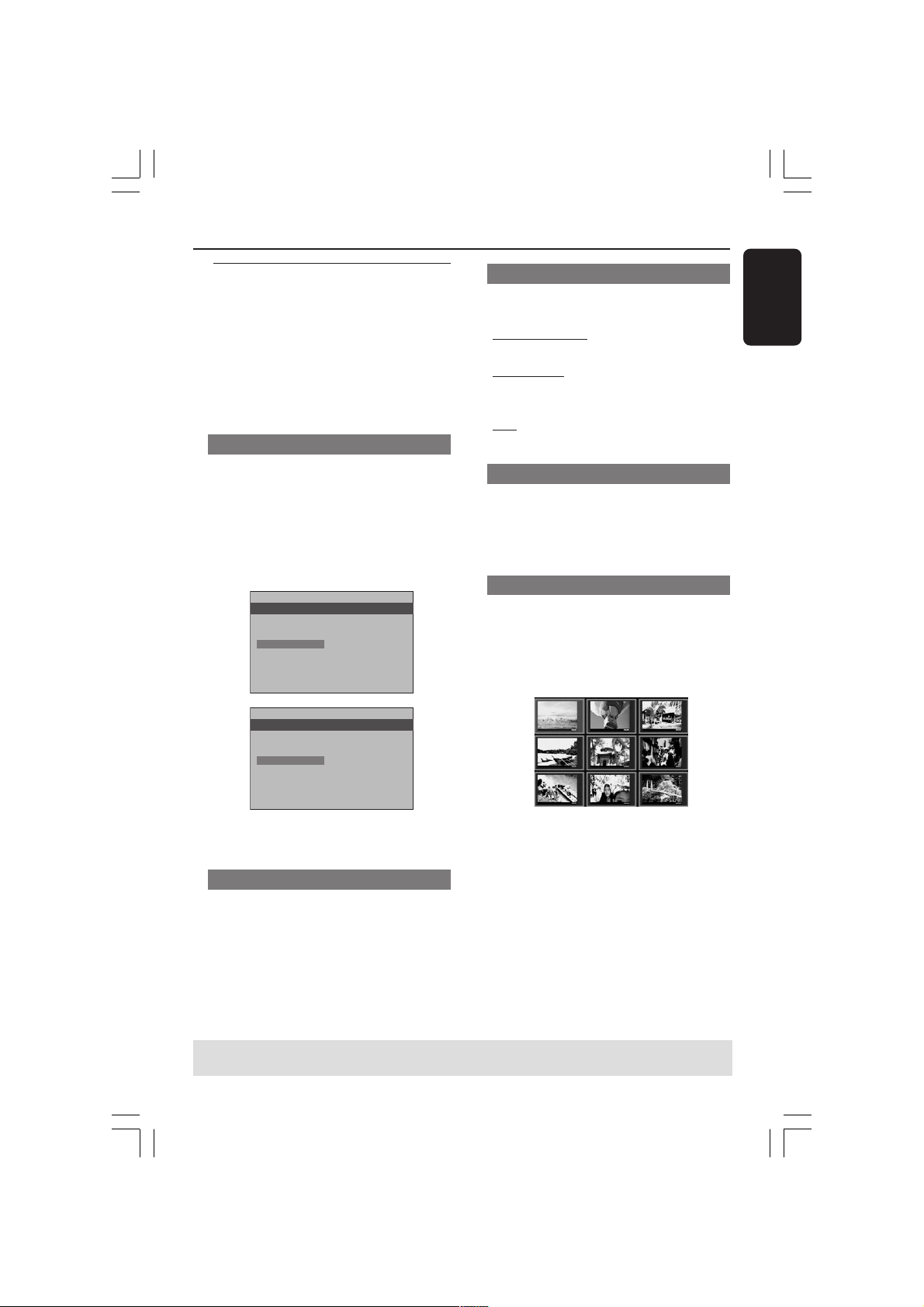
Preview (JPEG)
This function shows the content of the
current folder or the whole disc.
1 Press PREVIEW during playback.
➜ Thumbnails of 9 pictures appears on
the TV screen.
(example for 9 thumbnail pictures display)
2 Press S / T to display the other
pictures on the previous/next page.
3 Use 1 2 3 4 to highlight one of the
picture and press OK to start playback.
4 Press PREVIEW to return to the disc
menu.
Playback selection
During playback, you can;
● Press S / T to select another file in
the current folder.
● Press ANGLE on the remote to rotate
the picture files.
● Press
; / B repeatedly to pause/resume
playback.
Playing MP3/JPEG Picture CD
This player can playback MP3, JPEG, or
Picture CD files on a personally recorded
CD-R/RW disc or commercial CD.
IMPORTANT!
You have to turn on your TV and set to
the correct Video In channel. (See page
16 “Setting up the TV”).
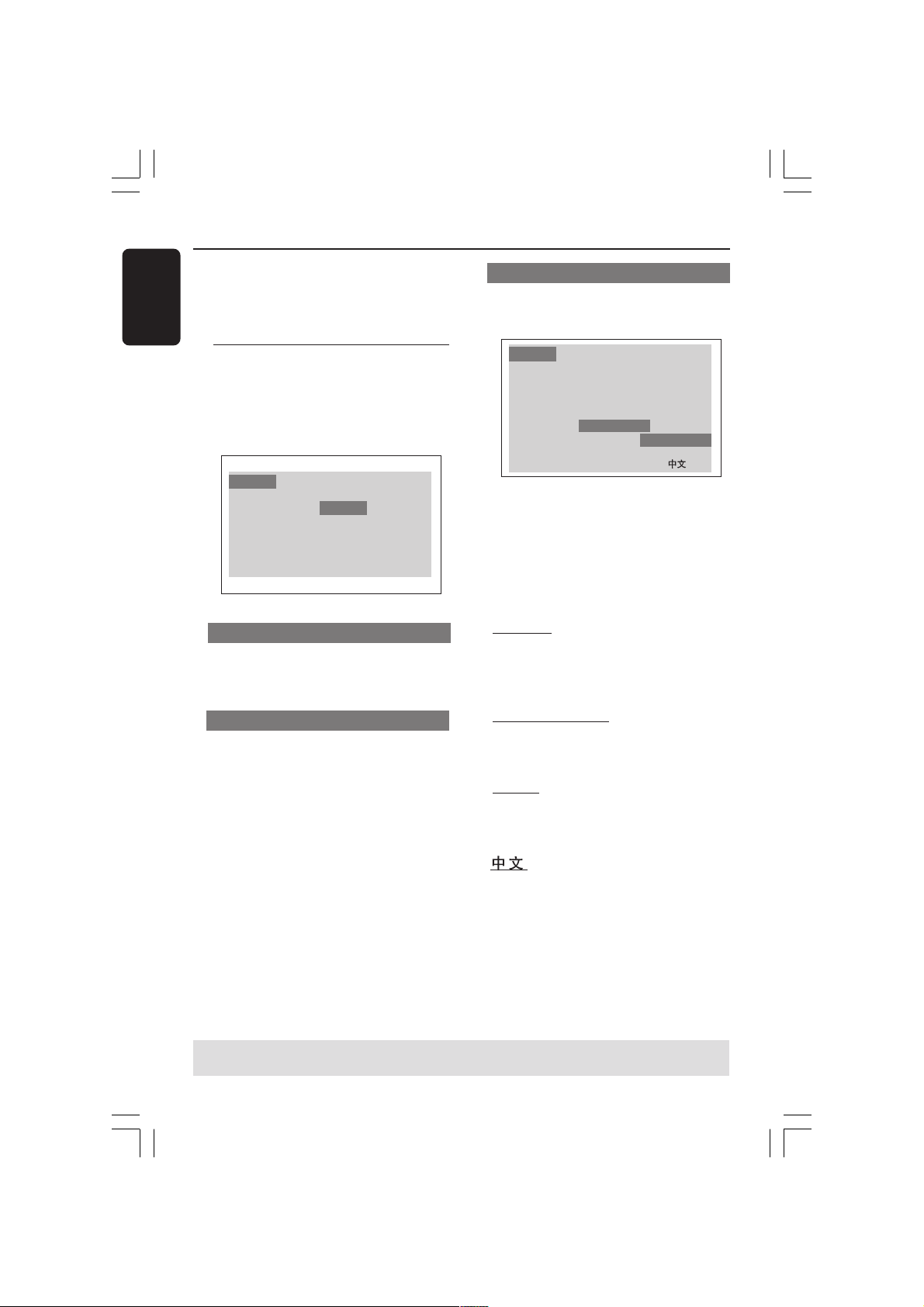
General Operation
1 Load a disc.
➜ Playback will start automatically. If not
press PLAY B.
● Press STOP to display disc menu on the
TV screen.
2 Use 1 2 3 4 to select a file and press
OK to open the file.
JPEG 6/103
Images
8. image 8
9. image 9
10. image 10
11. image 11
12. image 12
13. image 13
14. image 14
1. image 1
2. image 2
3. image 3
4. image 4
5. image 5
6. image 6
7. image 7
MP3 1/10
MP3
8. music 8
9. music 9
10. music 10
1. music 1
2. music 2
3. music 3
4. music 4
5. music 5
6. music 6
7. music 7
3 Use the numeric keypad (0-9) to select
and playback the file directly.
01-37-DVP5900_Eur3 22/09/05, 2:57 PM25
26
English
DVD Setup Menu Options
This DVD Player setup is carried out via
the TV, enabling you to customise the
DVD Player to suit your particular
requirements.
Language
1
Press SYSTEM MENU.
2 Press 2 to select {Language}.
3 Press OK to confirm.
Language
OSD Language
DVD Subtitle
Audio Track
DVD Menu
DivX Subtitle
Audio Track RatingVideo
English
English
English
English
Cent. Eur.
OSD Language
This menu contains various language
options for display language on the
screen. For details, see page 19.
Audio, Subtitle, DVD Menu
These menus contain various language
options for audio, subtitle and DVD menu
which may be recorded on the DVD disc.
For details, see page 19.
Setting the DivX Subtitle font
You can set the font type that supports
the recorded DivX subtitle.
Language Audio Track RatingVideo
English
English
English
English
Cent. Eur.
OSD Language
DVD Subtitle
Audio Track
DVD Menu
DivX Subtitle
Standard
Cent. Eur.
Cyrillic
1 In ‘Language’, press OK to enter the
submenu.
2 Press 3 4 to highlight {DivX Subtitle},
then press OK.
3 Press 3 4 to highlight one of the options
below:
Standard
Albanian, Danish, Dutch, English, Finnish,
French, Gaelic, German, Italian, Kurdish
(Latin), Norwegian, Portuguese, Spanish,
Swedish and Turkish.
Central European
Albanian, Croat, Czech, Dutch, English,
German, Hungarian, Irish, Polish,
Romanian, Slovak, Slovene and Sorbian.
Cyrillic
Bulgarian, Belorussian, English,
Macedonian, Moldavian, Russian, Serbian
and Ukrainian.
Simplified Chinese
4 Press 3 4 to select a setting, then press
OK to confirm your selection.
TIPS:
To return to the previous menu, press OK.
To remove the menu, press SYSTEM MENU.
01-37-DVP5900_Eur3 22/09/05, 2:57 PM26
English
27
DVD Setup Menu Options
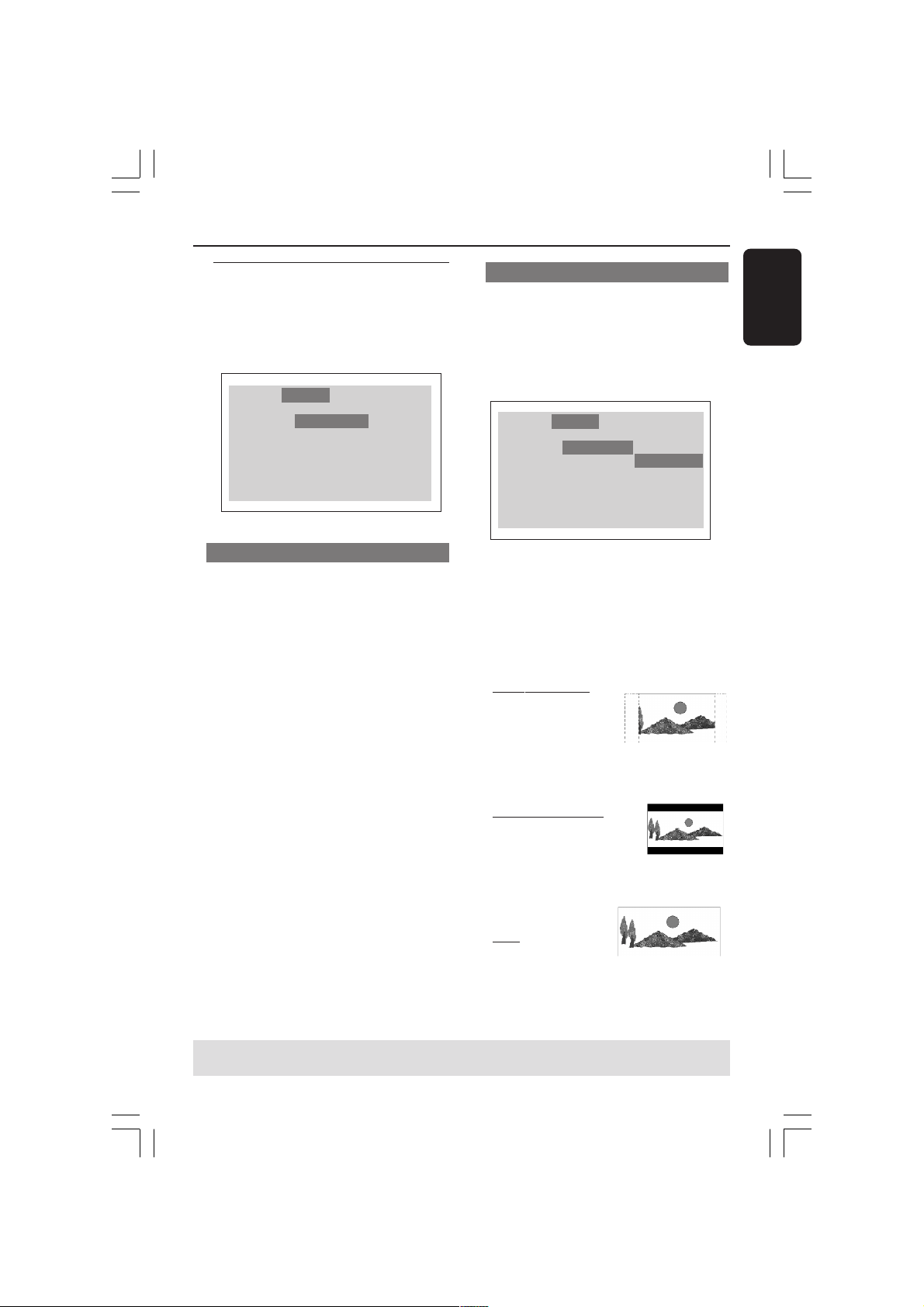
Video Setup
1
Press SYSTEM MENU.
2 Press 2 repeatedly to select {Video}.
3 Press OK to confirm.
Language
TV Display
TV Type
Video Output
Progressive
HD JPEG Mode
HDMI Output
Audio Track RatingVideo
4:3 LETTERBOX
MULTI
RGB
Off
HD JPEG
Auto
TV Type
This menu contains the options for
setting the aspect ratio of the DVD
Player according to the connected TV. For
details, see page 18.
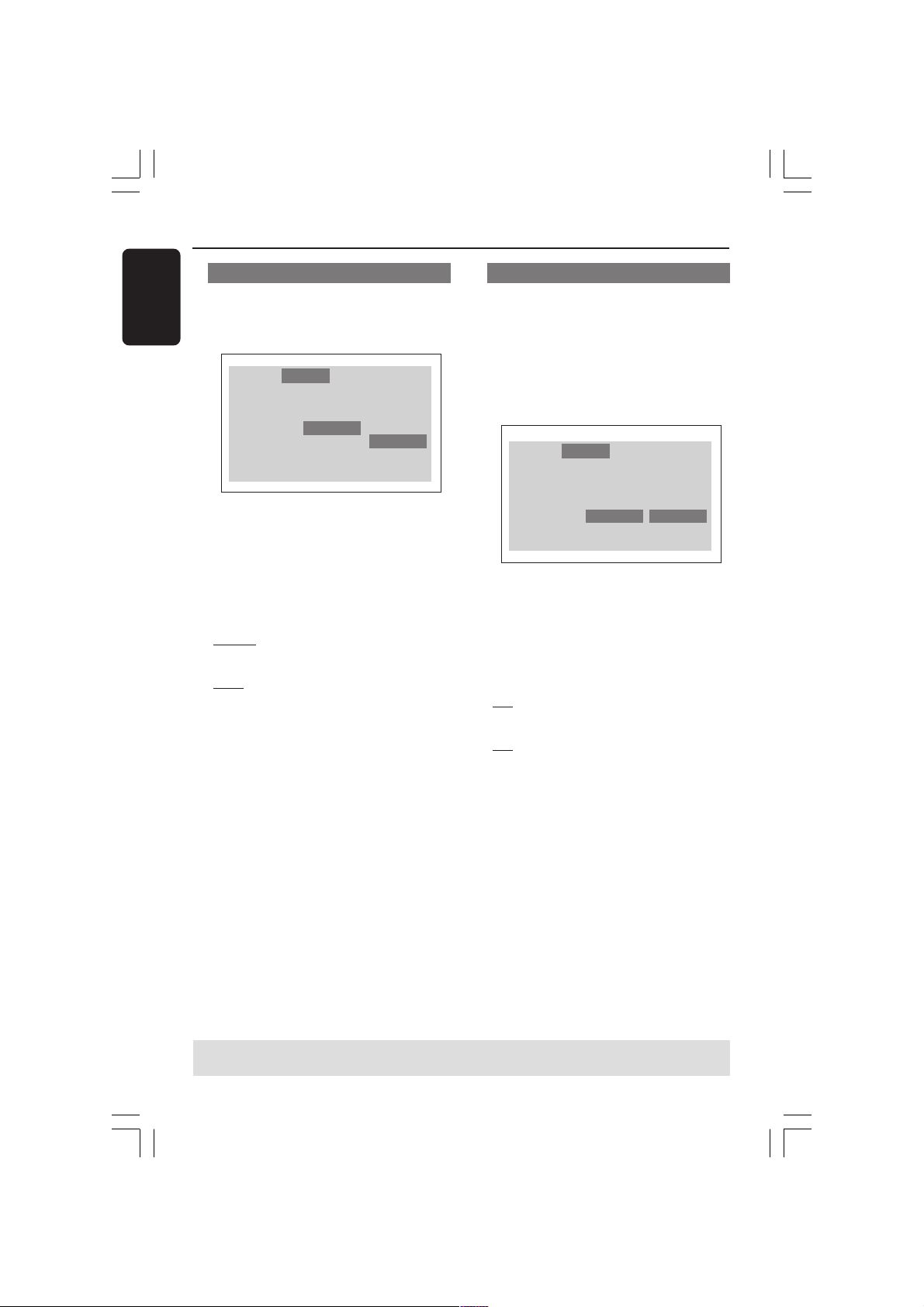
Setting the TV Display
Set the aspect ratio of the DVD Player
according to the TV you have connected.
The format you select must be available
on the disc. If it is not, the setting for TV
display will not affect the picture during
playback.
Language Audio Track RatingVideo
4:3 LETTERBOX
MULTI
RGB
Off
HD JPEG
Auto
4:3 PANSCAN
4:3 LETTERBOX
16:9
TV Display
TV Type
Video Output
Progressive
HD JPEG Mode
HDMI Output
1 In ‘Video’, press OK to enter the
submenu.
2 Press 3 4 to highlight {TV Display}, then
press OK.
3 Press 3 4 to highlight one of the options
below:
4:3 PANSCAN –
Select this if you have
a normal TV and want
both sides of the
picture to be
trimmed or formatted to fit your TV
screen.
4:3 LETTERBOX –
Select this if you have a
normal TV. In this case, a
wide picture with black
bands on the upper and lower portions
of the TV screen will
be displayed.
16:9 – Select this if
you have a wide-
screen TV.
4 Select an item and press OK.
TIPS:
To return to the previous menu, press OK.
To remove the menu, press SYSTEM MENU.
01-37-DVP5900_Eur3 22/09/05, 2:57 PM27
28
English
DVD Setup Menu Options
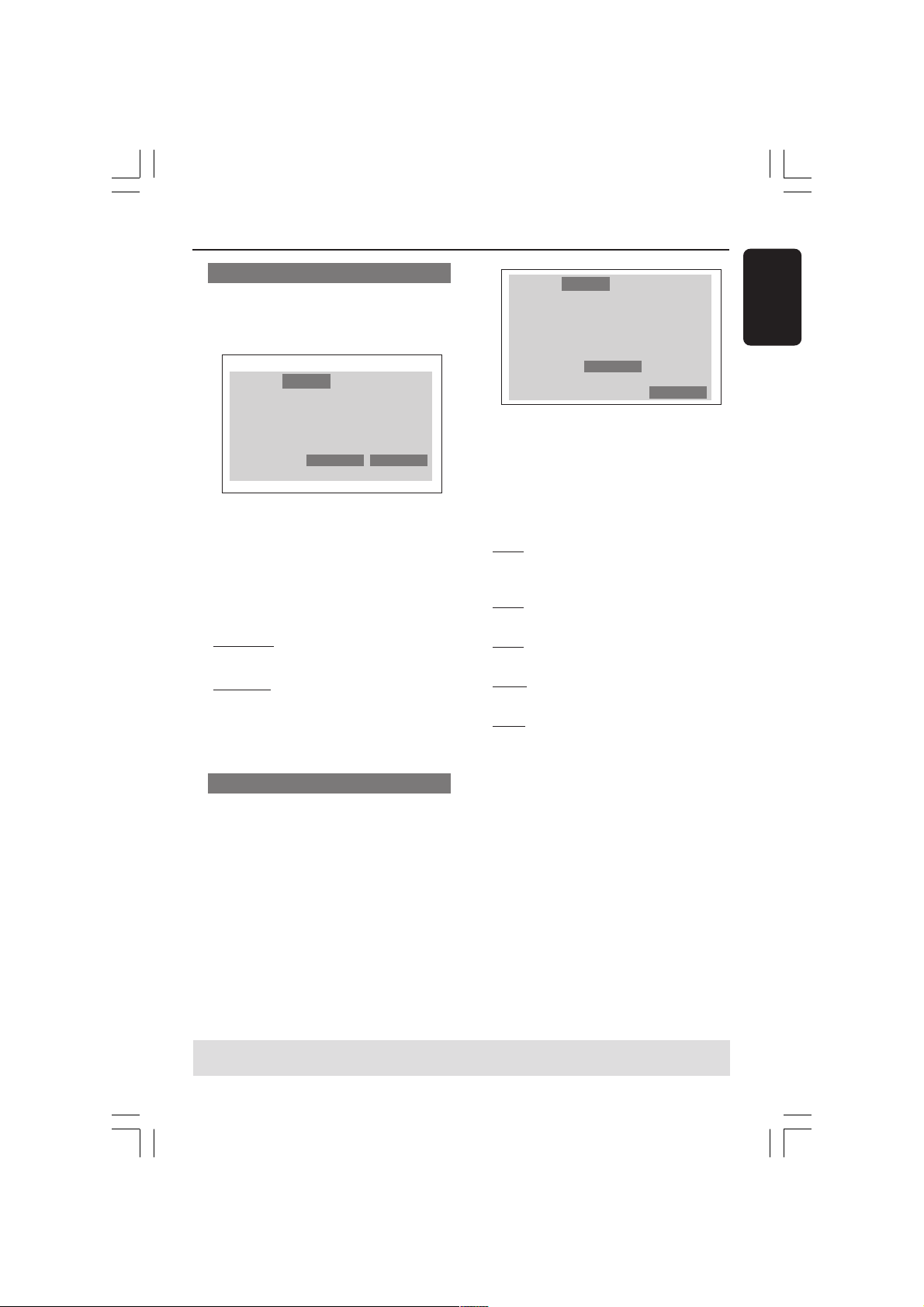
Switching the YPbPr/RGB
This setting allows you to toggle the
output of the video signal between RGB
(on scart) and Y Pb Pr.
Language
TV Display
TV Type
Video Output
Progressive
HD JPEG Mode
HDMI Output
Audio Track RatingVideo
4:3 LETTERBOX
MULTI
RGB
Off
HD JPEG
Auto
YPbPr
RGB
1 In ‘Video’, press OK to enter the
submenu.
2 Press 3 4 to highlight {Video Output},
then press OK.
3 Press 3 4 to highlight one of the options
below:
YPbPr
Select this for Y Pb Pr connection.
RGB
Select this for Scart connection.
4 Press 3 4 to select a setting, then press
OK to confirm your selection.
Warning:
When the player is set to Y Pb Pr
(YUV), some TV may not
synchronise with player on the
SCART connector.
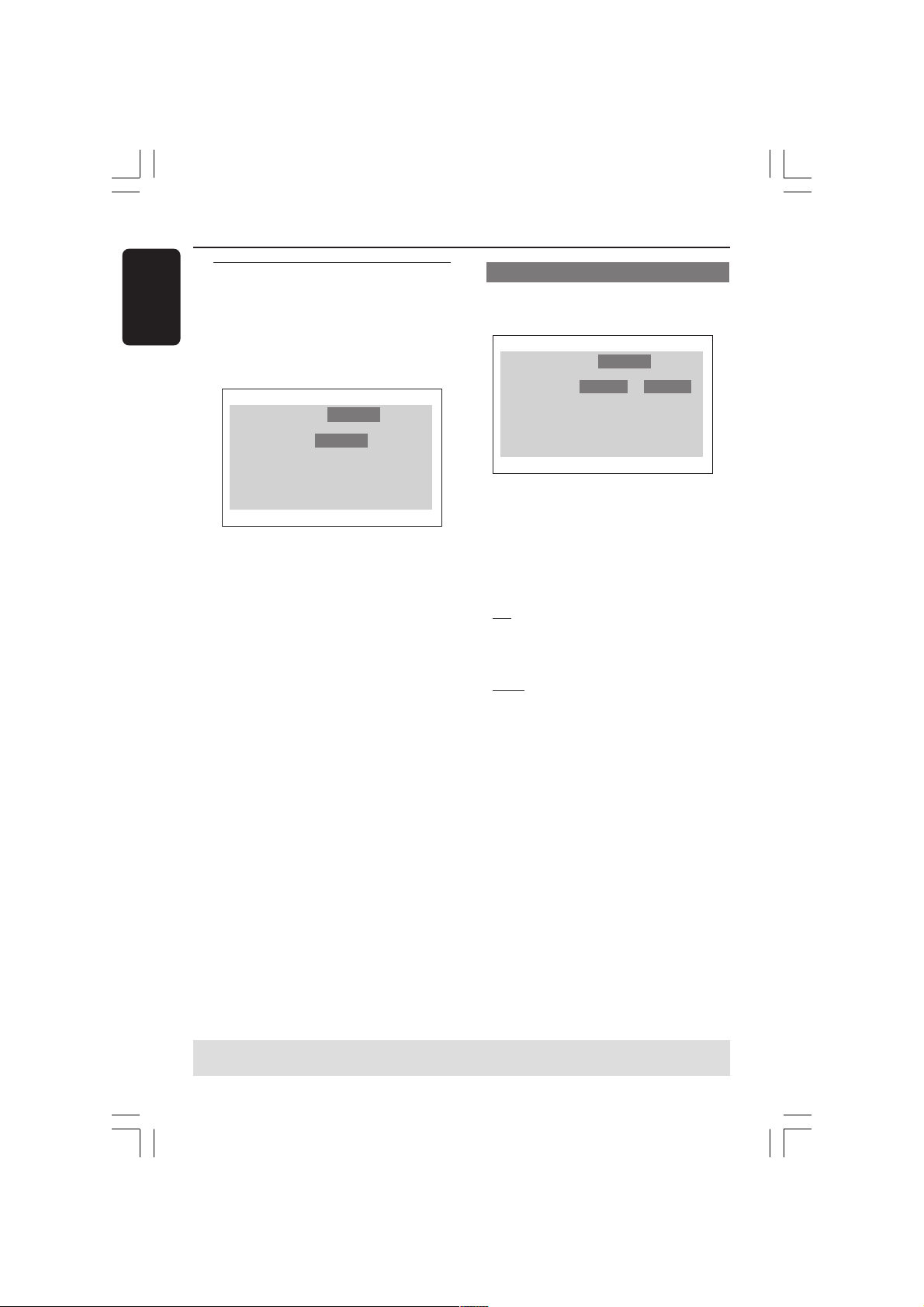
Progressive - turning on/off
In the progressive scan mode, you can
enjoy the high quality picture with less
flickers. It only works when you have
connected the DVD player’s Y Pb Pr jacks
to your TV that supports the progressive
video input. Otherwise, the a distorted
picture will appear on the TV. For proper
progressive scan set up, see page 17.
TV Display
TV Type
Video Output
Progressive
HD JPEG Mode
HDMI Output
Language Audio Track RatingVideo
4:3 LETTERBOX
MULTI
RGB
Off
HD JPEG
Auto
Off
On
1 In ‘Video’, press OK to enter the
submenu.
2 Press 3 4 to highlight {Progressive}, then
press OK.
3 Press 3 4 to highlight one of the options
below:
Off
To disable Progressive Scan function.
On
To enable Progressive Scan function.
4 Press 3 4 to select a setting, then press
OK to confirm your selection.
➜ Follow the instructions shown on the
TV to confirm the selection (if any).
➜ If a distorted picture appears on the
TV screen, wait for 15 seconds for auto
recovery.
To reset Progressive Scan to OFF:
1 Press OPEN CLOSE 0 on the DVD
system to open the disc tray.
2 Press 2 followed by AUDIO the remote
control.
➜ The DVD background screen will
appear on the TV.
TIPS:
To return to the previous menu, press OK.
To remove the menu, press SYSTEM MENU.
01-37-DVP5900_Eur3 22/09/05, 2:58 PM28
English
29
DVD Setup Menu Options
HD JPEG Mode
You can enjoy unsurpressed pictures at
its native resolution via your HDMI
connection or progressive scan mode.
TV Display
TV Type
Video Output
Progressive
HD JPEG Mode
HDMI Output
Language Audio Track RatingVideo
4:3 LETTERBOX
MULTI
RGB
Off
HD JPEG
Auto
HD JPEG
SD JPEG
1 In ‘Video’, press OK to enter the
submenu.
2 Press 3 4 to highlight {HD JPEG Mode},
then press OK.
3 Press 3 4 to highlight one of the options
below:
HD JPEG (High Definition JPEG)
Displays picture at the actual resolution.
SD JPEG (Standard Definition JPEG)
Displays picture at suppressed resolution.
4 Press 3 4 to select a setting, then press
OK to confirm your selection.
HDMI Output
For HDMI connection, you are able to
select the video output resolution
selection. The available options will be
displayed once you have connected the
HDMI connection (see page 12).
It may take a while for the DVD
player and input device to
communicate and initialise.
TIPS:
To return to the previous menu, press OK.
To remove the menu, press SYSTEM MENU.
TV Display
TV Type
Video Output
Progressive
HD JPEG Mode
HDMI Output
Language Audio Track RatingVideo
4:3 LETTERBOX
MULTI
RGB
Off
HD JPEG
Auto
480p/576p
720p
1080i
Auto
1 In ‘Video’, press OK to enter the
submenu.
2 Press 3 4 to highlight {HDMI Output},
then press OK.
3 Press 3 4 to highlight one of the options
below:
480p
Progressive output in 480 lines for NTSC
TV.
576p
Progressive output in 576 lines for PAL TV.
720p
Progressive output upscale to 720 lines.
1080i
Interlaced output upscale to 1080 lines.
Auto (default setting)
Output automatically based on your
display’s supported resolution.
4 Press 3 4 to select a setting, then press
OK to confirm your selection.
Helpful hints:
– If no display appears on the TV screen due
to unsupported resolution, reconnect any
available interlace video output to your
display and re-adjust the resolution settings
to 480p/576p.
– Select AUTO to automatically display the
best resolutions settings.
01-37-DVP5900_Eur3 22/09/05, 2:58 PM29
30
English
DVD Setup Menu Options
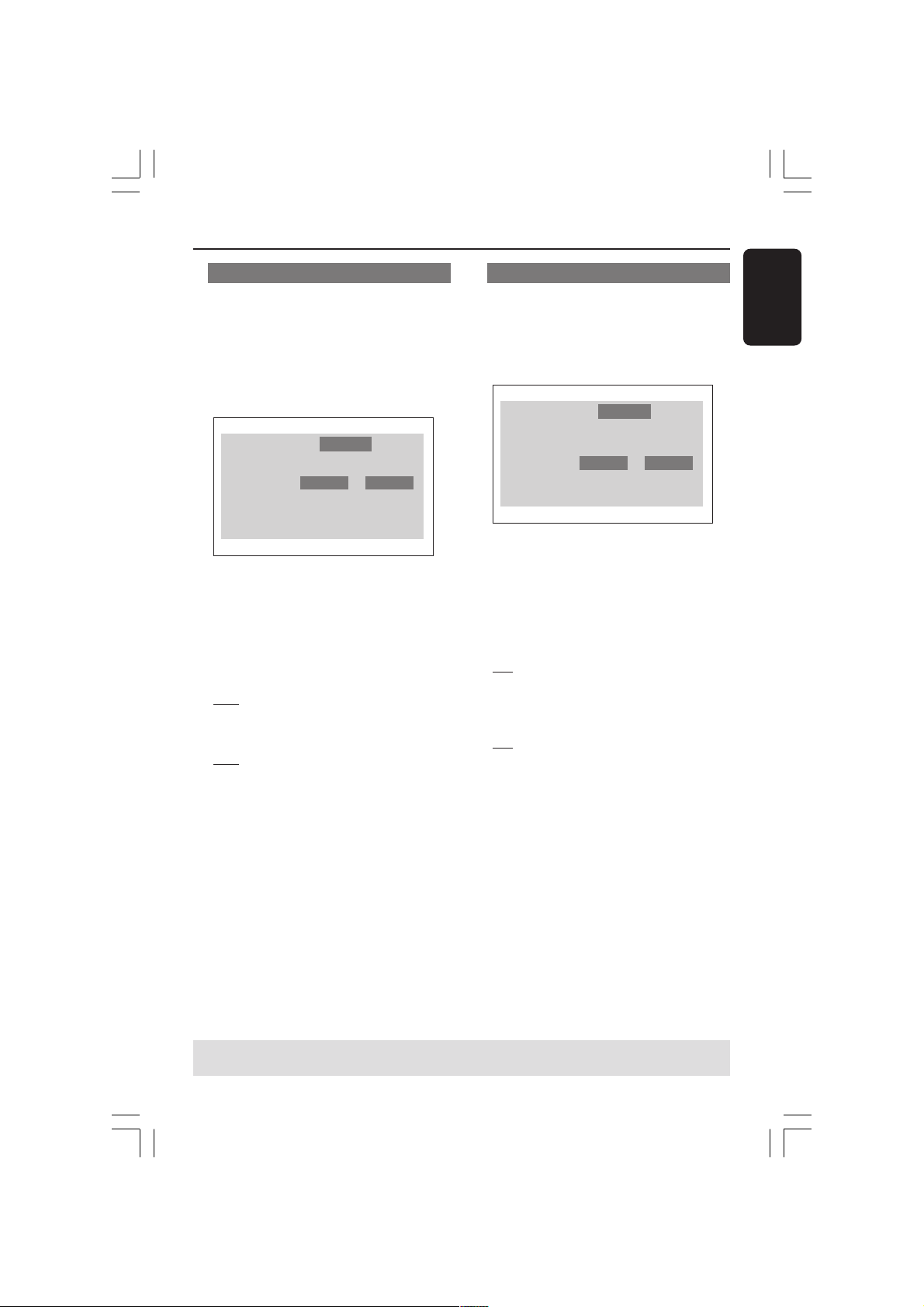
Audio Setup
1
Press SYSTEM MENU.
2 Press 2 repeatedly to select {Audio
Track}.
3 Press OK to confirm.
Language
Digital Output
LPCM Output
Night Mode
Audio Track RatingVideo
PCM
96K
Off
Digital Output
Set the Digital output according to your
optional audio equipment connection.
Language
Digital Output
LPCM Output
Night Mode
Audio Track RatingVideo
PCM
All
PCM
96K
Off
1 In ‘Audio Track’, press OK to enter the
submenu.
2 Press 3 4 to highlight {Digital Output},
then press OK.
3 Press 3 4 to highlight one of the options
below:
All
If you have connected your DIGITAL
AUDIO OUT to a multi-channel
decoder/receiver.
PCM
Only if your TV or receiver is not capable
of decoding multi-channel audio.
4 Select an item and press OK.
TIPS:
To return to the previous menu, press OK.
To remove the menu, press SYSTEM MENU.
01-37-DVP5900_Eur3 22/09/05, 2:58 PM30
English
31
DVD Setup Menu Options
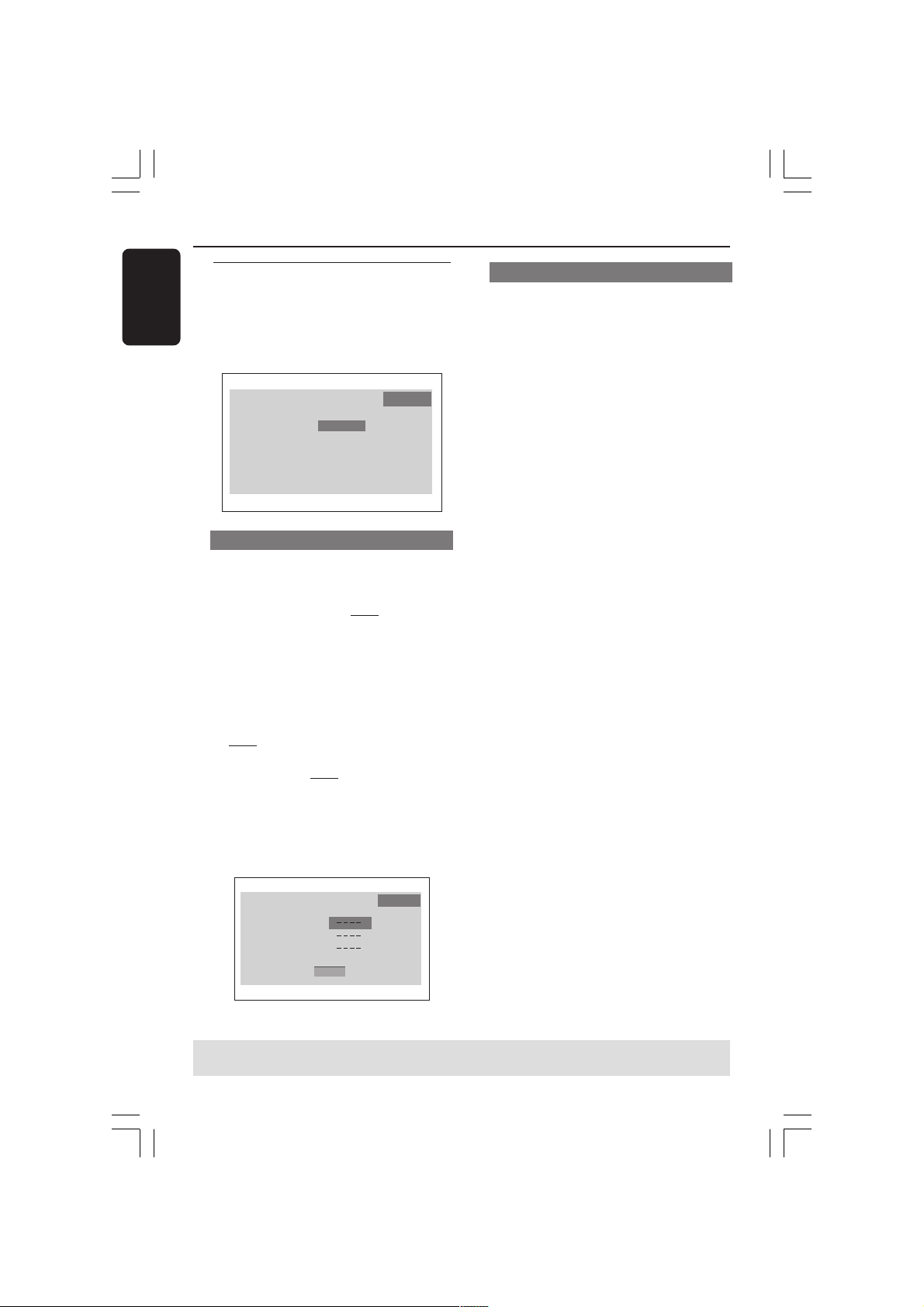
LPCM Output
If you connect the DVD Player to a PCM
compatible receiver via the digital
terminals, such as coaxial or optical etc,
you may need to adjust ‘LPCM Output’.
Discs are recorded at a certain sampling
rate. The higher the sampling rate, the
better the sound quality.
Language
Digital Output
LPCM Output
Night Mode
Audio Track RatingVideo
96K
48K
PCM
96K
Off
1 In ‘Audio Track’, press OK to enter the
submenu.
2 Press 3 4 to highlight {LPCM Output},
then press OK.
3 Press 3 4 to highlight one of the options
below:
48K
Playback a disc recorded at the sampling
rate of 48kHz.
96K
Playback a disc recorded at the sampling
rate of 96kHz that can only be achieved
in Stereo-Classic mode.
4 Select an item and press OK.
Helpful Hint:
– LPCM Output can be selected only when
PCM is activated.
Night Mode - turning on/off
In this mode, the high volume outputs are
softened and low volume outputs are
brought upward to an audible level. It is
useful for watching your favourite action
movie without disturbing others at night.
Language
Digital Output
LPCM Output
Night Mode
Audio Track RatingVideo
Off
On
PCM
96K
Off
1 In ‘Audio Track’, press OK to enter the
submenu.
2 Press 3 4 to highlight {Night Mode}, then
press OK.
3 Press 3 4 to highlight one of the options
below:
On
Select this to level out the volume. This
feature is only available for movies with
Dolby Digital mode.
Off
Select this when you want to enjoy the
surround sound with its full dynamic
range.
4 Select an item and press OK.
TIPS:
To return to the previous menu, press OK.
To remove the menu, press SYSTEM MENU.
01-37-DVP5900_Eur3 22/09/05, 2:58 PM31
32
English
DVD Setup Menu Options
Rating
1
Press SYSTEM MENU.
2 Press 2 repeatedly to select {Rating}.
3 Press OK to confirm.
Language
Password
Rating
Factory defaults
DivX Registration
Audio Track RatingVideo
Change
8. Adult
Reset
Display
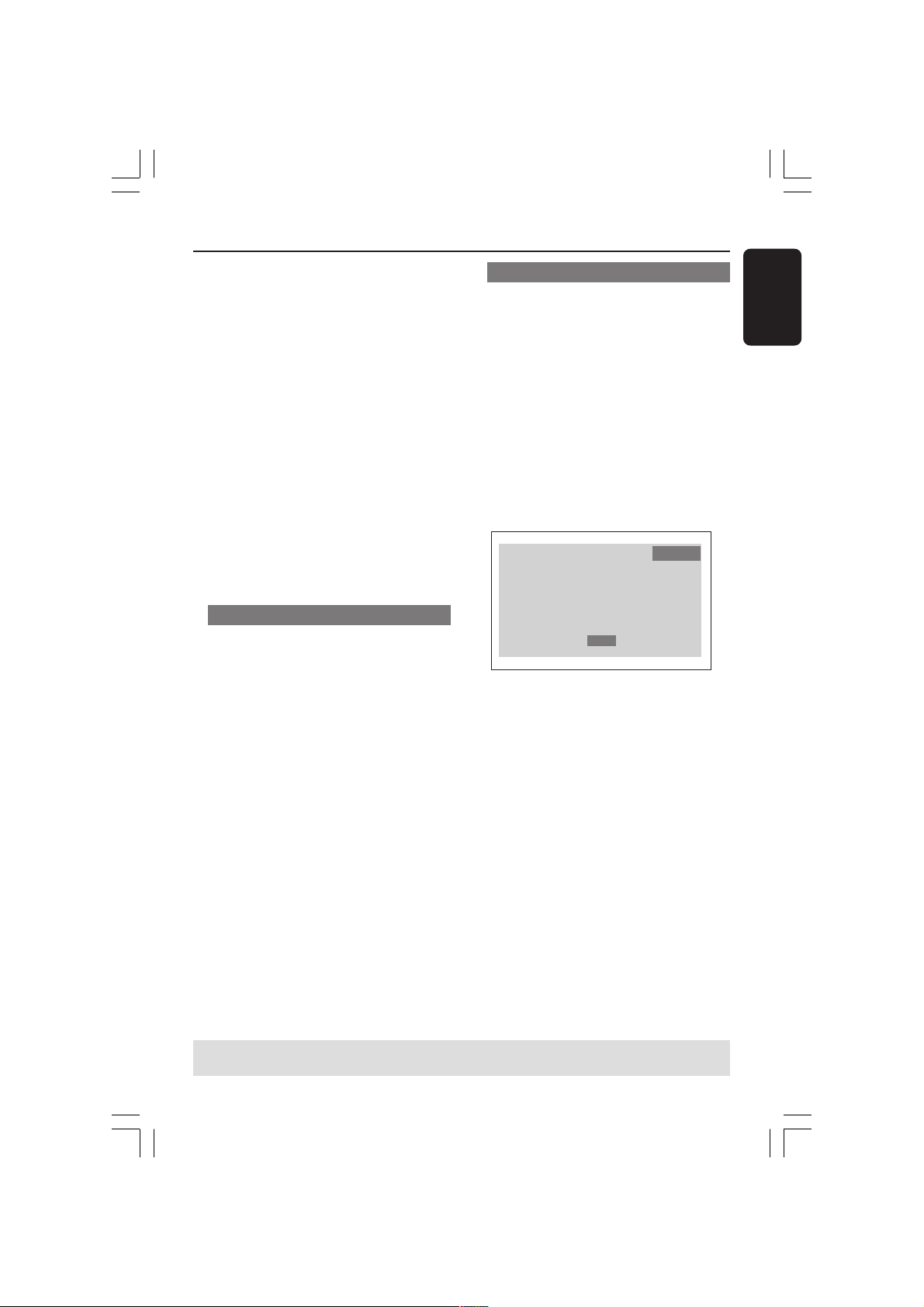
Changing the Password
The same password is used for both
Parental Control. Enter your 4 digit
password when prompted on the screen.
The default password is
0000.
1 In ‘Rating’, press OK to enter the submenu.
2 Press 3 4 to highlight {Change}
(Cambiar), then press OK.
3 Use the numeric keypad (0-9) to enter
your old four-digit password.
➜ When doing this for the first time, key
in ‘
0000’.
➜ If you forget your old four-digit
password, key in ‘
0000’.
4 Enter the new four-digit password.
5 Enter the new four-digit password second
time to confirm.
➜ The new four-digit password will now
take effect.
Language Audio Track RatingVideo
Old Password
New Password
Confirm Password
Done
6 Press OK to confirm.
TIPS:
To return to the previous menu, press OK.
To remove the menu, press SYSTEM MENU.
Setting the Rating
Some DVDs may have a parental level
assigned to the complete disc or to
certain scenes on the disc. This feature
lets you set a playback limitation level.
The rating levels are from 1 to 8 and are
country dependent. You can prohibit the
playing of certain discs that are not
suitable for your children or have certain
discs played with alternative scenes.
1 In ‘Rating’, press OK to enter the
submenu.
2 Press 3 4 to highlight {Rating}, then
press OK to select a rating level for the
disc inserted.
➜ To disable rating control and plays all
discs, select {8 Adult}.
3 Use the numeric keypad (0-9) to enter
the four-digit password (“Changing the
password”).
➜ DVDs that are rated above the level
you selected will not play unless you
enter your four-digit password.
Helpful Hints:
– VCD, CD have no level indication, so
parental control function has no effect on
these type of discs. This applies to most
duplicated DVD discs.
– Some DVDs are not encoded with a rating
though the movie rating may be printed on
the Disc cover. The rating level feature does
not work for such Discs.
01-37-DVP5900_Eur3 22/09/05, 2:58 PM32
English
33
DVD Setup Menu Options
Rating explanations
1 KID SAFE
– Kids material; recommended especially for
children and viewers of all ages.
2 G
– General Audience; recommended as acceptable
for viewers of all ages.
3 PG
– Parental Guidance suggested.
4 PG13
– Material is unsuitable for children under age 13.
5-6 PG-R
– Parental Guidance - Restricted; recommended
that parents restrict children under 17 from
viewing or allow to view only when supervised by
a parent or adult guardian.
7 NC-17
– No children under age 17; not recommended
viewing for children under age 17.
8 ADULT
– Mature material; should be viewed only by
adults due to graphic sexual material, violence or
language.
TIPS:
To return to the previous menu, press OK.
To remove the menu, press SYSTEM MENU.
Restoring to original settings
Setting the ‘Default’ function will reset all
options and your personal settings to the
factory defaults and all your personal
settings will be erased.
1 In ‘Rating’, press OK to enter the
submenu.
2 Press 3 4 to highlight {Factory Defaults},
then select {Reset}.
3 Press OK to confirm.
➜ All settings will now reset to factory
defaults.
DivX registration
This DVD Player provides you the DivX
®
VOD (Video On Demand) registration
code that allows you to rent and
purchase videos using the DivX
®
VOD
service.
For more information, visit
www.divx.com/vod.
1 In ‘Rating’, press OK to enter the
submenu.
2 Press 3 4 to highlight {DivX
Registration}, then select {Display}.
3 Press OK on the remote control.
➜ The registration code will appear.
Language Audio Track RatingVideo
DivX(R) Video On Demand:
Registration code is :
BX3W4DJE
To learn more visit www.divx.com/vod
OK
4 Use the registration code to purchase or
rent the videos from DivX
®
VOD service
at www.divx.com/vod.
Follow the instructions and download the
video onto a CD-R for playback on this
DVD player.
Helpful Hint:
– All the downloaded videos from DivX
®
VOD can only be played back on this DVD
player.
01-37-DVP5900_Eur3 22/09/05, 2:58 PM33

34
English
WARNING
Under no circumstances should you try to repair the system yourself, as this will
invalidate the warranty. Do not open the system as there is a risk of electric shock.
If a fault occurs, first check the points listed below before taking the system for repair.
Problem Solution
No power – Check if the AC power cord is properly connected.
– Press the STANDBY ON on the front of the DVD
system to turn on the power.
No picture – Refer to your TV’s manual for correct Video In
channel selection. Change the TV channel until you
see the DVD screen.
– Check if the TV is switched on.
– If the progressive scan feature is activated but the
connected TV does not support progressive signals
or the cables are not connected accordingly, see
page 17 for proper progressive scan set up or
deactivate the progressive scan feature as below:
1) Press OPEN CLOSE on the DVD system to open
the disc tray.
2) Press 2 followed by AUDIO the remote control.
Distorted picture – Sometimes a small amount of picture distortion may
appear depending on the disc being played back. This
is not a malfunction.
Completely distorted picture or – Connect DVD Player directly to the TV.
black/white picture with DVD – Make sure the disc is compatible with the DVD/
Player.
– Ensure that the DVD Player’s TV Type is set to match
that of the Disc and your TV.
No sound or distorted sound – Adjust the volume.
– Check that the speakers are connected correctly.
No audio at digital output – Check the digital connections.
– Check if your receiver can decode MPEG-2 or DTS
and if not, please make sure the digital output is set
to PCM.
– Check if the audio format of the selected audio
language matches your receiver capabilities.
No sound and picture – Check that the RGB/SCART cable is connected to
the correct device (See Connecting TV).
Disc can’t be played – The DVD+R/CD-R must be finalised.
– Ensure the disc label is facing up.
– Check if the disc is defective by trying another disc.
– Region code incorrect.
Troubleshooting
Need Help? Visit us at www.philips.com/support
01-37-DVP5900_Eur3 22/09/05, 2:58 PM34

English
35
Troubleshooting (continued)
Need Help? Visit us at www.philips.com/support
Problem Solution
Picture freezes momentarily – Check the disc for fingerprints/scratches and
during playback clean with a soft cloth wiping from centre to edge.
No return to start-up screen when – Reset the unit by switching the player off, then on
disc is removed again.
The player does not respond to – Aim the Remote Control directly at the sensor
the Remote Control on the front of the player.
– Reduce the distance to the player.
– Replace the batteries in the Remote Control.
– Re-insert the batteries with their polarities (+/–
signs) as indicated.
Buttons do not work – To completely reset the player, unplug the AC
cord from the AC outlet for 5-10 seconds.
Player does not respond to some – Operations may not be permitted by the disc.
operating commands during playback. Refer to the instructions of the disc jacket.
DVD Player cannot read – Use a commonly available cleaning CD/DVD to
CDs/DVDs clean the lens before sending the DVD Player for
repair.
Menu items cannot be selected – Press STOP twice before selecting System Menu.
– Depending on the disc availability, some menu items
cannot be selected.
Unable to play DivX movies – Check that the DivX file is encoded with DivX 3.11,
4.x and 5.x encoder.
No sound during DivX movies playback – The audio codec may not be supported by the DVD
player.
No HDMI output – Check the video output is HDMI enabled.
– Check the connection between the TV and the
HDMI jack of DVD player.
– See if the TV supports this 480p/576p/720p/1080i
DVD player.
Abnormal HDMI output screen – If show noise appears on the screen, it means that
TV does not support HDCP (High-bandwidth Digital
Content Protection).
Blank/ coloured screen – Power off the set and wait for a while before turning
ON the set again.
01-37-DVP5900_Eur3 22/09/05, 2:58 PM35

36
English
TV STANDARD (PAL/50Hz) (NTSC/60Hz)
Number of lines 625 525
Playback Multistandard (PAL/NTSC)
VIDEO PERFORMANCE
DA Converter 10 bit, 54mHz
YPbPr 0.7 Vpp — 75 ohm
Video Output 1Vpp — 75 ohm
RGB (SCART) output 0.7 Vpp — 75 ohm
VIDEO FORMAT
Digital Compression MPEG 2 for DVD,SVCD
MPEG 1 for VCD
MPEG-4 (.avi)
DivX
DVD 50Hz 60Hz
Horiz. resolution 720 pixels 720 pixels
Vertical resolution 576 lines 480 lines
VCD 50Hz 60Hz
Horiz. resolution 352 pixels 352 pixels
Vertical resolution 288 lines 240 lines
AUDIO FORMAT
Digital MPEG compressed Digital
PCM 16, 20, 24 bits
fs, 44.1, 48, 96 kHz
MP3(ISO 9660) 96, 112, 128, 256
kbps & variable
bit rate fs, 32, 44.1,
48 kHz
Analog Sound Stereo
Dolby Surround compatible downmix from Dolby Digital
multi-channel sound
Specifications
AUDIO PERFORMANCE
DA Converter 24 bit, 192 kHz
DVD fs 96 kHz 4Hz- 44kHz
fs 48 kHz 4Hz- 22kHz
CD/VCD fs 44.1kHz 4Hz- 20kHz
Signal-Noise (1kHz) 90 dB
Dynamic range(1kHz) 85 dB
Crosstalk (1kHz) 90 dB
Distortion/noise (1kHz) 80 dB
MPEG MP3 MPEG Audio L3
CONNECTIONS
Scart Output Euroconnector
YPbPr Output Cinch 3x
Video Output Cinch (yellow)
Audio Output(L+R) Cinch (white/red)
Digital Output 1 coaxial
IEC60958 for CDDA / LPCM
IEC61937 for MPEG 1/2,
Dolby Digital
HDMI Output Type A surector
CABINET
Dimensions (w x h x d) 435 x 48 x 310 mm
Weight Approximately 2.2 kg
POWER CONSUMPTION
Power Supply Rating 220 – 230 V; 50 Hz
Power consumption 14 W
Power consumption in Standby mode < 3 W
Specifications subject to change without prior notice
01-37-DVP5900_Eur3 22/09/05, 2:58 PM36

English
37
Analog: Sound that has not been turned into
numbers. Analog sound varies, while digital sound has
specific numerical values. These jacks send audio
through two channels, the left and right.
Aspect ratio: The ratio of vertical and horizontal
sizes of a displayed image. The horizontal vs. vertical
ratio of conventional TVs. is 4:3, and that of wide-
screens is 16:9.
AUDIO OUT Jacks: Jacks on the back of the DVD
System that send audio to another system (TV,
Stereo, etc.).
Bit Rate: The amount of data used to hold a given
length of music; measured in kilobits per seconds, or
kbps. Or, the speed at which you record. Generally,
the higher the bit rate, or the higher the recording
speed, the better the sound quality. However, higher
bit rates use more space on a Disc.
Chapter: Sections of a picture or a music piece on a
DVD that are smaller than titles. A title is composed
of several chapters. Each chapter is assigned a
chapter number enabling you to locate the chapter
you want.
Component Video Out Jacks: Jacks on the back
of the DVD System that send high-quality video to a
TV that has Component Video In jacks (R/G/B, Y/Pb/
Pr, etc.).
Disc menu: A screen display prepared for allowing
selection of images, sounds, subtitles, multi-angles, etc
recorded on a DVD.
Digital: Sound that has been converted into
numerical values. Digital sound is available when you
use the DIGITAL AUDIO OUT COAXIAL or
OPTICAL jacks. These jacks send audio through
multiple channels, instead of just two channels as
analog does.
DivX 3.11/4x/5x: The DivX codec is a patent-
pending, MPEG-4 based video compression
technology, developed by DivXNetworks, Inc., that
can shrink digital video to sizes small enough to be
transported over the internet, while maintaining high
visual quality.
Dolby Digital: A surround sound system developed
by Dolby Laboratories containing up to six channels
of digital audio (front left and right, surround left and
right, center and subwoofer).
JPEG: A very common digital still picture format. A
still-picture data compression system proposed by
the Joint Photographic Expert Group, which features
small decrease in image quality in spite of its high
compression ratio.
MP3: A file format with a sound data compression
system. “MP3” is the abbreviation of Motion Picture
Experts Group 1 (or MPEG-1) Audio Layer 3. By
using MP3 format. one CD-R or CD-RW can contain
about 10 times as much data volume as a regular CD
can.
Glossary
Parental Control: A function of the DVD to limit
playback of the disc by the age of the users according
to the limitation level in each country. The limitation
varies from disc to disc; when it is activated, playback
will be prohibited if the software’s level is higher than
the user-set level.
PCM (Pulse Code Modulation): A system for
converting analog sound signal to digital signal for
later processing, with no data compression used in
conversion.
Playback control (PBC): Refers to the signal
recorded on video CDs or SVCDs for controlling
reproduction. By using menu screens recorded on a
Video CD or SVCD that supports PBC, you can
enjoy interactive-type software as well as software
having a search function.
Region code: A system for allowing discs to be
played back only in the region designated beforehand.
This unit will only play discs that have compatible
region codes. You can find the region code of your
unit by looking on the product label. Some discs are
compatible with more than one region (or ALL
regions).
S-Video: Produces a clear picture by sending
separate signals for the luminance and the color. You
can use S-Video only if your TV has S- video In jack.
Title: The longest section of a picture or music
feature on DVD, music, etc., in video software, or the
entire album in audio software. Each title is assigned
a title number enabling you to locate the title you
want.
VIDEO OUT jack: Jack on the back of the DVD
System that sends video to a TV.
01-37-DVP5900_Eur3 22/09/05, 2:58 PM37