

Country Number Tariff
Austria 0810 000205 €0.07/min
Belgium 078250145 €0.06/min
Czech Rep 800142840 free
Denmark 3525 8759 local
Finland 09 2311 3415 local
France 0821 611655 €0.09/min
Germany 01803 386 852 €0.09/min
Greece 0 0800 3122 1280 free
Hungary 0680018189 free
Ireland 01 601 1777 local
Italy 840320086 €0.08/min
Luxemburg 40 6661 5644 local
Netherlands 0900 8407 €0.10/min
Norway 2270 8111 local
Poland 0223491504 local
Portugal 2 1359 1442 local
Slovakia 0800004537 free
Spain 902 888 784 €0.10/min
Sweden 08 5792 9100 local
Switzerland 0844 800 544 local
UK 0870 900 9070 local
This information is correct at the time of press.
For updated information, see www.support.philips.com
www.philips.com/support
Model
Serial
Product information
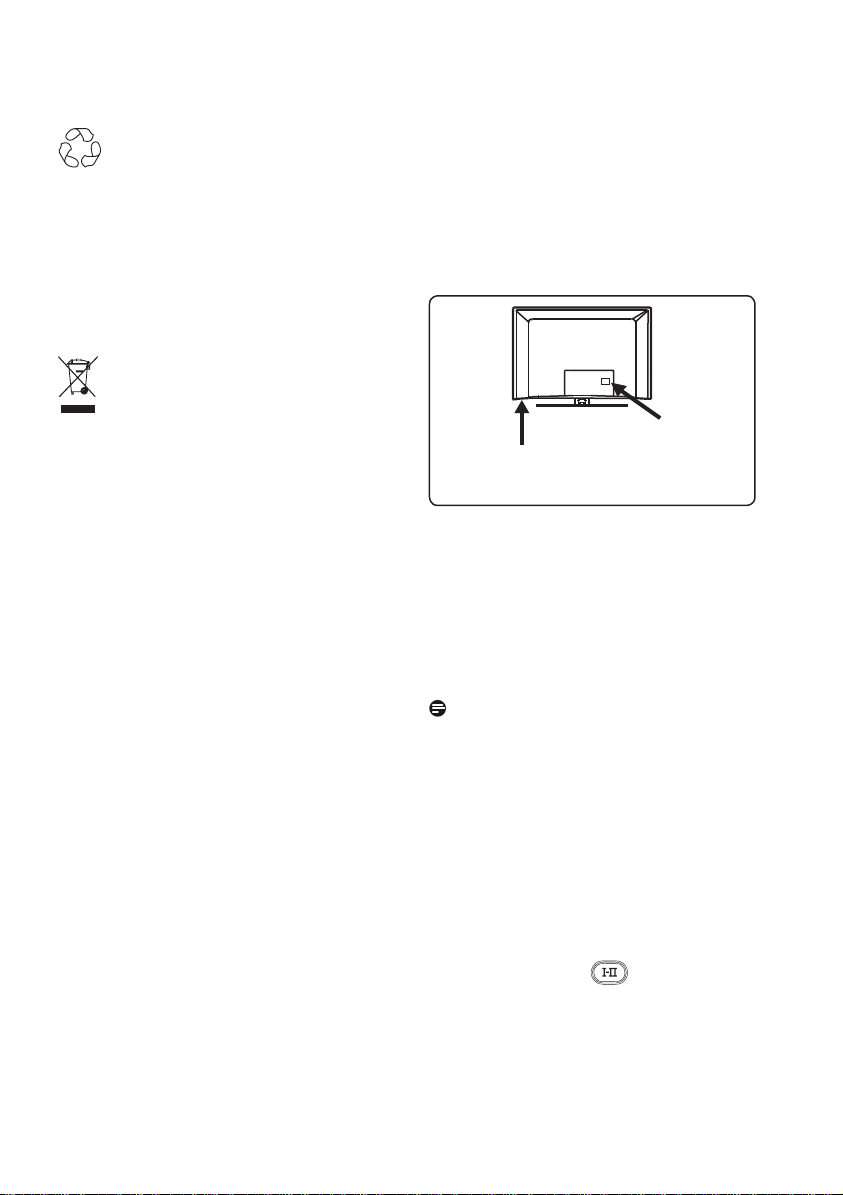
• The model and serial number can be found
at the rear of the TV and on the
packaging. For a larger TV, information
is also on left hand underside of the
TV.
• Standby Power Consumption for this set
is less than 1 W.
• Power Consumption of the set can found
on the type plate at the rear of the TV.
• For more specifi cations of the product
see the product leafl et on www.philips.
com/support.
Note
Specifications and information are
subject to change without notice.
• If you need further assistance, please call
the customer support service in your
country. The corresponding telephone
numbers and addresses are given in the
supplied Worldwide guarantee booklet.
Important
• AC3 (an audio format) is not supported
for this set. Use the
key on the
remote control to select an alternative
audio.
• Some TV antennas require power from
the TV set. This set does not support such
a feature.
Recycling
The packaging of this product is intended to
be recycled. Apply to the local authorities for
correct disposal.
Disposal of your old product
Your product is designed and manufactured
with highly quality material and components,
which can be recycled and reused. When this
crossed-out wheeled bin symbol is attached
to a product, it means the product is covered
by the European Directive 2002/96/EC.
Please inform yourself about the local
separate collection system for electrical and
electronic products. Please act according to
your local rules and do not dispose your old
products with your normal household waste.
The correct disposal of your old product will
help prevent potential negative consequences
for the environment and human health.
Disposal of batteries
The batteries supplied do not contain the
heavy metals mercury and cadmium. Please
check on how to dispose exhausted
batteries according to local regulations.
Rear of TV
Left hand
underside
of TV

1
English
Table of contents
1 Introduction............................... 3
1.1 Important Information....................... 3
1.1.1 Stationary images on the TV screen
................................................................. 3
1.1.2 Electric, Magnetic and
Electromagnetic Fields (“EMF”)..... 3
1.2 What is digital TV?.............................. 4
1.3 Digital or Analogue channels?.......... 4
2 Safety.......................................... 5
2.1 General.................................................. 5
2.2 Care of the screen.............................. 5
3 Overview of the television keys
and connectors.......................... 6
3.1 Side or top controls........................... 6
3.2 Rear connectors.................................. 6
3.3 Side connectors.................................. 6
4 Getting started..........................7
4.1 Before you start................................... 7
4.2 Connect the antenna.......................... 7
4.3 Connecting and disconnecting the
mains.......................................................7
4.4 Switching on the TV............................7
4.5 Using the remote control. ................7
5 Remote control functions.........8
6 Overview of Digital main menu
and sub-menus...........................10
7 Switching on the TV for the
fi rst time.................................... 13
8 Understanding the information
on the banner............................ 14
8.1 Banner description.............................. 14
8.2 Symbols description............................ 14
9 Services lists
9.1 Rearrange services.............................. 15
9.2 View new TV channels or Listen
to new Radio stations........................ 15
10 Service setup............................. 16
10.1 Add new services................................ 16
10.2 Reinstall all services............................ 16
10.3 Manual install services........................ 17
11 Test reception........................... 18
12 Preferences................................ 19
13 Access restrictions.....................20
14
Setting up your favourites list....21
15 Information................................ 22
16 Using the Options menu...........23
17 TV Guide ...................................24
18 Digital teletext (MHEG)........... 25
19 Using the Conditional Access
Module (CAM)...........................26
20 Automatic tuning of analogue
programmes.............................. 27
21 Manual tuning of analogue
programmes.............................. 28
22 Programme sort........................29
23 Naming of channel.....................30
24 Selecting your favourite
programme ............................... 31

2
English
25 Features
25.1 Timer...................................................... 32
25.2 Parental control................................... 33
25.3 Child lock.............................................. 34
25.4 Active control...................................... 34
26 Picture and Sound settings...... 35
27 Smart Picture and Sound......... 36
28 Picture formats......................... 37
29 Teletext......................................38
30 Using the TV as PC monitor
30.1 Connecting the PC.............................. 40
30.2 Control TV settings while a PC is
connected ............................................ 40
31 Using the TV in HD (High
Defi nition) mode
31.1 Connecting the HD equipment........ 41
31.2 Control TV settings while in HD
mode...................................................... 41
31.3 Mode Selection function in Features
menu....................................................... 42
31.4 Display (native 1080) in Features
menu.......................................................42
31.5 Supported input formats................... 43
32 Connecting other equipment
32.1 Connect VCR and DVD recorder...44
32.2 Connect Decoder and VCR..............44
32.3 Connect 2 VCRs or VCR and DVD....
recorder.................................................45
32.4 Connect a satellite receiver.............. 45
32.5 Connect a DVD player, Cable box or
Game console...................................... 46
32.6 Connect a DVD player, a Satellite
receiver or Cable box ....................... 46
32.7 Connect a PC....................................... 47
32.8 Connect a Camera, Camcorder or
Game console...................................... 48
32.9 Connect a Headphone....................... 48
33 Troubleshooting........................49
34 Glossary..................................... 51

3
English
1 Introduction
Thank you for purchasing this television set.
This manual contains all information you will
need to initially install and operate your new
TV.
If this instruction manual does not
give an answer to your problem or
if the troubleshooting page does not solve
your TV problem, you can call your Local
Philips Customer or Service Centre. See the
supplied Worldwide guarantee booklet for
details. Please have the Model and Product
number (which you can find at the back or
the bottom of your television set or on the
packaging) ready, before calling the Philips
customer support service.
1.1 Important information
1.1.1 Stationary images on the TV
screen
A characteristic of LCD and Plasma Panels
is that displaying the same image for a long
time can cause a permanent after-image to
remain on the screen. This is called
phosphor burn in. Normal use of the TV
should involve the showing of pictures
that contain constantly moving and changing
images that fill the screen.
Examples of stationary images (this is not
an all inclusive list, you may encounter
others in your viewing).
• TV and DVD menus: listings of DVD
disk content.
• Black bars: when black bars appear at
the left and right side of the screen, it is
recommended to change to a picture
format so that the picture fills the entire
screen;
• TV channel logo: present a problem if
they are bright and stationary. Moving
or low-contrast graphics are less likely
to cause uneven aging of the screen;
• Stock market stickers: presented at the
bottom of the TV screen;
• Shopping channel logos and pricing
displays: bright and shown constantly or
repeatedly in the same location on the
TV screen.
• Examples of still pictures also include
logos, computer images, time display,
teletext and images displayed in 4:3
mode, static images or characters, etc.
Tip:
Reduce contrast and brightness when
viewing.
1.1.2 Electric, Magnetic and
Electromagnetic Fields (“EMF”)
• Royal Philips manufactures and sells many
products targeted at consumers, which,
like any electronic apparatus, in general
have the ability to emit and receive
electromagnetic signals.
• One of Philips’ leading Business
Principles is to take all necessary health
and safety measures for our products, to
comply with all applicable legal
requirements and to stay well within the
EMF standards applicable at the time of
producing the products.
• Philips is committed to develop, produce
and market products that cause no
adverse health effects.
• Philips confirms that if its products are
handled properly for their intended use,
they are safe to use according to scientific
evidence available today.
• Philips plays an active role in the
development of international EMF and
safety standards, enabling Philips to
anticipate further developments in
standardisation for early integration in its
products.
4
English
1.2 What is digital TV?
Digital Television offers a far wider choice
of TV viewing, free from the interference
that you may experience on analogue
TV. It promises to transform television
viewing into a new whole experience.
There is a greater selection of wide screen
programmes. Many of your favourite
programmes are in wide screen on the
digital channels - something the analogue TV
cannot do properly.
There is new whole experience of inter
activity on digital TV. By using your
remote control, you can access all kinds
of information like the digital text which
is much clearer than the old teletext
system. It gives you the added enjoyment of
related information running alongside the
programme you are watching. You can also
access an Electronic Programme Guide that
provides you with a quick and easy way to
view a complete list of digital programmes as
you would in a newspaper or TV magazine.
1.3 Digital or Analogue channels?
When the television is powered on for the
first time, it will always be in Digital mode.
Use the
key of the remote control to
switch the TV between analogue and digital
mode. Use the P + / – or to
keys to select channels.
Note
• Chapters 6 to 19 contain all the
information you need to operate your
TV in the Digital mode. Chapters 20
to 29 contain all the information and
instructions you need to operate your
TV in the Analogue mode.
5
English
2 Safety
2.1 General
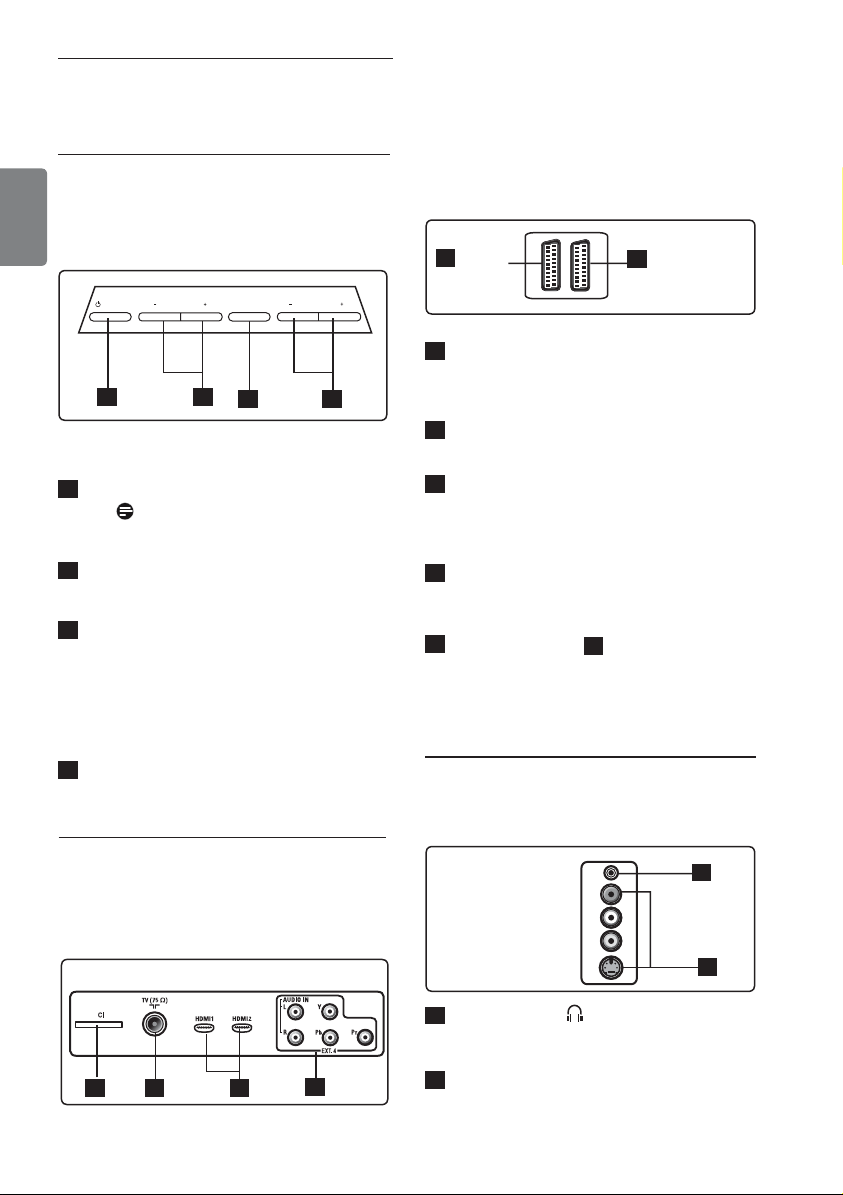
1
Two people are required to lift and
Carry a TV that weighs more than 25 kg.
Improper handling of the TV can cause
Serious injury.
2
If you place the TV set on a surface,
Ensure the surface is level and that it can
The weight of the TV.
3
If you wish to hang your TV on a wall, do
Not hang the TV yourself. Your TV must
Be hung by qualified technician. Improper
hanging can cause the TV to be unsafe.
4
Before you hang your TV on a wall,
ensure the wall is suitable to carry the
weight of the TV.
5
The connections do not have to be made
before you hang the TV, but the cables
must be inserted into the TV.
6
Wherever you place or hang the TV,
ensure that air can circulate freely
through the ventilation slots. Do not
position the TV in a confined space.
7
Do not place naked flame sources such
as lighted candles close to the TV set.
8
Do not place a vase filled with water
near the TV. Spilling water into the TV
can result in electric shock. Do not
operate the TV if water is spilled into
the set. Unplug the power cord from
the mains immediately and have the set
checked by a qualified technician.
9
Do not expose the TV or the batteries
of the remote control to heat, direct
sunlight, rain or water.
10
Do not touch any part of the TV,
power lead, or aerial lead during
lightning storms.
11
Do not leave the TV in stand-by mode
for an extended period of time. Instead,
disconnect the TV from the mains.
12
Pull the power lead by the plug - do
not pull on the power lead. Do not use
a poor fitting mains socket. Insert the
plug fully into the mains. If it is loose, it
may cause arcing and result in fire.
13
Do not connect too much equipment
to the same mains socket. Excess
equipment can cause overloading and
result in fire or electric shock.
2.2 Care of the screen
1
Do not remove the protective sheet
until you have completed the stand/
wall mounting and connections. Please
handle with care.
Note
Use only the soft cloth provided
to clean the glossy front of the TV.
2
Do not use a cloth that is dripping
with water. Do not use acetone,
toluene or alcohol to clean the TV. As a
safety precaution, unplug the power
cord from the mains when you clean
the set.
3
Do not touch, push, rub or strike the
screen with anything hard as this may
scratch or damage the screen
permanently.
X
X
X
X
X
6
English
3 Overview of television
keys and connectors
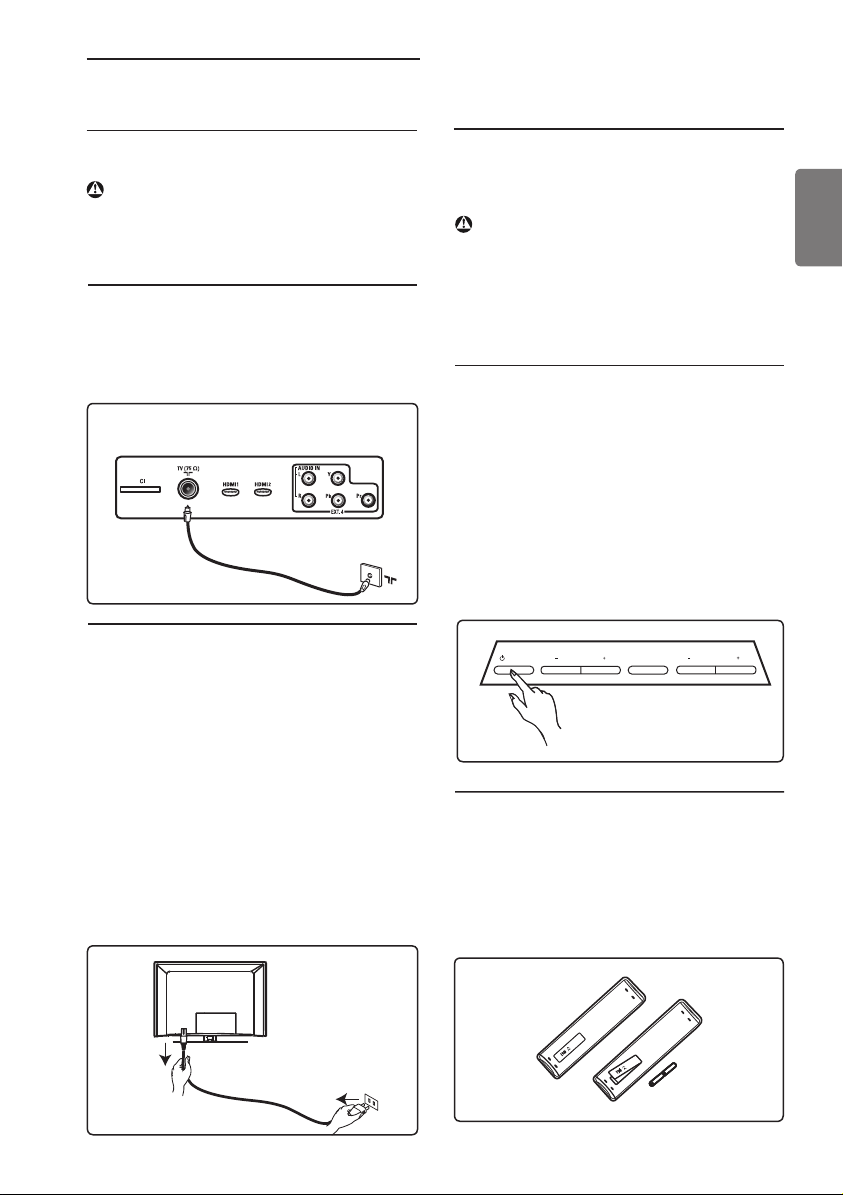
The following connectors are located on the
rear of the TV.
1
CI (Common Interface) slot: to
connect a CAM (Conditional Access
Module) and a smart card.
2
TV Aerial socket :
Insert the aerial
plug into the 75 Ω : socket.
3
HDMI 1 / HDMI 2: to connect to
set-top box, DVD player/recorder, High
Definition equipment or Personal
Computer.
4
EXT4
: to connect to equipment like
DVD, Decoder which have the same
sockets.
5
EXT 1 (RGB) and
6
EXT 2 (CVBS/
S-VIDEO): connect to equipment
like DVD
player/recorder, VCR, Decoder which
have similar connections (so called ‘scart
connections’).
3.3 Side connectors
These connectors are located on the side of the
TV.
1
Headphone : Connect the phono-
jack to the headphone connector of the
TV.
2
Audio Video
: to connect to the camera
or camcorder.
3.1 Side or top controls
Use the side or top keys to control power, menu,
volume and programme number.
1
POWER
.
: to switch the TV on and
off.
Note:
For zero power, remove
the mains cord from the mains socket.
2
PROGRAM + / – : to select
programmes.
3
MENU: to display or close menus.
The PROGRAM + / – keys can be used
to select a menu item and the VOLUME
+ / – keys can be used to enter into
the selected menu item and make
adjustments.
4
VOLUME + / –: make the volume
louder or quieter.
3.2 Rear connectors
The rear connectors are located on the rear of
the TV and face downward.
6
EXT 2
(CVBS /S-VIDEO)
5
EXT 1
(RGB)
43
21
POWER
PROGRAM
MENU
VOLUME
4
1 32
2
1
EXT 3
7
English
4 Getting started
Verify that the mains supply voltage in your
home corresponds to the voltage printed on
the sticker at the rear of the TV.
Warning: If the TV is mounted on a
swivel base or swivel arm, ensure no strain
is placed on the power cord when the TV
is swivelled. Strain on the power cord can
loosen connections. This may cause arcing
and result in fire.
4.4 Switching on the TV
• To switch on the TV, press the POWER
key on the side or top controls. A blue/
green indicator comes on and after a few
seconds the screen lights up.
• If the TV set remains in standby mode
(red
indicator), press the PROGRAM + / –
key on the side or top controls or the
P + / - key on the remote control.
4.5 Using the Remote Control
Insert the 2 batteries supplied. Be sure the
(+) and (-) ends of the batteries line up
correctly (inside of case is marked.)
4.1 Before you start
Warning: The connections do not
have to be made before hanging but the
cables must be inserted into connectors
of the TV.
4.2 Connect the antenna
Insert the aerial plug fi rmly into the 75 Ω :
aerial socket at the bottom of the TV and in
the wall antenna socket.
4.3 Connecting and Disconnecting the
mains
(Plasma TV) - CAUTION : This a Class 1
apparatus. It must be connected to a MAINS
socket out with a protective earthing connection
.
The appliance coupler of the mains cord on
the TV is used as the disconnect device
Ensure the power cord is fully inserted into
the TV mains socket and the wall socket.
To disconnect from the mains, remove the
mains cord from the mains socket at the
back of the TV or remove the plug from the
wall socket.
Connectors at rear of TV
(facing downward)
POWER
PROGRAM
MENU
VOLUME
8
English
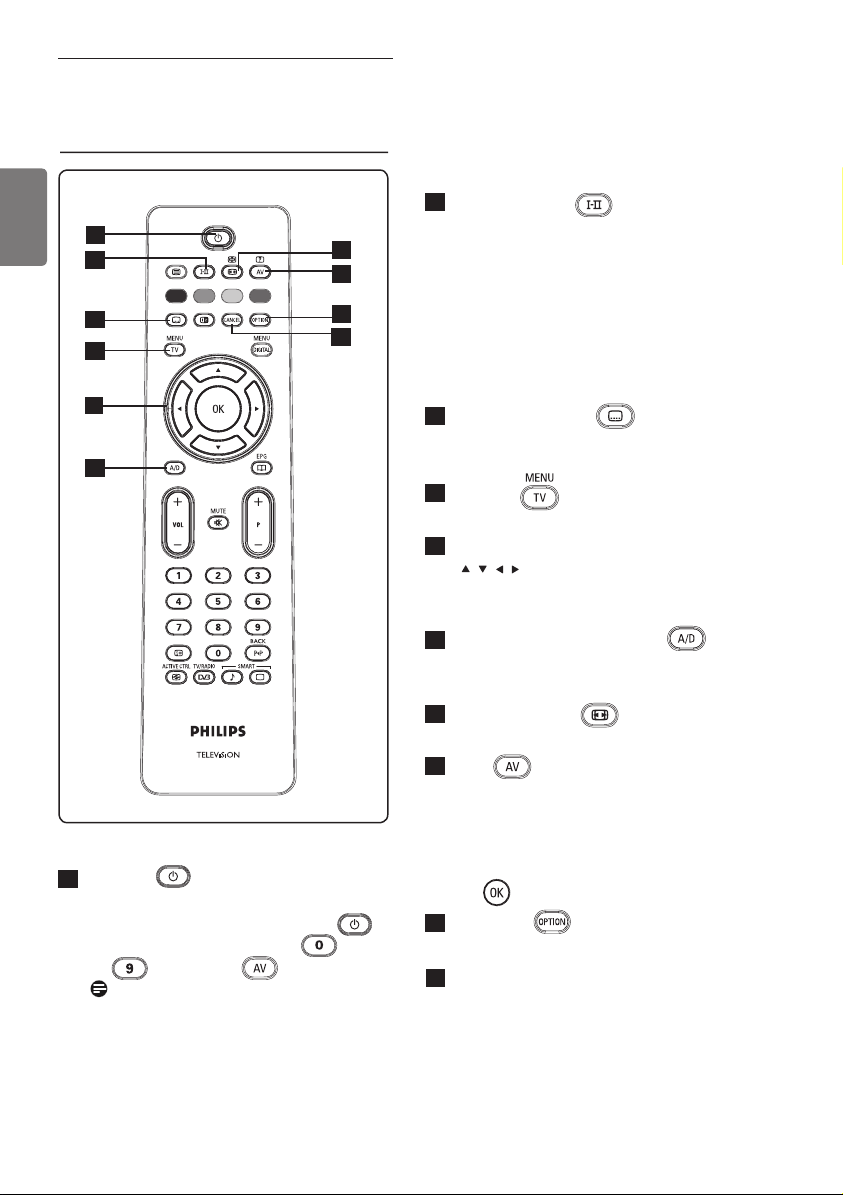
5 Remote control
functions
2
Sound mode
Used to force programmes in Stereo
and Nicam Stereo to Mono. For
bilingual programmes, select Dual å or
Dual » (as indicated on the screen
during such broadcasts).
The Mono
indication
shows up in red when in forced
position.
In digital mode, å-» displays the list
of audio languages.
3
Subtitles mode
In digital mode, this key activates or
deactivates the subtitle mode.
4
MENU
To call up or exit the TV analogue menus.
5
Cursors Up/Down/Left/Right
( )
These 4 keys are used for selection and
adjustment of menu items.
6
Analogue or Digital mode
To switch between the television analogue
and digital mode.
7
Picture Format
(See page 37).
8
AV
To display Source List to select TV
(Analogue), Digital TV or connected
peripheral equipment (EXT 1, EXT 2,
EXT 3, EXT 4, HD
MI 1 or HDMI 2). Use
the Î ï keys to select source and the
Æ /
key to confirm selection.
9
Options
(See page 23)
10
Cancel
In digital mode, this key functions as an
exit key for MHEG teletext if there are
no colour key links that are available to
exit teletext mode.
1
Standby
To set the TV to stand-by mode. To
switch the TV on again, press the
key once more or press the
to
, P + / – or key.
Note: when the TV is switched on,
the
last viewed mode is displayed.
10
5
2
1
3
4
7
8
6
9
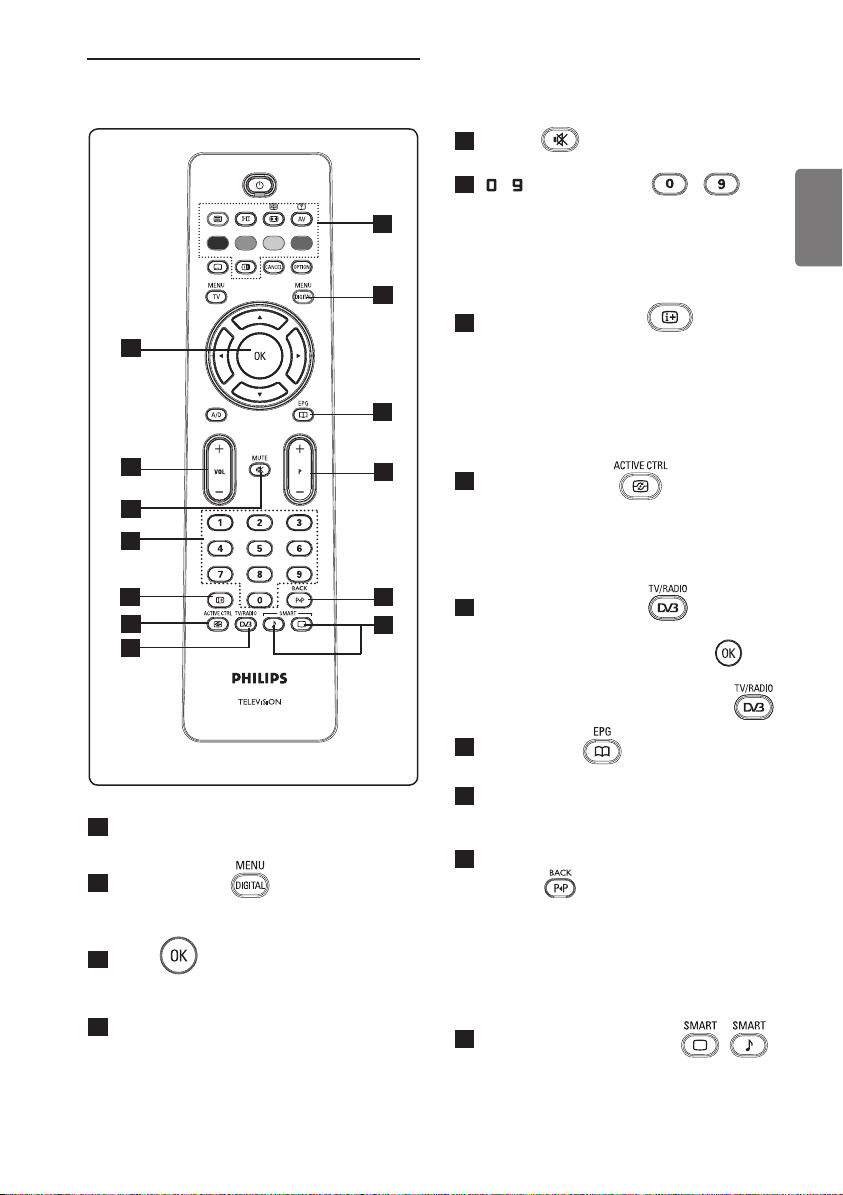
9
English
15
Mute
Turn off or on sound.
16
/ Numerical keys /
For direct access to programmes.
For a two digit programme number, the
2
nd
digit must be entered shortly after
the first digit before the dash
disappears.
17
Screen information
In digital mode, display/exit the
information banner (see page 14).
In analogue mode, display/remove the
programme number, the sound mode,
the clock and the remaining time of
the sleep timer.
18
Active Control
Automatically adjusts the picture setting
for optimal picture quality continuously
under any signal conditions.
(See page
34).
19
Digital TV / Radio
In digital mode, this key is used to access
digital radio stations. Press the
key
to access radio list. Note : To return
to digital video mode, press the
key again.
20
TV Guide
(see page 24)
21
Programme ( + P – )
Selects next or previous available
channel/source (or page in digital menu).
22
Alternate channel / Edit or back
space
In Analogue/Digital mode, it allows you
to alternate the previously viewed
programme and the current programme.
It is also used as an edit or back space
key when you are naming your favourite
channel.
23
Smart Picture /Sound
Accesses a series of predefined picture
and sound settings (see page 36).
11
Teletext
(See page 38-39).
12
Digital menu
To display / exit from the digital menu
(when TV is in digital mode).
13
OK
Confirms selection and accesses the
program list in Digital mode.
14
Volume ( + VOL – )
To turn on sound louder or quieter.
16
14
18
17
11
22
23
21
20
15
13
12
19
10
English
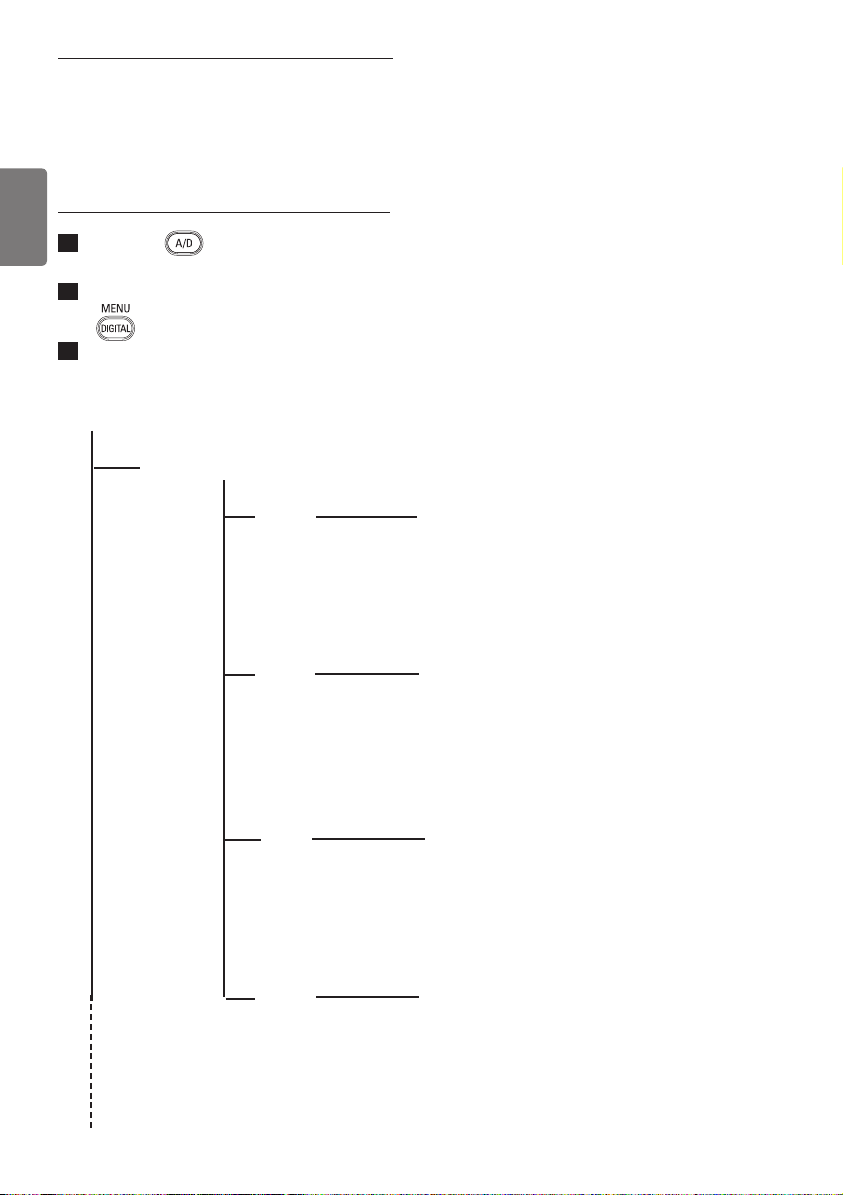
6 Overview of Digital
main menu and
sub-menus
1
Use the key of the remote
control to select Digital mode.
2
From the digital mode, press the
key to display the setup menu.
3
Use the Î ï Í Æ keys to navigate,
select and adjust menu items.
Setup
Favourites
List 1
List 2
List 3
List 4
Name
Select TV channels.
Select Radio stations.
Add all services
Remove all services
Name
Select TV channels.
Select Radio stations.
Add all services
Remove all services
Name
Select TV channels.
Select Radio stations.
Add all services
Remove all services
Name
Select TV channels.
Select Radio stations.
Add all services
Remove all services
11
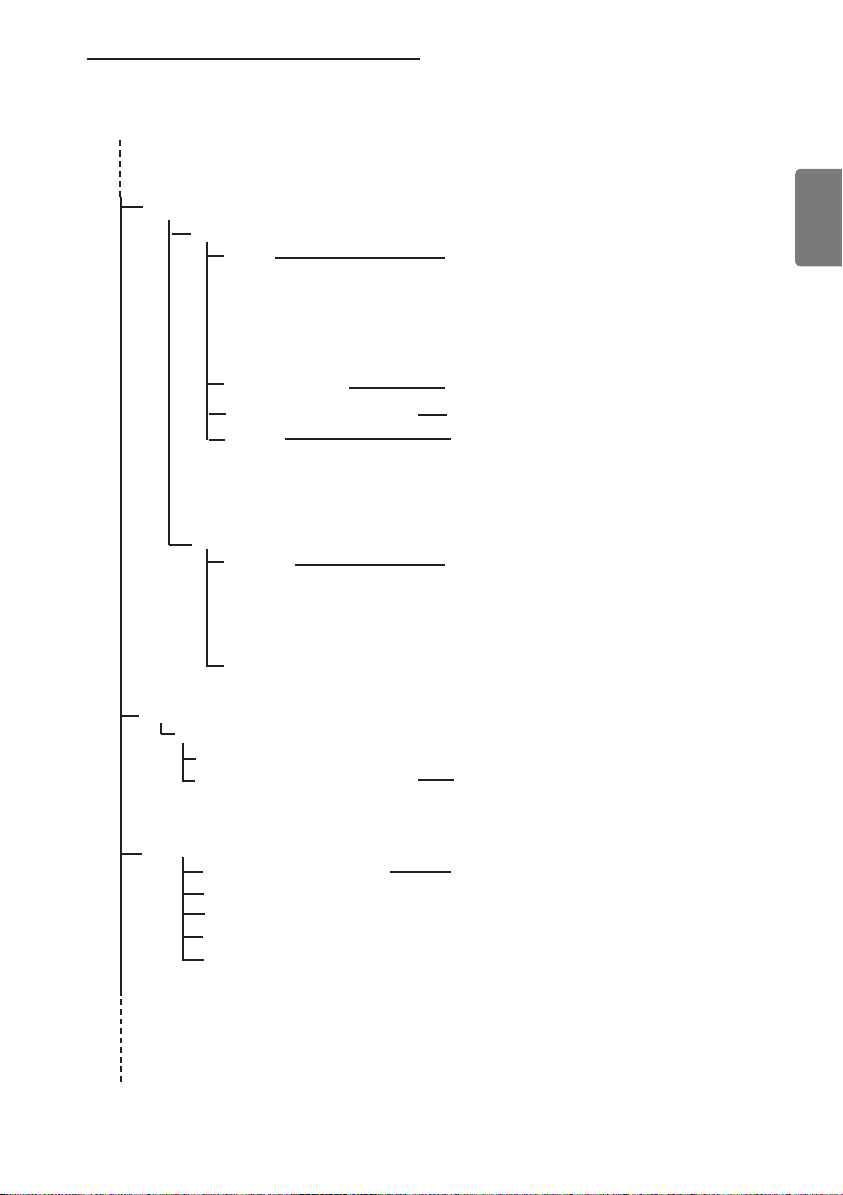
English
Setup
Preferences
Language
Audio
Subtitle/Teletext
Subtitling Mode
Subtitles for hearing impaired
System
Location
Country
Time zone
Information
System software
Current software version
Always accept new software
Access restrictions
Set pin code protection
Maturity rating
TV channels
Radio stations
Change pin code
Basque, Catalan, Croatian, Czech, Danish, Dutch,
English, Finnish, French, Gaelic, Gallegan, German,
Greek, Hungarian, Italian, Norwegian, Polish,
Portuguese, Russian, Serb, Slovak, Spanish,
Swedish, Turkish, Welsh
On, Off, Auto
Yes, No
Cesky, Dansk, Deutsch, English, Español,
Français, Italiano, Magyar, Nederlands,
Norsk, Polski, Português, Suomi, Svenska
Australia, Austria, Belgium, Czech, Denmark,
Finland, France, Germany, Greece, Hungary,
Italy, Netherlands, Norway,
Poland, Portugal,
Spain, Sweden, Switzerland, United Kingdom
Yes, No
On, Off
12
English
Setup
Installation
Service lists
Service setup
Test reception
Rearrange services
View new TV channels.
Listen to new Radio Stations.
Add new services
Search
TV channels found.
Radio stations found.
Other services found.
Store
Discard
Reinstall all services
Search
TV channels found.
Radio stations found.
Other services found.
Store
Discard
Manual install service
Frequency
Network name
Signal quality
Signal strength
Store
Discard
Frequency
Network name
Signal quality
Signal strength
13
English
7 Switching on the TV
for the first time
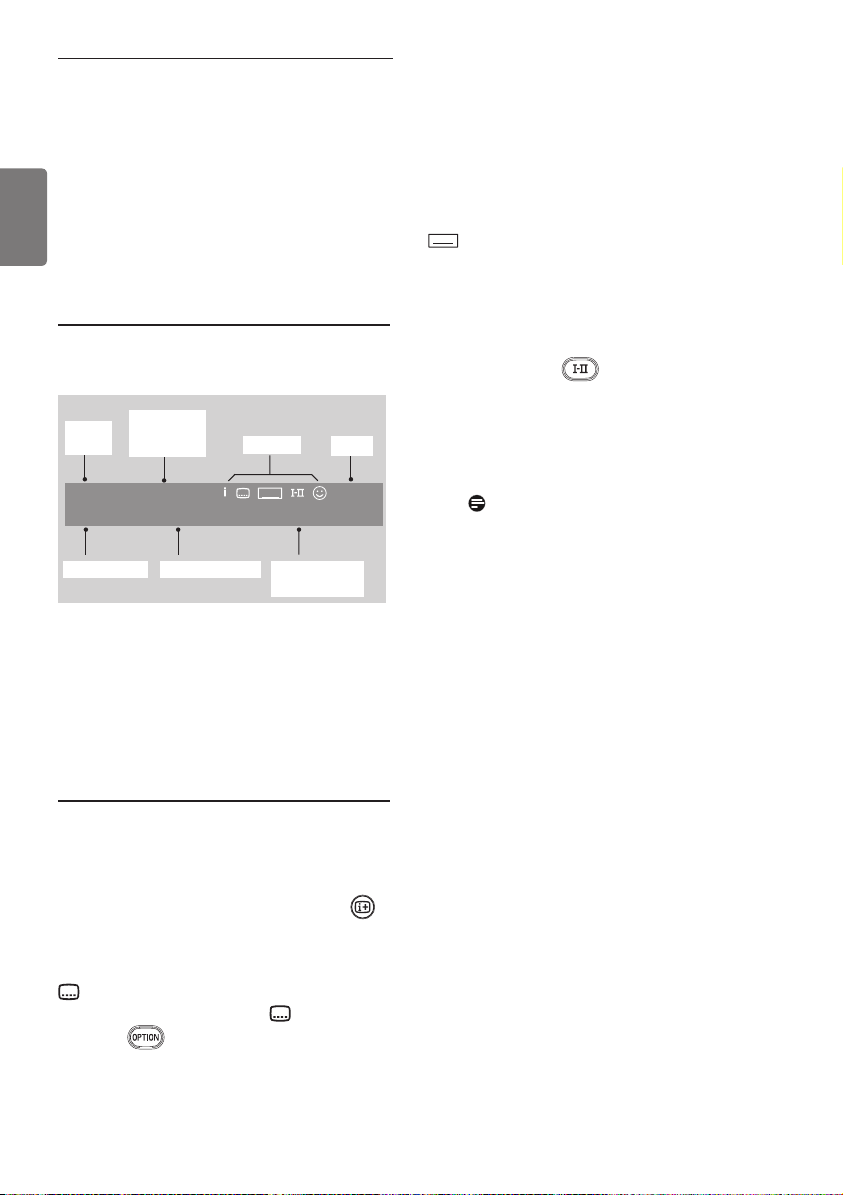
When you switch on the TV set for the first
time, a menu will appear on screen.
1
Press the Æ key to enter into
Language mode and press the Î ï
keys to select your preferred language.
2
Press the key to confirm
selection.
3
Press the Î ï keys to select Country
or Time Zone and press the Æ key to
enter into Country or Time Zone
mode.
Caution
If you select a wrong country, the channel
numbering will not be according to the
standard for your country and you may not
receive all services or nothing at all.
Note
The Language can be selected independently
from the Country.
4
Press the Î ï keys to select your
preferred Country or Time Zone and
the
key to confirm your selection.
5
Press the ï key to select Service
Scan to scan the available analogue and
digital channels.
6
Press the key to start the
installation.
Note
If no digital channels are detected, press
key to switch to analogue mode.
Note
If at some point of time you decide to reset
to the factory default settings, press and hold
down the MENU key on the side of the
TV set for 5 seconds. A menu will appear on
the screen. Repeat steps 1 - 5 as if this was
the first time you have turned on the TV.
This activity will reset both the Digital and
Analogue mode to factory default settings.
English
Español
Français
Italiano
Magyar
Language
Country
Time Zone
Service Scan
Setup
11:28
Select your preferred language
14
English
8 Understanding the
information on
the banner
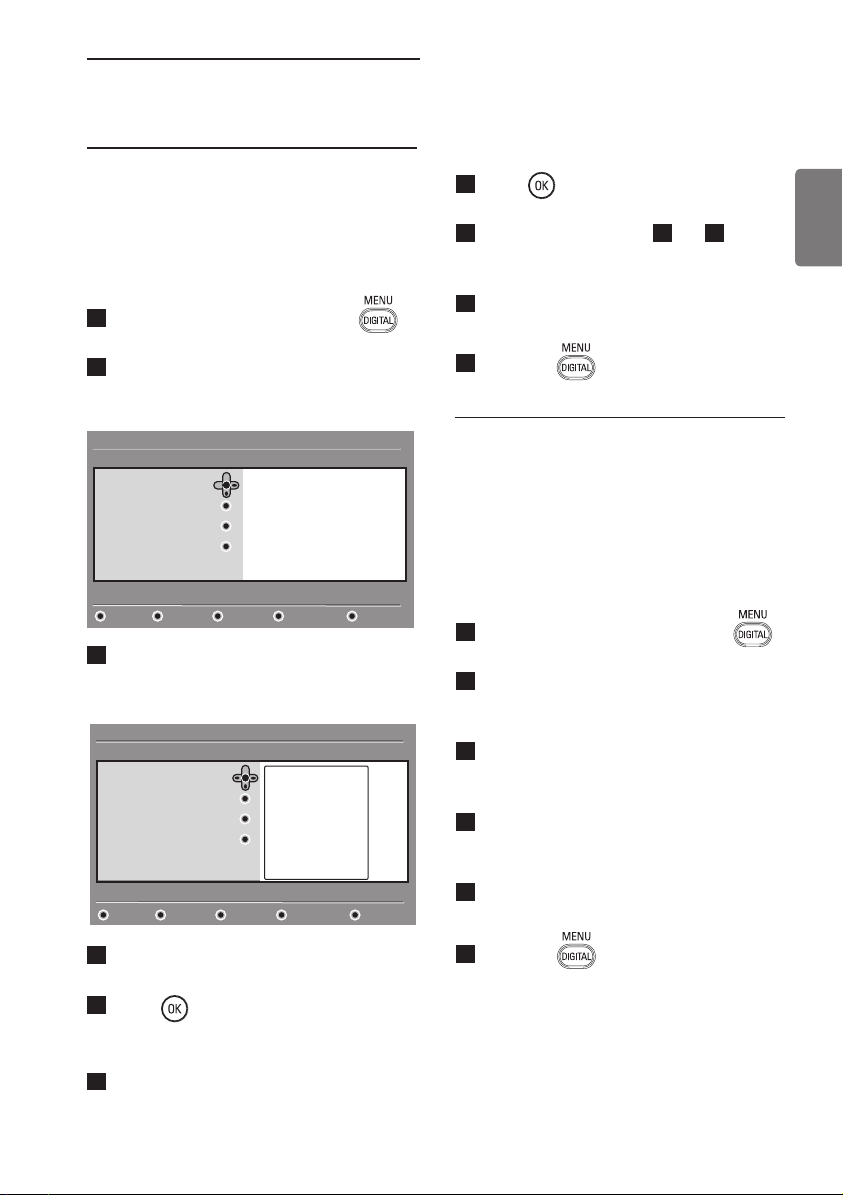
When you select a digital programme, an
information banner is displayed for a few
seconds at the top of the screen.
8.1 Banner description
The banner contains information on the
preset number, channel name, programme
duration, transmission clock, programme title
and the time remaining of the current
programme.
8.2 Symbols description
i More information about this
programme is available : press the
key once to display and a second
time to remove it.
Subtitling is available : if you want to
display them, press the key or
the key to access the options
menu and select subtitles.
TXT
Indicates Analogue Teletext is available
in Digital mode.
ù Other languages are available and
can be selected in the options menu.
You can also select other languages by
pressing the key.
u The colour of the symbol (red, green,
yellow or blue) indicates the selected
Favourites list.
Note
A white symbol u will appear if the
programme is stored in one or more
of the favourites lists which are currently
not activated.
symbols
programme
start and
end time
preset
number
TXT
2 11:00-11:45 10:38
BBC 2 Snooker Minutes left : 22
clock
channel name programme title remaining time
of programme
15
English
9 Service lists
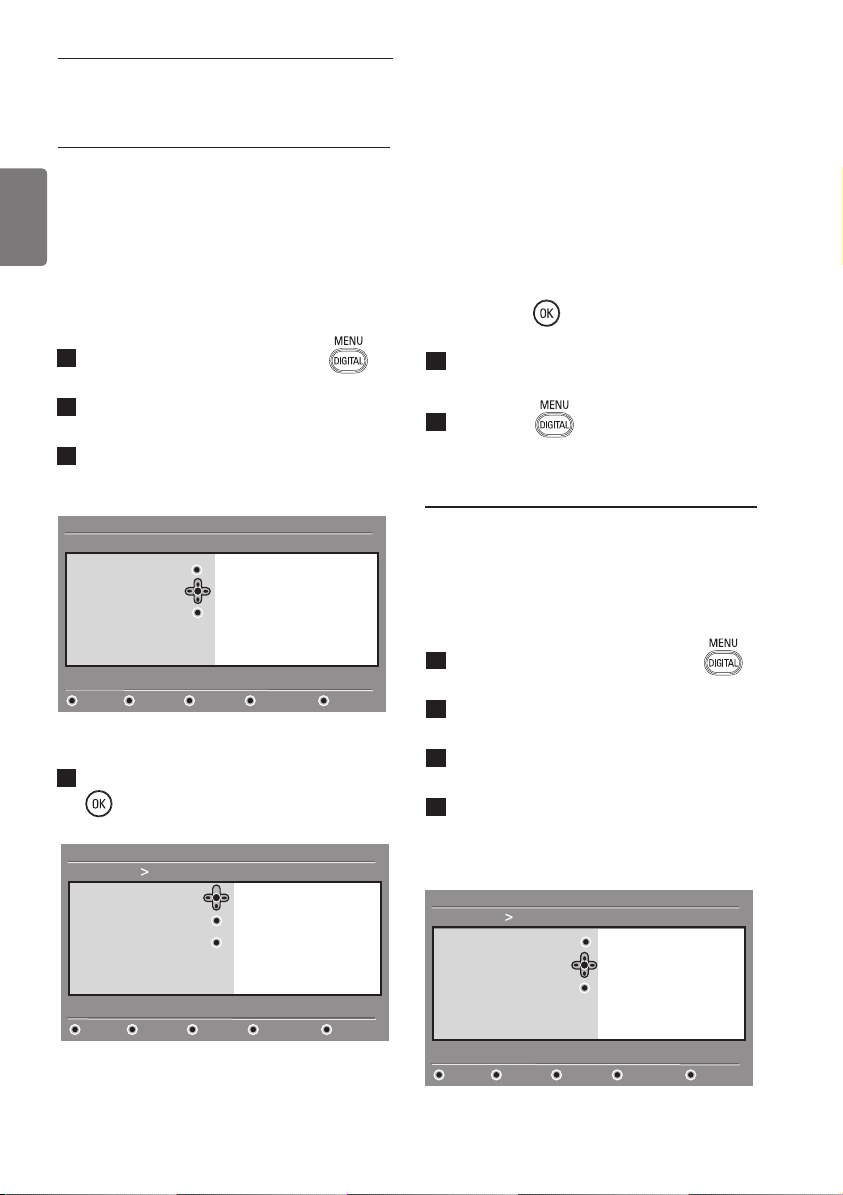
9.1 Rearrange services
This menu allows you to change the order
of
the stored digital channels and radio stations.
1
From the digital mode, press the
key to display the setup menu.
2
Use the ï key to select Installation
and press Æ twice to select the Service
lists menu.
3
Use the Î ï keys to select Rearrange
services and press Æ key.
4
Use the Î ï keys to select the channel
you want to exchange.
5
Press key to activate.
If you want to uninstall the selected
channel, press the red key.
6
Select the new channel number by using
the Î ï.
7
Press key to confirm. The exchange
is done.
8
Repeat the operations
4
to
7
until
all the channels are in the required
order.
9
To return to previous menu, press the
Í key.
10
Press the key to exit the menu.
9.2 View new TV channels or Listen
to new Radio stations
This menu allows you to check the
availability of new TV channels or new radio
stations that have been launched by the
broadcaster after the initial installation.
1
From the digital mode, press the
key to display the setup menu.
2
Use the ï key to select Installation
and press Æ twice to select the Service
lists menu.
3
Use the Î ï keys to select View new
TV channels or Listen to new Radio
stations.
4
If new services are available, press Æ to
enter into the list and use the Î ï keys
to move through the list.
5
To return to previous menu, press the Í
key.
6
Press the key to exit the menu.
Rearrange services
View new TV channels
Listen to new Radio stations
Service lists
Service setup
Test reception
Setup
11:28
Manage service lists
Installation
Close
Rearrange services
View new TV channels
Listen to new Radio stations
Setup
11:28
Change preset location of services
Installation
Close
1 _
2 _
3 _
4 _
5 _
6 _
7 _
8 _
9 _
16
English
10 Service setup
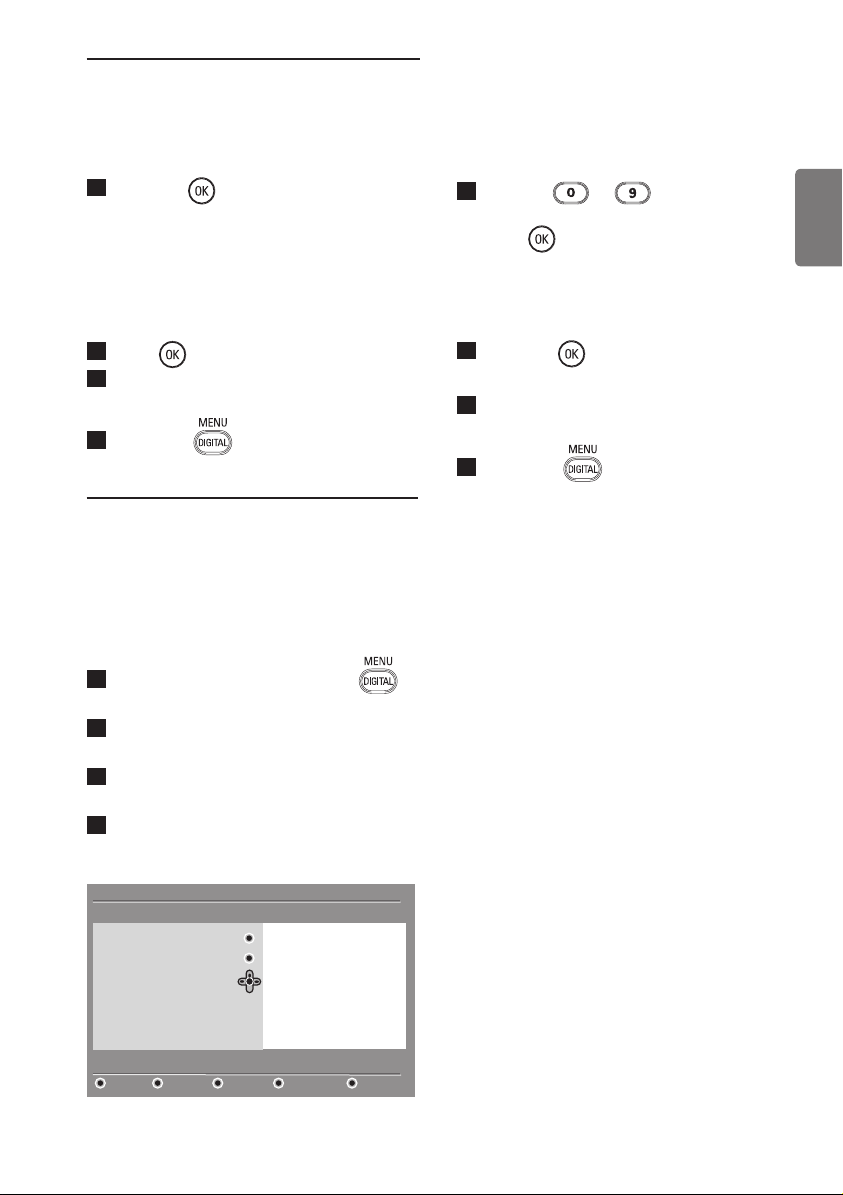
10.1 Add new services
This menu allows you to search for new TV
channels or radio stations that have been
launched
by the broadcaster after the initial
installation.
1
From the digital mode, press the
key to display the setup menu.
2
Use the ï key to select installation and
press Æ key.
3
Select Service setup (ï) and press Æ
key.
4
Press Æ to add new services and press
key to activate the installation.
The search begins and only new
channels will be stored and added to
the channel list menu. The percentage of
the installation that has been completed
and the number of channels found is
displayed. When the search is completed,
press the
key to accept the new
services.
5
To return to previous menu, press the
Í key.
6
Press the key to exit the menu.
10.2 Reinstall all services
This menu allows you to reinstall all the
digital TV channels and radio stations.
1
From the digital mode, press the
key to display the setup menu.
2
Use the ï key to select installation and
press Æ key.
3
Select Service setup (ï) and press Æ
key.
4
Select Reinstall all services (ï) and
press Æ key.
Add new services
Reinstall all services
Setup
11:28
Reinstall will remove all service settings
Installation Service setup
Close
Search
TV channels found
Radio stations found
Other services found
Store
Discard
Manual Install services
Add new services
Reinstall all services
Service lists
Service setup
Test reception
Setup
11:28
Install and manage services
Installation
Close
Manual install services
Add new services
Reinstall all services
Setup
11:28
Scan for new services
Installation Service setup
Close
Search
TV channels found
Radio stations found
Other services found
Store
Discard
Manual Install services
17
English
5
Press the key to start the
installation.
A search is then made for all digital
services which are then stored
automatically. When the search is
completed, the menu will indicate the
number of digital services found.
6
Press key to store the services.
7
To return to previous menu, press the
Í key.
8
Press the key to exit the menu.
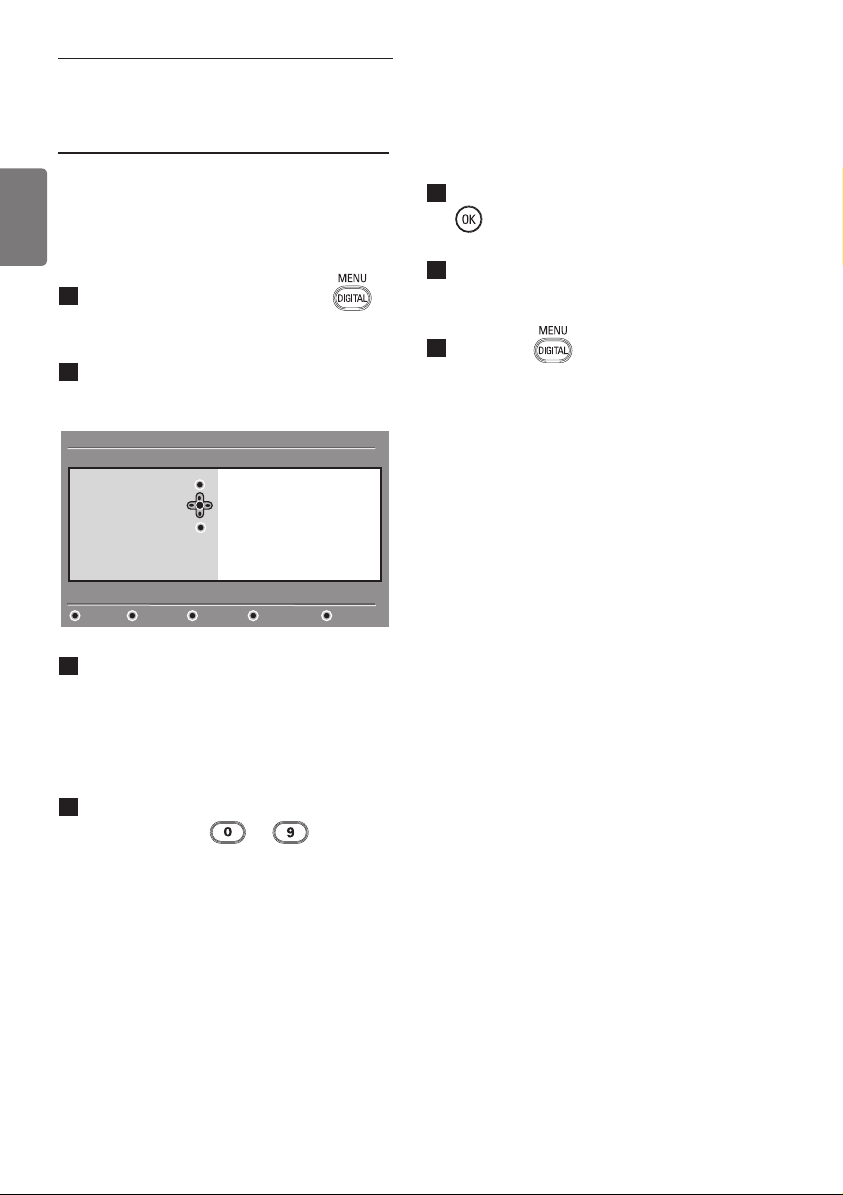
10.3 Manual install services
This menu allows you to manually scan
services by keying in the frequency of your
target channel.
1
From the digital mode, press the
key to display the setup menu.
2
Use the ï key to select installation and
press Æ key.
3
Select Service setup (ï) and press Æ
key.
4
Select Manual install services (ï) and
press Æ key.
5
Use the to key to input
frequency of your target channel and
press
key to start the searching
of channels. When the search is
completed, the menu will indicate the
number of digital services found.
6
Press the key to store the services.
7
To return to previous menu, press the
Í key.
8
Press the key to exit the menu.
Add new services
Reinstall all services
Setup
11:28
Manual install services
Installation > Service setup
Close
Frequency
Network name
Signal quality
Signal strength
Services found
Store
Discard
Manual install services
18
English
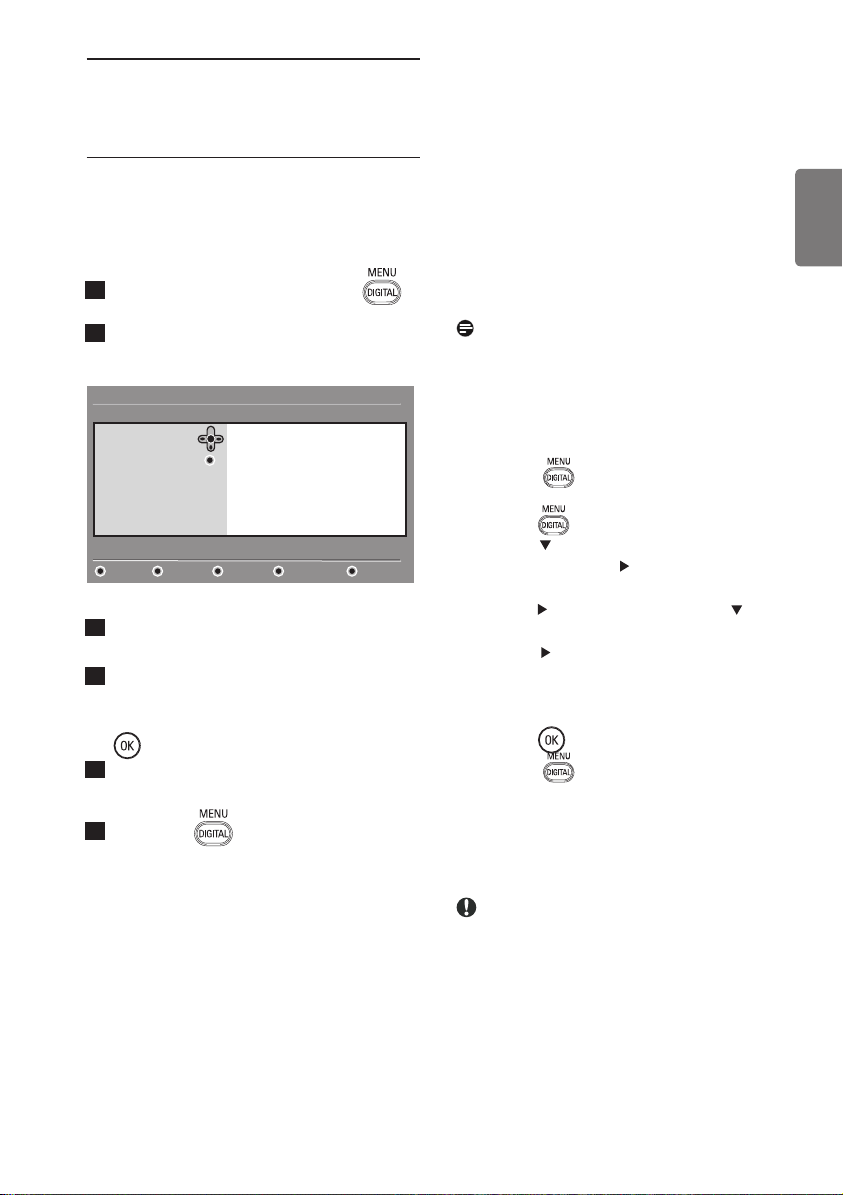
11 Test reception
This menu allows you to check the strength
of the signal you are receiving through your
aerial.
1
From the digital mode, press the
key to display the setup menu.
2
Use the ï key to select Installation
and press the Æ key.
3
Use the ï key to select Test
reception and press the Æ key. You
obtain an indication of the actual
programme frequency, the network
name, the signal quality and strength.
4
Use the Æ key to enter the Frequency
slot and use the to keys to
enter the frequency of the digital channel
you want to test. Use the Æ key to move
to the next character space.
If the test reception indicates that
the signal strength is indeed poor, you
can try improving, renewing, adjusting
or updating the aerial. It is however
advisable to contact a specialised aerial
installer in order to achieve best results.
5
After entering the frequency, use the
key to exit Frequency slot.
6
To return to previous menu, press the
Í key.
7
Press the key to exit the menu.
Frequency
Network name
Service lists
Service setup
Test reception
Setup
11:28
Test signal quality
Installation
Close
Signal quality
Signal strength
19
English
12 Preferences
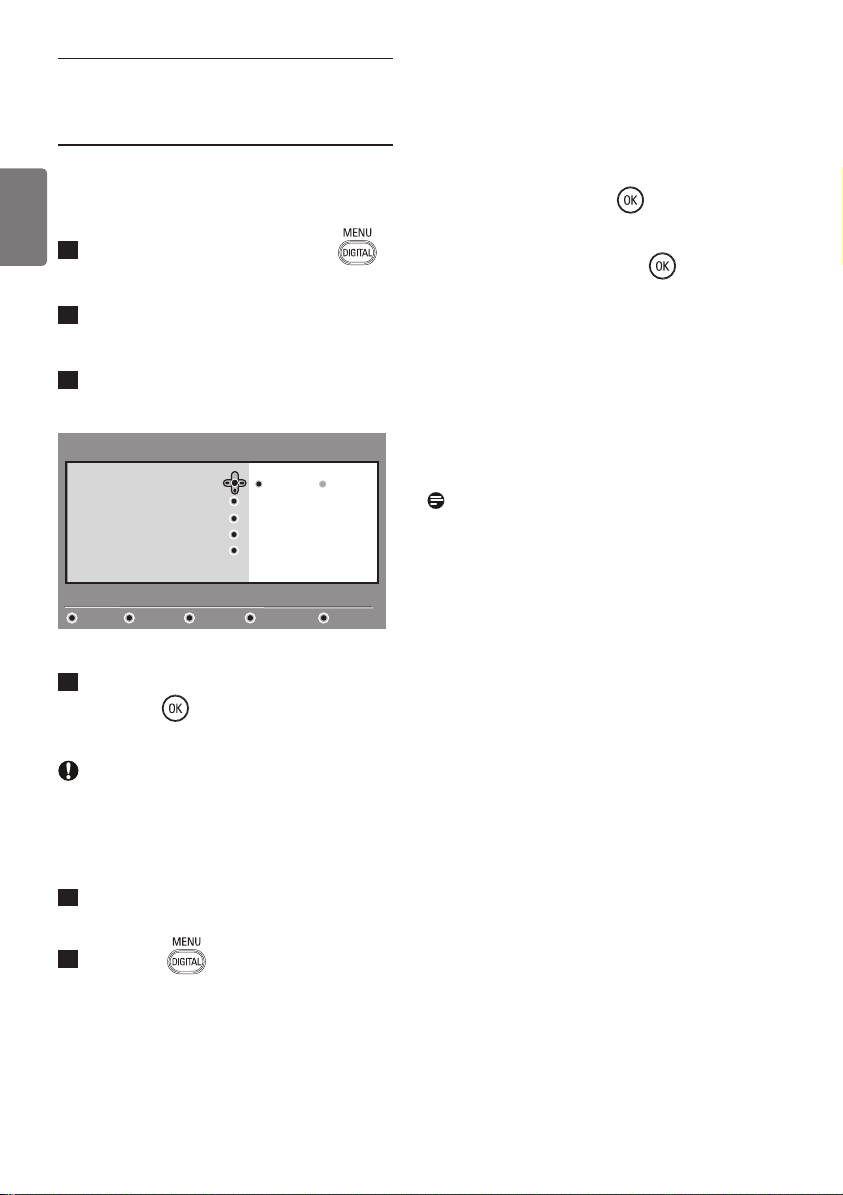
This menu allows you to select your
preferred language or to make changes to
the location (country and time zone).
1
From the digital mode, press the
key to display the setup menu.
2
Use the ï key to select Preferences
and press Æ key.
3
Select Language or Location (ï) and
press Æ key.
4
Use the Î ï keys to select a setting
and press Æ key to enter into the sub-
menu. Make your adjustment and press
key or Í key to exit.
5
To return to previous menu, press the
Í key.
6
Press the key to exit the menu.
Language default settings
• Audio : to select the audio sound
language.
• Subtitle/Teletext : to select the
subtitle/teletext language.
• Subtitling mode : off, on or auto
(subtitle only displayed in case of original
audio transmission).
• Subtitles for hearing impaired : to
activate or deactivate the specific subtitling
for hearing impaired (if made available by
the broadcaster).
• System : to select the menu language.
Note
If you have selected the wrong language
for one reason or another and do not
understand the selected language to operate
the set, do the following to bring you back
to your preferred language.
•
Press the
key to exit menu from
screen.
• Press the
key again to display menu.
• Press
the
key
to
select the second item
on the menu and
the
key to enter into the
next menu level.
• Press the
key to again and use the
key
to select the fifth menu item.
• Press the
key to enter into the next menu
level.
• Press the
Î ï
keys to select correct
language.
• Press the
key to confirm selection.
•
Press the
key to exit menu from
screen.
Location settings
• Country : to select the country where
you are located.
Caution
If you select a wrong country, the
channel numbering will not be according
to the standard for your country and
you may not receive all services or
nothing at all. Note that the Language
can be selected independently from the
Country.
• Time zone : to select the time zone
where you are located.
Audio
Subtitle / Teletext
Language
Location
Setup
11:28
Select your preferred language
Preferences
Close
Subtitling Mode
Subtitling for hearing impaired
System
20
English
13 Access restrictions
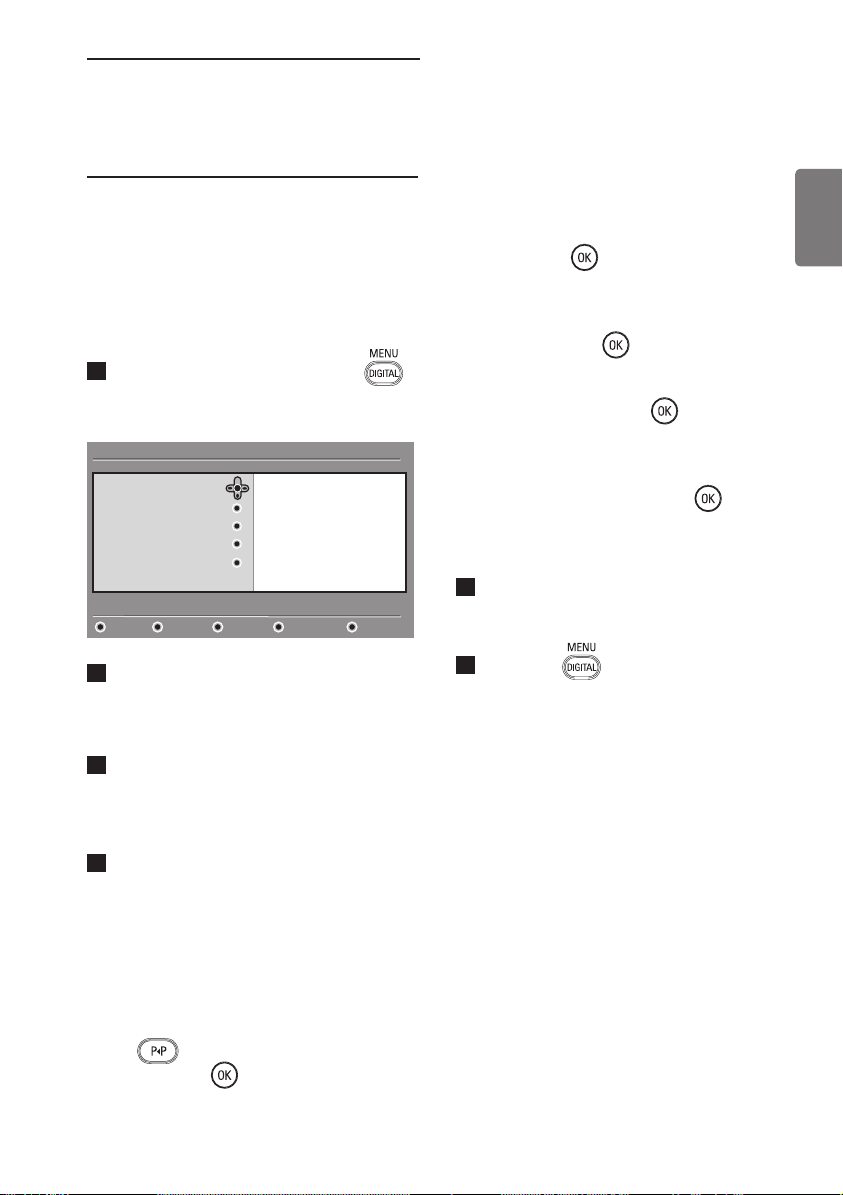
This menu allows you to set up the access
restrictions for the digital channels.
1
From the digital mode, press the
key to display the setup menu.
2
Use the ï key to select Access
restrictions and press the Æ key.
3
Press the Æ key to enter into the
Set pin code protection menu.
4
Use the Í Æ keys to set to On option
and press
key to exit. You can then
access the other adjustments.
Warning
The moment you use any kind of access
restriction, you need to fill in the pin
code when you schedule a programme
for recording.
5
To return to previous menu, press the
Í key.
6
Press the key to exit the menu.
• Maturity rating : select your preferred
rating to lock the channel. Maturity rating
will only block certain programmes if the
broadcaster provides data with the
programme.
• TV channels: select the TV channel you
want to lock and press
key.
• Radio stations: select the radio stations
you want to lock and press key.
• Change pin code: press Æ key to
enter in the menu. Follow the on-screen
instruction to change your access code.
The default pin code is 1234. If you have
forgotten your personal code, you can
reset to the default pin code (1234) by
entering the universal code 0711.
Note
The TV is equipped with a Common
Interface (CI) slot (see page 26).
This CI module can be obtained when you
subscribe to service providers like Pay
TV or other service providers. The
CI module does not come with the TV
set.
The Access Restrictions menu will show
the CI Access Restrictions when a CI
module is installed. The CI module is
responsible for the messages and texts
on screen. In case of failure or strange
behaviour, you must call your CI service
provider.
On Off
Set pin code protection
Maturity rating
TV channels
Radio stations
Change pin code
Access restrictions
11:28
Switch pin code protection ‘on’ or ‘off’
Close
21
English
14 Setting up your list of
favourite channels
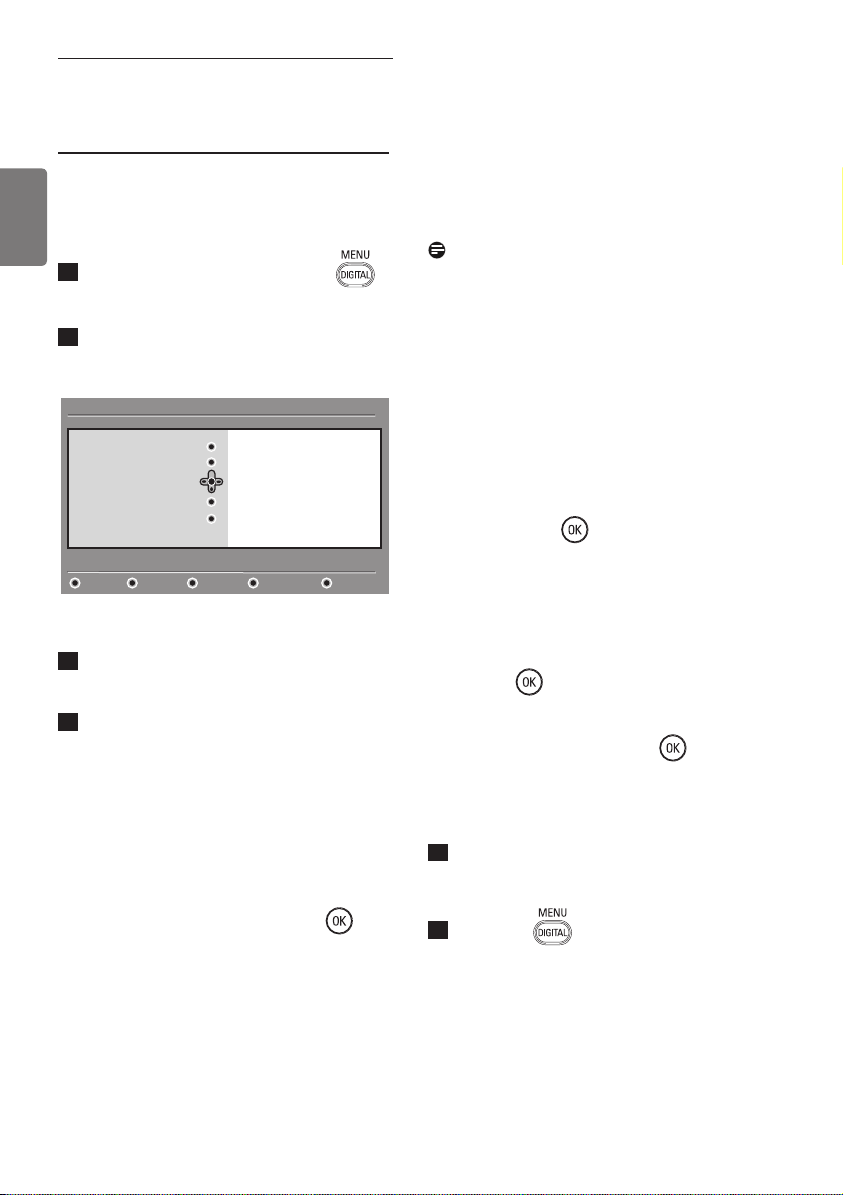
This menu enables you to create a favourite
list with your preferred TV channels and
radio stations. For example, each member of
your family can create his/her own favourites
list.
1
From the digital mode, press the
key to display the setup menu.
2
Press Æ to enter into the favourites list
menu. You have the choice to create
4 different favourites lists.
3
Use the Î ï keys to select your
Favourites list : List 1, List 2, List 3
or List 4 and press Æ key.
4
Use the Î ï keys to select a setting and
press Æ key to enter into the sub-menu.
• Name : use the Í Æ keys to move
around the name display area (16
characters) and the P + / – keys to select
the characters. To edit any character, use
the
key. When the name has been
entered, press key to exit.
• Select TV channels : use the Î ï keys
to select your favourite TV channels and
confirm with
key. Press Í key to exit.
• Select radio stations : use the Î ï
keys to select your favourite radio stations
and confirm with
key. Press Í key to
exit.
•
Add all services : press
key if you
want
to add all the services into your
favourites list.
• Remove all services : press
key
if
you want to remove all the services from
your favourites list.
5
To return to previous menu, press the Í
key.
6
Press the key to exit the menu.
Your favourites list can be selected via
the options menu (see next page).
List 1
List 2
List 3
List 4
Favourites
Preferences
Information
Access restrictions
Installation
Setup
11:28
Make changes to your lists of favourite services
Close
22
English
15 Information
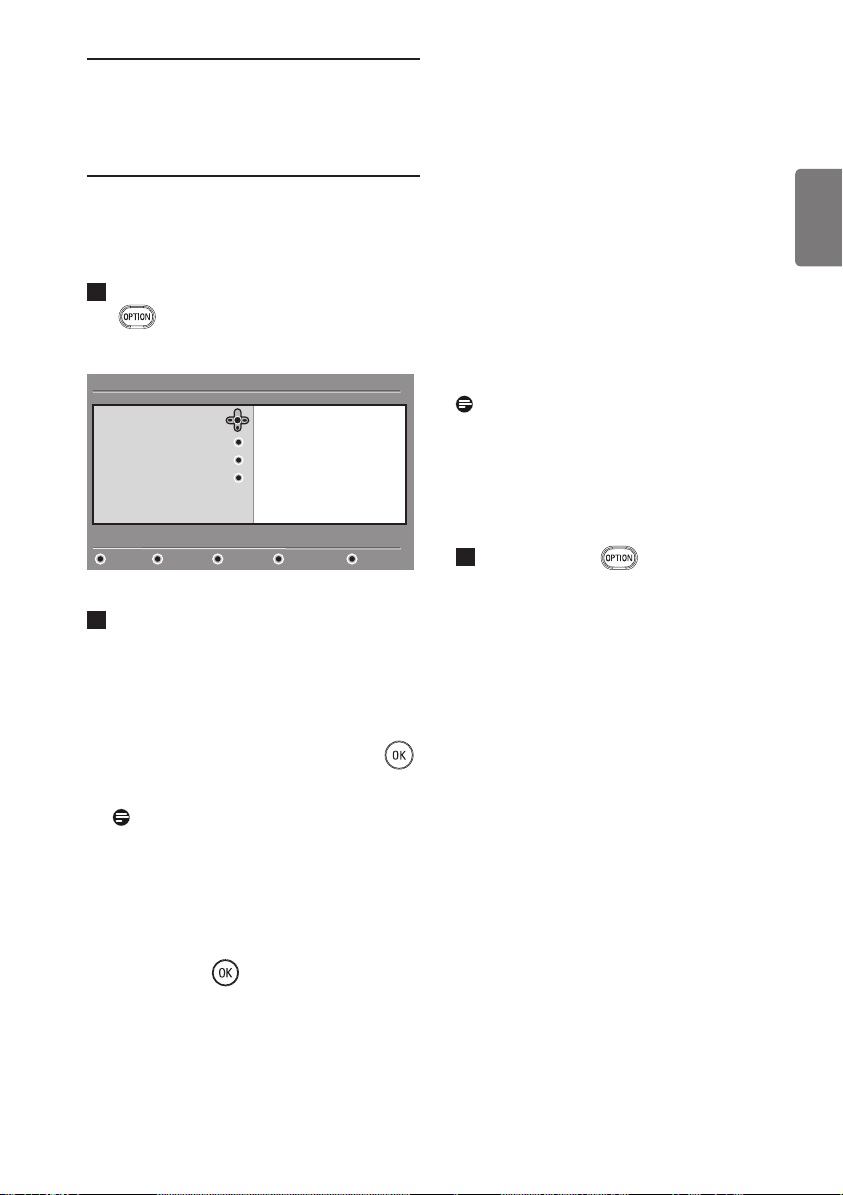
This menu provides information about the
software version and the installation of new
software.
1
From the digital mode, press the
key to display the setup menu.
2
Use the ï key to select information and
press Æ key twice.
The software version is displayed.
3
Use the Æ key to enter the selection
mode.
4
Use the Í Æ keys to select Yes or
No mode.
You can activate the menu
to automatically accept any software
update of your digital TV through off-air
downloading. Normally the product will
detect if an update is available while it is
in standby mode. Next time the
television is turned on a message will
appear on the screen indicating new
software is available. Selecting the
key
activates the software download.
The software download menu will give a
description of the software together with
the date and time of the download. This
may update certain menus, functions or
add new features, but the general way in
which the TV operates will not change.
Once accepted the download will take
place at the designated time and date.
Note
The TV must be put into standby when the
download is due in order for it to take place.
Off Air Downloading of new software
Whenever a new software is available, it is
advisable to always accept and download the
software.
• In case new software is available, you
will see a message when you switch on the
TV. A message indicating the date and the
duration of download is indicated in the
menu. Press the
key to proceed.
Important : Leave your TV in standby
to allow upgrade to take place. Do not
power off your main switch.
• If a problem occurred during the download
of the new software, you will be informed
of the next scheduled software download.
Press the
key to proceed to use your
TV normally.
•
If download is successful, a congratulatory
message will appear. Press the
key to
accept. New software and upgrade
instructions may also be obtained from the
web site : www.philips.com.
5
To return to previous menu, press the
Í key.
6
Press the key to exit the menu.
System software
Favourites
Preferences
Information
Access restrictions
Installation
Setup
11:28
Provide information on problem reports and installing new software
Close
23
English
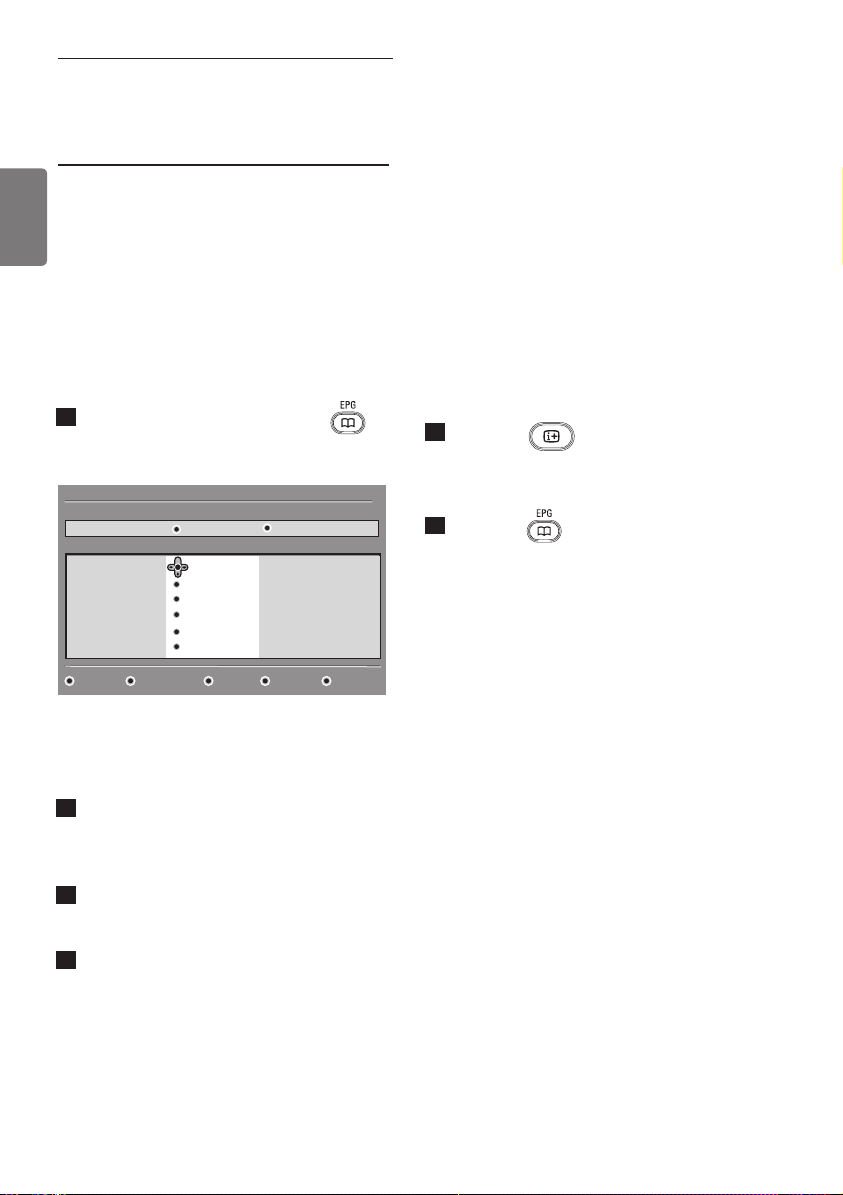
This menu gives you direct access to the:
favourites list, the language selection and
some other selections.
1
From the digital mode, press the white
key to display the options menu.
2
Use the Î ï keys to select a setting
and press Æ key to enter the sub-menu.
• Favourites : use the Î ï keys to select
your favourites list and confirm with
key.
Note
The “none” option deactivates any
favourites list. To create your own
favourites list, see page 21.
• Subtitle language : use the Î ï keys
to temporarily change the language and
confirm with
key.
• Audio language : to temporarily
change the audio sound language.
To permanently change the audio and
subtitle languages, use the Preferences
menu (see page 19).
• Mode : you can choose to only have
radio stations, TV channels or services
without audio or video.
Note (f
or the UK only)
The TV list will contain both radio
stations and TV channels
• Banner duration : to select the
duration for which the banner is visible.
3
Press the white key to exit the
menu.
16 Using the Options
menu
None
List 1
List 2
List 3
List 4
Favourites
Subtitle language
Audio language
Mode
Options
11:28
Se
l
ects the active favourite list
Exit
24
English
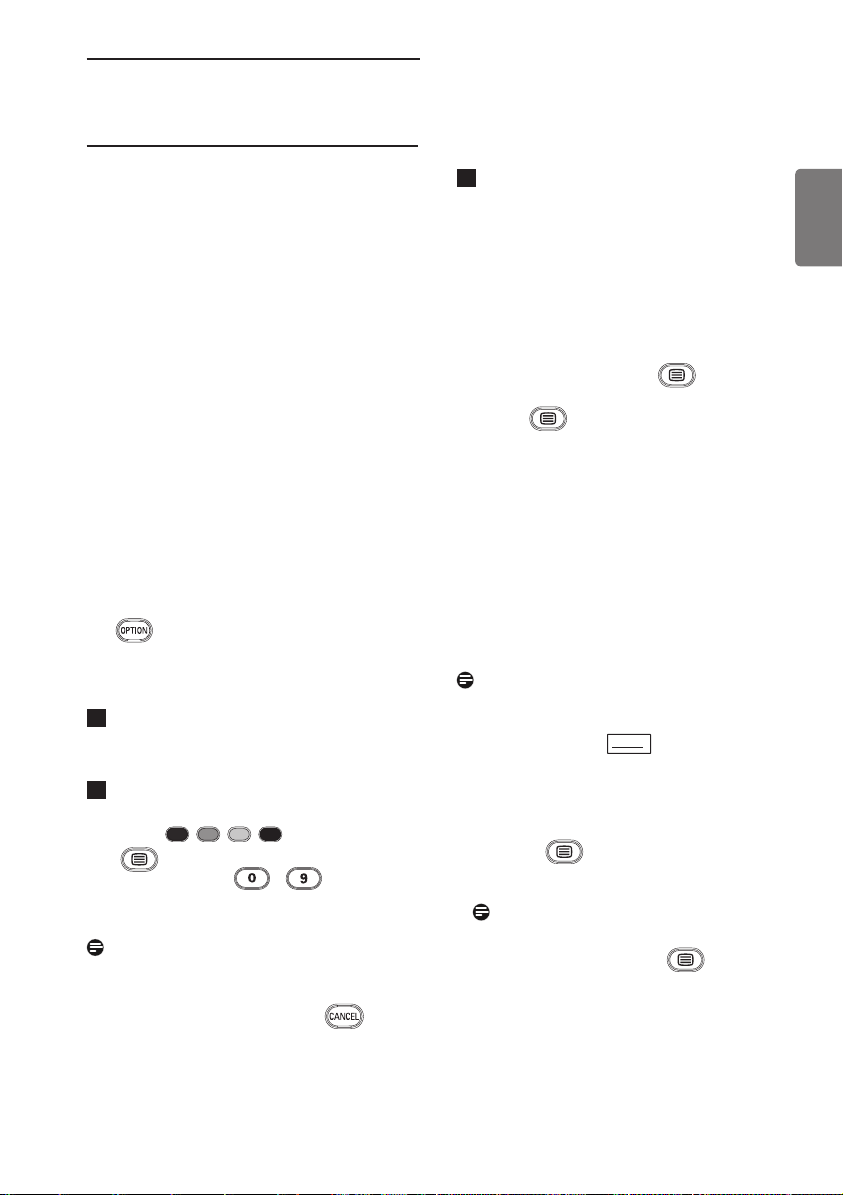
The TV guide is an Electronic Programme
Guide that provides you with a quick and
easy way to view a complete list of digital
programmes as you would in a newspaper or
TV magazine. You can navigate through the
list of digital programmes and obtain detailed
information on the programmes. You can also
program the TV to provide a digital channel
to be recorded.
1
From the digital mode, press the
key to display the TV guide :
A list of all the digital programmes in the
currently selected favourites list is displayed.
2
Use the ï key to enter into the
Preset/service list or press Æ key to
access Today list.
3
Use the Í Æ keys to select a
programme.
4
The TV guide features are displayed
at the bottom of the screen. Use the
coloured keys red, green, yellow, blue or
white to activate them.
• Top (yellow key) : to go directly to the
top of the list.
• Close (blue key) : to exit from the TV
guide.
• Options (white key) : with this menu,
you can select your favourites list, mode or
themes. Themes are areas of interest, you
can for example, decide to display only :
drama, news, movie, ...
5
Press the
key if you want to
display more information about the
selected programme (if available).
6
Press the key to exit the menu.
17 TV Guide
See it saw
Snooker
Trisha
-
Gmtv2
Oakie Doke
1. BBC
2. BBC TWO
3. ITC Channel 3
4. Channel 4
5. ITV 2
6. BBC CHOICE
BBC
17:28
Top Close Options
Now/Next Today
Preset/Servcie Now Next
Microsoap
Ice Skating
This morning
-
This afternoon
Bodger & Badger
1
25
English
18 Digital teletext (MHEG)
Available in U.K. only
Digital teletext services differ greatly from
analogue teletext. When you switch to a
Digital teletext service, the images you see
contain graphics and text which are laid out
and controlled in a manner decided by the
broadcaster. Some digital channels, which you
select like any other channel, offer dedicated
teletext services. Some digital channels also
offer information on the programme being
broadcast (a message or an instruction may
appear on the screen).
Under certain circumstances, Digital text or
interactive services may have priority over
subtitles. This can result in the subtitles not
automatically reappearing when leaving Digital
text or interactive services on a channel
which is broadcasting subtitles. In these cases,
subtiltes can be intialised either by toggling
the
key on the remote control or by
changing channels.
1
To use the digital teletext, follow the
instructions on screen.
2
Depending on the service, you can
be asked to use the Í Æ Î ï (cursor
keys), (colour keys),
(Teletext On/Off key) and
sometimes the / numerical
keys.
Note
If no colour key links are available
in the Digital Teletext to allow you to
exit teletext mode, use the key
instead.
3
When you have finished watching
teletext, select a different channel with
P + / – keys or follow the on screen
instructions to return to picture.
When you switch to a digital channel with
links to a teletext service, software is
downloaded in the background to enable the
teletext function. You will have to wait for a
while before you press the
key to allow
the software download to complete. If you
press the key before the download is
complete, there will be a short delay before
the teletext screen is displayed.
While navigating the digital teletext, there is
a short delay while the page downloads. A
prompt or message is often broadcast on the
page to let you know the progress.
Analogue teletext in Digital mode
Note
Available in all countries
• If you see an icon
TXT
on a digital
channel without digital teletext services,
it indicates Analogue Teletext is available
in Digital mode.
• Press the key to access Analogue
teletext.
Note
If UK country is selected during
installation, press and hold
key for
at least 3 seconds.
• To use Analogue Teletext functions, see
page 38 and 39.
26
English
19 Using the Conditional
Access Module (CAM)
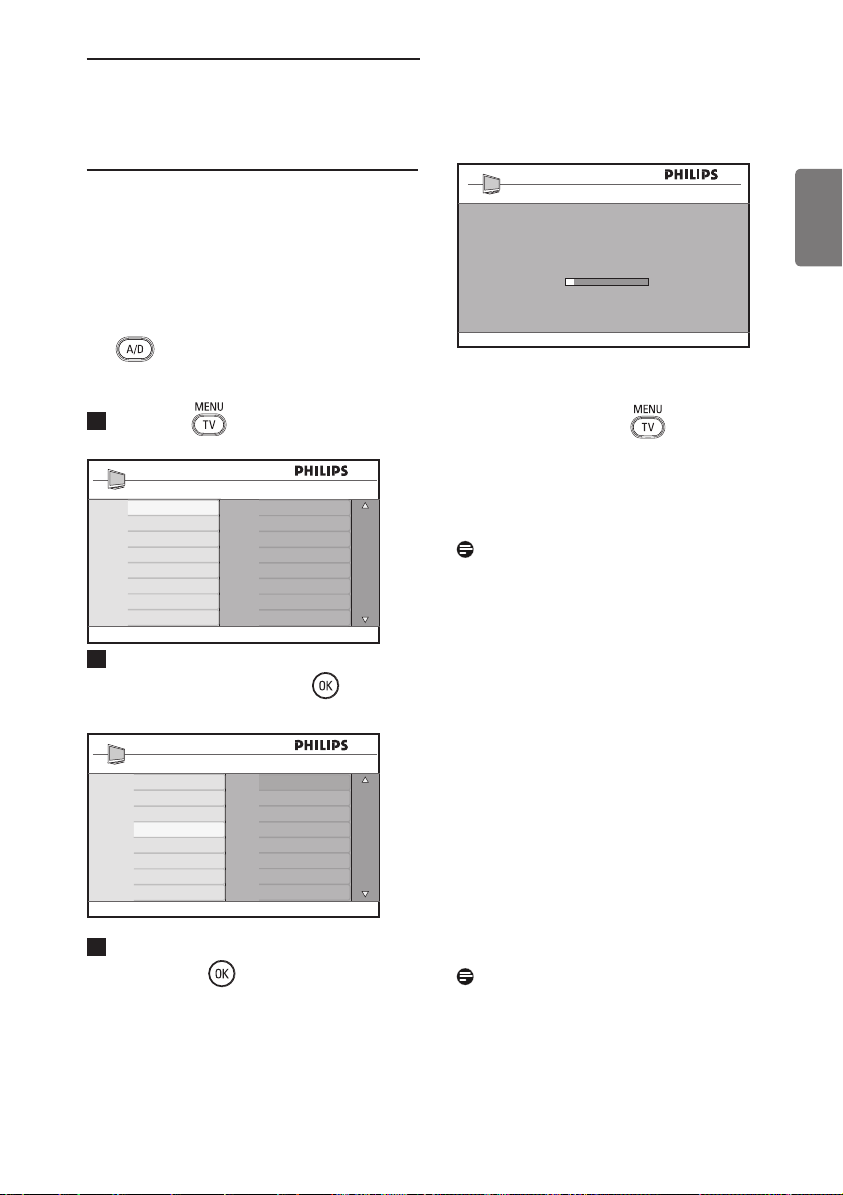
The Conditional Access Module (CAM)
menu provides access to functions contained
on the CAM. The module can be inserted
into the Common Interface (CI) slot located
at the backside (facing downwards) of the TV.
Note
This Common Interface (CI) module does
not come with the TV set. It can only be
obtained when you subscribe to service
providers like Pay TV or other service
providers.
IMPORTANT
Always switch the TV off before inserting or
removing the module.
Inserting the CAM
1
Switch off the TV.
2
Some modules come with a viewing
card. When using this type of module,
first insert the viewing card into the
module. Ensure that the arrow on the
viewing card faces the arrow of the
module before inserting into the
module slot.
3
Insert the module into the Common
Interface (CI) slot on the TV.
4
Switch on the TV.
5
Press the key to display the
setup menu.
6
Use the ï key to select Access
restriction and press the Æ key.
7
Press the Æ key to enter into the
Conditional Access Module menu.
8
Press button as indicated on the
screen to access the CAM’s functions.
IMPORTANT
If no module is inserted, or the module
is not inserted properly, the Conditional
Access Module menu will not be displayed.
(If you have inserted a module, check that
it is fully inserted in the correct manner as
mentioned in step 2 above).
The functions that now appear on screen
are dependent on the contents of the
selected Conditional Access Module in your
country. Refer to the instruction supplied
with the module or contact the vendor.
Common
Interface slot
Connectors at
rear of TV (facing
downward)
Module
27
English
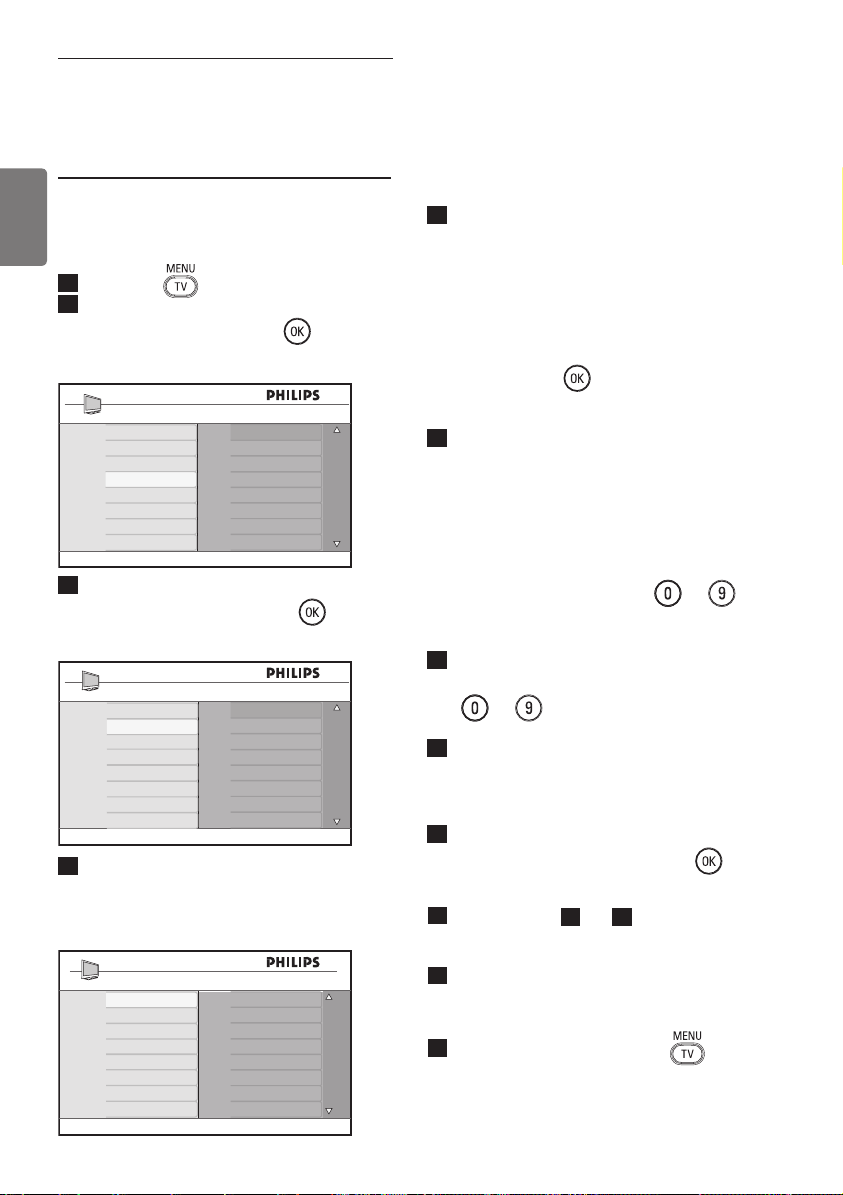
20 Automatic tuning of
analogue programmes
This menu allows you to automatically search
for all the analogue programmes available in
your region.
Before you automatically search for all the
analogue programmes, ensure the TV is in
analogue mode. If it is in digital mode, press
the
(Analogue / Digital) key to enter
the analogue mode.
1
Press the key.
2
Press the Î / ï key repeatedly to
select Install and the Æ / key to
enter the Install menu.
3
Press the ï key to select Auto Store
and the Æ / key to start automatic
searching of the channels. All the
available TV programmes will be stored.
This operation takes a few minutes. The
display shows the progress of the search
and the number of programmes found.
IMPORTANT
To exit or interrupt the search before it
is completed, press the key. If you
interrupt search during auto store, not all
channels will be stored. For all channels to
be stored, you need to do a complete auto
store search again.
Note
ATS (Automatic Tuning System)
feature
If the transmitter or cable network sends
the automatic sort signal, the programmes
will be numbered correctly. In this case, the
installation is complete. If this is not the case,
you can use the Sort menu to number the
programmes to your preference.
ACI (Automatic Channel Installation)
feature
If a cable system or a TV channel which
broadcasts ACI is detected, a programme list
appears. Without ACI broadcast, the channels
are numbered according to your language
and country selection. You can use the Sort
menu to renumber them.
Note
You cannot change the Language or
Country in Analogue mode. If you want
to change the Language or Country,
you have to exit Analogue mode and
enter into Digital mode to do so (refer to
“Preferences” on page 19).
Auto Store
Program 3
TV 196 MHz
Main
Picture
Sound
Features
Install
Brightness
Colour
Contrast
Sharpness
Colour Temp
Contrast+
NR
Auto Store
Manual Store
Sort
Name
Fav. Program
Main
Picture
Sound
Features
Install
28
English
21 Manual tuning of
analogue programmes
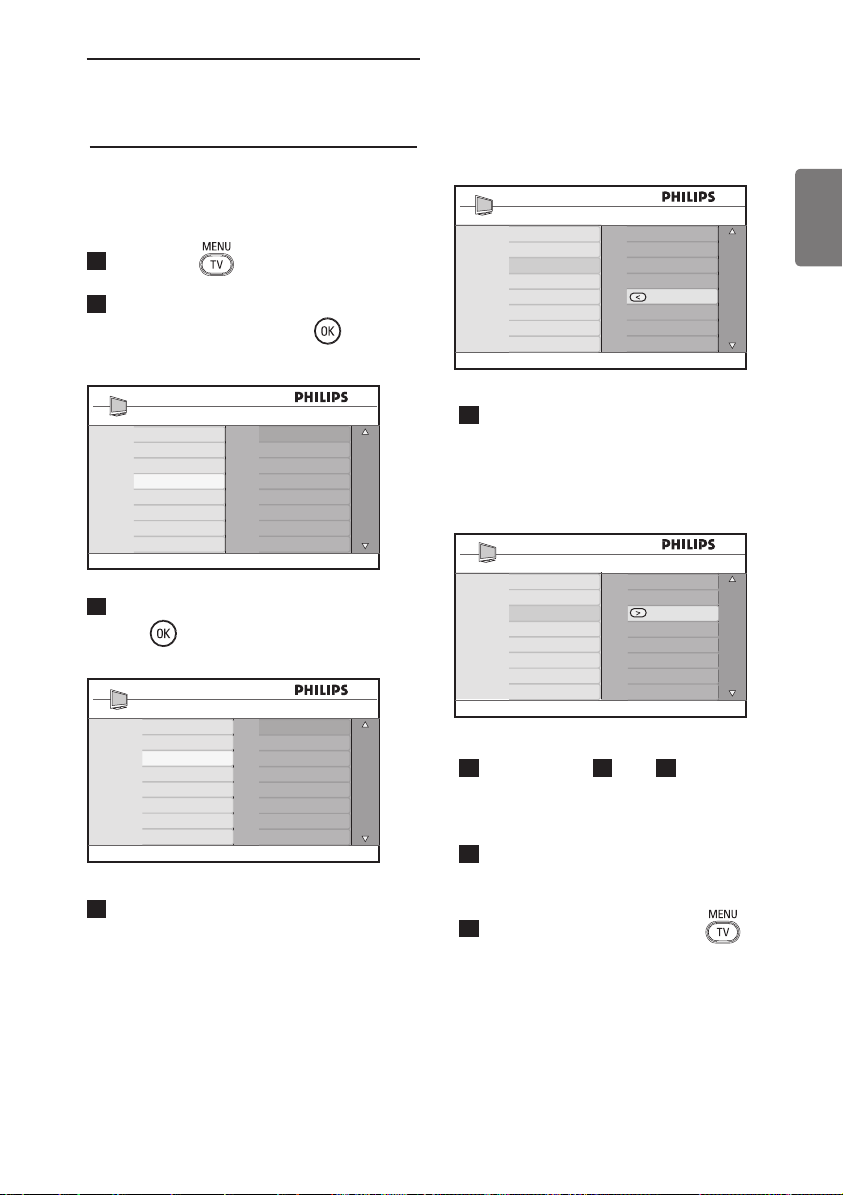
This menu is used to store the programmes
one at a time.
1
Press the key.
2
Press the Î ï keys repeatedly to
select Install and the Æ / key to
enter the Install menu.
3
Press the ï key to select
Manual Store and the Æ / key to
enter Manual Store menu.
4
Press the Î ï keys to select the items
in the Manual Store menu to adjust or
activate.
5
System:
Press the Î ï keys to select
Europe (automatic detection),
France (LL’ standard),
UK (I standard),
West Europe (BG standard) or
East Europe (DK standard).
Press the Æ /
key to confirm
selected system.
6
Search:
Press the Æ key. The search starts.
Once a programme is found, the
scanning stops and its name is displayed
(if available). Go to the next step. If
you know the frequency of the
required programme, this can be
entered directly using the
to
keys.
7
Program No.:
Enter the required number with the
to or Î ï keys.
8
Fine Tune:
If the reception is not satisfactory,
adjust using the Î ï keys.
9
Store:
To store the changes, press Æ /
key. The programme is now stored.
10
Repeat steps
6
to
9
for each
programme to be stored.
11
To return to previous menu, press the
Í key.
12
To exit the menu, press the key.
Auto Store
Manual Store
Sort
Name
Fav. Program
Main
Picture
Sound
Features
Install
Install
Auto Store
Manual Store
Sort
Name
Fav. Program
System
Search
Program No.
Fine Tune
Store
Europe
France
UK
West Europe
East Europe
Manual store
System
Search
Program No.
Fine Tune
Store
29
English
22 Programme Sort
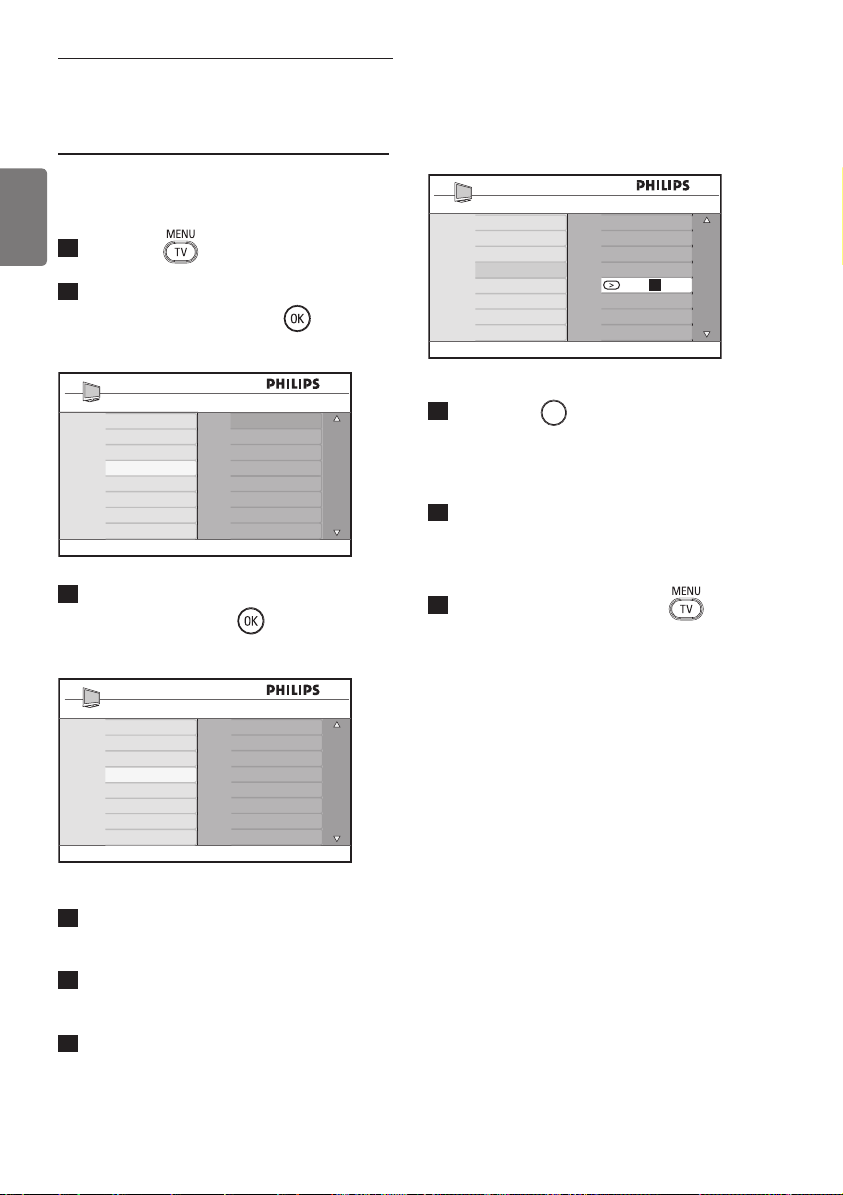
Sort feature allows you to change the
programme number for a particular stations.
1
Press the key.
2
Press the Î / ï key repeatedly to
select Install and the Æ / key to
enter the Install menu.
3
Press the ï key to select Sort and the
Æ / key to enter sort mode.
4
Select the programme number you
want to move using the Î ï keys and
the Æ key to enter sorting mode
(The arrow cursor now points to the
left).
5
Press the Î ï keys to select the new
programme number and confirm with
the Í key. (The arrow points to
the right and sorting is completed).
6
Repeat steps
4
and
5
for each
programme number you wish to re-
number.
7
To return to previous menu, press the
Í key.
8
To exit the menu, press the key.
Auto Store
Manual Store
Sort
Name
Fav. Program
Main
Picture
Sound
Features
Install
001
002
003
004
005
006
007
008
100
Install
Auto Store
Manual Store
Sort
Name
Fav. Program
001
002
003
004
005
006
007
008
100
Install
Auto Store
Manual Store
Sort
Name
Fav. Program
001
002
003
004
005
006
007
008
100
Install
Auto Store
Manual Store
Sort
Name
Fav. Program
30
English
23 Naming of Channel
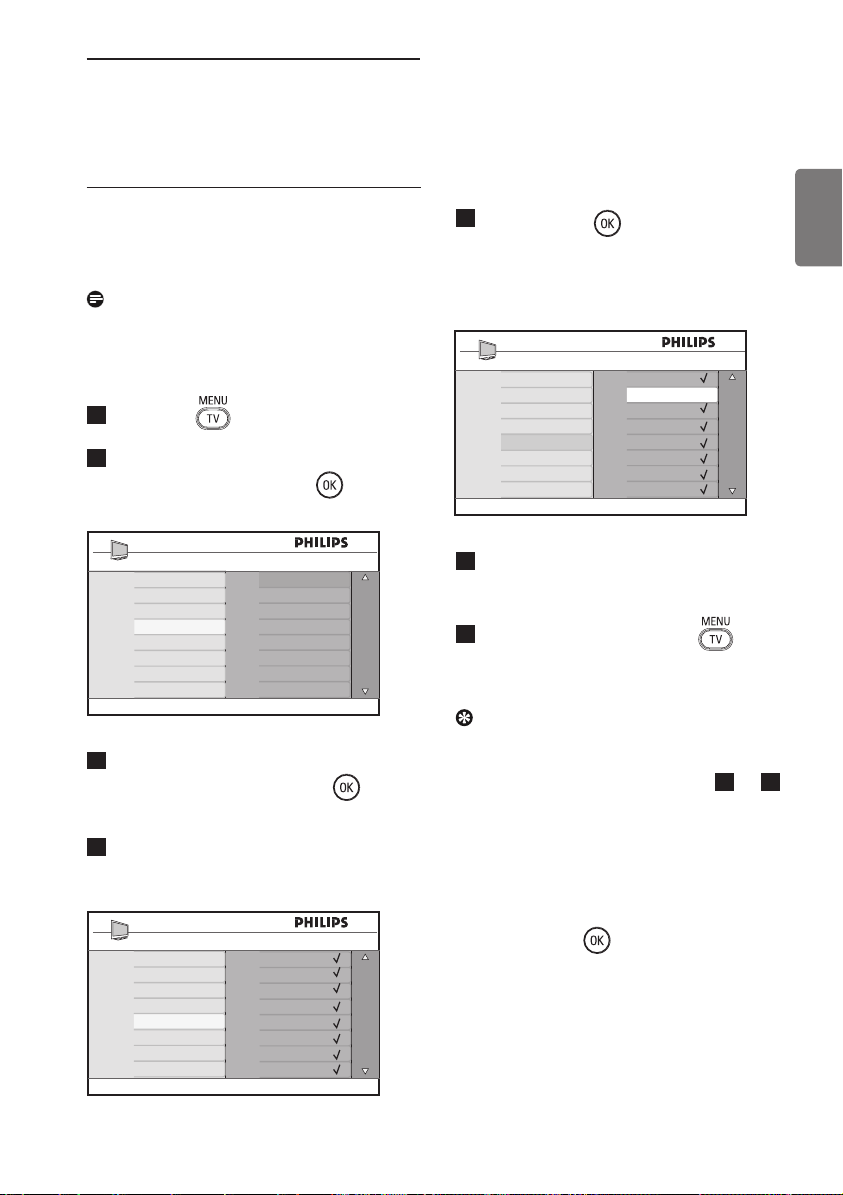
If preferred, you can assign a name to the TV
channel.
1
Press the key.
2
Press the Î / ï key repeatedly to
select Install and the Æ / key to
enter the Install menu.
3
Press the ï key repeatedly to select
Name and the Æ / key to
enter Name mode.
4
Press the Î ï keys to select the
channel you want to name.
5
Press the Æ key to move to the first
name display area.
6
Press the Î ï keys to select the
characters (maximum of 5 characters)
and press the Í Æ keys to move
around the name display area.
7
Press Æ /
OK
key until the name
appears at the top left hand corner
of the TV screen. The name is now
stored.
8
To return to previous menu, press the
Í key.
9
To exit the menu, press the key.
Auto Store
Manual Store
Sort
Name
Fav. Program
Main
Picture
Sound
Features
Install
Install
Auto Store
Manual Store
Sort
Name
Fav. Program
001
002
003
004
005
006
007
008
100
106
Install
Auto Store
Manual Store
Sort
Name
Fav. Program
001
002
003
004
005
006
007
008
z
31
English
24 Selecting your
Favourite Programmes
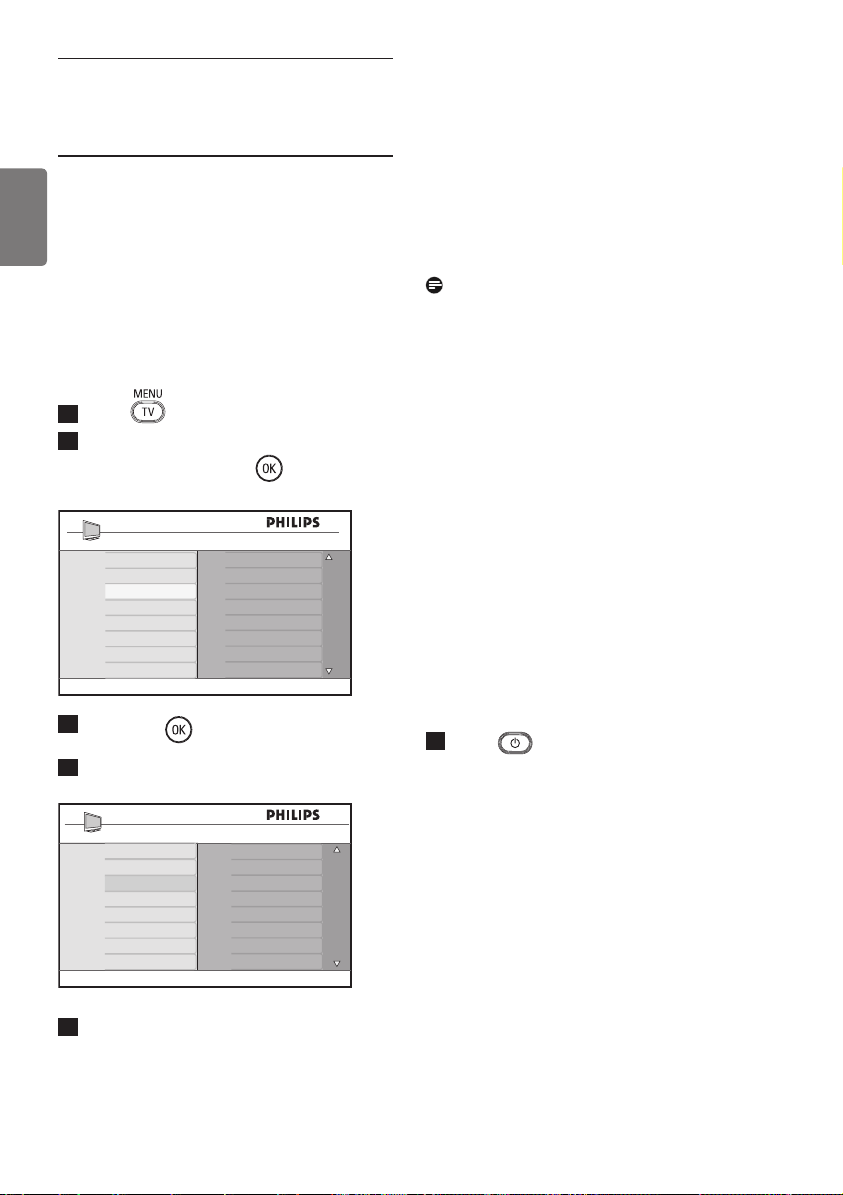
This feature allows you to skip programmes
that you do not watch often and only keep
your favourite programmes.
Note: Once a programme is skipped, you
cannot access it by the P – / + key. You can
only access the programme by the Digit 0 -9
keys.
1
Press the key.
2
Press the Î / ï key repeatedly to
select Install and the Æ / key to
enter the Install menu.
3
Press the ï key to select
Fav. Program and the Æ / key
to enter Fav. Program list.
4
Press the Î / ï key repeatedly to
select programme you want to skip.
5
Press the Æ / key to skip the
programme. The $ on the right of the
menu will disappear indicating the
programme is skipped.
6
To return to previous menu, press
the Í key.
7
To exit the menu, press the key.
Tip
• To add back the skipped programmes to
your favourites list, repeat steps
1
to
3
.
• Press the Î / ï key repeatedly to
select the skipped programme you want
to add back to your favourite programme
list.
• Press the Æ /
key to unskip a
programme. The $ will appear indicating
the programme is now restored.
Auto Store
Manual Store
Sort
Name
Fav. Program
Main
Picture
Sound
Features
Install
Install
Auto Store
Manual Store
Sort
Name
Fav. Program
001
002
003
004
005
006
007
008
100
001
002
003
004
005
006
007
008
100
Install
Auto Store
Manual Store
Sort
Name
Fav. Program
32
English
25 Features
25.1 Timer
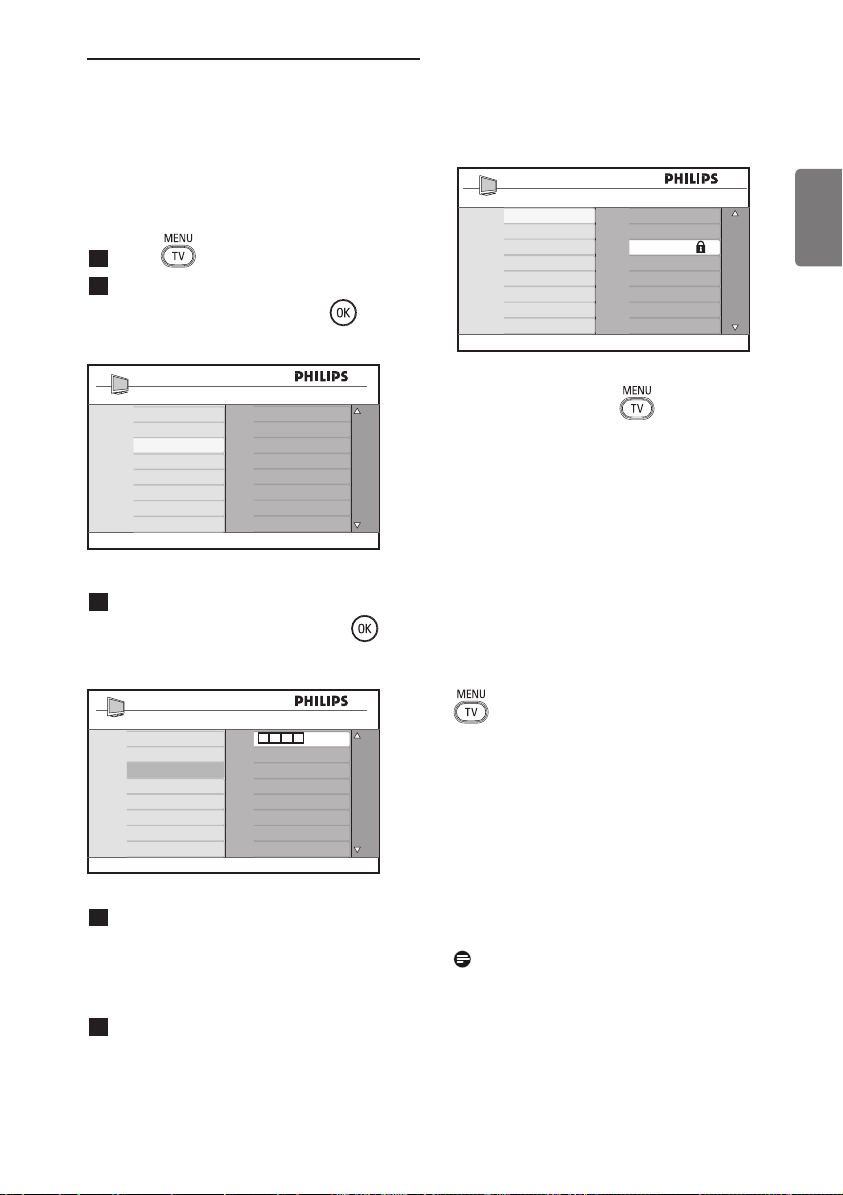
The Timer feature allows you to set the TV
to switch to another channel at a specified
time while you are watching another
channel. You can also use it as an alarm to
switch on the TV at a specified time from
standby mode. For the timer to function, the
set must not be switched off. Once the set
is switched off, the timer is disabled.
1
Press key.
2
Press Î ï keys repeatedly to select
Features and the Æ/ key to enter
Features menu.
3
Press Æ / key to access Timer
menu.
4
Press Î ï keys to select a Timer item.
5
To make adjustments to the timer
setting, use the Í, Æ, Î, ï or Digit
0-9 keys.
Sleep: to select a time period in which
the set will switch to standby mode upon
reaching the selected time period.
Select Off option to deactivate the feature.
Note
During the last minute of a Sleep time
setting, an on-screen countdown will be
displayed. Press any button on the remote
control to cancel the Sleep shut down.
Time: enter the current time.
Start Time: enter the start time.
Stop Time: enter the standby time.
Program No.: enter the number of the
channel for the wake-up alarm.
Activate: the settings include:
– Once for a single alarm,
– Daily for each day,
– Off to cancel.
6
Press
key on the remote control
to
put the TV set in standby mode. The
TV will automatically come on at the
programmed time. If you leave the TV
set on, it will just change channel at the
Start Time and will go to standby
mode at the Stop Time.
- - : - -
Timer
Sleep
Time
Start Time
Stop Time
Program No.
Activate
Main
Picture
Sound
Features
Install
Timer
Child Lock
Parental Cont.
Active Control
33
English
25.2 Parental Cont.
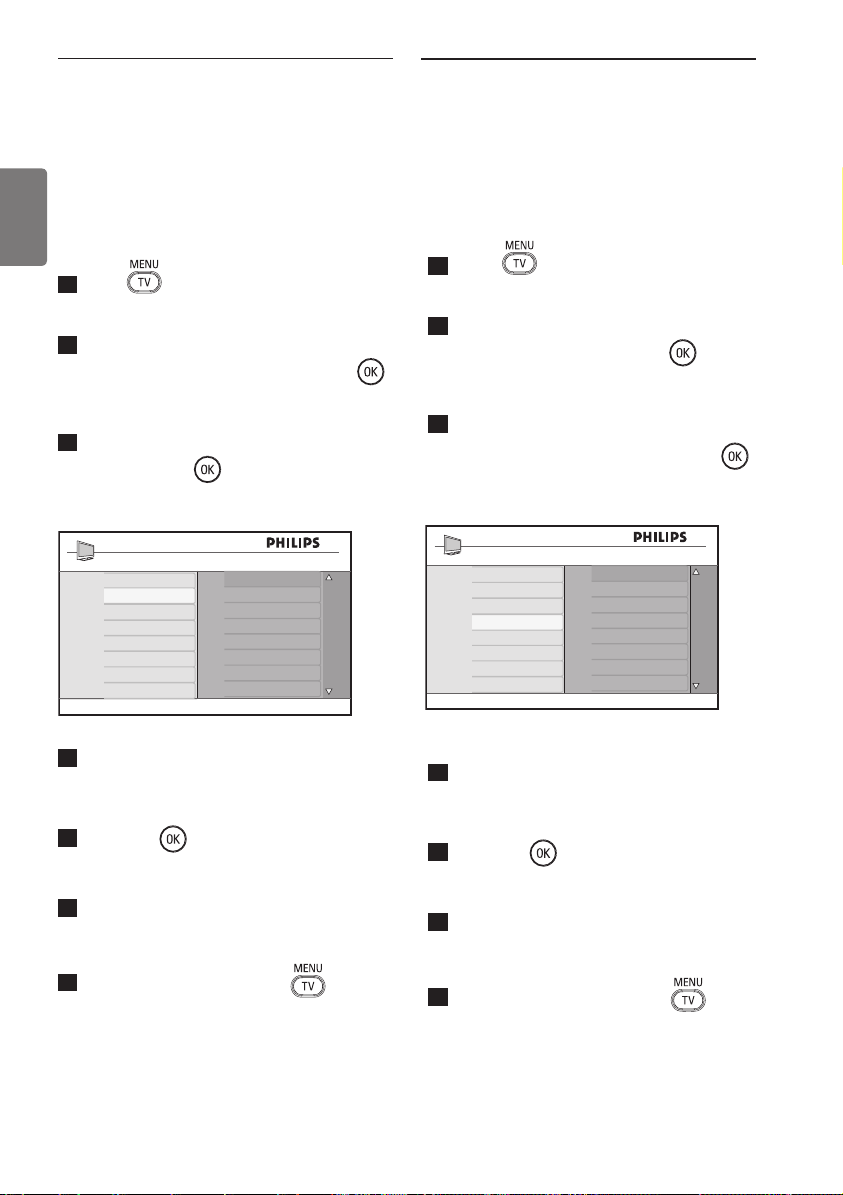
The Parental Cont. feature allows you to
lock channels to prevent your children from
watching certain programmes.
1
Press key.
2
Press Î ï keys repeatedly to select
Features and press the Æ/ key to
enter Features menu.
3
Press Î ï keys repeatedly to select
Parental Cont. and press Æ / key
to enter Parental Cont. mode.
4
Key in the access code 0711 by the
Digit 0-9 keys. A message Incorrect
will appear. Key in the access code 0711
again.
5
The TV will then prompt you to change
code. Key in your own 4-digit code by
the Digit 0-9 keys and confirm the new
code. Once the new code is confirmed,
the Parental Cont. menu will appear.
In the Parental Cont. menu, use the Î, ï,
Í, Æ, Digit 0-9 and
keys to access
and activate the Parental Cont. functions.
Description of the settings:
Lock Program
Lock individual program. Press Æ key to
enter Lock Program mode and the Î
ï keys to select the program to lock or
unlock. Press the Í Æ keys to lock or
unlock selected program. A key lock symbol
+ appears besides the locked channel
number. To exit from Lock Program mode
and return to Parental Cont. menu, press
key.
Change Code
Key in your new four-digit code using the
Digit 0-9 keys and confirm by keying in the
new four-digit again.
Clear All
Press Æ key to unlock all locked channels.
Lock All
Press Æ key to lock all locked channels.
Note
If you switch on the TV set and select a
program that has been locked, you need
to key in the Access Code to enter the
selected locked channel. To unlock the
channel, go the Lock Program in the
Parental Cont. menu and press the Í Æ
keys (key lock symbol + disappears).
Main
Picture
Sound
Features
Install
Timer
Child Lock
Parental Cont.
Active Control
Access Code
Features
Timer
Child Lock
Parental Cont.
Active Control
* * * *
Parental Cont.
Lock Program
Change Code
Clear All
Lock All
001
002
003
004
005
006
007
008
106
34
English
25.3 Child Lock
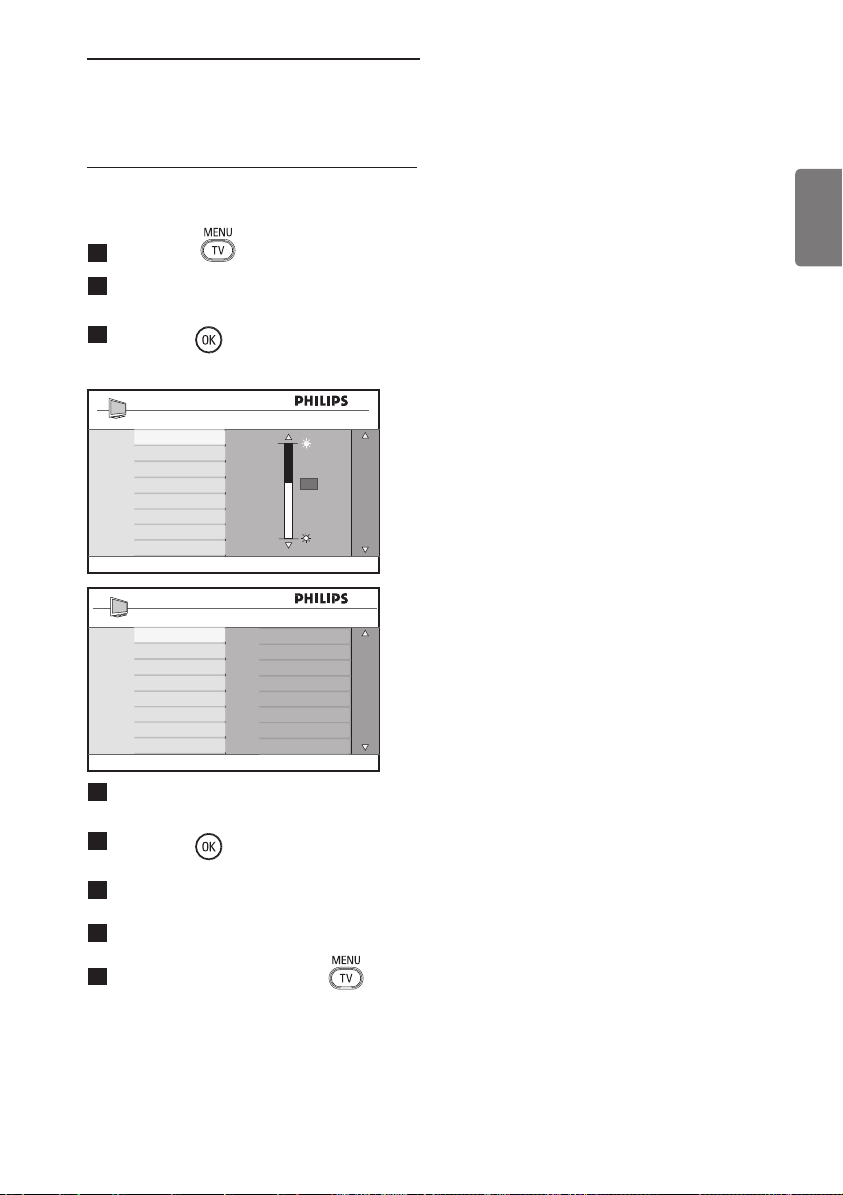
The side controls of the TV will be locked
when you select the On option in the Child
Lock menu. The TV can still be operated by
using the remote control.
1
Press key.
2
Press Î ï keys repeatedly until
Features is selected and press Æ /
key to access Features menu.
3
Press ï key to select Child Lock and
press the Æ / key to access Child
Lock mode.
4
Press Î ï keys to select On or Off
option.
5
Press Æ / key to activate/deactivate
On or Off option.
6
To return to previous menu, press the
Í key.
7
To exit the menu, press the key.
25.4 Active Control
Automatically adjusts the picture setting for
optimal picture quality continuously under
any signal conditions.
1
Press key.
2
Press Î ï keys repeatedly to select
Features and press the Æ/ key to
enter Features menu
3
Press Î ï keys repeatedly to select
Active Control and press the Æ /
key to enter Active Control mode.
4
Press Î ï keys to select On or Off
option.
5
Press Æ / key to activate/deactivate
On or Off option.
6
To return to previous menu, press the
Í key.
7
To exit the menu, press the key.
Features
Timer
Child Lock
Parental Cont.
Active Control
Off
On
Features
Timer
Child Lock
Parental Cont.
Active Control
Off
On
35
English
26 Picture and Sound
settings
Sound
Equalizer
Balance
AVL
Incr.Surround
120HZ
200HZ
500HZ
1200HZ
3KHZ
7500HZ
12KHZ
Contrast: this changes the difference
between the light and dark tones within the
contrast range of the TV.
Sharpness: this increases or decreases the
sharpness level to improve details in the
picture.
Colour Temp.: this changes the colour
setting: Cool (more blue), Normal (balanced)
or Warm (more red).
Contrast+: Increases the contrast range of
the TV. Select On option to activate feature.
NR: improves “noisy” picture (little dots
on picture) due to weak signal transmission.
Select On option to activate feature.
Description of the Sound settings
Equalizer: to adjust the sound tone.
Balance: this balances the sound on the left
and right speakers.
AVL: (Automatic Volume Leveller):
this is used to limit sudden increases in
sound, especially on programme change
or advertising slots.
Incr. Surround: select between
Incredible Surround and Stereo when in
stereo transmission and between Mono
and Spatial when in Mono transmission.
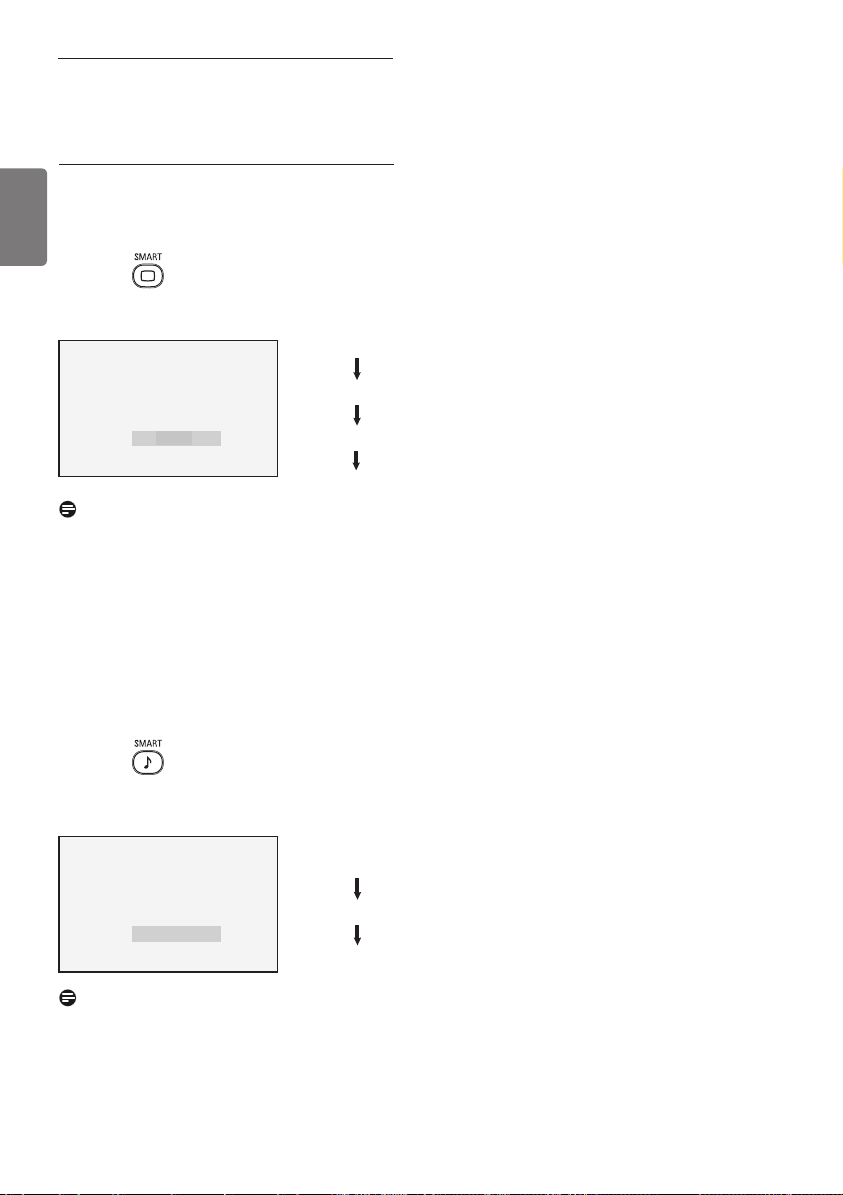
You can adjust the picture and sound settings
in the Picture and Sound menu.
1
Press the key.
2
Press the Î ï keys to select Picture
or Sound.
3
Press Æ / key to enter Picture or
Sound menu.
4
Press Î ï keys to select a Picture
or Sound setting.
5
Press Æ / key to enter the Picture
or Sound setting.
6
Press Î ï keys to adjust the Picture
or Sound setting.
7
To return to previous menu, press the
Í key.
8
To exit the menu, press the key.
Description of the Picture settings
Brightness : this changes picture brilliance.
Colour : this changes the intensity of the
colour.
Picture
Brightness
Colour
Contrast
Sharpness
Colour Temp
Contrast+
NR
100
0
63
36
English
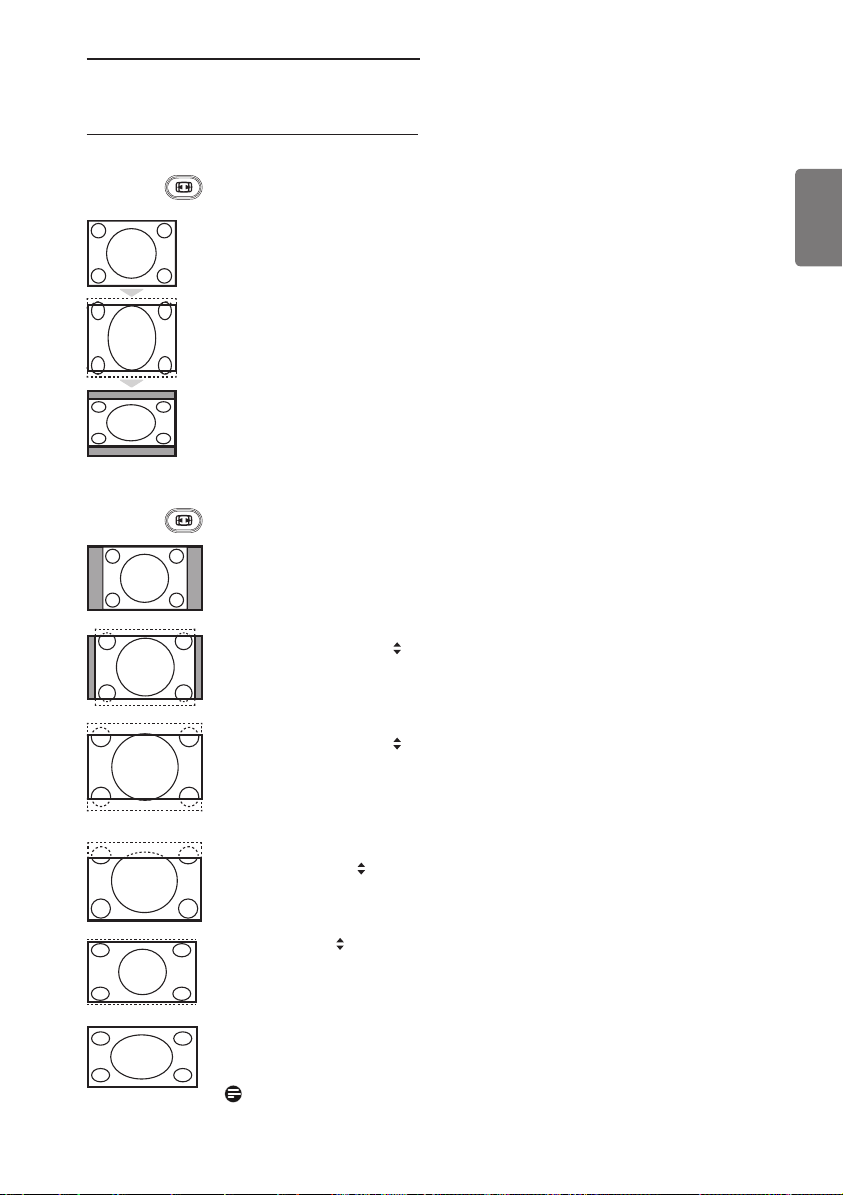
27 Smart Picture and
Sound
Definition of Picture Settings
Rich : Brilliant and sharp picture
settings suitable for bright
environment.
Natural : Reference mode for living
room conditions and
average signals.
Soft : Intended for bad-quality
signals. Suitable for living
room viewing.
Multimedia : Best for graphical
applications.
Personal : Pictures settings are set to
your preference.
Definition of Sound Settings
Movie : Emphasize sensation to
action.
Music : Emphasize low tone.
Voice :
Emphasize high tone.
Personal : Sound settings are set to
your preference.
Soft
Natural
Multimedia
Personal
or
Voice
Music
Personal
Smart Picture feature offers you a choice
of 5 picture settings namely : Rich, Natural,
Soft, Multimedia and Personal.
Press the button repeatedly to cycle
through the settings to select your desired
mode.
Note
: The Personal setting is the
setting that you set up using the Picture
menu in the main menu. This is the only
setting in the Smart Picture setting that can
be changed. All other settings are pre-set at
the factory for your convenience.
Smart Sound feature offers you a choice
of 4 sound settings namely : Movie, Music,
Voice, and Personal.
Press the
button repeatedly to cycle
through the settings to select your desired
mode.
Note
: The Personal setting is the
setting that you set up using the Sound menu
in the main menu. This is the only setting in
the Smart Sound setting that can be changed.
All other settings are pre-set at the factory
for your convenience.
Rich
Movie
or
37
English
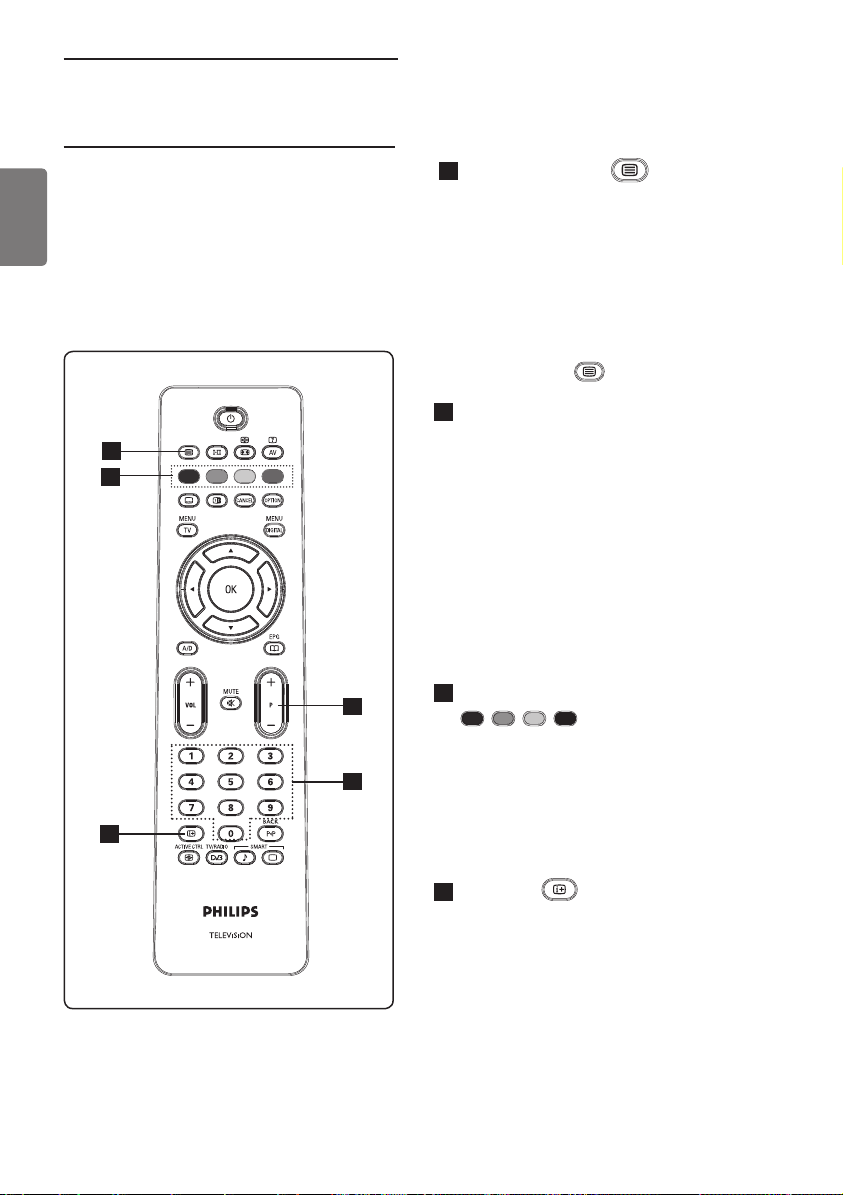
28 Picture Formats
Picture formats for 4:3 screens
Press the
key to cycle through the different formats.
4:3
This format is recommended to display the 4:3 picture using the full
surface of the screen.
Expand 4:3
When this format is selected, the picture is vertically expanded, thus
reducing the horizontal black bars.
Compress 16:9
The format is recommended to compress full screen movie images into
letter box format. When this format is selected, black horizontal bars can
be seen at the top and bottom of the TV screen.
Picture formats for wide screens
Press the
key to cycle through the different formats.
4:3
The picture is reproduced in 4:3 format and a black band is displayed on
either side of the picture.
Movie Expand 14:9
The picture is enlarged to 14:9 format, a thin black band remains on both
sides of the picture. Some of the top and bottom of the picture is clipped off.
Movie Expand 16:9
The picture is enlarged to 16:9 format. This mode is recommended
when displaying pictures which have black bands at the top and bottom
(letter box format). In this mode, large parts of the top and the bottom of
the picture are clipped off.
Subtitle Zoom
This mode is used to display 4:3 pictures using the full surface of the
screen leaving the sub-titles visible. Part of the top of the picture is clipped off.
Super Wide
This mode is used to display 4:3 pictures using the full surface of the screen
by enlarging the sides of the picture.
Widescreen
The picture is displayed in the original proportions of images transmitted
in 16:9 format.
Note :
If you display a 4:3 picture in this mode, it will be stretched
horizontally.
38
English
29 Teletext
Teletext is an information system broadcast by
certain channels which can be consulted like a
newspaper. It also offers access to subtitles for
viewers with hearing problems
or who are not familiar with the transmission
audio language (cable networks, satellite
channels, etc.).
1
Teletext On/Off
Press this key to switch on teletext
display. A contents page appears with a
list of items that can be accessed. Each
item has a corresponding 3 digit page
number. If the selected channel does not
broadcast teletext, the indication 100
will be displayed and the screen will
remain blank. Proceed to exit teletext
by pressing the
key again.
2
Selecting a page
Enter the number of the page required
using the 0 to 9 keys or P –/+ keys.
Example: page 120, enter 120. The
number is displayed at the top left
corner of the screen. When the page is
located, the counter stops searching and
the page is displayed. Repeat this
operation to view another page. If the
counter continues to search, this means
that the page is not transmitted. In that
case, select another number.
3
Direct access to the items
Colour areas are displayed at the
bottom of the screen. The 4 colour
keys are used to access the items or
corresponding pages. The colour areas
fl ash when the item or the page is not
yet available.
4
Contents
This returns you to the contents page
(usually page 100 or hit list menu).
3
1
2
2
4
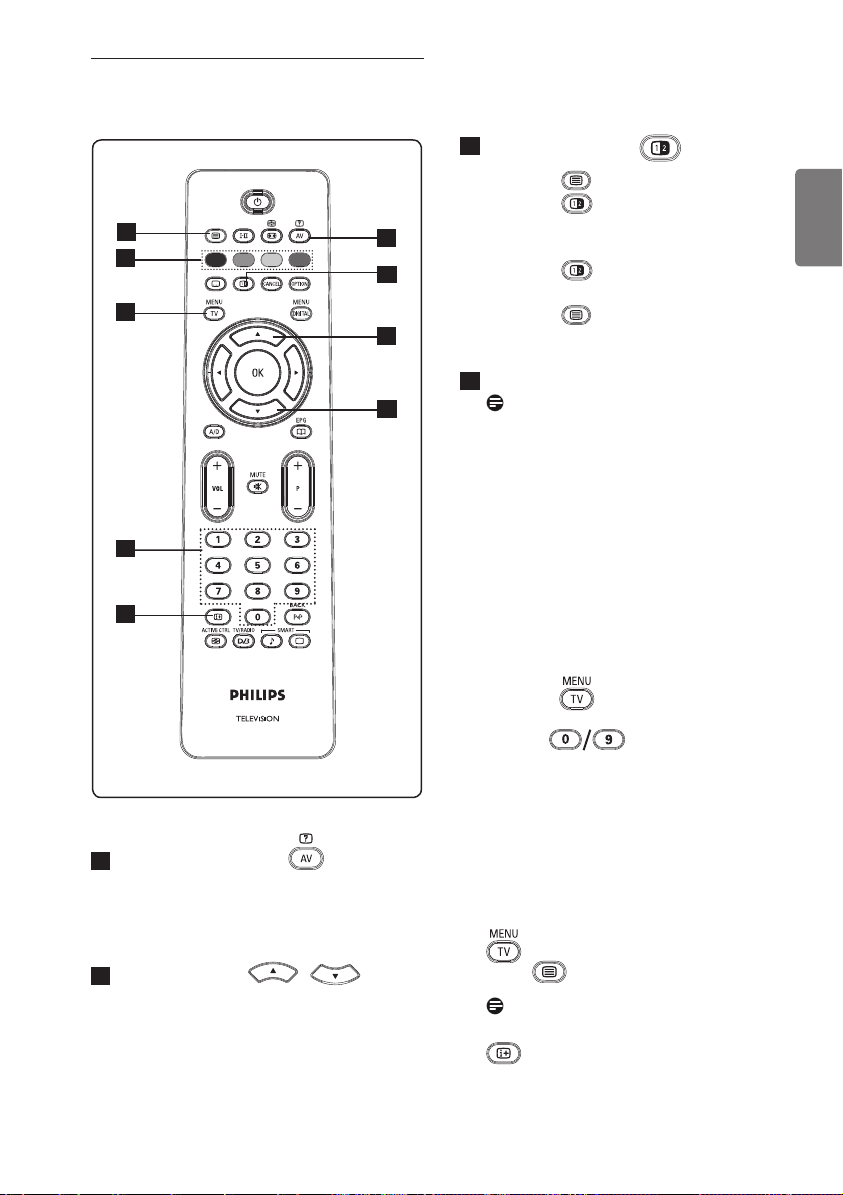
39
English
5
Hidden information
To display or hide the concealed
information such as solutions to games
or riddles.
6
Enlarge a page
This allows you to display the top or
bottom part of the page. Pressing it
again will return the page to normal size.
7
Picture/Teletext
• Press the key.
• Press the
key to show Teletext on
the right and the picture on the left of
the screen.
• Press the
key to return to a full
teletext mode.
• Press the
key to return to a full
screen picture.
8
Favourite pages
Note: only available in RF Analogue.
Instead of the standard colour areas
displayed at the bottom of the screen,
you can store 4 favourite pages on the
fi rst 40 channels which can then be
accessed using the coloured keys (red,
green, yellow, blue). Once set, these
favourite pages will become the default
every time teletext is selected.
To store the favourite pages, proceed as
follows:
• Press the
key to change to
favourite page mode.
• Use the
keys to enter the
teletext page that you want to store as
a favourite page.
• Press and hold the colour key of your
choice for about 5 seconds. The page is
now stored.
• Repeat steps 2 to 3 with the other
colour keys.
• To exit favourite page mode, press the
key. To exit teletext mode,
press key.
Note
To clear favourite pages, press and hold
key for about 5 seconds.
5
6
6
7
8
8
8
8
8
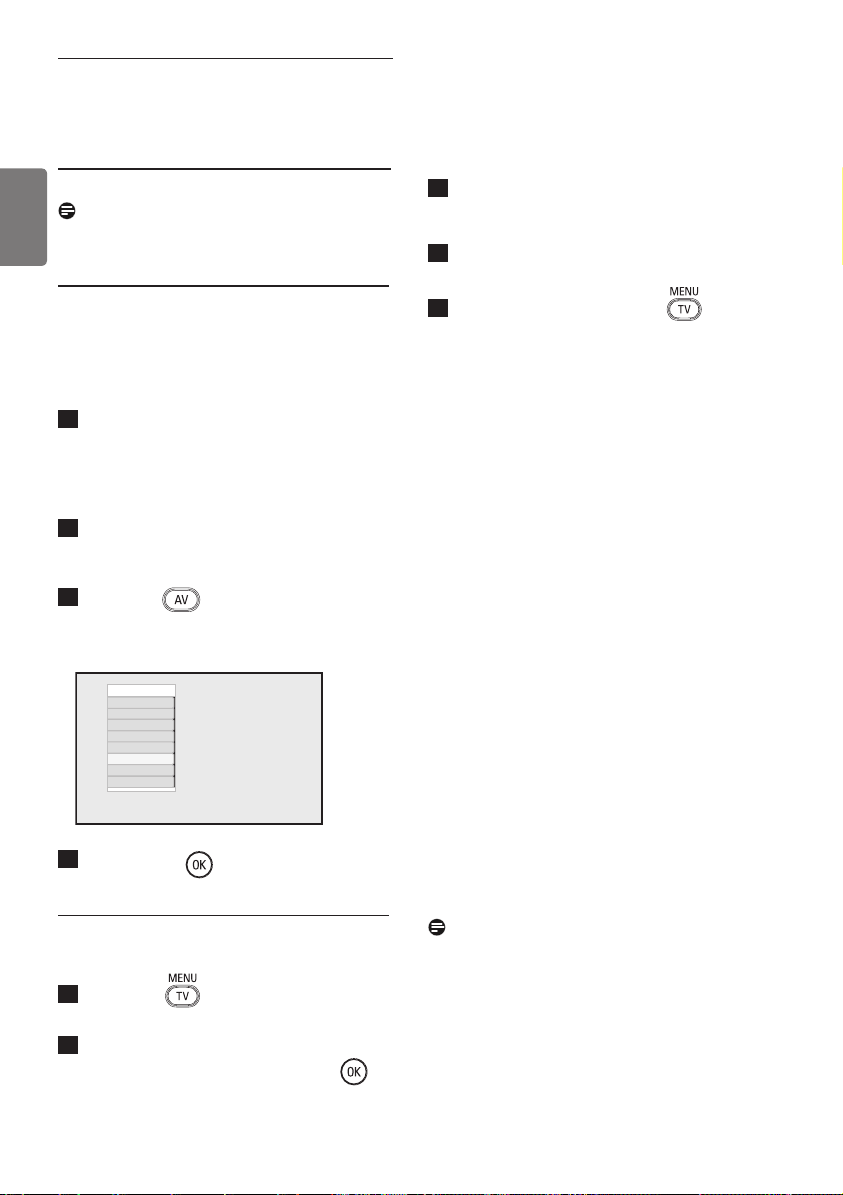
40
English
30 Using the TV as a PC
Monitor
Your TV can be used as a computer monitor.
Note :
PC connection is only available
via HDMI connector. VGA connection is
not supported.
30.1 Connecting the PC equipment
Important
For the TV to function as a PC monitor, the
following steps must be taken.
1
Connect the DVI output of your
computer to the HDMI 1 or HDMI 2
connector of the TV. Use a HDMI to
DVI cable if the DVI output is to be
connected.
2
Connect the audio cable to the PC’s
Audio jack and to the L / R Audio jacks
(EXT3) of the TV.
3
Press the key to display Source
List and use the Î ï key to select
HDMI 1 or HDMI 2.
4
Press the Æ / key to switch to the
selected source.
30.2 Control TV settings while a
PC is connected
1
Press the
key to display the main
menu.
2
Press the Î ï keys to select Picture,
Sound or Features and the Æ /
key to enter the selected item menu.
3
Press the Î ï key to select the
settings and the Í Æ key to select or
adjust setting.
4
To return to previous menu, press the
Í key.
5
To exit the menu, press the key.
Picture menu
• The Picture menu comprises
Brightness, Contrast, Sharpness,
Colour Temp., Contrast+ Horizontal
Shift and Vertical Shift features.
• Except for the Horizontal Shift and the
Vertical Shift features, all the other
features work exactly in the same way
as the features in the TV Picture menu
(see page 35).
• Horizontal Shift feature allows you to
adjust horizontal position of the image.
Vertical Shift feature allows you to
adjust vertical position of the image.
Features menu
• The Features menu comprises Mode
Selection and Format features.
• When you connect PC supporting
resolutions of 480p or 720p, the Mode
Selection item will be available in the
Features menu. This will allow you to
select between the PC and HD mode.
• Format feature works exactly in the same
way as the picture formats of the TV. (see
page 37).
Note :
When using HDMI to connect
your TV to the PC, it is possible that they may
not operate perfectly first time. Often this is
resolved by changing the resolution or settings
of the device connected to the TV. In some
situations you may see a dialogue box on
screen and need to press ”OK” to continue
watching the TV. Please refer to the user
manual of the connected device on how to
make necessary changes.
Source list
TV
EXT 1
EXT 2
EXT 3
EXT 4
HDMI 1
HDMI 2
Digital TV
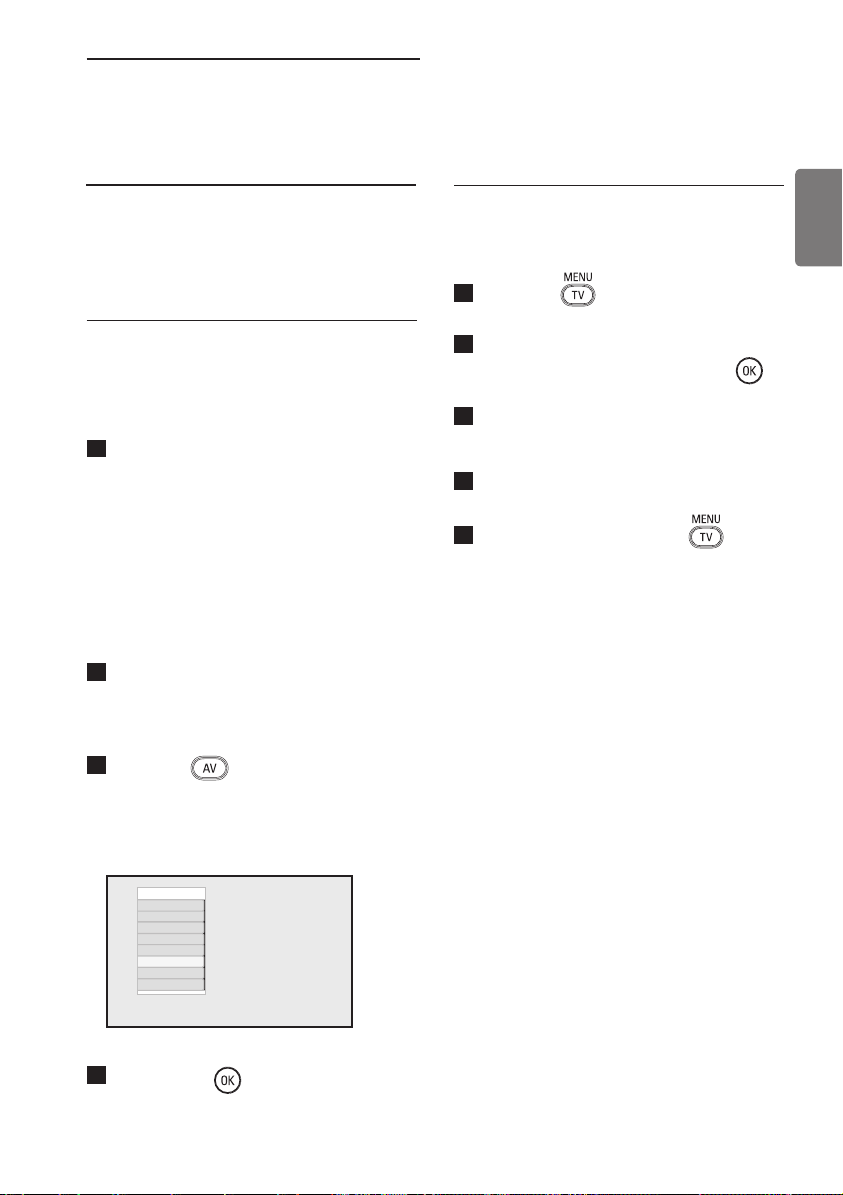
41
English
31 Using the TV in HD
(High Definition) mode
The HD (High Definition) mode allows you
to enjoy clearer and sharper pictures if you
are using HD equipment that can produce
high definition video signals.
31.1 Connecting the HD equipment
Important: For the TV to function in the
HD mode, the following steps must be taken.
1
Connect the HDMI or DVI output of
your HD equipment to the HDMI 1 or
HDMI 2 connector of the TV. Use a
DVI to HDMI cable if DVI output is
connected. You can also connect the
Component Video Outputs (Y, Pb, Pr)
of the HD equipment (if any) to the
Component Video Inputs (Ext 4) of the
TV.
2
Connect the audio cable to the Audio
jack of the HD equipment and to the
L / R Audio jacks (EXT3) of the TV .
3
Press the key to display Source
List and use the Î ï key to select
HDMI 1 or HDMI 2 (or EXT 4 if you
using YPbPr connection).
4
Press the Æ / key to switch to the
selected source.
31.2 Control TV settings while in
HD mode
1
Press the
key to display the main
menu.
2
Press the Î ï keys to select Picture,
Sound or Features and the Æ /
key to enter the selected item menu.
3
Press the Î ï key to select the
settings and the Í Æ key to select or
adjust setting.
4
To return to previous menu, press the
Í key.
5
To exit the menu, press the key.
Picture menu
• The Picture menu comprises Brightness,
Colour, Contrast, Sharpness, Colour
Temp., Contrast+, Horizontal Shift,
and Vertical Shift.
• Except for the Horizontal Shift and the
Vertical Shift features, all the other
functions work exactly in the same way
as the features in the TV Picture menu
(see page 35).
• Horizontal Shift feature allows you to
adjust horizontal position of the image.
• Vertical Shift feature allows you to
adjust vertical position of the image.
Sound menu
• The Sound menu comprises Equalizer,
Balance, AVL and Incredible
Surround features and work exactly
in the same way as the TV Sound menu
(see page 35).
Source list
TV
EXT 1
EXT 2
EXT 3
EXT 4
HDMI 1
HDMI 2
Digital TV
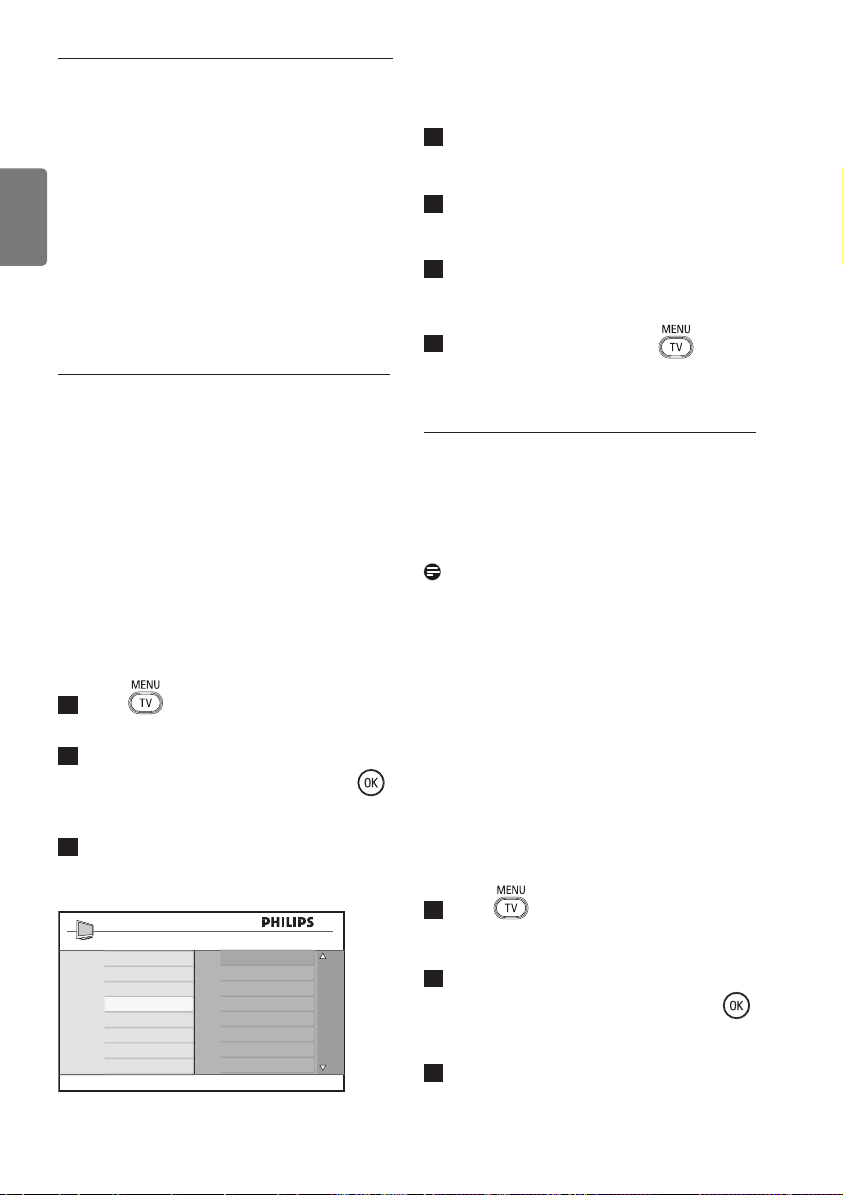
42
English
4
Press the Æ key to access Mode
Selection mode.
5
Press the Î ï keys to select PC or HD
mode.
6
To return to previous menu, press the
Í key.
7
To exit the menu, press the key.
31. 4 Display (native 1080) in
Features menu
Note
This Display (native 1080) feature is only
applicable to 1080p models only.
When you connect HD (High Definition)
equipment (HDMI or Y, Pb, Pr) supporting
resolution of 1080i, the Display
(native
1080)
feature will be available in the
Features menu. This feature allows you to
watch the original HD format (1080i only).
This is a true HD resolution from your input
signals.
1
Press key.
2
Press Î ï keys repeatedly until
Features is selected and press Æ /
key to access Features menu.
3
Press ï key to select Display.
Features menu
• The Features menu comprises Timer,
Child Lock, Parental Cont., Mode
Selection and Active Control features.
Except for Mode Selection feature, all
the other features work exactly in the
same way as the TV Sound menu (see
pages 34-36).
31. 3 Mode Selection in Features
menu
When you connect HD (High Definition)
equipment (HDMI only) supporting
resolution of 480p or 720p, the Mode
Selection feature will be available in the
Features menu. The Mode Selection
allows you to select between the PC and
HD mode.
1
Press key.
2
Press Î ï keys repeatedly until
Features is selected and press Æ /
key to access Features menu.
3
Press ï key to select Mode Selection.
PC
HD
Features
Timer
Child Lock
Parental Lock
Mode Selection
Active Control
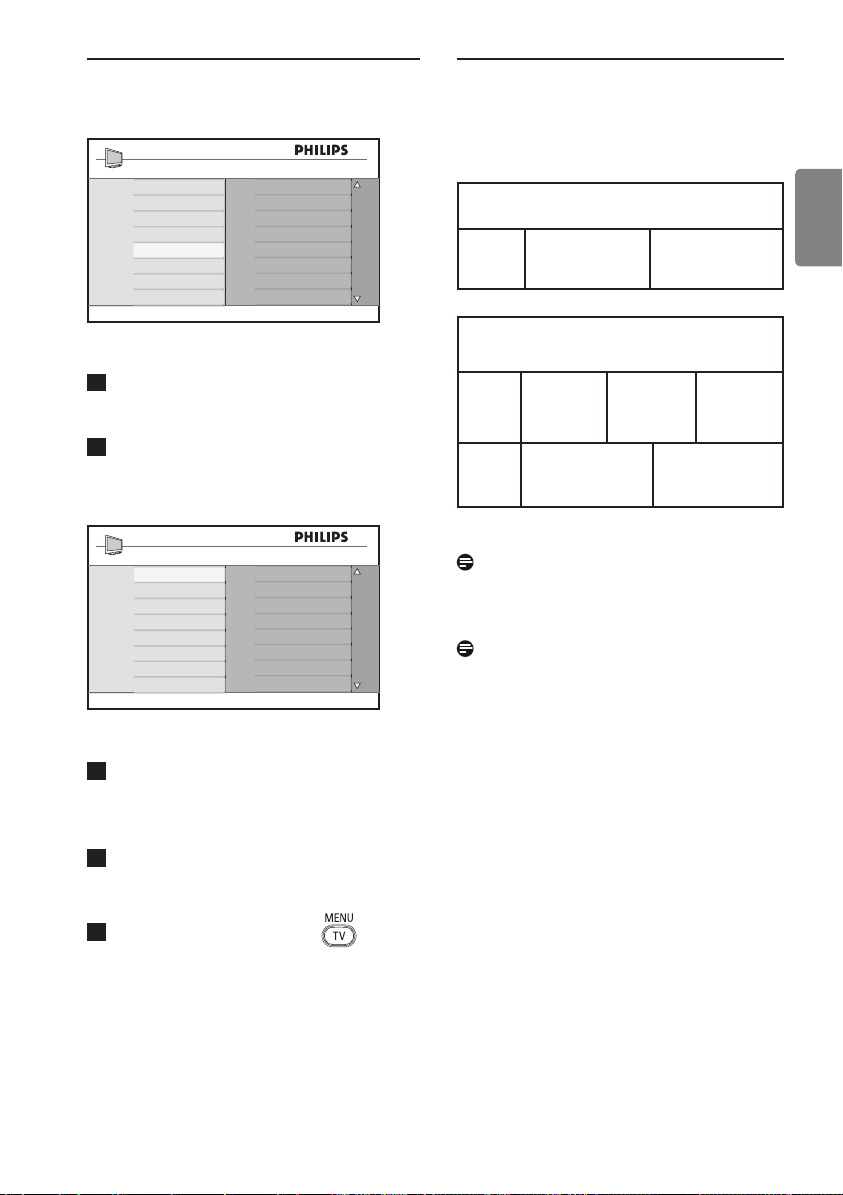
43
English
4
Press the Æ key to access Display
mode.
5
Press the Æ key twice to access the
Off/On option in the
native 1080
.
6
Press the Î ï keys to select Off/On
option.
Select On option to
allow you to
watch original HD format (1080i only).
7
To return to previous menu, press the
Í key.
8
To exit the menu, press the key.
31. 5 Supported input formats
Note
SD (Standard Definition) Formats are for YPbPr
connection only.
Note
Your Philips TV is HDMI compliant. If you do
not get a good picture, please change the video
format on your device (DVD player, cable
set-top box, etc.) to a standard format. For
example, for DVD player, select 720p, 1080i
or 1080p.
Please note that this is not a defect of
the TV set.
Off
On
Display
native 1080
20” models only
SD 480i 576i
All models except 20”
HD 720p 1080i 1080p
SD 480i 576i
native 1080
Features
Timer
Child Lock
Parental Lock
Active Control
Display
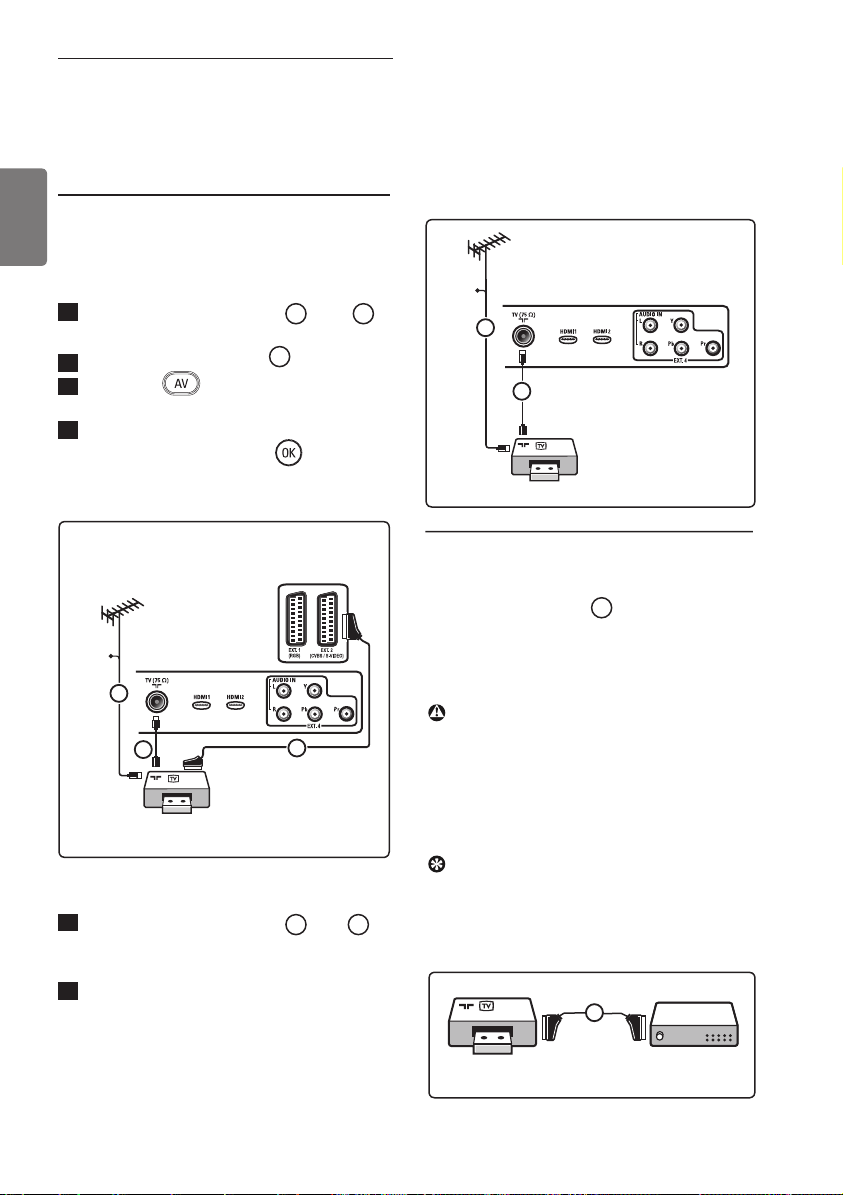
44
English
32.1 Connect VCR or DVD recorder
With a Eurocable
1
Connect the aerial cables
1
and
2
as shown.
2
Connect the Eurocable
3
as shown.
3
Press the key on the remote
control display Source list.
4
Press the ï key repeatedly to select
EXT2 and press the Æ / key to
confirm selection.
With the aerial cable only
1
Connect the aerial cables
1
and
2
as shown.
2
Tune in your recorder’s test signal and
store the test signal under programme
number 0.
(See “Manual tuning of analogue
programmes”, page 28. See also the
user manual of your recorder).
32.2 Connect Decoder and VCR
Connect a Eurocable
4
to your decoder
and to the special euroconnector of your
recorder. See also the user manual of your
recorder.
Warning
Do not place your recorder too close to the
screen as some recorders may be
susceptible for signals from the display.
Keep a minimum distance of 0,5 m from the
screen.
Tip
You can also connect your decoder directly
to EXT1 or EXT2 with a Eurocable.
Recorder
4
Recorder
Decoder
Recorder
Connectors at
rear of TV (facing
backward)
Cable
1
3
2
Cable
1
2
Connectors at
rear of TV (facing
downward)
Connectors at
rear of TV (facing
downward)
32 Connecting other
equipment
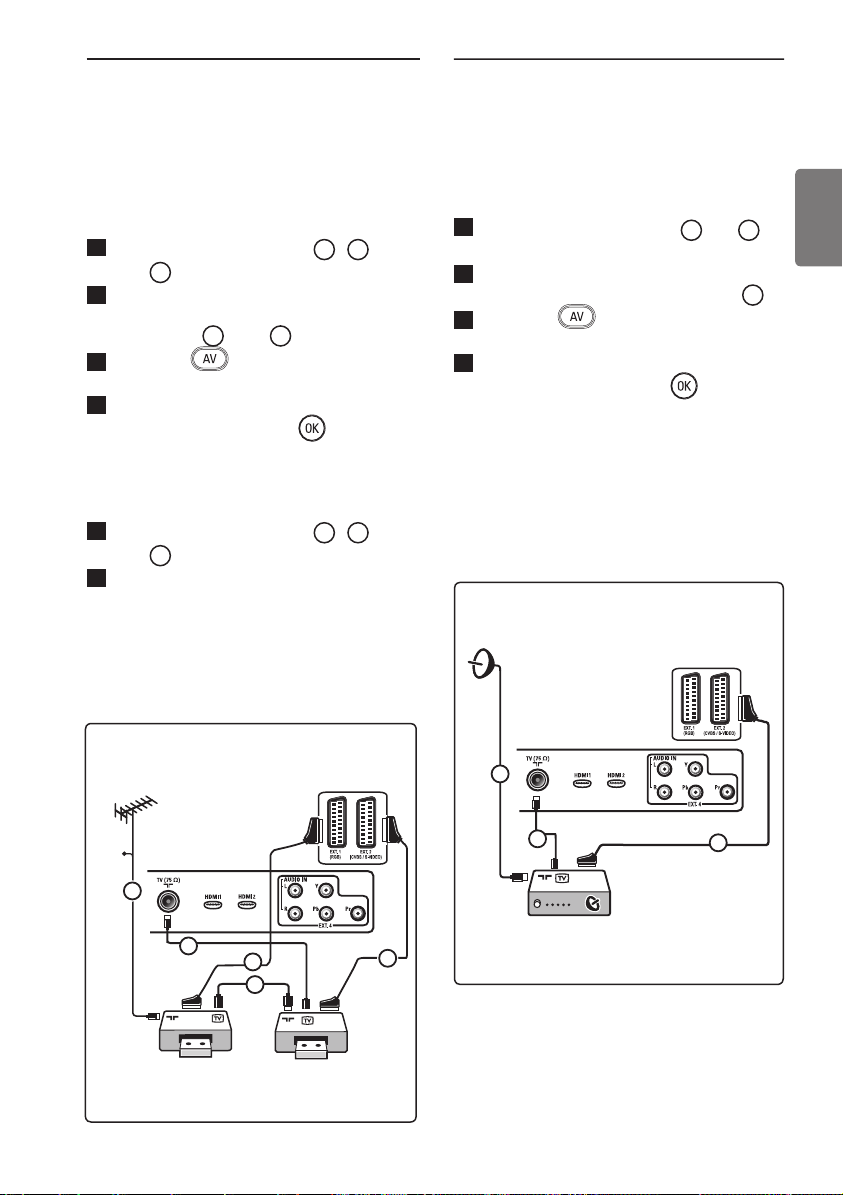
45
English
32.3 Connect 2 VCRs or VCR and
DVD recorder
With Eurocables
1
Connect the aerial cables
1
,
2
and
3
as shown.
2
Connect your VCRs or DVD-recorder
to EXT1 and EXT2 with the
Eurocables
4
and
5
.
3
Press the key on the remote
control to display Source list.
4
Press the ï key to select EXT1 or
EXT2 and press the Æ/ key to
confirm selection.
With the aerial cables only
1
Connect the aerial cables
1
,
2
and
3
as shown.
2
Tune in your recorder’s test signal and
store the test signal under programme
number 0.
(See “Manual tuning of analogue
programmes”, page 28. See also the
user manual of your recorder).
32.4 Connect a satellite receiver
With a Eurocable
1
Connect the aerial cables
1
and
2
as
shown.
2
Connect your satellite receiver to
EXT1 or EXT2 with a Eurocable
3
.
3
Press the key on the remote
control to display Source list.
4
Press the ï key to select EXT1 or
EXT2 and press the Æ/ key to
confirm selection.
With Component Video connectors
See “Connect a DVD player, a satellite
receiver or a cable box” on page 46.
Recorder
Cable
Recorder
1
5
4
2
3
2
1
3
Satellite receiver / cable box
Connectors at
rear of TV (facing
backward)
Connectors at
rear of TV (facing
downward)
Connectors at
rear of TV (facing
backward)
Connectors at
rear of TV (facing
downward)
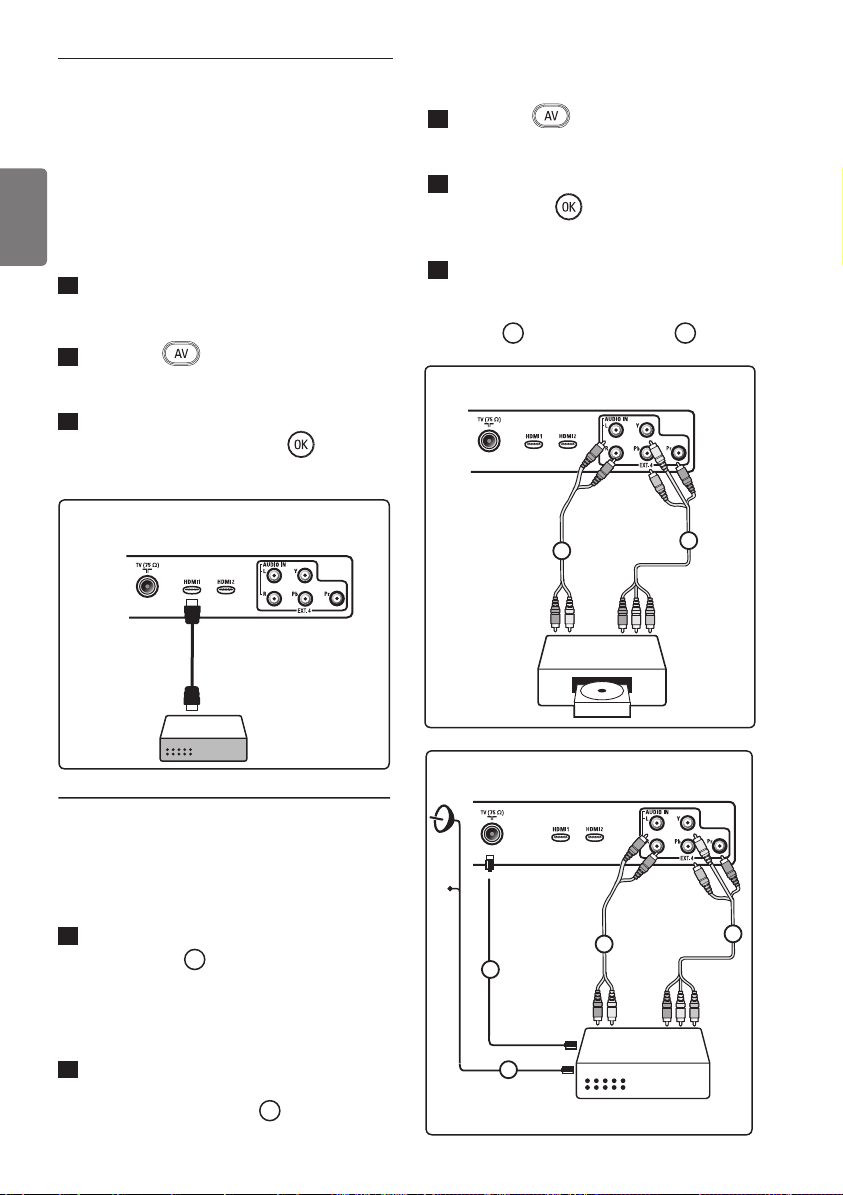
46
English
32.5 Connect a DVD player, Cable
box or game console
With a HDMI connector
HDMI is the leading new standard for Digital
video and audio inter-connection.
1
Connect your equipment with the
HDMI connector.
2
Press the key on the remote
control to display Source list.
3
Press the ï key to select HDMI 1 or
HDMI 2 and press the Æ/ key to
confirm selection.
32.6 Connect a DVD player, a
Satellite receiver or Cable box
With Component Video Connectors
1
Connect the three separate component
video cables
1
to the YPbPr jacks on
the DVD player and to the Y (yellow),
Pb (blue) and Pr (red) jacks of EXT4
on the TV.
2
Connect the audio cable to the DVD’s
audio L and R jacks and to the L/R
AUDIO jack of EXT4
2
.
3
Press the key on the remote
control to display Source list.
4
Press the ï key to select EXT 4 and
press the Æ/
key to confirm
selection.
5
In case of a cable box and/or a satellite
receiver also connect the cable TV
cable and/or the satellite antenna
cable
3
and the aerial cable
4
.
DVD
Satellite receiver / cable box
1
2
2
3
4
1
Connectors at rear of TV
(facing downward)
Connectors at rear of TV
(facing downward)
Connectors at rear of TV
(facing downward)
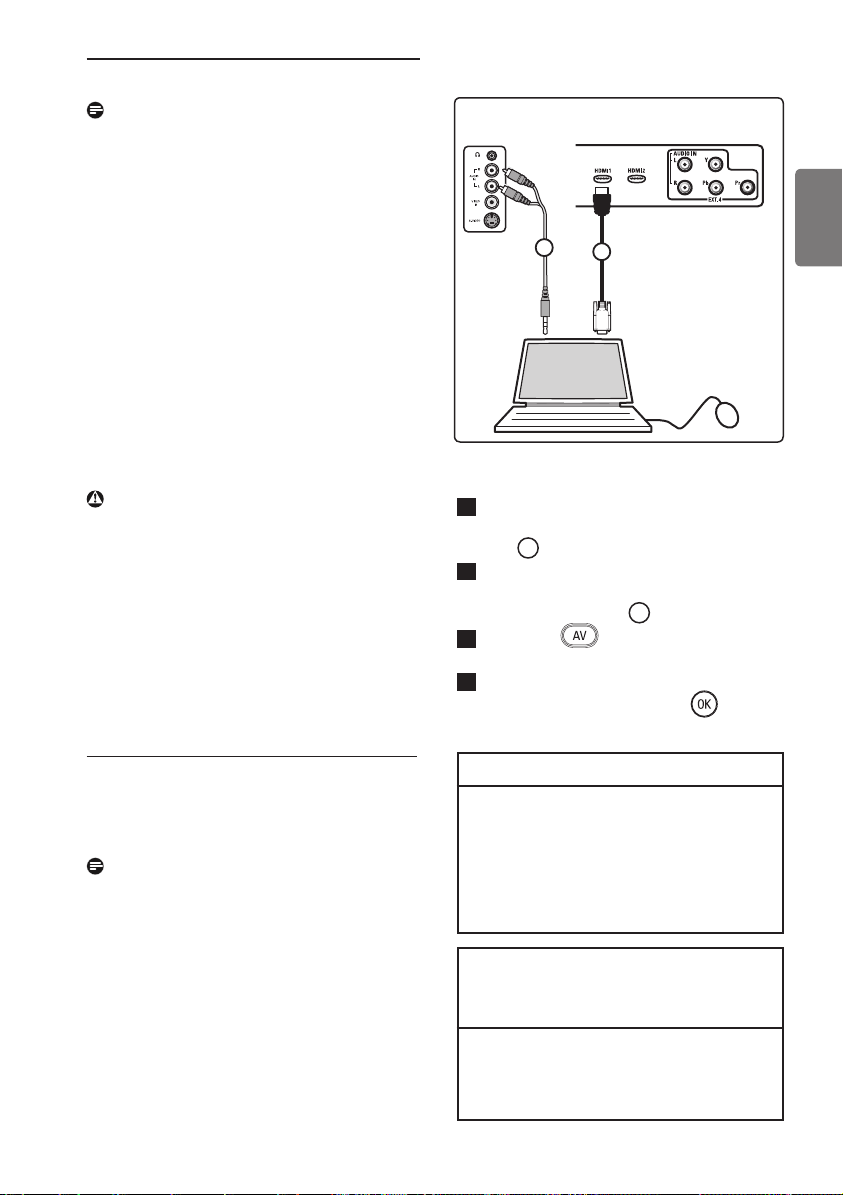
47
English
Note
• Cables are often colour coded. Connect
red to red, white to white, etc.;
• The labels for the component video
sockets may differ depending on the DVD
player connected. Although the
abbreviations may vary, the letters B and
R stand for the blue and red component
signals, respectively, and Y indicates the
luminance signal. Refer to the DVD
player’s instructions for use for
definitions and connection details;
• To get an optimal viewing, it is advised to
switch your equipment to the highest
possible supported display modes.
Warning
If you notice scrolling images,
wrong colours or no colour, no picture, or
even combinations of these on your screen,
verify if the connections are done in the
correct way and if the resolution and the
signal standard of the connected equipment
are set in the right way. See the user manual
for your equipment.
32.7 Connect a PC
Note
• Only digital output of the PC can be
connected via DVI to HDMI cable.
VGA connection is not supported.
• Before connecting your PC to the TV,
select your PC monitor settings to a
refresh frequency of 60 Hz.
PC equipped with a DVI connector
1
Use a DVI to HDMI cable to connect
to one of the HDMI connectors of your
TV
1
.
2
Connect the audio cable to the PC’s
AUDIO jack and to the L/R AUDIO
jacks of TV EXT3
2
.
3
Press the key on the remote
control to display Source list.
4
Press the ï key to select HDMI 1 or
HDMI 2 and press the Æ/
key
to confirm selection.
Supported PC resolutions
640 x 480, 60 Hz 800 x 600, 75 Hz
640 x 480, 72 Hz 800 x 600, 85 Hz
640 x 480, 75 Hz 1024 x 768, 60 Hz
640 x 480, 85 Hz 1024 x 768, 70 Hz
800 x 600, 60 Hz 1024 x 768, 75 Hz
800 x 600, 72 Hz 1024 x 768, 85 Hz
PC resolutions for LCD TV.
Not applicable to 20” LCD TV
or Plasma TV
1280 x 768, 60 Hz
1280 x 1024, 60 Hz
1360 x 768, 60 Hz
1
2
HDMI
PC
DVI
Audio
L/R
Connectors
at side of TV
Connectors at rear of
TV (facing downward)
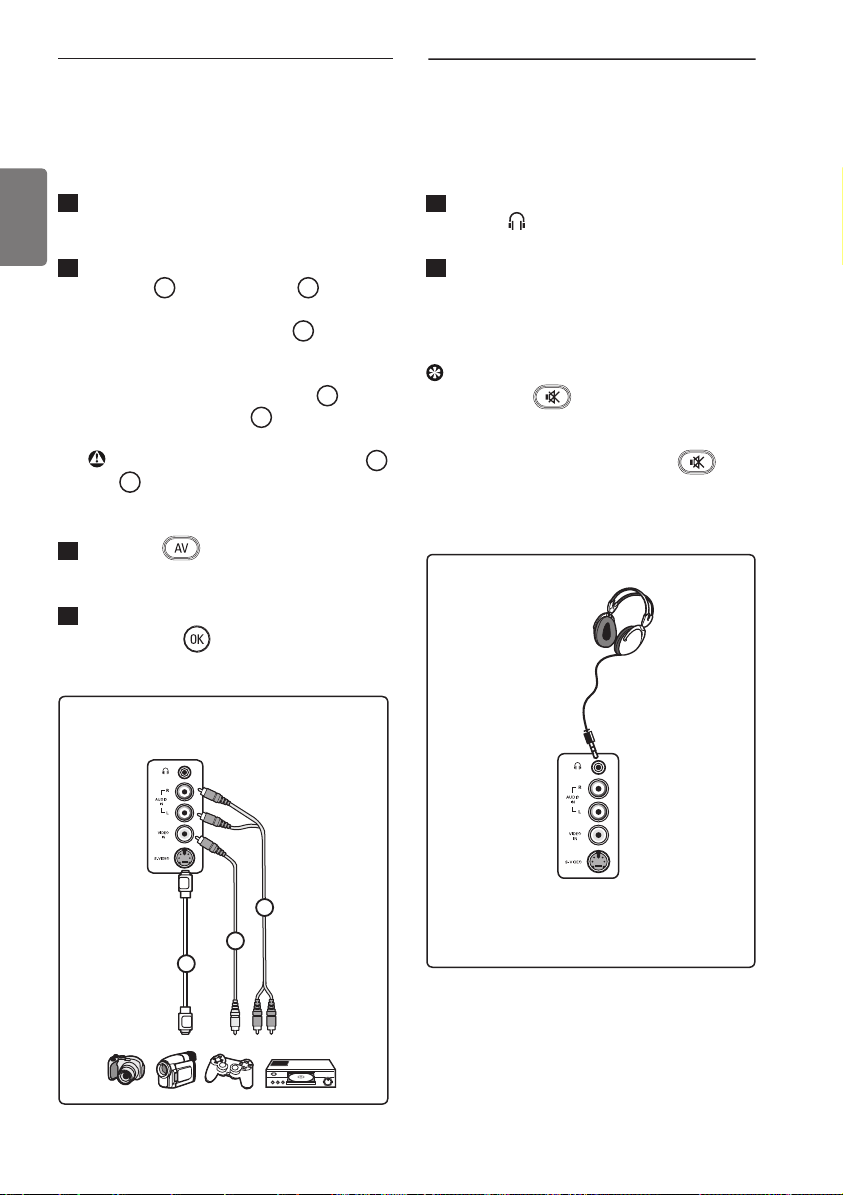
48
English
32.8 Connect a Camera, Camcorder,
Game console
1
Connect your camera, camcorder or
game console.
2
For mono equipment, connect to
VIDEO
2
and AUDIO L
3
(only).
For stereo equipment, connect both
AUDIO L and AUDIO R
3
.
S-VHS quality with an S-VHS camcorder
is obtained by connecting the S-VHS
cables with the S-VIDEO input
1
and
AUDIO L / R inputs
3
.
Warning: do not connect cables
1
and
2
at the same time. This may cause
picture distortion.
3
Press the key on the remote
control to display Source list.
4
Press the ï key to select EXT 3 and
press the Æ/ key to confirm
selection.
32.9. Connect a Headphone
1
Insert the plug into the headphone
socket
as shown.
2
The headphone impedance must be
between 8 and 4000 Ohm. The
headphone socket has a 3.5 mm jack.
Tip
Press the
key on the remote
control to switch off the sound from
internal loudspeakers of the TV.
To switch on sound, press the
key again.
Connectors at side of TV
3
2
1
Connectors at side of TV
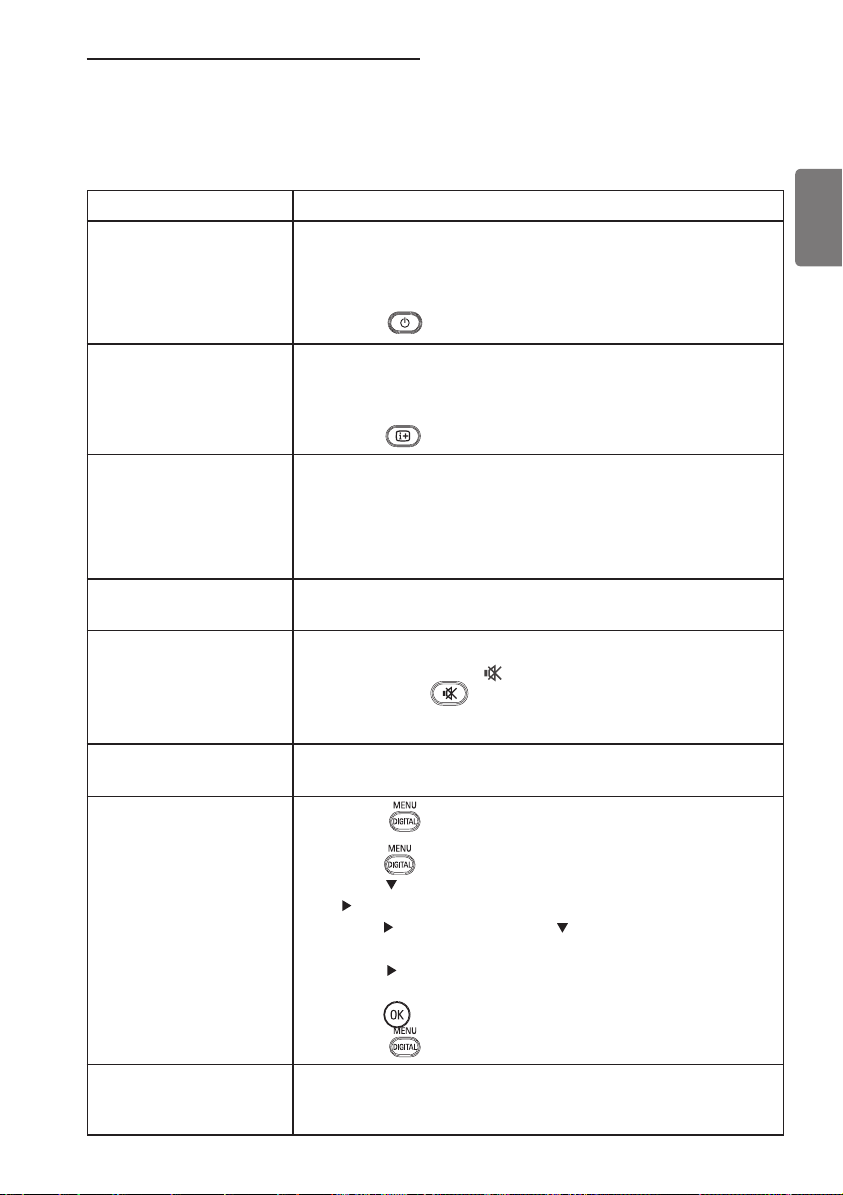
49
English
33 Troubleshooting
Below is a list of symptoms you may encounter with your TV. Before you call for service,
make these simple checks.
Symptom Possible solutions
No display on screen • Check whether power cord is properly connected into the
mains socket and to your TV. If there is still no power,
disconnect plug. Wait for 60 seconds and re-insert plug.
Switch on TV again.
• Press the
key on the remote control.
Poor reception • Check antenna connection to the TV and to the wall antenna
(snowy noise) socket.
• Try manually adjusting your picture (see page 28).
•
Have you chosen the right TV system? (see to page
28).
•
Press the
key to check the signal strength.
No picture • Verify if the supplied cables are connected properly (The
aerial cable to the TV, the other aerial to your recorder, the
power cables,....).
• Verify if you have selected the correct source.
• Verify if the child lock has been switched off.
No sound on •
Check whether the correct TV system is selected (see page
28).
certain channels
No sound • Verify if the volume is not at the minimum.
• Check that the mute (
) mode is not on. If mute mode
is on, press the
key to deactivate mute mode.
• Verify the connections between the optional equipment and
the TV.
Sound interference • Try switching off any electrical appliances to prevent
interference, for example, hair dryer, vacuum cleaner.
Unable to understand •
Press the
key to exit menu from screen.
the selected language
on screen to operate
• Press the
key again to display menu.
set in digital mode • Press
the
key
to
select the second item on the menu and
the
key to enter into the next menu level.
• Press the
key again and use the
key
to select the fifth
menu item.
• Press the
key to enter into the next menu level.
• Press the
Î ï
keys to select correct language.
• Press the
key to confirm selection.
•
Press the
key to exit menu.
TV not responding
• Move closer to the receiver at the front of the TV.
to remote control
•
Check the placement of the batteries.
• Try changing the batteries.
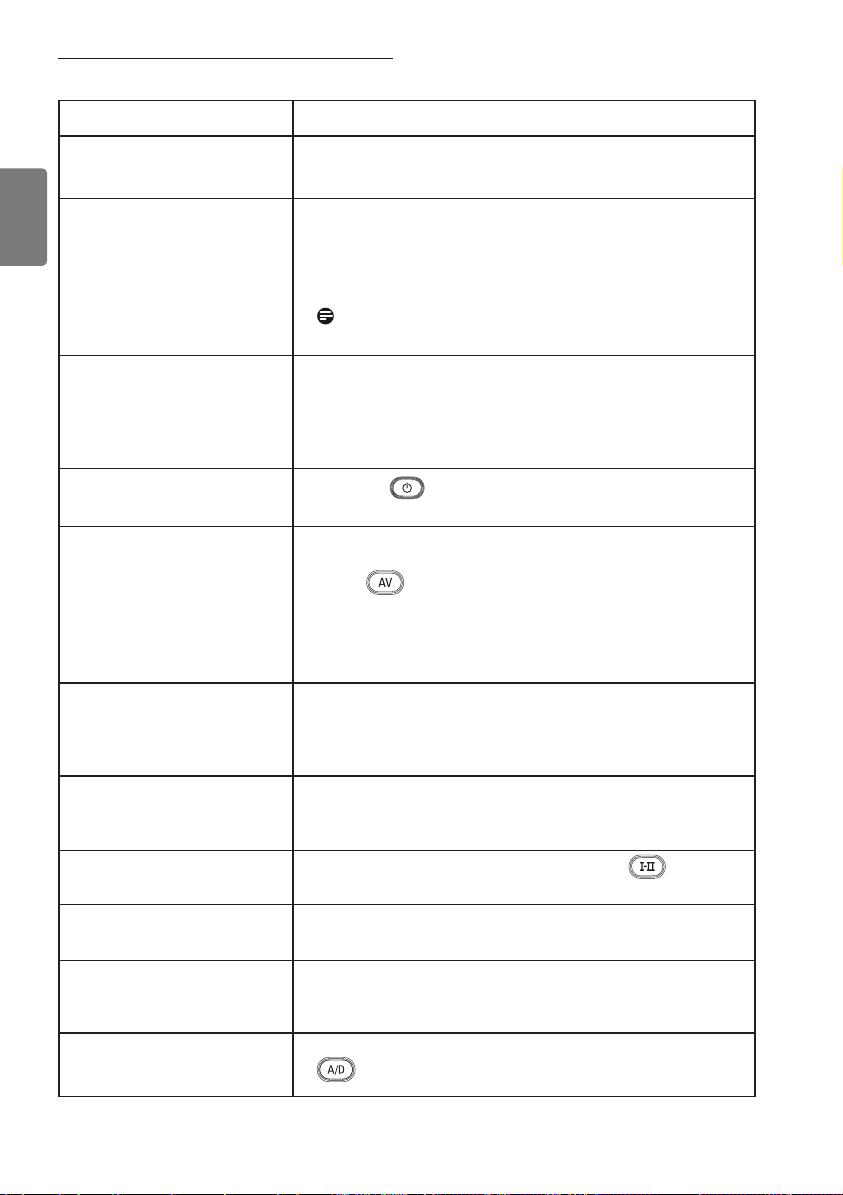
50
English
Symptom Possible solutions
No digital channels • Contact your dealer about the Digital Video
Broadcasting Terrestrial signal availability in your country.
One or a few tiny spots on
• This symptom is not a problem. The liquid crystal
the screen that do not panel is built with very high precision technology
change colour along with giving you the fine picture details. Occasionally, a
the video picture few non-active pixels may appear on the screen
as a fixed point of red, blue, green or black.
Note :
this does not affect the performance
of the set.
Intermittent or flickering • Noise is displayed if the connected digital equipment such
picture in HD mode as DVD player or Set-Top box failed. Check user
manual of the digital equipment you are connecting.
• Use a standard-compliant (high-quality) HDMI to DVI
cable.
No sound or picture but
• Press the
key on the remote control.
front panel red light is on
PC modes do not • Check whether connections are correct. (see page 47).
work • Check whether the source is correctly selected.
Press
button to enter Source list and select the
correct source.
• Check whether you have configured the computer to
a compatible display resolution (see page 47).
• Check graphic card setting of PC.
S-Video colour • Check whether SVHS cable is properly connected.
becomes faint • Press the P + key on the remote control to do a
channel up and then press the P – key to do a
channel down.
Black bar on top and • Change PC refresh rate to 60 Hz.
bottom of screen in
PC mode
AC3 not available • AC3 is not supported for this set. Use the
key
on the remote control to select an alternative audio.
TV antenna cannot be • Some TV antennas need to be powered by the set.
powered by set This set does not support such a feature.
Changing from one • Pay TV channels are encoded by the cable provider and
channel to another take a longer time to decode. This is normal behaviour
channel takes a long time and no action is required.
Cannot access digital • Check whether TV is in analogue mode. If it is, press
menu
key to switch to digital mode.

51
English
34 Glossary
DVI (Digital Visual Interface) : A digital interface
standard created by the Digital Display Working
Group (DDWG) to convert analog signals into
digital signals to accommodate both analog and
digital monitors.
RGB signals : These are the three video
signals, Red Green Blue, which make up the
picture. Using these signals improves picture
quality.
S-VHS signals : These are 2 separate
Y/C video signals from the S-VHS and Hi-8
recording standards. The luminance signals Y
(black and white) and chrominance signals C
(colour) are recorded separately on the tape.
This provides better picture quality than with
standard video (VHS and 8 mm) where the Y/C
signals are combined to provide only one video
signal.
16:9 : Refers to the ratio between the
length and height of the screen. Wide screen
televisions have a ratio of 16/9, conventional
screen TV sets have a ratio of 4/3.
MHEG (Multimedia and Hypermedia
information coding Expert Group) : provides
standards for the coded representation of
multimedia and hypermedia information objects
that are interchanged among applications
and services using a variety of media. The
objects defi ne the structure of a multimedia
hypermedia presentation.
HDMI (High-Defi nition Multimedia Interface)
: Provides an uncompressed, all digital audio/video
interface between the TV and any HDMI-equipped
audio/video component, such as set-top box, DVD
player and A/V receiver. HDMI supports enhanced
or high-defi nition video plus two-channel digital
audio.
System : Television pictures are not broadcast in
the same way in all countries. There are different
standards: BG, DK, I, and LL’. The System setting
(page 28) is used to select these different standards.
This is not to be confused with PAL or SECAM
colour coding. PAL is used in most countries in
Europe, SECAM in France, Russia and most African
countries. The United States and Japan use a
different system called NTSC.
MPEG (Moving Picture Experts Group) is
the nickname given to a family of International
Standards used for coding audio-visual
information in a digital compressed format.

Information for users in the UK (not
applicable outside the UK)
Positioning the TV
For the best results, choose a position where
light does not fall directly on the screen, and
at some distance away from radiators or
other sources of heat. Leave a space of at
least 5 cm all around the TV for ventilation,
making sure that curtains, cupboards etc. can-
not obstruct the air fl ow through the ventila-
tion apertures. The TV is intended for use
in a domestic environment only and should
never be operated or stored in excessively
hot or humid atmospheres.
General Points
Please take note of the section entitled ‘Tips’
at the end of this booklet.
Interference
The Department of Trade and Industry
operates a Radio Interference Investigation
Service to help TV licence holders improve
reception of BBC and IBA programmes
where they are being spoilt by interference.
If your dealer cannot help, ask at a main Post
Offi ce for the booklet “How to Improve
Television and Radio Reception”.
Mains connection
Before connecting the TV to the mains, check
that the mains supply voltage corresponds to
the voltage printed on the type plate on the
rear panel of the TV. If the mains voltage is
different, consult your dealer.
Important
This apparatus is fi tted with an approved
moulded 13 AMP plug. Should it become
necessary to replace the mains fuse, this
must be replaced with a fuse of the same
value as indicated on the plug.
1
Remove fuse cover and fuse.
2
The replacement fuse must comply with
BS 1362 and have the ASTA approval
mark. If the fuse is lost, make contact
with your retailer in order to verify the
correct type.
3
Refi t the fuse cover.
If for any reason the fi tted plug is not
suitable for your socket outlet, please
consult your retailer or a qualifi ed
electrician before proceeding with the
installation.
Connecting the aerial
The aerial should be connected to the
socket marked : at the back of the set.An
inferior aerial is likely to result in a poor,
perhaps unstable picture with ghost images
and lack of contrast. Make-shift loft or set-
top aerials are often inadequate. Your dealer
will know from experience the most suitable
type for your locality. Should you wish to use
the set in conjunction with
other equipment, which connects to the
aerial socket such as TV games, or a video
camera it is recommended that these be
connected via a combiner unit to avoid
repeated connection and disconnection
of the aerial plug.
Fitting the stand (if provided)
Use only the stand provided with the set,
making sure that the fi xings are properly
tightened. A diagram showing how to
assemble the stand is packed with the stand.
Never use a make-shift stand, or legs fi xed
with woodscrews.

© 2007 Koninklijke Philips N.V.
All rights reserved
Document order number: 3139 125 38524