Top Page > Did You Know > What’s New ?
What’s New?
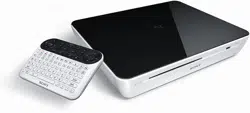
After updating your Internet TV Box, new functions are available.
For more, read below...
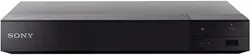
Powerful 3D entertainment from Blu-ray 3D Discs
You can play Blu-ray 3D Discs and enjoy more powerful 3D entertainment.
For more details, see Playing 3D Content.
Return to Top
Like 2
Copyright 2010 Sony Corporation
Did You Know
What's New?
Looking for Something?
To Customize the Home
Menu
How to Use the Keypad
How to Use the Timer
To Display Another
Application While Watching
TV (PIP)
To Launch Applications
from Recent Apps List
To Control Other Devices
To Enhance Surround
Sound Using an AV
Receiver
Home
Keypad
Search
Using Applications
Internet
TV
Playback
Connection
Settings
Parts & Controls
Troubleshooting / FAQ
Others
Media Remote
Search Help Guide
FAQ
NSZ-GT1
2

Top Page > Did You Know > Looking for Something?
Looking for Something?
To find websites, press the SEARCH key, and then type into the Quick Search Box.
To find help information, type into the search box on this Help Guide.
For more, read below...
If at anytime you want to use the search function, just press
(SEARCH). Here you can search
for anything from TV to movies and web content to audio. You can also search for help
information in this Help Guide.
To use Quick Search Box
Quick Search Box allows you to find interesting things to watch across multiple sources, such as
websites, TV programs, and applications.
Press
(SEARCH) to display the Quick Search Box, and then input keywords to begin your
search.
To organize the targets of a Quick Search
You can add applications as the targets of a Quick Search.
See Searchable items.
Note
Not all applications are searched for by default.
To search for help information
You can find help information through the Help Guide.
Move the pointer to the search box at the top of the Help Guide and click there. Then input
keywords related to your questions into the search box.
Return to Top
Like 0
Copyright 2010 Sony Corporation
Did You Know
What's New?
Looking for Something?
To Customize the Home
Menu
How to Use the Keypad
How to Use the Timer
To Display Another
Application While Watching
TV (PIP)
To Launch Applications
from Recent Apps List
To Control Other Devices
To Enhance Surround
Sound Using an AV
Receiver
Home
Keypad
Search
Using Applications
Internet
TV
Playback
Connection
Settings
Parts & Controls
Troubleshooting / FAQ
Others
Media Remote
Search Help Guide
FAQ
NSZ-GT1
3

Top Page > Did You Know > To Customize the Home Menu
To Customize the Home Menu
Select the Edit icon on the Home screen.
For more, read below...
The Home menu can be customized to suit your preferences. You can change the menu items to
be displayed or rearrange the order of menu items to make the menu easier to use.
To replace applications
To remove an item from the Home menu
To add items to the Home menu
Press (MENU) when the Home screen is displayed.1.
Select [Customize home items].2.
Select the item you want to replace.3.
Select [Replace].4.
Select the item you want to add instead.5.
Select [done].6.
Press
(MENU) when the Home screen is displayed.1.
Select [Customize home items].2.
Select the item you want to remove.3.
Select [Remove from Home].4.
Select [done].5.
Press
(MENU) when the Home screen is displayed.1.
Select [Customize home items].2.
Did You Know
What's New?
Looking for Something?
To Customize the Home
Menu
How to Use the Keypad
How to Use the Timer
To Display Another
Application While Watching
TV (PIP)
To Launch Applications
from Recent Apps List
To Control Other Devices
To Enhance Surround
Sound Using an AV
Receiver
Home
Keypad
Search
Using Applications
Internet
TV
Playback
Connection
Settings
Parts & Controls
Troubleshooting / FAQ
Others
Media Remote
Search Help Guide
FAQ
NSZ-GT1
4

Note
If the Home menu has no empty slot, you cannot add a new item.
To change the position of menu items
To add widgets to the Home screen
To change the position of a widget
To remove a widget from Home screen
Return to Top
Select an empty slot where you want to add the new item.3.
Select the item you want to add.4.
Select [done].5.
Press
(MENU) when the Home screen is displayed.1.
Select [Customize home items].2.
Select the item you want to move.3.
Select [Move].4.
Press
/ to change the position.5.
Select [done].6.
Press
(MENU) when the Home screen is displayed.1.
Select [Customize home items].2.
Select [+ add widget].3.
Select the widget you want to add.4.
Select [done].5.
Press
(MENU) when the Home screen is displayed.1.
Select [Customize home items].2.
Select the widget you want to move.3.
Press
/ / / to change the position.4.
Select [done].5.
Press
(MENU) when the Home screen is displayed.1.
Select [Customize home items].2.
Select the widget you want to remove.3.
Select [Remove from Home].4.
Select [done].5.
Like 0
Copyright 2010 Sony Corporation
NSZ-GT1
5
Top Page > Did You Know > How to Use the Keypad
How to Use the Keypad
To select an item, press the arrow buttons then ENTER, or slide on the OFS, then press
down on the OFS.
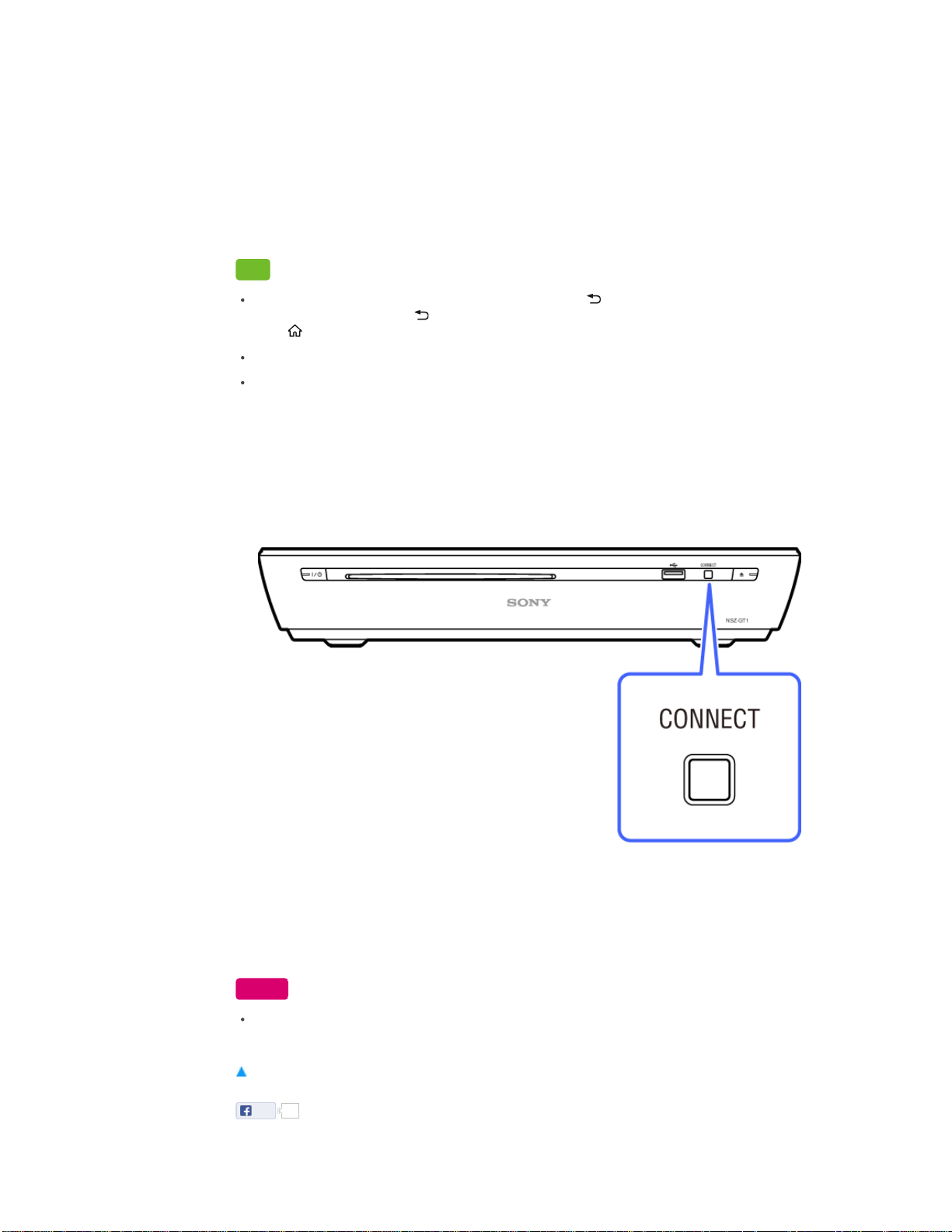
To pair the Keypad, press CONNECT and hold down Fn + Enter.
For more, read below...
Make a selection
Scroll, zoom in/out, drag
The Keypad allows you to control the Internet TV and any connected devices seamlessly. The
OFS (Optical Finger Sensor) at the right top side of the Keypad allows you to move the pointer like
a mouse.
Operations on the Home or application menu screen
To select a menu item, press / / / to move the cursor to the item, and then press ENTER
Did You Know
What's New?
Looking for Something?
To Customize the Home
Menu
How to Use the Keypad
How to Use the Timer
To Display Another
Application While Watching
TV (PIP)
To Launch Applications
from Recent Apps List
To Control Other Devices
To Enhance Surround
Sound Using an AV
Receiver
Home
Keypad
Search
Using Applications
Internet
TV
Playback
Connection
Settings
Parts & Controls
Troubleshooting / FAQ
Others
Media Remote
Search Help Guide
FAQ
NSZ-GT1
6
(or Enter) to select or confirm the highlighted item.
Operations on a web browser
To move the pointer, slide your thumb on the OFS (Optical Finger Sensor).
To click, press down the OFS.
Shortcut operations
Holding Fn down and pressing a key with purple characters is a shortcut to the labeled function.
For details, see Keys and Buttons.
Tips
To return to the previous screen on the Internet TV, press (BACK). With some applications,
you may not be able to use
(BACK) to return to the previous screen. In such case, hold
down
(HOME) to display the Recent apps list then select another application.
To return to the previous screen on the currently displayed device, press ESC.
For more information on the location of keys or buttons, see Keys and Buttons.
When the Keypad does not work
When the Keypad does not work correctly, follow the procedures below. First, confirm the
batteries are inserted properly.
Note
When the batteries inserted in the Keypad are low, the AMP indicator blinks quickly for two
seconds and pairing will not work. Replace the old batteries with new batteries.
Return to Top
Press CONNECT on the Internet TV for more than two seconds to display the pairing screen.1.
Hold down Fn and Enter until the pairing screen disappears.
The AMP indicator blinks fast twice when pairing starts, and blinks slowly twice when pairing
has been completed successfully. If pairing is not completed successfully, the AMP indicator
blinks five times.
2.
Like 0
NSZ-GT1
7

Copyright 2010 Sony Corporation
NSZ-GT1
8
Top Page > Did You Know > How to Use the Timer
How to Use the Timer
To set the ON Timer, [All Apps] - [Timer] - [Add Timer].
To set the Sleep Timer, [All Apps] - [Timer] - [Sleep Timer].
For more, read below...
If you set the ON Timer, the Internet TV can be used like an alarm clock. And if you set the Sleep
Timer, it prevents you from forgetting to turn the power off.
To set the ON Timer
Press (HOME) and select [All Apps] - [Timer] - [Add Timer], then set the timer.
To modify the timer setting, select the timer you want to modify and change its settings.
To delete a timer, select [Delete this timer] in the Timer Setting menu.
To set the Sleep Timer
Press (HOME) and select [All Apps] - [Timer] - [Sleep Timer], then select the desired amount of
time for the power to remain on before turning off automatically.
Tip
You can set the Timer from the Settings menu. Press Fn + 1 and select [Disc Player settings] -
[Timer].
Return to Top
Like 1
Copyright 2010 Sony Corporation
Did You Know
What's New?
Looking for Something?
To Customize the Home
Menu
How to Use the Keypad
How to Use the Timer
To Display Another
Application While Watching
TV (PIP)
To Launch Applications
from Recent Apps List
To Control Other Devices
To Enhance Surround
Sound Using an AV
Receiver
Home
Keypad
Search
Using Applications
Internet
TV
Playback
Connection
Settings
Parts & Controls
Troubleshooting / FAQ
Others
Media Remote
Search Help Guide
FAQ
NSZ-GT1
9
Top Page > Did You Know > To Display Another Application While Watching TV (PIP)
To Display Another Application While Watching TV (PIP)
Press the WINDOW button.
For more, read below...
PIP (Picture-in-Picture) is a feature activated by a key that allows you to display the TV screen in
a smaller window (sub window). For example, you can browse the Internet on the full screen,
while watching a TV program in a sub window at the same time.
To use PIP (Picture-in-Picture)
Press (WINDOW) when the TV screen is displayed. When another application is displayed
while the Live TV application is running, hold down
(WINDOW) and select [TV].
Press
(WINDOW) again to return the TV screen in the sub window to its full size.
To change the sub window size
To move the sub window
Note
You may not be able to use PIP (Picture-in-Picture) when a particular application is running.
Close the application before using PIP (Picture-in-Picture).
Tip
Hold down
(WINDOW) until the Picture-in-Picture menu appears.1.
Select [Increase size]/[Decrease size].2.
Hold down
(WINDOW) until the Picture-in-Picture menu appears.1.
Select [Move].2.
Press
/ / / to move the sub window.3.
Press ENTER.4.
Did You Know
What's New?
Looking for Something?
To Customize the Home
Menu
How to Use the Keypad
How to Use the Timer
To Display Another
Application While Watching
TV (PIP)
To Launch Applications
from Recent Apps List
To Control Other Devices
To Enhance Surround
Sound Using an AV
Receiver
Home
Keypad
Search
Using Applications
Internet
TV
Playback
Connection
Settings
Parts & Controls
Troubleshooting / FAQ
Others
Media Remote
Search Help Guide
FAQ
NSZ-GT1
10

Top Page > Did You Know > To Launch Applications from Recent Apps List
To Launch Applications from Recent Apps List
Hold down the HOME button.
For more, read below...
Running applications are displayed on the Recent apps list. You can select one from the list
without displaying [All apps] in the Home menu.
Hold down
(HOME) and select the application by pressing / and ENTER.
Note
Applications launched earlier may be removed from the Recent apps list depending on the
memory available for the Internet TV.
Return to Top
Like 0
Copyright 2010 Sony Corporation
Did You Know
What's New?
Looking for Something?
To Customize the Home
Menu
How to Use the Keypad
How to Use the Timer
To Display Another
Application While Watching
TV (PIP)
To Launch Applications
from Recent Apps List
To Control Other Devices
To Enhance Surround
Sound Using an AV
Receiver
Home
Keypad
Search
Using Applications
Internet
TV
Playback
Connection
Settings
Parts & Controls
Troubleshooting / FAQ
Others
Media Remote
Search Help Guide
FAQ
NSZ-GT1
12
Top Page > Did You Know > To Control Other Devices
To Control Other Devices
Complete the AV Receiver setting, press AMP and use keys with orange dots.
For more, read below...
You can control connected devices with the Keypad without using the remote control of each
individual device.
To control an AV Receiver
To control devices with an IR Blaster
Note
If you cannot change channels on a cable/satellite box, press Fn + 1 and select an IR Blaster
device from the list of configured devices in [Video input], then select [IR Blaster settings] -
[Advanced settings] to adjust the settings.
Return to Top
Confirm that the AV Receiver is connected properly, and the proper settings have been made
for the AV Receiver (see Preparing to Control an AV Receiver).
1.
Press AMP.
The indicator lights up to indicate the Keypad is able to control the AV Receiver. The keys with
orange dots can be used to control the AV Receiver.
2.
Confirm that the device is connected properly and the IR Blaster is placed properly.1.
Press Fn + 1, and then select [Video input] - [Add device manually].2.
Follow the on-screen instructions to configure the settings.3.
Like 0
Copyright 2010 Sony Corporation
Did You Know
What's New?
Looking for Something?
To Customize the Home
Menu
How to Use the Keypad
How to Use the Timer
To Display Another
Application While Watching
TV (PIP)
To Launch Applications
from Recent Apps List
To Control Other Devices
To Enhance Surround
Sound Using an AV
Receiver
Home
Keypad
Search
Using Applications
Internet
TV
Playback
Connection
Settings
Parts & Controls
Troubleshooting / FAQ
Others
Media Remote
Search Help Guide
FAQ
NSZ-GT1
13
Top Page > Did You Know > To Enhance Surround Sound Using an AV Receiver
To Enhance Surround Sound Using an AV Receiver
Connect an AV Receiver to the unit.
For more, read below...
By connecting an AV Receiver to the unit, sound from a Cable/Satellite Box is output with high
quality. However, pictures from the Cable/Satellite Box may not be displayed depending on the
connection method of the AV Receiver.
Connect your AV Receiver with the appropriate method. For details, see Connecting Devices.
Return to Top
Like 0
Copyright 2010 Sony Corporation
Did You Know
What's New?
Looking for Something?
To Customize the Home
Menu
How to Use the Keypad
How to Use the Timer
To Display Another
Application While Watching
TV (PIP)
To Launch Applications
from Recent Apps List
To Control Other Devices
To Enhance Surround
Sound Using an AV
Receiver
Home
Keypad
Search
Using Applications
Internet
TV
Playback
Connection
Settings
Parts & Controls
Troubleshooting / FAQ
Others
Media Remote
Search Help Guide
FAQ
NSZ-GT1
14
Top Page > Home > Using the Home Menu
Using the Home Menu
Changing the wallpaper
You can access various content or applications from the Home menu.
To access the Home screen
Press (HOME).
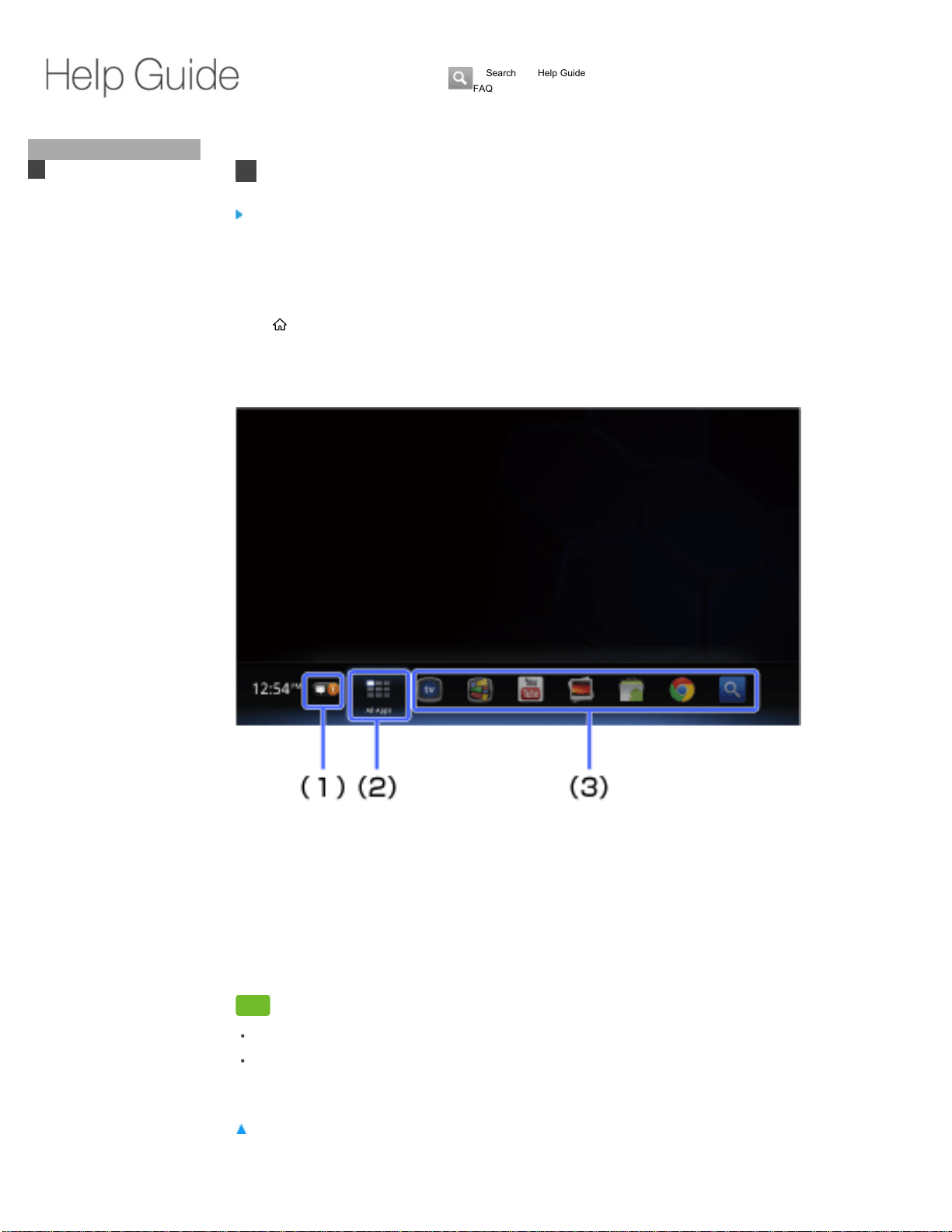
About the Home screen
Tips
You can add widgets to the Home screen. For details, see Adding Widgets.
Applications displayed on the Home screen are shortcuts. You can add applications to or
remove unused applications from the Home screen. If you want to display all applications,
select [All Apps].
Return to Top
Notifications
Press ENTER to display information about downloading applications, software updates, etc.
(1)
All Apps
Press ENTER to display all applications. For details, see Accessing All Applications.
(2)
Applications (shortcuts)
Select one to launch an application.
(3)
Did You Know
Home
Using the Home Menu
Accessing All Applications
Replacing/Moving
Applications on the Home
Screen
Adding widgets
Keypad
Search
Using Applications
Internet
TV
Playback
Connection
Settings
Parts & Controls
Troubleshooting / FAQ
Others
Media Remote
Search Help Guide
FAQ
NSZ-GT1
15

Changing the wallpaper
You can select a wallpaper pattern.
[Live Wallpaper] changes the pictures displayed one after another, as time goes by.
[Photos] allows you to select any photo registered in the Photos application.
Return to Top
Press (MENU) when the Home screen is displayed.1.
Select [Home and All Apps settings] - [Wallpaper].2.
Select a wallpaper pattern.3.
Like 2
Copyright 2010 Sony Corporation
NSZ-GT1
16
Top Page > Home > Adding widgets
Adding widgets
Adding widgets on the Home screen allows you to check your favorite information at a glance, or
use various services.
To change the position of a widget
To remove a widget from Home screen
Return to Top
Press (MENU) when the Home screen is displayed.1.
Select [Customize home items].2.
Select [+ add widget].3.
Select the widget you want to add.4.
Select [done].5.
Press
(MENU) when the Home screen is displayed.1.
Select [Customize home items].2.
Select the widget you want to move.3.
Press
/ / / to change the position.4.
Select [done].5.
Press
(MENU) when the Home screen is displayed.1.
Select [Customize home items].2.
Select the widget you want to remove.3.
Select [Remove from Home].4.
Select [done].5.
Like 0
Copyright 2010 Sony Corporation
Did You Know
Home
Using the Home Menu
Accessing All Applications
Replacing/Moving
Applications on the Home
Screen
Adding widgets
Keypad
Search
Using Applications
Internet
TV
Playback
Connection
Settings
Parts & Controls
Troubleshooting / FAQ
Others
Media Remote
Search Help Guide
FAQ
NSZ-GT1
17
Top Page > Home > Accessing All Applications
Accessing All Applications
Selecting the startup application
You can display all applications installed on your Internet TV by selecting [All Apps]. The All Apps
list also contains bookmarks for websites.
Press
(HOME) and select [All Apps].
To hide applications
You can hide unused applications from the All Apps list.
Note
You cannot uninstall applications in this procedure. If you want to uninstall applications, press
Fn + 1 and select [Applications] - [Manage applications].
Return to Top
Selecting a startup application
If you register a startup application, that application launches when the Internet TV is turned on.
Return to Top
Press (MENU) when the All Apps list is displayed.1.
Select [Home and All Apps settings] - [Show/hide applications].2.
Remove the check from the box next to the application you want to hide.3.
Press
(MENU) when the All Apps list is displayed.1.
Select [Home and All Apps settings] - [Startup application].2.
Select an application.3.
Like 0
Copyright 2010 Sony Corporation
Did You Know
Home
Using the Home Menu
Accessing All Applications
Replacing/Moving
Applications on the Home
Screen
Adding widgets
Keypad
Search
Using Applications
Internet
TV
Playback
Connection
Settings
Parts & Controls
Troubleshooting / FAQ
Others
Media Remote
Search Help Guide
FAQ
NSZ-GT1
18
Top Page > Home > Replacing/Moving Application on the Home Screen
Replacing/Moving Applications on the Home Screen
You can organize and personalize what you want to watch on the Home screen.
To replace applications
To move applications
Return to Top
Press (MENU) when the Home screen is displayed.1.
Select [Customize home items].2.
Select the item you want to replace.3.
Select [Replace].4.
Select the item you want to add instead.5.
Select [done].6.
Press
(MENU) when the Home screen is displayed.1.
Select [Customize home items].2.
Select the item you want to move.3.
Select [Move].4.
Press
/ to change the position.5.
Select [done].6.
Like 1
Copyright 2010 Sony Corporation
Did You Know
Home
Using the Home Menu
Accessing All Applications
Replacing/Moving
Applications on the Home
Screen
Adding widgets
Keypad
Search
Using Applications
Internet
TV
Playback
Connection
Settings
Parts & Controls
Troubleshooting / FAQ
Others
Media Remote
Search Help Guide
FAQ
NSZ-GT1
19
Top Page > Keypad/Parts & Controls > Keys and Buttons
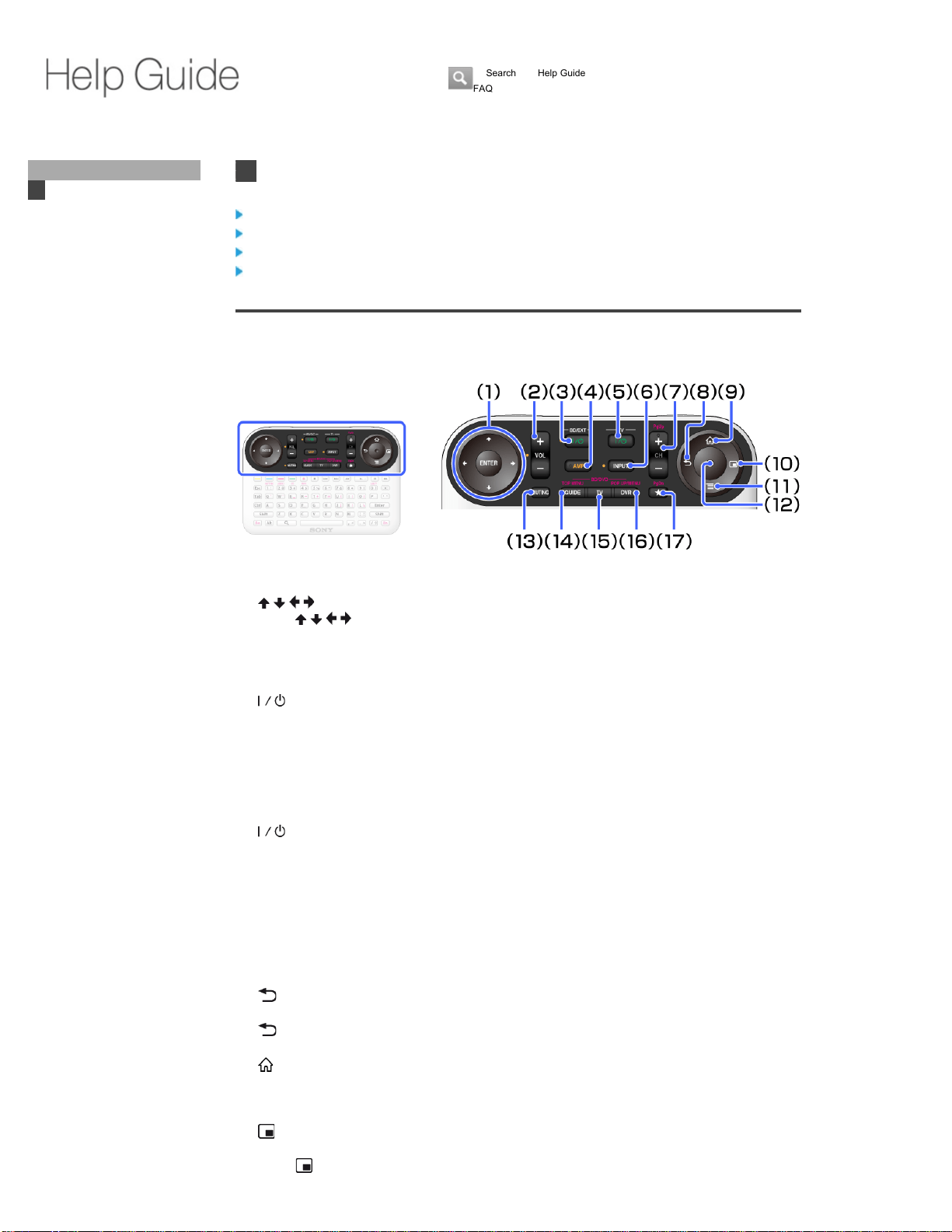
Keys and Buttons
Device control area
Video control area
Keyboard area
Side area
Device control area
/ / / (4-directions)/ENTER
Press
/ / / to select an item. Then press ENTER to confirm the highlighted item.
(1)
VOL +/- (VOLUME)
Adjusts the volume.
(2)
(ON/STANDBY) (BD/EXT)
Turns on the connected device or sets to standby mode.
(3)
AMP
Allows you to control the connected AV Receiver.
Keys with orange dots are active when the AMP indicator is on.
See Preparing to Control an AV Receiver.
(4)
(ON/STANDBY) (TV)
Turns on the TV.
(5)
INPUT
Switches inputs of connected devices.
(6)
CH +/-
Selects the next (+) or previous (-) channel. See Watching Live TV.
When CH is pressed with Fn, the page moves up or down.
(7)
(BACK)
Returns to the previous display or shuts down the application or the task.
(BACK) functions regardless of displayed content.
(8)
(HOME)
Displays the Home menu.
The Home menu is a gateway to various contents. See Using the Home Menu.
(9)
(WINDOW)
Switches the window style.
When (WINDOW) is pressed, PIP (Picture-in-Picture) is activated. PIP (Picture-in-Picture)
(10)
Did You Know
Home
Keypad
Keys and Buttons
Re-pairing
Search
Using Applications
Internet
TV
Playback
Connection
Settings
Parts & Controls
Troubleshooting / FAQ
Others
Media Remote
Search Help Guide
FAQ
NSZ-GT1
20
Return to Top
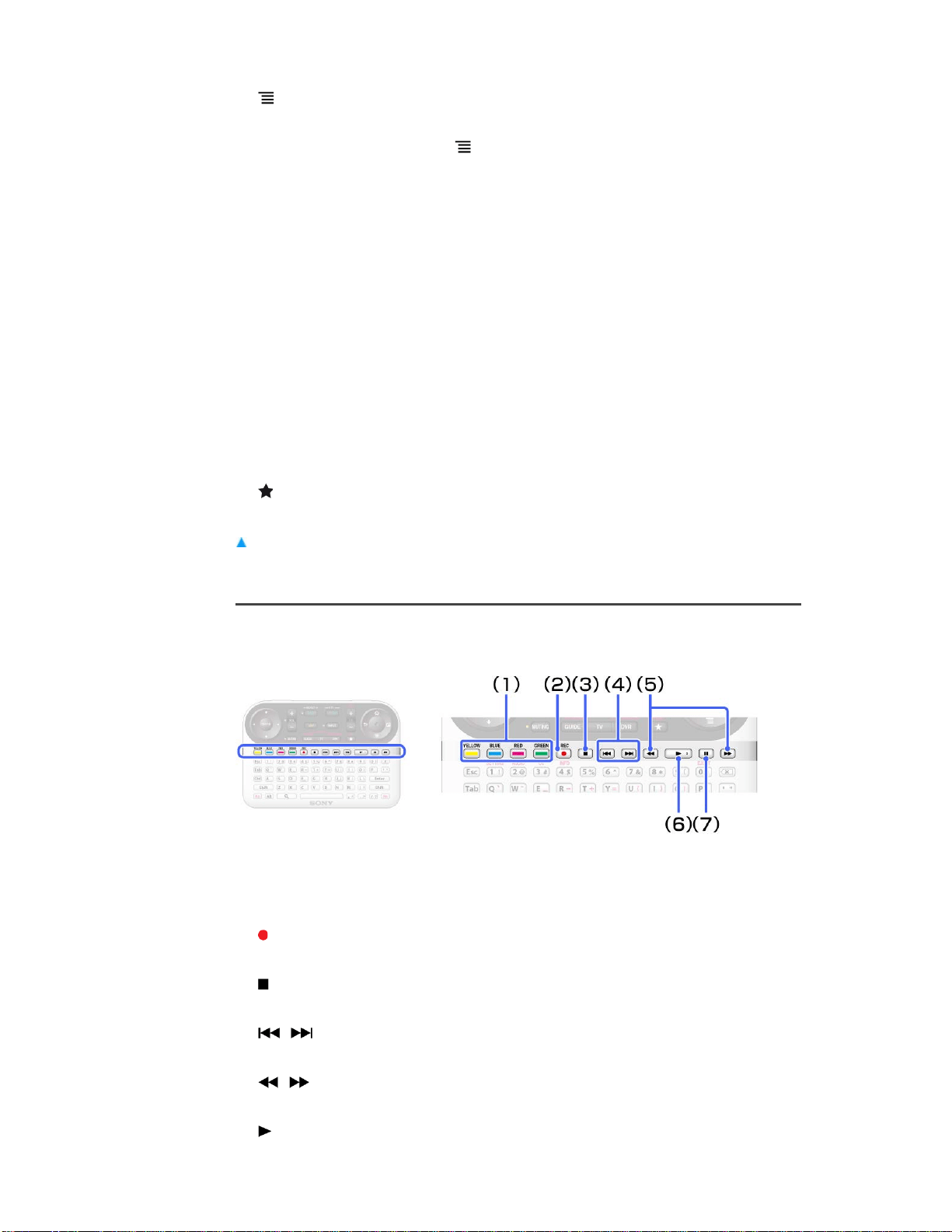
Video control area
displays the TV screen in a sub window, and the Home menu or other applications in the full
screen. See To Display Another Application While Watching TV.
(MENU)
Displays menu items according to applications.
Select the desired setting from the displayed menu items.
Some applications do not support
(MENU).
(11)
Optical Finger Sensor (OFS)
Allows you to control the pointer only with your thumb.
To operate the pointer, slide your thumb on the OFS.
To click, press down the OFS.
(12)
MUTING
Silences the sound.
(13)
GUIDE
Displays the TV Guide. See From TV program guide (GUIDE).
When GUIDE is pressed with Fn, the BD's or DVD's Top Menu is displayed.
(14)
TV
Displays live TV. See Watching Live TV.
(15)
DVR
Displays the DVR (Digital Video Recorder) menu.
When DVR is pressed with Fn, the BD-ROM's Pop-up Menu is displayed.
(16)
(BOOKMARK)
Bookmarks your favorite content.
(17)
Colored keys
Each key corresponds to the functions displayed on the screen.
(1)
(REC)
Records programs into the Digital Video Recorder.
(2)
(STOP)
Stops playback.
(3)
/ (PREV/NEXT)
Skips to the previous/next chapter, track, or file.
(4)
/ (FR/FF)
Fast rewinds/fast forwards video or music.
(5)
(PLAY)
Starts or re-starts playback.
(6)
NSZ-GT1
21
Return to Top
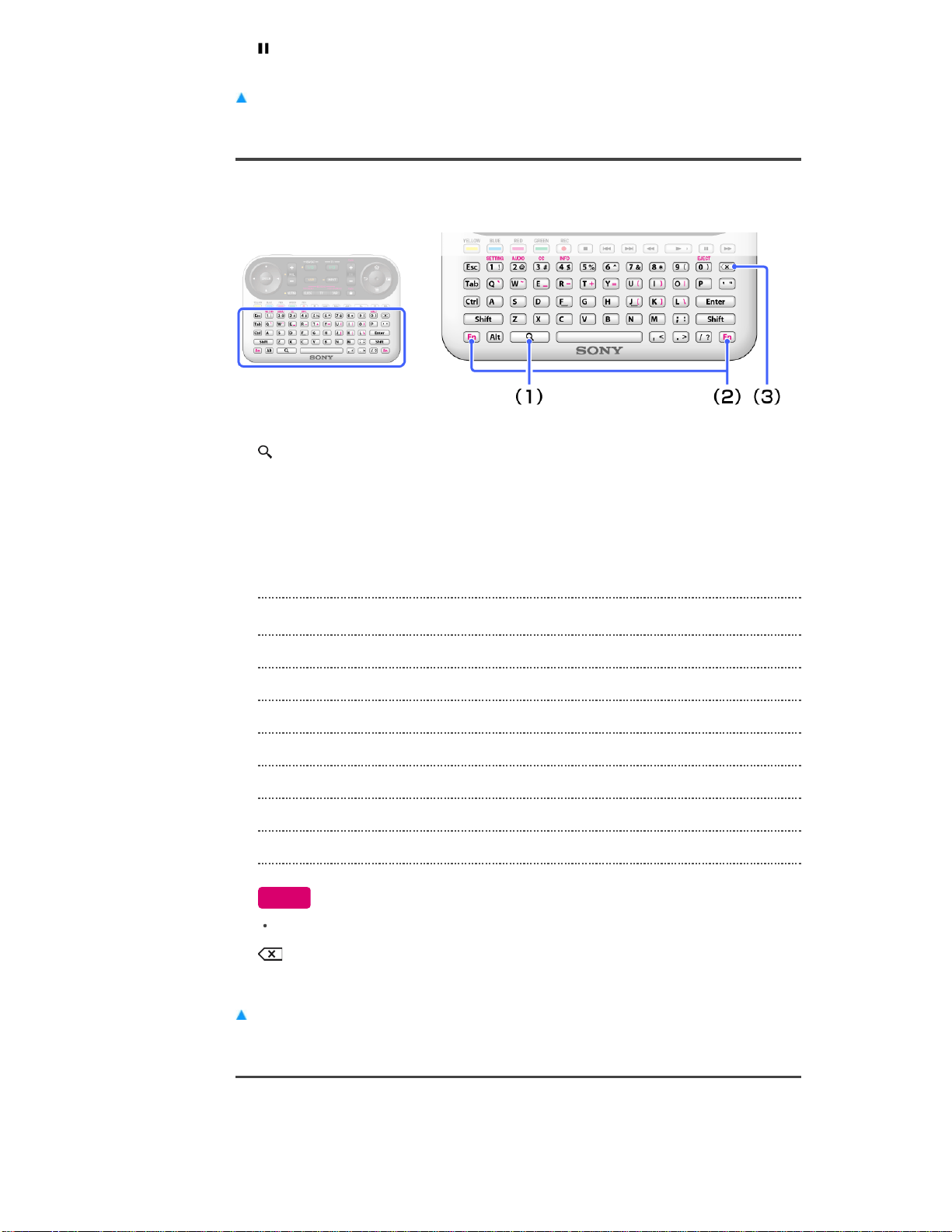
Keyboard area
Return to Top
Side area
(PAUSE)
Pauses or re-starts playback.
(7)
(SEARCH)
Displays the Quick Search Box.
Type your interest in the Quick Search Box, and the Internet TV will suggest content from
various media providers.
(1)
Fn
Holding Fn down and pressing a key with purple characters is a shortcut to the labeled
function.
Note
(2)
Fn + CH +/-: Moves page up or down.
Fn + GUIDE: Displays the BD's or DVD's Top Menu.
Fn + DVR: Displays the BD-ROM's Pop-up Menu.
Fn + 1: Displays the Settings application.
Fn + 2: Switches the language track.
Fn + 3: Turns closed captions on or off.
Fn + 4: Displays the disc info.
Fn + 0: Ejects the disc.
Shortcut keys are not available depending on the launching application.
(DELETE)
Deletes input characters.
(3)
NSZ-GT1
22
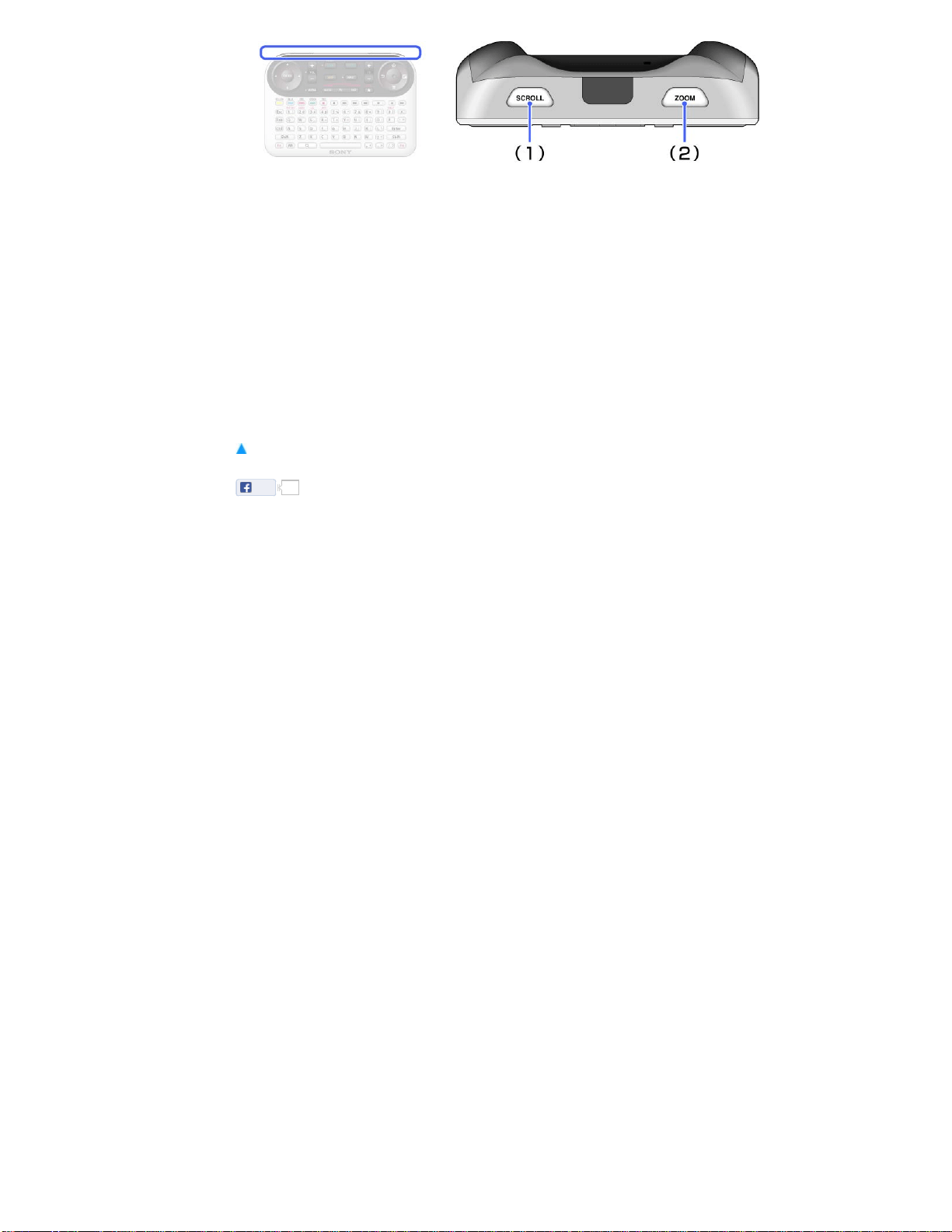
To drag & drop
Hold down SCROLL and ZOOM then use the Optical Finger Sensor (OFS) to highlight a selected
area or move a certain object on screen. Let go of SCROLL and ZOOM once you are satisfied
with your selection or destination.
Return to Top
SCROLL
Scrolls a page or list.
Hold down SCROLL and slide your thumb up and down on the OFS.
(1)
ZOOM
Zooms images.
Hold down ZOOM and slide your thumb up and down on the OFS.
(2)
Like 6
Copyright 2010 Sony Corporation
NSZ-GT1
23
Top Page > Keypad/Parts & Controls > Re-pairing
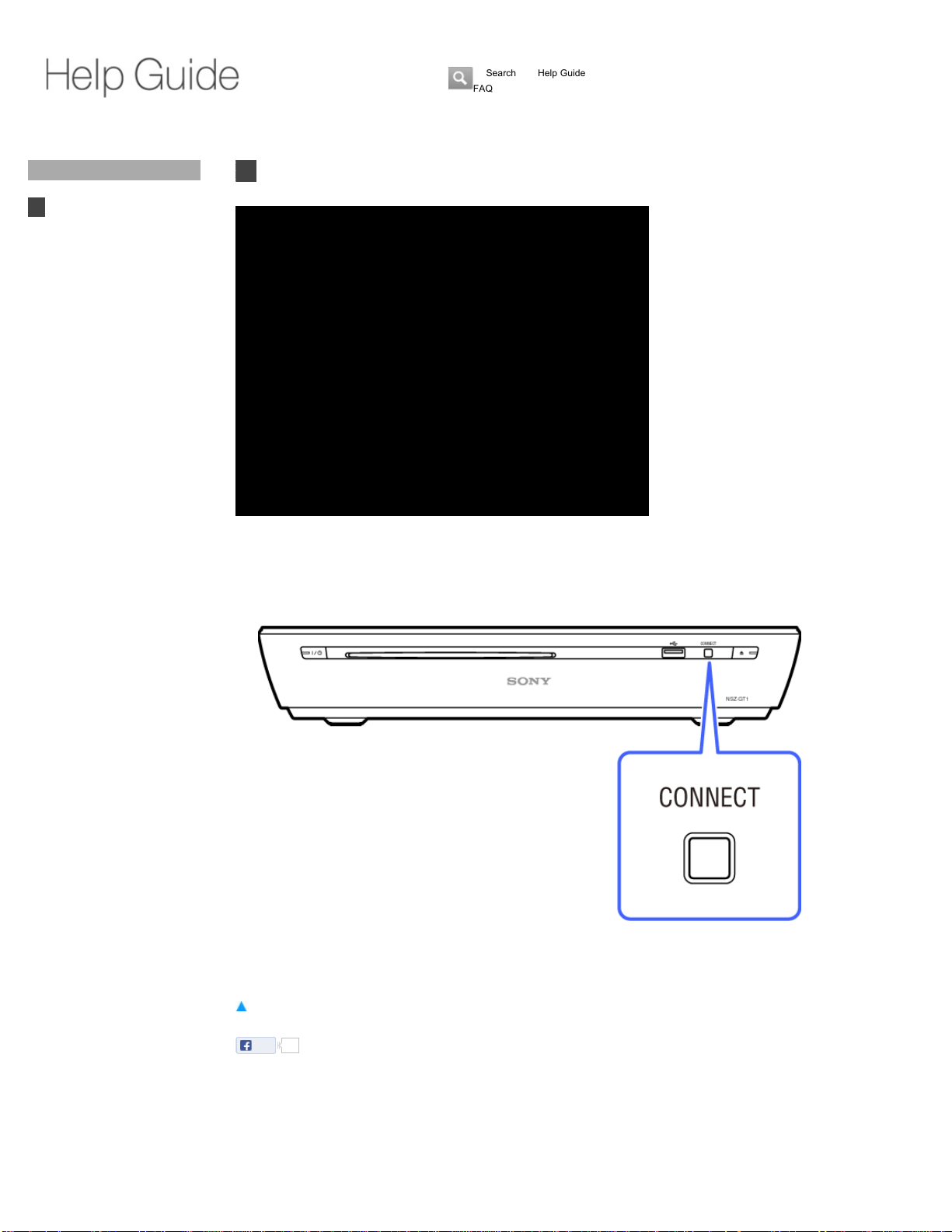
Re-pairing
When the Keypad does not work correctly, follow the procedures below.
Return to Top
Press CONNECT on the unit for more than two seconds to display the pairing screen.1.
Hold down Fn and Enter until the pairing screen disappears.2.
Like 0
Copyright 2010 Sony Corporation
Did You Know
Home
Keypad
Keys and Buttons
Re-pairing
Search
Using Applications
Internet
TV
Playback
Connection
Settings
Parts & Controls
Troubleshooting / FAQ
Others
Media Remote
Search Help Guide
FAQ
NSZ-GT1
24
Top Page > Search > Searching Internet TV Content and Apps
Searching Internet TV Content and Apps
Pressing (SEARCH) allows you to search the Internet, TV programs, downloaded content, and
applications for your interest thing.
Return to Top
Press (SEARCH) to display the Quick Search Box.
1.
Input your query into the Quick Search Box.
Suggestions are displayed.
2.
Select your interest from suggestions.3.
Like 1
Copyright 2010 Sony Corporation
Did You Know
Home
Keypad
Search
Searching Internet TV
Content and Apps
Using Applications
Internet
TV
Playback
Connection
Settings
Parts & Controls
Troubleshooting / FAQ
Others
Media Remote
Search Help Guide
FAQ
NSZ-GT1
25
Top Page > Applications > Pre-installed Applications
Pre-installed Applications
Selecting the startup application
Clock: Display the current time. You can also set the
alarm.
Disc Player: Play a CD, DVD, or Blu-ray disc.
Downloads: Use the download manager to display or manage
Internet content downloads. For details, see
Using Download Files.
Google Chrome: Browse Internet websites. For details, see
Browsing Internet Content.
Help Guide: Launch this Help Guide.
Live TV: Watch TV programs broadcast by registered TV
providers. For details, see Watching Live TV.
Market: Download or purchase new applications. For
details, see Using Android Market.
Media Player: Play back audio/video/image files. For details,
see Playing Files on USB Devices/Servers.
Netflix: Watch TV shows and movies online or by
streaming them from Netflix.
Photos: Browse photos on a photo sharing website, such
as Picasa or Flickr. You can also browse photos
in the connected USB devices.
Podcast: Play back and manage podcasts. For details, see
Using Podcast.
Search: Make searches. For details, see Searching
Internet TV Content and Apps.
Settings: Change various settings for your Internet TV.
Sony Entertainment
Network:
Enjoy the newest movies from major studio, or
millions of songs. For details, see Playing Internet
Content.
Sony Recommends: Enjoy online video recommended by Sony.
Spotlight: View websites that have been optimized for
Google TV.
Timer: Set the timer. For details, see How to Use the
Timer.
Track ID: Search for music that is being played on the TV
program you are currently watching, website or
other media, and display information on the artist
or albums. You can bookmark this information.
Did You Know
Home
Keypad
Search
Using Applications
Pre-installed Applications
Using Android Market
Internet
TV
Playback
Connection
Settings
Parts & Controls
Troubleshooting / FAQ
Others
Media Remote
Search Help Guide
FAQ
NSZ-GT1
26

Return to Top
Selecting a startup application
If you register a startup application, that application launches when your Internet TV is turned on.
Return to Top
TV & Movies: Watch streaming videos.
YouTube: Use the YouTube video-sharing website.
Press
(MENU) when the All Apps list is displayed.1.
Select [Home and All Apps settings] - [Startup application].2.
Select an application.3.
Like 1
Copyright 2010 Sony Corporation
NSZ-GT1
27
Top Page > Applications > Using Android Market
Using Android Market
You can purchase or download your favorite applications from Android Market. These applications
are instantly available on your Internet TV.
Press
(HOME) and select [Market]. Select an application and follow the on-screen instructions.
To use applications downloaded from Android Market
Applications purchased or downloaded are stored in the All Apps list.
To check the progress of a download
Select on the Home screen.
Return to Top
Press (HOME).1.
Select [All Apps].2.
Select the downloaded application.3.
Like 2
Copyright 2010 Sony Corporation
Did You Know
Home
Keypad
Search
Using Applications
Pre-installed Applications
Using Android Market
Internet
TV
Playback
Connection
Settings
Parts & Controls
Troubleshooting / FAQ
Others
Media Remote
Search Help Guide
FAQ
NSZ-GT1
28
Top Page > Internet > Browsing Internet Content
Browsing Internet Content
Internet TV uses Google Chrome as its web browser. You can access all of your favorite websites
with the Google Chrome web browser.
Tips
Pressing (MENU) provides multiple functions for browsing.
You can also access websites using the Quick Search Box. Press (SEARCH) and Input a
URL or your query into the Quick Search Box. When suggestions are listed, select one which
displays [Go to website].
Return to Top
Press (HOME).1.
Select [Google Chrome] to launch Google Chrome.2.
Like 2
Copyright 2010 Sony Corporation
Did You Know
Home
Keypad
Search
Using Applications
Internet
Browsing Internet Content
Bookmarking Your Favorite
Websites
Sharing Websites
Using Downloaded Files
Using Podcasts
TV
Playback
Connection
Settings
Parts & Controls
Troubleshooting / FAQ
Others
Media Remote
Search Help Guide
FAQ
NSZ-GT1
29
Top Page > Internet > Bookmarking Your Favorite Websites
Bookmarking Your Favorite Websites
You can save links to your favorite websites as Bookmarks without having to remember any
URLs.
To save a bookmark
Tip
If you select [Add to home screen] in step 3, the bookmark is added to the All Apps list.
To Access bookmarks
Return to Top
Press (MENU) while browsing a website.1.
Select [Save].2.
Select [Add to bookmarks].3.
Press
(MENU) while browsing a website.1.
Select [Bookmarks].2.
Select a bookmark.3.
Like 0
Copyright 2010 Sony Corporation
Did You Know
Home
Keypad
Search
Using Applications
Internet
Browsing Internet Content
Bookmarking Your Favorite
Websites
Sharing Websites
Using Downloaded Files
Using Podcasts
TV
Playback
Connection
Settings
Parts & Controls
Troubleshooting / FAQ
Others
Media Remote
Search Help Guide
FAQ
NSZ-GT1
30
Top Page > Internet > Sharing Websites
Sharing Websites
Your favorite websites can be shared using social networking services (SNS), such as Facebook
and Twitter.
Note
An SNS account and the required application for the SNS are needed to use this function.
Return to Top
Press (MENU) while browsing a website.1.
Select [Share page].2.
Like 0
Copyright 2010 Sony Corporation
Did You Know
Home
Keypad
Search
Using Applications
Internet
Browsing Internet Content
Bookmarking Your Favorite
Websites
Sharing Websites
Using Downloaded Files
Using Podcasts
TV
Playback
Connection
Settings
Parts & Controls
Troubleshooting / FAQ
Others
Media Remote
Search Help Guide
FAQ
NSZ-GT1
31
Top Page > Internet > Using Downloaded Files
Using Downloaded Files
Files, such as photos, music, and movies, can be downloaded from websites and stored in the
Download application.
To access downloaded files
To delete downloaded files
Notes
To open downloaded files, applications that support these files are required.
If you want to use an Android application downloaded from websites other than Android
Market, press Fn + 1 and select [Applications]. Then check the box next to [Unknown sources].
Return to Top
Press (HOME).1.
Select [All Apps] - [Download].2.
Press
(HOME).1.
Select [All Apps] - [Download].2.
Hold down ENTER to check the box next to the name of the file you want to delete.3.
Press
(MENU).4.
Select [Delete].5.
Like 0
Copyright 2010 Sony Corporation
Did You Know
Home
Keypad
Search
Using Applications
Internet
Browsing Internet Content
Bookmarking Your Favorite
Websites
Sharing Websites
Using Downloaded Files
Using Podcasts
TV
Playback
Connection
Settings
Parts & Controls
Troubleshooting / FAQ
Others
Media Remote
Search Help Guide
FAQ
NSZ-GT1
32
Top Page > Internet > Using Podcasts
Using Podcasts
The Podcast application allows you to search for video and audio podcasts, subscribe to your
favorite podcasts, and manage subscriptions.
Return to Top
Press (HOME).1.
Select [All Apps] - [Podcasts].2.
Like 1
Copyright 2010 Sony Corporation
Did You Know
Home
Keypad
Search
Using Applications
Internet
Browsing Internet Content
Bookmarking Your Favorite
Websites
Sharing Websites
Using Downloaded Files
Using Podcasts
TV
Playback
Connection
Settings
Parts & Controls
Troubleshooting / FAQ
Others
Media Remote
Search Help Guide
FAQ
NSZ-GT1
33
Top Page > TV > Watching Live TV
Watching Live TV
From TV key
From TV program guide (GUIDE)
From Home menu
From TV key
Press TV to display the last channel of the device set as default tuner.
See To select the device to launch using the TV key on setting a device as default.
Return to Top
From TV program guide (GUIDE)
Press GUIDE to access the TV program guide.
Return to Top
From Home menu
Return to Top
CH +/- Press CH +/- to change the channel.
10-key and . key Press 0-9 and . to select a channel. Press
ENTER, and channels will change immediately.
Press
(HOME).1.
Select either Live TV or TV & Movie.2.
Select a channel.3.
Like 1
Copyright 2010 Sony Corporation
Did You Know
Home
Keypad
Search
Using Applications
Internet
TV
Watching Live TV
Using Favorite Channels
Using PIP (Picture-in-
Picture)
Switching Audio
Switching Closed Caption
Playback
Connection
Settings
Parts & Controls
Troubleshooting / FAQ
Others
Media Remote
Search Help Guide
FAQ
NSZ-GT1
34
Top Page > TV > Using Favorite Channels
Using Favorite Channels
You can register your favorite channels without having to remember channel numbers.
To add a channel to favorites
Tip
You can also add a favorite channel by pressing (MENU) and selecting [Save] - [Add
channel to favorites] - the desired channel.
To view a favorite channel
Tip
You can also view a favorite channel by pressing (MENU) and selecting [View favorite
channels] - the desired channel or by pressing
(MENU) and selecting [Save] - [Favorite
channels] - [View favorite channels] - the desired channel.
Return to Top
Press (BOOKMARK) while watching a TV program.
1.
Select [Add channel to favorites].2.
Select the channel you want to add from the channel list.3.
Press
(BOOKMARK) while watching a TV program.
1.
Select [View favorite channels].2.
Select the channel you want to watch from the favorite channels list.3.
Like 0
Copyright 2010 Sony Corporation
Did You Know
Home
Keypad
Search
Using Applications
Internet
TV
Watching Live TV
Using Favorite Channels
Using PIP (Picture-in-
Picture)
Switching Audio
Switching Closed Caption
Playback
Connection
Settings
Parts & Controls
Troubleshooting / FAQ
Others
Media Remote
Search Help Guide
FAQ
NSZ-GT1
35
Top Page > TV > Using PIP (Picture-in-Picture)
Using PIP (Picture-in-Picture)
PIP (Picture-in-Picture) is a feature activated by a key that allows you to display the TV screen in
a smaller window (sub window). For example, you can browse the Internet on the full screen,
while watching a TV program in a sub window at the same time.
To use PIP (Picture-in-Picture)
Press (WINDOW) when the TV screen is displayed. When another application is displayed
while the Live TV application is running, hold down
(WINDOW) and select [TV].
Press
(WINDOW) again to return the TV screen in the sub window to its full size.
To change the sub window size
To move the sub window
Note
You may not be able to use PIP (Picture-in-Picture) when a particular application is running.
Close the application before using PIP (Picture-in-Picture).
Tip
If you cancel PIP (Picture-in-Picture), you can increase the amount of memory available.
Return to Top
Hold down (WINDOW) until the Picture-in-Picture menu appears.1.
Select [Increase size]/[Decrease size].2.
Hold down
(WINDOW) until the Picture-in-Picture menu appears.1.
Select [Move].2.
Press
/ / / to move the sub window.3.
Press ENTER.4.
Like 0
Copyright 2010 Sony Corporation
Did You Know
Home
Keypad
Search
Using Applications
Internet
TV
Watching Live TV
Using Favorite Channels
Using PIP (Picture-in-
Picture)
Switching Audio
Switching Closed Caption
Playback
Connection
Settings
Parts & Controls
Troubleshooting / FAQ
Others
Media Remote
Search Help Guide
FAQ
NSZ-GT1
36
Top Page > TV > Switching Audio
Switching Audio
Press Fn + 2 to switch the audio track.
Note
You may not be able to switch the audio track depending on the connected devices.
Return to Top
Like 1
Copyright 2010 Sony Corporation
Did You Know
Home
Keypad
Search
Using Applications
Internet
TV
Watching Live TV
Using Favorite Channels
Using PIP (Picture-in-
Picture)
Switching Audio
Switching Closed Caption
Playback
Connection
Settings
Parts & Controls
Troubleshooting / FAQ
Others
Media Remote
Search Help Guide
FAQ
NSZ-GT1
37
Top Page > TV > Switching Closed Caption
Switching Closed Caption
Press Fn + 3 to switch the closed captions.
Note
You may not be able to switch the closed captions depending on the connected devices.
Return to Top
Like 0
Copyright 2010 Sony Corporation
Did You Know
Home
Keypad
Search
Using Applications
Internet
TV
Watching Live TV
Using Favorite Channels
Using PIP (Picture-in-
Picture)
Switching Audio
Switching Closed Caption
Playback
Connection
Settings
Parts & Controls
Troubleshooting / FAQ
Others
Media Remote
Search Help Guide
FAQ
NSZ-GT1
38
Top Page > Playback > Playing a Disc
Playing a Disc
Displaying the play information
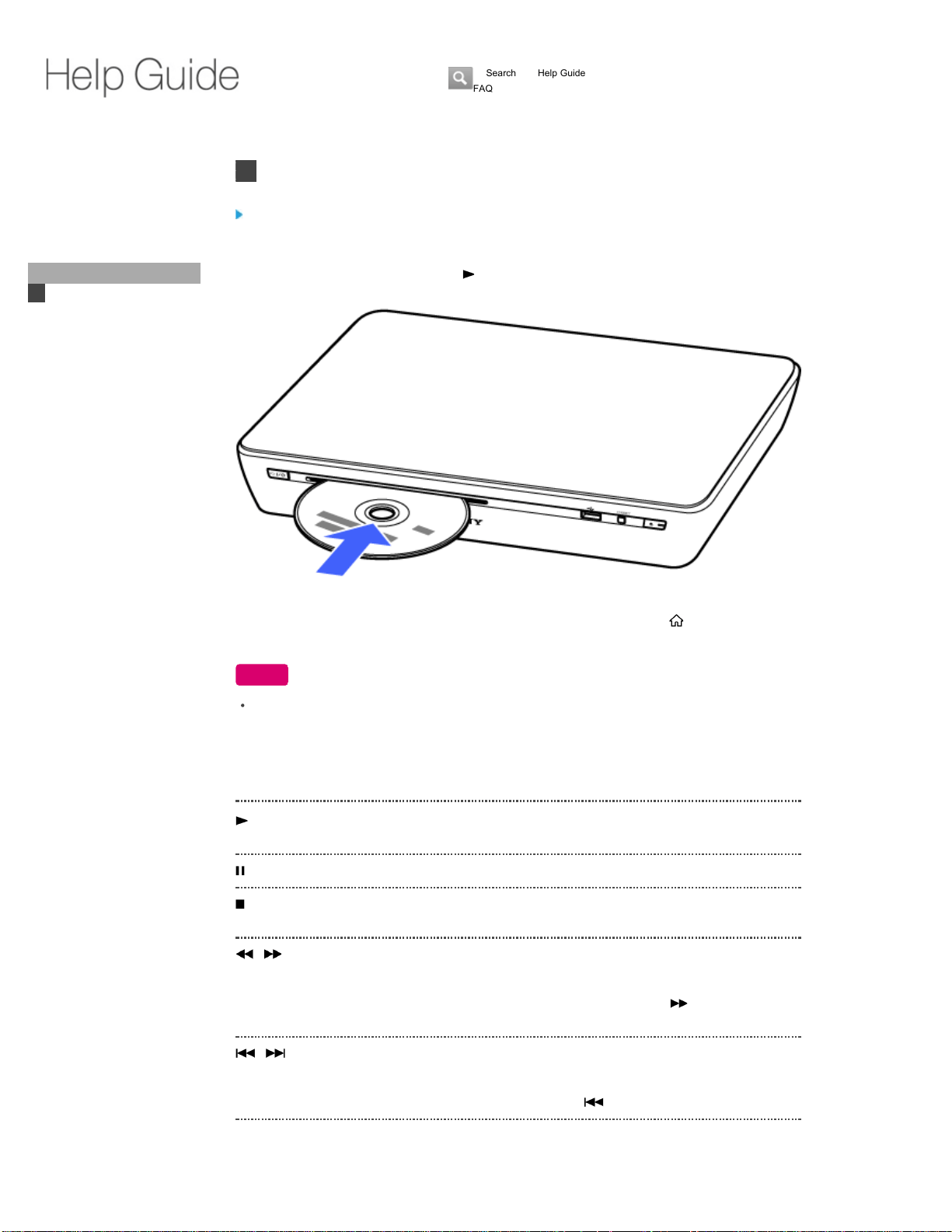
Insert a disc into the disc slot.
Playback starts automatically. Or press
(PLAY).
If playback does not start automatically or you have quit Disc Player, press (HOME) and select
[All Apps] - [Disc Player].
Note
If playback does not start, see Playable Discs. If the problem persists see NSZ-GT1 in
Troubleshooting/FAQ.
Keys available during playback
(PLAY): Starts or re-starts playback. You can resume
playback from the resume point.
(PAUSE): Pauses or re-starts playback.
(STOP): Stops playback and remembers the stop point
(resume point).
/ (FR/FF): Fast rewinds / Fast forwards the disc.
For video playback only: The search speed
changes each time you press the button during
playback. When you press
(FF) in pause
mode, the video plays one frame at a time.
/ (PREV/NEXT): Skips to the previous / next chapter (video
playback), to the beginning of the current track or
next track (music playback). To go to the previous
track, press
(PREV) twice (music playback).
Did You Know
Home
Keypad
Search
Using Applications
Internet
TV
Playback
Playing a Disc
Playing 3D Content
Playing Files on USB
Devices/Servers
Playing Internet Content
Controlling Playback Using
the Menu
Delaying Sound Output
Reducing Noise in the
Picture
Setting Parental Lock
Displaying Disc Information
Enjoying
BONUSVIEW/BD-LIVE
Playable Discs
Playable Files
Connection
Settings
Parts & Controls
Troubleshooting / FAQ
Others
Media Remote
Search Help Guide
FAQ
NSZ-GT1
39

To eject a disc
Press (EJECT) on the unit, or press Fn + 0 on the Keypad.
Note
If you cannot eject the disc when pressing (EJECT), press (on/standby) button to turn
off the unit, then press
(EJECT).
To display the BD's Top Menu
Press Fn + GUIDE (TOP MENU).
To display the BD-ROM's Pop-up Menu or DVD's menu
Press Fn + DVR (POP UP/MENU). To close the menu, press Fn + DVR again.
To switch the language track
When multilingual tracks are recorded on BD-ROMs/DVD VIDEOs, press Fn + 2 (AUDIO)
repeatedly.
To switch the subtitle language
When multilingual subtitles are recorded on BD-ROMs/DVD VIDEOs, press Fn + 3 (CC (Subtitle))
repeatedly.
Return to Top
Displaying the play information
Press Fn + 4 (INFO) to check the playback information, etc.
The displayed information differs depending on the disc type and player status.
Title/Cover Art area(1)
NSZ-GT1
40

Return to Top
Java and all Java-based trademarks and logos are trademarks or registered trademarks of Oracle
and/or its affiliates. Other names may be trademarks of their respective owners.
Video/Audio Information area
Displays the selected subtitle, angle, audio setting, and available functions.
(2)
Playback Information area
Displays the play mode, repeat type, elapsed time/total time, and chapter number.
(3)
Like 0
Copyright 2010 Sony Corporation
NSZ-GT1
41
Top Page > Playback > Playable Discs
Playable Discs
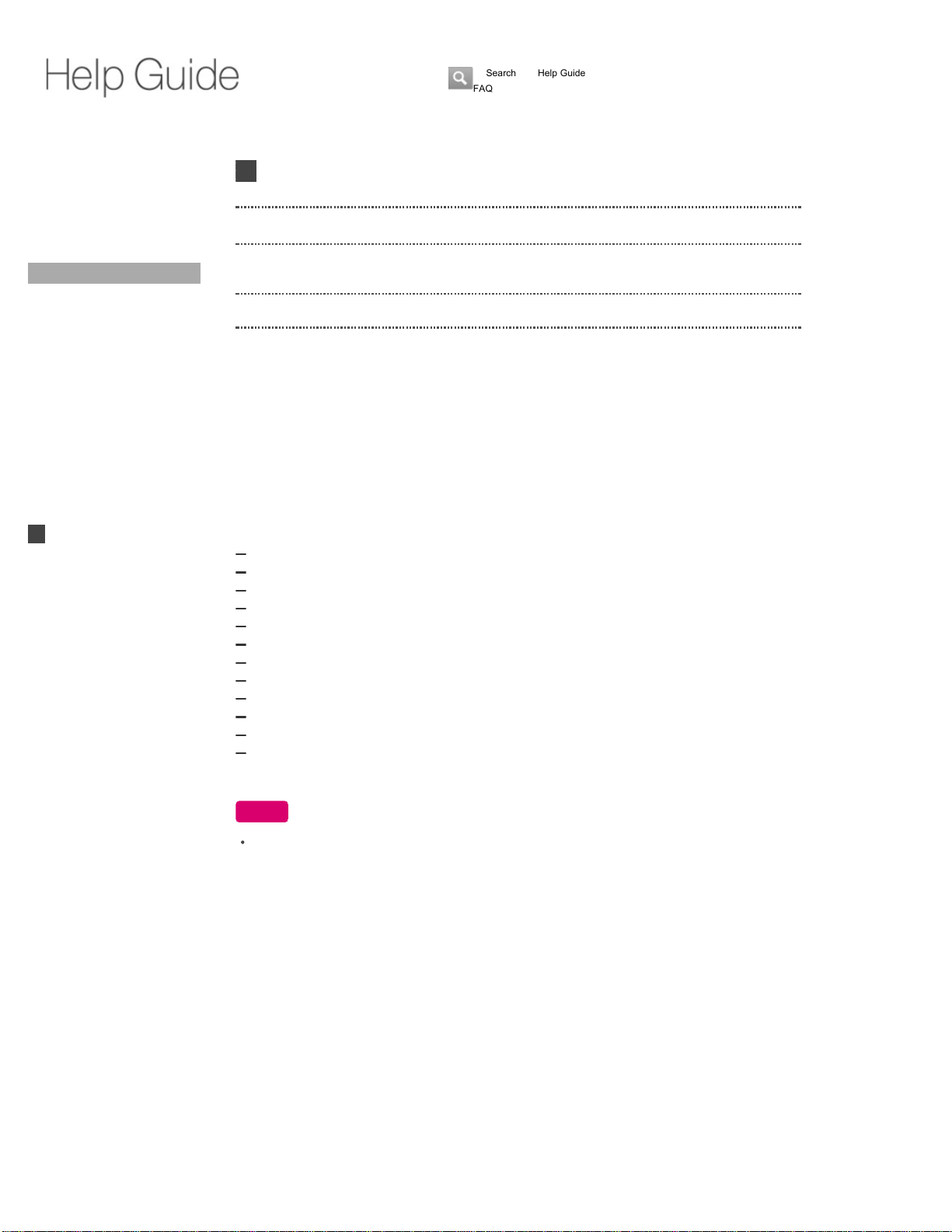
(*1): Since the Blu-ray Disc specifications are new and evolving, some discs may not be playable
depending on the disc type and the version. The audio output differs depending on the source,
connected output jack, and selected audio settings.
(*2): BD-R and BD-RE discs cannot be played.
(*3): A CD or DVD disc will not play if it has not been correctly finalized. For more information,
refer to the operating instructions supplied with the recording device.
(*4): A DVD-R and DVD-RW disc recorded in VR mode (Video Recording format) cannot be
played.
Discs that cannot be played
BDs with cartridge
BD-Rs/BD-REs
DVD-RAMs
HD DVDs
AVC HD on DVD discs
DVD Audio discs
HD layer on Super Audio CD
PHOTO CDs
Data part of CD-Extras
VCDs/Super VCDs
Audio material side on DualDiscs
A disc recorded in a color system other than NTSC, such as PAL (this unit conforms to the
NTSC color system)
Note
Types of discs playable are subject to change without notice.
Note on Discs
This unit is designed to playback discs that conform to the Compact Disc (CD) standard.
DualDiscs and some of the music discs encoded with copyright protection technologies do not
conform to the Compact Disc (CD) standard, therefore, these discs may not be playable by this
unit.
Note on playback operations of BDs/DVDs
Some playback operations of BDs/DVDs may be intentionally set by software producers. Since
this unit plays BDs/DVDs according to the disc contents the software producers designed, some
playback features may not be available.
Note about double-layer BDs/DVDs
The playback pictures and sound may be momentarily interrupted when the layers switch.
Blu-ray Disc (*1)(*2): BD-ROM
DVD (*3): DVD-ROM / DVD-R (*4) / DVD-RW (*4) /
DVD+R/DVD+RW
CD (*3): CD-DA (Music CD)
Did You Know
Home
Keypad
Search
Using Applications
Internet
TV
Playback
Playing a Disc
Playing 3D Content
Playing Files on USB
Devices/Servers
Playing Internet Content
Controlling Playback Using
the Menu
Delaying Sound Output
Reducing Noise in the
Picture
Setting Parental Lock
Displaying Disc Information
Enjoying
BONUSVIEW/BD-LIVE
Playable Discs
Playable Files
Connection
Settings
Parts & Controls
Troubleshooting / FAQ
Others
Media Remote
Search Help Guide
FAQ
NSZ-GT1
42
Top Page > Playback > Playing 3D Content
Playing 3D Content
You can experience powerful 3D entertainment from Blu-ray 3D Disc (BD-ROM), Sony
Entertainment Network, or your 3D content stored onto USB flash memory.
To enjoy 3D content, connect the Internet TV Box to your 3D-compatible TV and AV Receiver
using a high-speed HDMI cable.
Notes
See also Note on Watching 3D Video Images.
Return to Top
Like 0
Copyright 2010 Sony Corporation
Did You Know
Home
Keypad
Search
Using Applications
Internet
TV
Playback
Playing a Disc
Playing 3D Content
Playing Files on USB
Devices/Servers
Playing Internet Content
Controlling Playback Using
the Menu
Delaying Sound Output
Reducing Noise in the
Picture
Setting Parental Lock
Displaying Disc Information
Enjoying
BONUSVIEW/BD-LIVE
Playable Discs
Playable Files
Connection
Settings
Parts & Controls
Troubleshooting / FAQ
Others
Media Remote
Search Help Guide
FAQ
NSZ-GT1
44
Top Page > Playback > Playing Files on USB Devices/Servers
Playing Files on USB Devices/Servers
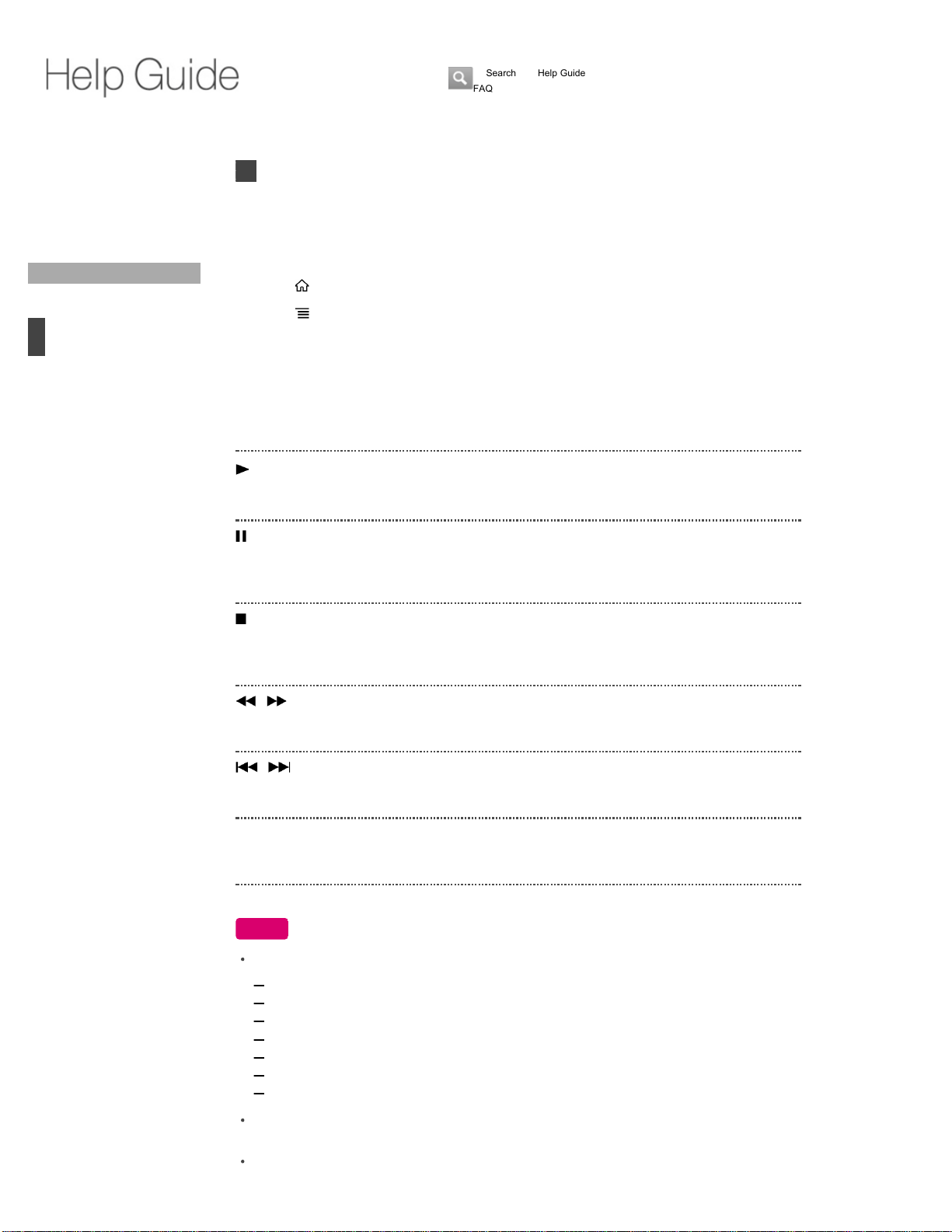
Keys available during playback
Notes
The following photos cannot be displayed.
Photos with a file size of over 32 MB
Photos with under 16 pixels for height or width
Photos with over a 50:1 or 1:50 horizontal to vertical ratio
Photos (JPEG files) with more than 16384 pixels for height or width
Photos (GIF files) with a file size of greater than 4096 × 4096 pixels
Photos (PNG files) with a file size of greater than 7000 × 7000 pixels
Photos (BMP files) with a file size of greater than 8192 × 8192 pixels
The Internet TV can recognize Mass Storage Class devices (such as flash memory or HDD)
that are FAT-compatible.
Some USB devices may not work with this Internet TV. See the USB storage devices
For files on a USB device: Insert a USB storage device containing files into the USB jack.
For files on a server: Connect the Internet TV to the DLNA Certified Media Server via a home
network.
1.
Press
(HOME) and select [All Apps] - [Media Player].2.
Press
(MENU) and select [Select device].3.
Select a USB device/server.4.
Select a file from the file list and press ENTER.5.
(PLAY): Starts or re-starts playback (video/music
playback). Starts Slideshow or starts moving a
panoramic photo (photo playback).
(PAUSE): Pauses or re-starts playback (video/music
playback) /Slideshow (photo playback). Pauses
or re-starts movement of a panoramic photo
(photo playback).
(STOP): Stops playback and returns to the file list
(video/music playback). Stops Slideshow or
Image viewer, and returns to the file list (photo
playback).
/ (FR/FF): Fast rewinds/Fast forwards the title/track. The
search speed changes each time you press the
button during playback.
/ (PREV/NEXT): Skips to the previous/next title (video
playback)/track (music playback)/file (photo
playback).
INFO (Fn + 4): Displays video/photo information (video/photo
playback). Press INFO again to cancel the
display.
Did You Know
Home
Keypad
Search
Using Applications
Internet
TV
Playback
Playing a Disc
Playing 3D Content
Playing Files on USB
Devices/Servers
Playing Internet Content
Controlling Playback Using
the Menu
Delaying Sound Output
Reducing Noise in the
Picture
Setting Parental Lock
Displaying Disc Information
Enjoying
BONUSVIEW/BD-LIVE
Playable Discs
Playable Files
Connection
Settings
Parts & Controls
Troubleshooting / FAQ
Others
Media Remote
Search Help Guide
FAQ
NSZ-GT1
45

compatibility list.
NSZ-GT1
Connection via a USB-hub is not supported.
USB devices must be less than 2TB.
The Internet TV can recognize Mass Storage Class devices (such as flash memory or HDD)
that are FAT-compatible.
When playing a WMV file, you cannot perform the following operations.
Fast rewind/Fast forward
Resume
Skip using the progress bar
Return to Top
Like 1
Copyright 2010 Sony Corporation
NSZ-GT1
46
Top Page > Playback > Playing Internet Content (Sony Recommends)
Playing Internet Content (Sony Recommends)
Sony Recommends serves as a gateway to Internet content, delivering a variety of on-demand
entertainment straight to your Internet TV. By making a broadband Internet connection, you can
enjoy Internet content.
Notes
Picture/sound quality may be poor depending on Internet content providers.
Picture/sound quality may be improved by changing the connection speed. The recommended
connection speed is at least 2.5 Mbps for standard definition video (10 Mbps for high definition
video).
Not all videos contain sound.
The interface to Internet content depends on the Internet content providers.
Services block video content based on the “Parental Lock” setting. Some service providers do
not support this function.
To control playback
Click the playback control icons on the bottom left of the screen. (This feature depends on the
Internet content services.) The color keys on the Keypad correspond to the color buttons
displayed at the bottom of the screen.
Return to Top
Press (HOME) and select [All Apps] - [Sony Recommends].1.
Select a content provider.2.
Select an item.
Information about the selected item appears in the information banner.
3.
Like 0
Copyright 2010 Sony Corporation
Did You Know
Home
Keypad
Search
Using Applications
Internet
TV
Playback
Playing a Disc
Playing 3D Content
Playing Files on USB
Devices/Servers
Playing Internet Content
Controlling Playback Using
the Menu
Delaying Sound Output
Reducing Noise in the
Picture
Setting Parental Lock
Displaying Disc Information
Enjoying
BONUSVIEW/BD-LIVE
Playable Discs
Playable Files
Connection
Settings
Parts & Controls
Troubleshooting / FAQ
Others
Media Remote
Search Help Guide
FAQ
NSZ-GT1
47
Top Page > Playback > Controlling Playback Using the Menu
Controlling Playback Using the Menu
When playing a disc
When playing files
Various settings and playback operations are available by pressing
(MENU) during playback.
The available items differ depending on the situation.
When playing a disc
Information Display
Displays information on the BD-ROM/DVD-ROM/CDDA based on Gracenote technology.
Play title from beginning
Plays the item from the beginning.
Repeat Setting
Set the repeat playback mode.
Control
Allows you to control playback from the menu below. The menu changes according to discs.
Off: Cancels the repeat playback. (Default)
Title: Repeats the current title (video playback).
Track: Repeats the current track (music playback).
Chapter: Repeats the current chapter (video playback).
Play: Starts playback.
Pause: Pauses playback.
Stop: Stops playback.
Top Menu: Displays the BD's Top Menu (video playback).
Menu: Displays the DVD's menu (video playback).
Popup Menu: Displays the BD's Pop-up Menu (video playback).
Title Search/Chapter
Search:
Search for the title or chapter you want to watch.
Input the title or chapter number in the input
window using the number keys, then press
ENTER.
Angle: Switches to other viewing angles when multi-
Did You Know
Home
Keypad
Search
Using Applications
Internet
TV
Playback
Playing a Disc
Playing 3D Content
Playing Files on USB
Devices/Servers
Playing Internet Content
Controlling Playback Using
the Menu
Delaying Sound Output
Reducing Noise in the
Picture
Setting Parental Lock
Displaying Disc Information
Enjoying
BONUSVIEW/BD-LIVE
Playable Discs
Playable Files
Connection
Settings
Parts & Controls
Troubleshooting / FAQ
Others
Media Remote
Search Help Guide
FAQ
NSZ-GT1
48

Settings
The AV SYNC and Noise Reduction settings can be set. See Delaying Sound Output and
Reducing Noise in the Picture.
Return to Top
When playing files
Repeat Setting
Set the repeat playback mode.
Shuffle Setting (music playback)
Select [On] to playback all the music files in the folder on shuffle.
Zoom In/Zoom Out (photo playback)
You can zoom in/out photo files.
To move the display area of a photo while zooming in or out on it, hold down SCROLL and
ZOOM, then use the OFS (Optical Finger Sensor).
Rotate Left/Rotate Right (photo playback)
You can rotate photo files counterclockwise (Left) or clockwise (Right) by 90 degrees.
Play Slideshow/Pause Slideshow (photo playback)
You can start (Play Slideshow) or pause (Pause Slideshow) a slideshow.
Information (video/photo playback)
You can display or hide the detailed information on the photo.
Display Size (video/photo playback)
Set the display method when the video/photo file resolution differs from the screen resolution.
angles are recorded on BD-ROMs/DVD-VIDEOs
(video playback).
Off: Cancels the repeat playback. (Default)
Title: Repeats the current file (video playback).
Track: Repeats the current file (music playback).
Folder: Repeats all the video/music files in the folder
(video/music playback), or repeats slideshow
(photo playback).
Normal: Zooms the image to fit the screen without
cropping. When an image size is smaller than the
screen size, the image is displayed at its original
size.
NSZ-GT1
49

Top Page > Playback > Delaying Sound Output
Delaying Sound Output
Press Fn + 1 and select [Picture & sound] - [AV sync] to adjust the gap between picture and
sound by delaying the sound output with respect to the picture. Then, set the value.
You can also change the AV sync setting during disc playback. Press
(MENU) during BD or
DVD playback and select [Settings] - [AV SYNC].
Return to Top
Like 0
Copyright 2010 Sony Corporation
Did You Know
Home
Keypad
Search
Using Applications
Internet
TV
Playback
Playing a Disc
Playing 3D Content
Playing Files on USB
Devices/Servers
Playing Internet Content
Controlling Playback Using
the Menu
Delaying Sound Output
Reducing Noise in the
Picture
Setting Parental Lock
Displaying Disc Information
Enjoying
BONUSVIEW/BD-LIVE
Playable Discs
Playable Files
Connection
Settings
Parts & Controls
Troubleshooting / FAQ
Others
Media Remote
Search Help Guide
FAQ
NSZ-GT1
51
Top Page > Playback > Reducing Noise in the Picture
Reducing Noise in the Picture
Press Fn + 1 and select [Picture & sound] - [Noise reduction] - [Off] / [Low] / [Medium] / [High] to
improve the picture quality by reducing the noise in video signals.
[High] reduces most of the noise.
You can also change the noise reduction level during disc playback. Press
(MENU) during
playback and select [Settings] - [Noise Reduction].
Return to Top
Like 0
Copyright 2010 Sony Corporation
Did You Know
Home
Keypad
Search
Using Applications
Internet
TV
Playback
Playing a Disc
Playing 3D Content
Playing Files on USB
Devices/Servers
Playing Internet Content
Controlling Playback Using
the Menu
Delaying Sound Output
Reducing Noise in the
Picture
Setting Parental Lock
Displaying Disc Information
Enjoying
BONUSVIEW/BD-LIVE
Playable Discs
Playable Files
Connection
Settings
Parts & Controls
Troubleshooting / FAQ
Others
Media Remote
Search Help Guide
FAQ
NSZ-GT1
52
Top Page > Playback > Setting Parental Lock
Setting Parental Lock
Press Fn + 1 and select [Privacy & safety] - [Parental lock] to set a password and activate the
[Parental lock] settings.
To limit playback of discs according to the age of users
Select [BD rating] or [DVD rating] in [Parental lock].
Scenes are blocked or replaced with different scenes.
When you play a BD or DVD with parental lock, select [Yes] then input your password to
temporarily play the BD or DVD.
Note
Even if you change the parental lock setting while playing back a disc, this change is invalid.
To set the restriction level for Internet video (Sony Recommends)
Select ["Sony Recommends" rating] in [Parental lock].
Services block video content based on the Parental lock setting. Some service providers do not
support this function. See Parental lock.
Return to Top
Like 0
Copyright 2010 Sony Corporation
Did You Know
Home
Keypad
Search
Using Applications
Internet
TV
Playback
Playing a Disc
Playing 3D Content
Playing Files on USB
Devices/Servers
Playing Internet Content
Controlling Playback Using
the Menu
Delaying Sound Output
Reducing Noise in the
Picture
Setting Parental Lock
Displaying Disc Information
Enjoying
BONUSVIEW/BD-LIVE
Playable Discs
Playable Files
Connection
Settings
Parts & Controls
Troubleshooting / FAQ
Others
Media Remote
Search Help Guide
FAQ
NSZ-GT1
53
Top Page > Playback > Displaying Disc Information
Displaying Disc Information
Press (MENU) during playback of a disc and select [Information Display].
Information on the BD-ROM/DVD- ROM/CDDA is displayed.
To search related contents
To search related packages (Gracenote)
Select the package displayed on the right of the screen.
The related packages are displayed.
Return to Top
Move the cursor on items in the middle of the screen, such as title or actor, and select the
desired item.
The Quick Search Box appears.
1.
Enter keywords to the Quick Search Box.
The search results are displayed.
2.
Like 0
Copyright 2010 Sony Corporation
Did You Know
Home
Keypad
Search
Using Applications
Internet
TV
Playback
Playing a Disc
Playing 3D Content
Playing Files on USB
Devices/Servers
Playing Internet Content
Controlling Playback Using
the Menu
Delaying Sound Output
Reducing Noise in the
Picture
Setting Parental Lock
Displaying Disc Information
Enjoying
BONUSVIEW/BD-LIVE
Playable Discs
Playable Files
Connection
Settings
Parts & Controls
Troubleshooting / FAQ
Others
Media Remote
Search Help Guide
FAQ
NSZ-GT1
54
Top Page > Playback > Enjoying BONUSVIEW/BD-LIVE
Enjoying BONUSVIEW/BD-LIVE
Some BD-ROMs with the "BD-LIVE" logo* have bonus content and other data that can be
downloaded for your enjoyment.
When you use these functions, press Fn + 1 and select [Disc Player settings] - [BD Internet
connection] - [Allow].
Note
The operation method differs depending on the disc. Refer to the instruction manual supplied
with the disc.
*
"BD-LIVE," "BD-LIVE" logo, and "BONUSVIEW" are trademarks of Blu-ray Disc Association.
Return to Top
Like 0
Copyright 2010 Sony Corporation
Did You Know
Home
Keypad
Search
Using Applications
Internet
TV
Playback
Playing a Disc
Playing 3D Content
Playing Files on USB
Devices/Servers
Playing Internet Content
Controlling Playback Using
the Menu
Delaying Sound Output
Reducing Noise in the
Picture
Setting Parental Lock
Displaying Disc Information
Enjoying
BONUSVIEW/BD-LIVE
Playable Discs
Playable Files
Connection
Settings
Parts & Controls
Troubleshooting / FAQ
Others
Media Remote
Search Help Guide
FAQ
NSZ-GT1
55
Top Page > Playback > Playable Files
Playable Files
(*1): Only WMV9-full and WMV9-base are supported.
(*2): Only files shot with a Sony digital camera are supported.
Notes
Other files (e.g. MPEG/M2TS/AVI files) are not supported, but you may be able to play them
back.
Types of files playable are subject to change without notice.
Return to Top
Supported video file
formats:
MP4/WMV (.asf, .wmv)(*1)/H.264 AVC
Supported music file
formats:
MP3/AAC/WMA/WAV
Supported photo file
formats:
JPEG/PNG/GIF/BMP/MPO (*2)
Like 0
Copyright 2010 Sony Corporation
Did You Know
Home
Keypad
Search
Using Applications
Internet
TV
Playback
Playing a Disc
Playing 3D Content
Playing Files on USB
Devices/Servers
Playing Internet Content
Controlling Playback Using
the Menu
Delaying Sound Output
Reducing Noise in the
Picture
Setting Parental Lock
Displaying Disc Information
Enjoying
BONUSVIEW/BD-LIVE
Playable Discs
Playable Files
Connection
Settings
Parts & Controls
Troubleshooting / FAQ
Others
Media Remote
Search Help Guide
FAQ
NSZ-GT1
56
Top Page > Connection > Connecting Devices
Connecting Devices
The connection method varies depending on the type of AV Receiver. Select the appropriate
method from the following.
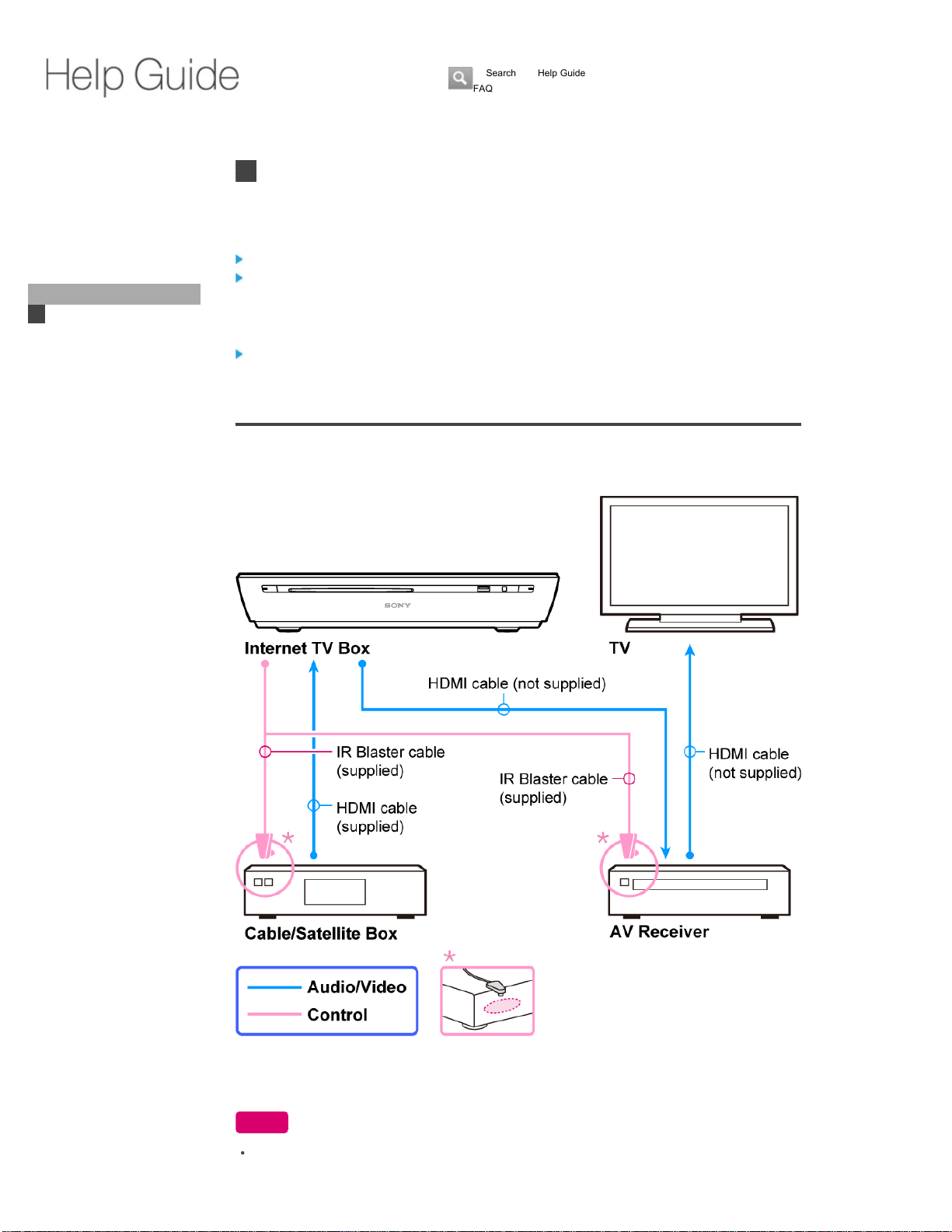
Method 1: Connecting an AV Receiver with HDMI jacks
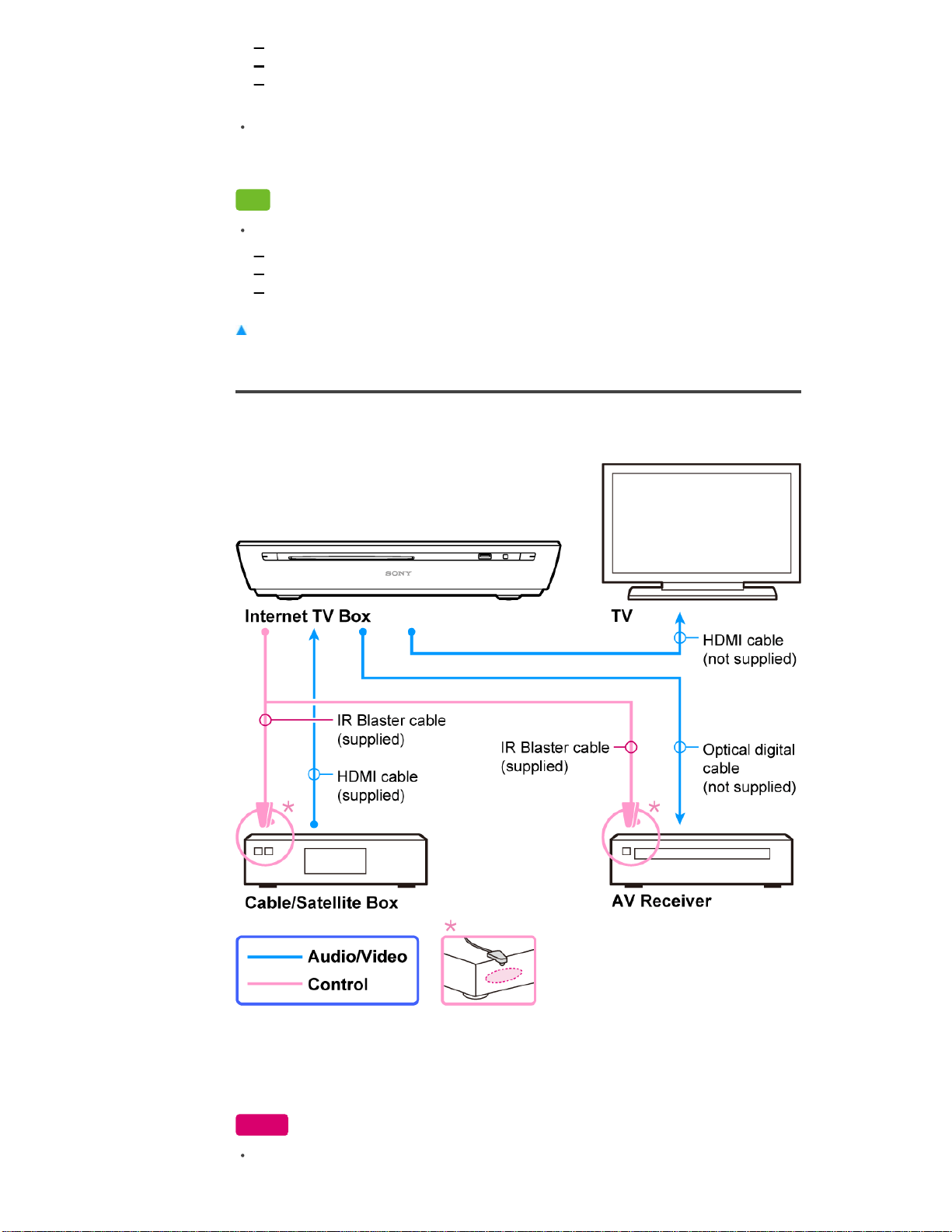
Method 2: Connecting an AV Receiver without HDMI jacks
If there is no picture displayed on the TV screen using the connection method in Method 1,
connect devices using the connection method in Method 2.
To enjoy surround sound from a Cable/Satellite Box
For more information, go to Sony Connection Guide.
Method 1: Connecting an AV Receiver with HDMI jacks
Use the IR Blaster cable to control connected devices with the Keypad.
To enjoy surround sound from a Cable/Satellite Box, see below.
Notes
If there is no picture on the TV screen, try the following.
Did You Know
Home
Keypad
Search
Using Applications
Internet
TV
Playback
Connection
Connecting Devices
Preparing to Control Your
TV
Preparing to Control an AV
Receiver
Preparing to Control Other
Devices
Advanced Network
Connection
Settings
Parts & Controls
Troubleshooting / FAQ
Others
Media Remote
Search Help Guide
FAQ
NSZ-GT1
57
Make sure that each device is connected correctly.
Make sure that all the connected devices are turned on.
Pictures may not be displayed using the connection method above for some Cable/Satellite
Boxes. In this case, reconnect the devices using the connection method in Method 2.
Pictures may not be displayed properly because of the copyright protection feature of some
Cable/Satellite Boxes when the Internet TV Box and TV are connected with HDMI cables via
an AV Receiver. In this case, contact your Cable/Satellite TV operators.
Tip
See related links:
IR Blaster Settings (Preparing to Control an AV Receiver)
IR Blaster Settings (Preparing to Control Other Devices)
HDMI settings
Return to Top
Method 2: Connecting an AV Receiver without HDMI jacks
Use the IR Blaster cable to control connected devices with the Keypad.
To output the sound from the AV Receiver, press Fn + 1 and select [Picture & sound] - [Audio
output priority] - [Optical].
To enjoy surround sound from a Cable/Satellite Box, see below.
Note
When you make a connection with this method, DTS-HD and Dolby TrueHD surround sound
NSZ-GT1
58
are not available from the Internet TV Box.
Tip
See related links:
IR Blaster Settings (Preparing to Control an AV Receiver)
IR Blaster Settings (Preparing to Control Other Devices)
HDMI settings
Return to Top
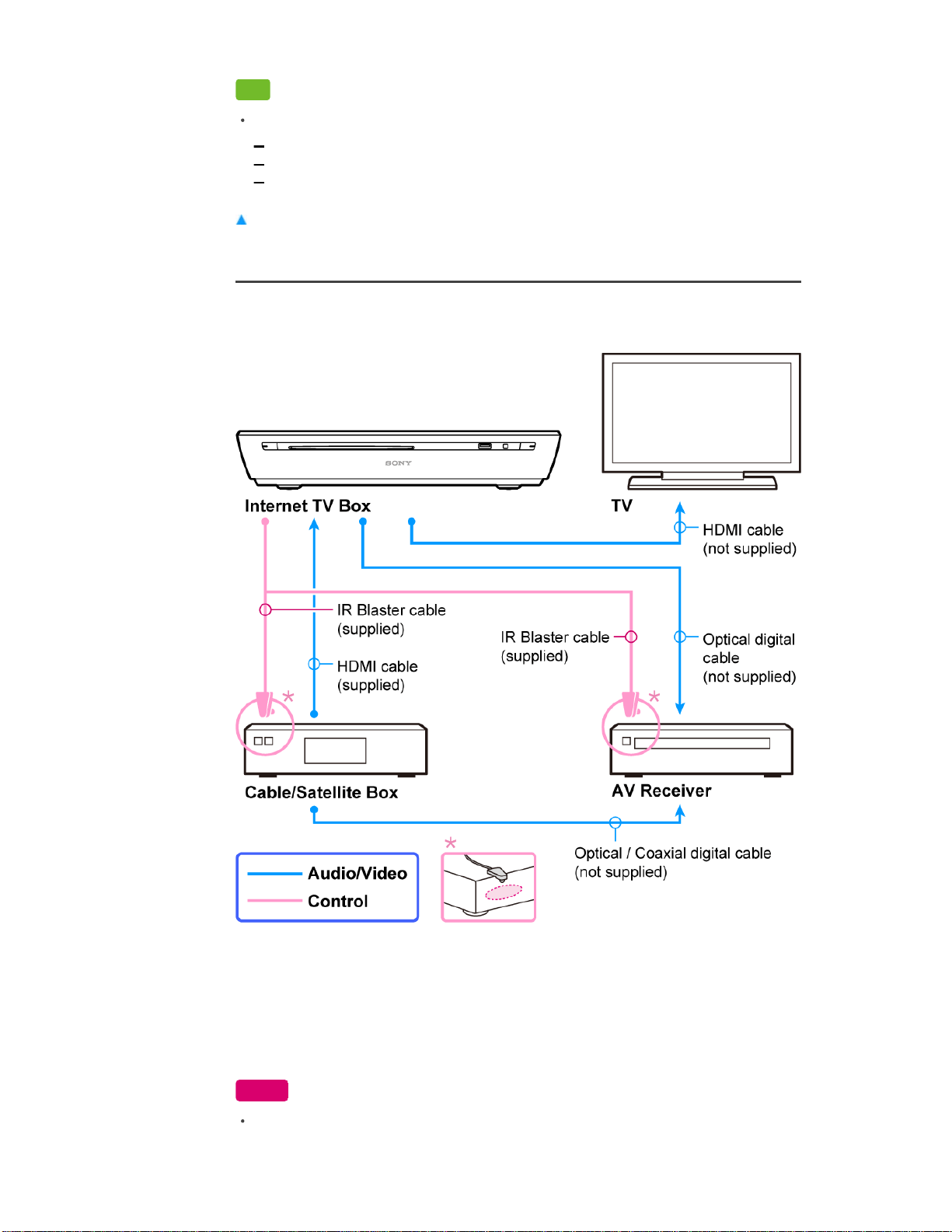
To enjoy surround sound from a Cable/Satellite Box
Use the IR Blaster cable to control connected devices with the Keypad.
To output the sound from the AV Receiver, press Fn + 1 and select [Picture & sound] - [Audio
output priority] - [Optical].
To enjoy surround sound from a Cable/Satellite Box, connect the Cable/Satellite Box and AV
Receiver directly with an optical or coaxial digital cable. For details, refer to the manual supplied
with the AV Receiver.
In this case, change the input of the AV Receiver to output the sound from the Cable/Satellite Box.
Note
When you make a connection with this method, DTS-HD and Dolby TrueHD surround sound
are not available from the Sony Internet TV.
NSZ-GT1
59
Top Page > Connection > Preparing to Control Your TV
Preparing to Control Your TV
If your TV is compatible with Control for HDMI
If TV Control Setup is completed in the Initial Setup, you can control your TV using the following
keys on the Keypad:
(TV): turn on/off the TV.
INPUT: changes the input
VOL: changes the volume up (+) or down (-) of your TV
MUTING: silences the volume of your TV
To complete TV Control Setup
Press Fn+1, select [TV & AVR] - [TV control setting], then follow the on-screen instructions.
Return to Top
If your TV is compatible with Control for HDMI
You need to complete the HDMI setting. Make sure that Control for HDMI is available on your TV.
Return to Top
Press Fn + 1 and select [Disc Player settings] - [HDMI settings].1.
Select [Control for HDMI] - [On].2.
Like 1
Copyright 2010 Sony Corporation
Did You Know
Home
Keypad
Search
Using Applications
Internet
TV
Playback
Connection
Connecting Devices
Preparing to Control Your
TV
Preparing to Control an AV
Receiver
Preparing to Control Other
Devices
Advanced Network
Connection
Settings
Parts & Controls
Troubleshooting / FAQ
Others
Media Remote
Search Help Guide
FAQ
NSZ-GT1
60
Top Page > Connection > Preparing to Control an AV Receiver
Preparing to Control an AV Receiver
If AV Receiver Setup is not completed
If AV Receiver Setup is completed in the Initial Setup, you can control the AV Receiver using the
Keypad.
To control the AV Receiver, press AMP to light up the AMP indicator and activate AV Receiver
control. Point the Keypad to the unit, and use the following keys (keys with orange dots):
(BD/EXT): turns on/off the AV Receiver
INPUT: changes the input of the AV Receiver
VOL: changes the volume up (+) or down (-) of the AV Receiver
MUTING: silences the volume of the AV Receiver
Note
The AMP indicator turns off after 30 seconds, or if you press AMP while the AMP indicator is
on. This ends control of the AV Receiver.
Tip
Press Fn + AMP, the AMP indicator turns on for two seconds. This allows you to continuously
control the AV Receiver using
(ON/STANDBY) /INPUT/VOL. Pressing
(ON/STANDBY) does not turn off the unit.
To return to normal control, press Fn + AMP until the AMP indicator blinks four times.
Return to Top
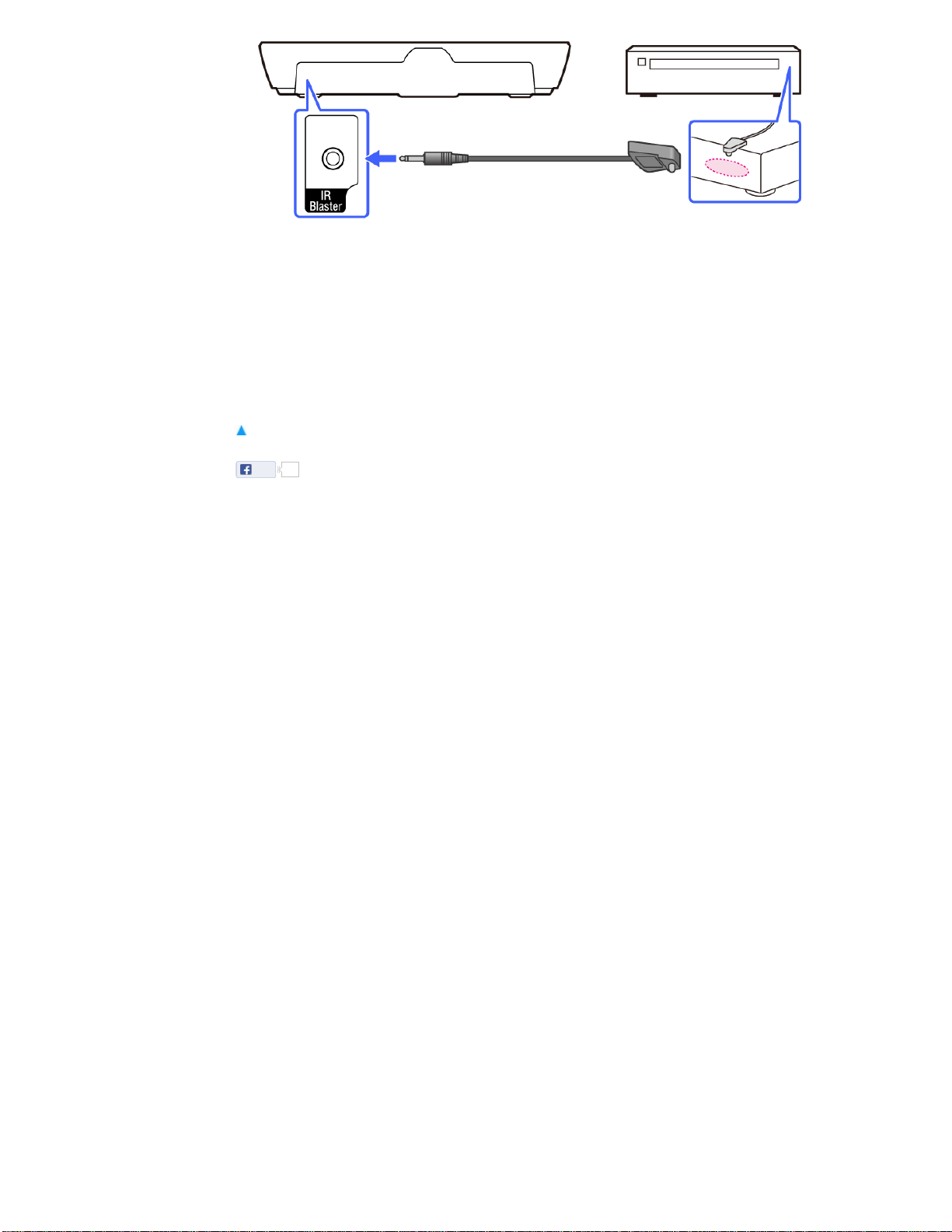
If AV Receiver Setup is not completed
Connect an IR Blaster to the unit and place it properly on the AV Receiver.1.
Did You Know
Home
Keypad
Search
Using Applications
Internet
TV
Playback
Connection
Connecting Devices
Preparing to Control Your
TV
Preparing to Control an AV
Receiver
Preparing to Control Other
Devices
Advanced Network
Connection
Settings
Parts & Controls
Troubleshooting / FAQ
Others
Media Remote
Search Help Guide
FAQ
NSZ-GT1
61
To verify the IR Blaster code
Select [IR Blaster test] in the AV Receiver setting.
Return to Top
Press Fn + 1 and select [TV & AVR] - [AV Receiver setting].2.
Check the box next to [Control with IR Blaster].3.
Select the manufacturer of the AV Receiver, then set the IR Blaster code for the AV Receiver.4.
Like 1
Copyright 2010 Sony Corporation
NSZ-GT1
62
Top Page > Connection > Preparing to Control Other Devices (cable/satellite box or tuner)
Preparing to Control Other Devices (cable/satellite box or
tuner)
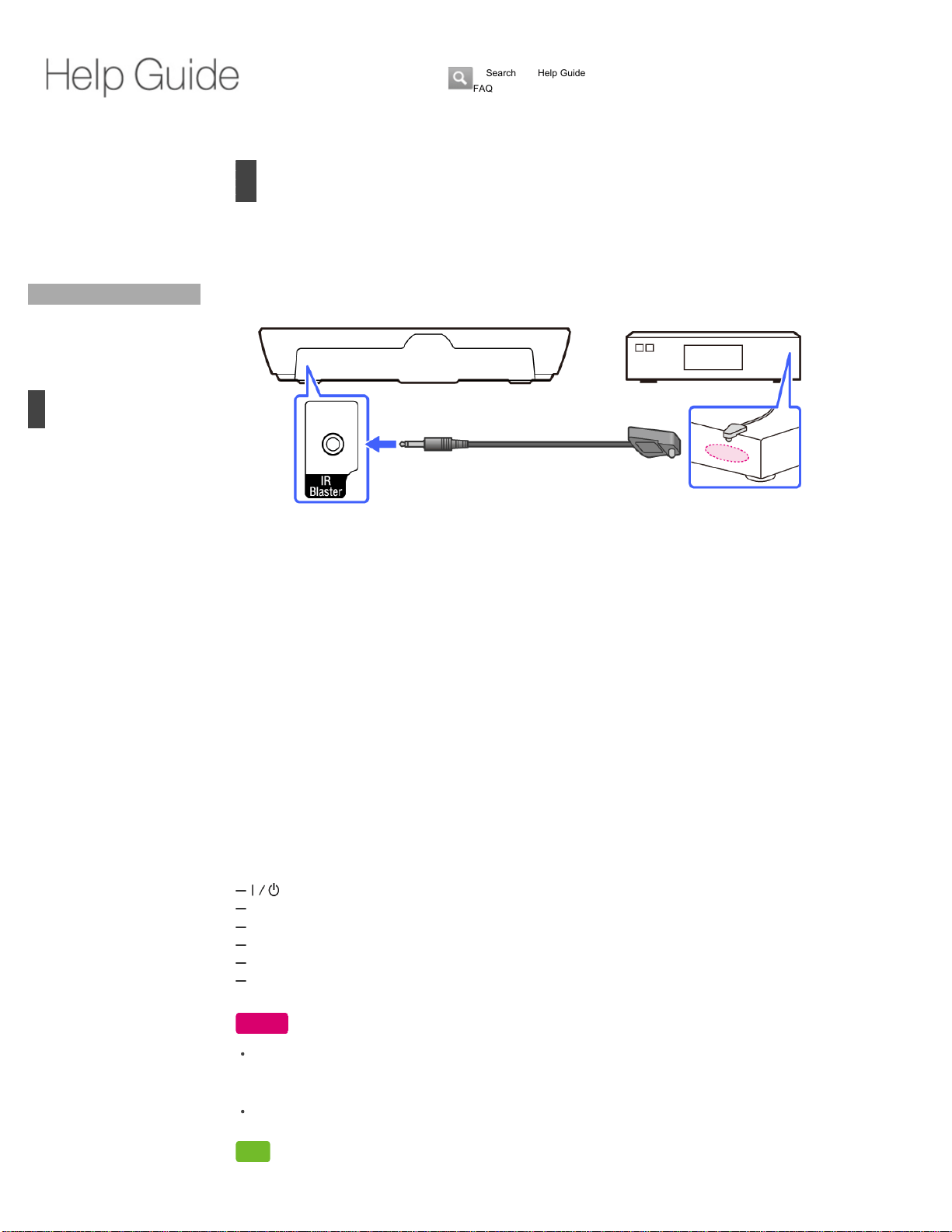
When connecting the unit to other devices such as a cable/satellite box, you can control it using
the Keypad. The cable/satellite box is used as an example.
To change the input to cable/satellite box whenever either TV, GUIDE, DVR is
pressed
The input changes when those keys are pressed, only when you are not watching TV.
To control the cable/satellite box
Point the Keypad to the unit and press either TV, GUIDE, DVR. Then, you can use the following
keys:
(BD/EXT): turns on/off the unit
INPUT: changes the input of your TV
VOL: changes the volume up (+) or down (-) of your TV
MUTING: silences the volume of your TV
GUIDE: displays the cable /satellite box's TV Guide
DVR: displays the cable /satellite box's video menu
Notes
If some keys do not work correctly, try to change the code. Press Fn + 1 and select [Video
input] and select the device, and then select [IR Blaster settings] - [Code] and change the
code. See Video Input.
Available keys depend on the device you are controlling.
Tip
Connect an IR Blaster to the unit and place it properly on the cable/satellite box.1.
Press Fn + 1 and select [Video input].2.
Select [Add device manually], then follow the on-screen instructions.3.
Press Fn + 1 and select [Video input].1.
Select the cable/satellite box from the "Configured devices" list then select [Make default TV
device].
2.
Did You Know
Home
Keypad
Search
Using Applications
Internet
TV
Playback
Connection
Connecting Devices
Preparing to Control Your
TV
Preparing to Control an AV
Receiver
Preparing to Control Other
Devices
Advanced Network
Connection
Settings
Parts & Controls
Troubleshooting / FAQ
Others
Media Remote
Search Help Guide
FAQ
NSZ-GT1
63

The Internet TV is enhanced with DISH Network and provides further control.
Search for recorded contents using the Quick Search Box
Set recordings using the Quick Search Box results
DISH Cinema integration
Access your DVR Recordings in Queue
For details on the models compliant with DISH specifications, refer to
http://www.dish.com/googletv.
Return to Top
Like 0
Copyright 2010 Sony Corporation
NSZ-GT1
64
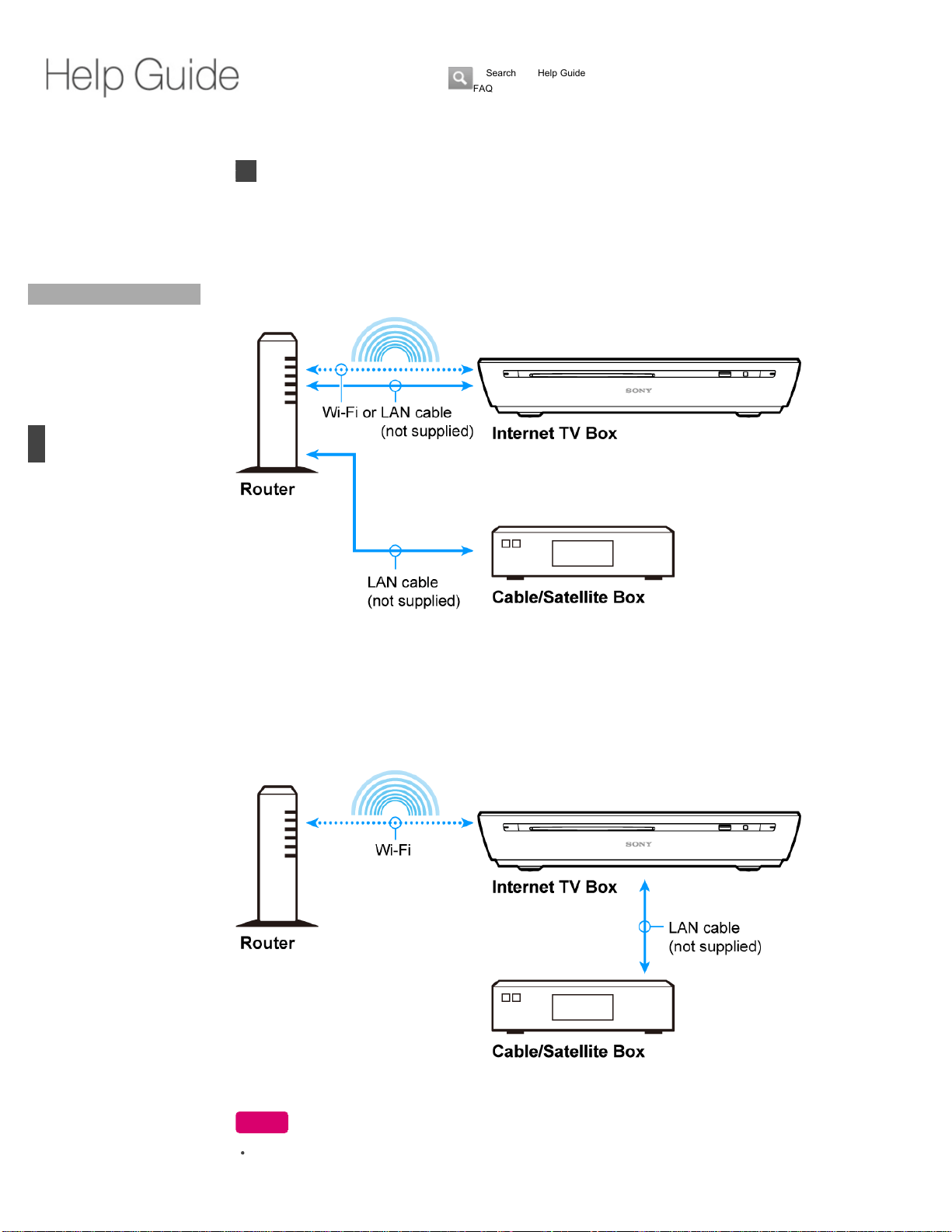
Top Page > Connection > Advanced Network Connection
Advanced Network Connection
(Ref.) Basic connection
The illustration below is the basic network connection method described in the Quick Setup
Guide.
Point to Point connection
Connect the unit and Cable/Satellite Box with a LAN cable. Cabling is simpler. Furthermore, you
can use the TV to acquire program information or to search for a program via your Internet
connection.
Note
The Point to Point connection is currently only supported by DISH.
Did You Know
Home
Keypad
Search
Using Applications
Internet
TV
Playback
Connection
Connecting Devices
Preparing to Control Your
TV
Preparing to Control an AV
Receiver
Preparing to Control Other
Devices
Advanced Network
Connection
Settings
Parts & Controls
Troubleshooting / FAQ
Others
Media Remote
Search Help Guide
FAQ
NSZ-GT1
65
Top Page > Settings > Network
Network
Ethernet
Wi-Fi
Status
Home network setup
Ethernet
Check the status of the wired network connection.
Press Fn + 1 and select [Network].
Your connection status will be displayed under [Ethernet].
Note
When you check the box next to [Wi-Fi], a wired network connection cannot be established
even if a LAN cable is connected to the Internet TV.
Return to Top
Wi-Fi
Select an available Wi-Fi network from the list of Wi-Fi networks found in your area or set up a
new Wi-Fi network.
Press Fn + 1 and select [Network] - [Wi-Fi].
Wi-Fi
Check the box next to [Wi-Fi] to use a Wi-Fi network connection.
Add Wi-Fi network
Fill in the appropriate information and select [Save] to add a Wi-Fi network manually.
Return to Top
Status
You can check the network information, such as IP address, Ethernet MAC address, and Wi-Fi
MAC address.
Press Fn + 1 and select [Network] - [Status].
Return to Top
Did You Know
Home
Keypad
Search
Using Applications
Internet
TV
Playback
Connection
Settings
Network
Video Input
TV & AVR
Picture & Sound - Picture
Picture & Sound - Sound
Disc Player Settings
Search
Applications
Input Device
Accounts & Sync
Privacy & Safety
Storage
Date, Time & Location
Accessibility
About
Parts & Controls
Troubleshooting / FAQ
Others
Media Remote
Search Help Guide
FAQ
NSZ-GT1
66

Home network setup
Set up home network connections.
Press Fn + 1 and select [Network] - [Home network setup].
Return to Top
Edit device name: Input the desired name.
Manage paired remote
applications:
Select the device you want to disconnect from the
device list and select [Disconnect].
Like 0
Copyright 2010 Sony Corporation
NSZ-GT1
67
Top Page > Settings > Video Input
Video Input
You can select the device to control or to set as the tuner.
Press Fn + 1 and select [Video input].
List of configured devices
You can make settings for devices shown in the list, and control them with the Keypad. DISH
Network enhanced DVR integration devices are shown in the list of available sources when
removed.
List of available video sources
To add a device, select it from the list.
To select the device to launch using the TV key
Select the device from the list of configured devices, then select [Make default TV device]. Only
one device can be set at a time.
A mark appears next to the device name in the list of configured devices. Press TV to launch the
device.
To remove the device
Select the device you want to remove from the list of configured devices, then select [Disconnect
device]. DISH Network enhanced DVR integration devices are shown in the list of available
sources when removed.
Note
When pictures from the video input (Live TV) are not displayed correctly, confirm that the
cable/satellite box connected to the HDMI IN jack is turned on and that an HDMI cable is
connected correctly. If it still does not work, connect the HDMI output of the unit directly to the
TV if the HDMI output is connected to the TV through an AV Receiver. See Connecting
Devices.
Return to Top
Add device manually: You can add a device controlled by an IR Blaster.
Like 0
Copyright 2010 Sony Corporation
Did You Know
Home
Keypad
Search
Using Applications
Internet
TV
Playback
Connection
Settings
Network
Video Input
TV & AVR
Picture & Sound - Picture
Picture & Sound - Sound
Disc Player Settings
Search
Applications
Input Device
Accounts & Sync
Privacy & Safety
Storage
Date, Time & Location
Accessibility
About
Parts & Controls
Troubleshooting / FAQ
Others
Media Remote
Search Help Guide
FAQ
NSZ-GT1
68
Top Page > Settings > TV & AVR
TV & AVR
TV control setting
AV Receiver setting
Enable TV control
TV control setting
Set the Keypad to control the TV.
Press Fn + 1 and select [TV & AVR] - [TV control setting].
Return to Top
AV Receiver setting
Set the Keypad to control the connected AV Receiver via an IR Blaster cable. Confirm that the IR
Blaster is connected and placed properly.
Press Fn + 1 and select [TV & AVR] - [AV Receiver setting].
Check the box next to [Control with IR Blaster] and select the manufacturer of your AV Receiver,
then set the IR Blaster code for your AV Receiver. To verify the IR Blaster setting, select [IR
Blaster test].
Return to Top
Enable TV control
Set a third-party controller (optional controller) to control the TV via an IR Blaster cable. Confirm
that the IR Blaster is connected and placed properly.
Press Fn + 1 and select [TV & AVR], and check the box next to [Enable TV control], then follow
the on-screen instructions to control the TV.
To change the IR Blaster code, press Fn + 1 and select [TV & AVR] - [TV & volume control
settings] - [TV control setting].
Select [Volume control setting] to choose whether to control the TV speaker volume or the AV
Receiver volume.
Return to Top
Like 0
Copyright 2010 Sony Corporation
Did You Know
Home
Keypad
Search
Using Applications
Internet
TV
Playback
Connection
Settings
Network
Video Input
TV & AVR
Picture & Sound - Picture
Picture & Sound - Sound
Disc Player Settings
Search
Applications
Input Device
Accounts & Sync
Privacy & Safety
Storage
Date, Time & Location
Accessibility
About
Parts & Controls
Troubleshooting / FAQ
Others
Media Remote
Search Help Guide
FAQ
NSZ-GT1
69
Top Page > Settings > Picture & Sound - Picture
Picture & Sound - Picture
3D settings
Resolution
Picture size
Screen format
YCbCr/RGB (HDMI)
Noise reduction
Screen saver
3D settings
Change the playback settings for 3D video.
Press Fn + 1 and select [Picture & sound] - [3D settings].
Notes
[Auto] in [3D output setting] becomes effective only when [Resolution] in [Picture & sound] is
set to [Auto].
Return to Top
Resolution
Select the resolution for the TV.
Press Fn + 1 and select [Picture & sound] - [Resolution].
Select [Auto] to detect resolution automatically.
If the selected resolution is not supported by the TV, pictures may not be displayed after the TV
restarts. In this case, hold down CONNECT and press
(EJECT) on the unit to change back to
[Auto].
Return to Top
Picture size
Set the picture display area to match the screen size.
Press Fn + 1 and select [Picture & sound] - [Picture size].
Return to Top
3D output setting: Select [Auto] to output 2D or 3D signals
automatically. If you select [Off], 3D output is
disabled.
TV screen size setting
for 3D BD:
Select the TV screen size required to optimize the
3D viewing.
Did You Know
Home
Keypad
Search
Using Applications
Internet
TV
Playback
Connection
Settings
Network
Video Input
TV & AVR
Picture & Sound - Picture
Picture & Sound - Sound
Disc Player Settings
Search
Applications
Input Device
Accounts & Sync
Privacy & Safety
Storage
Date, Time & Location
Accessibility
About
Parts & Controls
Troubleshooting / FAQ
Others
Media Remote
Search Help Guide
FAQ
NSZ-GT1
70

Screen format
Set the display configuration for a 4:3 aspect ratio picture on a 16:9 aspect ratio screen TV.
Press Fn + 1 and select [Picture & sound] - [Screen format].
Notes
The change of this setting will become effective after the Disc Player application restarts.
Return to Top
YCbCr/RGB (HDMI)
Set the color matching method.
Press Fn + 1 and select [Picture & sound] - [YCbCr/RGB (HDMI)].
Note
If the color is not displayed correctly on the TV when you select [Auto], try [RGB].
Return to Top
Noise reduction
Allows you to improve the picture quality by reducing the noise in video signals.
Press Fn + 1 and select [Picture & sound] - [Noise reduction].
Select [High] to reduce the noise when it is intrusive. Select [Off] if you do not use this function.
Return to Top
Screen saver
Set the time at which the unit launches the screen saver on your TV when no operation is carried
out.
Original: Select this when connecting to a TV with a wide
mode function. Displays a 4:3 screen picture in
16:9 aspect ratio even on a wide-screen TV.
Fixed aspect ratio: When using a TV without a wide mode function,
the picture size fits the screen size with the
original picture aspect ratio.
Auto: Automatically detects the connected TV type, and
switches to the matching color setting.
YCbCr (4:4:4): Outputs YCbCr 4:4:4 video signals.
RGB: Outputs RGB video signals.
NSZ-GT1
71


Top Page > Settings > Picture & Sound - Sound
Picture & Sound - Sound
Audio(HDMI)
Audio output priority
BD audio mix setting
Dolby Digital (Optical)
Dolby Digital pass-through
DTS (Optical)
Audio DRC
Downmix
AV sync
Sound effects
Notification sounds
Text-to-speech
Audio(HDMI)
Select the output method for audio signals from the HDMI jack.
Press Fn + 1 and select [Picture & sound] - [Audio(HDMI)].
When the connected device is not compatible with compressed audio, select [PCM].
Return to Top
Audio output priority
Select the audio output format to use when you connect the devices both to the HDMI jack and
DIGITAL OUT (OPTICAL) jack.
Press Fn + 1 and select [Picture & sound] - [Audio output priority].
Note
Audio signals may not be output from the Optical output depending on the audio format when
[HDMI] is selected.
Return to Top
BD audio mix setting
Set the output method for the interactive audio and secondary audio (commentary) when playing a
BD that contains such audio.
Auto: Normally select this. Outputs audio signals
according to the status of the connected HDMI
device.
PCM: Outputs PCM signals from the HDMI OUT jack.
Did You Know
Home
Keypad
Search
Using Applications
Internet
TV
Playback
Connection
Settings
Network
Video Input
TV & AVR
Picture & Sound - Picture
Picture & Sound - Sound
Disc Player Settings
Search
Applications
Input Device
Accounts & Sync
Privacy & Safety
Storage
Date, Time & Location
Accessibility
About
Parts & Controls
Troubleshooting / FAQ
Others
Media Remote
Search Help Guide
FAQ
NSZ-GT1
73
Press Fn + 1 and select [Picture & sound] - [BD audio mix setting].
Note
Do not change settings while playing a Blu-ray disc.
Return to Top
Dolby Digital (Optical)
Select the audio signals to be output when playing discs recorded with Dolby Digital audio.
Press Fn + 1 and select [Picture & sound] - [Dolby Digital (Optical)].
When the connected device does not have a built-in Dolby Digital decoder, select [Off (Downmix
PCM)].
Tip
The audio signals are output by Linear PCM if [Off (Downmix PCM)] is selected when
connected to a device without a built-in Dolby Digital decoder.
Return to Top
Dolby Digital pass-through
Set whether or not to transmit Dolby Digital signals from the cable/satellite box to your audio
system via an HDMI or an optical digital cable connection.
Press Fn + 1 and select [Picture & sound] - [Dolby Digital pass-through].
Note
When [Dolby Digital pass-through] is set to [On] and the cable/satellite box outputs PCM
signals, PCM signals are transmitted to your audio system.
This setting has no effect when you use the PIP (Picture-in-Picture) function.
Return to Top
On: Outputs the audio obtained by mixing the
interactive and secondary audio to the primary
audio.
Off: Outputs the primary audio only. Select this to
output HD audio signals, such as Dolby TrueHD,
to an AV Receiver.
On: Transmits Dolby Digital signals to your audio
system when the cable/satellite box outputs Dolby
Digital signals. When relaying Dolby Digital
signals, other audio signals cannot be
transmitted.
Off: Transmits only PCM signals from the
cable/satellite box to your audio system.
NSZ-GT1
74

DTS (Optical)
Select the audio signals to be output when playing discs recorded with DTS audio.
Press Fn + 1 and select [Picture & sound] - [DTS (Optical)].
When the connected device does not have a built-in DTS decoder, select [Off (Downmix PCM)].
Tip
The audio signals are output by Linear PCM if [Off (Downmix PCM)] is selected when
connected to a device without a built-in DTS decoder.
Return to Top
Audio DRC
Select the dynamic range (compression level of the sound) setting when playing a BD or DVD that
conforms to Audio DRC specifications.
Press Fn + 1 and select [Picture & sound] - [Audio DRC].
Notes
[Audio DRC] is effective only when playing Dolby Digital, Dolby Digital Plus, and Dolby TrueHD
audio signals.
When the [Dolby Digital (Optical)] setting in [Picture & sound] is set to [On], [Audio DRC] has
no effect on the audio output from the DIGITAL OUT (OPTICAL) jack. However, this excludes
the following cases.
when playing a BD and [BD audio mix setting] is set to [On].
when playing Dolby Digital plus and Dolby TrueHD signals and [Audio output priority] is set
to [HDMI].
Return to Top
Downmix
Set the method for downmixing multi-channel sound to two-channel.
Press Fn + 1 and select [Picture & sound] - [Downmix].
Auto: Performs playback at the dynamic range specified
by the disc (BD-ROM only). Other discs are
played back at the [Standard] level.
Standard: Performs playback at a compression level
between [TV mode] and [Wide range].
TV mode: Sounds are compressed heavily. Low sounds are
easier to hear.
Wide range: No compression works. A more dynamic sound is
produced.
Surround: Outputs audio signals with surround effects.
Select this when connecting an audio device that
supports Dolby Surround (Pro Logic).
Stereo: Outputs audio signals without surround effects.
NSZ-GT1
75

Notes
The change of this setting will become effective after the Disc Player application restarts.
Return to Top
AV sync
Adjust the discrepancies between picture and sound, by delaying the sound output in relation to
the picture output.
Press Fn + 1 and select [Picture & sound] - [AV sync].
Return to Top
Sound effects
Press Fn + 1 and select [Picture & sound] - [Sound effects].
Check the box to enable sound effects.
Return to Top
Notification sounds
Press Fn + 1 and select [Picture & sound] - [Notification sounds].
Select [Silent] if you want to silence the notification sounds.
Return to Top
Text-to-speech
Press Fn + 1 and select [Picture & sound] - [Text-to-speech].
Return to Top
Select this when connecting an audio device that
does not support Dolby Surround (Pro Logic).
Listen to an example: Play a demo of speech synthesis.
Always use my
settings:
Check the box to ensure that your customized
settings will always override application settings.
Install voice data: Install external voice data for speech synthesis.
Speech rate: Change the voice playback speed.
Language: Select the language for this function.
Like 0
NSZ-GT1
76
Top Page > Settings > Disc Player Settings
Disc Player Settings
Timer
Eco
HDMI settings
Cinema conversion mode
BD-ROM 1080/24p output
Auto display
BD/DVD viewing settings
BD Internet connection
BD data management
Timer
Set the timer to turn the power on or off.
Press Fn + 1 and select [Disc Player settings] - [Timer].
Return to Top
Eco
Press Fn + 1 and select [Disc Player settings] - [Eco].
Return to Top
HDMI settings
Press Fn + 1 and select [Disc Player settings] - [HDMI settings].
Add timer: Set a new timer to turn the power on. To modify
the timer setting, select the timer you want to
modify and change its settings. To delete a timer,
select [Delete this timer].
Sleep timer: Set the duration of time until the power is turned
off automatically.
Quick start: Reduces the time required for startup, but power
consumption becomes higher.
Auto standby: The unit goes to standby mode when no
buttons/keys are pressed on the unit or Keypad
for more than 2 hours. This feature is disabled
when you are playing BDs/DVDs/CDs/photo files
or are updating software.
Did You Know
Home
Keypad
Search
Using Applications
Internet
TV
Playback
Connection
Settings
Network
Video Input
TV & AVR
Picture & Sound - Picture
Picture & Sound - Sound
Disc Player Settings
Search
Applications
Input Device
Accounts & Sync
Privacy & Safety
Storage
Date, Time & Location
Accessibility
About
Parts & Controls
Troubleshooting / FAQ
Others
Media Remote
Search Help Guide
FAQ
NSZ-GT1
77

Return to Top
Cinema conversion mode
Set the video conversion method for 720p, 1080i or 1080p signals from the HDMI OUT jack.
Press Fn + 1 and select [Disc Player settings] - [Cinema conversion mode].
Return to Top
BD-ROM 1080/24p output
Press Fn + 1 and select [Disc Player settings] - [BD-ROM 1080/24p output].
When playing film-based content on BD-ROMs (1080p/24 Hz), select [Auto] to output 1920 x
1080/24p video signals.
Return to Top
Auto display
Set the display method for disc information.
Press Fn + 1 and select [Disc Player settings] - [Auto display].
Select [On] to automatically display when information is changed. Select [Off] to display
information only when pressing Fn + 4 (INFO).
Return to Top
BD/DVD viewing settings
Set the language for menu, audio and subtitle for BD and DVD discs.
Press Fn + 1 and select [Disc Player settings] - [BD/DVD viewing settings].
Note
Control for HDMI: Select [On] to link operations of the unit and the
connected devices equipped with the Control for
HDMI function.
Device auto power off: Select [On] to turn off the unit when the
connected TV equipped with the Control for HDMI
function is turned off.
Auto: Normally select this. The player automatically
detects whether the material is video-based or
film-based, and switches to the appropriate
conversion method.
Video: The conversion method suited for video-based
material will always be selected regardless of the
material.
NSZ-GT1
78
This setting may not work correctly depending on the disc.
The change of this setting will become effective after the Disc Player application restarts.
Return to Top
BD Internet connection
Set whether to allow Internet connection from the content of a BD being played.
Press Fn + 1 and select [Disc Player Settings] - [BD Internet connection].
Select [Allow] unless you wish to prohibit Internet connection.
Notes
The change of this setting will become effective after the Disc Player application restarts.
Return to Top
BD data management
The capacity used is indicated in MB (MegaByte).
To erase all BD data, press Fn + 1 and select [Disc Player settings] - [BD data management] -
[Erase BD data] - [Yes].
Notes
Do not use this option while playing a disc.
Do not perform any operations while erasing BD data.
Return to Top
Like 0
Copyright 2010 Sony Corporation
NSZ-GT1
79
Top Page > Settings > Search
Search
Searchable items
Clear shortcuts
Searchable items
You can choose to customize what items appear when you conduct a search, such as Web, Apps,
Podcasts, and TV & Movies.
Press Fn + 1 and select [Search] - [Searchable items].
Check the box next to the items you want to add.
Return to Top
Clear shortcuts
You can clear your search shortcuts.
Press Fn + 1 and select [Search] - [Clear shortcuts].
Return to Top
Like 0
Copyright 2010 Sony Corporation
Did You Know
Home
Keypad
Search
Using Applications
Internet
TV
Playback
Connection
Settings
Network
Video Input
TV & AVR
Picture & Sound - Picture
Picture & Sound - Sound
Disc Player Settings
Search
Applications
Input Device
Accounts & Sync
Privacy & Safety
Storage
Date, Time & Location
Accessibility
About
Parts & Controls
Troubleshooting / FAQ
Others
Media Remote
Search Help Guide
FAQ
NSZ-GT1
80
Top Page > Settings > Applications
Applications
Unknown sources
Manage applications
Running services
Development
Unknown sources
Press Fn + 1 and select [Applications] - [Unknown sources].
Check the box to allow installation of non-Market applications.
Return to Top
Manage applications
Check information on applications or remove unnecessary applications.
Press Fn + 1 and select [Applications] - [Manage applications].
Return to Top
Running services
View and control what's currently running on your Google TV.
Press Fn + 1 and select [Applications] - [Running services].
Select one of the services to confirm whether or not to stop the service.
Return to Top
Development
Set options for application development.
Press Fn + 1 and select [Applications] - [Development].
Return to Top
Like 0
Copyright 2010 Sony Corporation
Did You Know
Home
Keypad
Search
Using Applications
Internet
TV
Playback
Connection
Settings
Network
Video Input
TV & AVR
Picture & Sound - Picture
Picture & Sound - Sound
Disc Player Settings
Search
Applications
Input Device
Accounts & Sync
Privacy & Safety
Storage
Date, Time & Location
Accessibility
About
Parts & Controls
Troubleshooting / FAQ
Others
Media Remote
Search Help Guide
FAQ
NSZ-GT1
81
Top Page > Settings > Input Device
Input Device
Manage IP remotes
Chrome to TV
Pointer speed
Current keyboard
Configure input method
Manage IP remotes
Allows you to connect new IP remotes.
Press Fn + 1 and select [Input device] - [Manage IP remotes].
Check the box to accept pairing a remote.
Return to Top
Chrome to TV
Allows you to share information between your computer and your Internet TV.
Press Fn + 1 and select [Input device] - [Chrome to TV].
Follow the on-screen instructions.
Return to Top
Pointer speed
Press Fn + 1 and select [Input device] - [Pointer speed].
Move the slider to the right side when you want to move the pointer faster.
Return to Top
Current keyboard
Set up a third-party keyboard currently used.
Press Fn + 1 and select [Input device] - [Current keyboard].
Return to Top
Configure input method
Set the input method of the keyboard currently used.
Did You Know
Home
Keypad
Search
Using Applications
Internet
TV
Playback
Connection
Settings
Network
Video Input
TV & AVR
Picture & Sound - Picture
Picture & Sound - Sound
Disc Player Settings
Search
Applications
Input Device
Accounts & Sync
Privacy & Safety
Storage
Date, Time & Location
Accessibility
About
Parts & Controls
Troubleshooting / FAQ
Others
Media Remote
Search Help Guide
FAQ
NSZ-GT1
82

Top Page > Settings > Accounts & Sync
Accounts & Sync
Background data
Auto-sync
Manage accounts
Background data
Press Fn + 1 and select [Accounts & sync] - [Background data].
Check the box to allow applications to sync, send, and receive data at any time.
Return to Top
Auto-sync
Synchronizes your account information automatically when you change information other device.
Press Fn + 1 and select [Accounts & sync] - [Auto-sync].
Return to Top
Manage accounts
You can add or remove accounts.
Press Fn + 1 and select [Accounts & sync].
If you have an account, it is displayed on the Manage accounts list. To add an account, select
[Add account]. To remove an account, select the account and select [Remove account].
Return to Top
Like 1
Copyright 2010 Sony Corporation
Did You Know
Home
Keypad
Search
Using Applications
Internet
TV
Playback
Connection
Settings
Network
Video Input
TV & AVR
Picture & Sound - Picture
Picture & Sound - Sound
Disc Player Settings
Search
Applications
Input Device
Accounts & Sync
Privacy & Safety
Storage
Date, Time & Location
Accessibility
About
Parts & Controls
Troubleshooting / FAQ
Others
Media Remote
Search Help Guide
FAQ
NSZ-GT1
84
Top Page > Settings > Privacy & Safety
Privacy & Safety
Reporting
Factory data reset
Video history
Clear video history
Safe search
Application lock
Parental lock
Back up my data
Backup account
Automatic restore
Reporting
Press Fn + 1 and select [Privacy & safety] - [Reporting].
Check the box to send usage statistics and crash reports.
Return to Top
Factory data reset
Resets all the settings to the factory defaults.
Press Fn + 1 and select [Privacy & safety] - [Factory data reset].
Return to Top
Video history
Press Fn + 1 and select [Privacy & safety] - [Video history].
Check the box to store the history of videos you have watched, such items as TV channels.
Return to Top
Clear video history
Clear the history of videos you have watched, such items as TV channels.
Press Fn + 1 and select [Privacy & safety] - [Clear video history].
Return to Top
Safe search
Did You Know
Home
Keypad
Search
Using Applications
Internet
TV
Playback
Connection
Settings
Network
Video Input
TV & AVR
Picture & Sound - Picture
Picture & Sound - Sound
Disc Player Settings
Search
Applications
Input Device
Accounts & Sync
Privacy & Safety
Storage
Date, Time & Location
Accessibility
About
Parts & Controls
Troubleshooting / FAQ
Others
Media Remote
Search Help Guide
FAQ
NSZ-GT1
85

Press Fn + 1 and select [Privacy & safety] - [Safe search].
Select [Moderate filtering] to block access to adult-themed content when conducting searches.
Return to Top
Application lock
Press Fn + 1 and select [Privacy & safety] - [Application lock].
Check the box next to [Lock Google Chrome & Market] to require PIN when using Chrome. Select
[Change PIN] to change the password.
Return to Top
Parental lock
Press Fn + 1 and select [Privacy & safety] - [Parental lock].
Tip
If you forget the parental lock password, enter 4357 for the password. (Password 4357 is
always accepted.)
Return to Top
Back up my data
Press Fn + 1 and select [Privacy & safety] - [Back up my data].
Check the box if you want to back up application data and other settings for your Internet TV to
the Google servers.
Return to Top
Backup account
Restore your account information using the backup.
Press Fn + 1 and select [Privacy & safety] - [Backup account].
Return to Top
Change password: You need to enter the password before changing
it.
BD rating/DVD rating: Restrict playback of BD discs under Parental
Control or DVD VIDEOS limited according to age.
"Sony Recommends"
rating:
Set to limit playback of Internet videos according
to age. Select [Custom] to set the rating
separately for movie and for TV.
"Sony Recommends"
unrated:
[Allow] or [Block] programs that contain no rating
information.
NSZ-GT1
86

Top Page > Settings > Storage
Storage
Provides information on the status of the internal memory and any connected storage devices.
Press Fn + 1 and select [Storage].
When connecting USB storage devices, you can unmount them.
Return to Top
Like 0
Copyright 2010 Sony Corporation
Did You Know
Home
Keypad
Search
Using Applications
Internet
TV
Playback
Connection
Settings
Network
Video Input
TV & AVR
Picture & Sound - Picture
Picture & Sound - Sound
Disc Player Settings
Search
Applications
Input Device
Accounts & Sync
Privacy & Safety
Storage
Date, Time & Location
Accessibility
About
Parts & Controls
Troubleshooting / FAQ
Others
Media Remote
Search Help Guide
FAQ
NSZ-GT1
88

Top Page > Settings > Date, Time & Location
Date, Time & Location
Press Fn + 1 and select [Date, time & location].
Return to Top
Automatic: Remove the check from the box to set the date
and time manually.
Set date: Set the Month/Day/Year.
Select time zone: Select from the time zone list.
Set time: Set the Hour/Minute.
Use 24-hour format: When you remove the check from the box, the
time will be displayed in 12-hour format.
Select date format: Select the date order from the format list.
Set location: Set your location by entering your ZIP code.
Like 0
Copyright 2010 Sony Corporation
Did You Know
Home
Keypad
Search
Using Applications
Internet
TV
Playback
Connection
Settings
Network
Video Input
TV & AVR
Picture & Sound - Picture
Picture & Sound - Sound
Disc Player Settings
Search
Applications
Input Device
Accounts & Sync
Privacy & Safety
Storage
Date, Time & Location
Accessibility
About
Parts & Controls
Troubleshooting / FAQ
Others
Media Remote
Search Help Guide
FAQ
NSZ-GT1
89
Top Page > Settings > Accessibility
Accessibility
Press Fn + 1 and select [Accessibility].
Return to Top
Enable accessibility
services:
Check the box to enable accessibility to set up
TalkBack.
TalkBack: Check the box to provide audible explanations for
Google TV features.
Like 1
Copyright 2010 Sony Corporation
Did You Know
Home
Keypad
Search
Using Applications
Internet
TV
Playback
Connection
Settings
Network
Video Input
TV & AVR
Picture & Sound - Picture
Picture & Sound - Sound
Disc Player Settings
Search
Applications
Input Device
Accounts & Sync
Privacy & Safety
Storage
Date, Time & Location
Accessibility
About
Parts & Controls
Troubleshooting / FAQ
Others
Media Remote
Search Help Guide
FAQ
NSZ-GT1
90
Top Page > Settings > About
About
Provides system updates, tutorials, information on the status of the system, and on how to contact
Sony.
Press Fn + 1 and select [About].
Return to Top
System tutorial: Introduces the key feature of your Internet TV.
Contact Sony: Displays Information on how to contact Sony.
Selecting [Website support] allows you to access
the online support site directly.
Like 0
Copyright 2010 Sony Corporation
Did You Know
Home
Keypad
Search
Using Applications
Internet
TV
Playback
Connection
Settings
Network
Video Input
TV & AVR
Picture & Sound - Picture
Picture & Sound - Sound
Disc Player Settings
Search
Applications
Input Device
Accounts & Sync
Privacy & Safety
Storage
Date, Time & Location
Accessibility
About
Parts & Controls
Troubleshooting / FAQ
Others
Media Remote
Search Help Guide
FAQ
NSZ-GT1
91
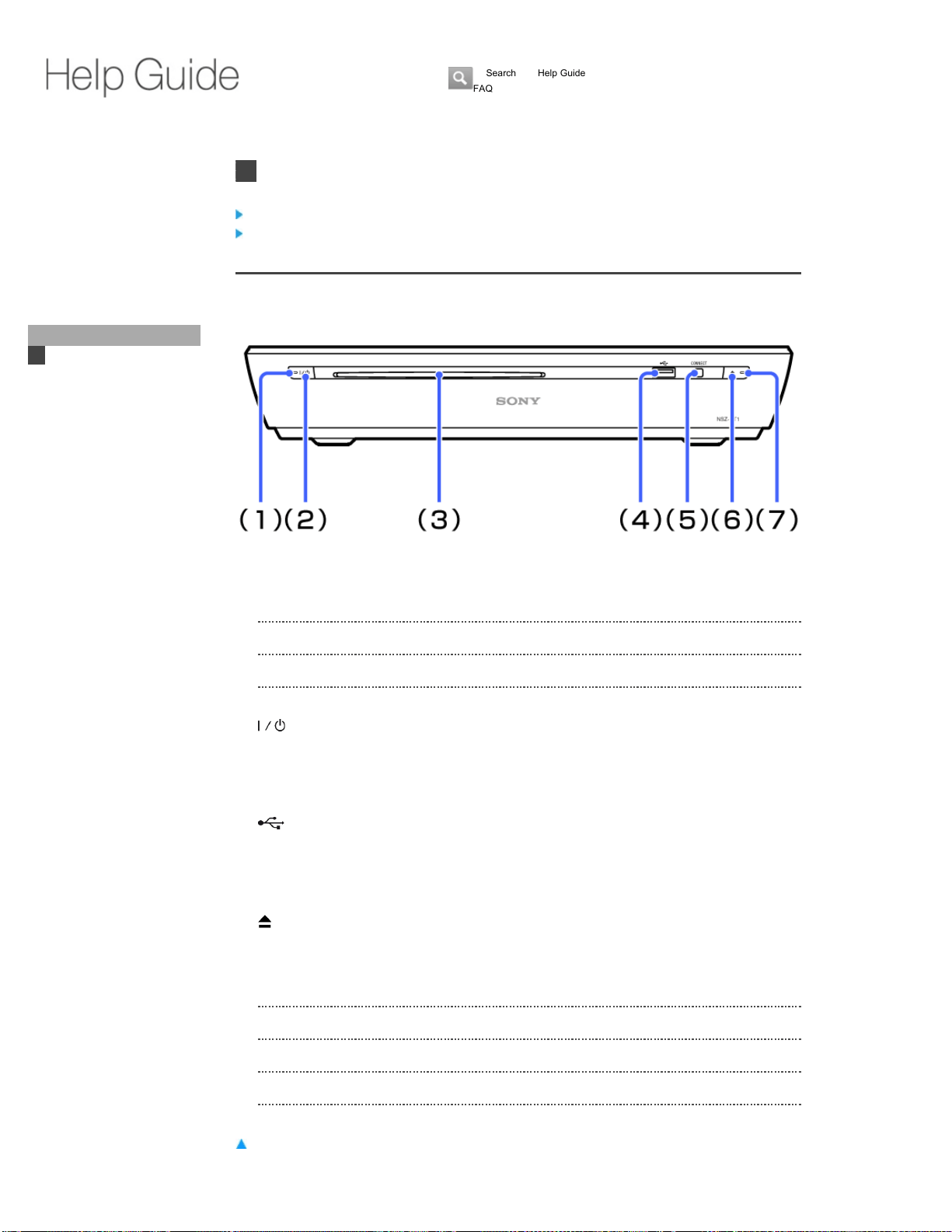
Top Page > Keypad/Parts & Controls > NSZ-GT1
NSZ-GT1
Front
Rear
Front
Return to Top
Power indicator(1)
Red: Standby
Green: Power on
(on/standby) button
Press to turn the unit on or set to standby mode.
(2)
Disc slot
Insert a disc.
(3)
(USB) jack
Connect a USB device.
(4)
CONNECT button
Press for two seconds or more to pair with the Keypad.
(5)
(EJECT) button
Press to eject the disc.
(6)
Disc loading indicator(7)
On: Inserted
Blinking: Loading
Off: No disc
Did You Know
Home
Keypad
Search
Using Applications
Internet
TV
Playback
Connection
Settings
Parts & Controls
NSZ-GT1
Troubleshooting / FAQ
Others
Media Remote
Search Help Guide
FAQ
NSZ-GT1
92
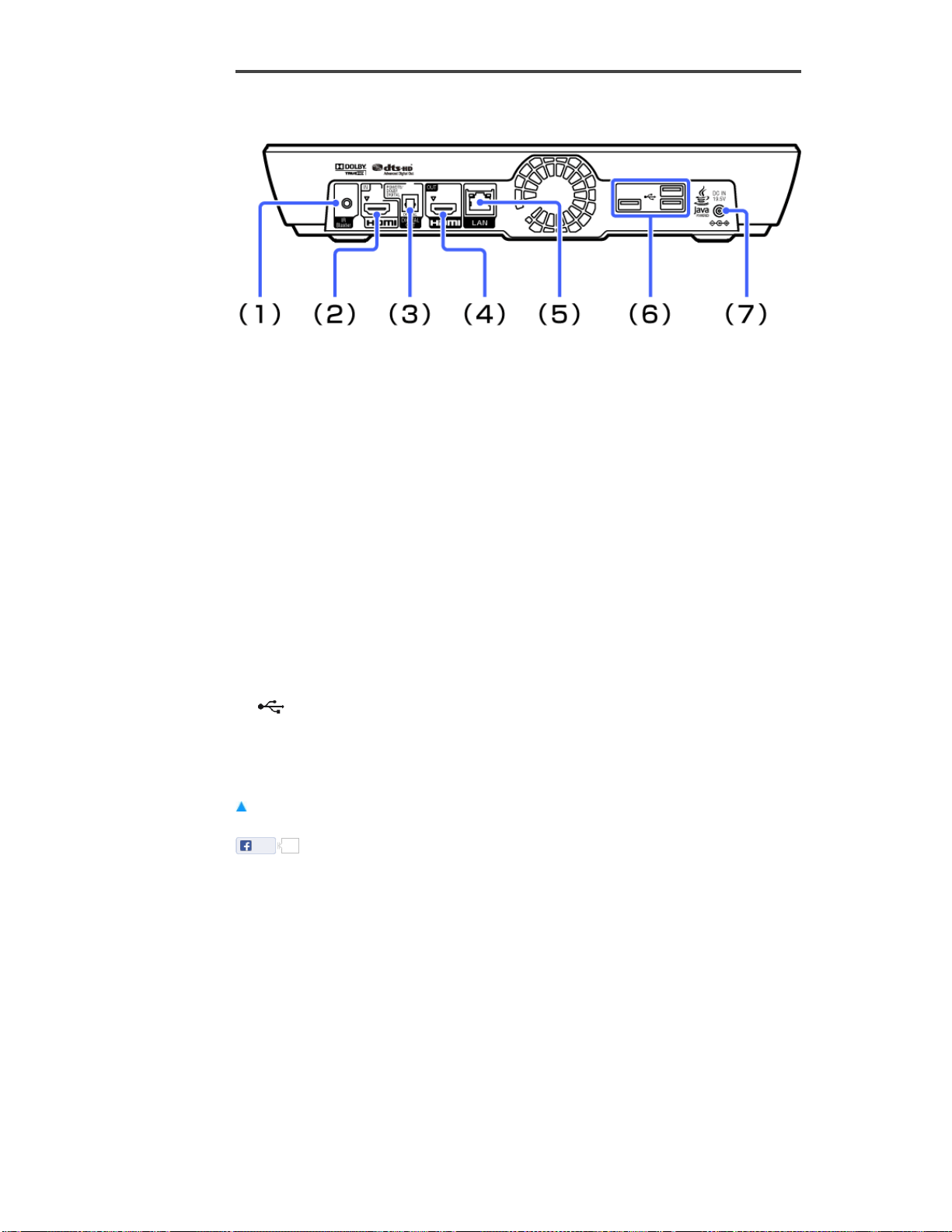
Rear
Return to Top
IR Blaster jack
Connect the IR Blaster cable to control other devices.
(1)
HDMI IN jack
Connect an HDMI cable.
HDMI (High-Definition Multimedia Interface) provides an uncompressed all-digital audio/video
interface between the TV and any HDMI-equipment.
See HDMI settings.
(2)
DIGITAL AUDIO OUT (OPTICAL) jack
Connect a digital optical cable.
When connecting digital audio equipment such as AV Receiver that is PCM/Dolby Digital
compatible, you can enjoy high quality sound.
(3)
HDMI OUT jack
Connect an HDMI cable to the TV.
(4)
LAN terminal
Connect a network cable to use the wired network.
(5)
(USB) jack
Connect a USB device.
(6)
DC IN jack
Connect the AC adapter and AC power cord to the AC power source.
(7)
Like 0
Copyright 2010 Sony Corporation
NSZ-GT1
93
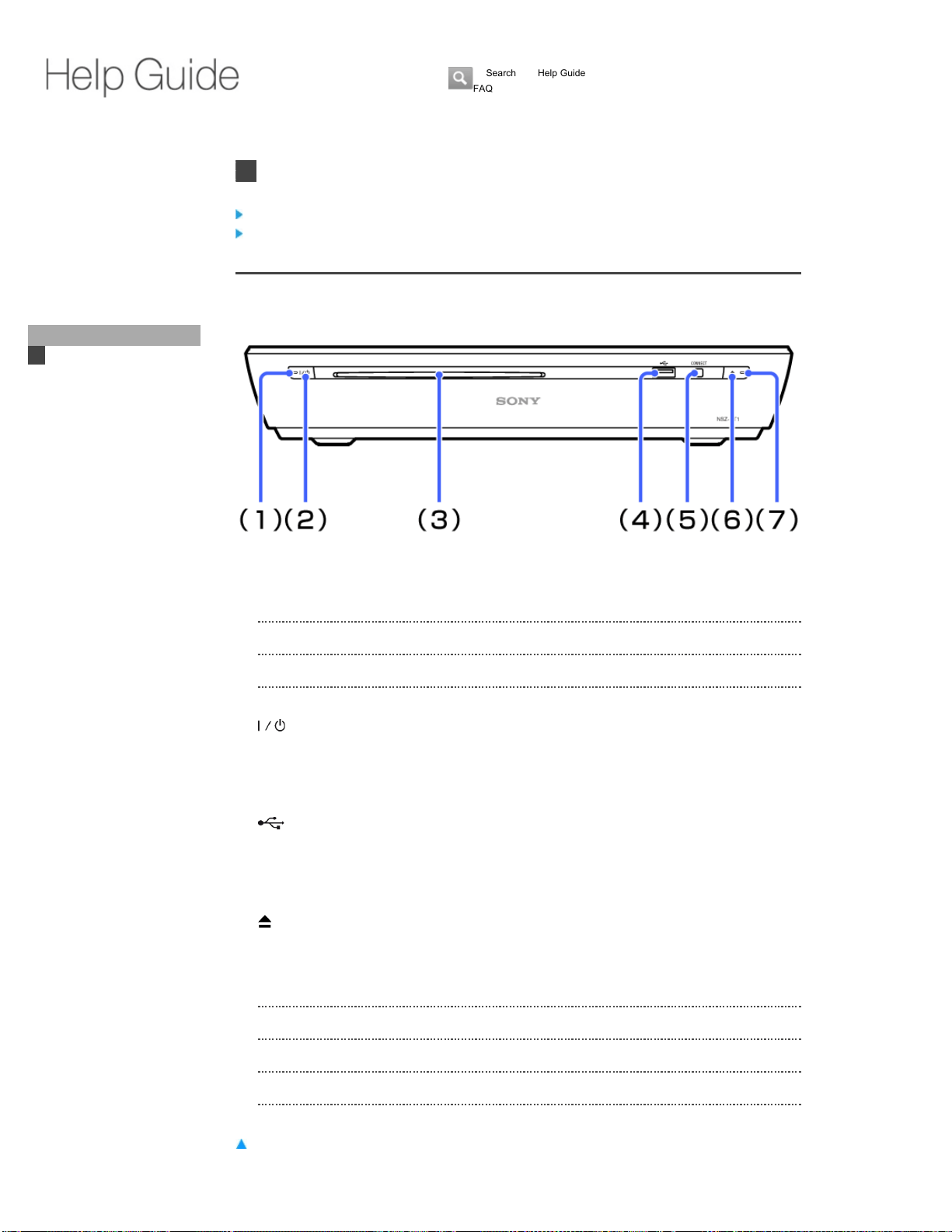
Top Page > Keypad/Parts & Controls > NSZ-GT1
NSZ-GT1
Front
Rear
Front
Return to Top
Power indicator(1)
Red: Standby
Green: Power on
(on/standby) button
Press to turn the unit on or set to standby mode.
(2)
Disc slot
Insert a disc.
(3)
(USB) jack
Connect a USB device.
(4)
CONNECT button
Press for two seconds or more to pair with the Keypad.
(5)
(EJECT) button
Press to eject the disc.
(6)
Disc loading indicator(7)
On: Inserted
Blinking: Loading
Off: No disc
Did You Know
Home
Keypad
Search
Using Applications
Internet
TV
Playback
Connection
Settings
Parts & Controls
NSZ-GT1
Troubleshooting / FAQ
Others
Media Remote
Search Help Guide
FAQ
NSZ-GT1
94
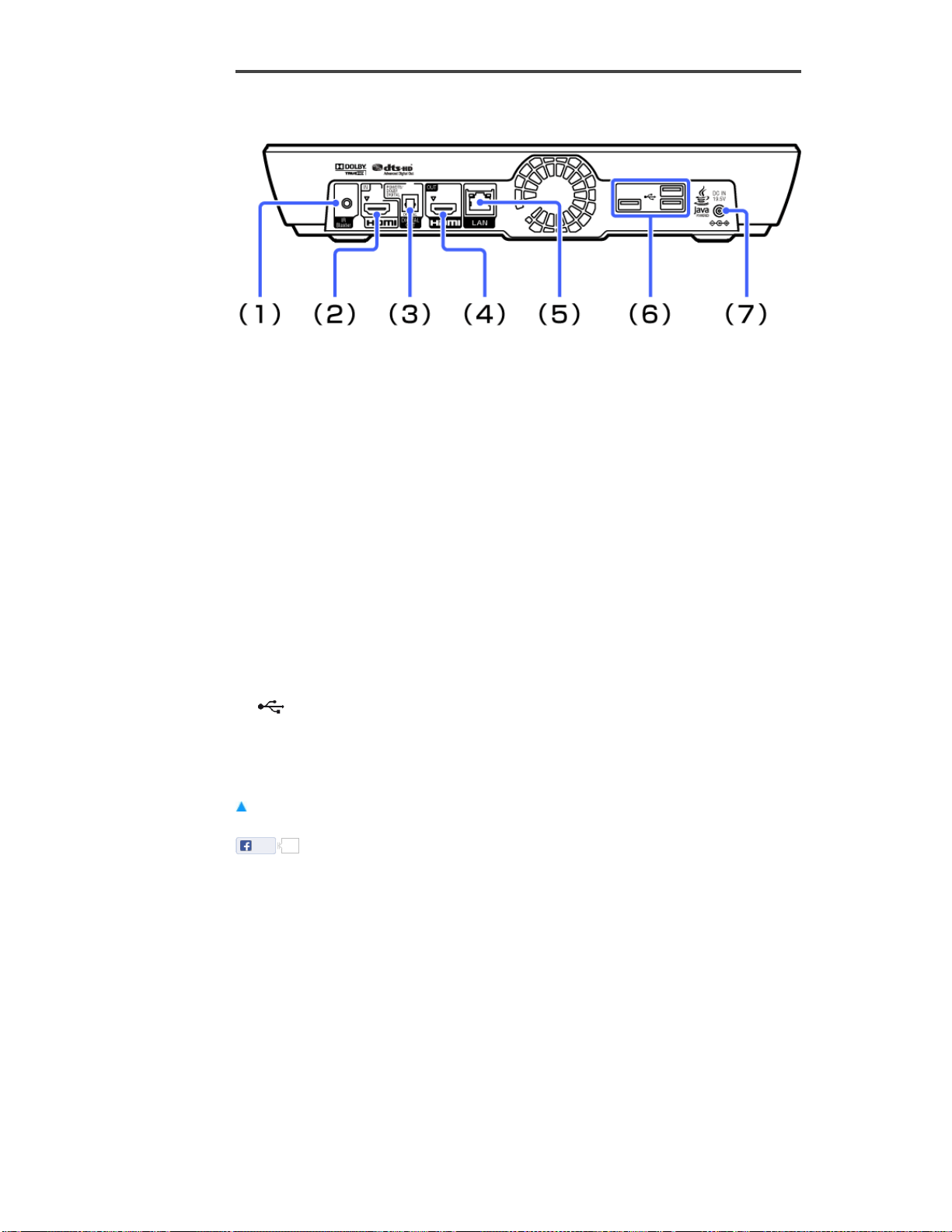
Rear
Return to Top
IR Blaster jack
Connect the IR Blaster cable to control other devices.
(1)
HDMI IN jack
Connect an HDMI cable.
HDMI (High-Definition Multimedia Interface) provides an uncompressed all-digital audio/video
interface between the TV and any HDMI-equipment.
See HDMI settings.
(2)
DIGITAL AUDIO OUT (OPTICAL) jack
Connect a digital optical cable.
When connecting digital audio equipment such as AV Receiver that is PCM/Dolby Digital
compatible, you can enjoy high quality sound.
(3)
HDMI OUT jack
Connect an HDMI cable to the TV.
(4)
LAN terminal
Connect a network cable to use the wired network.
(5)
(USB) jack
Connect a USB device.
(6)
DC IN jack
Connect the AC adapter and AC power cord to the AC power source.
(7)
Like 0
Copyright 2010 Sony Corporation
NSZ-GT1
95
Replacing and
moving Applications
on the Home
screen
Copyright 2010 Sony Corporation
Did You Know
Home
Keypad
Search
Using Applications
Internet
TV
Playback
Connection
Settings
Parts & Controls
Troubleshooting / FAQ
NSZ-GT1
Others
Media Remote
Search Help Guide FAQ
Page 1 of 1Help Guid
e
10
/
3
/
201
3
htt
p
://hel
pg
uide.son
y
.net/internettv/nsz-
g
t1/v2/us1/index.htm
l
NSZ-GT1
96
Top Page > Index
Index
A
Applications
List Settings Sync data
Audio
Delaying Settings Switching
AV Receiver
Connection Settings
Return to Top
B
BONUSVIEW/BD-LIVE
Enjoying
Return to Top
C
Closed Caption
Switching
Connecting
Advanced AV Receiver Cable/satellite box TV
Return to Top
D
Date
Settings
Disc
Displaying information Playable discs Playback
Did You Know
Home
Keypad
Search
Using Applications
Internet
TV
Playback
Connection
Settings
Parts & Controls
Troubleshooting / FAQ
Others
Index
Note on Watching 3D Video
Images
Media Remote
Search Help Guide
FAQ
NSZ-GT1
97


M
Menu
Controlling playback
Return to Top
N
Network
Connection Settings
Return to Top
P
Parental Lock
Settings
Picture
Reducing noises Settings
Picture-in-Picture
Using
Pointer
Settings
Return to Top
S
Safety
Settings
Search
Quick Search Box Settings Things
Server
Playing files
Sony Entertainment Network
Access Control
Sound
NSZ-GT1
99

Top Page > Others > Note on Watching 3D Video Images
Note on Watching 3D Video Images
Some people may experience discomfort (such as eye strain, fatigue, or nausea) while watching
3D video images. Sony recommends that all viewers take regular breaks while watching 3D video
images. The length and frequency of necessary breaks will vary from person to person. You must
decide what works best. If you experience any discomfort, you should stop watching the 3D video
images until the discomfort ends; consult a doctor if you believe necessary. You should also
review (i) the instruction manual and/or the caution message of any other device used with, or
streaming contents played with this product and (ii) our website (http://esupport.sony.com/) for the
latest information. The vision of young children (especially those under six years old) is still under
development. Consult your doctor (such as a pediatrician or eye doctor) before allowing young
children to watch 3D video images.
Adults should supervise young children to ensure they follow the recommendations listed above.
Return to Top
Like 0
Copyright 2010 Sony Corporation
Did You Know
Home
Keypad
Search
Using Applications
Internet
TV
Playback
Connection
Settings
Parts & Controls
Troubleshooting / FAQ
Others
Index
Note on Watching 3D Video
Images
Media Remote
Search Help Guide
FAQ
NSZ-GT1
101