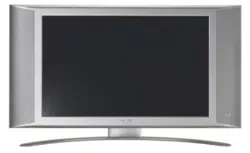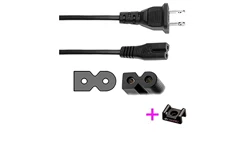

Ta ble of contents
1 Important 3
1.1 Safety 3
1.2 Care of the screen 3
1.3 Recycling 3
2Your TV 4
2.1 Television overview 4
2.2 Product highlights 5
3 Getting started 6
3.1 Position the TV 6
3.2 Wall mounting - VESA 7
3.3 Remote control batteries 8
3.4 Antenna cable 8
3.5 Connect the mains 9
3.6 First time installation 9
4 Use your TV 10
4.1 Switch on or off - Standby 10
4.2 Watch TV 10
4.3 Watch channels from a digital receiver 10
4.4 Watch connected devices 11
4.5 Watch a DVD 11
4.6 Select a Teletext page 11
5 Use more of your TV 12
5.1 Remote Control overview 12
5.2 TV menu overview 14
5.3 Picture and sound settings 16
5.4 Teletext 19
5.5 Create favourite channel lists 20
5.6 Electronic Programme Guide 21
5.7 Timers and locks 22
5.8 Subtitles 23
5.9 View and play photos, MP3... 24
5.10 Listen to digital radio channels 26
5.11 Software update 26
6 Channel installation 29
6.1 Automatic channel installation 29
6.2 Manual channel installation 30
6.3 Rearrange stored channels 30
6.4 Automatic channel management 31
6.5 Digital reception test 31
6.6 Factory settings 31
7 Connections (DVD, receiver, ...) 32
7.1 Connections overview 32
7.2 About connecting 34
7.3 Connect your devices 36
7.4 Connections setup 40
7.5 Preparing for digital services 41
8Technical data 42
9Troubleshooting 43
10 Index 45
Register your product and get support at
www.philips.com/welcome.
Ta ble of contents 1
ENGLISH
2690.1 en 18-09-2007 16:50 Pagina 1
2007 © Koninklijke Philips Electronics
N.V. All rights reserved. Specifications
are subject to change without notice.
Trademarks are the property of
Koninklijke Philips Electronics N.V. or
their respective owners.
Philips reserves the right to change
products at any time without being
obliged to adjust earlier supplies
accordingly.
The material in this manual is believed
adequate for the intended use of the
system. If the product, or its individual
modules or procedures, are used for
purposes other than those specified
herein, confirmation of their validity and
suitability must be obtained. Philips
warrants that the material itself does
not infringe any United States patents.
No further warranty is expressed or
implied.
Warranty
No components are user-serviceable.
Do not open or remove covers to the
inside of the product. Repairs may only
be done by Philips Service Centres and
official repairshops. Failure to do so shall
void any warranty, stated or implied.
Any operation expressly prohibited in
this manual, any adjustments, or
assembly procedures not recommended
or authorised in this manual shall void
the warranty.
Pixel characteristics
This LCD product has a high number of
colour pixels. Although it has effective
pixels of 99,999% or more, black dots or
bright points of light (red, green or blue)
may appear constantly on the screen.This
is a structural property of the display
(within common industry standards) and
is not a malfunction.
Open source software
This television contains open source
software. Philips hereby offers to deliver
or make available, upon request, for a
charge no more than the cost of
physically performing source distribution,
a complete machine-readable copy of
the corresponding source code on a
medium customarily used for software
interchange.
This offer is valid for a period of 3 years
after the date of purchase of this
product.To obtain the source code,
write to
Philips Innovative Applications N.V.
Ass. to the Development Manager
Pathoekeweg 11
B-8000 Brugge
Belgium
Compliance with EMF
Koninklijke Philips Electronics N.V.
manufactures and sells many products
targeted at consumers, which, like any
electronic apparatus, in general have the
ability to emit and receive
electromagnetic signals.
One of Philips’ leading Business Principles
is to take all necessary health and safety
measures for our products, to comply
with all applicable legal requirements and
to stay well within the EMF standards
applicable at the time of producing the
products.
Philips is committed to develop, produce
and market products that cause no
adverse health effects.
Philips confirms that if its products are
handled properly for their intended use,
they are safe to use according to scientific
evidence available today.
Philips plays an active role in the
development of international EMF and
safety standards, enabling Philips to
anticipate further developments in
standardisation for early integration in its
products.
Mains fuse (UK only)
This TV is fitted with an approved
moulded plug. Should it become
necessary to replace the mains fuse, this
must be replaced with a fuse of the
same value as indicated on the plug
(example 10A).
1. Remove fuse cover and fuse.
2. The replacement fuse must comply
with BS 1362 and have the ASTA
approval mark. If the fuse is lost,
contact your dealer in order to verify
the correct type.
3. Refit the fuse cover.
In order to maintain conformity to the
EMC directive, the mains plug on this
product must not be detached from the
mains cord.
Copyrights
VESA, FDMI and the VESA
Mounting Compliant logo are
trademarks of the Video Electronics
Standards Association.
Manufactured under license
from Dolby Laboratories.
‘Dolby’,‘Pro Logic’ and the double D
symbol
G, are trademarks of Dolby
Laboratories.
Manufactured under license
from BBE Sound, Inc.
Licensed by BBE, Inc under one or more
of the following US patents: 5510752,
5736897. BBE and BBE symbol are
registered trademarks of BBE Sound Inc.
Windows Media is either a registered
trademark or trademark of Microsoft
Corporation in the United States and/or
other countries
® Kensington and MicroSaver are
registered US trademarks of ACCO
World Corporation with issued
registrations and pending applications in
other countries throughout the world.
All other registered and unregistered
trademarks are the property of their
respective owners.
2
2690.1 en 18-09-2007 16:50 Pagina 2

ENGLISH
Important 3
1 Important
Read this user manual before you start to use this
product.
Pay attention to this section and closely follow the
instructions.The warranty does not apply to
damage caused by not taking into account the
instructions.
1.1 Safety
•To avoid short circuit, do not expose the product
to rain or water.
•To avoid a risk of fire or electric shock do not
place naked flame sources (e.g. lighted candles)
close to the TV.
• Leave a space of at least 10cm (4 inches) all
around the TV for ventilation.
• Keep away from radiators or other heat sources.
• Do not install the TV in a confined space such as
a book case. Make sure that curtains, cupboards
and so on cannot obstruct the air flow through
the ventilation slots.
• Make sure the TV can not fall down. Place the TV
on a solid and flat surface and only use the stand
provided with the TV.
•To prevent damaging the mains cord which may
cause a fire or electric shock, do not place the TV
on the cord or anything else that can pinch the
cord.
• When mounted on a swivel stand or VESA wall
bracket avoid force coming on the mains plugs.
Partly loosened mains plugs can cause arcing or
fire.
1.2 Care of the screen
• Unplug the TV before cleaning.
• Clean the surface with a soft damp cloth. Do not
apply any other substance (chemical or
household cleaning agent).This may damage the
screen.
• Do not touch, push or rub or strike the screen
with anything hard as this may scratch, mar or
damage the screen permanently.
•To avoid deformations and colour fading, wipe off
water drops as soon as possible.
• Stationary images
Avoid stationary images as much as possible. If
you can not, reduce screen contrast and
brightness to prevent damage to the screen.
Stationary images are images that remain on the
screen for a long time. Examples of stationary
images are: on screen menus, teletext pages, black
bars, stock market information,TV channel logos,
time displays, and so on.
1.3 Recycling
•Take the packaging to your local recycling centre.
• Dispose old batteries safely according local
regulations.
• This product is designed and manufactured for
material recycling and re-use.
• This product should not be disposed with other
household waste. Inform yourself or ask your
dealer about local environmentally safe recycling
and local regulations. Uncontrolled waste disposal
harms the environment and human health.
(EEC 2002/96/EC)
2690.1 en 18-09-2007 16:50 Pagina 3
2Your TV
This section gives you an overview of the controls
and functions of this TV.
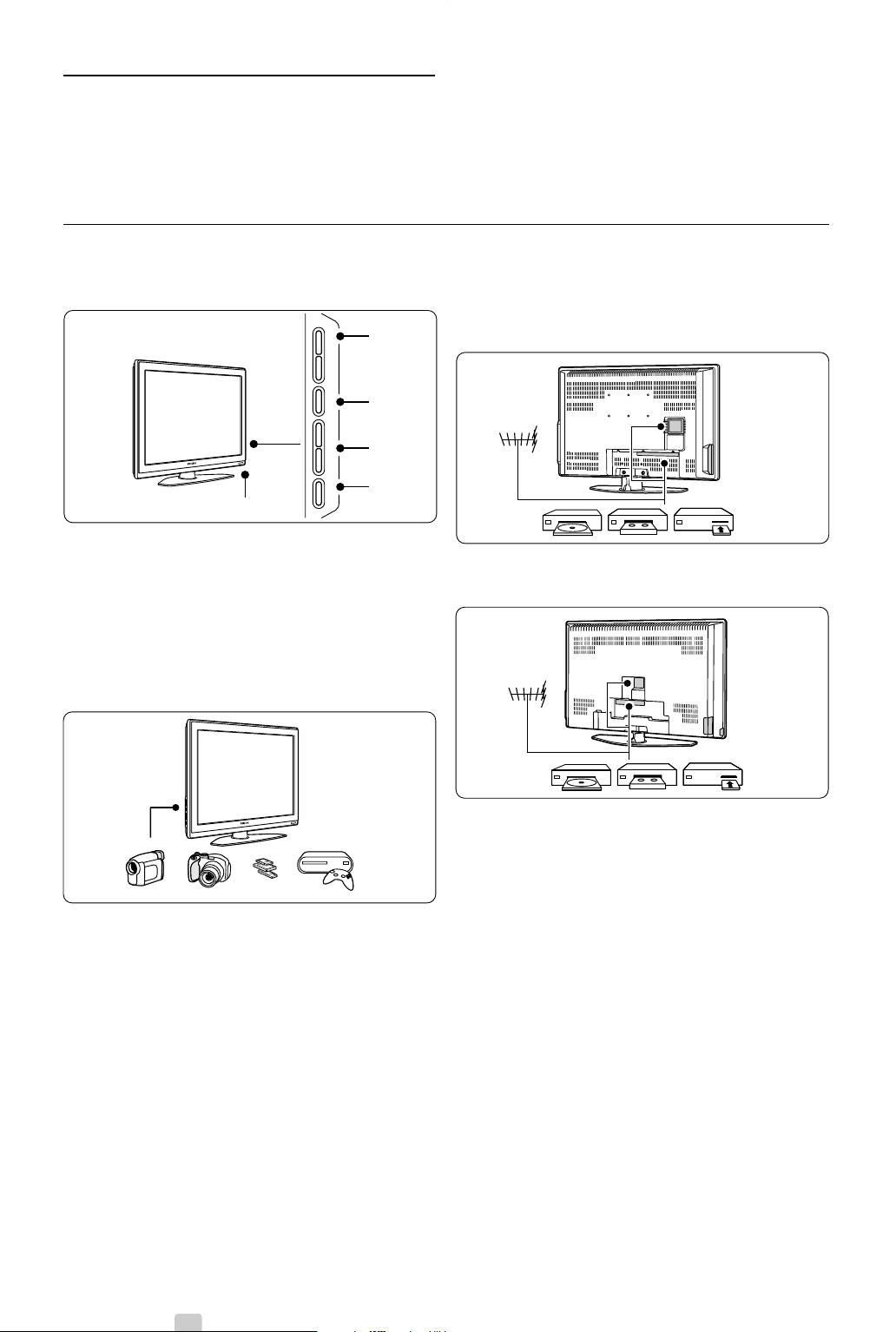
2.1 Television overview
Side controls
1Volume up and down
2 Menu
3 Program or Channel up and down
4Power switch
5 Led indicator (Blue: On; Red: Standby)
6 Remote control sensor
Side connectors
To connect a camera, game console, headphone or
a USB memory device.
Back connectors
32” / 80 cm (32PFL7862D)
42” / 107 cm (42PFL7862D)
To connect the antenna, DVD,VCR or other device.
4 Your TV
- PROGRAM
+-
VOLUME +
MENUB POWER
5-6
1
2
3
4
2690.1 en 18-09-2007 16:50 Pagina 4
ENGLISH
Remote control
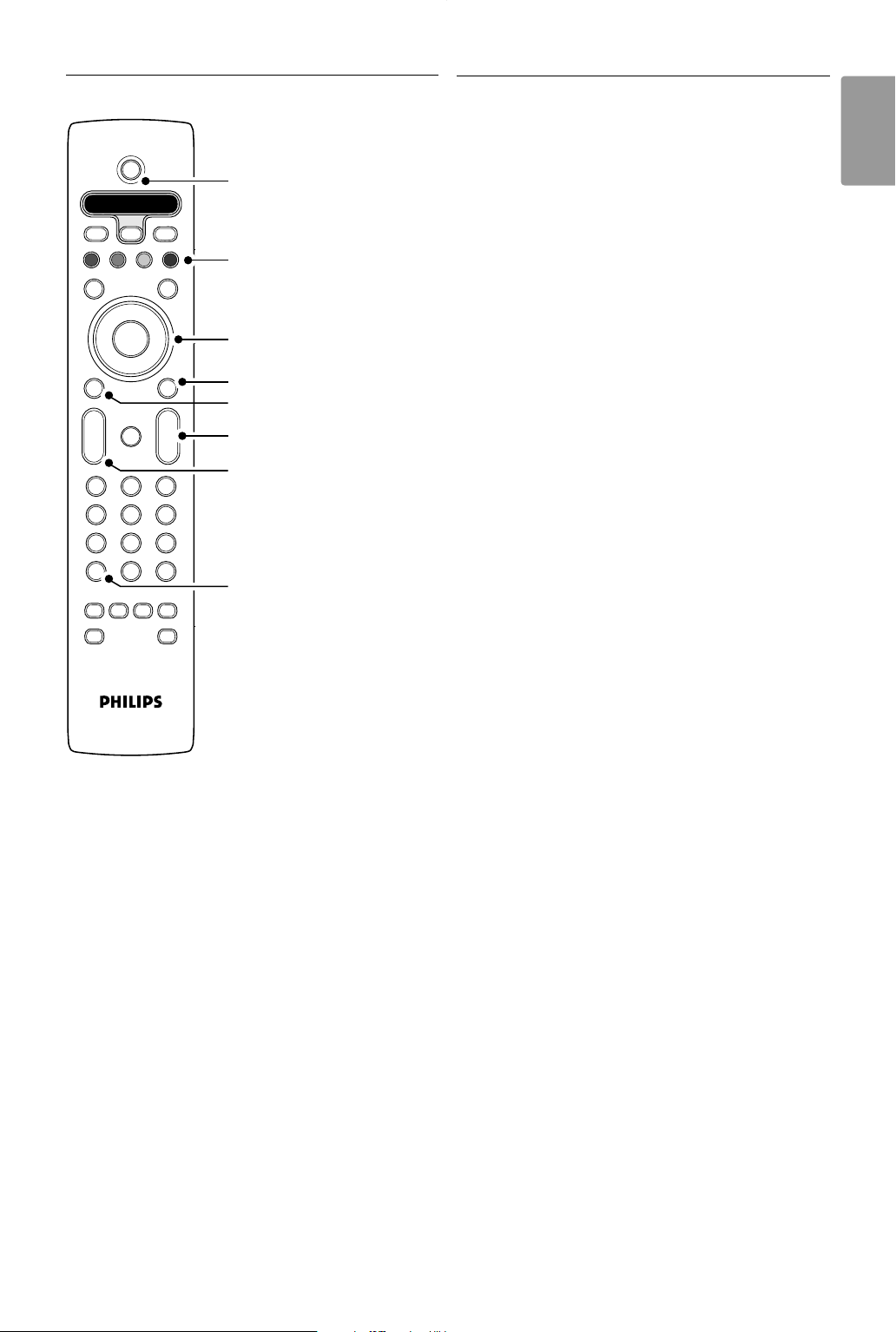
1 Standby or On
2 Colour keys
3Navigation key (up, down, left, right)
OK
4Teletext key
5 Menu key
6 Programme up or down
7Volume up or down
8DVD, STB,... device selection
Find more on your remote control in section 5.1
Remote control overview.
2.2 Product highlights
Your new TV is equipped with some of the most
modern audio or video innovations.
Your TV offers the following advantages ...
Pixel Plus
Offers perfect picture quality from any source.
100Hz LCD
Results in superior sharpness of motion
reproduction, better black level, high contrast with a
flicker-free, quiet image and a larger viewing angle.
DVB-T integrated tuner
Next to normal analogue TV broadcast your TV
receives digital terrestrial TV and radio broadcasts.
Electronic Programme Guide - EPG
The EPG shows the scheduled digital TV
programmes on screen.The guide can remind you
when programmes start, switch the TV on, etc.
HDMI connectors
3 HDMI connectors for highest quality high
definition connectivity.
USB connection
Multimedia connection for instantly view or play
your photos or music.
Your TV 5
+
-
+
-
DVD STB TV VCR AUX
MENU
123
456
789
0
®
®
®
®
SELECT
DEMO
BROWSE
a
0
OPTION
AV
MHEG
CANCEL
OK
B
i
b
b
¬
P
V
v
†
π
‡
Ò
FAV
®
1
2
3
4
6
5
7
8
2690.1 en 18-09-2007 16:50 Pagina 5
6 Your TV
3 Getting started
This section helps you with the positioning and the
first time installation of the TV.
3.1 Position the TV
) Warning
Carefully read the safety precautions in section 1.1
Safety before you position the TV.
Large screen TVs are heavy. Carry and handle the
TV with at least two persons.
Connect your devices first before you position your
TV or mount it on the wall.
The ideal viewing distance for watching TV is three
times its diagonal screensize.
For ideal viewing conditions, position the TV where
light does not fall directly on the screen.
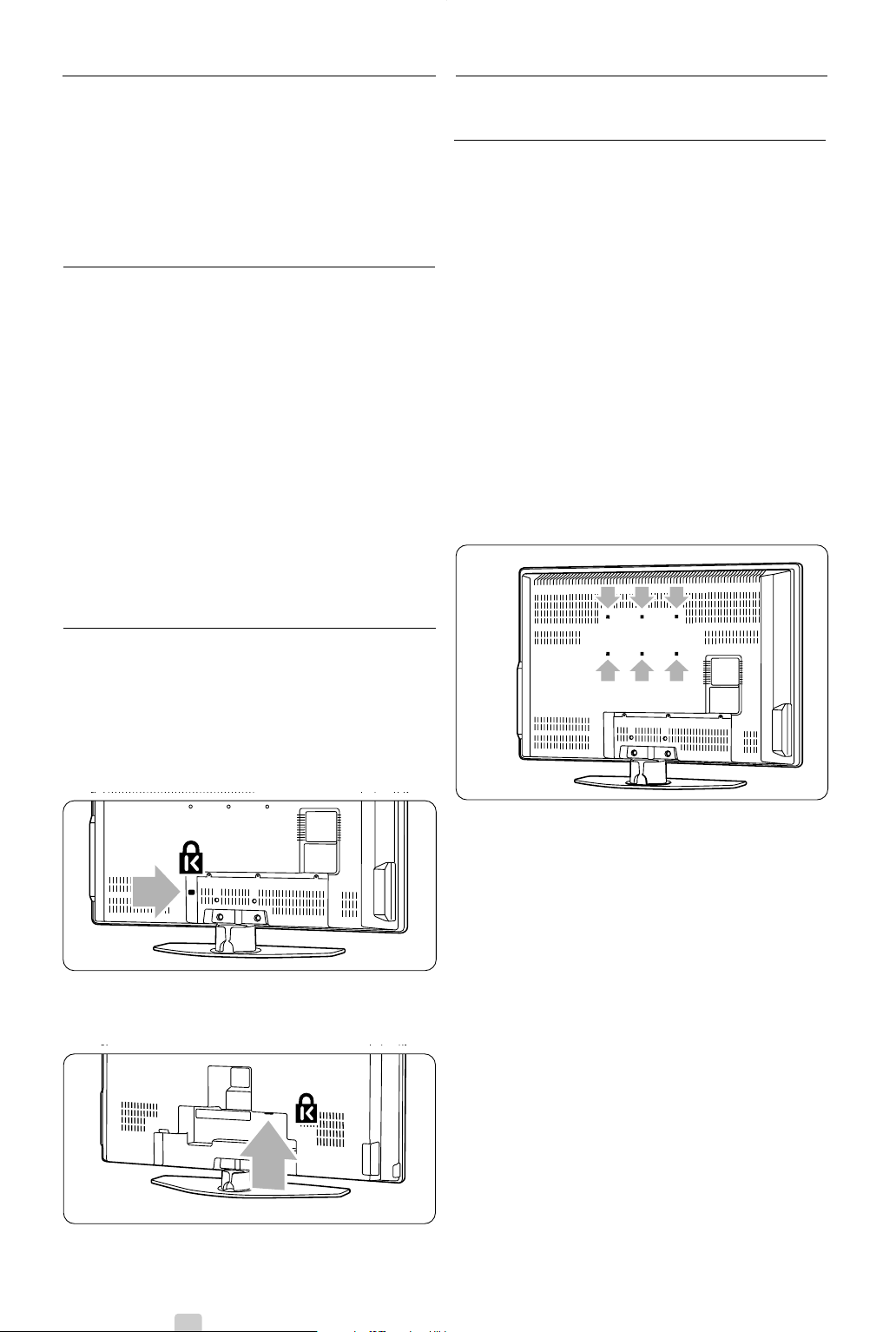
Kensington Security Slot
Your TV is equipped with a Kensington Security Slot
at the back of the TV for an anti-theft lock.
An anti-theft Kensington lock has to be purchased
separately.
32” / 80 cm (32PFL7862D)
42” / 107 cm (42PFL7862D)
3.2 Wall mounting - VESA
3.2.1 32” / 80 cm (32PFl7862D)
) Caution
Consider the TV’s weight if you wall mount it.
Improper mounting could result in severe injury or
damage. Koninklijke Philips Electronics N.V. bears
no responsibility for improper mounting or
mounting that results in accident or injury.
Your TV is prepared for VESA compliant wall
mounting.This bracket is not included.
Use a VESA compliant bracket with code
VESA MIS-E, 200, 100 M4.
Consult your dealer for more VESA information.
The VESA fixation points
Locate the 6 fixation points at the back of the TV.
Use these screw holes for fixing the VESA bracket.
2690.1 en 18-09-2007 16:50 Pagina 6
Your TV 7
ENGLISH
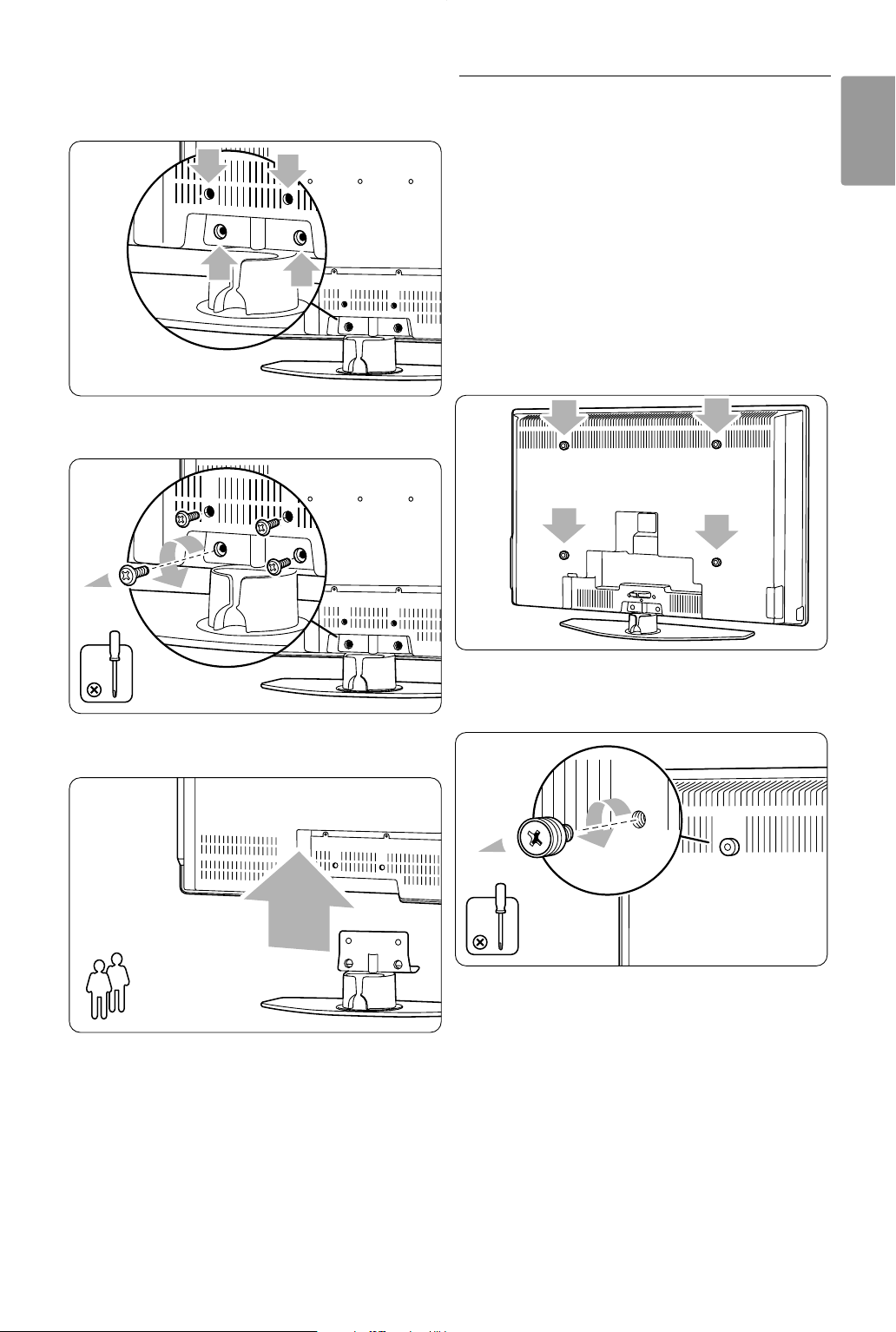
Unmount the TV stand
‡ Locate the 4 screws of the TV stand.
® Unscrew the 4 screws.
ÒLift the TV off the stand.
à Tip
Make all connections at the back of the TV before
you wall mount the TV. See section 7 Connections.
3.2.2 42” / 107 cm (42PFL7862D)
Your TV is prepared for VESA compliant wall
mounting.This bracket is not included.
Use a VESA compliant bracket with code
VESA MIS-F, 600, 400 M8.
ç Warning
Consider the TV’s weight if you wall mount it.
Improper mounting could result in severe injury or
damage. Koninklijke Philips Electronics N.V. bears
no responsibility for improper mounting that
results in accident or injury.
‡ Locate the 4 small discs at the back of the TV.
® Unscrew the discs and use the free holes (M8)
for fixing the VESA wall bracket.
2
4x
2690.1 en 18-09-2007 16:50 Pagina 7
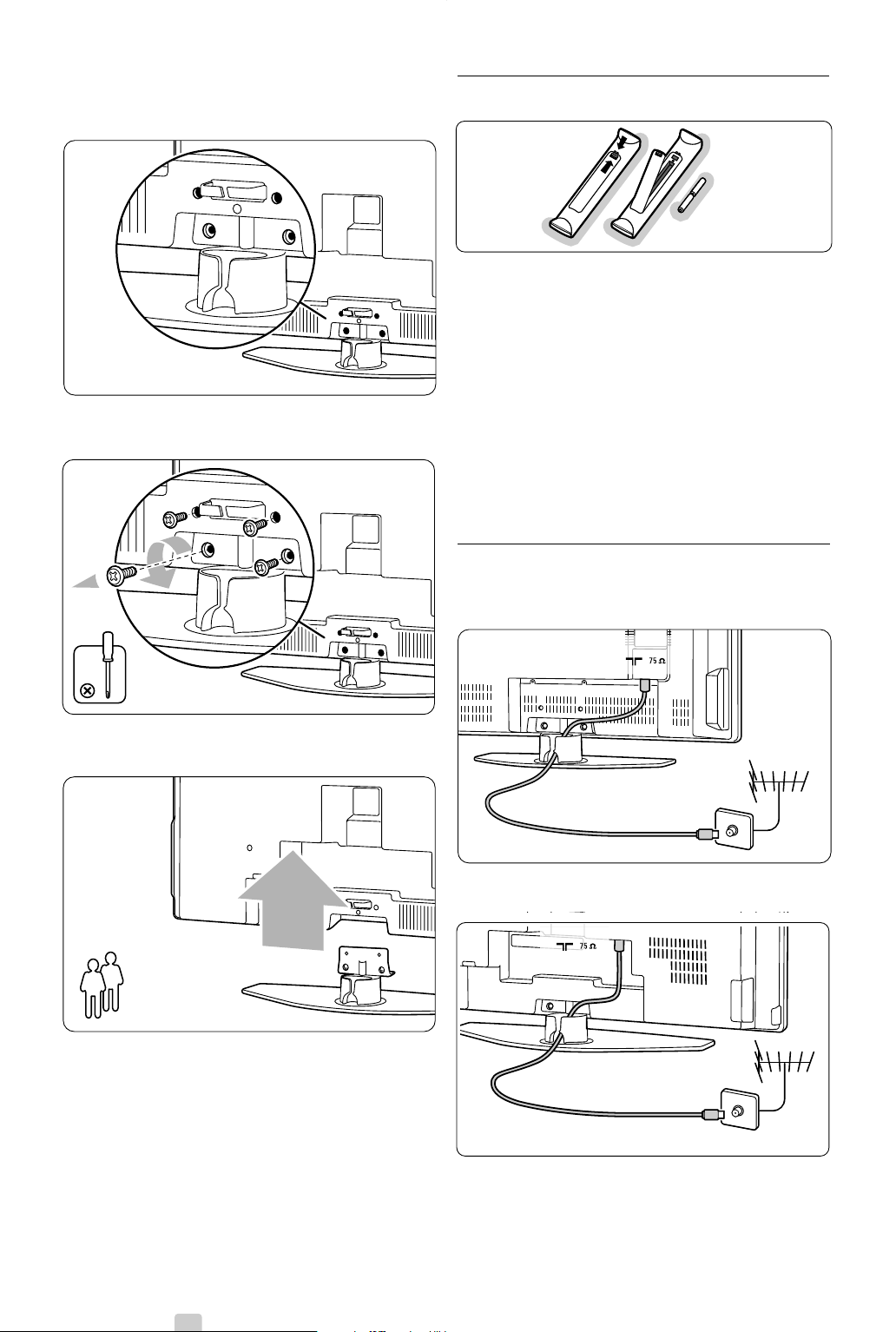
ÒTo remove the TV stand locate the 4 screws of
the TV stand.
† Unscrew the 4 screws.
º Lift the TV off the stand.
◊Make all connections at the back of the TV
before you wall mount the TV. See section 7
Connections.
Now go on with the instructions supplied with the
VESA wall bracket.
3.3 Remote control batteries
‡ Open the battery cover on the back of the
remote control.
® Insert the 2 batteries supplied (Type AA-R6-
1,5V). Make sure the + and - ends of the
batteries line up correctly (inside of case is
marked.)
ÒClose the cover.
rNote
Remove the batteries if you don’t use the remote
control for a long time.
3.4 Antenna cable
32” / 80 cm (32PFL7862D)
42” / 107 cm (42PFL7862D)
‡ Locate the antenna connection at the back of
the TV.
® Insert the antenna cable tightly into the antenna
socket x Antenna.
8 Your TV
ANTENNA
ANTENNAANTENNA
2
2690.1 en 18-09-2007 16:50 Pagina 8
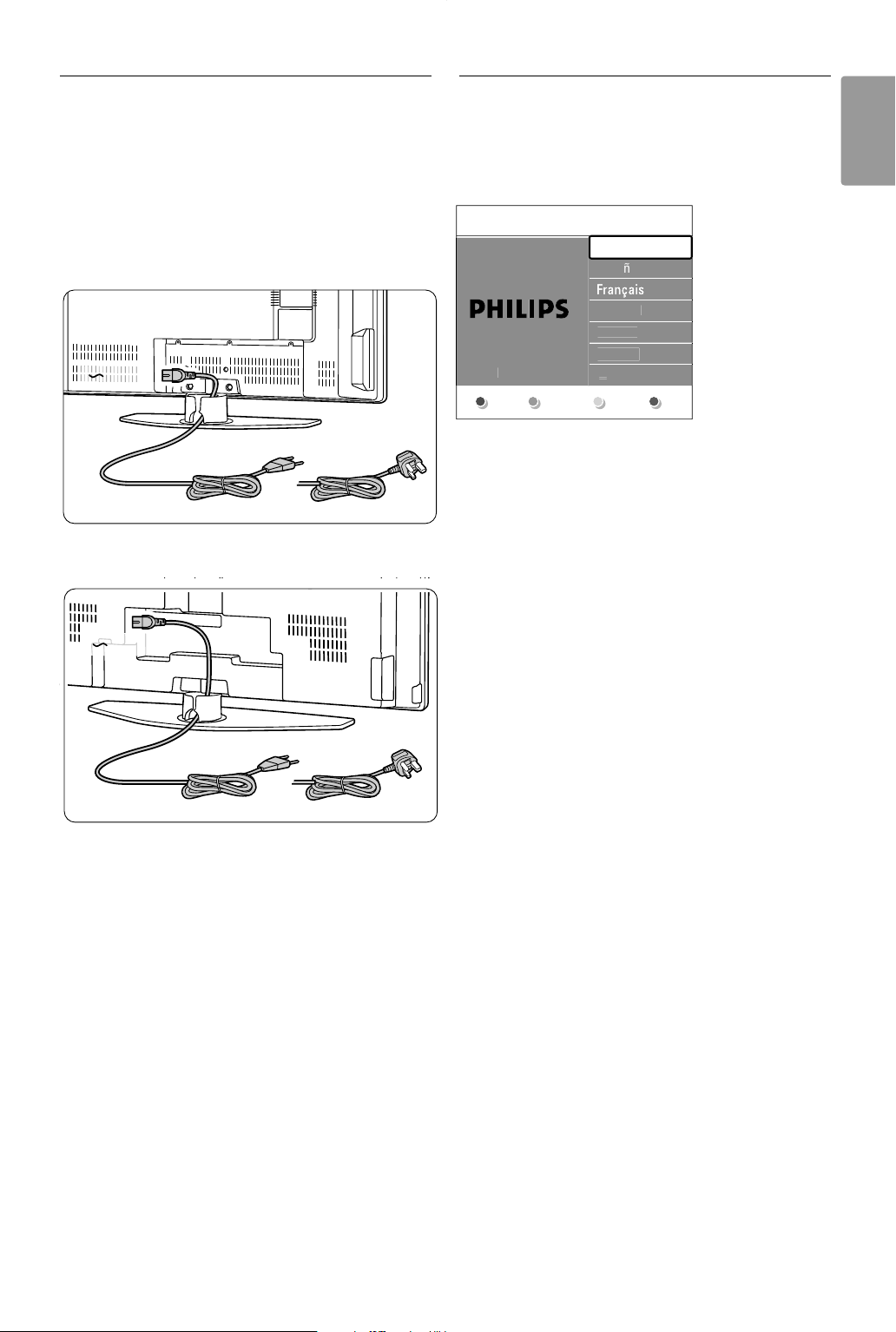
3.5 Connect the mains cord
‡ Verify that your mains voltage corresponds with
the voltage printed on the sticker at the back of
the TV. Do not insert the mains cord if the
voltage is different.
® Insert the mains cord tightly.
32” / 80 cm (32PFL7862D)
42” / 107 cm (42PFL7862D)
The TV is never powered off completely unless the
mains cord is physically unplugged.Therefore the
mains plug must be accessible at all time.
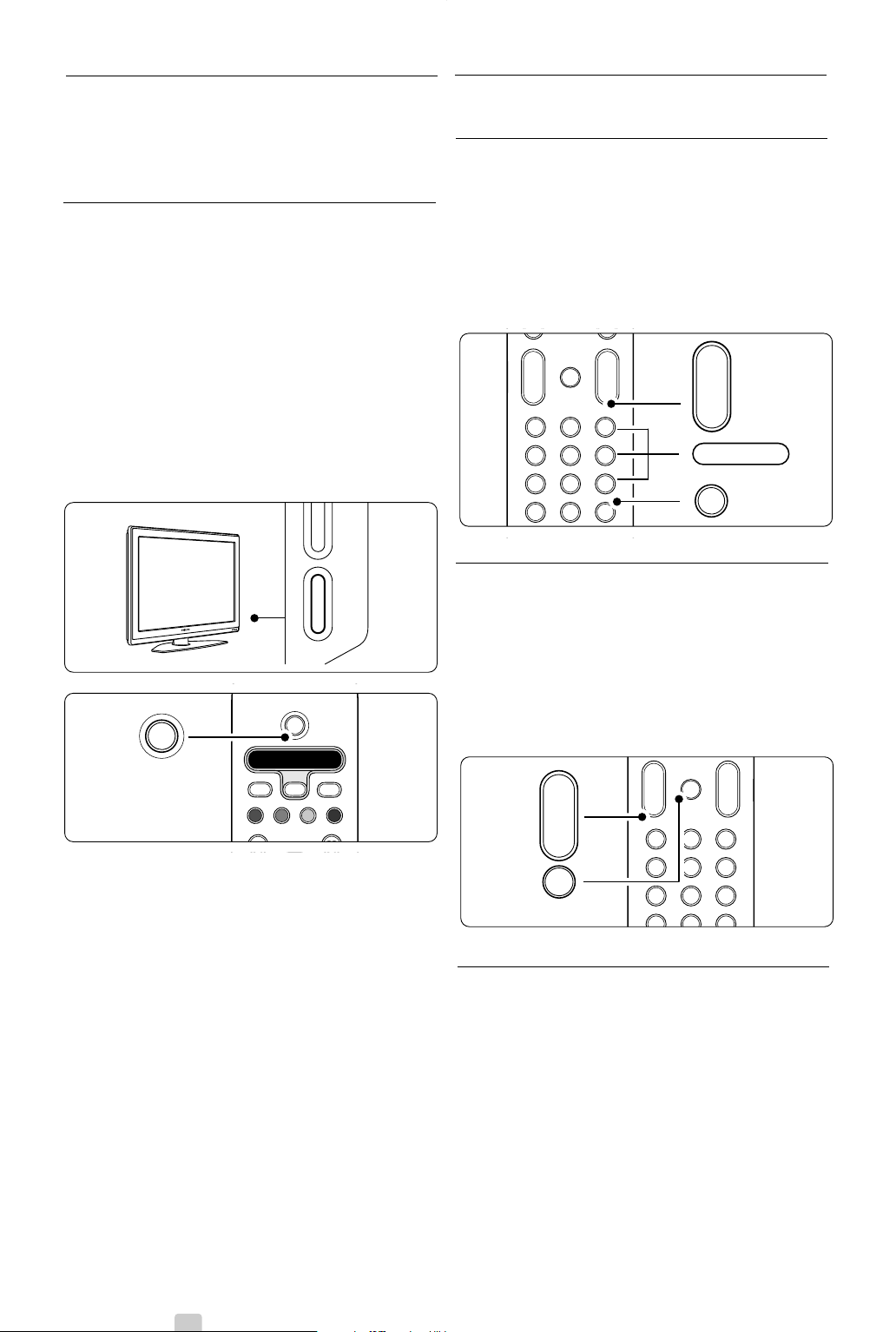
3.6 First time installation
The first time, and only the first time, the mains
cord is inserted, the installation procedures starts
up automatically. Follow the instructions on screen.
à Tips
• If you notice you have selected a wrong language,
press the red key on the remote control to
return to the language selection menu.
•To rearrange the stored channels, see section 6.3
Rearrange stored channels.
Your TV 9
ENGLISH
MAINS
UK & Ireland
UK & Ireland
MAINS
Menu lan
g
ua
ge
Es
pa
ñ
ol
Hrv
a
t
s
k
i
It
a
li
a
n
o
Ma
gy
a
r
...
Please select
y
ou
r
lan
g
ua
g
e..
.
usin
g
cursor u
p
an
d
do
w
n
En
g
lis
h
N
e
x
t
2690.1 en 18-09-2007 16:50 Pagina 9
10 Use your TV
4 Use your TV
Learn how to operate your TV for daily use.
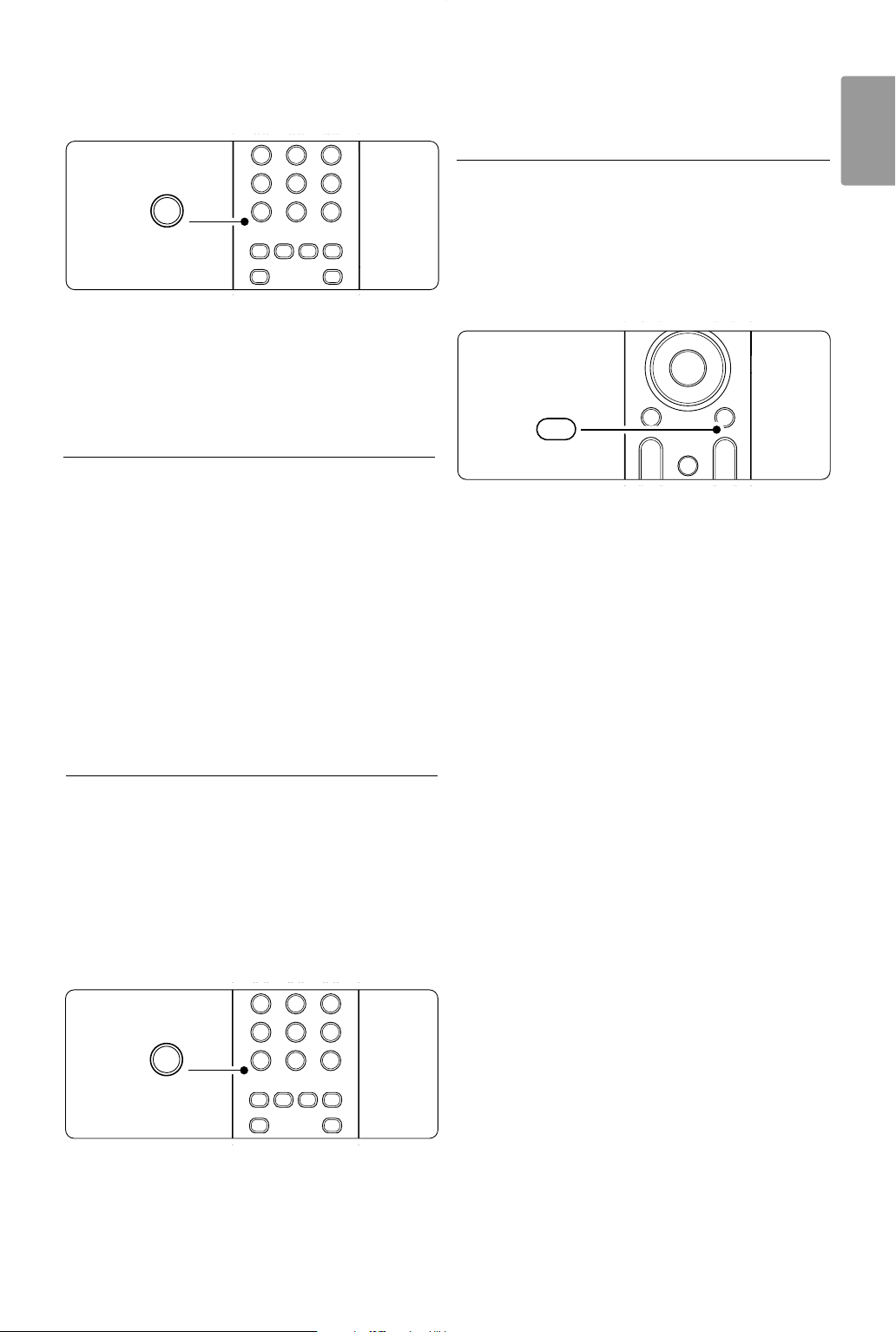
4.1 Switch on or off - Standby
To switch on the TV:
• Press B Power at the right side of the TV if the
standby led is off.
• Press B on the remote control if the standby
led in on.
To switch to standby:
• Press B on the remote control.
To switch on from standby without remote control:
• Press B Power at the side of the TV to switch
off first and press B Power again to switch on.
To switch off:
• Press B Power at the side of the TV.
rNote
Energy consumption contributes to air and water
pollution. As long as the mains cord is plugged in,
the TV consumes energy.This TV has a very low
standby power consumption.
4.2 Watch TV
4.2.1 Switch channels
‡ To switch TV channels:
• Press a number (1 to 999) or press P+ or P-
on your remote control.
• Press
Program/Channel - or + on the side
controls of the TV.
® Press 0 to return to the previously viewed TV
channel .
4.2.2 Adjust volume
‡ To adjust the volume:
• Press V + or - on the remote control
• Press Volume + or - on the side controls
of your TV.
® To m ute the sound:
• Press ¬ on the remote control
• Press ¬ again to restore the sound.
4.3 Watch channels from a
digital receiver
‡ Switch on the digital receiver.
The picture from your receiver might appear
automatically on your screen.
® Use the remote control of your digital receiver
to select TV channels.
+
-
+
-
MENU
123
456
789
0
®
®
®
®
0
AV
b
¬
P
V
v
+
-
90
-
P
0
+
-
+
-
123
456
789
0
®
®
®
®
0
AV
¬
P
V
+
-
¬
V
- PROB POWER
DVD STB TV VCR AUX
®
®
®
®
SELECT
DEMO
a
OPTION
B
i
b
B
2690.1 en 18-09-2007 16:50 Pagina 10
Use your TV 11
ENGLISH
If the picture does not appear:
‡ Press
AV v on the remote control.
® Press
AV v repeatedly to select the device.
Wait a few seconds until the picture appears.
ÒPress
OK.
† Use the remote control of the digital receiver
to select TV channels.
4.4 Watch connected devices
‡ Switch on the device.
The picture from your device might appear
automatically.
If the picture does not appear:
® Press
AV v on the remote control.
ÒPress
AV v repeatedly to select the device.
Wait a few seconds until the picture appears.
† Press
OK.
º Use the remote control of your device to select
TV channels.
4.5 Watch a DVD
‡ Insert a DVD disc in your player.
® Press Play π.
The picture from your player appears
automatically on your screen.
If the picture does not appear:
‡ Press
AV v on the remote control.
® Press
AV v repeatedly to select the DVD
player. Wait a few seconds until the picture
appears.
ÒPress
OK.
† Press Play π.
4.6 Select a Teletext page
Most TV channels broadcast information via
Teletext.
To watch Teletext:
‡ Press b.
The main index page appears.
® To select a page of your choice:
• Enter the page number with the number keys.
• Press P- or P+ or navigation key up or down
to view the next or the previous page.
•Press a colour key to select one of the colour
coded items at the bottom of the screen.
à Tip
Press 0 to return to the previously viewed page.
ÒPress b again to switch Teletext off.
r
Note
Only for UK: some digital TV channels offer
dedicated digital text services (for example BBC1).
For more information on teletext, see section 5.4
Teletext.
+
-
+
-
MENU
®
®
®
®
BROWSE
OK
b
¬
P
V
b
456
789
0
®
®
®
®
0
AV
MHEG
CANCEL
v
†
π
‡
Ò
FAV
®
AV
v
456
789
0
®
®
®
®
0
AV
MHEG
CANCEL
v
†
π
‡
Ò
FAV
®
AV
v
2690.1 en 18-09-2007 16:50 Pagina 11
12 Use more of your TV
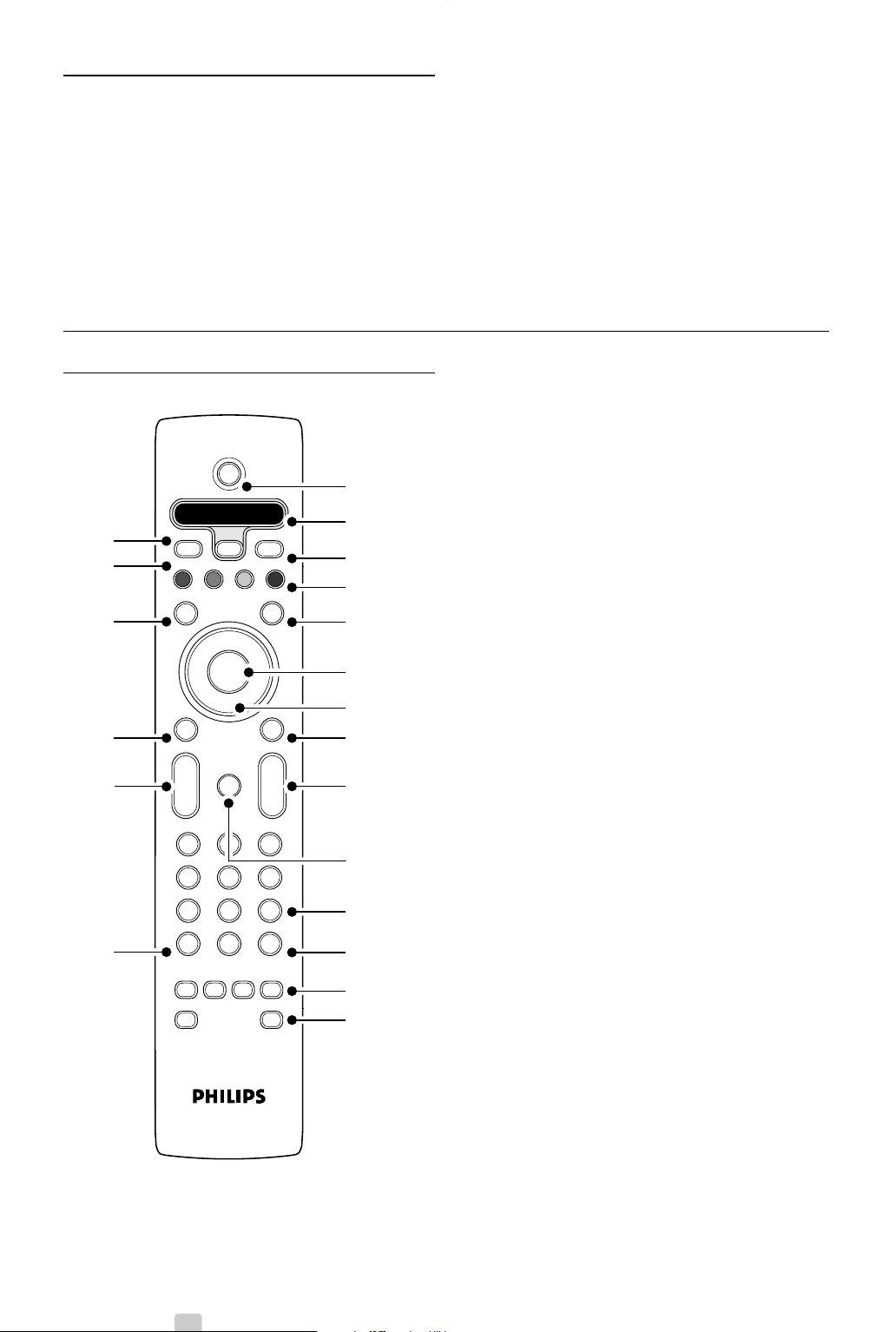
5.1 Remote control
5.1.1 Remote control overview
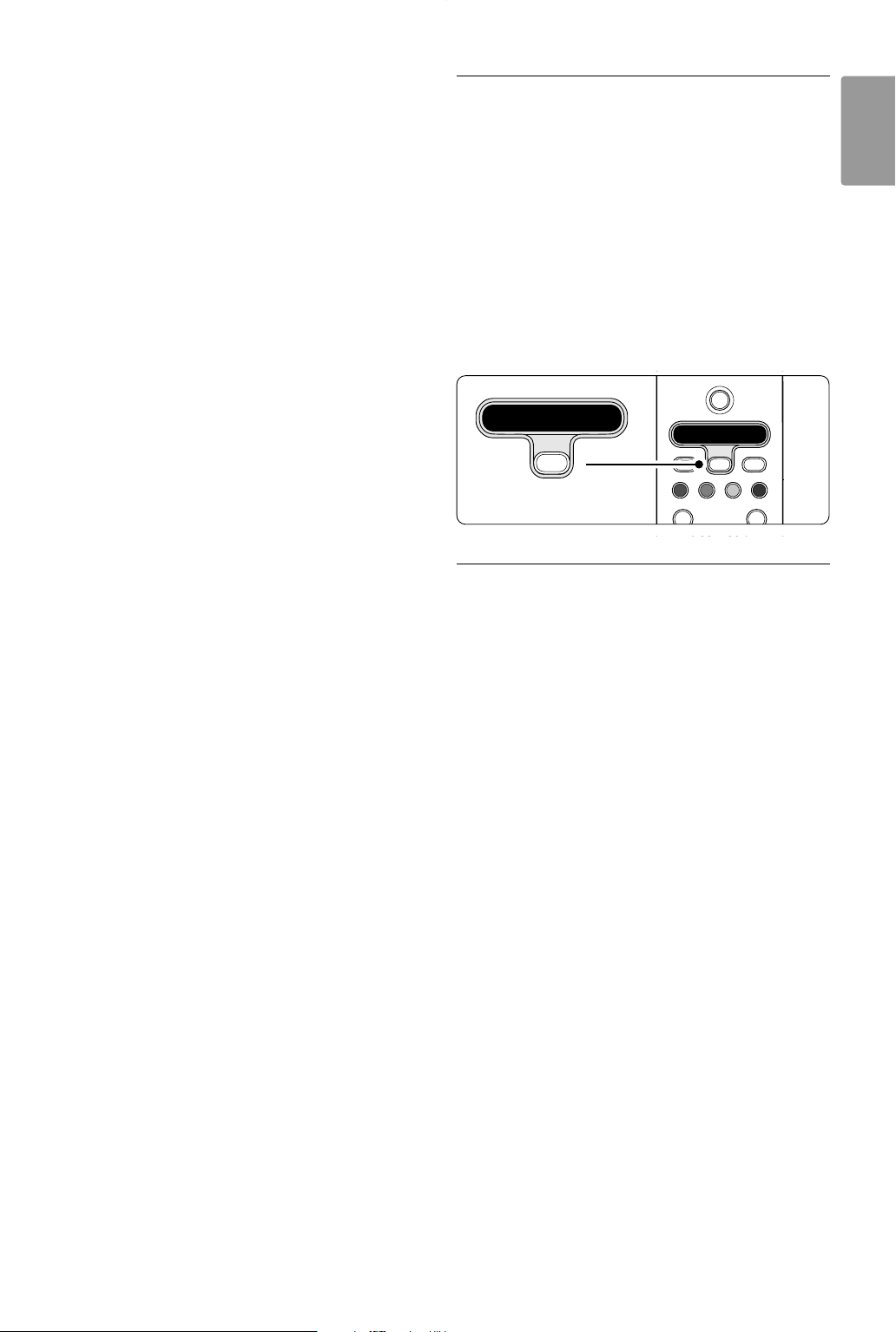
1 Standby B
To switch the TV on or back to standby.
2 DVD STB TV VCR AUX SELECT
To control connected Philips devices or to
return to TV.
3 Dual screen b
To show teletext on the right and the picture
on the left of the screen.
4 Colour keys
• Easy selection of teletext pages.
• Easy selection of tasks.
5 Guide a
To switch on or off the Electronic Programme
Guide.
6
OK
•To display the channel list.
•To activate a setting.
7 Navigation key (up, down, left, right)
To navigate the menu.
8 Teletext b
To switch teletext on or off.
9 +P- Channel up or down
To switch to the next or previous channel in
the channel list.
10 Mute ¬
To m ute the sound or restore it.
11 Number keys
To select a TV channel.
12 Previous channel 0
To return to the previously viewed channel.
13 Audio and video keys Ò‡π†®
To use with connected Philips devices.
‡
MHEG cancel (only for UK)
To cancel only Digital text or Interactive
services.
14
FAV
To display the favourite channels list.
5 Use more of your TV
This section deals with the more advanced use of
your TV:
•how to use the menus
• to adjust the picture and sound settings
• more about Teletext
•how to create favourite channel lists
• the advantages of Electronic Programme Guide
•how to set locks and timers
• to set subtitles and select a subtitle language
•how you can view your photos or play your
favourite music from a USB memory device.
+
-
+
-
DVD STB TV VCR AUX
MENU
123
456
789
0
®
®
®
®
SELECT
DEMO
BROWSE
a
0
OPTION
AV
MHEG
CANCEL
OK
B
i
b
b
¬
P
V
v
†
π
‡
Ò
FAV
®
16
15
17
19
20
18
6
1
2
4
5
3
8
7
9
11
13
12
10
14
2690.1 en 18-09-2007 16:50 Pagina 12
13
ENGLISH
Use more of your TV
15 AV v
To select a connected device.
16 Volume up or down V
To adjust the volume.
17 Menu
To switch the menu on or off.
18 Option
To switch the Quick access menu on or off.
19 Demo
To switch the Demo menu on and to get a
demonstration of the features of the TV.
20 On screen information i
To show channel or programme information if
available.
See section 10 Index to find the section in the
manual about a specific remote control key.
5.1.2 Operate Philips Audio/Video devices
This TV remote control can operate most of the
Philips Audio/Video devices.
You can select a DVD, a Digital or satellite receiver
(STB), a VCR or tuner-amplifier (AUX) to operate.
‡ Press
SELECT repeatedly to select one of the
devices you want to operate with the TV
remote control.
® Use the relevant keys on the TV remote control
to operate the device.
ÒSelect TV to return to normal TV mode.
When no key is pressed for 60 seconds the
remote control will switch back to normal TV.
5.1.3 Device functions overview
When the remote control is selected for a
particular device all keys have the same function
except the keys mentioned here.
• DVD player
Option key = DVD disc menu
P+/- = DVD Next/Previous track
b key = DVD subtitle language
AV key = DVD System menu
FAV key = Favourite track selection
• Digital or Satellite receiver
P+/- = Next/Previous track
• VCR
a key = timer
P+/- = index
• AUX
Menu key = System menu
b key = to manually enter a channel frequency
DVD STB TV VCR AUX
®
®
®
®
SELECT
DEMO
a
OPTION
B
i
b
DVD STB TV VCR AUX
SELECT
2690.1 en 18-09-2007 16:50 Pagina 13
14
5.2 TV menu overview
With the on screen menus you install your TV,
adjust picture and sound settings and access
features.This section gives an overview of the
menus and describes how to navigate.
5.2.1 The menu
‡ Press Menu on the remote control to show the
main menu.
® Press Menu to quit the menu.
The main menu offers the following items:
• TV menu
Select this menu for installation, picture and
sound settings and other feature settings.
• Channel list
Select this item to show the Channel list.
Create your Favourite channel lists here.
•Programme guide
Available when digital channels are installed, this
item shows information about the digital
programmes.
According to the type of Electronic Programme
Guide, you can also access the table of scheduled
Digital TV programmes and easily select and tune
to a desired programme. See section 5.6
Electronic Programme Guide.
• Multimedia
Select this item to view photos or play music
stored on a USB device. See section 5.9 View and
play photos, MP3, ...
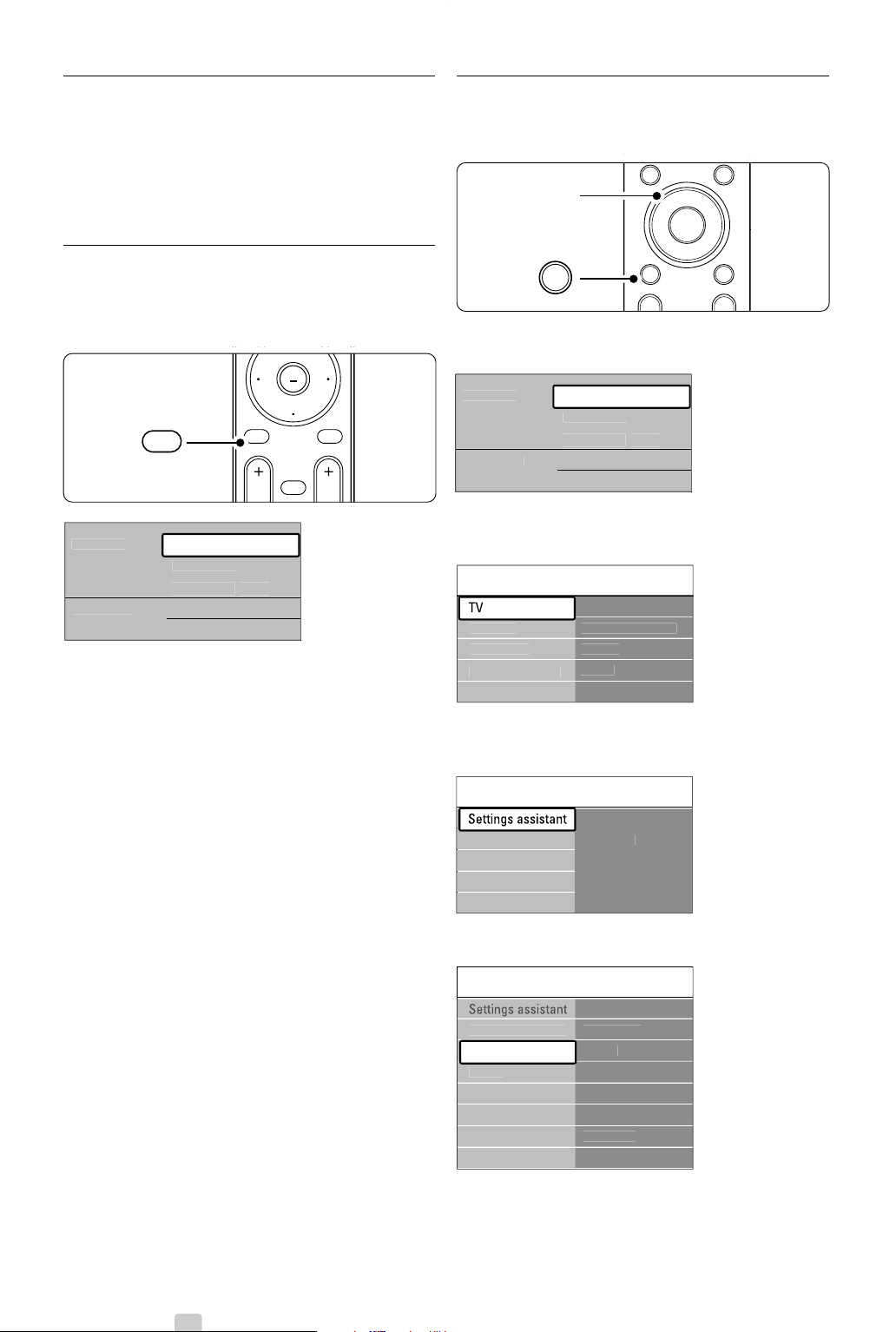
5.2.2 Use of the menu
Learn to use the menus with this example.
‡ Press Menu on the remote control.
The main menu appears on the screen.
® Press navigation key right to enter the TV
menu.
ÒPress navigation key right to enter the TV
settings menu.
† Press navigation key down to select Picture.
Use more of your TV
++
MENU
®
®
®
®
BROWSE
a
OPTION
OK
b
®
MENU
BROWSE
T
e
l
e
vi
s
i
on
M
u
ltim
ed
i
a
TV
m
e
n
u
C
hannel lis
t
Pro
g
ramm
e
g
uid
e
TV settin
g
s Pi
c
t
u
r
e
C
ontras
t
Bri
g
htness
Pix
e
l Pl
us
C
olou
r
H
ue
Soun
d
...
Shar
p
ness
Tin
t
R
ese
t t
o
s
t
a
n
da
r
d
Pi
c
t
u
r
e
TV
m
e
n
u
TV settin
g
s
Settin
g
s assistan
t
Rese
t t
o
s
t
a
n
da
r
d
Pi
c
t
u
r
e
Soun
d
Fea
t
u
r
es
Software u
p
dat
e
In
s
t
a
ll
a
ti
on
settin
g
s
TV settin
g
s Settin
g
s assistan
t
Start no
w
Soun
d
R
ese
t t
o
s
t
a
n
da
r
d
Pi
c
t
u
r
e
MENU
b
¬
P
V
BROWSE
OK
LIST
MENU
BROWSE
T
e
l
e
vi
s
i
on
M
u
ltim
ed
i
a
TV
m
e
n
u
C
hannel lis
t
Pro
g
ramm
e
g
uid
e
2690.1 en 18-09-2007 16:50 Pagina 14
15
ENGLISH
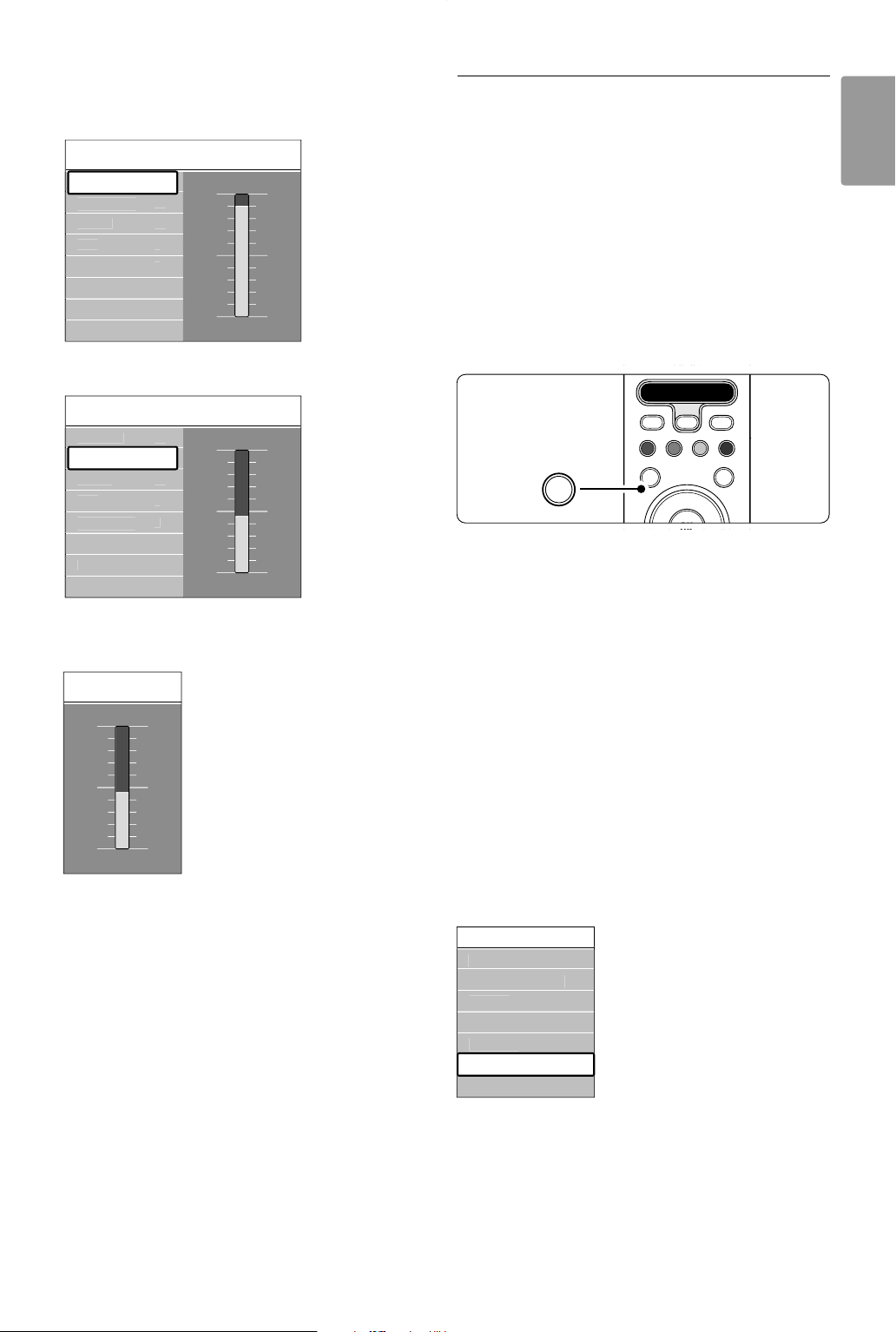
º Press navigation key right to enter the picture
settings.
◊Press navigation key down to select Brightness.
‹Press navigation key right to enter the
Brightness setting.
≈Press navigation key up or down to adjust the
setting.
ÚPress navigation key left to return to the Picture
settings or press Menu to quit the menu.
rNote:
More choices come available when digital channels
are installed and broadcasted.
5.2.3 Quick access menu
The Quick access menu gives direct access to some
often needed menu items.
When digital channels are installed and broadcasted
the relevant digital options are shown in the menu.
‡ Press Option on the remote control.
® Press navigation key up or down to select an
option.
ÒPress
OK to show the selected option menu.
† Press navigation key up, down, left, right to
adjust the settings in the menu.
º Press Option to quit the menu.
• Audio language
See section 5.3.5 Adjust sound settings.
• Subtitle language
See section 5.8.3 Select a digital subtitle language.
• Subtitles
See section 5.8 Subtitles.
• Picture format
See section 5.3.4 Widescreen picture format.
• Equalizer
See section 5.3.5 Adjust sound settings.
• Clock
Display the clock
‡ Press
OK to display the clock permanently.
® Press Option and press navigation key up or
down to select Clock again.
ÒPress
OK to hide the clock.
Use more of your TV
Pi
c
t
u
r
e
C
ontras
t
C
olou
r
H
ue
Pix
e
l Pl
us
HD N
a
t
u
r
a
l M
o
ti
on
Shar
p
ness
Tin
t
Bri
g
htness
90
52
0
4
47
C
ontras
t
Pi
c
t
u
r
e
Bri
g
htness
C
ontras
t
C
olou
r
H
ue
Pix
e
l Pl
us
HD N
a
t
u
r
a
l M
o
ti
on
Shar
p
ness
Tin
t
Bri
g
htness
98
52
0
4
47
Bri
g
htness
DVD STB TV VCR AUX
®
®
®
®
SELECT
DEMO
a
OPTION
OK
i
b
OPTION
Q
u
i
c
k
access
Subtitl
e
Audio lan
g
ua
ge
Subtitle lan
g
ua
ge
E
q
ualize
r
Pi
c
t
u
r
e
f
o
rm
at
C
loc
k
2690.1 en 18-09-2007 16:50 Pagina 15
16
5.3 Picture and Sound settings
This section describes how to adjust picture and
sound in the menus.
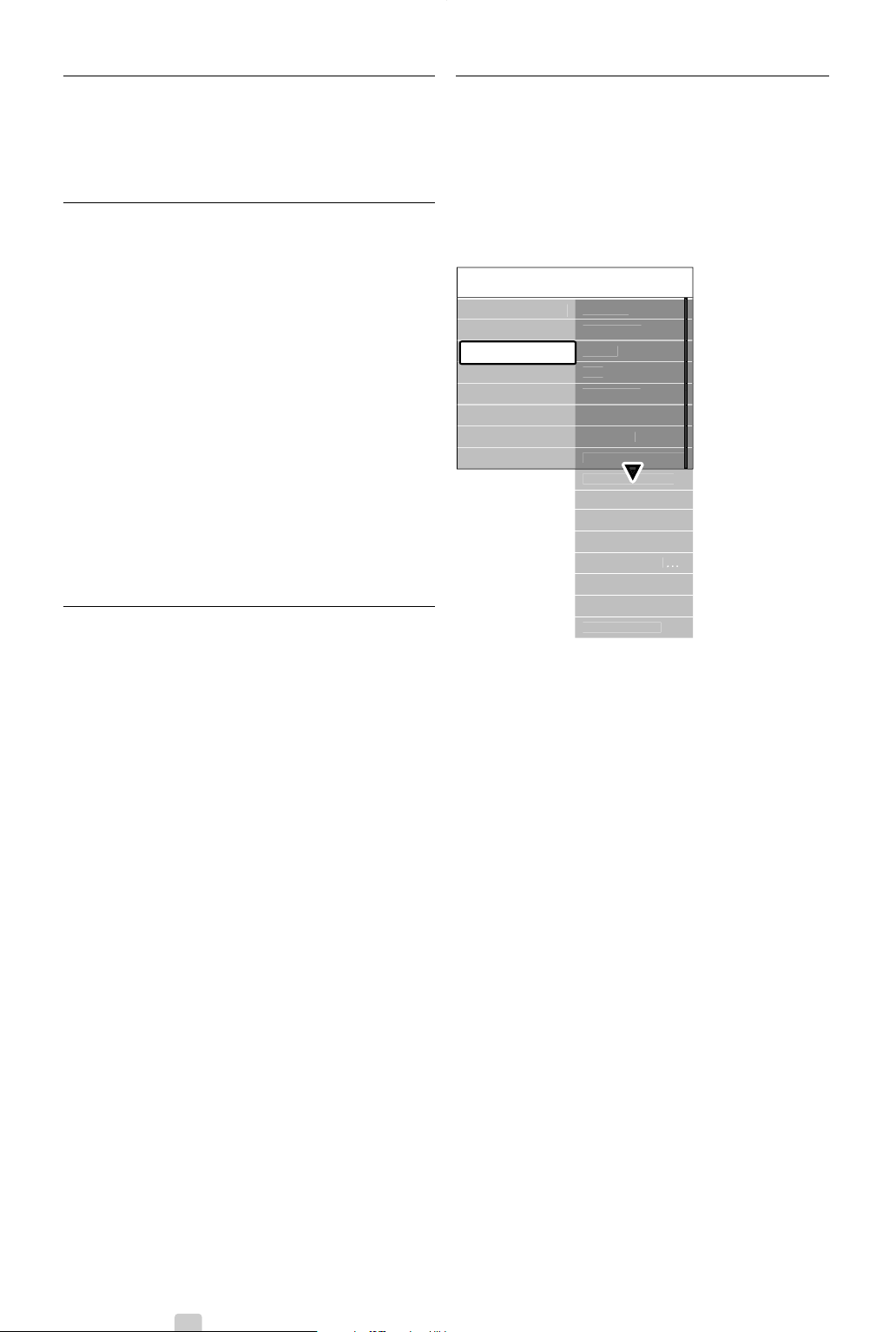
5.3.1 Settings assistant
Use the Settings assistant to guide you through
basic picture and sound settings in an easy way.
‡ Press Menu on the remote control and select
TV menu > TV settings > Settings assistant and
press navigation key right to enter.
® Press
OK.
ÒPress the green key on the remote control to
start the assistant.
† Press navigation key left or right to select the
left or right side to make your choice.
º Press the green key to go to the next setting.
You will go through several settings. When
finished the TV will ask you to store these
settings.
◊Press the green key to store all your settings.
‹Press Menu to quit the menu.
5.3.2 Reset to standards
Sets the TV to one of the predefined settings. Each
setting combines picture and sound.
‡ Press Menu on the remote control and select
TV menu > TV settings > Reset to standard
and press navigation key right to enter the list.
® Press navigation key up or down to select a
setting.
ÒPress the green key to store your selection.
† Press Menu to quit the menu.
Standard settings: Current, Natural,Vivid, Movie
5.3.3 Picture settings
This section describes how to adjust all picture
settings.
‡ Press Menu on the remote control and select
TV menu > TV settings > Picture and press
navigation key right to enter the list.
® Press navigation key up or down to select a
setting.
• Contrast
Changes the level of bright parts in the picture
but keeps the dark parts unchanged.
• Brightness
Changes the level of light of the total picture.
• Colour
Changes the level of saturation.
• Hue
If NTSC is broadcasted, this level compensates
the colour variations.
• Sharpness
Changes the level of sharpness of fine details.
• Tint
Sets the colours to Normal, Warm (reddish) or
Cool (bluish). Select Custom to make a setting of
your own in the Custom tint menu.
• Custom tint
If Custom is selected in the Tint menu you can
make a setting of your own here.
Press the green key to select each bar to change
the value of:
- R-WP red whitepoint
- G-WP green whitepoint
- B-WP blue whitepoint
- R-BL red blacklevel
- G-BL green blacklevel
Use more of your TV
TV settin
g
s Pi
c
t
u
r
e
C
ontras
t
Bri
g
htness
C
olou
r
H
ue
Soun
d
Pix
e
l Pl
us
HD Natural Motion
Shar
p
ness
Tin
t
D
y
namic contras
t
100 Hz Clear LCD
No
i
se
r
educ
ti
on
MPE
G
artefact red
.
C
olour enhanc
…
Pi
c
t
u
r
e
f
o
rm
at
A
c
tiv
e
co
ntr
ol
Li
g
ht senso
r
Settin
g
s assistan
t
R
ese
t t
o
s
t
a
n
da
r
d
Pi
c
t
u
r
e
2690.1 en 18-09-2007 16:50 Pagina 16
17
ENGLISH
• Pixel Plus
Enables or disables Pixel Plus, the most ideal
picture setting.
• HD Natural Motion
Reduces the field and line flicker and reproduces
smooth movement especially in movies.
Set the level to Minimum, Maximum or Off.
• 100 Hz LCD
Switches 100 Hz LCD on or off.
• Dynamic contrast
Enhances the contrast in the picture as the image
on the screen changes.
Set the level to Minimum, Medium, Maximum or
Off.The level medium is recommended.
• Noise reduction
Filters out and reduces the noise in the picture.
Set the level to Minimum, Medium, Maximum or
Off.
• MPEG artefact reduction
Smoothens the transitions on digital pictures.
Switches MPEG artefact reduction on or off.
• Colour enhancement
Makes the colours more vivid and improves the
resolution of details in bright colours.
Set the level to Minimum, Medium, Maximum or
Off.
• Active control
Corrects all incoming signals in order to provide
the best picture possible.
Switches Active control on or off.
• Light sensor
Adjusts the picture settings on the lighting
conditions in the room.
Switches Light sensor on or off.
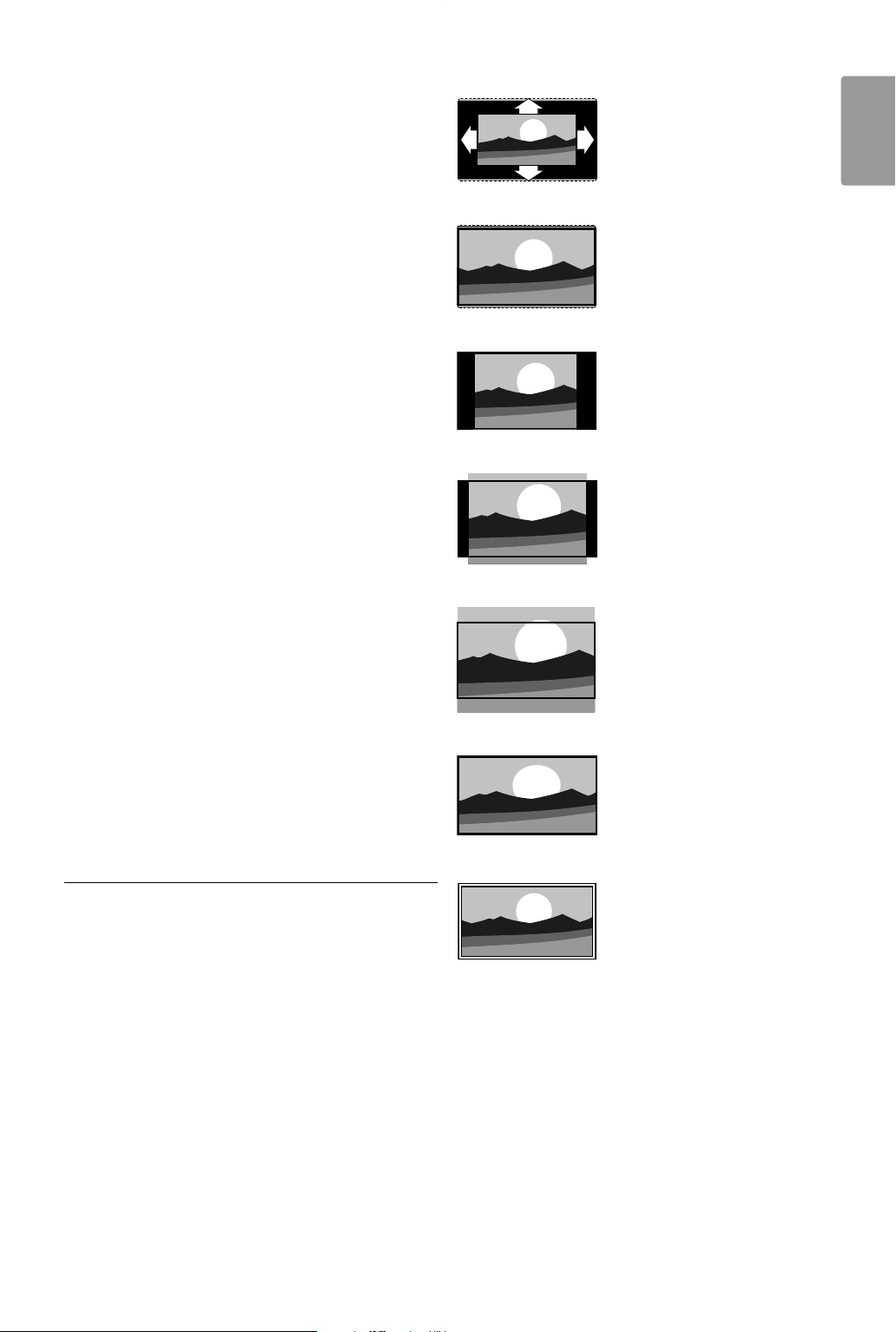
• Picture format
See section 5.3.4 Widescreen picture format.
5.3.4 Widescreen picture format
Avoid black bars on the sides or on top and
bottom of the picture. Change the picture format
to a format that fills the screen.
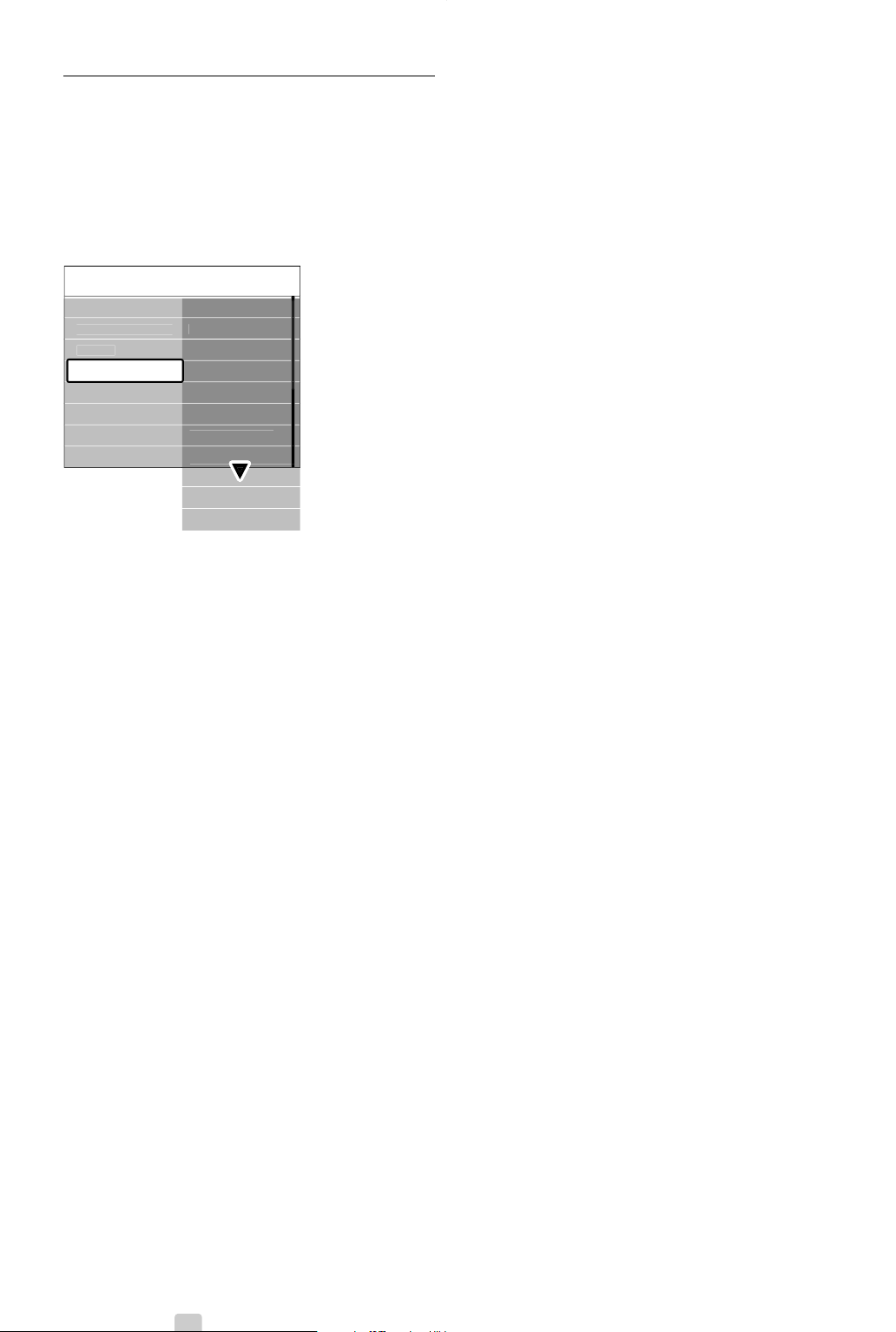
‡ Press Menu on the remote control and select
TV menu > TV settings > Picture > Picture
format and press navigation key right to enter.
® Press navigation key up or down to select an
available picture format.
ÒPress navigation key up to shift the picture
upwards to make partly covered subtitles
visible.
à Tip
The Auto format setting is recommended for
minimal distortion.
Auto format (Not for PC.)
Enlarges the picture
automatically to fill the
screen. Subtitles remain
visible.
Super zoom (Not for HD.)
Removes the black bars on
the side of 4:3 broadcasts.
There is a minimal
distortion.
4:3 (Not for HD.)
Shows the classical 4:3
format.
Movie expand 14:9
(Not for HD.)
Scales classical 4:3 format to
14:9.
Movie expand 16:9
(Not for HD.)
Scales classical 4:3 format to
16:9.
Wide screen
Stretches 4:3 format to
16:9.
Unscaled
(Only for HD and PC.)
Maximum sharpness.
Distortion may appear on
borders. Black bars may
appear with pictures from
your PC.
rNote
Do not forget to name the connection in the
Connection menu. See section 7.4.3 Naming your
devices.
Use more of your TV
2690.1 en 18-09-2007 16:50 Pagina 17
18
5.3.5 Sound settings
This section describes how to adjust all sound
settings.
‡ Press Menu on the remote control and select
TV menu > TV settings > Sound and press
navigation key right to enter the list.
® Press navigation key up or down to select a
setting.
• Equalizer
Changes the bass and treble of the sound. Select
each bar to change the setting. See also section
5.2.3 Quick access menu.
•Volume
Changes the volume.
When adjusting the volume with V a volume
bar appears. If you don’t want it to appear go to
TV menu > Installation > Preferences and press
navigation key right to enter the list and select
Volume bar off.
‡ Press navigation key up or down to select
Volume bar.
® Press navigation key right to enter.
ÒSelect On to activate the temporarily display of
the volume bar when adjusting the volume.
• Balance
Sets the balance of the left and right
loudspeakers to fit best your listening position.
• Audio language
A list of audio languages for the current
programme may be available when digital
channels are installed and broadcasted.
See also section 5.2.3 Quick access menu.
To permanently change the audio language, see
section 6 Channel installation.
• Dual I/II
If broadcasted, you can choose between two
different languages.
• Mono/stereo
If stereo broadcasting is available, you can select
Mono or Stereo per TV channel.
• Surround mode
To select a more spatial sound if broadcasted or
if available from a connected device.
• Headphone volume
Changes the volume of the headphone.
You can mute the TV speakers with ¬ on the
remote control.
• Automatic volume leveller
Reduces sudden volume differences like at the
beginning of commercials or when switching from
one channel to another.
Select on or off.
• Delta volume
Levels out volume differences between channels
or connected devices.
‡ Switch to the channel or device you want to
level out the volume difference.
® Select Delta volume in the Sound menu and
change the volume level.
• Auto surround
Switches the TV automatically to the best
surround sound mode broadcasted.
Select on or off.
Use more of your TV
TV settin
g
s Soun
d
E
q
ualize
r
V
o
l
u
m
e
B
a
l
a
n
ce
Audio lan
g
ua
ge
Surround mod
e
Headphone volume
Dual I
/
I
I
Mono
/
Stere
o
Auto volume level...
D
e
lt
a
v
o
l
u
m
e
A
u
t
o
su
rr
ou
n
d
Soun
d
Settin
g
s assistan
t
R
ese
t t
o
s
t
a
n
da
r
d
Pi
c
t
u
r
e
e
2690.1 en 18-09-2007 16:50 Pagina 18
19
ENGLISH
Use more of your TV
5.4 Teletext
Your TV has a 1200 pages memory that stores
broadcasted teletext pages and subpages to reduce
waiting time.
To select a teletext page see section 4.6 Select a
Teletext page.
5.4.1 Select pagenumber subpages
A teletext page number can hold several subpages.
The pages are shown on a bar next to the main
pagenumber.
‡ Press b.
® Select a teletext page.
ÒPress navigation key left or right to select a
subpage.
5.4.2 Select T.O.P. teletext broadcasts
T.O.P. teletext (Table of Pages) is not broadcast by
all TV channels. You can easily jump from one
subject to another without using pagenumbers.
‡ Press b.
® Press i.
The T.O.P. overview appears.
ÒUse navigation key left, right or up, down to
select a subject.
† Press
OK to view the page.
5.4.3 Dual screen teletext
View the TV channel and teletext next to each
other.
‡ Press b for Dual screen teletext.
® Press b again to show normal teletext .
ÒPress b to switch off teletext.
5.4.4 Search teletext
Quickly jump to a subject linked to a series of
pagenumbers or search for specific words in
teletext pages.
‡ Press b.
® Press
OK to highlight the first word or number.
ÒPress navigation key left, right or up, down to
jump to the next word or number on the page.
† Press
OK to search a page which holds the
highlighted word or number.
º Press navigation key up until no word or
number is highlighted to quit Search.
5.4.5 Enlarge teletext pages
For a more comfortable reading, you can enlarge
the teletext page.
‡ Press b and select a teletext page.
® Press Option on the remote control to enlarge
the top part of the page.
ÒPress Option again to view the enlarged lower
part of the page.
† Press navigation key up or down to scroll
through the enlarged page.
º Press Option again to return to the normal
page size.
5.4.6 Teletext menu
With the options in the teletext menu you can
reveal hidden info, let cycle subpages automatically
and change the character setting.
•Reveal
Hide or unhide hidden information on a page,
such as solutions to riddles or puzzles.
• Cycle subpages
If subpages are available for the selected page,
you can make subpages cycle automatically.
• Language
Some languages use a different set of characters.
Switch to the other group to show the text
correctly.
DVD STB TV VCR AUX
®
®
®
®
SELECT
DEMO
a
OPTION
OK
i
b
i
DVD STB TV VCR AUX
®
®
®
®
SELECT
DEMO
a
OPTION
OK
i
b
OPTION
2690.1 en 18-09-2007 16:50 Pagina 19
20 Use more of your TV
‡ Press b.
® Press Menu.
ÒPress navigation key up or down to select an
option.
† Press
OK to change a setting.
º Press Menu to quit the teletext menu.
◊Press b to switch off teletext.
5.4.7 Digital text services (UK only)
Some digital TV broadcasters offer dedicated digital
text or interactive services (for example BBC1) on
their digital TV channels .These services work as
normal Teletext with the number, colour and
navigation keys to select and navigate.
‡ Press b.
® Press navigation key left, right or up, down to
select or highlight items.
ÒPress one of the colour keys to select an
option.
† Press
OK to confirm or activate.
º Press MHEG Cancel to cancel Digital text or
interactive services.
ç Caution
Digital text services are blocked when subtitles are
broadcasted and Subtitle On is set in the Features
menu. See section 5.8 Subtitles.
5.4.8 Teletext 2.5
If broadcasted by the TV channel this teletext offers
more colours and better graphics.
Teletext 2.5 is switched on as a factory setting.
‡ Press Menu on the remote control and select
TV menu > Installation > Preferences >
Teletext 2.5 and press navigation key right to
enter the list.
® Select on or off.
5.5 Create favourite channel
lists
View the All channels list or set up a Favourite list
of your own with your preferred TV channels and
radio stations. For example, each member of your
family can create his or her own favourite list.
5.5.1 Select a favourite list
Learn how to select one of the favourite channel
lists.
‡ Press
OK.
The first time after you have finished the
installation, the All channels list is shown. In
other situations, it brings up the last selected
favourite list.
® Press the red key to show all favourite lists.
ÒPress navigation key up or down to select a list.
† Press
OK.
The selected favourite list appears.
º Press
OK again to quit.
5.5.2 To set up a favourite list
Create or modify your own favourite list.
‡ Press
OK.
The last selected list appears.
® Press the red key to show all favourite lists.
ÒPress navigation key up or down to select a list.
† Press
OK.
º Press the green key to enter the Edit mode.
The selected list brings up a full channel list.
◊Press navigation key up or down to highlight a
channel.
‹Press
OK to mark (or unmark) the highlighted
channel.The channel is added to (or removed
from) the selected list.
≈Press the green key again to leave the Edit
mode.
The modified channel list appears again.
Teletext menu
Reveal
Language
Gr. II
Off
Cycle subpages
Off
All
c
h
a
nn
e
l
s
....
EXT
3
3 Di
g
ital channel
2
4 R
ad
i
o
c
h
a
nn
e
l
1
2 Di
g
ital channel
1
1 Analo
g
ue channel
1
....
Select lis
t
A
2690.1 en 18-09-2007 16:50 Pagina 20
21
ENGLISH
Use more of your TV
5.5.3 Select a channel from a favourite list
‡ Press
OK.
The last selected channel list appears.
® Use navigation key up or down to highlight a
channel.
ÒPress
OK.
The TV tunes to that channel.
à Tip
• Use
-P+ to go through the TV channels of the
selected favourite list.
• With the number keys you can still select
channels which are not marked as favourite.
5.6 Electronic Programme
Guide - EPG -
The Electronic Programme guide is an on screen
guide to scheduled digital TV programmes.
You can navigate, select and view programmes by
time, title or genre.There are two types of EPG,
‘Now and Next’ and ‘7 or 8 day’ EPG.
When digital channels are installed and
broadcasted, EPG is available. ‘Now and Next’ is
always available but the ‘7 or 8 day’ EPG is only
available in some countries.
With the EPG menu you can ...
• see a list of current broadcasted programmes
• see the next programme
• group programmes by genre
• set reminders when programmes will start
• set up preferred EPG channels
• etc.
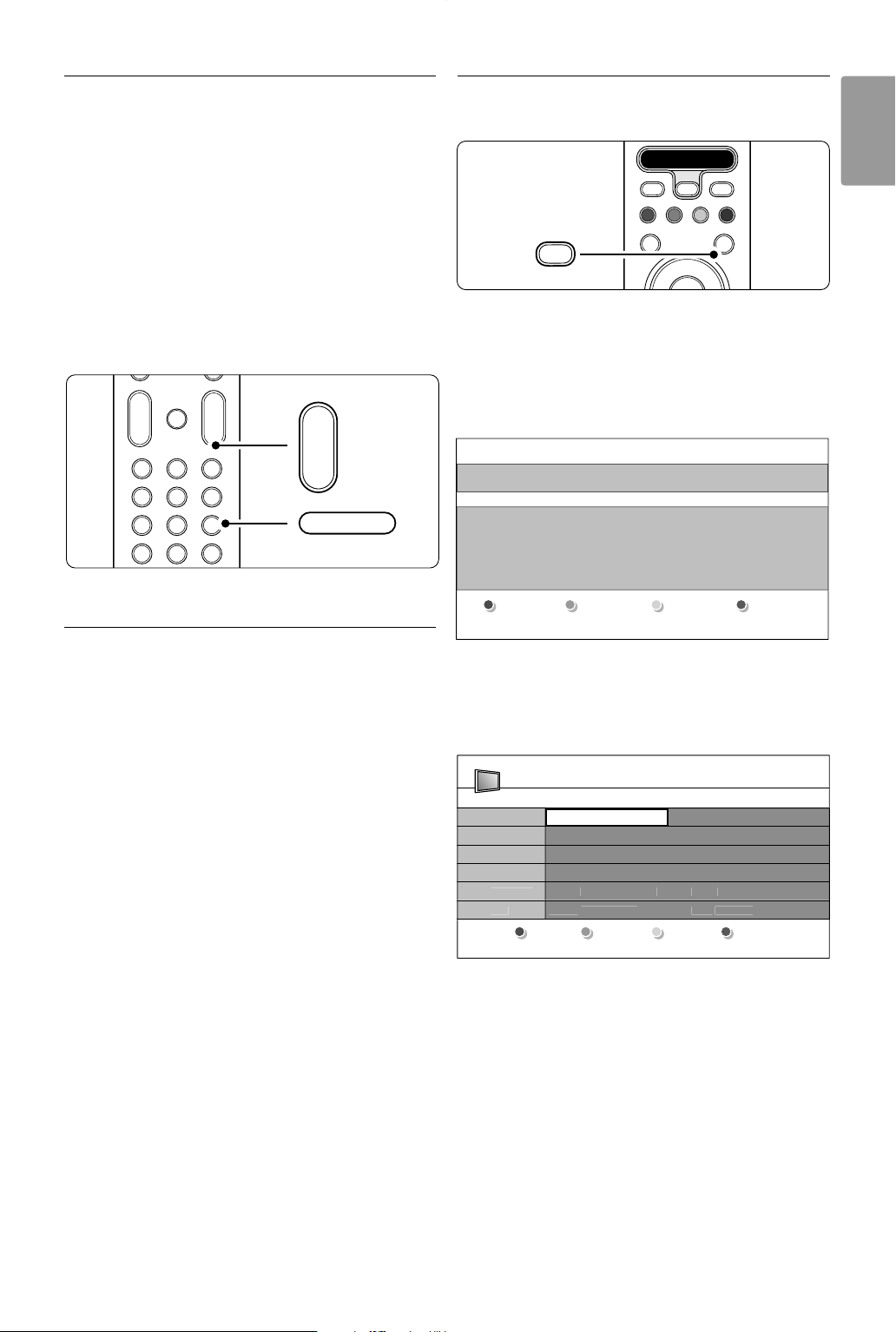
5.6.1 Switch on EPG
‡ Press a.
The following type of EPG appears:
‘Now and Next’ EPG
Detailed information about the current programme
is shown.
Or
‘7 or 8 day’ EPG
It may take some time to receive the EPG data.
The list of TV programmes will show
® Use the colour keys to activate the available
actions at the bottom of the screen.
• Next: to show information about the next
programme.
• Remind: to mark or unmark a programme as a
reminder.
• Watch: to watch or listen to a current
programme.
• Jump to...: to jump to the next or previous day.
• Info: to display information on a selected
programme (if available).
ÒPress a to quit the EPG.
+
-
+
-
MENU
123
456
789
0
®
®
®
®
0
AV
b
¬
P
V
v
90
-
+
-
P
26 BBC1 Tue., 12 Sep 09:17
Title : Commonwealth Games
Info: 7:50 - 12:30 : 280 min
..........
Exi
t
Press -P+ to chan
g
e channel
.
N
e
x
t
DVD STB TV VCR AUX
®
®
®
®
SELECT
DEMO
a
OPTION
OK
i
b
a
Programme guide Tue., 12 Sep
09:55
BBC ONE
BBC TWO
five
BBC THREE
BB
C
F
OUR
abc1
09:50 Tweenies
09:00 The Wright Stuff
05:32 This is BBC THREE
05
:
3
2 This is BB
C
F
OUR
09
:2
0
Moonli
g
htin
g
12:30 Commonwealth
10:15 Something Special
10:30 Trisha Goddard
12:00 This is BBC THREE
12:
00
This is BB
C
F
OUR
1
0
:1
5
D
add
i
o
Around Next
07:50 Commonwealth
1
3
:
50
Anastasia
00
1
0
- EEN
R
e
min
d
W
a
t
ch
Inf
o
Jum
p
to ..
.
2690.1 en 18-09-2007 16:50 Pagina 21
22 Use more of your TV
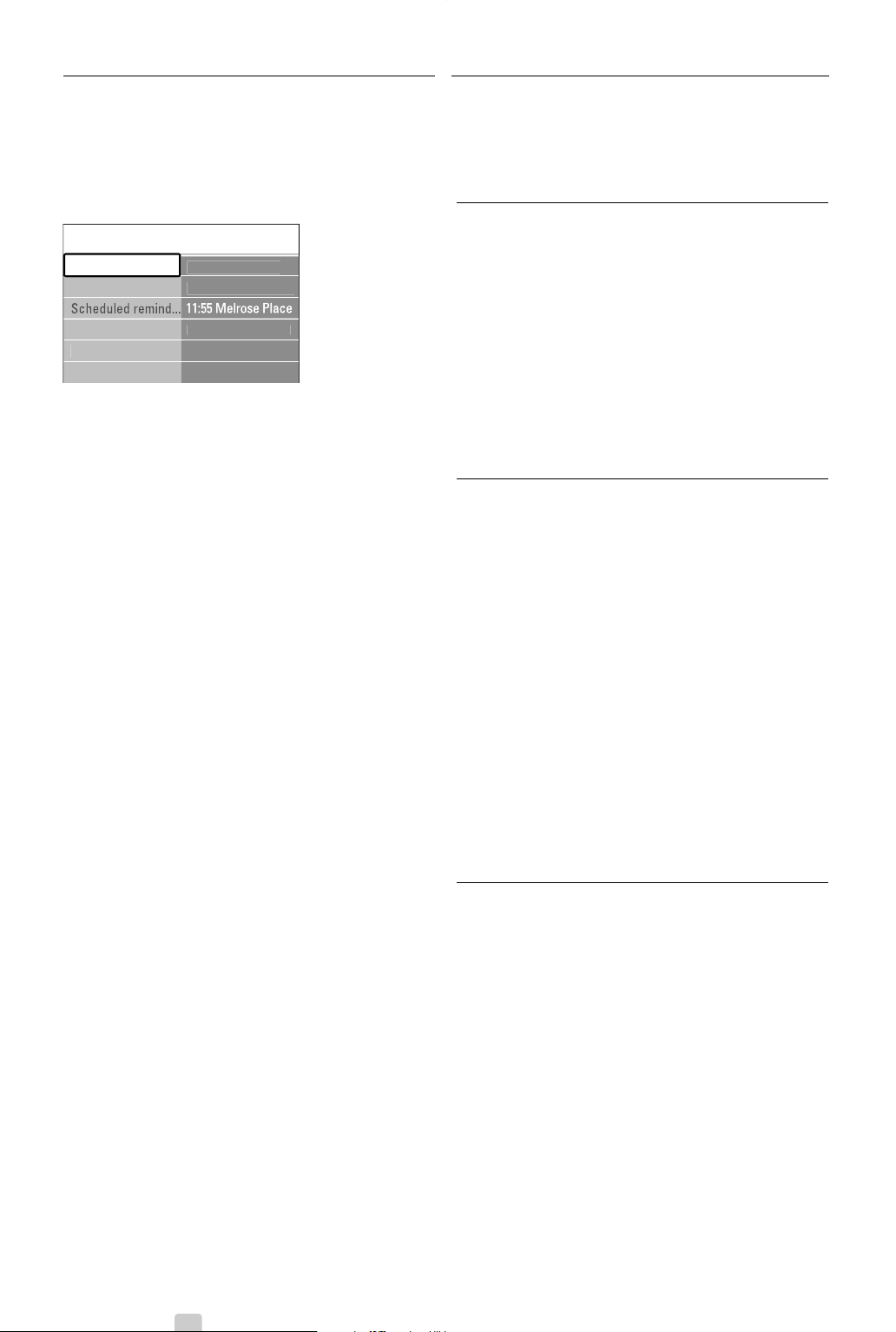
5.6.2 More on ‘7 or 8 day’ EPG
Search by genre, scheduled reminders, etc. are
managed in the Programme guide menu.
‡ Press a on the remote control.
® Press Menu.
The Programme guide menu appears.
ÒPress navigation key up or down to select a
menu option.
† Press navigation key right to enter.
º Press navigation key up or down to make a
selection.
◊Press
OK to activate or press the green key to
watch
‹Press a to quit the EPG.
rNote
Only channels marked as Preferred EPG channels
appear in the Programme guide menu.
5.7 Timers and locks
This section describes how to switch the TV on or
off at a specified time and to lock or unlock the TV.
5.7.1 Automatically switch to standby
Sleeptimer switches the TV to standby after a time.
‡ Press Menu on the remote control and select
TV menu > Features > Sleeptimer and press
navigation key right to enter the sleeptimer bar.
® Press navigation key up or down to set the time
up to 180 minutes in steps of 5 minutes. If set
to 0 minutes, the Sleeptimer is switched off.
You can always switch off your TV earlier or reset
the time during countdown.
5.7.2 Automatically switch the TV on
On timer switches the TV on automatically to a
specified channel at a specified time, from standby.
‡ Press Menu on the remote control and select
TV menu > Features > On timer and press
navigation key right to enter the On timer
menu.
® Use navigation key left, right or up, down to
select and enter the menu items one by one to
set a channel, a day of the week or daily, and a
starting time.
ÒPress
OK to confirm.
† Press Menu to quit the menu.
à Tip
To switch off the On timer, select Off in the On
timer menu.
5.7.3 Lock TV channels and programmes
Lock TV channels and/or programmes from
connected devices to prevent children from
watching them. Lock and unlock with a four number
code.
Set or change your code
‡ Press Menu on the remote control and select
TV menu > Features > Set or Change code
and press navigation key right to enter your
code.
® Enter your code with the number keys.
The Features menu reappears with a message
confirming that your code has been created or
changed.
Pro
g
ramme
g
uid
e
Wh
a
t'
s
on
12:30 South Toda
y
1
3
:
00
In aller Freun
d
11:50 Workin
g
Lunc
h
Preferred EP
G
ch..
.
Ac
q
uire EPG dat
a
Wh
a
t'
s
on
Search b
y
g
enr
e
2690.1 en 18-09-2007 16:50 Pagina 22
23
ENGLISH
Use more of your TV
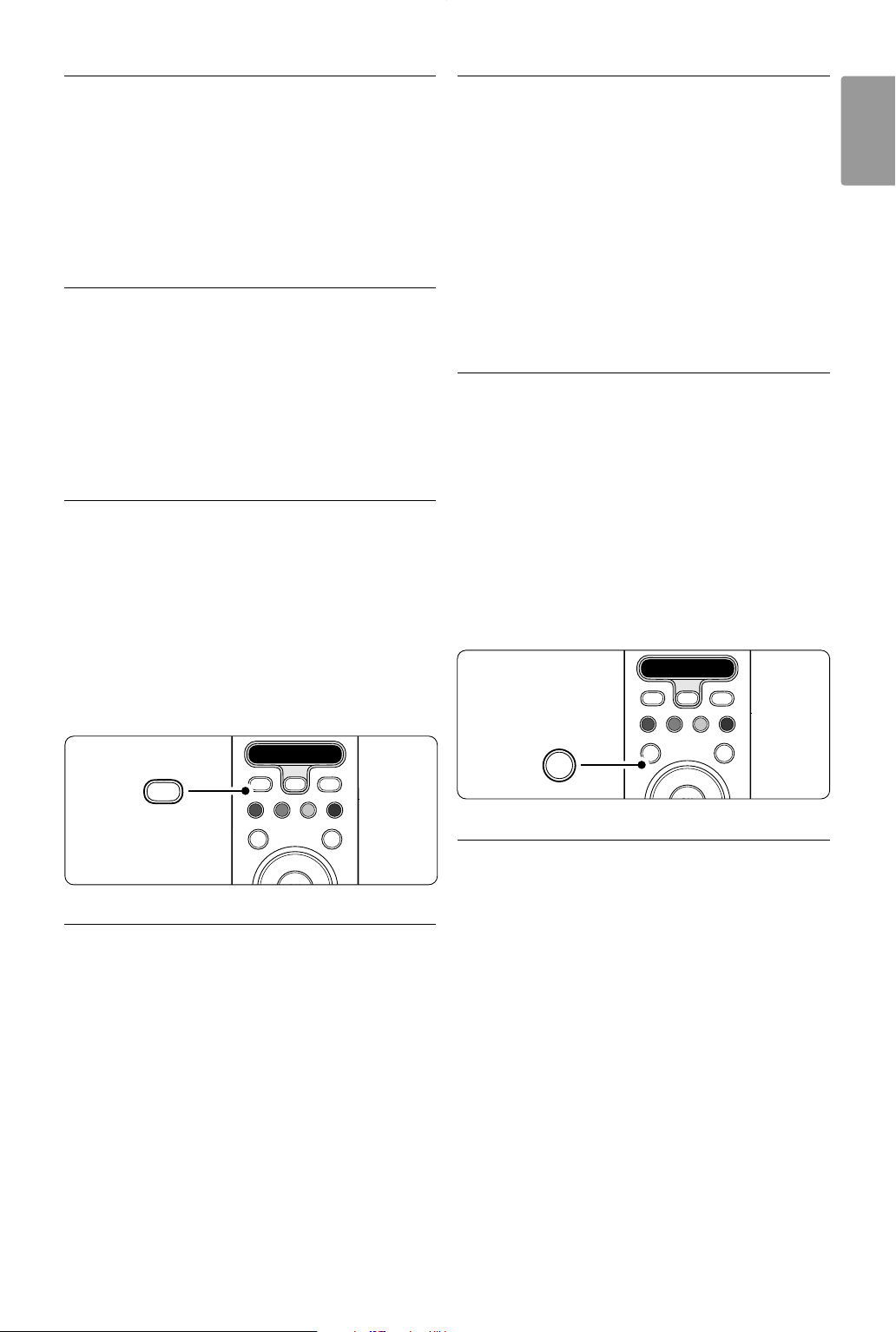
Did you forget your code ?
‡ Select Change code.
® Press navigation key right.
ÒEnter the overriding code 8-8-8-8.
† Enter a new personal code.
º Confirm your new entered code.
The previous code is erased and the new code
is stored.
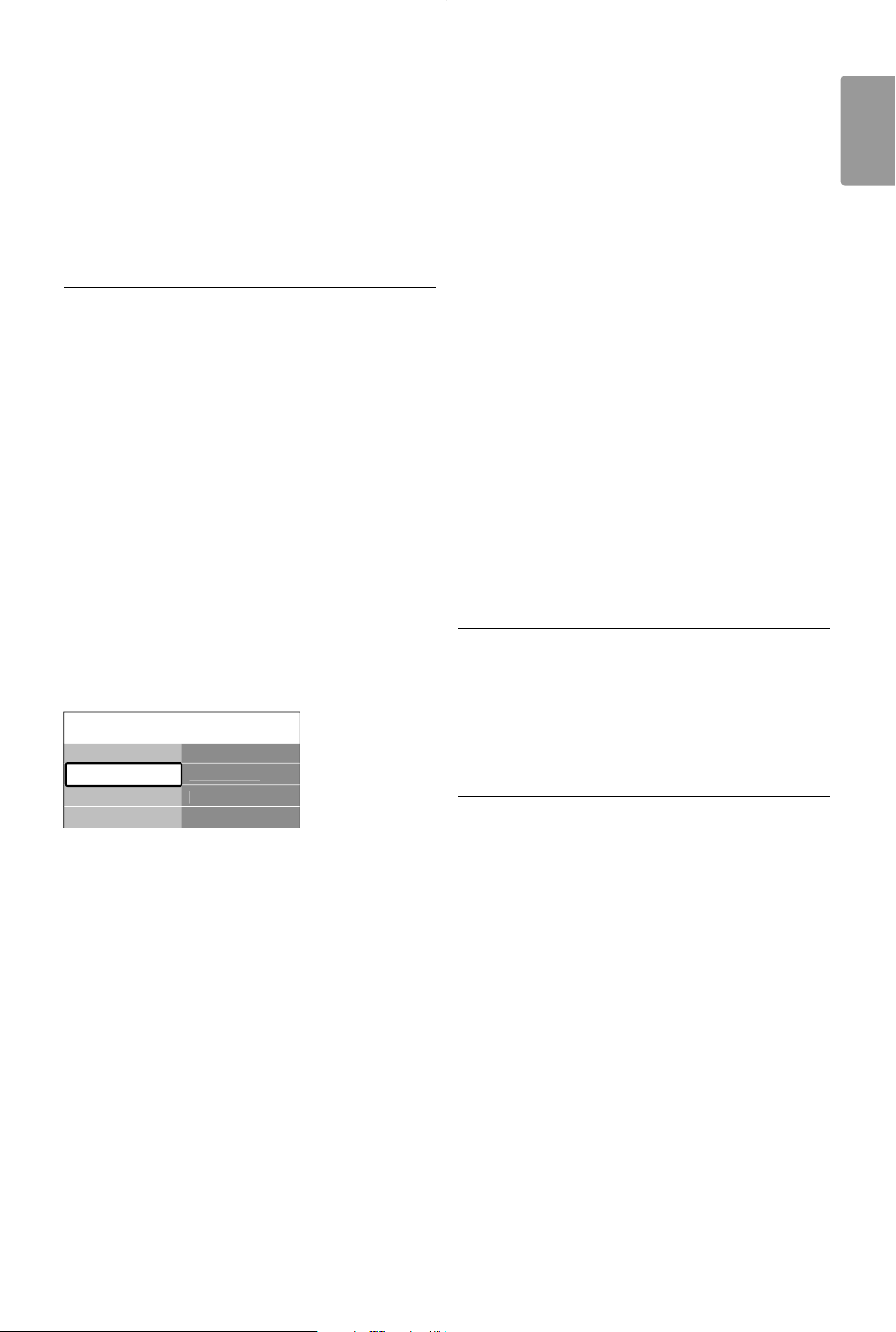
5.7.4 Activate or deactivate Child lock
If your code is set, you can lock all channels and
devices, lock a specific channel or device, set a time
after which all channels and devices are locked or
set the age of your child for parental rating when
digital channels are installed and broadcasted.
‡ Press Menu on the remote control and select
TV menu > Features > Child lock and press
navigation key right to enter your code.
® Enter your code with the number keys.
ÒSelect one of the options.
† Press navigation key right.
Lock or unlock all channels and connected devices
‡ Select Lock or Unlock.
® Press
OK.
Lock a certain programme or all channels from a
certain time
‡ Select Custom lock.
® Press navigation key right to enter the Custom
lock menu.
ÒPress navigation key right again to enter the
Lock after menu.
† Select On to switch on the Timer lock.
º Press navigation key left.
◊Select Time.
‹Press navigation key right.
≈Enter the time with navigation key up or down
and right.
ÚPress
OK.
Lock one or more channels and connected devices
‡ Select Custom lock.
® Press navigation key right to enter.
ÒPress navigation key up or down to select
Channel lock.
† Press navigation key right.
º Press navigation key up or down to select the
channel(s) you want to lock or unlock.
◊Each time press
OK to lock or unlock the
channel.
Set an age rating to a digital programme
Some digital broadcasters have their programmes
rated (depending on your country).When the
rating is higher than your child’s age, the
programme will be locked.
‡ Select Custom lock.
® Press navigation key right to enter.
ÒPress navigation key up or down to select
Parental rating.
† Press navigation key right.
º Press navigation key up or down to select an
age rating.
◊Press Menu to quit the Child lock menu.
5.8 Subtitles
For each TV channel, subtitles can be set, coming
from Teletext or DVB-T (digital) broadcasts.
If digital channels are installed and broadcasted, you
can select your preferred subtitle language.
5.8.1 Subtitling from analogue TV channels
‡ Select an analogue TV channel.
® Press b to switch on Teletext.
ÒEnter the three number pagenumber of the
subtitle page.
† Press b to switch off Teletext.
rNote
The Teletext subtitle page of analogue channels
must be stored for each TV channel separately.
C
hild loc
k
C
ustom loc
k
L
oc
k
a
ft
er
C
hannel loc
k
Parental ratin
g
L
ock
C
ustom loc
k
U
nloc
k
2690.1 en 18-09-2007 16:50 Pagina 23
24 Use more of your TV
5.8.2 Activate or deactivate subtitling
‡ Press Menu on the remote control and select
TV menu > Features > Subtitle and press
navigation key right to enter the list.
® Press navigation key up or down to select On
to show the subtitles always or On during mute
to show the subtitles only when the sound is
muted with the ¬ key on the remote control.
ÒPress navigation key left to return to the
Features menu.
à Tip
Select the Subtitle menu directly with Option on
the remote control. See section 5.2.3 Quick access
menu.
5.8.3 Select a digital subtitle language
If subtitle broadcasting is available with digital
channels, you can select a preferred subtitle
language out of a list of broadcasted languages.The
preferred subtitle language set in the Installation
menu is overruled temporarily.
‡ Press Menu on the remote control and select
TV menu > Features > Subtitle language and
press navigation key right to enter the list of
available languages.
® Press navigation key up or down to select a
subtitle language.
ÒPress
OK.
à Tip
Select the Subtitle language menu directly with
Option on the remote control. See section 5.2.3
Quick access menu.
5.9 View and play: photos,
MP3, ...
Watch pictures or listen to music stored on a USB
device (not supplied with the TV). Watch your
pictures as a slideshow or listen to a self made
music playlist.
rNote
Philips can not be held responsible if your USB
device is not supported nor shall Philips accept any
liability for damage or loss of stored data.
5.9.1 Insert a USB device
Insert a device at the side of the TV while the TV is
switched on.
The main menu appears automatically and the
name of the USB device s highlighted next to
Multimedia.
5.9.2 Remove the USB device
ç Caution
To avoid damaging the USB device always quit the
menu on screen and wait five seconds before you
remove the USB device.
‡ Press Menu to quit the menu.
® Remove the USB device.
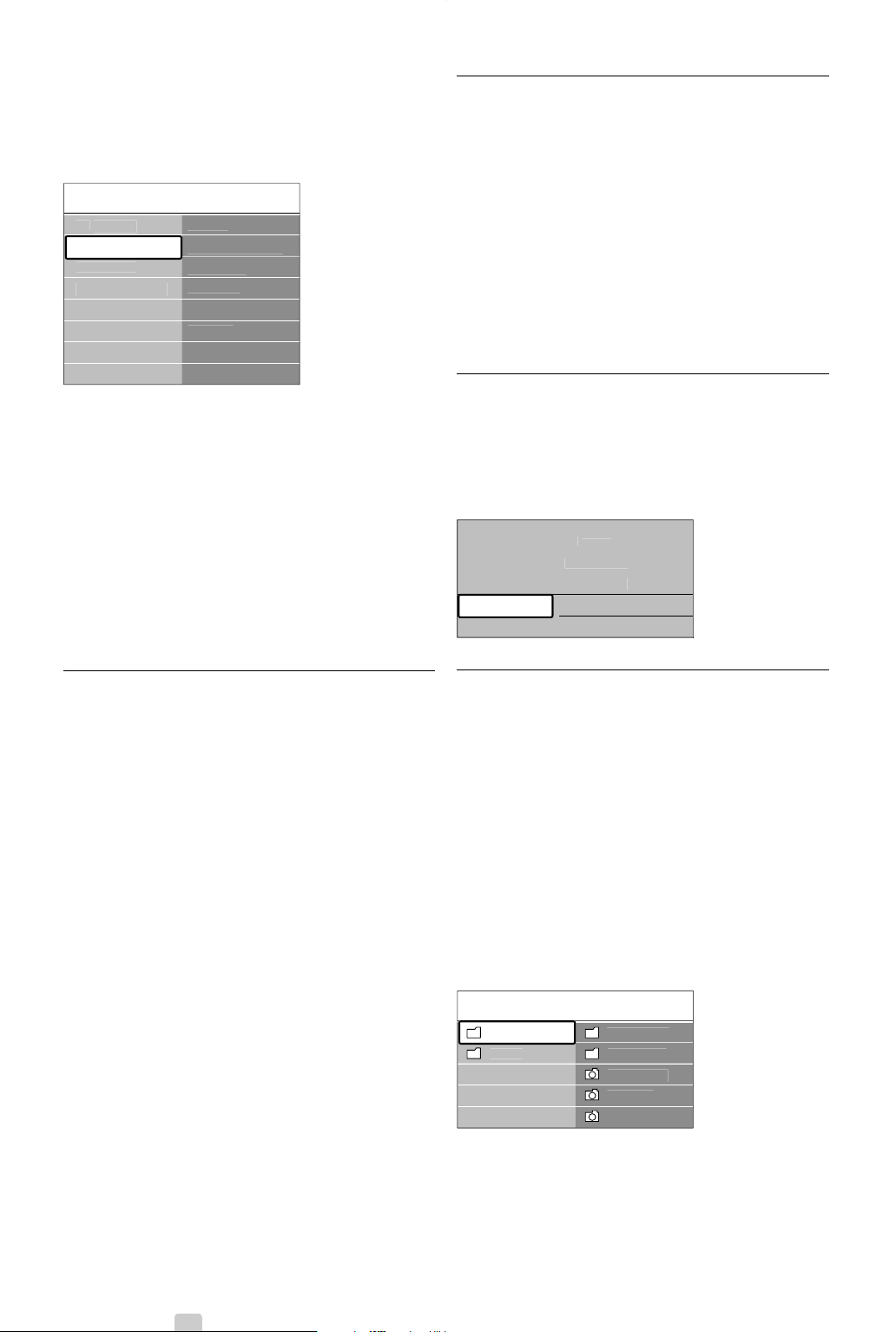
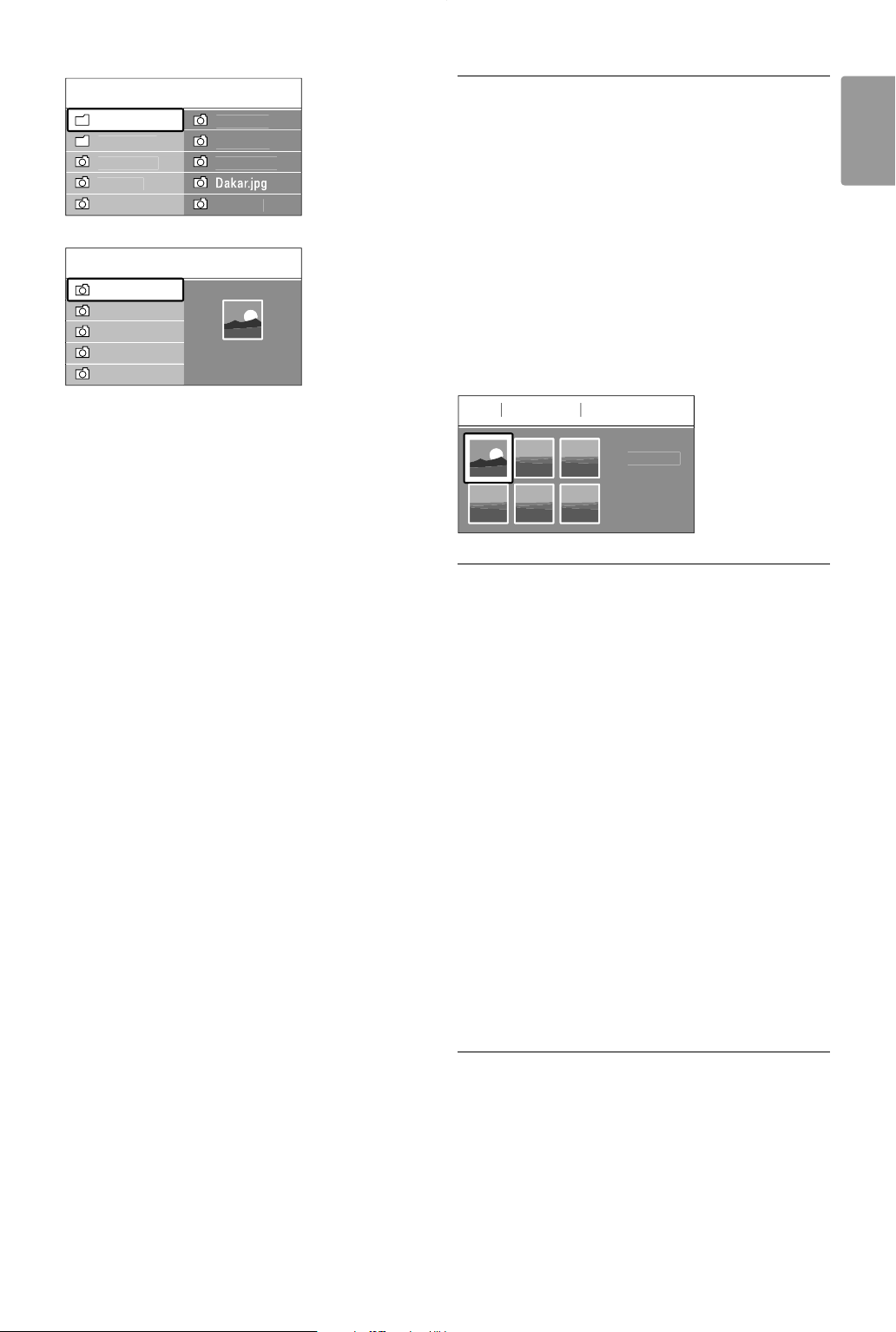
5.9.3 View your pictures
The Multimedia menu shows the files you have
stored on your USB device.
‡ Press navigation key right to enter the
Multimedia menu. Picture is highlighted.
® Press navigation key right to enter the Picture
folder.
ÒPress navigation key up or down to select a
picture or a picture album on the USB device.
US
B
Pi
c
t
u
r
e
Afrika
_
200
1
Paris
_
200
6
M
y
_car.
jpg
Jean.
jpg
Mar
y
.
jpg
M
us
i
c
Pi
c
t
u
r
e
T
e
l
e
vi
s
i
on
M
u
ltim
ed
i
a
TV
m
e
n
u
C
hannel lis
t
Pro
g
ramm
e
g
uid
e
TV
m
e
n
u
F
ea
t
u
r
es
Subtitl
e
Subtitle lan
g
ua
ge
Slee
p
time
r
C
hild loc
k
Set/Chan
g
e cod
e
O
n time
r
C
ommon interfac
e
D
e
m
o
F
ea
t
u
r
es
In
s
t
a
ll
a
ti
on
Software u
p
dat
e
TV
settin
g
s
2690.1 en 18-09-2007 16:50 Pagina 24
25
ENGLISH
Use more of your TV
† Press OK to view the picture or to start a
slideshow of the pictures in the album.
º Press
OK to pause the slideshow. Press again to
restart.
◊Press one of the colour keys on the remote
control to perform the corresponding function
shown at the bottom of the screen. Press the
blue key to stop the show and to see more
functions.
If the function bar at the bottom disappeared,
press any colour key to let it reappear.
‹Press navigation key left and select another
picture or another album.
Slideshow settings
• Details / More details
Shows the picture name, date, size and next
picture in the slideshow.
• Transitions
Shows the list of available transition styles of the
pictures.
Press navigation key up or down to select and
press
OK to activate.
• Slide time
Sets the time lag for the picture transitions:
Short, Medium or Long.
• Rotate
To rotate a picture.
• Zoom
Show a list of available zoom magnifications to
select.
• Start/Show
To stop and restart the slideshow.
5.9.4 Thumbnails
View the pictures of a selected album in an
overview.
‡ Select a picture album.
® Press navigation key right to enter the picture
list.
ÒPress the green key.
† Press navigation key up or down, left or right to
highlight a picture.
º Press
OK to view the picture.
◊Press navigation key left to return to the
thumbnail overview.
‹Press the green key again to go back to the
picture list.
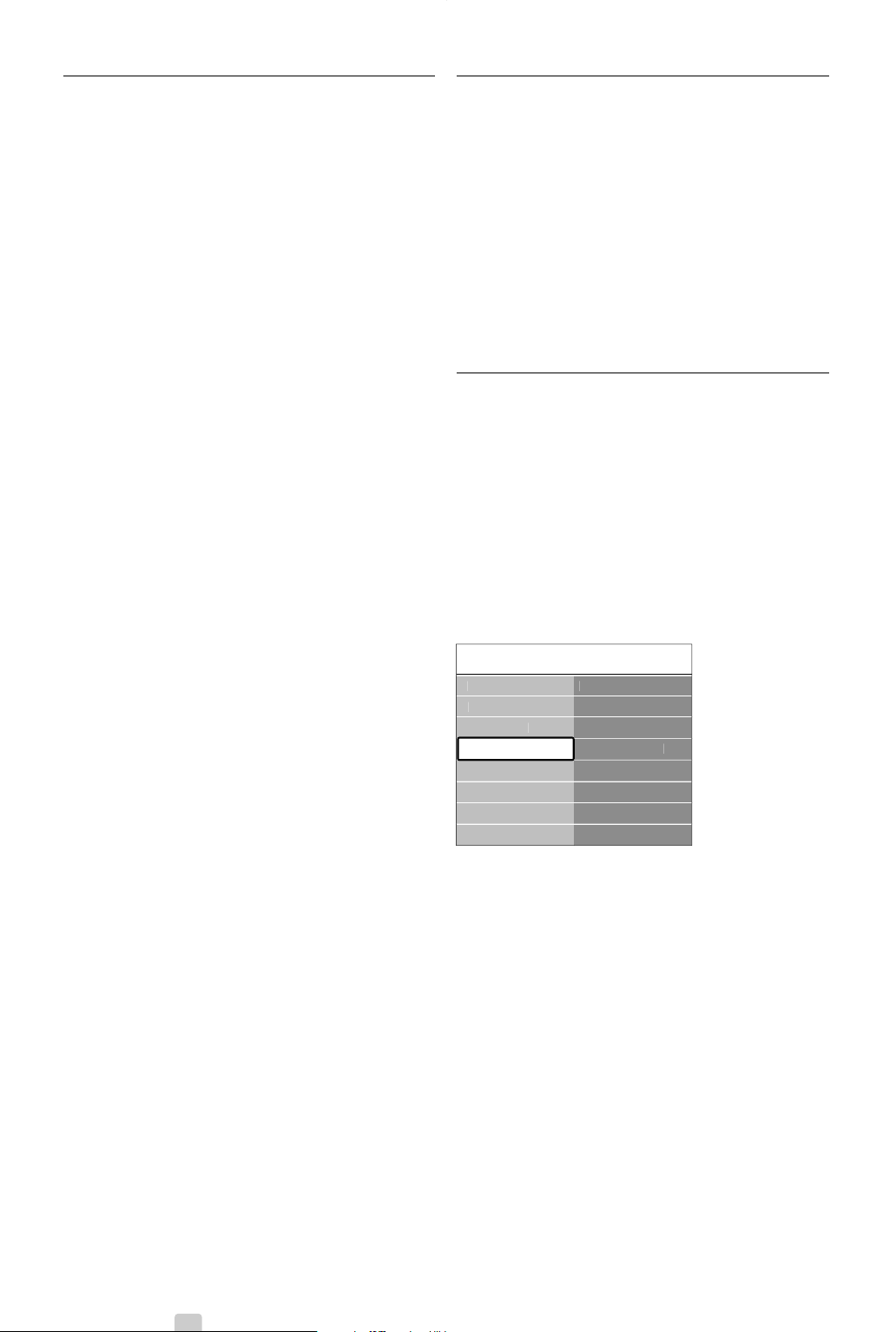
5.9.5 Listen to music
Find your songs in the Music album of the
Multimedia menu.
‡ Highlight Music in the Multimedia menu.
® Press navigation key right to enter the Music
folder.
ÒPress navigation key up or down to select a
song or a music album.
† Press
OK to play the selected song or to play a
song followed by the next song in the same
album.
Music settings
• Details
Shows the file name.
• Repeat one/all
Repeat all songs in the album until you stop a
song or only repeat the one song selected until
you stop the song.
• Shuffle
Play songs in a random sequence.
5.9.6 Slideshow with background music
Watch a slideshow of your stored pictures
accompanied with your stored background music.
‡ Select an album of songs first and press
OK.
® Highlight the Picture folder and select an album
of pictures and press
OK.
Jean.
jpg
Mar
y
.
jpg
Pi
c
t
u
r
e
Afrika
_
200
1
Ken
y
a.
jpg
Con
g
o.
jpg
Victoria.
jpg
Cairo.
jpg
Paris
_
200
5
M
y
_car.
jpg
Afrika
_
200
1
Afrika
_
200
1
Afrika
_
200
1
Ken
y
a.
jpg
Con
g
o.
jpg
Victoria.
jpg
Dakar.
jpg
Cairo.
jpg
Ken
y
a.
jpg
US
B
Afrika
_
200
1
—
Ken
y
a.
jpg
—
Ken
y
a.
jpg
2690.1 en 18-09-2007 16:50 Pagina 25
26 Use more of your TV
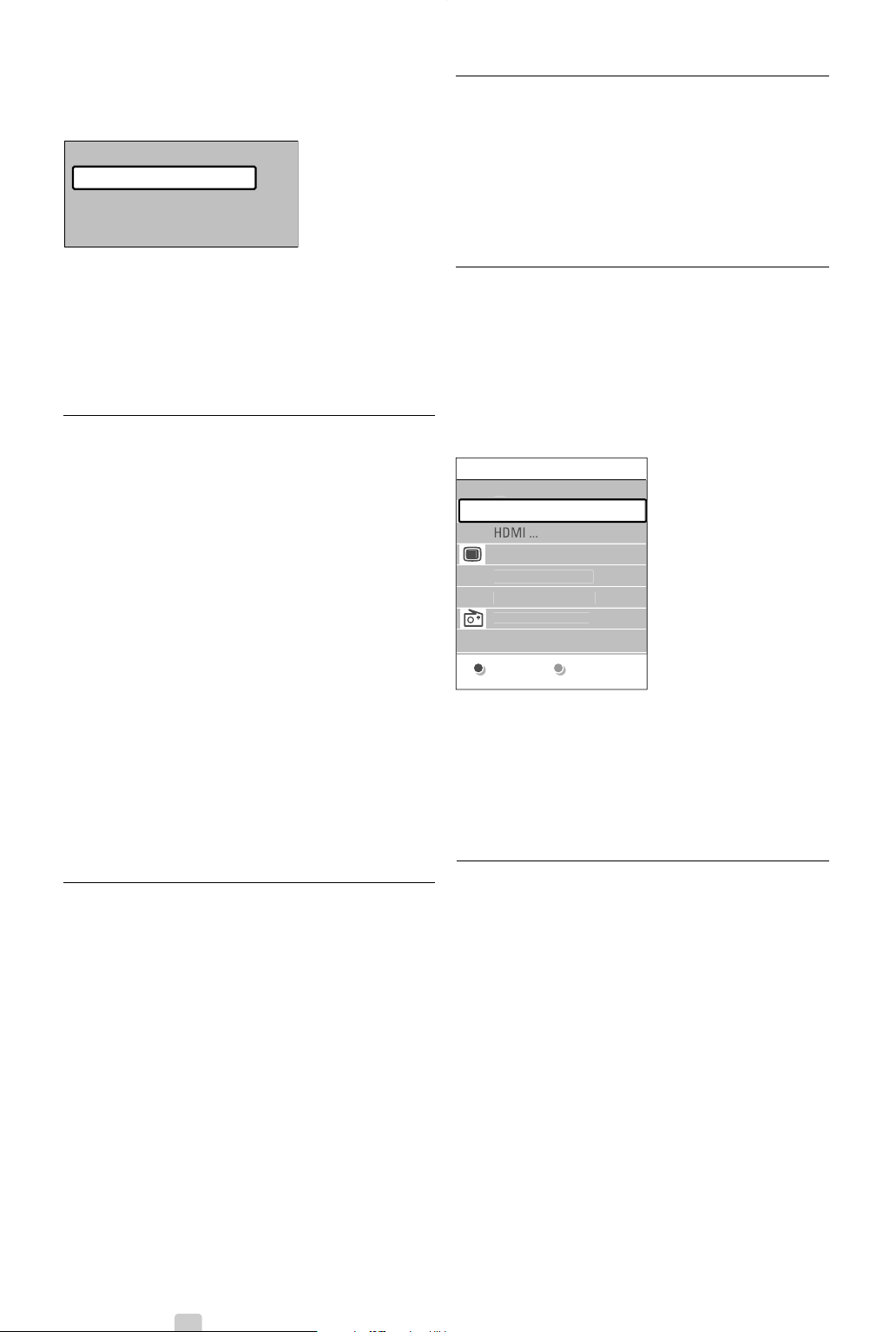
5.10 Listen to radio channels
If digital broadcasting is available, digital radio
channels will be installed during installation.
To listen to a digital radio channel:
‡ Press
OK on the remote control.
The All channels menu is displayed.
® Use the number keys to select a radio channel
available from channel number 400 onwards.
To reorder see section 6.3.3 Reorder the
channels.
ÒPress
OK.
5.11 Software update
Philips continuously tries to improve its products. It
may be recommended for you to update the TV’s
software.To update your TV software you need a
USB Memory device (not supplied).
rNote
The device must have at least 48Mb free space.
Make sure the write protection is turned off.
Some USB devices do not work with our TV.
Contact your dealer.
5.11.1 Update assistant
The Update assistant helps you to update the TV’s
software.
TV identification
The TV will identify itself to your USB memory
device.
‡ Press Menu.
® Press navigation key right.
ÒPress navigation key up or down to select
Software update.
† Press navigation key right.
º Press navigation key up or down to select
Update assistant.
◊Press navigation key right.
‹Press
OK to activate.
≈Insert a USB memory device to the USB
connector at the side of the TV.
The main menu appears.
Ú Press the green key to proceed.
A message appears the TV has successfully
written the identification file to the USB
memory device.
œ Press the green key again to finish.
πRemove the USB memory device from the TV.
TV
m
e
n
u
Software u
p
dat
e
C
urrent software..
.
U
p
date assistan
t
Local u
p
dates
Ann
ou
n
ce
m
e
n
t
F
ea
t
u
r
es
In
s
t
a
ll
a
ti
on
Software u
p
dat
e
TV
settin
g
s
2690.1 en 18-09-2007 16:50 Pagina 26
27
ENGLISH
Use more of your TV
5.11.2 Software download from the PC to
the USB device
‡ Insert the USB memory device into a PC linked
to the internet.
® Locate and open the file “update.htm” on your
USB device.
ÒRead the instructions on screen and click on
the Send
ID button.
The software update is downloaded on the
USB memory device.
† Remove the USB memory device from your
PC.
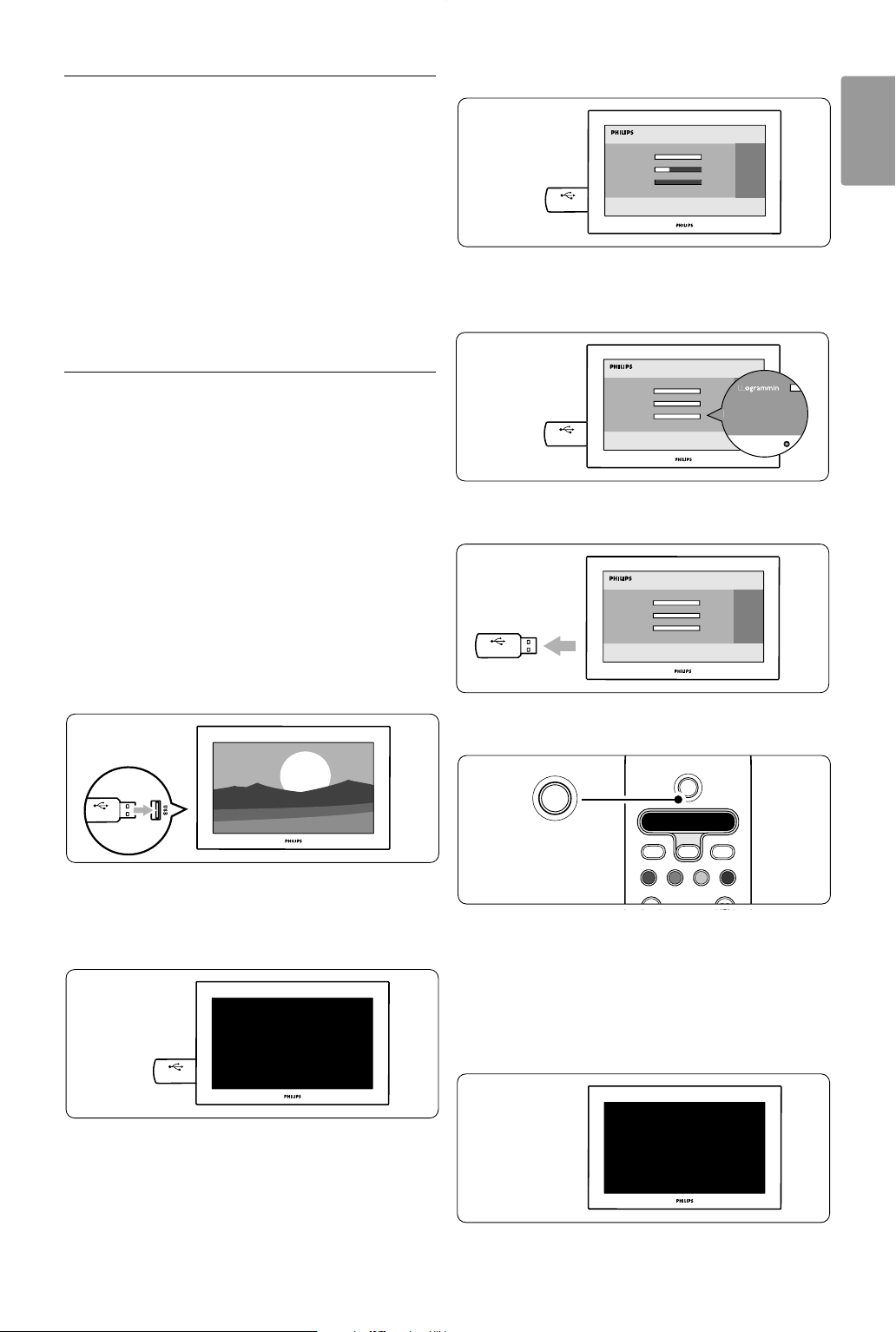
5.11.3 Transfer of the downloaded software
update to the TV
The downloaded software on the USB memory
device must now be uploaded to your TV.
ç Caution
• Do not remove the USB memory device during
the software update.
• If a power drop occurs during the update, do not
remove the USB memory device from the TV.
The TV will continue the update as soon as the
power comes back.
‡ Insert the USB memory device to the USB
connector at the side of the TV.
® The TV switches off.The screen stays black for
about 10 seconds. Wait and do not use the
power switch B on the TV.
Ò The update process starts automatically. Please
wait.
The update is finished when the message
‘Operation successful’ appears on the screen.
† Remove the USB memory device from the TV.
º Press B on the remote control.
rNote
Do not press more than once and do not use the
Power B switch on the TV.
◊The TV switches off.The screen stays black for
about 10 seconds. Please, wait.
B
S
U
Operation Successful! Re
P
r
g
B
S
U
BSU
BSU
DVD STB TV VCR AUX
®
®
®
®
SELECT
DEMO
a
OPTION
B
i
b
B
BSU
2690.1 en 18-09-2007 16:50 Pagina 27

28 Use more of your TV
‹The TV switches back on again.The update is
done.
5.11.4 Verify the current software version
Updating software is only possible if the version of
the new available software is different from the
current one.You can verify your current software
version.
‡ Select Software update in the TV menu.
® Press navigation key right.
ÒPress navigation key up or down to select
Current software info.
The version and the description of the current
software appears.
5.11.5 Software update by digital broadcast
(DVB-T)
Your TV might receive new software from the
digital broadcast system automatically.
If you receive an update message on screen it is
strongly advised to update the software
immediately - select Now.
Select Later, if you want to be reminded later on.
Select Cancel to quit the update (not
recommended). If you cancelled the update you can
still update yourself from the TV menu > Software
update > Local update.
2690.1 en 18-09-2007 16:50 Pagina 28
29
ENGLISH
Use more of your TV
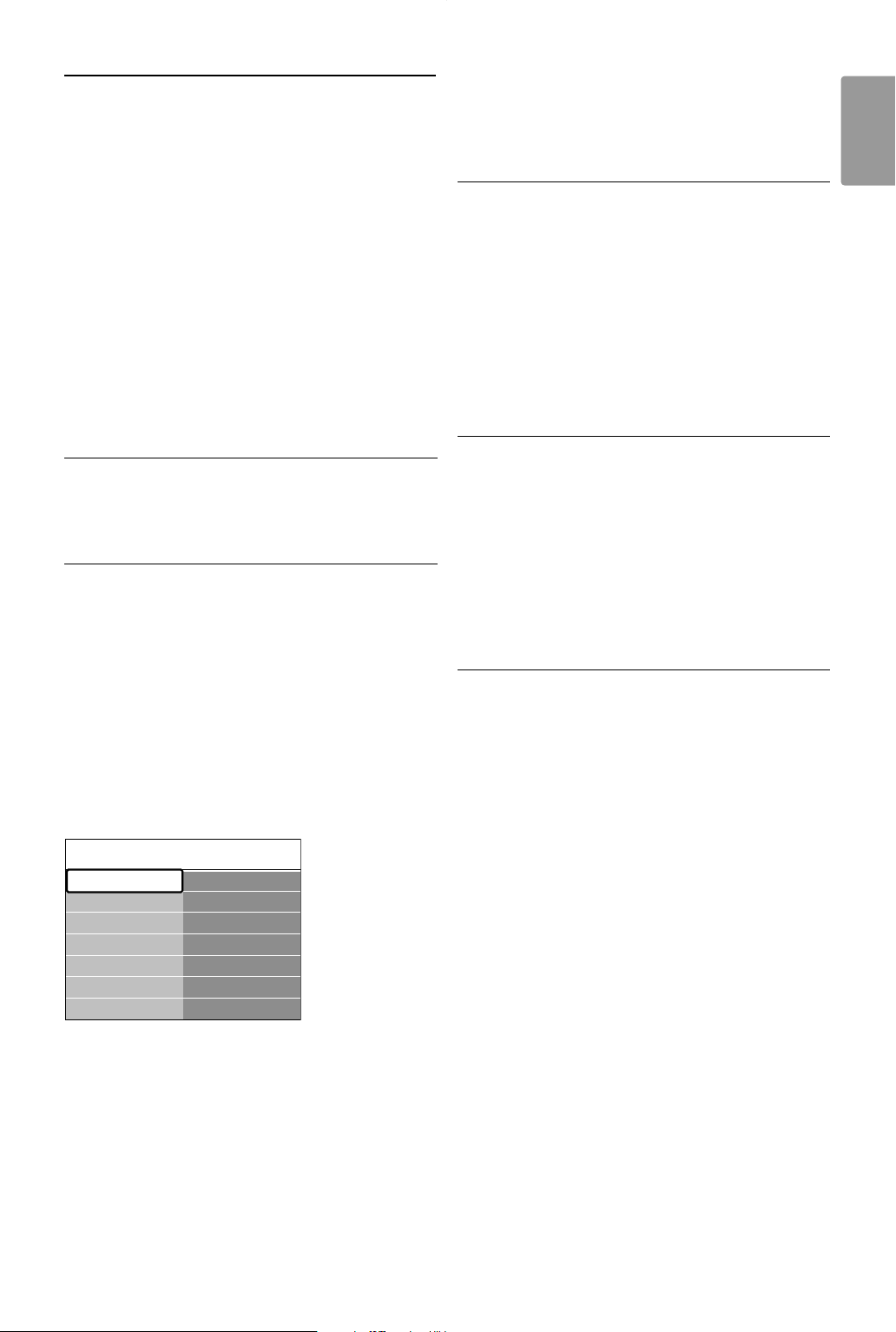
6 Channel installation
The first time you switched on your TV you’ve
selected the language of the TV menus and all the
available channels have been installed.
This chapter will help you if you find it necessary to
re-do the initial installation or if you want to tune in
a new analogue TV channel.
rNotes:
-You do not have to follow every step described if
it is not necessary.
- Re-installation will modify the All channels list and
new added channels will not be added to any
favourite list.
6.1 Automatic installation
This section describes how to search for and store
all available channels automatically.
Step 1 Menu language
Sets the language of the TV menus.
Go to a next step if your language settings are
correct.
‡ Press Menu on the remote control and select
TV menu > Installation > Languages and press
navigation key right to enter Menu language.
® Press navigation key up or down to select your
language.
ÒPress
OK to confirm.
† Press navigation key left to return to the
Installation menu.
The Languages menu also offers the following
language settings when digital channels are installed
and broadcasted.
• Preferred audio
Select one of the available audio languages as
preferred language.
• Preferred subtitles
Select one of the available subtitle languages as
preferred language. See section 5.8 Subtitles.
• Hearing impaired
Select On to display the hearing impaired subtitle
version of your preferred audio or subtitle
language when available.
Step 2 Select your country
Select the country where you are located.The TV
will install and arrange the TV channels according to
your country.
‡ Press navigation key down to select Country.
® Press navigation key right to enter the list.
ÒPress navigation key up or down to select your
country.
† Press navigation key left to return to the
Installation menu.
Step 3 Time zone selection
Only available for countries with different time
zones.
‡ Press navigation key down to select Time zone.
® Press navigation key right to enter the list.
ÒPress navigation key up or down to select your
time zone.
† Press navigation key left to return to the
Installation menu.
Step 4 Install TV and radio channels
Your TV will search for and store all available digital
and non-digital TV channels and all available digital
radio channels.
‡ Press navigation key down to select Channel
installation.
® Press navigation key right to enter the Channel
installation menu.
Automatic installation is highlighted.
ÒPress navigation key right to select Start now.
† Press
OK.
º Press the green key to start.
The installation may take a few minutes.
◊When the channel search is completed, press
the red key to return to the Installation menu.
‹Press Menu to quit the TV menu.
à Tip
When digital TV channels are found, the list of
installed channels may show some empty channel
numbers.
If you want to rename, reorder or uninstall stored
channels, see section 6.3 Rearrange channels.
Installation Languages
Menu language
Preferred audio
Preferred subtitles
Hearing impaired
Languages
Country
Time zone
Channel install...
Preferences
Connections
…
2690.1 en 18-09-2007 16:50 Pagina 29
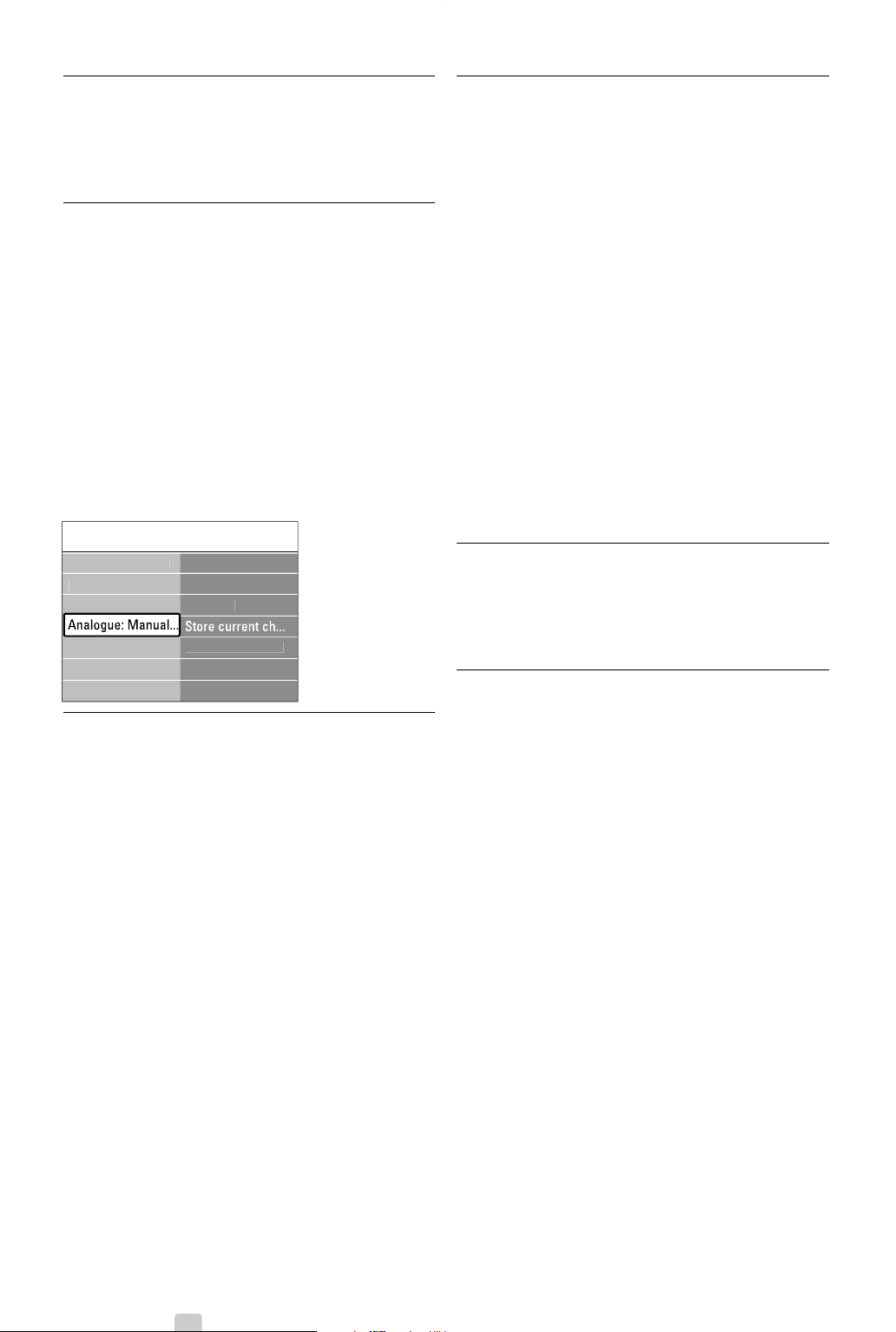
30 Use more of your TV
6.2 Analogue: Manual installation
You can tune-in analogue TV channels channel by
channel manually with Manual installation.
6.2.1 Select the system
‡ Press Menu on the remote control and select
TV menu > Installation > Channel installation >
Analogue: Manual installation.
® Press navigation key right to enter the Manual
installation menu.
System is highlighted.
ÒPress navigation key right to enter the System
list.
† Press navigation key up or down to select your
country or part of the world where you are
now located.
º Press navigation key left to return to the
Manual installation menu.
6.2.2 Search for and store a new channel
‡ Press Menu on the remote control and select
TV menu > Installation > Channel installation >
Analogue: manual installation > Search.
® Press navigation key right to enter the Search
menu.
ÒPress the red key to enter the frequency
yourself or press the green key to search for a
next channel.
à Tip
If you know the frequency, enter the three numbers
of the frequency with the number keys of the
remote control.
† Press navigation key left when the new channel
has been found.
º Select Store as new channel to store the new
channel under a new channel number.
◊Press navigation key right to enter.
‹Press
OK.
Done appears.
≈Press Menu to quit the channel installation
menu.
6.2.3 Fine tune a channel
Fine tune a found channel when the reception is
poor.
‡ Press Menu on the remote control and select
TV menu > Installation > Channel installation >
Analogue: manual installation > Fine tune.
® Press navigation key right to enter the Fine tune
menu.
ÒPress navigation key up or down to adjust the
frequency
† Press navigation key left when you finished fine
tuning.
º Select Store current channel to store the fine
tuned channel under the current channel
number.
◊Press navigation key right to enter.
‹Press
OK.
Done appears.
≈Press Menu to quit the Channel installation
menu.
6.3 Rearrange stored channels
To rename, reorder, uninstall or reinstall stored
channels.
6.3.1 Rename a channel
Assign or change a channel name to a channel for
which a name has not yet been entered.
‡ Press Menu on the remote control and select
TV menu > Installation > Channel installation >
Rearrange.
® Press navigation key right to enter the channel
list.
ÒPress navigation key up or down in the channel
list to select the channel you want to rename.
† Press the red key.
º Press navigation key left or right to select a
character or up or down to change the
characters. Space, numbers and other special
characters are located between z and A.
◊Press the green key or
OK to finish.
à Tip
With the yellow key all characters can be deleted.
With the blue key you can delete the character
which is highlighted.
C
hannel install..
.
Analo
g
ue: Manual..
.
S
y
ste
m
Searc
h
Fin
e
t
u
n
e
Store as new ch..
.
A
u
t
o
m
a
ti
c
in
s
t
a
ll..
.
Installation u
p
dat
e
Di
g
ital: Test rece
p
t..
.
Rearran
ge
2690.1 en 18-09-2007 16:50 Pagina 30

31
ENGLISH
Use more of your TV
6.3.2 Uninstall or reinstall a channel
To uninstall a stored channel so that it is no longer
possible to tune to.
Reinstall an earlier uninstalled channel.
‡ Press Menu on the remote control and select
TV menu > Installation > Channel installation >
Rearrange.
® Press navigation key right to enter the channel
list.
ÒPress navigation key up or down in the channel
list to select the channel you want to uninstall
or reinstall.
† Press the green key to uninstall or reinstall the
channel.
º Press Menu to quit the menu.
6.3.3 Reorder the channels
Change the order of the stored channels.
‡ Press Menu on the remote control and select
TV menu > Installation > Channel installation >
Rearrange.
® Press navigation key right to enter the channel
list.
ÒPress navigation key up or down in the channel
list to select the channel you want to reorder.
† Press the yellow key to move up the highlighted
channel in your channel list.
º Press the blue key to move down the
highlighted channel in your channel list.
◊Press Menu to quit the menu.
6.4 Automatic
channel management
Once a day, at 3 AM, all available TV channels are
updated automatically.The update is done if your
TV is in standby.
Earlier stored channels not found by the update will
be removed from the channel list.
You can do this update yourself anytime.
‡ Press Menu on the remote control and select
TV menu > Installation > Channel installation >
Installation update.
® Press navigation key right to enter the
Installation update menu.
ÒPress
OK.
† Press the green key to start.
The update starts and may take a few minutes.
º When the update is completed, press the red
key to return to the Channel installation menu.
◊Press Menu to quit the menu.
6.5 Digital reception test
If you receive Digital TV broadcasting you can check
the quality and signal strength of a specific channel.
‡ Select a channel.
® Press Menu on the remote control and select
TV menu > Installation > Channel installation >
Digital:Test reception.
ÒPress navigation key right to enter
† Press
OK.
The channel frequency, the network name, the
signal quality and strength appear.
º Press the green key to start or directly enter
the frequency of the channel you want to test.
If the signal quality and strength are poor,
reposition the antenna.
◊Press the yellow key to store the frequency if
the signal quality and strength are good.
‹Press the red key to return to the Channel
installation menu.
≈Press Menu to quit the menu.
à Tip
To achieve the best results, contact a specialised
antenna installer.
6.6 Factory settings
If you are lost in the picture and sound settings, you
can reset the TV to the factory settings of picture
and sound.
‡ Press Menu on the remote control and select
TV menu > Installation > Factory settings.
® Press navigation key right to enter the Factory
settings menu.
ÒPress
OK.
† Press Menu to quit the menu.
rNote
The channel installation settings are not changed.
2690.1 en 18-09-2007 16:50 Pagina 31
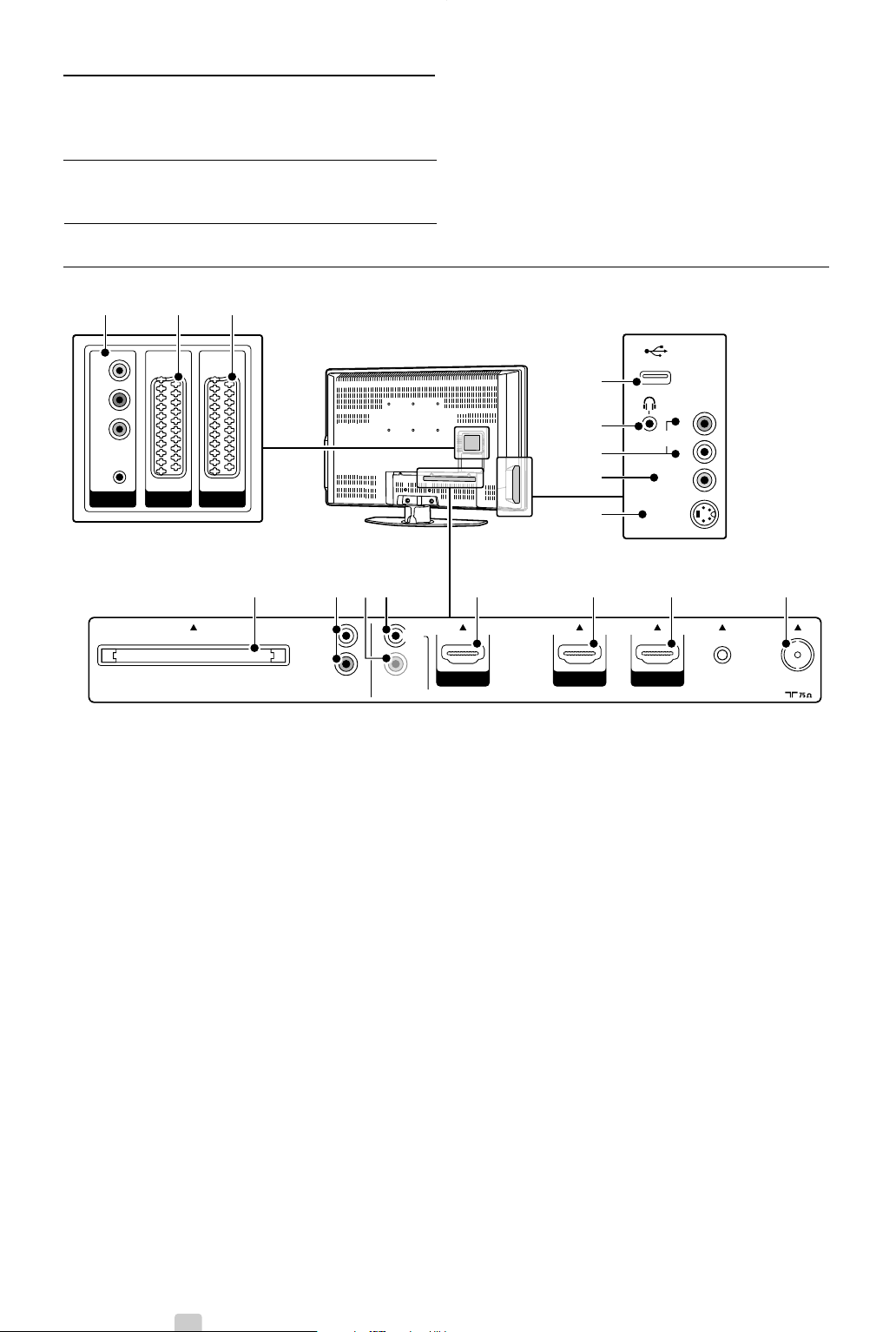
32 Connections
Back connectors
1
EXT1
Scart connector for DVD,VCR, digital receiver,
game console, etc.
2
EXT2
Second scart connector.
3
EXT3
Component Video Y Pb Pr and Audio L/R
connectors for DVD, digital receiver or game
console, etc.
4 Common Interface
Slot for Conditional Access Modules (CAM)
5
Audio Out L/R
Sound output cinch connectors for a Home
Theatre System, etc.
6
Digital Audio In (if present)
Sound input cinch connector for use with any
of the HDMI connectors with a HDMI to DVI
adaptor.
7
Digital Audio Out
Sound output cinch connector for a Home
Theatre System, etc.
8 HDMI 1 In
HDMI in connector for Blu-ray Disc player, HD
digital receiver or HD game console, etc.
9 HDMI 2 In
Second HDMI in connector.
10 HDMI 3 In
Third HDMI in connector.
11 Antenna input
Side connectors
12 S-Video
S-Video input connector to be used together
with Audio L/R connectors for camcorder, game
console, etc.
13 Video
Video input cinch connector to be used together
with Audio L/R connectors for camcorder, game
console, etc.
14 Audio L/R in
Audio L/R for camcorder, game console, etc.
15 Headphones
Stereo Mini Jack.
16 USB
USB connector.
7 Connections
7.1 Connection overview
7.1.1 32” / 80 cm (32PFL7862D)
S-VIDEO
VIDEO
L
R
USB
AUDIO
EXT 3
Y
Pb
Pr
AUDIO
L/
R
EXT 1EXT 2
AUDIO OUT DIGITAL
AUDIO
L
R
ANTENNA
COMMON INTERFAC
E
IN
OUT
SERVICE
UAR
T
DISPLAY SYNCHRONIZED
DISPLAY SYNCHRONIZED
.
HDMI 1 HDMI 2 HDMI 3
123
16
15
14
12
4 8 9 10 115 76
13
2690.1 en 18-09-2007 16:50 Pagina 32
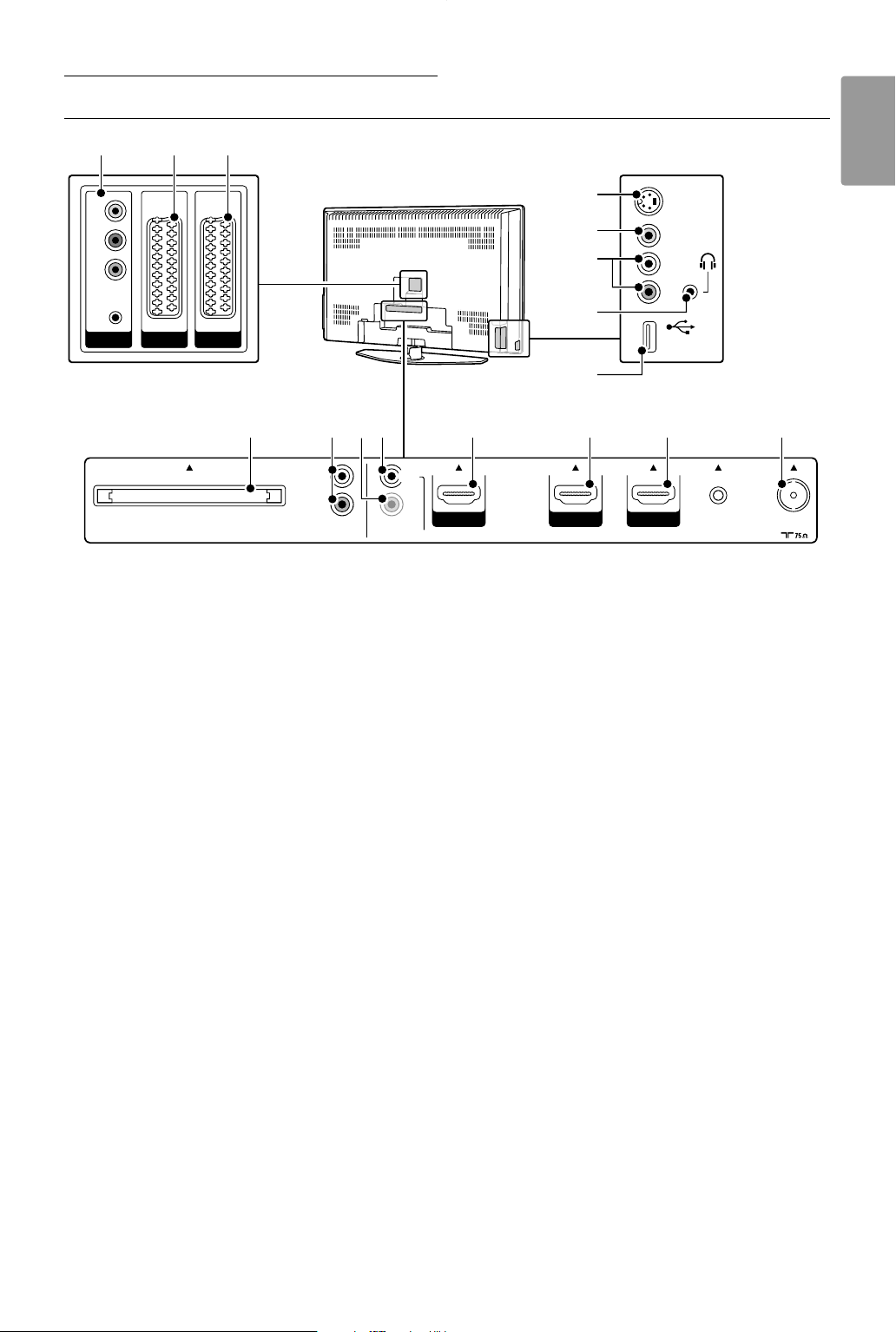
33
ENGLISH
Connections
Back connectors
1
EXT1
Scart connector for DVD,VCR, digital receiver,
game console, etc.
2
EXT2
Second scart connector.
3
EXT3
Component Video Y Pb Pr and Audio L/R
connectors for DVD, digital receiver or game
console, etc.
4 Common Interface
Slot for Conditional Access Modules (CAM)
5
Audio Out L/R
Sound output cinch connectors for a Home
Theatre System, etc.
6
Digital Audio In (if present)
Sound input cinch connector for use with any
of the HDMI connectors with a HDMI to DVI
adaptor.
7
Digital Audio Out
Sound output cinch connector for a Home
Theatre System, etc.
8 HDMI 1 In
HDMI in connector for Blu-ray Disc player, HD
digital receiver or HD game console, etc.
9 HDMI 2 In
Second HDMI in connector.
10 HDMI 3 In
Third HDMI in connector.
11 Antenna input
Side connectors
12 S-Video
S-Video input connector to be used together
with Audio L/R connectors for camcorder, game
console, etc.
13 Video
Video input cinch connector to be used together
with Audio L/R connectors for camcorder, game
console, etc.
14 Audio L/R in
Audio L/R for camcorder, game console, etc.
15 Headphones
Stereo Mini Jack.
16 USB
USB connector.
7.1.2 42” / 107 cm (42PFL7862D)
EXT 3
Y
Pb
Pr
AUDIO
L/R
S-VIDEO
VIDEO
AUDIO
L
R
EXT 1
USB
EXT 2
AUDIO OUT DIGITAL
AUDIO
L
R
ANTENNA
COMMON INTERFAC
E
IN
OUT
SERVICE
UAR
T
DISPLAY SYNCHRONIZED
DISPLAY SYNCHRONIZED
.
HDMI 1 HDMI 2 HDMI 3
123
12
13
14
16
4 8 9 10 115 76
15
2690.1 en 18-09-2007 16:50 Pagina 33
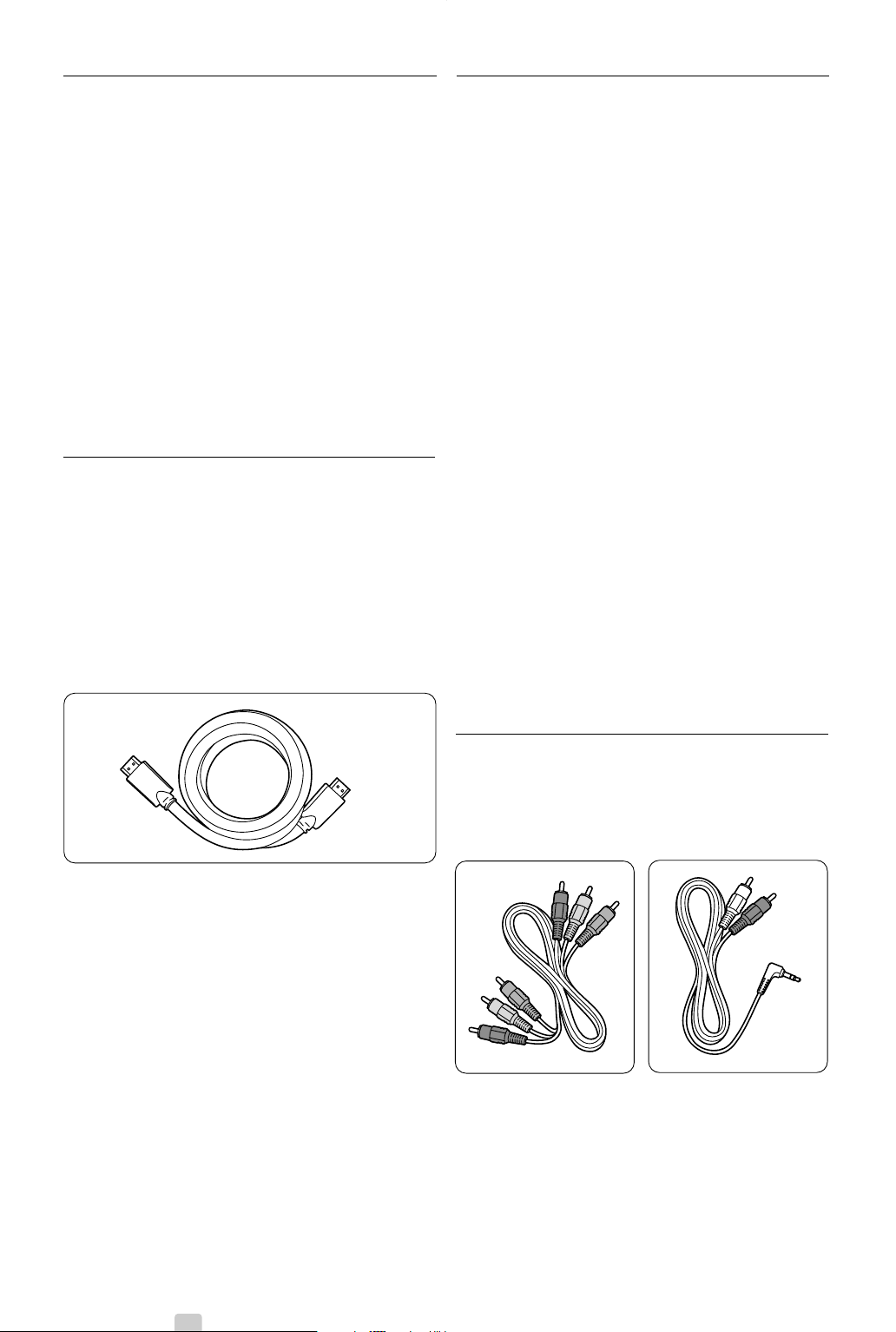
34 Connections
7.2 About connecting
Learn here how to make the best connection for
your device.
Six connections are ready to use at the back of the
TV - EXT1, EXT2, EXT3, HDMI1, HDMI2 and
HDMI3. Connect your device with the highest
possible quality connection. Look for the highest
quality connection on your device. Use that
connection to your TV.
Connection set up
When connecting is done the TV needs to know
what connections you made, which device is
connected to which connector. Use the TV menu to
do this. See section 7.4 Connection set up.
7.2.1 HDMI - Highest quality ★★★★★
A HDMI connection has the best picture and sound
quality. One cable combines video and audio signals.
Use HDMI for HD (High Definition) TV signals.
HDMI can offer easy operation of your devices by
the touch of one button when these devices have
HDMI with CEC. A device connected with HDMI
to the TV can only send out audio and video signals
to your TV.The device cannot receive or record
audio and video from your TV.
HDMI cable (max. 5m)
à Tip
Use a HDMI / DVI adaptor in case your device has
only a DVI connection. An extra audio cable is
needed to complete this connection.
rNote
HDMI supports HDCP (High-bandwidth Digital
Contents Protection). HDCP is a copy protection
signal that comes with HD content (DVD disc or
Blu-ray Disc).
7.2.2 HDMI-control (if present)
HDMI with Consumer Electronics Control (CEC)
adds to the normal HDMI advantages. It offers easy
operation of the TV and connected devices.These
devices also have to be equipped with HDMI with
CEC.
‡ Press Menu on the remote control and select
TV menu > Installation > Preferences and press
navigation key right to enter the list.
® Press navigation key up or down to select
HDMI-control.
ÒPress navigation key right to enter.
† Select On to activate HDMI with CEC.
rNote
HDMI-control might not work with other brands.
One touch play
Insert a DVD disc to watch and your TV will switch
on from standby and show the DVD programme
automatically when you start playing the disc.
‡ Press Play π on the device.
The TV is switched on from standby.
System standby
Switches off all devices with the TV remote control.
‡ Press B on the TV remote control for a few
seconds.
All devices will switch to standby.
7.2.3 YPbPr - Higher quality ★★★★
Use the Component Video YPbPr connections
together with the Audio L/R mini jack. Match the
cable colours when you connect.
YPbPr can handle HD TV signals.
Component Video Audio L/R to Stereo
YPbPr cable mini jack cable
- Red, Green, Blue
2690.1 en 18-09-2007 16:50 Pagina 34
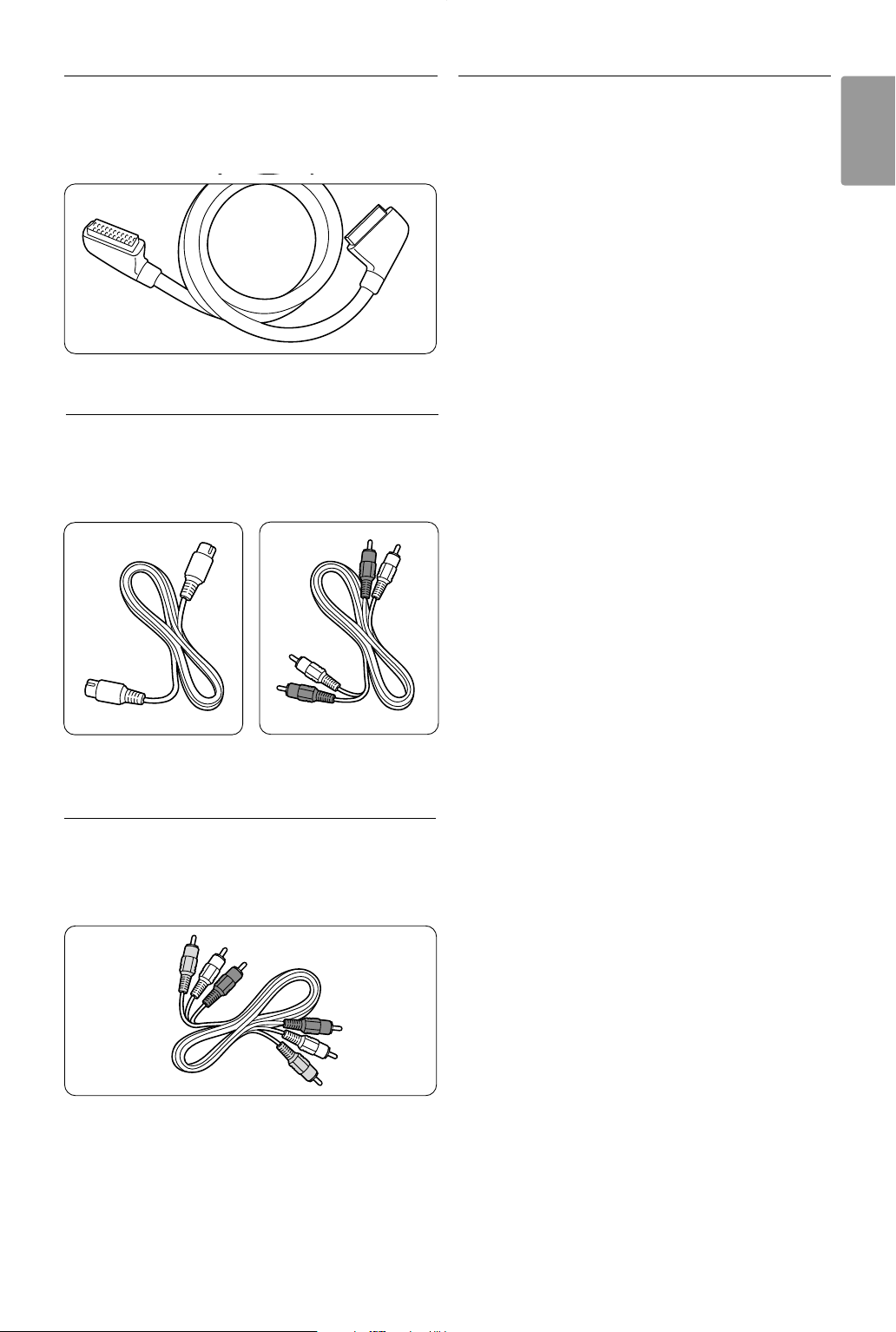
35
ENGLISH
Connections
7.2.4 Scart - Good quality ★★★
One cable combines video and audio signals.
Scart connectors can handle RGB video but no HD
TV signals.
Scart cable
7.2.5 S-Video - Good quality ★★
Use a S-Video cable together with an Audio L/R
(cinch) cable. Match the cable colours when you
connect.
An S-Video cable Audio L/R cable
- Red, White
7.2.6 Video - Basic quality ★
Use a Video (cinch) cable together with an Audio
L/R (cinch) cable. Match the cable colours when
you connect
Combined Video - yellow and Audio L/R cable
- red and white
7.2.7 Display synchronised audio out
For the best match of image and sound in speech
on screen, connect a Home Theatre System to
Audio Out L/R or Digital Audio output (if present).
See diagrams 7.3.4 and 7.3.8.
Do not connect the audio signal of a DVD player,
digital receiver or other audio/video device directly
to the Home Theatre System.
2690.1 en 18-09-2007 16:50 Pagina 35
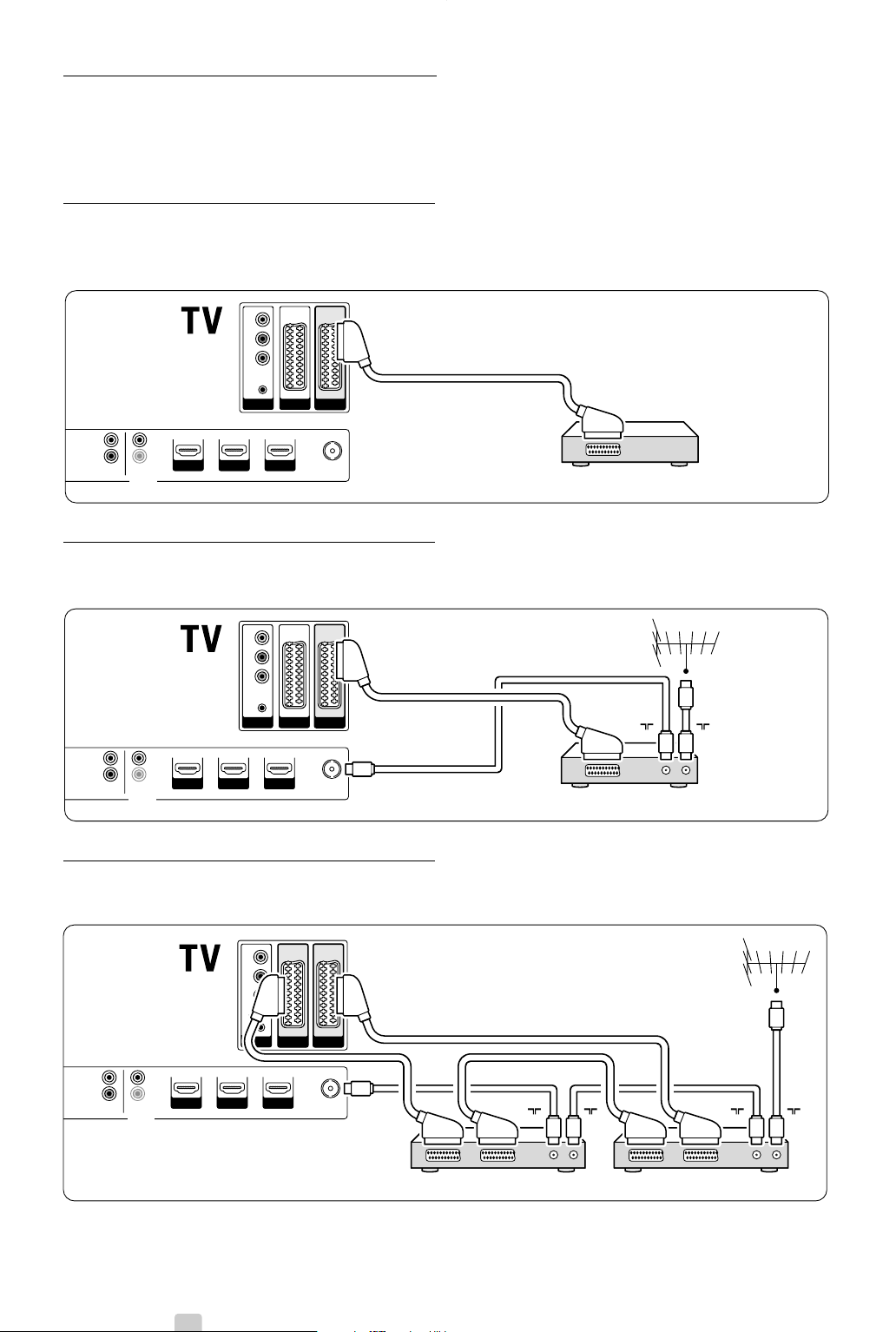
36 Connections
7.3 Connect your devices
The connections shown in this section are
recommendations for the most used cases.
Other solutions may be possible.
7.3.1 DVD player
Use a scart cable to connect the device to the
EXT1 input at the back of the TV.
7.3.2 DVD Recorder or Digital Receiver
Use a scart cable and 2 antenna cables.
7.3.3 DVD Recorder and Digital Receiver
Use 3 scart cables and 3 antenna cables.
EXT 3
Y
Pb
Pr
AUDIO
L/R
HDMI 3HDMI 1 HDMI 2
EXT 1EXT 2
AUDIO OUT
L
R
OUT
IN
ANTENN
A
DIGITAL
AUDIO
Receiver / Cable boxDVD Recorder
IN
OU
T
I
N
OUT
EXT 3
Y
Pb
Pr
AUDIO
L/R
HDMI 3HDMI 1 HDMI 2
EXT 1EXT 2
DVD Player
AUDIO OUT
L
R
OUT
IN
ANTENN
A
DIGITAL
AUDIO
EXT 3
Y
Pb
Pr
AUDIO
L/R
HDMI 3HDMI 1 HDMI 2
EXT 1EXT 2
DVD Recorder / Digital receiver
AUDIO OUT
L
R
OUT
IN
ANTENN
A
DIGITAL
AUDIO
IN
OUT
2690.1 en 18-09-2007 16:50 Pagina 36
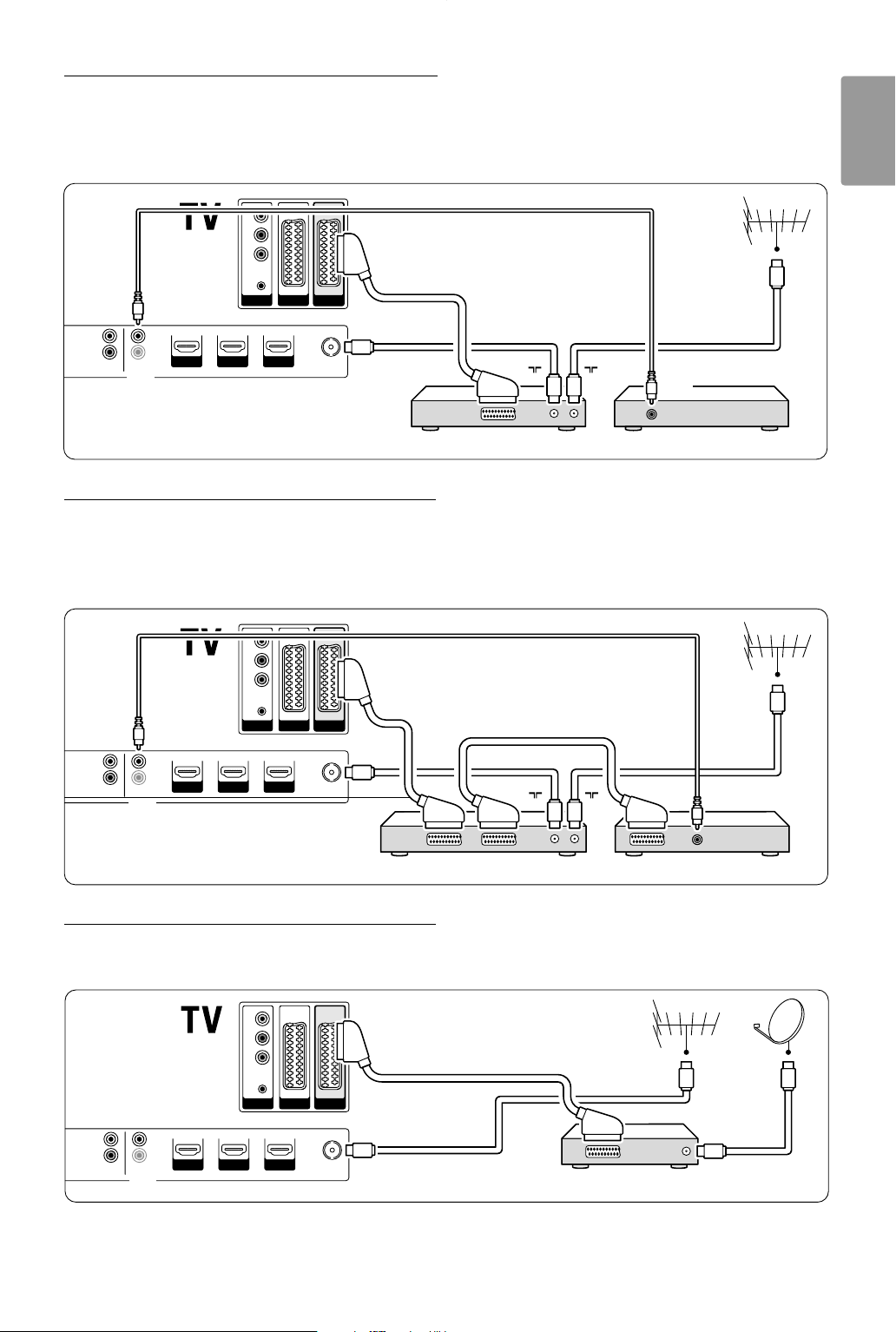
37
ENGLISH
Connections
7.3.4 DVD Recorder and Home Theatre
System
Use a scart cable, 2 antenna cables and 1 digital
audio (cinch) cable.
7.3.5 DVD Recorder and DVD Home
Theatre System
Use 2 scart cables, 2 antenna cables and 1 digital
audio (cinch) cable.
7.3.6 Satellite receiver
Use a scart cable and 2 antenna cables.
EXT 3
Y
Pb
Pr
AUDIO
L/R
HDMI 3HDMI 1 HDMI 2
EXT 1EXT 2
Satellite receiver
AUDIO OUT
L
R
OUT
IN
ANTENN
A
DIGITAL
AUDIO
EXT 3
Y
Pb
Pr
AUDIO
L/R
HDMI 3HDMI 1 HDMI 2
EXT 1EXT 2
AUDIO OUT
L
R
OUT
IN
ANTENN
A
DIGITAL
AUDIO
OUT
Home Theatre SystemDVD Recorder
DIGITAL
AUDIO
IN
IN
OUT
DIGITAL
AUDIO
EXT 3
Y
Pb
Pr
AUDIO
L/R
HDMI 3HDMI 1 HDMI 2
EXT 1EXT 2
AUDIO OUT
L
R
OUT
IN
ANTENN
A
DVD Home Theatre SystemDVD Recorder
IN
OUT
DIGITAL
AUDIO
2690.1 en 18-09-2007 16:50 Pagina 37
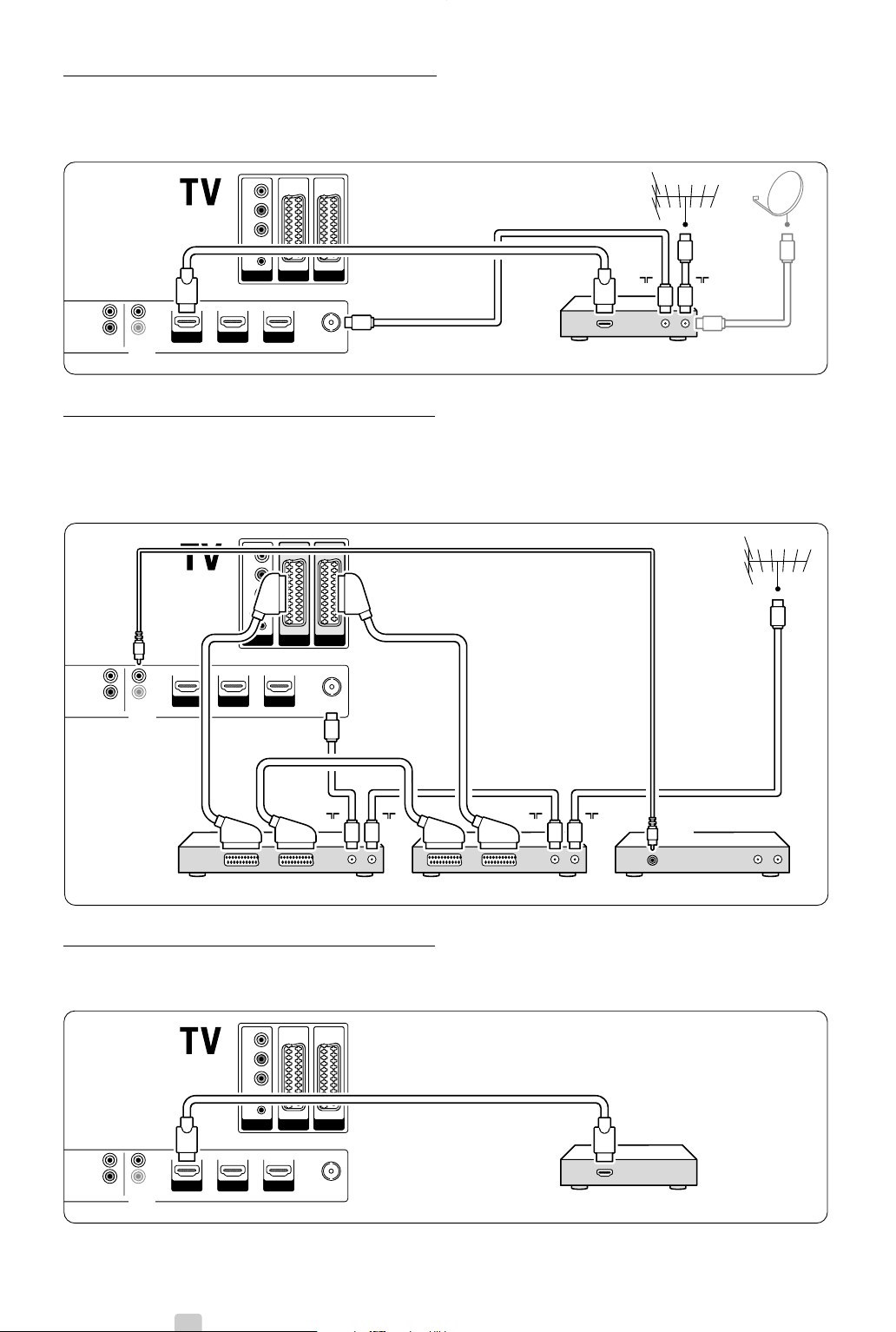
38 Connections
7.3.7 HD Digital receiver / HD satellite
receiver
Use a HDMI cable and 2 antenna cables.
7.3.8 DVD-R, Home Theatre System and
Digital receiver
Use 3 scart cables, 3 antenna cables and 1 audio
(cinch) cable.
7.3.9 Blu-ray Disc player
Use a HDMI cable.
EXT 3
Y
Pb
Pr
AUDIO
L/R
HDMI 3HDMI 1 HDMI 2
EXT 1EXT 2
Blu-ray Disc player
AUDIO OUT
L
R
OUT
IN
ANTENN
A
DIGITAL
AUDIO
OUT
HDMI
EXT 3
Y
Pb
Pr
AUDIO
L/R
HDMI 3HDMI 1 HDMI 2
EXT 1EXT 2
HD Digital receiver / HD Satellite receiver
AUDIO OUT
L
R
OUT
IN
ANTENN
A
DIGITAL
AUDIO
IN
OUTOUT
HDMI
EXT 3
Y
Pb
Pr
AUDIO
L/R
HDMI 3HDMI 1 HDMI 2
EXT 1EXT 2
AUDIO OUT
L
R
OUT
IN
ANTENN
A
DIGITAL
AUDIO
OUT
Home Theatre SystemDigital ReceiverDVD Recorder
DIGITAL
AUDIO
IN
IN
OUT
IN
OUT
DIGITAL
AUDIO
2690.1 en 18-09-2007 16:50 Pagina 38
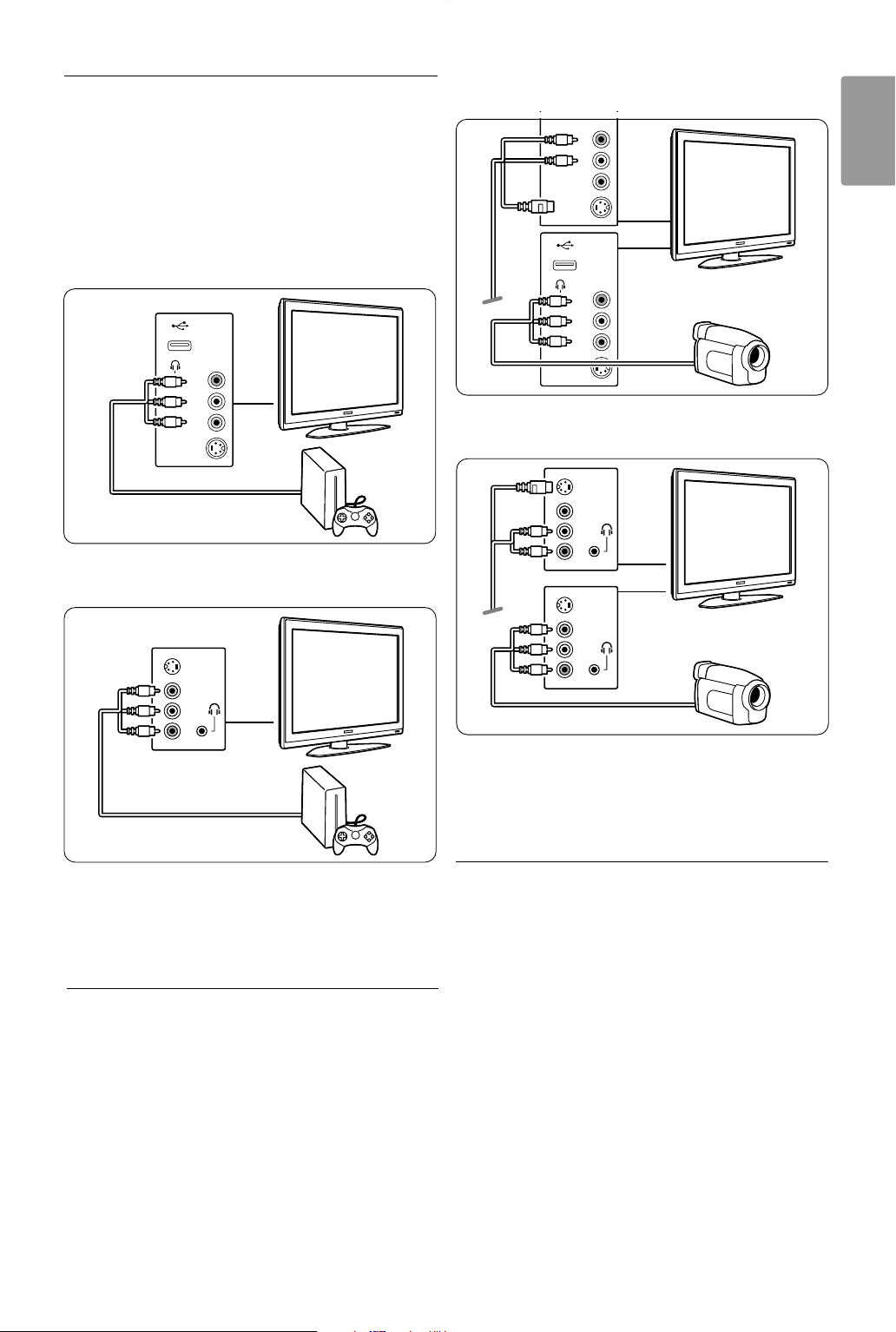
39
ENGLISH
Connections
7.3.10 Game console
The most practical connection for a game console
is at the side of the TV. More qualitative
connections are at the back of the TV.
Connected at the side of the TV
Use the Video and Audio L/R (cinch) connectors.
32” / 80 cm (32PFL7862D)
42” / 107 cm (42PFL7862D)
Connected at the back of the TV
Use a HDMI or the YPbPr (EXT3) input for HD
quality.
7.3.11 Camcorder
The most practical connection for a camcorder is at
the side of the TV. More qualitative connections are
at the back of the TV.
Connected at the side of the TV
Use the Video and Audio L/R (cinch) connectors or
use the S-Video and Audio L/R connectors.
32” / 80 cm (32PFL7862D)
42” / 107 cm (42PFL7862D)
Connected at the back of the TV
Use a HDMI or the YPbPr (EXT3) input for HD
quality.
7.3.12 Personal Computer
The best connection for a PC is at the back of the
TV. A more practical connection, but only for
viewing photos and films from your PC, is the
connection at the side of the TV.
ç Caution
Before connecting the PC, set the PC monitor
refresh rate to 60Hz.
Connected at the back of the TV
Use the DVI connection of your PC to connect to
a HDMI connection of the TV. Use a HDMI to DVI
cable or a HDMI-to-DVI-adaptor.
S-VIDEO
VIDEO
L
R
USB
AUDIO
S-VIDEO
VIDEO
L
R
AUDIO
S-VIDEO
VIDEO
L
R
USB
AUDIO
S-VIDEO
VIDEO
AUDIO
L
R
S-VIDEO
VIDEO
AUDIO
L
R
S-VIDEO
VIDEO
AUDIO
L
R
2690.1 en 18-09-2007 16:50 Pagina 39
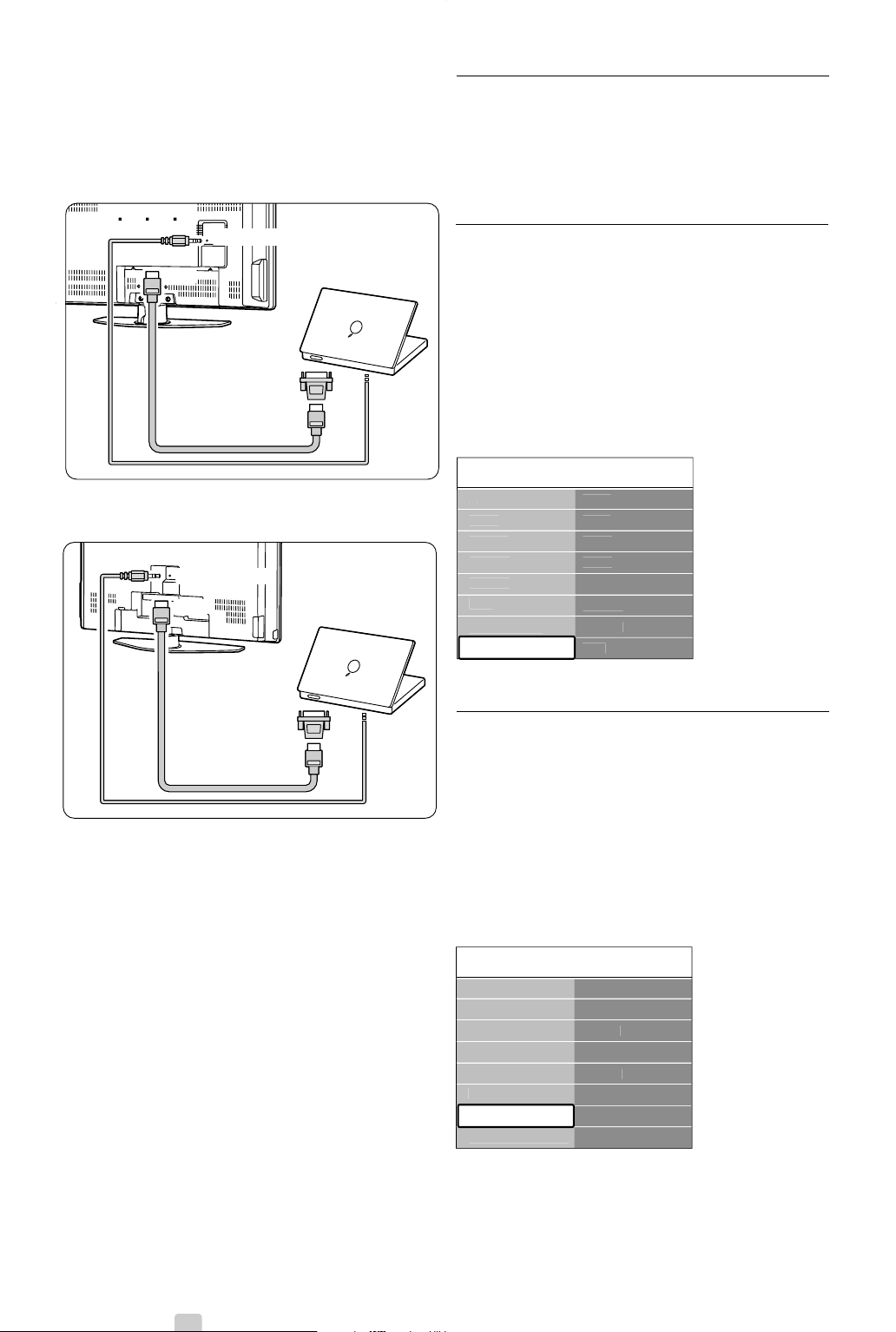
40 Connections
Add an audio cable with a Stereo mini jack for
sound. Connect the Stereo mini jack to
EXT3 on
the TV.
32” / 80 cm (32PFL7862D)
42” / 107 cm (42PFL7862D)
In the Connections menu, link this
EXT3 audio to
the HDMI connector you are using.
See section 7.4 Connections setup.
Connected at the side of the TV
If your PC has no DVI connection, use the S-Video
and Audio L/R (cinch) connectors at the side of the
TV.This connection is only suited for applications
like Windows Media Center or similar.
à Tip
Change the TV picture format to Unscaled in the
Picture format menu for maximal picture sharpness.
See section 5.3.4.Widescreen picture format.
For supported PC monitor resolutions, see section
8 Technical data.
7.4 Connections setup
When all devices have been connected the TV
needs to know what connections you have made,
which device is connected to which connector.
7.4.1 Digital Audio In
(if present)
If you use the Digital Audio In connection,
assign this connection, in the menu, to the device
from where the sound comes from.
‡ Press Menu on the remote control and select
TV menu > Installation > Connections > Digital
Audio In.
® Press navigation key right to enter the list.
ÒPress navigation key up or down to select the
connector used by the device.
7.4.2 Audio In L/R
If you use the Audio In L/R connection, assign this
connection, in the menu, to the device from where
the sound comes from.
‡ Press Menu on the remote control and select
TV menu > Installation > Connections > Audio
In L/R.
® Press navigation key right to enter the list.
ÒPress navigation key up or down to select the
connector used by the device.
C
onnections DI
G
ITAL A
U
DI
O
I
N
N
o
n
e
EXT 1
EXT 2
EXT
3
HDMI 1
HDMI 2
HDMI
3
Sid
e
...
EXT
3
HDMI 1
HDMI 2
HDMI
3
Sid
e
AUDIO IN L
/R
DI
G
ITAL A
U
DI
O
I
N
C
onnections AUDIO IN L
/R
N
o
n
e
EXT
3
HDMI 1
HDMI 2
HDMI
3
EXT 2
EXT
3
HDMI 1
HDMI 2
HDMI
3
Sid
e
DI
G
ITAL A
U
DI
O
I
N
AUDIO IN L
/R
DVI
AUDIO OUT
DVI
AUDIO
OUT
HDMI
HDMI
EXT 3 - AUDIO L/R
DVI
AUDIO OUT
DVI
AUDIO
OUT
HDMI
HDMI
EXT 3 - AUDIO L/R
2690.1 en 18-09-2007 16:50 Pagina 40
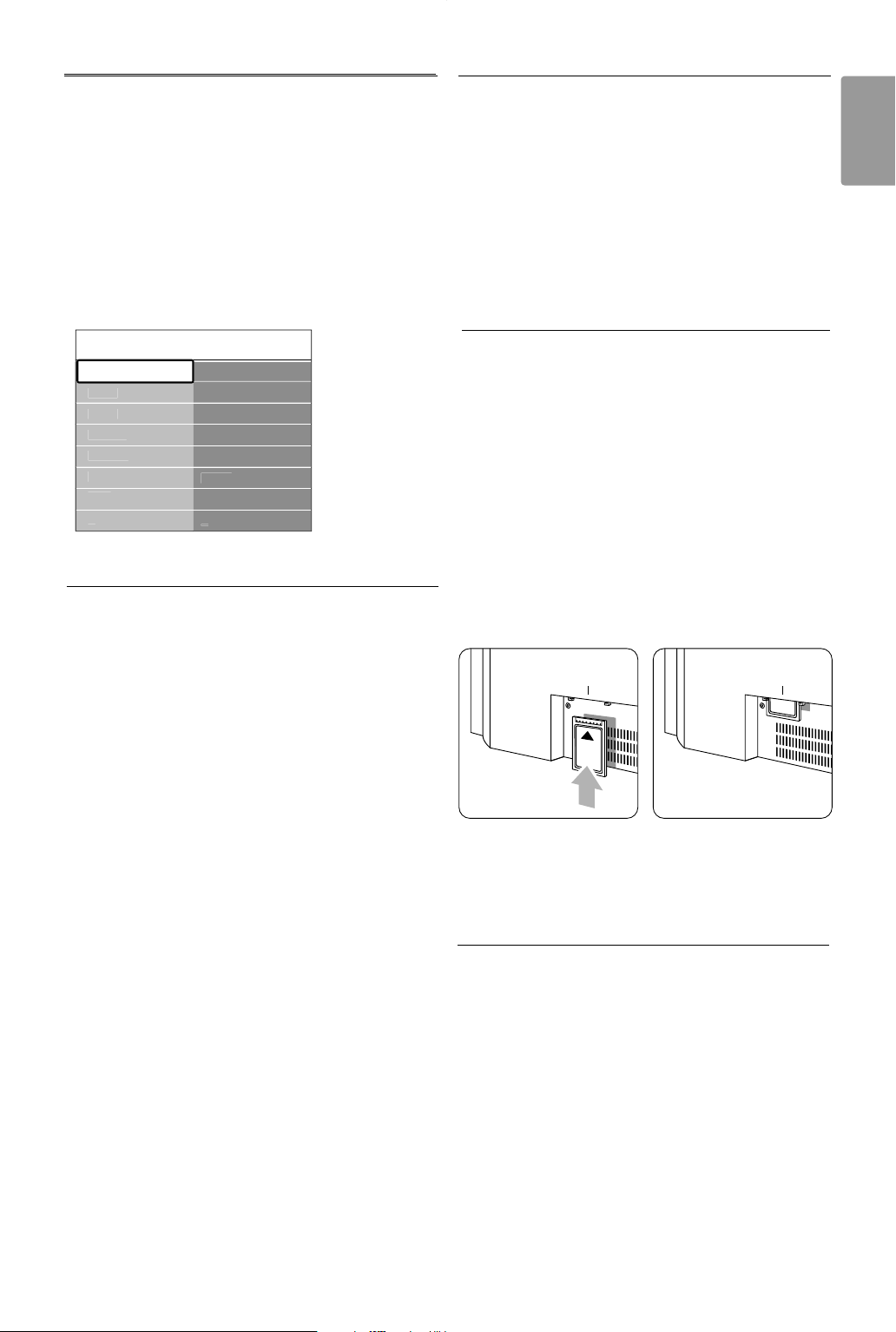
41
ENGLISH
Connections
7.4.3 Naming your devices
Name the connected devices for easy selection and
best signal handling.
Assign the type of device (DVD,VCR, Game ...) to
the connector you use for that device.
‡ Press Menu on the remote control and select
TV menu > Installation > Connections >
EXT1.
® Press navigation key right to enter the list.
ÒPress navigation key up or down to select the
type of device.
† Press Menu to quit the menu.
7.4.4 Decoder channels
Decoders that decode an antenna channel are
connected to
EXT1 or EXT2 (scart).
You have to assign the TV channel as a channel to
be decoded.Then assign the connection where the
decoder is connected.
‡ Press Menu on the remote control and select
TV menu > Installation > Decoder > Channel.
® Press navigation key right to enter the list.
ÒPress navigation key up or down to select the
channel to decode.
† Press navigation key left and go back to select
Status.
º Press navigation key up or down to select the
connector used by the decoder.
◊Press Menu to quit the menu.
7.5 Preparing for digital
services
Scrambled digital TV channels can be decoded with
a Conditional Access Module (CAM) and a Smart
card provided by a digital TV service operator.The
CAM may enable several services depending on the
operator you choose (e.g. Pay TV).
Contact your digital TV service operator for more
information and terms.
7.5.1 Insert a Conditional Access Module -
CAM
) Warning
Switch off your TV before inserting a CAM.
Look on the CAM for the correct inserting
direction. Inserting the module incorrectly may
damage the CAM and your TV.
‡ Gently insert the CAM into the Common
Interface slot at the back of your TV as far as it
will go.
® Leave the CAM in the Common Interface slot
permanently.
It may take a few minutes before a CAM is
activated. Removing the CAM will deactivate the
digital TV service.
7.5.2 Common interface menu
From this menu you access the CAM service you
have installed.The applications and their function,
the content and the messages on screen come
from the CAM service provider.
‡ Press Menu on the remote control and select
TV menu > Features > Common interface.
This menu option is available when a CAM is
inserted and has made contact with the provider.
COMMON INTERFACE COMMON INTERFACE
C
onnections
EXT 1
N
o
n
e
DVD
Blu-ra
y
HDD
/
DVD
R
HD r
ec.
G
am
e
V
CR
...
EXT 1
EXT 2
EXT
3
HDMI 1
HDMI 2
HDMI
3
Sid
e
...
2690.1 en 18-09-2007 16:50 Pagina 41

42 Technical data
8Technical data
Picture / Display
• Display type:
32” / 80 cm: LCD, HD W-XGA
42” / 107 cm: LCD, Full HD W-UXGA
•Panel resolution:
32” / 80 cm: 1366x768p
42” / 107 cm: 1920x1080p
• Pixel Plus picture enhancement
• 1080p 24/25/30/50/60Hz processing
• 100 Hz LCD
Supported display resolutions
• Computer formats
Resolution Refresh rate
640 x 480 60Hz
800 x 600 60Hz
1024 x 768 60Hz
1280 x 768 60Hz
1360 x 768 60Hz
1920 x 1080i 60Hz
1920 x 1080p 60Hz
• Video formats
Resolution Refresh rate
480i 60Hz
480p 60Hz
576i 50Hz
576p 50Hz
720p 50Hz, 60Hz
1080i 50Hz, 60Hz
1080p 24Hz, 25Hz, 30Hz
1080p 50Hz, 60Hz
Tuner / Reception / Transmission
• Antenna input: 75ohm coaxial (IEC75)
• TV system: DVD COFDM 2K/8K
• Video playback: NTSC, SECAM, PAL
•DVD: DVB Terrestrial
(see selected countries on the TV typeplate)
Dimensions and weights (approx.)
TV model 32PFL7862D/10 42PFL7862D/10
- width 829 mm 1060 mm
- height 543 mm 675 mm
- depth 125 mm 125 mm
- weight 18 kg 27 kg
TV + stand
- width 829 mm 1060 mm
- height 606 mm 740 mm
- depth 219 mm 256 mm
- weight 20 kg 30 kg
Sound
• Sound system:
- Virtual Dolby Digital
- BBE
Multimedia
• Connections: USB
• Playback formats: MP3, LPCM, Slideshow (.alb)
JPEG
Remote control
•Type: RC4350
• Batteries: 2 Size AA- R6 type
Connectivity
• EXT1 (scart): Audio L/R, CVBS in/out, RGB
• EXT2 (scart): Audio L/R, CVBS in/out, RGB,
S-video in/out
• EXT3:Y Pb Pr, Audio L/R in (mini jack)
• HDMI 1 In
• HDMI 2 In
• HDMI 3 In
• HDMI-control 1.3a
• Analog Audio L/R out - display synchronised
• Digital Audio in (coaxial-cinch-S/PDIF) (if present)
• Digital Audio out (coaxial-cinch-S/PDIF) -
display synchronised
• Side: Audio L/R in,Video (CVBS) in, S-Video
Headphone out (stereo mini jack),
USB
Power
• Mains power: AC 220-240V (±10%)
•Power and standby power consumption:
See technical specification on www.philips.com
• Ambient temperature: 5°C - 35°C
Specifications are subject to change without notice.
For more specification details of this product see
www.philips.com/support.
2690.1 en 18-09-2007 16:50 Pagina 42

43
ENGLISH
Troubleshooting
9Troubleshooting
Te levision and remote control
The TV does not switch on
•Verify the mains cord connection.
•Verify if the batteries of the remote control are
flat or weak.Verify their + / - orientation.
You can use the keys on the TV to switch the TV
on.
• Unplug the mains cord, wait for one minute and
plug in the mains again.
The TV does not react on the remote control
•Verify if the batteries of the remote control are
not empty or weak.Verify their + / - orientation.
• Clean the remote control and TV sensor lens.
• Use the side control keys to change some of the
basic settings of picture and sound.
‡ Press Volume - and + to adjust the volume.
® Press Program/Channel - and + to go through
the channels marked as favourites.
ÒPress Menu to show the main menu.
Press Program/Channel - and + to select and
adjust picture and sound menu items.
The red light on the TV blinks
• Unplug the mains cord for half a minute and
insert it again.Verify if there is enough space for
ventilation.Wait until the TV has cooled down.
When the TV does not restart to standby and
the blinking occurs again, call our Customer
Support Centre.
You forgot your code to unlock Child lock
• See section 5.8.3 Set code / Change code.
Wrong language in the TV menu ?
Follow these steps to change the language.
‡ Press Menu on the remote control.
® Press navigation key right.
ÒUse navigation down to highlight the third line.
† Press navigation key right three times.
º Press navigation key up or down to select your
language.
◊Press
OK.
‹Press Menu to quit the menus.
TV channels
Some TV channels are gone
•Verify if the correct channel list is chosen.
•A channel could be uninstalled in the Rearrange
menu.
No digital channels found during installation
•Verify if the TV supports DVB-T in your country.
See the list of countries on the TV typeplate.
Picture
The blue light is on, but there is no picture
•Verify if the antenna is connected properly.
•Verify if the correct device is selected.
The sound is on, but there is no picture
•Verify the contrast or brightness setting in the
menu.
The TV picture is poor
•Verify if the antenna is connected properly.
• Loudspeakers, non-earthed audio devices, neon
lights, high buildings or mountains can influence
the picture quality.Try to improve the picture by
changing the antenna direction or place devices
away from the TV.
•Verify if the correct TV system is chosen in the
Manual installation menu.
• If only a certain channel is poor, try to fine tune
this channel in the Fine tune menu. See section
6.2.3.
The picture has poor colour
•Verify the colour settings in the Picture menu.
Select any of the Reset to standard settings in
the Reset to standard menu. See section 5.3.2.
•Verify the connections and cables of the
connected devices.
The TV did not remember my settings when I
switch back on
•Verify if the TV is set to Home in the TV menu >
Installation > Preferences > Location menu.
The picture does not fit the screen, it is too big or
too small
• Select a more fitting picture format in the Picture
format menu.
See section 5.3.4 Widescreen picture format.
• Name your connected device in the Connections
menu to obtain the best signal handling.
See section 7.4.3 Naming your devices.
2690.1 en 18-09-2007 16:50 Pagina 43

44 Troubleshooting
The picture position on screen is not correct
• Some picture signals from some devices do not
fit the screen correctly.You can shift the picture
with the navigation key on the remote control.
Check the signal output of the device.
Sound
There is a picture but no sound
•Verify the volume is not set to 0.
•Verify the sound has not been muted with the
¬ key.
•Verify if all cables are connected properly.
• If no sound signal is detected, the TV
automatically switches off the sound.
This is proper operation and does not indicate
malfunction.
The sound is poor
•Verify if the sound is set to Stereo.
•Verify the Equalizer settings.
• Select any of the Reset to standards settings in
the Reset to standard menu. See section 5.3.2.
The sound comes from one speaker only
•Verify if the Balance is not set to extreme left or
right.
HDMI connections
Trouble with devices connected with HDMI
• The HDMI - HDCP procedure might take a few
seconds before the TV shows the picture from a
device.
• If the TV does not recognise the device and the
screen shows no picture, try switching from one
device to another and back again to restart the
HDCP procedure.
• If sound interruptions occur persistently, see the
user manual of the device to verify the output
settings. If that does not help, connect an
additional audio cable.
• If an HDMI-to-DVI adaptor is used, verify if an
additional audio connection is in place to
complete the DVI connection.
USB connection
The TV does not show the USB device content
• Set your device (camera) to ‘Mass Storage Class’
compliant.
• The USB device may need specific driver
software. Unfortunately this software can not be
downloaded to your TV.
I can not see my files in the Multimedia menu.
• Not all audio and picture files are supported. See
section 8 Technical data.
Audio and picture files do not playback smoothly
• The transfer performance of the USB device
limits the transfer rate.
Personal computer
The PC display on my TV is not stable or is not
synchronised
•Verify if the correct resolution mode is selected
on your PC. See section 8 Technical data.
If your problem is not solved
Switch your TV off and on again. If the problem is
not solved, call the Customer Support Centre or
consult our website...
www.philips.com/support.
See the Customer Support Centre telephone
numbers on the last page of this user manual.
Please, have the TV Model and Product Number
ready before you call.
You can find these numbers on the packaging label
or on the typelabel on the back and bottom of the
TV.
) Warning
Never try to repair the TV yourself.
2690.1 en 18-09-2007 16:50 Pagina 44

45
ENGLISH
Index
10 Index
100 Hz LCD 17
Active Control 17
Analogue
manual installation 30
TV channels 31
Antenna
cable 8
connect 8
with devices 32
Auto format 17
Automatic installation 29
Auto surround 18
Automatic Volume Leveler 18
Balance 18
Batteries 3,9
Blacklevel 16
Blu-ray 32,34,38
Brightness 16
CA module 32,41
Cable
HDMI 34
Scart 35
YPbPr 34
S-Video 35
Video 35
Camcorder 39
Camera (photo) 39
Care of the screen 3
Change code 23
Channel
all channels list 20
favourite list 20
installation 29
lock 22
management 31
previous 12
rearrange 30
store / install 30
Child lock 23
Clock 15
Code 22
Colour enhancement 17
Colour
menu 16
keys 4,12
Common interface (CAM)
menu 41
slot 32,41
Connection
best 34
overview 32
set up 34,39
Contrast 16
Country
selection 29
Custom lock 23
Custom tint 16
Decoder
channel 40
Delta volume 18
Device
connecting 34
naming 40
watch 11
Digital
audio out 32
subtitle language 24
receiver 38
text services 20
test reception 31
Dual I/II 18
Dual screen 12
DVB-T 5
DVD
connect 36
playback 11
player 36
recorder 36
Dynamic contrast 17
Electronic Programme Guide 21
Equalizer 18
External 1,2,3 (EXT) 32
Factory settings 31
Favourite channel lists 20
Fine tune 30
Game console 39
HDCP 34
HDMI
connection 32
HD digital receiver 38
HD natural motion 17
Headphone
connect 4,32
volume 18
Hearing impaired 29
Home
location 43
Home theatre system 37
Hue 16
Installation
automatic 29
manual 30
menu 29
update 31
Kensington Security Slot 6
Key(s)
colour 12
on TV 4
on remote control 4,12
Language
menu 29
audio 18
subtitle 24
Light sensor 17
Locks 22
Mains cord 8
Menu key 13
Mono 18
Movie expand 17
MPEG artefact reduction 17
Music 25
Mute key 12
M
L
K
I
H
G
F
E
D
C
B
A
2690.1 en 18-09-2007 16:50 Pagina 45

46 Index
Naming devices 40
Noise reduction 17
OK key 12
On timer 22
Pixel Plus 17
Personal Computer
connect 39
display resolutions 42
Photo viewer 24
Picture
format 17
menu 16
Position the TV 5
Power 10
Programme up/down 12
Quick access menu 15
Radio channel 26
Rearrange channels 30
Recorder 36
Recycling 3
Remote control
batteries 8
overview 12
Rename 30
Reorder 30
Reset to standards 16
Safety 3
Satellite receiver 37
Scart connection 34
Screen cleaning 3
Search
channels 35
teletext pages 19
Set code 22
Settings assistant 16
Sharpness 16
Shift 17
Sleeptimer 22
Software update 26
Sound
menu 18
surround mode 18
Standby 12,22
Super zoom 17
Stationary images 3
Stereo 18
Subtitle 23
Switch on 10
Tab le of Pages T.O.P 19
Technical data 42
Teletext 19
teletext 2.5 20
digital 28
dual screen 19
menu 20
page 19
Time zone 29
Timers 22
Tint 16
Troubleshooting 43
TV settings menu 16
USB
connector 32
device 24
photo viewer 24
VCR
connect 36
Video cable 35
Video formats 42
Volume
key 13
menu 18
Whitepoint 16
Widescreen picture format 17
YPbPr 34
Y
W
V
U
T
S
R
Q
P
O
N
2690.1 en 18-09-2007 16:50 Pagina 46