4-430-832-11(1)
CDX-GT66UPW
FM/AM
Compact Disc
Player
Owner’s Record
The model and serial numbers are located on the bottom of the unit.
Record the serial number in the space provided below.
Refer to these numbers whenever you call upon your Sony dealer
regarding this product.
Model No. CDX-GT66UPW Serial No.
To cancel the demonstration (DEMO) display, see page 5.
Para cancelar la pantalla de demostración (DEMO), consulte la
página 6.
Operating Instructions US
Manual de
instrucciones
ES
2
Warning
Be sure to install this unit in the
dashboard of the car for safety.
For installation and connections,
see the supplied installation/connections
manual.
This equipment has been tested and found
to comply with the limits for a Class B
digital device, pursuant to Part 15 of the
FCC Rules.
These limits are designed to provide
reasonable protection against harmful
interference in a residential installation.
This equipment generates, uses, and can
radiate radio frequency energy and, if not
installed and used in accordance with the
instructions, may cause harmful
interference to radio communications.
However, there is no guarantee that
interference will not occur in a particular
installation. If this equipment does cause
harmful interference to radio or television
reception, which can be determined by
turning the equipment off and on, the user
is encouraged to try to correct the
interference by one or more of the
following measures:
– Reorient or relocate the receiving
antenna.
– Increase the separation between the
equipment and receiver.
– Connect the equipment into an outlet on
a circuit different from that to which the
receiver is connected.
– Consult the dealer or an experienced
radio/TV technician for help.
You are cautioned that any changes or
modifications not expressly approved in
this manual could void your authority to
operate this equipment.
CAUTION
The use of optical instruments with this
product will increase eye hazard.
For the State of California, USA only
Perchlorate Material – special handling
may apply, See
www.dtsc.ca.gov/hazardouswaste/perchlorate
Perchlorate Material: Lithium battery
contains perchlorate
ZAPPIN and Quick-BrowZer are
trademarks of Sony Corporation.
12 TONE ANALYSIS and its logo are
trademarks of Sony Corporation.
SensMe and the SensMe logo are
trademarks or registered trademarks of
Sony Ericsson Mobile Communications AB.

3
Music recognition technology and related
data are provided by Gracenote®.
Gracenote is the industry standard in music
recognition technology and related content
delivery. For more information, please visit
www.gracenote.com.
CD, DVD, Blu-ray Disc, and music and
v
ideo-related data from Gracenote, Inc.,
copyright ©2000 to present Gracenote.
Gracenote Software, copyright ©2000 to
present Gracenote. One or more patents
owned by Gracenote apply to this product
and service.
See the Gracenote website for a non-
exhaustive list of applicable Gracenote
patents.
Gracenote, CDDB, MusicID, MediaVOCS,
the Gracenote logo and logotype, and the
“Powered by Gracenote” logo are either
registered trademarks or trademarks of
Gracenote in the United States and/or other
countries.
Microsoft, Windows, Windows Vista and
Windows Media and logos are trademarks
or registered trademarks of Microsoft
Corporation in the United States and/or
other countries.
This product contains technology subject
to certain intellectual property rights of
Microsoft. Use or distribution of this
technology outside of this product is
prohibited without the appropriate
license(s) from Microsoft.
iPhone®, iPod®, iPod classic®,
iPod nano®, and iPod touch® are
trademarks of Apple Inc., registered in the
U.S. and other countries.
Apple, Macintosh and iTunes are
trademarks of Apple Inc., registered in the
U.S. and other countries.
Warning if your car’s ignition has no
ACC position
Be sure to set the Auto Off function
(page 24). The unit will shut off
completely and automatically in the set
time after the unit is turned off, which
prevents battery drain. If you do not set
the Auto Off function, press and hold
until the display
disappears each time you turn the
ignition off.
MPEG Layer-3 audio coding technology
and patents licensed from Fraunhofer IIS
and Thomson.
Pandora, the Pandora logo, and the
Pandora trade dress are trademarks or
registered trademarks of Pandora Media,
Inc., used with permission.
Note on the lithium battery
Do not expose the battery to excessive heat
such as direct sunlight, fire or the like.

4
Table of contents
Getting Started . . . . . . . . . . . . . . . . . . . . . . . . . . . . . . . . . . . . . . . . . . . . . . . . . . . . . 5
Canceling the DEMO mode . . . . . . . . . . . . . . . . . . . . . . . . . . . . . . . . . . . . . . . . . . . . . . . . 5
Setting the clock . . . . . . . . . . . . . . . . . . . . . . . . . . . . . . . . . . . . . . . . . . . . . . . . . . . . . . . . . . 5
Detaching the front panel . . . . . . . . . . . . . . . . . . . . . . . . . . . . . . . . . . . . . . . . . . . . . . . . . . 5
Location of controls. . . . . . . . . . . . . . . . . . . . . . . . . . . . . . . . . . . . . . . . . . . . . . . . . 6
Radio . . . . . . . . . . . . . . . . . . . . . . . . . . . . . . . . . . . . . . . . . . . . . . . . . . . . . . . . . . . . . 9
Storing and receiving stations . . . . . . . . . . . . . . . . . . . . . . . . . . . . . . . . . . . . . . . . . . . . . . 9
RDS. . . . . . . . . . . . . . . . . . . . . . . . . . . . . . . . . . . . . . . . . . . . . . . . . . . . . . . . . . . . . . . . . . . . . 9
CD . . . . . . . . . . . . . . . . . . . . . . . . . . . . . . . . . . . . . . . . . . . . . . . . . . . . . . . . . . . . . . 10
Playing a disc. . . . . . . . . . . . . . . . . . . . . . . . . . . . . . . . . . . . . . . . . . . . . . . . . . . . . . . . . . . . 10
USB devices. . . . . . . . . . . . . . . . . . . . . . . . . . . . . . . . . . . . . . . . . . . . . . . . . . . . . . . 11
Playing back a USB device . . . . . . . . . . . . . . . . . . . . . . . . . . . . . . . . . . . . . . . . . . . . . . . . 11
Enjoying music according to your mood — SensMe™. . . . . . . . . . . . . . . . . . . . . . . . . 12
iPod . . . . . . . . . . . . . . . . . . . . . . . . . . . . . . . . . . . . . . . . . . . . . . . . . . . . . . . . . . . . . 14
Playing back iPod . . . . . . . . . . . . . . . . . . . . . . . . . . . . . . . . . . . . . . . . . . . . . . . . . . . . . . . .14
Operating an iPod directly — Passenger control . . . . . . . . . . . . . . . . . . . . . . . . . . . . . 15
Pandora® internet radio via USB (iPhone). . . . . . . . . . . . . . . . . . . . . . . . . . . . . 15
Streaming Pandora® . . . . . . . . . . . . . . . . . . . . . . . . . . . . . . . . . . . . . . . . . . . . . . . . . . . . . . 15
Searching and playing tracks . . . . . . . . . . . . . . . . . . . . . . . . . . . . . . . . . . . . . . . . 17
Playing tracks in various modes. . . . . . . . . . . . . . . . . . . . . . . . . . . . . . . . . . . . . . . . . . . . 17
Searching a track by name — Quick-BrowZer™ . . . . . . . . . . . . . . . . . . . . . . . . . . . . . . 18
Searching a track by listening to track passages — ZAPPIN™ . . . . . . . . . . . . . . . . . . 19
Changing the illumination . . . . . . . . . . . . . . . . . . . . . . . . . . . . . . . . . . . . . . . . . . 19
Changing the color of display and buttons —Dynamic Color Illuminator. . . . . . . . 19
Advanced color setting . . . . . . . . . . . . . . . . . . . . . . . . . . . . . . . . . . . . . . . . . . . . . . . . . . . 20
Sound Settings and Setup Menu . . . . . . . . . . . . . . . . . . . . . . . . . . . . . . . . . . . . . 21
Changing the sound settings . . . . . . . . . . . . . . . . . . . . . . . . . . . . . . . . . . . . . . . . . . . . . . 21
Enjoying sophisticated sound functions — Advanced Sound Engine . . . . . . . . . . . . 22
Adjusting setup items . . . . . . . . . . . . . . . . . . . . . . . . . . . . . . . . . . . . . . . . . . . . . . . . . . . . 24
Using optional equipment . . . . . . . . . . . . . . . . . . . . . . . . . . . . . . . . . . . . . . . . . . 26
Auxiliary audio equipment. . . . . . . . . . . . . . . . . . . . . . . . . . . . . . . . . . . . . . . . . . . . . . . . 26
Additional Information. . . . . . . . . . . . . . . . . . . . . . . . . . . . . . . . . . . . . . . . . . . . . 26
Precautions . . . . . . . . . . . . . . . . . . . . . . . . . . . . . . . . . . . . . . . . . . . . . . . . . . . . . . . . . . . . . 26
Maintenance . . . . . . . . . . . . . . . . . . . . . . . . . . . . . . . . . . . . . . . . . . . . . . . . . . . . . . . . . . . . 28
Specifications . . . . . . . . . . . . . . . . . . . . . . . . . . . . . . . . . . . . . . . . . . . . . . . . . . . . . . . . . . . 29
Troubleshooting . . . . . . . . . . . . . . . . . . . . . . . . . . . . . . . . . . . . . . . . . . . . . . . . . . . . . . . . .30
5
Getting Started
Canceling the DEMO
mode
You can cancel the demonstration display
which appears during turning off.
1 Press and hold the select button.
The setup display appears.
2 Rotate the control dial until “DEMO”
appears, then press it.
3 Rotate the control dial to select
“DEMO-OFF,” then press it.
The setting is complete.
4 Press (BACK).
The display returns to normal reception/
play mode.
Setting the clock
The clock uses a 12-hour digital indication.
1 Press and hold the select button.
The setup display appears.
2 Rotate the control dial until “CLOCK
ADJ” appears, then press it.
The hour indication flashes.
3 Rotate the control dial to set the hour
and minute.
To move the digital indication, press
–/+.
4 After setting the minute, press the
select button.
The setup is complete and the clock
starts.
To display the clock, press .
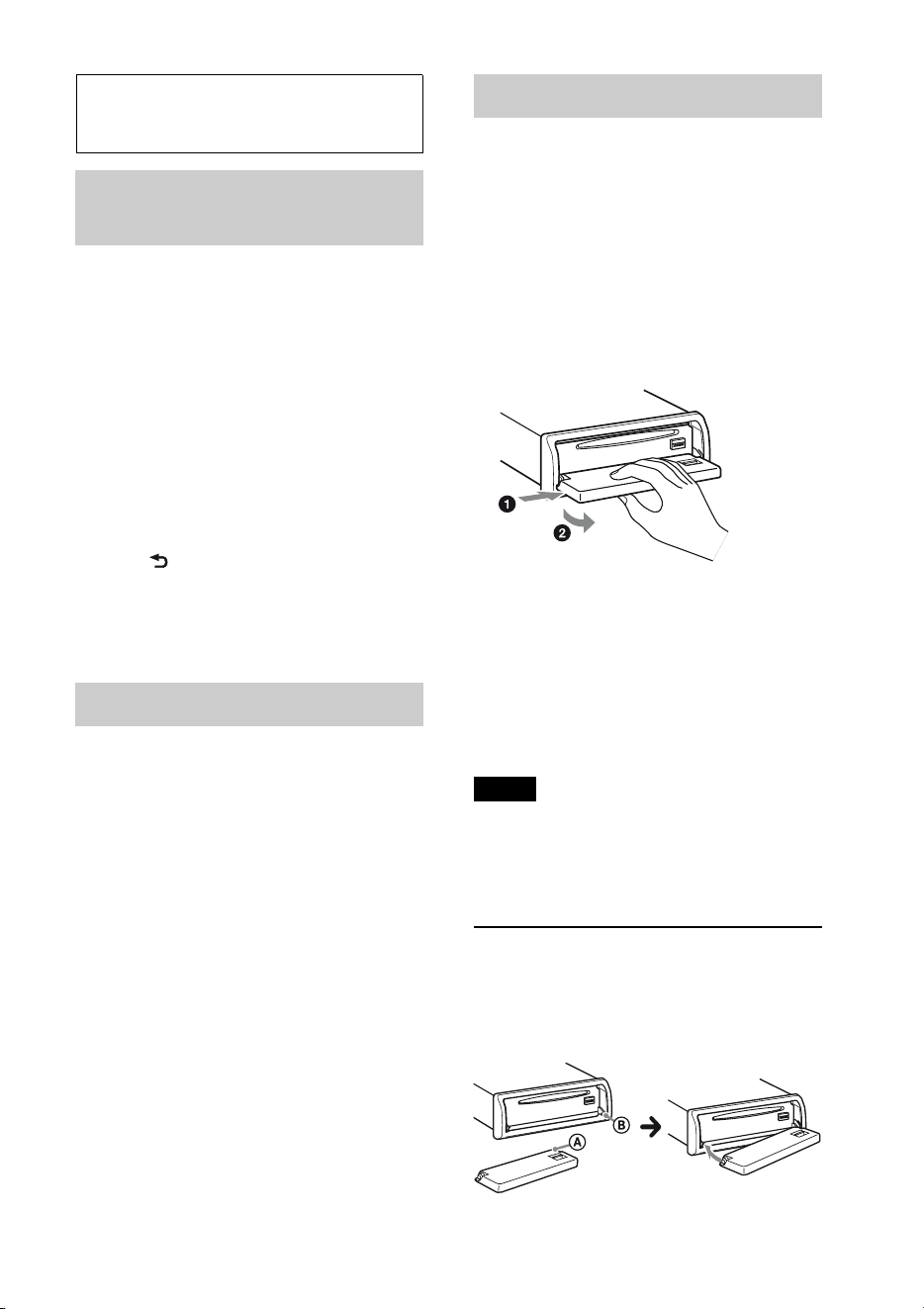
Detaching the front panel
You can detach the front panel of this unit
to prevent theft.
1 Press and hold .
The unit is turned off.
2 Press .
3 Slide the front panel to the right, then
gently pull out the left end of the front
panel.
Caution alarm
If you turn the ignition switch to the OFF
position without detaching the front panel,
the caution alarm will sound for a few
seconds. The alarm will only sound if the
built-in amplifier is used.
Note
Do not subject the front panel to heat/high
temperature or moisture. Avoid leaving it in a
parked car or on a dashboard/rear tray.
Attaching the front panel
Place the hole of the front panel onto the
spindle on the unit, then lightly push the
left side in.
Press on the unit (or insert
a disc) to operate the unit.
6
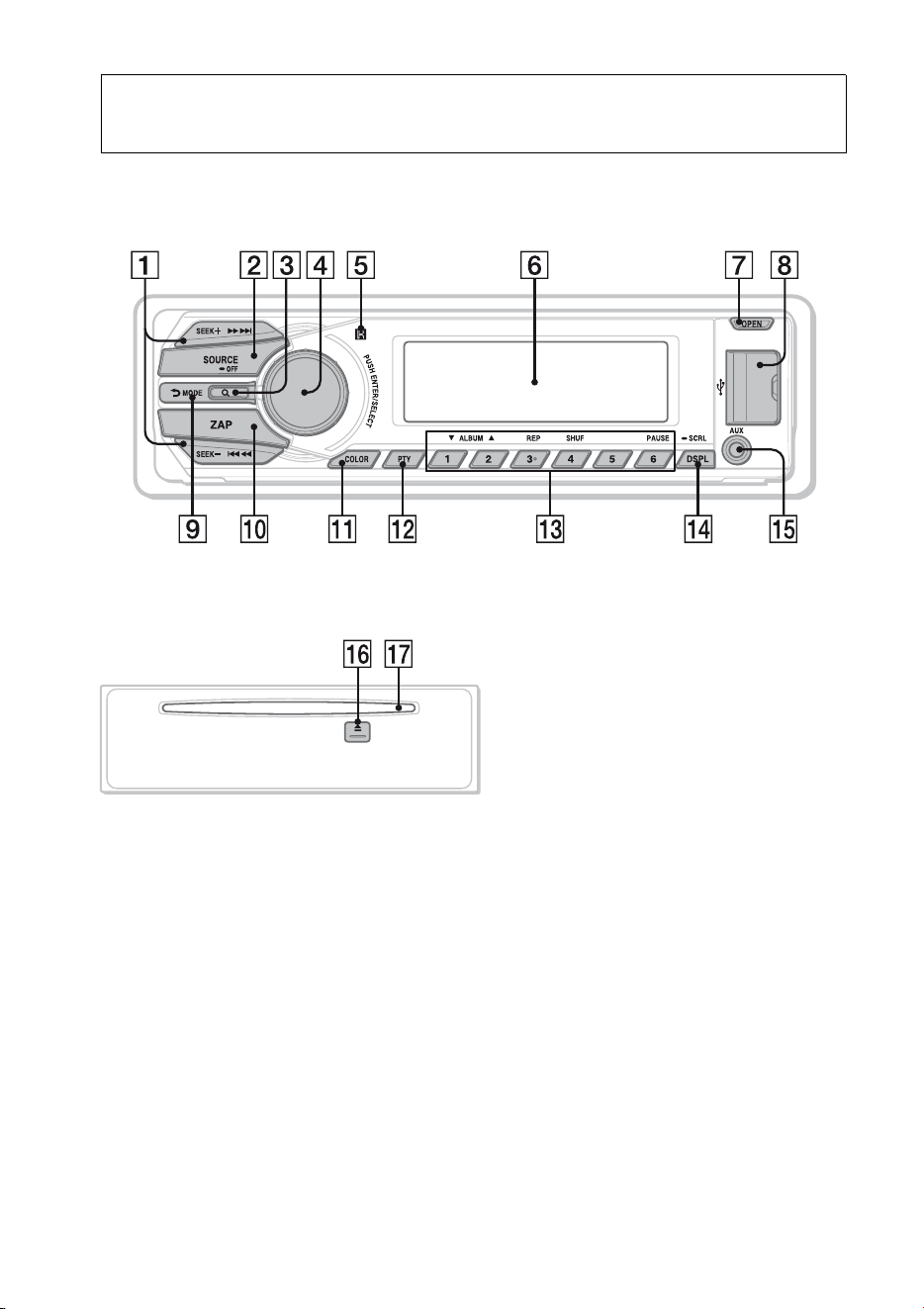
Location of controls
Main unit
Front panel removed This section contains instructions on the
location of controls and basic operations.
SEEK +/– buttons
Radio:
To tune in stations automatically
(press); find a station manually (press
and hold).
CD/USB:
To skip tracks (press); skip tracks
continuously (press, then press again
within about 1 second and hold);
reverse/fast-forward a track (press and
hold).
SensMe™:
To skip tracks (press); reverse/fast-
forward a track (press and hold).
Pandora® via USB:
To skip tracks (press +).
SOURCE/OFF button
Press to turn on the power/change the
source (Radio/CD/USB/SensMe™*
1
/
Pandora® via USB/AUX).
Press and hold for 1 second to turn off
the power.

7
Press and hold for more than 2 seconds
to turn off the power and the display
disappears.
(BROWSE) button page 16, 18
To enter the Quick-BrowZer™ mode;
list the station (Pandora® via USB).
Control dial/select button
page 21, 24
To adjust volume (rotate); select setup
items (press and rotate).
Receptor for the remote
commander
Display window
OPEN button page 5, 10
USB connector page 11, 12, 14
(BACK)/MODE button page 9, 15,
16
Press to return to the previous display/
select the radio band (FM/AM).
Press and hold to enter/cancel the
passenger control/enter the bookmark
mode (Pandora® via USB).
ZAP button page 19
To enter ZAPPIN™ mode.
COLOR button page 19, 20
To select the preset colors (press);
register custom color settings (press and
hold).
PTY button page 9
To select PTY in RDS.
Number buttons
Radio:
To receive stored stations (press); store
stations (press and hold).
CD/USB/SensMe™:
/: ALBUM / (during MP3/
WMA/AAC playback)
To skip albums/change SensMe™
channels (press); skip albums
continuously (press and hold).
: REP*
2
page 17
: SHUF page 17
: PAUSE
To pause playback. To cancel,
press again.
Pandora® via USB:
/: Thumbs down ()/up ()
(press and hold for 2 seconds) page 16
: PAUSE
To pause playback. To cancel, press
again.
DSPL (display)/SCRL (scroll) button
page 9, 10, 11, 14
To change display items (press); scroll
the display item (press and hold).
AUX input jack page 26
(eject) button
To eject the disc.
Disc slot
Insert the disc (label side up), playback
starts.
*1 When a USB device set up for the SensMe™
function is connected.
*2 This button has a tactile dot.
Note
If the unit is turned off and the display
disappears, it cannot be operated with the remote
commander unless on the unit
is pressed, or a disc is inserted to activate the unit
first.
8
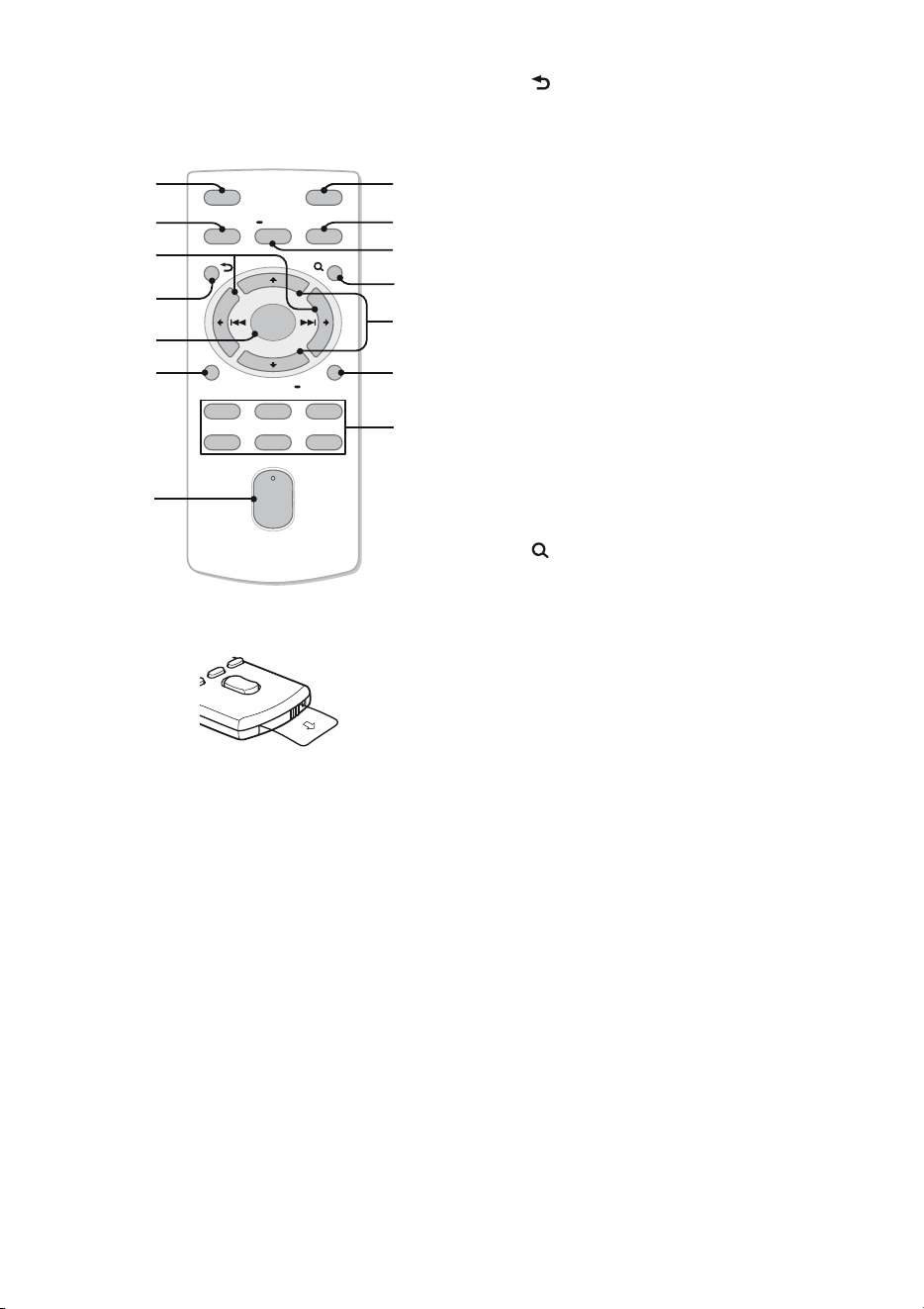
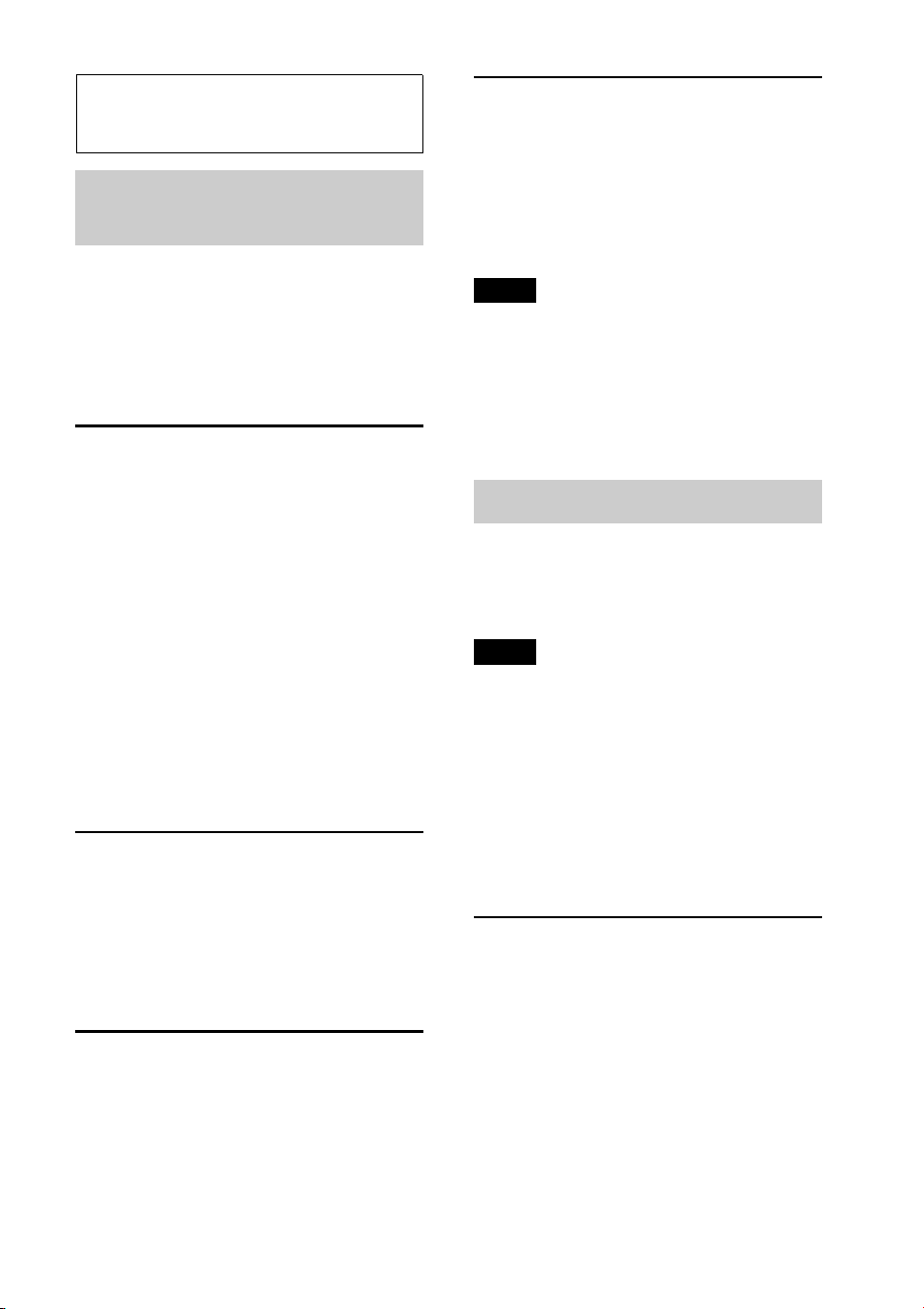
RM-X211 Remote
commander
Remove the insulation film before use.
OFF button
To turn off the power; stop the source.
SOURCE button
To turn on the power; change the
source (Radio/CD/USB/SensMe™*
1
/
Pandora® via USB/AUX).
()/ () buttons
To control Radio/CD/USB/SensMe™/
Pandora® via USB, the same as
–/+ on the unit.
Setup, sound setting, etc., can be
operated by .
(BACK) button
ENTER button
To apply a setting.
PTY button
VOL (volume) +*
2
/– button
ATT (attenuate) button
To attenuate the sound. To cancel, press
again.
MODE button
Press to select the radio band (FM/AM).
Press and hold to enter/cancel the
passenger control/enter the bookmark
mode (Pandora® via USB).
SOUND/MENU button
To enter sound setting (press); enter
menu (press and hold).
(BROWSE) button
(+)/ (–) buttons
To control CD/USB/SensMe™/
Pandora® via USB, the same as /
(ALBUM /) on the unit.
Setup, sound setting, etc., can be
operated by .
DSPL/SCRL button
Number buttons
To receive stored stations (press); store
stations (press and hold).
To pause playback (press ).
*1 When a USB device set up for the SensMe™
function is connected.
*2 This button has a tactile dot.
OFF
PTY
DSPL/
SCRL
SOUND
SOURCE
MODE
132
465
ATT
VOL
+
–
+
–
MENU
ENTER
PAU SE
2
8
1
q;
3
4
5
qa
9
qs
qd
6
7
qf
9
Radio
Storing and receiving
stations
Caution
When tuning in stations while driving, use
Best Tuning Memory (BTM) to prevent an
accident.
Storing automatically — BTM
1 Press repeatedly until
“TUNER” appears.
To change the band, press
repeatedly. You can select from FM1,
FM2, FM3, AM1 or AM2.
2 Press and hold the select button.
The setup display appears.
3 Rotate the control dial until “BTM”
appears, then press it.
The unit stores stations in order of
frequency on the number buttons.
Storing manually
1 While receiving the station that you
want to store, press and hold a number
button ( to ) until “MEMO”
appears.
Receiving the stored stations
1 Select the band, then press a number
button ( to ).
Tuning automatically
1 Select the band, then press +/–
to search for the station.
Scanning stops when the unit receives a
station. Repeat this procedure until the
desired station is received.
Tip
If you know the frequency of the station you want
to listen to, press and hold +/– to locate
the approximate frequency, then press
+/– repeatedly to fine adjust to the
desired frequency (manual tuning).
RDS
FM stations with Radio Data System (RDS)
service send inaudible digital information
along with the regular radio program signal.
Notes
• Depending on the country/region, not all RDS
functions may be available.
• RDS will not work if the signal strength is too
weak, or if the station you are tuned to is not
transmitting RDS data.
Changing display items
Press .
Selecting PTY (Program Types)
Displays the currently received program
type. Also searches your selected program
type.
1 Press during FM reception.
The current program type name appears
if the station is transmitting PTY data.
2 Rotate the control dial until the desired
program type appears, then press it.
The unit starts to search for a station
broadcasting the selected program type.
10
Type of programs
Note
You may receive a different radio program from
the one you select.
Setting CT (Clock Time)
The CT data from the RDS transmission
sets the clock.
1 Set “CT-ON” in setup (page 24).
Note
The CT function may not work properly even
though an RDS station is being received.
CD
Playing a disc
This unit can play CD-DA (also containing
CD TEXT) and CD-R/CD-RW (MP3/
WMA/AAC files (page 27)).
1 Press .
2 Insert the disc (label side up).
3 Close the front panel.
Playback starts automatically.
To eject the disc, press then press .
Note
When ejecting/inserting a disc, keep any USB
devices disconnected to avoid damage to the disc.
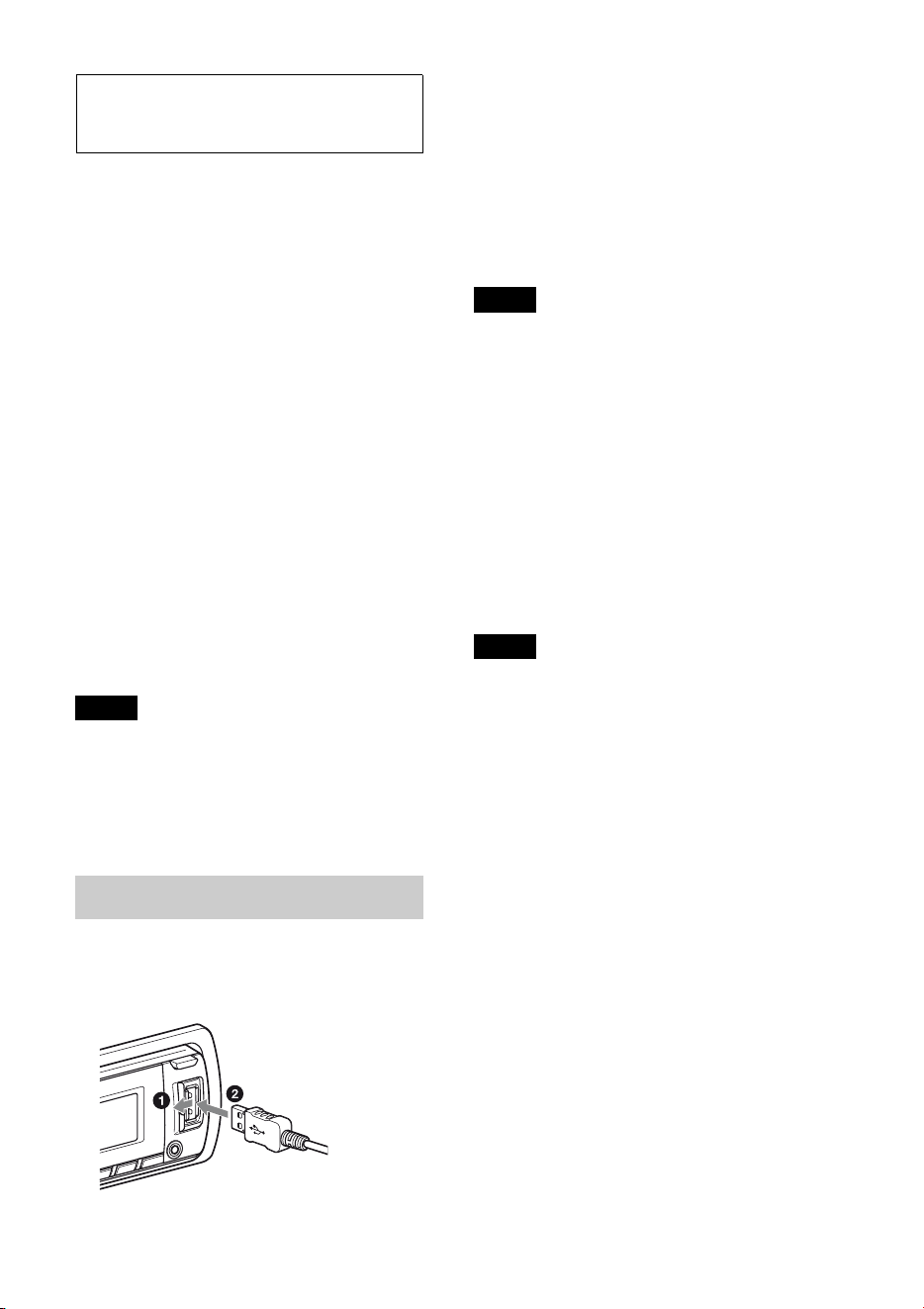
Changing display items
Displayed items may differ depending on
the disc type, recording format and settings.
Press .
NEWS (News), INFORM (Information),
SPORTS (Sports), TALK (Talk), ROCK
(Rock), CLS ROCK (Classic Rock), ADLT
HIT (Adult Hits), SOFT RCK (Soft Rock),
TOP 40 (Top 40), COUNTRY (Country),
OLDIES (Oldies), SOFT (Soft), NOSTALGA
(Nostalgia), JAZZ (Jazz), CLASSICL
(Classical), R AND B (Rhythm and Blues),
SOFT R B (Soft Rhythm and Blues),
LANGUAGE (Foreign Language), REL
MUSC (Religious Music), REL TALK
(Religious Talk), PERSNLTY (Personality),
PUBLIC (Public), COLLEGE (College),
WEATHER (Weather)
11
USB devices
• MSC (Mass Storage Class)-type USB
devices compliant with the USB standard
can be used.
• Corresponding codec is MP3 (.mp3),
WMA (.wma), AAC (.m4a) and AAC
(.mp4).
• Backup of data to a USB device is
recommended.
• MSC (Mass Storage Class)-type Android™
Phone compliant with the USB standard
can be used.
Depending on the Android Phone, setting
the USB connection mode to MSC is
required. (Complete this setting within
20 seconds after connecting the device.
Otherwise the unit cannot recognize the
device.)
For details on the compatibility of your USB
device, visit the support site on the back
cover.
Note
Connect the USB device after starting the engine.
Depending on the USB device, malfunction or
damage may occur if it is connected before
starting the engine.
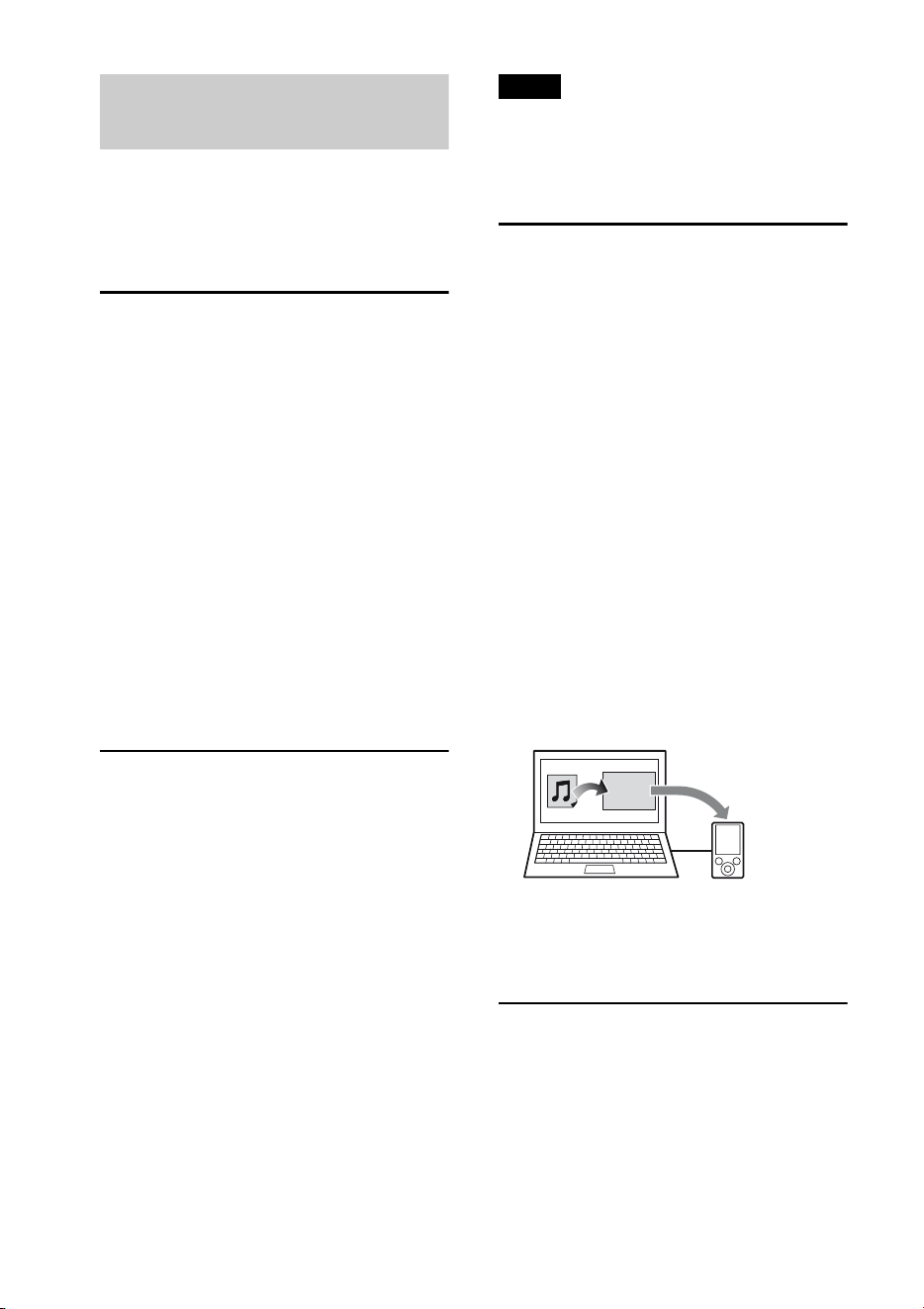
Playing back a USB device
1 Open the USB cover, then connect the
USB device to the USB connector with
its USB cable.
Playback starts.
If a USB device is already connected, to start
playback, press repeatedly
until “USB” appears.
To stop playback, press and hold
for 1 second.
To remove the USB device, stop the USB
playback, then remove the USB device.
Notes
• Do not use USB devices so large or heavy that
they may fall down due to vibration, or cause a
loose connection.
• Do not detach the front panel during playback
of the USB device, otherwise USB data may be
damaged.
Changing display items
Displayed items may differ depending on
the USB device, recording format and
settings.
Press .
Notes
• The maximum number of displayable data is as
follows.
– folders (albums): 128
–files (tracks) per folder: 500
• It may take time for playback to begin,
depending on the amount of recorded data.
• DRM (Digital Rights Management) files may
not be played.
• During playback or fast-forward/reverse of a
VBR (Variable Bit Rate) MP3/WMA/AAC file,
elapsed playing time may not display
accurately.
• Playback of the following MP3/WMA/AAC
files is not supported.
– lossless compression
– copyright-protected
12
Enjoying music according
to your mood — SensMe™
The “SensMe™ channels” features
automatically group tracks by channel, and
allow you to enjoy music intuitively.
Installing “SensMe™ Setup”
and “Content Transfer” in
your computer
The software (“SensMe™ Setup” and
“Content Transfer”) is required to enable
the SensMe™ function on this unit.
1 Download the “SensMe™ Setup” and
“Content Transfer” software from the
support site.
2 Install the software in your computer.
For more details on the installation, visit
http://esupport.sony.com
or
http://www.sony.com/caraudio
Registering a USB device
using “SensMe™ Setup”
USB device registration is required to
enable the SensMe™ function on the unit.
If registration is not performed along with
the installation procedure, follow the steps
below.
1 Start “SensMe™ Setup” on your
computer.
2 Connect a USB device to your
computer.
3 Complete registration following the
on-screen instructions.
Tip
If you connect a registered USB device containing
analyzed tracks, the USB device can be
unregistered again.
Transferring tracks to the USB
device using “Content
Transfer”
To enable the SensMe™ function on this
unit, tracks need to be analyzed and
transferred to the registered USB device,
using “Content Transfer.”
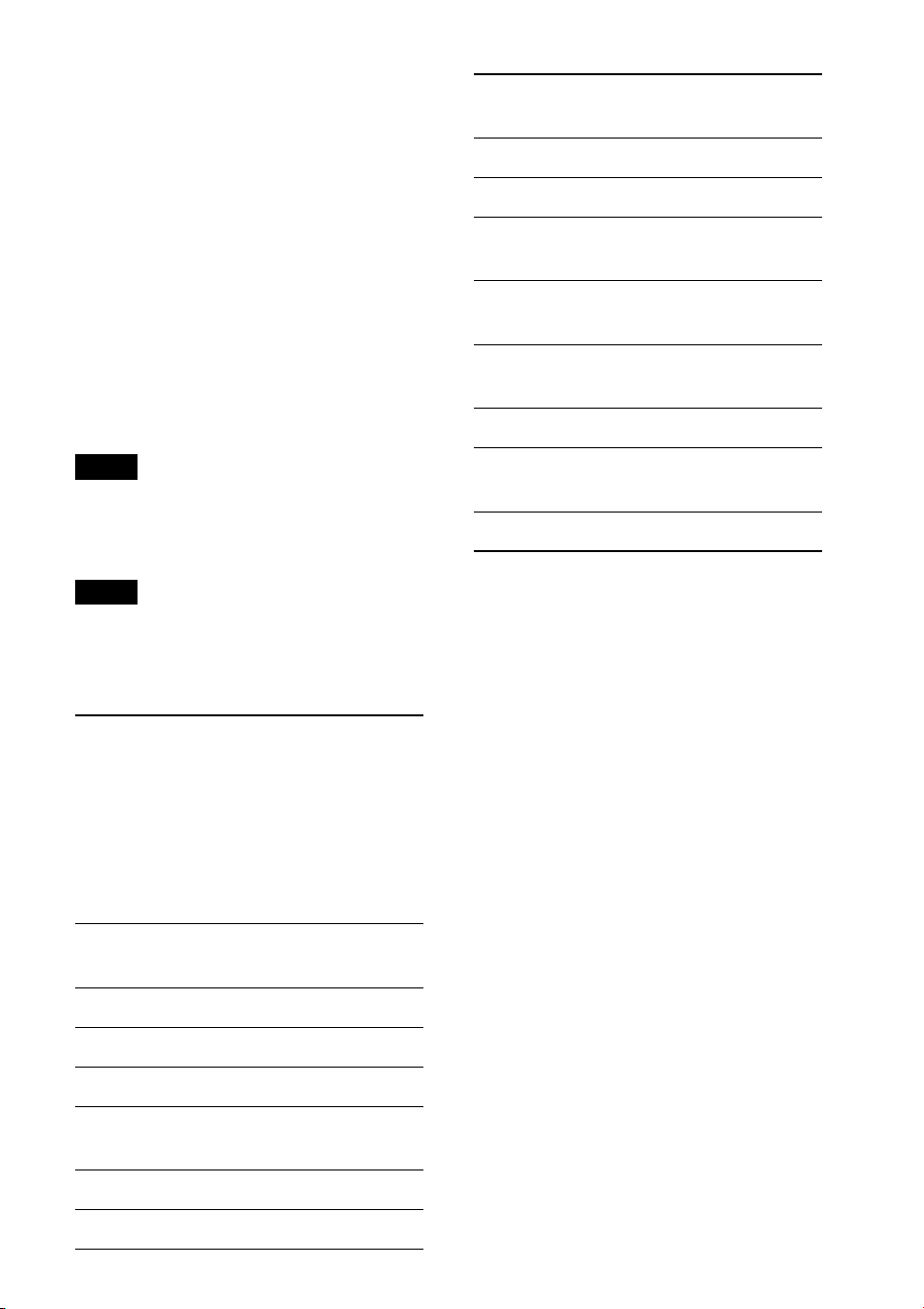
1 Connect the registered USB device to
your computer.
For USB devices, connect with the MSC
mode. “Content Transfer” starts
automatically.
Follow the on-screen instructions if they
appear.
2 Drag and drop tracks from Windows
Explorer or iTunes, etc., to “Content
Transfer.”
The analysis and transfer of tracks start.
For details on operations, see the Help of
“Content Transfer.”
Playing tracks in the channel
— SensMe™ channels
“SensMe™ channels” automatically group
tracks into channels by their tunes. You can
select and play a channel that fits your
mood, activity, etc.
1 Connect a USB device set up for the
SensMe™ function.
Content
Transfer
13
2 Press repeatedly until
“SENSME CH” appears.
The channel list appears, and the most
melodic or rhythmical sections of tracks
are shuffle played.
3 Selecting a track from the channel list
using the control dial.
To change the channel:
Press / (ALBUM /) to select
the desired channel.
To change the track:
Press +/– repeatedly until the
desired track appears, then press the
control dial.
Note
If the connected USB device contains many
tracks, it may take time for “SensMe™ channels”
to start, due to data reading.
Tip
Tracks are played in random order. The order
will vary at each channel selection.
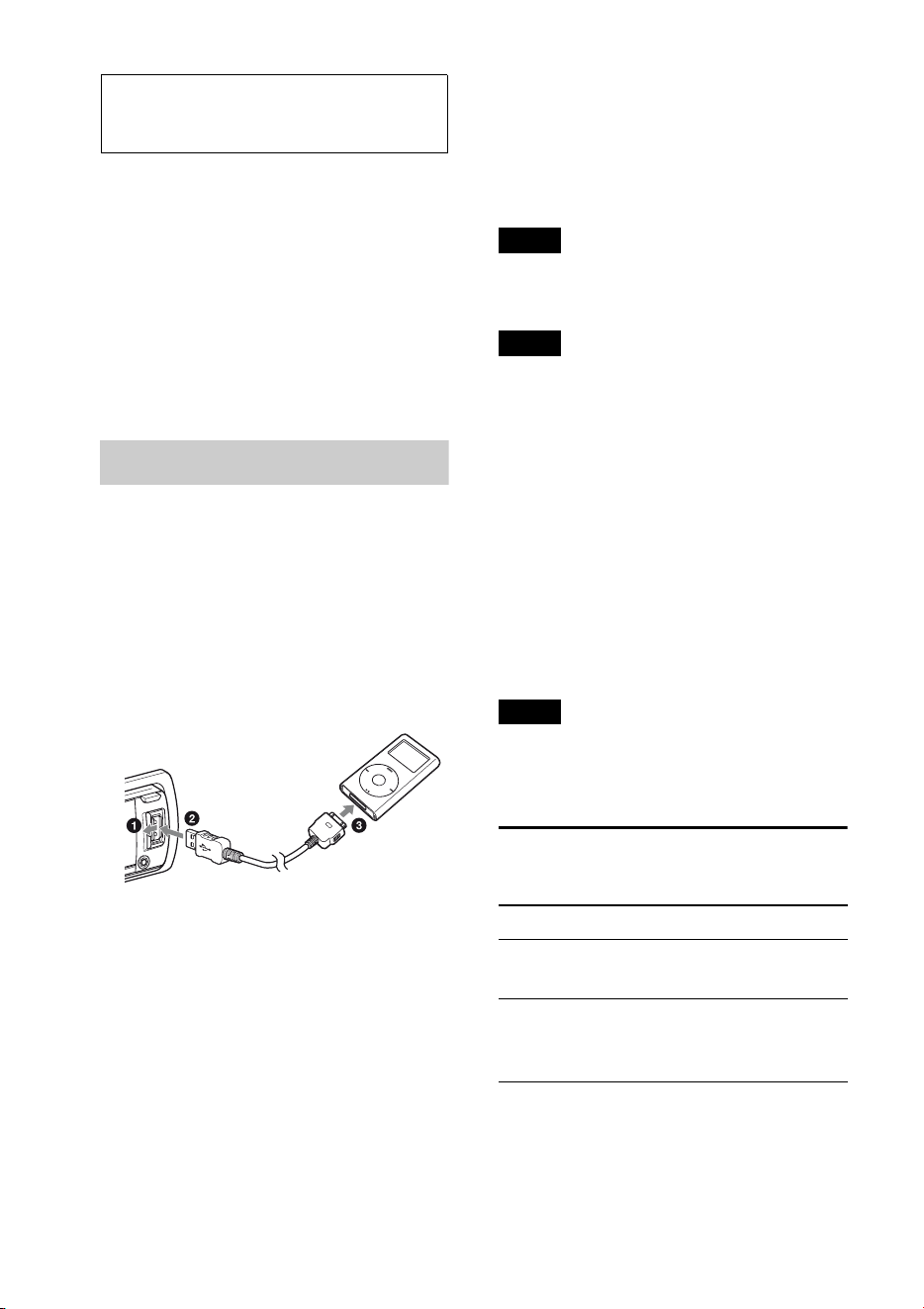
Channel list
MORNING (5:00 AM – 9:59 AM)
DAYTIME (10:00 AM – 3:59 PM)
EVENING (4:00 PM – 6:59 PM)
NIGHT (7:00 PM – 11:59 PM)
MIDNIGHT (12:00 AM – 4:59 AM)
Tracks recommended for each time of day.
Set the clock (page 5) for the channel to be
displayed accurately.
SHUFFLE ALL: Plays all analyzed tracks in
random order.
ENERGETIC: High-spirit tracks.
RELAX: Calm tracks.
MELLOW: Mellow, melancholy tracks.
UPBEAT: Happy tracks to improve your
mood.
EMOTIONAL: Ballad tracks.
LOUNGE: Lounge music.
DANCE: Rhythm and rap, rhythm and blues
tracks.
EXTREME: Intense rock tracks.
FREEWAY: Speedy, high-spirit tracks.
CHILLOUT DRIVE: Intoned, healing ballad
tracks.
WEEKEND TRIP: Delightful, bright and
happy tracks.
MIDNIGHT CRUISE: Jazz or piano-featured
tracks with mature mood.
PARTY RIDE: Up-tempo and alive tracks.
MORNING COMMUTE: Bright and breezy
tracks.
GOIN’ HOME: Warm and relaxing tracks.
14
iPod
In these Operating Instructions, “iPod” is
used as a general reference for the iPod
functions on the iPod and iPhone, unless
otherwise specified by the text or
illustrations.
For details on the compatibility of your
iPod, see “About iPod” (page 27) or visit the
support site on the back cover.
Playing back iPod
Before connecting the iPod, turn down the
volume of the unit.
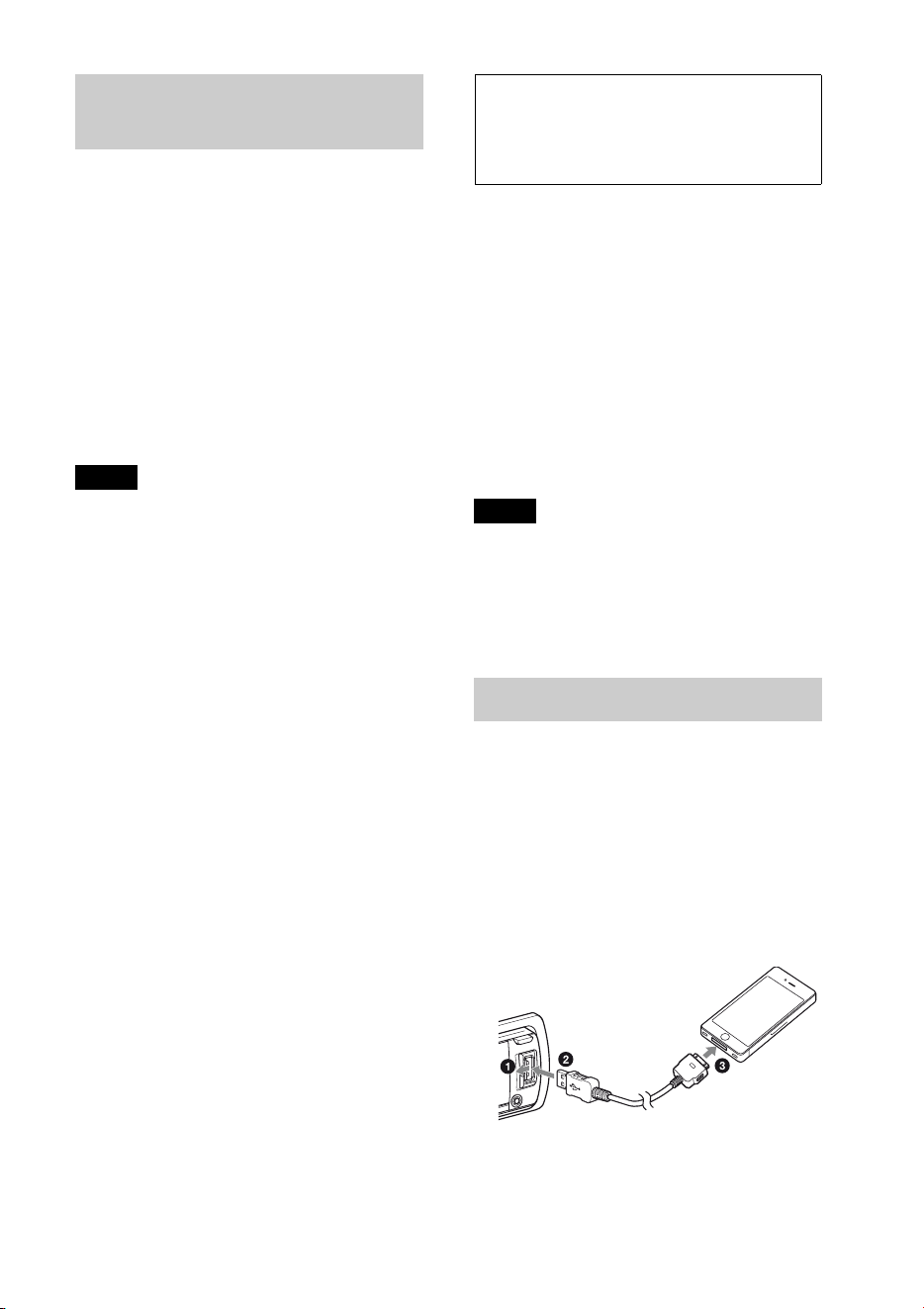
1 Open the USB cover, then connect the
iPod to the USB connector with the
USB connection cable for iPod (not
supplied)*.
* RC-100IP USB connection cable for iPod is
recommended.
The tracks on the iPod start playing
automatically from the point last played.
If an iPod is already connected, to start
playback press
repeatedly until “USB” appears. (“IPOD”
appears in the display when iPod is
recognized.)
Press and hold for 1
second to stop playback.
To remove the iPod, stop the iPod playback,
then remove the iPod.
Caution for iPhone
When you connect an iPhone via USB, telephone
volume is controlled by iPhone itself. In order to
avoid sudden loud sound after a call, do not
increase the volume on the unit during a
telephone call.
Note
Do not detach the front panel during playback of
the iPod, otherwise data may be damaged.
Tip
iPod is recharged while the unit is turned on.
Resuming mode
When the iPod is connected to the dock
connector, playback starts in the mode set
by the iPod. In this mode, the following
buttons do not function.
– (REP)
– (SHUF)
Changing display items
Press .
Note
Some letters stored in iPod may not be displayed
correctly.
Skipping albums, podcasts,
genres, playlists and artists
To Do this
Skip Press / (ALBUM /
) [press once for each]
Skip
continuously
Press and hold /
(ALBUM /)
[hold to desired point]
15
Operating an iPod directly
— Passenger control
You can operate an iPod directly even when
connected to the dock connecter.
1 During playback, press and hold
.
“MODE IPOD” appears and you will be
able to operate the iPod directly.
To exit the passenger control, press and
hold .
Then “MODE AUDIO” will appear and the
play mode will change to iPod mode.
Note
The volume can be adjusted only by the unit.
Pandora® internet
radio via USB (iPhone)
Pandora® internet radio is available to
stream music through your iPhone. You can
control Pandora® on a USB-connected
iPhone from this unit.
Download the latest version of Pandora®
application and obtain more information
from
www.pandora.com
For details on usable devices, visit the
support site on the back cover.
Notes
•Certain Pandora® service functions may not be
available.
•The Pandora® service is only available in the
U.S.
Streaming Pandora®
Before connecting the iPhone, turn down
the volume of the unit.
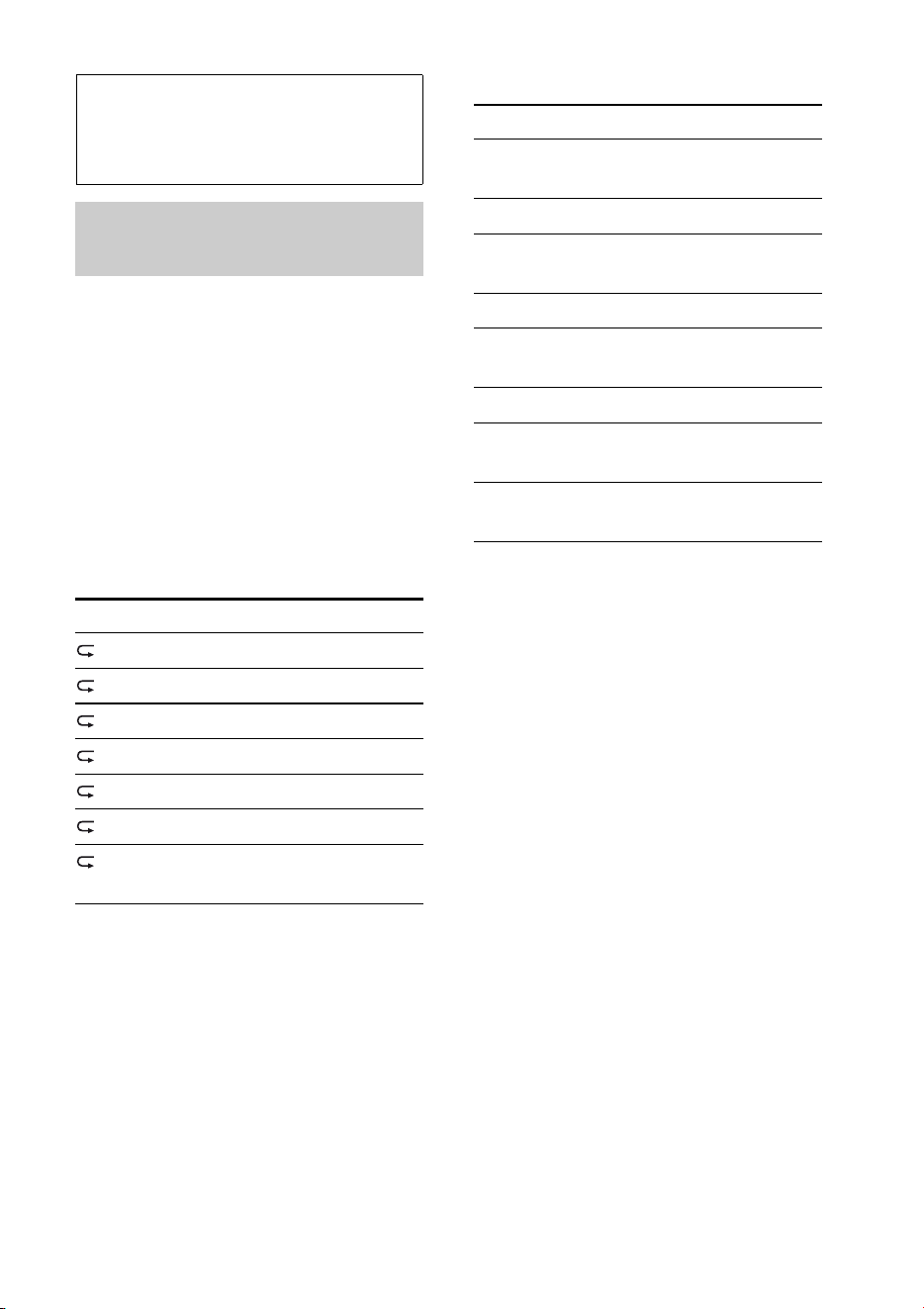
1 Open the USB cover, then connect the
iPhone to the USB connector with the
USB connection cable for iPhone (not
supplied)*.
* RC-100IP USB connection cable for iPhone
is recommended.
2 Press repeatedly until
“PANDORA USB” appears.

16
3 Launch Pandora® application on the
iPhone.
4 Adjust the volume on this unit.
To pause playback, press . To
resume playback, press again.
To skip a song, press +.
Notes
• You cannot skip back to the previous song.
•Pandora® limits the number of skips allowed.
Changing display items
Press .
“Thumbs” feedback
“Thumbs Up” or “Thumbs Down” feedback
allows you to personalize stations to suit
your preference.
Thumbs Up
During playback, press and hold ()
for 2 seconds.
Thumbs Down
During playback, press and hold ()
for 2 seconds.
Station list
The station list allows you to easily select a
desired station.
1 During playback, press (BROWSE).
2 Press + to select the sorting
order “BY DATE” or “A-Z.”
3 Rotate the control dial to select the
desired station, then press it.
Playback starts.
Shuffle
Shuffle allows you to listen to songs played
on one or more Pandora® stations in your
station list randomly.
Edit your Shuffle station selections on the
device before connection.
Bookmarking
The song or artist currently being played
can be bookmarked and stored in your
Pandora® account.
1 During playback, press and hold
until “BOOKMARK”
appears.
2 Rotate the control dial to select “TRK”
(Track) or “ART” (Artist), then press
it.
17
Searching and
playing tracks
Playing tracks in various
modes
You can listen to tracks repeatedly (repeat
play) or in random order (shuffle play).
Available play modes differ depending on
the selected sound source.
1 During playback, press (REP) or
(SHUF) repeatedly until the
desired play mode appears.
Playback in selected play mode may take
time to start.
Repeat play
Shuffle play
*1 iPod only
*2 CD only
*3 USB and iPod only
Select To play
TRACK track repeatedly.
ALBUM album repeatedly.
PODCAST*
1
podcast repeatedly.
ARTIST*
1
artist repeatedly.
PLAYLIST*
1
playlist repeatedly.
GENRE*
1
genre repeatedly.
OFF track in normal order
(Normal play).
Select To play
SHUF ALBUM album in random
order.
SHUF DISC*
2
disc in random order.
SHUF PODCAST*
1
podcast in random
order.
SHUF ARTIST*
1
artist in random order.
SHUF PLAYLIST*
1
playlist in random
order.
SHUF GENRE*
1
genre in random order.
SHUF DEVICE*
3
device in random
order.
SHUF OFF track in normal order
(Normal play).
18
Searching a track by
name — Quick-BrowZer™
You can search for a track in a CD or USB
device easily by category.
1 Press (BROWSE)*.
The unit enters the Quick-BrowZer
mode, and the list of search categories
appears.
When the track list appears, press
(BACK) repeatedly until the desired
search category appears.
* During playback, press (BROWSE) for
more than 2 seconds to directly return to the
beginning of the category list (USB only).
2 Rotate the control dial to select the
desired search category, then press it to
confirm.
3 Repeat step 2 until the desired track is
selected.
Playback starts.
To exit the Quick-BrowZer mode, press
(BROWSE).
Note
When entering the Quick-BrowZer mode, the
repeat/shuffle setting is canceled.
Searching by skip items
— Jump mode
When many items are in a category, you can
search the desired item quickly.
1 Press + in Quick-BrowZer
mode.
The item name will appear.
2 Rotate the control dial to select the
item near the one desired.
It skips in steps of 10% of the total item
number.
3 Press the select button.
The display returns to the Quick-
BrowZer mode and the selected item
appears.
4 Rotate the control dial to select the
desired item and press it.
Playback starts if the selected item is a
track.
To cancel Jump mode, press (BACK) or
–.
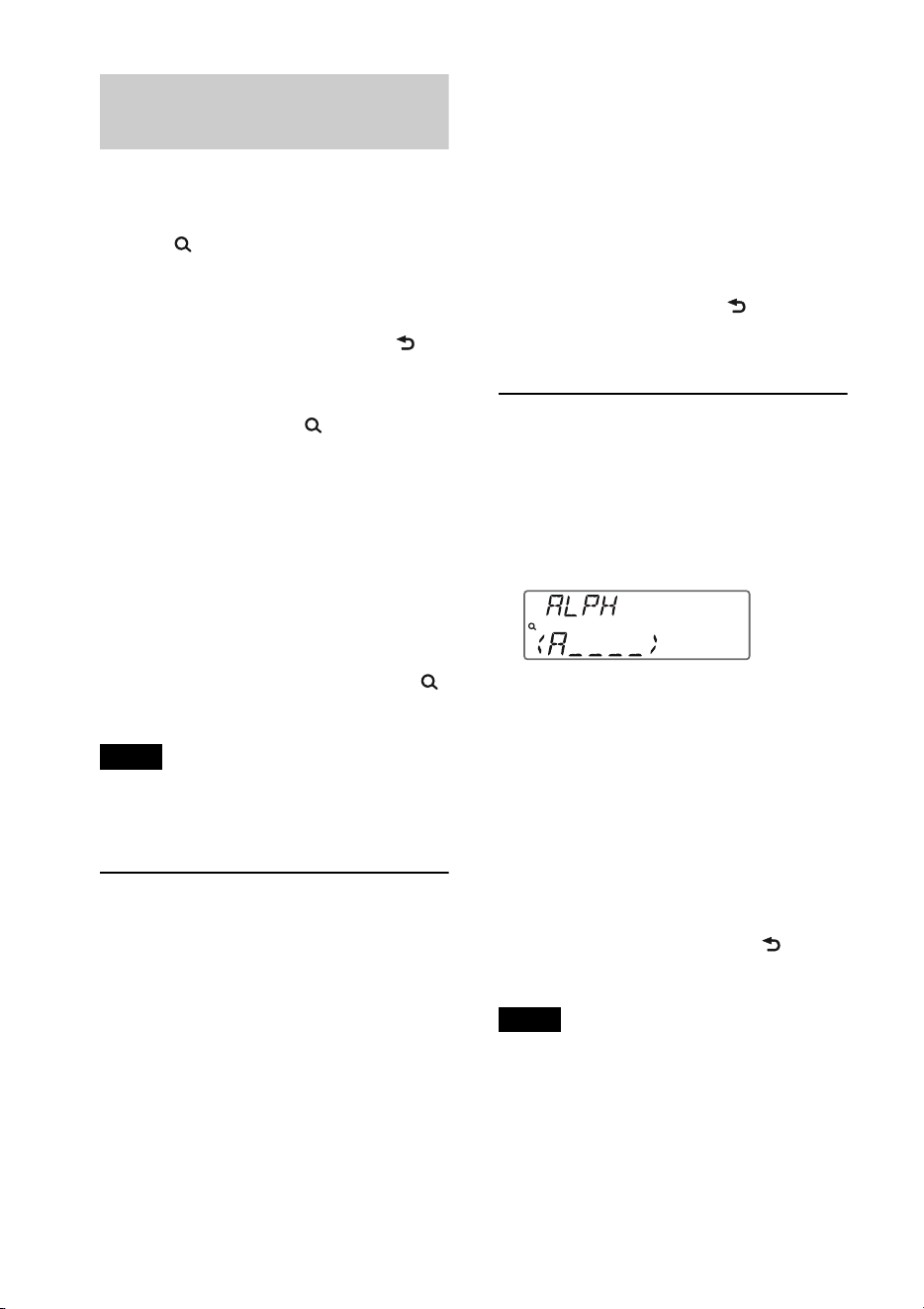
Searching by alphabetical
order — Alphabet search
When an iPod is connected to the unit, you
can search for a desired item alphabetically.
1 Press + in Quick-BrowZer
mode.
2 Rotate the control dial to select the first
letter of the desired item, then press it.
A list of items beginning with the
selected letter appears in alphabetical
order.
3 Rotate the control dial to select the
desired item, then press it.
Playback starts if the selected item is a
track.
To cancel Alphabet search, press
(BACK) or –.
Notes
• In Alphabet search, a symbol or article (a/an/
the) before the selected letter of the item is
excluded.
• Depending on the search item you select, only
Jump mode may be available.
•Alphabet search may take some time,
depending on the amount of tracks.
19
Searching a track by listening
to track passages — ZAPPIN
™
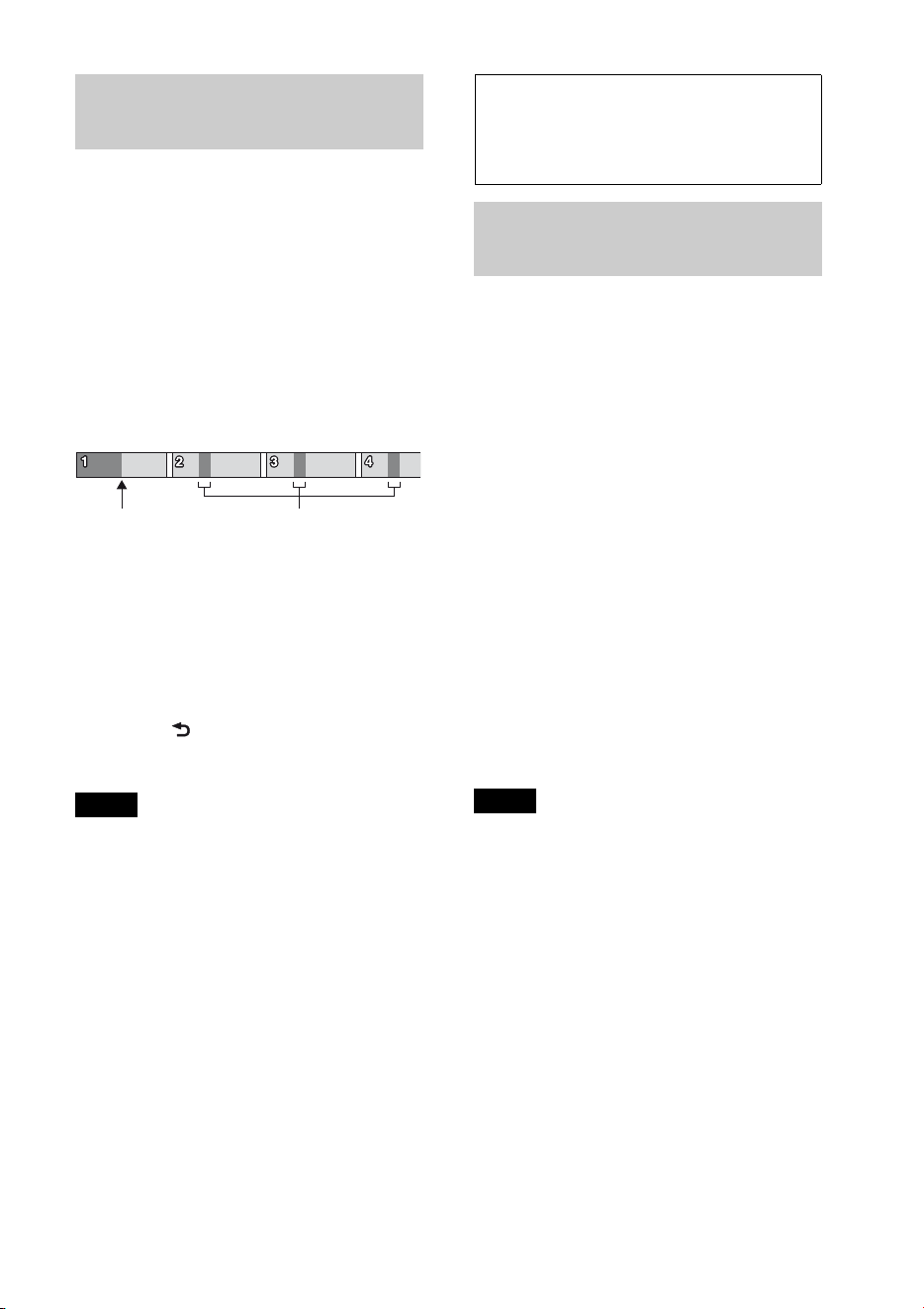
While playing back short track passages in a
CD or USB device in sequence, you can
search for a track you want to listen to.
ZAPPIN mode is suitable for searching for a
track in shuffle or shuffle repeat mode.
1 Press during playback.
Playback starts from a passage of the
next track. You can select the playback
time (page 25).
2 Press the select button or when
a track you want to listen is played
back.
The track that you select returns to
normal play mode from the beginning.
Pressing (BACK) also confirms a
track to playback.
Tips
• If the track being searched is transferred by
“Content Transfer,” the most melodic or
rhythmical sections of tracks are played
(page 12).
• Press +/– in ZAPPIN mode to skip a
track.
• Press / (ALBUM /) in ZAPPIN
mode to skip album.
Changing the
illumination
Changing the color of display and
buttons —Dynamic Color Illuminator
Dynamic Color Illuminator allows you to
change the color of the display and buttons
on the main unit to match the car’s interior.
You can select from 12 preset colors,
customized color and 5 preset patterns.
Preset colors:
RED, AMBER, M_AMBER, YELLOW,
WHITE, LIGHT GREEN, GREEN, LIGHT
BLUE, SKY BLUE, BLUE, PURPLE, PINK.
Preset patterns:
RAINBOW, OCEAN, SUNSET, FOREST,
RANDOM.
1 Press .
2 Rotate the control dial to select the
desired preset color, then press it.
The display returns to normal reception/
play mode.
Note
If the control dial is rotated rapidly, the color of
the display and the buttons may change too
quickly.
The part of each track to play
back in ZAPPIN mode.
Track
pressed.

20
Customizing the display and
button color — Custom Color
You can register a customized color for the
display and buttons.
1 Press and hold .
The DAY/NIGHT custom color display
varies according to the DIMMER setting.
2 Rotate the control dial until “BASE
COLOR” appears, then press it.
You can select a preset color as a basis
for further customizing.
When you select “BASE COLOR,”
customized color is overwritten.
3 Rotate the control dial to select from
“RGB RED,” “RGB GREEN,” or “RGB
BLUE,” then press it.
4 Rotate the control dial to adjust the
color range, then press it.
Adjustable color range: “0” – “32.”
You cannot set “0” for all color ranges.
5 Press (BACK).
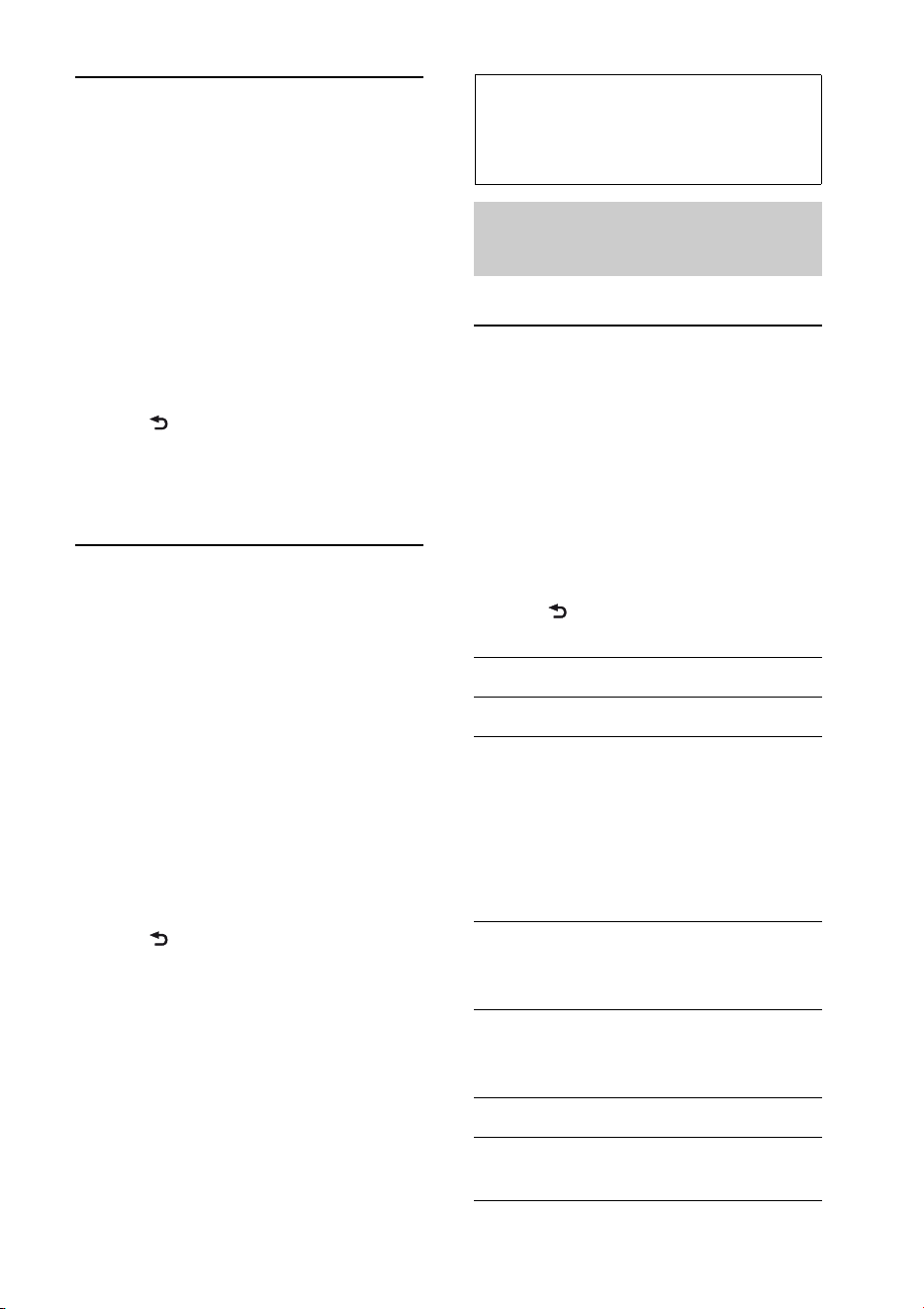
Changing DAY/NIGHT color mode
You can set a different color for DAY/
NIGHT depending on the DIMMER
setting.
*1 For details on the DIMMER, see page 25.
*2 Available only when the illumination control
lead is connected.
1 Select “DAY/NIGHT” in step 2.
2 Select “DAY” or “NIGHT.”
3 Customize the preset channel from step 2 to
5.
Advanced color setting
SensMe™ Channels
synchronization
— SensMe™ Channels Color
The color of the display and buttons on the
main unit changes according to the
SensMe™ channel.
1 Press and hold the select button.
The setup display appears.
2 Rotate the control dial until “SENSME
COLR” appears, then press it.
3 Rotate the control dial to select
“SENSME-ON,” then press it.
4 Press (BACK).
To cancel SensMe™ Channels Color, select
“OFF” on step 3.
Note
When SensMe™ Channels Color is set to “ON”
for the SensMe™ source, SensMe™ Channels
Color overrides the preset color/pattern settings.
Changing the color with
sound synchronization
— Sound Synchronization
When you select a preset pattern or play
tracks in the SensMe™ channel, sound
synchronization becomes effective.
1 Press and hold the select button.
The setup display appears.
2 Rotate the control dial until “SOUND
SYNC” appears, then press it.
3 Rotate the control dial to select
“SYNC-ON,” then press it.
4 Press (BACK).
Color mode DIMMER*
1
DAY OFF or AUTO (turn
off the head light*
2
)
NIGHT ON or AUTO (turn on
the head light*
2
)
21
Displaying clear color
— White Menu
You can display the menu more clearly
(White) without concern for color setting.
1 Press and hold the select button.
The setup display appears.
2 Rotate the control dial until “WHITE
MENU” appears, then press it.
3 Rotate the control dial to select
“WHITE-ON,” then press it.
4 Press (BACK).
To cancel White Menu, select “OFF” on
step 3.
Start up effect
— Start White
When you push on, the
color of display and the buttons on the main
unit turns white once, and then the color
changes to the customized color.
1 Press and hold the select button.
The setup display appears.
2 Rotate the control dial until “START
WHITE” appears, then press it.
3 Rotate the control dial to select
“WHITE-ON,” then press it.
4 Press (BACK).
To cancel Start White, select “OFF” on step
3.
Sound Settings and
Setup Menu
Changing the sound
settings
Adjusting the sound
characteristics
1 During reception/playback, press the
select button.
2 Rotate the control dial until the desired
menu item appears, then press it.
3 Rotate the control dial to select the
setting, then press it.
4 Press (BACK).
The following items can be set:
EQ7 PRESET (page 22)
EQ7 SETTING (page 22)
POSITION
POSITION (Listening Position setting)
(page 23)
ADJUST POS*
1
(Listening Position
adjustment) (page 23)
SW POSITION*
1
(Subwoofer Position)
(page 23)
BALANCE
Adjusts the sound balance: “RIGHT-15”
– “CENTER” – “LEFT-15.”
FADER
Adjusts the relative level: “FRONT-15” –
“CENTER” – “REAR-15.”
DM+ (page 23)
REARBAS ENH (Rear Bass Enhancer)
(page 24)
22
*1 Hidden when “POSITION” is set to “OFF.”
*2 When AUX source is activated (page 26).
Enjoying sophisticated sound
functions — Advanced Sound Engine
Advanced Sound Engine creates an ideal in-
car sound field with digital signal
processing.
Selecting the sound quality
— EQ7 Preset
You can select an equalizer curve from 7
equalizer curves (XPLOD, VOCAL, EDGE,
CRUISE, SPACE, GRAVITY, CUSTOM or
OFF).
1 During reception/playback, press the
select button.
2 Rotate the control dial until “EQ7
PRESET” appears, then press it.
3 Rotate the control dial until the desired
equalizer curve appears, then press it.
4 Press (BACK).
To cancel the equalizer curve, select “OFF”
in step 3.
Tip
The equalizer curve setting can be memorized for
each source.
Customizing the equalizer
curve — EQ7 Setting
“CUSTOM” of EQ7 allows you to make
your own equalizer settings.
1 Select a source, then press the select
button.
2 Rotate the control dial until “EQ7
SETTING” appears, then press it.
3 Rotate the control dial until “BASE”
appears, then press it.
You can select an equalizer curve as a
basis for further customizing.
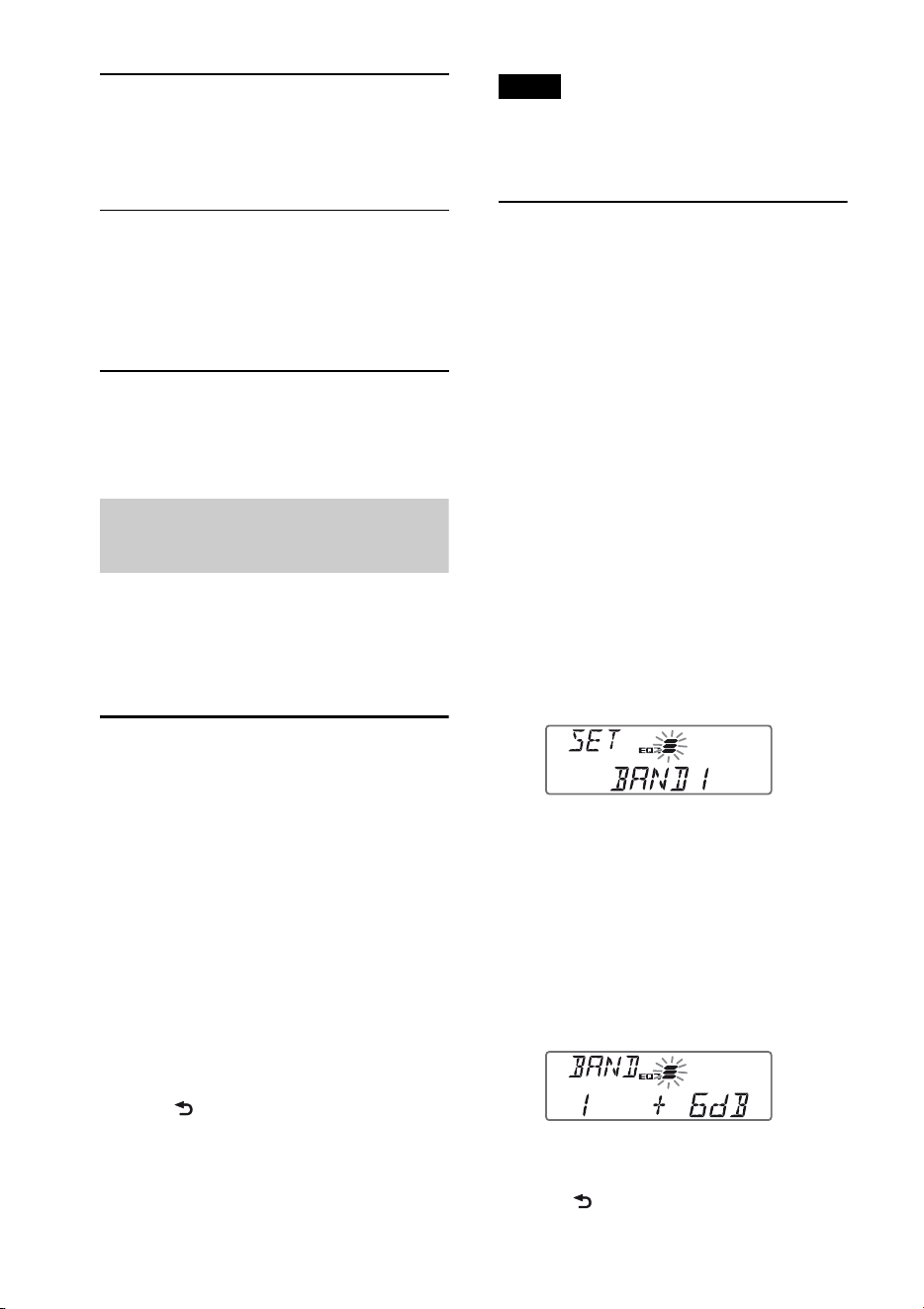
4 Rotate the control dial to select the
equalizer curve, then press it.
5 Setting the equalizer curve.
Rotate the control dial to select the
frequency range, then press it.
BAND1: 63 Hz
BAND2: 160 Hz
BAND3: 400 Hz
BAND4: 1 kHz
BAND5: 2.5 kHz
BAND6: 6.3 kHz
BAND7: 16.0 kHz
Rotate the control dial to adjust the
volume level, then press it.
The volume level is adjustable in 1 dB
steps, from -6 dB to +6 dB.
Repeat steps and to adjust other
frequency ranges.
6 Press (BACK) twice.
SUBW LEVEL (Subwoofer Level)
Adjusts the subwoofer volume level:
“+10 dB” – “0 dB” – “–10 dB.”
(“ATT” is displayed at the lowest
setting.)
AUX VOLUME*
2
(AUX Volume level)
Adjusts the volume level for each
connected auxiliary equipment: “+18
dB” – “0 dB” – “–8 dB.”
This setting negates the need to adjust
the volume level between sources.
23
The equalizer curve is stored in
“CUSTOM.”
Optimizing sound by Time
Alignment — Listening
Position
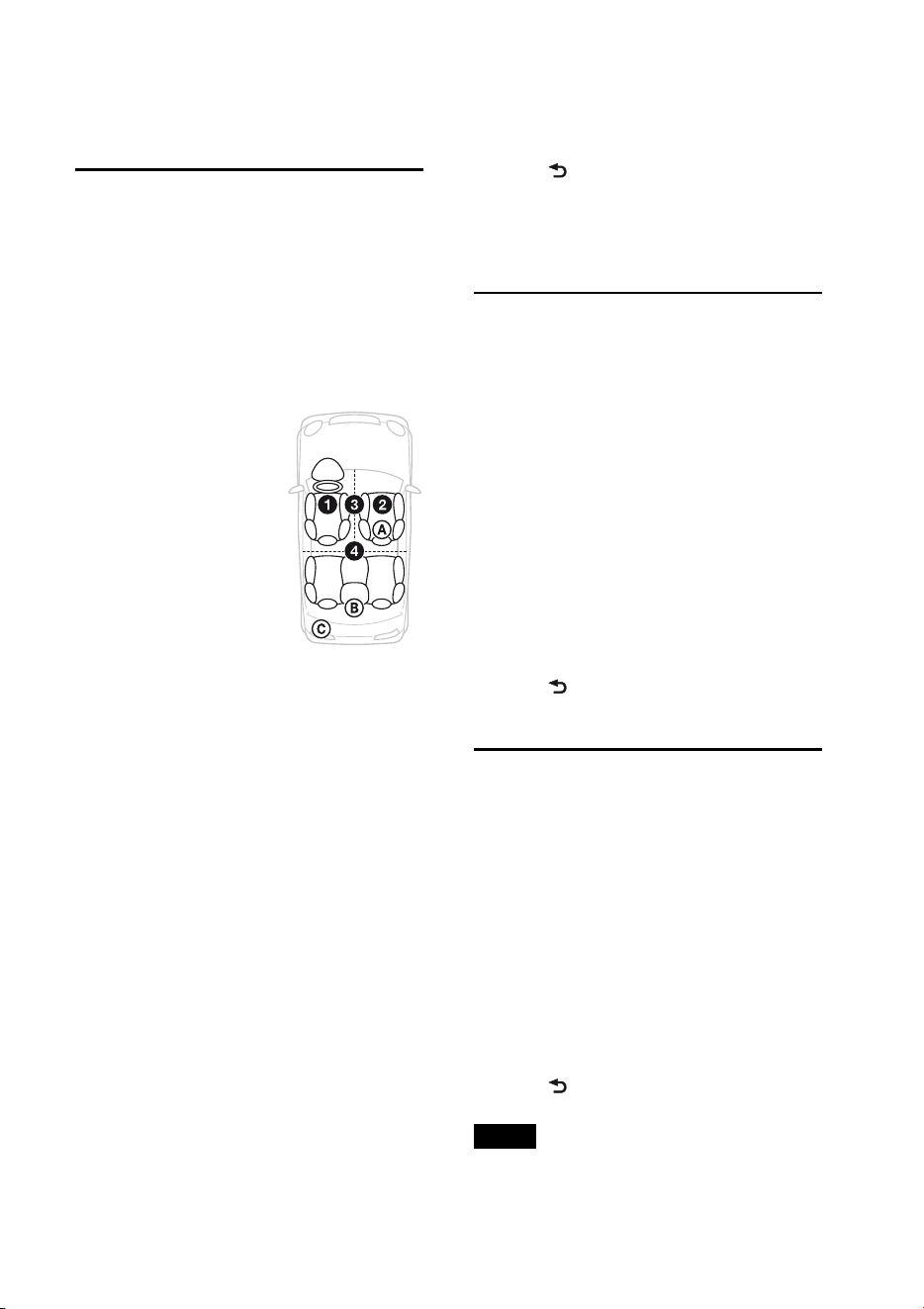
The unit can simulate a natural sound field
by delaying the sound output from each
speaker to suit your position.
The options for “POSITION” are indicated
below.
You can also set the approximate subwoofer
position from your listening position if:
– the subwoofer is connected
– the listening position is set to “FRONT L,”
“FRONT R,” “FRONT” or “ALL.”
The options for “SW POSITION” are
indicated below.
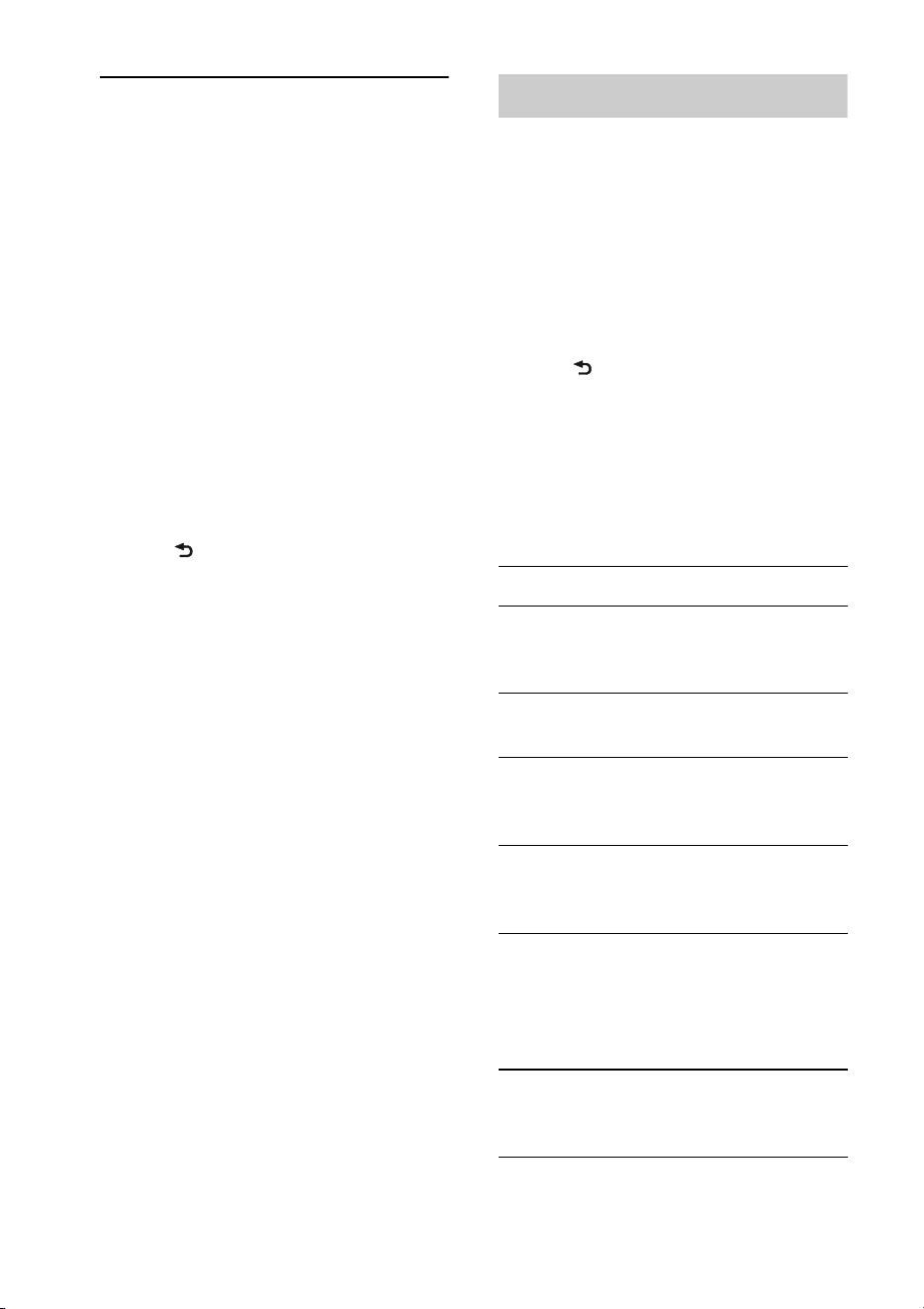
NEAR (): Near
NORMAL (): Normal
FAR (): Far
1 During reception/playback, press the
select button.
2 Rotate the control dial until
“POSITION” appears, then press it.
3 Rotate the control dial to select from
“FRONT L,” “FRONT R,” “FRONT” or
“ALL,” then press it.
4 Rotate the control dial until “SW
POSITION” appears, then press it.
5 Rotate the control dial to select the
subwoofer position from “NEAR,”
“NORMAL” or “FAR,” then press it.
6 Press (BACK).
To cancel listening position, select “OFF”
on step 3.
Adjusting the listening
position
You can fine-tune the listening position
setting.
1 During reception/playback, press the
select button.
2 Rotate the control dial until “ADJUST
POS” appears, then press it.
3 Rotate the control dial to adjust the
listening position, then press it.
Adjustable range: “+3” – “CENTER” –
“–3.”
4 Press (BACK).
DM+ Advanced
DM+ Advanced improves digitally
compressed sound by restoring high
frequencies lost in the compression process.
1 During playback, press the select
button.
2 Rotate the control dial until “DM+”
appears, then press it.
3 Rotate the control dial to select “ON,”
then press it.
4 Press (BACK).
Tip
The DM+ setting can be memorized for each
source.
FRONT L (): Front left
FRONT R (): Front right
FRONT (): Center front
ALL (): In the center of
your car
OFF: No position set
24
Using rear speakers as
subwoofer — Rear Bass
Enhancer
Rear Bass Enhancer enhances the bass
sound by applying the low pass filter setting
(page 25) to the rear speakers. This function
allows the rear speakers to work as a
subwoofer if one is not connected.
1 During reception/playback, press the
select button.
2 Rotate the control dial until
“REARBAS ENH” appears, then press
it.
3 Rotate the control dial to select from
“1,” “2” or “3,” then press it.
4 Press (BACK).
Adjusting setup items
1 Press and hold the select button.
The setup display appears.
2 Rotate the control dial until the desired
item appears, then press it.
3 Rotate the control dial to select the
setting, then press it.*
The setting is complete.
4 Press (BACK).
* For Custom Color setting, you need to take
additional steps (page 20).
For CLOCK-ADJ and BTM settings, step 4 is
not necessary.
The following items can be set depending
on the source and setting:
CLOCK ADJ (Clock Adjust) (page 5)
CT (Clock Time)
Activates the CT function: “ON,” “OFF”
(page 10).
BEEP
Activates the beep sound: “ON,” “OFF.”
CAUT ALM*
(Caution Alarm)
Activates the caution alarm: “ON,”
“OFF” (page 5).
AUX-A*
(AUX Audio)
Activates the AUX source display: “ON,”
“OFF” (page 26).
AUTO OFF
Shuts off automatically after a desired
time when the unit is turned off: “NO,”
“30S (Seconds),” “30M (Minutes),” “60M
(Minutes).”
DEMO
(Demonstration)
Activates the demonstration: “ON,”
“OFF.”
25
* When the unit is turned off.
DIMMER
Changes the display brightness.
– “AT”: to dim the display automatically
when you turn lights on. (Available only
when the illumination control lead is
connected.)
– “ON”: to dim the display.
– “OFF”: deactivate the dimmer.
CONTRAST
Adjusts the contrast of the display. The
contrast level is adjustable in 7 steps.
COLOR (Preset Color)
Selects the preset color of the display and
buttons on the main unit (page 19).
CUSTOM COLR (Custom Color)
Selects a preset color as a basis for
further customizing (page 20).
SENSME COLR (SensMe™ Color)
Changes the color according to the
SensMe™ channels: “ON,” “OFF.”
SOUND SYNC
Selects the color with sound
synchronization: “ON,” “OFF.”
WHITE MENU
Sets the effect when the source is
switched: “ON,” “OFF.”
START WHITE
Sets the start up color: “ON,” “OFF.”
MOTION DSPL (Motion Display)
– “SA”: to show moving patterns and
spectrum analyzer.
– “ON”: to show moving patterns.
– “OFF”: to deactivate the Motion Display.
AUTO SCROLL
Scrolls long items automatically: “ON,”
“OFF.”
ZAPPIN TIME
Selects the playback time for the
ZAPPIN function.
– “ZAP.TIME-1 (about 6 seconds),”
“ZAP.TIME-2 (about 15 seconds),”
“ZAP.TIME-3 (about 30 seconds).”
ZAPPIN BEEP
Has the beep sound between track
passages: “ON,” “OFF.”
LPF FREQ (Low Pass Filter Frequency)
Selects the subwoofer cut-off frequency:
“50Hz,” “60Hz,” “80Hz,” “100Hz,”
“120Hz.”
LPF SLOPE (Low Pass Filter Slope)
Selects the LPF slope: “1,” “2,” “3.”
SUBW PHASE (Subwoofer Phase)
Selects the subwoofer phase: “NORM,”
“REV.”
HPF FREQ (High Pass Filter Frequency)
Selects the front/rear speaker cut-off
frequency: “OFF,” “50Hz,” “60Hz,”
“80Hz,” “100Hz,” “120Hz.”
HPF SLOPE (High Pass Filter Slope)
Selects the HPF slope (effective only when
HPF FREQ is set to other than “OFF”): “1,”
“2,” “3.”
LOUDNESS (Dynamic Loudness)
Reinforces bass and treble for clear
sound at low volume levels: “ON,”
“OFF.”
ALO (Automatic Level Optimizer)
Adjust the playback volume level of all
playback sources to the optimum level:
“ON,” “OFF.”
BTM (page 9)
26
Using optional
equipment
Auxiliary audio
equipment
By connecting an optional portable audio
device to the AUX input jack (stereo mini
jack) on the unit and then simply selecting
the source, you can listen on your car
speakers.
Connecting the portable audio device
1 Turn off the portable audio device.
2 Turn down the volume on the unit.
3 Connect the portable audio device to the
unit with a connecting cord (not supplied)*.
* Be sure to use a straight type plug.
Adjusting the volume level
Be sure to adjust the volume for each
connected audio device before playback.
1 Turn down the volume on the unit.
2 Press repeatedly until
“AUX” appears.
3 Start playback of the portable audio device
at a moderate volume.
4 Set your usual listening volume on the unit.
5 Adjust the input level (page 22).
Additional
Information
Precautions
• Cool off the unit beforehand if your car has
been parked in direct sunlight.
• Do not leave the front panel or audio devices
brought in inside the car, or it may cause
malfunction due to high temperature in
direct sunlight.
• Power antenna (aerial) extends
automatically.
Moisture condensation
Should moisture condensation occur inside
the unit, remove the disc and wait for about an
hour for it to dry out; otherwise the unit will
not operate properly.
To maintain high sound quality
Do not splash liquid onto the unit or discs.
Notes on discs
• Do not expose discs to direct sunlight or heat
sources such as hot air ducts, nor leave it in a
car parked in direct sunlight.
• Before playing, wipe the
discs with a cleaning cloth
from the center out. Do not
use solvents such as
benzine, thinner,
commercially available
cleaners.
• This unit is designed to play back discs that
conform to the Compact Disc (CD)
standard. DualDiscs and some of the music
discs encoded with copyright protection
technologies do not conform to the Compact
Disc (CD) standard, therefore, these discs
may not be playable by this unit.
27
• Discs that this unit CANNOT play
– Discs with labels, stickers, or sticky tape or
paper attached. Doing so may cause a
malfunction, or may ruin the disc.
– Discs with non-standard shapes (e.g., heart,
square, star). Attempting to do so may
damage the unit.
–8 cm (3
1
/4 in) discs.
Notes on CD-R/CD-RW discs
• The maximum number of: (CD-R/CD-RW
only)
– folders (albums): 150 (including root folder)
– files (tracks) and folders: 300 (may less than
300 if folder/file names contain many
characters)
– displayable characters for a folder/file name:
32 (Joliet)/64 (Romeo)
• If the multi-session disc begins with a CD-
DA session, it is recognized as a CD-DA disc,
and other sessions are not played back.
• Discs that this unit CANNOT play
– CD-R/CD-RW of poor recording quality.
– CD-R/CD-RW recorded with an
incompatible recording device.
– CD-R/CD-RW which is finalized incorrectly.
– CD-R/CD-RW other than those recorded in
music CD format or MP3 format conforming
to ISO9660 Level 1/Level 2, Joliet/Romeo or
multi-session.
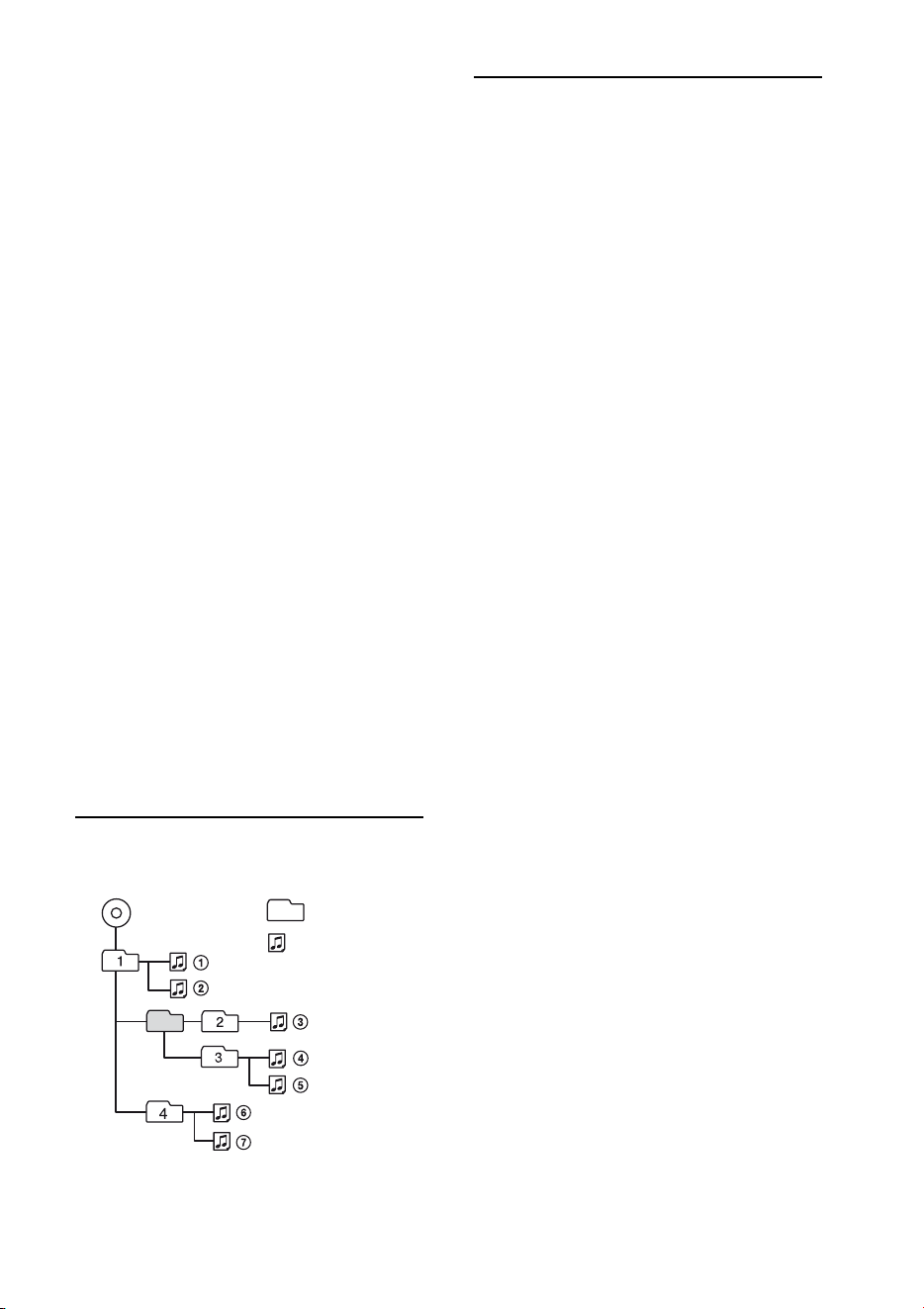
Playback order of MP3/WMA/
AAC files
About iPod
If you have any questions or problems
concerning your unit that are not covered in
this manual, consult your nearest Sony dealer.
Folder
(album)
MP3/WMA/
AAC file (track)
MP3/WMA/AAC
• You can connect to the following iPod
models. Update your iPod devices to the
latest software before use.
Made for
– iPod touch (4th generation)
– iPod touch (3rd generation)
– iPod touch (2nd generation)
– iPod touch (1st generation)
– iPod classic
– iPod nano (6th generation)
– iPod nano (5th generation)
– iPod nano (4th generation)
– iPod nano (3rd generation)
– iPod nano (2nd generation)
– iPod nano (1st generation)*
– iPhone 4
– iPhone 3GS
– iPhone 3G
– iPhone
* Passenger control is not available.
• “Made for iPod” and “Made for iPhone”
mean that an electronic accessory has
been designed to connect specifically to
iPod or iPhone respectively, and has been
certified by the developer to meet Apple
performance standards. Apple is not
responsible for the operation of this device
or its compliance with safety and
regulatory standards. Please note that the
use of this accessory with iPod or iPhone
may affect wireless performance.
28
Maintenance
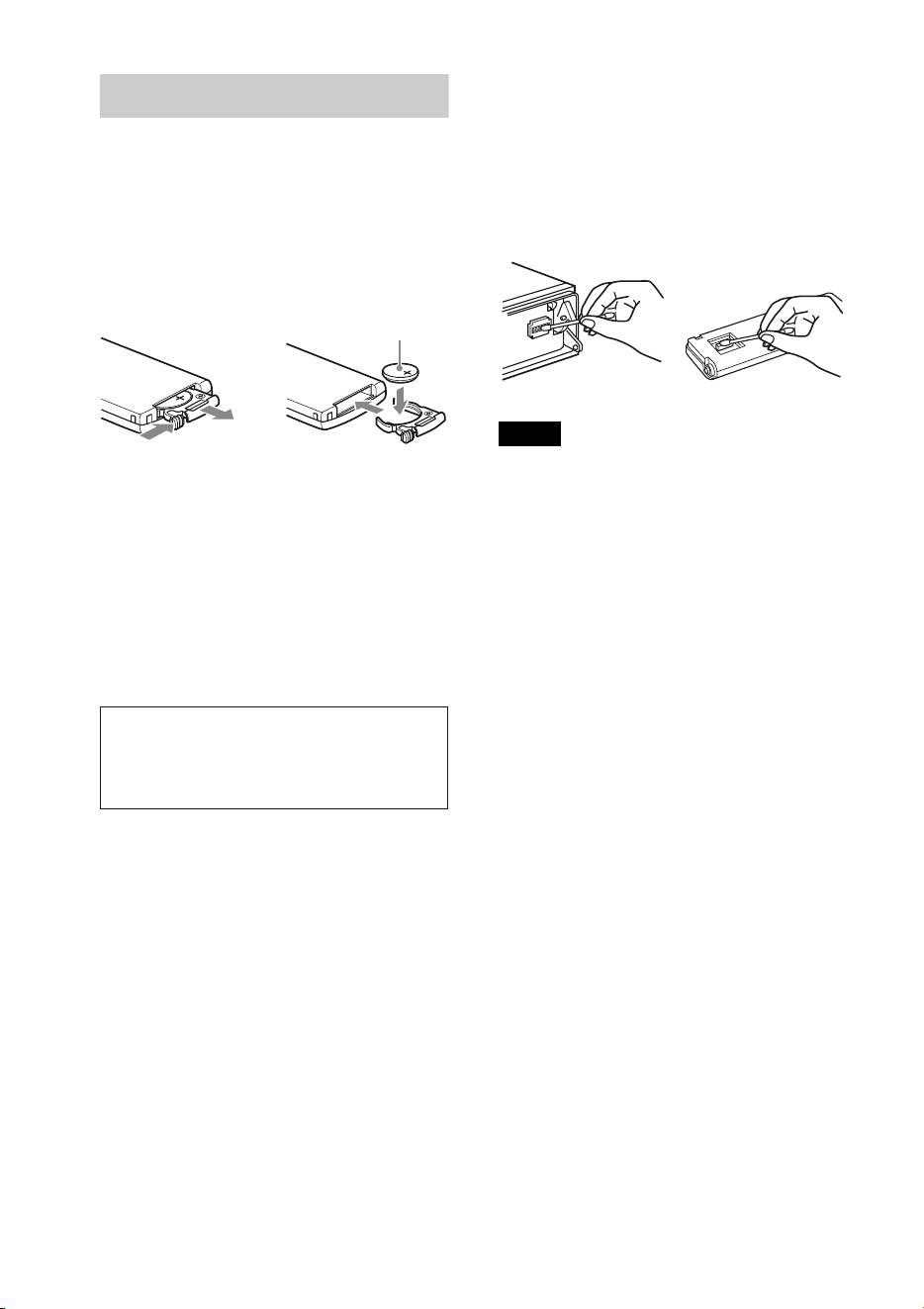
Replacing the lithium battery of the
remote commander
When the battery becomes weak, the range
of the remote commander becomes shorter.
Replace the battery with a new CR2025
lithium battery. Use of any other battery
may present a risk of fire or explosion.
Notes on the lithium battery
• Keep the lithium battery out of the reach of
children. Should the battery be swallowed,
immediately consult a doctor.
• Wipe the battery with a dry cloth to assure a
good contact.
• Be sure to observe the correct polarity when
installing the battery.
• Do not hold the battery with metallic tweezers,
otherwise a short-circuit may occur.
Cleaning the connectors
The unit may not function properly if the
connectors between the unit and the front
panel are not clean. In order to prevent this,
detach the front panel (page 5) and clean the
connectors with a cotton swab. Do not apply
too much force. Otherwise, the connectors
may be damaged.
Notes
• For safety, turn off the ignition before cleaning
the connectors, and remove the key from the
ignition switch.
• Never touch the connectors directly with your
fingers or with any metal device.
1
2
c
+ side up
WARNING
Battery may explode if mistreated.
Do not recharge, disassemble, or dispose
of in fire.

29
Specifications
Tuner section
FM
Tuning range: 87.5 – 107.9 MHz
Antenna (aerial) terminal:
External antenna (aerial) connector
Intermediate frequency: 25 kHz
Usable sensitivity: 8 dBf
Selectivity: 75 dB at 400 kHz
Signal-to-noise ratio: 80 dB (stereo)
Separation: 50 dB at 1 kHz
Frequency response: 20 – 15,000 Hz
AM
Tuning range: 530 – 1,710 kHz
Antenna (aerial) terminal:
External antenna (aerial) connector
Intermediate frequency:
9,115 kHz or 9,125 kHz/5 kHz
Sensitivity: 26 μV
CD Player section
Signal-to-noise ratio: 120 dB
Frequency response: 10 – 20,000 Hz
Wow and flutter: Below measurable limit
USB Player section
Interface: USB (Full-speed)
Maximum current: 1 A
Power amplifier section
Output: Speaker outputs
Speaker impedance: 4 – 8 ohms
Maximum power output: 52 W × 4 (at 4 ohms)
General
Outputs:
Audio outputs terminal (front/rear)
Subwoofer output terminal (mono)
Power antenna (aerial)/Power amplifier control
terminal (REM OUT)
Inputs:
Remote controller input terminal
Antenna (aerial) input terminal
Telephone ATT control terminal
AUX input jack (stereo mini jack)
USB signal input connector
Power requirements: 12 V DC car battery
(negative ground (earth))
Dimensions: Approx. 178 × 50 × 180 mm
(7
1
/8 × 2 × 7
1
/8 in) (w/h/d)
Mounting dimensions: Approx. 182 × 53 × 162 mm
(7
1
/4 × 2
1
/8 × 6
1
/2 in) (w/h/d)
Mass: Approx. 1.3 kg (2 lb 14 oz)
Supplied accessories:
Remote commander: RM-X211
Parts for installation and connections (1 set)
Optional accessories/equipment:
USB connection cable for iPod: RC-100IP
Your dealer may not handle some of the above
listed accessories. Please ask the dealer for
detailed information.
Design and specifications are subject to change
without notice.
System requirements for using
SensMe™
Computer
•CPU/RAM
– IBM PC/AT compatible machine
– CPU: Intel Pentium III Processor 450 MHz
or higher
– RAM: 256 MB or more (For Windows XP),
512 MB or more (For Windows Vista or
later)
•USB port
OS
Windows XP, Windows Vista, Windows 7
For details on compatible editions or Service
Pack, visit the support site on the back cover.
CEA2006 Standard
Power Output: 17 Watts RMS 4 at
4 Ohms < 1% THD+N
SN Ratio: 80 dBA
(reference: 1 Watt into 4 Ohms)
AUDIO POWER SPECIFICATIONS
30
Monitor
High color (16-bit) or more, 800 × 600 dots or more
Other
Internet connection
Notes
• The following system environments are not
supported.
– Non IBM PC type computers, such as
Macintosh, etc.
– Homemade computers
– OS upgraded computers
– Multi-display environment
– Multi-boot environment
– Virtual machine environment
• Depending on the computer condition,
operation may not be possible even with the
recommended environment.
Troubleshooting
The following checklist will help you remedy
problems you may encounter with your unit.
Before going through the checklist below,
check the connection and operating
procedures.
For details on using the fuse and removing the
unit from the dashboard, refer to the
installation/connections manual supplied with
this unit.
If the problem is not solved, visit the support
site on the back cover.
General
No power is being supplied to the unit.
Check the connection or fuse.
If the unit is turned off and the display
disappears, it cannot be operated with the
remote commander.
– Turn on the unit.
The power antenna (aerial) does not extend.
The power antenna (aerial) does not have a
relay box.
No sound.
The ATT function is activated, or the
Telephone ATT function (when the interface
cable of a car telephone is connected to the
ATT lead) is activated.
The position of the fader control “FADER” is
not set for a 2-speaker system.
No beep sound.
The beep sound is canceled (page 24).
An optional power amplifier is connected and
you are not using the built-in amplifier.
The contents of the memory have been
erased.
The power supply lead or battery has been
disconnected or it is not connected properly.
Stored stations and correct time are erased.
The fuse has blown.
Makes noise when the position of the
ignition is switched.
The leads are not matched correctly with the
car’s accessory power connector.
31
During playback or reception,
demonstration mode starts.
If no operation is performed for 5 minutes
with “DEMO-ON” set, demonstration mode
starts.
– Set “DEMO-OFF” (page 24).
The display disappears from/does not
appear in the display window.
The dimmer is set to “DIMMER-ON”
(page 25).
The display disappears if you press and hold
.
–Press on the unit until the
display appears.
The connectors are dirty (page 28).
The Auto Off function does not operate.
The unit is turned on. The Auto Off function
activates after turning off the unit.
– Turn off the unit.
Radio reception
The stations cannot be received.
The sound is hampered by noises.
The connection is not correct.
– Connect a power antenna (aerial) control
lead (blue/white striped) or accessory power
supply lead (red) to the power supply lead of
a car’s antenna (aerial) booster (only when
your car has built-in radio antenna (aerial)
in the rear/side glass).
– Check the connection of the car antenna
(aerial).
– If the auto antenna (aerial) will not go up,
check the connection of the power antenna
(aerial) control lead.
Preset tuning is not possible.
Store the correct frequency in the memory.
The broadcast signal is too weak.
Automatic tuning is not possible.
The broadcast signal is too weak.
– Perform manual tuning.
RDS
PTY displays “- - - - - - - -.”
The current station is not an RDS station.
RDS data has not been received.
The station does not specify the program type.
CD playback
The disc cannot be loaded.
Another disc is already loaded.
The disc has been forcibly inserted upside
down or in the wrong way.
The disc does not play back.
Defective or dirty disc.
The CD-Rs/CD-RWs are not for audio use
(page 27).
MP3/WMA/AAC files cannot be played back.
The disc is incompatible with the MP3/WMA/
AAC format and version. For details on
playable discs and formats, visit the support
site.
MP3/WMA/AAC files take longer to play back
than others.
The following discs take a longer time to start
playback.
– a disc recorded with a complicated tree
structure.
– a disc recorded in Multi Session.
– a disc to which data can be added.
The display items do not scroll.
For discs with very many characters, those may
not scroll.
“AUTO SCROLL” is set to “OFF.”
– Set “A.SCRL-ON” (page 25).
– Press and hold (SCRL).
The sound skips.
Installation is not correct.
– Install the unit at an angle of less than 45° in
a sturdy part of the car.
Defective or dirty disc.
32
USB playback
You cannot play back items via a USB hub.
This unit cannot recognize USB devices via a
USB hub.
Cannot play back items.
A USB device does not work.
– Reconnect it.
The USB device takes longer to play back.
The USB device contains files with a
complicated tree structure.
The sound is intermittent.
The sound may be intermittent at a high-bit-
rate of more than 320 kbps.
Pandora® connection is not possible.
Shut down Pandora® on the mobile device, and
then launch again.
Error displays/Messages
CHECKING
The unit is confirming the connection of a
USB device.
– Wait until confirming the connection is
finished.
ERROR
The disc is dirty or inserted upside down.
– Clean or insert the disc correctly.
A blank disc has been inserted.
The disc cannot play due to a problem.
–Insert another disc.
USB device was not automatically recognized.
– Reconnect it again.
Press to remove the disc.
FAILURE
The connection of speakers/amplifiers is
incorrect.
– See the installation/connections manual of
this model to check the connection.
HUBS NO SUPRT (Hubs Not Supported)
USB hub is not supported on this unit.
INVALID
The connected USB device does not contain a
music file for the SensMe™ function.
NO CHANNEL
The connected USB device does not contain a
channel list for the SensMe™ function.
NO DEV (No Device)
USB is selected as source without a USB device
connected. A USB device or a USB cable has
been disconnected during playback.
– Be sure to connect a USB device and USB
cable.
NO MUSIC
The disc or USB device does not contain a
music file.
– Insert a music CD in this unit.
– Connect a USB device with a music file in it.
NO NAME
A disc/album/artist/track name is not written
in the track.
33
NOT FOUND
There is no item beginning with the selected
letter in Alphabet search.
OFFSET
There may be an internal malfunction.
– Check the connection. If the error indication
remains on in the display, consult your
nearest Sony dealer.
OVERLOAD
USB device is overloaded.
– Disconnect the USB device, then change the
source by pressing .
– Indicates that the USB device is out of order,
or an unsupported device is connected.
READ
The unit is reading all track and album
information on the disc.
– Wait until reading is complete and playback
starts automatically. Depending on the disc
structure, it may take more than a minute.
S-CH NO SUPRT (SensMe™ channel Not
Supported)
The connected USB device is not supported.
– For details on the compatibility of your USB
device, visit the support site.
USB NO SUPRT (USB Not Supported)
The connected USB device is not supported.
– For details on the compatibility of your USB
device, visit the support site.
“” or “”
During reverse or fast-forward, you have
reached the beginning or the end of the disc
and you cannot go any further.
“”
The character cannot be displayed with the
unit.
For Pandora® internet radio:
OPEN APP
Pandora® does not start up.
–Start up Pandora® on iPhone.
CHECK DEV
Pandora® does not start up.
–Start up Pandora® and log in your account.
NO STATION
There is no station on your Pandora® account.
– Create the station on the mobile device.
CANNOT SKIP
Skipping tracks on Pandora® is not allowed.
– Wait until the commercial ends.
–Pandora® limits the number of skips allowed
on their service. Wait until the next song
begins, or select another station on the list.
NOT ALLOWED
“Thumbs” feedback is not allowed.
– Wait until the commercial ends.
– Some functions, such as Shared Station, do
not permit feedback. Wait until the next
song begins, or select another station on the
list.
Bookmark is not allowed.
– Wait until the commercial ends.
– Select another song or station, then try it
again.
ERROR
“Thumbs” feedback failed.
– Try “Thumbs Up/Down” again.
Bookmarking failed.
– Try bookmarking again.
If these solutions do not help improve the
situation, consult your nearest Sony dealer.
If you take the unit to be repaired because of
CD playback trouble, bring the disc that was
used at the time the problem began.

2
Asegúrese de instalar esta unidad en el
tablero del automóvil por razones de
seguridad. Para realizar la instalación y
las conexiones, consulte el manual de
instalación y de conexiones
suministrado.
ZAPPIN y Quick-BrowZer son marcas
comerciales de Sony Corporation.
12 TONE ANALYSIS y su logotipo son
marcas comerciales de Sony Corporation.
SensMe y el logotipo de SensMe son marcas
comerciales o marcas comerciales
registradas de Sony Ericsson Mobile
Communications AB.
La tecnología de reconocimiento de música
y los datos afines son proporcionados por
Gracenote
®. Gracenote es la norma de la
industria en tecnología de reconocimiento
de música y entrega de contenidos afines.
Si desea más información, visite
www.gracenote.com.
Los derechos de autor de CD, DVD, discos
Blu-ray y datos relacionados con la música
y los vídeos de Gracenote, Inc. (copyright
© 2000) son propiedad ahora de
Gracenote. Los derechos de autor de
Gracenote Software (copyright © 2000) son
propiedad ahora de Gracenote. Una o
v
arias patentes propiedad de Gracenote son
aplicables a este producto y servicio.
Consulte el sitio web de Gracenote para
acceder a una lista no exhaustiva de las
patentes de Gracenote aplicables.
Gracenote, CDDB, MusicID, MediaVOCS,
el logotipo de Gracenote y el logotipo
“Powered by Gracenote” son marcas
comerciales registradas o marcas
comerciales de Gracenote en Estados
Unidos y/o en otros países.
Microsoft, Windows, Windows Vista y
Windows Media y los logotipos son marcas
comerciales o marcas registradas de
Microsoft Corporation en los Estados
Unidos y/u otros países.
Este producto contiene tecnología sujeta a
ciertos derechos de propiedad intelectual
de Microsoft. La utilización o distribución
de esta tecnología fuera de este producto
está prohibida sin la licencia(s) apropiada
de Microsoft.
iPhone, iPod, iPod classic, iPod nano, y
iPod touch son marcas comerciales de
Apple Inc., registradas en los Estados
Unidos y otros países.
Apple, Macintosh e iTunes son marcas
registradas de Apple Inc., registradas en los
Estados Unidos y otros países.

3
Pandora, el logotipo de Pandora y la imagen
de la marca Pandora son marcas
comerciales o marcas comerciales
registradas de Pandora Media, Inc.,
utilizadas con autorización.
Advertencia: si el encendido del
automóvil no dispone de una
posición ACC
Asegúrese de ajustar la función de
desconexión automática (página 28). La
unidad se apagará completa y
automáticamente en el tiempo establecido
después de apagarla, lo cual evita que se
agote la batería. Si no ajusta la función de
desconexión automática, mantenga
presionado hasta que se
apague la pantalla cada vez que apague el
motor.
Tecnología de codificación de audio MPEG
Layer-3 y patentes bajo licencia de
Fraunhofer IIS y Thomson.
Nota sobre la pila de litio
No exponga la pila a fuentes de calor
excesivo como luz solar directa, fuego o
similar.

4
Tabla de contenido
Procedimientos iniciales . . . . . . . . . . . . . . . . . . . . . . . . . . . . . . . . . . . . . . . . . . . . . 6
Cancelación del modo DEMO . . . . . . . . . . . . . . . . . . . . . . . . . . . . . . . . . . . . . . . . . . . . . . 6
Ajuste del reloj . . . . . . . . . . . . . . . . . . . . . . . . . . . . . . . . . . . . . . . . . . . . . . . . . . . . . . . . . . . 6
Extracción del panel frontal . . . . . . . . . . . . . . . . . . . . . . . . . . . . . . . . . . . . . . . . . . . . . . . . 6
Ubicación de los controles . . . . . . . . . . . . . . . . . . . . . . . . . . . . . . . . . . . . . . . . . . . 8
Radio . . . . . . . . . . . . . . . . . . . . . . . . . . . . . . . . . . . . . . . . . . . . . . . . . . . . . . . . . . . . 11
Almacenamiento y recepción de emisoras . . . . . . . . . . . . . . . . . . . . . . . . . . . . . . . . . . . 11
RDS. . . . . . . . . . . . . . . . . . . . . . . . . . . . . . . . . . . . . . . . . . . . . . . . . . . . . . . . . . . . . . . . . . . . 12
CD . . . . . . . . . . . . . . . . . . . . . . . . . . . . . . . . . . . . . . . . . . . . . . . . . . . . . . . . . . . . . . 13
Reproducción de un disco. . . . . . . . . . . . . . . . . . . . . . . . . . . . . . . . . . . . . . . . . . . . . . . . . 13
Dispositivos USB . . . . . . . . . . . . . . . . . . . . . . . . . . . . . . . . . . . . . . . . . . . . . . . . . . 13
Reproducción de un dispositivo USB . . . . . . . . . . . . . . . . . . . . . . . . . . . . . . . . . . . . . . . 14
Reproducción de música según su estado de ánimo — SensMe™ . . . . . . . . . . . . . . . . .14
iPod . . . . . . . . . . . . . . . . . . . . . . . . . . . . . . . . . . . . . . . . . . . . . . . . . . . . . . . . . . . . . 16
Reproducción en un iPod . . . . . . . . . . . . . . . . . . . . . . . . . . . . . . . . . . . . . . . . . . . . . . . . . 16
Utilización directa del iPod — Control de pasajero . . . . . . . . . . . . . . . . . . . . . . . . . . . 17
Radio de Internet de Pandora® a través de USB (iPhone) . . . . . . . . . . . . . . . . 18
Transmisión Pandora®. . . . . . . . . . . . . . . . . . . . . . . . . . . . . . . . . . . . . . . . . . . . . . . . . . . . 18
Búsqueda y reproducción de pistas. . . . . . . . . . . . . . . . . . . . . . . . . . . . . . . . . . . 19
Reproducción de pistas en diferentes modos. . . . . . . . . . . . . . . . . . . . . . . . . . . . . . . . . 19
Búsqueda de una pista por nombre — Quick-BrowZer™ . . . . . . . . . . . . . . . . . . . . . . . .20
Búsqueda de una pista mediante la escucha de fragmentos de pista
— ZAPPIN™ . . . . . . . . . . . . . . . . . . . . . . . . . . . . . . . . . . . . . . . . . . . . . . . . . . . . . . . . . . . . . . . . .22
Cambio de iluminación. . . . . . . . . . . . . . . . . . . . . . . . . . . . . . . . . . . . . . . . . . . . . 22
Cambio del color de la pantalla y los botones
— Iluminador de color dinámico . . . . . . . . . . . . . . . . . . . . . . . . . . . . . . . . . . . . . . . . . . 22
Ajuste de color avanzado . . . . . . . . . . . . . . . . . . . . . . . . . . . . . . . . . . . . . . . . . . . . . . . . . 23
Ajustes de sonido y Menú de configuración . . . . . . . . . . . . . . . . . . . . . . . . . . . 25
Cambio de los ajustes de sonido . . . . . . . . . . . . . . . . . . . . . . . . . . . . . . . . . . . . . . . . . . . 25
Uso de funciones de sonido sofisticadas — Sistema de sonido avanzado . . . . . . . . . 25
Ajuste de los elementos de configuración . . . . . . . . . . . . . . . . . . . . . . . . . . . . . . . . . . . 28
Uso de equipo opcional. . . . . . . . . . . . . . . . . . . . . . . . . . . . . . . . . . . . . . . . . . . . . 30
Equipo de audio auxiliar . . . . . . . . . . . . . . . . . . . . . . . . . . . . . . . . . . . . . . . . . . . . . . . . . . 30

5
Información complementaria. . . . . . . . . . . . . . . . . . . . . . . . . . . . . . . . . . . . . . . .31
Precauciones . . . . . . . . . . . . . . . . . . . . . . . . . . . . . . . . . . . . . . . . . . . . . . . . . . . . . . . . . . . .31
Mantenimiento . . . . . . . . . . . . . . . . . . . . . . . . . . . . . . . . . . . . . . . . . . . . . . . . . . . . . . . . . .33
Especificaciones . . . . . . . . . . . . . . . . . . . . . . . . . . . . . . . . . . . . . . . . . . . . . . . . . . . . . . . . . 34
Solución de problemas. . . . . . . . . . . . . . . . . . . . . . . . . . . . . . . . . . . . . . . . . . . . . . . . . . . . 36
6
Procedimientos
iniciales
Cancelación del modo
DEMO
Es posible cancelar la pantalla de
demostración que aparece durante el
apagado.
1 Mantenga presionado el botón de
selección.
Aparecerá la pantalla de ajustes.
2 Gire el selector de control hasta que
aparezca “DEMO” y, a continuación,
presiónelo.
3 Gire el selector de control para
seleccionar “DEMO-OFF” y, a
continuación, presiónelo.
El ajuste finalizó.
4 Presione (BACK).
La pantalla vuelve al modo de recepción/
reproducción normal.
Ajuste del reloj
El reloj emplea una indicación digital de
12 horas.
1 Mantenga presionado el botón de
selección.
Aparecerá la pantalla de ajustes.
2 Gire el selector de control hasta que
aparezca “CLOCK ADJ” y, a
continuación, presiónelo.
La indicación de la hora parpadea.
3 Gire el selector de control para ajustar
la hora y los minutos.
Para mover la indicación digital,
presione –/+.
4 Una vez ajustados los minutos,
presione el botón de selección.
El ajuste se completa y el reloj se pone en
funcionamiento.
Presione para que aparezca el reloj.
Extracción del panel
frontal
Es posible extraer el panel frontal de la
unidad para evitar que la roben.
1 Mantenga presionado .
La unidad se apagará.
2 Presione .
3 Deslice el panel frontal hacia la derecha
y tire suavemente de su extremo
izquierdo.
Alarma de precaución
Si gira el interruptor de la llave de
encendido hasta la posición OFF sin haber
extraído el panel frontal, la alarma de
precaución sonará durante unos segundos.
La alarma sonará solamente si se utiliza el
amplificador incorporado.
Nota
No someta el panel frontal al calor ni a
temperaturas altas o excesiva humedad. Evite
dejarlo en un automóvil estacionado o sobre el
tablero o la bandeja trasera.
7
Colocación del panel frontal
Coloque el orificio del panel frontal en el
eje de la unidad y, a continuación,
presione ligeramente el lado izquierdo hacia
adentro.
Presione en la unidad (o
inserte un disco) para utilizarla.
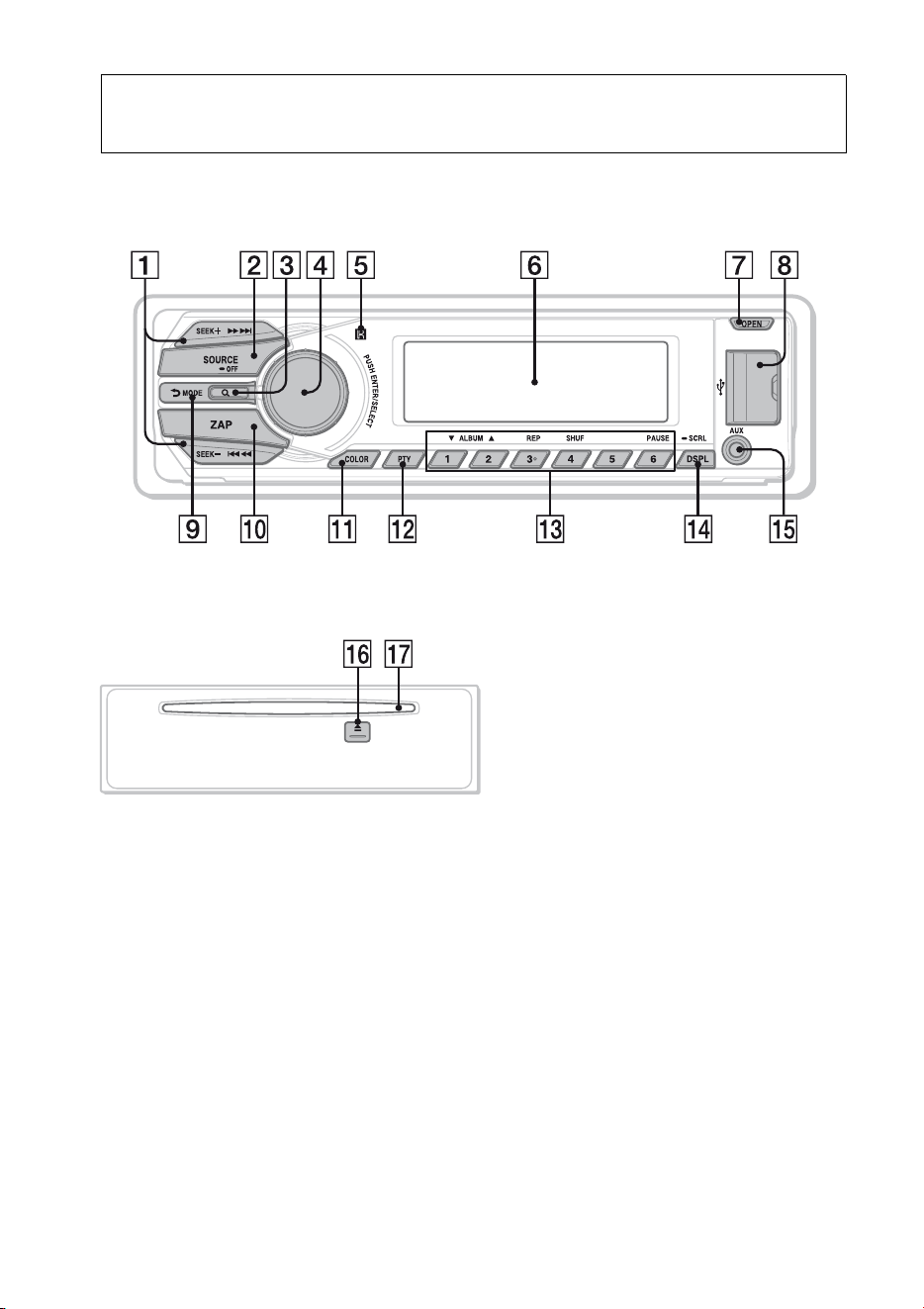
8
Ubicación de los controles
Unidad principal
Panel frontal extraído Este apartado contiene instrucciones acerca
de la ubicación de los controles y las
operaciones básicas.
Botones SEEK +/–
Radio:
Para sintonizar emisoras en forma
automática (presionar); para localizar
una emisora en forma manual
(mantener presionado).
CD/USB:
Para omitir pistas (presionar); para
omitir pistas en forma continua
(presionar y volver a presionar al cabo
de 1 segundo y mantener presionado);
para retroceder o avanzar una pista
rápidamente (mantener presionado).
SensMe™:
Para omitir pistas (presionar); para
avanzar rápidamente o retroceder una
pista (mantener presionado).
Pandora® través de USB:
Para omitir pistas (presionar
+).

9
Botón SOURCE/OFF
Presione este botón para encender la
unidad; para cambiar la fuente (Radio/
CD/USB/SensMe™*
1
/Pandora® través
de USB/AUX).
Mantenga presionado 1 segundo para
apagar la unidad.
Mantenga presionado más de 2
segundos para apagar la unidad y la
pantalla desaparece.
Botón (BROWSE) páginas 19, 20
Para acceder al modo Quick-BrowZer™,
incluya la estación (Pandora® través de
USB).
Selector de control/botón de
selección páginas 25, 28
Para ajustar el volumen (girar); para
seleccionar elementos de configuración
(presionar y girar).
Receptor del control remoto
Visualizador
Botón OPEN páginas 6, 13
Conector USB páginas 13, 15, 16
Botón (BACK)/MODE
páginas 11, 17, 19
Presione este botón para volver a la
pantalla anterior; para seleccionar la
banda de radio (FM/AM).
Manténgalo presionado para acceder o
cancelar el modo de control del pasajero
/ingrese el favorito (Pandora® través de
USB).
Botón ZAP página 22
Para acceder al modo ZAPPIN™.
Botón COLOR páginas 22, 23
Para seleccionar los colores
preajustados (presionar); para registrar
ajustes de color personalizados
(mantener presionado).
Botón PTY página 12
Para seleccionar PTY en RDS.
Botones numéricos
Radio:
Para recibir las emisoras almacenadas
(presionar); para almacenar emisoras
(mantener presionado).
CD/USB/SensMe™:
/: ALBUM / (durante la
reproducción de MP3/WMA/AAC)
Para saltar álbumes o cambiar
canales SensMe™ (presionar); para
saltar álbumes continuamente
(mantener presionado).
: REP*
2
página 19
: SHUF página 19
: PAUSE
Para pausar la reproducción. Para
cancelar esta función, vuelva a
presionarlo.
Pandora® través de USB:
/: Pulgares abajo ()/
arriba ()
(manténgalo presionado por dos
segundos) página 18
: PAUSE
Para pausar la reproducción. Para
cancelar, presiónelo nuevamente.
Botón DSPL (pantalla)/SCRL
(desplazamiento)
páginas 12, 13, 14, 17
Para cambiar los elementos de pantalla
(presionar); para desplazar el elemento
de la pantalla (mantener presionado).
Toma de entrada AUX página 30
Botón (expulsar)
Para expulsar el disco.
Ranura del disco
Inserte el disco (con la etiqueta mirando
hacia arriba) y se iniciará la
reproducción.
*1 Cuando se conecta un dispositivo USB que
está configurado para la función SensMe™.
*2 Este botón tiene un punto sensible al tacto.
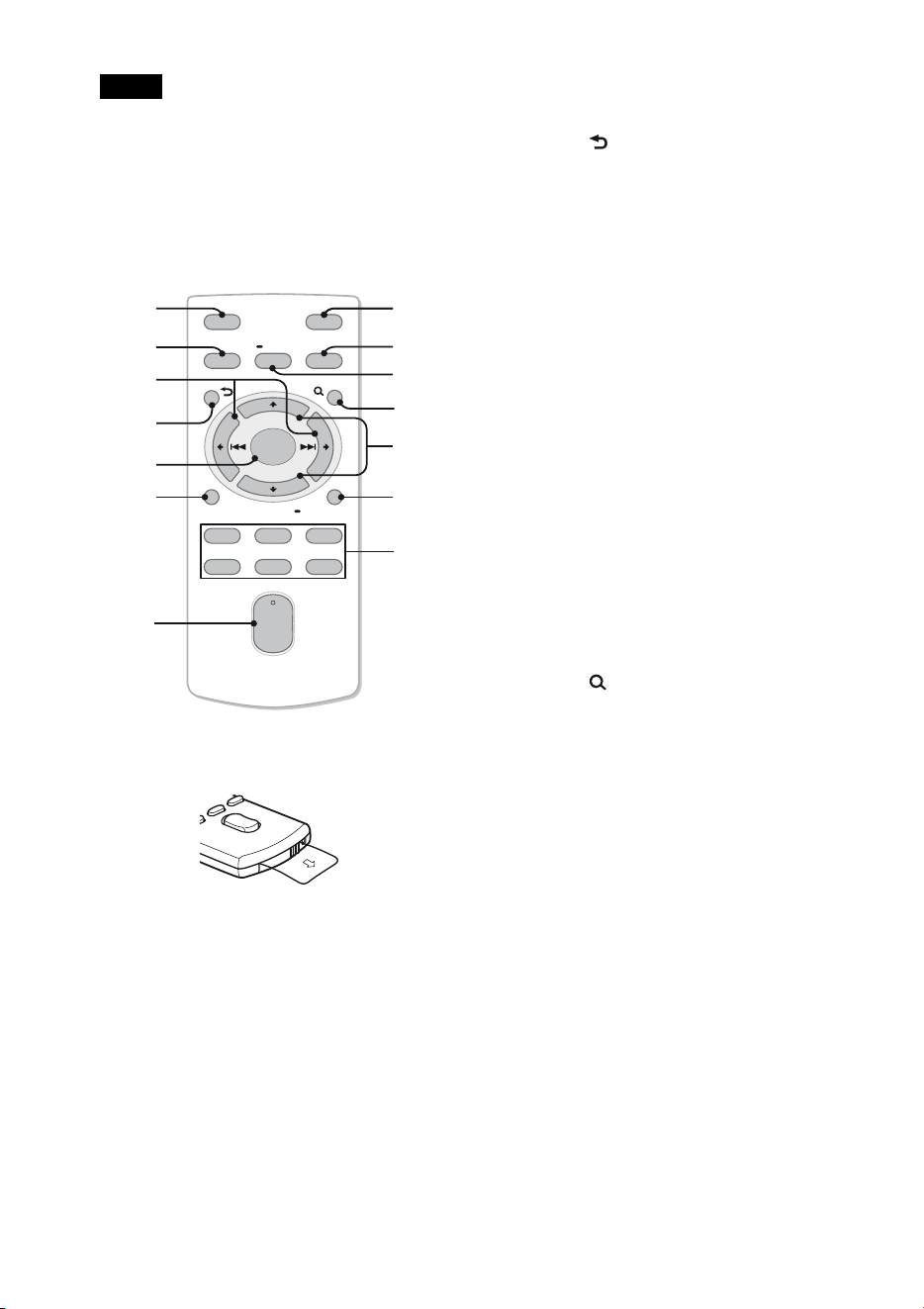
10
Nota
Si la unidad está apagada y desaparece la
indicación de pantalla, no se podrá utilizar con el
control remoto salvo que se presione
en la unidad o se inserte un
disco para activarla en primer lugar.
Control remoto RM-X211
Retire la película de aislamiento antes de
usar la unidad.
Botón OFF
Para apagar la alimentación; para
detener la fuente.
Botón SOURCE
Presione este botón para encender la
unidad; para cambiar la fuente (Radio/
CD/USB/SensMe™*
1
/Pandora® través
de USB/AUX).
Botones ()/ ()
Para controlar la Radio/CD/USB/
SensMe™/Pandora® través de USB, de la
misma manera que con –/+ en
la unidad.
Es posible ajustar la configuración, los
ajustes de sonido, etc. mediante .
Botón (BACK)
Botón ENTER
Para aplicar un ajuste.
Botón PTY
Botón VOL (volumen) +*
2
/–
Botón ATT (atenuar)
Para atenuar el sonido. Para cancelar
esta función, vuelva a presionarlo.
Botón MODE
Presione este botón para seleccionar la
banda de radio (FM/AM).
Manténgalo presionado para acceder o
cancelar el modo de control del pasajero
/ingrese el favorito (Pandora® través de
USB).
Botón SOUND/MENU
Para introducir los ajustes de sonido
(presionar); para entrar en el menú
(mantener presionado).
Botón (BROWSE)
Botones (+)/ (–)
Para controlar el CD/USB/SensMe™/
Pandora® través de USB, de la misma
manera que con / (ALBUM /
) en la unidad.
Es posible ajustar la configuración, los
ajustes de sonido, etc. mediante .
Botón DSPL/SCRL
Botones numéricos
Para recibir las emisoras almacenadas
(presionar); para almacenar emisoras
(mantener presionado).
Para pausar la reproducción (presionar
).
*1 Cuando se conecta un dispositivo USB que
está configurado para la función SensMe™.
*2 Este botón tiene un punto sensible al tacto.
OFF
PTY
DSPL/
SCRL
SOUND
SOURCE
MODE
132
465
ATT
VOL
+
–
+
–
MENU
ENTER
PAU SE
2
8
1
q;
3
4
5
qa
9
qs
qd
6
7
qf

11
Radio
Almacenamiento y
recepción de emisoras
Precaución
Para sintonizar emisoras mientras maneja,
utilice la función BTM (Memoria de la
mejor sintonía) para evitar accidentes.
Almacenamiento automático
— BTM
1 Presione varias veces
hasta que aparezca “TUNER”.
Para cambiar de banda, presione
varias veces. Puede seleccionar
entre FM1, FM2, FM3, AM1 y AM2.
2 Mantenga presionado el botón de
selección.
Aparecerá la pantalla de ajustes.
3 Gire el selector de control hasta que
aparezca “BTM” y, a continuación,
presiónelo.
La unidad almacena las emisoras en el
orden de frecuencia en los botones
numéricos.
Almacenamiento manual
1 Mientras recibe la emisora que desea
almacenar, mantenga presionado un
botón numérico (de a ) hasta
que aparezca “MEMO”.
Recepción de las emisoras
almacenadas
1 Seleccione la banda y, a continuación,
presione un botón numérico (de a
).
Sintonización automática
1 Seleccione la banda y, a continuación,
presione +/– para buscar la
emisora.
La búsqueda se detiene cuando la unidad
recibe una emisora. Repita este
procedimiento hasta recibir la emisora
deseada.
Sugerencia
Si conoce la frecuencia de la emisora que desea
escuchar, mantenga presionado +/–
para localizar la frecuencia aproximada y, a
continuación, presione +/– varias veces
para ajustar la frecuencia deseada con mayor
precisión (sintonización manual).

12
RDS
Las emisoras de radio FM que tienen el
servicio de Sistema de datos de radio (RDS)
envían información digital inaudible junto a
la señal habitual del programa de radio.
Notas
• Dependiendo del país o región, puede que no
estén disponibles todas las funciones RDS.
• RDS no funcionará si la intensidad de la señal es
muy débil o si la emisora que sintonizó no
transmite datos RDS.
Cambio de elementos de pantalla
Presione .
Selección de PTY (Tipos de
programa)
Muestra el tipo de programa que se recibe
actualmente. Asimismo, busca el tipo de
programa seleccionado.
1 Presione durante la recepción
de FM.
Si la emisora está transmitiendo datos
PTY, aparece el nombre del tipo de
programa actual.
2 Gire el selector de control hasta que
aparezca el tipo de programa deseado
y, a continuación, presiónelo.
La unidad comienza a buscar una
emisora que emita el tipo de programa
seleccionado.
Tipos de programas
Nota
Puede recibir un programa de radio distinto del
que seleccionó.
Ajuste de CT (Hora del reloj)
Los datos CT de la transmisión RDS ajustan
el reloj.
1 Ajuste “CT-ON” en la configuración
(página 28).
Nota
Puede que la función CT no funcione
correctamente a pesar de que se reciba una
emisora RDS.
NEWS (Noticias), INFORM (Información),
SPORTS (Deportes), TALK (Conversación),
ROCK (Rock), CLS ROCK (Rock clásico),
ADLT HIT (Hits para adultos), SOFT RCK
(Rock suave), TOP 40 (Los 40 mejores),
COUNTRY (Música country), OLDIES
(Música de décadas pasadas), SOFT (Suave),
NOSTALGA (Nostalgia), JAZZ (Música
jazz), CLASSICL (Clásica), R AND B
(Rhythm y Blues), SOFT R B (Rhythm y
Blues suave), LANGUAGE (Idioma
extranjero), REL MUSC (Música religiosa),
REL TALK (Conversación religiosa),
PERSNLTY (Personalidad), PUBLIC
(Público), COLLEGE (Universidad),
WEATHER (El tiempo)

13
CD
Reproducción de un disco
Esta unidad permite reproducir discos
CD-DA (incluidos CD TEXT) y CD-R/
CD-RW (archivos MP3/WMA/AAC
(página 32)).
1 Presione .
2 Inserte el disco (con la etiqueta
orientada hacia arriba).
3 Cierre el panel frontal.
La reproducción se inicia
automáticamente.
Para expulsar el disco, presione y
luego .
Nota
Al expulsar o insertar un disco, mantenga
desconectado cualquier dispositivo USB para
evitar dañar el disco.
Cambio de elementos de pantalla
Es posible que los elementos que se
muestren varíen en función del tipo de
disco, el formato de grabación y los ajustes.
Presione .
Dispositivos USB
• Es posible utilizar dispositivos USB de
almacenamiento masivo (MSC) que
cumplan con el estándar USB.
• Los códecs correspondientes son MP3
(.mp3), WMA (.wma), AAC (.m4a) y
AAC (.mp4).
• Se recomienda realizar una copia de
seguridad de los datos en los dispositivos
USB.
• Es posible utilizar teléfonos Android™ de
MSC (almacenamiento masivo) que
cumplan con el estándar USB.
Según el tipo de teléfono Android, es
posible que sea necesario configurar el
modo de conexión USB a MSC. (Complete
este ajuste dentro de los 20 segundos
posteriores a la conexión del dispositivo.
De lo contrario, la unidad principal no
puede reconocer el dispositivo.)
Para obtener más información acerca de la
compatibilidad del dispositivo USB, visite el
sitio web de soporte técnico que se indica en
la cubierta posterior.
Nota
Conecte el dispositivo USB después de encender
el motor.
En función del tipo de dispositivo USB, si lo
conecta antes de encender el motor, se puede
producir una falla de funcionamiento o dañarse.
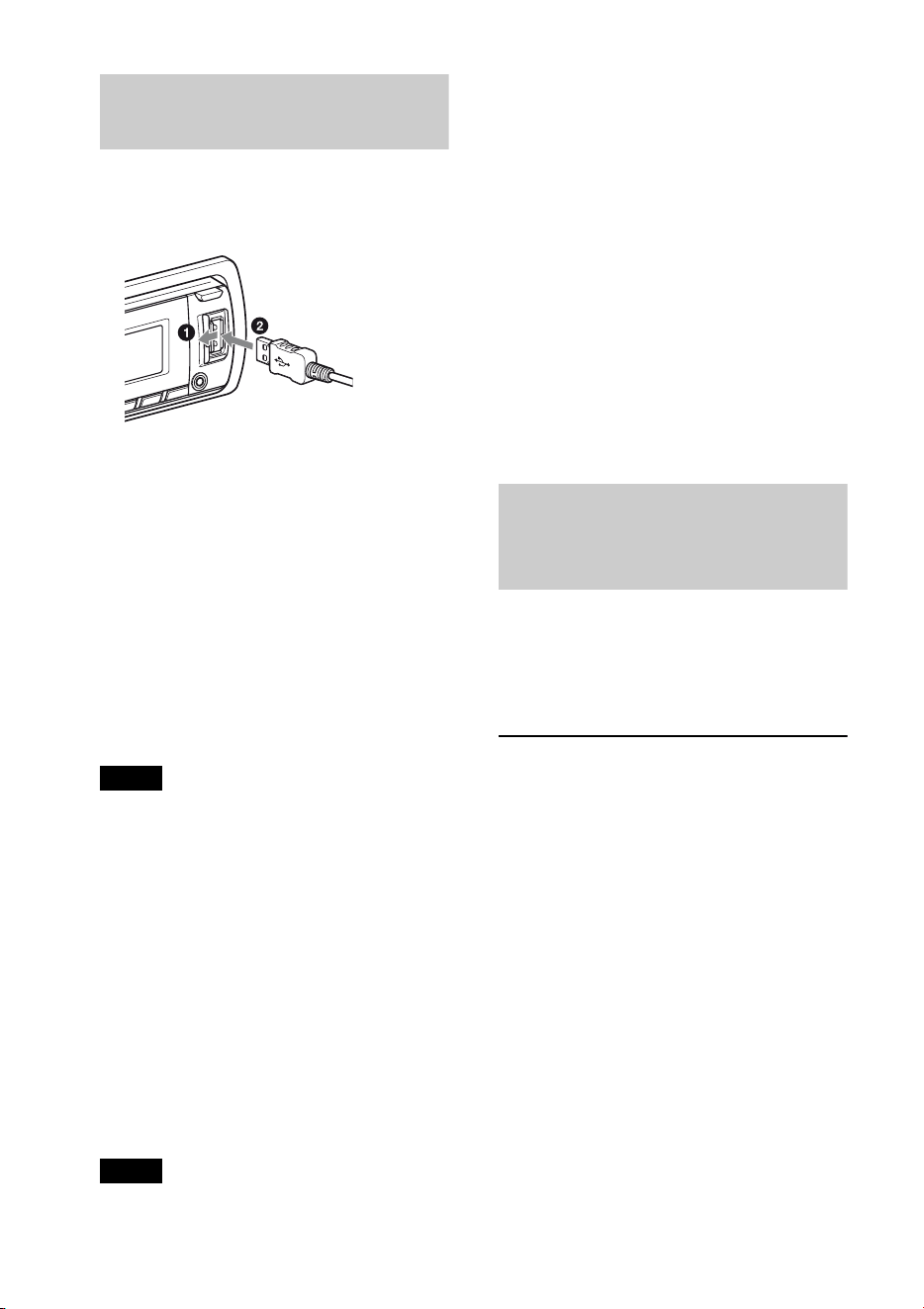
14
Reproducción de un
dispositivo USB
1 Abra la cubierta del dispositivo USB,
conecte el dispositivo USB al conector
USB con el cable USB correspondiente.
Se inicia la reproducción.
Si ya hay un dispositivo USB conectado,
presione varias veces hasta
que aparezca “USB” para empezar la
reproducción.
Para detener la reproducción, mantenga
presionado durante
1segundo.
Para quitar el dispositivo USB, detenga la
reproducción USB y extraiga el dispositivo
USB.
Notas
• No utilice dispositivos USB demasiado grandes
o pesados, ya que se podrán caer debido a la
vibración, o bien, provocar una conexión
deficiente.
• No extraiga el panel frontal durante la
reproducción del dispositivo USB, ya que podrá
dañar los datos del USB.
Cambio de elementos de pantalla
Es posible que los elementos que se
muestran varíen en función del tipo de
dispositivo USB, el formato de grabación y
los ajustes.
Presione .
Notas
• El número máximo de datos que se pueden
visualizar es el siguiente.
– carpetas (álbumes): 128
– archivos (pistas) por carpeta: 500
• Es posible que el inicio de la reproducción
demore un poco, en función de la cantidad de
datos grabados.
• Es posible que no se puedan reproducir
archivos DRM (Gestión de derechos digitales).
• Durante la reproducción de un archivo MP3/
WMA/AAC de VBR (Velocidad de bits
variable) o al avanzar o retroceder rápidamente,
es posible que el tiempo de reproducción
transcurrido no se muestre con precisión.
• No es posible reproducir los archivos MP3/
WMA/AAC que se indican a continuación.
– archivos con formato de compresión sin
pérdida
– archivos protegidos por derechos de autor
Reproducción de música
según su estado de ánimo
— SensMe™
La función “canales SensMe™” permite
agrupar pistas por canal automáticamente y
reproducir la música de manera intuitiva.
Instalación de “SensMe™
Setup” y “Content Transfer”
en la computadora
Es necesario tener el software (“SensMe™
Setup” y “Content Transfer”) para habilitar
la función SensMe™ en esta unidad.
1 Descargue el software “SensMe™
Setup” y “Content Transfer” desde el
sitio de soporte.
2 Instale el software en la computadora.
Para obtener más información sobre la
instalación, visite
http://esupport.sony.com
o
http://www.sony.com/caraudio
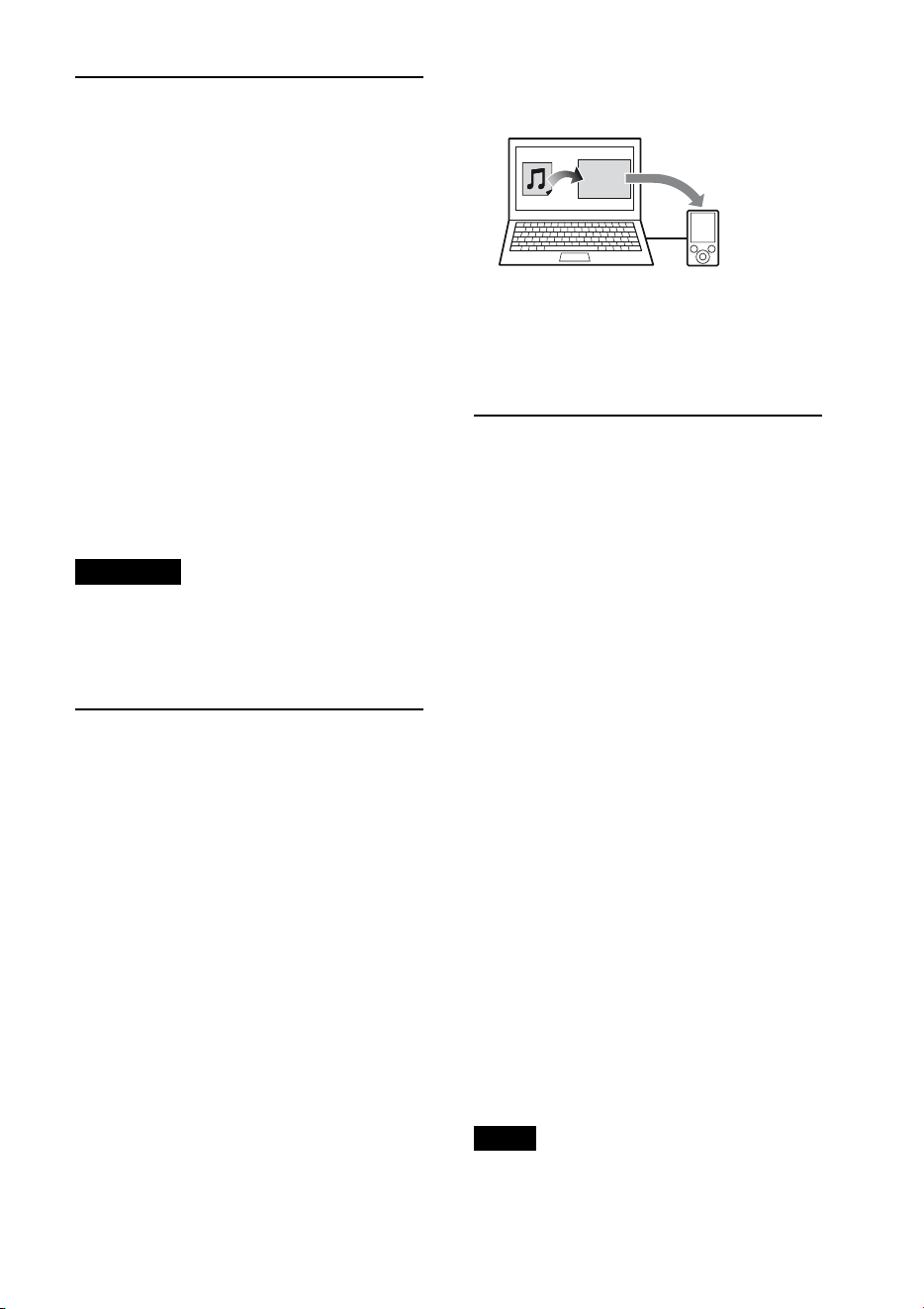
15
Registro de un dispositivo
USB mediante “SensMe™
Setup”
Es necesario registrar el dispositivo USB
para habilitar la función SensMe™ en la
unidad.
Si no se lleva a cabo el registro durante el
procedimiento de instalación, siga los pasos
que se indican a continuación.
1 Inicie “SensMe™ Setup” en la
computadora.
2 Conecte un dispositivo USB en la
computadora.
3 Siga las instrucciones que aparecerán
en pantalla para completar el registro.
Sugerencia
Si conecta un dispositivo USB registrado que
contiene pistas analizadas, es posible cancelar de
nuevo el registro del dispositivo USB.
Transferencia de pistas al
dispositivo USB mediante
“Content Transfer”
Para habilitar la función SensMe™ en esta
unidad, es necesario analizar y transferir las
pistas al dispositivo USB registrado
mediante “Content Transfer”.
1 Conecte el dispositivo USB registrado
en la computadora.
Para los dispositivos USB, conéctelos
con el modo MSC. “Content Transfer” se
inicia automáticamente.
Siga las instrucciones en pantalla si
aparecen.
2 Arrastre y suelte pistas del Explorador
de Windows o iTunes, etc., a “Content
Transfer”.
Se iniciará el análisis y la transferencia de
pistas.
Si desea obtener más información sobre el
funcionamiento, consulte la Ayuda de
“Content Transfer”.
Reproducción de pistas en el
canal — Canales SensMe™
“Canales SensMe™” agrupa
automáticamente pistas en canales según
sus melodías. Es posible seleccionar y
reproducir un canal que se ajuste a su estado
de ánimo, actividad, etc.
1 Conecte un dispositivo USB
configurado para la función SensMe™.
2 Presione varias veces
hasta que aparezca “SENSME CH”.
Aparecerá la lista de canales y se
reproducirán de manera aleatoria las
secciones más melódicas o rítmicas de
las pistas.
3 Selección de una pista desde la lista de
canales mediante el selector de control.
Para cambiar el canal:
Presione / (ALBUM / para
seleccionar el canal deseado.
Para cambiar la pista:
Presione +/– varias veces hasta
que aparezca la pista deseada y, a
continuación, presione el selector de
control.
Nota
Si el dispositivo USB conectado contiene muchas
pistas, es posible que “canales SensMe™’’ demore
un poco en comenzar debido al proceso de
lectura de datos.
Content
Transfer
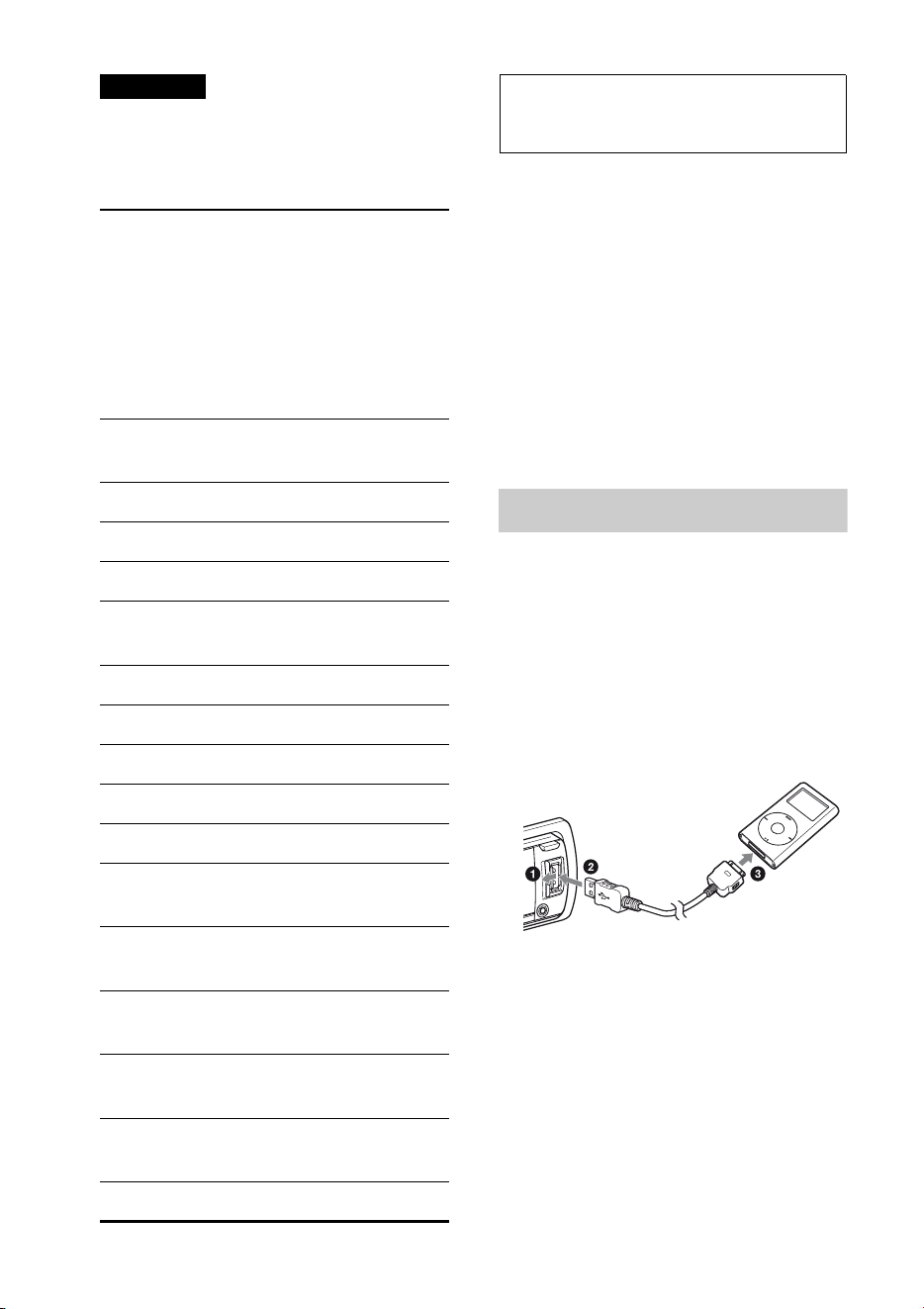
16
Sugerencia
Las pistas se reproducen en orden aleatorio. El
orden variará en cada selección de canal.
Lista de canales
iPod
En este Manual de instrucciones, “iPod” se
utiliza como referencia general para las
funciones del iPod en el iPod y el iPhone, a
menos que se especifique lo contrario en el
texto o en las ilustraciones.
Para obtener más información acerca de la
compatibilidad de su iPod, en la contratapa
consulte “Acerca de iPod” (página 32) o
visite el sitio web de soporte técnico que se
indica en la cubierta posterior.
Reproducción en un iPod
Antes de conectar el iPod, baje el volumen
de la unidad.
1 Abra la cubierta del dispositivo USB,
conecte el iPod al conector USB con el
cable de conexión USB para iPod (no
suministrado)*.
* Se recomienda el cable de conexión USB
RC-100IP para iPod.
Las pistas del iPod empiezan a
reproducirse automáticamente a partir
del punto en el que se detuvo la última
reproducción.
Si ya hay un iPod conectado, presione
varias veces hasta que
aparezca “USB” para empezar la
reproducción. (“IPOD” aparecerá en la
pantalla cuando se reconozca el iPod).
MORNING (5:00 AM – 9:59 AM)
DAYTIME (10:00 AM – 3:59 PM)
EVENING (4:00 PM – 6:59 PM)
NIGHT (7:00 PM – 11:59 PM)
MIDNIGHT (12:00 AM – 4:59 AM)
Pistas recomendadas para cada hora del día.
Ajuste el reloj (página 6) para que el canal se
muestre en pantalla de manera precisa.
SHUFFLE ALL: reproduce todas las pistas
analizadas en orden aleatorio.
ENERGETIC: pistas para levantar el ánimo.
RELAX: pistas tranquilas.
MELLOW: pistas suaves y melancólicas.
UPBEAT: pistas alegres para mejorar el
estado de ánimo.
EMOTIONAL: pistas de baladas.
LOUNGE: pistas de música funcional.
DANCE: pistas de R&B, rap, y rítmicas.
EXTREME: pistas de rock intenso.
FREEWAY: pistas rápidas y movidas.
CHILLOUT DRIVE: pistas melódicas,
baladas relajantes.
WEEKEND TRIP: pistas agradables, llenas
de vida y alegres.
MIDNIGHT CRUISE: pistas de jazz o con
música de piano con un ritmo maduro.
PARTY RIDE: pistas de tempo rápido y
llenas de vida.
MORNING COMMUTE: pistas alegres y
dinámicas.
GOIN’ HOME: pistas cálidas y relajantes.
17
Mantenga presionado
durante 1 segundo para detener la
reproducción.
Para quitar el iPod, detenga la reproducción
del iPod y extraiga el iPod.
Precaución para iPhone
Al conectar un iPhone mediante USB, el volumen
del teléfono se controla a través del iPhone. Para
que el volumen del dispositivo no sea
extremadamente alto tras una llamada, durante
las llamadas, no lo aumente en la unidad.
Nota
No extraiga el panel frontal durante la
reproducción del iPod, ya que podrá dañar los
datos.
Sugerencia
El iPod se recarga mientras la unidad está
encendida.
Modo de reanudación
Cuando se conecta el iPod al conector de
base, se inicia la reproducción en el modo
ajustado por el iPod. En este modo, no es
posible utilizar los botones siguientes.
– (REP)
– (SHUF)
Cambio de elementos de pantalla
Presione .
Nota
Es posible que algunos caracteres almacenados en
el iPod no se visualicen correctamente.
Omitir álbumes, podcasts,
géneros, listas de
reproducción y artistas
Utilización directa del
iPod — Control de
pasajero
Puede utilizar directamente un iPod aun si
está conectado al conector de base.
1 Durante la reproducción, mantenga
presionado .
Aparece “MODE IPOD” y se puede
utilizar el iPod directamente.
Para salir del modo de control de pasajero,
mantenga presionado .
A continuación, aparecerá “MODE
AUDIO” y el modo de reproducción
cambiará al modo de iPod.
Nota
Sólo es posible ajustar el volumen en la unidad.
Para Realice esta acción
Omitir Presione /
(ALBUM /) [presionar
una vez para cada opción]
Omitir en
forma
continua
Mantenga presionado
/ (ALBUM /)
[mantener presionado hasta
llegar al punto deseado]
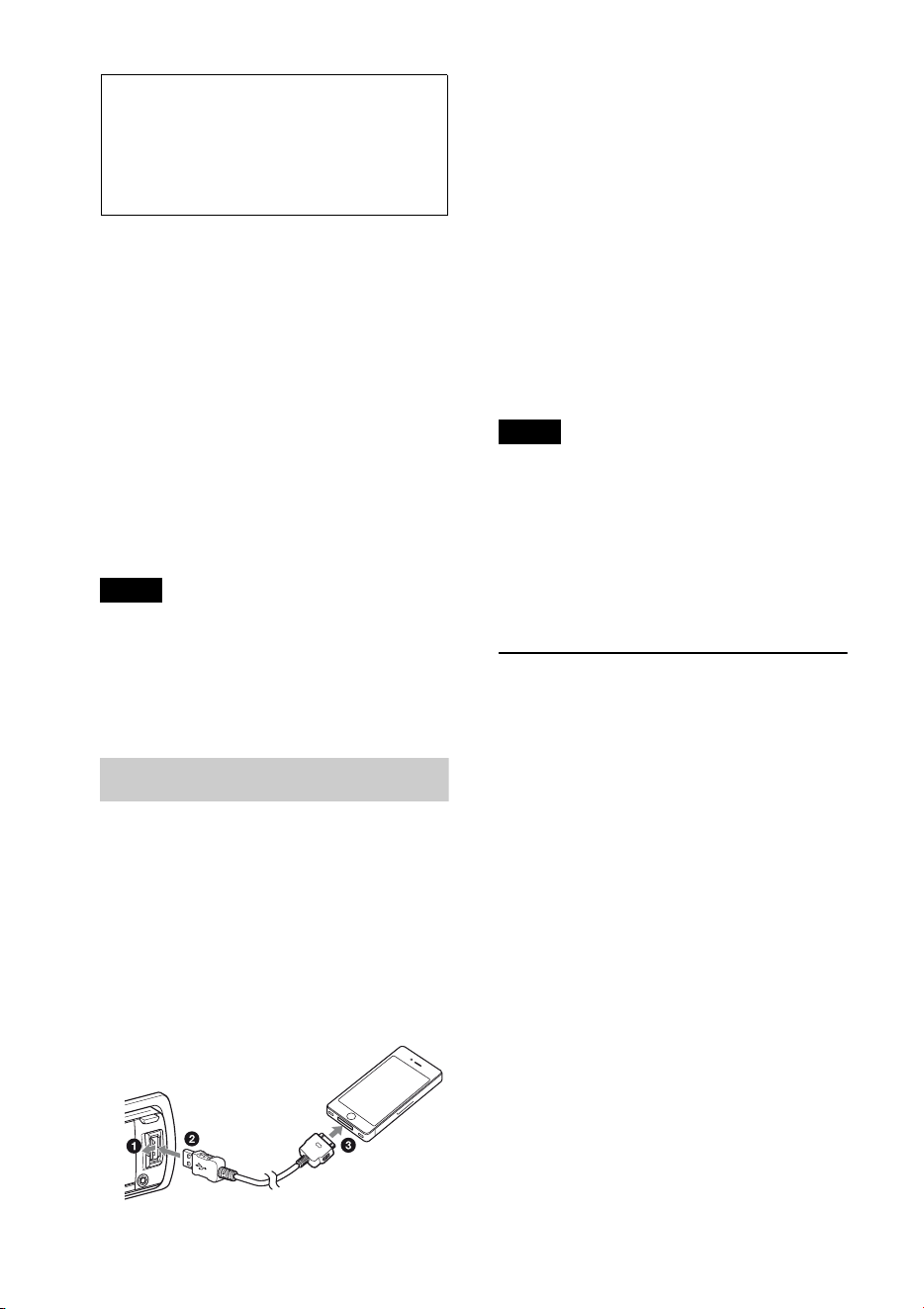
18
Radio de Internet de
Pandora® a través de
USB (iPhone)
La radio de Internet de Pandora® está
disponible para reproducir música a través
de su iPhone. Usted podrá controlar
Pandora® en un iPhone conectado a esta
unidad a través de un cable USB.
Descargue la última versión de la aplicación
Pandora® y obtenga más información en
www.pandora.com
Para obtener detalles sobre los dispositivos
compatibles, visite el sitio web de soporte
técnico que se indica en la cubierta
posterior.
Notes
• Es posible que algunas funciones de servicio de
Pandora® no estén disponibles.
• El servicio de Pandora® está disponible
únicamente en los EE. UU.
Transmisión Pandora®
Antes de conectar el iPhone, baje el
volumen de la unidad.
1 Abra la cubierta del dispositivo USB,
conecte el iPhone al conector USB con
el cable de conexión USB para iPhone
(no suministrado)*.
* Se recomienda el cable de conexión USB
RC-100IP para iPhone.
2 Presione varias veces
hasta que aparezca “PANDORA USB”.
3 Inicie la aplicación Pandora® en el
iPhone.
4 Ajuste el volumen en esta unidad.
Para pausar la reproducción, presione
. Para reanudar la reproducción,
presiónelo nuevamente.
Para saltar una canción, presione
+.
Notas
• No puede volver a la canción anterior.
•Pandora® tiene un límite de canciones que se
pueden saltar.
Cambio de elementos de pantalla
Presione .
Opiniones a través de
“Pulgares”
Las opiniones otorgadas a través de
“Pulgares arriba” o “Pulgares abajo” le
permitirán personalizar las estaciones de
acuerdo con su personalidad.
Pulgares arriba
Durante la reproducción, mantenga
presionado () por dos segundos.
Pulgares abajo
Durante la reproducción, mantenga
presionado () por dos segundos.
19
Lisa de estaciones
La lista de la estaciones le permitirá
seleccionar la estación deseada de una
forma más fácil.
1 Durante la reproducción, presione
(BROWSE).
2 Presione + para seleccionar el
orden en que serán guardadas según
“BY DATE” o “A-Z”.
3 Gire el selector de control para
seleccionar el canal deseado y luego
presiónelo.
Comienza la reproducción.
Shuffle
Shuffle le permite escuchar canciones
reproducidas en uno o más canales de
Pandora® en su lista de canales de manera
aleatoria.
Edite sus canciones seleccionadas del canal
Shuffle en el dispositivo antes de comenzar
la conexión.
Marcar favoritos
La canción o el artista que se está
reproduciendo en este momento puede ser
marcado como favorito en su cuenta de
Pandora®.
1 Durante la reproducción, mantenga
presionado hasta que
aparezca “BOOKMARK”.
2 Gire el selector de control para
seleccionar “TRK” (Pista) o “ART”
(Artista), y luego presiónelo.
Búsqueda y
reproducción de
pistas
Reproducción de pistas
en diferentes modos
Puede escuchar pistas varias veces
(reproducción repetida) o en orden
aleatorio (reproducción aleatoria).
Los modos de reproducción disponibles
difieren según la fuente de sonido
seleccionada.
1 Durante la reproducción, presione
(REP) o (SHUF) varias veces
hasta que aparezca el modo de
reproducción.
Es posible que la reproducción en el
modo de reproducción seleccionado
demore en comenzar.
Reproducción repetida
Seleccione Para reproducir
TRACK pistas en forma
repetida.
ALBUM álbumes en forma
repetida.
PODCAST*
1
podcasts en forma
repetida.
ARTIST*
1
artistas en forma
repetida.
PLAYLIST*
1
listas de reproducción
en forma repetida.
GENRE*
1
género en forma
repetida.
OFF pistas en el orden
normal (reproducción
normal).
20
Reproducción aleatoria
*1 solo iPod
*2 solo CD
*3 solo USB y iPod
Búsqueda de una pista
por nombre — Quick-
BrowZer™
Puede buscar una pista fácilmente en un CD
o dispositivo USB por categoría.
1 Presione (BROWSE)*.
La unidad accede al modo Quick-
BrowZer y aparece la lista de categorías
de búsqueda.
Cuando aparezca la lista de pistas,
presione (BACK) varias veces hasta
que aparezca la categoría de búsqueda
deseada.
* Durante la reproducción, presione
(BROWSE) durante más de 2 segundos
para regresar directamente al principio de la
lista de la categoría (sólo USB).
2 Gire el selector de control para
seleccionar la categoría de búsqueda
deseada y, a continuación, presiónelo
para confirmarla.
3 Repita el paso 2 hasta que se seleccione
la pista deseada.
Se inicia la reproducción.
Para salir del modo Quick-BrowZer,
presione (BROWSE).
Nota
Al acceder al modo Quick-BrowZer, se cancela el
ajuste de reproducción repetida/aleatoria.
Seleccione Para reproducir
SHUF ALBUM álbumes en orden
aleatorio.
SHUF DISC*
2
discos en orden
aleatorio.
SHUF PODCAST*
1
podcasts en orden
aleatorio.
SHUF ARTIST*
1
artistas en orden
aleatorio.
SHUF PLAYLIST*
1
listas de reproducción
en orden aleatorio.
SHUF GENRE*
1
género en orden
aleatorio.
SHUF DEVICE*
3
dispositivos en orden
aleatorio.
SHUF OFF pistas en el orden
normal (reproducción
normal).

21
Búsqueda por omisión de
elementos — modo de
Omisión
Cuando varios elementos se encuentran
dentro de una misma categoría, es posible
encontrar el elemento deseado
rápidamente.
1 Presione + en el modo Quick-
BrowZer.
Aparecerá el nombre del elemento.
2 Gire el selector de control para
seleccionar el elemento junto al
elemento deseado.
Omite en incrementos del 10% del
número total de elementos.
3 Presione el botón de selección.
Vuelve a la pantalla del modo Quick-
BrowZer y aparece el elemento
seleccionado.
4 Gire el selector de control para
seleccionar el elemento deseado y
presiónelo.
Si el elemento seleccionado es una pista,
empieza la reproducción.
Para cancelar el modo de Omisión, presione
(BACK) o –.
Búsqueda por orden
alfabético — Búsqueda
alfabética
Cuando se conecta un iPod a la unidad, es
posible buscar un elemento deseado de
manera alfabética.
1 Presione + en el modo Quick-
BrowZer.
2 Gire el selector de control para
seleccionar la primera letra del
elemento deseado y, a continuación,
presiónelo.
Aparecerá una lista ordenada
alfabéticamente de los elementos que
comienzan por la letra seleccionada.
3 Gire el selector de control para
seleccionar el elemento deseado y, a
continuación, presiónelo.
Si el elemento seleccionado es una pista,
empieza la reproducción.
Para cancelar la búsqueda alfabética,
presione (BACK) o –.
Notas
• En la Búsqueda alfabética se excluyen los
símbolos o los artículos (un, una, unos, unas, el,
la, los, las) situados delante de la letra
seleccionada del elemento.
• En función del elemento de búsqueda que
seleccione, es posible que solamente esté
disponible el modo de Omisión.
• La Búsqueda alfabética puede tardar un tiempo,
en función de la cantidad de pistas.
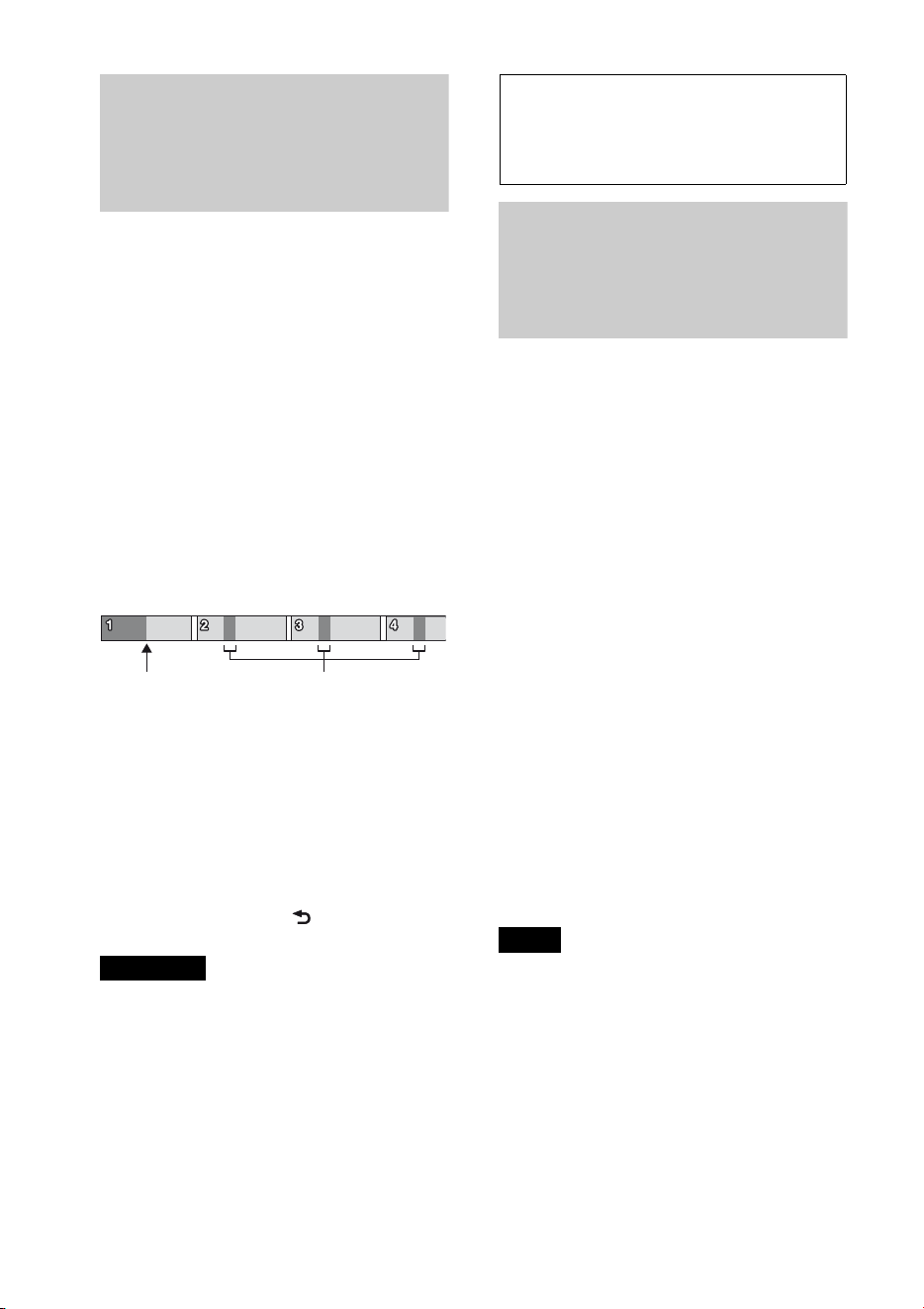
22
Búsqueda de una pista
mediante la escucha de
fragmentos de pista
— ZAPPIN™
Es posible buscar una pista que desee
escuchar mediante la reproducción de
pequeños fragmentos de pistas de un CD o
dispositivo USB de forma secuencial.
El modo ZAPPIN es adecuado para buscar
pistas en el modo de reproducción aleatoria
o de repetición aleatoria.
1 Durante la reproducción, presione
.
La reproducción se iniciará a partir del
fragmento de la pista siguiente. Puede
seleccionar el tiempo de reproducción
(página 29).
2 Presione el botón de selección o
cuando se reproduzca una pista que
desea escuchar.
La pista seleccionada se reproduce
normalmente desde el principio.
Para confirmar una pista que se va a
reproducir, presione (BACK).
Sugerencias
• Si la pista que se está buscando se transfiere
mediante “Content Transfer”, se reproducirán
las secciones más melódicas o rítmicas de las
pistas (página 15).
•Presione +/– en el modo ZAPPIN para
omitir una pista.
•Presione / (ALBUM /) en el modo
ZAPPIN para omitir un álbum.
Cambio de
iluminación
Cambio del color de la
pantalla y los botones
— Iluminador de color
dinámico
El Iluminador de color dinámico le permite
cambiar el color de la pantalla y los botones
de la unidad principal para que coincidan
con los del interior del vehículo. Es posible
seleccionar entre 12 colores preajustados,
un color personalizado y 5 patrones
preajustados.
Colores predeterminados:
RED, AMBER, M_AMBER, YELLOW,
WHITE, LIGHT GREEN, GREEN, LIGHT
BLUE, SKY BLUE, BLUE, PURPLE, PINK.
Patrones predeterminados:
RAINBOW, OCEAN, SUNSET, FOREST,
RANDOM.
1 Presione .
2 Gire el selector de control para
seleccionar el color predeterminado
deseado y, a continuación, presiónelo.
La pantalla vuelve al modo de recepción/
reproducción normal.
Nota
Si el selector de control se gira rápidamente, el
color de la pantalla y los botones pueden cambiar
demasiado rápido.
Partes de cada pista que se
reproducen en el modo ZAPPIN.
Pista
presionado.
23
Personalización del color de
la pantalla y de los botones
— Color personalizado
Es posible registrar un color personalizado
para la pantalla y los botones.
1 Mantenga presionado .
La pantalla de color personalizada DAY/
NIGHT varía en función del ajuste de
DIMMER.
2 Gire el selector de control hasta que
aparezca “BASE COLOR” y, a
continuación, presiónelo.
Es posible seleccionar un color
preajustado como base para una
personalización más precisa.
Si selecciona “BASE COLOR”, se
sobrescribirá el color personalizado.
3 Gire el selector de control para
seleccionar entre “RGB RED”, “RGB
GREEN” o “RGB BLUE” y, a
continuación, presiónelo.
4 Gire el selector de control para ajustar
la gama de colores y, a continuación,
presiónelo.
Gama de colores ajustables: “0” – “32”.
No es posible ajustar “0” para todas las
gamas de colores.
5 Presione (BACK).
Cambio del modo de color DAY/NIGHT
Es posible ajustar un color diferente para
DAY/NIGHT según el ajuste del DIMMER.
*1 Si desea obtener más información sobre
DIMMER, consulte la página 29.
*2 Disponible únicamente si la antena
monitorizada de iluminación está conectada.
1 Seleccione “DAY/NIGHT” en el paso 2.
2 Seleccione “DAY” o “NIGHT”.
3 Personalice el canal preajustado desde el
paso 2 al 5.
Ajuste de color avanzado
Sincronización de canales
SensMe™ — Color de los
canales SensMe™
El color de la pantalla y de los botones de la
unidad principal cambia en función del
canal SensMe™.
1 Mantenga presionado el botón de
selección.
Aparecerá la pantalla de ajustes.
2 Gire el selector de control hasta que
aparezca “SENSME COLR” y, a
continuación, presiónelo.
3 Gire el selector de control para
seleccionar “SENSME-ON” y, a
continuación, presiónelo.
4 Presione (BACK).
Para cancelar el color de los canales
SensMe™, seleccione “OFF” en el paso 3.
Nota
Cuando el color de los canales SensMe™ se ajusta
en “ON” para la fuente SensMe™, el color de los
canales SensMe™ anulará los ajustes de color o los
patrones predeterminados.
Modo de color DIMMER*
1
DAY OFF o AUTO (apague
la luz principal*
2
)
NIGHT ON o AUTO (encienda
la luz principal*
2
)

24
Cambio del color con
sincronización de sonidos
— Sincronización de sonidos
Cuando selecciona un patrón
predeterminado o reproduce pistas en el
canal SensMe™, la sincronización de
sonidos se vuelve efectiva.
1 Mantenga presionado el botón de
selección.
Aparecerá la pantalla de ajustes.
2 Gire el selector de control hasta que
aparezca “SOUND SYNC” y, a
continuación, presiónelo.
3 Gire el selector de control para
seleccionar “SYNC-ON” y, a
continuación, presiónelo.
4 Presione (BACK).
Visualización de colores
claros — Menú Blanco
Es posible visualizar el menú de manera más
clara (en blanco) sin preocuparse del ajuste
del color.
1 Mantenga presionado el botón de
selección.
Aparecerá la pantalla de ajustes.
2 Gire el selector de control hasta que
aparezca “WHITE MENU” y, a
continuación, presiónelo.
3 Gire el selector de control para
seleccionar “WHITE-ON” y, a
continuación, presiónelo.
4 Presione (BACK).
Para cancelar el Menú Blanco, seleccione
“OFF” en el paso 3.
Efecto de arranque
— Arranque Blanco
Cuando presiona , el color
de la pantalla y de los botones de la unidad
principal se vuelve blanco y, a continuación,
el color cambia al color personalizado.
1 Mantenga presionado el botón de
selección.
Aparecerá la pantalla de ajustes.
2 Gire el selector de control hasta que
aparezca “START WHITE” y, a
continuación, presiónelo.
3 Gire el selector de control para
seleccionar “WHITE-ON” y, a
continuación, presiónelo.
4 Presione (BACK).
Para cancelar el Arranque Blanco,
seleccione “OFF” en el paso 3.
25
Ajustes de sonido y
Menú de
configuración
Cambio de los ajustes de
sonido
Ajuste de las características
de sonido
1 Durante la recepción/reproducción,
presione el botón de selección.
2 Gire el selector de control hasta que
aparezca el elemento de menú deseado
y, a continuación, presiónelo.
3 Gire el selector de control para
seleccionar el ajuste y, a continuación,
presiónelo.
4 Presione (BACK).
Puede ajustar los elementos siguientes:
*1 Oculto cuando “POSITION” está ajustado en
“OFF”.
*2 Si está activada la fuente AUX (página 30).
Uso de funciones de
sonido sofisticadas
— Sistema de sonido
avanzado
El Sistema de sonido avanzado crea un
campo de sonido ideal en el automóvil
gracias a su procesamiento digital de
señales.
EQ7 PRESET (página 26)
EQ7 SETTING (página 26)
POSITION
POSITION (configuración de la
Posición de escucha) (página 27)
ADJUST POS*
1
(ajuste de la Posición de
escucha) (página 27)
SW POSITION*
1
(posición del altavoz
potenciador de graves) (página 27)
BALANCE
Permite ajustar el balance de sonido:
“RIGHT-15” – “CENTER” – “LEFT-15”.
FADER
Permite ajustar el nivel relativo:
“FRONT-15” – “CENTER” –
“REAR-15”.
DM+ (página 27)
REARBAS ENH (Sistema de mejora de los
graves posteriores) (página 28)
SUBW LEVEL (Nivel de altavoz potenciador
de graves)
Permite ajustar el nivel de volumen del
altavoz potenciador de graves: “+10 dB”
– “0 dB” – “–10 dB”.
(“ATT” aparece en pantalla con el ajuste
más bajo.)
AUX VOLUME*
2
(Nivel de volumen AUX)
Ajusta el nivel de volumen de cada
equipo auxiliar conectado: “+18 dB” –
“0 dB” – “–8 dB”.
Este ajuste elimina la necesidad de
ajustar el nivel de volumen entre fuentes.
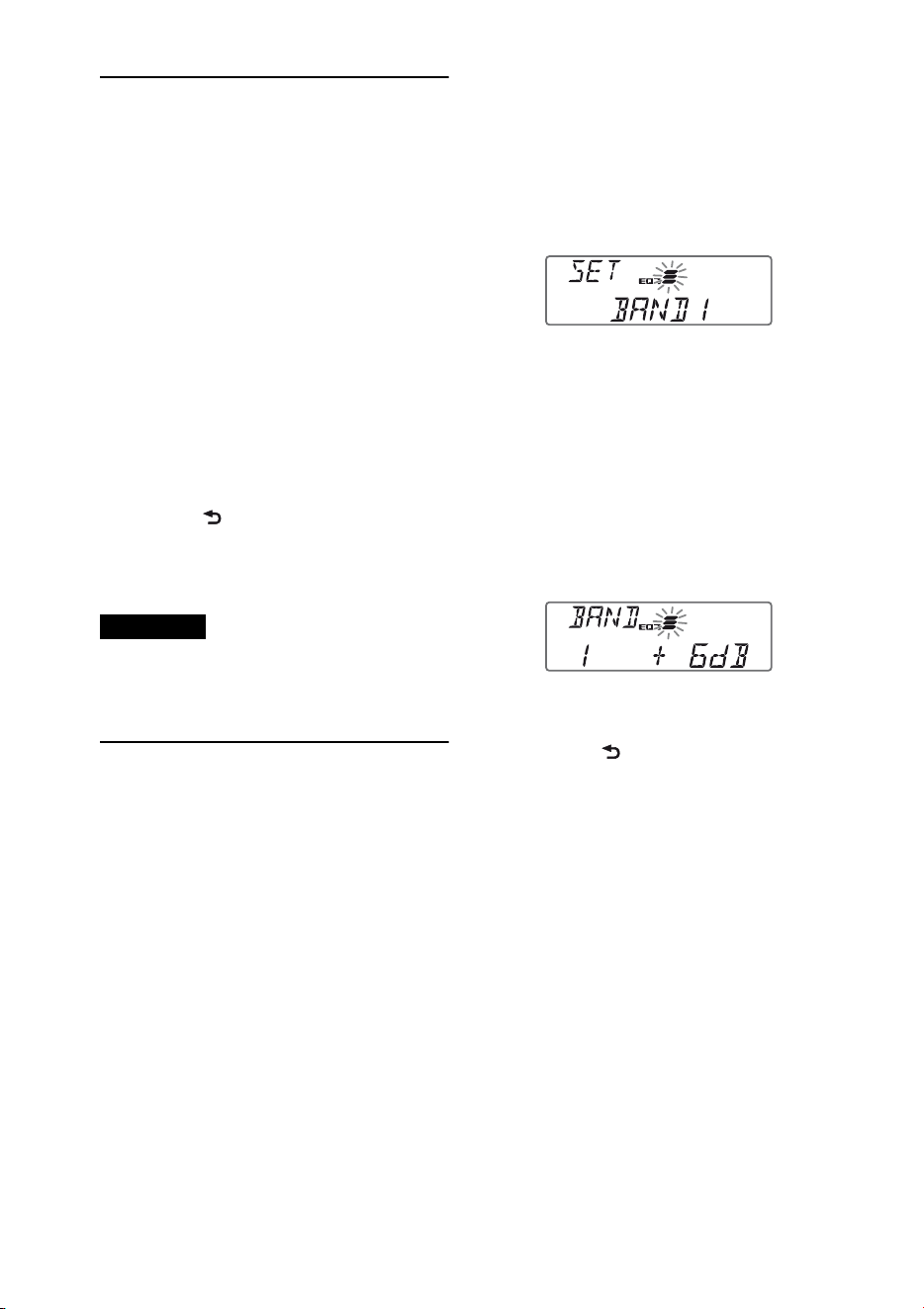
26
Selección de la calidad de
sonido — Preajuste de EQ7
Puede seleccionar una curva de ecualizador
entre 7 curvas de ecualizador (XPLOD,
VOCAL, EDGE, CRUISE, SPACE,
GRAVITY, CUSTOM u OFF).
1 Durante la recepción/reproducción,
presione el botón de selección.
2 Gire el selector de control hasta que
aparezca “EQ7 PRESET” y, a
continuación, presiónelo.
3 Gire el selector de control hasta que
aparezca la curva de ecualizador
deseada y, a continuación, presiónelo.
4 Presione (BACK).
Para cancelar la curva de ecualizador,
seleccione “OFF” en el paso 3.
Sugerencia
El ajuste de la curva de ecualizador se puede
memorizar para cada fuente.
Personalización de la curva
de ecualizador — Ajuste de
EQ7
“CUSTOM” de EQ7 le permite realizar sus
propios ajustes en el ecualizador.
1 Seleccione una fuente y, a
continuación, presione el botón de
selección.
2 Gire el selector de control hasta que
aparezca “EQ7 SETTING” y, a
continuación, presiónelo.
3 Gire el selector de control hasta que
aparezca “BASE” y, a continuación,
presiónelo.
Es posible seleccionar una curva de
ecualizador como base para una
personalización más precisa.
4 Gire el selector de control para
seleccionar la curva de ecualizador y, a
continuación, presiónelo.
5 Ajuste de la curva de ecualizador.
Gire el selector de control para
seleccionar el rango de frecuencia y, a
continuación, presiónelo.
BAND1: 63 Hz
BAND2: 160 Hz
BAND3: 400 Hz
BAND4: 1 kHz
BAND5: 2,5 kHz
BAND6: 6,3 kHz
BAND7: 16,0 kHz
Gire el selector de control para ajustar
el nivel de volumen y, a continuación,
presiónelo.
El nivel de volumen puede ajustarse en
intervalos de 1 dB entre -6 dB y +6 dB.
Repita los pasos y para ajustar
otros rangos de frecuencia.
6 Presione (BACK) dos veces.
La curva de ecualizador se almacena en
“CUSTOM”.
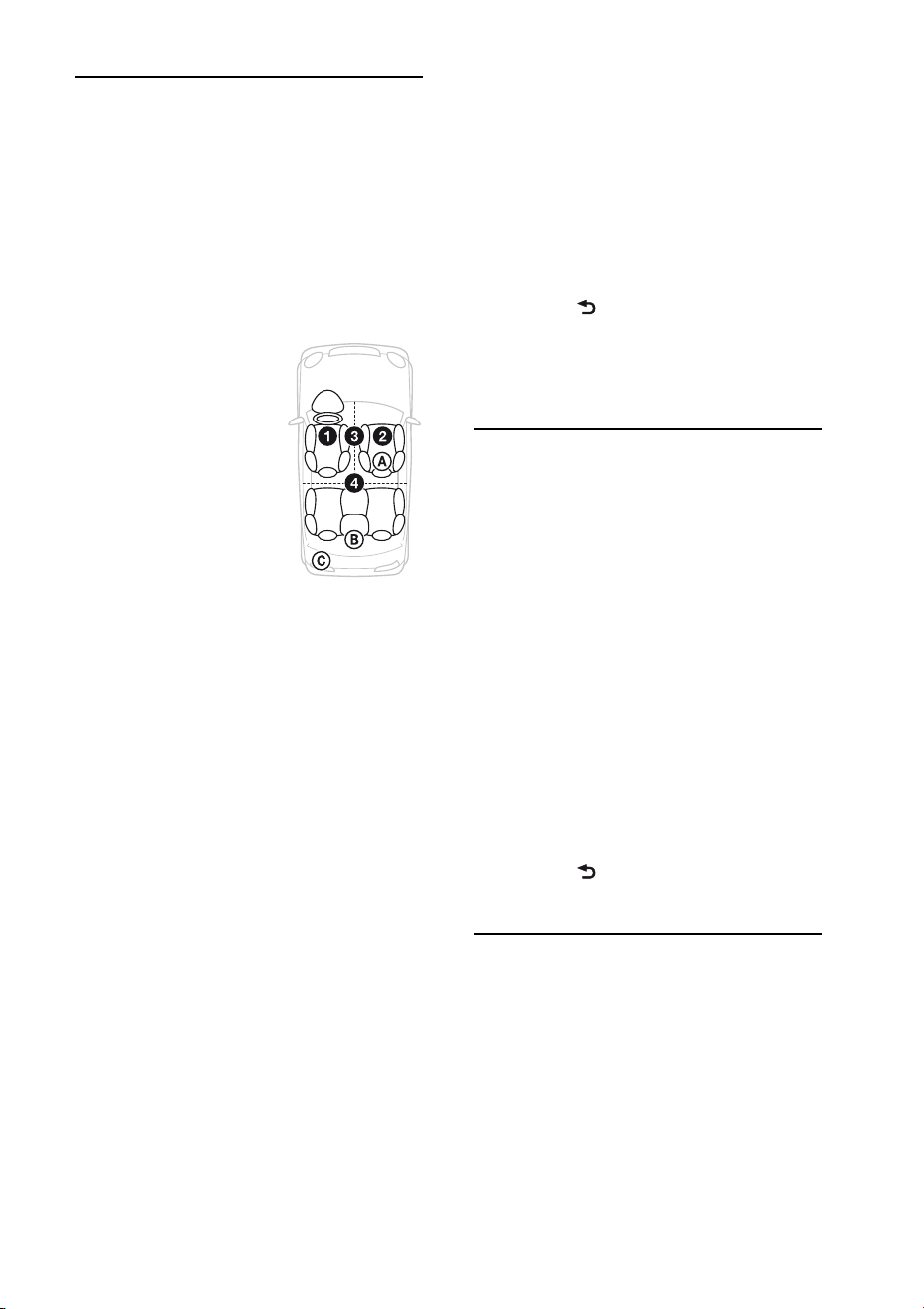
27
Optimización de sonido por
Alineación de tiempo
— Posición de escucha
La unidad puede simular un campo de
sonido natural al demorar la salida de
sonido de cada altavoz con el fin de
adaptarse a su posición.
A continuación se enumeran las opciones
de “POSITION”.
Asimismo, puede configurar la posición
aproximada del altavoz potenciador de
graves desde su posición de escucha si:
– el altavoz potenciador de graves está
conectado
– la posición de escucha se ajusta en
“FRONT L”, “FRONT R”, “FRONT” o
“ALL”.
A continuación se enumeran las opciones
de “SW POSITION”.
NEAR (): cerca
NORMAL (): normal
FAR (): lejos
1 Durante la recepción/reproducción,
presione el botón de selección.
2 Gire el selector de control hasta que
aparezca “POSITION” y, a
continuación, presiónelo.
3 Gire el selector de control para
seleccionar entre “FRONT L”,
“FRONT R”, “FRONT” o “ALL” y, a
continuación, presiónelo.
4 Gire el selector de control hasta que
aparezca “SW POSITION” y, a
continuación, presiónelo.
5 Gire el selector de control para
seleccionar la posición del altavoz
potenciador de graves entre “NEAR”,
“NORMAL” o “FAR” y, a
continuación, presiónelo.
6 Presione (BACK).
Para cancelar la posición de escucha,
seleccione “OFF” en el paso 3.
Ajuste de la posición de
escucha
Es posible realizar un ajuste fino de la
posición de escucha.
1 Durante la recepción/reproducción,
presione el botón de selección.
2 Gire el selector de control hasta que
aparezca “ADJUST POS” y, a
continuación, presiónelo.
3 Gire el selector de control para ajustar
la posición de escucha y, a
continuación, presiónelo.
Rango ajustable: “+3” – “CENTER” –
“–3”.
4 Presione (BACK).
DM+ Avanzado
DM+ Avanzado mejora el sonido
comprimido digitalmente, ya que restaura
las altas frecuencias que se pierden en el
proceso de compresión.
1 Durante la reproducción, presione el
botón de selección.
2 Gire el selector de control hasta que
aparezca “DM+” y, a continuación,
presiónelo.
FRONT L (): izquierda
delantera
FRONT R (): derecha
delantera
FRONT (: delantera
central
ALL (): en el centro del
automóvil
OFF: sin configuración de
posición
28
3 Gire el selector de control para
seleccionar “ON” y, a continuación,
presiónelo.
4 Presione (BACK).
Sugerencia
El ajuste de DM+ se puede memorizar para cada
fuente.
Uso de los altavoces
posteriores como altavoz
potenciador de graves
— Potenciador de sonidos
graves posteriores
El Potenciador de sonidos graves
posteriores mejora los sonidos graves, ya
que aplica el ajuste del filtro de paso bajo
(página 29) a los altavoces posteriores. Esta
función permite que los altavoces
posteriores funcionen como altavoces
potenciadores de graves si uno de ellos no
está conectado.
1 Durante la recepción/reproducción,
presione el botón de selección.
2 Gire el selector de control hasta que
aparezca “REARBAS ENH” y, a
continuación, presiónelo.
3 Gire el selector de control para
seleccionar entre “1”, “2” o “3” y, a
continuación, presiónelo.
4 Presione (BACK).
Ajuste de los elementos
de configuración
1 Mantenga presionado el botón de
selección.
Aparecerá la pantalla de ajustes.
2 Gire el selector de control hasta que
aparezca el elemento deseado y, a
continuación, presiónelo.
3 Gire el selector de control para
seleccionar el ajuste y, a continuación,
presiónelo.*
El ajuste finalizó.
4 Presione (BACK).
* Para el ajuste de Color personalizado, es
necesario realizar pasos adicionales (página 23).
No es necesario realizar el paso 4 para los
ajustes de CLOCK-ADJ y BTM.
Se pueden ajustar los elementos siguientes
según la fuente y los ajustes:
CLOCK-ADJ (Ajuste del reloj) (página 6)
CT (Hora del reloj)
Activa la función CT: “ON”, “OFF”
(página 12).
BEEP
Activa el sonido de los pitidos: “ON”,
“OFF”.
CAUT ALM* (Alarma de precaución)
Activa la alarma de precaución: “ON”,
“OFF” (página 6).
AUX-A* (AUX Audio)
Activa la visualización de la fuente AUX:
“ON”, “OFF” (página 30).
AUTO OFF
Desconecta la alimentación
automáticamente una vez transcurrido
un período de tiempo deseado cuando la
unidad está apagada: “NO”, “30S
(segundos)”, “30M (minutos)”, “60M
(minutos)”.
29
DEMO
(Demostración)
Activa la demostración: “ON”, “OFF”.
DIMMER
Cambia el brillo de la pantalla.
– “AT”: para que la pantalla se atenúe
automáticamente al encender la luz.
(Disponible únicamente si la antena
monitorizada de iluminación está
conectada.)
– “ON”: para atenuar la pantalla.
– “OFF”: para desactivar el atenuador.
CONTRAST
Permite ajustar el contraste de la
pantalla. El nivel de contraste puede
ajustarse en 7 pasos.
COLOR (Color preajustado)
Selecciona el color preajustado de la
pantalla y de los botones de la unidad
principal (página 22).
CUSTOM COLR (Color personalizado)
Selecciona un color preajustado como
base para una personalización más
precisa (página 23).
SENSME COLR (Color de SensMe™)
Cambia el color en función de los canales
SensMe™: “ON”, “OFF”.
SOUND SYNC
Selecciona el color con la sincronización
de sonido: “ON”, “OFF”.
WHITE MENU
Ajusta el efecto cuando se cambia la
fuente: “ON”, “OFF”.
START WHITE
Ajusta el color de inicio: “ON”, “OFF”.
MOTION DSPL (Desplazamiento de
indicaciones)
– “SA”: para mostrar patrones en
movimiento y el analizador de espectro.
– “ON”: para desplazar los elementos.
– “OFF”: para desactivar el desplazamiento
de indicaciones.
AUTO SCROLL
Permite desplazarse por los elementos de
la pantalla automáticamente: “ON”,
“OFF”.
ZAPPIN TIME
Permite seleccionar el tiempo de
reproducción de la función ZAPPIN.
– “ZAP.TIME-1 (unos 6 segundos)”,
“ZAP.TIME-2 (unos 15 segundos)”,
“ZAP.TIME-3 (unos 30 segundos)”.
ZAPPIN BEEP
Incluye sonido de pitido entre
fragmentos de pistas: “ON”, “OFF”.
LPF FREQ (Frecuencia de filtro de paso
bajo)
Selecciona la frecuencia de corte del
altavoz potenciador de graves: “50Hz”,
“60Hz”, “80Hz”, “100Hz”, “120Hz”.
LPF SLOPE (Pendiente de filtro de paso
bajo)
Selecciona la pendiente LPF: “1”, “2”,
“3”.
SUBW PHASE (Fase de altavoz potenciador
de graves)
Selecciona la fase del altavoz potenciador
de graves: “NORM”, “REV”.
HPF FREQ (Frecuencia de filtro de paso
alto)
Selecciona la frecuencia de corte del
altavoz frontal/posterior: “OFF”, “50Hz”,
“60Hz”, “80Hz”, “100Hz”, “120Hz”.
HPF SLOPE (Pendiente de filtro de paso
alto)
Selecciona la pendiente HPF (efectivo
solamente cuando HPF FREQ se ajusta
en un valor diferente a “OFF”): “1”, “2”,
“3”.
LOUDNESS (Sonoridad dinámica)
Refuerza los graves y agudos para
obtener un sonido claro a niveles de
volumen bajos: “ON”, “OFF”.
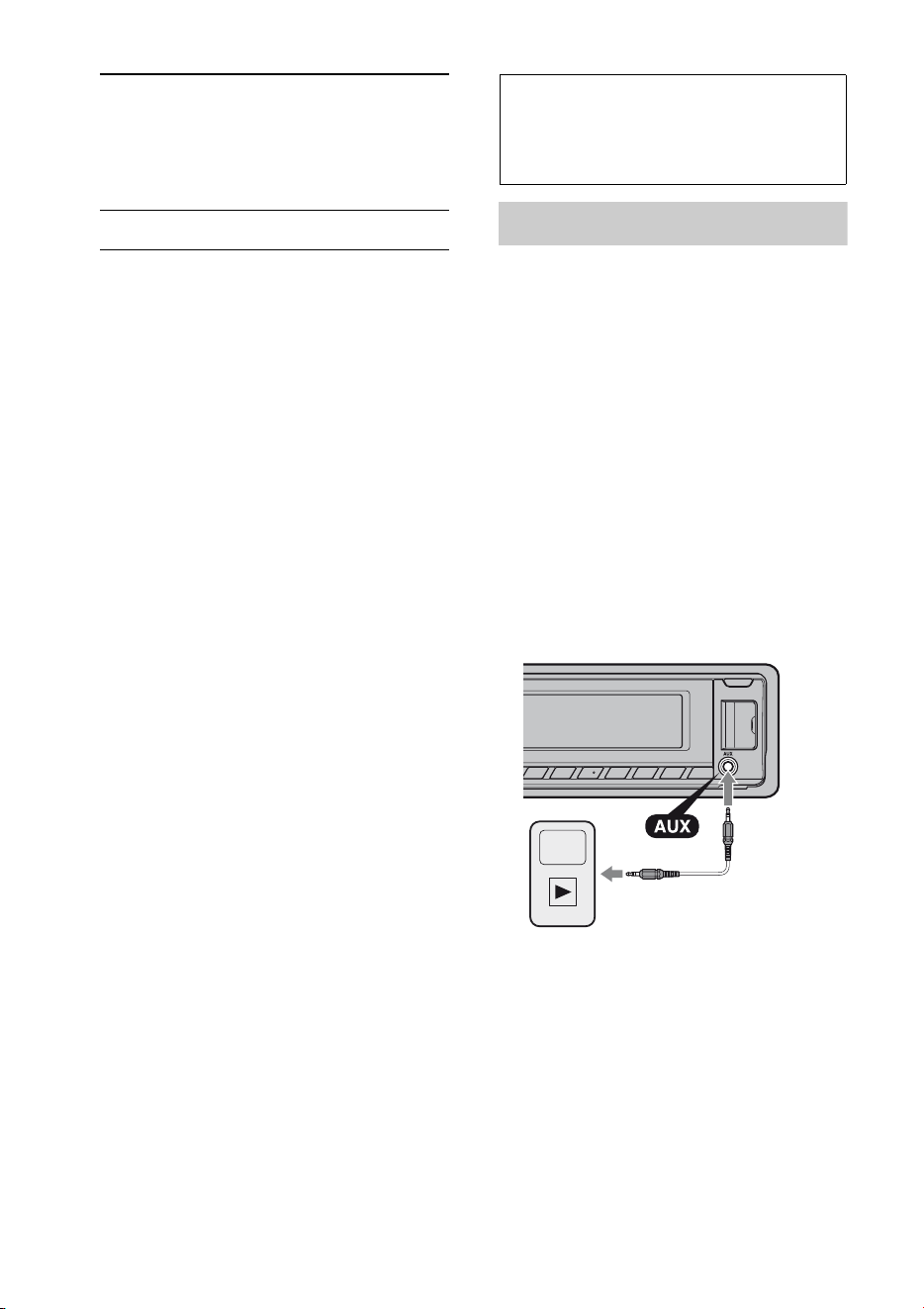
30
* Cuando la unidad está apagada.
Uso de equipo
opcional
Equipo de audio auxiliar
Si conecta un dispositivo de audio portátil
opcional a la toma de entrada AUX
(minitoma estéreo) de la unidad y
simplemente selecciona la fuente, podrá
escuchar por los altavoces del automóvil.
Conexión del dispositivo de audio
portátil
1 Apague el dispositivo de audio portátil.
2 Baje el volumen de la unidad.
3 Conecte el dispositivo de audio portátil a la
unidad con un cable de conexión (no
suministrado)*.
* Asegúrese de utilizar una clavija recta.
ALO (Optimizador de nivel automático)
Ajusta el nivel del volumen de
reproducción de todas las fuentes de
reproducción al nivel óptimo: “ON”,
“OFF”.
BTM (página 11)
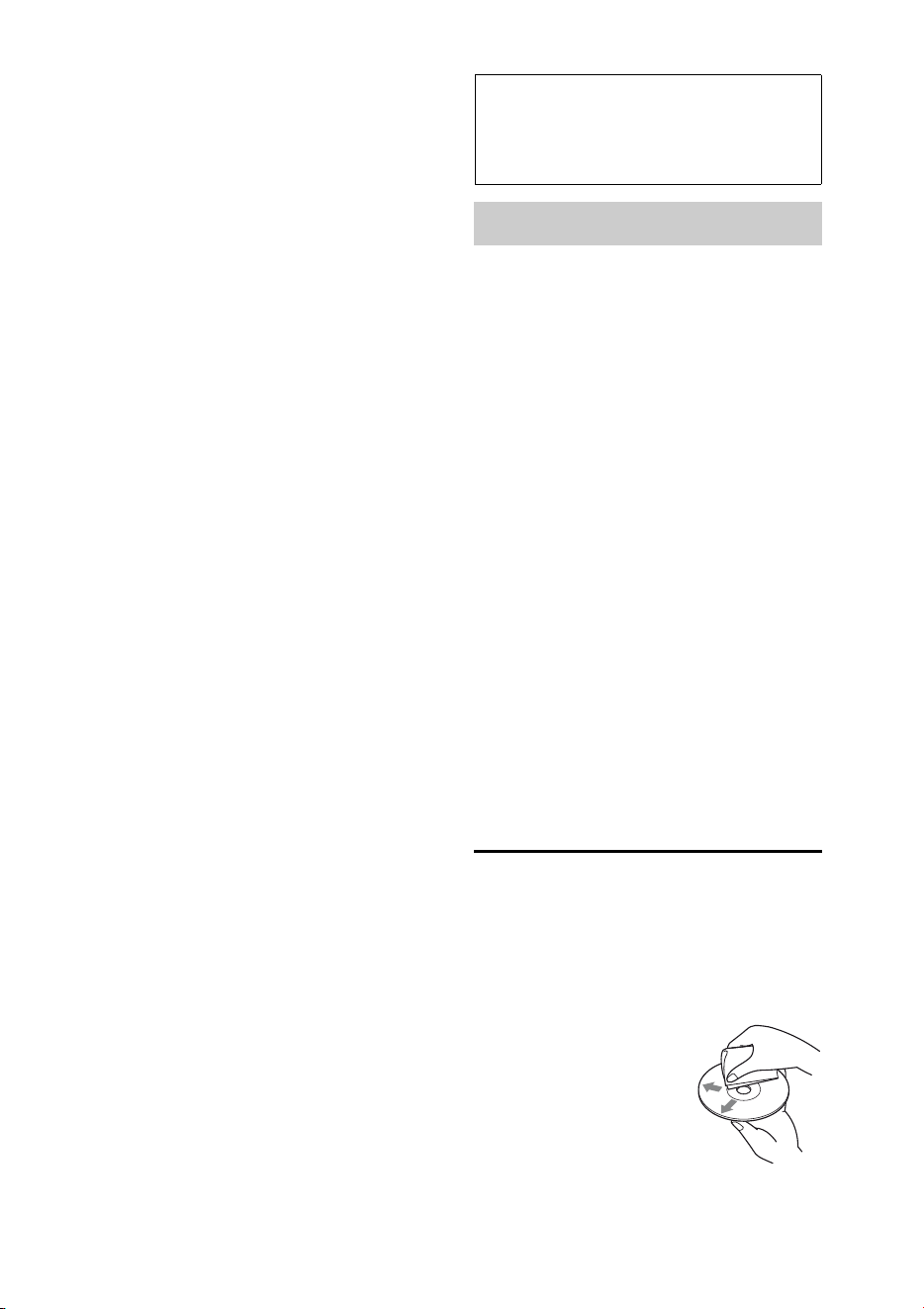
31
Ajuste del nivel de volumen
Asegúrese de ajustar el volumen de cada
equipo de audio conectado antes de la
reproducción.
1 Baje el volumen de la unidad.
2 Presione varias veces hasta
que aparezca “AUX”.
3 Inicie la reproducción en el dispositivo de
audio portátil con un volumen moderado.
4 Seleccione el volumen habitual en la unidad.
5 Ajuste el nivel de entrada (página 25).
Información
complementaria
Precauciones
• Deje que la unidad se enfríe antes de usarla si
el automóvil ha estado estacionado bajo la
luz directa del sol.
• No deje el panel frontal o los dispositivos de
audio dentro del automóvil; de lo contrario,
se puede producir una falla debido a la
temperatura alta bajo la luz directa del sol.
• La antena motorizada se extiende
automáticamente.
Condensación de humedad
Si se produce condensación de humedad en el
interior de la unidad, extraiga el disco y espere
una hora aproximadamente hasta que se haya
secado por completo la unidad. De lo
contrario, la unidad no funcionará
correctamente.
Para mantener una alta calidad de
sonido
No derrame ningún tipo de líquido sobre la
unidad o los discos.
Notas sobre los discos
• No exponga los discos a la luz directa del sol
ni a fuentes de calor como, por ejemplo,
conductos de aire caliente, ni los deje en el
automóvil estacionado bajo la luz directa del
sol.
• Antes de reproducir los
discos, límpielos con un
paño de limpieza. Hágalo
desde el centro hacia los
bordes. No utilice
disolventes como bencina,
diluyentes ni productos de
limpieza disponibles en el mercado.
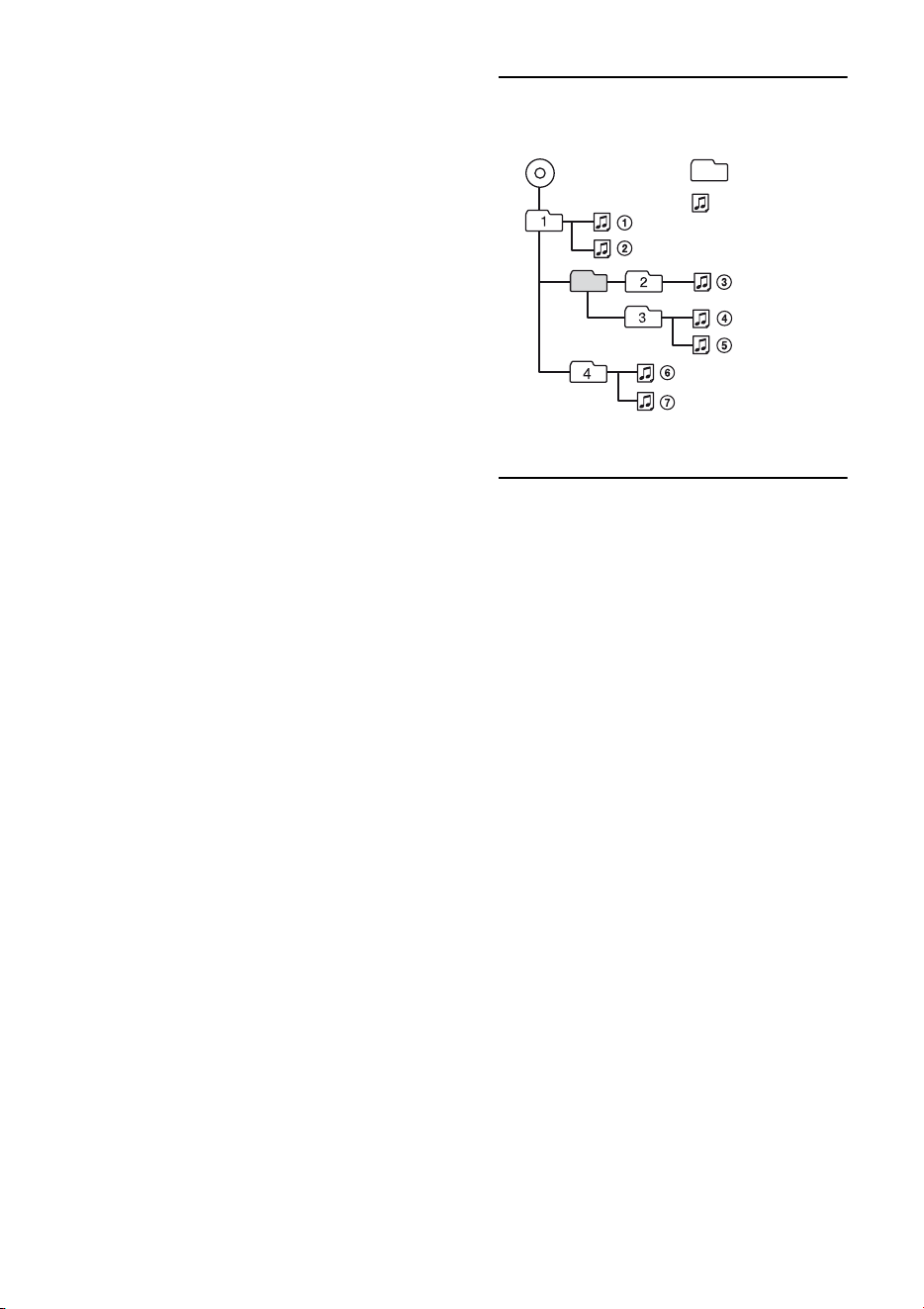
32
• Esta unidad se diseñó para reproducir discos
que cumplen con el estándar Compact Disc
(CD). Los DualDisc y otros discos de música
codificados con tecnologías de protección de
derechos de autor no cumplen el estándar
Compact Disc (CD), por lo que no podrán
reproducirse con esta unidad.
• Discos que NO se pueden reproducir en
esta unidad
– Discos con etiquetas, autoadhesivos o cinta
adhesiva o papel enganchados. Si utiliza este
tipo de discos, puede provocar una falla de
funcionamiento o dañar el disco.
– Discos con formas no estandarizadas (por
ejemplo, formas de corazón, cuadrado o
estrella). Si lo intenta, puede dañar la unidad.
– Discos de 8 cm.
Notas sobre los discos CD-R/CD-RW
• Número máximo de: (sólo CD-R/CD-RW)
– carpetas (álbumes): 150 (incluida la carpeta
raíz)
– archivos (pistas) y carpetas: 300 (si los
nombres de carpeta o archivo contienen
muchos caracteres, este número puede ser
inferior a 300)
– caracteres que se pueden visualizar en el
nombre de una carpeta o archivo: 32 (Joliet)/
64 (Romeo)
• Si un disco multisesión empieza con una
sesión CD-DA, se reconoce como un disco
CD-DA y las otras sesiones no se
reproducen.
• Discos que NO se pueden reproducir en
esta unidad
– CD-R/CD-RW de calidad de grabación
deficiente.
– CD-R/CD-RW grabados con un dispositivo
de grabación no compatible.
– CD-R/CD-RW no finalizados correctamente.
– CD-R/CD-RW que no se hayan grabado en
formato CD de música o en formato MP3 que
cumpla la norma ISO9660 Level 1/Level 2,
Joliet/Romeo o multisesión.
Orden de reproducción de los
archivos MP3/WMA/AAC
Acerca de iPod
Carpeta
(álbum)
Archivo MP3/
WMA/AAC
(pista)
MP3/WMA/AAC
• Puede conectarse a los siguientes
modelos de iPod. Actualice sus
dispositivos iPod a la última versión de
software antes de utilizarlos.
Made for
– iPod touch (4ª generación)
– iPod touch (3ª generación)
– iPod touch (2ª generación)
– iPod touch (1ª generación)
– iPod classic
– iPod nano (6ª generación)
– iPod nano (5ª generación)
– iPod nano (4ª generación)
– iPod nano (3ª generación)
– iPod nano (2ª generación)
– iPod nano (1ª generación)*
– iPhone 4
– iPhone 3GS
– iPhone 3G
– iPhone
* El control del pasajero no está disponible.
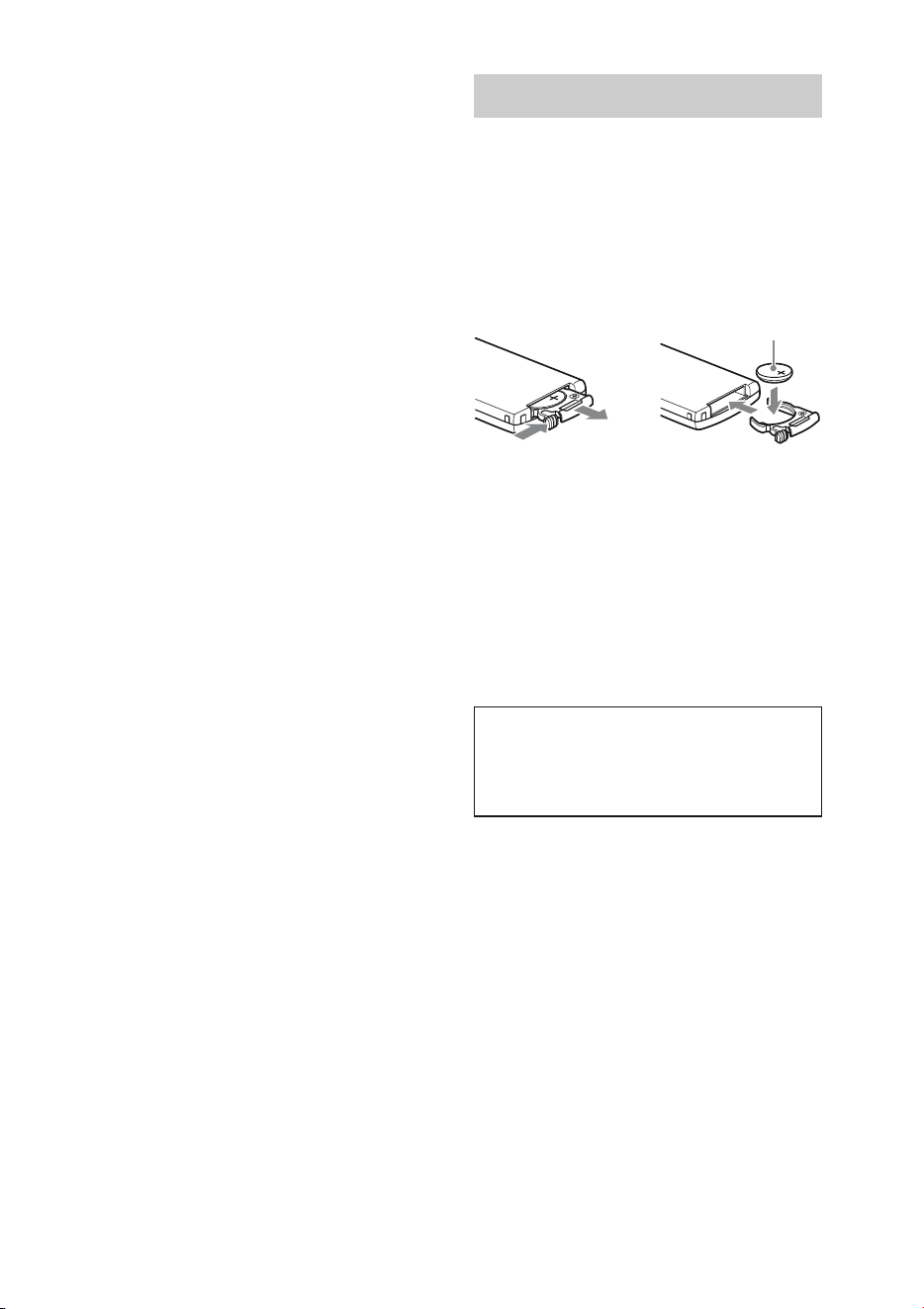
33
Si desea realizar alguna consulta o solucionar
algún problema relativo a la unidad que no se
trate en este manual, póngase en contacto con
el distribuidor Sony más cercano.
Mantenimiento
Sustitución de la pila de litio del control
remoto
El alcance del control remoto disminuye a
medida que se agota la pila. Sustitúyala por
una pila de litio CR2025 nueva. El uso de
cualquier otra pila podría provocar un
incendio o una explosión.
Notas sobre la pila de litio
• Mantenga la pila de litio fuera del alcance de los
niños. Si se ingiriese, póngase en contacto
inmediatamente con un médico.
• Limpie la pila con un paño seco para garantizar
un contacto óptimo.
• Asegúrese de observar la polaridad correcta al
instalarla.
• No sujete la pila con pinzas metálicas, ya que
podría producirse un cortocircuito.
• “Made for iPod” y “Made for iPhone”
indican que un accesorio electrónico se
diseñó para conectarse específicamente a
los dispositivos iPod o iPhone
respectivamente, y que el fabricante
obtuvo la certificación necesaria para que
cumpla con los estándares de rendimiento
de Apple. Apple no se hace responsable
del funcionamiento de este dispositivo en
cumplimiento de los estándares de
seguridad y normativa. Tenga en cuenta
que el uso de este accesorio con el iPod o
el iPhone puede afectar al rendimiento
inalámbrico.
1
2
c
Lado + hacia arriba
ADVERTENCIA
La pila puede explotar si no se emplea
adecuadamente. No recargue la pila;
tampoco la desmonte ni la arroje al fuego.
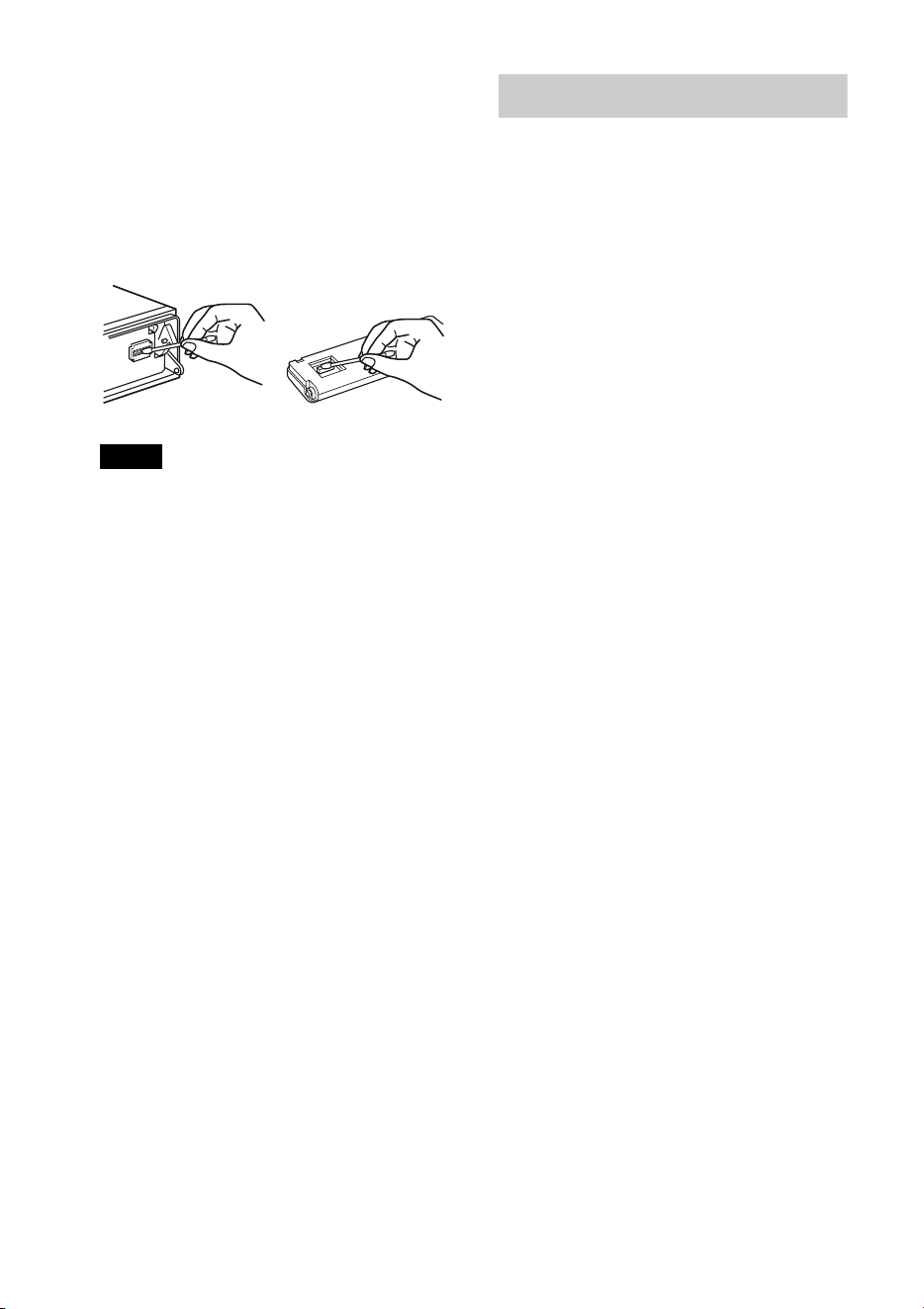
34
Limpieza de los conectores
Es posible que la unidad no funcione
correctamente si los conectores entre ésta y el
panel frontal están sucios. Para evitar esta
situación, extraiga el panel frontal (página 6) y
limpie los conectores con un hisopo de
algodón. Realice esta operación con suavidad.
De lo contrario, los conectores podrían
resultar dañados.
Notas
• Por razones de seguridad, apague el motor
antes de limpiar los conectores y extraiga la
llave del interruptor de encendido.
• No toque nunca los conectores directamente
con los dedos ni con ningún dispositivo
metálico.
Especificaciones
Sección del sintonizador
FM
Rango de sintonización: 87,5 – 107,9 MHz
Terminal de antena: conector de antena externa
Frecuencia intermedia: 25 kHz
Sensibilidad útil: 8 dBf
Selectividad: 75 dB a 400 kHz
Relación señal-ruido: 80 dB (estéreo)
Separación: 50 dB a 1 kHz
Respuesta de frecuencia: 20 – 15 000 Hz
AM
Rango de sintonización: De 530 a 1 710 kHz
Terminal de antena: conector de antena externa
Frecuencia intermedia: 9 115 kHz ó 9 125 kHz/
5 kHz
Sensibilidad: 26 μV
Sección del reproductor de CD
Relación señal-ruido: 120 dB
Respuesta de frecuencia: 10 – 20 000 Hz
Fluctuación y trémolo: inferior al límite medible
Sección del reproductor USB
Interfaz: USB (velocidad máxima)
Corriente máxima: 1 A
Sección del amplificador de
potencia
Salida: salidas de altavoz
Impedancia de altavoces: de 4 a 8 ohmios
Salida de potencia máxima: 52 W × 4 (a 4 ohmios)
Generales
Salidas:
Terminal de salidas de audio (frontal/posterior)
Terminal de salida de altavoz potenciador de
graves (mono)
Antena motorizada/Terminal de control del
amplificador de potencia (REM OUT)
Entradas:
Terminal de entrada del control remoto
Terminal de entrada de la antena
Terminal de control ATT de teléfono
Toma de entrada AUX (minitoma estéreo)
Conector de entrada de señal USB
Requisitos de alimentación:
Batería de automóvil de cc 12 V (masa negativa)
Dimensiones: Aprox. 178 × 50 × 180 mm (an/al/prf)
Dimensiones de montaje:
Aprox. 182 × 53 × 162 mm (an/al/prf)
Peso: Aprox. 1,3 kg

35
Accesorios suministrados:
Control remoto: RM-X211
Componentes de instalación y conexiones
(1 juego)
Equipo y accesorios opcionales:
Cable de conexión USB para iPod: RC-100IP
Es posible que su distribuidor no comercialice
algunos de los accesorios que figuran en la lista
anterior. Pídale información detallada.
El diseño y las especificaciones están sujetos a
cambios sin previo aviso.
Requisitos del sistema para usar
SensMe™
Computadora
•CPU/RAM
– Equipo compatible con IBM PC/AT
– CPU: Intel Pentium III Processor a 450 MHz
o superior
– RAM: 256 MB o más (para Windows XP),
512 MB o más (para Windows Vista o
posterior)
•Puerto USB
Sistema operativo
Windows XP, Windows Vista, Windows 7
Para obtener más información sobre las
ediciones compatibles o el Service Pack, visite
el sitio web de servicio técnico que se indica en
la cubierta posterior.
Monitor
Color de alta densidad (16 bits) o superior,
800 × 600 puntos o más
Otros
Conexión a Internet
Notas
• No se admiten los siguientes entornos de
sistema.
– Computadoras que no sean de tipo IBM PC,
como Macintosh o similares
– Computadoras montadas en casa
– Computadoras con sistemas operativos
actualizados
– Entornos multipantalla
– Entornos multiarranque
– Entornos de máquina virtual
• En función de las condiciones de la
computadora, es posible que no se pueda
utilizar incluso con el entorno recomendado.
36
Solución de problemas
La siguiente lista de comprobación le ayudará
a solucionar los problemas que puedan
producirse con la unidad.
Antes de consultarla, revise los
procedimientos de conexión y de
funcionamiento.
Para obtener información sobre cómo usar el
fusible y quitar la unidad del tablero, consulte
el manual de instalación y conexiones
suministrado con esta unidad.
Si no se soluciona el problema, visite el sitio de
soporte que se indica en la cubierta posterior.
Generales
La unidad no recibe alimentación.
Revise la conexión o el fusible.
Si la unidad está apagada y la pantalla
desaparece, no se puede operar con el control
remoto.
– Encienda la unidad.
La antena motorizada no se extiende.
La antena motorizada no dispone de una caja
de relé.
No se emite el sonido.
La función ATT está activada o la función ATT
de teléfono (cuando se conecta el cable de
interfaz de un teléfono para automóvil al cable
ATT) está activada.
La posición del control de equilibrio “FADER”
no está ajustada para un sistema de 2 altavoces.
No se escuchan pitidos.
El sonido de los pitidos está cancelado
(página 28).
Se encuentra conectado un amplificador de
potencia opcional y no está usando el
amplificador integrado.
El contenido de la memoria se borró.
Se desconectó el cable de fuente de
alimentación o la batería, o no están
conectados correctamente.
Las emisoras almacenadas y la hora correcta
se borraron.
El fusible se fundió.
Se escucha ruido cuando se cambia la
posición de la llave de encendido.
Los cables no se conectaron de forma correcta
al conector de alimentación auxiliar del
automóvil.
Durante la reproducción o la recepción, el
modo de demostración se inicia.
Si no se realiza ninguna operación durante
5 minutos y la opción “DEMO-ON” está
ajustada, se iniciará el modo de demostración.
– Ajuste “DEMO-OFF” (página 29).
Las indicaciones desaparecen de la pantalla
o no aparecen en ella.
El atenuador está ajustado en “DIMMER-ON”
(página 29).
La pantalla se apaga si mantiene presionado
.
–Presione en la unidad hasta
que se ilumine la pantalla.
Los conectores están sucios (página 34).
La función de desconexión automática no
funciona.
La unidad está encendida. La función de
desconexión automática se activa después de
apagar la unidad.
–Apague la unidad.
Recepción de radio
No es posible recibir las emisoras.
Hay ruidos que obstaculizan el sonido.
La conexión no es correcta.
– Conecte un cable de control de la antena
motorizada (con rayas azules y blancas) o un
cable de fuente de alimentación auxiliar
(rojo) al cable de fuente de alimentación del
amplificador de señal de la antena del
automóvil (solamente cuando el automóvil
tenga una antena de radio integrada en el
cristal posterior o lateral).
– Compruebe la conexión de la antena del
automóvil.
– Si la antena motorizada no se extiende,
compruebe la conexión del cable de control
de la antena motorizada.
37
No es posible utilizar la sintonización
programada.
Almacene la frecuencia correcta en la
memoria.
La señal de emisión es demasiado débil.
No es posible utilizar la sintonización
automática.
La señal de emisión es demasiado débil.
– Use la sintonización manual.
RDS
PTY muestra “- - - - - - - -”.
La emisora actual no es una emisora RDS.
No se recibieron datos RDS.
La emisora no especifica el tipo de programa.
Reproducción de CD
No es posible insertar el disco.
Ya hay un disco insertado.
El disco se insertó a la fuerza al revés o de
forma incorrecta.
No se inicia la reproducción.
Disco defectuoso o sucio.
Los discos CD-R/CD-RW no son para audio
(página 32).
No es posible reproducir archivos MP3/
WMA/AAC.
El disco no es compatible con el formato y la
versión de MP3/WMA/AAC. Para obtener
más información acerca de los discos y
formatos que se pueden reproducir, visite el
sitio Web del soporte técnico.
Los archivos MP3/WMA/AAC tardan más
tiempo en reproducirse que los demás.
El inicio de la reproducción de los siguientes
discos tarda algo más de tiempo.
– disco grabado con una estructura de árbol
complicada.
– disco grabado en Multi Session.
– disco al que es posible añadir datos.
Los elementos de pantalla no se desplazan.
En el caso de discos con muchos caracteres, es
posible que estos no se desplacen.
La opción “AUTO SCROLL” está en “OFF”.
– Ajuste “A.SCRL-ON” (página 29).
– Mantenga presionado (SCRL).
Se producen saltos de sonido.
La instalación no es correcta.
– Instale la unidad en un ángulo inferior a 45°
en una parte firme del automóvil.
Disco defectuoso o sucio.
Reproducción USB
No es posible reproducir elementos a través
de un concentrador USB.
Esta unidad no puede reconocer dispositivos
USB a través de un concentrador USB.
No se pueden reproducir elementos.
Un dispositivo USB no funciona.
– Vuelva a conectarlo.
El dispositivo USB tarda en reproducirse.
El dispositivo USB contiene archivos con una
estructura de árbol compleja.
El sonido es discontinuo.
Es posible que la discontinuidad del sonido se
deba a una tasa alta de bits de más de 320 kbps.
No es posible conectar a Pandora®.
Apague Pandora® en su dispositivo móvil, y
luego inicie el programa nuevamente.

38
Mensajes/indicaciones de
error
CHECKING
La unidad está confirmando la conexión de un
dispositivo USB.
– Espere mientras finaliza el proceso de
confirmación de la conexión.
ERROR
El disco está sucio o se insertó al revés.
– Límpielo o insértelo de forma correcta.
Se insertó un disco vacío.
No es posible reproducir el disco debido a un
problema.
– Inserte otro disco.
El dispositivo USB no ha sido reconocido
automáticamente.
– Conéctelo nuevamente.
Presione para extraer el disco.
FAILURE
La conexión de los altavoces y amplificadores
es incorrecta.
– Consulte el manual de instalación/
conexiones de este modelo para revisar la
conexión.
HUBS NO SUPRT (No admite concentradores)
El concentrador USB no es compatible con esta
unidad.
INVALID
El dispositivo USB conectado no contiene un
archivo de música para la función SensMe™.
NO CHANNEL
El dispositivo USB conectado no contiene una
lista de canales para la función SensMe™.
NO DEV (No hay dispositivo)
USB se selecciona como fuente sin que esté
conectado un dispositivo USB. Se ha
desconectado un dispositivo USB o un cable
USB durante la reproducción.
– Asegúrese de conectar un dispositivo USB y
un cable USB.
NO MUSIC
El disco o dispositivo USB no contiene ningún
archivo de música.
– Inserte un CD de música en esta unidad.
– Conecte un dispositivo USB que contenga
algún archivo de música.
NO NAME
No se grabó un nombre de disco/álbum/
artista/pista en la pista.
NOT FOUND
No hay ningún elemento que comience por la
letra seleccionada en la Búsqueda alfabética.
OFFSET
Es posible que se haya producido una falla
interna.
– Revise la conexión. Si el indicador de error
permanece en pantalla, póngase en contacto
con el distribuidor Sony más cercano.
OVERLOAD
El dispositivo USB está sobrecargado.
– Desconecte el dispositivo USB y, a
continuación, presione
para cambiar la fuente.
– Indica que el dispositivo USB está fuera de
servicio, o que hay un dispositivo
incompatible conectado.
READ
La unidad está leyendo toda la información de
pistas y de álbumes del disco.
– Espere hasta que finalice la lectura y se inicie
la reproducción automáticamente. Es
posible que demore más de un minuto en
función de la estructura del disco.
S-CH NO SUPRT (Canal SensMe™ no
compatible)
El dispositivo USB conectado no es
compatible.
– Para obtener más información acerca de la
compatibilidad del dispositivo USB, visite el
sitio web de soporte técnico.
39
USB NO SUPRT (USB no compatible)
El dispositivo USB conectado no es
compatible.
– Para obtener más información acerca de la
compatibilidad del dispositivo USB, visite el
sitio web de soporte técnico.
“” o “”
Durante la operación de avance o retroceso
rápido, llegó al principio o al final del disco,
por lo que no es posible continuar.
“”
No se puede mostrar el carácter con la unidad.
Para la radio de Internet de Pandora®:
OPEN APP
Pandora® no se puede iniciar.
– Iniciar Pandora® en iPhone.
CHECK DEV
Pandora® no se puede iniciar.
– Inicie Pandora® y comience sesión con su
cuenta.
NO STATION
No hay canales en su cuenta de Pandora®.
– Cree un canal en el dispositivo móvil.
CANNOT SKIP
Saltar pistas en Pandora® no está permitido.
– Espere hasta que finalice el comercial.
–Pandora® tiene un límite de canciones que se
pueden saltar. Espere hasta que comienza la
siguiente canción o seleccione otro canal en
la lista.
NOT ALLOWED
Las opiniones de “Pulgares” no están
permitidas.
– Espere hasta que finalice el comercial.
– Algunas funciones, como por ejemplo
Canales Compartidos, no permiten marcar
opiniones. Espere hasta que comienza la
siguiente canción o seleccione otro canal en
la lista.
Marcar favoritos no está permitido.
– Espere hasta que finalice el comercial.
– Seleccione otra canción u otro canal, luego
comience nuevamente.
ERROR
Error al dar opiniones a través de “Pulgares”.
– Intente “Pulgares Arriba/Abajo”
nuevamente.
Error al marcar favoritos.
– Intente marcar favoritos nuevamente.
Si estas soluciones no ayudan a mejorar la
situación, póngase en contacto con el
distribuidor Sony más cercano.
Si entrega la unidad para su reparación a causa
de problemas en la reproducción de CD, lleve
el disco que se utilizó cuando se produjo el
problema.
©2012 Sony Corporation Printed in Thailand
http://www.sony.net/
http://esupport.sony.com
http://www.sony.com/caraudio
Sitio Web de soporte técnico en línea
Para resolver cualquier duda u obtener la información
más reciente sobre el soporte técnico de este producto,
visite el siguiente sitio Web:
Support site
If you have any questions or for the latest support
information on this product, please visit the web site
below:
If you have any questions/problems
regarding this product, try the following:
1
Read Troubleshooting in these
Operating Instructions.
2
Please contact (U.S.A. only);
Call
1-800-222-7669
URL
http://www.SONY.com