
Table Of Contents
Help Guide WG-C10 i........................................................................................................................
How to use 1......................................................................................................................................
Read this first 6............................................................................................................................
Read this first 36....................................................................................................................
Read this first 100............................................................................................................
Product overview 7......................................................................................................................
What you can do with this unit 37..........................................................................................
What you can do with this unit 101..................................................................................
Supported devices 103....................................................................................................
Parts and controls 38.............................................................................................................
Parts and controls 104.....................................................................................................
Getting started 8..........................................................................................................................
Bundled items 39...................................................................................................................
Bundled items 106...........................................................................................................
Charging this unit 40..............................................................................................................
Charging from a computer 107........................................................................................
Charging with a USB AC adaptor 108.............................................................................
Turning the power on/off 41...................................................................................................
Turning the power on 109................................................................................................
Turning the power off 110................................................................................................
Setting up an Android device 42............................................................................................
Installing "PWS Manager" to an Android device 111.......................................................
Connecting an Android device via wireless LAN 112......................................................
Setting the Wi-Fi security using "PWS Manager" (Android device) 114..........................
Setting up an iOS device 43..................................................................................................
Installing "PWS Manager" to an iOS device 117.............................................................
Connecting an iOS device via wireless LAN 118.............................................................
Setting the Wi-Fi security using "PWS Manager" (iOS device) 120.................................
Setting up a computer 44.......................................................................................................
Connecting a computer via USB 123...............................................................................
Connecting a computer via wireless LAN 124.................................................................
Preparing a memory card 45.................................................................................................
Inserting a memory card 125...........................................................................................
Ejecting a memory card 126............................................................................................
Preparing a USB device 46...................................................................................................
Connecting a USB device 127.........................................................................................
How to use "PWS Manager" (Android) 9.....................................................................................
Changing the device to be accessed 47................................................................................
TOC-1

Changing the device to be accessed (Android device) 128.............................................
Playback/Display 48..............................................................................................................
Supported file formats (Android device) 129....................................................................
Playback/Display (Android device) 130...........................................................................
Photo playback screen (Android device) 131..................................................................
Music playback screen (Android device) 133..................................................................
Video playback screen (Android device) 135...................................................................
Selecting an application (Android device) 137.................................................................
Checking the file information 49............................................................................................
Checking the file information (Android device) 138.........................................................
Editing 50...............................................................................................................................
Editing the file/folder name (Android device) 140............................................................
Refreshing 51........................................................................................................................
Refreshing the data list (Android device) 142..................................................................
Copying 52.............................................................................................................................
Copying data (Android device) 143..................................................................................
Copying during playback (Android device) 146...............................................................
Deleting 53.............................................................................................................................
Deleting data (Android device) 148..................................................................................
Deleting during playback (Android device) 150...............................................................
Sorting 54..............................................................................................................................
Sorting the data list (Android device) 152........................................................................
Settings 55.............................................................................................................................
Setting the Wi-Fi security using "PWS Manager"(Android device) 114...........................
Configuring the Internet connection (Android device) 153...............................................
Updating the system software (Android device) 155.......................................................
Checking the remaining battery level (Android device) 157.............................................
Setting auto power off (Android device) 159....................................................................
Checking the version of "PWS Manager" (Android device) 161......................................
Configuring/Checking DHCP services (Android device) 163...........................................
How to use "PWS Manager" (iOS) 10.........................................................................................
Changing the device to be accessed 56................................................................................
Changing the device to be accessed (iOS device) 165...................................................
Playback/Display 57..............................................................................................................
Supported file formats (iOS device) 166..........................................................................
Playback/Display (iOS device) 168..................................................................................
Photo playback screen (iOS device) 169.........................................................................
Music playback screen (iOS device) 171.........................................................................
Video playback screen (iOS device) 173.........................................................................
Document display screen (iOS device) 175.....................................................................
TOC-2

Selecting an application (iOS device) 176.......................................................................
Checking the file information 58............................................................................................
Checking the file information (iOS device) 177................................................................
Editing 59...............................................................................................................................
Editing the file/folder name (iOS device) 179...................................................................
Refreshing 60........................................................................................................................
Refreshing the data list (iOS device) 181........................................................................
Copying 61.............................................................................................................................
Copying data (iOS device) 182........................................................................................
Copying during playback (iOS device) 185......................................................................
Deleting 62.............................................................................................................................
Deleting data (iOS device) 188........................................................................................
Deleting during playback (iOS device) 189......................................................................
Sorting 63..............................................................................................................................
Sorting the data list (iOS device) 191..............................................................................
Settings 64.............................................................................................................................
Configuring the Internet connection (iOS device) 192.....................................................
Updating the system software (iOS device) 194..............................................................
Checking the remaining battery level (iOS device) 196...................................................
Setting auto power off (iOS device) 198..........................................................................
Checking the version of "PWS Manager" (iOS device) 200.............................................
Configuring/Checking DHCP services (iOS device) 202.................................................
How to use with a computer 11...................................................................................................
Connecting via USB 65..........................................................................................................
Connecting to and accessing this unit (Windows) 204....................................................
Connecting to and accessing this unit (Mac) 205............................................................
Removing USB connection (safe removal of hardware) (Windows) 206.........................
Removing USB connection (safe removal of hardware) (Mac) 207.................................
Connecting via wireless LAN 66............................................................................................
Connecting to a wireless LAN (Windows Vista) 208........................................................
Connecting to a wireless LAN (Windows 7) 209..............................................................
Connecting to a wireless LAN (Windows 8) 210..............................................................
Connecting to a wireless LAN (Mac) 211.........................................................................
Accessing files/folders in this unit 212.............................................................................
Changing various settings of this unit via wireless LAN 67...................................................
Setting up the security 214..............................................................................................
Configuring the Internet connection 215..........................................................................
Setting automatic power off 216......................................................................................
Updating the system software 217...................................................................................
Supplying power 12.....................................................................................................................
TOC-3

Supplying power to other devices 68.....................................................................................
Supplying power to other devices 219.............................................................................
LED status indications 13............................................................................................................
LED status indications 69......................................................................................................
LED status indications 220..............................................................................................
Precautions 14.............................................................................................................................
Precautions 70.......................................................................................................................
Precautions on use 222...................................................................................................
Maintenance 224.............................................................................................................
Notes on disposing of the unit 225..................................................................................
Notes on the memory card 227........................................................................................
Specifications 15.........................................................................................................................
Specifications 71....................................................................................................................
Specifications 229............................................................................................................
Compatible device 16..................................................................................................................
Android compatible devices 72..............................................................................................
Android compatible devices 231......................................................................................
iOS compatible devices 73....................................................................................................
iOS compatible devices 232............................................................................................
Memory cards 74...................................................................................................................
"Memory Stick" media 233...............................................................................................
SD memory card 234.......................................................................................................
USB device (data copy/power supply compatible) 75...........................................................
USB device (data copy/power supply compatible) 235....................................................
USB AC adaptor (for charging the unit) 76............................................................................
USB AC Adaptor (for charging the unit) 236....................................................................
Trademarks 17............................................................................................................................
Trademarks 77.......................................................................................................................
Trademarks 237...............................................................................................................
Troubleshooting 2..............................................................................................................................
Main unit 18.................................................................................................................................
Power supply 78....................................................................................................................
The power does not turn on. 238.....................................................................................
The power turns off unexpectedly. 239............................................................................
I pressed the power button, but the battery indicator lamp does not
light or blink. 240..............................................................................................................
I spilled water on this unit. 241........................................................................................
Power is turned on but this unit does not respond to any operations. 242......................
The power turns off automatically. 243............................................................................
The power does not turn off. 244.....................................................................................
TOC-4

Battery life is short. 245...................................................................................................
It takes a long time to start up this unit. 246....................................................................
The auto power off function does not work. 247..............................................................
Heat 79..................................................................................................................................
This unit becomes warm. 248..........................................................................................
Charging 19.................................................................................................................................
Charging 80...........................................................................................................................
The battery does not charge from a computer. 249.........................................................
The battery indicator lamp does not light while charging. 250.........................................
The battery indicator lamp blinks while charging. 251.....................................................
The battery is quickly recharged. 252..............................................................................
It takes a long time to charge the battery. 253.................................................................
The wireless LAN function cannot be used while charging. 254......................................
Supplying power 20.....................................................................................................................
Supplying power 81...............................................................................................................
This unit does not supply power to other devices. 255....................................................
Wireless LAN connection 21.......................................................................................................
Wireless LAN connection 82..................................................................................................
Wireless LAN connection to a smartphone, tablet or computer cannot
be established. 256..........................................................................................................
I found two SSIDs, both of which start with "WG-C10" and I cannot
determine which one should be used. 257......................................................................
The wireless LAN connection has stopped. 258..............................................................
The wireless LAN connection between this unit and a smartphone,
tablet or computer is unstable. 259..................................................................................
It takes a long time to establish a wireless LAN connection between
this unit and a smartphone, tablet or computer. 260........................................................
Internet connection 83...........................................................................................................
Internet connection cannot be established. 261..............................................................
Data copy 84..........................................................................................................................
It takes too long to copy data. 263...................................................................................
Other 85.................................................................................................................................
How many SSIDs can be registered as the external access points for
the Internet connection? 264...........................................................................................
How many users can connect to this unit at the same time? 265....................................
File operation 22..........................................................................................................................
Data playback/display 86.......................................................................................................
Data cannot be played back or displayed. 266................................................................
It takes time to play back or display data. 267.................................................................
What file formats are supported by "PWS Manager"? 268..............................................
TOC-5

Files cannot be edited by "PWS Manager." 269..............................................................
The Camera Roll cannot be accessed (iOS device). 270................................................
Data copy 87..........................................................................................................................
Data cannot be copied to an Android device. 271...........................................................
Data cannot be copied to an iOS device. 272.................................................................
Data cannot be copied to a USB device (USB flash drive, etc.). 273..............................
Data cannot be copied to a memory card. 274................................................................
Data delete 88.......................................................................................................................
Data in an Android device cannot be deleted. 275..........................................................
Data in an iOS device cannot be deleted. 276................................................................
Data in a USB device (USB flash drive, etc.) cannot be deleted. 277.............................
Data in a memory card cannot be deleted. 278...............................................................
Data have been deleted by mistake. 279........................................................................
Supported memory cards and devices 23...................................................................................
Supported memory cards and devices 89.............................................................................
Which SD cards are supported? 280...............................................................................
Which "Memory Stick" media are supported? 281...........................................................
Which USB devices (USB flash drive, etc.) are supported? 282.....................................
Which Android devices are supported? 283....................................................................
Which iOS devices are supported? 284...........................................................................
Which USB AC adaptors are supported? 285.................................................................
Which devices can this unit supply power to? 286..........................................................
USB connection to a computer 24...............................................................................................
USB connection to a computer 90.........................................................................................
This unit is connected to a computer with the USB cable but is not
recognized. 287...............................................................................................................
The battery indicator lamp lights amber. 288...................................................................
The wireless LAN connection has stopped. 258..............................................................
USB devices (USB flash drive, etc.) do not work. 289.....................................................
"PWS Manager" 25......................................................................................................................
"PWS Manager" 91................................................................................................................
"PWS Manager" cannot be installed. 290........................................................................
What file formats are supported by "PWS Manager"? 268..............................................
Files cannot be edited by "PWS Manager." 269..............................................................
How can I check the version of "PWS Manager"? 291....................................................
I can't operate on some files. 292....................................................................................
Additional Information 26.............................................................................................................
Resetting 92...........................................................................................................................
How can I use the RESET switch? 293...........................................................................
Security setting for wireless LAN of this unit 93.....................................................................
TOC-6

Is the security setting necessary? 294.............................................................................
What security settings are available for wireless LAN of this unit? 295...........................
I have forgotten the password. 296.................................................................................
System software update 94...................................................................................................
About update of the system software of this unit (using smartphone/
tablet) 297........................................................................................................................
Update of the system software of this unit fails (using smartphone/
tablet). 298.......................................................................................................................
About update of the system software of this unit (using computer) 299..........................
Update of the system software of this unit fails (using computer). 300............................
USB cable 95.........................................................................................................................
The USB cable cannot be connected to this unit. 301.....................................................
Dedicated USB cable holder 96.............................................................................................
How can I use the USB cable holder? 302......................................................................
USB AC adaptor 97...............................................................................................................
USB devices cannot be used. 303...................................................................................
Troubleshooting 27......................................................................................................................
Troubleshooting 98................................................................................................................
Troubleshooting 304........................................................................................................
Certified devices 28.....................................................................................................................
Certified devices 99...............................................................................................................
List of Topics 3..................................................................................................................................
How to use 29..............................................................................................................................
Troubleshooting 33......................................................................................................................
Notes on use 4..................................................................................................................................
Certified devices 305.........................................................................................................................
TOC-7
Help Guide
How to use
Read this first
Product overview
Getting started
How to use "PWS Manager"
(Android)
How to use "PWS Manager"
(iOS)
How to use with a computer
Supplying power
LED status indications
Precautions
Specifications
Compatible device
Trademarks
Troubleshooting
List of Topics
Portable Wireless Server
WG-C10
How to use
The following explains how to use this unit. Select a topic
from the navigation pane on the left.
If you cannot see the topic you want:
Under "List of Topics," you can see headers for all of the topics in this Help
Guide.
You can search for the topic you want by entering keywords in the search
window at the top of the page.
Go to Page Top
Back Back to Top
4-468-627-14(1)
© 2013 Sony Corporation Notes on use
1
Search
Help Guide
How to use
Troubleshooting
Main unit
Charging
Supplying power
Wireless LAN connection
File operation
Supported memory cards
and devices
USB connection to a
computer
"PWS Manager"
Additional Information
Troubleshooting
Certified devices
List of Topics
Portable Wireless Server
WG-C10
Troubleshooting
Select a topic from the navigation pane on the left.
Go to Page Top
Back Back to Top
4-468-627-14(1)
© 2013 Sony Corporation Notes on use
2
Search
Help Guide
How to use
Troubleshooting
List of Topics
How to use
Troubleshooting
Portable Wireless Server
WG-C10
List of Topics
You can see headers for all of the topics in this Help
Guide. Select the topic from the navigation pane on the
left.
Go to Page Top
Back Back to Top
4-468-627-14(1)
© 2013 Sony Corporation Notes on use
3
Search
Help Guide
How to use
Troubleshooting
List of Topics
Portable Wireless Server
WG-C10
Before use
To make full use of this website, please read the following notes thoroughly.
Please note that the contents of this website are subject to change without prior
notice.
Go to Page Top
Recommended system environment
The following system environments are recommended for displaying your Help
Guide. You may not be able to view some of the contents on other system
environments.
Web browser
To view the Help
Guide on Microsoft
Windows
Microsoft Internet Explorer 8 or later
Mozilla Firefox: latest version
Google Chrome: latest version
To view the Help
Guide on Apple Mac
OS
Apple Safari Ver. 5 or later
Mozilla Firefox: latest version
Google Chrome: latest version
Display size
1024 x 768 pixels or larger
JavaScript
JavaScript is used with Sony Help Guides for viewing convenience. If JavaScript is
disabled in your web browser settings, your Help Guide may not be displayed
correctly or may not operate properly.
Style Sheets
Cascading Style Sheets are used in designing Sony Help Guides. Your Help Guide
layout may not be as intended if you view your Help Guide with style sheets
disabled or on a web browser that is not compatible with style sheets. However,
Help Guide operation will not be affected.
Cookies
Sony Help Guides use cookies. To use services in the Help Guide, you need to set
to allow all cookies or to enable cookies for the originating website only.
Go to Page Top
Handling of personal information obtained from websites
Sony may use cookies, web beacons or similar technologies to analyze customers'
web browsing behavior to provide better-customized service for individual
customers.
Back
Back to Top
October 2012
Notes on use
4
Search

Cookies, web beacon and similar technologies are used to make statistical analysis
of customers while preserving anonymity, and information in such analysis may be
linked to customers' personal information to provide better-customized service to
users of our members-only websites.
You are free to disable the link between your personal information and information
obtained by cookies or anonymous information generated by web beacons. To do
so, you need to change web browser settings and refuse to accept cookie-
generated or similar data. Please note that, by doing so, you may not be able to
make purchases or use services on members-only websites.
Go to Page Top
4-468-627-14(1)
© 2013 Sony Corporation Notes on use
5

Help Guide
How to use
Read this first
Product overview
Getting started
How to use "PWS Manager"
(Android)
How to use "PWS Manager"
(iOS)
How to use with a computer
Supplying power
LED status indications
Precautions
Specifications
Compatible device
Trademarks
Troubleshooting
List of Topics
Portable Wireless Server
WG-C10
Read this first
Read this first
Go to Page Top
Back Back to Top
4-468-627-14(1)
© 2013 Sony Corporation Notes on use
6
Search
Help Guide
How to use
Read this first
Product overview
Getting started
How to use "PWS Manager"
(Android)
How to use "PWS Manager"
(iOS)
How to use with a computer
Supplying power
LED status indications
Precautions
Specifications
Compatible device
Trademarks
Troubleshooting
List of Topics
Portable Wireless Server
WG-C10
Product overview
What you can do with this unit
Parts and controls
Go to Page Top
Back Back to Top
4-468-627-14(1)
© 2013 Sony Corporation Notes on use
7
Search
Help Guide
How to use
Read this first
Product overview
Getting started
How to use "PWS Manager"
(Android)
How to use "PWS Manager"
(iOS)
How to use with a computer
Supplying power
LED status indications
Precautions
Specifications
Compatible device
Trademarks
Troubleshooting
List of Topics
Portable Wireless Server
WG-C10
Getting started
Bundled items
Charging this unit
Turning the power on/off
Setting up an Android device
Setting up an iOS device
Setting up a computer
Preparing a memory card
Preparing a USB device
Go to Page Top
Back Back to Top
4-468-627-14(1)
© 2013 Sony Corporation Notes on use
8
Search
Help Guide
How to use
Read this first
Product overview
Getting started
How to use "PWS Manager"
(Android)
How to use "PWS Manager"
(iOS)
How to use with a computer
Supplying power
LED status indications
Precautions
Specifications
Compatible device
Trademarks
Troubleshooting
List of Topics
Portable Wireless Server
WG-C10
How to use "PWS Manager" (Android)
Changing the device to be accessed
Playback/Display
Checking the file information
Editing
Refreshing
Copying
Deleting
Sorting
Settings
Go to Page Top
Back Back to Top
4-468-627-14(1)
© 2013 Sony Corporation Notes on use
9
Search
Help Guide
How to use
Read this first
Product overview
Getting started
How to use "PWS Manager"
(Android)
How to use "PWS Manager"
(iOS)
How to use with a computer
Supplying power
LED status indications
Precautions
Specifications
Compatible device
Trademarks
Troubleshooting
List of Topics
Portable Wireless Server
WG-C10
How to use "PWS Manager" (iOS)
Changing the device to be accessed
Playback/Display
Checking the file information
Editing
Refreshing
Copying
Deleting
Sorting
Settings
Go to Page Top
Back Back to Top
4-468-627-14(1)
© 2013 Sony Corporation Notes on use
10
Search
Help Guide
How to use
Read this first
Product overview
Getting started
How to use "PWS Manager"
(Android)
How to use "PWS Manager"
(iOS)
How to use with a computer
Supplying power
LED status indications
Precautions
Specifications
Compatible device
Trademarks
Troubleshooting
List of Topics
Portable Wireless Server
WG-C10
How to use with a computer
Connecting via USB
Connecting via wireless LAN
Changing various settings of this unit via wireless LAN
Go to Page Top
Back Back to Top
4-468-627-14(1)
© 2013 Sony Corporation Notes on use
11
Search
Help Guide
How to use
Read this first
Product overview
Getting started
How to use "PWS Manager"
(Android)
How to use "PWS Manager"
(iOS)
How to use with a computer
Supplying power
LED status indications
Precautions
Specifications
Compatible device
Trademarks
Troubleshooting
List of Topics
Portable Wireless Server
WG-C10
Supplying power
Supplying power to other devices
Go to Page Top
Back Back to Top
4-468-627-14(1)
© 2013 Sony Corporation Notes on use
12
Search

Help Guide
How to use
Read this first
Product overview
Getting started
How to use "PWS Manager"
(Android)
How to use "PWS Manager"
(iOS)
How to use with a computer
Supplying power
LED status indications
Precautions
Specifications
Compatible device
Trademarks
Troubleshooting
List of Topics
Portable Wireless Server
WG-C10
LED status indications
LED status indications
Go to Page Top
Back Back to Top
4-468-627-14(1)
© 2013 Sony Corporation Notes on use
13
Search
Help Guide
How to use
Read this first
Product overview
Getting started
How to use "PWS Manager"
(Android)
How to use "PWS Manager"
(iOS)
How to use with a computer
Supplying power
LED status indications
Precautions
Specifications
Compatible device
Trademarks
Troubleshooting
List of Topics
Portable Wireless Server
WG-C10
Precautions
Precautions
Go to Page Top
Back Back to Top
4-468-627-14(1)
© 2013 Sony Corporation Notes on use
14
Search
Help Guide
How to use
Read this first
Product overview
Getting started
How to use "PWS Manager"
(Android)
How to use "PWS Manager"
(iOS)
How to use with a computer
Supplying power
LED status indications
Precautions
Specifications
Compatible device
Trademarks
Troubleshooting
List of Topics
Portable Wireless Server
WG-C10
Specifications
Specifications
Go to Page Top
Back Back to Top
4-468-627-14(1)
© 2013 Sony Corporation Notes on use
15
Search
Help Guide
How to use
Read this first
Product overview
Getting started
How to use "PWS Manager"
(Android)
How to use "PWS Manager"
(iOS)
How to use with a computer
Supplying power
LED status indications
Precautions
Specifications
Compatible device
Trademarks
Troubleshooting
List of Topics
Portable Wireless Server
WG-C10
Compatible device
Android compatible devices
iOS compatible devices
Memory cards
USB device (data copy/power supply compatible)
USB AC adaptor (for charging the unit)
Go to Page Top
Back Back to Top
4-468-627-14(1)
© 2013 Sony Corporation Notes on use
16
Search
Help Guide
How to use
Read this first
Product overview
Getting started
How to use "PWS Manager"
(Android)
How to use "PWS Manager"
(iOS)
How to use with a computer
Supplying power
LED status indications
Precautions
Specifications
Compatible device
Trademarks
Troubleshooting
List of Topics
Portable Wireless Server
WG-C10
Trademarks
Trademarks
Go to Page Top
Back Back to Top
4-468-627-14(1)
© 2013 Sony Corporation Notes on use
17
Search
Help Guide
How to use
Troubleshooting
Main unit
Charging
Supplying power
Wireless LAN connection
File operation
Supported memory cards
and devices
USB connection to a
computer
"PWS Manager"
Additional Information
Troubleshooting
Certified devices
List of Topics
Portable Wireless Server
WG-C10
Main unit
Power supply
Heat
Go to Page Top
Back Back to Top
4-468-627-14(1)
© 2013 Sony Corporation Notes on use
18
Search
Help Guide
How to use
Troubleshooting
Main unit
Charging
Supplying power
Wireless LAN connection
File operation
Supported memory cards
and devices
USB connection to a
computer
"PWS Manager"
Additional Information
Troubleshooting
Certified devices
List of Topics
Portable Wireless Server
WG-C10
Charging
Charging
Go to Page Top
Back Back to Top
4-468-627-14(1)
© 2013 Sony Corporation Notes on use
19
Search
Help Guide
How to use
Troubleshooting
Main unit
Charging
Supplying power
Wireless LAN connection
File operation
Supported memory cards
and devices
USB connection to a
computer
"PWS Manager"
Additional Information
Troubleshooting
Certified devices
List of Topics
Portable Wireless Server
WG-C10
Supplying power
Supplying power
Go to Page Top
Back Back to Top
4-468-627-14(1)
© 2013 Sony Corporation Notes on use
20
Search
Help Guide
How to use
Troubleshooting
Main unit
Charging
Supplying power
Wireless LAN connection
File operation
Supported memory cards
and devices
USB connection to a
computer
"PWS Manager"
Additional Information
Troubleshooting
Certified devices
List of Topics
Portable Wireless Server
WG-C10
Wireless LAN connection
Wireless LAN connection
Internet connection
Data copy
Other
Go to Page Top
Back Back to Top
4-468-627-14(1)
© 2013 Sony Corporation Notes on use
21
Search
Help Guide
How to use
Troubleshooting
Main unit
Charging
Supplying power
Wireless LAN connection
File operation
Supported memory cards
and devices
USB connection to a
computer
"PWS Manager"
Additional Information
Troubleshooting
Certified devices
List of Topics
Portable Wireless Server
WG-C10
File operation
Data playback/display
Data copy
Data delete
Go to Page Top
Back Back to Top
4-468-627-14(1)
© 2013 Sony Corporation Notes on use
22
Search
Help Guide
How to use
Troubleshooting
Main unit
Charging
Supplying power
Wireless LAN connection
File operation
Supported memory cards
and devices
USB connection to a
computer
"PWS Manager"
Additional Information
Troubleshooting
Certified devices
List of Topics
Portable Wireless Server
WG-C10
Supported memory cards and devices
Supported memory cards and devices
Go to Page Top
Back Back to Top
4-468-627-14(1)
© 2013 Sony Corporation Notes on use
23
Search
Help Guide
How to use
Troubleshooting
Main unit
Charging
Supplying power
Wireless LAN connection
File operation
Supported memory cards
and devices
USB connection to a
computer
"PWS Manager"
Additional Information
Troubleshooting
Certified devices
List of Topics
Portable Wireless Server
WG-C10
USB connection to a computer
USB connection to a computer
Go to Page Top
Back Back to Top
4-468-627-14(1)
© 2013 Sony Corporation Notes on use
24
Search
Help Guide
How to use
Troubleshooting
Main unit
Charging
Supplying power
Wireless LAN connection
File operation
Supported memory cards
and devices
USB connection to a
computer
"PWS Manager"
Additional Information
Troubleshooting
Certified devices
List of Topics
Portable Wireless Server
WG-C10
"PWS Manager"
"PWS Manager"
Go to Page Top
Back Back to Top
4-468-627-14(1)
© 2013 Sony Corporation Notes on use
25
Search
Help Guide
How to use
Troubleshooting
Main unit
Charging
Supplying power
Wireless LAN connection
File operation
Supported memory cards
and devices
USB connection to a
computer
"PWS Manager"
Additional Information
Troubleshooting
Certified devices
List of Topics
Portable Wireless Server
WG-C10
Additional Information
Resetting
Security setting for wireless LAN of this unit
System software update
USB cable
Dedicated USB cable holder
USB AC adaptor
Go to Page Top
Back Back to Top
4-468-627-14(1)
© 2013 Sony Corporation Notes on use
26
Search
Help Guide
How to use
Troubleshooting
Main unit
Charging
Supplying power
Wireless LAN connection
File operation
Supported memory cards
and devices
USB connection to a
computer
"PWS Manager"
Additional Information
Troubleshooting
Certified devices
List of Topics
Portable Wireless Server
WG-C10
Troubleshooting
Troubleshooting
Go to Page Top
Back Back to Top
4-468-627-14(1)
© 2013 Sony Corporation Notes on use
27
Search
Help Guide
How to use
Troubleshooting
Main unit
Charging
Supplying power
Wireless LAN connection
File operation
Supported memory cards
and devices
USB connection to a
computer
"PWS Manager"
Additional Information
Troubleshooting
Certified devices
List of Topics
Portable Wireless Server
WG-C10
Certified devices
Certified devices
Go to Page Top
Back Back to Top
4-468-627-14(1)
© 2013 Sony Corporation Notes on use
28
Search
Help Guide
How to use
Troubleshooting
List of Topics
How to use
Troubleshooting
Portable Wireless Server
WG-C10
How to use
Read this first
Read this first
Read this first
Product overview
What you can do with this unit
What you can do with this unit
Supported devices
Parts and controls
Parts and controls
Getting started
Bundled items
Bundled items
Charging this unit
Charging from a computer
Charging with a USB AC adaptor
Turning the power on/off
Turning the power on
Turning the power off
Setting up an Android device
Installing "PWS Manager" to an Android device
Connecting an Android device via wireless LAN
Setting the Wi-Fi security using "PWS Manager" (Android device)
Setting up an iOS device
Installing "PWS Manager" to an iOS device
Connecting an iOS device via wireless LAN
Setting the Wi-Fi security using "PWS Manager" (iOS device)
Setting up a computer
Connecting a computer via USB
Connecting a computer via wireless LAN
Preparing a memory card
Inserting a memory card
Ejecting a memory card
Preparing a USB device
Back Back to Top
29
Search

Connecting a USB device
How to use "PWS Manager" (Android)
Changing the device to be accessed
Changing the device to be accessed (Android device)
Playback/Display
Supported file formats (Android device)
Playback/Display (Android device)
Photo playback screen (Android device)
Music playback screen (Android device)
Video playback screen (Android device)
Selecting an application (Android device)
Checking the file information
Checking the file information (Android device)
Editing
Editing the file/folder name (Android device)
Refreshing
Refreshing the data list (Android device)
Copying
Copying data (Android device)
Copying during playback (Android device)
Deleting
Deleting data (Android device)
Deleting during playback (Android device)
Sorting
Sorting the data list (Android device)
Settings
Setting the Wi-Fi security using "PWS Manager" (Android device)
Configuring the Internet connection (Android device)
Updating the system software (Android device)
Checking the remaining battery level (Android device)
Setting auto power off (Android device)
Checking the version of "PWS Manager" (Android device)
Configuring/Checking DHCP services (Android device)
How to use "PWS Manager" (iOS)
Changing the device to be accessed
Changing the device to be accessed (iOS device)
Playback/Display
Supported file formats (iOS device)
Playback/Display (iOS device)
Photo playback screen (iOS device)
30

Music playback screen (iOS device)
Video playback screen (iOS device)
Document display screen (iOS device)
Selecting an application (iOS device)
Checking the file information
Checking the file information (iOS device)
Editing
Editing the file/folder name (iOS device)
Refreshing
Refreshing the data list (iOS device)
Copying
Copying data (iOS device)
Copying during playback (iOS device)
Deleting
Deleting data (iOS device)
Deleting during playback (iOS device)
Sorting
Sorting the data list (iOS device)
Settings
Setting the Wi-Fi security using "PWS Manager" (iOS device)
Configuring the Internet connection (iOS device)
Updating the system software (iOS device)
Checking the remaining battery level (iOS device)
Setting auto power off (iOS device)
Checking the version of "PWS Manager" (iOS device)
Configuring/Checking DHCP services (iOS device)
How to use with a computer
Connecting via USB
Connecting to and accessing this unit (Windows)
Connecting to and accessing this unit (Mac)
Removing USB connection (safe removal of hardware) (Windows)
Removing USB connection (safe removal of hardware) (Mac)
Connecting via wireless LAN
Connecting to a wireless LAN (Windows Vista)
Connecting to a wireless LAN (Windows 7)
Connecting to a wireless LAN (Windows 8)
Connecting to a wireless LAN (Mac)
Accessing files/folders in this unit
Changing various settings of this unit via wireless LAN
Setting up the security
Configuring the Internet connection
Setting automatic power off
31

Updating the system software
Supplying power
Supplying power to other devices
Supplying power to other devices
LED status indications
LED status indications
LED status indications
Precautions
Precautions
Precautions on use
Maintenance
Notes on disposing of the unit
Notes on the memory card
Specifications
Specifications
Specifications
Compatible device
Android compatible devices
Android compatible devices
iOS compatible devices
iOS compatible devices
Memory cards
"Memory Stick" media
SD memory card
USB device (data copy/power supply compatible)
USB device (data copy/power supply compatible)
USB AC adaptor (for charging the unit)
USB AC Adaptor (for charging the unit)
Trademarks
Trademarks
Trademarks
Go to Page Top
4-468-627-14(1)
© 2013 Sony Corporation Notes on use
32
Help Guide
How to use
Troubleshooting
List of Topics
How to use
Troubleshooting
Portable Wireless Server
WG-C10
Troubleshooting
Main unit
Power supply
The power does not turn on.
The power turns off unexpectedly.
I pressed the power button, but the battery indicator lamp does not light or
blink.
I spilled water on this unit.
Power is turned on but this unit does not respond to any operations.
The power turns off automatically.
The power does not turn off.
Battery life is short.
It takes a long time to start up this unit.
The auto power off function does not work.
Heat
This unit becomes warm.
Charging
Charging
The battery does not charge from a computer.
The battery indicator lamp does not light while charging.
The battery indicator lamp blinks while charging.
The battery is quickly recharged.
It takes a long time to charge the battery.
The wireless LAN function cannot be used while charging.
Supplying power
Supplying power
This unit does not supply power to other devices.
Wireless LAN connection
Wireless LAN connection
Wireless LAN connection to a smartphone, tablet or computer cannot be
established.
I found two SSIDs, both of which start with "WG-C10" and I cannot determine
which one should be used.
The wireless LAN connection has stopped.
The wireless LAN connection between this unit and a smartphone, tablet or
computer is unstable.
It takes a long time to establish a wireless LAN connection between this unit and
Back
Back to Top
33
Search

a smartphone, tablet or computer.
Internet connection
Internet connection cannot be established.
Data copy
It takes too long to copy data.
Other
How many SSIDs can be registered as the external access points for the
Internet connection?
How many users can connect to this unit at the same time?
File operation
Data playback/display
Data cannot be played back or displayed.
It takes time to play back or display data.
What file formats are supported by "PWS Manager"?
Files cannot be edited by "PWS Manager."
The Camera Roll cannot be accessed (iOS device).
Data copy
Data cannot be copied to an Android device.
Data cannot be copied to an iOS device.
Data cannot be copied to a USB device (USB flash drive, etc.).
Data cannot be copied to a memory card.
Data delete
Data in an Android device cannot be deleted.
Data in an iOS device cannot be deleted.
Data in a USB device (USB flash drive, etc.) cannot be deleted.
Data in a memory card cannot be deleted.
Data have been deleted by mistake.
Supported memory cards and devices
Supported memory cards and devices
Which SD cards are supported?
Which "Memory Stick" media are supported?
Which USB devices (USB flash drive, etc.) are supported?
Which Android devices are supported?
Which iOS devices are supported?
Which USB AC adaptors are supported?
Which devices can this unit supply power to?
USB connection to a computer
USB connection to a computer
This unit is connected to a computer with the USB cable but is not recognized.
The battery indicator lamp lights amber.
The wireless LAN connection has stopped.
34

USB devices (USB flash drive, etc.) do not work.
"PWS Manager"
"PWS Manager"
"PWS Manager" cannot be installed.
What file formats are supported by "PWS Manager"?
Files cannot be edited by "PWS Manager."
How can I check the version of "PWS Manager"?
I can't operate on some files.
Additional Information
Resetting
How can I use the RESET switch?
Security setting for wireless LAN of this unit
Is the security setting necessary?
What security settings are available for wireless LAN of this unit?
I have forgotten the password.
System software update
About update of the system software of this unit (using smartphone/tablet)
Update of the system software of this unit fails (using smartphone/tablet).
About update of the system software of this unit (using computer)
Update of the system software of this unit fails (using computer).
USB cable
The USB cable cannot be connected to this unit.
Dedicated USB cable holder
How can I use the USB cable holder?
USB AC adaptor
USB devices cannot be used.
Troubleshooting
Troubleshooting
Troubleshooting
Certified devices
Certified devices
Certified devices
Go to Page Top
4-468-627-14(1)
© 2013 Sony Corporation Notes on use
35
Help Guide
How to use
Read this first
Product overview
Getting started
How to use "PWS Manager"
(Android)
How to use "PWS Manager"
(iOS)
How to use with a computer
Supplying power
LED status indications
Precautions
Specifications
Compatible device
Trademarks
Troubleshooting
List of Topics
Portable Wireless Server
WG-C10
Read this first
Read this first
Be sure to read these instructions before using this unit.
Go to Page Top
Back Back to Top
4-468-627-14(1)
© 2013 Sony Corporation Notes on use
36
Search
Help Guide
How to use
Read this first
Product overview
Getting started
How to use "PWS Manager"
(Android)
How to use "PWS Manager"
(iOS)
How to use with a computer
Supplying power
LED status indications
Precautions
Specifications
Compatible device
Trademarks
Troubleshooting
List of Topics
Portable Wireless Server
WG-C10
What you can do with this unit
What you can do with this unit
Introduction to the main features
Supported devices
Required specifications and operating environment for devices to be used with
this unit.
Go to Page Top
Back Back to Top
4-468-627-14(1)
© 2013 Sony Corporation Notes on use
37
Search
Help Guide
How to use
Read this first
Product overview
Getting started
How to use "PWS Manager"
(Android)
How to use "PWS Manager"
(iOS)
How to use with a computer
Supplying power
LED status indications
Precautions
Specifications
Compatible device
Trademarks
Troubleshooting
List of Topics
Portable Wireless Server
WG-C10
Parts and controls
Parts and controls
List of buttons, ports, lamps, etc.
Go to Page Top
Back Back to Top
4-468-627-14(1)
© 2013 Sony Corporation Notes on use
38
Search
Help Guide
How to use
Read this first
Product overview
Getting started
How to use "PWS Manager"
(Android)
How to use "PWS Manager"
(iOS)
How to use with a computer
Supplying power
LED status indications
Precautions
Specifications
Compatible device
Trademarks
Troubleshooting
List of Topics
Portable Wireless Server
WG-C10
Bundled items
Bundled items
List of items packed with this unit
Go to Page Top
Back Back to Top
4-468-627-14(1)
© 2013 Sony Corporation Notes on use
39
Search
Help Guide
How to use
Read this first
Product overview
Getting started
How to use "PWS Manager"
(Android)
How to use "PWS Manager"
(iOS)
How to use with a computer
Supplying power
LED status indications
Precautions
Specifications
Compatible device
Trademarks
Troubleshooting
List of Topics
Portable Wireless Server
WG-C10
Charging this unit
Charging from a computer
You can charge this unit from a computer connected via the USB cable
(supplied).
Charging with a USB AC adaptor
You can charge this unit from a wall outlet (wall socket) via the USB AC adaptor
(sold separately).
Go to Page Top
Back Back to Top
4-468-627-14(1)
© 2013 Sony Corporation Notes on use
40
Search
Help Guide
How to use
Read this first
Product overview
Getting started
How to use "PWS Manager"
(Android)
How to use "PWS Manager"
(iOS)
How to use with a computer
Supplying power
LED status indications
Precautions
Specifications
Compatible device
Trademarks
Troubleshooting
List of Topics
Portable Wireless Server
WG-C10
Turning the power on/off
Turning the power on
You can turn on the power by pressing the power button.
Turning the power off
You can turn off the power by pressing the power button.
Go to Page Top
Back Back to Top
4-468-627-14(1)
© 2013 Sony Corporation Notes on use
41
Search
Help Guide
How to use
Read this first
Product overview
Getting started
How to use "PWS Manager"
(Android)
How to use "PWS Manager"
(iOS)
How to use with a computer
Supplying power
LED status indications
Precautions
Specifications
Compatible device
Trademarks
Troubleshooting
List of Topics
Portable Wireless Server
WG-C10
Setting up an Android device
Installing "PWS Manager" to an Android device
You can download and install "PWS Manager" from Google Play.
Connecting an Android device via wireless LAN
You can connect this unit and your Android device by wireless LAN.
Setting the Wi-Fi security using "PWS Manager" (Android device)
You can set the security for connecting to a wireless LAN.
Go to Page Top
Back Back to Top
4-468-627-14(1)
© 2013 Sony Corporation Notes on use
42
Search
Help Guide
How to use
Read this first
Product overview
Getting started
How to use "PWS Manager"
(Android)
How to use "PWS Manager"
(iOS)
How to use with a computer
Supplying power
LED status indications
Precautions
Specifications
Compatible device
Trademarks
Troubleshooting
List of Topics
Portable Wireless Server
WG-C10
Setting up an iOS device
Installing "PWS Manager" to an iOS device
You can download and install "PWS Manager" from App Store.
Connecting an iOS device via wireless LAN
You can connect this unit and your iOS device by wireless LAN.
Setting the Wi-Fi security using "PWS Manager" (iOS device)
You can set the security for connecting to a wireless LAN.
Go to Page Top
Back Back to Top
4-468-627-14(1)
© 2013 Sony Corporation Notes on use
43
Search
Help Guide
How to use
Read this first
Product overview
Getting started
How to use "PWS Manager"
(Android)
How to use "PWS Manager"
(iOS)
How to use with a computer
Supplying power
LED status indications
Precautions
Specifications
Compatible device
Trademarks
Troubleshooting
List of Topics
Portable Wireless Server
WG-C10
Setting up a computer
Connecting a computer via USB
Connecting a computer via wireless LAN
Go to Page Top
Back Back to Top
4-468-627-14(1)
© 2013 Sony Corporation Notes on use
44
Search
Help Guide
How to use
Read this first
Product overview
Getting started
How to use "PWS Manager"
(Android)
How to use "PWS Manager"
(iOS)
How to use with a computer
Supplying power
LED status indications
Precautions
Specifications
Compatible device
Trademarks
Troubleshooting
List of Topics
Portable Wireless Server
WG-C10
Preparing a memory card
Inserting a memory card
Insert a memory card in the memory card slot of this unit.
Ejecting a memory card
Eject the memory card from the memory card slot of this unit.
Go to Page Top
Back Back to Top
4-468-627-14(1)
© 2013 Sony Corporation Notes on use
45
Search
Help Guide
How to use
Read this first
Product overview
Getting started
How to use "PWS Manager"
(Android)
How to use "PWS Manager"
(iOS)
How to use with a computer
Supplying power
LED status indications
Precautions
Specifications
Compatible device
Trademarks
Troubleshooting
List of Topics
Portable Wireless Server
WG-C10
Preparing a USB device
Connecting a USB device
You can connect a USB device or USB flash drive to the USB A port of this unit.
Go to Page Top
Back Back to Top
4-468-627-14(1)
© 2013 Sony Corporation Notes on use
46
Search

Help Guide
How to use
Read this first
Product overview
Getting started
How to use "PWS Manager"
(Android)
How to use "PWS Manager"
(iOS)
How to use with a computer
Supplying power
LED status indications
Precautions
Specifications
Compatible device
Trademarks
Troubleshooting
List of Topics
Portable Wireless Server
WG-C10
Changing the device to be accessed
Changing the device to be accessed (Android device)
You can switch to the device that contains the data you want to access by
tapping the tab.
Go to Page Top
You might be looking for the following topics:
Changing the device to be accessed (iOS device)
Go to Page Top
Back Back to Top
4-468-627-14(1)
© 2013 Sony Corporation Notes on use
47
Search
Help Guide
How to use
Read this first
Product overview
Getting started
How to use "PWS Manager"
(Android)
How to use "PWS Manager"
(iOS)
How to use with a computer
Supplying power
LED status indications
Precautions
Specifications
Compatible device
Trademarks
Troubleshooting
List of Topics
Portable Wireless Server
WG-C10
Playback/Display
Supported file formats (Android device)
Introduction to file formats that can be played or displayed using "PWS
Manager."
Playback/Display (Android device)
You can play back or display files (photos, music, videos, etc.) using "PWS
Manager."
Photo playback screen (Android device)
A variety of operations can be performed during playback of photos using "PWS
Manager."
Music playback screen (Android device)
A variety of operations can be performed during playback of music files using
"PWS Manager."
Video playback screen (Android device)
A variety of operations can be performed during playback of movies using "PWS
Manager."
Selecting an application (Android device)
You can play back or display files whose file formats are not supported by "PWS
Manager," by using one of the installed applications.
Go to Page Top
You might be looking for the following topics:
Supported file formats (iOS device)
Playback/Display (iOS device)
Photo playback screen (iOS device)
Music playback screen (iOS device)
Video playback screen (iOS device)
Document display screen (iOS device)
Selecting an application (iOS device)
Go to Page Top
Back Back to Top
4-468-627-14(1)
© 2013 Sony Corporation Notes on use
48
Search
Help Guide
How to use
Read this first
Product overview
Getting started
How to use "PWS Manager"
(Android)
How to use "PWS Manager"
(iOS)
How to use with a computer
Supplying power
LED status indications
Precautions
Specifications
Compatible device
Trademarks
Troubleshooting
List of Topics
Portable Wireless Server
WG-C10
Checking the file information
Checking the file information (Android device)
You can check file information of photos, music, or videos from the list screen.
Go to Page Top
You might be looking for the following topics:
Checking the file information (iOS device)
Go to Page Top
Back Back to Top
4-468-627-14(1)
© 2013 Sony Corporation Notes on use
49
Search
Help Guide
How to use
Read this first
Product overview
Getting started
How to use "PWS Manager"
(Android)
How to use "PWS Manager"
(iOS)
How to use with a computer
Supplying power
LED status indications
Precautions
Specifications
Compatible device
Trademarks
Troubleshooting
List of Topics
Portable Wireless Server
WG-C10
Editing
Editing the file/folder name (Android device)
You can change the file/folder name.
Go to Page Top
You might be looking for the following topics:
Editing the file/folder name (iOS device)
Go to Page Top
Back Back to Top
4-468-627-14(1)
© 2013 Sony Corporation Notes on use
50
Search
Help Guide
How to use
Read this first
Product overview
Getting started
How to use "PWS Manager"
(Android)
How to use "PWS Manager"
(iOS)
How to use with a computer
Supplying power
LED status indications
Precautions
Specifications
Compatible device
Trademarks
Troubleshooting
List of Topics
Portable Wireless Server
WG-C10
Refreshing
Refreshing the data list (Android device)
You can update the information of the list screen.
Go to Page Top
You might be looking for the following topics:
Refreshing the data list (iOS device)
Go to Page Top
Back Back to Top
4-468-627-14(1)
© 2013 Sony Corporation Notes on use
51
Search
Help Guide
How to use
Read this first
Product overview
Getting started
How to use "PWS Manager"
(Android)
How to use "PWS Manager"
(iOS)
How to use with a computer
Supplying power
LED status indications
Precautions
Specifications
Compatible device
Trademarks
Troubleshooting
List of Topics
Portable Wireless Server
WG-C10
Copying
Copying data (Android device)
You can copy data between a memory card, USB device (both connected to the
unit) and an Android device.
Copying during playback (Android device)
You can copy a photo, music or video file on the playback screen.
Go to Page Top
You might be looking for the following topics:
Copying data (iOS device)
Copying during playback (iOS device)
Go to Page Top
Back Back to Top
4-468-627-14(1)
© 2013 Sony Corporation Notes on use
52
Search
Help Guide
How to use
Read this first
Product overview
Getting started
How to use "PWS Manager"
(Android)
How to use "PWS Manager"
(iOS)
How to use with a computer
Supplying power
LED status indications
Precautions
Specifications
Compatible device
Trademarks
Troubleshooting
List of Topics
Portable Wireless Server
WG-C10
Deleting
Deleting data (Android device)
You can delete unnecessary files or folders.
Deleting during playback (Android device)
You can delete a photo, music or video file on the playback screen.
Go to Page Top
You might be looking for the following topics:
Deleting data (iOS device)
Deleting during playback (iOS device)
Go to Page Top
Back Back to Top
4-468-627-14(1)
© 2013 Sony Corporation Notes on use
53
Search
Help Guide
How to use
Read this first
Product overview
Getting started
How to use "PWS Manager"
(Android)
How to use "PWS Manager"
(iOS)
How to use with a computer
Supplying power
LED status indications
Precautions
Specifications
Compatible device
Trademarks
Troubleshooting
List of Topics
Portable Wireless Server
WG-C10
Sorting
Sorting the data list (Android device)
You can rearrange the order of the file list by file name, file creation date, or file
type.
Go to Page Top
You might be looking for the following topics:
Sorting the data list (iOS device)
Go to Page Top
Back Back to Top
4-468-627-14(1)
© 2013 Sony Corporation Notes on use
54
Search
Help Guide
How to use
Read this first
Product overview
Getting started
How to use "PWS Manager"
(Android)
How to use "PWS Manager"
(iOS)
How to use with a computer
Supplying power
LED status indications
Precautions
Specifications
Compatible device
Trademarks
Troubleshooting
List of Topics
Portable Wireless Server
WG-C10
Settings
Setting the Wi-Fi security using "PWS Manager" (Android device)
You can set the security for connecting to a wireless LAN.
Configuring the Internet connection (Android device)
You can connect to the Internet from an Android device via this unit, by
connecting the unit to a public or domestic wireless LAN.
Updating the system software (Android device)
You can update the system software of this unit.
Checking the remaining battery level (Android device)
You can check the remaining amount of the battery pack.
Setting auto power off (Android device)
You can set the time before turning off the power of this unit automatically.
Checking the version of "PWS Manager" (Android device)
You can check the version of "PWS Manager" currently used.
Configuring/Checking DHCP services (Android device)
You can check and set various DHCP services.
Go to Page Top
You might be looking for the following topics:
Setting the Wi-Fi security using "PWS Manager" (iOS device)
Configuring the Internet connection (iOS device)
Updating the system software (iOS device)
Checking the remaining battery level (iOS device)
Setting auto power off (iOS device)
Checking the version of "PWS Manager" (iOS device)
Configuring/Checking DHCP services (iOS device)
Go to Page Top
Back Back to Top
4-468-627-14(1)
© 2013 Sony Corporation Notes on use
55
Search
Help Guide
How to use
Read this first
Product overview
Getting started
How to use "PWS Manager"
(Android)
How to use "PWS Manager"
(iOS)
How to use with a computer
Supplying power
LED status indications
Precautions
Specifications
Compatible device
Trademarks
Troubleshooting
List of Topics
Portable Wireless Server
WG-C10
Changing the device to be accessed
Changing the device to be accessed (iOS device)
You can switch to the device that contains the data you want to access by
tapping the tab.
Go to Page Top
You might be looking for the following topics:
Changing the device to be accessed (Android device)
Go to Page Top
Back Back to Top
4-468-627-14(1)
© 2013 Sony Corporation Notes on use
56
Search
Help Guide
How to use
Read this first
Product overview
Getting started
How to use "PWS Manager"
(Android)
How to use "PWS Manager"
(iOS)
How to use with a computer
Supplying power
LED status indications
Precautions
Specifications
Compatible device
Trademarks
Troubleshooting
List of Topics
Portable Wireless Server
WG-C10
Playback/Display
Supported file formats (iOS device)
Introduction to file formats that can be played or display using "PWS Manager."
Playback/Display (iOS device)
You can play back or display files (photos, music, videos, etc.) using "PWS
Manager."
Photo playback screen (iOS device)
A variety of operations can be performed during playback of photos using "PWS
Manager."
Music playback screen (iOS device)
A variety of operations can be performed during playback of music files using
"PWS Manager."
Video playback screen (iOS device)
A variety of operations can be performed during playback of movies using "PWS
Manager."
Document display screen (iOS device)
A variety of operations can be performed while displaying documents using
"PWS Manager."
Selecting an application (iOS device)
You can play back or display files whose file formats are not supported by "PWS
Manager," by using one of the installed applications.
Go to Page Top
You might be looking for the following topics:
Supported file formats (Android device)
Playback/Display (Android device)
Photo playback screen (Android device)
Music playback screen (Android device)
Video playback screen (Android device)
Selecting an application (Android device)
Go to Page Top
Back Back to Top
4-468-627-14(1)
© 2013 Sony Corporation Notes on use
57
Search
Help Guide
How to use
Read this first
Product overview
Getting started
How to use "PWS Manager"
(Android)
How to use "PWS Manager"
(iOS)
How to use with a computer
Supplying power
LED status indications
Precautions
Specifications
Compatible device
Trademarks
Troubleshooting
List of Topics
Portable Wireless Server
WG-C10
Checking the file information
Checking the file information (iOS device)
You can check file information of photos, music, or videos from the list screen.
Go to Page Top
You might be looking for the following topics:
Checking the file information (Android device)
Go to Page Top
Back Back to Top
4-468-627-14(1)
© 2013 Sony Corporation Notes on use
58
Search
Help Guide
How to use
Read this first
Product overview
Getting started
How to use "PWS Manager"
(Android)
How to use "PWS Manager"
(iOS)
How to use with a computer
Supplying power
LED status indications
Precautions
Specifications
Compatible device
Trademarks
Troubleshooting
List of Topics
Portable Wireless Server
WG-C10
Editing
Editing the file/folder name (iOS device)
You can change the file/folder name.
Go to Page Top
You might be looking for the following topics:
Editing the file/folder name (Android device)
Go to Page Top
Back Back to Top
4-468-627-14(1)
© 2013 Sony Corporation Notes on use
59
Search
Help Guide
How to use
Read this first
Product overview
Getting started
How to use "PWS Manager"
(Android)
How to use "PWS Manager"
(iOS)
How to use with a computer
Supplying power
LED status indications
Precautions
Specifications
Compatible device
Trademarks
Troubleshooting
List of Topics
Portable Wireless Server
WG-C10
Refreshing
Refreshing the data list (iOS device)
You can update the information of the list screen.
Go to Page Top
You might be looking for the following topics:
Refreshing the data list (Android device)
Go to Page Top
Back Back to Top
4-468-627-14(1)
© 2013 Sony Corporation Notes on use
60
Search
Help Guide
How to use
Read this first
Product overview
Getting started
How to use "PWS Manager"
(Android)
How to use "PWS Manager"
(iOS)
How to use with a computer
Supplying power
LED status indications
Precautions
Specifications
Compatible device
Trademarks
Troubleshooting
List of Topics
Portable Wireless Server
WG-C10
Copying
Copying data (iOS device)
You can copy data between a memory card, USB device (both connected to the
unit) and an iOS device.
Copying during playback (iOS device)
You can copy a photo, music or video file on the playback screen.
Go to Page Top
You might be looking for the following topics:
Copying data (Android device)
Copying during playback (Android device)
Go to Page Top
Back Back to Top
4-468-627-14(1)
© 2013 Sony Corporation Notes on use
61
Search
Help Guide
How to use
Read this first
Product overview
Getting started
How to use "PWS Manager"
(Android)
How to use "PWS Manager"
(iOS)
How to use with a computer
Supplying power
LED status indications
Precautions
Specifications
Compatible device
Trademarks
Troubleshooting
List of Topics
Portable Wireless Server
WG-C10
Deleting
Deleting data (iOS device)
You can delete unnecessary files or folders.
Deleting during playback (iOS device)
You can delete a photo, music or video file on the playback screen.
Go to Page Top
You might be looking for the following topics:
Deleting data (Android device)
Deleting during playback (Android device)
Go to Page Top
Back Back to Top
4-468-627-14(1)
© 2013 Sony Corporation Notes on use
62
Search
Help Guide
How to use
Read this first
Product overview
Getting started
How to use "PWS Manager"
(Android)
How to use "PWS Manager"
(iOS)
How to use with a computer
Supplying power
LED status indications
Precautions
Specifications
Compatible device
Trademarks
Troubleshooting
List of Topics
Portable Wireless Server
WG-C10
Sorting
Sorting the data list (iOS device)
You can rearrange the order of the file list by file name, file creation date, or file
type.
Go to Page Top
You might be looking for the following topics:
Sorting the data list (Android device)
Go to Page Top
Back Back to Top
4-468-627-14(1)
© 2013 Sony Corporation Notes on use
63
Search
Help Guide
How to use
Read this first
Product overview
Getting started
How to use "PWS Manager"
(Android)
How to use "PWS Manager"
(iOS)
How to use with a computer
Supplying power
LED status indications
Precautions
Specifications
Compatible device
Trademarks
Troubleshooting
List of Topics
Portable Wireless Server
WG-C10
Settings
Setting the Wi-Fi security using "PWS Manager" (iOS device)
You can set the security for connecting to a wireless LAN.
Configuring the Internet connection (iOS device)
You can connect to the Internet from an iOS device via the unit, by connecting
the unit to a public or domestic wireless LAN
Updating the system software (iOS device)
You can update the system software of this unit.
Checking the remaining battery level (iOS device)
You can check the remaining amount of the battery pack.
Setting auto power off (iOS device)
You can set the time before turning off the power of this unit automatically.
Checking the version of "PWS Manager" (iOS device)
You can check the version of "PWS Manager" currently used.
Configuring/Checking DHCP services (iOS device)
You can check and set various DHCP services.
Go to Page Top
You might be looking for the following topics:
Setting the Wi-Fi security using "PWS Manager" (Android device)
Configuring the Internet connection (Android device)
Updating the system software (Android device)
Checking the remaining battery level (Android device)
Setting auto power off (Android device)
Checking the version of "PWS Manager" (Android device)
Configuring/Checking DHCP services (Android device)
Go to Page Top
Back Back to Top
4-468-627-14(1)
© 2013 Sony Corporation Notes on use
64
Search
Help Guide
How to use
Read this first
Product overview
Getting started
How to use "PWS Manager"
(Android)
How to use "PWS Manager"
(iOS)
How to use with a computer
Supplying power
LED status indications
Precautions
Specifications
Compatible device
Trademarks
Troubleshooting
List of Topics
Portable Wireless Server
WG-C10
Connecting via USB
Connecting to and accessing this unit (Windows)
Connecting to and accessing this unit (Mac)
Removing USB connection (safe removal of hardware) (Windows)
Removing USB connection (safe removal of hardware) (Mac)
Go to Page Top
Back Back to Top
4-468-627-14(1)
© 2013 Sony Corporation Notes on use
65
Search
Help Guide
How to use
Read this first
Product overview
Getting started
How to use "PWS Manager"
(Android)
How to use "PWS Manager"
(iOS)
How to use with a computer
Supplying power
LED status indications
Precautions
Specifications
Compatible device
Trademarks
Troubleshooting
List of Topics
Portable Wireless Server
WG-C10
Connecting via wireless LAN
Connecting to a wireless LAN (Windows Vista)
Connecting to a wireless LAN (Windows 7)
Connecting to a wireless LAN (Windows 8)
Connecting to a wireless LAN (Mac)
Accessing files/folders in this unit
Go to Page Top
Back Back to Top
4-468-627-14(1)
© 2013 Sony Corporation Notes on use
66
Search
Help Guide
How to use
Read this first
Product overview
Getting started
How to use "PWS Manager"
(Android)
How to use "PWS Manager"
(iOS)
How to use with a computer
Supplying power
LED status indications
Precautions
Specifications
Compatible device
Trademarks
Troubleshooting
List of Topics
Portable Wireless Server
WG-C10
Changing various settings of this unit via wireless
LAN
Setting up the security
You can set the security for connecting to a wireless LAN.
Configuring the Internet connection
You can connect to the Internet from a computer via the unit, by connecting the
unit to a public or domestic wireless LAN.
Setting automatic power off
You can set the time before turning off the power of this unit automatically.
Updating the system software
You can update the system software of this unit.
Go to Page Top
Back Back to Top
4-468-627-14(1)
© 2013 Sony Corporation Notes on use
67
Search
Help Guide
How to use
Read this first
Product overview
Getting started
How to use "PWS Manager"
(Android)
How to use "PWS Manager"
(iOS)
How to use with a computer
Supplying power
LED status indications
Precautions
Specifications
Compatible device
Trademarks
Troubleshooting
List of Topics
Portable Wireless Server
WG-C10
Supplying power to other devices
Supplying power to other devices
This unit can supply power to a device connected using the USB cable
(supplied).
Go to Page Top
Back Back to Top
4-468-627-14(1)
© 2013 Sony Corporation Notes on use
68
Search
Help Guide
How to use
Read this first
Product overview
Getting started
How to use "PWS Manager"
(Android)
How to use "PWS Manager"
(iOS)
How to use with a computer
Supplying power
LED status indications
Precautions
Specifications
Compatible device
Trademarks
Troubleshooting
List of Topics
Portable Wireless Server
WG-C10
LED status indications
LED status indications
This unit’s lamp indications are explained in this section.
Go to Page Top
Back Back to Top
4-468-627-14(1)
© 2013 Sony Corporation Notes on use
69
Search
Help Guide
How to use
Read this first
Product overview
Getting started
How to use "PWS Manager"
(Android)
How to use "PWS Manager"
(iOS)
How to use with a computer
Supplying power
LED status indications
Precautions
Specifications
Compatible device
Trademarks
Troubleshooting
List of Topics
Portable Wireless Server
WG-C10
Precautions
Precautions on use
Maintenance
Notes on disposing of the unit
Notes on the memory card
Go to Page Top
Back Back to Top
4-468-627-14(1)
© 2013 Sony Corporation Notes on use
70
Search
Help Guide
How to use
Read this first
Product overview
Getting started
How to use "PWS Manager"
(Android)
How to use "PWS Manager"
(iOS)
How to use with a computer
Supplying power
LED status indications
Precautions
Specifications
Compatible device
Trademarks
Troubleshooting
List of Topics
Portable Wireless Server
WG-C10
Specifications
Specifications
The specifications of this unit
Go to Page Top
Back Back to Top
4-468-627-14(1)
© 2013 Sony Corporation Notes on use
71
Search
Help Guide
How to use
Read this first
Product overview
Getting started
How to use "PWS Manager"
(Android)
How to use "PWS Manager"
(iOS)
How to use with a computer
Supplying power
LED status indications
Precautions
Specifications
Compatible device
Trademarks
Troubleshooting
List of Topics
Portable Wireless Server
WG-C10
Android compatible devices
Android compatible devices
Go to Page Top
Back Back to Top
4-468-627-14(1)
© 2013 Sony Corporation Notes on use
72
Search
Help Guide
How to use
Read this first
Product overview
Getting started
How to use "PWS Manager"
(Android)
How to use "PWS Manager"
(iOS)
How to use with a computer
Supplying power
LED status indications
Precautions
Specifications
Compatible device
Trademarks
Troubleshooting
List of Topics
Portable Wireless Server
WG-C10
iOS compatible devices
iOS compatible devices
Go to Page Top
Back Back to Top
4-468-627-14(1)
© 2013 Sony Corporation Notes on use
73
Search
Help Guide
How to use
Read this first
Product overview
Getting started
How to use "PWS Manager"
(Android)
How to use "PWS Manager"
(iOS)
How to use with a computer
Supplying power
LED status indications
Precautions
Specifications
Compatible device
Trademarks
Troubleshooting
List of Topics
Portable Wireless Server
WG-C10
Memory cards
"Memory Stick" media
SD memory card
Go to Page Top
Back Back to Top
4-468-627-14(1)
© 2013 Sony Corporation Notes on use
74
Search
Help Guide
How to use
Read this first
Product overview
Getting started
How to use "PWS Manager"
(Android)
How to use "PWS Manager"
(iOS)
How to use with a computer
Supplying power
LED status indications
Precautions
Specifications
Compatible device
Trademarks
Troubleshooting
List of Topics
Portable Wireless Server
WG-C10
USB device (data copy/power supply compatible)
USB device (data copy/power supply compatible)
Go to Page Top
Back Back to Top
4-468-627-14(1)
© 2013 Sony Corporation Notes on use
75
Search
Help Guide
How to use
Read this first
Product overview
Getting started
How to use "PWS Manager"
(Android)
How to use "PWS Manager"
(iOS)
How to use with a computer
Supplying power
LED status indications
Precautions
Specifications
Compatible device
Trademarks
Troubleshooting
List of Topics
Portable Wireless Server
WG-C10
USB AC adaptor (for charging the unit)
USB AC Adaptor (for charging the unit)
Go to Page Top
Back Back to Top
4-468-627-14(1)
© 2013 Sony Corporation Notes on use
76
Search
Help Guide
How to use
Read this first
Product overview
Getting started
How to use "PWS Manager"
(Android)
How to use "PWS Manager"
(iOS)
How to use with a computer
Supplying power
LED status indications
Precautions
Specifications
Compatible device
Trademarks
Troubleshooting
List of Topics
Portable Wireless Server
WG-C10
Trademarks
Trademarks
Trademarks used in this Help Guide
Go to Page Top
Back Back to Top
4-468-627-14(1)
© 2013 Sony Corporation Notes on use
77
Search
Help Guide
How to use
Troubleshooting
Main unit
Charging
Supplying power
Wireless LAN connection
File operation
Supported memory cards
and devices
USB connection to a
computer
"PWS Manager"
Additional Information
Troubleshooting
Certified devices
List of Topics
Portable Wireless Server
WG-C10
Power supply
The power does not turn on.
The power turns off unexpectedly.
I pressed the power button, but the battery indicator lamp does not
light or blink.
I spilled water on this unit.
Power is turned on but this unit does not respond to any operations.
The power turns off automatically.
The power does not turn off.
Battery life is short.
It takes a long time to start up this unit.
The auto power off function does not work.
Go to Page Top
Back Back to Top
4-468-627-14(1)
© 2013 Sony Corporation Notes on use
78
Search

Help Guide
How to use
Troubleshooting
Main unit
Charging
Supplying power
Wireless LAN connection
File operation
Supported memory cards
and devices
USB connection to a
computer
"PWS Manager"
Additional Information
Troubleshooting
Certified devices
List of Topics
Portable Wireless Server
WG-C10
Heat
This unit becomes warm.
Go to Page Top
Back Back to Top
4-468-627-14(1)
© 2013 Sony Corporation Notes on use
79
Search
Help Guide
How to use
Troubleshooting
Main unit
Charging
Supplying power
Wireless LAN connection
File operation
Supported memory cards
and devices
USB connection to a
computer
"PWS Manager"
Additional Information
Troubleshooting
Certified devices
List of Topics
Portable Wireless Server
WG-C10
Charging
The battery does not charge from a computer.
The battery indicator lamp does not light while charging.
The battery indicator lamp blinks while charging.
The battery is quickly recharged.
It takes a long time to charge the battery.
The wireless LAN function cannot be used while charging.
Go to Page Top
Back Back to Top
4-468-627-14(1)
© 2013 Sony Corporation Notes on use
80
Search
Help Guide
How to use
Troubleshooting
Main unit
Charging
Supplying power
Wireless LAN connection
File operation
Supported memory cards
and devices
USB connection to a
computer
"PWS Manager"
Additional Information
Troubleshooting
Certified devices
List of Topics
Portable Wireless Server
WG-C10
Supplying power
This unit does not supply power to other devices.
Go to Page Top
Back Back to Top
4-468-627-14(1)
© 2013 Sony Corporation Notes on use
81
Search
Help Guide
How to use
Troubleshooting
Main unit
Charging
Supplying power
Wireless LAN connection
File operation
Supported memory cards
and devices
USB connection to a
computer
"PWS Manager"
Additional Information
Troubleshooting
Certified devices
List of Topics
Portable Wireless Server
WG-C10
Wireless LAN connection
Wireless LAN connection to a smartphone, tablet or computer cannot
be established.
I found two SSIDs, both of which start with "WG-C10" and I cannot
determine which one should be used.
The wireless LAN connection has stopped.
The wireless LAN connection between this unit and a smartphone,
tablet or computer is unstable.
It takes a long time to establish a wireless LAN connection between
this unit and a smartphone, tablet or computer.
Go to Page Top
Back Back to Top
4-468-627-14(1)
© 2013 Sony Corporation Notes on use
82
Search
Help Guide
How to use
Troubleshooting
Main unit
Charging
Supplying power
Wireless LAN connection
File operation
Supported memory cards
and devices
USB connection to a
computer
"PWS Manager"
Additional Information
Troubleshooting
Certified devices
List of Topics
Portable Wireless Server
WG-C10
Internet connection
Internet connection cannot be established.
Go to Page Top
Back Back to Top
4-468-627-14(1)
© 2013 Sony Corporation Notes on use
83
Search
Help Guide
How to use
Troubleshooting
Main unit
Charging
Supplying power
Wireless LAN connection
File operation
Supported memory cards
and devices
USB connection to a
computer
"PWS Manager"
Additional Information
Troubleshooting
Certified devices
List of Topics
Portable Wireless Server
WG-C10
Data copy
It takes too long to copy data.
Go to Page Top
You might be looking for the following topics:
Data cannot be copied to an Android device.
Data cannot be copied to an iOS device.
Data cannot be copied to a USB device (USB flash drive, etc.).
Data cannot be copied to a memory card.
Go to Page Top
Back Back to Top
4-468-627-14(1)
© 2013 Sony Corporation Notes on use
84
Search
Help Guide
How to use
Troubleshooting
Main unit
Charging
Supplying power
Wireless LAN connection
File operation
Supported memory cards
and devices
USB connection to a
computer
"PWS Manager"
Additional Information
Troubleshooting
Certified devices
List of Topics
Portable Wireless Server
WG-C10
Other
How many SSIDs can be registered as the external access points for
the Internet connection?
How many users can connect to this unit at the same time?
Go to Page Top
Back Back to Top
4-468-627-14(1)
© 2013 Sony Corporation Notes on use
85
Search
Help Guide
How to use
Troubleshooting
Main unit
Charging
Supplying power
Wireless LAN connection
File operation
Supported memory cards
and devices
USB connection to a
computer
"PWS Manager"
Additional Information
Troubleshooting
Certified devices
List of Topics
Portable Wireless Server
WG-C10
Data playback/display
Data cannot be played back or displayed.
It takes time to play back or display data.
What file formats are supported by "PWS Manager"?
Files cannot be edited by "PWS Manager."
The Camera Roll cannot be accessed (iOS device).
Go to Page Top
Back Back to Top
4-468-627-14(1)
© 2013 Sony Corporation Notes on use
86
Search
Help Guide
How to use
Troubleshooting
Main unit
Charging
Supplying power
Wireless LAN connection
File operation
Supported memory cards
and devices
USB connection to a
computer
"PWS Manager"
Additional Information
Troubleshooting
Certified devices
List of Topics
Portable Wireless Server
WG-C10
Data copy
Data cannot be copied to an Android device.
Data cannot be copied to an iOS device.
Data cannot be copied to a USB device (USB flash drive, etc.).
Data cannot be copied to a memory card.
Go to Page Top
You might be looking for the following topics:
It takes too long to copy data.
Go to Page Top
Back Back to Top
4-468-627-14(1)
© 2013 Sony Corporation Notes on use
87
Search
Help Guide
How to use
Troubleshooting
Main unit
Charging
Supplying power
Wireless LAN connection
File operation
Supported memory cards
and devices
USB connection to a
computer
"PWS Manager"
Additional Information
Troubleshooting
Certified devices
List of Topics
Portable Wireless Server
WG-C10
Data delete
Data in an Android device cannot be deleted.
Data in an iOS device cannot be deleted.
Data in a USB device (USB flash drive, etc.) cannot be deleted.
Data in a memory card cannot be deleted.
Data have been deleted by mistake.
Go to Page Top
Back Back to Top
4-468-627-14(1)
© 2013 Sony Corporation Notes on use
88
Search
Help Guide
How to use
Troubleshooting
Main unit
Charging
Supplying power
Wireless LAN connection
File operation
Supported memory cards
and devices
USB connection to a
computer
"PWS Manager"
Additional Information
Troubleshooting
Certified devices
List of Topics
Portable Wireless Server
WG-C10
Supported memory cards and devices
Which SD cards are supported?
Which "Memory Stick" media are supported?
Which USB devices (USB flash drive, etc.) are supported?
Which Android devices are supported?
Which iOS devices are supported?
Which USB AC adaptors are supported?
Which devices can this unit supply power to?
Go to Page Top
Back Back to Top
4-468-627-14(1)
© 2013 Sony Corporation Notes on use
89
Search
Help Guide
How to use
Troubleshooting
Main unit
Charging
Supplying power
Wireless LAN connection
File operation
Supported memory cards
and devices
USB connection to a
computer
"PWS Manager"
Additional Information
Troubleshooting
Certified devices
List of Topics
Portable Wireless Server
WG-C10
USB connection to a computer
This unit is connected to a computer with the USB cable but is not
recognized.
The battery indicator lamp lights amber.
The wireless LAN connection has stopped.
USB devices (USB flash drive, etc.) do not work.
Go to Page Top
Back Back to Top
4-468-627-14(1)
© 2013 Sony Corporation Notes on use
90
Search
Help Guide
How to use
Troubleshooting
Main unit
Charging
Supplying power
Wireless LAN connection
File operation
Supported memory cards
and devices
USB connection to a
computer
"PWS Manager"
Additional Information
Troubleshooting
Certified devices
List of Topics
Portable Wireless Server
WG-C10
"PWS Manager"
"PWS Manager" cannot be installed.
What file formats are supported by "PWS Manager"?
Files cannot be edited by "PWS Manager."
How can I check the version of "PWS Manager"?
I can't operate on some files.
Go to Page Top
Back Back to Top
4-468-627-14(1)
© 2013 Sony Corporation Notes on use
91
Search
Help Guide
How to use
Troubleshooting
Main unit
Charging
Supplying power
Wireless LAN connection
File operation
Supported memory cards
and devices
USB connection to a
computer
"PWS Manager"
Additional Information
Troubleshooting
Certified devices
List of Topics
Portable Wireless Server
WG-C10
Resetting
How can I use the RESET switch?
How to use the RESET switch of the unit is explained.
Go to Page Top
Back Back to Top
4-468-627-14(1)
© 2013 Sony Corporation Notes on use
92
Search
Help Guide
How to use
Troubleshooting
Main unit
Charging
Supplying power
Wireless LAN connection
File operation
Supported memory cards
and devices
USB connection to a
computer
"PWS Manager"
Additional Information
Troubleshooting
Certified devices
List of Topics
Portable Wireless Server
WG-C10
Security setting for wireless LAN of this unit
Is the security setting necessary?
What security settings are available for wireless LAN of this unit?
I have forgotten the password.
Go to Page Top
Back Back to Top
4-468-627-14(1)
© 2013 Sony Corporation Notes on use
93
Search
Help Guide
How to use
Troubleshooting
Main unit
Charging
Supplying power
Wireless LAN connection
File operation
Supported memory cards
and devices
USB connection to a
computer
"PWS Manager"
Additional Information
Troubleshooting
Certified devices
List of Topics
Portable Wireless Server
WG-C10
System software update
About update of the system software of this unit (using
smartphone/tablet)
Update of the system software of this unit fails (using
smartphone/tablet).
About update of the system software of this unit (using computer)
Update of the system software of this unit fails (using computer).
Go to Page Top
Back Back to Top
4-468-627-14(1)
© 2013 Sony Corporation Notes on use
94
Search
Help Guide
How to use
Troubleshooting
Main unit
Charging
Supplying power
Wireless LAN connection
File operation
Supported memory cards
and devices
USB connection to a
computer
"PWS Manager"
Additional Information
Troubleshooting
Certified devices
List of Topics
Portable Wireless Server
WG-C10
USB cable
The USB cable cannot be connected to this unit.
Go to Page Top
Back Back to Top
4-468-627-14(1)
© 2013 Sony Corporation Notes on use
95
Search
Help Guide
How to use
Troubleshooting
Main unit
Charging
Supplying power
Wireless LAN connection
File operation
Supported memory cards
and devices
USB connection to a
computer
"PWS Manager"
Additional Information
Troubleshooting
Certified devices
List of Topics
Portable Wireless Server
WG-C10
Dedicated USB cable holder
How can I use the USB cable holder?
This is a dedicated holder for the USB cable (supplied).
Go to Page Top
Back Back to Top
4-468-627-14(1)
© 2013 Sony Corporation Notes on use
96
Search
Help Guide
How to use
Troubleshooting
Main unit
Charging
Supplying power
Wireless LAN connection
File operation
Supported memory cards
and devices
USB connection to a
computer
"PWS Manager"
Additional Information
Troubleshooting
Certified devices
List of Topics
Portable Wireless Server
WG-C10
USB AC adaptor
USB devices cannot be used.
Go to Page Top
Back Back to Top
4-468-627-14(1)
© 2013 Sony Corporation Notes on use
97
Search
Help Guide
How to use
Troubleshooting
Main unit
Charging
Supplying power
Wireless LAN connection
File operation
Supported memory cards
and devices
USB connection to a
computer
"PWS Manager"
Additional Information
Troubleshooting
Certified devices
List of Topics
Portable Wireless Server
WG-C10
Troubleshooting
Troubleshooting
Go to Page Top
Back Back to Top
4-468-627-14(1)
© 2013 Sony Corporation Notes on use
98
Search
Help Guide
How to use
Troubleshooting
Main unit
Charging
Supplying power
Wireless LAN connection
File operation
Supported memory cards
and devices
USB connection to a
computer
"PWS Manager"
Additional Information
Troubleshooting
Certified devices
List of Topics
Portable Wireless Server
WG-C10
Certified devices
Certified devices
Shows a list of devices tested to be fully compatible with this unit.
Go to Page Top
Back Back to Top
4-468-627-14(1)
© 2013 Sony Corporation Notes on use
99
Search
Help Guide
How to use
Read this first
Product overview
Getting started
How to use "PWS Manager"
(Android)
How to use "PWS Manager"
(iOS)
How to use with a computer
Supplying power
LED status indications
Precautions
Specifications
Compatible device
Trademarks
Troubleshooting
List of Topics
Print
Portable Wireless Server
WG-C10
Read this first
Regarding copyrights
The items you copied can be enjoyed as an individual; and under the Copyright
Act, they cannot be used otherwise without consent from the rights holders.
Battery remaining charge related precautions
This device contains a rechargeable battery. If you copy to a memory device while
the battery has a low remaining charge, the battery charge can run out during the
copying process, so the copying can fail.
Disclaimer of guarantee of recorded content
Even in any situation, such as if you cannot copy to external media etc due to
some cause such as this device’s defects, or if some defect or repair etc causes
damage or destruction of copied content in external media, Sony bears absolutely
no responsibility of compensating for copied content nor responsibility for any
related damages. Also, Sony does not do recovery, restoration, duplication, etc of
copied content, in any situation.
Regarding backup of memory device (memory card, USB flash drive, etc)
If the power is cut or the memory device is removed while the memory device is
being accessed, then data in the memory device etc can be damaged. To protect
data, be sure to make backups.
Go to Page Top
Related Topic
Precautions on use
Connecting a computer via wireless LAN
Charging from a computer
Charging with a USB AC adaptor
LED status indications
Go to Page Top
Back Back to Top
4-468-627-14(1)
© 2013 Sony Corporation Notes on use
100
Search
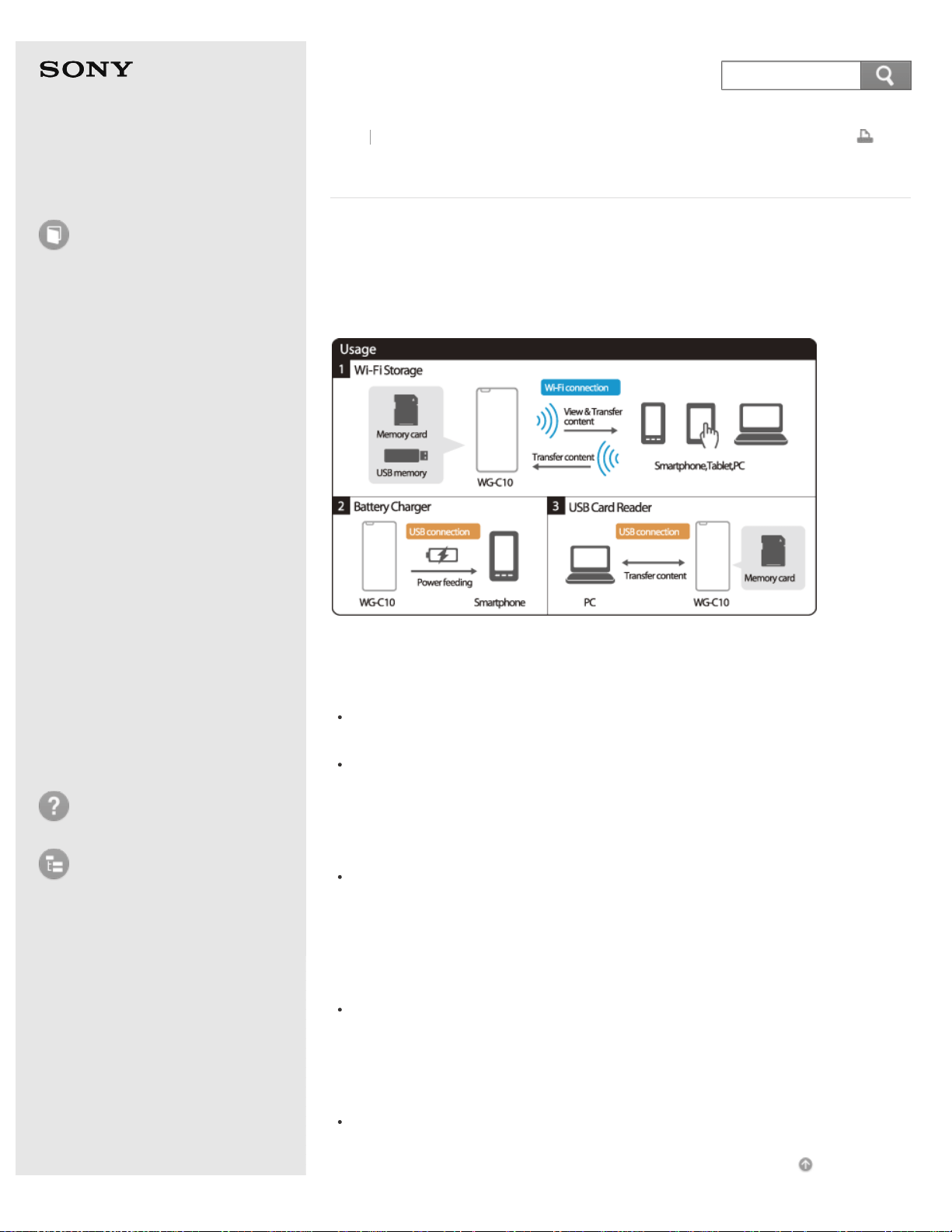
Help Guide
How to use
Read this first
Product overview
Getting started
How to use "PWS Manager"
(Android)
How to use "PWS Manager"
(iOS)
How to use with a computer
Supplying power
LED status indications
Precautions
Specifications
Compatible device
Trademarks
Troubleshooting
List of Topics
Print
Portable Wireless Server
WG-C10
What you can do with this unit
By using the wireless LAN function, you can play back data (photos, music, videos,
document files, etc.) in a memory card inserted in this unit or in a device
connected via USB, on a smartphone, tablet or computer.
You can also copy data between a memory card inserted in this unit, a device
connected to this unit via USB, and a device by which you are operating this unit.
Playing back/Displaying data (photos, music, videos, document
files, etc.) via wireless LAN
You can play back/display data in a memory card inserted in this unit, on a
smartphone, tablet, or computer connected wirelessly.
You can play back/display data in a device connected to this unit via USB, on a
smartphone, tablet, or computer connected wirelessly.
Copying data via wireless LAN
You can copy data between a memory card inserted in this unit, a device
connected to this unit via USB, or a device (smartphone, tablet, computer) by
which you are operating this unit.
Playing back and copying data via USB connection
You can use this unit as a memory card reader by connecting the unit to a
computer with the USB cable (supplied).
Supplying power to other devices
This unit can supply power to an external device via USB cable (supplied).
Go to Page Top
Back Back to Top
101
Search

Help Guide
How to use
Read this first
Product overview
Getting started
How to use "PWS Manager"
(Android)
How to use "PWS Manager"
(iOS)
How to use with a computer
Supplying power
LED status indications
Precautions
Specifications
Compatible device
Trademarks
Troubleshooting
List of Topics
Print
Portable Wireless Server
WG-C10
Supported devices
Before use, make sure that your devices meet the requirements.
For details on devices confirmed to work with this unit, see the following related
topics.
Go to Page Top
Related Topic
Android compatible devices
iOS compatible devices
"Memory Stick" media
SD memory card
USB device (data copy/power supply compatible)
USB AC Adaptor (for charging the unit)
Go to Page Top
Back Back to Top
4-468-627-14(1)
© 2013 Sony Corporation Notes on use
103
Search
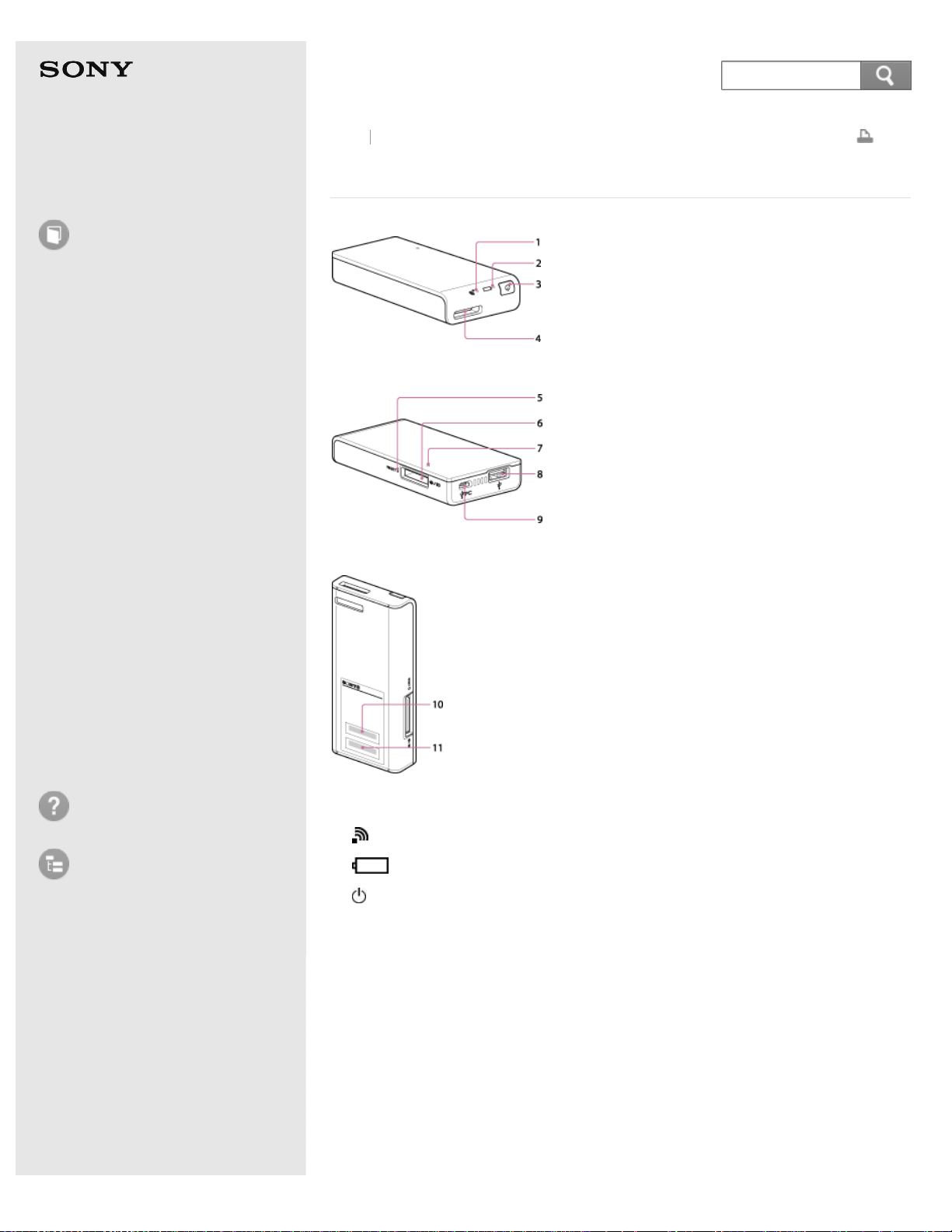
Help Guide
How to use
Read this first
Product overview
Getting started
How to use "PWS Manager"
(Android)
How to use "PWS Manager"
(iOS)
How to use with a computer
Supplying power
LED status indications
Precautions
Specifications
Compatible device
Trademarks
Troubleshooting
List of Topics
Print
Portable Wireless Server
WG-C10
Parts and controls
1. (Wireless LAN indicator) lamp
2.
(Battery indicator) lamp
3.
(Power) button
4. Strap holder
5. RESET switch
Press momentarily (approx. 1 second): The unit restarts.
Press and hold (more than approx. 10 seconds): The factory defaults are
restored.
When the factory defaults are restored, perform the initial setting again.
6. Memory card slot ("Memory Stick Duo" media, SD memory card)
7. Memory card access lamp
8. USB A port
9. USB microB port
Back
Back to Top
104
Search

Help Guide
How to use
Read this first
Product overview
Getting started
How to use "PWS Manager"
(Android)
How to use "PWS Manager"
(iOS)
How to use with a computer
Supplying power
LED status indications
Precautions
Specifications
Compatible device
Trademarks
Troubleshooting
List of Topics
Print
Portable Wireless Server
WG-C10
Bundled items
Make sure that you have following bundled items.
If any items are missing, contact your dealer.
The number in parentheses indicates the quantity of that item bundled.
This unit (WG-C10) (1)
USB cable (Approx. 25 cm (9 21/25 in.)) (1)
USB cable holder (1)
Quick Start Guide (1)
Important information (1)
Including a warranty card.
Software License Agreement (1)
SDHC Memory Card 16 GB (SF-16C4) (1)*
*
Included with WG-C10/A.
Go to Page Top
Back Back to Top
4-468-627-14(1)
© 2013 Sony Corporation Notes on use
106
Search
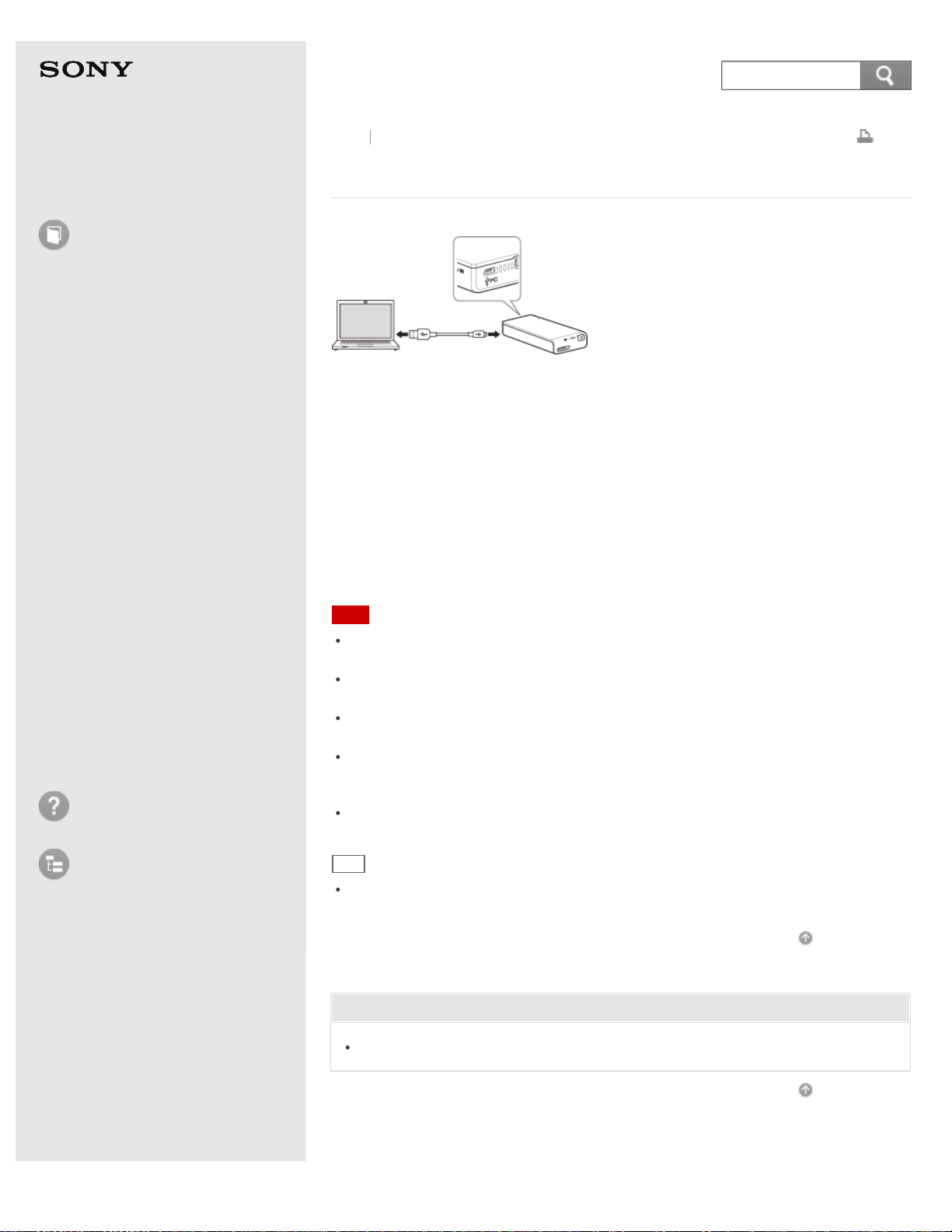
Help Guide
How to use
Read this first
Product overview
Getting started
How to use "PWS Manager"
(Android)
How to use "PWS Manager"
(iOS)
How to use with a computer
Supplying power
LED status indications
Precautions
Specifications
Compatible device
Trademarks
Troubleshooting
List of Topics
Print
Portable Wireless Server
WG-C10
Charging from a computer
1. Turn on the computer.
2. Connect this unit to the computer with the USB cable (supplied).
The battery indicator lamp lights amber, and charging starts.
When this unit is fully charged, the battery indicator lamp turns off.
When charging is complete, disconnect the USB cable from the unit and the
computer.
Approximate charging time: 8 hours (approximate value under Sony test
condition).
Note
Be sure to insert the connector the correct way. Pushing the connector forcibly into
the port may damage the port and result in a malfunction.
The wireless LAN function cannot be used while the unit is connected to a computer
with the USB cable.
A USB device connected to the unit cannot be used while the unit is connected to a
computer with the USB cable. A memory card can be used.
Charge the battery in an ambient temperature of 0 °C - 30 °C (32 °F - 86 °F). For
optimum performance of the rechargeable lithium-ion battery, it is recommended to
charge between 10 °C – 30 °C (50 °F - 86 °F).
If an abnormality (e.g. increased unit temperature) occurs while charging, the
battery indicator lamp may blink amber, and charging may stop.
Hint
When this unit is connected to a computer via USB cable, it is recognized as a
memory card reader by the computer.
Go to Page Top
Related Topic
LED status indications
Go to Page Top
Back Back to Top
4-468-627-14(1)
© 2013 Sony Corporation Notes on use
107
Search
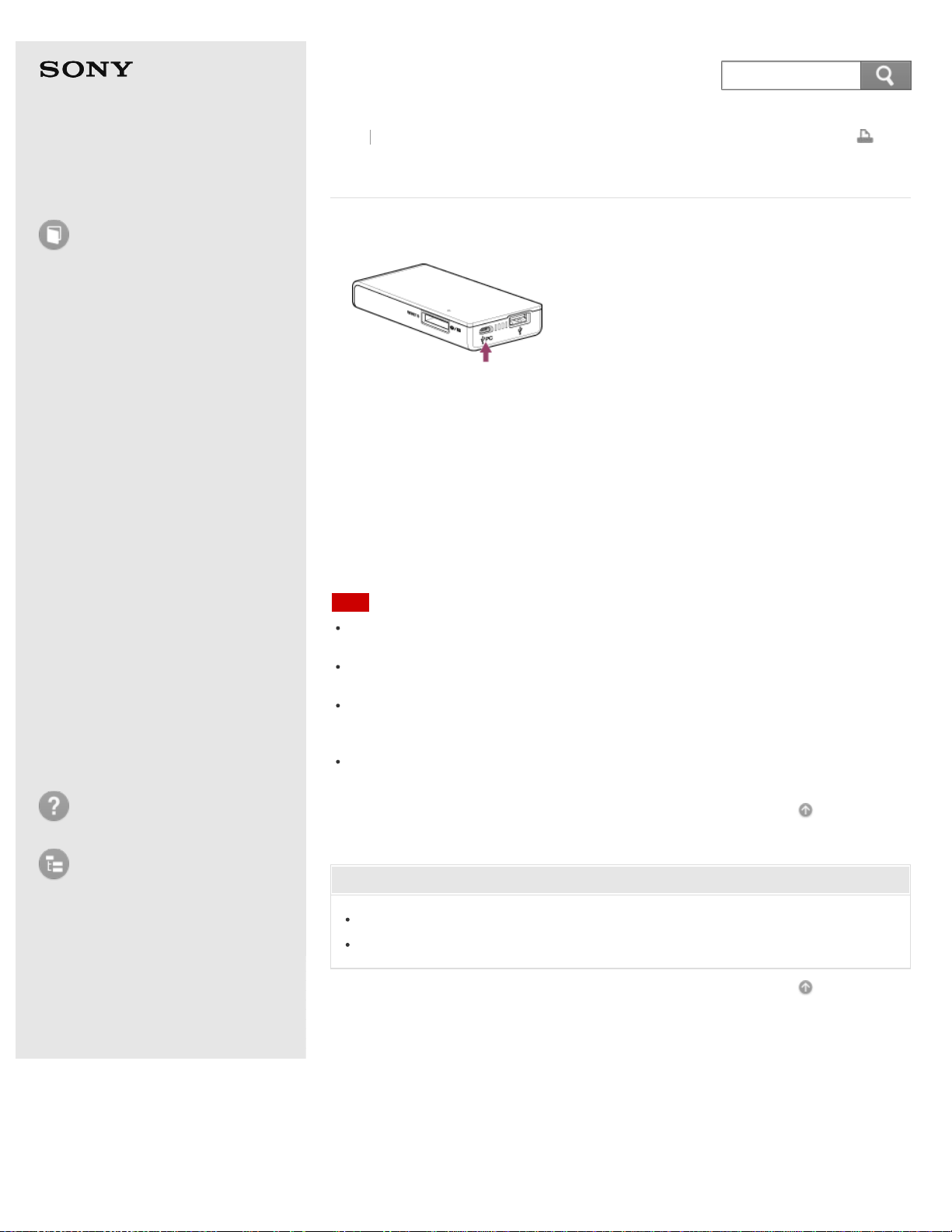
Help Guide
How to use
Read this first
Product overview
Getting started
How to use "PWS Manager"
(Android)
How to use "PWS Manager"
(iOS)
How to use with a computer
Supplying power
LED status indications
Precautions
Specifications
Compatible device
Trademarks
Troubleshooting
List of Topics
Print
Portable Wireless Server
WG-C10
Charging with a USB AC adaptor
1. Connect the USB AC adaptor to the USB microB port on this unit.
2. Connect the USB AC adaptor to the wall outlet (wall socket).
The battery indicator lamp lights amber, and charging of this unit starts.
When this unit is fully charged, the battery indicator lamp turns off.
When charging is complete, disconnect the USB AC adaptor from the unit and
the computer.
Approximate charging time: 3.5 hours (approximate value under Sony test
condition when using AC-UD10)
See "USB AC Adaptor (for charging the unit)" for USB AC adaptors confirmed to
work with this unit.
Note
Be sure to insert the connector the correct way. Pushing the connector forcibly into
the port may damage the port and result in a malfunction.
While the USB AC adaptor is connected to the unit, the wireless LAN function can be
used; however, USB devices cannot be used.
Charge the battery in an ambient temperature of 0 °C - 30 °C (32 °F - 86 °F). For
optimum performance of the rechargeable lithium-ion battery, it is recommended to
charge between 10 °C – 30 °C (50 °F - 86 °F).
If an abnormality (e.g. increased unit temperature) occurs while charging, the
battery indicator lamp may blink amber, and charging may stop.
Go to Page Top
Related Topic
LED status indications
USB AC Adaptor (for charging the unit)
Go to Page Top
Back Back to Top
4-468-627-14(1)
© 2013 Sony Corporation Notes on use
108
Search
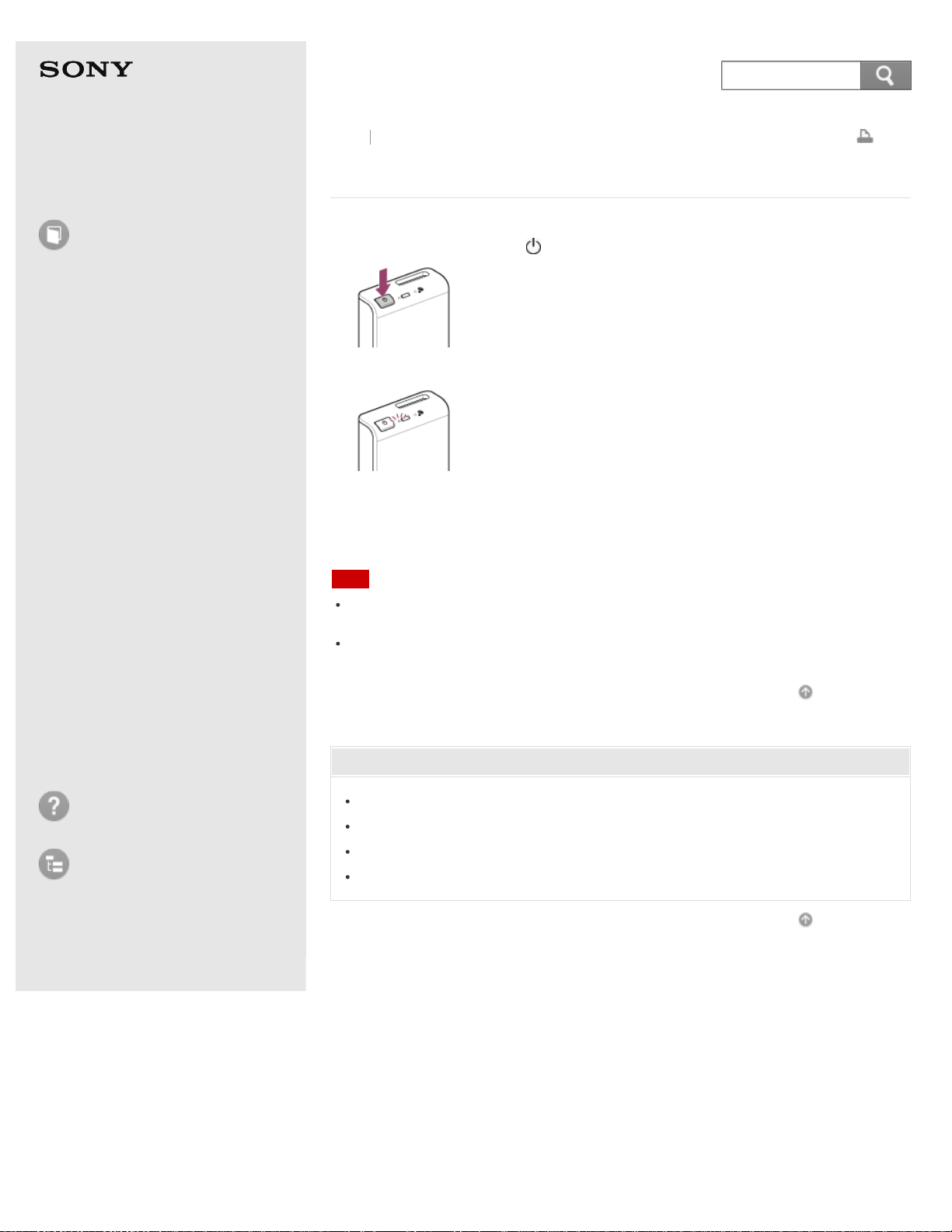
Help Guide
How to use
Read this first
Product overview
Getting started
How to use "PWS Manager"
(Android)
How to use "PWS Manager"
(iOS)
How to use with a computer
Supplying power
LED status indications
Precautions
Specifications
Compatible device
Trademarks
Troubleshooting
List of Topics
Print
Portable Wireless Server
WG-C10
Turning the power on
1. Press and hold down the (Power) button of this unit for over 3 seconds.
The unit turns on.
The battery indicator lamp blinks green.
While starting up the wireless LAN function, the wireless LAN indicator lamp
lights green. It starts blinking when starting up is complete.
Note
When the battery charge is low, the battery indicator lamp blinks red. In this case,
charge the battery.
Depending on the usage environment, it may take time (several minutes) for the unit
to fully turn on. This is not a malfunction.
Go to Page Top
Related Topic
Parts and controls
Setting auto power off (Android device)
Setting auto power off (iOS device)
LED status indications
Go to Page Top
Back Back to Top
4-468-627-14(1)
© 2013 Sony Corporation Notes on use
109
Search
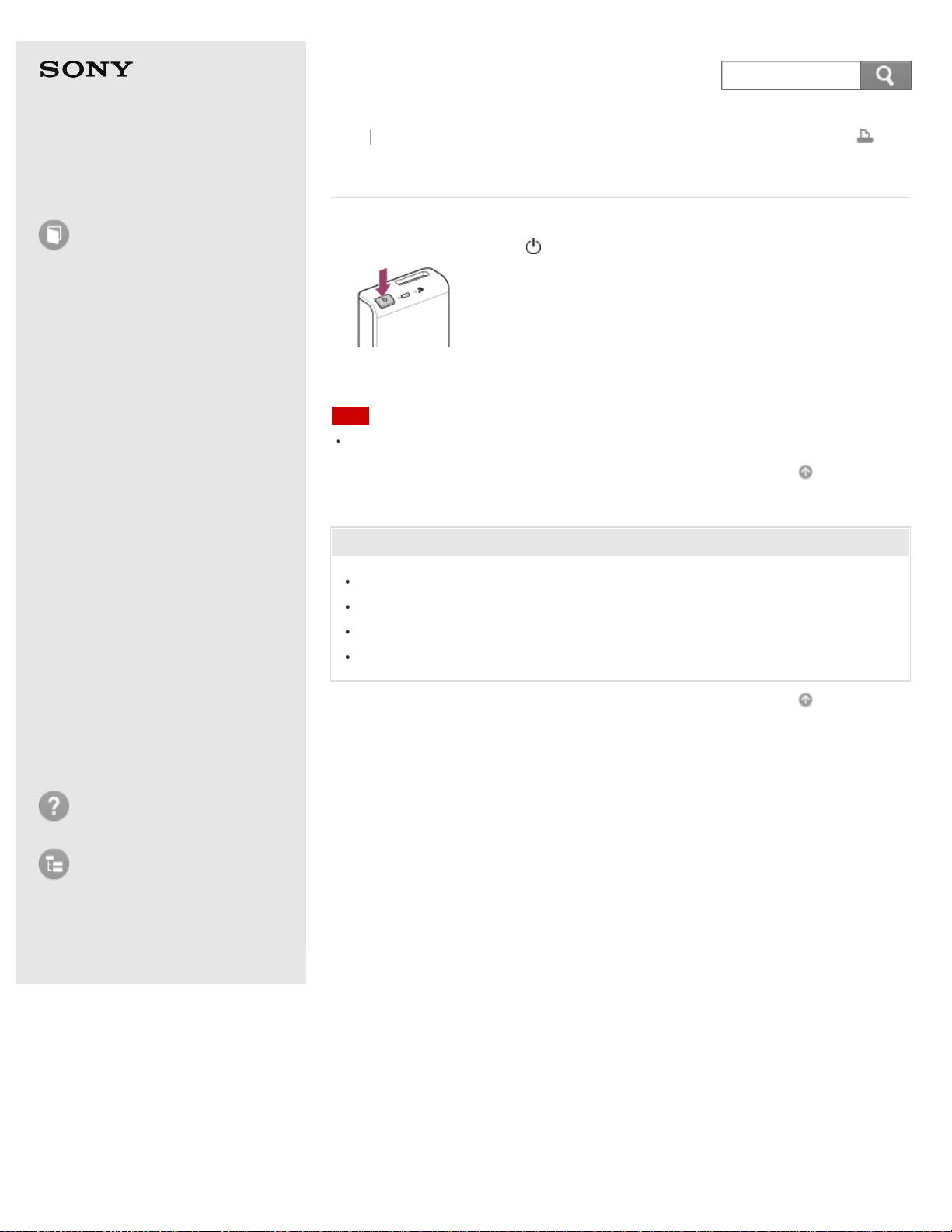
Help Guide
How to use
Read this first
Product overview
Getting started
How to use "PWS Manager"
(Android)
How to use "PWS Manager"
(iOS)
How to use with a computer
Supplying power
LED status indications
Precautions
Specifications
Compatible device
Trademarks
Troubleshooting
List of Topics
Print
Portable Wireless Server
WG-C10
Turning the power off
1. Press and hold down the (Power) button of this unit for over 3 seconds.
The wireless LAN indicator lamp and battery indicator lamp turn off.
Note
Do not turn off the power during file playback/copying, since data may be damaged.
Go to Page Top
Related Topic
Parts and controls
Setting auto power off (Android device)
Setting auto power off (iOS device)
LED status indications
Go to Page Top
Back Back to Top
4-468-627-14(1)
© 2013 Sony Corporation Notes on use
110
Search
Help Guide
How to use
Read this first
Product overview
Getting started
How to use "PWS Manager"
(Android)
How to use "PWS Manager"
(iOS)
How to use with a computer
Supplying power
LED status indications
Precautions
Specifications
Compatible device
Trademarks
Troubleshooting
List of Topics
Print
Portable Wireless Server
WG-C10
Installing "PWS Manager" to an Android device
To operate this unit, download and install the application "PWS Manager" to your
Android device.
1. Have your Android device ready for installation.
For compatible operating systems, See Specifications.
See "Android compatible devices" for Android devices confirmed to work with
this unit.
2. Install "PWS Manager."
Search for "PWS Manager" in Google Play and install it. (*)
*
Data communication for downloading "PWS Manager" may be charged.
For details on how to use Google Play, refer to the help of Google Play.
3. Tap [Done] after the installation is complete.
The icon of "PWS Manager" is displayed.
Go to Page Top
Related Topic
Parts and controls
Android compatible devices
Go to Page Top
Back Back to Top
4-468-627-14(1)
© 2013 Sony Corporation Notes on use
111
Search
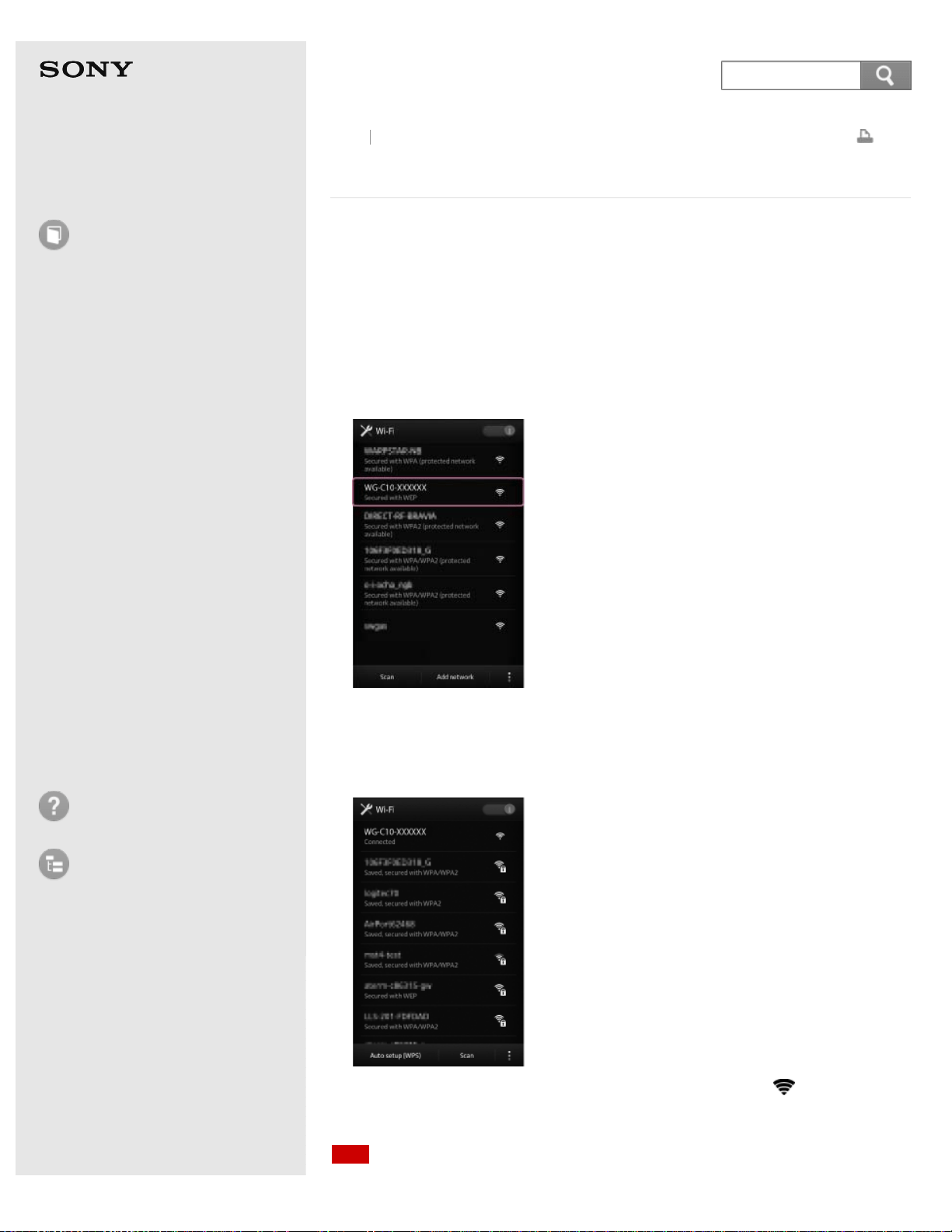
Help Guide
How to use
Read this first
Product overview
Getting started
How to use "PWS Manager"
(Android)
How to use "PWS Manager"
(iOS)
How to use with a computer
Supplying power
LED status indications
Precautions
Specifications
Compatible device
Trademarks
Troubleshooting
List of Topics
Print
Portable Wireless Server
WG-C10
Connecting an Android device via wireless LAN
Install "PWS Manager" before setting the following.
1. Turn on this unit.
2. Enable the Wi-Fi function on the settings screen of your Android device..
3. Open the Wi-Fi networks screen from the settings screen of your Android
device.
4. Tap [WG-C10-xxxxxx].
This unit is connected to your Android device via the wireless LAN.
"xxxxxx" stands for the last 6 digits of the MAC address. For details on the Mac
address, see "10. MAC address" in "Parts and controls."
5. Check whether the connection is established or not.
When [Connected] is displayed under the selected SSID and is displayed at
the top of the screen, the connection has been established.
Note
Back Back to Top
112
Search
Depending on the usage environment, it may take time to connect the unit and
Android device.
This operation will disconnect the Android device from the Internet. To connect to the
Internet again, see Configuring the Internet connection (Android device).
Hint
The method of setting is different, depending on your Android device. For details,
refer to the instruction manual of your Android device.
A maximum of 8 users can be connected at the same time.
Go to Page Top
Related Topic
Supported devices
Parts and controls
Setting the Wi-Fi security using "PWS Manager" (Android device)
Go to Page Top
4-468-627-14(1)
© 2013 Sony Corporation Notes on use
113
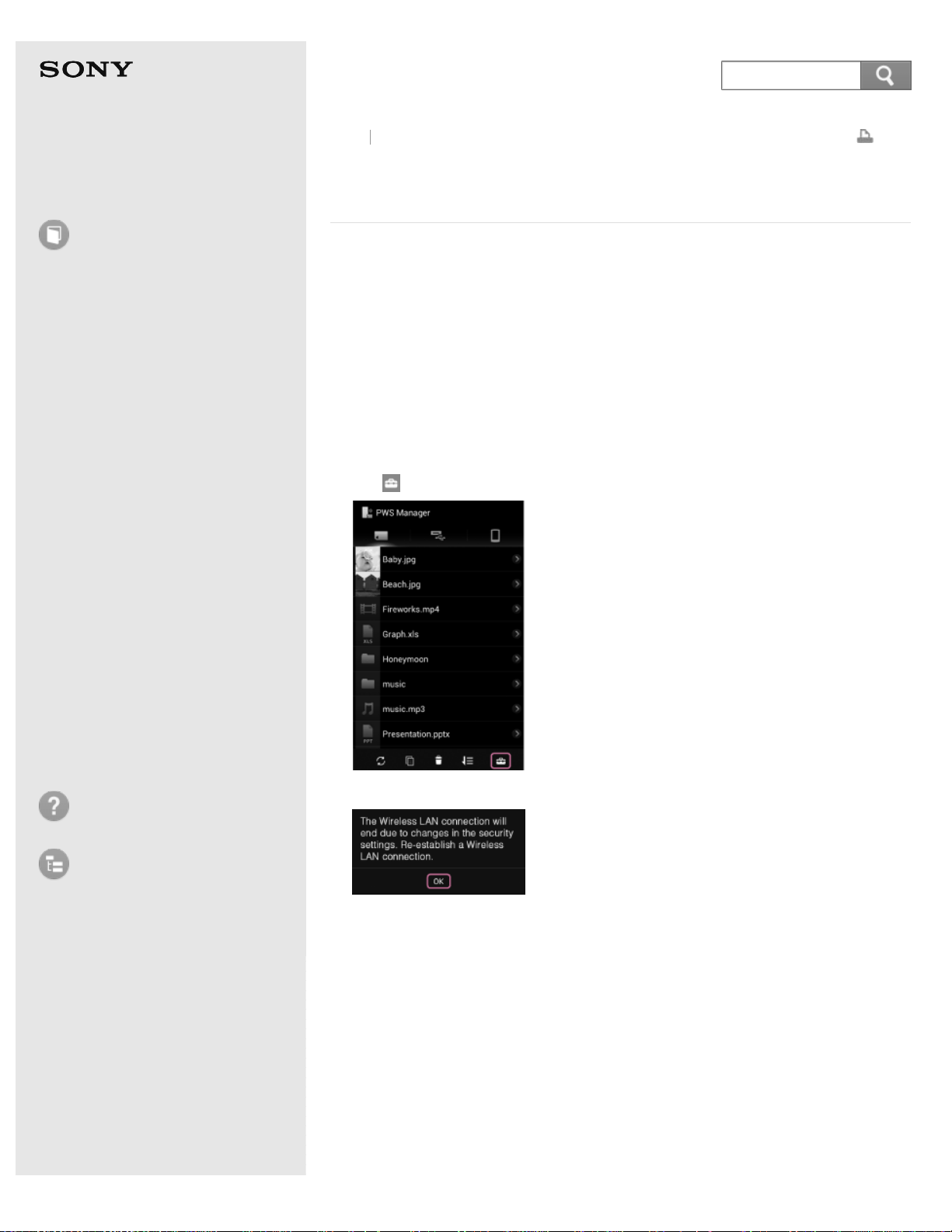
Help Guide
How to use
Read this first
Product overview
Getting started
How to use "PWS Manager"
(Android)
How to use "PWS Manager"
(iOS)
How to use with a computer
Supplying power
LED status indications
Precautions
Specifications
Compatible device
Trademarks
Troubleshooting
List of Topics
Print
Portable Wireless Server
WG-C10
Setting the Wi-Fi security using "PWS Manager"
(Android device)
Important
Setting security is extremely important when using devices equipped with the
wireless LAN function. If the security is not set, it is possible for the unit to be
accessed from any compatible device within the communication range.
To protect your data, be sure to set up the security.
When the security of this unit has already been set, setting the security from other
devices is not necessary.
1. Turn on this unit, and launch "PWS Manager" installed on an Android device.
2. Tap
(Settings) on the file/folder list screen.
The following message is displayed, then tap [OK].
3. Tap [Security].
Back
Back to Top
114
Search
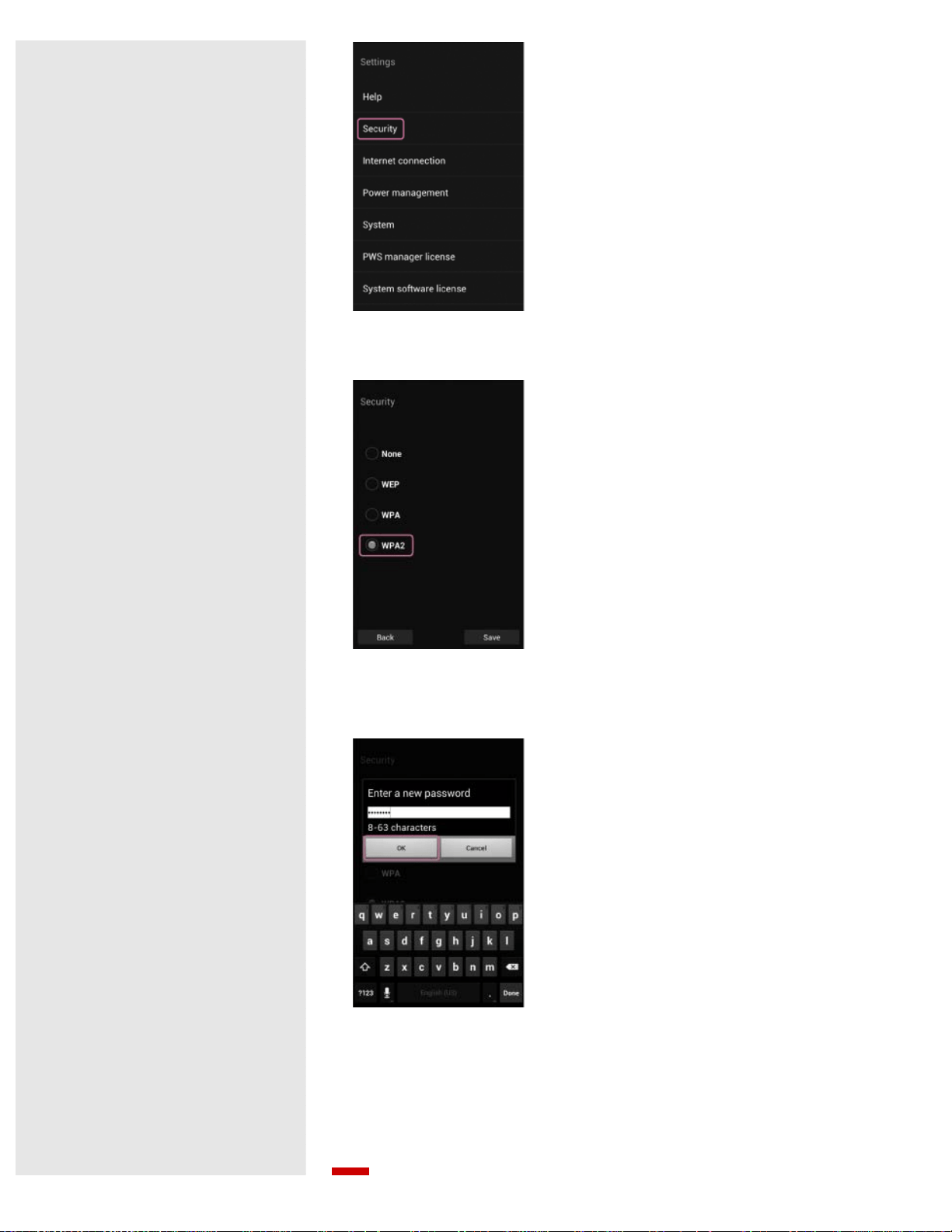
4. Select the authentication method (WEP/WPA/WPA2) to be used.
[WPA2] is recommended.
If [None] is selected, the security is not set on this unit.
5. Enter a password of alphanumeric characters, enter the password again to
confirm, then tap [OK].
The password length depends on the authentication method.
WEP: 5 characters or 13 characters
WPA: 8 - 63 characters
WPA2: 8 - 63 characters
Password security is then set on this unit.
Tap [OK] to return to the Settings menu.
115
Note
This operation will stop the wireless LAN connection. Connect the unit and Android
device via wireless LAN again and enter the password set in this section.
If you have forgotten the password, set the unit to the factory defaults, then set a
new password.
Go to Page Top
Related Topic
Connecting an Android device via wireless LAN
How can I use the RESET switch?
Go to Page Top
4-468-627-14(1)
© 2013 Sony Corporation Notes on use
116
Help Guide
How to use
Read this first
Product overview
Getting started
How to use "PWS Manager"
(Android)
How to use "PWS Manager"
(iOS)
How to use with a computer
Supplying power
LED status indications
Precautions
Specifications
Compatible device
Trademarks
Troubleshooting
List of Topics
Print
Portable Wireless Server
WG-C10
Installing "PWS Manager" to an iOS device
To operate this unit, download and install the application "PWS Manager" to your
iOS device.
In this Help Guide, iOS device means iPhone, iPad, iPod touch, etc.
1. Have your iOS device ready for installation.
For compatible operating systems, See Specifications.
See "iOS compatible devices" for iOS devices confirmed to work with this unit.
2. Install "PWS Manager."
Search for "PWS Manager" in App Store and install it. (*)
*
Data communication for downloading "PWS Manager" may be charged.
For details on how to use App Store, refer to the help of App Store.
3. Tap [Done] after the installation is complete.
The icon of "PWS Manager" is displayed.
Go to Page Top
Related Topic
Parts and controls
iOS compatible devices
Go to Page Top
Back Back to Top
4-468-627-14(1)
© 2013 Sony Corporation Notes on use
117
Search
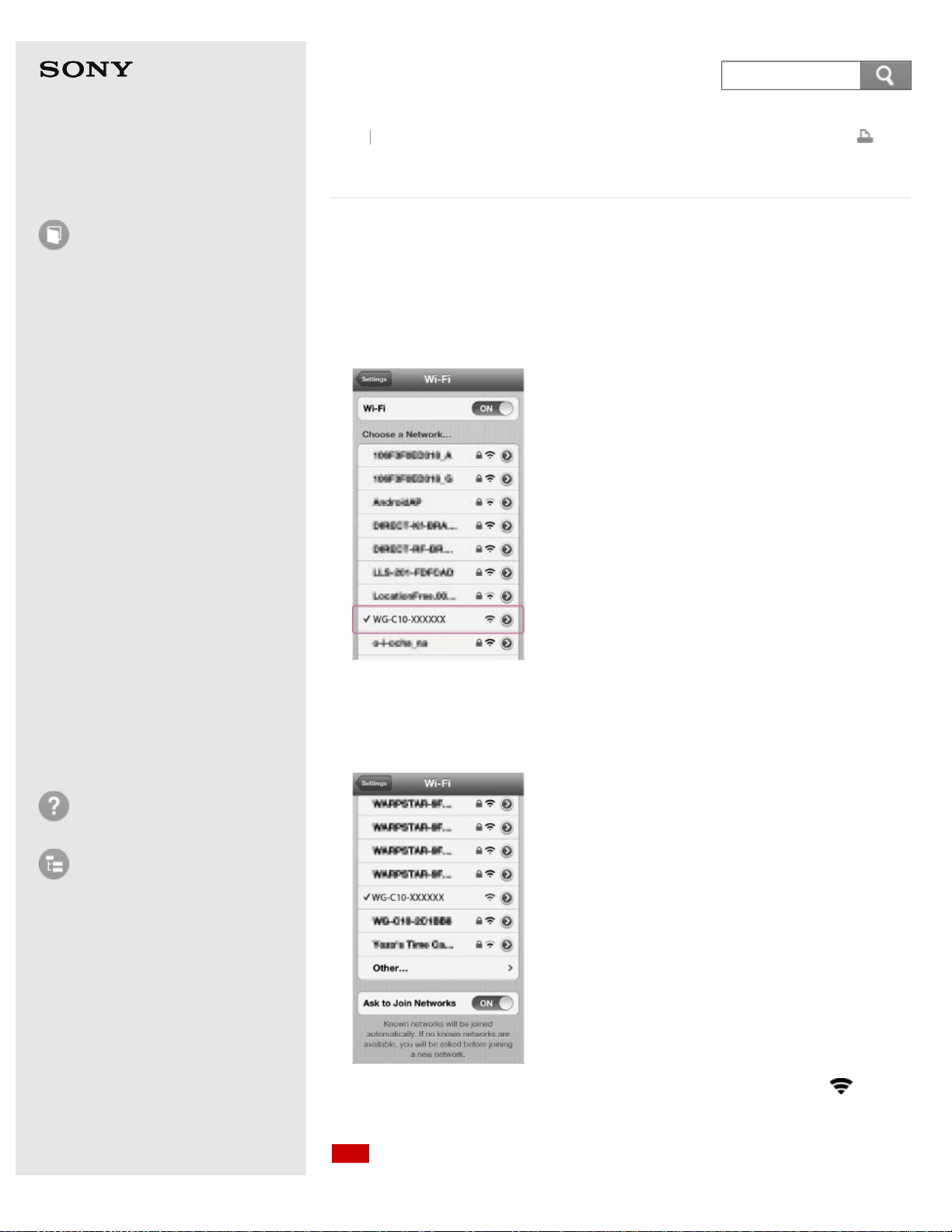
Help Guide
How to use
Read this first
Product overview
Getting started
How to use "PWS Manager"
(Android)
How to use "PWS Manager"
(iOS)
How to use with a computer
Supplying power
LED status indications
Precautions
Specifications
Compatible device
Trademarks
Troubleshooting
List of Topics
Print
Portable Wireless Server
WG-C10
Connecting an iOS device via wireless LAN
Install "PWS Manager" before setting the following.
1. Turn on this unit.
2. Enable the Wi-Fi function from the settings screen of your iOS device.
3. Tap [WG-C10-xxxxxx].
This unit is connected to your iOS device via the wireless LAN connection.
"xxxxxx" stands for the last 6 digits of the MAC address. For details on the MAC
address, see "10. Mac address" in "Parts and controls."
4. Check whether the connection is established or not.
When a check mark is displayed to the left of the selected SSID and is
displayed at the top of the screen, the connection has been established.
Note
Back Back to Top
118
Search
Depending on the usage environment, it may take time to connect the unit and iOS
device.
This operation will disconnect the iOS device from the Internet. To connect to the
Internet again, see Configuring the Internet connection (iOS device)
Hint
The method of setting is different, depending on your iOS device. For details, refer to
the instruction manual of your iOS device.
A maximum of 8 users can be connected at the same time.
Go to Page Top
Related Topic
Parts and controls
Setting the Wi-Fi security using "PWS Manager" (iOS device)
Go to Page Top
4-468-627-14(1)
© 2013 Sony Corporation Notes on use
119
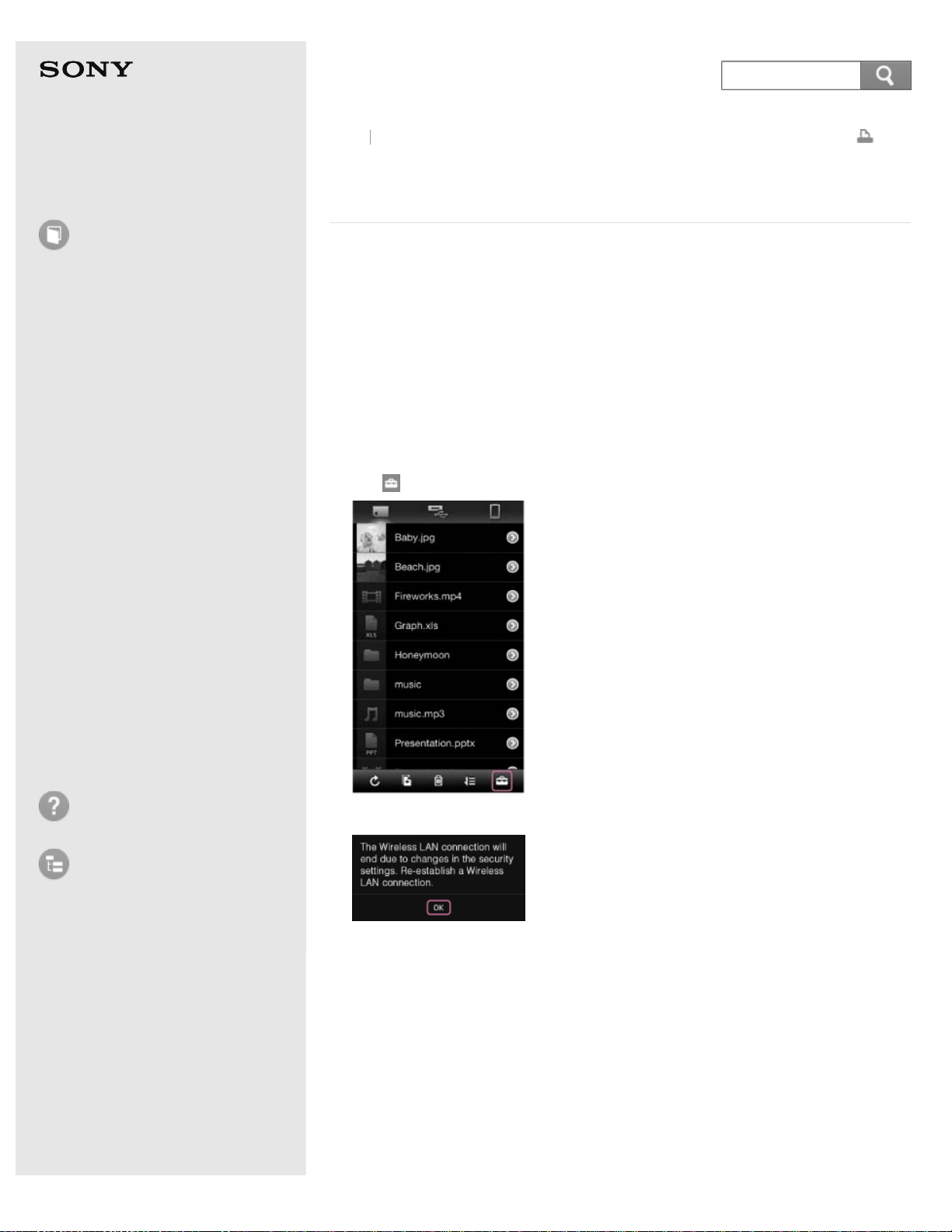
Help Guide
How to use
Read this first
Product overview
Getting started
How to use "PWS Manager"
(Android)
How to use "PWS Manager"
(iOS)
How to use with a computer
Supplying power
LED status indications
Precautions
Specifications
Compatible device
Trademarks
Troubleshooting
List of Topics
Print
Portable Wireless Server
WG-C10
Setting the Wi-Fi security using "PWS Manager" (iOS
device)
Important
Setting security is extremely important when using devices equipped with the
wireless LAN function. If the security is not set, it is possible for the unit to be
accessed from any compatible device within the communication range.
To protect your data, be sure to set up the security.
When the security of this unit has already been set, setting the security from other
devices is not necessary.
1. Turn on this unit, and launch "PWS Manager" installed on an iOS device.
2. Tap
(Settings) on the file/folder list screen.
The following message is displayed, then tap [OK].
3. Tap [Security].
Back
Back to Top
120
Search
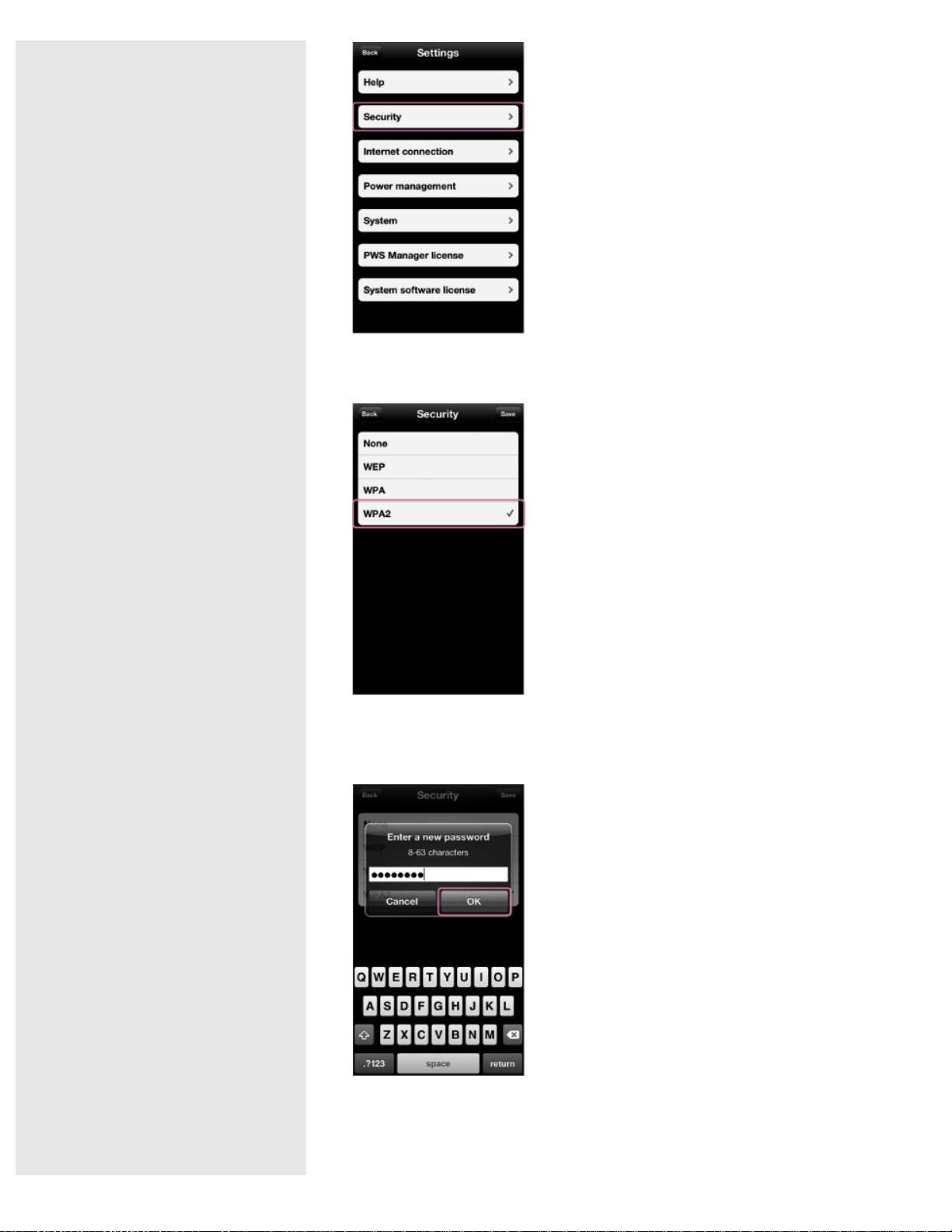
4. Select the authentication method (WEP/WPA/WPA2) to be used.
[WPA2] is recommended.
If [None] is selected, the security is not set on this unit.
5. Enter a password of alphanumeric characters, enter the password again to
confirm, then tap [OK].
The password length depends on the authentication method.
WEP: 5 characters or 13 characters
WPA: 8 - 63 characters
WPA2: 8 - 63 characters
121
Password security is then set on this unit.
Tap [OK] to return to the Settings menu.
Note
This operation will stop the wireless LAN connection. Connect the unit and iOS device
via wireless LAN again and enter the password set in this section.
If you have forgotten the password, set the unit to the factory defaults, then set a
new password.
Go to Page Top
Related Topic
Connecting an iOS device via wireless LAN
How can I use the RESET switch?
Go to Page Top
4-468-627-14(1)
© 2013 Sony Corporation Notes on use
122
Help Guide
How to use
Read this first
Product overview
Getting started
How to use "PWS Manager"
(Android)
How to use "PWS Manager"
(iOS)
How to use with a computer
Supplying power
LED status indications
Precautions
Specifications
Compatible device
Trademarks
Troubleshooting
List of Topics
Print
Portable Wireless Server
WG-C10
Connecting a computer via USB
For details, see the following related topics.
Go to Page Top
Related Topic
Connecting to and accessing this unit (Windows)
Connecting to and accessing this unit (Mac)
Removing USB connection (safe removal of hardware) (Windows)
Removing USB connection (safe removal of hardware) (Mac)
Go to Page Top
Back Back to Top
4-468-627-14(1)
© 2013 Sony Corporation Notes on use
123
Search
Help Guide
How to use
Read this first
Product overview
Getting started
How to use "PWS Manager"
(Android)
How to use "PWS Manager"
(iOS)
How to use with a computer
Supplying power
LED status indications
Precautions
Specifications
Compatible device
Trademarks
Troubleshooting
List of Topics
Print
Portable Wireless Server
WG-C10
Connecting a computer via wireless LAN
For details, see the following related topics.
Go to Page Top
Related Topic
Connecting to a wireless LAN (Windows Vista)
Connecting to a wireless LAN (Windows 7)
Connecting to a wireless LAN (Windows 8)
Connecting to a wireless LAN (Mac)
Accessing files/folders in this unit
Go to Page Top
Back Back to Top
4-468-627-14(1)
© 2013 Sony Corporation Notes on use
124
Search
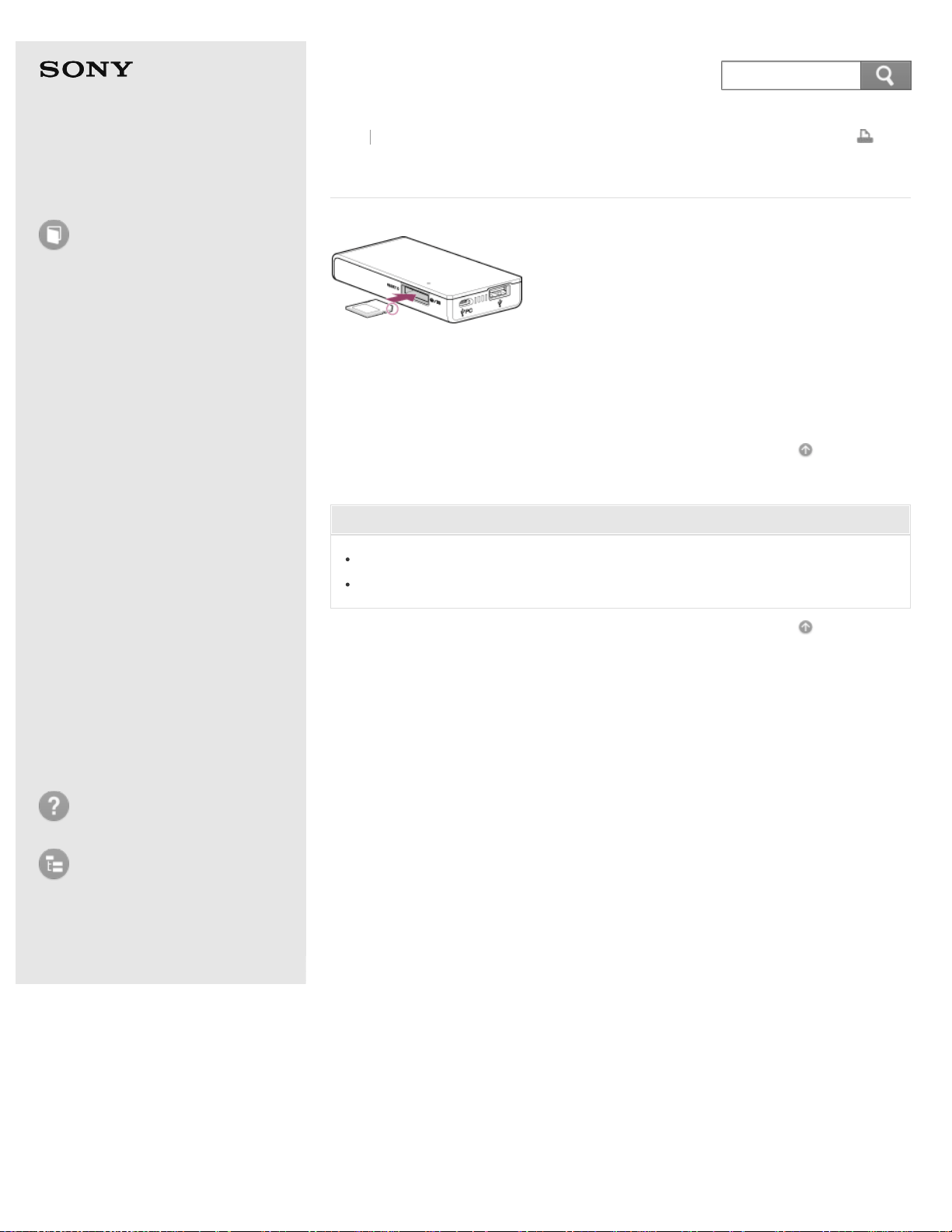
Help Guide
How to use
Read this first
Product overview
Getting started
How to use "PWS Manager"
(Android)
How to use "PWS Manager"
(iOS)
How to use with a computer
Supplying power
LED status indications
Precautions
Specifications
Compatible device
Trademarks
Troubleshooting
List of Topics
Print
Portable Wireless Server
WG-C10
Inserting a memory card
1. Insert the memory card in the memory card slot in the correct orientation until
it clicks.
Go to Page Top
Related Topic
Parts and controls
Ejecting a memory card
Go to Page Top
Back Back to Top
4-468-627-14(1)
© 2013 Sony Corporation Notes on use
125
Search
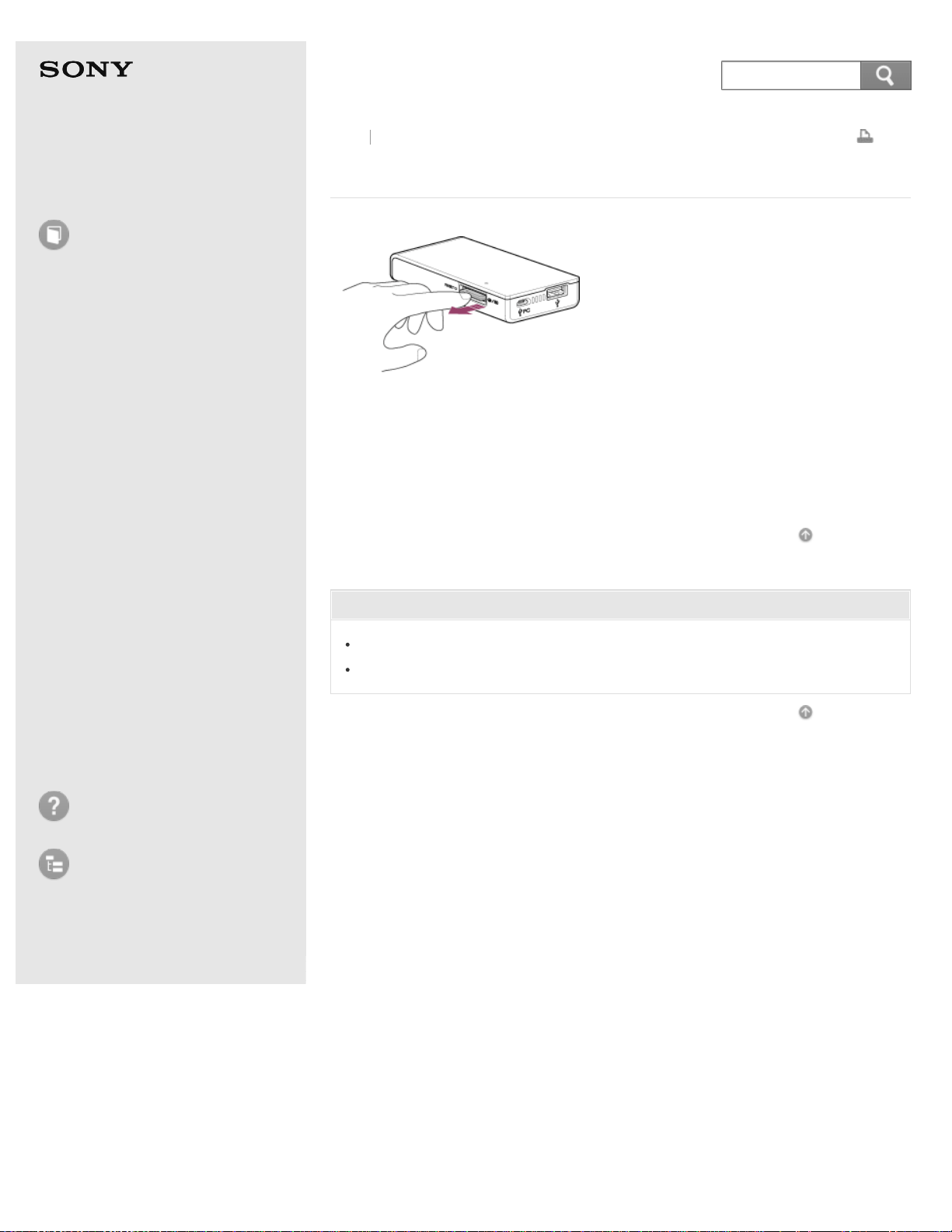
Help Guide
How to use
Read this first
Product overview
Getting started
How to use "PWS Manager"
(Android)
How to use "PWS Manager"
(iOS)
How to use with a computer
Supplying power
LED status indications
Precautions
Specifications
Compatible device
Trademarks
Troubleshooting
List of Topics
Print
Portable Wireless Server
WG-C10
Ejecting a memory card
1. Lightly push the memory card once.
The memory card is ejected.
2. Remove the memory card.
Go to Page Top
Related Topic
Parts and controls
Inserting a memory card
Go to Page Top
Back Back to Top
4-468-627-14(1)
© 2013 Sony Corporation Notes on use
126
Search
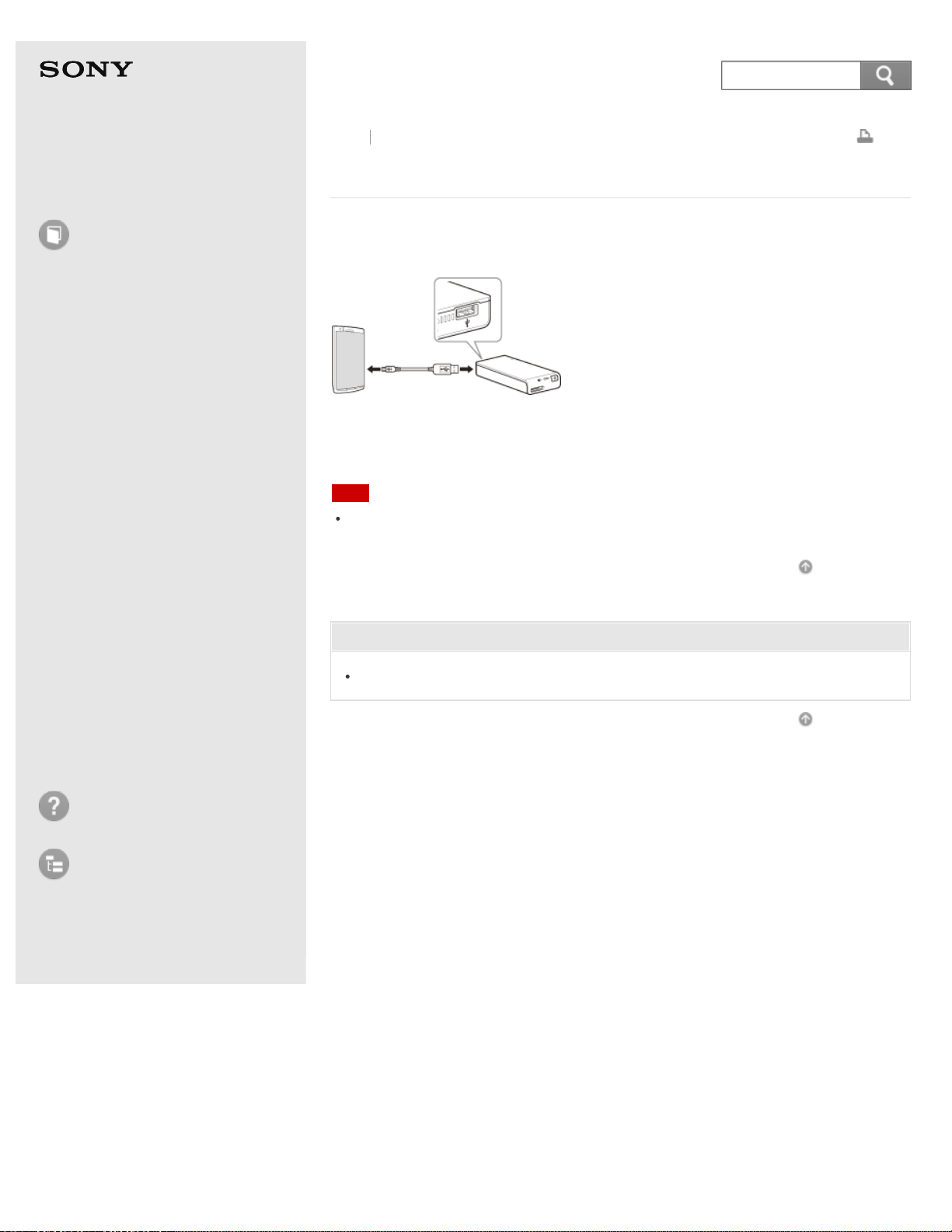
Help Guide
How to use
Read this first
Product overview
Getting started
How to use "PWS Manager"
(Android)
How to use "PWS Manager"
(iOS)
How to use with a computer
Supplying power
LED status indications
Precautions
Specifications
Compatible device
Trademarks
Troubleshooting
List of Topics
Print
Portable Wireless Server
WG-C10
Connecting a USB device
Connect the USB A port of the unit and the USB microB port of the USB device
with the supplied USB cable.
A USB cable connection may not be necessary depending on the device.
A USB flash drive can be connected to the USB A port of the unit directly.
Note
Before disconnecting the USB device, make sure that the USB device is not being
accessed.
Go to Page Top
Related Topic
Parts and controls
Go to Page Top
Back Back to Top
4-468-627-14(1)
© 2013 Sony Corporation Notes on use
127
Search

Help Guide
How to use
Read this first
Product overview
Getting started
How to use "PWS Manager"
(Android)
How to use "PWS Manager"
(iOS)
How to use with a computer
Supplying power
LED status indications
Precautions
Specifications
Compatible device
Trademarks
Troubleshooting
List of Topics
Print
Portable Wireless Server
WG-C10
Changing the device to be accessed (Android device)
1. Connect the unit and Android device via wireless LAN and launch "PWS
Manager."
2. Tap the icon of the device you want to access on the Android device.
A list of folders or files in the tapped device is displayed.
A list of memory cards is displayed when "PWS Manager" is activated.
: Memory card inserted in the unit
: USB device connected to the unit
: Memory of the currently-operated Android device(*)
*
You can select one of the following:
System storage within your smartphone/tablet
SD card inserted to your smartphone/tablet
USB device connected to your smartphone/tablet
Go to Page Top
Related Topic
Connecting an Android device via wireless LAN
Go to Page Top
Back Back to Top
4-468-627-14(1)
© 2013 Sony Corporation Notes on use
128
Search
Help Guide
How to use
Read this first
Product overview
Getting started
How to use "PWS Manager"
(Android)
How to use "PWS Manager"
(iOS)
How to use with a computer
Supplying power
LED status indications
Precautions
Specifications
Compatible device
Trademarks
Troubleshooting
List of Topics
Print
Portable Wireless Server
WG-C10
Supported file formats (Android device)
Photo
JPEG (.jpg)
GIF (.gif)
PNG (.png)
BMP (.bmp)
Audio
PCM (.wav)
MPEG2 AAC-LC (.aac)
MPEG4 HE-AAC v1 (AAC+)/MPEG4 HE-AAC v2 (Enhanced AAC+)(.aac, .m4a,
.mp4)
MP3 (.mp3)
Video
MPEG4 (.mp4)
Note
Copyright-protected files cannot be played back or displayed.
Even though a file format is supported, some files may not play back or display
properly depending on the usage environment.
For details on playback/display of other format files, see "Selecting an application
(Android device)."
"PWS Manager" does not support file editing. However, you can change folder names
and file names.
Go to Page Top
Related Topic
Playback/Display (Android device)
Photo playback screen (Android device)
Music playback screen (Android device)
Video playback screen (Android device)
Selecting an application (Android device)
Go to Page Top
Back Back to Top
4-468-627-14(1)
129
Search
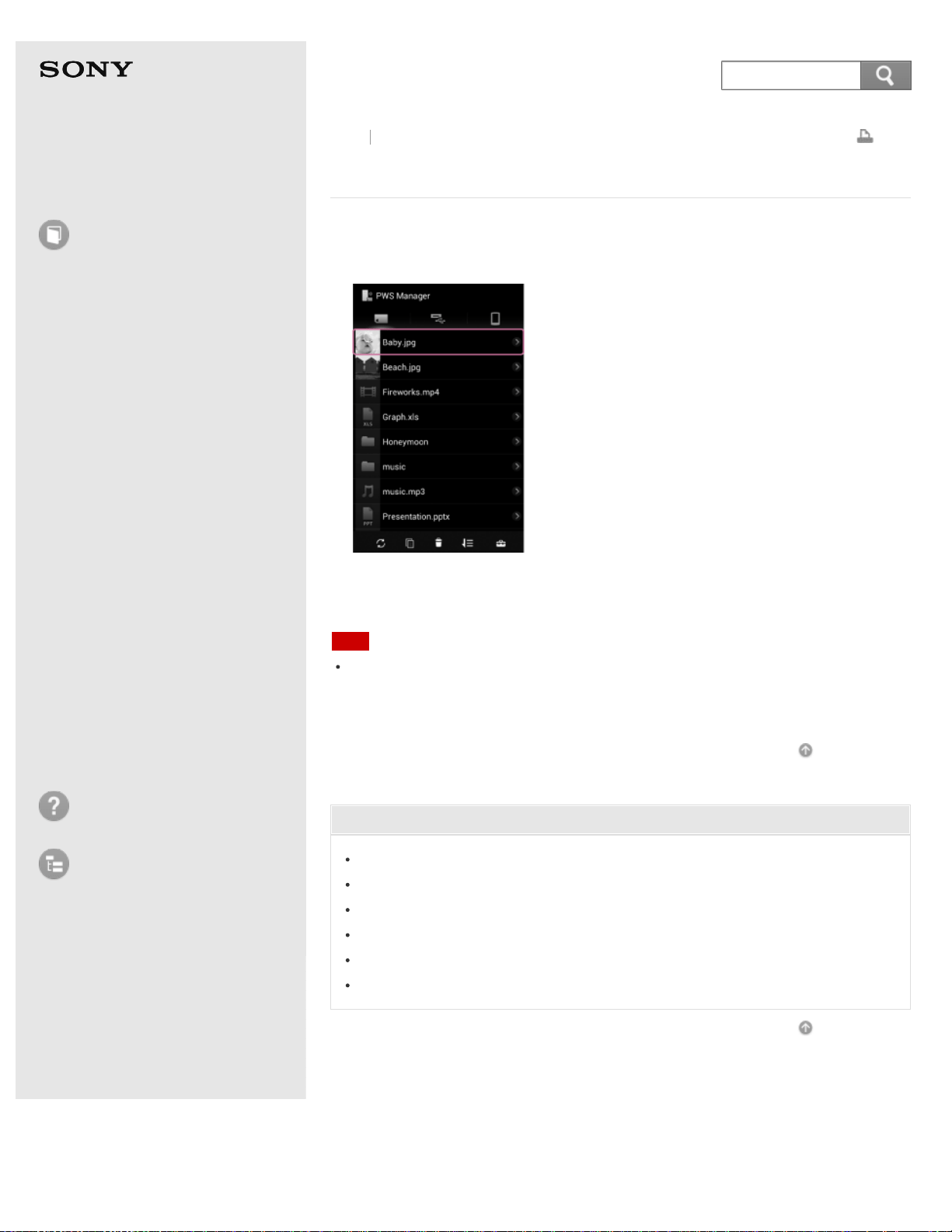
Help Guide
How to use
Read this first
Product overview
Getting started
How to use "PWS Manager"
(Android)
How to use "PWS Manager"
(iOS)
How to use with a computer
Supplying power
LED status indications
Precautions
Specifications
Compatible device
Trademarks
Troubleshooting
List of Topics
Print
Portable Wireless Server
WG-C10
Playback/Display (Android device)
1. Select and tap the file (photos, music, videos, etc.) you want to play back or
display.
Playback/display of the file starts.
The playback/display screen is displayed.
Note
A file of a format not supported by "PWS Manager” may be played back or displayed
by trying one of the installed applications. For details, see "Selecting an application
(Android device)." If a file cannot be opened using any of the installed applications,
the message [Cannot open this file.] is displayed.
Go to Page Top
Related Topic
Changing the device to be accessed (Android device)
Supported file formats (Android device)
Photo playback screen (Android device)
Music playback screen (Android device)
Video playback screen (Android device)
Selecting an application (Android device)
Go to Page Top
Back Back to Top
4-468-627-14(1)
© 2013 Sony Corporation Notes on use
130
Search
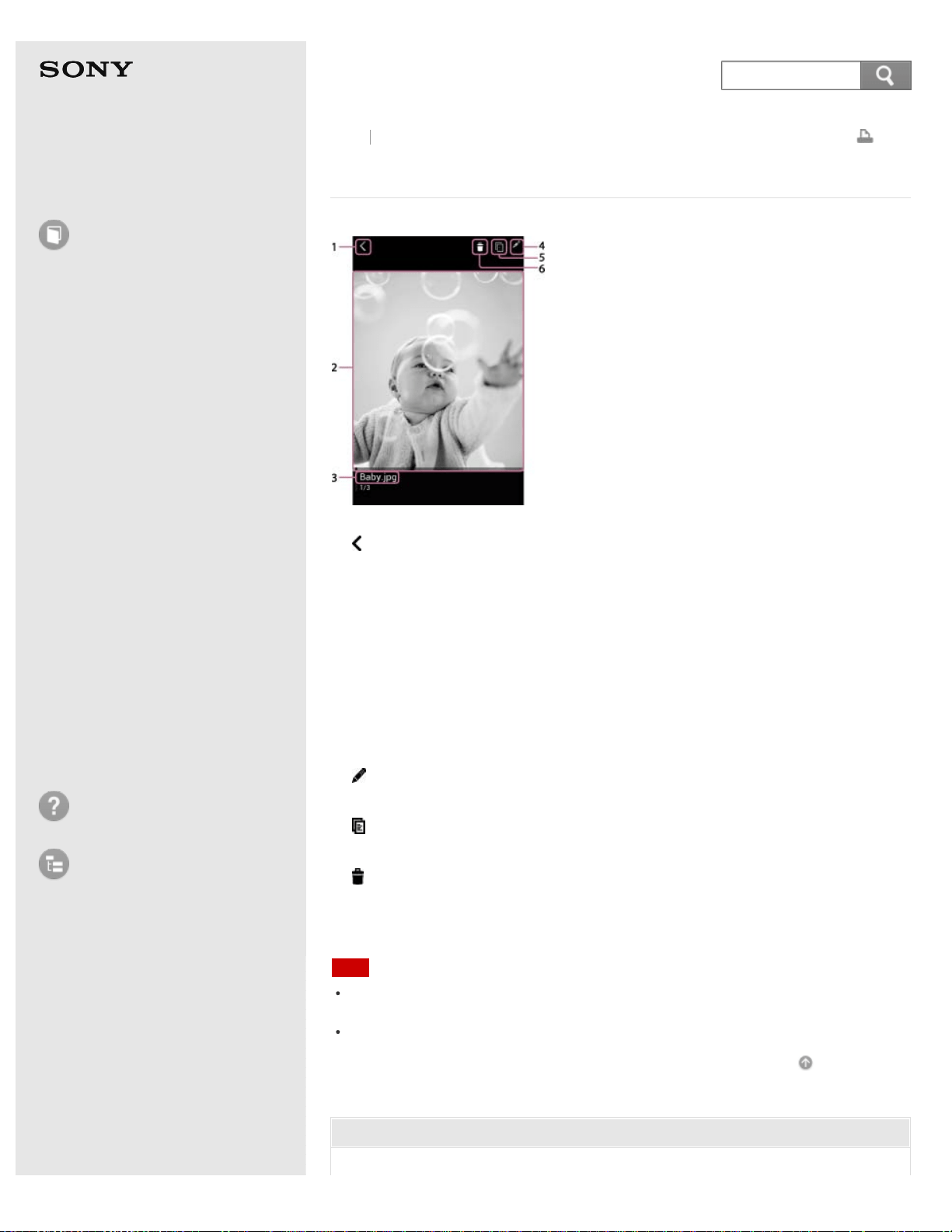
Help Guide
How to use
Read this first
Product overview
Getting started
How to use "PWS Manager"
(Android)
How to use "PWS Manager"
(iOS)
How to use with a computer
Supplying power
LED status indications
Precautions
Specifications
Compatible device
Trademarks
Troubleshooting
List of Topics
Print
Portable Wireless Server
WG-C10
Photo playback screen (Android device)
1. (Return)
Tap this to return to the file/folder list screen.
2. Photo playback screen
Flick the screen left/right to view the previous/next photo.
During playback, tap the screen once to change to full screen. To return to the
original screen, tap the screen again.
If you double-tap the screen, the photo will be enlarged. To return to the
original size, double-tap the screen again. You can also pinch out/pinch in to
enlarge/reduce a photo.
3. File name
4.
(File information)
Tap this to check the file information. You can also change the file name.
5.
(Copy)
Tap this to copy the file to another device.
6.
(Delete)
Tap this to delete the file.
Note
Depending on the usage environment, playback may take time to start or be
problematic. This is not a malfunction.
Data cannot be copied back to its source device.
Go to Page Top
Related Topic
Back
Back to Top
131
Search

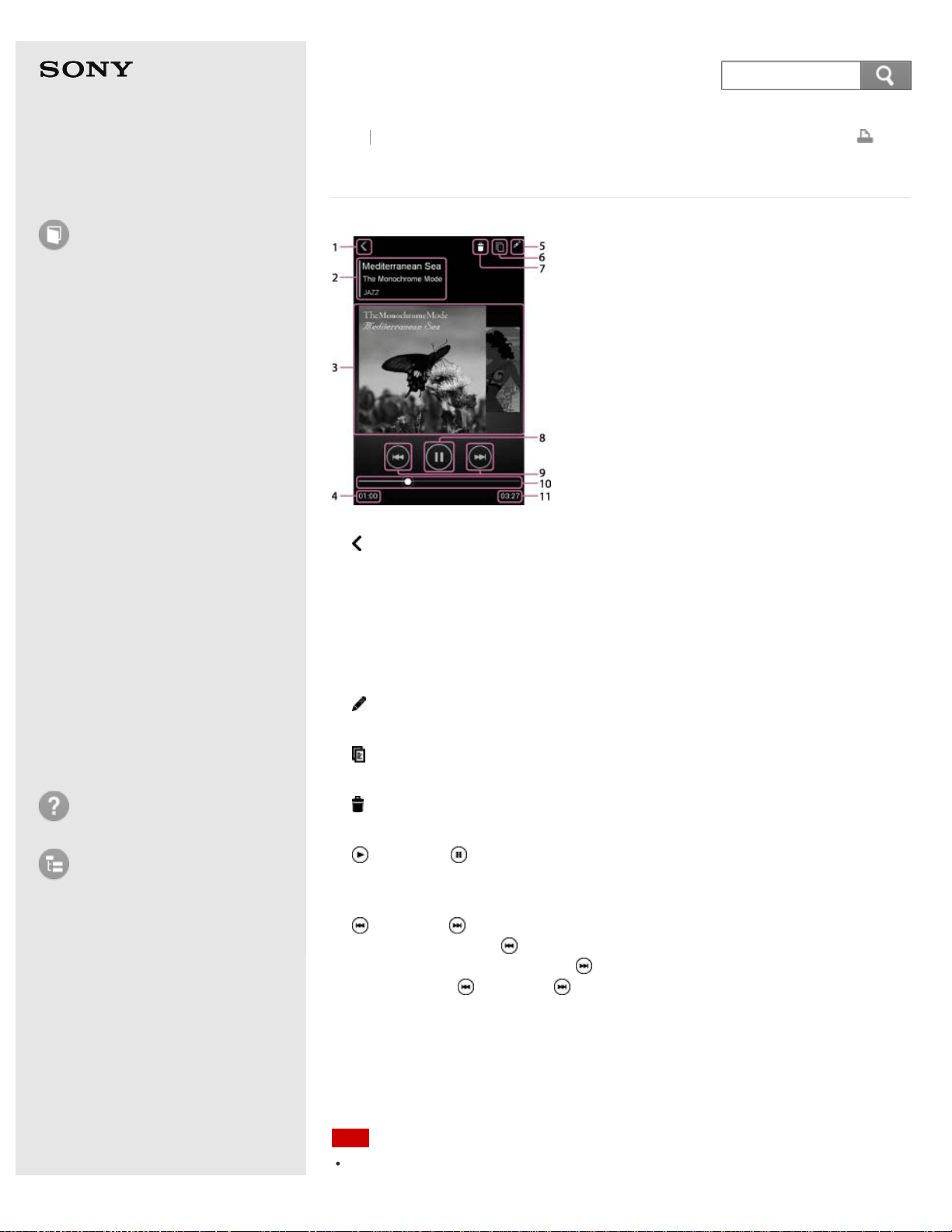
Help Guide
How to use
Read this first
Product overview
Getting started
How to use "PWS Manager"
(Android)
How to use "PWS Manager"
(iOS)
How to use with a computer
Supplying power
LED status indications
Precautions
Specifications
Compatible device
Trademarks
Troubleshooting
List of Topics
Print
Portable Wireless Server
WG-C10
Music playback screen (Android device)
1. (Return)
Tap this to return to the file/folder list screen.
2. Track title, album title, artist name
3. Music playback screen
Flick album art on the screen left/right to play the next/previous track.
4. Elapsed playback time
5.
(File information)
Tap this to check the file information. You can also change the file name.
6.
(Copy)
Tap this to copy the file to another device.
7.
(Delete)
Tap this to delete the file.
8.
(Playback)/ (Pause)
During playback, tap this to suspend playback. Tap this again to resume
playback.
9.
(Previous)/ (Next)
During playback, tap
(Previous) to jump back to the beginning of the current
track or previous track, and tap
(Next) to jump to the next track.
Press and hold
(Previous)/ (Next) to rewind/fast forward the track.
10. Progress bar
Drag this to the position you want the track to continue playing from.
11. Playback time
Note
Depending on the usage environment, playback may take time to start or be
Back Back to Top
133
Search

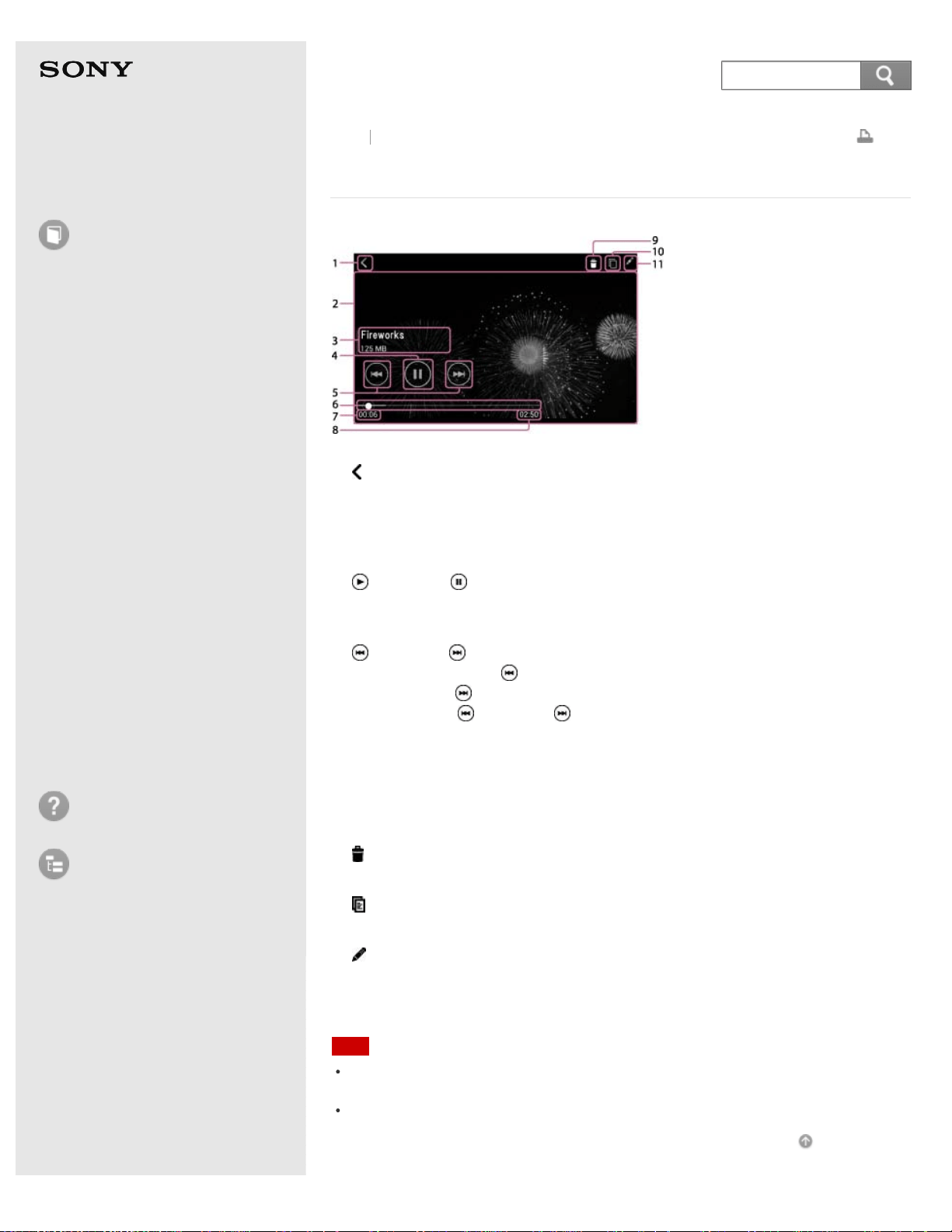
Help Guide
How to use
Read this first
Product overview
Getting started
How to use "PWS Manager"
(Android)
How to use "PWS Manager"
(iOS)
How to use with a computer
Supplying power
LED status indications
Precautions
Specifications
Compatible device
Trademarks
Troubleshooting
List of Topics
Print
Portable Wireless Server
WG-C10
Video playback screen (Android device)
1. (Return)
Tap this to return to the file/folder list screen.
2. Video playback screen
3. File name
4.
(Playback)/ (Pause)
During playback, tap this to suspend playback. Tap this again to resume
playback.
5.
(Previous)/ (Next)
During playback, tap
(Previous) to jump back to the beginning of the current
video, and tap
(Next) to jump to the next video.
Press and hold
(Previous)/ (Next) to rewind/fast forward the video.
6. Progress bar
Drag this to the position you want the video to continue playing from.
7. Elapsed playback time
8. Playback time
9.
(Delete)
Tap this to delete the file.
10.
(Copy)
Tap this to copy the file to another device.
11.
(File information)
Tap this to check the file information. You can also change the file name.
Note
Depending on the usage environment, playback may take time to start or be
problematic. This is not a malfunction.
Copyright-protected contents cannot be played back.
Go to Page Top
Back Back to Top
135
Search

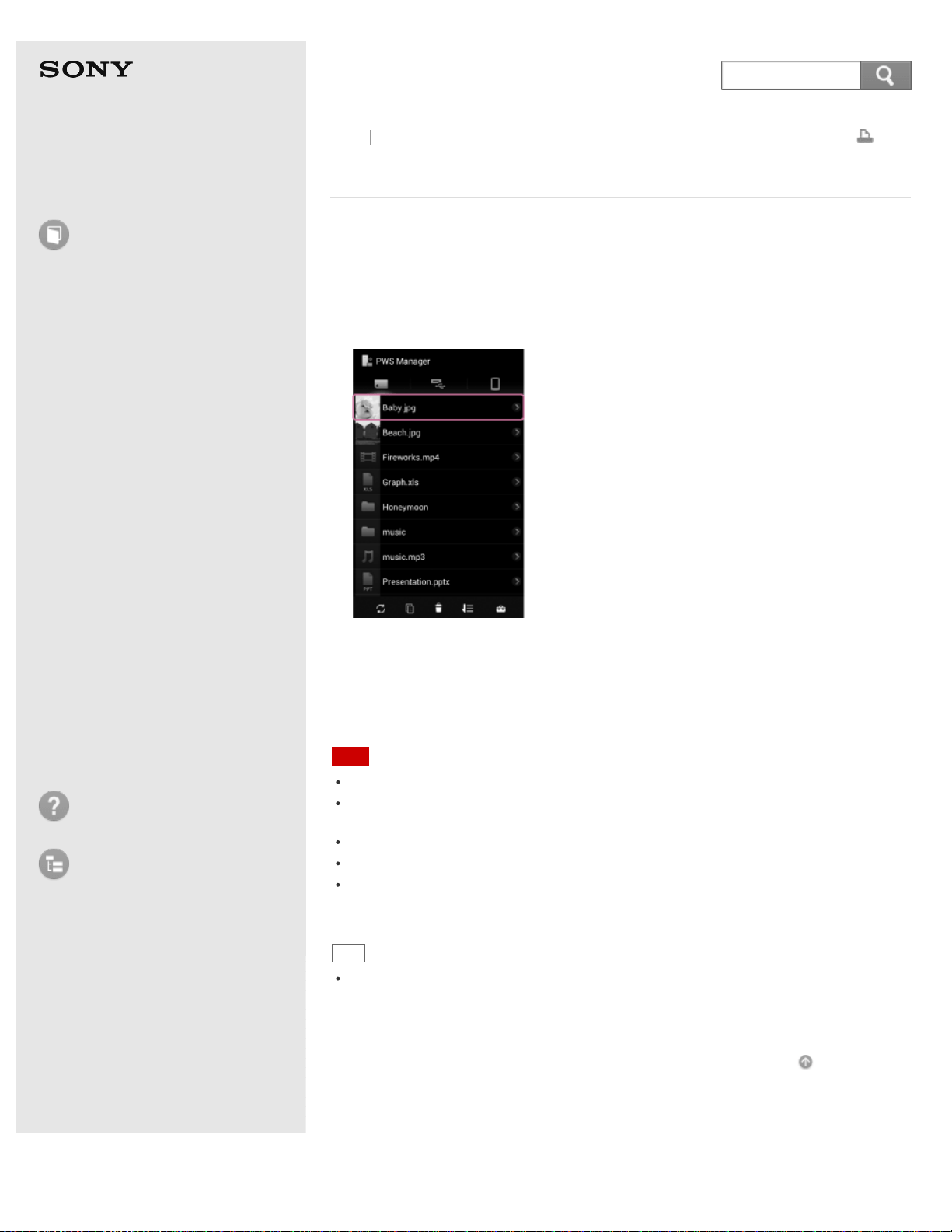
Help Guide
How to use
Read this first
Product overview
Getting started
How to use "PWS Manager"
(Android)
How to use "PWS Manager"
(iOS)
How to use with a computer
Supplying power
LED status indications
Precautions
Specifications
Compatible device
Trademarks
Troubleshooting
List of Topics
Print
Portable Wireless Server
WG-C10
Selecting an application (Android device)
You can play back or display files whose file formats are not supported by "PWS
Manager," by using one of the installed applications.
1. Tap the file (photos, music, videos, etc.) you want to play back on the
file/folder list screen.
A list of applications that can play back the selected file is displayed.
If only one application supports the file, that application starts playing the file.
2. Tap the desired application.
The file starts to play back.
Note
If no applications support the file, the file will not play back.
For details on file formats that can be played back by the selected application,
contact the provider of the application.
Whether or not a file plays back depends on the application installed on your device.
We do not take any responsibility for playback using other applications.
Depending on the device you use, a message such as [Always open with this
application?], etc., may appear. Check the box in front of the message to play back
the same format files with this application.
Hint
If you want to play back a file supported by “PWS Manager” with a different
application, touch and hold the file in step 1. A list of applications that can play back
the selected file is displayed. If only one application supports the file, that application
starts playing the file.
Go to Page Top
Back Back to Top
4-468-627-14(1)
© 2013 Sony Corporation Notes on use
137
Search
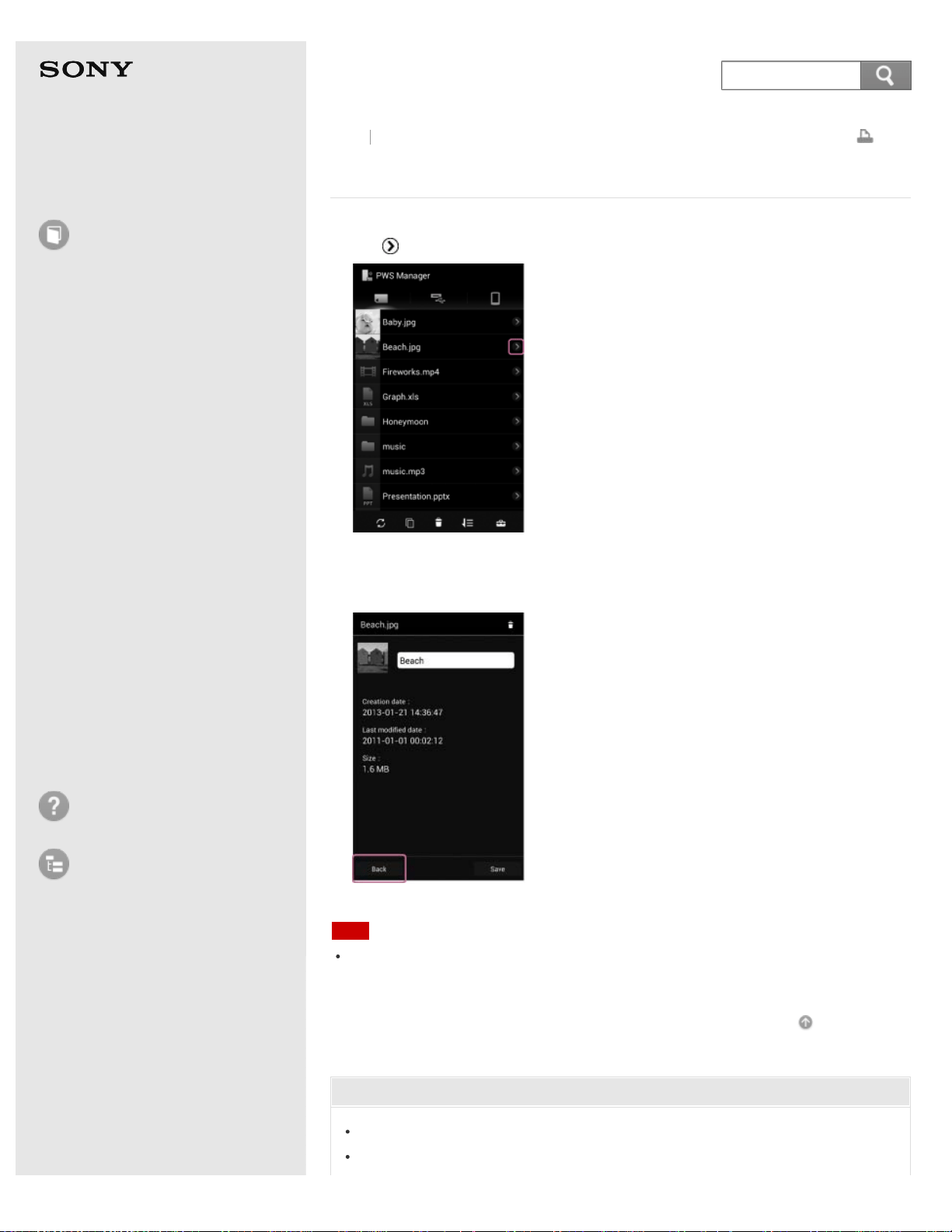
Help Guide
How to use
Read this first
Product overview
Getting started
How to use "PWS Manager"
(Android)
How to use "PWS Manager"
(iOS)
How to use with a computer
Supplying power
LED status indications
Precautions
Specifications
Compatible device
Trademarks
Troubleshooting
List of Topics
Print
Portable Wireless Server
WG-C10
Checking the file information (Android device)
1. Tap (Edit) on the right of the file/folder.
The file information screen is displayed.
You can change file names and delete files on this screen.
Tap [Save] or [Back] to return to the file/folder list screen.
Note
Depending on the Android device you are using, you may not be able to change or
delete the names of files or folders if they are stored on the attached memory card
or USB device.
Go to Page Top
Related Topic
Photo playback screen (Android device)
Music playback screen (Android device)
Back
Back to Top
138
Search

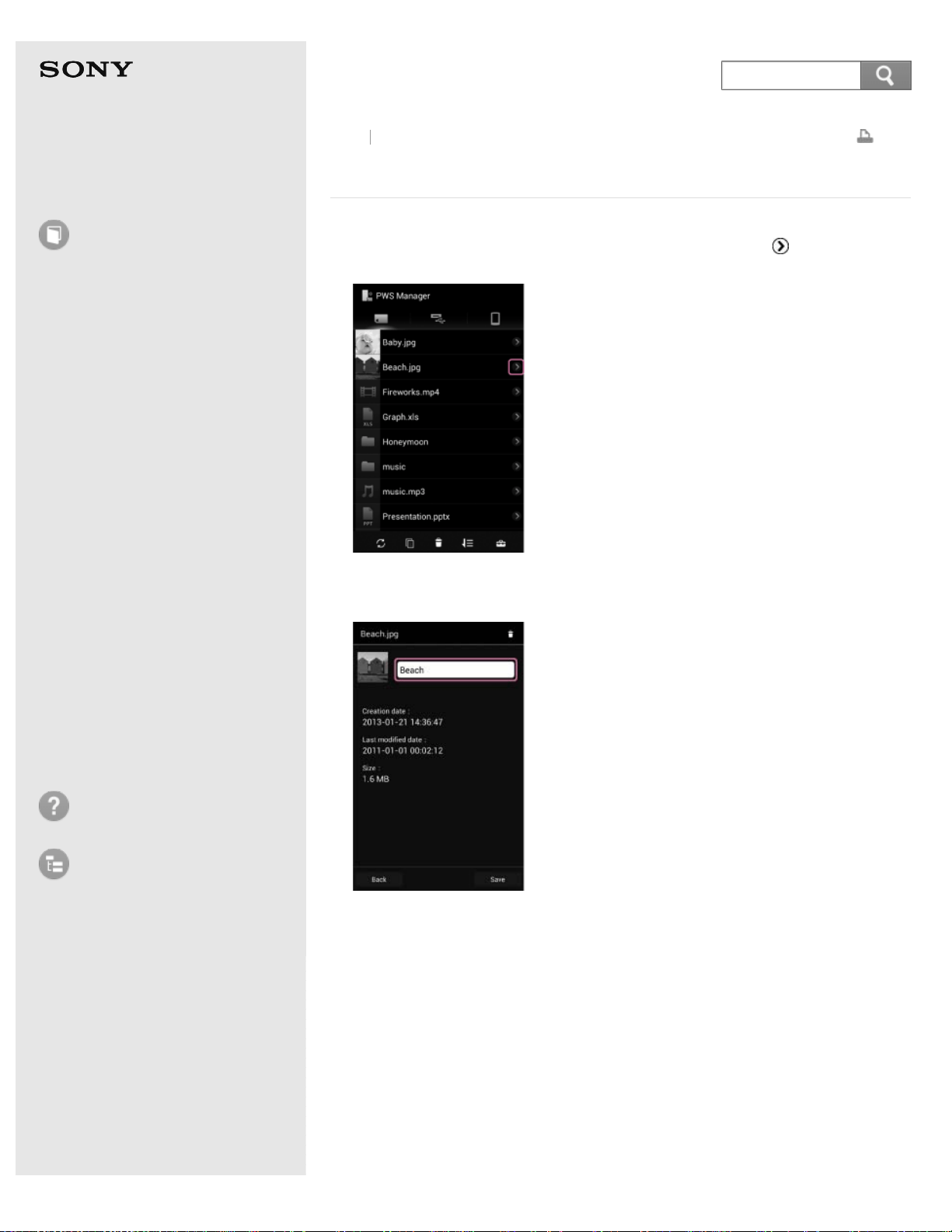
Help Guide
How to use
Read this first
Product overview
Getting started
How to use "PWS Manager"
(Android)
How to use "PWS Manager"
(iOS)
How to use with a computer
Supplying power
LED status indications
Precautions
Specifications
Compatible device
Trademarks
Troubleshooting
List of Topics
Print
Portable Wireless Server
WG-C10
Editing the file/folder name (Android device)
1. Select the file/folder you want to edit the name of, then tap (Edit) on the
right of the file/folder.
The information screen of the file/folder is displayed.
2. Tap the file/folder name.
The software keyboard is displayed.
Back
Back to Top
140
Search
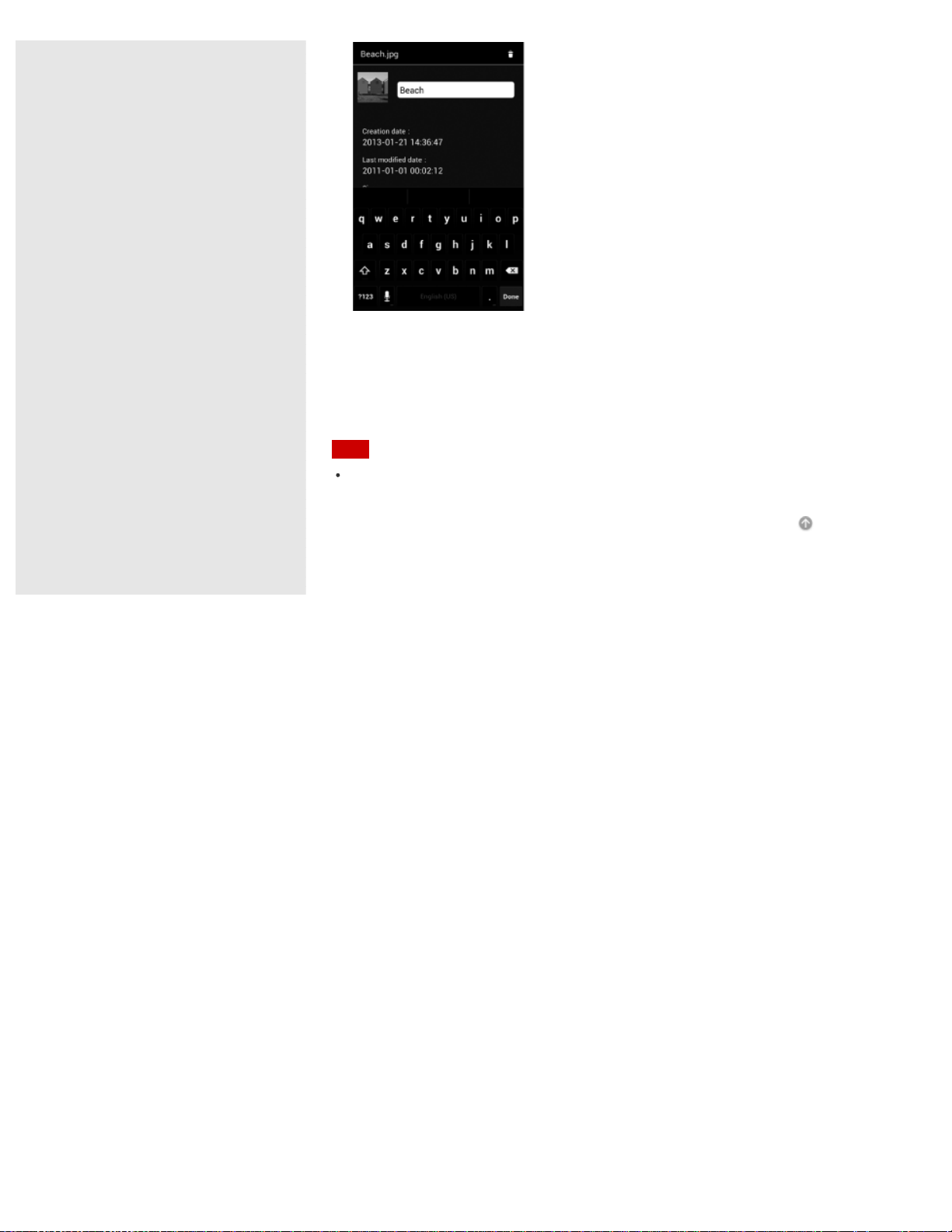
3. Enter a new file/folder name, then tap [Done].
The file/folder name is changed, and the screen returns to the information
screen of the file/folder.
Tap [Save] to return to the file/folder list screen.
Note
Depending on the Android device you are using, you may not be able to edit the
name of a file or folder if it is stored on the attached memory card or USB device.
Go to Page Top
4-468-627-14(1)
© 2013 Sony Corporation Notes on use
141
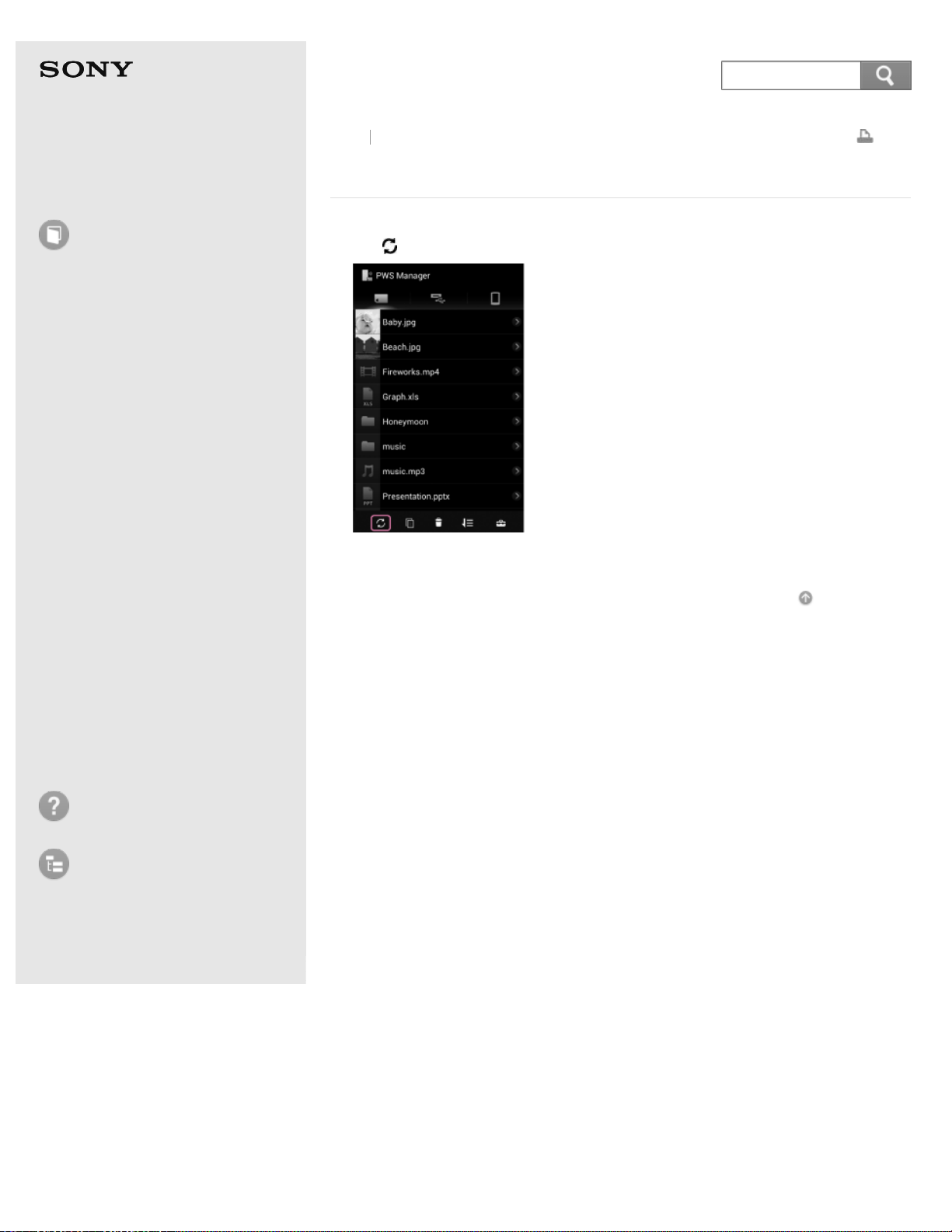
Help Guide
How to use
Read this first
Product overview
Getting started
How to use "PWS Manager"
(Android)
How to use "PWS Manager"
(iOS)
How to use with a computer
Supplying power
LED status indications
Precautions
Specifications
Compatible device
Trademarks
Troubleshooting
List of Topics
Print
Portable Wireless Server
WG-C10
Refreshing the data list (Android device)
1. Tap (Refresh) on the file/folder list screen.
The newest list of the files/folders is displayed.
Go to Page Top
Back Back to Top
4-468-627-14(1)
© 2013 Sony Corporation Notes on use
142
Search
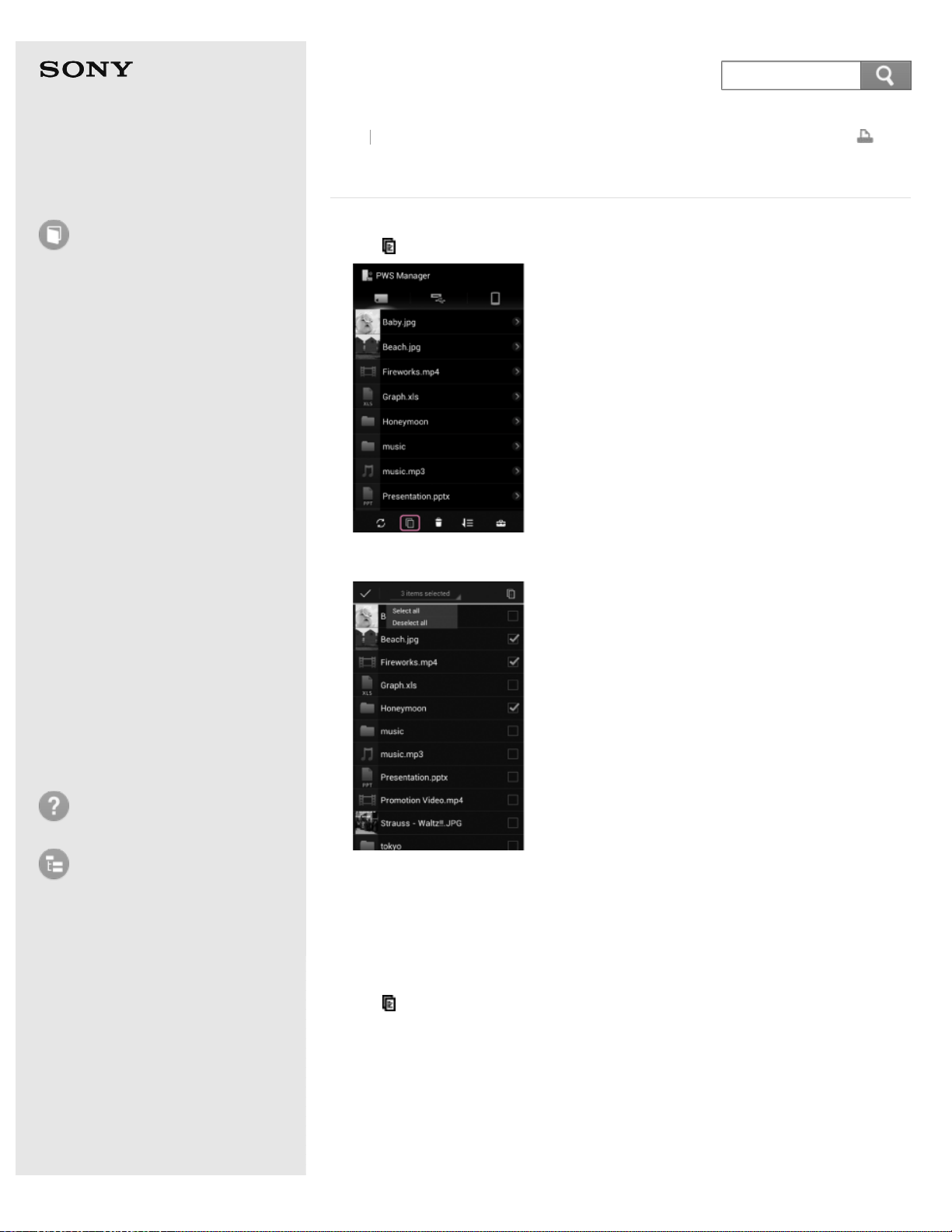
Help Guide
How to use
Read this first
Product overview
Getting started
How to use "PWS Manager"
(Android)
How to use "PWS Manager"
(iOS)
How to use with a computer
Supplying power
LED status indications
Precautions
Specifications
Compatible device
Trademarks
Troubleshooting
List of Topics
Print
Portable Wireless Server
WG-C10
Copying data (Android device)
1. Tap (Copy) on the file/folder list screen.
2. Tap the file/folder you want to copy.
The check mark is displayed to the right of the file/folder.
You can select several files/folders.
To select all displayed files/folders, operate as follows:
(1) Tap the spinner (triangle) to the lower right of the selected item number
displayed in the upper part of the screen.
(2) Tap [Select all] from the dropdown list.
3. Tap
(Copy).
The copy destination device list is displayed.
To delete the original data after copy is complete, add a check mark to [Delete
source].
If the original data cannot be deleted, this option is not selectable.
4. Tap the image of the copy destination device, then tap [OK].
Back
Back to Top
143
Search
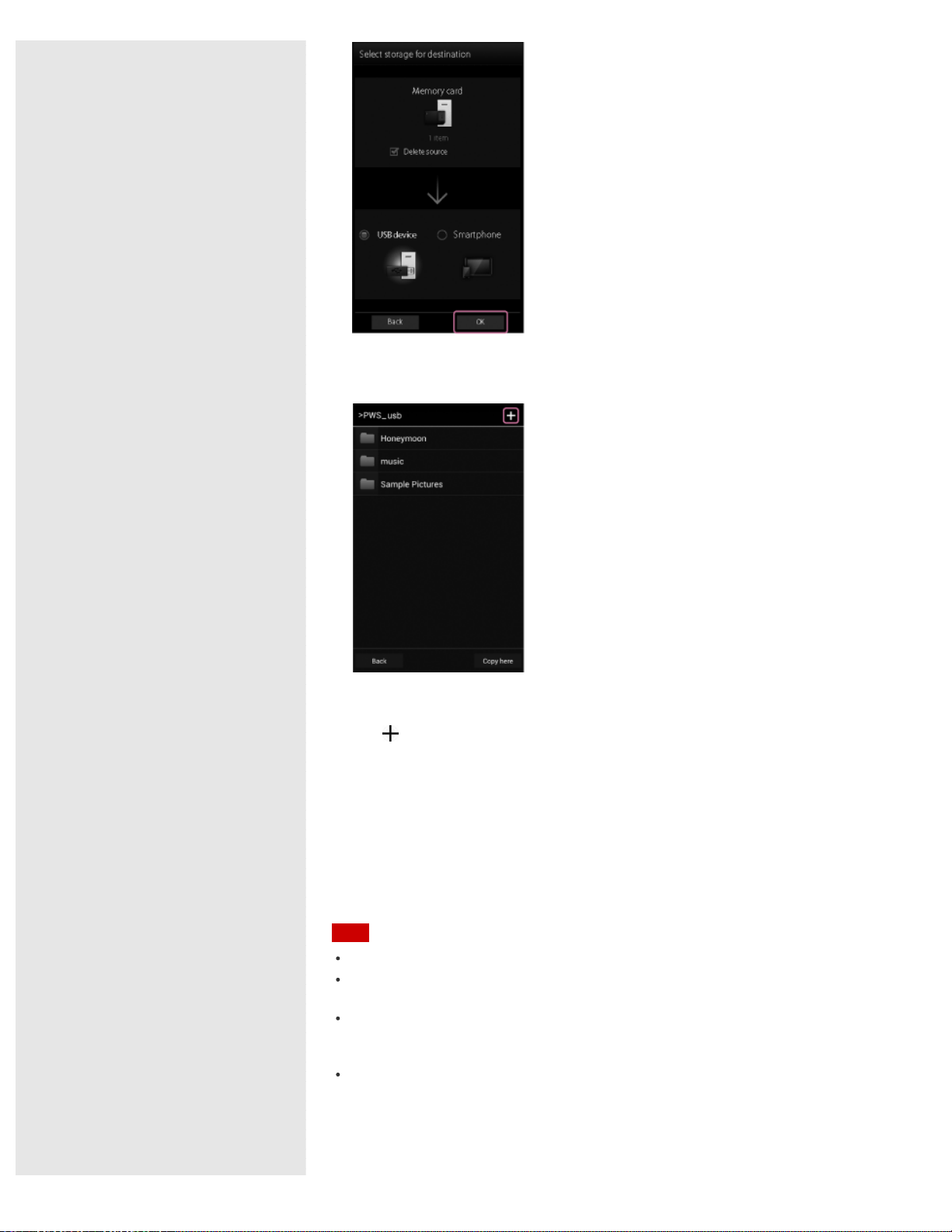
The file/folder list screen of the copy destination device is displayed.
5. Select the copy destination folder.
If you want to copy the file/folder to the hierarchical level directly beneath the
device, go to step 6.
Tap
(Create folder) to make a new folder, enter a file name and tap [OK].
Note that if you select an attached external storage as the copy destination, a
dedicated screen may open to prompt you to select a copy destination folder
from that screen. In this case, you can copy only one file per operation, and
can't copy any folders.
6. Tap [Copy here].
The file/folder copy starts.
When copy is complete, [Done] is displayed. Tap [OK] to finish.
Note
The source and copy destination cannot be on the same device.
Depending on the communication usage environment, it may take time to process
data or processing may stop before copy completes.
If you attempt to copy data when the battery charge of the unit or the device you
use is low, the battery may fully discharge and the copy may fail. Be sure to check
the remaining battery charge before starting to copy.
Even in the event you cannot copy to external media, etc., due to some cause such
as the unit malfunctioning, or if a defect or repair, etc., causes damage or
destruction of copied content in external media, Sony bears no responsibility for
compensation for lost content, nor responsibility for any related damages. Also, Sony
does not provide services for the recovery, restoration, duplication, etc., of copied
content, regardless of the circumstances.
144

If you turn off the unit or remove a memory device while it is being accessed, data
in the memory device may be damaged.
Do not change the connection status, such as connection to a computer, USB AC
adaptor, etc., during copying.
If you connect the unit to a computer, the wireless LAN connection is stopped and
copy stops.
While the unit is connected to the USB AC adaptor, other USB devices cannot be
used.
Data cannot be copied to a write-protected memory device. Make sure that the
memory device is not write-protected.
Go to Page Top
4-468-627-14(1)
© 2013 Sony Corporation Notes on use
145
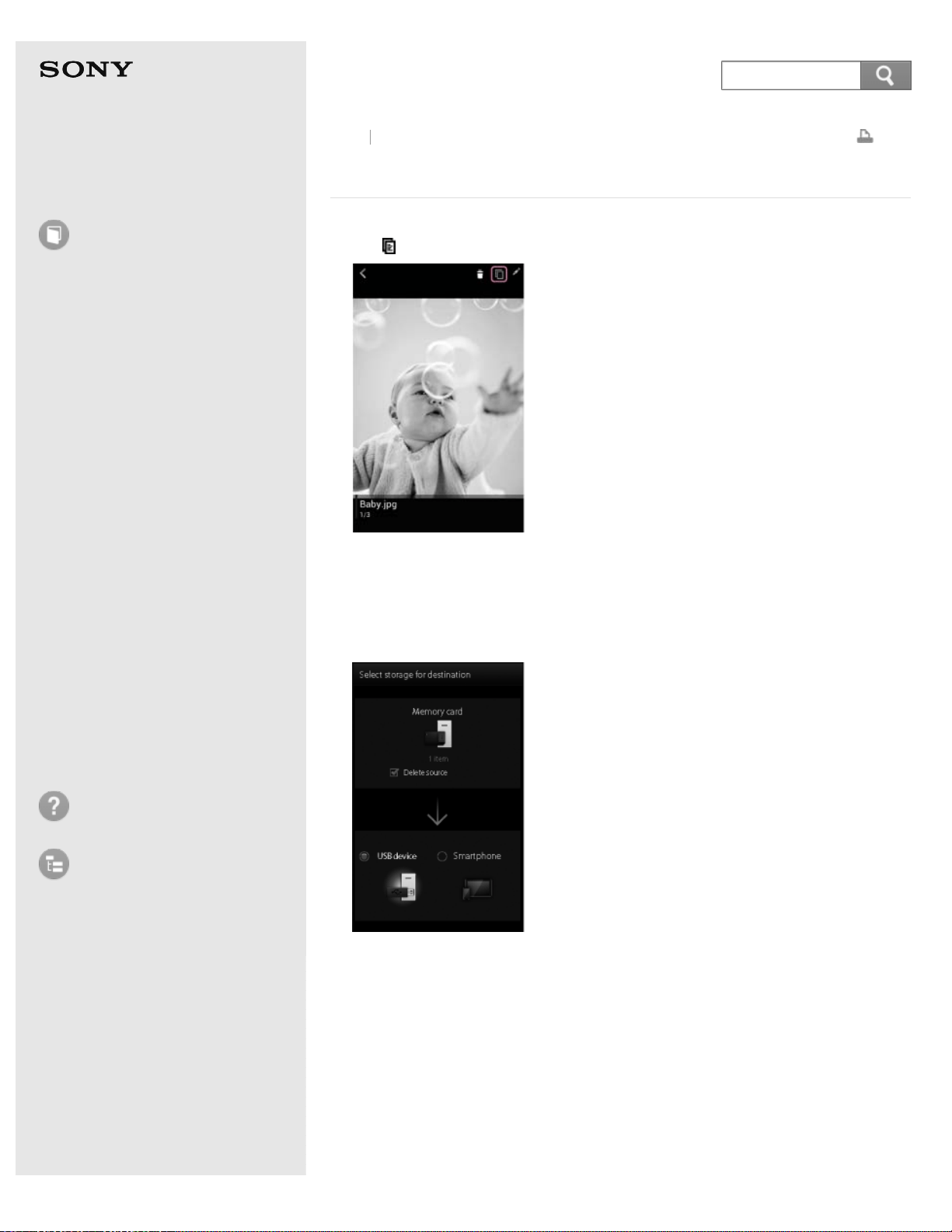
Help Guide
How to use
Read this first
Product overview
Getting started
How to use "PWS Manager"
(Android)
How to use "PWS Manager"
(iOS)
How to use with a computer
Supplying power
LED status indications
Precautions
Specifications
Compatible device
Trademarks
Troubleshooting
List of Topics
Print
Portable Wireless Server
WG-C10
Copying during playback (Android device)
1. Tap (Copy) on the file playback screen.
The copy destination device list is displayed.
To delete the original data after copy is complete, add a check mark to [Delete
source].
If the original data cannot be deleted, this option is not selectable.
2. Tap the image of the copy destination device, then tap [OK].
The file/folder list screen of the copy destination device is displayed.
3. Select the copy destination folder.
Back
Back to Top
146
Search
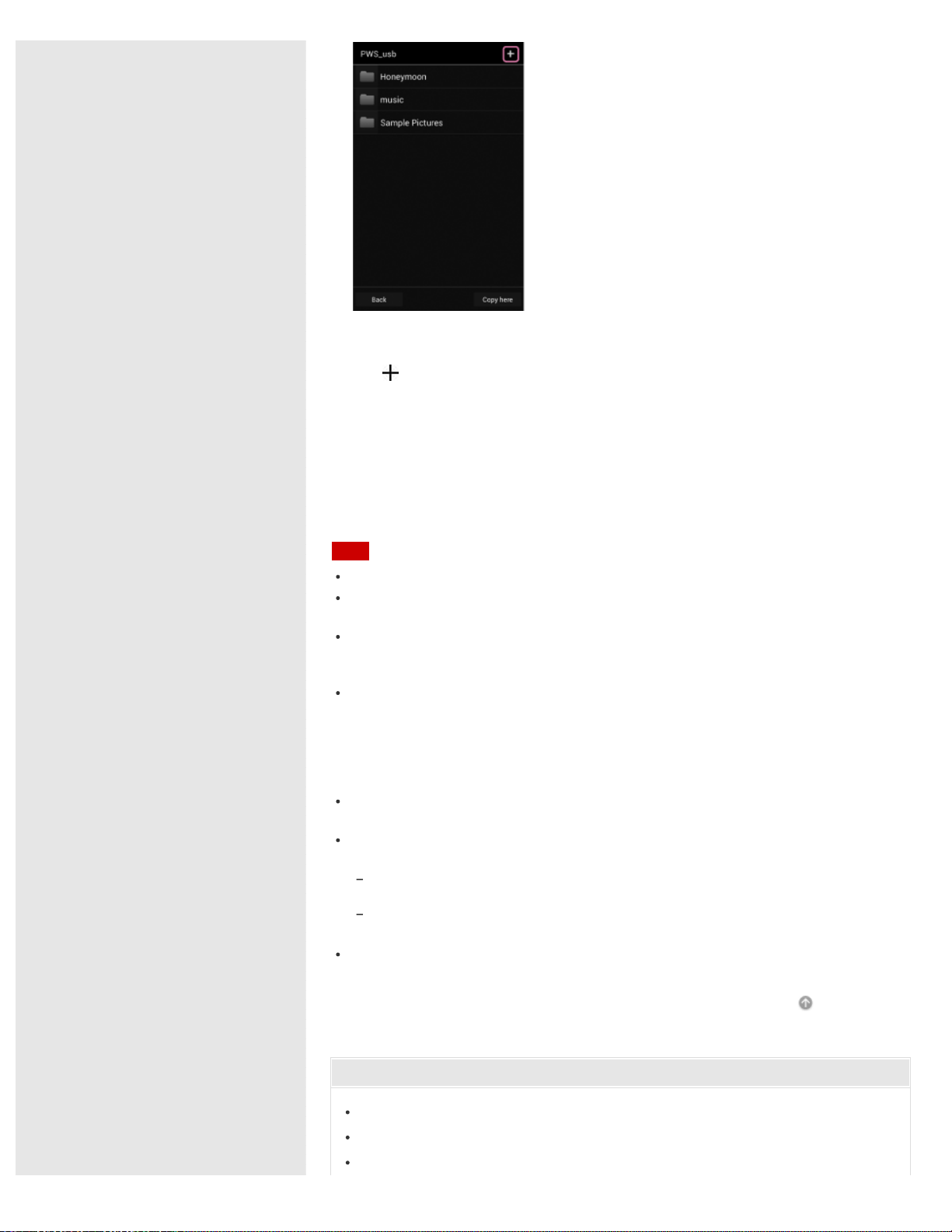
If you want to copy the file/folder to the hierarchical level directly beneath the
device, go to step 4.
Tap
(Create folder) to make a new folder, enter a file name and tap [OK].
Note that if you select an attached external storage as the copy destination, a
dedicated screen may open to prompt you to select a copy destination folder
from that screen.
4. Tap [Copy here].
The file/folder copy starts.
When copy is complete, [Done] is displayed. Tap [OK] to finish.
Note
The source and copy destination cannot be on the same device.
Depending on the communication usage environment, it may take time to process
data or processing may stop before copy completes.
If you attempt to copy data when the battery charge of the unit or the device you
use is low, the battery may fully discharge and the copy may fail. Be sure to check
the remaining battery charge before starting to copy.
Even in the event you cannot copy to external media, etc., due to some cause such
as the unit malfunctioning, or if a defect or repair, etc., causes damage or
destruction of copied content in external media, Sony bears no responsibility for
compensation for lost content, nor responsibility for any related damages. Also, Sony
does not provide services for the recovery, restoration, duplication, etc., of copied
content, regardless of the circumstances.
If you turn off the unit or remove a memory device while it is being accessed, data
in the memory device may be damaged.
Do not change the connection status, such as connection to a computer, USB AC
adaptor, etc., during copying.
If you connect the unit to a computer, the wireless LAN connection is stopped and
copy stops.
While the unit is connected to the USB AC adaptor, other USB devices cannot be
used.
Data cannot be copied to a write-protected memory device. Make sure that the
memory device is not write-protected.
Go to Page Top
Related Topic
Photo playback screen (Android device)
Music playback screen (Android device)
Video playback screen (Android device)
147
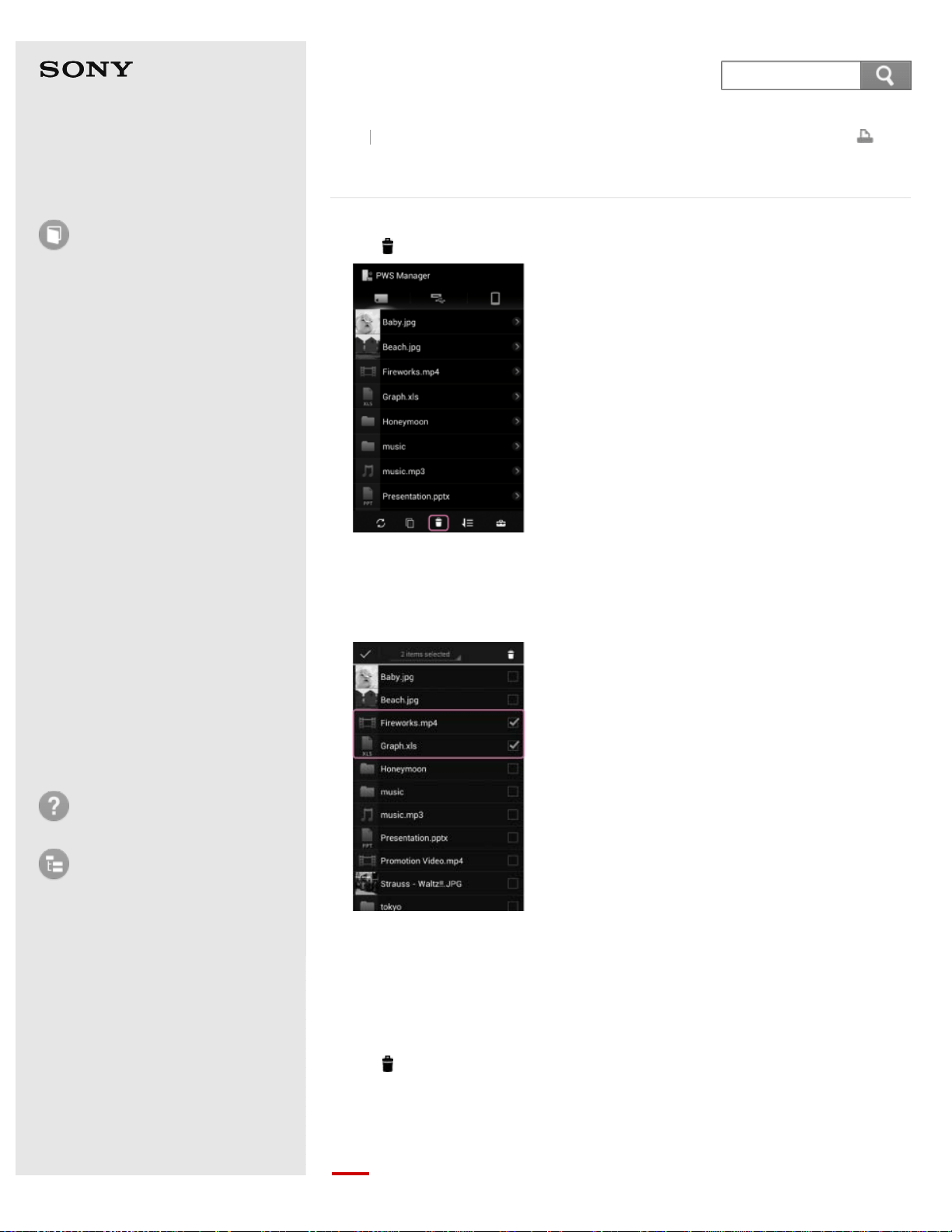
Help Guide
How to use
Read this first
Product overview
Getting started
How to use "PWS Manager"
(Android)
How to use "PWS Manager"
(iOS)
How to use with a computer
Supplying power
LED status indications
Precautions
Specifications
Compatible device
Trademarks
Troubleshooting
List of Topics
Print
Portable Wireless Server
WG-C10
Deleting data (Android device)
1. Tap (Delete) on the file/folder list screen.
At this point, if the currently-selected storage device is an external storage
attached to your smartphone, a dedicated screen may open to prompt you to
select a file and delete it from that screen.
2. Tap the file/folder you want to delete.
The check mark is displayed to the right of the file or folder.
You can select several files/folders.
To select all displayed files/folders, operate as follows:
(1) Tap the spinner (triangle) to the lower right of the selected item number
displayed in the upper part of the screen.
(2) Tap [Select all] from the dropdown list.
3. Tap
(Delete).
4. Tap [OK].
Deletion of the file/folder starts.
When deletion is complete, tap [OK] to return to the file/folder list screen.
Back Back to Top
148
Search

Note
Depending on the communication usage environment, it may take time to process
data, or processing may stop before deleting completes.
If you turn off the unit or remove a memory device while it is being accessed, data
in the memory device may be damaged.
Do not change the connection status, such as connection to a computer, USB AC
adaptor, etc., while deleting.
If you connect the unit to a computer, the wireless LAN connection is cut and
deleting stops.
While the unit is connected to the USB AC adaptor, other USB devices cannot be
used.
Data cannot be deleted from a write-protected memory device. Make sure that the
memory device is not write-protected.
Go to Page Top
4-468-627-14(1)
© 2013 Sony Corporation Notes on use
149
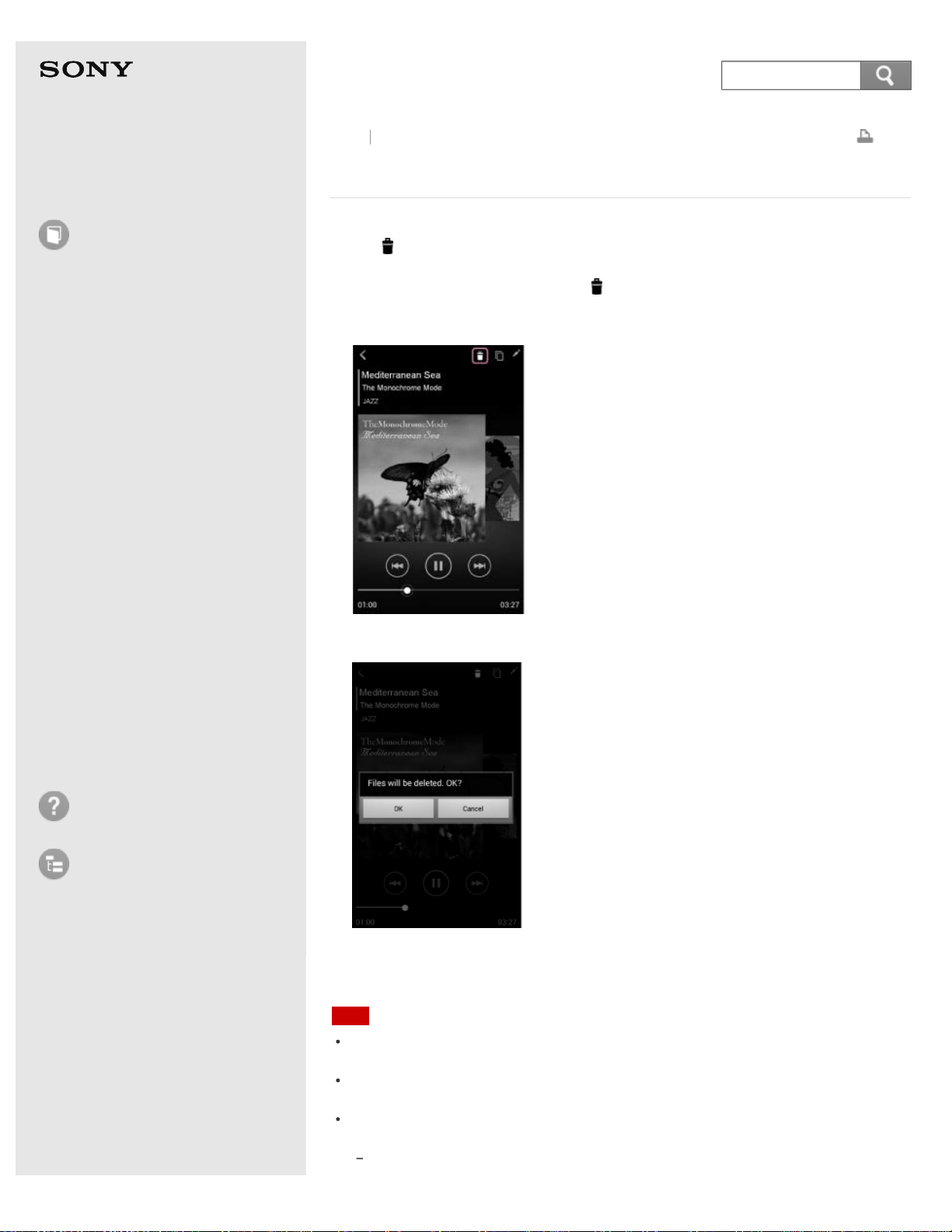
Help Guide
How to use
Read this first
Product overview
Getting started
How to use "PWS Manager"
(Android)
How to use "PWS Manager"
(iOS)
How to use with a computer
Supplying power
LED status indications
Precautions
Specifications
Compatible device
Trademarks
Troubleshooting
List of Topics
Print
Portable Wireless Server
WG-C10
Deleting during playback (Android device)
1. Tap (Delete) on the file playback screen.
At this point, if the currently-selected storage device is an external storage
attached to your smartphone, the
(Delete) icon may not appear. In that case,
go back to the file/folder list screen and do the delete operation as described in
"Deleting data (Android device)."
2. Tap [OK].
Deletion of the file/folder starts.
When deletion is complete, tap [OK].
Note
Depending on the communication usage environment, it may take time to process
data, or processing may stop before deleting completes.
If you turn off the unit or remove a memory device while it is being accessed, data
in the memory device may be damaged.
Do not change the connection status, such as connection to a computer, USB AC
adaptor, etc., while deleting.
If you connect the unit to a computer, the wireless LAN connection is cut and
Back Back to Top
150
Search

deleting stops.
While the unit is connected to the USB AC adaptor, other USB devices cannot be
used.
Data cannot be deleted from a write-protected memory device. Make sure that the
memory device is not write-protected.
Go to Page Top
Related Topic
Photo playback screen (Android device)
Music playback screen (Android device)
Video playback screen (Android device)
Go to Page Top
4-468-627-14(1)
© 2013 Sony Corporation Notes on use
151

Help Guide
How to use
Read this first
Product overview
Getting started
How to use "PWS Manager"
(Android)
How to use "PWS Manager"
(iOS)
How to use with a computer
Supplying power
LED status indications
Precautions
Specifications
Compatible device
Trademarks
Troubleshooting
List of Topics
Print
Portable Wireless Server
WG-C10
Sorting the data list (Android device)
1. Tap (Sort) on the file/folder list screen.
2. Select and tap the sort method.
The list of files/folders is arranged by the selected sort method.
Name (A - Z): Sort by file/folder name.
Date (old - new): Sort by date the file/folder was created.
File type: Sort by file type.
Go to Page Top
Back Back to Top
4-468-627-14(1)
© 2013 Sony Corporation Notes on use
152
Search
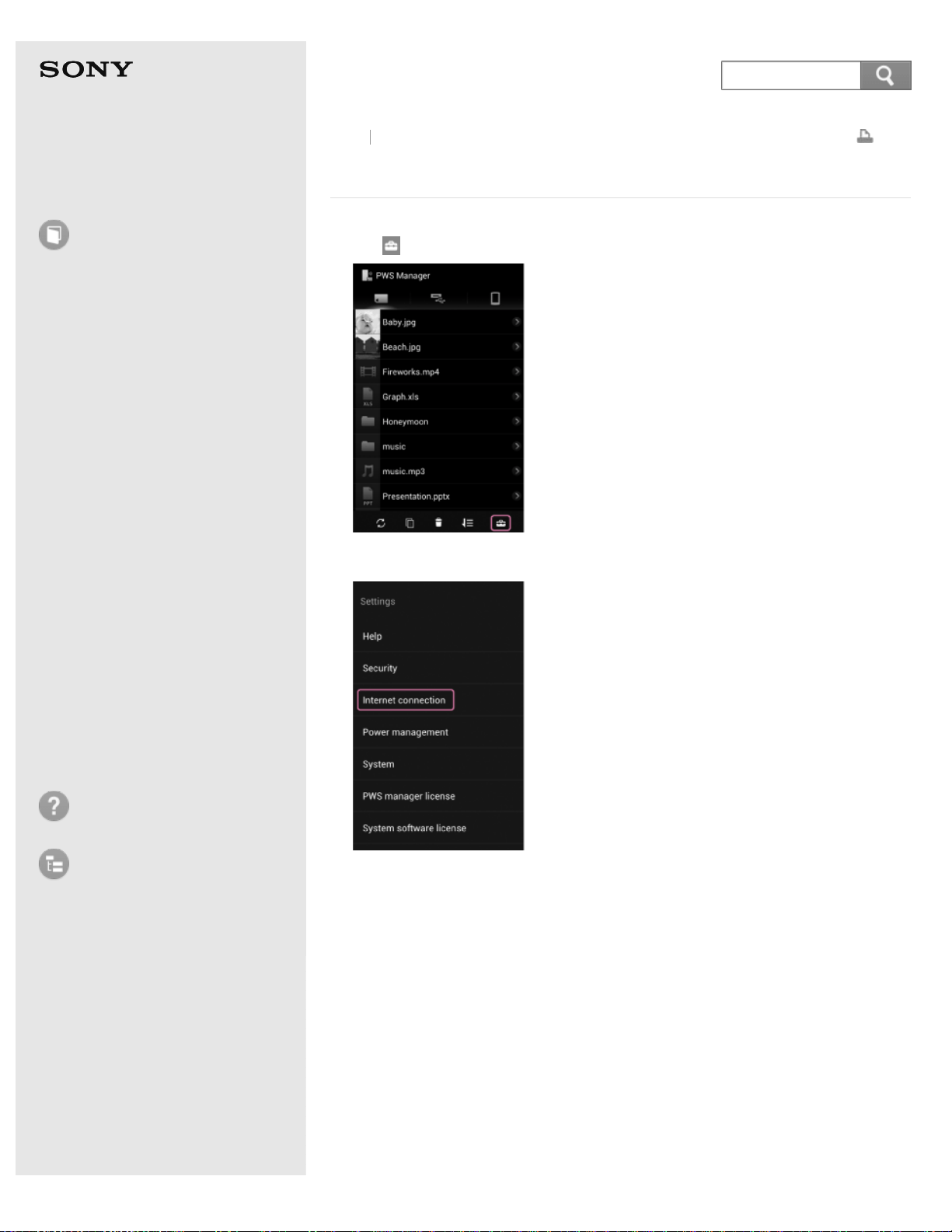
Help Guide
How to use
Read this first
Product overview
Getting started
How to use "PWS Manager"
(Android)
How to use "PWS Manager"
(iOS)
How to use with a computer
Supplying power
LED status indications
Precautions
Specifications
Compatible device
Trademarks
Troubleshooting
List of Topics
Print
Portable Wireless Server
WG-C10
Configuring the Internet connection (Android device)
1. Tap (Settings) on the file/folder list screen.
2. Tap [Internet connection].
The list of available wireless LAN access points is displayed.
3. Tap the SSID of the access point you want to connect to.
Back
Back to Top
153
Search
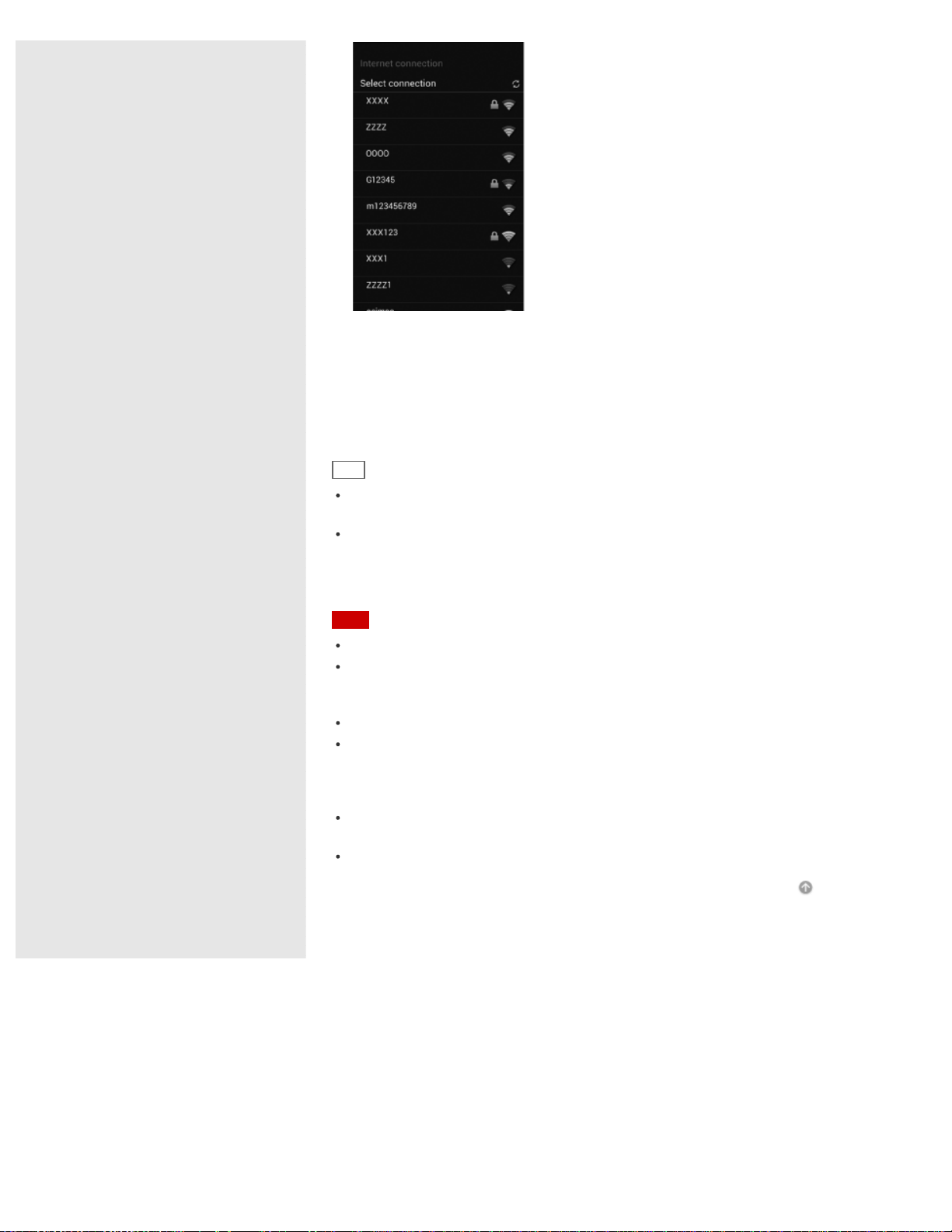
4. If necessary, enter the password of the device you want to connect to, then tap
[OK].
If you want to connect to a wireless LAN of which the security has been set,
password entry may be required.
The unit restarts and is connected to the wireless LAN access point.
Hint
Tap the SSID connected in step 3 or a registered SSID, to display its network
information.
A maximum of 6 SSIDs of wireless LAN devices are automatically registered.
Connection between the unit and a registered SSID is established automatically. To
unregister an SSID, press [Forget] on the information screen of the wireless LAN
device.
Note
When using at home, an Internet connection and wireless LAN router are required.
When using outside the home, check the wireless LAN situation of the location
through the public wireless LAN service provider’s website, etc. Using such services
may require a separate contract with the service provider.
Connection to all public wireless LAN services is not assured.
Wireless LAN exchanges information by radio wave, allowing easy access within the
communication range. Consequently, if security settings are not made, there is a risk
that a third party on the same network could maliciously access (hack into) your unit.
Setting security is your decision and responsibility, and is strongly recommended.
It may take time to establish connection, or connection may not be established,
depending on the usage environment.
It is not possible to connect to any wireless LAN device with a hidden SSID.
Go to Page Top
4-468-627-14(1)
© 2013 Sony Corporation Notes on use
154
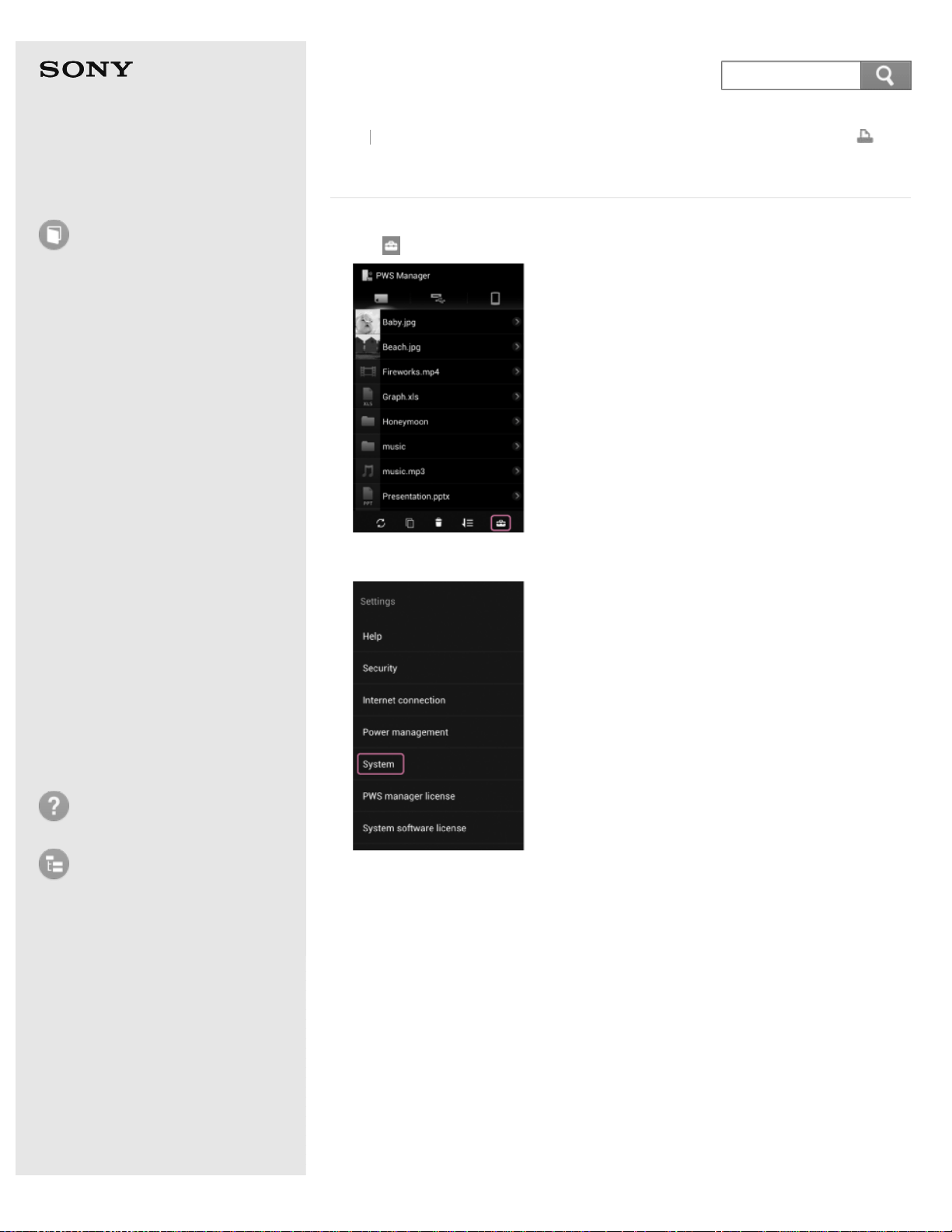
Help Guide
How to use
Read this first
Product overview
Getting started
How to use "PWS Manager"
(Android)
How to use "PWS Manager"
(iOS)
How to use with a computer
Supplying power
LED status indications
Precautions
Specifications
Compatible device
Trademarks
Troubleshooting
List of Topics
Print
Portable Wireless Server
WG-C10
Updating the system software (Android device)
1. Tap (Settings) on the file/folder list screen.
2. Tap [System].
The current version of system software on this unit is displayed.
3. Tap [System software update].
Back
Back to Top
155
Search
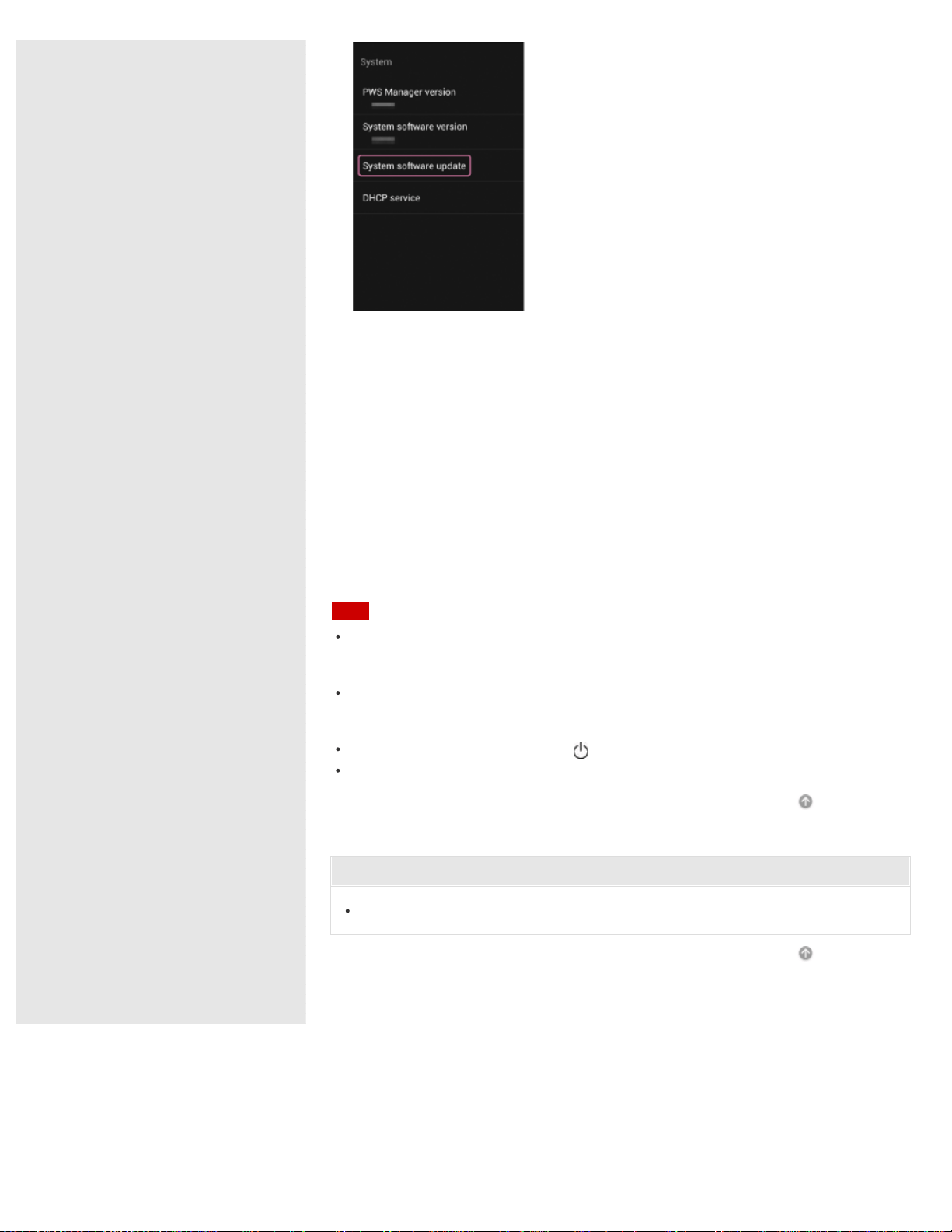
The version of any system software updates found will be displayed.
The update confirmation screen is displayed.
4. Tap [OK].
The update confirmation screen is displayed.
5. Tap [OK].
The system software update starts.
To complete the system software update, the unit restarts. Connect the unit
and the Android device again, since the wireless connection will have been
stopped.
6. Confirm that the system software has been updated to the latest version by
performing steps 1 – 3.
Note
Distribution of the system software is done by updating "PWS Manager." Check the
update status of the application periodically to make sure the latest version is being
used.
Update cannot be done if the battery charge is low. Confirm that the battery charge
remains 60% or more and then perform update. See "Checking the remaining battery
level (Android device) ."
Do not press the RESET switch or (Power) button while updating.
Update the system software in a location where communication conditions are stable.
Go to Page Top
Related Topic
Connecting an Android device via wireless LAN
Go to Page Top
4-468-627-14(1)
© 2013 Sony Corporation Notes on use
156
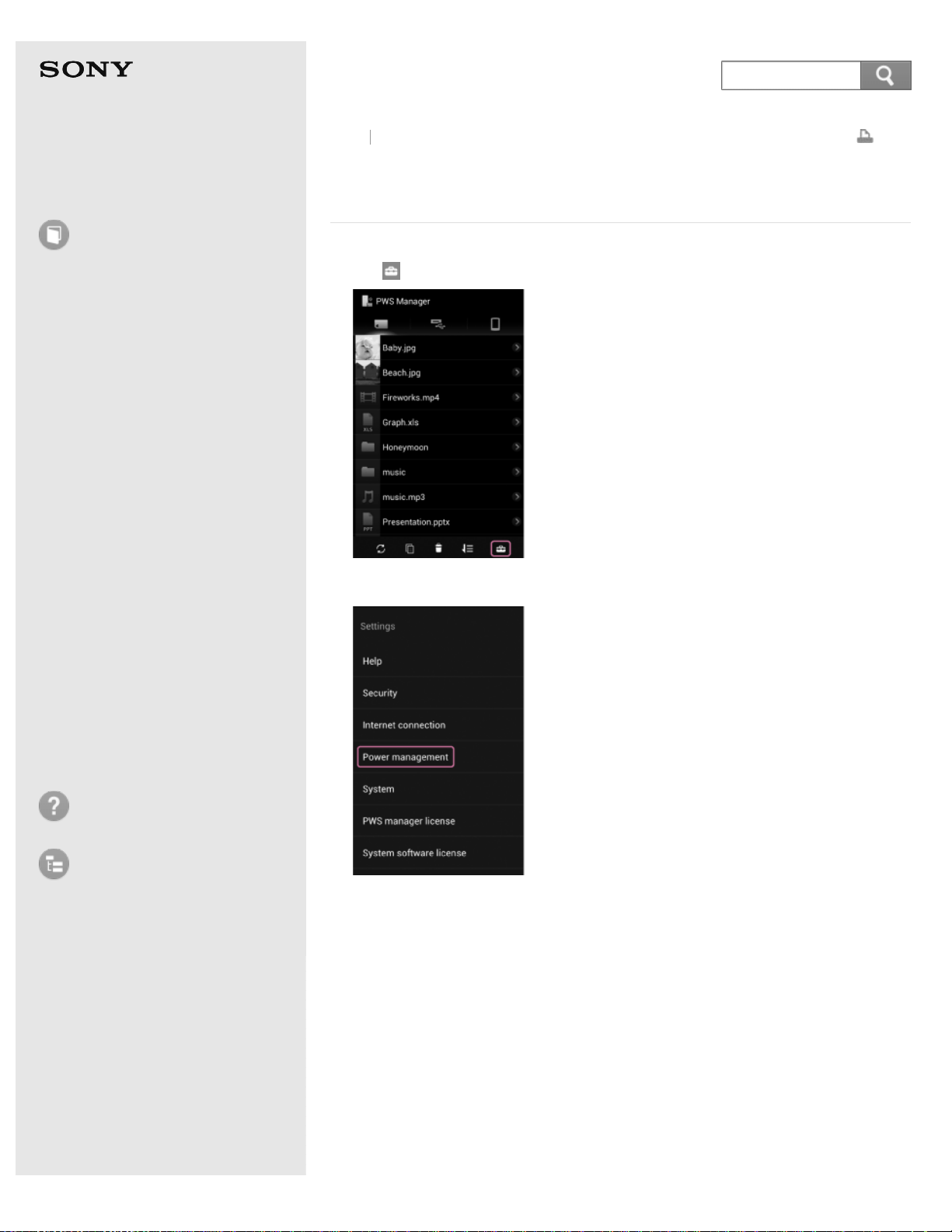
Help Guide
How to use
Read this first
Product overview
Getting started
How to use "PWS Manager"
(Android)
How to use "PWS Manager"
(iOS)
How to use with a computer
Supplying power
LED status indications
Precautions
Specifications
Compatible device
Trademarks
Troubleshooting
List of Topics
Print
Portable Wireless Server
WG-C10
Checking the remaining battery level (Android
device)
1. Tap (Settings) on the file/folder list screen.
2. Tap [Power Management].
3. Check the remaining charge of the built-in battery.
Back
Back to Top
157
Search
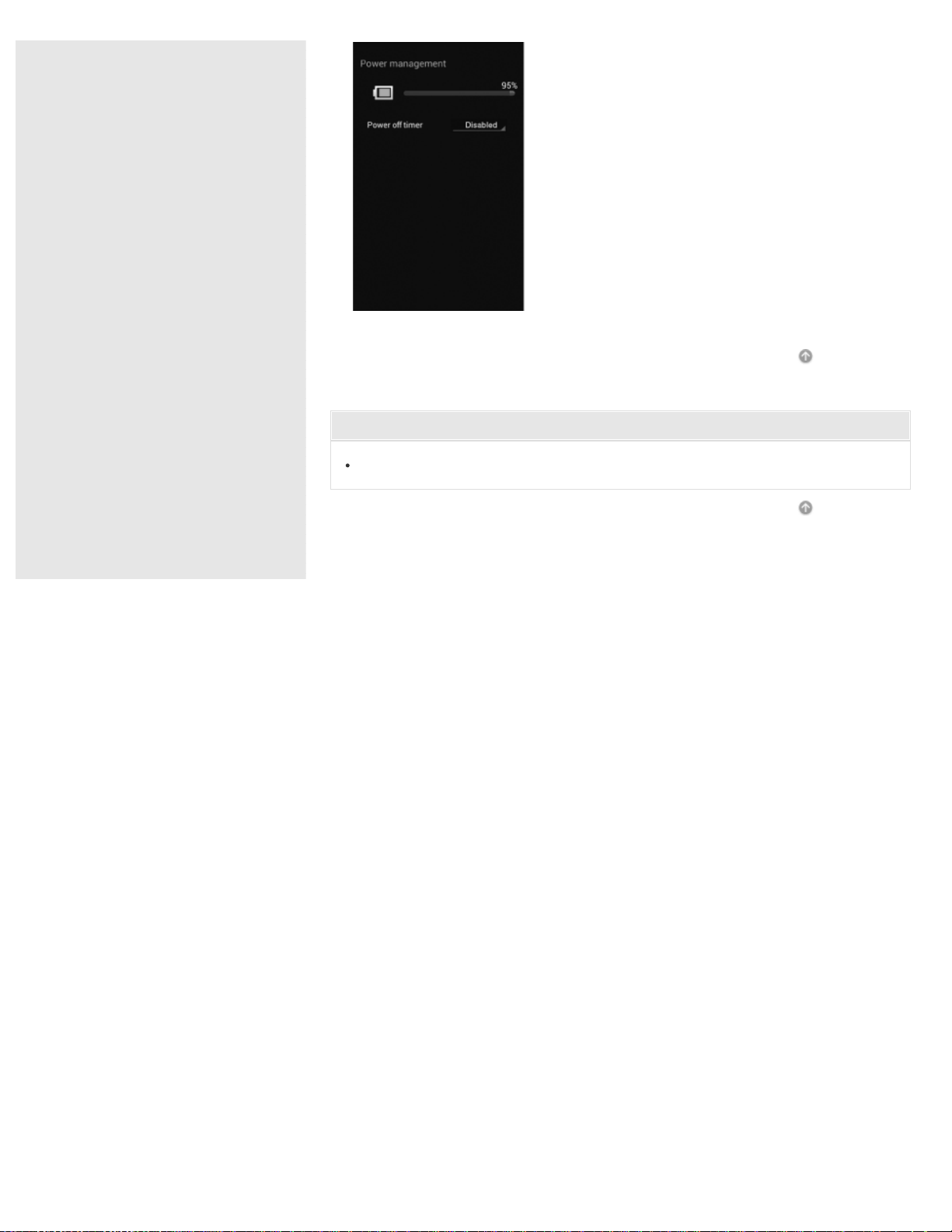
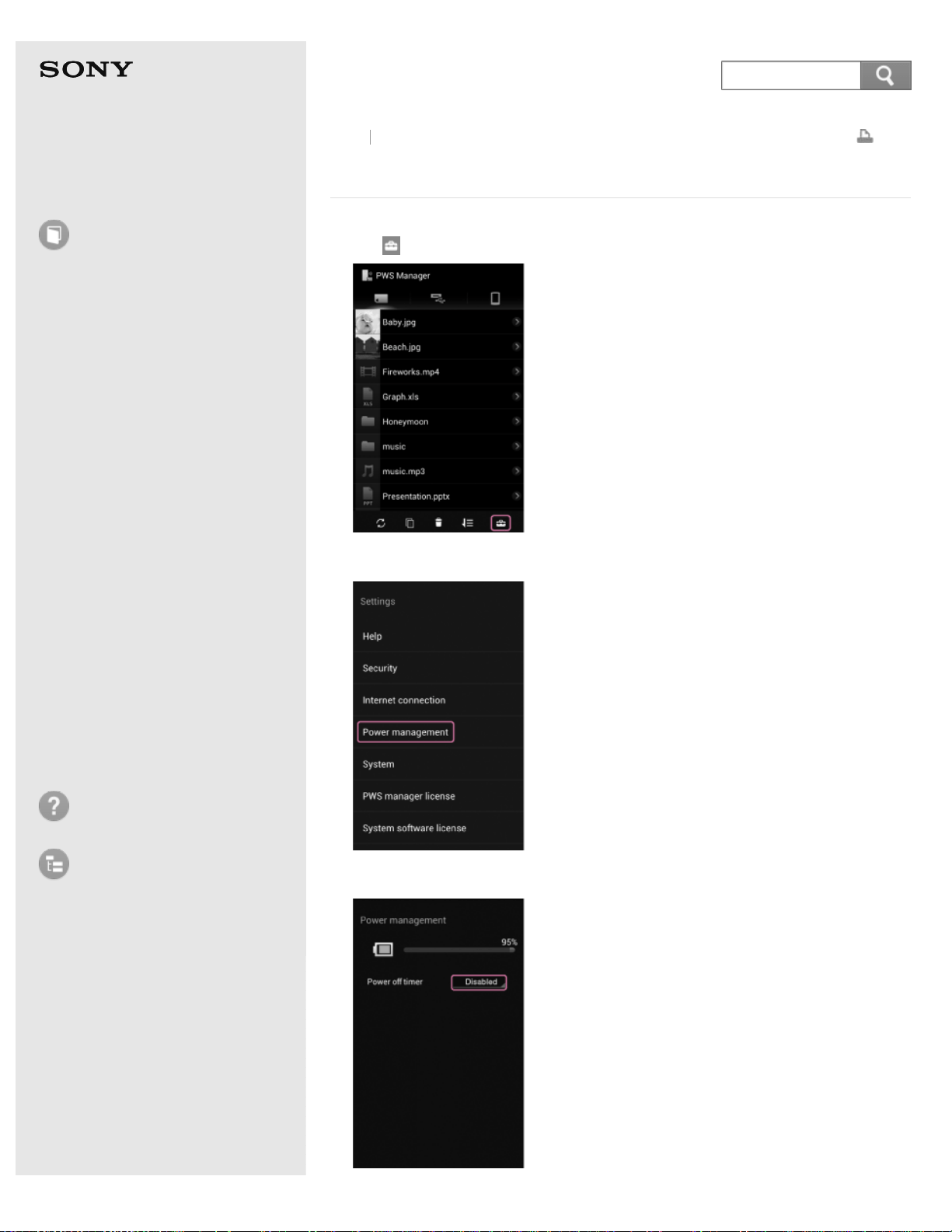
Help Guide
How to use
Read this first
Product overview
Getting started
How to use "PWS Manager"
(Android)
How to use "PWS Manager"
(iOS)
How to use with a computer
Supplying power
LED status indications
Precautions
Specifications
Compatible device
Trademarks
Troubleshooting
List of Topics
Print
Portable Wireless Server
WG-C10
Setting auto power off (Android device)
1. Tap (Settings) on the file/folder list screen.
2. Tap [Power Management].
3. Tap the button displayed to the right of [Power off timer].
Back Back to Top
159
Search
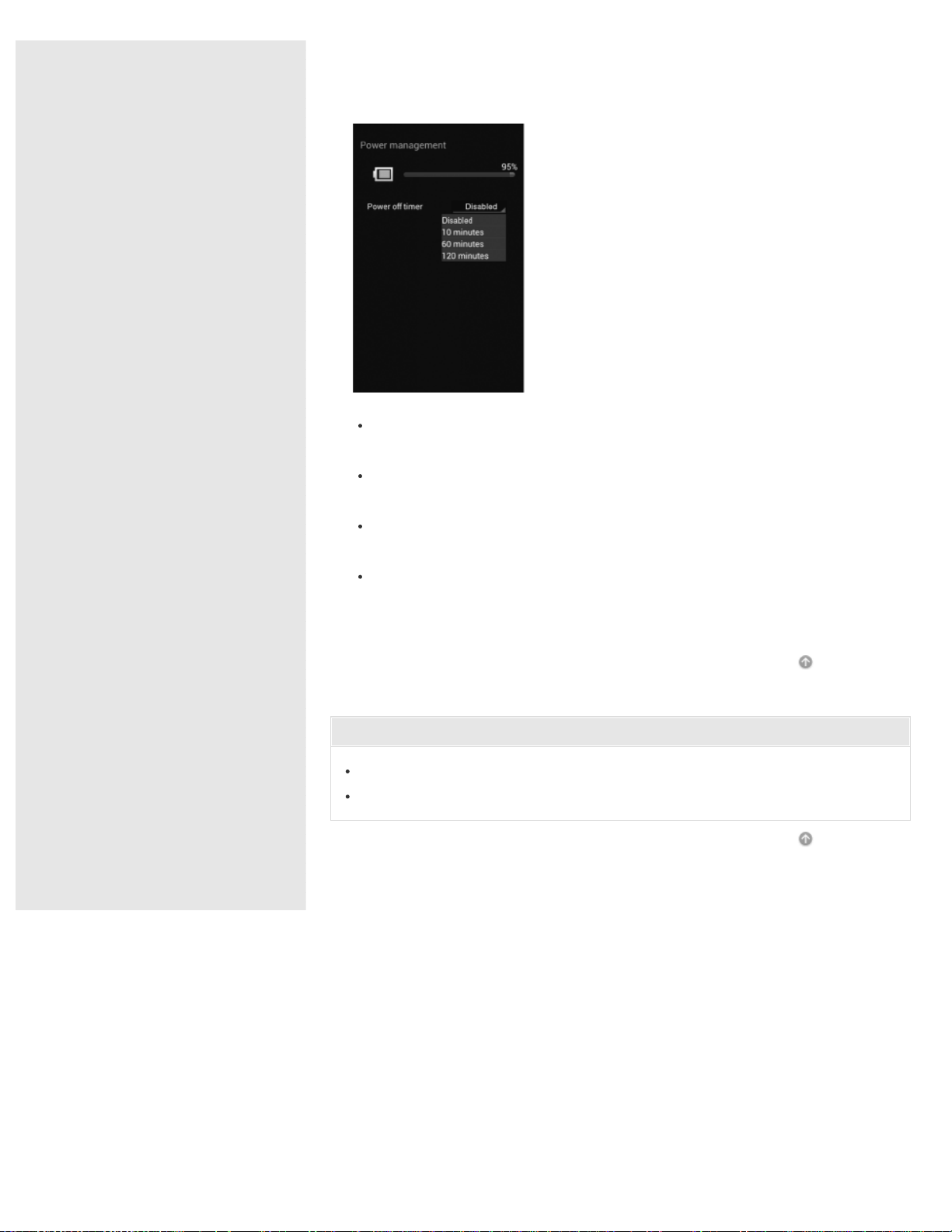
[Disabled] is selected by default.
4. Select the time you want the power of this unit to automatically turn off, and
tap it.
Disabled: This function is not used. The power will not turn off until you turn
it off manually.
10 minutes: The unit turns off automatically after 10 minutes of no
communication.
60 minutes: The unit turns off automatically after 60 minutes of no
communication.
120 minutes: The unit turns off automatically after 120 minutes of no
communication.
Go to Page Top
Related Topic
Turning the power on
Turning the power off
Go to Page Top
4-468-627-14(1)
© 2013 Sony Corporation Notes on use
160
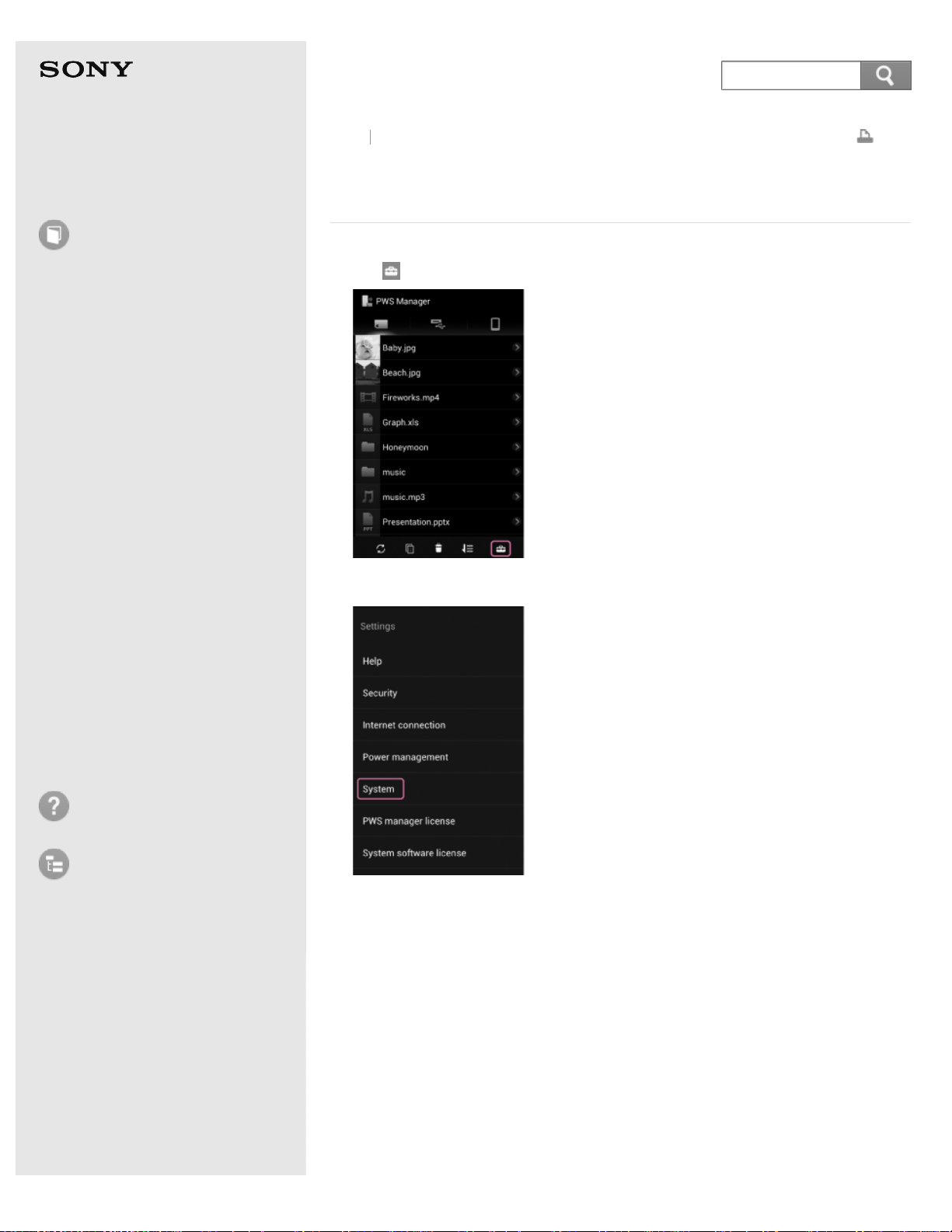
Help Guide
How to use
Read this first
Product overview
Getting started
How to use "PWS Manager"
(Android)
How to use "PWS Manager"
(iOS)
How to use with a computer
Supplying power
LED status indications
Precautions
Specifications
Compatible device
Trademarks
Troubleshooting
List of Topics
Print
Portable Wireless Server
WG-C10
Checking the version of "PWS Manager" (Android
device)
1. Tap (Settings) on the file/folder list screen.
2. Tap [System].
The current version of "PWS Manager" is displayed.
Back
Back to Top
161
Search
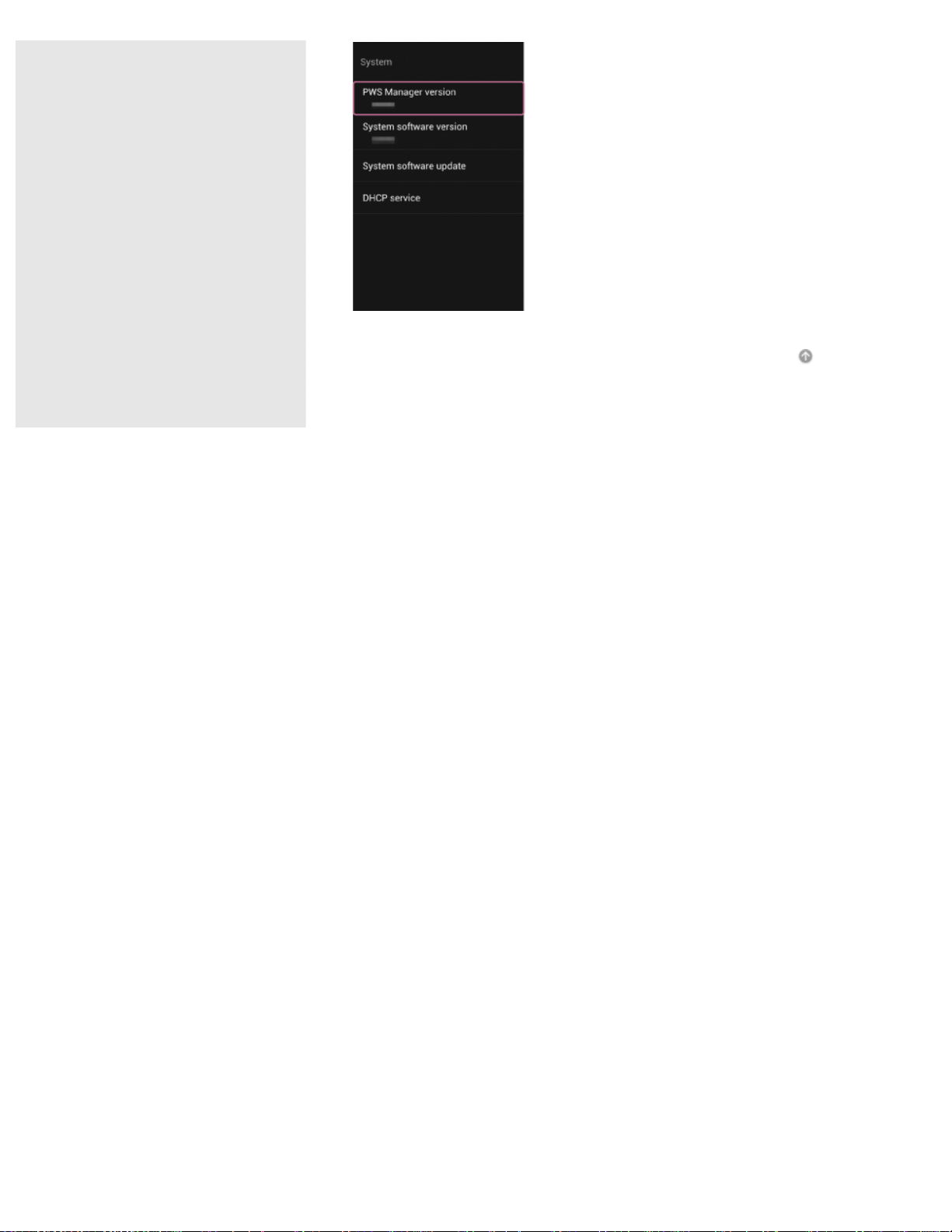
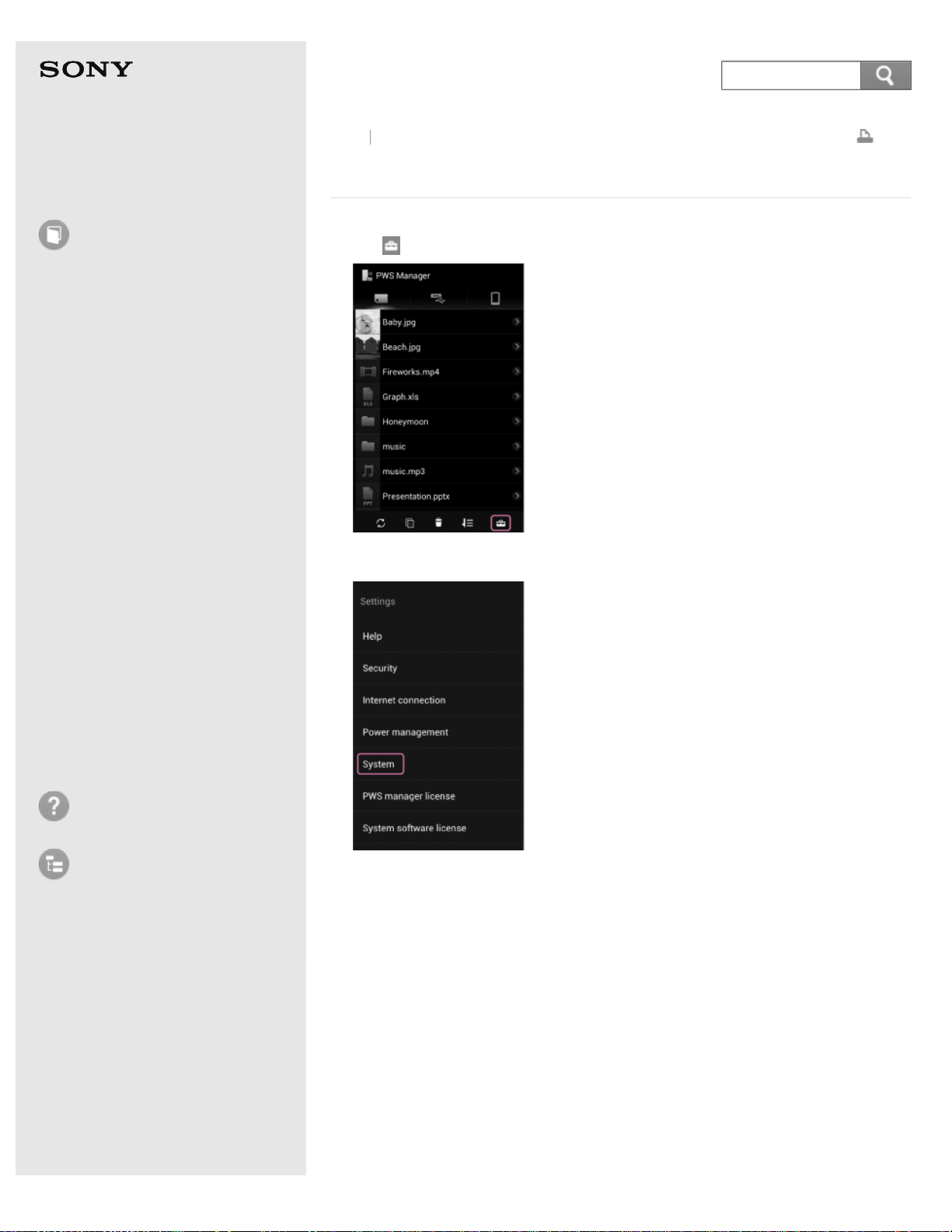
Help Guide
How to use
Read this first
Product overview
Getting started
How to use "PWS Manager"
(Android)
How to use "PWS Manager"
(iOS)
How to use with a computer
Supplying power
LED status indications
Precautions
Specifications
Compatible device
Trademarks
Troubleshooting
List of Topics
Print
Portable Wireless Server
WG-C10
Configuring/Checking DHCP services (Android device)
1. Tap (Settings) on the file/folder screen.
2. Tap [System].
3. Tap [DHCP service].
The following items can be set/checked as necessary.
Back
Back to Top
163
Search

[Network] (settable item)
Tap [Network].
Select a network on the settings screen.
Tap [OK] to complete the settings.
[Subnet mask] (unchangeable)
You can check the subnet mask value.
[Gateway] (unchangeable)
You can check the gateway value.
[DNS server] (settable item)
Tap [DNS server].
Select [Manual] on the select screen.
[Auto] is selected normally.
Enter the necessary DNS server.
Tap [OK] to complete the settings.
[Address lease time] (unchangeable)
You can check the lease period of the IP address.
[Address pool] (settable item)
Tap [Address pool].
Set the start IP address on the settings screen.
10 IP addresses from the one set will be used.
Tap [OK] to complete the settings.
Go to Page Top
4-468-627-14(1)
© 2013 Sony Corporation Notes on use
164
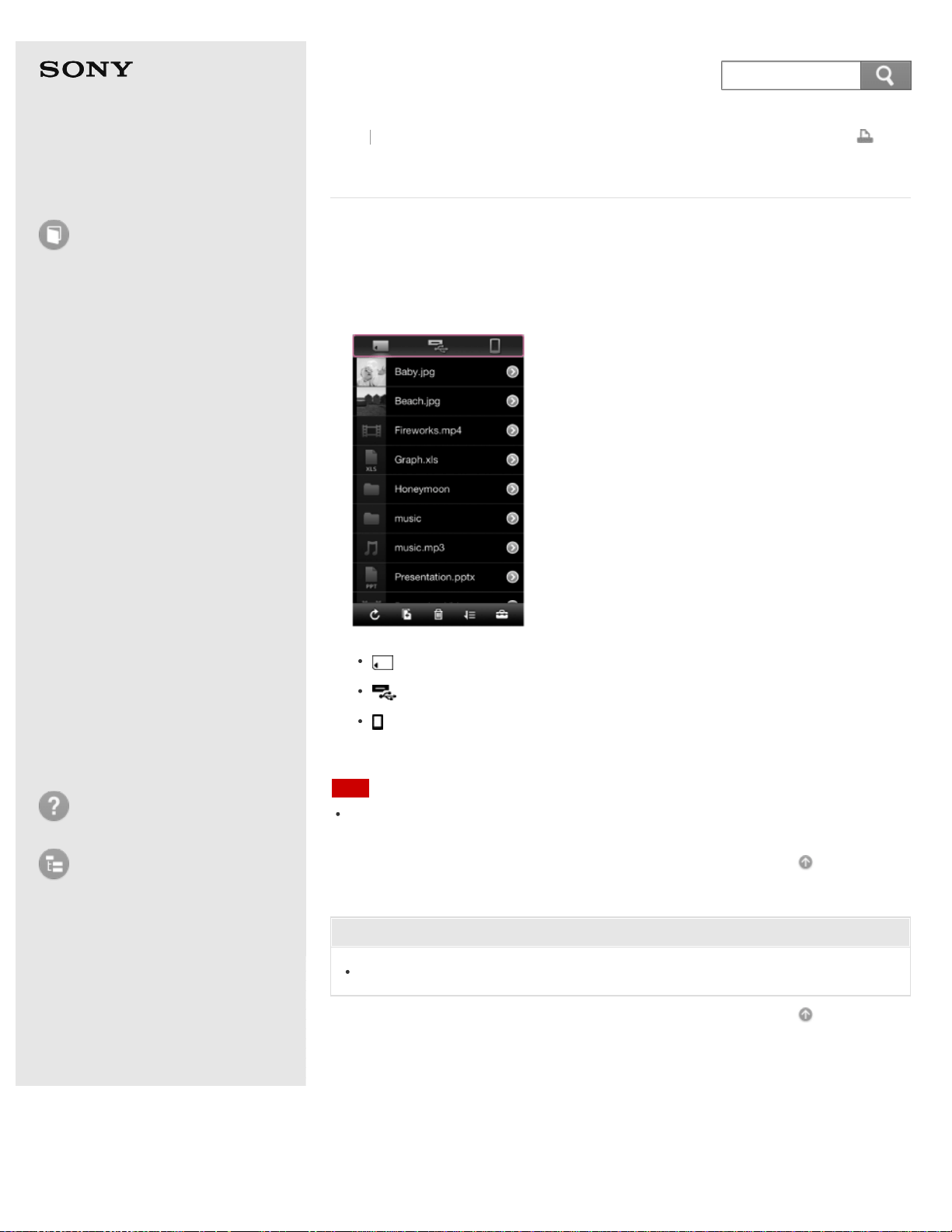
Help Guide
How to use
Read this first
Product overview
Getting started
How to use "PWS Manager"
(Android)
How to use "PWS Manager"
(iOS)
How to use with a computer
Supplying power
LED status indications
Precautions
Specifications
Compatible device
Trademarks
Troubleshooting
List of Topics
Print
Portable Wireless Server
WG-C10
Changing the device to be accessed (iOS device)
1. Connect the unit and iOS device via wireless LAN, and launch "PWS Manager."
2. Tap the tab of the device you want to access on the iOS device.
A list of folders or files in the tapped device is displayed.
A list of memory cards is displayed when "PWS Manager" is activated.
: Memory card inserted in the unit
: USB device connected to the unit
: Camera Roll of the currently-operated iPhone, etc.
Note
The dialog box of the location information may be displayed when accessing the
Camera Roll for the first time. Tap [OK].
Go to Page Top
Related Topic
Connecting an iOS device via wireless LAN
Go to Page Top
Back Back to Top
4-468-627-14(1)
© 2013 Sony Corporation Notes on use
165
Search
Help Guide
How to use
Read this first
Product overview
Getting started
How to use "PWS Manager"
(Android)
How to use "PWS Manager"
(iOS)
How to use with a computer
Supplying power
LED status indications
Precautions
Specifications
Compatible device
Trademarks
Troubleshooting
List of Topics
Print
Portable Wireless Server
WG-C10
Supported file formats (iOS device)
Photo
JPEG (.jpg)
GIF (.gif)
TIFF (.tiff)
PNG (.png)
BMP (.bmp)
Audio
PCM (.wav, .aiff)
MPEG2 AAC-LC/MPEG4 AAC-LC (.aac)
MPEG4 HE-AAC v1 (AAC+)/MPEG4 AAC v2 (Enhanced AAC+) (.aac, .m4a,
.mp4)
MP3 (.mp3)
Video
MPEG4 (.m4v, .mp4, .mov)
Document file
PDF (.pdf)
Text (.txt)
Rich text (.rtf)
Microsoft Word (.doc, .docx)
Microsoft Excel (.xls, .xlsx)
Microsoft PowerPoint (.ppt, .pptx)
Pages (.pages)
Numbers (.numbers)
Keynote (.key)
Note
Copyright-protected files cannot be played back or displayed.
Even though a file format is supported, some files may not play back or display
properly depending on the usage environment.
For details on playback/display of other format files, see "Selecting an application
(iOS device)."
"PWS Manager" does not support file editing. However, you can change folder names
Back Back to Top
166
Search
and file names.
Go to Page Top
Related Topic
Playback/Display (iOS device)
Photo playback screen (iOS device)
Music playback screen (iOS device)
Video playback screen (iOS device)
Document display screen (iOS device)
Selecting an application (iOS device)
Go to Page Top
4-468-627-14(1)
© 2013 Sony Corporation Notes on use
167
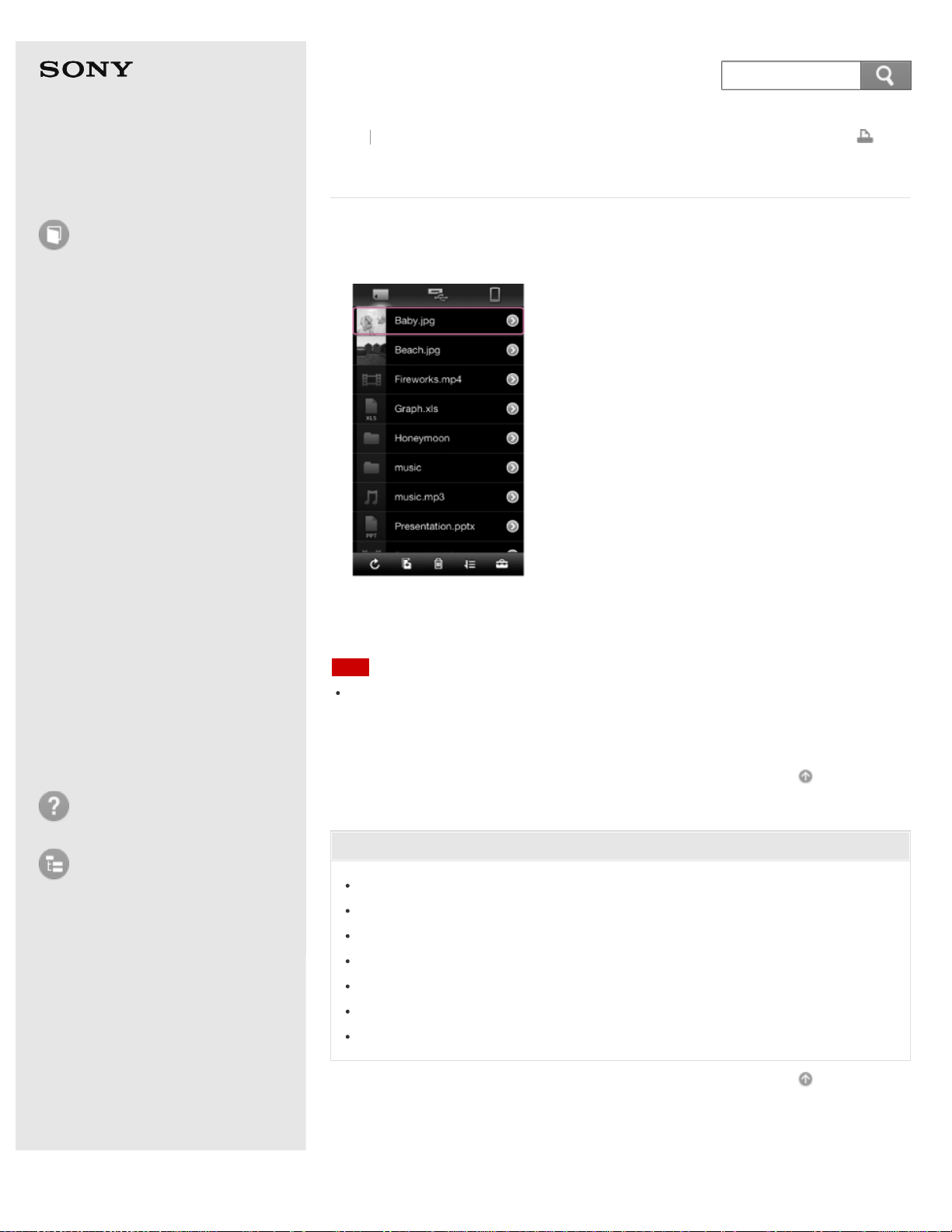
Help Guide
How to use
Read this first
Product overview
Getting started
How to use "PWS Manager"
(Android)
How to use "PWS Manager"
(iOS)
How to use with a computer
Supplying power
LED status indications
Precautions
Specifications
Compatible device
Trademarks
Troubleshooting
List of Topics
Print
Portable Wireless Server
WG-C10
Playback/Display (iOS device)
1. Select and tap the file (photos, music, videos, etc.) you want to play back or
display.
Playback/display of the file starts.
The playback/display screen is displayed.
Note
A file of a format not supported by "PWS Manager" may be played back or displayed
by trying one of the installed applications. For details, see "Selecting an application
(iOS device)." If a file cannot be opened using any of the installed applications, the
message [Cannot open this file.] is displayed.
Go to Page Top
Related Topic
Changing the device to be accessed (iOS device)
Supported file formats (iOS device)
Photo playback screen (iOS device)
Music playback screen (iOS device)
Video playback screen (iOS device)
Document display screen (iOS device)
Selecting an application (iOS device)
Go to Page Top
Back Back to Top
4-468-627-14(1)
© 2013 Sony Corporation Notes on use
168
Search
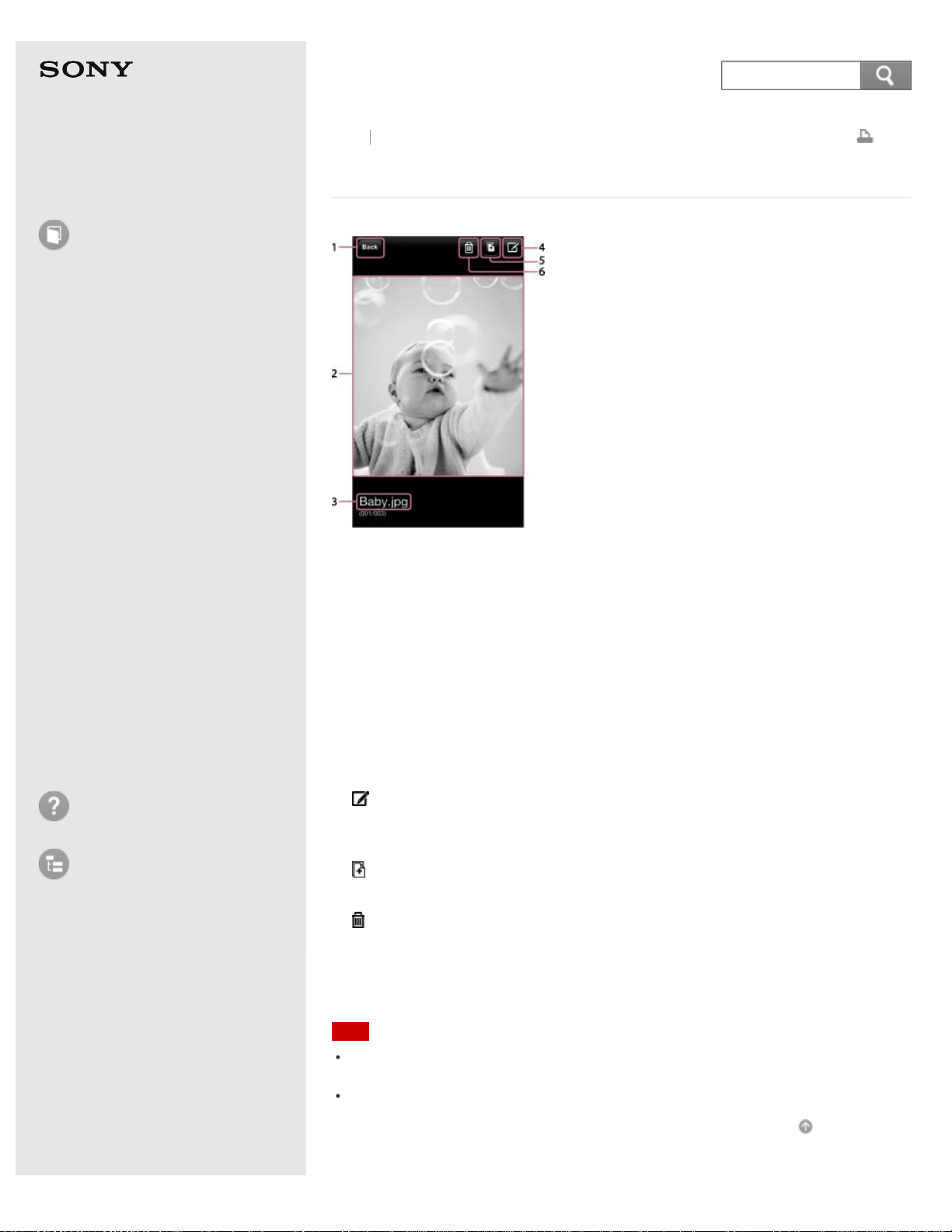
Help Guide
How to use
Read this first
Product overview
Getting started
How to use "PWS Manager"
(Android)
How to use "PWS Manager"
(iOS)
How to use with a computer
Supplying power
LED status indications
Precautions
Specifications
Compatible device
Trademarks
Troubleshooting
List of Topics
Print
Portable Wireless Server
WG-C10
Photo playback screen (iOS device)
1. [Back]
Tap this to return to the file/folder list screen.
2. Photo playback screen
Flick the screen left/right to view the previous/next photo.
During playback, tap the screen once to change to full screen. To return to the
original screen, tap the screen again.
If you double-tap the screen, the photo will be enlarged. To return to the
original size, double-tap the screen again. You can also pinch out/pinch in to
enlarge/reduce a photo.
3. File name
4.
(File information)
Tap this to check the file information. You can also change the file name.
This button does not exist on the Camera Roll.
5.
(Copy)
Tap this to copy the file to another device.
6.
(Delete)
Tap this to delete the file.
This button does not exist on the Camera Roll.
Note
Depending on the usage environment, playback may take time to start or be
problematic. This is not a malfunction.
Data cannot be copied back to its source device.
Go to Page Top
Back Back to Top
169
Search


Help Guide
How to use
Read this first
Product overview
Getting started
How to use "PWS Manager"
(Android)
How to use "PWS Manager"
(iOS)
How to use with a computer
Supplying power
LED status indications
Precautions
Specifications
Compatible device
Trademarks
Troubleshooting
List of Topics
Print
Portable Wireless Server
WG-C10
Music playback screen (iOS device)
1. [Back]
Tap this to return to the file/folder list screen.
2. Track title, album title, artist name
3. Music playback screen
Flick album art on the screen left/right to play the next/previous track.
4. Elapsed playback time
5.
(File information)
Tap this to check the file information. You can also change the file name.
6.
(Copy)
Tap this to copy the file to another device.
7.
(Delete)
Tap this to delete the file.
8.
(Playback)/ (Pause)
During playback, tap this to suspend playback. Tap this again to resume
playback.
9.
(Previous)/ (Next)
During playback, tap
(Previous) to jump back to the beginning of the current
track or previous track, and tap
(Next) to jump to the next track.
Press and hold
(Previous)/ (Next) to rewind/fast forward the track.
10. Progress bar
Drag this to the position you want the track to continue playing from.
11. Playback time
Note
Back Back to Top
171
Search

Depending on the usage environment, playback may take time to start or be
problematic. This is not a malfunction.
Copyright-protected tracks cannot be played back.
Go to Page Top
Related Topic
Supported file formats (iOS device)
Playback/Display (iOS device)
Go to Page Top
4-468-627-14(1)
© 2013 Sony Corporation Notes on use
172
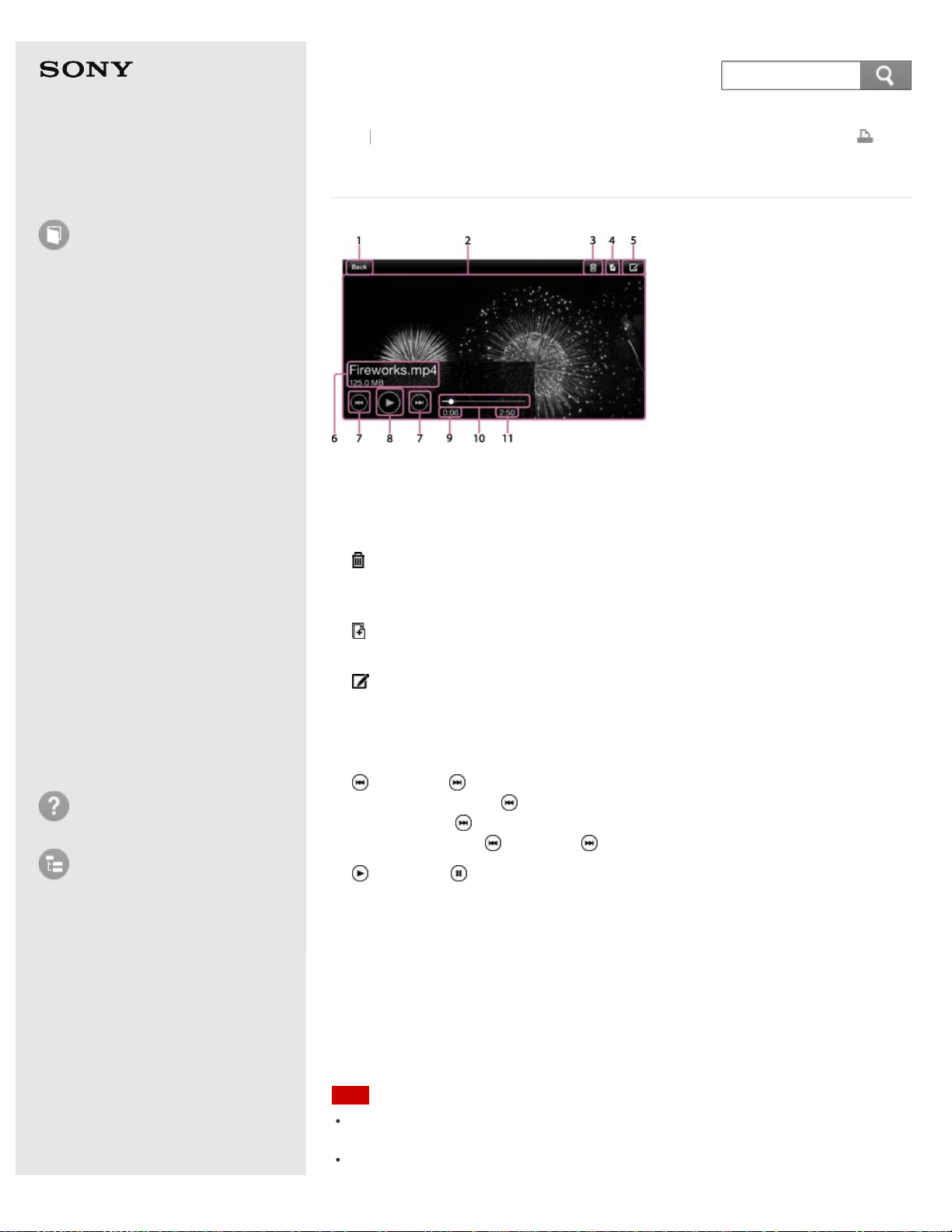
Help Guide
How to use
Read this first
Product overview
Getting started
How to use "PWS Manager"
(Android)
How to use "PWS Manager"
(iOS)
How to use with a computer
Supplying power
LED status indications
Precautions
Specifications
Compatible device
Trademarks
Troubleshooting
List of Topics
Print
Portable Wireless Server
WG-C10
Video playback screen (iOS device)
1. [Back]
Tap this to return to the file/folder list screen.
2. Video playback screen
3.
(Delete)
Tap this to delete the file.
This button does not exist on the Camera Roll.
4.
(Copy)
Tap this to copy the file to another device.
5.
(File information)
Tap this to check the file information. You can also change the file name.
This button does not exist on the Camera Roll.
6. File name
7.
(Previous)/ (Next)
During playback, tap
(Previous) to jump back to the beginning of the current
video, and tap
(Next) to jump to the next video.
Press and hold the
(Previous)/ (Next) to rewind/fast forward the video.
8.
(Playback)/ (Pause)
During playback, tap this to suspend playback. Tap this again to resume
playback.
9. Elapsed playback time
10. Progress bar
Drag this to the position you want the video to continue playing from.
11. Playback time
Note
Depending on the usage environment, playback may take time to start or be
problematic. This is not a malfunction.
Copyright-protected contents cannot be played back.
Back Back to Top
173
Search

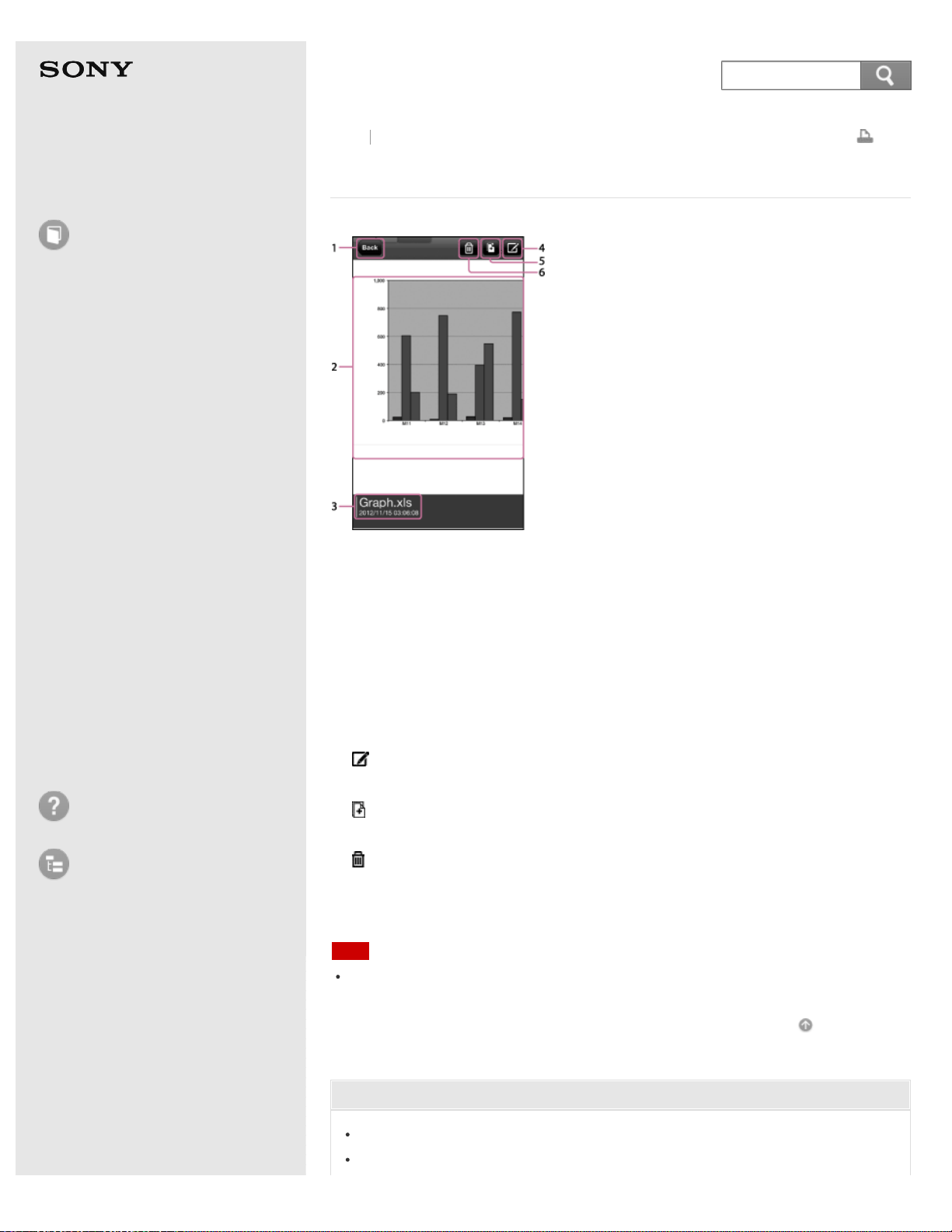
Help Guide
How to use
Read this first
Product overview
Getting started
How to use "PWS Manager"
(Android)
How to use "PWS Manager"
(iOS)
How to use with a computer
Supplying power
LED status indications
Precautions
Specifications
Compatible device
Trademarks
Troubleshooting
List of Topics
Print
Portable Wireless Server
WG-C10
Document display screen (iOS device)
1. [Back]
Tap this to return to the file/folder list screen.
2. Display screen
If you double-tap the screen, the document will be enlarged. To return to the
original size, double-tap the screen again. You can also pinch out/pinch in to
enlarge/reduce a document.
Pages can be flipped backward and forward by flicking the screen.
3. File name
4.
(File information)
Tap this to check the file information.
5.
(Copy)
Tap this to copy the file to another device.
6.
(Delete)
Tap this to delete the file.
Note
Depending on the usage environment, display may take time, or may be problematic.
This is not a malfunction.
Go to Page Top
Related Topic
Supported file formats (iOS device)
Playback/Display (iOS device)
Back
Back to Top
175
Search
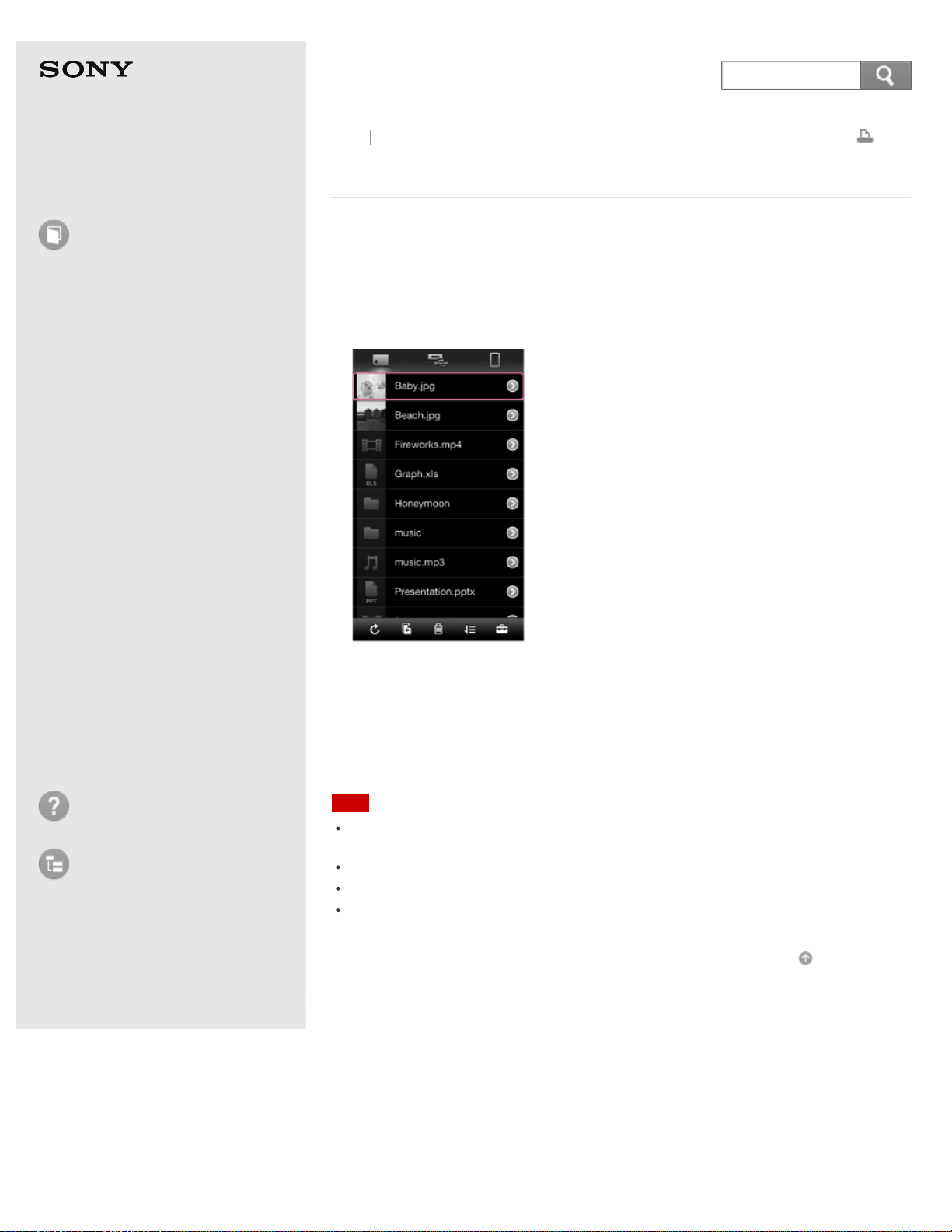
Help Guide
How to use
Read this first
Product overview
Getting started
How to use "PWS Manager"
(Android)
How to use "PWS Manager"
(iOS)
How to use with a computer
Supplying power
LED status indications
Precautions
Specifications
Compatible device
Trademarks
Troubleshooting
List of Topics
Print
Portable Wireless Server
WG-C10
Selecting an application (iOS device)
You can play back or display files whose file formats are not supported by "PWS
Manager," by using one of the installed applications.
1. Tap the file (photos, music, videos, etc.) you want to play back on the
file/folder list screen.
A list of applications that can play back the selected file is displayed.
2. Tap the desired application.
The file starts to play back.
Check the box in front of [Always open with this application?] to play back the
same format files with this application.
Note
For details on file formats that can be played back by the selected application,
contact the provider of the application.
Whether or not a file plays back depends on the application installed on your device.
We do not take any responsibility for playback using other applications.
File contents cannot be edited with "PWS Manager". However, you can change folder
names and file names.
Go to Page Top
Back Back to Top
4-468-627-14(1)
© 2013 Sony Corporation Notes on use
176
Search
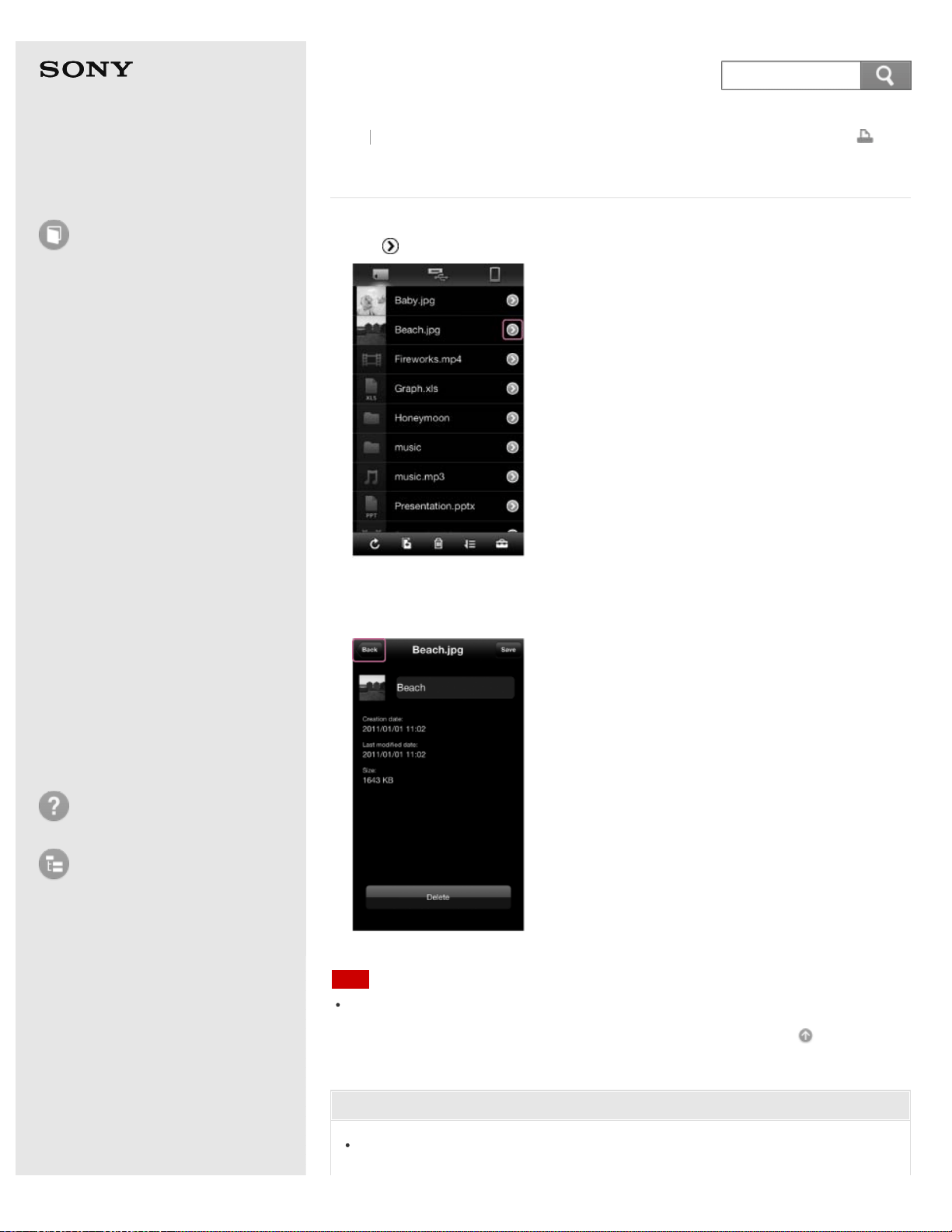
Help Guide
How to use
Read this first
Product overview
Getting started
How to use "PWS Manager"
(Android)
How to use "PWS Manager"
(iOS)
How to use with a computer
Supplying power
LED status indications
Precautions
Specifications
Compatible device
Trademarks
Troubleshooting
List of Topics
Print
Portable Wireless Server
WG-C10
Checking the file information (iOS device)
1. Tap (Edit) on the file/folder list screen.
The file information screen is displayed.
You can change file names and delete files on this screen.
Tap [Save] or [Back] to return to the file/folder list screen.
Note
This function cannot be used for data in the Camera Roll.
Go to Page Top
Related Topic
Photo playback screen (iOS device)
Back
Back to Top
177
Search

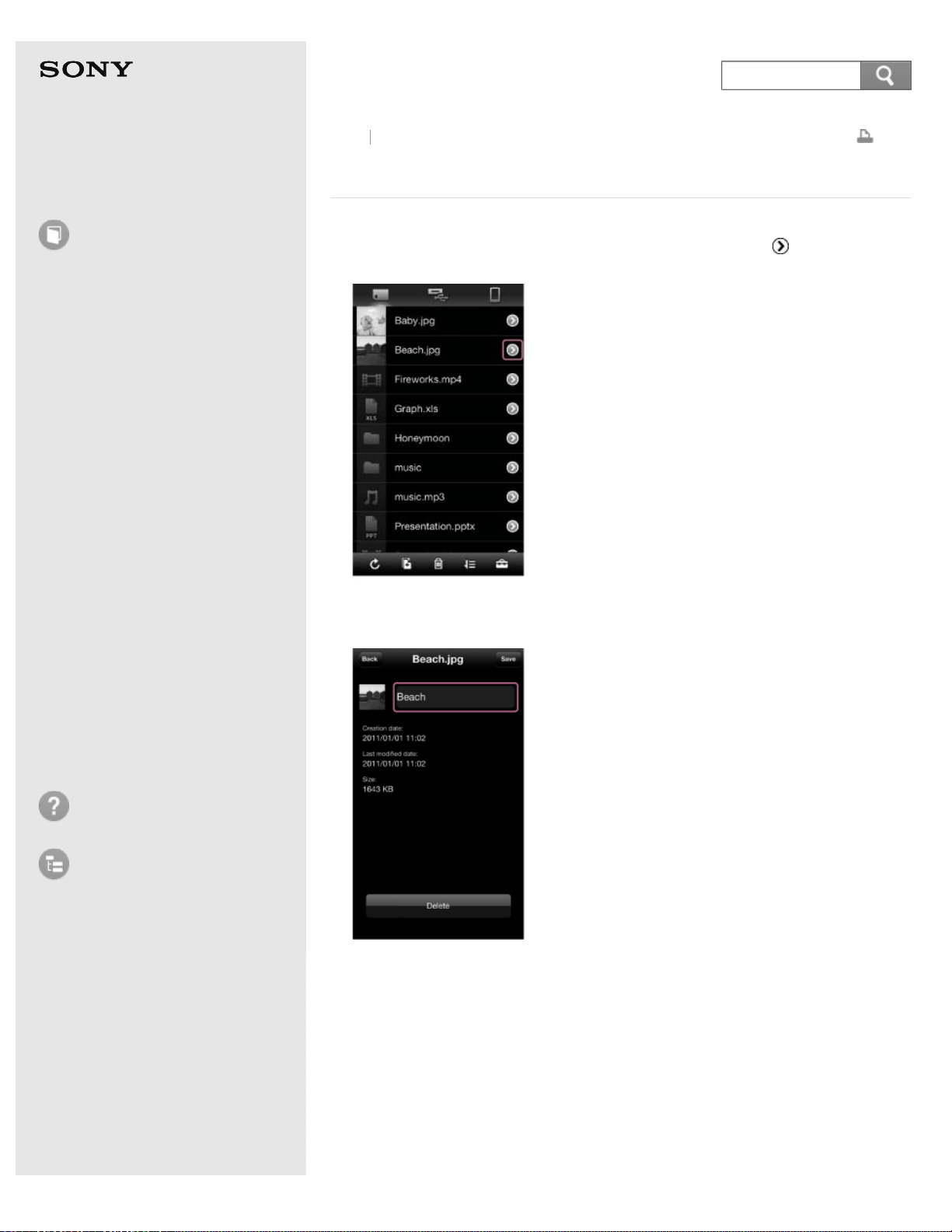
Help Guide
How to use
Read this first
Product overview
Getting started
How to use "PWS Manager"
(Android)
How to use "PWS Manager"
(iOS)
How to use with a computer
Supplying power
LED status indications
Precautions
Specifications
Compatible device
Trademarks
Troubleshooting
List of Topics
Print
Portable Wireless Server
WG-C10
Editing the file/folder name (iOS device)
1. Select the file/folder you want to edit the name of, then tap (Edit) on the
right of the file/folder.
The information screen of the file/folder is displayed.
2. Tap the file/folder name.
The software keyboard is displayed.
Back
Back to Top
179
Search
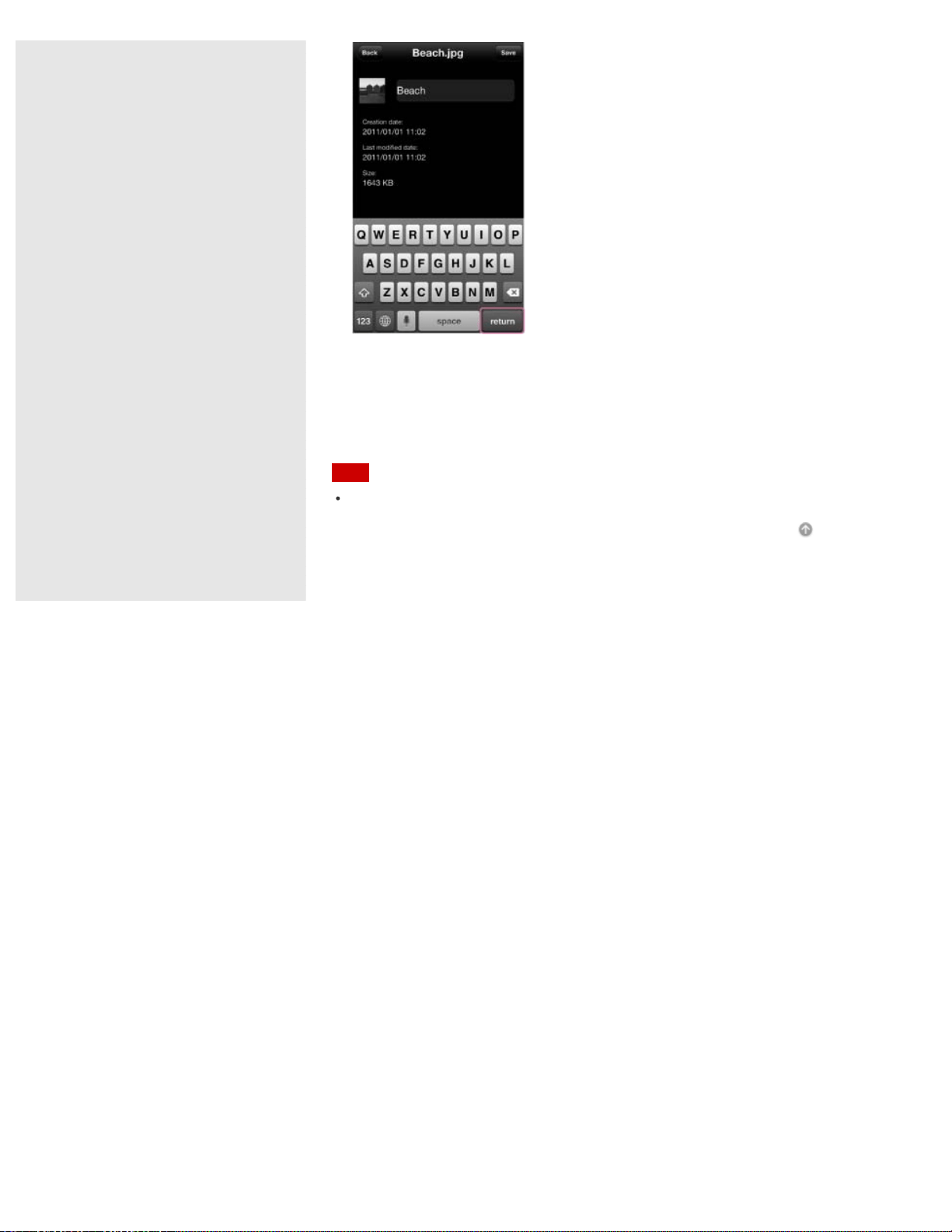
3. Enter a new file/folder name, then tap [return].
The file/folder name is changed, and the screen returns to the information
screen of the file/folder.
Tap [Save] to return to the file/folder list screen.
Note
This function cannot be used for data in the Camera Roll.
Go to Page Top
4-468-627-14(1)
© 2013 Sony Corporation Notes on use
180
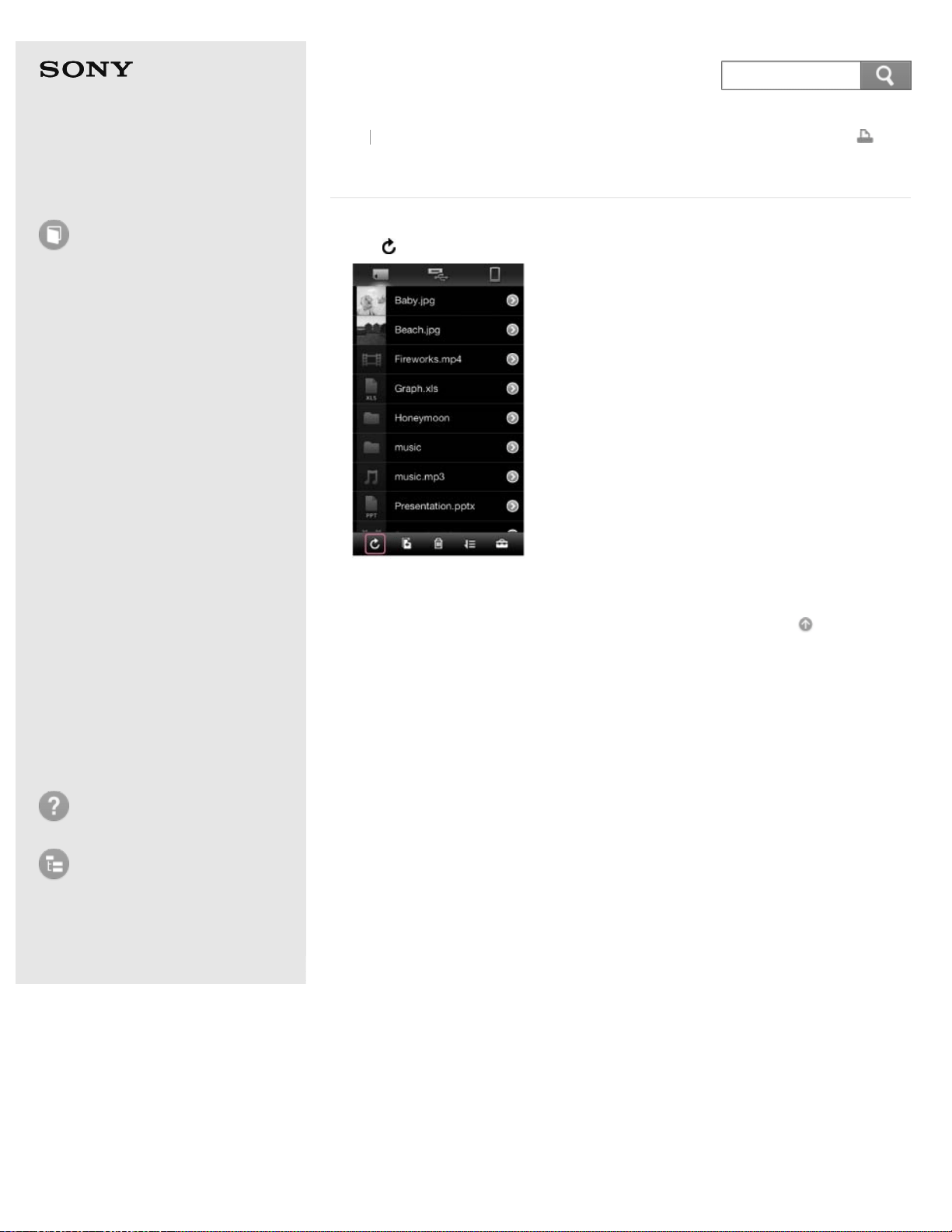
Help Guide
How to use
Read this first
Product overview
Getting started
How to use "PWS Manager"
(Android)
How to use "PWS Manager"
(iOS)
How to use with a computer
Supplying power
LED status indications
Precautions
Specifications
Compatible device
Trademarks
Troubleshooting
List of Topics
Print
Portable Wireless Server
WG-C10
Refreshing the data list (iOS device)
1. Tap (Refresh) on the file/folder list screen.
The newest list of the files/folders is displayed.
Go to Page Top
Back Back to Top
4-468-627-14(1)
© 2013 Sony Corporation Notes on use
181
Search
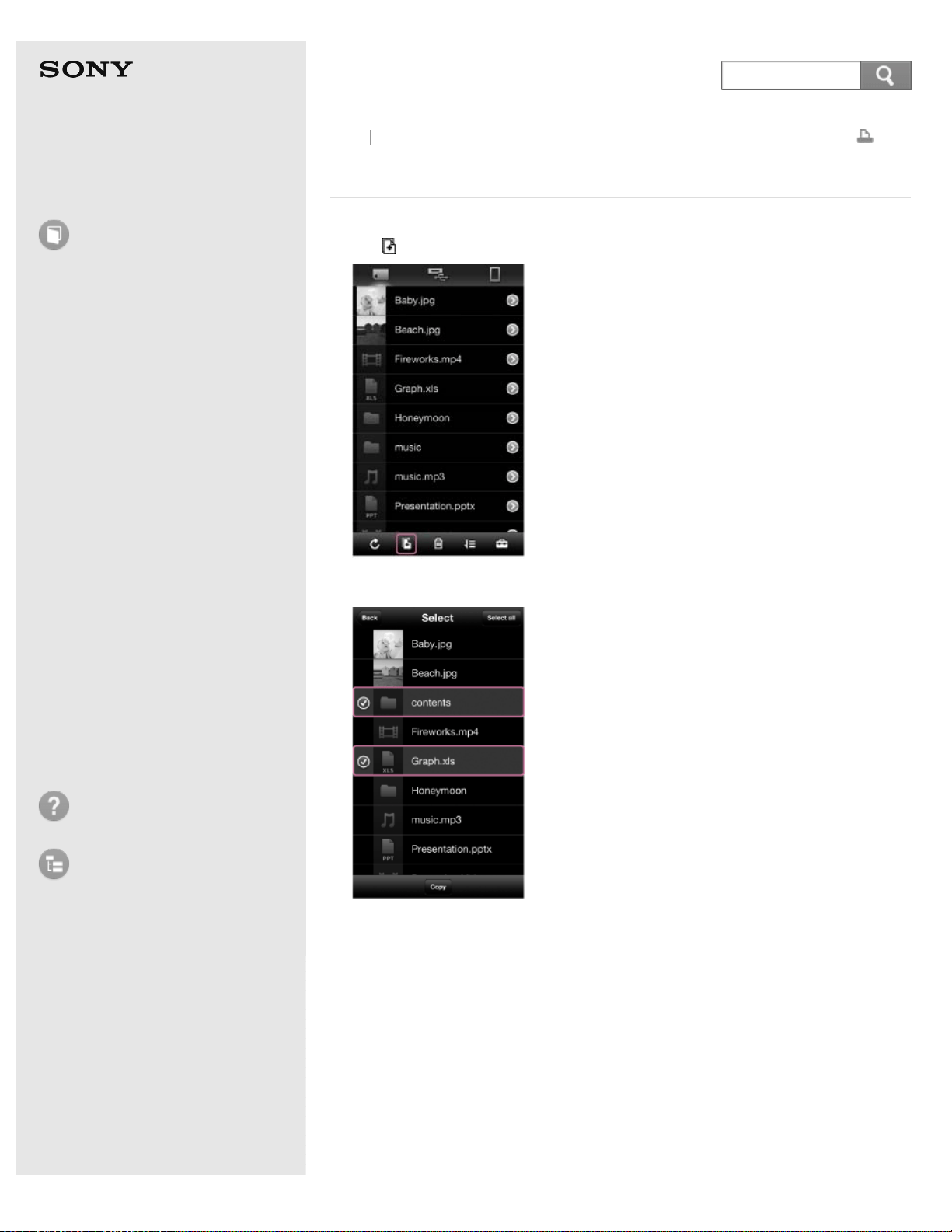
Help Guide
How to use
Read this first
Product overview
Getting started
How to use "PWS Manager"
(Android)
How to use "PWS Manager"
(iOS)
How to use with a computer
Supplying power
LED status indications
Precautions
Specifications
Compatible device
Trademarks
Troubleshooting
List of Topics
Print
Portable Wireless Server
WG-C10
Copying data (iOS device)
1. Tap (Copy) on the file/folder list screen.
2. Tap the file/folder you want to copy.
The check mark is displayed to the left of the file or folder.
You can select several files/folders. Tap [Select all] to select all displayed
files/folders.
3. Tap [Copy].
The copy destination device list is displayed.
To delete the original data after copy is complete, add a check mark to [Delete
source].
4. Tap the image of the copy destination device, then tap [Next].
Back
Back to Top
182
Search
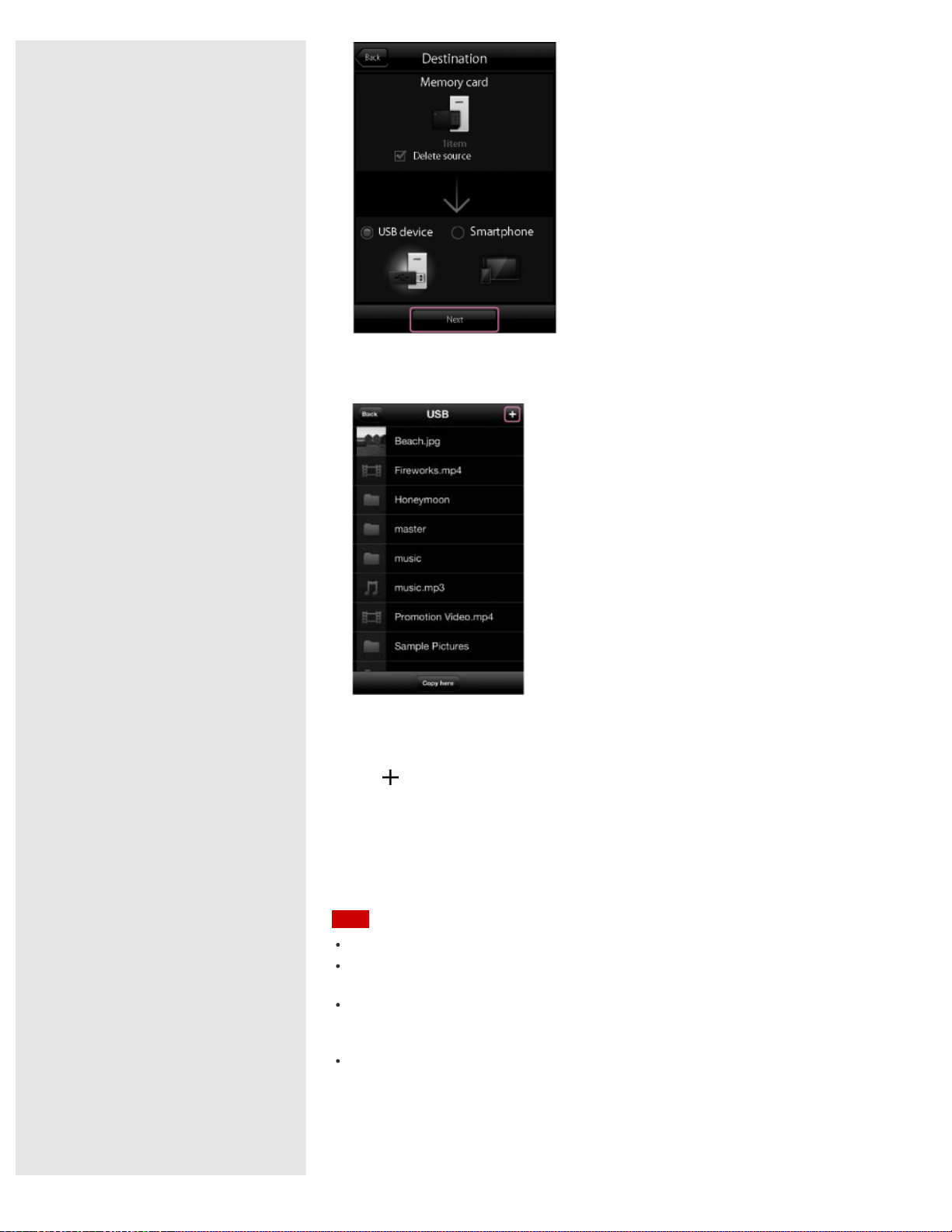
The folder list screen of the copy destination device is displayed.
5. Select the copy destination folder.
The file list screen of the copy destination folder is displayed.
If you want to copy the file/folder to the hierarchical level directly beneath the
device, go to step 6.
Tap
(Create folder) to make a new folder, enter a file name and tap [OK]*.
*
Only photos and videos supported by the Camera Roll can be copied to the Camera Roll.
6. Tap [Copy here].
The file/folder copy starts.
When copy is complete, [Done] is displayed. Tap [OK] to finish.
Note
The source and copy destination cannot be on the same device.
Depending on the communication usage environment, it may take time to process
data or processing may stop before copy completes.
If you attempt to copy data when the battery charge of the unit or the device you
use is low, the battery may fully discharge and the copy may fail. Be sure to check
the remaining battery charge before starting to copy.
Even in the event you cannot copy to external media, etc., due to some cause such
as the unit malfunctioning, or if a defect or repair, etc., causes damage or
destruction of copied content in external media, Sony bears no responsibility for
compensation for lost content, nor responsibility for any related damages. Also, Sony
does not provide services for the recovery, restoration, duplication, etc., of copied
content, regardless of the circumstances.
183

If you turn off the unit or remove a memory device while it is being accessed, data
in the memory device may be damaged.
Do not change the connection status, such as connection to a computer, USB AC
adaptor, etc., during copying.
If you connect the unit to a computer, the wireless LAN connection is stopped and
copy stops.
While the unit is connected to the USB AC adaptor, other USB devices cannot be
used.
Data cannot be copied to a write-protected memory device. Make sure that the
memory device is not write-protected.
Go to Page Top
4-468-627-14(1)
© 2013 Sony Corporation Notes on use
184
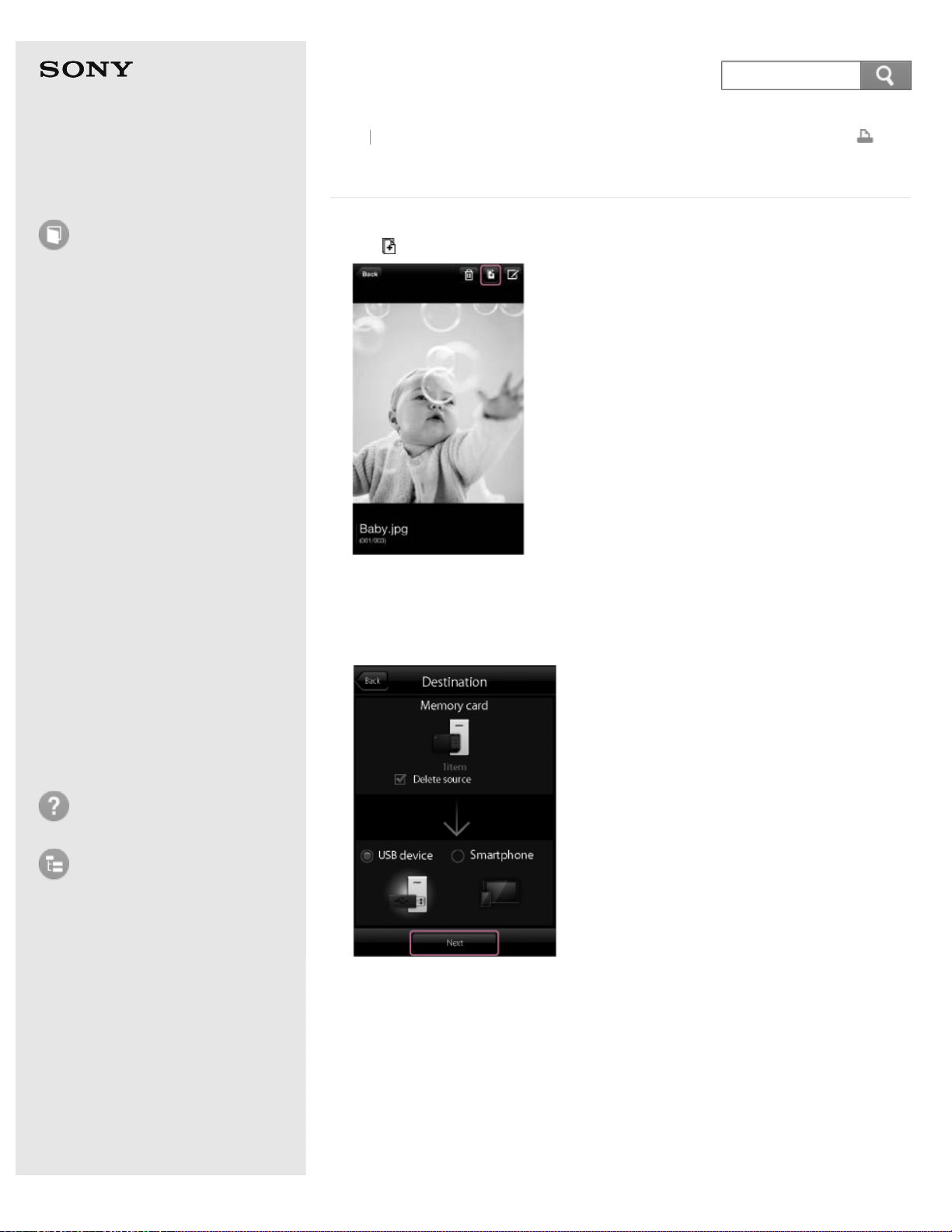
Help Guide
How to use
Read this first
Product overview
Getting started
How to use "PWS Manager"
(Android)
How to use "PWS Manager"
(iOS)
How to use with a computer
Supplying power
LED status indications
Precautions
Specifications
Compatible device
Trademarks
Troubleshooting
List of Topics
Print
Portable Wireless Server
WG-C10
Copying during playback (iOS device)
1. Tap (Copy) on the file playback screen.
The copy destination device list is displayed.
To delete the original data after copy is complete, add a check mark to [Delete
source].
2. Tap the illustration of the copy destination device, then tap [Next].
The file/folder list screen of the copy destination device is displayed.
3. Select the copy destination folder.
Back
Back to Top
185
Search
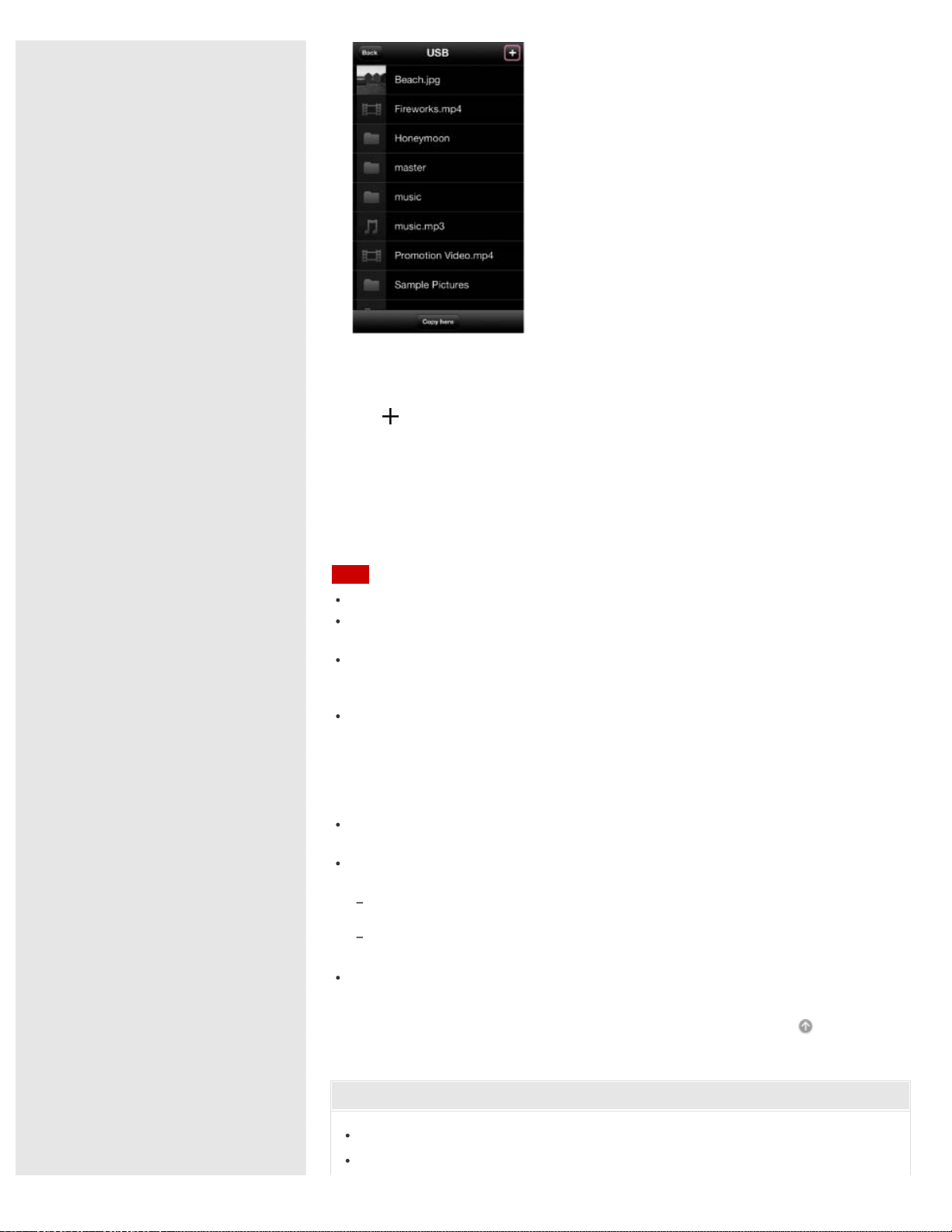
The file list screen of the copy destination folder is displayed.
If you want to copy the file/folder to the hierarchical level directly beneath the
device, go to step 4.
Tap
(Create folder) to make a new folder, enter a file name and tap [OK].
4. Tap [Copy here].
The file/folder copy starts.
When copy is complete, [Done] is displayed. Tap [OK] to finish.
Only photos and videos supported by the Camera Roll can be copied to the
Camera Roll.
Note
The source and copy destination cannot be on the same device.
Depending on the communication usage environment, it may take time to process
data or processing may stop before copy completes.
If you attempt to copy data when the battery charge of the unit or the device you
use is low, the battery may fully discharge and the copy may fail. Be sure to check
the remaining battery charge before starting to copy.
Even in the event you cannot copy to external media, etc., due to some cause such
as the unit malfunctioning, or if a defect or repair, etc., causes damage or
destruction of copied content in external media, Sony bears no responsibility for
compensation for lost content, nor responsibility for any related damages. Also, Sony
does not provide services for the recovery, restoration, duplication, etc., of copied
content, regardless of the circumstances.
If you turn off the unit or remove a memory device while it is being accessed, data
in the memory device may be damaged.
Do not change the connection status, such as connection to a computer, USB AC
adaptor, etc., during copying.
If you connect the unit to a computer, the wireless LAN connection is stopped and
copy stops.
While the unit is connected to the USB AC adaptor, other USB devices cannot be
used.
Data cannot be copied to a write-protected memory device. Make sure that the
memory device is not write-protected.
Go to Page Top
Related Topic
Photo playback screen (iOS device)
Music playback screen (iOS device)
186

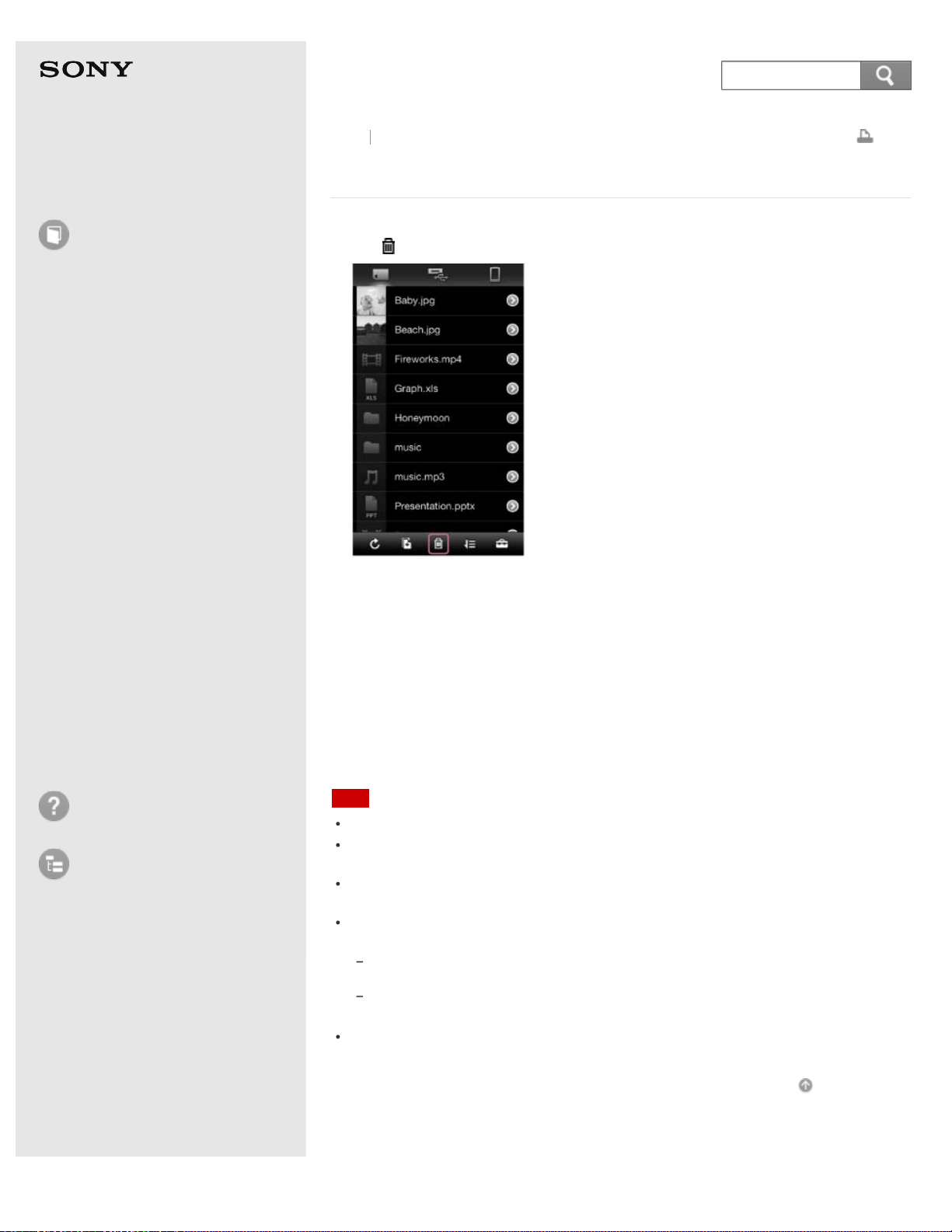
Help Guide
How to use
Read this first
Product overview
Getting started
How to use "PWS Manager"
(Android)
How to use "PWS Manager"
(iOS)
How to use with a computer
Supplying power
LED status indications
Precautions
Specifications
Compatible device
Trademarks
Troubleshooting
List of Topics
Print
Portable Wireless Server
WG-C10
Deleting data (iOS device)
1. Tap (Delete) on the file/folder list screen.
2. Tap the file/folder you want to delete.
The check mark is displayed to the left of the file/folder.
You can select several files/folders. Tap [Select all] to select all displayed
files/folders.
3. Tap [Delete].
4. Tap [OK].
Deletion of the file/folder starts.
When deletion is complete, tap [OK] to return to the file/folder list screen.
Note
This function cannot be used for data in the Camera Roll.
Depending on the communication usage environment, it may take time to process
data, or processing may stop before deleting completes.
If you turn off the unit or remove a memory device while it is being accessed, data
in the memory device may be damaged.
Do not change the connection status, such as connection to a computer, USB AC
adaptor, etc., while deleting.
If you connect the unit to a computer, the wireless LAN connection is cut and
deleting stops.
While the unit is connected to the USB AC adaptor, other USB devices cannot be
used.
Data cannot be deleted from a write-protected memory device. Make sure that the
memory device is not write-protected.
Go to Page Top
Back Back to Top
4-468-627-14(1)
© 2013 Sony Corporation Notes on use
188
Search
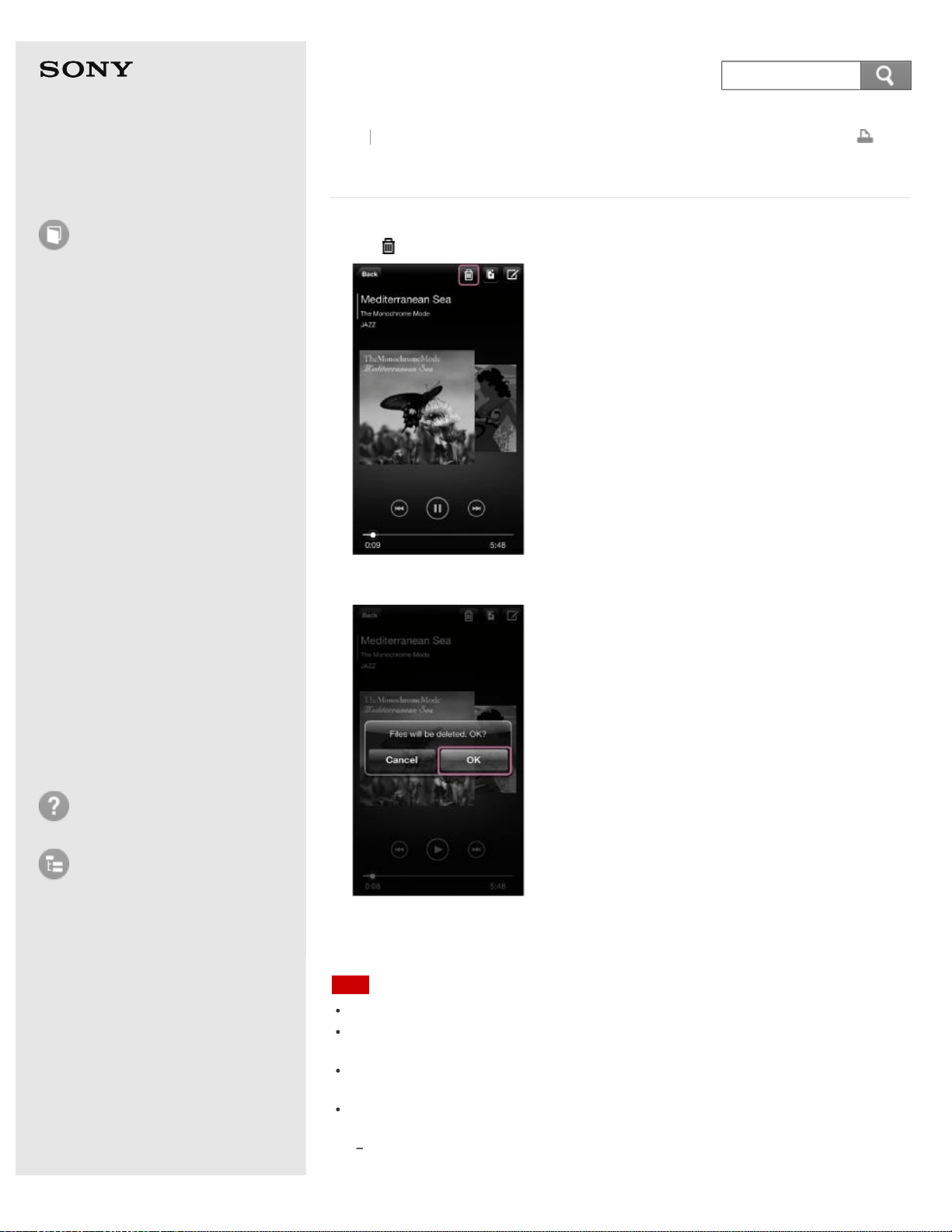
Help Guide
How to use
Read this first
Product overview
Getting started
How to use "PWS Manager"
(Android)
How to use "PWS Manager"
(iOS)
How to use with a computer
Supplying power
LED status indications
Precautions
Specifications
Compatible device
Trademarks
Troubleshooting
List of Topics
Print
Portable Wireless Server
WG-C10
Deleting during playback (iOS device)
1. Tap (Delete) on the file playback screen.
2. Tap [OK].
Deletion of the file/folder starts.
Tap [OK] on the delete complete screen.
Note
This function cannot be used for data in the Camera Roll.
Depending on the communication usage environment, it may take time to process
data, or processing may stop before deleting completes.
If you turn off the unit or remove a memory device while it is being accessed, data
in the memory device may be damaged.
Do not change the connection status, such as connection to a computer, USB AC
adaptor, etc., while deleting.
If you connect the unit to a computer, the wireless LAN connection is cut and
deleting stops.
Back Back to Top
189
Search

While the unit is connected to the USB AC adaptor, other USB devices cannot be
used.
Data cannot be deleted from a write-protected memory device. Make sure that the
memory device is not write-protected.
Go to Page Top
Related Topic
Photo playback screen (iOS device)
Music playback screen (iOS device)
Video playback screen (iOS device)
Document display screen (iOS device)
Go to Page Top
4-468-627-14(1)
© 2013 Sony Corporation Notes on use
190
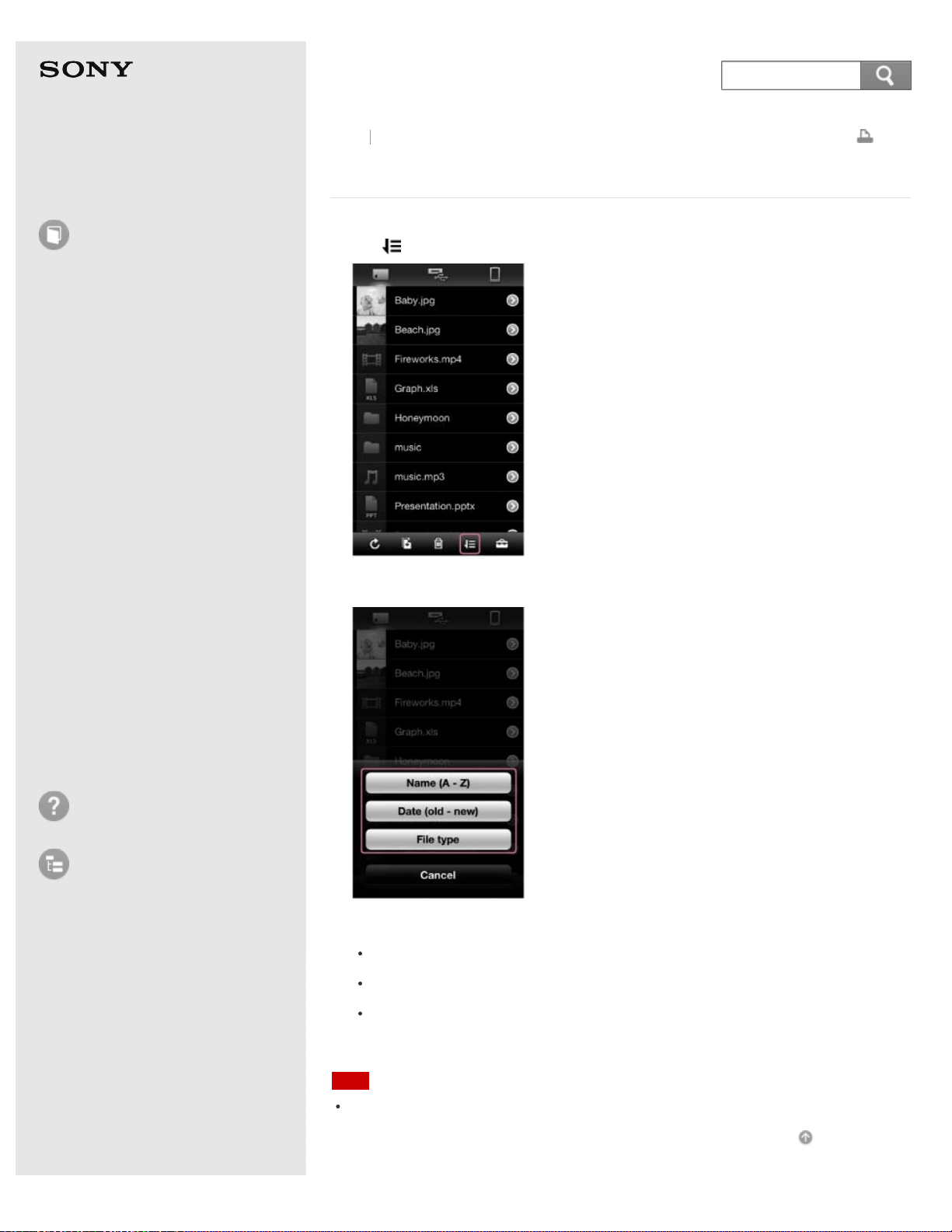
Help Guide
How to use
Read this first
Product overview
Getting started
How to use "PWS Manager"
(Android)
How to use "PWS Manager"
(iOS)
How to use with a computer
Supplying power
LED status indications
Precautions
Specifications
Compatible device
Trademarks
Troubleshooting
List of Topics
Print
Portable Wireless Server
WG-C10
Sorting the data list (iOS device)
1. Tap (Sort) on the file/folder list screen.
2. Select and tap the sort method.
The list of files/folders is arranged by the selected sort method.
Name (A - Z): Sort by file/folder name.
Date (old - new): Sort by date the file/folder was created.
File type: Sort by file type.
Note
This function cannot be used for data in the Camera Roll.
Go to Page Top
Back Back to Top
4-468-627-14(1)
191
Search
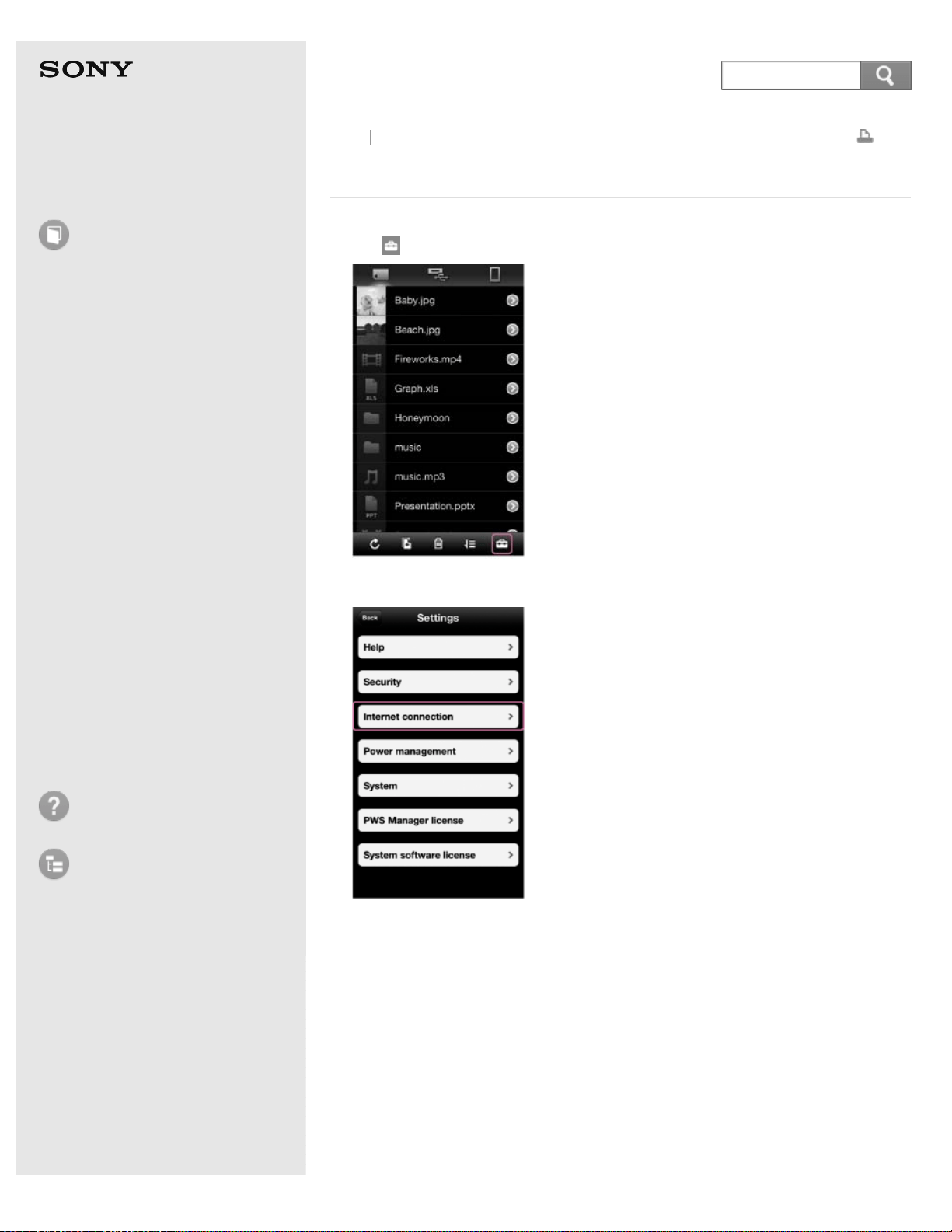
Help Guide
How to use
Read this first
Product overview
Getting started
How to use "PWS Manager"
(Android)
How to use "PWS Manager"
(iOS)
How to use with a computer
Supplying power
LED status indications
Precautions
Specifications
Compatible device
Trademarks
Troubleshooting
List of Topics
Print
Portable Wireless Server
WG-C10
Configuring the Internet connection (iOS device)
1. Tap (Settings) on the file/folder list screen.
2. Tap [Internet connection].
The list of available wireless LAN access points is displayed.
3. Tap the SSID of the access point you want to connect to.
Back
Back to Top
192
Search
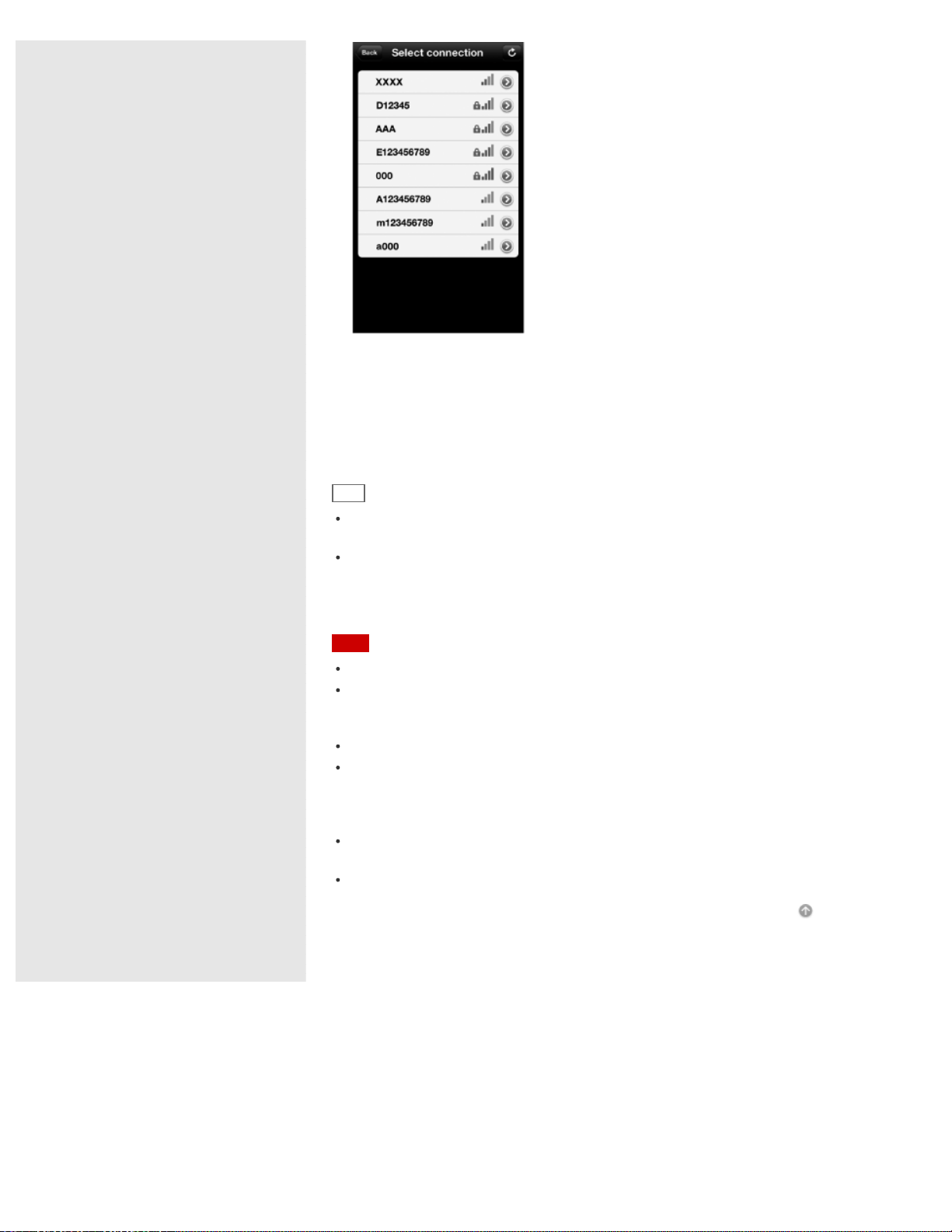
4. If necessary, enter the password of the device you want to connect to, then tap
[OK].
If you want to connect to a wireless LAN of which the security has been set,
password entry may be required.
The unit restarts and is connected to the wireless LAN access point.
Hint
Tap the SSID connected in step 3 or a registered SSID, to display its network
information.
A maximum of 6 SSIDs of wireless LAN devices are automatically registered. Tap the
SSID connected in step 3 or a registered SSID, to display its network information. To
unregister an SSID, tap [Forget this Network] on the information screen of the
wireless LAN device.
Note
When using at home, an Internet connection and wireless LAN router are required.
When using outside the home, check the wireless LAN situation of the location
through the public wireless LAN service provider’s website, etc. Using such services
may require a separate contract with the service provider.
Connection to all public wireless LAN services is not assured.
Wireless LAN exchanges information by radio wave, allowing easy access within the
communication range. Consequently, if security settings are not made, there is a risk
that a third party on the same network could maliciously access (hack into) your unit.
Setting security is your decision and responsibility, and is strongly recommended.
It may take time to establish connection, or connection may not be established,
depending on the usage environment.
It is not possible to connect to any wireless LAN device with a hidden SSID.
Go to Page Top
4-468-627-14(1)
© 2013 Sony Corporation Notes on use
193
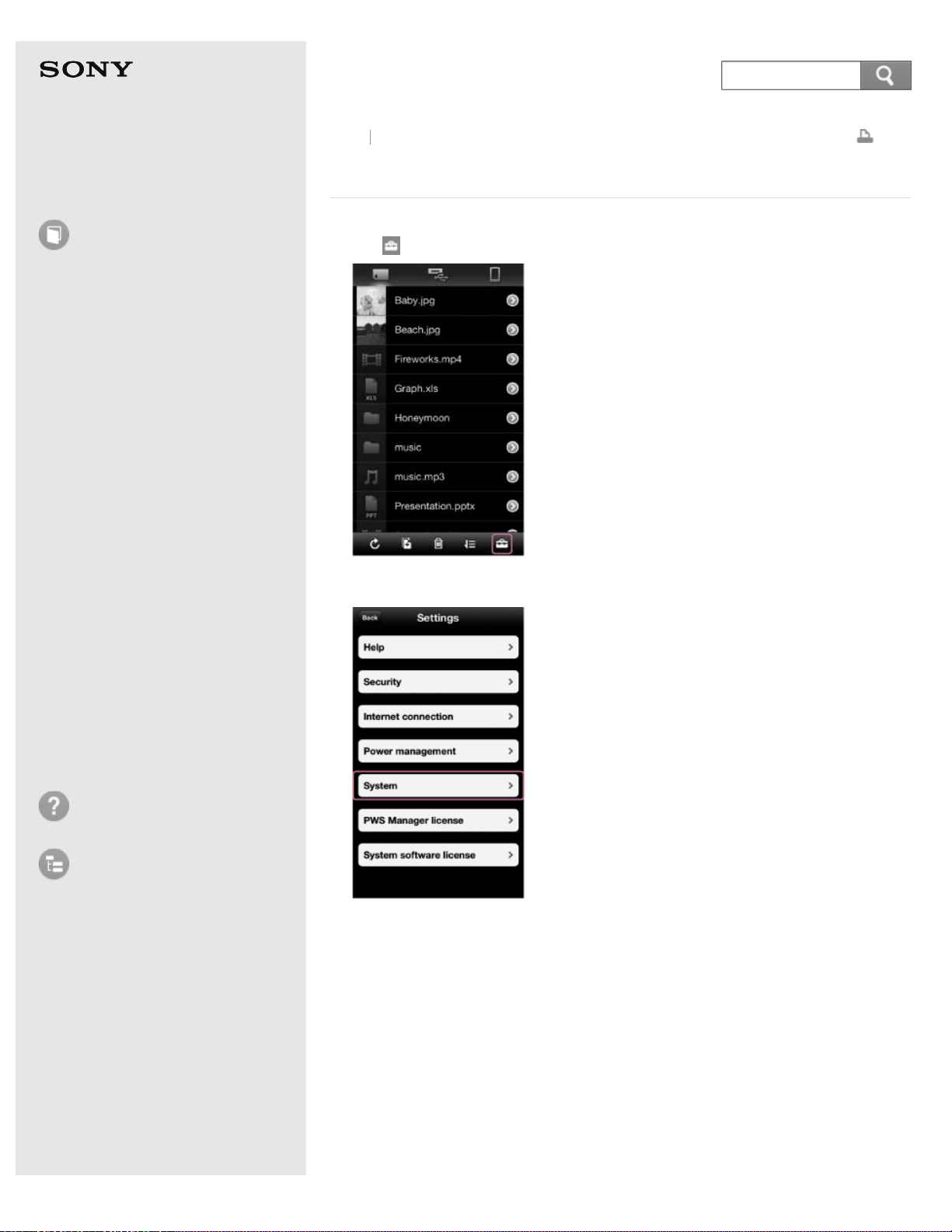
Help Guide
How to use
Read this first
Product overview
Getting started
How to use "PWS Manager"
(Android)
How to use "PWS Manager"
(iOS)
How to use with a computer
Supplying power
LED status indications
Precautions
Specifications
Compatible device
Trademarks
Troubleshooting
List of Topics
Print
Portable Wireless Server
WG-C10
Updating the system software (iOS device)
1. Tap (Settings) on the file/folder list screen.
2. Tap [System].
The current version of system software on this unit is displayed.
3. Tap [Update].
Back
Back to Top
194
Search
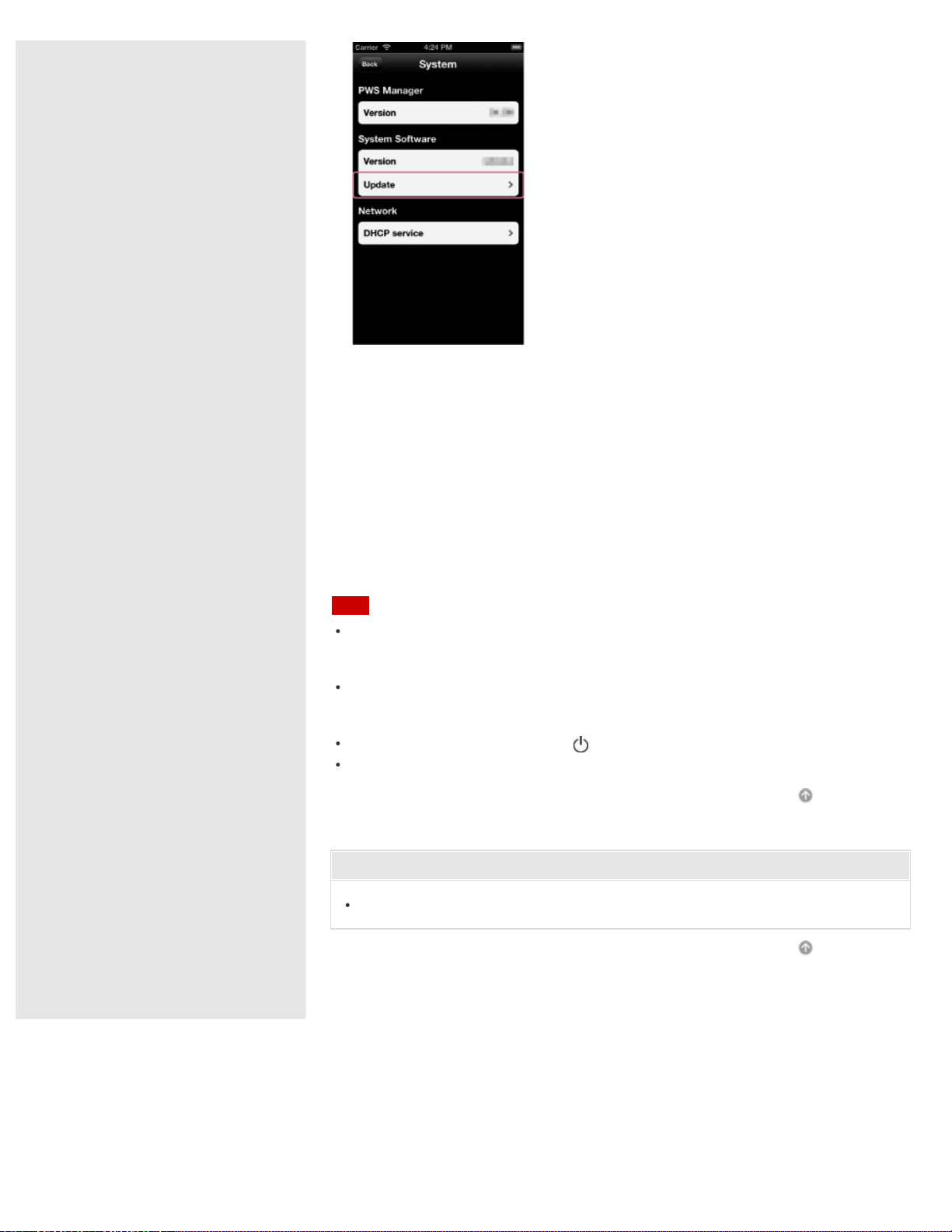
If a system software update is available, its version number is displayed.
4. Tap [OK].
The update confirmation screen is displayed.
5. Tap [OK].
The system software update starts.
To complete the system software update, the unit restarts. Connect the unit
and the iOS device again, since the wireless connection will have been stopped.
6. Confirm that the system software has been updated to the latest version by
performing steps 1 – 3.
Note
Distribution of the system software is done by updating "PWS Manager." Check the
update status of the application periodically to make sure the latest version is being
used.
Update cannot be done if the battery charge is low. Confirm that the battery charge
remains 60% or more and then perform update. See "Checking the remaining battery
level (iOS device)."
Do not press the RESET switch or (Power) button while updating.
Update the system software in a location where communication conditions are stable.
Go to Page Top
Related Topic
Connecting an iOS device via wireless LAN
Go to Page Top
4-468-627-14(1)
© 2013 Sony Corporation Notes on use
195
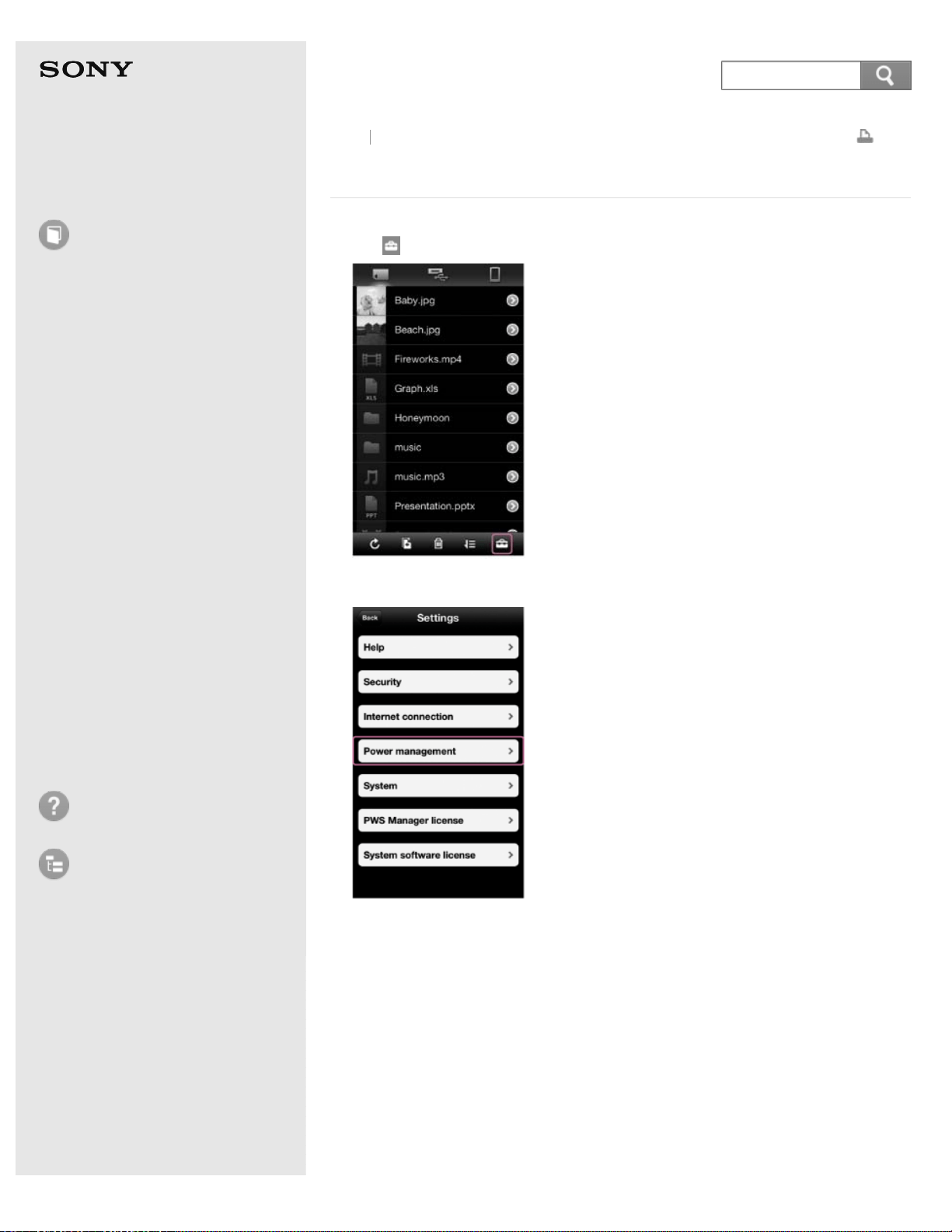
Help Guide
How to use
Read this first
Product overview
Getting started
How to use "PWS Manager"
(Android)
How to use "PWS Manager"
(iOS)
How to use with a computer
Supplying power
LED status indications
Precautions
Specifications
Compatible device
Trademarks
Troubleshooting
List of Topics
Print
Portable Wireless Server
WG-C10
Checking the remaining battery level (iOS device)
1. Tap (Settings) on the file/folder list screen.
2. Tap [Power Management].
3. Check the remaining charge of the built-in battery.
Back
Back to Top
196
Search
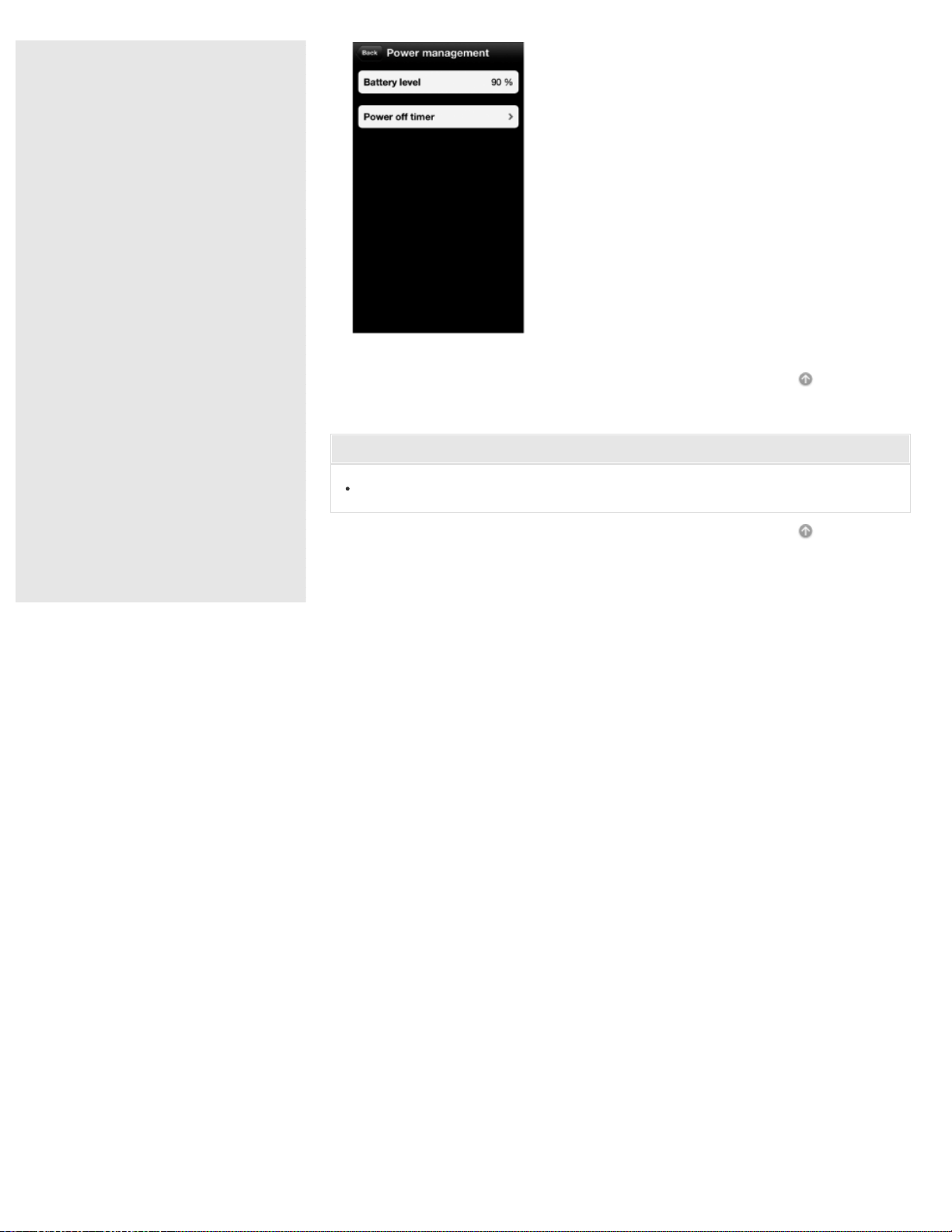
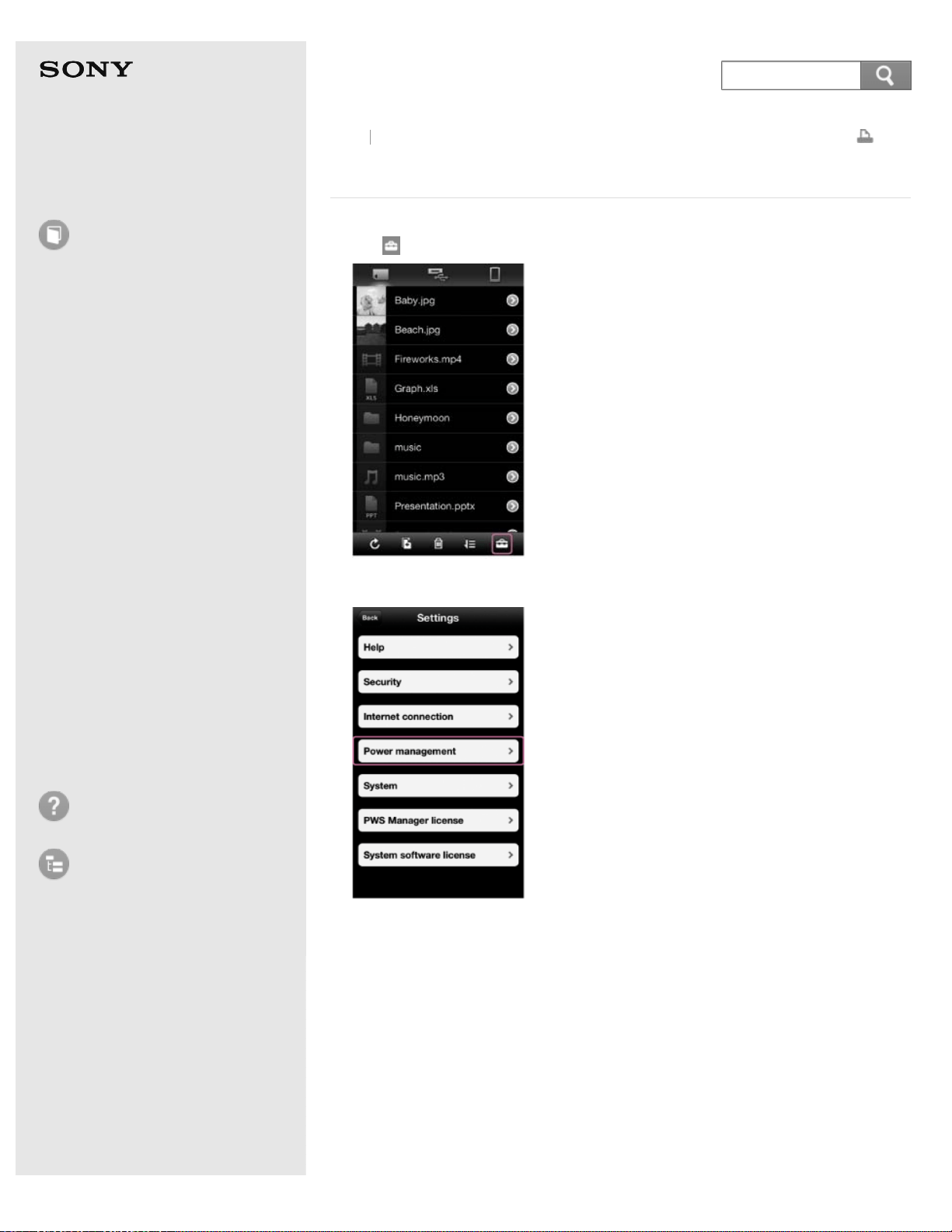
Help Guide
How to use
Read this first
Product overview
Getting started
How to use "PWS Manager"
(Android)
How to use "PWS Manager"
(iOS)
How to use with a computer
Supplying power
LED status indications
Precautions
Specifications
Compatible device
Trademarks
Troubleshooting
List of Topics
Print
Portable Wireless Server
WG-C10
Setting auto power off (iOS device)
1. Tap (Settings) on the file/folder list screen.
2. Tap [Power Management].
3. Tap [Power off timer].
Back
Back to Top
198
Search
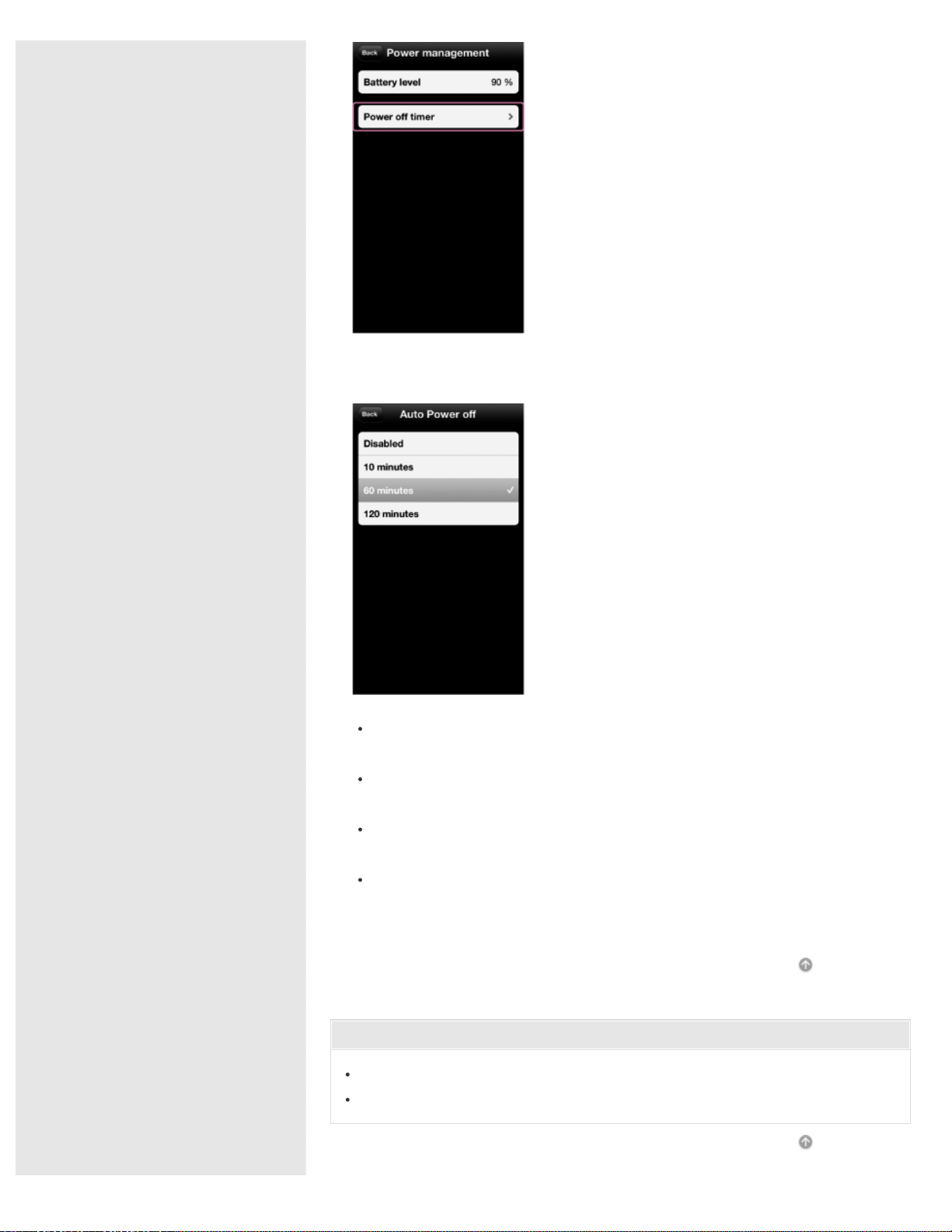
4. Select the time you want the power of this unit to automatically turn off, and
tap it.
Disabled: This function is not used. The power will not turn off until you turn
it off manually.
10 minutes: The unit turns off automatically after 10 minutes of no
communication.
60 minutes: The unit turns off automatically after 60 minutes of no
communication.
120 minutes: The unit turns off automatically after 120 minutes of no
communication.
Go to Page Top
Related Topic
Turning the power on
Turning the power off
Go to Page Top
199

Help Guide
How to use
Read this first
Product overview
Getting started
How to use "PWS Manager"
(Android)
How to use "PWS Manager"
(iOS)
How to use with a computer
Supplying power
LED status indications
Precautions
Specifications
Compatible device
Trademarks
Troubleshooting
List of Topics
Print
Portable Wireless Server
WG-C10
Checking the version of "PWS Manager" (iOS device)
1. Tap (Settings) on the file/folder list screen.
2. Tap [System].
The current version of "PWS Manager" is displayed.
Back
Back to Top
200
Search
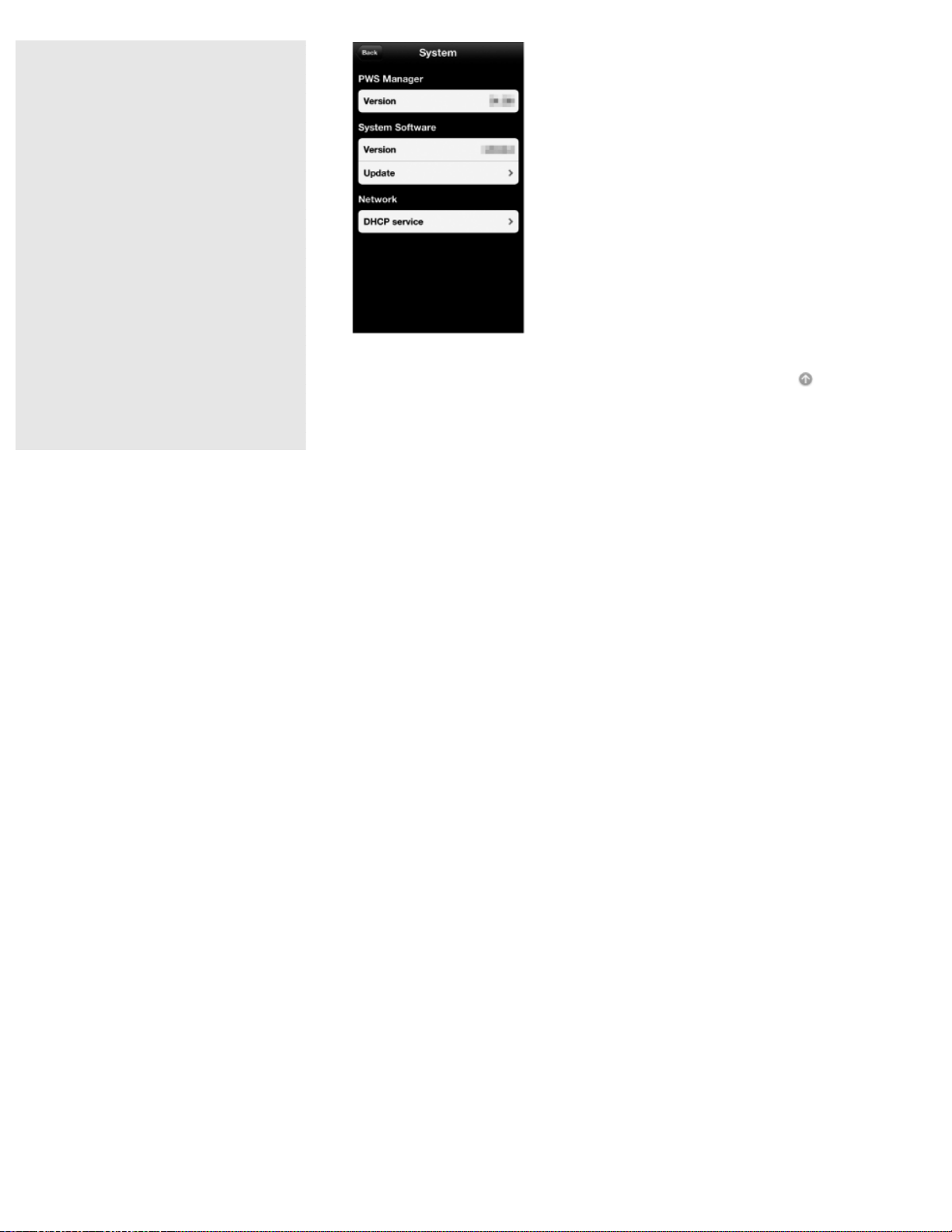
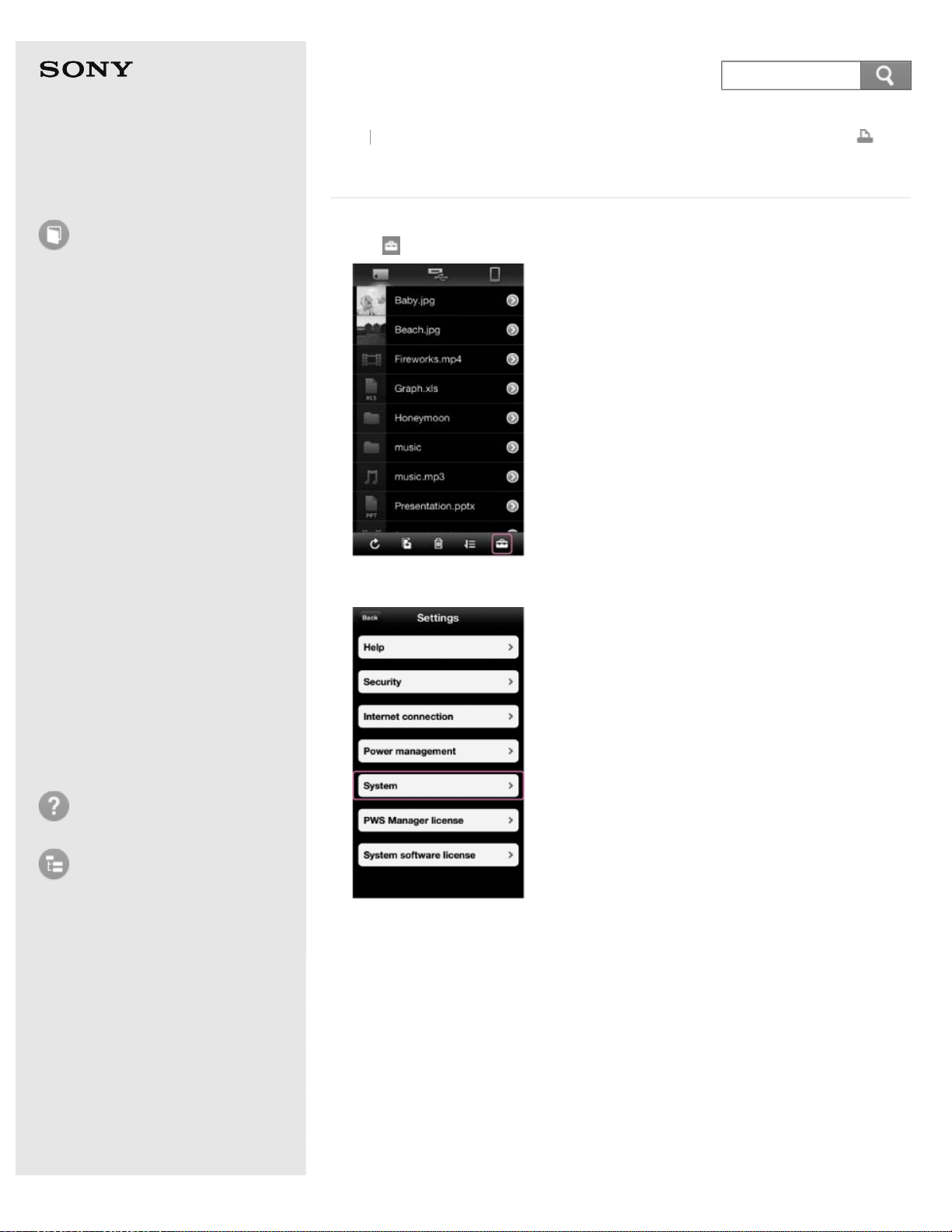
Help Guide
How to use
Read this first
Product overview
Getting started
How to use "PWS Manager"
(Android)
How to use "PWS Manager"
(iOS)
How to use with a computer
Supplying power
LED status indications
Precautions
Specifications
Compatible device
Trademarks
Troubleshooting
List of Topics
Print
Portable Wireless Server
WG-C10
Configuring/Checking DHCP services (iOS device)
1. Tap (Settings) on the file/folder screen.
2. Tap [System].
3. Tap [DHCP service].
The following items can be set/checked as necessary.
Back
Back to Top
202
Search
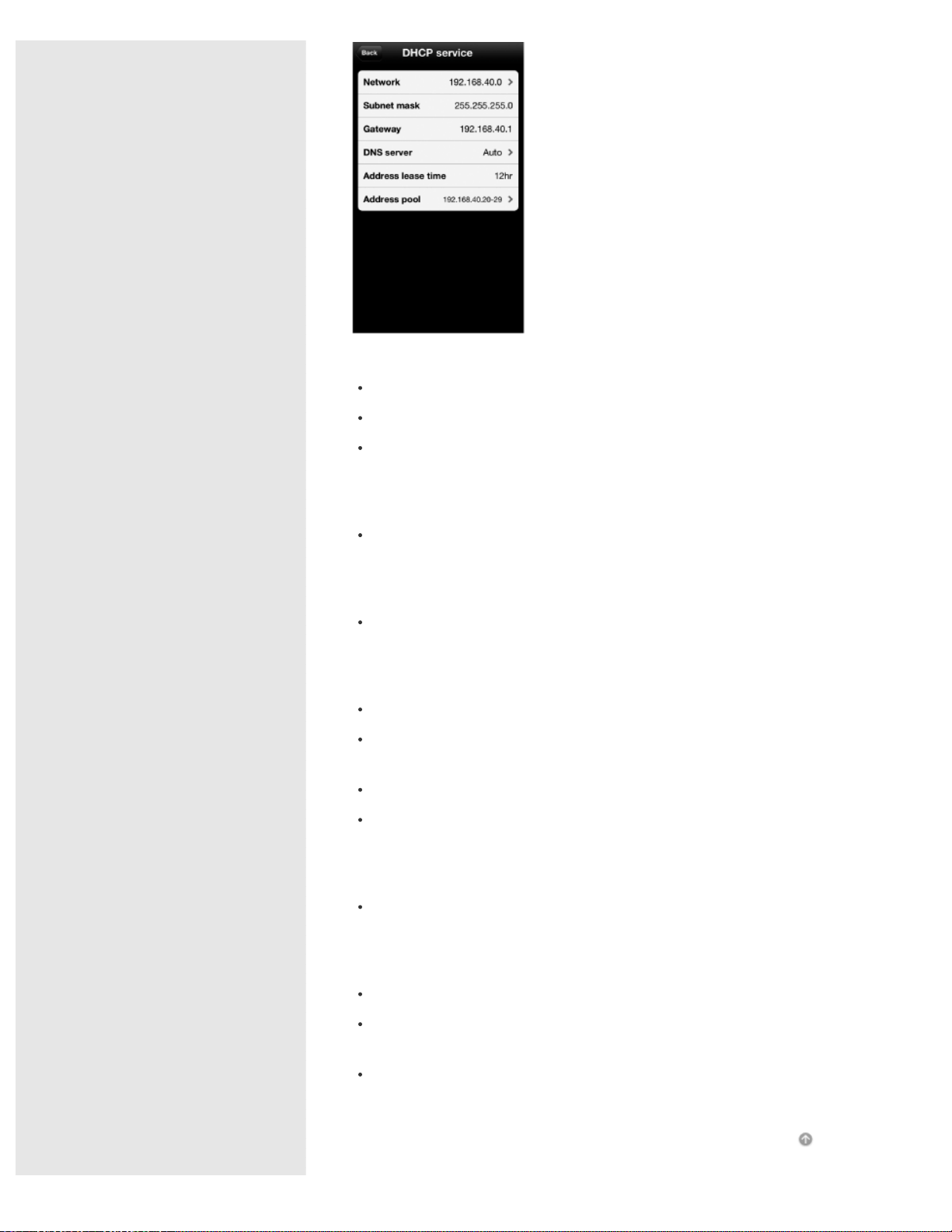
[Network] (settable item)
Tap [Network].
Select a network on the settings screen.
Tap [OK] to complete the settings.
[Subnet mask] (unchangeable)
You can check the subnet mask value.
[Gateway] (unchangeable)
You can check the gateway value.
[DNS server] (settable item)
Tap [DNS server].
Select [Manual] on the select screen.
[Auto] is selected normally.
Enter the necessary DNS server.
Tap [OK] to complete the settings.
[Address lease time] (unchangeable)
You can check the lease period of the IP address.
[Address pool] (settable item)
Tap [Address pool].
Set the start IP address on the settings screen.
10 IP addresses from the one set will be used.
Tap [OK] to complete the settings.
Go to Page Top
203
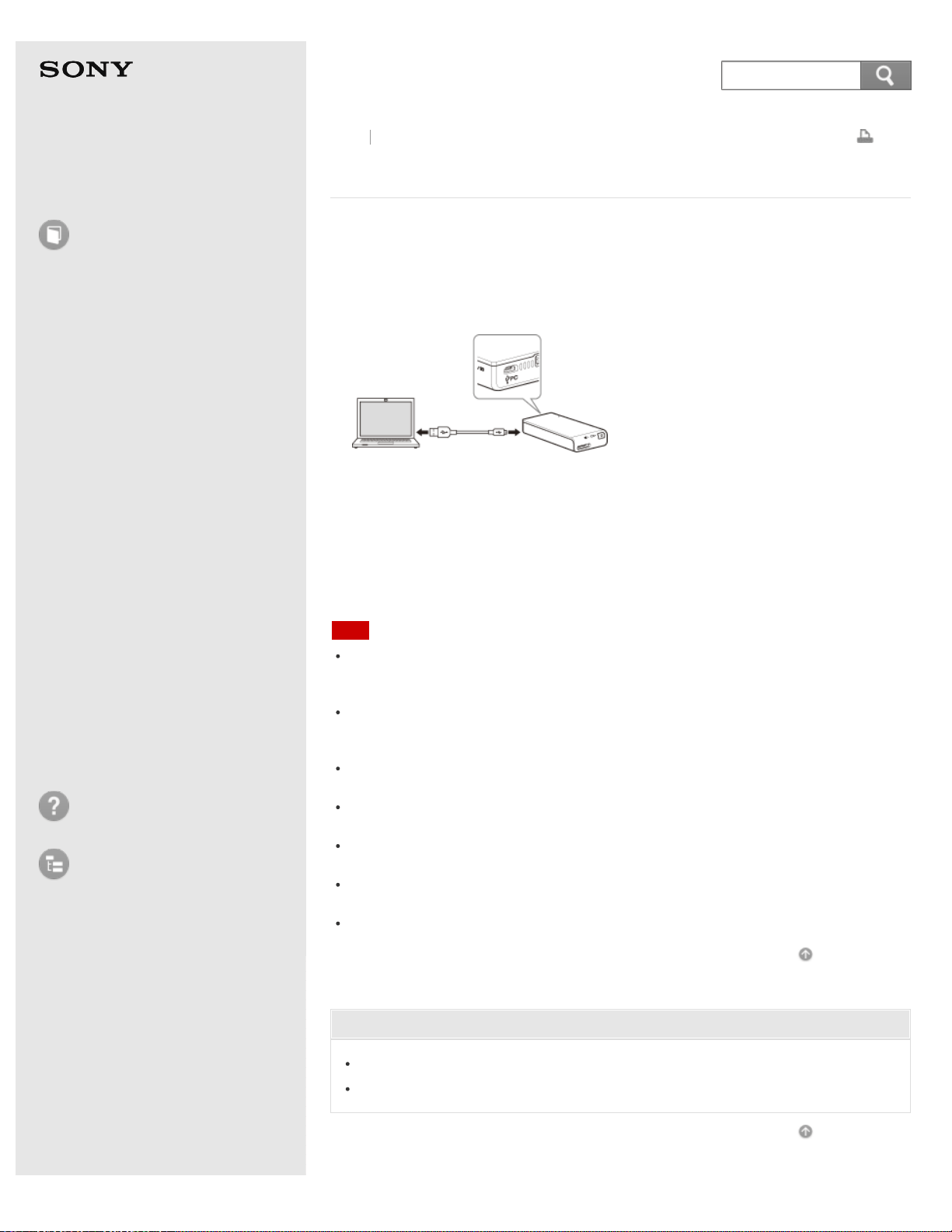
Help Guide
How to use
Read this first
Product overview
Getting started
How to use "PWS Manager"
(Android)
How to use "PWS Manager"
(iOS)
How to use with a computer
Supplying power
LED status indications
Precautions
Specifications
Compatible device
Trademarks
Troubleshooting
List of Topics
Print
Portable Wireless Server
WG-C10
Connecting to and accessing this unit (Windows)
1. Insert a memory card into this unit.
2. Connect this unit and a computer with the supplied USB cable.
Note the different plugs on both ends of the USB cable and connect the proper
plug to each port.
3. Open [Computer] on the computer.
4. Confirm that the icon of a newly recognized [Removable disk (E:)*] is
displayed.
The drive name (E:) may vary, depending on the computer you use.
5. Access folders and files in this unit by clicking [Removable disk (E:)*].
Note
If the disc icon is not displayed when this unit is connected to the USB port of the
computer, disconnect this unit from the computer and then reconnect it following the
above procedure.
When this unit is connected to the computer with the USB cable, if the battery pack
of this unit is not fully charged, charging will automatically start and the battery
indicator lamp will light orange.
The wireless LAN function cannot be used while the unit is connected to a computer
with the USB cable.
Note that the wireless LAN connection stops if this unit is connected to the computer
via USB when this unit is turned on.
If the unit temperature increases while charging, the battery indicator lamp may
flash orange and charging may stop.
A USB device connected to the unit cannot be used while the unit is connected to a
computer with the USB cable. A memory card can be used.
It is not necessary to turn on this unit when connecting it to the computer.
Go to Page Top
Related Topic
Parts and controls
Inserting a memory card
Go to Page Top
Back Back to Top
4-468-627-14(1)
204
Search
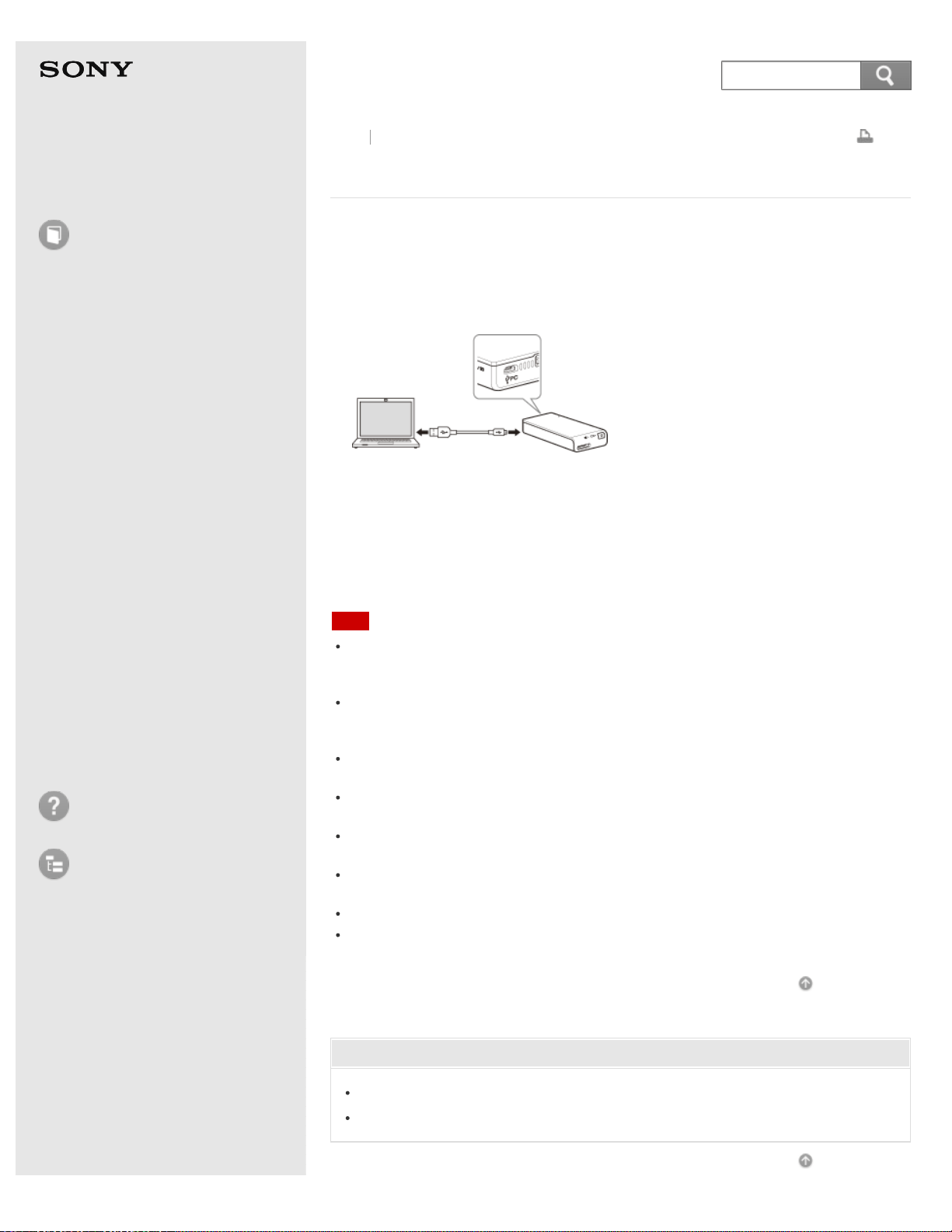
Help Guide
How to use
Read this first
Product overview
Getting started
How to use "PWS Manager"
(Android)
How to use "PWS Manager"
(iOS)
How to use with a computer
Supplying power
LED status indications
Precautions
Specifications
Compatible device
Trademarks
Troubleshooting
List of Topics
Print
Portable Wireless Server
WG-C10
Connecting to and accessing this unit (Mac)
1. Insert a memory card into this unit.
2. Connect this unit and a computer with the supplied USB cable.
Note the different plugs on both ends of the USB cable and connect the proper
plug to each port.
3. Confirm that the disc icon of this unit is displayed on the desktop, or the name
of the memory card in this unit is displayed under [Device], by clicking [File] →
[New Finder Windows].
The disc icon is not displayed if no memory card is inserted in this unit.
4. Access folders and files in this unit.
Note
If the disc icon is not displayed when this unit is connected to the USB port of the
computer, disconnect this unit from the computer and then reconnect it following the
above procedure.
When this unit is connected to the computer with the USB cable, if the battery pack
of this unit is not fully charged, charging will automatically start and the battery
indicator lamp will light orange.
The wireless LAN function cannot be used while the unit is connected to a computer
with the USB cable.
Note that the wireless LAN connection stops if this unit is connected to the computer
via USB when this unit is turned on.
If the unit temperature increases while charging, the battery indicator lamp may
flash orange and charging may stop.
A USB device connected to the unit cannot be used while the unit is connected to a
computer with the USB cable. A memory card can be used.
It is not necessary to turn on this unit when connecting it to the computer.
The icon and message displayed may vary, depending on the version of operating
system.
Go to Page Top
Related Topic
Parts and controls
Inserting a memory card
Go to Page Top
Back Back to Top
205
Search
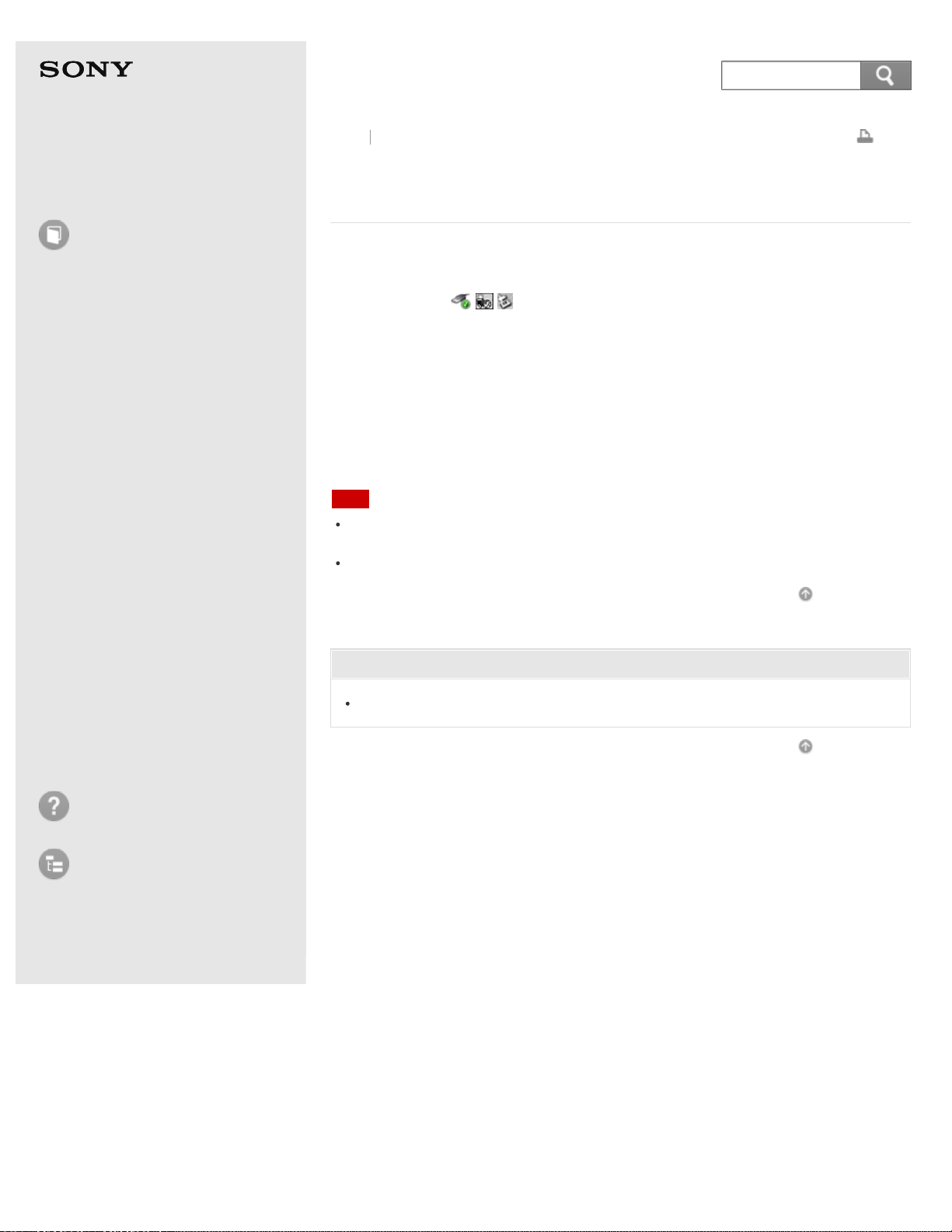
Help Guide
How to use
Read this first
Product overview
Getting started
How to use "PWS Manager"
(Android)
How to use "PWS Manager"
(iOS)
How to use with a computer
Supplying power
LED status indications
Precautions
Specifications
Compatible device
Trademarks
Troubleshooting
List of Topics
Print
Portable Wireless Server
WG-C10
Removing USB connection (safe removal of
hardware) (Windows)
1. Make sure that this unit is not being accessed.
2. Click the icon
(removal of hardware) on the task tray in the lower
right of the computer screen.
The devices currently connected to the computer are listed.
3. Click the icon of this unit.
4. Confirm the message "Safe to Remove Hardware" and click [OK].
Clicking [OK] is not required on Windows 8 or Windows 7.
5. Disconnect the USB cable from this unit and the computer.
Note
The icon and message displayed may vary, depending on the version of operating
system.
This unit turns off when the USB cable is disconnected from the computer.
Go to Page Top
Related Topic
Parts and controls
Go to Page Top
Back Back to Top
4-468-627-14(1)
© 2013 Sony Corporation Notes on use
206
Search
Help Guide
How to use
Read this first
Product overview
Getting started
How to use "PWS Manager"
(Android)
How to use "PWS Manager"
(iOS)
How to use with a computer
Supplying power
LED status indications
Precautions
Specifications
Compatible device
Trademarks
Troubleshooting
List of Topics
Print
Portable Wireless Server
WG-C10
Removing USB connection (safe removal of
hardware) (Mac)
1. Make sure that this unit is not being accessed.
2. Drag and drop the icon of this unit to the "Trash" icon. Alternatively, click the
Eject icon on the drive of this unit on the Finder window.
3. Disconnect the USB cable from this unit and the computer.
Note
The icon and message displayed may vary, depending on the version of operating
system.
This unit turns off when the USB cable is disconnected from the computer.
Go to Page Top
Related Topic
Parts and controls
Go to Page Top
Back Back to Top
4-468-627-14(1)
© 2013 Sony Corporation Notes on use
207
Search
Help Guide
How to use
Read this first
Product overview
Getting started
How to use "PWS Manager"
(Android)
How to use "PWS Manager"
(iOS)
How to use with a computer
Supplying power
LED status indications
Precautions
Specifications
Compatible device
Trademarks
Troubleshooting
List of Topics
Print
Portable Wireless Server
WG-C10
Connecting to a wireless LAN (Windows Vista)
1. Turn on this unit.
Wait until the
(Wireless LAN indicator) lamp starts blinking green.
2. Right-click the
icon on the task tray in the lower right of the computer
screen.
3. Click [Connect to a network].
4. Select "WG-C10-xxxxxx* "from the wireless network select screen, then click
[Connect].
*
"xxxxxx" of "WG-C10-xxxxxx" stands for the last 6 digits of the MAC address. For details on
the MAC address, see "Parts and controls."
If you are asked for a network key, enter the password you set.
When [Connect] is displayed on the same line as "WG-C10-xxxxxx," this device
and the computer are connected.
Note
Depending on the computer environment you use, it may take time to connect this
unit and the computer.
Go to Page Top
Related Topic
Parts and controls
Turning the power on
Setting up the security
Setting the Wi-Fi security using "PWS Manager" (Android device)
Setting the Wi-Fi security using "PWS Manager" (iOS device)
Go to Page Top
Back Back to Top
4-468-627-14(1)
© 2013 Sony Corporation Notes on use
208
Search
Help Guide
How to use
Read this first
Product overview
Getting started
How to use "PWS Manager"
(Android)
How to use "PWS Manager"
(iOS)
How to use with a computer
Supplying power
LED status indications
Precautions
Specifications
Compatible device
Trademarks
Troubleshooting
List of Topics
Print
Portable Wireless Server
WG-C10
Connecting to a wireless LAN (Windows 7)
1. Turn on this unit.
Wait until the
(Wireless LAN indicator) lamp starts blinking green.
2. Click the
icon on the task tray in the lower right of the computer screen.
3. Select "WG-C10-xxxxxx*" from the wireless network select screen, then click
[Connect].
*
"xxxxxx" of "WG-C10-xxxxxx" stands for the last 6 digits of the MAC address. For details on
the MAC address, see "Parts and controls."
If you are asked for a security key here, enter the password you set.
A warning message may indicate that security is not set up. You can ignore this
message and continue the process.
When [Connect] is displayed on the same line as "WG-C10-xxxxxx," this device
and the computer are connected.
Note
Depending on the computer environment you use, it may take time to connect this
unit and the computer.
Go to Page Top
Related Topic
Parts and controls
Turning the power on
Setting up the security
Setting the Wi-Fi security using "PWS Manager" (Android device)
Setting the Wi-Fi security using "PWS Manager" (iOS device)
Go to Page Top
Back Back to Top
4-468-627-14(1)
© 2013 Sony Corporation Notes on use
209
Search
Help Guide
How to use
Read this first
Product overview
Getting started
How to use "PWS Manager"
(Android)
How to use "PWS Manager"
(iOS)
How to use with a computer
Supplying power
LED status indications
Precautions
Specifications
Compatible device
Trademarks
Troubleshooting
List of Topics
Print
Portable Wireless Server
WG-C10
Connecting to a wireless LAN (Windows 8)
1. Turn on this unit.
Wait until the
(Wireless LAN indicator) lamp starts blinking green.
2. Click the
icon on the task tray in the lower right of the computer screen.
3. Select "WG-C10-xxxxxx* "from the wireless network select screen, then click
[Connect].
*
"xxxxxx" of "WG-C10-xxxxxx" stands for the last 6 digits of the MAC address. For details on
the MAC address, see "Parts and controls."
If you are asked for a security key here, enter the password you set.
A warning message may indicate that security is not set up. You can ignore this
message and continue the process.
When [Connect] is displayed on the same line as "WG-C10-xxxxxx," this device
and the computer are connected.
Note
Depending on the computer environment you use, it may take time to connect this
unit and the computer.
Go to Page Top
Related Topic
Parts and controls
Turning the power on
Setting up the security
Setting the Wi-Fi security using "PWS Manager" (Android device)
Setting the Wi-Fi security using "PWS Manager" (iOS device)
Go to Page Top
Back Back to Top
4-468-627-14(1)
© 2013 Sony Corporation Notes on use
210
Search
Help Guide
How to use
Read this first
Product overview
Getting started
How to use "PWS Manager"
(Android)
How to use "PWS Manager"
(iOS)
How to use with a computer
Supplying power
LED status indications
Precautions
Specifications
Compatible device
Trademarks
Troubleshooting
List of Topics
Print
Portable Wireless Server
WG-C10
Connecting to a wireless LAN (Mac)
1. Turn on this unit.
Wait until the
(Wireless LAN indicator) lamp starts blinking green.
2. Click
on the menu bar in the upper right of the computer screen.
3. Select "WG-C10-xxxxxx*" from the list.
*
"xxxxxx" of "WG-C10-xxxxxx" stands for the last 6 digits of the MAC address. For details on
the MAC address, see "Parts and controls."
If you are asked for the password, enter the password you set.
Click [File] - [New Finder Windows]. When "wg-c10," is displayed in the list of
DEVICES, connection is established.
Note
Depending on the computer environment you use, it may take time to connect this
unit and the computer.
Go to Page Top
Related Topic
Parts and controls
Turning the power on
Setting up the security
Setting the Wi-Fi security using "PWS Manager" (Android device)
Setting the Wi-Fi security using "PWS Manager" (iOS device)
Go to Page Top
Back Back to Top
4-468-627-14(1)
© 2013 Sony Corporation Notes on use
211
Search
Help Guide
How to use
Read this first
Product overview
Getting started
How to use "PWS Manager"
(Android)
How to use "PWS Manager"
(iOS)
How to use with a computer
Supplying power
LED status indications
Precautions
Specifications
Compatible device
Trademarks
Troubleshooting
List of Topics
Print
Portable Wireless Server
WG-C10
Accessing files/folders in this unit
Windows
Connecting a USB device
With a USB device connected to this unit, enter "\\192.168.40.1" in the address
bar of Explorer.
The shared folder "usb" is displayed and read and write of files in the connected
USB device becomes possible.
Accessing a memory card
With a memory card inserted in this unit, enter "\\192.168.40.1" in the address
bar of Explorer. The shared folder "memory card" is displayed and read and write
of files in the memory card becomes possible.
Disabling the proxy
From the menu bar of Windows Internet Explorer, click [Tool] – [Internet Options]
– [Connect] – [LAN Settings], and then uncheck the [Use a Proxy Server for your
LAN] check box.
Mac
Connecting a USB device
With a USB device connected to this unit, select [Go] - [Connect to Server…] on
Finder, then enter "smb://192.168.40.1" in Server Address.
Double-click "USB" as the volume to be mounted.
The icon of the USB device is displayed on the desktop and read and write of files
in the connected USB device becomes possible.
Accessing a memory card
With a memory card inserted in this unit, select [Go] - [Connect to Server…] on
Finder, then enter "smb://192.168.40.1" in Server Address.
Double-click "MEMORY CARD" as the volume to be mounted. The icon of the
memory card is displayed on the desktop and read and write of files in the
memory card becomes possible.
Disabling the proxy
From the menu bar of Safari, open Safari and select [Safari] - [Preferences…], and
click [Advanced]. Click [Change Settings…], uncheck the [Web Proxy (HTTP)]
check box, and click [OK].
Hint
Creating shortcuts allows you to access devices without having to enter their
addresses every time.
Note
It may take time to process, depending on the computer environment you use.
You can use the unit as an external storage device by inserting a memory card, and
then connecting the unit to a computer, using the bundled USB cable or via wireless
Back Back to Top
212
Search

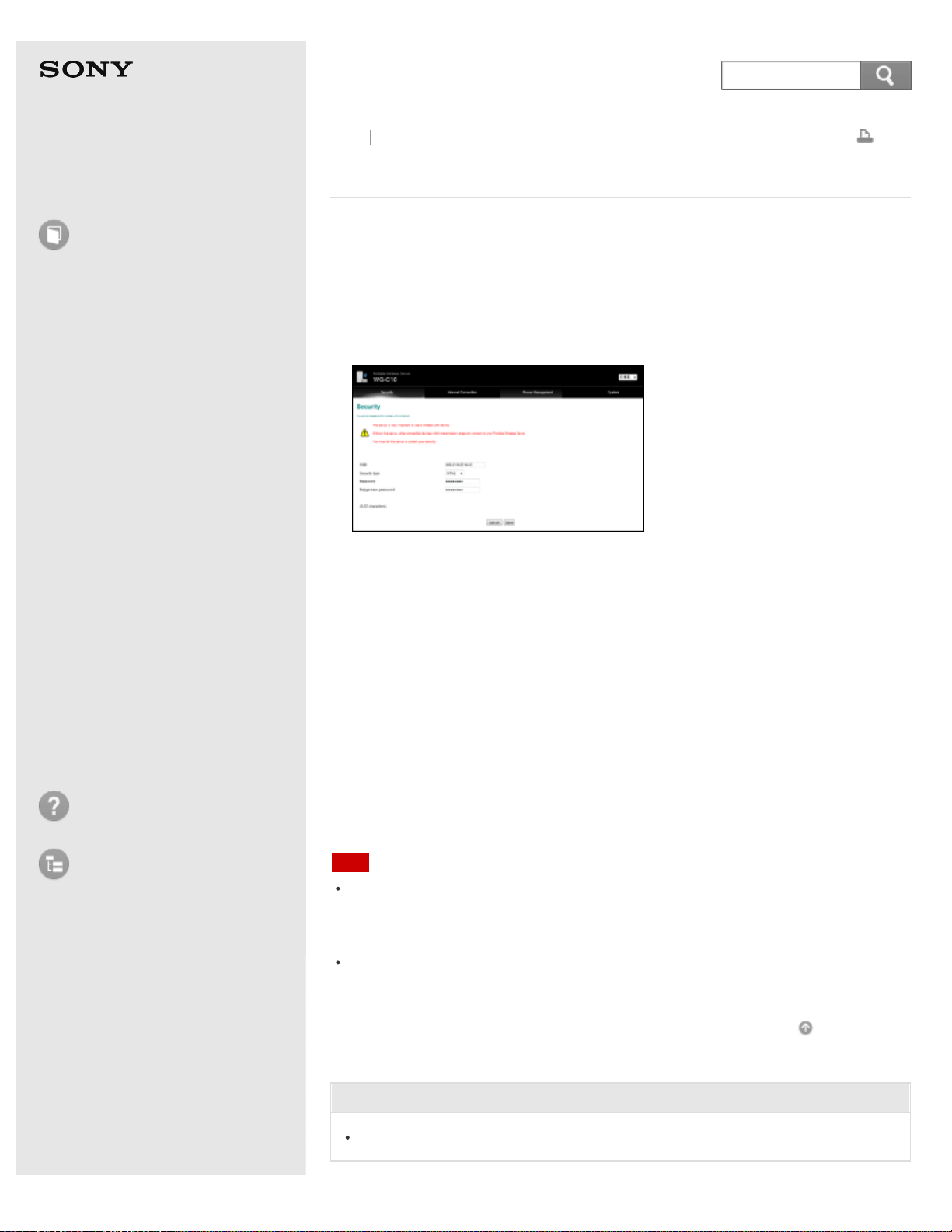
Help Guide
How to use
Read this first
Product overview
Getting started
How to use "PWS Manager"
(Android)
How to use "PWS Manager"
(iOS)
How to use with a computer
Supplying power
LED status indications
Precautions
Specifications
Compatible device
Trademarks
Troubleshooting
List of Topics
Print
Portable Wireless Server
WG-C10
Setting up the security
1. Connect this unit and a computer via wireless LAN.
2. Enter the following address in the address bar of the web browser to access the
setting screen of this unit.
http://192.168.40.1:8080/
Windows: Internet Explorer, Mac: Safari
The security setting screen is displayed.
3. Select the authentication method (WEP/WPA/WPA2) to be used.
WPA2 is recommended.
If [Disabled] is selected, the security is not set on this unit.
4. Enter a password (alpha-numeric) of your choice. Reenter it for confirmation,
then select [Save].
The password length depends on the authentication method.
WEP: 5 characters or 13 characters
WPA: 8 – 63 characters
WPA2: 8 – 63 characters
Password security is then set on this unit.
5. The wireless LAN connection stops by performing this operation. Perform the
procedure in "Connecting a computer via wireless LAN", using the password set
in this section, to connect this unit and the computer.
Note
Setting security is extremely important when using devices equipped with the
wireless LAN function. If the security is not set, it is possible for the unit to be
accessed from any compatible device within the communication range. To protect
your data, be sure to set up the security.
If you cannot connect to the above-mentioned address, see whether a proxy has
been set up. If a proxy has been set up, remove the checkmark. If you still cannot
connect, disconnect the LAN cable from the computer.
Go to Page Top
Related Topic
Connecting a computer via wireless LAN
Back
Back to Top
214
Search
Help Guide
How to use
Read this first
Product overview
Getting started
How to use "PWS Manager"
(Android)
How to use "PWS Manager"
(iOS)
How to use with a computer
Supplying power
LED status indications
Precautions
Specifications
Compatible device
Trademarks
Troubleshooting
List of Topics
Print
Portable Wireless Server
WG-C10
Configuring the Internet connection
1. Connect this unit and a computer via wireless LAN.
2. Enter the following address in the address bar of the web browser to access the
setting screen of this unit.
http://192.168.40.1:8080/
Windows: Internet Explorer, Mac: Safari
3. Select the "Internet Connection" tab.
Available wireless LAN access points are listed.
4. Select the SSID of the wireless LAN access point you want to connect to.
5. If necessary, enter the password of the device you want to connect to, then
select [OK].
The unit restarts and is connected to the wireless LAN access point.
6. The wireless LAN connection between this unit and the computer stops. Perform
the procedure in "Connecting a computer via wireless LAN" again to connect.
Hint
A maximum of 6 SSIDs of wireless LAN devices are automatically registered.
Connection between the unit and a registered SSID is established automatically.
To unregister an SSID, press [Forget] on the information screen of the wireless LAN
device.
Note
If you cannot connect to the above-mentioned address, see whether a proxy has
been set up. If a proxy has been set up, remove the checkmark. If you still cannot
connect, disconnect the LAN cable from the computer.
When using at home, an Internet connection and wireless LAN router are required.
When using outside the home, check the wireless LAN situation of the location
through the public wireless LAN service provider’s website, etc. Using such services
may require a separate contract with the service provider.
Connection to all public wireless LAN services is not assured.
Wireless LAN exchanges information by radio wave, allowing easy access within the
communication range. Consequently, if security settings are not made, there is a risk
that a third party on the same network could maliciously access (hack into) your unit.
Setting security is your decision and responsibility, and is strongly recommended.
It may take time to establish connection, or connection may not be established,
depending on the usage environment.
It is not possible to connect to any wireless LAN device with a hidden SSID.
Go to Page Top
Related Topic
Connecting a computer via wireless LAN
Back
Back to Top
215
Search
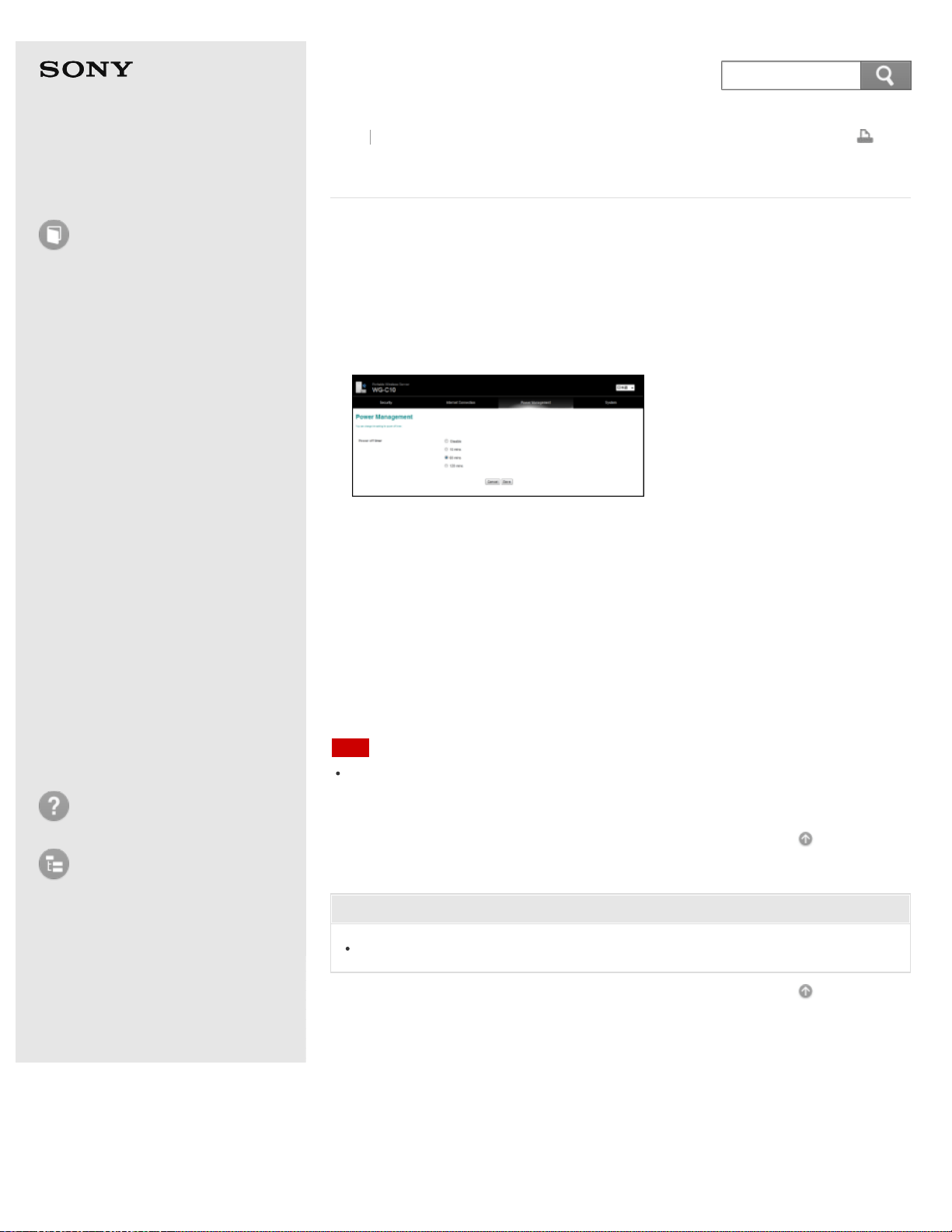
Help Guide
How to use
Read this first
Product overview
Getting started
How to use "PWS Manager"
(Android)
How to use "PWS Manager"
(iOS)
How to use with a computer
Supplying power
LED status indications
Precautions
Specifications
Compatible device
Trademarks
Troubleshooting
List of Topics
Print
Portable Wireless Server
WG-C10
Setting automatic power off
1. Connect this unit and a computer via wireless LAN.
2. Enter the following address in the address bar of the web browser to access the
setting screen of this unit.
http://192.168.40.1:8080/
Windows: Internet Explorer, Mac: Safari
3. Select the [Power Management] tab.
4. Select the time before automatically turning off the power of this unit, then
select [Save].
Disabled: This function is not used. The power of this unit will not turn off until
you turn it off manually.
10 minutes: This unit turns off automatically after 10 minutes of no
communication.
60 minutes: This unit turns off automatically after 30 minutes of no
communication.
120 minutes: This unit turns off automatically after 120 minutes of no
communication.
Note
If you cannot connect to the above-mentioned address, see whether a proxy has
been set up. If a proxy has been set up, remove the checkmark. If you still cannot
connect, disconnect the LAN cable from the computer.
Go to Page Top
Related Topic
Connecting a computer via wireless LAN
Go to Page Top
Back Back to Top
4-468-627-14(1)
© 2013 Sony Corporation Notes on use
216
Search
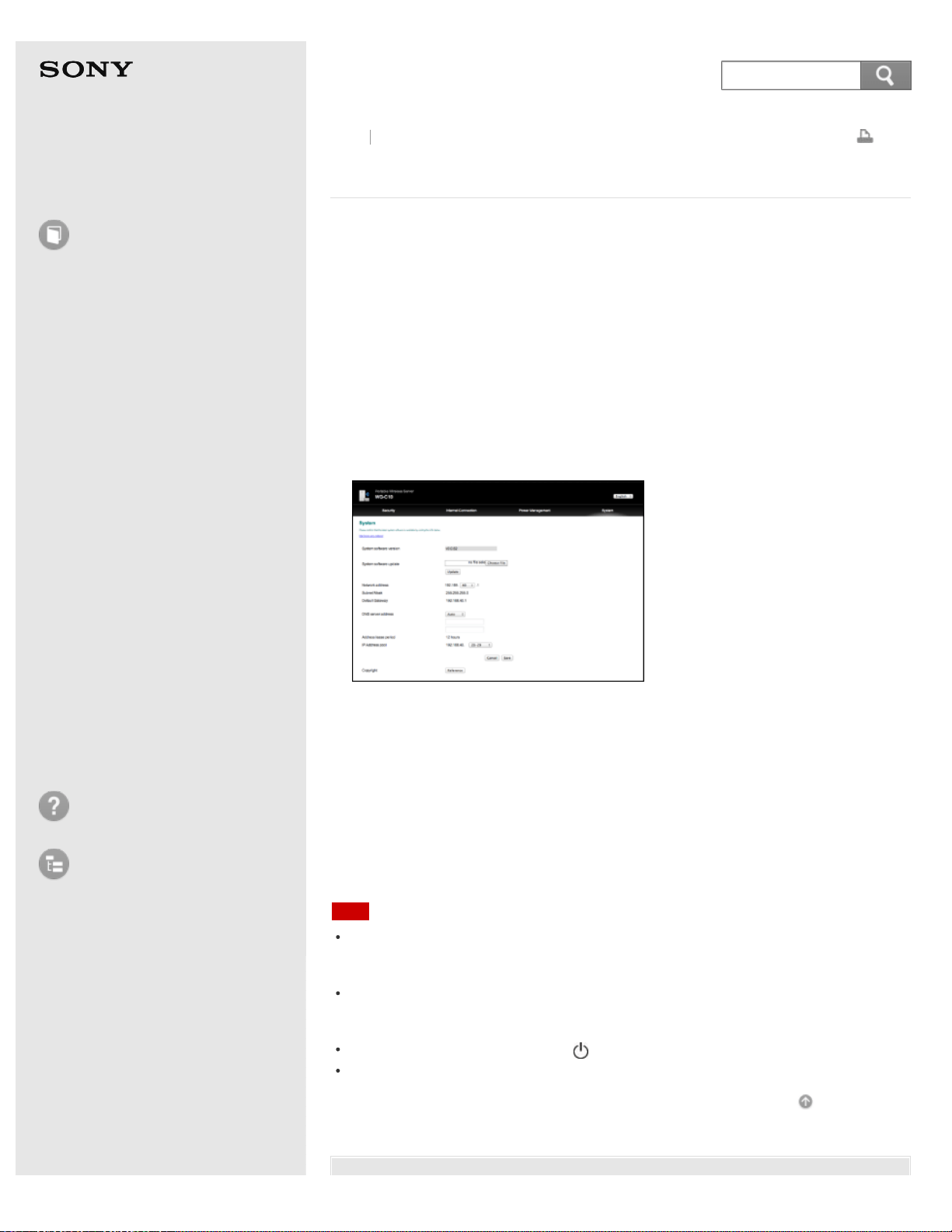
Help Guide
How to use
Read this first
Product overview
Getting started
How to use "PWS Manager"
(Android)
How to use "PWS Manager"
(iOS)
How to use with a computer
Supplying power
LED status indications
Precautions
Specifications
Compatible device
Trademarks
Troubleshooting
List of Topics
Print
Portable Wireless Server
WG-C10
Updating the system software
Obtain the latest system software from the following website. Check the update
status periodically to make sure you are using the latest version.
http://www.sony.net/pws/
1. Connect this unit and a computer via wireless LAN.
2. Enter the following address in the address bar of the web browser to access the
setting screen of this unit.
http://192.168.40.1:8080/
Windows: Internet Explorer,Mac: Safari
3. Select the [System] tab. The version of the current system software is
displayed.
4. Enter the location where the software to be updated is saved, and click
[Update].
Updating of the system software starts.
5. To complete the system software update, this unit restarts. The wireless LAN
connection between this unit and the computer stops. Establish the connection
again.
6. Confirm that the system software has been updated to the latest version by
performing steps 1 – 3.
Note
If you cannot connect to the above-mentioned address, see whether a proxy has
been set up. If a proxy has been set up, remove the checkmark. If you still cannot
connect, disconnect the LAN cable from the computer.
Update cannot be done if the remaining battery charge is low. Confirm that there is
sufficient battery charge before starting the update. See "LED status indications" for
a rough indication of the battery charge requirements.
Do not press the RESET switch or (Power) button while updating.
Update the system software in a location where communication conditions are stable.
Go to Page Top
Back Back to Top
217
Search

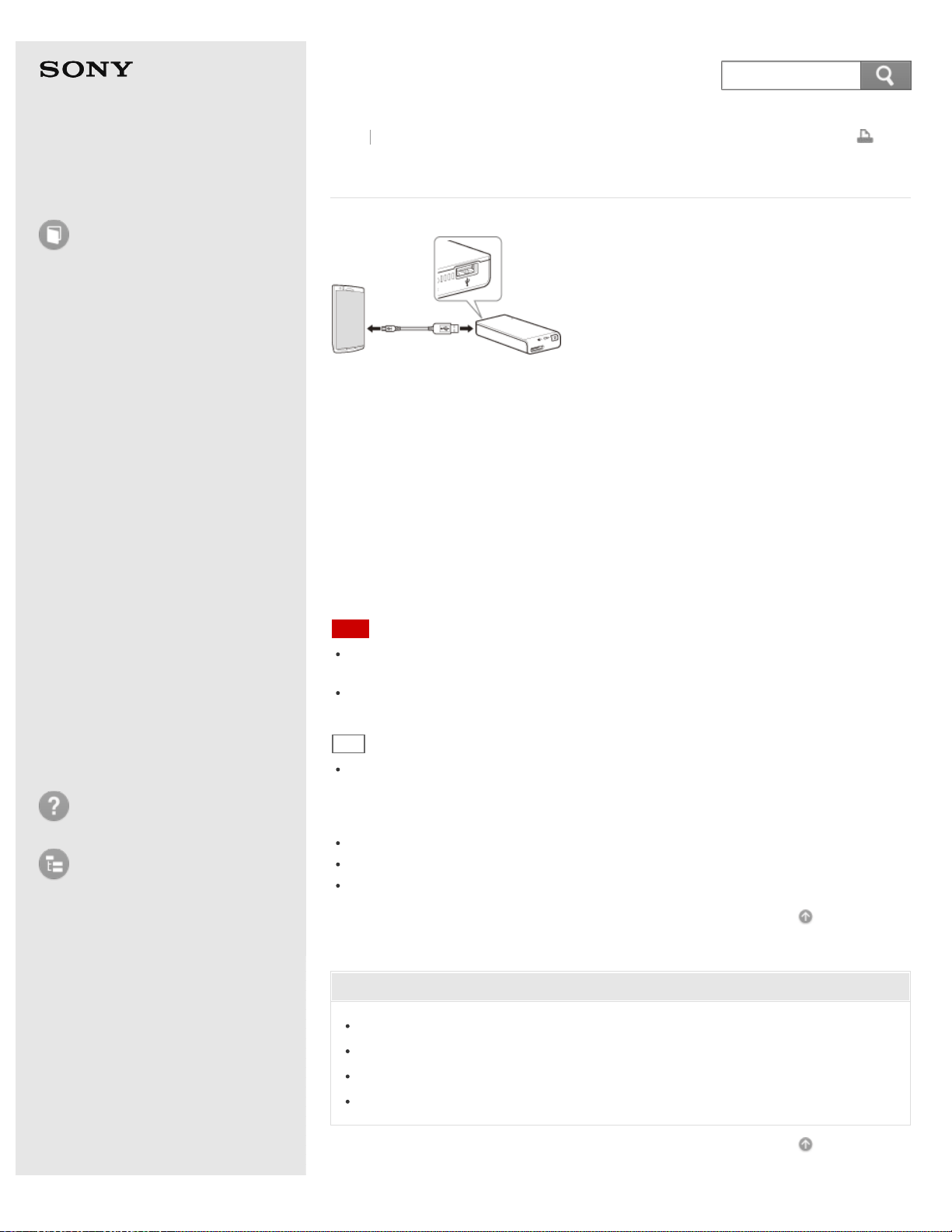
Help Guide
How to use
Read this first
Product overview
Getting started
How to use "PWS Manager"
(Android)
How to use "PWS Manager"
(iOS)
How to use with a computer
Supplying power
LED status indications
Precautions
Specifications
Compatible device
Trademarks
Troubleshooting
List of Topics
Print
Portable Wireless Server
WG-C10
Supplying power to other devices
1. Turn on this unit (WG-C10).
2. Connect the supplied USB cable* to the device you want to charge.
You should connect the USB terminal of the other device and the USB A port of
this unit.
This unit starts charging the other device.
*
For iOS devices, use the dedicated cable bundled with your device when you purchased it.
3. When charging of the other device is complete, remove the USB cable from this
unit and the other device.
Note
You should charge this unit beforehand. If the remaining battery charge is not
sufficient, this unit will not be able to supply power.
Be sure to insert the connector in the correct way. Pushing the connector forcibly into
the port will damage the port and may result in a malfunction.
Hint
The maximum output current of the USB port of this unit is 500 mA. If the supply
output current exceeds 500 mA, the power is stopped for safety. Before supplying
power to another device, be sure to check the voltage and current ratings of the
device.
Correct operation is not assured if a USB hub or USB extension cable is used.
The unit may become warm during use. This is not a malfunction.
The wireless LAN function is available while supplying power to another device.
Go to Page Top
Related Topic
Charging from a computer
Charging with a USB AC adaptor
Turning the power on
Turning the power off
Go to Page Top
Back Back to Top
219
Search
Help Guide
How to use
Read this first
Product overview
Getting started
How to use "PWS Manager"
(Android)
How to use "PWS Manager"
(iOS)
How to use with a computer
Supplying power
LED status indications
Precautions
Specifications
Compatible device
Trademarks
Troubleshooting
List of Topics
Print
Portable Wireless Server
WG-C10
LED status indications
Memory card access lamp
Blinking (amber)
The memory card is being accessed. Do not eject the memory card.
Wireless LAN indicator lamp
Steadily lit (green)
The wireless LAN on this unit is starting up.
Blinking (green)
The wireless LAN of this unit is enabled.
Off
The power is turned off.
Lit (red and amber alternately)
The system software of the unit is being updated.
Battery indicator lamp
While charging
Steadily lit (amber)
The battery pack of this unit is being charged.
Blinking (amber)
Charging suspended due to a temperature rise of the unit, etc.
Off
The battery pack is fully charged. The battery indicator lamp will also be off if the
battery adaptor is incompatible.
During use
Slow blinking (green), 4 seconds interval (lit for 2 seconds and off for 2
seconds)
Battery charge is sufficient (about 60 % or more)
Blinking (green), 2 seconds interval (lit for 1 second and off for 1 second)
Battery charge exists but is approaching low (about 20 % - 60 %)
Fast blinking (red), 1 second interval (lit for 0.5 second and off for 0.5
second)
Battery charge is low and needs recharging (about 20% or less)
Off
The power is turned off, or no battery charge remains.
Go to Page Top
Back Back to Top
220
Search
Related Topic
Connecting an Android device via wireless LAN
Connecting an iOS device via wireless LAN
Inserting a memory card
Ejecting a memory card
Configuring the Internet connection (Android device)
Configuring the Internet connection (iOS device)
Checking the remaining battery level (Android device)
Checking the remaining battery level (iOS device)
Go to Page Top
4-468-627-14(1)
© 2013 Sony Corporation Notes on use
221
Help Guide
How to use
Read this first
Product overview
Getting started
How to use "PWS Manager"
(Android)
How to use "PWS Manager"
(iOS)
How to use with a computer
Supplying power
LED status indications
Precautions
Specifications
Compatible device
Trademarks
Troubleshooting
List of Topics
Print
Portable Wireless Server
WG-C10
Precautions on use
Do not drop it, put a heavy thing on top of it, hit it with a strong shock, or put
pressure on it. These can cause this product to fail.
Do not place it in places like the following.
Very hot places: Hit by direct sunlight, near a heater, etc., it can discolor, deform,
or fail.
Very cold place, or hot place
On a car dashboard or in a car with its windows closed under a hot sun (especially
in summer)
Very dusty place
On a shaky table or inclined place
Place with much vibration
Very humid place: Bathroom, etc
Near a thing which creates a magnetic field: Magnet, speakers, TV, etc
When you hear static on the radio or TV, turn off the power to this product, and
move this product away from the radio or TV.
When using this product, to prevent damage or deformation of its cabinet, be
careful about the following.
Do not sit down after putting this product in a back pocket of your pants, etc.
While a USB device (USB flash drive, etc) or USB cable is attached to this device,
do not put it in a bag and hit it with a strong force from outside.
Be careful to not get water on it. This product does not have water-proof
specifications. Be especially careful about the following situations.
Using it while in your pocket in a bathroom, etc. When you bend over, etc, it can
fall and get wet.
Using it in rain, snow, or very humid place.
Using it when you are sweaty. If you touch it with a wet hand or put it in a
sweaty clothing pocket, it can get wet.
When you attach a strap and use it, the strap can get pulled, which is
dangerous, so be careful. Also, when you turn around, you can hit another
person, which is dangerous, so be careful.
When you quickly bring this product from a cold place to a warm place, or if it
is in a room where you just turned on the heat on a winter morning etc,
condensation can form on its surface or in this product. Condensation is when
moisture in the air attaches to metal plates etc, and water drops form. When
condensation forms, do not turn on its power until the condensation goes away,
and leave it alone. Using it with condensation can cause failure.
This device communicates data by using 2.4GHz radio waves, so if there is a
device near it which uses the same frequency, interference can prevent it from
communicating.
If you do not use it for a long time, you may be unable to fully charge this
device. But after charging and using up the battery 2 to 3 times, you will be
Back
Back to Top
222
Search

able to fully charge it.
When you do not use this device for a long time, disconnect the USB cable, and
store it.
Also read the Operating Instructions of other devices you use. Depending on
the device, some operation may be needed to charge the battery.
The maximum output current of the USB port of this unit is 500 mA. If the
supply output current exceeds 500 mA, the power is stopped for safety. Before
supplying power to another device, be sure to check the voltage and current
ratings of the device.
When powering a device from this product, the charging time differs depending
on the remaining battery charge.
Correct operation is not assured if a USB hub or USB extension cable is used.
Go to Page Top
Related Topic
Read this first
Go to Page Top
4-468-627-14(1)
© 2013 Sony Corporation Notes on use
223
Help Guide
How to use
Read this first
Product overview
Getting started
How to use "PWS Manager"
(Android)
How to use "PWS Manager"
(iOS)
How to use with a computer
Supplying power
LED status indications
Precautions
Specifications
Compatible device
Trademarks
Troubleshooting
List of Topics
Print
Portable Wireless Server
WG-C10
Maintenance
When this product’s surface is dirty
Wipe it with a soft cloth (a cloth designed for wiping reading glasses, etc).
When it is very dirty, wipe it with a cloth sprinkled with diluted neutral cleaning
liquid.
Do not use paint thinner, gasoline, alcohol, etc. These can damage the finish of its
surface.
Take care so water does not get inside.
Go to Page Top
Back Back to Top
4-468-627-14(1)
© 2013 Sony Corporation Notes on use
224
Search
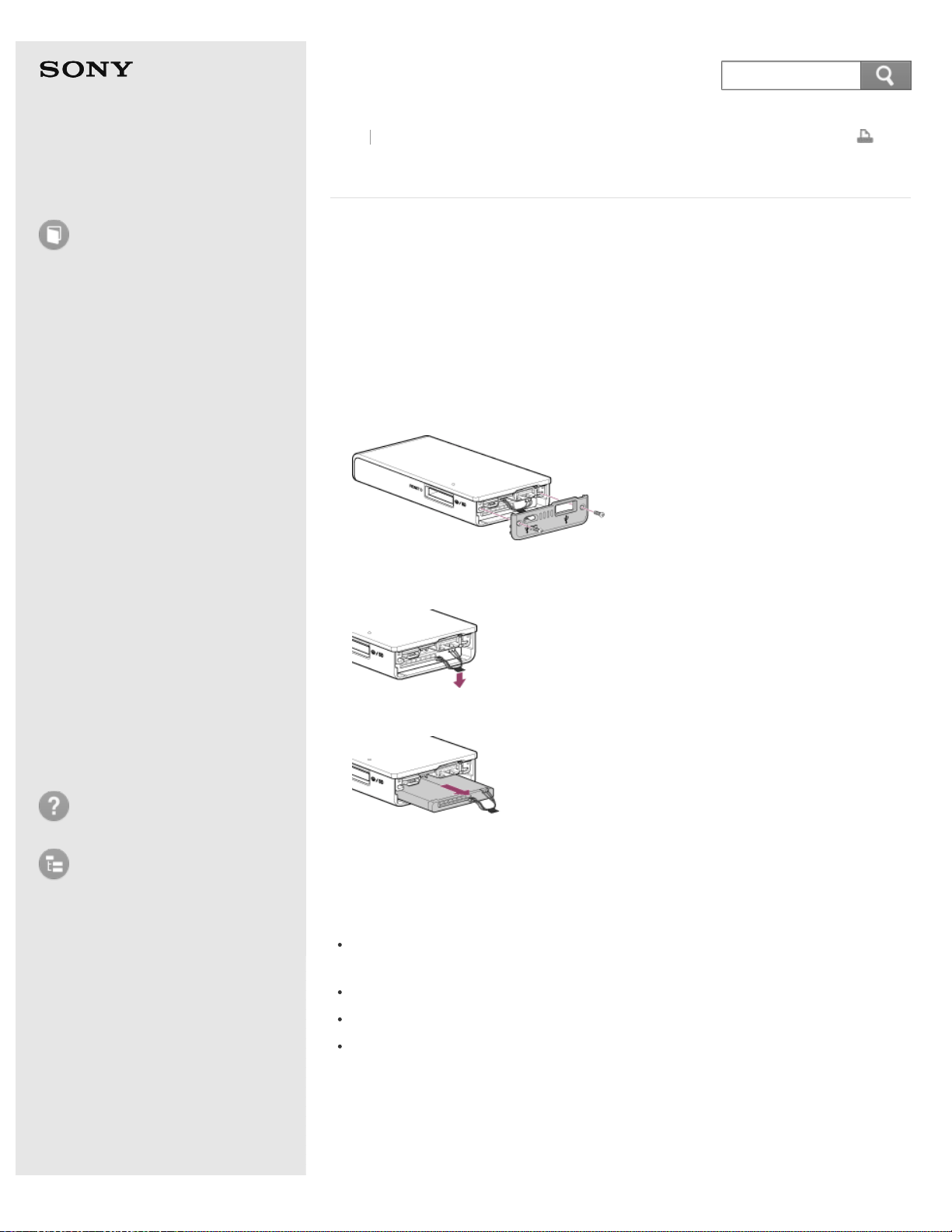
Help Guide
How to use
Read this first
Product overview
Getting started
How to use "PWS Manager"
(Android)
How to use "PWS Manager"
(iOS)
How to use with a computer
Supplying power
LED status indications
Precautions
Specifications
Compatible device
Trademarks
Troubleshooting
List of Topics
Print
Portable Wireless Server
WG-C10
Notes on disposing of the unit
When disposing of this unit, remove the built-in battery following the procedure
below.
Caution
Do not disassemble this unit except when disposing of this unit.
1. Turn and remove the two screws on both sides on the undersurface (the side
opposite to the Power button) of the unit using a Phillips screwdriver, and
detach the panel.
2. Pull the black tape attached to the wires in the direction of the arrow illustrated
below, to disconnect them from the circuit board.
3. Pull the wires towards you to remove the battery from the unit.
Do not pull the wire with excessive force. The wires may break.
Notes on when removing the built-in battery
Be careful of the following when removing the built-in battery.
Remove the battery in a location out of the reach of small children. There is a
risk that they may swallow small parts such as screws.
Pay extra attention not to hurt yourself, especially your nails, fingers, etc.
Do not remove the battery with wet hands.
Do not pull the wires with excessive force. The wires may break.
For Customers in the U.S.A. and Canada
RECYCLING LITHIUM-ION BATTERIES
Back
Back to Top
225
Search

Lithium-Ion batteries are recyclable. You can help preserve our environment by
returning your used rechargeable batteries to the collection and recycling location
nearest you.
For more information regarding recycling of rechargeable batteries, call toll free 1-
800-822-8837, or visit http://www.rbrc.org/
Caution: Do not handle damaged or leaking Lithium-Ion Batteries.
Go to Page Top
4-468-627-14(1)
© 2013 Sony Corporation Notes on use
226
Help Guide
How to use
Read this first
Product overview
Getting started
How to use "PWS Manager"
(Android)
How to use "PWS Manager"
(iOS)
How to use with a computer
Supplying power
LED status indications
Precautions
Specifications
Compatible device
Trademarks
Troubleshooting
List of Topics
Print
Portable Wireless Server
WG-C10
Notes on the memory card
See "Compatible device" for memory cards that can be used with this unit.
Do not remove the memory card while data is being read or saved.
Data can be destroyed in the following situations.
While reading or saving data, if the memory card is removed, or if this device’s
power is turned off
When used in a place affected by static electricity or electrical noise
It is recommended that you make a back-up of important data.
Do not touch terminal with your hand or any metal object.
Do not strike, bend, drop or wet this card.
Do not attempt to disassemble or convert this card.
Do not use or store this card in the following locations:
Where the range of recommended operating conditions is exceeded. (Inside a
closed car in summer or in strong sunshine/in direct sunlight/near a heater, etc.)
Humid or corrosive locations.
Check the correct insertion direction before using. Incorrect use can damage the
device.
When inserting the memory card, if you use too much force, you can damage
the memory card or this device.
"Memory Stick Duo" media
You cannot read or record data that requires "MagicGate" copyright protection
technology. "MagicGate" is the name of a technology developed by Sony to
protect copyright using encryption technology.
The file system’s design limits the file size which can be saved to or played
from "Memory Stick PRO Duo", "Memory Stick PRO-HG", and "Memory Stick
Micro" media. Each file must be less than 4 GB.
When using "Memory Stick Micro" media in this device, be sure to put it in a
special adaptor (sold separately).
If you insert it not mounted in the adaptor, then you may be unable to remove
the "Memory Stick Micro" media.
SD memory card
You cannot read or record data that requires copyright protection technology.
The file system’s design limits the file size which can be saved to or played
from an SD memory card and SDHC memory card. Each file must be less than
4 GB.
Go to Page Top
Back Back to Top
227
Search

Help Guide
How to use
Read this first
Product overview
Getting started
How to use "PWS Manager"
(Android)
How to use "PWS Manager"
(iOS)
How to use with a computer
Supplying power
LED status indications
Precautions
Specifications
Compatible device
Trademarks
Troubleshooting
List of Topics
Print
Portable Wireless Server
WG-C10
Specifications
Operating temperature
0 °C to 35 °C (32 °F to 95 °F) (During normal operation)
0 °C to 30 °C (32 °F to 86 °F) (When charging the built-in battery)
Charge time/Use time
Charge time:
Approx. 8 hours (connecting to a computer)
Approx. 3.5 hours (using the AC-UD10 USB AC adaptor (sold separately))
The charge time depends on the USB AC adaptor you use.
Use time:
Approx. 10 hours (continuous playback of MP3 at 128 Kbps)
Approx. 6 hours (continuous playback of MP4 at 3 Mbps)
Approx. 5.5 hours (continuous playback of MP4 at 12 Mbps)
Wireless
Standard
IEEE 802.11b/g/n (2.4 GHz)
Frequencies (channels)
2,412 MHz - 2,462 MHz [CH1-11]
Interfaces
USB 2.0 A port (Hi-Speed USB)
USB 2.0 Micro B port (Hi-Speed USB)
Memory card slot (Memory Stick Duo, SD memory card)
USB A port output
DC 5V, 500 mA (maximum)
USB micro B port input
DC 5V, 1 A (maximum)
Average power consumption
Approx. 5.0 W (maximum)
Compatible memory cards
"Memory Stick Duo"
"Memory Stick PRO Duo"
"Memory Stick PRO-HG Duo"
"Memory Stick Micro"
SD memory card
SDHC memory card
SDXC memory card
microSD memory card
microSDHC memory card
If you use a "Memory Stick Micro" or microSD memory card with this unit, be sure
to first put it in a special adaptor.
Back
Back to Top
229
Search

Supported USB devices
Data Transferring Functions
USB Flash Drive
Digital still camera (only devices compatible with Mass Storage)
Battery Charging Functions
Smartphone
Digital still camera (USB-type battery charging), etc.
iPad and Tablet battery charging is not supported.
Operation with all USB devices is not guaranteed.
Compatible Operating Systems
Android 2.3
Android 4.0 or later
iOS 5.0 or later
Windows Vista SP2 or later
Windows 7 SP1 or later
Windows 8
Mac OS X version 10.6 or later
Dimensions (W × H × D)
Approx. 50 mm × 105 mm × 18.5 mm (2 in. × 4 1/4 in. × 3/4 in.)
Mass
Approx. 135 g (4.76 oz)
SDHC Memory Card 16GB (SF-16C4)(included with WG-C10/A)
Usable capacity
14.4 GB (15,461,881,856 bytes)
Operating voltage
2.7 V to 3.6 V
Operating temperature
-25 °C to +85 °C (-13 °F to +185 °F)
Dimensions (W × L × T)
Approx. 24 mm × 32 mm × 2.1 mm (31/32 in. × 1 9/32 in. × 3/32 in.)
Mass
Approx. 2 g (0.07 oz)
Design and specifications are subject to change without notice.
Go to Page Top
4-468-627-14(1)
© 2013 Sony Corporation Notes on use
230
Help Guide
How to use
Read this first
Product overview
Getting started
How to use "PWS Manager"
(Android)
How to use "PWS Manager"
(iOS)
How to use with a computer
Supplying power
LED status indications
Precautions
Specifications
Compatible device
Trademarks
Troubleshooting
List of Topics
Print
Portable Wireless Server
WG-C10
Android compatible devices
Compatible operating systems
Android device
Android 2.3
Android 4.0 or later
Correct operation with all devices is not assured.
Go to Page Top
Back Back to Top
4-468-627-14(1)
© 2013 Sony Corporation Notes on use
231
Search
Help Guide
How to use
Read this first
Product overview
Getting started
How to use "PWS Manager"
(Android)
How to use "PWS Manager"
(iOS)
How to use with a computer
Supplying power
LED status indications
Precautions
Specifications
Compatible device
Trademarks
Troubleshooting
List of Topics
Print
Portable Wireless Server
WG-C10
iOS compatible devices
Compatible operating systems
iOS device
iOS 5.0 or later
Correct operation with all devices is not assured.
Go to Page Top
Back Back to Top
4-468-627-14(1)
© 2013 Sony Corporation Notes on use
232
Search
Help Guide
How to use
Read this first
Product overview
Getting started
How to use "PWS Manager"
(Android)
How to use "PWS Manager"
(iOS)
How to use with a computer
Supplying power
LED status indications
Precautions
Specifications
Compatible device
Trademarks
Troubleshooting
List of Topics
Print
Portable Wireless Server
WG-C10
"Memory Stick" media
Compatible "Memory Stick" media
"Memory Stick"
"Memory Stick Duo"
"Memory Stick PRO Duo"
"Memory Stick PRO-HG Duo"
"Memory Stick Micro"
When using "Memory Stick Micro" media on this unit, be sure to insert it into a
specified adaptor.
Go to Page Top
Back Back to Top
4-468-627-14(1)
© 2013 Sony Corporation Notes on use
233
Search
Help Guide
How to use
Read this first
Product overview
Getting started
How to use "PWS Manager"
(Android)
How to use "PWS Manager"
(iOS)
How to use with a computer
Supplying power
LED status indications
Precautions
Specifications
Compatible device
Trademarks
Troubleshooting
List of Topics
Print
Portable Wireless Server
WG-C10
SD memory card
Compatible SD memory card
SD memory card
SDHC memory card
SDHX memory card
microSD memory card
microSDHC memory card
When using a microSD memory card on this unit, be sure to insert it into a
specified adaptor.
Go to Page Top
Back Back to Top
4-468-627-14(1)
© 2013 Sony Corporation Notes on use
234
Search
Help Guide
How to use
Read this first
Product overview
Getting started
How to use "PWS Manager"
(Android)
How to use "PWS Manager"
(iOS)
How to use with a computer
Supplying power
LED status indications
Precautions
Specifications
Compatible device
Trademarks
Troubleshooting
List of Topics
Print
Portable Wireless Server
WG-C10
USB device (data copy/power supply compatible)
Compatible USB devices
For data copy function
USB flash drive
Digital still camera (mass storage compatible device only)
For battery charging
Smartphone
Digital still camera (USB charging compatible), etc.
This unit does not support battery charging of iPad, tablet and computer.
Go to Page Top
Back Back to Top
4-468-627-14(1)
© 2013 Sony Corporation Notes on use
235
Search
Help Guide
How to use
Read this first
Product overview
Getting started
How to use "PWS Manager"
(Android)
How to use "PWS Manager"
(iOS)
How to use with a computer
Supplying power
LED status indications
Precautions
Specifications
Compatible device
Trademarks
Troubleshooting
List of Topics
Print
Portable Wireless Server
WG-C10
USB AC Adaptor (for charging the unit)
This unit is confirmed to work with the AC-UD10 (sold separately, Sony made).
For details, see the following website.
http://www.sony.net/pws/
Go to Page Top
Back Back to Top
4-468-627-14(1)
© 2013 Sony Corporation Notes on use
236
Search
Help Guide
How to use
Read this first
Product overview
Getting started
How to use "PWS Manager"
(Android)
How to use "PWS Manager"
(iOS)
How to use with a computer
Supplying power
LED status indications
Precautions
Specifications
Compatible device
Trademarks
Troubleshooting
List of Topics
Print
Portable Wireless Server
WG-C10
Trademarks
"Memory Stick Duo", "Memory Stick PRO Duo", "Memory Stick PRO-HG Duo",
"Memory Stick Micro", and "MagicGate" are trademarks of Sony Corporation.
Microsoft, Windows and Windows Vista are either registered trademarks or
trademarks of Microsoft Corporation in the United States and/or other countries.
Apple, Mac OS, iPhone, iPad, and iPod touch are trademarks of Apple Inc.,
registered in the U.S. and other countries.
App store is a service mark of Apple Inc.
Android and Google play are trademarks of Google Inc.
Wi-Fi® and Wi-Fi Alliance® are registered trademarks of the Wi-Fi Alliance.
WPA™ and WPA2™ are trademarks of the Wi-Fi Alliance.
In addition, the product names, brand names, service names, etc. used in this
document are trademarks or registered trademarks of respective companies or
organizations.
The ™ and ® marks are not shown in this document.
Go to Page Top
Back Back to Top
4-468-627-14(1)
© 2013 Sony Corporation Notes on use
237
Search
Help Guide
How to use
Troubleshooting
Main unit
Charging
Supplying power
Wireless LAN connection
File operation
Supported memory cards
and devices
USB connection to a
computer
"PWS Manager"
Additional Information
Troubleshooting
Certified devices
List of Topics
Print
Portable Wireless Server
WG-C10
The power does not turn on.
The battery pack of this unit may be discharged. Charge it again.
Go to Page Top
Related Topic
Charging from a computer
Charging with a USB AC adaptor
Go to Page Top
Back Back to Top
4-468-627-14(1)
© 2013 Sony Corporation Notes on use
238
Search
Help Guide
How to use
Troubleshooting
Main unit
Charging
Supplying power
Wireless LAN connection
File operation
Supported memory cards
and devices
USB connection to a
computer
"PWS Manager"
Additional Information
Troubleshooting
Certified devices
List of Topics
Print
Portable Wireless Server
WG-C10
The power turns off unexpectedly.
Check the following. If the problem still persists, the power supply function of
this unit may be malfunctioning. In this case, contact your Sony dealer or local
authorized Sony service facility.
Make sure that the devices connected to this unit meet the requirements for this
unit, and are working properly.
Make sure that the usage environment (air temperature) is within the specified
limit.
Go to Page Top
Related Topic
Read this first
Supported devices
Precautions on use
Notes on the memory card
Go to Page Top
Back Back to Top
4-468-627-14(1)
© 2013 Sony Corporation Notes on use
239
Search
Help Guide
How to use
Troubleshooting
Main unit
Charging
Supplying power
Wireless LAN connection
File operation
Supported memory cards
and devices
USB connection to a
computer
"PWS Manager"
Additional Information
Troubleshooting
Certified devices
List of Topics
Print
Portable Wireless Server
WG-C10
I pressed the power button, but the battery indicator
lamp does not light or blink.
See "The power does not turn on."
Go to Page Top
Related Topic
LED status indications
Go to Page Top
Back Back to Top
4-468-627-14(1)
© 2013 Sony Corporation Notes on use
240
Search
Help Guide
How to use
Troubleshooting
Main unit
Charging
Supplying power
Wireless LAN connection
File operation
Supported memory cards
and devices
USB connection to a
computer
"PWS Manager"
Additional Information
Troubleshooting
Certified devices
List of Topics
Print
Portable Wireless Server
WG-C10
I spilled water on this unit.
Turn the power off as soon as possible and disconnect all cables from this unit.
This unit is not waterproof and liquid damage is not covered under warranty.
Go to Page Top
Related Topic
Turning the power on
Turning the power off
Go to Page Top
Back Back to Top
4-468-627-14(1)
© 2013 Sony Corporation Notes on use
241
Search
Help Guide
How to use
Troubleshooting
Main unit
Charging
Supplying power
Wireless LAN connection
File operation
Supported memory cards
and devices
USB connection to a
computer
"PWS Manager"
Additional Information
Troubleshooting
Certified devices
List of Topics
Print
Portable Wireless Server
WG-C10
Power is turned on but this unit does not respond to
any operations.
Turn off the power, then turn it on again. If the problem is not resolved, press
the RESET switch using a non-metal pointed object to restart this unit or
restore the factory default settings. If the problem persists, contact your Sony
dealer or local authorized Sony service facility. Since all settings on this unit will
be initialized, it is recommended that you take notes of settings before
restoring the factory defaults.
RESET switch operation
Press momentarily (approx. 1 second): The unit restarts.
Press and hold (more than approx. 10 seconds): The factory defaults are
restored.
Go to Page Top
Related Topic
Turning the power on
Turning the power off
How can I use the RESET switch?
Go to Page Top
Back Back to Top
4-468-627-14(1)
© 2013 Sony Corporation Notes on use
242
Search
Help Guide
How to use
Troubleshooting
Main unit
Charging
Supplying power
Wireless LAN connection
File operation
Supported memory cards
and devices
USB connection to a
computer
"PWS Manager"
Additional Information
Troubleshooting
Certified devices
List of Topics
Print
Portable Wireless Server
WG-C10
The power turns off automatically.
When the auto power off function is enabled, this unit turns off automatically
after the specified period without wireless LAN activity.
Go to Page Top
Related Topic
Setting auto power off (Android device)
Setting auto power off (iOS device)
Setting automatic power off
Go to Page Top
Back Back to Top
4-468-627-14(1)
© 2013 Sony Corporation Notes on use
243
Search
Help Guide
How to use
Troubleshooting
Main unit
Charging
Supplying power
Wireless LAN connection
File operation
Supported memory cards
and devices
USB connection to a
computer
"PWS Manager"
Additional Information
Troubleshooting
Certified devices
List of Topics
Print
Portable Wireless Server
WG-C10
The power does not turn off.
The (Power) button does not respond when this unit is connected to a
computer with a USB cable.
Go to Page Top
Back Back to Top
4-468-627-14(1)
© 2013 Sony Corporation Notes on use
244
Search
Help Guide
How to use
Troubleshooting
Main unit
Charging
Supplying power
Wireless LAN connection
File operation
Supported memory cards
and devices
USB connection to a
computer
"PWS Manager"
Additional Information
Troubleshooting
Certified devices
List of Topics
Print
Portable Wireless Server
WG-C10
Battery life is short.
The usage time detailed in this Help Guide is approximate. Battery life may be
shorter depending on usage conditions.
The battery discharges at a very low rate, even when this unit is left turned off.
Recharge the battery sufficiently beforehand if this unit has not been used for a
long time.
If battery life is considerably short, even when the battery is fully charged, it
may have reached the end of its life. The lifespan of the battery varies
depending on usage conditions.
Sony does not provide a service to replace an old battery with a new one.
If this unit is left unused for more than a year, the battery may have
deteriorated (depending on the usage environment ).
When the air temperature is below 5 °C, the battery may be discharged quickly.
This is a characteristic of the battery and is not a malfunction.
Go to Page Top
Related Topic
Specifications
Go to Page Top
Back Back to Top
4-468-627-14(1)
© 2013 Sony Corporation Notes on use
245
Search
Help Guide
How to use
Troubleshooting
Main unit
Charging
Supplying power
Wireless LAN connection
File operation
Supported memory cards
and devices
USB connection to a
computer
"PWS Manager"
Additional Information
Troubleshooting
Certified devices
List of Topics
Print
Portable Wireless Server
WG-C10
It takes a long time to start up this unit.
It may take a long time to start up this unit depending on usage conditions.
This is not a malfunction.
If it takes several minutes to start up the unit, press the RESET switch to
restart this unit.
Go to Page Top
Related Topic
How can I use the RESET switch?
Go to Page Top
Back Back to Top
4-468-627-14(1)
© 2013 Sony Corporation Notes on use
246
Search
Help Guide
How to use
Troubleshooting
Main unit
Charging
Supplying power
Wireless LAN connection
File operation
Supported memory cards
and devices
USB connection to a
computer
"PWS Manager"
Additional Information
Troubleshooting
Certified devices
List of Topics
Print
Portable Wireless Server
WG-C10
The auto power off function does not work.
Make sure that the function is correctly set. For details, see the following
related topics.
Go to Page Top
Related Topic
Setting auto power off (Android device)
Setting auto power off (iOS device)
Setting automatic power off
Go to Page Top
Back Back to Top
4-468-627-14(1)
© 2013 Sony Corporation Notes on use
247
Search
Help Guide
How to use
Troubleshooting
Main unit
Charging
Supplying power
Wireless LAN connection
File operation
Supported memory cards
and devices
USB connection to a
computer
"PWS Manager"
Additional Information
Troubleshooting
Certified devices
List of Topics
Print
Portable Wireless Server
WG-C10
This unit becomes warm.
This unit may become warm during use, including charging or while it supplies
power to other devices. This is not a malfunction. Stop using the unit and allow
it to cool down.
Do not use this unit at a location where heat can accumulate.
Go to Page Top
Related Topic
Precautions on use
Go to Page Top
Back Back to Top
4-468-627-14(1)
© 2013 Sony Corporation Notes on use
248
Search
Help Guide
How to use
Troubleshooting
Main unit
Charging
Supplying power
Wireless LAN connection
File operation
Supported memory cards
and devices
USB connection to a
computer
"PWS Manager"
Additional Information
Troubleshooting
Certified devices
List of Topics
Print
Portable Wireless Server
WG-C10
The battery does not charge from a computer.
Use the supplied USB cable to charge this unit.
Correct operation is not assured if a USB hub or USB extension is used. Use the
supplied USB cable only to connect this unit to a computer or USB AC adaptor.
Make sure that the computer is turned on and not in standby mode or sleep
mode. This unit cannot be charged from a computer that is not turned on or in
standby/sleep mode.
Disconnect this unit from the computer, then connect again.
Make sure that your computer meets the requirements for this unit.
Go to Page Top
Related Topic
Charging from a computer
Charging with a USB AC adaptor
Go to Page Top
Back Back to Top
4-468-627-14(1)
© 2013 Sony Corporation Notes on use
249
Search
Help Guide
How to use
Troubleshooting
Main unit
Charging
Supplying power
Wireless LAN connection
File operation
Supported memory cards
and devices
USB connection to a
computer
"PWS Manager"
Additional Information
Troubleshooting
Certified devices
List of Topics
Print
Portable Wireless Server
WG-C10
The battery indicator lamp does not light while
charging.
Make sure that the USB cable is connected correctly.
The air temperature may be outside the limit for charging (0 °C to 30 °C (32 °F
- 86 °F)).
Charge this unit in an air temperature within this limit.
For optimum performance of the rechargeable lithium-ion battery, it is
recommended to charge between 10 °C to 30 °C (50 °F - 86 °F).
The USB AC adaptor being used may be an unsupported model.
See "USB AC Adaptor (for charging the unit)" for USB AC adaptors that can be
used with this unit.
When the battery is completely discharged, recharging starts immediately;
however, it may take a while until the battery indicator lamp lights.
The battery may already be fully charged.
Go to Page Top
Related Topic
Charging from a computer
Charging with a USB AC adaptor
LED status indications
USB AC Adaptor (for charging the unit)
Go to Page Top
Back Back to Top
4-468-627-14(1)
© 2013 Sony Corporation Notes on use
250
Search
Help Guide
How to use
Troubleshooting
Main unit
Charging
Supplying power
Wireless LAN connection
File operation
Supported memory cards
and devices
USB connection to a
computer
"PWS Manager"
Additional Information
Troubleshooting
Certified devices
List of Topics
Print
Portable Wireless Server
WG-C10
The battery indicator lamp blinks while charging.
The air temperature may be outside the limit for charging (0 °C to 30 °C (32 °F
- 86 °F)). Charge this unit in an air temperature within this limit.
If an abnormality (e.g. increased unit temperature) occurs while charging, the
battery indicator lamp may blink amber, and charging may stop.
Go to Page Top
Related Topic
LED status indications
Go to Page Top
Back Back to Top
4-468-627-14(1)
© 2013 Sony Corporation Notes on use
251
Search
Help Guide
How to use
Troubleshooting
Main unit
Charging
Supplying power
Wireless LAN connection
File operation
Supported memory cards
and devices
USB connection to a
computer
"PWS Manager"
Additional Information
Troubleshooting
Certified devices
List of Topics
Print
Portable Wireless Server
WG-C10
The battery is quickly recharged.
The remaining battery charge of this unit may have already been high. You can
use the unit without concern.
The air temperature may be outside the limit for charging (0 °C to 30 °C (32 °F
- 86 °F)). Charge this unit in an air temperature within this limit.
Go to Page Top
Related Topic
LED status indications
Go to Page Top
Back Back to Top
4-468-627-14(1)
© 2013 Sony Corporation Notes on use
252
Search
Help Guide
How to use
Troubleshooting
Main unit
Charging
Supplying power
Wireless LAN connection
File operation
Supported memory cards
and devices
USB connection to a
computer
"PWS Manager"
Additional Information
Troubleshooting
Certified devices
List of Topics
Print
Portable Wireless Server
WG-C10
It takes a long time to charge the battery.
The charge time detailed in this Help Guide is approximate. Charge time may
be long depending on usage conditions.
The air temperature may be outside the limit for charging (0 °C to 30 °C (32 °F
- 86 °F)).
Charge this unit in an air temperature within this limit.
Go to Page Top
Related Topic
LED status indications
Go to Page Top
Back Back to Top
4-468-627-14(1)
© 2013 Sony Corporation Notes on use
253
Search
Help Guide
How to use
Troubleshooting
Main unit
Charging
Supplying power
Wireless LAN connection
File operation
Supported memory cards
and devices
USB connection to a
computer
"PWS Manager"
Additional Information
Troubleshooting
Certified devices
List of Topics
Print
Portable Wireless Server
WG-C10
The wireless LAN function cannot be used while
charging.
While charging from a computer, the wireless LAN function turns off
automatically.
Hint
You can use the wireless LAN function while charging from a USB AC adaptor.
However, you cannot use any USB devices while charging.
Go to Page Top
Related Topic
Charging with a USB AC adaptor
Go to Page Top
Back Back to Top
4-468-627-14(1)
© 2013 Sony Corporation Notes on use
254
Search
Help Guide
How to use
Troubleshooting
Main unit
Charging
Supplying power
Wireless LAN connection
File operation
Supported memory cards
and devices
USB connection to a
computer
"PWS Manager"
Additional Information
Troubleshooting
Certified devices
List of Topics
Print
Portable Wireless Server
WG-C10
This unit does not supply power to other devices.
Make sure that the USB cable is connected correctly.
The air temperature may be outside the operating temperature range (0 °C to
35 °C (32 °F to 95 °F)).
Use this unit within this operating temperature range.
The remaining battery charge of this unit may be low.
Charge this unit.
The device to be supplied power is not ready for charging.
For details on how to charge the device, refer to its instruction manual.
You may be attempting to supply power while charging this unit. This unit
cannot supply power to other devices while charging.
Disconnect the USB cable from the USB microB port (for charging) before
supplying power.
The maximum output current of the USB port of this unit is 500 mA. If the
supply output current exceeds 500 mA, the power is stopped for safety.
Before supplying power to another device, be sure to check the voltage and
current ratings of the device.
If battery life is considerably short, even when the battery is fully charged, the
battery may have reached the end of its lifespan. (The lifespan of the battery
varies depending on usage conditions.)
Sony does not provide a service to replace an old battery with a new one.
Note
Correct operation is not assured if a USB hub or USB extension cable is used.
Go to Page Top
Related Topic
Supplying power to other devices
Charging from a computer
Charging with a USB AC adaptor
Go to Page Top
Back Back to Top
4-468-627-14(1)
© 2013 Sony Corporation Notes on use
255
Search
Help Guide
How to use
Troubleshooting
Main unit
Charging
Supplying power
Wireless LAN connection
File operation
Supported memory cards
and devices
USB connection to a
computer
"PWS Manager"
Additional Information
Troubleshooting
Certified devices
List of Topics
Print
Portable Wireless Server
WG-C10
Wireless LAN connection to a smartphone, tablet or
computer cannot be established.
Make sure that this unit and your device are turned on and the wireless LAN
function of your device is enabled.
Ambient conditions (obstacles between this unit and your device,
electromagnetic interference, wall materials, etc.) may adversely affect the
wireless communication range. Change the location of this unit, or move your
device and this unit closer together. If the problem is not resolved, press the
RESET switch to restart the unit or set the unit to the factory defaults (*).
This unit and your device may be too far away from each other. Move them
closer together.
The wireless LAN this unit is connected to may have a problem. Consult the
network administrator.
The number of users connected to this unit may have reached the maximum
limit (8).
Equipment that uses the 2.4 GHz frequency band, such as a microwave oven or
Bluetooth device, may be in use near this unit. Move such equipment away
from this unit, or turn the equipment off.
When you are using a password to secure connection between this unit and
your device, make sure that you are entering the correct password. If you have
forgotten the password, restore the factory default settings by pressing RESET
switch (*).
The wireless LAN function cannot be used while connecting this unit to a
computer using a USB cable.
While connecting this unit to a USB AC adaptor, the memory card inserted in
this unit can be read or written via the wireless LAN function; however, the USB
device connected to this unit cannot be read or written.
*
Since all settings on this unit will be initialized, it is recommended that you take notes of
settings before restoring the factory defaults.
Go to Page Top
Related Topic
Connecting an Android device via wireless LAN
Connecting an iOS device via wireless LAN
Connecting a computer via wireless LAN
How can I use the RESET switch?
Go to Page Top
Back Back to Top
256
Search
Help Guide
How to use
Troubleshooting
Main unit
Charging
Supplying power
Wireless LAN connection
File operation
Supported memory cards
and devices
USB connection to a
computer
"PWS Manager"
Additional Information
Troubleshooting
Certified devices
List of Topics
Print
Portable Wireless Server
WG-C10
I found two SSIDs, both of which start with "WG-
C10" and I cannot determine which one should be
used.
Another person may be using their WG-C10. Check the MAC address printed on
the sticker on the back of this unit. The last 6 characters of the SSID are the
last 6 characters of the MAC address. Select that SSID.
Go to Page Top
Related Topic
Parts and controls
Go to Page Top
Back Back to Top
4-468-627-14(1)
© 2013 Sony Corporation Notes on use
257
Search
Help Guide
How to use
Troubleshooting
Main unit
Charging
Supplying power
Wireless LAN connection
File operation
Supported memory cards
and devices
USB connection to a
computer
"PWS Manager"
Additional Information
Troubleshooting
Certified devices
List of Topics
Print
Portable Wireless Server
WG-C10
The wireless LAN connection has stopped.
If this unit is connected to a computer with the USB cable, the wireless
connection will be stopped and USB connection will be established.
When changing from wireless LAN connection to USB connection, make sure
that data copy via wireless LAN is not in progress. If you change to USB
connection while data copy is in progress via wireless LAN, data may be
damaged.
Go to Page Top
Back Back to Top
4-468-627-14(1)
© 2013 Sony Corporation Notes on use
258
Search
Help Guide
How to use
Troubleshooting
Main unit
Charging
Supplying power
Wireless LAN connection
File operation
Supported memory cards
and devices
USB connection to a
computer
"PWS Manager"
Additional Information
Troubleshooting
Certified devices
List of Topics
Print
Portable Wireless Server
WG-C10
The wireless LAN connection between this unit and a
smartphone, tablet or computer is unstable.
Ambient conditions (obstacles between this unit and your device,
electromagnetic interference, wall materials, etc.) may adversely affect the
wireless communication range. Change the location of this unit, or move your
device and this unit closer together. If the problem is not resolved, press the
RESET switch to restart the unit or set the unit to the factory defaults (*).
Equipment that uses the 2.4 GHz frequency band, such as a microwave oven or
Bluetooth device, may be in use near this unit. Move such equipment away
from this unit, or turn the equipment off.
*
Since all settings on this unit will be initialized, it is recommended that you take notes of
settings before restoring the factory defaults.
Go to Page Top
Related Topic
How can I use the RESET switch?
Go to Page Top
Back Back to Top
4-468-627-14(1)
© 2013 Sony Corporation Notes on use
259
Search
Help Guide
How to use
Troubleshooting
Main unit
Charging
Supplying power
Wireless LAN connection
File operation
Supported memory cards
and devices
USB connection to a
computer
"PWS Manager"
Additional Information
Troubleshooting
Certified devices
List of Topics
Print
Portable Wireless Server
WG-C10
It takes a long time to establish a wireless LAN
connection between this unit and a smartphone,
tablet or computer.
Ambient conditions (obstacles between this unit and your device,
electromagnetic interference, wall materials, etc.) may adversely affect the
wireless communication range. Change the location of this unit, or move your
device and this unit closer together. If the problem is not resolved, press the
RESET switch to restart the unit or set the unit to the factory defaults (*).
Equipment that uses the 2.4 GHz frequency band, such as a microwave oven or
Bluetooth device, may be in use near this unit. Move such equipment away
from this unit, or turn the equipment off.
*
Since all settings on this unit will be initialized, it is recommended that you take notes of
settings before restoring the factory defaults.
Go to Page Top
Related Topic
How can I use the RESET switch?
Go to Page Top
Back Back to Top
4-468-627-14(1)
© 2013 Sony Corporation Notes on use
260
Search

Help Guide
How to use
Troubleshooting
Main unit
Charging
Supplying power
Wireless LAN connection
File operation
Supported memory cards
and devices
USB connection to a
computer
"PWS Manager"
Additional Information
Troubleshooting
Certified devices
List of Topics
Print
Portable Wireless Server
WG-C10
Internet connection cannot be established.
Make sure that your network equipment (wireless router, etc.) is turned on.
Make sure that the wireless LAN function of your device is enabled.
Ambient conditions (obstacles between this unit and your device or wireless
router, electromagnetic interference, wall materials, etc.) may adversely affect
the wireless communication range. Change the location of this unit, or move
your device, wireless router and this unit closer together. If the problem is not
resolved, press the RESET switch to restart the unit or set the unit to the
factory defaults (*).
The wireless LAN this unit is connected to may have a problem. Consult the
network administrator.
Equipment that uses the 2.4 GHz frequency band, such as a microwave oven or
Bluetooth device, may be in use near this unit. Move such equipment away
from this unit, or turn the equipment off.
When you are using a password to secure connection to your wireless router,
make sure that you are entering the correct password.
When your wireless router is set to hide its SSID, this unit cannot connect to
the router. In this case, set the router not to hide its SSID.
Some public access wireless LANs require a login ID and password to be input
via a web browser to access the wireless connection provided. Consult the
service provider of the hotspot.
When a smartphone or computer is connected to this unit, the smartphone or
computer cannot connect to the Internet directly. To connect the smartphone or
computer to the Internet via this unit, see the following:
Computer: See "Configuring the Internet connection."
Smartphone: See the following topics:
Configuring the Internet connection (Android device)
Configuring the Internet connection (iOS device)
An IP address conflict may have occurred. Check the IP address settings of all
devices connected to your wireless network for any IP address conflicts. If you
find a conflict, change the static IP address setting of the conflicting device, or
adjust the IP address range setting of the DHCP server function of your wireless
router. For details, see the following topics:
Configuring/Checking DHCP services (Android device)
Configuring/Checking DHCP services (iOS device)
*
Since all settings on this unit will be initialized, it is recommended that you take notes of
settings before restoring the factory defaults.
Go to Page Top
Related Topic
Back
Back to Top
261
Search

Help Guide
How to use
Troubleshooting
Main unit
Charging
Supplying power
Wireless LAN connection
File operation
Supported memory cards
and devices
USB connection to a
computer
"PWS Manager"
Additional Information
Troubleshooting
Certified devices
List of Topics
Print
Portable Wireless Server
WG-C10
It takes too long to copy data.
Ambient conditions (obstacles between this unit and your device,
electromagnetic interference, wall materials, etc.) may adversely affect the
wireless communication range. Change the location of this unit, or move your
device and this unit closer together.
Equipment that uses the 2.4 GHz frequency band, such as a microwave oven or
Bluetooth device, may be in use near this unit. Move such equipment away
from this unit, or turn the equipment off.
Another wireless LAN device may be interfering with this unit.
Go to Page Top
Back Back to Top
4-468-627-14(1)
© 2013 Sony Corporation Notes on use
263
Search
Help Guide
How to use
Troubleshooting
Main unit
Charging
Supplying power
Wireless LAN connection
File operation
Supported memory cards
and devices
USB connection to a
computer
"PWS Manager"
Additional Information
Troubleshooting
Certified devices
List of Topics
Print
Portable Wireless Server
WG-C10
How many SSIDs can be registered as the external
access points for the Internet connection?
Up to 6 SSIDs are automatically registered as the external access points.
Go to Page Top
Related Topic
Configuring the Internet connection (Android device)
Configuring the Internet connection (iOS device)
Configuring the Internet connection
Go to Page Top
Back Back to Top
4-468-627-14(1)
© 2013 Sony Corporation Notes on use
264
Search
Help Guide
How to use
Troubleshooting
Main unit
Charging
Supplying power
Wireless LAN connection
File operation
Supported memory cards
and devices
USB connection to a
computer
"PWS Manager"
Additional Information
Troubleshooting
Certified devices
List of Topics
Print
Portable Wireless Server
WG-C10
How many users can connect to this unit at the same
time?
Up to 8 users can connect to this unit at the same time.
Hint
The data transfer rate may become low depending on usage conditions.
Go to Page Top
Back Back to Top
4-468-627-14(1)
© 2013 Sony Corporation Notes on use
265
Search
Help Guide
How to use
Troubleshooting
Main unit
Charging
Supplying power
Wireless LAN connection
File operation
Supported memory cards
and devices
USB connection to a
computer
"PWS Manager"
Additional Information
Troubleshooting
Certified devices
List of Topics
Print
Portable Wireless Server
WG-C10
Data cannot be played back or displayed.
Check that the memory card, USB flash drive, etc., is connected to this unit
correctly.
When connecting via wireless LAN, check whether the wireless LAN indicator
lamp of this unit blinks green.
When using "PWS Manager," check whether the format of the file you want to
play back or display is supported by this unit. Even though a file format is
supported, some files may not play back or display depending on the device
you use.
When an Android device is connected to this unit with the USB cable, the
memory area in the Android device may not be accessed.
When an Android device is connected to a computer, etc., with the USB cable,
the memory area in the Android device may not be accessed.
Playback of files protected by copyright is not supported.
Go to Page Top
Related Topic
Inserting a memory card
Connecting a USB device
LED status indications
Supported file formats (Android device)
Supported file formats (iOS device)
Go to Page Top
Back Back to Top
4-468-627-14(1)
© 2013 Sony Corporation Notes on use
266
Search
Help Guide
How to use
Troubleshooting
Main unit
Charging
Supplying power
Wireless LAN connection
File operation
Supported memory cards
and devices
USB connection to a
computer
"PWS Manager"
Additional Information
Troubleshooting
Certified devices
List of Topics
Print
Portable Wireless Server
WG-C10
It takes time to play back or display data.
When connecting via wireless LAN, ambient conditions (obstacles between this
unit and your device, electromagnetic interference, wall materials, etc.) may
adversely affect the wireless communication range. Change the location of this
unit, or move your device and this unit closer together.
Go to Page Top
Back Back to Top
4-468-627-14(1)
© 2013 Sony Corporation Notes on use
267
Search
Help Guide
How to use
Troubleshooting
Main unit
Charging
Supplying power
Wireless LAN connection
File operation
Supported memory cards
and devices
USB connection to a
computer
"PWS Manager"
Additional Information
Troubleshooting
Certified devices
List of Topics
Print
Portable Wireless Server
WG-C10
What file formats are supported by "PWS Manager"?
Check the following for supported file formats.
Supported file formats (Android device)
Supported file formats (iOS device)
Hint
Even though a file format is supported, some files may not play back or display
properly depending on the usage environment.
Go to Page Top
Back Back to Top
4-468-627-14(1)
© 2013 Sony Corporation Notes on use
268
Search
Help Guide
How to use
Troubleshooting
Main unit
Charging
Supplying power
Wireless LAN connection
File operation
Supported memory cards
and devices
USB connection to a
computer
"PWS Manager"
Additional Information
Troubleshooting
Certified devices
List of Topics
Print
Portable Wireless Server
WG-C10
Files cannot be edited by "PWS Manager."
"PWS Manager" does not support file editing. However, you can change folder
names and file names.
With some types of devices running Android 4.4 or later, you may not be able
to change the names of files or folders when they are stored on the attached
memory card or USB device.
Go to Page Top
Back Back to Top
4-468-627-14(1)
© 2013 Sony Corporation Notes on use
269
Search
Help Guide
How to use
Troubleshooting
Main unit
Charging
Supplying power
Wireless LAN connection
File operation
Supported memory cards
and devices
USB connection to a
computer
"PWS Manager"
Additional Information
Troubleshooting
Certified devices
List of Topics
Print
Portable Wireless Server
WG-C10
The Camera Roll cannot be accessed (iOS device).
Check the following settings.
iOS 5: Settings - Location services, and check whether "PWS Manager" is
permitted.
iOS 6: Settings - Privacy - Photos, and check whether access from "PWS
Manager" is permitted.
Go to Page Top
Back Back to Top
4-468-627-14(1)
© 2013 Sony Corporation Notes on use
270
Search
Help Guide
How to use
Troubleshooting
Main unit
Charging
Supplying power
Wireless LAN connection
File operation
Supported memory cards
and devices
USB connection to a
computer
"PWS Manager"
Additional Information
Troubleshooting
Certified devices
List of Topics
Print
Portable Wireless Server
WG-C10
Data cannot be copied to an Android device.
The memory area of the Android device is write-protected.
Release the write-protection, and then copy.
There is not enough free space on the memory area of the Android device.
Delete unnecessary data in the memory area of the Android device, and then
copy.
Go to Page Top
Related Topic
I can't operate on some files.
Go to Page Top
Back Back to Top
4-468-627-14(1)
© 2013 Sony Corporation Notes on use
271
Search
Help Guide
How to use
Troubleshooting
Main unit
Charging
Supplying power
Wireless LAN connection
File operation
Supported memory cards
and devices
USB connection to a
computer
"PWS Manager"
Additional Information
Troubleshooting
Certified devices
List of Topics
Print
Portable Wireless Server
WG-C10
Data cannot be copied to an iOS device.
Only files of file formats supported by the Camera Roll can be copied. For
details on file formats that can be copied, refer to the instruction manual of the
iOS device.
There is not enough free space on the Camera Roll.
Delete unnecessary data in the Camera Roll, and then copy.
Check the following settings.
iOS 5: Settings - Location services, and check whether "PWS Manager" is
permitted.
iOS 6: Settings - Privacy - Photos, and check whether access from "PWS
Manager" is permitted.
Go to Page Top
Back Back to Top
4-468-627-14(1)
© 2013 Sony Corporation Notes on use
272
Search
Help Guide
How to use
Troubleshooting
Main unit
Charging
Supplying power
Wireless LAN connection
File operation
Supported memory cards
and devices
USB connection to a
computer
"PWS Manager"
Additional Information
Troubleshooting
Certified devices
List of Topics
Print
Portable Wireless Server
WG-C10
Data cannot be copied to a USB device (USB flash
drive, etc.).
The USB device (USB flash drive, etc.) is write-protected.
Release the write-protection, and then copy.
There is not enough free space on the USB device (USB flash drive, etc.).
Delete unnecessary data in the USB device (USB flash drive, etc.), and then
copy.
Go to Page Top
Back Back to Top
4-468-627-14(1)
© 2013 Sony Corporation Notes on use
273
Search
Help Guide
How to use
Troubleshooting
Main unit
Charging
Supplying power
Wireless LAN connection
File operation
Supported memory cards
and devices
USB connection to a
computer
"PWS Manager"
Additional Information
Troubleshooting
Certified devices
List of Topics
Print
Portable Wireless Server
WG-C10
Data cannot be copied to a memory card.
The memory card is write-protected.
Release the write-protection, and then copy.
There is not enough free space on the memory card.
Delete unnecessary data in the memory card, and then copy.
Go to Page Top
Back Back to Top
4-468-627-14(1)
© 2013 Sony Corporation Notes on use
274
Search
Help Guide
How to use
Troubleshooting
Main unit
Charging
Supplying power
Wireless LAN connection
File operation
Supported memory cards
and devices
USB connection to a
computer
"PWS Manager"
Additional Information
Troubleshooting
Certified devices
List of Topics
Print
Portable Wireless Server
WG-C10
Data in an Android device cannot be deleted.
The memory area of the Android device is write-protected.
Release the write-protection, and then delete.
Deleted data cannot be recovered.
Pay careful attention before deleting data.
Go to Page Top
Related Topic
I can't operate on some files.
Go to Page Top
Back Back to Top
4-468-627-14(1)
© 2013 Sony Corporation Notes on use
275
Search
Help Guide
How to use
Troubleshooting
Main unit
Charging
Supplying power
Wireless LAN connection
File operation
Supported memory cards
and devices
USB connection to a
computer
"PWS Manager"
Additional Information
Troubleshooting
Certified devices
List of Topics
Print
Portable Wireless Server
WG-C10
Data in an iOS device cannot be deleted.
Contents in the Camera Roll cannot be deleted by "PWS Manager." Delete them
from the Camera Roll.
Go to Page Top
Back Back to Top
4-468-627-14(1)
© 2013 Sony Corporation Notes on use
276
Search
Help Guide
How to use
Troubleshooting
Main unit
Charging
Supplying power
Wireless LAN connection
File operation
Supported memory cards
and devices
USB connection to a
computer
"PWS Manager"
Additional Information
Troubleshooting
Certified devices
List of Topics
Print
Portable Wireless Server
WG-C10
Data in a USB device (USB flash drive, etc.) cannot
be deleted.
The USB device (USB flash drive, etc.) is write-protected.
Release the write-protection, and then delete.
Deleted data cannot be recovered.
Pay careful attention before deleting data.
Go to Page Top
Back Back to Top
4-468-627-14(1)
© 2013 Sony Corporation Notes on use
277
Search
Help Guide
How to use
Troubleshooting
Main unit
Charging
Supplying power
Wireless LAN connection
File operation
Supported memory cards
and devices
USB connection to a
computer
"PWS Manager"
Additional Information
Troubleshooting
Certified devices
List of Topics
Print
Portable Wireless Server
WG-C10
Data in a memory card cannot be deleted.
The memory card is write-protected.
Release the write-protection, and then delete.
Deleted data cannot be recovered.
Pay careful attention before deleting data.
Go to Page Top
Back Back to Top
4-468-627-14(1)
© 2013 Sony Corporation Notes on use
278
Search
Help Guide
How to use
Troubleshooting
Main unit
Charging
Supplying power
Wireless LAN connection
File operation
Supported memory cards
and devices
USB connection to a
computer
"PWS Manager"
Additional Information
Troubleshooting
Certified devices
List of Topics
Print
Portable Wireless Server
WG-C10
Data have been deleted by mistake.
Deleted data cannot be recovered. Pay careful attention before deleting data.
Saving important data to other media, such as a computer, is recommended.
Go to Page Top
Back Back to Top
4-468-627-14(1)
© 2013 Sony Corporation Notes on use
279
Search
Help Guide
How to use
Troubleshooting
Main unit
Charging
Supplying power
Wireless LAN connection
File operation
Supported memory cards
and devices
USB connection to a
computer
"PWS Manager"
Additional Information
Troubleshooting
Certified devices
List of Topics
Print
Portable Wireless Server
WG-C10
Which SD cards are supported?
See "SD memory card."
Go to Page Top
Back Back to Top
4-468-627-14(1)
© 2013 Sony Corporation Notes on use
280
Search
Help Guide
How to use
Troubleshooting
Main unit
Charging
Supplying power
Wireless LAN connection
File operation
Supported memory cards
and devices
USB connection to a
computer
"PWS Manager"
Additional Information
Troubleshooting
Certified devices
List of Topics
Print
Portable Wireless Server
WG-C10
Which "Memory Stick" media are supported?
See ""Memory Stick" media."
Go to Page Top
Back Back to Top
4-468-627-14(1)
© 2013 Sony Corporation Notes on use
281
Search
Help Guide
How to use
Troubleshooting
Main unit
Charging
Supplying power
Wireless LAN connection
File operation
Supported memory cards
and devices
USB connection to a
computer
"PWS Manager"
Additional Information
Troubleshooting
Certified devices
List of Topics
Print
Portable Wireless Server
WG-C10
Which USB devices (USB flash drive, etc.) are
supported?
See "USB device (data copy/power supply compatible)."
Go to Page Top
Back Back to Top
4-468-627-14(1)
© 2013 Sony Corporation Notes on use
282
Search
Help Guide
How to use
Troubleshooting
Main unit
Charging
Supplying power
Wireless LAN connection
File operation
Supported memory cards
and devices
USB connection to a
computer
"PWS Manager"
Additional Information
Troubleshooting
Certified devices
List of Topics
Print
Portable Wireless Server
WG-C10
Which Android devices are supported?
See "Android compatible devices."
Go to Page Top
Back Back to Top
4-468-627-14(1)
© 2013 Sony Corporation Notes on use
283
Search
Help Guide
How to use
Troubleshooting
Main unit
Charging
Supplying power
Wireless LAN connection
File operation
Supported memory cards
and devices
USB connection to a
computer
"PWS Manager"
Additional Information
Troubleshooting
Certified devices
List of Topics
Print
Portable Wireless Server
WG-C10
Which iOS devices are supported?
iOS device means iPhone, iPad, iPod touch, etc.
See "iOS compatible devices."
Go to Page Top
Back Back to Top
4-468-627-14(1)
© 2013 Sony Corporation Notes on use
284
Search
Help Guide
How to use
Troubleshooting
Main unit
Charging
Supplying power
Wireless LAN connection
File operation
Supported memory cards
and devices
USB connection to a
computer
"PWS Manager"
Additional Information
Troubleshooting
Certified devices
List of Topics
Print
Portable Wireless Server
WG-C10
Which USB AC adaptors are supported?
See "Which USB AC adaptors are supported?."
Go to Page Top
Back Back to Top
4-468-627-14(1)
© 2013 Sony Corporation Notes on use
285
Search
Help Guide
How to use
Troubleshooting
Main unit
Charging
Supplying power
Wireless LAN connection
File operation
Supported memory cards
and devices
USB connection to a
computer
"PWS Manager"
Additional Information
Troubleshooting
Certified devices
List of Topics
Print
Portable Wireless Server
WG-C10
Which devices can this unit supply power to?
See "USB device (data copy/power supply compatible)."
Go to Page Top
Back Back to Top
4-468-627-14(1)
© 2013 Sony Corporation Notes on use
286
Search
Help Guide
How to use
Troubleshooting
Main unit
Charging
Supplying power
Wireless LAN connection
File operation
Supported memory cards
and devices
USB connection to a
computer
"PWS Manager"
Additional Information
Troubleshooting
Certified devices
List of Topics
Print
Portable Wireless Server
WG-C10
This unit is connected to a computer with the USB
cable but is not recognized.
The USB cable is not connected properly.
Disconnect the USB cable once, then reconnect it.
Use the supplied USB cable.
A USB hub or USB extension cable is used.
Correct operation is not assured if a USB hub or USB extension cable is used.
Use the supplied USB cable, and directly connect this unit and the computer.
Go to Page Top
Related Topic
Connecting a computer via USB
Go to Page Top
Back Back to Top
4-468-627-14(1)
© 2013 Sony Corporation Notes on use
287
Search
Help Guide
How to use
Troubleshooting
Main unit
Charging
Supplying power
Wireless LAN connection
File operation
Supported memory cards
and devices
USB connection to a
computer
"PWS Manager"
Additional Information
Troubleshooting
Certified devices
List of Topics
Print
Portable Wireless Server
WG-C10
The battery indicator lamp lights amber.
While this unit is connected to a computer with the USB cable, the battery
indicator lamp lights amber and the battery pack of this unit is charged.
When charging is complete, the battery indicator lamp turns off.
Go to Page Top
Related Topic
LED status indications
Go to Page Top
Back Back to Top
4-468-627-14(1)
© 2013 Sony Corporation Notes on use
288
Search
Help Guide
How to use
Troubleshooting
Main unit
Charging
Supplying power
Wireless LAN connection
File operation
Supported memory cards
and devices
USB connection to a
computer
"PWS Manager"
Additional Information
Troubleshooting
Certified devices
List of Topics
Print
Portable Wireless Server
WG-C10
USB devices (USB flash drive, etc.) do not work.
When this unit is connected to a computer with the USB cable, USB devices
(USB flash drive, etc.) cannot be used.
When changing from wireless LAN connection to USB connection, make sure
that data copy via wireless LAN is not in progress. If you change to USB
connection while data copy is in progress via wireless LAN, data may be
damaged.
Go to Page Top
Back Back to Top
4-468-627-14(1)
© 2013 Sony Corporation Notes on use
289
Search
Help Guide
How to use
Troubleshooting
Main unit
Charging
Supplying power
Wireless LAN connection
File operation
Supported memory cards
and devices
USB connection to a
computer
"PWS Manager"
Additional Information
Troubleshooting
Certified devices
List of Topics
Print
Portable Wireless Server
WG-C10
"PWS Manager" cannot be installed.
There is not enough free space on your device.
Check the amount of free space on your device.
Go to Page Top
Back Back to Top
4-468-627-14(1)
© 2013 Sony Corporation Notes on use
290
Search
Help Guide
How to use
Troubleshooting
Main unit
Charging
Supplying power
Wireless LAN connection
File operation
Supported memory cards
and devices
USB connection to a
computer
"PWS Manager"
Additional Information
Troubleshooting
Certified devices
List of Topics
Print
Portable Wireless Server
WG-C10
How can I check the version of "PWS Manager"?
Tap (Settings) - [System] on "PWS Manager."
Go to Page Top
Back Back to Top
4-468-627-14(1)
© 2013 Sony Corporation Notes on use
291
Search
Help Guide
How to use
Troubleshooting
Main unit
Charging
Supplying power
Wireless LAN connection
File operation
Supported memory cards
and devices
USB connection to a
computer
"PWS Manager"
Additional Information
Troubleshooting
Certified devices
List of Topics
Print
Portable Wireless Server
WG-C10
I can't operate on some files.
To support Android 4.4, the way to change the data stored on the SD card or
USB device connected to your Android device has been changed.
To delete or copy files, you may be navigated to the dedicated screen for the
operation.
You may not be able to change a file name or folder name from "PWS Manager."
You may not be able to create or copy a folder from "PWS Manager."
Go to Page Top
Back Back to Top
4-468-627-14(1)
© 2013 Sony Corporation Notes on use
292
Search
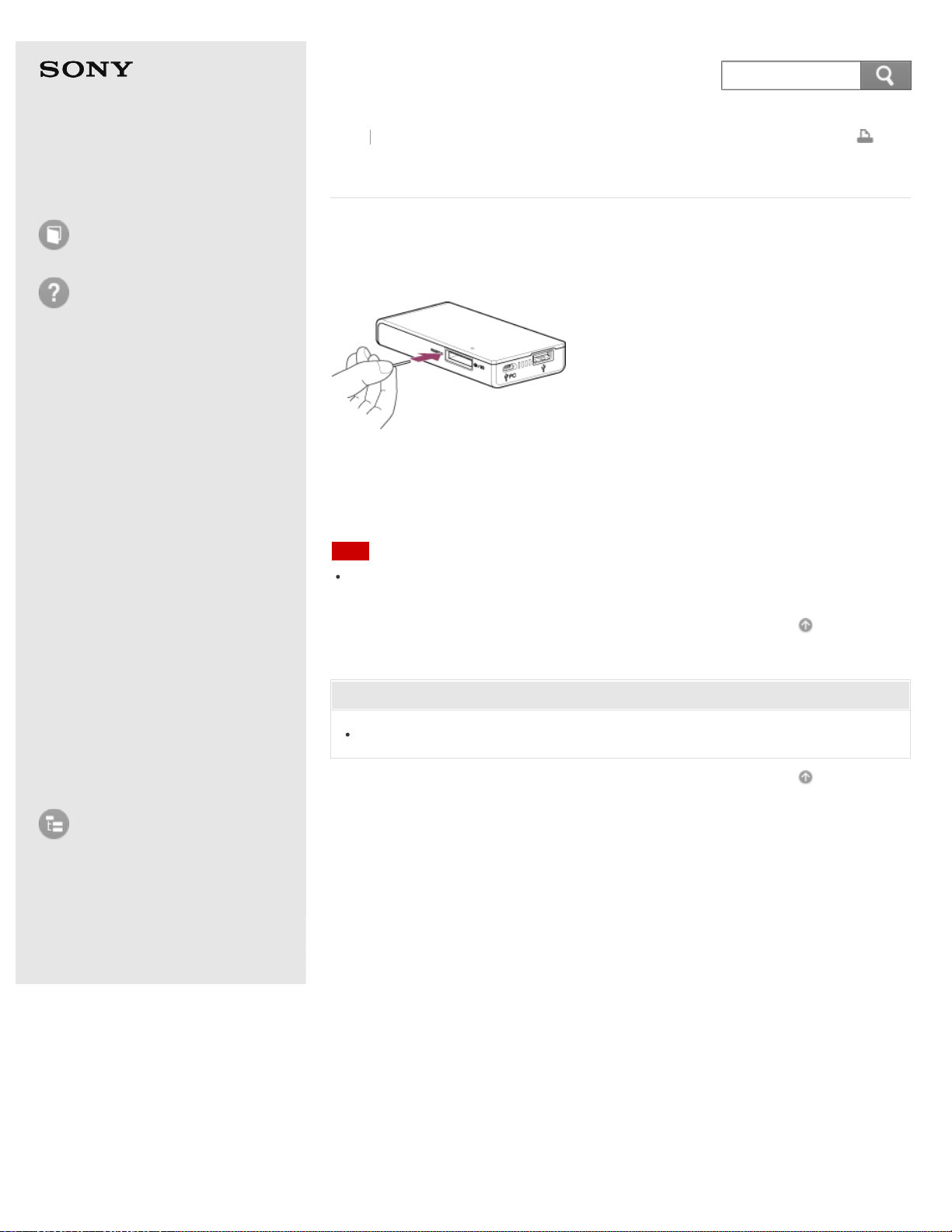
Help Guide
How to use
Troubleshooting
Main unit
Charging
Supplying power
Wireless LAN connection
File operation
Supported memory cards
and devices
USB connection to a
computer
"PWS Manager"
Additional Information
Troubleshooting
Certified devices
List of Topics
Print
Portable Wireless Server
WG-C10
How can I use the RESET switch?
If this unit is not working normally, press the RESET switch using a non-metal
pointed object to restart this unit or restore the factory defaults.
Press momentarily (approx. 1 second): The unit restarts.
Press and hold (more than approx. 10 seconds): The factory defaults are restored.
Note
Since all settings on this unit will be initialized, it is recommended that you take
notes of settings before restoring the factory defaults.
Go to Page Top
Related Topic
Parts and controls
Go to Page Top
Back Back to Top
4-468-627-14(1)
© 2013 Sony Corporation Notes on use
293
Search
Help Guide
How to use
Troubleshooting
Main unit
Charging
Supplying power
Wireless LAN connection
File operation
Supported memory cards
and devices
USB connection to a
computer
"PWS Manager"
Additional Information
Troubleshooting
Certified devices
List of Topics
Print
Portable Wireless Server
WG-C10
Is the security setting necessary?
Setting security is extremely important when using devices equipped with the
wireless LAN function.
If the security is not set, it is possible for this unit to be accessed from any
compatible device within the communication range.
To protect your data, be sure to set up the security.
Go to Page Top
Related Topic
Setting the Wi-Fi security using "PWS Manager" (Android device)
Setting the Wi-Fi security using "PWS Manager" (iOS device)
Setting up the security
Go to Page Top
Back Back to Top
4-468-627-14(1)
© 2013 Sony Corporation Notes on use
294
Search
Help Guide
How to use
Troubleshooting
Main unit
Charging
Supplying power
Wireless LAN connection
File operation
Supported memory cards
and devices
USB connection to a
computer
"PWS Manager"
Additional Information
Troubleshooting
Certified devices
List of Topics
Print
Portable Wireless Server
WG-C10
What security settings are available for wireless LAN
of this unit?
WEP, WPA, or WPA2 can be selected.
It is strongly recommended to use WPA2, since its security level is high.
Go to Page Top
Related Topic
Setting the Wi-Fi security using "PWS Manager" (Android device)
Setting the Wi-Fi security using "PWS Manager" (iOS device)
Setting up the security
Go to Page Top
Back Back to Top
4-468-627-14(1)
© 2013 Sony Corporation Notes on use
295
Search
Help Guide
How to use
Troubleshooting
Main unit
Charging
Supplying power
Wireless LAN connection
File operation
Supported memory cards
and devices
USB connection to a
computer
"PWS Manager"
Additional Information
Troubleshooting
Certified devices
List of Topics
Print
Portable Wireless Server
WG-C10
I have forgotten the password.
Press the RESET switch using a non-metal pointed object for over 10 seconds
to restore the factory defaults.
Note
Since all settings on this unit will be initialized, it is recommended that you take
notes of settings before restoring the factory defaults.
Go to Page Top
Related Topic
How can I use the RESET switch?
Go to Page Top
Back Back to Top
4-468-627-14(1)
© 2013 Sony Corporation Notes on use
296
Search

Help Guide
How to use
Troubleshooting
Main unit
Charging
Supplying power
Wireless LAN connection
File operation
Supported memory cards
and devices
USB connection to a
computer
"PWS Manager"
Additional Information
Troubleshooting
Certified devices
List of Topics
Print
Portable Wireless Server
WG-C10
About update of the system software of this unit
(using smartphone/tablet)
Distribution of the latest system software is done by updating "PWS Manager."
Check the update status of the application periodically to make sure the latest
version is being used.
Go to Page Top
Related Topic
Updating the system software (Android device)
Updating the system software (iOS device)
Go to Page Top
Back Back to Top
4-468-627-14(1)
© 2013 Sony Corporation Notes on use
297
Search
Help Guide
How to use
Troubleshooting
Main unit
Charging
Supplying power
Wireless LAN connection
File operation
Supported memory cards
and devices
USB connection to a
computer
"PWS Manager"
Additional Information
Troubleshooting
Certified devices
List of Topics
Print
Portable Wireless Server
WG-C10
Update of the system software of this unit fails
(using smartphone/tablet).
Update cannot be done if the battery charge is low. Confirm that the battery
charge remains 60% or more and then perform update. See the following items
for how to check the remaining battery charge.
Android device: Checking the remaining battery level (Android device)
iOS device: Checking the remaining battery level (iOS device)
Do not press the RESET switch or (Power) button while updating.
Do not do the following while updating.
Insert/Eject a memory card or USB flash drive
Connect to a computer via USB
Connect the USB AC adaptor
Disconnect the USB AC adaptor
Allow access from other users
The wireless LAN indicator lamp blinks orange and red alternately while the
system software is being updated.
Update the system software in a location where communication conditions are
stable.
Go to Page Top
Related Topic
Charging from a computer
Charging with a USB AC adaptor
Checking the remaining battery level (Android device)
Checking the remaining battery level (iOS device)
LED status indications
Updating the system software (Android device)
Updating the system software (iOS device)
Go to Page Top
Back Back to Top
4-468-627-14(1)
© 2013 Sony Corporation Notes on use
298
Search
Help Guide
How to use
Troubleshooting
Main unit
Charging
Supplying power
Wireless LAN connection
File operation
Supported memory cards
and devices
USB connection to a
computer
"PWS Manager"
Additional Information
Troubleshooting
Certified devices
List of Topics
Print
Portable Wireless Server
WG-C10
About update of the system software of this unit
(using computer)
Obtain the latest system software from the following website. Check the update
status periodically to make sure the latest version is being used.
http://www.sony.net/pws/
Go to Page Top
Related Topic
Updating the system software
Go to Page Top
Back Back to Top
4-468-627-14(1)
© 2013 Sony Corporation Notes on use
299
Search
Help Guide
How to use
Troubleshooting
Main unit
Charging
Supplying power
Wireless LAN connection
File operation
Supported memory cards
and devices
USB connection to a
computer
"PWS Manager"
Additional Information
Troubleshooting
Certified devices
List of Topics
Print
Portable Wireless Server
WG-C10
Update of the system software of this unit fails
(using computer).
Update cannot be done if the battery charge is low. Confirm that the battery
charge remains 60% or more with the battery indicator lamp and then perform
update.
Do not press the RESET switch or (Power) button while updating.
Do not do the following while updating.
Insert/Eject a memory card or USB flash drive
Connect to a computer via USB
Connect the USB AC adaptor
Disconnect the USB AC adaptor
Allow access from other users
The wireless LAN indicator lamp blinks amber and red alternately while the
system software is being updated.
Update the system software in a location where communication conditions are
stable.
Check the usage environment and perform the update again from the
beginning.
Go to Page Top
Related Topic
Charging from a computer
Charging with a USB AC adaptor
Setting automatic power off
LED status indications
Updating the system software
Go to Page Top
Back Back to Top
4-468-627-14(1)
© 2013 Sony Corporation Notes on use
300
Search
Help Guide
How to use
Troubleshooting
Main unit
Charging
Supplying power
Wireless LAN connection
File operation
Supported memory cards
and devices
USB connection to a
computer
"PWS Manager"
Additional Information
Troubleshooting
Certified devices
List of Topics
Print
Portable Wireless Server
WG-C10
The USB cable cannot be connected to this unit.
The connection is made incorrectly. Note the different plugs on both ends of the
USB cable, and connect the proper plug to each port.
A USB cable with plugs that do not much the ports of this unit is used. Use the
USB cable supplied with this unit.
When connecting iOS devices (*), use the dedicated cable bundled with your
device.
*
iOS device means iPhone, iPad, iPod touch, etc.
Go to Page Top
Back Back to Top
4-468-627-14(1)
© 2013 Sony Corporation Notes on use
301
Search
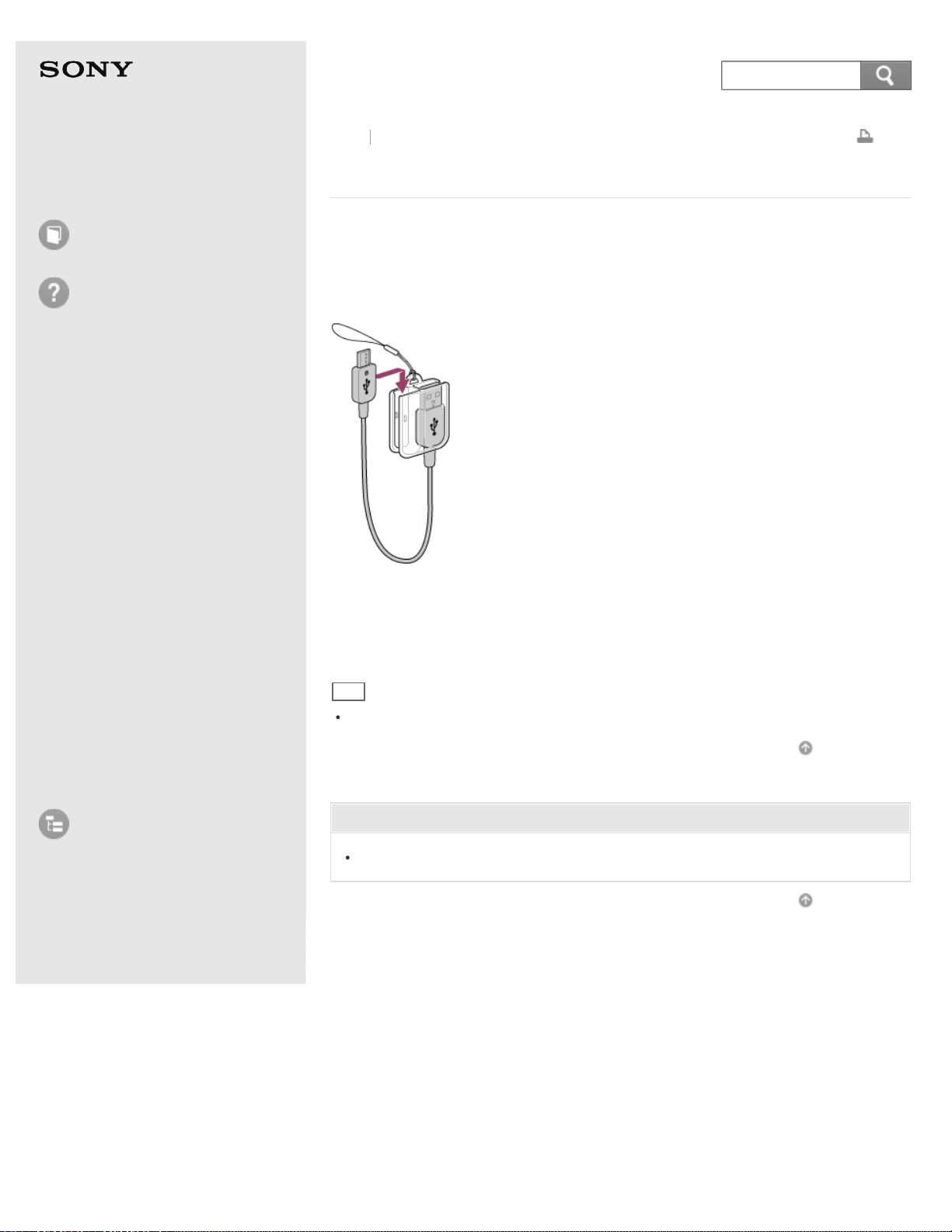
Help Guide
How to use
Troubleshooting
Main unit
Charging
Supplying power
Wireless LAN connection
File operation
Supported memory cards
and devices
USB connection to a
computer
"PWS Manager"
Additional Information
Troubleshooting
Certified devices
List of Topics
Print
Portable Wireless Server
WG-C10
How can I use the USB cable holder?
Attaching the USB cable to the holder
Insert the supplied USB cable into the holder as illustrated below.
Set the cable into the groove of the holder from the side, and pull the cable down
to fit the plug in the holder.
Removing the USB cable from the holder
Hold the bottom end of the USB plug and push it up to remove.
Hint
The holder can be attached to the strap holder for ease of carrying.
Go to Page Top
Related Topic
Parts and controls
Go to Page Top
Back Back to Top
4-468-627-14(1)
© 2013 Sony Corporation Notes on use
302
Search
Help Guide
How to use
Troubleshooting
Main unit
Charging
Supplying power
Wireless LAN connection
File operation
Supported memory cards
and devices
USB connection to a
computer
"PWS Manager"
Additional Information
Troubleshooting
Certified devices
List of Topics
Print
Portable Wireless Server
WG-C10
USB devices cannot be used.
USB devices cannot be used when the USB AC adaptor is connected to this
unit.
Go to Page Top
Back Back to Top
4-468-627-14(1)
© 2013 Sony Corporation Notes on use
303
Search
Help Guide
How to use
Troubleshooting
Main unit
Charging
Supplying power
Wireless LAN connection
File operation
Supported memory cards
and devices
USB connection to a
computer
"PWS Manager"
Additional Information
Troubleshooting
Certified devices
List of Topics
Print
Portable Wireless Server
WG-C10
Troubleshooting
Before taking the portable wireless server for repair, check it as follows.
Check items explained in "How to use" and "Troubleshooting."
Try charging the unit.
Try pressing the RESET switch.
Press momentarily (approx. 1 second): The unit restarts.
Press and hold (more than approx. 10 seconds): The factory defaults are
restored.
When the factory defaults are restored, perform the initial setting again.
If solutions described in the troubleshooting topics fail to resolve the problem,
contact your Sony dealer or local authorized Sony service facility.
Go to Page Top
Back Back to Top
4-468-627-14(1)
© 2013 Sony Corporation Notes on use
304
Search
Help Guide
How to use
Troubleshooting
Main unit
Charging
Supplying power
Wireless LAN connection
File operation
Supported memory cards
and devices
USB connection to a
computer
"PWS Manager"
Additional Information
Troubleshooting
Certified devices
List of Topics
Print
Portable Wireless Server
WG-C10
Certified devices
Smartphones
Tablets
USB AC Adaptor
For details on operation check of devices that can be used with this unit, see the
following website.
http://www.sony.net/pws/
Go to Page Top
Back Back to Top
4-468-627-14(1)
© 2013 Sony Corporation Notes on use
305
Search