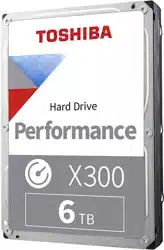

TOSHIBA
Storage Diagnostic Tool
Version 1.11.5824 (20161006)
User’s Manual
Version 01

pg. 2
Notice
The information contained in this manual, including but not limited to any product specifications, is subject to change
without notice.
TOSHIBA CORPORATION AND ITS AFFILIATES (“TOSHIBA”) PROVIDE NO WARRANTY WITH REGARD TO THIS
MANUAL OR ANY OTHER INFORMATION CONTAINED HEREIN AND HEREBY EXPRESSLY DISCLAIM ANY IMPLIED
WARRANTIES OF MERCHANTABILITY OR FITNESS FOR ANY PARTICULAR PURPOSE WITH REGARD TO ANY OF
THE FOREGOING. TOSHIBA ASSUMES NO LIABILITY FOR ANY DAMAGES INCURRED DIRECTLY OR INDIRECTLY
FROM ANY TECHNICAL OR TYPOGRAPHICAL ERRORS OR OMISSIONS CONTAINED HEREIN OR FOR
DISCREPANCIES BETWEEN THE PRODUCT AND THE MANUAL. IN NO EVENT SHALL TOSHIBA BE LIABLE FOR
ANY INCIDENTAL, CONSEQUENTIAL, SPECIAL, OR EXEMPLARY DAMAGES, WHETHER BASED ON TORT,
CONTRACT OR OTHERWISE, ARISING OUT OF OR IN CONNECTION WITH THIS MANUAL OR ANY OTHER
INFORMATION CONTAINED HEREIN OR THE USE THEREOF.
DISCLAIMER
We assume no responsibility whatsoever for any damage or loss resulting from the use of this application. THIS
APPLICATION IS PROVIDED "AS IS" WITHOUT WARRANTIES OF ANY KIND. WITHOUT LIMITING THE FOREGOING,
TOSHIBA DISCLAIMS ALL WARRANTIES AND REPRESENTATIONS OF ANY KIND RELATING TO THE
APPLICATION, WHETHER EXPRESS, IMPLIED, OR STATUTORY, INCLUDING WITHOUT LIMITATION THE IMPLIED
WARRANTIES OF MERCHANTABILITY, FITNESS FOR A PARTICULAR PURPOSE, ACCURACY, OR
NONINFRINGEMENT OF THIRD PARTY RIGHTS. TOSHIBA DOES NOT WARRANT THAT THE OPERATION OF THE
APPLICATION WILL BE UNINTERRUPTED, ERROR-FREE, OR SECURE. ANY INSTALLATION AND/OR USE OF THE
APPLICATION SHALL BE AT YOUR OWN RISK.
About Trademarks
Canvio, Canvio AeroCast and Canvio AeroMobile are trademarks of Toshiba America Information Systems, Inc.
Windows is either a registered trademark or trademark of Microsoft Corporation in the United States and/or other countries.
All other brand names and product names are the registered trademarks or trademarks of their respective companies.
pg. 3
Notice .................................................................................................................................................................................... 2
DISCLAIMER ........................................................................................................................................................................ 2
About Trademarks ................................................................................................................................................................. 2
Revision History of Storage Diagnostic Tool ......................................................................................................................... 4
Safety Precautions ................................................................................................................................................................ 5
1. Introduction ............................................................................................................................................................... 7
2. System Requirements .............................................................................................................................................. 8
3. Diagnostic Tool Usage ............................................................................................................................................ 10
4. Summary ................................................................................................................................................................ 11
5. Drive Information .................................................................................................................................................... 12
6. Diagnostic Scan ...................................................................................................................................................... 13
7. Zero Filling Function ............................................................................................................................................... 16
Need Help? ......................................................................................................................................................................... 19
Information
Describes functions, restrictions, and matters for reference.
Note
Describes additional instructions and notes.
Contents
Explanation of marks in this document
pg. 4
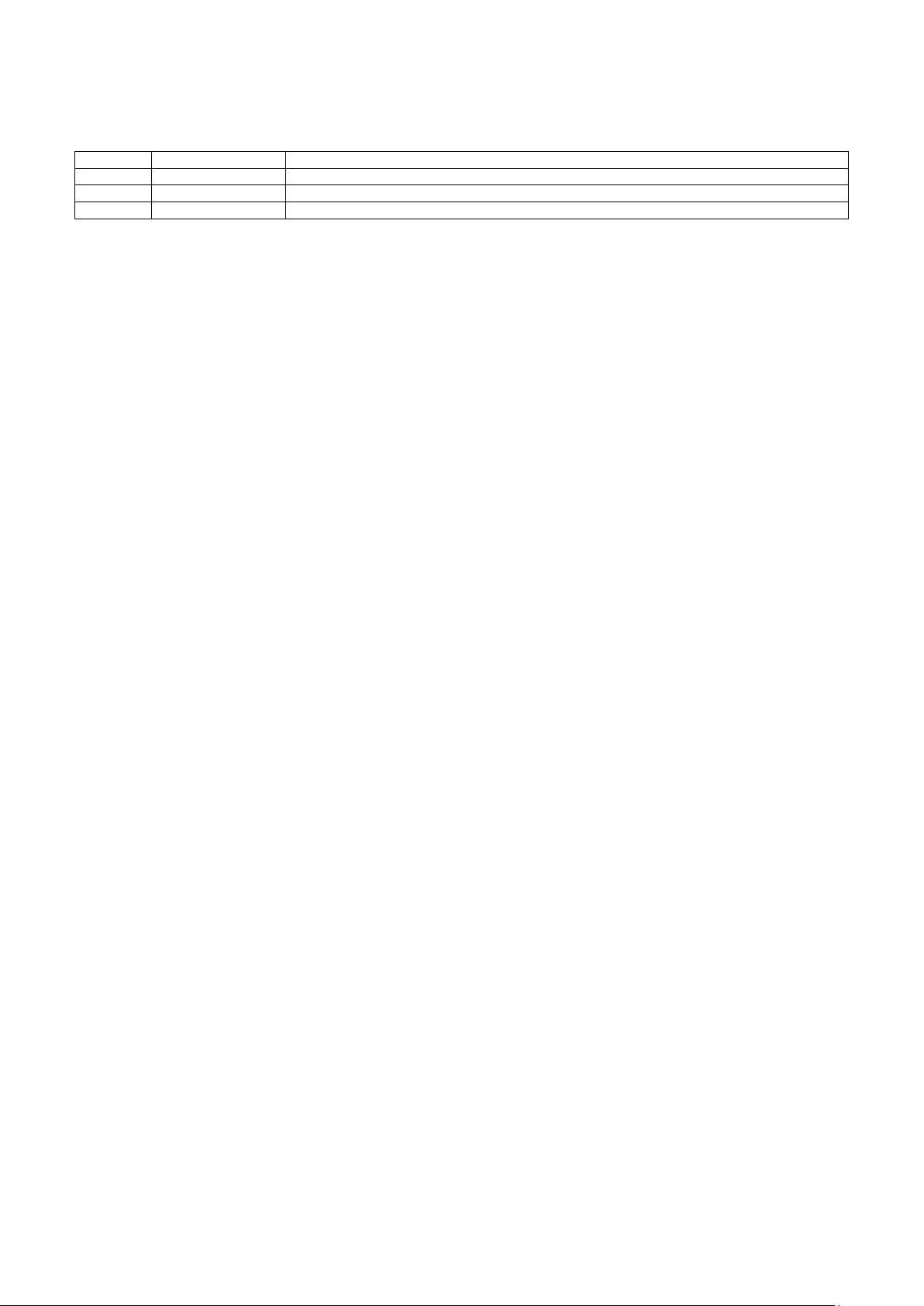
Revision History of Storage Diagnostic Tool
Version
Revision Date
Description
01
December 2016
Initial version
pg. 5
Safety Precautions
This section lists important precautions which users of our product(s) (and anyone else) should observe in order to avoid
injury to human body and damage to property and to ensure safe and correct use of our products. Please be sure that you
understand the meanings of the labels and graphic symbols described below before you move on to the detailed
descriptions of the precautions, and comply with the precautions stated.
Explanation of Labels
Indicates practices that may cause property damage
1
and other problems, but not personal injury
1. Property damage is defined as damage to a customer or third party’s machines and equipment.
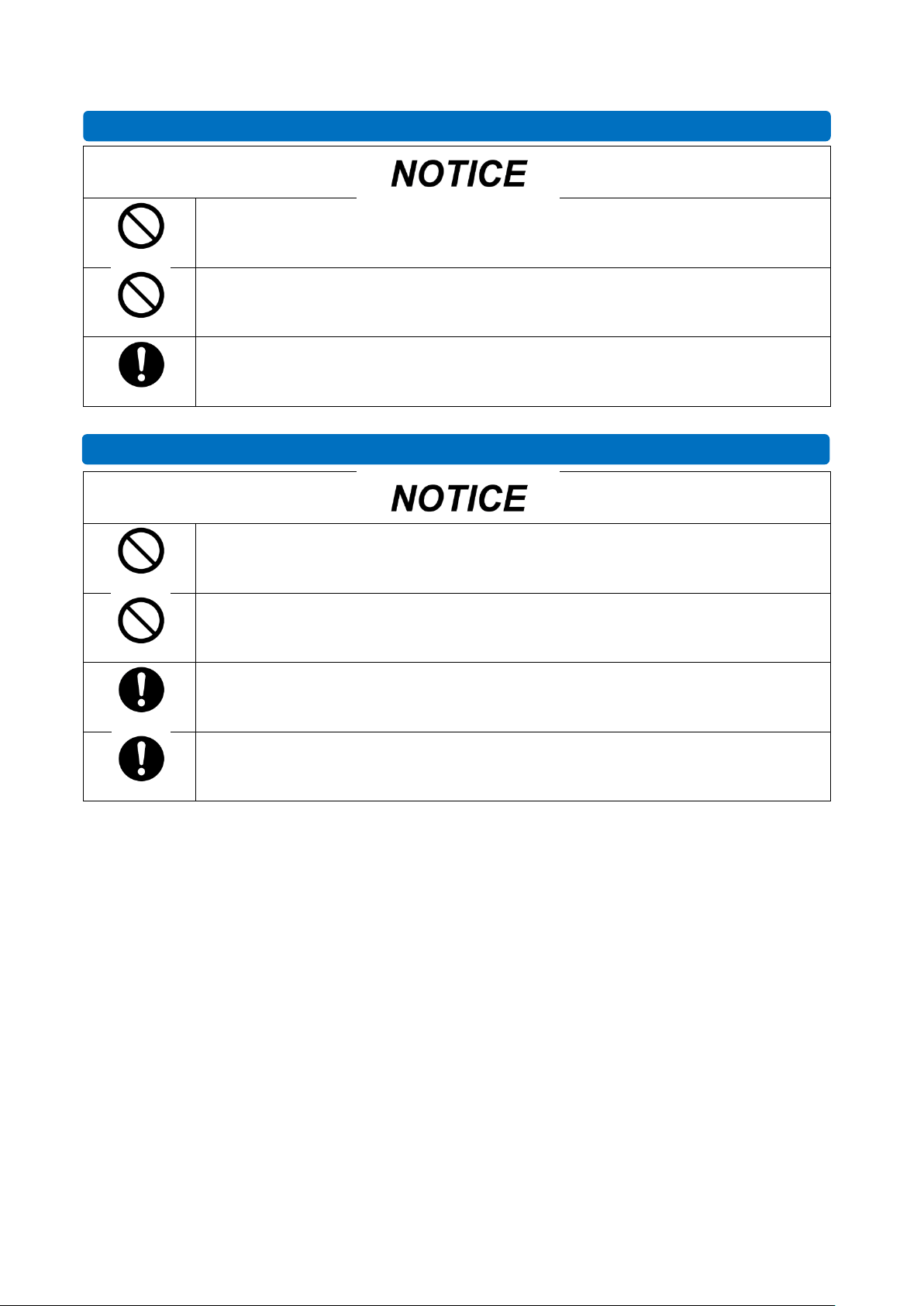
Explanation of Graphic Symbols
Prohibited
Instructions
Indicates prohibited actions.
Indicates actions that must be undertaken for safety
purposes.
pg. 6
Prohibited
Do not remove the drive from your system while the system is powered on. It may cause damage to
the drive.
Prohibited
Do not change any configuration files of this application. To do so could harm your system.
Instructions
If your system or the TOSHIBA Storage Diagnostic Tool is terminated abnormally while TOSHIBA
Storage Diagnostic Tool is running, your system or the drive may be damaged or data may be lost.
Please backup your data before you use the TOSHIBA Storage Diagnostic Tool.
Prohibited
Do not power off while the Diagnostic Scan or Zero Filling function is running as this could corrupt
the drive or your system.
Prohibited
Do not run the Diagnostic Scan or Zero Filling function on a battery driven system. Be sure to supply
power to the system via the AC adapter.
Instructions
Be sure to backup of your data before running Zero Filling function because data overwritten by
Zero Filling function cannot be recovered.
Instructions
If your system or the TOSHIBA Storage Diagnostic Tool is terminated abnormally while Zero Filling
function is running, the drive may be in the password protection state or the password lock state. If
the drive is in the password protection state or the password lock state, please contact a support
center.
Use of Diagnostic Scan and Zero Filling Function
General Use

pg. 7
1. Introduction
This manual describes the procedure for using TOSHIBA Storage Diagnostic Tool (hereinafter “Diagnostic Tool”).
Please read carefully the DISCLAIMER and Safety Precautions section before using the Diagnostic Tool application.
The Diagnostic Tool is software for the diagnostic scan of TOSHIBA External HDD, Internal HDD and Internal SSD
(hereafter “TOSHIBA Storage”).
The Diagnostic Tool provides the following features:
Diagnostic Scan
Scans all or part of the TOSHIBA Storage for read errors
Zero Filling Function
Overwrites the whole user data area with zeros data pattern on the TOSHIBA Storage.
pg. 8
2. System Requirements
Diagnostic Tool requires the following:
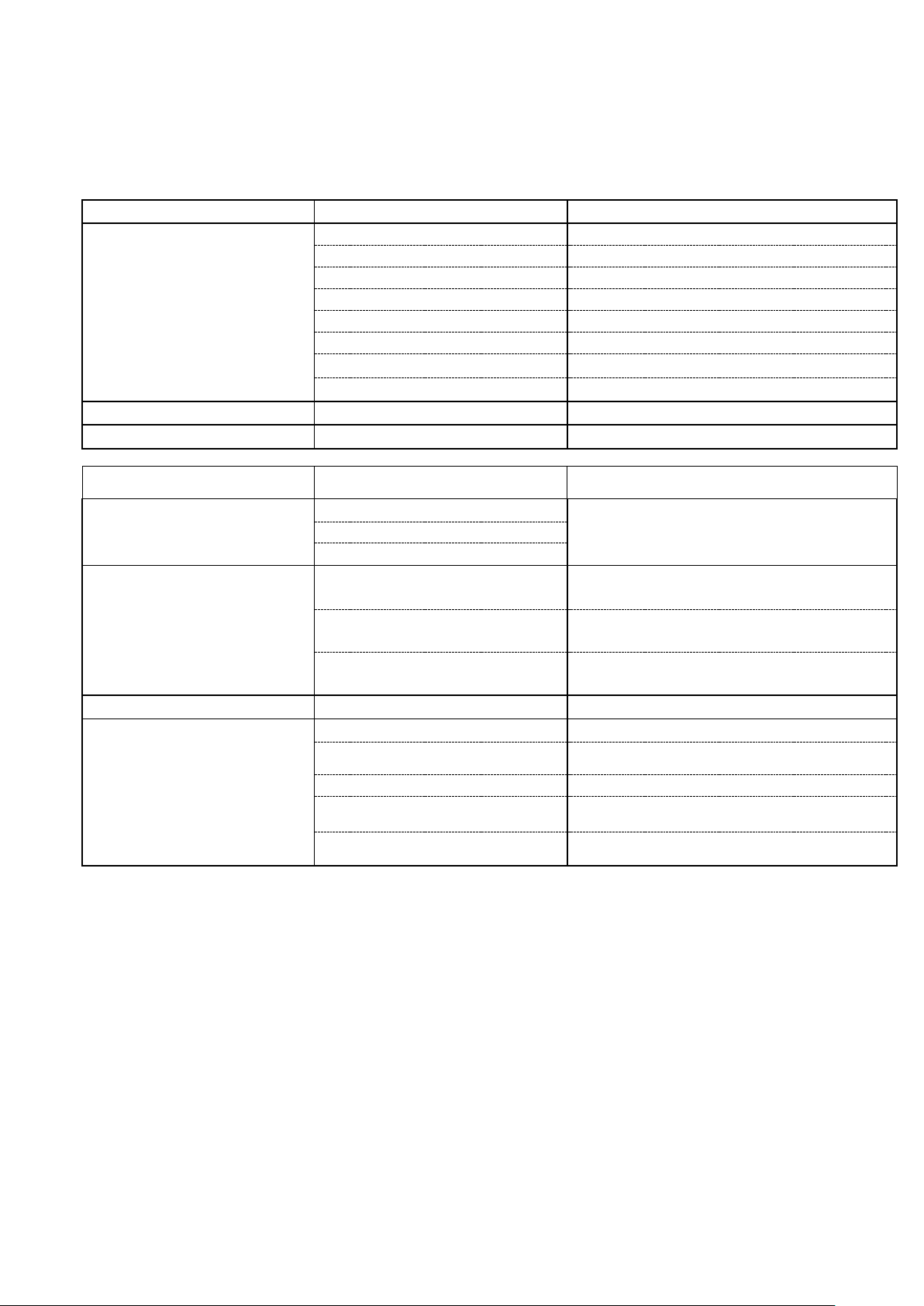
a) Supported Toshiba Storage
External Drive
Series
Parts Number (P/N)
USB3.0 Hard Drive
CANVIO
®
CONNECT
HDTC7******* / HDTC8*******
CANVIO
®
PREMIUM
HDTW1*******
CANVIO
®
BASICS
HDTB3*******
CANVIO
®
READY
HDTP2*******
CANVIO
®
SLIM
HDTD1******* / HDTD2*******
CANVIO
®
ALU / CANVIO
®
ALUMY
HDTH3*******
CANVIO
®
DESK
HDWC1******* / HDWC2*******
CANVIO
®
for Desktop
HDWC3*******
Wireless Portable Hard Drive
CANVIO AeroCast
®
HDTB3*******
Wireless Solid State Drive
CANVIO AeroMobile
TM
HDTQ1*******
Internal Drive
Series
Model Number on the label (The part number
printed on the bottom of packaging box)
2.5-inch Internal Hard Drive
Mobile Hard Drive L200
HDWJ1** (HDWJ1***ZSTA)
Mobile Internal Hard Drive L200
Slim Mobile Internal Hard Drive L200
3.5-inch Internal Hard Drive
Low-Energy Hard Drive E300
HDWA1** (HDWA1***ZSTA)
Desktop Internal Hard Drive E300
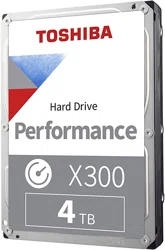
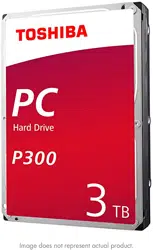
High-Performance Hard Drive P300
HDWD1** (HDWD1***ZSTA)
Desktop Internal Hard Drive P300
High-Performance Hard Drive X300
HDWE1** (HDWE1***ZSTA)
Desktop Internal Hard Drive X300
2.5-inch Internal Hybrid Drive
High-Performance Hybrid Drive H200
HDWM1** (HDWM1***ZSTA)
2.5-inch Internal Solid State Drive
Solid-State Drive PC Upgrade Kit
THNSNH***GBST (HDTS2***ZSTA)
PC Internal Solid-State Drive
Q Series Pro
HDTS3** (HDTS3***ZSTA)
Solid State Drive Q200 EX
HDTS6** (HDTS6**ZSTA)
Solid State Drive Q300
HDTS7** (HDTS8***ZSTA) /
HDTS8** (HDTS8***ZSTA)
Solid State Drive Q300 Pro
HDTS4** (HDTS4***ZSTA) /
HDTSA** (HDTSA***ZSTA)
Note: An asterisk mark (*) is an alphanumeric character.
pg. 9
b) Supported Hardware
Computers that satisfy the requirements of a supported operating system.
Interface: USB 3.0 / USB 2.0 / Serial ATA
c) Disk Space
4.92 MB of available disk space
d) Supported Operating Systems
Windows 10 Version 1507 / 1511 (32 bit / 64 bit)
Windows 8.1 (32 bit / 64 bit)
Windows
®
7 (32 bit / 64 bit) with SP1
e) Screen Resolution
32 bits color and greater than 800 x 600 pixels
Information
When DPI size is set at more than 100%, the Diagnostics Tool application window may not be
displayed properly.
Note
Power management controls need to be disabled while the Diagnostics Tool is running in case
the system is in a Stand-By or Hibernate mode.
pg. 10
3. Diagnostic Tool Usage
3.1. Preparing the Diagnostics Tool
Save the “ToshibaStorageDiagnosticTool.exe” to a folder on your computer.
Note
Requires username and password of administrator account in order to be saved by a general
user.
3.2. Starting the Diagnostic Tool
You can start the Diagnostic Tool application by the following ways:
Note
Requires username and password of administrator account in order to be started by
a general user.
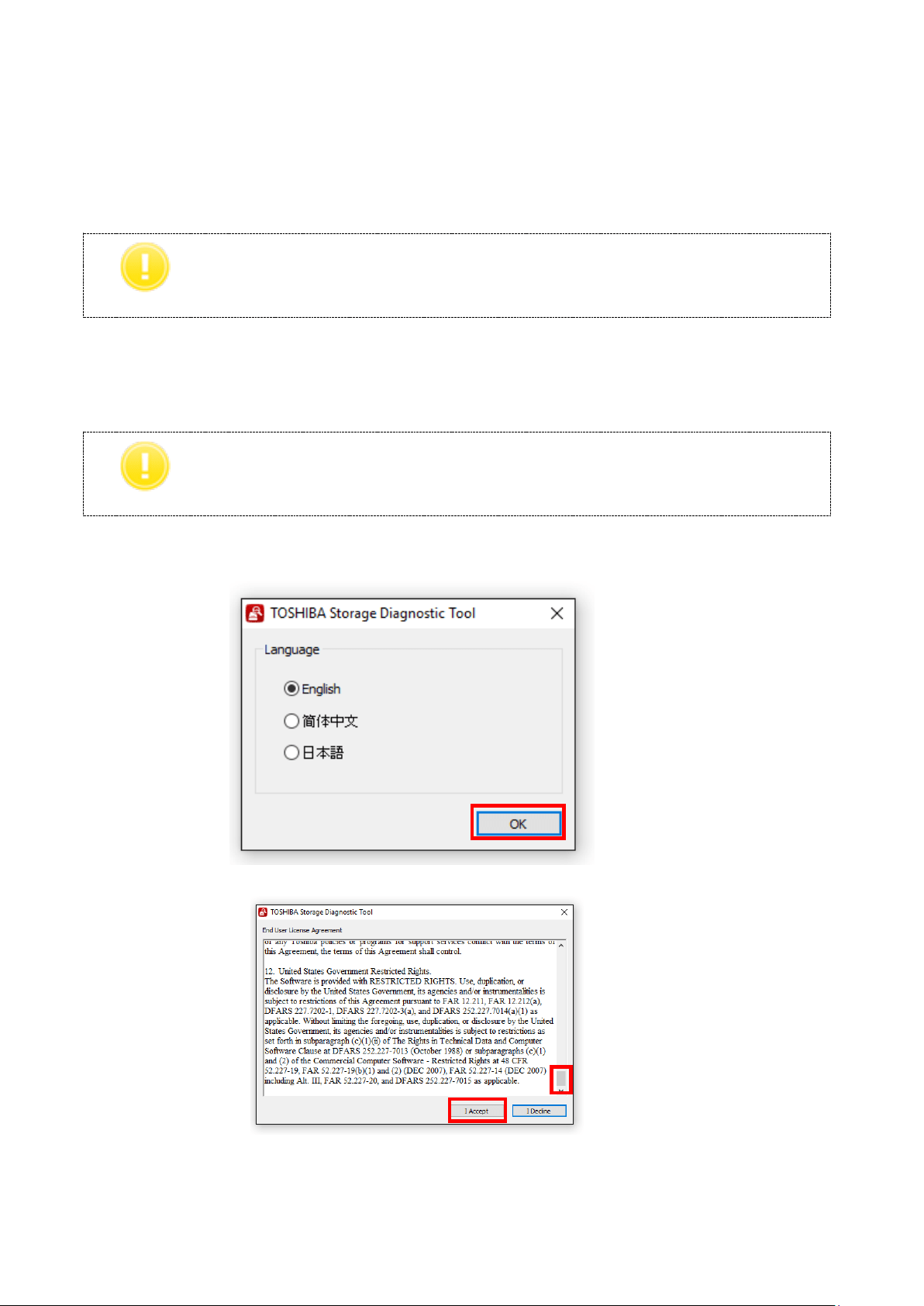
1) Double-click the “ToshibaStorageDiagnosticTool.exe”.
2) Select language and click “OK”.
3) Review the “End User License Agreement” using the scroll bar. If you agree with it, click “I Accept”.
4) Finish.
pg. 11
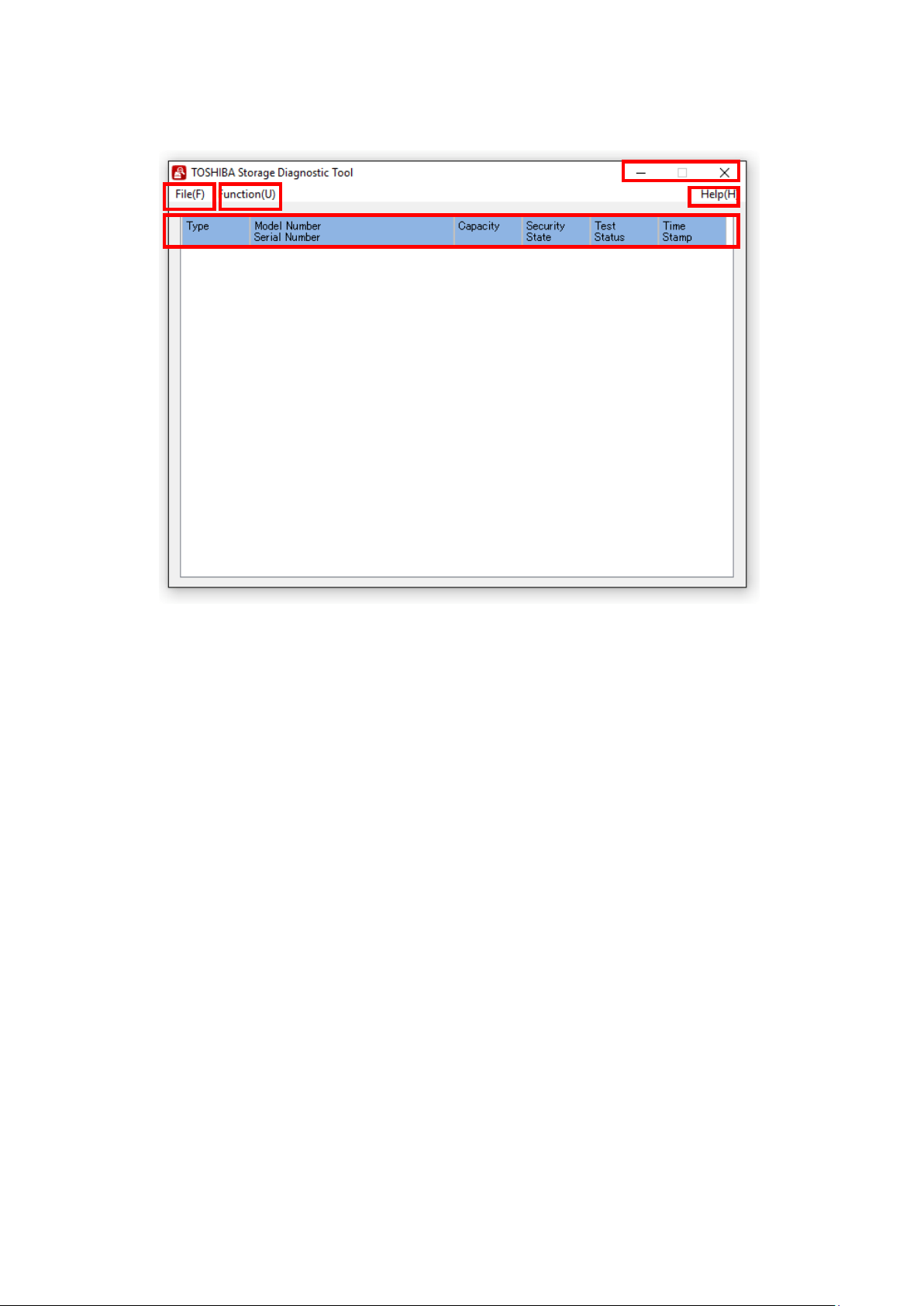
4. Summary
1) File(F)
Refresh : Refresh of Drive.
View Log : Displays log file (diag_result_log.txt).
Exit : Closes Diagnostic Tool application.
2) Function(U)
Start/Stop Diagnostic Scan : Goes to the Diagnostic Scan screen (See 6. Diagnostic Scan) .
Start/Stop Zero Filling : Goes to the Zero Filling screen (See 7. Zero Filling).
3) Drive Information : Displays Drive Information (See 5. Drive Information).
4) Help(H)
About this tool : Displays version of the Diagnostic Tool application.
End User License Agreement : Displays End User License Agreement.
5) Title Button
_ (Minimize) : Minimizes the Diagnostic Tool application.
X (Exit) : Closes the Diagnostic Tool application.
1
4
2
3
5
pg. 12
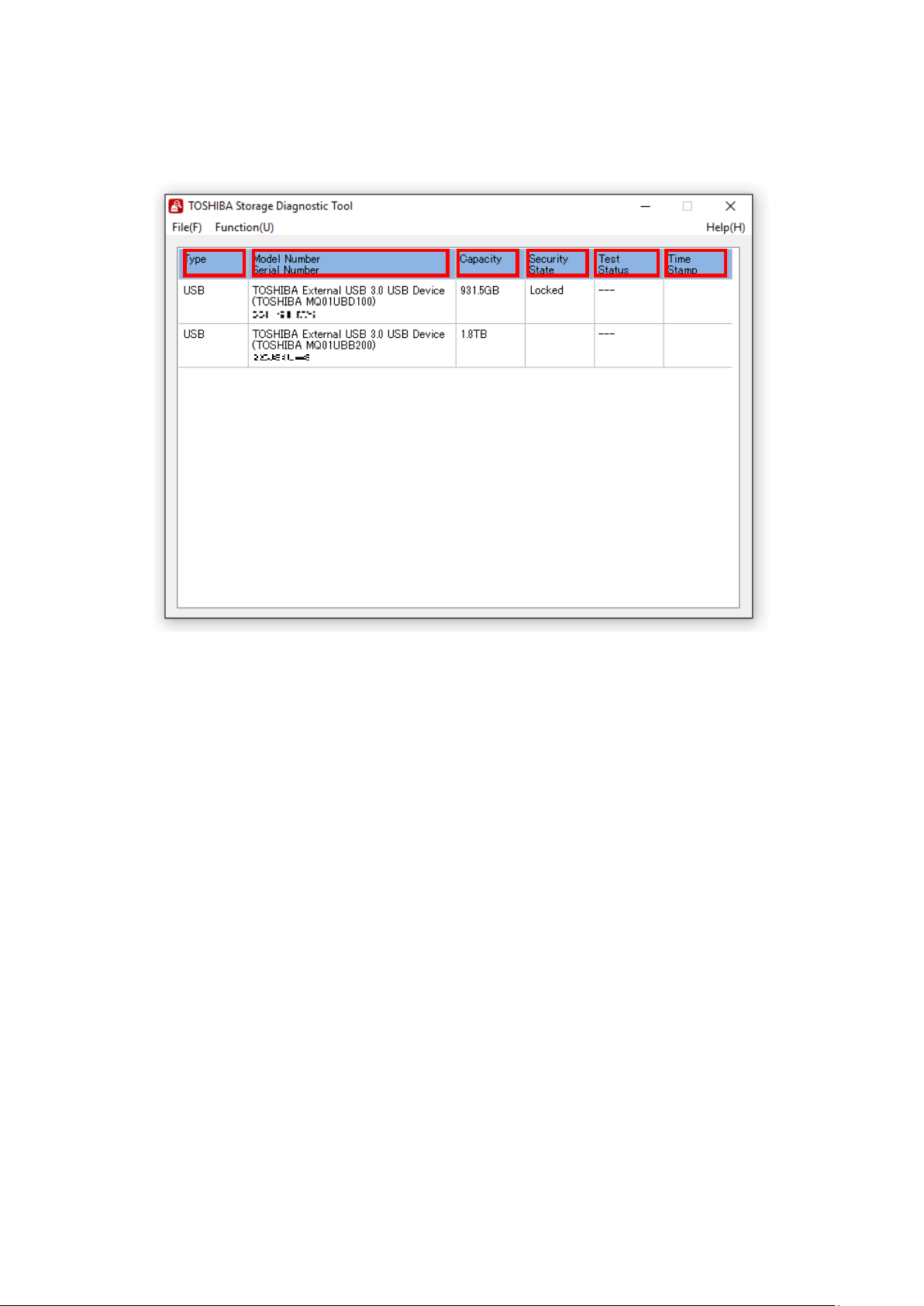
5. Drive Information
Displays the list of all available drives on your system.
1) Type : Displays Interface of Drive.
2) Model Number : <External Hard Drive>
Displays Model Name of the External Hard Drive (Model Number of Internal Hard Drive).
<Internal Hard Drive / Internal Hybrid Drive / Internal Solid State Drive>
Displays Model Number of Internal Hard Drive.
3) Serial Number : Displays Serial Number of the Drive.
4) Capacity : Displays Capacity of Drive
*1.
5) Security Status : Displays Security Status (Unlocked, Locked, Frozen or Blank).
6) Test Status : Displays the test result of the Diagnostic Scan or the Zero Filling.
Displays the ratio of task while the Diagnostic Scan or the Zero Filling is running.
7) Time Stamp : Displays the end time of the Diagnostic Scan or the Zero Filling.
Displays the start time of task while the Diagnostic Scan or the Zero Filling is running.
*1 One Gigabyte (1GB) means 10
9
= 1,000,000,000 bytes and one Terabyte (1TB) means 10
12
=1,000,000,000,000 bytes
using powers of 10. A computer operating system, however, reports storage capacity using powers of 2 for the
definition of 1GB = 2
30
=1,073,741,824 bytes and 1TB = 2
40
= 1,099,511,627,776 bytes, and therefore shows
less storage capacity. Available storage capacity (including examples of various media files) will vary based on file size,
formatting, setting, software and operating system and other factors.
TEST SAMPLE
1
2
3
4
5
6
7
pg. 13
6. Diagnostic Scan
The Diagnostic Scan can scan all or part of the TOSHIBA Storage for read errors.
There are two kinds of the Diagnostic Scan: Quick Scan and Full Scan.
The Quick Scan runs self-test routine on one part of the drive. Typically, it takes several minutes to complete a Quick Scan.
The Full Scan runs self-test routine on the whole drive. Typically, it may take several hours or more to complete a Full
Scan. The result of executing the Diagnostic Scan can be viewed in “Test Status”.
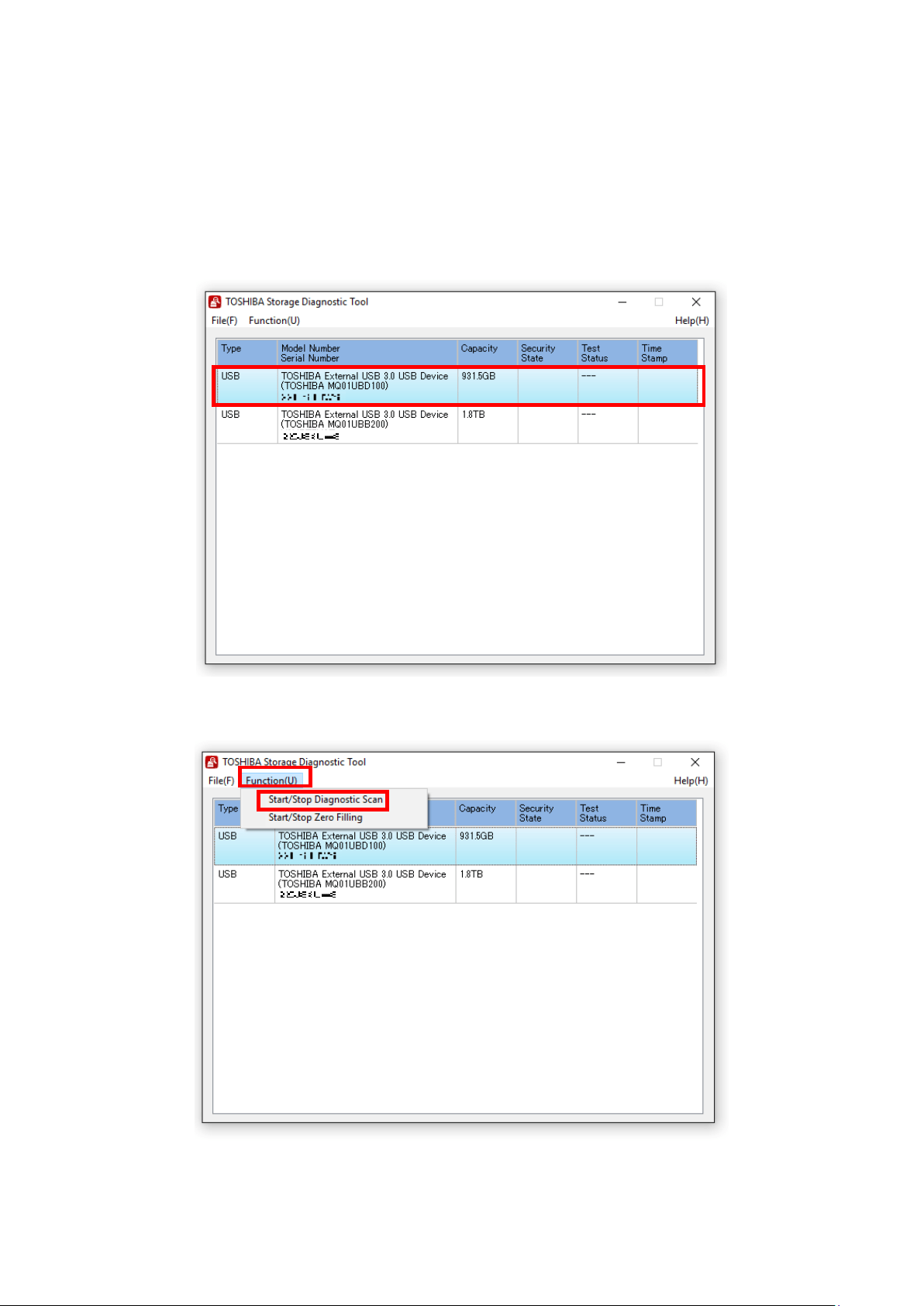
1) Display the list of all available drives on your system. In the Drive list, click the drive that you want to scan.
2) Click “Function(U)” and click “Start/Stop Diagnostics Scan”.
TEST SAMPLE
TEST SAMPLE
pg. 14
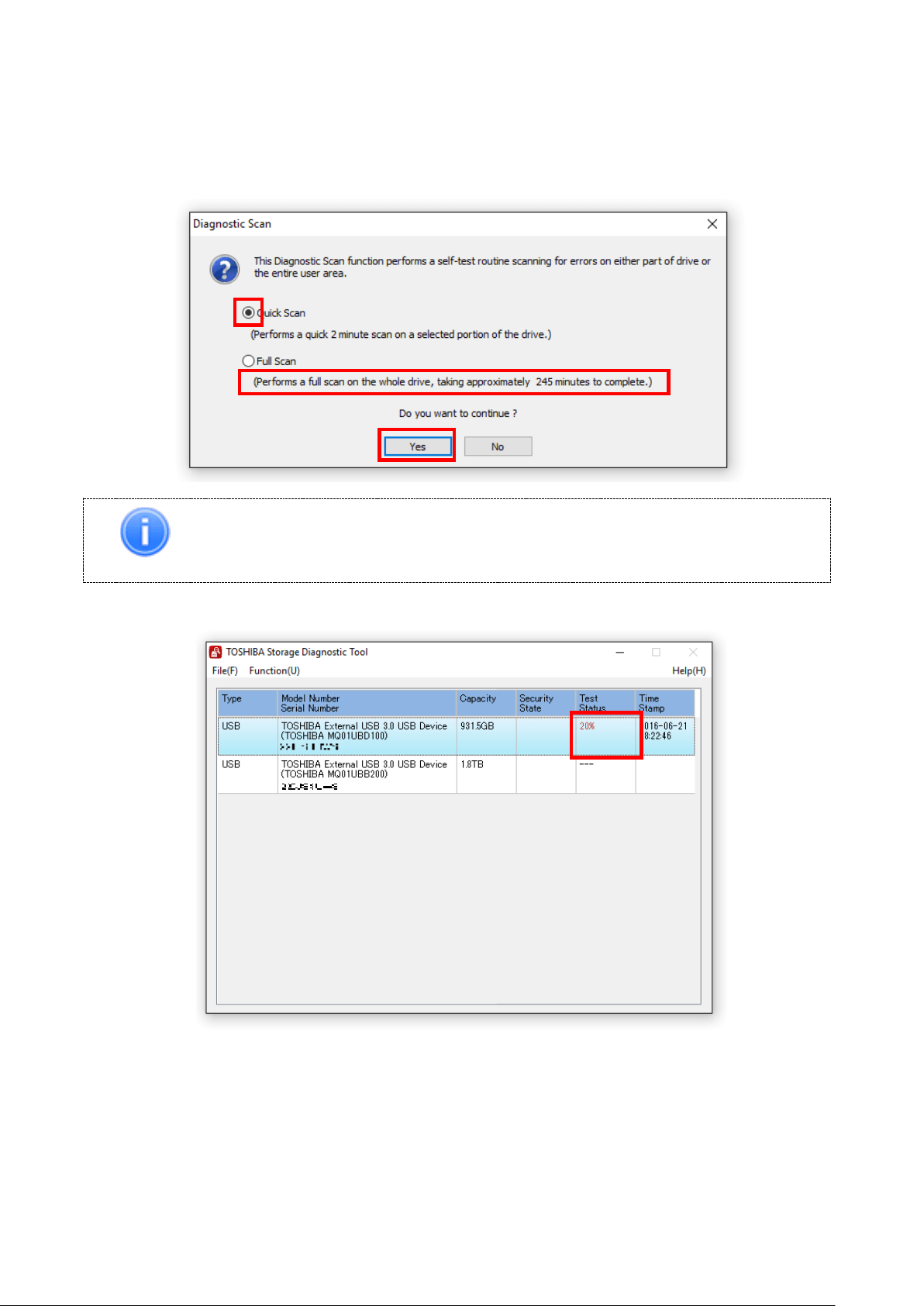
3) Select “Quick Scan” or “Full Scan” then click “Yes” to scan the selected drive.
・Quick Scan : Check this option to run self-test routine on one part of the selected drive.
・Full Scan : Check this option to run self-test routine on all of the selected drive.
Full Scan will be displayed the estimated required time.
Information
Full Scan time may exceed the estimated required time depending on the operating
conditions.
In “Test Status”, displays ratio of scanning task.
TEST SAMPLE
TEST SAMPLE
pg. 15
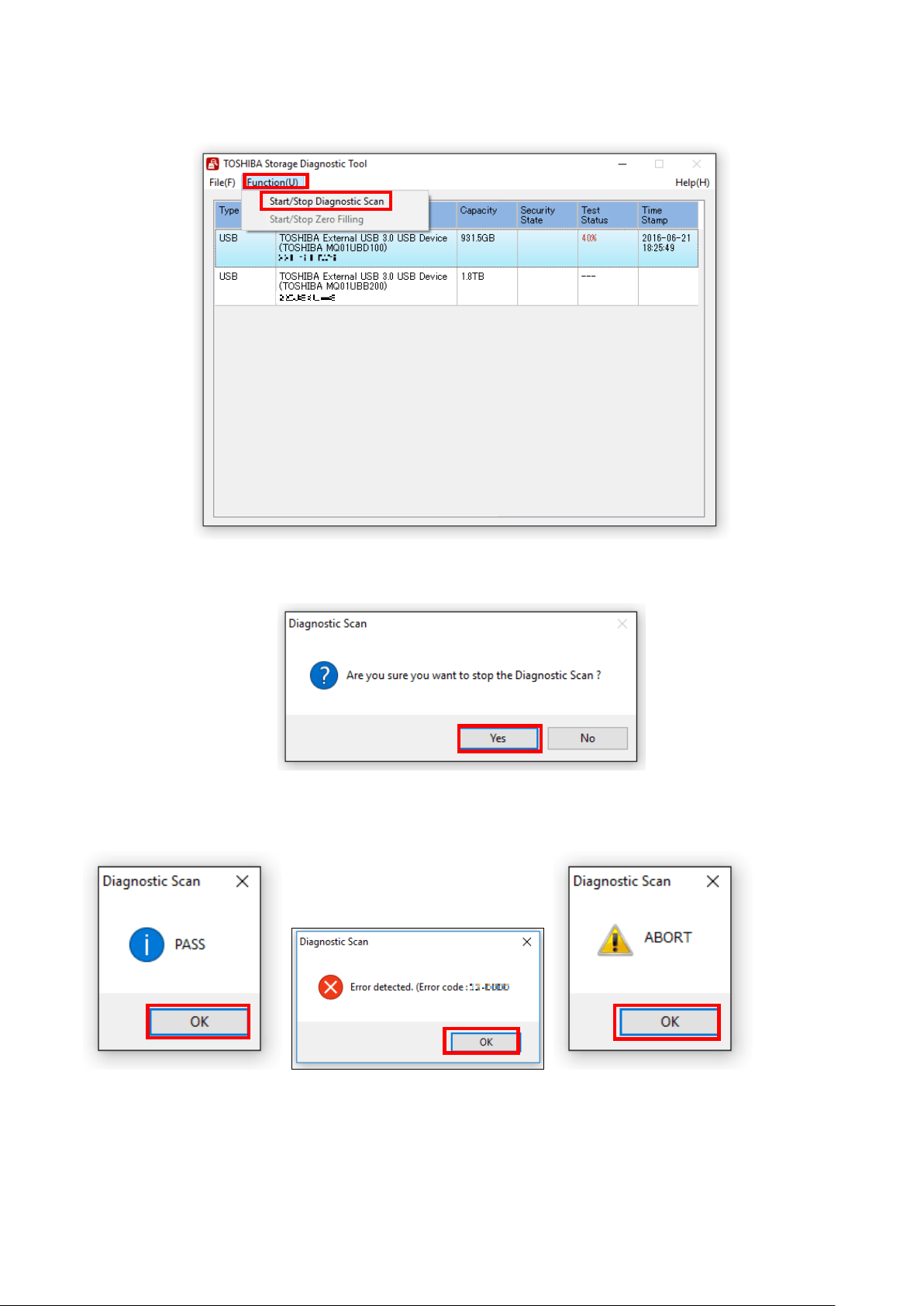
4) During execution of the scan, if you would like to stop the scan process, click “Start/Stop Diagnostics Scan”.
Click “Yes” to stop the scan process.
5) “PASS” or “Error detected.” is displayed when the scan is terminated normally. “ABORT” is displayed if you stop the
scan process, and click “OK” to finish.
TEST SAMPLE
pg. 16
7. Zero Filling Function
The Zero Filling function overwrites the whole user data are with zero data pattern on the selected drive.
This process takes longer, and the completion time depends on the capacity and the condition of the drive.
Please make sure to back up your necessary data before starting the Zero Filling process.
Information
Zero Filling function does not work with the system drive.
Zero Filling function isn't available on drive that the Diagnostic Tool stored.
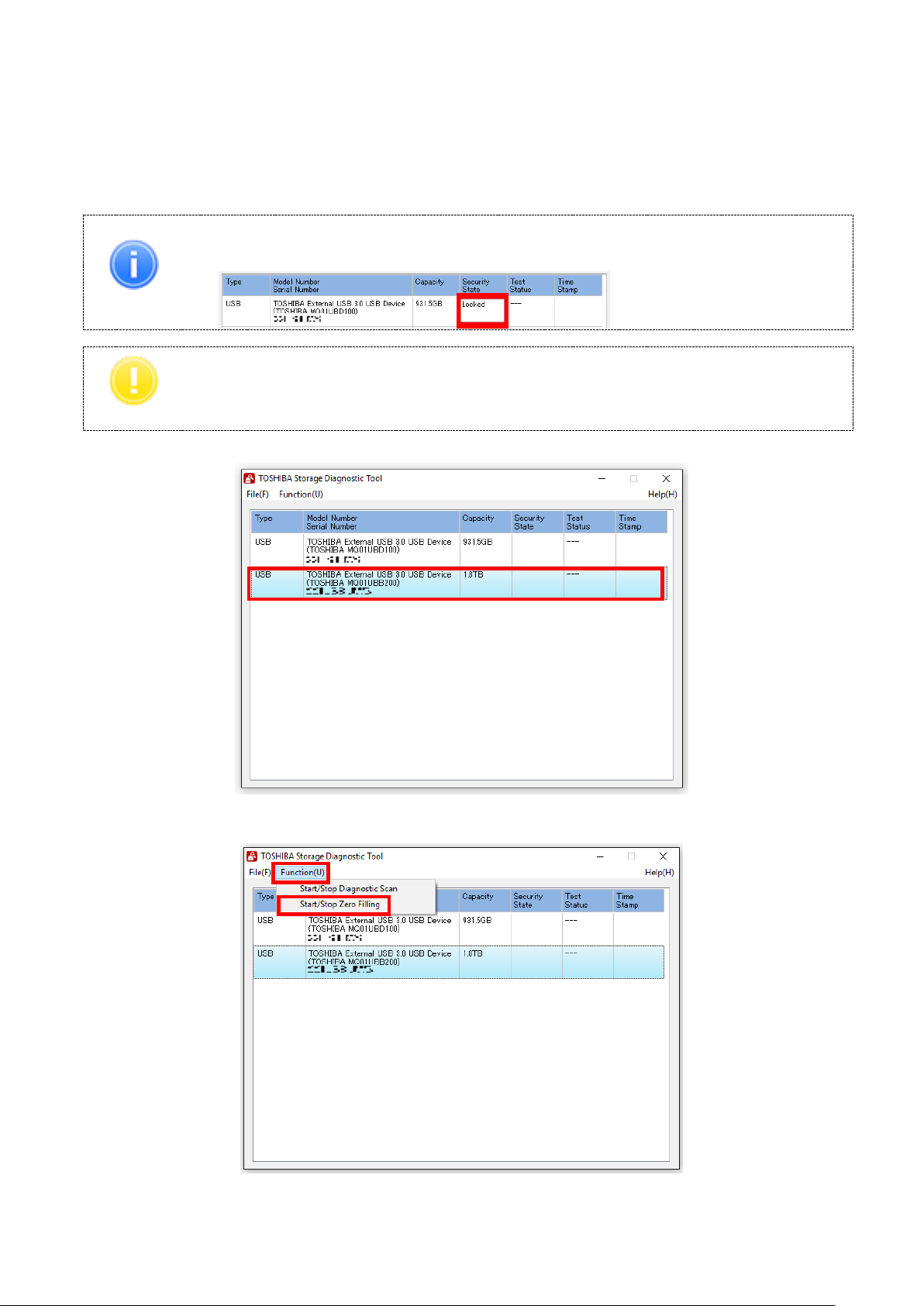
Zero Filling function does not work with the password protection state or the password lock state.
Note
Remove the password protection or the user password on the drive before running the Zero Filling
function. (For information on how to remove the user password on the drive, refer to your system’s
user manual.)
1) On the Drive list, select the drive on which you want to run Zero Filling function.
2) Click “Function(U)” and click “Start/Stop Zero Filling”.
TEST SAMPLE
TEST SAMPLE
pg. 17
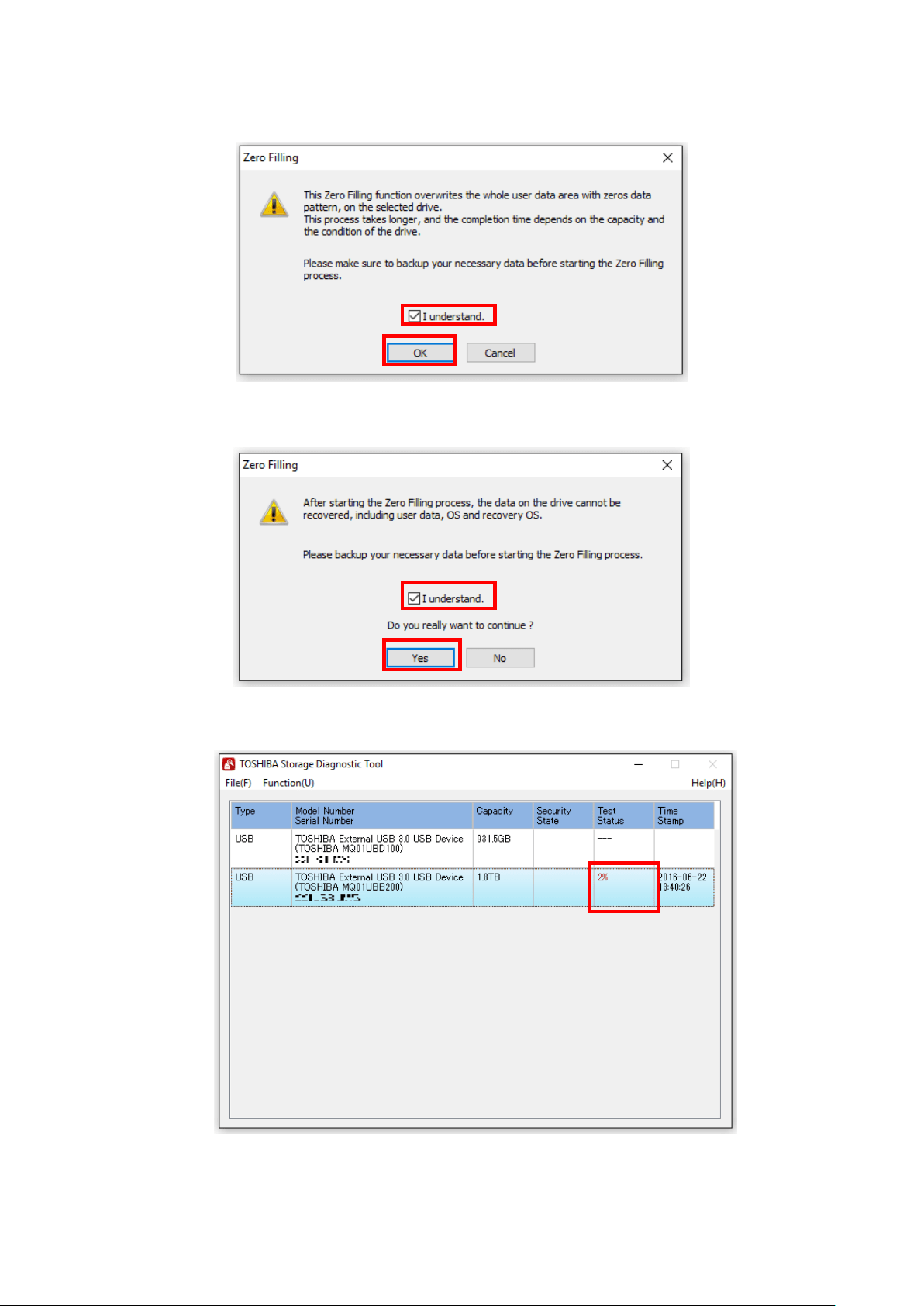
3) If you accept the conditions, check “I understand” and click “Yes”
4) If you accept the conditions, check “I understand” and click “Yes”, and start Zero Filling function.
In “Test Status”, displays ratio of Zero Filling task.
TEST SAMPLE
pg. 18
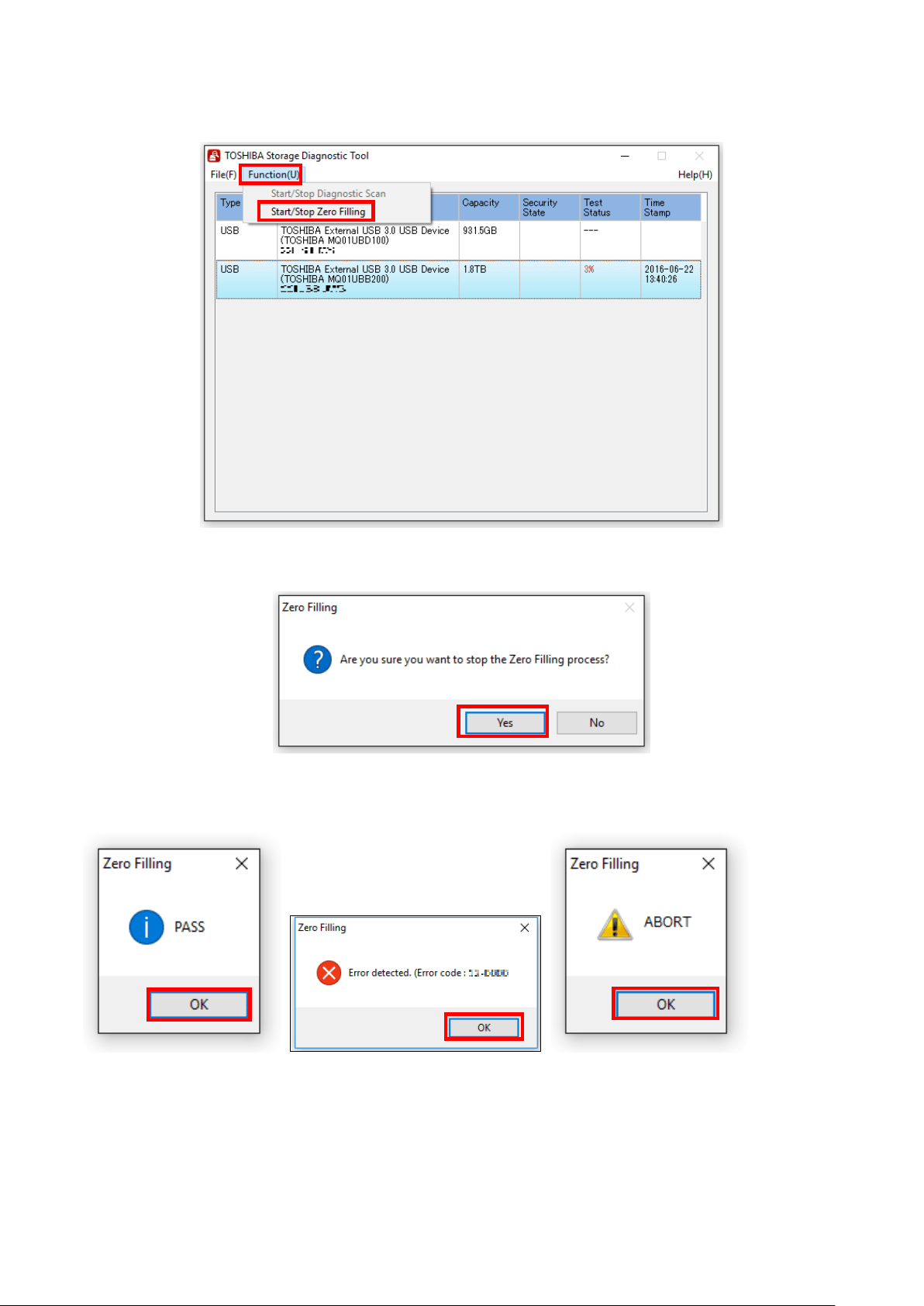
5) During execution of Zero Filling function, if you would like to stop Zero Filling function, click “Start/Stop Zero Filling”.
Click “Yes” to stop Zero Filling function.
6) “PASS” or “Error detected.” is displayed when the scan is terminated normally. “ABORT” is displayed if you stop the
scan process, and click “OK” to finish.
TEST SAMPLE

pg. 19
Need Help?
Please visit TOSHIBA’s Support Web site.
support.toshiba.com/
pg. 20
1-1, Shibaura 1-Chome, Minato-ku, Tokyo 105-8001, Japan
Issued in December 2016
Copyright © 2016 TOSHIBA CORPORATION, All Rights Reserved.