Personal Computer
VGN-A600 Series
Quick Start
VAIO® Computer Quick Start
2
Shortcut Menu
+F1 Displays the VAIO Help and Support Center window.
+Tab Switches the selected button on the taskbar.
+D Displays the desktop.
+E Displays the My Computer window.
+F Displays the Search Results window, where you can find a
file or folder. This is the equivalent of selecting Search from
the Start menu.
+Ctrl+F Displays the Search Results - Computers window, where
you can locate other computers. This is the equivalent of
selecting Search, and then Computer from the Start menu.
+M Minimizes all displayed windows.
Shift+ +M Returns all minimized windows to their previous size.
+R Displays the Run window. This is the equivalent of selecting
Run from the Start menu.
Fn+ +Insert Displays the System Properties window. This is the
equivalent of selecting Control Panel, and then System from
the Start menu.
Fn+F5 Decreases the LCD screen brightness.
Fn+F6 Increases the LCD screen brightness.
Fn+F7 Toggles the display between the computer screen (LCD), a
connected external display, and both the LCD and an
external display.
Fn+F12 Puts the system into Hibernate mode, a power management
state. To return the system to normal operating mode, press
the power button.
Fn+Esc Puts the system into Standby mode, a power management
state. To return the system to the active state, press any key
or the power button.

3
Contents
Notice to Users ............................................5
Setting Up ..................................................13
Unpacking Your Computer .......................................13
Locating Controls and Ports......................................16
About the Indicator Lights ........................................24
About the Wireless Mouse ........................................26
Getting Started ..........................................29
Turning On Your Computer......................................29
Using the Touch Pad .................................................34
Connecting the Wireless Mouse................................36
Registering Your Computer ......................................37
Locating Your VAIO Computer User Guide ............38
Setting Up A Dial-Up Connection ............................40
Turning Off Your Computer .....................................41
Troubleshooting ........................................43
Support Options.........................................................46

VAIO® Computer Quick Start
4
5
Notice to Users
© 2005 Sony Electronics Inc. All rights reserved. This
manual and the software described herein, in whole or
in part, may not be reproduced, translated, or reduced
to any machine-readable form without prior written
approval.
SONY ELECTRONICS INC. PROVIDES NO
WARRANTY WITH REGARD TO THIS MANUAL,
THE SOFTWARE, OR OTHER INFORMATION
CONTAINED HEREIN AND HEREBY
EXPRESSLY DISCLAIMS ANY IMPLIED
WARRANTIES OF MERCHANTABILITY OR
FITNESS FOR ANY PARTICULAR PURPOSE
WITH REGARD TO THIS MANUAL, THE
SOFTWARE, OR SUCH OTHER INFORMATION.
IN NO EVENT SHALL SONY ELECTRONICS INC.
BE LIABLE FOR ANY INCIDENTAL,
CONSEQUENTIAL, OR SPECIAL DAMAGES,
WHETHER BASED ON TORT, CONTRACT, OR
OTHERWISE, ARISING OUT OF OR IN
CONNECTION WITH THIS MANUAL, THE
SOFTWARE, OR OTHER INFORMATION
CONTAINED HEREIN OR THE USE THEREOF.
Sony Electronics Inc. reserves the right to make any
modification to this manual or the information
contained herein at any time without notice. The
software described herein is governed by the terms of
a separate user license agreement.
This product contains software owned by Sony and
licensed by third parties. Use of such software is
subject to the terms and conditions of license
agreements enclosed with this product. Some of the
software may not be transported or used outside the
United States. Software specifications are subject to
change without notice and may not necessarily be
identical to current retail versions.
Updates and additions to software may require an
additional charge. Subscriptions to online service
providers may require a fee and credit card
information. Financial services may require prior
arrangements with participating financial institutions.
The International ENERGY STAR® Office
Equipment Program is an international program that
promotes energy saving through the use of computers
and other office equipment. The program backs the
development and dissemination of products with
functions that effectively reduce energy consumption.
It is an open system in which business proprietors can
participate voluntarily. The targeted products are office
equipment such as computers, displays, printers,
facsimiles and copiers. Their standards and logos are
uniform among participating nations. ENERGY STAR
is a U.S. registered mark.
Sony, i.LINK, MagicGate™ Memory Stick, Memory
Stick PRO, Memory Stick Duo, VAIO, and the VAIO
logo are trademarks of Sony Corporation. Microsoft,
Windows Media, Windows, Windows NT, and the
Windows logo are registered trademarks of Microsoft
Corporation.
As an ENERGY
STAR® Partner, Sony
Corporation has
determined that this
product meets the
ENERGY STAR®
guidelines for energy
efficiency.
The Wireless LAN
functionality, which is
incorporated into
selected models only,
has passed Wi-Fi
certification and
complies with the
interoperability
specifications
established by WFA
(Wi-Fi Alliance).

VAIO® Computer Quick Start
6
This product incorporates copyright protection
technology that is protected by U.S. patents and other
intellectual property rights. Use of this copyright
protection technology must be authorized by
Macrovision, and is intended for home and other
limited viewing uses only unless otherwise authorized
by Macrovision. Reverse engineering or disassembly
is prohibited.
i.LINK is a trademark of Sony used only to designate
that a product contains an IEEE 1394 connection. The
i.LINK connection may vary, depending on the
software applications, operating system, and
compatible i.LINK devices. All products with an
i.LINK connection may not communicate with each
other. Please refer to the documentation that came with
your compatible i.LINK device for information on
operating conditions and proper connection. Before
connecting compatible i.LINK PC peripherals to your
system, confirm their operating system compatibility
and required operating conditions. All other
trademarks are trademarks of their respective owners.
End User / Product Activation
Requirements
Certain software product(s) included with this
computer may include features such as copy protection
and content management technology. Use of the
software product(s) requires agreement to applicable
end user agreements and full compliance with
applicable product activation procedures. Product
activation procedures and privacy policies will be
detailed during initial launch of the software
product(s), or upon certain reinstallations of the
software product(s) or reconfiguration of the
computer, and may be completed by Internet or
telephone (toll charges may apply).
Owner’s Record
The model number and serial number are located on
the bottom of your Sony VAIO® computer. Record the
model and serial numbers in the space provided here,
and keep in a secure location. Refer to the model and
serial numbers when you call your Sony Service
Center.
Model Number:________________________
Serial Number:________________________
Safety Information
WARNING
❑ To prevent fire or shock hazard, do not expose
your computer to rain or moisture.
❑ To avoid electrical shock, do not open the
cabinet. Refer servicing to qualified personnel
only.
❑ Never install modem or telephone wiring during
a lightning storm.
❑ Never install telephone jacks in wet locations
unless the jack is specifically designed for wet
locations.
❑ Never touch uninsulated telephone wire or
terminals unless the telephone line has been
disconnected at the network interface.
❑ Use caution when installing or modifying
telephone lines.
❑ Avoid using the modem during an electrical
storm.
❑ Do not use the modem or a telephone to report a
gas leak in the vicinity of the leak.
❑ A socket outlet should be as close as possible to
the unit and easily accessible.
❑ i.LINK, PC Card, and USB connectors are not
supplied with Limited Power Sources.
❑ To prevent possible damage to your computer
during transportation, first attach any supplied
connector covers and slot protectors in their
appropriate locations, and secure the battery
pack in the battery bay.
❑ Do not use or store your computer in a location
subject to: Heat sources, such as radiators or air
ducts; direct sunlight; excessive dust; moisture
or rain; mechanical vibration or shock; strong
magnets or speakers that are not magnetically
shielded; ambient temperature higher than 95ºF
(35ºC) or less than 40ºF (5ºC); and high
humidity.
❑ This computer is designed to operate only with
genuine Sony batteries.
Notice to Users
7
.
AVERTISSEMENT
❑ Pour prévenir tout risque d’incendie ou
d’électrocution, garder cet appareil à l’abri de la
pluie et de l’humidité.
❑ Pour prévenir tout risque d’électrocution, ne pas
ouvrir le châssis de cet appareil et ne confier son
entretien qu’à une personne qualifiée.
❑ Ne jamais effectuer l’installation de fil modem
ou téléphone durant un orage électrique.
❑ Ne jamais effectuer l’installation d’une prise
téléphonique dans un endroit mouillé à moins
que la prise soit conçue à cet effet.
❑ Ne jamais toucher un fil téléphonique à
découvert ou un terminal à moins que la ligne
téléphonique n’ait été débranche de l’interface
réseau.
❑ Soyez très prudent lorsque vous installez ou
modifiez les lignes téléphoniques.
❑ Évitez d’utiliser le modem durant un orage
électrique.
❑ N'utilisez pas le modem ni le téléphone pour
prévenir d'une fuite de gaz quand vous êtes près
de la fuite.
❑ L’appareil doit être le plus près possible d’une
prise murale pour en faciliter l’accès.
❑ Des connecteurs i.LINK, PC Card, et USB ne
sont pas fournis avec des Sources d’Énergie
Limitées.
❑ Afin de prévenir des indemnités à votre
ordinateur pendant la transportation, attachez
d’abord tous les volets de connecteurs et
protecteurs d’emplacements comme il faut, et
insérez la batterie dans le logement de la
batterie.
❑ Évitez d'utiliser ou de ranger votre ordinateur
dans un endroit soumis à: des sources de chaleur
telles que des radiateurs ou des bouches
d'aération; la lumière directe du soleil; une
poussière excessive; l'humidité ou la pluie; des
vibrations ou des chocs mécaniques; des
aimants puissants ou des haut-parleurs
dépourvus de blindage antimagnétique; une
température ambiante supérieure à 35 °C (95°F)
ou inférieure à 5 5°C (40°F); et une forte
humidité.
❑ Cet ordinateur est conçu pour fonctionner
uniquement avec des batteries Sony.
If you have questions about this product, you can write
to the Sony Customer Information Service Center at
12451 Gateway Blvd., Ft. Myers, FL 33913 or find
Sony Customer Service on the Web at:
http://www.sony.com/pcsupport.
To change the backup battery, please
contact your nearest Sony Service
Center.
Caution: The use of optical instruments
with this product will increase eye
hazard. As the laser beam used in this
product is harmful to the eyes, do not
attempt to disassemble the cabinet.
Refer servicing to qualified personnel
only.
(For optical drive) Caution: Class3B
visible and invisible laser radiation
when open. Avoid exposure to beam.
Caution: To reduce the risk of fire, use
only No. 26 AWG or larger
telecommunication line cord.
Pour changer la pile de rechange,
veuillez contacter votre centre de
service Sony le plus près.
Avertissement: L'utilisation
d'instruments optiques avec ce produit
augmente les risques pour les yeux.
Puisque le faisceau laser utilisé dans
ce produit est dommageable pour les
yeux, ne tentez pas de désassembler
le boîtier. Adressez-vous à un agent de
service qualifié.
(Pour le lecteur optique)
Avertissement: Classe 3B radiation
laser visible et invisible si ouvert.
Évitez l’exposition au faisceau.
Attention : Afin de réduire les risques
d'incendie, n'utilisez qu'un cordon de
communication N0. 26 AWG ou plus
gros.
VAIO® Computer Quick Start
8
Regulatory Information
Declaration of Conformity
This equipment has been tested and found to comply
with the limits for a Class B digital device, pursuant to
Part 15 of the FCC Rules. These limits are designed to
provide reasonable protection against harmful
interference in a residential installation. This
equipment generates, uses, and can radiate radio
frequency energy and, if not installed and used in
accordance with the instructions, may cause harmful
interference to radio communications. However, there
is no guarantee that interference will not occur in a
particular installation. If this equipment does cause
harmful interference to radio or television reception,
which can be determined by turning the equipment off
and on, the user is encouraged to try to correct the
interference by one or more of the following measures:
❑ Reorient or relocate the receiving antenna.
❑ Increase the separation between the equipment
and the receiver.
❑ Connect the equipment to an outlet on a circuit
different from that to which the receiver is
connected.
❑ Consult the dealer or an experienced radio/TV
technician for help.
You are cautioned that any changes or modifications to
the computer not expressly approved in this manual
could void your authority to operate this equipment.
Only peripherals (computer input/output devices,
terminals, printers, etc.) that comply with FCC Class B
limits may be attached to this computer product.
Operation with non-compliant peripherals is likely to
result in interference to radio and television reception.
All cables used to connect peripherals must be
shielded and grounded. Operation with cables
connected to peripherals that are not shielded and
grounded may result in interference to radio and
television reception.
FCC Part 68
This equipment complies with Part 68 of the FCC
rules and the requirements adopted by the ACTA. On
the bottom of this equipment is a label that contains,
among other information, a product identifier in the
format US:AAAEQ##TXXXX. If requested, this
information must be provided to the telephone
company.
This modem uses the USOC RJ11C telephone jack.
A telephone plug and jack used to connect this
equipment to the premises wiring and telephone
network must comply with the applicable FCC Part 68
rules and requirements adopted by the ACTA.
The REN is used to determine the number of devices
which may be connected to the telephone line.
Excessive RENs on a telephone line may result in the
devices not ringing in response to an incoming call. In
most, but not all areas, the sum of RENs should not
exceed five (5.0). To be certain of the number of
devices that may be connected to a line, as determined
by the total RENs, contact the telephone company. For
products approved after July 23, 2001, the REN for
this product is part of the product identifier that has the
format US: AAAEQ##TXXXX. The digits
represented by ## are the REN without a decimal point
(e.g., 03 is a REN of 0.3). For earlier products, the
REN is separately shown on the label.
Trade Name: Sony
Model No.: PCG-8S1L, PCG-
8S2L, PCG-8S3L,
PCG-8S4L, PCG-
8S5L, PCG-8S6L,
VGP-PRAV1, VGP-
PRA1
Responsible Party: Sony Electronics Inc.
Address: 16450 W. Bernardo Dr.
San Diego, CA 92127
USA
Telephone:
(For FCC-related
matters only.)
858-942-2230
This device complies with Part 15 of the FCC
rules. Operation is subject to the following two
conditions:
(1) This device may not cause harmful
interference, and
(2) this device must accept any interference
received, including interference that may cause
undesired operation.

Notice to Users
9
If this equipment causes harm to the telephone
network, the telephone company will notify you in
advance that temporary discontinuance of service may
be required. But if advance notice is not practical, the
telephone company will notify the customer as soon as
possible. Also, you will be advised of your right to file
a complaint with the FCC if you believe it is necessary.
The telephone company may make changes in its
facilities, equipment, operations, or procedures that
could affect the operation of the equipment. If this
happens, the telephone company will provide advance
notice in order for you to make the necessary
modifications in order to maintain uninterrupted
service.
If trouble is experienced with this equipment, you can
reach the Sony Customer Information Service Center
at 1-888-4-SONY-PC, or write to the Sony Customer
Information Service Center at 12451 Gateway Blvd.,
Ft. Myers, FL 33913; or find Sony Customer Service
on the Web at: http://www.sony.com/pcsupport. If the
equipment is causing harm to the telephone network,
the telephone company may request that you
disconnect the equipment until the problem is
resolved.
Repair of this equipment should be made only by a
Sony Service Center or Sony authorized agent. For the
Sony Service Center nearest you, call 1-888-4-SONY-
PC (1-888-476-6972).
Connection to party line service is subject to state
tariffs. Contact the state public utility commission,
public service commission, or corporation commission
for information.
If your home has specially wired alarm equipment
connected to the telephone line, ensure the installation
of this equipment does not disable your alarm
equipment. If you have questions about what will
disable alarm equipment, consult your telephone
company or a qualified installer.
Use a surge arrestor to protect against electrical surges.
FCC Radio Frequency
Exposure (United States)
(Applies to Bluetooth and wireless LAN models only)
This equipment complies with FCC radiation exposure
limits set forth for an uncontrolled environment. This
equipment should be installed and operated with
minimum distance of 8 inches (20 cm) between the
radiator and body (excluding extremities: hands,
wrists, and feet).
This device and its antenna(s) must not be co-located
or operating with any other antenna or transmitter
except Grant condition.
Users are not permitted to modify these transmitter
devices. Any unauthorized change made to this device
could void your authority to operate this device.
The PCG-8S1L and PCG-8S3L computer models
contain a Wireless LAN transmitter which is co-
located and operating simultaneously with a 0.94 mW
Bluetooth module FCC ID CWTUGPZ5.
IC RSS-210 (Canada)
(Applies to Bluetooth and wireless LAN models only)
Operation is subject to the following two conditions:
(1) this device may not cause interference, and (2) this
device must accept any interference, including
interference that may cause undesired operation of the
device.
IC Exposure of Humans to RF Fields: The installer of
this radio equipment must ensure that the antenna is
located or pointed such that it does not emit RF field in
excess of Health Canada limits for the general
population; consult Safety Code 6, obtainable from
Health Canada’s website: http://www.hc-sc.gc.ca/rpb.
L’instillateur du présent matériel radio doit s’assurer
que l’antenne est située ou pointée de manière à ce que
cette dernière n’émette pas de champs radioélectriques
supérieurs aux limites spécifiées par Santé Canada
pour le grand public; consulter le Code de sécurité 6,
disponible sur le site Web de Santé Canada, à l’adresse
suivante: http://www.hc-sc.gc.ca/rpb.
The PCG-8S1L, PCG-8S3L, notebook computers
contain a Wireless LAN transmitter which is co-
located and operating simultaneously with a 0.94 mW
Bluetooth module FCC ID CWTUGPZ5.
Wireless mouse
Carrier frequency 27.045 MHz
Output power Less than 100 nW
To prevent radio interference to the licensed service,
this device is intended to be operated indoors and
away from windows to provide maximum shielding.
Equipment (or its transmit antenna) that is installed
outdoors is subject to licensing.
The term “IC:” before the certification / registration
number only signifies that the Industry Canada
technical specifications were met.
(S’applique aux modèles sans fil de LAN seulement)
L’utilisation de ce dispositif est autorisée seulement
aux conditions suivantes: (1) il ne doit pas produire de
brouillage et (2) l’utilisateur du dispositif doit être prêt
à accepter tout brouillage radioélectrique reçu, même

VAIO® Computer Quick Start
10
si ce brouillage est susceptible de compromettre le
fonctionnement du dispositif.
Pour empêcher que cet appareil cause du brouillage au
service faisant l’objet d’une licence, il doit être utilisé
à l’interieur et devrait être placé loin des fenêtres afin
de fournir un écran de blindage maximal. Si le matériel
(ou son antenne d’émission) est installé a l’exterieur, il
doit faire l’objet d’une licence.
L’expression “IC:” avant le numéro d’homologation /
enregistrement signifie seulement que les
spécifications techniques d’Industrie Canada ont été
respectées.
Telephone Consumer
Protection Act of 1991
(United States)
The Telephone Consumer Protection Act of 1991
makes it unlawful for any person to use a computer or
other electronic device, including FAX machines, to
send any message unless such message clearly
contains in a margin at the top or bottom of each
transmitted page or on the first page of the
transmission, the date and time it is sent and an
identification of the business or other entity, or other
individual sending the message, and the telephone
number of the sending machine or such business, other
entity, or individual. (The telephone number provided
may not be a 900 number or any other number for
which charges exceed local or long-distance
transmission charges.)
In order to program this information into your
facsimile machine, see your fax software
documentation.
Telephone Consumer
Guidelines (Canada)
Please refer to your telephone directory under ‘Privacy
Issues’ and/or ‘Terms of Service.’ For more detailed
information, please contact:
CRTC
Terrasses de la Chaudière, Tour centrale 1 promenade
du Portage, 5 étage Hull PQ K1A 0N2.
This Class B digital apparatus complies with Canadian
ICES-003.
Cet appareil numérique de la classe B est conforme à
la norme NMB-003 du Canada.
RECYCLING INFORMATION
(For customers in the United States) This product
contains mercury. Disposal of this product may be
regulated if sold in the United States. For disposal or
recycling information, please contact your local
authorities or the Electronics Industries Alliance
(http://www.eiae.org).
Notice to Users
11
RECYCLING LITHIUM-ION BATTERIES
RECYCLAGE DES ACCUMULATEURS AUX
IONS DE LITHIUM
RECYCLING
LITHIUM-ION
BATTERIES
Lithium-Ion batteries
are recyclable.
You can help preserve
our environment by
returning your used
rechargeable batteries
to the collection and
recycling location
nearest you.
For more information regarding recycling of
rechargeable batteries, call toll free 1-800-822-
8837, or visit http://www.rbrc.org/.
Caution: Do not handle damaged or leaking
Lithium-Ion batteries.
RECYCLAGE DES
ACCUMULATEURS
AUX IONS DE
LITHIUM
Les accumulateurs aux
ions de lithium sont
recyclables.
Vous pouvez
contribuer à préserver
l’environnement en
rapportant les piles
usées dans un point de
collection et recyclage
le plus proche.
Pour plus d’informations sur le recyclage des
accumulateurs, téléphonez le numéro gratuit 1-
800-822-8837 (Etats-Units et Canada uniquement),
ou visitez http://www.rbrc.org/.
Avertissment: Ne pas utiliser des accumulateurs
aux ions de lithium qui sont endommagées ou qui
fuient.
Do not handle damaged or leaking
lithium ion batteries.
Danger of explosion if battery is
incorrectly replaced. Replace only with
the same or equivalent type
recommended by the manufacturer.
Discard used batteries according to the
manufacturer’s instructions.
The battery pack used in this device
may present a fire or chemical burn
hazard if mistreated. Do not
disassemble, heat above 140°F (60°C)
or incinerate. Dispose of used battery
promptly. Keep away from children.
Ne pas utiliser des batteries au lithium
ionisé qui sont endommagées ou qui
fuient.
Une batterie non conforme présente un
danger d'explosion. La remplacer
seulement par une batterie identique
ou de type équivalent recommandé par
le fabricant. Évacuer les batteries
usées selon les directives du fabricant.
La manutention incorrecte du module
de batterie de cet appareil présente un
risque d'incendie ou de brûlures
chimiques. Ne pas démonter, incinérer
ou exposer à une température de plus
de 60°C. Évacuer promptement la
batterie usée. Garder hors de portée
des enfants.

VAIO® Computer Quick Start
12
INDUSTRY CANADA NOTICE
NOTICE: This equipment meets the applicable
Industry Canada Terminal Equipment Technical
Specifications.
The Ringer Equivalence Number (REN) for this
terminal equipment is 0.1. The REN assigned to each
terminal equipment provides an indication of the
maximum number of terminals allowed to be
connected to a telephone interface. The termination on
an interface may consist of any combination of devices
subject only to the requirement that the sum of the
Ringer Equivalence Numbers of all the devices does
not exceed five.
AVIS D’INDUSTRIE CANADA
REMARQUE: Cet équipement est conforme aux
Spécifications Techniques des Équipements
Terminaux d’Industrie Canada en vigueur.
Le Nombre Équivalent de Sonneries (REN) de cet
équipement terminal est 0,1. Le REN attribué à chaque
équipement terminal indique le nombre maximum de
terminaux que l’on peut connecter à une interface
téléphonique. Il est possible de raccorder à une
interface plusieurs combinaisons d’appareils, mais la
somme des Nombres Équivalents de Sonneries de tous
ces appareils ne doit pas dépasser cinq.
13 13
Setting Up
Congratulations on your purchase of the Sony VAIO® computer. Sony has
combined leading-edge technology in audio, video, computing, and
communications to provide state-of-the-art personal computing.
Unpacking Your Computer
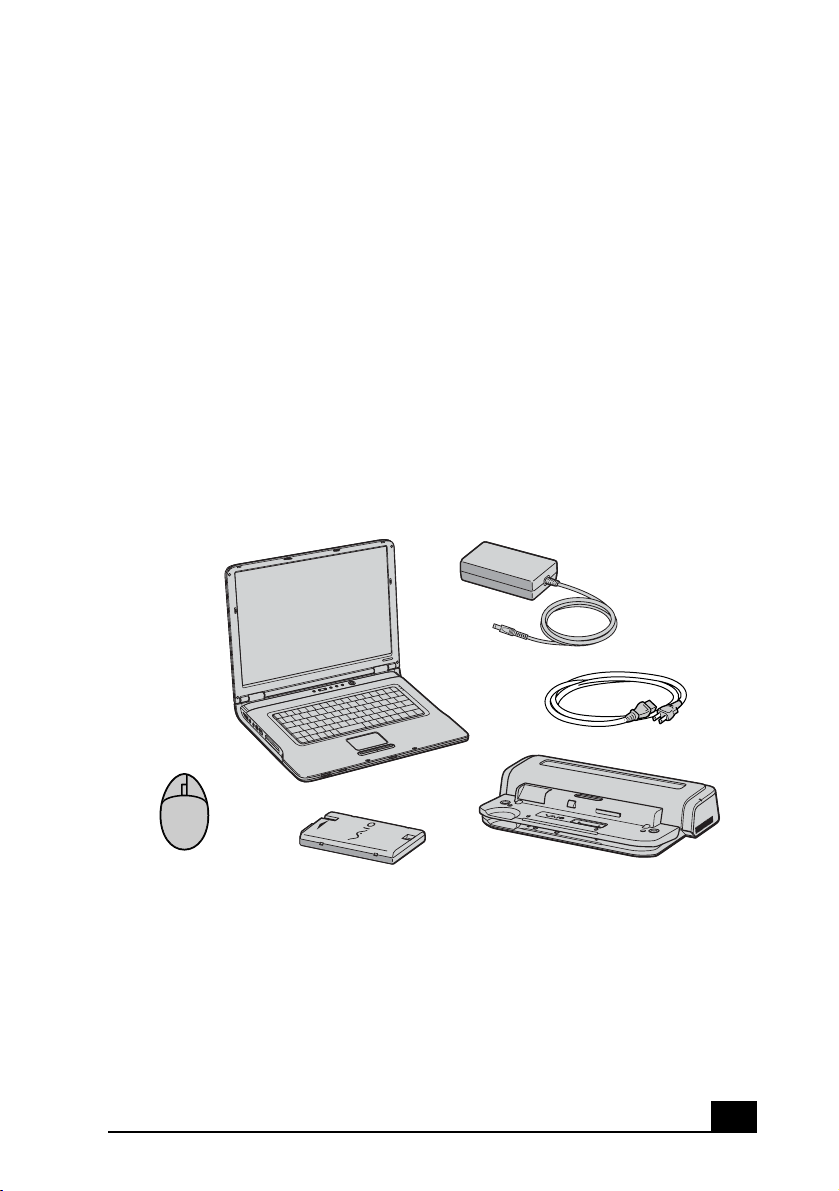
These hardware components are included.
† Selected models are bundled with the A/V port replicator.
The A/V port replicator is supplied with selected models only. If the computer
you purchased comes with an A/V port replicator, the accessories listed on the
following page are also included in the carton.
Carton Contents
Main unit
Power cord
Battery
AC adapter
Port replicator
†
(with selected models only)
Wireless Optical Mouse
(with selected models only)
VAIO® Computer Quick Start
14
For additional information about the A/V port replicator accessories and how to
use them, refer to the VAIO® Computer User Guide.
VAIO Computer Documents
❑ VAIO® Computer User Guide — A searchable on-screen help file that
contains detailed information on how to use your new computer. See
“Locating Your VAIO Computer User Guide” on page 38 for more
information.
❑ VAIO® Computer Specifications — An online file that details the
hardware specifications and lists the installed programs on your computer.
Go to http://www.sony.com/pcsupport for more information.
Hard Disk Drive Recovery
Your computer is equipped with the VAIO Recovery Wizard utility program that
recovers your computer’s operating system and preinstalled software. For more
information about hard disk drive recovery, do the following:
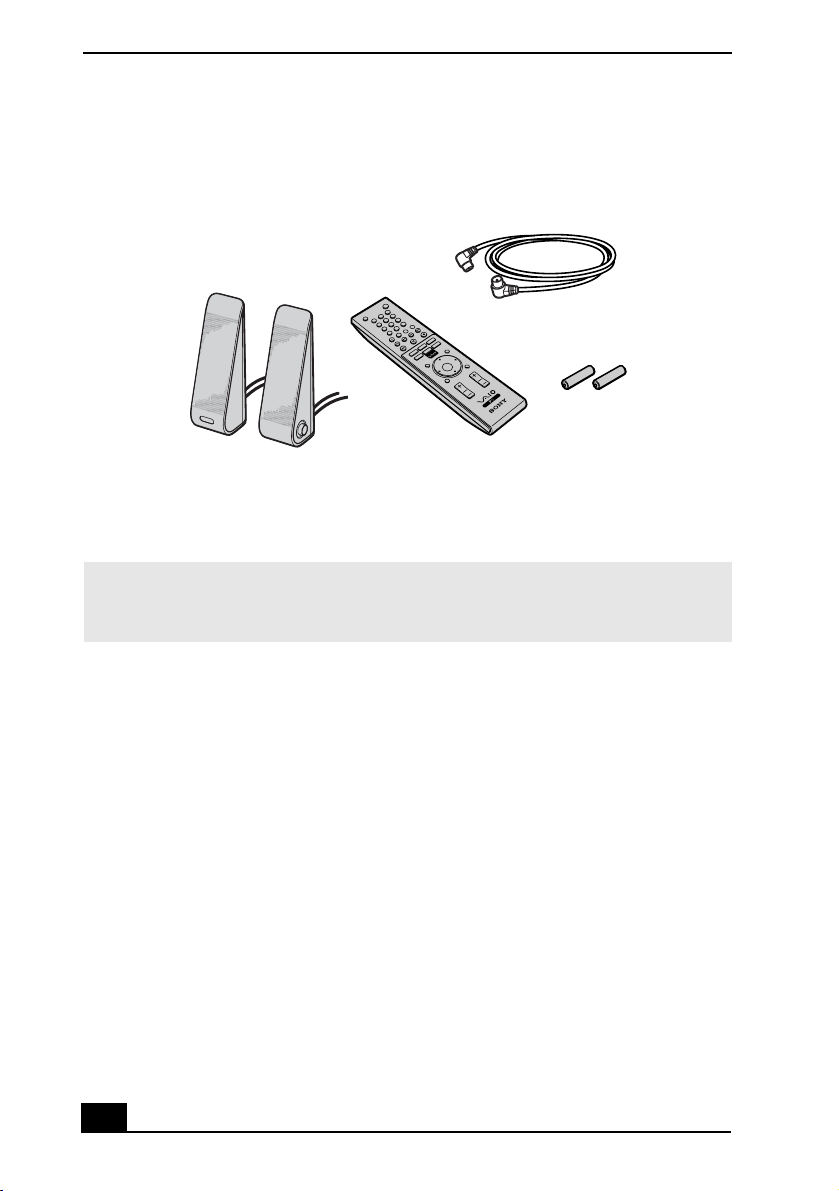
A/V Port Replicator Accessories
✍ Your VAIO® computer is not supplied with System or Application Recovery CDs. Use
the VAIO Recovery Wizard utility to recover your computer’s operating system and
preinstalled software.
TV coaxial cable
Speakers
Remote control
Batteries

Unpacking Your Computer
15
1 Click Start in the Windows® taskbar, then click Help and Support.
2 From the VAIO Help and Support Center, click VAIO Recovery Options.
✍ You can create a VAIO Recovery Media Kit using CD-R, single-layer DVD+R, or single
layer DVD-R media on VAIO computers equipped with the appropriate optical disc
drive.
DVD+RW, DVD-RW, double layer DVD+R, and double layer DVD-R media cannot be
used to create a VAIO Recovery Media Kit.
VAIO® Computer Quick Start
16
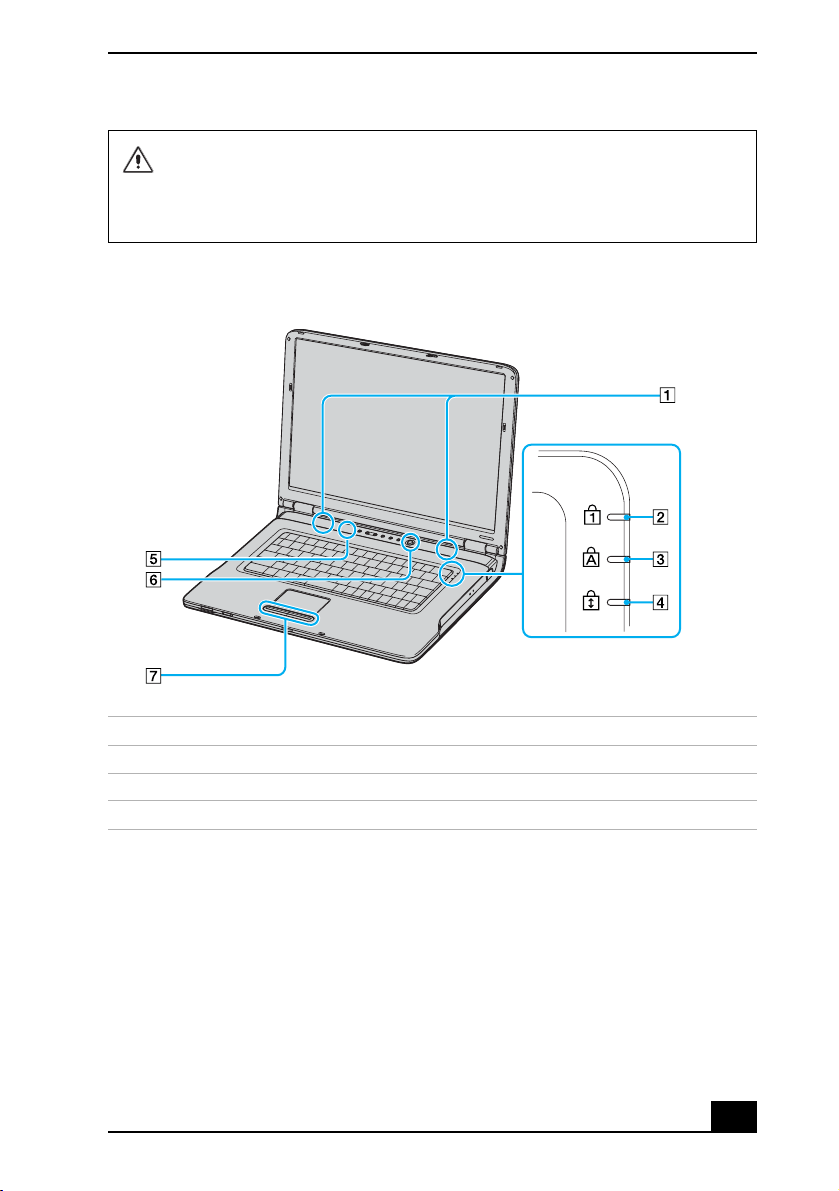
Locating Controls and Ports
Front
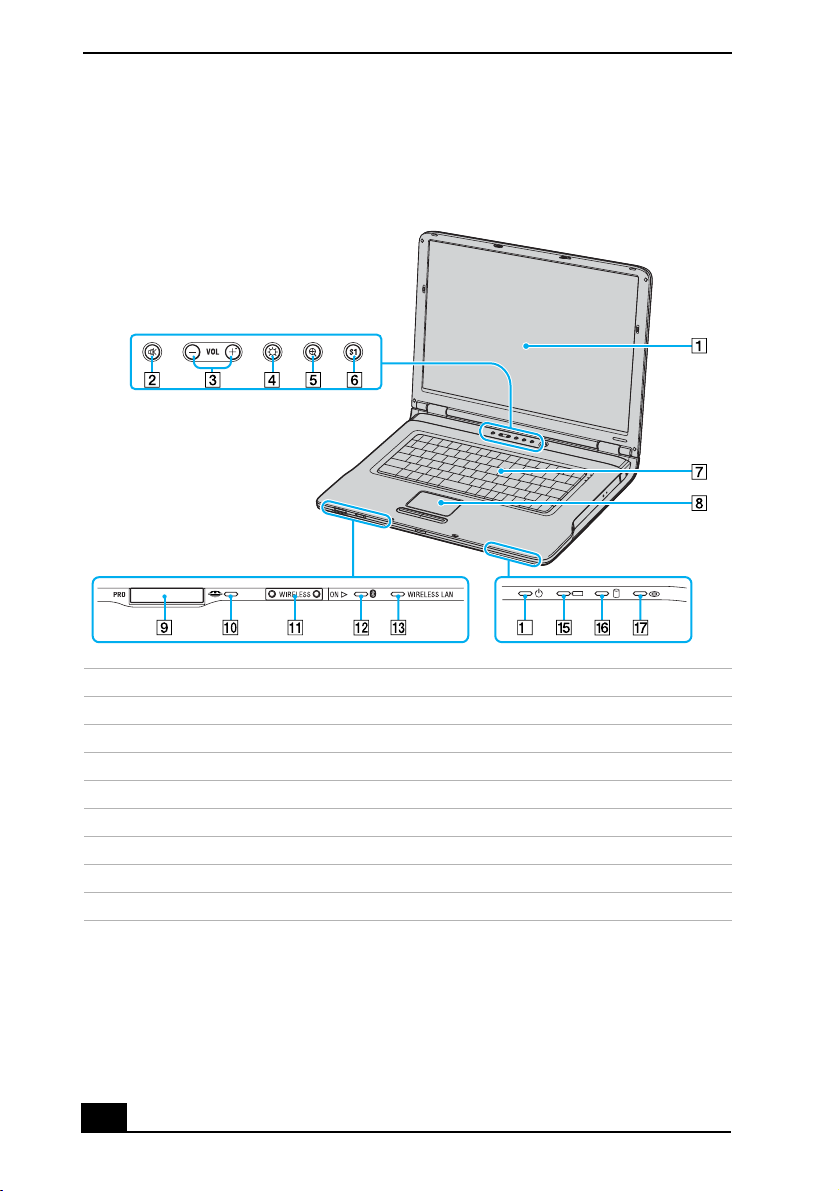
1 LCD screen 10 Memory Stick® media indicator
2 Mute button 11 Wireless switch
*
* Wireless LAN and Bluetooth functionality available on selected models only.
3 Volume buttons 12 Bluetooth® indicator
*
4 Brightness button 13 Wireless indicator
*
5 Magnify screen button 14 Power indicator
6 S1 button 15 Battery indicator
7 Keyboard 16 Hard disk drive indicator
8 Touch pad 17 Optical drive indicator
9 Memory Stick® media slot
†
† Your computer supports Memory Stick Duo™ media and Memory Stick PRO™ high speed
and high capacity capabilities.
4
Locating Controls and Ports
17
Do not insert more than one Memory Stick media into the Memory Stick media
slot as it may damage the computer.
Insert the Memory Stick media with the arrow facing up and toward the slot.
Inserting the media improperly may damage the computer.
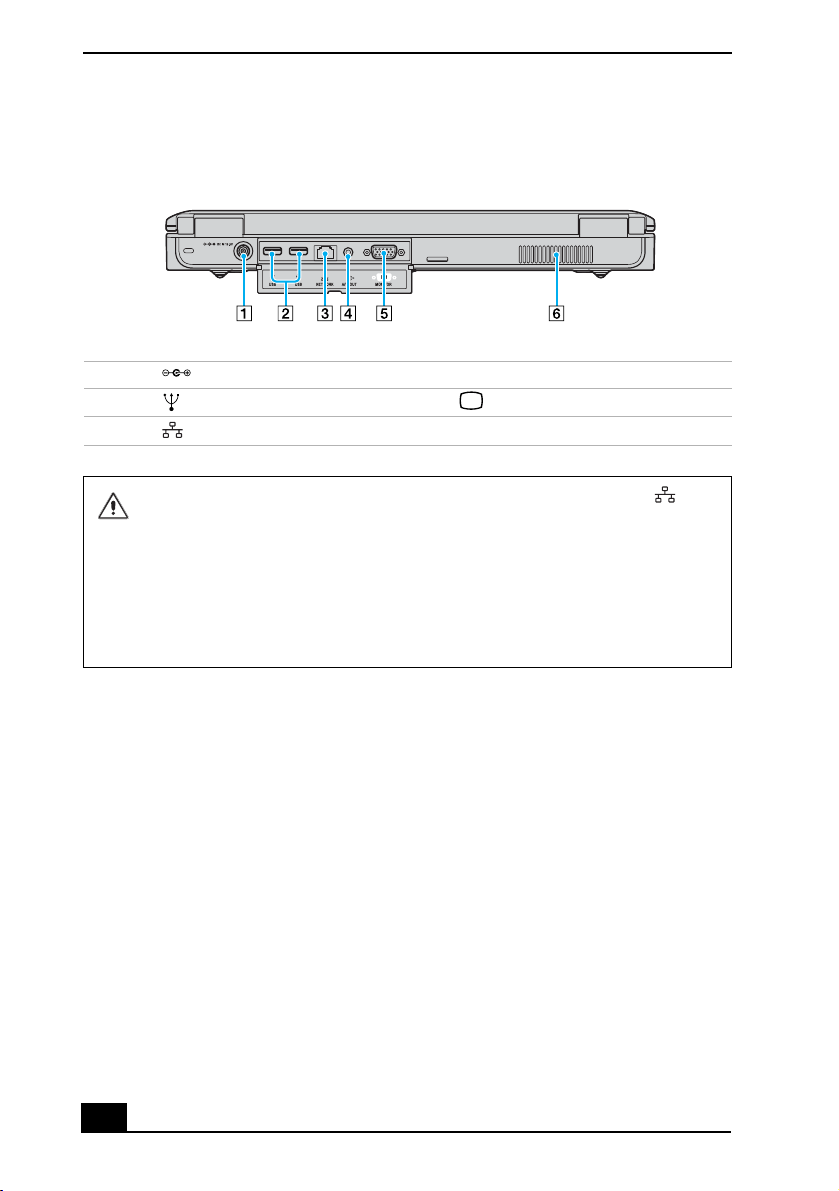
Front
1 Speakers 5 Brightness sensor
2 Num lock indicator 6 Power button
3 Caps lock indicator 7 Left and right buttons
4 Scroll lock indicator
VAIO® Computer Quick Start
18
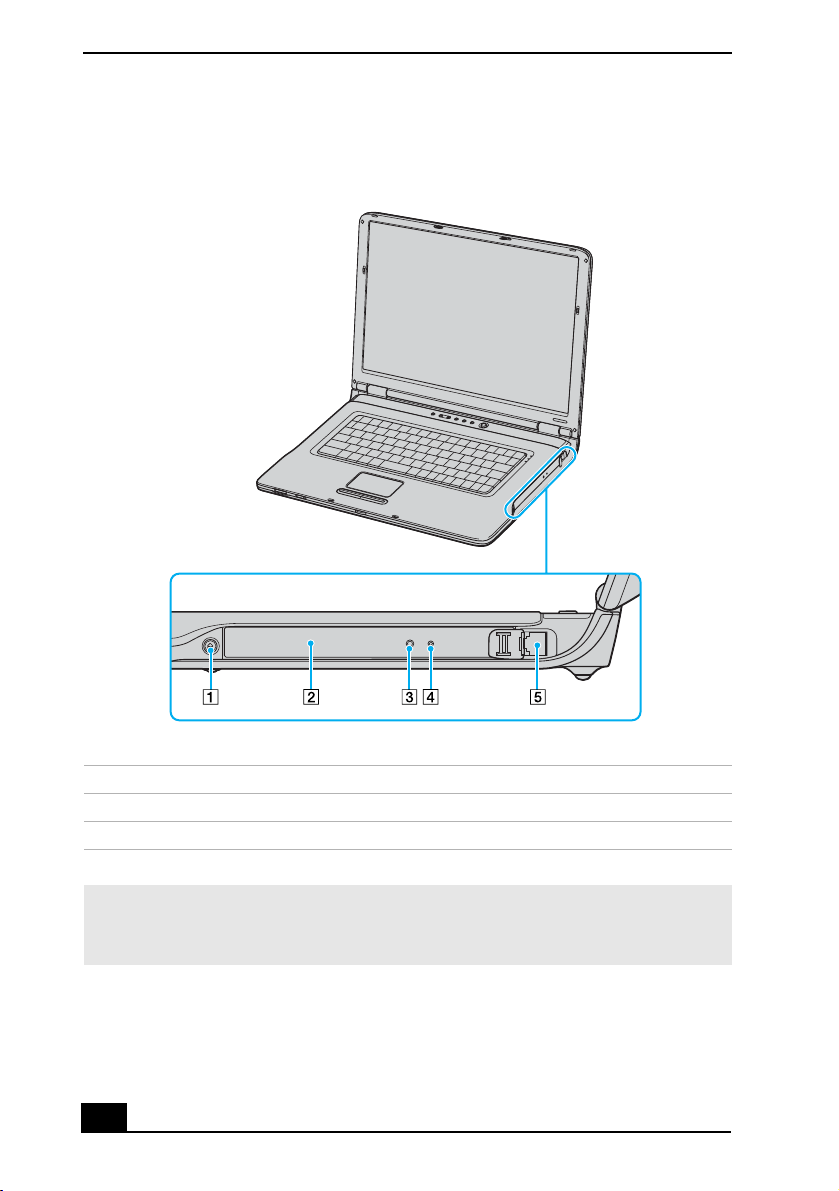
Back
1 DC In port 4 AV Out jack
2 USB 2.0 ports
*
* Supports high-/full-/low- speeds.
5 Monitor (VGA) port
3 Network (Ethernet) port 6 Air vent
Only connect 10BASE-T, 100BASE-TX, or 1000BASE-TX cables to the
Network (Ethernet) port. Do not connect any other type of network cable or any
telephone line to this port. Connecting cables other than those listed above
may result in an electric current overload and could cause a malfunction,
excessive heat, or fire in the port. To connect the unit to a network, refer to
your on-screen VAIO® Computer User Guide or contact your network
administrator. See “Locating Your VAIO Computer User Guide” on page 38 for
more information.

Locating Controls and Ports
19
Left
1 Microphone jack 4 USB 2.0 port
*
* Supports high-/full-/low- speeds.
2 Headphone jack 5 PC Card slot
3 i.LINK® (IEEE 1394) S400 port6 PC Card eject button
VAIO® Computer Quick Start
20
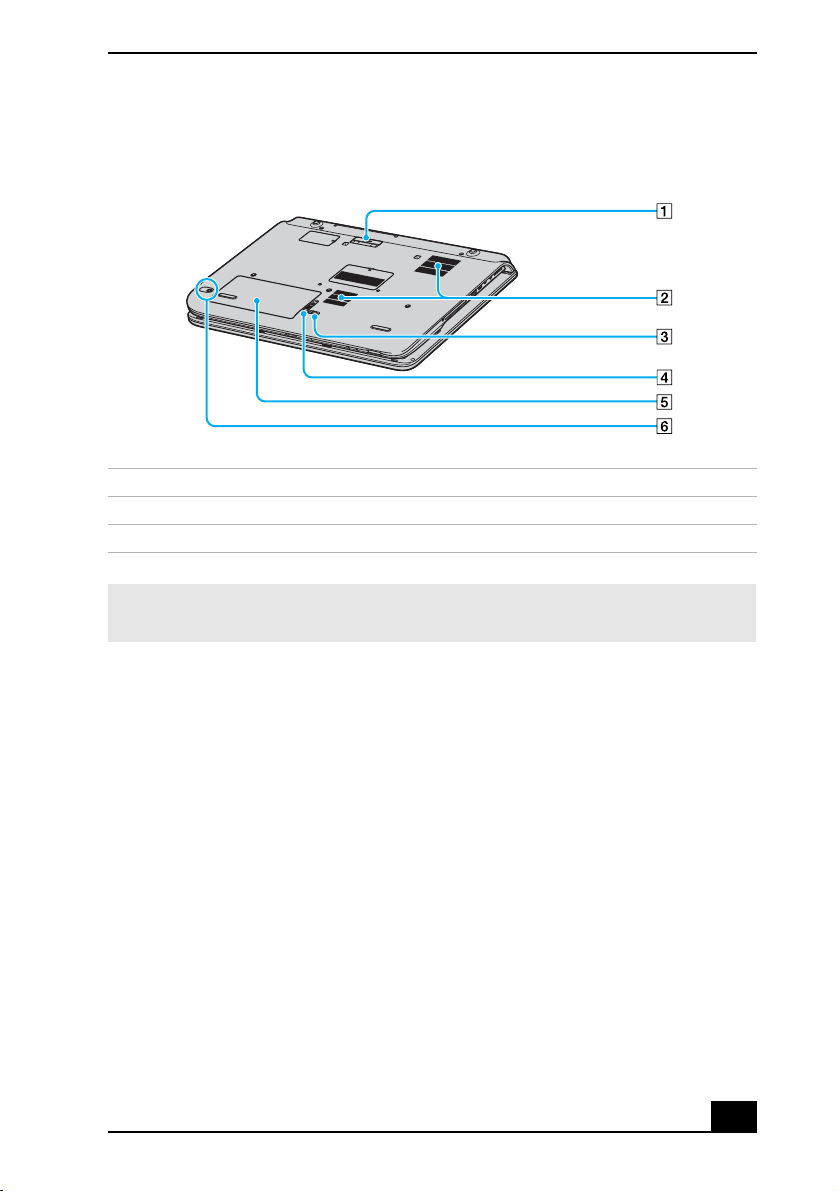
Right
1 Drive eject button 4 Drive eject button
2 Optical drive 5 Modem jack
3 Manual eject hole
✍ You can use either drive eject button to eject the optical drive tray. The drive eject
button located next to the optical drive functions only with the Microsoft® Windows®
operating system.
Locating Controls and Ports
21
Bottom
1 Port replicator connector 4 RELEASE switch
2 Air vents 5 Battery bay
3 LOCK/UNLOCK switch 6 CONNECT button
*
* On selected models with wireless mouse functionality.
✍ See “Connecting the Wireless Mouse” on page 36 for more information about using
the wireless optical mouse.
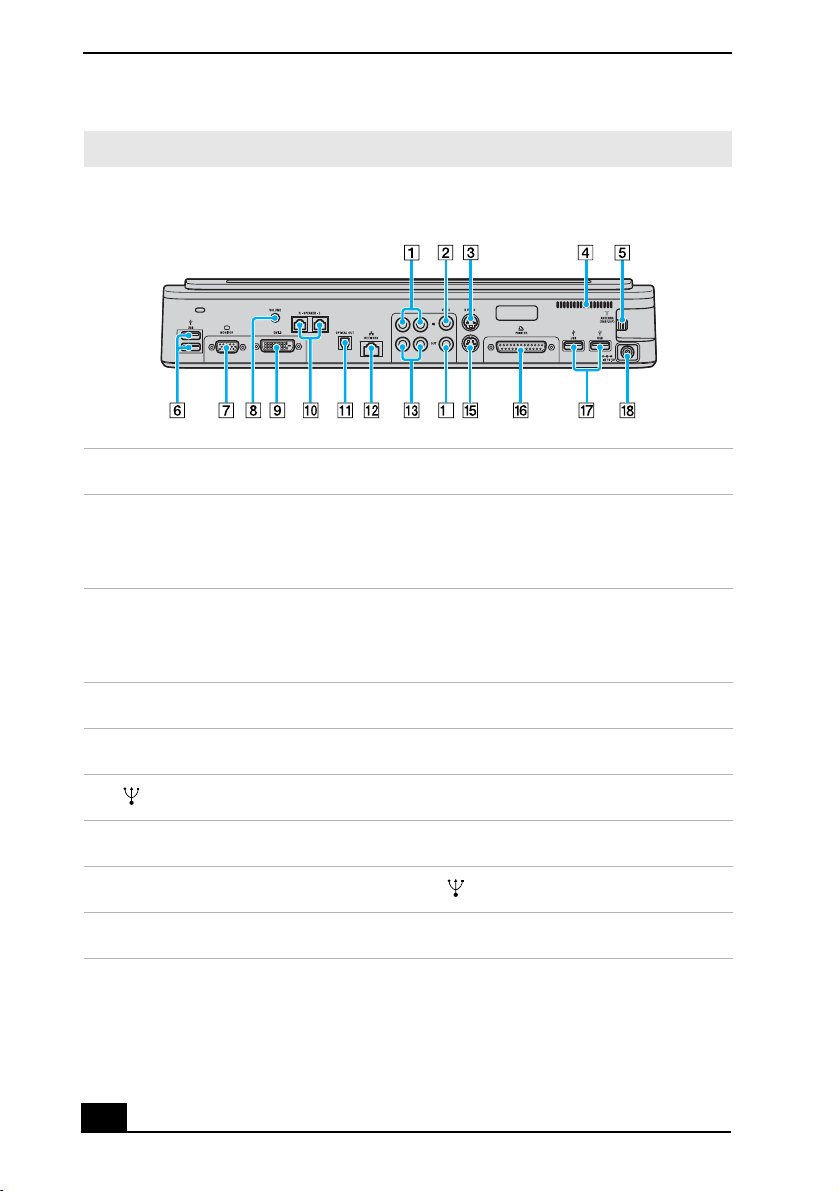
VAIO® Computer Quick Start
22
✍ The printer port on this port replicator is intended for printer connections only.
A/V Port Replicator
1 Composite Audio In jacks 10 Speaker jacks (right and left)
2 Composite Video In jack 11 Optical Out port
Output frequency (96 kHz
*
/48
kHz/44 kHz/Variable)
* Output frequency is fixed at 48 kHz for all source sample rates except 32 kHz and 44.1 kHz.
3 S Video In port 12 Network (Ethernet) port
(10BASE-T / 100BASE-TX /
1000BASE-TX)
4 Air vent 13 Composite Audio Out jacks
5 VHF/UHF port 14 Composite Video Out jack
6 USB 2.0 ports
†
† Supports high-/full-/low- speeds.
15 S Video Out port
7 Monitor (VGA) port 16 Printer port
8 Volume jack 17 USB 2.0 ports
‡
9 DVI-D port 18 DC IN port
4
Locating Controls and Ports
23
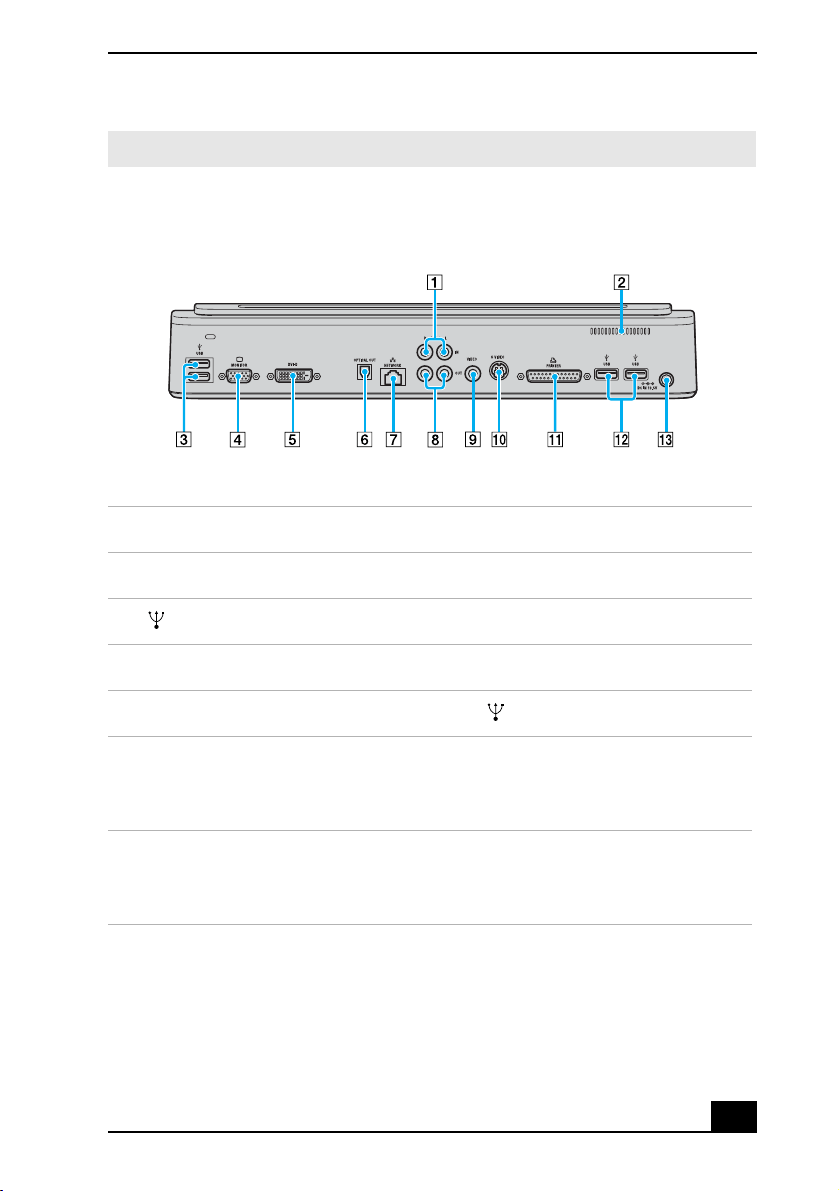
✍ The printer port on this port replicator is intended for printer connections only.
Business Port Replicator
1 Composite Audio In jacks 8 Composite Audio Out jacks
2 Air vent 9 Composite Video Out jack
3 USB 2.0 ports
*
* Supports high-/full-/low- speeds.
10 S Video Out port
4 Monitor (VGA) port 11 Printer port
5 DVI-D port 12 USB 2.0 ports
*
6 Optical Out port
Output frequency (96 kHz
†
/48
kHz/44 kHz/Variable)
† Output frequency is fixed at 48 kHz for all source sample rates except 32 kHz and 44.1 kHz.
13 DC IN port
7 Network (Ethernet) port
(10BASE-T / 100BASE-TX /
1000BASE-TX)
VAIO® Computer Quick Start
24
About the Indicator Lights
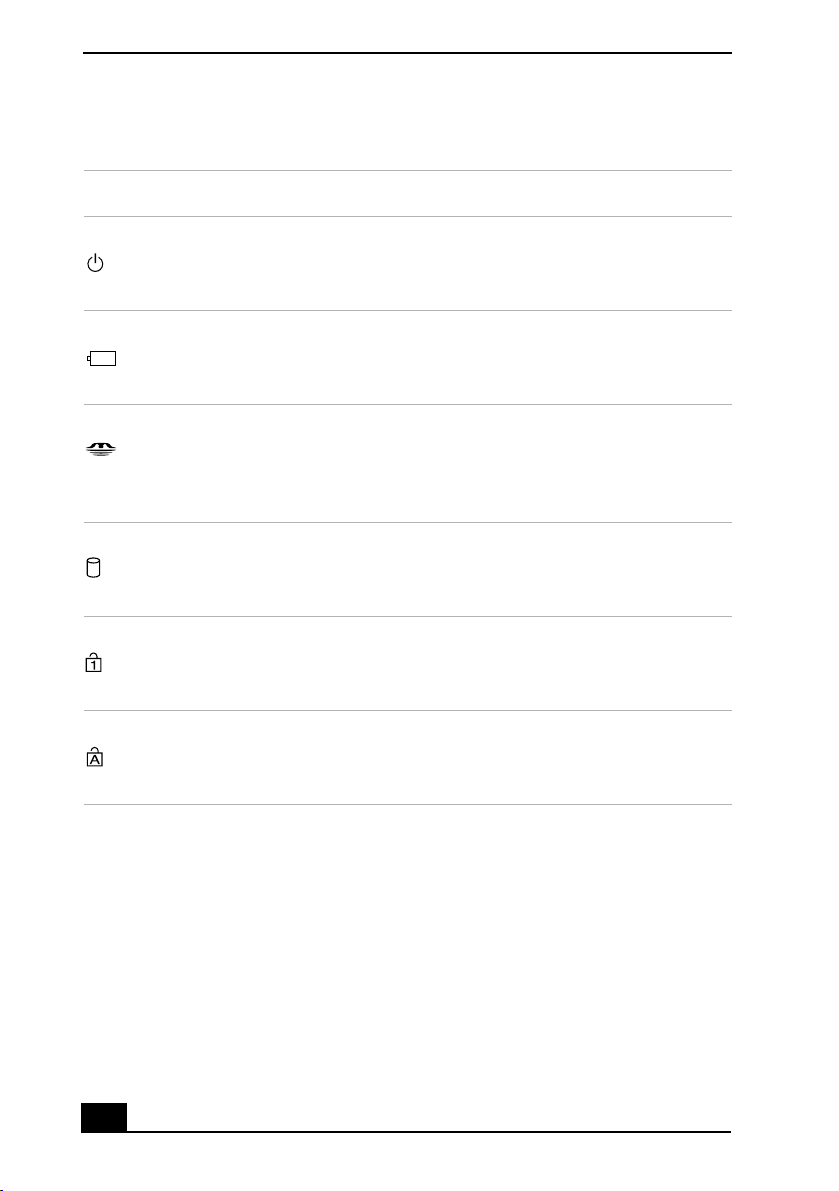
Indicator Function
Power Turns on when the power to the computer is on, blinks in
Standby mode, and turns off when the computer is in
Hibernate mode or off.
Battery Turns on when the computer is using battery power, blinks
when the battery is running out of power, double-blinks when
the battery is charging.
Memory Stick® Turns on when data is read from or written to the Memory
Stick media. (Do not enter Standby mode or turn off the
computer when this indicator is on.) When the indicator is
off, the Memory Stick media is not being used.
Hard Disk Turns on when data is read from or written to the hard disk.
Do not enter Standby mode or turn off the computer when
this indicator is on.
Num Lock The Num Lock indicator turns on when the numeric keypad
is activated. When the indicator is off, the directional arrow
and correction keys on the numeric keypad area are active.
Caps Lock The Caps Lock indicator turns on to advise you that the
keyboard is set to type letters in uppercase. When the
indicator is off, the letters appear in lowercase as you type.
About the Indicator Lights
25
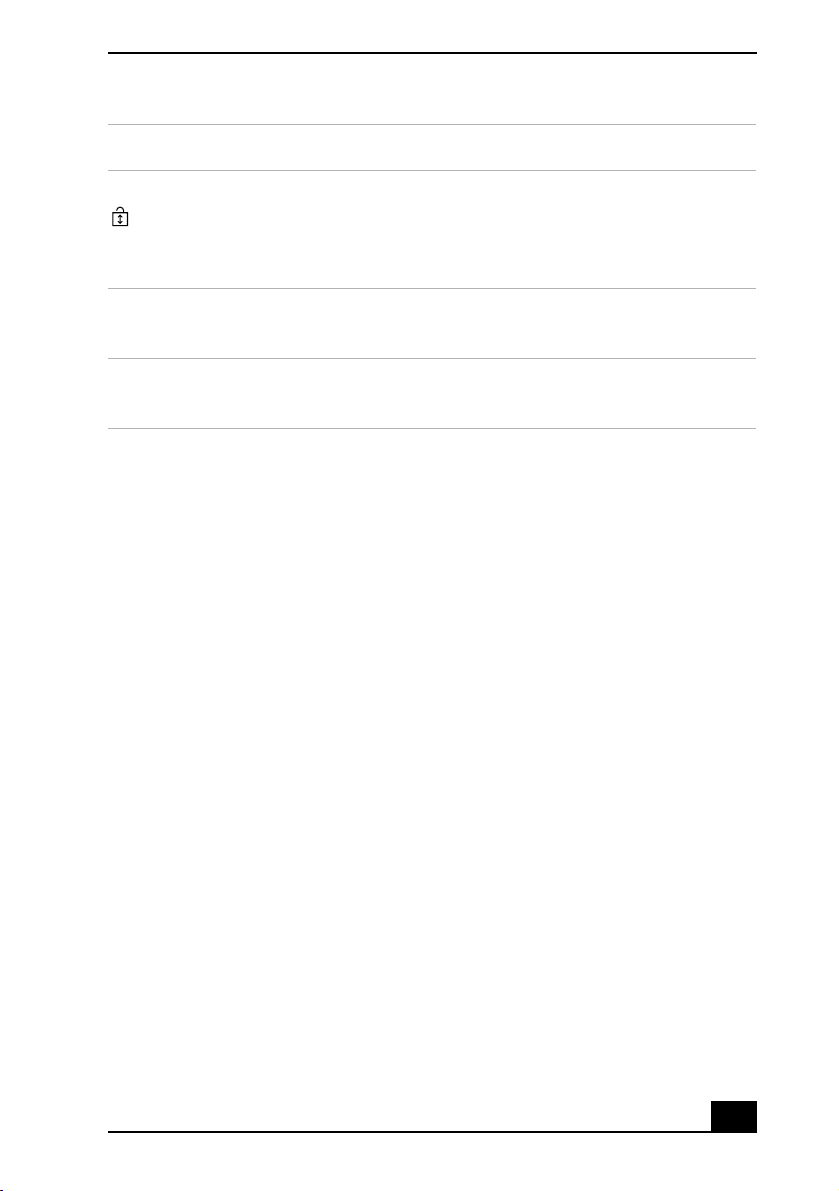
Scroll Lock The Scroll Lock indicator turns on to advise you that your
screen's scrolling pattern has changed. This function is not
available with all software programs. Normal scrolling
resumes when the Scroll Lock indicator is off.
Bluetooth®
*
Turns on when the wireless switch is set to ON and Bluetooth
technology is enabled.
Wireless
LAN
*
Turns on when the wireless LAN function is running.
* On selected models only.
Indicator Function
VAIO® Computer Quick Start
26
About the Wireless Mouse
Your VAIO® computer may be supplied with a wireless optical mouse,
depending on the model that you purchased. Before attempting to use the
wireless optical mouse with your computer, see “Connecting the Wireless
Mouse” on page 36.
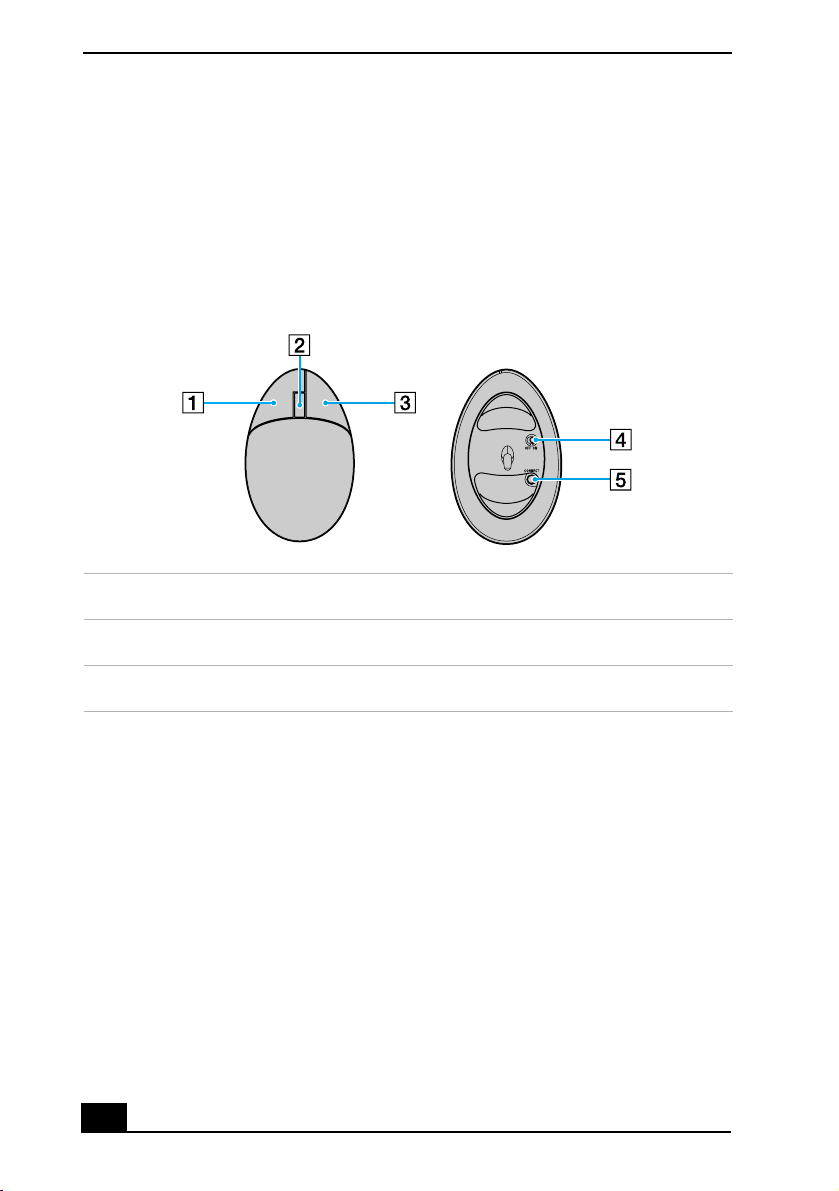
Identifying the Parts of Your Wireless Mouse
1 Left mouse button 4 Power switch
2 Wheel button 5 CONNECT button
3 Right mouse button
About the Wireless Mouse
27
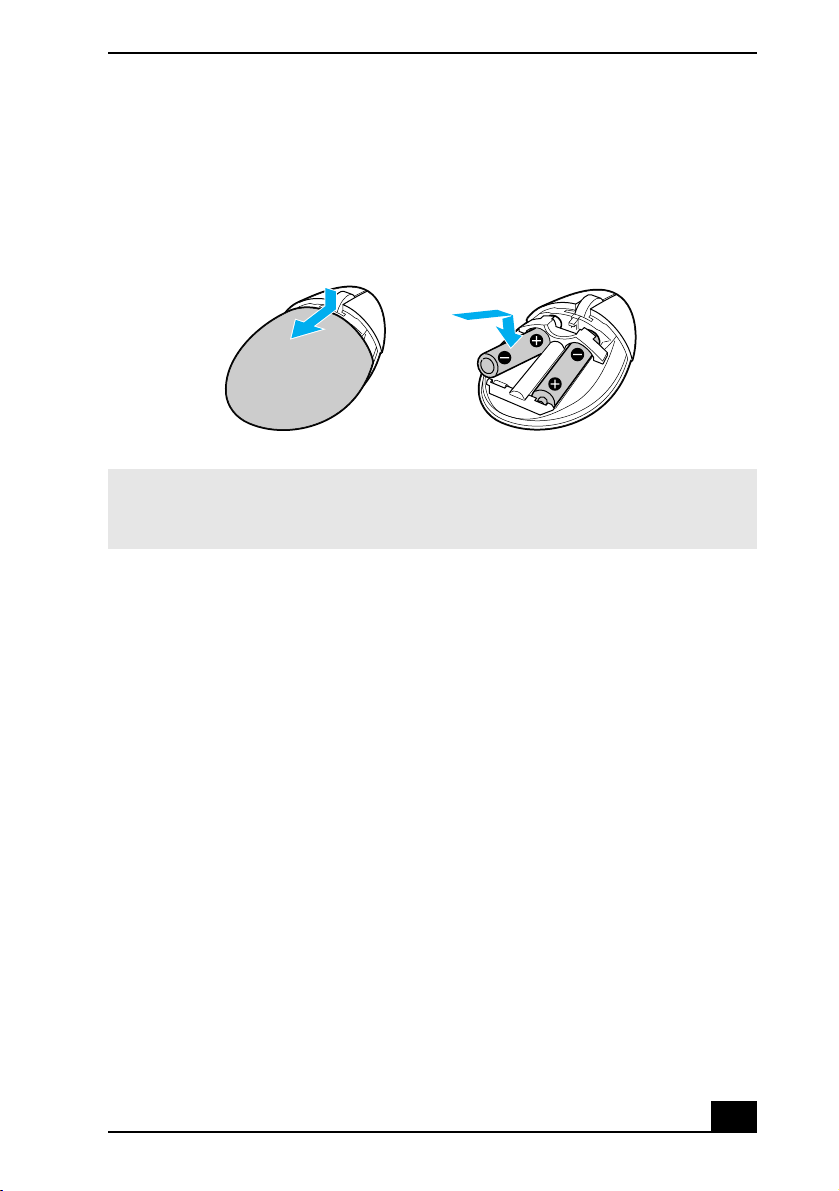
To set up the wireless mouse
Insert two AA batteries (supplied with the mouse) into the wireless mouse as
shown.
Inserting Batteries into the Wireless Mouse
✍ If your wireless mouse does not operate properly, the batteries may need to be
replaced. When your wireless mouse is not being used for extended periods of time,
remove the batteries to avoid possible damage from battery leakage.

VAIO® Computer Quick Start
28

29 29
Getting Started
This section helps you get your computer running and registered, so you
can take advantage of Sony’s many support options. You’ll also learn how
to locate your on-screen VAIO® Computer User Guide, which contains
step-by-step instructions for operating your computer.
Turning On Your Computer
To use your computer immediately, use the supplied AC adapter as a power
source. Your supplied battery is not charged when you unpack it; however, you
can begin charging it when you use your AC adapter. See “Powering Your
Computer” in your on-screen VAIO® Computer User Guide for more
information about using batteries. See also “Locating Your VAIO Computer User
Guide” on page 38.
To insert and charge the battery
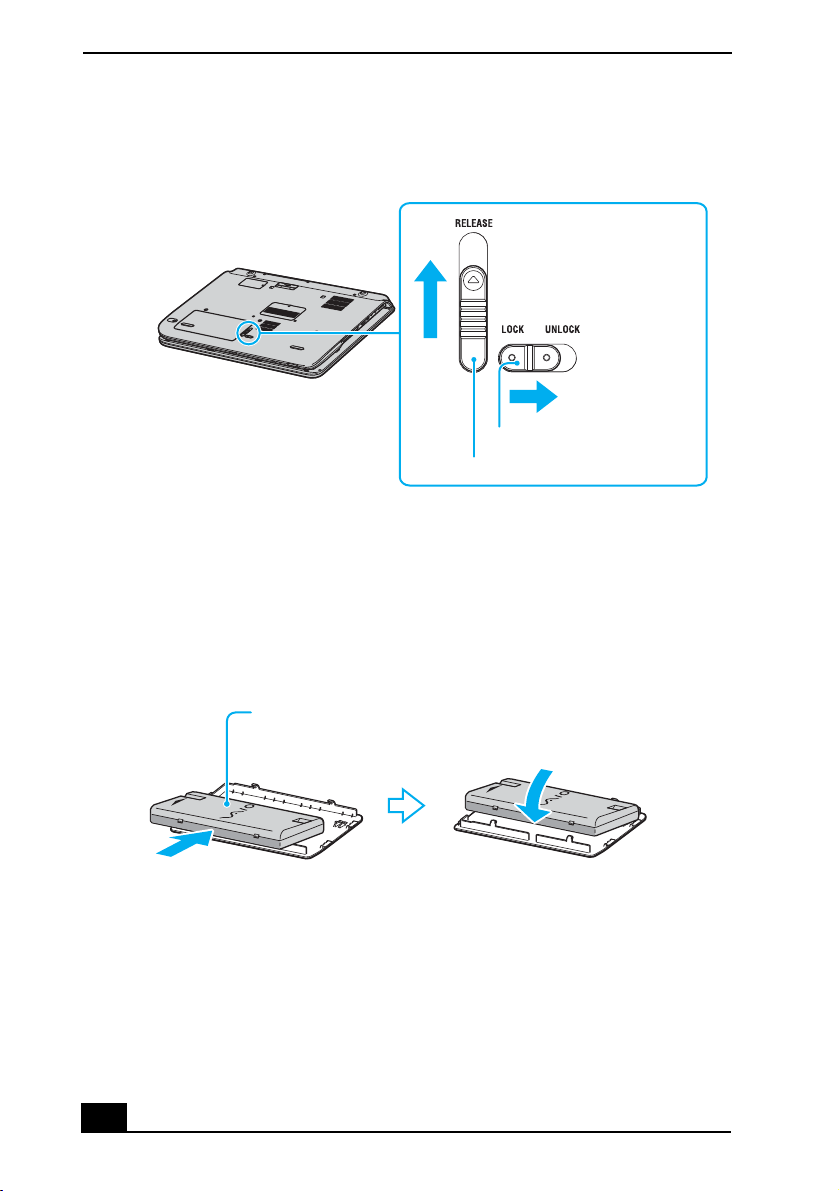
1 First turn the computer over so the bottom panel is facing up.
2 Slide the LOCK/UNLOCK switch to UNLOCK, and then slide the
RELEASE switch in the direction of the arrow to lift the battery bay cover.
✍ This computer is designed to operate only with genuine Sony batteries.
✍ If a port replicator is attached to your computer, do not insert or remove the battery.
Lifting and turning the computer with a port replicator attached could cause a
temporary loss of power.
VAIO® Computer Quick Start
30
3 Slide the battery (with the logo facing up) into the battery bay cover. The
two hooks on each side of the battery bay cover should click into the grooves
on the battery.
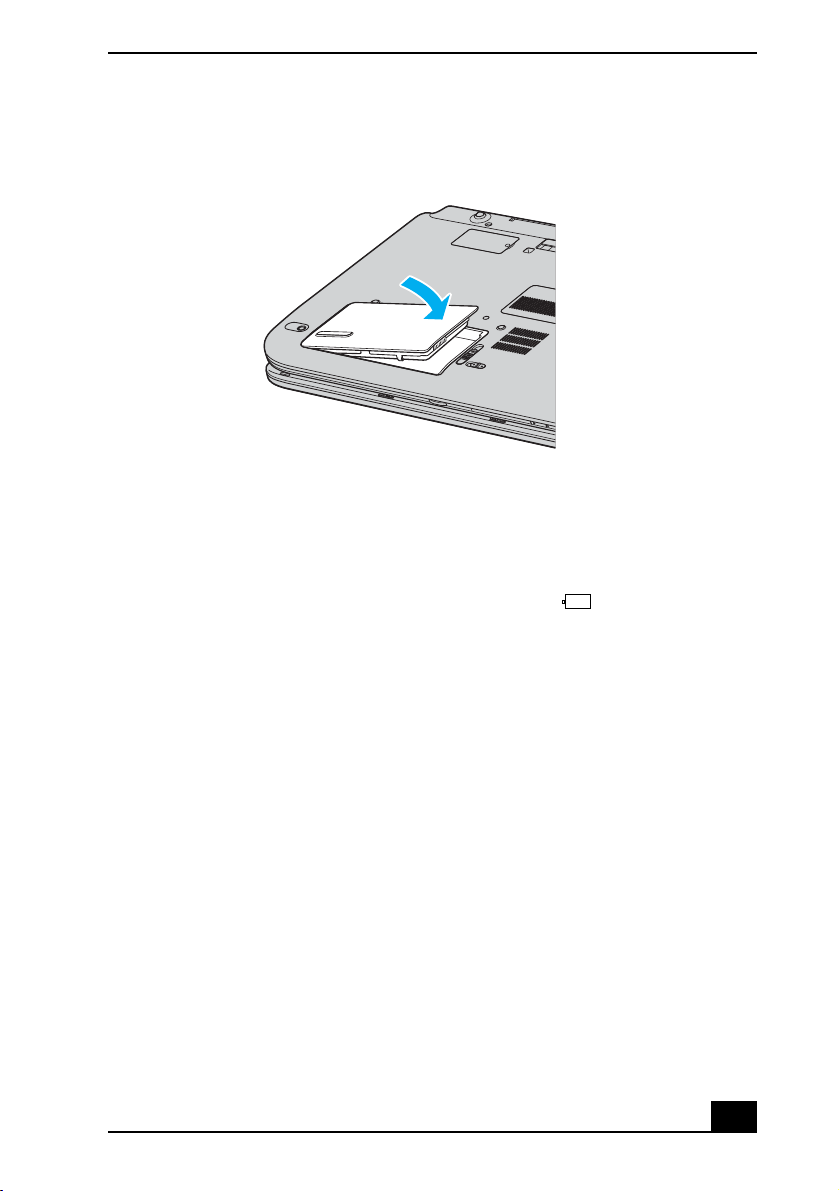
4 With the battery securely inserted into the battery bay cover, align the hooks
on the battery bay cover with the grooves inside the battery bay.
5 Lower the battery into the battery bay until you hear it click.
Opening the Battery Bay
Inserting the Battery
RELEASE switch
LOCK/UNLOCK switch
Battery (supplied)
VAIO logo facing up
Turning On Your Computer
31
6 Slide the LOCK/UNLOCK switch to LOCK.
7 Connect the AC adapter to the computer. See “To connect the AC adapter”
on page 32.
Once you connect the AC adapter to the computer, the battery begins to charge
whether the computer is on or off. The battery indicator
shows the battery
status. The indicator blinks as the battery charges. See “Powering Your
Computer” in your on-screen VAIO® Computer User Guide for more
information.
Securing the Battery
VAIO® Computer Quick Start
32
To connect the AC adapter
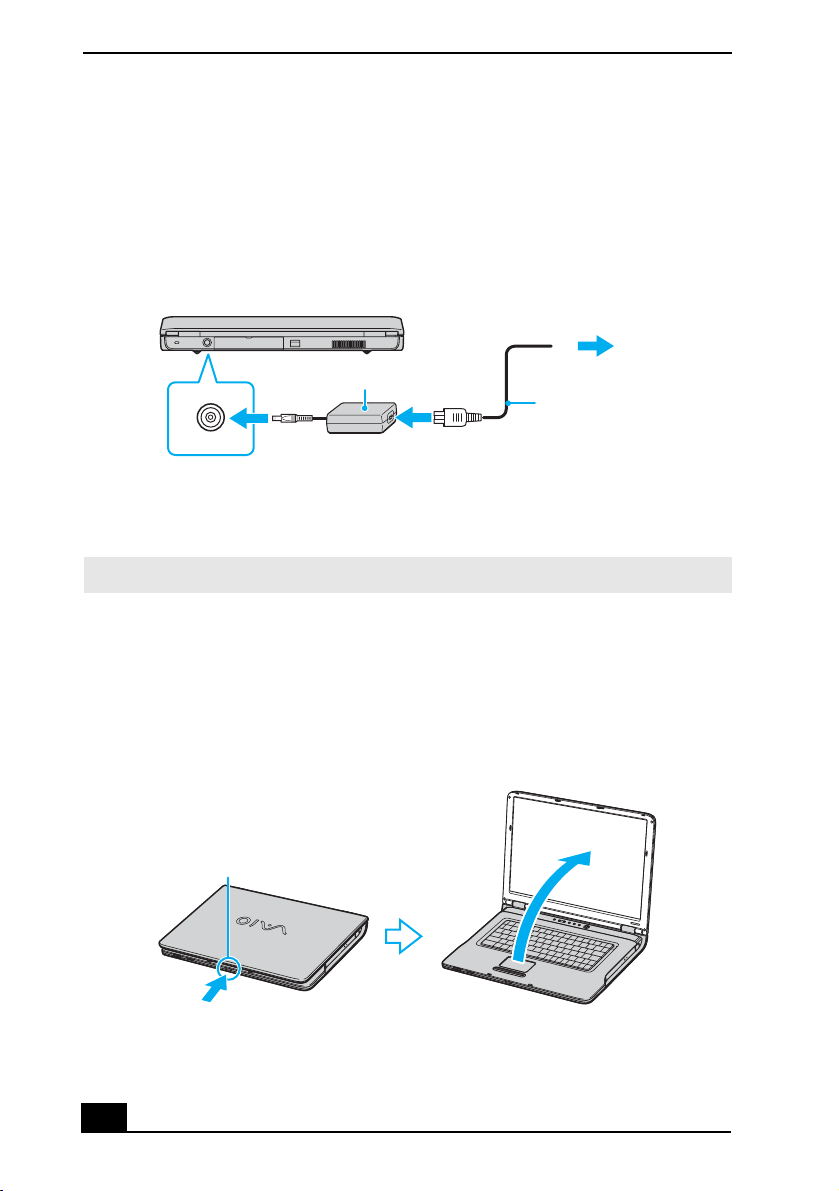
1 Plug the AC adapter cable into the DC IN port.
2 Plug the power cord into the AC adapter and an AC outlet.
.
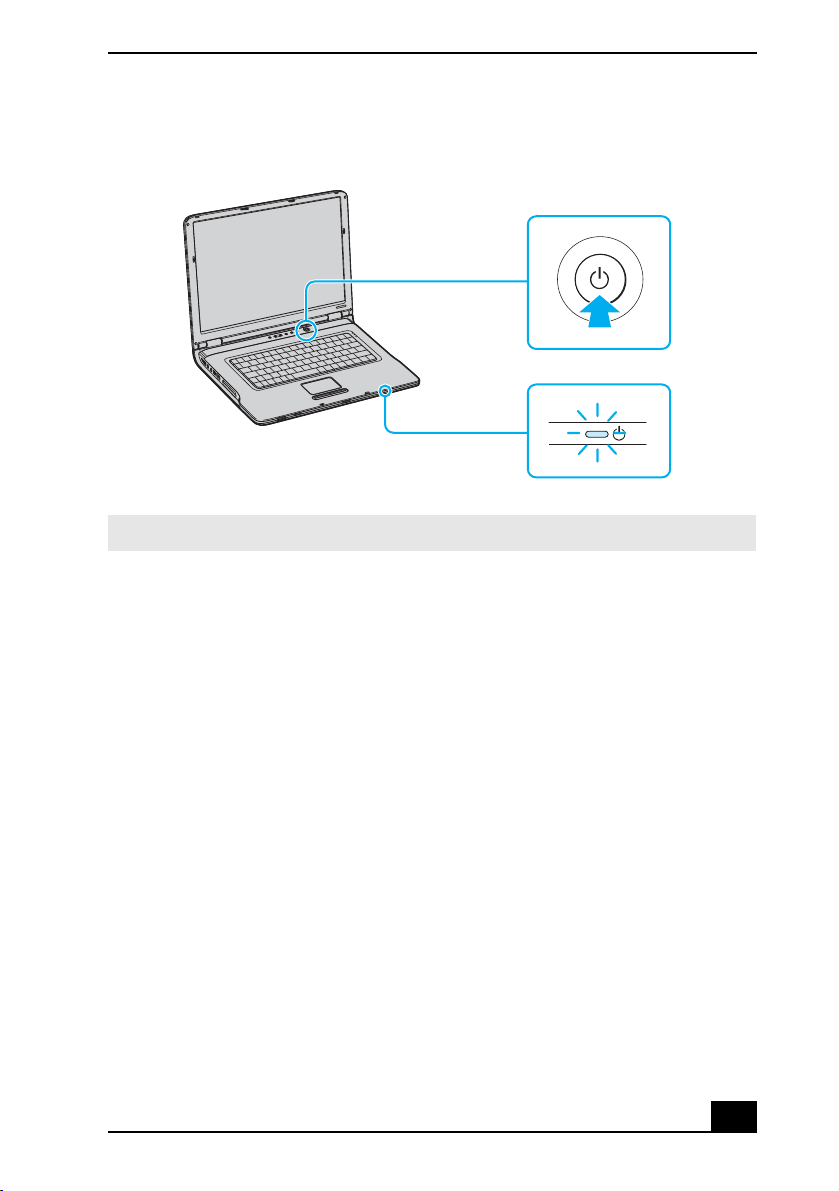
To open and turn on the computer
1 Press the release button and lift the cover while holding the bottom of the
computer firmly.
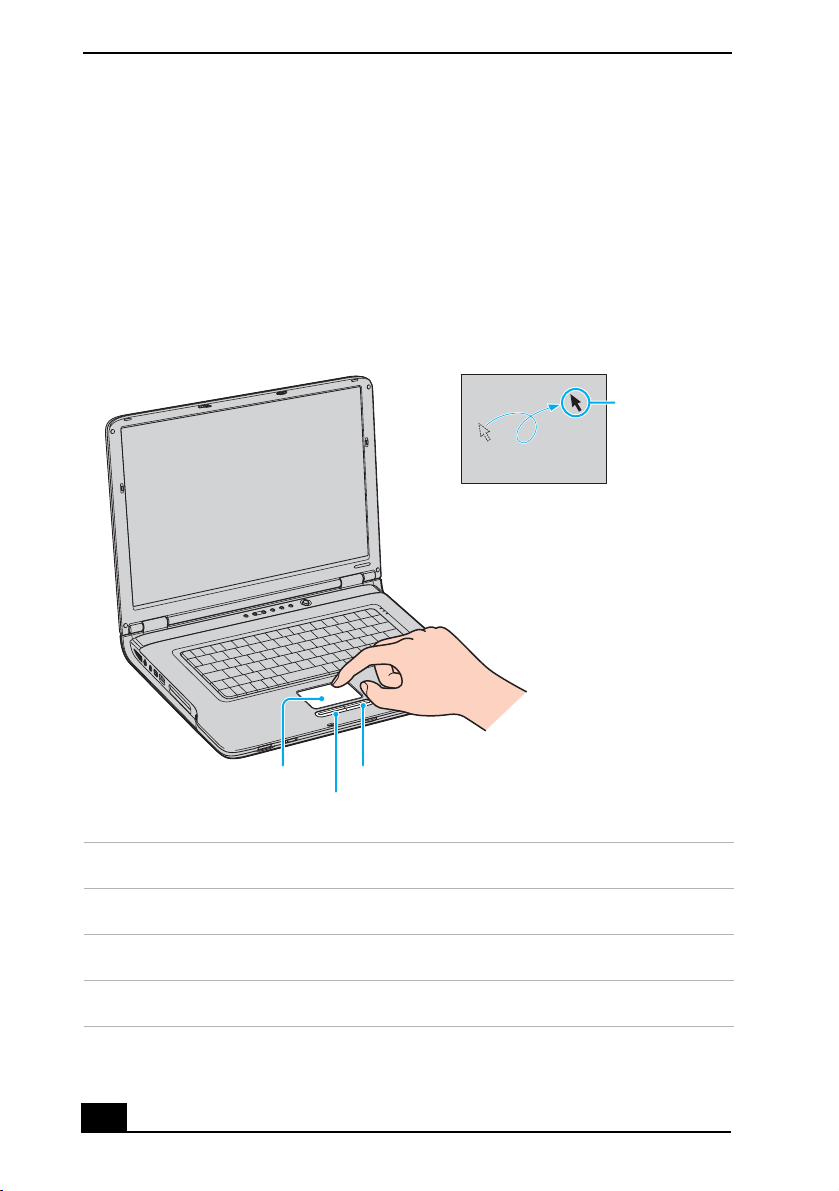
2 Press the power button until the power indicator turns on.
Connecting the AC Adapter to the Computer
✍ Use only the supplied AC adapter with your computer.
Opening the Computer
DC IN port
AC adapter
(supplied)
Power cord
(supplied)
To AC outlet
Release button
Turning On Your Computer
33
3 If necessary, adjust the brightness of the LCD screen.
Your computer comes with a brightness sensor that automatically increases and
decreases the LCD screen’s brightness level depending on the amount of external
light. To override the automatic setting and manually adjust the brightness,
follow these steps:
❑ Press the Brightness button, located next to the Volume buttons. See “Using
Special Buttons” in your on-screen VAIO® Computer User Guide for more
information.
❑ Press the Fn and F5 keys to decrease the brightness.
❑ Press the Fn and F6 keys to increase the brightness.
Turning on the Computer
✍ If you continue to press the power button, the computer turns off.
Power button
Power indicator
VAIO® Computer Quick Start
34
Using the Touch Pad
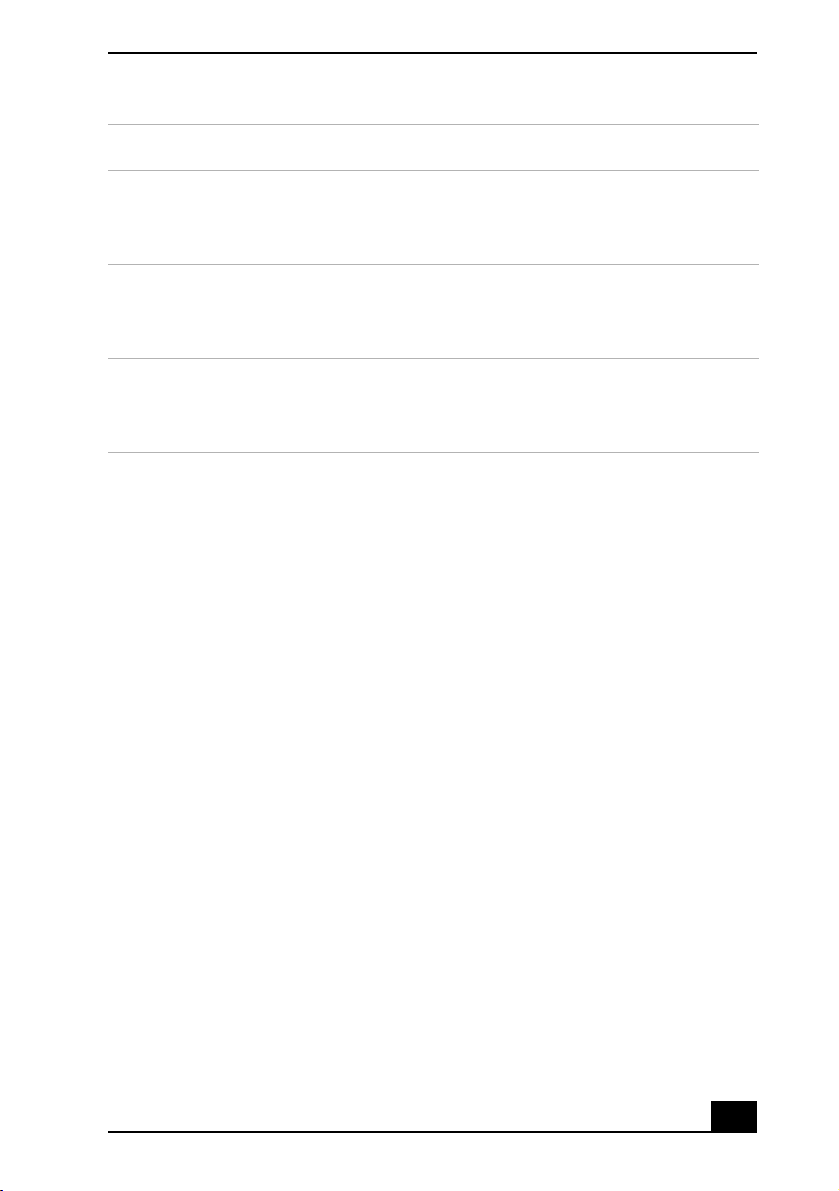
The computer contains a pointing device called a touch pad. You can point to,
select, drag, and scroll objects on the screen using the built-in touch pad.
Describing the touch pad
Locating the Touch Pad
Touch Pad Action Description
Sliding one finger Equivalent to using a mouse to place the pointer on an item.
Tapping once Equivalent to pressing the left button once.
Tapping twice Equivalent to pressing the left button twice.
Touch pad
Left button
Right button
On-screen
pointer
Using the Touch Pad
35
Sliding one finger
while pressing the
left button
Equivalent to using the mouse to drag an item.
Moving your finger
along the right edge
of the touch pad
Equivalent to scrolling vertically. (The scroll function is
available only with programs that support a touch pad scroll
feature.)
Moving your finger
along the bottom to
scroll horizontally
Equivalent to scrolling horizontally. (The scroll function is
available only with programs that support a touch pad scroll
feature.)
Touch Pad Action Description
VAIO® Computer Quick Start
36
Connecting the Wireless Mouse
Before attempting to use the wireless mouse (supplied with selected models
only), you must enable communication between the computer and the mouse.
To connect the wireless optical mouse
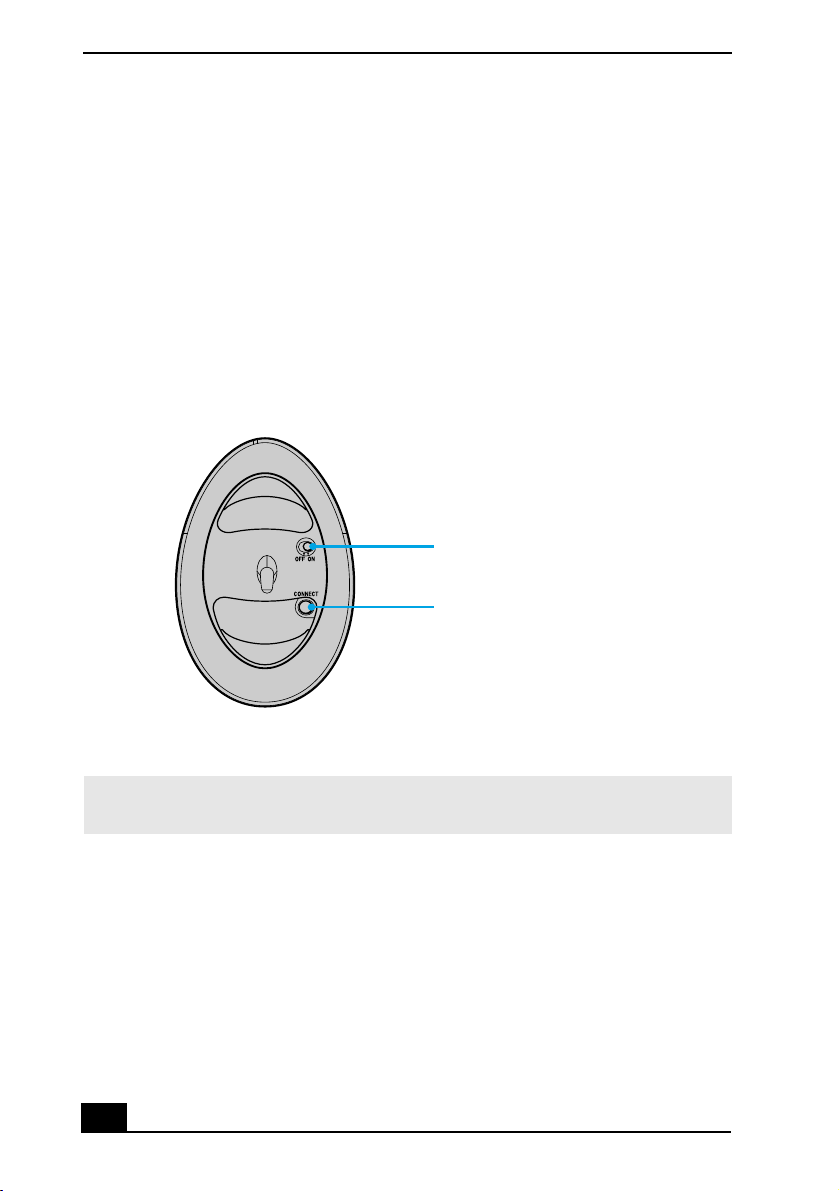
1 Turn the wireless mouse over.
2 Slide the power button on the wireless mouse to the ON position.
3 Turn on your computer.
4 Reach underneath the right side of the computer and press the CONNECT
button.
5 Press the CONNECT button on the wireless mouse within 30 seconds after
pressing the CONNECT button on the computer.
6 Place the optical mouse on an appropriate surface to enable tracking. The
wireless mouse must be within 12 inches of the computer.
Connecting the Mouse
✍ Confirm that the AA batteries (supplied) are properly inserted into the mouse before
your computer is turned on.
Press to connect
Switch to the
ON position

Registering Your Computer
37
Registering Your Computer
Take advantage of Sony’s commitment to quality customer support and receive
these benefits by registering your computer
1
:
❑ Sony Customer Support — Talk to a support representative to troubleshoot
problems you may have with your computer.
❑ Product Information Notification — By giving Sony your contact
information, you will enable Sony to reach you regarding performance
updates and upgrades.
✍ Once a connection has been established between the wireless mouse and the
computer, it will remain in effect until another wireless mouse is connected to the
computer. See the on-screen VAIO® Computer User Guide for more information about
using the wireless mouse.
✍ You are prompted to register your computer the first time you turn on the unit. Follow
the on-screen instructions to complete the registration process. If you are not able to
register your computer during the first session, you are provided with additional
registration opportunities later.
1 Sony product registration is voluntary; failure to register will not diminish your limited
warranty rights
VAIO® Computer Quick Start
38
Locating Your VAIO Computer User Guide
The on-screen VAIO® Computer User Guide is a searchable help file that
contains detailed information on how to use your new computer.
To open the user guide
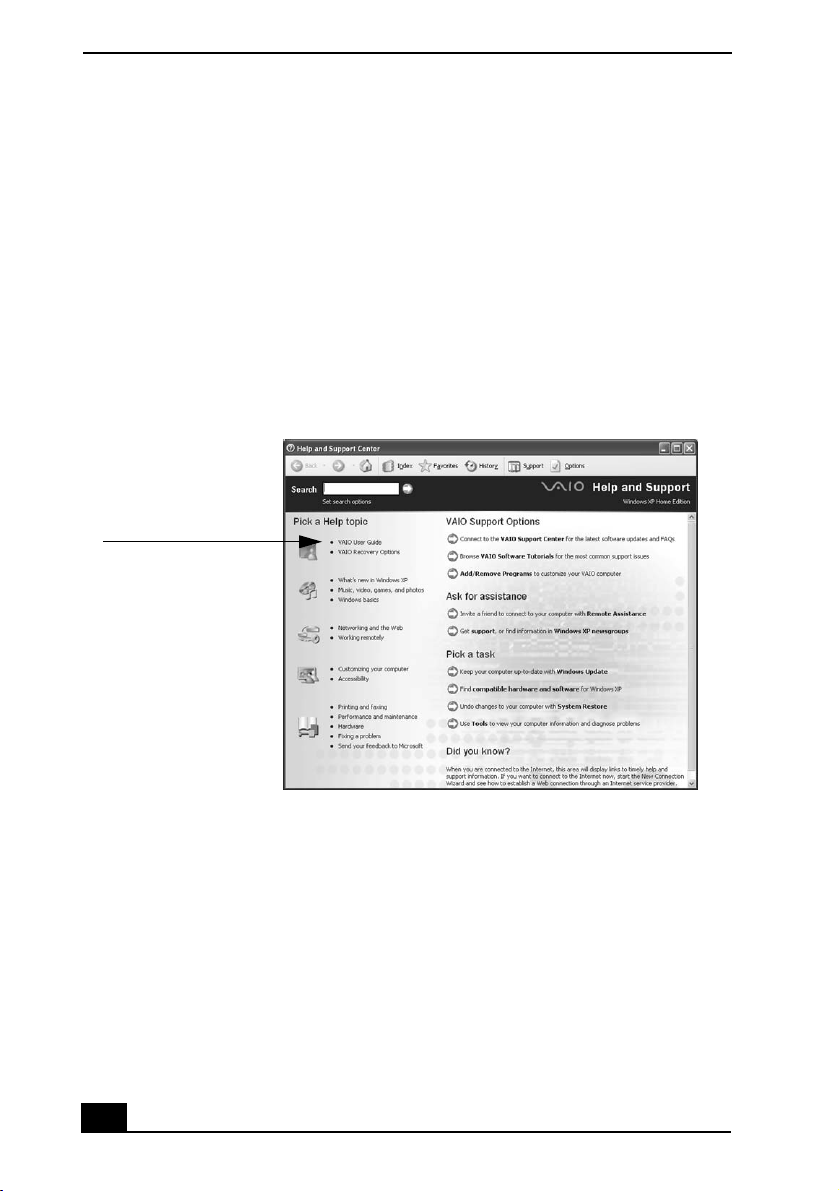
1 Click Start on the Windows® taskbar, and then click Help and Support.
The Help and Support Center window appears, displaying information
about your VAIO® computer and Microsoft® Windows® operating system.
2 Click VAIO User Guide in the Pick a Help topic column. A second Help
and Support Center window appears with the user guide.
Locating the VAIO User Guide
User Guide link

Locating Your VAIO Computer User Guide
39
VAIO User Guide Window
1 User guide table of contents List of computer help topics
2 Link to Electronic Flyer List of updates and supplemental
information
3 Link to Sony Computing
Support Web site
Includes support information and list of
your computer’s hardware specifications
(Internet access required).
VAIO® Computer Quick Start
40
Setting Up A Dial-Up Connection
This section describes the basic steps for setting up your dial-up connection. The
Connection Wizard guides you through the process of choosing an Internet
Service Provider (ISP) or setting up an existing account, and connecting to the
Internet.
To set up a dial-up connection
1 Connect a telephone cable to your computer. See “Setting up a dial-up
Internet connection” in the Internet and Network Connections chapter of
your on-screen VAIO® Computer User Guide.
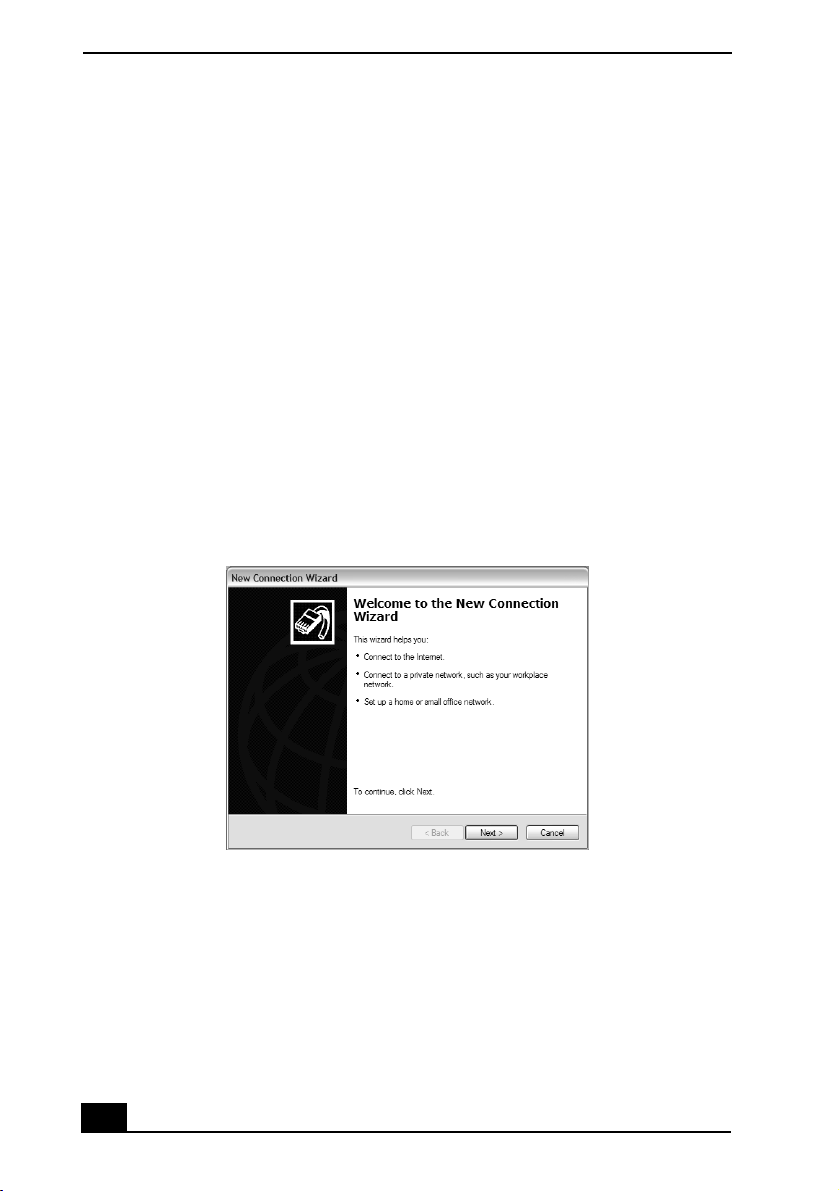
2 Click Start, point to All Programs, Accessories, Communications, and
then click New Connection Wizard. The New Connection Wizard
appears.
3 Click Next.
4 If it is not already selected, click Connect to the Internet.
5 Click Next.
6 Follow the on-screen instructions.
New Connection Wizard

Turning Off Your Computer
41
Turning Off Your Computer
Using the power button to turn off your computer may result in loss of data.
Follow the steps below to properly turn off your computer and avoid losing data.
To turn off your computer
1 Close all operations.
2 Click Start on the Windows® taskbar.
3 Click Turn Off Computer at the bottom of the Start menu to display the
Turn off computer window, and select Turn Of f.
4 Wait for your computer to turn off automatically. The computer is off when
the power indicator turns off.
✍ Respond to any prompts warning you to save documents.
✍ During a period of inactivity, you can conserve battery life by adjusting the power
management settings and using power saving modes. See “Conserving Battery
Power” in your on-screen VAIO® Computer User Guide for more information.
✍ If you are unable to turn off the computer, press the power button and hold it until the
power indicator turns off. This operation may result in data loss.

VAIO® Computer Quick Start
42

43 43
Troubleshooting
What do I do if my computer won’t start?
❑ Make sure the computer is securely plugged into a power source and turned
on. Make sure the power indicator shows the power is on.
❑ Make sure the battery is inserted properly and charged.
❑ Make sure the floppy disk drive (if applicable) is empty.
❑ If the computer is plugged into a power strip or uninterruptible power supply
(UPS), make sure the power strip or UPS is turned on and working.
❑ If you are using an external display, make sure it is plugged into a power
source and turned on. Make sure the brightness and contrast controls are
adjusted correctly. See the guide that came with your display for details.
❑ Disconnect the AC adapter and remove the battery. Wait three to five
minutes. Reattach the AC adapter and reinsert the battery, and press the
Power button to turn on the computer.
❑ Condensation may cause the computer to malfunction. If this occurs, do not
use the computer for at least one hour.
What do I do if a BIOS error appears when my computer
starts?
If the message “Press <F1> to resume, <F2> to setup” appears at the bottom of
the screen, follow these steps:
1 Press the F2 key. The BIOS Setup menu appears.
2 Set the date (month/day/year). Press Enter.
3 Press the Down Arrow key to select System Time, and then set the time
(hour: minute: second). Press Enter.
✍ For further instructions, contact Sony Computing Support
(http://www.sony.com/pcsupport).
VAIO® Computer Quick Start
44
4 Press the Right Arrow key to select the Exit tab, and then press the
Down Arrow key
to select Get Default Values. The message Load
factory default values. appears.
5 Press the Enter key. The Load Optimal Defaults? window appears.
6 Select Ok, and press Enter.
7 Select Exit (Save Changes), and press Enter. The Save configuration
changes and exit setup? window appears.
8 Select Ok, and press Enter. The computer restarts.
What do I do if the message “Operating system not found”
appears when my computer starts, and why won’t Windows
start?
❑ Make sure the computer does not have a “non-bootable” floppy disk in the
floppy disk drive (if applicable).
❑ If a non-bootable floppy disk is in the drive:
1 Remove the floppy disk.
2 Restart the computer and confirm that the Microsoft® Windows®
operating system starts properly.
❑ If the Windows operating system still does not start, follow these steps to
initialize the BIOS:
1 If there is a disk in the floppy disk drive, then remove it.
2 Turn off the computer.
3 Remove any peripheral devices connected to the computer.
4 Restart the computer.
5 Press the F2 key when the VAIO logo appears. The BIOS Setup
window appears.
6 Press the Right Arrow key to select the Exit menu.
7 Press the Down Arrow key to select Get Default Values. The
message Load factory default values. appears.
✍ If this occurs on a regular basis, contact Sony Computing Support
(http://www.sony.com/pcsupport).

Troubleshooting
45
8 Press the Enter key. The Load Optimal Defaults? window appears.
9 Select Ok, and press Enter.
10 Select Exit (Save Changes), and press Enter. The Save configuration
changes and exit setup? window appears.
11 Select Ok, and press Enter. The computer restarts.
What do I do if my computer stops responding?
It is best to turn off your computer using the Turn Off Computer option on the
Microsoft® Windows® Start menu, located on the taskbar. Using other methods,
including those listed below, may result in loss of unsaved data.
❑ Click Start on the Windows® taskbar, select Turn Off Computer, and then
click Tu r n Of f .
❑ If your computer does not turn off, press the Ctrl+Alt+Delete keys
simultaneously. When the Windows Task Manager dialog box appears,
click Tu r n Of f from the Shut Down menu.
❑ If your computer still does not turn off, press and hold the power button or
slide and hold the power switch until the computer turns off.
❑ If your computer stops responding while playing a CD or DVD, press the
Ctrl+Alt+Delete keys simultaneously. You can turn off the computer from
the Windows Task Manager.
❑ Remove the AC adapter and battery.
✍ Pressing the Ctrl+Alt+Delete keys simultaneously or turning off the computer with the
power button or switch may cause loss of data.
VAIO® Computer Quick Start
46
Support Options
If you have questions about your computer or the preinstalled programs, refer to
the following sources for answers in the sequence listed below.
1 VAIO® Computer User Guide
The on-screen VAIO® Computer User Guide provides detailed
information on how to maximize your computer capabilities and solve
common problems.
2 Program Guides and Help Files
The preinstalled programs on your computer may come with individual
help guides. These guides are stored on the hard disk as on-screen Help
files. You can find the Help files from the Help menu under the specific
program.
3 Operating System Online Support
Your computer comes preinstalled with a Microsoft® Windows®
operating system. For operating system support, you can visit Microsoft®
customer support at: http://support.microsoft.com/directory/.
4 Sony Computing Support
This service provides instant access to information on commonly
encountered problems. Type a description of the problem and the
Knowledge Database searches for the corresponding solutions online.
You can visit Sony Computing Support at:
http://www.sony.com/pcsupport.
5 VA I O U p d a t e
When your computer is connected to the Internet, VAIO Update
automatically notifies you when critical software and security information
is posted on the support Web site. Click the VAIO Update notice to open
the VAIO Support Web site and view the information. You can also right-
click the VAIO Update icon
in the Taskbar Notification area and
select Go to VAIO Web Support to open the support Web site.


VAIO Homepage
http://www.vaio.net
© 2005 Sony Electronics Inc.
Printed in China
2-585-226-01
For customer support information, go to:
http://www.sony.com/pcsupport
*258522601*