
Philips Consumer Electronics
HK- 0721-WAC3500D
(report No.)
EC DECLARATION OF CONFORMITY
We,
Philips Consumer Electronics
(manufacturerís name)
Philips, Glaslaan 2, 5616 JB Eindhoven, The Netherlands
(manufacturerís address)
declare under our responsibility that the electrical product:
Philips WAC3500D/12 /05
(name) (type or model)
Wireless Music Center
(product description)
to which this declaration relates is in conformity with the following standards:
EN55013 : 2001 +A1:2003 EN 300 328 : 2004
EN55020 : 2002 + A1:2003 +A2:2005 EN 301 489-1 : 2005
EN 55022: 2006 EN 301 489-17: 2002
EN 55024: 1998 +A1:2001 +A2:2003 EN 50371 : 2002
EN 60065: 2002 +A1:2006
(title and/or number and date of issue of the standards)
following the provisions of R &TTE Directive 1999/5/EC ( incl. 73/23/EEC & 93/68/EEC
directives and is produced by a manufacturing organization on ISO 9000 level.
Eindhoven,
May 24, 2007
(place, date)
Eric Tijssen
Program Manager
PCE I-Lab Entertainment Solutions
(signature, name and function)

EN Wireless Music Center 1
Important notes for users in the U.K.
Mains plug
This apparatus is fitted with an approved 13- Amp
plug.To change a fuse in this type of plug, proceed as
follows:
1 Remove fuse cover and fuse.
2
Fix the new fuse which should be a BS1362 5-
Amp, A.S.T.A. or BSI approved type.
3 Refit the fuse cover.
If the fitted plug is not suitable for your socket
outlets, it should be cut off and an appropriate
plug should be fitted in its place.
If the mains plug contains a fuse, it should have
a value of 5 Amp. If a plug without a fuse is
used, the fuse at the distribution board should
not be greater than 5 Amp.
Note:The severed plug must be disposed, so as to
avoid a possible shock hazard due to it being
inserted into another 13-Amp socket.
How to connect a plug
The wires in the mains lead are colored using the fol-
lowing codes: blue = neutral (N), brown = live (L).
• As these colors may not correspond with the
color markings identifying the terminals in your
plug, proceed as follows:
– Connect the blue wire to the terminal
marked N or colored black.
– Connect the brown wire to the terminal
marked L or colored red.
– Do not connect either wire to the earth
terminal in the plug, marked E (or e) or col-
ored green (or green and yellow).
Before replacing the plug cover, make sure that the
cord grip is clamped over the sheath of the lead and
not simply over the two wires.
Copyright in the U.K.
Recording and playback of any materials may require
consent. See Copyright Act 1956 and The
Performerb’s Protection Acts 1958 to 1972.
Norge
Typeskilt finnes på apparatens bakside.
Observer: Nettbryteren er sekundert
innkoplet. Den innebygde netdelen er der-
for ikke frakoplet nettet så lenge appa-
ratet er tilsluttet nettkontakten.
For å redusere faren for brann eller elektrisk
støt, skal apparatet ikke utsettes for regn eller
fuktighet.
CLASS 1
LASER PRODUCT

Table of contents
1
ENGLISH
Table of contents
1 Important 3
1.1 Safety 3
1.2 GPL Package written offer 4
1.3 LGPL Library written offer 4
1.4 Environmental information 4
1.5 Disposal of your old product 5
1.6 Maintenance 5
1.7 Hearing Safety 6
1.8 Register your product 7
2 Your Wireless Music Center &
Station 8
2.1 What’s in the box 8
2.2 Overview Wireless Music Center 10
2.2.1 Controls on Center 10
2.3 Overview remote controls 12
2.4 Overview display 14
3 Installation 15
3.1 Install Center 15
3.2 Connect AC power 15
3.3 Rear connections 16
3.3.1 Connect antennas 16
3.3.2 Connect a portable (USB) flash device 17
3.3.3 Connect your iPod 18
3.3.4 Connect additional appliances 19
4 Prepare 20
4.1 Set the clock 20
4.1.1 View the clock 22
4.2 Remote control 22
4.2.1 Remote control battery installation 22
4.3 Navigation controls 24
4.4 Alphanumeric keys 24
5 Basic functions 25
5.1 Power modes and functions 25
5.2 Eco Standby (power-saving mode) 26
5.3 Auto-Standby 26
5.4 Volume control 26
5.5 MUTE 27
5.6 Sound control 27
5.6.1 Smart equalizer 27
5.6.2 Equalizer 28
5.6.3 DBB (Dynamic Bass Boost) 28
5.6.4 Incredible surround 29
5.7 Display adjustment 29
5.8 Selecting languages 30
5.9 Sleep 30
5.10 Alarm 31
5.10.1 Set alarm / alarm time / repeat mode 31
6 HD (Hard Disk) 32
6.1 Play HD Music 32
6.2 Search 32
6.2.1 Search by keywords 32
6.2.2 Select track of same artist 34
6.2.3 Select track of same genre 34
6.2.4 Find track in current album (during
playback) 34
6.2.5 Find passage in current track (during
playback) 35
6.3 Play modes REPEAT, SHUFFLE 35
6.4 Build music library on Center 36
6.4.1 Rip music from CDs 36
6.4.2 Import from your PC 39
6.4.3 Record from radio or external source 39
6.5 Create a playlist 40
6.6 Delete a playlist, album or track 41
6.7 View track information 41
6.8 Backup to PC 42
6.9 View system information 42
6.10 Edit track information 43
7CD 44
7.1 Supported discs 44
7.2 Play discs 45
7.2.1 Search by keywords 45
7.2.2 Find track in current album (during
playback) 46
7.2.3 Find passage in current track (during
playback) 46
7.3 Play modes REPEAT, SHUFFLE 47
7.4 View track information 47

8 FM radio 48
8.1 Tune radio stations 48
8.2 Store preset radio stations 48
8.2.1 Autostore: Automatic preset program 48
8.2.2 Manual store: manual preset program 49
8.2.3 Listen to preset station 49
8.3 RDS 50
8.4 NEWS 50
8.5 Internet radio 51
8.5.1 First time use 51
8.5.2 Regular use 52
8.5.3 Add internet radio stations and bookmark
your favorites 53
9 UPnP 54
9.1 UPnP (Universal Plug and Play) 54
9.1.1 About UPnP* 54
9.1.2 About UPnP* enabled devices 54
9.2 Connect to the UPnP device 55
9.3 UPnP playback 55
9.3.1 Play music from UPnP device 55
9.3.2 Play music from Center as UPnP source 56
10 External sources 57
10.1 Play or record to USB mass storage
device 57
10.1.1 About USB device 57
10.1.2 Play music from USB device 58
10.1.3 Transfer music to USB device 59
10.2 Play your iPod music 61
10.3 Play additional appliances 62
11 Network settings 63
11.1 Add Stations to Wi-Fi network of Center
63
11.1.1 Delete a Station 65
11.2 Connect to Wi-Fi (wireless) enabled
home network 65
11.2.1 Network settings on Center 65
11.3 Connect to wired home network 66
11.3.1 Set network on Center 67
11.4 Connect to two different home
networks 68
11.5 View connection status with home
network 68
11.6 Connect to Internet 68
Table of contents
2
12 Connect to your PC 71
12.1 Use WADM 73
12.1.1 Import from your PC using WADM 74
12.1.2 Edit track information using WADM 75
12.1.3 Backup music library of Center to your PC
using WADM 76
12.1.4 Restore backup files from your PC to
Center 76
13 Gracenote® CD Information 77
13.1 Gracenote® Media Database 77
13.1.1 Update Gracenote® Media Database 77
13.2 Gracenote® Internet Queries 77
13.2.1 Look up CD track information 77
14 Expandable features 78
14.1 MUSIC FOLLOWS ME 78
14.2 MUSIC BROADCAST 78
15 Firmware Upgrade 80
15.1 Upgrade firmware 80
15.2 Restore previous firmware 81
15.3 Re-establish Wi-Fi network of Center
and Stations 81
16 Reset 82
17 Technical data 84
18 Frequently asked questions 85
19 Troubleshooting 89
Important
3
ENGLISH
1 Important
1.1 Safety
• Do not open the product or remove the cover.The interior does not contain any user-
serviceable parts.
• Do not place objects filled with liquid, such as vases, on the product.
• Do not stick objects into the openings of the product.
• Do not drop objects such as paperclips into the openings.
• Do not expose the product to splashing or dripping water.
• Do not expose the product to rain or high humidity.The product is for indoor use only.
• Do not place sources of naked flames, such as burning candles, on the product.
• Position the product in a location with adequate ventilation.Allow at least 10 cm (4 inches)
clearance at the rear and the top of the product and 5 cm (2 inches) on each side.
• Do not cover the ventilation openings with items such as newspapers, tablecloths, curtains, etc.
• Do not oil or lubricate the mechanical parts of the product.
• Visible and invisible laser radiation! Do not look at the laser beam.
•
The set does not contain any user-serviceable parts.
• Place the set on a level, firm and sturdy surface.
• Keep the system, batteries and discs in a cool dry place.
• Do not exposure the product to humidity, rain, or heat sources like radiators, amplifiers, or
direct sunlight.
• Modification of the product can result in hazardous EMC radiation or other unsafe operations.
This product complies with the radio interference requirements of the European Community.
Philips Electronics, BG Entertainment Solutions, hereby declare that this product WAC3500D is in
compliance with the essential requirements and other relevant provisions of the Directive
1999/5/EC.
The making of unauthorized duplicates of copy-protected materials, including computer programs,
files, broadcasts and sound recordings, may be an infringement of copyrights and constitutes as
criminal offence.This equipment should not be used for such purposes.
Note
The use of controls or adjustments or performance of procedures other than described in the
user manual may result in hazardous radiation exposure or unsafe operation.
Caution! To avoid the risk of injuries or damages, follow these safety instructions:
Warning! To avoid the risk fire, electric shock, injuries or damages, follow these safety
instructions:

1.2 GPL Package written offer
This product contains Linux 2.4.27-vrsl that is made available under the GNU GPL license version
2 (hereafter called ‘the Program’).
Philips Electronics Hong Kong Ltd. hereby offers to deliver or make available, upon request, for a
charge no more than the cost of physically performing source distribution, a complete machine-
readable copy of the corresponding source code of the Program on a medium customarily used for
software interchange. Please contact: Head of Development BLC Audio PDCC Development 5/F.,
Philips Electronics Building 5 Science Park East Avenue Hong Kong Science Park Shatin Hong Kong
This offer is valid for a period of three years after the date of purchase of this product.
1.3 LGPL Library written offer
This product contains Linux 2.4.27-vrsl that is made available under the GNU LGPL license version
2.1 (hereafter called ‘the Library’).
Philips Electronics Hong Kong Ltd. hereby offers to deliver or make available, upon request, for a
charge no more than the cost of physically performing source distribution, a complete machine-
readable copy of the corresponding source code of the Library on a medium customarily used for
software interchange. Please contact: Head of Development BLC Audio PDCC Development 5/F.,
Philips Electronics Building 5 Science Park East Avenue Hong Kong Science Park Shatin Hong Kong
This offer is valid for a period of three years after the date of purchase of this product.
1.4 Environmental information
All redundant packaging material has been omitted.We made the packaging easily separable into
three mono materials: cardboard (box), polystyrene foam (buffer) and polyethylene (bags, protective
foam sheet).
The product consists of materials that can be recycled if disassembled by a specialized company.
Please observe local regulations regarding the disposal of packaging materials, exhausted batteries
and old equipment.
Important
4

1.5 Disposal of your old product
Your product is designed and manufactured with high quality materials and components,
which can be recycled and reused.
In order to preserve, protect and improve the quality of the environment, protect human
health, and utilize natural resources prudently and rationally, you should return the
unserviceable product either to the place where you purchased it, or to a relevant facility in
accordance with the local statutory regulations.
The crossed-out wheeled bin indicates that the product must not be disposed of in the household
refuse.The symbol is used in conjunction either with a solid bar or the date of manufacture / launch.
Please act according to your local rules and do not dispose of your old products with your normal
household waste.The correct disposal of your old product will help prevent potential negative
consequences for the environment and human health.
Batteries contain chemical substances that may pollute the environment, so they should be
disposed of at an official collection point.
1.6 Maintenance
Clean the set
• Use a soft cloth slightly moistened with a mild detergent solution.
• Do not use any solutions that contain alcohol, spirits, ammonia or abrasives, as these can harm
the product.
Clean your discs
• When a disc becomes dirty, clean it with a cleaning cloth.Wipe the disc from the center out.
• Do not use solvents such as benzene, thinner, or antistatic spray intended for analog records.
Care for the HD (Hard Disk )
The HD is a delicate piece of equipment that is prone to damage due to its long recording capacity
and high speed operation.
• Do not move the unit while it is switched on.
• Do not remove the AC power plug from the power outlet during operation.
• Do not use the unit in excessively hot or humid places as this may cause condensation to form
inside the unit.
If the HD fails, playback and recording will not be possible. In this case, is will be necessary to
replace the HD unit.
Note
The HD is not recommended for permanent storage of recorded contents. Before creating
your music library, create a back up of the music on your PC. If necessary, you can later restore
your system with these backup files.
Important
5
ENGLISH

1.7 Hearing Safety
Listen at a moderate volume.
• Using headphones at a high volume can impair your hearing.This product can produce
sounds in decibel ranges that may cause hearing loss for a normal person, even for
exposure less than a minute.The higher decibel ranges are offered for those that may have
already experienced some hearing loss.
• Sound can be deceiving. Over time your hearing ‘comfort level’ adapts to higher volumes of
sound. So after prolonged listening, what sounds ‘normal’ can actually be loud and harmful to
your hearing.To guard against this, set your volume to a safe level before your hearing adapts and
leave it there.
To establish a safe volume level:
• Set your volume control at a low setting.
• Slowly increase the sound until you can hear it comfortably and clearly, without distortion.
Listen for reasonable periods of time:
• Prolonged exposure to sound, even at normally ‘safe’ levels, can also cause hearing loss.
• Be sure to use your equipment reasonably and take appropriate breaks.
Be sure to observe the following guidelines when using your headphones.
• Listen at reasonable volumes for reasonable periods of time.
• Be careful not to adjust the volume as your hearing adapts.
• Do not turn up the volume so high that you can’t hear what’s around you.
• You should use caution or temporarily discontinue use in potentially hazardous situations.
• Do not use headphones while operating a motorized vehicle, cycling, skateboarding, etc.; it may
create a traffic hazard and is illegal in many areas.
Important (for models supplied with headphones):
Philips guarantees compliance with the maximum sound power of its audio players as determined
by relevant regulatory bodies only with the original model of provided headphones. In case this one
needs replacement, we recommend that you contact your retailer to order a model identical to
that of the original, provided by Philips.
Important
6

1.8 Register your product
To fully benefit from the support that Philips offers, register your product at
www.philips.com/welcome.
As it is possible for you to upgrade your product, we recommend that you also register your
product on www.club.philips.com so that we can inform you as soon as new and free upgrades
are available.
Products from Philips have been designed and manufactured to the highest quality standards. If your
product does not work correctly, perhaps the connection and configuration must be revised.
To enhance your home entertainment experience, our support website (www.philips.com/support)
offers you the information you need to enjoy your product as well as new additions to our range
of products.
Please visit www.philips.com/support and enter the product name (WAC3500D) to view:
• FAQ (Frequently Asked Questions)
• Latest user manuals and PC software manuals
• Firmware upgrade files for WAC3500D online
• Interactive troubleshooting
If you register your product at www.club.philips.com, we will be able to inform you as soon as
new and free upgrades are available.
Enjoy your Wireless Music Center!
Important
7
ENGLISH
Your wireless music centre and station
8
2 Your Wireless Music Center & Station
Congratulations on your purchase and welcome to Philips!
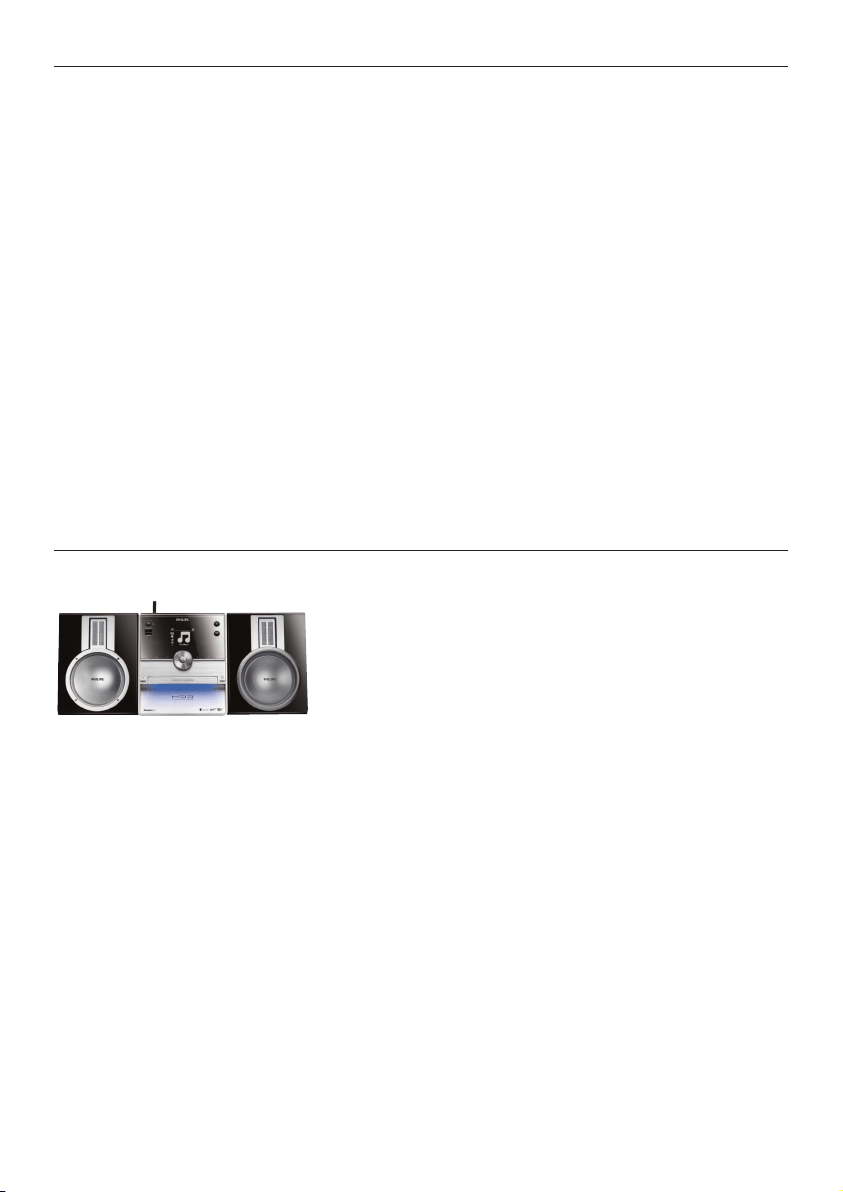
With the Wireless Music Center you can:
• Stream music from your PC
• Dock your iPod
• Plug & play from USB devices
• Enjoy HD playback
You can store up to 15000 songs in the 80GB Hard Disk of the Center and you can connect up to
5 Stations to Center.
All stored music can be wirelessly streamed from Center to the connected Stations using Wi-Fi*.
Your CD player and PC are no longer bound by wires.
* Wi-Fi is used to describe wireless LAN enabled products that are based on the IEEE 802.11 standards.
The presence of the Wi-Fi logo indicates that a product has been certified for interoperability.
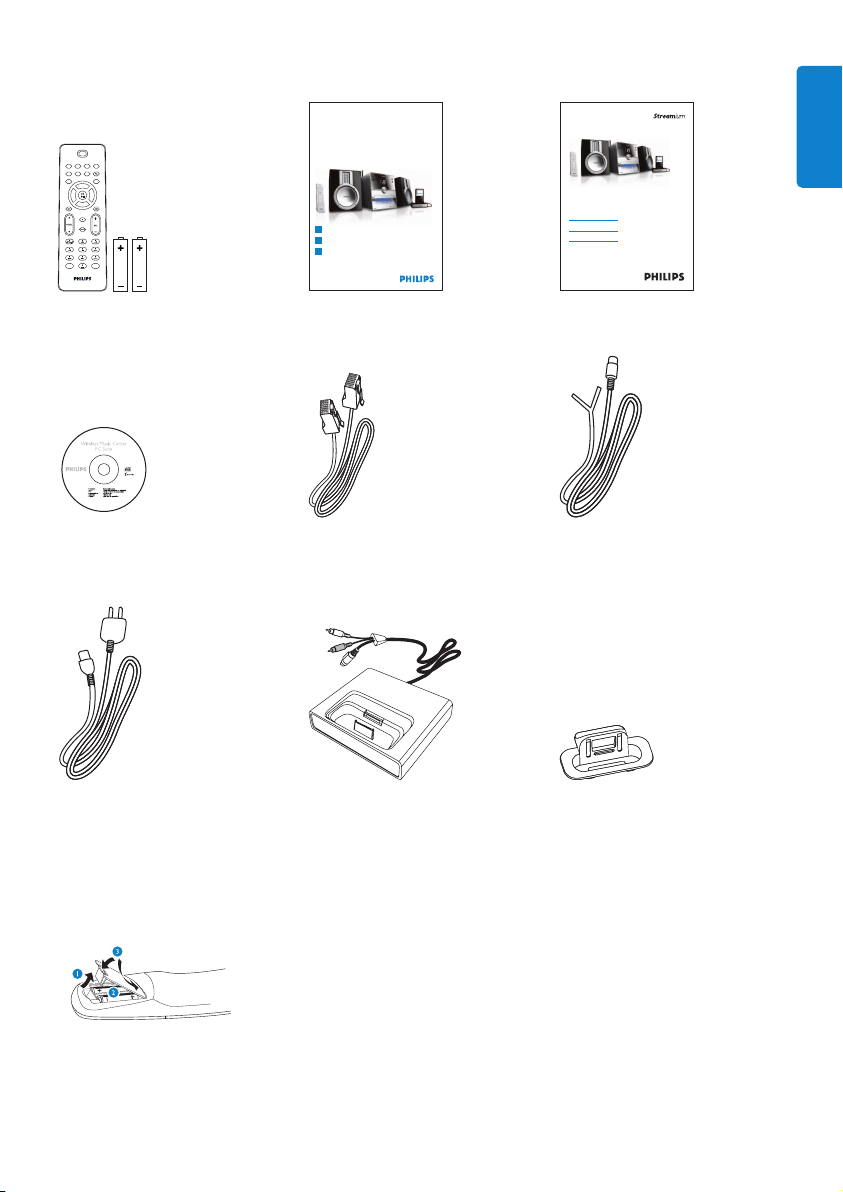
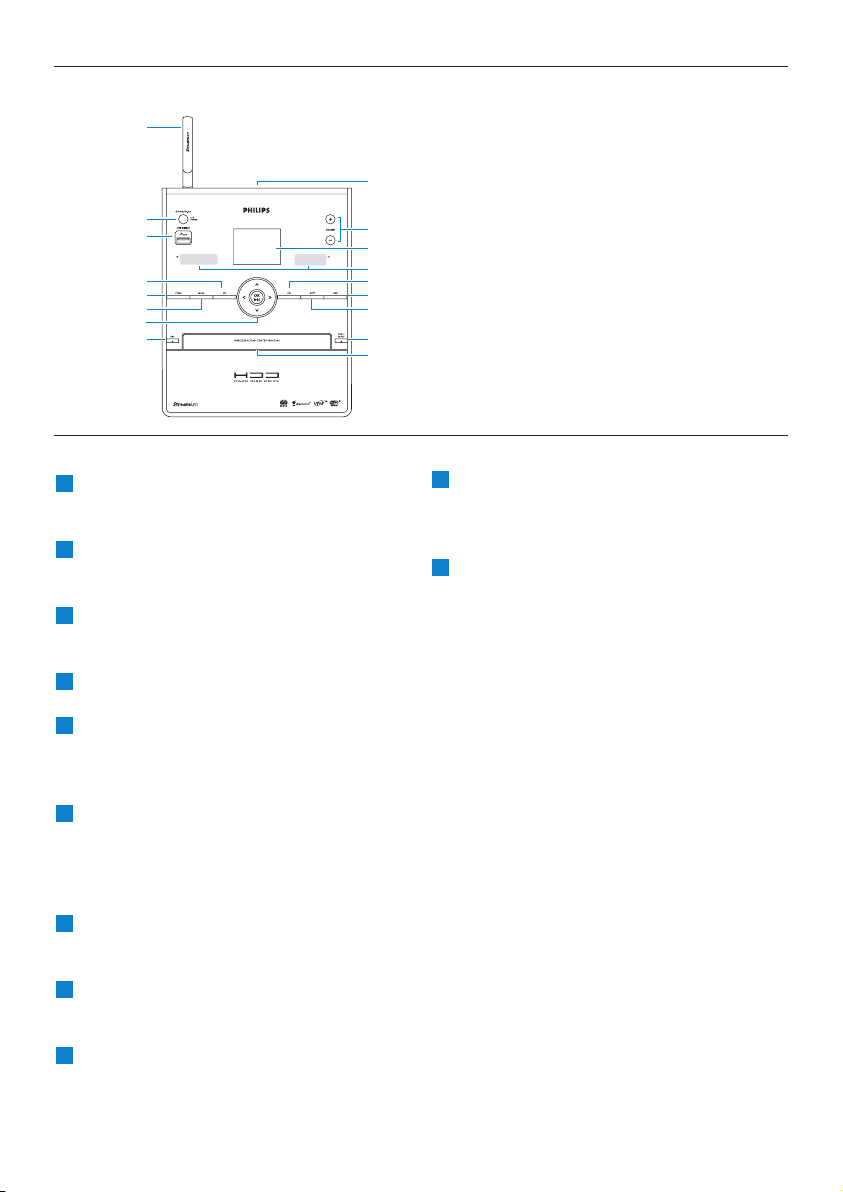
2.1 What’s in the box
Wireless Music Center WAC3500
Your wireless music centre and station
9
ENGLISH
Remote control, 1-way,
including 2x AAA batteries
Quick start guide User manual
WACS3500D
Congratulations on your purchase
and welcome to Philips!
To fully benefit from the support that
Philips offers, register your product at
www.philips.com/welcome
For support call 0906 1010 017
Wireless Music Center + Station
Philips Streamium
Wireless Music Center
Quick start guide
1
3
2
WAC3500D
Connect / Set up
Enjoy
Enjoy with your home network / PC
PC Suite CD 1 x Ethernet cable 1 x FM wire antenna
1 x AC power cable iPod docking cradle 8 x iPod dock adapter
Before using the remote control:
Insert batteries as shown.
Supplied accessories
Your wireless music centre and station
10
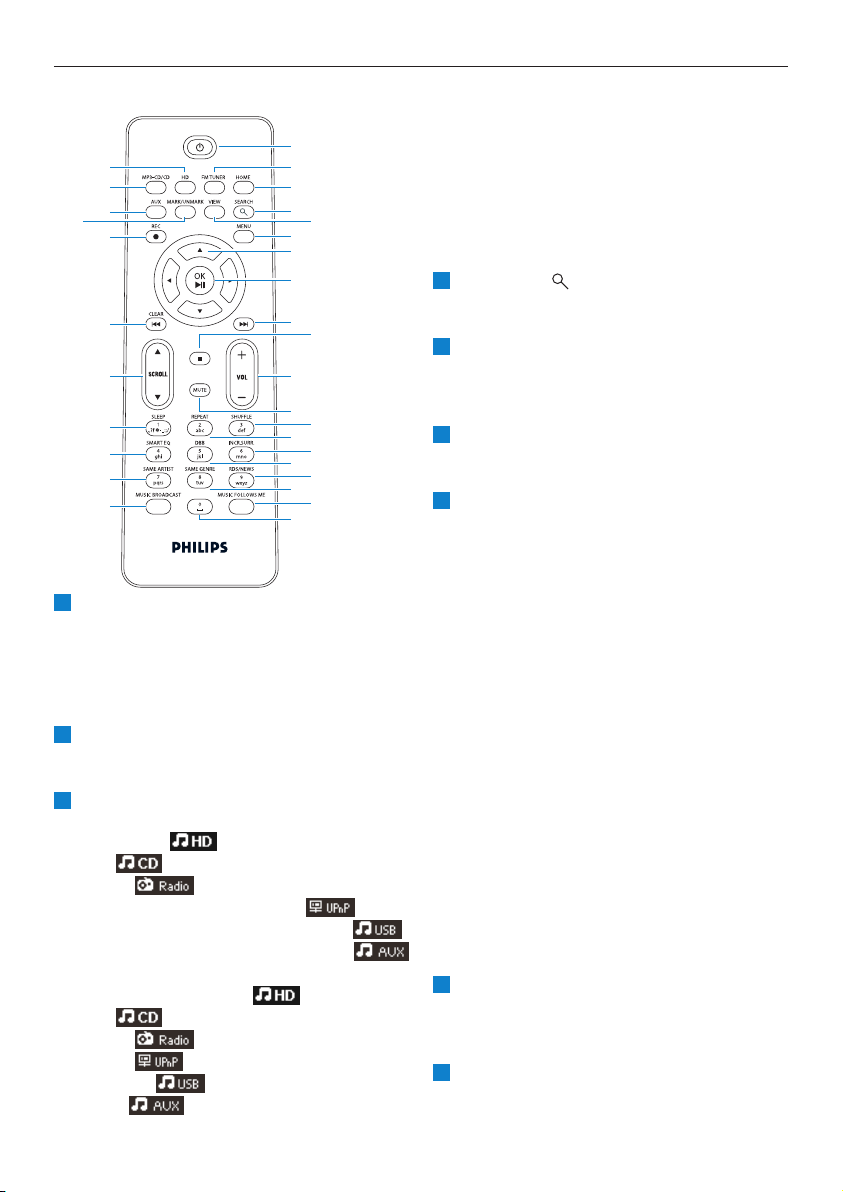
2.2.1 Controls on Center
2.2 Overview Wireless Music Center
2
1
4
6
5
7
8
9
10
11
12
13
14
15
16
17
3
p
headphones jack
VOLUME +, -
Adjusts the volume level up / down
LCD
Display shows the status of the set
IR (infrared) remote control sensor
J(
Press to skip to previous track / press and
hold to rewind
MARK/UNMARK
Selects or deselects tracks you want to
record (press & hold to select / deselect
ALL tracks).
STOP
Stops playback or recording
OPEN/CLOSE /
Opens / closes the CD door
CD door
Insert discs with graphics facing up
REC 0
CD/Radio/AUX: starts to record to the
HARD DISK (HD)
1 / 2 / 3 / 4
Navigation controls (left, right up, down)
allow you to scroll through the option lists
1
HD/CD/USB/UPnP: returns to previous
option lists
3 / 4
HD/CD/USB/UPnP: skips/searches
tracks/passage back/forward (in playback
screen)
Fast scroll through options/alphanumeric
lists
Radio: tunes to stations
2
Confirms selection
Radio: enters the list of present stations
OK / 2;
Starts or pauses playing
11
10
9
8
7
6
5
4
3
2
1

Your wireless music centre and station
11
ENGLISH
HOME
Menu: HD Music ,
CD ,
Radio ,
UPnP (Universal Plug & Play) ,
Portable (USB Universal Serial Bus) ,
AUX (separately connected device)
MENU
Enters or exits setup menu
)K
Press to skip to next track / press and hold
to fast forward
USB jack
y ON / STANDBY / ECO STANDBY
Press briefly to toggle between modes
Standby and ON.
Press & hold to toggle power modes
between ON and Eco Standby (power-saving
mode).
Green indicator light = the set is
switched ON.
Red indicator light = the set is switched
to Standby or Eco Standby.
Wi-Fi antenna
17
16
15
14
13
12
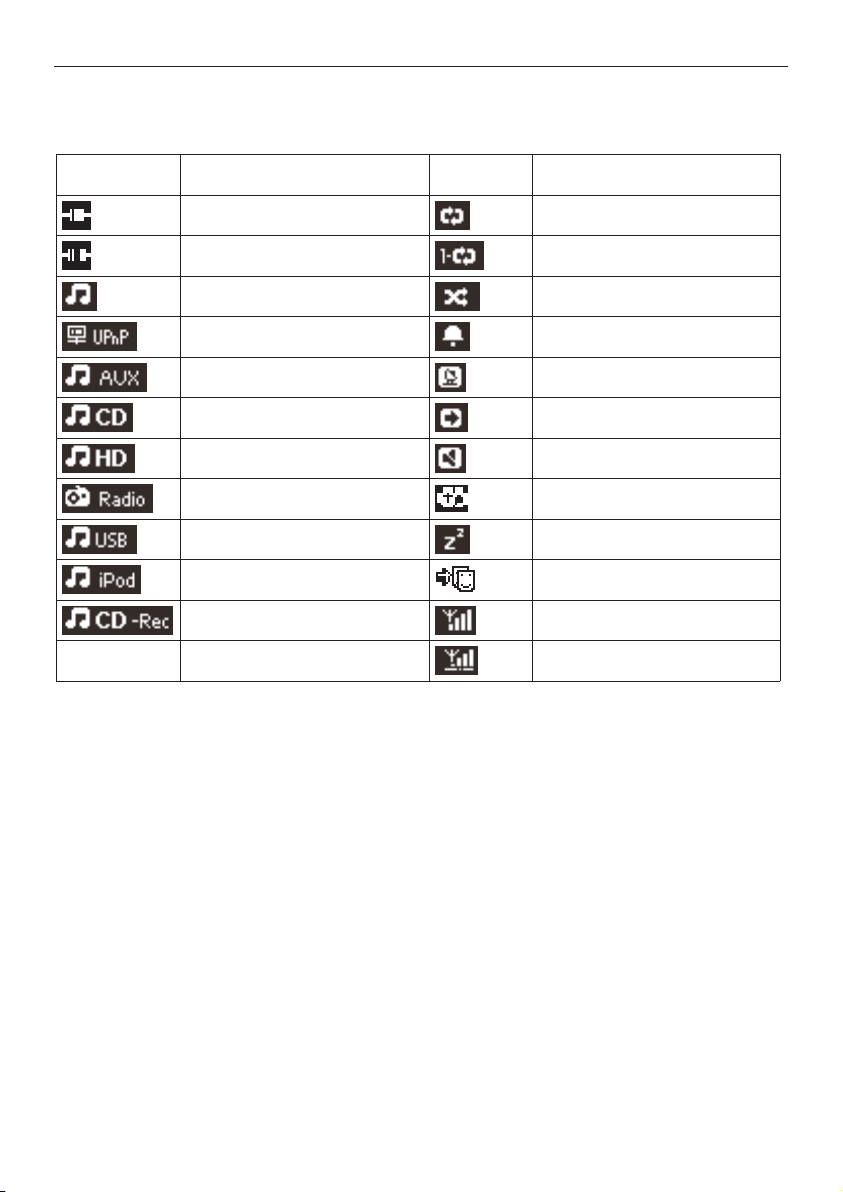
2.3 Overview remote controls
y
Press briefly to switch the Center to ON or
Standby
Press & hold to switch the Center to Eco
Standby (power-saving mode)
FM TUNER
Selects FM radio
HOME
Selects
HD Music ,
CD ,
Radio ,
UPnP (Universal Plug & Play) ,
Portable (USB Universal Serial Bus) , or
AUX (separately connected device)
In Standby mode: switches the Center ON
and selects HD Music ,
CD ,
Radio ,
UPnP ,
Portable ,or
AUX
3
2
1
1
2
3
4
6
7
8
9
10
12
14
16
18
11
15
17
31
30
29
27
26
25
24
23
22
21
28
19
20
5
13
Your wireless music centre and station
12
SEARCH ()
Searches by keywords
VIEW
Toggles between playback screen and
previous options list
MENU
Enters or exits the setup menu
1 / 2 / 3 / 4
Navigation controls (left, right, up, down)
allow you to scroll through the option lists
1
HD/CD/USB/UPnP: returns to previous
option lists
Text input: moves the cursor backwards
3 / 4
HD/CD/USB/UPnP: skips/searches
tracks/passage back/forward (in playback
screen)
Scrolls fast through options list
Radio: tunes to stations
2
Confirms selection
Radio: enters the list of preset stations
Text entry: confirms input and moves the
cursor forward
OK, 2/;
Confirms selection
Starts playing
)K
Fast forwards or skips to next track
9
8
7
6
5
4

9
Stops playback or recording
VOL +, -
Adjusts the volume level up or down
MUTE
Deactivates the sound temporarily
SHUFFLE (3 def)
Selects random playback
REPEAT (2 abc)
Selects continuous playback
INCR.SURR. (6 mno)
Selects Incredible Surround sound effect
DBB (Dynamic Bass Boost) (5 jkl)
Toggles the bass enhancement between on
(DBB1, DBB2, DBB3) and off
RDS/NEWS (9 wxyz)
Radio: selects RDS information
HD/CD/UPnP/AUX/USB: toggles
between NEWS function on and off
SAME GENRE (8 tuv)
HD: plays all the tracks of the current
Genre
MUSIC FOLLOWS ME
HD: moves music playback between Center
and Station
(0 )
MUSIC BROADCAST
HD: broadcasts music from Center to
Station
SAME ARTIST (7 pqrs)
HD: plays all the tracks of the current artist
HD: enables wireless range extender (refer
to extender’s manual for details)
SMART EQ (4 ghi)
HD: toggles between sound settings for the
current Genre on or off
SLEEP (1 .,?!’@-_:;/)
Adjusts, displays or switches off the sleep
timer
SCROLL 3, 4
Scrolls the display screen up or down
J(
Rewinds or skips to previous track
CLEAR
Text entry: deletes the input before the
cursor
REC 0
CD/Radio/AUX: starts to record to the
HD
MARK/UNMARK
Selects or deselects tracks you want to
record (press & hold to select/deselect ALL
tracks).
AUX
Selects AUX (separately connected device)
CD/MP3-CD
Selects CD source
In Standby mode: switches the Center
ON and selects CD source
HD
Selects HD (Hard Disk) source
In Standby mode: switches the Center
ON and selects HD (Hard Disk) source
31
30
29
28
27
26
25
24
23
22
21
20
19
18
17
16
15
14
13
12
11
10
Your wireless music centre and station
13
ENGLISH
Your wireless music centre and station
14
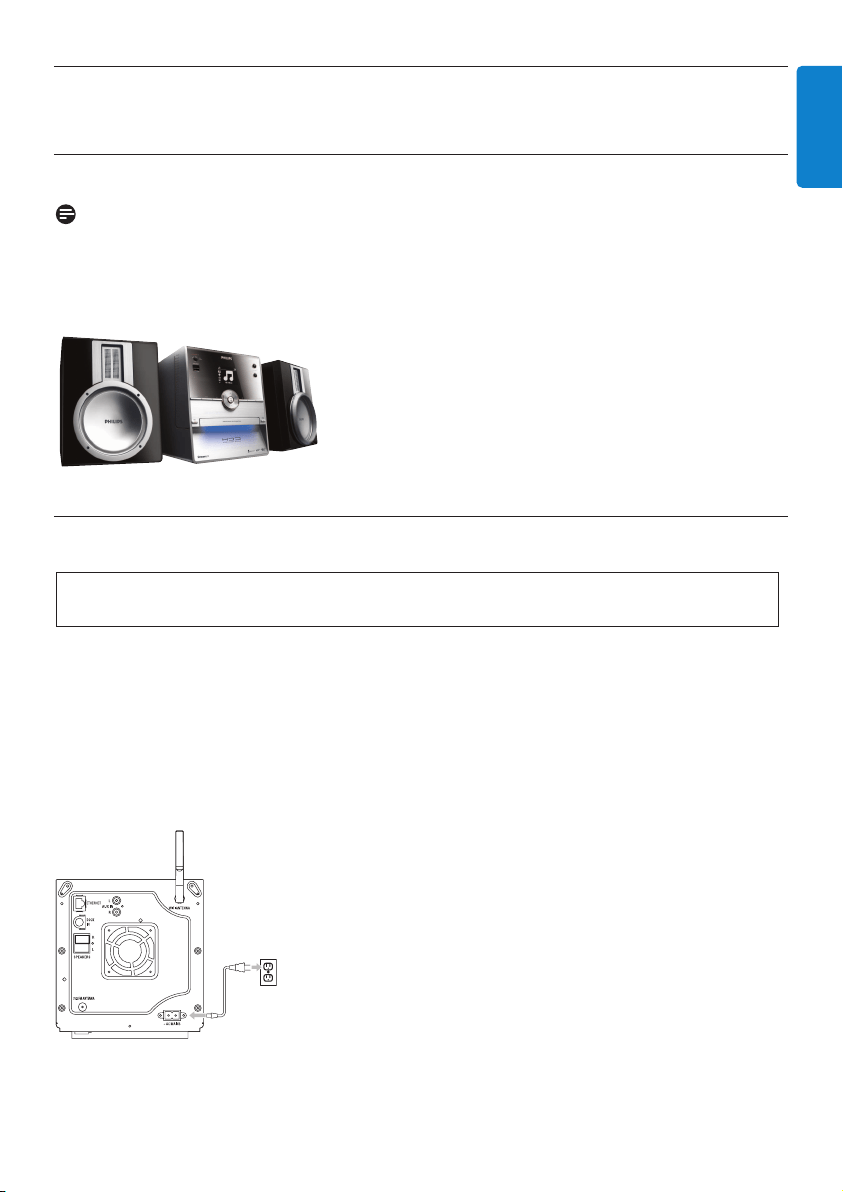
2.4 Overview display
Icons of the LCD:
Icon Description Icon Description
Client connected Repeat all
Client not connected Repeat 1
Music Shuffle
UPnP Alarm
Aux mode Music broadcast
CD mode Music follows me
HD mode Mute
Radio mode RDS / NEWS
USB mode Sleep
iPod mode Smart EQ
Record (rip) mode Wi-Fi connected
Wi-Fi and Ethernet connected
Installation
15
ENGLISH
3 Installation
3.1 Install Center
Note
Before you decide where and how to install the set, test the Wi-Fi connection and rear cable
connections to find a suitable location.
The Center is designed to be free standing.
3.2 Connect AC power
Ensure that all rear connections are established before you power up the set.
Connect the AC power cord to the mains outlet.The set is now powered up (switched on).
When in Standby or Eco Standby mode, Center still consume some power.
To disconnect the system from the power supply completely, remove the power plug from the
mains outlet.
For users in the U.K., please follow the instructions on page iii.
Important! Always press & hold y to switch the Center to power-saving mode before
removing its power plug.
Installation
16
3.3 Rear connections
Note
• Never connect or disconnect power cables when the mains supply is switched on.
• Install Center within easy reach of suitable AC power outlets.
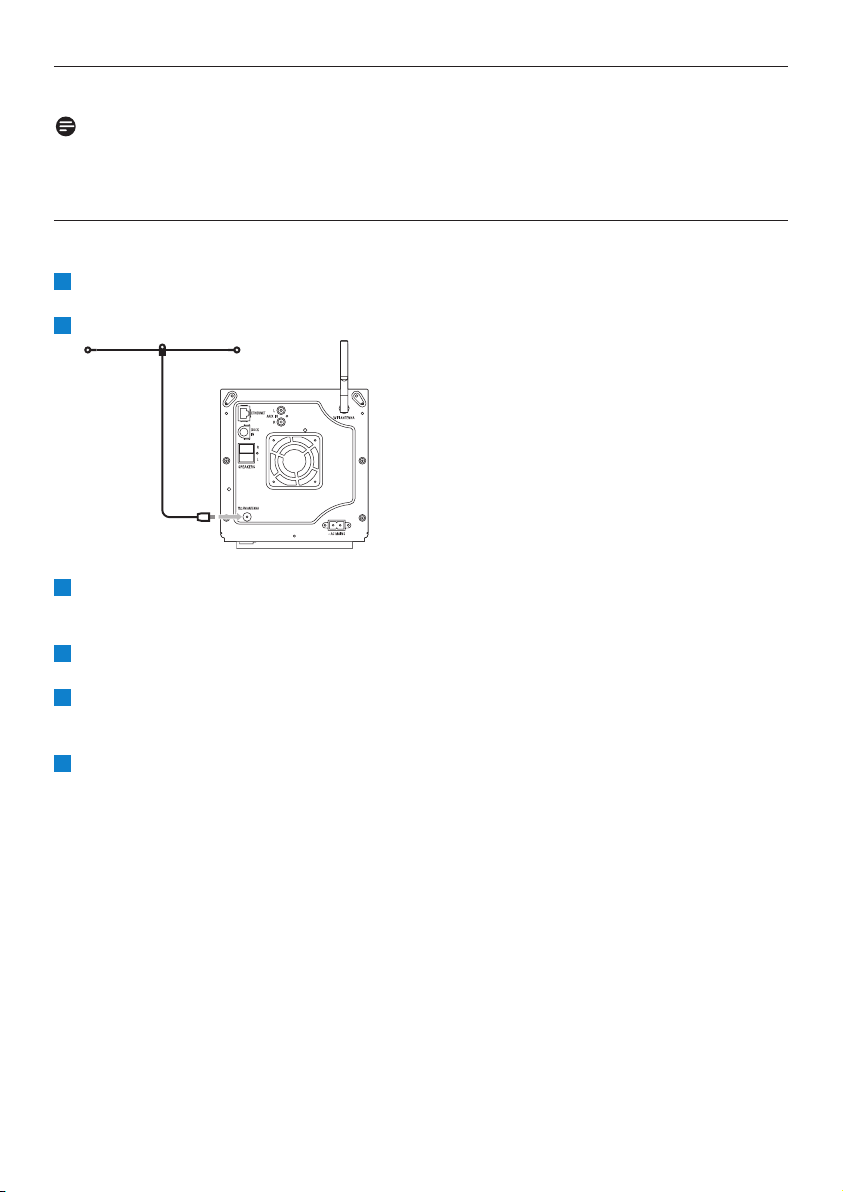
3.3.1 Connect antennas
Extend wire antenna.
Connect wire antenna to FM antenna jack:
Optional:To improve FM reception you can install an extension line (sold separately) between
the wire antenna and the antenna jack.
Unwind the antenna extension line completely.
Move it in different directions to find the optimal reception (if possible, keep it away from the
TV, VCR or other radiation sources).
For best results elevate or ceiling-mount the antenna.
6
5
4
3
2
1
Installation
17
ENGLISH
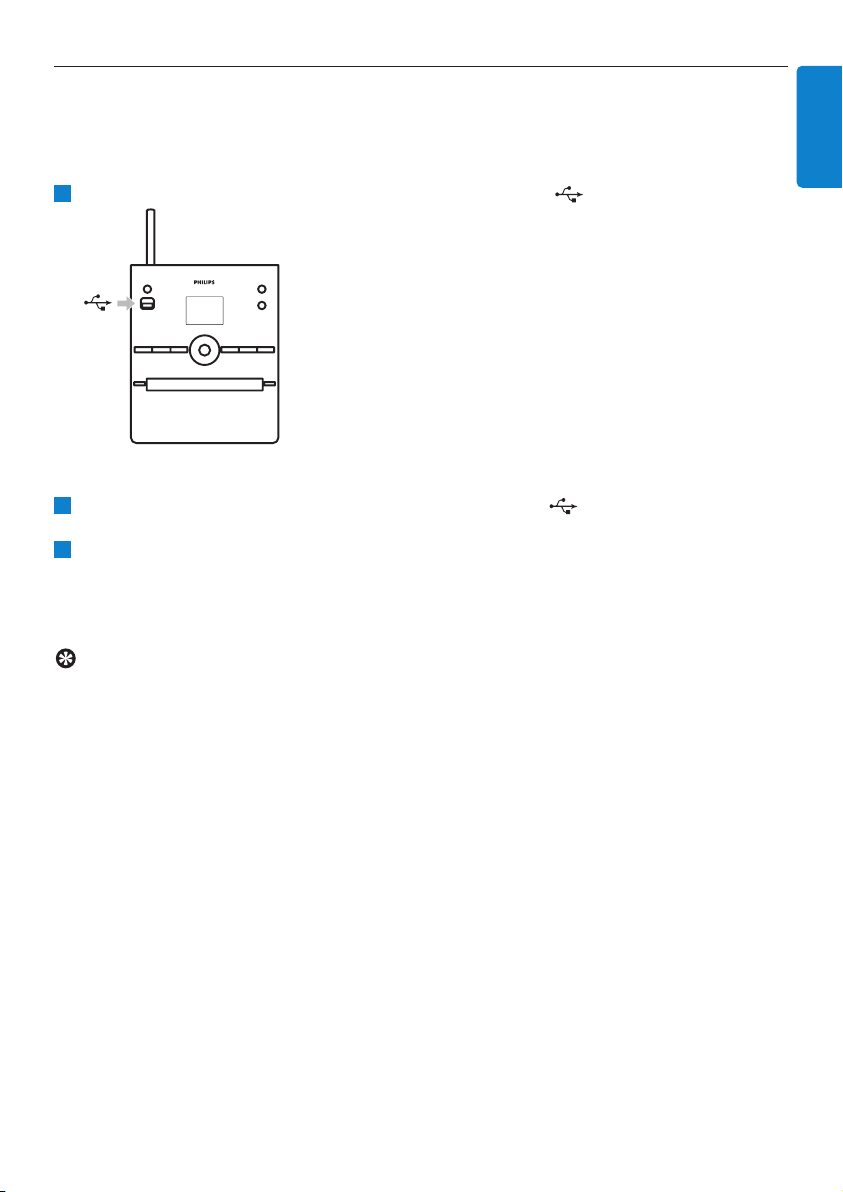
3.3.2 Connect a portable (USB) flash device
You can play back music from a portable (USB) flash device.
You can also transfer music from the library to the portable flash device.
Insert the USB plug of the portable flash device into the socket on Center.
For portable flash devices with USB cable:
Insert one end of the USB cable (not supplied) into the socket on Center.
Insert the other end of the USB cable into the USB output terminal of the portable flash
device.
For more details and instructions on how to play and transfer music: See 10 External sources.
Tip
• Center only supports portable (USB) flash devices that adhere to the following standards:
- USB MSC (Type '0')
- USB MTP
- File system in FAT12 / FAT16 / FAT32
- Operations based on simple folder type navigation (also known as a normal FAT file
system), and not based on proprietary track database.
• The following USB devices will not be supported by Center:
Products with database UI (Artists,Albums and Genre based navigation) as these products
normally store music files in a specific hidden folder and use embedded proprietary track
database that Center is unable to read properly.
2
1
1
Installation
18
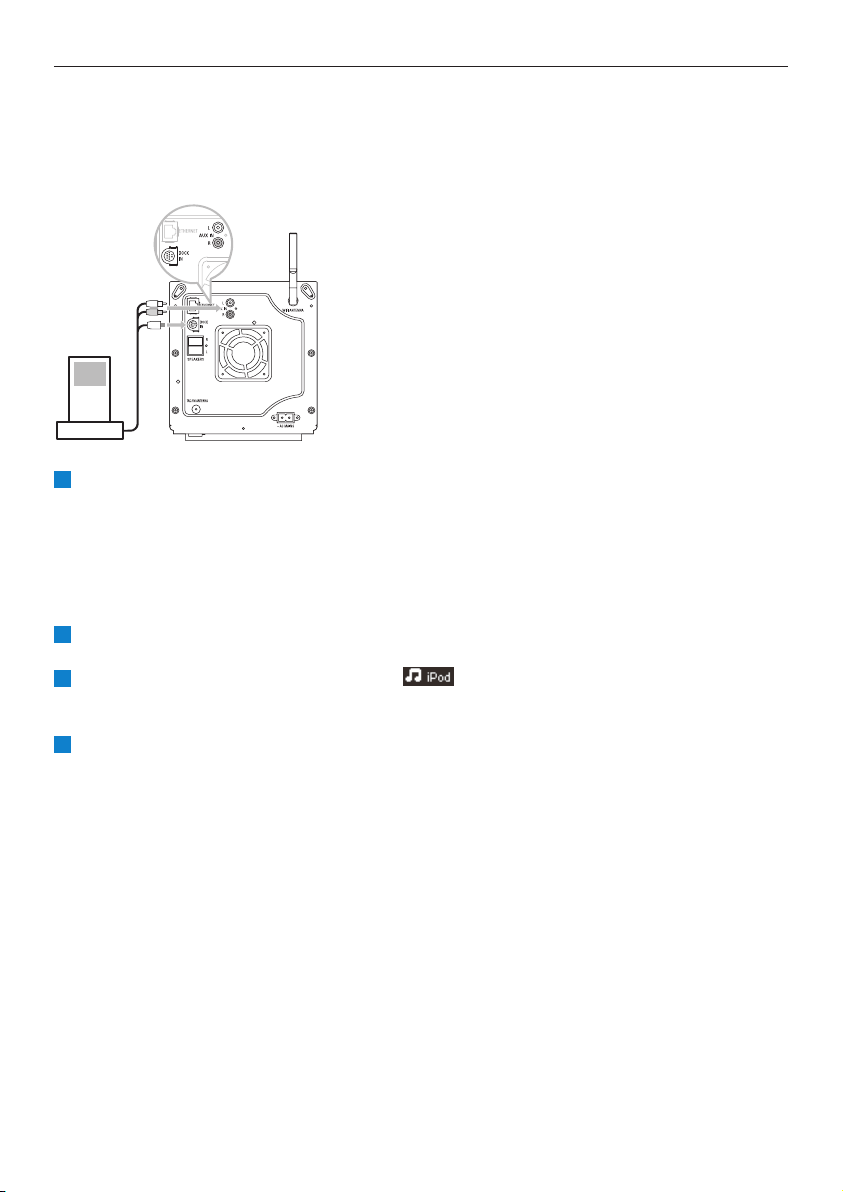
3.3.3 Connect your iPod
You can connect your iPod to the Center using the supplied Philips docking cradle and data/audio
cable. Now you can enjoy the music library in your iPod via the sophisticated speaker system of the
set.You can even charge your iPod at the same time.
Connect your Dock to Center:
a Connect the 9-pin docking cable to the DOCK IN of Center.
b Connect the audio cable to the AUX IN on Center (red & white plugs must match color
coding of AUX IN).
Insert your iPod into the Dock.
Press HOME and select Portable (iPod) .
> Your iPod is displayed.
Use 3 or 4 and 2 on the remote control (or use the navigation control of your iPod) to select
the music in your iPod menu system.
The iPod can now be controlled via the remote control of the Center.
4
3
2
1
Installation
19
ENGLISH
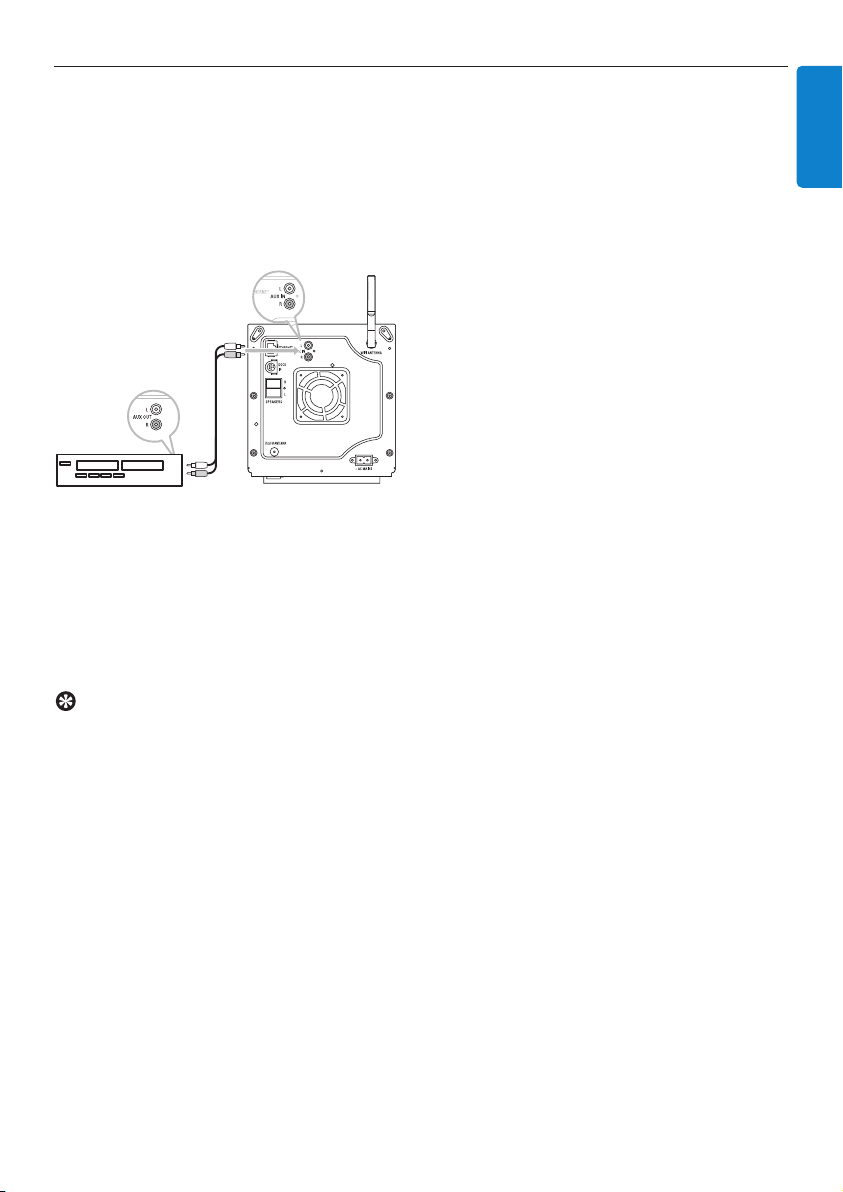
3.3.4 Connect additional appliances
It is possible to play audio output from an external source, e.g.TV,VCR, Laser Disc player, DVD
player on Center.You can also record the audio output to the music library in the HD of Center.
On the additional appliance
Connect one end of the audio cable (not supplied) to the AUDIO OUT terminals on the
additional appliance.
Connect the other end of the audio cables to the AUX IN terminals on Center.
To record audio output to the library (HD) of Center, see section 6.4 HD: Building music
library on Center.
For instructions on how to play back music from additional appliances, see 10.3 Play additional
appliances.
Tip
• If the connected device has only one single audio out terminal, connect it to the AUX IN left
terminal. (Alternatively, you can use a 'single to double' cinch cable, but the sound output is
still mono).
• Always refer to the user manual of your other equipment for complete connection.
Prepare
20
4 Prepare
4.1 Set the clock
The time can be displayed in 24-hour or 12-hour format.You can set up your clock on Center.
There are two methods to set the clock, RDS automatic time synchronization and manual time set-
up.
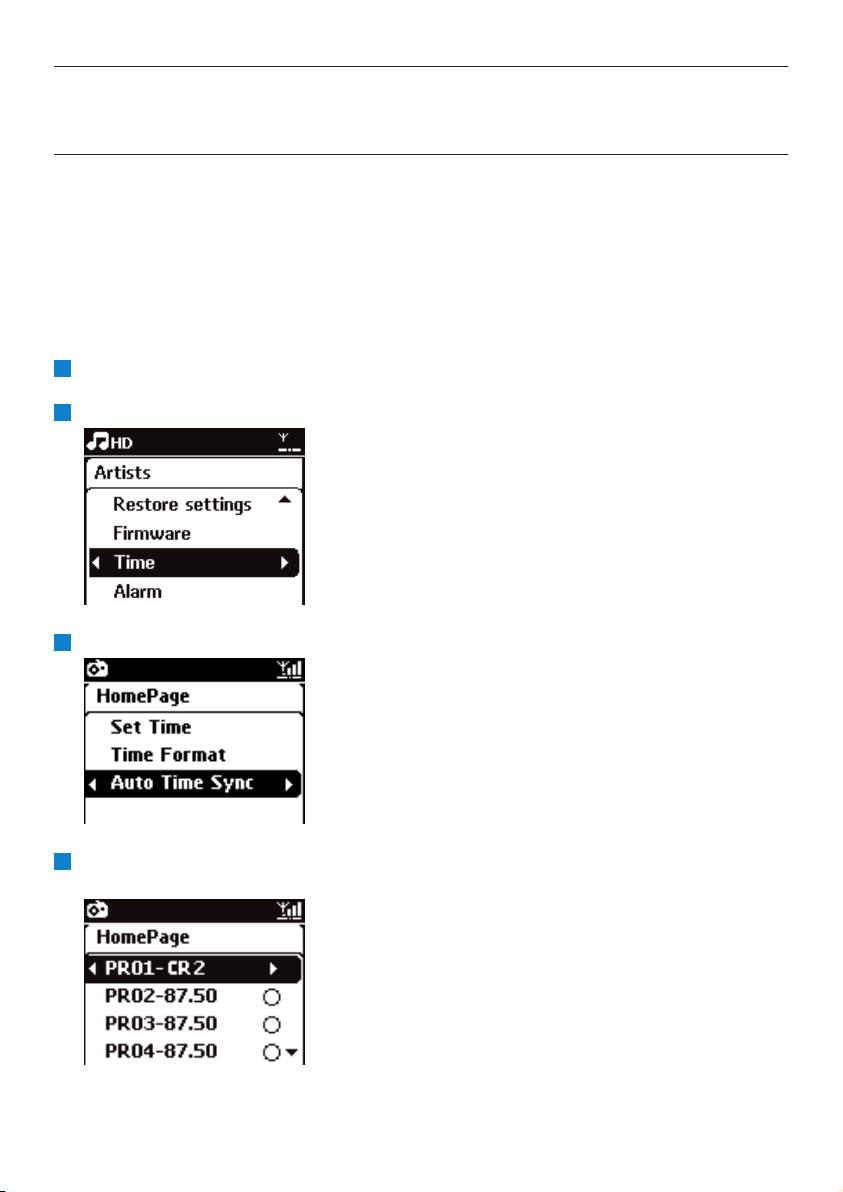
RDS auto time sync:
If you have preset RDS radio stations, you can synchronize the clock with one of the RDS stations.
Press MENU to enter the menu screen.
Use 3 or 4 and 2 to select Settings followed by Time.
Use 3 or 4 and 2 to select Auto Time Sync.
Use 3 or 4 and 2 to select the RDS radio station you wish to synchronize the clock with.
> The screen shows a confirmation screen:
4
3
2
1
Prepare
21
ENGLISH
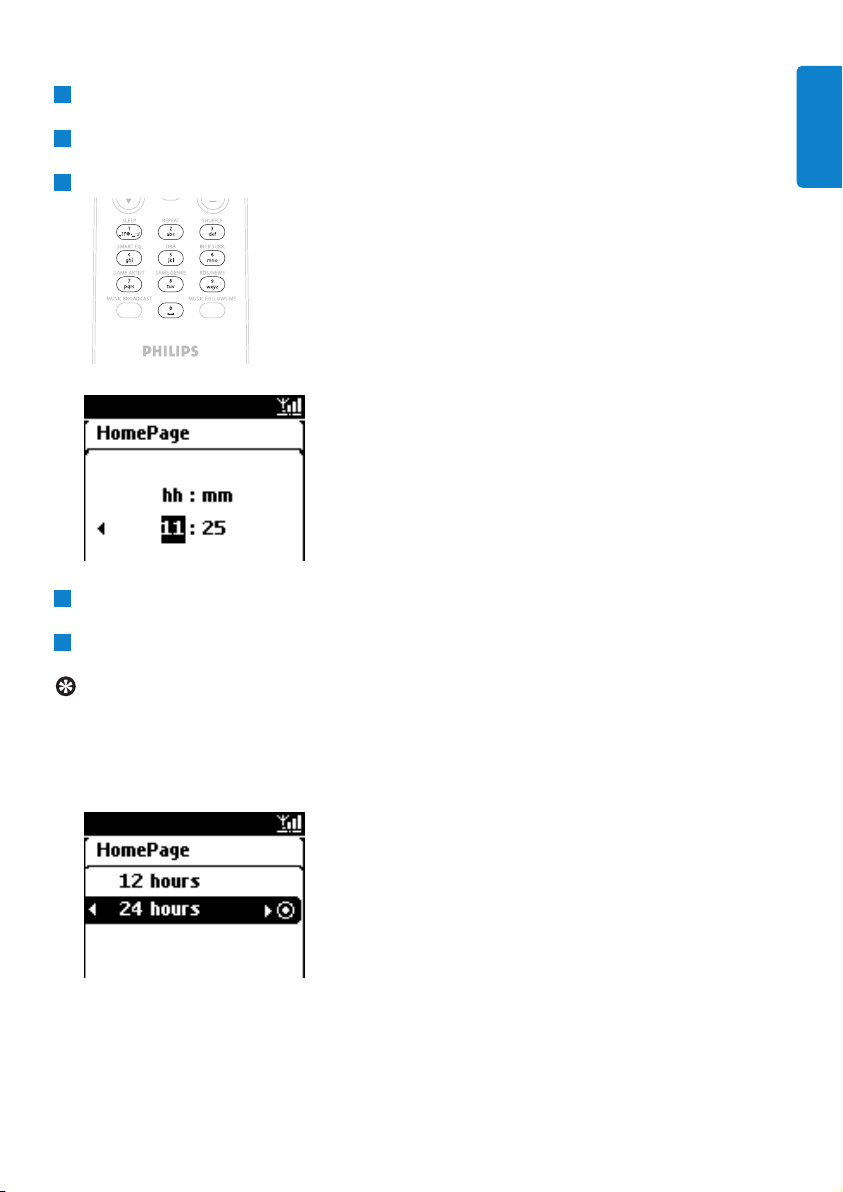
Manual time set:
Press MENU to enter the menu screen.
Use 3 or 4 and 2 to select Settings followed by Time.
Use 3, 4, or the numeric keypad (0-9), and 2 to select Set Time.
> The display shows current clock setting (00:00 by default)
Use 3, 4, or the numeric keypad (0-9) repeatedly to set the hours followed by the minutes.
Confirm with OK.
Tip
• Change to 12-hour or 24-hour format:
1 In the Time menu, select Time Format.
2 Use 3 or 4 and 2 to select your option.
• If you disconnect the power supply (pull the mains plug), the clock will be reset (settings will
not be saved).
5
4
3
2
1
Prepare
22
4.1.1 View the clock
Press & hold VIEW button for about 5 seconds.
> The clock will appear briefly in the display.
Tip
• In Standby mode, you can briefly press View to turn on the LCD backlights and view clock
more clearly.
• If you disconnect the power supply (pull the mains plug), the clock will be reset (settings will
not be saved).
4.2 Remote control
Center is supplied with a remote control.
4.2.1 Remote control battery installation
Caution!
To avoid the risk of explosion:
• Do not puncture, cut, or manipulate batteries in any way and do not throw them into the fire.
• Do not short-circuit the battery terminals.
To avoid burn injuries:
• Wear protective gloves when you handle leaking batteries.
To avoid leakage of corrosive battery fluid and damage to the product:
• Always replace all batteries at the same time
• Do not mix old and new batteries or batteries of different types.
• Replace batteries immediately if they are exhausted.
• Always remove the batteries, if the remote control will not be used for a longer period of
time.
To avoid batteries being accidentally swallowed:
• Always keep them out of reach of children and pets. (Consult a physician immediately, if a
battery has been swallowed!)
Important!
• Always point the remote control directly towards the IR sensor on Center.
• First, select the source you wish to control by pressing one of the source select keys on the
remote control (for example MP3-CD/CD, HD, FM TUNER,AUX).Then select the desired
function (for example 2/; / J( / )K ).
1
Prepare
23
ENGLISH
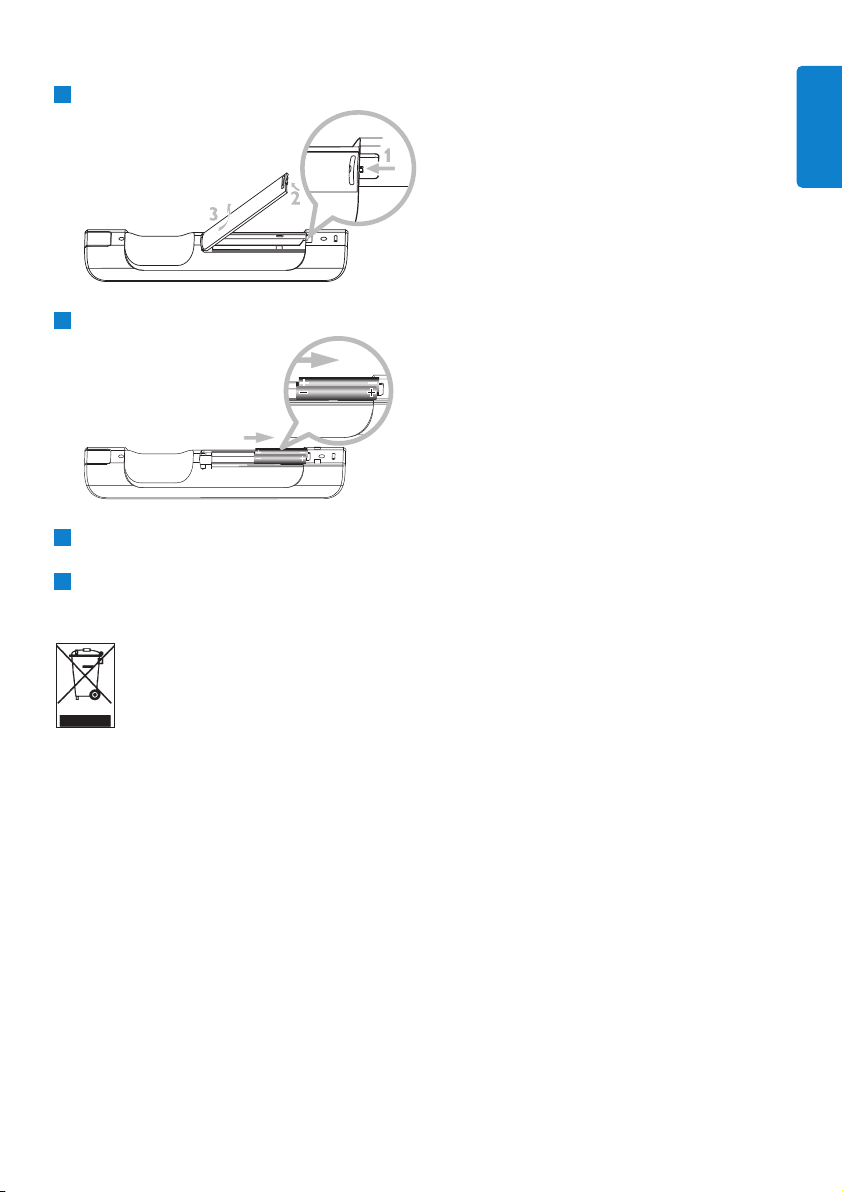
Installing batteries:
Open battery compartment.
Install 2 batteries type LR03 or AAA in the remote control..
Observe correct polarity (refer to ‘+’ / ‘-’ symbols inside the battery compartment).
Close battery compartment.
IMPORTANT BATTERY INFORMATION!
Batteries containing hazardous substances are marked with the crossed-out wheeled bin.
The symbol indicates that it is prohibited to dispose of the product with the domestic
refuse.The chemical symbols for the respective hazardous substances are Cd = Cadmium,
Hg = Mercury, Pb = Lead.
You - as the user - are legally obliged to dispose of all batteries in accordance with your local
regulations or to return them to the shop where you purchased the batteries.
Thus, you fulfill your legal obligations and contribute to environmental protection!
4
3
2
1
Prepare
24
4.3 Navigation controls
Use the navigation controls 1 / 2 / 3 / 4 when navigating through options.
Highlight options with 3 / 4.
Enter submenus with 2.
Confirm selections with OK or 2.
4.4 Alphanumeric keys
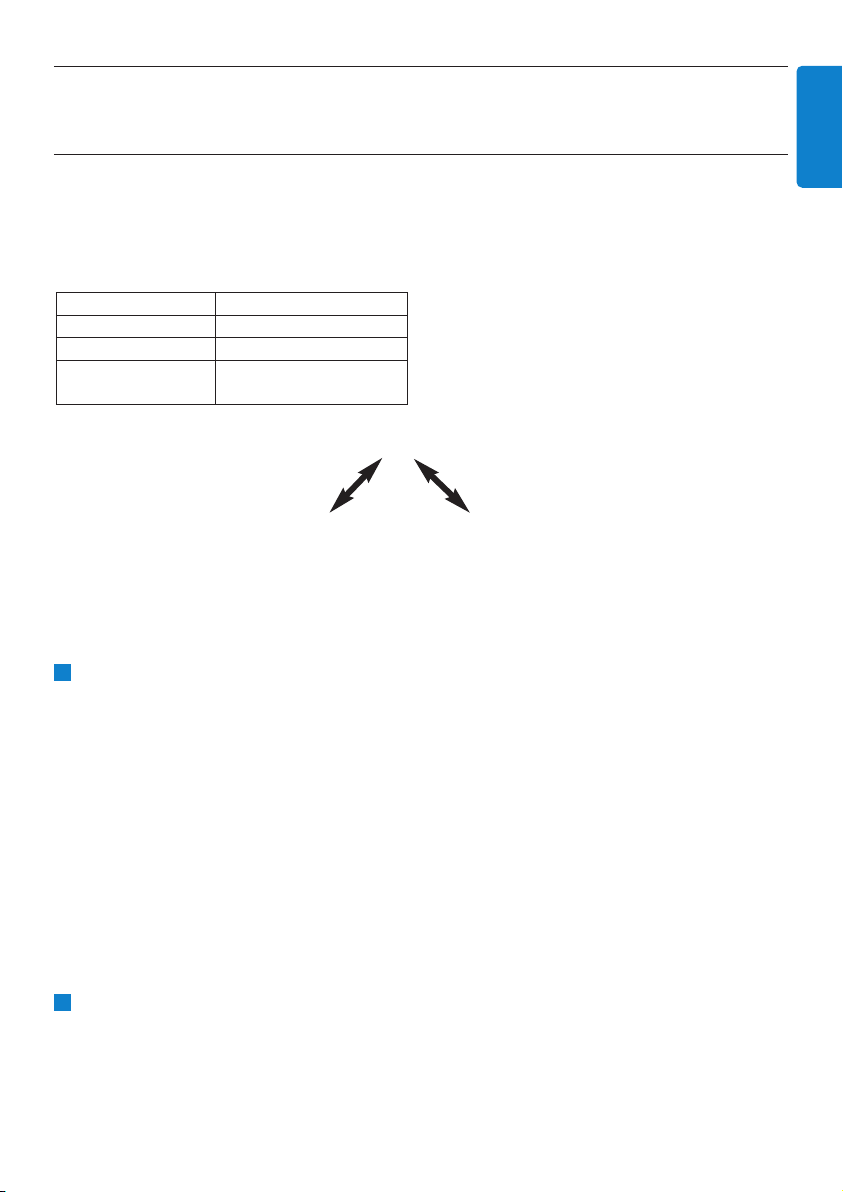
Use the alphanumeric keys to enter letters or numbers.
When the text box appears, press the alphanumeric keys repeatedly until the desired
letter/number appears.
Use 1 / 2 to move the cursor back / forward.
Press J( to delete the entry before the cursor.
Press OK to close the text box and move to the next option list.
Note
You will enter the previous / next option list if the cursor reaches the beginning or the end of
the text box.
5
4
3
2
1
4
3
2
1
Basic functions
25
ENGLISH
5 Basic functions
5.1 Power modes and functions
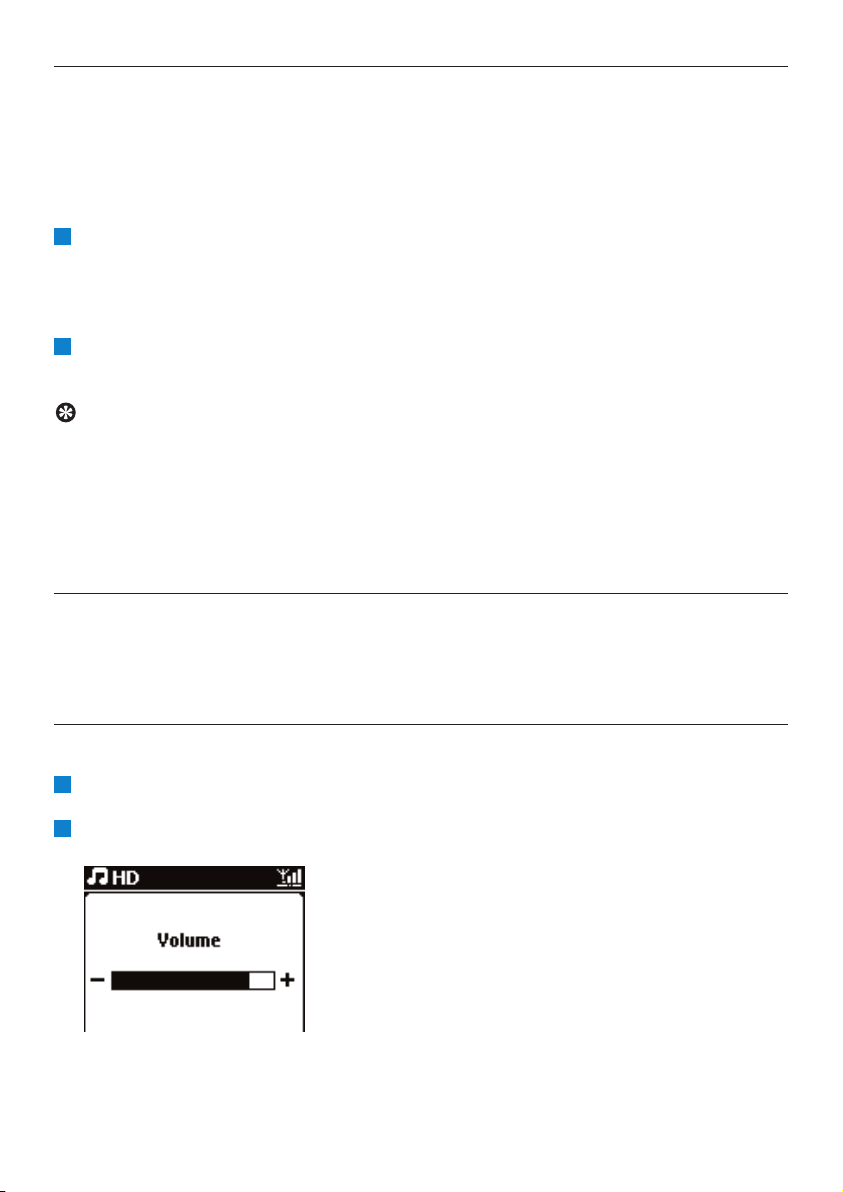
When you plug the product into your mains supply, it powers up and is in power mode ON.The y
button allows you to change the power mode.A colored light in the button indicates the current
power mode:
ON
When Center is ON (green button light), press y:
> Center switches to Standby mode.
The button light changes from green to red.
To switch the Center back ON again,
a press y.
> Center switches ON and remembers the last source selected:
The button light changes from red to green.
OR
b press one of the source buttons on the remote control, MP3-CD/CD, HD, FM TUNER,
AUX, or HOME.
To select functions, press HOME and use 3 or 4 and 2 to select your option (HOME,
respectively MP3-CD/CD, HD on remote control).
2
1
Status STANDBY ECO STANDBY
Characteristics fast boot slow boot
Remote control on standby off
Streaming on standby off
Status Button indicator light
ON green
Standby red
Eco Standby
(power-saving mode)
red
5.2 Eco Standby (power-saving mode)
In the power-saving mode Eco Standby, the display and Wi-Fi connections of the product are turned
off.The HD (Hard Disk) of Center also becomes inactive.When Center is switched to Eco Standby,
you cannot stream music between Center and Stations or import music from the PC to Center.
During Eco Standby the remote control is inactive.
With Center switched ON, press & hold y:
> Center changes to Eco Standby.
The button lights up red.
The display is switched off.
To switch the Center ON, press y on the set. (The remote controls are still inactive.)
> Center switches to the last source selected.
Tip
• In the power-saving mode Eco Standby, the settings for networking, sound, display, language
and CD recording, as well as the tuner presets, and the volume level (maximum: moderate
level) will be retained in the memory of the set.
• To protect the HD, always switch Center to Eco Standby before removing its power plug
from the mains outlet.
• Remember that the remote controls are inactive during Eco Standby.
5.3 Auto-Standby
If at the end of playback / recording (ripping) Center remains in the stop mode for longer than 20
minutes, Center will automatically switch to Standby mode in order to save power.
5.4 Volume control
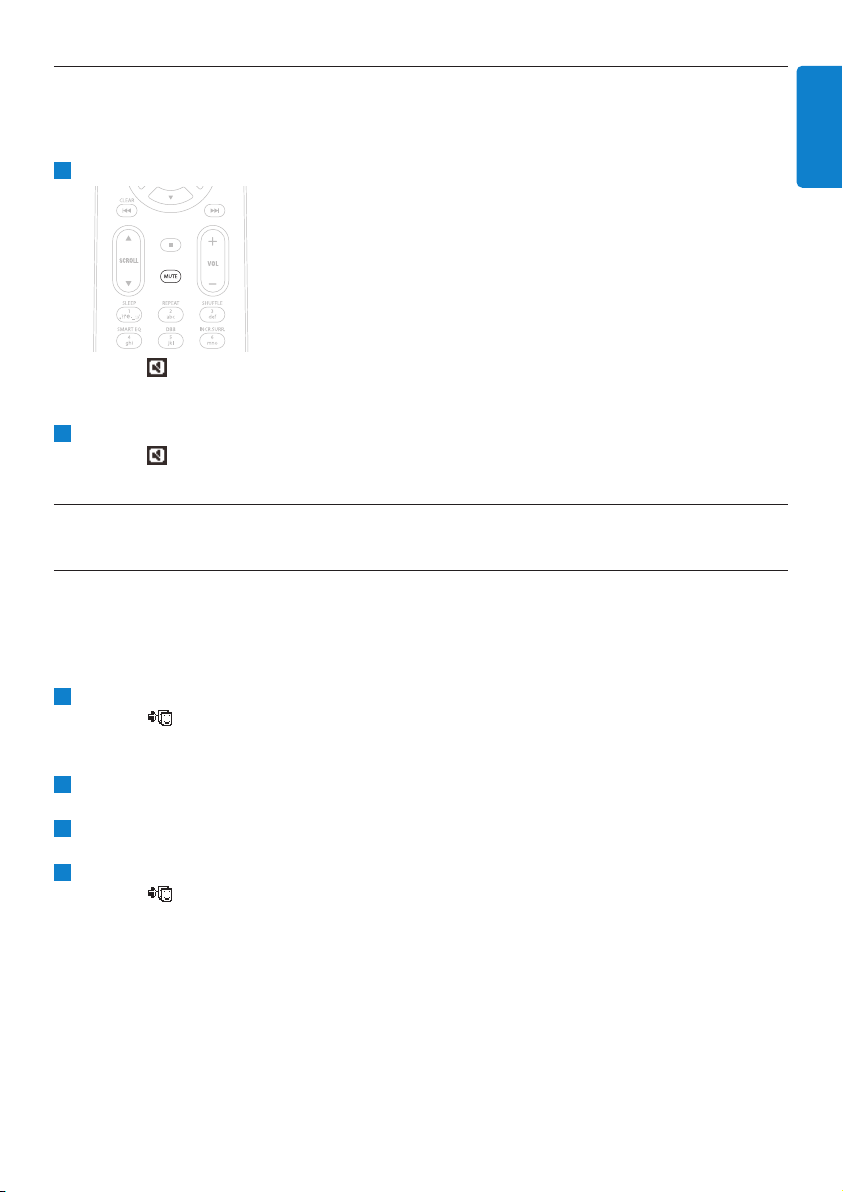
Check that playback has started.
Adjust the volume with VOL +/- buttons.
> Display shows a horizontal bar indicating the volume level.
2
1
2
1
Basic functions
26
Basic functions
27
ENGLISH
5.5 MUTE
During playback, you can deactivate the sound without switching off the set.
To deactivate the sound, press MUTE.
> The icon appears.
Playback continues without sound.
To reactivate the sound, press MUTE again or adjust the volume with VOL +.
> The icon disappears.
5.6 Sound control
5.6.1 Smart equalizer
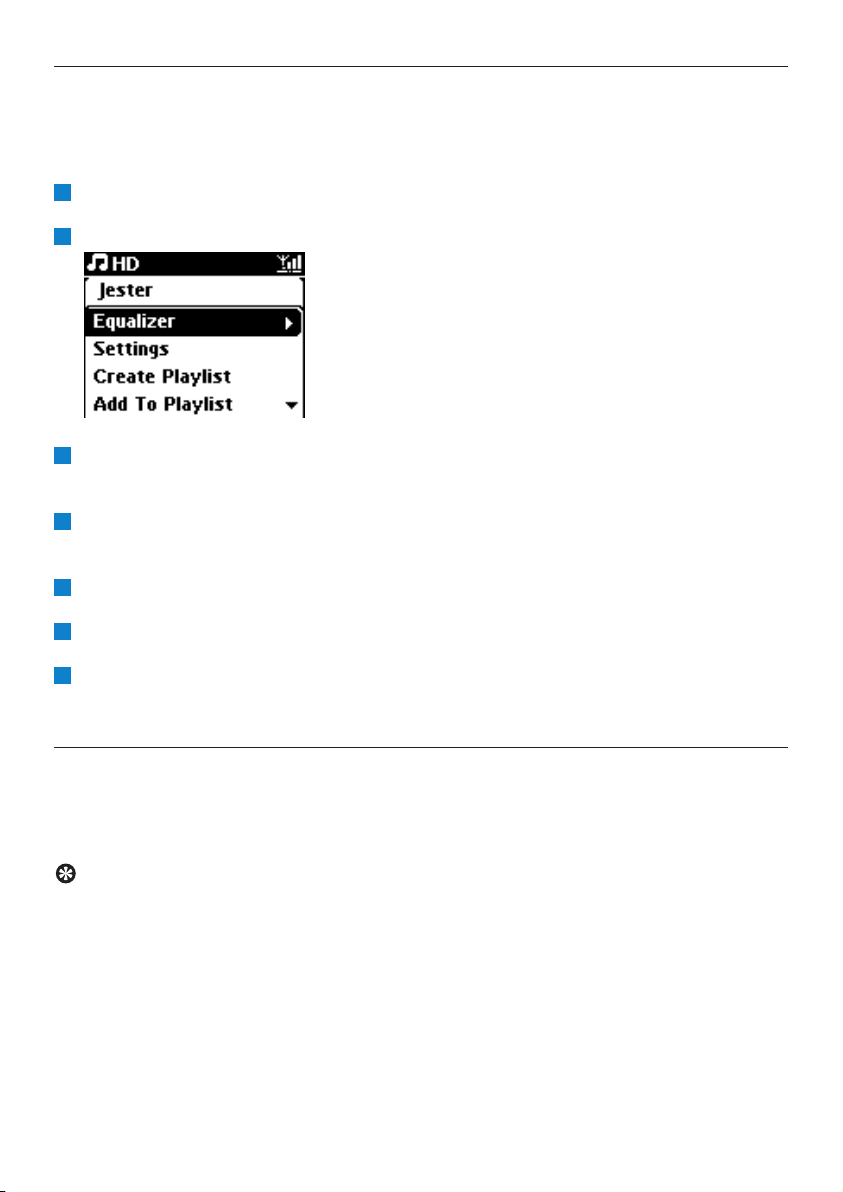
This function enables you to play music with the matching sound settings.
Activate the Smart Equalizer:
During playback, press SMART EQUALIZER
> The icon appears if Smart Equalizer is activated.
Deactivate the Smart Equalizer:
Press MENU to enter the menu screen
Press 3 or 4 and 2 to select Settings, followed by Equalizer.
Press 3 or 4 and 2 to select Off.
> The icon disappears.
3
2
1
1
2
1
Basic functions
28
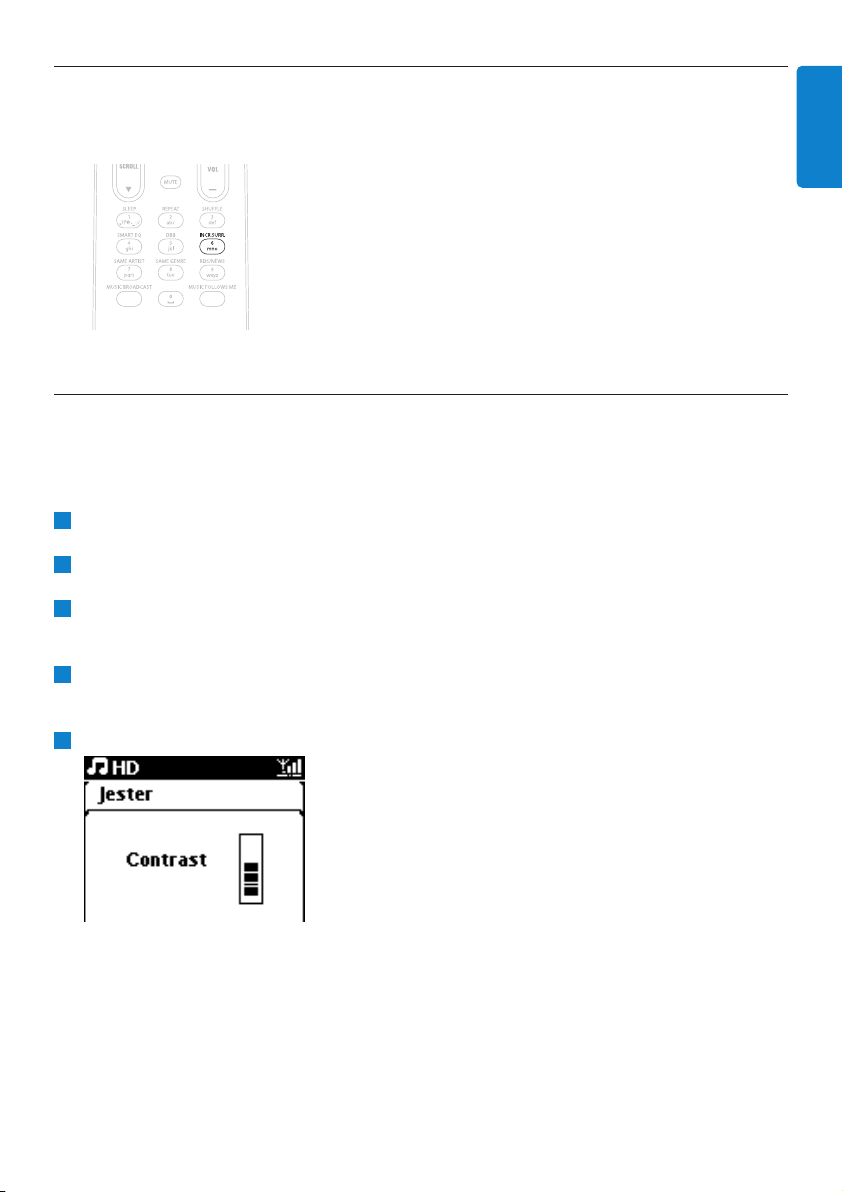
5.6.2 Equalizer
Equalizer enables you to select predefined sound settings.
Set Equalizer:
Press MENU to enter the menu screen.
Use 3 or 4 and 2 to select Equalizer.
Use 3 or 4 and 2 to select Rock, Pop (default), Jazz, Neutral, Techno, Classical,
Treble/Bass.
Confirm with OK.
Set Treble or Bass:
Press MENU to enter the menu screen.
Use 3 or 4 and 2 to select Settings, followed by Treble or Bass.
Navigate 1 / 2 / 3 / 4 to highlight your option:
Treble (+3 to -3), Bass (+3 to -3)
5.6.3 DBB (Dynamic Bass Boost)
Press DBB (Dynamic Bass Boost) once or more times to change the bass settings. Select your
option: DBB OFF (default), DBB 1, DBB 2, or DBB 3.
Tip
Some discs might be recorded in high modulation, which causes a distortion at high volume. If
this occurs, switch off DBB or reduce the volume.
3
2
1
4
3
2
1
Basic functions
29
ENGLISH
5.6.4 Incredible surround
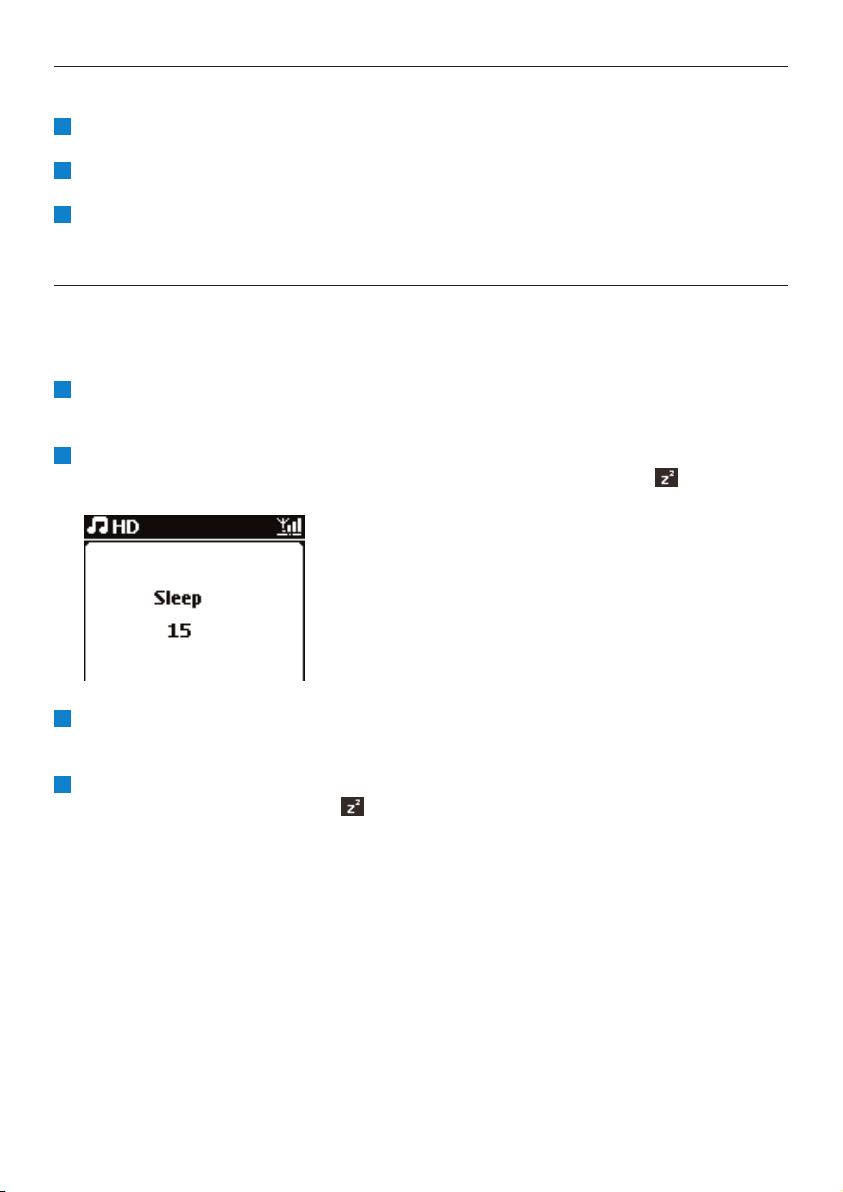
Press INCR. SURROUND (INCR. SURR. on the remote control) once or more times to toggle
the surround sound effect between On and Off.
> Display shows: IS ON or IS OFF.
5.7 Display adjustment
With the controls on Center (or on the remote control) you can adjust the backlight and contrast
settings of the display.
Press MENU to enter the menu screen
Use 3 or 4 and 2 to select Settings, followed by Display.
Press 3 / 4 and 2 to select Backlight or Contrast:
Backlight
Press 3 or 4 and 2 to select On or Off.
Contrast:
Press 3 or 4 to increase or reduce the contrast.
1
1
3
2
1
Basic functions
30
5.8 Selecting languages
Press MENU to enter the menu screen.
Use 3 or 4 and 2 to select Settings, followed by Language.
Use 3 or 4 and 2 to choose English, Français, Español, Nederlands, Italiano or
Deutsch.
5.9 Sleep
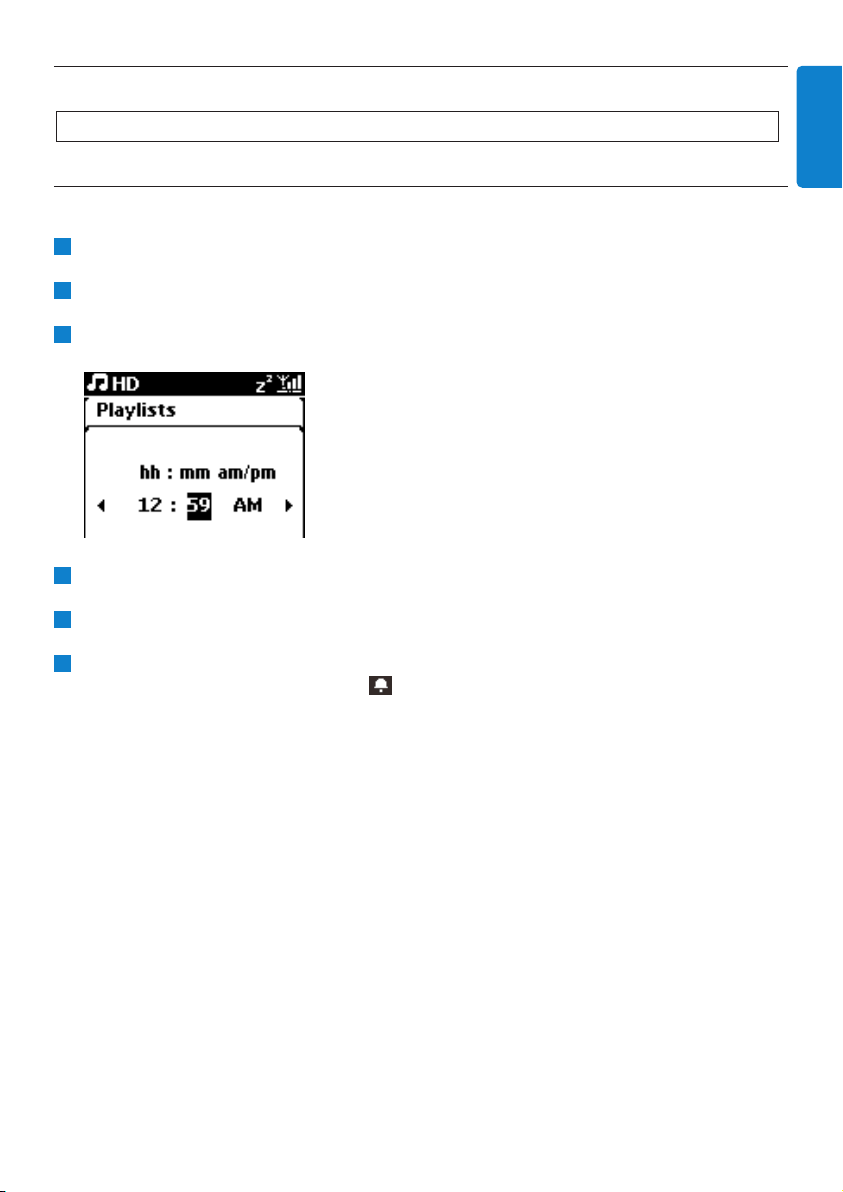
You can preset a certain period of time after which Center will switch to Standby mode.
On the remote control, press SLEEP repeatedly to select the desired time period (in minutes):
> Display shows in sequence: Sleep 15, 30, 45, 60, 90, 120, OFF.
Select the desired time period.
> Display shows the selected option briefly and returns to its previous status.The icon appears when
a time is selected.
To view the countdown time to Standby mode, briefly press SLEEP again.
> When the selected sleep time expires, Center automatically switches to Standby mode.
To deactivate the sleep timer before the sleep time expires, press SLEEP repeatedly until
SLEEP OFF is selected.The icon disappears.
4
3
2
1
3
2
1
Basic functions
31
ENGLISH
5.10 Alarm
5.10.1 Set alarm / alarm time / repeat mode
Press MENU to enter the menu screen.
Use 3 or 4 and 2 to select Settings.
Use 3 or 4 and 2 to select Alarm, followed by Alarm On or Off.
> The Alarm Time screen appears.
In the Alarm Time screen, use 3 or 4 and 2 to enter the hours and minutes.
Confirm the alarm time with OK or 2.
Use 3 or 4 and 2 to select repeat mode Once or Daily.
> The screen briefly shows Alarm On and appears in the display.
6
5
4
3
2
1
Important! The clock must be set correctly before the alarm is set.
Hard Disk
32
6 HD (Hard Disk)
6.1 Play HD Music
Music is centrally stored in the 80GB HD (Hard Disk) on the Center.
Check that Center is switched ON or in Standby mode (see 5 Basic functions).
Press HOME and select HD Music (or press HD on remote control).
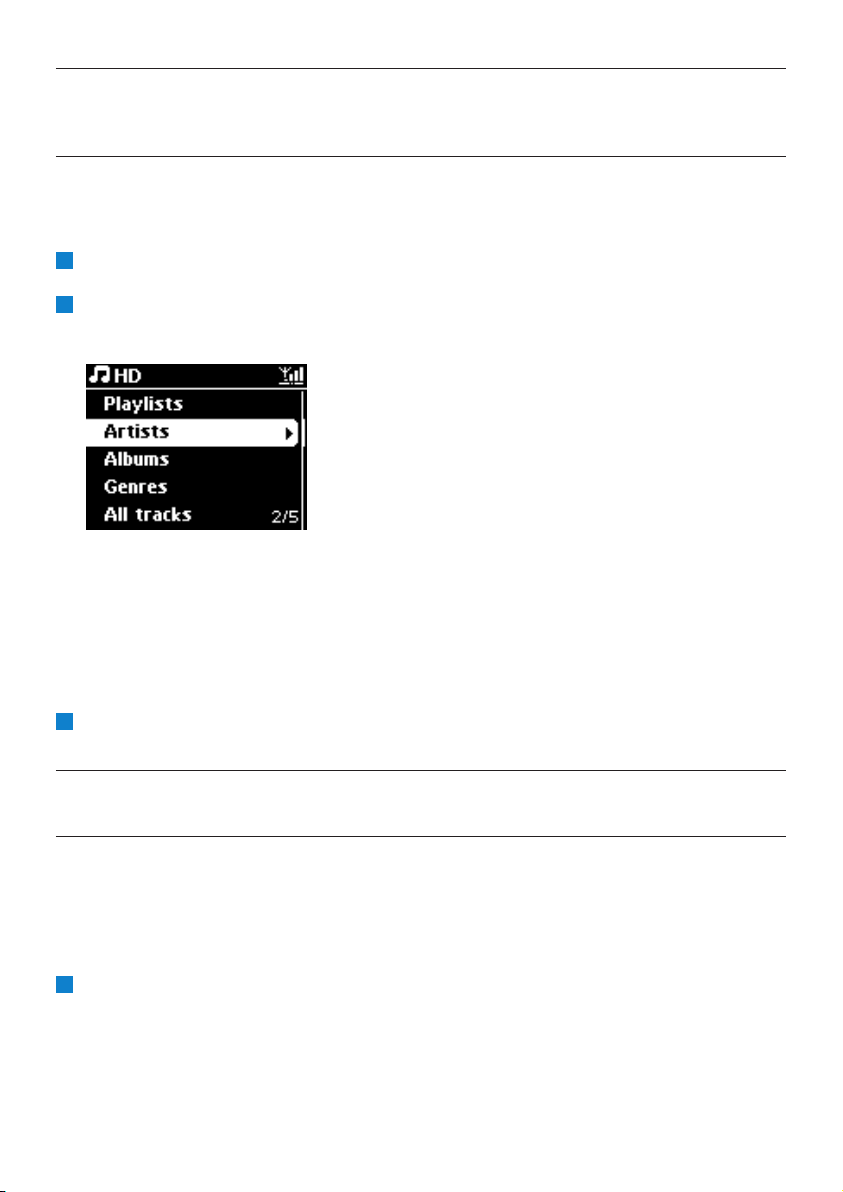
> Display shows HD Music and the categories of your music library: Playlists, Artists, Albums,
Genres, All tracks.
Playlists: customizable collection of your favorite tracks sorted by playlist name in
alphanumeric order.
Artists: collection of albums sorted by artist name in alphanumeric order.
Albums: collection of albums sorted by album name in alphanumeric order.
Genres: collection of albums sorted by music style (only if album information available).
All tracks:All tracks sorted by track name in alphanumerical order.
Use 3 or 4 and 2 to select your option.
6.2 Search
6.2.1 Search by keywords
The keyword should be the first letter or word in the title of the track you wish to search for: By
entering a keyword, you can quickly find all the items beginning with the keyword you entered
(note that this feature is case sensitive).
Navigate 1 / 2 / 3 / 4 to enter desired option list of tracks, albums or playlists.
1
3
2
1
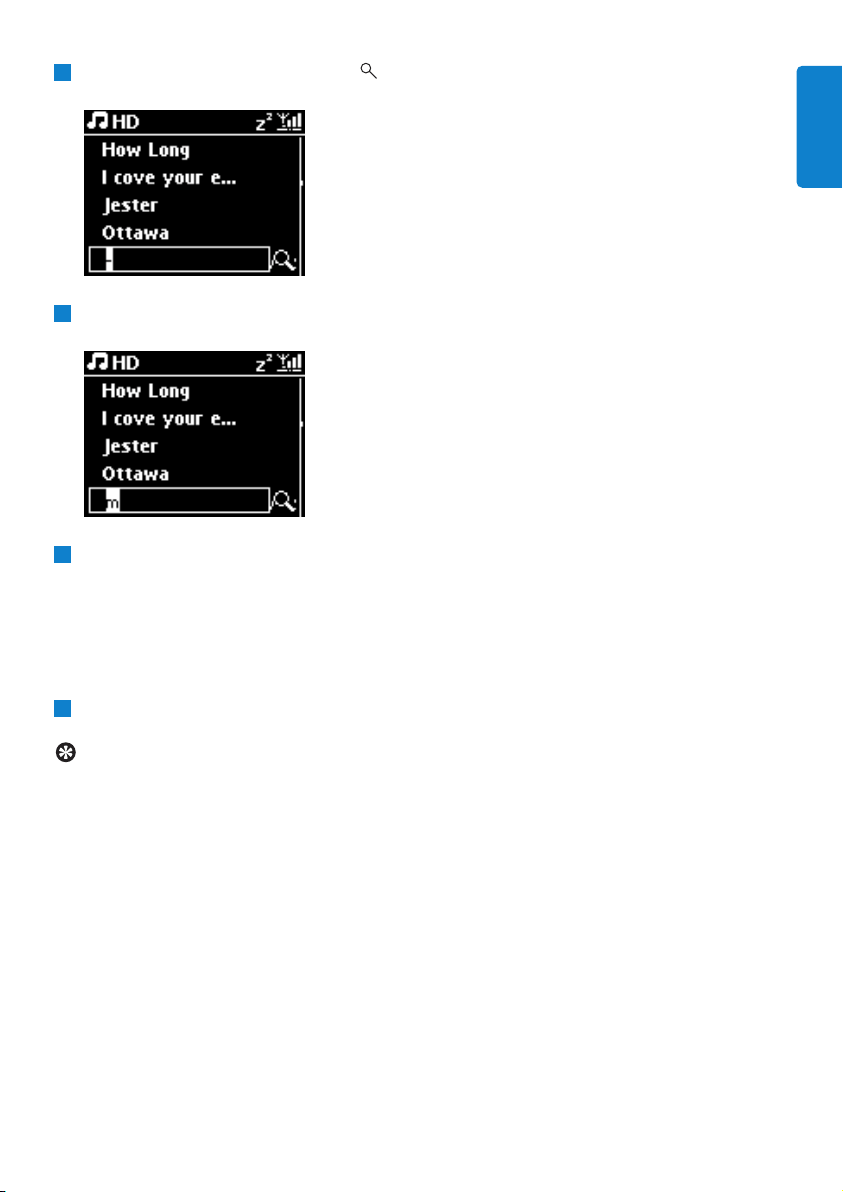
On remote control, press SEARCH
> Display: text box appears
Use alphanumeric keys to enter keyword (maximum 8 characters) (see 4.4 Prepare:
Alphanumeric keys)
Press OK to start searching
> Display: Searching...
Searching starts from the beginning of current option list.
The matched items appear at the top of the list.
The option list automatically shows the closest match in the alphabet if no match is found.
Display: Searching... disappears.
Press STOP 9 to stop searching.
Tip
• Searching will also stop when:
• you select another source
• you switch off the set
5
4
3
2
Hard Disk
33
ENGLISH
6.2.2 Select track of same artist
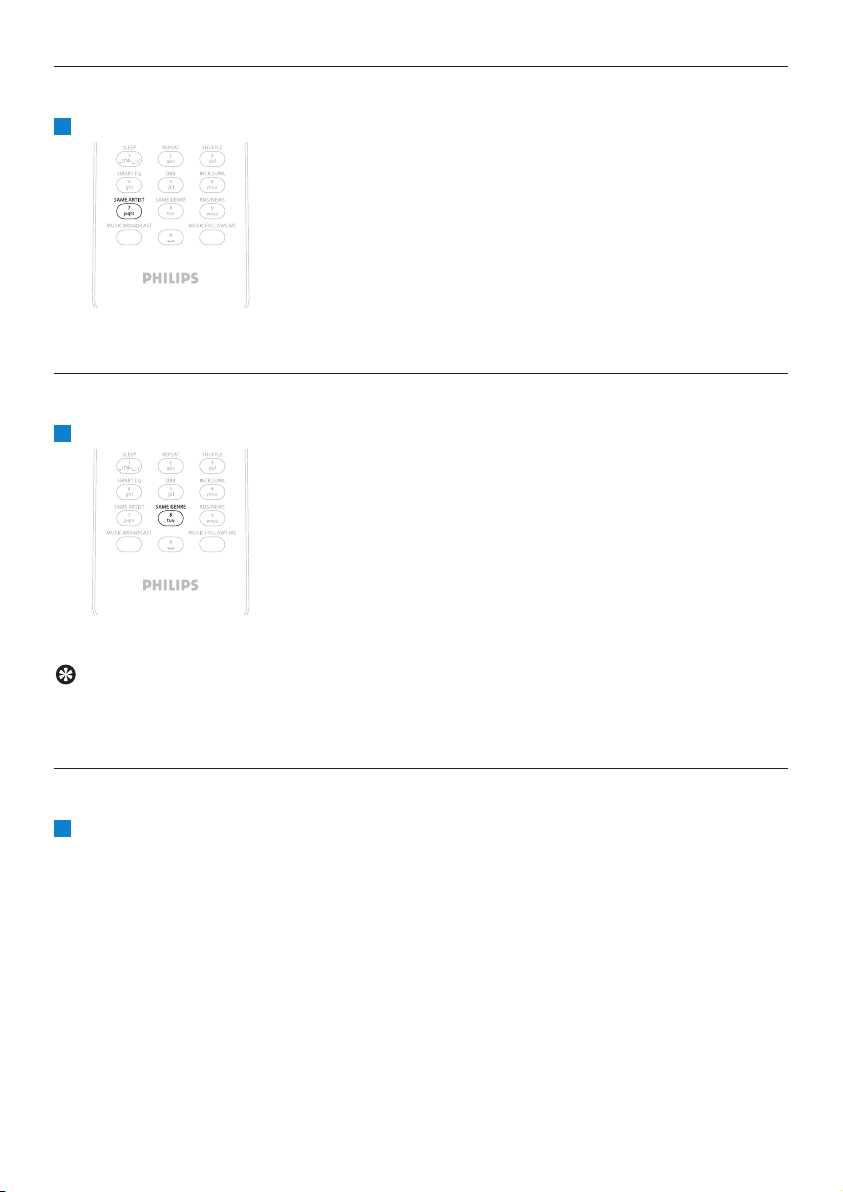
During playback, press SAME ARTIST
> Playback of found tracks by the current artist continues after current track.
6.2.3 Select track of same genre
During playback, press SAME GENRE
> Playback of found tracks of same genre as current track continues after current track.
Tip
Not all tracks have an automatic genre tag, so you may have to manually assign a genre for your
tracks before loading them to the HD of Center.
6.2.4 Find track in current album (during playback)
In playback screen, navigate with 3 / 4 to select track in current album during playback.
1
1
1
Hard Disk
34
6.2.5 Find passage in current track (during playback)
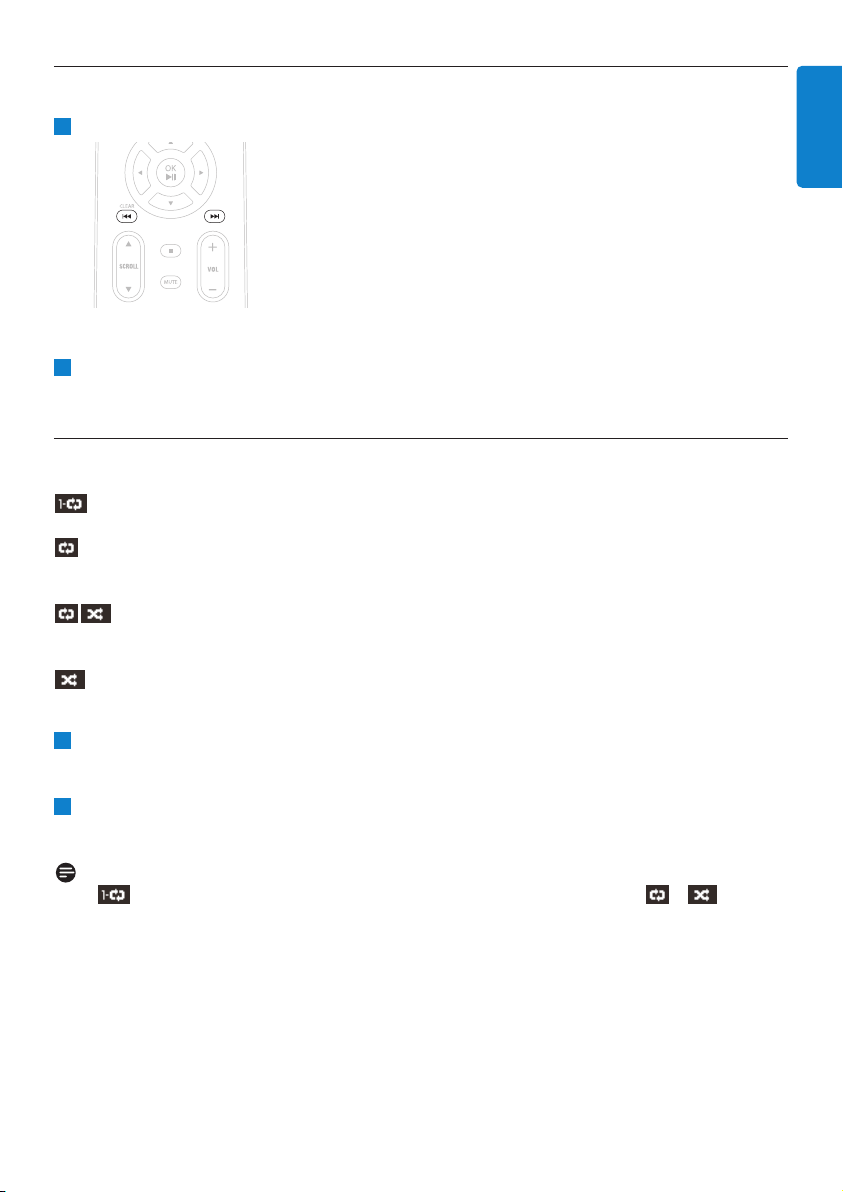
In playback screen, press & hold 3 / 4 or J( / )K
> Track gets scanned at high speed.
When you found the passage you want, release 3 / 4 or J( / )K
> Normal play resumes.
6.3 Play modes REPEAT, SHUFFLE
plays the current track continuously
repeats all the tracks (under current selection of playlist, artist, genre, album, or All
tracks)
repeats all the tracks (under current selection of playlist, artist, genre, album, or All
tracks) in random order
plays tracks (under current selection of playlist, artist, genre, album, or All tracks) in
random order
During playback press REPEAT or / and SHUFFLE once or more times to select desired
play mode.The play mode icons appear in the display.
To return to normal playback, press REPEAT or / and SHUFFLE repeatedly until the various
mode icons disappear from the display.
Note
If is active, it will be deactivated when pressing SHUFFLE.To activate / press
first SHUFFLE, then REPEAT 1.
2
1
2
1
Hard Disk
35
ENGLISH
6.4 Build music library on Center
You can build a music library in the HD of Center by ripping from CDs, importing from PC and
recording from external sources.
6.4.1 Rip music from CDs
You can rip audio CD tracks from your CDs and store them as MP3 files in the HD of Center.The
Gracenote MusicID® enables your set to look up CD information (including album, artist, genre,
track information) from its database. It allows the recorded CD tracks to be properly categorized
(for example, under artist, albums, genres or all tracks) and also to be merged with the existing
tracks in the HD.To update your Gracenote® Media Database, see the section 12 Connect to
your PC in this manual.
Important!
Ripped files are first stored in a temporary memory:
Always switch the Center to Eco Standby to ensure files are fully processed before
disconnecting Center from the power source.While the Center is ripping the files, you can
continue to listen to your music.
Important!
• Recording is permitted only if there is no infringement of copyrights or any other rights of
third parties.
• For CDs encoded with copyright protection technologies used by some record companies,
recording will be restricted.
• The making of unauthorized duplicates of copy-protected material, including computer
programs, files, broadcasts and sound recordings, may be an infringement of copyrights and
constitute a criminal offence.This equipment should not be used for such purposes.
Hard Disk
36
Music recognition technology and related data are provided by Gracenote®. Gracenote is the
industry standard in music recognition technology and related content delivery. For more
information, please visit www.gracenote.com.
CD and music-related data from Gracenote, Inc., copyright © 2000-2007 Gracenote. Gracenote
Software, copyright © 2000-2007 Gracenote.This product and service may practice one or more
of the following U.S. Patents: #5,987,525; #6,061,680; #6,154,773, #6,161,132, #6,230,192,
#6,230,207, #6,240,459, #6,304,523, #6,330,593, #7,167,857, and other patents issued or pending.
Gracenote and CDDB are registered trademarks of Gracenote.The Gracenote logo and logotype,
and the ‘Powered by Gracenote’ logo are trademarks of Gracenote.
Gracenote® is a registered trademark of Gracenote, Inc.The Gracenote logo and logotype, and
the ‘Powered by Gracenote’ logo are trademarks of Gracenote.
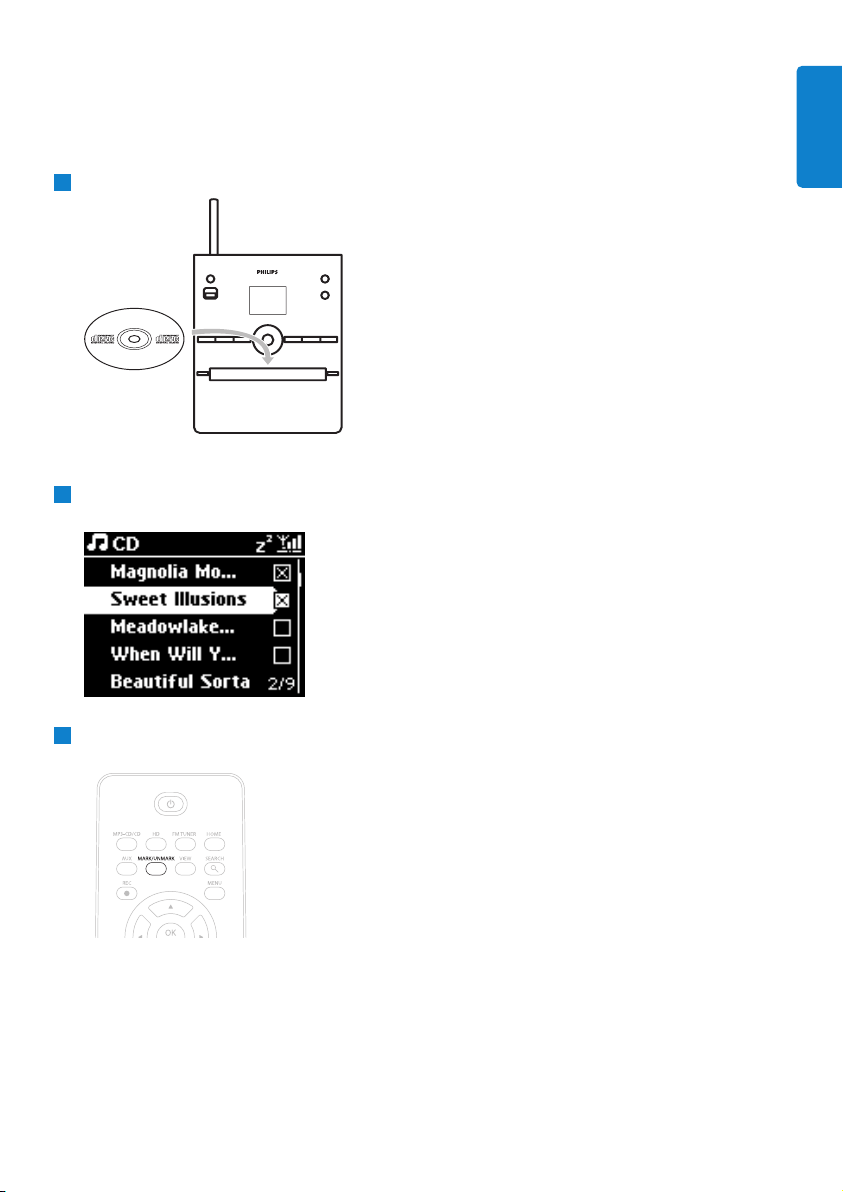
Rip from a CD at high speed:
(Audio CD, MP3/WMA CD)
Insert CD with printed side facing up:
For MP3/WMA CD, press 2 on a highlighted file folder to enter the track list.
In the track list screen, press RECORD 0 (remote control REC).
> List of tracks with check boxes appears:
Press MARK/UNMARK to select/deselect tracks (hold MARK/UNMARK to select/deselect
all tracks).
3
2
1
Hard Disk
37
ENGLISH
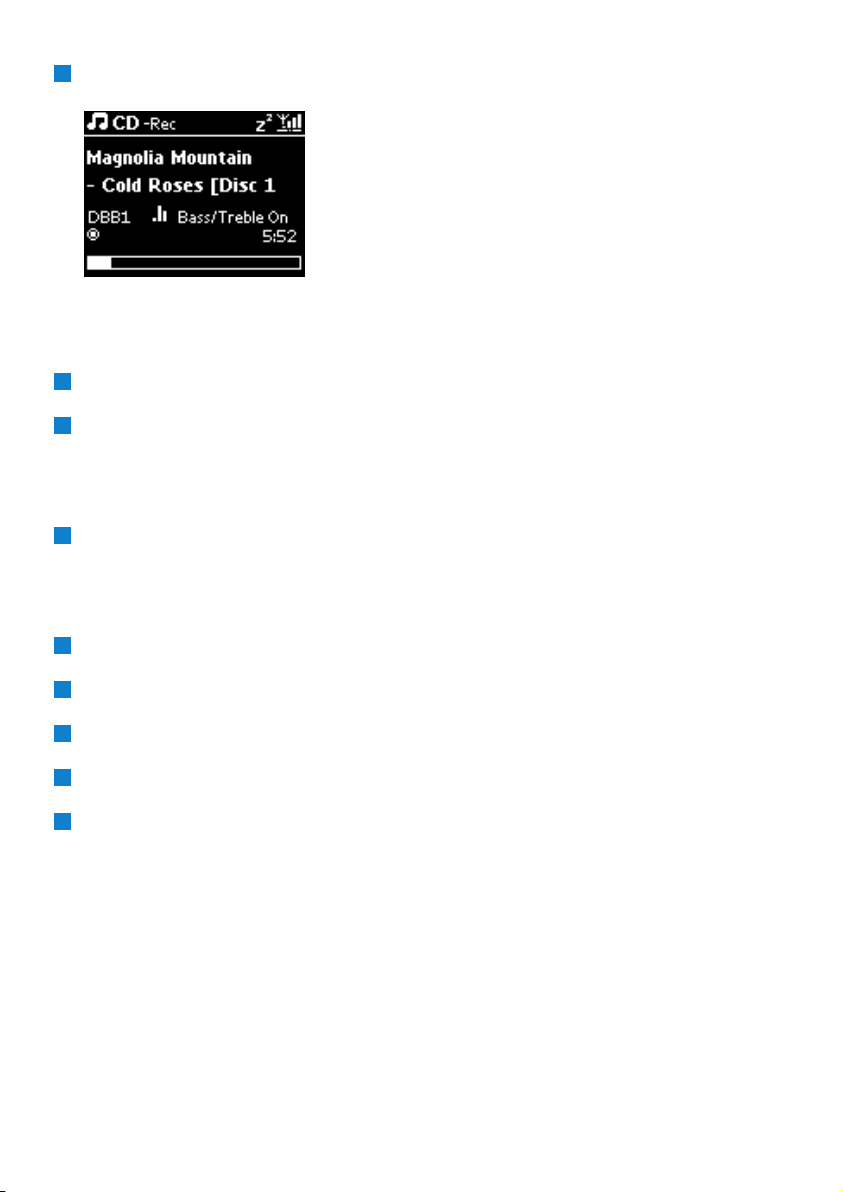
Press RECORD 0 (REC) to start ripping.
> Display shows CD-Rip and the current track name.
(A default album name, e.g.Album_001 is assigned if the CD track information cannot be found in
the Gracenote® database.)
> Center returns to CD mode when ripping is complete.
To rip another CD repeat steps 1 to 4 again.
To stop ripping, press STOP 9.
Rip from a CD during playback:
(Only from Audio CD)
During playback, press RECORD 0 (remote control REC).
> Recording and playback start from the current track.
Display shows CD-Rec and the current album name.
Change ripping speed:
Press MENU to enter menu screen.
Use 3 or 4 and 2 to select Settings.
In Settings screen, press 3 or 4 and 2 to select Rec Speed.
Press 3 or 4 and 2 to select Normal Speed.
Press RECORD 0 (remote control REC) to start recording.
5
4
3
2
1
1
6
5
4
Hard Disk
38

Hard Disk
39
ENGLISH
Change ripping quality:
Press MENU to enter menu screen.
Use 3 or 4 and 2 to select Settings.
In Settings screen, press 3 or 4 and 2 to select Rec Quality.
Press 3 or 4 and 2 to select 128kbps, 160kbps, 192kbps, 256kbps, or 320kbps.
Press RECORD 0 (remote control REC) to start recording.
Tip
• By default, the recorded tracks are converted to MP3 files at the rate of 128kbps (near-CD
quality). For better sound quality, you can select a higher kbps rate.
• To edit track information on Center, see 6.10 Edit track information, or to edit track
information no your PC, see 12.1.2 Edit track information using WADM.
6.4.2 Import from your PC
The Wireless Audio Device Manager (WADM) in the supplied PC Suite CD helps you organize
music files on your PC and import them into Center. For details, see 12.1 Use WADM in this
manual.
6.4.3 Record from radio or external source
A maximum recording time of 3-hours can be made from the radio or an external source.
a In Radio mode, tune the desired radio station (see 8.1 FM radio:Tuning to radio
stations).
or
b In AUX mode, start playback from the external source.
Press RECORD
> The recoding starts.
Press STOP 9 to stop recording.
> The recording will be saved as a file under RADIO or AUX in Albums.A file name is assigned, e.g.
Radio_01, or Aux_01.
3
2
1
5
4
3
2
1
Hard Disk
40
6.5 Create a playlist
A playlist is a custom collection of your favorite music.You can create up to 99 playlists in the HD
of Center.
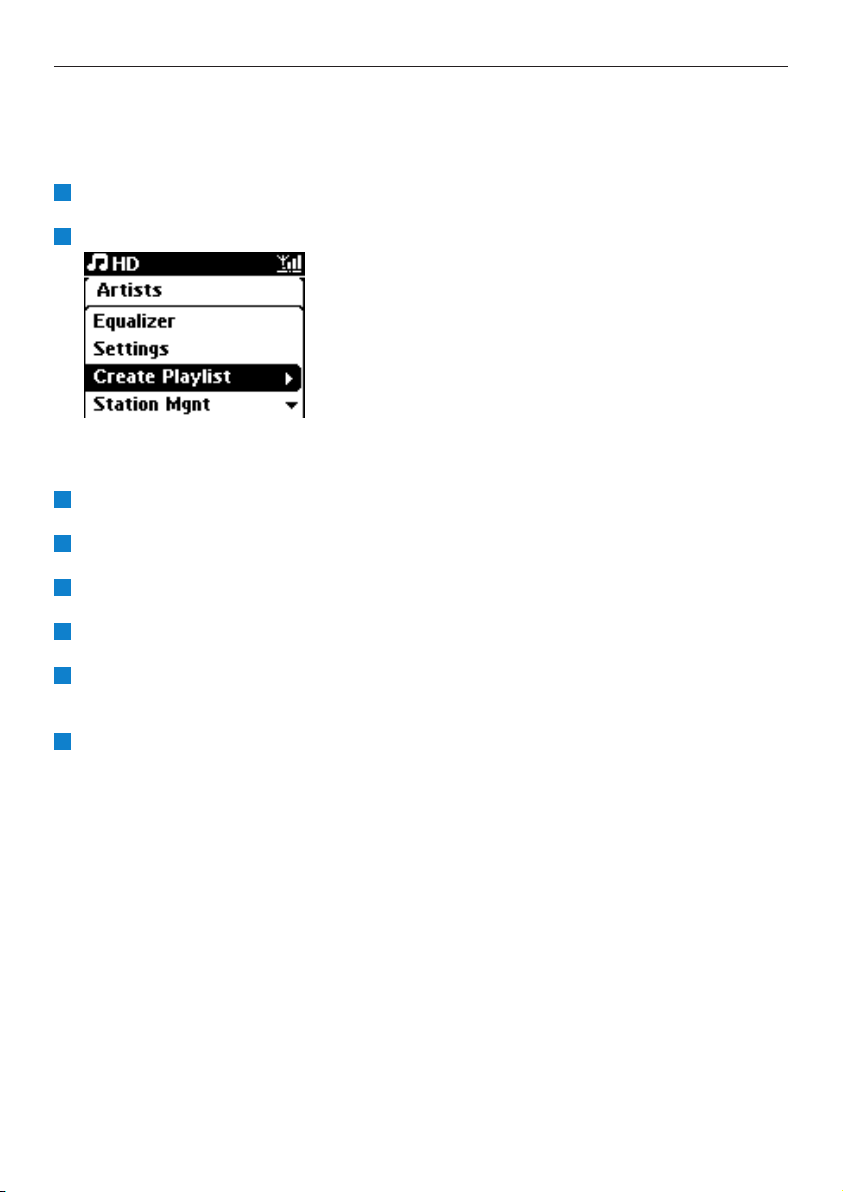
In HD Music mode, press MENU to enter the menu screen.
Use 3 or 4 and 2 to select Create Playlist
> A new playlist is created (a default album name, e.g. Playlist_001, is assigned).
Display shows: Playlist created.To add tracks, select Add to Playlist.
Navigate with 1 / 2 / 3 / 4 to highlight the desired Track or All tracks.
Select Add to Playlist.
Press MENU to enter the menu screen.
Use 3 or 4 and 2 to display the selection of playlists.
Use 3 or 4 and 2 to select the desired playlist.
> Display shows all added tracks in playlist.
Repeat steps to select and store all desired tracks.
6
5
4
3
2
1
2
1
6.6 Delete a playlist, album or track
This feature works only on Center.
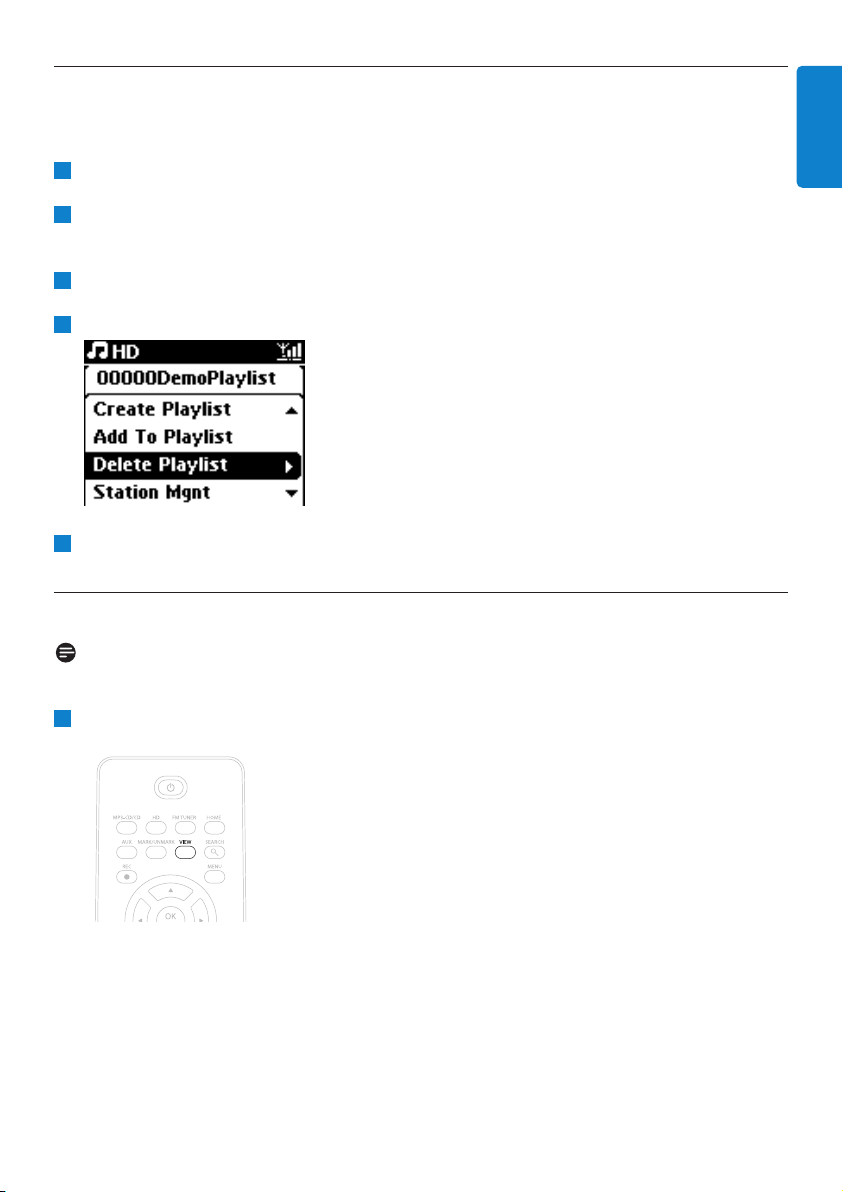
Navigate with 1 / 2 / 3 / 4 to enter a category (Playlist,Artists,Albums, Genres,All tracks).
If necessary, press 3 or 4 and 2 once or more times to highlight the playlist album or track
you wish to delete.
Press MENU to enter the menu screen.
Use 3 or 4 and 2 to select Delete Playlist, Delete Album or Delete Track
Press 2 to select Ye s .
6.7 View track information
Note
The feature View track information is only available in mode HD Music.
Press the VIEW button on the remote control once or more times to enter the track list
screen.
1
5
4
3
2
1
Hard Disk
41
ENGLISH
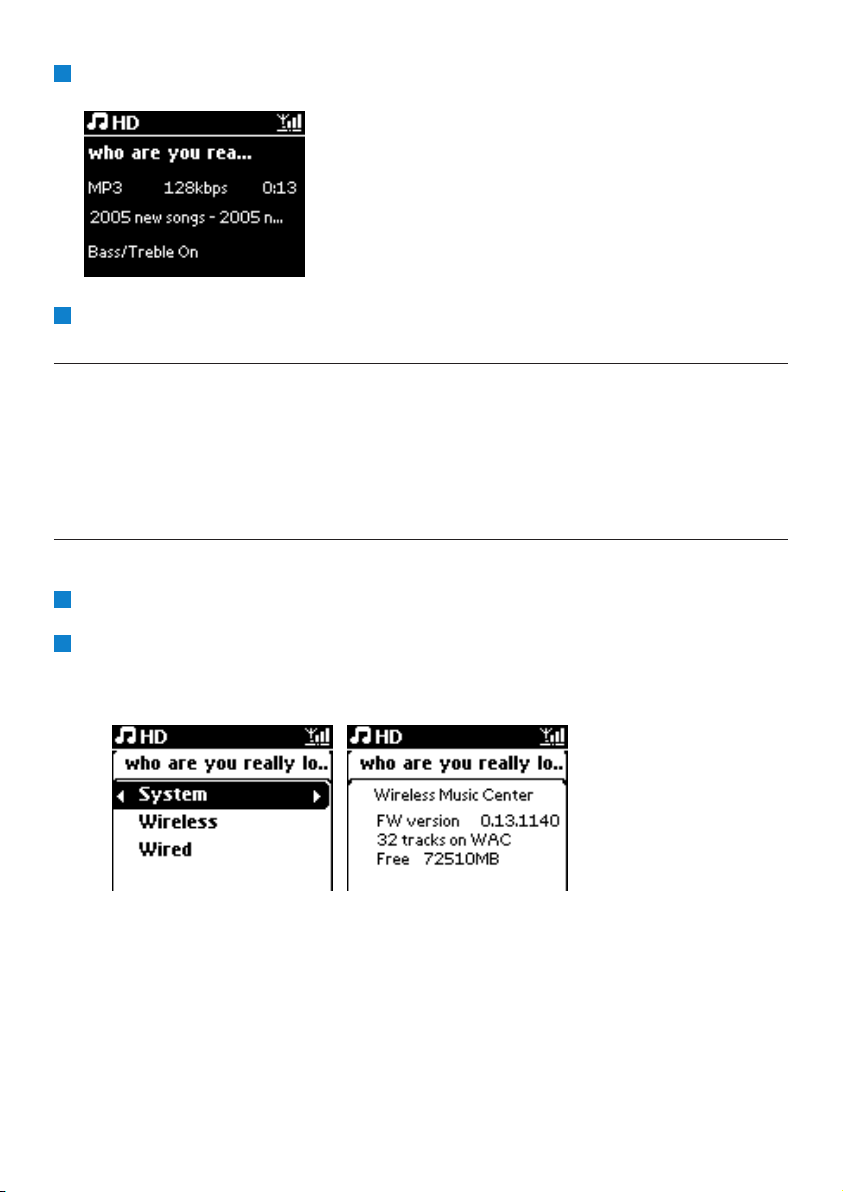
Press 2 to display the track information screen (e.g. track name, file type, file size, bit rate of
mp3/wma files).
Press the VIEW button once or more times to return to the HD playback screen.
6.8 Backup to PC
The Wireless Audio Device Manager (WADM) in the supplied PC Suite CD allows you to backup
contents on the HD to your PC.The backup files on your PC can be subsequently restored to
Center if the files on the HD are lost or corrupted. For details, see the section 12 Connect to
your PC in this manual.
6.9 View system information
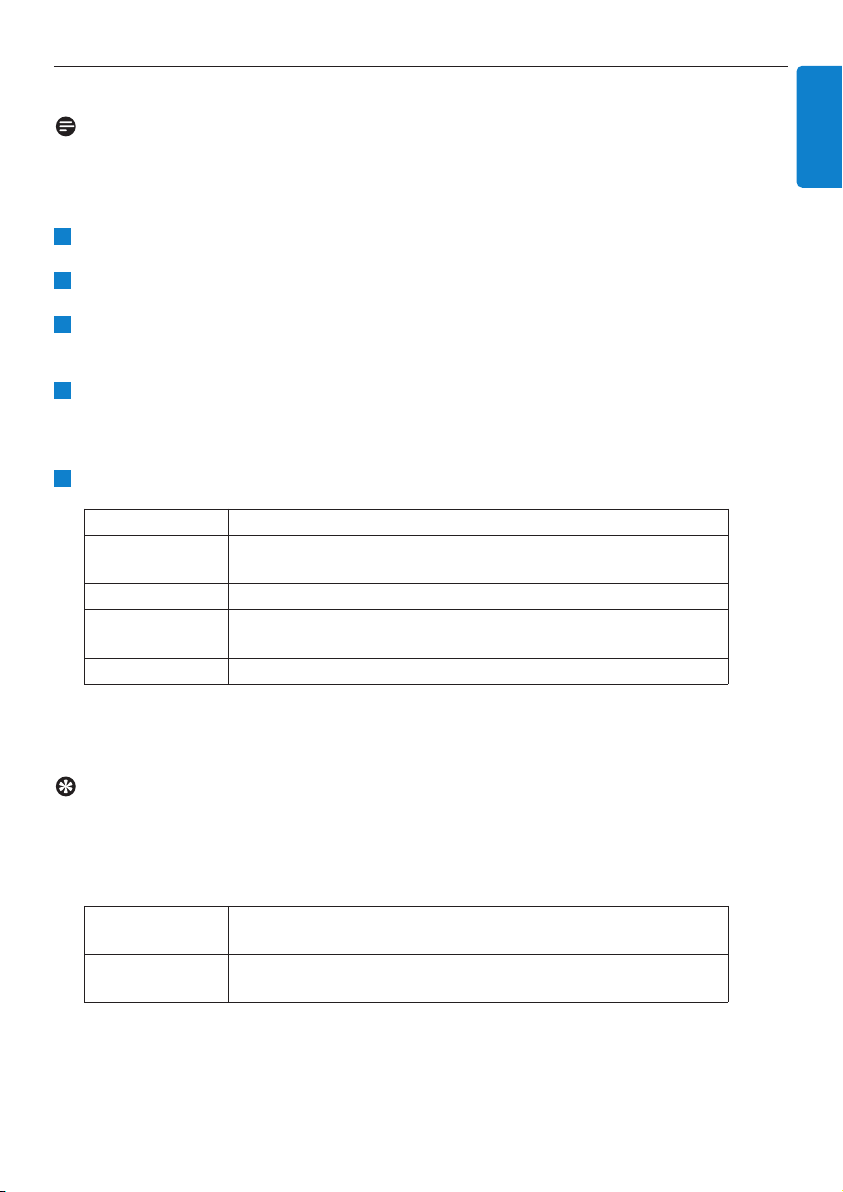
Press MENU to enter the menu screen.
Use 3 or 4 and 2 to enter Information menu.
> The display shows: System, Wireless and Wired.
a Use 3 or 4 and 2 to select System.
> Name of Center or Station and firmware version (on Center also: free hard disk space) is shown on
the display:
b Use 3 or 4 and 2 to select Wireless.
> List of available information items (e.g. SSID,Wireless Mode,WEP Key, MAC Address, Subnet mask,
IP Address, and IP Mode) is shown on the display:
c Use 3 or 4 and 2 to select Wired.
> List of available information (e.g. Subnet mask, IP Address, and IP mode) are shown on the display:
2
1
3
2
Hard Disk
42
Hard Disk
43
ENGLISH
6.10 Edit track information
Note
Use the remote control to Edit track information.
You can edit track title, album name, etc.:
Press HOME to select HD.
Use 3 or 4 and 2 to select the track to be edited.
Press MENU.
> 'Edit' is shown on the LCD display
Use 3 or 4 and 2 to select Edit.
Now you can start editing track information by following the sequence:
Edit track title > Edit Artist name > Edit Album name > Edit Genre name
Press the following keys on remote control to edit track information:
> When you completed your editing, the LCD shows 'Updating...' followed by 'Update success' (or 'System
busy, please edit later' if the update was not successful).
Tip
• If no key is pressed for 60 seconds, the edit screen will disappear without saving anything.
• You can enter an editing string of max. 21¬characters.
• You can also edit album/playlist names. (All tracks in that album/playlist will bear the new
album/playlist name.)
• You can also use 3 or 4 on Center or remote control to enter text:
3
Press briefly to skip to previous character
Press & hold to fast scroll through the character list
4
Press briefly to skip to next character
Press & hold to fast scroll through the character list.
Alphanumeric keys Insert text into the current position.
1
Move highlight to previous editing position. In leftmost position:
press to move to previous screen.
2
Move highlight to next editing position.
J(
Press briefly to delete highlighted text, Press & hold to delete all
text.
OK Confirms text and enters next screen.
5
4
3
2
1
CD
44
7CD
7.1 Supported discs
You can play the following discs on the system:
• Pre-recorded audio CDs (CDDA)
• Finalized audio CD-Rs and CD-RWs (12cm CD / 8cm CD, 185 MB / 200 MB)
• MP3/WMA-CDs (CD-R/CD-RWs with MP3/WMA)
• AAC-CDs (MPEG4 AAC LC raw format, .m4a/.m4b files)
About MP3/ WMA
The music compression technology MP3 (MPEG1 Audio Layer 3) and WMA (Windows Media
Audio) significantly reduces the digital data of an audio CD, while maintaining the sound quality.
Windows Media Audio® is a registered trademark of Microsoft Corporation.
Supported formats:
• Disc format ISO9660, Joliet, UDF (created on Adaptec Direct CD v5.0 and Nero Burning ROM
UDF v5.5) and multi-session CDs
• MP3 bit rate (data rate): 32-320 Kbps and variable bit rate.
• 8-cm and 12-cm CD-R/CD-RW up to 730MB
• Directory nesting up to a maximum of 8 levels
• Directory nesting up to a maximum of 8 levels
• MP3 VBR,WMA VBR
• AAC (MPEG4 AAC LC raw format, .m4a/.m4b files)
The system does not play or support the following:
• Empty albums that do not contain any MP3/WMA files and hence will not be displayed.
• Unsupported formats are skipped (e.g. files with .doc extension are ignored).
• DRM protected WMA files
• WAV, PCM audio files
• WMA files in lossless format
Tip
• Make sure that MP3 files end on extension .mp3,WMA files end on extension .wma, and
AAC files end on extension .m4a or .m4b.
• To burn/convert DRM protected WMA files use Windows Media Player 10 (or later.Visit
www. microsoft.com for details about Windows Media Player and WM DRM (Windows
Media Digital Rights Management).
Important! This system is designed for regular discs.Therefore, do not use any accessories
such as disc stabilizer rings or disc treatment sheets, etc.
7.2 Play discs
Press / to open the CD tray.
Insert CD into CD tray with printed (label) side facing up.
Press / to close CD tray.
> Display shows: Reading CD.
Audio CD: list of tracks appears (Track information may not appear, if it is not found in the HD
database and if there is no Internet connection to update the missing information from the Gracenote®
service site.)
MP3/WMA CD: list of albums appears.
Display shows:
Press the navigation controls 3 or 4 and 2 to select your option.
Press 2; to start playback
• On a highlighted album, to start playback of album.
• On All tracks, to start playback of all tracks on disc.
a To temporarily pause playback, press 2;.
b To resume playback, press button again.
To stop playback, press STOP 9.
To remove disc, press EJECT / on Center.
7.2.1 Search by keywords
The keyword should be the first letter or word of the album title, artist name, track title, genre
name, or playlist name you wish to search for: By entering a keyword, you can quickly find the item
that most closely matches to your search criteria.The search cursor will stop at the closest
alphabetical match in the list.
Note
The keyword search is supported in modes HD Music and USB only.
8
7
6
5
4
Others MP3/WMA/AAC files that are not sorted into albums (folders)
located in the root directory of the disc.
CDDA CDDA files on an enhanced CD or a mixed mode CD.
All tracks All supported files in any albums (folders) on the disc.
3
2
1
CD
45
ENGLISH
CD
46
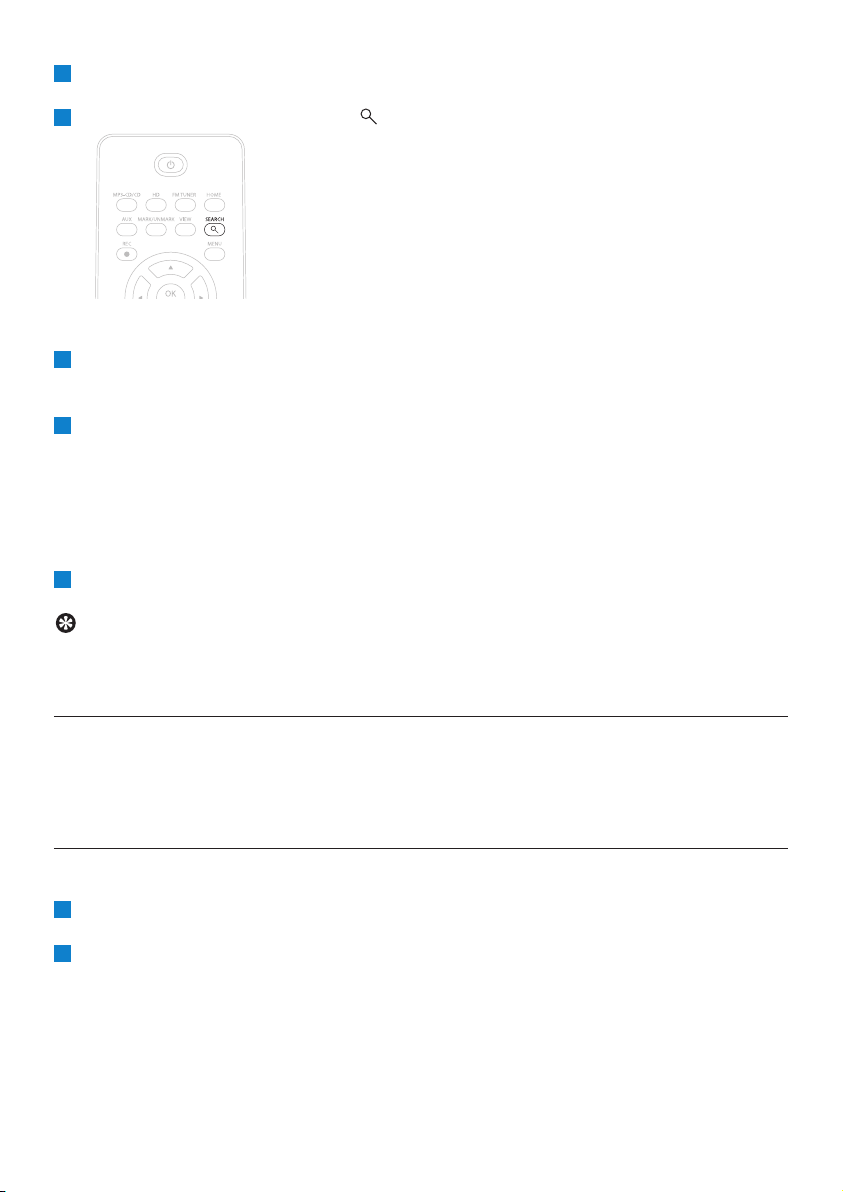
Navigate 1 / 2 / 3 / 4 to enter desired option list of albums, artists, tracks, genres or playlists.
On remote control, press SEARCH
> Display: text box appears
Use alphanumeric keys to enter keyword (maximum 8 characters) (see 4.4 Prepare:
Alphanumeric keys)
Press OK to start searching
> Display: Searching…
Searching starts from the beginning of current option list.
The matched items appear at the top of the list.
The option list automatically shows the closest match in the alphabet if no match is found.
Display: Searching… disappears.
Press STOP 9 to stop searching.
Tip
The search will also stop when:
• you select another source
• you switch off the set
7.2.2 Find track in current album (during playback)
In playback screen, press 3 / 4 (or J( / )K ) to select previous or next track in current album
during playback.
7.2.3 Find passage in current track (during playback)
In playback screen, press & hold 3 / 4 (or J( / )K ) to scan currently playing track at high speed.
When you found the passage you want, release 3 / 4 (or J( / )K ) to resume normal playback.
2
1
5
4
3
2
1
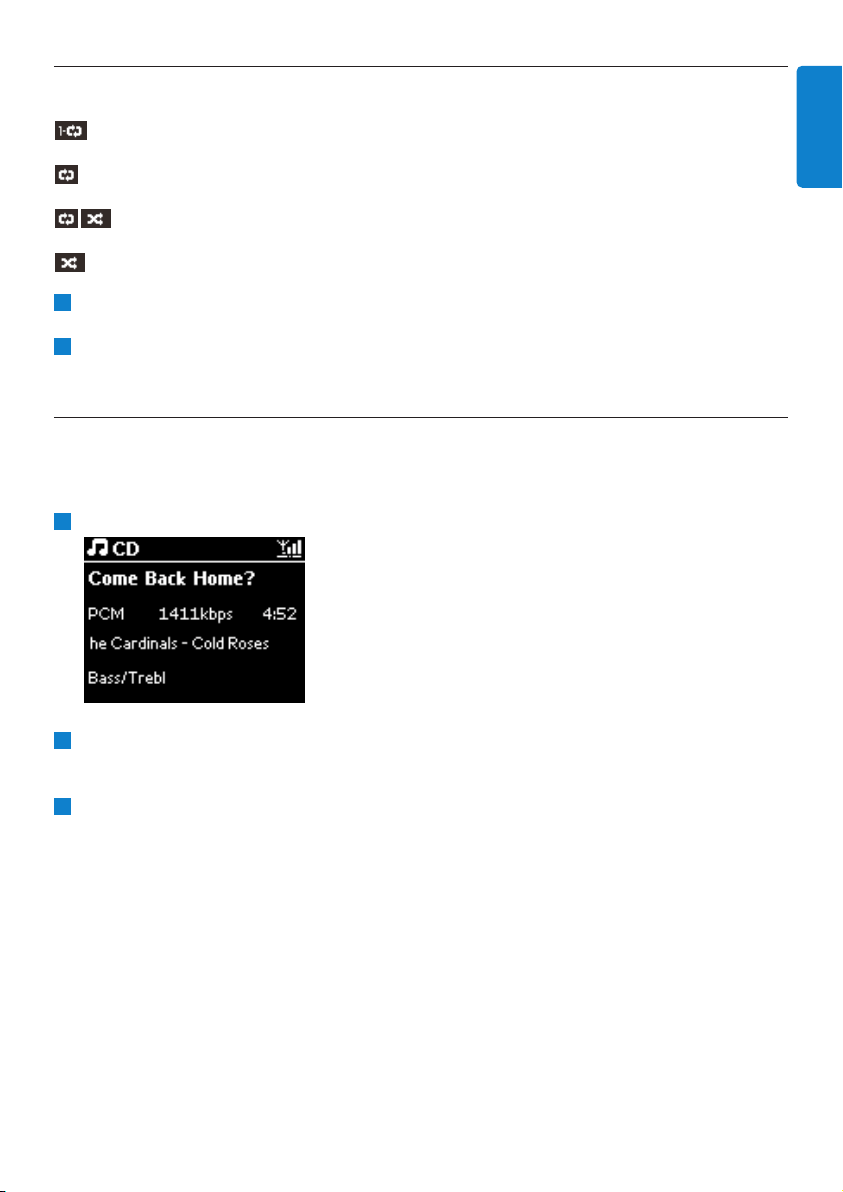
7.3 Play modes REPEAT, SHUFFLE
plays the current track continuously
repeats all the tracks (under current artist, genre, or album)
repeats all the tracks (under current artist, genre, or album) in random order
plays tracks (under current artist, genre, or album) in random order
During playback press REPEAT or / and SHUFFLE once or more times to select play mode.
To return to normal playback, press REPEAT or / and SHUFFLE repeatedly until the various
modes are no longer displayed.
7.4 View track information
To view track information:
Press VIEW on remote control once or more times to enter playback screen.
Press 2.
> Display shows track information (e.g. track name, file type, file size, bit rate of mp3/wma files).
Press VIEW once or more times to return to playback screen.
3
2
1
2
1
CD
47
ENGLISH
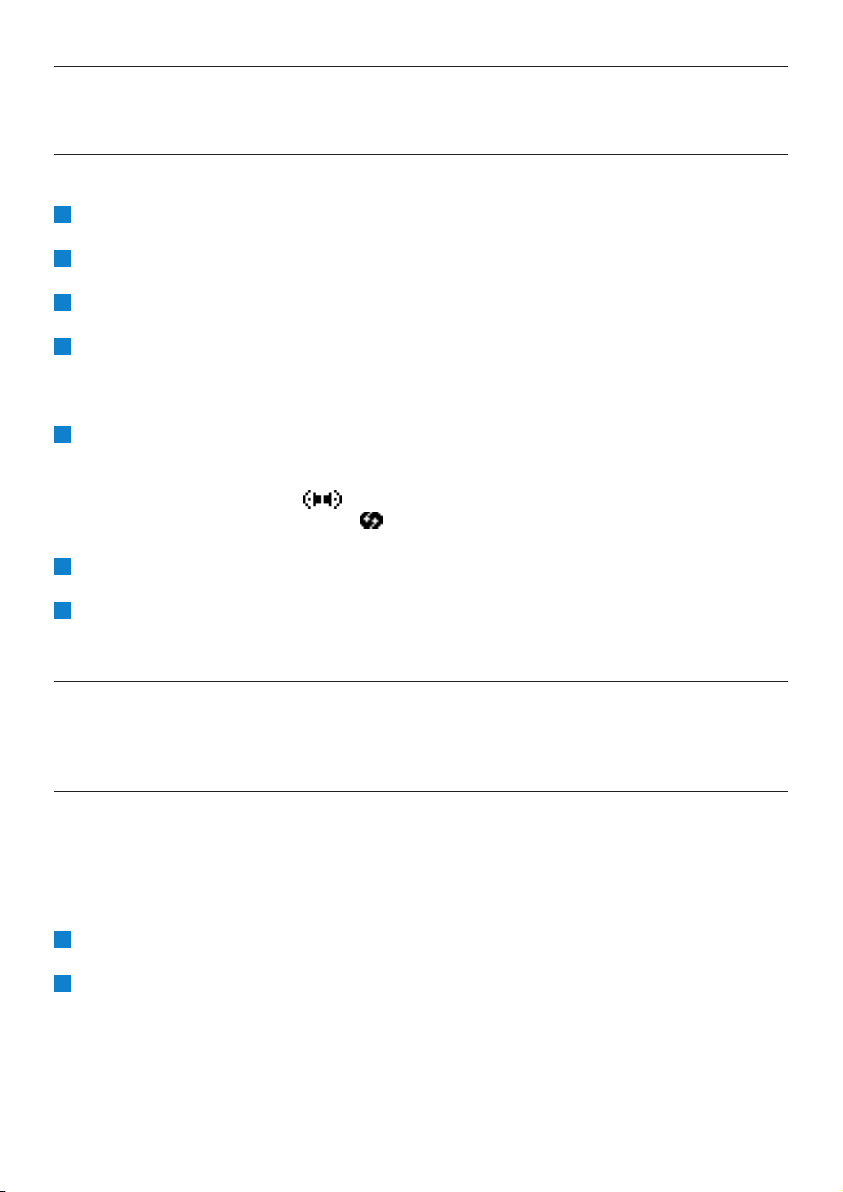
8 FM radio
8.1 Tune radio stations
Connect the supplied FM wire antenna to Center (see 3 Installation).
Ensure that Center is switched on or in Standby mode (see 5 Basic functions).
Press HOME
Press the navigation controls 3 or 4 and 2 to select Radio > FM Tuner.
> Playback screen appears.
Display: Radio, radio station frequency and preset number (if programmed).
Press & hold 3 or 4 until frequency in display starts running.
> The radio automatically tunes to a station of sufficient reception.
Display during automatic tuning: Searching...
If a station is received in stereo, is shown.
When you are receiving an RDS station, is shown.
Repeat tuning process until you find the desired radio station.
To tune to a weak station, press 3 or 4 briefly and repeatedly until you have established
optimum reception.
8.2 Store preset radio stations
You can store up to 60 radio stations in the preset memory.
8.2.1 Autostore:Automatic preset program
Autostore automatically starts programming radio stations into the preset memory, beginning with
Preset 1.Available stations are programmed in the order of their radio frequency, RDS stations are
followed by FM stations.A maximum of 10 RDS stations will be stored (Preset 01 to Preset 10).
Press MENU to enter the menu screen.
Use 3 or 4 and 2 to select autostore radio.
> Display: Autostore, please wait… Press 'Stop' to exit.
When all stations are stored, the first preset station automatically starts playing.
2
1
7
6
5
4
3
2
1
FM radio
48
8.2.2 Manual store: manual preset program
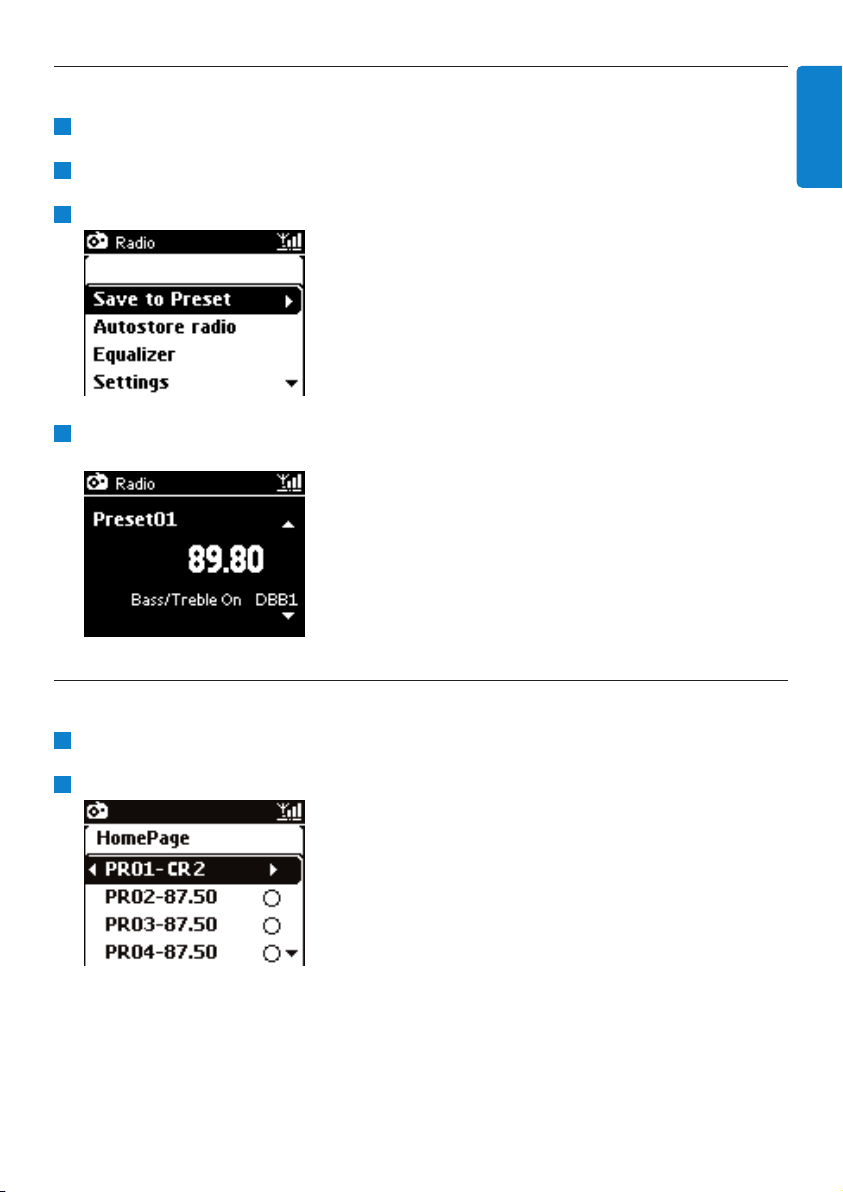
In FM radio mode, use 3 or 4 to select / tune your desired radio station.
Press MENU to enter the menu screen.
Use 3 or 4 and 2 to select Save to Preset.
Use 3 or 4 and 2 to select the desired preset number (PR01, PR02,…PR60).
> Current radio station is stored under selected preset number.
8.2.3 Listen to preset station
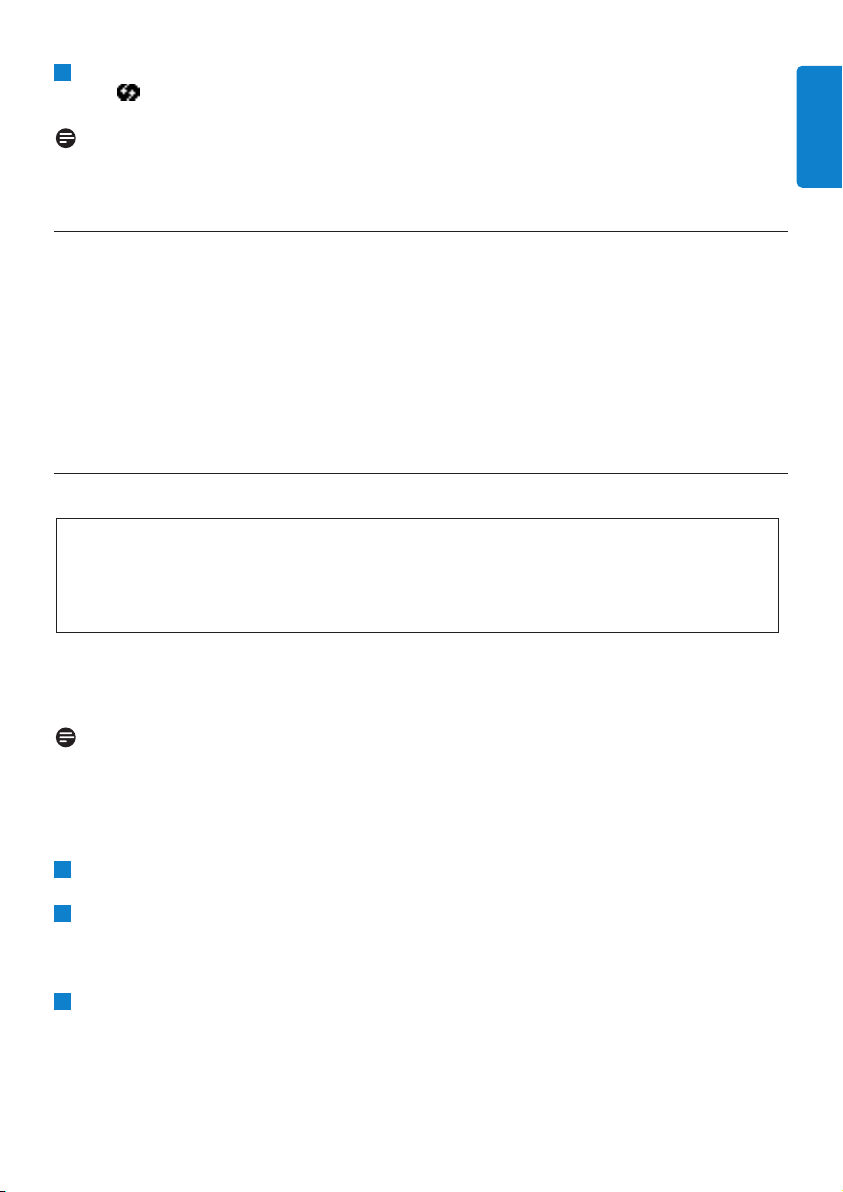
In FM radio mode, press 2 to access the list of preset stations.
Use 3 or 4 and 2 to select the preset station.
2
1
4
3
2
1
FM radio
49
ENGLISH

8.3 RDS
RDS (Radio Data System) is a service that allows FM stations to send additional information along
with the FM radio signal.
Tune to RDS radio station (see 8.2.1 Autostore: Automatic preset program)
Display shows (if available):
• Name of radio station
• Radio frequency
• Program type (e.g. News, Pop, Music)
• RDS radio text
8.4 NEWS
You can activate radio NEWS while listening to another source on WAC3500D. Center will tune
to a RDS radio station stored in the preset memory under one of the 10 first numbers.
During playback (any source except radio) press RDS/NEWS on remote control.
> Icon appears and NEWS ON is briefly displayed.
(If no RDS station is found or no news transmission is detected during the scan, the icon
disappears and NEWS OFF is briefly displayed.)
Playback continues while Center scans the first 10 preset stations.
When a news transmission is detected, Center will switch to the RDS station broadcasting the
news transmission and the icon starts flashing.
After the news transmission is over, Center will stay tuned to the news station.
1
FM radio
50
To deactivate NEWS, press RDS/NEWS again.
> Icon disappears and NEWS OFF is briefly displayed.
Note
Ensure that you have stored RDS stations in the first 10 preset locations (see 8.2.1
Autostore: Automatic preset program).
8.5 Internet radio
You can also listen to all the most popular Internet Radio stations by connecting through the Philips
web service, where automated links to active stations are maintained and updated at regular
intervals.
The Internet Radio feature requires registration with Philips.The registration process only has to
be completed once, when you are using the Internet Radio for the first time.You can register more
than one user. Each user will have to register separately, following these instructions:
8.5.1 First time use
For first time use of the Internet radio you must register with Philips.
To register you need a valid email address.
Note
If you enter an email address that is already registered with Philips, the display asks for your
password. Enter your password and enjoy Internet radio!
Internet radio registration process:
On Center:
Press HOME one or more times to select Radio.
From the radio menu, select Internet Radio.
> Internet connection starts.
The Internet Radio registration help screen appears.
Enter any valid email address.
> Display shows confirmation that the automated email dispatch has been initiated.
3
2
1
Important!
Ensure you are connected to the Internet when you use the Internet Radio feature. See
11 Network Settings for information on how to get your system connected to the home
network and the Internet.
Use the remote control for the registration process.
2
FM radio
51
ENGLISH

On your PC:
Check the inbox of the email address you entered and look for a message from
'[email protected]' with the subject: Your Streamium Registration...
Read and follow the instructions given in the email to complete your registration process on
the Philips website.
On Center:
Display returns to Radio menu.
Note
• Press HOME to exit any time.Your email address will be remembered.
• Other persons can register individually to enjoy Internet radio with their own settings.
8.5.2 Regular use
Regular users can access the Internet radio directly through the Radio menu screen.
8.5.2.1 Radio services
On Center:
Press HOME one or more times to select Radio.
From the Radio menu, select Internet Radio.
Use 3 or 4 and 2 to select User.
Use 3 or 4 and 2 to select Services.
Use 3 or 4 and 2 to make your selection from the Service List (RadioIO, or Live365).
Use 3 or 4 and 2 to select the desired station.
6
5
4
3
2
1
2
1
FM radio
52

8.5.3 Add internet radio stations and bookmark your favorites
On Center:
In Internet radio mode press 2 to bookmark the current radio station as a favorite.
OR
On your PC
Log in with your registered email address at www.philips.com/welcome.
Select Streamium Management on the left hand side of the window.
Choose radio stations from the list.
Mark them as favorites.
> The marked stations will appear as My Media and Favorite Stations the next time you connect.
Note
Playback of the favorite stations is subject to broadcast format and availability of station.
8.5.3.1 My Media
On Center:
Press HOME one or more times to select Radio.
From the radio menu, select Internet Radio.
If multiple users are registered:
a Use 3 or 4 and 2 to select
Use 3 or 4 and 2 to select My Media.
Use 3 or 4 and 2 to make your selection from the My Media List of Stations.
8.5.3.2 Favorite stations
On Center:
Press HOME one or more times to select Radio.
From the radio menu, select Internet Radio.
If multiple users are registered:
a Use 3 or 4 and 2 to select
Use 3 or 4 and 2 to select Favorite Stations.
Use 3 or 4 and 2 to make your selection from the List of Favorite Stations.
4
3
2
1
4
3
2
1
4
3
2
1
1
FM radio
53
ENGLISH

9 UPnP
Ensure you are connected to your home network when you use the UPnP feature. See
11 Network Settings for information on how to get your system connected to the home
network and the Internet.
9.1 UPnP (Universal Plug and Play)
UPnP is a standard which connects multiple devices (wirelessly or wired) with each other and
enables them to work seamlessly. If you are familiar with UPnP¬ enabled devices,WAC3500D
brings you additional benefits to enrich your wireless music streaming experience. If you are not
familiar with UPnP-enabled devices, please visit www.upnp.org for details.
9.1.1 About UPnP*
In addition to the music library of Center, an UPnP-enabled device can also serve as a music library.
The music collection on the UPnP enabled device can be played on Center, wirelessly or through
the supplied Ethernet cable.
You can also play the music library of Center on the UPnP enabled device, thus expanding your
home music network.
* Universal Plug and Play (UPnP™) builds on standard networking technologies and provides
standardized protocols for a wide variety of home and small business devices. It allows easy
interoperability of all the devices supporting the networking technologies.
9.1.2 About UPnP* enabled devices
The UPnP device can be a PC or other device running UPnP software.
To use the UPnP device with Center, connect Center to the UPnP network of the device (see
9.2 Connect to UPnP device).
To play the music library of your UPnP device on Center check that UPnP server software is
properly installed and enabled on the device (e.g.Windows Media Player 11 or Philips
Multimedia Manager). For more help refer to Windows Media Player.
To play the music library of Center on the UPnP device, check with the user manual of your
UPnP device to make sure it is able to receive music from other UPnP enabled devices.
3
2
1
Universal Plug and Play
54
9.2 Connect to the UPnP device
When connecting to the network of the UPnP device, you have the following options:
• Connect wirelessly or through an Ethernet cable.
For more information on the connection, see 11. Network settings: Connect to external Wi-
Fi enabled or wired home network.
9.3 UPnP playback
During UPnP playback, some playback features in the Wi-Fi network on Center will be unavailable,
including Music Broadcast, Music Follows Me, Same Artist, Same Genre, Creating / Deleting Playlist,
and Recording.
9.3.1 Play music from UPnP device
Check that the UPnP device is switched on.
Switch off the firewall running on the UPnP¬ enabled PC during UPnP playback.
Check that Center is connected to the network of the UPnP device (see 11.5 Network
settings:View connection status).
3
2
1
Important! If you cannot find the UPnP server on the network, refresh the UPnP mode of
Center by changing the mode (press HOME key).
Important!
• You can only stream music files in non-protected MP3,WMA, or AAC (.M4A) format when
WAC3500D is in UPnP mode.
• You cannot stream video or picture contents.
Important! Connecting other UPnP clients to Philips Wireless Music Center may take longer
than connecting a Philips Wireless Music Station to Center.
Universal Plug and Play
55
ENGLISH

On Center:
Press HOME on remote control to select UPnP mode.
> The display on Center shows a list of connected UPnP devices (up to 4 UPnP devices).
(Server not found appears if there is no UPnP device found in the network.)
Use 3 or 4 and 2 to select your desired UPnP device.
> The music library of the UPnP device appears on Center as well as on the UPnP device.
On Center:
Play the music library of the UPnP device in the same way as you play Hard Disk (HD) (see 6
HD).
9.3.2 Play music from Center as UPnP source
Check that Center is switched on or already in standby mode.
Check that the UPnP device is connected to Center (see 11.5 Network setting :View
connection status)
> The music library of Center appears on the UPnP enabled device as it does on Center.
Use the function keys on the UPnP device to play the music library of Center.
3
2
1
6
5
4
Universal Plug and Play
56

10 External sources
10.1 Play or record to USB mass storage device
You can playback music from a USB device on Center.You can also transfer the music library to a
USB mass storage device, so that you can carry your favorite music with you wherever you go.
10.1.1 About USB device
Compatible USB mass storage devices:
The following devices can be used on Center:
• USB flash memory devices (USB 2.0 or USB1.1)
• USB flash devices (USB 2.0 or USB1.1)
Supported formats:
• USB or memory file format FAT12, FAT16,
• FAT32 (sector size: 512 - 65,536 bytes)
• MP3 bit rate (data rate): 32-320 Kbps and variable bit rate
• WMA v9 or earlier versions
• AAC (AAC-LC audio up to L3 in
• MPEG-4/.m4a files.)
• Directory nesting up to a maximum of 8 levels
• Number of tracks/titles: maximum 9999
• File name in Unicode UTF8 (maximum length: 256 bytes)
Center will not play or support the following:
• Empty albums that do not contain any MP3/WMA files and hence will not be displayed.
• Unsupported formats are skipped (e.g. files with .doc extension are ignored).
• WAV, PCM audio files
• DRM protected WMA files
• WMA files in lossless format
Important!
• In some USB flash players (memory) devices, the stored content is recorded using copyright
protection technology. Such protected contents cannot be played on any other devices (such
as the Center).
• Protected (DRM) WMA files cannot be played due to copyright issues.
External sources
57
ENGLISH
How to transfer music files from your PC to a USB mass storage device
• You can easily transfer your favorite music from your PC to a USB mass storage device by drag &
drop.
• You can use the music management software of your flash device for the music transfer.
• Organize your MP3/WMA files in different folders or sub-folders as needed.
Tip
• Make sure that MP3 files end on extension .mp3 and WMA files end on extension .wma.
• For DRM protected WMA files, use Windows Media Player 10 (or later) for CD burning /
conversion.Visit www.microsoft.com for details about Windows Media Player and WM DRM
(Windows Media Digital Rights Management)
10.1.2 Play music from USB device
To play back music from a portable (USB) flash device:
Check that USB device is properly connected to Center (see 3.3.2 Installation: Connect
USB mass storage device)
Press HOME.
Select PORTABLE .
Select USB.
> Your portable (USB) flash device is displayed.
Use 3 or 4 and 2 to select your music.
Note
No USB Device Present appears if the USB device is not supported by Center.
File system not supported appears if unsupported file formats are used on the USB device.
Empty Folder appears if no supported audio format file is found on the USB device.
Play audio files on the USB as you do with the albums/tracks on a HD (see 6 HD).
Tip
Due to compatibility reasons, the album/track information may differ from what is displayed
through the music management software of the flash device.
6
5
4
3
2
1
External sources
58
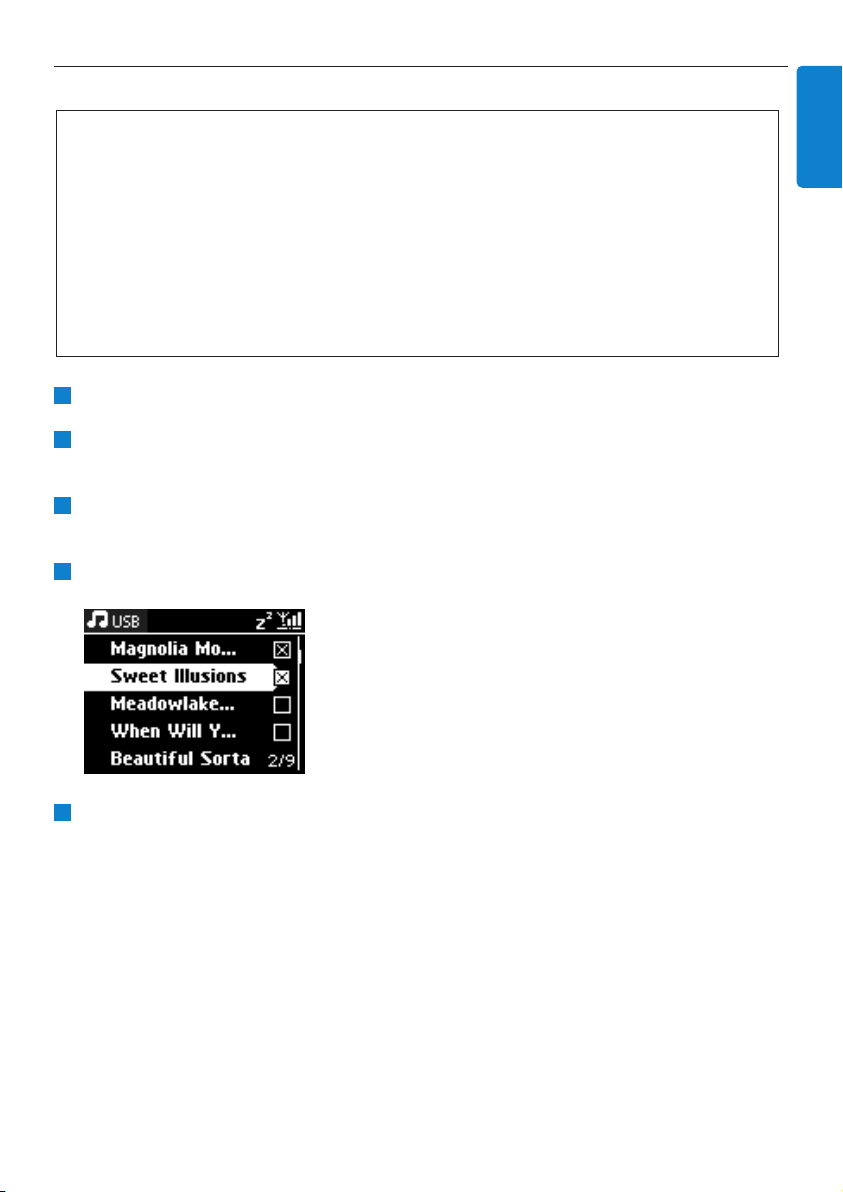
10.1.3 Transfer music to USB device
Check that the USB device is properly connected to Center.
On Center, press HOME and use 3 or 4 and 2 as necessary to select HD.
If it is in HD playing mode, press STOP to stop playing.
Use 3 or 4 and 2 to select an option (Playlists,Artists, etc…) and enter the corresponding list
of tracks.
In the track list screen, press RECORD (REC on remote control)
> The list of tracks appears.
Press MARK/UNMARK to select or deselect the tracks to be recorded.
To select/deselect all tracks, Press & hold MARK/UNMARK.
5
4
3
2
1
Important!
• There is no support for transfer of music to MTP devices.
• Recording is permitted only if there is no infringement of copyrights or any other rights of
third parties.
• For CDs encoded with copyright protection technologies used by some record companies,
recording will be restricted.
• Making unauthorized duplicates of copy-protected material, including computer programs, files,
broadcasts and sound recordings, may be an infringement of copyrights and constitute a
criminal offence.This equipment should not be used for such purposes.
• Transfer to USB device is only supported by Center.
• DRM protected files might not play if they are transferred to the USB device.
External sources
59
ENGLISH
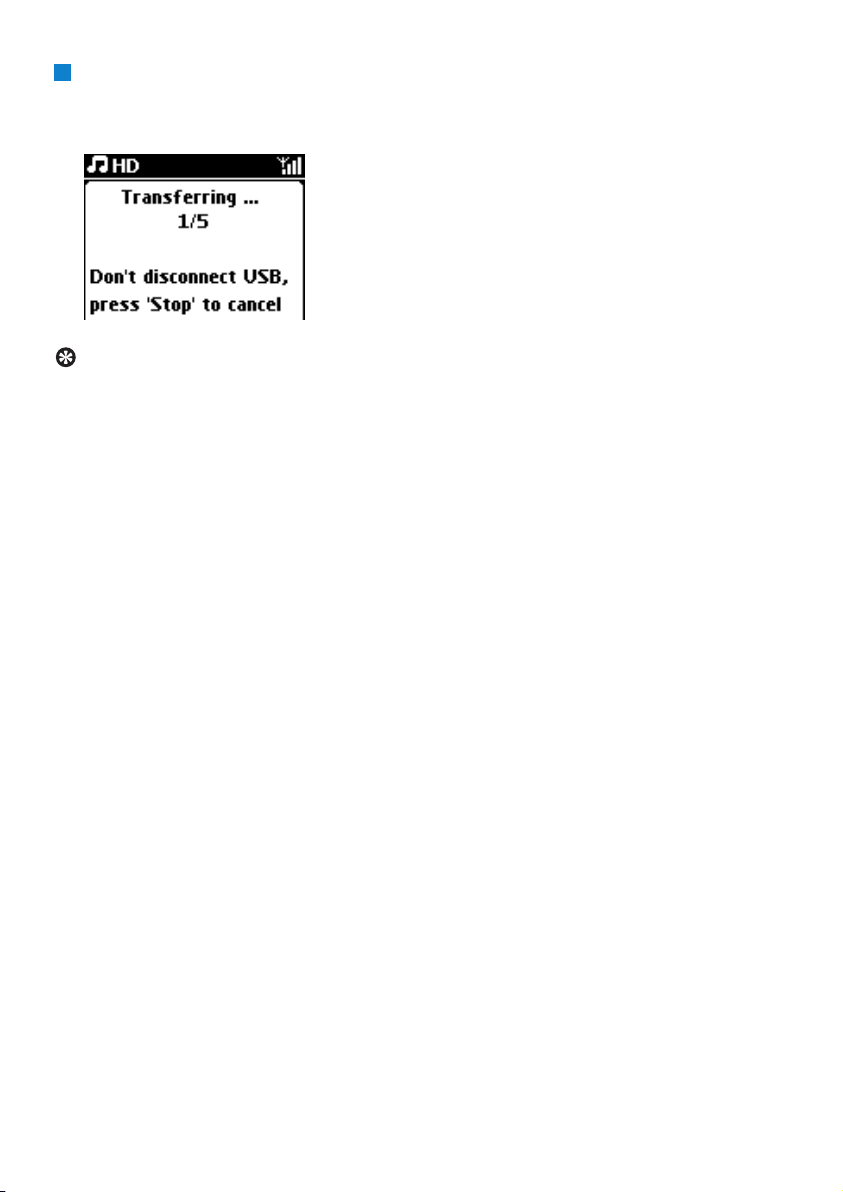
Press RECORD to start recording.
> Display shows: Transferring...
The number of tracks transferred / to be transferred appears.
Selected tracks are transferred to the USB device.
Tip
• Press 1 to stop selecting tracks and return to the list of tracks.To continue, repeat steps 3 to
5.
• Recording will also stop when:
- the USB device is unplugged and the display shows: Connection interrupt, Cancel transfer...
- the USB device has more than 99 folders and 999 titles and the display shows: Device is
full, Cancel transferring...
Find the transferred tracks on your USB device
All the transferred tracks are saved in the USB device under the folder structure
Music\Genre\Artist\Album, and are named as XX-trackname.mp3.
Play the transferred tracks on another music player
You can play the transferred tracks on music players supporting USB playback. On different players,
the files/folders may be browsed in different ways.
6
External sources
60
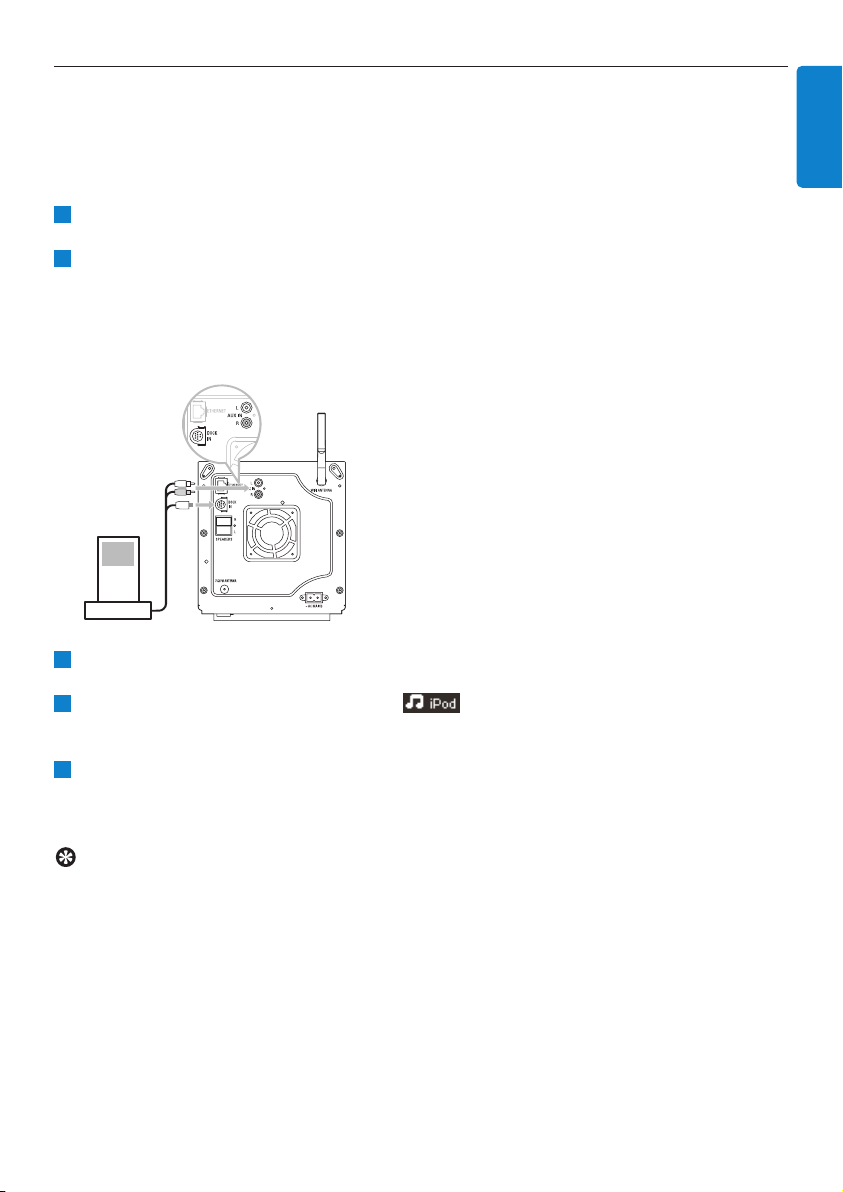
10.2 Play your iPod music
With the enclosed Philips iPod docking cradle, you can enjoy the music library on your iPod player
through the speaker system of the WAC3500D.
To play your iPod music:
Check that Center is switched on.
Connect your Dock to Center (see 3.3.3 Connect your iPod).
a Connect the 9-pin docking cable to the DOCK IN of Center.
b Connect the audio cable to the AUX IN on Center (red & white plugs must match color
coding of AUX IN).
Insert your iPod into the Dock.
Press HOME and select Portable (iPod) .
>
Your iPod is displayed
Use 3 or 4 and 2 on the remote control (or use the navigation control of your iPod) to select
the music in your iPod menu system.
> The iPod can now be controlled via the remote control of the Center.
Tip
All features except for the volume can still be controlled on the iPod itself too.
5
4
3
2
1
External sources
61
ENGLISH
10.3 Play additional appliances
You can play files from additional appliances on Center by connecting the audio output (e.g.TV,
VCR, Laser Disc player, DVD player).You can also record up to 3 hours of audio output to the
music library in the HD of Center.
Check that the additional appliance is properly connected (see 3.3.4 Installation: Connect
additional appliances).
Ensure that Center is switched on (see 5 Basic functions).
On Center:
Press HOME.
Press the navigation controls 3 or 4 and 2 to select AUX .
> Your additional appliance (external source) is displayed.
On your additional appliance:
Use the controls as you normally would.
To adjust sound and volume, use the sound controls on WAC3500D or on your external
source.
6
5
4
3
2
1
External sources
62
11 Network settings
You can add Center to your existing home network. Set your network according to your needs as
follows:
11.1 Add Stations to Wi-Fi network of Center
You can connect up to five Stations to Center.When adding a Station to the Wi-Fi network of
Center, you can play the music library of Center on Station, or move music playback between
Center and Station (see 6 HD).
On Center:
Check that Center is in HD source.
Press MENU to enter the menu screen.
Use 3 or 4 and 2 to enter Station Management (Mgnt) menu.
3
2
1
Important!
• Always press & hold y to switch Center / Station to Eco standby (power-saving mode) before
removing its power plug.
• Always power up the Center first, and then power up the Station.
• Never block Center from Station by thick walls or more than one wall.
• Avoid installation near large metal objects.
Type What you want Go to
Simple network settings Add Stations to Wi-Fi network of Center Section 11.1
Connect to your PC Section 12
Connect to internet for Gracenote® internet service Section 13
Advanced network
settings
Connect to external Wi-Fi home network Section 11.2
Connect to external wired home network Section 11.3
Expert network setting Connect to two different networks Section 11.4
Network settings
63
ENGLISH

Use 3 or 4 and 2 to select Add New Station.
> You will enter Installation Mode. Search for the new station starts.
Playback stops on the previously associated Station if you are playing the HD source.
Tip
• For better Wi-Fi reception, rotate the Wi-Fi antenna or adjust the location of Center and
Station.
• If five Stations are already connected, the option Add New Station is not available. In this
case, please delete another Station first and then add the new Station
On Station:
Disconnect the power plug of Station and then connect it to the power supply again.
> Display: Connecting to Center
To enter Installation Mode:
a On a new Station that is still unassociated with the Center:
1 Select language.
> Station enters automatic installation mode.
b On a Station that was already paired with another Center:
1 Press MENU.
2 Select Installation mode.
> Display: Center found
Connecting to Center…
On Center:
Press STOP 9 when all the Stations are found.
> HD screen appears once Station is connected to Center.
3
2
1
4
Network settings
64
11.1.1 Delete a Station
Check that Center is in HD source.
Press MENU to enter the menu screen.
Use 3 or 4 and 2 to enter Station Management (Mgnt) menu.
Press 3 or 4 and 2 to select Delete Station.
> The list of connected Stations will be displayed on Center.
Use 3 or 4 and 2 to select Station you wish to delete.
Press 3 or 4 and 2 to select YES.
11.2 Connect to Wi-Fi (wireless) enabled home network
The Wi-Fi enabled network is a Wi-Fi infrastructure network or a Wi-Fi enabled home network
with a router.
To connect Center to a Wi-Fi enabled home network, start the Add Network procedure on Center.
For music playback within the home network, see 9.3 UPnP: UPnP Playback.
11.2.1 Network settings on Center
Note
For WEP (Wired Equivalent Privacy) / WPA (Wi-Fi Protected Access) / WPA2 key setting to
secure your network, always refer to the user manual of the router.WPA/WPA2 is the newest
and strongest encryption method. If this is not available (generally for older devices) choose WEP.
On Center, search for networks:
Press MENU to enter the menu screen.
1
1
Important! Connecting other UPnP clients to Philips Wireless Music Center may take longer
than connecting a Philips Wireless Music Station to Center.
6
5
4
3
2
1
Network settings
65
ENGLISH
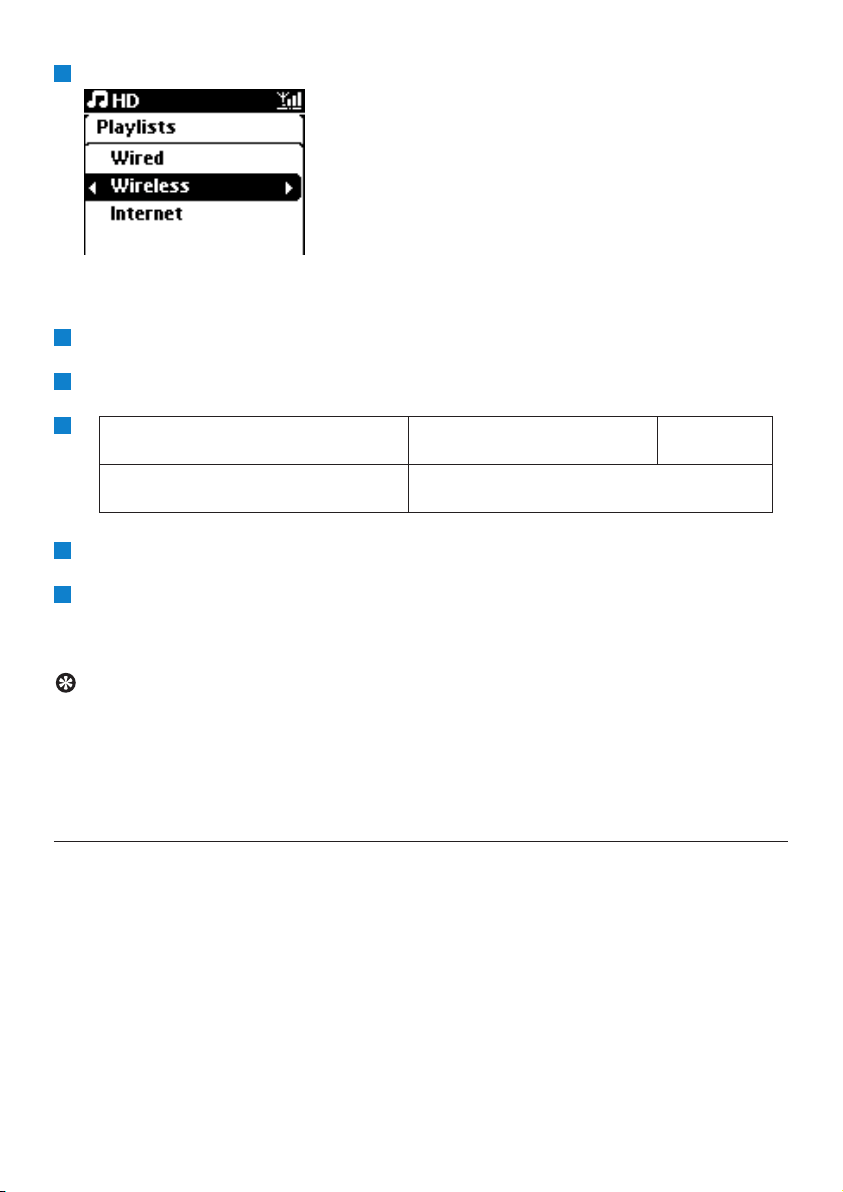
Use 3 or 4 and 2 to enter Settings followed by Network, then Wireless.
> Display: Searching for Networks...
List of networks appears. (Network Not Found appears if no network is found.)
Select the Wi-Fi network (router) to which your desired UPnP device is connected.
Press 2 to continue.
In screen Set IP Mode, select Automatic.
As prompted, select Ye s to apply the settings.
> Center is connected to the Wi-Fi home network.
Any Stations might be disconnected from the Wi-Fi network of Center.
Tip
If you change the WEP / WPA / WPA2 key after you have added the WAC3500D into your
home network, the connection between the WAC3500D and your home network will be lost.
In this case, please restart WAC3500D Center in order to refresh the IP update.
Applicable if you already have a wireless network (hub/switch/router).
11.3 Connect to wired home network
The wired home network can be a single PC, a PC network, another Center or a Station.
Center can access the wired and wireless home network at the same time. Using the supplied
Ethernet cable, you can connect Center separately to a wired network while maintaining its Wi-Fi
connection (e.g. the Wi-Fi connection between Center and on or more Stations, or the Wi-Fi
connection with a home network). In this way, you can opt to play the music library of the wired
network only on Center or a single Station (UPnP playback).
At the same time, you can still enjoy all the music playback features on the Wi-Fi network.
7
6
If you already know the WEP / WPA
/ WPA2 key for the Wi-Fi network:
Use the remote control to enter
the WEP,WPA, or WPA2 key.
Press OK to
confirm.
If there is no WEP / WPA / WPA2
key for the Wi-Fi network:
Press OK to skip.
5
4
3
2
Network settings
66
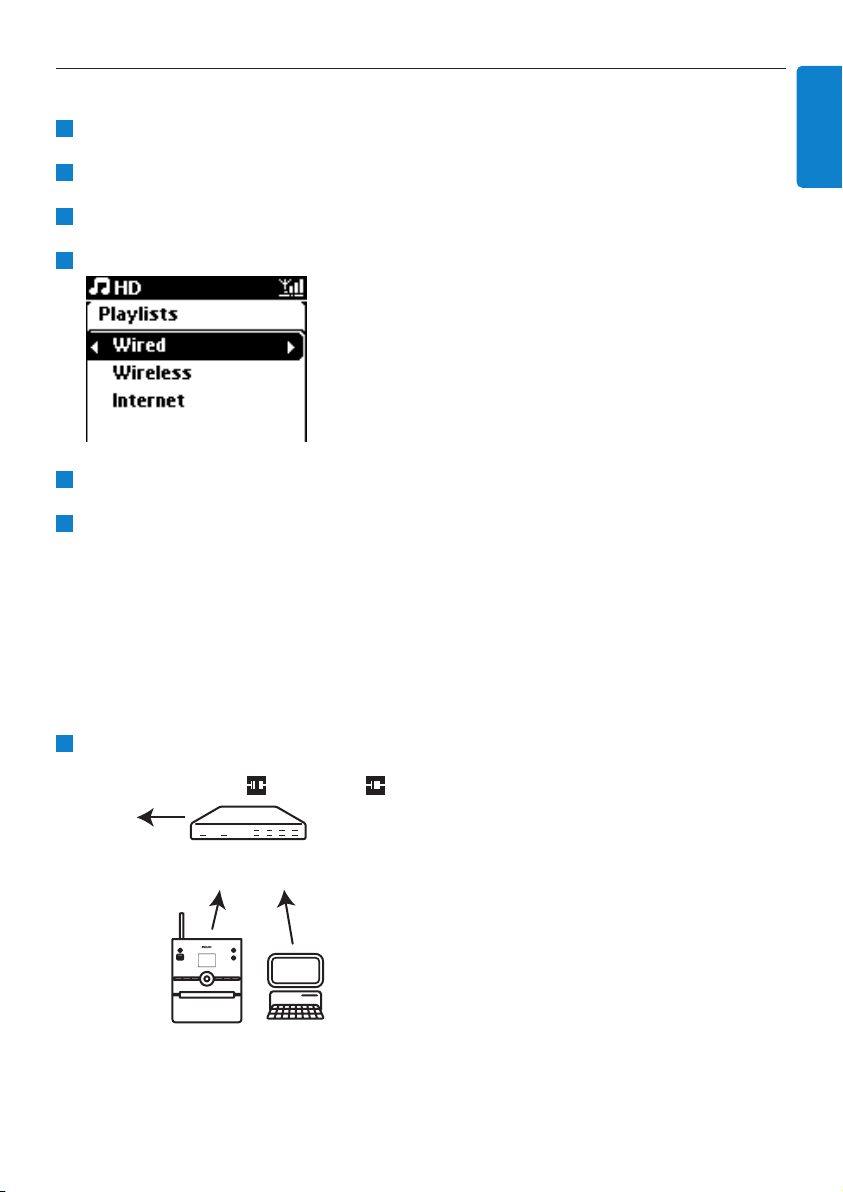
11.3.1 Set network on Center
Check that network device is switched on and firewall (if applicable) is switched off.
Connect supplied Ethernet cable to Ethernet ports on network device and Center.
Press MENU to enter the menu screen
Use 3 or 4 and 2 to enter Settings followed by Network, then Wired.
Press 2 to continue.
In Set IP Mode screen: If you are using a DHCP* enabled network device, select Automatic.
* DHCP stands for Dynamic Host Configuration Protocol. It is a protocol for assigning dynamic IP
addresses to devices on a network.
If there is no DHCP, select Static and assign an IP address and subnet mask as prompted using the
alphanumeric keys (see 4.4 Alphanumeric keys).This procedure is applicable only, if you already
have a wired network (hub / switch / router) in your home.
On Center
As prompted, select YES to apply settings.
> Center is connected to the external wired network.
On the display the icon is changed to .
Wireless / Wired
Router
www
1
6
5
4
3
2
1
Network settings
67
ENGLISH
Network settings
68
11.4 Connect to two different home networks
WAC3500D can be added into two different home networks via wired and wireless network ports.
Note that the IP addresses of the two different network ports cannot be in one subnet;
WAC3500D has no router function and cannot determine which port to use.
Applicable if you have two home networks.
WAC3500D cannot shadow the IP of a network device that is not activated. Please be careful of
the IP address settings to avoid IP address conflict between the wired and Wi-Fi ports.
11.5 View connection status with home network
Check that Center is in HD source.
Press MENU to enter the menu screen.
Use 3 or 4 and 2 to enter Information menu.
> The display shows: System,Wireless and Wired.
Use 3 or 4 and 2 to select Wireless or Wired.
> Wireless: information about the Wireless settings.
Wired: information about the Wired settings.
11.6 Connect to Internet
Check that you have connected Center to an access point or router with Internet access or
connect Center to an ADSL modem with internet access directly.
Set DNS and Gateway
If you are using a DHCP* enabled access point, router or ADSL modem, the DNS and Gateway can
be obtained automatically, so you need only to set Center to Automatic (DHCP):
Press MENU.
Use 3 or 4 and 2 to select Settings followed by Network.
2
1
Important! Make sure that no dial-up, user name or password is required for the Internet
access.
4
3
2
1
Important! Once Center is added to the Wi-Fi network, all Wi-Fi ad-hoc connections with the
WAC3500D will be shut down.
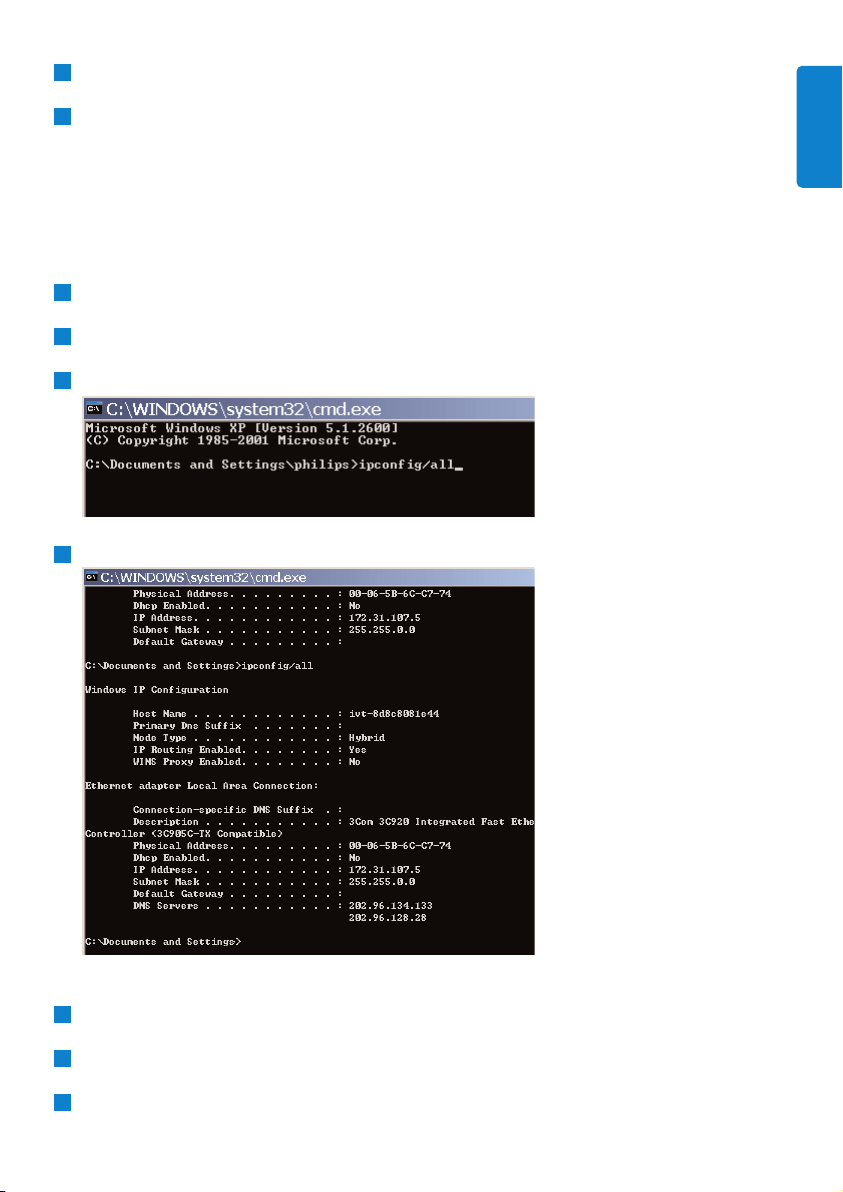
Network settings
69
ENGLISH
Select Wired or Wireless.
Use 3 or 4 and 2 to select Automatic (DHCP).
* DHCP stands for Dynamic Host Configuration Protocol. It is a protocol for assigning dynamic IP
addresses to devices on a network.
If there is not DHCP, the following steps show how to get DNS and Gateway settings of the
current network from the PC connected to the same network:
On your PC, Click Start > Run
Type cmd and click OK
Type ipconfig/all
Write down the DNS and Gateway of the current connection.
On Center
Press MENU to enter the menu screen.
Use 3 or 4 and 2 to enter Settings followed by Network, then Wired.
Press 2 to continue.
3
2
1
4
3
2
1
4
3

Set DNS
Enter the DNS server you wrote down.
Press OK to confirm.
Press OK to skip Set DNS2.
Tip
If necessary, follow Steps 1 and 2 above to set a secondary DNS server in Set DNS2.
Set Gateway
Enter the Gateway you wrote down.
Press OK to confirm.
Set proxy
If you are using a proxy server to visit websites, enable Proxy and proceed with the proxy
setting as prompted, then press OK to confirm Otherwise, press OK to skip.
Apply settings as prompted.
> Settings will change.
Connection to station could be lost appears.
2
1
2
1
3
2
1
Network settings
70
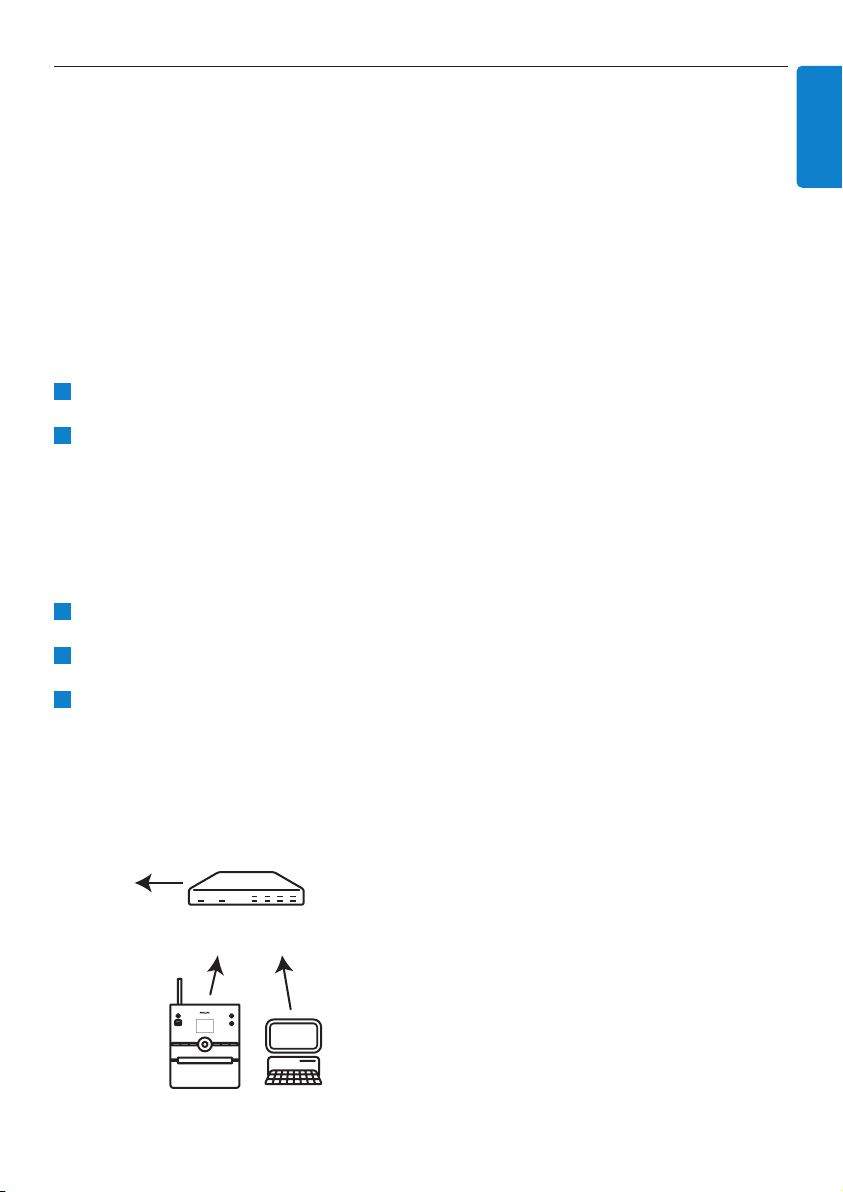
12 Connect to your PC
Minimum PC requirements:
• Windows 2000 SP4 (or above) / XP SP2 / Vista
• Pentium III 500MHz processor or higher
• 256MB RAM
• CD-ROM drive
• Ethernet adapter, enabled (for wired connection) - or
Wireless Network adapter 802.11 b/g (for wireless connection)
• 500MB free hard disk space
Install WADM (Philips Wireless Audio Device Manager, see also 18 FAQ)
Log onto your PC with administrator rights enabled.
Disable the firewall of your computer to make the connection.
a For Windows 2000 / XP: On your PC, press Start > Settings > Control Panel >
Firewall > Off.
b For Windows Vista: On your PC, press Start > Control Panel > Firewall > Turn
Firewall On or Off > Off.
Insert PC Suite CD into your PC.
Select language and accept license terms.
On the Welcome screen, click Next.
> The installation process starts automatically.
When installation is completed, click Quit.
Connect Center to PC (Wired connection)
Use the supplied orange Ethernet cable to connect the WAC3500D to your PC. (Make sure that
the Ethernet port on your PC is enabled to establish WADM connection).
Wired connection
Router
www
5
4
3
2
1
Connect to your PC
71
ENGLISH
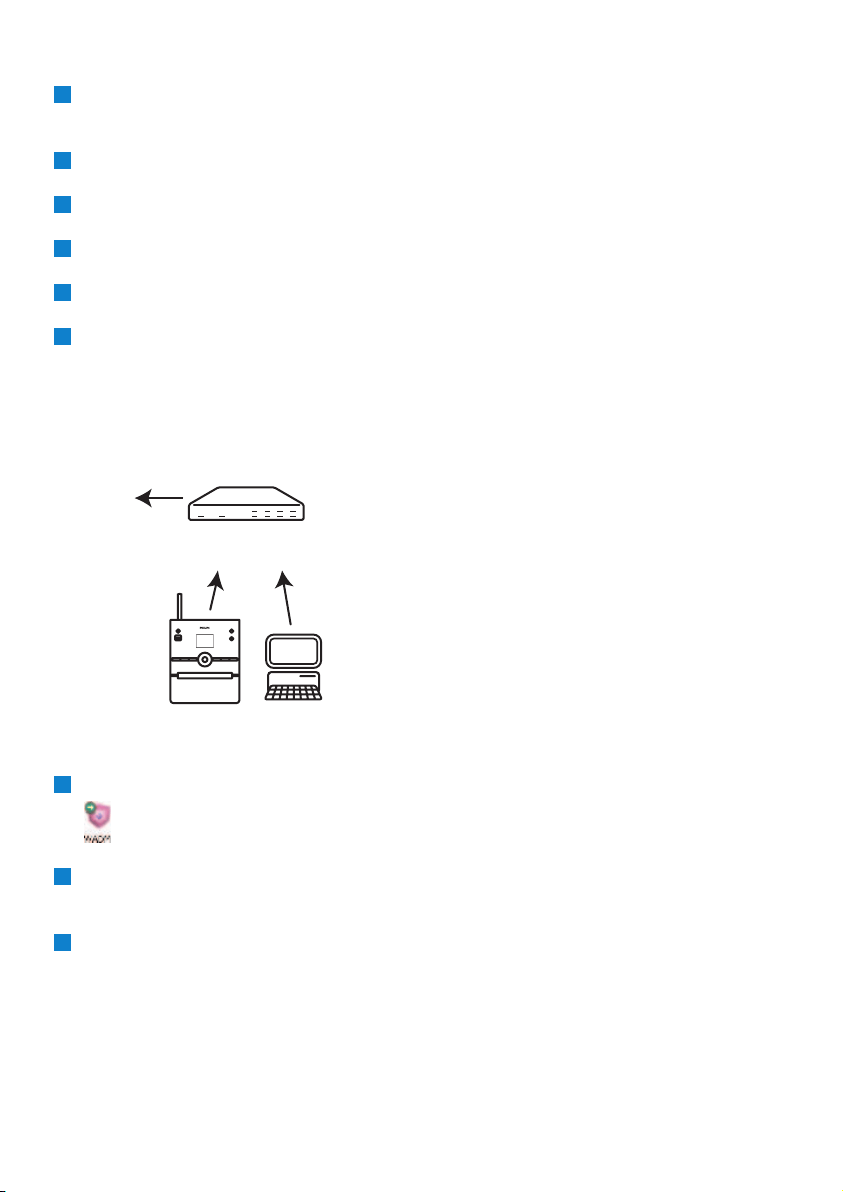
Launch WADM
Double click WADM.
> A list of discovered Centers appears.
If your Center appears, continue with step 6.
If your Center is not found, select Connection Wizard.
In Connection Wizard screen, select Express Mode.
Click Next and follow the instructions.
Select your Center from the list and click Connect now.
Connect Center to PC (Wireless connection)
Enable your wireless router.
Configure Network from Center: Select MENU > Settings > Network > Wireless (select
desired Network) > (enter encryption key) > Automatic > Apply Settings > Ye s
Launch WADM
Compatibility check for Windows Vista:
Right click on the WADM icon.
Select Properties > Compatibility and make sure the check box under 'Compatibility mode'
and 'Privilege level' is marked.
Click OK.
3
2
1
Wireless connection
Router
www
6
5
4
3
2
1
Connect to your PC
72
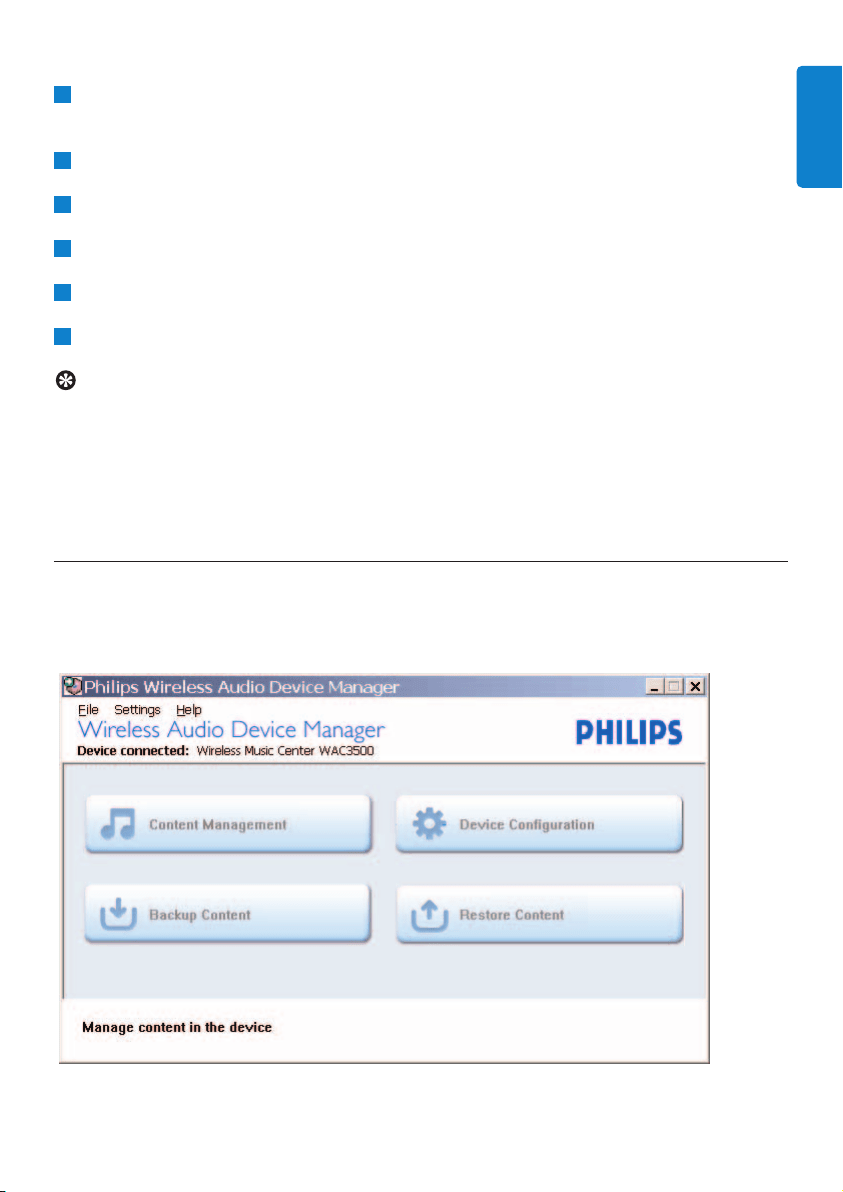
Launch for Windows XP or Vista:
Double click WADM.
> A list of discovered Centers appears.
If your Center appears, continue with step 6.
If your Center is not found, select Connection Wizard.
In Connection Wizard screen, select Express Mode.
Click Next and follow the instructions.
Select your Center from the list and click Connect now.
Tip
• If the IP configuration of Center is not in the default range (Subnet mask: 255.255.0.0; IP
address: 172.31.x.x), select Connection Wizard > Custom Mode. Enter the current IP
configuration of Center as prompted. Press MENU and select Information > Wired to
check IP configuration.
• When WADM is running, Internet access of your PC may be disabled. Close WADM to
restore access.
12.1 Use WADM
The Wireless Audio Device Manager (WADM) in the by-packed PC Suite CD helps you import
music files to Center and organize them on your PC.
6
5
4
3
2
1
Connect to your PC
73
ENGLISH
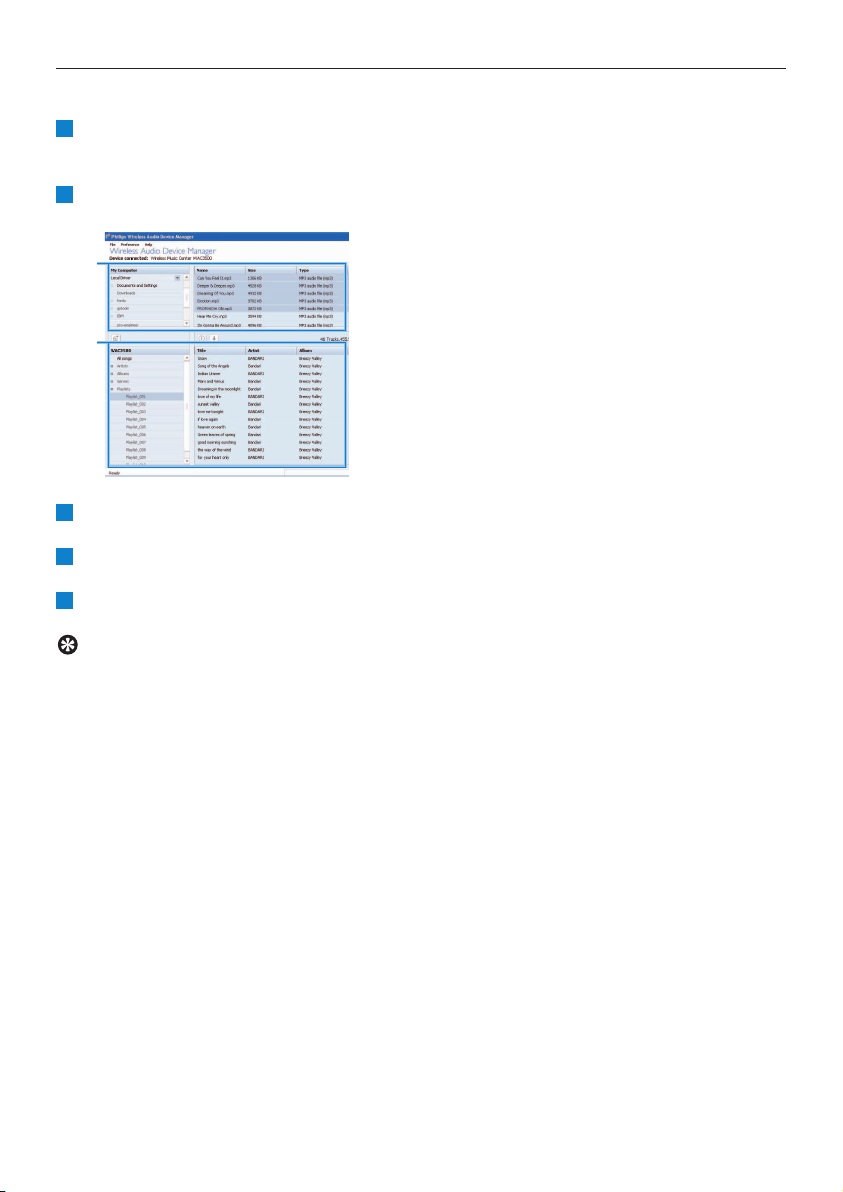
Connect to your PC
74
12.1.1 Import from your PC using WADM
Connect Center to your PC (see 12 Connect to your PC).
On your PC:
In the WADM main menu, click Content Management.
> A new window appears.
On My Computer panel, click to highlight a desired file / folder.
Drag selection to My Device panel.
While importing, you can add more files / folders to the import queue.
Tip
Importing less than 4G or 1000 songs at each attempt offers best results.
5
4
3
3
4
2
1
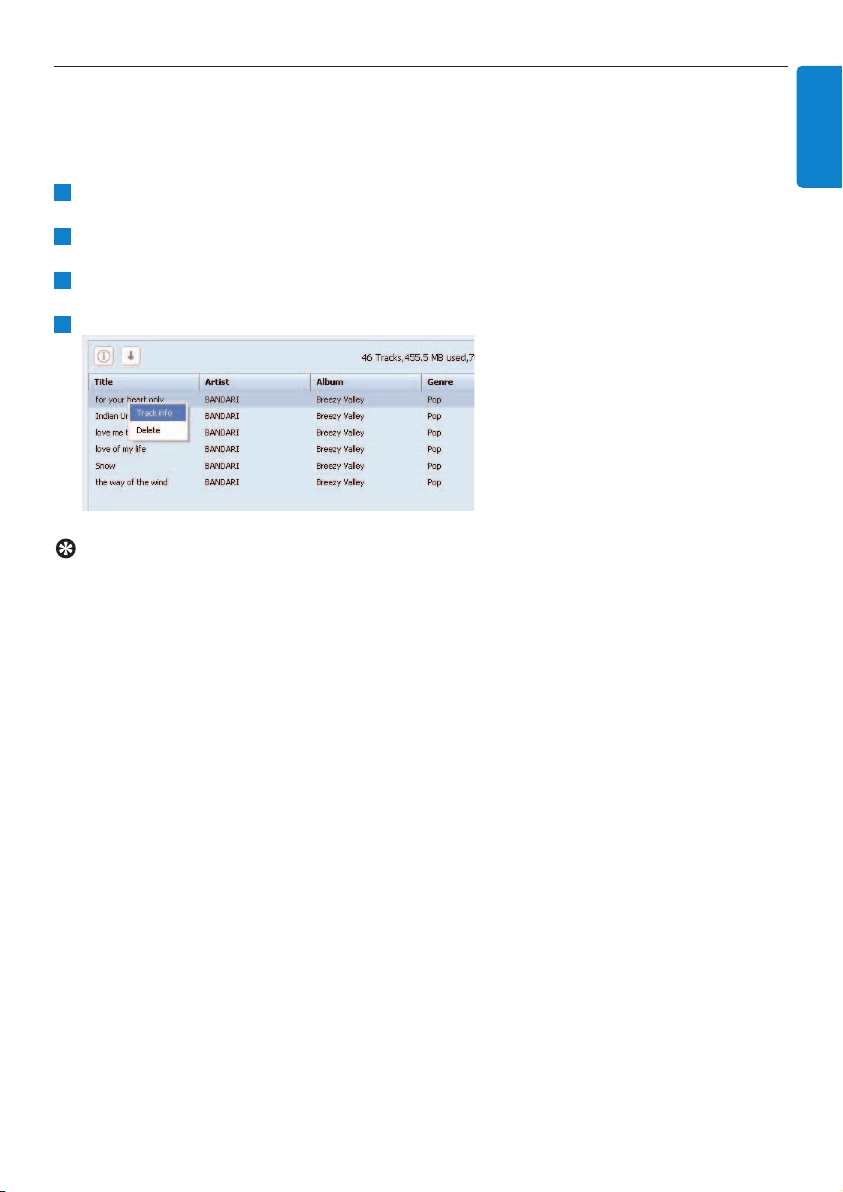
12.1.2 Edit track information using WADM
You can edit track information using WADM.
On your PC:
In the WADM main menu, click Content Management.
In the device window, click to highlight the desired track.
With your mouse, right click the highlighted track.
Select Track info.
Tip
• To select more than one file, press and hold Ctrl on your PC keyboard and click the desired
files.
• To playback tracks, double click on the track to start playing.
• Click Title or Artist to sort the music files by track name or by artist
• In case the edited ID3 tags are not shown on WADM, go to File > Refresh Content to
refresh the WADM. Otherwise, restart WADM.
• Always press and hold y to switch the Center to Eco Standby (power-saving mode) before
removing its power plug to avoid losing tracks.
4
3
2
1
Connect to your PC
75
ENGLISH
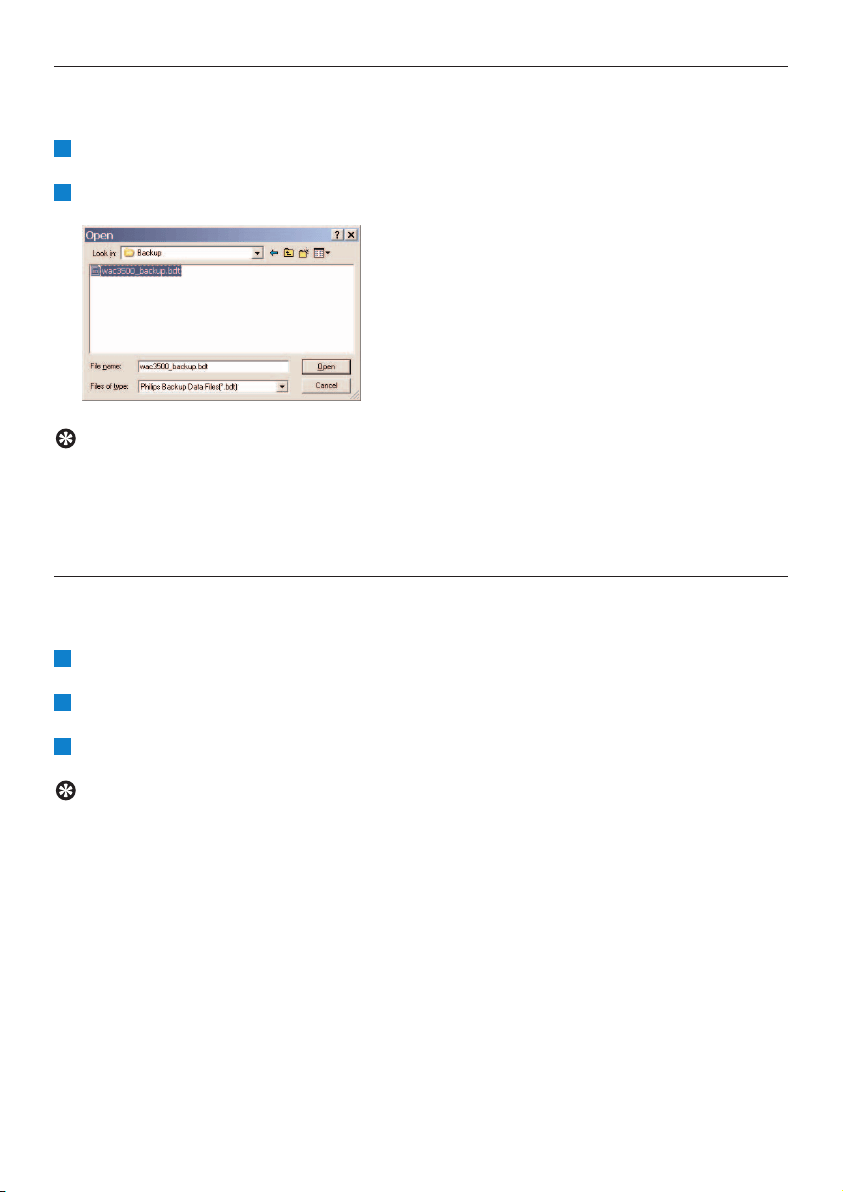
12.1.3 Backup music library of Center to your PC using WADM
On your PC:
In the WADM main menu, click Content Management.
Follow the screen instructions to backup the music library of Center to your PC. Backup files
are named with current date.
Tip
• Make sure that you have adequate space to store the backup files.
• Do not delete the backup file using Windows Explorer. If the backup file is accidentally
deleted, search for the file named YOURMAC.inx using Windows Explorer search tool and
then delete it.You can only perform backup after that.
12.1.4 Restore backup files from your PC to Center
On your PC:
In the WADM main menu, click Restore Content.
Click to highlight the file to be restored.
Click Open.
Tip
• After changing network settings with WADM, press and hold y to switch Center to Eco
Standby (power-saving mode) to refresh IP update.
• If some of the WADM functions cannot be used, they might be blocked by your anti-virus
software. It is recommended to turn off the antivirus software temporarily.
3
2
1
2
1
Connect to your PC
76

13 Gracenote® CD Information
Gracenote MusicID® provides the set with CD track information (including album, artist, genre,
track information) from its built-in database. It allows the recorded CD tracks to be properly
categorized (for example, under Artists, Albums, Genres or All tracks) and be merged with the
existing tracks in the hard disk.
13.1 Gracenote® Media Database
A 800 MB CD database (contains 800,000 most popular CDs) is embedded in every for quick look-
up on track information. An update file that contains newly released CDs is available quarterly on
www.club.philips.com for download.
13.1.1 Update Gracenote® Media Database
Use your PC to register your product on www.club.philips.com and go to “Show Upgrades &
Support” page to download Gracenote® Media Database update. Note that the updates are posted
quarterly and new updates are independent from old updates, i.e. a new update can be installed,
even without the previous update.
After storing the file on your PC, you can either burn a CD with the update file using your favorite
CD burning software and drop the CD into Center for automatic update, or you can use the
Gracenote® update option of WADM if you have connected your PC to Center.
13.2 Gracenote® Internet Queries
If the CD track information of your new CD disc cannot be displayed on the WAC3500D, the
quickest and surest solution is to ensure you have followed the steps in 11.6 Connect to
Internet and follow 13.2.1 Look up track information..
13.2.1 Look up CD track information
With an internet connection present (see 11.6 Connect to Internet), insert the CD of which
you require the information (insert disc into CD tray of Center with graphics facing up).
> Searching starts immediately.The system will search the local Gracenote® CD database first. If the CD
track information cannot be found, the online search will start.The search results are shown on the
display of Center.
Tip
• If the internet query failed due to a disruption in the internet connection, the error message
Check the internet setup for CD Database on-line will appear.
• Check if your internet connection is correct (see 11.6 Connect to Internet).
1
Gracenote® CD Information
77
ENGLISH
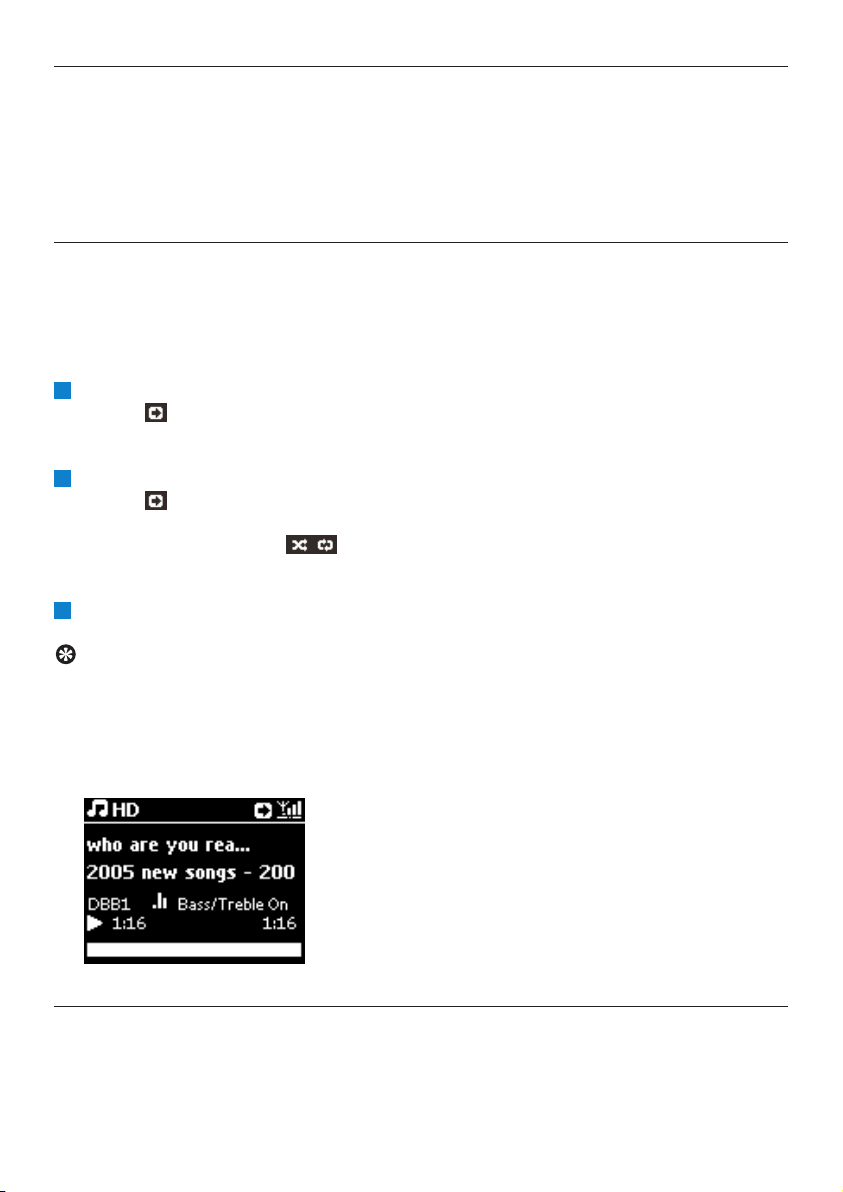
14 Expandable features
You can connect up to 5 Stations (sold separately) to Center via Wi-Fi, so your music playback can
be moved between Center and Stations.You and your family can enjoy and share music with ease
wherever you are in your home.
14.1 MUSIC FOLLOWS ME
As you move around at home, let the music move with you between Center and Station and
between Stations.
On the source unit (Center) where music is playing:
Press MUSIC FOLLOWS ME to stop playback from that unit and activate the function.
> The icon appears on the displays of Center and Station.
On the destination unit (connected Station) where you want to listen:
Press MUSIC FOLLOWS ME to activate the playback.
> The icon disappears from the displays of Center and Station, and the music will start to play.
Simultaneously, the music (audio output) of the source unit is stopped.
Any selected play modes (e.g. ) will be retained on the destination unit (see 6.3 Play modes
REPEAT, SHUFFLE).
To stop MUSIC FOLLOWS ME, press STOP 9 on the destination unit.
Tip
• MUSIC FOLLOWS ME will be automatically deactivated if you do not activate MUSIC
FOLLOWS ME on the destination unit within 5 minutes
• To deactivate MUSIC FOLLOWS ME, press MUSIC FOLLOWS ME again.
• After activating MUSIC FOLLOWS ME on the destination unit you can select other tracks or
source for playback.
14.2 MUSIC BROADCAST
MUSIC BROADCAST allows you to broadcast music from Center (sold separately) to Stations.
3
2
1
Expandable features
78
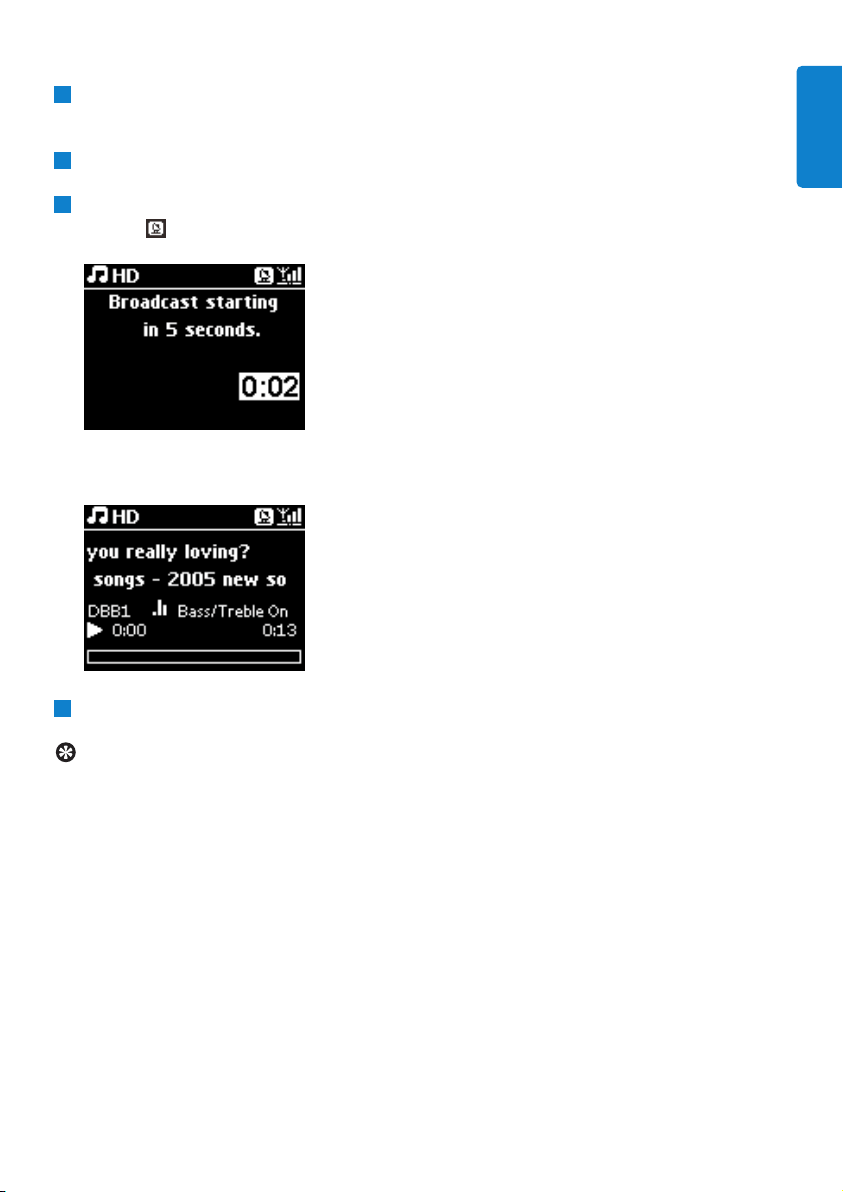
On connected Stations:
Check that Station is switched on or in standby mode.
On Center:
In HD source, play back the music that you wish to broadcast to Stations.
Press MUSIC BROADCAST to activate the function.
> The icon appears on Center and Stations.
A countdown of 5 seconds starts.
On Center and Station:
The selected music starts to play simultaneously after about 5 seconds.
To stop MUSIC BROADCAST, press STOP 9 on Center.
Tip
• To exit MUSIC BROADCAST on Station, press STOP 9 on Station.To broadcast music to
Station again, press STOP 9 on Center, and then start playback again and activate MUSIC
BROADCAST on Center again.
• MUSIC BROADCAST will also stop when:
- Center is switched to Standby mode or Eco Standby mode
- the selected album or list (Playlist, Artist, Genre,…) has reached the end
• To set play modes, select Repeat or Shuffle before activating MUSIC BROADCAST.
4
3
2
1
Expandable features
79
ENGLISH
15 Firmware Upgrade
15.1 Upgrade firmware
The supplied PC Installer CD Wireless Audio Device Manager (WADM) helps you get the upgrades
for WAC3500D Center.
On Center:
Register your Philips Wireless Music Center with www.club.philips.com.
Download the firmware upgrade files and store them on your PC.
Connect Center to power supply.
> HD screen appears on Center.
Connect Center to your PC via the supplied Ethernet cable.
Install and launch WADM (see section 12 Connect to your PC).
Click to enter the Firmware upgrade submenu.
As prompted, click Browse and indicate the location where you kept the firmware upgrade
files on PC.
Click Apply to start upgrading firmware.
> The display shows Updating firmware, please wait...
Center will reboot itself during the installation process.
When Center returns to HD screen, the installation is completed.
8
7
6
5
4
3
2
1
Important!
• Never interrupt the firmware upgrading before its completion.
• Never operate other functions before finishing the installation.
Firmware upgrade
80

15.2 Restore previous firmware
After the firmware of Center is upgraded, you can restore it to its previous version as desired.
On Center
Press MENU to enter the menu screen.
Use 3 or 4 and 2 to enter Settings followed by Firmware, then Restore firmware.
Press 2 to select Ye s .
After upgrading or restoring the firmware of Center, you need to reestablish the Wi-Fi connection
between Center and Stations.
15.3 Re-establish Wi-Fi network of Center and Stations
On Center:
Press MENU to enter the menu screen.
Use 3 or 4 and 2 to enter Station Mgnt menu.
Use 3 or 4 and 2 to select Add New Station.
> Searching for Stations starts.
On Station:
Disconnect the power plug of Station and then connect them to the power supply again.
> Connecting to Center appears.
Press MENU on the remote control to enter the selection screen of Installation Mode.
Use 3 or 4 and 2 to enter Installation Mode.
> Stations start to connect to Center.
Press STOP 9 on Center when all Stations are found.
4
3
2
1
3
2
1
3
2
1
Firmware upgrade
81
ENGLISH

16 Reset
You can restore Center o the default settings (including network settings).
When to reset Center:
• Reset Center to re¬establish Wi-Fi connection between Center and Station.
• Reset Center to change the way Center connects to a Wi-Fi enabled / wired home network.
Check that Center is switched on (see 5 Basic functions).
Press MENU to enter the menu screen.
Use 3 or 4 and 2 to enter Settings followed by Restore settings.
Press 2 to select Ye s .
> Center is rebooted.
Language selection screen appears.
Select your desired language: English, Français, Español, Nederlands, Italiano or Deutsch.
> Center enters Installation Mode.
The search for Center or Stations starts.
The Wi-Fi connection is being reestablished.
If the Center is reset and connected Stations are not reset:
On the Station, disconnect the power plug and connect them to the power supply again.
> Connecting to Center appears.
On the remote control, press MENU to enter menu screen.
Use 3 or 4 and 2 to enter Installation Mode.
Stations start to connect to Center.
If a Station is reset and Center is not reset:
On Center, select HD mode.
Press MENU to enter the menu screen.
Use 3 or 4 and 2 to enter Station Management (Mgnt) menu.
Use 3 or 4 and 2 to select Add New Station.
> Searching for Stations starts.
4
3
2
1
4
3
2
1
5
4
3
2
1
Reset
82

If Center and Stations are reset:
Select language and then enter Installation Mode.
Press STOP 9 on Center when all Stations are found.
Tip
• Restoring to default settings does not delete any stored music tracks.
• After restoration to default settings, the network mode will return to ad-hoc mode.
2
1
Reset
83
ENGLISH

17 Technical data
Technical data
84
General
AC Power 230V ±10% {Data
changes with stroke
version}
Dimensions (w x h x d)185 x 210 x 248 mm
Weight (with/without speakers)
approx. 5.5 kg / 3.5 kg
Power consumption
Active < 45 W
Standby < 20 W
Eco Power Standby < 0.9 W
Amplifier
Output power 2 x 40 W (RMS)
Frequency response 60 - 22,000 Hz, -3dB
Signal-to-noise ratio > 72 dBA (IEC)
Wireless
Wireless standard 802.11g, backwards
compatible to 802.11b
Wireless security WEP (64 or 128bit),
WPA/WPA2 (8-63
characters)
Frequency range 2412-2462 MHz (CH1-
CH11)
Wired (LAN / Ethernet)
Wired standard 802.3 / 802.3u
Speed 10 / 100 MBit/s
Mode half / full duplex
Crossover detection (Auto MDIX) Yes
Tuner
FM wave range 87.5-108 MHz {Data
changes with stroke
version}
Number of presets 60
FM antenna/cable COAX / Dipole-antenna
(75W IEC-connector)
HD player
Frequency range 60-20,000 Hz, -3 dB
Signal-to-noise ratio 72 dBA (IEC)
MPEG 1 Layer 3 (MP3-CD) MPEG AUDIO
MP3-CD bit rate 32-320 kbps,VBR
WMA bit rate up to 160 kbps
Sampling frequencies 32, 44.1, 48 kHz
HD storage capacity 80GB*
Recording quality 128, or 160, or 192, or
256, or 320 kbps
Recording speed 1x, 4x
CDDB (CD recognition database)
internal Gracenote® /
online access enabled
* Actual formatted capacity will be less
USB player
USB 12Mb/s,V1.1 (supports
MP3,WMA and M4A
files)
USB class MSC, MTP
Number of tracks/titles maximum 9999
Speakers
2-way bass reflex system
Dimensions (w x h x d)160 x 208 x 263 mm
Specifications and external appearance
are subject to change without notice.
18 Frequently asked questions
Question Answer
Is there a maximum
distance of transmission
between Philips Wireless
Music Center and
Station/PC for effective
streaming?
Yes.The maximum distance of Wi-Fi transmission is 250m measured
in open spaces.
However, in a home environment where solid obstacles such as walls
and doors are present, the effective transmission distance is
significantly reduced to approximately 50-100m.Try to re-position
the set if you experience transmission problems.
What does 'Recording
from CDs' mean and
what functions can I use
while the recording is in
progress?
'Recording from CDs' (ripping) is the process by which a CD track is
converted into the much smaller MP3 format, and is then added to
the Wireless Music Center's music library (hard disk). On the
Wireless Music Center, 'Recording from CDs' requires two stages:
Firstly, it reads the CD content and stores it temporarily on the hard
disk.
Secondly, it converts this temporary CD content into MP3 format - a
process called 'background-encoding'.
It takes 1 hour to convert 1 hour of CD music.
During the first stage of the conversion you cannot stream or
broadcast music from Center; though you can still stream music
from Stations.Always switch the set to Eco Standby (power-saving
mode) before removing its power plug.
Do I need to
immediately update the
Gracenote music
recognition database
stored in Philips
Wireless Music Center
straight after bringing it
home?
No.There is already a massive CD track database pre-stored in
Philips Wireless Music Center, which should match most of the CDs
released within the last six months.
Attention!
• Never try to repair the system yourself as this will invalidate the warranty. Do not open the
system as there is a risk of electric shock.
• If a fault occurs, first check the points listed below before taking the system for repair. If you
are unable to resolve a problem by following these hints, consult your dealer or Philips for
help.
Frequently asked questions
85
ENGLISH

Simply connect and enjoy
You have a lot of MP3 files on your portable music player.You would like to enjoy them with your
family and friends on a better sound system. Philips WAC3500 offers instant access to your music
via 'USB Direct' - in the comfort of your living room Supported devices Philips WAC3500 'USB
Direct' allows simple plug-and-play compatibility with MP3 players and USB flash drives that are
compliant with USB Mass Storage Device Class.
Question Answer
What is 'USB Direct'? Philips 'USB Direct' enables you to play MP3, M4A and WMA music
files from a USB device via the WAC3500, and to transfer music files
from the WAC3500 to a USB device.
Can I copy files via USB
Direct from the
WAC3500 to a USB
device and vice versa?
Yes.You can copy music files from the WAC3500 to a USB device.
You cannot copy music files from a USB device to the WAC3500.
How do I use the USB
Direct?
1 Plug in your USB device.
2 Press HOME and use the navigation controls 3 or 4 and 2 to
select Portable > USB.
3 Use 4 or 3 and 2 to select the file you want to play.
Question Answer
Does Philips provide
Gracenote® music
recognition database
updates?
Yes.We provide quarterly updates of the Gracenote® music
recognition database through the website
http://www.club.philips.com.
Download the file to your PC and update the built-in Gracenote®
music recognition database from the PC using WADM in the
supplied PC suite. Alternatively, you can burn the downloaded file to
a CD and insert the CD into the CD loader of the Center to
update the database.
What is Philips Wireless
Audio Device Manager
(WADM)?
WADM mainly serves to transfer your music library from your PC
to the Wireless Music Center. In addition, it provides a one-stop
solution to help you manage the music library on the Center, e.g.
edit track information, create / rename playlists, backup / restore
music library of the Center, as well as network settings, Gracenote®
music recognition update, Firmware upgrade.
For details, see 12 Connect to your PC in this manual and WADM
help file.
Frequently asked questions
86

Question Answer
How do I copy music
files from the WAC3500
to a USB device?
1 Plug in your USB device.
2 Press HOME and use the navigation controls 3 or 4 and 2 to
select HD mode.
3 Use 3 or 4 and 2 to navigate in a playlist, artist list, album... etc.,
and to enter its corresponding list of tracks.
4 Press REC 0 to invoke the selection option.
5 Press MARK/UNMARK to select / deselect tracks and press
REC 0 once again to start copying.
How do I exit the USB
Direct?
Stop playback of the files and press HOME to exit.Alternatively, just
unplug your USB device.
Can I play music from
my portable MP3 player
or USB flash drive via
USB Direct?
Yes.As long as your MP3 player or USB flash drive is compliant with
the USB Mass Storage Device Class and does not contain any
proprietary database, then you should be able to play music from
your portable MP3 player or USB flash drive via USB Direct.
Why doesn't my USB
Mass Storage Device
Class (USB MSC) work
with the WAC3500?
Since there are various kinds of USB Mass Storage Device Class
(USB MSC), not all devices are guaranteed to be compatible. For
example, some USB flash drives can work with Windows XP,Apple
Mac and Linux while other USB flash drives may work with Windows
but not with Mac.This is because some drive manufacturers test
their devices with the Windows XP platform only, not fully in
compliance with the specifications of the USB consortium of testing
on most platforms.This also explains why Linux does not support all
USB Mass Storage Device Classes (USB MSC).
Does USB Direct work
with Apple iPods?
USB Direct can work with Apple iPod Shuffle, but not the other
iPods such as iPod Video, iPod Nano and iPod Photo.
Does USB Direct work
with Philips GoGear?
USB Direct works with most Philips GoGear MP3 players such as
the SA11xx, SA12xx, SA13xx series, but not with hard disk based
MP3 players.
When I plug in a USB
device in the WAC3500
and switch to USB
mode, the display shows
a message 'No USB
device detected'.What
does this mean?
This means your USB device cannot be recognized by USB Direct.
Does USB Direct
support the play back of
protected contents?
No.The USB Direct feature of WAC3500 does not support playback
of any protected music files on the Center.
Why does it take so long
to display the contents
on my USB device?
This could be due to the large number of files or the size of the files
on your USB device. Or, there could be other non-supported file
formats on your USB device that the system is trying to read.
Frequently asked questions
87
ENGLISH

Philips has tested and confirmed that the WAC3500 supports the following products:
Flash Player Philips KEY007, KEY010, KEY013, HDD1XX (HDD100 /
HDD120), SA16X (SA160 / SA164 / SA165 / SA167 /
SA169), SA170, SA175, SA177, SA179, SA159, SA26X
(SA261), PSA61X / PSA612, HDD084, HDD1XXX
(HDD1830 / HDD1420 / HDD1620 / HDD1630 /
HDD1835), HDD6XXX (HDD6320/00), SA1100/02,
SA1115/02, SA12XX, SA13XX (SA1300/02), SA2000,
SA40XX, SA5000, PMC7230, SA9XXX (SA9200, Flat I),
SA21XX, SA31XX, SA41XX, SA51XX
Apple iPod Shuffle, Shuffle Gen 2, Mini, Nano Gen 1/2, Photo,
Video Gen 1/2
Creative Zen Micro, MuVo TX FM, MuVo Micro N200, MuVo VIDZ,
Zen Music.Photo Vision:M, DMPFX200
Sony NW-HD3, NW-E105,NW-E307
iRiver U10CT (0081) OR 103, H10,T10
JNC SSF-F302
Samsung YP-T7V
SanDisk Sansa m260
Flash Drive SanDisk: Cruzer Flash Drive, Cruzer U3 Flash drive
Sony Mirco Vault Elite
Toshiba Flash memory U3
PQI PQI
Question Answer
How are the songs
sorted when the USB
device is plugged into
the WAC3500?
The songs will be scanned and categorized into: Playlists,Artists,
Albums, Genres and All tracks.
What is the maximum
number of tracks that
the WAC3500 supports?
WAC3500 supports a USB device with a maximum of 9999 tracks.
Why does the system
not play some of my
music files?
Only music files in the following formats are supported:
• MP3 (bit rates from 8 to 320 kbps; sampling frequencies from 8 to
48 kHz);
• WMA (v7 & v9 'Standard' audio, CBR or VBR, with bit rates of up
to 192 kbps with any standard sample frequency.)
• AAC (AAC-LC audio up to L3 in MPEG-4/.m4a files.)
Frequently asked questions
88
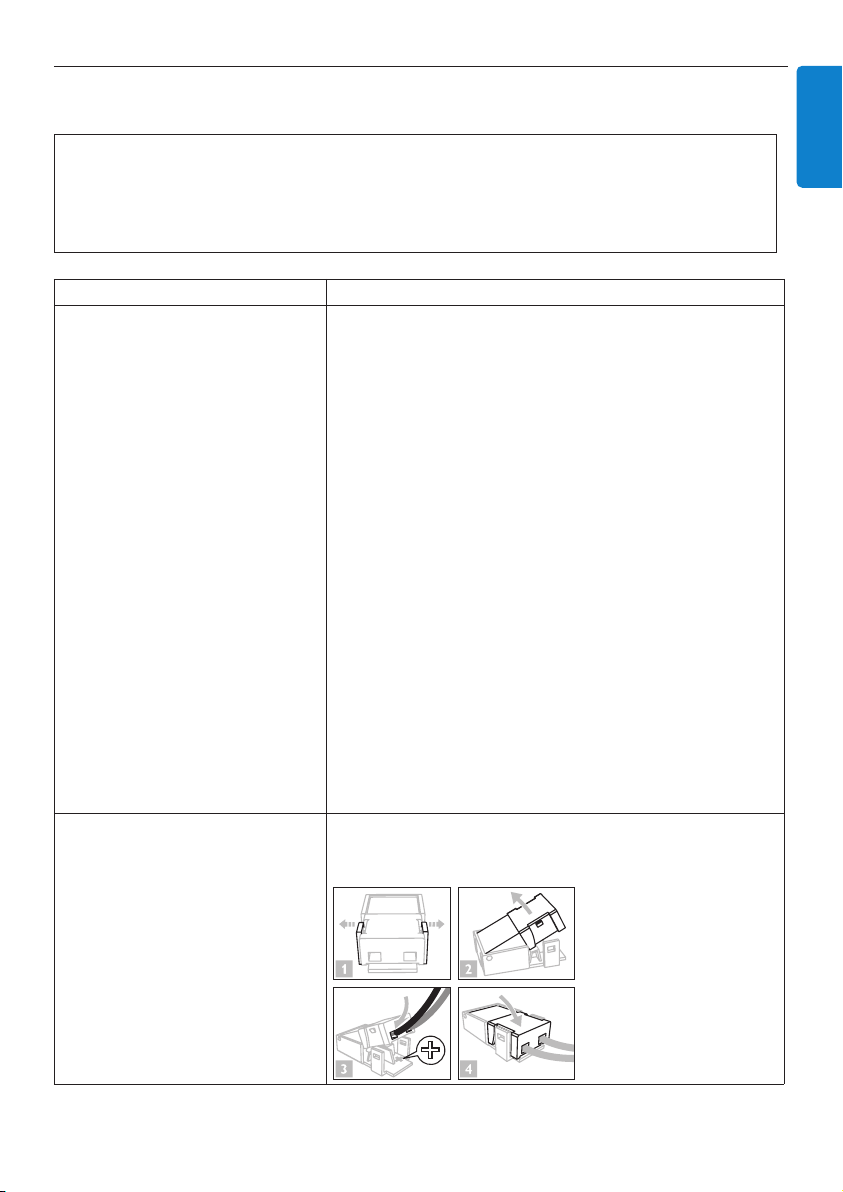
19 Troubleshooting
Problem Solution
I get interference on my
wireless (Wi-Fi) link between
the Center and Station/PC.
The WAC3500 operates in the
2.4GHz radio frequency spectrum.
Many other household / IT devices
also operate in this frequency
spectrum, for example: microwave
ovens, DECT phones, Bluetooth
devices such as headphones,
computer mouses, wireless routers,
cordless phones,Wi-Fi compatible
printers, PDAs.
These devices can interfere with the
Wi-Fi link between the Center and
your PC, resulting in interference
such as pause during playback, slow
response to your operation, etc.The
severity of interference varies
depending on the extent of
radiation from the device and the
strength of Wi-Fi signals in that
position.
If you are playing the set, stop playback and take the
appropriate measures as follows:
• Keep the Center at least 3 meters away from such devices.
• Use the WEP/WPA/WPA2 key when connecting the
Center to an existing wireless PC network.To set WEP /
WPA / WPA2 key, connect Center to your PC using Philips
Wireless Audio Device Manager (WADM) in the by-packed
PC Suite CD. In the Device Configuration of WADM, enter
the Wireless Network submenu. In the Device Wireless
Authentication Type, select WEP or WPA / WPA2.
• Change the operating channel of the Center when
connecting it to an existing wireless PC network.To
change channels, connect the Center to your PC using
Philips Wireless Audio Device Manager (WADM) in the by-
packed PC Suite CD. In the Device Configuration of
WADM, enter the SSID of your Wireless Network and
select Ad-hoc mode. See Connect to your PC in this
manual and the WADM help file.
• If possible, change the operating channels of the other Wi-
Fi devices in your home.
• Turn the devices in different directions to minimize
interference.
I accidentally pulled the speaker
wires out of the clip.
Follow the illustrations below to reinsert the speaker wires
(gold wire to the hole marked '+' and silver wire to the
other hole).
Warning!
Never try to repair the system yourself as this will invalidate the warranty. Do not open the
system as there is a risk of electric shock.
If a fault occurs, first check the points listed below before taking the system for repair. If you are
unable to resolve a problem by following these hints, consult your dealer or Philips for help.
Troubleshooting
89
ENGLISH

Problem Solution
The remote control does not
function properly.
• Reduce the distance between the remote control and the
set.
• Insert the batteries with their polarities (+/- signs) aligned
as indicated.
• Replace the batteries.
• Point the remote control directly towards the IR sensor.
The WAC3500 Center's screen
is stuck in a menu or shows no
response for a long period of
time (2-5 minutes).
First try to press y to enter the power saving mode. If the
problem persists, disconnect and reconnect the power plug
to restart the WAC3500.
'No Disc'/ 'Cannot read CD' is
displayed.
• Insert a suitable disc.
• Check if the disc is inserted with graphic printed side
facing up.
• Wait for the moisture condensation on the lens to clear.
• Replace or clean the disc, see 1.5 Maintenance.
• Use a finalized CD-RW or CD-R.
Sound cannot be heard or is of
poor quality.
• Adjust the volume.
• Disconnect the headphones.
• Deactivate MUTE.
• Connect the speakers properly.
The disc skips tracks. • Replace or clean the disc.
• Deactivate SHUFFLE.
Sound skips during MP3/WMA
playback.
• The MP3 / WMA file may be made at a compression level
exceeding 320kbps. Use a lower compression level to rip
audio CD tracks.
• Replace or clean disc.
Some files on the USB device
are not displayed.
• Only completely recorded MP3 / WMA files can be found
and played by WAC3500. Check if the file has been
recorded completely.
• DRM-protected WMA files cannot be played on
WAC3500.
Radio reception is poor • If the signal is too weak, adjust the antenna or connect an
external antenna for better reception.
• Increase the distance between the set and your TV or
VCR.
There is interference on the
radio reception whenever the
Center is near my PC.
Such interference happens to
most built-in tuner products.
• Install the supplied FM wire antenna for better reception.
• Keep the Center at least 1 meter away from your PC.
Some WADM functions cannot
be used.
Your anti-virus software might affect the running of the
WADM.Turn off your anti-virus software temporarily.
Troubleshooting
90

Problem Solution
I edited ID3 tags in WADM, but
the screen does not show the
updated ID3 tags.What shall I
do?
• Go to File > Refresh Content to refresh the WADM.
• Restart WADM.
Backup function no longer
works.
This is because the previously backed up file was deleted in
Windows Explorer. Do not delete the file in this way. If you
want to delete the back up file, please use WADM to
manage.
If the backup file is accidentally deleted, please find the file
named YOURMAC.inx by using search tool of your Explorer
and then delete it.
Only after that you can do a backup again.
I have problem installing
WADM or after installation, I
cannot launch WADM.
• Please make sure your Operating System is either
Windows 2000 with service pack 4 and above, or
Windows XP.
• Please check if your PC has a virus.
I see the message “Check the
internet setup for Gracenote
online” even though I am sure
that the WAC3500 is
connected to my home
wireless network with internet
connection.
• Please go to Menu > Settings > Network > Internet
to check if your DNS server is correctly set up.Also make
sure that you have set up the proxy server, if your home
wireless network needs a proxy server for the internet
connection.
• There is a chance that you are already successfully
connected to Gracenote® online, but your CD is not in
their database.
Troubleshooting
91
ENGLISH

Gracenote® End User License Agreement
This application or device contains software from Gracenote, Inc. of Emeryville, California
(“Gracenote”).The software from Gracenote (the “Gracenote Software”) enables this application to
perform disc and/or file identification and obtain music-related information, including name, artist,
track, and title information (“Gracenote Data”) from online servers or embedded databases
(collectively,“Gracenote Servers”) and to perform other functions.You may use Gracenote Data only
by means of the intended End-User functions of this application or device.
You agree that you will use Gracenote Data, the Gracenote Software, and Gracenote Servers for
your own personal non-commercial use only.You agree not to assign, copy, transfer or transmit the
Gracenote Software or any Gracenote Data to any third party.YOU AGREE NOT TO USE OR
EXPLOIT GRACENOTE DATA,THE GRACENOTE SOFTWARE, OR GRACENOTE SERVERS,
EXCEPT AS EXPRESSLY PERMITTED HEREIN.
You agree that your non-exclusive license to use the Gracenote Data, the Gracenote Software, and
Gracenote Servers will terminate if you violate these restrictions. If your license terminates, you agree
to cease any and all use of the Gracenote Data, the Gracenote Software, and Gracenote Servers.
Gracenote reserves all rights in Gracenote Data, the Gracenote Software, and the Gracenote Servers,
including all ownership rights. Under no circumstances will Gracenote become liable for any payment
to you for any information that you provide.You agree that Gracenote, Inc. may enforce its rights
under this Agreement against you directly in its own name.
The Gracenote service uses a unique identifier to track queries for statistical purposes.The purpose
of a randomly assigned numeric identifier is to allow the Gracenote service to count queries without
knowing anything about who you are. For more information, see the web page for the Gracenote
Privacy Policy for the Gracenote service.
The Gracenote Software and each item of Gracenote Data are licensed to you “AS IS.” Gracenote
makes no representations or warranties, express or implied, regarding the accuracy of any Gracenote
Data from in the Gracenote Servers. Gracenote reserves the right to delete data from the Gracenote
Servers or to change data categories for any cause that Gracenote deems sufficient. No warranty is
made that the Gracenote Software or Gracenote Servers are error-free or that functioning of
Gracenote Software or Gracenote Servers will be uninterrupted. Gracenote is not obligated to
provide you with new enhanced or additional data types or categories that Gracenote may provide in
the future and is free to discontinue its services at any time.
GRACENOTE DISCLAIMS ALL WARRANTIES EXPRESS OR IMPLIED, INCLUDING, BUT NOT
LIMITED TO, IMPLIED WARRANTIES OF MERCHANTABILITY, FITNESS FOR A PARTICULAR
PURPOSE,TITLE,AND NON-INFRINGEMENT. GRACENOTE DOES NOT WARRANT THE
RESULTS THAT WILL BE OBTAINED BY YOUR USE OF THE GRACENOTE SOFTWARE OR ANY
GRACENOTE SERVER. IN NO CASE WILL GRACENOTE BE LIABLE FOR ANY CONSEQUENTIAL
OR INCIDENTAL DAMAGES OR FOR ANY LOST PROFITS OR LOST REVENUES.
© Gracenote 2006 Version 20061005
Specifications are subject to change without notice.
Trademarks are the property of Koninklijke Philips
Electronics N.V. or their respective owners
© 2007 Koninklijke Philips Electronics N.V.
All rights reserved.
www.philips.com
Printed in China
wk7504