2
GB
To reduce the risk of fire or electric
shock, do not expose this apparatus
to rain or moisture.
To reduce the risk of fire, do not cover
the ventilation opening of the
appliance with newspapers,
tablecloths, curtains, etc.
Do not expose the appliance to naked
flame sources (for example, lighted
candles).
To reduce the risk of fire or electric
shock, do not expose this appliance to
dripping or splashing, and do not place
objects filled with liquids, such as
vases, on the appliance.
As the main plug is used to disconnect
the unit from the mains, connect the
unit to an easily accessible AC outlet.
Should you notice an abnormality in
the unit, disconnect the main plug
from the AC outlet immediately.
Do not install the appliance in a
confined space, such as a bookcase or
built-in cabinet.
Do not expose batteries or appliances
with battery-installed to excessive
heat, such as sunshine and fire.
The unit is not disconnected from the
mains as long as it is connected to the
AC outlet, even if the unit itself has
been turned off.
The validity of the CE marking is
restricted to only those countries
where it is legally enforced, mainly in
the countries EEA (European Economic
Area).
This equipment has been tested and
found to comply with the limits set out
in the EMC regulation using a
connection cable shorter than
3 meters.
CAUTION
The use of optical instruments with this
product will increase eye hazard.
This appliance is classified as a CLASS 1
LASER product under IEC 60825-
1:2007. This marking is located on the
rear exterior.
For customers in Europe
Disposal of waste
batteries and electrical
and electronic
equipment (applicable
in the European Union
and other European
countries with separate
collection systems)
This symbol on the product, the
battery or on the packaging indicates
that the product and the battery shall
not be treated as household waste. On
certain batteries this symbol might be
used in combination with a chemical
symbol. The chemical symbols for
mercury (Hg) or lead (Pb) are added if
the battery contains more than
0.0005% mercury or 0.004% lead. By
ensuring these products and batteries
are disposed of correctly, you will help
prevent potentially negative
consequences for the environment
and human health which could
otherwise be caused by inappropriate
waste handling. The recycling of the
materials will help to conserve natural
resources.
In case of products that for safety,
performance or data integrity reasons
require a permanent connection with
an incorporated battery, this battery
should be replaced by qualified service
staff only. To ensure that the battery
and the electrical and electronic
equipment will be treated properly,
hand over these products at end-of-
life to the applicable collection point
WARNING
3
GB
for the recycling of electrical and
electronic equipment. For all other
batteries, please view the section on
how to remove the battery from the
product safely. Hand the battery over
to the applicable collection point for
the recycling of waste batteries. For
more detailed information about
recycling of this product or battery,
please contact your local Civic Office,
your household waste disposal service
or the shop where you purchased the
product or battery.
Notice for customers: The
following information is only
applicable to equipment sold in
countries applying EU Directives.
This product has been manufactured
by or on behalf of Sony Corporation,
1-7-1 Konan Minato-ku Tokyo,
108-0075 Japan. Inquiries related to
product compliance based on
European Union legislation shall be
addressed to the authorized
representative, Sony Belgium,
bijkantoor van Sony Europe Limited,
Da Vincilaan 7-D1, 1935 Zaventem,
Belgium. For any service or guarantee
matters, please refer to the addresses
provided in the separate service or
guarantee documents.
Hereby, Sony Corp., declares that this
equipment is in compliance with the
essential requirements and other
relevant provisions of Directive 1999/
5/EC.
For details, please access the following
URL:
http://www.compliance.sony.de/
This Home Audio System is intended
for audio and video playback of discs
or USB devices, music streaming from
an NFC-compatible smartphone or a
BLUETOOTH device, and FM tuner. This
system also supports karaoke.
For customers in Australia
Disposal of Old
Electrical & Electronic
Equipment (Applicable
in the European Union
and other European
countries with separate
collection systems)
For customers in United Arab
Emirates
License and Trademark Notice
is a trademark of DVD Format/
Logo Licensing Corporation.
“DVD+RW”, “DVD-RW”, “DVD+R”,
“DVD-R”, “DVD VIDEO”, and the “CD”
logos are trademarks.
MPEG Layer-3 audio coding
technology and patents licensed
from Fraunhofer IIS and Thomson.
Windows Media is either a registered
trademark or trademark of Microsoft
Corporation in the United States and/
or other countries.
This product is protected by certain
intellectual property rights of
Microsoft Corporation. Use or
distribution of such technology
outside of this product is prohibited
without a license from Microsoft or
an authorized Microsoft subsidiary.
“WALKMAN” and “WALKMAN” logo
are registered trademarks of Sony
Corporation.
This system incorporates Dolby*
Digital.

4
GB
* Manufactured under license from
Dolby Laboratories. Dolby and the
double-D symbol are trademarks of
Dolby Laboratories.
The BLUETOOTH® word mark and
logos are registered trademarks
owned by Bluetooth SIG, Inc. and any
use of such marks by Sony
Corporation is under license. Other
trademarks and trade names are
those of their respective owners.
The N Mark is a trademark or
registered trademark of NFC Forum,
Inc. in the United States and in other
countries.
Android™ is a trademark of Google
Inc.
Google Play™ is a trademark of
Google Inc.
Apple, the Apple logo, iPhone, and
iPod touch are trademarks of Apple
Inc., registered in the U.S. and other
countries. App Store is a service mark
of Apple Inc.
“Made for iPod” and “Made for
iPhone” mean that an electronic
accessory has been designed to
connect specifically to iPod or
iPhone, respectively, and has been
certified by the developer to meet
Apple performance standards. Apple
is not responsible for the operation
of this device or its compliance with
safety and regulatory standards.
Please note that the use of this
accessory with iPod or iPhone may
affect wireless performance.
THIS PRODUCT IS LICENSED UNDER
THE MPEG-4 VISUAL PATENT
PORTFOLIO LICENSE FOR THE
PERSONAL AND NON-COMMERCIAL
USE OF A CONSUMER FOR
(i) ENCODING VIDEO IN
COMPLIANCE WITH THE MPEG-4
VISUAL STANDARD (“MPEG-4
VIDEO”)
AND/OR
(ii) DECODING MPEG-4 VIDEO THAT
WAS ENCODED BY A CONSUMER
ENGAGED IN A PERSONAL AND
NON-COMMERCIAL ACTIVITY
AND/OR WAS OBTAINED FROM A
VIDEO PROVIDER LICENSED TO
PROVIDE MPEG-4 VIDEO.
NO LICENSE IS GRANTED OR SHALL
BE IMPLIED FOR ANY OTHER USE.
ADDITIONAL INFORMATION
INCLUDING THAT RELATING TO
PROMOTIONAL, INTERNAL AND
COMMERCIAL USES AND LICENSING
MAY BE OBTAINED FROM MPEG LA,
L.L.C.
HTTP://WWW.MPEGLA.COM
All other trademarks are trademarks
of their respective owners.
In this manual, ™ and ® marks are not
specified.
About this manual
This manual mainly explains
operations using the remote control,
but the same operations can also be
performed using the buttons on the
unit having the same or similar
names.
Icons, such as , listed at the top
of each explanation indicate the type
of media that can be used with the
function being explained.
Some illustrations are presented as
conceptual drawings, and may be
different from the actual products.
The items displayed on the TV screen
may vary depending on the area.
The default setting is underlined.
The text enclosed in bracket ([--])
appears on the TV screen, and the
text enclosed in double quotation
mark (“--”) appears in the display
panel.

5
GB
Table of Contents
About this manual ....................4
Unpacking.................................7
Playable discs/files on Discs/
USB device ................................7
Guide to parts and controls.... 10
Getting Started
Hooking up the system
securely................................... 15
Performing QUICK setup ........ 16
Changing the color system
(Except for Latin American,
European, and Russian
models) ................................... 17
Setting the clock ..................... 17
Changing the display mode ... 17
Disc/USB Playback
Basic playback ........................ 18
Other playback operations..... 19
Using play mode.....................22
Restricting playback of the
disc (Parental Control) ............24
Viewing information of a disc
and USB device .......................25
Using the Setup Menu............26
USB Transfer
Transferring music..................29
Tuner
Listening to the radio............. 32
BLUETOOTH
About the BLUETOOTH
wireless technology ............... 33
One Touch BLUETOOTH
Connection by NFC................. 35
Setting the BLUETOOTH
audio codecs .......................... 36
Setting the BLUETOOTH
standby mode ........................ 36
Setting the BLUETOOTH
signal ...................................... 37
Using “SongPal” via
BLUETOOTH ............................ 37
Sound Adjustment
Adjusting the sound............... 38
Selecting the Virtual Football
mode.......................................38
Creating your own sound
effect....................................... 38
Creating a party atmosphere
(DJ Effect) ................................ 39

6
GB
Other Operations
Using the Party Chain
function ..................................40
Singing along: Karaoke.......... 42
Enjoying the Party Light ......... 43
Using the timers ..................... 43
Using optional equipment .....44
Deactivating the buttons on
the unit (Child Lock) ...............45
Setting the automatic
standby function ....................45
Updating the software ...........45
Additional Information
Troubleshooting.....................46
Precautions............................. 53
Specifications ......................... 55
Language code list .................58
Index .......................................60

7
GB
Unpacking
Remote control (1)
R03 (size AAA) batteries (2)
FM lead antenna (1)
AC power cord (mains lead) (1)
AC plug adaptor (1) (supplied only for
certain areas)
The AC plug adaptor is not use in
Chile. Use this plug adaptor in the
countries where it is necessary.
Playable discs/files on
Discs/USB device
Playable Discs
DVD VIDEO
DVD-R/DVD-RW in DVD VIDEO
format or video mode
DVD+R/DVD+RW in DVD VIDEO
format
VIDEO CD (Ver. 1.0, 1.1, and 2.0 discs)
Super VCD
CD-R/CD-RW/CD-ROM in VIDEO CD
format or super VCD format
AUDIO CD
CD-R/CD-RW in AUDIO CD format
Playable files on Discs/USB
device
Music: MP3 files
1)2)
(.mp3), WMA
files
2)3)
(.wma), AAC files
2)3)
(.m4a/
.mp4/.3gp)
Photo: JPEG files
4)
(.jpg/.jpeg/.jpe)
Video: MPEG4 files
5)
(.mp4/.m4v),
Xvid files (.avi)
The discs must be in the following
format:
CD-ROM/-R/-RW in DATA CD format
that contains the MP3
1)2)
, JPEG
4)
,
MPEG4
5)
and Xvid files, and
conforms to ISO 9660
6)
Level 1/Level
2 or Joliet (extended format).
DVD-ROM/-R/-RW/+R/+RW in
DATA DVD format that contains the
MP3
1)2)
, JPEG
4)
, MPEG4
5)
and Xvid
files, and conforms to UDF (Universal
Disk Format).
The system will attempt to play back
any data with the extensions above,
even if it is not in MP3/WMA/AAC/
JPEG/MPEG4/Xvid format. Playing
this data may generate a loud noise
which could damage your speaker
system.
1)
MP3 (MPEG 1 Audio Layer 3) is a
standard format defined by ISO/MPEG
for compressed audio data. MP3 files
must be in MPEG 1 Audio Layer 3 format.
2)
Files with copyright protection (Digital
Rights Management) cannot be played
back by the system.
3)
USB device only.
4)
JPEG files must conform to the DCF
image file format. (DCF “Design rule for
Camera File System”: Image standards
for digital cameras regulated by Japan
Electronics and Information Technology
Industries Association (JEITA).)
5)
MPEG4 files must be recorded in MP4
file format. Supported video codec and
audio codec are as follows:
Video codec: MPEG4 Simple Profile
(AVC is not supported.)
Audio codec: AAC-LC (HE-AAC is not
supported.)
6)
A logical format of files and folders on
CD-ROMs, defined by ISO (International
Organization for Standardization).
Discs/files that cannot be played
back
You cannot play back the following
discs
BDs (Blu-ray Discs)
CD-ROMs recorded in PHOTO CD
format
Data part of CD-Extra or Mixed CDs*
CD Graphics disc
Super Audio CDs
DVD Audio
DATA CD/DATA DVD that is created
in Packet Write format
DVD-RAM
Notes

8
GB
DATA CD/DATA DVD which has not
been correctly finalized
CPRM (Content Protection for
Recordable Media) compatible
DVD-R/-RW recorded in Copy-Once
programs
A disc that has a non-standard
shape (e.g., heart, square, star)
A disc that has adhesive tape,
paper, or a sticker attached to it
You cannot play back the following
files
The JPEG file that is larger than
3,072 (width) × 2,048 (height) pixels
in normal mode, or more than
3,300,000 pixels in Progressive
JPEG mode which is mainly used on
the Internet website.
The video files which is larger than
720 (width) × 576 (height) pixels.
The image and video files with a
high width to length ratio.
A WMA file in WMA DRM, WMA
Lossless, or WMA PRO format.
An AAC file in AAC DRM or AAC
Lossless format.
The AAC files which is encoded at
96 kHz.
Files that are encrypted or
protected by passwords.
Files with DRM (Digital Rights
Management) copyright
protection.
The MP3 PRO audio file can be
played back as MP3 file.
The system may not play back an
Xvid file when the file has been
combined from two or more Xvid
files.
The system cannot play back some
Xvid files that are longer than
2 hours.
* Mixed CD: This format records data on
the first track and audio (AUDIO CD
data) on the second and subsequent
tracks of a session.
Notes on CD-R/-RW and
DVD-R/-RW/+R/+RW
In some cases, a CD-R/-RW and
DVD-R/-RW/+R/+RW cannot be
played back on this system due to
the recording quality or physical
condition of the disc, or the
characteristics of the recording
device and authoring software. For
more information, refer to the
operating instructions of the
recording device.
Some playback functions may not
work with some DVD+Rs/+RWs, even
if they have been correctly finalized.
In this case, view the disc by normal
playback.
Notes on discs
This product is designed to play back
discs that conform to the Compact
Disc (CD) standard.
DualDisc and some music discs
encoded with copyright protection
technologies do not conform to the
CD standard. Therefore, these discs
may not be compatible with this
product.
Note on multisession disc
This system can play back continuous
sessions on a disc when they are
recorded in the same format as the
first session. However, the playback is
not guaranteed.
Note on DVD VIDEO and VIDEO
CD playback operations
Some playback operations for a DVD
VIDEO or VIDEO CD may be
intentionally restricted by software
producers. Therefore, some playback
features may not be available. Be sure
to read the operating instructions of
the DVD VIDEO or VIDEO CD.

9
GB
Notes on playable files
Playback may take a longer time to
start when:
a DATA CD/DATA DVD/USB device
is recorded with a complicated tree
structure.
the audio files, image files, or video
files in another folder have just
been played back.
The system can play back a DATA CD/
DATA DVD or a USB device in the
following conditions:
up to a depth of 8 folders
up to 300 folders
up to 999 files in a disc
up to 2,000 files in a USB device
up to 650 files in a folder
These numbers may vary depending
on the file or folder configuration.
Folders that have no audio files,
image files, or video files are skipped.
Files transferred by a device such as a
computer may not be played back in
the order in which they were
transferred.
The playback order may not be
applicable depending on the
software used for creating the audio
file, image file, or video file.
Compatibility with all MP3/WMA/
AAC/MPEG4/Xvid encoding/writing
software, recording devices, and
recording media cannot be
guaranteed.
Depending on the Xvid file, the
picture may be unclear or the sound
may skip.
Notes about USB devices
This system is not guaranteed to
operate with all USB devices.
Although there are a variety of
complex functions for USB devices,
the playable contents of USB devices
connected to the system are music,
photo, and video contents only. For
details, refer to the operating
instructions of the USB device.
When a USB device is inserted, the
system reads all the files on the USB
device. If there are many folders or
files on the USB device, it may take a
long time to finish reading the USB
device.
Do not connect the system and the
USB device through a USB hub.
With some connected USB devices,
there may be a delay before an
operation is performed by this
system.
The playback order for the system
may differ from the playback order of
the connected USB device.
Before using a USB device, make sure
that no virus-ridden files are on the
USB device.
Websites for compatible devices
Check the websites below for the latest
information about compatible USB and
BLUETOOTH devices.
For customers in Latin America:
<http://esupport.sony.com/LA>
For customers in Europe and Russia:
<http://www.sony.eu/support>
For customers in other countries/
regions:
<http://www.sony-asia.com/support>
10
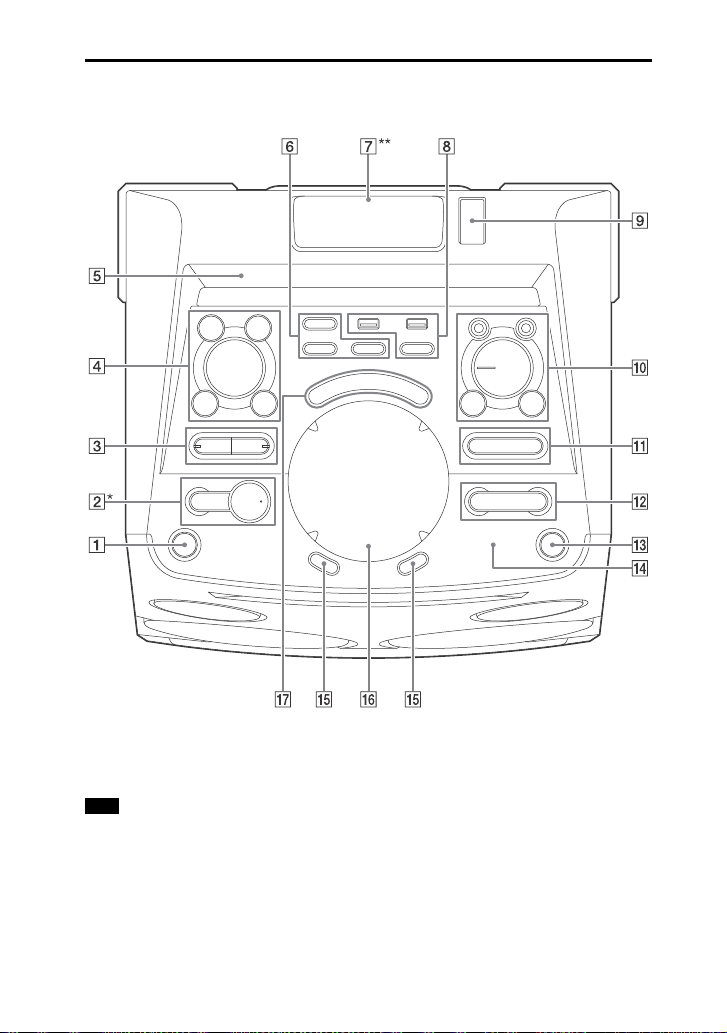
GB
Guide to parts and controls
Top panel
*The button has a tactile dot. Use the tactile dot as a reference when operating the
system.
** Do not look directly at the light emitting part when the Party Light (page 43) is turned
on.
When pressing the buttons on the unit, press on the printings of the buttons.
Note
11
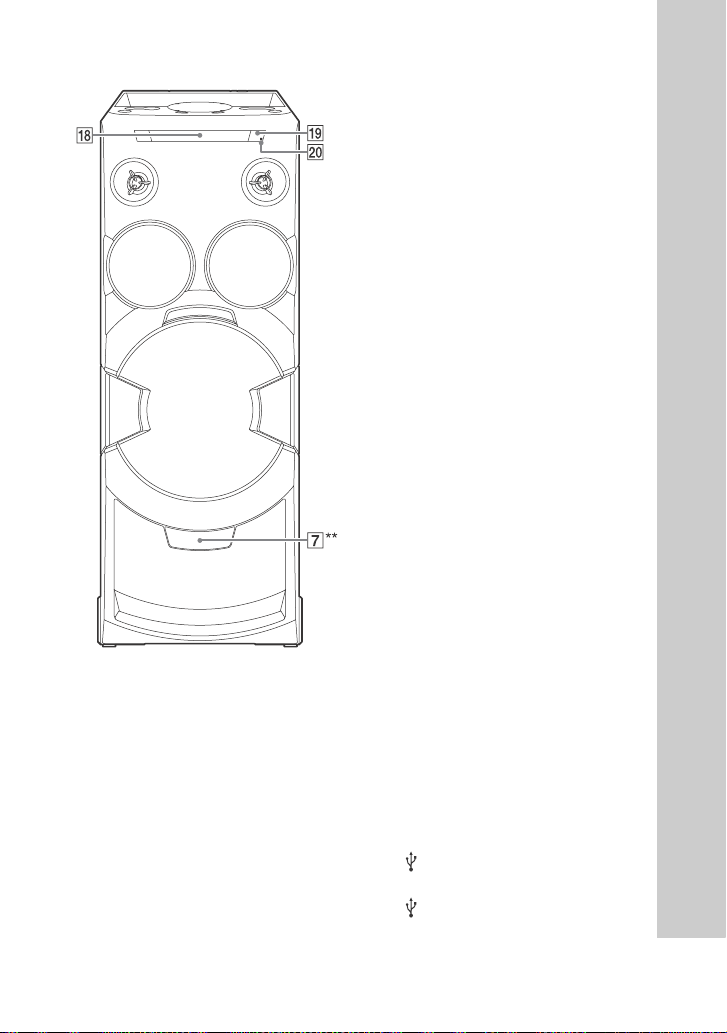
GB
Front panel
** Do not look directly at the light
emitting part when the Party Light
(page 43) is turned on.
(on/standby)
Turns on the system, or sets it to
standby mode.
(play)
Starts playback.
Hold down on the unit for
more than 2 seconds, the built-in
sound demonstration will be
played back on the system. Press
to stop the demonstration.
(stop)
Stops playback.
Press twice to cancel resume
playback.
BLUETOOTH
Press to select BLUETOOTH
function.
PAIRING
Hold down to activate
BLUETOOTH pairing during
BLUETOOTH function.
BLUETOOTH indicator (page 33)
MEGA BASS (page 38)
MEGA BASS indicator (page 38)
FUNCTION*
SOUND FIELD*
* Press this button, then turn the
MULTI CONTROL knob to select the
function or sound field you want,
then press ENTER.
LIGHT MODE (page 43)
ENTER
Enters the settings.
MULTI CONTROL
Selects a FUNCTION, SOUND FIELD
or LIGHT MODE.
Display panel
FOOTBALL (page 38)
Press this button repeatedly to
select “ON NARRATION” or “OFF
NARRATION”.
PARTY LIGHT (page 43)
PARTY CHAIN (page 41, 42, 51)
Party Light (page 43)
Produces light for party like
environment.
(USB) 1 (PLAY) port
Connects an optional USB device.
(USB) 2 (REC/PLAY) port
Connects and transfers to an
optional USB device.
12
GB
REC TO USB
Transfers music to the optional
USB device which is connected to
the (USB) 2 port.
Lighting controller
Scroll the lighting controller to
change the LED pattern (for top
Party Light only).
MIC 1/2 jack
Connects the microphone(s).
VOCAL FADER (page 42)
MIC ECHO (page 42)
MIC LEVEL (MIN/MAX)
Adjusts the microphone volume.
+/– (select folder)
Selects a folder on a data disc or a
USB device.
/ (go backward/go
forward) (page 18, 20, 21, 34)
TUNING+/– (page 32)
GESTURE ON/OFF (page 12, 39,
43)
Turns the Motion Gesture function
on or off.
(N-Mark) (page 35)
VOLUME +/–
Adjusts the volume.
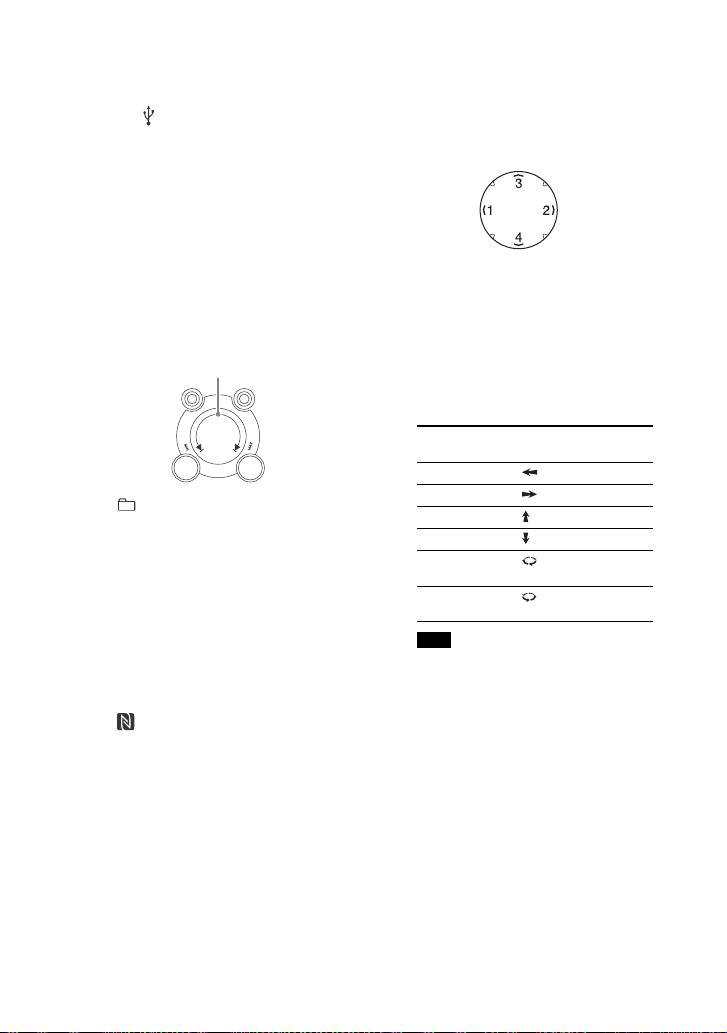
GESTURE CONTROL
Controls operations or effects
using Motion Gesture in four
modes: PLAYBACK (page 12), DJ
(page 39), SAMPLER (page 39),
and LIGHT (page 43).
Press GESTURE ON/OFF () to
activate the Motion Gesture
function.
The GESTURE CONTROL lights up.
Tap on zone 1 or zone 2 repeatedly
to select the mode you want.
The selected GESTURE CONTROL
mode indicator lights up.
When PLAYBACK mode is
selected, you can control the
playback of Disc, USB device and
BLUETOOTH device during CD/
DVD, USB or BLUETOOTH function.
Swipe your hand over the
GESTURE CONTROL as follows.
Make sure your hand does not touch
the GESTURE CONTROL when you
perform the swiping motion.
Press GESTURE ON/OFF () to
deactivate the Motion Gesture
function.
The GESTURE CONTROL lights off.
GESTURE CONTROL mode
indicator
Lights up according to the
selected mode.
Disc tray
(open/close)
Inserts or ejects a disc.
Remote control sensor
Microphone volume range
To Swipe in this
direction
Go backward (zone 2 to zone 1)
Go forward (zone 1 to zone 2)
Play (zone 4 to zone 3)
Stop (zone 3 to zone 4)
Increase
volume
(clockwise)
Reduce
volume
(anticlockwise)
Note
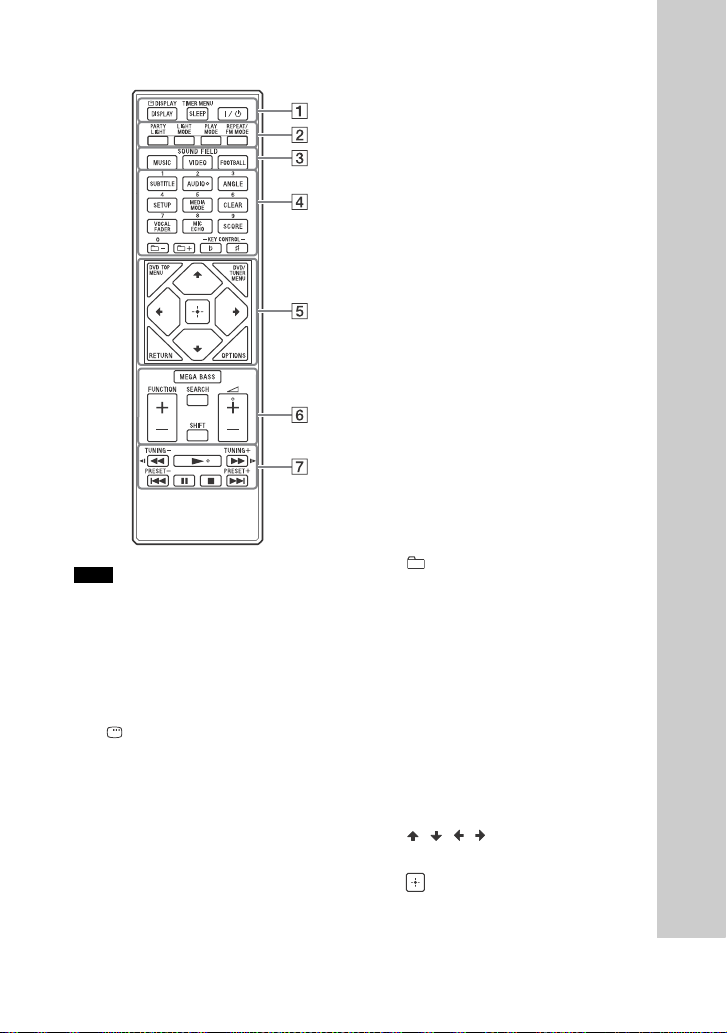
13
GB
Remote control
The numeric button 2/AUDIO, + and
buttons have a tactile dot. Use the
tactile dot as a reference when
operating the system.
To use the button printed in pink, hold
down SHIFT (), then press the button.
DISPLAY (page 17, 26, 32, 34)
DISPLAY (page 23, 25)
SLEEP (page 44)
TIMER MENU
(page 17, 44)
(on/standby)
Turns on the system, or sets it to
standby mode.
PARTY LIGHT (page 43)
LIGHT MODE (page 43)
PLAY MODE (page 22, 23, 30)
REPEAT/FM MODE (page 24, 32)
SOUND FIELD buttons (page 38)
MUSIC, VIDEO, FOOTBALL
Numeric buttons
Selects a track, chapter or file.
Tunes or presets a radio station.
Enters a password.
SUBTITLE (page 21)
AUDIO (page 21, 25)
ANGLE (page 21)
SETUP (page 16, 24, 26, 52)
MEDIA MODE (page 18, 19, 23, 31)
CLEAR (page 20, 23)
VOCAL FADER (page 42)
MIC ECHO (page 42)
SCORE (page 43)
+/– (select folder)
Selects a folder on a data disc or a
USB device.
KEY CONTROL / (page 43)
DVD TOP MENU
Displays the DVD title on the TV
screen.
DVD/TUNER MENU (page 19, 20,
33)
RETURN (page 19, 23)
OPTIONS
Enters or exits the options menu.
///
Selects the menu items.
Enters the settings.
Notes

14
GB
MEGA BASS (page 38)
FUNCTION +/–
Selects a function.
SEARCH (page 19, 20, 23)
SHIFT
Hold down to activate the buttons
printed in pink.
+/–
Adjusts the volume.
/ (rewind/fast forward)
(page 20, 34)
/ (page20)
Watches the Slow-motion Play.
TUNING+/– (page 32)
(play)
Starts playback.
/ (go backward/go
forward) (page 18, 20, 21, 34)
PRESET+/– (page 33)
(pause) (page 18, 20, 34)
(stop)
Stops playback.
Press twice to cancel resume
playback.
Stops the built-in sound
demonstration.
15
GB
Getting Started
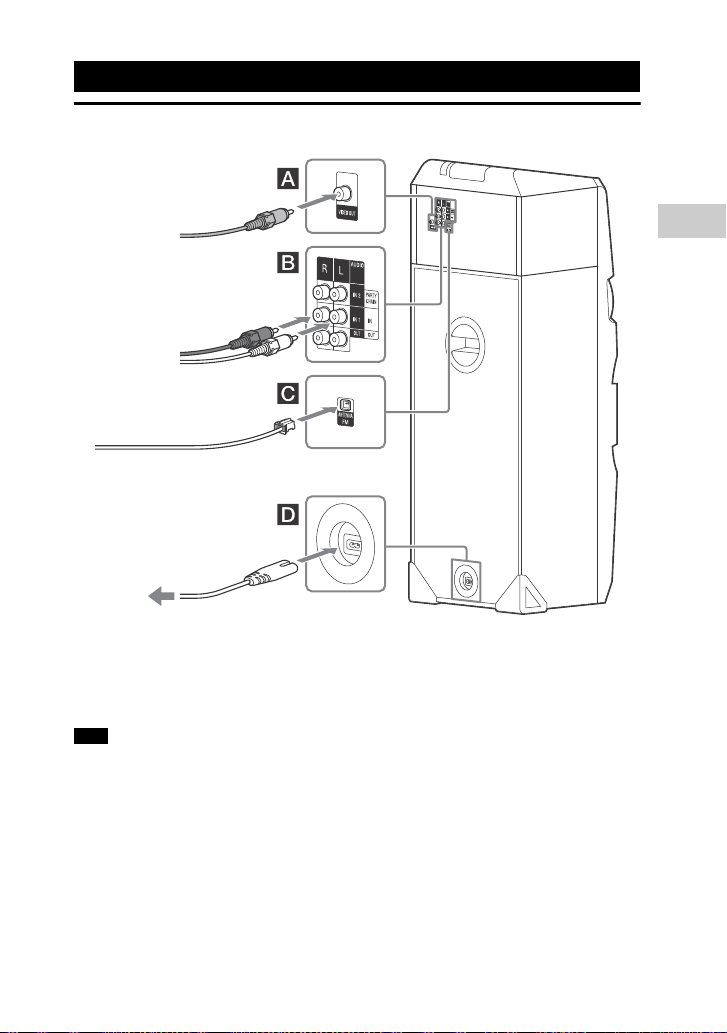
Hooking up the system securely
VIDEO OUT jack
Use a video cord (not supplied) to
connect to the video input jack of a TV
or projector.
Do not connect this unit to the TV through
the video deck.
Audio
Use an audio cord (not supplied) to
make either connection as follows:
AUDIO OUT/PARTY CHAIN OUT
L/R jacks
Connect to the audio input jacks of
an optional equipment.
Connect to another audio system
to enjoy the Party Chain function
(page 40).
AUDIO IN 1/PARTY CHAIN IN
L/R jacks
Connect to the audio output jacks
of a TV or an audio/video
equipment. The sound is output
through this system.
Connect to another audio system
to enjoy the Party Chain function
(page 40).
AUDIO IN 2 L/R jacks
Connect to the audio output jacks of
a computer or gaming device. The
sound is output through this system.
Getting Started
Extend the FM wire
antenna horizontally
Video cord
(not supplied)
Audio cord
(not supplied)
To the wall outlet
Note

16
GB
Antenna
Find a location and an orientation that
provide good reception when you set
up the antenna.
Keep the antenna away from the AC
power cord (mains lead) and the USB
cable to avoid picking up noise.
Power
Connect the AC power cord (mains
lead) (supplied) to the unit, then plug it
into a wall outlet.
If the AC plug of your unit does not fit
into the wall outlet, attach the supplied
AC plug adaptor (only for models
supplied with the AC plug adaptor).
The demonstration appears in the
display panel. Press to turn on the
system and the demonstration
automatically ends.
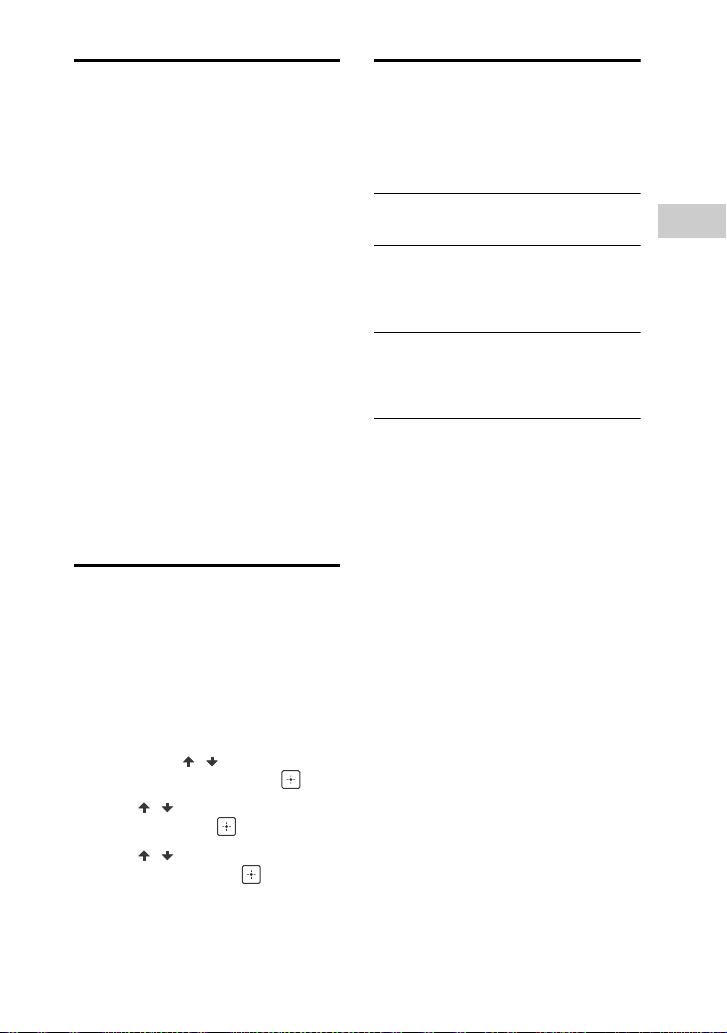
Insert the two supplied R03 (size AAA)
batteries by matching the polarities as
shown below.
Do not mix an old battery with a new
one or mix different types of batteries.
If you do not use the remote control for
a long period of time, remove the
batteries to avoid damage from battery
leakage and corrosion.
Performing QUICK setup
Before using the system, you can make
the minimum basic adjustments in
QUICK setup.
1 Turn on your TV and select the
video input.
2 Press to turn on the system.
3 Press FUNCTION +/– repeatedly to
select “DVD/CD”, “USB 1”, or
“USB 2”.
The guide message [Press ENTER to
run QUICK SETUP.] appears at the
bottom of the TV screen.
4 Press without inserting a disc
or connecting a USB device.
[LANGUAGE SETUP] appears on the
TV screen. Displayed items may vary
depending on country or region.
5 Press / repeatedly to select a
language, then press .
[VIDEO SETUP] appears on the TV
screen.
6 Press / repeatedly to select
the setting that matches your TV
type, then press .
After [QUICK SETUP is complete.]
appears on the TV screen, the
system is ready for playback.
To change the setting manually
See “Using the Setup Menu” (page 26).
To quit QUICK setup
Press SETUP.
The guide message appears when you
turn on the system for the first time or
after performing “RESET” (page 52).
Notes
Inserting batteries
Notes
Note
17
GB
Getting Started
Changing the color
system
(Except for Latin American,
European, and Russian models)
Set the color system to PAL or NTSC
depending on the color system of your
TV.
Each time you perform the procedure
below, the color system changes as
follows:
NTSC PAL
Use the buttons on the unit to perform
this operation.
1 Press to turn on the system.
2 Press FUNCTION, then turn the
MULTI CONTROL knob to select
“DVD/CD”, then press ENTER.
3 Hold down ENTER and MIC ECHO
for more than 3 seconds.
“NTSC” or “PAL” appears in the
display panel.
Setting the clock
You cannot set the clock in Power
Saving Mode.
1 Press to turn on the system.
2 Hold down SHIFT, then press
TIMER MENU.
“PLAY SET” appears in the display
panel. Press / repeatedly to
select “CLOCK”, then press .
3 Press / repeatedly to set the
hour, then press .
4 Press / repeatedly to set the
minutes, then press .
Changing the display
mode
Press DISPLAY repeatedly when the
system is turned off.
Demonstration
The demonstration is turned on.
No display (Power Saving Mode)
The display is turned off to conserve
power. The timer and clock continue to
operate.
Clock
The clock is displayed for a few
seconds, then enters the Power Saving
Mode.
18
GB
Basic playback
1 Press FUNCTION +/– repeatedly to
select “DVD/CD”, “USB 1”, or
“USB 2”.
You can also use the buttons on the
unit. Press FUNCTION, then turn the
MULTI CONTROL knob to select
“DVD/CD”, “USB 1”, or “USB 2”, then
press ENTER.
2 For DVD/CD function:
Press on the unit to open the disc
tray and load a disc with the label
facing up.
Press on the unit again to close
the disc tray.
Do not forcibly push the disc tray to
close it as this may cause a
malfunction.
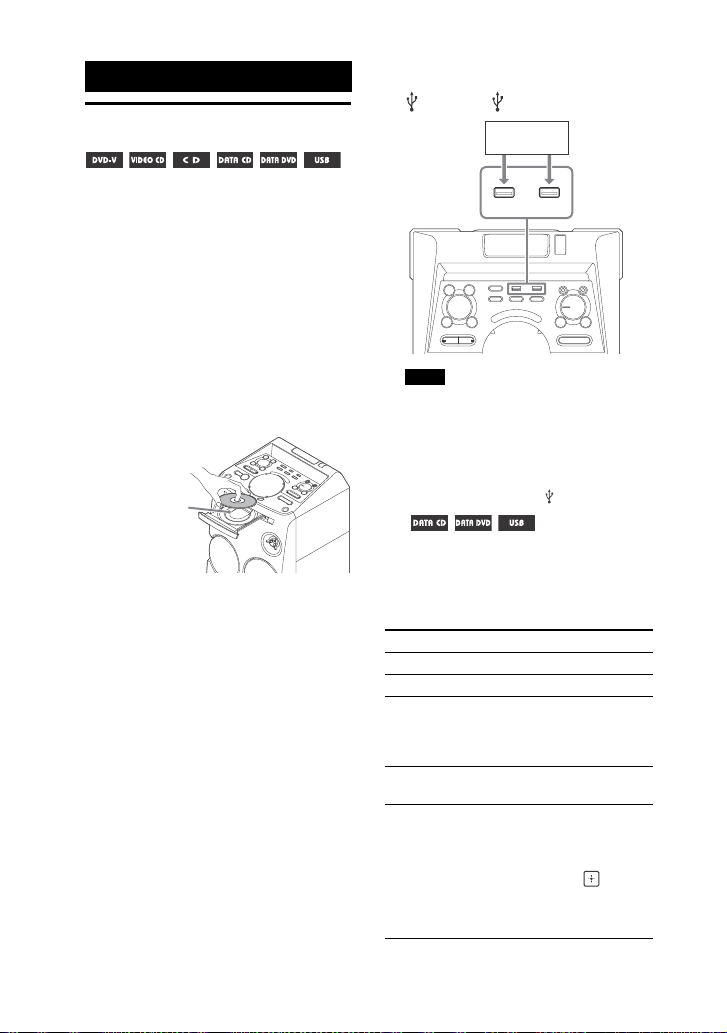
For USB function:
Connect a USB device to the
(USB) 1 or (USB) 2 port.
You can use your iPhone/iPod with
this system via BLUETOOTH
connection only.
You can use a USB adaptor (not
supplied) to connect the USB device
to the unit if the USB device cannot
be plugged into the (USB) port.
3 ( only)
Press MEDIA MODE repeatedly to
select the media ([MUSIC]/
[VIDEO]/[PHOTO]) you want.
4 Press to start playback.
Disc/USB Playback
When you
play back an
8 cm disc such
as a CD single,
place it on the
inner circle of
the tray
Notes
To Press
Stop playback
Pause playback
Resume
playback or
return to normal
playback
Cancel the
resume point
twice
Select a track,
file, chapter or
scene
or during
playback.
Or, hold down SHIFT, then
press the numeric buttons,
and then press .
(Operation might be
prohibited by disc or USB
device)
USB device
19
GB
Disc/USB Playback
To select USB memory
You can select which memory to use as
a playback source or transfer
destination if the USB device has an
internal memory and a memory card.
Make sure to select a memory before
starting playback or transfer.
1 Press OPTIONS.
2 Press / repeatedly to select
“MEM SEL”, then press .
3 Press / repeatedly to select the
memory you want, then press .
To exit the options menu, press
OPTIONS.
To play from a specific audio or
video file
1 Press MEDIA MODE repeatedly to
select [MUSIC] or [VIDEO].
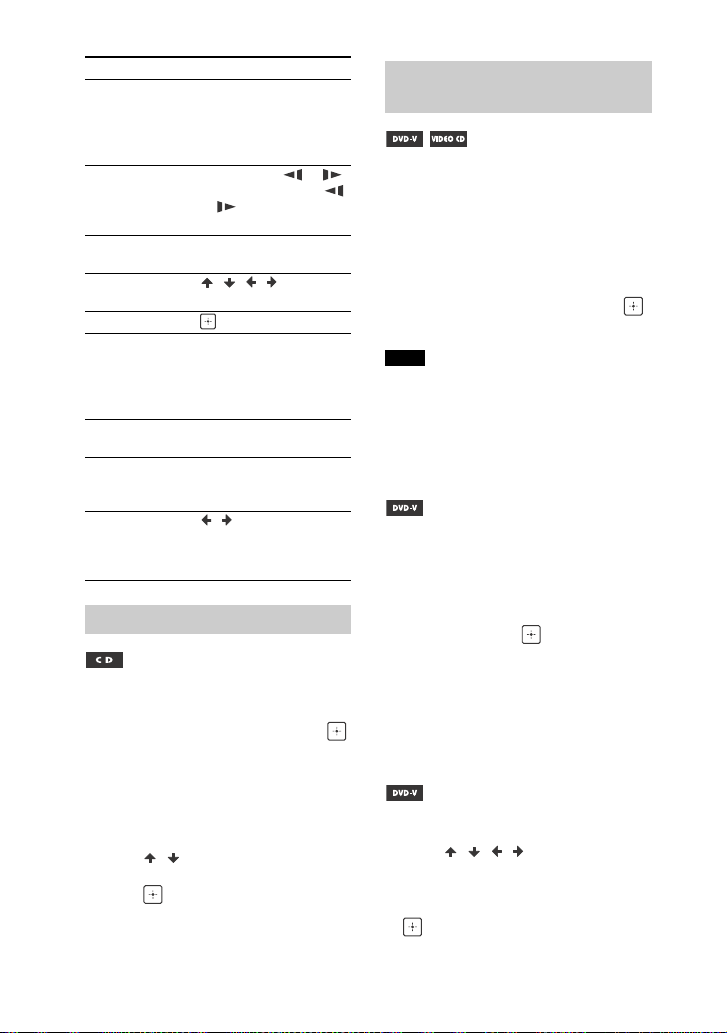
2 Press SEARCH to display the Folder
List.
3 Press / repeatedly to select the
folder you want.
4 Press to display the File List.
5 Press / repeatedly to select the
file you want, then press .
To play from a specific image file
(slide show)
1 Press MEDIA MODE repeatedly to
select [PHOTO].
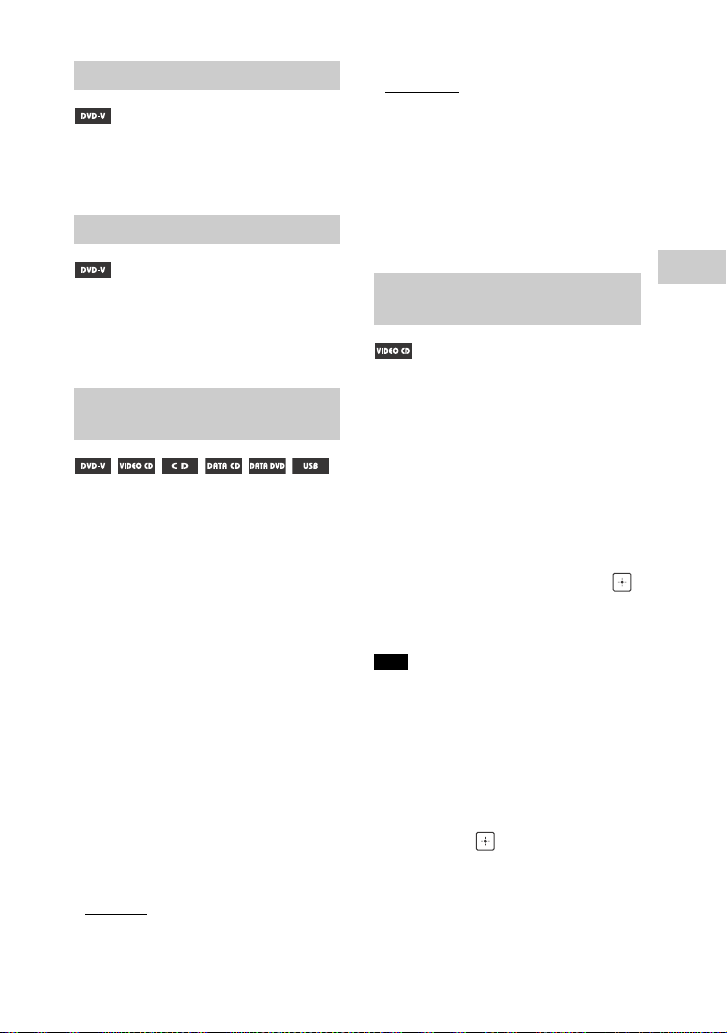
2 Press DVD/TUNER MENU.
Thumbnail picture for the first 16
JPEG files in the selected folder is
displayed on the TV screen.
If there are more than 16 JPEG files in
the selected folder, the scroll bar
appears at the right.
3 Press / / / repeatedly to
select the file you want, then press
.
Other playback
operations
Depending on the type of disc or file,
the function may not work.
To Press
View DVD menu DVD/TUNER MENU
View Folder List or
File List
SEARCH. Press the
button again to turn off
the Folder List or File List.
Return to Folder
List when in File
List
RETURN
20
GB
Hold down SHIFT, then press the
numeric buttons to select the track
you want to play back, then press .
To search using the SEARCH
button
1 Press SEARCH to display the Track
List.
2 Press / repeatedly to select the
track you want to play back, then
press .
1 Press SEARCH repeatedly during
playback to select the search
mode.
2 Hold down SHIFT, then press the
numeric buttons to enter the title,
chapter, scene, track, or index
number you want, then press .
Playback starts.
For VIDEO CD with PBC playback, press
SEARCH to search the scene.
For VIDEO CD without PBC playback,
press SEARCH to search the track and
index.
To search using the time code
1 Press SEARCH repeatedly during
playback to select the time search
mode.
2 Hold down SHIFT, then press the
numeric buttons to enter the time
code, then press .
Example: To find a scene at 2 hours,
10 minutes, and 20 seconds, hold
down SHIFT, then press 2, 1, 0, 2, 0
([2:10:20]).
Press CLEAR to cancel the number.
To search using the DVD menu
1 Press DVD/TUNER MENU.
2 Press / / / or hold down
SHIFT, then press the numeric
buttons to select the title or item
you want to play back, then press
.
Locate a point
quickly in fast
forward or fast
reverse (Lock
Search)
or during
playback. Each time you
press the button, the
playback speed changes.
Watch frame by
frame (Slow-
motion Play)
, then press or .
Each time you press
or , the playback
speed changes.
View images in
thumbnail view
DVD/TUNER MENU
Navigate in
thumbnail view
///
View single image in thumbnail view.
Start image slide
show
. You can change the
interval of the slide show
(page 27), and add
effects to the slide show
(page 27).
Stop image slide
show
View next or
previous image
during slide show
or
Rotate the image
by 90 degrees
/ while viewing a
picture. Press CLEAR to
return to the original
view.
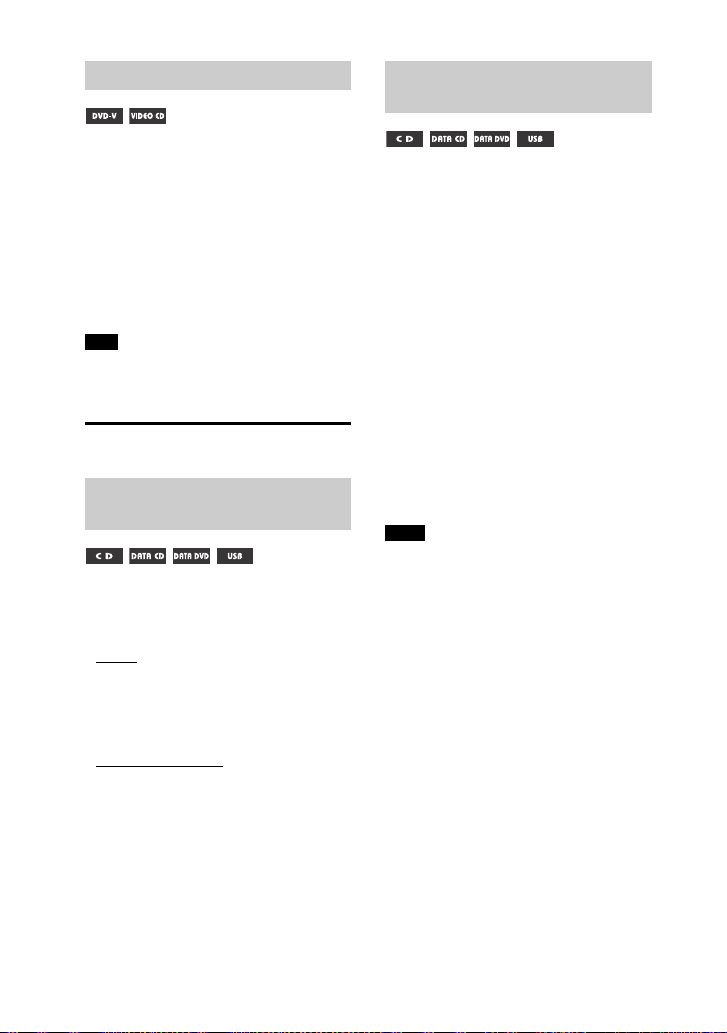
Searching a specific track
To Press
Searching a specific title/
chapter/scene/track/index
Notes
21
GB
Disc/USB Playback
Press ANGLE repeatedly during
playback to select the angle you
want.
Press SUBTITLE repeatedly during
playback to select the subtitle
language you want or turn off the
subtitle.
Press AUDIO repeatedly during
playback to select the audio format
or mode you want.
DVD VIDEO
You can toggle audio format or
language when the source contains
multiple audio formats or multilingual
audio.
When 4 digits are displayed, they
indicate a language code. See
“Language code list” (page 58) to
confirm which language the code
represents. When the same language
is displayed two or more times, the
DVD VIDEO is recorded in multiple
audio formats.
VIDEO CD/AUDIO CD/DATA CD/
DATA DVD (MP3 file) or USB
device (audio file)
You can change the sound track.
[STEREO]: The stereo sound.
[1/L]/[2/R]: The monaural sound of
the left or right channel.
SUPER VIDEO CD
[1:STEREO]: The stereo sound of
audio track 1.
[1:1/L]/[1:2/R]: The monaural sound
of the left or right channel of audio
track 1.
[2:STEREO]: The stereo sound of
audio track 2.
[2:1/L]/[2:2/R]: The monaural sound
of the left or right channel of audio
track 2.
You can use the PBC (Playback Control)
menu to enjoy the VIDEO CD’s
interactive software.
1 Press to play a VIDEO CD in
PBC.
The PBC menu appears on the TV
screen.
2 Hold down SHIFT, then press the
numeric buttons to select the item
number you want, then press .
3 Continue playback according to
the instructions on the menu.
PBC playback is canceled when Repeat
Play is activated.
To cancel PBC playback
1 Press or , or hold down
SHIFT, then press the numeric
buttons to select a track when
playback is stopped.
2 Press or .
Playback starts from the selected
track.
To return to PBC playback
Press twice, then press .
Changing the angles
Displaying the subtitles
Changing the language/
sound
Playing a VIDEO CD with
PBC functions
Note
22
GB
This system can store playback resume
points for up to 6 discs and resumes
playback when you insert the same
disc again. If you store a playback
resume point for the 7th disc, the
resume point for the first disc will be
deleted.
To activate this function, set [MULTI-
DISC RESUME] in [SYSTEM SETUP] to
[ON] (page 28).
To play back from the beginning of the
disc, press twice, then press .
Using play mode
When playback is stopped, press
PLAY MODE repeatedly.
When playing a disc
[DISC]: plays a disc.
[FOLDER]*: plays all compatible files
in the folder on the disc.
* Cannot be selected for AUDIO CD.
When playing a USB device
[ALL USB DEVICES]: plays all USB
devices.
[ONE USB DEVICE]: plays a USB
device.
[FOLDER]: plays all compatible files in
the folder on a USB device.
When playback is stopped, press
PLAY MODE repeatedly.
When playing a disc
[DISC (SHUFFLE)]: shuffles all audio
files on a disc.
[FOLDER (SHUFFLE)]*: shuffles all
audio files in the folder on the disc.
* Cannot be selected for AUDIO CD.
When playing a USB device
[ALL USB DEVICES (SHUFFLE)]:
shuffles all audio files on all USB
devices.
[ONE USB DEVICE (SHUFFLE)]:
shuffles all audio files on a USB
device.
[FOLDER (SHUFFLE)]: shuffles all
compatible files in the folder on the
USB device.
Shuffle Play cannot be performed for
image and video files.
Shuffle Play is canceled when you:
turn off the system.
open the disc tray.
perform USB transfer (except REC1
Transfer).
transfer music from a disc to a USB
device (except REC1 Transfer).
change MEDIA MODE.
change the selected USB memory.
Shuffle Play may be canceled when you
select a folder or a track to play back.
Multi-disc resume play
Note
Playing in original order
(Normal Play)
Playing in random order
(Shuffle Play)
Notes
23
GB
Disc/USB Playback
You can make a program of up to 25
steps in the order you want them to be
played back.
You can only program the audio
tracks/files from the current disc or
USB 1.
1 Press FUNCTION +/– repeatedly to
select “DVD/CD” or “USB 1”.
2 ( only)
Press MEDIA MODE repeatedly to
select [MUSIC].
3 When playback is stopped, press
PLAY MODE repeatedly to select
[PROGRAM].
4 Press SEARCH.
The Folder List or Track List appears
on the TV screen.
5 ( only)
Press / repeatedly to select
the folder you want, then press
.
File List appears on the TV screen.
6 Press / repeatedly to select
the track or file you want, then
press .
The program step number appears
on the left side of the selected track
or file.
7 To program other tracks or files in
the same folder, repeat step 6.
To program files on other folders,
press RETURN to return to Folder
List and repeat steps 5 and 6.
8 Press to start Program Play.
Program List is displayed on the TV
screen.
When the Program Play ends, you
can restart the same program by
pressing .
To delete a programmed step
1 Use the same procedure as in step 4
and step 5 of “Creating your own
program”.
2 Press / repeatedly to select the
track or file you want to delete, then
press .
The program step number
disappears.
To delete the last step from the
Program List
Press CLEAR.
To display the Program List
Hold down SHIFT, then press
DISPLAY repeatedly.
To cancel Program Play
When playback is stopped, press PLAY
MODE repeatedly to select other play
modes.
Program Play cannot be performed for
image and video files.
Program Play is canceled when you:
open the disc tray.
change MEDIA MODE.
change the selected USB memory.
(DVD/CD function only) The program list
is cleared when you open the disc tray.
(USB function only) The program list is
cleared when you:
perform the erase operation.
remove the USB device.
change the selected USB memory.
Creating your own
program (Program Play)
Notes
24
GB
Press REPEAT repeatedly.
Depending on the type of disc or file,
some settings may not be available.
[OFF]: does not play back repeatedly.
[ALL]: repeats all tracks or files in the
selected play mode.
[DISC]: repeats all contents (DVD
VIDEO and VIDEO CD only).
[TITLE]: repeats the current title (DVD
VIDEO only).
[CHAPTER]: repeats the current
chapter (DVD VIDEO only).
[TRACK]: repeats the current track.
[FILE]: repeats the current video file.
To cancel Repeat Play
Press REPEAT repeatedly to select
[OFF].
“ ” lights up in the display panel when
Repeat Play is set to [ALL] or [DISC].
“ ” lights up in the display panel when
Repeat Play is set to [TITLE], [CHAPTER],
[TRACK] or [FILE].
You cannot perform Repeat Play with
VIDEO CD during PBC playback.
Depending on the DVD VIDEO, you
cannot perform Repeat Play.
Repeat Play is canceled when you:
open the disc tray.
turn off the system (DVD VIDEO and
VIDEO CD only).
change the function (DVD VIDEO and
VIDEO CD only).
perform USB transfer (except REC1
Transfer).
transfer music from a disc to a USB
device (except REC1 Transfer).
change MEDIA MODE.
change the selected USB memory.
Restricting playback of
the disc
(Parental Control)
You can restrict playback of DVD
VIDEOs according to a predetermined
level. Scenes may be skipped or
replaced with different scenes.
1 When playback is stopped, press
SETUP.
2 Press / repeatedly to select
[SYSTEM SETUP], then press .
3 Press / repeatedly to select
[PARENTAL CONTROL], then press
.
4 Enter or re-enter your 4-digit
password using the numeric
buttons, then press .
5 Press / repeatedly to select
[STANDARD], then press .
6 Press / repeatedly to select a
geographic area as the playback
limitation level, then press .
The area is selected.
When you select [OTHERS ], enter
the area code for the geographic
area you want according to the
“Parental Control area code list” on
page 59 by using the numeric
buttons.
7 Press / repeatedly to select
[LEVEL], then press .
8 Press / repeatedly to select
the level you want, then press .
The lower the value, the stricter the
limitation.
Playing repeatedly
(Repeat Play)
Notes
25
GB
Disc/USB Playback
To turn off the PARENTAL
CONTROL function
Set [LEVEL] to [OFF] in step 8.
To play back a disc for which
PARENTAL CONTROL is set
1 Load the disc and press .
The display for entering your
password appears on the TV screen.
2 Enter your 4-digit password using
the numeric buttons, then press .
The system starts playback.
If you forget your password
Remove the disc and repeat steps 1 to
3 of “Restricting playback of the disc”
(page 24). Enter a password “199703”
using the numeric buttons, then press
. Follow the on-screen instructions
and enter a new 4-digit password.
Then, reload the disc and press .
You need to enter your new password
again.
Viewing information of
a disc and USB device
Hold down SHIFT, then press
DISPLAY repeatedly during
playback.
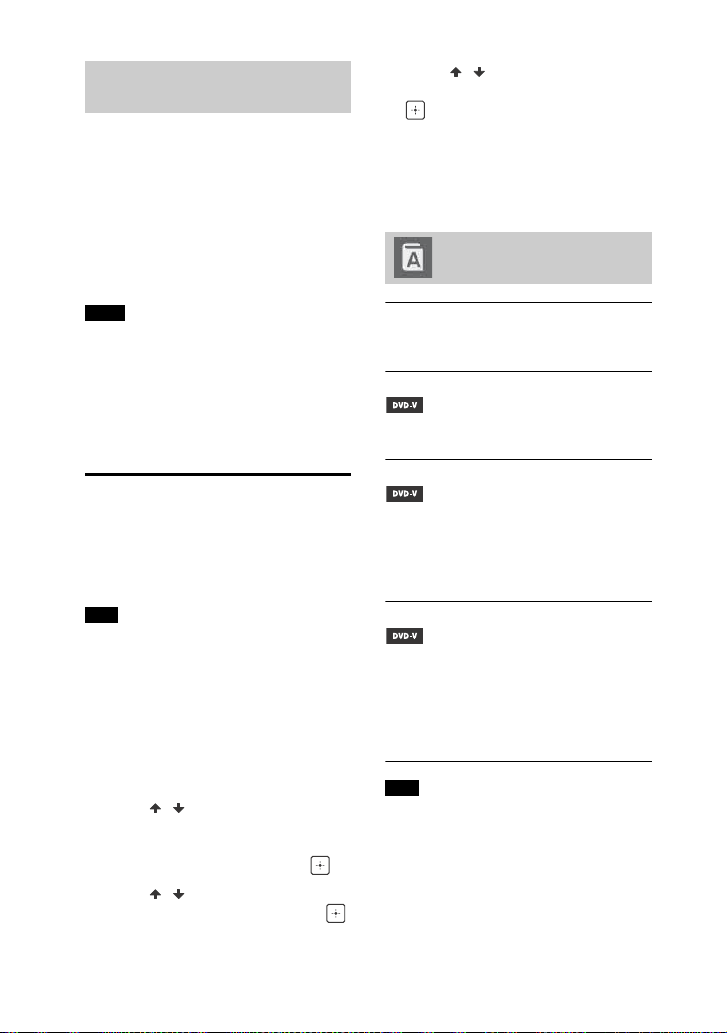
Playback information
Playing time, remaining time and
date information
1)
.
Bit rate
File type
Playback status
Title
2)
/track/file name
3)
Album
2)
/folder name
3)
/chapter/
index number
Artist name
2)3)
Appears when playing an audio file.
1)
Date information is displayed when the
Exif (Exchangeable Image File Format) is
recorded in the JPEG file. Exif is a digital
camera image format defined by the
Japan Electronics and Information
Technology Industries Association
(JEITA).
2)
If an audio file has an ID3 tag, the
system will display an album name/title
name/artist name from the ID3 tag
information. The system can support
ID3 ver 1.0/1.1/2.2/2.3.
3)
If the file or folder contains characters
which cannot be displayed, those
characters will be displayed as “_”.
Depending on the source being played,
some information may not be
displayed.
some characters cannot be displayed.
Depending on the play mode, the
information displayed may be different.
Displaying the audio
information
(DVD VIDEO and video files only)
Press AUDIO repeatedly during
playback.
Information on the TV
screen
Notes
26
GB
Press DISPLAY repeatedly when the
system is on.
You can view the information as
follows:
playing time, remaining time of track,
title, chapter
scene number
file name, folder name
title, artist and album information
The disc name or track name may not be
displayed depending on the text.
Playing time of MP3 files and video files
may not be displayed correctly.
The elapsed playing time of an audio file
encoded using a VBR (variable bit rate) is
not displayed correctly.
Using the Setup Menu
You can make various adjustments to
items such as picture and sound.
Displayed items vary depending on the
country or region.
Playback settings stored in the disc take
priority over the Setup Menu settings.
Therefore, some of the Setup Menu
settings may not be performed.
1 When playback is stopped, press
SETUP.
The Setup Menu appears on the TV
screen.
2 Press / repeatedly to select
[LANGUAGE SETUP], [VIDEO
SETUP], [AUDIO SETUP], or
[SYSTEM SETUP], then press .
3 Press / repeatedly to select
the item you want, then press .
4 Press / repeatedly to select
the setting you want, then press
.
The setting is selected and setup is
completed.
To exit the menu
Press SETUP.
[OSD]
Selects the language of the on-screen
display.
[MENU]
Selects the language for the DVD
menu.
[AUDIO]
Switches the language of the sound
track.
When you select [ORIGINAL], the
language given priority in the disc is
selected.
[SUBTITLE]
Switches the language of the subtitle
recorded on the DVD VIDEO.
When you select [AUDIO FOLLOW], the
language for the subtitles changes
according to the language you
selected for the sound track.
If you select [OTHERS ] in [MENU],
[AUDIO], and [SUBTITLE], enter a
language code from the “Language code
list” (page 58) using the numeric buttons.
Information in the display
panel
Notes
Note
Setting the language –
[LANGUAGE SETUP]
Note
27
GB
Disc/USB Playback
[TV TYPE]
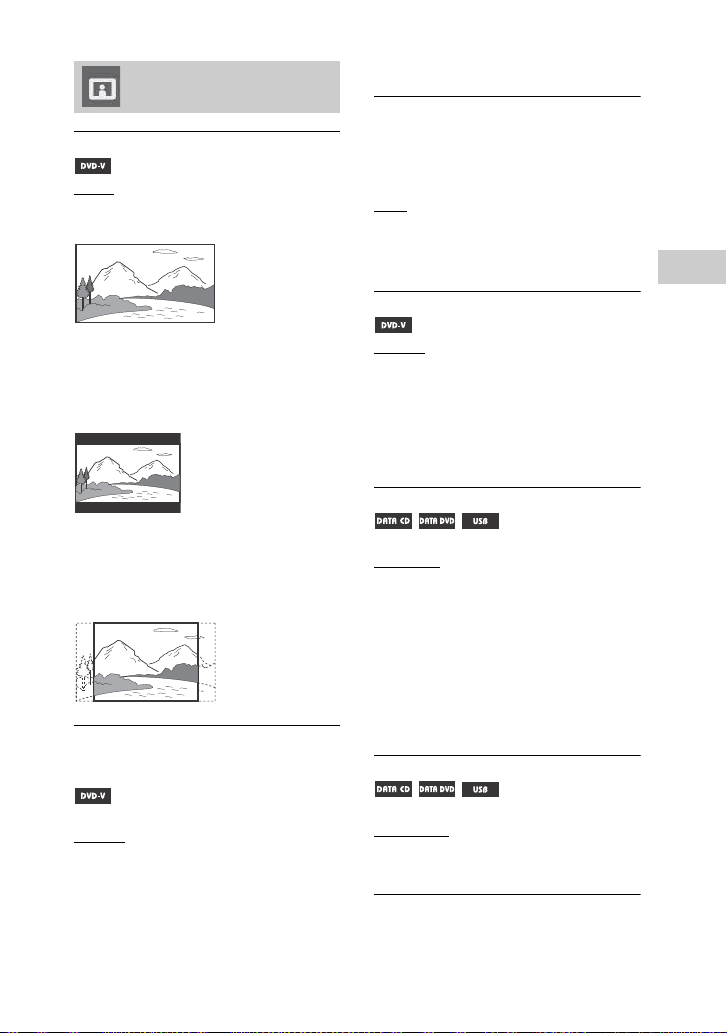
[16:9]: Selects this when you connect a
wide-screen TV or a TV with a wide
mode function.
[4:3 LETTER BOX]: Selects this when
you connect a 4:3 screen TV without a
wide mode function. This setting
displays a wide picture with black
bands on the top and bottom.
[4:3 PAN SCAN]: Selects this when you
connect a 4:3 screen TV without a wide
mode function. This setting displays a
full-height picture on the entire screen,
with trimmed sides.
[COLOR SYSTEM (VIDEO CD)]
(Except for Latin American, European,
and Russian models)
Selects the color system (PAL or NTSC).
[AUTO]: Outputs the video signal
according to the color system of the
disc. Select this setting if your TV uses
a DUAL system.
[PAL]: Outputs the video signal in PAL.
[NTSC]: Outputs the video signal in
NTSC.
For details, see “Changing the color
system” (page 17).
[BLACK LEVEL]
(For Latin American models only)
Selects the black level (setup level) for
the video signals output from the
VIDEO OUT jack.
[ON]: Sets the black level of the output
signal to the standard level.
[OFF]: Lowers the standard black level.
Use this when the picture becomes too
white.
[PAUSE MODE]
[AUTO]: The picture, including
subjects that move dynamically, is
output with no jitter. Normally select
this setting.
[FRAME]: The picture, including
subjects that do not move
dynamically, is output in high
resolution.
[PHOTO EFFECT]
(JPEG files only)
[MODE 1]: The image sweeps in from
top to bottom.
[MODE 2]: The image sweeps in from
left to right.
[MODE 3]: The image stretches out
from the center.
[MODE 4]: The image randomly cycles
through the effects.
[MODE 5]: The next image slides over
the current image.
[OFF]: Off.
[PHOTO INTERVAL]
(JPEG files only)
[NORMAL]/[FAST]/[SLOW 1]/
[SLOW 2]: Selects the slide show
duration. [SLOW 2] is slower than
[SLOW 1].
Setting the TV screen –
[VIDEO SETUP]
28
GB
[AUDIO DRC]
(Dynamic Range Compression)
Useful for watching movies at low
volume late at night.
[OFF]: Off.
[STANDARD]: The dynamic range is
compressed as intended by the
recording engineer.
[TRACK SELECTION]
[OFF]: Off.
[AUTO]: Gives priority to the sound
track which contains the highest
number of channels when you play
back a DVD VIDEO on which multiple
audio formats (PCM, MPEG, or Dolby
Digital) are recorded.
[SCORE MODE]
[BEGINNER 1]*/[BEGINNER 2]/
[EXPERT 1]*/[EXPERT 2]: Selects the
scoring mode to rate your singing
when in Karaoke Mode.
[DEMO]: Demonstration mode. The
score is displayed regardless of
singing.
* The score is displayed while singing.
[A/V SYNC]
(Video files only)
[OFF]: Off.
[ON]: Adjusts the delay between
picture and sound.
[DOWNMIX]
Selects the audio output signal for
playing a multi-channel audio.
[NORMAL]: Outputs multi-channel
audio into a 2-channel stereo signal.
[DOLBY SURROUND]: Outputs multi-
channel audio into a 2-channel
surround signal.
[SCREEN SAVER]
Prevents damage on the TV. Press any
button to cancel the screen saver.
[ON]: Turns on the screen saver
function if you do not operate the
system for about 15 minutes.
[OFF]: Off.
[BACKGROUND]
Selects the background color or picture
to be displayed on the TV screen.
[JACKET PICTURE]: The jacket picture
(still picture) that recorded on the disc
appears in the background.
[GRAPHICS]: A preset picture stored in
the system appears in the background.
[BLUE]: The background color is blue.
[BLACK]: The background color is
black.
[PARENTAL CONTROL]
Sets the playback restrictions. For
details, see “Restricting playback of
the disc” (page 24).
[MULTI-DISC RESUME]
[ON]: Stores the resume playback
point in the memory for up to 6 discs.
[OFF]: Only stores the resume
playback point for the current disc in
the system.
[RESET]
Returns SETUP settings to the default
settings. For details, see “Returning
the SETUP settings to the default”
(page 52).
Setting the audio
options – [AUDIO
SETUP]
Setting the system –
[SYSTEM SETUP]
29
GB
USB Transfer
Transferring music
You can transfer music from a sound
source to a USB device connected to
the (USB) 2 port.
The audio format of files transferred by
this system is MP3. However, you can
also transfer WMA and AAC files from
USB 1.
Do not remove the USB device during
transfer or erase operations. Doing so
may corrupt the data on the USB device
or damage the USB device itself.
MP3/WMA/AAC files are transferred
with the same bit rate as the original
files.
When transferring from TUNER FM,
AUDIO IN 1 or AUDIO IN 2 function or an
AUDIO CD, you may select the bit rate
before transferring.
USB transfer and erase operations are
prohibited when the disc tray is opened.
Note on copyright-protected
content
The transferred music is limited to
private use only. Use of the music
beyond this limit requires permission
of the copyright holders.
To select USB memory
See page 19.
To select the bit rate
You can select a higher bit rate to
transfer music with better quality.
1 Press OPTIONS.
2 Press / repeatedly to select “BIT
RATE”, then press .
3 Press / repeatedly to select the
bit rate you want, then press .
128 KBPS: encoded MP3 tracks
have smaller file size and lower
audio quality.
256 KBPS: encoded MP3 tracks
have bigger file size but higher
audio quality.
To exit OPTIONS menu, press
OPTIONS.
You can transfer music to a USB device
connected to (USB) 2 port as
follows:
Synchronized Transfer: Transfer all
supported music files from a disc or
USB 1 to USB 2.
REC1 Transfer: Transfer a single track
or audio file during playback.
Analog Transfer: Transfer sound from
TUNER, AUDIO IN 1, or AUDIO IN 2
function.
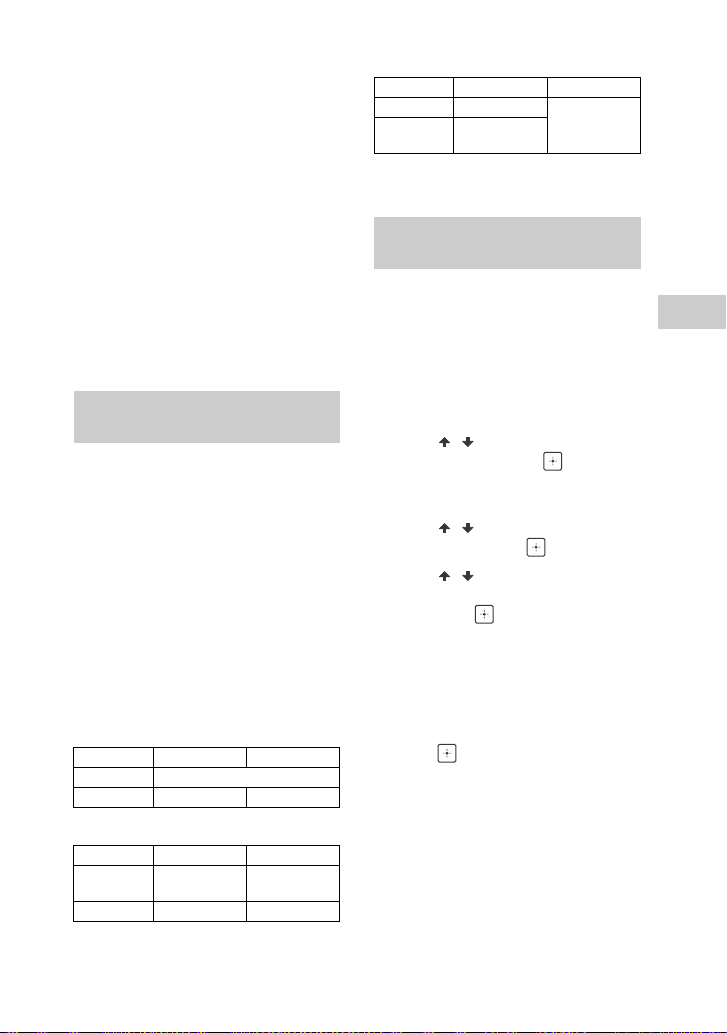
Use the buttons on the unit to perform
this operation.
1 Connect a transferable USB device
to the (USB) 2 port as shown
below.
USB Transfer
Notes
Transferring music from a
disc, a USB device or an
analog audio source
USB device

30
GB
2 For Synchronized Transfer and
REC1 Transfer:
(For disc)
Press FUNCTION, then turn the
MULTI CONTROL knob to select
“DVD/CD”, then press ENTER. If the
system starts playback
automatically, press twice to stop
the playback.
(For USB)
Press FUNCTION, then turn the
MULTI CONTROL knob to select
“USB 1”, then press ENTER. Connect
a USB device you want to transfer to
(USB) 1 port.
For Analog Transfer:
Press FUNCTION, then turn the
MULTI CONTROL knob to select the
source (“TUNER FM”/“AUDIO IN 1”/
“AUDIO IN 2”) you want to transfer,
then press ENTER.
3 For Synchronized Transfer:
When playback is stopped, press
PLAY MODE on the remote control
repeatedly to select the play mode
you want.
If you start transferring in [FOLDER
(SHUFFLE)], the selected play mode
changes to [FOLDER] automatically.
If you start transferring in Shuffle Play
(except [FOLDER (SHUFFLE)]), Repeat
Play or Program Play with no steps,
the selected play mode changes to
Normal Play automatically.
For REC1 Transfer:
Select the track or audio file you
want to transfer, then start
playback.
4 Press REC TO USB.
“PUSH ENTER” appears in the
display panel.
5 For Synchronized Transfer and
REC1 Transfer:
Press ENTER.
The transfer starts when “DO NOT
REMOVE” appears in the display
panel.
For Analog Transfer:
Press ENTER and start playing the
source.
The transfer starts when “DO NOT
REMOVE” appears in the display
panel.
When the transfer is completed
The disc or the USB device stops
automatically (for Synchronized
Transfer) or continues to play (for REC1
Transfer).
To stop transfer
Press .
To create a new MP3 file (for
Analog Transfer only)
Press REC TO USB during Analog
Transfer.
“NEW TRACK” appears in the display
panel.
A new MP3 file is also created
automatically after approximately
1 hour of transfer.
When a new MP3 file is created, transfer
is disabled for the time being.
If you press REC TO USB again after a few
seconds, a new MP3 file can be created.
Notes on transfer
While transferring (except Analog
Transfer), no sound is output.
CD-TEXT information is not transferred
in the created MP3 files.
The transfer stops automatically if:
the USB device runs out of space
during transfer.
the number of audio files or folders on
the USB device reaches the limit.
Notes
Notes
31
GB
USB Transfer
If a folder or file that you are trying to
transfer already exists on the USB device
with the same name, a sequential
number is added after the name without
overwriting the original folder or file.
You cannot perform the following
operations during a transfer:
Eject the disc.
Select another track or file.
Pause playback or find a point in the
track or file.
Change the function or tuner band.
When transferring music to a Walkman®
using “Media Manager for WALKMAN”,
be sure to transfer in MP3 format.
When connecting a Walkman® to the
system, be sure to connect after the
display “Creating Library” or “Creating
Database” on the Walkman® has
disappeared.
Maximum number of MP3 files
that can be generated
298 folders
650 files in a folder
650 files in REC1-CD or REC1-MP3
folder.
These numbers may vary depending
on the file or folder configuration.
When transferring onto a USB device, a
“MUSIC” folder is created directly
below “ROOT”. Folders and files are
generated within this “MUSIC” folder
according to the transferring method
and source.
Synchronized Transfer
REC1 Transfer
Analog Transfer
* Folder and file numbers are assigned
serially thereafter.
1 Press FUNCTION +/– repeatedly to
select “USB 1” or “USB 2”.
2 Press MEDIA MODE repeatedly to
select [MUSIC].
3 When playback is stopped, press
OPTIONS.
4 Press / repeatedly to select
“ERASE”, then press .
The Folder List is displayed on the
TV screen.
5 Press / repeatedly to select a
folder, then press .
6 Press / repeatedly to select
the audio file you want to erase,
then press .
Select [ALL TRACKS] to select all
audio files in the folder.
“FOLDER ERASE” or “TRACK ERASE”
and “PUSH ENTER” appears in the
display panel.
To cancel, press .
7 Press .
“COMPLETE” appears in the display
panel.
To exit OPTIONS menu, press
OPTIONS.
Folder and file generation
rules
Source Folder name File name
Audio files Same as the source
AUDIO CD “CDDA0001”* “TRACK001”*
Source Folder name File name
Audio files “REC1-MP3” Same as the
source
AUDIO CD “REC1-CD” “TRACK001”*
Source Folder name File name
FM “TUFM0001”* “TRACK001”*
AUDIO IN 1/
AUDIO IN 2
“EXAU0001”*
Erasing audio files or
folders on the USB device

32
GB
A folder that contains non-MP3/WMA/
AAC format audio files or sub folders
cannot be erased.
You cannot erase audio files or folders
when Shuffle Play or Program Play has
been selected. Set the play mode to
Normal Play before erasing.
Erase operation is prohibited when the
disc tray is opened.
Listening to the radio
1 Press FUNCTION +/– repeatedly to
select the tuner function.
You can also use the buttons on the
unit. Press FUNCTION, then turn the
MULTI CONTROL knob to select
“TUNER FM”, then press ENTER.
2 Select the radio station.
For automatic tuning:
Hold down TUNING+/– until the
frequency indication changes and
then release.
Scanning stops automatically when
a station is tuned in. “ST” (for FM
stereo programs only) lights up in
the display panel.
If scanning does not stop, press
to stop scanning. Then, perform
manual tuning (below).
For manual tuning:
Press TUNING+/– repeatedly to tune
to the station you want.
When you tune to an FM station that
provides RDS services, information such
as the service name or station name is
provided by broadcasts. You can check
the RDS information by pressing DISPLAY
repeatedly.
To reduce static noise on a weak FM
stereo station, press FM MODE repeatedly
until “ST” disappears from the display
panel. You will lose the stereo effect, but
reception will improve.
Notes
Tuner
Note
Tip
33
GB
Tuner/BLUETOOTH
You can store up to 20 FM stations as
your favorite stations.
1 Tune to the station you want.
2 Press DVD/TUNER MENU.
3 Press / repeatedly to select
the preset number you want, then
press .
“COMPLETE” appears in the display
panel. The station is stored.
If another station is already
assigned to the selected preset
number, that station is replaced by
the new one.
To tune to a preset station
Press PRESET+/– repeatedly to select
the preset number you want.
You can also hold down SHIFT, then
press the numeric buttons, and then
press to select a preset station.
About the BLUETOOTH
wireless technology
BLUETOOTH wireless technology is a
short-range wireless technology that
enables wireless data communication
between digital devices. BLUETOOTH
wireless technology operates within a
range of about 10 meters.
Supported BLUETOOTH version,
profiles and codecs
For details, see “BLUETOOTH section”
(page 56).
Compatible BLUETOOTH devices
For details, see “Websites for
compatible devices” (page 9).
The BLUETOOTH indicator on the unit
lights up or flashes in blue to show the
BLUETOOTH status.
Pairing is an operation where
BLUETOOTH devices register with each
other beforehand. Once a pairing
operation is performed, it does not
need to be performed again.
Presetting radio stations
BLUETOOTH
About the BLUETOOTH
indicator
System status Indicator status
BLUETOOTH standby Flashes slowly
BLUETOOTH pairing Flashes quickly
BLUETOOTH connection
is established
Lights up
Pairing this system with a
BLUETOOTH device

34
GB
1 Place the BLUETOOTH device
within 1 meter from the system.
2 Press BLUETOOTH on the unit to
select BLUETOOTH function.
“BT AUDIO” appears in the display
panel.
If the system is connected to a
BLUETOOTH device, press BLUETOOTH
on the unit to disconnect the
BLUETOOTH device.
3 Hold down PAIRING on the unit for
2 seconds or more.
“PAIRING” flashes in the display
panel.
4 Perform the pairing procedure on
the BLUETOOTH device.
For details, refer to the operating
instructions of your BLUETOOTH
device.
5 Select “MHC-V7D” on the device’s
display.
Perform this step within 5 minutes,
otherwise pairing will be canceled.
In this case, repeat from step 1.
If passkey is required on the
BLUETOOTH device, enter “0000”.
“Passkey” may be called “Passcode”,
“PIN code”, “PIN number”, or
“Password”.
6 Perform the BLUETOOTH
connection on the BLUETOOTH
device.
The BLUETOOTH device name
appears in the display panel.
Depending on the BLUETOOTH
device, connection may start
automatically after pairing is
completed.
You can check the BLUETOOTH
device address by pressing DISPLAY
repeatedly.
You can pair up to 9 BLUETOOTH
devices. If the 10th BLUETOOTH device is
paired, the oldest paired device will be
deleted.
If you want to pair with another
BLUETOOTH device, repeat steps 1 to 6.
To cancel pairing operation
Hold down PAIRING on the unit for
2 seconds or more until “BT AUDIO”
appears in the display panel.
You can operate a BLUETOOTH device
by connecting the system and the
BLUETOOTH device using AVRCP.
Once the system and BLUETOOTH
device is connected, you can control
playback by pressing , , ,
/ and /.
Check the following before playing
music:
The BLUETOOTH function of the
BLUETOOTH device is turned on.
The pairing has been completed
(page 33).
1 Press BLUETOOTH on the unit to
select BLUETOOTH function.
“BT AUDIO” appears in the display
panel.
2 Establish connection with the
BLUETOOTH device.
Press BLUETOOTH on the unit to
connect to the last connected
BLUETOOTH device.
Perform the BLUETOOTH
connection from the BLUETOOTH
device if the device is not
connected.
Once the connection is established,
the BLUETOOTH device name
appears in the display panel.
Note
Note
Notes
Playing music from a
BLUETOOTH device
35
GB
BLUETOOTH
3 Press to start playback.
Depending on the BLUETOOTH
device,
you may have to press twice.
you may need to start playing an
audio source on the BLUETOOTH
device.
4 Adjust the volume.
Adjust the volume of the
BLUETOOTH device first, if the
volume level is still too low, adjust
the volume level on the system.
When the system is not connected to
any BLUETOOTH device, the system will
connect to the last connected
BLUETOOTH device automatically when
you press BLUETOOTH on the unit or .
If you try to connect another
BLUETOOTH device to the system, the
current connected BLUETOOTH device
will be disconnected.
To disconnect the BLUETOOTH
device
Press BLUETOOTH on the unit.
“BT AUDIO” appears in the display
panel.
Depending on the BLUETOOTH device,
the BLUETOOTH connection may be
canceled automatically when you stop
playback.
To delete pairing information
Use the buttons on the unit to perform
this operation.
1 Press BLUETOOTH to select
BLUETOOTH function.
“BT AUDIO” appears in the display
panel.
If the system is connected to a
BLUETOOTH device, the BLUETOOTH
device name appears in the display
panel. Press BLUETOOTH to
disconnect the BLUETOOTH device.
2 Hold down ENTER and – for
about 3 seconds.
“BT HIST CLEAR” appears in the
display panel and all the pairing
information is erased.
One Touch BLUETOOTH
Connection by NFC
NFC (Near Field Communication) is a
technology enabling short-range
wireless communication between
various devices, such as smartphones
and IC tags.
When you touch the system with an
NFC-compatible smartphone, the
system automatically:
turns on in BLUETOOTH function.
completes the pairing and
BLUETOOTH connection.
The system only can recognizes and
connects to one NFC-compatible
smartphone at a time. If you try to
connect another NFC-compatible
smartphone to the system, the current
connected NFC-compatible smartphone
will be disconnected.
Depending on your NFC-compatible
smartphone, you may need to perform
the following items on your NFC-
compatible smartphone in advance.
Turn on the NFC function. For details,
refer to the operating instructions of
the NFC-compatible smartphone.
Notes
Compatible smartphones
Smartphones with a built-in NFC
function (OS: Android 2.3.3 or
later, excluding Android 3.x)
Notes

36
GB
If your NFC-compatible smartphone is
having an older OS version than
Android 4.1.x, download and start the
“NFC Easy Connect” application. “NFC
Easy Connect” is a free application for
Android smartphone that can be
obtained from Google Play. (The
application may not be available in
some countries/regions.)
1 Touch the smartphone to the
N-Mark on the unit until the
smartphone vibrates.
Complete the connection by
following the instructions displayed
on the smartphone.
When the BLUETOOTH connection
is established, the BLUETOOTH
device name appears in the display
panel.
2 Start playback of an audio source
on the smartphone.
For details, refer to the operating
instructions of your BLUETOOTH
device.
If pairing and the BLUETOOTH connection
fail, do the following.
Remove the case from the smartphone
if using a commercially available
smartphone case.
Touch the smartphone to the N-Mark on
the unit again.
Relaunch “NFC Easy Connect”
application.
To disconnect the smartphone
Touch the smartphone to the N-Mark
on the unit again.
Setting the BLUETOOTH
audio codecs
You can receive data in AAC or SBC
codec format from a BLUETOOTH
device.
1 Press OPTIONS.
2 Press / repeatedly to select
“BT AAC”, then press .
3 Press / repeatedly to select
the setting.
ON: Enable reception in AAC
codec format.
OFF: Receive in SBC codec format.
To exit the options menu, press
OPTIONS.
You can enjoy high quality sound if the
AAC is selected. In case you cannot
listen to AAC sound from your device or
the sound is interrupted, select “OFF”.
If you change this setting when the
system is connected to a BLUETOOTH
device, the BLUETOOTH device will be
disconnected. To connect to the
BLUETOOTH device, perform the
BLUETOOTH connection again.
Setting the BLUETOOTH
standby mode
The BLUETOOTH standby mode
enables the system to turn on
automatically when you establish the
BLUETOOTH connection from a
BLUETOOTH device.
1 Press OPTIONS.
2 Press / repeatedly to select
“BT STBY”, then press .
Tip
Notes
37
GB
BLUETOOTH
3 Press / repeatedly to select
the setting.
ON: The system turns on
automatically when you establish
a BLUETOOTH connection from a
BLUETOOTH device.
OFF: Turns off this function.
To exit the options menu, press
OPTIONS.
Setting the BLUETOOTH
signal
You can connect to the system from a
paired BLUETOOTH device in all
functions when BLUETOOTH signal is
set to on. The BLUETOOTH signal is
turned on by default.
Use the buttons on the unit to perform
this operation.
Hold down ENTER and + for about
3 seconds.
“BT ON” or “BT OFF” appears in the
display panel.
You cannot perform the following
operations when BLUETOOTH signal is
set to off:
Pairing and/or connecting with
BLUETOOTH device
Erasing the pairing information
Using “SongPal” via BLUETOOTH
Change the BLUETOOTH audio codecs
If you touch the system with an NFC-
compatible smartphone or set the
BLUETOOTH standby mode to on, the
BLUETOOTH signals will set to on
automatically.
Using “SongPal” via
BLUETOOTH
About App
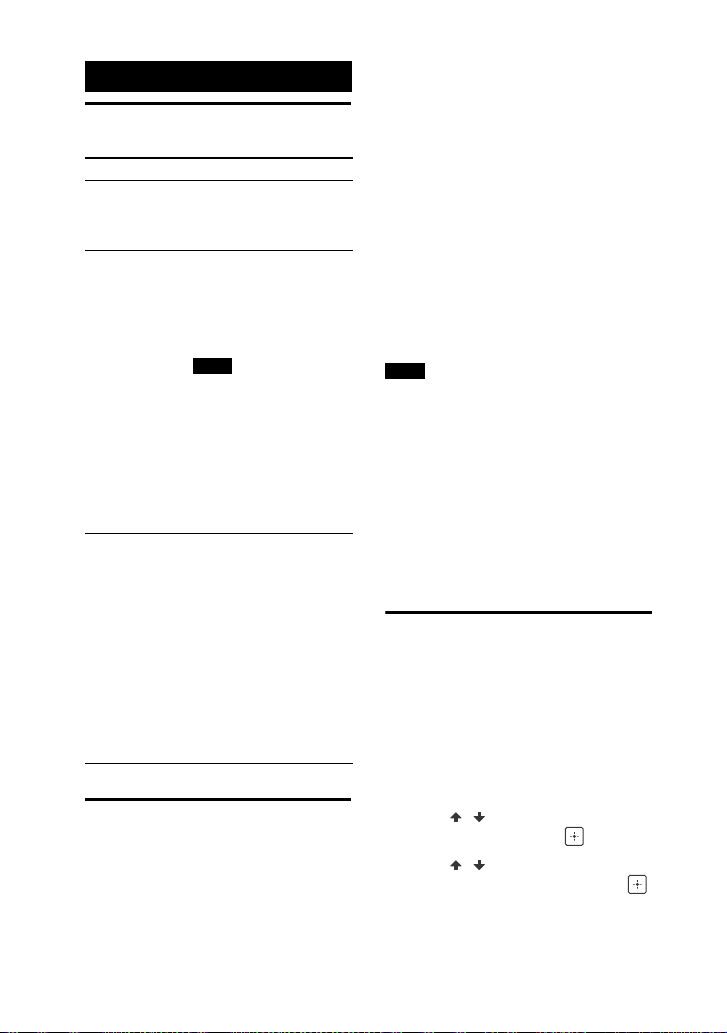
A dedicated App for this model is
available on both Google Play and App
Store. Search for “SongPal” or scan the
QR code below then download the free
App to find out more about the
convenient features.
BLUETOOTH technology works with
iPhone 6 Plus, iPhone 6, iPhone 5s,
iPhone 5c, iPhone 5, iPhone 4s,
iPhone 4, iPhone 3GS, iPod touch
(5th generation), iPod touch
(4th generation).
If “SongPal” application does not work
properly, disconnect and connect the
BLUETOOTH device by pressing
BLUETOOTH on the unit (page 34).
Notes
Note
38
GB
Adjusting the sound
Selecting the Virtual
Football mode
You can experience a feeling of
presence in the stadium when
watching the football match
broadcast.
Press FOOTBALL repeatedly while
watching a football match broadcast.
ON NARRATION: You can enjoy an
immersive feeling of being in a
football stadium through enhanced
stadium cheers.
OFF NARRATION: You can enjoy a
more immersive feeling of being in a
football stadium by minimizing the
volume level of narration in addition
to the enhancement of cheers.
To cancel the Virtual Football
mode
Press MUSIC repeatedly to select
“FLAT”.
We recommend you to select the
football mode when watching a football
match broadcast.
If you hear unnatural sound in the
content when “OFF NARRATION” is
selected, “ON NARRATION” is
recommended.
This feature does not support monaural
sound.
You can only select the Virtual Football
mode during AUDIO IN 1 or AUDIO IN 2
function.
Creating your own
sound effect
You can raise or lower the levels of
specific frequency bands, then store
the setting in the memory as “CUSTOM
EQ”.
1 Press OPTIONS.
2 Press / repeatedly to select
“EQ EDIT”, then press .
3 Press / repeatedly to adjust
the equalizer level, then press .
Sound Adjustment
To Do this
Reinforce the
bass and create a
more powerful
sound
Press MEGA BASS on the
unit.
Reduce the bass
sound (BASS
CUT)
Hold down MEGA BASS on
the unit for 2 seconds or
more.
To cancel the BASS CUT
effect, press MEGA BASS
on the unit again.
Notes
The MEGA BASS
indicator on the unit
flashes when BASS CUT
effect is turned on.
The BASS CUT effect is
turned off automatically
when you turn off the
system or activate the
Football mode
(page 38).
Select a preset
sound effect
Press MUSIC or VIDEO.
You can also use the
buttons on the unit. Press
SOUND FIELD, then turn
the MULTI CONTROL knob
to select the sound effect
you want, then press
ENTER.
To cancel preset sound
effect, press MUSIC
repeatedly to select
“FLAT”. You can also use
the buttons on the unit to
select “FLAT”.
Notes
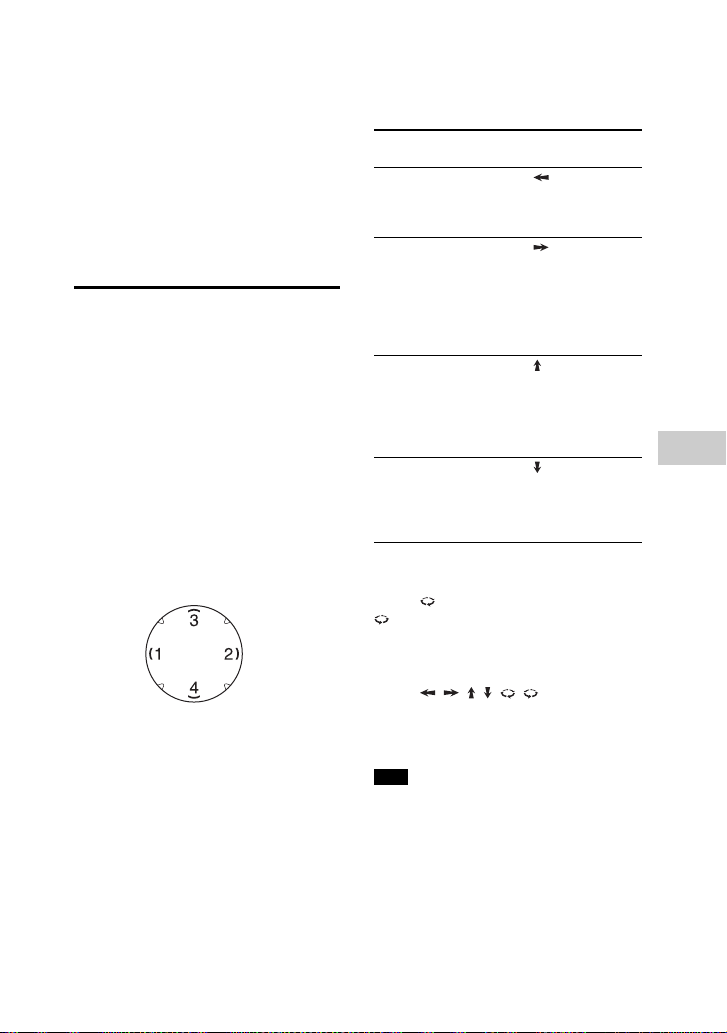
39
GB
Sound Adjustment
4 Repeat step 3 to adjust the level of
other frequency bands and
surround effect.
To exit the options menu, press
OPTIONS.
To select the custom equalizer
setting
Press MUSIC repeatedly to select
“CUSTOM EQ”.
Creating a party
atmosphere
(DJ Effect)
Use the buttons and GESTURE
CONTROL on the unit to perform this
operation.
1 Press GESTURE ON/OFF to activate
the Motion Gesture function.
The GESTURE CONTROL lights up.
2 Tap on zone 1 or zone 2 repeatedly
to select “DJ” or “SAMPLER”
mode.
The selected GESTURE CONTROL
mode indicator lights up.
3 For DJ mode:
Swipe your hand over the GESTURE
CONTROL.
Tap on zone 3 or zone 4 to turn off the
effect.
Swipe (clockwise) or
(anticlockwise) to adjust the effect
level.
For “SAMPLER” mode:
Swipe , , , , , to output the
SAMPLER sound effects.
You can also tap on zone 3 or zone 4 to
output drum sound.
Make sure your hand does not touch the
GESTURE CONTROL when you perform
the swiping motion.
To deactivate the Motion
Gesture
Press GESTURE ON/OFF.
The GESTURE CONTROL lights off.
DJ Effect Swipe in this
direction
FLANGER:
Creates a deep flanging
effect that is similar to the
roar of a jet plane.
(zone 2 to
zone 1)
ISOLATOR:
Isolates a specific
frequency band by
adjusting the other
frequency bands. For
example, when you want
to focus on vocals.
(zone 1 to
zone 2)
WAH:
Create a special effect of
“Wah-wah” sound by
moving the frequency of a
filter up and down
automatically.
(zone 4 to
zone 3)
PAN:
Create a feeling that the
sound is moving around
the speakers between left
and right channels.
(zone 3 to
zone 4)
Note
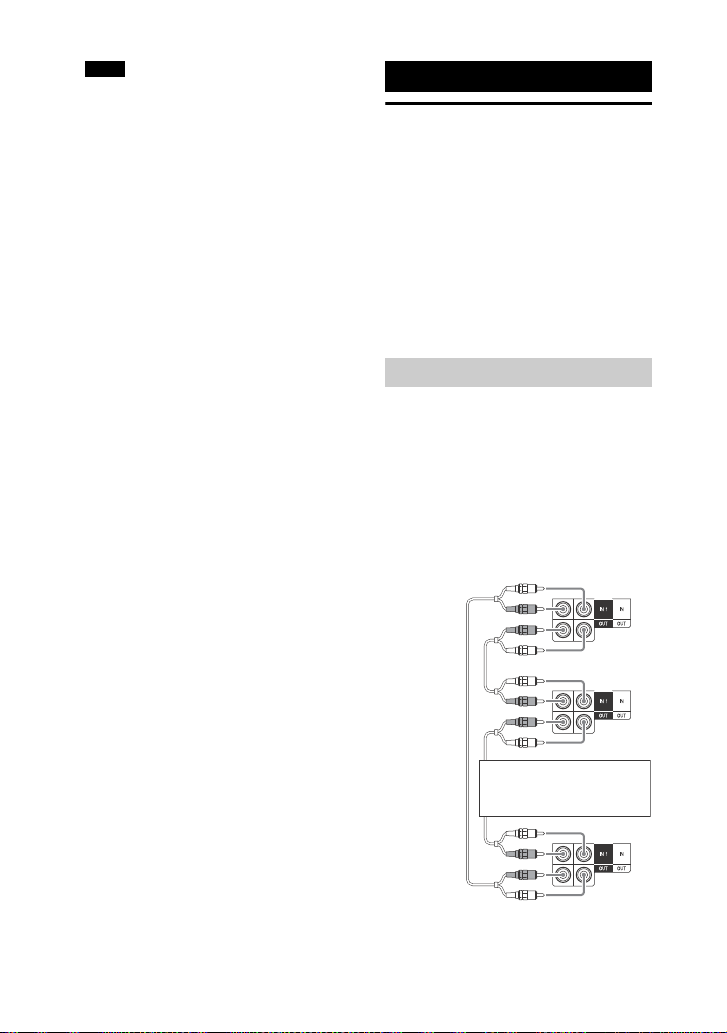
40
GB
The DJ EFFECT is canceled automatically
when you:
turn off the system
change the function
change the tuner band
activate or deactivate the PARTY
CHAIN function
activate the Football mode
If you activate the DJ EFFECT during
transferring, the sound effect will not be
transferred onto the USB device.
Using the Party Chain
function
You can connect multiple audio
systems in a chain to create a more
interesting party environment and to
produce higher sound output.
Activate a system in the chain to be the
“Party Host” and share the music.
Other systems will become “Party
Guest” and play the same music as the
“Party Host”.
Set up a Party Chain by connecting all
the systems using audio cords (not
supplied).
Before connecting cords, be sure to
disconnect the AC power cord (mains
lead).
If all the systems are equipped
with Party Chain function
Notes
Other Operations
Setting up the Party Chain
First system
Continue the connection
until the last system
Second
system
Last system
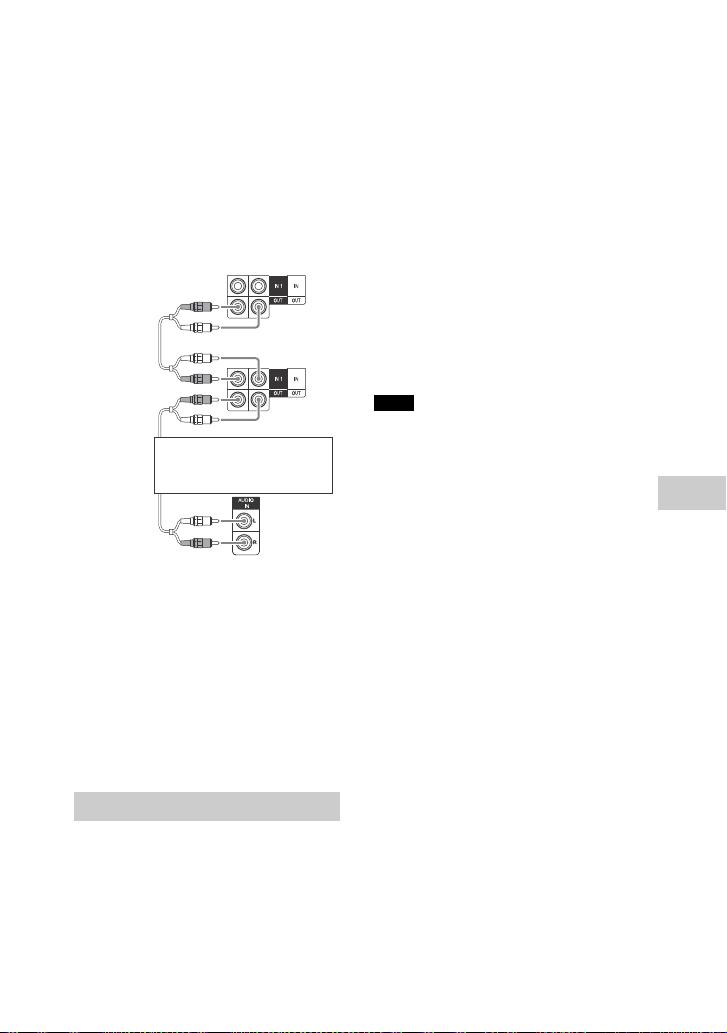
41
GB
Other Operations
The last system must be connected
to the first system.
Any system can become a Party Host.
You can select a new Party Host
when Party Chain function is
activated. For details, see “To select a
new Party Host” (page 41).
If one of the system is not
equipped with Party Chain
function
The last system is not connected to
the first system.
Connect the system which is not
equipped with Party Chain function
at the last system. Be sure to select
the audio in function on the last
system.
You must select the first system as
Party Host so that all systems are
playing the same music when Party
Chain function is activated.
Use the buttons on the unit to perform
this operation.
1 Plug in the AC power cord (mains
lead) and turn on all the systems.
2 Adjust the volume on each
system.
3 Activate the Party Chain function
on the system which you want it
to be the Party Host.
Press FUNCTION, then turn the
MULTI CONTROL knob to select the
function you want (except AUDIO IN
in connection (page 40)), then
press ENTER. Start playback the
music, then press PARTY CHAIN.
“PARTY CHAIN” appears in the
display panel. The system starts the
party as Party Host and other
systems will become Party Guest
automatically. All systems play the
same music as the Party Host.
Depending on the total unit of systems
you have connected, Party Guest may
take some time to start playing the
music.
Changing the volume level and sound
effect on the Party Host will not affect
the output on the Party Guest.
The Party Guest continues playing the
music source as Party Host even when
you change the function on Party Guest.
However, you can adjust the volume
and change the sound effect on Party
Guest.
When you use the microphone on Party
Host, the sound will not be output from
Party Guest.
When one of the system in the
connection is performing USB transfer,
wait the system to complete or stop the
transfer before you activate the Party
Chain function.
For detailed operation on other systems,
refer to the operating instructions of the
systems.
To select a new Party Host
Repeat step 3 of “Enjoying the Party
Chain” on the system which you want it
to be a new Party Host.
The current Party Host will become
Party Guest automatically. All systems
play the same music as the new Party
Host.
Enjoying the Party Chain
First system
Continue the connection
until the last system
Second
system
Last system
Notes
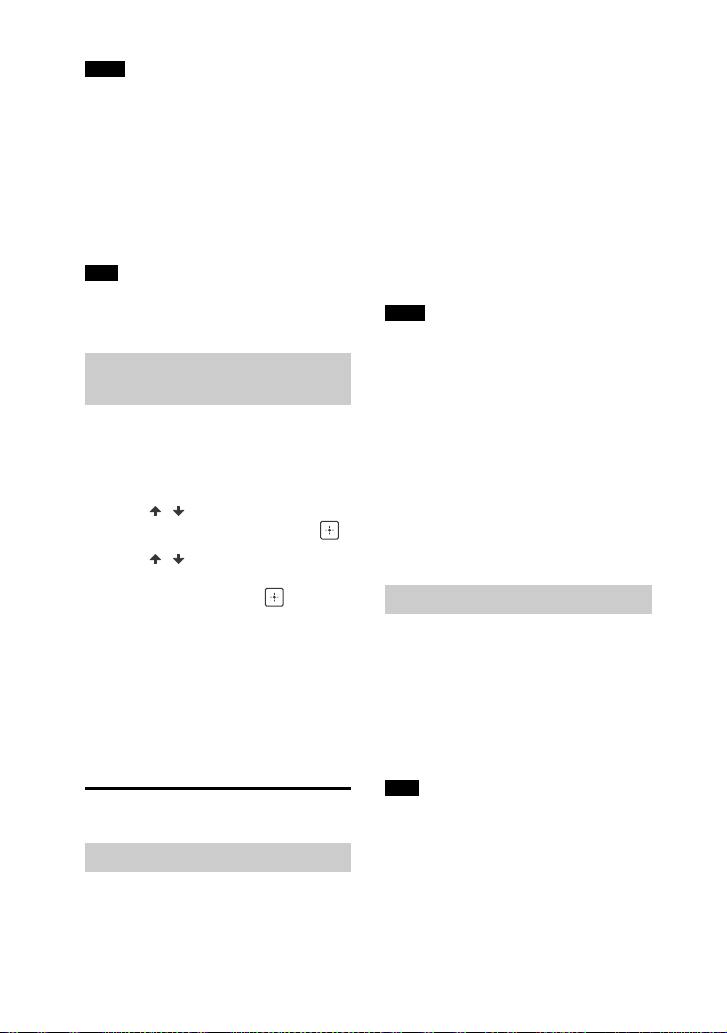
42
GB
You can only select another system as
the new Party Host after all the systems
have completed the Party Chain
function.
Repeat the step above if the selected
system does not change as a new Party
Host after a few seconds.
To deactivate the Party Chain
On the Party Host, press PARTY CHAIN.
Repeat the step above if the system does
not deactivate the Party Chain after a few
seconds.
You can set the sound mode when the
Party Chain function is activated.
1 Press OPTIONS.
2 Press / repeatedly to select
“P
`
CHAIN MODE”, then press .
3 Press / repeatedly to select
“STEREO”, “RIGHT CH” or
“LEFT CH”, then press .
STEREO: outputs the stereo
sound.
RIGHT CH: outputs the monaural
sound of the right channel.
LEFT CH: outputs the monaural
sound of the left channel.
To exit the options menu, press
OPTIONS.
Singing along: Karaoke
1 Turn MIC LEVEL on the unit to MIN
to reduce the microphone volume
level.
2 Connect an optional microphone
to MIC 1 or MIC 2 jack on the unit.
Connect another optional
microphone if you want to sing in
duet.
3 Start playing the music and adjust
the microphone volume. Press
MIC ECHO repeatedly to adjust the
echo effect.
4 Start singing along with the
music.
Karaoke Mode is turned on when the
microphone is connected during
DVD/CD, USB 1, or USB 2 function.
If howling occurs:
move the microphone away from the
system.
change the direction of the
microphone.
lower the MIC LEVEL.
press – to reduce the volume level
or press MIC ECHO repeatedly to
adjust the echo level.
The sound from the microphone will not
be transferred to the USB device during
USB transfer.
You can reduce the sound of the vocal
in stereo source.
Press VOCAL FADER repeatedly to
select “V
`
FADER ON”.
To cancel Vocal Fader effect, press
VOCAL FADER repeatedly to select
“V
`
FADER OFF”.
To use the Vocal Fader during DVD/CD,
USB 1, or USB 2 function, be sure to turn
on the Karaoke Mode by connecting the
microphone.
Notes
Note
Setting the Party Chain
sound mode
Preparing for karaoke
Notes
Using Vocal Fader
Note
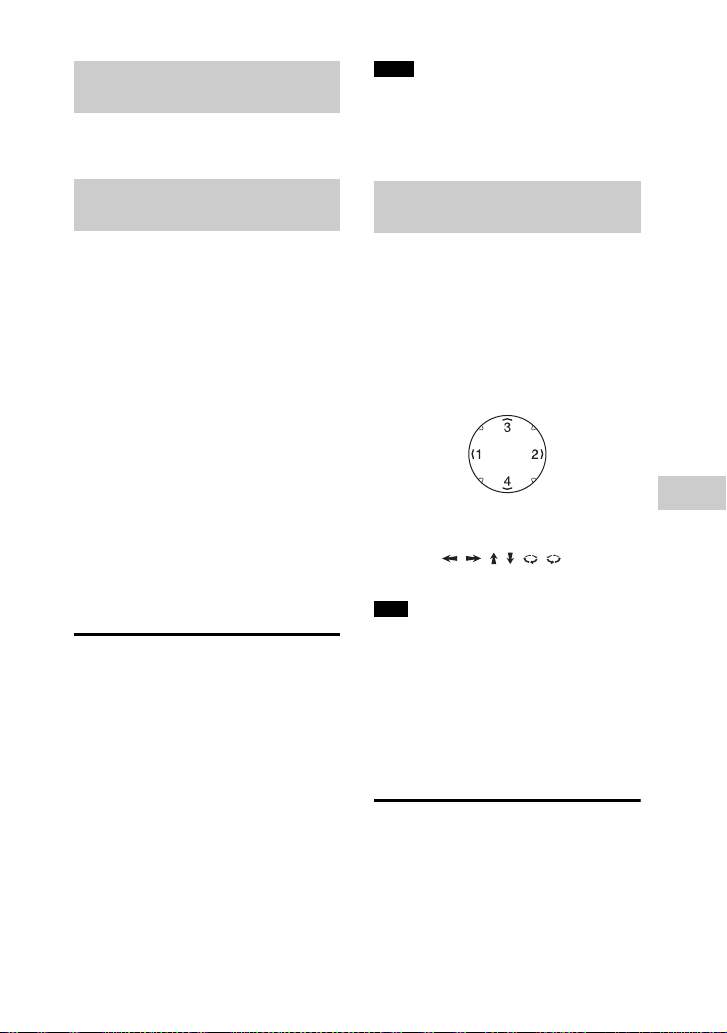
43
GB
Other Operations
Press KEY CONTROL / to suit your
vocal range in Karaoke Mode.
When Karaoke Mode is turned on, you
can use the scoring mode.
Your score is calculated from a scale of
0 to 99 by comparing your voice with
the music source.
1 Start playing the music.
2 Press SCORE before singing a
song in Karaoke Mode.
3 After singing for more than a
minute, press SCORE again to
view your score.
To select the rating of the Score
Mode
See [SCORE MODE] in “Setting the
audio options – [AUDIO SETUP]”
(page 28).
Enjoying the Party Light
Press PARTY LIGHT repeatedly to
select “LED ON”.
Press LIGHT MODE repeatedly to
change the illumination mode. You
can select “ALL ON”, “WALL” or
“FLOOR”.
You can also use the buttons on the
unit. Press LIGHT MODE, then turn the
MULTI CONTROL knob to select “ALL
ON”, “WALL”, or “FLOOR”, then press
ENTER.
To turn off Party Light, press PARTY
LIGHT repeatedly to select “LED OFF”.
Do not look directly at the light emitting
part when the Party Light is turned on.
If the illumination brightness is glaring,
switch on the room lights or turn off the
illumination.
Use the GESTURE CONTROL on the unit
to perform this operation.
1 Press GESTURE ON/OFF to activate
the Motion Gesture function.
The GESTURE CONTROL lights up.
2 Tap on zone 1 or zone 2 repeatedly
to select “LIGHT” mode.
The GESTURE CONTROL mode
indicator lights up.
3 Swipe , , , , , to change
the LED pattern.
Make sure your hand does not touch the
GESTURE CONTROL when you perform
the swiping motion.
To deactivate the Motion
Gesture
Press GESTURE ON/OFF.
The GESTURE CONTROL lights off.
Using the timers
The system offers three timer
functions. You cannot activate both
the Play Timer and the Recording
Timer at the same time. If you use
either with the Sleep Timer, the Sleep
Timer has priority.
Changing the key (Key
Control)
Selecting the scoring mode
(Score Mode)
Notes
Changing the lighting
effects
Note
44
GB
The system turns off automatically
after the preset time.
Press SLEEP repeatedly.
To cancel Sleep Timer, press SLEEP
repeatedly to select “OFF”.
To check the remaining time before the
system turns off, press SLEEP.
Make sure you have set the clock
(page 17).
Play Timer:
You can set the system to turn on and
play a disc, USB device, or radio station
automatically at the preset time.
Recording Timer:
You can transfer music from a preset
radio station to a USB device at a
specified time.
1 For Play Timer:
Prepare the sound source, then
press +/– to adjust the volume.
To start from a specific track or file,
create your own program (page 23).
For Recording Timer:
Tune to the preset radio station
(page 33).
2 Hold down SHIFT, then press
TIMER MENU.
3 Press / repeatedly to select
“PLAY SET” or “REC SET”, then
press .
4 Set the time to start playback or
transfer.
Press / repeatedly to set the
hour/minute, then press .
5 Use the same procedure as in step
4 to set the time to stop playback
or transfer.
6 Press / repeatedly to select
the sound source you want, then
press .
For Recording Timer:
Connect a transferable USB device
to the (USB) 2 port.
7 Press to turn off the system.
To check the timer setting or
activate the timer again
1 Hold down SHIFT, then press TIMER
MENU.
“TIMERSEL” flashes in the display
panel.
2 Press .
3 Press / repeatedly to select
“PLAY SEL” or “REC SEL”, then press
.
To cancel the timer
Repeat the same procedure as above
and select “OFF” in step 3, then press
.
The system turns on before the preset
time. If the system is turned on at the
preset time or if “STANDBY” flashes in
the display panel, the Play Timer and the
Recording Timer will not play or transfer.
Do not operate the system from the time
the system turns on until the playback or
transfer starts.
Using optional
equipment
1 Press – repeatedly until “VOL
MIN” appears in the display panel.
Sleep Timer
Tip
Play Timer/Recording
Timer
Notes
45
GB
Other Operations
2 Connect an optional equipment
(page 15).
3 Press FUNCTION +/– repeatedly to
select the function which
corresponds to the connected
equipment.
4 Start playing the connected
equipment.
5 Press + repeatedly to adjust the
volume.
The system may enter standby mode
automatically if the volume level of the
connected equipment is too low. Adjust
the volume level of the equipment. To
turn off automatic standby function, see
“Setting the automatic standby function”
(page 45).
Deactivating the
buttons on the unit
(Child Lock)
You can deactivate the buttons on the
unit (except ) to prevent
misoperation, such as child mischief.
Hold down on the unit for more
than 5 seconds.
“CHILD LOCK ON” appears in the
display panel.
You can only operate the system using
the buttons on the remote control.
To cancel, hold down on the unit for
more than 5 seconds until “CHILD LOCK
OFF” appears in the display panel.
Child Lock function will be canceled
when you disconnect the AC power cord
(mains lead).
Child Lock function cannot be activated
when you open the disc tray.
Setting the automatic
standby function
The system enters standby mode
automatically in about 15 minutes
when there is no operation or audio
signal output.
By default, the automatic standby
function is turned on.
1 Press OPTIONS.
2 Press / repeatedly to select
“AutoSTBY”, then press .
3 Press / repeatedly to select
“ON” or “OFF”.
To exit the options menu, press
OPTIONS.
“AutoSTBY” flashes in the display panel
about 2 minutes before entering
standby mode.
The automatic standby function does
not work in the following cases:
during tuner function.
when the timer is activated.
when microphone is connected.
Updating the software
The software of this system may be
updated in the future. You can update
the software from the websites below.
For customers in Latin America:
<http://esupport.sony.com/LA>
For customers in Europe and Russia:
<http://www.sony.eu/support>
For customers in other countries/
regions:
<http://www.sony-asia.com/support>
Follow the online instructions to
update the software.
Note
Notes
Notes

46
GB
Troubleshooting
Should you encounter a problem with
your system, find your problem in the
troubleshooting checklist below and
take the corrective action.
If the problem persists, consult your
nearest Sony dealer.
Note that if the service personnel
changes some parts during repair,
these parts may be retained.
General
The power does not turn on.
Check that the AC power cord (mains
lead) is connected securely.
The system has entered standby
mode.
This is not a malfunction. The system
enters standby mode automatically
in about 15 minutes when there is no
operation or audio signal output
(page 45).
The clock or timer setting is canceled.
The AC power cord (mains lead) is
disconnected or a power failure
occurred. Set the clock (page 17) and
timer (page 43) again.
There is no sound.
Adjust the volume.
Check the connection of the optional
equipment, if any (page 15).
Turn on the connected equipment.
There is no audio output during
Recording Timer.
Unplug the AC power cord (mains
lead), then plug in the AC power cord
(mains lead) again and turn on the
system.
There is no microphone sound.
Adjust the microphone volume.
Make sure the microphone is
connected to the MIC 1 or MIC 2 jack
on the unit correctly.
Make sure the microphone is turned
on.
There is severe hum or noise.
Move the system away from sources
of noise.
Connect the system to a different
wall outlet.
Install a noise filter (commercially
available) to the AC power cord
(mains lead).
Turn off surrounding electrical
equipment.
You can hear a noise from cooling
fans when the system is in standby
mode or playback at low volume.
This is not a malfunction.
The timer does not function.
Check the timer setting and set the
correct time (page 43).
Cancel the Sleep Timer function
(page 44).
The remote control does not
function.
Remove the obstacles between the
remote control and the unit.
Additional Information
If “PROTECTX” (X is a number)
appears in the display panel
Immediately unplug the AC power
cord (mains lead), and check the
following items.
Is anything blocking the
ventilation holes of the unit?
Is the USB port short-circuited?
After checking the above items and
fixing any problems, plug in the AC
power cord (mains lead) again and
turn on the system. If the issue
persists, consult your nearest Sony
dealer.

47
GB
Additional Information
Move the remote control closer to
the unit.
Point the remote control at the unit’s
sensor.
Replace the batteries (R03/size AAA).
Move the unit away from the
fluorescent light.
There is acoustic feedback.
Reduce the volume.
Move the microphone away from the
system or change the direction of the
microphone.
The color irregularity on a TV screen
persists.
Turn off the TV at once, then turn it
on after 15 to 30 minutes. If the color
irregularity still persists, place the
system farther away from the TV.
“CHILD LOCK” appears when you
press any button on the unit.
Set the Child Lock function to off
(page 45).
Motion Gesture function cannot be
activated
Press GESTURE ON/OFF repeatedly
until the GESTURE CONTROL lights
up.
Make sure the Child Lock function is
not activated (page 45).
Motion Gesture function does not
operate properly.
Place your hand closer to the
GESTURE CONTROL (page 12) when
you perform the motion.
Perform the motion at a slower
speed.
Tap on zone 1 or zone 2 repeatedly to
select the correct gesture mode
(page 12).
Install a noise filter (commercially
available) to the AC power cord
(mains lead).
Turn off surrounding electrical
equipment.
Disc player
The disc tray does not open and
“LOCKED” appears in the display
panel.
Consult your nearest Sony dealer or
local authorized Sony service facility.
The disc tray does not close.
Load the disc correctly.
The disc does not eject.
You cannot eject the disc during
CD-USB Synchronized Transfer or
REC1 Transfer. Press to cancel the
transfer, then press on the unit to
eject the disc.
Consult your nearest Sony dealer.
Playback does not start.
Wipe the disc clean (page 54).
Reload the disc.
Load a disc that this system can play
back (page 7).
Remove the disc and wipe away the
moisture on the disc, then leave the
system turned on for a few hours
until the moisture evaporates.
The region code on the DVD VIDEO
does not match the system.
The sound skips.
Wipe the disc clean (page 54).
Reload the disc.
Move the unit to a place with no
vibration (e.g., on top of a stable
stand).
Playback does not start from the first
track.
Set the play mode to Normal Play
(page 22).
Resume Play has been selected.
Press twice. Then, press to start
playback.

48
GB
You cannot perform some functions
such as Stop, Lock Search, Slow-
motion Play, Repeat Play, Shuffle
Play, or Program Play.
Depending on the disc, you may not
be able to do some of the operations
above. Refer to the operating
instructions supplied with the disc.
The DATA CD/DATA DVD (MP3, JPEG
or Xvid) cannot be played back.
The data is not stored in the
supported format.
Make sure you have selected the
correct Media Mode before playback.
The folder name, track name, file
name and ID3 tag characters do not
appear properly.
The ID3 tag is not Version 1 (1.0/1.1) or
Version 2 (2.2/2.3).
The character codes that can be
displayed by this system are as
follows:
Upper cases (A to Z)
Numbers (0 to 9)
Symbols (< > * +, [ ] \ _)
Other characters appear as “_”.
The sound loses stereo effect when
you play back an AUDIO CD, VIDEO
CD, audio file, video file, or DVD
VIDEO.
Unplug all the microphones. “ ”
disappears from the display panel.
Make sure the system is connected
properly.
USB device
Transferring results in an error.
You are using an unsupported USB
device. Check the information on the
website about compatible USB
devices (page 9).
The USB device is not formatted
correctly. Refer to the operating
instructions of the USB device on
how to format.
Turn off the system and remove the
USB device. If the USB device has a
power switch, turn the USB device off
and on again after removing it from
the system. Then perform the
transfer again.
If the transfer and erase operations
are repeated multiple times, the file
structure within the USB device
becomes fragmented. Refer to the
operating instructions of the USB
device on how to deal with this
problem.
The USB device was disconnected or
the power was turned off during
transfer. Delete the partially-
transferred file, and perform the
transfer again. If this does not fix the
problem, the USB device may be
broken. Refer to the operating
instructions of the USB device on
how to deal with this problem.
Audio files or folders on the USB
device cannot be erased.
Check if the USB device is write-
protected.
The USB device was disconnected or
the power was turned off during the
erase operation. Delete the partially-
erased file. If this does not fix the
problem, the USB device may be
broken. Refer to the operating
instructions of the USB device on
how to deal with this problem.
There is no sound.
The USB device is not connected
correctly. Turn off the system and
reconnect the USB device, then turn
on the system and check if “USB 1” or
“USB 2” appears in the display panel.
There is noise, skipping, or distorted
sound.
You are using an unsupported USB
device. Check the information on the
website about compatible USB
devices (page 9).
49
GB
Additional Information
Turn off the system and reconnect
the USB device, then turn on the
system.
The music data itself contains noise,
or the sound is distorted. Noise may
have entered during the transferring
process. Delete the file, and try
transferring again.
The bit rate used when encoding
audio files was low. Send audio files
with higher bit rate to the USB device.
“READING” is displayed for an
extended time, or it takes a long time
before playback starts.
The reading process can take a long
time in the following cases.
There are many folders or files on
the USB device (page 9).
The file structure is extremely
complex.
The memory capacity is excessive.
The internal memory is
fragmented.
“NO FILE” appears in the display
panel.
The system has entered the software
update mode, all buttons (except
) are deactivated. Press on
the unit to cancel the software
update.
“OVER CURRENT” appears in the
display panel.
A problem has been detected with
the level of electrical current from the
(USB) 1 port or (USB) 2 port. Turn
off the system and remove the USB
device from the port. Make sure there
is no problem with the USB device. If
this display pattern persists, contact
your nearest Sony dealer.
Erroneous display.
The data stored in the USB device
may have been corrupted, perform
the transfer again.
The character codes that can be
displayed by this system are as
follows:
Upper cases (A to Z)
Numbers (0 to 9)
Symbols (< > * +, [ ] \ _)
Other characters appear as “_”.
The USB device is not recognized.
Turn off the system and reconnect
the USB device, then turn on the
system.
Check the information on the website
about compatible USB devices
(page 9).
The USB device does not work
properly. Refer to the operating
instructions of the USB device on
how to deal with this problem.
Playback does not start.
Turn off the system and reconnect
the USB device, then turn on the
system.
Check the information on the website
about compatible USB devices
(page 9).
Playback does not start from the first
file.
Set the play mode to Normal Play
(page 22).
Files cannot be played back.
Make sure you have selected the
correct Media Mode before playback.
USB devices formatted with file
systems other than FAT16 or FAT32
are unsupported.*
If you use a partitioned USB device,
only files on the first partition can be
played back.
* This system supports FAT16 and FAT32,
but some USB devices may not support
all of these FAT. For details, refer the
operating instructions of each USB
device or contact the manufacturer.

50
GB
Picture
There is no picture.
Check that the system is connected
securely.
If the video cord is damaged, replace
it with a new one.
Make sure you connect the unit to
the video input jack of your TV
(page 15).
Make sure you turn on the TV and
operate the TV correctly.
Make sure you select the video input
on the TV so that you can view the
pictures from the system.
(Except for Latin American,
European, and Russian models)
Make sure you set the color system
correctly, according to your TV’s color
system.
Picture noise appears.
Wipe the disc clean (page 54).
If video signal from your system has
to go through your VCR to your TV,
the copy-protection applied to some
DVD VIDEO programs could affect
the picture quality.
(Except for Latin American,
European, and Russian models)
When you play back a VIDEO CD
recorded in a different color system
from the one you set to the system,
the picture image may be distorted
(pages 17, 27).
(Except for Latin American,
European, and Russian models) Set
the color system to match your TV
(pages 17, 27).
The aspect ratio of the TV screen
cannot be changed.
The aspect ratio is fixed on your DVD
VIDEO and video file.
Depending on the TV, you may not
change the aspect ratio.
The language for the sound track
cannot be changed.
Multilingual tracks are not recorded
on the DVD VIDEO being played back.
The DVD VIDEO prohibits changing
the language for the sound track.
The subtitles language cannot be
changed.
Multilingual subtitles are not
recorded on the DVD VIDEO being
played back.
The DVD VIDEO prohibits changing
the subtitles.
The subtitles cannot be turned off.
The DVD VIDEO prohibits turning off
subtitles.
The angles cannot be changed.
Multi-angles are not recorded on the
DVD VIDEO being played back.
The DVD VIDEO prohibits changing
the angles.
Tuner
There is severe hum or noise, or
stations cannot be received.
Connect the antenna properly.
Change antenna location and its
orientation to obtain good reception.
Turn off surrounding electrical
equipment.
BLUETOOTH device
Pairing cannot be performed.
Move the BLUETOOTH device closer
to the system.
Pairing may not be possible if other
BLUETOOTH devices are present
around the system. In this case, turn
off the other BLUETOOTH devices.
Make sure the correct passkey was
entered at the BLUETOOTH device.

51
GB
Additional Information
The BLUETOOTH device cannot
detect the unit, or “BT OFF” appears
in the display panel.
Set the BLUETOOTH signal to “BT ON”
(page 37).
Connection is not possible.
The BLUETOOTH device you
attempted to connect does not
support the A2DP profile, and cannot
be connected with the system.
Enable the BLUETOOTH function of
the BLUETOOTH device.
Establish a connection from the
BLUETOOTH device.
The pairing registration information
has been erased. Perform the pairing
operation again.
Erase the pairing registration
information of the BLUETOOTH
device (page 35) and perform the
pairing operation again (page 33).
The sound skips or fluctuates, or the
connection is lost.
The system and the BLUETOOTH
device are too far apart.
If there are obstacles between the
system and your BLUETOOTH device,
remove or avoid the obstacles.
If there is equipment that generates
electromagnetic radiation, such as a
wireless LAN, other BLUETOOTH
device, or a microwave oven nearby,
move them away.
The sound of your BLUETOOTH device
cannot be heard on this system.
Increase the volume on your
BLUETOOTH device first, then adjust
the volume using +/–.
There is severe hum, noise, or
distorted sound.
If there are obstacles between the
system and your BLUETOOTH device,
remove or avoid the obstacles.
If there is equipment that generates
electromagnetic radiation, such as a
wireless LAN, other BLUETOOTH
device, or a microwave oven nearby,
move them away.
Turn down the volume of the
connected BLUETOOTH device.
The sound from “Voice Playback” in
“Fiestable” application does not
output.
The built-in sound demonstration is
activated, press to stop the
demonstration. Then, perform the
playback again.
Party Chain
Party Chain function cannot be
activated.
Check the connections (page 40).
Make sure the audio cords are
connected correctly.
“PARTY CHAIN” is flashing in the
display panel.
You cannot select AUDIO IN 1
function if you make connection
(page 40) during Party Chain
function. Use the buttons on the unit
to select other function (page 41).
Press PARTY CHAIN on the unit.
Restart the system.
Party Chain function does not
operate properly.
Turn off the system. Then, turn on the
system to activate the Party Chain
function.
To reset the system
If the system still does not operate
properly, reset the system to factory
default settings.
Use the buttons on the unit to perform
this operation.
1 Unplug and plug the AC power cord
(mains lead) back in.
2 Press to turn on the system.
3 Hold down ENTER and TUNING +/
for about 3 seconds.
“RESET” appears in the display panel.
All user-configured settings, such as
preset radio stations, timer, and the
clock are reset to factory default
setting.
52
GB
Returning the SETUP settings to
the default
You can return the SETUP settings
(except for PARENTAL CONTROL
settings) to the default settings.
1 Press SETUP.
2 Press / repeatedly to select
[SYSTEM SETUP], then press .
3 Press / repeatedly to select
[RESET], then press .
4 Press / repeatedly to select
[YES], then press .
It takes a few seconds to complete.
Do not press when resetting the
system.
When letters/numbers appear
on the TV screen or in the display
panel
The self-diagnosis function is activated
to prevent the system from
malfunctioning, a 5-character service
number (e.g. C 13 50) with a
combination of a letter and 4 digits
appears. In this case, check the
following table.
One of the following messages may
appear or flash in the display panel
during operation.
CANNOT PLAY
A disc that cannot be played back
was inserted.
A DVD VIDEO with unsupported
region code was inserted.
DATA ERROR
The file does not conform to the
required format.
The file extensions does not match
the file format.
DEVICE ERROR
The USB device could not be
recognized or an unknown device is
connected.
DEVICE FULL
The memory of the USB device is full.
ERASE ERROR
Erase of audio files or folders on the
USB device failed.
FATAL ERROR
The USB device was removed during
transfer or erase operation, and may
have been damaged.
Self-diagnosis Function
First 3 characters
of the service
number
Cause and corrective
action
C 13 This disc is dirty.
Clean the disc with a
soft cloth (page 54).
C 31 The disc is not inserted
correctly.
Restart the system,
then re-insert the disc
correctly.
E XX
(XX is a number)
To prevent a malfunction,
the system has
performed the self-
diagnosis function.
Contact your nearest
Sony dealer or local
authorized Sony service
facility and give the
5-character service
number.
Example: E 61 10
Messages
First 3 characters
of the service
number
Cause and corrective
action
53
GB
Additional Information
FOLDER FULL
You cannot transfer onto the USB
device because the number of folder
has reached its maximum.
FULL
You tried to program more than 25
steps.
GUEST
The system becomes a Party Guest
when Party Chain function is activated.
HOST
The system becomes a Party Host
when Party Chain function is activated.
NoDEVICE
No USB device is connected.
NoMemory
The memory selected for playback or
transfer has no memory media
inserted in the USB device.
NO DISC
There is no disc on the disc tray.
NO MUSIC
MP3/WMA/AAC data does not exist in
MUSIC playback mode.
NO PHOTO
JPEG data does not exist in PHOTO
playback mode.
NO STEP
All of the programmed steps have
been erased.
NO SUPPORT
An unsupported USB device is
connected or the USB device is
connected through a USB hub.
NO VIDEO
MPEG4/Xvid data does not exist in
VIDEO playback mode.
NOT USE
You tried to perform a specific
operation under conditions where that
operation is prohibited.
OVER CURRENT
An over current from the (USB) port
was detected.
PROTECT
The USB device is write-protected.
PUSH STOP
You tried to perform an operation that
can be performed only when the
playback is stopped.
READING
The system is reading information of
the disc or USB device. Some
operations are not available.
REC ERROR
The transfer did not start, stopped
partway, or otherwise could not be
performed.
TIME NG
The on time and off time of Play Timer
or Recording Timer is the same.
TRACK FULL
You cannot transfer onto the USB
device because the number of file has
reached its maximum.
Precautions
When carrying the unit
Perform the following procedure to
protect the disc mechanism.
Use the buttons on the unit to perform
this operation.
1 Press to turn on the system.
2 Press FUNCTION, then turn the
MULTI CONTROL knob to select
“DVD/CD”, then press ENTER.
3 Remove the disc.
Press to open and close the disc
tray.
Wait until “NO DISC” appears in the
display panel.

54
GB
4 Unplug the AC power cord (mains
lead).
Notes on discs
Before playing, wipe the disc with a
cleaning cloth from the center outward
to the edge.
Do not clean discs with solvents, such as
benzine, thinner, or commercially
available cleaners or anti-static spray
intended for vinyl LPs.
Do not expose discs to direct sunlight or
heat sources such as hot air ducts, nor
leave it in a car parked in direct sunlight.
On safety
Completely disconnect the AC power
cord (mains lead) from the wall outlet
(mains) if it is not going to be used for an
extended period of time. When
unplugging the unit, always grip the
plug. Never pull the cord itself.
Should any solid object or liquid get into
the system, unplug the system, and
have it checked by qualified personnel
before operating it again.
AC power cord (mains lead) must be
changed only at the qualified service
shop.
On placement
Do not place the system in an inclined
position or in locations that are
extremely hot, cold, dusty, dirty, or
humid or lacking adequate ventilation,
or subject to vibration, direct sunlight or
a bright light.
Be careful when placing the system on
surfaces that have been specially
treated (for example, wax, oil, polish) as
staining or discoloration of the surface
may result.
If the system is brought directly from a
cold to a warm location or is placed in a
very damp room, moisture may
condense on the lens inside the unit,
and cause the system to malfunction. In
this situation, remove the disc, and
leave the system turned on for about an
hour until the moisture evaporates.
On heat buildup
Heat buildup on the unit during
operation is normal and is not a cause
for alarm.
Do not touch the cabinet if it has been
used continuously at a high volume
because the cabinet may have become
hot.
Do not obstruct the ventilation holes.
On the speaker system
The built-in speaker system is not
magnetically shielded, and the picture on
nearby TV sets may become magnetically
distorted. In this situation, turn off the TV,
wait 15 to 30 minutes, and turn it back on.
If there is no improvement, move the
system far away from the TV.
Cleaning the cabinet
Clean this system with a soft cloth slightly
moistened with a mild detergent
solution.
Do not use any type of abrasive pad,
scouring powder, or solvent, such as
thinner, benzine, or alcohol.
On BLUETOOTH communication
BLUETOOTH devices should be used
within approximately 10 meters
(unobstructed distance) of each other.
The effective communication range may
become shorter under the following
conditions.
When a person, metal object, wall or
other obstruction is between the
devices with a BLUETOOTH
connection.
Locations where a wireless LAN is
installed.
Around microwave ovens that are in
use.
Locations where other
electromagnetic waves are generated.
IMPORTANT NOTICE
Caution: If you leave a still video
image or on-screen display image
displayed on your TV for an extended
period of time via this system, you risk
permanent damage to your TV screen.
Projection TVs are especially
susceptible to this.
55
GB
Additional Information
BLUETOOTH devices and wireless LAN
(IEEE 802.11b/g) equipment use the
same frequency band (2.4 GHz). When
using your BLUETOOTH device near a
device with wireless LAN capability,
electromagnetic interference may
occur. This could result in lower data
transfer rates, noise, or inability to
connect. If this happens, try the
following remedies:
Use this system at least 10 meters
away from the wireless LAN
equipment.
Turn off the power to the wireless LAN
equipment when using your
BLUETOOTH device within 10 meters.
Use this system and BLUETOOTH
device as closer to each other as
possible.
The radio waves broadcast by this
system may interfere with the operation
of some medical devices. Since this
interference may result in malfunction,
always turn off the power on this system
and BLUETOOTH device in the following
locations:
In hospitals, on trains, in airplanes, at
gas stations, and any place where
flammable gases may be present.
Near automatic doors or fire alarms.
This system supports security functions
that comply with the BLUETOOTH
specification to ensure security
connection during communication
using BLUETOOTH technology.
However, this security may be
insufficient depending on the setting
contents and other factors, so always be
careful when performing
communication using BLUETOOTH
technology.
Sony cannot be held liable in any way for
damages or other loss resulting from
information leaks during
communication using BLUETOOTH
technology.
BLUETOOTH communication is not
necessarily guaranteed with all
BLUETOOTH devices that have the same
profile as this system.
BLUETOOTH devices connected with this
system must comply with the
BLUETOOTH specification prescribed by
the Bluetooth SIG, Inc., and must be
certified to comply. However, even
when a device complies with the
BLUETOOTH specification, there may be
cases where the characteristics or
specifications of the BLUETOOTH device
make it impossible to connect, or may
result in different control methods,
display or operation.
Noise may occur or the audio may cut off
depending on the BLUETOOTH device
connected with this system, the
communications environment, or
surrounding conditions.
Specifications
Amplifier section
The following are measured at
AC 120 V – 240 V, 50/60 Hz
Power Output (rated)
Left/Right Channel: 400 W + 400 W
(per channel at 4 ohms, 1 kHz,
1% THD)
RMS output power (reference)
Left/Right Channel: 720 W + 720 W
(per channel at 4 ohms, 1 kHz)
Speaker section
Speaker system:
Tweeter + Mid range speaker +
Woofer
Tweeter L/R: 40 mm cone type
Mid L/R: 120 mm cone type
Woofer: 250 mm cone type
Inputs
AUDIO IN 1/PARTY CHAIN IN L/R
Voltage 2 V, impedance 47 kilohms
AUDIO IN 2 L/R
Voltage 2 V, impedance 47 kilohms
MIC 1, MIC 2
Sensitivity 1 mV, impedance
10 kilohms
(USB) 1, (USB) 2 port:
Type A

56
GB
Outputs
AUDIO OUT/PARTY CHAIN OUT L/R
Voltage 2 V, impedance 1 kilohm
VIDEO OUT
Max. output level 1 Vp-p,
unbalanced, Sync. negative load
impedance 75 ohms
USB section
Supported bit rate
WMA: 48 kbps – 192 kbps, VBR, CBR
AAC: 48 kbps – 320 kbps, VBR, CBR
Sampling frequencies
WMA: 44.1 kHz
AAC: 44.1 kHz
Supported USB device
Mass Storage Class
Maximum current
1 A
Disc/USB section
Supported bit rate
MPEG1 Layer-3:
32 kbps – 320 kbps, VBR
Sampling frequencies
MPEG1 Layer-3:
32 kHz/44.1 kHz/48 kHz
Xvid
Video codec: Xvid
Bit rate: 4.854 Mbps (MAX)
Resolution/Frame rate:
720 × 480, 30 fps
720 × 576, 25 fps
Audio codec: MP3
MPEG4
File format: MP4 File Format
Video codec:
MPEG4 Simple Profile
(AVC is not compatible.)
Bit rate: 4 Mbps
Resolution/Frame rate:
720 × 576, 30 fps
Audio codec: AAC-LC
(HE-AAC is not compatible.)
DRM: Not compatible
Disc player section
System
Compact disc and digital audio and
video system
Laser Diode Properties
Emission Duration: Continuous
Laser Output*: Less than 44.6 W
* This output is the value
measurement at a distance of
200 mm from the objective lens
surface on the Optical Pick-up
Block with 7 mm aperture.
Frequency response
20 Hz – 20 kHz
Video color system format
NTSC and PAL
Tuner section
FM stereo, FM superheterodyne tuner
Antenna
FM lead antenna
Tuning range
87.5 MHz – 108.0 MHz (50 kHz step)
BLUETOOTH section
Communication system
BLUETOOTH Standard version 3.0
Output
BLUETOOTH Standard Power Class 2
Maximum communication range
Line of sight approx. 10 m
1)
Frequency band
2.4 GHz band (2.4000 GHz –
2.4835 GHz)
Modulation method
FHSS (Freq Hopping Spread
Spectrum)
Compatible BLUETOOTH profiles
2)
A2DP (Advanced Audio Distribution
Profile)
AVRCP (Audio Video Remote Control
Profile)
SPP (Serial Port Profile)
Supported codecs
SBC (Sub Band Codec)
AAC (Advanced Audio Coding)
1)
The actual range will vary depending on
factors such as obstacles between
devices, magnetic fields around a
microwave oven, static electricity,
reception sensitivity, antenna’s
performance, operating system,
software application, etc.
2)
BLUETOOTH standard profiles indicate
the purpose of BLUETOOTH
communication between devices.

57
GB
Additional Information
General
Power requirements
AC 120 V – 240 V, 50/60 Hz
Power consumption
220 W
Power consumption (at the Power Saving
mode)
0.5 W (When “BT STBY” is set to
“OFF”)
3 W (When “BT STBY” is set to “ON”)
Dimensions (w/h/d) (Approx.)
340 mm × 924 mm × 320 mm
Mass (Approx.)
19 kg
Design and specifications are subject to
change without notice.

58
GB
Language code list
The language spellings conform to the ISO 639:1988 (E/F) standard.
Code Language Code Language Code Language Code Language
1027 Afar 1186 Scots Gaelic 1350 Malayalam 1513 Siswati
1028 Abkhazian 1194 Galician 1352 Mongolian 1514 Sesotho
1032 Afrikaans 1196 Guarani 1353 Moldavian 1515 Sundanese
1039 Amharic 1203 Gujarati 1356 Marathi 1516 Swedish
1044 Arabic 1209 Hausa 1357 Malay 1517 Swahili
1045 Assamese 1217 Hindi 1358 Maltese 1521 Tamil
1051 Aymara 1226 Croatian 1363 Burmese 1525 Telugu
1052 Azerbaijani 1229 Hungarian 1365 Nauru 1527 Tajik
1053 Bashkir 1233 Armenian 1369 Nepali 1528 Thai
1057 Byelorussian 1235 Interlingua 1376 Dutch 1529 Tigrinya
1059 Bulgarian 1239 Interlingue 1379 Norwegian 1531 Turkmen
1060 Bihari 1245 Inupiak 1393 Occitan 1532 Tagalog
1061 Bislama 1248 Indonesian 1403 (Afan) Oromo 1534 Setswana
1066 Bengali; Bangla 1253 Icelandic 1408 Oriya 1535 Tonga
1067 Tibetan 1254 Italian 1417 Punjabi 1538 Turkish
1070 Breton 1257 Hebrew 1428 Polish 1539 Tsonga
1079 Catalan 1261 Japanese 1435 Pashto; Pushto 1540 Tatar
1093 Corsican 1269 Yiddish 1436 Portuguese 1543 Twi
1097 Czech 1283 Javanese 1463 Quechua 1557 Ukrainian
1103 Welsh 1287 Georgian 1481 Rhaeto-Romance 1564 Urdu
1105 Danish 1297 Kazakh 1482 Kirundi 1572 Uzbek
1109 German 1298 Greenlandic 1483 Romanian 1581 Vietnamese
1130 Bhutani 1299 Cambodian 1489 Russian 1587 Volapük
1142 Greek 1300 Kannada 1491 Kinyarwanda 1613 Wolof
1144 English 1301 Korean 1495 Sanskrit 1632 Xhosa
1145 Esperanto 1305 Kashmiri 1498 Sindhi 1665 Yoruba
1149 Spanish 1307 Kurdish 1501 Sangho 1684 Chinese
1150 Estonian 1311 Kirghiz 1502 Serbo-Croatian 1697 Zulu
1151 Basque 1313 Latin 1503 Singhalese 1703 Not specified
1157 Persian 1326 Lingala 1505 Slovak
1165 Finnish 1327 Laothian 1506 Slovenian
1166 Fiji 1332 Lithuanian 1507 Samoan
1171 Faroese 1334 Latvian; Lettish 1508 Shona
1174 French 1345 Malagasy 1509 Somali
1181 Frisian 1347 Maori 1511 Albanian
1183 Irish 1349 Macedonian 1512 Serbian

59
GB
Additional Information
Parental Control area code list
Code Area Code Area Code Area Code Area
2044 Argentina 2165 Finland 2362 Mexico 2149 Spain
2047 Australia 2174 France 2376 Netherlands 2499 Sweden
2046 Austria 2109 Germany 2390 New Zealand 2086 Switzerland
2057 Belgium 2248 India 2379 Norway 2528 Thailand
2070 Brazil 2238 Indonesia 2427 Pakistan 2184 United Kingdom
2079 Canada 2254 Italy 2424 Philippines
2090 Chile 2276 Japan 2436 Portugal
2092 China 2304 Korea 2489 Russia
2115 Denmark 2363 Malaysia 2501 Singapore

60
GB
Index
A
A/V SYNC 28
AAC file 7
Angles 21
AUDIO 26
AUDIO DRC 28
AUDIO SETUP 28
B
BACKGROUND 28
BASS CUT 38
Batteries 16
BLACK LEVEL 27
BLUETOOTH 33
C
Child Lock 45
Clock 17
COLOR SYSTEM 17, 27
D
DATA CD 7
DATA DVD 7
Demonstration 17
DJ EFFECT 39
DOWNMIX 28
DVD VIDEO 7
F
FM MODE 32
J
JPEG file 7
K
Karaoke 42
Key Control 43
SCORE MODE 28, 43
VOCAL FADER 42
L
Language code list 58
Language/sound 21
LANGUAGE SETUP 26
M
MEDIA MODE 18
MEGA BASS 38
MENU 26
MP3 file 7
MPEG4 file 7
MULTI-DISC RESUME 22, 28
Multisession disc 8
N
NFC 12, 35
NFC Easy Connect 36
Normal Play 22
O
OSD 26
P
PARENTAL CONTROL 24, 28
Party Chain 40
Party Light 43
PAUSE MODE 27
PBC playback 21
PHOTO EFFECT 27
PHOTO INTERVAL 27
Playable discs/files 7
Power Saving Mode 17
Preset station 33
Program Play 23
Q
QUICK setup 16
R
Remote control 13
Repeat Play 24
RESET 28, 51
S
SCREEN SAVER 28
Setup Menu 26
Shuffle Play 22
Slide show 19
Sound effect 38
SUBTITLE 21, 26
SYSTEM SETUP 28
T
Timer 43
TRACK SELECTION 28
TV TYPE 27
U
Update 45
USB devices 9, 18, 29
USB memory 19
USB Transfer 29
Analog Transfer 31
Bit rate 29
Erasing 31
REC1 Transfer 29, 31
Synchronized Transfer
29, 31
V
VIDEO SETUP 27
Viewing information 25
Display panel 26
TV screen 25
W
WMA file 7
X
Xvid file 7



©2015 Sony Corporation Printed in China
4-564-681-14(1)