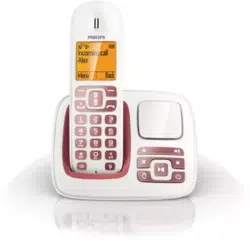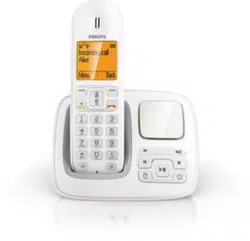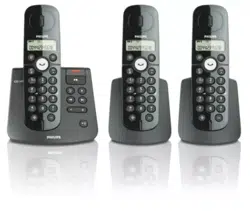
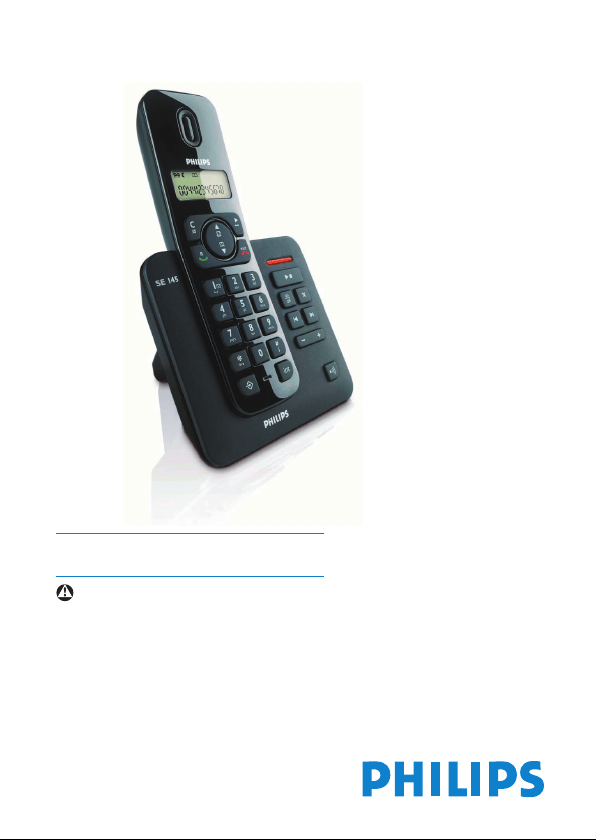
SE145
EN Telephone Answering Machine
Warning
Use only rechargeable batteries.
Charge the handset for 24 hours before use.
Register your product and get support at
www.philips.com/welcome
SE145_UK_IR_Index 2_Internet_08.10.07.indd 1SE145_UK_IR_Index 2_Internet_08.10.07.indd 1 08.10.2007 12:03:2708.10.2007 12:03:27

SE145_UK_IR_Index 2_Internet_08.10.07.indd 2SE145_UK_IR_Index 2_Internet_08.10.07.indd 2 08.10.2007 12:03:2808.10.2007 12:03:28

1Table of contents
3.4 Using multipacks 16
4 Using your SE145 17
4.1 Make a call 17
4.2 Pre-dial 17
4.3 Dial one-touch
numbers 1 and 2 17
4.4 Call from the
phonebook 17
4.5 Call from the call log 17
4.6 Answer a call 18
4.7 Adjust earpiece
volume 18
4.8 Mute 18
4.9 End a call 18
5 Use more of your
phone 19
5.1 Intercom 19
5.1.1 Call another handset 19
5.1.2 Transfer an external
call to another handset 19
5.1.3
Three-party
conference
call 19
5.2 Voicemail 20
5.2.1 Dial your network
voicemail service 20
5.3 Phonebook 21
5.3.1 View and dial
phonebook entries 21
Table of contents
1 Important 4
1.1 Power requirements 4
1.2 Conformity 5
1.3 Using GAP standard
compliance 5
1.4 Recycling and disposal 6
1.5 Electric, Magnetic and
Electromagnetic Fields
(“EMF”) 7
2 Your SE145 Digital
Cordless Telephone 8
2.1 What’s in the box? 8
2.2
What you will also need
8
2.3 Overview of the
handset 9
2.4 Handset display 11
2.5 Overview of the base 12
2.6 Settings navigation 13
3 Getting started 14
3.1 Position the base 14
3.2 Connect the base 14
3.3 Install and charge the
handset batteries 15
SE145_UK_IR_Index 2_Internet_08.10.07.indd Sec1:1SE145_UK_IR_Index 2_Internet_08.10.07.indd Sec1:1 08.10.2007 12:03:2808.10.2007 12:03:28

2 Table of contents
5.3.2 Store a number in the
phonebook 21
5.3.3 Enter a pause in a
phonebook number 22
5.3.4 Edit a number in the
phonebook 22
5.3.5 Delete a phonebook
entry 22
5.4 One-touch keys 22
5.4.1 Dial a one-touch
number 23
5.4.2 Assign one-touch keys
to an entry in your
phonebook 23
5.5 Caller ID and Call log 23
5.5.1 Call log 23
5.5.2 View and dial from
call log 24
5.5.3 Copy a number from
the call log to the
phonebook 24
5.5.4 Delete a call log entry 25
5.5.5 Delete entire call log 25
5.6 Redial 25
5.6.1 Redial the last number 25
5.6.2
View and dial a num ber
in the redial list
25
5.6.3 Copy a redial number
to the phonebook 25
5.6.4 Delete a redial list
entry 26
5.6.5 Delete entire redial list 26
6 Personal settings 26
6.1 Change the ringer
volume and ringtone 26
6.2 Set date and time 27
6.3 Switch beeps on/off 27
6.4 Dial mode 27
6.5 Recall mode 28
6.6 Auto-prefi x 28
6.7 Change System PIN 29
6.8 Reset handset 29
6.9 Lock the keypad 29
6.10 Unlock the keypad 30
7
Using your answering
machine 30
7.1 Switching On/Off 30
7.2 Outgoing messages
(OGM) 31
7.2.1 Record your own
OGM 31
7.2.2
Reinstate pre-recorded
OGM 31
7.3 Memory full 31
7.4 New message
indicators 32
7.5 Listening to your
messages 32
7.5.1 During playback 32
7.5.2 Delete all messages 32
7.6 Ring delay 33
7.7 Remote access 33
SE145_UK_IR_Index 2_Internet_08.10.07.indd Sec1:2SE145_UK_IR_Index 2_Internet_08.10.07.indd Sec1:2 08.10.2007 12:03:2808.10.2007 12:03:28

3
8 Registration 34
8.1 Register a handset 34
8.2 Unregister a handset 35
9 Maintenance and
replacement 36
9.1 Cleaning 36
9.2 How to replace the
battery 36
10 Technical data 37
11 Frequently asked
questions 38
12 Index 40
Table of contents
SE145_UK_IR_Index 2_Internet_08.10.07.indd Sec1:3SE145_UK_IR_Index 2_Internet_08.10.07.indd Sec1:3 08.10.2007 12:03:2808.10.2007 12:03:28

4
1 Important
Take time to read this user
manual before you use your
telephone. It contains important
information and notes regarding
operating your telephone.
1.1 Power requirements
• This product requires an
electrical supply of 220–240
volts, alternating monophased
power, excluding IT
installations defi ned in
standard EN 60-950. In
case of power failure, the
communication can be lost.
• The electrical network
is classifi ed as hazardous
according to criteria in the
standard EN 60-950. The
only way to power down
this product is to unplug the
power supply unit from the
electrical outlet. Ensure the
electrical outlet is located
close to the apparatus and is
always easily accessible.
• The voltage on the
network is classifi ed as
TNV-3 (Telecommunication
Network Voltages), as
defi ned in the standard EN
60-950.
Warning
• This equipment is not
designed to make emergency
calls in the event of a power
failure. An alternative has to
be made available to allow
emergency calls.
• High voltage. Never open
the product or attempt any
repair.
• Keep the product away from
liquid.
• Never use any battery type
other than the one supplied.
There is a risk of explosion if
the batteries are replaced by
an incorrect type.
• When the phone is ringing
avoid holding the earpiece
too close to your ear as it
may damage your hearing.
• Do not use the product
in places where there are
explosive hazards.
Important
SE145_UK_IR_Index 2_Internet_08.10.07.indd Sec1:4SE145_UK_IR_Index 2_Internet_08.10.07.indd Sec1:4 08.10.2007 12:03:2908.10.2007 12:03:29

5
• Do not let small metal
objects come into contact
with the product. This can
deteriorate audio quality and
damage the product.
• Handsfree activation could
suddenly increase the volume
in the earpiece to a very high
level : make sure the handset
is not too close to your ear.
• Refer also to the Cautions
in chapters and subchapter
sections.
1.2 Conformity
Hereby, Philips Consumer
Electronics, declares that this
SE145x is in compliance with
the essential requirements and
other relevant provisions of
Directive 1999/5/EC.
The declaration of conformity
is available at :
www.p4c.philips.com.
This product can only be
connected to the analogue
telephone networks of the
countries mentioned on the
packaging.
1.3 Using GAP standard
compliance
The GAP standard guarantees
that all DECT GAP handsets
and base stations comply with
a minimum operating standard
irrespective of their make.Your
handset and base station are
GAP compliant, which means the
minimum guaranteed functions
are : register a handset, take the
line, receive a call and dial.
The advanced features may not
be available if you use another
handset than a SE140/145 with
your base station. To register
and use your SE140/145 handset
with a GAP standard base
station of a different make,
fi rst follow the procedure
described in the manufacturer’s
instructions, then follow the
procedure described on page 34.
To register a handset of
another make to the SE140/145
base station, place the base
station into registration mode,
then follow the procedure in
the manufacturer’s instructions.
Important
SE145_UK_IR_Index 2_Internet_08.10.07.indd Sec1:5SE145_UK_IR_Index 2_Internet_08.10.07.indd Sec1:5 08.10.2007 12:03:2908.10.2007 12:03:29

6
1.4 Recycling and disposal
Disposal instructions for
old products
The WEEE directive (Waste
Electrical and Electronic
Equipment; 2002/96/EC) has
been put in place to ensure
that products are recycled
using best available treatment,
recovery and recycling
techniques to ensure human
health and high environmental
protection.
Your product is designed and
manufactured with high quality
materials and components,
which can be recycled and
reused. Do not dispose of your
old product in your general
household waste bin.
Inform yourself about the local
separate collection system
for electrical and electronic
products marked by this
symbol :
Use one of the following
disposal options :
1 Dispose of the complete
product (including its cables,
plugs and accessories) in the
designated WEEE collection
facilities.
2 If you purchase a
replacement product, hand
your complete old product
back to the retailer. He
should accept it as required
by the WEEE directive.
Disposal instructions
for batteries
Batteries should not be
disposed of with general
household waste.
Packaging information
Philips has marked the
packaging with standard
symbols designed to promote
the recycling and appropriate
disposal of your eventual waste.
A fi nancial contribution
has been paid to the
associated national
recovery and recycling
system.
Important
SE145_UK_IR_Index 2_Internet_08.10.07.indd Sec1:6SE145_UK_IR_Index 2_Internet_08.10.07.indd Sec1:6 08.10.2007 12:03:2908.10.2007 12:03:29

7
The labelled packaging
material is recyclable.
1.5 Electric, Magnetic
and Electromagnetic
Fields (“EMF”)
• Philips Royal Electronics
manufactures and sells many
consumer oriented products
which usually, as with any
electronic apparatus, have the
ability to emit and receive
electro magnetic signals.
• One of Philips’ leading
Business Principles is to
take all necessary health and
safety precautions for our
products, to comply with all
applicable legal requirements
and to stay well within the
EMF standards applicable at
the time of producing the
products.
• Philips is committed to
develop, produce and market
products that cause no
adverse health effects.
• Philips confi rms that if
its products are handled
properly for their intended
use, they are safe to use
according to scientifi c
evidence available today.
• Philips plays an active
role in the development
of international EMF and
safety standards, enabling
Philips to anticipate
further developments in
standardization for early
integration in its products.
Important
SE145_UK_IR_Index 2_Internet_08.10.07.indd Sec1:7SE145_UK_IR_Index 2_Internet_08.10.07.indd Sec1:7 08.10.2007 12:03:2908.10.2007 12:03:29
8
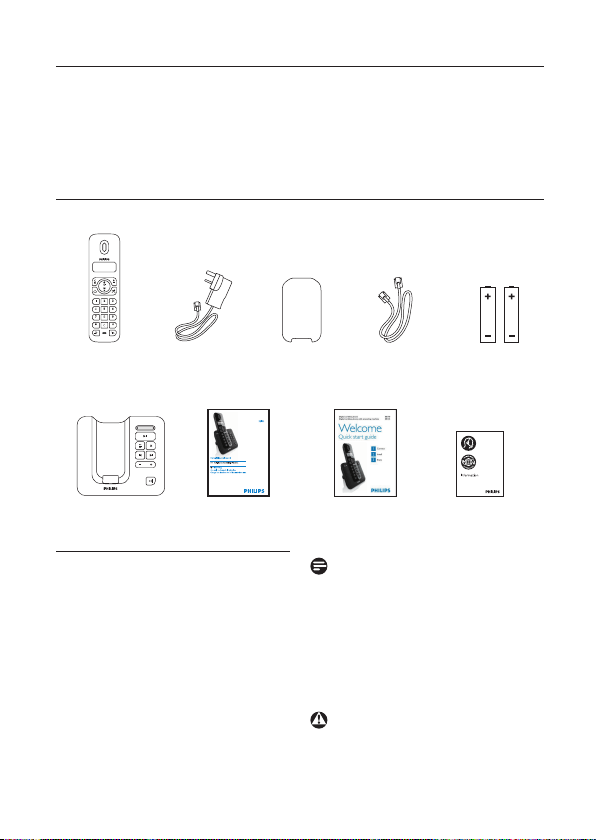
2.1 What’s in the box?
2.2 What you will also
need
• For the call log to function,
subscribe to your network’s
Caller Line Identifi cation
service.
• For voicemail to function,
subscribe to your network’s
voicemail service.
Note
* The line adaptor may not be
attached to the line cord. If this is
the case, please connect the line
cord to the line adaptor before
plugging it into the line socket.
Warning
Always use the cables and
batteries supplied.
2 Your SE145 Digital Cordless Telephone
SE145 handset Power
adaptor
Battery door Line cord* 2x AAA
rechargeable
batteries
SE145 base User manual Quick start guide Warranty
information
Your SE145 Digital Cordless Telephone
Congratulations on your purchase and welcome to Philips!
To fully benefi t from the support that Philips offers,
register your product at www.philips.com/welcome.
SE145_UK_IR_Index 2_Internet_08.10.07.indd Sec1:8SE145_UK_IR_Index 2_Internet_08.10.07.indd Sec1:8 08.10.2007 12:03:2908.10.2007 12:03:29
9
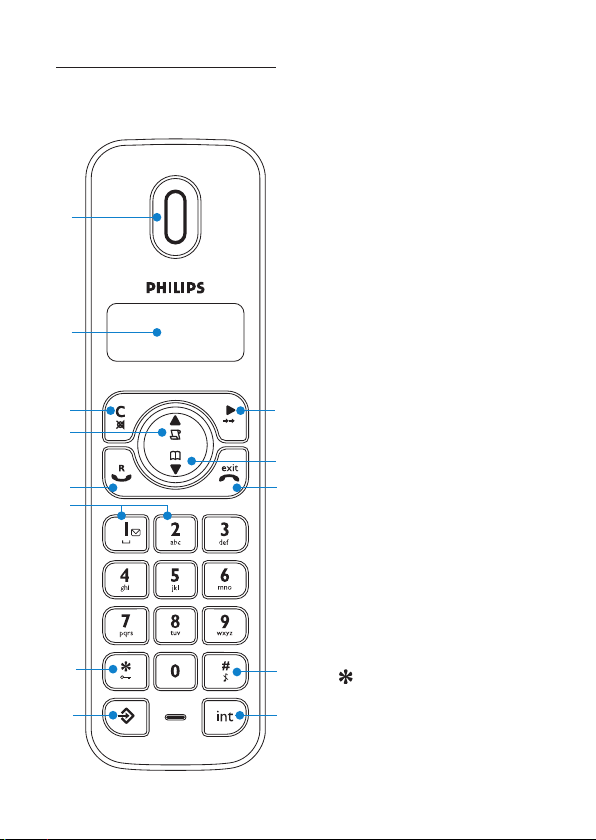
2. 3 Overview of the
handset
1 Earpiece
2 Display
See page 11 for an overview of
the display icons.
3 Clear/Mute
In the entry mode, press to
delete digits; When viewing
the call log/redial list, press to
delete displayed entry or press
and hold to delete all entries.
Switch the microphone off or
on during a call.
4 Call log/Scroll up/
Volume up
Open the calls log.
Scroll up through lists and
settings.
Increase the earpiece volume.
5 Talk/Recall
Make or answer a call.
Use recall (R) functions.
6 One-touch dialling keys
Press and hold for One-touch
dialling of pre-set numbers.
7
/ Keypad lock
Press and hold to lock/unlock
the keypad.
1
2
3
4
12
6
7
8
5
13
11
10
9
Your SE145 Digital Cordless Telephone
SE145_UK_IR_Index 2_Internet_08.10.07.indd Sec1:9SE145_UK_IR_Index 2_Internet_08.10.07.indd Sec1:9 08.10.2007 12:03:3108.10.2007 12:03:31

10
During a call, press and hold
to switch from pulse dialling to
tone dialling.
Dial a star, displayed as
.
8 Programming key
Enter the main menu.
Confi rm a menu option.
Go to next menu.
Confi rm an entry in the
phonebook.
9 Intercom (at least
2 handsets needed)
In standby mode, use to make
an internal call.
During a call, use to transfer
an external call to another
handset.
10
/ Ringer
Press and hold to switch
handset ringer on or off.
When dialling or storing a
number, press and hold to enter
a pause (P).
Dial a #, displayed as
.
11 End/Exit/Handset on-off
End a call.
In settings mode, go back to
standby mode.
Press and hold to switch
handset off (when in standby)
or on.
12 Phonebook/Scroll down/
Volume down
Open the phonebook.
Scroll down through lists and
menus.
Decrease the earpiece volume.
13 Redial/Scroll right
Open the redial list.
Scroll to the right.
Your SE145 Digital Cordless Telephone
SE145_UK_IR_Index 2_Internet_08.10.07.indd Sec1:10SE145_UK_IR_Index 2_Internet_08.10.07.indd Sec1:10 08.10.2007 12:03:3108.10.2007 12:03:31
11
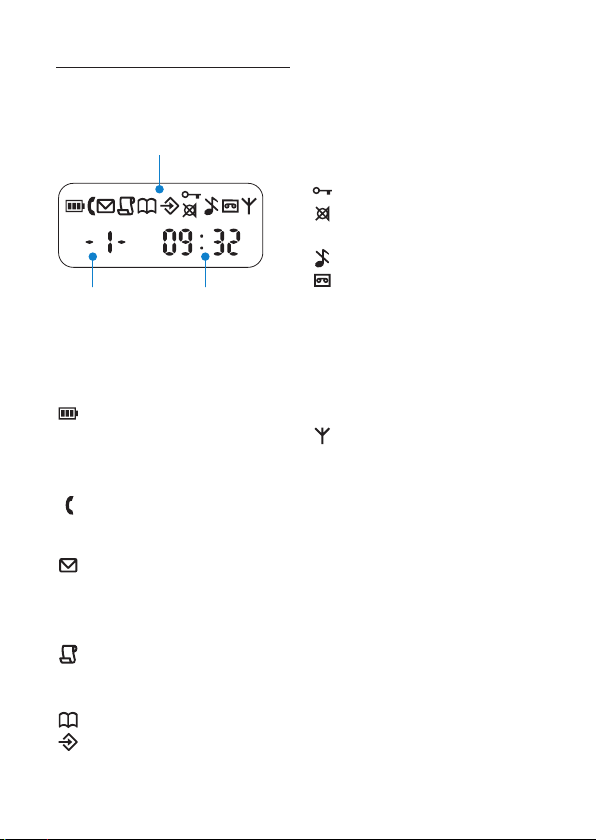
2.4 Handset display
1 Status and reminder
icons
Shows handset battery
status.
Scrolls when the handset is
charging in the base.
On when the line is in use.
Flashes when there is an
incoming call.
Flashes when you have new
voicemail messages.
Off when you have no
voicemail messages.
On when you have missed
calls and new number(s) in
the call log.
Phonebook is open.
Handset is in program
mode.
The keypad is locked.
Handset microphone has
been muted.
Handset ringer is offf.
Answering machine on.
Off when answering
machine is off.
Flashes when you have new
messages.
Flashes fast when the
memory is full.
Steady when the handset is
registered and within range
of the base.
Flashes when the handset
is out of range or searching
for base.
2 Handset number
3 Current time
23
1
Your SE145 Digital Cordless Telephone
SE145_UK_IR_Index 2_Internet_08.10.07.indd Sec1:11SE145_UK_IR_Index 2_Internet_08.10.07.indd Sec1:11 08.10.2007 12:03:3208.10.2007 12:03:32
12
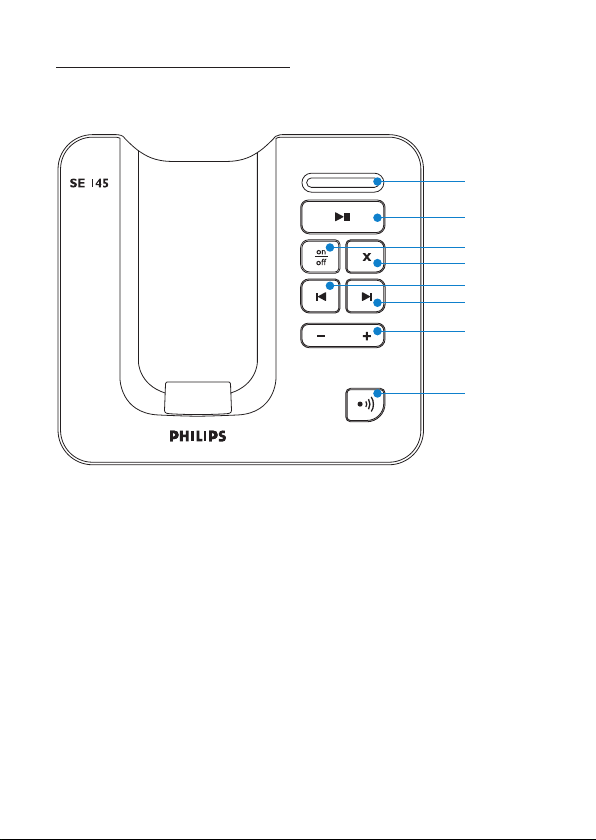
2.5 Overview of the base
1 LED Status Action
On Answering machine on
Off Answering machine off
Long then short fl ashes New message(s)
Flashes evenly Recording
Flashes quickly Memory Full
2 Play/Stop
3 Answering machine On/Off
4 Delete
5 Skip back
6 Skip forward
7 Speaker volume up/down
8 Paging key (see page 13)
1
2
4
5
6
7
8
3
Your SE145 Digital Cordless Telephone
SE145_UK_IR_Index 2_Internet_08.10.07.indd Sec1:12SE145_UK_IR_Index 2_Internet_08.10.07.indd Sec1:12 08.10.2007 12:03:3308.10.2007 12:03:33
13
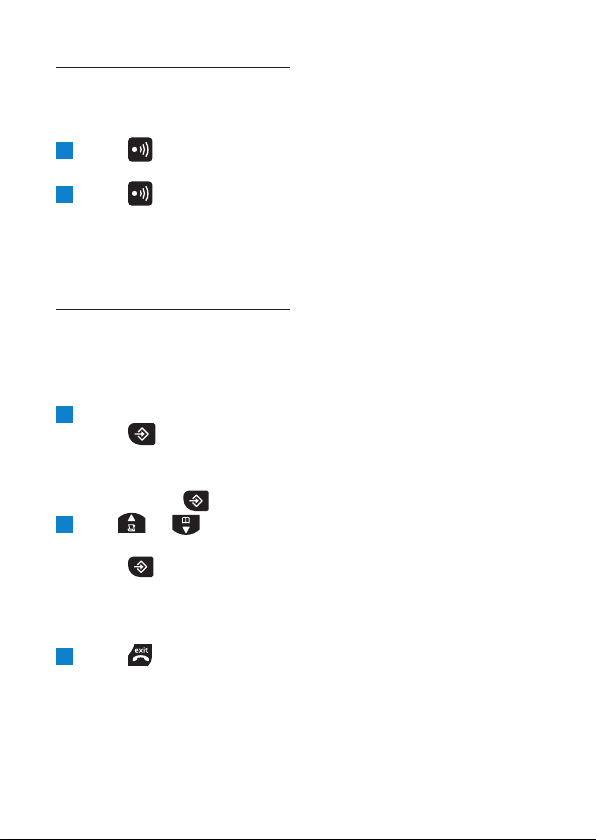
8 Paging key
Paging is a useful way of fi nding
lost handsets.
1 Press on the base.
All handsets ring.
2 Press again to cancel
the paging call or press any
key on the handset to stop
the paging call.
2. 6 Settings navigation
The basic steps of navigating
through the setting and
onscreen options.
1 From the standby screen,
press
.
The settings are open.
If you wish to go to next
setting, press
again.
2 Use or to scroll
through the options and
press
to save the
option displayed.
The next program setting is
opened.
3 Press to return to
standby.
Standby mode
If you do not press any button
on the handset for 15 seconds
the display will automatically
return to standby. It will also
return to standby when the
handset is placed on the base
or charger.
Your SE145 Digital Cordless Telephone
SE145_UK_IR_Index 2_Internet_08.10.07.indd Sec1:13SE145_UK_IR_Index 2_Internet_08.10.07.indd Sec1:13 08.10.2007 12:03:3408.10.2007 12:03:34
14
3 Getting started
3.1 Position the base
Place the base within reach
of the telephone line and
electricity sockets.
Tip
The position in which you place
the base can have an effect on
the range and performance of
your product. Avoid placing
the base too close to large
metal objects such as fi ling
cabinets, radiators or electrical
appliances. This can impair
the range and sound quality.
Buildings with thick internal
and external walls may impair
transmission of signals to and
from the base.
3.2 Connect the base
Warning
• Make sure you connect
the power adaptor and
telephone line cord correctly
as incorrect connection
could damage the product.
• Always use the telephone
line cord supplied with the
unit. Otherwise you may not
get a dial tone.
Note
In some countries the line
adaptor may not be attached to
the line cord. If this is the case,
please connect the line cord to
the line adaptor before plugging
it into the line socket.
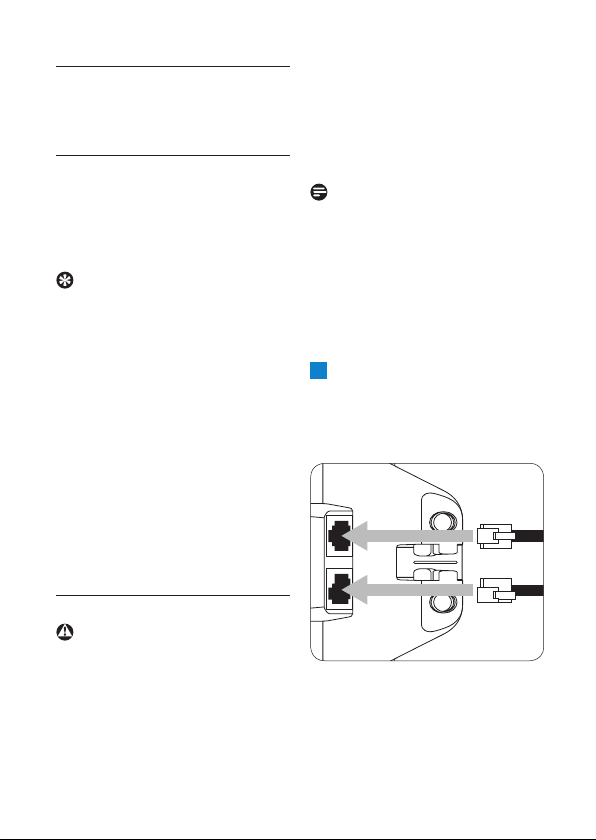
1 Plug the line cord and
the power cable into the
sockets at the back of the
base.
Getting started
SE145_UK_IR_Index 2_Internet_08.10.07.indd Sec1:14SE145_UK_IR_Index 2_Internet_08.10.07.indd Sec1:14 08.10.2007 12:03:3408.10.2007 12:03:34
15
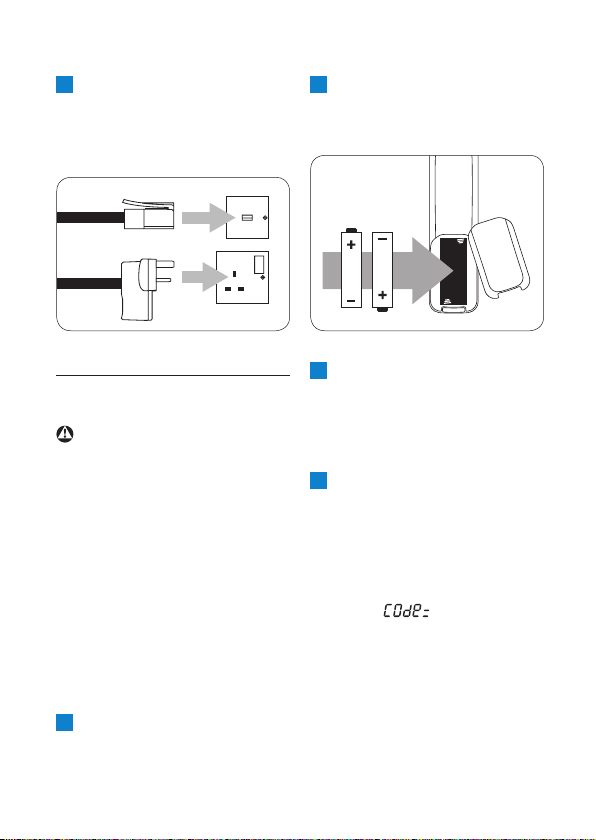
2 Plug the other ends of the
line cord and power cable
into the telephone socket
and mains power socket.
3. 3 Install and charge the
handset batteries
Warning
• The handset must be charged
for at least 24 hours before
using it for the fi rst time.
• Never use any battery type
other than the one supplied.
There is a risk of explosion if
the batteries are replaced by
an incorrect type.
Your SE145 is supplied with
two rechargeable batteries.
1 Slide off the battery door
(if fi tted).
2 Insert the batteries as
indicated and slide the door
back on.
3 Place the handset face up
on the base to charge.
A beep confi rms the handset
is placed correctly and
charging will begin.
4 When there is enough
power in the batteries, the
handset will automatically
register with the base.
The standby screen is
displayed. Or if the display
shows
you must select
the country grouping for your
area.
Getting started
SE145_UK_IR_Index 2_Internet_08.10.07.indd Sec1:15SE145_UK_IR_Index 2_Internet_08.10.07.indd Sec1:15 08.10.2007 12:03:3508.10.2007 12:03:35

16
If you need to select
your country
Scroll
or to select
the appropriate code for
your country (see below).
Then press
to confi rm.
The unit will reset and the
standby screen is displayed.
Code Country
04 UK
05 EIRE
Note
If you receive a call before the
country code is set, you can
take the call. When the call is
ended the display returns to
the original screen ready for
you to set the country code.
Caller Identifi cation will not
work until the country has
been selected.
5 Leave the handset until the
batteries are fully charged
(at least 24 hours).
The handset batteries are
fully charged when the
charging animation stops and
the
(battery charged) icon
is displayed.
Warning
If you insert alkaline batteries
instead of the NiMH batteries
all elements of the display will
appear. Replace immediately
with the batteries supplied.
3.4 Using multipacks
If you have purchased a
multipack you will have
additional handsets, chargers,
power adaptors and AAA
rechargeable batteries.
1 Plug the chargers into a
power socket.
2 Install the batteries supplied
into the other handsets.
3 Place the handsets on the
chargers to fully charge
the batteries for at least
24 hours.
Getting started
SE145_UK_IR_Index 2_Internet_08.10.07.indd Sec1:16SE145_UK_IR_Index 2_Internet_08.10.07.indd Sec1:16 08.10.2007 12:03:3608.10.2007 12:03:36
17
4 Using your SE145
4.1 Make a call
1 Press .
2 Dial the telephone number.
4.2 Pre-dial
1 Enter the phone number
(maximum 24 digits). If you
make a mistake press
to delete incorrect digits.
2 Press to dial.
4.3 Dial one-touch
numbers 1 and 2
1 Press and hold or
until the number is
displayed and dialled. If no
number is stored, you hear
a beep.
4.4 Call from the
phonebook
1 Press .
The fi rst entry in the
phonebook is displayed.
Using your SE145
2 Scroll or to the
entry you want.
3 Press to dial the
number.
Note
Blank entries are not displayed
when scrolling through the
phonebook.
4.5 Call from the call log
1 Press .
The fi rst entry in the call log
is displayed.
2 Scroll or to the
entry you want.
3 Press to dial the
number.
Note
You need to subscribe to
your network’s Caller Line
Identifi cation service to be able
to see the caller’s number in
the call log.
See ‘Caller ID and call log’ on
page 23 for more details.
SE145_UK_IR_Index 2_Internet_08.10.07.indd Sec1:17SE145_UK_IR_Index 2_Internet_08.10.07.indd Sec1:17 08.10.2007 12:03:3608.10.2007 12:03:36
18
4.6 Answer a call
1 When the phone rings,
press
.
Warning
When the phone is ringing,
avoid holding the earpiece too
close to your ear as it may
damage your hearing.
Note
An incoming call has priority
over other events. Whenever
there is an incoming call, other
operations in progress such as
phone settings, menu navigation,
etc. will be ended.
4.7 Adjust earpiece
volume
1 During a call, press or
to adjust the volume.
The current level is displayed.
4. 8 Mute
You can mute the microphone
so that you can talk to
someone else in the room
without your caller hearing you.
1 During a call, press .
The microphone is muted and
the display shows
.
2 Press again to turn the
microphone back on.
4.9 End a call
1 Press or replace the
handset in the base.
The call duration is displayed
on the handset screen for
about 5 seconds.
Using your SE145
SE145_UK_IR_Index 2_Internet_08.10.07.indd Sec1:18SE145_UK_IR_Index 2_Internet_08.10.07.indd Sec1:18 08.10.2007 12:03:3708.10.2007 12:03:37
19
5 Use more of
your phone
5.1 Intercom
This feature is only available
when there are at least two
registered handsets. It allows
you to make internal calls,
transfer external calls from one
handset to another and use the
conference option.
5.1.1 Call another handset
1 Press .
• If there are only two
handsets, the other handset
is called automatically.
• Or, if there are more
than two handsets press
the number of the other
handset.
2 Press to hang up.
Note
If the handset does not belong
to SE140/145 range, this
function may not be available.
Use more of your phone
5. 1.2 Transfer an external
call to another
handset
1 During an external call,
press
.
Your caller is put on hold.
2 Enter the number of the
handset you want to call.
If there are only two handsets,
the other handset is called
automatically.
3 When the other handset
answers, announce the
caller then press
to
transfer the call. If the other
handset does not answer,
press
to talk to your
caller again.
Note
Before transferring the call, the
user is able to switch between
both internal and external calls
by the
key.
5.1.3 Three-party
conference call
1 During an external call,
press
.
Your caller is put on hold.
SE145_UK_IR_Index 2_Internet_08.10.07.indd Sec1:19SE145_UK_IR_Index 2_Internet_08.10.07.indd Sec1:19 08.10.2007 12:03:3808.10.2007 12:03:38

20
2 Enter the number of the
handset you want to call.
If there are only two handsets,
the other handset is called
automatically.
3 When the other handset
answers announce the call
then press and hold
to
connect both calls.
If the other handset does
not answer, press
to
talk to your caller again.
4 Press to hang up.
5.2 Voicemail
If you have subscribed to your
network’s voicemail service (if
available), your SE145 displays
when you have new
messages.
Depending on your country
and network services, the
voicemail number may be pre-
stored for one-touch dialling
using the
button.
Note
If the voicemail number is
not pre-stored you can add
a number, or overwrite the
existing stored number.
See ‘Assign One-touch keys to
an entry in your phonebook’,
on page 23.
5.2.1 Dial your network
voicemail service
1 Press and hold .
The number is displayed
and dialled. Follow the voice
prompts to play, save and
delete your messages.
Note
The voicemail number
is pre-stored only if the
country where the phone
was purchased offers a
voicemail service. If no
service is offered, the
number is blank. You can
overwrite a pre-stored
number with their own
preferred number and
this number will be dialled
instead. To store a number
in the one-touch button,
see page 22.
Use more of your phone
SE145_UK_IR_Index 2_Internet_08.10.07.indd Sec1:20SE145_UK_IR_Index 2_Internet_08.10.07.indd Sec1:20 08.10.2007 12:03:3808.10.2007 12:03:38

21
5.3 Phonebook
The SE145 handset phonebook
can store 20 phone numbers
each up to 24 digits long.
Note
Phonebook entries are ordered
01–20.
5.3.1 View and dial
phonebook entries
1 Press .
Display shows the fi rst entry
and
.
2 Scroll or to the
entry you want.
3 Press to dial or to
return to standby.
Tip
The display shows the fi rst nine
digits of each phone number.
If the number is longer, the
last digit fl ashes. Press
to
display the rest of the number.
Use more of your phone
5.3.2 Store a number in the
phonebook
1 Press then press .
The screen displays the fi rst
available position in the
phonebook (01–20).
2 Enter 2 digit phonebook
entry number, e.g. 01.
3 Enter the phone number
you want to store. If you
make a mistake press
.
4 Press to confi rm.
The next available entry is
displayed.
5 Enter the next number you
want to store or press
to return to standby.
Note
• When the phonebook is
empty, the display fl ashes
01 -
[blank].
• If the phonebook is full, the
display fl ashes
20-
[and
current number stored].
• Cancel storing an entry by
pressing
at any time
during the process.
SE145_UK_IR_Index 2_Internet_08.10.07.indd Sec1:21SE145_UK_IR_Index 2_Internet_08.10.07.indd Sec1:21 08.10.2007 12:03:3908.10.2007 12:03:39
22
5.3.3 Enter a pause in a
phonebook number
If your SE145 is connected
to a switchboard, you may
need to enter a pause in a
stored number. This gives
the switchboard time to get
an outside line. A pause is
normally stored after the
switchboard access code
(e.g. 9).
1 When storing a number,
press and hold
until
the display shows
P
. Then
continue storing the
number.
5.3.4 Edit a number in the
phonebook
1 Press then press .
2 Scroll or to the
number you want.
3 Enter the two digit
phonebook number, e.g. 07.
4 Enter the new phone
number.
Tip
• Press
to delete digits.
5 Press to confi rm.
The next available entry is
displayed.
6 Press to return to
standby.
5.3.5 Delete a phonebook
entry
1 Press then press .
2 Scroll or to the
number you want.
3 Enter the two digit
phonebook number, e.g. 07.
4 Press repeatedly to
delete the number until you
hear a confi rmation beep.
5 Press to confi rm.
6 Press to return to
standby.
5. 4 One-touch keys
The
or keys have pre-
stored phone numbers for one-
touch dialling. These numbers
depend on your country and
network.
You can set the one-touch keys
to dial numbers stored in your
handset phonebook.
Use more of your phone
SE145_UK_IR_Index 2_Internet_08.10.07.indd Sec1:22SE145_UK_IR_Index 2_Internet_08.10.07.indd Sec1:22 08.10.2007 12:03:4008.10.2007 12:03:40
23
Note
The pre-stored numbers usually
give you access to services
offered by your network, but
this depends on your country
and network.
5.4.1 Dial a one-touch
number
1 Press and hold or
until you hear a beep.
The number is displayed and
dialled.
2 Press to return to
standby.
5. 4.2 Assign one-touch keys
to an entry in your
phonebook
1 Press .
2 Scroll or to the
entry you want.
3 Press and hold or
until you hear a beep.
The phonebook entry is now
also stored in the one-touch
key.
4 Press to return to
standby.
Use more of your phone
5. 5 Caller ID and Call log
If you have subscribed to
Caller Line Identifi cation (CLI),
and provided the identity of
the caller is not withheld, the
number of the caller will be
displayed.
1 To toggle between caller ID
and time/date press
.
Note
• If the telephone number is
not available for incoming
calls, the handset will display
----
.
• Information about incoming
calls will vary by country and
network operator.
Some operators may charge
a subscription for their Caller
Line Identifi cation service.
5.5.1 Call log
The call log contains details of
missed and received call. Entries
are displayed in chronological
order with the most recent call
at the top of the list.
SE145_UK_IR_Index 2_Internet_08.10.07.indd Sec1:23SE145_UK_IR_Index 2_Internet_08.10.07.indd Sec1:23 08.10.2007 12:03:4108.10.2007 12:03:41
24
Note
• The calls log holds details of
up to 10 calls.
• When the call log is full, a
new call replaces the oldest
in the list.
• When viewing the call log,
to see the date and time of
the call (if provided by the
network), press
.
When you have missed calls
(incoming calls that you haven’t
answered) the
icon will fl ash
in the display on all handsets
registered to the base. If one
handset is used to view the
calls log, the icon on the other
handsets continue to fl ash
(multipack users only).
5.5.2 View and dial from
call log
1 Press .
• The most recent call is
displayed.
• While viewing the call list
the
icon is steady.
This will blink while viewing
entries which have been
unanswered.
2 Scroll or through
the call log.
3 Press to dial the
number displayed or
to
return to standby.
5.5.3 Copy a number from
the call log to the
phonebook
1 Press .
2 Scroll or to the
number you want to copy.
3 Press .
The next available phonebook
entry (01–20) is displayed.
Note
• When you scroll through
the phonebook, any
entries already stored, are
displayed.
• If the phonebook is full, the
display fl ashes
20-
and the
number stored.
4 Enter two-digit phonebook
entry number 01–20.
The phone number is
displayed.
5 Press to confi rm.
6 Press to return to
standby.
Use more of your phone
SE145_UK_IR_Index 2_Internet_08.10.07.indd Sec1:24SE145_UK_IR_Index 2_Internet_08.10.07.indd Sec1:24 08.10.2007 12:03:4208.10.2007 12:03:42
25
5. 5.4 Delete a call log entry
1 Press .
2 Scroll or to the
number you want to delete.
3 Press .
You hear a confi rmation
beep and the next entry is
displayed or
----
if the list
is empty.
4 Press to return to
standby.
5.5.5 Delete entire call log
1 Press .
2 Press and hold until
you hear a beep.
The display shows
----
.
3 Press to return to
standby.
5.6 Redial
You can redial any of the last
fi ve numbers called. Numbers
can be up to 24 digits long.
5.6.1 Redial the last number
1 Press then .
The last number dialled is
displayed and dialled.
Use more of your phone
5.6.2 View and dial a num-
ber in the redial list
1 Press .
The last number dialled is
displayed.
2 If required, scroll or
to display the number
you want.
3 Press to dial the
number or
to return to
standby.
5.6.3 Copy a redial number
to the phonebook
1 Press and scroll or
to the entry you want
to copy.
2 Press .
The fi rst available phonebook
entry number is displayed.
3 Enter the phonebook entry
number 01–20.
The phone number is displayed.
4 Press to confi rm, then
press
to return to
standby.
SE145_UK_IR_Index 2_Internet_08.10.07.indd Sec1:25SE145_UK_IR_Index 2_Internet_08.10.07.indd Sec1:25 08.10.2007 12:03:4308.10.2007 12:03:43
26
5.6.4 Delete a redial list
entry
1 Press and scroll
or
to the number you
want to delete.
2 Press .
You hear a confi rmation
beep and the next entry is
displayed or
----
if the list
is empty.
3 Press to return to
standby.
5.6.5 Delete entire redial
list
1 Press .
2 Press and hold until
you hear a beep.
The display shows
----
.
3 Press to return to
standby.
6 Personal settings
Use the button to open
the menu and adjust the
settings on your phone to suit
your preferences.
6. 1 Change the ringer
volume and ringtone
Warning
When the phone is ringing,
avoid holding the earpiece too
close to your ear as it may
damage your hearing.
Choose from :
• Six volume levels 0–5
(0 = off, 5 = max).
• 10 ringtones
1 Press .
2 Press or to adjust
the ringer volume level.
3 Press a keypad number
from 0–9 to select the
ringtone.
A sample ringtone is played.
4 Press to save the
settings.
Personal settings
SE145_UK_IR_Index 2_Internet_08.10.07.indd Sec1:26SE145_UK_IR_Index 2_Internet_08.10.07.indd Sec1:26 08.10.2007 12:03:4308.10.2007 12:03:43
27
5 You can now adjust the
date and time setting or
press
to return to
standby.
If no button is pressed for
15 seconds, the handset
returns to standby.
6.2 Set date and time
If you have subscribed to your
network’s Caller Identifi cation
service, the time is set
automatically when you receive
your fi rst call.
1 Press twice.
The display shows :
01-01
00:00
.
2 Enter the date and time
using the format :
DD – Day
MM – Month
HH – Hour
MM – Minute
For example 21 06 09 30
for 21st June, 9.30am.
Personal settings
6.3 Switch beeps on/off
You can switch handset key
tones on or off.
1 Press three times.
The display shows
B@@P 1
.
2 Press or to switch
between 1 = on and 0 = off.
3 Press to save the
settings.
4 You can now adjust the
dial mode or press
to
return to standby.
6.4 Dial mode
The default SE145 dialling mode
is suitable for your country and
network. It is unlikely that you
should need to change this
setting.
1 Press four times.
The display shows
-1 -
or
-2-
.
2 Press or to switch
between 1 = Tone and
2 = Pulse.
3 Press to save the
settings.
4 You can now adjust the
recall mode, see below,
or press
to return to
standby.
SE145_UK_IR_Index 2_Internet_08.10.07.indd Sec1:27SE145_UK_IR_Index 2_Internet_08.10.07.indd Sec1:27 08.10.2007 12:03:4408.10.2007 12:03:44
28
6.5 Recall mode
The
button is used with
certain network services and
PABX*/switchboard services.
You will not normally need
to change this setting unless
advised to do so.
Note
The use of your SE145 cannot
be guaranteed on all PABX.
1 Press fi ve times.
The display shows
FLASH
and the current setting
2 Press or to switch
between
1 (Flash 1 with Time break
recall, or
2 (Flash 2 with Time break
recall).
3 Press to save the
settings.
4 You can now adjust Auto-
prefi x or press
to
return to standby.
6.6 Auto-prefi x
You can set the SE145 to detect
a dialling number and replace
it with another number. The
total of both numbers together
can be up to a maximum of
24 digits.
1 Press six times.
The display shows (
----
-
-
------
).
2 In the fi rst set of spaces,
enter the number you
want to be detected (max.
4 digits).
Press
or to move
the cursor.
3 Move the cursor to the
beginning of the second set
of spaces.
4 Enter the number you want
it replaced with.
5 Press to save.
6 You can now change the
system PIN or press
to
return to standby.
Personal settings
SE145_UK_IR_Index 2_Internet_08.10.07.indd Sec1:28SE145_UK_IR_Index 2_Internet_08.10.07.indd Sec1:28 08.10.2007 12:03:4408.10.2007 12:03:44
29
6.7 Change System PIN
The system PIN is a 4-digit
code which is used as a security
check when changing certain
settings. The default system PIN
is 0000. This can be changed to
a number of your preference.
1 Press seven times.
The display shows
COD@ -
----
.
2 Enter the current PIN and
press
.
3 Enter the new PIN and
press
to confi rm and
return to standby.
Note
Please make a note of your
PIN. If you forget your PIN
you will need to reset your
handset.
6.8 Reset handset
You can restore a handset to its
default settings.
1 Remove the batteries from
the handset .
2 Press and hold while
reinserting the batteries.
The display shows
888888888888
.
3 Press .
Personal settings
Note
After you reset your handset,
you may need to enter your
country code again.
The handset default settings
are :
• Ringtone 1
• Ringer Volume 3
• Earpiece volume 3
• Phonebook Unchanged
• Call log Empty
• Redial list Empty
• Keypad lock Off
• Clock 00:00
• Dial mode 1 (Tone)
• System PIN 0000
• Ring delay 6 rings
6.9 Lock the keypad
Prevent accidental dialling while
carrying the handset by locking
the keypad.
1 Press and hold .
The keypad is locked and the
display shows
.
SE145_UK_IR_Index 2_Internet_08.10.07.indd Sec1:29SE145_UK_IR_Index 2_Internet_08.10.07.indd Sec1:29 08.10.2007 12:03:4508.10.2007 12:03:45
30
Note
You can still answer a call
by pressing
when the
keypad is locked. At the
end of the call, the keypad
will still be locked.
If you press a key while
the keypad is locked, the
handset displays
for
3 seconds.
6.10 Unlock the keypad
1 To unlock the keypad, press
and hold
again.
7 Using your
answering
machine
You can hear your messages at
the base or you can call your
SE145 from another phone and
play back your messages.
Note
• Incoming messages can be
up to 3 minutes long.
• Maximum number of
messages is 59.
• Maximum total recording
time available is 10 minutes.
7.1 Switching On/Off
1 At the base, press .
When switching on, your
outgoing message is played.
Using your answering machine
SE145_UK_IR_Index 2_Internet_08.10.07.indd Sec1:30SE145_UK_IR_Index 2_Internet_08.10.07.indd Sec1:30 08.10.2007 12:03:4608.10.2007 12:03:46
31
7.2 Outgoing messages
(OGM)
Your answer machine has a
preset outgoing message : “This
is an answering machine, please
leave your message after the
tone.”.
You can also record your own
outgoing message, using a
handset registered to the base.
7.2.1 Record your own
OGM
Your outgoing message can be
up to 1 minute long. You can
reinstate the pre-recorded
OGM at any time. If you run
out of time, you hear a beep
and recording is stopped and
saved.
1 At the handset, press
repeatedly (9 times) to
scroll through the menu
until the display shows the
and icons.
2 After the long beep, speak
your message into the
handset microphone.
Using your answering machine
3 Press to stop recording.
You will hear a beep and your
message is played back at the
handset.
4 Press to confi rm.
7.2.2 Reinstate pre-
recorded OGM
1 At the handset, press
repeatedly (9 times) to
scroll through the menu
until the display shows the
and icons.
This will start recording.
2 Press to stop recording.
3 Press to delete the
recording.
You will hear two beeps to
confi rm and the pre-recorded
message is reinstated.
7.3 Memory full
If the recording memory
becomes full, the base LED will
fl ash quickly and your outgoing
message is automatically
replaced by “This is an
answering machine, please call
back later.”
SE145_UK_IR_Index 2_Internet_08.10.07.indd Sec1:31SE145_UK_IR_Index 2_Internet_08.10.07.indd Sec1:31 08.10.2007 12:03:4608.10.2007 12:03:46
32
Before your machine can
record messages again, you
must delete messages. See
‘Delete all messages’, page 32.
Note
If the recording memory
becomes full during an incoming
message, the answering machine
hangs up.
7.4 New message
indicators
At the handset, the
icon
fl ashes in the display.
At the base, the LED gives
alternate long and short fl ashes.
7.5 Listening to your
messages
1 Press .
Your new messages are
played through the speaker.
Or
Press and hold
to
hear all messages stored on
your machine.
Tip
If there are no new messages, a
short press on
will play
all messages stored on your
machine.
7. 5.1 During playback
Stop playback.
Play next message.
Replay current message.
Press twice to skip back
to previous message
Delete current message.
Increase speaker volume.
Decrease speaker volume.
Note
After playback all messages not
deleted are saved.
7.5.2 Delete all messages
1 After all messages have
been played, press and hold
during the 8 second
countdown.
You hear a confi rmation beep
and all messages are deleted
at the end of the countdown.
Using your answering machine
SE145_UK_IR_Index 2_Internet_08.10.07.indd Sec1:32SE145_UK_IR_Index 2_Internet_08.10.07.indd Sec1:32 08.10.2007 12:03:4708.10.2007 12:03:47
33
7. 6 Ring delay
Select the number of rings
before your answering machine
picks up the call. Choose from
2–9 rings or Time Saver.
Time Saver is useful when
calling from another phone
to listen to your messages. If
you have new messages your
phone answers after 2 rings.
If there are no new messages
it will answer after 6 rings. So
you have the option to hang
up, saving the time and cost of
a call.
1 At the handset, press
repeatedly (8 times) until
the display shows
icon
and the current ring delay
setting. If Time Saver is set,
the display shows
.
2 Press or to select
the setting you want.
3 Press to confi rm.
Using your answering machine
7. 7 Remote access
Remote access allows you
to listen to your messages
by calling your SE145 from
another phone.
1 Call your SE145, press
# when you hear your
outgoing messages then
enter your 4-digit system
PIN. The default code is
0000.
Note
Change this code for
increased security, see
‘Change System PIN’, on
page 29.
2 After entering your PIN,
as stated above, use the
keypad to operate your
SE145 answering machine:
Play all messages 2
Play previous message 1
Play next message 3
Delete message playing 6
Switch answer machine on 7
Stop playback 8
Switch answer machine off 9
SE145_UK_IR_Index 2_Internet_08.10.07.indd Sec1:33SE145_UK_IR_Index 2_Internet_08.10.07.indd Sec1:33 08.10.2007 12:03:4908.10.2007 12:03:49
34
8 Registration
Up to 5 handsets can be
registered to one base.
Additional handsets must be
registered to the base before
you can use them.
Note
• The instructions described
below apply specifi cally to
your SE145 handset.
If you wish to register
another manufacturer’s
handset, the instructions
may vary. In this case, please
refer to the manufacturer
of the additional handset.
• The System PIN is required
before you can register or
unregister handsets. The
default PIN is 0000.
8.1 Register a handset
1 At the base, press and hold
for about 3 seconds.
The base station emits a beep
when it is ready to accept
registration.
Note
The base is able to accept
registration from a handset
within 90 seconds.
If
is pressed, registration
is cancelled.
2 At the handset, press and
hold
.
is displayed.
3 Enter the system PIN
(default setting 0000) and
press
.
If the base is found and the
PIN is correct, the handset
is registered and assigned
the next available handset
number. This number is
displayed on the handset
along with the time setting.
Note
• The SE145 handset can only
be registered with one base
at a time. If you want to
register the handset with
another base, you must
repeat the registration
process.
Registration
SE145_UK_IR_Index 2_Internet_08.10.07.indd Sec1:34SE145_UK_IR_Index 2_Internet_08.10.07.indd Sec1:34 08.10.2007 12:03:4908.10.2007 12:03:49
35Registration
• If you try to add another
handset to a base on which
5 handsets are already
registered, the display
shows a scrolling dash
until it returns to the not
registered screen.
8.2 Unregister a handset
You can use one handset to
unregister another. You cannot
unregister the handset you are
using.
1 Remove the batteries then
press and hold
while
inserting the batteries again.
The
and icons fl ash.
2 Release the button.
The handset searches for the
base and then displays all
other handsets registered to it,
e.g.
2-3-4-5
.
3 Enter the number of the
handset you want to
unregister.
4 Enter the system PIN
(default setting 0000).
5 Press to confi rm.
The handset selected will be
unregistered.
SE145_UK_IR_Index 2_Internet_08.10.07.indd Sec1:35SE145_UK_IR_Index 2_Internet_08.10.07.indd Sec1:35 08.10.2007 12:03:5008.10.2007 12:03:50
36
9 Maintenance and
replacement
9.1 Cleaning
• Simply clean the handset and
base with a damp(not wet)
cloth, or an anti-static wipe.
• Never use household polish
as this will damage the
product.
• Never use a dry cloth as this
may cause a static shock.
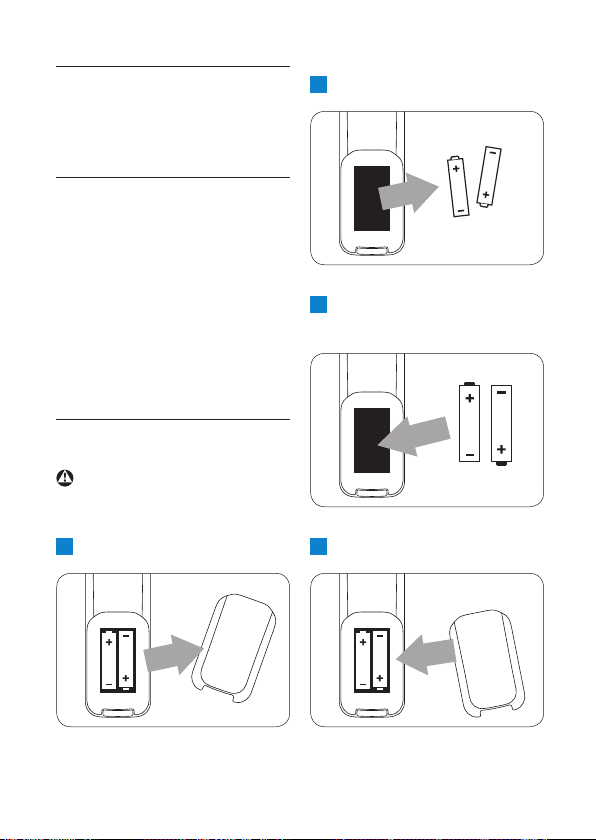
9.2 How to replace the
battery
Warning
Always use AAA rechargeable
batteries
1 Slide off the battery cover.
2 Remove the old batteries.
3 Place the new batteries in
the handset.
4 Replace the battery cover.
Maintenance and replacement
SE145_UK_IR_Index 2_Internet_08.10.07.indd Sec1:36SE145_UK_IR_Index 2_Internet_08.10.07.indd Sec1:36 08.10.2007 12:03:5008.10.2007 12:03:50

37
10 Technical data
Battery life and range
Talk time and stand-by time
When the battery is fully
charged, the talk time of
your SE145 is approximately
10 hours and the stand-by time
is approximately 150 hours.
Low battery warning
The battery level is shown
in the top left of the handset
display.
When the battery level
becomes low, you hear a beep
once every minute (during a
call) and the
icon fl ashes.
If the battery level becomes
exceedingly low, the phone
automatically switches off
shortly after the alert.
The approximate power levels
of your battery are :
Fully charged.
Partially charged.
Running low.
Flashing – almost empty.
Battery type
The batteries that are used on
your SE145 are AAA NiMh
550mAh.
Out of range warning
In ideal conditions the range of
the phone is up to 50 metres
indoors and 300 metres
outdoors. When you are
getting close to being out of
range during a call, the handset
gives a warning beep.
If the handset moves outside
this range, the handset gives
and error beep, the call is lost
and some other functions will
not be available. You will hear
an error beep if you try to use
them, provided the error beep
is switched on.
When you come back in range
of the base, the handset gives
another beep.
Note
For the error beep to work, it
must be switched on (see page
27 ‘6.3 Switch beeps on/off’).
Technical data
SE145_UK_IR_Index 2_Internet_08.10.07.indd Sec1:37SE145_UK_IR_Index 2_Internet_08.10.07.indd Sec1:37 08.10.2007 12:03:5108.10.2007 12:03:51

38
11 Frequently asked
questions
Charging
The
icon is not blinking
when the handset is placed
on the base
• Bad battery contact – move
the handset slightly.
• Dirty contact – Clean the
battery contact with a cloth
moistened with alcohol.
• Battery is full – no need to
charge.
Calls
No dialling tone
• No power – check the
connections. Reset the
phone : unplug and plug back
in the mains.
• Batteries are empty – charge
the batteries for at least
24 hours.
• You are too far from the base
– move closer to the base.
• Wrong line cable – use the
line cable provided.
• Line adaptor (when needed)
is not connected to the
line cord – connect the line
adaptor (when needed) to
the line cord.
Poor audio quality
The base is too close to
electrical appliances, reinforced
concrete walls or metal
doorframes – move the base at
least one metre away from any
electrical appliances.
The
icon is blinking
• Handset is not registered
to the base – register the
handset to the base.
• You are too far from the base
– move closer to the base.
No ring tone
The ring tone is deactivated.
Increase the volume.
Caller Line Identifi cation
(CLI) service does not work
Check your subscription with
your network operator.
Frequently asked questions
www.philips.com/support
SE145_UK_IR_Index 2_Internet_08.10.07.indd Sec1:38SE145_UK_IR_Index 2_Internet_08.10.07.indd Sec1:38 08.10.2007 12:03:5208.10.2007 12:03:52

39
Phonebook
A phonebook entry cannot
be stored
The phonebook is full. Delete
an entry to free memory.
Display
No display
• Try recharging or replacing
the batteries.
• Try disconnecting and
connecting the base power
supply and follow the
procedure to register a
handset (see page 34).
• Base may be busy with
another handset. Wait until it
is available.
Unable to register another
handset
Maximum number of
5 handsets has been reached.
The display shows a scrolling
dash. You must unregister a
handset in order to register a
new one.
Interference
Noise interference on your
radio or television
Your base or charger may be
too close. Move it as far away
as possible.
Answering machine
Answering machine does
not record messages
• Switch the answering
machine on.
• The memory may be full. Is
the base LED fl ashing quickly?
If so, you will need to delete
some messages.
Cannot access messages
remotely
• if wrong PIN is entered a
long beep is played. you can
enter the PIN once again.
Frequently asked questions
SE145_UK_IR_Index 2_Internet_08.10.07.indd Sec1:39SE145_UK_IR_Index 2_Internet_08.10.07.indd Sec1:39 08.10.2007 12:03:5208.10.2007 12:03:52

40
12 Index
A
Access the redial list 10, 25
Add entry to phonebook 21
Adjust earpiece volume 18
Answer a call 9, 18
B
Base overview 12
Box contents 8
C
Caller identifi cation 23
Call another handset 19
Call a number from the
call log 17
Call from the phonebook 17
Call network voicemail 20
Change handset ringtone 26
Change one-touch phone
numbers 23
Change ringer volume 26
Change system PIN 29
Charge batteries 15
Conference call 19
Connect the base 14
D
Delete all answering machine
messages 32
Delete an answering machine
message 32
Delete an entry in
the call log 25
Delete a call log entry 25
Delete a phonebook entry 22
Delete a redial list number 26
Display icons and symbols 11
E
Earpiece volume 9, 10, 18
Edit a one-touch
button number 22
Edit a phonebook entry 22
End a call 10, 18
F
Frequently asked questions 38
H
Handset keys 9
Handset overview 9
I
Identify your caller 23
Install batteries 15
Index
SE145_UK_IR_Index 2_Internet_08.10.07.indd Sec1:40SE145_UK_IR_Index 2_Internet_08.10.07.indd Sec1:40 08.10.2007 12:03:5208.10.2007 12:03:52

41
L
Listen to your messages 32
Lock the keypad 29
Loudspeaker volume 32
M
Make a call 17
Memory full 31
Menu navigation 13
N
Navigate the menu 13
New messages 32
O
One-touch keys 22
Outgoing messages 31
P
Page a handset 13
Pre-dial a call 17
Put a caller on hold to
answer a second caller 19
R
Record outgoing message 31
Recycle your phone 6
Redial the last number 25
Register a handset to a base 34
Reinstate pre-recorded
outgoing message 31
Remote access 33
Reset handset 29
Ring delay 33
S
Safety information 4
Save a call log number to the
phonebook 24
Save a redial number to the
phonebook 25
Secrecy 18
Set date and time 27
Set dialling mode 27
Set prefi x detect and
replacement dialling 28
Set recall (fl ash) mode 28
Set ringer volume 26
Set ringtone 26
Switch answering machine on
remotely 33
Switch answering machine
on/off 30
Switch between internal and
external calls 19
Switch handset on/off 10
Switch key beeps on/off 27
Switch secrecy on/off 18
T
Time saver 33
Transfer an external call to
another handset 19
U
Unregister a handset 35
Index
SE145_UK_IR_Index 2_Internet_08.10.07.indd Sec1:41SE145_UK_IR_Index 2_Internet_08.10.07.indd Sec1:41 08.10.2007 12:03:5208.10.2007 12:03:52

42
V
View a call log 24
View phonebook entries 21
Index
SE145_UK_IR_Index 2_Internet_08.10.07.indd Sec1:42SE145_UK_IR_Index 2_Internet_08.10.07.indd Sec1:42 08.10.2007 12:03:5208.10.2007 12:03:52

SE145_UK_IR_Index 2_Internet_08.10.07.indd Sec1:43SE145_UK_IR_Index 2_Internet_08.10.07.indd Sec1:43 08.10.2007 12:03:5208.10.2007 12:03:52

© 2007 Koninklijke Philips Electronics N.V.
All rights reserved.
Reproduction in whole or in part is prohibited without
the written consent of the copyright owner.
Document order number : 3111 285 38002
Printed in China
SE145_UK_IR_Index 2_Internet_08.10.07.indd Sec1:44SE145_UK_IR_Index 2_Internet_08.10.07.indd Sec1:44 08.10.2007 12:03:5208.10.2007 12:03:52