www.tesvor.com
MORE FAMILY TIME. LESS CLEANING.
User Manual
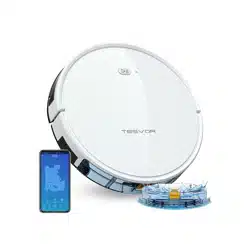
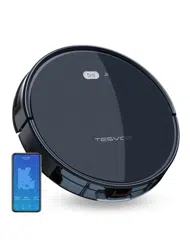
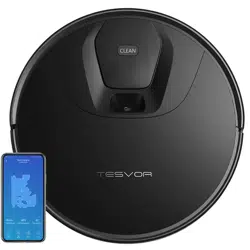
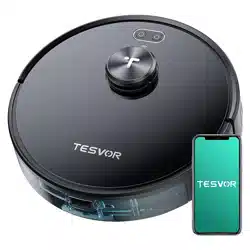
S6 Smart Robot Vacuum

CONTENTS
1. Safety Instructions
3. Using Your S6
4.Cleaning and Maintenance
5. Troubleshooting
6. Specification
Important Tips before Use
Preparation
LED Indication
Charging Modes
Switching Modes
Cleaning Modes
Set Time and Scheduled Cleaning
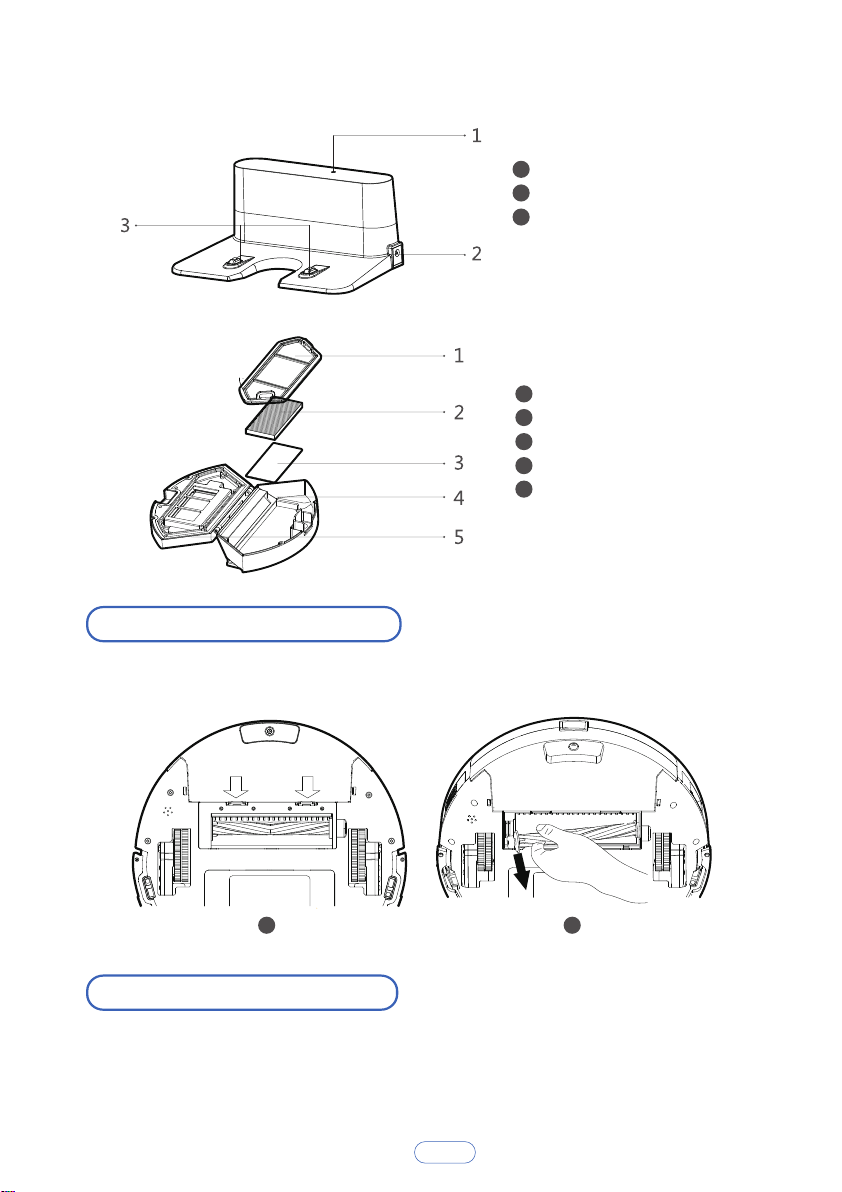
S6 Anatomy
Clean the Rolling Brush
Clean the Side Brushes
Clean the box and Filters
Replace the Side Brushes
Clean the Sensors and Charging Terminals
2. What’s in the Box
P2
P5
P6
P6
P7
P9
P9
P11
P13
P14
P15
P15
P16
P17
P17
P10
P14
P18
P19
7. Customer Service
P19
Safety Instructions for S6 and Accessories
Warning
To reduce the risk of injury or damage, read these safety instructions
carefully and keep them at hand when setting up, using, and maintaining
this device.
Aenon
1. Safety Instructions
1. Do not disassemble, repair or refit the product without authorization;
otherwise, it may damage the product or pose a hazard.
2. Do not use the device in an environment with a risk of fire or explosion.
3. This device is only to be used with the original power adapter; otherwise, it
may be damaged or catch fire.
4. This device is not a toy. Do not sit or stand on this device. Small children and
pets should be supervised when this device is operating.
5. If the metal part of the power plug is dusty, please wipe it with a dry cloth.
6. The power adapter is applied to a 100-240V AC voltage. Please plug it into the
socket properly and keep away from children.
7. Do not wash or soak the main body and electronic accessories in water;
otherwise, the device may be damaged by a short circuit.
8. Do not damage, load weight on, heat, pull, or bend it.
9. During cleaning, please pay attention to the safety of toddlers and the elderly
at home to avoid tripping, and to avoid injury please do not touch the wheel and
side brush. (Please pay special attention to toddlers).
10. This device is for indoor use only. Please do not use it outdoors.
11. Do not allow metal and conductive materials to come in contact with the
battery. It may result in a short circuit.
1. Do not touch the device with wet hands. It may result in an electric shock.
2. Do no place the device where it could easily fall, such as on tables, chairs, high
platforms in room, etc.
3. The device has a sophisticated design and should be protected from long-term
exposure to sunlight.
4. Do not use the device in humid environments, such as bathrooms.
5. Do not place the device near cigarette butts, lighters or open fires.
6. Clean the product at the end of charging.
7. Please turn off the power switch on the side of the robot when it is out of
service for a long time.
2
Safety Instructions for S6 and Accessories
Warning
Danger
1. When skin or clothing is exposed to the battery electrolyte, please immediately
wash with clean water to avoid inflammation of the skin, etc.
2. Do not use the rechargeable battery on other devices. This battery is only
suitable for the Tesvor robot vacuum cleaner.
3. If the battery’s outer box is found to be deformed and enlarged, or there is a
leakage of electrolytes, do not charge or continue to use to avoid danger.
4. Do not throw or inflict a strong impact on the battery. It may result in leakage,
heating or rupture.
5. Do not disassemble the battery pack. It may result in battery rupture and
electrolyte outflow, leading to fire, explosion, and other dangers.
6. This device can be used by children aged from 8 years and above and persons
with reduced physical, sensory or mental capabilities or lack of experience and
knowledge if they have been given supervision or instruction concerning the use
of the device in a safe way and understand the hazards involved.
7. Children should be supervised to ensure they do not play with this device.
8. Cleaning and maintenance must not be performed by children without adult
supervision.
9. This device contains batteries that can only be replaced by skilled people.
10. Only use the detachable supply unit provided with this device to recharge the
battery.
8. Before using the device, please remove all vulnerable items on the floor, such as
glass, lamps, and items such as wires and curtains that may become entangled with
the side brush and suction passages.
9. When the dust box is full, please empty it into the garbage before using it again.
10. Do not use the robot to clean construction waste.
11. The operating temperature of the device ranges from 0 degrees Celsius to 40
degrees Celsius; please do not use it in a high-temperature environment.
12. Before the device is scrapped, please remove the battery from the robot. When
you remove the battery, please ensure that the device is not connected to a power
supply. Please recycle the battery safely for environmental protection.
1. Always use a dedicated battery adapter to avoid leakage, heating or rupture.
2. Do not short-circuit the battery or remove the battery. It may result in leakage,
heating or rupture.
3. Do not transport or preserve with necklaces, hairpins and other metal objects. It
may result in a short circuit, leakage, heating or rupture.
4. Do not burn or heat the battery. It may result in leakage, heating or rupture.
3
Aenon
11. The power supply must be removed from the socket-outlet before cleaning or
maintaining the device.
12. The battery must be removed from the device before it is scrapped.
13. The device must be disconnected from the mains supply when removing the
battery.
14. The battery should be disposed of safely.
15. How to remove the battery:
1. If abnormal overheating is discovered during charging, stop using it immediately
to avoid leakage, heating or rupture.
2. To prolong the service life of the battery, please remove the battery and place it
in a cool, dry environment if it is out of service for a long time; this will avoid
leakage, heating or rupture.
3. Do not soak the battery in water or let it come into contact with any liquid;
otherwise, it may cause leakage, heating or rupture.
4. Be sure to stop using it immediately in case of any problem (e.g., discoloration
or deformation), to avoid leakage, heating or rupture.
5. Always use tape to insulate the battery’s electrode when recycling or disposing
of it.
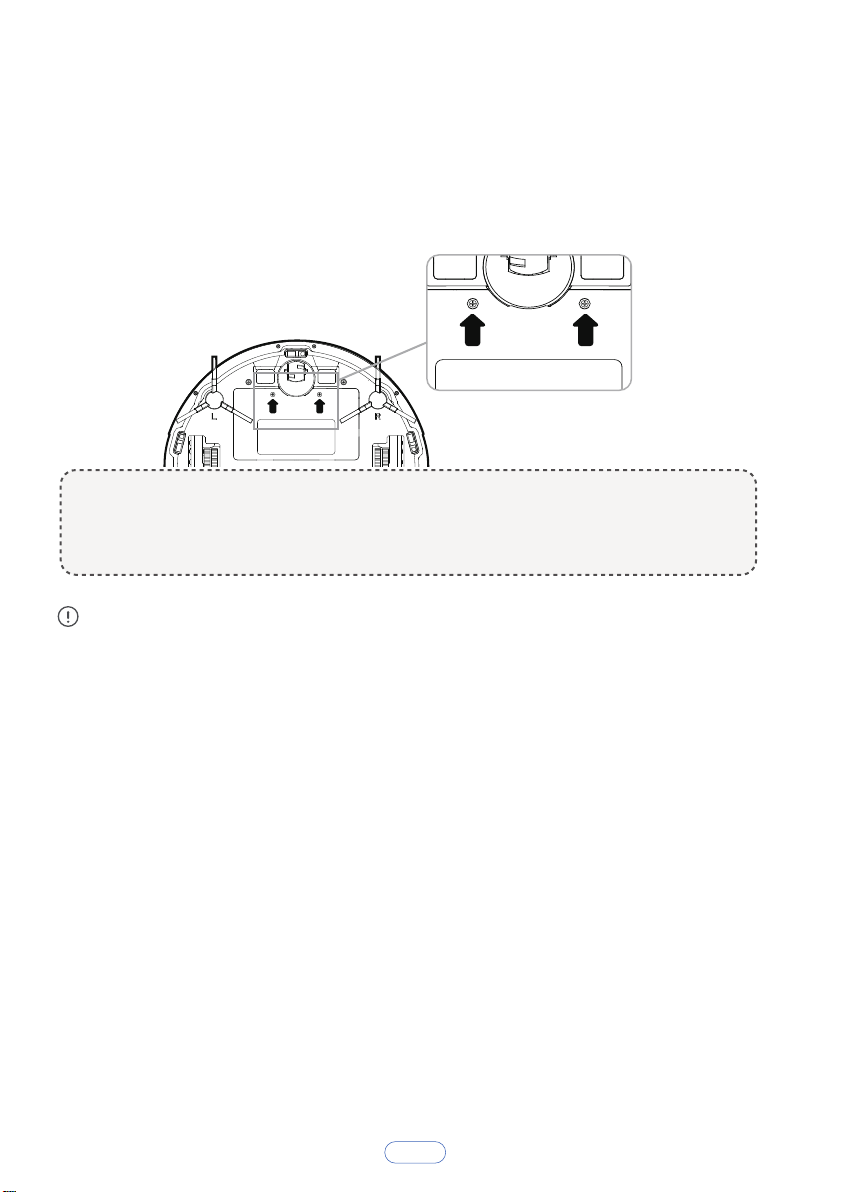
① Take out the two screws on the battery cover with a screwdriver.
② Take off the battery cover.
③ Take the battery out and unplug the electric wires to remove the battery.
4
2. What’s in the Box
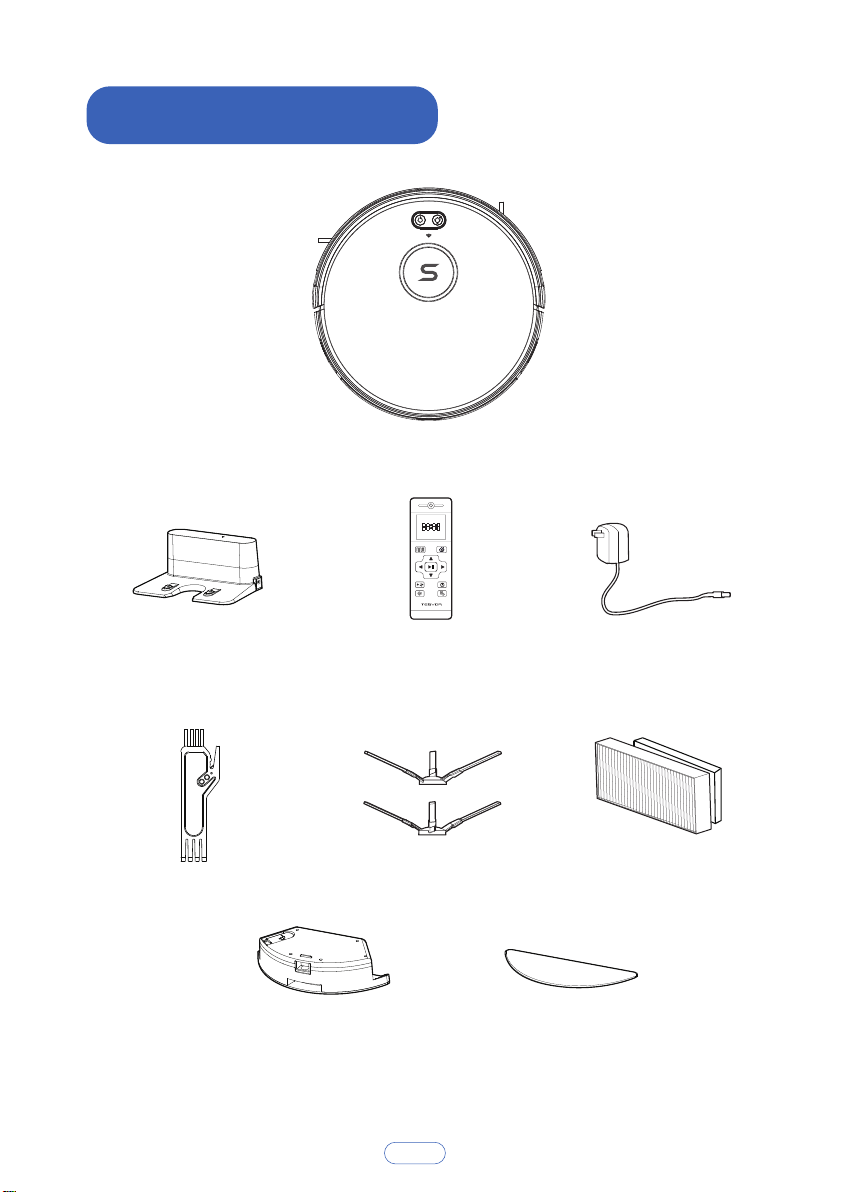
Main Body
Charging Base
Remote Control
(2 * AAA Batteries required
but NOT included)
High-effective
Filter/Sponge
Power Adapter
Cleaning Tool Side Brushes(4)
While the accessories provided for some models are slightly different,
they are subject to the actual product.
5
Water Tank Component Mop
Important Tips before Use
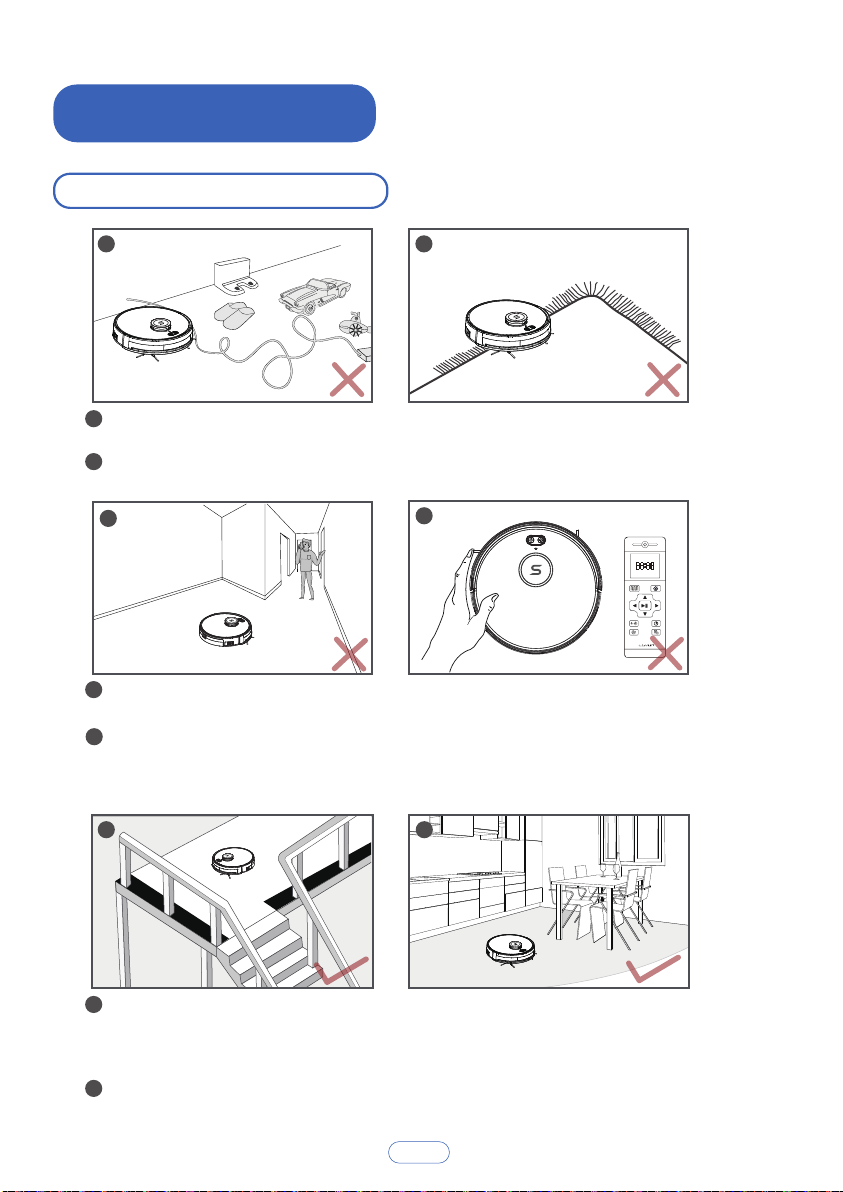
Remove power cords and small objects from the floor that may become
entangled with the S6.
The S6 may climb on top of objects less than 0.63 in/16 mm in height.
Remove these objects if possible.
Do NOT stand around narrow places, such as thresholds and aisles, to reduce
the uncovered rate.
The S6 will clear all memories and re-plan all work routes if it is manually
moved or it is controlled by the remote control during cleaning. To ensure it
works efficiently, please do NOT arbitrarily move S6 manually or operate it
by remote control during cleaning.
Anti-drop sensors prevent the S6 from tumbling down stairs and steep
drops. They may work less effectively if they are dirty or used on reflective/very
dark-colored floors. It is recommended that physical barriers are used to block
off areas where the S6 may fall.
Please make sure all furniture is properly organized so that the S6 is able
to clean well without becoming stuck.
1
1
2
2
3
3
4
4
5
5
6
3. Using Your S6
6
6
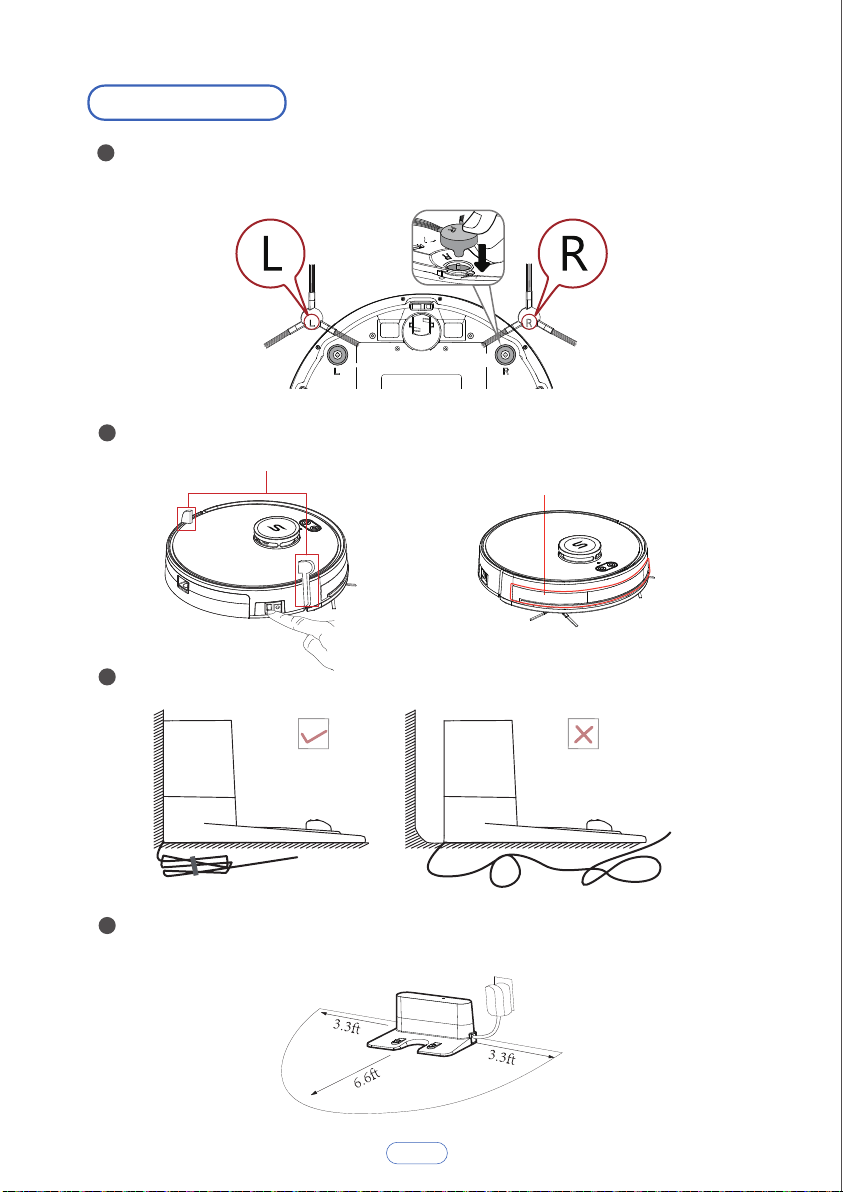
Preparation
Install the side brushes before use. Please note L and R should correspond to
each other when installing the side brushes.
Turn on the main power switch on the side of S6.
Place the Charging Base on a hard, level surface and against a wall.
Do not place any objects within 3.3 ft. to the left / right and 6.6 ft. to the
front of the charging base, and do not place any mirrors or other reflective
objects within this range.
1
2
3
4
7
Remove the protective
film before use.
Remove before use
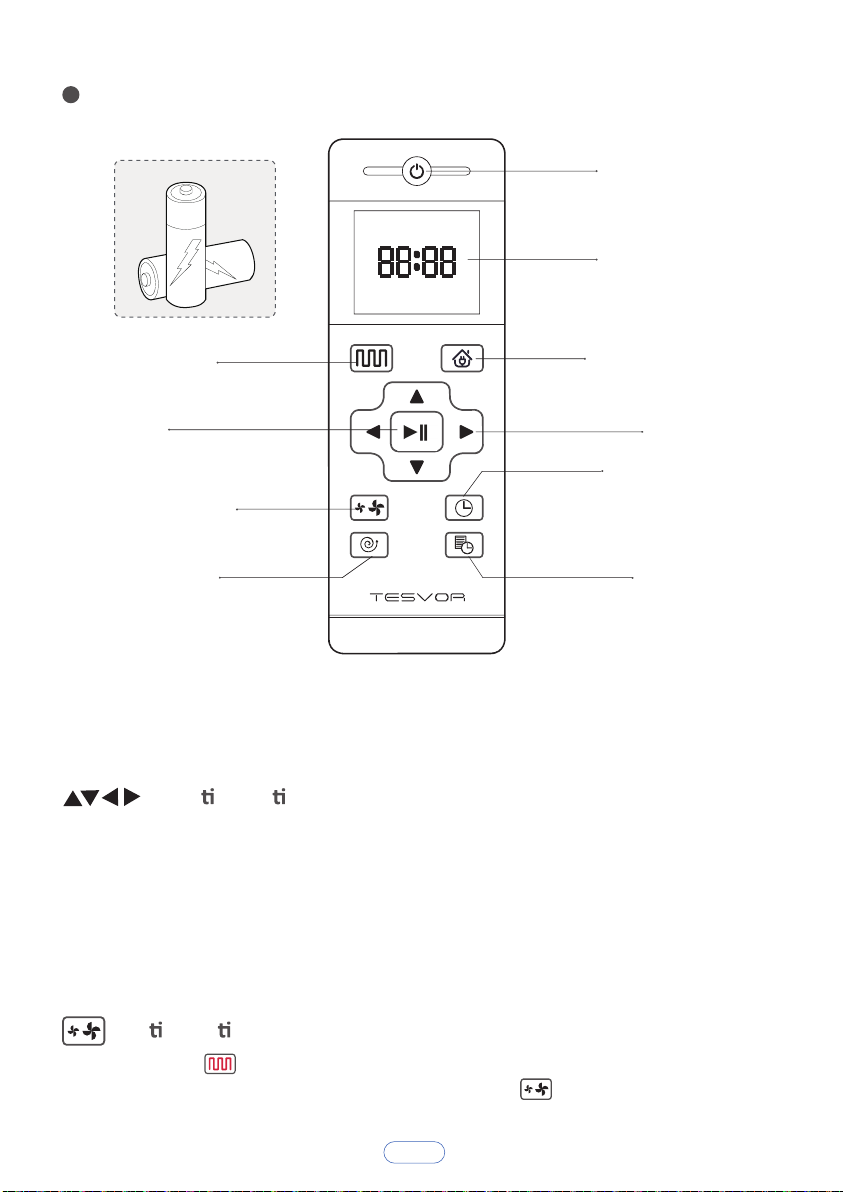
Install 2 AAA batteries (Not included in the package) into the remote control.
When the device is in the vicinity of the charging base and the virtual protection
wall, it may not be able to receive the instructions issued by the remote control. If
you do not use the remote control for a long time, please remove the battery.
Note: For App users, please refer to our User Guide for App&Alexa.
Power On/Off
Display Screen
Return for Auto
Charging
Direction
Clock Settings
spot cleaning
Confirm
Plan Cleaning
Suction Settings
Schedule
Suc on Se ngs
When you press on the remote control, you can see a fan sign appear on the
screen. You can adjust the suction power by pressing on the remote control.
Direc on Bu on
Under the standby mode, press this button to turn left/right, Press backward
button, Vacuum will rotate 180 degrees. Release button to return to standby
mode.
Press forward button, Vacuum continues forward and returns to standby mode
when hitting obstacles.
Under the Preset mode or the Time Settings mode, press this button to switch
from hours to minutes.
5
8
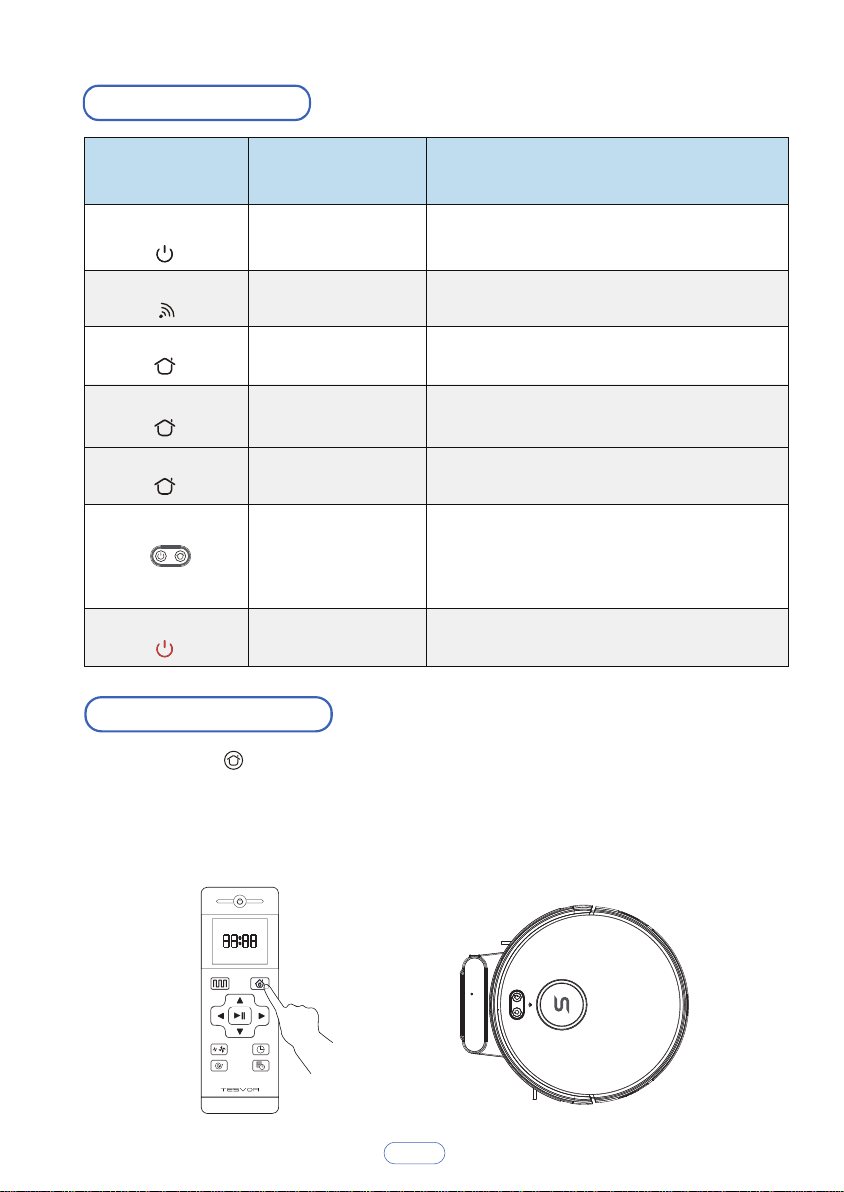
Charging Modes
Method 2: When cleaning is completed, or the battery is too low, the S6 will
automatically start finding the charging base to charge itself. Please keep the
charging base energized, or the S6 will not be able to find the charging base.
Method 1: Press on the remote control to return the
S6 to the Charging Base.
LED Indication
9
Indicator Light Machine Status
Scene
running white light
Standby / Cleaning
/ Fully charged
blinking white light
Configuring mode
running white light
blinking white light
pulse white light
Off
Return for charging
Return for charging
Recharging
Sleep
pulse red light Error
The S6 is in Standby or Cleaning mode,
or fully charged.
When connecting with the app
Return for charging after cleaning finished
Low power recharging
Low power and returning to Charging Base
T
The S6 is off.
o conserve power, the light automatically
turns off when the S6 has been
inactive for 10 minutes.
The S6 has an error.
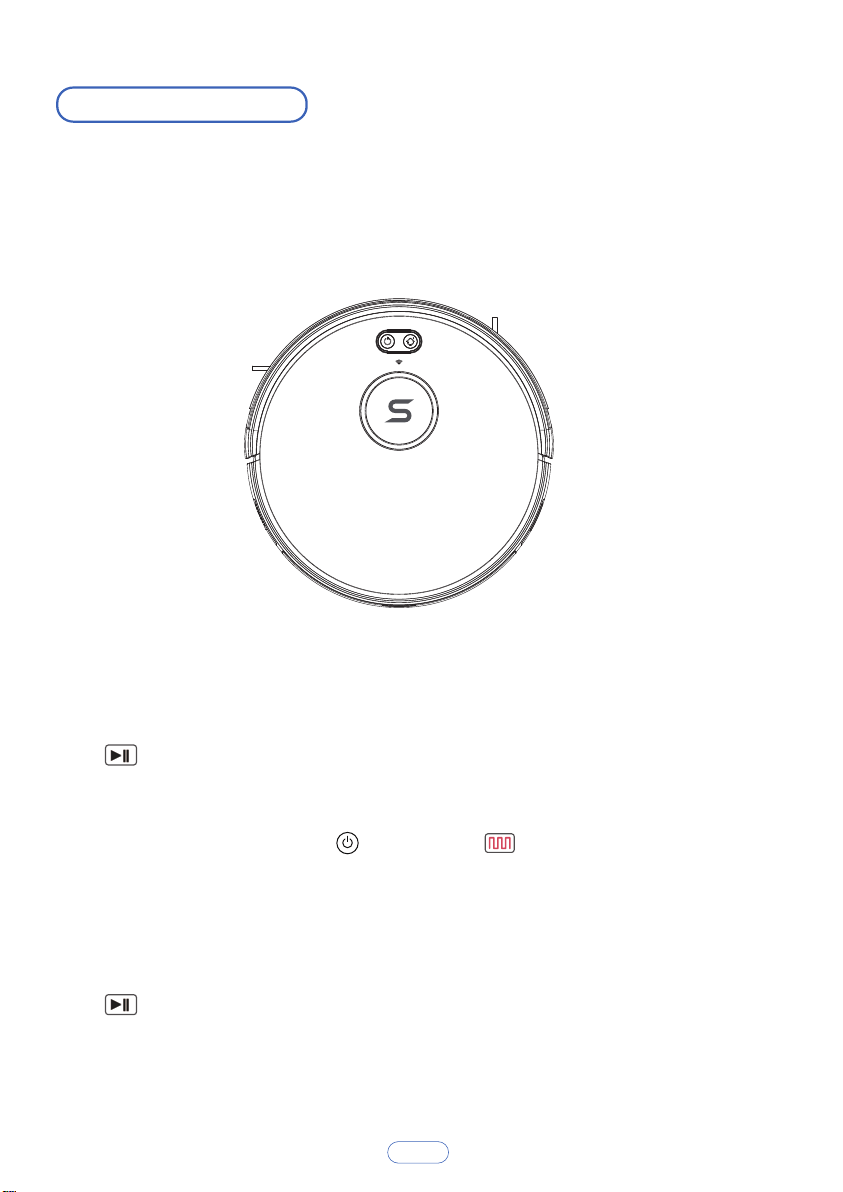
10
Switching Modes
Note: Make sure the power switch on the side of the S6 is t urned on before use.
The pause function switches the S6 from the operating mode to the
selected mode, and it can be paused by the following operations:
Sleep mode means that the S6 is stopped and the indicator light is off. If the S6
is not active for 10 minutes, it will enter Sleep mode automatically.
Press on the remote controller to wake it up.
Note
: If the S6 is out of service for a long time, please turn the power switch off.
Press on the remote control or robot to pause it.
Under the Standby mode, press on the S6 or on the remote
control to start the robot.
Start
Pause
Wake Up
11
Cleaning Modes
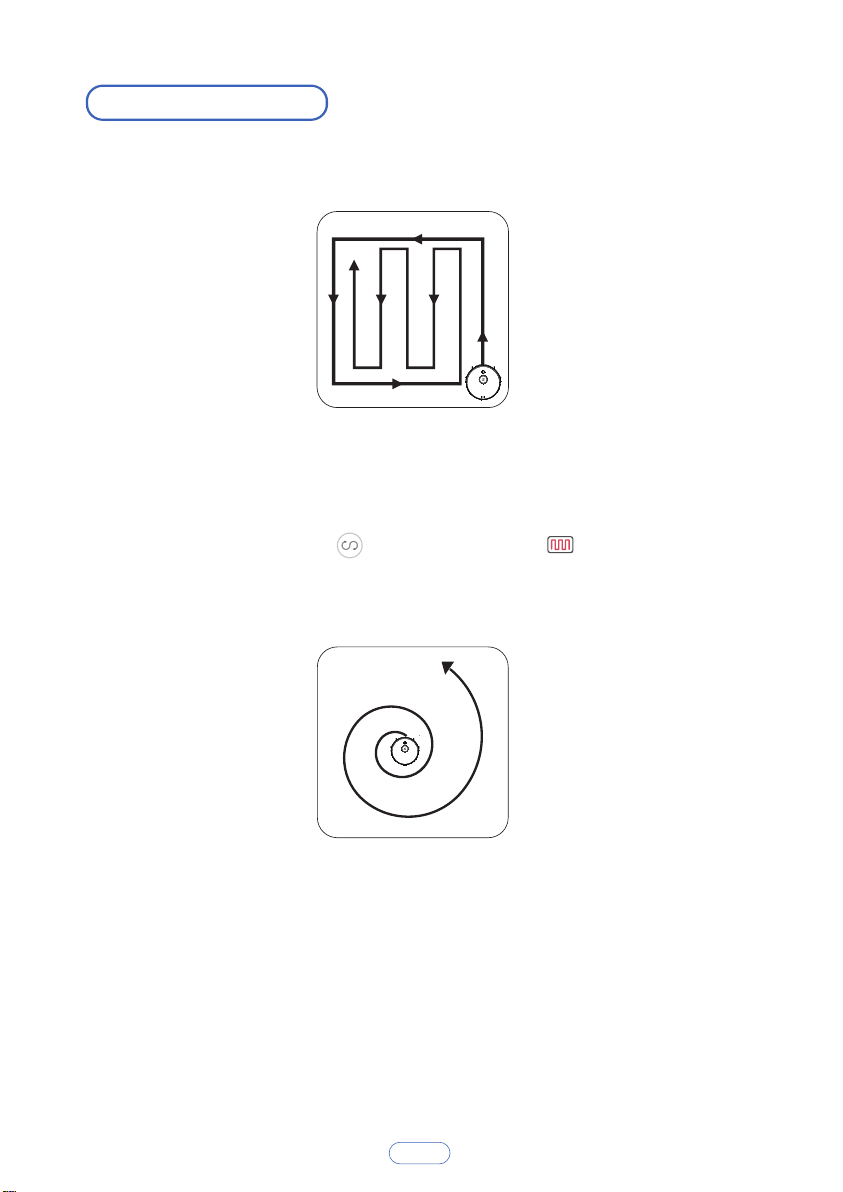
The robot will perform the cleaning plan in S shape route according to the room
environment.
Click the Smart Cleaning icon on the app or press on the remote control
to start cleaning under the Smart Cleaning mode.
S6 intensively cleans a specific area in a spiral pattern, useful if there is a
concentrated area of dust or debris. When in the Spot Cleaning mode, the
S6 will stop cleaning after 2 minutes.
1. Plan Cleaning ( S shape Cleaning )
2. Spot Cleaning
12
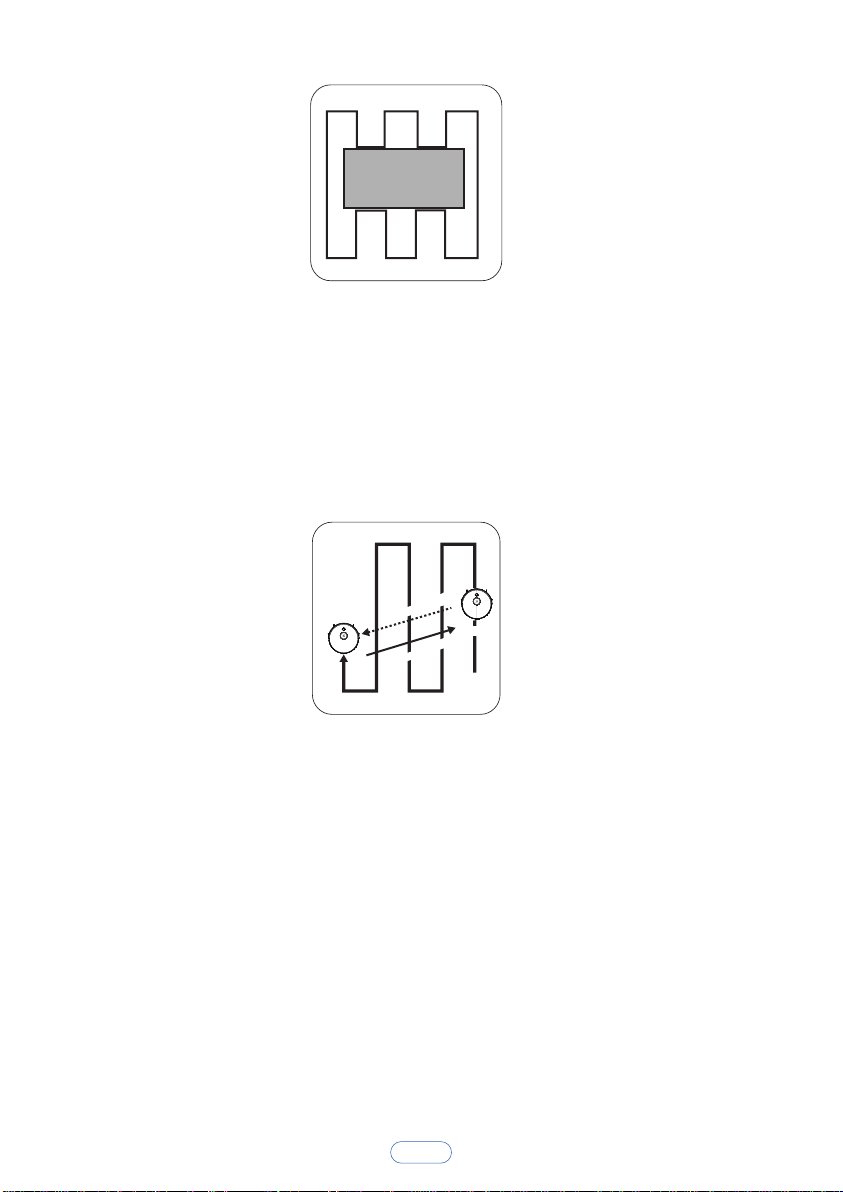
3. Seng Forbidden Area
restricted area
Only available by App control, After setting the forbidden area,
the robot will not enter the forbidden area of the room.
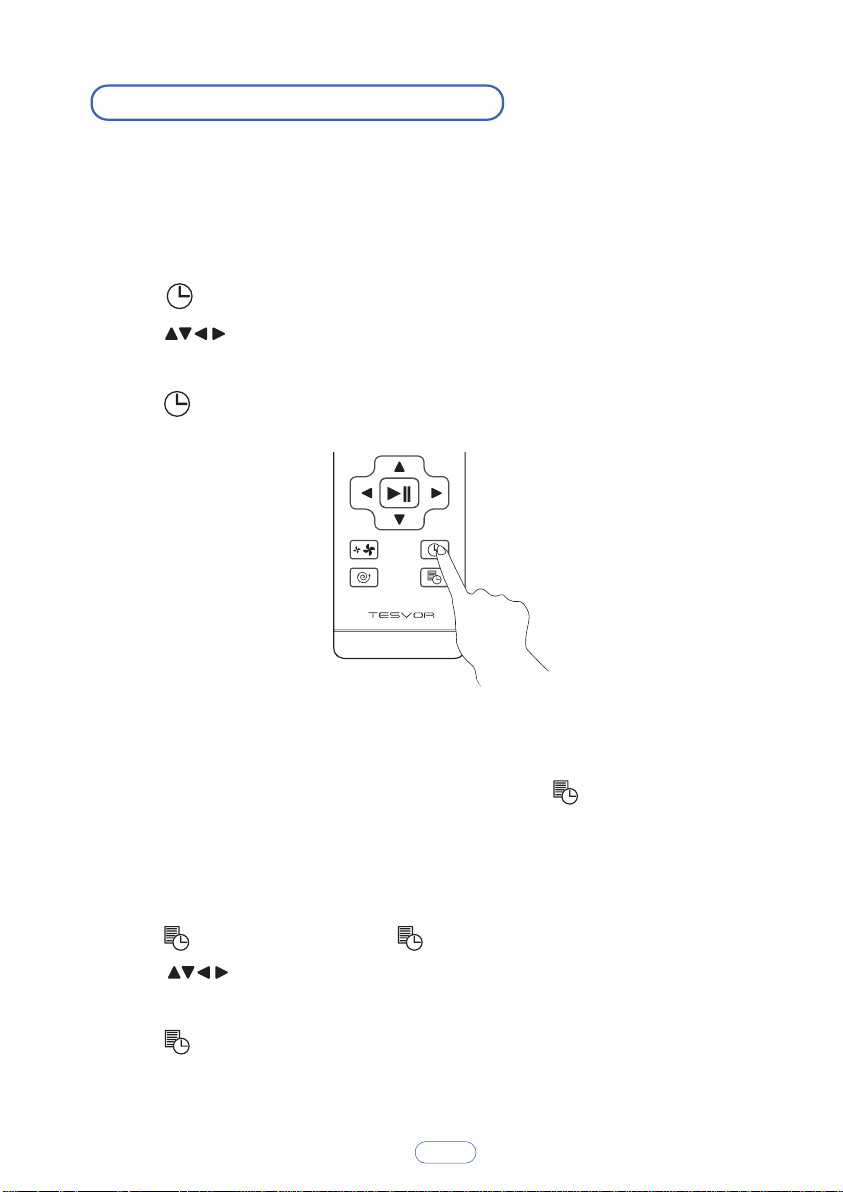
4. Relocaon by LDS
During cleaning, when pause the robot and take it to a new area ,then restart it to
resume cleaning, the robot will begin relocation and move to its previous place.
Location A
Be moved to
Relocalization
Location B
13
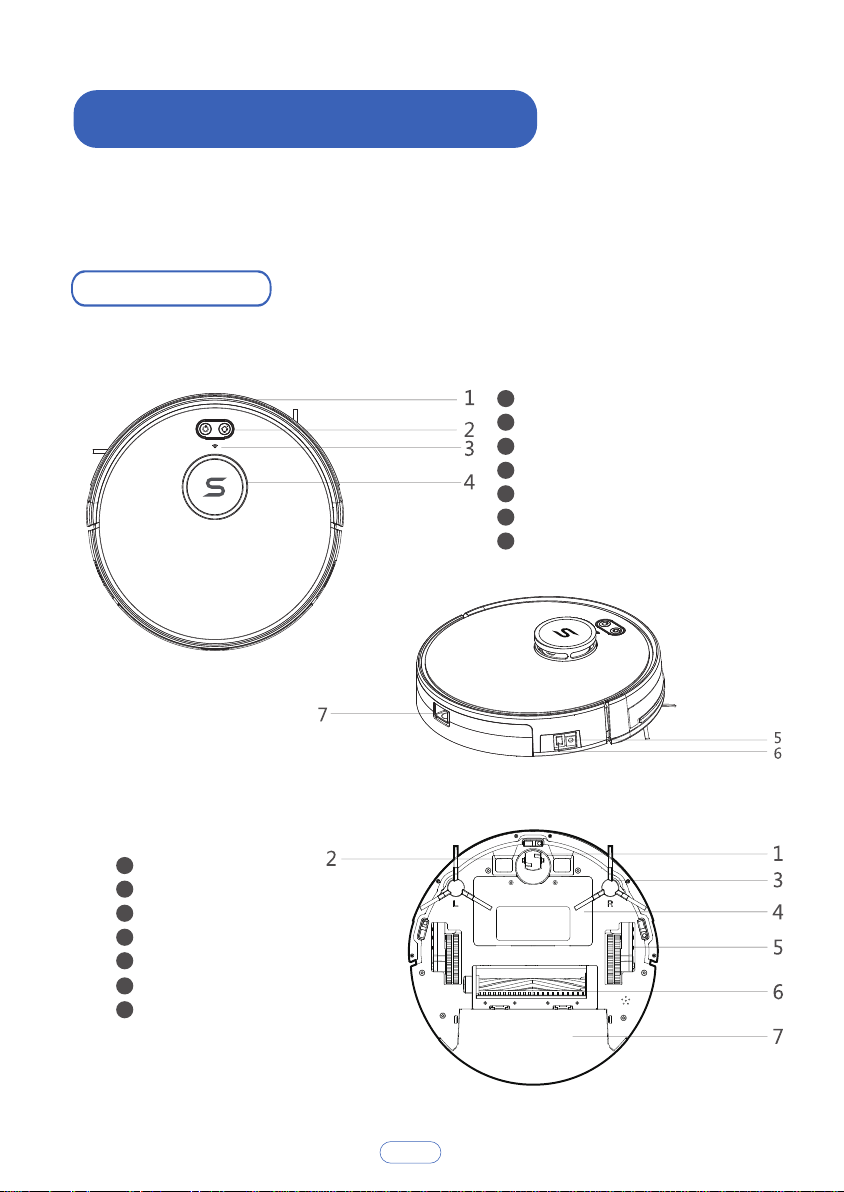
Set Time and Scheduled Cleaning
Note: Make sure the me is set correctly to your local me before seng a
scheduled cleaning.
1. Make sure the main power switch on the bottom of the S6 is turned on.
2. Press on the remote control. The time will blink on the display.
3. Press to set the “hour” and “minute”.
Note: Make sure AM/PM is set correctly.
4. Press to save the setting.
You can schedule the S6 to start cleaning at a specified time. To cancel a
previously scheduled cleaning session, press and hold for 3 seconds.
Note: Before seng a scheduled cleaning, make sure the me has been set correctly
to your local me; refer to the previous secon “Set Time” for how to set the me.
1. Make sure the main power switch on the bottom of the S6 is
turned on.
2. Press on the remote control. will blink on the display.
3. Press to set the “hour” and “minute”.
Note: Make sure AM/PM is set correctly.
4. Press to save the setting.
Set Time
Set a Scheduled Cleaning
14
S6 Anatomy
Top & Side
Boom
Bumper
Control Button
WIFI Indicator
Laser Components
DC power jack
Power switch
Dust box release button
2
3
4
5
6
7
1
Swivel Wheel
Electrode Slice
Side brushes
Battery Compartment
Wheels
Rolling brush
Dust box
6
7
2
3
4
5
1
For opmal performance, follow the instrucons below to clean and maintain the S6
regularly. The cleaning/replacement frequency will depend on the way you use the S6.
4.Cleaning and Maintenance
Clean the Side Brushes
Foreign substances, such as hair, can easily get tangled in the side brushes, and
dirt may adhere to them. Be sure to clean them regularly.
1) Remove the side brushes.
Dust box
Pre-filter
High-performance filter
Filter sponge
Dust box
Dust box cover
2
3
4
5
1
Charging indicator light
DC power jack
Charging terminal
2
3
1
Charging Base
Clean the Rolling Brush
1.Open the rolling brush components.
2.Remove the rolling brush shaft and clean off any debris and hair.
1 2
15
2) Carefully unwind and pull off any hair or string that is wrapped between the
main unit and the side brushes.
3) Use a cloth dampened with warm water to remove dust from the brushes or
to gently reshape them.
Note
: Only use the side brushes when they are completely dry.
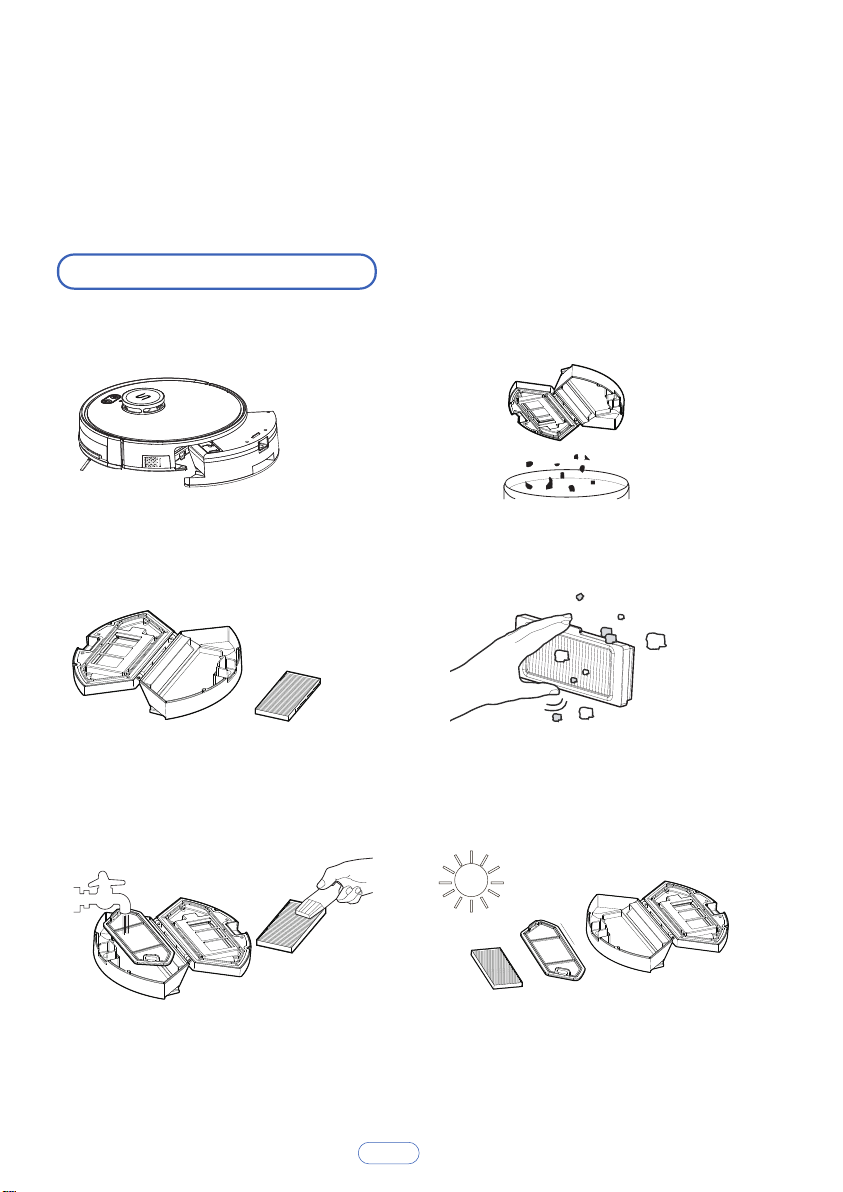
Clean the box and Filters
1. Take out the dust box.
5. Clean the dust box and basic
filter with water; Clean the
high-efficiency filter with a brush.
6. Dry the dust box, high-efficiency
filter and basic filter in the sun.
Note: You can wash the dust box, pre-filter and Filter sponge with water. Be sure to
air-dry them thoroughly before reassembling. Do not wash the high-performance filter
with water, and not expose to sunlight,as it may damage the filter and reduce the
sucon power.
2. Clean up all dirt and dust in the
box.
3. Take out the high-performance
filter and the basic filter.
4. Clean up all dirt in the
high-efficiency filter.
16
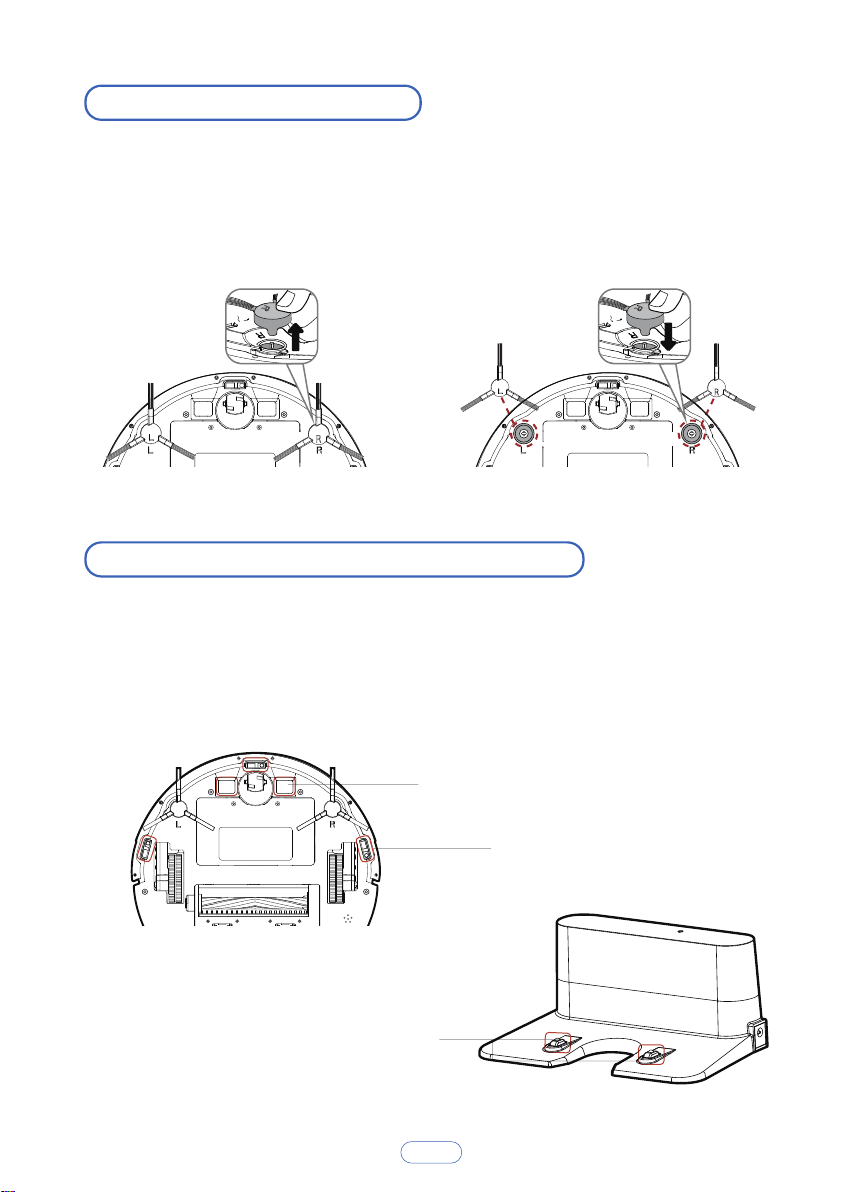
Replace the Side Brushes
The side brushes may become bent or damaged after being used for a period of
time.
Follow the instructions below to replace them.
Pull off the old side brushes and snap the new ones into place.
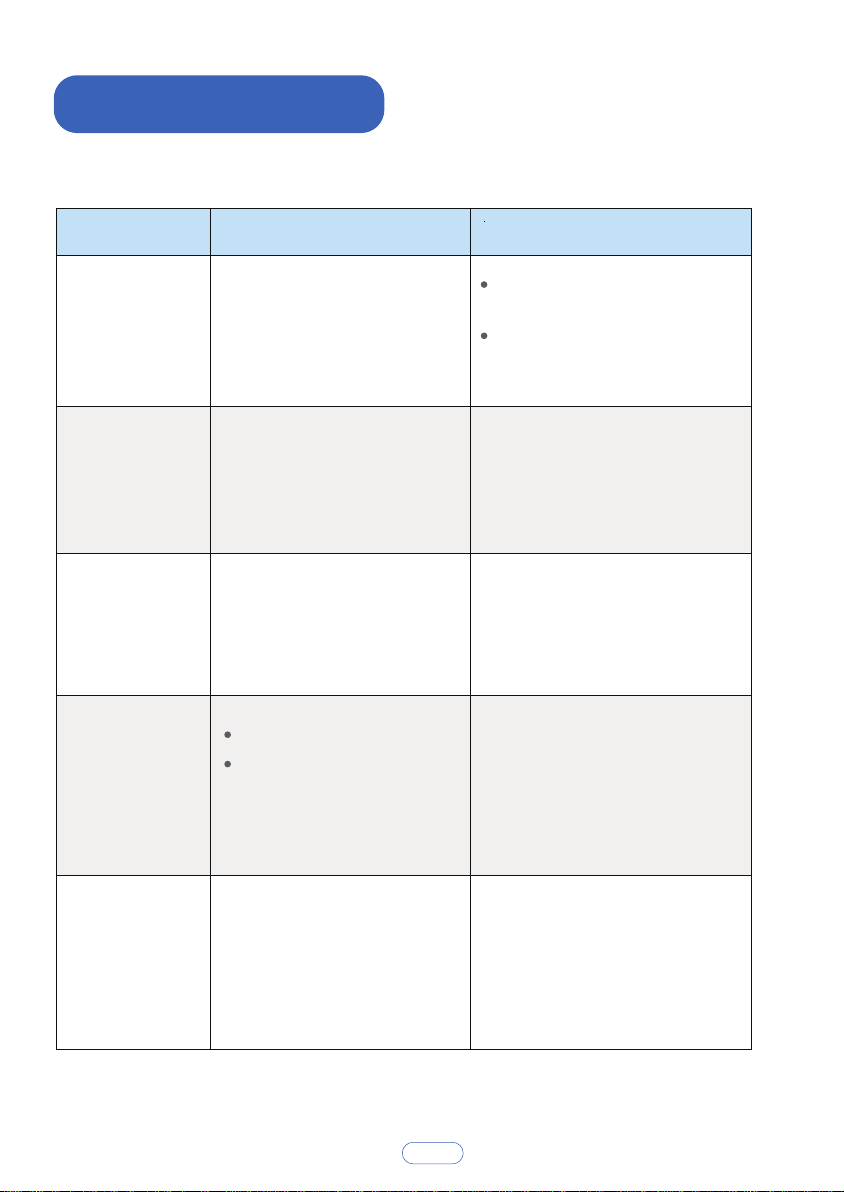
Clean the Sensors and Charging Terminals
To maintain the best performance, clean the drop sensors and charging terminal
regularly.
Use a soft cloth or cleaning brush to clean the sensors and charging terminals
periodically.
Charging terminal
Electrode slice
Sensor
17
5. Troubleshooting
18
Problems Causes Solutions
Clean the sensors carefully with
a dry cloth.
Restart the S6 by turning the
power switch off and back on.
Please install the side brushes
correctly according to the marks
L and R on the device.
It is normal.
The remote control scheduling
must be in a non-sleep state, and
there is a voice prompt for the
start and success of scheduling.
In addition, the robot needs to
be rescheduled after power off.
Remove the side brushes and the
rolling brush separately to see if
there are still any noise when
working. If yes, confirm the
problem accessory and replace it
with a new one.
There is something wrong with
the S6’s software.
The side brushes are mounted
in reverse.
The robot judge by itself that it
has finished all the cleaning
work and return for charging.
Scheduling failed.
The robot was restarted after
scheduled.
The side brushes or rolling
brush deform.
The S6’s
movements or
travel path are
abnormal.
The side
brushes deform
when you start
cleaning the
first time.
The S6 doesn’t
keep working
for 100
minutes.
The S6 does not
perform cleaning
work
automatically as
scheduled on
remote control.
The S6
suddenly make
noise.
Frequently Asked Quesons

6. Specification
19
Product Model S6
Input
19 V/ 0.6 A
Battery Voltage
DC 14.4 V
Power Consumption
25W
Battery Capacity 2500mAh
Dust Box Capacity
600ml
Cleaning Time
Max. 100 mins
Charging Time
240 - 360 mins
Diameter of main unit
330mm
Thickness of main unit
101mm
Net weight of main unit
4.0kg
7. Customer Service
If you have any issues, please contact us by Online Service on the app or send
email to service@tesvor.com.
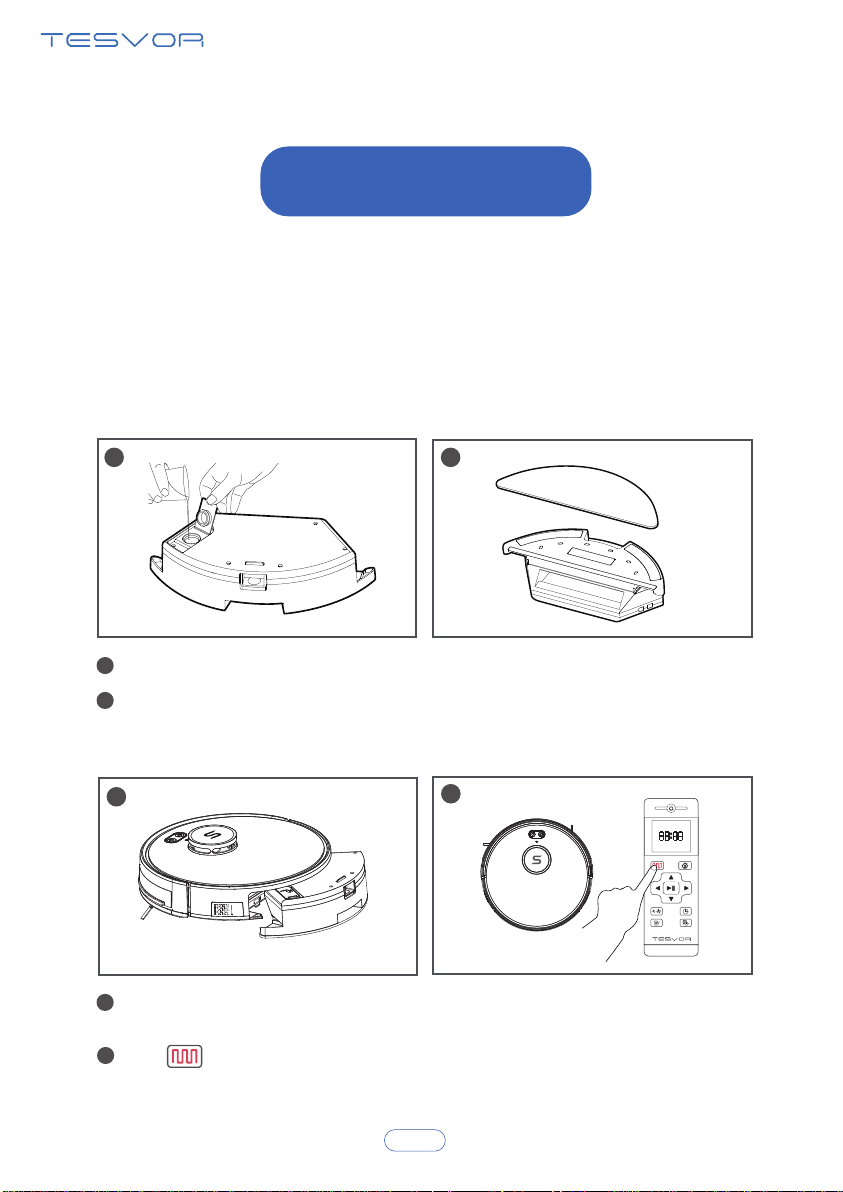
Open the sealing plug of the water tank, and slowly pour water into it.
Close the sealing plug of the water tank, paste the cleaning cloth to
Velcro on the bottom of the tank.
Press the button at the rear of the robot to take out the dust box and
install the water tank.
Click on the remote control or Smart Clean on the app.
1
1
2
2
3
3
4
4
How to Use
Note:
1. Please remove the water tank when charging to avoid danger.
2. Mopping is not suitable for carpets. When mopping, please roll up the edges of
carpets or use magnec strips to isolate carpets.
3. If there is any abnormality in the robot, please try to turn off the power switch on
the right side of the robot to restart it when not charging.
20
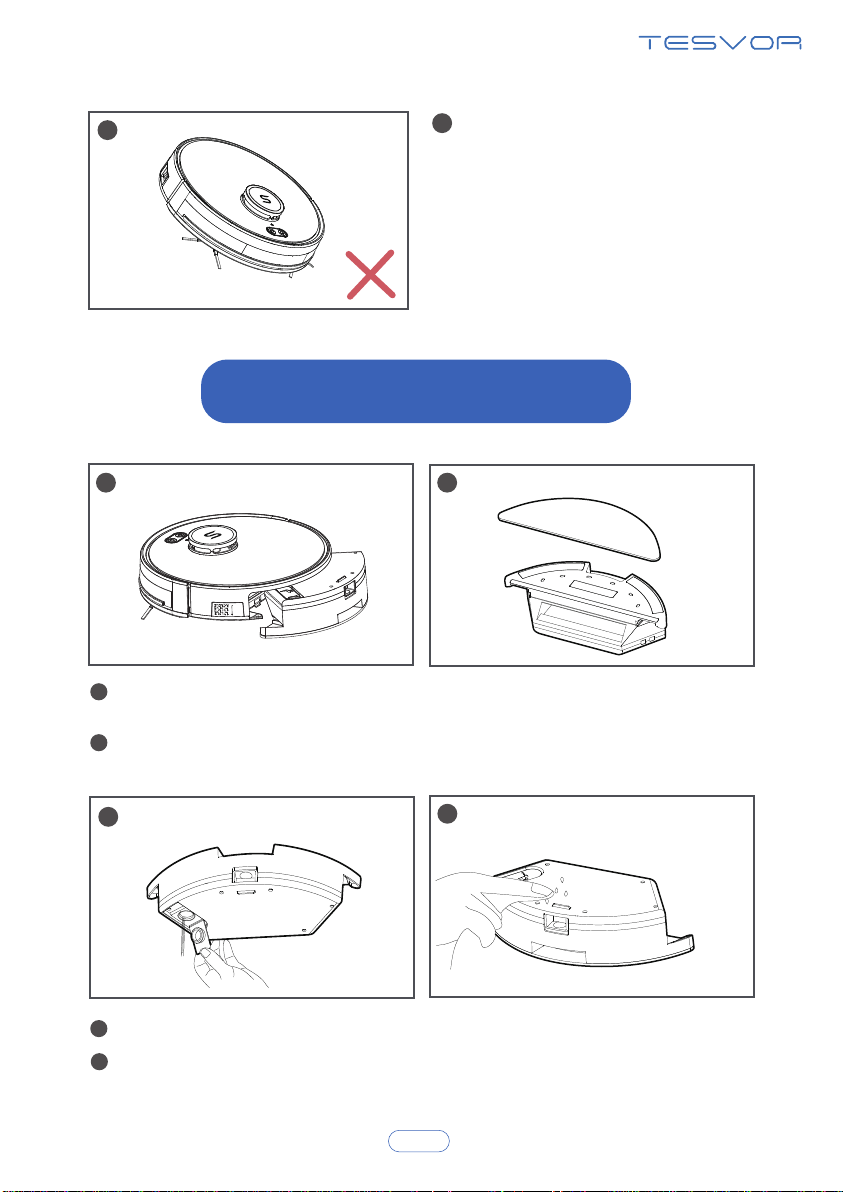
Remove the water tank: press the button at the rear of the robot to
remove the water tank.
Remove the cleaning cloth, rinse and dry it.
Drain the remaining water in the water tank.
Dry the water tank.
1
1
2
2
3
3
4
4
Water Tank Maintenance
21
Please DO NOT lift up and tilt the
robot vacuum after water tank is
installed, in case water inflows the
machine and damage it.
5
5

Importer: Bright star consulng e.K.
Address: Humboldtstr.5, 31812 Bad Pyrmont Germany
Call Us : +49 69 365065463 Mon-Fri 9AM-5PM (CET)
Customer Service: [email protected]
Company website: hps://www.tesvor.com/de
Manufacturer: Shenzhen Zhisheng Dianzishangwuyouxiangongsi
Address: Qianwan Yilu 1hao Adong 201shi Qianhai shenganghezuoqu Shenzhen Guangdong China
MORE FAMILY TIME. LESS CLEANING.