
Safety warnings . . . . . . . . . . . . . . . . . . . . . . . . . 2
Getting started . . . . . . . . . . . . . . . . . . . . . . . . . 3
Use of the remote control RC4404/01 . . . . . . 5
Use of the option key . . . . . . . . . . . . . . . . . . . 7
Keys at the left side of the TV . . . . . . . . . . . . . 7
Introduction: Digital TV . . . . . . . . . . . . . . . . . . 8
Switch the TV on . . . . . . . . . . . . . . . . . . . . . . . 8
First time installation . . . . . . . . . . . . . . . . . . . . 9
How to navigate through the menus . . . . . . . 11
Use of the TV menu settings . . . . . . . . . . . . . 12
Adjust picture menu settings . . . . . . . . . . 14
Adjust sound menu settings . . . . . . . . . . 17
Adjust feature menu settings . . . . . . . . . . 19
Search for and store TV channels . . . . . . 23
Rearrange the channel number list . . . . . 27
Set your preferences . . . . . . . . . . . . . . . . 28
Select your connections . . . . . . . . . . . . . 29
Select a decoder channel number . . . . . . 29
Reset the factory settings . . . . . . . . . . . . 30
How to upgrade the TV software . . . . . . 30
Create your favourite list . . . . . . . . . . . . . . . . 31
EPG (Electronic Programme Guide) . . . . . . . 32
Multimedia Browser . . . . . . . . . . . . . . . . . . . . 34
Teletext . . . . . . . . . . . . . . . . . . . . . . . . . . . . . 37
To make video and audio connections . . . . . 40
Side panel overview . . . . . . . . . . . . . . . . . . . . 41
Rear panel overview . . . . . . . . . . . . . . . . . . . 42
Connect:
a VCR or DVD recorder . . . . . . . . . . . . . 43
twoVCRs or VCR and DVD recorder . . .44
a satellite receiver . . . . . . . . . . . . . . . . . . 44
a DVD player, Cable box/game console . .45
a DVD player or Cable box . . . . . . . . . . . 45
a DVD player, sat. receiver or cable box .46
a PC . . . . . . . . . . . . . . . . . . . . . . . . . . . . . 47
a Home Cinema amplifier . . . . . . . . . . . . 48
Use the Common Interface slot . . . . . . . . . . 49
Select connected equipment . . . . . . . . . . . . . 50
Record with your recorder . . . . . . . . . . . . . . 50
Audio- and video equipment keys . . . . . . . . . 51
Troubleshooting . . . . . . . . . . . . . . . . . . . . . . . 52
Annex 1:To set the remote control to
work a Philips DVD or DVD/R . . . . . . . . 53
Annex 2 - Philips TV software upgrade
with portable memory . . . . . . . . . . . . . . . 54
Annex 3 - Philips TV-Slideshow Format
with background music . . . . . . . . . . . . . . 57
Annex 4 - Philips TV - Digital camera
and USB issues . . . . . . . . . . . . . . . . . . . . . 59
Annex 5 - Issues referring to connected
peripherals with a HDMI connector . . . . 60
Index . . . . . . . . . . . . . . . . . . . . . . . . . . . . . . . . 61
Recycling . . . . . . . . . . . . . . . . . . . . . . . . . . . . . 62
Product information . . . . . . . . . . . . . . . . . . . . 62
Contents
EN
1
If this instruction manual does not give an answer or if ‘Troubleshooting’ does not solve your TV
problem, you can call your Local Philips Customer or Service Centre. See the supplied Worldwide
guarantee booklet.
Please, have the Model and Product number which you can find at the back or the bottom of your television
set or on the packaging, ready, before calling the Philips customer support service.
Model: 32PF9631D/10
Product No: ....................................
About this User Manual
This manual contains all information you will need to initially install and operate your new TV.
Also read the help texts which are being displayed at the bottom of the screen.

2
EN
Safety warnings
Do not insert the power plug in a wall socket
or hang the TV to the wall before all
connections are made.
• Place or hang the TV wherever you want, but
make sure that air can circulate freely through the
ventilation slots.
• Do not install the TV in a confined space such as
a book case or a similar unit.
• To prevent any unsafe situations, no naked flame
sources, such as lighted candles, should be placed
in the vicinity.
• Avoid heat, direct sunlight and exposure to rain
or water.
• The equipment shall not be exposed to dripping
or splashing.
Do not touch, push or rub or strike the screen
with anything hard as this may scratch, mar or
damage the screen permanently.
And please do not rub with dust clothes with
chemical treatment.
Do not touch the surface with bare hands or
greasy cloth (some cosmetics are detrimental to
the screen). Unplug the TV before cleaning the
screen.
When the surface becomes dusty, please wipe
gently with absorbent cotton or other soft
materials like chamois soaks. Do not use acetone,
toluene and alcohol because they cause chemical
damage. Do not use liquid cleaners or aerosol
cleaners.Wipe off saliva or water drops as soon as
possible.Their long time contact with the screen
causes deformations and colour fading.
Examples of stationary images (this is not an all-
inclusive list, you may encounter others in your
viewing):
• TV and DVD menus: listings of DVD disk content;
• Black bars: when black bars appear at the left and
right side of the screen, it is recommended to
change to a picture format so that the picture fills
the entire screen;
• TV channel logo: present a problem if they are
bright and stationary. Moving or low-contrast
graphics are less likely to cause uneven aging of
the screen;
• Stock market stickers: presented at the bottom of
the TV screen;
• Shopping channel logos and pricing displays: bright
and shown constantly or repeatedly in the same
location on the TV screen.
Examples of still pictures also include logos,
computer images, time display, teletext and images
displayed in 4:3 mode, static images or characters,
etc.
• Philips Royal Electronics manufactures and sells
many products targeted at consumers, which, like
any electronic apparatus, in general have the
ability to emit and receive electro magnetic
signals.
• One of Philips’ leading Business Principles is to
take all necessary health and safety measures for
our products, to comply with all applicable legal
requirements and to stay well within the EMF
standards applicable at the time of producing the
products.
• Philips is committed to develop, produce and
market products that cause no adverse health
effects.
• Philips confirms that if its products are handled
properly for their intended use, they are safe to
use according to scientific evidence available
today.
• Philips plays an active role in the development of
international EMF and safety standards, enabling
Philips to anticipate further developments in
standardisation for early integration in its
products.
Tip: reduce contrast and brightness when
viewing.
General
Stationary images on the TV screen
Care of the screen
Electric, Magnetic and Electromagnetic
Fields (“EMF”)
A characteristic of LCD and Plasma Panels is that
displaying the same image for a long time can cause
a permanent after-image to remain on the screen.
This is called phosphor burn in. Normal use of the
TV should involve the showing of pictures that
contain constantly moving and changing images that
fill the screen.
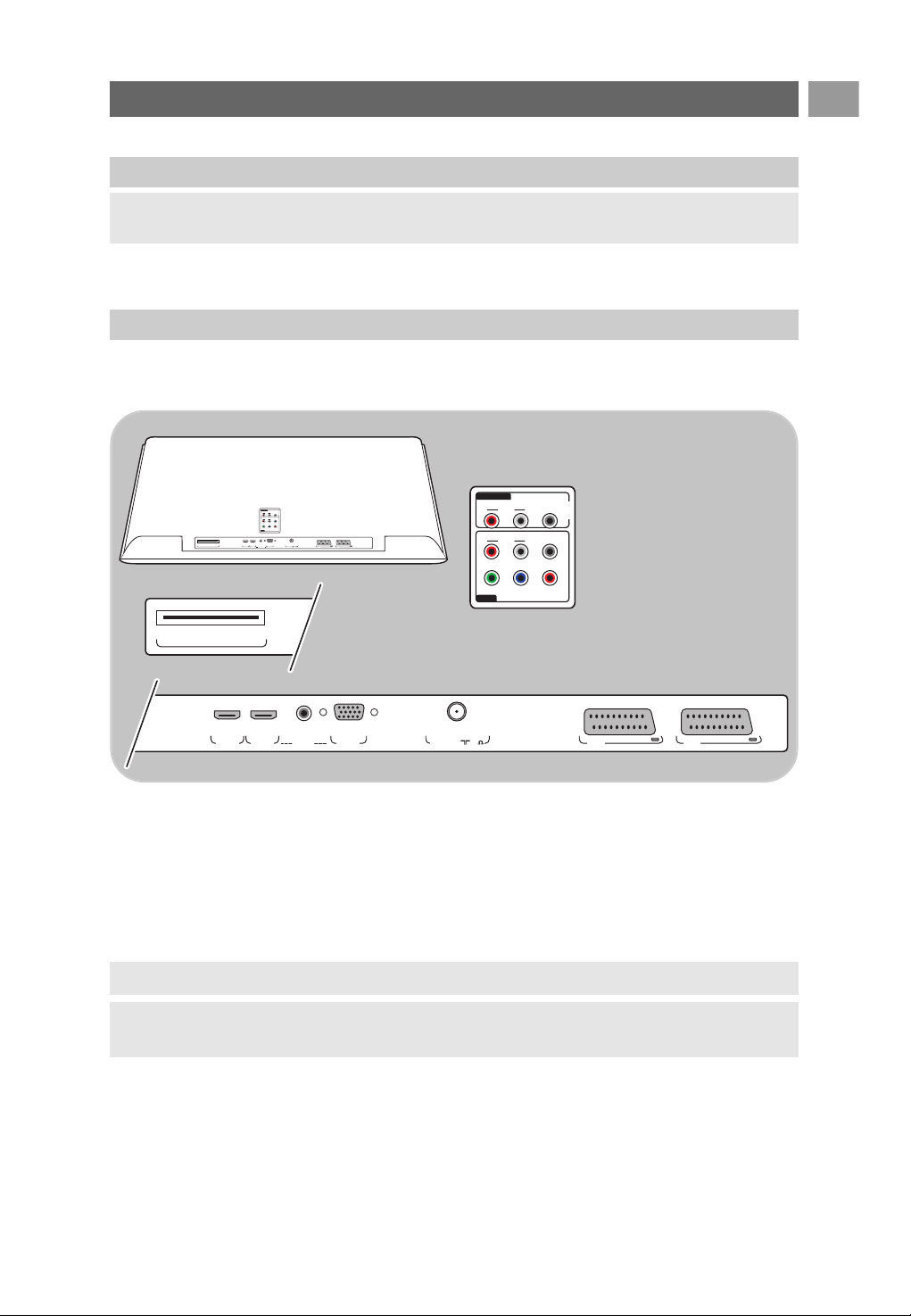
Before you switch on your TV, connect all your peripheral equipment. See To make video and audio
connections, p. 40.
There is a wide range of audio and video equipment that can be connected to your TV. See To make
audio and video connections, p. 40.
EXT1 can handle CVBS, RGB and Audio L/R;
EXT2 can handle CVBS, S-VIDEO, RGB,Audio L/R;
EXT3 can handle YPbPr and Audio L/R;
HDMI 1 and 2.
VGA can handle VGA, SVGA and 480p, 576p, 1080i,Audio L/R.
Supported video formats: 480i, 480p, 576i, 576p, 720p, 1080i.
Warning: do not insert the mains cord into the mains at the bottom of the TV and in a wall socket
or hang the TV on the wall before all connections are made.
Warning: disconnect all power sources before making any connections.
Tip: it is preferable to connect peripherals with RGB output to EXT1 or EXT2 as RGB provides a
better picture quality.
Before you start
Overview of the rear connector panel
3
Getting started
EN
PrPbY
DIGITAL
AUDIO
AUDIO
HDTV & Progressive
DISPLAY SYNCHRONIZED
480p, 576p, 720p, 1080i
IN
IN
LR
EXT3
AUDIO
OUT
AUDIO
OUT
L
R
DIGITAL
AUDIO
OUT
COMMON INTERFACE
COMMON INTERFACE
AUDIO OUT
DIGITAL
AUDIO
IN
HDMI 1
HDMI ANTENNAVGA EXT2 EXT1
HDMI 2 ANTENNA
75
oo o
PC-VGA EXT2 EXT1
oo
AUDIO IN L/R
EXT3
PrPbY
DIGITAL
AUDIO
AUDIO
HDTV & Progressive
DISPLAY SYNCHRONIZED
480p, 576p, 720p, 1080i
IN
IN
LR
EXT3
AUDIO
OUT
AUDIO
OUT
L
R
DIGITAL
AUDIO
OUT
COMMON INTERFACE
HDMI 1
HDMI COMMON INTERFACE ANTENNAVGA EXT2 EXT1
AUDIO OUT
DIGITAL
AUDIO
IN
HDMI 2 ANTENNA
75
oo o
PC-VGAAUDIO
IN
L/R
oo
EXT3
EXT2 EXT1
AUDIO in L/R
AUDIO in L/R
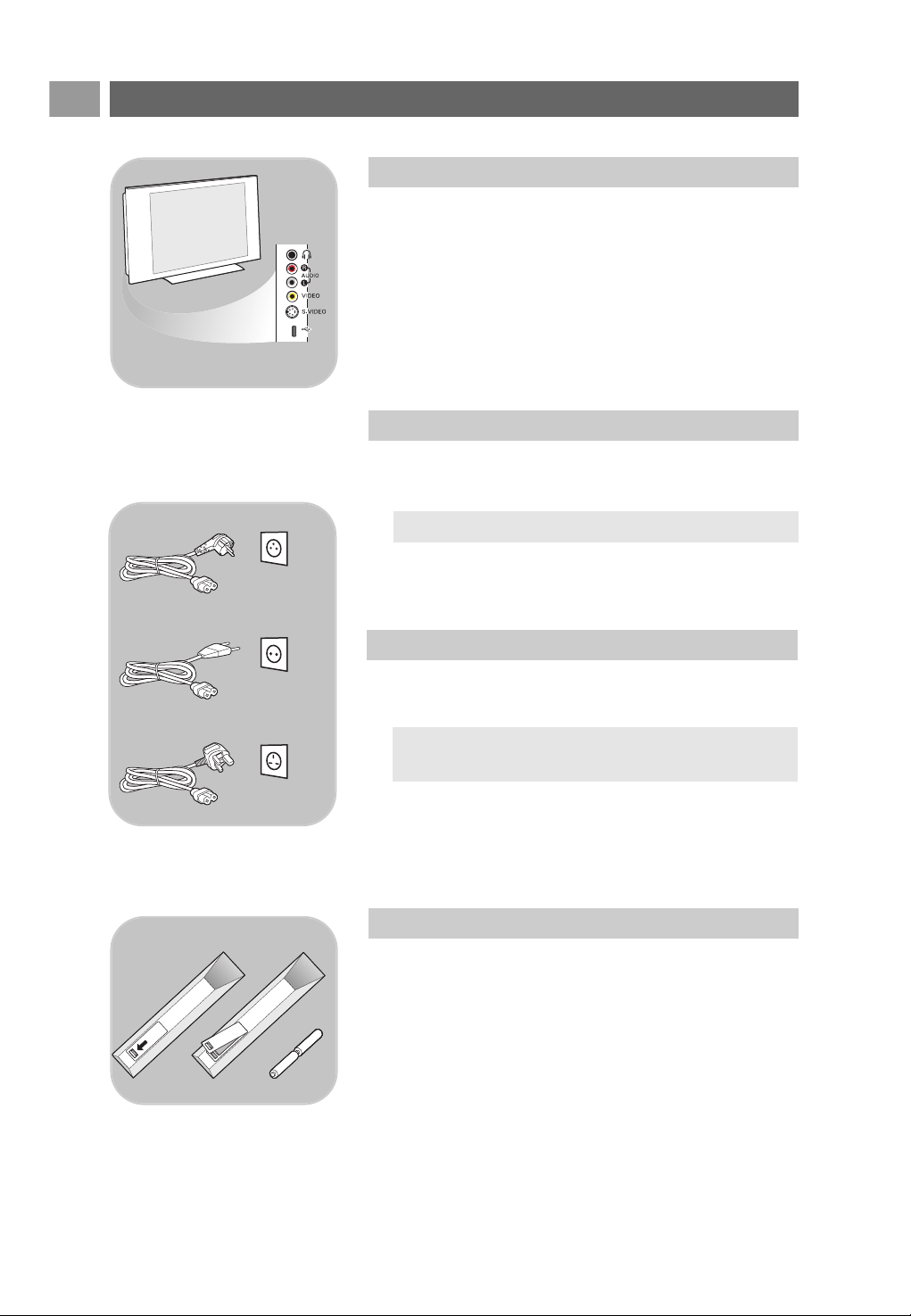
< Insert the aerial plug firmly into the aerial socket x at the
bottom of the TV.
Getting started (Continued)
EN
4
- To connect a camera, camcorder or game, see To make video
and audio connections, p. 41.
- To connect a headphone, see To make video and audio
connections, p. 41.
- To connect a USB device, see Multimedia browser, p. 34.
UK - EIRE
Tip: for best quality use the suppressor cable supplied.
Warning: verify that the mains supply voltage corresponds
to the voltage printed on the sticker at the rear of the TV.
USB
Overview of the side connector panel
Connect the antenna
Connect the mains
< Insert the mains cord supplied into the mains at the bottom
of the TV and in the wall socket.
Remote control
< Insert the 2 batteries supplied (Type R6-1,5V).
Be sure the (+) and (-) ends of the batteries line up
correctly (inside of case is marked.)
For most keys pressing a key once will activate the function.
Pressing a second time will de-activate it.
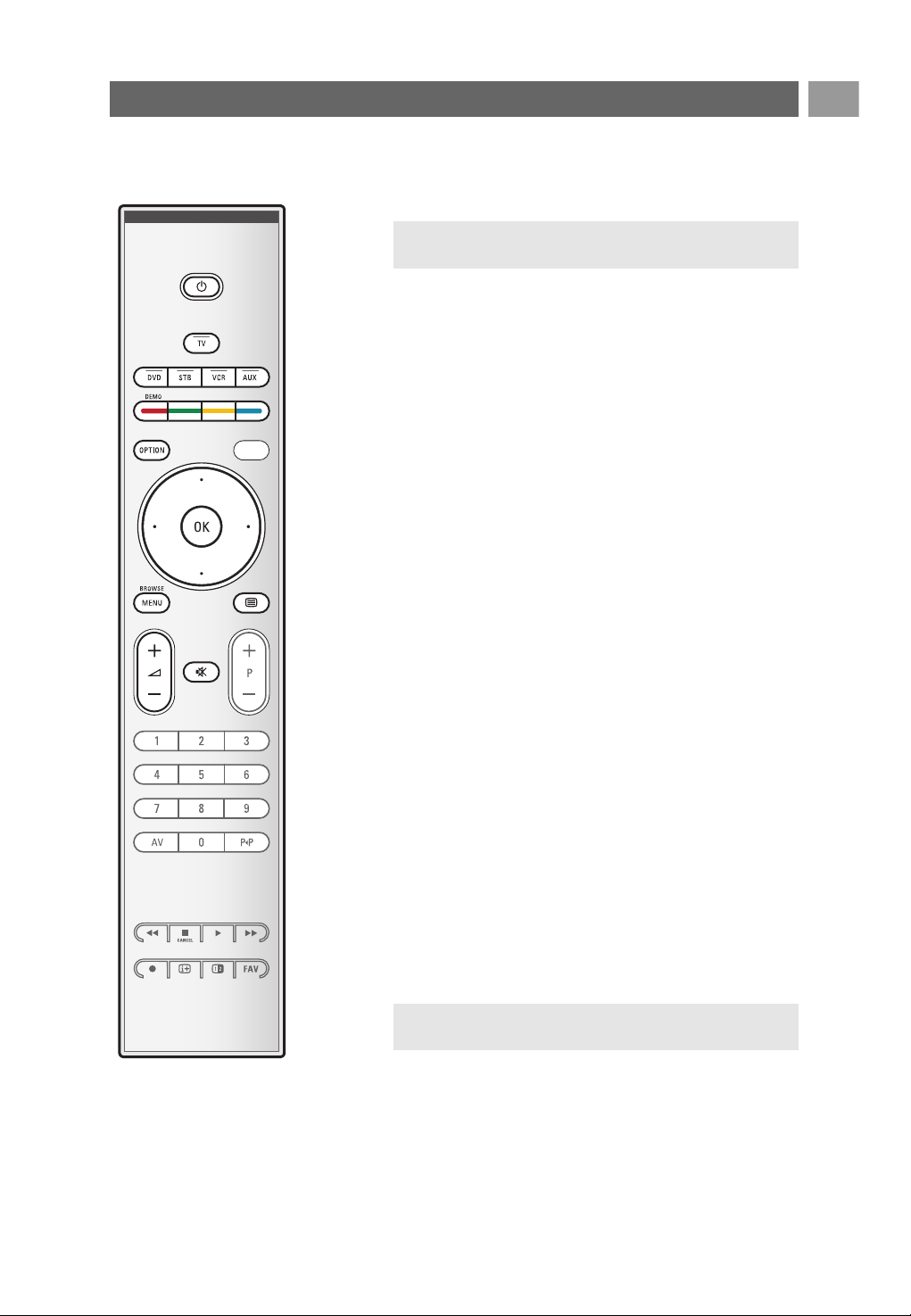
B Standby
Press to switch the TV from or to standby mode.
When switched to standby, a red indicator on the TV lights up.
TV Press to select TV mode.
DVD STB VCR AUX
Press to select one of the system modes in which the
remote control can be used.
See Audio and Video equipment keys, p. 51.
DEMO Press to switch the Demo menu on or off.
Colour keys
- When functions are attached to the colour keys, the
colour keys are shown on screen.
- To select a page in Teletext mode.
OPTION
- To open and close the Quick access menu which contains
a few frequently used options, like Picture format.
- When in teletext, press repeatedly to enlarge the teletext
page display. See Teletext, p. 38.
aTo open and close the Electronic Programme Guide.
See EPG (Electronic Programme Guide), p. 32.
Cursor keys
Press the cursor keys up/down, left/right to navigate
through the menus.
OK - To activate a setting
- Starts playing content in the Multimedia Browser
application.
BROWSE/MENU:
To open and close the main menu. See How to navigate
through the menus, p. 11.
bTeletext On/Off
Press to switch teletext on. See Teletext, p. 37.
Only for UK: Digital text/Interactive television.
V Volume
Press + or - to adjust the volume.
¬ Mute key: interrupt the sound or restore it.
Use of the remote control RC4404/01
EN
5
a
v
Attention: the TV is never powered off completely unless
it is physically unplugged.
Attention: not all channels transmit interactive television
applications at all times.
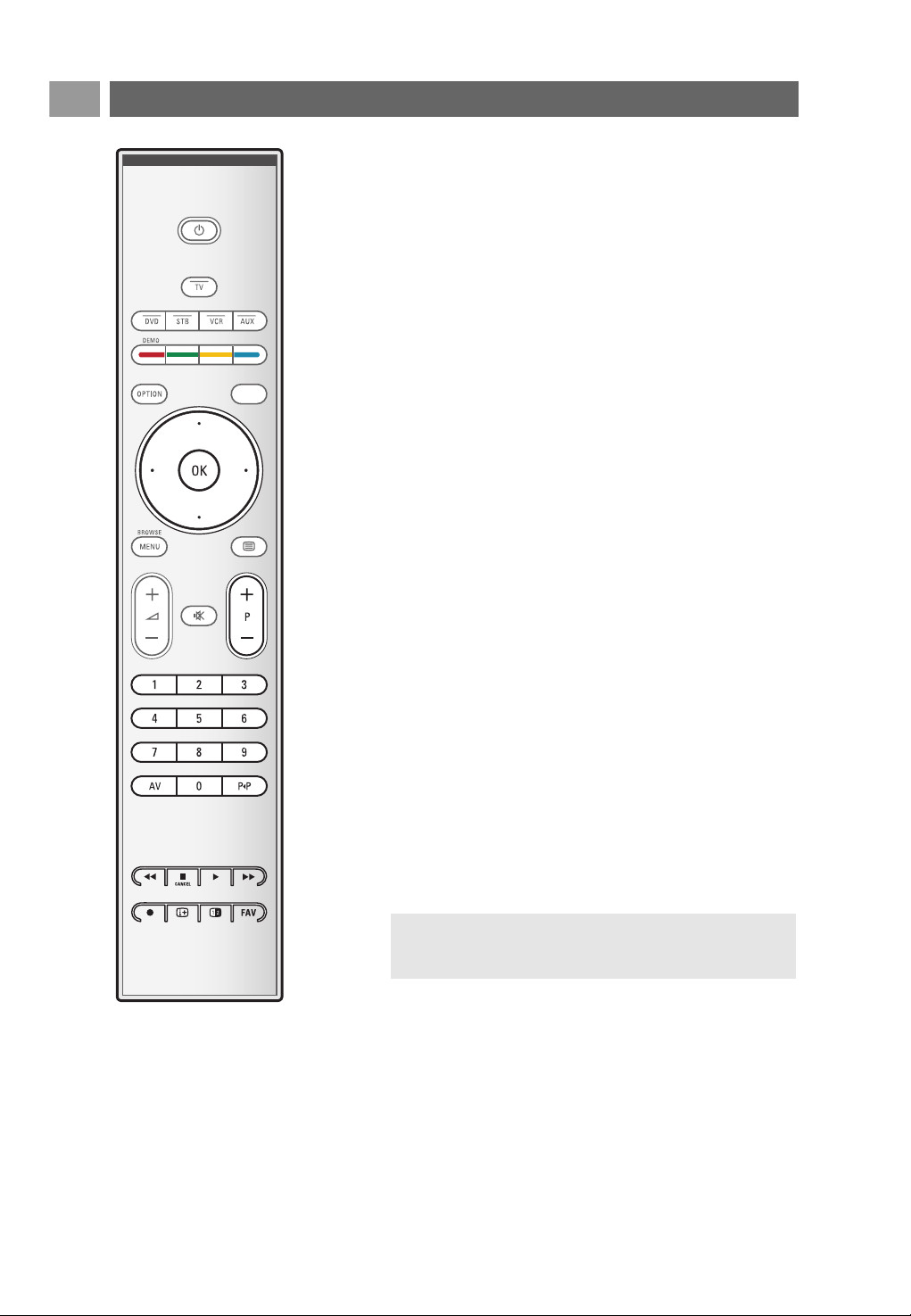
Use of the remote control RC4404/01 (continued)
EN
6
+P- Channel selection
- to browse through the TV channels and sources stored
and marked in the Favourite channels lists;
- to select a page in Teletext mode;
- to quickly browse through the lists in the menus;
- to switch the TV on from standby mode.
0/9 Digit keys
To select a TV channel between 0 and 999.
AV Select your peripherals
See Installation menu, Select your connections, p. 29.
0 Previous channel
Press to alternate between the currently viewed and the
previously viewed TV channel.
Ò ‡ π † Audio and Video equipment keys
See Audio and Video equipment keys, p. 51.
See Multimedia browser functional keys, p. 36.
‡
CANCEL
Only for UK: Digital text/Interactive services.
Press this key to cancel those special services (and the
function bar at the bottom of the screen).
® no function
iOn screen information
Press to display (when available) information about the
selected TV channel and programme.
bDual screen
Press the b key to show teletext on the right of the
screen.
FAV To display the channels list.
You can create up to four favourite lists.
Note: to set the remote control to work a Philips DVD
or DVD/R, see p. 53.
a
v
EN
7
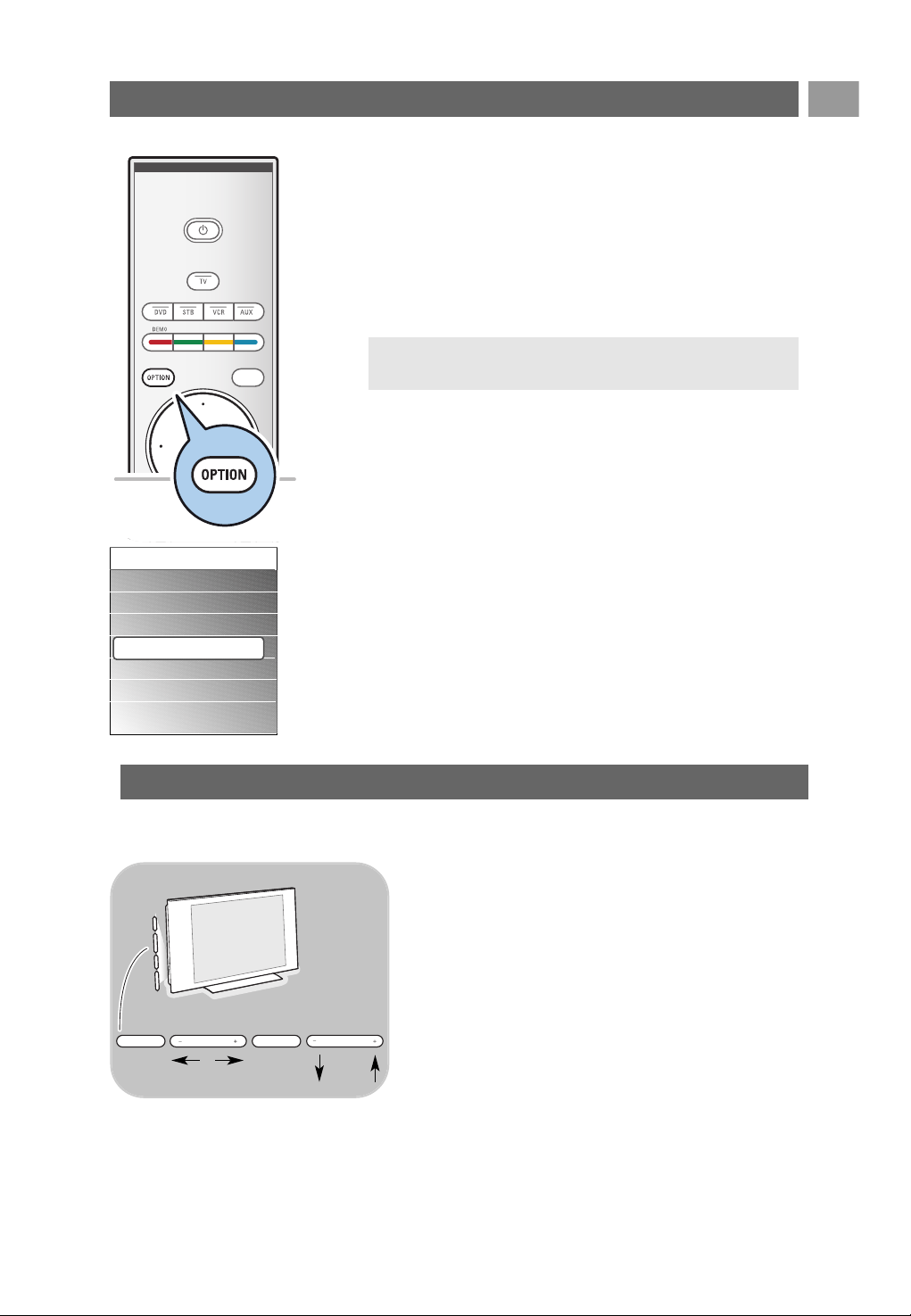
The
OPTION key allows you to display the Quick access menu
which will give you direct access to some features and menu
options.
1. Press the
OPTION key.
> The Quick access menu appears.
2. Press the cursor up/down to select a menu item.
3. Press the
OK key to jump to the selected menu item in the
TV menu. (Except for the Clock option).
4. Use the cursor keys to make a selection.
5. Press the
OPTION key to exit.
Use of the OPTION key
Digital audio language:
See Adjust sound menu settings, p. 17.
Digital subtitle language:
See Adjust feature menu settings, p. 19.
Subtitles:
See Adjust feature menu settings, p. 19.
Picture format:
See Use of the TV menu settings,Adjust picture menu
settings, p. 16.
Equalizer:
See Use of the TV menu settings,Adjust sound menu
settings, p. 17.
Clock:
< Select to activate/deactivate the clock display on the screen.
7
a
Note: digital related menu items will only be accessible in case
of digital TV broadcasting.
Quick access
Digital audio language
Digital subtitle language
Subtitles
Picture format
Equalizer
Clock
In case your remote is lost or broken, apart from channel
selection and volume adjustment, you can still change some
of the basic settings with the keys at the side of your TV.
< Press the power switch B to switch the TV on or off.
The
MENU key can be used to summon the TV menu
without the remote control.
< Use:
- the
VOLUME - and + keys and the
PROGRAM/CHANNEL - and + keys to select menu
items;
- the
MENU key to confirm your selection.
VOLUME
PROGRAMMENUB POWER
Keys at the left side of the TV

EN
8
Introduction: Digital TV
8
Note: if the TV has already been installed before and/or you
want to change the First time installation settings, proceed
with Use of the TV menu settings, p. 13.
Next to analogue broadcast reception, your TV has a built-in TV
tuner which receives, decodes and displays digital terrestrial
signals.
Digital TV and radio channels are only available and reproduced:
- when Digital Video Broadcasting Terrestrial (DVB-T) is
applicable in your local area;
- and if DVB-T signal is supported by your TV for the country
you live in. See www.philips.com/support for the list of
supported countries.
Switch the TV on
< Press the power switch B at the side of the TV.
> An indicator on the front of the TV lights up and the
screen comes on.
< If the TV is in standby mode, press the
-P+ keys or the B
key on the remote control.
Note: the first time (and only the first time) you switch
on your TV, you see a Welcome screen followed by the
installation procedure. See First time installation, p. 9.
First time installation
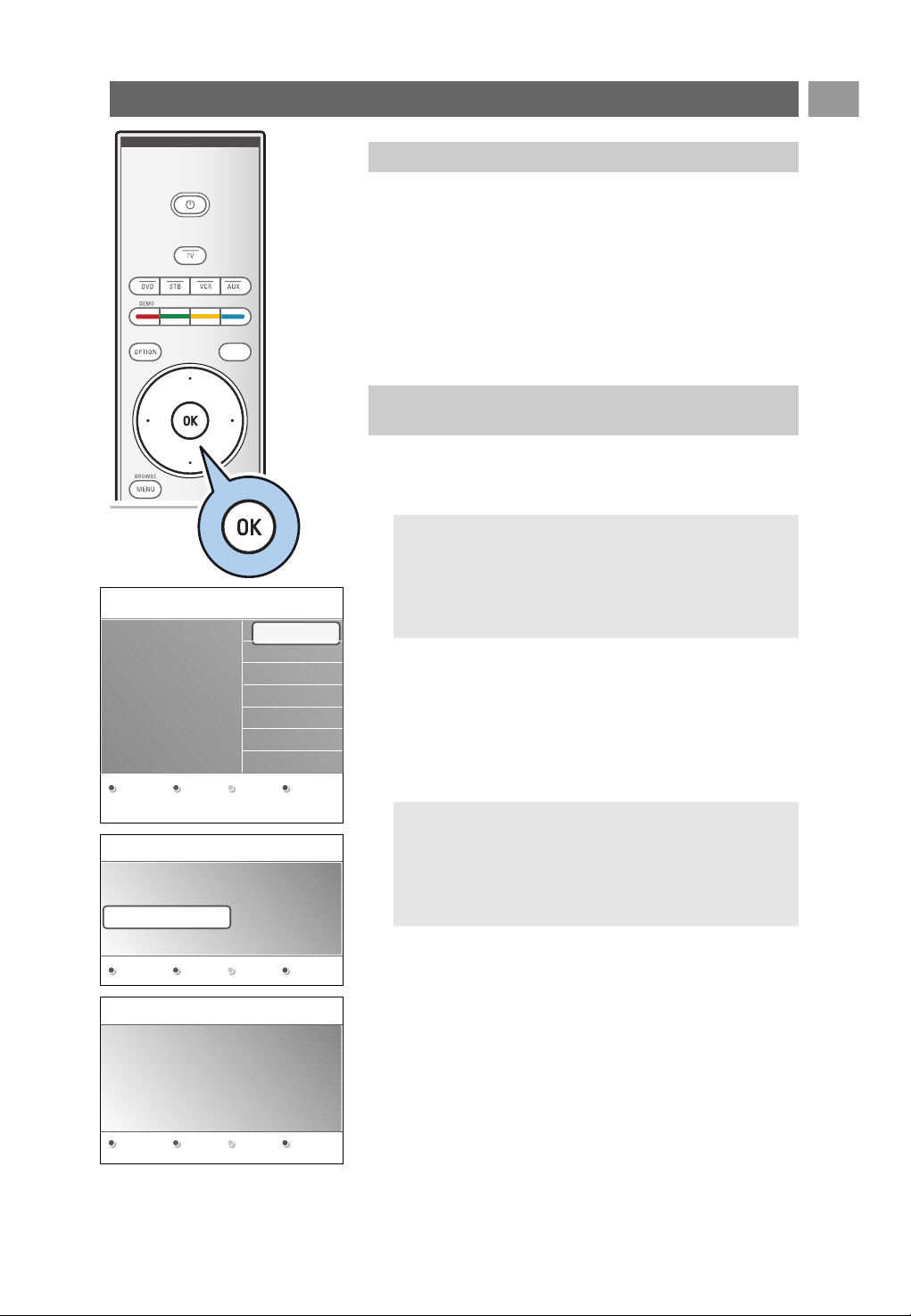
The first time (and only the first time) you switch on your TV,
you see a Welcome screen followed by the installation
procedure.
The installation procedure consists of a series of screens that
will guide you through the installation of your TV.
Follow the instructions on screen.
EN
9
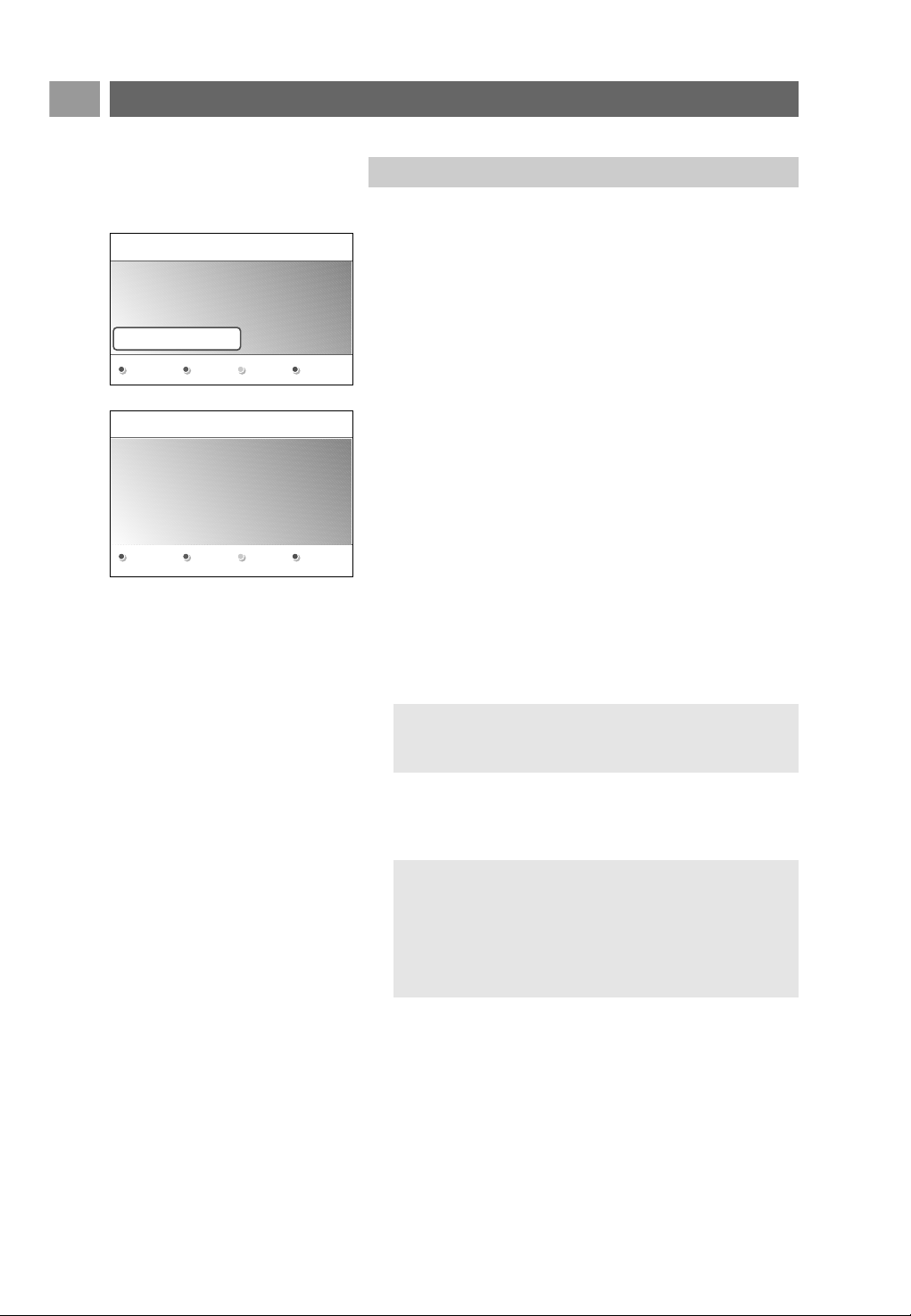
After the Welcome screen you are asked to select a language of
the TV's on-screen menus.The text of the header and the info
on screen continuously change language.Also the digital audio
and subtitle language will be set to the selected menu language.
1. Press the cursor up/down to highlight your language.
2. Press the
OK key on the remote control.
3. Follow the instructions on screen to proceed.
9
First time installation (Continued)
a
Step 1: select your on-screen language
3. Press the green colour key on your remote control to start
the Automatic channel installation.
> All available digital TV and radio channels and analogue
TV channels are searched for and stored automatically.
This will take a few minutes.When the search is
complete, the menu will indicate the number of digital
and analogue channels found.
4. Press the red colour key again when the search is
completed.
Notes:
- reception of digital terrestrial TV channels is applicable
dependent on the country selected;
- if you choose to install the channels at a later time, select
the Automatic installation in the TV menu, Installation,
Channels to scan available channels.
1. Press the green colour key on your remote control when
Television is highlighted.
2. Select the country where you are now located.
Step 2: complete the initial TV installation
procedure
Notes:
- if you select a wrong country, the channel numbering will
not be according to the standard for your country.
- in case the country selected is not DVB-T supported by
your TV, digital related menu-items will not be
accessible.
Previous Next Skip Stop
PHILIPS Television
System searching: please wait..........
Digital channels found 16
Analogue channels found 22
Stop
PHILIPS Installation
This will help you to install the following
sections:
Television
Settings assistant
Menu language
English
Español
Français
Hrvatski
Italiano
Magyar
.............
Please select your
language.....
PHILIPS
using cursor up and
down
Next
EN
10
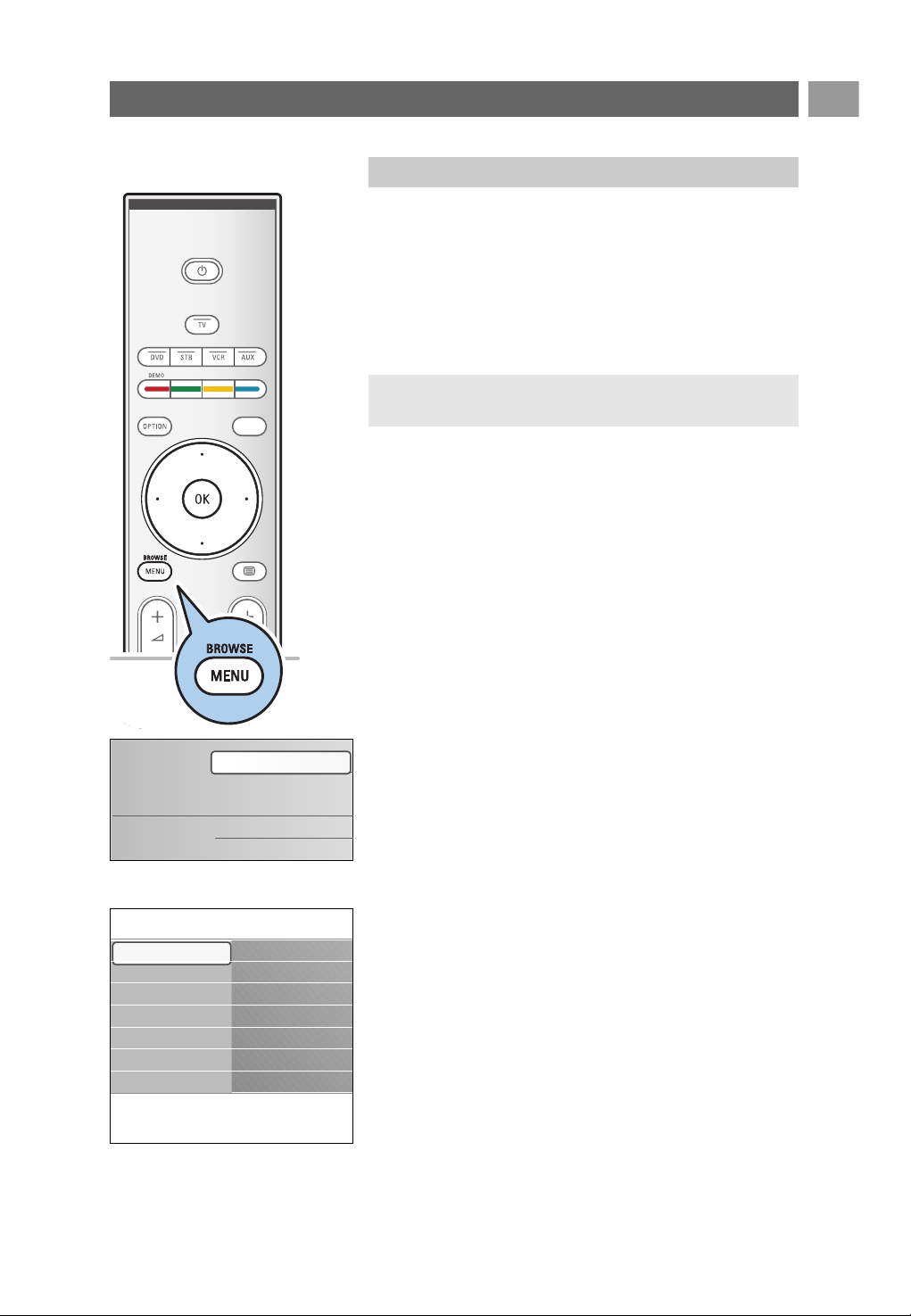
By means of several split screens/full screens you are
prompted to select your preferred Picture and Sound
settings, to finally arrive at a complete setting which satisfies
you.
1. Press the green colour key on your remote control to enter
the Settings assistant menu.
2. Select your Location with the cursor up/down.
> If you choose Shop it will skip the Settings assistant.
The TV parameters for Picture and Sound will then be
set to predefined fixed settings.
Press the green colour key again to proceed.
> If you choose Home it will display the Settings
assistant.
3. Use the cursor left/right to each time select your preferred
screen.
4. Press the green colour key to each time confirm your
selection and to jump to the following screen.
> The following items will be presented sequentially.
In the header it is mentioned how many screens have
been completed and how many screens there are in
total.
The Settings assistant will step sequentially through the
following settings: Picture and Sound.
5. Press the green colour key again to store all the settings
and to return to the TV installation menu.
6. Press the green colour key again to finish the First time
installation procedure and to display the first stored TV
channel.
First time installation (Continued)
10
Note: when you skip or stop the Settings Assistant, then
the standard settings Philips selected for you will be
chosen.
Note: any time you can change or reset your settings or
adjust individual settings for Picture and Sound in the TV
settings menu. See p. 13, Use of the TV menu settings.
To control the settings of special TV functions, features and
accessory equipment, see p. 19, Adjust feature menu
settings.
Step 3: Settings assistant: select your TV settings
Previous Next Skip Stop
PHILIPS Installation
This will help you to complete the Settings
assistant.
Television
Settings assistant
PHILIPS Settings assistant
Please select your location before
continuing:
Home
Shop
EN
11
A lot of guiding instructions, help texts and messages will be
displayed on your TV when you use the menus or when you try
to execute an action.
Read the help texts which are being displayed on the specific
item highlighted.
The colour keys at the bottom of the screen refer to the
different actions which may be executed.
Press the corresponding colour key on the remote control to
perform the required or desired action.
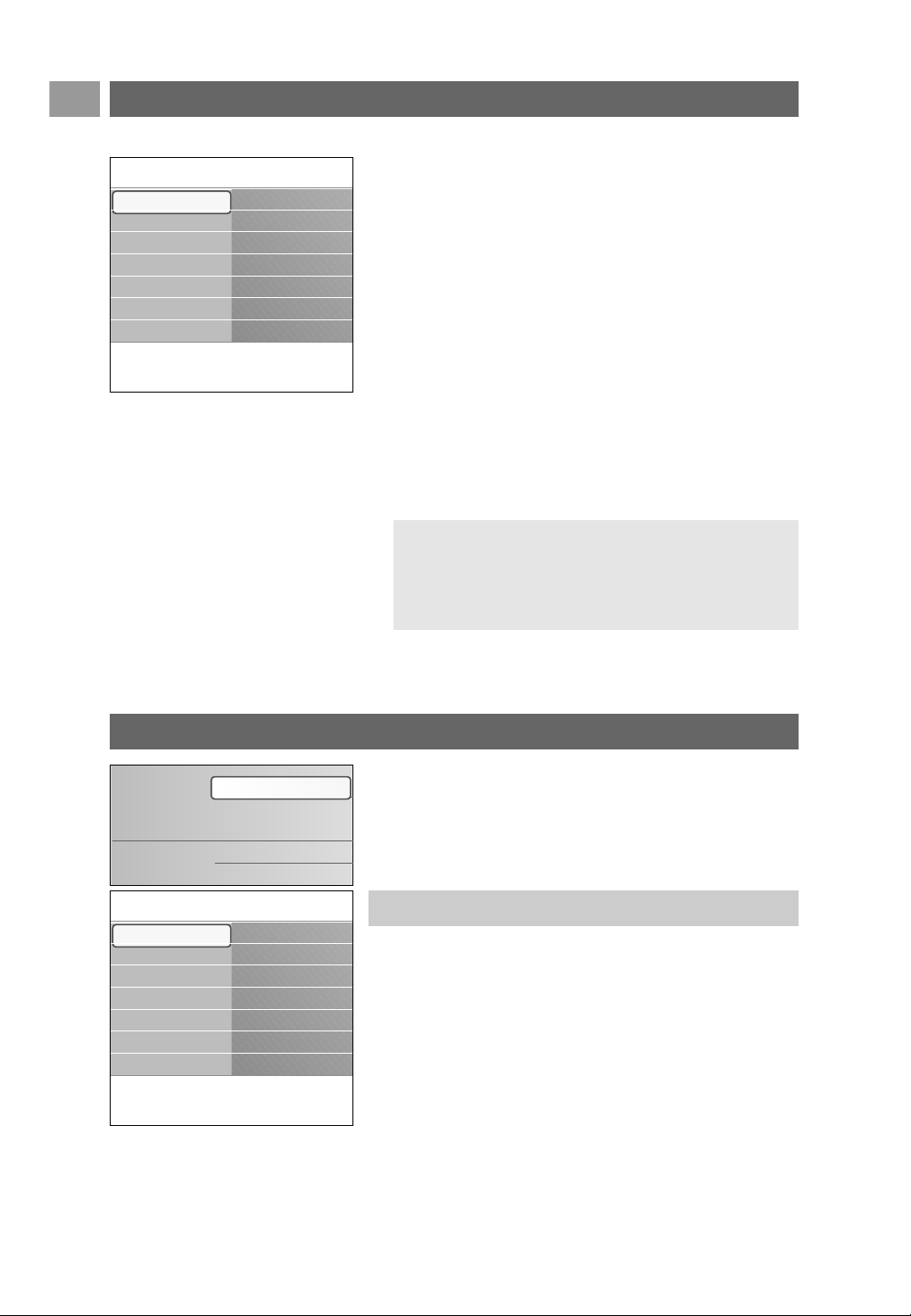
1. Press the
MENU/BROWSE key on the remote control.
> The main menu appears on the screen.
- TV menu allows you to access the TV menu. See
below.
- TV channels allows you to access the TV channel list
and to create up to four favourite lists with your
preferred TV channels and digital radio stations. See
Create your favourite channel list, p. 31.
- Programme guide allows you to access detailed
information about individual digital TV programmes.
According to the type of Electronic Programme Guide,
it also allows you to access the table of scheduled
Digital TV programmes and easily select and tune to a
desired programme.
See EPG, Electronic Programme Guide, p. 32.
- Multimedia allows you to access the Multimedia
browser application. It lets you display your personal
multimedia files. Multimedia is only present when a
USB device is connected.
See Multimedia browser, p. 34.
2. Use the cursor up/down to highlight and select a menu
item.
3. Use the cursor right to enter the highlighted menu item.
> The right panel shows the content of the highlighted
menu item.
How to navigate through the menus
11
a
Introduction
Note: digital related menu items will only be accessible in case
of digital TV broadcasting.
Television
Multimedia
TV menu
TV channels
Programme guide
Info
TV menu
TV settings
Settings assistant
Reset to standard
Picture
Sound
TV settings
Features
Installation
Exit
EN
12
Info
TV menu
TV settings
Settings assistant
Reset to standard
Picture
Sound
TV settings
Features
Installation
Exit
How to navigate through the menus (continued)
Use of the TV menu settings
12
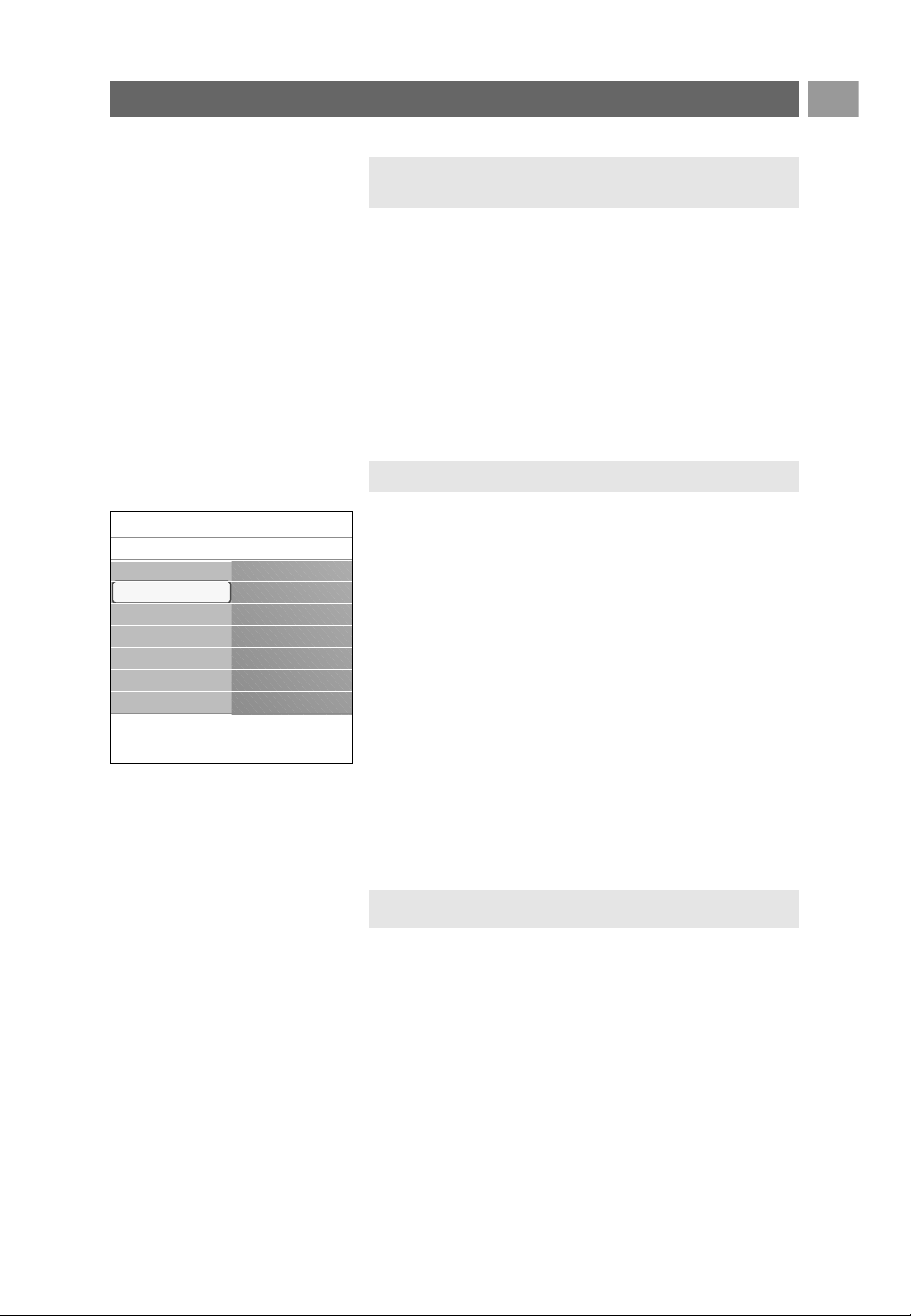
1. Press the
MENU/BROWSE key on the remote control.
> The main menu appears on the screen.
2. Select TV menu and press the cursor right.
> The TV menu is displayed.
3. Select TV settings and press the cursor right.
> The TV settings menu is moved to the left.
4. Press the
MENU/BROWSE key to exit the menu.
To make it easier to change the settings of the TV, there are
3 ways of doing it. See next page.
Adjust Picture and Sound settings
4. Use the cursor up/down to select a menu item.
- TV settings allows you to adjust your preferred Picture
and Sound settings
- Features allows you to control the settings of special TV
features
- Installation allows you
- to select your language preferences;
- to search for and store your TV channels;
- to set or adjust various special functions;
- to select connected peripheral equipment;
- to define one or more channel numbers as decoder
channel numbers;
- to reset your Picture and Sound settings to the factory
standard settings;
- to upgrade your TV software
5. Press the cursor right to enter the highlighted menu item.
> The content of the right panel is moved to the left panel
and the right panel now shows the content of the newly
highlighted item in the left panel.
6. Press the
MENU/BROWSE key to exit the main menu.
Note: in some cases it is important that the picture can be
watched while you adjust the settings.This means that when
the highlight is on the right side panel, the other menu items
hide away.When the cursor left is pressed, the hidden menu
items reappear and the highlight moves to the left panel.
The TV menu allows you to access and change settings and
preferences in case you want to change the First time
installation settings and/or you want to control the settings of
special TV functions, features and peripheral equipment
.
Television
Multimedia
TV menu
TV channels
Programme guide
Info
TV menu
TV settings
Settings assistant
Reset to standard
Picture
Sound
TV settings
Features
Installation
Exit
Each time you've made a selection, press the green key to
confirm your selection.
1. Select Settings assistant and press the cursor right.
> By means of several split screens/full screens you are
prompted to select your preferred Picture and Sound
settings to finally arrive at a complete setting which
satisfies you.
See First time installation, Step 3: Settings assistant:
select your TV settings, p. 10.
2. Press the green colour key to return to the TV menu again.
EN
1313
Use of the TV menu settings (continued)
A. Change settings in an easy-to-use manner with the
Settings assistant.
< Select Picture or Sound and press the cursor right.
> A menu appears which allows you to fine tune the
Picture and Sound settings.
> To adjust the Picture settings, see Adjust picture menu
settings, p. 14.
> To adjust the Sound settings, see Adjust sound menu
settings, p. 17.
C. Individual settings for Picture and Sound.
This allows you to reset your settings for viewing and
listening to predefined factory settings.
1. Select Reset to standard and press the cursor right.
> A menu appears which allows you to select one of the
standard settings for viewing and listening.
> Current shows your current settings for viewing and
listening.
> If you select Natural, it allows you to set your picture
and sound settings to the recommended standard
values. In most cases this will give the best balanced
viewing experience.
> If you select Vivid, it allows you to set your picture and
sound settings to rich values, making use of the TV
capabilities to its full extend.
> If you select Subtle, it allows you to set your picture
and sound settings to the purest representation of the
original source content.
2. Press the green colour key to store the selected setting.
B. Use of the Standard settings (if present)
Settings assistant
Reset to standard
Picture
Sound
Info
TV menu
TV settings
Reset to standard
Current
Natural
Vivid
Subtle
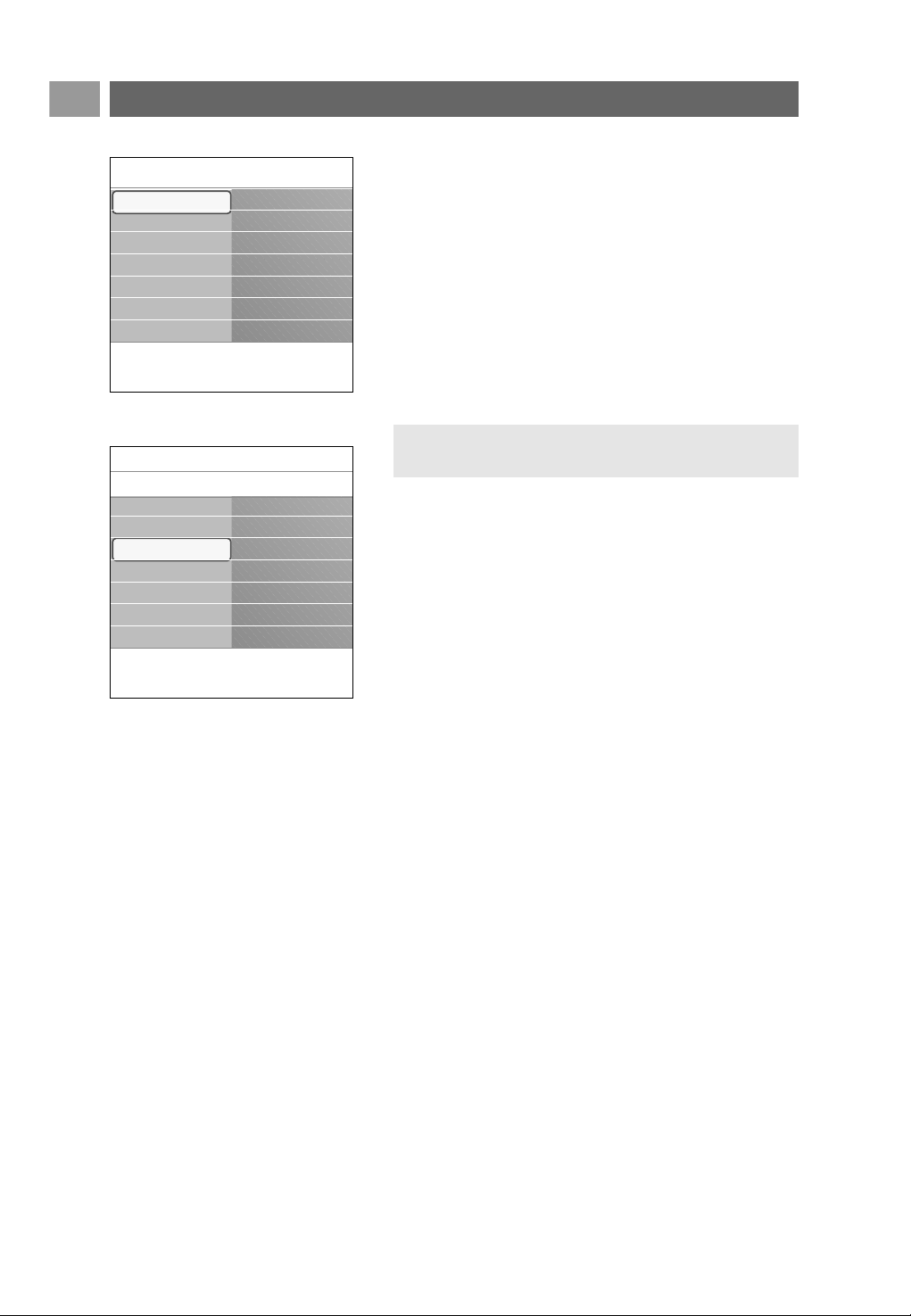
The picture menu contains the settings that affect the quality of
the picture.
1. Press the MENU/BROWSE key on the remote control.
> The main menu appears.
2. Select TV menu and press the cursor right.
> The TV menu is moved to the left.
3. Select TV settings and press the cursor right.
> The TV settings menu is moved to the left panel.
4. Select Picture and press the cursor right.
> The Picture menu is moved to the left panel.
5. Use the cursor up/down to select the Picture menu items.
6. Press the cursor right to enter the selected Picture menu
item.
7. Use the cursor keys to adjust the settings.
8. Press the cursor left to return to the Picture menu.
Contrast
Adjusts the intensity of bright parts in the picture but keep
the dark parts unchanged.
Brightness
Adjusts the light output of the complete picture, which will
mainly affect the darker areas of the picture.
Colour
Adjusts the saturation level of the colours to suit your
personal preference.
Hue
Compensates for the colour variations in NTSC encoded
transmissions.
Sharpness
Adjusts the sharpness of fine details in the picture.
Tint
Increases or decreases Warm (red) and Cool (blue)
colours to suit personal preferences.
< Select Cool to give the white colours a blue, Normal to
give the white colours a neutral, Warm to give the white
colours a red tint.
< Select Custom to make a customised setting in the
Custom tint menu item.
EN
14
Adjust picture menu settings
14
Note: all digital related menu items will only be accessible
in case of digital TV broadcasting.
Info
TV menu
TV settings
Settings assistant
Reset to standard
Picture
Sound
TV settings
Features
Installation
Exit
Info
TV menu
TV settings
Picture
Contrast
Brightness
Colour
Hue
Sharpness
Tint
..............
Settings assistant
Reset to standard
Picture
Sound

EN
15
Adjust picture menu settings (Continued)
15
Custom tint (only when Tint is set to Custom)
Fine tunes the white point (WP) and black level (BL) of the
picture.
1. Select Custom tint and press the cursor right.
2. Use the cursor keys to select and adjust the settings of:
R-WP: allows you to customise the colour tint by adjusting
the red whitepoint of the picture.
G-WP: allows you to customise the colour tint by adjusting
the green whitepoint of the picture.
B-WP: allows you to customise the colour tint by adjusting
the blue whitepoint of the picture.
R-BL: allows you to customise the colour tint by adjusting
the red blacklevel of the picture.
G-BL: allows you to customise the colour tint by adjusting
the green blacklevel of the picture.
3. Use the colour keys to reset to the predefined settings.
4. Press the cursor left to return to the Picture menu.
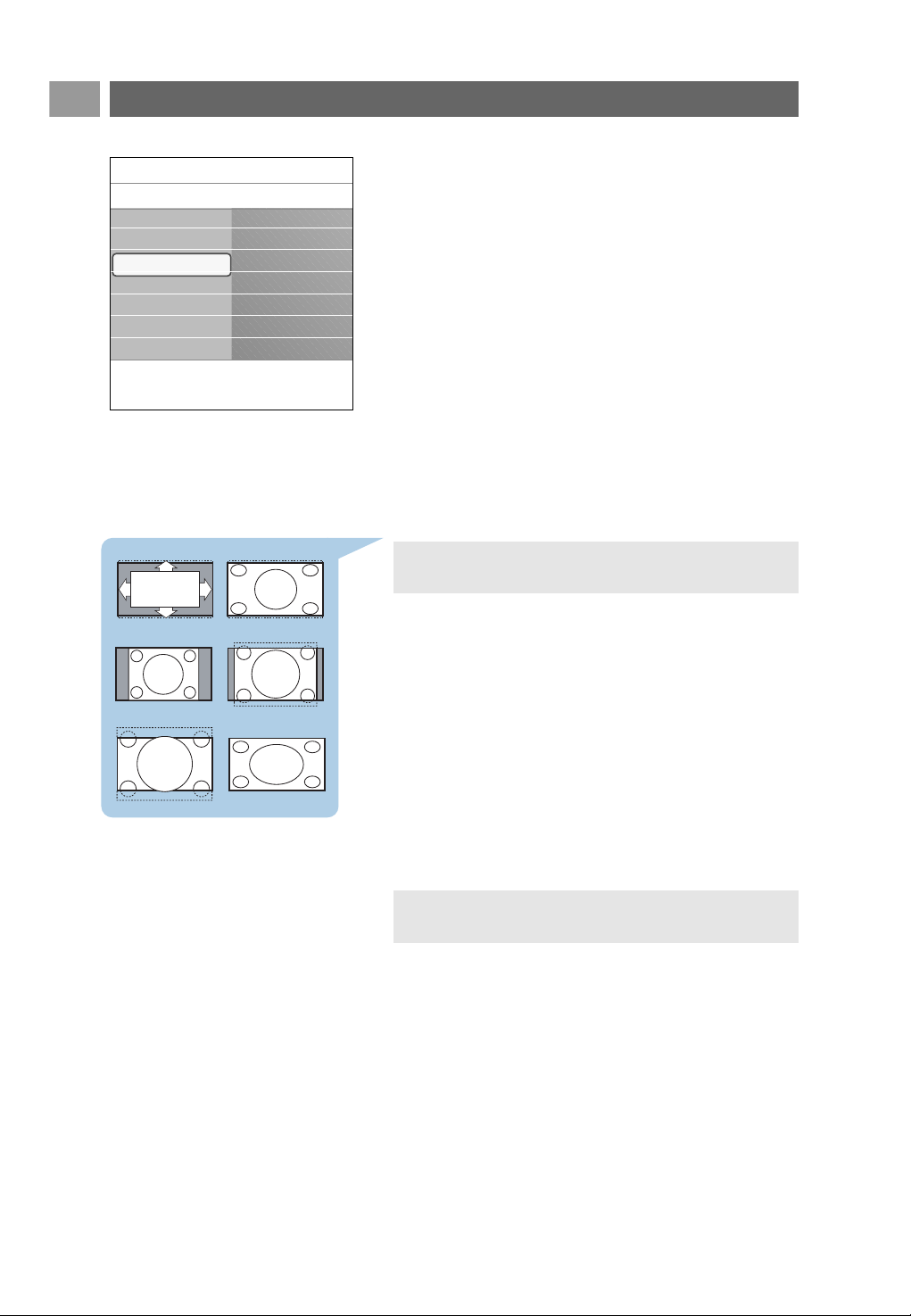
Pixel Plus
Pixel Plus is the most ideal setting, as it fully processes the
image to make every single pixel the best it can be,
improving contrast, sharpness, picture depth, and colour
reproduction and brilliance from every source, including
High Definition.
< Select On or Off to activate/de-activate Pixel Plus.
Digital Natural Motion
Reduces the field and line flicker and reproduces smooth
movement especially in movies.
< Select Off, Minimum or Maximum in order to
activate/de-activate Digital Natural Motion and to really see
the difference in picture quality.
ClearLCD
ClearLCD results in superior sharpness of motion
reproduction, better black level, high contrast with a flicker-
free, quiet image and a larger viewing angle.
< Select On or Off.
Dynamic contrast
Automatically makes the contrast in the darker and the
brighter picture areas more noticeable as the image on the
screen changes.
< Normally select Medium. It may be preferred to select
Minimum, Maximum or Off.
DNR
DNR automatically filters out and reduces the image noise.
This improves picture quality when receiving weak signals.
< Select Off, Minimum, Medium or Maximum according
to the image noise in the picture.
Info
TV menu
TV settings
Picture
.............
Custom tint
Pixel Plus
Digital Natural Mo..
Clear LCD
Dynamic contrast
.............
Settings assistant
Reset to standard
Picture
Sound
EN
16
MPEG artefact reduction
MPEG artefact reduction On smoothens the
transitions on digital content.
< Select On or Off.
Colour enhancement
Automatically controls green enhancement and blue
stretch. It makes the colours more vivid.
< Select Off, Minimum, Medium or Maximum.
Active control
The TV continuously measures and corrects all incoming
signals in order to provide the best picture possible.
< Select On or Off to activate/de-activate Active control.
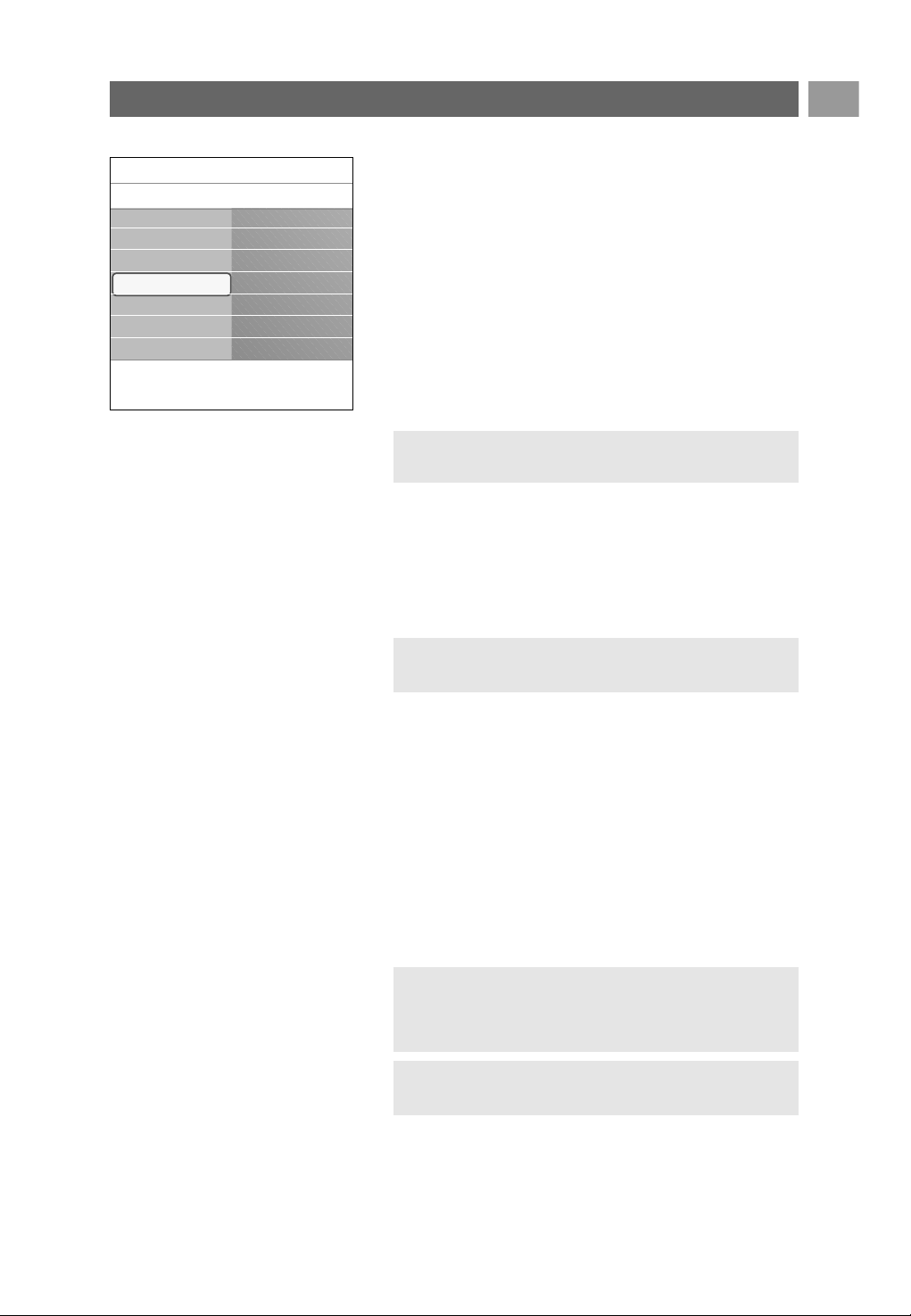
Picture format
This allows you to adjust the size of the picture dependant
on the broadcasted format and your preferred setting.
How to navigate through the TV settings menu, see p. 12:
Use of the TV menu settings.
Choose among the following picture formats:Auto format,
Super zoom, 4;3, Movie Expand 14:9, Movie Expand 16:9 or
Wide screen.
Auto format makes the picture fill the screen as much as
possible.
In case of subtitles in the bottom black bar,Auto format
makes the subtitles visible.
In case of a broadcaster logo in the corner of the top black
bar, the logo disappears from the screen.
Super zoom removes the black bars on the sides of 4:3
programmes with minimal distortion.
When in Movie Expand 14:9, Movie Expand 16:9 or Super
zoom screen format, you can make subtitles visible with the
cursor up/down.
Adjust picture menu settings (Continued)
16
Auto format Super zoom
4:3
Movie expand 14:9
Movie expand 16:9 Wide screen
Note: with HD sources not all picture formats will be
available.
Tip: this function is also accessible via the OPTION key on
the remote control.
Settings assistant
Reset to standard
Picture
Sound
Info
TV menu
TV settings
Picture
.............
DNR
MPEG artefact red.
Colour enhancem..
Active control
Picture format
EN
17
The sound menu contains the settings that affect the quality of
the sound.
1. Press the MENU/BROWSE key on the remote control.
> The main menu appears.
2. Select TV menu and press the cursor right.
> The TV Menu is moved to the left.
3. Select TV settings and press the cursor right.
> The TV settings menu is moved to the left panel.
4. Select Sound and press the cursor right.
> The Sound menu is moved to the left panel.
5. Use the cursor up/down to select the Sound menu items.
6. Press the cursor right to enter the selected Sound menu
item.
7. Use the cursor keys to adjust the settings.
8. Press the cursor left to return to the Sound menu.
Equalizer
Allows you to change the frequency response of the sound
to match your personal taste.
Volume
Allows you to adjust the sound output level.
Balance
Allows you to adjust the output of the right and left
speakers to obtain the best stereo reproduction for your
listening position.
Digital audio language (only with Digital TV broadcasting)
Allows you to select an audio language out of the list of the
available broadcasted languages for the current digital
programme.
Adjust sound menu settings
17
Note: dependent on the input signal, one or more menu
items may not be selectable.
Tip: this function is also accessible via the OPTION key on
the remote control.
Tip: this function is also accessible via the OPTION key on
the remote control.
Note: if there is more than one variant for an audio
language, then select one of the variants.
To permanently change the audio language, use the
Language menu in the Installation menu.
Settings assistant
Reset to standard
Picture
Sound
Info
TV menu
TV settings
Sound
Equalizer
Volume
Balance
Digital audio lang..
Dual I/II
Mono/Stereo
.............

EN
18
Adjust sound menu settings (Continued)
18
Dual I/II
Allows you to select, per channel, Dual I or II, when dual
sound transmission is available.
Mono/Stereo
Allows you to select, per TV channel, Mono or Stereo
sound when stereo broadcasts are available.
Surround mode
Allows you to select the modes for more spatial or
surround sound reproduction dependent on the
broadcasted signals or signals from external inputs received.
Headphone volume
Allows you to control the level of sound through the
headphones.
AVL (Automatic Volume Leveler)
Automatically reduces the volume differences between
channels and programmes, providing a more constant overall
level.This will also reduce the dynamics of sound.
Delta volume
Allows you to correct for any permanent volume differences
between TV channels or external sources.
Auto surround
When switched On, this allows the TV to automatically
switch to the best surround sound mode the broadcaster
transmits.
Settings assistant
Reset to standard
Picture
Sound
Info
TV menu
TV settings
Sound
.............
Mono/Stereo
Surround mode
Headphone volume
AVL
Delta volume
Auto surround

EN
19
The Features menu allows you to control the settings of special
TV functions, features and accessory equipments.
1. Press the
MENU/BROWSE key on the remote control.
> The main menu appears.
2. Select TV menu and press the cursor right.
> The TV Menu is moved to the left.
3. Select Features and press the cursor right.
> The Features menu is moved to the left panel.
4. Use the cursor up/down to select the Features menu items.
5. Press the cursor right to enter the selected Features menu
item.
6. Use the cursor keys to adjust the settings.
7. Press the cursor left to return to the Features menu.
Subtitle
This displays Teletext and DVB-T subtitles from the selected
TV channel.These can be permanently displayed, or only
when mute is active.The teletext subtitle page of analogue
channels must be stored for each TV channel.
1. Switch on teletext and select the proper subtitle page from
the index.
2. Switch off teletext.
3. Select
- Subtitle On to display the subtitles on the selected TV
channels.
- On during mute to automatically display the subtitles
only when the sound has been muted with the ¬ key on
the remote control.
Adjust feature menu settings
19
Digital subtitle language (only with Digital TV broadcasting)
This allows you to (temporarily) select your preferred
subtitle language out of the list of the broadcasted languages
for the current programme.
< Use the cursor up/down to temporarily overrule your
permanent language selection and confirm with the
OK key.
Tip: this function is also accessible via the OPTION key on
the remote control.
Note: to permanently change the subtitle languages, use
the Language menu in the Installation menu.
Tip: this function is also accessible via the OPTION key on
the remote control.
Info
TV menu Features
Subtitle
Digital subtitle lan..
Sleeptimer
Childlock
Set/Change code
On timer
.............
TV settings
Features
Installation
Exit

EN
20
Sleeptimer
This sets a time period after which the TV automatically
switches to standby.
1. Select Sleeptimer.
2. Press the cursor right.
3. Select a value with the cursor up/down.
> The list will have values from 0 to 180 minutes.When 0
is selected, the sleeptimer is switched off.
Childlock
With a 4-digit code, you are able to lock TV channels and
external sources to prevent children from watching certain
programmes.
1. Select Childlock.
2. Press the cursor right to enter the Childlock menu.
3. Enter your 4-digit code.
4. Select one of the menu items of the Childlock menu and
press the cursor right:
- Lock to lock all channels and externals:
- Custom lock to lock a certain programme or to lock all
the channels from a certain time.
< Select:
- Lock after to lock all programmes from a certain time
onwards.
< Press the cursor right twice.
< Select On to set the lock.
< Press the cursor left.
< Select Time and press the cursor right.
< Enter the time with the cursor up/down and right.
- Channel lock to lock a certain TV channel or external.
< Press the
OK key to activate/deactivate.
- Parental rating to set an age rating to a digital
programme if the programme is parental rated.The
ratings applied are according the selected country in the
initial installation.
< Press the cursor right and select an age rating with the
cursor up/down.
- Select Unlock to disable all locks you have set.
Adjust feature menu settings (Continued)
20
Note: you can always switch off your TV earlier or select
another time set.
Info
TV menu Features
.............
Sleeptimer
Childlock
Set/Change code
On timer
Common interface
Demo
TV settings
Features
Installation
Exit
Note: you have to re-enter your code each time you
enter the Childlock menu.
Important: you have forgotten your code !
1. Select Change code and press the cursor right.
2. Enter the overriding code 8-8-8-8.
3. Enter a new personal 4-digit code.
4. Confirm your new entered code.
>
The previous code is erased and the new code is stored.

EN
21
Set code/Change code
This allows you to set or change the personal 4-digit access
code that is used in the different lock functions of the TV.
< Select Set or Change code.
> If no PIN-code exists yet, the menu item is set to Set
code. Follow the instructions on screen.
> If a PIN-code has previously been entered, the menu
item is set to Change code. Follow the instructions on
screen.
< Enter your code with the digit keys.All number
combinations from 0000 to 9999 are valid numbers.
> The Features menu reappears with a message confirming
that your PIN-code has been created or changed.
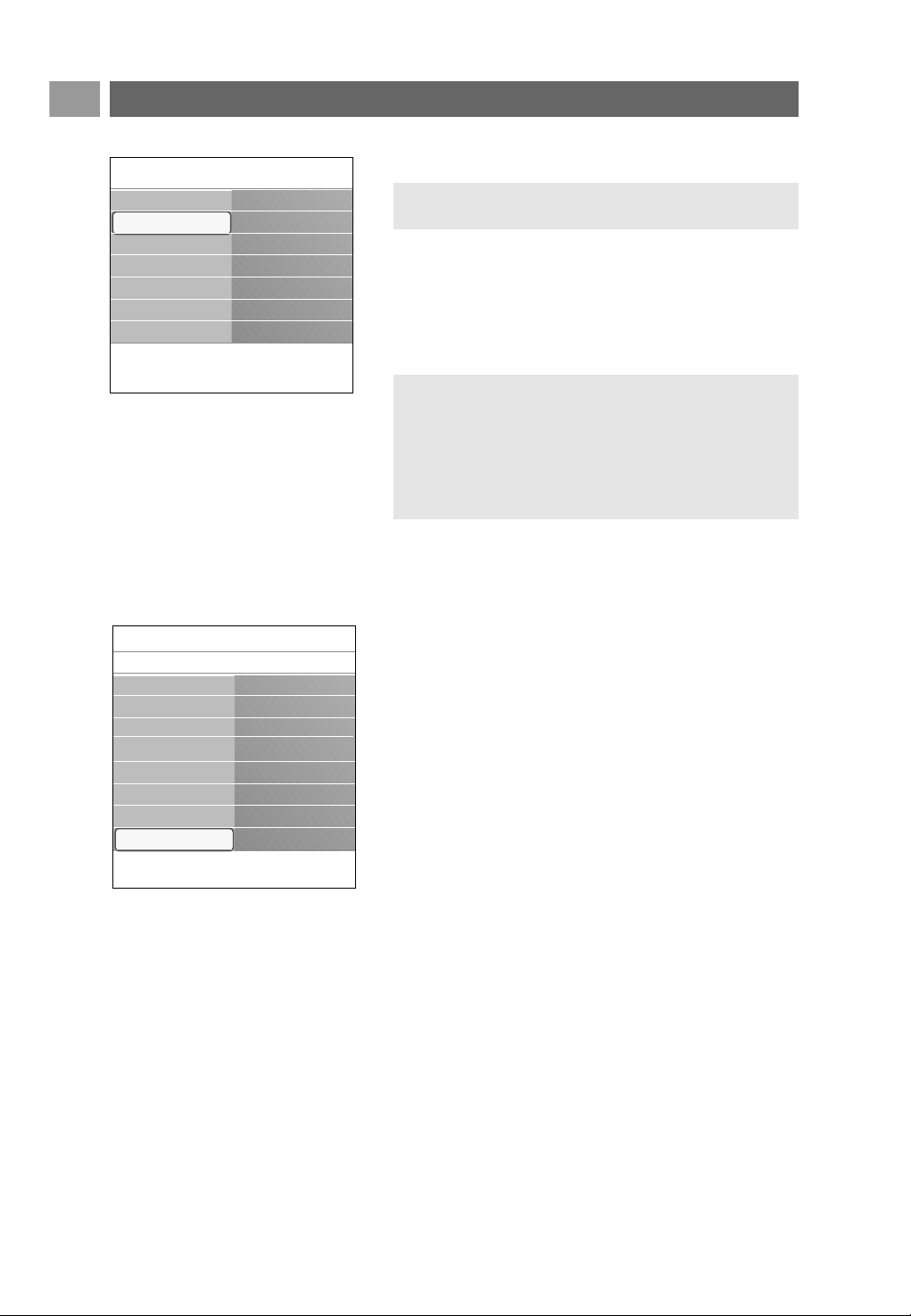
On timer
From standby, this automatically switches the TV to the
specified channel number, at a specified time.
1. Select On timer.
2. Press the cursor right to enter the On timer menu.
3. Select Timer and press the cursor right.
4. Select On.
5. Select Channel and then the TV channel you want your TV
to switch to on a selected time and day
6. Select Day and then a day of the week or select Daily.
7. Select Time and enter the time with the digit keys or with
the cursor up/down.
8. Press the
OK key to activate.
9. Press the cursor left to return to the Features menu or
press the
MENU/BROWSE key to switch off the menu.
Adjust feature menu settings (Continued)
21
Info
TV menu Features
.............
Sleeptimer
Childlock
Set/Change code
On timer
Common interface
Demo
TV settings
Features
Installation
Exit
Note: From now on, every week, your TV will
automatically switch to the selected channel, on the
selected day, at the selected time, until the On timer
function is switched off again.
EN
22
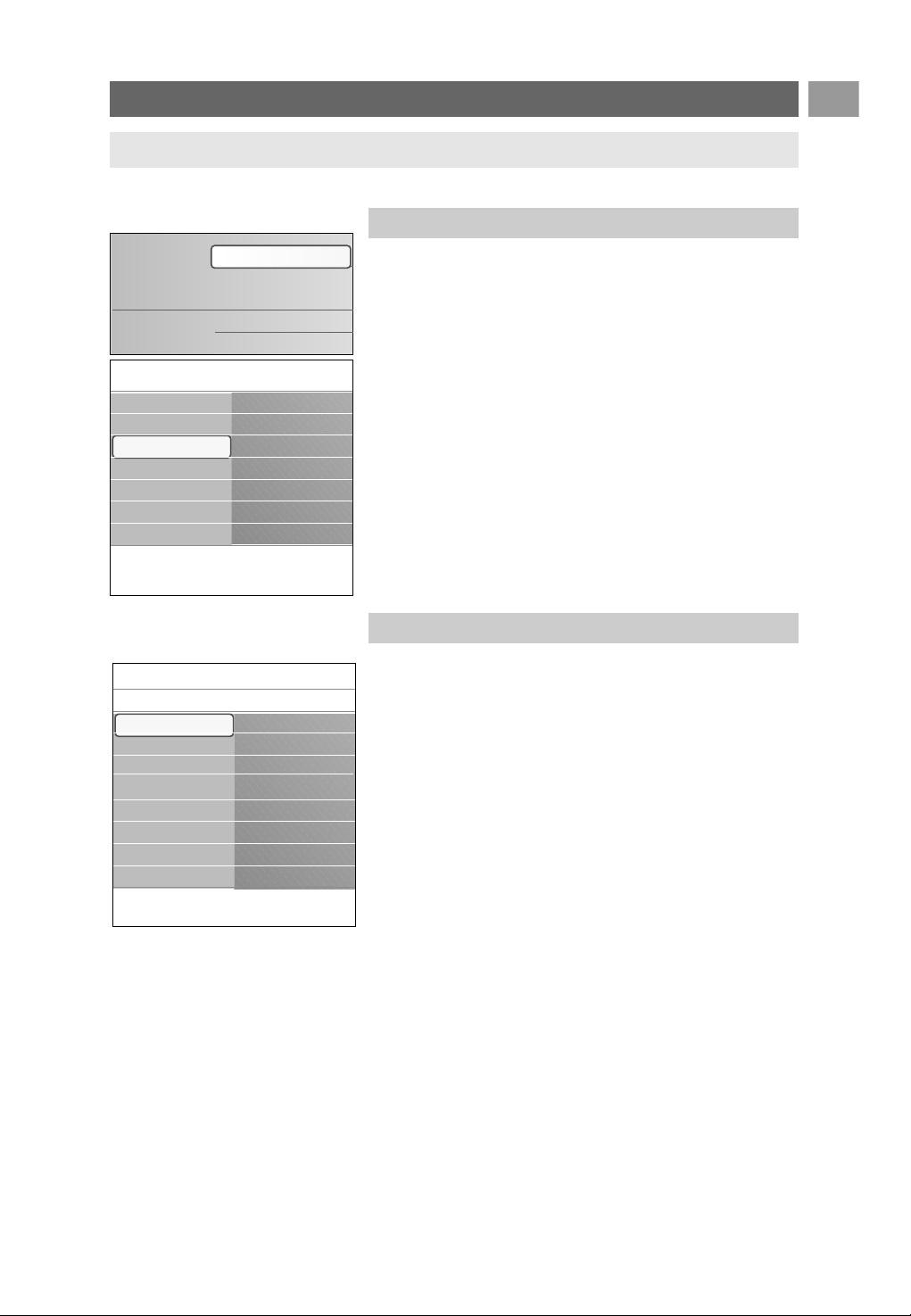
Common interface
This allows you to access common interface applications
defined by the service provider of the Common Interface
(CI) module.
The Common Interface (CI) module can contain one or
more applications, which are used to communicate with the
CI service provider and provide some additional facilities to
the user.
See Use the Common Interface slot, p. 49.
Demo
This allows you to get an idea of the features that are part
of the television.
1. Select Demo.
2. Press the cursor right.
3. Select a desired demo.
4. Press the
OK key to start the demo.
> The selected demo is played once.
5. Press the red colour key to stop the demo and to return to
the demo menu.
6. Press the red colour key to exit the demo menu.
Adjust feature menu settings (Continued)
22
Note: this menu item and the common interface
applications are only displayed when an authenticated
Common Interface card is present and some Common
Interface card user interface sessions are listed.
The CI service provider is responsible for the messages
and texts on screen. In case of failure or strange behaviour,
you must call your CI service provider.
Info
TV menu Features
.............
Sleeptimer
Childlock
Set/Change code
On timer
Common interface
Demo
TV settings
Features
Installation
Exit
Info
TV menu
Features
Demo
Pixel Plus
ClearLCD
Settings assistant
Active control
Subtitle
Dig. subtitle langu.
Sleeptimer
Childlock
Set/Change code
On timer
Common interface
Demo
Note: this functionality is only available in certain
countries.
EN
23
How to search for and store TV channels
23
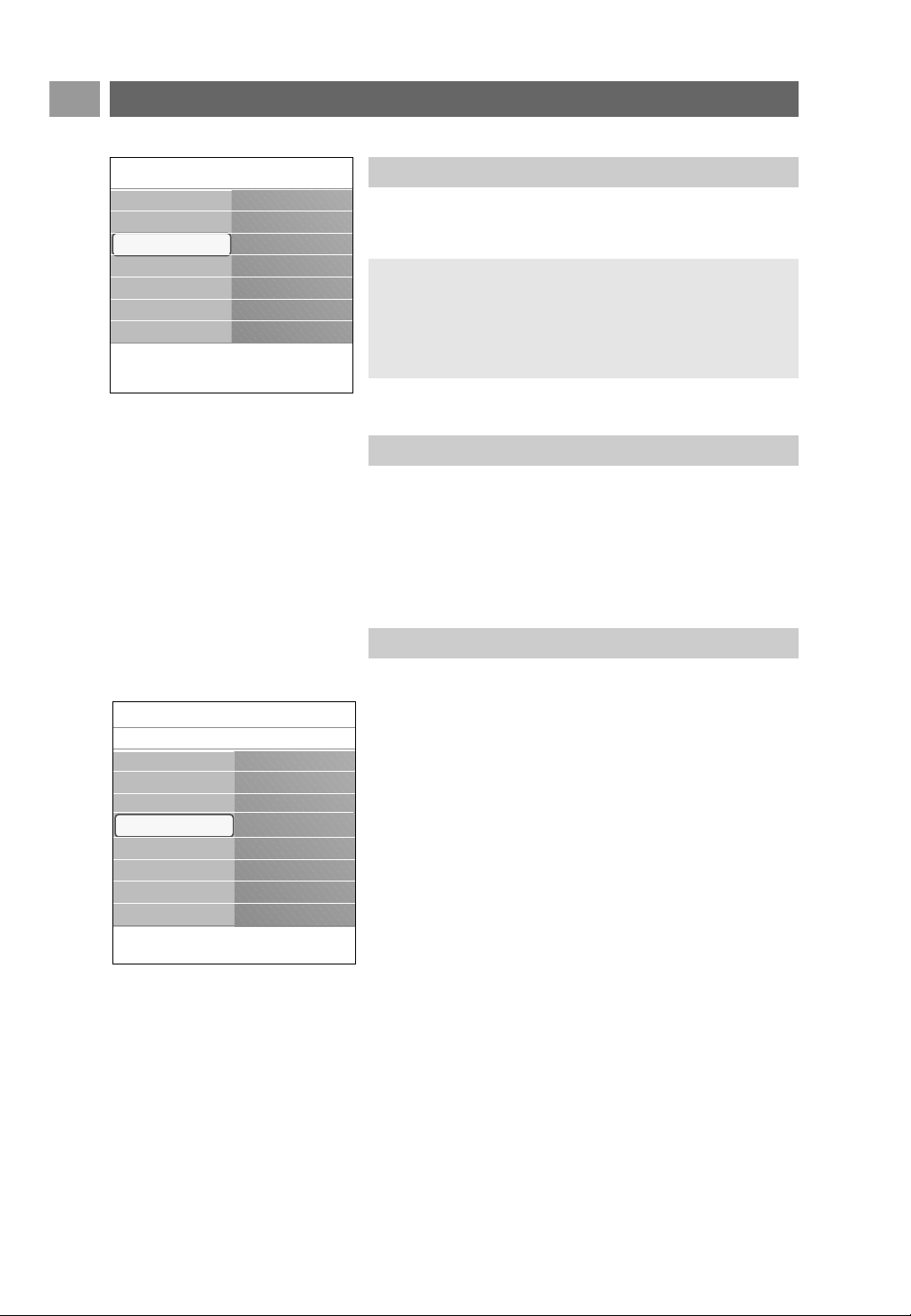
This menu allows you to select your preferred language for
menu, audio and subtitle.
Menu language
This allows you to select your menu language out of the list
of the available languages.
Preferred audio language (only with Digital TV broadcasting)
This allows you to select your audio language preference in
case several languages are broadcasted.
Preferred subtitle language (only with Digital TV broadcasting)
This allows you to select your subtitle language preference
in case several languages are broadcasted.
Hearing impaired (only with Digital TV broadcasting)
This allows you to select the hearing impaired audio or
subtitle language.
When set to On, the Hearing impaired version of your
preferred audio or subtitle language will, if available, be
reproduced.
When set to Off, the normal audio and subtitle language
behaviour will be applicable.
Select your language preferences
This menu will adjust settings related to the installation of the
TV channels, language and country and to the initial installation
of your TV.
1. Press the
MENU/BROWSE key on the remote control.
> The main menu appears.
2. Select TV menu and press the cursor right.
> The TV Menu is moved to the left.
3. Select Installation and press the cursor right.
> The Installation menu is moved to the left panel.
4. Use the cursor up/down to select the Installation menu
items.
5. Press the cursor right to enter the selected Installation
menu item.
6. Use the cursor keys to make a selection.
7. Press the
OK key to activate or to confirm.
8. Press the cursor left to return to the Installation menu or
press the
MENU/BROWSE key to switch off the menu.
Installation menu
Tip: you will need this chapter only if you want to change the installation settings.
Info
TV menu Installation
Languages
Country
Time zone
Channels
Preferences
Connections
.............
TV settings
Features
Installation
Exit
Info
TV menu
Installation
Languages
Menu language
Preferred audio l...
Preferred subtitle...
Hearing impaired
Languages
Country
Time zone
Channels
Preferences
Connections
Decoder
.............
Television
Multimedia
TV menu
TV channels
Programme guide
EN
24
How to search for and store TV channels (Continued)
24
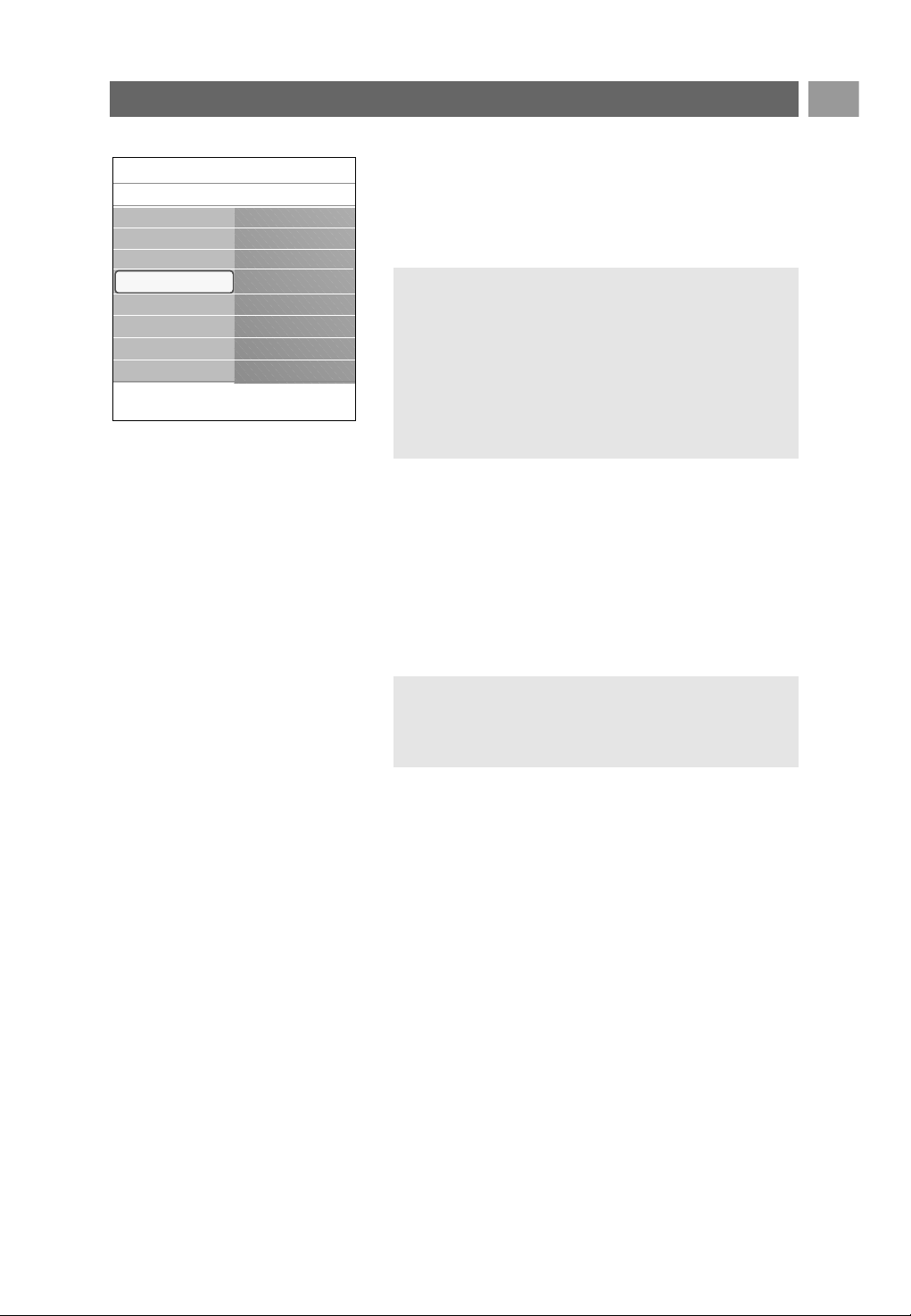
After language and country are set correctly, you can now
search for and store the TV channels.
< Select Channels in the TV, Installation menu.
Automatic installation
The TV will scan the entire frequency spectrum based on
the selected country.
> All available digital and analogue TV and digital radio
channels are searched for and stored automatically.
This will take a few minutes.
> When the search is complete, the menu will indicate the
number of digital and analogue channels found.
Select your country
Select the time zone
(only with digital TV broadcasting)
Notes:
- if you select a wrong country, the channel numbering will not
be according to the standard for your country;
- in case the country selected is not DVB-T supported by your
TV, digital related menu-items will not be accessible.
This allows you to select the country where you are now
located.
Only applicable for certain countries and dependent on the
selected country.
This allows you to select your local time zone so that the clock
display shows the correct time.
Store TV and radio channels
Info
TV menu Installation
.............
Channels
Preferences
Connections
Decoder
Factory settings
Software upgrade
TV settings
Features
Installation
Exit
Info
TV menu
Installation
Channels
Autom. installation
Installation update
Digital: test recept..
Analogue: manual..
Rearrange
Languages
Country
Time zone
Channels
Preferences
Connections
Decoder
.............
EN
25
How to search for and store TV channels (Continued)
25
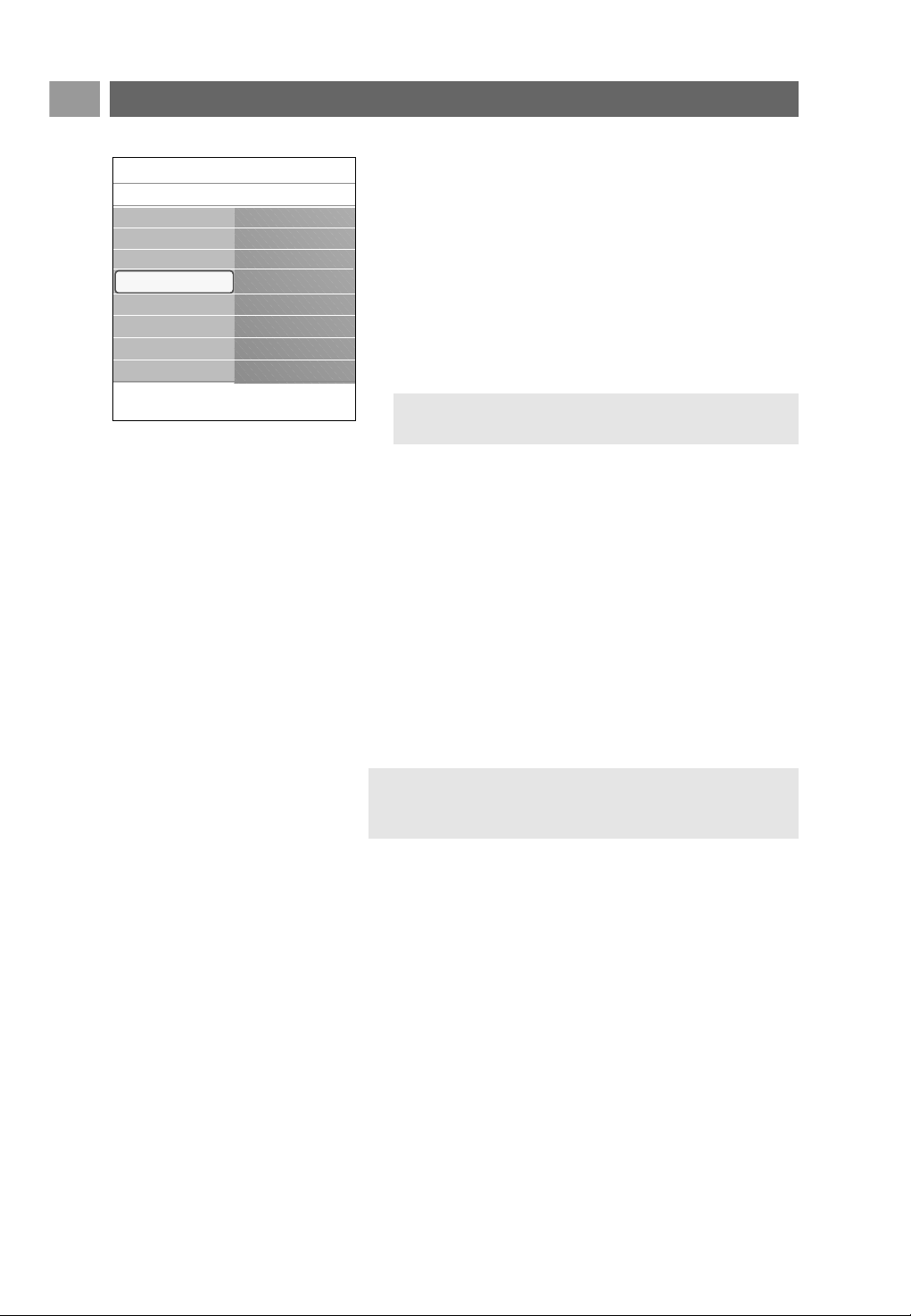
Digital: test reception (only with digital TV broadcasting)
This allows you to see the quality and the strength of the
signal reception for a digital frequency.This enables you to
find the antenna position that gives the best reception.
< Select Digital: test reception and press the cursor right.
> You obtain an indication of the actual channel frequency,
the network name, the signal quality and strength.
> If the signal quality and strength is poor, you can try
repositioning the aerial.
Installation update (only with digital TV broadcasting)
This allows you to automatically tune to and update all
available digital channels without altering the sorting of
existing channels. For example, the name of the channel is
not altered.
Notes:
- this will not reinstall uninstalled channels;
- digital channels that are not encountered any longer will
be removed;
- new channels found will not be added to any favourite
list;
- already installed channels will not be renumbered.
- installation update happens automatically when your TV
is in standby mode.
Tip: it is however advisable to contact a specialised aerial
installer in order to achieve the best results.
You can also directly enter the frequency of the digital
channels you want to test.
Info
TV menu
Installation
Channels
Autom. installation
Installation update
Digital: test recept..
Analogue: manual..
Rearrange
Languages
Country
Time zone
Channels
Preferences
Connections
Decoder
.............
EN
26
Analogue: manual installation
This gives you the possibility to manually install (tuning-in
channel by channel) analogue channels. Manual installation
will not find nor store any DVB-T (digital) channels.
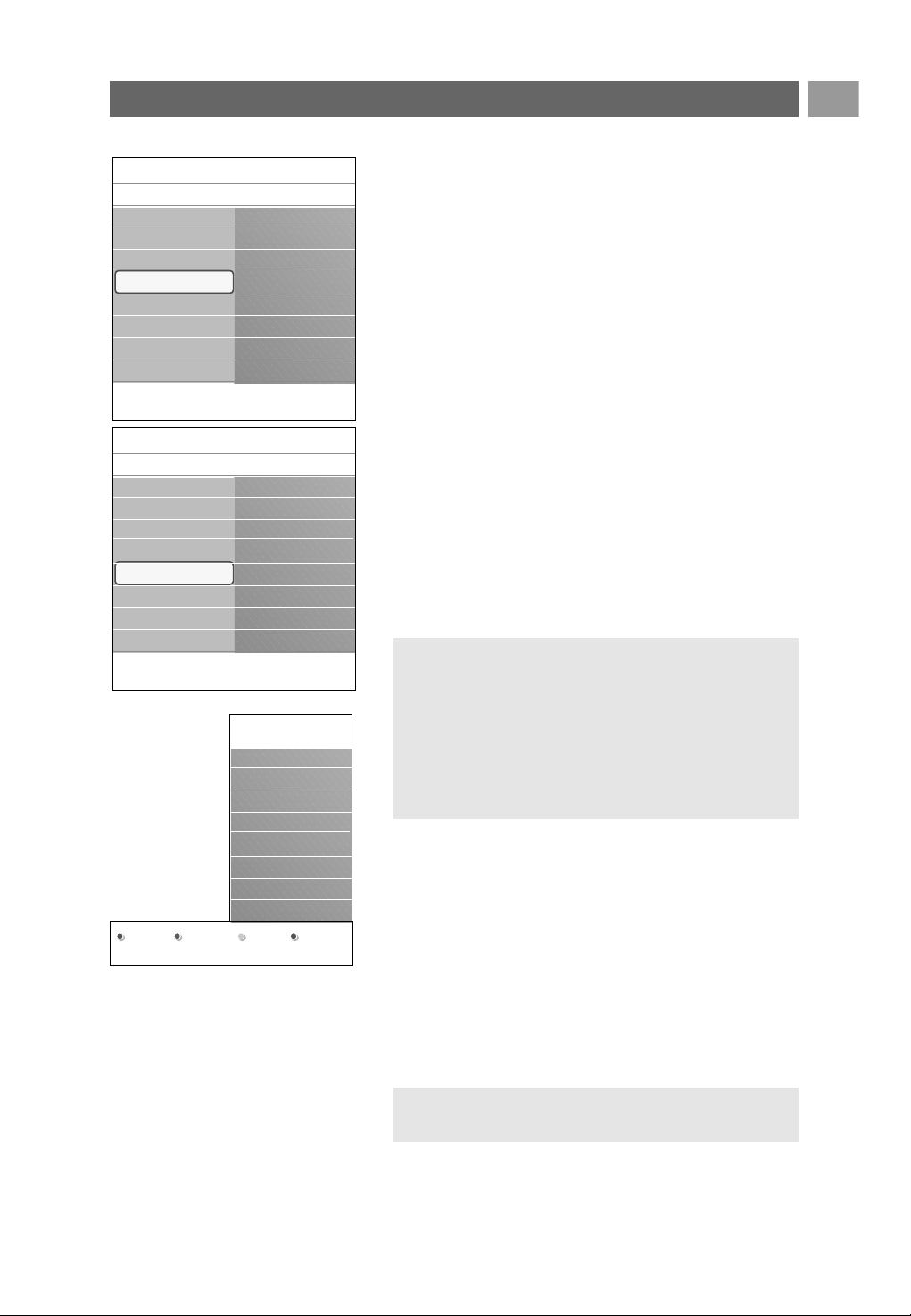
1. Select Analogue: manual installation and press the
cursor right.
2. Select System.
3. Select your country or part of the world where you are
now located.
4. Select Search and press the cursor right.
5. Select the red or green colour key to proceed.
6. Press the cursor left to store the channel found or to
search for another channel.
7. Select Fine tune and press the cursor right.
Fine tuning can be useful when the frequency has shifted a
bit or when interference of another frequency occurs.
Adjust the frequency with the cursor up/down in case of
poor reception of the channel found.
8. Select Store current channel if you want to store the
(fine tuned) frequency under the current channel number.
Press the cursor right and confirm with the
OK key.
Select Store as new channel if you want to store the
(fine tuned) frequency under a new channel number.
Press the cursor right and confirm with the
OK key.
9. Use the rearrange menu to rename or reshuffle the
channels. See next page.
How to search for and store TV channels (Continued)
26
Note: when on a frequency where a DVB signal is
broadcasted, the tuner will try to decode an analogue TV
channel, and hence will not show video.
Tip: if you know the frequency, enter the 3 digits of the
frequency with the digit keys 0 to 9 (For example, 049).
Info
TV menu
Installation
Channels
Autom. installation
Installation update
Digital: test recept..
Analogue: manual..
Rearrange
Languages
Country
Time zone
Channels
Preferences
Connections
Decoder
.............
EN
27
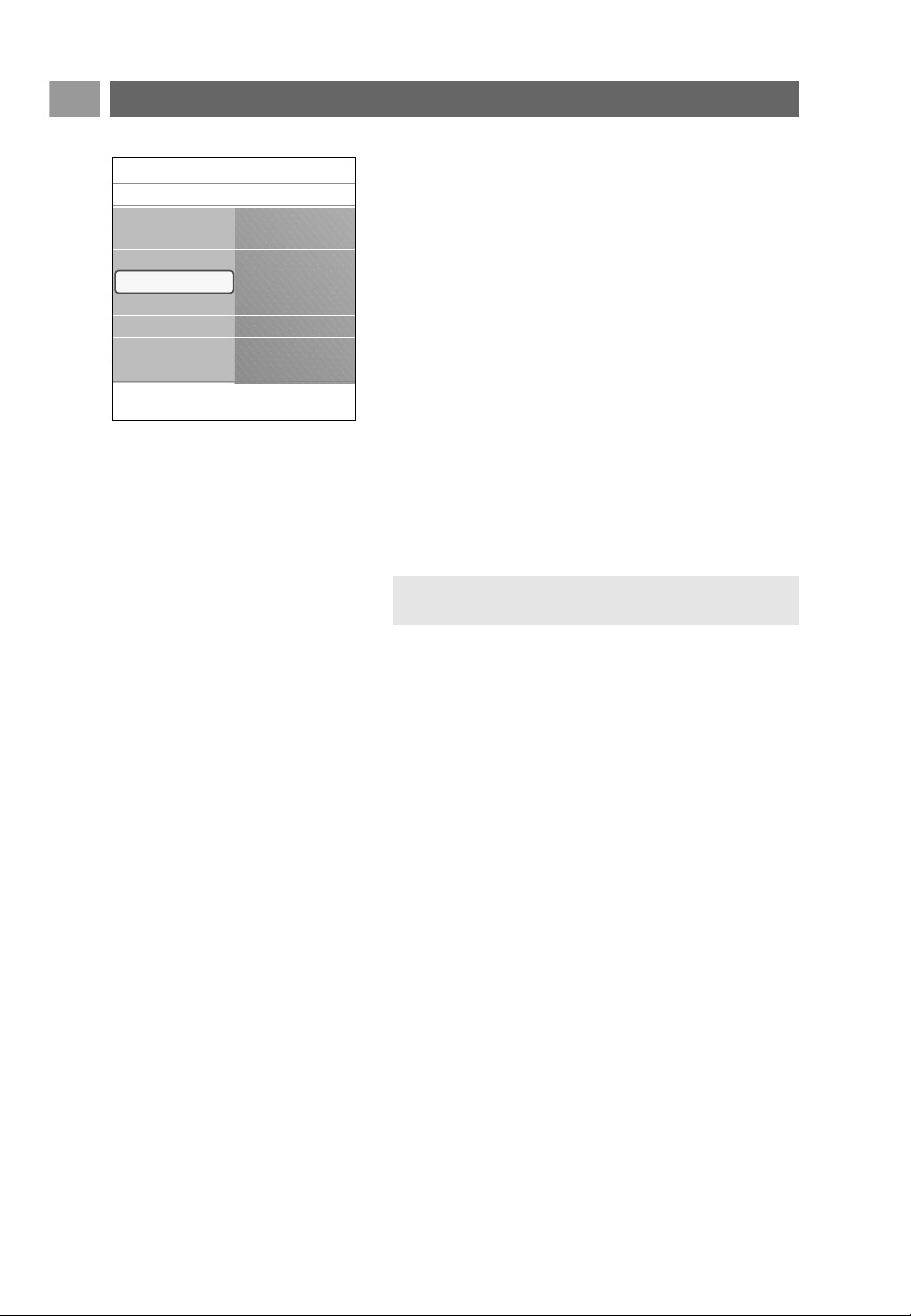
This allows you to rename, to reshuffle and to uninstall or
reinstall the stored channels.
< Press the corresponding colour keys and follow the on
screen instructions.
Reshuffle
This allows you to change the order of the stored TV
channels.
1. Select the channel you want to change place.
2. Press the yellow colour key to move up a single position in
the list.
3. Press the blue colour key to move down a single position in
the list.
4. Repeat to reshuffle other TV channels.
Rename
This allows you to change the name stored in the memory
or to assign a name to a channel or external for which a
name has not yet been entered.
1. Select the channel you want to rename.
2. Press the red colour key on your remote control.
3. Select the characters with the cursor up/down. Select the
following position with the cursor right.
4. Press the green colour key or the
OK key when finished.
5. Select another channel number and repeat steps 2 to 5.
Uninstall - reinstall
This allows you to uninstall a stored channel or external so
that it is no longer possible to tune to.This also allows you
to reinstall an earlier uninstalled channel.
1. Select the channel you want to uninstall.
2. Press the green colour key to uninstall the selected channel.
> The uninstalled channel is indicated in the list by an icon
in front of the uninstalled channel.
3. Press the green colour key again to reinstall the uninstalled
channel.
Rearrange the channel number list
27
Notes:
- press the yellow colour key to delete all characters.The
cursor is positioned at the beginning again;
- press the blue colour key to delete the character the
cursor is positioned. Enter a new character with the
cursor up/down;
- a name can be given to the channel numbers 0 to 999;
- space, numbers and other special characters are located
between Z and A.
Note: uninstalled channels are not reinstalled during an
installation update.
Rearrange
0
1
2
3
4
5
6
7
Rename Uninstall
Move
up
Move
down
Info
TV menu
Installation
Channels
Autom. installation
Installation update
Digital: test recept..
Analogue: manual..
Rearrange
Languages
Country
Time zone
Channels
Preferences
Connections
Decoder
.............
Info
TV menu/Installation
Channels
Rearrange
0
1
2
3
4
5
6
7
Automatic instal...
Installation update
Digital: test rec....
Analogue: manual
Rearrange
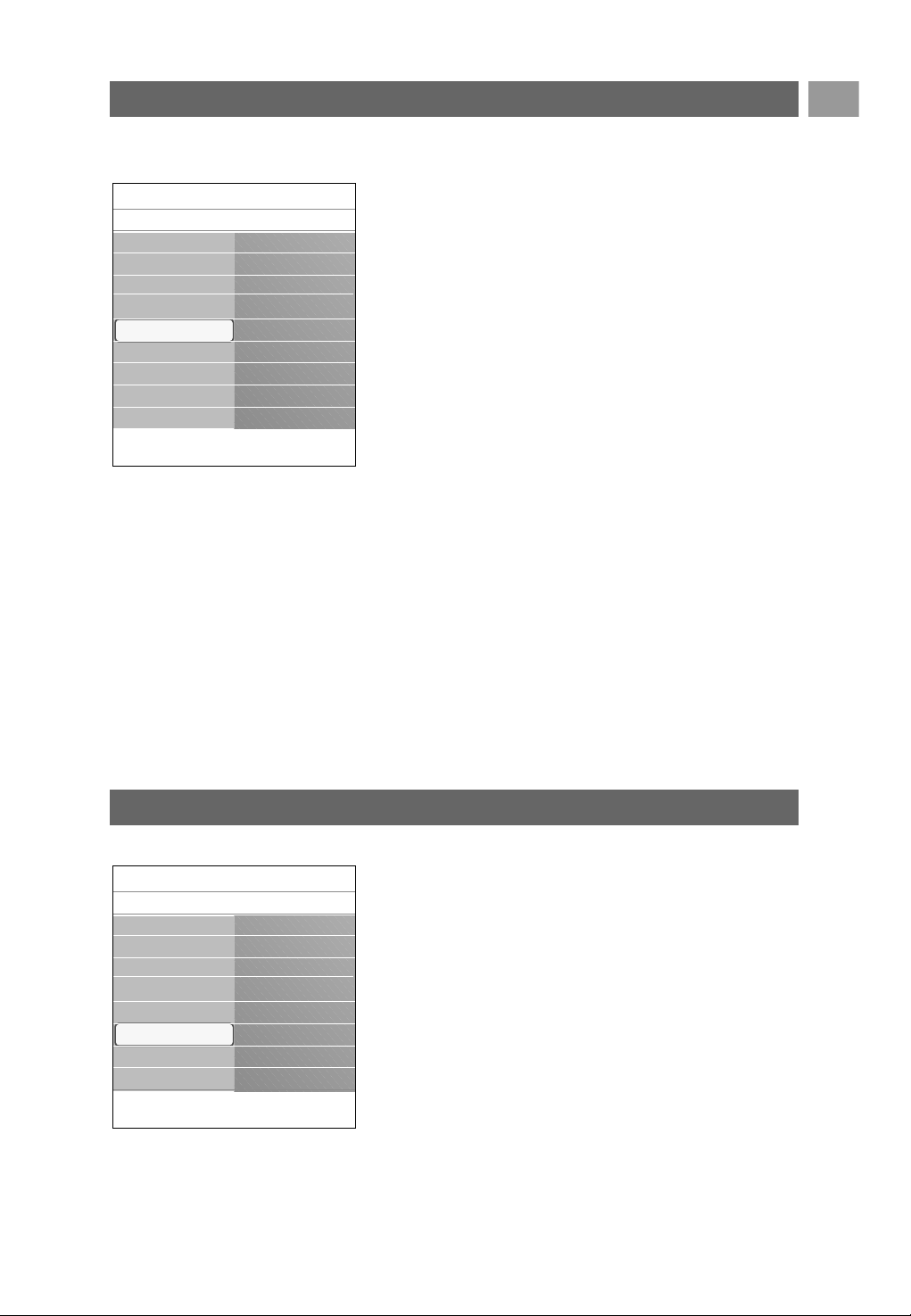
This menu contains items that can set or adjust various special
TV functions and that will typically be accessed only
occasionally.
Select your location
This allows you to select the location of your TV.
If you choose for Shop it will result in fixed settings of
picture and sound.
The location Home will give full flexibility to change any
predefined settings for picture and sound.
Select Teletext 2.5
Some broadcasters offer the opportunity to see more
colours, other background colours and nicer pictures in the
teletext pages.
< Select Teletext 2.5 On to take advantage of this feature.
< Select Teletext 2.5 Off if you like the more neutral
teletext layout.
> The selection made is valid for all the channels which
broadcast Teletext 2.5.
Select the On Screen Display (OSD)
This allows you to select the display of the volume bar and
a reduced or extended on screen display of programme and
channel information.
< Select Minimum to activate the display of reduced channel
information.
< Select Normal to activate the display of extended channel
and programme information. For example, information on
the programme, input signal quality of connected peripheral
equipment, the screen format and sound mode, selected
audio language, subtitle language, ratings, remaining time of
the sleeptimer setting,...
Display a Programme title
This allows you, to display the programme title according to
the transmitted information.
> When selected Ye s, after the selection of a TV
programme or after you press the i key on the
remote control, a programme title will be displayed if
transmitted.
> When selected No, the programme title will only
appear after you press the i key and not after the
selection of a channel.
EN
28
Set your preferences
28
Note: it may take a few seconds before teletext broadcast
switches over to Teletext 2.5.
Info
TV menu
Installation
Preferences
Location
Teletext 2.5
OSD
Programme title
.............
Time zone
Channels
Preferences
Connections
Decoder
Factory settings
Software upgrade
EN
29
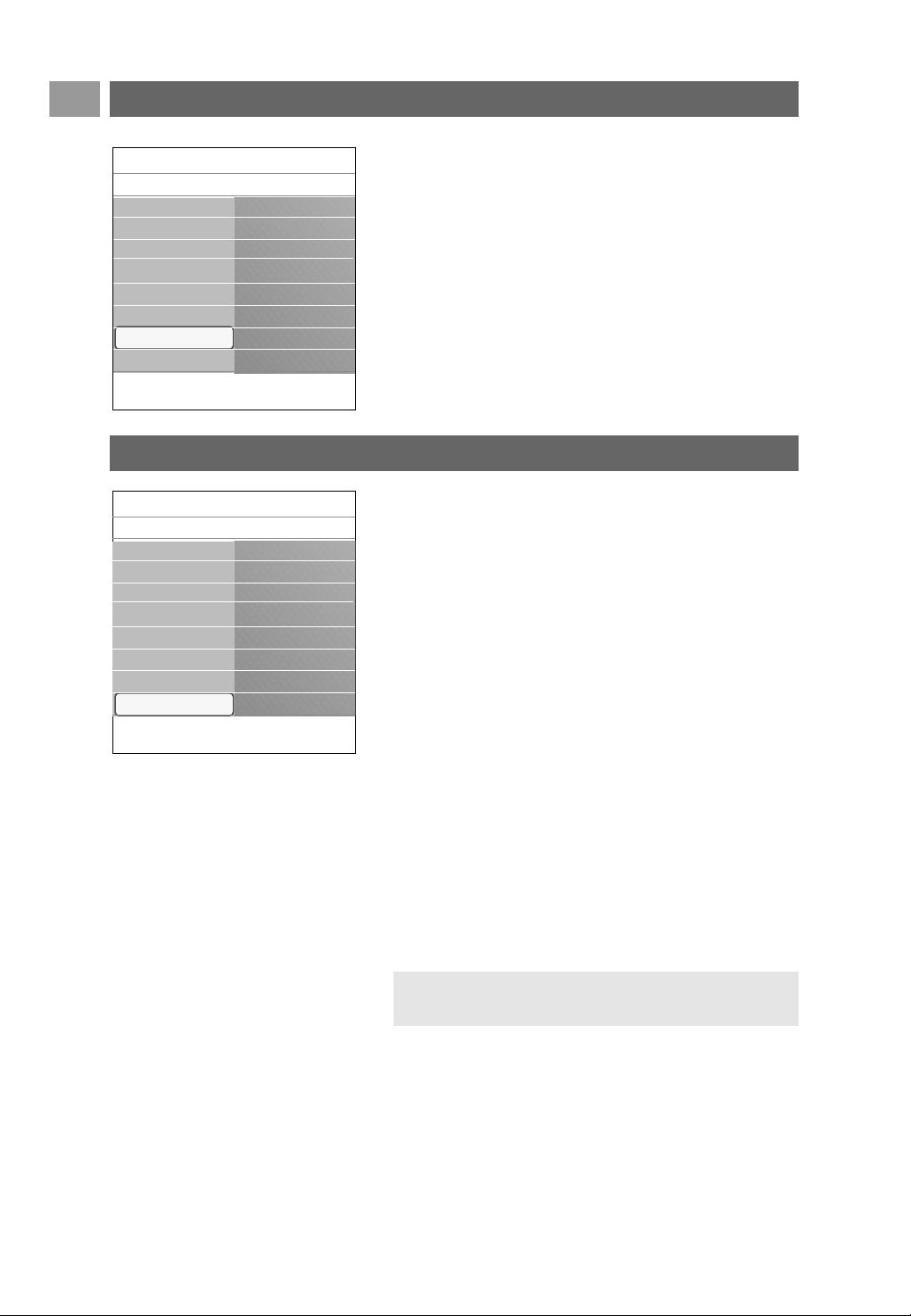
This allows you to select the peripheral equipment you have
connected to the audio and video connectors.
1. Select Connections.
2. Press the cursor right.
3. Select the input to which the peripheral equipment is
connected.
> When you select
EXT1, EXT2, EXT3, HDMI 1,
HDMI 2, VGA, Side, Analogue Audio In or Digital
Audio In, a list appears which allows you to identify
which type of peripheral equipment is attached to this
input.
4. Press the cursor right again to enter the list of types of
peripherals connected to the selected input.
5. Select the peripheral equipment with the cursor up/down.
Digital Audio In
If a peripheral equipment has a digital audio output, you can
connect this with a single cable to the TV’s
DIGITAL
AUDIO IN
connector.
In the Connections menu, assign the Digital Audio In to the
corresponding external input to which your peripheral
equipment is connected.
In addition to accepting audio input via Digital Audio In, the
TV can output encoded Dolby Digital audio via the
DIGITAL AUDIO OUT connector to an external amplifier
or receiver. If your amplifier or receiver has a matching
connector for Digital Audio In, you can connect it with a
single cable to the TV's
DIGITAL AUDIO OUT.
See To make video and audio connections, Connect a Home
Cinema amplifier, p. 48.
Select your connections
29
Select a Decoder channel number
This allows you to define one or more channel numbers as
decoder channel numbers when a decoder or a descrambler is
connected to
EXT1 or EXT2.
1. Select the channel number under which you have stored the
programme that comes from your decoder or descrambler.
2. Select Status.
3. Select the input used to connect your decoder: None,
EXT1 or EXT2.
< Select None if you do not want the selected channel
number being activated as a decoder channel number.
Info
TV menu
Installation
Decoder
Channel
Status
.............
Time zone
Channels
Preferences
Connections
Decoder
Factory settings
Software upgrade
Info
TV menu
Installation
Connections
EXT1
EXT2
EXT3
HDMI 1
HDMI 2
VGA
Side
Analogue Audio In
Digital Audio IN
.............
Time zone
Channels
Preferences
Connections
Decoder
Factory reset
Software upgrade
EN
3030
This allows you to upgrade your TV software using a USB
device.
USB device upgrade
It is possible to initiate an upgrade procedure from a USB
device before you start up the TV.The memory device must
be filled with the appropriate upgrade image (and structure)
which can be found on the www. philips.com/software
website.
How to upload a new software version on your memory
device, see Annex 2, Philips TV software upgrade with
portable memory, p. 54.
Automatic software announcement (if present)
When you switch on your TV a message may appear that a
new software upgrade is available.
< Press the red colour key on your remote control if you
want to be reminded later on.
< Press the green colour key on your remote control to
confirm you have read the message.
> Once you have confirmed, the message will not pop up
again.
If however, you want to see the last broadcasted
announcement again, select Announcement in the
Software upgrade menu.
This allows you to reset most of the predefined factory states.
1. Select and press the cursor right.
2. Press the
OK key to erase settings and reset them to their
default values.
How to upgrade the TV software
Reset the Factory settings
Info
TV menu
Installation
Factory settings
Reset
.............
Time zone
Channels
Preferences
Connections
Decoder
Factory settings
Software upgrade
Info
TV menu
Installation
Software upgrade
Current softw. info
Local upgrades
Announcement
.............
Time zone
Channels
Preferences
Connections
Decoder
Factory settings
Software upgrade
Note: as long as the software upgrade has not been
executed, the message will be available.

EN
31
Create your favourite list
31
This allows you to select up to four favourite channels lists with
your preferred TV channels and radio stations. For example, each
member of your family can create his/her own favourite list.
In addition to the favourite channel lists you may also select a list
with only digital TV channels or a list with only the radio
channels or a list with only the analogue channels.
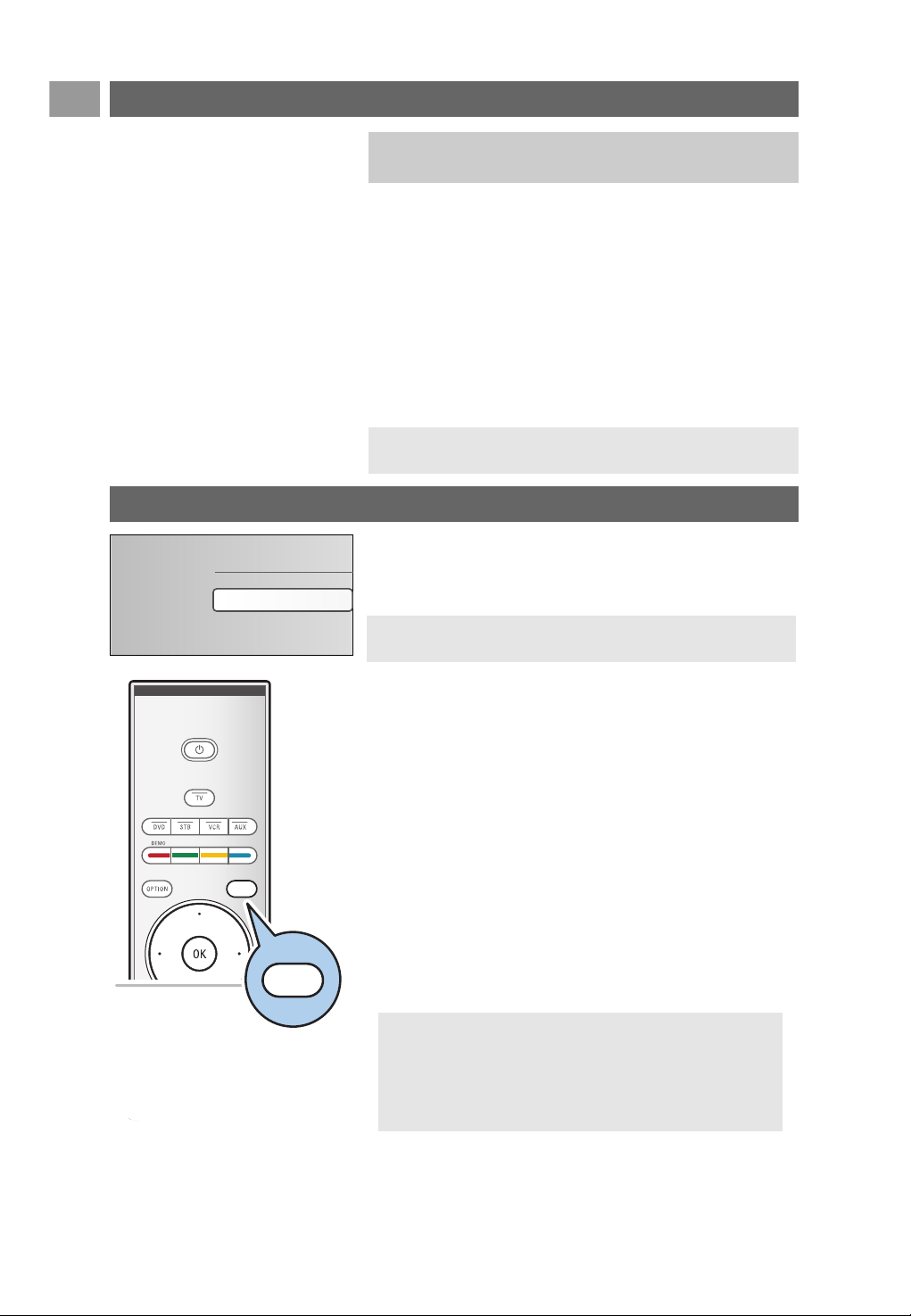
1. Press the
FAV key (or the OK key).
> The last selected channel list appears.
2. Use the cursor up/down to select a channel.
3. Press the
OK key to display the selected channel.
1. Press the
FAV key.
> The last selected channel list appears.
2. Press the red colour key to bring up the list of possible
favourite channel lists.
3. Use the cursor up/down to select a list.
4. Press the
OK key.
5. Press the
FAV key again to exit.
1. Press the
FAV key.
> The last selected channel list appears.
2. Press the red colour key.
> A list with all possible favourite channel lists appears.
3. Use the cursor up/down to select a Favourites (1 to 4)
channel list.
4. Press the
OK key.
5. Press the green colour key to enter the Edit mode.
> The selected Favourite list will bring up a full channel list.
6. Use the cursor up/down to select a channel.
7. Press the OK key to check or uncheck the highlighted
channel and to add it to or remove it from your selected
favourite list.
8a. < Press the green colour key again to leave the Edit mode.
> The modified favourite channel list appears.
< Press the
FAV key again to exit.
> With the
–P+ key you will be able to browse through
the TV channels of the selected list.
8b. Press the red colour key to remove the channel list.
Note: when this key is pressed the first time after you have
finished the installation, it will bring up the full channel list. In
other situations it will bring up the last selected channel list.
Note: with the digit keys you can still select channels which
are not marked as favourite.
To select a channel from the displayed favourite list
To select another favourite channel list
To create a favourite list or to modify the list
Favourites 1
EXT1
EX
T2
HDMI
2 Digital channel 1
3
Digital channel 2
4
Radio channel 1
4
5 Data channel 1
Exit
Leave edit
Press the OK key to mark /
All channels
All
TV channels
Radio channels
Anal
ogue
Favourites 1
Favourites 2
Favourites 3
3
Favourites 4
Change list
All channels
EX
T1
EX
T2
1 Analogue channel 1
2 Digital channel 1
3
Digital channel 2
4
Radio channel 1
2
5 Data channel 1
Change list
Tune to a channel by pressing OK.
1 Analogue channel 1
b
b
A
b
A
A
HDMI
unmark.
Use -P+ for page up/down.
Use cursor up/down to select and
OK to confirm.
EN
32
When the All channels list is displayed or selected you may filter
the list and select a list with only the TV channels or a list with
only the radio channels.
1. Press the
FAV key.
> The last selected channel list appears.
2. Press the cursor left.
3. Select the All channels list and press the cursor right.
4. Press the red colour key to filter.
5. Select your desired channels list.
6. Press the
FAV key again to exit.
> With the
–P+ key you will be able to browse through
the TV channels of the filtered list.
Create your favourite channels list (Continued)
32
Note: the filtering will not be remembered after the TV is
switched off or set to standby.
To select only TV or only radio channels on the All
channels list
a
a
EPG (Electronic Programme Guide)
(only with Digital TV channels)
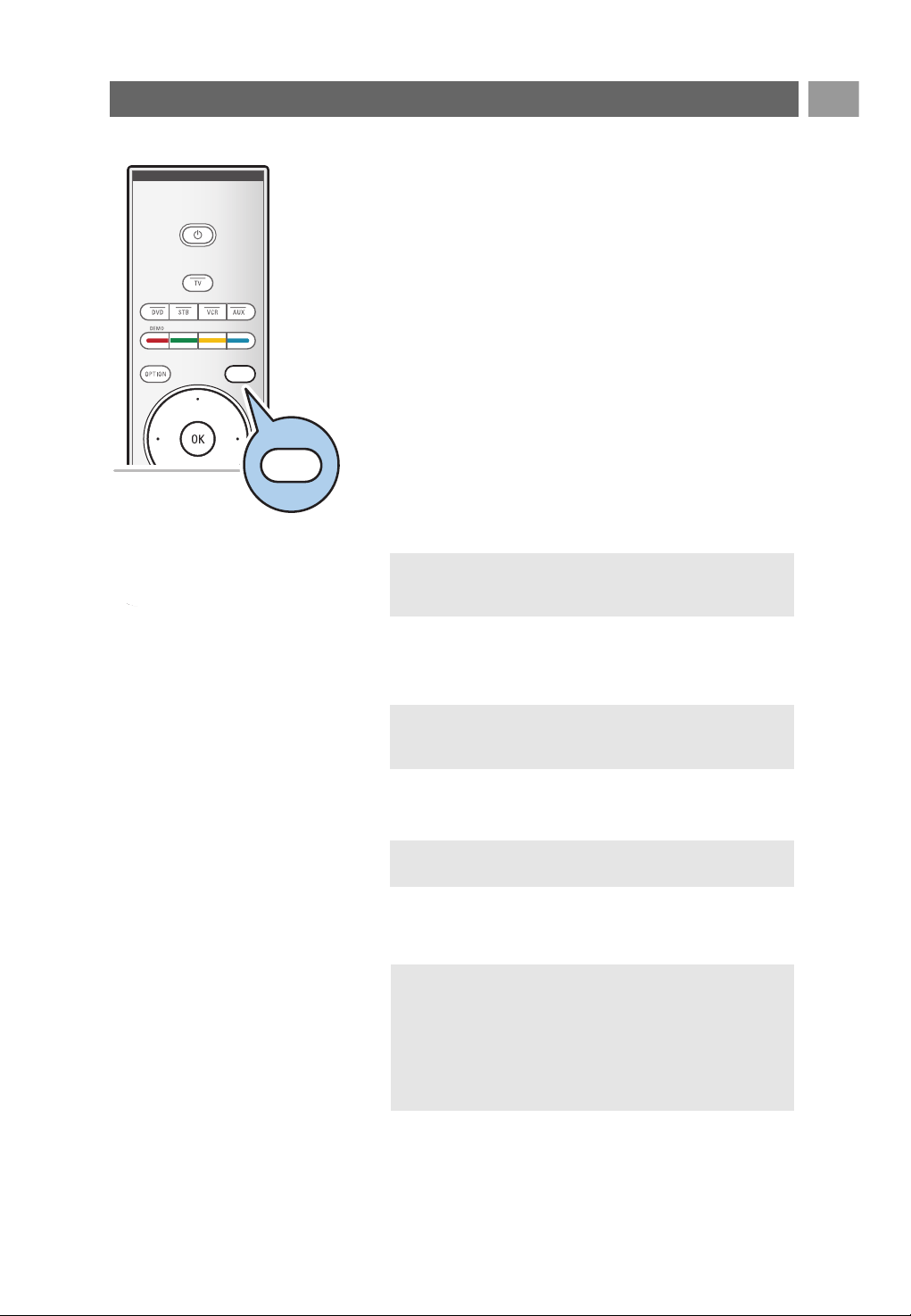
The Electronic Programme Guide shows you detailed
information about the current programme and also about the
next programme (only for TV programmes that provide EPG
information).
1. Press the a key.
> The EPG screen appears. Dependent on conditions it
may take some time to acquire EPG data.
> The EPG screen updates automatically if the EPG data is
acquired successfully. If not, the EPG screen remains
blank.
> Information about the selected programme appears.
< Use the coloured keys to activate the available EPG features
displayed at the bottom of the screen.
2. To quit the Electronic Programme Guide, press the a key
again.
When the type of Electronic Programme Guide
available, displays a list of TV programmes (for UK
only):
1. Use the cursor up/down to select a desired TV programme.
> Information about the selected programme appears.
Note: these instructions may differ according to the type of
Electronic Programme Guide.
Tips:
- press the blue colour key on the remote control to view
more information (not currently displayed) about the
selected programme.
- to quit the display of detailed information, press the blue
colour key again.
Television
Multimedia
TV menu
TV channels
Programme Guide
EPG (Electronic Programme Guide) (Continued)
EN
33
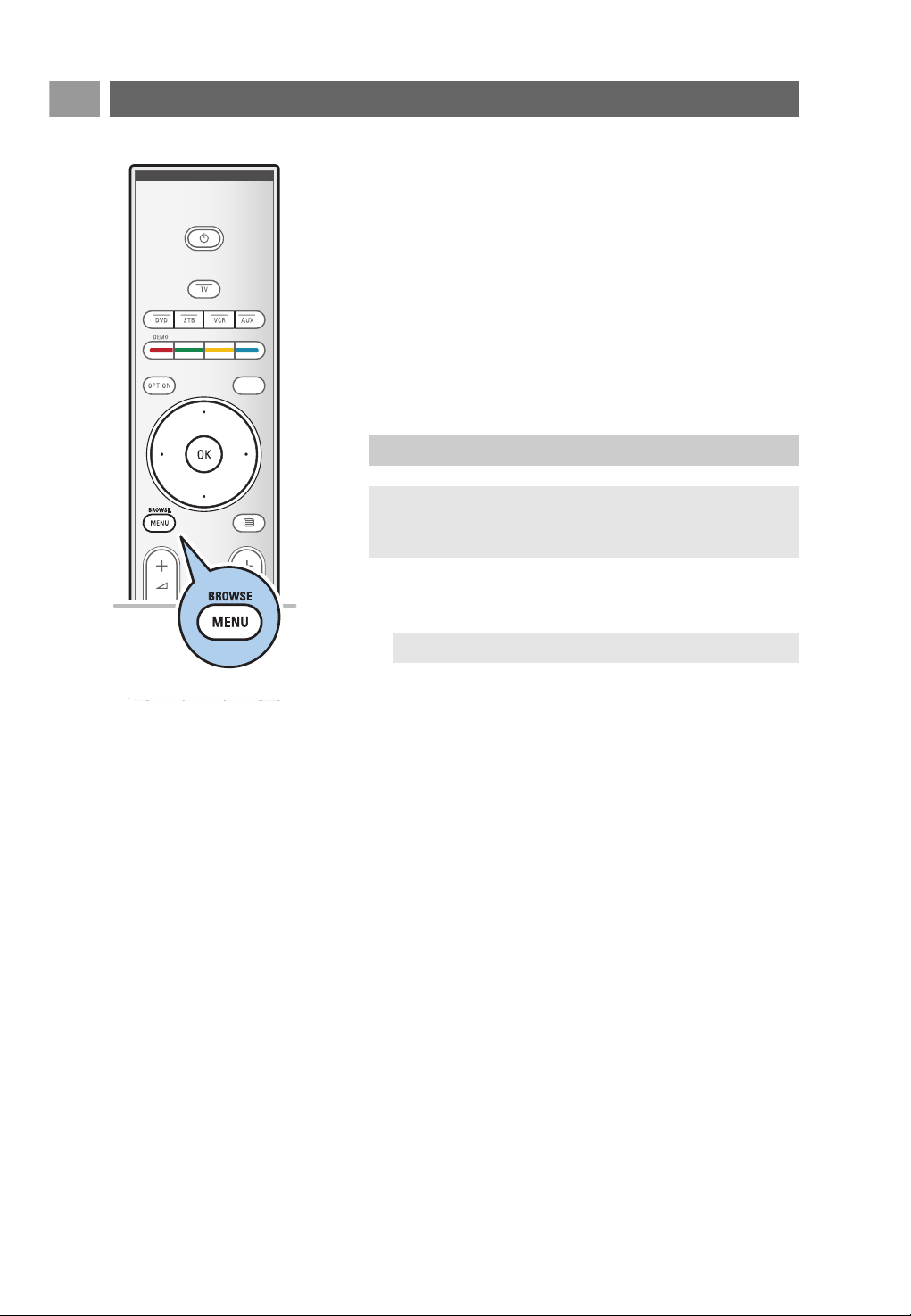
2. Press the green colour key on the remote control to
watch/listen to the selected programme currently on air.
3. Press the red colour key to mark/unmark a reminder on
the selected programme. You can set up to a maximum of
10 reminders.
> The TV will wake up automatically or display a message
when the programme is about to start. Follow the
instructions on screen to watch the programme.
4. Press the yellow colour key to jump to the
Next or the
Previous day or back to Today.
5. Press the
MENU/BROWSE key, while Programme Guide is
active, to activate the Programme Guide main menu.
° Use the cursor up/down to highlight and select a menu
item.
-
What's on allows you to browse through the
programme guide information of your preferred EPG
channels.
-
Search by genre allows you to search for the
programmes according to a selected genre.
-
Scheduled reminders allows you to view and change the
reminders you have set.
- Preferred EPG channels are the channels from which
the EPG data is currently being acquired.This menu
allows you to mark/unmark ( up to 50) preferred EPG
channels.
-
Acquire EPG data allows you to update the information
for the preferred programme guide channels. Follow the
instructions on screen.
6. To quit the Electronic Programme Guide, press the a key
again.
Tips:
- the EPG screen will not include TV channels which are
not in the Preferred channel list or which are uninstalled
(See Rearrange menu).
- new added channels ( via reinstallation or installation)
will have to be marked in the preferred EPG channel list
before you can see EPG data.
Note: the reminder(s) will wake up your TV from standby
only if you switched off your TV with the
B
key on your
remote control.
Note: after the installation of your channels, by default 40
channels with available EPG data will automatically be
marked as preferred EPG channel.
Note: Acquisition of EPG data is done automatically while
watching TV.
a
a
EN
34
The Multimedia browser lets you display pictures, movies or
play audio files stored on a USB device.The Multimedia browser
application is invoked from the main menu.
-Following file formats can be reproduced:
for pictures: JPEG
for audio: MP3, MP3 Pro, LPCM
for video: MPEG1, MPEG2
- Only FAT/DOS-formatted memory devices are supported.
- Philips can not be held responsible if your USB device is not
supported.
To insert a USB device
In case of a USB-memory stick or a digital camera, connect
it to the USB connector at the side. See To make video and
audio connections, Side panel overview, p. 41.
When a USB device is inserted, the Multimedia browser
menu is displayed automatically. See further.
To remove the USB device
1. Press the MENU/BROWSE key on the remote control to
switch off the main menu.
2. Remove the USB device.
Multimedia Browser
a
To view content from a USB device
Tip: if your USB device does not fit into the USB connector at
the side, use an USB extend cable to connect the USB device
to the USB port.Ask your dealer for more information.
Note: USB devices are not supplied with this TV.
EN
35
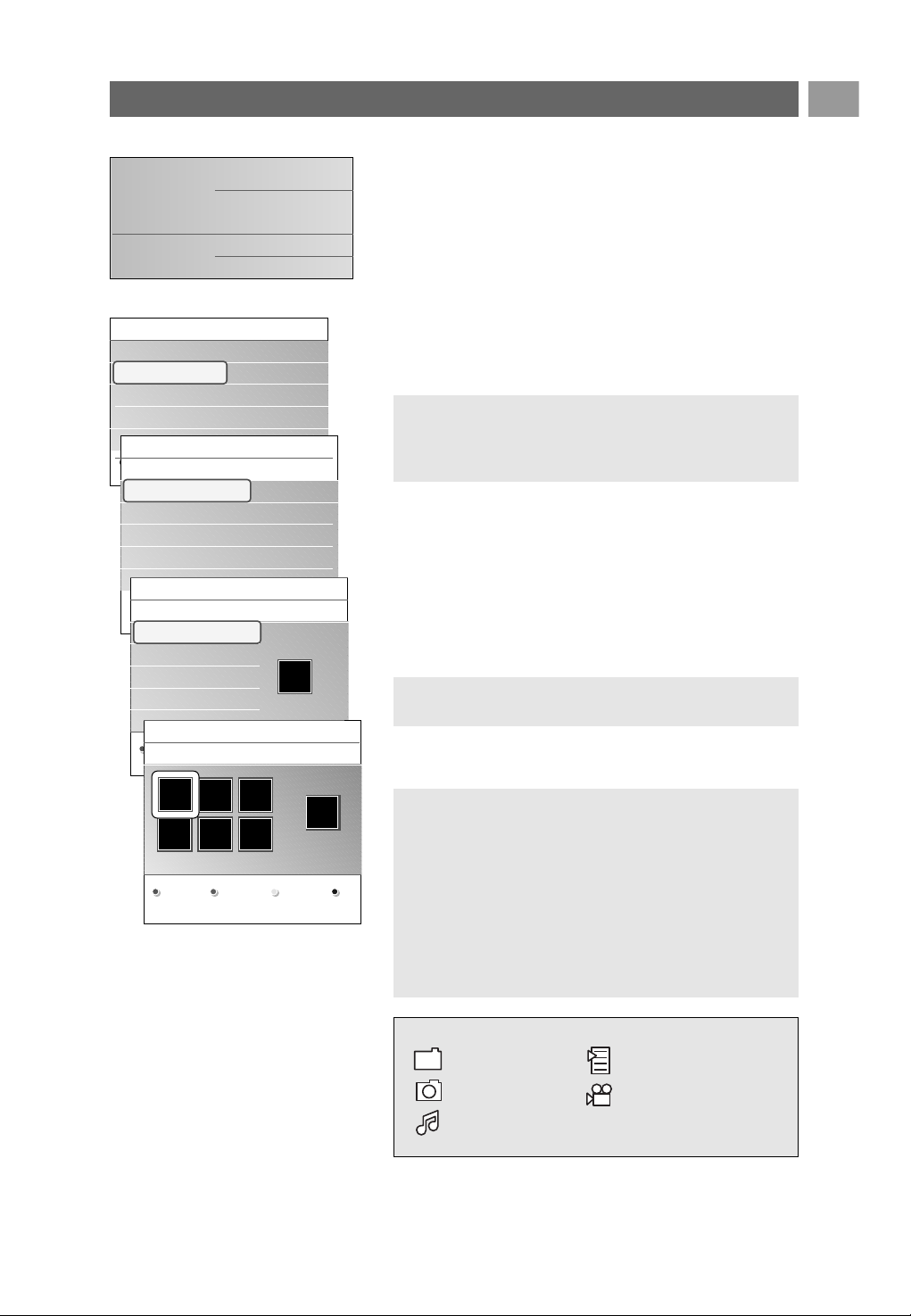
Multimedia Browser menu
1. Insert a USB device.
2. Select the USB device under Multimedia with the cursor
up/down.
> The Multimedia browser allows you to browse content
stored on the inserted USB device.
> The 2-panel browser will be shown with the left panel
containing the content types (Music, Pictures, Movies).
> The right panel will display the content that is available
of the selected content type.
3. Press the cursor right to enter the content.
4. Press the cursor up/down to select a content.
5. Press the cursor right to enter the content.
6. Press the cursor up/down to select a file or a directory.
7. In case a file is selected, press the
OK key to display a
picture file or to play a video or an audio file.
In case a directory, album or playlist is selected, press
the cursor right to enter the content or press the
OK key
to start a slide show or a loop playback of the files present.
8. Press the cursor left to keep music playing and switch back
to the Multimedia menu.
9. Press one of the colour keys on the remote control to
perform the corresponding function mentioned at the
bottom of the screen.
9. To stop playing content, press the ‡ key on the remote
control.
Multimedia Browser (Continued)
Note: press the green colour key to display all the image
files in the current directory as thumbnails when browsing
pictures. Press the green key again to display the image
files in a list.
Tip: the blue colour key can, if necessary, be used to let
the colour keys reappear.
Notes:
- your TV supports slide shows with background music.
See Annex 3, Philips TV-slideshow format with
background music, p. 56;
- the playback will continue to play even if temporarily
switched to browser screens.The audio will be stopped
when another song starts playing, or when the end has
been reached;
- more technical remarks can be found in Annex 4, Philips
TV-Digital camera and USB issues, p. 59.
USBDevice 1
Music
Picture
Movies
Picture
London 2005
The Beatles
Xmas2004.alb
arnold.jpg
USBDevice 1
Picture
London2005
The Beatles
Xmas2004.alb
arnold.jpg
London 2005
pic001.jpg
pic002.jpg
pic003.jpg
pic004.jpg
USBDevice 1/Picture/London2005
London2005
pic001.jpg
pic002.jpg
pic003.jpg
pic004.jpg
pic001.jpg
pic001.jpg
USBDevice 1/Picture/London2005
London2005 pic001.jpg
Press OK to play.
Television
Multimedia
TV menu
TV channels
Programme guide
Following icons may appear:
folder self made playlist/album
pictures video
music
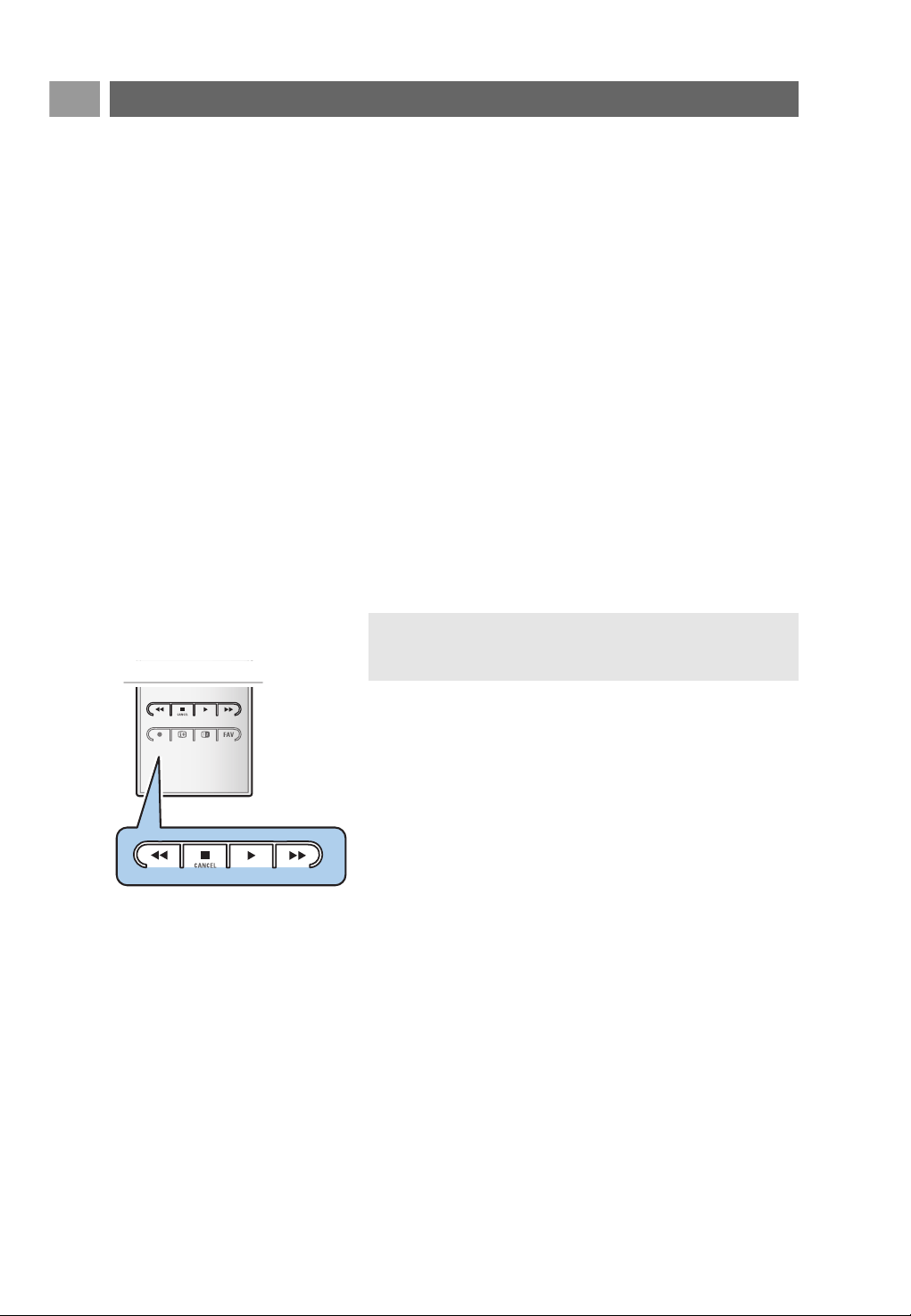
EN
36
Function keys at the bottom of the screen
Details to display a description of the selected file
or directory
Transitions to select if you like to apply a transition
during a slide show
Slide time to select the duration a picture will be
displayed in a slide show
Rotate to rotate a picture
Repeat one/all to repeat the playback of a music file
Shuffle to shuffle music collections in a random way
Zoom to select one of the zoom magnifications
(x1, x2, x4) with the cursor up/down.
Additionally you can shift the selected zoom
window over the screen with the cursor
keys.
Full/small screen to toggle between a full or a small screen
Multimedia function keys on the remote control
Ò to fast rewind displaying content
‡ to stop playing content
π - to play a single file, start a slide show, playback of a
folder or other collection
- to pause playing content
† to fast forward displaying content
Multimedia Browser (Continued)
Note: to rotate a picture or to select one of the zoom
magnifications, first stop the slide show with the
OK
key or
the blue colour key.
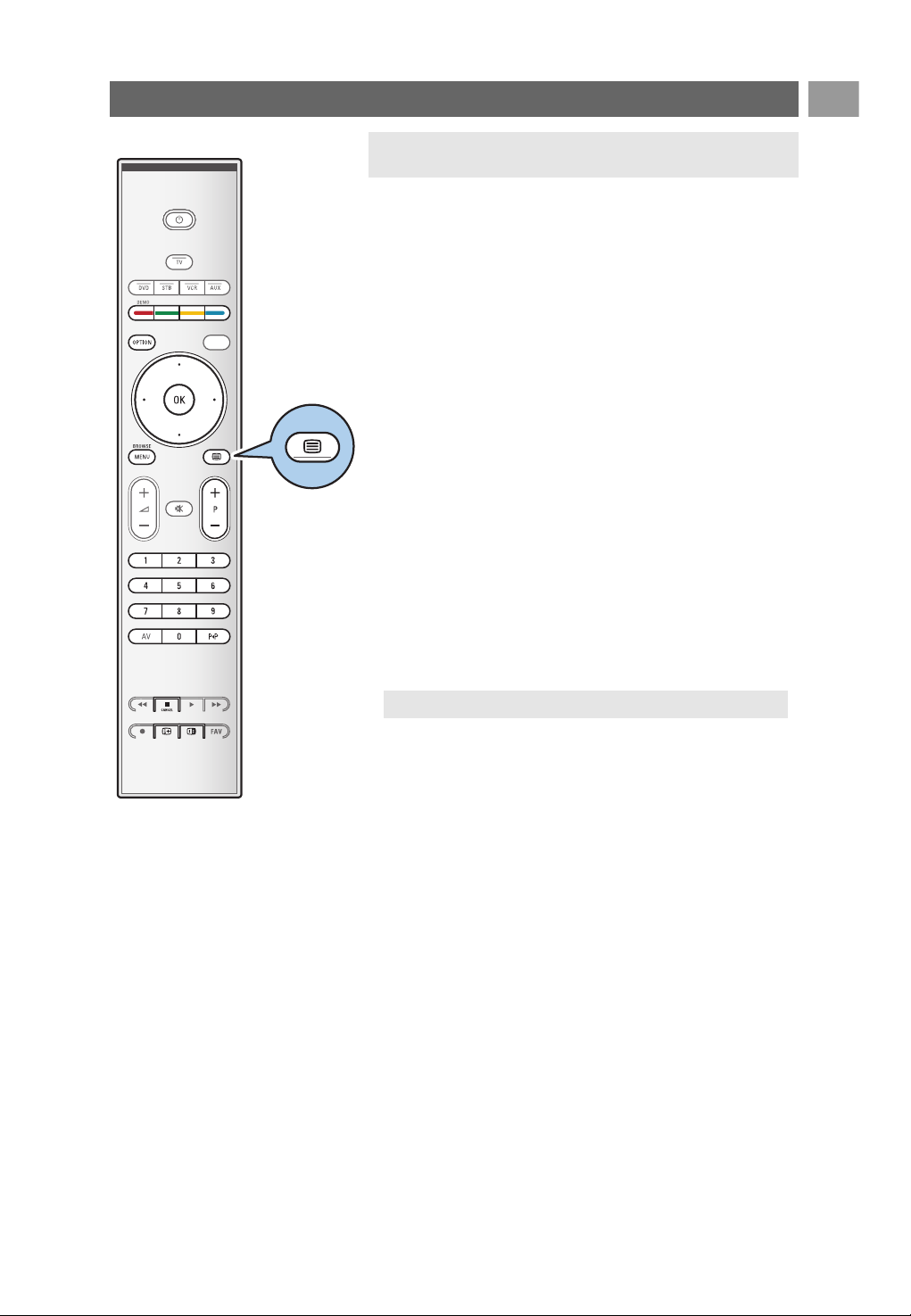
EN
37
Most TV channels broadcast information via teletext.
This TV has a 1200 pages memory that will store most
broadcasted pages and subpages to reduce waiting time.After
each programme change, the memory is refreshed.
< Press b to switch the teletext on.
> The main index page appears on the screen.
Select a Teletext page
< Enter the desired page number with the digit keys or with
the
-P+ key.
< Select the options at the bottom of the screen with the
colour keys.
Previous selected teletext page
< Press the 0 key.
Select T.O.P. teletext broadcasts
< Press i.
> A T.O.P. overview of the teletext subjects available is
displayed.
< Select with the cursor up/down, left/right the desired
subject and press the
OK key.
Select subpages
When a selected teletext page consists of different
subpages, a list of available subpages appears on the screen.
Press the cursor left or right to select the next or previous
subpage.
Picture/Teletext
1. Press the b key.
2. Press the b key to show Teletext on the right of the
screen.
3. Press the b key to return to a full teletext picture.
4. Press the b key to return to a full screen picture.
Teletext
a
v
Note: not all TV channels broadcast T.O.P. teletext.
Note:Teletext is not available via equipment connected to the
HDMI
connector.
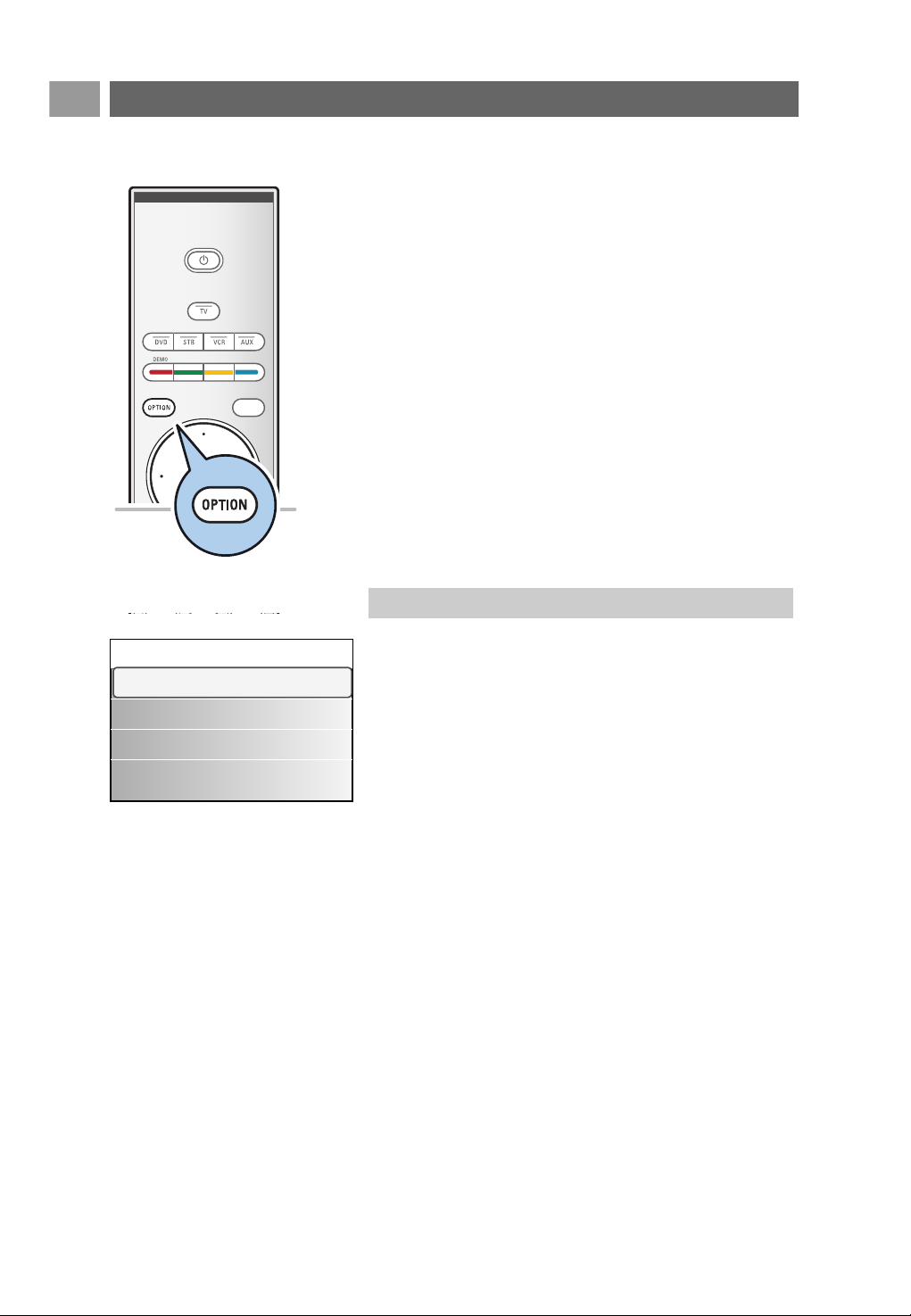
EN
38
Hypertext
With hypertext you can quickly jump to a pagenumber or
search for a specific word shown on the current teletext
page.
1. Press the
OK key to highlight the first word or a number
on the page.
2. Use the cursor up/down, left/right to select any other word
or number you want to search for.
3. Press the
OK key to confirm.The search starts.
> A message appears at the bottom of the screen to
indicate the searching, or that the word or page is not
found.
4. Use the cursor up until the top of the page to exit
hypertext.
Enlarge a Teletext page
< Press the OPTION key on the remote control repeatedly
to display the upper teletext part, the lower teletext part
and then to return to the normal teletext page size.
Teletext (Continued)
The Teletext menu offers various functions to control teletext.
1. Switch teletext on and press the
MENU/BROWSE key to
activate the menu.
2. Press the cursor up/down to select the menu items.
3. Press the
OK key to activate.
4. Press the
MENU/BROWSE key to leave the teletext
menu.
Reveal
Reveals/conceals hidden information on a page, such as
solutions to riddles and puzzles.
Cycle subpages (if subpages are available)
Makes the subpages cycle automatically.
< Press the
OK key to activate and to deactivate again.
Language
If the displayed characters on screen do not correspond
with the characters used by the teletext broadcaster, you
can change the language group here.
< Select
Gr. I or Gr. II with the OK key.
Menu
Reveal Off
Cycle subpages Off
Language Gr. II
Teletext menu
a

EN
39
Some digital channels offer dedicated digital text services (for
instance BBCi).
1. Press b to switch Digital text on.
2. To use the digital text, follow the instructions on screen.
3. Depending on the service, you may be asked to use the
cursor keys, the
OK key, the coloured keys, the teletext key
and sometimes the digit keys.
4. When you have finished watching teletext, select a different
channel with the
-P+ keys or follow the instructions on
screen to return to picture.
5. Press ‡
CANCEL to cancel the digital text or interactive
services.
Text info
Some digital channels also offer information on the
programme being broadcast. In that case a message may
appear at the bottom of the screen for a few seconds.
Follow the instructions on screen and use the cursor keys
to scroll through the next pages.
Teletext (Continued)
Note: UK only: digital text is displayed when programmes
are carrying digital text or interactive services.
Note: digital text will not be available when Subtitles are set
to On in the Features menu.
Digital text (only for UK)
a
v
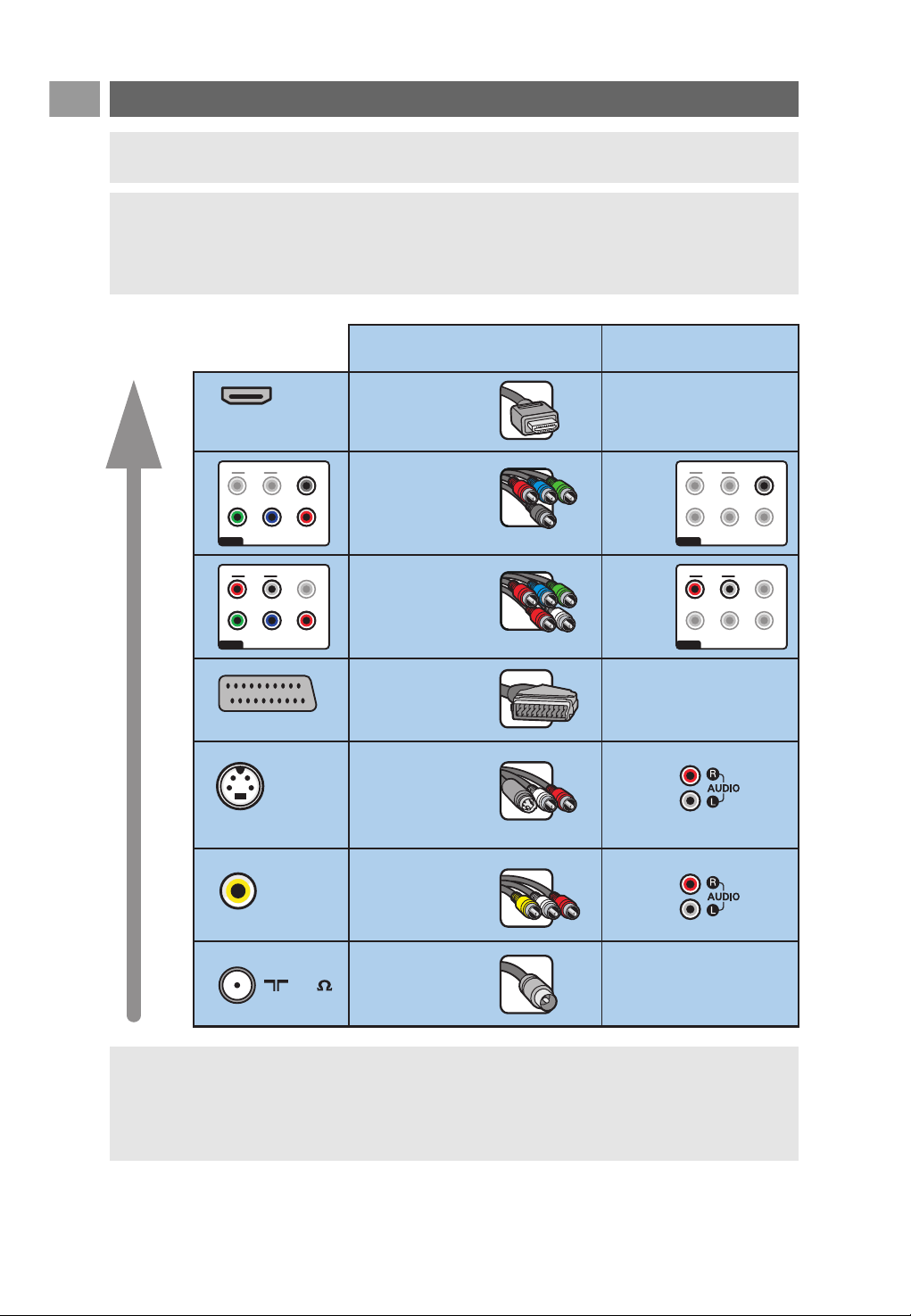
EN
40
To make video and audio connections
Tip: use the inputs that are available on your equipment that provide the best video or audio
performance, as below.
Note: your TV comes with all types of connectors with the exception of the DVI connector but
some of your equipment may be equipped with this type. In this case you'll need a DVI to HDMI
adapter or a HDMI to DVI cable and separate audio cables, all available at your local dealer.
Warning: be sure to connect the DVI output connector first, then connect to the HDMI input on
your TV.
Notes:
- cables are often colour-coded to connectors. Connect red to red, white to white....
- component video (YPbPr) connection is necessary to view video sources, for example digital
broadcastings coming from a settop box, in 1080i, 720p, 576i, 576p, 480i or 480p,
- PC equipped with a VGA connector, see p. 47.
S-VIDEO
HDMI
VIDEO
75
EUROCONNECTOR
PrPbY
DIGITAL
AUDIO
AUDIO
HDTV & Progressive
480p, 576p, 720p, 1080i
IN
IN
LR
EXT3
PrPbY
DIGITAL
AUDIO
AUDIO
HDTV & Progressive
480p, 576p, 720p, 1080i
IN
IN
L
R
EXT3
PrPbY
DIGITAL
AUDIO
AUDIO
HDTV & Progressive
480p, 576p, 720p, 1080i
IN
IN
LR
EXT3
PrPbY
DIGITAL
AUDIO
AUDIO
HDTV & Progressive
480p, 576p, 720p, 1080i
IN
IN
L
R
EXT3
Connector table
HDMI
(High-Definition
Multimedia
Interface)
Component video
(480p/576p/720p/
480i/576i/1080i)
Digital audio
Component video
(480p/576p/720p/
480i/576i/1080i)
Analog audio
Scart
S-Video
Video
RF/Coaxial
Audio connection
required
No
Ye s
Ye s
No
Ye s
Ye s
No
Best video performance
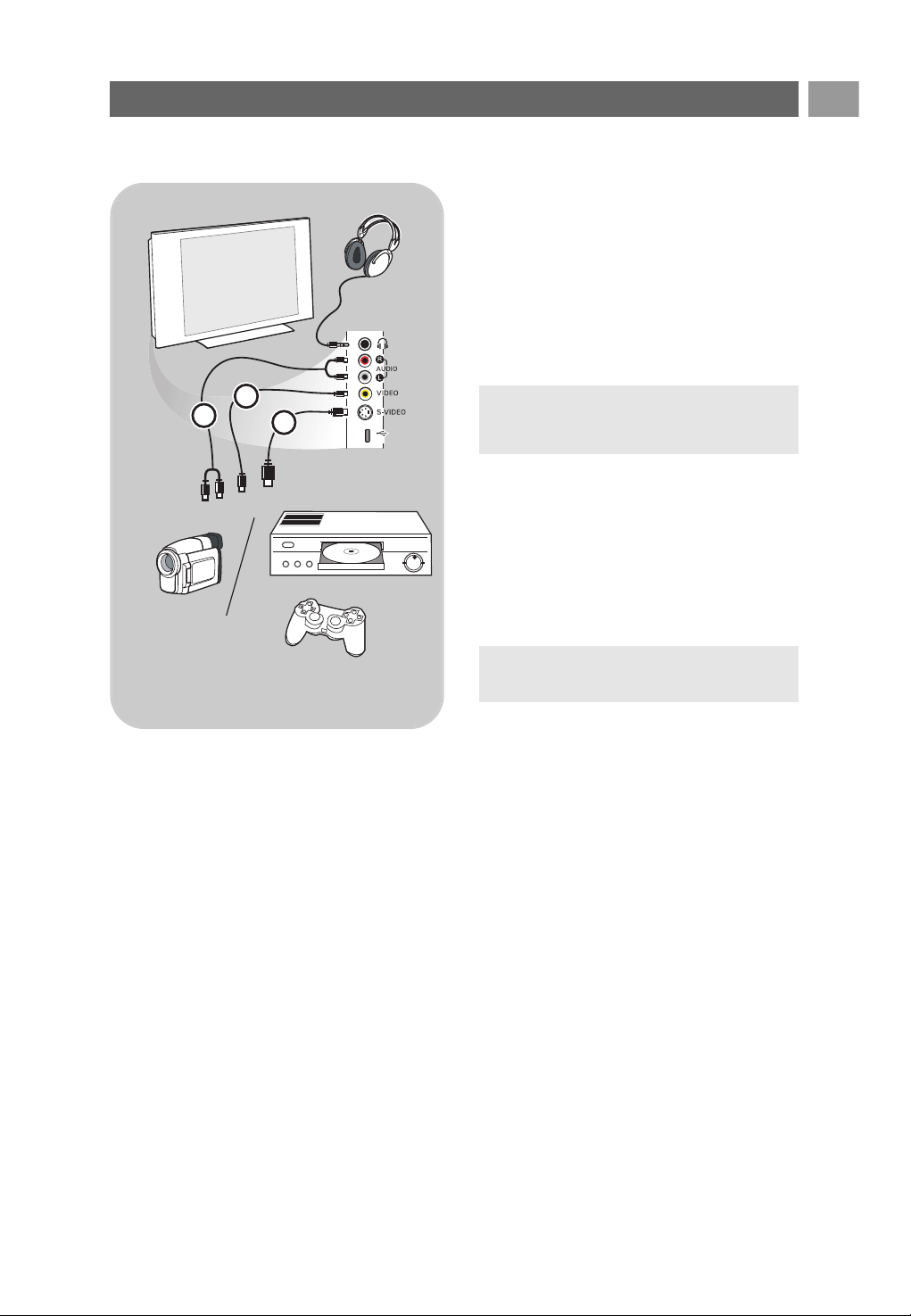
EN
41
Camera, Camcorder, Game
1. Connect your camera, camcorder or game as
shown.
2. Connect to
VIDEO 2 and AUDIO L 3 for
mono equipment. For stereo equipment also
connect
AUDIO R 3.
S-VHS quality with an S-VHS camcorder is
obtained by connecting the S-VHS cables with
the
S-VIDEO input 1 and AUDIO inputs
3.
Headphone
1. Insert the plug into the headphone socket L
as shown.
2. The headphone impedance must be between 8
and 4000 Ohm.The headphone socket has a
3.5 mm jack.
In the Sound menu select Headphone
volume to adjust the headphone volume.
USB
See Multimedia browser, p. 34.
To make video and audio connections - Side panel overview
USB
1
2
3
Warning: do not connect cable 1 and 2
at the same time.This may cause picture
distortion !
Tip: Press ¬ on the remote control to
switch off the internal loudspeakers of the TV.
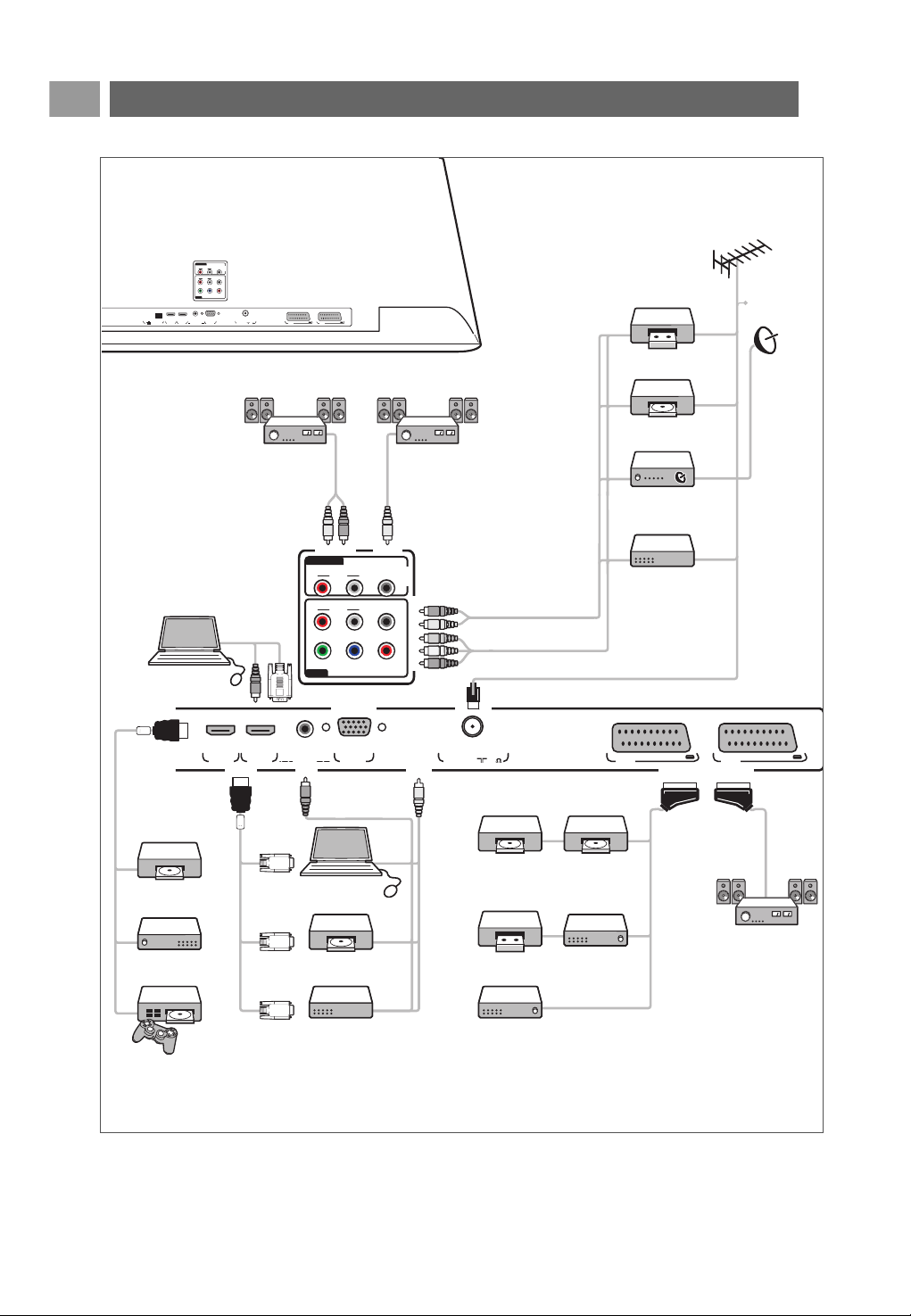
42
EN
PrPbY
DIGITAL
AUDIO
AUDIO
HDTV & Progressive
DISPLAY SYNCHRONIZED
480p, 576p, 720p, 1080i
IN
IN
LR
EXT3
AUDIO
OUT
AUDIO
OUT
LR
DIGITAL
AUDIO
OUT
HDMI 1 HDMI 2 ANTENNA
75
oo o
PC-VGA EXT2 EXT1
oo
AUDIO IN L/R
PrPbY
DIGITAL
AUDIO
AUDIO
HDTV & Progressive
DISPLAY SYNCHRONIZED
480p, 576p, 720p, 1080i
IN
IN
LR
EXT3
AUDIO
OUT
AUDIO
OUT
LR
DIGITAL
AUDIO
OUT
HDMI 1
HDMI ETHERNET ANTENNAVGA EXT2 EXT1
AUDIO OUT
DIGITAL
AUDIO
IN
HDMI 2 ANTENNA
75
oo o
PC-VGAAUDIO IN L/R
oo
EXT3
EXT2 EXT1
ETHERNET
o
AUDIO IN L/R
VGA
AUDIO IN L/R
DVI
DVI
DVI
AUDIO IN L/R
DIGITAL
AUDIO
IN
CABLE
YPbPr
AUDIO
IN
VCR
DVD player
Satellite
receiver
1 DVD recorder - 1 VCR
2 DVD recorders
2 VCRs
Decoder
PC DVI
PC - VGA
DVD player
Cable box
DVD player
Cable box
Cable box
Decoder
VCR
Digital
Home Cinema
amplifier
Analog
Home Cinema
amplifier
Analog
Home Cinema
amplifier
Game console
To make video and audio connections - Rear panel overview
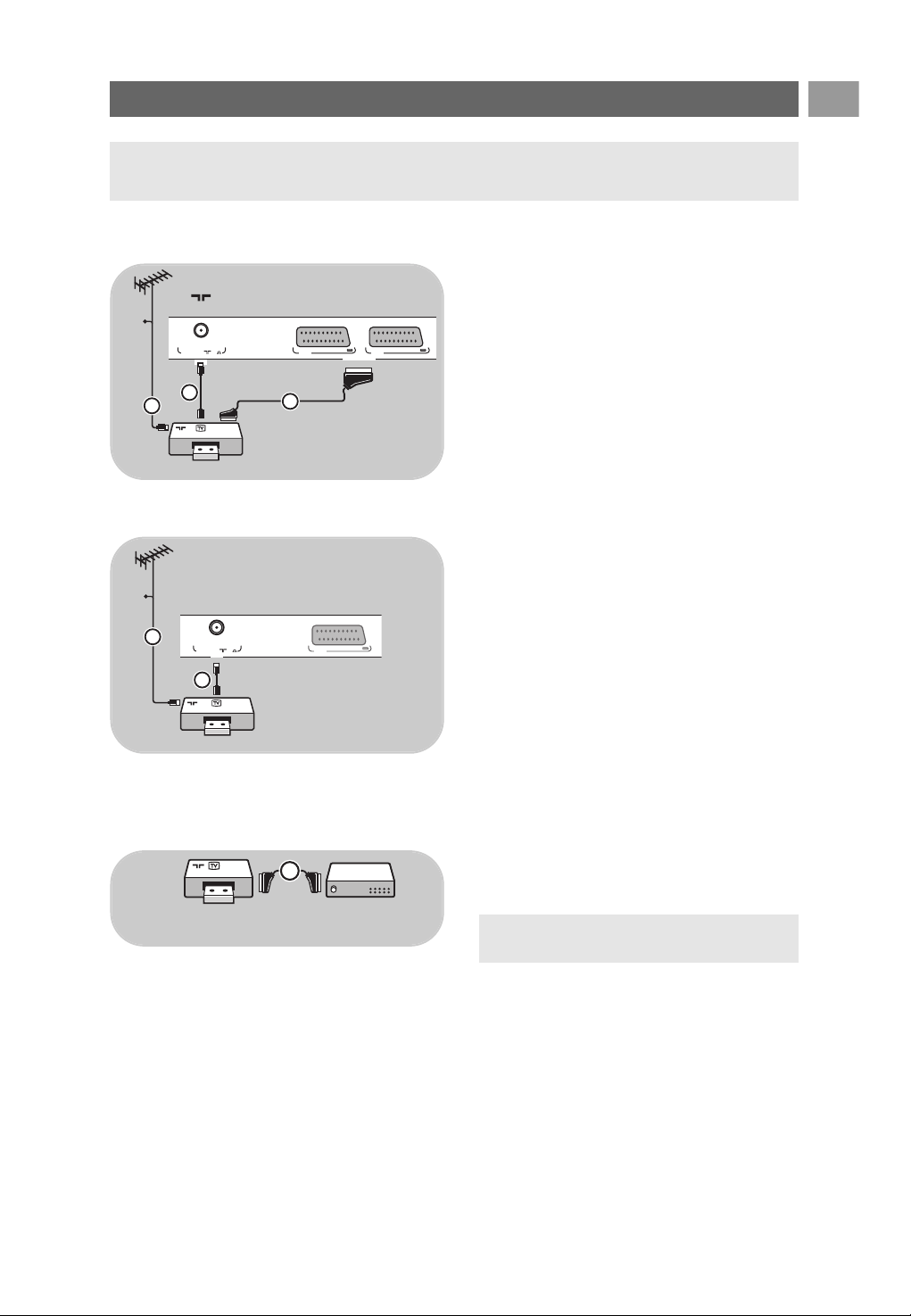
EN
43
Connect a VCR or DVD recorder
With a eurocable
1. Connect the aerial cables 1 and 2 as
shown.
2. Connect the eurocable 3 as shown.
3. Make your selection of the source to which
the VCR has been connected in the Installation
menu, Select your connections, p. 29.
With the aerial cable only
1. Connect the aerial cables 1 and 2 as
shown.
2. Tune in your recorder’s testsignal and store the
testsignal under programme number 0.
See Analogue: manual installation, p. 26.
See also the handbook of your recorder.
Connect a decoder and a VCR
Connect a eurocable 4 to your decoder and
to the special euroconnector of your recorder.
See also the handbook of your recorder.
Warning: do not place your recorder too close to the screen as some recorders may be susceptible
for signals from the display. Keep a minimum distance of 0,5 m from the screen.
Tip: you can also connect your decoder
directly to EXT1 or EXT2 with a eurocable.
RECORDER DECODER
4
ANTENNA EXT2 EXT1
ANTENNA
75
o
EXT2 EXT1
2
RECORDER
1
CABLE
3
EXT 1/2
ANTENNA
ANTENNA
75
o
EXT2
RECORDER
1
CABLE
2
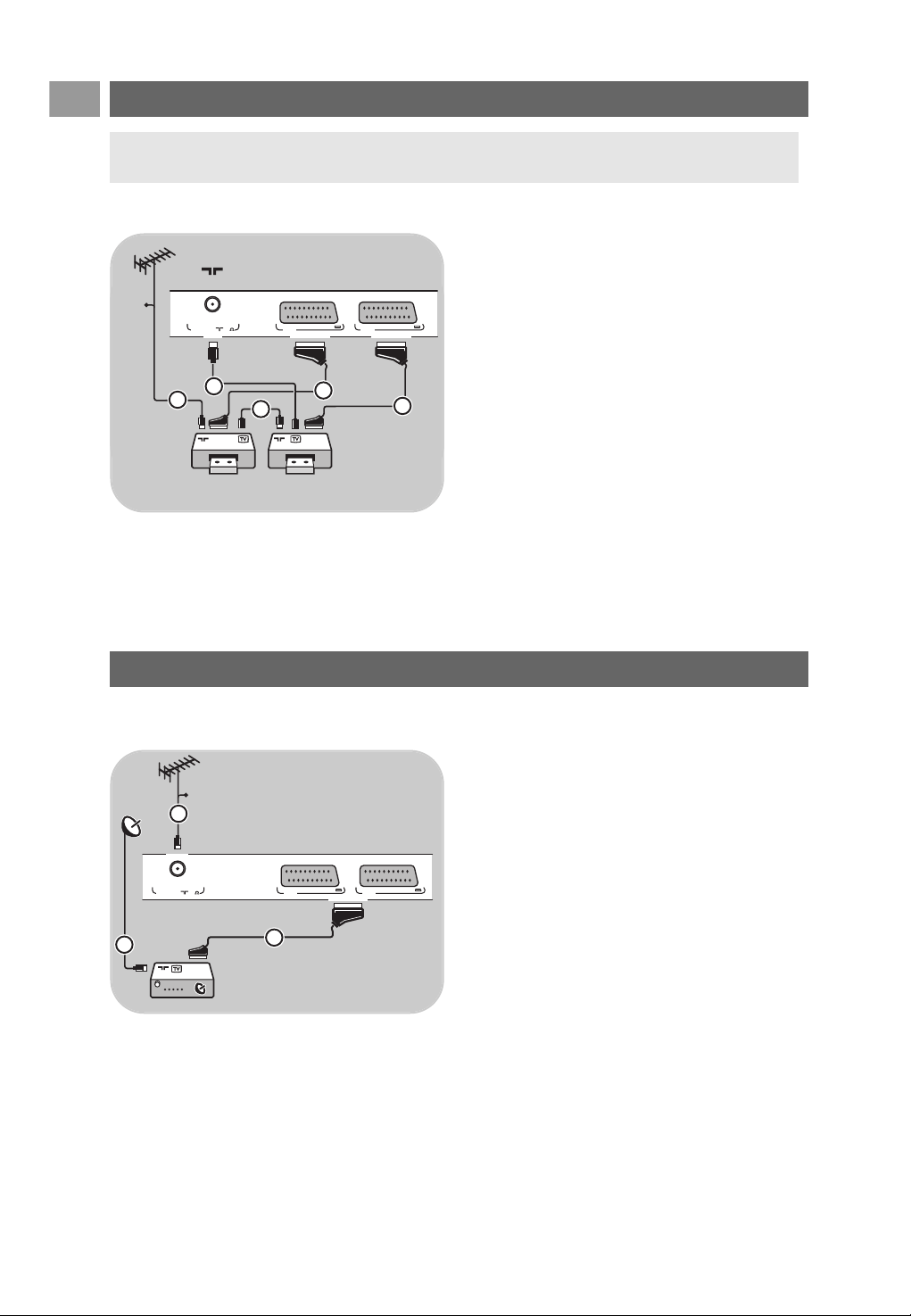
EN
44
ANTENNA EXT2 EXT1
ANTENNA
75
o
EXT2 EXT1
RECORDER
CABLE
1
2
RECORDER
3
5
EXT 1/2
4
Connect two VCRs or VCR and DVD recorder
With eurocables
1. Connect the aerial cables 1 and 2 as
shown.
2. Connect your VCRs or DVD-recorder to
EXT1 and 2 with the eurocables 4 and 5.
3. Select the equipment you have connected in
the Installation menu, Select your connections,
p. 29, and link it to
EXT1 or 2.
With aerial cables only
1. Connect the aerial cables 1, 2 and 3 as
shown.
2. Tune in your recorder’s testsignal and store the
testsignal under programme number 0.
See Analogue: manual installation, p. 26.
See also the handbook of your recorder.
With a eurocable
1. Connect the aerial cables 1 and 2 as
shown.
2. Connect your satellite receiver to
EXT1 or 2
with a eurocable 3.
3. Select the equipment you have connected in
the Installation menu, Select your connections,
p. 29, and link it to
EXT1 or 2.
With Component Video connectors
See Connect a DVD player, a satellite receiver
or a cable box, p. 46
Connect a satellite receiver
Note: you can not record signals from equipment connected to the YPbPr input.
EXT2 EXT1
ANTENNA
75
o
EXT2 EXT1
1
3
EXT 1/2
2
CABLE

EN
45
Connect a DVD player, Cable box or game console
Note: in case of any problems, see Annex 5:
Issues referring to connected peripherals with a
HDMI connector, p. 60.
With a HDMI connector
HDMI is the leading new standard for Digital video
and audio interconnection.
1. Connect your equipment with the HDMI
connector.
2. Select the equipment you have connected in
the Installation menu, Select your connections,
p. 29, and link it to
HDMI 1 or 2.
Tip: if necessary, you can adjust the picture position to the centre of the screen with the cursor keys.
Connect a DVD player or Cable box
With a DVI connector
1. Connect the DVI to HDMI cable to one of the
HDMI connectors of your TV 1.
2. Connect the audio cable 2 to the
DIGITAL
AUDIO IN
connector of the TV.
3. Select the equipment you have connected in
the Installation menu, Select your connections,
p. 29 and link it
HDMI 1 or 2.
4. Also select Digital audio in in the same
Connections menu.
Tip: if necessary, you can adjust the picture position to the centre of the screen with the cursor keys.
Note: only a DVD player with DVI with digital
sound can be connected to the HDMI
connector.
HDMI 1/2
HDMI 1 HDMI 2
o o
PC-VGAAUDIO
IN
L/R
oo
HDMI
PrPbY
DIGITAL
AUDIO
AUDIO
HDTV & Progressive
DISPLAY SYNCHRONIZED
480p, 576p, 720p, 1080i
IN
IN
LR
EXT3
AUDIO
OUT
AUDIO
OUT
LR
DIGITAL
AUDIO
OUT
HDMI 1
HDMI
DIGITAL
AUDIO
IN
HDMI 2
o o
PC-VGAAUDIO
IN
L/R
oo
EXT3
HDMI
DVI
DIGITAL
AUDIO
IN
1
2
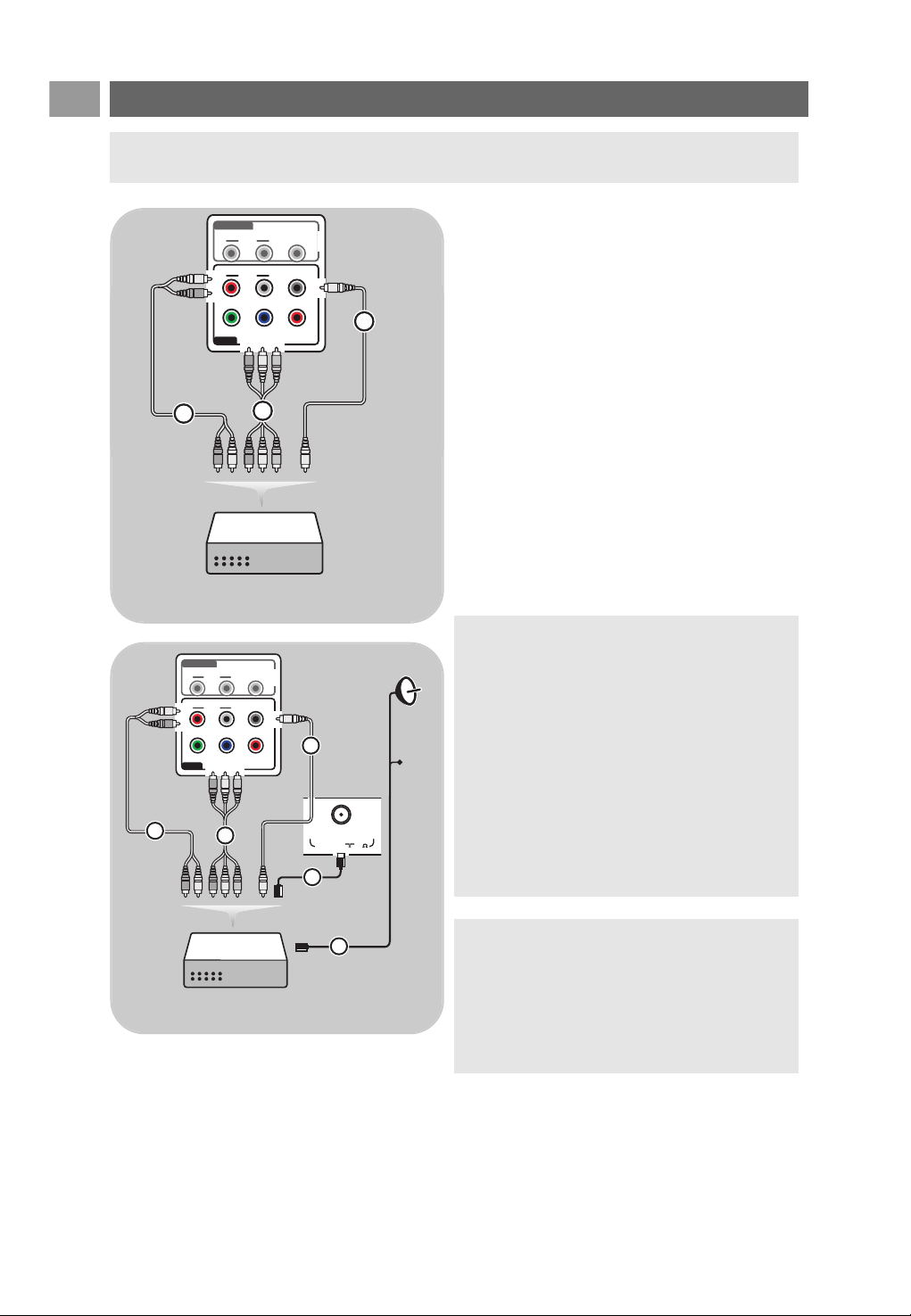
EN
46
PrPbY
DIGITAL
AUDIO
AUDIO
HDTV & Progressive
DISPLAY SYNCHRONIZED
480p, 576p, 720p, 1080i
IN
IN
L
R
EXT3
AUDIO OUT
AUDIO
OUT
LR
DIGITAL
AUDIO
OUT
1
EXT3 :
YPbPr
EXT3 :
AUDIO IN
R / L
3
DVD / STB
2
DIGITAL
AUDIO
IN
Connect a DVD player, a satellite receiver or Cable box
With Component Video Connectors
1. Connect the three separate component video
cables 1 to the YPbPr jacks on the DVD
player and to the Y, Pb and Pr jacks of
EXT3
on the TV.
2. Connect the audio cable 2 to the digital out
of the equipment and to the
DIGITAL
AUDIO IN
connector of the TV.
3. Select the equipment you have connected in
the Installation menu, Select your connections,
p. 29. Also select Digital audio in in the same
Connections menu and link it to
EXT3.
4. In case of a DVD player with analogue audio,
connect the audio cable to the DVD’s audio
L
and R jacks and to the L/R AUDIO jack of
EXT3 3.
5. In case of a cable box and/or a satellite
receiver also connect the cable TV cable and/or
the satellite antenna cable 4 and the aerial
cable 5.
Tip: if necessary, you can adjust the picture position to the centre of the screen with the cursor keys.
Notes:
- cables are often colour coded. Connect red to
red, white to white, etc..;
- the labels for the component video sockets may
differ depending on the DVD player connected.
Although the abbreviations may vary, the letters
B and R stand for the blue and red component
signals, respectively, and Y indicates the
luminance signal. Refer to the DVD player’s
instructions for use for definitions and
connection details;
- to get an optimal viewing, it is advised to switch
your equipment to the highest possible
supported display modes.
Warning: in case you notice scrolling images,
wrong colours or no colour, no picture, or even
combinations of these on your screen, verify if
the connections are done in the correct way and
if the resolution and the signal standard of the
connected equipment are set in the right way.
See the handbook for your equipment.
PrPbY
DIGITAL
AUDIO
AUDIO
HDTV & Progressive
DISPLAY SYNCHRONIZED
480p, 576p, 720p, 1080i
IN
IN
L
R
EXT3
AUDIO
OUT
AUDIO
OUT
LR
DIGITAL
AUDIO
OUT
ANTENNA
ANTENNA
75
o
1
EXT3 :
YPbPr
EXT3 :
AUDIO IN
R / L
SAT / STB
2
DIGITAL
AUDIO
IN
CABLE
4
5
3
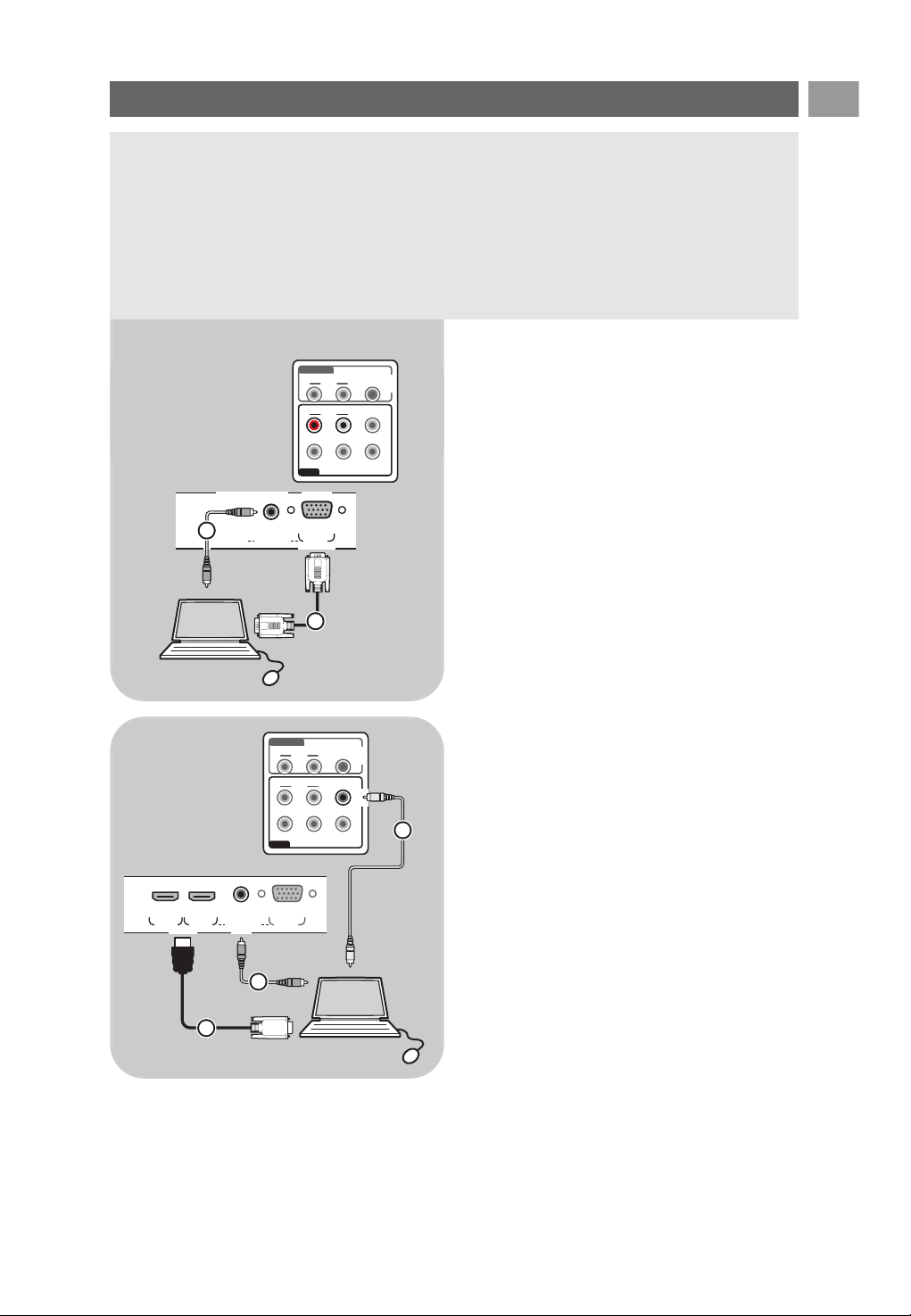
EN
47
Notes:
- only a PC with digital sound can be connected to the HDMI connection;
- if your PC does not have digital sound output, connect your PC via a VGA connector;
- before connecting your PC to the TV, select your PC monitor settings to a refresh frequency of
60 Hz;
- supported PC monitor modes:
VGA 640 x 480
SVGA 800 x 600
XGA 1024 x 768
Connect a PC
PrPbY
DIGITAL
AUDIO
AUDIO
HDTV & Progressive
DISPLAY SYNCHRONIZED
480p, 576p, 720p, 1080i
IN
IN
L
R
EXT3
AUDIO
OUT
AUDIO
OUT
LR
DIGITAL
AUDIO
OUT
o
PC-VGAAUDIO
IN
L/R
o
VGA
2
1
VGAAUDIO in R/L
PrPbY
DIGITAL
AUDIO
AUDIO
HDTV & Progressive
DISPLAY SYNCHRONIZED
480p, 576p, 720p, 1080i
IN
IN
LR
EXT3
AUDIO
OUT
AUDIO
OUT
LR
DIGITAL
AUDIO
OUT
HDMI 1
HDMI AUDIO in L/R
HDMI 2
o o
PC-VGAAUDIO
IN
L/R
oo
EXT3
HDMI
DVI
2
DIGITAL
AUDIO
IN
3
1
PC equipped with a VGA connector:
1. Connect one end of a VGA cable 1 to the
video card of the computer and the other end
to the
VGA connector at the bottom of the
TV. Fix the connector firmly with the screws
on the plug.
2. In case of a Multimedia computer, connect the
audio cable 2 to the
AUDIO outputs of your
computer and to the
L/R AUDIO input of the
TV.
3. Select
VGA in the Installation menu, Select
your connections, p. 29 and link it to
VGA.
4. Also select Analogue audio In in the same
Connections menu.
PC equipped with a DVI connector:
With Digital audio
1. Use a DVI to HDMI cable to connect to one of
the
HDMI connector of your TV 1.
2. Connect the audio cable 2 to the
DIGITAL
AUDIO IN
connector of the TV.
3. Select the computer you have connected in the
Installation menu, Select your connections,
p. 29 and link it to
HDMI 1 or 2.
4. Also select Digital audio In in the same
Connections menu.
With Analogue audio
1. Use a DVI to HDMI cable to connect to the
HDMI 2 connector of your TV 1.
2. Connect the audio cable 3 to the
L/R
AUDIO
input of the TV.
3. Select the computer you have connected in the
Installation menu, Select your connections,
p. 29 and link it to
HDMI 2.
4. Also select Analogue audio In in the same
Connections menu.
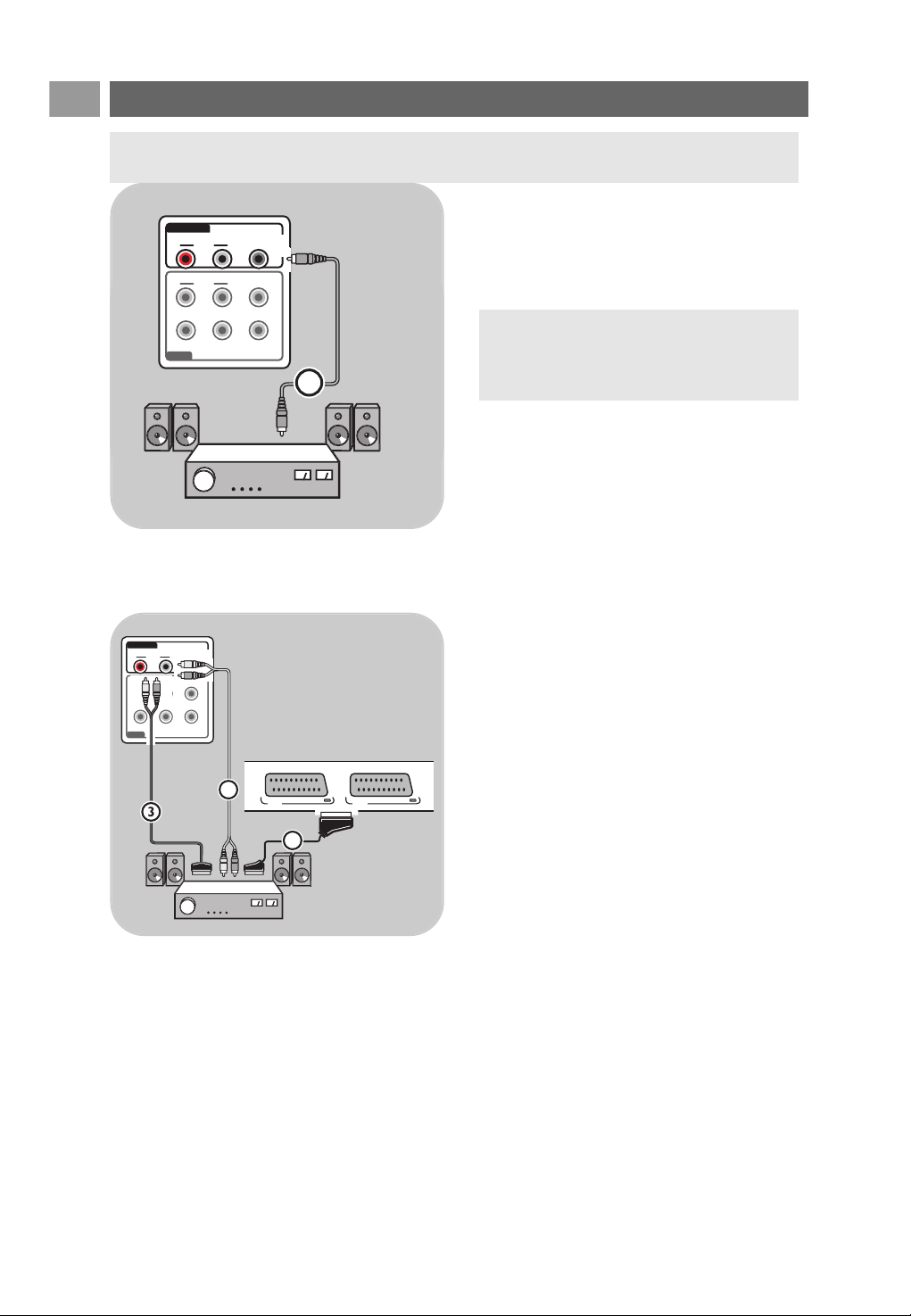
EN
48
PrPbY
DIGITAL
AUDIO
AUDIO
HDTV & Progressive
DISPLAY SYNCHRONIZED
480p, 576p, 720p, 1080i
IN
IN
LR
EXT3
AUDIO OUT
AUDIO
OUT
LR
DIGITAL
AUDIO
OUT
AUDIO OUT
DIGITAL
AUDIO
OUT
DIGITAL
AUDIO
OUT
1
Connect a Home Cinema amplifier
Digital Home Cinema amplifier
< Connect a digital Home Cinema amplifier to
the
DIGITAL AUDIO OUT connector 1 at
the bottom of the TV.
Analogue Home Cinema amplifier
< According to the type of connector cables and
the connector input available on your Home
Cinema amplifier, connect your receiver to the
AUDIO OUT L and R connectors 3 or to
EXT1 or 2 2 at the bottom or the rear of
the TV.
Tip: to avoid visible delay between picture
and sound, use this
DIGITAL AUDIO OUT
connector to connect your Home Cinema
amplifier.
PrPbY
DIGITAL
AUDIO
AUDIO
HDTV & Progressive
DISPLAY SYNCHRONIZED
480p, 576p, 720p, 1080i
IN
IN
LR
EXT3
AUDIO
OUT
AUDIO
OUT
LR
DIGITAL
AUDIO
OUT
EXT2 EXT1
EXT2 EXT1
EXT 1 / 2
2
AUDIO
OUT
3
AUDIO
OUT
3
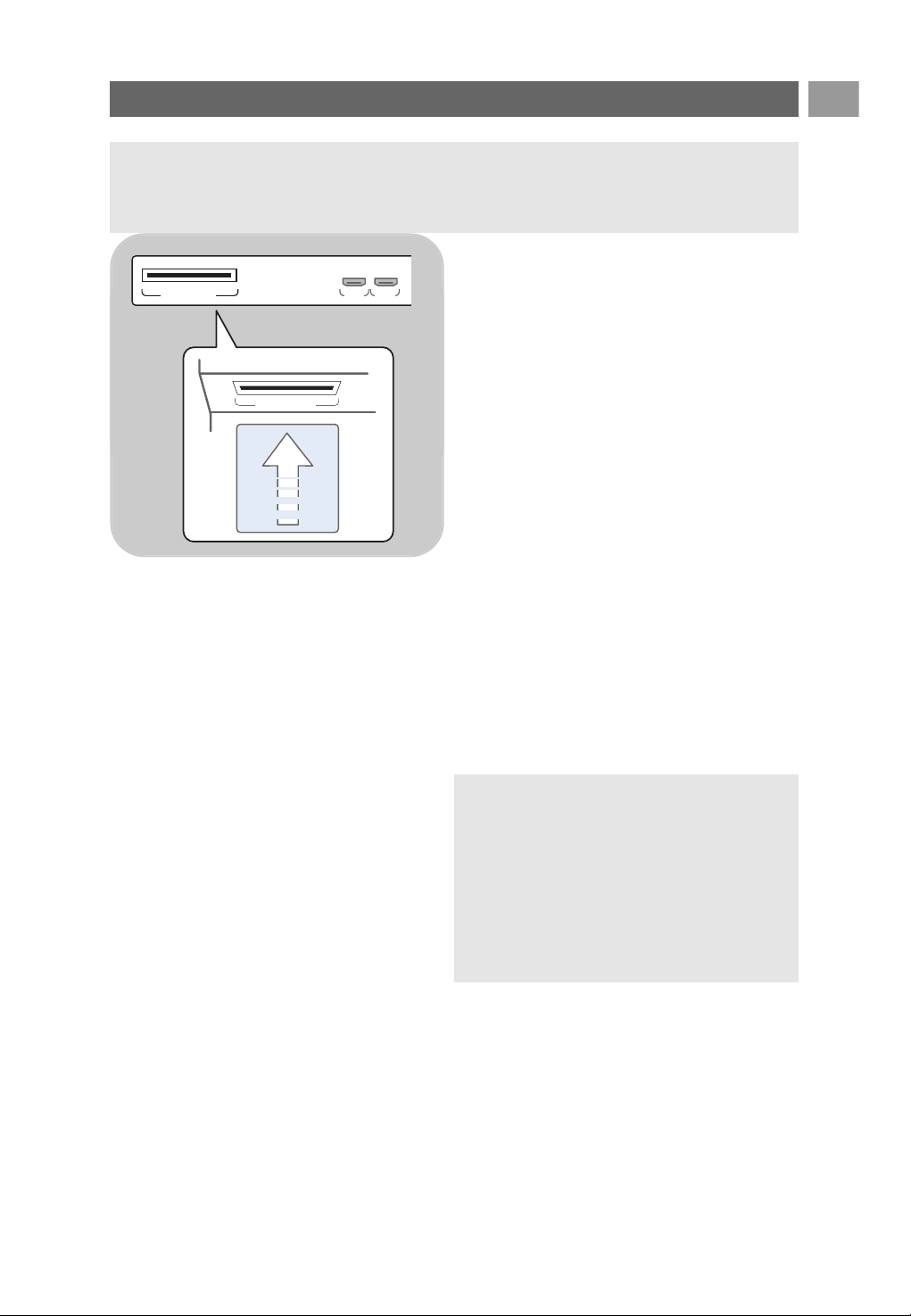
EN
49
Use the Common Interface slot
To receive scrambled DTV signals you will need a
CA (Conditional Access) module and a Smart card
provided by the service provider.
A CA module can enable additional services, for
example Pay TV.
Contact your Common Interface service provider
to get more information about these modules.
Although CA module types may vary dependent
on the manufacturer, each one of the CA modules
supports a certain kind of encryption system.Your
TV supports CA modules to work with the DVB-T
standard.
Note that a smart card may only be valid for a
single broadcast channel.
CA modules and smart cards are neither supplied
nor optional accessories from Philips.
The CA module is responsible for the messages
and texts on screen. In case of failure or strange
behaviour, you must call your CI service
broadcaster.
Insert a CA module
< Insert the specified Conditional Access module
into the Common Interface slot as far as it will
go. It may take a few minutes before the CA
module is activated and service information is
downloaded.
To access common interface applications, see TV
menu,Adjust feature menu settings, Common
Interface, p. 22.
COMMON INTERFACE HDMI 1
COMMON INTERFACE
HDMI 2
oo
COMMON INTERFACE
TOP
oo
Warning: switch off your TV before any module is inserted in the Common Interface slot.
Warning: when you connect the CA module
incorrectly, it may damage the card and the TV.
After inserting a card, leave it in the slot
permanently. Do not remove it from the slot
unless asked to do so. For example, your card
has to be in the slot when your CI service
broadcaster wants to download new information
to the smart card. Once the CA module is
removed, your TV will no longer decrypt
scrambled digital DVB-T channels.

EN
50
Select connected equipment
Before operating your connected equipment you have to make
a selection in the Installation, Select your connections menu,
p. 29.
1. Press the
MENU/BROWSE key.
2. Select TV menu and press the cursor right.
3. Select Installation.
4. Press the cursor right.
5. Select Connections.
6. Press the cursor right.
7. Select the input to which the peripheral equipment is
connected.
8. Press the cursor right again to enter the list of types of
peripherals connected to the selected input
9. Select the peripheral equipment with the cursor up/down.
a
Record a TV programme
You can record a TV programme using your recorders tuner
without affecting your TV.
1. Select the channel number on your recorder.
2. Set your recorder to record.
See the handbook for your recorder.
Note: when recording analogue progammes, switching
channel numbers on your TV does not disturb recording !
Note: to record digital programmes to an analogue recorder, the TV needs to be switched on and
tuned to that digital programes.
Record with your recorder
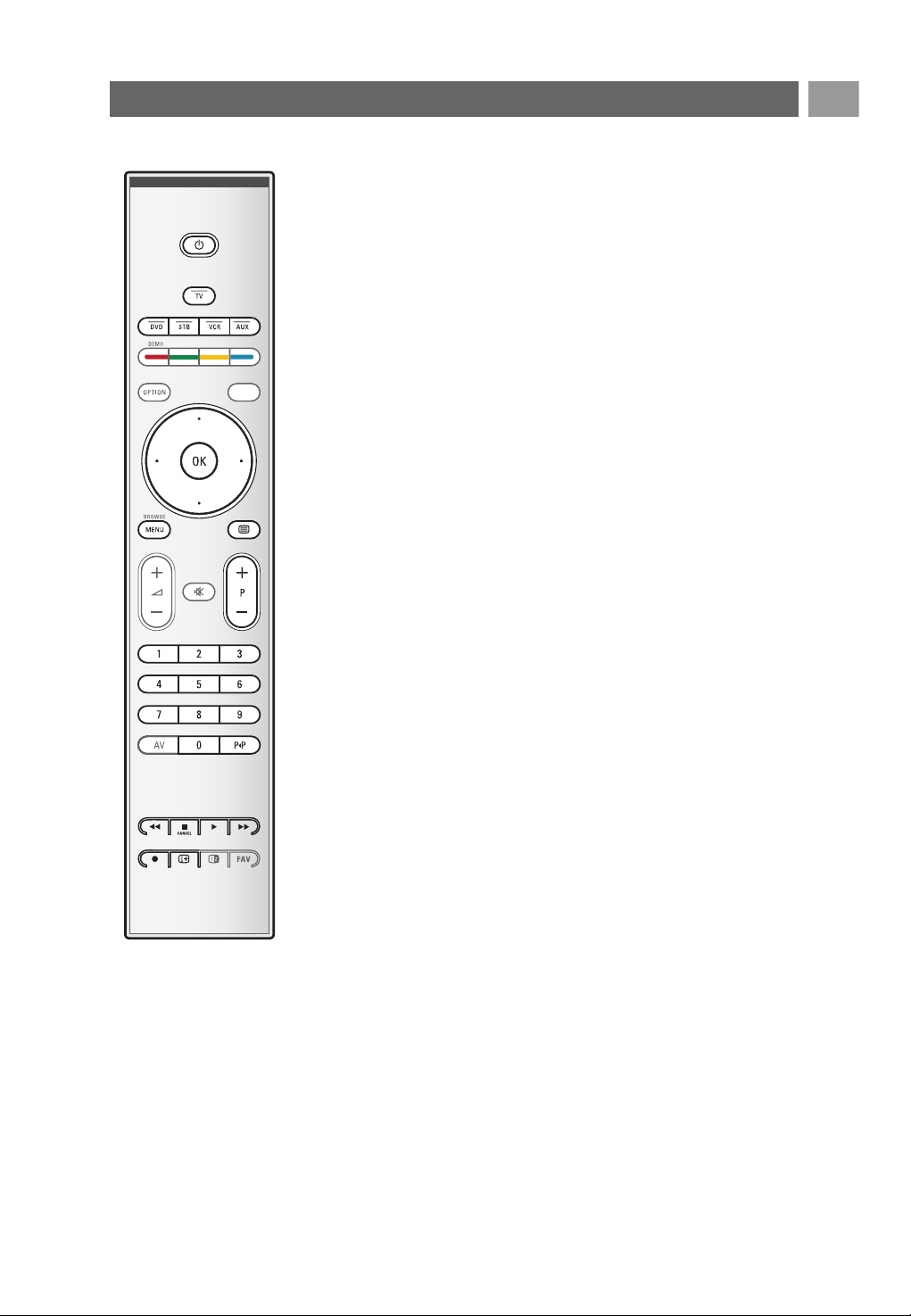
EN
51
Most of the audio and video equipment from our range of
products can be operated with the remote control of your TV.
Press one of the keys after you pressed one of the mode keys
(
DVD, STB, VCR, AUX) according to the equipment you want
to operate with this remote control.
See Use of the Remote control, p. 5-6.
B to switch to standby
® for record,
Ò for rewind (
VCR, CD);
search down (
DVD)
‡ for stop,
π for play, for pause
† for fast forward (
VCR, CD);
search up (
DVD)
i to display information
MENU/BROWSE to switch the menu on or off
- P + for chapter, channel, track selection
0 to 9 digit entry,
cursor up/down to select the next or the previous
disc (
CD)
cursor left/right to select the previous or following
track (
CD)
0 to select a DVD title/chapter;
index (
AUX)
b to select your choice of
subtitle language (
DVD)
Normal mode: if no action is being undertaken within 30
seconds, the remote control returns to TV mode.
Expert mode: in Expert mode the remote will stay in the
selected mode even when the 30 seconds time-out is elapsed.
To select between Normal and Expert mode
1. Select TV mode with the TV key.
2. Press the
OK key simultaneously with the ¬ key for four
seconds.
> When the B key is On for one second, the Expert
mode is selected and the remote control will remain in
the mode selected.
3. Select the desired mode (
DVD, STB, VCR, AUX)
4. To go back to the TV mode, select
TV and repeat steps 1.
to 3.
Audio- and video equipment keys
a
v
52
EN
Symptom Possible cause/Remedy
No picture < Verify if the supplied cables are connected properly. (The aerial cable to the
TV, the other aerial to your recorder, the power cables, ..)
< Verify if you selected the correct source.
< Verify if the child lock has been switched off.
Poor picture < Verify in the Manual installation menu if you have selected the correct TV
system.
< Verify if your TV or house aerial isn't located too close to loudspeakers,
non-earthed audio equipment or neon lights, etc.
< Mountains or high buildings can cause double pictures or ghost images.
Sometimes you can improve the picture quality by changing the direction of
the aerial.
< Is the picture or teletext unrecognisable or do you experience bad teletext
reception ? Verify if you have entered the correct frequency, or fine tune the
frequency for that specific channel or adjust the antenna direction if the
problem isn’t solved by finetuning. See Installation,Analogue: manual
installation, p. 26.
Poor colour < Select Factory settings in the Installation menu.
< Verify the connections between the optional equipment and the TV.
No sound < Verify if the volume isn't at minimum.
< Verify if the sound hasn't been muted with the ¬ key.
Verify the connections between the optional equipment and the TV.
No digital channels < Contact your dealer about Digital Video Broadcasting Terrestrial signal
availability in your country.
The remote does < Verify if the remote is set correctly for the equipment your are using.
not function < Verify if the batteries are not dead. Replace the batteries.
You can still use the keys at the left side of the TV.
< Select TV mode on your remote control.
< When pressing a key and some key leds are blinking with a higher speed
and lower intensity than in a normal working condition, and your TV does
not react on the key press, remove the batteries out of the remote control
and put them back again.
The remote of < The infrared signals of the screen may influence the reception sensibility
connected equip- of other peripherals.
ment does not Solution: replace the batteries of the remote of other peripheral
function well equipment.
No photo or music < Verify if the source complies with a supported code.
play or in poor
quality
No stable or not <Verify if you have selected the correct VGA mode in your PC.
synchronised VGA See Connect a PC, p. 47.
picture < Verify the connections between the TV and the PC.
No solution found <Switch off your TV off and then on again once.
for your picture or Never attempt to repair a defective TV yourself.
sound problem Verify with your dealer or call a TV technician.
Red blinking led < Unplug the mains cord for 10 seconds and insert it in again.
Troubleshooting
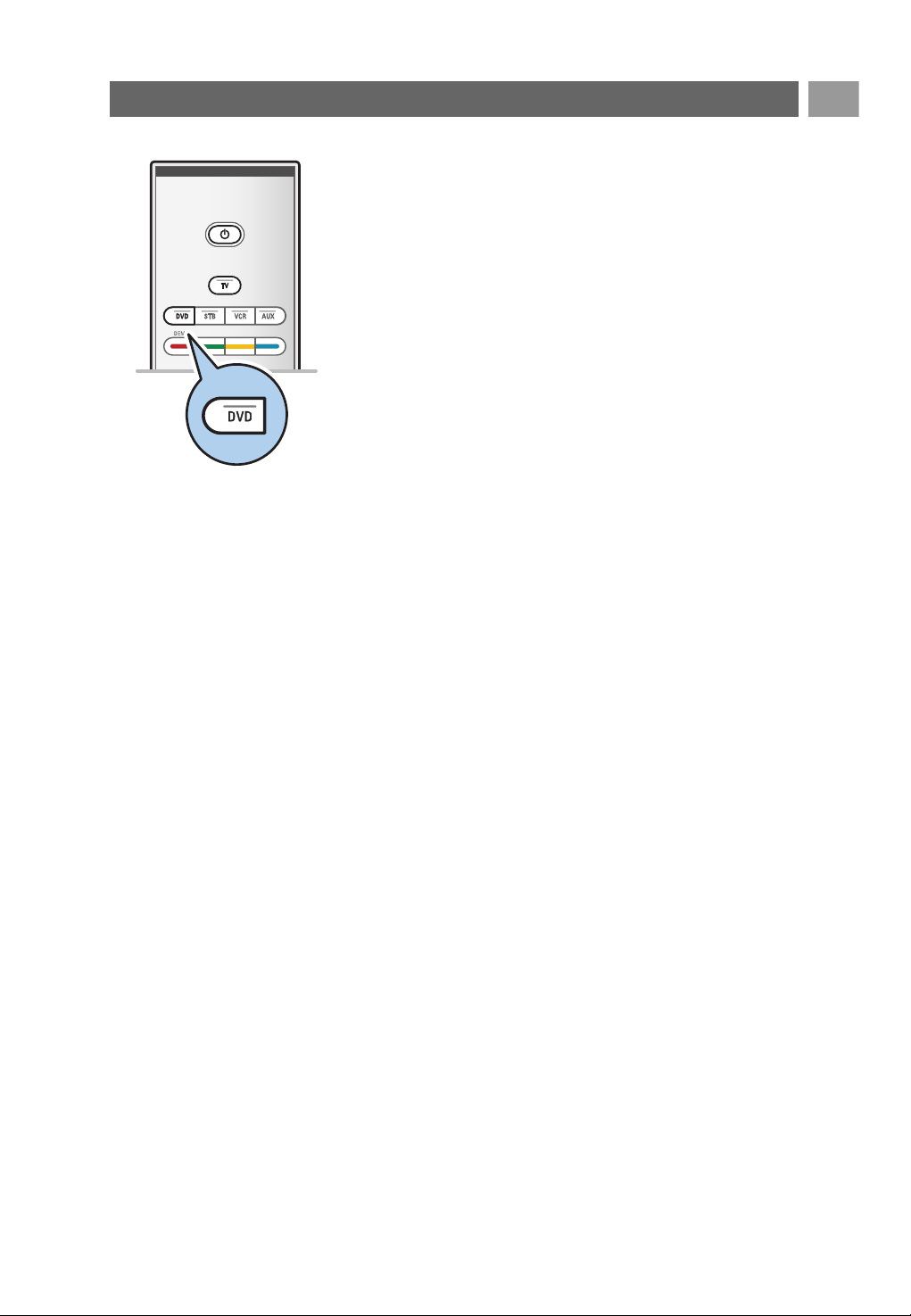
53
EN
Annex 1:To set the remote control to work a Philips DVD or DVD/R
Your TV remote control gives you the opportunity to control
your Philips DVD or DVD/R.
1. Press the DVD mode key for 4 seconds until the LED lights
up constantly
2. Enter the code 500 with the digit keys for a Philips DVD
player.
Enter the code 542 with the digit keys for a Philips DVD
recorder.
> All mode LEDs will blink fast for 3 seconds as a
confirmation you entered the correct code.
If you entered a wrong code all mode LEDs will stay on
for 2 seconds. Redo Step 2.
> Your remote control is in the DVD or DVD/R mode.
To cancel the selected mode
< Press the DVD mode key for 4 seconds.
> The remote control will return to
TV mode.
a
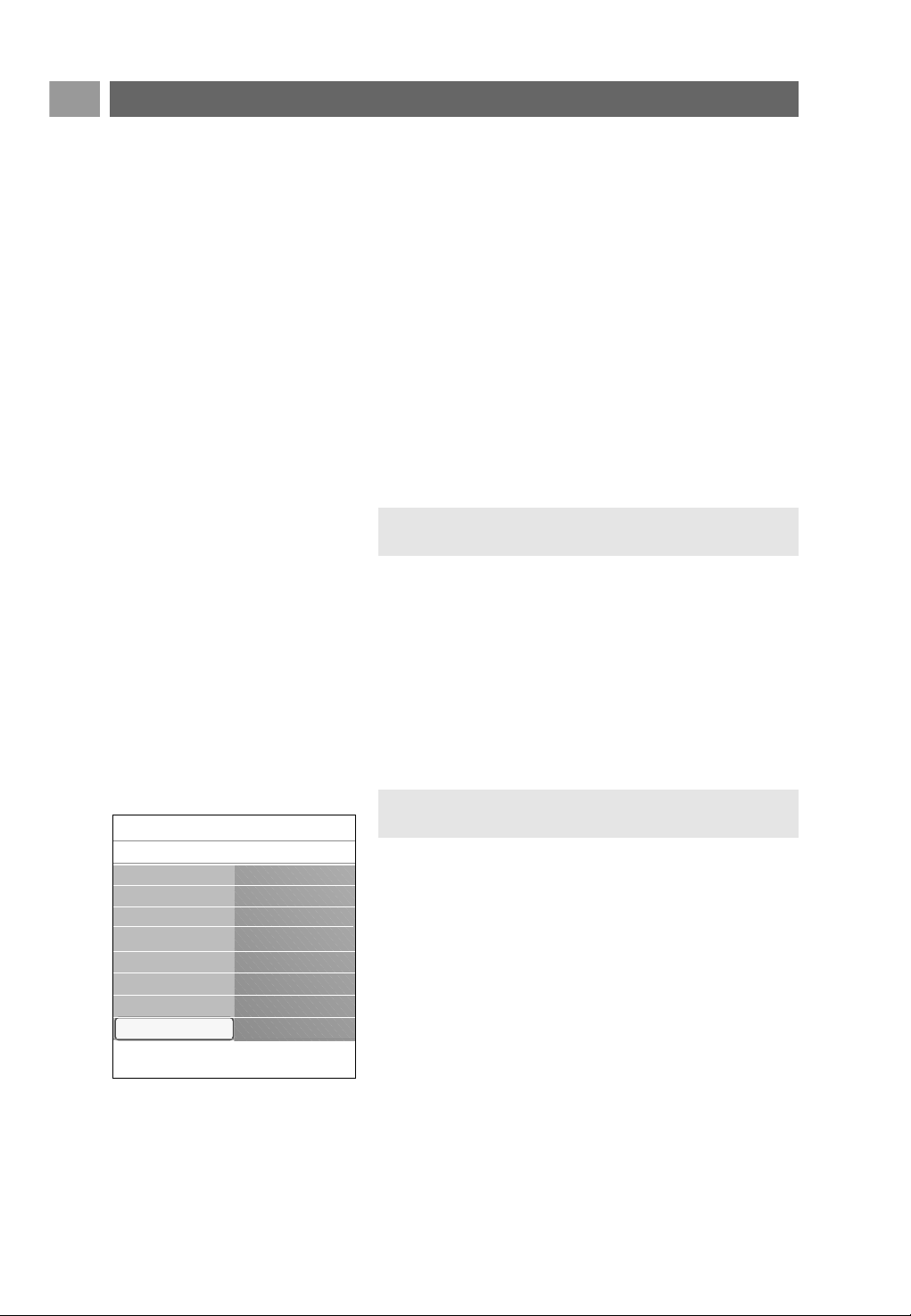
EN
54
Introduction
Philips offers software upgrade capability for your TV using
portable memory.After you have completed a software
upgrade, your TV will typically perform better.
What improvements are made depends on the upgrade
software you are using as well as the software your TV
contained before the upgrade.
You can execute the software upgrade procedure yourself.
Be aware that the content of this document is addressing
technical or software skilled users.
To prepare a portable memory for software upgrade
For the procedure you will require:
- a personal computer with web browsing capability;
- an archive utility that supports the ZIP-format (e.g.WinZip for
Windows or Stuffit for Mac OS);
- a preferably empty USB memory stick.
New software can be obtained from your dealer or can be
downloaded from the www.philips.com/support website:
1. Go to www.philips.com/support using the web browser
on your PC.
2. Follow the procedure to find the information and the
software related to your TV.
3. Select the latest software upgrade file and download it to
your PC.
4. Decompress the ZIP-file and copy the file “autorun.upg” to
the root directory of the USB portable memory.
To verify the version of the TV software
Before you start the software upgrade procedure, it is advised
to check what the current TV software is.
1. Select Software Upgrade in the TV menu, Installation,
Software upgrade.
2. Press the cursor right.
> The Software Upgrade menu moves to the left panel.
3. Select Current Software Info to observe the version and
the description of the current software.
Annex 2 - Philips TV software upgrade with portable memory
Note: only FAT/DOS-formatted portable memory is
supported.
Note: only use software upgrades that can be found on the
www.philips.com/support web site.
Info
TV menu
Installation
Software upgrade
Current softw. info
Local upgrades
Announcement
.............
Time zone
Channels
Preferences
Connections
Decoder
Factory settings
Software upgrade
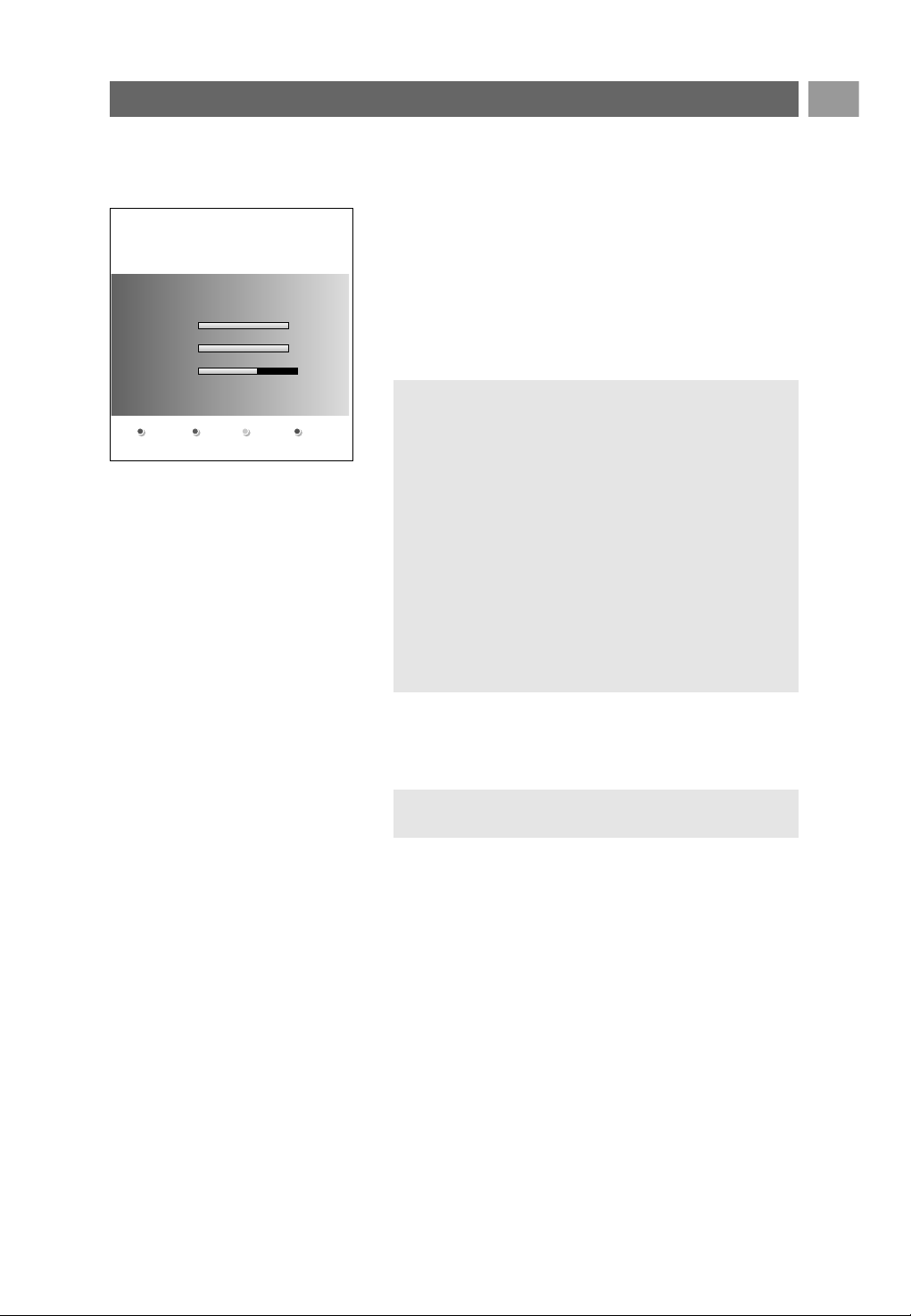
EN
55
Annex 2 (Continued)
Automatic software upgrade procedure
1. Switch off your TV and remove all memory devices.
2. Insert the USB portable memory that contains the
downloaded software upgrade.
3. Switch on your TV with the power key B at the side of the
TV.
4. At startup the TV will scan the USB portable memory until
it finds the update content.The TV will automatically go to
the upgrade mode.After a few seconds it will display the
status of the upgrade procedure.
5. When the software upgrade was successful, remove the USB
portable memory and restart your TV with the power
switch B at the side of the TV.
Your TV will start up with the new software.
Warning:
- you are not allowed to remove the USB portable
memory during the software upgrade procedure;
- in case of a power drop during the upgrade procedure,
don’t remove the USB portable memory from the TV.
The TV will continue the upgrade as soon as the power
comes back;
- if you try to upgrade to a software version lower than
the current version, a confirmation will be asked.
Downgrading to older software should only be done in
case of real necessity;
- if an error occurs during the upgrade you should retry
the procedure or contact your dealer;
- the automatic software upgrade procedure will only start
if the version on the USB portable memory is different
from the one in the TV.
Note: once the upgrade is finished use your PC to
remove the TV software from your USB portable memory.
Software Id: TL32E-234
Loading Done
Validating Done
Programming
Software Upgrade Application
Upgrade busy...
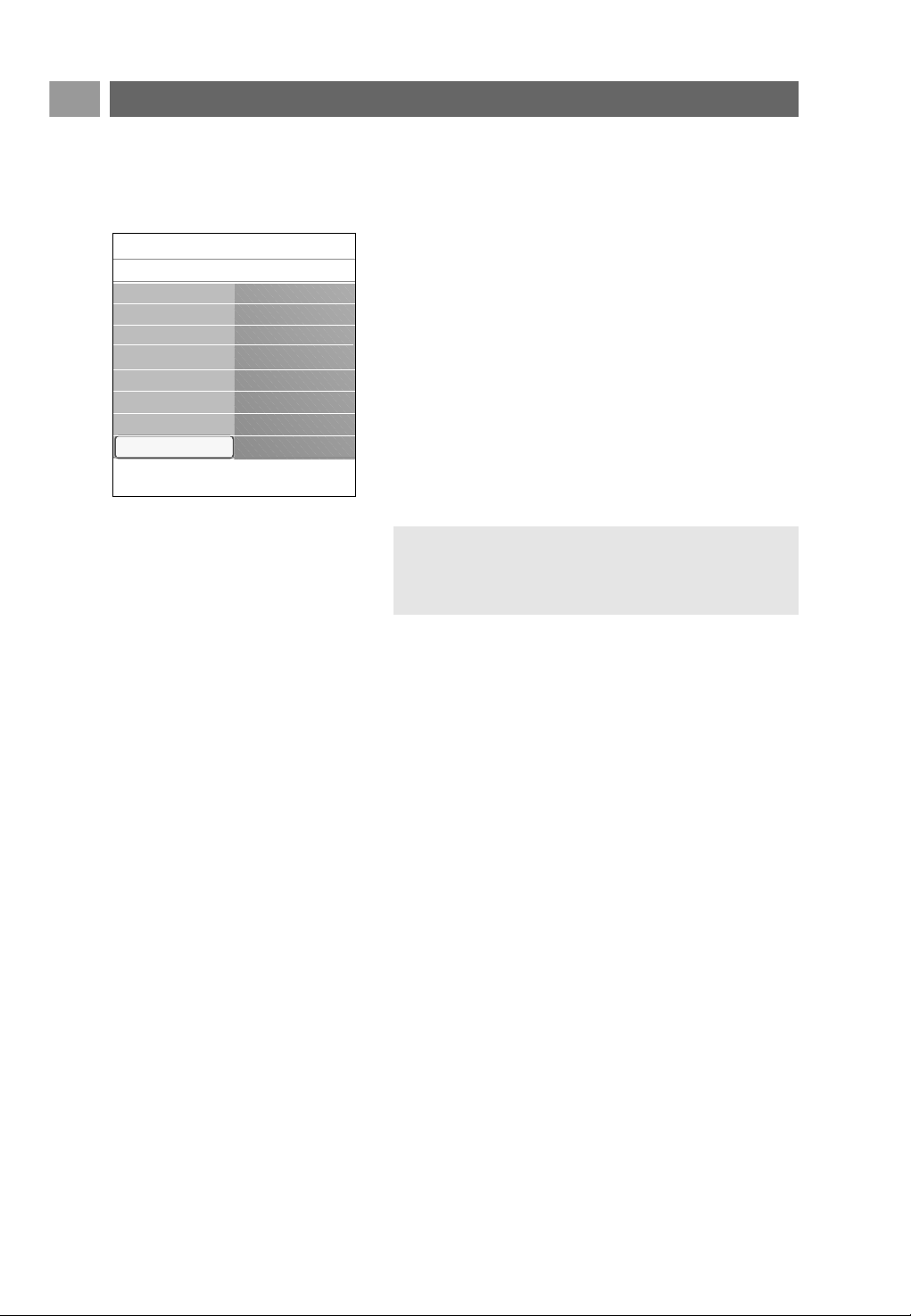
EN
56
Annex 2 (Continued)
Manual software upgrade procedure
For a manual software upgrade copy the “autorun.upg” file
in a directory called “Upgrades” located in the root of the
USB portable memory.You can rename the file if you like
but keep the .upg extension.
1. Insert the portable memory that contains the downloaded
software upgrade.
2. Select Software Upgrade in the Installation menu. Go to
Local upgrades.
The TV will list all compatible software available on the USB
portable memory and display the data for each selected
upgrade version.
3. Select the correct upgrade version and press the red colour
key to start the upgrade.
Your TV will restart and will automatically go to the upgrade
mode.After a few seconds it will display the status of the
upgrade procedure.
4. When the software upgrade was successful, remove the USB
portable memory and restart your TV with the power
switch B at the side of the TV.Your TV will start up with
the new software.
Warning: if you try to upgrade to a software version
equal or lower than the current version, a confirmation
will be asked. Downgrading to older software should only
be done in case of real necessity.
Info
TV menu
Installation
Software upgrade
Current softw. info
Local upgrades
Announcement
.............
Time zone
Channels
Preferences
Connections
Decoder
Factory settings
Software upgrade

57
EN
Annex 3 - Philips TV-Slideshow Format with background music
Introduction
This document explains how to make a Philips slideshow file with background audio.
Be aware that the content of this document is addressing technical or software skilled users.
To start the slideshow open the slideshow file in the Multimedia browser of your TV.
1. Press the
MENU/BROWSE key on the remote control after having inserted a USB device and
switched on the TV.
2. Go to where you stored the slideshow file (.alb) on your portable memory.
3. Select the slideshow file and press the
OK key to start the slide show.
4. To stop a slide show, press the ‡ key.
General Rules
- The slideshow will use plain ASCII XML syntax to allow the creation and editing of the slideshow
files using simple tools.
- All references to network content must be based on the global address of the content.
- Content on a Portable Memory (PM) doesn't have a global address; as a result content from a PM
can never be referenced from a slideshow not stored on the PM itself.
- To maintain portability, a slideshow stored on a PM should ONLY reference content on the same
PM. Referencing global addresses can result in inconsistencies if the PM is used on a non-
networked CE device. The latter is however not forbidden, it is only a recommendation.
- It is preferable that URL’s referencing PM content are based on a relative path starting from the
directory where the slideshow is stored. This path includes the device or drive name of the PM.
An absolute path to content will also be supported.
- relative path: pictures\test1.jpg, tamper.jpg, ..\new\bird.jpg, …
- absolute path: USB1:\pictures1\foo_bar.jpg, C:\f1.jpg, \organization.jpg, …
General Format
The format and syntax below will be used to create the slideshow file (simple ascii text) with the
extension .alb (.ALB). Examples: slshow1.alb, summer_holiday_2004.ALB, test.alb, …
The following syntax should be used to create the text file:
<?xml version="1.0" encoding="ISO-885h9-1" ?>
<philips-slideshow version="1.0" >
<title>Title of the slideshow</title>
<audio>audio_url</audio>
<slide-duration>30</slide-duration>
<slides>
<slide>slide_1_url</slide>
<slide>slide_2_url</slide>
<slide>slide_3_url</slide>
<slide>slide_4_url</slide>
<slide>slide_5_url</slide>
<slide>slide_6_url</slide>
...
<slide>slide_N-1_url</slide>
<slide>slide_N_url</slide>
</slides>
</philips-slideshow>
Notes:
- the latest version of this document can be found on the Philips support website
(www.philips.com/support).
Use the type number of your TV to find this documentation and other related files.
- Philips can’t be held responsible for any problems that may occur as a result of the content in this
document. Errors reported to Philips will be adapted and published on the Philips support website
as soon as possible.
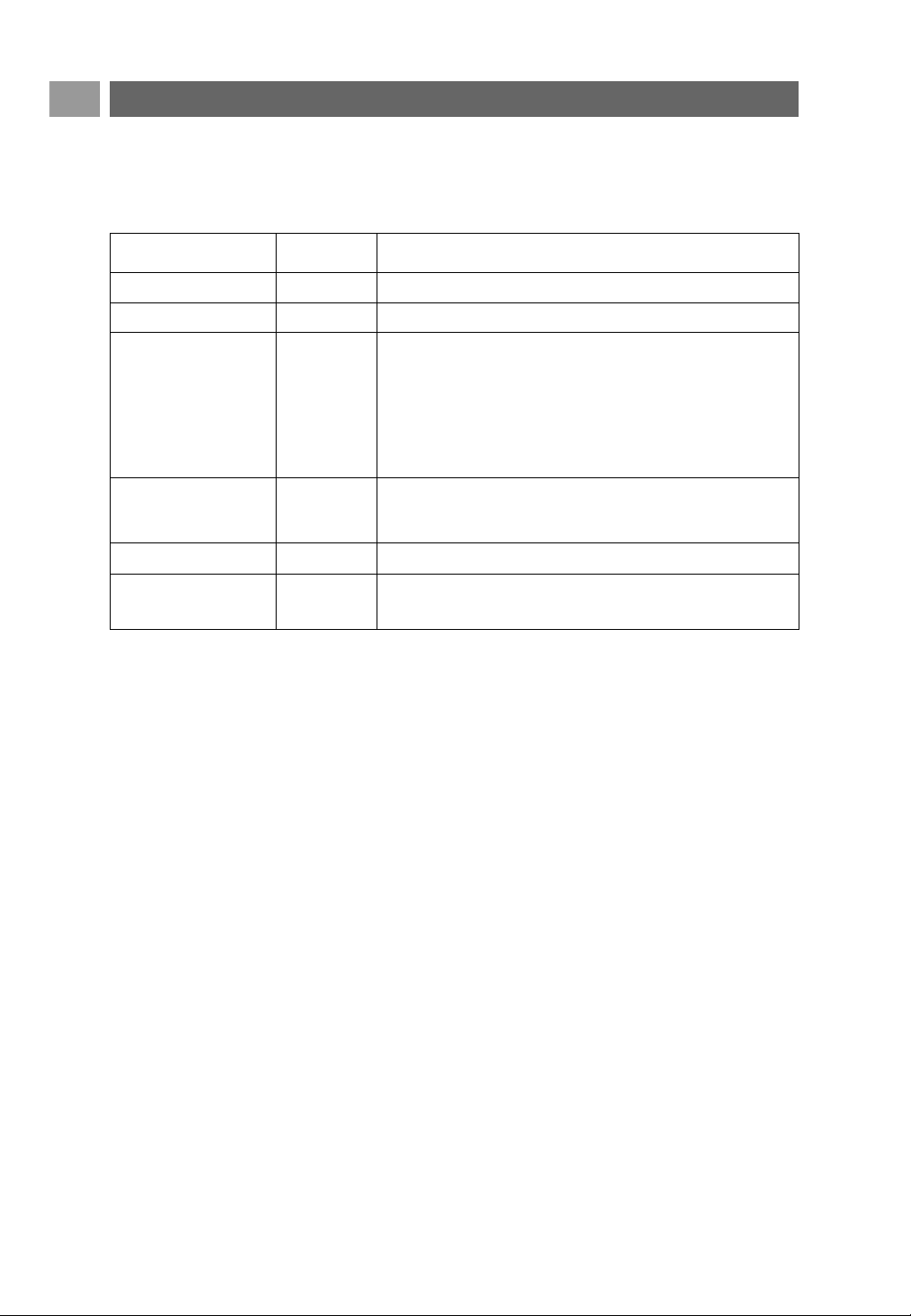
58
EN Annex 3 (Continued)
Supported XML-tags
The following table gives a description of the XML syntax.
Tag Name
philips-slideshow
title
audio
slide-duration
slides
slide
Use
mandatory
optional
optional
optional
mandatory
optional
Description
Philips slideshow signature including the version.
The title of the playlist.
The audio-URL following this tag will define the music playing
in the background during the slideshow.
A single song or playlist (.m3u & .pls) are the only valid audio
references. Other reference will not result in any audio
playback. If a single song is referenced the song will be
repeated forever. If a playlist is referenced the playlist will be
played in sequence with a repeat at the end of the playlist.
The default display time (in 0,1 second) of a slide. The TV
application isn’t obliged to support this tag. The TV application
can force the use of one or multiple predefined display times.
Identifies the slides to show.
Identifies the URL of the individual slide.

59
EN
Digital Camera Issues
If a USB connection between your digital camera and the TV isn’t working, you can try the
solutions below to resolve your problem.
- Make sure your digital camera is switched on and verify if the configuration of your digital camera
is correct (see the manual of your digital camera for more information).
- Some digital cameras allow you to switch off the USB interface. Make sure that the USB interface
is switched on before connecting to the TV.
- If you have a digital camera with only internal memory (no removable memory) you can try to
copy the content manually to a USB memory device using a personal computer.
- Some digital cameras allow you to switch between PTP (Picture Transfer Protocol) or “PC Link”
and USB Mass Storage. Make sure that you select USB Mass Storage or “PC Drive” on your
digital camera.
- If your camera supports different interface settings be sure to try them one by one or contact
the reseller of your camera to find out the correct setting.
USB Memory Device Issues
- Devices connected to the USB port of your TV must be “Mass Storage Class” compliant. If your
device (digital camera. MP3 player, portable harddisk, …) is not “Mass Storage Class” compliant it
will not be detected by the content browser of the TV.
- The following subsets of the Mass Storage Class specification are supported:
The implementation of the TV is based on the “Universal Serial Bus Mass Storage Class
Specification Overview” (v1.2, June 23, 2003) including all documents referenced by the
document. The document can be found on the USB standardisation website (www.usb.org).
Full support of the USB Mass Storage Class Bulk-Only Transport (bInterfaceProtocol = 50h).
Full support of SubClass Code = 05h; SFF-8070i spec.
Full support of SubClass Code = 06h; SCSI transparent command set.
- For large USB memory devices, when you are in the Content Browser, it may take a long time
before you can access your files.
- When using a USB portable harddisk: Due to the high power consumption of the harddisk, it is
advised to use the external power supply of the portable harddisk to guarantee proper working
under all conditions.
Digital Content Issues
• Only FAT (DOS) formatted (initialized) portable memory is supported. Errors in this formatting
can result in unreadable content. If such problems appear try to re-format the card. Be aware that
formatting the card will also delete all the content on it (pictures, music, …).
• The maximum size of any multimedia file should never exceed 4Gbyte.
• Do not use a dot “.” in folder naming.
• If video streams are supporting multiple audio tracks the first audio track will automatically be
selected, the other audio tracks can’t be selected.
• External subtitle files (e.g. DivX.srt subtitle files) are not supported.
Annex 4 - Philips TV - Digital camera and USB issues
Notes:
- the latest version of this document can be found on the Philips support website
(www.philips.com/support);
- the software of your TV is upgradeable. If you have problems first check if you have the latest
software installed on your TV. The latest software, together with instructions, can be found on the
Philips support website. Use the type number of your TV to find this documentation and other
related files.
- Philips can’t be held responsible neither for any errors in the content of this document nor for any
problems as a result of the content in this document. Errors reported to Philips will be adapted
and published on the Philips support website as soon as possible.

60
EN
Annex 5 - Issues referring to connected peripherals with a HDMI connector
The HDMI IN connector allows the following TV and monitor display modes:
HD Standard Definition TV (SDTV) 640x480i
720x480i
720x576i
Enhanced Definition TV (EDTV) 640x480p
720x480p
720x576p
High Definition TV (HDTV) 1920x1080i
1280x720p
PC VGA 640x480
SVGA 800x600
XGA 1024x768
- If necessary, you can adjust the picture position to the centre of the screen with the cursor keys.
- Due to legal requirements, it is possible that with certain copy protected PCM audio qualities from
a peripheral equipment connected to the
HDMI input, the Digital audio output signal is muted.
- Your TV supports HDCP (High-bandwidth Digital Content Protection).This is a system for
protecting DVD content outputted via HDMI from being copied. It provides a secure digital link
between a video source (DVD, PC, etc.) and your TV. Content is encrypted at the source
peripheral equipment to prevent unauthorised copies from being made.
- Proper working is only guaranteed with HDMI compliant consumer products.
- Digital peripheral equipments from different manufacturers have the possibility of differing output
standards which may cause difficulties for the television to properly display.
- In case no signal is detected from your HDMI equipment, switch off the HDMI equipment and then
on again.
To get an optimal viewing, it is advised to switch your DVD player, Blu-Ray of HD settop box to the
highest possible supported display modes.

61
EN
active control ........................... 16
analogue: manual installation. 26
antenna......................................... 4
audio receiver .......................... 48
audio equipment keys............. 51
auto format............................... 16
automatic installation.............. 24
avl (audio volume leveller)..... 18
balance ....................................... 17
batteries ................................ 4, 62
brightness.................................. 14
camera ....................................... 41
camcorder................................. 41
care of the screen ..................... 2
change code ............................ 21
channel list........................... 11,32
child lock ................................... 20
clock ............................................. 7
colour......................................... 14
colour enhancement............... 16
colour keys.................................. 5
common interface slot........... 22
comp. video connectors.....44,46
connections............................... 40
contrast ..................................... 14
country selection..................... 24
cursor keys.................................. 5
custom tint................................ 15
decoder...................................... 29
delta volume............................. 18
demo .......................................... 22
digital audio language.............. 17
digital natural motion ............. 15
digital subtitle language .......... 19
digital teletext .......................... 39
digital: test reception .............. 25
digital TV...................................... 8
DNR........................................... 15
dual I/II....................................... 18
DVB-T .......................................... 8
DVD player............................... 45
DVD recorder.......................... 44
DVI connector.................... 45,47
dynamic contrast ..................... 15
EPG ........................................... 32
equalizer .................................... 17
euroconnector.............. 43,44,48
factory settings......................... 30
favourite key ............................. 31
favourite channel list............... 31
features adjustment menu..... 19
fine tune..................................... 26
first time installation ................. 9
game...................................... 41,45
HDMI connector..................... 45
headphone................................. 41
headphone volume.................. 18
hearing impaired...................... 23
home cinema amplifier........... 48
hue.............................................. 14
hypertext................................... 38
installation menu...................... 23
language preferences............... 23
location...................................... 28
manual installation................... 26
menu key................................... 11
MPEG reduction ...................... 16
multimedia browser................ 34
mute key...................................... 5
navigate through the menus.. 11
on screen language.................... 9
on screen information .............. 6
on timer..................................... 24
option key ................................... 7
OK key......................................... 5
PC ............................................... 47
picture adjustment menu....... 14
picture format .......................... 16
PIN code ................................... 21
pixel plus.................................... 15
preferences menu.................... 28
preferred audio language ....... 23
preferred subtitle language.... 23
previous channel ........................ 6
programme title....................... 28
quick access menu..................... 7
radio channels .......................... 24
rear panel overview................ 42
rearrange channel list ............. 27
record a TV programme........ 50
recycling..................................... 62
reinstall ...................................... 27
remote control........................... 5
reset factory settings.............. 30
rename....................................... 27
reshuffle..................................... 27
safety warnings........................... 2
satellite receiver ...................... 44
search for channels ................. 23
select your connections......... 29
select connected equipment. 50
set code..................................... 21
settings assistant...................... 10
side connectors ....................... 41
sharpness................................... 14
sleeptimer ................................. 20
slideshow format..................... 57
software upgrade ............... 30,54
sound adjustment menu......... 17
standby key.................................. 5
store channels.......................... 24
subtitles...................................... 19
surround mode ........................ 18
switch the TV on........................ 8
teletext ...................................... 37
teletext menu........................... 38
teletext 2.5................................ 28
time zone selection................. 24
tint .............................................. 14
T.O.P. teletext pages................ 37
troubleshooting........................ 52
tv menu settings ...................... 12
uninstall...................................... 27
usb connector .......................... 41
usb device.................................. 34
video equipment keys............. 51
volume...........................................5
VCR............................................ 43
Index
62
EN
Recycling
R The packaging of this product is intended to
be recycled.Apply to the local authorities for
correct disposal.
Disposal of your old product
Your product is designed and manufactured with
highly quality material and components, which can
be recycled and reused.
When this crossed-out wheeled bin
symbol is attached to a product, it
means the product is covered by the
European Directive 2002/976/EC.
Please inform yourself about the local separate
collection system for electrical and electronic
products. Please act according to your local rules
and do not dispose of your old products with
your normal household waste.
The correct disposal of your old product will help
prevent potential negative consequences for the
environment and human health.
The batteries supplied do not contain the heavy
metals mercury and cadmium. Please check on
how to dispose of exhausted batteries according
to local regulations.
Recycling
Product information
- Your TV consumes energy in standby mode. Energy consumption contributes to air and
water pollution.Very low standby power consumption.
- Specifications: see the product leaflet on www. philips. com/support.
- If you need further assistance, please call the customer support service in your country.
The corresponding telephone numbers and addresses are given in the supplied Worldwide guarantee
booklet.
Disposal of batteries
België / Belgique
070 222 303 €0.17/min
Danmark
3525 8759 Local
Deutschland
0180 5 356 767 €0.12/min
France
08 9165 0005 €0.23/min
E§§A™
0 0800 3122 1280 ¢ˆÚ¿Ó
España
902 888 784 €0.15/min
Ireland
01 601 1777 Local
Italia
199 404 041 €0.25/min
Luxembourg
40 6661 5644 Local
Nederland
0900 8407 €0.20/min
Norge
2270 8111 Local
Österreich
0820 901114 €0.20/min
Portugal
2 1359 1442 Local
Schweiz / Suisse / Svizzera
0844 800 544 Local
Svenska
08 5792 9100 Local
Suomi
09 2311 3415 Local
United Kingdom
0906 1010016 £0.15/min

63
Contents EN