

Table Of Contents
Help Guide MDR-1ADAC i
Getting Started 1
Included items 13
Checking the included items 35
About the supplied manuals 37
Overview 14
What you can do with the headphones 38
About High-Resolution Audio format files 39
Parts and controls 15
Parts and controls 40
About the indicators 42
Before connecting to a computer 16
Installing the driver software on a Windows computer 44
Installing “Hi-Res Audio Player” on a computer 45
Power source 17
Charging the battery via a computer 46
Charging the battery via an AC outlet 49
Turning the power on 51
Turning the power off 53
Checking the battery level 54
Making connections 2
Connecting to a Windows computer 18
Connecting to a Windows computer 56
Connecting to a Mac 19
Connecting to a Mac 58
Connecting to a WALKMAN 20
Connecting to a digital output supported WALKMAN 60
Connecting to WALKMAN models unsupported by digital-out 62
Connecting to an Xperia 21
Connecting to a digital output supported Xperia 63
Connecting to Xperia models unsupported by digital-out 65
Connecting to an iPhone/iPad/iPod 22
Connecting to an iPhone/iPad/iPod 66
Connecting to an analog output device 23
Connecting to an analog output device 68
Listening to music 3
TOC-1

Headphones 24
Listening to music with the headphones 69
Information 4
About the indications 25
About the indicators 42
Compatible device 26
Compatible WALKMAN models 72
Compatible Xperia models 73
Compatible iPhone/iPad/iPod models 74
Compatible operating systems (Windows) 76
Compatible operating systems (Mac) 77
Notes on use 27
Precautions 78
Trademarks 28
Trademarks 80
Support website 29
Customer support websites 81
What can I do to solve a problem? 5
What can I do to solve a problem? 30
What can I do to solve a problem? 82
Headphones 6
Power 31
Unable to turn on the headphones/The battery life becomes short. 83
Unable to charge the battery. 84
Charging time is too long. 85
Sound 32
There is no sound. 86
The sound is low. 87
The sound is distorted. 88
Noise is generated. 89
Connected device 7
Computer 33
When connecting to a computer, there is no sound or the sound is not played
back properly. 90
Sound is interrupted when connecting to the computer. 92
Other device 34
The connected radio or TV cannot receive a signal/Noise is generated. 93
How to Use 8
TOC-2



Back Back to Top
Go to Page Top
Stereo Headphones
MDR-1ADAC
Making connections
Connecting to a Windows computer
Connecting to a Mac
Connecting to a WALKMAN
Connecting to an Xperia
Connecting to an iPhone/iPad/iPod
Connecting to an analog output device
4-547-764-11(1)
Copyright 2014 Sony Corporation
Help Guide
How to Use
2






Back Back to Top
Stereo Headphones
MDR-1ADAC
How to Use
Getting Started
Included items
Checking the included items
About the supplied manuals
Overview
What you can do with the headphones
About High-Resolution Audio format files
Parts and controls
Parts and controls
About the indicators
Before connecting to a computer
Installing the driver software on a Windows computer
Installing “Hi-Res Audio Player” on a computer
Power source
Charging the battery via a computer
Charging the battery via an AC outlet
Turning the power on
Turning the power off
Checking the battery level
Making connections
Connecting to a Windows computer
Help Guide
List of Topics
8

Connecting to a Windows computer
Connecting to a Mac
Connecting to a Mac
Connecting to a WALKMAN
Connecting to a digital output supported WALKMAN
Connecting to WALKMAN models unsupported by digital-out
Connecting to an Xperia
Connecting to a digital output supported Xperia
Connecting to Xperia models unsupported by digital-out
Connecting to an iPhone/iPad/iPod
Connecting to an iPhone/iPad/iPod
Connecting to an analog output device
Connecting to an analog output device
Listening to music
Headphones
Listening to music with the headphones
Information
About the indications
About the indicators
Compatible device
Compatible WALKMAN models
Compatible Xperia models
Compatible iPhone/iPad/iPod models
Compatible operating systems (Windows)
Compatible operating systems (Mac)
Notes on use
Precautions
Trademarks
Trademarks
Support website
Customer support websites
9


Back Back to Top
Go to Page Top
Stereo Headphones
MDR-1ADAC
Troubleshooting
What can I do to solve a problem?
What can I do to solve a problem?
What can I do to solve a problem?
Headphones
Power
Unable to turn on the headphones/The battery life becomes short.
Unable to charge the battery.
Charging time is too long.
Sound
There is no sound.
The sound is low.
The sound is distorted.
Noise is generated.
Connected device
Computer
When connecting to a computer, there is no sound or the sound is not played back properly.
Sound is interrupted when connecting to the computer.
Other device
The connected radio or TV cannot receive a signal/Noise is generated.
Help Guide
List of Topics
11

4-547-764-11(1)
Copyright 2014 Sony Corporation
12

Back Back to Top
Go to Page Top
Stereo Headphones
MDR-1ADAC
Included items
Checking the included items
Check that all items are packed with the headphones before use.
About the supplied manuals
Refer to the supplied manuals depending on your situation.
4-547-764-11(1)
Copyright 2014 Sony Corporation
Help Guide
How to Use
13


Back Back to Top
Go to Page Top
Stereo Headphones
MDR-1ADAC
Parts and controls
Parts and controls
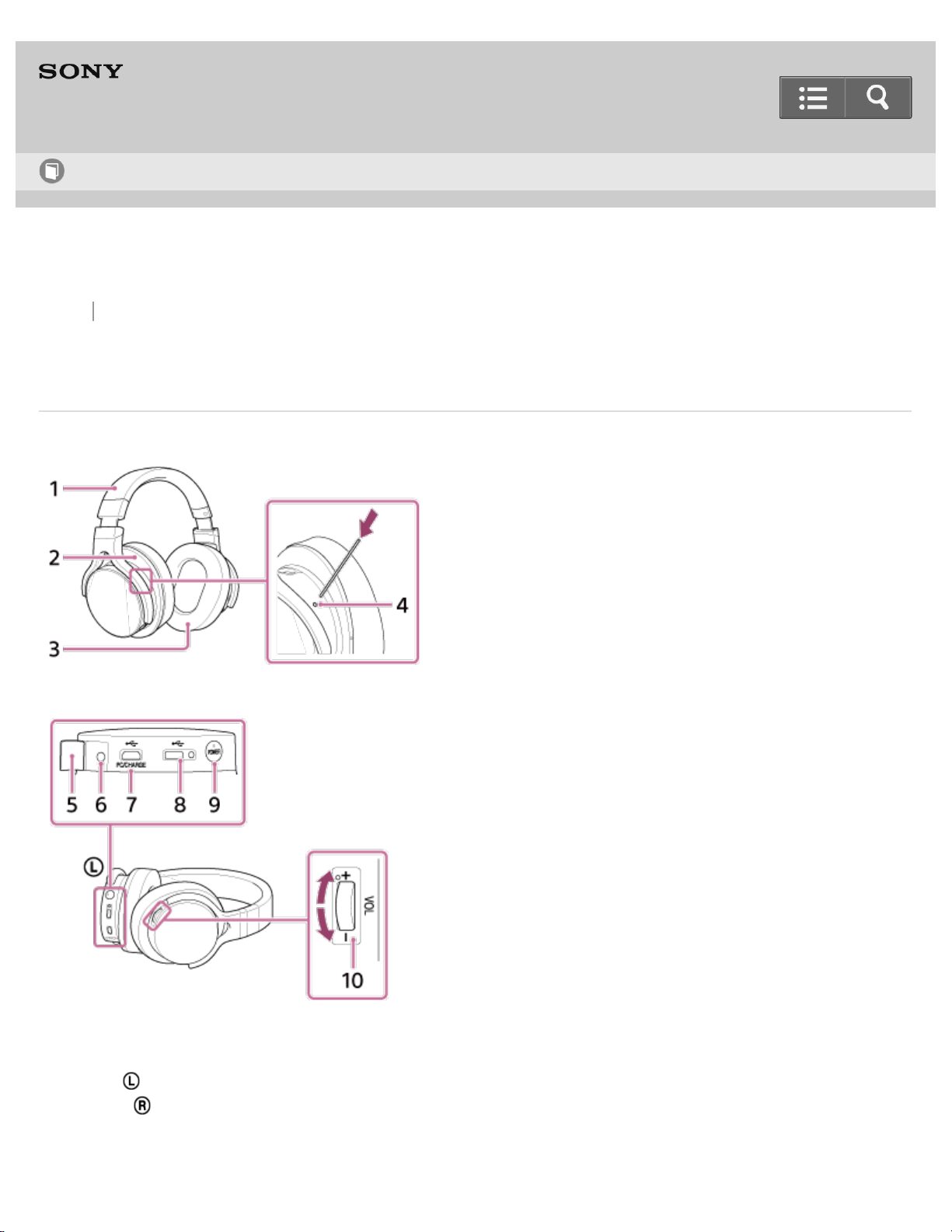
Introducing the names of button, jacks and indicators, etc. on the headphones.
About the indicators
The indicators show the status of the headphones.
4-547-764-11(1)
Copyright 2014 Sony Corporation
Help Guide
How to Use
15

Back Back to Top
Go to Page Top
Stereo Headphones
MDR-1ADAC
Before connecting to a computer
Installing the driver software on a Windows computer
When listening to the music files on your Windows computer with the headphones, you need to download and install the driver
software on the computer.
Installing “Hi-Res Audio Player” on a computer
When listening to the High-Resolution Audio format files on your computer (Windows/Mac) with the headphones, you need to
download and install “Hi-Res Audio Player” on the computer.
4-547-764-11(1)
Copyright 2014 Sony Corporation
Help Guide
How to Use
16

Back Back to Top
Go to Page Top
Stereo Headphones
MDR-1ADAC
Power source
Charging the battery via a computer
Connect the headphones to a computer using the micro-USB cable (supplied) to charge the battery.
Charging the battery via an AC outlet
The battery can be charged via an AC outlet by using the recommended USB AC adaptor (AC-UD20) (sold separately).
Turning the power on
How to turn the headphones on.
Turning the power off
How to turn the headphones off.
Checking the battery level
You can check the battery level with the POWER indicator.
4-547-764-11(1)
Copyright 2014 Sony Corporation
Help Guide
How to Use
17



Back Back to Top
Go to Page Top
Stereo Headphones
MDR-1ADAC
Connecting to a WALKMAN
Connecting to a digital output supported WALKMAN
Compatible with the NWZ-A10 Series, NWZ-ZX1, and NWZ-F880 Series (as of July 2014).
Connecting to WALKMAN models unsupported by digital-out
You can connect the headphones to a WALKMAN, which only supports an analog output, using the headphone cable
(supplied).
4-547-764-11(1)
Copyright 2014 Sony Corporation
Help Guide
How to Use
20

Back Back to Top
Go to Page Top
Stereo Headphones
MDR-1ADAC
Connecting to an Xperia
Connecting to a digital output supported Xperia
For the latest compatible Xperia models, see “Compatible Xperia models.”
Connecting to Xperia models unsupported by digital-out
You can connect the headphones to Xperia models, which only supports an analog output, using the headphone cable
(supplied).
4-547-764-11(1)
Copyright 2014 Sony Corporation
Help Guide
How to Use
21














Back Back to Top Print
Stereo Headphones
MDR-1ADAC
Checking the included items
After unpacking, check that all items in the list below are included in the package.
If any items are missing, contact your dealer.
The number in ( ) indicates the item amount.
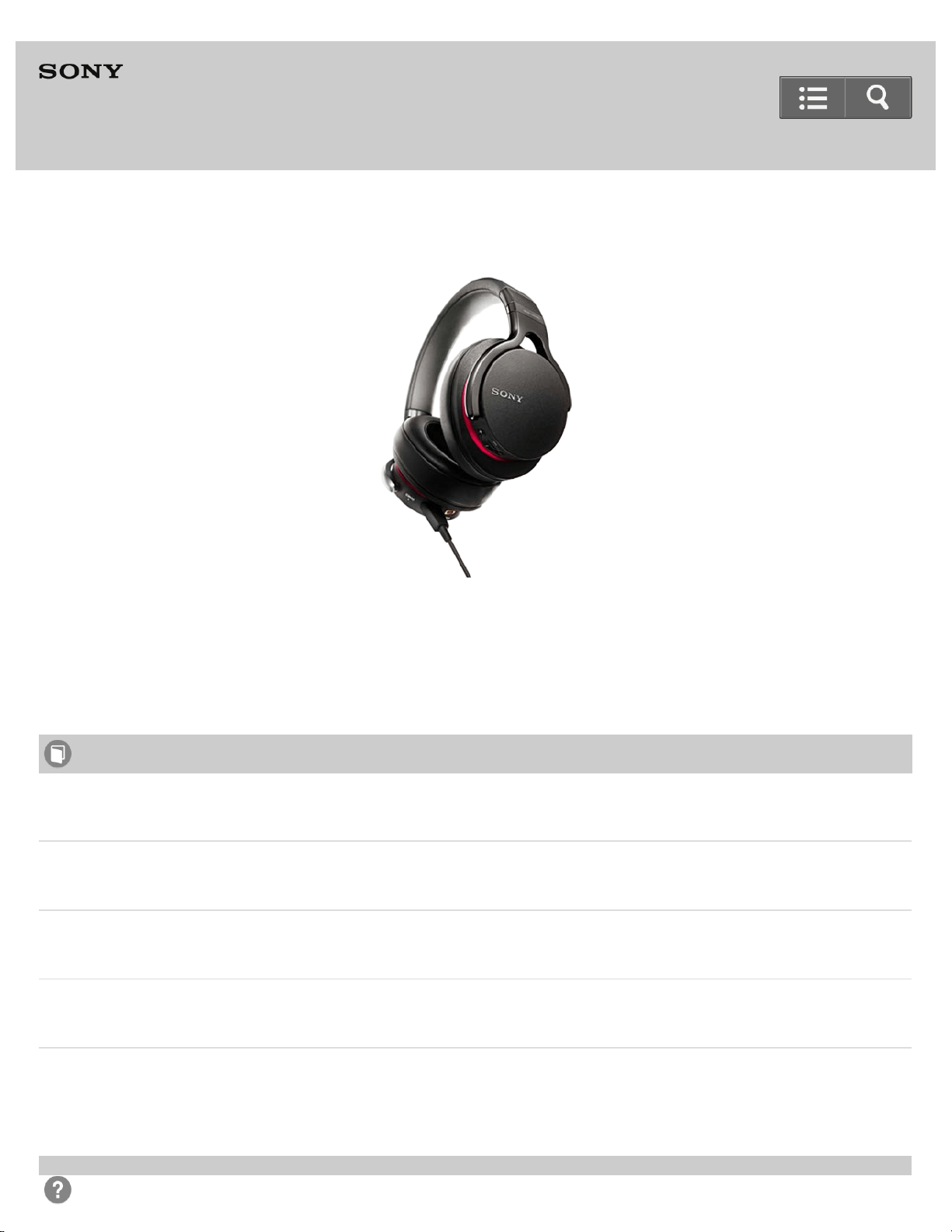
Stereo Headphones (1)
Cables
Digital cable for Xperia (Approx.1.2 m (47 1/4 in)) (1)
Digital cable for WALKMAN (Approx.1.2 m (47 1/4 in)) (1)
Lightning connector cable (Approx.1.2 m (47 1/4 in)) (1)
Micro-USB cable (Approx.1.5 m (59 1/8 in)) (1)
Headphone cable (Approx.1.2 m (47 1/4 in)) (1)
Help Guide
How to Use
35

Back Back to Top Print
Go to Page Top
Stereo Headphones
MDR-1ADAC
About the supplied manuals
The following three manuals come with the headphones.
Help Guide (this data)
Operation manual on the Web, which can be accessed by a PC or smartphone, provides the detailed information on
how to use the headphones and troubleshooting, etc.
Start Guide (enclosed paper)
Provides basic information on how to connect or use the headphones.
Reference Guide (enclosed paper)
Provides precautions and specifications.
4-547-764-11(1)
Help Guide
How to Use
37

Back Back to Top Print
Go to Page Top
Stereo Headphones
MDR-1ADAC
What you can do with the headphones
USB audio compatible stereo headphones with S-master HX
More stunning realism than you ever heard
Digital amp technology
*1
, uniquely developed for High-Resolution audio, reduces distortion and noise at wider
frequency ranges. It allows to reproduce high frequency sound in detail.
USB Audio 192 kHz/24 bit, DSD
*2
compatible
WALKMAN, Xperia, iPhone/iPad/iPod Digital connection
40 mm HD driver unit that supports high resolution
Aluminum-coated Liquid Crystal Polymer diaphragms
Ergonomic ear pad
Detachable cable
*1
The digital amp technology is available only with digital connections.
*2
The DSD format is converted to the linear PCM format when playing back.
4-547-764-11(1)
Copyright 2014 Sony Corporation
Help Guide
How to Use
38

Back Back to Top Print
Go to Page Top
Stereo Headphones
MDR-1ADAC
About High-Resolution Audio format files
High-Resolution Audio, which is typically 96 kHz/24 bit or higher, is made by digitally sampling an original analog audio
source. The number of times at which sampling is performed (in one-second increments) is called the sampling
frequency, which is expressed in hertz or “Hz.” Digitizing refers to the audio process where the sampled signal is
converted (or quantized) into binary digits, consisting of 1’s and 0’s, and expressed as “bits”. The higher the number of
bits, the closer the sample is to the original source. CDs are standardized at 44.1 kHz/16 bit, but there is no single
standard for High-Resolution Audio.
An alternative way of digitizing an analog source is a method called DSD (Direct Stream Digital) which captures sound
information as a sequence of single bit values with an extremely high sampling rate of either 2.8 MHz or 5.6 MHz. This
is approximately 64 or 128 times the sampling rate of CD audio and is simply known as DSD 2.8 MHz or DSD 5.6
MHz. For some engineers, this is the closest a digital file sample can get to an original analog source.
4-547-764-11(1)
Copyright 2014 Sony Corporation
Help Guide
How to Use
39

Go to Page Top
Go to Page Top
5. Input jack (stereo mini) cover
6. Input jack (stereo mini)
7. Micro USB port (Type B) ( PC/CHARGE) : For connecting to a computer or charging the headphones
8. Micro USB port (Type AB) ( ) : For digitally connecting with WALKMAN, Xperia, and iPhone/ iPad/iPod
9. POWER button/indicator
10. VOL +/- knob
The + side of the VOL +/- knob has a tactile dot. Use it as a guide for operation.
Related Topic
About the indicators
4-547-764-11(1)
Copyright 2014 Sony Corporation
41

Back Back to Top Print
Stereo Headphones
MDR-1ADAC
About the indicators
POWER indicator
When the headphones are being charged, the indicator flashes/lights up in red.
When the headphones are turned on, the indicator flashes/lights up in green.
While the headphones are being charged
Turns off
The headphones are fully charged.
Lights up (red)
The headphones are being charged.
Flashes (red)
The headphones are not being charged properly.
When the headphones are not in the battery charge status
You can check the battery level by the number of times that the indicator flashes when the headphones are turned on.
Turns off
The headphones are not turned on.
Lights up (green)
The headphones are turned on.
Flashes three times (green)
The battery is substantially charged.
Flashes twice (green)
The battery is half charged.
Flashes once (green)
The battery level is low. It is necessary to charge the battery.
Help Guide
How to Use
42

Back Back to Top Print
Go to Page Top
Go to Page Top
Stereo Headphones
MDR-1ADAC
Installing the driver software on a Windows computer
To listen to music files on your Windows computer with the headphones, you need to download and install the driver
software for Windows “Sony USB Device Driver” on the computer.
1. Visit the following website and download the driver software for Windows “Sony USB Device Driver” on your
Windows computer.
http://www.sony.com/support/
For details on installing, refer to the download pages.
Hint
There is no need to install the driver software on a Mac computer.
Note
If the driver software is not installed on your Windows computer, music files cannot be played back via the
headphones.
Related Topic
Connecting to a Windows computer
4-547-764-11(1)
Copyright 2014 Sony Corporation
Help Guide
How to Use
44

Back Back to Top Print
Go to Page Top
Go to Page Top
Stereo Headphones
MDR-1ADAC
Installing “Hi-Res Audio Player” on a computer
To listen to High-Resolution Audio format files on your computer (Windows/Mac) with the headphones, you need to
download and install “Hi-Res Audio Player” on the computer.
1. Visit the following website and download and install “Hi-Res Audio Player” on your computer.
http://www.sony.com/support/
For details on installing, refer to the download pages.
Related Topic
About High-Resolution Audio format files
4-547-764-11(1)
Copyright 2014 Sony Corporation
Help Guide
How to Use
45

Back Back to Top Print
Stereo Headphones
MDR-1ADAC
Charging the battery via a computer
The headphones contain a rechargeable lithium-ion battery which should be charged before using it for the first time.
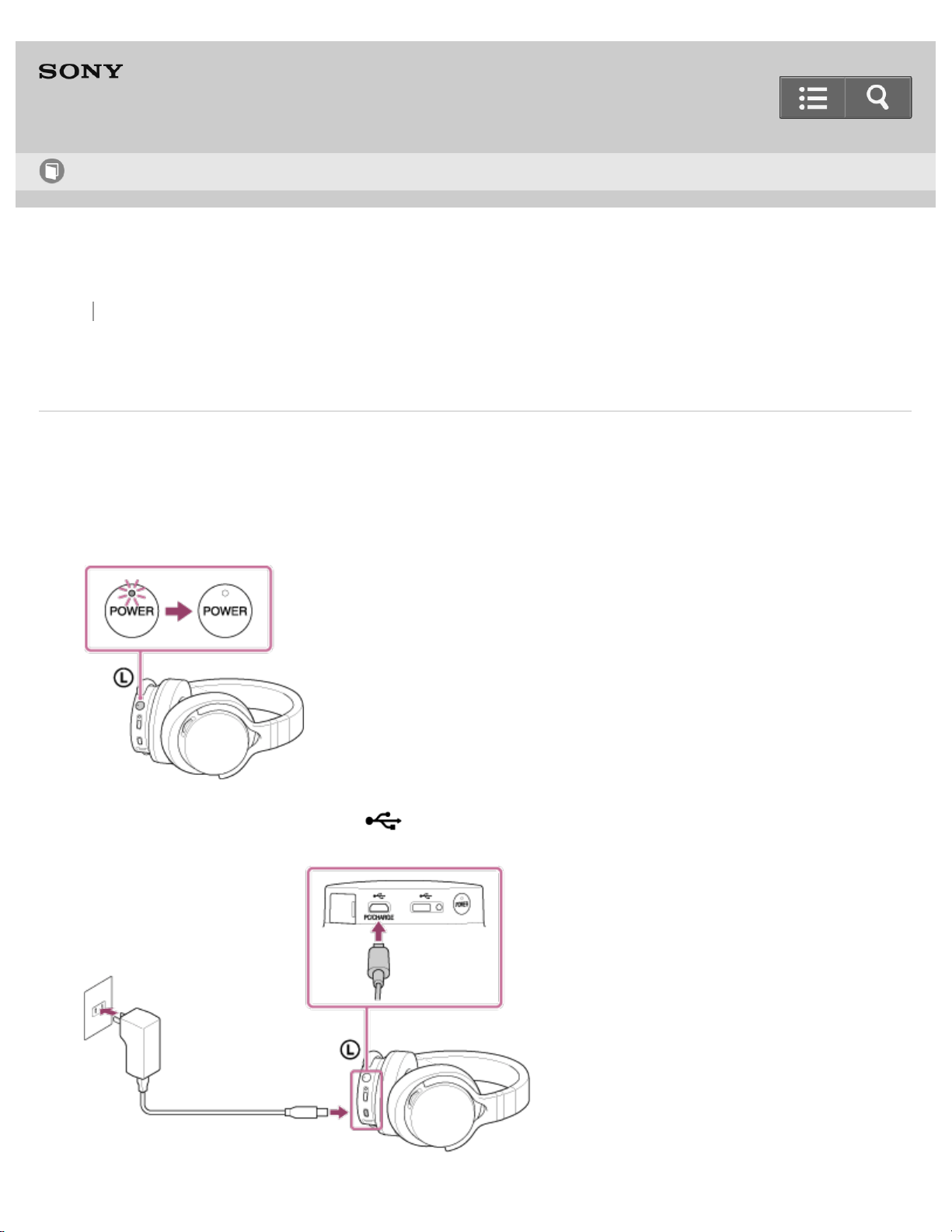
1. Press and hold the POWER button for about 2 seconds until the POWER indicator shuts off to turn off the
headphones.
2. Connect your booted computer to the micro USB port (Type B) ( PC/CHARGE) of the headphones using the
micro-USB cable (supplied).
The POWER indicator lights up in red while the battery is being charged and the indicator turns off when charging
Help Guide
How to Use
46
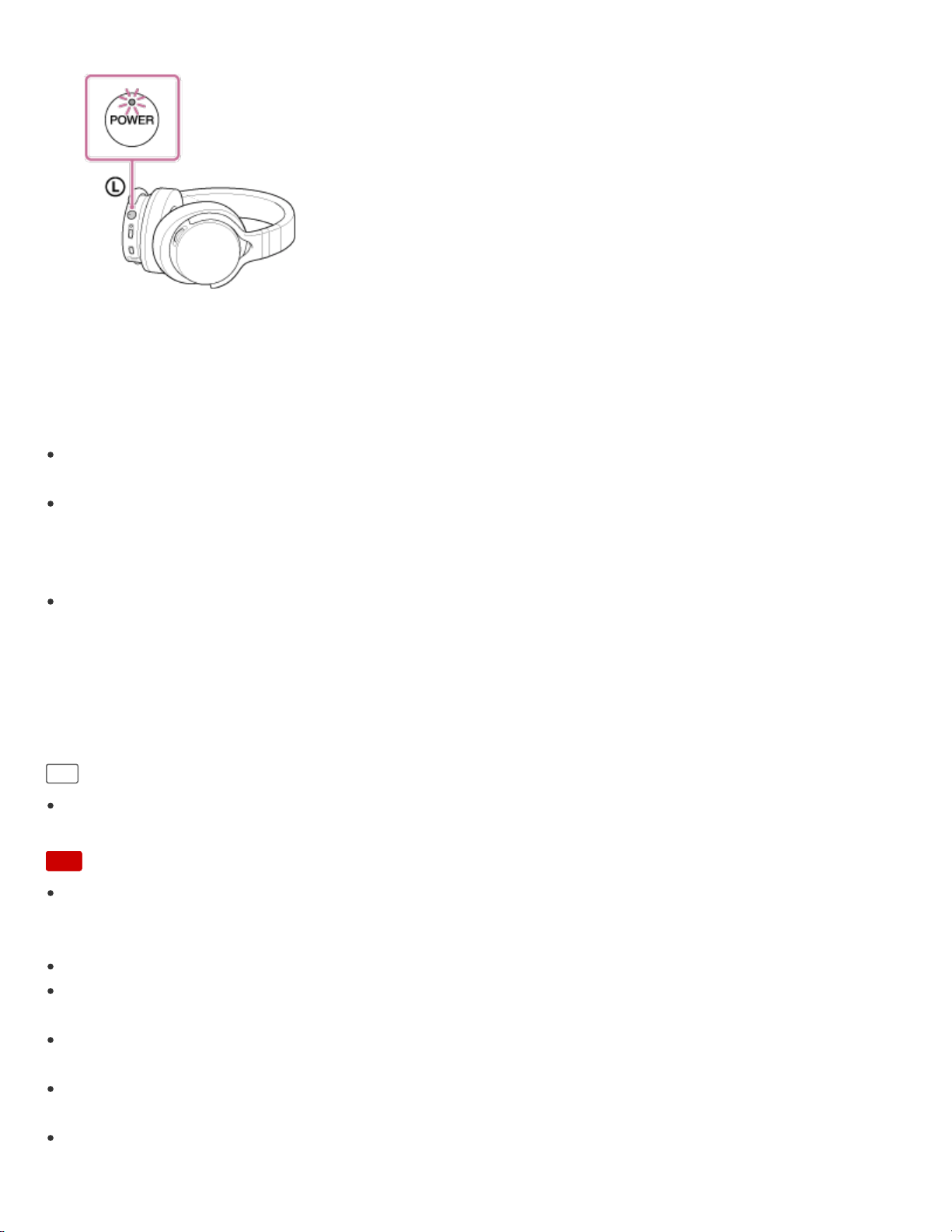
is completed.
Charging is completed in about 4 hours
*1
.
If the battery is not charged properly, the POWER indicator will flash in red.
*1
Time required for empty battery to recharge.
When the battery cannot be charged
Check that the headphones and your computer are firmly connected via the micro-USB cable (supplied).
Use only the supplied micro-USB cable. Do not charge the battery using any other USB cable.
Check that the computer is turned on and not in standby, sleep, or hibernation mode.
If the computer enters standby, sleep, or hibernation mode while the headphones are connected to the computer,
the POWER indicator turns off and the battery charge will not be completed properly. In this case, change the
computer settings and then charge the battery again.
Check that the headphones are directly connected to a computer using the micro-USB cable (supplied). Charging
may not be completed properly by an indirect connection, such as via a USB hub.
Battery life
*2
Approx. 7.5 hours
*2
*2
Time may vary depending on the immediate environment or conditions of use.
Hint
The battery can be charged via an AC outlet by using the recommended USB AC adaptor (AC-UD20) (sold
separately). Charging is completed in about 4 hours.
Note
When the headphones had not been used for a long time, it may take a while for the POWER indicator to light up in
red. In this case, do not disconnect the micro-USB cable from the headphones. Wait until the POWER indicator
lights up in red.
Charge in an environmental temperature of between 5°C and 35°C. Otherwise, the battery may not fully charge.
If the battery is fully charged, the POWER indicator may blink and go off, and charging may not start. This is not a
malfunction.
When storing the headphones for a long time, avoid a place subject to high temperatures. When storing the
headphones for more than a year, charge the battery every six months to prevent over discharge.
If you haven’t used the headphones for a long time, the life of the rechargeable battery may become short. This will
improve when you repeat the charging and discharging process several times.
For system requirements for a computer that can charge the battery using a USB, see ”Compatible operating
systems (Windows)” or ”Compatible operating systems (Mac).”
47

Back Back to Top Print
Stereo Headphones
MDR-1ADAC
Charging the battery via an AC outlet
The battery can be charged via an AC outlet by using the recommended USB AC adaptor (AC-UD20) (sold
separately). For details on the adaptor, refer to its operation manual.
1. Press and hold the POWER button for about 2 seconds until the POWER indicator shuts off to turn off the
headphones.
2. Connect the micro USB port (Type B) ( PC/CHARGE) of the headphones and the USB AC adaptor (AC-
UD20) (sold separately) using the micro-USB cable (supplied), then connect the USB AC adaptor to an AC outlet.
Help Guide
How to Use
49
Go to Page Top
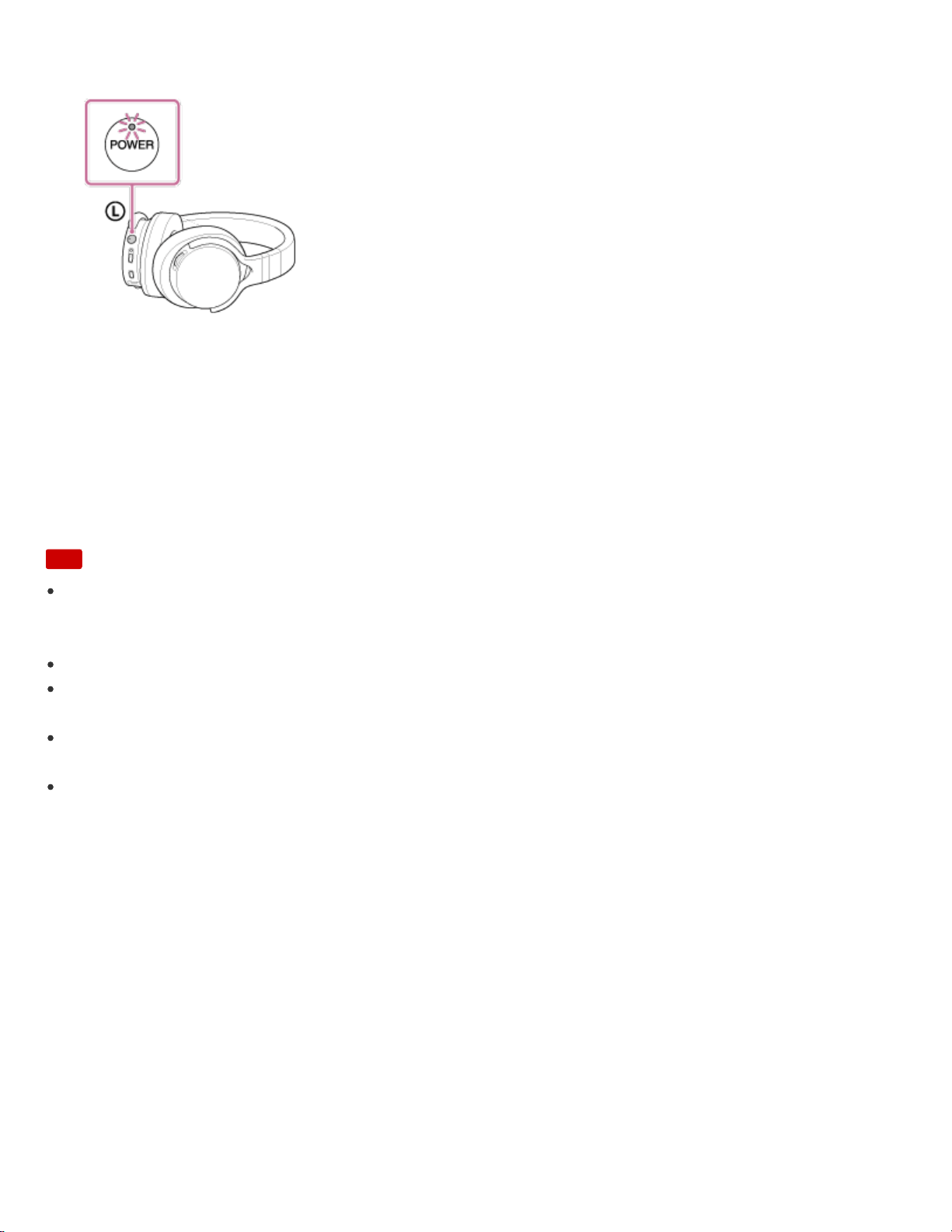
The POWER indicator lights up in red while the battery is being charged and the indicator turns off when charging
is completed.
Charging is completed in about 4 hours
*1
.
If the battery is not charged properly, the POWER indicator will flash in red.
*1
Time required for empty battery to recharge.
Battery life
*2
Approx. 7.5 hours
*2
*2
Time may vary depending on the immediate environment or conditions of use.
Note
When the headphones had not been used for a long time, it may take a while for the POWER indicator to light up in
red. In this case, do not disconnect the micro-USB cable from the headphones. Wait until the POWER indicator
lights up in red.
Charge in an environmental temperature of between 5°C and 35°C. Otherwise, the battery may not fully charge.
If the battery is fully charged, the POWER indicator may blink and go off, and charging may not start. This is not a
malfunction.
When storing the headphones for a long time, avoid a place subject to high temperatures. When storing the
headphones for more than a year, charge the battery every six months to prevent over discharge.
If you haven’t used the headphones for a long time, the life of the rechargeable battery may become short. This will
improve when you repeat the charging and discharging process several times.
4-547-764-11(1)
Copyright 2014 Sony Corporation
50
Back Back to Top Print
Go to Page Top
Stereo Headphones
MDR-1ADAC
Turning the power on
When using the headphones for the first time, charge its battery beforehand.
Connect the headphones to your booted computer using the micro-USB cable (supplied).
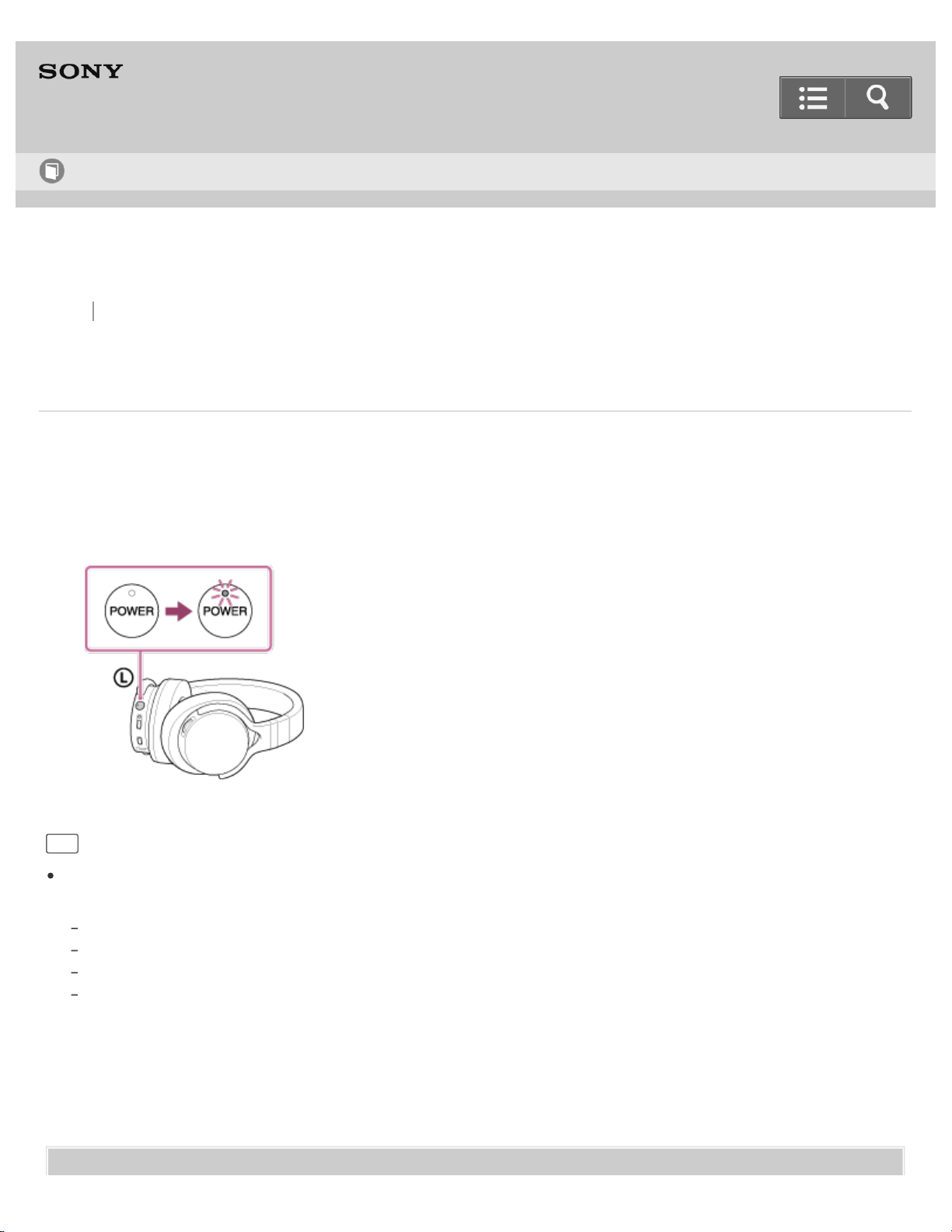
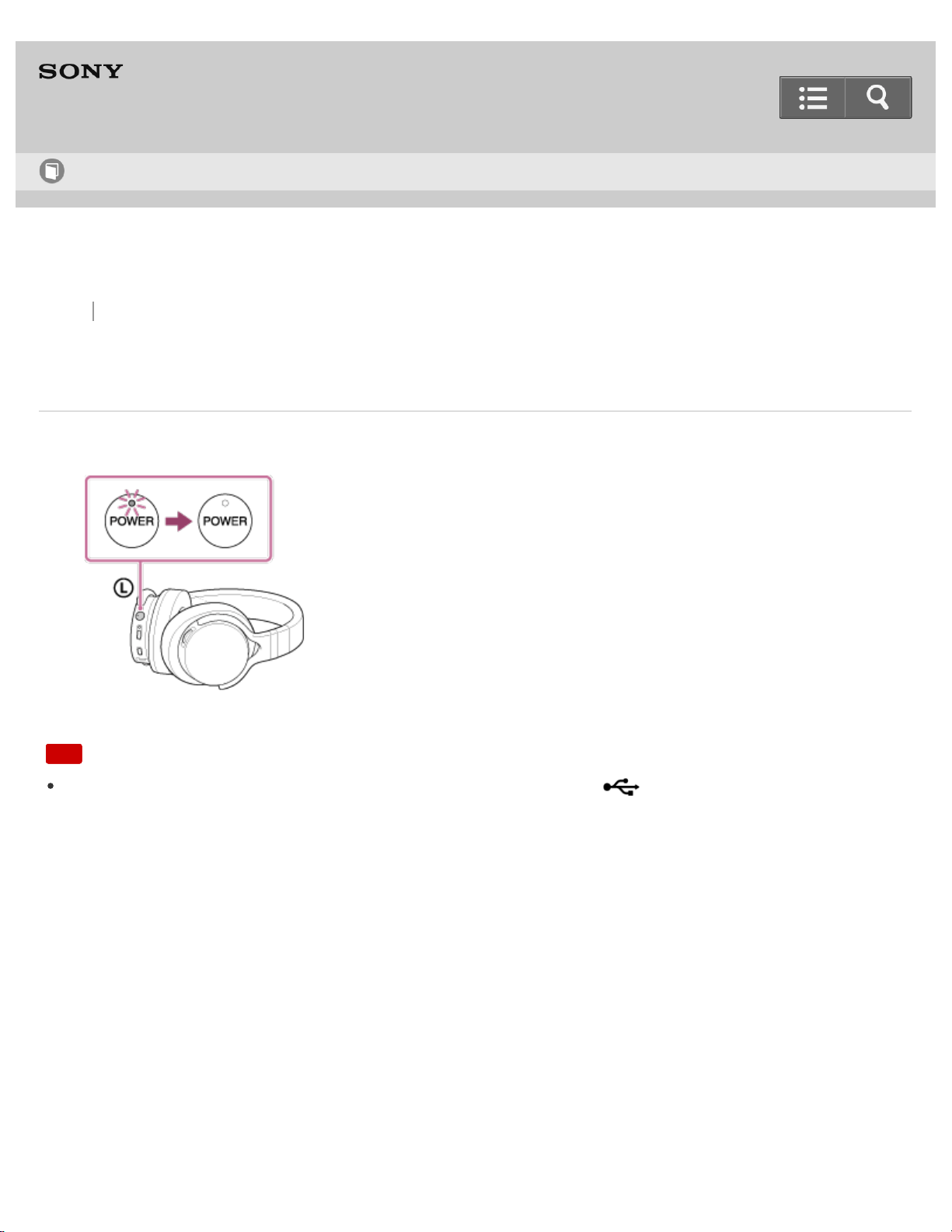
1. Press and hold the POWER button for about 2 seconds.
The POWER indicator flashes in green then lights up.
Hint
When the headphones are turned on, you can check the battery level by the number of times the POWER indicator
flashes in green.
Flashes three times: Substantially charged
Flashes twice: Half charged
Flashes once: Battery level is low. It is necessary to charge the battery.
Always flashing: The POWER indicator flashes in green after it beeps. The headphones do not output sound in this state
and will turn off automatically about 30 seconds later.
Related Topic
Help Guide
How to Use
51

Back Back to Top Print
Go to Page Top
Stereo Headphones
MDR-1ADAC
Turning the power off
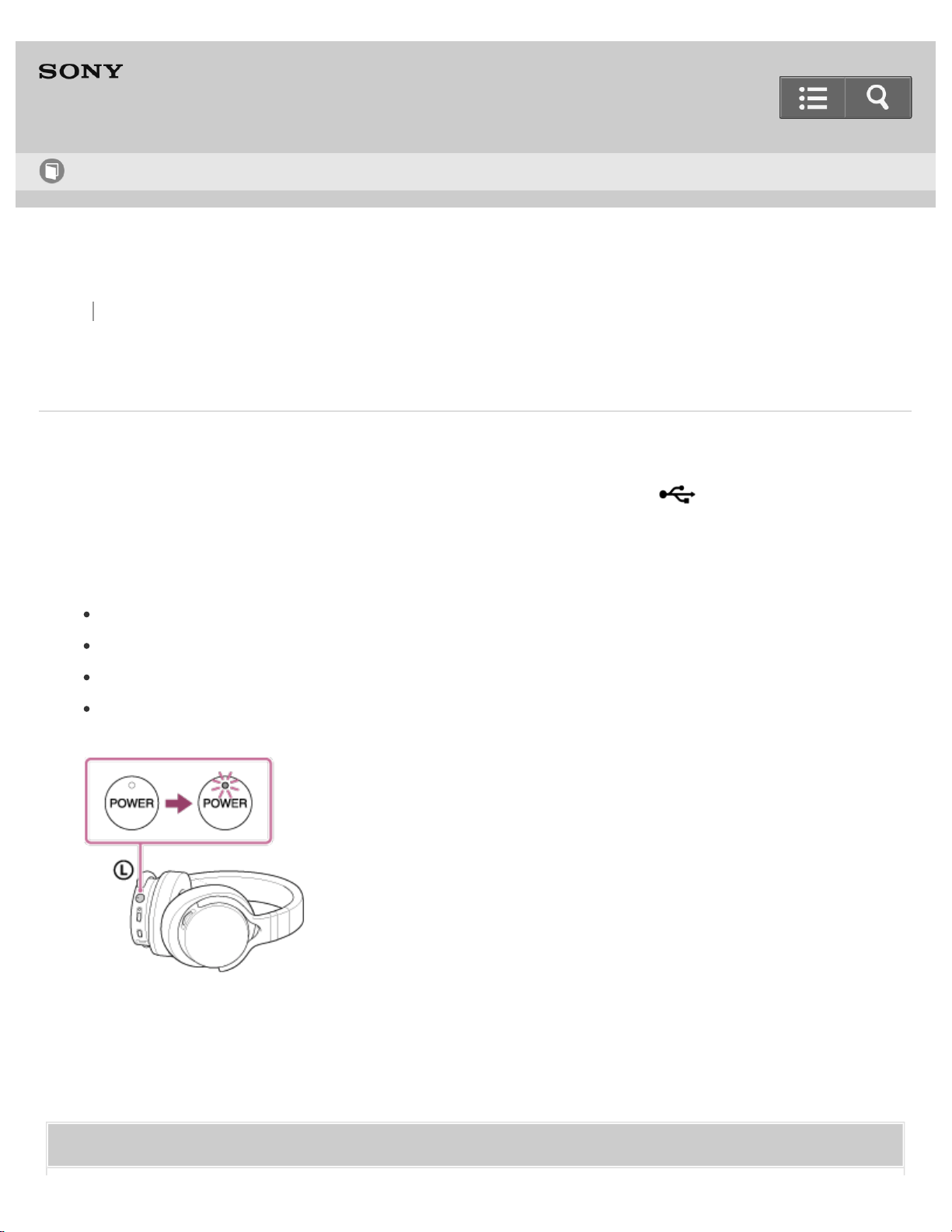
1. Press and hold the POWER button for about 2 seconds until the POWER indicator shuts off.
Note
The POWER indicator lights up in red when the micro USB port (Type B) ( PC/CHARGE) is connected to your
computer or the USB AC adaptor (sold separately). The indicator turns off when battery charge is completed.
4-547-764-11(1)
Copyright 2014 Sony Corporation
Help Guide
How to Use
53
Back Back to Top Print
Go to Page Top
Stereo Headphones
MDR-1ADAC
Checking the battery level
Check the battery level before taking your headphones outside.
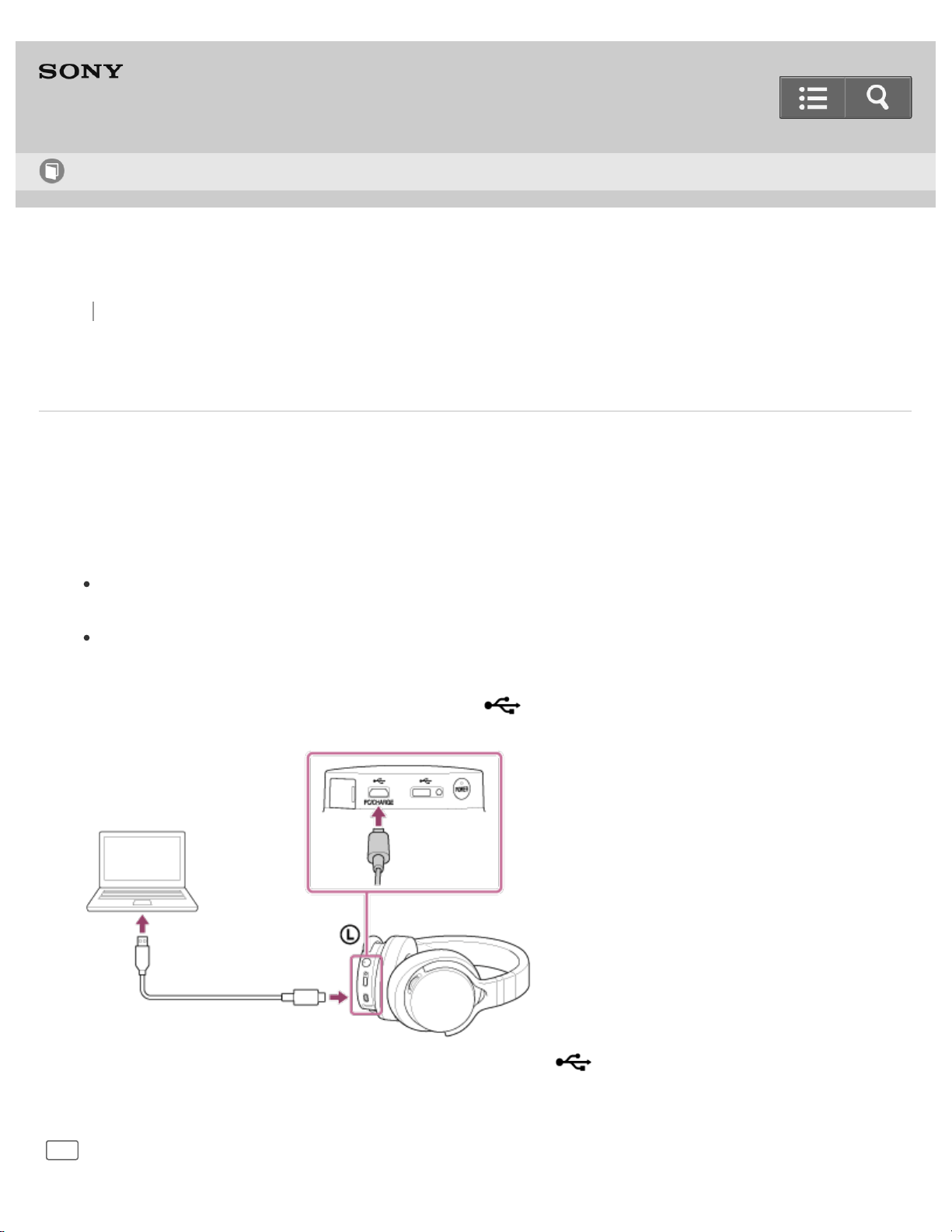
1. If the micro-USB cable (supplied) is connected to the micro USB port (Type B) ( PC/CHARGE) , disconnect
it.
2. Press the POWER button to turn on the headphones and check the battery level by the number of times the
POWER indicator flashes in green.
Flashes three times: Substantially charged
Flashes twice: Half charged
Flashes once: Battery level is low. It is necessary to charge the battery.
Always flashing: The POWER indicator flashes in green after it beeps. The headphones do not output sound in
this state and will turn off automatically about 30 seconds later.
Related Topic
Help Guide
How to Use
54

Back Back to Top Print
Stereo Headphones
MDR-1ADAC
Connecting to a Windows computer
You can connect the headphones to a Windows computer using the micro-USB cable (supplied). The headphones are
compatible with High-Resolution Audio format files, up to 192 kHz/24 bit PCM, DSD 2.8 MHz, or DSD 5.6 MHz
*
.
*
The DSD format is converted to the linear PCM format when playing back.
1. Start your computer.
You need to download and install the driver software for Windows “Sony USB Device Driver” on your computer
to listen to music files on the computer with the headphones.
You need to download and install “Hi-Res Audio Player” on your computer to listen to High-Resolution Audio
format files on the computer with the headphones.
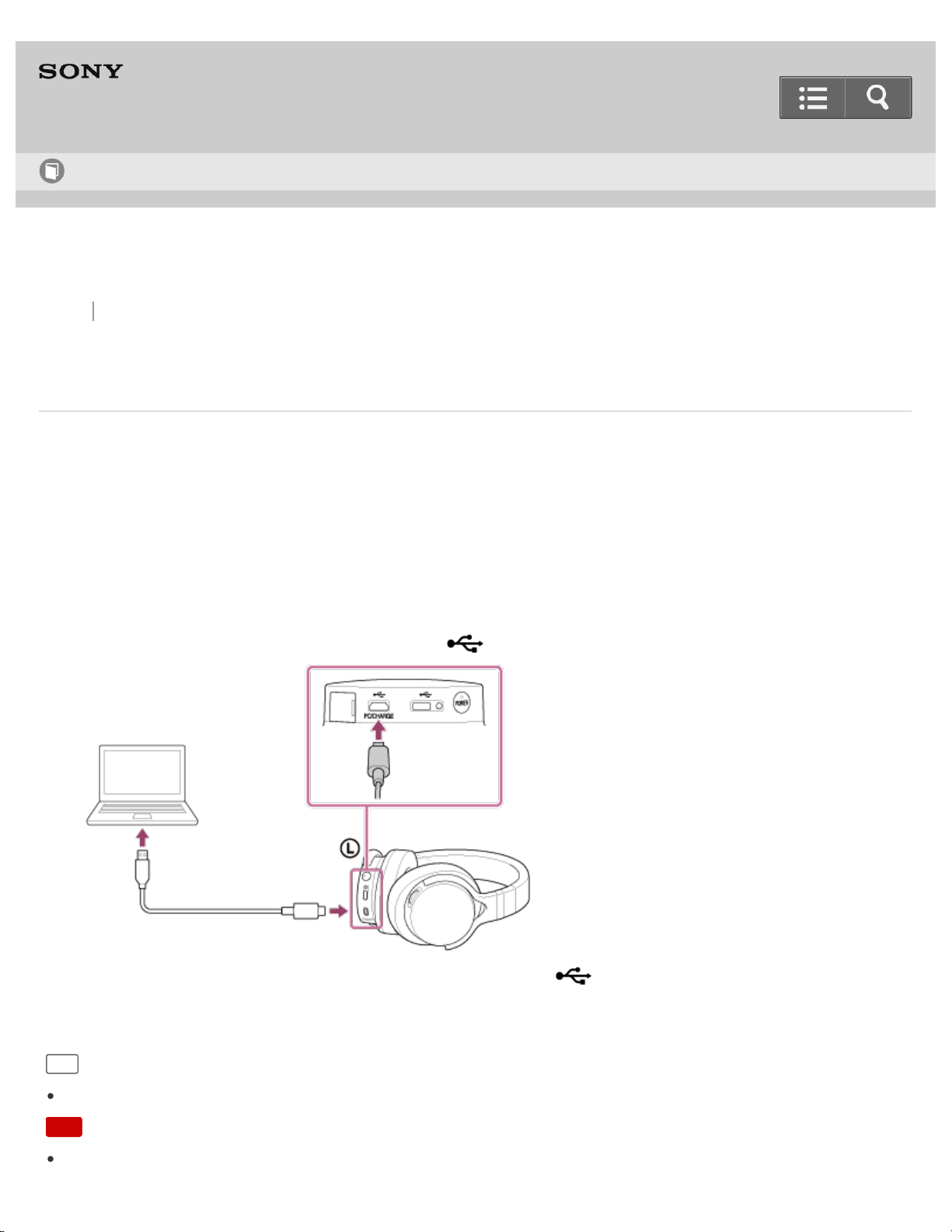
2. Connect the computer to the micro USB port (Type B) (
PC/CHARGE) using the micro-USB cable
(supplied).
Do not connect another device to the micro USB port (Type AB) ( ) when you listen to music that is played
on a computer with the headphones.
Hint
Help Guide
How to Use
56

Go to Page Top
Go to Page Top
The headphones support USB 2.0 (USB 2.0 High Speed) as an audio device.
Note
If you are listening to music loudly with the headphones connected to a computer, the POWER indicator may flash
in green or the sound may be interrupted. This is not a malfunction. In this case, turn the volume down.
The headphones are not guaranteed to operate via a USB hub or USB cable extension. Use the supplied micro-
USB cable only.
Do not disconnect the computer while operating. Before disconnecting the computer from the headphones, stop
playback and turn the headphones off to prevent damage to data.
Digitally broadcast sound cannot be output from a computer’s USB port. In this case, connect the Input jack (stereo
mini) of the headphones to the analog audio output of the computer. For details on connections, see “Connecting to
an analog output device.”
Be careful not to trip over the connecting cable.
Related Topic
Installing the driver software on a Windows computer
Installing “Hi-Res Audio Player” on a computer
Connecting to an analog output device
Compatible operating systems (Windows)
4-547-764-11(1)
Copyright 2014 Sony Corporation
57
Back Back to Top Print
Stereo Headphones
MDR-1ADAC
Connecting to a Mac
You can connect the headphones to a Mac using the micro-USB cable (supplied). The headphones are compatible
with High-Resolution Audio format files, up to 192 kHz/24 bit PCM, DSD 2.8 MHz or DSD 5.6 MHz
*
.
*
The DSD format is converted to the linear PCM format when playing back.
1. Start your Mac.
You need to download and install “Hi-Res Audio Player” on your Mac to listen to High-Resolution Audio format
files on the Mac with the headphones.
2. Connect the Mac to the micro USB port (Type B) ( PC/CHARGE) using the micro-USB cable (supplied).
Do not connect another device to the micro USB port (Type AB) ( ) when you listen to music that is played
on a Mac with the headphones.
Hint
The headphones support USB 2.0 (USB 2.0 High Speed) as an audio device.
Note
If you are listening to music loudly with the headphones connected to a Mac, the POWER indicator may flash in
Help Guide
How to Use
58

Go to Page Top
Go to Page Top
green or the sound may be interrupted. This is not a malfunction. In this case, turn the volume down.
The headphones are not guaranteed to operate via a USB hub or USB cable extension. Use the supplied micro-
USB cable only.
Do not disconnect the Mac while operating. Before disconnecting the Mac from the headphones, stop playback and
turn the headphones off to prevent damage to data.
Digitally broadcast sound cannot be output from a Mac’s USB port. In this case, connect the Input jack (stereo mini)
of the headphones to the analog audio output of the Mac. For details on connections, see “Connecting to an analog
output device.”
Be careful not to trip over the connecting cable.
Related Topic
Installing “Hi-Res Audio Player” on a computer
Connecting to an analog output device
Compatible operating systems (Mac)
4-547-764-11(1)
Copyright 2014 Sony Corporation
59
Back Back to Top Print
Stereo Headphones
MDR-1ADAC
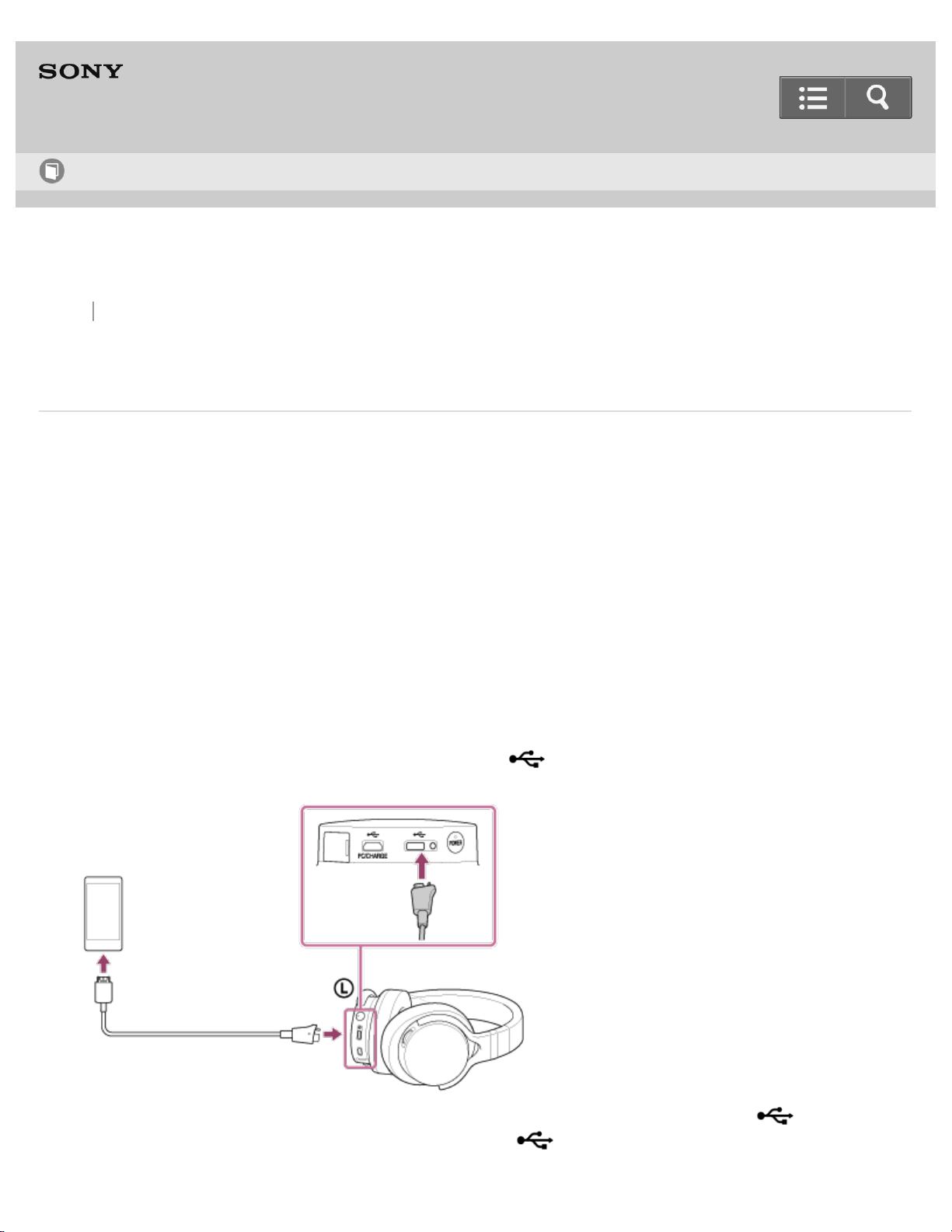
Connecting to a digital output supported WALKMAN
By using the digital cable for the WALKMAN (supplied), the headphones can amplify the signal directly without the
built-in amplifier of the WALKMAN. The headphones are compatible with High-Resolution Audio format files, up to 192
kHz/24 bit PCM, DSD 2.8 MHz or DSD 5.6 MHz
*
.
*
The DSD format is converted to the linear PCM format when playing back.
Compatible WALKMAN models
NWZ-A10 Series, NWZ-ZX1, and NWZ-F880 Series (as of July 2014)*
When connecting a WALKMAN other than the compatible models mentioned above, follow the connecting method
described in “Connecting to WALKMAN models unsupported by digital-out.”
*
Availability depends on the country/region.
1. Turn on the WALKMAN.
2. Connect the WALKMAN to the micro USB port (Type AB) ( ) using the digital cable for WALKMAN
(supplied).
You can listen to music on the WALKMAN by connecting it to the micro USB port (Type AB) ( ) while
charging the headphones with the micro USB port (type B) ( PC/CHARGE).
Help Guide
How to Use
60

Go to Page Top
Go to Page Top
Note
The headphones only support the audio playback function of the WALKMAN.
Turn on your WALKMAN before operating the headphones.
Some operations may not be possible with the headphones even if you use a supported WALKMAN.
The following settings of your WALKMAN may be causing sound distortion. Set these settings off to solve the
problem.
Dynamic Normalizer
Equalizer
VPT (Virtualphones Technology)
DSEE (Digital Sound Enhancement Engine)
Speaker output optimizer
Sound is not output from the headphone jack of the WALKMAN when it is connected to the headphones.
You cannot adjust the volume with the WALKMAN when it is connected to the headphones.
The connected WALKMAN will not be charged when it is connected to the headphones.
Related Topic
Connecting to WALKMAN models unsupported by digital-out
Compatible WALKMAN models
4-547-764-11(1)
Copyright 2014 Sony Corporation
61
Back Back to Top Print
Go to Page Top
Stereo Headphones
MDR-1ADAC
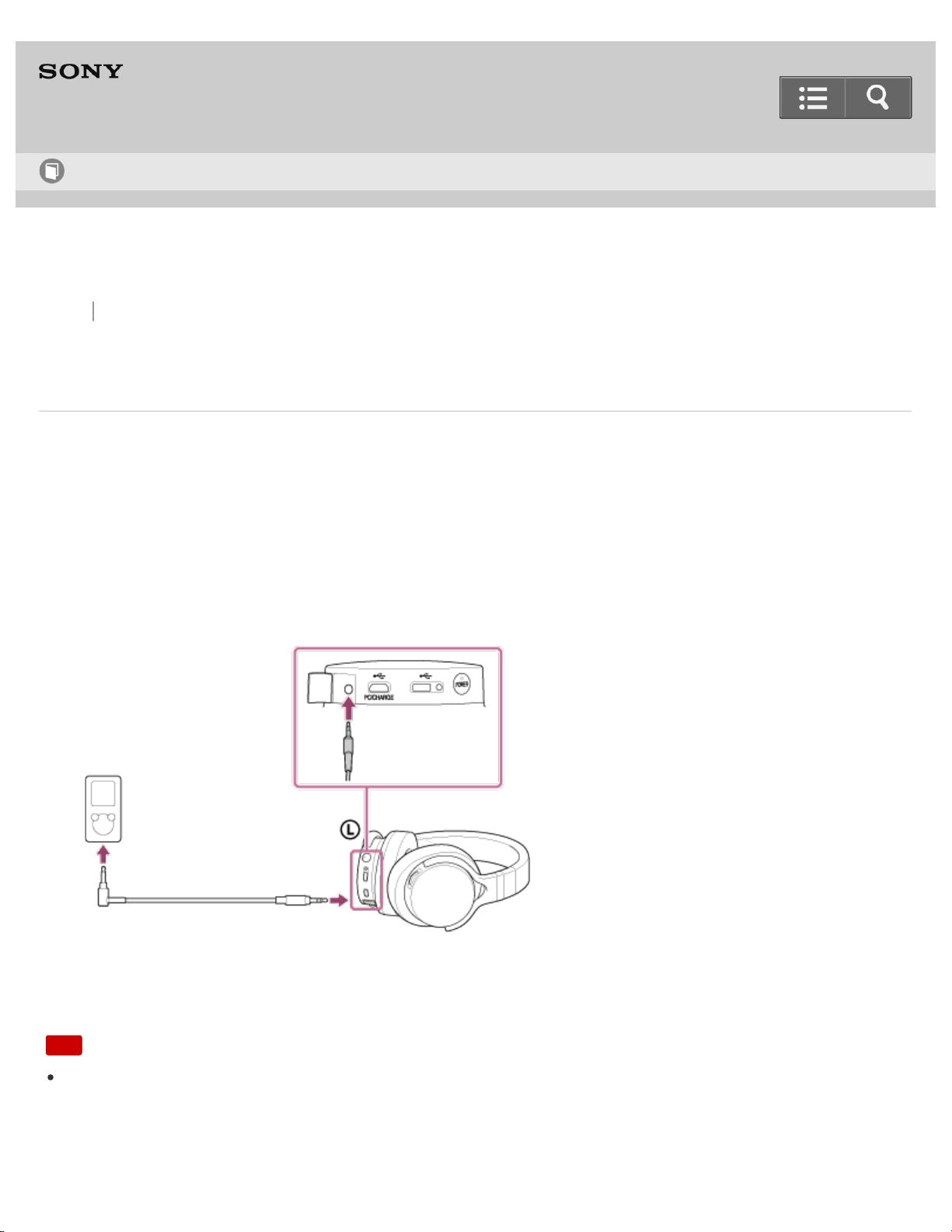
Connecting to WALKMAN models unsupported by digital-out
If the battery is empty or being charged, the headphones can be used by connecting the headphone cable to audio
devices.
Before connecting, turn the volume of your WALKMAN down.
1. Turn on the WALKMAN.
2. Open the Input jack (stereo mini) cover.
3. Connect the WALKMAN to the Input jack (stereo mini) using the headphone cable (supplied).
When the headphone cable is connected, the headphones turn off automatically, and the headphones do not turn
on while the headphone cable is connected.
Note
While using the headphones with the headphone cable, the VOL +/- knob is not available. Adjust the volume of the
connected device.
Help Guide
How to Use
62
Back Back to Top Print
Stereo Headphones
MDR-1ADAC
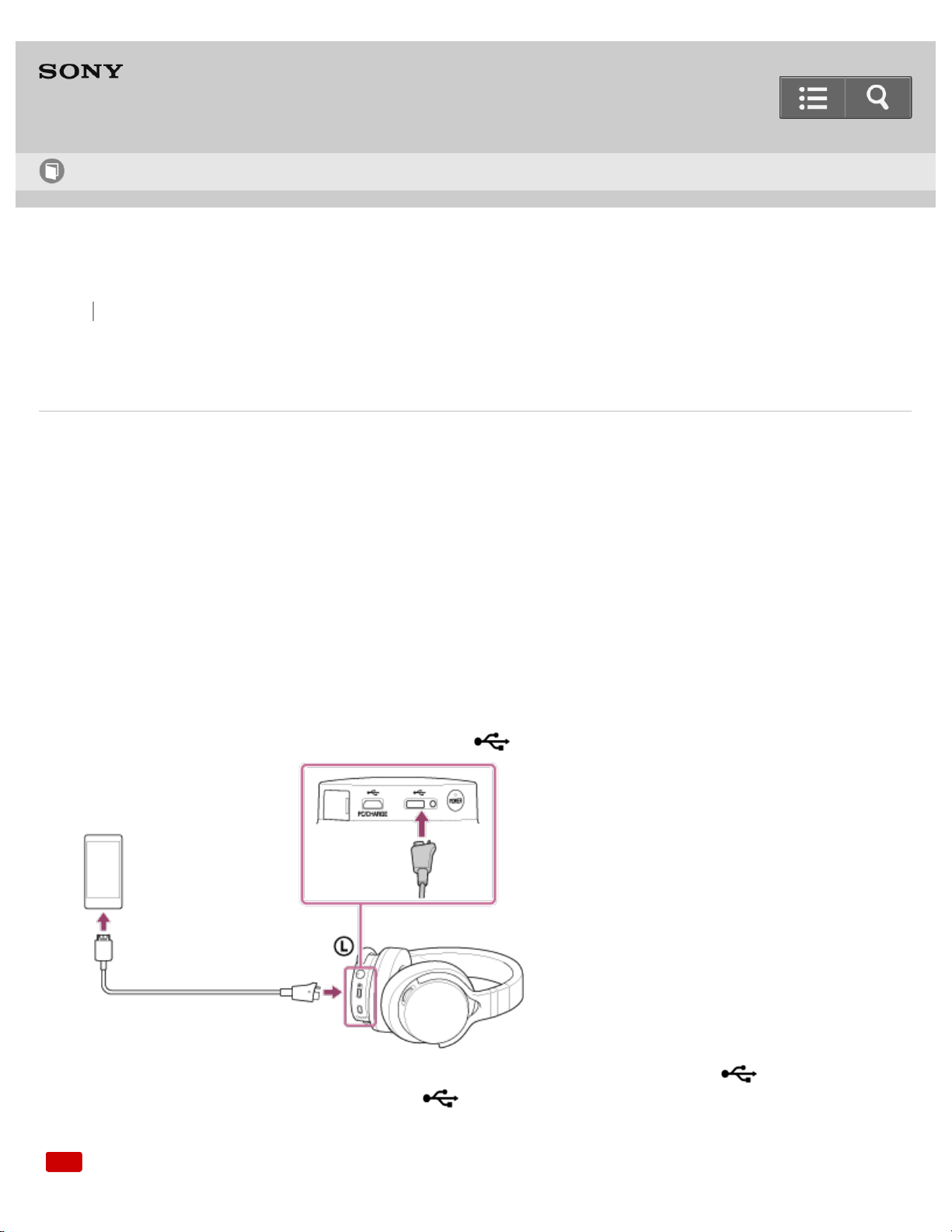
Connecting to a digital output supported Xperia
You can connect the headphones to a digital output supported Xperia using the digital cable for Xperia (supplied).The
headphones are compatible with High-Resolution Audio format files, up to 192 kHz/24 bit PCM, DSD 2.8 MHz or DSD
5.6 MHz
*
.
*
The DSD format is converted to the linear PCM format when playing back.
The compatibility of digital output supported Xperia models depend on the country/region. For the latest compatible
models, access the following URL:
http://www.sony.com/support/
When connecting an Xperia model that is unsupported by the digital-output, follow the connecting method described in
“Connecting to Xperia models unsupported by digital-out.”
1. Turn on the Xperia.
2. Connect the Xperia to the micro USB port (Type AB) ( ) using the digital cable for Xperia (supplied).
You can listen to music on the Xperia by connecting it to the micro USB port (Type AB) (
) while charging the
headphones with the micro USB port (type B) ( PC/CHARGE).
Note
Help Guide
How to Use
63

Go to Page Top
Go to Page Top
The headphones only support the audio playback function of Xperia.
Turn on your Xperia before operating the headphones.
Some operations may not be possible with the headphones even if you use a supported Xperia model.
You cannot adjust the volume of the Xperia when it is connected to the headphones.
Related Topic
Connecting to Xperia models unsupported by digital-out
Compatible Xperia models
4-547-764-11(1)
Copyright 2014 Sony Corporation
64
Back Back to Top Print
Go to Page Top
Stereo Headphones
MDR-1ADAC
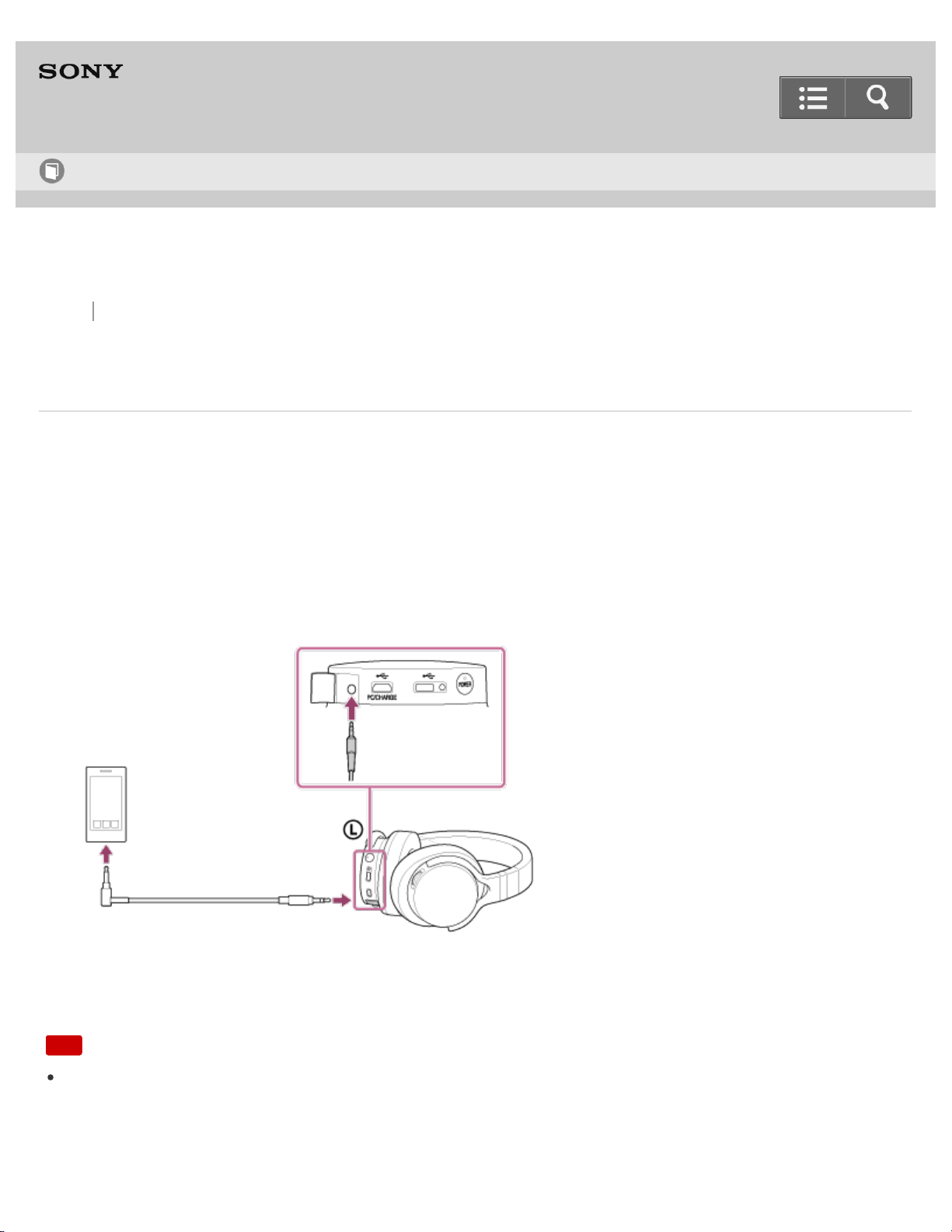
Connecting to Xperia models unsupported by digital-out
If the battery is empty or being charged, the headphones can be used by connecting the headphone cable to audio
devices.
Before connecting, turn the volume of your Xperia down.
1. Turn on the Xperia.
2. Open the Input jack (stereo mini) cover.
3. Connect the Xperia to the Input jack (stereo mini) using the headphone cable (supplied).
When the headphone cable is connected, the headphones turn off automatically, and the headphones do not turn
on while the headphone cable is connected.
Note
While using the headphones with the headphone cable, the VOL +/- knob is not available. Adjust the volume of the
connected device.
Help Guide
How to Use
65
Back Back to Top Print
Stereo Headphones
MDR-1ADAC
Connecting to an iPhone/iPad/iPod
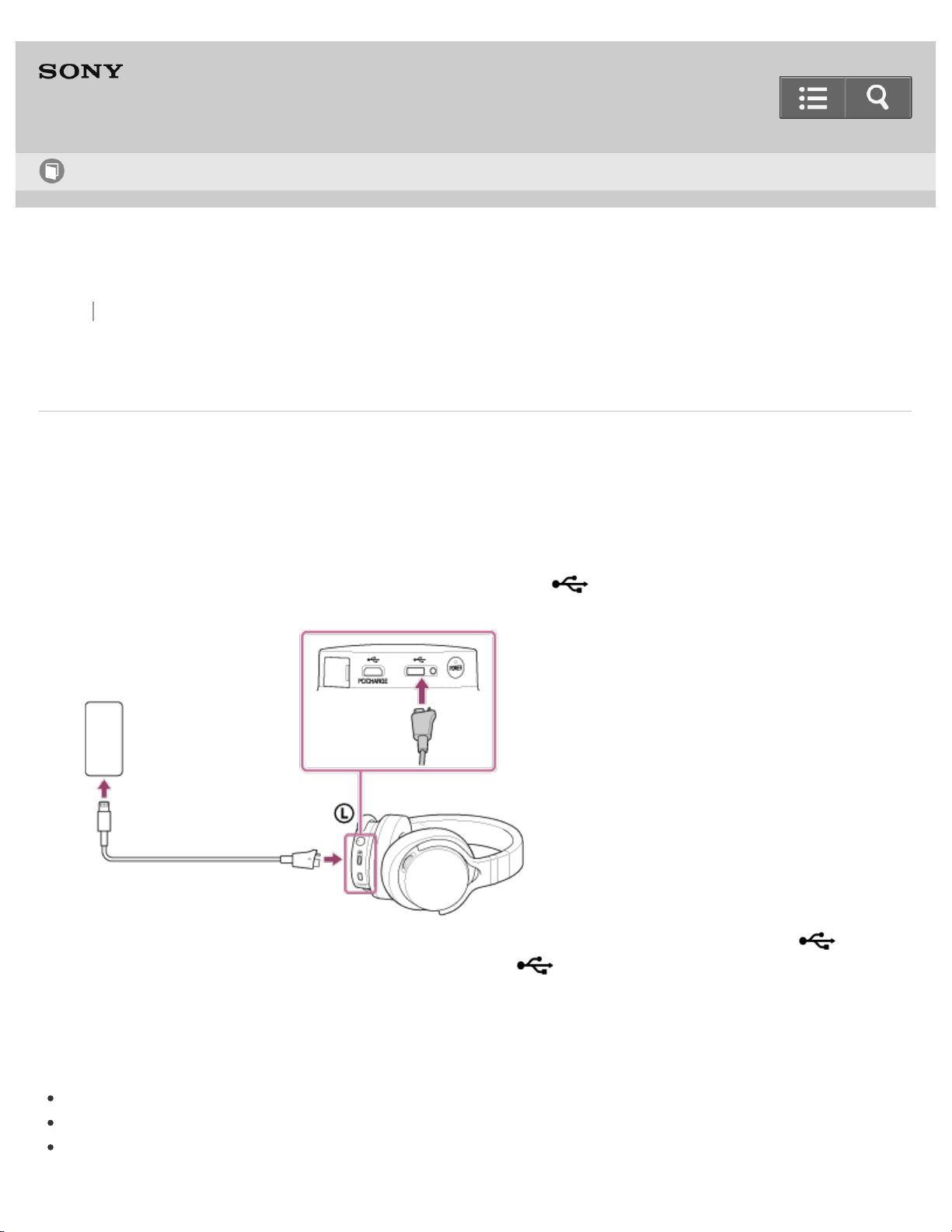
You can connect the headphones to an iPhone/iPad/iPod using the Lightning connector cable (supplied). For details
on compatible models, see “Compatible iPhone/iPad/iPod models.”
The headphones are compatible with High-Resolution Audio format files, up to 44.1 kHz, 48 kHz/16 bit PCM.
1. Turn on the iPhone/iPad/iPod.
2. Connect the iPhone/iPad/iPod to the micro USB port (Type AB) ( ) using the Lightning connector cable
(supplied).
You can listen to music on the iPhone/iPad/iPod by connecting it to the micro USB port (Type AB) ( ) while
charging the headphones with the micro USB port (type B) ( PC/CHARGE).
Compatible iPhone/iPad/iPod models
You can use the headphones with only the following models. Update your iPhone, iPad, or iPod to the latest software
before use. (as of July 2014)
iPhone 5s
iPhone 5c
iPhone 5
Help Guide
How to Use
66

Go to Page Top
Go to Page Top
iPad Air
iPad mini with Retina display
iPad (4th generation)
iPad mini
iPod touch (5th generation)
iPod nano (7th generation)
Note
If noise is generated, turn off the connected iPhone/iPad/iPod, then turn it on again.
The headphones only support the audio playback function of an iPhone/iPad/iPod.
You cannot transfer music to your iPhone/iPad/iPod from the headphones.
Do not connect an iPhone/iPad/iPod that is not supported. The headphones are not guaranteed to work with an
unsupported iPhone/iPad/iPod.
If you connect an iPhone/iPad/iPod that is not equipped with the Lightning connector, see “Connecting to an analog
output device.”
Some operations may not be possible with the headphones, even if you use a supported iPhone/iPad/iPod model.
Depending on the versions of the software of iPhone/iPad/iPod, operations may not possible even if the
headphones are connected with the iPhone/iPad/iPod.
Sony is not liable for damage/erasure of recorded data caused using an iPhone/iPad/iPod with the headphones.
Do not disconnect the iPhone/iPad/iPod while operating. Before disconnecting the iPhone/iPad/iPod from the
headphones, stop playback and turn the headphones off to prevent damage to data.
If the sound is distorted, set the equalizer to “Off” or “Flat” on your iPhone/iPad/iPod.
Turn on your iPhone/iPod touch before connecting it to the headphones.
Depending on an iPhone/iPad/iPod, the sound may become loud suddenly when you adjust the volume.
If the battery level of an iPhone/iPad/iPod is too low, charge it before use.
Music volume may vary depending on the ring tone of the iPhone and its application. Refer to the operation manual
of your iPhone.
If the iPhone is set to silent mode, the ring tone may not be heard from the headphones.
For details on operating an iPhone/iPad/iPod, refer to its operation manual.
An iPhone/iPad/iPod will not be charged when it is connected to the headphones.
Related Topic
Connecting to an analog output device
Compatible iPhone/iPad/iPod models
67
Back Back to Top Print
Stereo Headphones
MDR-1ADAC
Connecting to an analog output device
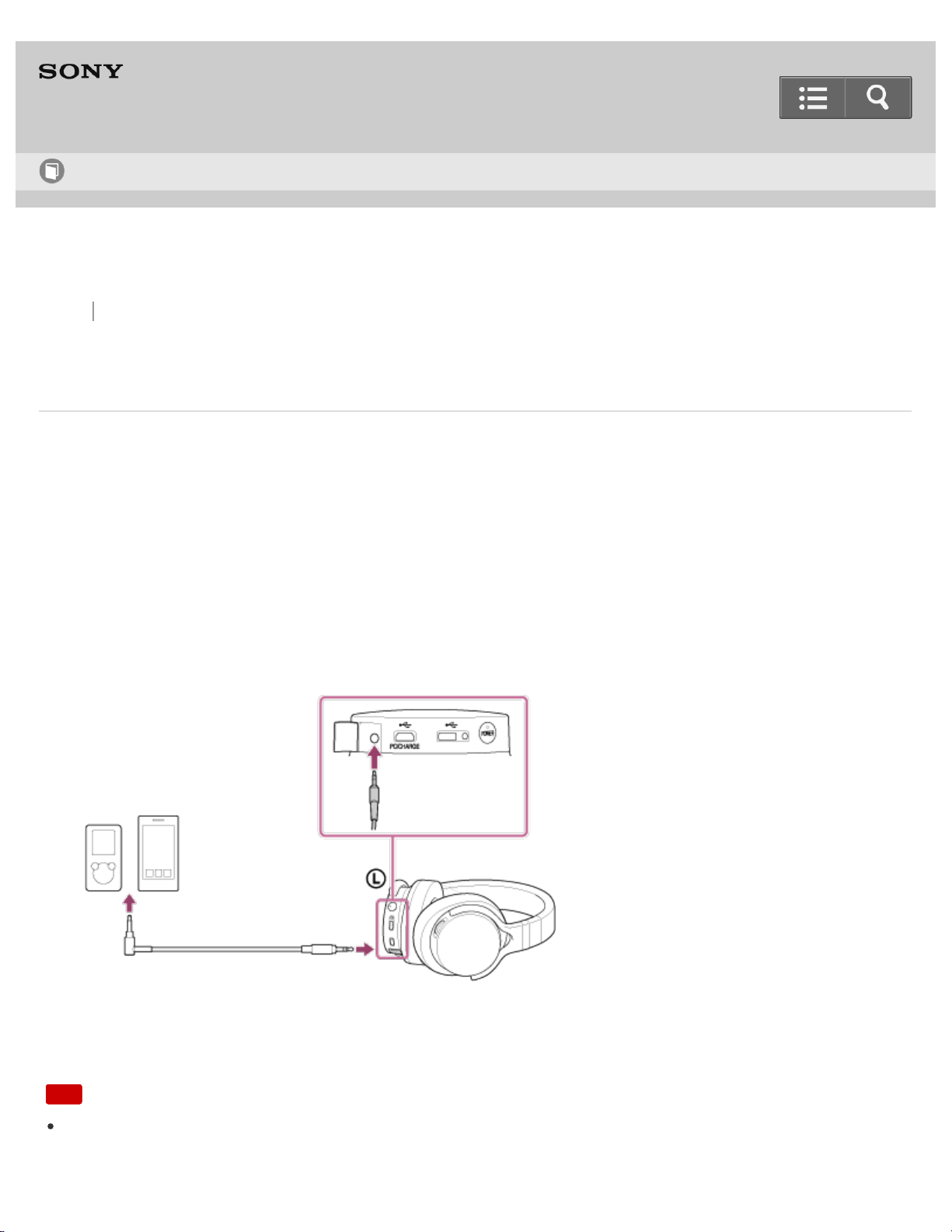
You can connect the headphones to an analog output device, such as a smartphone or portable music player, using
the headphone cable (supplied).
If the battery is empty or being charged, the headphones can be used by connecting the headphone cable to audio
devices.
Before connecting, turn the volume of your device down.
1. Turn on the device.
2. Open the Input jack (stereo mini) cover.
3. Connect the device to the Input jack (stereo mini) using the headphone cable (supplied).
When the headphone cable is connected, the headphones turn off automatically, and the headphones do not turn
on while the headphone cable is connected.
Note
While using the headphones with the headphone cable, the VOL +/- knob is not available. Adjust the volume of the
connected device.
Help Guide
How to Use
68
Back Back to Top Print
Stereo Headphones
MDR-1ADAC
Listening to music with the headphones
You can listen to music from an audio device connected to the headphones by turning them on. When you connect the
headphones with an audio device using the headphone cable (supplied), there is no need to turn on the headphones. If
the battery is empty or being charged, the headphones can be used by connecting the headphone cable to audio
devices.
1. Connect an audio device to the headphones.
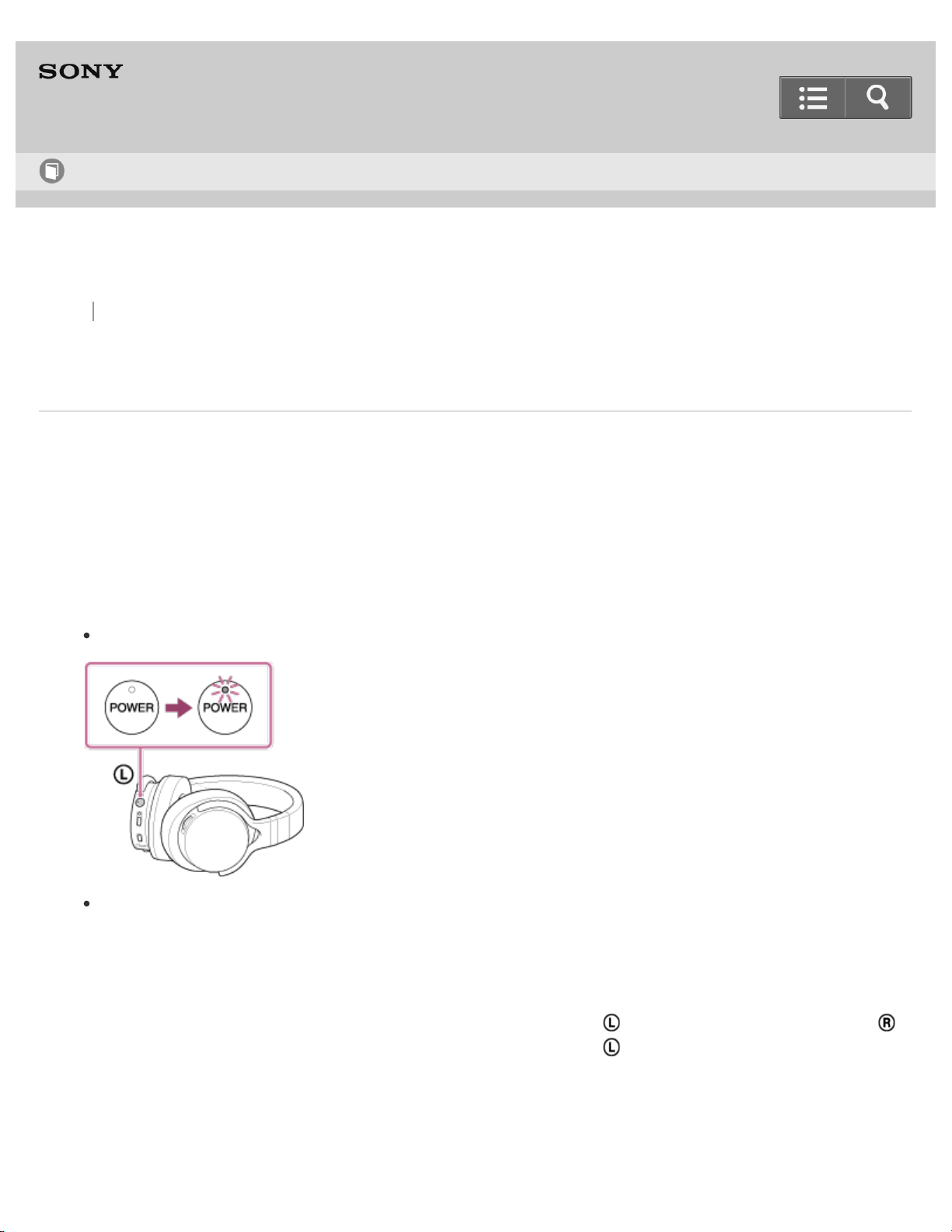
2. Press and hold the POWER button for about 2 seconds to turn on the headphones.
The POWER indicator lights up in green after it flashes.
The headphones do not turn on while the headphone cable is connected.
When you listen to music from an audio device connected with the headphone cable, there is no need to turn
on the headphones.
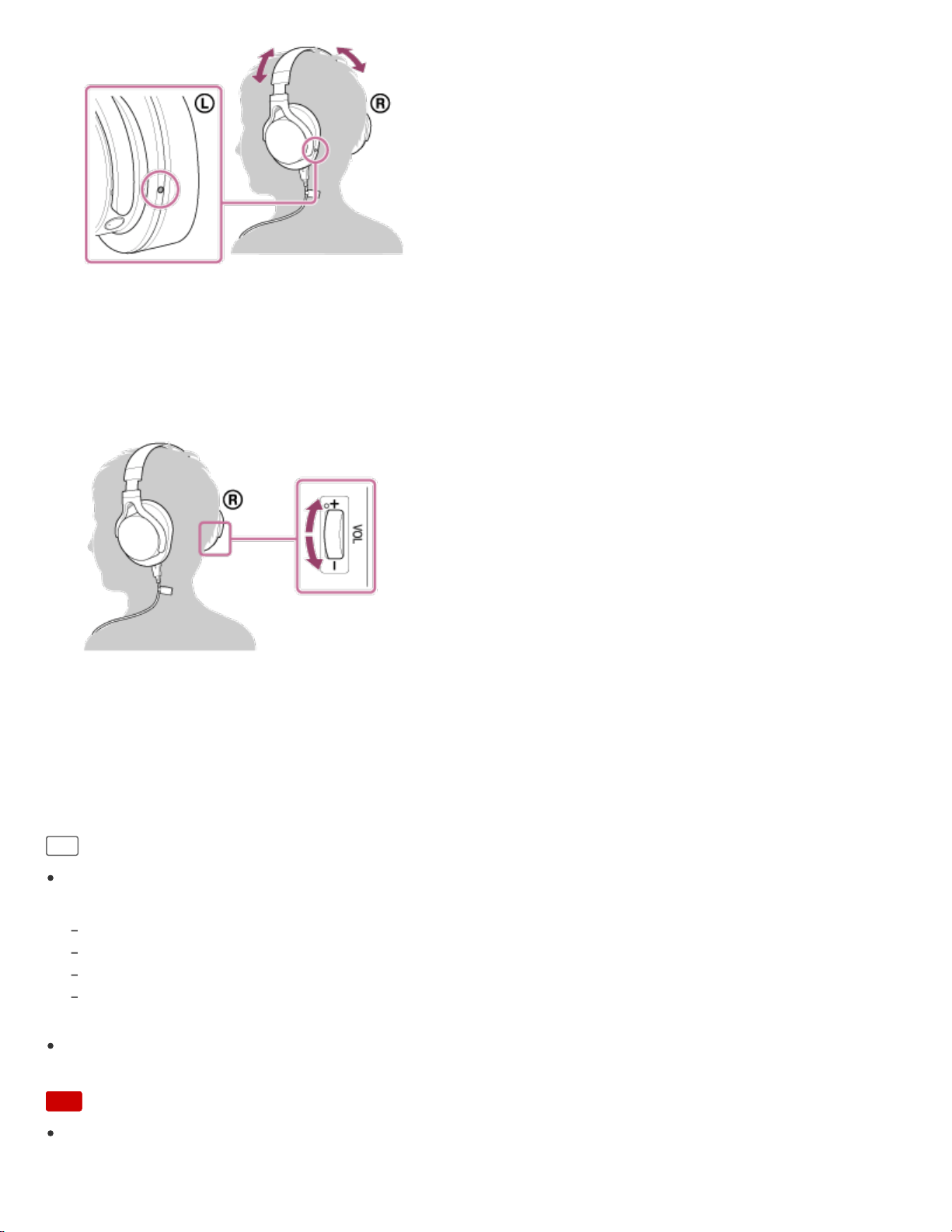
3. Wear the headphones
Extend the headband to adjust the length. Put the headphones with the
indication on your left ear and the
indication on your right ear then place the headset over your head. The side has a tactile dot.
Help Guide
How to Use
69
4. Start playback on the connected audio device.
When playing High-Resolution Audio format files on your computer with the headphones, download and install
“Hi-Res Audio Player.”
5. Adjust the volume with the VOL +/- knob.
The + side of the VOL +/- knob has a tactile dot. Use it as a guide for operation.
While using the headphones with the headphone cable, the VOL +/- knob is not available. Adjust the volume of
the connected device.
After using the headphones
Press and hold the POWER button for about 2 seconds until the POWER indicator shuts off to turn off the
headphones.
Hint
When the headphones are turned on, you can check the battery level by the number of times that the POWER
indicator flashes in green.
Flashes three times: Substantially charged
Flashes twice: Half charged
Flashes once: Battery level is low. It is necessary to charge the battery.
Always flashing: The POWER indicator flashes in green after it beeps. The headphones do not output sound in this state
and will turn off automatically about 30 seconds later.
When connecting a device such as a smartphone or portable audio player, adjust the volume on the connected
device beforehand. Depending on the device, audio output settings may be required.
Note
If you turn the volume up too high, it may damage your hearing. Be careful not to turn the volume up too high.
70


Back Back to Top Print
Go to Page Top
Go to Page Top
Stereo Headphones
MDR-1ADAC
Compatible WALKMAN models
Supporting models (as of July 2014)
For the latest compatible models, access the following URL:
http://www.sony.com/support/
Digital output supported WALKMAN
NWZ-A10 Series
NWZ-ZX1
NWZ-F880 Series
Note
When connecting a WALKMAN other than the compatible models mentioned above, follow the connecting method
described in “Connecting to WALKMAN models unsupported by digital-out.”
Related Topic
Connecting to WALKMAN models unsupported by digital-out
4-547-764-11(1)
Copyright 2014 Sony Corporation
Help Guide
How to Use
72

Back Back to Top Print
Go to Page Top
Go to Page Top
Stereo Headphones
MDR-1ADAC
Compatible Xperia models
For the latest compatible models, access the following URL:
http://www.sony.com/support/
Related Topic
Connecting to Xperia models unsupported by digital-out
4-547-764-11(1)
Copyright 2014 Sony Corporation
Help Guide
How to Use
73
Back Back to Top Print
Go to Page Top
Stereo Headphones
MDR-1ADAC
Compatible iPhone/iPad/iPod models
iPhone/iPad/iPod models that can be used with the headphones are shown below. (as of July 2014)
Update the software of your iPhone/iPad/iPod to the latest version before using it with the headphones.
For the latest iPhone/iPad/iPod compatible models, access the following URL:
http://www.sony.com/support/
iPhone 5s
iPhone 5c
iPhone 5
iPad Air
iPad mini with Retina display
iPad (4th generation)
iPad mini
iPod touch (5th generation)
iPod nano (7th generation)
Note
If you connect an iPhone/iPad/iPod that is not equipped with the Lightning connector, see “Connecting to an analog
output device.”
Some operations may not be possible with the headphones even if you use a supported iPhone/iPad/iPod model.
Depending on the versions of the software of iPhone/iPad/iPod, operations may not possible even if the
headphones are connected with the iPhone/iPad/iPod.
Sony cannot accept responsibility in the event that data recorded to an audio device is lost or damaged when using
the device connected to the headphones. And Sony is not responsible for reproduction or restoring of lost or
damaged data in any circumstances.
Related Topic
Help Guide
How to Use
74


Back Back to Top Print
Stereo Headphones
MDR-1ADAC
Compatible operating systems (Windows)
Supporting Operating Systems
Windows 8.1
Windows 8.1 Pro
Windows 8
Windows 8 Pro
Windows 7 Starter (SP1 or later)
Windows 7 Home Basic (SP1 or later)
Windows 7 Home Premium (SP1 or later)
Windows 7 Professional (SP1 or later)
Windows 7 Ultimate (SP1 or later)
Windows Vista Home Basic (SP2 or later)
Windows Vista Home Premium (SP2 or later)
Windows Vista Business (SP2 or later)
Windows Vista Ultimate (SP2 or later)
CPU
Intel Core 2 Processor 1.6 GHz or higher
Memory
1 GB or higher
USB
USB port (USB 2.0 High Speed)
One of the above OS needs to be installed to the computer as a default OS.
The headphones are not guaranteed to operate with all computers.
The headphones are not guaranteed to operate with home built computers, operating systems that are personally
upgraded, or multiple operating systems.
The headphones are not guaranteed to operate with functions such as system suspend, sleep, or hibernation on
any computer.
Help Guide
How to Use
76

Back Back to Top Print
Go to Page Top
Stereo Headphones
MDR-1ADAC
Compatible operating systems (Mac)
Supporting Operating Systems
Mac OS X (v10.6.8 or later)
CPU
Intel Core 2 Processor 1.6 GHz or higher
Memory
1 GB or higher
USB
USB port (USB 2.0 High Speed)
One of the above OS needs to be installed to the computer as a default OS.
The headphones are not guaranteed to operate with all computers.
The headphones are not guaranteed to operate with home built computers, operating systems that are personally
upgraded, or multiple operating systems.
The headphones are not guaranteed to operate with functions such as standby, sleep, or hibernation on any
computer.
4-547-764-11(1)
Copyright 2014 Sony Corporation
Help Guide
How to Use
77

Back Back to Top Print
Stereo Headphones
MDR-1ADAC
Precautions
Notes on use on an airplane
Do not use the headphones when use of electronic equipment is prohibited or when use of personal headphones for
in-flight entertainment services is prohibited.
Notes on charging the headphones
Charge the headphones using the supplied micro-USB cable. Otherwise, it may cause a malfunction.
Charge in an environmental temperature of between 5°C and 35°C. Otherwise, the battery may not fully charge.
If you have not used the headphones for a long time, the life of the rechargeable battery may become short. This will
improve when you repeat the charging and discharging process several times.
Do not store the headphones in hot places for a long time. If storing them for more than a year, charge the battery
every six months to prevent excessive discharge.
For system requirements for a computer that can charge the battery using USB, see ”Compatible operating systems
(Windows)” or ”Compatible operating systems (Mac).”
If you recharge the headphones by connecting to an AC outlet, use the separately-sold USB AC Adaptor AC-UD20
(sold separately). For details, refer to the operating instructions supplied with the adaptor.
Notes on handling
Because the headphones are designed to fit closely in your ears, forcing them against your ears may result in
eardrum damage. Avoid using the headphones where they are liable to be struck by people or other objects, such
as a thrown ball, etc.
Pressing the headphones against your ears may produce a diaphragm click sound. This is not a malfunction.
Clean the headphones with a soft dry cloth.
Do not leave the plug dirty otherwise the sound may be distorted.
Be sure to consult a Sony dealer when the earpads become dirty or damaged, or when the headphones require
repair work.
Do not leave the headphones in a location subject to direct sunlight, heat, or moisture.
Do not subject the headphones to excessive shock.
Handle the driver units carefully.
Help Guide
How to Use
78

Go to Page Top
Go to Page Top
If you feel drowsy or sick while using the headphones, stop use immediately.
Note on static electricity
In particularly dry air conditions, noise or sound skipping may occur, or mild tingling may be felt on your ears. This is a
result of static electricity accumulated in the body, and not a malfunction of the headphones.
The effect can be minimized by wearing clothes made from natural materials.
About replacement ear cushions
Optional replacement ear cushions can be ordered from your nearest Sony dealer.
Related Topic
Compatible operating systems (Windows)
Compatible operating systems (Mac)
4-547-764-11(1)
Copyright 2014 Sony Corporation
79

Back Back to Top Print
Go to Page Top
Stereo Headphones
MDR-1ADAC
Trademarks
“WALKMAN” and “WALKMAN” logo are registered trademarks of Sony Corporation.
“Xperia” and “Xperia Tablet” are registered trademarks of Sony Mobile Communications AB.
iPad, iPhone, iPod, iPod classic, iPod nano, and iPod touch are trademarks of Apple Inc., registered in the U.S. and
other countries.
“Made for iPod,” “Made for iPhone,” and “Made for iPad” mean that an electronic accessory has been designed to
connect specifically to iPod, iPhone or iPad, respectively, and has been certified by the developer to meet Apple
performance standards. Apple is not responsible for the operation of this device or its compliance with safety and
regulatory standards.
Macintosh and Mac OS are trademarks of Apple Inc., registered in the U.S. and other countries.
Microsoft, Windows and Windows Vista are registered trademarks or trademarks of Microsoft Corporation in the
United States and/or other countries.
All other trademarks and registered trademarks are trademarks or registered trademarks of their respective holders.
In this manual, ™ and ® marks are not specified.
4-547-764-11(1)
Copyright 2014 Sony Corporation
Help Guide
How to Use
80

Back Back to Top Print
Go to Page Top
Stereo Headphones
MDR-1ADAC
Customer support websites
http://www.sony.com/support/
Access the support home page to get the information about the supported models, software update or troubleshooting,
etc.
4-547-764-11(1)
Copyright 2014 Sony Corporation
Help Guide
How to Use
81

Back Back to Top Print
Go to Page Top
Go to Page Top
Stereo Headphones
MDR-1ADAC
What can I do to solve a problem?
If the headphones do not function as expected, try the following steps to resolve the issue.
Find the symptoms of the issue in this Help Guide and try any corrective actions listed.
Look up information on the issue on the customer support website.
If the operations above do not work, consult your nearest Sony dealer.
Related Topic
Customer support websites
4-547-764-11(1)
Copyright 2014 Sony Corporation
Help Guide
Troubleshooting
82
Back Back to Top Print
Go to Page Top
Stereo Headphones
MDR-1ADAC
Unable to turn on the headphones/The battery life becomes short.
Charge the battery of the headphones.
When the battery life is reduced to half, the battery is approaching the end of its service life. Consult your nearest
Sony dealer for a replacement.
When the headphone cable is connected to the Input jack (stereo mini) of the headphones, the headphones do not
turn on.
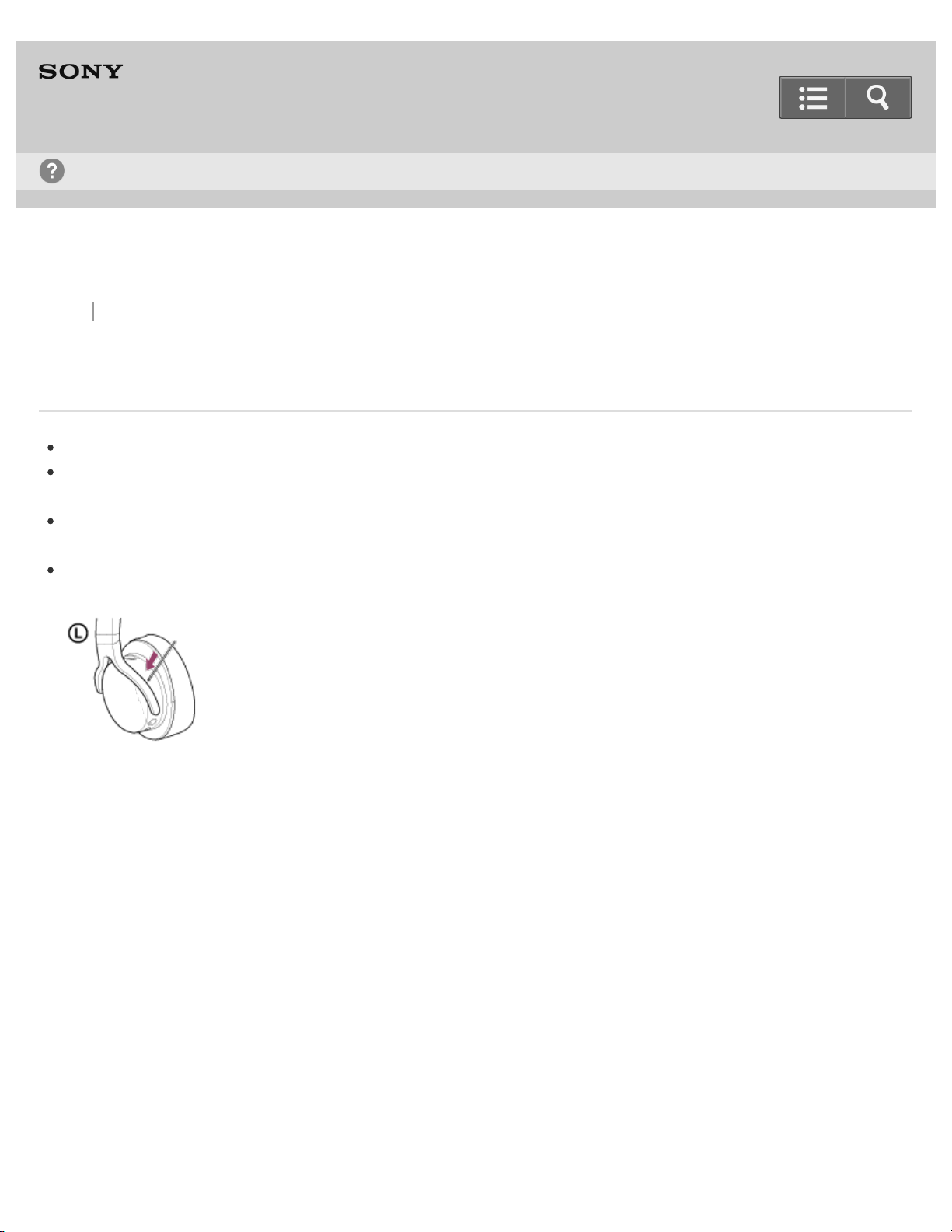
Reset the headphones.
Insert a small pin, etc., into the hole, and push the RESET button until you feel a click.
4-547-764-11(1)
Copyright 2014 Sony Corporation
Help Guide
Troubleshooting
83

Back Back to Top Print
Go to Page Top
Stereo Headphones
MDR-1ADAC
Unable to charge the battery.
Turn off the headphones and charge the battery again.
Check that the headphones and your computer are firmly connected using the micro-USB cable (supplied).
Check that the computer is turned on and not in standby, sleep, or hibernation mode.
Check that the headphones and the computer are directly connected, and not via a USB hub.
Try the USB connection procedure again in cases other than those stated above.
The USB port of the connected computer may have a problem. Connect the headphones to another USB port of the
computer if available.
A USB AC adaptor that is not recommended is being used.
The battery is fully charged.
If the battery is fully charged, the POWER indicator may blink in red and go off, and charging may not start. This is
not a malfunction.
If the headphones had not been used for a long time, it may take a while to light up the POWER indicator in red
when the headphones are connected to your computer or an AC outlet to charge the battery. In this case, do not
disconnect the micro-USB cable from the headphones, and wait until the POWER indicator lights up in red.
When Windows 8.1 is used for your computer, update your system to the latest version via Windows update.
4-547-764-11(1)
Copyright 2014 Sony Corporation
Help Guide
Troubleshooting
84

Back Back to Top Print
Go to Page Top
Stereo Headphones
MDR-1ADAC
Charging time is too long.
Check that the headphones and the computer are directly connected, not via a USB hub.
A cable that is not supplied is used.
A USB AC adaptor that is not recommended is used.
4-547-764-11(1)
Copyright 2014 Sony Corporation
Help Guide
Troubleshooting
85
Back Back to Top Print
Go to Page Top
Go to Page Top
Stereo Headphones
MDR-1ADAC
There is no sound.
Check that the headphones and the audio device are connected correctly.
Check that the connected device is turned on.
Check that the headphones are turned on.
If the POWER indicator does not light up in green, charge the battery. When you charge the battery, turn the
headphones off beforehand.
Turn up the volume of the connected device.
Turn up the volume of the headphones.
When the headphones are connected to your computer, see “When connecting to a computer, there is no sound or
the sound is not played back properly.”
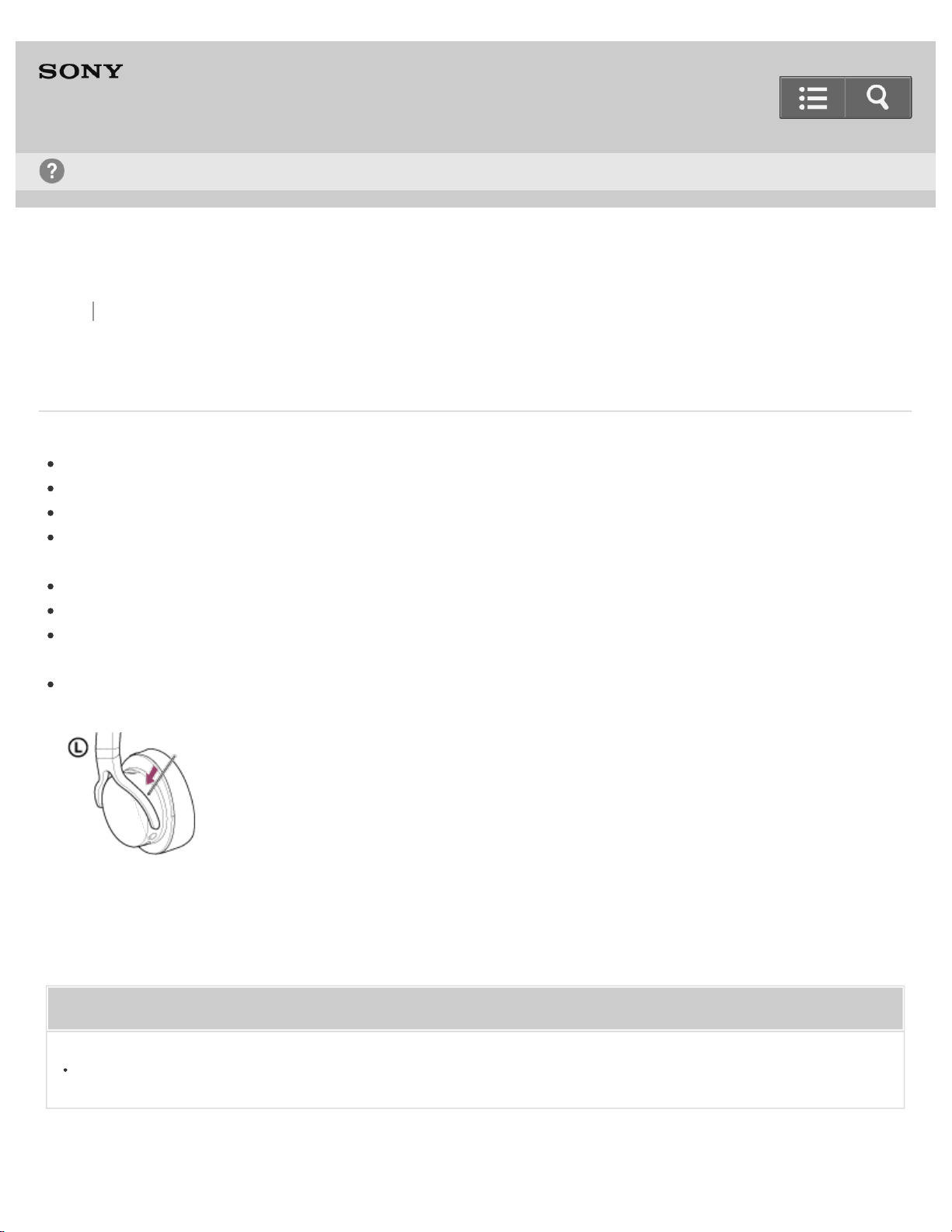
Reset the headphones.
Insert a small pin, etc., into the hole, and push the RESET button until you feel a click.
Related Topic
When connecting to a computer, there is no sound or the sound is not played back properly.
Help Guide
Troubleshooting
86


Back Back to Top Print
Go to Page Top
Stereo Headphones
MDR-1ADAC
The sound is distorted.
When the audio device is connected to the Input jack (stereo mini) of the headphones, turn down the volume of the
connected device.
Set the equalizer setting of the connected device to off.
Charge the battery of the headphones if the battery level is low. When you charge the battery, turn the headphones
off beforehand.
4-547-764-11(1)
Copyright 2014 Sony Corporation
Help Guide
Troubleshooting
88

Back Back to Top Print
Go to Page Top
Stereo Headphones
MDR-1ADAC
Noise is generated.
Connect the headphones and the device directly, not via a USB hub or USB cable extension.
The USB port of the connected computer may have a problem. Connect the headphones to another USB port of the
computer if available.
When the audio device is connected to the Input jack (stereo mini) of the headphones, adjust the volume of the
connected device and turn up the volume of the headphones.
Keep the computer away from the headphones.
Restart the audio playback software.
Turn off the connected audio device then turn it on again.
Noise might occur between the songs because the headphones reproduce an original source authentically with high
sound quality. This is not a malfunction.
4-547-764-11(1)
Copyright 2014 Sony Corporation
Help Guide
Troubleshooting
89

Back Back to Top Print
Go to Page Top
Stereo Headphones
MDR-1ADAC
When connecting to a computer, there is no sound or the sound is not played back properly.
The computer does not recognize the headphones as a USB device.
Restart your computer.
Install the driver software for Windows “Sony USB Device Driver” on your Windows computer.
Turn up the volume of your computer or software.
If the headphones were connected to the computer while using audio playback software, restart the audio playback
software.
When playing High-Resolution Audio format files on your computer with the headphones, use the audio playback
software compatible with the High-Resolution Audio format files, such as “Hi-Res Audio Player.”
When “Hi-Res Audio Player” is not installed, install it on your computer.
If the computer enters standby, sleep, or hibernation mode, while the music is played back using the audio playback
software, restart the audio playback software.
Check that the sound device settings of your computer are correct.
Windows 8/8.1:
Press and hold the [Windows] and [X] keys to display the menu, select the [Control Panel], [Hardware and Sound],
[Sound], [Playback] tab, select [Sony MDR-1ADAC] for the playback device, then click [Set default].
Windows 7/Windows Vista:
Click the [Start] menu, select the [Control Panel], [Hardware and Sound], [Sound], [Playback] tab, select [Sony MDR-
1ADAC] for the playback device, then click [Set default].
Macintosh:
Click the [Apple] menu, select the [System Preferences], [Sound], [Output] tab, then select [MDR-1ADAC] for [Select a
device for sound output].
The volume control of your computer or the audio playback software is set to mute. Cancel the setting.
The CD-ROM drive does not support the digital reproduction function. Use a CD-ROM drive that supports the digital
reproduction function.
Digitally broadcast sound cannot be output from a computer’s USB port. In this case, connect the Input jack (stereo
mini) of the headphones to the analog audio output of the computer.
Help Guide
Troubleshooting
90


Back Back to Top Print
Go to Page Top
Stereo Headphones
MDR-1ADAC
Sound is interrupted when connecting to the computer.
The CPU of your computer is overloaded. Close other applications.
Other USB devices are connected to your computer and being used simultaneously. Quit operating other USB
devices.
4-547-764-11(1)
Copyright 2014 Sony Corporation
Help Guide
Troubleshooting
92