WD19HN1108
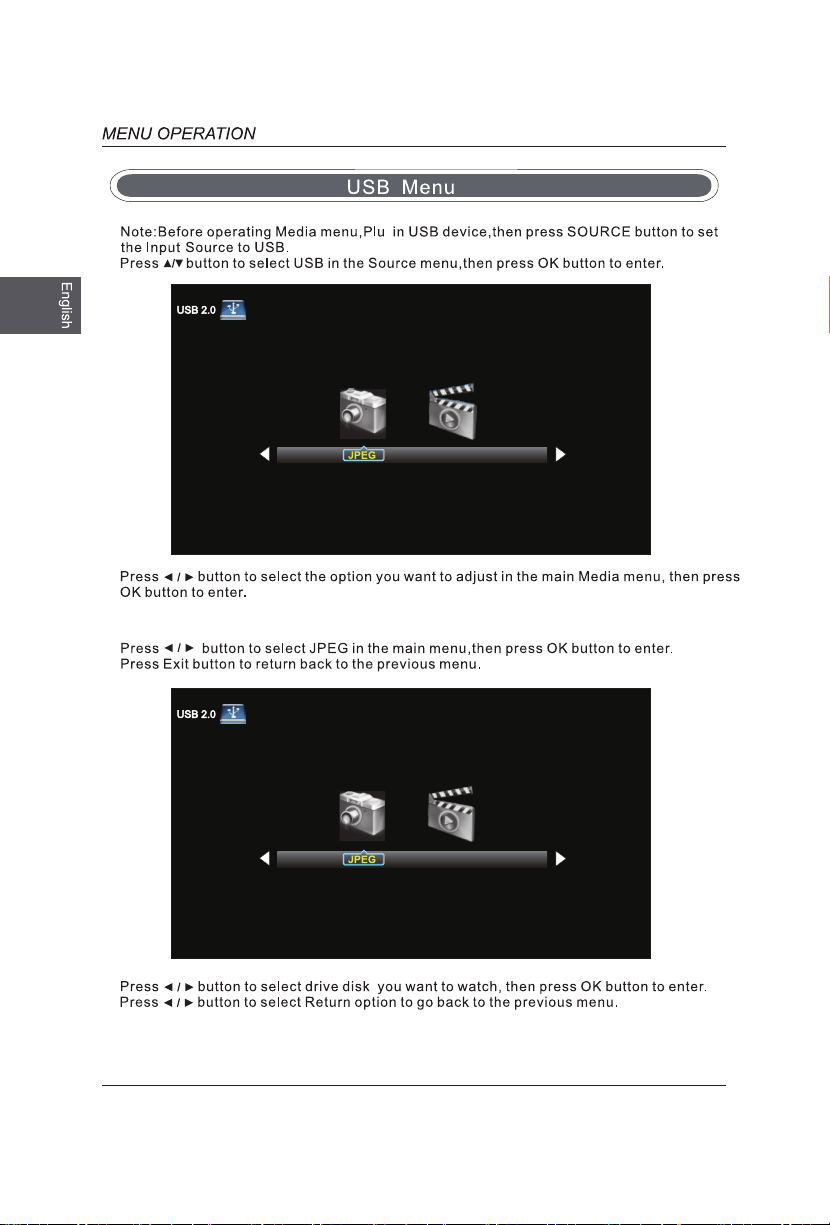
USB Menu
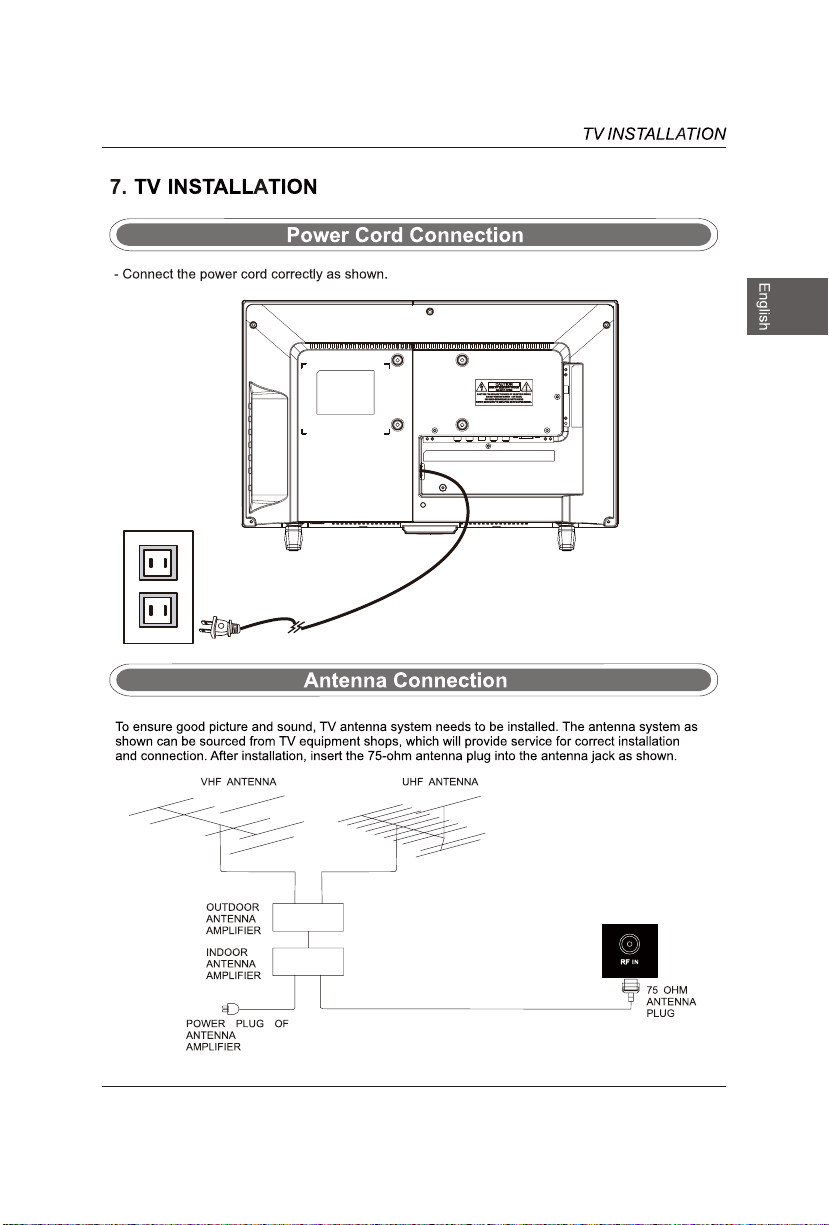
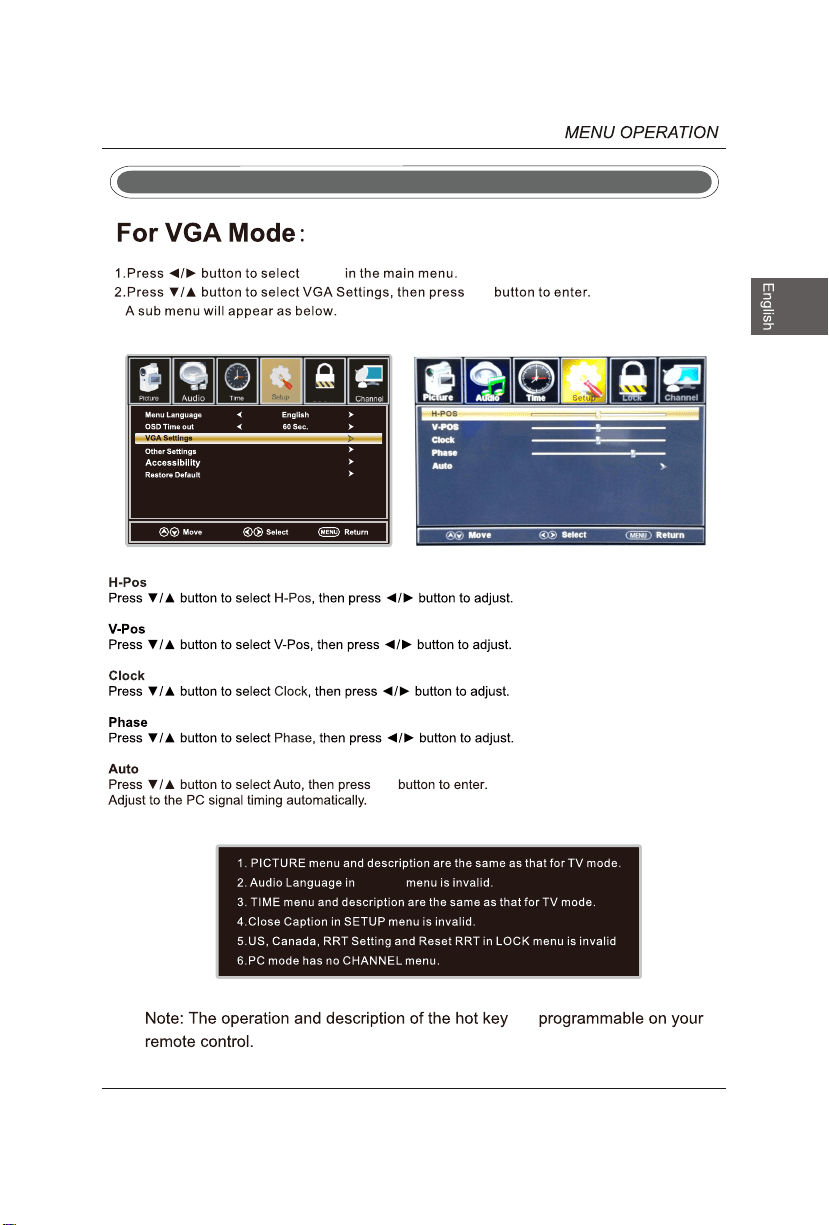
VGA(PC) Connection
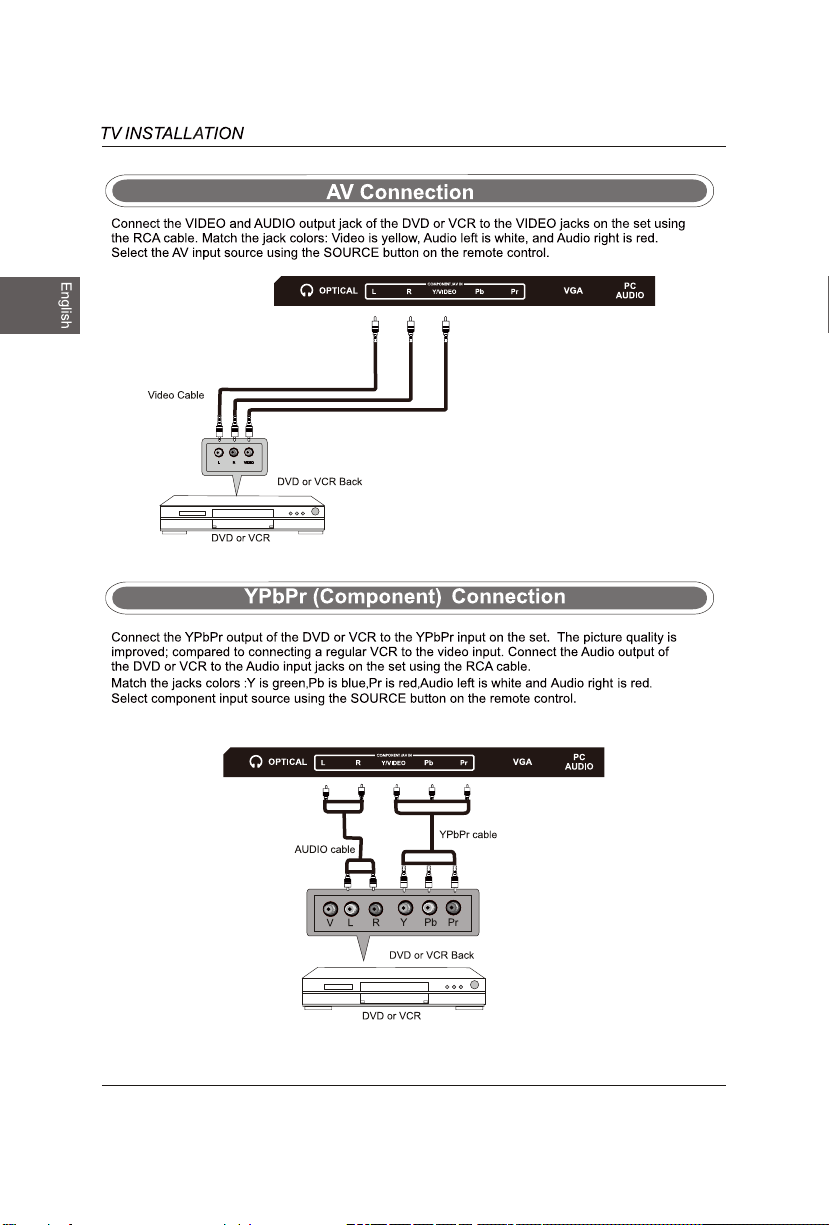
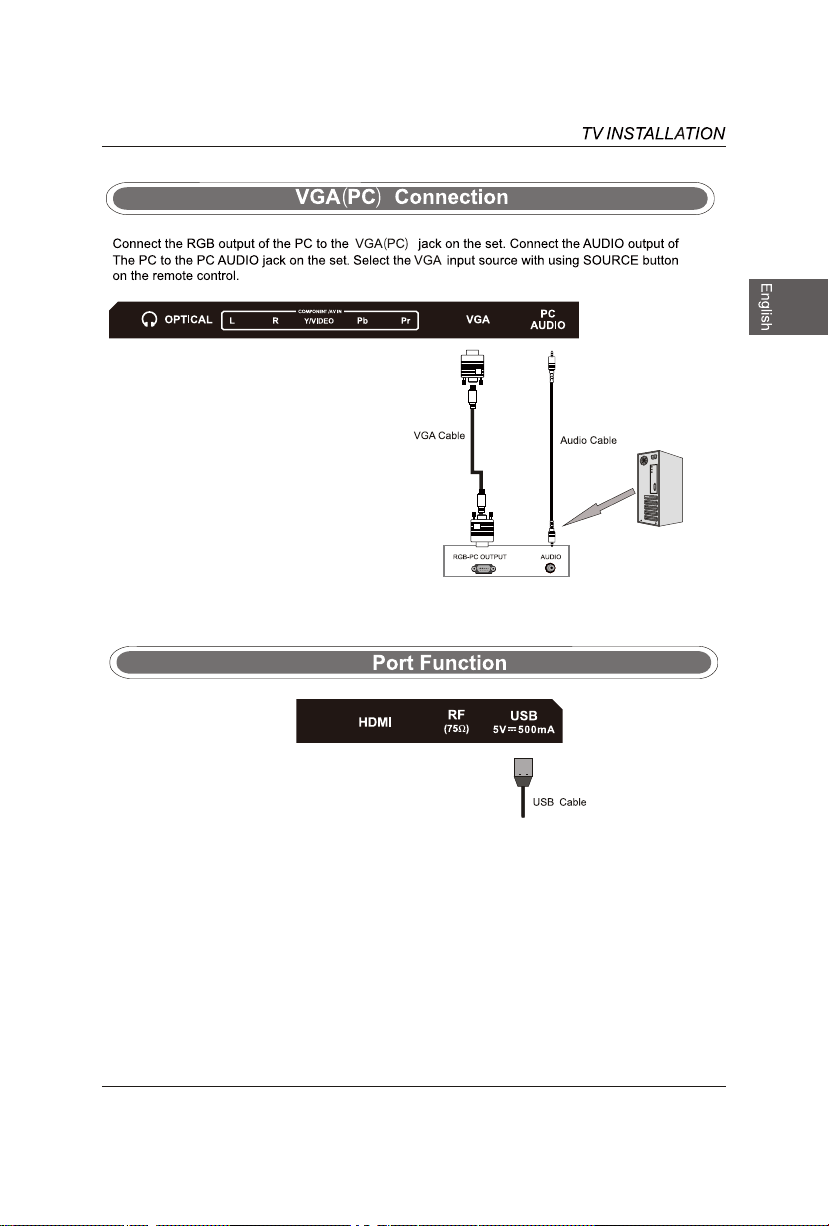
USB Port Function
1
Audio
2
5.Do not use this apparatus near water
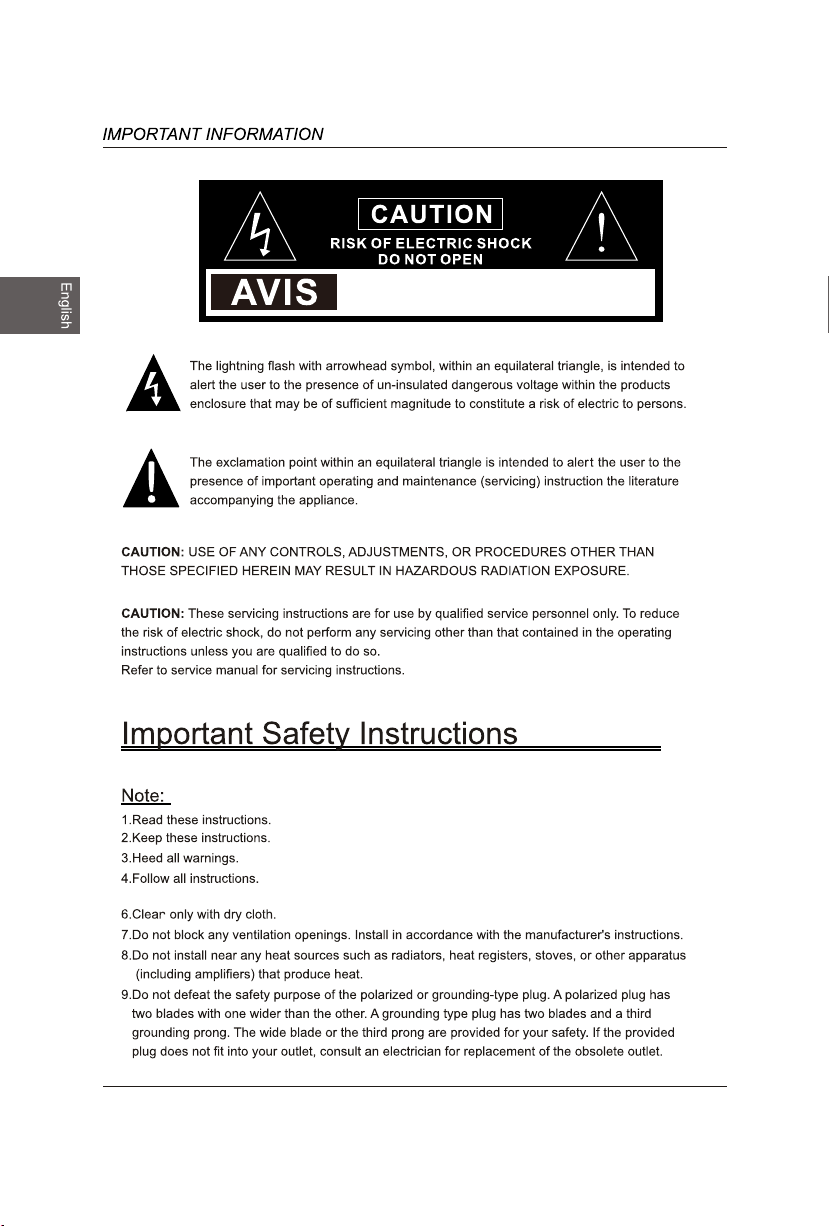
RISQUE DE CHOC ELECTRIQUE NE
PAS OUVRIR
3
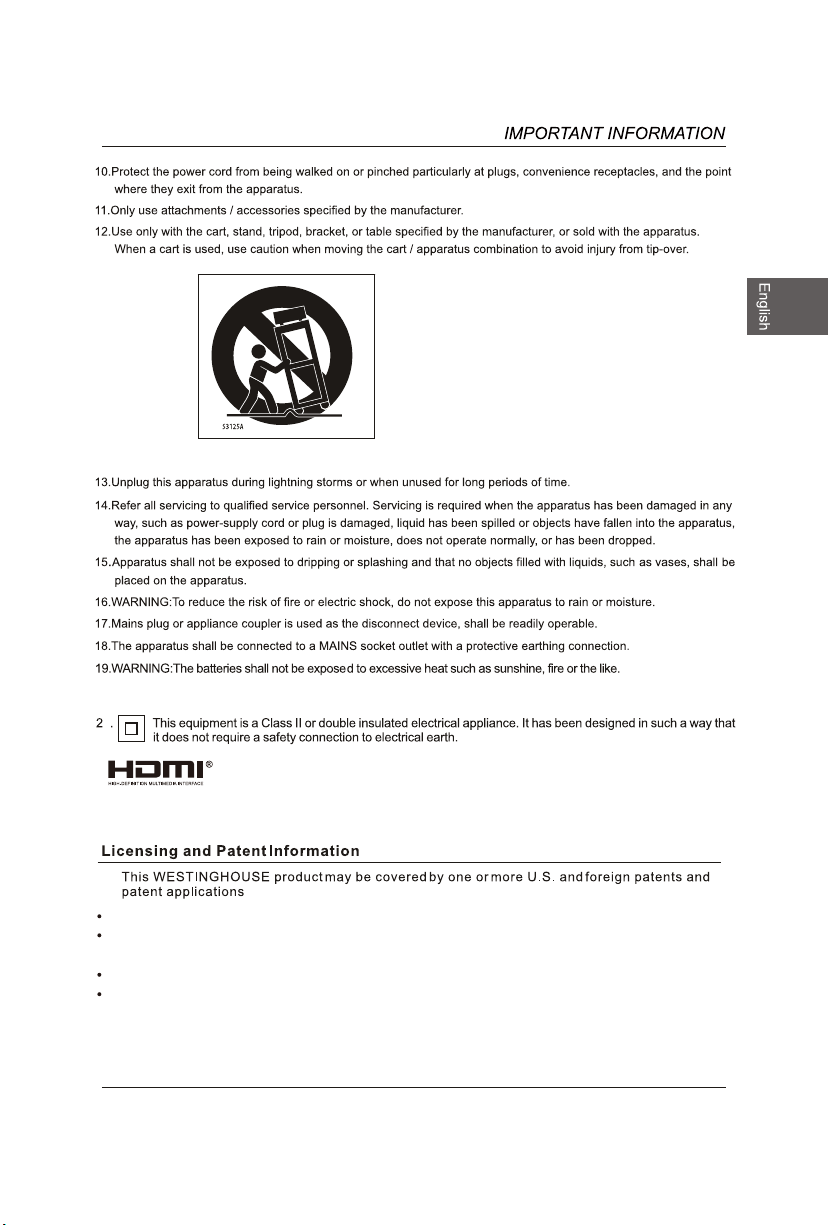
The terms HDMI and HDMI High-Definition Multimedia Interface,
trademarks or registered trademarks of HDMI Licensing Administrator, Inc in the United States and other
and the HDMI Logo are
1
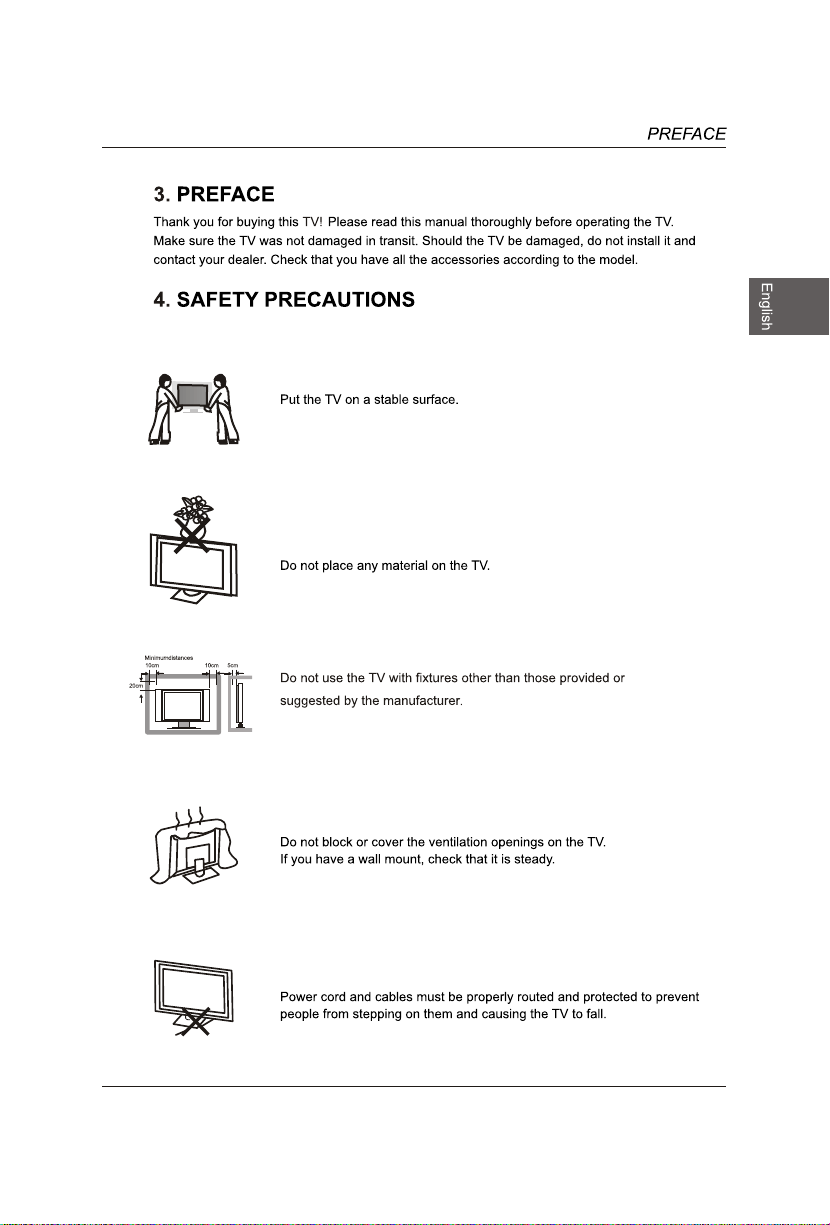
Minimum 5cm distances around the apparatus for sufficient ventilation.
The ventilation should not be impeded by covering the ventilation openings with items,
such as newspapers, table-cloths,cu rtains,etc.
.sutarappa eht no decalp eb dluohs ,seldnac dethgil sa hcus ,secruos emalf dekan oN
Attention should be drawn to the environm ental aspects of battery disposal.
•
Storage temperatures are 32° to 122°F(0° to 50°C).
•
Working temperatures are 32° to 95°F(0° to 35°C).
20.To reduce the risk of electric shock, do not remove cover(or back) as there are no user-service able parts inside.
Refer servicing to qualified personnel.
countries.
Wall-Mounting Screws
Mount the VESA bracket using 4*M4*6 isometric threaded screws (not inclu ded).
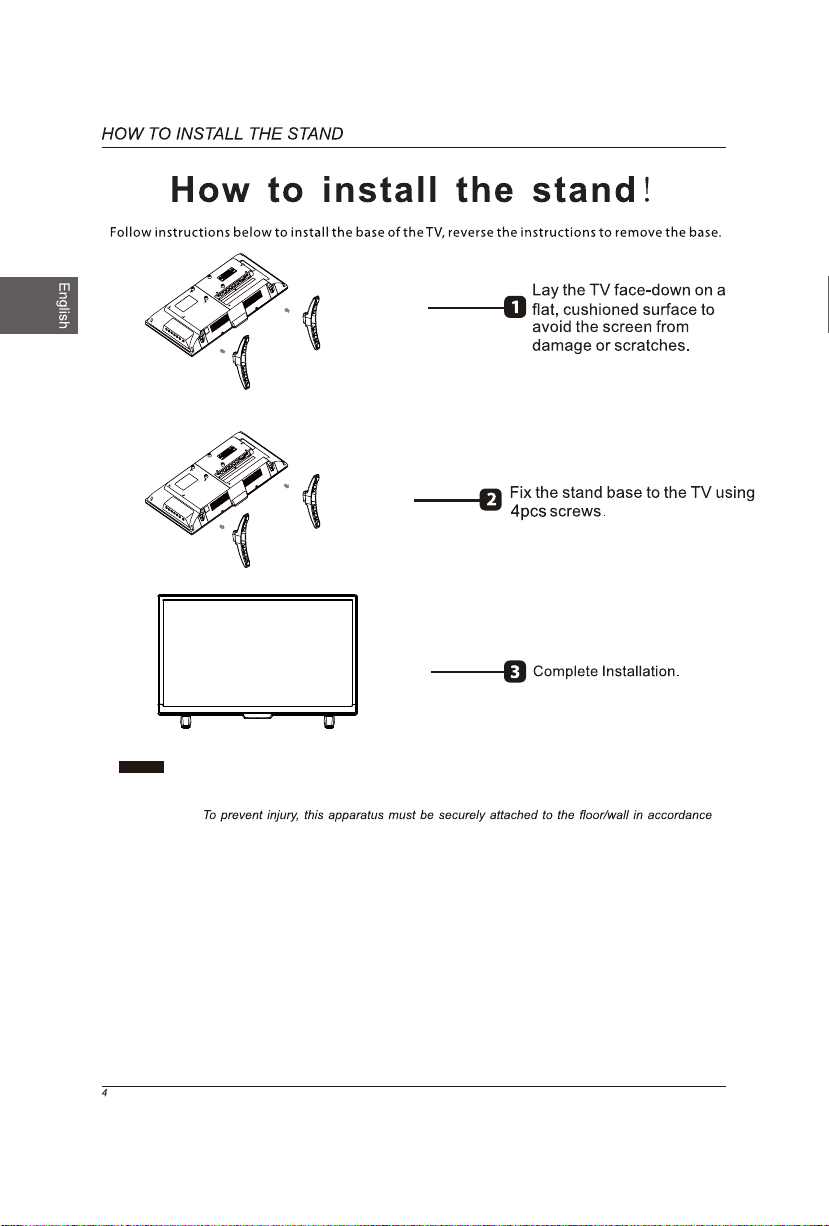
WARNING:
with the installation instruction.
WARNING
:
Never place a television set in an unstable location. A television set may fall, causing serious personal injury
or death. Many injuries, particularly to children, can be acoided by taking simple precautions such as:
-Using cabinets or stands recommended by the manufacturer of the television set.
-Only using furniture that can safely support the television set.
-Ensuring the television set is not overhanging the edge of the supporting furniture.
-Not placing the television set on tall furniture(for example, cupboards or bookcases) without anchoring
both the furniture and the television set to a suitable support.
-Not placing the television set on cloth or other materials that may be located between the television
set and supporting furniture.
-Educating children about the dangers of climbing on furniture to reach the television set or its controls.
If your existing television set is being retained and relocated, the same considerations as above should be
applied.
5
6
7
and Audio
and Audio
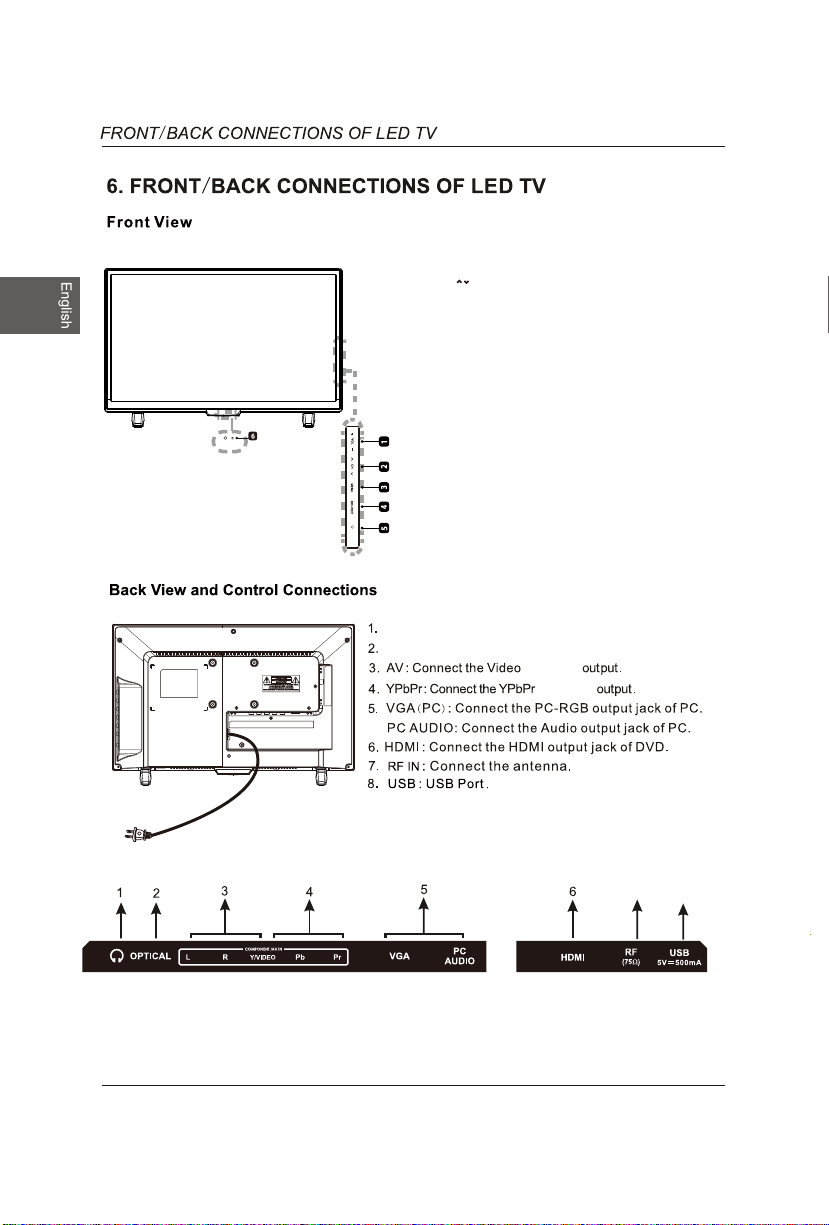
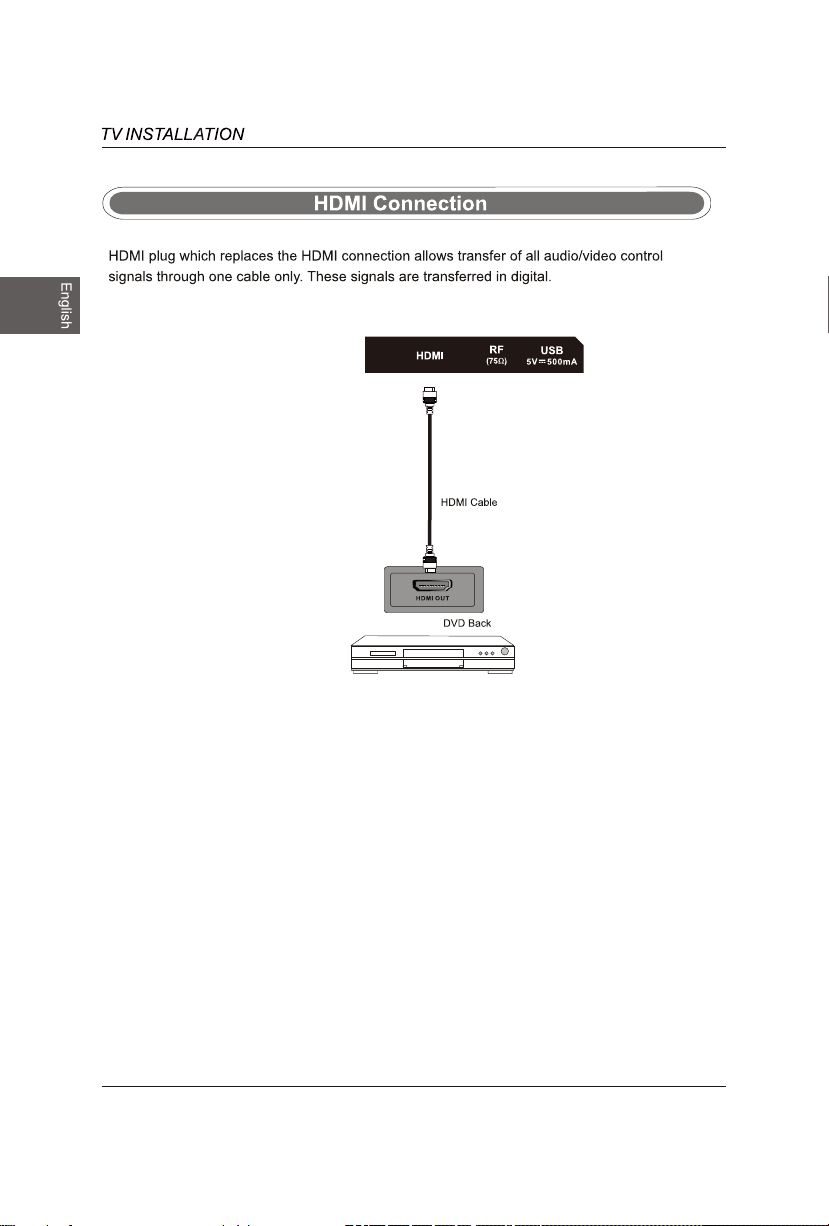
Headphone: Connect a stereo headphone for private listening.
8
Optical Output:
Connect a digital sound system to this jack.
5.
6.
POWER
Switch the
TV between On / Standby mode.
4. SOURCE
Press to select among di fferent input signal sources.
3. MENU
Display the OSD (on screen display) menu.
2. CH /
Press to select a channel.
POWER Indicator
1. VOL +/-
Press to adjust the volume.
Illuminate blue when the
TV is turned on.
Illuminate red when the
TV is in standby mode.
IR (Infrared Receiver)
Receive IR signals from the remote control.
7
8
9
10
USB
11
12
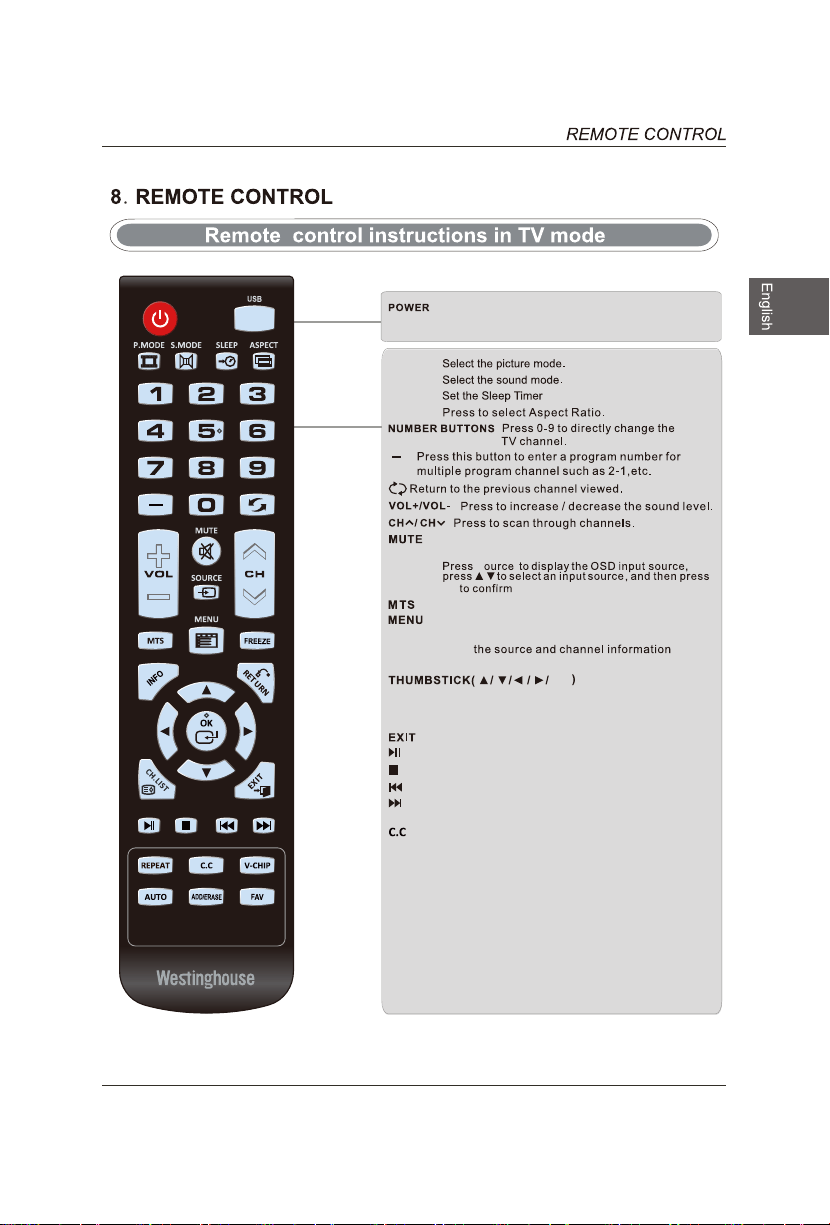
Turn the LED TV on or off.
Press once to disable the audio and press again to
enable the audio.
P.MODE
S.MODE
SLEEP
Press to adjust between available audio channel.
SOURCE
OK
S
INFO
Displays
Press to set the closed caption.
V-CHIP
Switch to V-CHIP input.
CH.LIST
Press to display TV program list.
ASPECT
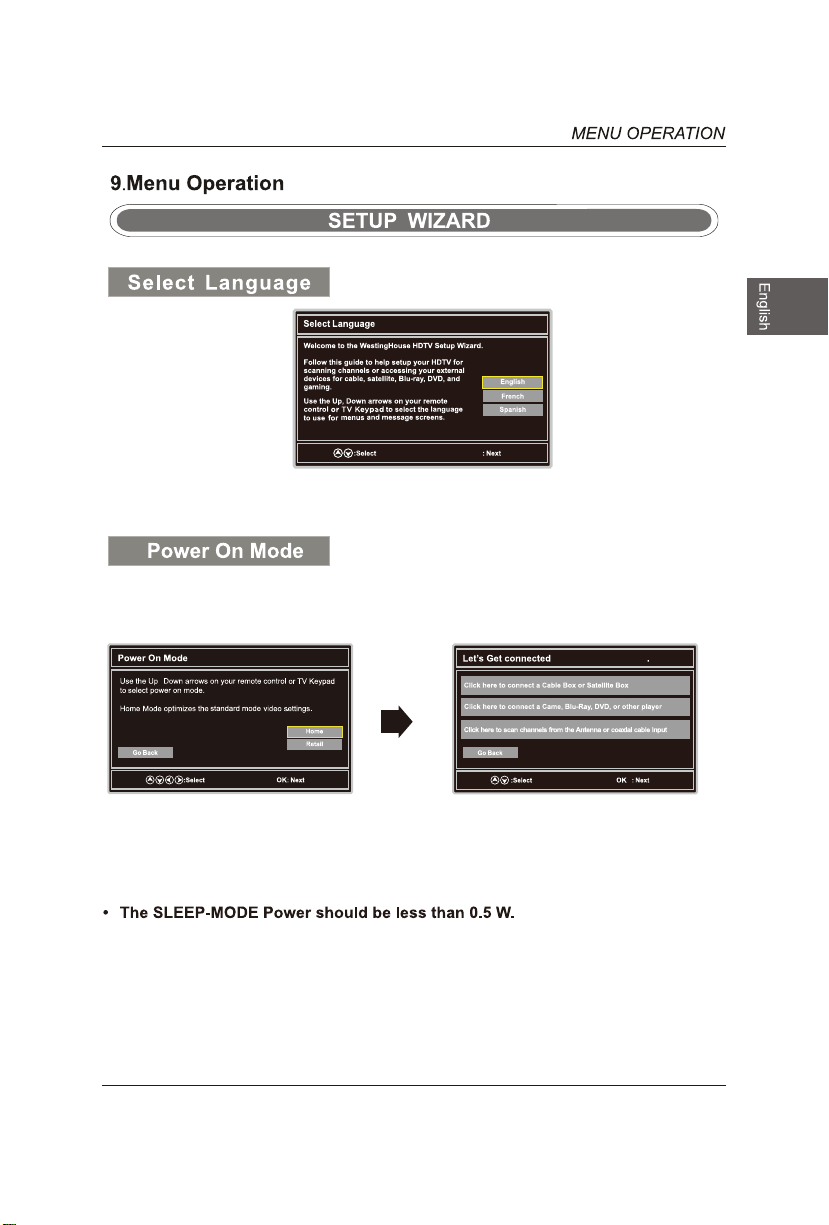
Allows you to navigate the on -screen menus and adjust the
system settings to your preference.
Displays the main TV menu.
Exit the main TV menu.
FAV
Press to display the favourite program list.
Add/Erase channel to favo
urite program list.
ADD/ERASE
ok
13
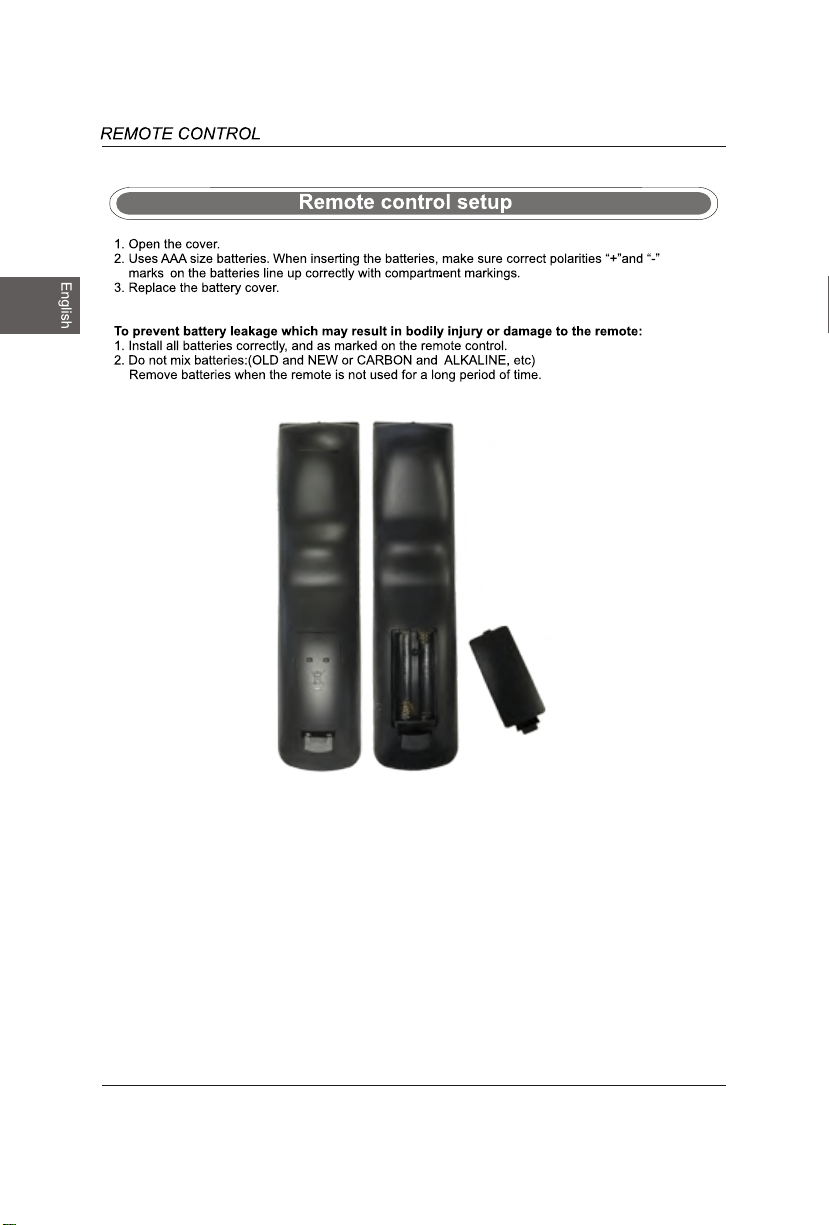
Press to turn to USB mode.
USB
RETURN Return to previous menu.
Start playback or pause.
Stop the playback.
previous
chapter/track/photo.
Skip to the beginning of the next chapter/
track/photo.
Skip to the beginning of the
AUTO Press to adjust the picture automatically
in VGA source.
REPEAT Press repeatedly to select the repeat
mode.
FREEZE Freeze the picture.
14
OK
15
,
other signals or devices
YPbPr/AV
YPbPr
s
YPbPr/AV
OK
OK
OK
OK
16
,
OK
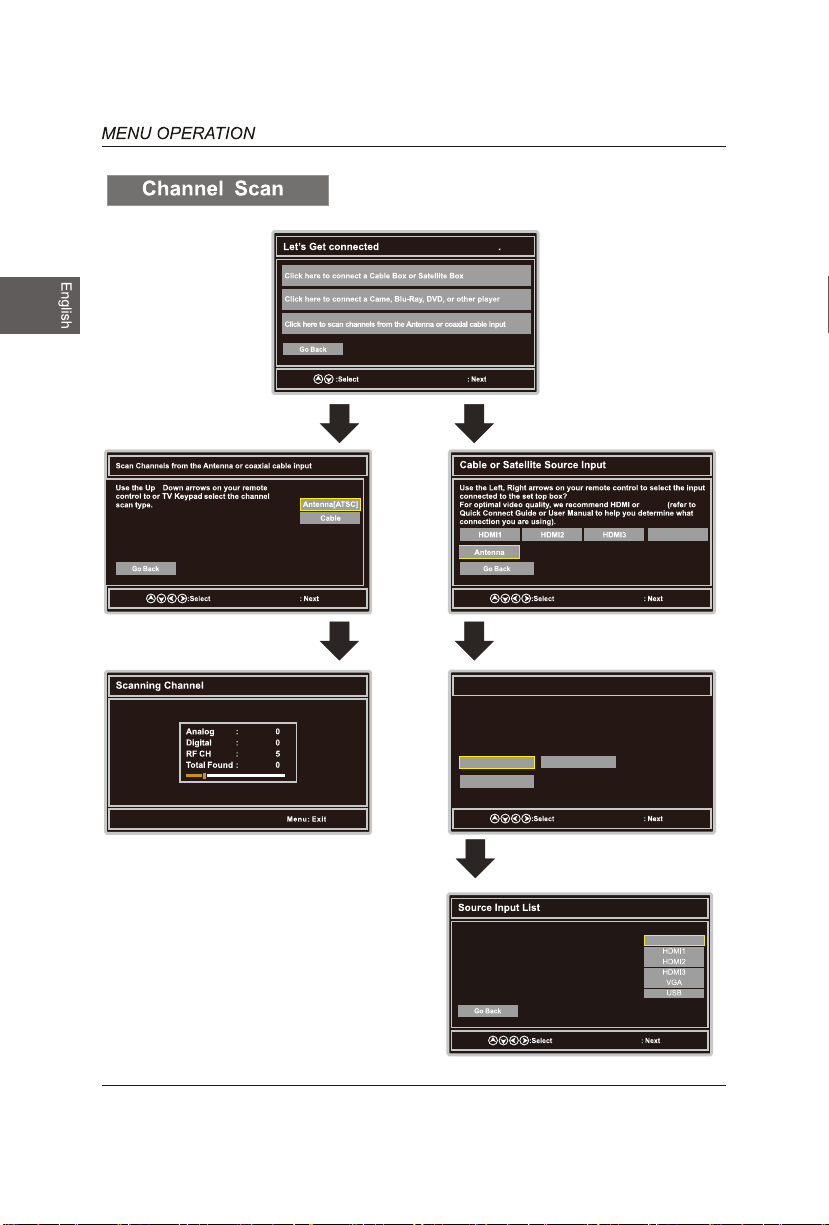
Antenna RF Warning
Notice : Westin ghou se Electronics does n ot r ecommend using the RF
Antenn a in put as your cable or satellite conn ec tion because it will
provid e poor video quality to y our HDTV. Use a d if ferent connection
for op ti mum conditions. If y ou d o no t have a cable box that p ro vides
an HD qual ity signal, we recomm en d that you call your cabl e pr ovider
for an upg ra de . Otherwise, select Pro ce ed.
Exit Setup Proceed
Go Back
other signals or devices
HDMI1
HDMI2
HDMI3
VGA
USB
YPbPr/AV
ok
ok
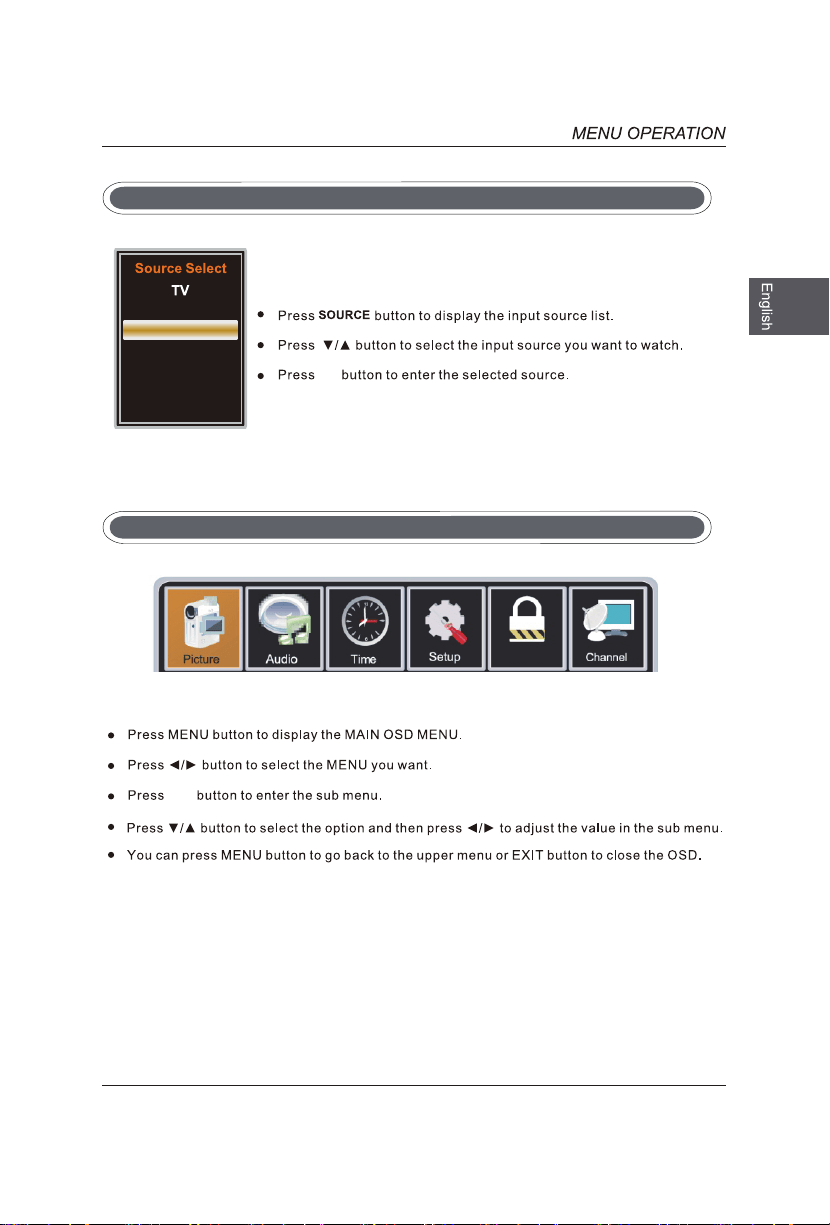
Select Input Source
Basic Operation
Lock
17
Lock
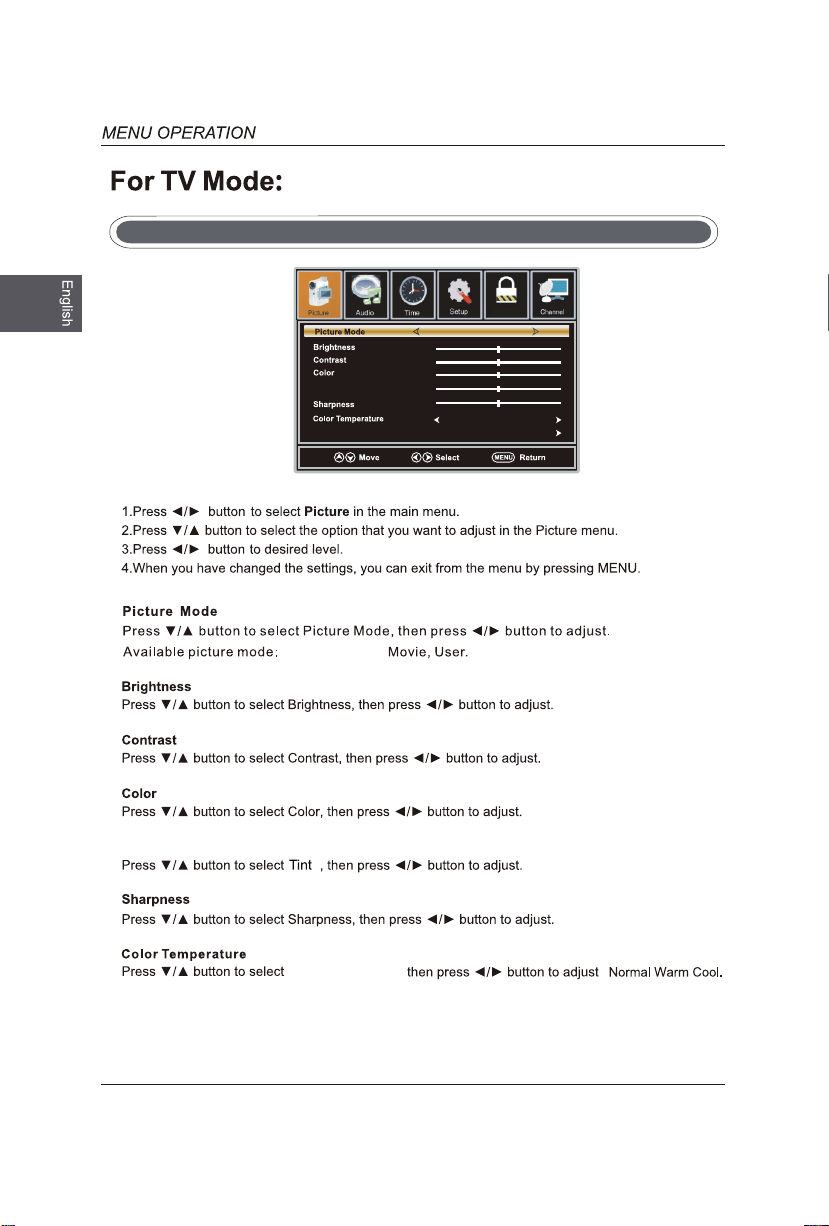
Picture Menu
18
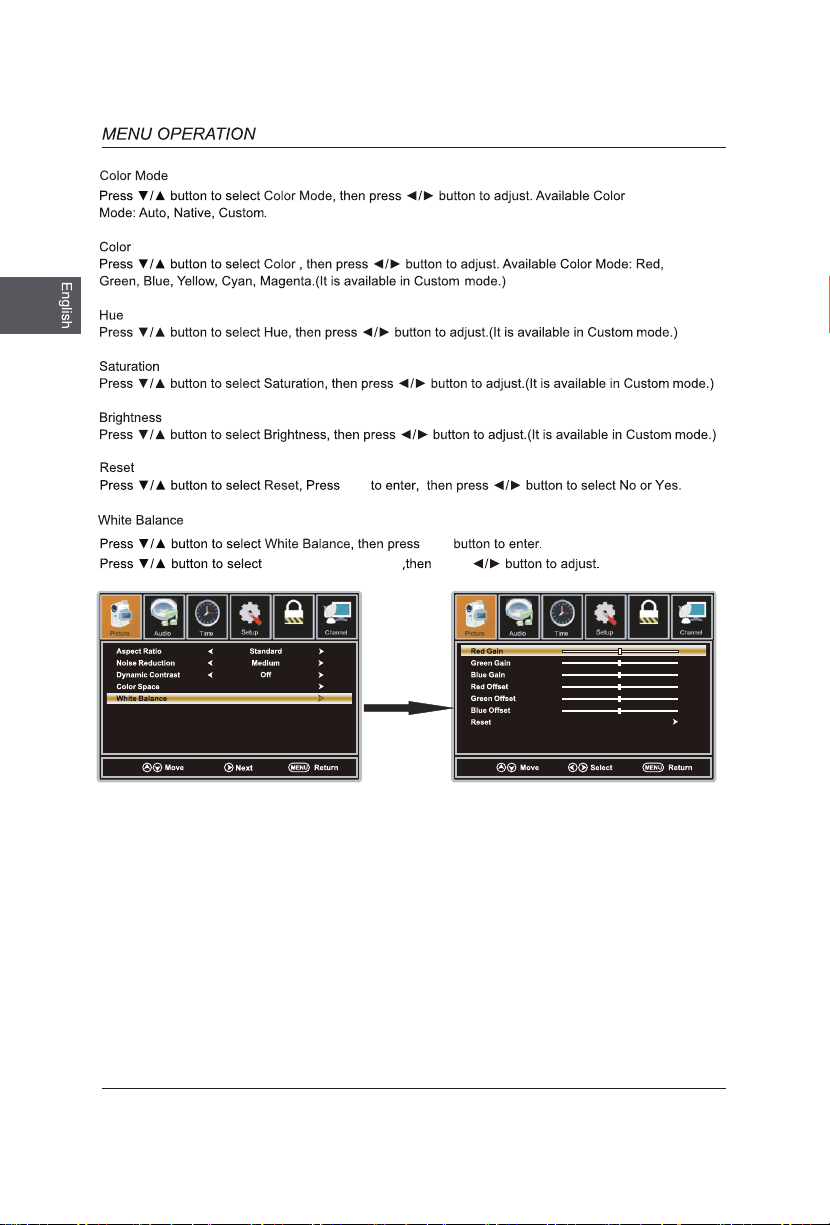
Color
Temperature ,
Standard,Retail,
Tint
Standard
Normal
Tint
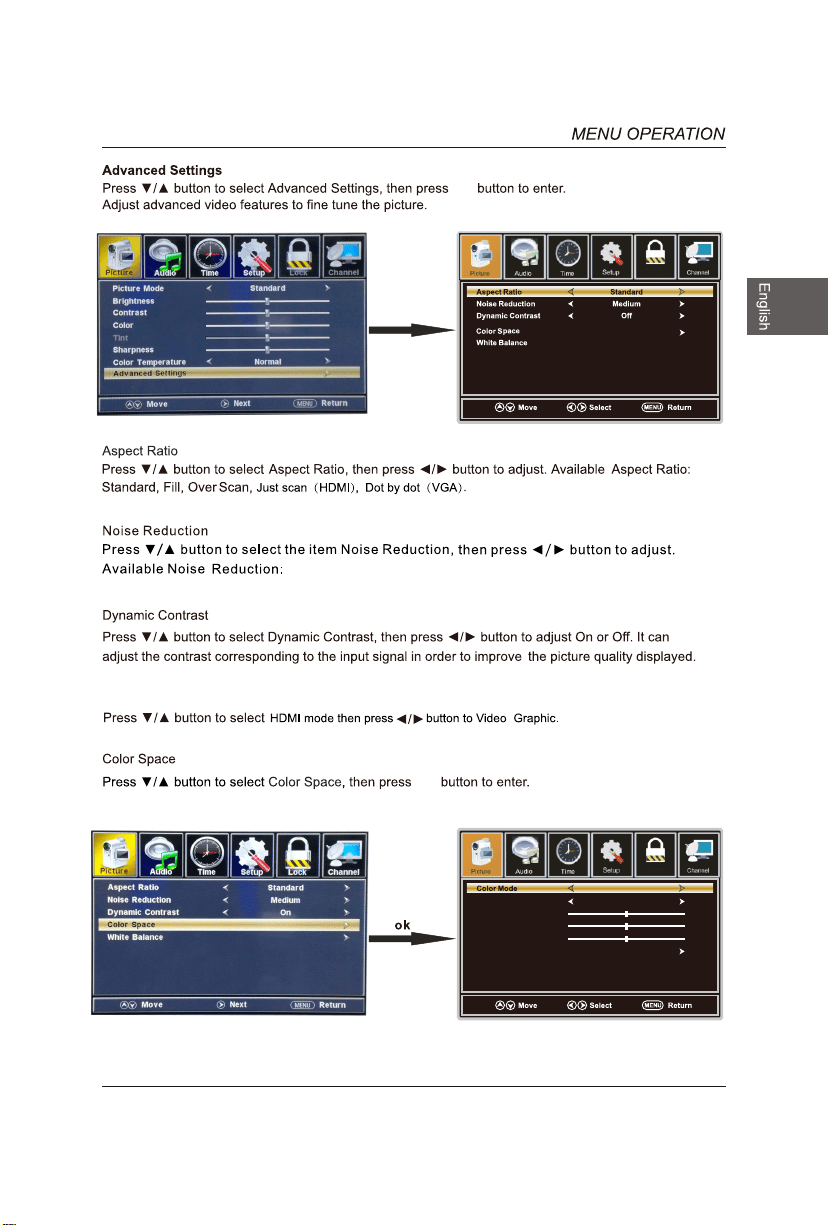
Advanced Settings
19
ok
Off,Weak,Medium,Strong.
ok
ok
HDMI mode:
,
Lock
Custom
Lock
Color
Hue
Saturation
Brightness
Reset
Red
ok
ok
the option you want
press
ok
Lock
Lock
20
21
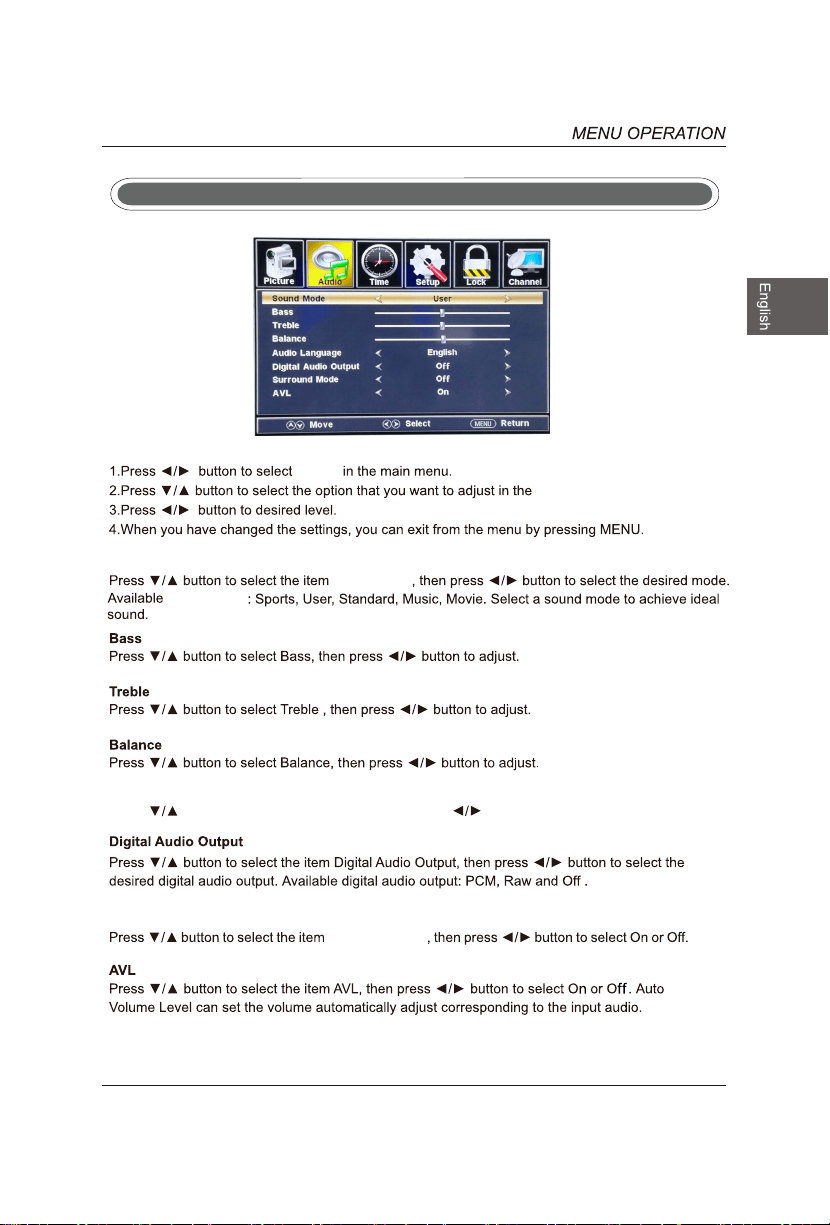
Audio
Sound Mode
Sound Mode
Sound Mode
Surround Mode
Surround Mode
Audio Menu
Audio Language
Press button to select Audio Language, then press button to select.
Audio menu.
22
23
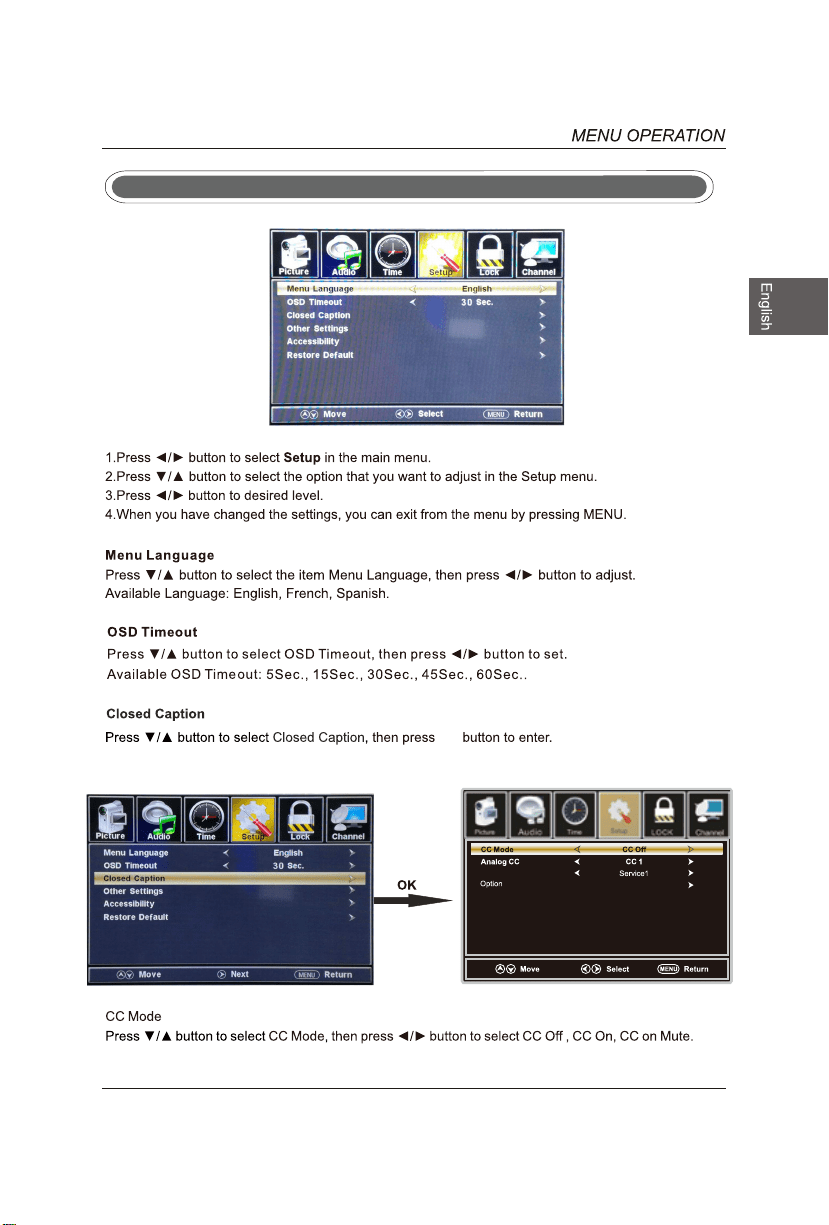
Setup Menu
OK
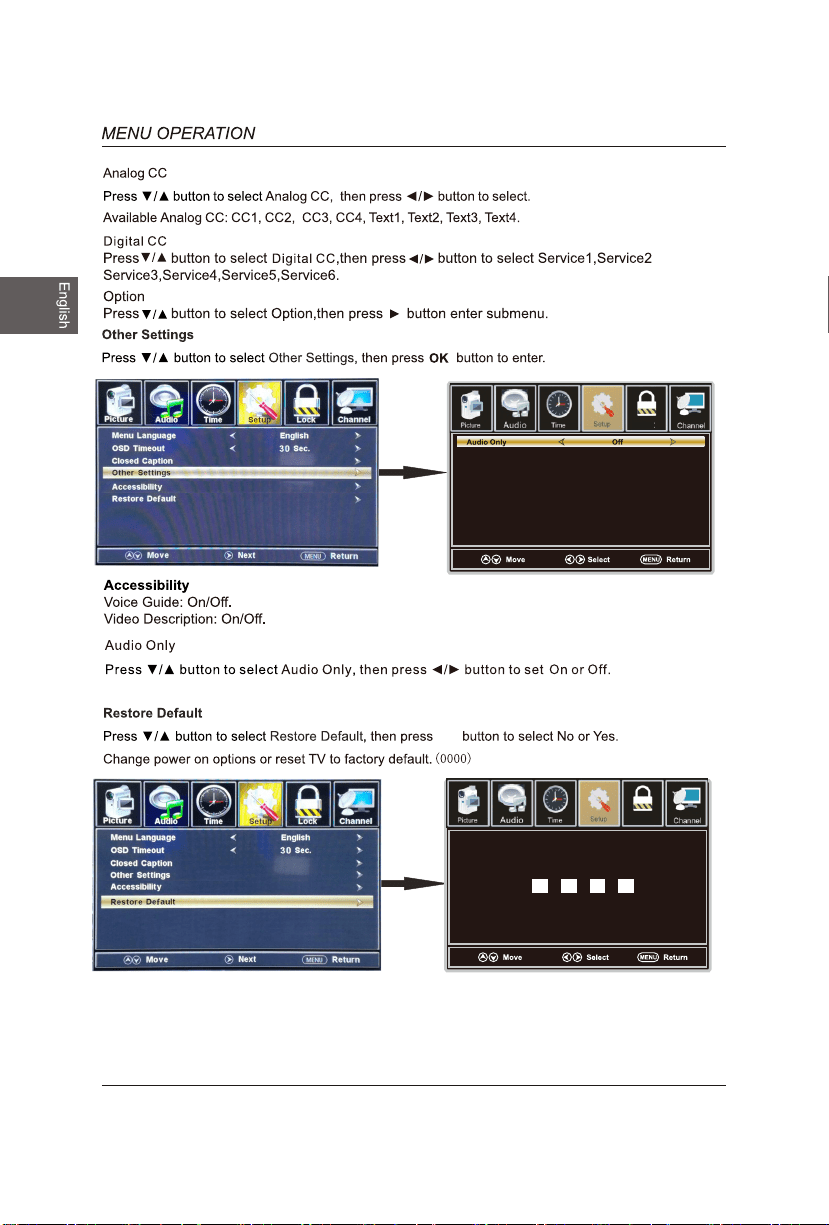
Digital CC
24
(0000)
ok
ok
ok
Lock
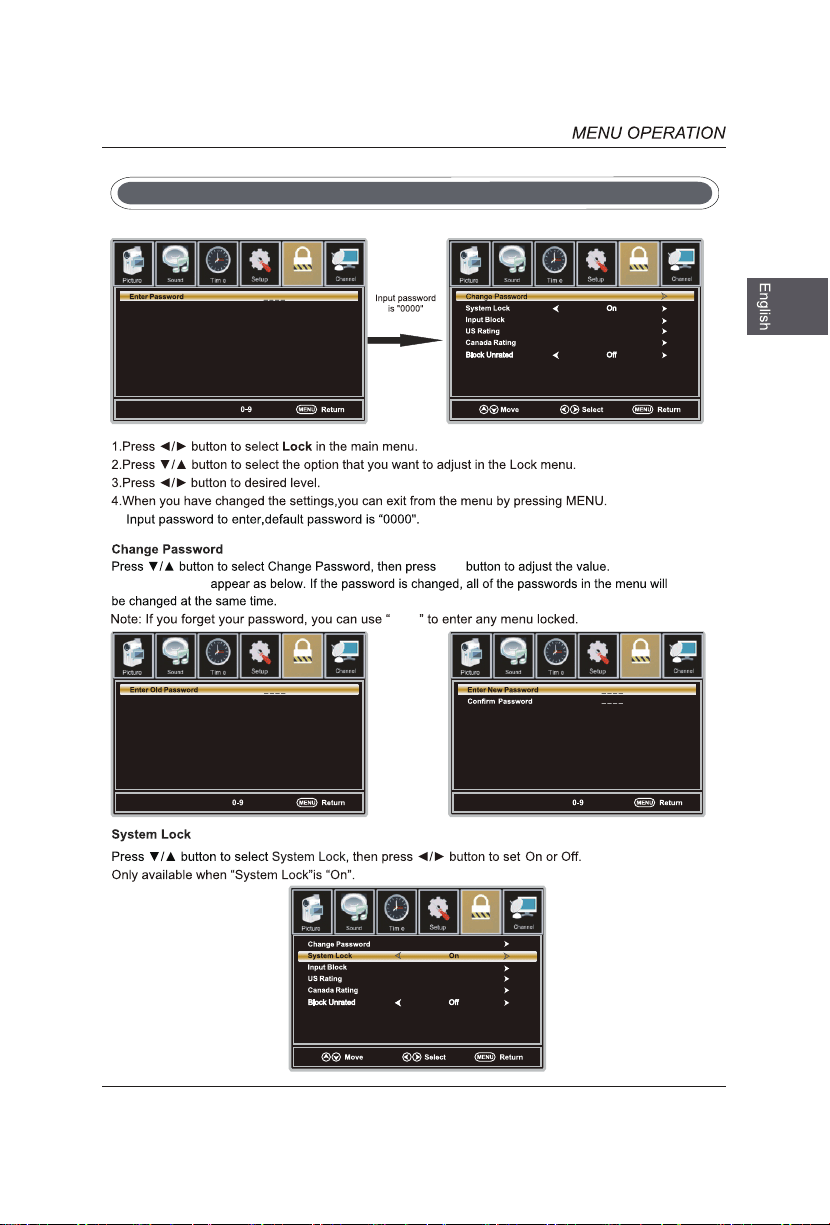
Enter Password
Press to confirm"
OK"
Lock
ok
ok
a sub menu will
8899
Lock
Lock
Lock
Lock
Lock
25
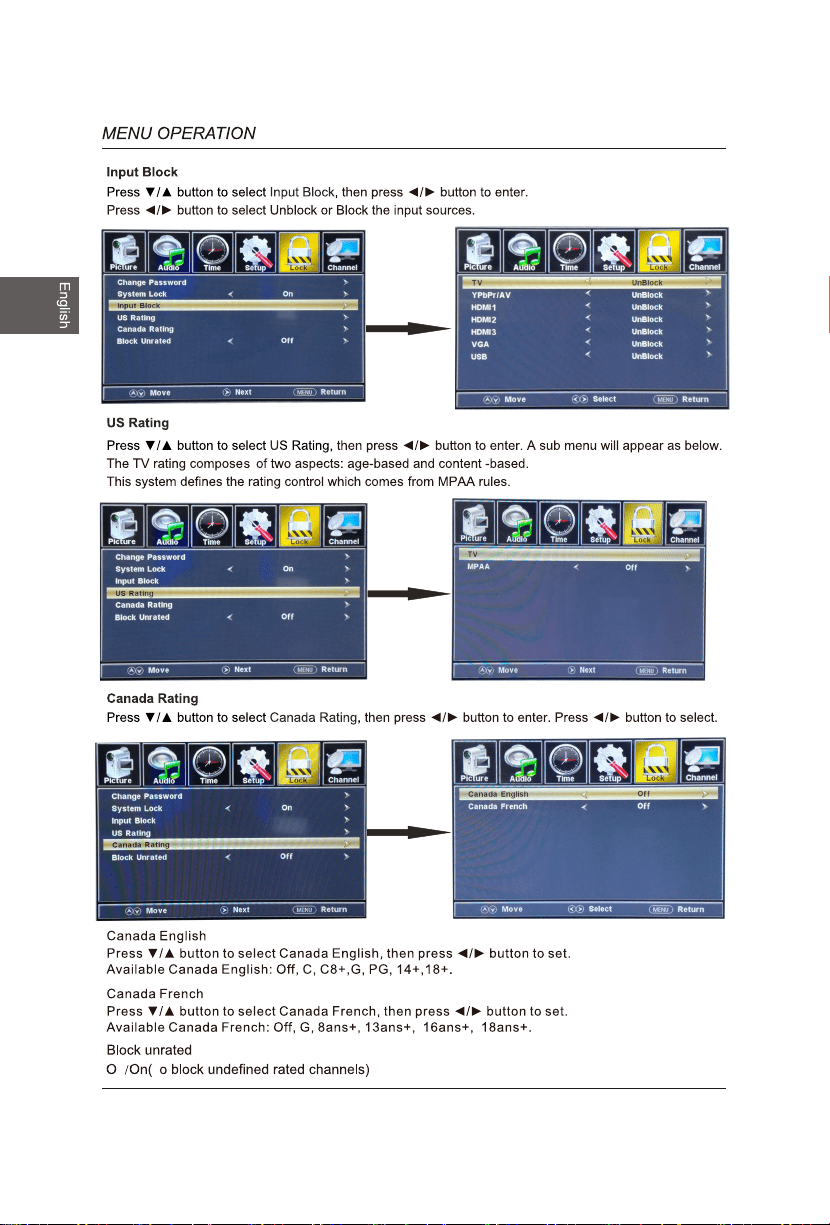
Lock Menu
ok
ok
ok
26
ff T
ok
ok
ok
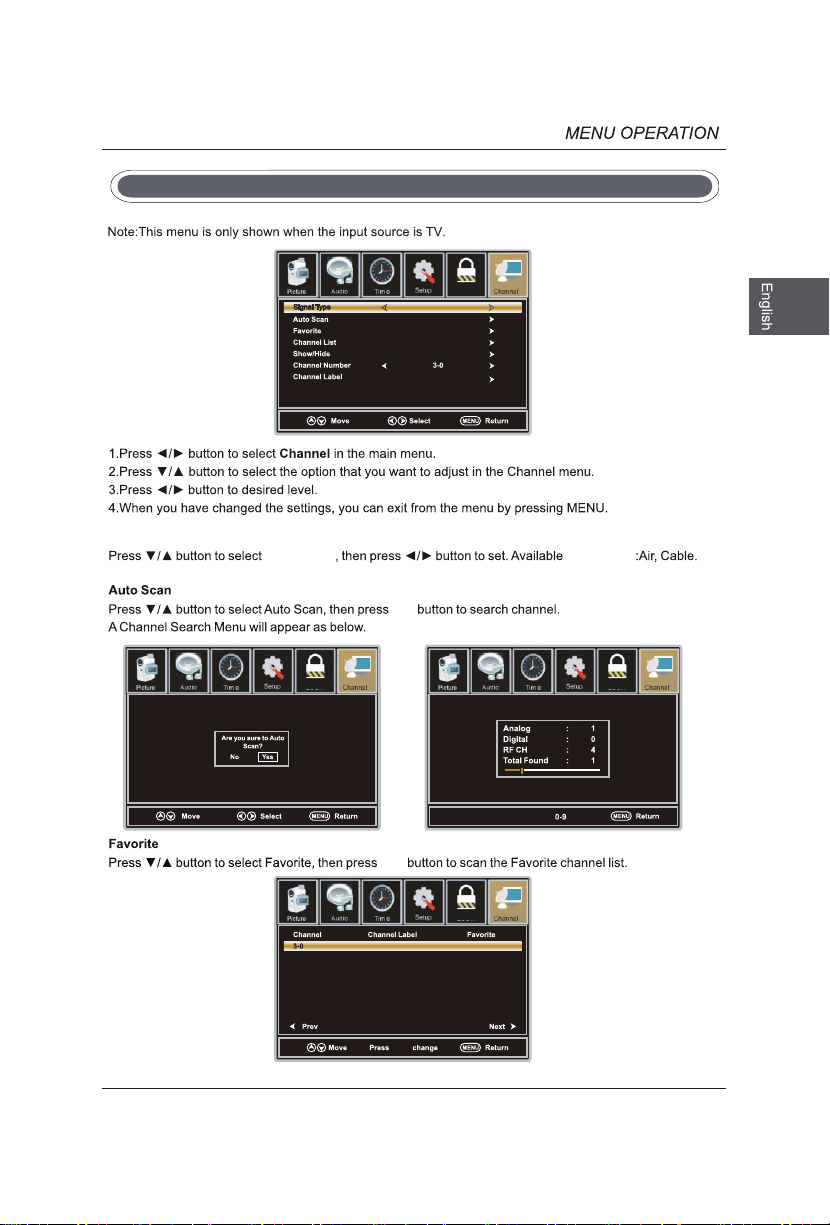
Signal Type
Signal Type
Signal Type
Lock
Lock
Lock
Lock
27
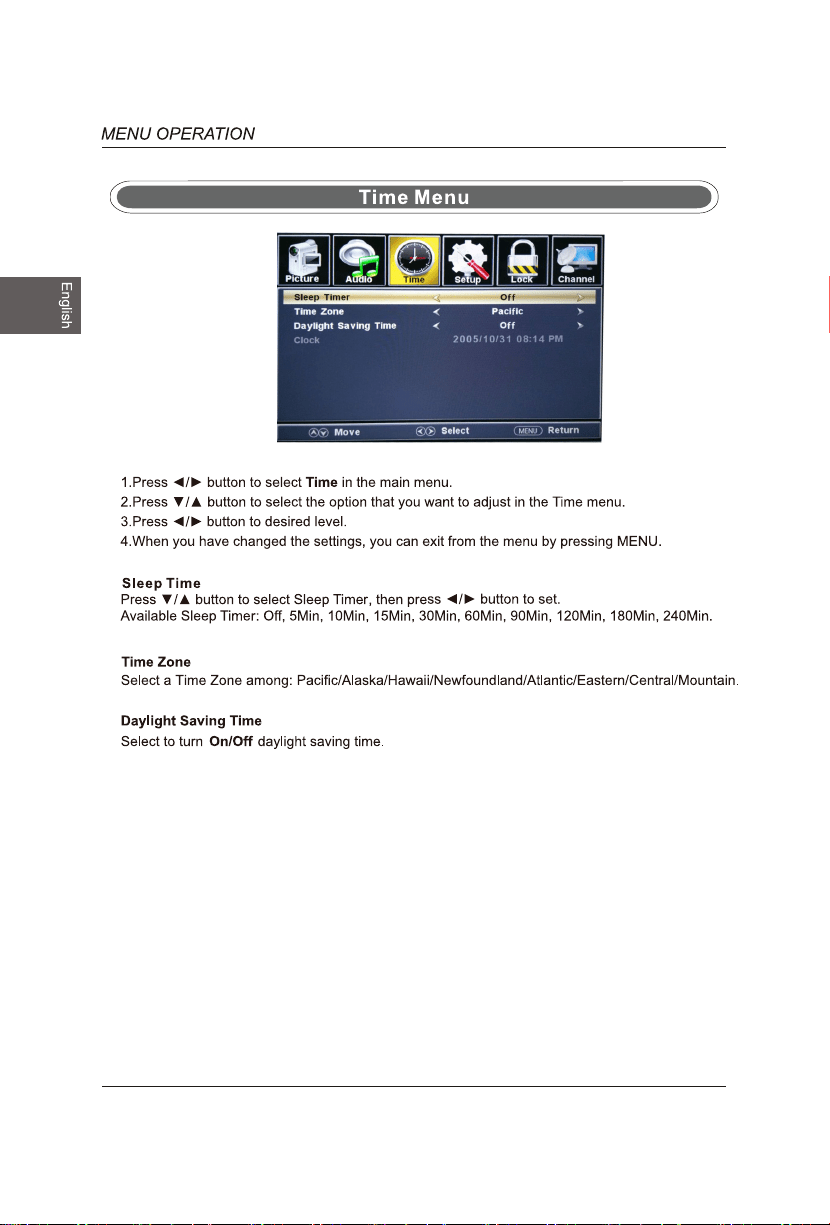
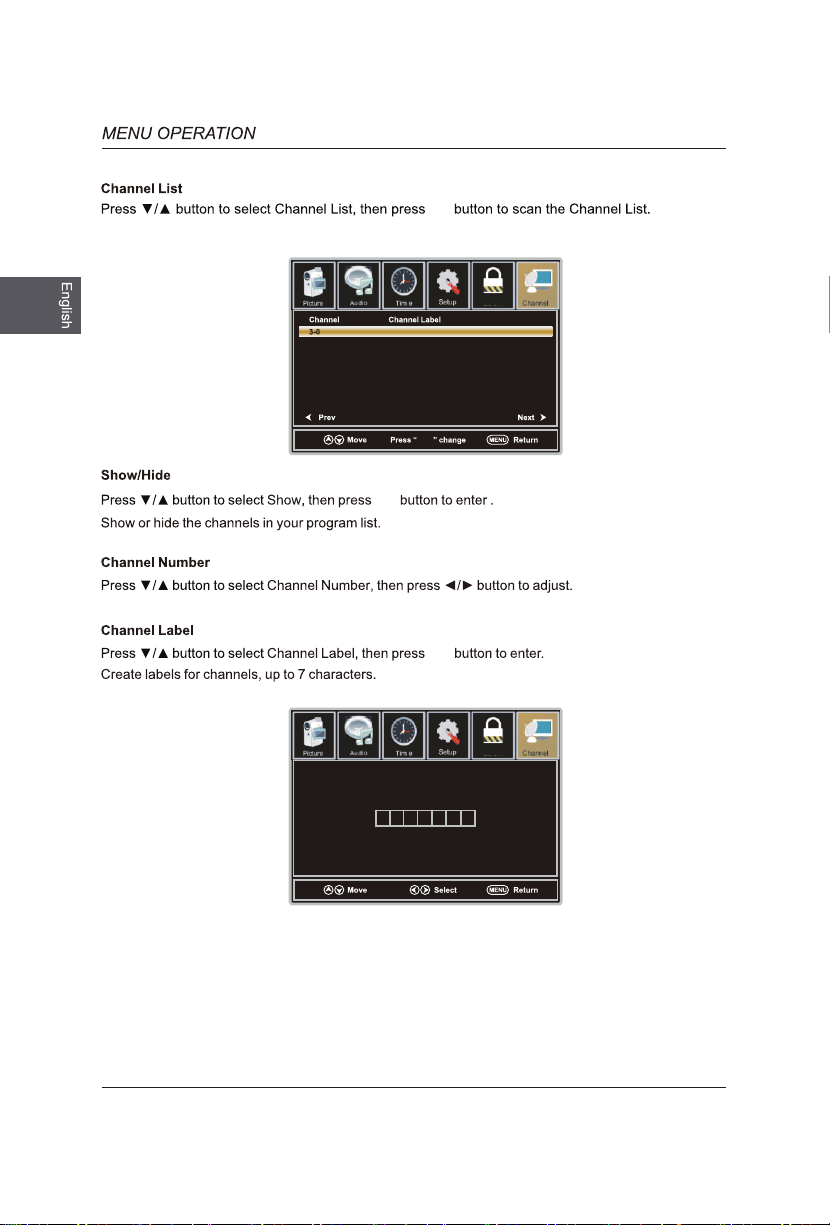
Channel Menu
ok
ok
ok
Lock
Lock
28
ok
Setup
ok
A UDIO
are
ok
29
Setup Menu
Lock
M-JPEG
M-JPEG
30
M-JPEG
Press button to select the file you want to watch in the file selecting menu, then pres
button to display picture.
When highlighting the option you select, the file information will appear on the right an
icture will be
previewed in the center.
Press button to select M-JPEG in the main menu, then press OK button to enter.
Press Exit button to return back to the previous menu.
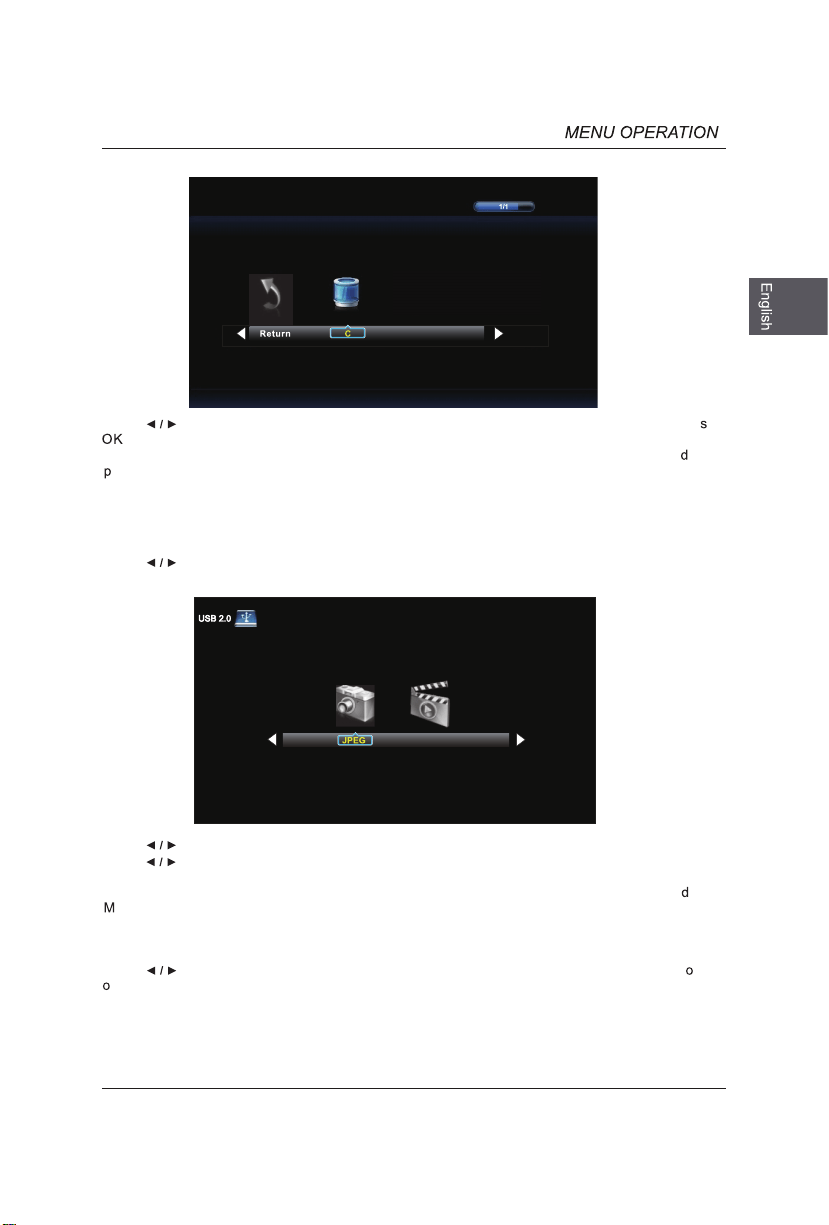
Press button to select drive disk you want to watch, then press OK button to enter.
Press button to select Return option to go back to the previous menu.
Press button to select menu in the bottom you want to run, then press OK button t
perate.
When highlighting the option you select, the file information will appear on the right an
ovie will be
previewed in the center.
Press OK button to play the selected movie.
Press display button to show select menu in the bottom.
31
32
35
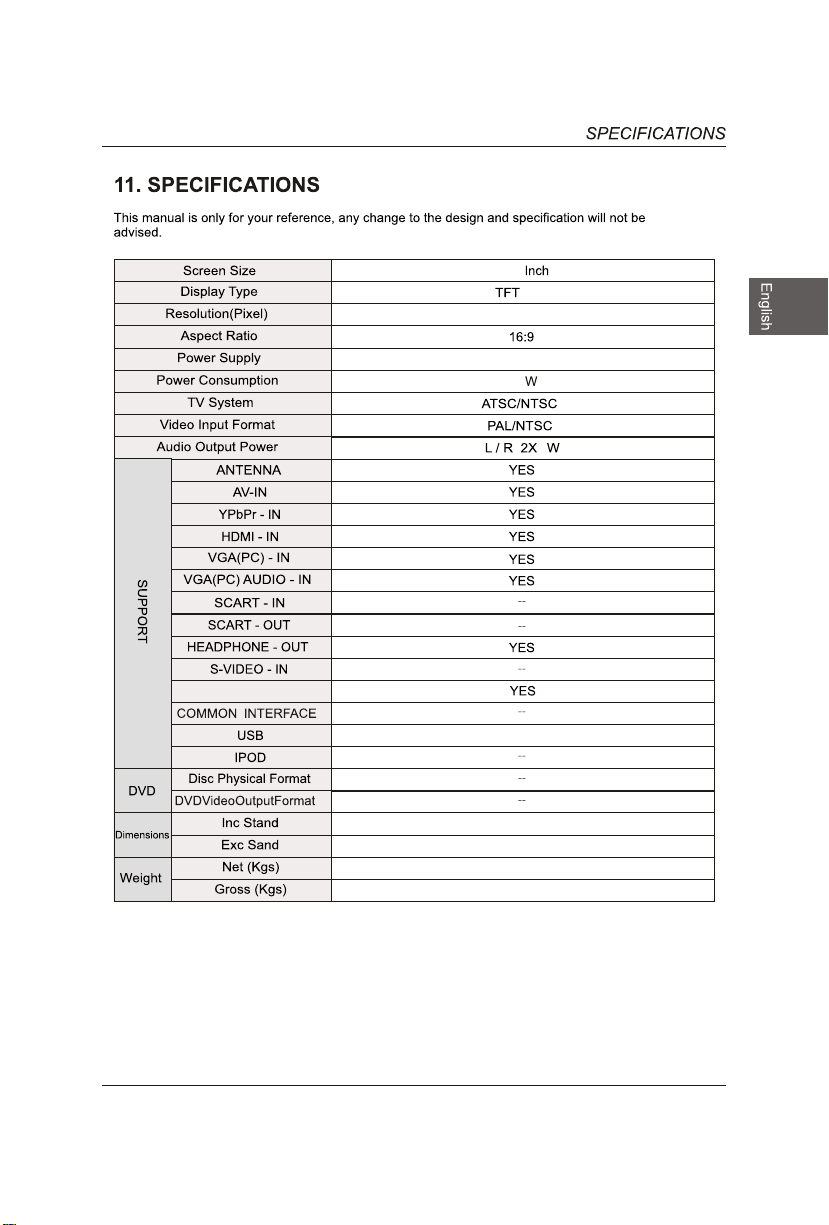
18.5
1366 x 768
LED
JPEG,M-JPEG
100~240V 50/60Hz
33
2
2.65
OPTICAL-OUT
436.4*82.2*271.5 mm
436.4*138.7*293 mm
3
34
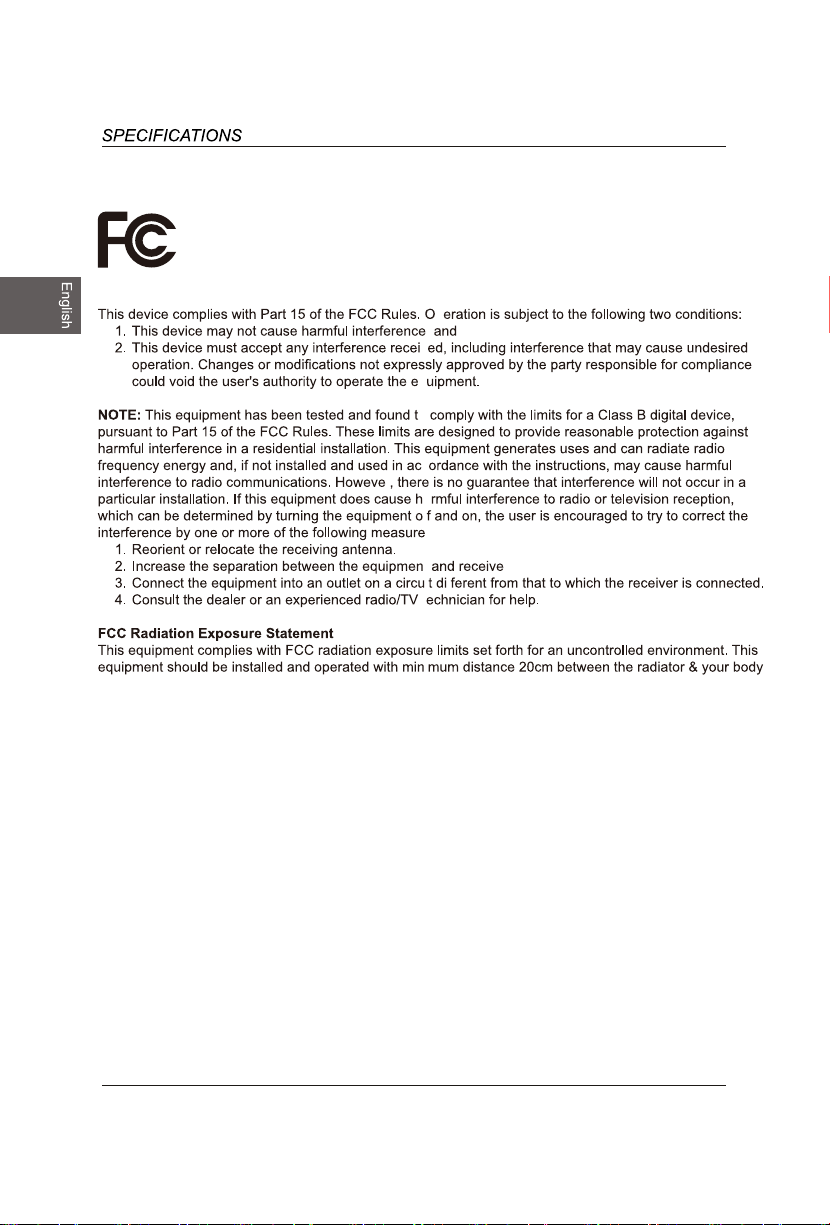
The FCC Wants You to Know
FCC STATEMENT
p
,
v
q
o
c
r
a
f
s:
t r.
i f
t
i .

www.westinghouseelectronics.com
i
v