4-459-705-12(1)
SLT-A58
©2013 Sony Corporation
Interchangeable Lens
Digital Camera
α Handbook
A-mount
Preparing the camera
Shooting and viewing
images
Shooting images to suit
your subject
Using the shooting
functions
Using the playback
functions
Function list
Viewing images on a
computer
Others
Advanced Operations
Index

2
Table of Contents
Basic
Operations ................................................................. 9
This section provides basic information on operating the camera.
Notes on using your camera ............................................ 10
Preparing the camera
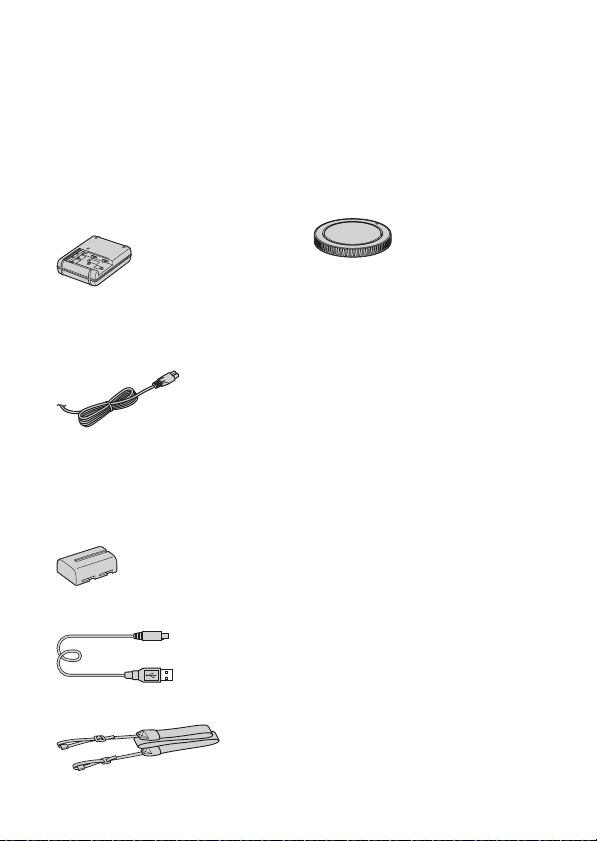
Checking the supplied items ............................................ 12
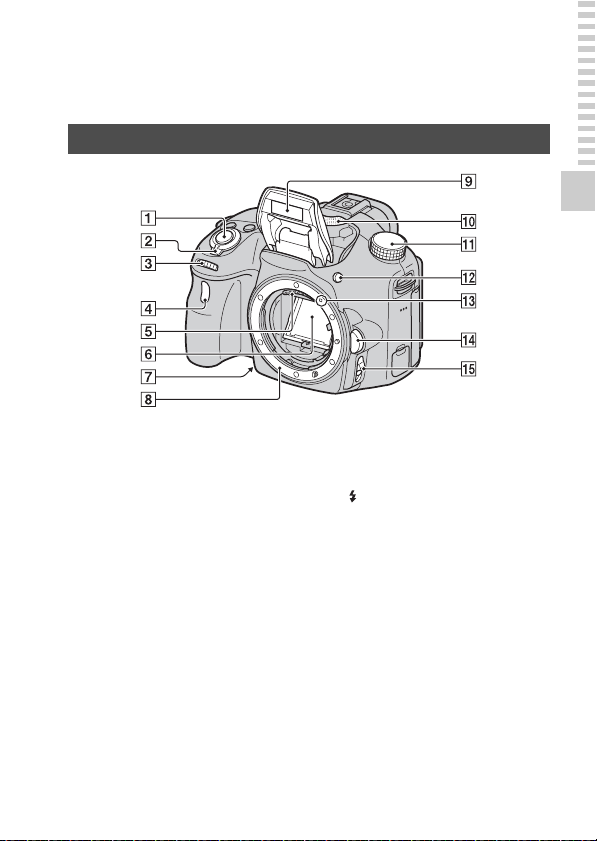
Identifying parts ............................................................... 13
Front ........................................................................... 13
Back ............................................................................ 14
Top ............................................................................. 15
Sides/Bottom .............................................................. 16
Lens ............................................................................ 18
Charging the battery pack ................................................ 19
Inserting the battery pack/memory card (sold separately)
..................................................................................... 21
Memory cards that you can use .................................. 23
Attaching a lens ............................................................... 24
Turning on the camera and setting the clock ................... 27
Before shooting ............................................................... 29
Adjusting the viewfinder’s visual acuity (diopter
adjustment)......................................................... 29
Holding the camera properly ...................................... 29
Shooting and viewing images
Shooting still images ....................................................... 30
Recording movies ............................................................ 32
Playing back images ........................................................ 33
Deleting images (Delete) ................................................. 34
Shooting images to suit your subject
Adjusting the angle of the LCD screen ........................... 35
Selecting a shooting mode ............................................... 36
Superior Auto .................................................. 37
Scene Selection .................................................. 38
Sweep Panorama ................................................ 39
Tele-zoom Cont. Priority AE ............................. 40

3
Using the shooting functions
Using the flash ................................................................. 41
Adjusting the image brightness ....................................... 43
Selecting the drive mode .................................... 45
Switching the recording information display (DISP) ...... 46
Setting image size ............................................................ 47
Image Size .................................................................. 47
Panorama: Size ........................................................... 47
Using the playback functions
Enlarging images ............................................................. 48
Switching to the image list display .................................. 49
Viewing images on a TV screen ...................................... 50
Function list
Functions that can be operated using the buttons/switch
..................................................................................... 51
Selecting a function using the Fn (Function) button ....... 52
Functions that can be selected using the Fn (Function)
button .........................................................................53
Functions selected using the MENU button .................... 55
Using the guide function of the camera ........................... 62
In-Camera Guide ........................................................ 62
Shooting Tips ............................................................. 62
Viewing images on a computer
What you can do with software ....................................... 64
What you can do with “PlayMemories Home” .......... 64
What you can do with “Image Data Converter” ........ 65
Installing the software ..................................................... 66
Installing “PlayMemories Home” .............................. 66
Viewing “PlayMemories Home Help Guide” ............ 66
Installing “Image Data Converter” ............................. 67
Viewing “Image Data Converter Guide” ................... 67
Installing “Remote Camera Control” ......................... 68
Selecting the method for creating a movie disc ............... 69
Creating a disc using a computer ............................... 70
Creating a disc with a device other than a computer
............................................................................ 70
4
Others
List of screen icons .......................................................... 71
Functions available for each shooting mode ................... 74
Flash modes available ...................................................... 75
Advanced
Operations ................................................................76
This section provides further information on operating the camera.
Preparation
Setting up the camera ...................................................... 77
Removing the Eyepiece cup ....................................... 77
Shooting mode screen display ......................................... 78
Selecting the screen mode .......................................... 78
Histogram ................................................................... 79
Monitoring the subject through the lens without effects
displayed ........................................................... 80
List of viewfinder mode icons .................................... 80
Shooting a clear image without camera shake ................ 83
Camera shake warning indicator ................................ 83
Using the SteadyShot function ................................... 83
Using a tripod ............................................................. 84
Shooting
Selecting the shooting mode ............................................ 85
Intelligent Auto/ Flash Off .............................. 85
Superior Auto .................................................... 85
Scene Selection .................................................. 86
Sweep Panorama ................................................ 88
Tele-zoom Cont. Priority AE ............................. 90
Program Auto ......................................................... 91
Aperture Priority ................................................... 92
Shutter Priority ....................................................... 94
Manual Exposure ................................................... 96
BULB ..................................................................... 97
Movie recording setup ................................................... 100
Recording movies easily .......................................... 100
Digital Zoom ............................................................ 101

5
Changing the tracking sensitivity of autofocus during
movie recording .............................................. 102
Recording movies with the shutter speed and aperture
adjusted ........................................................... 102
File Format ............................................................... 103
Record Setting .......................................................... 104
Audio Recording ...................................................... 105
Adjusting the focus ........................................................ 106
Autofocus ................................................................. 106
Focus-lock ................................................................ 108
Autofocus Mode ....................................................... 109
AF area ..................................................................... 110
AF Illuminator .......................................................... 111
Lock-on AF .............................................................. 111
Manual focus ............................................................ 114
Peaking ..................................................................... 115
Focus Magnifier ....................................................... 116
Detecting faces .............................................................. 117
Face Detection .......................................................... 117
Face Registration ...................................................... 118
Auto Object Framing ................................................ 119
Smile Shutter ............................................................ 120
Adjusting the brightness of the image ........................... 122
AE Lock ................................................................... 122
AEL w/ shutter ......................................................... 123
Metering Mode ......................................................... 123
Flash Comp. ............................................................. 124
Flash control ............................................................. 124
The flash ........................................................................ 126
Wireless flash ........................................................... 127
Setting ISO .................................................................... 129
Multi Frame Noise Reduct. ...................................... 129
Compensating for brightness and contrast automatically (D-
Range) ...................................................................... 130
D-Range Opt. ........................................................... 130
Auto HDR ................................................................ 131
Setting image processing ............................................... 133
Picture Effect ............................................................ 133
Creative Style ........................................................... 134

6
Adjusting color tones (White Balance) ......................... 136
Fine adjustment screen for color .............................. 137
Color Temp./Color Filter ......................................... 138
Custom white balance .............................................. 138
Zooming ........................................................................ 140
Selecting the drive mode .................................. 143
Single Shooting ........................................................ 143
Cont. Shooting .......................................................... 143
Self-timer .................................................................. 144
Bracket: Cont./Single Bracket .................................. 144
WB bracket ............................................................... 146
Playback
Playback mode screen display ....................................... 147
Switching the screen during playback ...................... 147
List of histogram display icons ................................ 147
Using the playback functions ........................................ 149
Rotating an image .................................................... 149
Still/Movie Select ..................................................... 149
Slide Show ............................................................... 150
Playback Display ...................................................... 150
Scrolling panoramic images ..................................... 151
Protecting images (Protect) ........................................... 152
Deleting images (Delete) ............................................... 153
Delete (Multiple Img.) ............................................. 153
Deleting all images or movies in each view mode
.........................................................................154
TV playback .................................................................. 155
Using “BRAVIA” Sync ........................................... 155
Camera Setup
Setting the aspect ratio and image quality ..................... 157
Aspect Ratio ............................................................. 157
Quality ...................................................................... 157
Setting the other camera functions ................................ 159
Long Exposure NR ................................................... 159
High ISO NR ............................................................ 159
Color Space .............................................................. 160
Release w/o Lens ...................................................... 160
Grid Line .................................................................. 161

7
Auto Review ............................................................. 161
Func. of AEL button ................................................ 161
ISO Button ............................................................... 162
Preview Button ......................................................... 162
Electronic Front Curtain Shutter .............................. 163
Viewfinder Bright. ................................................... 163
Power Save ............................................................... 164
FINDER/LCD Setting .............................................. 164
Lens compensation ........................................................ 165
Lens Comp.: Peripheral Shading .............................. 165
Lens Comp.: Chromatic Aberration ......................... 165
Lens Comp.: Distortion ............................................ 165
Setting the memory card recording method .................. 166
Format ...................................................................... 166
File Number ............................................................. 166
Folder Name ............................................................. 166
Select REC Folder .................................................... 167
New Folder ............................................................... 167
Recover Image DB ................................................... 168
Upload Settings ........................................................ 168
Resetting to default settings .......................................... 170
Confirming the camera version ..................................... 174
Computer
Using the camera with your computer ........................... 175
Recommended computer environment (Windows)
.......................................................................... 175
Recommended computer environment (Mac) .......... 176
Connecting the camera to a computer ........................... 177
Making a USB connection ....................................... 177
Setting the USB connection mode (USB LUN Setting)
.......................................................................... 177
Connecting to a computer ........................................ 178
Importing images to a computer (Windows) ........... 178
Importing images to a computer (Mac) .................... 179
Deleting the USB connection ................................... 180

8
Creating a movie disc .................................................... 181
Creating a high definition quality (HD) disc (AVCHD
recording disc) on a computer ......................... 181
Creating a standard definition quality (STD) disc .... 182
Discs you can use with “PlayMemories Home” ...... 183
Print
Specifying DPOF ........................................................... 184
Date Imprint ............................................................. 184
Cleaning
Cleaning the camera and lens ........................................ 185
Cleaning the image sensor ............................................. 186
Troubleshooting/Others
Troubleshooting ............................................................. 189
Warning messages ......................................................... 198
Precautions .................................................................... 200
Using your camera abroad — Power sources ................ 203
AVCHD format ............................................................. 204
Memory cards ................................................................ 205
Battery pack/Battery charger ......................................... 207
License ........................................................................... 209
Index .............................................................................. 210

10
Notes on using your camera
Shooting procedure
This camera has 2 modes for monitoring
subjects: an LCD screen mode using the
LCD screen, and a viewfinder mode using
the viewfinder.
Notes on the functions available with
the camera
To check whether it is a 1080 60i-
compatible device or 1080 50i-compatible
device, check for the following marks on
the bottom of the camera.
1080 60i-compatible device: 60i
1080 50i-compatible device: 50i
No compensation for recorded
content
The recorded content cannot be
compensated for if recording or playback is
not possible due to a malfunction of your
camera or memory card, etc.
Back up recommendation
To avoid the risk of data loss, always copy
(back up) data to other media.
Notes on the LCD screen, electronic
viewfinder, lens, and image sensor
• The LCD screen and electronic
viewfinder are manufactured using
extremely high-precision technology, so
over 99.99% of the pixels are operational
for effective use. However, there may be
some tiny black points and/or bright
points (white, red, blue or green in color)
that constantly appear on the LCD screen
and electronic viewfinder. These points
are normal in the manufacturing process
and do not affect the images in any way.
• Do not hold the camera by the LCD
screen.
• Do not expose the camera to sunlight or
shoot toward the sun for extended
periods of time. The internal mechanism
may be damaged. If reflected sunlight is
focused on a nearby object, it may cause
a fire.
• There is a magnet on the back and around
the rotating shaft of the hinge of the LCD
screen. Do not bring anything that is
easily affected by a magnet, such as
floppy disks or credit cards, near the
LCD screen.
• Images may trail across on the screen in
cold locations. This is not a malfunction.
When turning on the camera in a cold
location, the screen may become
temporarily dark. When the camera
warms up, the screen will function
normally.
• The recorded image may differ from the
image you monitor before recording.
Notes on recording over extended
periods of time
• When you continue to shoot for a long
time, the temperature of the camera rises.
If the temperature reaches a certain level,
the icon appears on the screen and the
camera turns off automatically. If the
power is turned off, leave the camera for
10 minutes or longer to allow the
temperature inside the camera to
decrease to a safe level.
• Under high ambient temperatures, the
temperature of the camera rises quickly.
• When the temperature of the camera
rises, the image quality may deteriorate.
We recommend that you wait until the
temperature of the camera drops before
continuing to shoot.
• The surface of the camera may grow
warm. This is not a malfunction.
11
Notes on using your camera
Notes on importing AVCHD movies to
a computer
When importing AVCHD movies to a
computer, for Windows computers, use the
“PlayMemories Home” software.
Notes on playing movies on other
devices
• This camera uses MPEG-4 AVC/H.264
High Profile for AVCHD format
recording. Movies recorded in AVCHD
format on this camera cannot be played
using the following devices.
– Other devices compatible with
AVCHD format that do not support
High Profile
– Devices incompatible with the
AVCHD format
This camera also uses MPEG-4 AVC/
H.264 Main Profile for MP4 format
recording. For this reason, movies
recorded in MP4 format on this camera
cannot be played on devices other than
those that support MPEG-4 AVC/H.264.
• Discs recorded in HD image quality
(high definition) can be played back only
on AVCHD format-compatible devices.
DVD-based players or recorders cannot
play back HD image quality discs, as
they are incompatible with the AVCHD
format. Also, DVD-based players or
recorders may fail to eject HD image
quality discs.
Warning on copyright
Television programs, films, videotapes, and
other materials may be copyrighted.
Unauthorized recording of such materials
may be contrary to the provisions of
copyright laws.
The pictures used in this manual
The photographs used as examples of
pictures in this manual are reproduced
images, and are not actual images shot
using this camera.
On the data specifications described
in this manual
The data on performance and specifications
are defined under the following conditions,
except as described in this manual: at an
ordinary ambient temperature of 25ºC
(77°F), and using a battery pack that has
been fully charged for about an hour after
the charge lamp has turned off.
Model name
This manual covers several models
supplied with different lenses.
The model name varies depending on the
supplied lens. The available model varies
depending on the country/region.
Model name Lens
SLT-A58 —
SLT-A58K DT18-55mm
SLT-A58M DT18-135mm
SLT-A58Y DT18-55mm and
DT55-200mm
12
Preparing the camera
Checking the supplied items
First check the model name of your camera (page 11). The accessories
supplied differ depending on the model.
The number in parentheses indicates the quantity.
Supplied with all models
• Camera (1)
• Battery charger BC-VM10A (1)
• Power cord (mains lead) (1)* (not
supplied in the U.S.A. and
Canada)
* Multiple power cords may be supplied
with your camera. Use the appropriate
one that matches your country/region.
• Rechargeable battery pack NP-
FM500H (1)
• Micro USB cable (1)
• Shoulder strap (1)
• Body cap (1) (Attached to the
camera)
• Eyepiece cup (1) (Attached to the
camera)
• Instruction Manual (1)
SLT-A58K
• DT18-55mm zoom lens (1)/Front
lens cap (1)/Packaging lid (1)
SLT-A58M
• DT18-135mm zoom lens (1)/
Front lens cap (1)/Rear lens cap
(1)/Lens hood (1)
SLT-A58Y
• DT18-55mm zoom lens (1)/Front
lens cap (1)/Packaging lid (1)
• DT55-200mm zoom lens (1)/
Front lens cap (1)/Rear lens cap
(1)/Lens hood (1)
13
Preparing the camera
Identifying parts
See the pages in parentheses for details on operation for the parts.
A Shutter button (30)
B Power switch (27)
C Control dial (92, 94, 96)
D Self-timer lamp (144)
E Lens contacts*
F Mirror*
• This mirror is made of a
transmissive film. Do not touch
the mirror. Doing so may soil or
deform the mirror, and the
image quality and camera
performance may deteriorate.
G Preview button (94)/Focus
Magnifier button (116)
H Mount
I Built-in flash* (41, 126)
J Microphone** (105)
K Mode dial (36)
L (Flash pop-up) button (41,
126)
M Mounting index (24)
N Lens release button (25)
O Focus mode switch (106, 114)
* Do not directly touch these
parts.
** Do not cover this part
during movie recording.
Doing so may cause noise
or lower the volume.
Front
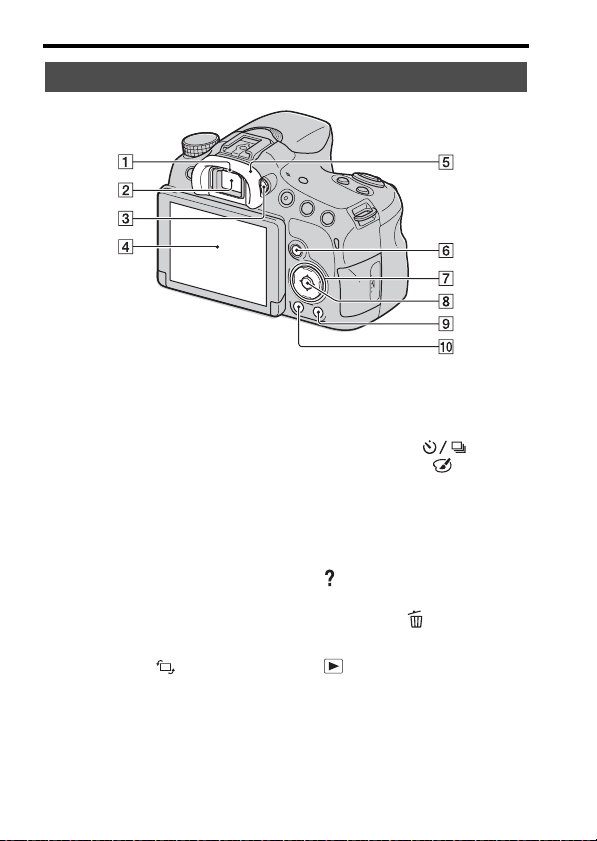
14
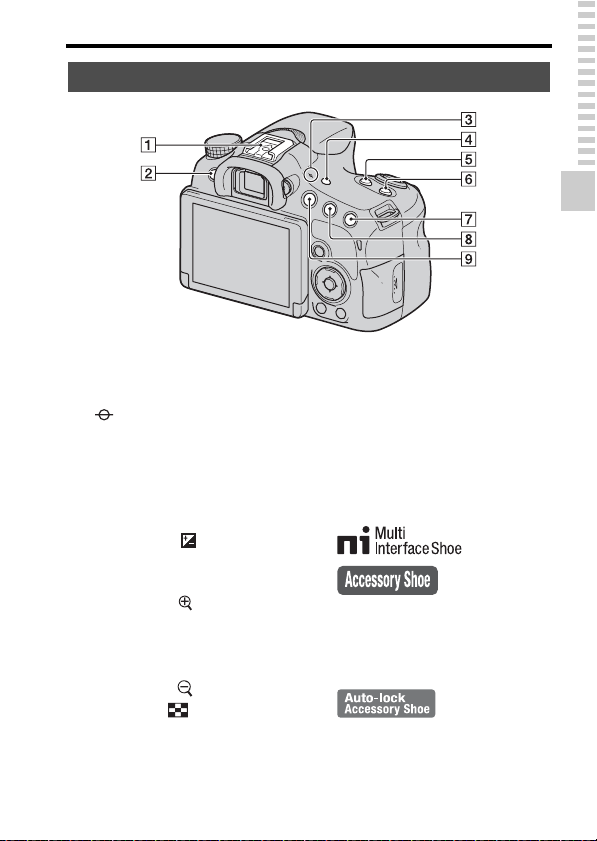
Identifying parts
A Eyepiece sensors (77)
B Viewfinder*
• When you look into the
viewfinder, viewfinder mode is
activated, and when you move
your face away from the
viewfinder, viewing mode
returns to LCD screen mode.
C Diopter-adjustment dial (29)
D LCD screen (71, 80, 147)
E Eyepiece cup (77)
F For shooting: Fn (Function)
button (52, 53)
For viewing: (Image
rotation) button (149)
G Control button
v/V/b/B/DISP (Display
Contents) (46, 147)/WB (White
Balance) (136)/ (Drive
Mode) (45, 143)/ (Picture
Effect) (133)
H Control button (Enter)/AF
button (110)/Lock-on AF
button (111)
I (In-Camera Guide) button
(62)
For viewing: (Delete) button
(34)
J (Playback) button (33)
* Do not directly touch this
part.
Back
15
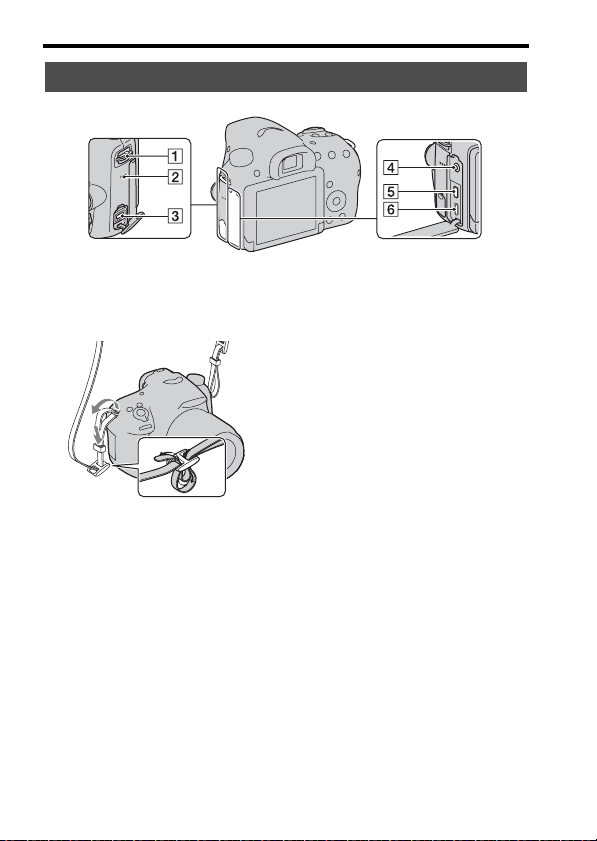
Identifying parts
Preparing the camera
A Multi interface shoe
1)2)
(127)
B MENU button (55)
C Image sensor position
mark (108)
D FINDER/LCD button (164)
E ZOOM button (140)
F ISO button (129, 162)
G For shooting: (Exposure)
button (43)/AV (Aperture
value) button (96)
For viewing: (Zoom in)
button (48)
H For shooting: AEL (AE lock)
button (122, 161)
For viewing: (Zoom out)
button (48)/ (Image index)
button (49)
I MOVIE button (32, 100)
1)
For details on compatible accessories
for the Multi interface shoe, visit the
Sony web site, or consult a Sony
dealer or local authorized Sony
service facility in your area.
Accessories for the Accessory Shoe
can also be used. Operation with other
manufactures’ accessories is not
guaranteed.
2)
Accessories for the Auto-lock
Accessory Shoe can also be attached
using the Shoe Adaptor (sold
separately).
Top
16
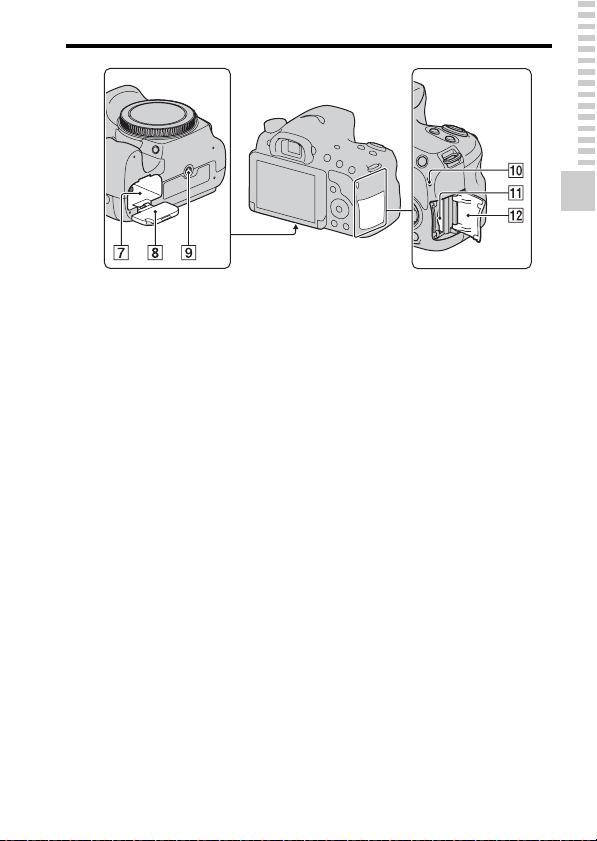
Identifying parts
A Hooks for shoulder strap
• Attach both ends of the strap to
the camera.
B Speaker
C DC IN terminal
• When connecting the AC-
PW10AM AC Adaptor (sold
separately) to the camera, turn
the camera off, then plug the
connector of the AC Adaptor
into the DC IN terminal on the
camera.
D m (Microphone) jack
• When an external microphone
is connected, the internal
microphone is automatically
turned off. If the external
microphone is a plug-in-power
type, the power of the
microphone is supplied by the
camera.
E HDMI micro jack (50, 155)
F Multi/Micro USB Terminal
(178)
• Supports Micro USB
compatible device.
Sides/Bottom
17
Identifying parts
Preparing the camera
G Battery insertion slot (21)
H Battery cover (21)
I Tripod receptacle
• Use a tripod with a screw length
of less than 5.5 mm (7/32 inch).
You will be unable to firmly
secure the camera to tripods
with a screw length of 5.5 mm
(7/32 inch) or longer, and
attempting to do so may
damage the camera.
J Access lamp (22)
K Memory card insertion slot (21)
L Memory card cover (21)
18
Identifying parts
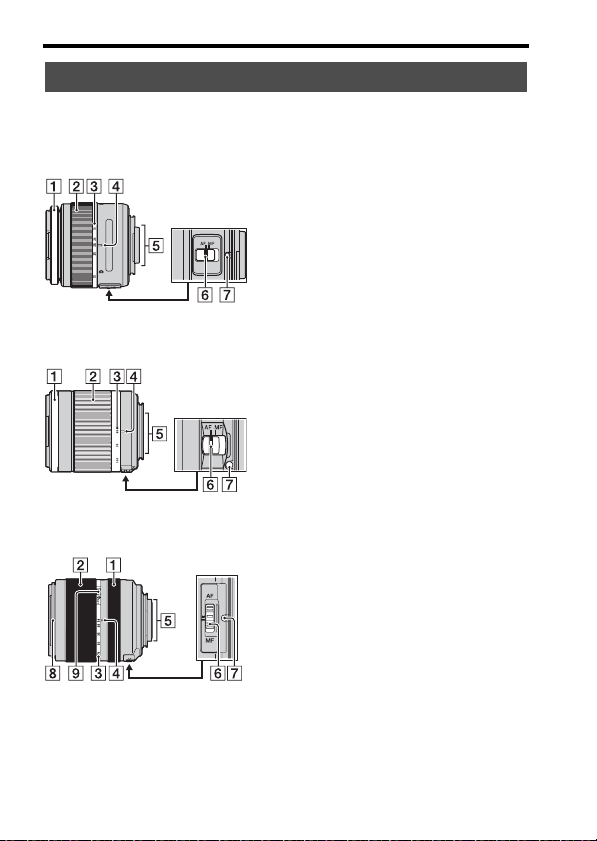
DT 18-55mm F3.5-5.6 SAM II
(Supplied with the SLT-A58K/
A58Y)
DT 55-200mm F4-5.6 SAM
(Supplied with the SLT-A58Y)
DT 18-135mm F3.5-5.6 SAM
(Supplied with the SLT-A58M)
A Focusing ring
B Zoom ring
C Focal-length scale
D Focal-length index
E Lens contacts
F Focusing mode switch
G Mounting index
H Lens hood index
I Zoom lock switch
• The DT 18-55mm F3.5-5.6 SAM
II/DT 55-200mm F4-5.6 SAM/
DT 18-135mm F3.5-5.6 SAM are
designed for Sony A-mount
cameras (models equipped with
an APS-C sized image sensor).
You cannot use these lenses on
35mm-format cameras.
• For lenses other than DT 18-
55mm F3.5-5.6 SAM II/DT 55-
200mm F4-5.6 SAM/DT 18-
135mm F3.5-5.6 SAM, refer to
the operating instructions
supplied with the lens.
Lens
19
Preparing the camera
Charging the battery pack
When using the camera for the first time, be sure to charge the NP-
FM500H “InfoLITHIUM” battery pack (supplied).
The “InfoLITHIUM” battery pack can be charged even when it has not
been fully depleted. The battery pack can also be used when it has not been
fully charged.
The charged battery pack is discharged little by little, even when you do not
use it. To avoid missing an opportunity to shoot, charge the battery pack
again before you shoot.
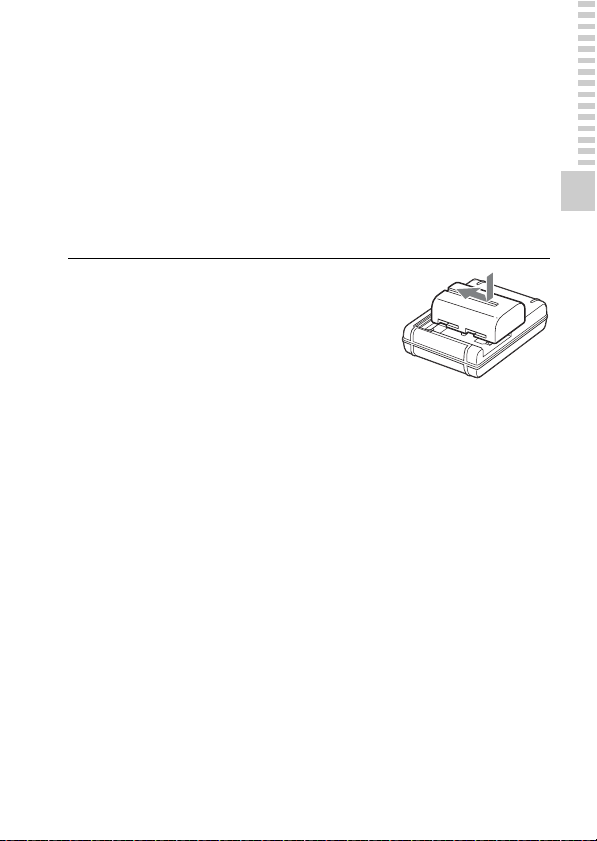
1
Insert the battery pack into
the battery charger.
Push the battery pack in until it clicks.
20
Charging the battery pack
Notes
• The charging time differs depending on the remaining capacity of the battery pack or
charging conditions.
• We recommend charging the battery pack in an ambient temperature of between
10°C to 30°C (50°F to 86°F). You may not be able to efficiently charge the battery
pack outside of this temperature range.
• Connect the battery charger to the nearest wall outlet (wall socket).
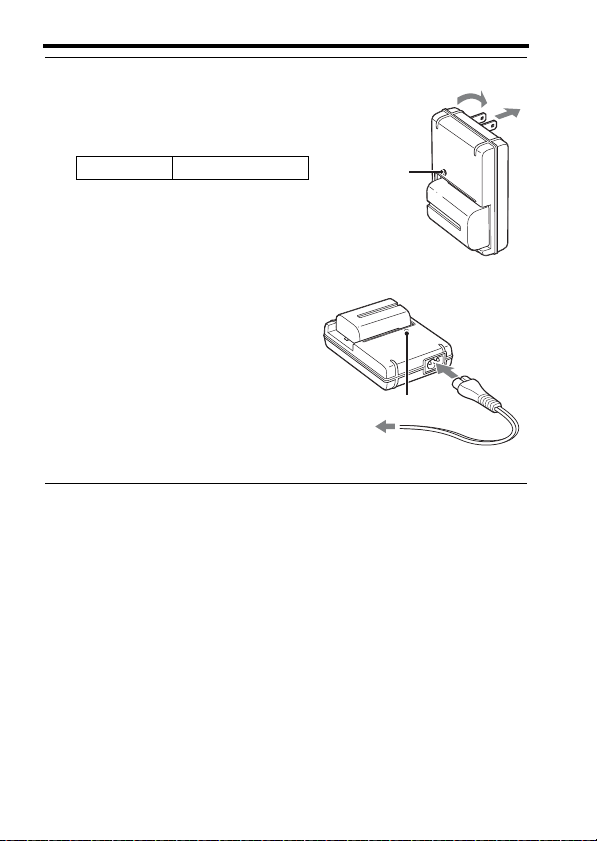
2
Connect the battery charger
to a wall outlet (wall socket).
Light on: Charging
Light off: Charge completed
• When charging a fully depleted
battery pack at a temperature of 25°C
(77°F).
• The CHARGE lamp turns off when
charging is completed.
For the U.S.A. and Canada
For countries/regions other than the
U.S.A. and Canada
Charging time
About 175 minutes
Plug
CHARGE lamp
To a wall outlet
(wall socket)
CHARGE lamp
21
Preparing the camera
Inserting the battery pack/memory
card (sold separately)
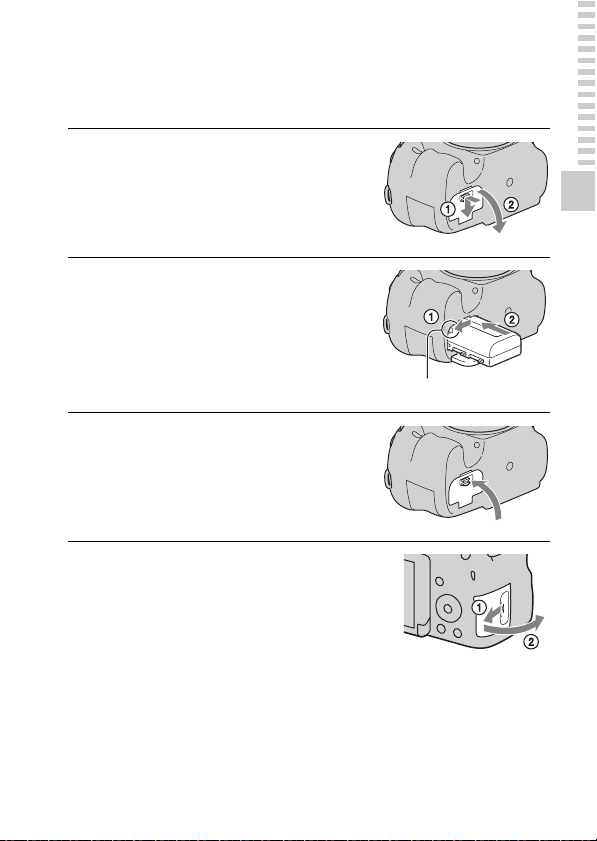
1
Open the battery cover by
sliding the lever.
2
Insert the battery pack
completely, using the tip of
the battery to press the lock
lever.
Lock lever
3
Close the cover.
4
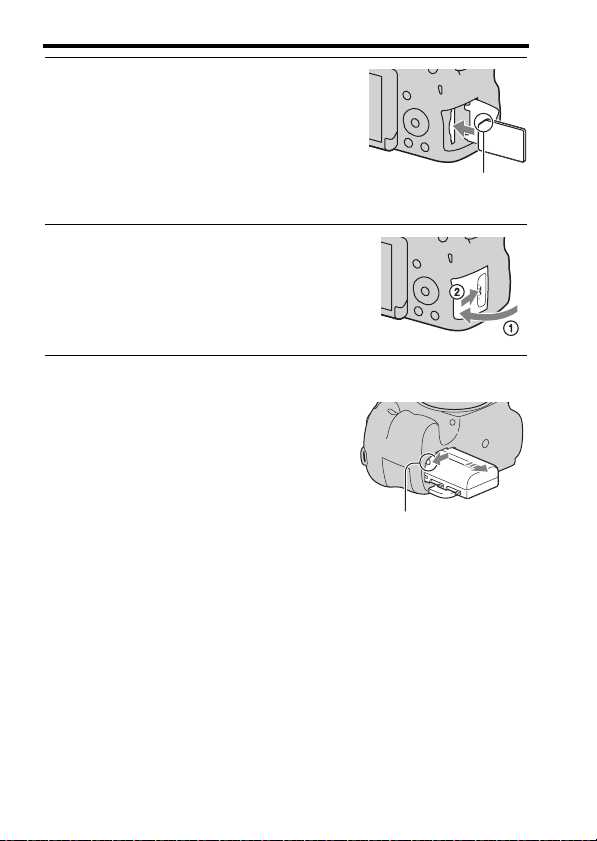
Slide and open the memory
card cover.
22
Inserting the battery pack/memory card (sold separately)
To remove the battery pack
To remove the memory card
Make sure that the access lamp is not lit, then open the cover and push the
memory card once.
5
Insert a memory card.
• With the notched corner facing in the
direction shown, insert the memory
card until it clicks into place.
Ensure that the notched corner faces
the correct direction.
6
Close the cover.
Turn off the camera and check that the
vibration of the camera has stopped and
that both the LCD screen and access lamp
(page 17) are turned off. Then, slide the
lock lever in the direction of the arrow to
remove the battery pack. Be careful not to
drop the battery pack.
Lock lever
23
Inserting the battery pack/memory card (sold separately)
Preparing the camera
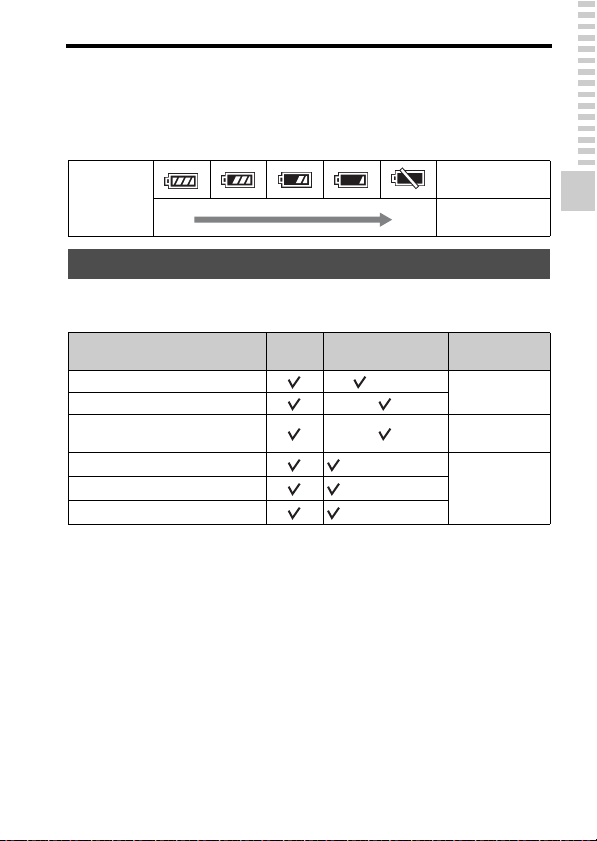
To check the remaining battery level
The supplied battery pack is a lithium-ion battery pack that can exchange
information related to operating conditions with your camera. The
remaining battery time in percent figures is displayed according to the
operating conditions of your camera.
The following memory cards are compatible with this camera. However, all
memory cards are not guaranteed to work with this camera.
Notes
• Images recorded on a “Memory Stick XC-HG Duo” media or an SDXC memory
card cannot be imported to or played on computers or AV devices that are not
compatible with exFAT. Make sure that the device is compatible with exFAT before
connecting it to the camera. If you connect your camera to an incompatible device,
you may be prompted to format the card. Never format the card in response to this
prompt, as doing so will erase all data on the card. (exFAT is the file system used on
“Memory Stick XC-HG Duo” media or SDXC memory cards.)
Battery level
“Battery
exhausted.”
High Low
You cannot shoot
any more pictures.
Memory cards that you can use
Types of memory card
Still
images
Movies In this manual
Memory Stick PRO Duo (Mark2)
Memory Stick
PRO Duo
Memory Stick PRO-HG Duo
Memory Stick XC-HG Duo Memory Stick
XC Duo
SD memory card
(Class 4 or faster)
SD card
SDHC memory card
(Class 4 or faster)
SDXC memory card
(Class 4 or faster)
24
Attaching a lens
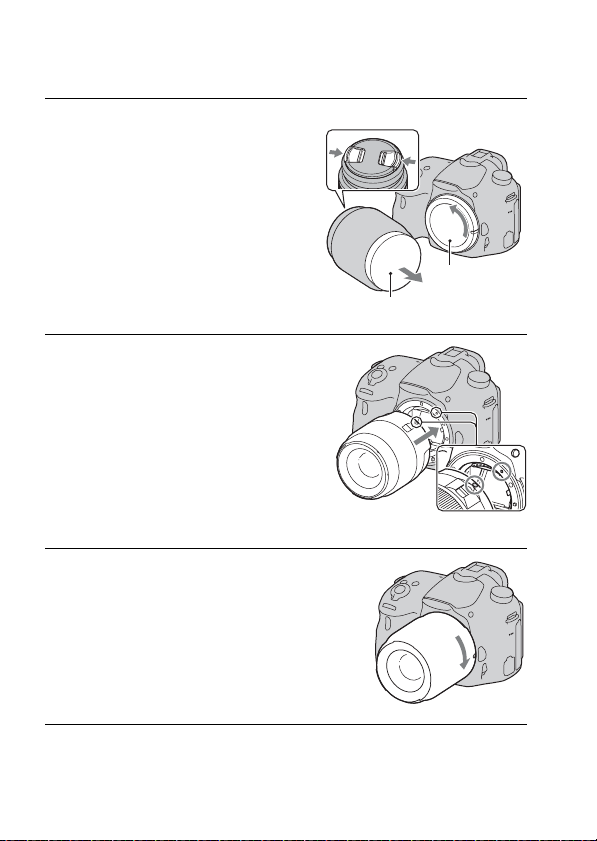
1
Remove the body cap from
the camera and the
packaging lid from the rear
of the lens.
• Quickly change the lens somewhere
away from dusty locations so as to
keep dust or debris from getting
inside the camera.
• When shooting, remove the front lens
cap from the front of the lens.
Front lens cap
Packaging lid
2
Mount the lens by aligning
the orange index marks
(mounting indexes) on the
lens and camera.
Orange index marks
3
Turn the lens clockwise until
it clicks into the locked
position.
• Be sure to put the lens on straight.
Body cap
25
Attaching a lens
Preparing the camera
Notes
• When attaching a lens, do not press the lens release button.
• Do not use force when attaching a lens.
• E-mount lenses are not compatible with this camera.
• When using a lens equipped with a tripod socket, attach the socket on the lens side to
the tripod to maintain balance.
• When carrying the camera with a lens attached, hold both the camera and the lens
firmly.
• Do not hold the part of the lens that is extended for zoom or focus adjustments.
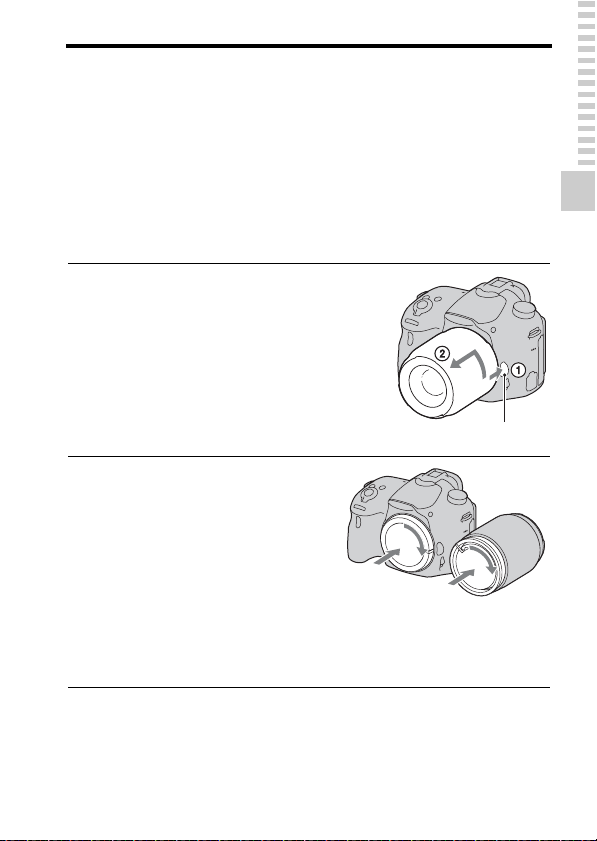
To remove the lens
1
Press the lens release button
all the way in and turn the
lens counterclockwise until it
stops.
Lens release button
2
Attach the caps to the front
and rear of the lens and the
body cap to the camera.
• Before you attach the caps, remove
any dust.
• A rear lens cap is not supplied with
the DT 18-55mm F3.5-5.6 SAM II
Lens Kit. If storing the lens without
attaching it to the camera, purchase
Rear Lens Cap ALC-R55.
26
Attaching a lens
To attach a lens hood
Notes
• A lens hood is not supplied with the DT 18-55mm F3.5-5.6 SAM II. You can use the
ALC-SH108 (sold separately).
• The lens hood may block the light of the flash. Remove the lens hood when using the
flash.
• When storing, turn over the lens hood and place it onto the lens backwards.
Note on changing the lens
When changing the lens, if dust or debris gets inside the camera and
adheres to the surface of the image sensor (the part that converts light to
electric signal), it may appear as dark spots on the image, depending on the
shooting environment.
The image sensor is equipped with an anti-dust function to prevent dust
from landing on the image sensor. However, attach or remove the lens
quickly somewhere away from dusty locations.
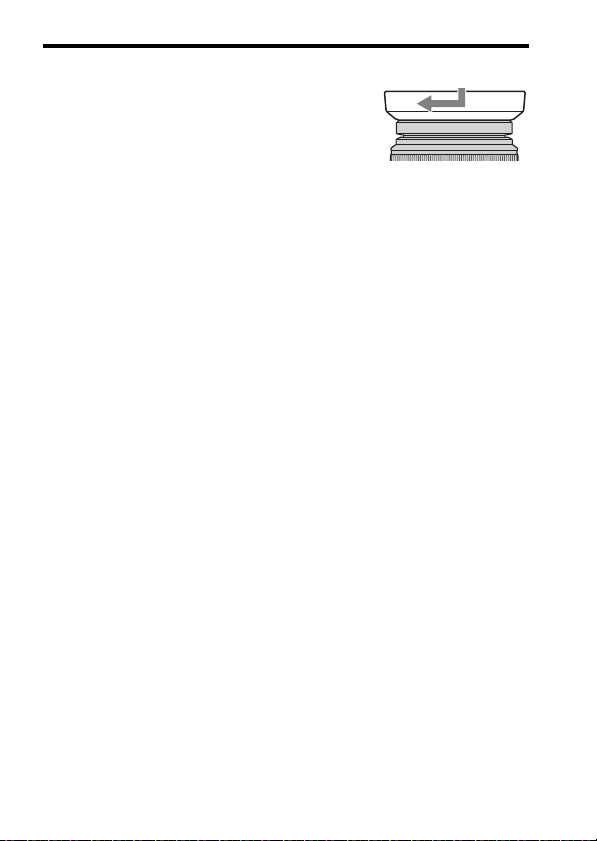
It is recommended that you use a lens
hood to reduce flare and ensure optimum
image quality.
Fit the hood into the mount on the end of
the lens barrel and rotate the hood
clockwise until it clicks.
27
Preparing the camera
Turning on the camera and setting the
clock
When you turn on the camera for the first time, the date/time setup screen
appears.
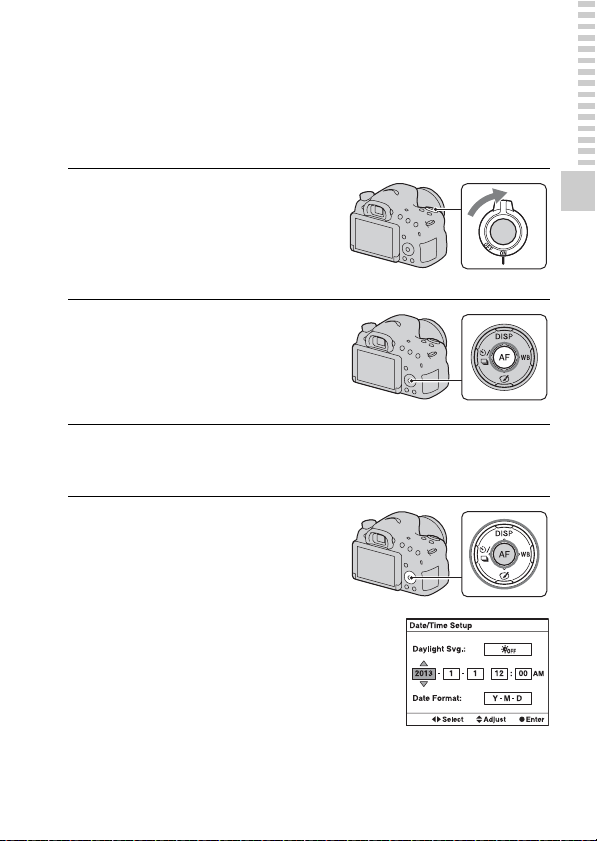
1
Set the power switch to ON to
turn on the camera.
The screen to set date and time appears.
• To turn off the camera, set the power
switch to OFF.
2
Check that [Enter] is selected
on the LCD screen, then
press the center of the
control button.
3
Select your area using b/B on the control button, then
press the center of the control button.
4
Select each item using b/B
and set the numeric value
using v/V.
[Daylight Svg.:]: Turns on or off the
daylight saving time setting.
[Date Format:]: Selects the format
for displaying the date.
• Midnight is indicated as 12:00 AM,
and noon as 12:00 PM.

28
Turning on the camera and setting the clock
To cancel the date/time setting operation
Press the MENU button.
To set the date/time again
The date/time setup screen appears automatically only when you turn the
camera on for the first time. To set the date and time again, use the menu.
MENU button t 1 t [Date/Time Setup]
To set the area again
You can set the area where you are using the camera. This allows you to set
the local area when you use the camera abroad.
MENU button t 1 t [Area Setting]
Maintaining the date and time setting
This camera has an internal rechargeable battery to maintain the date and
time and other settings regardless of whether the power is on or off or the
battery is installed (page 201).
5
Repeat step 4 to set other items, then press the center
of the control button.
6
Check that [Enter] is selected, then press the center of
the control button.
29
Preparing the camera
Before shooting
Notes
• The dioptric adjustment attachment (sold separately) cannot be used with this
camera.
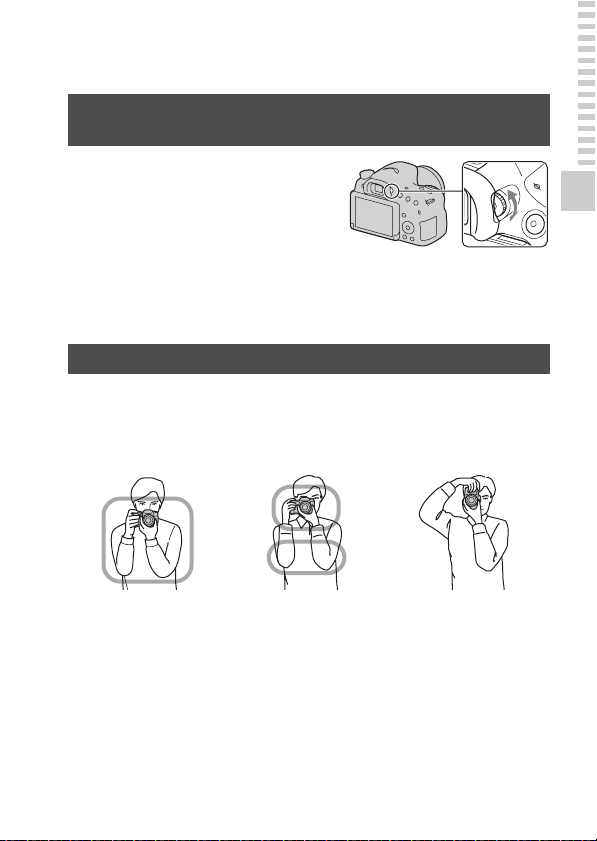
Stabilize your upper body and take a position that keeps the
camera from moving.
Point 1
Hold the camera with one hand, and support the lens with the other.
Point
2
Take a secure stance with your feet shoulder-width apart.
Point
3
Lightly tuck your elbows against your body. When shooting in a kneeling
position, steady your upper body by placing your elbow on your knee.
Adjusting the viewfinder’s visual acuity (diopter
adjustment)
Adjust the diopter-adjustment
dial to your eyesight until the
display appears clearly in the
viewfinder.
Holding the camera properly
In LCD screen mode In viewfinder mode In viewfinder mode
(vertical position)
30
Shooting and viewing images
Shooting still images
In [Intelligent Auto] mode, the camera analyzes the subject and allows you
to shoot with the appropriate settings.
Select when shooting in a location where flash use is restricted.
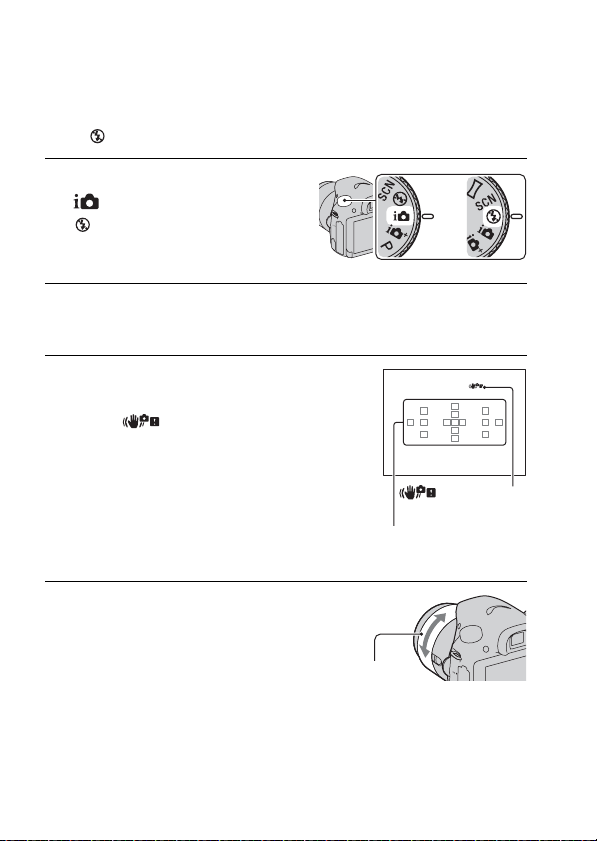
1
Set the mode dial to
(Intelligent Auto) or
(Flash Off).
2
Hold the camera, monitoring your shot using the LCD
screen or viewfinder.
3
Overlay the AF area on the
desired subject.
• If the (Camera shake
warning) indicator flashes, carefully
shoot the subject, holding the camera
steady or using a tripod.
• When the camera recognizes the
scene, the Scene Recognition icon
appears on the screen and suitable
settings for that scene will be used.
AF area
4
When using a zoom lens,
turn the zoom ring, then
decide on your shot.
or
(Camera shake
warning) indicator
Zoom ring
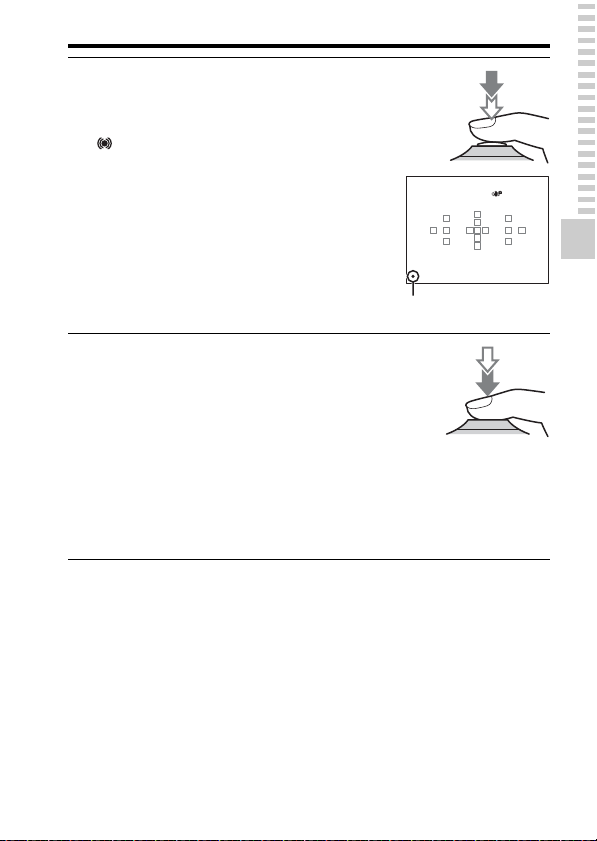
31
Shooting still images
Shooting and viewing images
5
Press the shutter button
halfway down to focus.
When the focus is confirmed, z or
(Focus indicator) lights up
(page 107).
Focus indicator
6
Press the shutter button fully
down to shoot.
• When [Auto Object Framing] is set to
[Auto] and the camera shoots faces,
close-ups, or subjects tracked by
[Lock-on AF], the camera
automatically trims the image into a
suitable composition. Both the
original and the trimmed images are
saved (page 119).
32
Recording movies
Notes
• The sound of the camera and the lens in operation may be recorded while recording a
movie. You can disable sound recording by setting [Audio Recording] to [Off]
(page 105).
• The continuous recording time of a movie may be shorter, depending on the ambient
temperature or the status of the camera. See “Notes on continuous movie recording.”
• When the icon appears, the temperature of the camera is too high. Turn the
camera off and wait until the temperature of the camera drops (page 199).
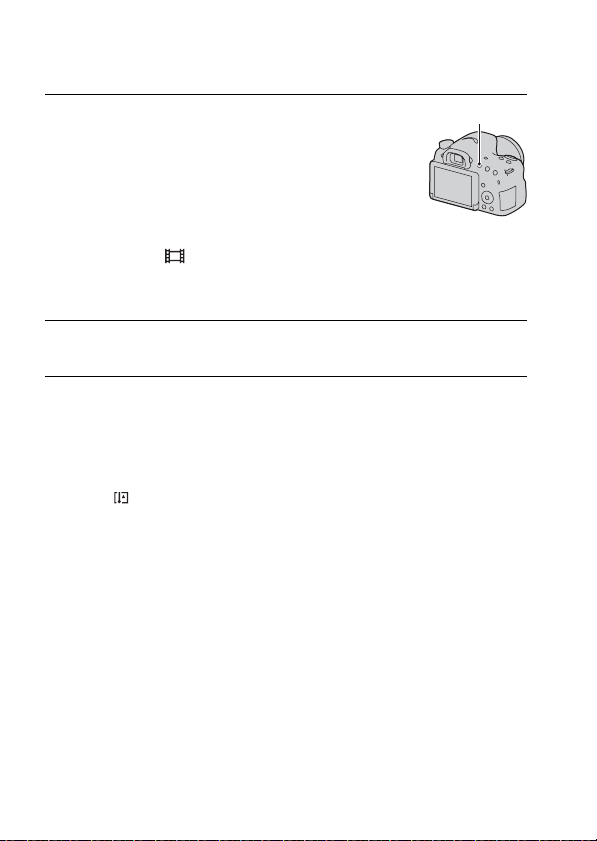
1
Press the MOVIE button to
start recording.
• Movie recording can be started from
any exposure mode.
• The shutter speed and aperture are
adjusted automatically. If you want to
set them to particular values, set the
mode dial to (Movie) (page 102).
• The camera continues to adjust the
focus when it is in autofocus mode.
MOVIE button
2
Press the MOVIE button again to stop recording.
33
Shooting and viewing images
Playing back images
Notes
• Movies recorded using other devices may not play back on this camera in some
cases.
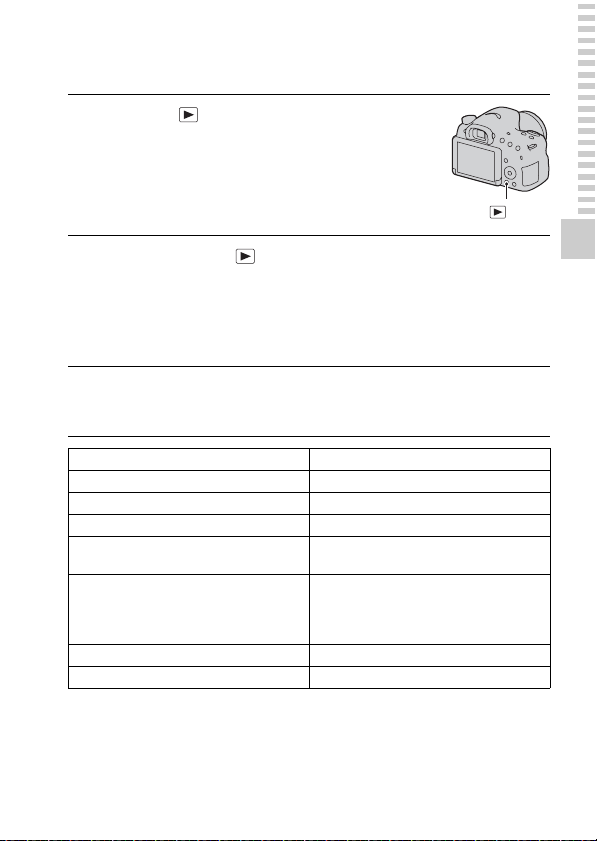
1
Press the button.
button
2
MENU button t 1 t [Still/Movie Select] t Select
the desired mode
• To play back still images, select [Folder View(Still)], and to play back
movies, select [Folder View(MP4)] or [AVCHD View], depending on the
file format.
3
Select an image using b/B on the control button.
• To play back movies, press the center of the control button.
During movie playback Control button/control dial operation
To pause/resume z
To fast-forward B
To fast-reverse b
To slow-forward Rotate the control dial to the right during
pause.
To slow-reverse Rotate the control dial to the left during
pause.
• The movie is played back frame-by-
frame.
To adjust sound volume V t v/V
To display the information v
34
Deleting images (Delete)
Once you have deleted an image, the image cannot be restored. Be sure that
you do not want the image before deleting it.
Notes
• Protected images cannot be deleted.
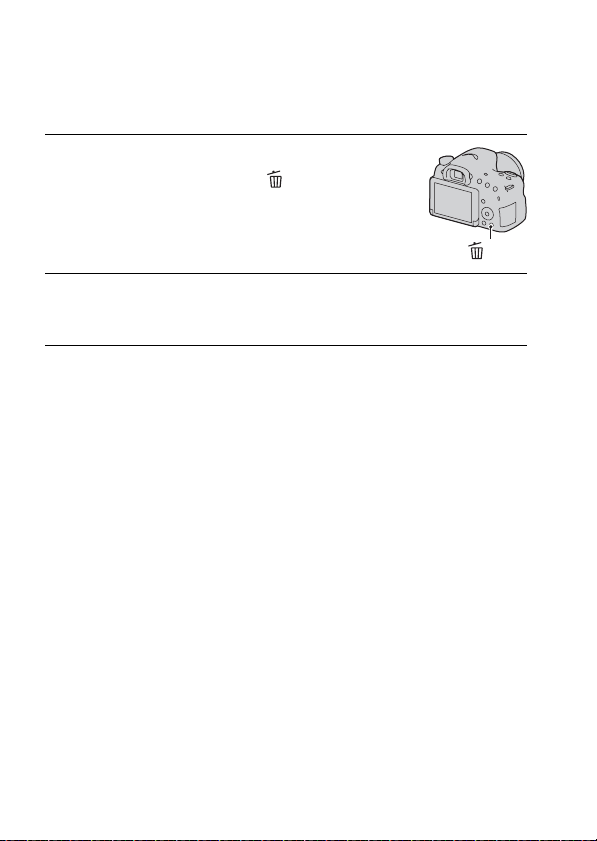
1
Display the image you want
to delete and press the
button.
button
2
Select [Delete] using v on the control button, then
press the center of the control button.
35
Shooting images to suit your subject
Shooting images to suit your subject
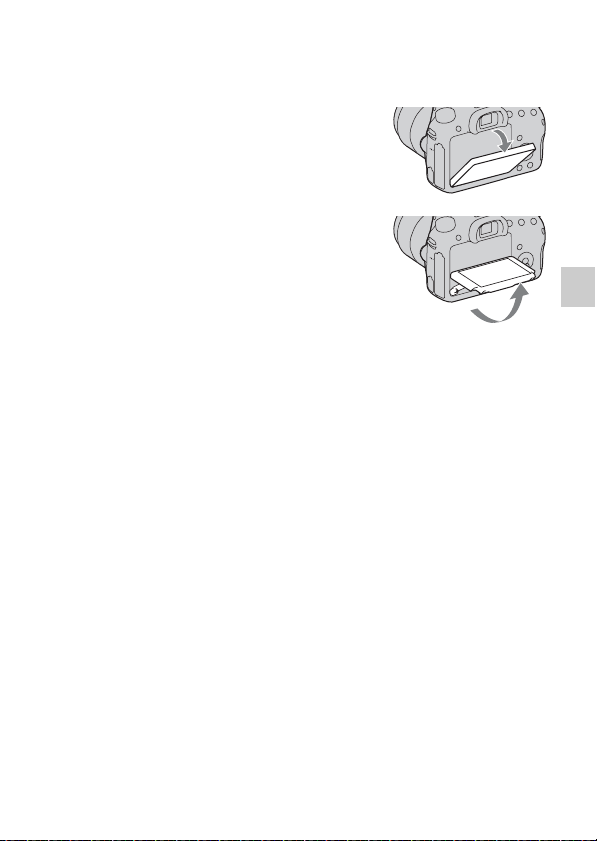
Adjusting the angle of the LCD screen
Adjust the LCD screen to an easily
viewable angle.
• The LCD screen tilts down about 55
degrees and up about 135 degrees.
36
Selecting a shooting mode
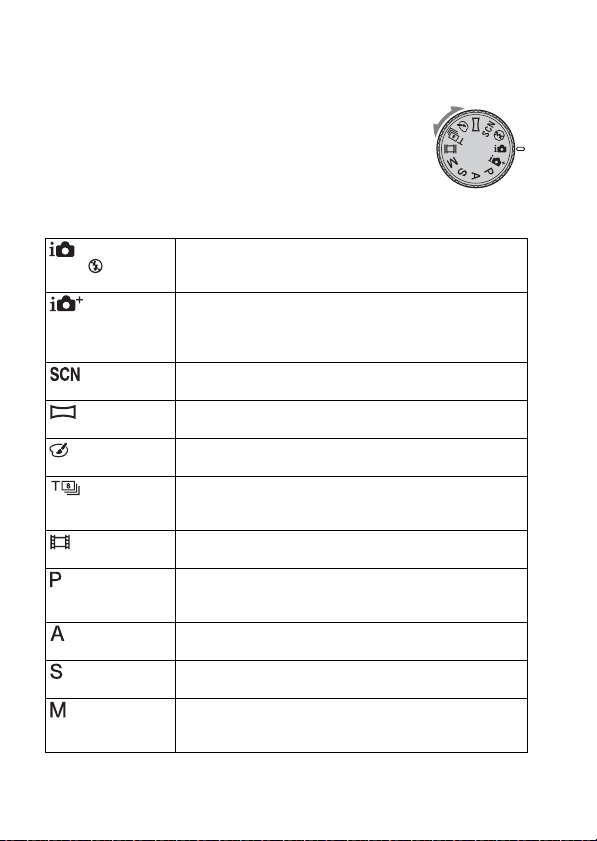
The following shooting modes are available:
Set the mode dial to the desired
shooting mode.
(Intelligent
Auto)/ (Flash Off)
(30, 85)
In [Intelligent Auto] mode, the camera analyzes the subject
and allows you to shoot with the appropriate settings.
Select [Flash Off] when you want to shoot without the flash.
(Superior
Auto) (37, 85)
The camera recognizes and evaluates the shooting conditions,
and appropriate settings are set automatically. The camera
saves 1 appropriate image by combining or extracting
images, as necessary.
(Scene
Selection) (38, 86)
Allows you to shoot with preset settings according to the
scene.
(Sweep
Panorama) (39, 88)
Allows you to shoot panoramic images.
(Picture Effect)
(133)
Allows you to shoot still images with a texture unique to the
selected effect.
(Tele-zoom
Cont. Priority AE)
(40, 90)
The camera continues to shoot while the shutter button is
pressed fully down. The camera records images continuously
at a maximum of about 8 images per second.
(Movie) (32,
100)
Allows you to shoot movies with the exposure (both the
shutter speed and the aperture value) adjusted manually.
(Program Auto)
(91)
Allows you to shoot with the exposure (both the shutter speed
and the aperture value) adjusted automatically. The other
settings can be adjusted manually.
(Aperture
Priority) (92)
Allows you to shoot after adjusting the aperture value
manually using the control dial.
(Shutter Priority)
(94)
Allows you to shoot after adjusting the shutter speed
manually using the control dial.
(Manual
Exposure) (96)
Allows you to shoot after adjusting the exposure (both the
shutter speed and the aperture value) manually using the
control dial.
37
Selecting a shooting mode
Shooting images to suit your subject
Scene recognition
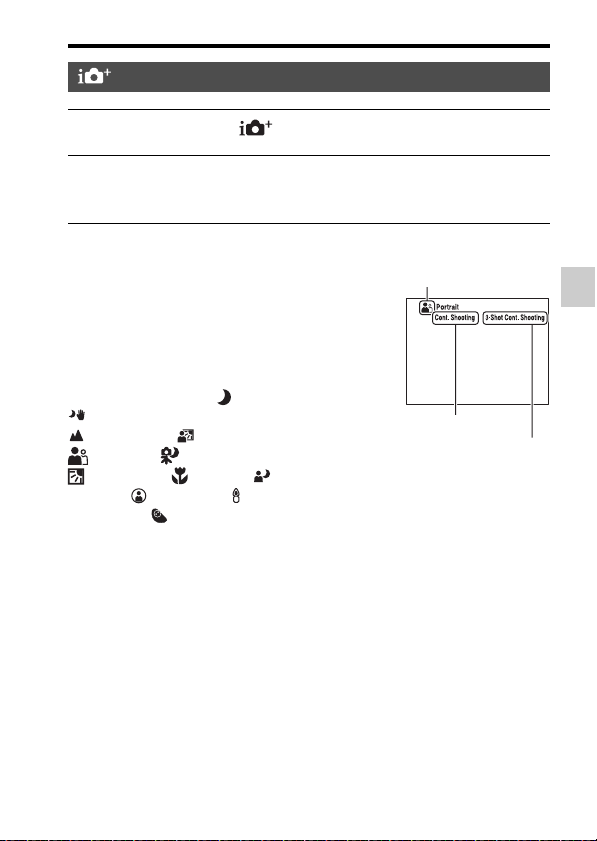
Superior Auto
1 Set the mode dial to (Superior Auto).
2 Point the camera towards the subject, and adjust the focus and
shoot the subject.
When the camera recognizes the subject
and adjusts itself for shooting conditions,
the following information appears on the
screen: Scene Recognition icon,
appropriate shooting function, and the
number of images to be shot.
Recognized scene: (Night Scene),
(Hand-held Twilight),
(Landscape), (Backlight Portrait),
(Portrait), (Tripod Night Scene),
(Backlight), (Macro), (Night
Portrait), (Spotlight), (Low
Brightness), (Baby)
Shooting function: Cont. Shooting,
Slow Sync. (pages 41, 126), Auto HDR
(page 130), Daylight Sync., Slow Shutter,
Hand-held Twilight (page 87)
Scene Recognition icon
Number of images to be shot
Shooting function
38
Selecting a shooting mode
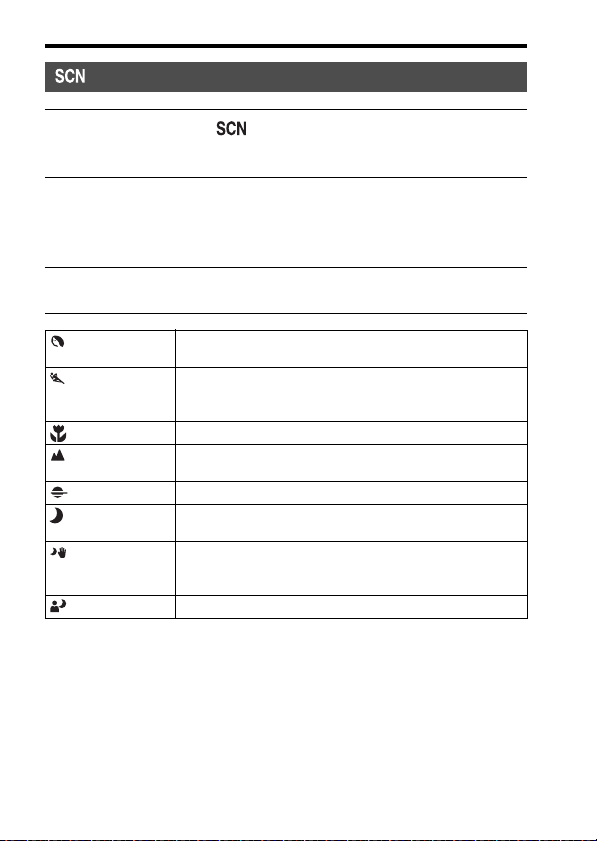
Scene Selection
1 Set the mode dial to (Scene Selection), then press the
center of the control button.
2 Select the desired mode using v/V, then press the center of
the control button.
• To change the scene, press the Fn button, then select another scene.
3 Adjust the focus and shoot the subject.
(Portrait) Blurs away backgrounds and sharpens the subject.
Accentuates skin tones softly.
(Sports Action) Shoots a moving subject at a fast shutter speed so that the
subject looks as if it is standing still. The camera shoots
images continuously while the shutter button is pressed.
(Macro) Shoots close-ups of the subjects such as flowers and foods.
(Landscape) Shoots the entire range of scenery in sharp focus with vivid
colors.
(Sunset) Shoots the red of the sunrise or sunset beautifully.
(Night Scene) Shoots night scenes at a distance without losing the dark
atmosphere of the surroundings.
(Hand-held
Twilight)
Shoots night scenes with less noise and blur without using a
tripod. A burst of shots are taken, and image processing is
applied to reduce subject blur, camera shake, and noise.
(Night Portrait) Shoots portraits in night scenes.
39
Selecting a shooting mode
Shooting images to suit your subject
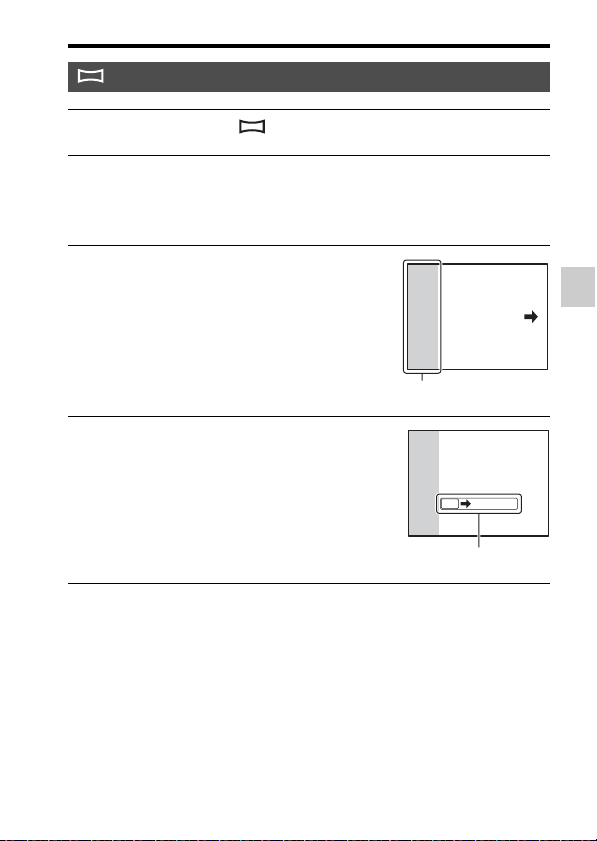
Sweep Panorama
1 Set the mode dial to (Sweep Panorama).
2 Point the camera at the subject for which you want to adjust the
brightness and focus, and press the shutter button halfway
down.
3 Point the camera at the edge of
the composition while pressing
the shutter button halfway down,
and then press the shutter button
fully down.
This part will not be shot.
4 Pan or tilt the camera to the end,
following the guidance on the
screen.
Guidance bar
40
Selecting a shooting mode
• When [AEL w/ shutter] is set to [Off], the camera continues to adjust the
exposure even after the first shot in [Cont. Shooting] or [Tele-zoom Cont.
Priority AE] (page 123).
• When [Autofocus Mode] is set to [Continuous AF], the camera continues
to adjust focus during shooting. You can set [ISO] to the desired number.
Tele-zoom Cont. Priority AE
1 Set the mode dial to (Tele-zoom Cont. Priority AE).
2 Adjust the focus and shoot the subjects.
• The camera continues to shoot while the shutter button is pressed fully
down.
• The center area on the screen is cropped and the camera records the images
continuously at a maximum of about 8 images per second.
• The minimum zoom scale of the camera is set to 2 times and the image size
is set to S.
Shooting techniques
41
Using the shooting functions
Using the shooting functions
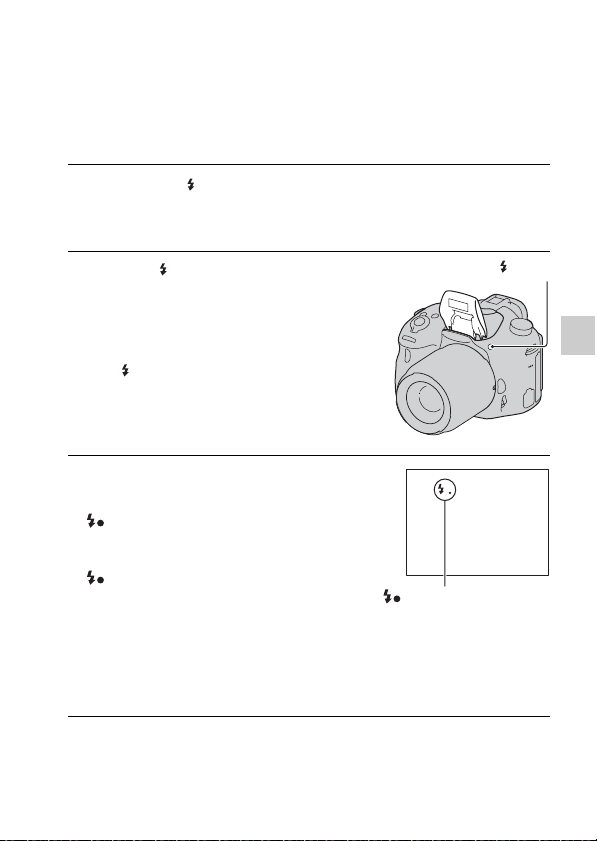
Using the flash
In dark environments, use the flash to shoot the subject brightly and to
prevent camera shake. When shooting against the sun, use the flash to
lighten the image of the backlit subject.
1 Fn button t (Flash Mode) t Select the desired setting
• For further information on the flash modes available for each shooting
mode, see page 75.
2 Press the button.
The built-in flash pops up.
• In [Intelligent Auto], [Superior Auto],
or [Scene Selection] mode, the built-in
flash does not pop up even if you press
the button. In these modes, the flash
automatically pops up if the amount of
light is insufficient or the subject is
backlit.
button
3 After the flash has finished
charging, shoot the subject.
Blinking: The flash is being charged.
While the indicator is blinking, you
cannot trigger the shutter.
Lit: The flash has been charged and
is ready to fire.
• When you press the shutter button
halfway down under dark lighting in
autofocus mode, the flash may be fired
to help focus on a subject (AF
Illuminator).
(Flash charging) indicator
42
Using the flash
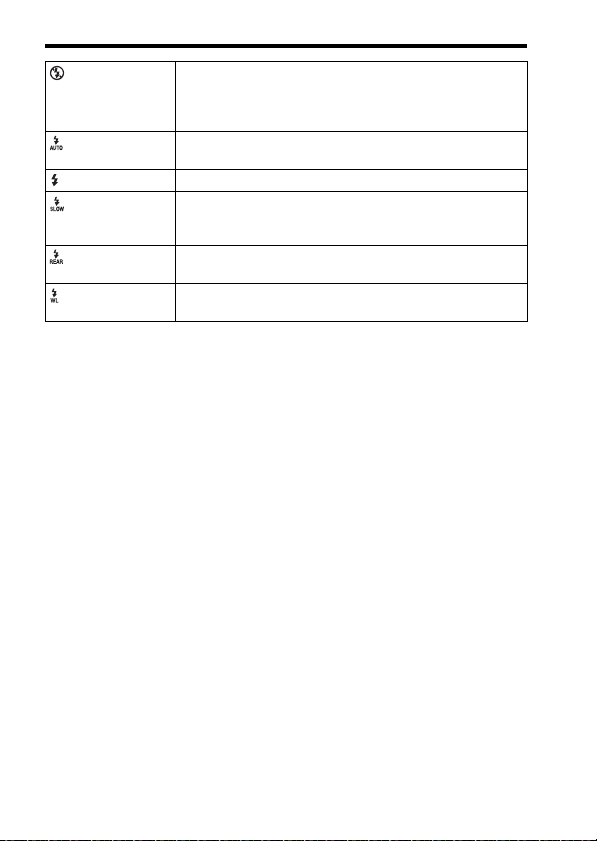
(Flash Off) Does not fire even if the flash is raised.
• You cannot select this item when the mode dial is set to P,
A, S, or M. If you do not want to use the flash in these
modes, push the flash down.
(Autoflash) Fires in dark environments or when shooting towards bright
light.
(Fill-flash) Fires every time you trigger the shutter.
(Slow Sync.) Fires every time you trigger the shutter. Slow sync shooting
allows you to shoot a clear image of both the subject and the
background by slowing the shutter speed.
(Rear Sync.) Fires right before the exposure is completed every time you
trigger the shutter.
(Wireless) Fires an external flash (sold separately) that is off the camera
and away from it (wireless flash shooting).
43
Using the shooting functions
Adjusting the image brightness
Normally, the exposure is automatically selected (Automatic exposure).
Based on the exposure acquired by the automatic exposure, you can
perform exposure compensation. You can make the entire image brighter
by shifting to the + side. The entire image becomes darker when you shift
to the – side (Exposure compensation).
• Adjust the compensation level by checking the recorded image.
• Using bracket shooting, you can shoot multiple images with the exposure
shifted to the plus or minus sides (page 144).
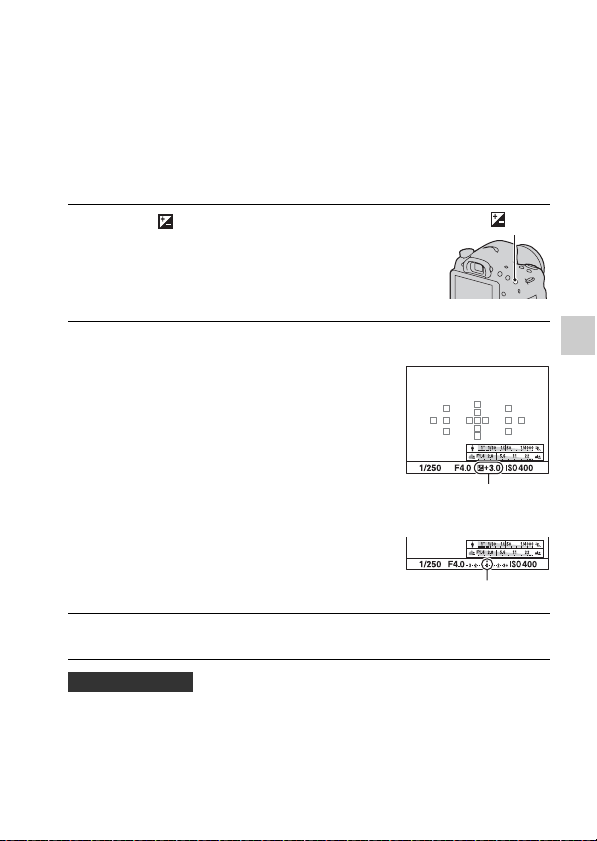
1 Press the button.
button
2 Adjust the exposure using the
control dial.
Toward + (over): Brightens an image.
Toward – (under): Darkens an image.
• In viewfinder mode, confirm the
exposure using the EV scale.
The LCD screen after the
exposure is adjusted.
Compensated exposure
The screen in the viewfinder
Standard exposure
3 Adjust the focus and shoot the subject.
Shooting techniques

44
Adjusting the image brightness
Notes
• This item cannot be set when the exposure mode is set to [Intelligent Auto],
[Superior Auto], or [Scene Selection].
• When the exposure mode is set to M, the exposure can be adjusted only when [ISO]
is set to [AUTO]. Turn the control dial during AE lock to adjust the compensation
value.
• Even though you can adjust the exposure between –3.0 EV and +3.0 EV, only a
value between –2.0 EV and +2.0 EV with the equivalent image brightness appears
on the screen when shooting. If you set an exposure beyond this range, the image
brightness on the screen does not show the effect, but it will be reflected on the
recorded image.
45
Using the shooting functions
Selecting the drive mode
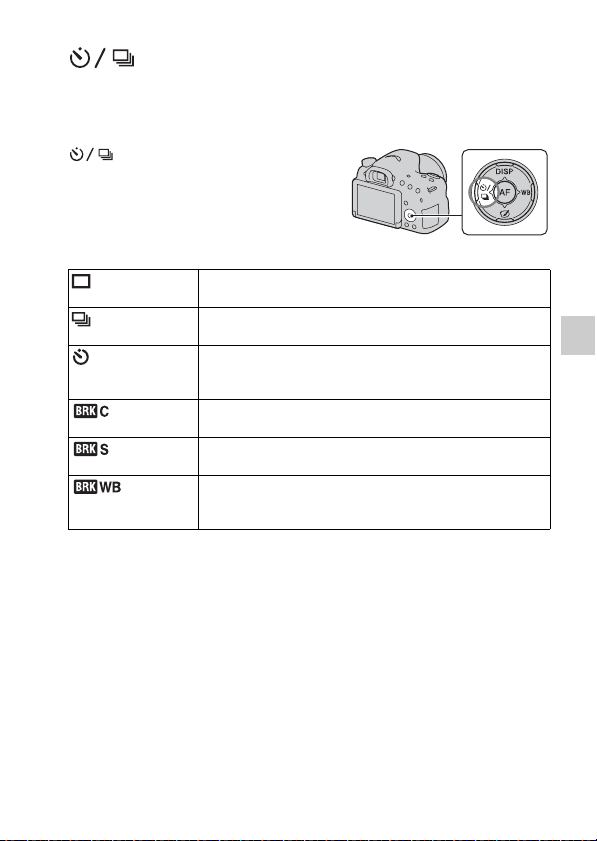
You can select the appropriate drive mode, such as single, continuous, or
bracket shooting, to suit your purpose.
on the control button t
Select the desired mode
(Single
Shooting) (143)
This mode is for normal shooting.
(Cont. Shooting)
(143)
The camera records images continuously.
(Self-timer) (144) The 10-second self-timer is convenient if the photographer
wants to appear in the photo, while the 2-second self-timer is
convenient for reducing the camera shake.
(Bracket:
Cont.) (144)
You can shoot 3 images, each with different degrees of
exposure.
(Single
Bracket) (144)
You can shoot 3 images, shot by shot, each with different
degrees of exposure.
(WB
bracket) (146)
Based on the selected white balance and the color
temperature/color filter, 3 images are recorded with the white
balance shifted.
46
Switching the recording information
display (DISP)
Graphic Display
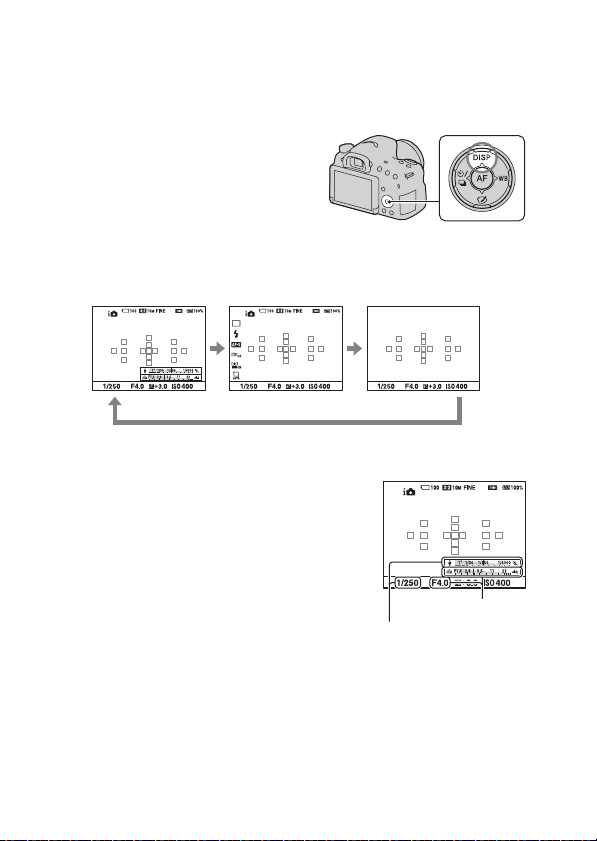
Each time you press DISP on the control
button, the recording information display
changes as follows.
You can set the recording information
display separately for viewfinder mode
and LCD screen mode.
[Graphic Display] shows the shutter
speed and aperture value as graphs, and
clearly illustrates how the exposure
works. The pointers on the shutter speed
indicator and aperture indicator indicate
the current value.
Shutter speed
No Disp. Info.Display All Info.Graphic Display
Aperture value
47
Using the shooting functions
Setting image size
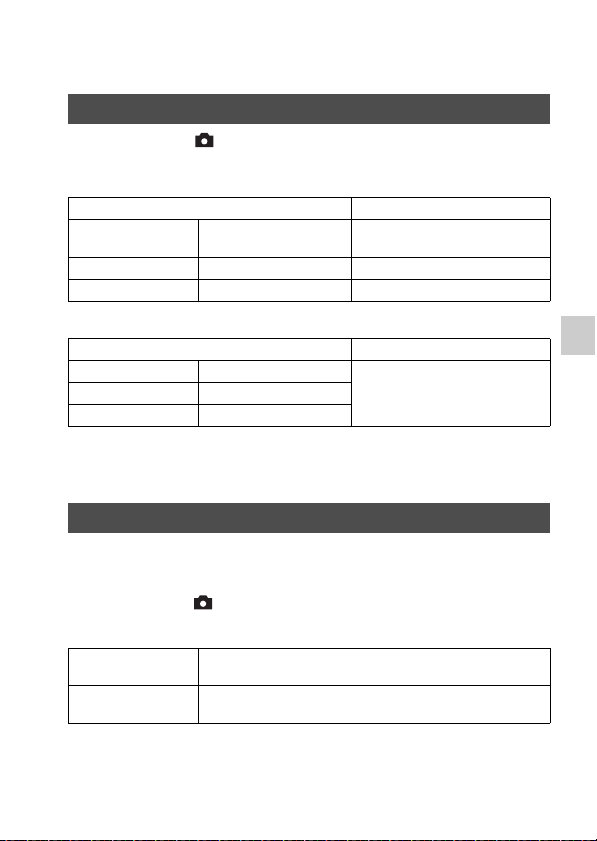
MENU button t 1 t [Image Size] t Select the desired size
[Aspect Ratio]: [3:2]
[Aspect Ratio]: [16:9]
Notes
• When [Quality] is set to [RAW] or [RAW & JPEG], the image size of the RAW
image corresponds to L. This size is not displayed on the screen.
You can set the image size for panoramic images. The image size varies
depending on the setting of the shooting direction (page 89).
MENU button t 1 t [Panorama: Size] t Select the desired
size
Image Size
Image size Usage guidelines
L: 20M 5456 × 3632 pixels For shooting at the highest image
quality
M: 10M 3872 × 2576 pixels For prints up to A3+ size
S: 5.0M 2736 × 1824 pixels For prints up to A5 size
Image size Usage guidelines
L: 17M 5456 × 3064 pixels For viewing on a high-definition
TV
M: 8.4M 3872 × 2176 pixels
S: 4.2M 2736 × 1536 pixels
Panorama: Size
Standard [Panorama: Direction] is set to [Up] [Down]: 3872 × 2160
[Panorama: Direction] is set to [Right] [Left]: 8192 × 1856
Wide [Panorama: Direction] is set to [Up] [Down]: 5536 × 2160
[Panorama: Direction] is set to [Right] [Left]: 12416 × 1856
48
Using the playback functions
Enlarging images
A still image can be enlarged for closer examination. This is convenient for
checking the focus condition of a recorded image.
To cancel the enlarged playback
Press the center of the control button and the image returns to normal size.
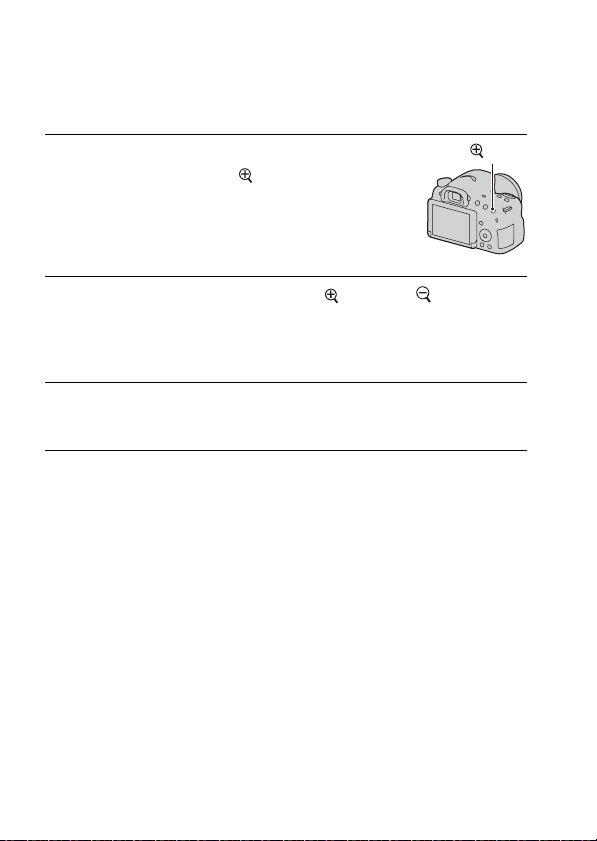
1 Display the image you want to
enlarge, then press the button.
button
2 Zoom the image in or out using the button or button.
• Rotate the control dial to switch images at the same magnification. When
you shoot multiple images with the same composition, you can compare
their focus conditions.
3 Select the portion you want to enlarge using v/V/b/B on the
control button.
49
Using the playback functions
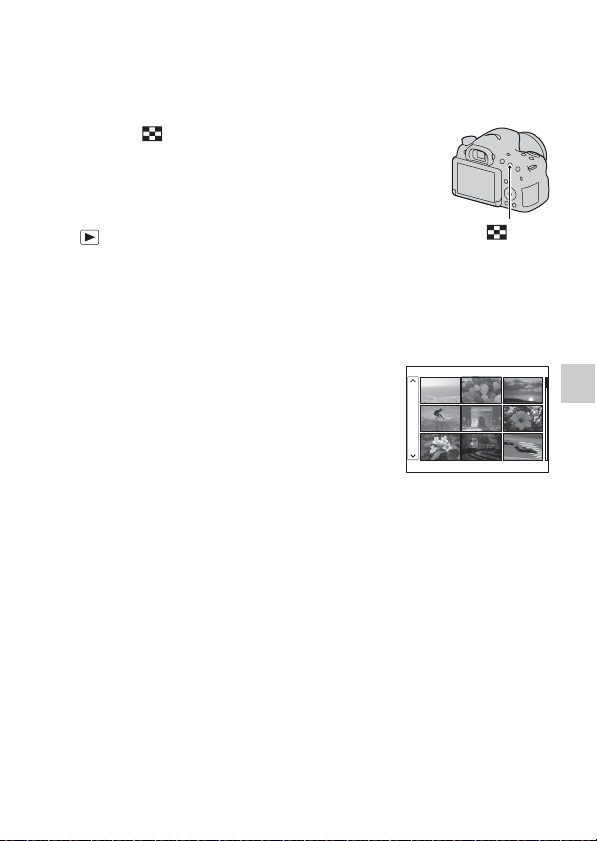
Switching to the image list display
You can display multiple images on the screen simultaneously.
To return to the single-image screen
Press the center of the control button after selecting the desired image.
To display the desired folder
Press the button.
The image index screen is displayed.
• You can select the number of images
displayed on one page of the image
index screen using [Image Index] in the
Playback menu.
button
Select the bar on the left of the image
index screen using the control button,
then select the desired folder using v/V.
Press the center of the control button
while the bar is selected to switch the
view mode.
50
Viewing images on a TV screen
To view images that were recorded on the camera on a TV set, an HDMI
cable (sold separately) and an HD TV equipped with an HDMI connector
are required (page 155).
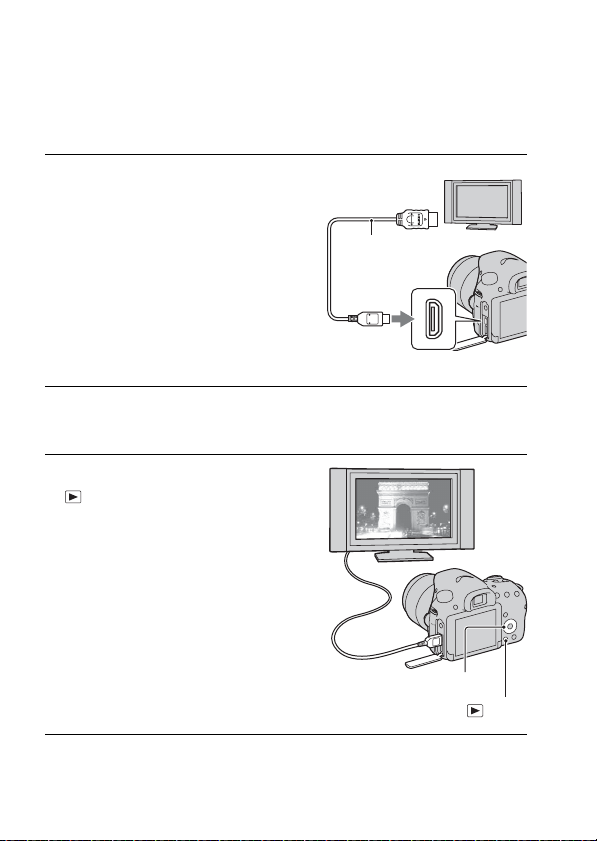
1 Turn off both your camera and the
TV, and connect the camera to the
TV.
2 Turn on the TV and switch the input.
• See also the operating instructions supplied with the TV.
3 Turn on the camera, and press the
button.
Images shot using the camera appear on
the TV screen.
Select the desired image using b/B on
the control button.
• The LCD screen on the camera does
not turn on.
button
1 To the HDMI
connector
HDMI cable
(sold separately)
2 To the
HDMI micro jack
Control button
51
Function list
Function list
Functions that can be operated using
the buttons/switch
You can set up or operate various functions using the buttons/switch.
For the location of the buttons/switch, see “Identifying parts” (page 13).
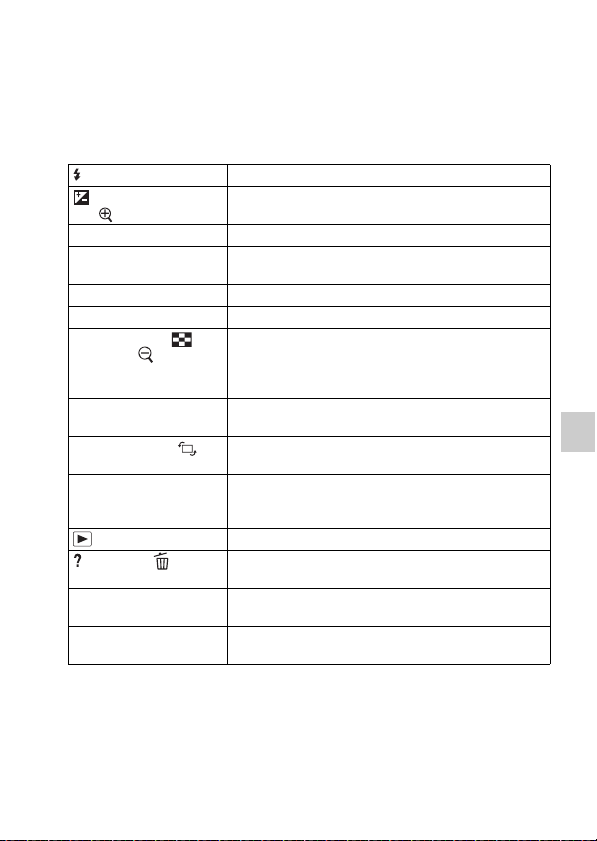
button (41, 126) Pops the flash up.
button (43)/AV button
(96)/ button (48)
Adjusts the exposure./Sets up the aperture value./Scales
an image up when viewing images.
ISO button (129) Adjusts the ISO sensitivity.
FINDER/LCD button (164) Switches the display between the LCD screen and the
viewfinder.
MENU button (55) Displays the menu screen for setting up the menu item.
MOVIE button (32, 100) Records movies.
AEL button (122)/
button (49)/ button (48)
Fixes the exposure of the entire screen./Displays
multiple images on the screen simultaneously./Scales
down an image that has been scaled up when viewing
images.
ZOOM button (140) Magnifies and shoots the subject using the zoom feature
of the camera.
Fn button (52, 53)/
button (149)
Displays the setup screen for a function set using the Fn
button./Rotates images.
Control button Sets up the following functions: Display Contents (46,
78, 147), White Balance (136), Drive Mode (45, 143),
Picture Effect (133), and Autofocus (110).
button (33) Plays back images.
button (62)/ button
(34)
Displays a shooting tip or In-Camera Guide./Deletes
images.
Focus mode switch (106,
114)
Switches the autofocus and manual focus.
Preview button (94)/Focus
Magnifier button (116)
Checks blurring of the background./Allows you to check
the focus by enlarging the image before shooting.
52
Selecting a function using the Fn
(Function) button
This button is used for setting up or executing functions used frequently in
shooting.
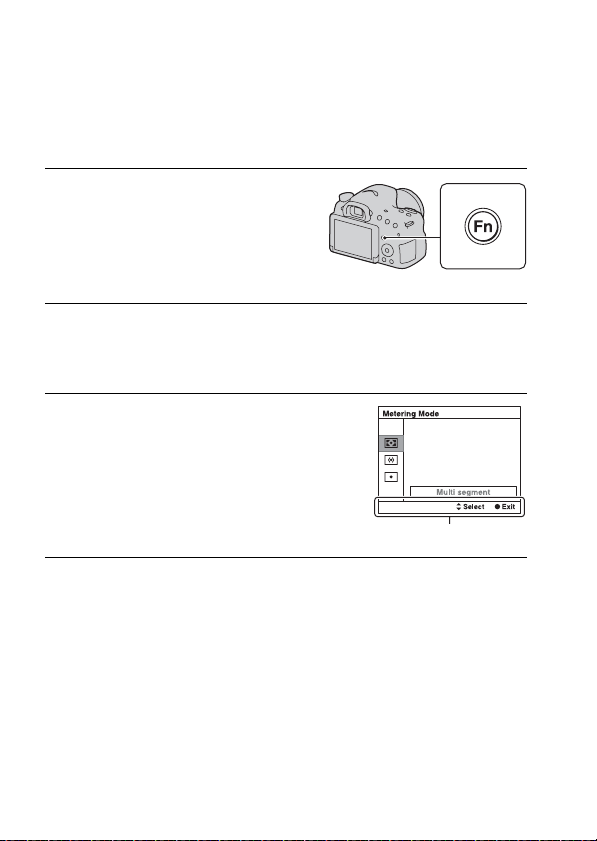
To set up the camera directly from the recording information screen
Turn the control dial without pressing the center z in step 2. You can set
up the camera directly from the recording information screen.
1 Press the Fn button.
2 Select the desired item using v/V/b/B on the control button,
then press the center z to execute.
The setup screen appears.
3 Following the operation guide,
select and execute the desired
function.
Operation guide
53
Function list
Functions that can be selected using
the Fn (Function) button
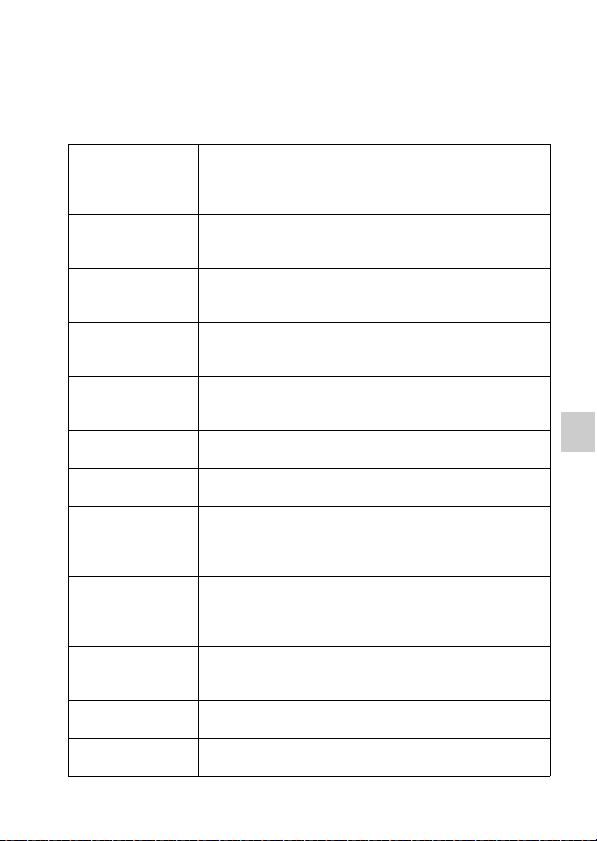
The functions that can be selected using the Fn button are as follows:
Scene Selection (38,
86)
Selects an appropriate mode from among the Scene Selection
preset settings to suit shooting conditions.
(Portrait/Sports Action/Macro/Landscape/Sunset/Night
Scene/Hand-held Twilight/Night Portrait)
Movie (102) Selects the exposure mode to suit your subject or your effect
and records movies.
(P/A/S/M)
Drive Mode (45, 143) Sets a drive mode, such as continuous shooting.
(Single Shooting/Cont. Shooting/Self-timer/Bracket: Cont./
Single Bracket/WB bracket)
Flash Mode (41, 126) Sets the flash mode.
(Flash Off/Autoflash/Fill-flash/Slow Sync./Rear Sync./
Wireless)
Autofocus Mode
(109)
Selects the focus method according to the movement of the
subject.
(Single-shot AF/Automatic AF/Continuous AF)
AF area (110) Selects the focus area.
(Wide/Zone/Spot/Local)
Lock-on AF (111) Keeps the focus on a subject while tracking it.
(Off/On/On(Lock-on AF w/ shutter))
Smile/Face Detect.
(117, 120)
Automatically captures people’s face(s) with the optimal
focus and exposure./Shoots when a smile is detected.
(Face Detection Off/Face Detection On (Regist. Faces)/Face
Detection On/Smile Shutter)
Auto Object Framing
(119)
When shooting faces, close-ups, or subjects tracked by
[Lock-on AF], the camera analyzes the scene and
automatically trims the image into a suitable composition.
(Off/Auto)
ISO (129) Sets the sensitivity to light. The larger the number, the faster
the shutter speed.
(Multi Frame Noise Reduct./ISO AUTO, ISO 100 to 16000)
Metering Mode (123) Selects the method for measuring brightness.
(Multi segment/Center weighted/Spot)
Flash Comp. (124) Adjusts the intensity of the flash output.
(–2.0EV to +2.0EV)
54
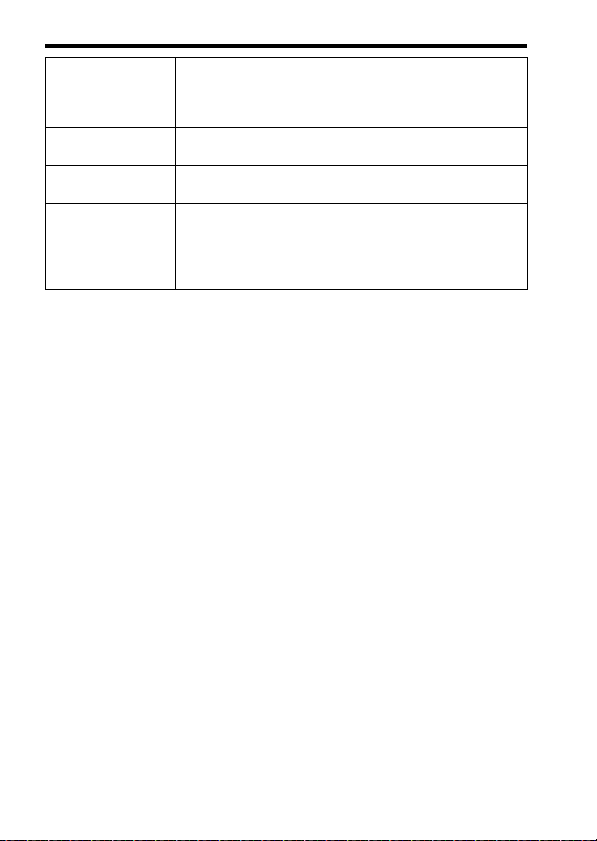
Functions that can be selected using the Fn (Function) button
White Balance (136) Adjusts the color tone of images.
(Auto WB/Daylight/Shade/Cloudy/Incandescent/Fluor.:
Warm White/Fluor.: Cool White/Fluor.: Day White/Fluor.:
Daylight/Flash/C.Temp./Filter/Custom)
DRO/Auto HDR (130) Adjusts the brightness and contrast automatically.
(Off/D-Range Opt./Auto HDR)
Creative Style (134) Selects the desired image processing.
(Standard/Vivid/Portrait/Landscape/Sunset/Black & White)
Picture Effect (133) Shoots with the desired effect filter to achieve more
impressive images.
(Off/Toy Camera/Pop Color/Posterization/Retro Photo/Soft
High-key/Partial Color/High Contrast Mono./Soft Focus/
HDR Painting/Rich-tone Mono./Miniature)
55
Function list
Functions selected using the MENU
button
You can set the basic settings for the camera as a whole or execute
functions such as shooting, playback, or other operations.
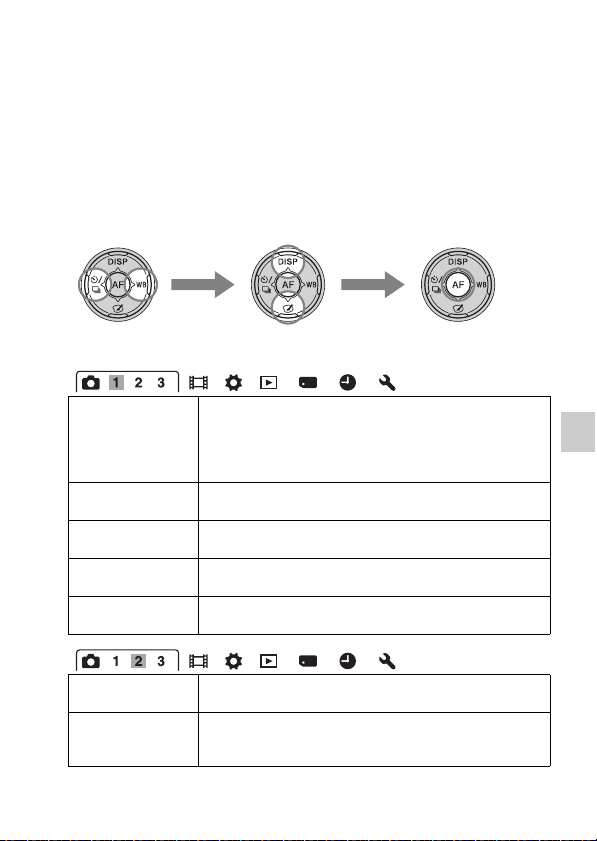
Press the MENU button, then set up the desired item using v/V/b/B on the
control button, then press the center of the control button.
Still shooting menu
Select a menu page Select a menu item
Image Size (47) Selects the size of still images.
(L: 20M/M: 10M/S: 5.0M (When [Aspect Ratio] is set to
[3:2])
L: 17M/M: 8.4M/S: 4.2M (When [Aspect Ratio] is set to
[16:9]))
Aspect Ratio (157) Selects the aspect ratio for still images.
(3:2/16:9)
Quality (157) Sets the image quality for still images.
(RAW/RAW & JPEG/Fine/Standard)
Panorama: Size (47) Selects the size of panoramic images.
(Standard/Wide)
Panorama: Direction
(89)
Sets the shooting direction for panoramic images.
(Right/Left/Up/Down)
Clear Image Zoom
(140)
Zooms an image with higher quality than Digital Zoom.
(On/Off)
Digital Zoom (101,
140)
Zooms an image with higher magnification than Clear Image
Zoom. This feature is also available for movie recording.
(On/Off)
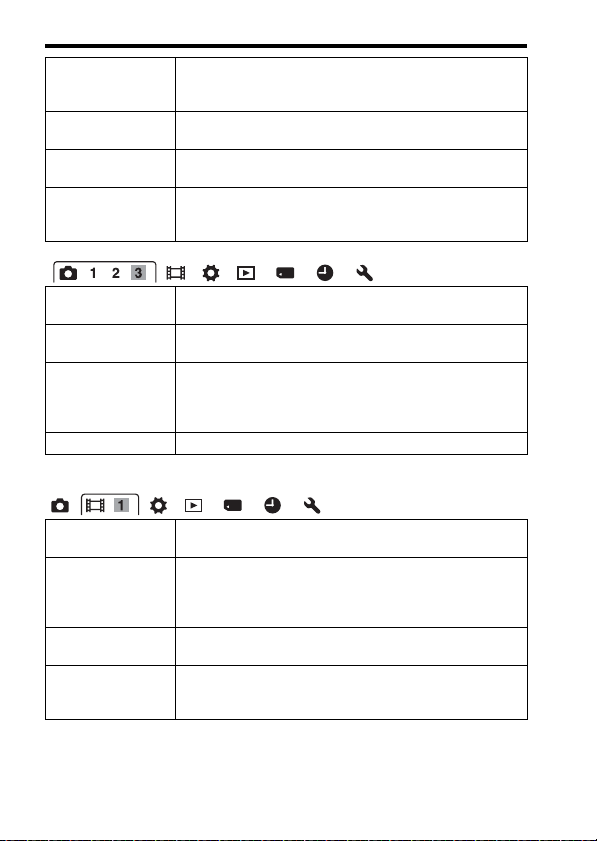
56
Functions selected using the MENU button
Movie shooting menu
Long Exposure NR
(159)
Sets noise reduction processing for shots with a shutter speed
of 1 second or longer.
(On/Off)
High ISO NR (159) Sets noise reduction processing for high-sensitivity shooting.
(High/Normal/Low)
Flash control (124) Sets the method for determining the intensity of flash output.
(ADI flash/Pre-flash TTL)
AF Illuminator (111) Sets the AF illuminator, which provides light for a dark scene
to aid focusing.
(Auto/Off)
SteadyShot (83) Sets SteadyShot.
(On/Off)
Color Space (160) Changes the range of reproducible colors.
(sRGB/AdobeRGB)
AEL w/ shutter (123) Sets whether to fix the exposure by pressing the shutter
button halfway down. This is convenient when you want to
adjust the focus and exposure separately.
(On/Off)
Shooting Tip List (62) Allows you to access all shooting tips.
File Format (103) Selects the movie file format.
(AVCHD/MP4)
Record Setting (104) Selects the size of the recorded movie frame.
(60i 24M(FX)/50i 24M(FX)/60i 17M(FH)/50i 17M(FH)/24p
24M(FX)/25p 24M(FX)/24p 17M(FH)/25p 17M(FH)/
1440×1080 12M/VGA 3M)
SteadyShot (83) Sets SteadyShot.
(On/Off)
AF Track. Duration
(102)
Sets the tracking sensitivity of the autofocus feature for
movie recording.
(High/Mid/Low)
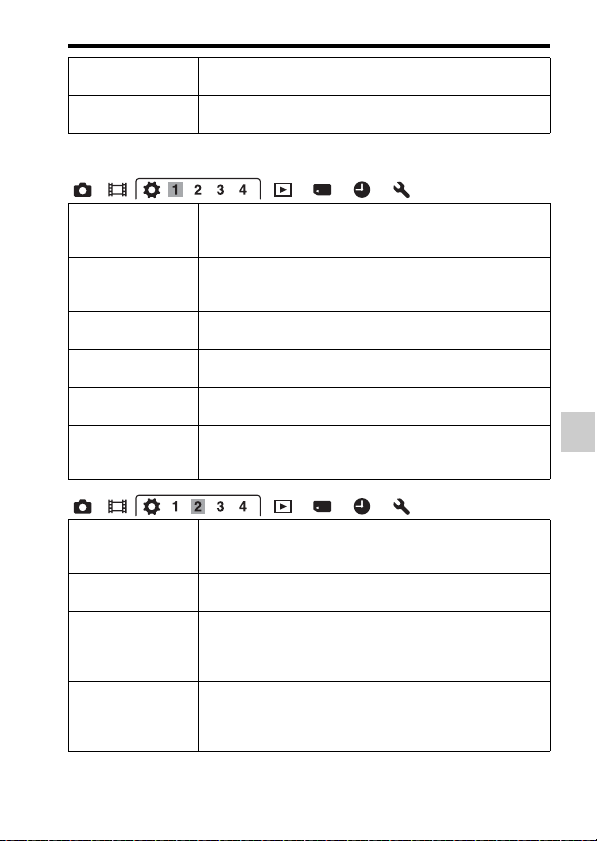
57
Functions selected using the MENU button
Function list
Custom menu
Audio Recording
(105)
Sets whether to record audio when shooting a movie.
(On/Off)
Wind Noise Reduct.
(105)
Reduces wind noise during movie recording.
(On/Off)
Eye-Start AF Sets whether to use auto focus when you look through the
viewfinder.
(On/Off)
FINDER/LCD Setting
(164)
Sets the method for switching between the viewfinder and
LCD screen.
(Auto/Manual)
Red Eye Reduction Reduces the red-eye phenomenon during flash use.
(On/Off)
Release w/o Lens
(160)
Sets whether the shutter can open when a lens is not attached.
(Enable/Disable)
S. Auto Cont.
Shooting (85)
Sets whether to shoot continuously in [Superior Auto] mode.
(Auto/Off)
S. Auto Image
Extract. (85)
Sets whether to save all the images that were shot
continuously in [Superior Auto] mode.
(Auto/Off)
Grid Line (161) Sets a grid line display to enable alignment to a structural
outline.
(Rule of 3rds Grid/Square Grid/Diag. + Square Grid/Off)
Auto Review (161) Displays the captured image after shooting. Sets auto review.
(10 Sec/5 Sec/2 Sec/Off)
DISP Button(Monitor)
(78)
Sets the LCD screen display modes that can be selected by
pressing DISP on the control button.
(Graphic Display/Display All Info./No Disp. Info./
Histogram/For viewfinder)
DISP Button(Finder)
(78)
Sets the viewfinder screen display modes that can be selected
by pressing DISP on the control button.
(Graphic Display/Display All Info./No Disp. Info./
Histogram)
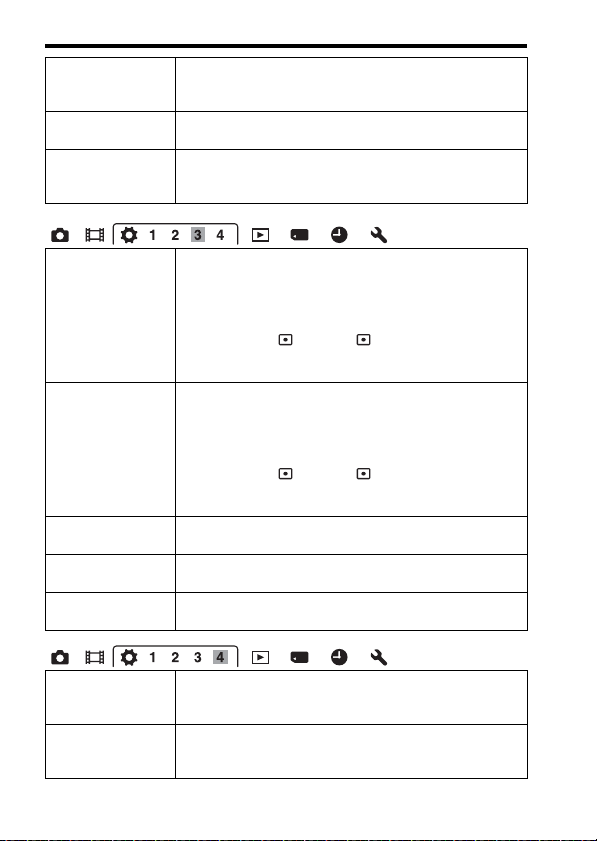
58
Functions selected using the MENU button
Peaking Level (115) Enhances the outline of in-focus ranges with a specific color
in manual focus mode.
(High/Mid/Low/Off)
Peaking Color (115) Sets the color used for the peaking function.
(Red/Yellow/White)
Live View Display
(80)
Sets whether to display the effect of a function on the screen,
such as the effect of the exposure compensation value.
(Setting Effect ON/Setting Effect OFF)
Func. of AEL button
(161)
Assigns the desired function to the AEL button.
(Exposure Comp./Drive Mode/Flash Mode/Autofocus Mode/
AF area/Smile/Face Detect./Auto Object Framing/ISO/
Metering Mode/Flash Comp./White Balance/DRO/Auto
HDR/Creative Style/Picture Effect/Image Size/Quality/AEL
hold/AEL toggle/ AEL hold/ AEL toggle/Lock-on AF/
AF lock/Aperture Preview/Shot. Result Preview/Zoom/Focus
Magnifier)
ISO Button (162) Assigns the desired function to the ISO button.
(Exposure Comp./Drive Mode/Flash Mode/Autofocus Mode/
AF area/Smile/Face Detect./Auto Object Framing/ISO/
Metering Mode/Flash Comp./White Balance/DRO/Auto
HDR/Creative Style/Picture Effect/Image Size/Quality/AEL
hold/AEL toggle/ AEL hold/ AEL toggle/Lock-on AF/
AF lock/Aperture Preview/Shot. Result Preview/Zoom/Focus
Magnifier)
Preview Button (162) Selects the function to be assigned to the preview button.
(Shot. Result Preview/Aperture Preview/Focus Magnifier)
Focus Hold Button Sets the function of the focus hold button of the lens.
(Focus Hold/D.O.F.Preview)
MOVIE Button Sets whether to always activate the MOVIE button.
(Always/Movie Mode Only)
Lens Comp.: Shading
(165)
Compensates for shaded corners on the screen caused by the
attached lens.
(Auto/Off)
Lens Comp.: Chro.
Aber. (165)
Reduces the color deviation at the corners of the screen
caused by the attached lens.
(Auto/Off)
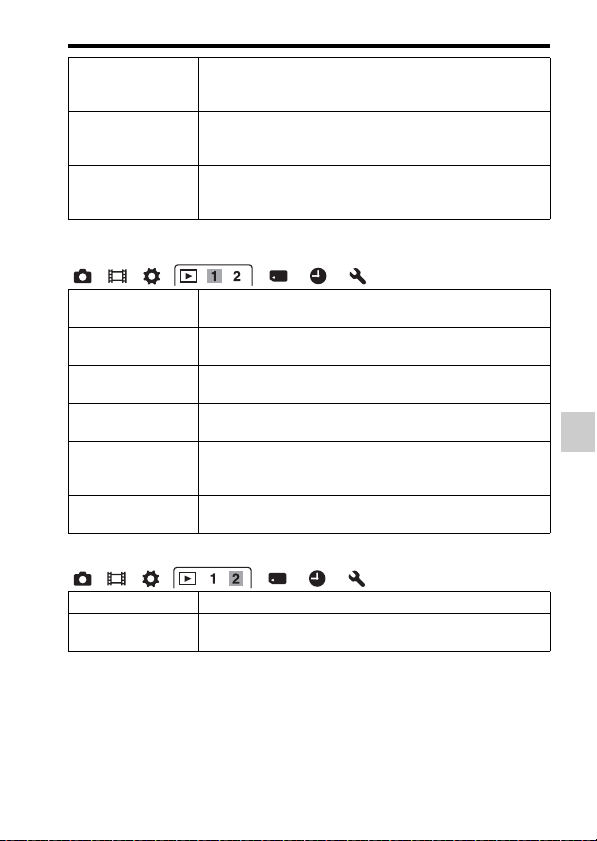
59
Functions selected using the MENU button
Function list
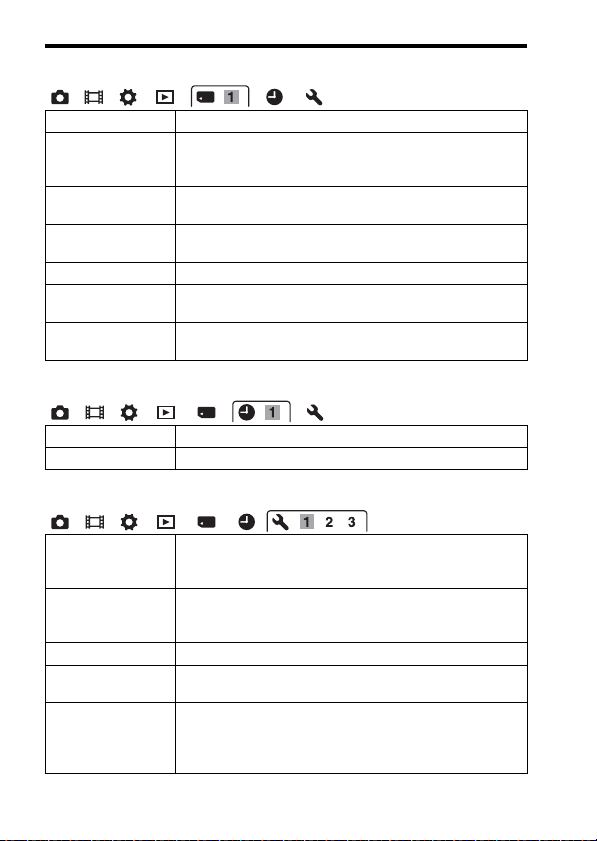
Playback menu
* Available items differ depending on the view mode.
Lens Comp.:
Distortion (165)
Compensates for distortion on the screen caused by the
attached lens.
(Auto/Off)
e-Front Curtain
Shutter (163)
Sets whether or not to use the electronic front curtain shutter
function.
(On/Off)
Face Registration
(118)
Registers or changes the person to be given priority when
focusing.
(New Registration/Order Exchanging/Delete/Delete All)
Still/Movie Select
(149)
Allows you to determine how to group the playback images.
(Folder View(Still)/Folder View(MP4)/AVCHD View)
Delete (34, 153)* Deletes images.
(Multiple Img./All in Folder/All AVCHD view files)
Slide Show (150) Plays a slide show.
(Repeat/Interval/Image Type)
Image Index (49) Displays the image list.
(4 Images/9 Images)
Protect (152)* Protects images, or cancels the protection.
(Multiple Img./Cancel All Images/Cancel All Movies(MP4)/
Cancel All AVCHD view files)
Specify Printing
(184)
Specifies or unspecifies the images for DPOF.
(DPOF Setup/Date Imprint)
Volume Settings Sets the volume for movie playback.
Playback Display
(150)
Sets how to play back an image recorded in portrait.
(Auto Rotate/Manual Rotate)
60
Functions selected using the MENU button
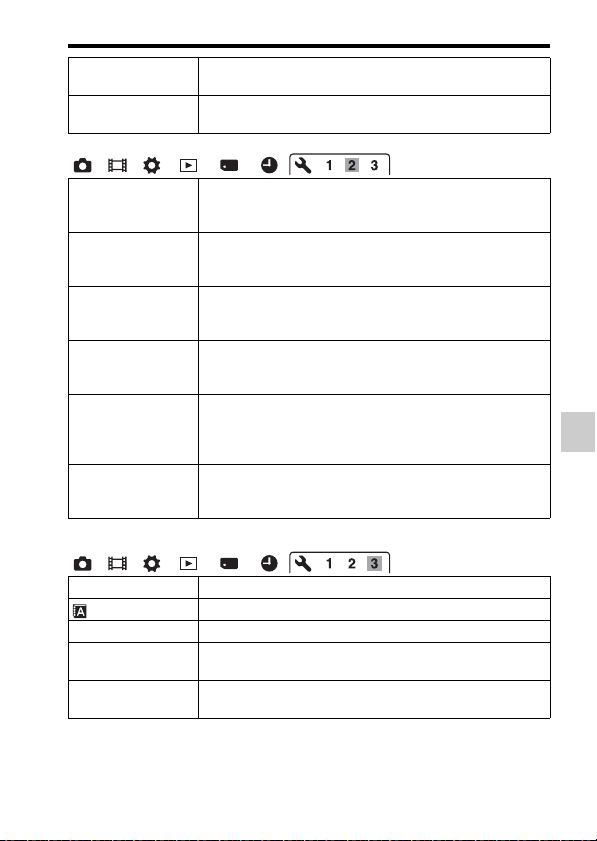
Memory Card Tool menu
Clock setup menu
Setup menu
Format (166) Formats the memory card.
File Number (166) Sets the method used to assign file numbers to still images
and MP4 movies.
(Series/Reset)
Folder Name (166) Sets the folder format for still images.
(Standard Form/Date Form)
Select REC Folder
(167)
Changes the selected folder for storing still images and MP4
movies.
New Folder (167) Creates a new folder for storing still images and MP4 movies.
Recover Image DB
(168)
Recovers the image database file and enables recording and
playback.
Display Card Space Displays the remaining recording time of movies and the
recordable number of still images on the memory card.
Date/Time Setup (27) Sets date and time and daylight savings.
Area Setting (28) Selects the area where you are using the camera.
Menu start Selects a first-displayed menu from the top menu or the last
menu screen.
(Top/Previous)
Mode Dial Guide Turns on or off the mode dial guide (the explanation of each
shooting mode).
(On/Off)
LCD Brightness Sets the brightness of the LCD screen.
Viewfinder Bright.
(163)
Sets the brightness of the viewfinder.
(Auto/Manual)
Viewfinder Color
Temp.
Sets the color temperature of the screen in the viewfinder.
Setting it toward + makes the color cooler, and toward –
makes the color warmer.
(+2 to 0 to –2)
61
Functions selected using the MENU button
Function list
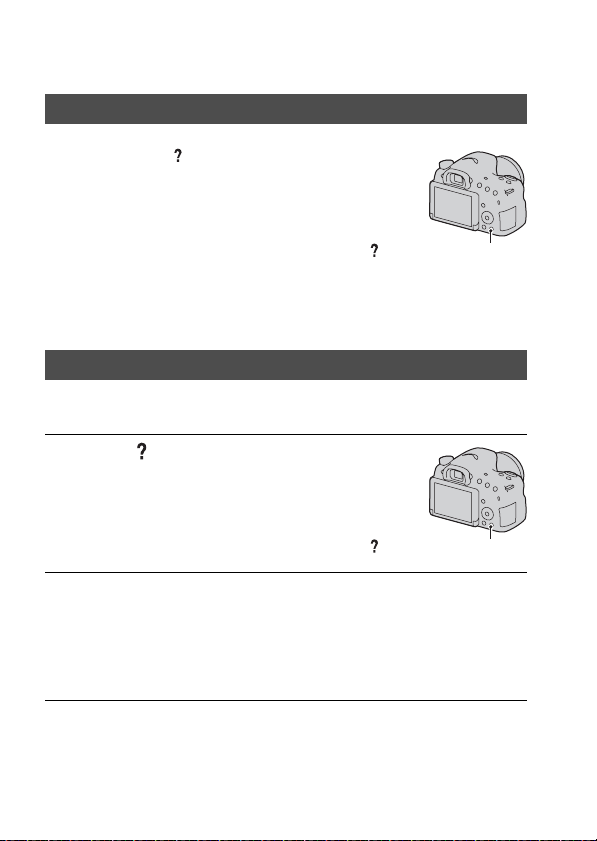
* Appears when an Eye-Fi card (sold separately) is inserted in the camera.
Power Save (164) Sets the level of the power saving feature.
(Max/Standard)
Power Saving Start
Time (164)
Sets the interval after which power save mode engages.
(30 Min/5 Min/1 Min/20 Sec/10 Sec)
HDMI Resolution
(155)
Sets the resolution when the camera is connected to an HDMI
TV.
(Auto/1080p/1080i)
CTRL FOR HDMI
(156)
Operates the camera from a TV that supports “BRAVIA”
Sync.
(On/Off)
Upload Settings*
(168)
Sets whether to use the upload function of the camera with an
Eye-Fi card.
(On/Off)
USB Connection
(177)
Selects the appropriate USB connection method for each
computer or USB device connected to the camera.
(Auto/Mass Storage/MTP/PC Remote)
USB LUN Setting
(177)
Enhances compatibility by limiting the functions of USB
connection. Normally, use [Multi], and if you cannot make a
connection, set it to [Single].
(Multi/Single)
Audio signals Sets whether to use the beep sound when the focus is
achieved or the self-timer is working.
(On/Off)
Version (174) Displays the camera software version.
Language Selects the language.
Cleaning Mode (186) Starts cleaning mode to clean the image sensor.
Demo Mode Sets the demonstration playback of a movie to on or off.
(On/Off)
Initialize (170) Restores the settings to their defaults.
(Reset Default/Rec mode reset/Custom reset)
62
Using the guide function of the camera
The camera displays shooting tips in accordance with the shooting mode
selected.
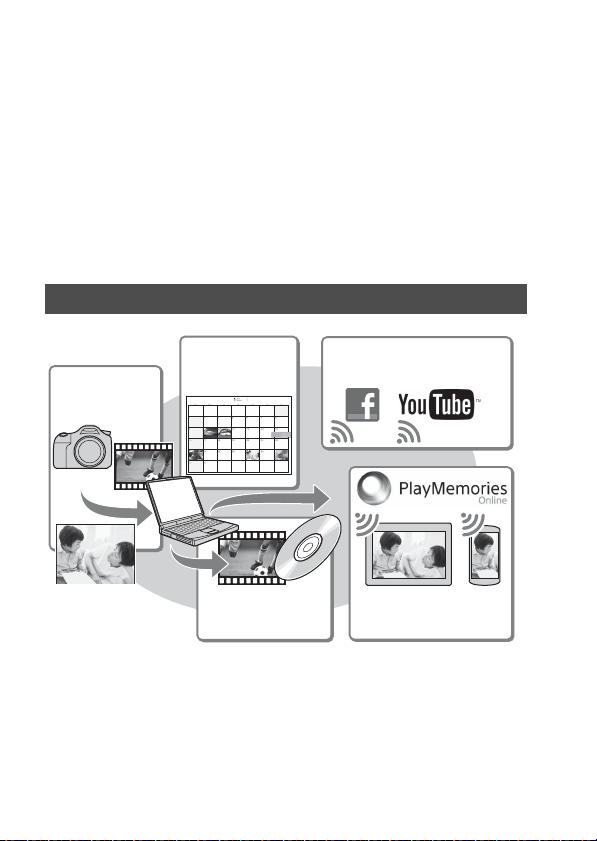
In-Camera Guide
When you press the (In-Camera Guide)
button on the Fn (Function) screen or
menu screen, a guide for the currently
selected function or setting automatically
appears.
To select unavailable functions or
settings on the Fn screen, press the center
of the control button to display the
appropriate setup to enable them.
(In-Camera Guide) button
Shooting Tips
1 Press the (In-Camera Guide)
button when the recording
information display is displayed.
A shooting tip list for the current subject
automatically appears.
(In-Camera Guide) button
2 Select the desired shooting tip using v/V on the control button,
then press the center of the control button.
The shooting tip is displayed.
• You can scroll the screen using v/V.
• You can select the item using b/B.

63
Using the guide function of the camera
Function list
To access all shooting tips
You can search through all the shooting tips from the menu.
Use this item when you want to read shooting tips you have seen before.
MENU button t 3 t [Shooting Tip List]t Select the desired
shooting tip
64
Viewing images on a computer
What you can do with software
To utilize images recorded with the camera, use the following software:
• “PlayMemories Home” (Windows only)
You can import still images or movies recorded with the camera to your
computer so that you can view them, and use various convenient features
to enhance the images you have shot. “PlayMemories Home” is required
when importing AVCHD movies to your computer.
• “Image Data Converter”
You can retouch RAW format images and convert them into JPEG/TIFF
format.
Installing “PlayMemories Home” (for Windows only)
You can install “PlayMemories Home” from the following URL (page 66):
www.sony.net/pm
What you can do with “PlayMemories Home”
Importing images
from your camera
Viewing images
on calendar
Uploading images to network
service
Sharing images on
“PlayMemories Online”
Creating a movie
disc

65
What you can do with software
Viewing images on a computer
Notes
• An Internet connection is required to install “PlayMemories Home.”
• An Internet connection is required to use “PlayMemories Online” or other network
services. “PlayMemories Online” or other network services may not be available in
some countries or regions.
• “PlayMemories Home” is not compatible with Macs. Use the applications that are
installed on your Mac. For details, visit the following URL:
http://www.sony.co.jp/imsoft/Mac/
With “Image Data Converter,” you can do the following:
• You can play back and edit images recorded in RAW format with various
corrections, such as tone curve and sharpness.
• You can adjust images with white balance, exposure, and [Creative
Style], etc.
• You can save the images displayed and edited on a computer.
You can either save the image as RAW format or save it in the general
file format (JPEG/TIFF).
• You can display and compare the RAW images and JPEG images
recorded by this camera.
• You can rank images in 5 grades.
• You can apply color labels, etc.
Installing “Image Data Converter” (Windows/Mac)
You can download “Image Data Converter” from the following URL
(page 67):
http://www.sony.co.jp/ids-se/
Notes
• An Internet connection is required to install “Image Data Converter.”
What you can do with “Image Data Converter”
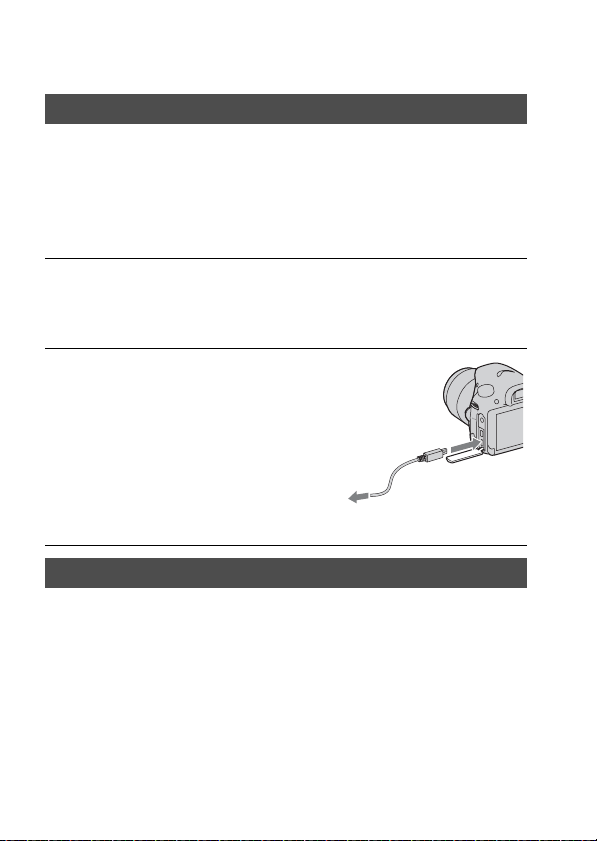
66
Installing the software
• Log on as Administrator.
• If the software “PMB (Picture Motion Browser),” supplied with models
released before 2011, has already been installed on your computer,
“PlayMemories Home” will overwrite it and will be installed. Although
some “PlayMemories Home” functions differ from those of “PMB,” use
“PlayMemories Home.”
For details on how to use “PlayMemories Home,” refer to the
“PlayMemories Home Help Guide.”
Double-click the [PlayMemories Home Help Guide] icon on the
desktop.
• To access the “PlayMemories Home Help Guide” from the start menu: Click
[Start] t [All Programs] t [PlayMemories Home] t [PlayMemories
Home Help Guide].
Installing “PlayMemories Home”
1 Using the Internet browser on your computer, go to the
following URL, then click [Install] t [Run].
www.sony.net/pm
2 Follow the instructions on the
screen to complete the
installation.
• When the message to connect the
camera to a computer is displayed,
connect the camera and computer using
the micro USB cable (supplied).
Viewing “PlayMemories Home Help Guide”
To a USB jack
67
Installing the software
Viewing images on a computer
• For Windows 8, select the [PlayMemories Home] icon on the Start screen,
then launch “PlayMemories Home” and select [PlayMemories Home Help
Guide] from the [Help] menu.
• For details on “PlayMemories Home,” you can also see the following
PlayMemories Home support page (English only):
http://www.sony.co.jp/pmh-se/
For details on how to use “Image Data Converter,” refer to the “Image Data
Converter Guide.”
For Windows:
Click [Start] t [All Programs] t [Image Data Converter] t
[Help] t [Image Data Converter Ver.4].
For Mac:
Start Finder t [Applications] t [Image Data Converter] t
[Image Data Converter Ver.4] t In the menu bar, choose “Help”
t “Image Data Converter Guide.”
• For Windows 8, start “Image Data Converter Ver.4” t In the menu bar,
choose “Help” t “Image Data Converter Guide.”
• For details on “Image Data Converter,” you can also see the following “Image
Data Converter” support page (English only):
http://www.sony.co.jp/ids-se/
Installing “Image Data Converter”
1 Using the Internet browser on your computer, go to the
following URL.
For Windows: http://www.sony.co.jp/imsoft/Win/
For Mac: http://www.sony.co.jp/imsoft/Mac/
2 Follow the instructions on the screen to complete the
installation.
Viewing “Image Data Converter Guide”

68
Installing the software
To use “Remote Camera Control,” connect the camera to a computer. The
following functions are available.
• You can set up the camera or shoot an image from the computer.
• You can record an image directly to the computer.
• You can perform Interval Timer Shooting.
• For details on how to use “Remote Camera Control,” refer to the “Help.”
Installing “Remote Camera Control”
1 Using the Internet browser on your computer, go to the
following URL.
For Windows: http://www.sony.co.jp/imsoft/Win/
For Mac: http://www.sony.co.jp/imsoft/Mac/
2 Follow the instructions on the screen to complete the
installation.
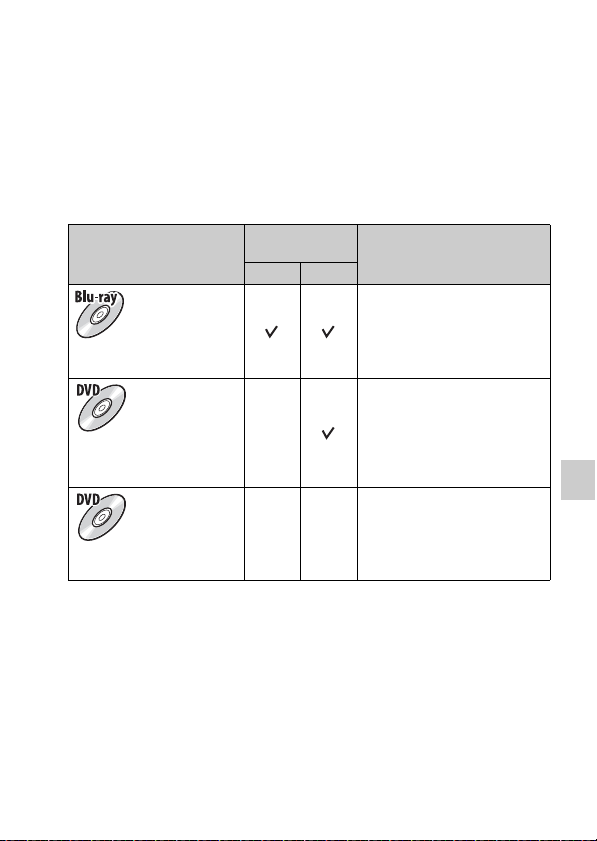
69
Viewing images on a computer
Selecting the method for creating a
movie disc
Depending on the disc type, playable devices may vary. Select the method
that suits your disc player.
There are two ways to create a movie disc. Use “PlayMemories Home” on
your computer or create a disc using devices other than a computer, such as
a recorder.
* Movies recorded with the [60i 24M(FX)]/[50i 24M(FX)] or [24p 24M(FX)]/[25p
24M(FX)] setting in [Record Setting] are converted by “PlayMemories Home” in
order to create an AVCHD recording disc. This conversion can take a long time.
Also, you cannot create a disc with the original image quality. If you want to keep
the original image quality, store your movies on a Blu-ray disc (page 182).
Disc type/usage
Record setting
available
Player
FX FH
To keep high-definition
image quality (HD)
Blu-ray disc playback devices
(Sony Blu-ray disc player,
PlayStation®3, etc.)
To keep high-definition
image quality (HD) (AVCHD
recording disc)
–*
AVCHD format playback
devices
(Sony Blu-ray disc player,
PlayStation®3, etc.)
To keep standard definition
image quality (STD)
–* –*
Ordinary DVD playback devices
(DVD player, computer that can
play DVDs, etc.)
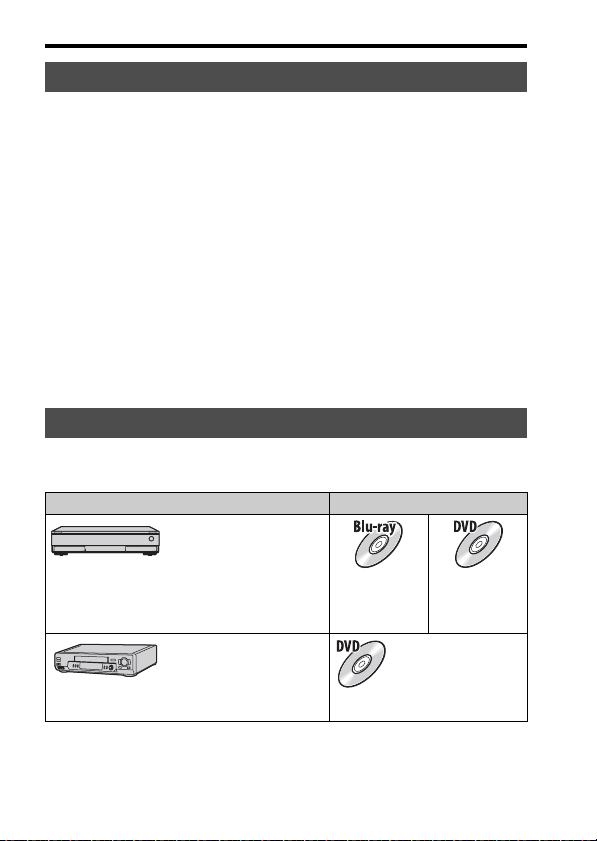
70
Selecting the method for creating a movie disc
You can import AVCHD movies to a computer using “PlayMemories
Home,” and create an AVCHD recording disc or a standard definition
quality (STD) disc.
For details on how to create a disc using “PlayMemories Home,” see
“PlayMemories Home Help Guide.”
Notes
• To create Blu-ray discs using “PlayMemories Home,” install our proprietary add-on
software. For details, access the following URL:
http://support.d-imaging.sony.co.jp/BDUW/
• PlayStation®3 may not be available in some countries/regions.
• Movies recorded with the [60i 24M(FX)]/[50i 24M(FX)] or [24p 24M(FX)]/[25p
24M(FX)] setting in [Record Setting] are converted by “PlayMemories Home” in
order to create an AVCHD recording disc. This conversion can take a long time.
Also, you cannot create a disc with the original image quality. If you want to keep
the original image quality, store your movies on a Blu-ray disc (page 182).
You can create a disc using a Blu-ray disc recorder, etc.
The disc type you can create depends on the device used.
Notes
• For details on how to create a disc, refer to the operating instructions of the device
you use.
Creating a disc using a computer
Creating a disc with a device other than a computer
Device Disc type
Blu-ray disc recorder: To
create a Blu-ray disc or
DVD with standard image
quality (STD)
High-definition
image quality
(HD)
Standard
definition
image quality
(STD)
HDD recorder, etc.: To
create a DVD with
standard image quality
(STD)
Standard definition image quality
(STD)
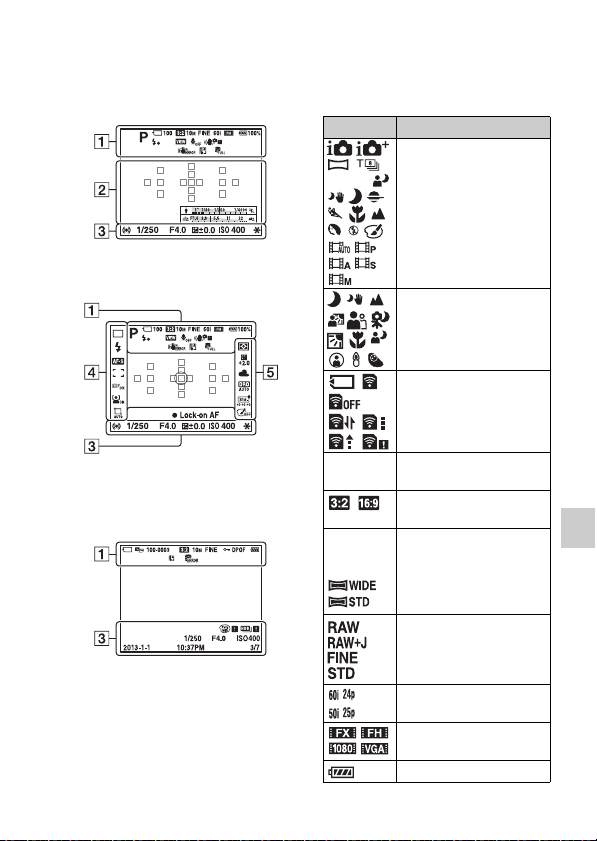
71
Others
Others
List of screen icons
Graphic Display (LCD screen)
Display All Info. (LCD screen)
For playback (Basic information
display)
A
Display Indication
P A S M
Exposure mode (36)
Scene Recognition icons
(37, 85)
Memory card (21, 205)/
Upload (168)
100 Remaining number of
recordable images
Aspect ratio of still
images (157)
20M 10M
5.0M 17M
8.4M 4.2M
Image size of still images
(47)
Image quality of still
images (157)
Frame rate of movies
(104)
Image size of movies
(104)
100% Remaining battery (23)
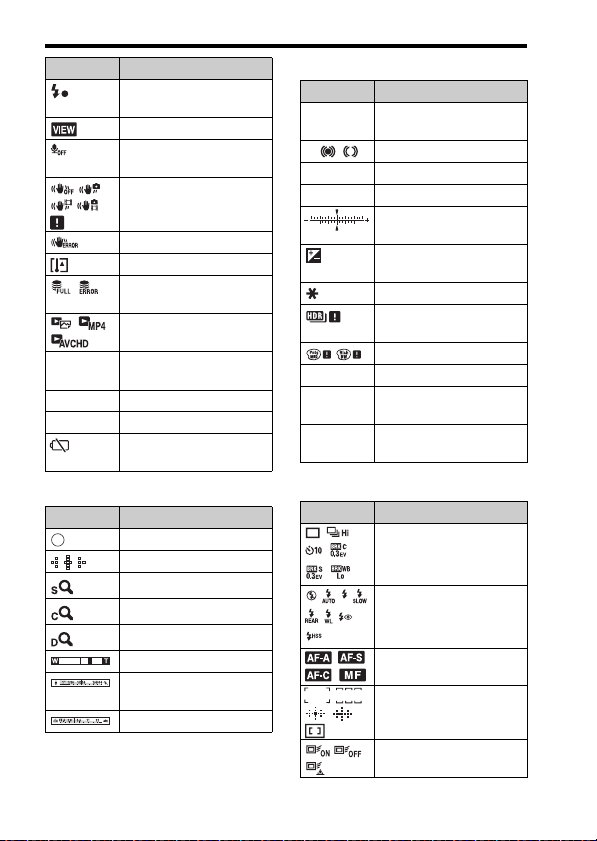
List of screen icons
72
B
C
D
Flash charge in progress
(41)
Setting Effect OFF (80)
No audio recording of
movies (105)
SteadyShot/Camera
shake warning (83)
SteadyShot error (197)
Overheating warning (10)
Database file full (199)/
Database file error (199)
View Mode (149)
100-0003 Folder - file number
(179)
- Protect (152)
DPOF DPOF set (184)
Remaining battery
warning (23)
Display Indication
Spot metering area (123)
AF area (110)
Smart Zoom (140)
Clear Image Zoom (140)
Digital Zoom (140)
Zoom magnification
Shutter speed indicator
(46)
Aperture indicator (46)
Display Indication
Display Indication
REC 0:12 Recording time of the
movie (m:s)
z Focus (31, 107)
1/250 Shutter speed (94)
F4.0 Aperture (92)
EV scale (43, 97, 146)
(Only for viewfinder)
+3.0 Exposure compensation
(43)
AE lock (122)
Auto HDR image
warning (131)
Picture Effect error (134)
ISO400 ISO sensitivity (129)
3/7 File number/Number of
images in the view mode
2013-1-1
10:37AM
Date of recording
Display Indication
Drive mode (45, 143)
Flash mode (41, 126)/
Red-eye reduction (57)
Focus mode (109)
AF area (110)
Lock-on AF (111)
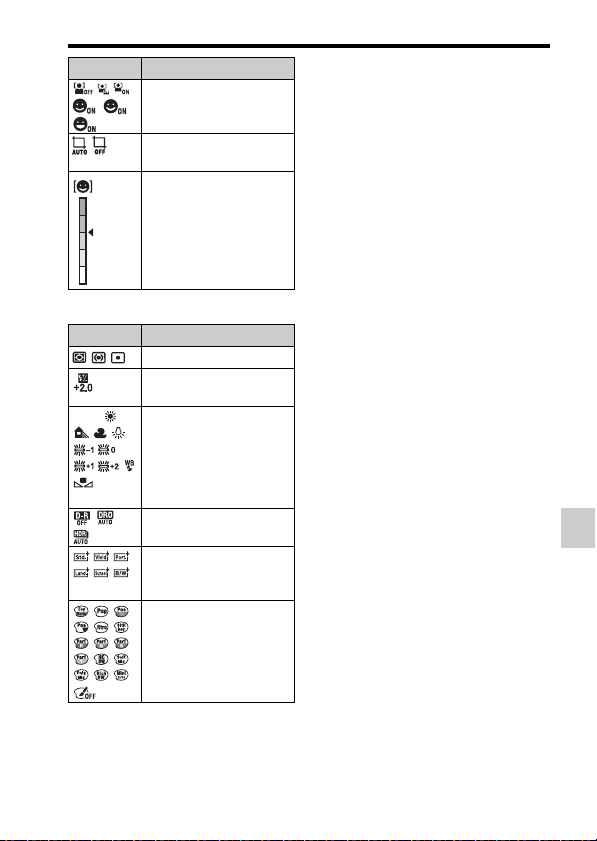
73
List of screen icons
Others
E
Face Detection (117)/
Smile Shutter (120)
Auto Object Framing
(119)
Smile Detection
Sensitivity indicator
(120)
Display Indication
Metering mode (123)
Flash compensation (124)
AWB
7500K
A5 G5
White balance (Auto,
Preset, Custom, Color
temperature, Color filter)
(136)
D-Range Optimizer
(130)/Auto HDR (131)
+3 +3 +3
Creative Style (134)/
Contrast, Saturation,
Sharpness
Picture Effect (133)
Display Indication
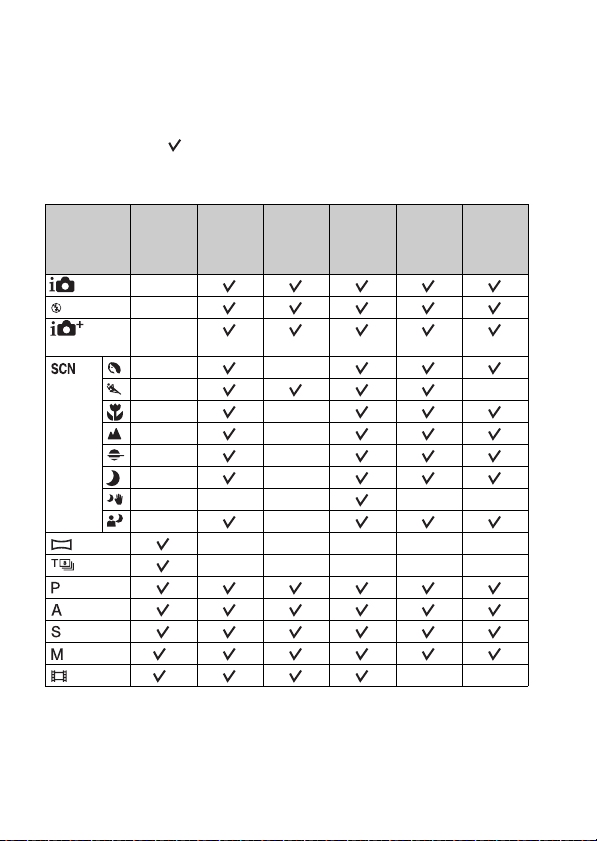
74
Functions available for each shooting
mode
The functions you can use depend on the selected shooting mode.
In the table below, indicates the function is available, and a – indicates
the function is not available.
The functions you cannot use are displayed in gray on the screen.
* When the exposure mode is set to M, the exposure can be adjusted only
when [ISO] is set to [AUTO].
Shoot Mode
Exposure
Comp.
(43)
Self-timer
(144)
Cont.
Shooting
(143)
Face
Detection
(117)
Smile
Shutter
(120)
Auto
Object
Framing
(119)
(30, 85) –
(30, 85) –
(37,
85)
–
(38, 86)
––
––
––
––
––
––
––– ––
––
(39, 88) –––––
(40, 90) –––––
(91)
(92)
(94)
(96) *
(32, 100) *––
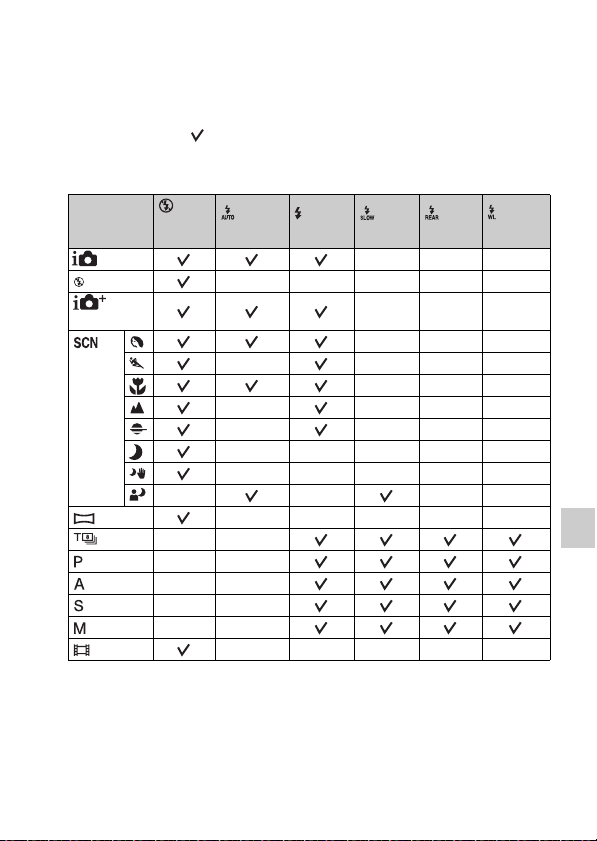
75
Others
Flash modes available
The flash modes you can select depend on the shooting mode and functions
selected.
In the table below, indicates the function is selectable, and a – indicates
the function is not selectable.
The flash modes you cannot select are displayed in gray on the screen.
Shoot Mode
(Flash
Off)
(Autoflash)
(Fill-
flash)
(Slow
Sync.)
(Rear
Sync.)
(Wireless)
(30, 85) –– –
(30, 85) –––––
(37,
85)
–– –
(38, 86)
–– –
––––
–– –
––––
––––
–––––
–––––
––––
(39, 88) –––––
(40, 90) ––
(91) ––
(92) ––
(94) ––
(96) ––
(32, 100) –––––
76
Advanced Operations
This section provides further information
on operating the camera.
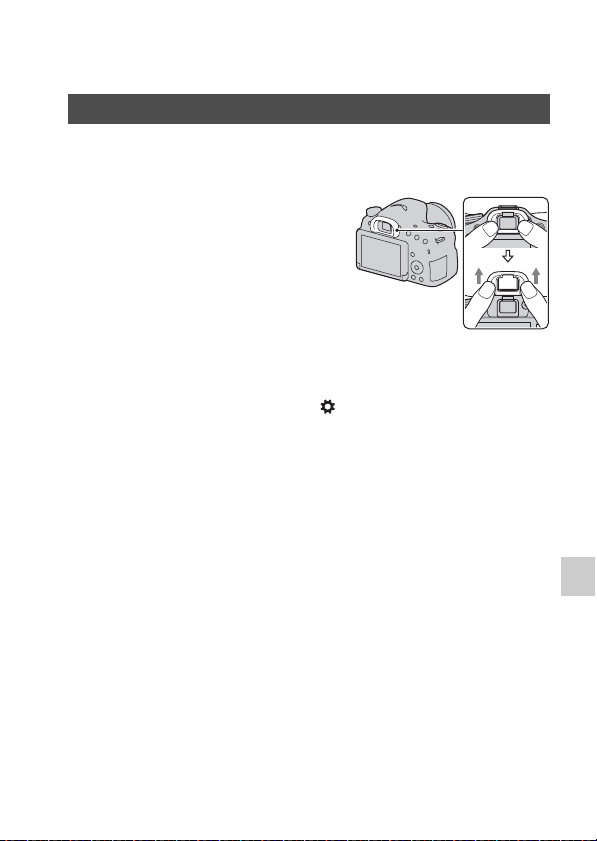
77
Preparation (Advanced Operations)
Preparation
Prepara tion (Advanced Operations)
Setting up the camera
When attaching the FDA-A1AM Angle Finder (sold separately) to the
camera, remove the Eyepiece cup.
Notes
• When you attach an FDA-A1AM Angle Finder (sold separately) to the camera, set
[FINDER/LCD Setting] to [Manual] in the Custom menu and switch the display
between the viewfinder and the LCD screen by pressing the FINDER/LCD button.
Setting [Eye-Start AF] to [Off] is recommended because the eyepiece sensors
located above the viewfinder may be activated.
Removing the Eyepiece cup
Carefully slide the Eyepiece cup off
by pushing on each side.
• Put your fingers under the Eyepiece cup,
and slide it upward.

78
Shooting mode screen display
You can select the desired screen mode. When you switch the screen by
pressing DISP on the control button (page 46), only selected screens are
displayed. You can set the screens to be displayed on the LCD screen and
the viewfinder separately.
Selecting the screen mode
1 MENU button t 2 t [DISP Button(Monitor)] or [DISP
Button(Finder)]
2 Select the desired display using v/V/b/B on the control
button, then press the center of the control button.
3 Press the MENU button.
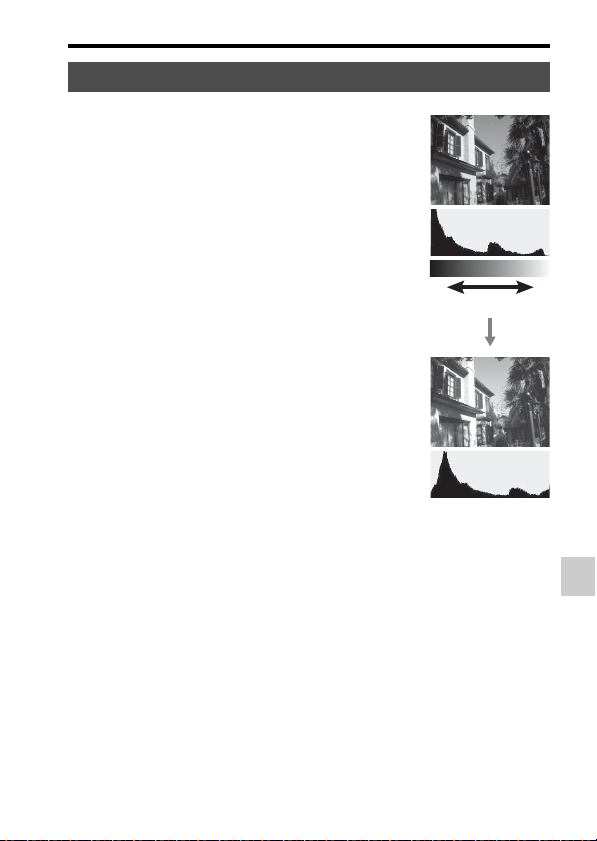
79
Shooting mode screen display
Preparation (Advanced Operations)
Notes
• The histogram does not indicate the final recorded image. It indicates the condition
of the image just monitored on the screen. The histogram will differ based on
aperture setting, etc.
• The histogram differs between shooting and playback in the following situations:
– When firing the flash.
– When the subject has low light intensity, such as night scenery.
Histogram
The histogram displays the luminance
distribution that shows how many pixels
of a particular brightness exist in the
picture.
The exposure compensation will change
the histogram accordingly.
Both ends of the histogram show a high-
key or low-key portion. You cannot
restore these areas with a computer later.
Adjust the exposure if necessary and
shoot again.
Number of pixels
Dark Light
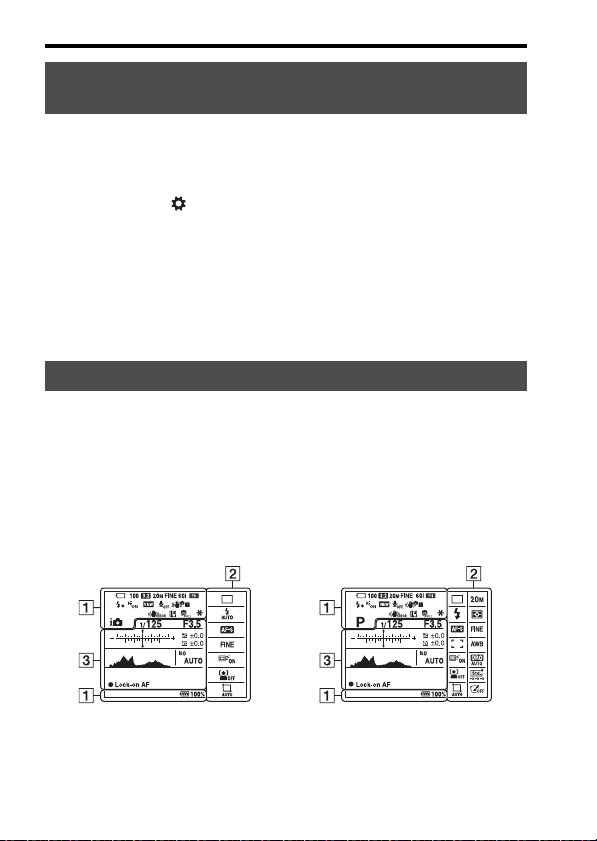
80
Shooting mode screen display
You can monitor the subject through the lens without displaying effects,
such as [Exposure Comp.], [White Balance], [Creative Style], [Picture
Effect], etc.
MENU button t 2 t [Live View Display] t [Setting Effect
OFF]
• When [Setting Effect OFF] is selected, the Live View image in M mode
is always displayed with the appropriate brightness.
Notes
• [Setting Effect OFF] cannot be selected when the exposure mode is set to [Intelligent
Auto], [Superior Auto], [Sweep Panorama], [Movie], or [Scene Selection].
When [For viewfinder] in [DISP Button(Monitor)] is activated, the LCD
screen can be set to the mode suitable for shooting with the viewfinder by
pressing DISP on the control button.
See pages in parentheses for operation details.
Monitoring the subject through the lens without effects
displayed
List of viewfinder mode icons
In [Intelligent Auto], [Superior Auto],
or [Scene Selection] mode
In [Tele-zoom Cont. Priority AE],
[Picture Effect], P/A/S/M,
or [Sweep Panorama] mode
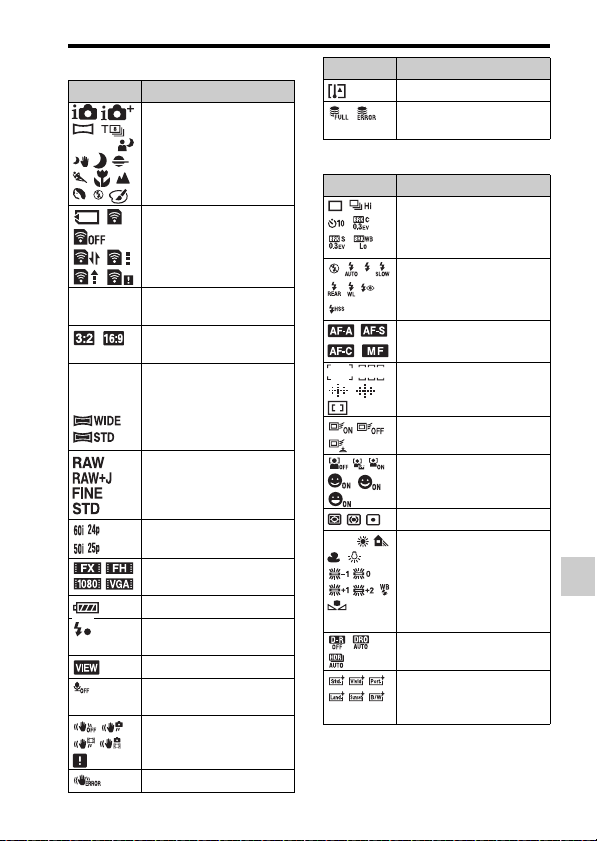
81
Shooting mode screen display
Preparation (Advanced Operations)
A
B
Display Indication
P A S M
Exposure mode (36)
Memory card (21, 205)/
Upload (168)
100 Remaining number of
recordable images
Aspect ratio of still
images (157)
20M 10M
5.0M 17M
8.4M 4.2M
Image size of still images
(47)
Image quality of still
images (157)
Frame rate of movies
(104)
Image size of movies
(104)
100% Remaining battery (23)
Flash charge in progress
(41)
Setting Effect OFF (80)
No audio recording of
movies (105)
SteadyShot/Camera
shake warning (83)
SteadyShot error (197)
Overheating warning (10)
Database file full (199)/
Database file error (199)
Display Indication
Drive mode (45, 143)
Flash mode (41, 126)/
Red-eye reduction (57)
Focus mode (109)
AF area (110)
Lock-on AF (111)
Face Detection (117)/
Smile Shutter (120)
Metering mode (123)
AWB
7500K
A5 G5
White balance (Auto,
Preset, Custom, Color
temperature, Color filter)
(136)
D-Range Optimizer
(130)/Auto HDR (131)
+3 +3 +3
Creative Style (134)/
Contrast, Saturation,
Sharpness
Display Indication
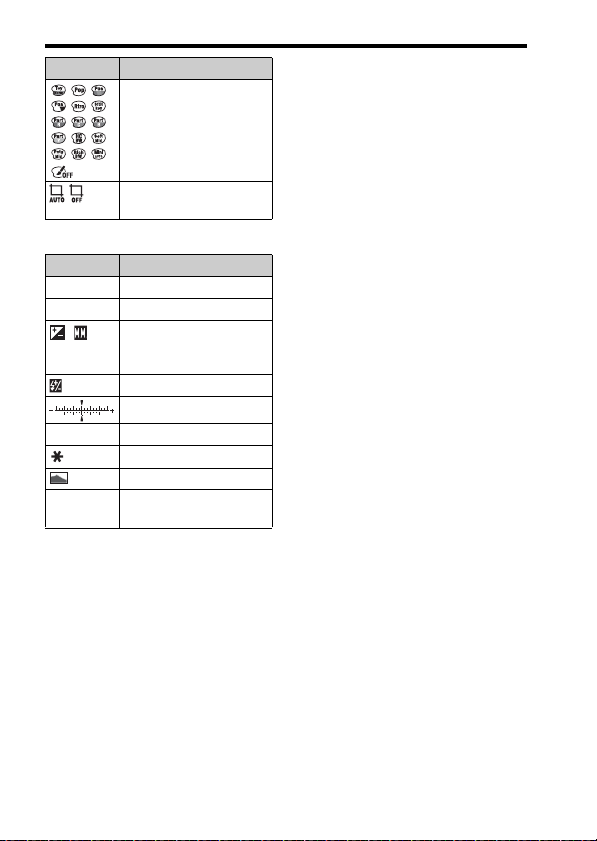
82
Shooting mode screen display
C
Picture Effect (133)
Auto Object Framing
(119)
Display Indication
1/125 Shutter speed (94)
F3.5 Aperture (92)
Exposure compensation
(43)/Metered Manual
(97)
Flash compensation (124)
EV scale (146)
ISO AUTO ISO sensitivity (129)
AE lock (122)
Histogram (79)
z Lock-on
AF
Lock-on AF (111)
Display Indication
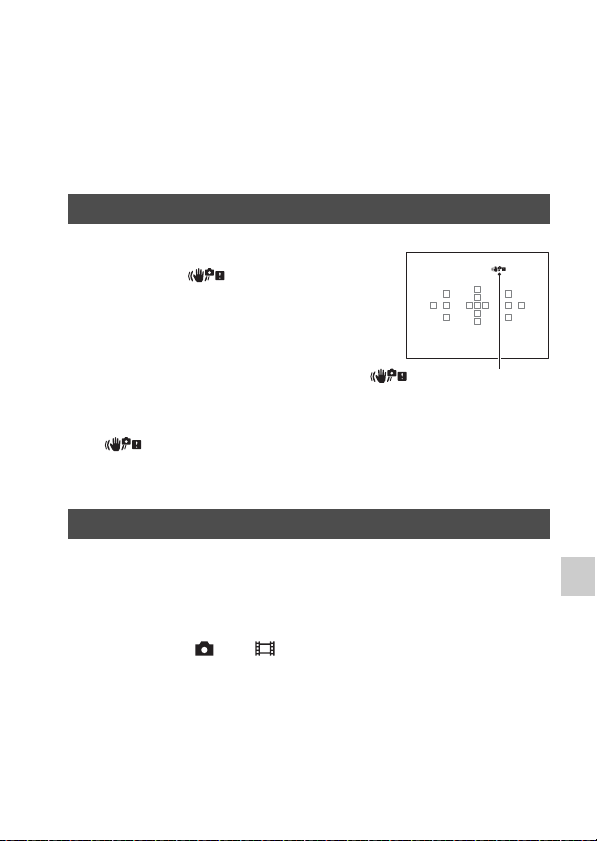
83
Preparation (Advanced Operations)
Shooting a clear image without camera
shake
“Camera shake” refers to unwanted movement of the camera that occurs
during shooting, resulting in a blurred image.
To reduce camera shake, follow the instructions below.
Notes
• The (Camera shake warning) indicator is displayed only in modes that
automatically set the shutter speed. This indicator is not displayed in M/S modes or
when you record movies.
The SteadyShot function is available with this camera to reduce camera
shake. The SteadyShot function can be set separately for still image
shooting and for movie recording.
The SteadyShot function is set to [On] in the default settings.
MENU button t 3 or 1 t [SteadyShot] t Select the
desired setting
Notes
• The SteadyShot function may not work optimally when the power has just been
turned on, right after you point the camera towards a subject, or when the shutter
button has been pressed all the way down without stopping halfway.
Camera shake warning indicator
When the camera detects potential
camera shake, the (Camera shake
warning) indicator flashes. In this case,
use a tripod or the flash.
(Camera shake warning)
indicator
Using the SteadyShot function

84
Shooting a clear image without camera shake
In the following cases, we recommend that you mount the camera on a
tripod.
• Shooting without a flash under dark conditions.
• Shooting with slow shutter speeds, which are typically used in night-time
shooting.
• Shooting close-ups of the subjects, such as in macro shooting.
• Shooting with a telescopic lens.
Notes
• When using a tripod, deactivate the SteadyShot function, as it may cause a
malfunction.
Using a tripod
85
Shooting (Advanced Operations)
Shooting
Shooting (Ad vanced Oper ations)
Selecting the shooting mode
Set the mode dial to (Intelligent Auto), and shoot images
(page 30).
• Select (Flash Off) when shooting in a location where the use of flash
is restricted.
Notes
• Since the camera turns on the automatic setting function, many features will be
unavailable, such as exposure compensation and ISO setting. If you want to adjust
various settings, set the mode dial to P, then shoot your subject.
Set the mode dial to (Superior Auto), and shoot images
(page 37).
To set continuous shooting
MENU button t 1 t [S. Auto Cont. Shooting] t Select the
desired setting
To select the storage method to be used for recorded images
In continuous shooting, you can select a storage method that allows the
camera either to store 1 appropriate image from among the continuously
shot images or to store all the images.
MENU button t 1 t [S. Auto Image Extract.] t Select the
desired setting
Notes
• Even if you set [S. Auto Image Extract.] to [Off], when [Hand-held Twilight] is
selected as a recognized scene mode, 1 combined image is saved.
• When [Quality] is set to [RAW] or [RAW & JPEG], performance will be affected.
Intelligent Auto/ Flash Off
Superior Auto
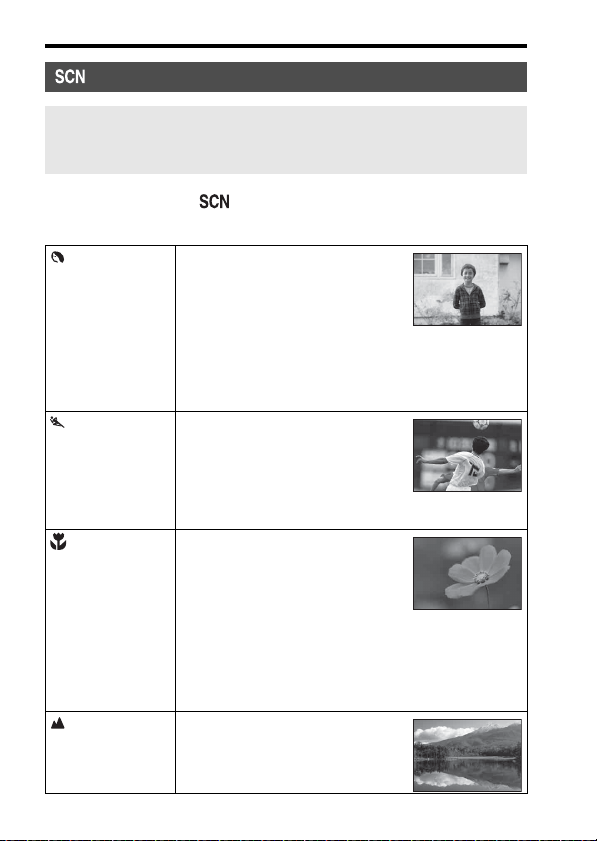
86
Selecting the shooting mode
Set the mode dial to (Scene Selection), select the desired
mode, and shoot images (page 38).
Scene Selection
This mode is suitable for
z Shooting with preset settings based on the scene
(Portrait) Blurs away backgrounds and sharpens
the subject. Accentuates skin tones
softly.
• To blur the background more, set the
lens to the telephoto position.
• You can shoot a vivid image by
focusing on the eye that is closer to the lens.
• Use the lens hood to shoot backlit subjects.
• Use the red-eye reduction function if the eyes of your
subject turn red from the flash (page 57).
(Sports Action) Shoots a moving subject at a fast
shutter speed so that the subject looks
as if it is standing still. The camera
shoots images continuously while the
shutter button is pressed.
• Press and hold the shutter button
halfway down and wait for the right moment.
(Macro) Shoots close-ups of the subjects such as
flowers, foods.
• You can shoot a closer subject using
a macro lens (sold separately).
• Set the flash mode to [Flash Off]
when you shoot a subject within 1 m
(3.3 feet).
• When shooting in macro mode, the SteadyShot function
will not be fully effective. Use a tripod to achieve better
results.
• The shortest focal distance does not change.
(Landscape) Shoots the entire range of scenery in
sharp focus with vivid colors.
• To accentuate the openness of the
scenery, set the lens to wide angle.
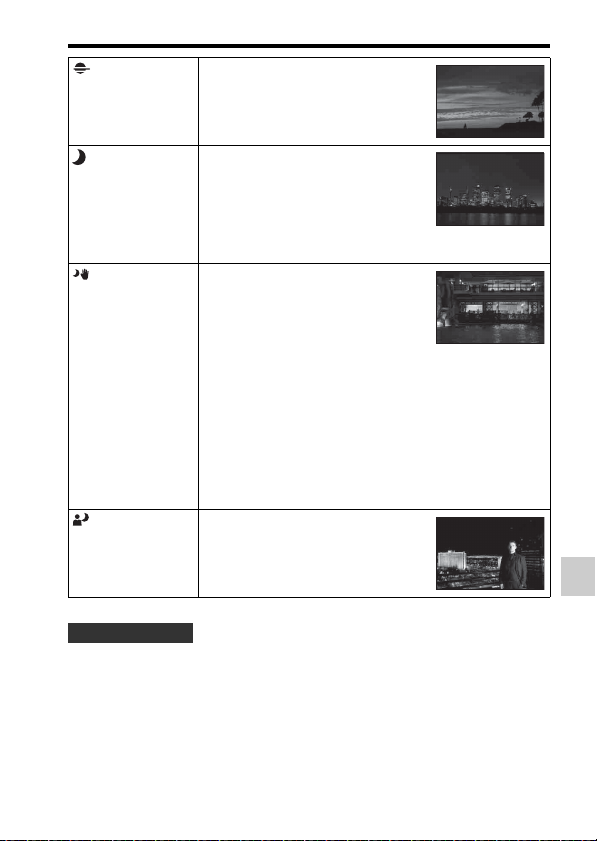
87
Selecting the shooting mode
Shooting (Advanced Operations)
• When you want finer images, set the mode dial to P, A, S, or M and use
the [Creative Style] function (page 134) so that you can adjust the
exposure, ISO, etc.
(Sunset) Shoots the red of the sunrise or sunset
beautifully.
(Night Scene) Shoots night scenes at a distance
without losing the dark atmosphere of
the surroundings.
• The shutter speed is slower, so we
recommend using a tripod.
• The picture may not be taken
properly when shooting a night scene in total darkness.
(Hand-held
Twilight)
Shoots night scenes with less noise and
blur without using a tripod. A burst of
shots are taken, and image processing
is applied to reduce subject blur,
camera shake, and noise.
• Blur reduction is less effective when
shooting:
– Subjects with erratic movement
– Subjects too close to the camera
– Subjects with little contrast such as the sky, a sandy
beach, or a lawn
– Subjects that change constantly, such as waves or
waterfalls
• Block noise may occur when using a light source that
flickers, such as fluorescent lighting.
(Night Portrait) Shoots portraits in night scenes.
• The shutter speed is slower, so we
recommend using a tripod.
Shooting technique
88
Selecting the shooting mode
Notes
• Since the camera judges the settings automatically, many features will be
unavailable, such as exposure compensation and ISO setting.
• The flash is set to [Autoflash] or [Flash Off] for each [Scene Selection] mode. You
can change these settings (pages 41, 75, 126).
Set the mode dial to (Sweep Panorama), and shoot images
(page 39).
Notes
• If you cannot pan or tilt the camera across the entire subject within the given time, a
gray area occurs in the composed image. If this happens, move the camera faster to
record a full panoramic image.
• Since several images are stitched together, the stitched part will not be recorded
smoothly. While shooting, do not tilt the camera back and forth or right and left as
you swing the camera straight ahead of you.
• Under low light conditions, panoramic images may be blurred or not recorded.
• Under flickering lights such as fluorescent lights, the brightness or color of the
combined image is not always the same.
• When the panoramic shot overall and the angle in which you fixed the focus and
exposure with AE/AF lock are extremely different in brightness, color and focus, the
shot will not be successful. If this happens, change the lock angle and shoot again.
• [Sweep Panorama] is not suitable when shooting:
– Moving subjects.
– Subjects too close to the camera.
– Subjects with little contrast such as the sky, a sandy beach, or a lawn.
– Subjects that change constantly, such as waves or waterfalls.
– Subjects for which the sun or electric lights, etc., are much brighter than the
surroundings.
• [Sweep Panorama] recording may stop in the following situations:
– You pan or tilt the camera too fast or too slow.
– There is too much camera shake.
Sweep Panorama
This mode is suitable for
z Shooting expansive scenery or high-rise buildings with dynamic composition.
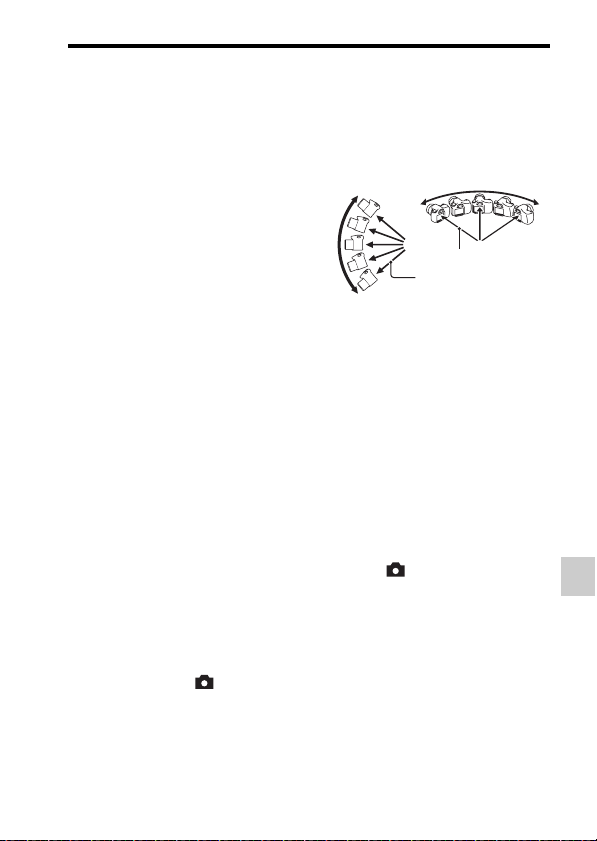
89
Selecting the shooting mode
Shooting (Advanced Operations)
• The camera continues shooting during [Sweep Panorama] recording, and the shutter
keeps clicking until the end of the shot.
• [Auto Object Framing] and the zoom feature of the camera cannot be used.
Tips for shooting a panoramic image
• In [Sweep Panorama], we recommend that you use a wide-angle lens.
• When you use a lens that has a long focal length, pan or tilt the camera
more slowly than when you use a wide-angle lens.
• Determine the scene and press the shutter button halfway, so that you can
lock the focus and exposure. Then, press the shutter button fully down
and pan the camera.
• If greatly varied shapes or scenery are concentrated along a screen edge,
the image composition may fail. In such cases, adjust the frame
composition so that the section is in the center of the image, then shoot
again.
To change the image size
You can select the image size: MENU button t 1 t [Panorama:
Size].
To set the pan or tilt direction
You can set the direction in which to pan or tilt the camera.
MENU button t 1 t [Panorama: Direction] t Select the
desired setting
Pan or tilt the camera in an arc with a
constant velocity and in the same
direction as the indication on the screen.
[Sweep Panorama] is better suited for
still subjects than moving ones.
Radius as short as
possible
Vertical
direction
Horizontal direction
90
Selecting the shooting mode
Set the mode dial to (Tele-zoom Cont. Priority AE), and
shoot images (page 40).
• The minimum zoom scale of the camera is set to 2 times and the image
size is set to S.
• When [Autofocus Mode] is set to [Continuous AF], the camera continues
to adjust focus during shooting. You can set [ISO] to the desired number.
• In manual focus mode or when the autofocus mode is set to [Single-shot
AF], you can adjust the ISO sensitivity and the aperture. When [Single-
shot AF] is selected, the focus is fixed at the first image.
Notes
• Depending on the ISO or aperture setting, the shutter speed is slower and the
continuous shooting speed may become slower.
• The Face Detection function is turned off.
• When [Auto HDR] is selected, the DRO process is performed temporarily according
to the DRO setting.
• When (Tele-zoom Cont. Priority AE) is selected, you cannot set [Quality] to
[RAW] or [RAW & JPEG].
• Our measurement conditions. The speed of continuous shooting may be slower,
depending on shooting conditions (Image size, ISO setting, High ISO NR, or the
setting of [Lens Comp.: Distortion]).
Tele-zoom Cont. Priority AE
This mode is suitable for
z Shooting a fast-moving subject continuously to capture a moment.
z Shooting children’s facial expressions that change from moment to moment.
Shooting techniques
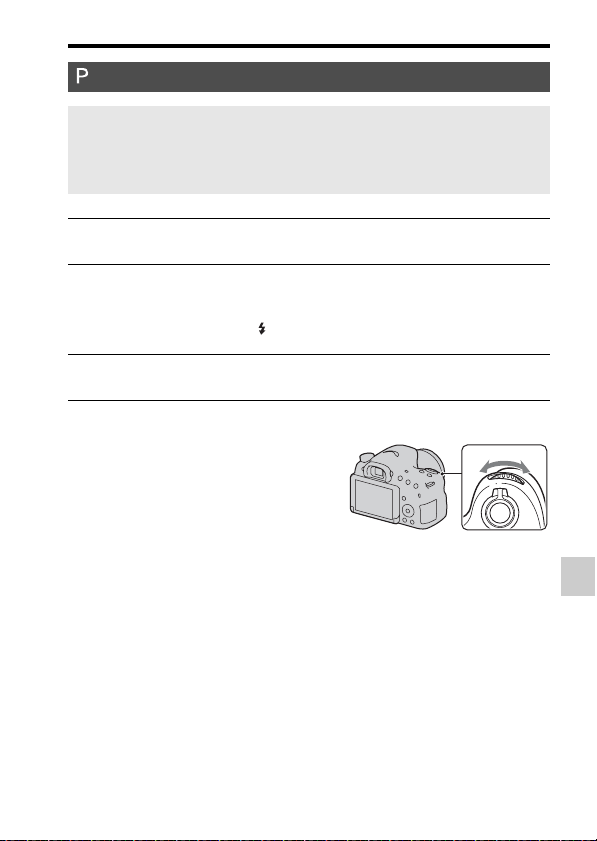
91
Selecting the shooting mode
Shooting (Advanced Operations)
Program Shift
Program Auto
This mode is suitable for
z Changing settings for ISO sensitivity, Creative Style, D-Range Optimizer, etc.
while using automatic exposure.
1 Set the mode dial to P.
2 Set the shooting functions to your desired settings (pages 106
to 146).
• To fire the flash, press the button.
3 Adjust the focus and shoot the subject.
You can temporarily change the shutter
speed and aperture value combination
while keeping the correct exposure
determined by the camera.
Rotate the control dial to select your
desired combination while the focus is
achieved.
The exposure mode indication changes to
“P*.”
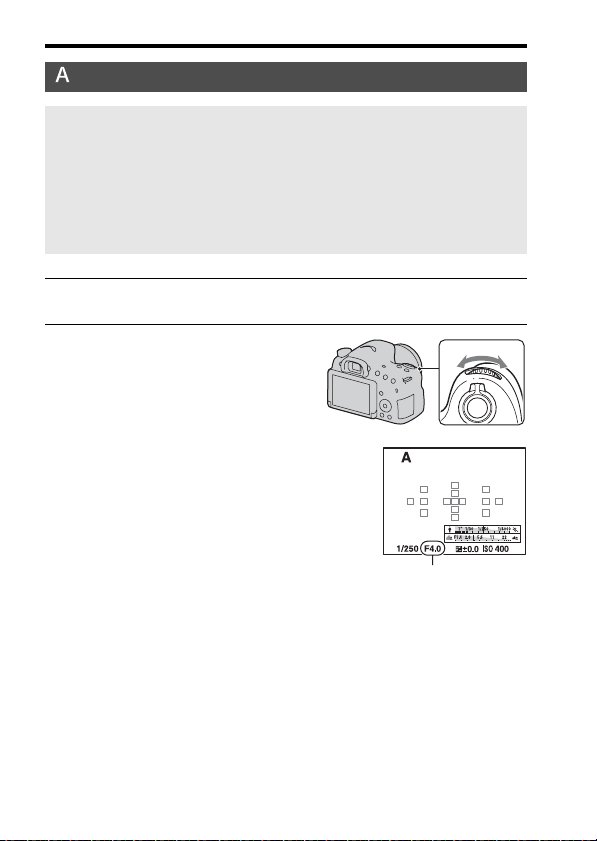
92
Selecting the shooting mode
Aperture Priority
This mode is suitable for
z Placing the subject in sharp focus and blurring everything in front of and beyond
the subject. Opening the aperture narrows the range that is in focus. (Depth of
field becomes shallower.)
z Shooting depth of scenery. Narrowing the aperture widens the range that is in
focus. (Depth of field becomes deeper.)
1 Set the mode dial to A.
2 Select the aperture value (F-
number) using the control dial.
• Smaller F-number: The foreground and
background of the subject are blurred.
Larger F-number: The subject and its
foreground and background are all in
focus.
• You cannot check the blurring of an
image on the LCD screen or in the
viewfinder. Check the recorded image
and adjust the aperture.
Aperture (F-number)
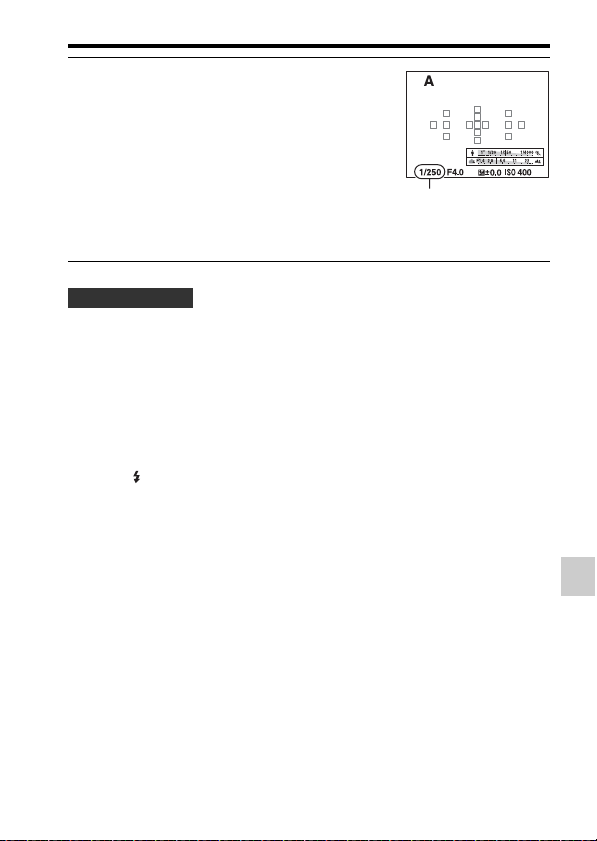
93
Selecting the shooting mode
Shooting (Advanced Operations)
• The shutter speed may become slower depending on the aperture value.
When the shutter speed is slower, use a tripod.
• To blur the background more, use a telephoto lens or a lens that is
equipped with a smaller aperture value (bright lens).
• You can check the approximate blurring of the image before recording
using the preview button.
Notes
• Press the button when you shoot with the flash. However, the flash range differs
according to the aperture value. When you shoot with the flash, check the flash range
under “Specifications.”
3 Adjust the focus and shoot the
subject.
The shutter speed is automatically
adjusted to obtain the correct exposure.
• When the camera judges that the proper
exposure cannot be obtained using the
selected aperture value, the shutter
speed flashes. If this happens, adjust
the aperture again.
Shutter speed
Shooting techniques
94
Selecting the shooting mode
To check blurring of the background (Preview button)
• Press the preview button after you adjust the focus.
• You can adjust the aperture in preview mode.
Notes
• When [Focus Magnifier] is assigned to the preview button, set [Preview Button] to
[Shot. Result Preview] or [Aperture Preview] in the Custom menu (page 162).
The LCD screen and the viewfinder show
an image captured with the widest
aperture. The change in aperture affects
the sharpness of the subject image,
creating a discrepancy between the
sharpness of the image before shooting
and that of the actual image.
While you are pressing the preview
button, you can see the image with the
aperture used in the actual shot so that
you can check the approximate sharpness
of the subject before shooting.
Preview button
Shutter Priority
This mode is suitable for
z Shooting a moving subject at a moment in time. Use a faster shutter speed to
crisply shoot an instant of movement.
z Tracing movement to express dynamism and flow. Use a slower shutter speed to
shoot a trailing image of a moving subject.
1 Set the mode dial to S.
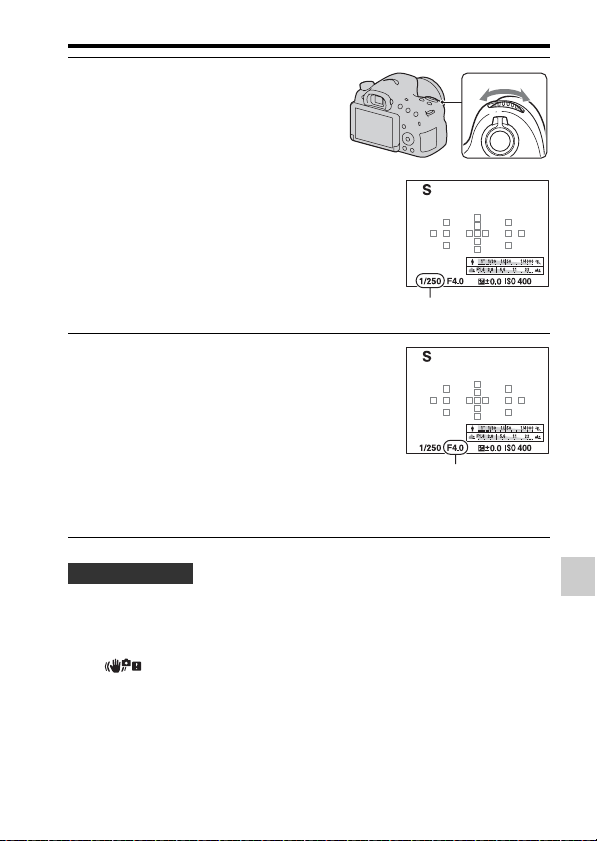
95
Selecting the shooting mode
Shooting (Advanced Operations)
• When the shutter speed is slower, use a tripod.
• When shooting an indoor sport, select a higher ISO sensitivity.
Notes
• The (Camera shake warning) indicator does not appear in [Shutter Priority]
mode.
• The higher the ISO sensitivity, the more conspicuous the noise.
• When the shutter speed is 1 second or longer, noise reduction (Long Exposure NR)
will be performed for the same amount of time that the shutter was open after
shooting. You cannot shoot during noise reduction.
2 Select the shutter speed using the
control dial.
Shutter speed
3 Adjust the focus and shoot the
subject.
The aperture is automatically adjusted to
obtain the correct exposure.
• When the camera judges that the proper
exposure cannot be obtained with the
selected shutter speed, the aperture
value flashes. If this happens, adjust the
shutter speed again.
Aperture (F-number)
Shooting techniques
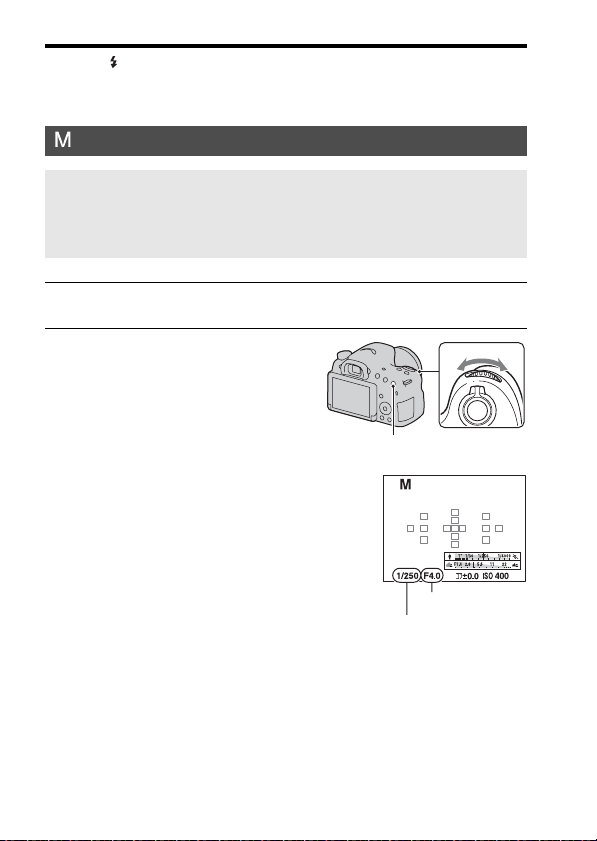
96
Selecting the shooting mode
• Press the button when you shoot with the flash. However, when using the flash, if
you close the aperture (a larger F-number) by making the shutter speed slower, the
light of the flash will not reach distant subjects.
Manual Exposure
This mode is suitable for
z Shooting with the desired exposure setting by adjusting both the shutter speed
and aperture.
1 Set the mode dial to M.
2 Rotate the control dial to adjust
the shutter speed, and while
pressing the AV button, rotate the
control dial to adjust the aperture.
• You can set [ISO] to [AUTO] even in
[Manual Exposure] mode. When [ISO]
is set to [AUTO], the ISO sensitivity
automatically changes for proper
exposure according to the set shutter
speed and aperture value.
• When [ISO] is set to [AUTO], if proper
exposure is not obtained with your
settings, the setting value indicators on
the screen will flash. In this case, adjust
the shutter speed or aperture value
again.
AV button
Shutter speed
Aperture (F-number)
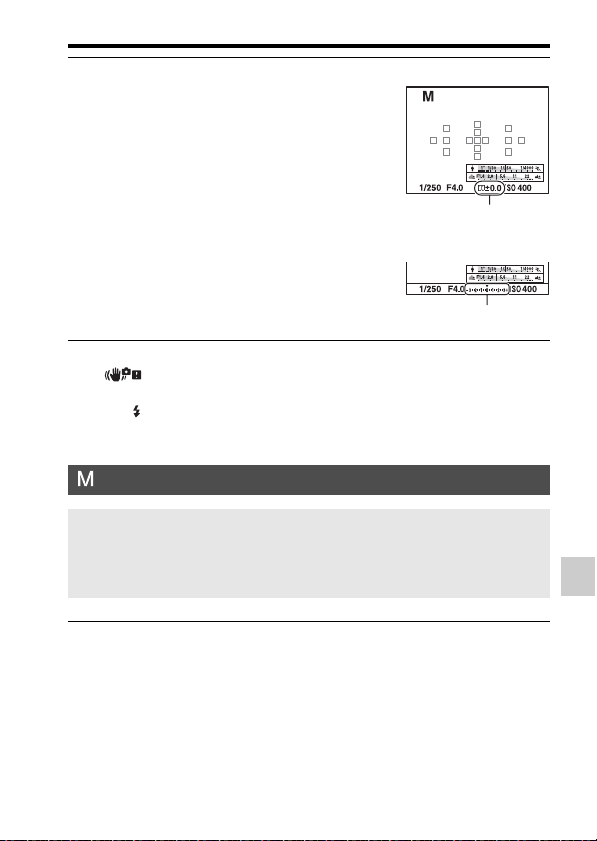
97
Selecting the shooting mode
Shooting (Advanced Operations)
Notes
• The (Camera shake warning) indicator is not displayed in manual exposure
mode.
• Press the button when you shoot with the flash. However, the flash range differs
according to the aperture value. When you shoot with the flash, check the flash range
under “Specifications.”
3 Shoot the image after the
exposure is set.
• When [ISO] is set to other than
[AUTO], check the exposure value
using Metered Manual*.
Toward +: Images become brighter.
Toward –: Images become darker.
* When the camera is in M mode, it will
show an under or over compensation
value based on the correct exposure. In
LCD screen mode, a numeric value is
displayed. In viewfinder mode, the
value is indicated on the EV scale.
LCD screen
Metered Manual
The screen in the viewfinder
Metered Manual
BULB
This mode is suitable for
z Shooting trails of light, such as fireworks.
z Shooting trails of stars.
1 Set the mode dial to M.
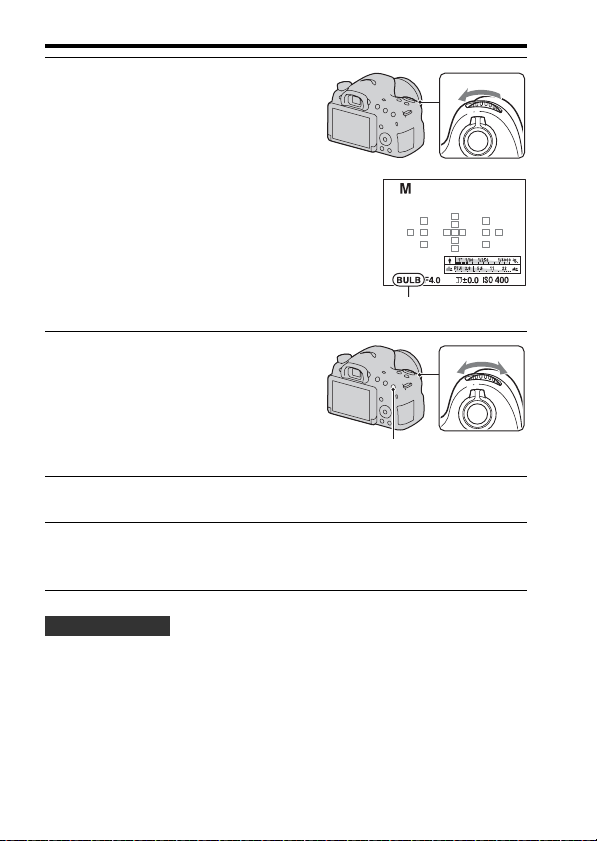
98
Selecting the shooting mode
• Use a tripod.
• Set the focus to infinity in manual focus mode when shooting fireworks,
etc. When the infinity position of the lens is not known, first adjust the
focus on fireworks that are being set off in the same general area, then
shoot them.
2 Rotate the control dial to the left
until [BULB] is displayed.
BULB
3 While pressing the AV button,
rotate the control dial to adjust
the aperture (F-number).
AV button
4 Press the shutter button halfway down to adjust the focus.
5 Press and hold the shutter button for the duration of the shot.
As long as the shutter button is pressed, the shutter remains open.
Shooting techniques

99
Selecting the shooting mode
Shooting (Advanced Operations)
• If you use a Remote Commander* that is equipped with a shutter button
lock function (sold separately), you can keep the shutter open using the
Remote Commander.
* Use a Remote Commander that is compatible with a Multi/Micro USB
Terminal.
Notes
• When using a tripod, turn off the SteadyShot function (page 84).
• The longer the exposure time, the more conspicuous the noise on the image.
• After shooting, noise reduction (Long Exposure NR) will be performed for the same
amount of time that the shutter was open. You cannot do any further shooting during
the reduction.
• When the Smile Shutter or Auto HDR function is activated, or when [Picture Effect]
is set to [HDR Painting] or [Rich-tone Mono.], you cannot set the shutter speed to
[BULB].
• If the Smile Shutter, Auto HDR function, or the [HDR Painting] or [Rich-tone
Mono.] setting of [Picture Effect] is used with the shutter speed set to [BULB], the
shutter speed is temporarily set to 30 seconds.
• We recommend that you start BULB shooting while the temperature of the camera is
moderate to prevent the quality of the image from deteriorating.

100
Movie recording setup
Movie recording can be started from any exposure mode.
The shutter speed and aperture value are adjusted automatically.
Press the MOVIE button to start recording (page 32).
• Start recording after you adjust the focus.
• The following settings that were set during still image shooting can also
be used in movie recording.
–ISO
– White Balance
– Creative Style
– Exposure Comp.
–AF area
–Metering Mode
– Face Detection
– Lock-on AF
– D-Range Opt.
– Lens Comp.: Shading
– Lens Comp.: Chro. Aber.
– Lens Comp.: Distortion
– Picture Effect
• [ISO], [Exposure Comp.], [Lock-on AF], or [AF area] can be adjusted
during movie recording.
• If you assign [AF lock] to the AEL button or ISO button, you can lock the
focus by pressing these buttons in autofocus mode.
Notes
• In movie recording mode, the recordable area (angle of view) is narrower than that
of still image shooting. To record with the same angle of view as a 16:9 still image,
set [SteadyShot] to [Off] (page 83).
• When the [For viewfinder] screen is displayed on the LCD screen, the LCD screen is
switched to the [Display All Info.] screen at the moment movie recording starts.
Recording movies easily
Shooting techniques
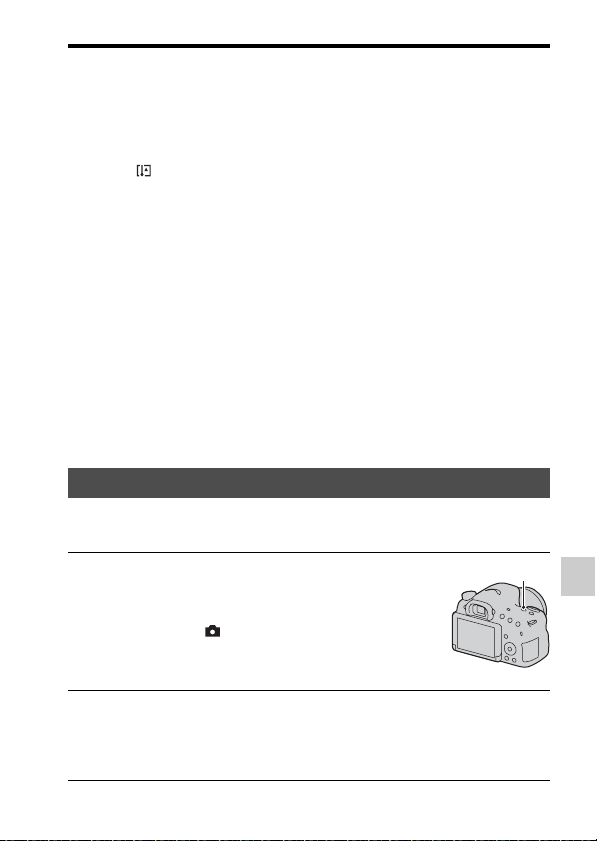
101
Movie recording setup
Shooting (Advanced Operations)
• Do not shoot a strong light source, such as the sun. The internal mechanism of the
camera may be damaged.
• When you import AVCHD movies to a computer, use “PlayMemories Home”
(pages 64, 178).
• When you continue to shoot for an extended period of time, the temperature of the
camera rises and the image quality may deteriorate.
• When the icon appears, the temperature of the camera is too high. Turn the
camera off and wait until the temperature of the camera drops. If you continue to
shoot, the camera turns off automatically.
• Since the shutter speed and aperture are automatically adjusted, the shutter speed
will be higher and the movement of the subject may not be smooth under bright
conditions. Selecting manual focus and adjusting the shutter speed or aperture may
make the movement smoother (page 102).
• A value for ISO sensitivity between ISO 100 and ISO 3200 can be selected when
you record movies. If you start movie recording with a value of ISO 3200 or larger
selected, the ISO sensitivity is switched to ISO 3200. When you finish recording
your movie, the ISO sensitivity setting returns to the previous value.
• When [ISO] is set to [Multi Frame Noise Reduct.], [AUTO] is temporarily selected.
• You cannot select [Soft Focus], [HDR Painting], [Rich-tone Mono.], or [Miniature]
in [Picture Effect]. When movie recording starts, [Picture Effect] is temporarily set
to [Off].
• [Clear Image Zoom] cannot be used during movie recording.
You can use the digital zoom feature during movie recording. The quality,
however, will deteriorate because image processing is performed.
Digital Zoom
1 Press the ZOOM button.
• Digital zoom is available during movie
recording even when [Digital Zoom] is
set to [Off] in the Still shooting
menu.
ZOOM button
2 Magnify the image up to the desired zoom factor using b/B on
the control button.
• A zoom factor of up to about 4 times is available.
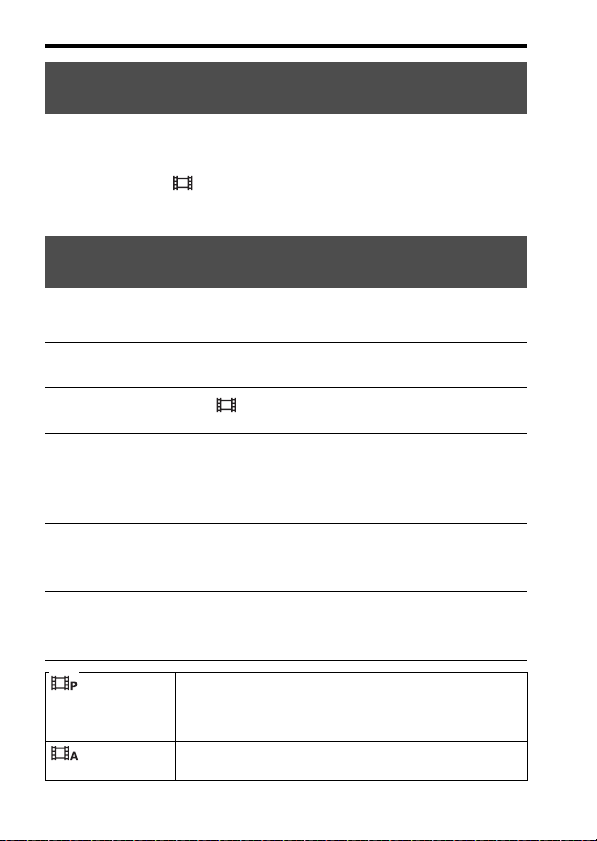
102
Movie recording setup
When you record fast moving subjects, select [High], and when several
subjects are moving or crossing back and forth, select [Low].
MENU button t 1 t [AF Track. Duration] t Select the
desired setting
You can record movies with the shutter speed and aperture adjusted,
controlling the background defocus or fluidity as you like.
Changing the tracking sensitivity of autofocus during
movie recording
Recording movies with the shutter speed and aperture
adjusted
1 Set the focus mode switch to MF (page 114).
2 Set the mode dial to (Movie).
3 Select the desired mode using v/V on the control button, then
press the center of the control button.
• To change the mode, press the Fn button, then select another mode.
4 Adjust the shutter speed and aperture value using the control
dial.
5 Adjust the focus, then press the MOVIE button to start
recording.
(Program Auto)
(91)
Allows you to shoot with the exposure adjusted automatically
(both the shutter speed and the aperture value). The other
settings can be adjusted manually, and your setting values
can be saved.
(Aperture
Priority) (92)
Allows you to shoot after adjusting the aperture value
manually using the control dial.
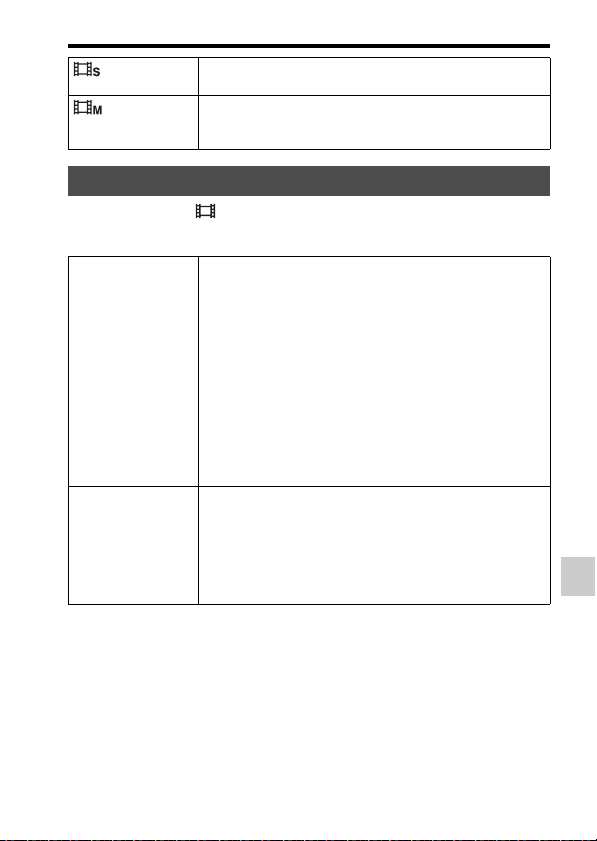
103
Movie recording setup
Shooting (Advanced Operations)
MENU button t 1 t [File Format] t Select the desired
format
(Shutter
Priority) (94)
Allows you to shoot after adjusting the shutter speed
manually using the control dial.
(Manual
Exposure) (96)
Allows you to shoot after adjusting the exposure manually
(both the shutter speed and the aperture value) using the
control dial.
File Format
AVCHD Records 60i/50i movies or 24p/25p movies in AVCHD
format. This file format is suitable for viewing the movie on a
high-definition TV.
You can create a Blu-ray disc, an AVCHD recording disc, or
a DVD-Video disc using the software “PlayMemories
Home.”
• 60i/50i movies are recorded at either 60 fields/second or 50
fields/second, respectively. Both 60i and 50i movies utilize
the interlace scanning system, Dolby Digital audio, and the
AVCHD format.
• 24p/25p movies are recorded at either 24 frames/second or
25 frames/second, respectively. Both 24p and 25p movies
utilize the progressive scanning system, Dolby Digital
audio, and the AVCHD format.
MP4 Records mp4 (AVC) movies. This format is suitable for
WEB uploads, e-mail attachments, etc.
• Movies are recorded in MPEG-4 format at about 30 frames/
second, utilizing the progressive scanning system, AAC
audio, and the mp4 format.
• You cannot create a disc from the movies recorded in this
format using the software “PlayMemories Home.”
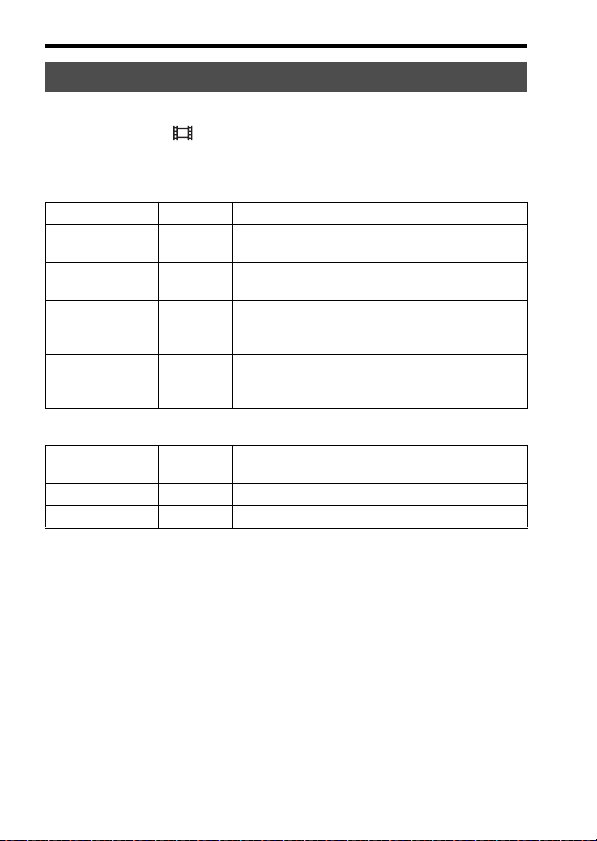
104
Movie recording setup
The higher the average bit-rate, the higher the image quality.
MENU button t 1 t [Record Setting] t Select the desired
setting
[File Format]: [AVCHD]
[File Format]: [MP4]
* 1080 60i-compatible device
**1080 50i-compatible device
Notes
• Movies recorded with the [60i 24M(FX)]/[50i 24M(FX)] or [24p 24M(FX)]/[25p
24M(FX)] setting in [Record Setting] are converted by “PlayMemories Home” in
order to create an AVCHD recording disc. This conversion can take a long time.
Also, you cannot create a disc with the original image quality. If you want to keep
the original image quality, store your movies on a Blu-ray disc.
• To watch 24p/25p movies on a TV, you need a TV that is compatible with 24p/25p.
If you use a non-compatible TV, the movies are converted to 60i/50i and output to
the TV.
Record Setting
Record Setting Bit-rate Recording
60i 24M(FX)*
50i 24M(FX)**
Maximum
24 Mbps
Records high image quality movies at 1920 × 1080
(60i/50i).
60i 17M(FH)*
50i 17M(FH)**
Average
17 Mbps
Records standard image quality movies at 1920 ×
1080 (60i/50i).
24p 24M(FX)*
25p 24M(FX)**
Maximum
24 Mbps
Records high image quality movies at 1920 × 1080
(24p/25p). This produces a cinema-like
atmosphere.
24p 17M(FH)*
25p 17M(FH)**
Average
17 Mbps
Records standard image quality movies at 1920 ×
1080 (24p/25p). This produces a cinema-like
atmosphere.
Record Setting
Average
bit-rate
Recording
1440×1080 12M 12 Mbps Records movies at 1440 × 1080.
VGA 3M 3 Mbps Records movies at VGA size.

105
Movie recording setup
Shooting (Advanced Operations)
When you record movies, the operating noise of the camera or lens may be
recorded. You can record movies without audio.
MENU button t 1 t [Audio Recording] t [Off]
When the focus mode is set to manual focus, the operating noise of the lens
during autofocus will not be recorded (page 114).
To reduce wind noise
You can reduce wind noise by cutting bass sound input from the built-in
microphone.
MENU button t 1 t [Wind Noise Reduct.] t [On]
Notes
• Setting [Wind Noise Reduct.] to [On] may cause some bass sound to be recorded at
too low a volume. Select [Off] when the wind is not blowing.
• When an external microphone (sold separately) is used, [Wind Noise Reduct.] does
not function.
Audio Recording
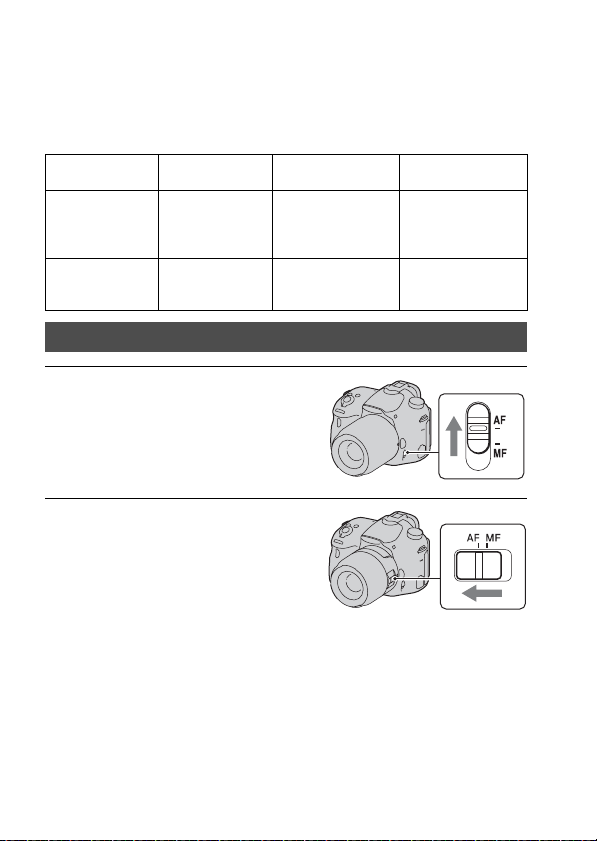
106
Adjusting the focus
There are 2 methods for adjusting the focus: autofocus and manual focus.
Depending on the lens, the method for switching between the autofocus and
manual focus is different.
The type of lens
The switch to be
used
To switch to auto
focus
To switch to manual
focus
Lens equipped
with a focus mode
switch
Lens (Always set
the focus mode
switch on the
camera to AF.)
Set the focus mode
switch on the lens to
AF.
Set the focus mode
switch on the lens to
MF.
Lens not equipped
with a focus mode
switch
Camera Set the focus mode
switch on the camera
to AF.
Set the focus mode
switch on the camera
to MF.
Autofocus
1 Set the focus mode switch on the
camera to AF.
2 When the lens is equipped with
the focus mode switch, set it to
AF.
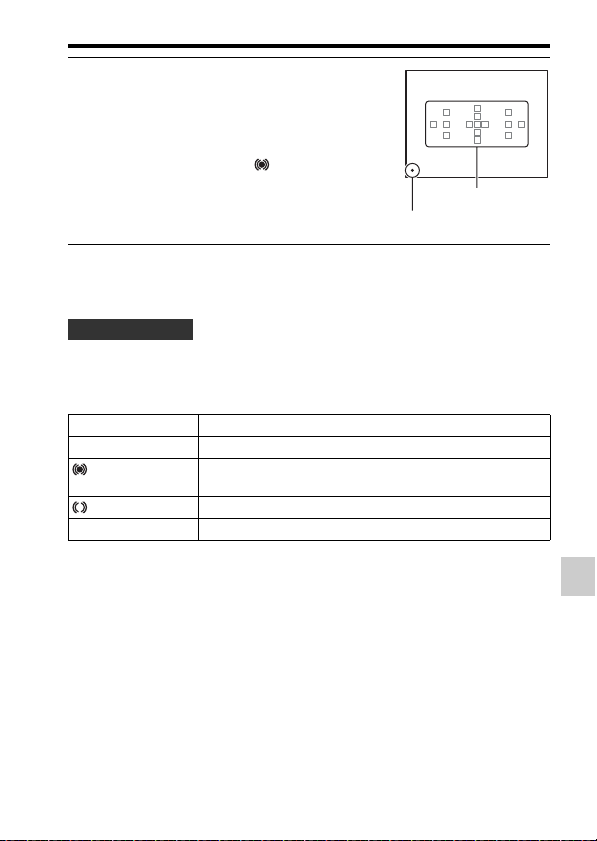
107
Adjusting the focus
Shooting (Advanced Operations)
Notes
• While the camera is focusing automatically, do not touch the rotating focusing ring.
• To select the AF area used for focusing, set up [AF area] (page 110).
Focus indicator
Subjects that may require special focusing
When using the autofocus, it is hard to focus on the following subjects. In
such cases, use the focus lock shooting feature (page 108) or manual focus
(page 114).
• A subject that is low in contrast, such as blue sky or a white wall.
• Two subjects at different distances overlapping in the AF area.
• A subject that is composed of repeating patterns, such as the facade of a
building.
• A subject that is very bright or glittering, such as the sun, the body of an
automobile, or the surface of water.
• Ambient light is not sufficient.
3 Press the shutter button halfway
down to check the focus and shoot
the image.
• When the focus is confirmed, the focus
indicator changes to z or (below).
• The AF area in which the focus has
been confirmed turns green.
Focus indicator
Shooting technique
Focus indicator Status
z lit Focus locked. Ready to shoot.
lit Focus is confirmed. Focal point moves following a moving
subject. Ready to shoot.
lit Focusing in progress. You cannot release the shutter.
z flashing Cannot focus. The shutter is locked.
AF area
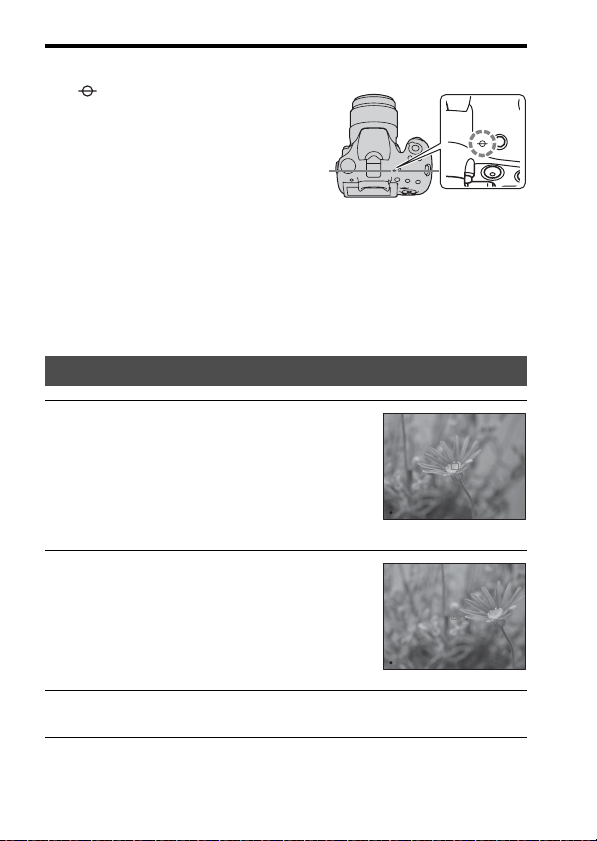
108
Adjusting the focus
To measure the exact distance to the subject
Notes
• If the subject is closer than the minimum shooting distance of the attached lens, the
focus cannot be confirmed. Make sure to place enough distance between the subject
and the camera.
The mark located on the top of the
camera shows the location of the image
sensor*. When you measure the exact
distance between the camera and the
subject, refer to the position of the
horizontal line.
* The image sensor is the part of the
camera that acts as the film.
Focus-lock
1 Place the subject within the AF
area and press the shutter button
halfway down.
The focus is locked.
• Set [Autofocus Mode] to [Single-shot
AF].
2 Keep pressing the shutter button
halfway down, and place the
subject back in the original
position to re-compose the shot.
3 Press the shutter button down fully to take the picture.
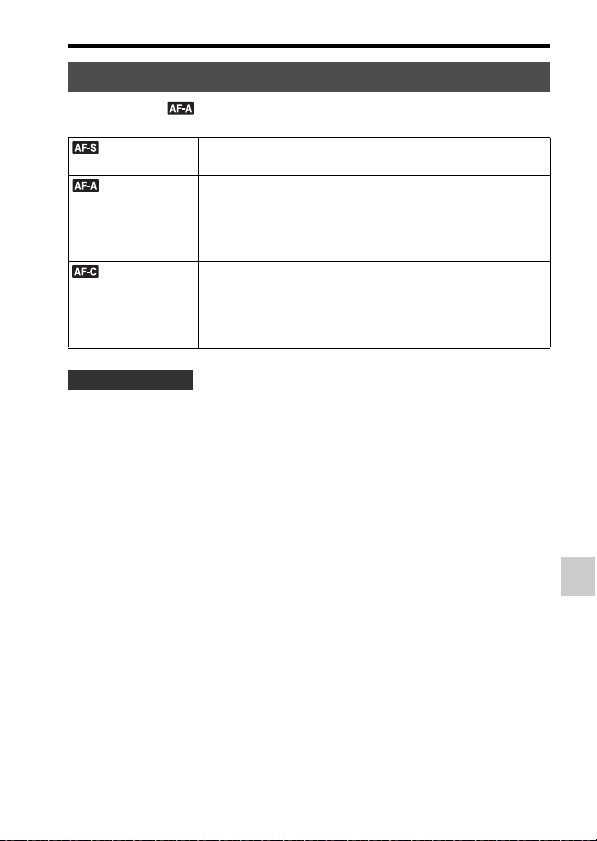
109
Adjusting the focus
Shooting (Advanced Operations)
Fn button t (Autofocus Mode) t Select the desired setting
• Use [Single-shot AF] when the subject is motionless.
• Use [Continuous AF] when the subject is in motion.
Notes
• [Automatic AF] is selected when the exposure mode is set to [Intelligent Auto],
[Superior Auto] or one of the following [Scene Selection] modes: [Portrait],
[Landscape], [Sunset], [Night Scene], [Night Portrait], or [Hand-held Twilight].
• [Single-shot AF] is selected when the exposure mode is set to [Sweep Panorama] or
[Macro] in [Scene Selection].
• [Continuous AF] is selected when the exposure mode is set to [Sports Action] in
[Scene Selection] or when the Smile Shutter function is used.
Autofocus Mode
(Single-shot
AF)
The camera focuses and the focus is locked when you press
the shutter button halfway down.
(Automatic AF) [Autofocus Mode] switches between [Single-shot AF] and
[Continuous AF] based on the movement of the subject.
When you press and hold the shutter button halfway down, if
the subject is motionless, the focus is locked and if the
subject is in motion, the camera continues to focus.
(Continuous
AF)
The camera continues to focus while the shutter button is
pressed and held halfway down.
• The audio signals will not sound when the subject is in
focus.
• Focus-lock cannot be used.
Shooting techniques
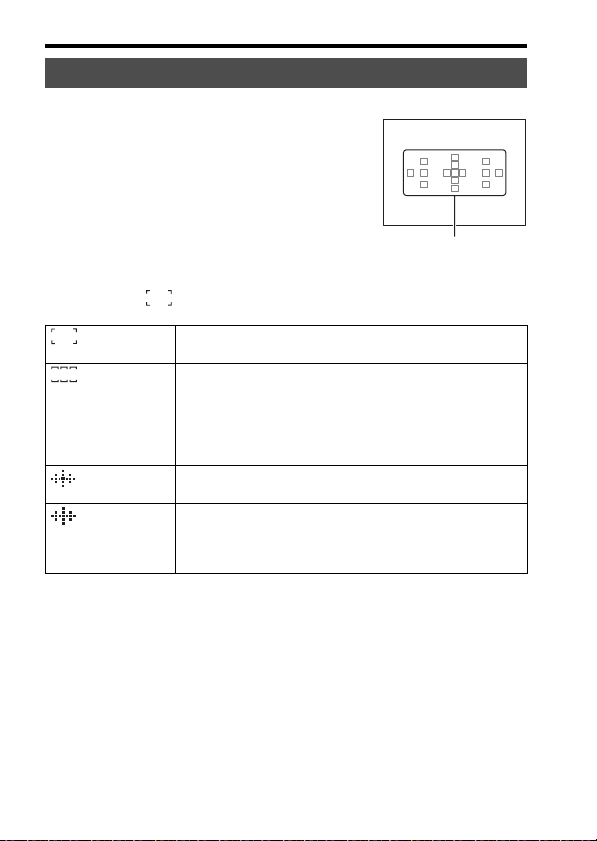
110
Adjusting the focus
Fn button t (AF area) t Select the desired setting
Notes
• [AF area] is fixed to [Wide] and you cannot select other settings when the exposure
mode is set to [Intelligent Auto], [Superior Auto] or [Scene Selection], or when the
[Lock-on AF] function is being used or the Smile Shutter is activated.
• The AF area may not be illuminated during continuous shooting or when the shutter
button is pressed all the way down without pause.
• When [Lock-on AF] is set to [On], the setup screen used for the [Zone] or [Local]
option is not displayed by pressing the AF button.
AF area
Select the desired AF area to suit the
shooting conditions or your preference.
The AF area where the focus has been
confirmed turns green and the other AF
areas disappear.
AF area
(Wide) The camera determines which of the 15 AF areas is used in
focusing.
(Zone) Choose the zone for which you want to activate the focus
from among left, right, or center zone using the control
button. The camera determines which of the AF areas in the
selected zone is used in focusing.
Press the AF button so that the setup screen appears, and then
select the desired zone.
(Spot) The camera uses the AF area located in the center area
exclusively.
(Local) Choose the area for which you want to activate the focus
from among 15 AF areas using the control button.
Press the AF button to display the setup screen and select the
desired area.
111
Adjusting the focus
Shooting (Advanced Operations)
You can set the AF illuminator to focus on a subject under dark lighting.
MENU button t 2 t [AF Illuminator] t Select the desired
setting
• Since the camera uses the built-in flash as an AF illuminator, press the
button to open the flash.
• The AF illuminator does not operate when [Autofocus Mode] is set to
(Continuous AF) or the subject is moving in (Automatic AF).
(The or indicator lights.)
• The AF illuminator may not operate at focal lengths of 300 mm or longer.
• When an external flash (sold separately) with an AF illuminator is
attached, the AF illuminator of the external flash is used. Push the built-in
flash down.
• The AF illuminator does not operate when [Smile Shutter] is set to [On].
Keeps the focus on a moving subject while tracking it. When [Autofocus
Mode] is set to [Continuous AF], [On(Lock-on AF w/ shutter)] will
function.
AF Illuminator
Lock-on AF
1 Set [Autofocus Mode] to [Continuous AF] (page 109).
2 Fn button t (Lock-on AF) t [On(Lock-on AF w/ shutter)]
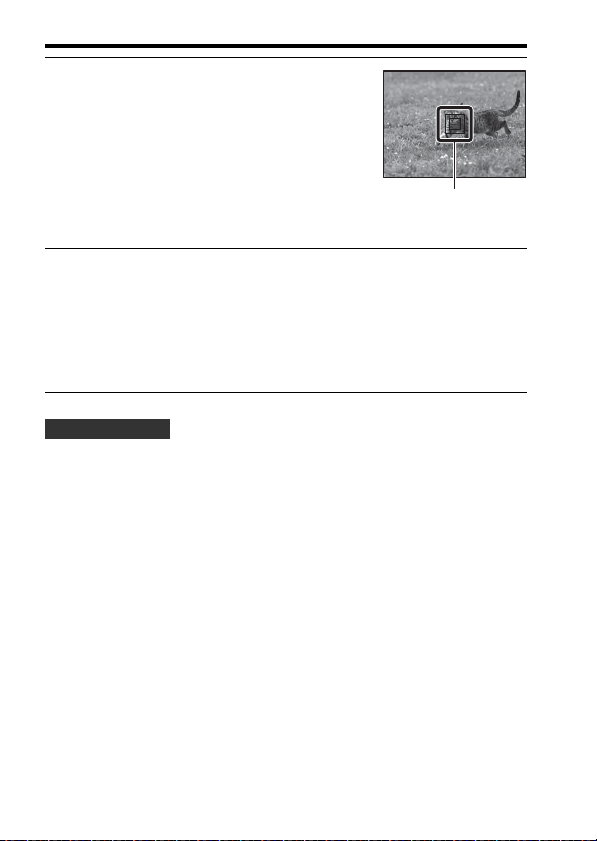
112
Adjusting the focus
• To capture persons, you can detect and track the person’s face using the
following settings: [Lock-on AF] is set to [On(Lock-on AF w/ shutter)],
[AF area] is set to [Wide], and [Smile/Face Detect.] is set to [Face
Detection On]
• When the subject is small on the Live View screen, you can track the
subject certainly by setting the autofocus area in advance using the
following settings: [Lock-on AF] is set to [On(Lock-on AF w/ shutter)],
[AF area] is set to [Local] or [Zone].
3 Press the shutter button halfway
down so that the camera
automatically locks onto a target
and tracks the subject.
The camera continues to focus while the
shutter button is pressed and held
halfway down. When the subject is in
focus, the target frame turns green.
Target frame
4 Press the shutter button to shoot the subject.
When [AF area] is set to [Wide], the camera starts tracking the subject around
the center area.
The camera focuses on the subject using all areas during tracking.
• The camera can start tracking the subject from the selected area when [AF
area] is set to [Local], [Spot], or [Zone].
Shooting techniques
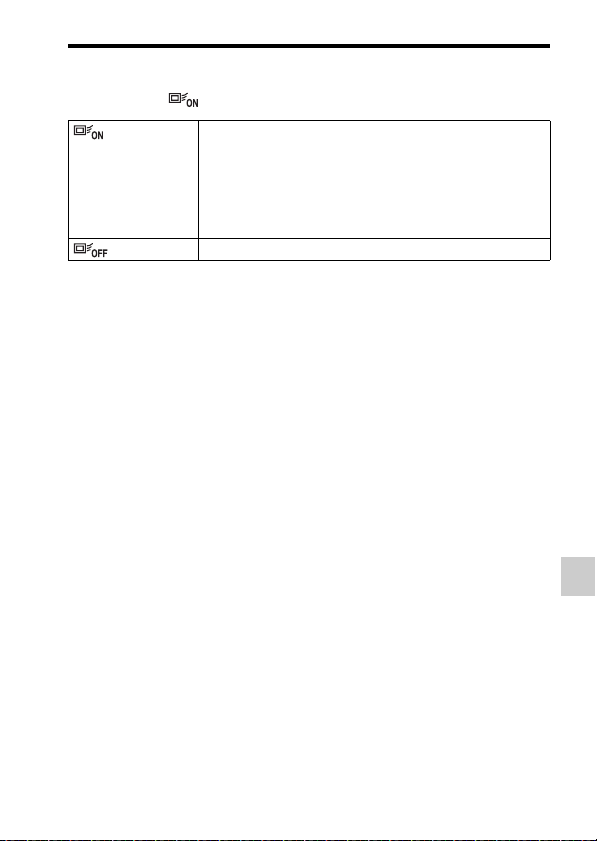
113
Adjusting the focus
Shooting (Advanced Operations)
To change the mode
Fn button t (Lock-on AF) t [On] or [Off].
Notes
• [Lock-on AF] may be difficult in the following situations:
– The subject is moving too quickly.
– The subject is too small or too large.
– The contrast between the subject and the background is poor.
– The subject is in dark lighting conditions.
– The ambient light changes.
• [Lock-on AF] cannot be used when the exposure mode is set to [Sweep Panorama],
[Tele-zoom Cont. Priority AE], or [Hand-held Twilight] in [Scene Selection], or
when manual focus is selected.
• The camera stops tracking a subject when the subject moves off the screen.
(On) Press the center of the control button on the recording
information display to display a target frame. Align the target
frame with the subject to be tracked, and press the center of
the control button. The camera starts tracking the subject.
When the subject is in focus, the target frame turns green. To
cancel the tracking feature, press the center of the control
button again.
(Off) Deactivates the [Lock-on AF] function.
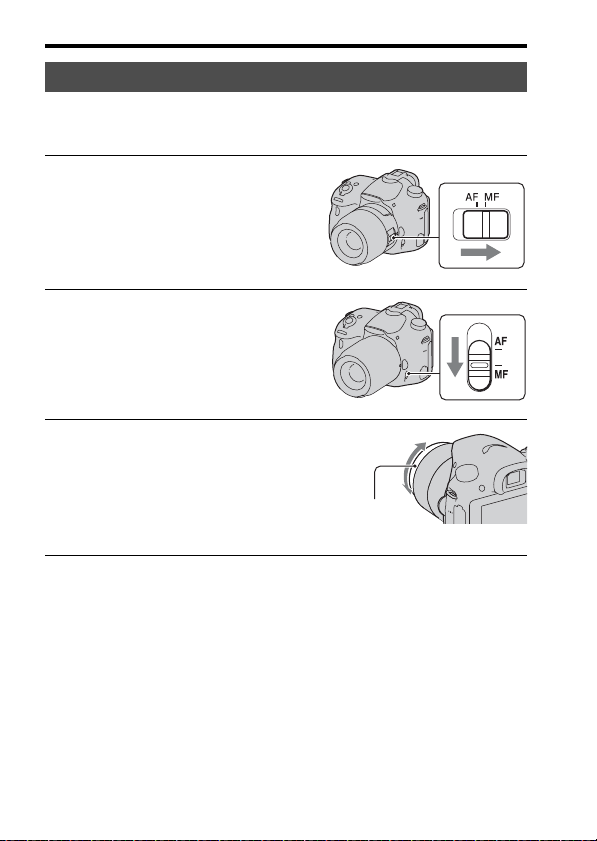
114
Adjusting the focus
When it is difficult to get the proper focus in autofocus mode, you can
adjust the focus manually.
Notes
• When the Wide AF area is used, the center area is used for focusing; when the Zone
AF area is used, a typical area of the selected zone is used; and when the Local AF
area is used, an area that is selected using the control button is used.
• When using a teleconverter (sold separately), etc., rotation of the focusing ring may
not be smooth.
• The correct focus in the viewfinder is not achieved if the diopter is not adjusted
properly in viewfinder mode (page 29).
• Make sure to set the focus mode switch on the lens to MF for manual focus. Rotating
the focusing ring forcibly without switching to MF may damage it.
Manual focus
1 Set the focus mode switch on the
lens to MF.
2 If the lens is not equipped with a
focus mode switch, set the focus
mode switch on the camera to
MF.
3 Rotate the focusing ring of the
lens to achieve sharp focus.
Focusing
ring

115
Adjusting the focus
Shooting (Advanced Operations)
Direct manual focus
When a lens that is equipped with a direct manual focus function is
mounted and [Autofocus Mode] is set to [Single-shot AF] or [Automatic
AF], you can make fine adjustments using the focusing ring after the focus
is locked (DT 18-135mm F3.5-5.6 SAM, etc. ). You can quickly focus on a
subject rather than using the manual focus from the beginning. This is
convenient in cases such as macro shooting.
You can enhance the outline of in-focus ranges with a specific color in
manual focus. This function allows you to confirm the focus easily.
MENU button t 2 t [Peaking Level] t Select the desired
setting
Notes
• Since the camera judges that sharp areas are in focus, the peaking level differs,
depending on the subject, shooting situation, or the lens used.
• The outline of in-focus ranges is not enhanced when the camera is connected using
an HDMI cable.
To set the color of the peaking function
You can set the color used for the peaking function in manual focus.
MENU button t 2 t [Peaking Color] t Select the desired
setting
Notes
• [Peaking Color] cannot be set when [Peaking Level] is set to [Off].
Peaking
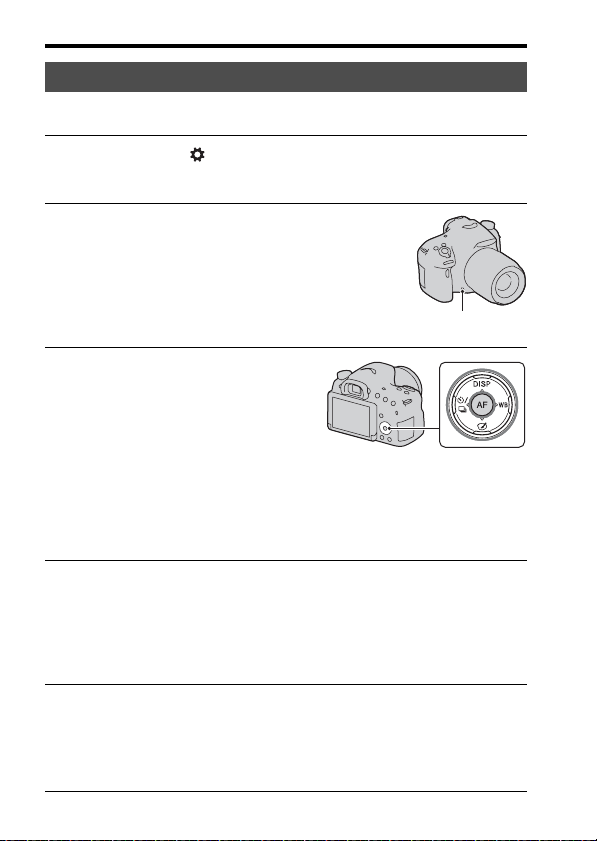
116
Adjusting the focus
You can check the focus by enlarging the image before shooting.
Focus Magnifier
1 MENU button t 3 t [Preview Button] t [Focus
Magnifier]
2 Press the Focus Magnifier button.
Focus Magnifier button
3 Press the Focus Magnifier button
again to enlarge the image and
select the portion you want to
enlarge using v/V/b/B on the
control button.
• Each time you press the Focus
Magnifier button, the magnifier scaling
changes as follows: Full display t
Approx. ×6.8 t Approx. ×13.6
4 Confirm and adjust the focus.
• Rotate the focusing ring to adjust the focus in manual focus mode.
• If you press the AF button, the enlarged portion returns to the center.
• The [Focus Magnifier] function is canceled if you press the shutter button
halfway down.
5 Press the shutter button fully down to shoot the image.
• You can record images while an image is enlarged, but the camera records a
full-display image.
• The [Focus Magnifier] function will be released after shooting.
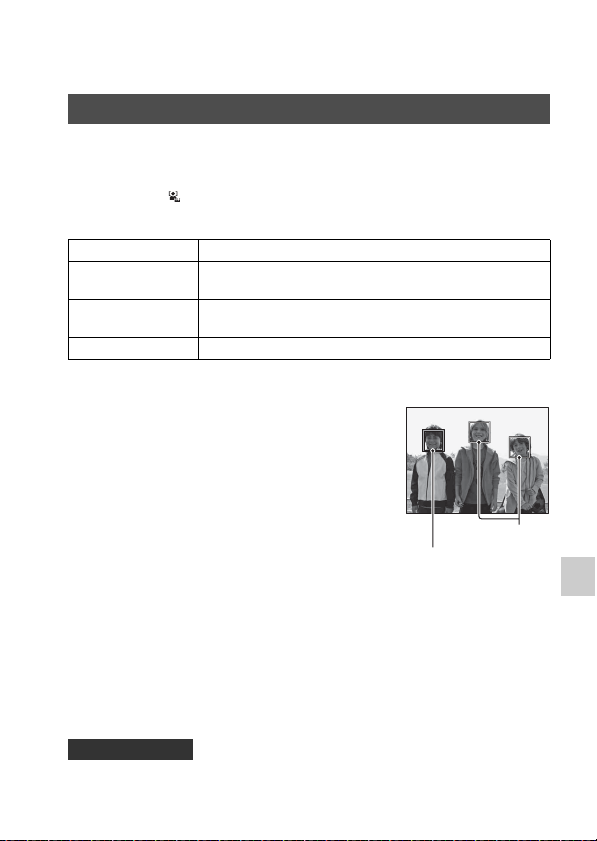
117
Shooting (Advanced Operations)
Detecting faces
The camera detects faces, adjusts the focus and exposure, performs image
processing, and adjusts flash settings.
Fn button t (Smile/Face Detect.) t Select the desired
setting
The Face Detection frame
• If a face is not positioned inside the AF area available when you press the
shutter button halfway down, the AF area that is used for focusing turns
green.
• When the camera detects multiple faces, the camera automatically selects
a priority face and a single Face Detection frame turns white. A magenta
frame appears on a face that is registered with [Face Registration].
• Compose to overlay the Face Detection frame and the AF area.
Face Detection
Face Detection Off Turns off Face Detection.
Face Detection On
(Regist. Faces)
Enables Face Detection and prioritizes recognized faces that
have been registered in [Face Registration] (page 118).
Face Detection On Enables Face Detection, but does not prioritize recognized
faces.
Smile Shutter Detects and shoots a smile automatically.
When the camera detects faces, gray Face
Detection frames appear. When the
camera judges that autofocus is possible,
the Face Detection frame turns white.
When you press the shutter button
halfway down, the Face Detection frame
turns green.
Face Detection frames (white)
Shooting technique
Face Detection
frames (gray)
118
Detecting faces
Notes
• When the exposure mode is [Sweep Panorama] or [Tele-zoom Cont. Priority AE],
[Face Detection] cannot be used.
• Up to 8 faces can be detected.
• The camera may not detect any faces, or may detect some other object, depending on
the shooting conditions.
The camera detects faces for which information has been registered in
advance.
To change the priority of faces previously registered
When you have registered multiple faces, the priority order is set. You can
change the priority order.
MENU button t 4 t [Face Registration] t [Order
Exchanging] t Select a face for which you want to change the
priority and the priority level
Face Registration
1 MENU button t 4 t [Face Registration] t [New
Registration]
2 Align the guide frame with the face to be registered, and press
the shutter button.
3 Select [Enter] using v/V on the control button, then press the
center of the control button.
• Up to 8 faces can be registered.
• Shoot the face from the front in a brightly lit place. The face may not be
registered correctly if it is obscured by a hat, a mask, sunglasses, etc.
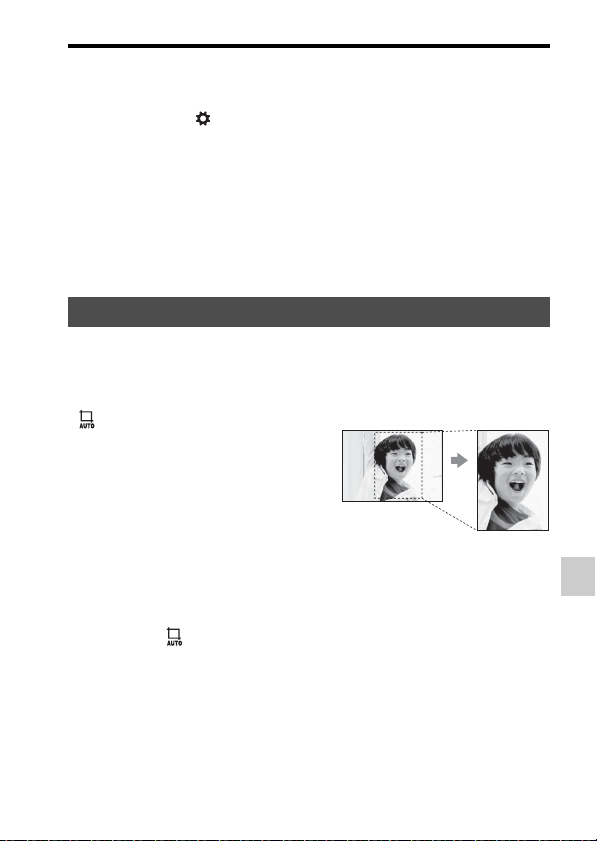
119
Detecting faces
Shooting (Advanced Operations)
To delete a registered face
You can delete a registered face.
MENU button t 4 t [Face Registration] t [Delete] t
Select the face you want to delete
• When you select [Delete All], you can delete all registered faces at one
time.
Notes
• Even if you select [Delete], the data on registered faces remains stored in the camera.
If you want to delete this data from the camera, select [Delete All].
• Registered faces are not deleted even if you use [Initialize].
When shooting faces, close-ups, or subjects tracked by [Lock-on AF], the
camera analyzes the scene and automatically trims the image into a suitable
composition. Both the original and the trimmed images are saved.
To change the setting of [Auto Object Framing]
The default setting is [Auto].
Fn button t (Auto Object Framing) t Select the desired
setting
Notes
• The [Auto Object Framing] function cannot be used when the exposure mode is set
to [Sweep Panorama], [Tele-zoom Cont. Priority AE], [Movie], or [Hand-held
Twilight] or [Sports Action] in [Scene Selection].
• The trimmed image may not be the best possible composition, depending on the
shooting conditions.
Auto Object Framing
• turns to green when the trimming
feature is available in Live View mode.
• The frame used for trimming is
indicated on the auto review screen
after shooting.
Auto review screen
Trimmed range
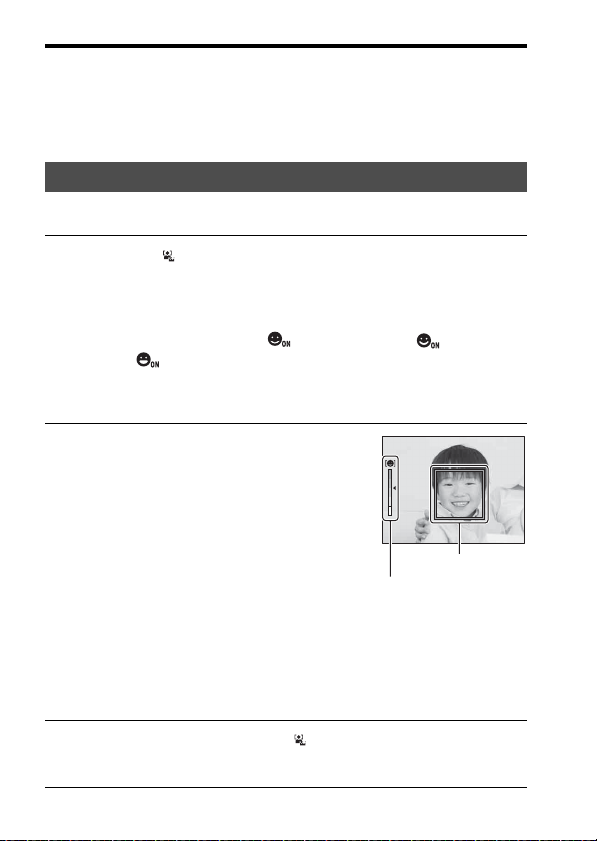
120
Detecting faces
• When [Quality] is set to [RAW] or [RAW & JPEG], this function cannot be used.
• This feature cannot be used with the following functions: Continuous shooting,
continuous bracket, [Multi Frame Noise Reduct.], [Auto HDR], the zoom feature of
the camera, manual focus, or [Soft Focus], [HDR Painting], [Rich-tone Mono.], or
[Miniature] in [Picture Effect].
When the camera detects a smile, the shutter is released automatically.
Smile Shutter
1 Fn button t (Smile/Face Detect.) t [Smile Shutter On:
Normal Smile] t Select the desired Smile Detection
Sensitivity mode using b/B on the control button
You can set the sensitivity of the Smile Shutter function for detecting smiles
to one of the following 3 options: (On: Slight Smile), (On: Normal
Smile), and (On: Big Smile).
• When the Smile Shutter is activated, the Smile Detection Sensitivity
indicator appears on the screen.
2 Wait detecting a smile.
The camera detects a smile and the focus
is confirmed. When the smile level
exceeds the b point on the indicator, the
camera records images automatically.
• When the camera detects target faces,
orange Face Detection frames appear
around the faces. The Face Detection
frames turn green when these subjects
come into focus.
• When [Auto Object Framing] is set to
[Auto], the image will be automatically
trimmed to provide a suitable
composition.
Smile Detection Sensitivity indicator
3 To stop shooting, Fn button t (Smile/Face Detect.) t
Select an item other than [Smile Shutter].
Face Detection frame

121
Detecting faces
Shooting (Advanced Operations)
• To focus on the smile, overlay the Face Detection frame and AF area.
• Do not cover the eyes with bangs, etc. Keep the eyes narrowed.
• Do not obscure the face with a hat, a mask, sunglasses, etc.
• Try to orient the face in front of the camera and keep it as level as
possible.
• Hold a clear smile with an open mouth. The smile is easier to detect when
the teeth are showing.
• If you press the shutter button while the Smile Shutter function is
activated, the camera shoots the image, and then returns to Smile Shutter.
Notes
• The [Smile Shutter] function cannot be used when the exposure mode is set to
[Sweep Panorama], [Tele-zoom Cont. Priority AE], [Movie], or [Hand-held
Twilight] in [Scene Selection], or when manual focus is selected.
• [Drive Mode] is automatically set to [Single Shooting].
• The AF illuminator does not work with the Smile Shutter function.
• If the camera does not detect a smile, change the settings for Smile Detection
Sensitivity.
• Smiles may not be detected correctly, depending on the shooting conditions.
• If the camera tracks a face using [Lock-on AF] with Smile Shutter turned on, the
face becomes the target of the smile detection feature (page 111).
Shooting techniques
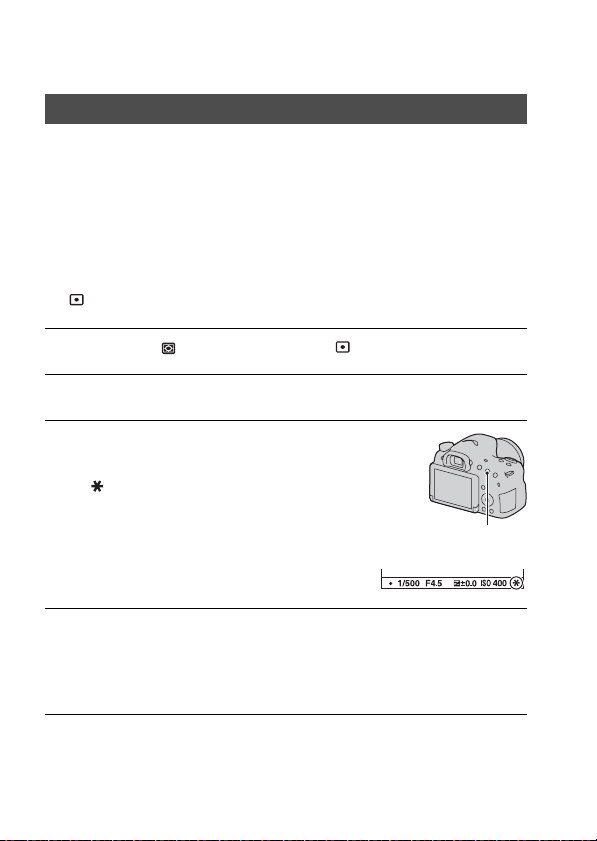
122
Adjusting the brightness of the image
When shooting into the sun or by a window when the exposure may not be
appropriate for the subject, use the light meter where the subject is bright
enough and lock the exposure before shooting. To reduce the brightness of
the subject, point the camera toward a spot that is brighter than the subject
and use the light meter to lock the exposure of the entire image. To make
the subject brighter, point the camera toward a spot that is darker than the
subject and use the light meter to lock the exposure of the entire image.
This section describes how to shoot a brighter image of the subject using
the (Spot).
AE Lock
1 Fn button t (Metering Mode) t (Spot)
2 Adjust the focus where you want to lock the exposure.
3 Press the AEL button to lock the
exposure.
The (AE lock) icon appears.
• The exposure value based on the locked
exposure in the spot metering circle is
also indicated on the EV scale.
AEL button
4 While pressing the AEL button, focus on the subject and shoot.
• If you continue to shoot with the same exposure value, press and hold the
AEL button after shooting. The setting is canceled when the button is
released.
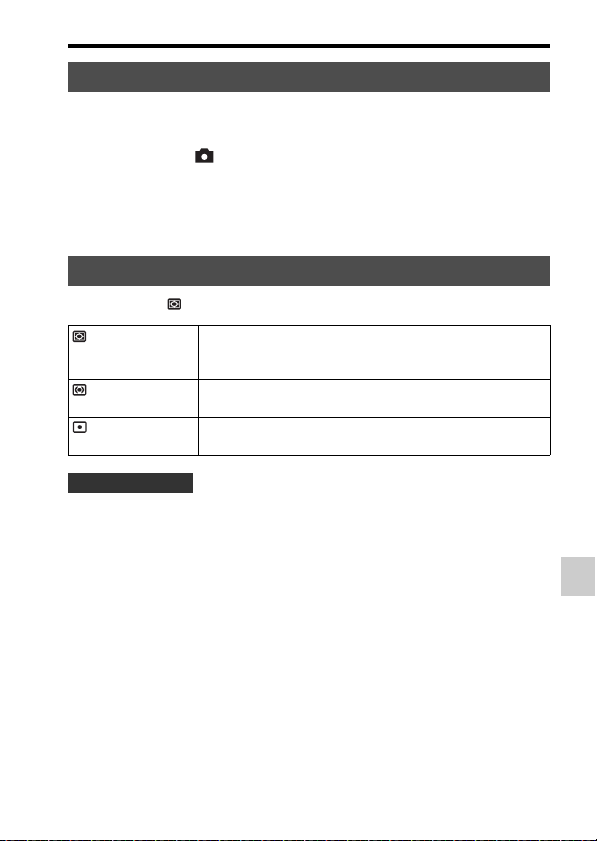
123
Adjusting the brightness of the image
Shooting (Advanced Operations)
Sets whether to fix the exposure when you press the shutter button halfway
down.
MENU button t 3 t [AEL w/ shutter] t Select the desired
setting
Notes
• AEL button operation is given priority over the [AEL w/ shutter] settings.
Fn button t (Metering Mode) t Select the desired mode
• Use [Multi segment] metering for general shooting.
• When there is a high contrast subject in the AF area, measure the light of
the subject you want to shoot with the optimal exposure using the spot
metering function and take advantage of AE lock shooting (page 122).
Notes
• When the exposure mode is set to [Intelligent Auto], [Superior Auto], or [Scene
Selection], or when the zoom feature of the camera is used, [Metering Mode] is fixed
to [Multi segment] and you cannot select other modes.
AEL w/ shutter
Metering Mode
(Multi segment) This mode measures light in each area after dividing the total
area into multiple areas and determines the proper exposure
of the entire screen.
(Center weighted) While emphasizing the central area of the screen, this mode
measures the average brightness of the entire screen.
(Spot) This mode measures light only in the spot metering circle
located in the center area.
Shooting techniques
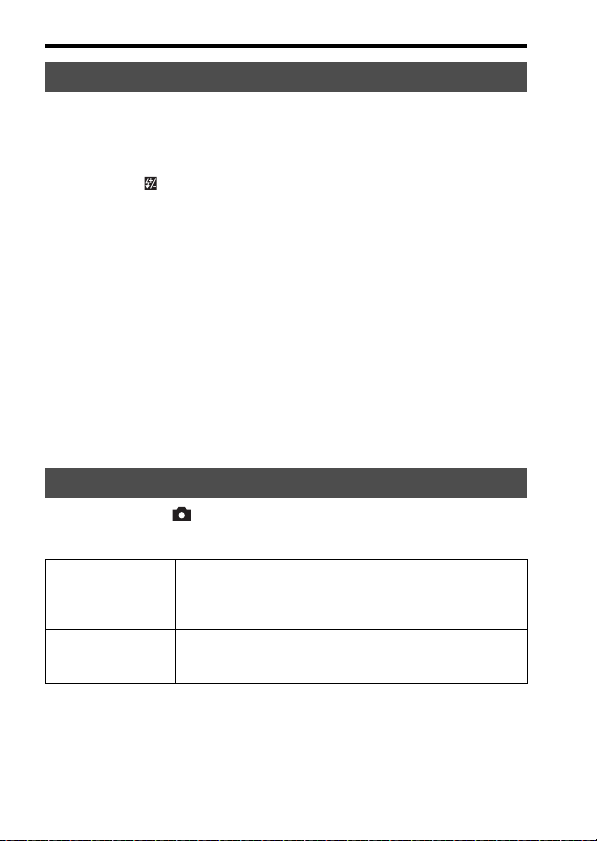
124
Adjusting the brightness of the image
When shooting with the flash, you can adjust the amount of flash light
alone, without changing the exposure compensation. You can only change
the exposure of the main subject within the flash range.
Fn button t (Flash Comp.) t Select the desired setting
Toward +: Makes the flash level higher.
Toward –: Makes the flash level lower.
Notes
• [Flash Comp.] cannot be set when the exposure mode is set to [Intelligent Auto],
[Superior Auto], [Sweep Panorama], or [Scene Selection].
• The higher flash effect may not be visible due to the limited amount of flash light, if
the subject is outside the maximum range of the flash. If the subject is very close, the
lower flash effect may not be visible.
Exposure compensation and flash compensation
Exposure compensation changes the shutter speed, aperture, and ISO
sensitivity (when [AUTO] is selected) to perform the compensation.
Flash compensation only changes the amount of flash light.
MENU button t 2 t [Flash control] t Select the desired
setting
ADI: Advanced Distance Integration
TTL: Through The Lens
• When [ADI flash] is selected, using a lens that is provided with a distance
encoder feature provides more accurate flash compensation by using
more accurate distance information.
Flash Comp.
Flash control
ADI flash Controls the lighting of the flash, factoring in the focus
distance information and light metering data from the pre-
flash. This method enables accurate flash compensation with
virtually no effect from reflection off the subject.
Pre-flash TTL Controls the amount of flash light depending only on the data
from pre-flash light metering. This method is susceptible to
reflection off the subject.

125
Adjusting the brightness of the image
Shooting (Advanced Operations)
Notes
• When the distance between the subject and the external flash (sold separately)
cannot be determined (wireless flash shooting using an external flash (sold
separately), shooting with an off-camera flash using a cable, shooting with a macro
twin flash, etc.), the camera automatically selects [Pre-flash TTL].
• Select [Pre-flash TTL] in the following cases, as the camera cannot perform flash
compensation with [ADI flash].
– A wide panel is attached to the HVL-F36AM flash.
– A diffuser is used for flash shooting.
– A filter with an exposure factor, such as an ND filter, is used.
– A close-up lens is used.
• ADI flash is only available in combination with a lens that is provided with a
distance encoder. To determine if the lens is equipped with a distance encoder, refer
to the operating instructions supplied with the lens.
• [Flash control] cannot be set when the exposure mode is set to [Sweep Panorama] or
[Night Scene]/[Hand-held Twilight] in [Scene Selection].

126
The flash
Press the Fn button, select the desired flash mode, press the
button, and shoot images (page 41).
• The lens hood may block the light of the flash. Remove the lens hood
when using the flash.
• When using the flash, shoot the subject at a distance of 1 m (3.3 feet) or
greater.
• When shooting indoors or shooting nightscapes, you can use slow sync to
shoot a brighter image of people and backgrounds.
• You can use rear sync to shoot a natural image of the trail of moving
subjects, such as a moving bicycle.
• When using the HVL-F60M/HVL-F58AM/HVL-F43AM Flash (sold
separately), you can shoot with the High-speed sync feature at any shutter
speed. For details, refer to the operating instructions supplied with the
flash.
Notes
• Do not hold the camera by the flash emitter.
• Shooting conditions required to prevent shadows from appearing on an image vary,
depending on the lens.
• When the exposure mode is set to [Intelligent Auto], [Superior Auto], or [Scene
Selection], the [Slow Sync.], [Rear Sync.], and [Wireless] items cannot be selected.
• When the exposure mode is set to P, A, S, M, or [Tele-zoom Cont. Priority AE], the
[Flash Off] or [Autoflash] items cannot be selected. If you do not want to use the
flash, push the flash down.
• If you use the flash with a stereo microphone or similar device attached to the Multi
interface shoe, the flash may not pop up to the correct position and recorded images
may have shadows in their corners. Remove any device from the Multi interface
shoe.
Shooting techniques
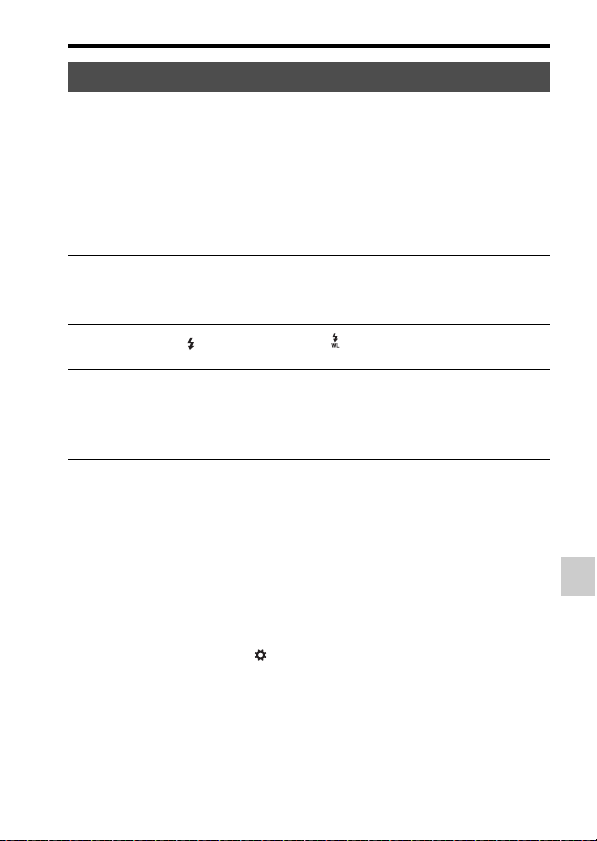
127
The flash
Shooting (Advanced Operations)
With a flash that has a wireless shooting function (sold separately), you can
shoot with the flash without a cord, even when the flash is not attached to
the camera. By changing the position of the flash, you can shoot an image
with a three-dimensional feel by highlighting the contrast of light and
shadow on the subject.
For the actual steps of shooting, refer to the operating instructions of the
flash.
Notes
• Turn off the wireless flash mode after wireless flash shooting. If the built-in flash is
used while the wireless flash mode is still active, inaccurate flash exposures will
result.
• Change the external flash channel when another photographer is using a wireless
flash nearby and his/her flash light causes your external flash to fire. To change the
external flash channel, refer to the operating instructions supplied with the flash.
Setup of the AEL button
When using a wireless flash, we recommend that you set [Func. of AEL
button] to [AEL hold] in the Custom menu (page 161).
Wireless flash
1 Attach the wireless flash to the Multi interface shoe and turn
both the camera and the flash on.
2 Fn button t (Flash Mode) t (Wireless)
3 Remove the wireless flash from the Multi interface shoe and
pop up the built-in flash.
• To perform a test fire of the flash, press the AEL button.

128
The flash
Wireless flash with lighting ratio control
You can use the wireless lighting ratio control in combination with multiple
flashes. For details, refer to the operating instructions supplied with flash
(HVL-F60M (sold separately), HVL-F58AM (sold separately), or HVL-
F43AM (sold separately)).
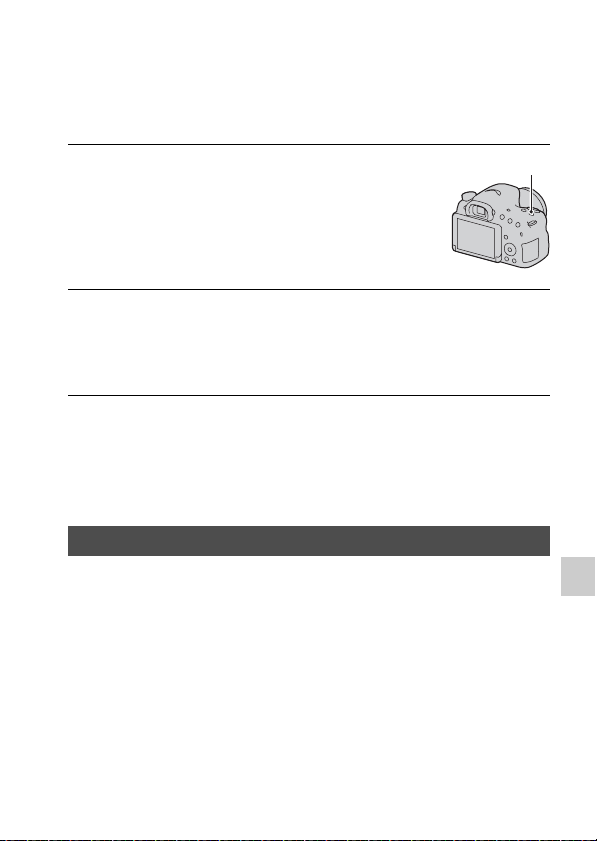
129
Shooting (Advanced Operations)
Setting ISO
Sensitivity to light is expressed by the ISO number (recommended
exposure index). The larger the number, the higher the sensitivity.
Notes
• When the exposure mode is set to [Intelligent Auto], [Superior Auto], [Sweep
Panorama], or [Scene Selection], [ISO] is fixed to [AUTO] and you cannot select
other ISO numbers.
• When the exposure mode is set to P/A/S/M and [ISO] is set to [AUTO], [ISO] is
automatically set between ISO 100 and ISO 3200.
The camera automatically shoots multiple images continuously, combines
the images, reduces the noise, and records 1 image.
With multi frame noise reduction, you can select larger ISO numbers than
the maximum ISO sensitivity.
The image recorded is 1 combined image.
Notes
• When [Quality] is set to [RAW] or [RAW & JPEG], this function cannot be used.
• The flash, [D-Range Opt.], and [Auto HDR] cannot be used.
1 Press the ISO button to display
the ISO screen.
ISO button
2 Select the desired setting using v/V on the control button.
• The larger the number, the higher the noise level.
• If you want to select [Multi Frame Noise Reduct.], display the setup screen
using B, and select the desired value using v/V.
Multi Frame Noise Reduct.
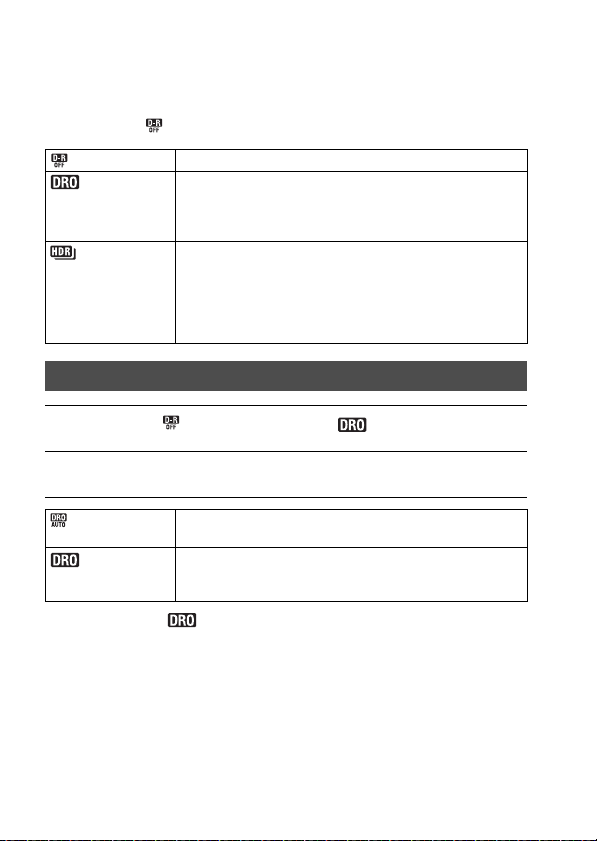
130
Compensating for brightness and
contrast automatically (D-Range)
Fn button t (DRO/Auto HDR) t Select the desired setting
* Lv_ displayed with is the step currently selected.
(Off) Does not use the DRO/Auto HDR functions.
(D-Range Opt.) By dividing the image into small areas, the camera analyzes
the contrast of light and shadow between the subject and the
background, producing an image with the optimal brightness
and gradation.
(Auto HDR) Shoots 3 images with different exposures, and then overlays
the correctly exposed image, the bright areas of the under-
exposed image and the dark areas of the over-exposed image
to create an image with rich gradation.
2 images are recorded: an image with the correct exposure
and an overlaid image.
D-Range Opt.
1 Fn button t (DRO/Auto HDR) t (D-Range Opt.)
2 Select an optimal level using b/B on the control button.
(D-Range
Optimizer: Auto)
Corrects the brightness automatically.
(Level)* Optimizes the gradations of the recorded image in each area
of the image. Select the optimal level between Lv1 (weak)
and Lv5 (strong).
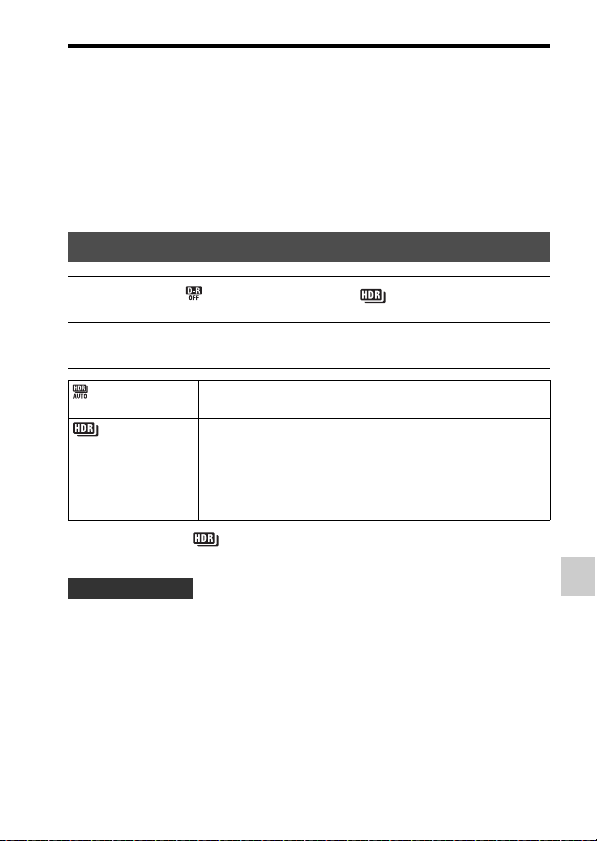
131
Compensating for brightness and contrast automatically (D-Range)
Shooting (Advanced Operations)
Notes
• The setting is fixed to [Off] when the exposure mode is set to [Sweep Panorama], or
when [Multi Frame Noise Reduct.] or [Picture Effect] is used.
• The setting is fixed to [Off] when [Sunset], [Night Scene], [Night Portrait], or
[Hand-held Twilight] is selected in [Scene Selection]. The setting is fixed to [Auto]
when other modes are selected in [Scene Selection].
• When shooting with the D-Range Optimizer, the image may be noisy. Select the
proper level by checking the recorded image, especially when you enhance the
effect.
* _EV displayed with is the step currently selected.
• Since the shutter is released 3 times for a single shot, be cautious of the
following:
– Use this function when the subject is motionless or does not blink.
– Do not recompose.
Auto HDR
1 Fn button t (DRO/Auto HDR) t (Auto HDR)
2 Select an optimal level using b/B on the control button.
(Auto HDR:
Exposure Diff. Auto)
Corrects the exposure difference automatically.
(Exposure
Difference Level)*
Sets the exposure difference based on the contrast of the
subject. Select the optimal level between 1.0 EV (weak) and
6.0 EV (strong).
For example: When 2.0 EV is selected, 3 images are overlaid:
an image with –1.0 EV, an image with the correct exposure,
and an image with +1.0 EV.
Shooting technique

132
Compensating for brightness and contrast automatically (D-Range)
Notes
• You cannot use this function on RAW images.
• When the exposure mode is set to [Intelligent Auto], [Superior Auto], [Sweep
Panorama], [Tele-zoom Cont. Priority AE] or [Scene Selection], or when [Multi
Frame Noise Reduct.] is selected, you cannot select [Auto HDR].
• You cannot start the next shot until the capture process is completed after you shoot.
• You may not obtain the desired effect depending on the luminance difference of a
subject and the shooting conditions.
• When the flash is used, this function has little effect.
• When the contrast of the scene is low or when camera shake or subject blur occurs,
you may not obtain good HDR images. If the camera has detected a problem,
is displayed on the recorded image to inform you of this situation. Shoot again as
necessary, paying attention to the contrast or blur.
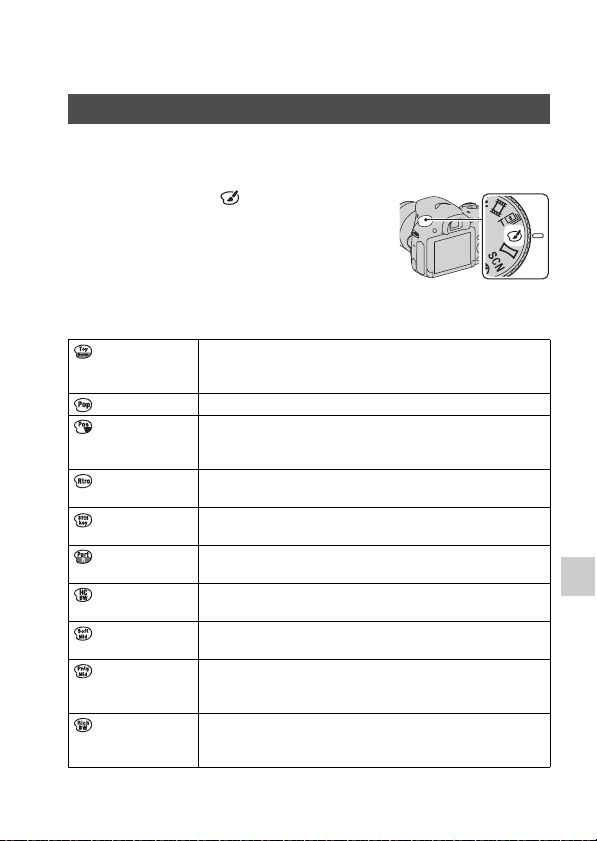
133
Shooting (Advanced Operations)
Setting image processing
Select the desired effect filter to achieve more impressive and artistic
images.
Picture Effect
Set the mode dial to (Picture
Effect), and select the desired
setting.
• For a mode that has a fine adjustment
option, select the desired setting using
b/B.
(Toy Camera) Creates the look of a Toy Camera photo with shaded corners
and pronounced colors. You can set the color tone using b/
B.
(Pop Color) Creates a vivid look by emphasizing color tones.
(Posterization) Creates a high contrast, abstract look by heavily emphasizing
primary colors, or using black and white. You can select
primary colors or black and white using b/B.
(Retro Photo) Creates the look of an aged photo with sepia color tones and
faded contrast.
(Soft High-key) Creates an image with the indicated atmosphere: bright,
transparent, ethereal, tender, soft.
(Partial Color) Creates an image that retains 1 specific color, but converts
others to black and white. You can select a color using b/B.
(High Contrast
Mono.)
Creates a high-contrast image in black and white.
(Soft Focus) Creates an image with a soft lighting effect. You can set the
intensity of the effect using b/B.
(HDR Painting) Creates the look of a painting, enhancing the colors and
details. The camera releases the shutter 3 times. You can set
the effect intensity using b/B.
(Rich-tone
Mono.)
Creates an image in black and white with rich gradation and
reproduction of details. The camera releases the shutter 3
times.
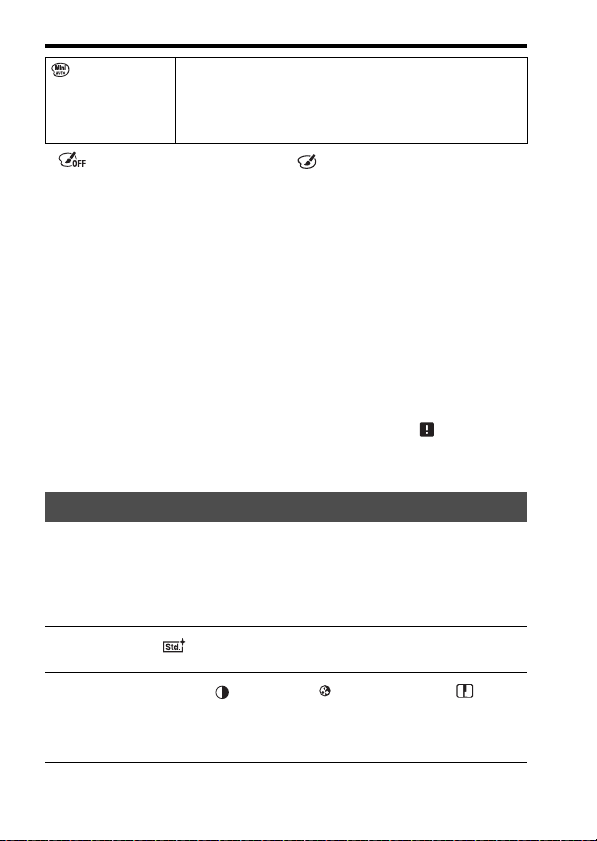
134
Setting image processing
• (Off) can be selected if you use (Picture Effect) on the control
button.
Notes
• When the zoom feature of the camera is used, the [Toy Camera] and [Miniature]
effects are not available.
• When [Partial Color] is selected, images may not retain the selected color,
depending on the subject or shooting conditions.
• When the exposure mode is set to [Intelligent Auto], [Superior Auto], [Sweep
Panorama] or [Tele-zoom Cont. Priority AE], or when [Quality] is set to [RAW] or
[RAW & JPEG], [Picture Effect] cannot be used.
• When [HDR Painting], [Miniature], [Rich-tone Mono.] or [Soft Focus] is selected,
you cannot confirm the effect before shooting. You also cannot set the drive mode.
• When the contrast of the scene is low or when significant camera shake or subject
blur has occurred with [HDR Painting] or [Rich-tone Mono.] selected, you may not
obtain good HDR images. If the camera detects such a situation, is displayed on
the recorded image. Shoot again as necessary, recomposing or paying attention to
the blur.
You can select the desired style to be used to perform image processing,
and adjust the contrast, saturation, and sharpness for each [Creative Style].
You can also adjust the exposure (shutter speed and aperture), unlike
[Scene Selection], in which the camera adjusts the exposure.
(Miniature) Creates an image that enhances the subject vividly, with the
background defocused considerably. This effect can often be
found in pictures of miniature models. You can select the
area to be in focus using b/B. The focus on other areas is
greatly reduced.
Creative Style
1 Fn button t (Creative Style) t Select the desired setting
2 If you want to adjust (Contrast), (Saturation), or
(Sharpness), select the desired item using b/B on the control
button, then adjust the value using v/V.
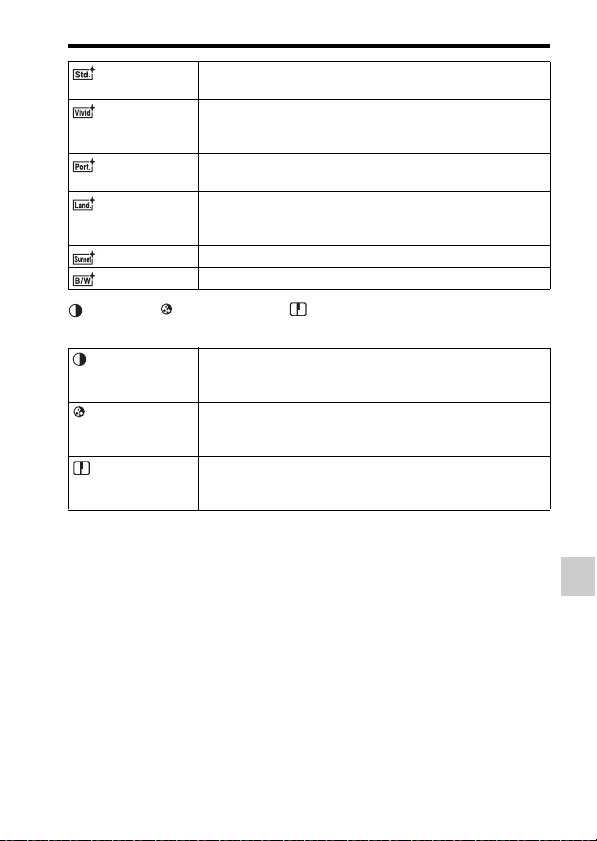
135
Setting image processing
Shooting (Advanced Operations)
(Contrast), (Saturation), and (Sharpness) can be adjusted for each
Creative Style item.
Notes
• When the exposure mode is set to [Intelligent Auto], [Superior Auto] or [Scene
Selection], or [Picture Effect] mode is selected, [Creative Style] is fixed to
[Standard] and you cannot select other settings.
• When [Black & White] is selected, you cannot adjust the saturation.
(Standard) For shooting various scenes with rich gradation and beautiful
colors.
(Vivid) The saturation and contrast are heightened for shooting
striking images of colorful scenes and subjects such as
flowers, spring greenery, a blue sky, or ocean views.
(Portrait) For shooting the skin color in a soft tone, ideally suited to
shooting portraits.
(Landscape) The saturation, contrast, and sharpness are heightened for
shooting vivid and crisp scenery. Distant landscapes also
stand out more.
(Sunset) For shooting the beautiful red of the setting sun.
(Black & White) For shooting images in black and white.
(Contrast) The higher the value selected, the more the difference
between light and shadow is accentuated, thus making an
impact on an image.
(Saturation) The higher the value selected, the more vivid the color. When
a lower value is selected, the color of the image is restrained
and subdued.
(Sharpness) Adjusts the sharpness. The higher the value selected, the
more the contours are accentuated, and the lower the value
selected, the more the contours are softened.
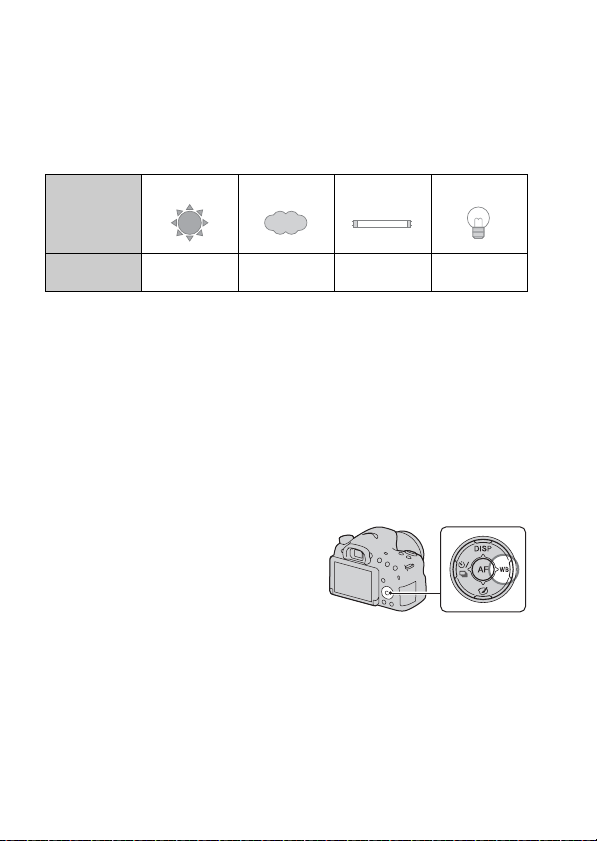
136
Adjusting color tones (White Balance)
The color tone of the subject changes depending on the characteristics of
the light source. The table below shows how the color tone changes based
on various light sources, compared with a subject that appears white under
the sunlight.
Use this feature when the color tone of the image did not come out as you
expected, or when you want to change the color tone on purpose for
photographic expression.
Notes
• When the exposure mode is set to [Intelligent Auto], [Superior Auto], or [Scene
Selection], [White Balance] is fixed to [Auto WB] and you cannot select other
modes.
• If the only light source available is a mercury lamp or a sodium lamp, the camera
will not be able to acquire an accurate white balance due to the characteristics of the
light source. Use the flash in such cases.
Weather/
lighting
Daylight Cloudy Fluorescent Incandescent
Characteristics
of light
White Bluish Green-tinged Reddish
WB on the control button t Select
the desired setting
• When you select a setting other than
[C.Temp./Filter], press B so that the
fine adjustment screen appears and you
can adjust the color tone using v/V/b/
B as necessary.
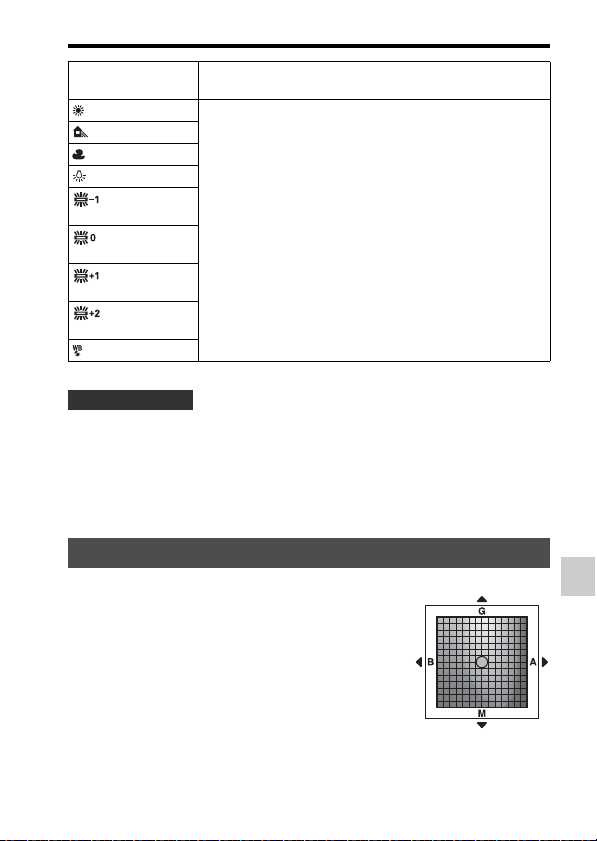
137
Adjusting color tones (White Balance)
Shooting (Advanced Operations)
• Use the white balance bracket function if you cannot get the desired white
balance using the selected option (page 146).
• When you select [C.Temp./Filter], you can adjust the value to the desired
one (page 138).
• When you select [Custom], you can register your setting (page 138).
AWB (Auto WB) The camera automatically detects a light source and adjusts
the color tones.
(Daylight) If you select an option to suit a specific light source, the color
tones are adjusted for the light source (preset white balance).
(Shade)
(Cloudy)
(Incandescent)
(Fluor.: Warm
White)
(Fluor.: Cool
White)
(Fluor.: Day
White)
(Fluor.:
Daylight)
(Flash)
Shooting techniques
Fine adjustment screen for color
You can perform fine adjustments by
combining the color temperature with the
color filter.
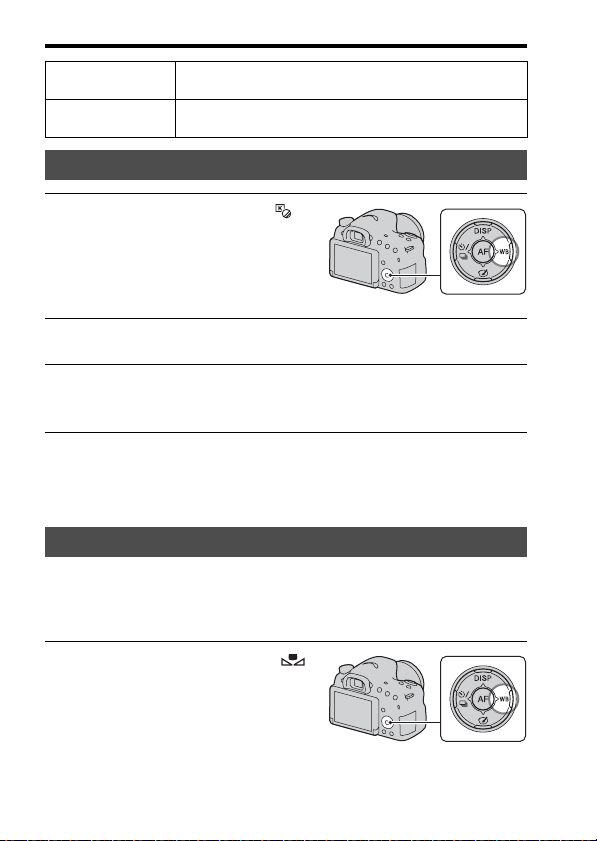
138
Adjusting color tones (White Balance)
Notes
• Since color meters are designed for film cameras, the values differ under fluorescent/
sodium lamp/mercury lamps. We recommend that you use the custom white balance
or perform a test shooting.
In a scene where the ambient light consists of multiple types of light source,
use of the custom white balance is recommended in order to accurately
reproduce the whiteness.
Color Temp. Fine-tune color in the B (blue) direction using b and the A
(amber) direction using B.
Color Filter Fine-tune color in the G (green) direction using v and the M
(magenta) direction using V.
Color Temp./Color Filter
1 WB on the control button t
(C.Temp./Filter) t B
2 Set the color temperature using v/V on the control button.
3 Press B to display the fine adjustment screen and compensate
the color to your preference using v/V/b/B.
Custom white balance
1 WB on the control button t [
SET] t press the center of the
control button

139
Adjusting color tones (White Balance)
Shooting (Advanced Operations)
Notes
• The message “Custom WB Error” indicates that the value is beyond the expected
range, when the flash is used on a subject in close proximity or a subject with a
bright color is in the frame. If you register this value, the indicator turns yellow
on the recording information display. You can shoot at this point, but it is
recommended that you set the white balance again to get a more accurate white
balance value.
To call the custom white balance setting
WB on the control button t (Custom)
• Press B to display the fine adjustment screen and compensate the color to
your preference.
Notes
• If the flash is used when the shutter button is pressed, a custom white balance is
registered with the flash light taken into account. Take pictures with the flash in later
shot.
2 Hold the camera so that the white area fully covers the AF area
located in the center, and then press the shutter button down.
The shutter clicks and the calibrated values (Color Temperature and Color
Filter) are displayed.
3 Press the center of the control button.
The screen returns to the recording information display with the memorized
custom white balance setting retained.
• The custom white balance setting registered in this operation is effective
until a new setting is registered.
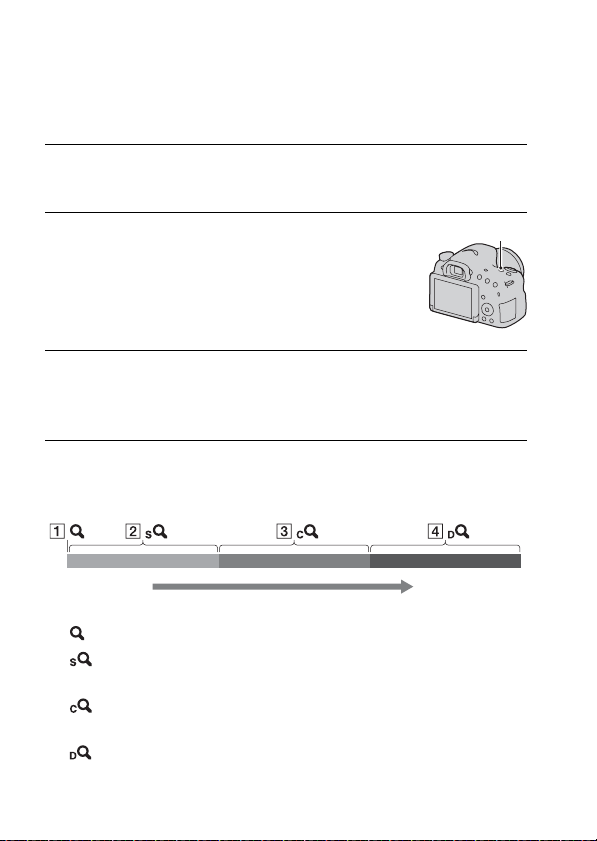
140
Zooming
You can magnify images with a higher scale than the optical zoom of the
lens.
The zoom features available with this camera
The icon displayed on the screen changes as follows based on the zoom
scale.
A : The zoom feature of the camera is not used (×1.0 is indicated).
B Smart Zoom: You can magnify images by trimming them slightly.
(Available only when [Image Size] is set to M or S.)
C [Clear Image Zoom]: You can magnify images using a high-quality
image process.
D [Digital Zoom]: You can magnify images using an image process.
1 Magnify the image with the zoom ring when using a zoom lens
(page 30).
2 Press the ZOOM button.
ZOOM button
3 Magnify the image to your desired zoom scale using b/B on
the control button.
• You can magnify the image at wider intervals using v/V.
Zoom scale
(low)
Zoom scale
(high)
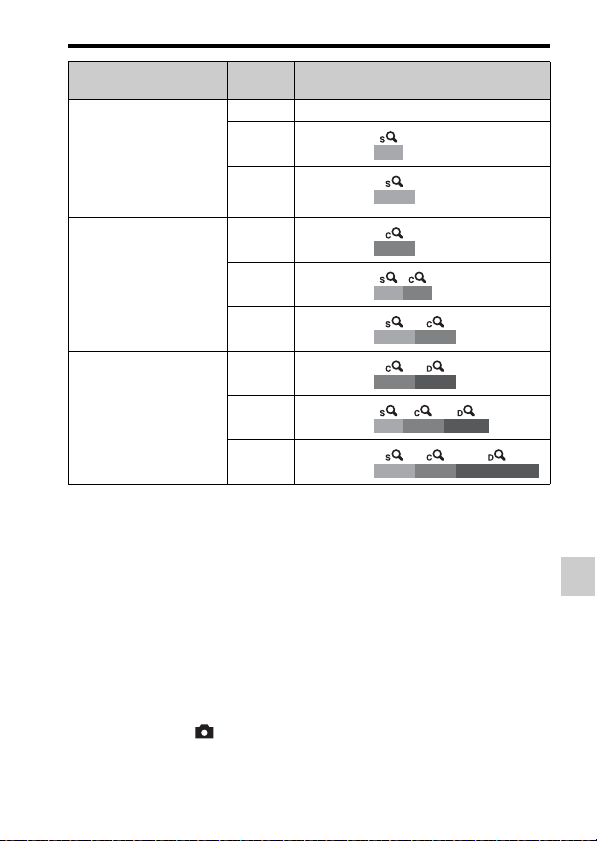
141
Zooming
Shooting (Advanced Operations)
Notes
• The zoom feature of the camera is unavailable
– When the exposure mode is set to [Sweep Panorama].
– When [Quality] is set to [RAW] or [RAW & JPEG].
• The [Clear Image Zoom] is unavailable
– When the exposure mode is set to [Tele-zoom Cont. Priority AE].
– When [Drive Mode] is set to [Cont. Shooting] or [Bracket: Cont.].
• You cannot use the Smart Zoom or [Clear Image Zoom] function with movies.
• When the electronic zoom is available, [Metering Mode] is set to [Multi segment].
To change the [Clear Image Zoom] setting
The default setting is [On].
MENU button t 2 t [Clear Image Zoom] t Select the
desired setting
Setting
Image
size
Zoom scale with optical zoom
Zooms images by
trimming them in the
available range (without
deterioration of image
quality).
[Clear Image Zoom]: [Off]
[Digital Zoom]: [Off]
L–
M About 1.4×
S About 2×
Gives priority to image
quality when zooming
images.
[Clear Image Zoom]: [On]
[Digital Zoom]: [Off]
L About 2×
M About 2.8×
S About 4×
Gives priority to higher
magnification when
zooming images.
[Clear Image Zoom]: [On]
[Digital Zoom]: [On]
L About 4×
M About 5.6×
S About 8×

142
Zooming
To change the [Digital Zoom] setting
The default setting is [Off]. If you want to use higher magnification
regardless of the deterioration of the image, set it to [On].
MENU button t 2 t [Digital Zoom] t Select the desired
setting
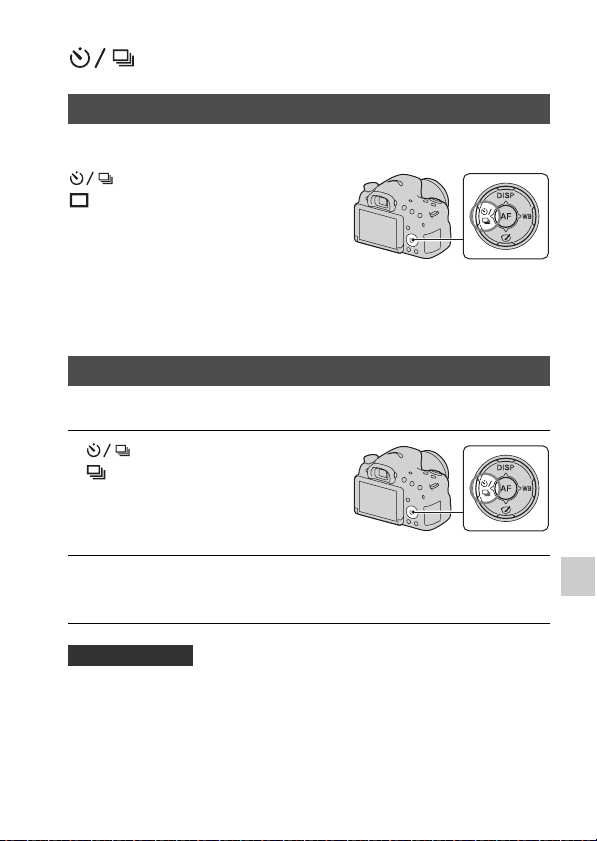
143
Shooting (Advanced Operations)
Selecting the drive mode
This mode is for normal shooting.
Notes
• When the exposure mode is set to [Sports Action] in [Scene Selection], you cannot
use [Single Shooting].
The camera records images continuously.
• To shoot continuously faster, set the exposure mode to [Tele-zoom Cont.
Priority AE] (pages 40, 90).
• When [AEL w/ shutter] is set to [Off], the camera continues to adjust the
exposure even after the first shot in [Cont. Shooting] or [Tele-zoom Cont.
Priority AE] (page 123).
Single Shooting
on the control button t
(Single Shooting)
Cont. Shooting
1 on the control button t
(Cont. Shooting) t Select
the desired speed
2 Adjust the focus and shoot the subject.
• When you press and hold the shutter button, recording continues.
Shooting technique
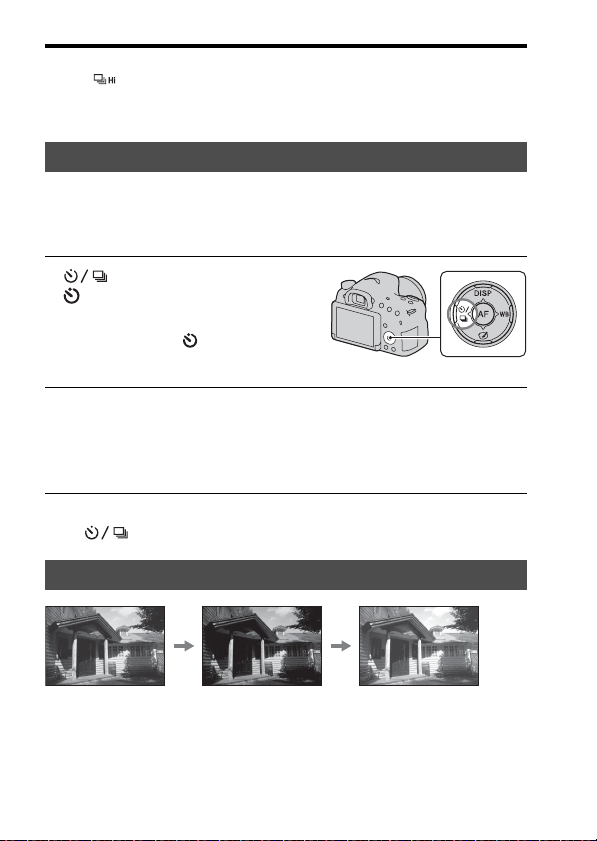
144
Selecting the drive mode
Notes
• When is selected, the recorded image is displayed between the shots.
• You cannot shoot continuously when using [Scene Selection] modes other than
[Sports Action].
The 10-second self-timer is convenient when the photographer wants to
appear in the photo and the 2-second self-timer is convenient for reducing
camera shake.
To cancel the self-timer
Press on the control button.
Bracket shooting allows you to shoot several images, each with different
degrees of exposure. Specify the value of deviation (steps) from the base
exposure, and the camera shoots 3 images while automatically shifting the
exposure.
Self-timer
1 on the control button t
(Self-timer) t Select the
desired setting
• The number after indicates the
currently selected setting.
2 Adjust the focus and shoot the subject.
• When the self-timer is activated, audio signals and the self-timer lamp
indicate the condition. The self-timer lamp flashes quickly and the audio
signal sounds quickly right before the shooting.
Bracket: Cont./Single Bracket
Base exposure
– direction
+ direction
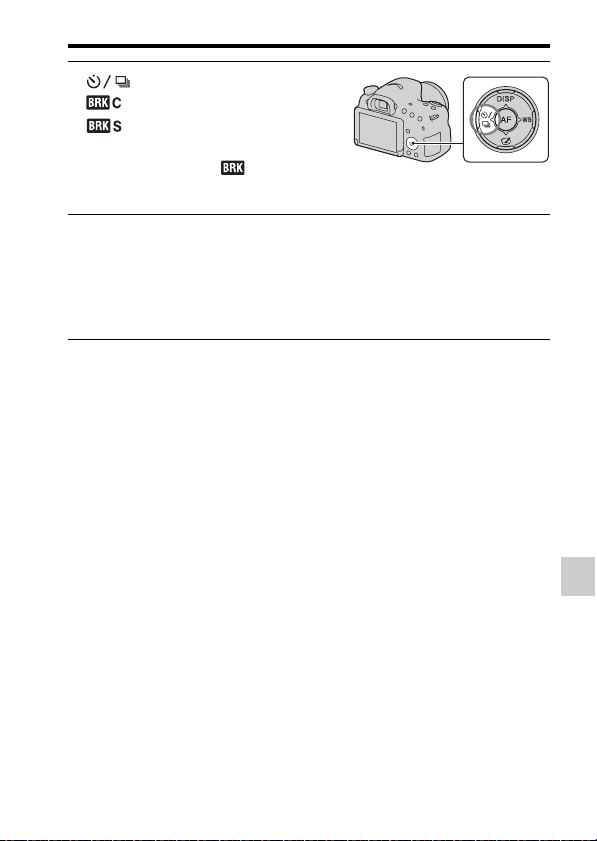
145
Selecting the drive mode
Shooting (Advanced Operations)
Notes
• When the mode dial is set to M and [ISO] is set to other than [AUTO], the exposure
is shifted by adjusting the shutter speed. When [ISO] is set to [AUTO], the camera
changes the ISO sensitivity and adjusts the exposure value.
• When you adjust the exposure, the exposure is shifted based on the compensated
value.
• Bracket cannot be used when the exposure mode is set to [Intelligent Auto],
[Superior Auto], [Tele-zoom Cont. Priority AE], [Sweep Panorama], or [Scene
Selection].
• When using the flash, the camera shifts the amount of flash light using flash bracket
shooting. Press the shutter button shot by shot even when [Bracket: Cont.] is
selected.
1 on the control button t
(Bracket: Cont.) or
(Single Bracket) t Select
the desired bracket step
• _EV displayed with is the
currently selected value.
2 Adjust the focus and shoot the subject.
The base exposure is set at the first shot in the bracket.
• Press and hold the shutter button until recording stops when [Bracket:
Cont.] is selected.
• Press the shutter button shot by shot when [Single Bracket] is selected.
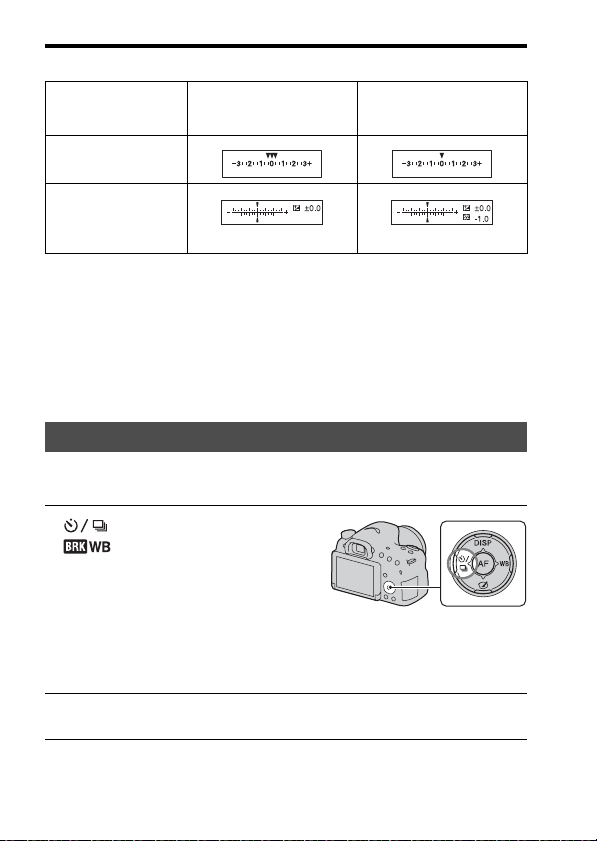
146
Selecting the drive mode
The EV scale in bracket shooting
* Ambient light: Any light other than the flash light that shines on the scene
for an extended period of time, such as natural light, an incandescent
light, or a fluorescent light.
• In bracket shooting, the same number of indices as the number of
recordable images is displayed on the EV scale.
• When bracket shooting starts, the indices that indicate already recorded
images start to disappear one by one.
Based on the selected white balance and the color temperature/color filter,
3 images are recorded with the white balance shifted.
*MK
–1
: a unit to indicate the color conversion quality in color temperature filters. (The
same value as the conventional unit “Mired.”)
Ambient light* bracket
(e.g., 0.3 steps, 3 shots,
Exposure compensation 0)
Flash bracket
(e.g., 0.7 steps, 3 shots,
Flash compensation –1.0)
Viewfinder
LCD screen (When
[DISP Button(Monitor)]
is set to [For
viewfinder])
Shown in the top row. Shown in the bottom row.
WB bracket
1 on the control button t
(WB bracket) t Select
the desired setting
• When [Lo] is selected, the camera
shoots with the white balance shifted
by 10 MK
–1
*, and when [Hi] is selected,
the camera shoots with the white
balance shifted by 20 MK
–1
.
2 Adjust the focus and shoot the subject.
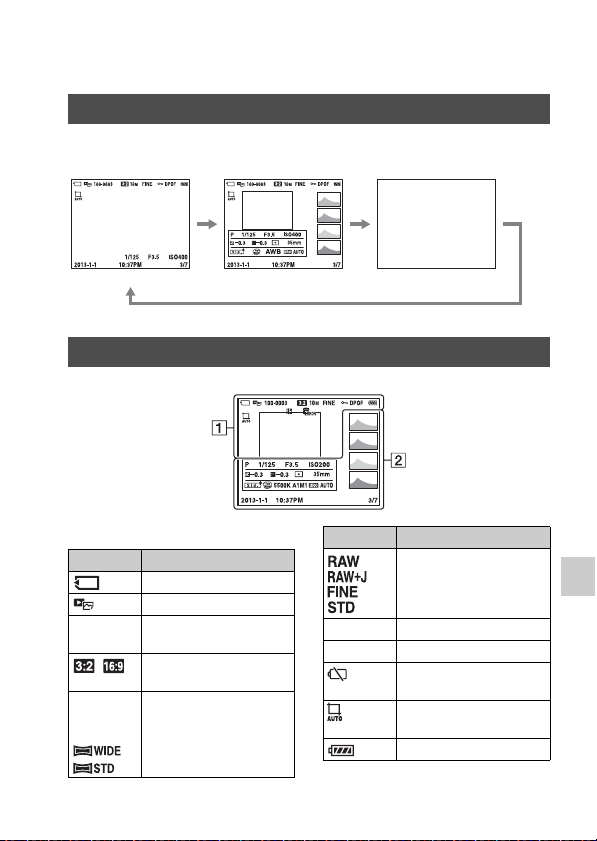
147
Playback (Advanced Operations)
Playback
Playbac k (Advanced Oper ations)
Playback mode screen display
Each time you press DISP on the control button, the screen changes as
follows.
A
Switching the screen during playback
List of histogram display icons
Display Info.
Histogram
No Disp. Info.
Display Indication
Memory card (21, 205)
View mode (149)
100-0003 Folder - file number
(179)
Aspect ratio of still
images (157)
20M 10M
5.0M 17M
8.4M 4.2M
Image size of still images
(47)
Image quality of still
images (157)
- Protect (152)
DPOF DPOF set (184)
Remaining battery
warning (23)
Auto Object Framing
(119)
Remaining battery (23)
Display Indication
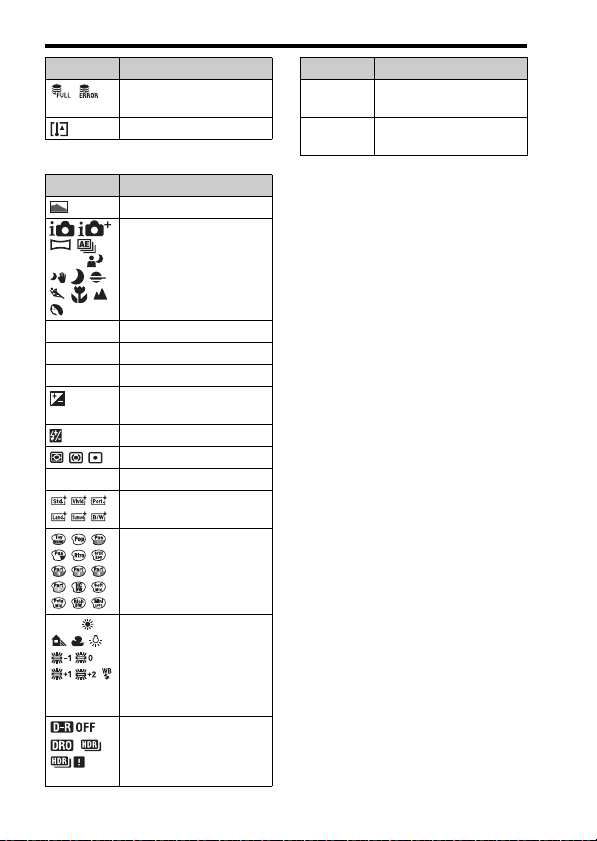
148
Playback mode screen display
B
* When the image has a high-key or
low-key portion, that portion flashes
on the histogram display (Luminance
limit warning).
Database file full (199)/
Database file error (199)
Overheating warning (10)
Display Indication
Histogram* (79)
P
A S M
Exposure mode (36)
1/125 Shutter speed (94)
F3.5 Aperture (92)
ISO200 ISO sensitivity (129)
–0.3 Exposure compensation
(43)
–0.3 Flash compensation (124)
Metering mode (123)
35mm Focal length
Creative Style (134)
Picture Effect (133)
AWB
5500K A1
M1
White balance (Auto,
Preset, Color
temperature, Color filter,
Custom) (136)
D-Range Optimizer
(130)/Auto HDR/Auto
HDR image warning
(131)
Display Indication
2013-1-1
10:37AM
Date of recording
3/7 File number/Number of
images in the view mode
Display Indication
149
Playback (Advanced Operations)
Using the playback functions
To return to the normal playback screen
Press the button again.
Notes
• You cannot rotate movies or 3D-images.
• When you copy rotated images to a computer, “PlayMemories Home” can display
the rotated images correctly. However, the images may not be rotated depending on
the software.
Selects the unit for images to be played back.
MENU button t 1 t [Still/Movie Select] t Select the
desired setting
Rotating an image
1 Display the image you want to
rotate, then press the button.
button
2 Press the center of the control button.
The image is rotated counter-clockwise. When you want to do another
rotation, repeat step 2.
• Once you rotate the image, the image is played back in the rotated position,
even after you turn off the power.
Still/Movie Select
Folder View(Still) Displays still images by folder.
Folder View(MP4) Displays movies (MP4) by folder.
AVCHD View Displays AVCHD movies.
150
Using the playback functions
MENU button t 1 t [Slide Show]t [Enter]
Plays back recorded images in order (Slide Show). The slide show
automatically stops after all the images have been played back.
• You can view the previous/next image using b/B on the control button.
• You cannot pause the slide show.
To end in the middle of the slide show
Press the center of the control button.
To change the interval between the images in a slide show
MENU button t 1 t [Slide Show] t [Interval] t Select
the desired number of seconds
To play back repeatedly
MENU button t 1 t [Slide Show] t [Repeat] t [On]
To play back 3D images
If you connect the camera to a 3D-compatible TV using an HDMI cable
(sold separately), you can play back 3D images.
Also refer to the operating instructions supplied with the TV.
MENU button t 1 t [Slide Show] t [Image Type] t
[Display 3D Only]
Notes
• This camera cannot record 3D images.
You can set the playback orientation of images recorded in portrait
orientation.
MENU button t 2 t [Playback Display] t Select the
desired setting
Slide Show
Playback Display

151
Using the playback functions
Playback (Advanced Operations)
Select a panoramic image, then press the center of the control
button.
• Press the center of the control button again to pause the playback. You
can scroll a panoramic image manually by pressing v/V/b/B during
pause.
Scrolling panoramic images
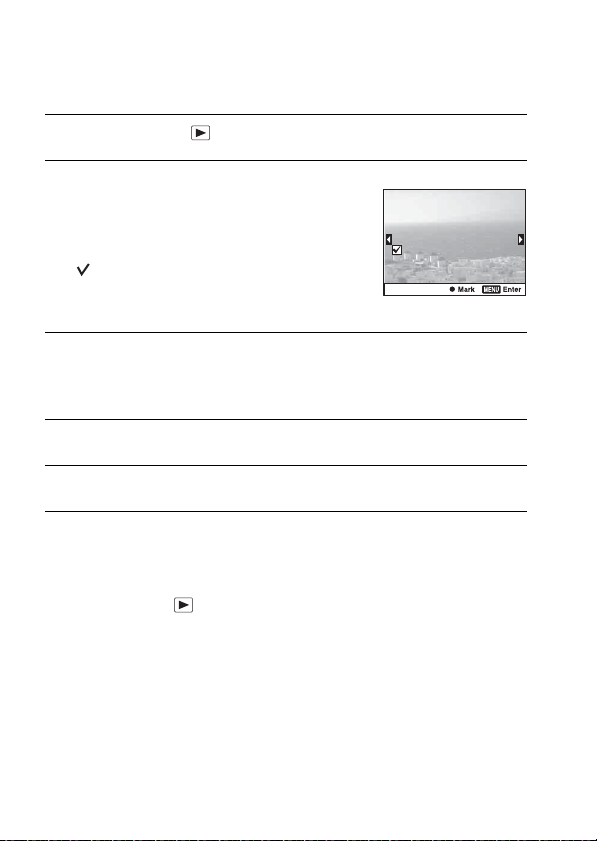
152
Protecting images (Protect)
You can protect images against accidental erasure.
To cancel protection of all the images or movies
You can cancel protection of all the images or movies in each view mode
displayed.
MENU button t 1 t [Protect] t [Cancel All Images],
[Cancel All Movies(MP4)] or [Cancel All AVCHD view files]
1 MENU button t 1 t [Protect] t [Multiple Img.]
2 Select the image you want to
protect using b/B on the control
button, then press the center of
the control button.
A mark is put in the check box.
• To cancel a selection, press the center
again.
3 To protect other images, repeat step 2.
• You can select all the images in the folder by selecting the bar on the left of
the image index screen.
4 Press the MENU button.
5 Select [OK] using v, then press the center of the control button.
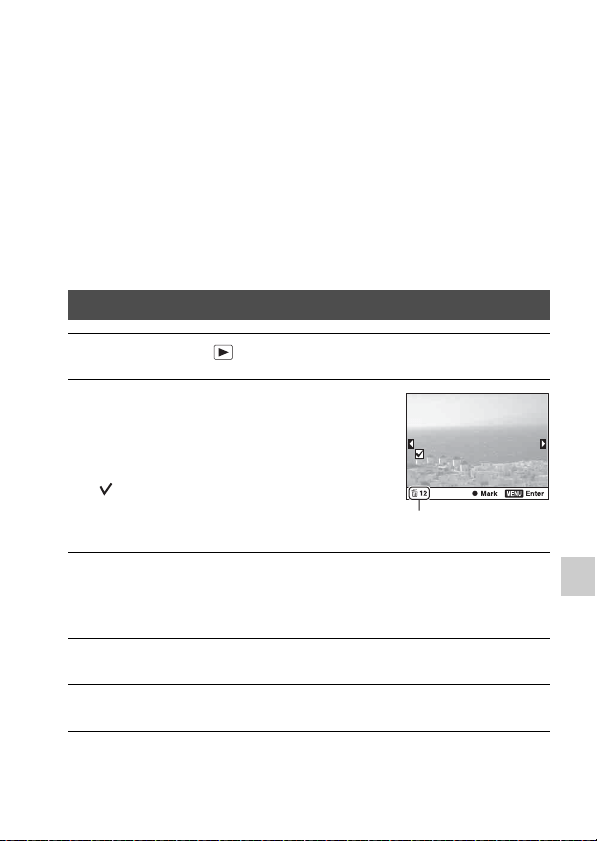
153
Playback (Advanced Operations)
Deleting images (Delete)
You can delete selected images or all the images.
Once you have deleted an image, you cannot restore it. Be sure that you do
not want the image before deleting it.
Notes
• Protected images cannot be deleted.
To display the desired folder
Select the bar on the left of the screen using the control button, then select
the desired folder using v/V.
Delete (Multiple Img.)
1 MENU button t 1 t [Delete] t [Multiple Img.]
2 Select the image you want to
delete using the control button,
then press the center of the
control button.
A mark is put in the check box.
• To cancel a selection, press the center
again.
Total number
3 To delete other images, repeat step 2.
• You can select all the images in the folder by selecting the bar on the left of
the image index screen.
4 Press the MENU button.
5 Select [OK] using v, then press the center of the control button.

154
Deleting images (Delete)
You can delete all still images or movies in each view mode displayed.
Deleting all images or movies in each view mode
1 MENU button t 1 t [Delete] t [All in Folder] or [All
AVCHD view files]
2 Select [Delete] using v on the control button, then press the
center of the control button.
155
Playback (Advanced Operations)
TV playback
Connect the camera to a TV using an HDMI cable (sold separately)
and play back images (page 50).
Notes
• Use an HDMI cable that has the HDMI logo.
• Use an HDMI cable with a mini connector on one end (for the camera), and a
connector suitable for connection to your TV on the other end.
• When images cannot be displayed properly, set [HDMI Resolution] in the Setup
menu to [1080p] or [1080i], depending on your TV.
• Some devices may not work properly.
• Do not connect the camera and your TV using both output terminals. This may cause
a malfunction.
“PhotoTV HD”
This camera is compatible with the “PhotoTV HD” standard.
By connecting Sony’s PhotoTV HD-compatible devices using an HDMI
cable, a whole new world of photos can be enjoyed in breathtaking Full HD
quality.
“PhotoTV HD” allows for a highly-detailed, photo-like expression of
subtle textures and colors.
By connecting the camera to a TV that supports “BRAVIA” Sync using an
HDMI cable (sold separately), you can operate the camera using the TV
remote control.
Using “BRAVIA” Sync
1 Connect a TV that supports “BRAVIA” Sync to the camera
(page 50).
The input is automatically switched and the image shot with the camera
appears on the TV screen.
2 Press the SYNC MENU button on the TV remote control.
3 Operate using the buttons on the TV remote control.

156
TV playback
Sync Menu items
Notes
• The operations available are restricted when the camera is connected to a TV using
an HDMI cable (sold separately).
• Only TVs that support “BRAVIA” Sync can provide these operations. SYNC
MENU operations differ depending on the TV connected. For details, refer to the
operating instructions supplied with the TV.
• If the camera performs unwanted operations in response to the TV remote control
when the camera is connected to another manufacturer’s TV using an HDMI
connection, set [CTRL FOR HDMI] in the Setup menu to [Off].
Slide Show Plays back images automatically (page 150).
Single-image
playback
Returns to the single-image screen.
Image Index Switches to the image index screen.
Still/Movie Select Switches the view mode.
Delete Deletes images.
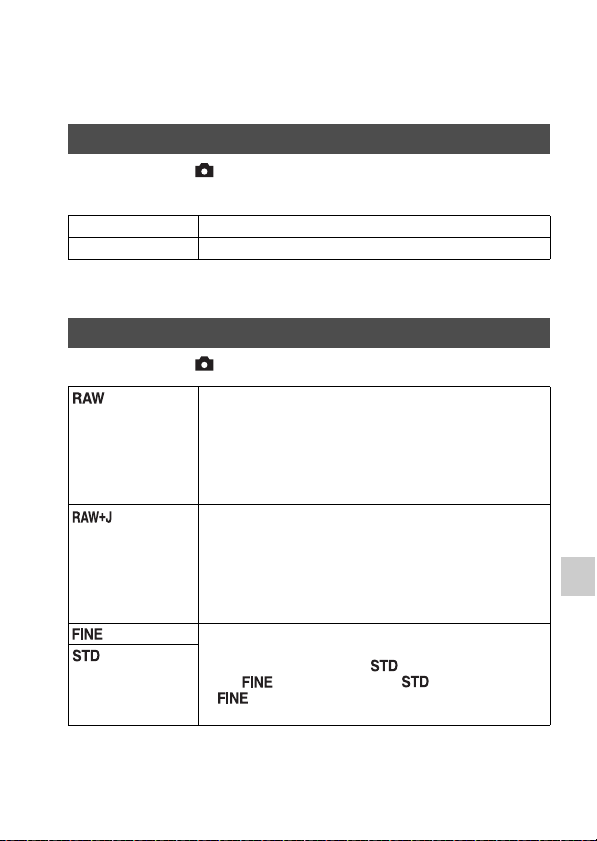
157
Camera Setup (Advanced Operations)
Camera Setup
Camera Setup (Advanc ed Operations)
Setting the aspect ratio and image
quality
MENU button t 1 t [Aspect Ratio] t Select the desired
ratio
Notes
• [Aspect Ratio] cannot be set when the exposure mode is set to [Sweep Panorama].
MENU button t 1 t [Quality] t Select the desired setting
Notes
• [Quality] cannot be set when the exposure mode is set to [Sweep Panorama].
Aspect Ratio
3:2 Normal ratio.
16:9 HDTV ratio.
Quality
(RAW) File format: RAW (Records using the RAW compression
format.)
This format does not perform any digital processing on the
images. Select this format to process images on a computer
for professional purposes.
• The image size is fixed to the maximum size. The image
size is not displayed on the screen.
(RAW &
JPEG)
File format: RAW (Records using the RAW compression
format.) + JPEG
A RAW image and a JPEG image are created at the same
time. This is suitable when you need 2 image files, a JPEG
for viewing, and a RAW for editing.
• The image quality is fixed to [Fine] and the image size is
fixed to [L].
(Fine) File format: JPEG
The image is compressed in the JPEG format when recorded.
Since the compression rate of (Standard) is higher than
that of (Fine), the file size of is smaller than that
of . This will allow more files to be recorded on one
memory card, but the image quality will be lower.
(Standard)

158
Setting the aspect ratio and image quality
About RAW images
Download and install “Image Data Converter” on your computer to open a
RAW image recorded on this camera. With this software, a RAW image
can be opened and converted to a common format, such as JPEG or TIFF,
and its white balance, color saturation, contrast, etc., can be readjusted.
• The RAW format image cannot be printed using a DPOF (print)
designated printer.
• You cannot set [Auto HDR] or [Picture Effect] for RAW format images.

159
Camera Setup (Advanced Operations)
Setting the other camera functions
When you set the shutter speed to 1 second or longer (Long exposure
shooting), noise reduction is turned on for the same duration that the shutter
is open. This reduces the grainy noise typical for a long exposure. When
noise reduction is in progress, a message appears and you cannot take
another picture. Select [On] to prioritize the image quality. Select [Off] to
prioritize the timing of shooting.
MENU button t 2 t [Long Exposure NR] t Select the
desired setting
Notes
• Noise reduction is not performed even when [Long Exposure NR] is set to [On] in
the following situations.
– When the exposure mode is set to [Sweep Panorama], [Tele-zoom Cont. Priority
AE], or [Sports Action] or [Hand-held Twilight] in [Scene Selection]
– When [Drive Mode] is set to [Cont. Shooting] or [Bracket: Cont.]
– When [ISO] is set to [Multi Frame Noise Reduct.]
• When the exposure mode is set to [Intelligent Auto], [Superior Auto] or [Scene
Selection], you cannot turn off noise reduction.
The camera reduces the noise that becomes more noticeable when the
camera sensitivity is high. A message may be displayed during processing
and you cannot record images during this time.
Normally, set it to [Normal]. Select [High] to reduce the noise. Select
[Low] to prioritize the timing of shooting.
MENU button t 2 t [High ISO NR] t Select the desired
setting
Notes
• When the exposure mode is set to [Intelligent Auto], [Superior Auto], [Sweep
Panorama], or [Scene Selection], this item cannot be set.
• Noise reduction is not performed on RAW images.
Long Exposure NR
High ISO NR
160
Setting the other camera functions
The way colors are represented with combinations of numbers or the range
of color reproduction is called “color space.” You can change the color
space, depending on your purpose.
MENU button t 3 t [Color Space] t Select the desired
setting
Notes
• Adobe RGB is for applications or printers that support color management and
DCF2.0 option color space. Using applications or printers that do not support them
may result in images or prints that do not faithfully reproduce the color.
• When displaying images that were recorded with Adobe RGB on the camera or non-
Adobe RGB-compliant devices, the images are displayed with low saturation.
You can release the shutter when no lens is attached. Select this when you
attach the camera to an astronomical telescope, etc.
MENU button t 1 t [Release w/o Lens] t [Enable]
Notes
• Correct metering cannot be achieved when you use lenses that do not provide a lens
contact, such as the lens of an astronomical telescope. In such cases, adjust the
exposure manually by checking it on the recorded image.
Color Space
sRGB This is the standard color space of the digital camera. Use
sRGB in normal shooting, such as when you intend to print
out the images without any modifications.
AdobeRGB This has a wide range of color reproduction. When a large
part of the subject is vivid green or red, Adobe RGB is
effective.
• The file name of the image starts with “_DSC.”
Release w/o Lens
161
Setting the other camera functions
Camera Setup (Advanced Operations)
The grid line is an auxiliary line for shooting composition. You can set the
grid line to on/off or select the type of grid line. The available range of
movie recording is also displayed.
MENU button t 2 t [Grid Line] t Select the desired setting
You can check the recorded image on the screen immediately after
shooting. You can change the displayed time.
MENU button t 2 t [Auto Review] t Select the desired
setting
Notes
• In auto review, the image will not be displayed in the vertical position even if
[Playback Display] is set to [Auto Rotate] (page 150).
• In auto review, the camera may display an image for which an image process, such
as [Lens Comp.: Distortion], has not been performed, then display the same image
for which an image process has been performed.
The function of the AEL button can be selected from the following 2
functions (page 123):
– Holding the locked exposure value by pressing down and holding the
AEL button ([AEL hold]).
– Holding the locked exposure value by pressing the AEL button until the
button is pressed again ([AEL toggle]).
When [ AEL hold] or [ AEL toggle] is selected, the exposure is locked
in spot metering mode.
MENU button t 3 t [Func. of AEL button] t Select the
desired setting
Grid Line
Auto Review
Func. of AEL button

162
Setting the other camera functions
Notes
• While the exposure value is locked, appears on the LCD screen and in the
viewfinder. Be careful not to reset the setting.
• When [AEL toggle] is selected, be sure to press the AEL button again to release the
lock.
To assign another function to the AEL button
You can assign one of the following functions to the AEL button in
addition to the AEL function:
Exposure Comp./Drive Mode/Flash Mode/Autofocus Mode/AF area/
Smile/Face Detect./Auto Object Framing/ISO/Metering Mode/Flash
Comp./White Balance/DRO/Auto HDR/Creative Style/Picture Effect/
Image Size/Quality/Lock-on AF/AF lock/Aperture Preview/Shot. Result
Preview/Zoom/Focus Magnifier
You can also assign another function to the ISO button, other than the ISO
function. The functions available are the same as those of [Func. of AEL
button] (page 161).
MENU button t 3 t [ISO Button] t Select the desired
setting
You can check the approximate blurring of the background of the subject
before shooting (page 94). You can also assign [Focus Magnifier] to the
preview button, which allows you to magnify the image to confirm the
focus before shooting (page 116).
MENU button t 3 t [Preview Button] t Select the desired
setting
ISO Button
Preview Button
163
Setting the other camera functions
Camera Setup (Advanced Operations)
The electronic front curtain shutter function shortens the time lag between
shutter releases.
MENU button t 4 t [e-Front Curtain Shutter] t Select the
desired setting
Notes
• When you shoot at high shutter speeds, ghosting of a blurred area may occur and the
image brightness may be uneven, depending on the subject or shooting conditions.
In such cases, set [e-Front Curtain Shutter] to [Off].
• When a Minolta/Konica Minolta lens is used, set [e-Front Curtain Shutter] to [Off].
The brightness of the viewfinder is automatically adjusted to the lighting
conditions of the subject.
You can set the brightness of the viewfinder manually.
MENU button t 1 t [Viewfinder Bright.] t [Manual] t
Select the desired setting
Shot. Result Preview The aperture is narrowed to match the selected aperture value
and you can check the blurring. The effect of DRO or the
shutter speed value is also reflected.
• The preview image may be darker, depending on the
shutter speed value. However, you can record images based
on the brightness you have set.
Aperture Preview The aperture is narrowed to match the selected aperture value
and you can check the blurring.
Focus Magnifier You can magnify the image to confirm the focus before
shooting.
Electronic Front Curtain Shutter
Viewfinder Bright.

164
Setting the other camera functions
You can shorten the waiting time until the camera turns on power save
mode when it is not being operated to prevent the battery from being
consumed. If you operate the camera, for example, pressing the shutter
button halfway down, the camera returns to shooting mode. If you do not
operate the camera for a set period of time, the brightness of the LCD
screen is reduced.
MENU button t 1 t [Power Save] t Select the desired
setting
To change the waiting time until the camera turns on the power
save mode
You can set different time intervals in which the camera switches to power
save mode.
MENU button t 1 t [Power Saving Start Time] t Select the
desired time
Notes
• When the AC-PW10AM AC Adaptor (sold separately) is used, [Power Save] cannot
be set to [Max].
• The camera does not turn to power save mode when the camera is connected to a
TV.
• If you set [Power Save] to [Max], [Power Saving Start Time] is set to [10 Sec].
You can disable automatic switching of the LCD screen and the viewfinder
and enable only the FINDER/LCD button to switch them.
MENU button t 1 t [FINDER/LCD Setting] t [Manual]
Power Save
FINDER/LCD Setting
165
Camera Setup (Advanced Operations)
Lens compensation
You can automatically compensate for the following characteristics: light
fall-off at the edges, chromatic aberration, and distortion (only for
automatic compensation compliant lenses). For further information on
automatic compensation compliant lenses, visit the Sony web site, or
consult your Sony dealer or local authorized Sony service facility.
Compensates for the shaded corners of the screen caused by certain lens
characteristics. The default setting is [Auto].
MENU button t 4 t [Lens Comp.: Shading] t Select the
desired setting
Reduces the color deviation at the corners of the screen caused by certain
lens characteristics. The default setting is [Auto].
MENU button t 4 t [Lens Comp.: Chro. Aber.] t Select the
desired setting
Compensates for the distortion of the screen caused by certain lens
characteristics. The default setting is [Off].
MENU button t 4 t [Lens Comp.: Distortion] t Select the
desired setting
Lens Comp.: Peripheral Shading
Lens Comp.: Chromatic Aberration
Lens Comp.: Distortion
166
Setting the memory card recording
method
Note that formatting irrevocably erases all data on a memory card,
including protected images.
MENU button t 1 t [Format] t [Enter]
Notes
• During formatting, the access lamp lights up. Do not eject the memory card while
the lamp is lit.
• Format the memory card using the camera. If you format it on a computer, the
memory card may not be usable with the camera, depending on the format type used.
• Formatting may take several minutes depending on the memory card.
• If the remaining battery time is 1 percent or less, you cannot format memory cards.
MENU button t 1 t [File Number] t Select the desired
setting
The recorded still images are stored in automatically-created folders in the
DCIM folder of the memory card.
MENU button t 1 t [Folder Name] t Select the desired
setting
Format
File Number
Series The camera does not reset numbers and assigns numbers to
files in sequence until the number reaches “9999.”
Reset The camera resets numbers when a file is recorded in a new
folder and assigns numbers to files from “0001.” When the
recording folder contains a file, a number one higher than the
largest number is assigned.
Folder Name
167
Setting the memory card recording method
Camera Setup (Advanced Operations)
Notes
• The MP4 movie folder form is fixed as “folder number + ANV01.”
When a standard form folder is selected and there are 2 or more folders,
you can select the recording folder to which images are recorded.
MENU button t 1 t [Select REC Folder] t Select the
desired folder
Notes
• You cannot select the folder when you select the [Date Form] setting.
You can create a folder on a memory card for recording images.
A new folder is created with a folder number one higher than the largest
number currently in use, and the new folder becomes the current recording
folder. A folder for still images and a folder for MP4 movies are created at
the same time.
MENU button t 1 t [New Folder]
Notes
• When you insert a memory card that was used with other equipment into the camera
and shoot images, a new folder may be automatically created.
• Up to 4,000 images can be stored in a folder. When the maximum image number is
exceeded, a new folder is automatically created.
Standard Form The folder name format is as follows: folder number +
MSDCF.
Example: 100MSDCF
Date Form The folder name format is as follows: folder number + Y (the
last digit)/MM/DD.
Example: 10030405 (Folder name: 100, date: 2013/04/05)
Select REC Folder
New Folder
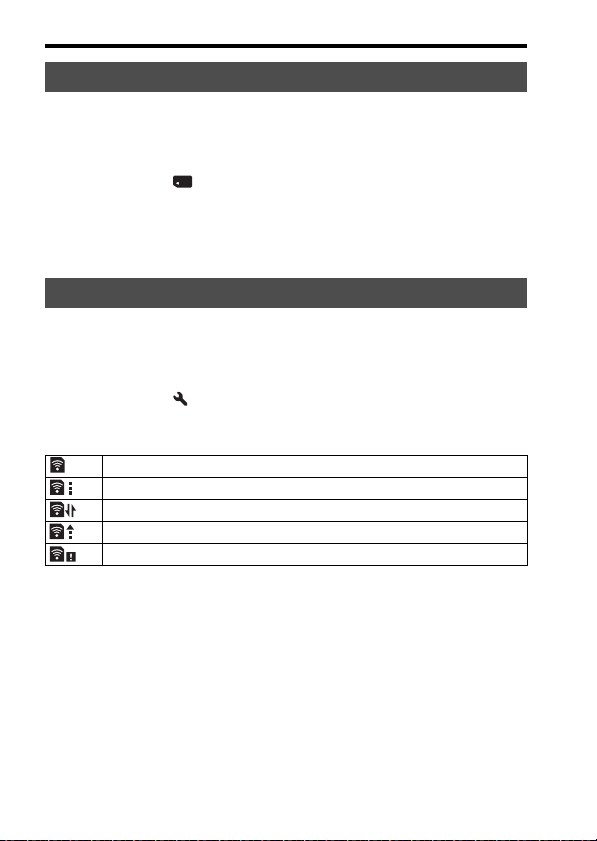
168
Setting the memory card recording method
When inconsistencies are caused in the image database file by processing
files on computers, etc., images on the memory card will not be played
back on this camera. If this happens, the camera repairs the file.
MENU button t 1 t [Recover Image DB] t [Enter]
Notes
• Use a sufficiently charged battery. Low battery power during repairs can damage
data.
Select [On] to use the upload function of an Eye-Fi card (commercially
available).
This item appears when an Eye-Fi card is inserted in the camera.
MENU button t 2 t [Upload Settings] t [On]
Communication status
Notes
• The Power Save function does not work while the camera is uploading images.
• Before using an Eye-Fi card, set up a wireless LAN access point and forwarding
destination. For details, refer to the operating manual supplied with the Eye-Fi card.
• Eye-Fi cards are sold in the U.S.A., Canada, Japan, and some countries in the EU (as
of March 2013).
• For more information, please contact the manufacturer or vendor directly.
• Eye-Fi cards can be used only in the countries/regions where they were purchased.
Use Eye-Fi cards in accordance with the laws of the countries/regions in which you
purchased the card.
Recover Image DB
Upload Settings
Standby. No images are to be sent.
Upload standby.
Connecting.
Uploading.
Error.
169
Setting the memory card recording method
Camera Setup (Advanced Operations)
• Eye-Fi cards include a wireless LAN function. Do not insert any Eye-Fi cards in the
camera when it is prohibited to do so, such as on an airplane. If there is an Eye-Fi
card inserted in the camera, set [Upload Settings] to [Off]. is displayed on the
screen when [Upload Settings] is set to [Off].
• When you use a new Eye-Fi card for the first time, copy the install file of the Eye-Fi
manager recorded on the card to your computer before formatting the card.
• Use an Eye-Fi card after updating the firmware to the latest version. For details, refer
to the manual that comes with the Eye-Fi card.
• If (error) is displayed, remove the memory card and reinsert it, or turn off then
turn on the power again. If appears again, the Eye-Fi card may be damaged.
• Wi-Fi network communication may be influenced by other communication devices.
If the communication status is poor, move closer to the access point of the Wi-Fi
network.
• For details on the file types that can be uploaded, refer to the operating instructions
supplied with the Eye-Fi card.
• This product does not support the Eye-Fi “Endless Memory Mode.” Make sure that
Eye-Fi cards that you insert into this product have “Endless Memory Mode” turned
off.
170
Resetting to default settings
You can reset the main functions of the camera.
MENU button t 3 t [Initialize] t Select the desired setting
t [OK]
The following items will be reset.
Shooting functions (Reset Default/Rec mode reset)
Still shooting menu (Reset Default/Rec mode reset)
Items Reset to
Exposure Comp. (43) ±0.0
Drive Mode (45, 143) Single Shooting
Flash Mode (41, 126) Fill-flash (differs based on whether the
built-in flash is open)
Autofocus Mode (109) AF-A
AF area (110) Wide
Lock-on AF (111) On
Smile/Face Detect. (117, 120) Face Detection On (Regist. Faces)
Auto Object Framing (119) Auto
ISO (129) AUTO
Metering Mode (123) Multi segment
Flash Comp. (124) ±0.0
White Balance (136) AWB (Auto WB)
Color Temp./Color Filter (138) 5500K, Color Filter 0
Custom white balance (138) 5500K
DRO/Auto HDR (130) D-Range Optimizer: Auto
Creative Style (134) Standard
Picture Effect (133) Off
Scene Selection (38, 86) Portrait
Movie (102) P
Items Reset to
Image Size (47) L: 20M
Aspect Ratio (157) 3:2
171
Resetting to default settings
Camera Setup (Advanced Operations)
Movie shooting menu (Reset Default/Rec mode reset)
Custom menu (Reset Default/Custom reset)
Quality (157) Fine
Panorama: Size (47) Standard
Panorama: Direction (89) Right
Clear Image Zoom (140) On
Digital Zoom (101, 140) Off
Long Exposure NR (159) On
High ISO NR (159) Normal
Flash control (124) ADI flash
AF Illuminator (111) Auto
SteadyShot (83) On
Color Space (160) sRGB
AEL w/ shutter (123) On
Items Reset to
File Format (103) AVCHD
Record Setting (104) 60i 17M(FH), 50i 17M(FH)
SteadyShot (83) On
AF Track. Duration (56) Mid
Audio Recording (105) On
Wind Noise Reduct. (105) Off
Items Reset to
Eye-Start AF (77) Off
FINDER/LCD Setting (164) Auto
Red Eye Reduction (57) Off
Release w/o Lens (160) Disable
S. Auto Cont. Shooting (85) Auto
S. Auto Image Extract. (85) Auto
Grid Line (161) Off
Auto Review (161) 2 Sec
Items Reset to
172
Resetting to default settings
Playback menu (Reset Default)
Memory Card Tool menu (Reset Default)
DISP Button(Monitor) (78) Display All Info./Graphic Display/No
Disp. Info.
DISP Button(Finder) (78) No Disp. Info./Graphic Display
Peaking Level (115) Off
Peaking Color (115) White
Live View Display (80) Setting Effect ON
Func. of AEL button (161) AEL hold
ISO Button (162) ISO
Preview Button (162) Shot. Result Preview
Focus Hold Button (58) Focus Hold
MOVIE Button (58) Always
Lens Comp.: Shading (165) Auto
Lens Comp.: Chro. Aber. (165) Auto
Lens Comp.: Distortion (165) Off
e-Front Curtain Shutter (163) On
Items Reset to
Still/Movie Select (149) Folder View(Still)
Slide Show – Interval (150) 3 Sec
Slide Show – Repeat (150) Off
Image Index (49) 4 Images
Specify Printing – Date Imprint (184) Off
Volume Settings (59) 2
Playback Display (150) Auto Rotate
Items Reset to
File Number (166) Series
Folder Name (166) Standard Form
Items Reset to
173
Resetting to default settings
Camera Setup (Advanced Operations)
Setup menu (Reset Default)
Others (Reset Default)
Notes
• Faces registered using [Face Registration] are not deleted even if you use [Reset
Default]. Select [Delete All] in [Face Registration] in the Custom menu.
• Perform [Reset Default] to reset [Date/Time Setup], [Area Setting], [File Number],
and [ Language] to the default settings.
Items Reset to
Menu start (60) Top
Mode Dial Guide (60) On
LCD Brightness (60) ±0
Viewfinder Bright. (163) Auto
Viewfinder Color Temp. (60) 0
Power Save (164) Standard
Power Saving Start Time (164) 1 Min
HDMI Resolution (155) Auto
CTRL FOR HDMI (155) On
Upload Settings (168) On
USB Connection (177) Auto
USB LUN Setting (177) Multi
Audio signals (61) On
Demo Mode (61) Off
Items Reset to
Recording information display (LCD
screen) (46)
Display All Info.
Recording information display
(Viewfinder) (46)
No Disp. Info.
Playback display (147) Single-image screen (with recording
information)

174
Confirming the camera version
Displays the camera version. Confirm the version when a firmware update
is released.
If you mount a lens compatible with the lens version up feature, the lens
version is also displayed.
MENU button t 3 t [Version]
Notes
• An update can be performed only when the battery level is (3 remaining
battery icons) or more. We recommend that you use a battery with sufficient charge
or the AC-PW10AM AC Adaptor (sold separately).
175
Computer (Advanced Operations)
Computer
Comput er (Advanced Op erations)
Using the camera with your computer
Use the following applications to allow more versatile uses of images shot
using your camera.
• “PlayMemories Home”
You can import still images or movies recorded using the camera to your
computer so that you can view them, and use various convenient features
to enhance the images you have shot.
• “Image Data Converter”
You can open RAW format image files.
For detailed notes on installation, see page 66.
Notes
• An Internet connection is required to install the software.
• Use “Image Data Converter” to play back RAW images.
• “PlayMemories Home” is not compatible with Mac computers. When you play back
images on Mac computers, use the appropriate application software supplied with
the Mac computer.
The following computer environment is recommended when using the
software and importing images via a USB connection.
* 64-bit editions and Starter (Edition) are not supported. Windows Image
Mastering API (IMAPI) Ver.2.0 or later is required to use the function
for creating discs.
Recommended computer environment (Windows)
OS (pre-installed) Microsoft Windows XP* SP3/Windows Vista** SP2/
Windows 7 SP1/Windows 8
“PlayMemories
Home”
CPU: Intel Pentium III 800 MHz or faster
(For playing/editing High Definition movies: Intel Core Duo
1.66 GHz or faster/Intel Core 2 Duo 1.66 GHz or faster, Intel
Core 2 Duo 2.26 GHz or faster (AVC HD (FX/FH)))
Memory: Windows XP 512MB or more (1 GB or more is
recommended), Windows Vista/Windows 7 1 GB or more
Hard Disk: Disk space required for installation-
approximately 500 MB
Display: Screen resolution-1024 × 768 dots or more
“Image Data
Converter Ver.4”
CPU/Memory: Pentium 4 or faster/1 GB or more
Display: 1024 × 768 dots or more
176
Using the camera with your computer
** Starter (Edition) is not supported.
The following computer environment is recommended when using the
software and importing images via a USB connection.
Notes
• Operation is not assured in an environment based on an upgrade of the operating
systems described above or in a multi-boot environment.
• If you connect 2 or more USB devices to a single computer at the same time, some
devices, including the camera, may not operate, depending on the types of USB
devices you are using.
• Connecting the camera using a USB interface that is compatible with Hi-Speed USB
(USB 2.0 compliant) allows advanced transfer (high speed transfer), as the camera is
compatible with Hi-Speed USB (USB 2.0 compliant).
• When your computer resumes activity from suspend or sleep mode, communication
between the camera and your computer may not recover at the same time.
Recommended computer environment (Mac)
OS (pre-installed) USB Connection: Mac OS X v10.3 – 10.8
“Image Data Converter Ver.4”: Mac OS X v10.5, 10.6
(Snow Leopard), 10.7 (Lion), 10.8 (Mountain Lion)
“Image Data
Converter Ver.4”
CPU: Intel Core Solo/Core Duo/Core 2 Duo or faster
Memory: 1 GB or more is recommended.
Display: 1024 × 768 dots or more
177
Computer (Advanced Operations)
Connecting the camera to a computer
Selects the method used to make a USB connection between the camera
and a computer or a USB device using a USB cable.
MENU button t 2 t [USB Connection] t Select the desired
setting
Notes
• When [USB Connection] is set to [Auto], it may take some time to establish a
connection.
• If Device Stage* is not displayed with Windows 7 or Windows 8, set [USB
Connection] to [Auto].
* Device Stage is a menu screen used to manage connected devices, such as a camera
(Function of Windows 7 or Windows 8).
Enhances compatibility by limiting of USB connection functions.
MENU button t 2 t [USB LUN Setting] t Select the
desired setting
Making a USB connection
Auto Establishes a Mass Storage or MTP connection
automatically, based on the computer or other USB devices
to be connected. Windows 7 or Windows 8 computers are
connected in MTP, and its unique functions are enabled for
use.
Mass Storage Establishes a Mass Storage connection between the camera, a
computer, and other USB devices.
MTP Establishes an MTP connection between the camera, a
computer, and other USB devices. Windows 7 or Windows 8
computers are connected in MTP, and its unique functions
are enabled for use. In the case of other computers (Windows
Vista/XP, Mac OS X), the AutoPlay Wizard appears, and the
still images in the recording folder on the camera are
imported to the computer.
PC Remote Uses “Remote Camera Control” to control the camera from
the computer, including such functions as shooting and
storing images on the computer (page 68).
Setting the USB connection mode (USB LUN Setting)
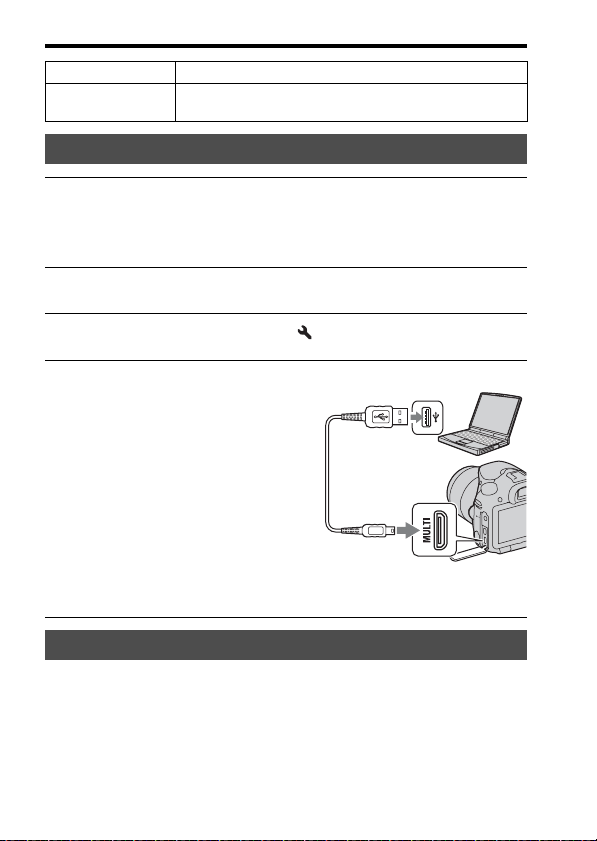
178
Connecting the camera to a computer
“PlayMemories Home” allows you to easily import images.
For details on “PlayMemories Home” functions, see the “PlayMemories
Home Help Guide.”
Multi Normally, use [Multi].
Single Set [USB LUN Setting] to [Single] only if you cannot make a
connection.
Connecting to a computer
1 Insert a sufficiently charged battery pack into the camera, or
connect the camera to a wall outlet (wall socket) using the AC-
PW10AM AC Adaptor (sold separately).
2 Turn on the camera and the computer.
3 Check that [USB Connection] in 2 is set to [Mass Storage].
4 Connect the camera to your
computer.
• When a USB connection is established
for the first time, your computer
automatically runs a program to
recognize the camera. Wait for a while.
Importing images to a computer (Windows)
1 To a USB terminal of the
computer
USB cable (supplied)
2 To the Multi/Micro USB Terminal
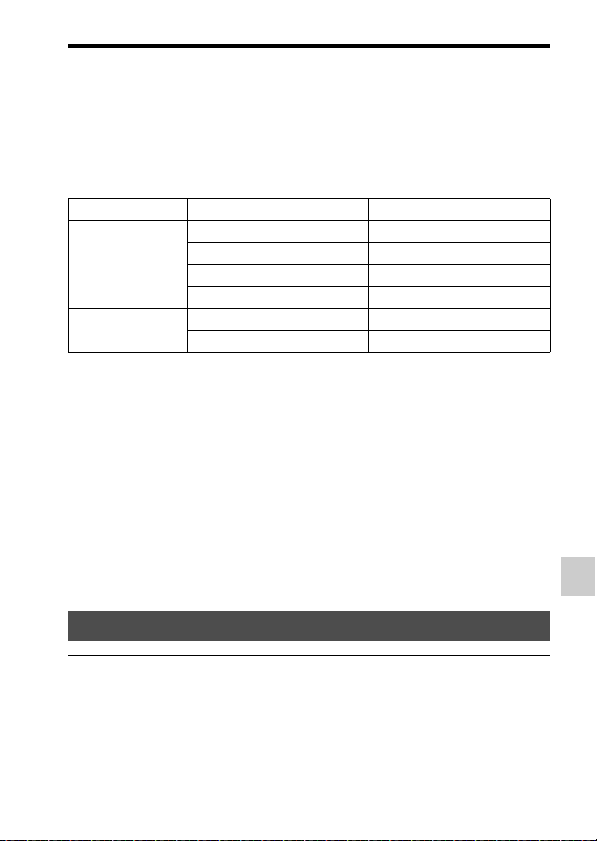
179
Connecting the camera to a computer
Computer (Advanced Operations)
Importing images to the computer without using “PlayMemories Home”
When the AutoPlay Wizard appears after making a USB connection
between the camera and a computer, click [Open folder to view files] t
[OK] t [DCIM] or [MP_ROOT] t copy the desired images to the
computer.
File name
• ssss (file number) stands for any number within the range of 0001 to
9999.
• When [Quality] is set to [RAW & JPEG], the numerical portions of the
name of a RAW data file and its corresponding JPEG file are the same.
Notes
• For operations such as importing AVCHD movies to the computer, use
“PlayMemories Home.”
• When the camera is connected to the computer, if you operate AVCHD movies or
folders from the connected computer, images may be damaged or may not be able to
be played. Do not delete or copy AVCHD movies on the memory card from the
computer. Sony is not liable for consequences resulting from such operations via the
computer.
Folder Type of file File name
DCIM folder JPEG file DSC0ssss.JPG
JPEG file (AdobeRGB) _DSCssss.JPG
RAW file DSC0ssss.ARW
RAW file (AdobeRGB) _DSCssss.ARW
MP_ROOT folder MP4 file (1440×1080 12M) MAH0ssss.MP4
MP4 file (VGA 3M) MAQ0ssss.MP4
Importing images to a computer (Mac)
1 Connect the camera to your Mac computer first. Double-click
the new icon on the desktop t the folder where the images
you want to import are stored.
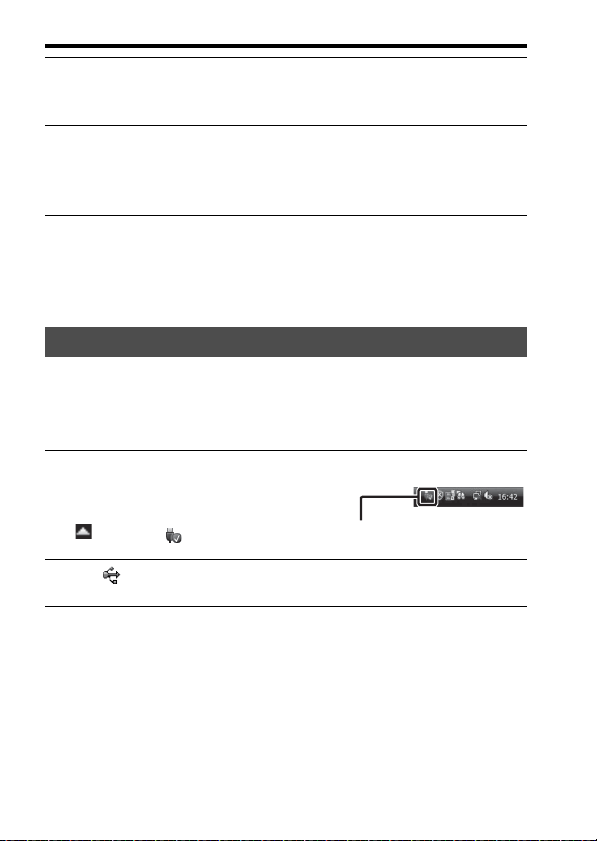
180
Connecting the camera to a computer
Software for Mac computers
For details on other software for Mac computers, access the following
URL:
http://www.sony.co.jp/imsoft/Mac/
Perform steps 1 and 2 below before performing the following operations:
• Disconnecting the USB cable.
• Removing the memory card.
• Turning off the camera.
Notes
• With Mac computers, drag and drop the icon of the memory card or the drive icon to
the “Trash” icon before you disconnect the camera from the computer.
• With Windows 7, the disconnect icon may not be displayed. In that case, you can
disconnect without following the above procedure.
• Do not disconnect the USB cable when the access lamp is lit. The data may be
damaged.
2 Drag and drop the image files to the hard disk icon.
The image files are copied to the hard disk.
3 Double-click the hard disk icon t the desired image file in the
folder containing the copied files.
The image is displayed.
Deleting the USB connection
1 Double-click the disconnect icon
in the tasktray.
• For Windows 7 or Windows 8, click
, then click .
Disconnect icon
2 Click (Safely remove USB Mass Storage Device).
Windows Vista
181
Computer (Advanced Operations)
Creating a movie disc
You can create a high definition quality (HD) AVCHD recording disc from
AVCHD movies imported to a computer using the software
“PlayMemories Home.”
Notes
• Install “PlayMemories Home” beforehand.
• Still images and MP4 movie files cannot be recorded on the AVCHD recording disc.
• It may take a long time to create a disc.
Playing back an AVCHD recording disc on a computer
You can play back the discs using “PlayMemories Home.” Select the DVD
drive that holds the disc and click [Player for AVCHD] on “PlayMemories
Home.”
See “PlayMemories Home Help Guide” for details.
Notes
• Movies may not be played smoothly depending on the computer environment.
Creating a high definition quality (HD) disc (AVCHD
recording disc) on a computer
1 Start up [PlayMemories Home] and select Tools in the
upper right of the screen t (Create Discs) t (AVCHD
(HD)).
2 Select the AVCHD movies you want to write, then drag and drop
onto the right side of the screen.
3 Create the disc, following the instructions on the screen.
182
Creating a movie disc
Creating a Blu-ray disc
You can create a Blu-ray disc using AVCHD movies previously imported
to a computer. Your computer must support the creation of Blu-ray discs.
BD-R (non-rewritable) and BD-RE (rewritable) media can be used to create
Blu-ray discs. You cannot add content to either type of disc once it has been
created.
To create Blu-ray discs using “PlayMemories Home,” install proprietary
add-on software. For details, access the following URL:
http://support.d-imaging.sony.co.jp/BDUW/
An Internet connection environment is required to install the software.
See “PlayMemories Home Help Guide” for details.
Notes
• Install “PlayMemories Home” beforehand.
• MP4 movie files cannot be recorded on a disc.
• It will take a longer time to create a disc because AVCHD movies are converted to
standard definition quality (STD) movies.
• An Internet connection environment is required when creating a DVD-Video (STD)
disc for the first time.
Creating a standard definition quality (STD) disc
1 Start up [PlayMemories Home] and select Tools in the
upper right of the screen t (Create Discs) t (DVD-
Video (STD)).
2 Select the AVCHD movies you want to write, then drag and drop
onto the right side of the screen.
3 Create the disc, following the instructions on the screen.
183
Creating a movie disc
Computer (Advanced Operations)
You can use the following types of 12 cm discs using “PlayMemories
Home.” For Blu-ray discs, see page 182.
• Always update your PlayStation®3 to the latest version of the
PlayStation®3 system software.
• The PlayStation®3 may not be available in some countries/regions.
Discs you can use with “PlayMemories Home”
Disc type Features
DVD-R/DVD+R/DVD+R DL Unrewritable
DVD-RW/DVD+RW Rewritable
184
Print
Print ( Advanced Oper ations)
Specifying DPOF
Using the camera, you can specify still images before printing them at a
shop or with your printer. Follow the procedure below.
DPOF specifications are left with images after printing. It is recommended
that you unspecify them after printing.
Notes
• You cannot specify DPOF on RAW data files.
• You cannot specify the number of images to be printed.
You can add the date to images when printing them. The position of the
date (inside or outside the image, character size, etc.) depends on your
printer.
MENU button t 1 t [Specify Printing] t [Date Imprint] t
[On]
Notes
• This function may not be available, depending on the printer.
1 MENU button t 1 t [Specify Printing] t [DPOF Setup]
t [Multiple Img.] t [Enter]
2 Select the image using b/B on the control button.
3 Press the center of the control button to add a mark.
• To unspecify DPOF, select the image again, then press the center of the
control button.
4 Press the MENU button.
5 Select [OK] using v, then press the center of the control button.
Date Imprint

185
Cleaning (Advanced Operations)
Cleaning
Cleaning (Ad vanced Oper ations)
Cleaning the camera and lens
• Do not touch parts inside the camera, such as the lens contacts or the
mirror. Since dust on the mirror or around the mirror may affect the
images or the performance of the camera, blow the dust away using a
commercially available blower*. For details on cleaning the image
sensor, see the next page.
* Do not use a spray-type blower as doing so may cause a malfunction.
• Clean the camera surface with a soft cloth slightly moistened with water,
then wipe the surface with a dry cloth. To avoid damaging the finish or
casing, follow the instructions below.
– Do not use the chemical products such as thinner, benzine, alcohol,
disposable cloths, insect repellent, sunscreen or insecticide, etc.
– Do not touch the camera with the above substances on your hand.
– Do not leave the camera in contact with rubber or vinyl for extended
periods of time.
• Do not use a cleaning solution containing organic solvents, such as
thinner or benzine.
• When cleaning the lens surface, remove dust using a commercially
available blower. In case of dust that sticks to the surface, wipe it off
using a soft cloth or tissue paper slightly moistened with lens cleaning
solution. Wipe in a spiral pattern from the center to the outside. Do not
spray lens cleaning solution directly onto the lens surface.
Cleaning the camera
Cleaning the lens
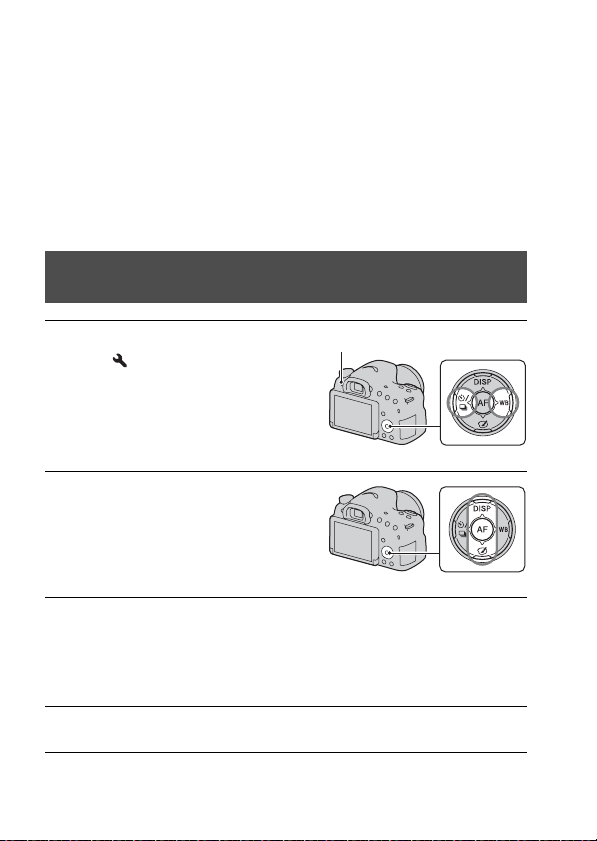
186
Cleaning the image sensor
If dust or debris enters the camera and adheres to the image sensor (the part
that acts as the film), it may appear as dark spots on the photo image,
depending on the shooting environment. If there is dust on the image
sensor, clean it following the steps below.
Notes
• Do not use a spray-type blower as doing so may scatter water droplets inside the
camera body.
Cleaning the image sensor automatically using the
camera’s cleaning mode
1 Press the MENU button, then
select 3 using b/B on the
control button.
MENU button
2 Select [Cleaning Mode] using v/
V, then press the center of the
control button.
3 Select [Enter] using v, and press the center of the control
button.
The image sensor vibrates for a short time, and eliminates dust from the
sensor.
4 Turn off the camera.
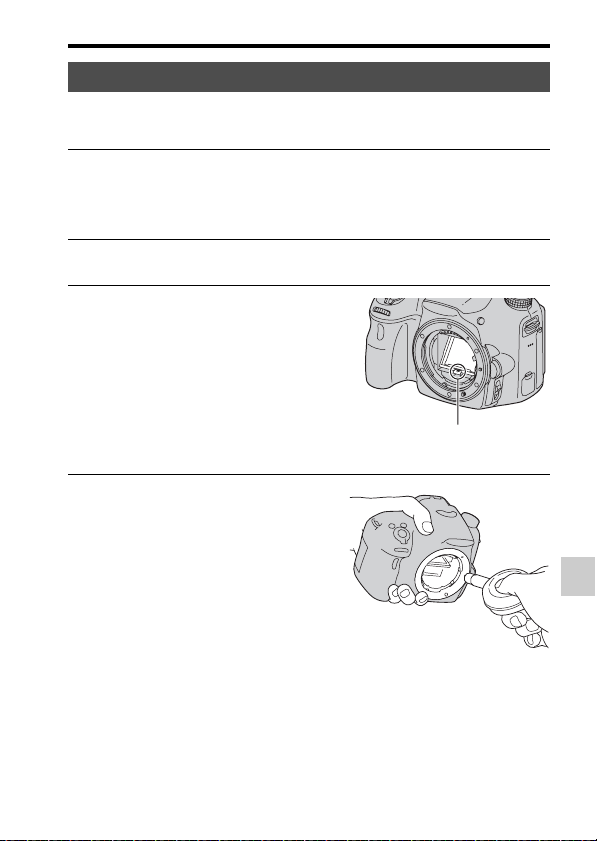
187
Cleaning the image sensor
Cleaning (Advanced Operations)
If further cleaning is needed after using cleaning mode, clean the image
sensor using a blower, following the steps below.
Cleaning the image sensor using a blower
1 Perform the cleaning operation described in steps 1 to 4 of
“Cleaning the image sensor automatically using the camera’s
cleaning mode.”
2 Detach the lens (page 25).
3 Push the V mark on the mirror
lock lever with a finger to lift up
the mirror.
• Be careful not to touch the surface of
the mirror.
Mirror lock lever
4 Use the blower to clean the image
sensor surface and the
surrounding area.
• Do not touch the image sensor with the
tip of the blower and do not put the tip
of the blower into the cavity beyond the
mount.
• Hold the camera face downward to
prevent the dust from resettling in the
camera. Complete the cleaning quickly.
• Also clean the back of the mirror using
the blower.
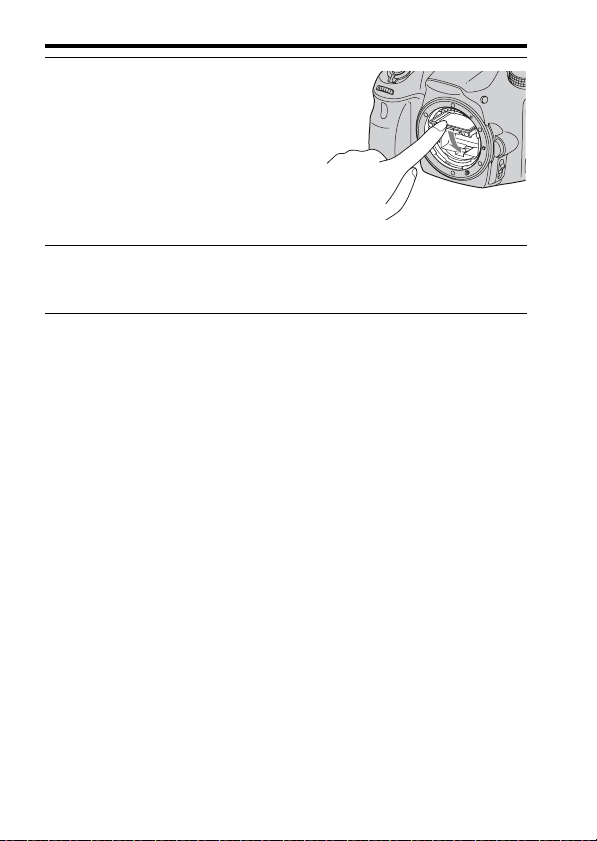
188
Cleaning the image sensor
Notes
• After cleaning is finished, confirm that the mirror is locked down firmly when you
attach the lens. Otherwise the lens may be scratched or additional problems may be
caused. Also, if the mirror is not locked down firmly, the autofocus will not work
while shooting.
• You cannot shoot while the mirror is lifted up.
5 After cleaning is finished, lower
the mirror with a finger until it
clicks.
• Lower the mirror frame back down
with a finger. Be careful not to touch
the mirror surface.
• Lower the mirror down until it locks
firmly.
6 Attach the lens and turn the camera off.
• Confirm that the mirror is locked down firmly when you attach the lens.
189
Troubleshooting/Others (Advanced Operations)
Troubleshooting/Others
Troublesho oting/Othe rs (Advanced Operations)
Troubleshooting
If you experience trouble with the camera, try the following solutions.
The battery pack cannot be installed.
• As you insert the battery pack, use the tip of the battery pack to push the
lock lever (page 21).
• Only an NP-FM500H battery pack can be used. Make sure that the battery
is NP-FM500H.
The remaining battery level indicator shows incorrect level or power runs
out quickly despite the indicator showing sufficient battery level. Cannot
turn on the camera.
• This phenomenon occurs when you use the camera in an extremely hot or
cold location (page 200).
• The battery pack is discharged. Install a charged battery pack (page 19).
• The battery pack is dead (page 208). Replace it with a new one.
• Install the battery pack correctly (page 21).
1
Check the following items.
2
Remove the battery pack and reinsert it after about 1 minute, and
turn on the power.
3
Reset the settings (page 170).
4
Consult your dealer or local authorized service facility.
Battery pack and power

190
Troubleshooting
The power turns off suddenly.
• If you do not operate the camera for a certain period of time, the camera
reverts to power-saving mode. To cancel power saving, operate the camera,
such as pressing the shutter button halfway down (page 164).
The CHARGE lamp flashes when charging the battery pack.
• Only an NP-FM500H battery pack can be used. Make sure that the battery
is NP-FM500H.
• If you charge a battery pack that has not been used for a long time, the
CHARGE lamp may flash.
• The CHARGE lamp flashes in 2 ways, quickly (at about 0.15-second
intervals) or slowly (at about 1.5-second intervals).
If it is flashing quickly, remove the battery pack and reattach the same
battery pack securely. If the CHARGE lamp flashes quickly again, it
suggests that there is something wrong with the battery pack.
Slow flashing indicates that charging is suspended because the ambient
temperature is outside the suitable range for charging the battery pack.
Charging will resume and the CHARGE lamp will be lit when the ambient
temperature returns to within the suitable temperature.
Charge the battery pack under suitable temperatures between 10°C and
30°C (50°F and 86°F).
Nothing is displayed on the LCD screen in viewfinder mode when the
power is turned on.
• [FINDER/LCD Setting] is set to [Manual]. Press the FINDER/LCD button
(page 164).
The image is not clear in the viewfinder.
• Adjust the diopter scale properly using the diopter-adjustment dial
(page 29).
No images in the viewfinder.
• [FINDER/LCD Setting] is set to [Manual]. Press the FINDER/LCD button
(page 164).
• Move your eye a little closer to the viewfinder.
Shooting images

191
Troubleshooting
Troubleshooting/Others (Advanced Operations)
The shutter does not release.
• You are using a memory card with a write-protect switch, and the switch is
set to the LOCK position. Set the switch to the recording position.
• Check the free capacity of the memory card.
• You cannot record images while charging the built-in flash (pages 41, 126).
• In autofocus mode, the shutter cannot be released when the subject is out of
focus.
• The lens is not attached properly. Attach the lens properly (page 24).
• When the camera is attached to another device, such as an astronomical
telescope, set [Release w/o Lens] to [Enable] (page 160).
• The subject may require special focusing (page 107). Use the focus-lock or
manual focus function (pages 108, 114).
Recording takes a long time.
• The noise reduction function is turned on (page 159). This is not a
malfunction.
• You are shooting in RAW mode (page 157). Since RAW data files are
large, RAW mode shooting may take time.
• The Auto HDR is processing an image (page 130).
The same image is shot several times.
• The drive mode is set to [Cont. Shooting] or [Bracket: Cont.]. Set [Drive
Mode] to [Single Shooting] (pages 45, 143).
• The exposure mode is set to [Tele-zoom Cont. Priority AE] (pages 40, 90).
• The exposure mode is set to [Superior Auto] and [S. Auto Image Extract.] is
set to [Off] (page 85).
The image is out of focus.
• The subject is too close. Check the minimum focal distance of the lens.
• You are shooting in manual focus mode. Set the focus mode switch to AF
(autofocus) (page 106).
• When the lens has a focus mode switch, set it to AF.
• The ambient light is insufficient.
Eye-Start AF does not work.
• Set [Eye-Start AF] to [On] (page 77).
• Press the shutter button halfway down.

192
Troubleshooting
The flash does not work.
• The flash mode is set to [Autoflash]. If you want to make sure the flash fires
each time, set the flash mode to [Fill-flash] (pages 41, 126).
The flash takes too long to recharge.
• The flash has been fired in quick succession over a short period. When the
flash has been fired in succession, the recharging process may take longer
than usual to avoid overheating of the camera.
A picture taken using the flash is too dark.
• If the subject is beyond the flash range (the distance that the flash can
reach), the pictures will be dark because the flash light does not reach the
subject. If the ISO is changed, the flash range also changes with it. Check
the flash range in “Specifications.”
The date and time are recorded incorrectly.
• Set the correct date and time (page 27).
• The area selected in [Area Setting] is different from the actual area. Set
[Area Setting] again (page 27).
The aperture value and/or shutter speed flashes when you press the
shutter button halfway down.
• Since the subject is too bright or too dark, it is beyond the available range of
the camera. Adjust the setting again.
The image is whitish (Flare).
Blurring of light appears on the image (Ghosting).
• The picture was taken under a strong light source, and excessive light has
entered the lens. Attach a lens hood.
The corners of the picture are too dark.
• If a filter or hood was used, take it off and try shooting again. Depending on
the thickness of the filter and improper attachment of the hood, the filter or
the hood may partially appear in the image. The optical properties of some
lenses may cause the periphery of the image to appear too dark (insufficient
light). You can compensate for this phenomenon with [Lens Comp.:
Shading] (page 165).
193
Troubleshooting
Troubleshooting/Others (Advanced Operations)
The eyes of the subject are red.
• Activate the red eye reduction function (page 57).
• Get close to the subject, and shoot the subject within the flash range using
the flash. Check the flash range in “Specifications.”
Dots appear and remain on the LCD screen.
• This is not a malfunction. These dots are not recorded (page 10).
The image is blurred.
• The picture was taken in a dark location without the flash, resulting in
camera shake. We recommend using a tripod or the flash (pages 41, 84,
126).
The EV scale b B is flashing.
• The subject is too bright or too dark for the metering range of the camera.
Your camera cannot play back images.
• The folder/file name has been changed on your computer (page 179).
• When an image file has been processed by a computer or when the image
file was recorded using a model other than that of your camera, playback on
your camera is not guaranteed.
• Use “PlayMemories Home” to play images stored on a PC with this camera.
• The camera is in USB mode. Delete the USB connection (page 180).
Your camera cannot delete an image.
• Cancel protection (page 152).
You have deleted an image by mistake.
• Once you have deleted an image, you cannot restore it. We recommend that
you protect images that you do not want to delete (page 152).
Viewing images
Deleting images

194
Troubleshooting
You do not know if the OS of your computer is compatible with the
camera.
• Check “Using the camera with your computer” (page 175).
Your computer does not recognize your camera.
• Check that the camera is turned on.
• When the battery level is low, install a charged battery pack (page 19) or
use the AC Adaptor (sold separately).
• Use the USB cable (supplied) (page 178).
• Disconnect the USB cable, and connect it again firmly.
• Disconnect all equipment other than the camera, the keyboard and the
mouse from the USB jacks of your computer.
• Connect the camera directly to your computer without passing through a
USB hub or other device (page 178).
You cannot copy images.
• Make the USB connection by properly connecting the camera with your
computer (page 178).
• Follow the designated copy procedure for your OS (page 178).
• When you shoot images using a memory card formatted by a computer, you
may not be able to copy the images to a computer. Shoot using a memory
card formatted by your camera (page 166).
The image cannot be played back on a computer.
• If you are using “PlayMemories Home,” refer to the “PlayMemories Home
Help Guide.”
• Consult the computer or software manufacturer.
After making a USB connection, “PlayMemories Home” does not start
automatically.
• Make the USB connection after the computer is turned on (page 178).
Computers
195
Troubleshooting
Troubleshooting/Others (Advanced Operations)
Cannot insert a memory card.
• The insertion direction of the memory card is wrong. Insert it in the correct
direction (page 21).
Cannot record on a memory card.
• The memory card is full. Delete unnecessary images (pages 34, 153).
• An incompatible memory card is inserted (pages 23, 205).
You have formatted a memory card by mistake.
• All the data on the memory card is deleted by formatting. You cannot
restore it.
Cannot print images.
• RAW images cannot be printed. To print RAW images, first convert them
to JPEG images using the software “Image Data Converter.”
The color of the image is strange.
• When you print images recorded in Adobe RGB mode using sRGB printers
that are not compatible with Adobe RGB (DCF2.0/Exif2.21), the images
are printed at a lower intensity level (page 160).
Images are printed with both edges cut off.
• Depending on your printer, the left, right, top, and bottom edges of the
image may be cut off. In particular, when you print an image shot with the
aspect ratio set to [16:9], the sides of the image may be cut off.
• When printing images using your printer, cancel the trimming or borderless
settings of the printer. Consult the printer manufacturer as to whether the
printer provides these functions or not.
• When having images printed at a digital print shop, ask the shop whether
they can print the images without cutting off both edges.
Memory card
Printing

196
Troubleshooting
Cannot print images with the date.
• Using “PlayMemories Home,” you can print images with the date
(page 64).
• This camera does not have a feature for superimposing dates on images.
However, because the images shot with the camera include information on
the recording date, you can print images with the date superimposed if the
printer or the software can recognize Exif information. For compatibility
with Exif information, consult the manufacturer of the printer or the
software.
• When you print images at a shop, images can be printed with the date if you
ask them to do so.
The lens gets fogged.
• Moisture condensation has occurred. Turn off the camera and leave it for
about 1 hour before using it (page 200).
The message “Set Area/Date/Time.” appears when you turn on the
camera.
• The camera has been left unused for some time with a low battery or no
battery pack. Charge the battery pack and set the date again (pages 27, 201).
If the date setting is lost every time the battery pack is charged, consult your
dealer or local authorized service facility.
The number of recordable images does not decrease or decreases 2 at a
time.
• This is because the compression rate and the image size after compression
change depending on the image when you shoot a JPEG image (page 157).
The setting is reset without performing the resetting operation.
• The battery pack was removed while the power switch was set to ON.
When removing the battery pack, make sure the camera is turned off and
the access lamp is not lit (pages 17, 21).
Others

197
Troubleshooting
Troubleshooting/Others (Advanced Operations)
The camera does not work properly.
• Turn off the camera. Remove the battery pack and insert it again. If the
camera is warm, remove the battery pack, and allow it to cool down before
trying this corrective procedure.
• If an AC Adaptor (sold separately) is used, disconnect the power plug.
Connect the power plug and turn on the camera again. If the camera does
not work after performing these steps, consult your Sony dealer or local
authorized Sony service facility.
appears on the screen.
• The SteadyShot function does not work. You can continue to shoot but the
SteadyShot function will not work. Turn the camera off and on. If the
problem persists, consult your Sony dealer or local authorized Sony service
facility.
“--E-” appears on the screen.
• Remove the memory card, and insert it again. If the problem persists even
after performing this procedure, format the memory card.

198
Troublesho oting/Othe rs (Advanced Operations)
Warning
messages
If the following messages appear,
follow the instructions below.
Set Area/Date/Time.
• Set the area, date, and time. If
you have not used the camera for
a long time, charge the internal
rechargeable battery (pages 27,
201).
Unable to use memory card.
Format?
• The memory card was formatted
on a computer and the file format
was modified.
Select [Enter] to format the
memory card. You can use the
memory card again, but all
previous data in the memory
card will be erased. It may take
some time to finish formatting.
If the message still appears,
change the memory card.
Memory Card Error
• An incompatible memory card is
inserted or the format has failed.
Reinsert memory card.
• The inserted memory card
cannot be used in your camera.
• The memory card is damaged.
• The terminal section of the
memory card is dirty.
Memory card locked.
• You are using a memory card
with a write-protect switch, and
the switch is set to the LOCK
position. Set the switch to the
recording position.
Processing...
• Displaying when Long exposure
noise reduction or high ISO
noise reduction will be
performed for the same amount
of time that the shutter was open.
You cannot do any further
shooting during this reduction.
Unable to display.
• Images recorded with other
cameras or images modified with
a computer may not be
displayed.
Check that a lens is mounted. For
an unsupported lens, set “Release
w/o Lens” in the menu to
“Enable”.
• The lens is not attached properly,
or the lens is not attached.
• When attaching the camera to an
astronomical telescope or similar
device, set [Release w/o Lens] to
[Enable].
Unable to print.
• You tried to mark RAW images
with a DPOF mark.
199
Warning messages
Troubleshooting/Others (Advanced Operations)
Internal temp. high. Allow it to
cool.
• The camera has become hot
because you have been shooting
continuously.
Turn the power off. Allow the
camera to cool and wait until the
camera is ready to shoot again.
• Because you have been
recording for a long time, the
temperature inside the camera
has increased to an unacceptable
level. Stop recording.
Recording is unavailable in this
movie format.
• Set [File Format] to [MP4].
• The number of images exceeds
that for which date management
in a database file by the camera
is possible.
• Unable to register to the database
file. Import all the images to a
computer using “PlayMemories
Home” and recover the memory
card.
Camera Error. Turn power off then
on.
System Error
• Turn the power off, remove the
battery pack or lens, then reinsert
or reattach it. If the message
appears frequently, consult your
dealer or local authorized service
facility.
Image Database File error.
Recover?
• You cannot record or play back
AVCHD movies because the
Image Database File is damaged.
Follow the on-screen
instructions to recover data.
Unable to magnify.
Unable to rotate image.
• Images recorded with other
cameras may not be magnified or
rotated.
Cannot create more folders.
• A folder with a name beginning
with “999” exists on the memory
card. You cannot create any
folders if this is the case.

200
Precautions
Do not use/store the camera in
the following places
• In an extremely hot, dry or humid
place
In places such as in a car parked in
the sun, the camera body may
become deformed and this may
cause a malfunction.
• Under direct sunlight or near a
heater
The camera body may become
discolored or deformed, and this
may cause a malfunction.
• In a location subject to rocking
vibration
• Near a strong magnetic field
• In sandy or dusty places
Be careful not to let sand or dust get
into the camera. This may cause the
camera to malfunction, and in some
cases this malfunction cannot be
repaired.
• Humid places
These may cause the growth of
mold on the lens.
On storing
Be sure to attach the front lens cap
or body cap when not using the
camera. When attaching the body
cap, remove all the dust from the
cap before placing it on the camera.
When you purchase the DT 18-
55mm F3.5-5.6 SAM II Lens Kit,
purchase the Rear Lens Cap ALC-
R55 also.
Care
The surface of the LCD screen has a
coating that may peel off if scratched.
Please note the following points for
handling and care.
• Grease or hand cream left on the
LCD screen by your hands may
dissolve the coating. If any grease
or cream gets on the LCD screen,
wipe it off immediately.
• Wiping forcefully with tissue paper
or other materials may damage the
coating.
• Before wiping dirt, dust the dirt or
sand off in advance using a blower,
etc.
• When wiping off dirt, wipe gently
with a soft cloth, such as a cloth for
cleaning glasses.
On operating temperatures
Your camera is designed for use in
temperatures between 0°C and 40°C
(32°F and 104°F). We do not
recommend shooting in extremely
cold or hot places that exceed this
range.
On moisture condensation
If the camera is moved directly from
a cold to a warm location, moisture
may condense inside or outside the
camera. This moisture condensation
may cause a malfunction of the
camera.

201
Precautions
Troubleshooting/Others (Advanced Operations)
How to prevent moisture
condensation
When moving the camera from a cold
place to a warm place, seal the
camera in a plastic bag and allow it to
adapt to conditions at the new
location for about 1 hour.
If moisture condensation occurs
Turn off the camera and wait for
about an hour for the moisture to
evaporate. Note that if you attempt to
shoot with moisture remaining inside
the lens, you will be unable to record
clear images.
On the internal rechargeable
battery
This camera has an internal
rechargeable battery for maintaining
the date and time and other settings
regardless of whether the power is on
or off, or whether the battery pack is
charged or discharged.
This rechargeable battery is
continually charged as long as you
are using the camera. However, if you
use the camera for only short periods,
it gradually discharges. If you do not
use the camera at all for about
3 months, it becomes completely
discharged. In this case, be sure to
charge this rechargeable battery
before using the camera.
However, even if this rechargeable
battery is not charged, you can still
use the camera as long as you do not
record the date and time. If the
camera resets the settings to the
defaults each time you charge the
battery, the internal rechargeable
battery may be dead. Consult your
Sony dealer or local authorized Sony
service facility.
How to charge the internal
rechargeable battery
Insert a charged battery pack in the
camera, or connect the camera to a
wall outlet (wall socket) using the AC
Adaptor (sold separately), and leave
the camera for 24 hours or more with
the power off.
Using the lenses and
accessories
We recommend that you use Sony
lenses/accessories* designed to suit
the characteristics of this camera.
Using the products of other
manufacturers may cause the camera
not to operate to its capability, or
result in accidents and malfunctions
of the camera.
* Including Konica Minolta products
Memory cards
Do not attach a label, etc. to a
memory card or a card adaptor.
Doing so may cause a malfunction.

202
Precautions
Notes on disposal or transfer
of the camera
For the protection of personal
information, perform the following
operations when you dispose of or
transfer the camera.
• [Initialize] t [Reset Default]
(page 170)
• [Face Registration] t [Delete All]
(page 119)
On recording/playback
• When you use a memory card with
this camera for the first time, we
recommend to format the card
using the camera for stable
performance of the memory card
before shooting.
Note that formatting permanently
erases all data on the memory card,
and is unrecoverable. Save
important data on a computer, etc.
• If you repeatedly record/delete
images, fragmentation of data may
occur on the memory card. Movies
may not be able to be saved or
recorded. If this happens, save your
images to a computer or other
storage location, and then format
the memory card (page 166).
• Before you record one-time events,
make a trial recording to make sure
that the camera is working
correctly.
• This camera is neither dust-proof,
splash-proof, nor water-proof.
• Do not look at the sun or a strong
light through an unattached lens or
the viewfinder. This may cause
irrecoverable damage to your eyes.
It may also cause a malfunction of
your camera.
• Do not use the camera near a place
that generates strong radio waves or
emits radiation. The camera may
not be able to record or play back
properly.
• Using the camera in sandy or dusty
place may cause malfunctions.
• If moisture condensation occurs,
remove it before using the camera
(page 201).
• Do not shake or strike the camera.
In addition to malfunctions and an
inability to record images, this may
render the memory card unusable,
or cause image data breakdown,
damage or loss.
• Clean the flash surface with a soft
cloth or similar material before use.
The heat of flash emission may
cause dirt on the flash surface to
emit smoke or burned.
• Keep the camera, supplied
accessories, etc., out of the reach of
children. A memory card, etc., may
be swallowed. If this happens,
consult a doctor immediately.

203
Troubleshooting/Others (Advanced Operations)
Using your
camera abroad —
Power sources
You can use your camera, the battery
charger and the AC-PW10AM AC
Adaptor (sold separately) in any
country or region where the power
supply is within 100 V to 240 V AC,
50/60 Hz.
Notes
• Do not use an electronic
transformer (travel converter), as
this may cause a malfunction.
When you view images on a TV
screen, the camera and TV must use
the same TV color system. Check the
color TV system for the country or
region where you are using the
camera.
NTSC system (1080 60i)
Bahama Islands, Bolivia, Canada,
Central America, Chile, Colombia,
Ecuador, Jamaica, Japan, Korea,
Mexico, Peru, Surinam, Taiwan, the
Philippines, the U.S.A., Venezuela,
etc.
PAL system (1080 50i)
Australia, Austria, Belgium, China,
Croatia, Czech Republic, Denmark,
Finland, Germany, Holland, Hong
Kong, Hungary, Indonesia, Italy,
Kuwait, Malaysia, New Zealand,
Norway, Poland, Portugal, Rumania,
Singapore, Slovak Republic, Spain,
Sweden, Switzerland, Thailand,
Turkey, United Kingdom, Viet Nam,
etc.
PAL-M system (1080 50i)
Brazil
PAL-N system (1080 50i)
Argentina, Paraguay, Uruguay
SECAM system (1080 50i)
Bulgaria, France, Greece, Guiana,
Iran, Iraq, Monaco, Russia, Ukraine,
etc.
On TV color systems

204
AVCHD format
The AVCHD format is a high
definition digital video camera format
used to record a high definition (HD)
signal of either the 1080i
specification*
1
or the 720p
specification*
2
using efficient data
compression coding technology. The
MPEG-4 AVC/H.264 format is
adopted to compress video data, and
the Dolby Digital or Linear PCM
system is used to compress audio
data.
The MPEG-4 AVC/H.264 format is
capable of compressing images at
higher efficiency than that of the
conventional image compressing
format. The MPEG-4 AVC/H.264
format enables a high definition video
signal shot on a digital video camera
recorder to be recorded on 8 cm DVD
discs, hard disk drive, flash memory,
memory card, etc.
Recording and playback on
your camera
Based on the AVCHD format, your
camera records with the high
definition image quality (HD)
mentioned below.
Video signal*
3
:
1080 60i-compatible device
MPEG-4 AVC/H.264 1920 ×
1080/60i, 1920 × 1080/24p
1080 50i-compatible device
MPEG-4 AVC/H.264 1920 ×
1080/50i, 1920 × 1080/25p
Audio signal: Dolby Digital 2ch
Recording media: Memory card
*1 1080i specification
A high definition specification that
uses 1,080 effective scanning lines
and the interlace system.
*2 720p specification
A high definition specification that
uses 720 effective scanning lines and
the progressive system.
*3 Data recorded in AVCHD format
other than the above mentioned
cannot be played on your camera.

205
Troubleshooting/Others (Advanced Operations)
Memory cards
• Do not strike, bend or drop the
memory card.
• Do not use or store the memory
card under the following
conditions:
– Locations with high temperatures,
such as in a car parked in the sun.
– Locations exposed to direct
sunlight.
– Humid locations or locations with
corrosive substances present.
• The memory card may be hot after
it has been used for a long time. Be
careful when you handle it.
• When the access lamp is lit, do not
remove the memory card or the
battery pack, or turn off the power.
The data may be corrupted.
• Data may be damaged if you place
the memory card near strongly-
magnetized materials or use the
memory card in a static-prone or
electrically noisy environment.
• We recommend backing up
important data, such as to a hard
disk of a computer.
• When you carry or store the
memory card, put it in the case
supplied with it.
• Do not expose the memory card to
water.
• Do not touch the terminal section of
the memory card with your hand or
a metal object.
• When the write-protect switch of a
memory card is set to the LOCK
position, you cannot perform
operations such as recording or
deleting images.
• Memory cards formatted on a
computer are not guaranteed to
operate with this camera. Be sure to
format memory cards using the
camera.
• Data read/write speeds differ
depending on the combination of
memory card and equipment used.
• Do not press down hard when you
write on the memo area.
• Do not attach a label to the memory
cards themselves.
• Do not disassemble or modify the
memory cards.
• Do not leave memory cards within
the reach of small children. They
might accidentally swallow them.
The types of “Memory Stick” media
that can be used with this camera are
as follows. However, proper
operation cannot be guaranteed for all
“Memory Stick XC-HG Duo” media
and “Memory Stick PRO Duo” media
functions.
Notes on using memory
cards
Notes on the “Memory
Stick” media used with
the camera
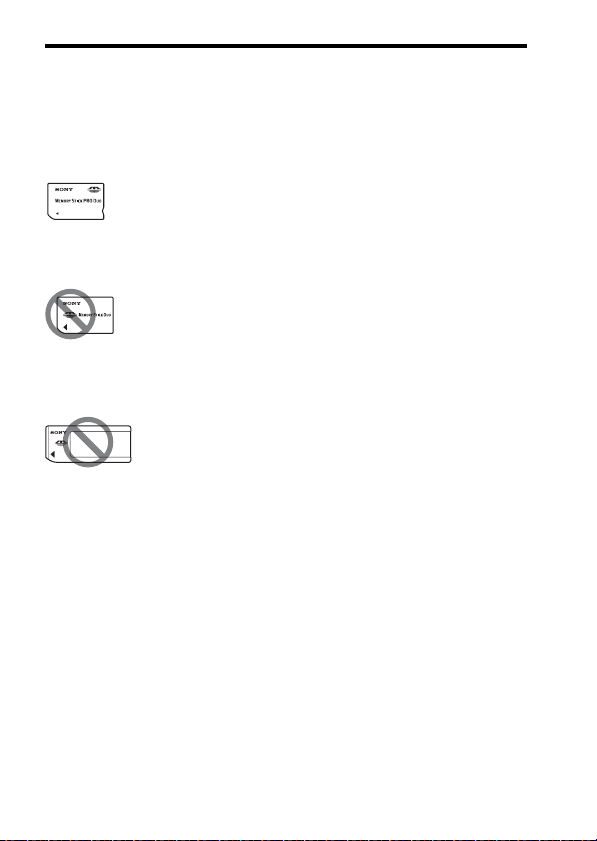
206
Memory cards
“Memory Stick XC-HG Duo”
media*
1
*
2
“Memory Stick PRO Duo”
media*
1
*
2
*
3
“Memory Stick PRO-HG Duo”
media*
1
*
2
Compatible with your camera
“Memory Stick Duo” media
Not compatible with your camera
“Memory Stick” media and “Memory
Stick PRO” media
Not compatible with your camera
*1 This is equipped with the
MagicGate function. MagicGate
is a copyrighted protection
technology that uses encryption
technology. Data recording/
playback that requires MagicGate
functions cannot be performed
with this camera.
*2 Supports high-speed data transfer
using a parallel interface.
*3 When using “Memory Stick PRO
Duo” media to record movies,
only those marked with Mark2
can be used.
Notes on using “Memory Stick
Micro” media (sold
separately)
• This product is compatible with
“Memory Stick Micro” media
(“M2”). “M2” is an abbreviation for
“Memory Stick Micro” media.
• To use a “Memory Stick Micro”
media with the camera, be sure to
insert the “Memory Stick Micro”
media into an “M2” Adaptor as
large as Duo size. If you insert a
“Memory Stick Micro” media into
the camera without an “M2”
Adaptor as large as Duo size, you
might not be able to remove it from
the camera.
• Do not leave the “Memory Stick
Micro” media within the reach of
small children. They might
accidentally swallow it.

207
Troubleshooting/Others (Advanced Operations)
Battery pack/
Battery charger
• The charging time differs
depending on the remaining
capacity of the battery pack or
charging conditions.
• We recommend charging the
battery pack at an ambient
temperature between 10°C and
30°C (50°F and 86°F). You may
not be able to efficiently charge the
battery pack outside of this
temperature range.
• Connect the battery charger to the
nearest wall outlet (wall socket).
• Do not try to charge the battery
pack again right after it has been
charged, or when it has not been
used after being charged. Doing so
will affect the performance of the
battery pack.
• Do not charge any battery pack
other than the “InfoLITHIUM” M
series battery pack in the battery
charger (supplied) with your
camera. Batteries other than the
specified kind may leak, overheat,
or explode if you attempt to charge
them, posing a risk of injury from
electrocution and/or burns.
• When the CHARGE lamp flashes,
this may indicate a battery error or
that a battery pack other than the
specified type has been installed.
Check that the battery pack is the
specified type. If the battery pack is
the specified type, remove the
battery pack, replace it with a new
or different one and check that the
battery charger is operating
correctly. If the battery charger
operates correctly, a battery error
may have occurred.
• If the battery charger is dirty,
charging may not be performed
successfully. Clean the battery
charger with a dry cloth, etc.
• Use only an NP-FM500H battery
pack. Note that the NP-FM55H,
NP-FM50 and NP-FM30 cannot be
used.
• The displayed battery level may not
be correct under certain
circumstances.
• Do not expose the battery pack to
water. The battery pack is not
water-resistant.
• Do not leave the battery pack in
extremely hot places, such as in a
car or under direct sunlight.
Notes on using the
battery pack

208
Battery pack/Battery charger
Effective use of the battery
pack
• Battery performance decreases in
low-temperature environments.
This means that the time the battery
pack can be used is shorter in cold
places and the speed of continuous
shooting slows down. We
recommend that you put the battery
pack in a pocket close to your body
to warm it up, and insert it in your
camera immediately before you
start shooting.
• The battery pack will run out
quickly if you use the flash
frequently, use continuous shooting
often, turn the camera on and off
frequently, or make the LCD screen
brighter.
Battery life
• The battery life is limited. Battery
capacity decreases little by little as
you use it more and more, and as
time passes. If the battery operating
time seems considerably shortened,
a probable cause is that the battery
pack has reached the end of its life.
Buy a new battery pack.
• The battery life varies according to
how it is stored and the operating
conditions and environment in
which each battery pack is used.
How to store the battery pack
Store the battery pack in a dry, cool
place after removing it from the
camera. Even if you do not use the
camera for an extended period of
time, charge the battery pack and
fully use it up at least once a year to
prolong the battery life.

209
Troubleshooting/Others (Advanced Operations)
License
Notes on the License
Software provided in the camera are
based on license agreements with the
copyright owners. Based on requests
by the owners of copyright of these
software applications, we have an
obligation to inform you of the
following. Please read the following
sections.
Licenses (in English) are recorded in
the internal memory of your camera.
Establish a Mass Storage connection
between the camera and a computer
to read licenses in the “PMHOME” -
“LICENSE” folder.
THIS PRODUCT IS LICENSED
UNDER THE AVC PATENT
PORTFOLIO LICENSE FOR THE
PERSONAL USE OF A
CONSUMER OR OTHER USES IN
WHICH IT DOES NOT RECEIVE
REMUNERATION TO
(i) ENCODE VIDEO IN
COMPLIANCE WITH THE AVC
STANDARD (“AVC VIDEO”)
AND/OR
(ii) DECODE AVC VIDEO THAT
WAS ENCODED BY A
CONSUMER ENGAGED IN A
PERSONAL ACTIVITY AND/OR
WAS OBTAINED FROM A VIDEO
PROVIDER LICENSED TO
PROVIDE AVC VIDEO.
NO LICENSE IS GRANTED OR
SHALL BE IMPLIED FOR ANY
OTHER USE.
ADDITIONAL INFORMATION
MAY BE OBTAINED FROM
MPEG LA, L.L.C.
SEE
HTTP://WWW.MPEGLA.COM
On GNU GPL/LGPL applied
software
Software that is eligible for the
following GNU General Public
License (hereinafter referred to as
“GPL”) or GNU Lesser General
Public License (hereinafter referred
to as “LGPL”) are included in the
camera.
This informs you that you have a
right to have access to, modify, and
redistribute source code for these
software programs under the
conditions of the supplied GPL/
LGPL.
Source code is provided on the web.
Use the following URL to download
it.
http://www.sony.net/Products/Linux/
We would prefer you do not contact
us about the contents of source code.
Licenses (in English) are recorded in
the internal memory of your camera.
Establish a Mass Storage connection
between the camera and a computer
to read licenses in the “PMHOME” -
“LICENSE” folder.

210
Index
Index
A
A (Aperture Priority) ..................92
ADI flash ..................................124
AdobeRGB ...............................160
AE Lock....................................122
AEL ..........................................161
AEL button ...............................161
AEL w/ shutter .........................123
AF area .....................................110
AF Illuminator ..........................111
AF Track. Duration ..................102
AF-A.........................................109
AF-C .........................................109
AF-S .........................................109
Ambient light............................146
Anti-dust function.....................186
Aperture......................................92
Aperture Preview........................94
Aperture Priority.........................92
Area Setting ................................28
Aspect Ratio .............................157
Audio Recording ......................105
Audio signals ..............................61
Auto HDR.................................131
Auto Object Framing ................119
Auto Review .............................161
Auto WB...................................137
Autoflash ....................................42
Autofocus .................................106
Autofocus Mode ...................... 109
Automatic AF .......................... 109
AVCHD ................... 103, 104, 204
AVCHD View ......................... 149
B
Battery pack ................. 19, 21, 207
Beep sound (Audio signals)....... 61
Bracket..................................... 144
Bracket: Cont. .......................... 144
“BRAVIA” Sync ..................... 155
BULB shooting.......................... 97
C
Center weighted....................... 123
Charging battery pack................ 19
Cleaning................................... 185
Cleaning Mode......................... 186
Clear Image Zoom ................... 140
Cloudy (White Balance) .......... 137
Color filter (White Balance) .... 138
Color Space.............................. 160
Color temperature
(White Balance)................... 138
Compression ratio.................... 157
Computer ................... 66, 175, 177
Cont. Shooting ......................... 143
Continuous AF......................... 109
Continuous bracket .................. 144
Continuous shooting ................ 143

211
Index
Index
Contrast.................................... 134
Control button ............................ 51
Control dial .................... 92, 94, 96
Creative Style........................... 134
CTRL FOR HDMI................... 155
Custom (White Balance).......... 138
D
Date Imprint............................. 184
Date/Time Setup ........................ 27
Daylight (White Balance) ........ 137
DC IN terminal .......................... 16
Default ..................................... 170
Delete ................................. 34, 153
Demo Mode ............................... 61
Digital Zoom.................... 101, 140
Diopter-adjustment .................... 29
Direct manual focus ................. 115
Disc creation .............................. 69
DISP................................... 46, 147
DISP Button(Finder).................. 78
DISP Button(Monitor) ............... 78
Display ....................................... 46
Display All Info. ........................ 46
DPOF Setup ............................. 184
D-Range Opt. ........................... 130
Drive Mode........................ 45, 143
DRO/Auto HDR ...................... 130
E
e-Front Curtain Shutter ............ 163
Enlarged image .......................... 48
EV scale ....................... 43, 97, 146
Exposure compensation ............. 43
Eye-Fi....................................... 168
Eyepiece cup ..............................77
Eyepiece sensor.................... 14, 77
Eye-Start AF .............................. 57
F
Face Detection.......................... 117
Face Registration......................118
File Format (Movie).................103
File Number ............................. 166
Fill-flash .....................................42
FINDER/LCD Setting..............164
FINE......................................... 157
Fine........................................... 157
Flash (White Balance).............. 137
Flash bracket ............................ 144
Flash Comp. ............................. 124
Flash control............................. 124
Flash Mode................... 41, 75, 126
Flash Off ........................30, 42, 85
Fluor.: Cool White
(White Balance) ................... 137
Fluor.: Day White
(White Balance) ................... 137
Fluor.: Daylight
(White Balance) ................... 137
Fluor.: Warm White
(White Balance) ................... 137
Fn ......................................... 51, 53
Focus ........................................106
Focus hold.................................. 58

212
Index
Focus Hold Button......................58
Focus indicator .........................107
Focus Magnifier........................116
Focus-lock ................................108
Folder Name .............................166
Folder View..............................149
For viewfinder (Monitor) ...........80
Format.......................................166
Func. of AEL button.................161
Function button.....................52, 53
G
Graphic Display..........................46
Grid Line ..................................161
H
Hand-held Twilight ..............38, 87
HDMI .........................................50
HDMI Resolution .....................155
HDR..........................................130
HDR Painting ...........................133
High Contrast Mono. ................133
High ISO NR ............................159
High-speed sync .......................126
Histogram ...................................79
I
Image Data Converter...........65, 67
Image Index ................................49
Image quality ............................157
Image sensor .....................108, 186
Image Size ..................................47
In-Camera Guide ....................... 62
Incandescent
(White Balance)................... 137
Index .......................................... 49
Initialize ................................... 170
Install ......................................... 66
Intelligent Auto.................... 30, 85
ISO Button............................... 162
ISO sensitivity ......................... 129
J
JPEG ........................................ 157
L
Landscape ............................ 38, 86
Language.................................... 61
LCD Brightness ......................... 60
LCD screen ............ 35, 71, 80, 147
Lens...................................... 18, 24
Lens Comp.: Chromatic
Aberration............................ 165
Lens Comp.: Distortion ........... 165
Lens Comp.: Peripheral
Shading................................ 165
Lens Compensation ................. 165
Live View Display..................... 80
Local (AF area)........................ 110
Lock-on AF.............................. 111
Long Exposure NR .................. 159
M
M (Manual Exposure)................ 96
Mac ............................................ 67

213
Index
Index
Macro ................................... 38, 86
Manual Exposure ....................... 96
Manual focus............................ 114
Mass Storage............................ 177
Memory card...................... 21, 205
MENU........................................ 55
Menu .......................................... 55
Metering Mode ........................ 123
MF............................................ 114
Microphone jack ........................ 16
Miniature.................................. 134
Moisture condensation............. 200
MOVIE .............................. 32, 100
Movie ................................. 32, 100
Movie Audio Recording .......... 105
MOVIE Button .......................... 58
Movie File Format ................... 103
MP4.......................................... 103
MTP ......................................... 177
Multi Frame Noise Reduct....... 129
Multi interface shoe ................... 15
Multi segment .......................... 123
N
New Folder .............................. 167
Night Portrait ....................... 38, 87
Night Scene.......................... 38, 87
No Disp. Info. ............................ 46
Noise reduction ................ 129, 159
P
P (Program Auto) ....................... 91
Panorama: Direction .................. 89
Panorama: Size........................... 47
Partial Color ............................. 133
PC Remote ............................... 177
Peaking..................................... 115
Peaking Color........................... 115
Peaking Level........................... 115
Picture Effect............................ 133
Playback Display...................... 150
Playing back panoramic
images .................................. 151
PlayMemories Home............ 64, 66
Pop Color ................................. 133
Portrait..................................38, 86
Posterization............................. 133
Power Save...............................164
Power Saving Start Time ......... 164
Pre-flash TTL........................... 124
Pressing halfway down .............. 31
Preview....................................... 94
Preview Button......................... 162
Print.......................................... 184
Program Auto............................. 91
Protect ...................................... 152
Q
Quality...................................... 157

214
Index
R
RAW.........................................157
RAW+J.....................................157
Rear Sync....................................42
Record Setting ..........................104
Record Setting (Movie) ............104
Recording information
display ............................46, 147
Recording movies...............32, 100
Recover Image DB ...................168
Red Eye Reduction .....................57
Reducing camera shake ..............83
Release w/o Lens......................160
Remaining battery level..............23
Remote Camera Control .............68
Reset .........................................170
Retro Photo...............................133
Rich-tone Mono........................133
Rotate........................................149
S
S (Shutter Priority) .....................94
S. Auto Cont. Shooting...............85
S. Auto Image Extract. ...............85
Saturation..................................134
Scene Selection.....................38, 86
SCN ............................................38
Scrolling playback....................151
Select REC Folder ....................167
Self-timer..................................144
Setting the clock .........................27
Shade (White Balance) .............137
Sharpness ................................. 134
Shooting..................................... 30
Shooting mode ........................... 36
Shooting Tip List ....................... 63
Shooting Tips............................. 62
Shot. Result Preview.................. 94
Shoulder strap ............................ 16
Shutter Priority........................... 94
Shutter speed.............................. 94
Single Bracket.......................... 144
Single Shooting........................ 143
Single-shot AF ......................... 109
Slide Show............................... 150
SLOW SYNC ............................ 42
Slow Sync. ................................. 42
Smart Zoom ............................. 140
Smile Detection Sensitivity
indicator............................... 120
Smile Shutter ........................... 120
Soft Focus ................................ 133
Soft High-key........................... 133
Software..................................... 64
Specify Printing ....................... 184
Sports Action ....................... 38, 86
Spot.......................................... 123
Spot (AF area).......................... 110
sRGB........................................ 160
Standard ................................... 157
STD.......................................... 157
SteadyShot ................................. 83
Still/Movie Select .................... 149
Strap........................................... 16

215
Index
Index
Sunset................................... 38, 87
Superior Auto....................... 37, 85
Sweep Panorama.................. 39, 88
T
T8 ............................................... 40
Tele-zoom Cont. Priority
AE.................................... 40, 90
Time zone .................................. 28
Toy Camera.............................. 133
U
Upload Settings (Eye-Fi) ......... 168
USB.......................................... 177
USB Connection ...................... 177
USB LUN Setting .................... 177
V
Version..................................... 174
View Mode .............................. 149
Viewfinder ............................... 163
Viewfinder Bright. ................... 163
Viewing image................... 33, 149
Viewing images on a TV
screen............................. 50, 155
Volume Settings......................... 59
W
WB ........................................... 136
WB bracket .............................. 146
White Balance.......................... 136
Wide (AF area) ........................ 110
Wind Noise Reduct.................. 105
Windows .............................. 64, 67
Wireless...................................... 42
Wireless flash........................... 127
Z
Zone (AF area) ......................... 110
Zoom .................................. 30, 140