ENGLISH
LG
New Wide Wired Remote Controller
LG
IMPORTANT
• Please read this owner's & installation manual completely
before installing the product.
• Installation work must be performed in accordance with the
national wiring standards by authorized personnel only.
• Please retain this owner's & installation manual for future
reference after reading it thoroughly.
Owner's & Installation Manual
Models: PQRCVSL0
PQRCVSL0QW
P/No.: MFL62129202
ITALIANO ESPAÑOL
FRANÇAIS
DEUTSCH
êìëëäàâ
PORTUGUÊS
Safety Precaution
Owner’s & Installation Manual 3
ENGLISH
2 New Wide Wired Remote Controller
New Wide Wired Remote Controller Owner’s & Installation Manual
TABLE OF CONTENTS
Safety Precaution .........................................................................................................................................3
Part Description............................................................................................................................................4
Installation instruction.................................................................................................................................5
Group control..............................................................................................................................................7
Installer Setting - How to enter installer setting mode................................................................................8
Installer Setting - Test Run Mode.............................................................................................................11
Installer Setting - Setting Address of Central Control...............................................................................12
Installer Setting - E.S.P. ...........................................................................................................................13
Installer Setting - Thermistor ....................................................................................................................15
Installer Setting - Ceiling Height Selection ...............................................................................................16
Installer Setting - Static Pressure Setting.................................................................................................17
Installer Setting - Remote Controller Master/Slave Setup .......................................................................18
Installer Setting - Override Master/Slave Setting .....................................................................................19
Installer Setting - Dry Contact Mode Setting ............................................................................................20
Installer Setting - Zone State....................................................................................................................21
Installer Setting - Celsius / Fahrenheit Switching.....................................................................................22
Installer Setting - Zone Type Setting........................................................................................................23
Installer Setting - Zone Number Setting ...................................................................................................24
Installer Setting - Emergency Heater Setting ..........................................................................................25
Installer Setting - Option Function Setting................................................................................................27
Owner's instruction....................................................................................................................................28
Standard Operation - Standard Cooling...................................................................................................28
Standard Operation - Power Cooling .......................................................................................................29
Standard Operation - Heating Mode ........................................................................................................29
Standard Operation - Dehumidification Mode ..........................................................................................30
Standard Operation - Fan Mode...............................................................................................................30
Standard Operation - Auto Operation Mode ............................................................................................31
Standard Operation - Temperature Setting/Room Temperature Check...................................................32
Standard Operation - Airflow Setting........................................................................................................33
Sub function - Direct Wind / Indirect Wind ..............................................................................................34
Sub function - Plasma Purification ...........................................................................................................36
Sub function - Humidifier..........................................................................................................................37
Sub function - Electric Heater...................................................................................................................38
Sub function - Energy-Saving Cooling Operation.....................................................................................39
Sub function - Robot Cleaning Manual Setup ..........................................................................................40
Function setting - Child Lock....................................................................................................................41
Function setting - Robot Cleaning Automatic Setup.................................................................................42
Function setting - Filter Sign Clear...........................................................................................................43
Function setting - Elevation Grill...............................................................................................................44
Function setting - Vane Angle Control......................................................................................................45
Function Setting - Change Temp .............................................................................................................46
Function setting - Zone Control................................................................................................................47
Function setting - Changing Current Time ..............................................................................................48
Function setting - Auto Cleaning .............................................................................................................50
Programming - Simple Reservation .........................................................................................................51
Programming - Sleep Reservation ...........................................................................................................52
Programming - ON Reservation...............................................................................................................53
Programming - OFF Reservation .............................................................................................................55
Programming - Weekly Reservation.........................................................................................................57
Programming - Holiday Reservation ..............................................................................................
..........59
Ventilation Product User Manual - Interlinked Air conditioner and Ventilation .........................................60
Ventilation Product User Manual - Interlinked operation with general ventilation ...................................61
Manual Conversion - Pressing ‘Ventilation’ button in ventilation mode will manually convert..................62
Ventilation Product User Manual - Interlinked Operation with Direct Expansion Ventilation....................63
Ventilation Product User Manual - Single Operation with Direct Expansion Ventilation ..........................64
Ventilation Product Additional Operations - Fast / Power Saving ............................................................65
Ventilation Product Function Settings ......................................................................................................66
Ventilation Product Reservations Settings ...............................................................................................67
Ventilation Product Installer Setting Functions - Entering Method ...........................................................68
Different mode drive ................................................................................................................................69
Checkups before reporting breakdown ....................................................................................................70
Be sure to request to the
service center or installation
specialty store when
installing products.
• It will cause fire or electric shock
or explosion or injury.
Request to the service center
or installation specialty store
when reinstalling the
installed product.
• It will cause fire or electric shock
or explosion or injury.
Do not disassemble, fix, and
modify products randomly.
• It will cause fire or electric shock.
Do not place flammable
stuffs close to the product.
• It will cause fire.
Do not allow water to run
into the product.
• It will cause electric shock or
breakdown.
Do not give the shock to the
product.
• It will cause breakdown when
giving the shock to the product.
■ Installation
Safety Precaution
• The installation requires expert skills, and it should be installed by the service center or other shops specialized
in the installation and recognized by our company.
• For all the problems arising after installation by someone who has no relevant qualifications, our company will
not provide free service.
• The following safety cautions are provided to prevent unexpected dangers or losses.
: If the user does not follow the mandatory items, it may result in serious injury or death.
: If the user does not follow the mandatory items, it may cause personal injury or property
damage.
: Warning and Caution are to call the user’s attention to the possible danger. Read and follow
them carefully in order to prevent a safety accident.
: Warning and Caution are indicated in this guide and the product itself to help protect the users
from danger.
WARNING
CAUTION
WARNING
■ In-use
Request to the service center or installation
specialty store when the product becomes wet.
• It will cause fire or electric shock.
Do not give the shock using sharp and
pointed objects.
• It will cause breakdown by damaging parts.
■ In-use
CAUTION
Do not clean using the
powerful detergent like
solvent but use soft cloths.
• It will cause fire or product
deformation.
Do not press the screen
using powerful pressure or
select two buttons.
• It will cause product breakdown or
malfunction.
Do not touch or pull the lead
wire with wet hands.
• It will cause product breakdown or
electric shock.
Owner’s & Installation Manual 5
ENGLISH
4 New Wide Wired Remote Controller
Installation instruction
2
2
1
3
3
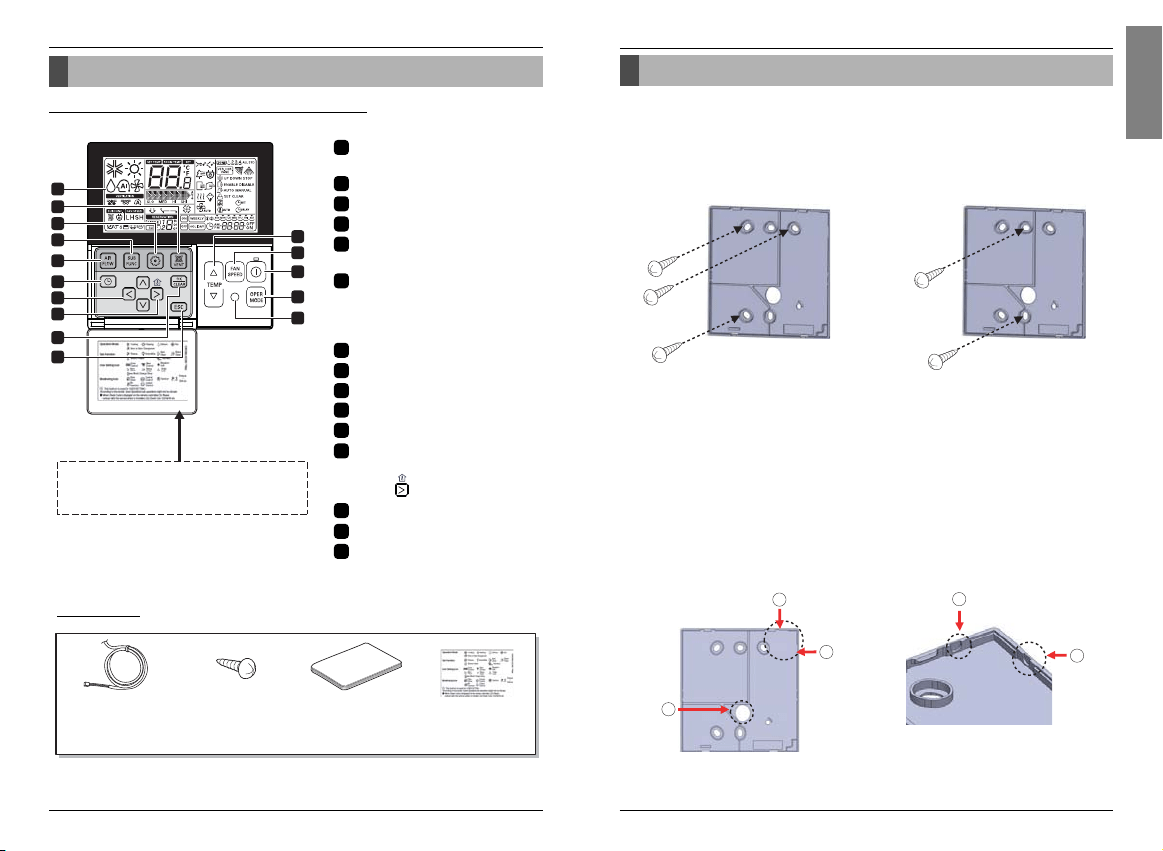
1. Please fix tightly using provided screw after placing remote controller setup board
on the place where you like to setup.
- Please set it up not to bend because poor setup could take place if setup board bends.
Please set up remote controller board fit to the reclamation box if there is a reclamation box.
- Install the product so as not to make a gap with the wall side and to prevent shaking after the installation.
2. Can set up Wired remote controller cable into three directions.
- Setup direction: the surface of wall reclamation, upper, right
- If setting up remote controller cable into upper and right side, please set up after removing remote controller
cable guide groove.
❈
Remove guide groove with long nose.
①
Reclamation to the surface of the wall
②
Upper part guide groove
③
Right part guide groove
Installation instruction
Part Description
Part Description
Name and Function of Remote Controller
OPERATION INDICATION
SCREEN
SET TEMPERATURE BUTTON
FAN SPEED BUTTON
ON/OFF BUTTON
OPRATION MODE SELECTION
BUTTON
WIRELESS REMOTE
CONTROLLER RECEIVER
• Some products don't receive the
wireless signals.
AIR FLOW BUTTON
SUBFUNCTION BUTTON
FUNCTION SETTING BUTTON
VENTILATION BUTTON
RESERVATION
UP,DOWN,LEFT,RIGHT BUTTON
• To check the indoor temperature,
press button.
ROOM TEMPERATURE BUTTON
SETTING/CANCEL BUTTON
EXIT BUTTON
1
4
5
7
11
10
9
8
2
3
6
13
12
Please attach the inform label inside of the door.
Please choose proper language depend on your
country.
14
15
1
2
3
4
5
6
7
8
9
10
11
12
13
14
15
Connection Cable
(1EA, 10m)
Screw
(4 EA)
Owner's / Installation
manual
Inform label
(8EA-8Languages)
Accessory
❊ Some functions may not be operated and displayed depending on the product type.
<Wire guide grooves>
Owner’s & Installation Manual 7
ENGLISH
Installation instruction
6 New Wide Wired Remote Controller
Installation instruction
GND
GND
12V
Signal wire
Signal wire
GND
12V
B Y R B Y R
MASTER SLAVE
Signal wire
GND
12V
Signal wire
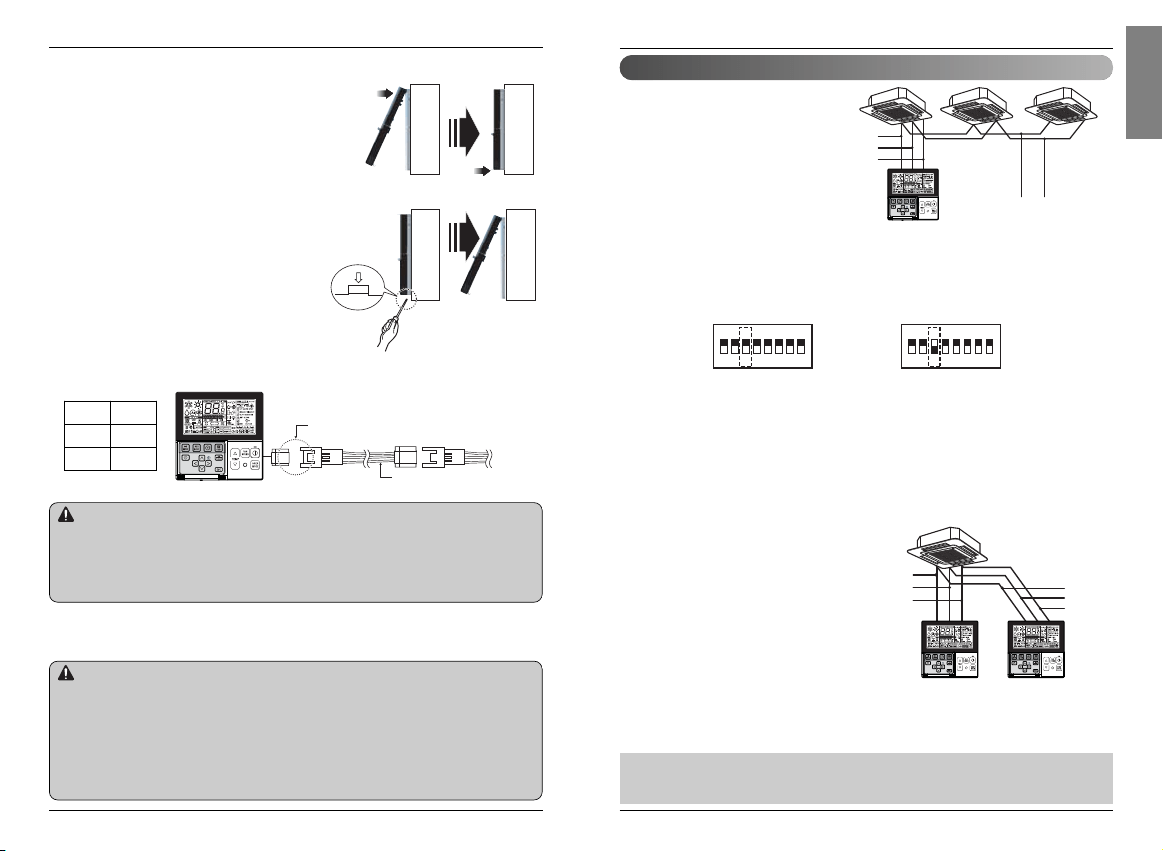
Group control
1. When installing more than 2
units of air conditioner to one
wired remote controller, please
connect as the right figure.
• If it is not event communication
indoor unit, set the unit as slave.
• Check for event communication
through the product manual.
2. When installing more than 2 wired
remote controllers to one air
conditioner, please connect as the
right picture.
• When installing more than 2 units of wired
remote controller to one air conditioner, set
one wired remote controller as master and
the others all as slaves, as shown in the
right picture.
• You cannot control the group as shown in
the right for some products.
•
Refer to the product manual for more detail.
When controlling multiple indoor units with event communication function with one remote
controller, you must change the master/slave setting from the indoor unit.
- Indoor units, the master/slave configuration of the product after completion of indoor unit power
‘OFF’ and then ‘ON’ the power after 1 minutes elapsed sign up.
- For ceiling type cassette and duct product group, change the switch setting of the indoor PCB.
- For wall-mount type and stand type product, change the master/slave setting with the wireless
remote controller. (Refer to wireless remote controller manual for detail)
❈ When installing 2 remote controllers to one indoor unit with event communication function, set
the master/slave of the remote controller. (Refer to remote controller master/slave selection)
When controlling the group, some functions excluding basic operation setting, fan level
Min/Mid/Max, remote controller lock setting and time setting may be limited.
<When simultaneously connecting
2 sets of wired remote controller>
• When controlling in groups, set the master/slaver of the remote controller. Refer to
Installer setting section on how to set master/slave for more detail.
1
ON
2345678 1
ON
2345678
#3 switch OFF: Master
(Factory default setting)
#3 switch ON: Slave
Wall
Side
Wall
Side
Wall
Side
Wall
Side
<Connecting order>
<Separating order>
3. Please fix remote controller upper part into
the setup board attached to the surface of the
wall, as the picture below, and then, connect
with setup board by pressing lower part.
- Please connect not to make a gap at the remote controller
and setup board’s upper and lower, right and left part.
- Before assembly with the installation board, arrange the
Cable not to interfere with circuit parts.
When separating remote controller from
setup board, as the picture below, after
inserting into the lower separating hole using
screw driver and then, spinning clockwise,
remote controller is separated.
- There are two separating holes. Please individually
separate one at a time.
- Please be careful not to damage the inside
components when separating.
4. Please connect indoor unit and remote controller using connection cable.
5. Please use extension cable if the distance between wired remote controller and
indoor unit is more than 10m.
Please check if connector is normally connected.
Connecting cable
Indoor
Unit side
When installing the wired remote controller, do not bury it in the wall.
(It can cause damage in the temperature sensor.)
Do not install the cable to be 50m or above.
(It can cause communication error.)
• When installing the extension cable, check the connecting direction of the connector of the remote controller
side and the product side for correct installation.
• If you install the extension cable in the opposite direction, the connector will not be connected.
• Specification of extension cable: 2547 1007 22# 2 core 3 shield 5 or above.
CAUTION
• Installation work must be performed in accordance with the national wiring standards by authorized
personnel only.
• Installations must comply with the applicable local/national or international standards.
• Apply totally enclosed noncombustible conduit (metal raceway) in case of local electric & building code
require plenum cable usage.
CAUTION
12V Red
Signal Yellow
GND Black
Owner’s & Installation Manual 9
ENGLISH
8 New Wide Wired Remote Controller
Installation instruction
<Installer Setting Code Table>
1) General air-conditioner product
❊ Some contents may not be displayed depending on the product function
Installation instruction
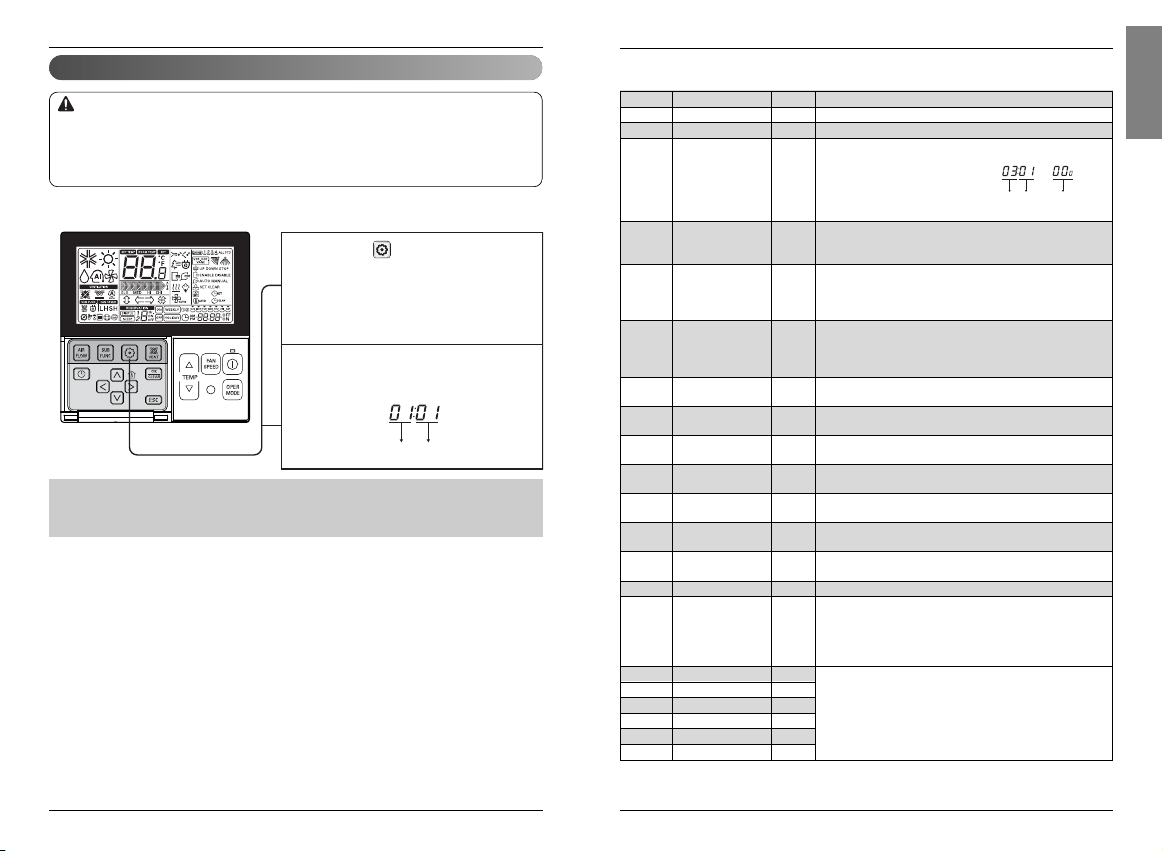
Installer setting mode is to set the detail function of the remote controller.
If the installer setting mode is not set correctly, it can cause problems to the product, user injury or
property damage. This must be set by an certificated installer, and any installation or change that is
carried out by a non-certificated person should be responsible for the results. In this case, free service
cannot be provided.
CAUTION
Installer Setting -How to enter installer setting mode
Function Code Value
If pressing button long for 3 seconds,
it enters into remote controller setter
setup mode.
- If pressing once shortly, it enters into
user setup mode. Please press more
than 3 seconds for sure.
1
When you enter the setting mode
initially, Function code is displayed on
the bottom of the LCD screen.
2
No. Function Code Value
1 Test Run 01 01:Set
2 Address Setting 02 00~FF : Address
<ESP Step> <ESP Value> <Example>
01:VeryLow 0 ~ 255
02:Low
3 E.S.P. Value 03
03:Med
04:High
05:Very High
01:Remo
4 Thermistor 04 02:Indoor
03:2TH
01:Low
02:Med
5 Ceiling Height 05
03:High
04:Very High
01:V-H
02:F-H
6 Static Pressure 06
03:V-L
04:F-L
7 Master Setting 07
00:Slave
※ If only “Plus1” series models 00 : Group setting
01:Master
01 : Single setting
8 Override Setting 08
00:Slave
01:Master
9 Dry Contact 09
00:Auto-Off
01:Auto-On
10
Release 3 Min.
10 01:Set
Delay
11 Zone State 11
01:Variable
02:Fixed
12
Celsius
12
00:Celsius
(Optimized only for U.S.A)
Fahrenheit Switching 01:Fahrenheit
13 Zone Type 13
00:Zone Controller
01:Damper Controller
14 Zone Number 14 02~04(Zone number)
Emergency Heater
15
Setting
18
16 Plasma 20
17 Electric heater 21
18 Humidifier 22
00: Not Installed
19 Elevation Grill 23
01: Installed
20 Ventilation Kit 24
21 Auxiliary Heater 25
Function Code ESP valueESP step
•
Some categories of the menu may not be displayed according to the function of the
product, or the menu name may be different.
Select mode Setup Low Ambient Heating Operation Setup FAN Speed
00 : not use 0 : not use 0 : fan off
01 : use 1 : use – compressor off(0℉/-18℃)/on(5℉/-15℃) 1 : fan on
2 : use – compressor off(5℉/-15℃)/on(10℉/-12℃)
3 : use – compressor off(10℉/-12℃)/on(15℉/-9℃)

Owner’s & Installation Manual 11
ENGLISH
Installation instructionInstallation instruction
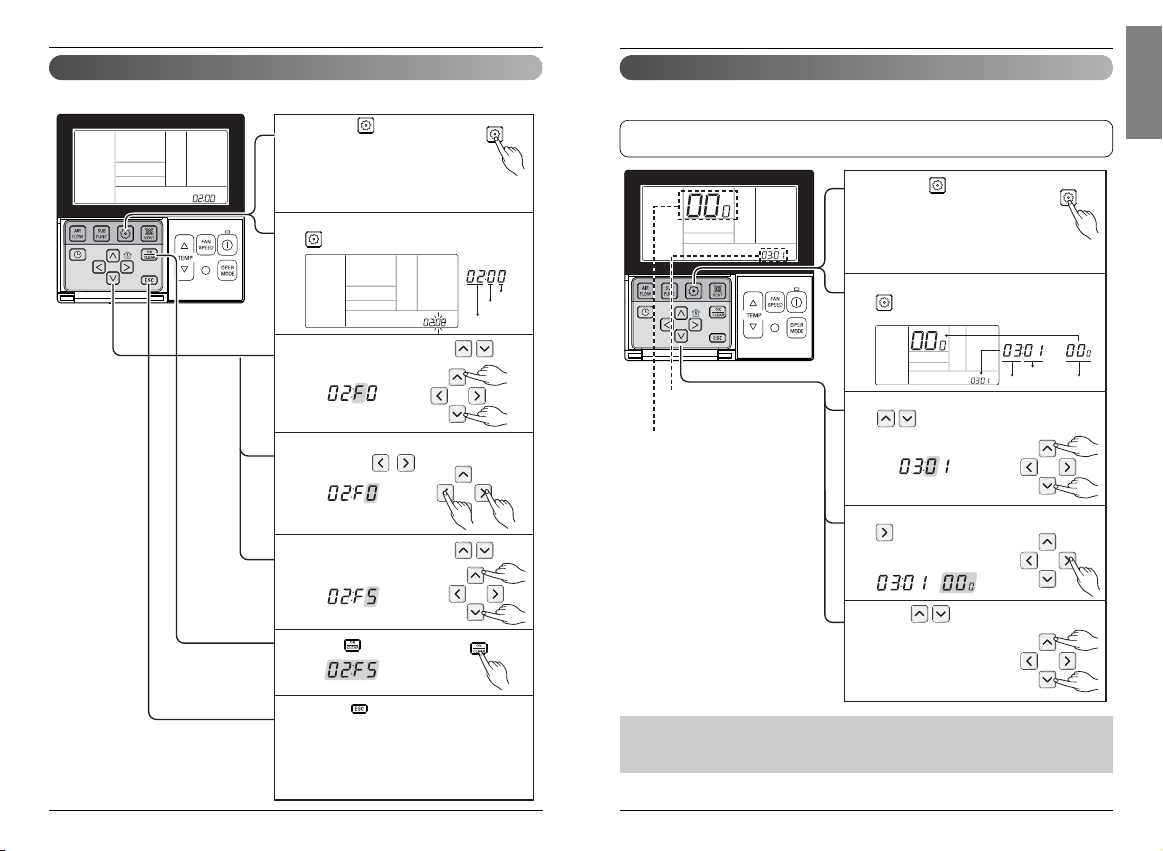
Function Code Set
Press button to start.
3
During the test run, pressing the below
button will exit the test run.
- Select operation, temperature
up/down, wind flow control, wind
direction, start/stop button.
4
If pressing button long for 3 seconds,
it enters into remote controller setter
setup mode.
- If pressing once shortly, it enters into
user setup mode. Please press more
than 3 seconds for sure.
- Please cancel the right and left of wind
direction for RAC product.
1
Setup figure '01' blinks at the lower part
of indication window.
2
Installer Setting -Test Run Mode
After installing the product, you must run a Test Run mode.
For details related to this operation, refer to the product manual.
10 New Wide Wired Remote Controller
2) General Ventilation product
❊ Some contents may not be displayed depending on the product function
No. Function Code Value
1 Test Run 01 01 : Test Run Setup
2 02 00~FF : Address of Central Control
3 SA(Supply Air) ESP 03 <ESP level> <ESP value> <Example>
4 EA(Exhaust Air) ESP 04
01 : Low 0~255
02 : High
03 : Super High
5 Product Direction 05
01 : Normal
02 : Opposite
6 Quick Refresh Priority 06
01 : Supply Air First
02 : Exhaust Air First
7 Master Setting 07
00 : Slave
01 : Master
8 Override Setting 08
00 : Slave
01 : Master
9 Dry Contact 09
00 : Auto-Off
01 : Auto-On
10 Release Of 3 Minute Delay 10 01 : Set
11 Zone State 11
01 : Variable
02 : Fixed
12
Humidification for Singular
13
00 : Not in Use
Ventilation 01 : Use
13
Humidification for Heat Mode
14
00 : Automatic
Ventilation 01 : Manual
Address Setting
Function Code ESP valueESP step
Owner’s & Installation Manual 13
ENGLISH
12 New Wide Wired Remote Controller
Installation instruction
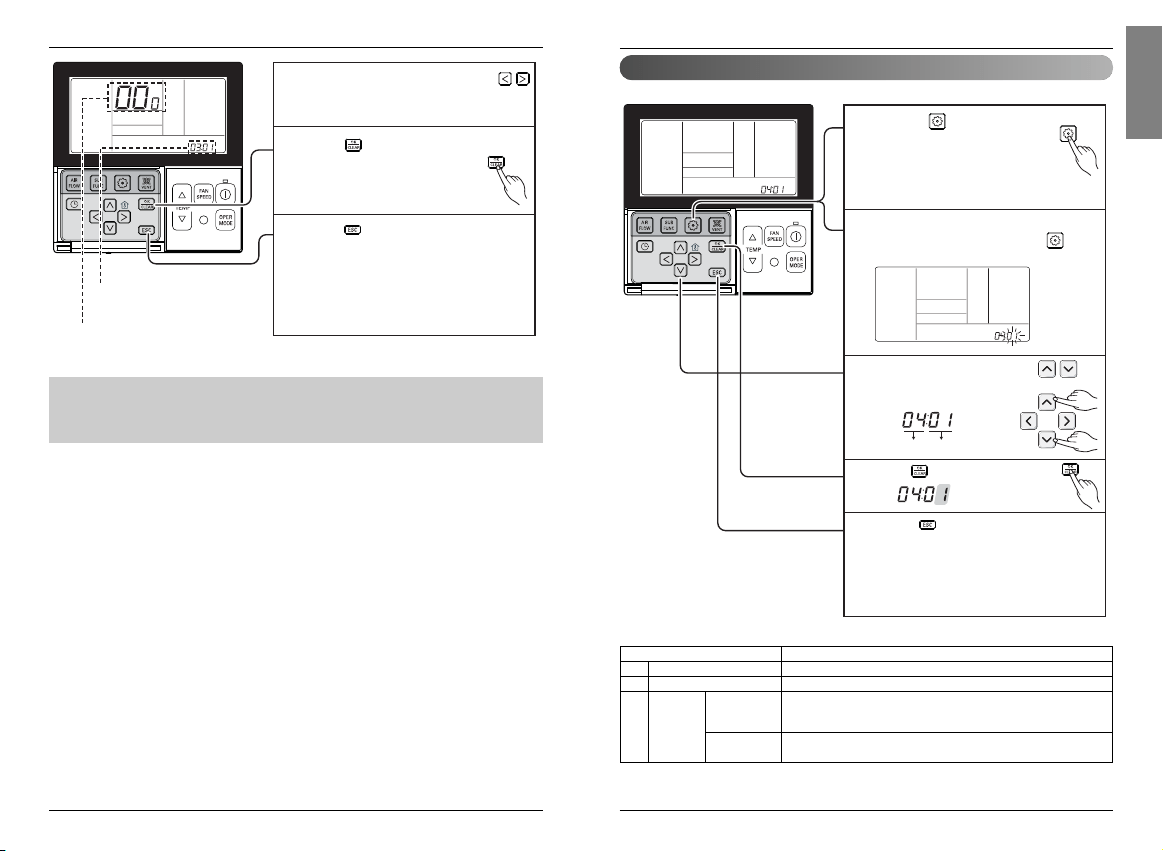
If entering into ESP setup mode by using
button, it indicates as the picture
below.
2
Select ESP fan step by pressing
button. (01: very low, 02: low,
03: medium, 04: high, 05: very high)
3
Move to ESP value setting by pressing
button.
(It is 000 when delivering
from the warehouse.)
4
Press button to setup ESP value.
(It is possible to setup ESP
value from 1 to 255, and 1 is
the smallest and 255 is the
biggest.)
5
Function code,
ESP code
ESP value
If pressing button long for 3
seconds, it enters into remote
controller setter setup mode.
- If pressing once shortly, it enters
into user setup mode. Please press
more than 3 seconds for sure.
1
Function Code ESP value
ESP step
Installer Setting -E.S.P.
• If you set ESP incorrectly, the air conditioner may malfunction.
• This setting must be carried out by a certificated-technician.
This is the function that decides the strength of the wind for each wind level and because this
function is to make the installation easier.
It's the function to use for connecting central control.
Please refer to central controller manual for the details
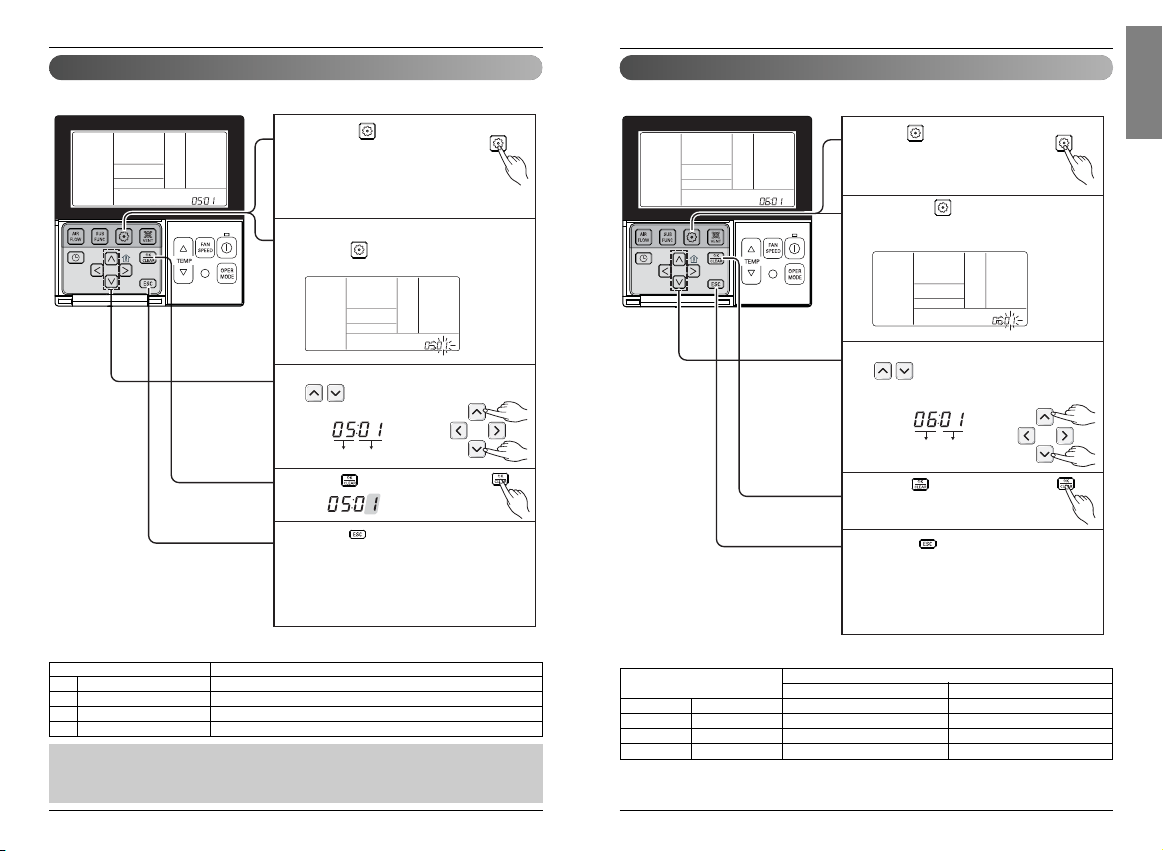
Function Code
Group No
Indoor No.
Set Group No. by pressing
button.(0~F)
3
Move to Indoor No. setting option
by pressing button.
4
Set Indoor No. by pressing
button.
5
Press button to save.
6
Pressing button will exit settings mode.
❈ After setup, it automatically gets out of
setup mode if there is no button input for
25 seconds.
❈ When exiting without pressing set button,
the manipulated value is not reflected.
7
If entering into address setup mode by using
button, it indicates as picture below.
2
If pressing button long for 3
seconds, it enters into remote
controller setter setup mode.
- If pressing once shortly, it enters
into user setup mode. Please press
more than 3 seconds for sure.
1
Installation instruction
Installer Setting - Setting Address of Central Control
•
When setting ESP value on the product without very weak wind or power wind function, it
may not work.
Owner’s & Installation Manual 15
ENGLISH
14 New Wide Wired Remote Controller
Installation instruction
Function Code Thermistor setting
Set Thermistor value by pressing
button. (01: Remote Controller,
02: Indoor, 03: 2TH)
3
Press button to save.
4
5
If moving to room temperature perception
sensor selection menu by pressing
button, it indicates as picture below.
2
If pressing button long for 3
seconds, it enters into remote
controller setter setup mode.
- If pressing once shortly, it enters
into user setup mode. Please press
more than 3 seconds for sure.
1
Pressing button will exit settings mode.
❈ After setup, it automatically gets out of
setup mode if there is no button input for
25 seconds.
❈ When exiting without pressing set button,
the manipulated value is not reflected.
Installer Setting -Thermistor
❊ The function of 2TH has different operation characteristics according to the product.
Temperature sensor selection Function
01 Remote controller Operation in remote controller temperature sensor
02 Indoor unit Operation in indoor unit temperature sensor
03 2TH
Cooling
Operation of higher temperature by comparing indoor unit's and wired
remote controller’s temperature.
(There are products that operate at a lower temperature.)
Heating
Operation of lower temperature by comparing indoor unit's and wired remote
controller's temperature.
<Thermistor Table>
Installation instruction
Function code,
ESP code
ESP value
Press button to save.
7
Select ESP fan step again by using
button and setup ESP value, as No. 4
and 5, that corresponds each wind flow
6
Press button to exit.
❈ After setup, it automatically gets out of
setup mode if there is no button input
for 25 seconds.
❈ When exiting without pressing set
button, the manipulated value is not
reflected.
8
• Please be careful not to change the ESP value for each fan step.
• It does not work to setup ESP value for very low/power step for some products.
• ESP value is available for specific range belongs to the product.
This is the function to select the temperature sensor to judge the room temperature.
Owner’s & Installation Manual 17
ENGLISH
16 New Wide Wired Remote Controller
Installation instruction
Function Code Pressure
Press button for 4 seconds
to enter the installer setting
mode until timer segment
displays “01:01”.
1
Select static pressure by pressing
button.
(01:V-H, 02:F-H, 03:V-L, 04:F-L)
3
Press button to save.
4
5
Pressing button will exit settings mode.
❈ After setup, it automatically gets out of
setup mode if there is no button input for
25 seconds.
❈ When exiting without pressing set button,
the manipulated value is not reflected.
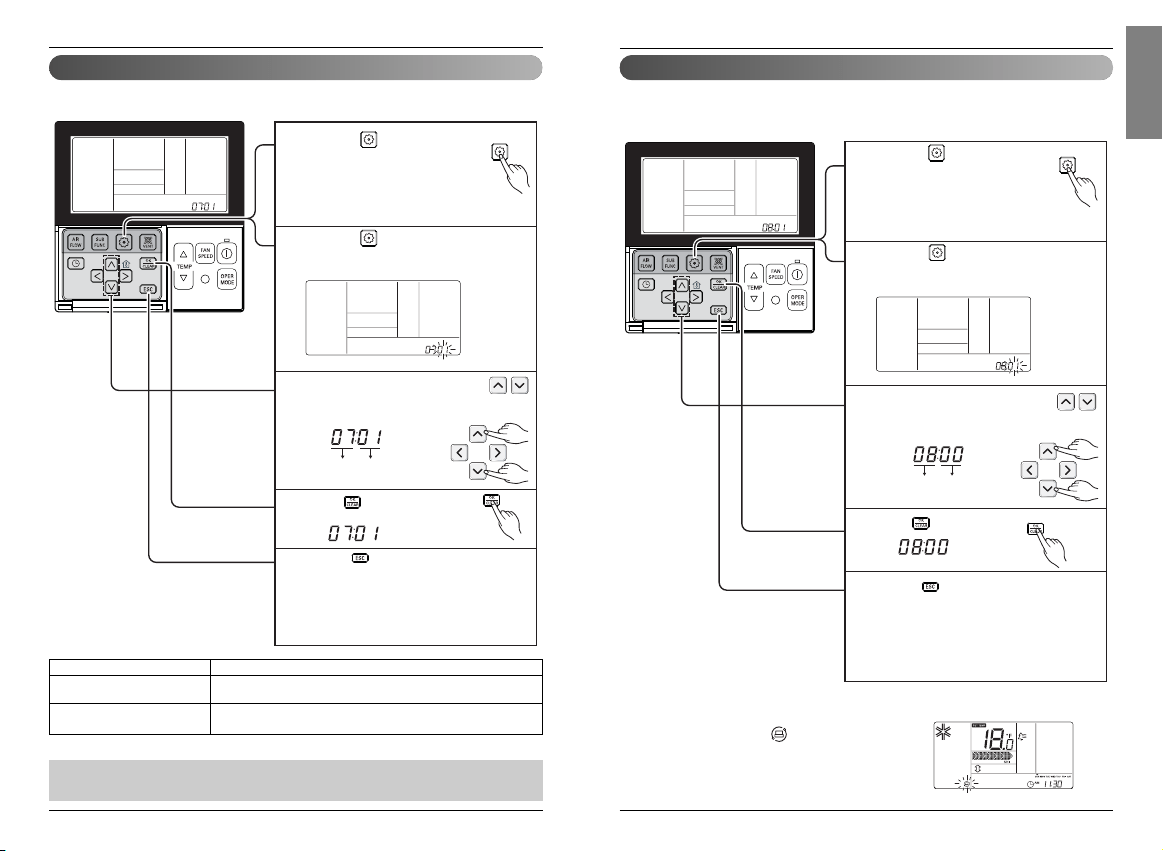
If pressing button repeatedly, it
moves to static pressure selection menu
as picture below.
2
Installer Setting -Static Pressure Setting
This function is applied to only duct type. Setting this in other cases will cause malfunction.
Pressure selection
Function
Zone state ESP standard value
01 V-H Variable High
02 F-H Fixed High
03 V-L Variable Low
04 F-L Fixed Low
<Static Pressure Setting Table>
Function Code Thermistor setting
Select ceiling height value by pressing
button. (01:Low, 02:Medium,
03:High, 04:Very high)
3
Press button to save.
4
5
If moving to ceiling height selection menu by
pressing button, it indicates as picture
below.
2
If pressing button long for 3
seconds, it enters into remote
controller setter setup mode.
- If pressing once shortly, it enters
into user setup mode. Please press
more than 3 seconds for sure.
1
Pressing button will exit settings mode.
❈ After setup, it automatically gets out of
setup mode if there is no button input for
25 seconds.
❈ When exiting without pressing set button,
the manipulated value is not reflected.
Installation instruction
Installer Setting -Ceiling Height Selection
This function is to adjust FAN Airflow rate according to ceiling height (For ceiling type product)
• Ceiling height setting is available only for some products.
• Ceiling height of ‘Very high’ function may not exist depending on the indoor unit.
• Refer to the product manual for more details.
Ceiling Height Level Description
01 Low Decrease the indoor airflow rate 1 step from standard level
02 Medium Set the indoor airflow rate as standard level
03 High Increase indoor airflow rate 1 step from standard level
04 Very high Increase indoor airflow rate 2 steps from standard level
<Ceiling Height Selection Table>
Owner’s & Installation Manual 19
ENGLISH
18 New Wide Wired Remote Controller
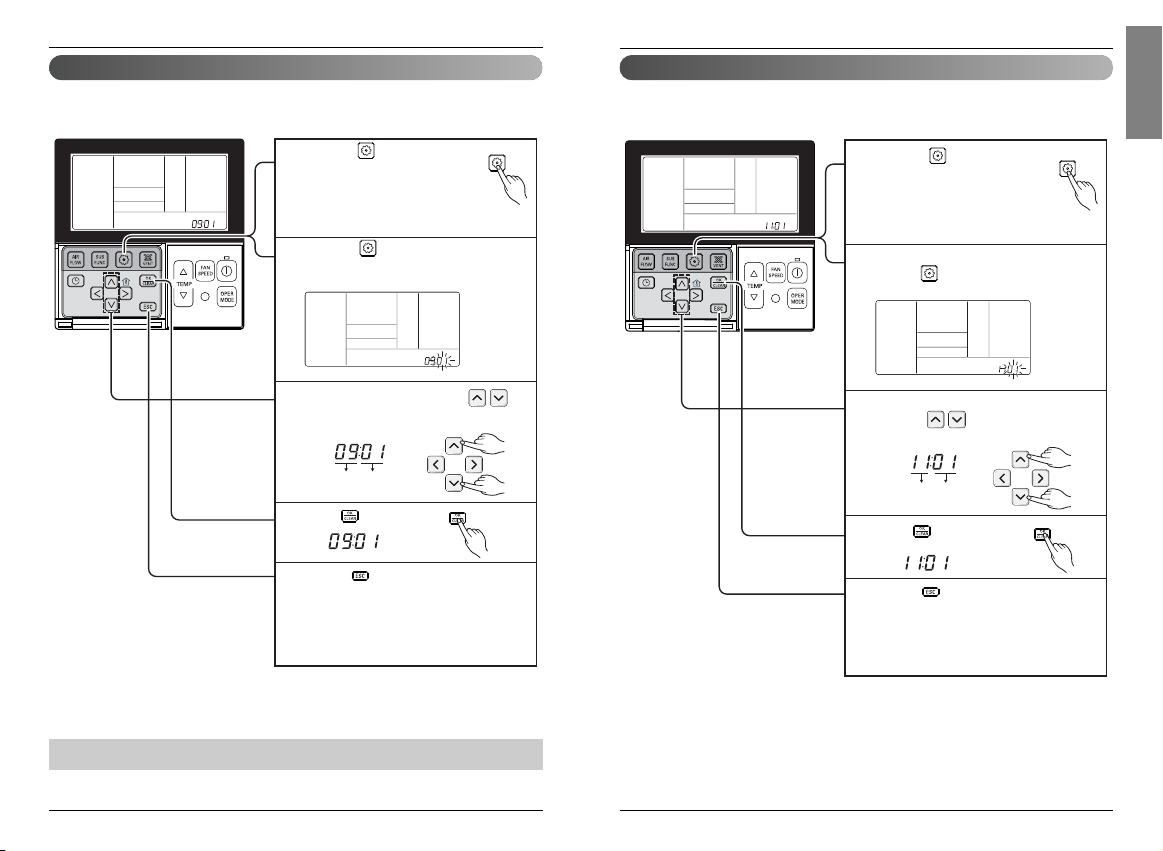
Function Code Master/Slave
Select Master/ Slave by pressing
button.
(00: Slave, 01 : Master)
3
If pressing button long for 3
seconds, it enters into remote
controller setter setup mode.
- If pressing once shortly, it enters
into user setup mode. Please press
more than 3 seconds for sure.
1
If pressing button repeatedly, it moves to
override master/slave selection menu as
picture below.
2
Press button to save.
4
Pressing button will exit settings mode.
❈ After setup, it automatically gets out of
setup mode if there is no button input for
25 seconds.
❈ When exiting without pressing set button,
the manipulated value is not reflected.
5
Installation instruction
Installer Setting - Override Master/Slave Setting
Override master/slave selection function is, since Multi-V 7 series model, the function to prevent
product's different mode operation. If it setup as the slave, It blocks to change opposite run mode to
outdoor unit cycle (cooling/heating)
Installation instruction
Installer Setting-Remote Controller Master/Slave Setup
Function Code Master/Slave value
Select Master/ Slave by pressing
button.
(00: Slave, 01: Master)
3
Press button to save.
4
If pressing button long for 3
seconds, it enters into remote
controller setter setup mode.
- If pressing once shortly, it enters
into user setup mode. Please press
more than 3 seconds for sure.
1
If pressing button repeatedly, it moves to
master/slave selection menu as picture
below.
2
Pressing button will exit settings mode.
❈ After setup, it automatically gets out of
setup mode if there is no button input for
25 seconds.
❈ When exiting without pressing set button,
the manipulated value is not reflected.
5
It is a function for settings in group control, or 2-remote controller control.
Remote controller Function
Master
Indoor unit operates based on master remote controller at group control.
(Master is set when delivering from the warehouse.)
Slave
Setup all remote controllers except one master remote controller to slave at
group control
• When controlling in groups, basic operation settings, airflow strength weak/medium/strong,
lock setting of the remote controller, time settings, and other functions may be restricted.
❈ Refer to the 'group control' part for details
❈ Override master/slave selection function is possible to use only when it is connected to the
succeeding models of Multi-V 7 series.
• If it is set as Override Slave, icon
is displayed on LCD Display Window. (See Figure 1)
Figure 1.
Owner’s & Installation Manual 21
ENGLISH
20 New Wide Wired Remote Controller
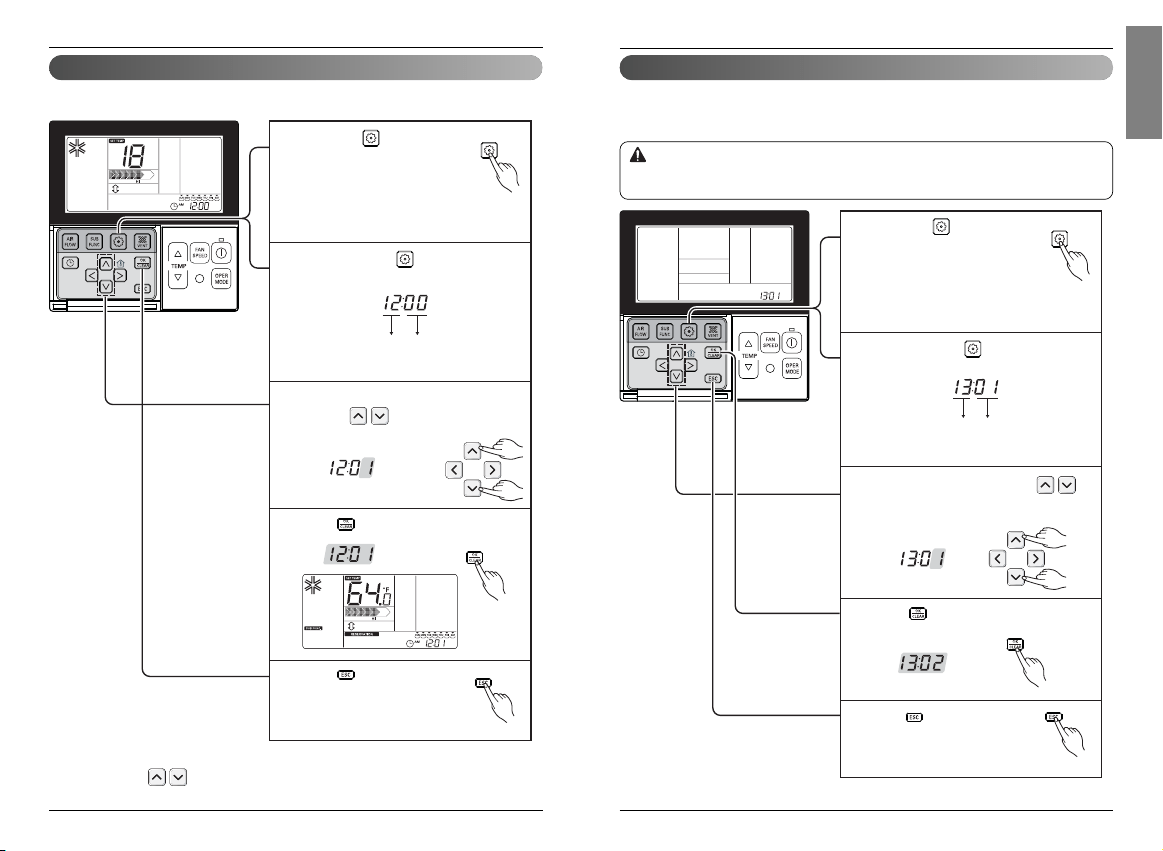
Function Code Zone State
fixing mode
Select Zone State rate fixing mode by
pressing button.
(01: Variable, 02: Fixed)
3
Press button to save.
4
If pressing button long for 3
seconds, it enters into remote
controller setter setup mode.
- If pressing once shortly, it enters
into user setup mode. Please press
more than 3 seconds for sure.
1
If moving to ceiling height selection menu by
pressing button, it indicates as picture
below.
2
Pressing button will exit settings mode.
❈ After setup, it automatically gets out of
setup mode if there is no button input for
25 seconds.
❈ When exiting without pressing set button,
the manipulated value is not reflected.
5
Installation instruction
Installer Setting - Zone State
It is the function to setup indoor unit's wind flow to variable or fixed.
- Variable : Comp ON, setup airflow. Comp OFF, weak wind
- Fixed : Comp ON, setup airflow. Comp OFF, setup airflow
Installation instruction
Installer Setting-Dry Contact Mode Setting
Function Code Dry Contact
setting value
Select Dry contact setting by
pressing button.
(00 : Manual, 01 : Automatic)
3
Press button to save.
4
If pressing button long for 3
seconds, it enters into remote
controller setter setup mode.
- If pressing once shortly, it enters
into user setup mode. Please press
more than 3 seconds for sure.
1
If pressing button repeatedly, it moves to
remote controller dry contact mode setup
menu as picture below.
2
Pressing button will exit settings mode.
❈ After setup, it automatically gets out of
setup mode if there is no button input for
25 seconds.
❈ When exiting without pressing set button,
the manipulated value is not reflected.
5
Dry contact function is the function that is possible to use only when dry contact equipment is
separately purchased/setup.
• Please refer to dry contact manual for more details.
▶
What is Dry Contact?
Like hotel card key and body perception sensor, it is the signal of the point of contact when using
air-conditioner by interlocking.
Owner’s & Installation Manual 23
ENGLISH
Installation instruction Installation instruction
22 New Wide Wired Remote Controller
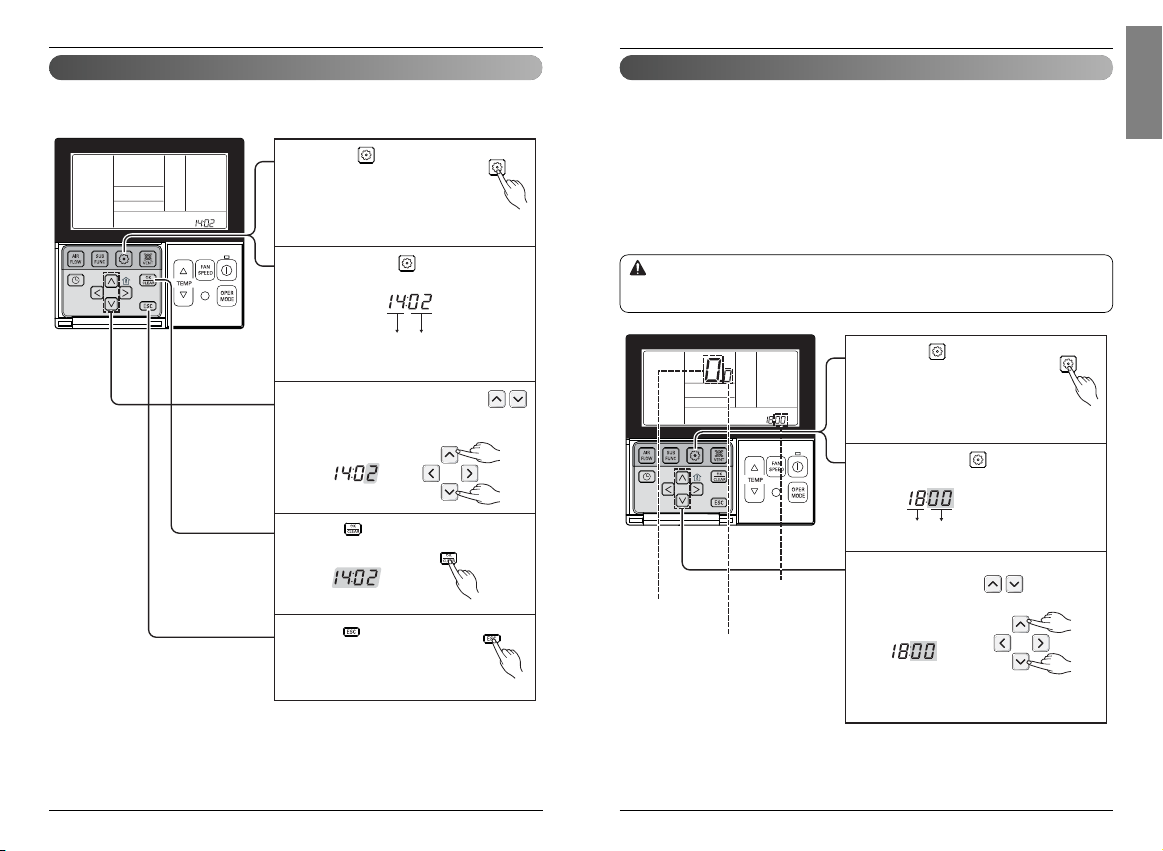
Installer Setting-Celsius / Fahrenheit Switching
Function Code conversion mode value
If pressing button long for 3
seconds, it enters into remote
controller setter setup mode.
- If pressing once shortly, it
enters into user setup mode.
Please press more than 3 seconds for
sure.
1
Press button to exit or
system will automatically exit
after 25 seconds without any
input.
5
Repeat pressing button to select
Function code 12.
Ex) Fahrengeit Setting
2
Select Temperature unit mode by
pressing button.
(00: Celsius, 01: Fahrenheit)
3
Press button to save or release.
4
If pressing button long for 3
seconds, it enters into remote
controller setter setup mode.
- If pressing once shortly, it
enters into user setup mode.
Please press more than 3 seconds for
sure.
1
Function Code Zone type value
Press button to exit or
system will automatically exit
after 25 seconds without any
input.
5
Repeat pressing button to select
Function code 13.
Ex) Setting the Zone Type as "New"
2
Select Zone Type by pressing
button
(00:Old, 01:New)
3
Press button to save or release.
4
This function is used for switching the display between Celsius and Fahrenheit.
(Optimized only for U.S.A)
❈ Whenever press button in Fahrenheit mode, the temperature will increase/drop 2
degrees.
Installer Setting-Zone Type Setting
This function is only available on some products.
It is possible to setup zone new type or old one of the product which is available to install the damper
controller.
If you set zone number incorrectly, the product may malfunction especially in zone control.
This function must carried out by a certificated-technician.
CAUTION
Owner’s & Installation Manual 25
ENGLISH
24 New Wide Wired Remote Controller
Installation instruction Installation instruction
If pressing button long for 3
seconds, it enters into remote
controller setter setup mode.
- If pressing once shortly, it enters
into user setup mode. Please press
more than 3 seconds for sure.
1
Function Code Zone Number installed
Press button to exit or
system will automatically exit
after 25 seconds without any
input.
5
Repeat pressing button to select
Function code 14.
Ex) Setting the Zone Number for "2"
2
Select Zone Number by pressing
button
(02~04 : number of zone installed)
3
Press button to save or release.
4
Installer Setting-Zone Number Setting
Installer Setting- Emergency Heater Setting
This function is only available on some products.
Zone Number is to set the number of installed zones. It's possible to control only in zone new type
This function is only available on some products
This function will set the Emergency Heater Setting.
Emergency Heater is used to heat the space in emergency case such as heat pump error.
Emergency heat is in place of and does not supplement heat pump.
※ Emergency Heater setting Function sets following conditions:
1) Emergency Heater operation while in error or outdoor unit operates cooling cycle.
2) Emergency Heater operation in Low Ambient temperature
3) Fan speed setting during Emergency Heater operation
This function setting must be carried out by a certified-technician.
Incorrect function setting can cause fire.
CAUTION
If pressing button long for 3
seconds, it enters into remote
controller setup mode.
- If pressing once shortly, it enters
into user setup mode. Please press
more than 3 seconds for sure.
1
Function Code
Setting1: Heater Operation while in error or
outdoor unit operates cooling cycle.
Repeat pressing button to select
Function code 18.
2
Select mode of Heater Operation while
in error by pressing button
00: not use
01: use
ƓIf 00 is set at this stage, setting 2 & setting
3 will not be available
3
Setting2 : Low Ambient
Heating Operation
Setting3 : FAN Speed
Setting during Emergency
Heater Operation
Setting1 : Heater
Operation while in error
or outdoor unit operates
cooling cycle.

26 New Wide Wired Remote Controller Owner’s & Installation Manual 27
ENGLISH
Installation instructionInstallation instruction
Installer Setting - Option Function Setting
Function Code Existing condition
Select existing condition
of each mode by pressing
button.
(00: not installed,
01 : installed)
3
Press button to save.
4
If pressing button long for 3
seconds, it enters into remote
controller setter setup mode.
- If pressing once shortly, it enters
into user setup mode. Please press
more than 3 seconds for sure.
1
If pressing button repeatedly, it moves to
the selected option function code as picture
below.
2
Pressing button will exit settings mode.
❈ After setup, it automatically gets out of
setup mode if there is no button input for
25 seconds.
❈ When exiting without pressing set button,
the manipulated value is not reflected.
5
Function
Plasma purification
Electric heater
Humidifier
Elevation grill
Ventilation kit
Auxiliary heater
Code
20
21
22
23
24
25
Setting feature for indoor unit when air cleaning / heater / humidifier / Up/down grill / Ventilation KIT
/Auxiliary Heater is newly installed, or installed unit is removed.
Move to Low Ambient Heating Operation
setting by pressing button.
4
Press button to setup Low
Ambient Heating Operation.
5
Press button to save.
8
Press button to exit or
system will automatically exit
after 25 seconds without any
input.
9
Move FAN Speed Setting during
Emergency Heater Operation by pressing
button.
6
Press button to setup FAN
Speed during Emergency Heater
Operation.
7
0 : not use
1 : use - compressor off(0℉/ -18℃) / compressor on(5℉ / -15℃)
2 : use - compressor off(5℉ / -15℃) / compressor on(10℉ / -12℃)
3 : use - compressor off(10℉/ -12℃) / compressor on(15℉ / -9℃)
0 : fan off
1 : fan on
ƓEmergency heater operation in Low Ambient temperature
- compressor off : Emergency heater enabled
- compressor on : Emergency heater disabled
Owner’s & Installation Manual 29
ENGLISH
28 New Wide Wired Remote Controller
Owner's instruction
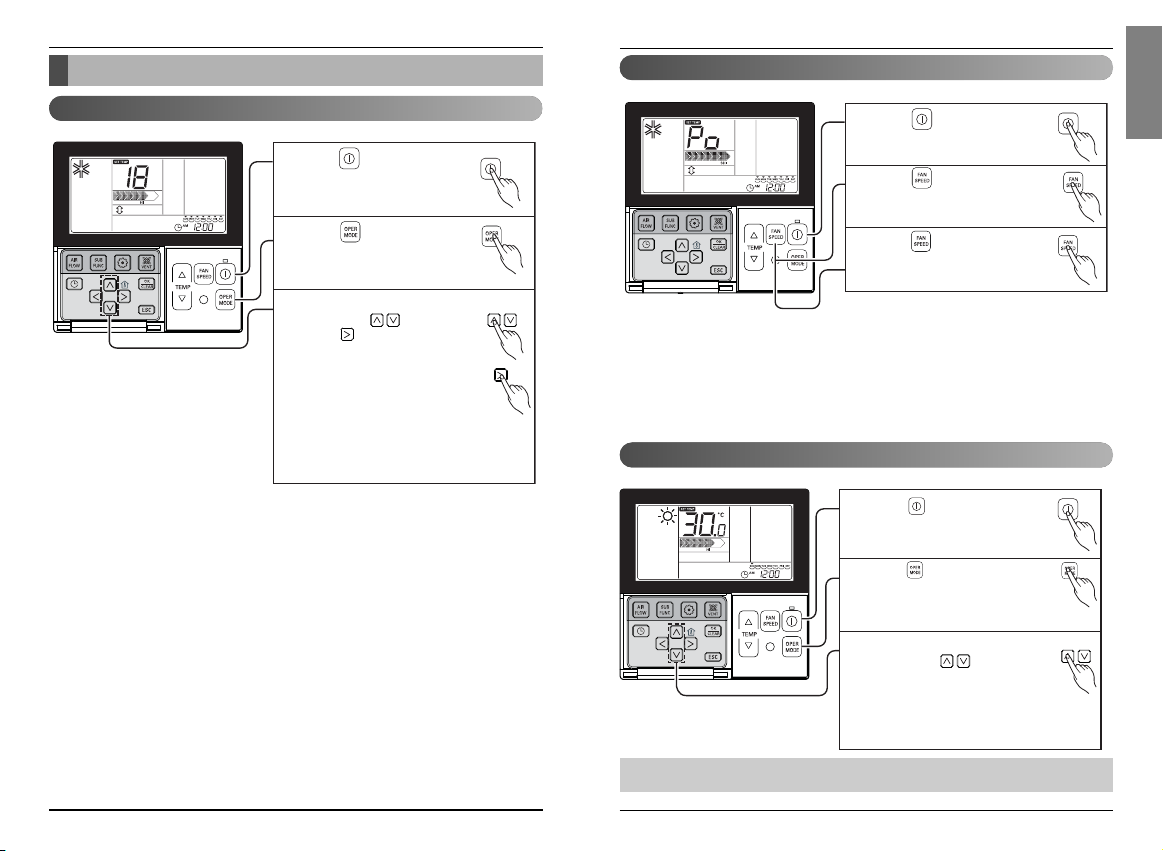
Press button to trun on the
indoor.
1
Press button to select
cooling operation mode.
2
Press button continuously
until 'Po' displayed.
3
It makes the room cool using pleasant and fresh air quickly
It supplies warm wind to the indoor
Standard Operation - Heating Mode
Press button to turn on the
indoor.
1
Press button to select
Heating mode.
(To check the indoor temperature,
press the room temperature button.)
2
Adjust the desired temperature
by pressing buttons.
When setting the desired
temperature lower than room
temperature, there is only
ventilation wind.
3
What is Power Cooling?
• Desired temperature: Po (actually 18°C)
• Wind flow: power wind
• Wind direction: fix to air-cooling position
❈
Partial product has no power air-cooling function.
• Heating drive only operates at the cooling and heating model.
• Heating doesn't operate at cooling exclusive model.
It make room temperature
drop fast by running
}
Standard Operation - Standard Cooling
Press button to turn on the
indoor.
1
Press button to select
Cooling operation mode.
2
Adjust the desired temperature
by pressing buttons.
Press button to check the
Room temperature.
When setting the desired
temperature higher than room
temperature, only ventilation
wind is blow out instead of
cooling wind.
3
Owner's instruction
❈ Setting Temp Range : 18˚C~30˚C (64˚F~86˚F)
It cools the room by comfortable and clean wind.
Owner's instruction
Standard Operation - Power Cooling
Owner’s & Installation Manual 31
ENGLISH
30 New Wide Wired Remote Controller
Owner's instruction
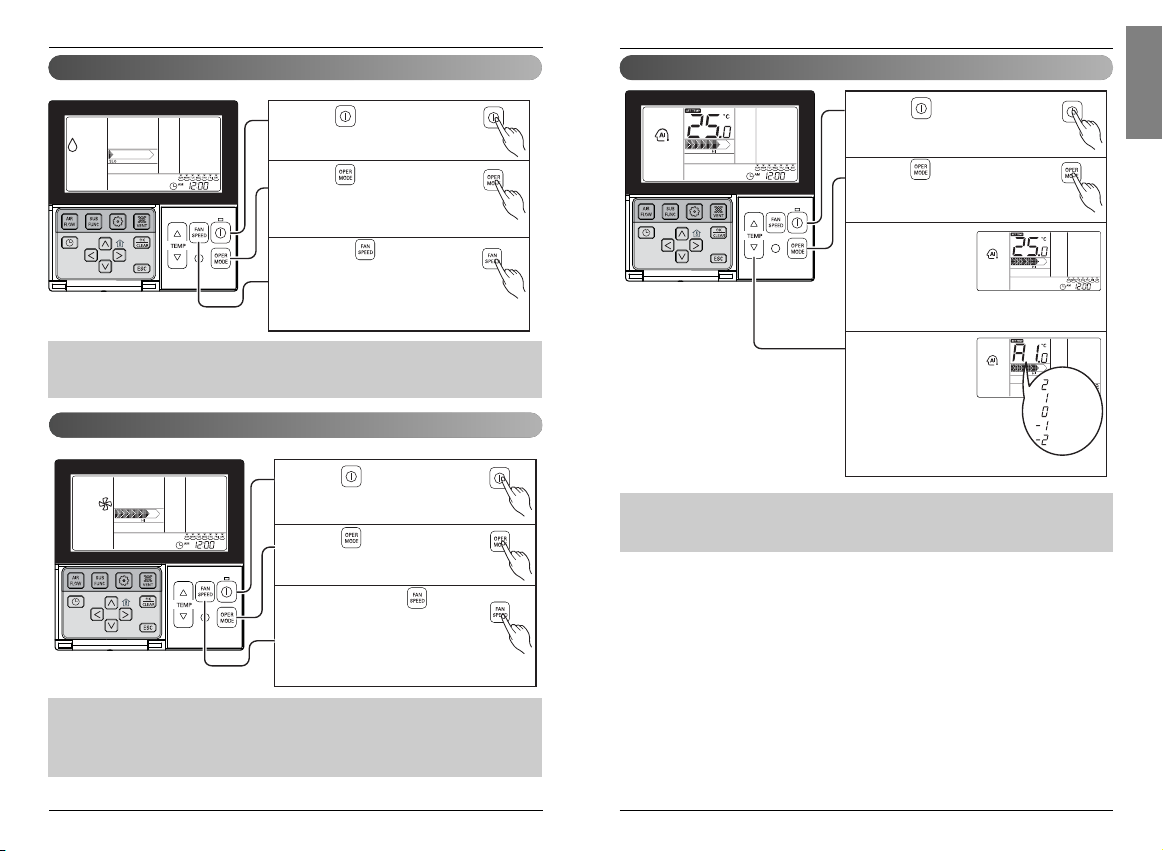
Press button to turn on the
indoor.
1
Press button to select
Artificial intelligence Mode.
2
You can adjust
the temperature
as the picture on
the right for
cooling and
heating model.
3
For the case of
cooling exclusive,
as the picture on
the right, you can
adjust the
temperature from
hot to cold, from
"-2" to "2" based
on "00".
4
When cold
When cool
When appropriate
When warm
When hot
Standard Operation - Auto Operation Mode
During operating Auto Operation mode:
• We can use the FAN SPEED button
• We can change manually to other operation mode.
Owner's instruction
Press button to turn on the
indoor.
1
Press button to select
Dehumidification mode.
The temperature setting can not be
adjusted during operation this mode.
2
Press the button to select
airflow rate feeble → weak →
medium → strong → automatic.
(The initial wind powerfulness of
humidity removal drive is 'weak'.)
3
Press button to turn on the
indoor.
1
Press button to select Fan
Mode.
2
Every time pressing button, you
can select wind flow in order of Very
Low → Low → Medium → High →
Very High.
When running ventilation,
compressor of AHU doesn't work.
3
Standard Operation - Fan Mode
It removes humidity while air-cooling weakly.
It blows the air as it is in the indoor, not the cold wind.
• In rainy season or high humidity climate, it is possible to operate simultaneously dehumidifier and
cooling mode to remove humidity effectively.
• The menu item of wind powerfulness might not be partially selected according to the product.
• Ventilation drive does not release cool wind but general fan
• Because it releases the wind that has no temperature difference from the room, it functions to
circulate the inside air.
• The menu item of wind powerfulness might not be partially selected according to the product.
Standard Operation - Dehumidification Mode
Owner’s & Installation Manual 33
ENGLISH
32 New Wide Wired Remote Controller
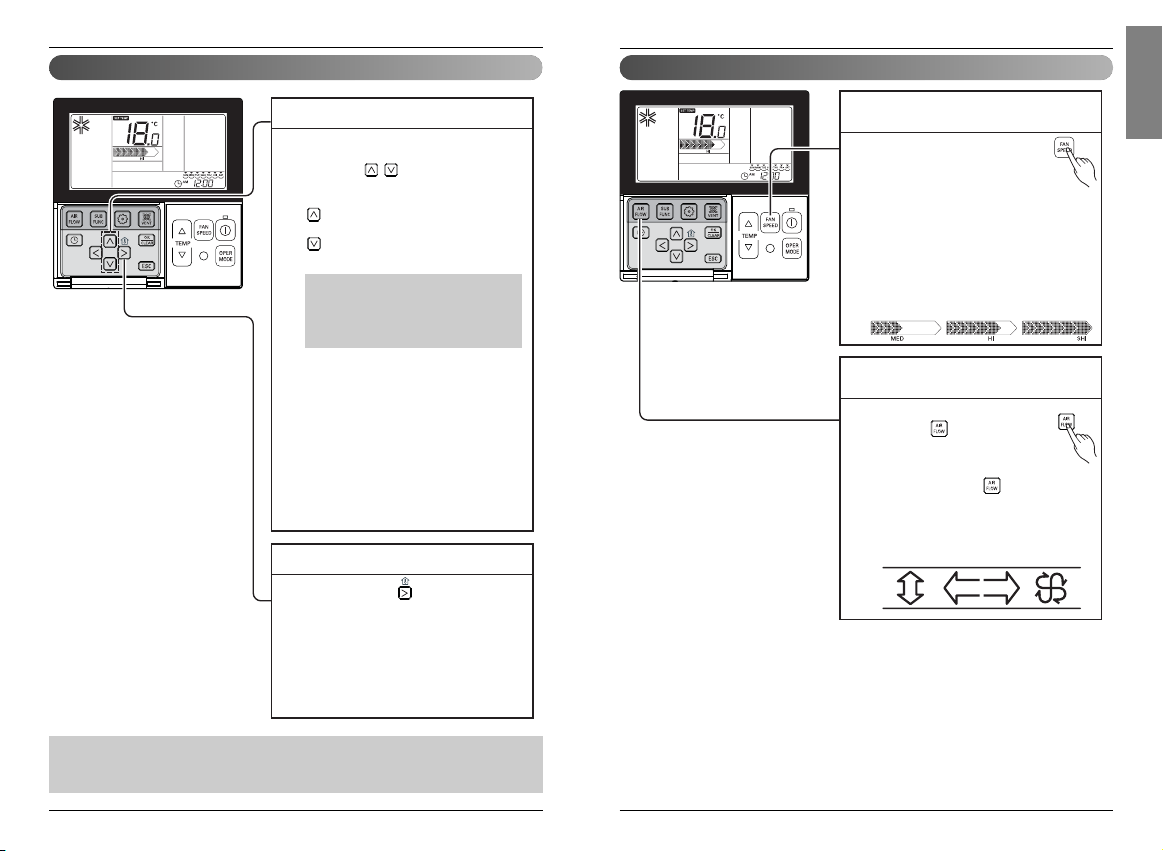
Standard Operation - Airflow Setting
Please setup desired wind
powerfulness by wind powerfulness
button.
• Every time you press wind
powerfulness, you can select the wind flow in
order of ‘feeble → weak → weak medium →
medium → medium strong → strong → power
→ automatic’.
• The menu item might not be partially
selected according to product function.
• Please refer to product manual for product’s
detailed function.
1
Please set desired wind direction
by pressing button.
You can select wind direction of
(comfortable wind → Up/Down and
Right/Left → Right/Left →
Up/Down) by pressing button.
Partial item of wind directions might not be
selected according to product function.
Please refer to product manual for product’s
detailed function.
1
Wind powerfulness : You can simply adjust
desired wind powerfulness.
Wind direction : You can simply adjust desired
wind direction.
Owner's instructionOwner's instruction
Standard Operation - Temperature Setting/Room Temperature Check
We can simply adjust the desired
temperature.
• Press the buttons to adjust the
desired temperature.
: Increase Temp. per one time
pressing
: Decrease Temp. per one time
pressing
Cooling operation:
- The cooling mode doesn't work if
desired temperature is higher than room
temperature Please lower the desired
temperature.
Heating operation:
- The heating mode doesn't work if desired
temperature is lower than room
temperature Please increase the desired
temperature.
1
Whenever press button, the room
temperature will be displayed within 5
seconds.
After 5 seconds, it turns to display the
desired temperature.
Because of location of remote controller,
the real room temperature and the this
displayed value can be different
1
Temperature Setting
Room Temperature Check
• For air-cooling drive, from 18°C to 30°C, and for heating drive, from 16°C to 30°C, you can select
desired temperature.
• 5°C is proper for the difference between room and outside temperature.
• Room temp: Indicate the current room
temperature.
• Set temp: Indicate the temperature that user
want to set.
Owner’s & Installation Manual 35
ENGLISH
34 New Wide Wired Remote Controller
Owner's instruction
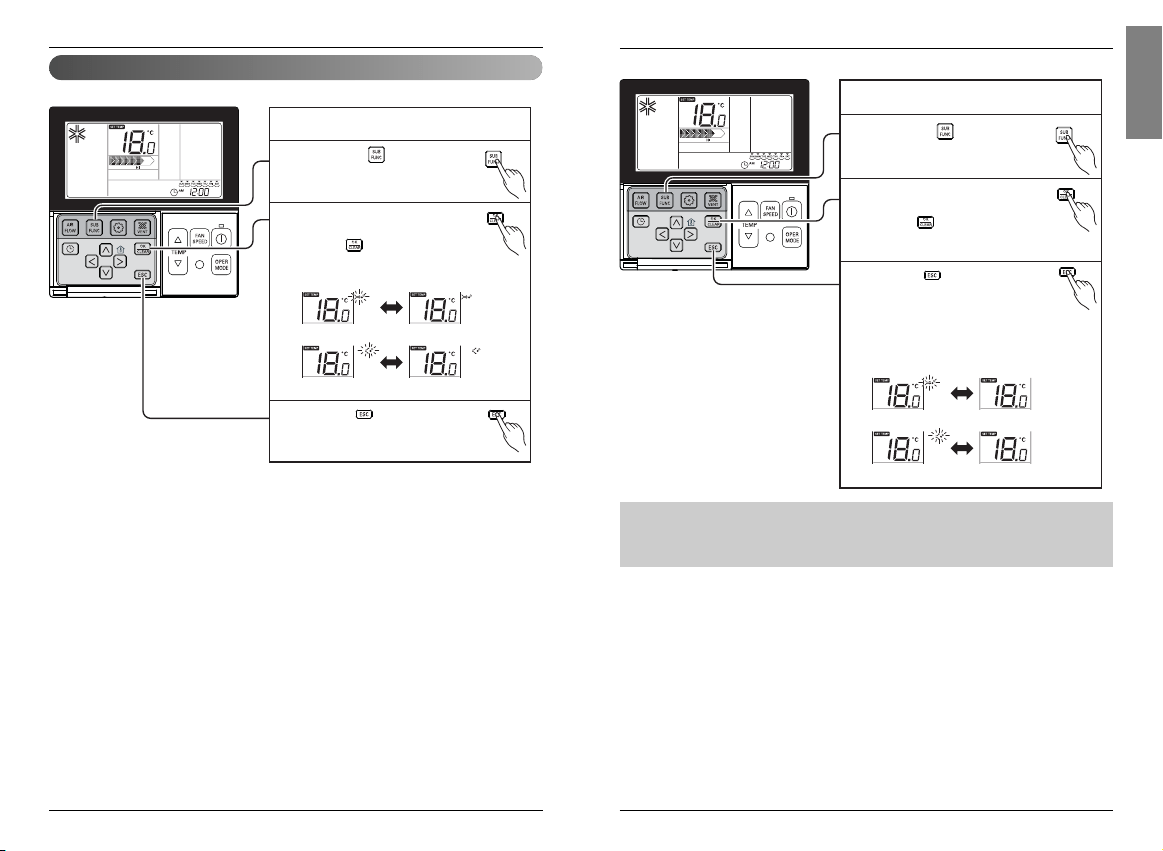
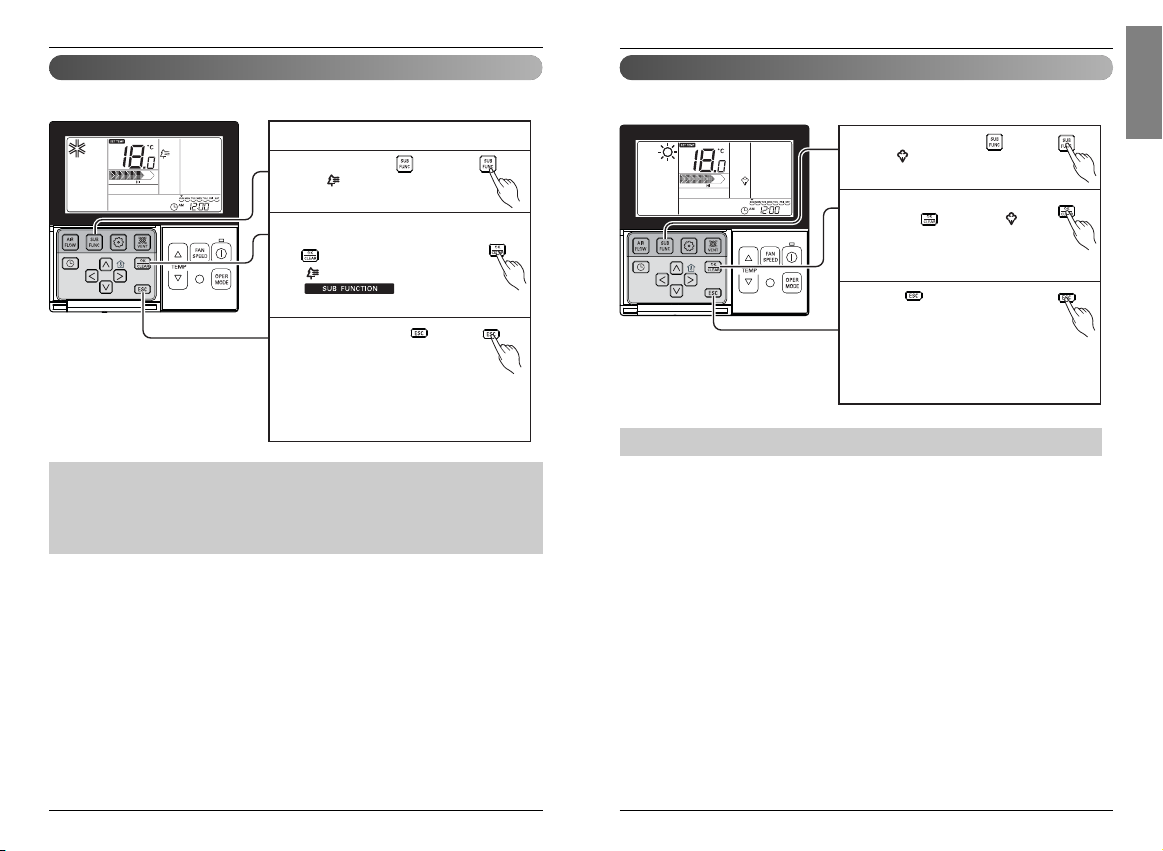
The icon of direct/indirect wind
blinks on the display, and then, if
pressing button, direct/indirect
wind icon is removed and the
function is cancelled.
2
1
Please press button.
The method to cancel direct/indirect wind
3
If pressing button, it gets out of
setup mode.
❈ After setup, it automatically gets
out of setup mode if there is no button input
for 25 seconds.
❈ When exiting without pressing set button,
the manipulated value is not reflected.
direct wind
indirect wind
• Direct/indirect wind function is additional function and it might not be indicated or
operated at the partial product.
• Direct/indirect wind function is possible only when product is running.
Sub function - Direct Wind / Indirect Wind
It is the function to directly or indirectly control wind direction by body perception sensor.
The icon of direct/indirect wind
blinks on the display, and then, if
pressing button, direct/indirect
wind icon is fixed and the function
is setup.
2
1
Please press button.
The method to setup direct/indirect wind
3
If pressing button, it gets out of
setup mode.
direct wind
indirect wind
Owner's instruction
Owner’s & Installation Manual 37
ENGLISH
36 New Wide Wired Remote Controller
Sub function - Humidifier
Repeatedly pressing button
until icon flash.
1
Turn on/off HUMIDIFIER by
pressing button (The icon
will be displayed in case of
SETTING option and disappear
in reverse case .)
2
Press button to exit.
❈ After setup, it automatically
gets out of setup mode if there
is no button input for 25
seconds.
❈ When exiting without pressing set
button, the manipulated value is not
reflected.
3
Only products with humidifying function can use this.
Owner's instruction
• Humidification function might not be operated at the partial product.
• Cleaning air function is additional function and it might not be indicated or operated at the partial
product.
• Cleaning air function is possible only when product is running.
• If you want independent cleaning air drive, please setup cleaning air by pressing additional drive
button at ventilation drive.
Owner's instruction
Sub function - Plasma Purification
Repeat pressing button
until icon flash.
The method to setup cleaning air
1
Operate or cancel Plasma
Purification function by pressing
button.
( icon appears/disappears on
display part up
to selection )
2
After setting, press button
to exit.
3
❈ After setup, it automatically gets out of setup
mode if there is no button input for 25 seconds.
❈ When exiting without pressing set button, the
manipulated value is not reflected.
Only products with humidifying function can use this.

Owner’s & Installation Manual 39
ENGLISH
38 New Wide Wired Remote Controller
Owner's instruction
Power saving air-cooling function is the function to improve use's comfortableness and power saving
capacity by adjusting desired temperature while running air-cooling
Sub function - Energy-Saving Cooling Operation
Repeatedly pressing button
until icon flash.
1
Operate or cancel Energy-Saving
function by pressing
button.
(To cancel power saving function,
you move to power saving menu by
pressing button, and then if pressing
button, power saving icon
disappears and the function is cancelled.
)
2
Press button to exit.
❈ After setup, it automatically
gets out of setup mode if there
is no button input for 25
seconds.
❈ When exiting without pressing set
button, the manipulated value is not
reflected.
3
• Power saving function is possible to setup only when running air-cooling.
• Power saving function might not be operated at the partial product.
Sub function - Electric Heater
Repeatedly pressing button
until icon flash.
1
Turn on/off ELECTRIC HEATER
by pressing button (the
icon will be displayed in case of
SETTING option and disappear
in reverse case .)
2
Press button to exit.
❈ After setup, it automatically
gets out of setup mode if there
is no button input for 25
seconds.
❈ When exiting without pressing
button, the manipulated
value is not reflected.
3
It is a function to strengthen the heating ability by turning on the electric heater during the heating
operation.
It can only be set during heating operation.
Owner's instruction
• Heater function is additional function and it only operates in selected models.
• The indoor unit product with Auxiliary Heater function set automatically displays (0) icon during
the AUXILIARY HEATING OPERATION.
When using non-heat recovery out door unit , emergency heater can be turned on for
simultaneous heating and cooling. Indoor unit with the emergency heater must be turned OFF for
simultaneous cooling and heating
※Heater function is additional function and it only operates in selected models.
Emergency heater can be turned on while in error code in case of emergency.
Electric heater icon is displayed on LCD display window with error code when emergency heater is
on while in error
※Exception case: Error code 1,3,9,10
※If the previous mode of the Indoor unit is COOL, DRY or FAN ONLY mode, heater must be
turned on manually.
Owner’s & Installation Manual 41
ENGLISH
40 New Wide Wired Remote Controller
Owner's instruction
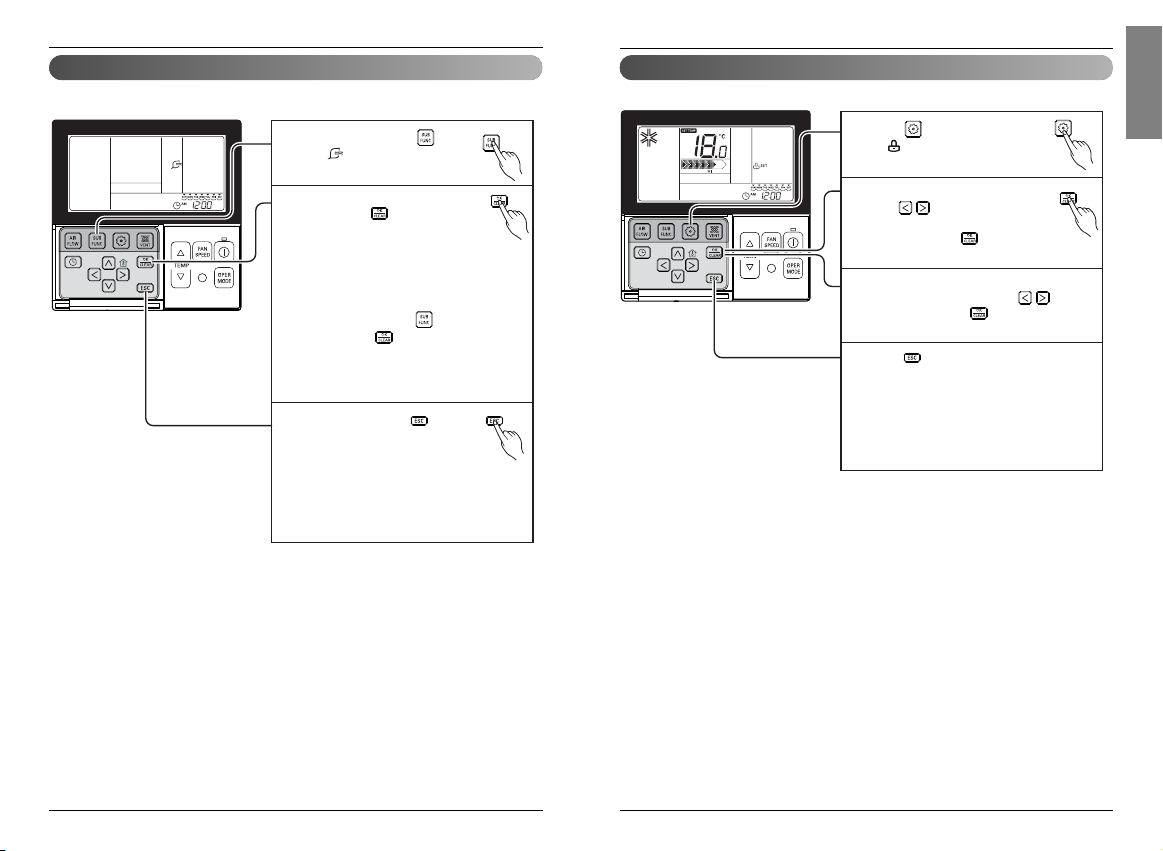
It is the function to use preventing children or others from careless using.
Function setting - Child Lock
Press button repeatedly until
the is flashing.
1
If moving to 'setup' icon area by
using button, 'setup' icon
blinks, and child lock function is
setup if pressing button at
that time.
2
When cancelling lock function, if moving
to 'cancel' icon by pressing button
and then, pressing button, child lock
function is cancelled.
3
Press button to exit.
❈ After setup, it automatically gets out of
setup mode if there is no button input
for 25 seconds.
❈ When exiting without pressing set
button, the manipulated value is not
reflected.
4
Sub function - Robot Cleaning Manual Setup
Repeatedly pressing button
until icon flash.
1
Turn on/off Smart Clean function
by pressing button.
❈ When the cleaning is finished,
the smart cleaning display
disappears automatically.
❈ To cancel robot cleaning manual setup
function, you move to power saving
menu by pressing button, and then
if pressing button, "robot cleaning"
icon disappears and the function is
cancelled.
2
After setting, press button
to exit.
❈ Robot cleaning manual setup
function might not be operated at the
partial product.
❈ When exiting without pressing set
button, the manipulated value is not
reflected.
3
Owner's instruction
Robot cleaning function is the function for cleaner attached to the product to automatically clean the
filter when using air-conditioner for the specific period of time.
Owner’s & Installation Manual 43
ENGLISH
42 New Wide Wired Remote Controller
This function is to clear the indicator of indoor filter cleaning.
Function setting - Filter Sign Clear
Press button repeatedly
until the is flashing.
1
When the is flashing, press
the to clear this display
2
Owner's instruction
• When filter is covered by dust, it will reduce cooling/heating efficiency and accumulate more
electric power. Therefore. do clean the filter whenever cleaning time is expired.
❈ Filter cleaning indication is automatically cancelled without the separate cancellation after certain
period of time.
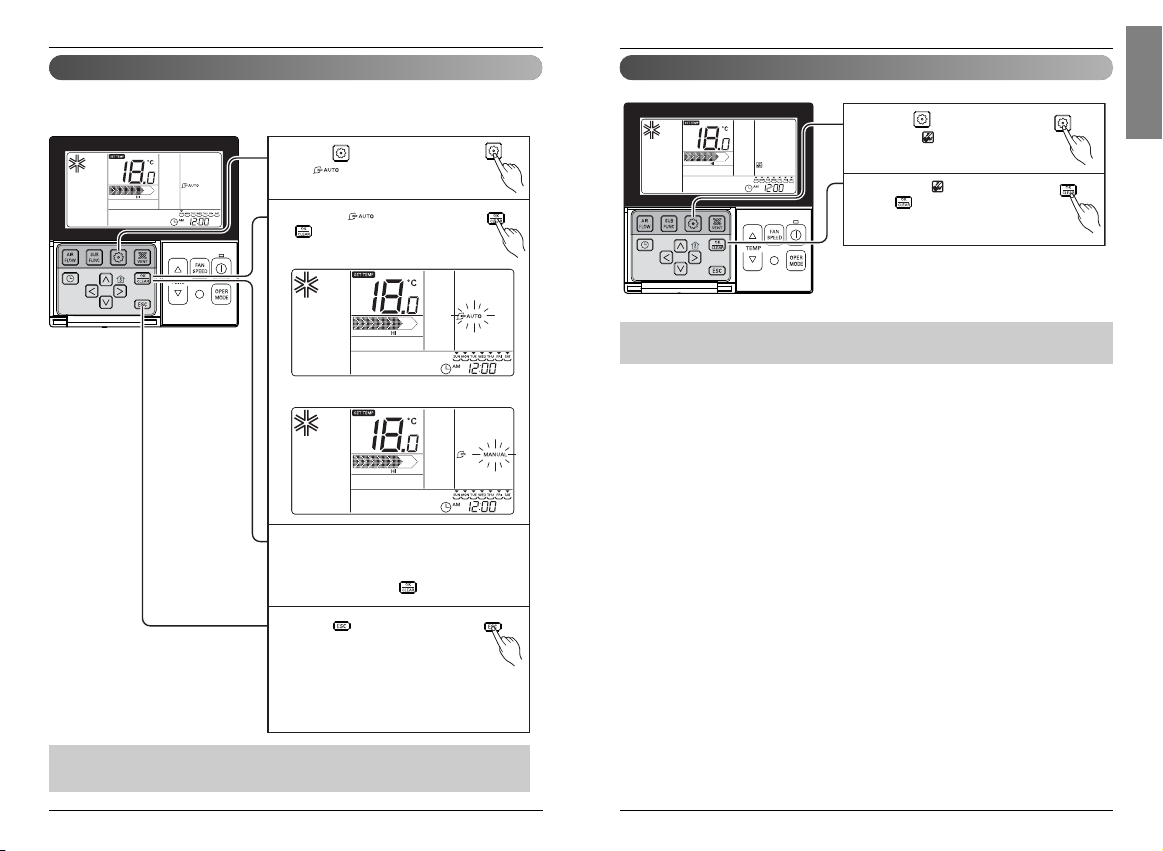
Robot cleaning function is the function of cleaner attached to the product to automatically clean filter
when using air-conditioner for the specific period of time.
Set manual or automatic mode of smart cleaning.
Owner's instruction
Function setting - Robot Cleaning Automatic Setup
When the flashing, press
button to set/clear this function.
Press button repeatedly until
the is flashing.
1
When returning to manual robot cleaning,
manual function is cancelled if moving to
'manual' icon by pressing Right/Left button
and then, pressing button.
3
Press button to exit.
❈ After setup, it automatically gets
out of setup mode if there is no
button input for 25 seconds.
❈ When exiting without pressing set
button, the manipulated value is
not reflected.
4
2
Set state : Enable Auto Smart Clean function
Clear state : Disable Auto Smart Clean function
• Robot cleaning function is an additional function of the product and might not be operated at the
partial product.
Owner’s & Installation Manual 45
ENGLISH
44 New Wide Wired Remote Controller
Owner's instruction
Repeat pressing button until
icon flash.
1
Press button to select active vane :
1 / 2 / 3 / 4 / All / Standard
Select Vane number using buttons.
❈ Vane number : No. 1, 2., 3, 4, all, or
standard
- Selected vane is in operation.
- Please verify the operating vane.
- To set the angle of all the vanes,
select 'all'.
- To set as the factory default settings,
select 'standard'.
2
Select wind angle using button, and
press button.
- The boundary of wind angle settings can
be changed to 5 levels or 6 levels
according to the product.
- When selecting 'standard' for Vane
number, the wind angle does not move.
3
Set the wind angles for the remaining
vanes as the same as above.
❈ There are products with vanes with
no. 1 and no. 2 only according to the
product types.
4
Press button to exit.
❈ After setup, it automatically
gets out of setup mode if there
is no button input for 60 seconds.
❈ When exiting without pressing set
button, the manipulated value is not
reflected.
5
Press button to complete and
active the setting process.
(Airflow direction function will be
released whenever setting vane angle)
6
Press button to exit or
system will automatically release
without any input after 25
seconds.
7
This function is to adjust angle at which airflow is blow out.
Function setting - Vane Angle Control
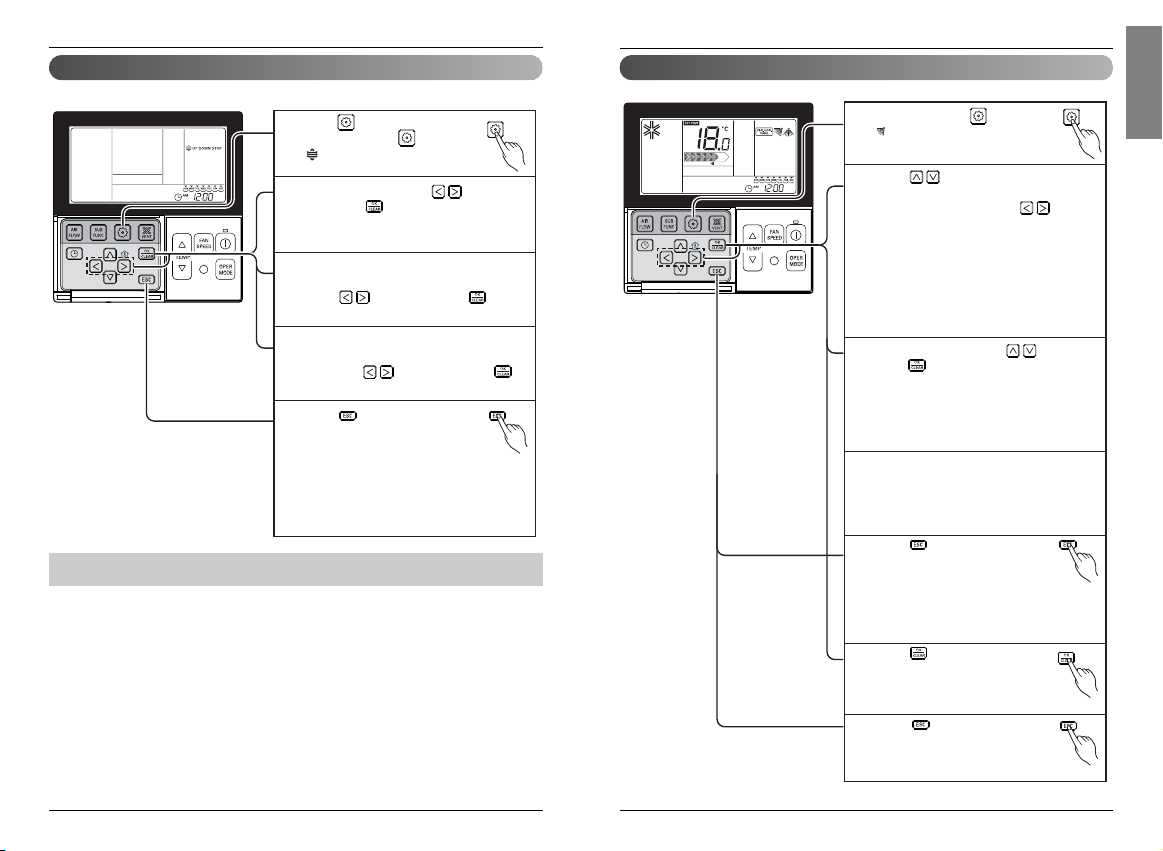
This function is to move the indoor filter up/down for cleaning filter.
Owner's instruction
Function setting - Elevation Grill
Press button
Repeat pressing button until
icon flash.
1
Move to descent using button
and press button will display
descent icon and the up/down grill will
descent.
2
When up/down grill descents to the
desired position, move to stop icon
suing button and press button
to stop up/down grill.
3
When filter cleaning is finished, fix the
filter to the up/down grill, move to ascent
icon using button, and press
button to ascent up/down grill.
4
Press button to exit.
❈ After setup, it automatically
gets out of setup mode if there
is no button input for 60
seconds.
❈ When exiting without pressing set
button, the manipulated value is not
reflected.
5
• Elevation grill function only operates in the indoor unit with the elevation grill.
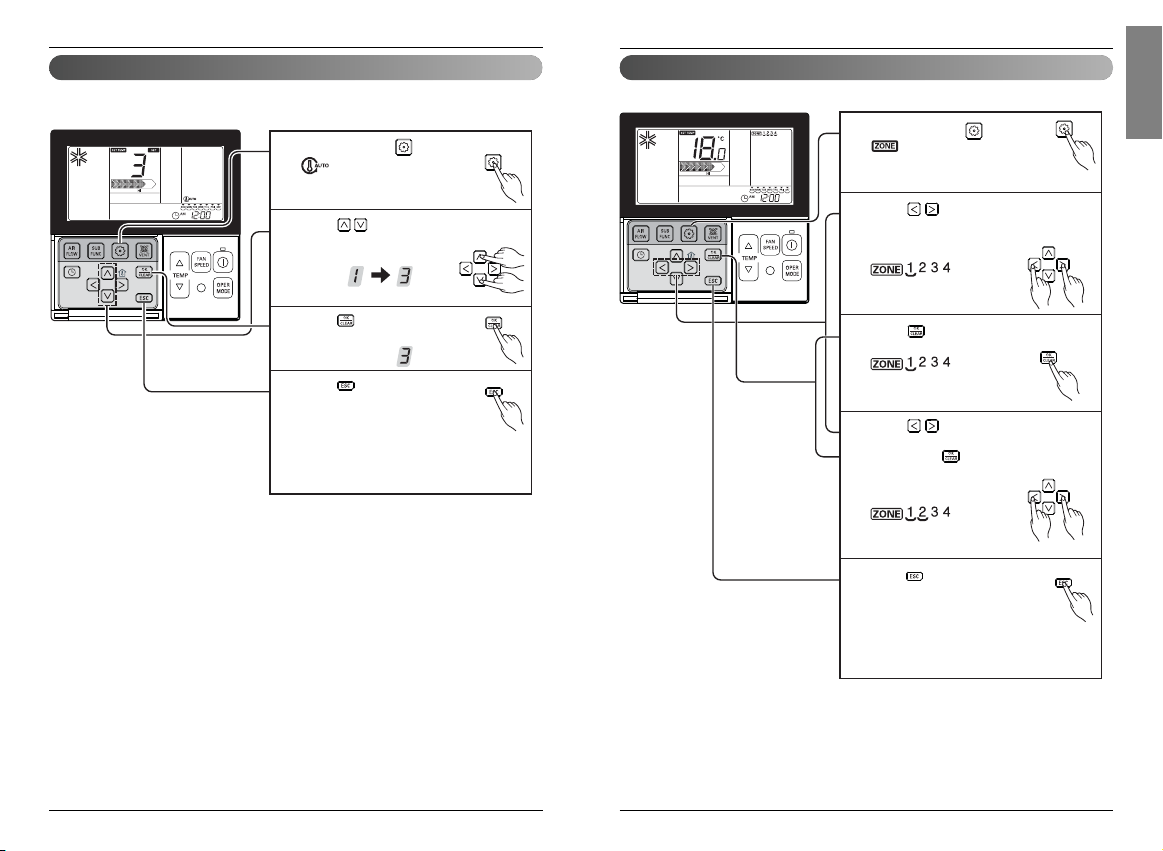
Owner’s & Installation Manual 47
ENGLISH
46 New Wide Wired Remote Controller
Owner's instruction Owner's instruction
Function Setting - Change Temp
Repeat pressing button until
icon flash.
1
Press button to change.
❈ Converting temp value : 1~7
2
Press button to complete
and active the setting process.
3
Press button to exit or
system will automatically release
without any input after 25
seconds.
❈ When exiting without pressing
set button, the manipulated
value is not reflected.
4
Change temperature is the function to setup air-cooling and heating drive automatically changeable
according to the temperature at artificial intelligence drive mode.
To turn on/off the zones by used of it
Function setting : Zone Control
Repeat pressing button until
icon flash.
Ex) Turn on the zone 1 and zone 3.
1
Press button to select the zone
that which one you want to turn on/off.
2
Press button to turn on/off zone.
3
Press button To select other
zones If you want.
Then, Press button to turn on/off that
zone as mentioned above
4
Press button to exit or
system will automatically release
without any input after 25
seconds.
❈ When exiting without pressing
set button, the manipulated
value is not reflected.
5
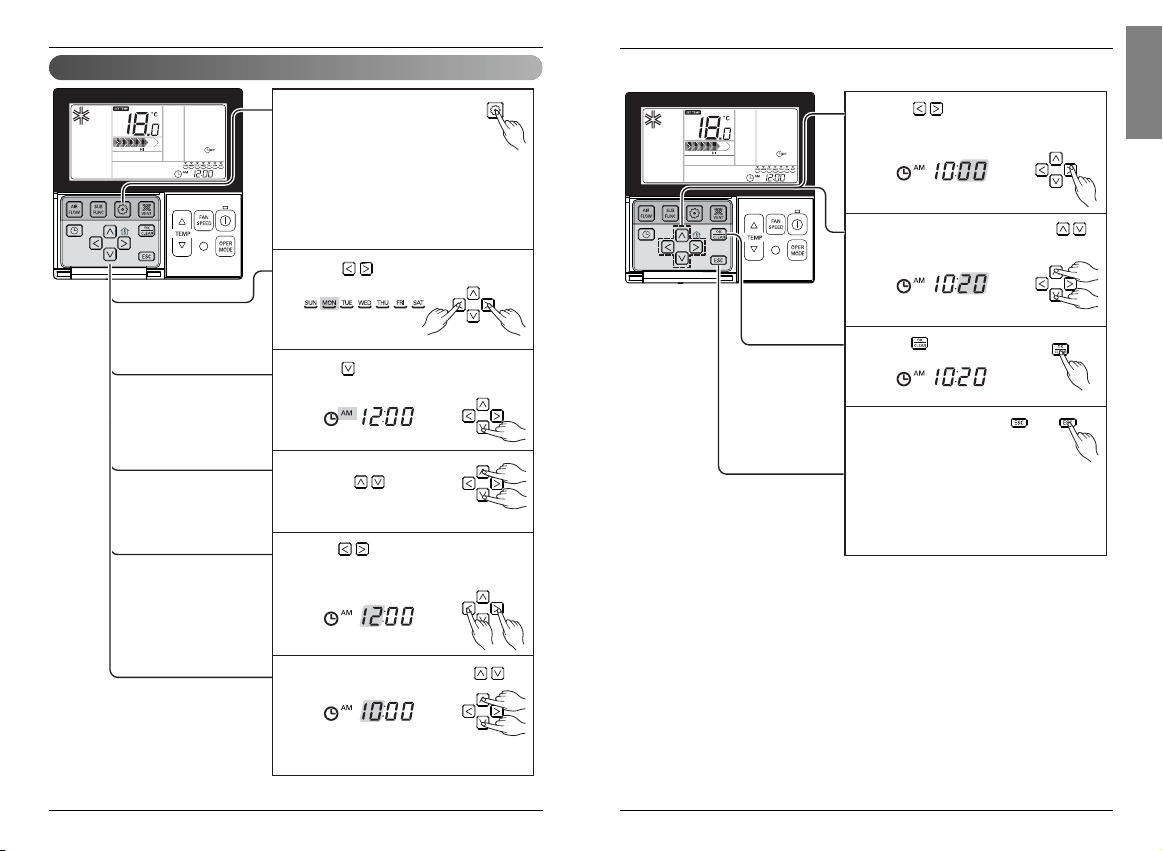
Owner’s & Installation Manual 49
ENGLISH
48 New Wide Wired Remote Controller
Press button to move to 'Minute'
setting mode. (the 'Minute' segment will
flash)
7
Setting Minute value by pressing
button.
8
Press button to finish.
9
In the process, press
button to release and exit
from setting mode.
(In case of exit with
incomplete information, it will return to
the previous setting)
❈ When exiting without pressing set
button, the manipulated value is not
reflected.
10
Owner's instructionOwner's instruction
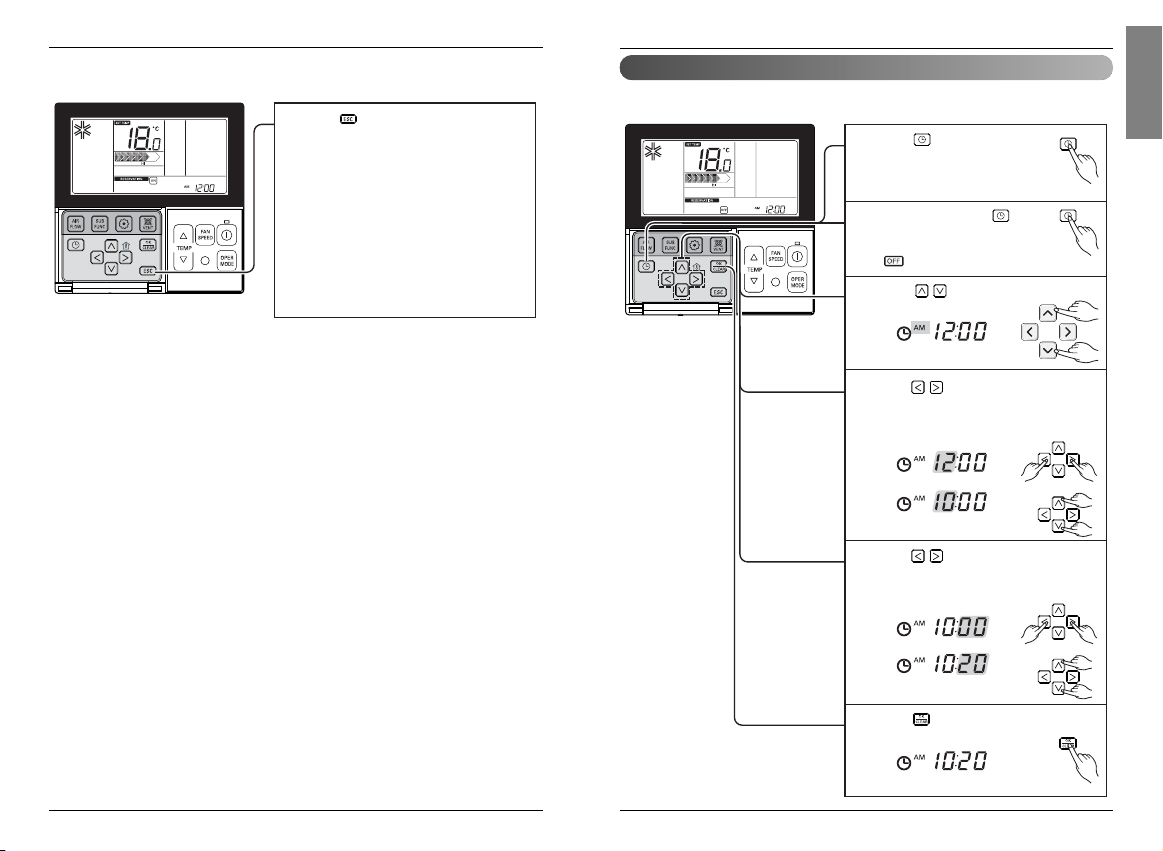
Function setting - Changing Current Time
Please press function setup
button. If pressing function setup
button repeatedly, it moves to
time setup menu. ‘Time setup’
icon is indicated at that time and date
blinks at current time indication area.
Ex) Changing Current Time as
'Monday / AM 10:20'.
1
Press key to adjust the current
day.
2
Press key to move to AM/ PM setting
mode (the 'AM/ PM segment will flash).
3
Setting AM/ PM value by
pressing button.
4
Press button to move to 'Hour'
setting mode. (the 'Hour' segment will
flash)
5
Setting Hour value by pressing
button.
6
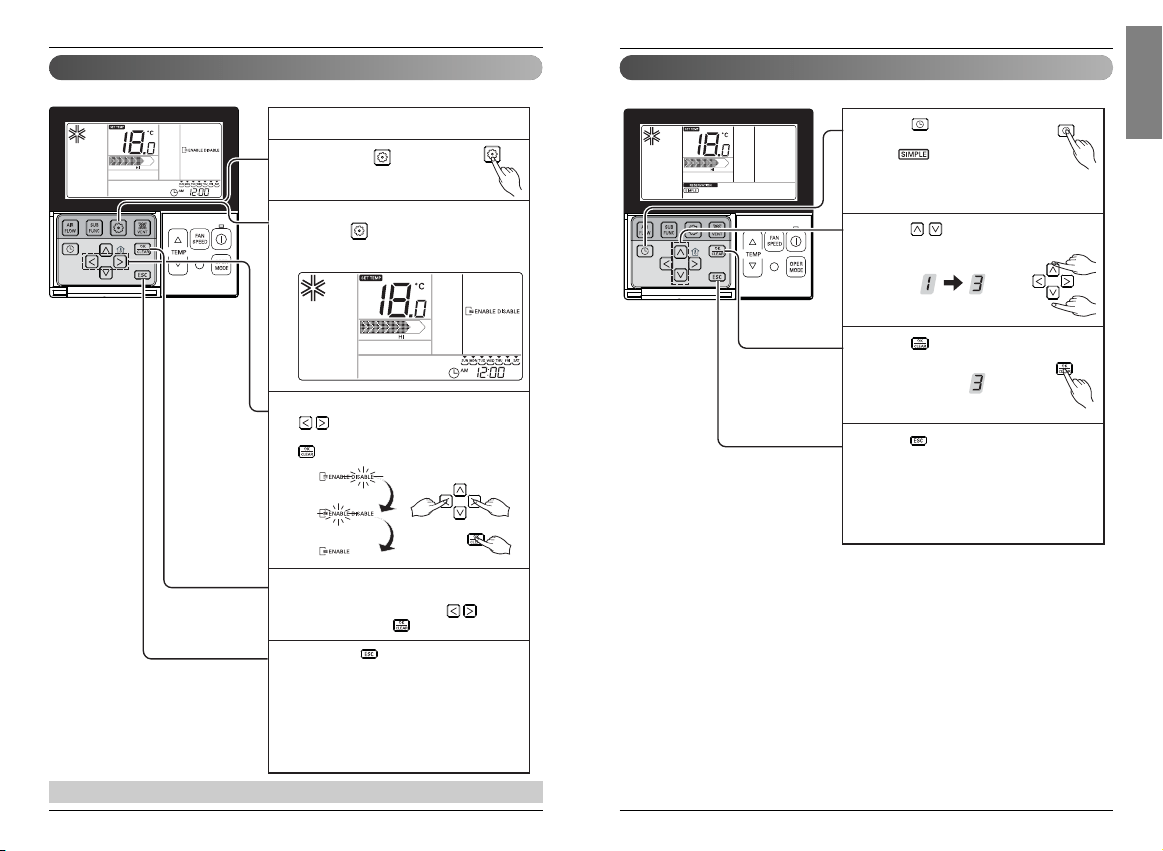
Owner’s & Installation Manual 51
ENGLISH
50 New Wide Wired Remote Controller
Owner's instruction
Programming - Simple Reservation
Press button to enter the
Programming mode.
(the segment flashing)
Ex) Setting Simple Reservation
time as '3'.
1
Press button to adjust reservation
time.
2
Press button to finish setting.
3
Press button to exit.
❈ After setup, it automatically gets out of
setup mode if there is no button input
for 25 seconds.
❈ When exiting without pressing set
button, the manipulated value is not
reflected.
4
You can set the reservation conveniently in the units of 1 hour from 1 hour to 7 hours.
❈ When simple reservation setup, product automatically runs or stops after the time that is set.
Owner's instruction
Function setting - Auto Cleaning
Please press button.
1
Move to automatic drying menu by
pressing button twice. 'Automatic
Drying' icon will be displayed and the
current status, 'DISABLE' will blink.
2
If moving to ‘ABLE’ icon area by using
button, ‘ABLE’ icon blinks, and
automatic dry function is setup if pressing
button at that time.
3
When returning to automatic dry no use,
automatic dry function is cancelled if moving
to ‘DISABLE’ icon by pressing button
and then, pressing button.
4
If pressing button, it gets out of setup
mode.
❈ After setup, it automatically gets out of
setup mode if there is no button input
for 60 seconds.
❈ When exiting without pressing set
button, the manipulated value is not
reflected.
5
The method to setup Automatic Drying
• Automatic dry function might not be operated at the partial product.
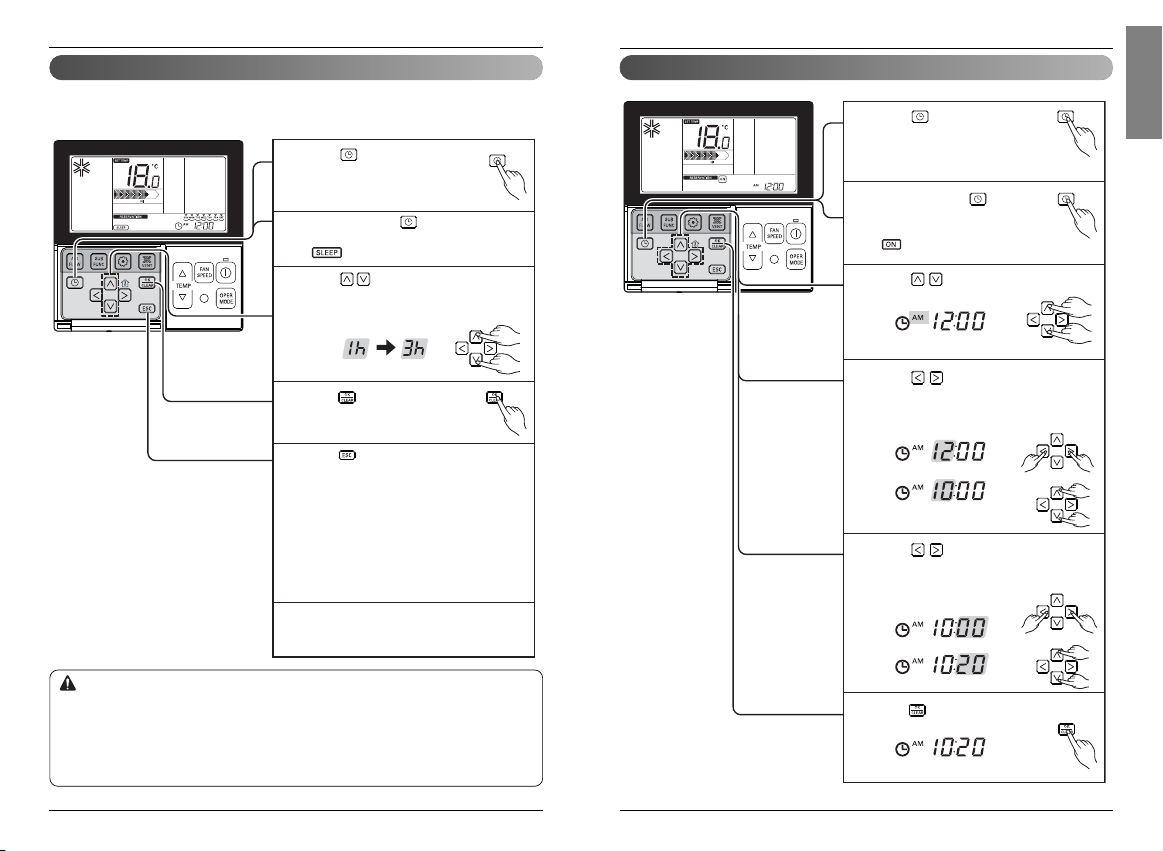
Owner’s & Installation Manual 53
ENGLISH
52 New Wide Wired Remote Controller
Owner's instruction
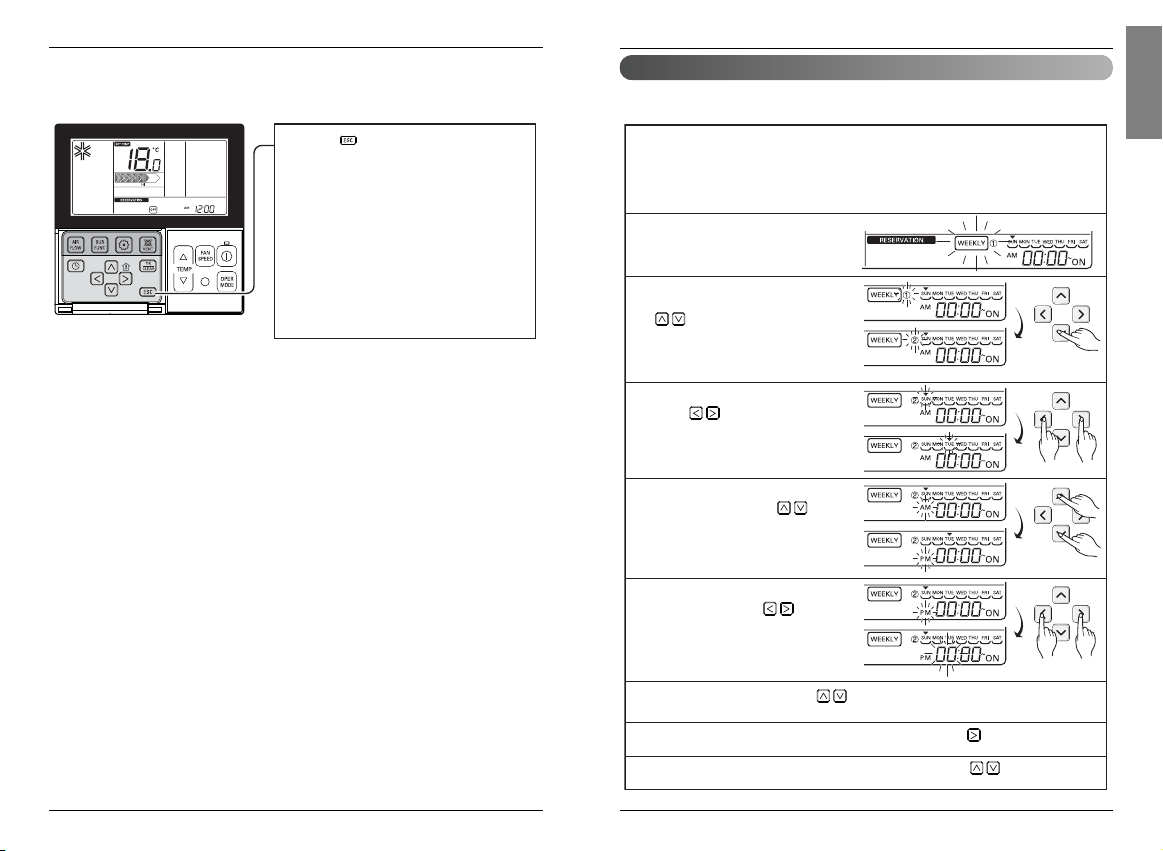
Programming - ON Reservation
Press button.
Ex) Setting ON Reservation
Time as 'AM 10:20'.
1
Repeat pressing button to
enter the ON reservation
setting mode.
( segment flashing)
2
Press button to adjust AM/ PM
setting.
3
Press button to Hour setting
mode. When the Hour icon flash, please
setting time.
The setting range is within 1~12.
4
Press button to shift to Minute
setting mode. When the Minute icon
flash, please setting minute the setting
range is within 00~59.
5
Press button to finish setting.
6
Automatically turned On at reserved time that you set.
Owner's instruction
Programming - Sleep Reservation
Press button to enter the
Programming mode.
Ex) Setting Sleep Reservation
time as '3'.
1
Repeat pressing button to enter the
SLEEP reservation setting mode.
( segment flashing)
2
Press button to adjust reservation
time.
The SLEEP reservation time is from 1 to
7 hours.
3
Press button to finish setting.
Whenever reservation is done.
4
Press button to exit.
❈ After setup, it automatically gets out of
setup mode if there is no button input
for 60 seconds.
❈ When exiting without pressing set
button, the manipulated value is not
reflected.
- If reservation is setup, 'sleep'
indication shows up at the lower part
of LCD screen.
5
If finishing sleep reservation setup,
air-conditioner product operates sleep
drive and stops after the time that is set.
6
Sleep reservation is the function of air-conditioner to run and stop after certain period of time at sleep
mode before sleep. When connected to a ventilation product and set the sleep reservation, when it
goes to the sleep mode, after the set time has elapsed.
Please reserve proper time at sleeping. (Too much air-cooling is not good for your health.)
• Because it automatically adjusts desired temperature for comfortable air-cooling at sleep drive,
there could be difference between remote controller's desired temperature and air-conditioner
body's desired temperature.
• Sleep reservation operates as off reservation for the product whose temperature adjustment isn't
controlled by unit of 0.5°C.
CAUTION
Owner’s & Installation Manual 55
ENGLISH
54 New Wide Wired Remote Controller
Owner's instruction
Programming - OFF Reservation
Press button.
Ex) Setting OFF Reservation
Time as 'AM 10:20'.
1
Repeatedly pressing button
to enter the OFF reservation
setting mode.
( segment flashing)
2
Press button to adjust AM/ PM
setting.
3
Press button to shift to Hour
setting mode. When the Hour icon flash,
please setting time.
The setting range is within 1~12.
4
Press button to shift to Minute
setting mode. When the Minute icon
flash, please setting minute the setting
range is within 00~59.
5
Press button to finish setting.
6
Automatically turned Off at reserved time that you set.
Owner's instruction
Press button to exit.
❈ After setup, it automatically gets out of
setup mode if there is no button input
for 25 seconds.
❈ When exiting without pressing set
button, the manipulated value is not
reflected.
- If reservation is set, 'turned on'
indication shows up at the lower part
of LCD screen, and air-conditioner
product runs at the time that is set.
- If reservation is cancelled, 'turned on'
indication disappears.
7
Owner’s & Installation Manual 57
ENGLISH
56 New Wide Wired Remote Controller
Owner's instruction
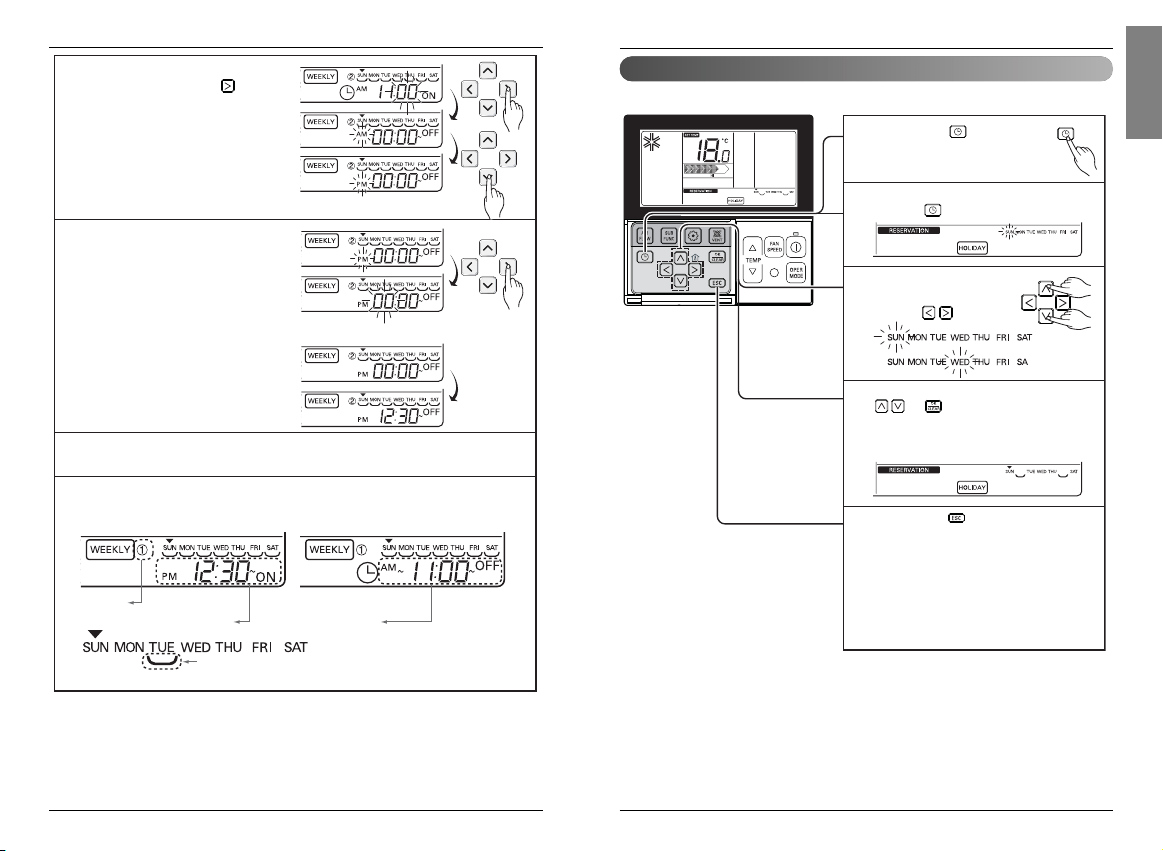
Programming : Weekly Reservation
Please move to 'weekly' by
repeatedly pressing reservation
button. 'Weekly' blinks at this time.
Please move to reservation setup mode by pressing reservation button.
❈ You can setup two weekly reservations for one day, and up to fourteen
reservations for a week.
For example, to setup (Tuesday morning 11:30 turned on ~ afternoon 12:30
turned off), you setup in order below.
2
1
Please select weekly reservation or
weekly reservation ¡ by using
button.
❈ You can setup two reservations,
weekly reservation 1 and weekly
reservation 2, for a day.
3
Please move to 'date' setup part by
using button. If 'date'
indication blinks, please setup date.
You can setup date from Monday to
Sunday.
4
Please move to 'AM/PM' setup part
of turning on by using button.
5
Please move to 'hour' setup part of
turning on by using button.
- It is the part to setup the time at
which air-conditioner is turned on.
6
Please move to 'minute' setup part of turning on by using button.
8
Please change time by using button.
- You can setup hour 0~12.
7
If 'minute' indication blinks, please setup 'minute' by using button
9
You can set the daily reservation in weekly unit.
Weekly reservation keeps operating until before you cancel it once you setup
Owner's instruction
Press button to exit.
❈ After setup, it automatically gets out of
setup mode if there is no button input
for 25 seconds.
❈ When exiting without pressing set
button, the manipulated value is not
reflected.
- If reservation is set, 'turned off'
indication shows up at the lower part
of LCD screen, and air-conditioner
product runs at the time that is set.
- If reservation is cancelled, 'turned off'
indication disappears.
7
Owner’s & Installation Manual 59
ENGLISH
58 New Wide Wired Remote Controller
Owner's instruction
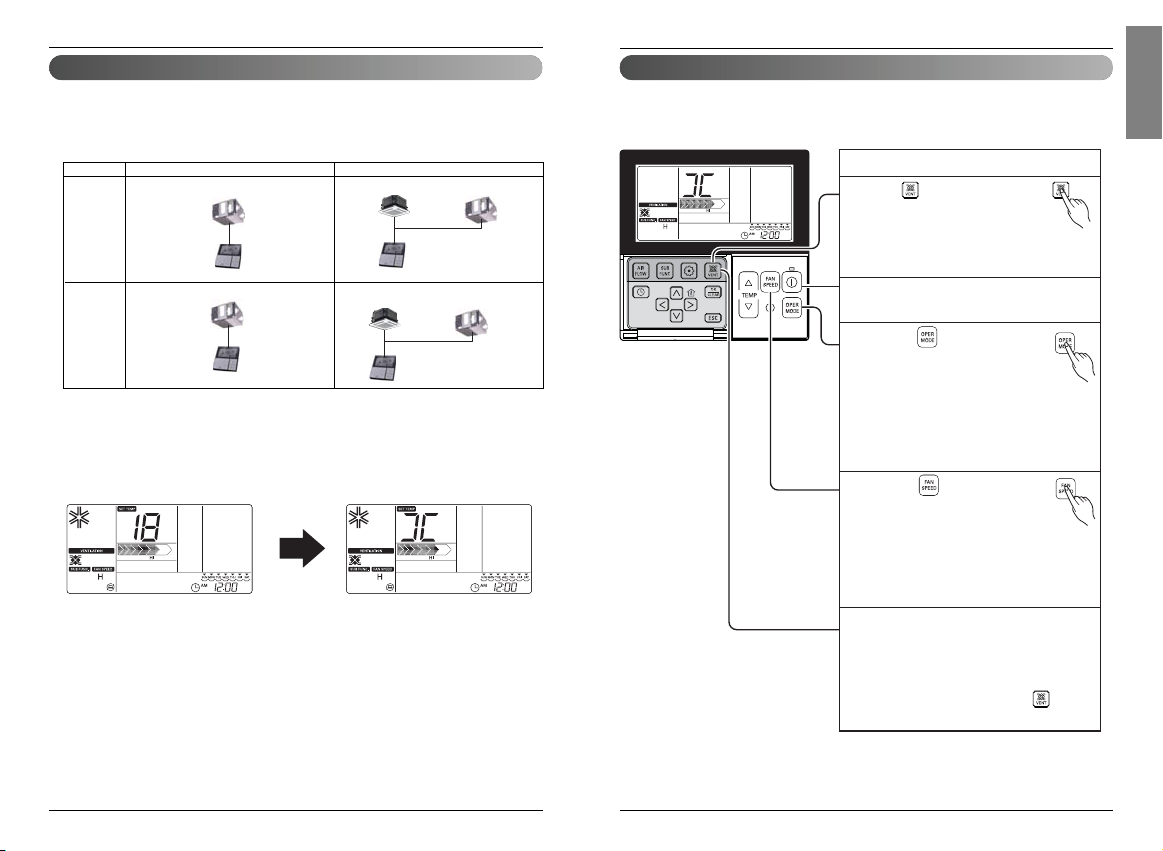
Programming : Holiday Reservation
Please press button.
It enters into reservation
setup mode.
1
Please move to 'holiday' by repeatedly
pressing button.
2
Please move to 'date' that
you want to setup holiday
by using button.
3
Please appoint or cancel holiday by using
or button.
For example, when you setup
Monday/Friday to holiday
- 'Monday', 'Friday' letter disappears.
4
Please press button if finishing
holiday setup.
❈ If it comes to appointed holiday,
air-conditioner automatically stops.
Once you setup holiday appointment,
until before you cancel holiday setup,
air-conditioner automatically stops
within one hour even though you run
air-conditioner.
5
It automatically stops at reserved day that you set.
Owner's instruction
Please move to 'AM/PM' setup part
of turning off by using button.
- AM/PM setup is identical with
turning on time setup.
10
Please move to 'hour' setup part
of turning off by using Right
button.
- It is the part to reserve the time
at which air-conditioner is
turned off.
- If 'hour' indication blinks, please
setup 'hour'.
❈
Please setup 'hour' and 'minute'
identically with the method to
setup turning on time.
11
If finishing weekly reservation setup, please press setup/cancellation button.
Weekly reservation setup for the day that you set is finished.
12
If you setup with the method identical with above by selecting the day that
you'd like to setup, it operates weekly reservation.
13
Weekly reservation explanation
Turning on time
Under bar: the indication that there is weekly reservation for
corresponding day
Reservation
number
Turning off time
❈ Indoor unit is turned on to desired temperature if it is configured using up/down button during preset of weekly
operation time. (Temperature selection range : 18℃~30℃)
-
When desired temperature is not set, it is turned on automatically with desired temperature of previous operation.
❈ To cancel all weekly timers,
-Pressing set/cancel button while “weekday” display is blinking will cancel the timer.
❈ To cancel the corresponding set individual day of the week,
- After selecting the corresponding day of the week, set the ON timer time to be the same as OFF timer time,
and pressing set/cancel button will cancel the timer.
Owner’s & Installation Manual 61
ENGLISH
60 New Wide Wired Remote Controller
Ventilation Product User Manual - Interlinked operation with general ventilation
Press button on the remote
controller control panel.
- It is only used when air conditioner
and general ventilation is
interlinked.
1
Pressing 'Start/Stop' button at ventilation
mode will start ventilation.
2
Pressing button will change the
ventilation operation mode.
Pressing operation selection button
will change the mode in the order of
'Heat exchange → normal → automatic'
❈ It only displays on the remote controller
display when it is in ventilation mode, and it
displays the desired temperature when it
returns to air condition mode.
3
Pressing button in general
ventilation mode will change airflow
speed.
Pressing airflow speed button will
change the mode in the order of 'weak →
strong → extra strong'.
If CO2 sensor is installed, it can select from
'weak → strong → very strong → automatic'.
4
Changing back to air conditioner mode
1)Automatic Conversion : when no button is
pressed for 15 seconds or longer, it
automatically converts back to air
conditioner mode.
2) Manual Conversion : Pressing button
in ventilation mode will manually convert.
5
Ventilation interlinked operation
It is used when air conditioner is interlinked with ventilation product.
It is a function that cools and refreshes indoor air using the ventilation product at the same time
operating the air conditioning function.
Owner's instruction
1. Control using remote controller where air conditioner indoor unit and the
ventilation product is installed at the same time.
- When the power is turned on, your remote control recognizes the product (takes about 30 seconds) and then
works normally.
❈ Connecting wires is the same as air conditioner user manual. (Refer to page about Group control)
Ventilation Product User Manual - Interlinked Air conditioner and Ventilation
2. Press 'Ventilation' button on the wired remote controller and enter Ventilation
control mode to check the operation of ventilation product.
3. To convert back to air conditioner mode, press 'Ventilation' button at the
ventilation mode.
- If no button pressed for 15 seconds or more at ventilation mode, it automatically converts back to air
conditioner mode.
- Ventilation product represent general ventilation product and direct expansion ventilation product.
Single Operation
General
Ventilation
Direct
Expansion
Ventilation
Interlinked Operation
Wired Remote
Controller
Wired Remote Controller
General
Ventilation
(General Ventilation Single Operation) (General Ventilation Interlinked Operation)
(Direct Expansion Ventilation Single Operation)
(Direct Expansion Ventilation Interlinked Operation)
General
Ventilation
Air conditioner
Indoor unit
Wired Remote
Controller
Direct Expansion
Ventilation
Air conditioner
Indoor unit
Wired Remote Controller
Direct
Expansion
Ventilation
Owner's instruction
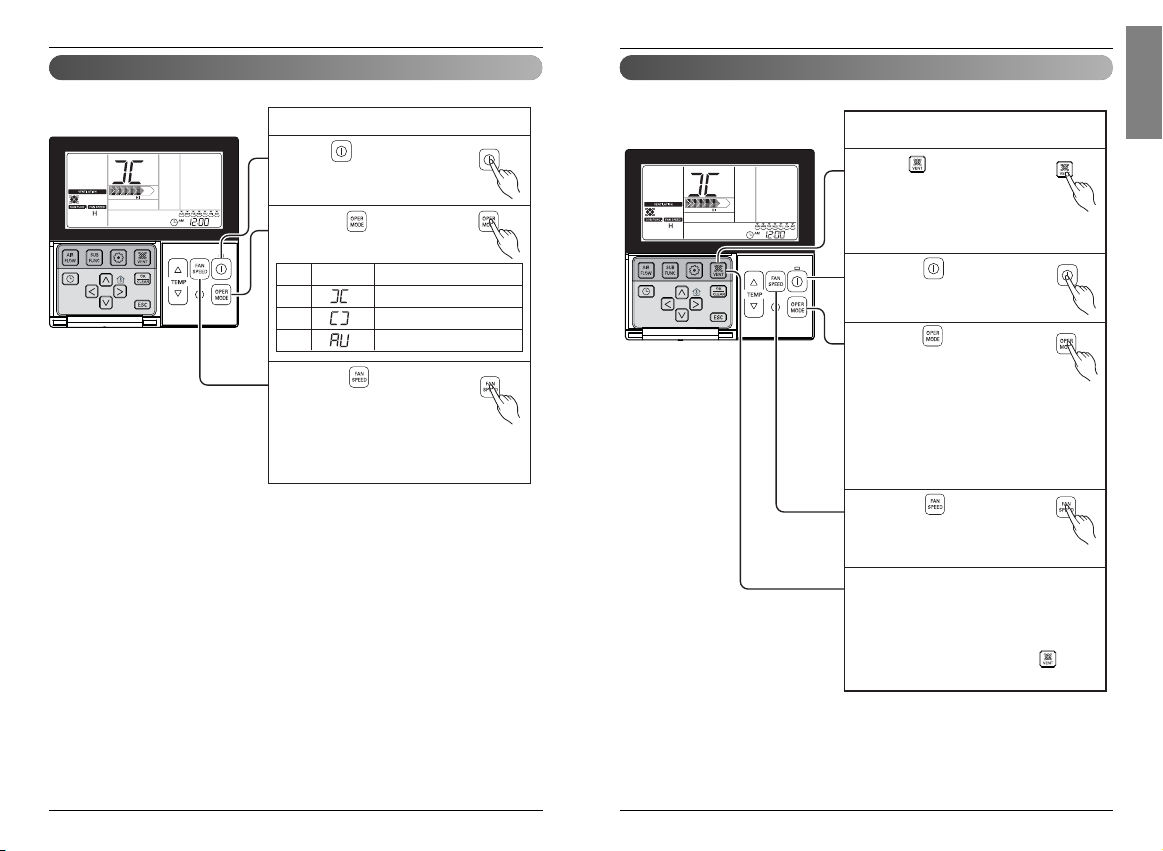
Owner’s & Installation Manual 63
ENGLISH
62 New Wide Wired Remote Controller
Ventilation Product User Manual - Interlinked Operation with Direct Expansion Ventilation
Press button on the remote
controller.
- It is used only when air conditioner
and the ventilation product are
interlinked. ('Interlinked operation' displayed
on the remote controller display)
1
Pressing button in ventilation
mode starts ventilation.
2
Pressing button in ventilation
mode will change the ventilation
mode.
- Every time the button is pressed,
it changes from 'Heat exchange → normal →
automatic'.
❈ The display on the remote controller
displays only when it is in ventilation mode,
and when it converts to air conditioner
mode, it displays the desired temperature.
3
Pressing button in ventilation
mode changes the strength of wind.
- Pressing the button can select from
'weak → strong → very strong'.
4
Changing back to air conditioner mode
1) Automatic Conversion : when no button is
pressed for 15 seconds or longer, it
automatically converts back to air
conditioner mode.
2) Manual Conversion : Pressing button
in ventilation mode will manually convert.
5
Interlinked Operation with Direct
Expansion Ventilation
It can only be used when the air conditioner is interlinked with direct expansion ventilation product.
Owner's instruction
Manual Conversion - Pressing ‘Ventilation’ button in ventilation mode will manually convert
Press button on the remote
controller.
1
Pressing button will change
the ventilation mode.
2
Pressing button will change
the strength of the wind
- Pressing the button can select
from 'weak → strong → very strong'.
- If CO2 sensor is installed, it can select from
'weak → strong → very strong → automatic'.
3
Ventilation single operation
Ventilation
mode
Heat
exchange
Normal
Automatic
Remote Controller
Display
Contents
Circulate indoor air without loss of heat
Directly circulate indoor air without going
through heat exchanger
Circulate indoor air with automatically
comparing indoor and outdoor air
It is a function to cool and refresh the indoor air using general ventilation product..
Owner's instruction
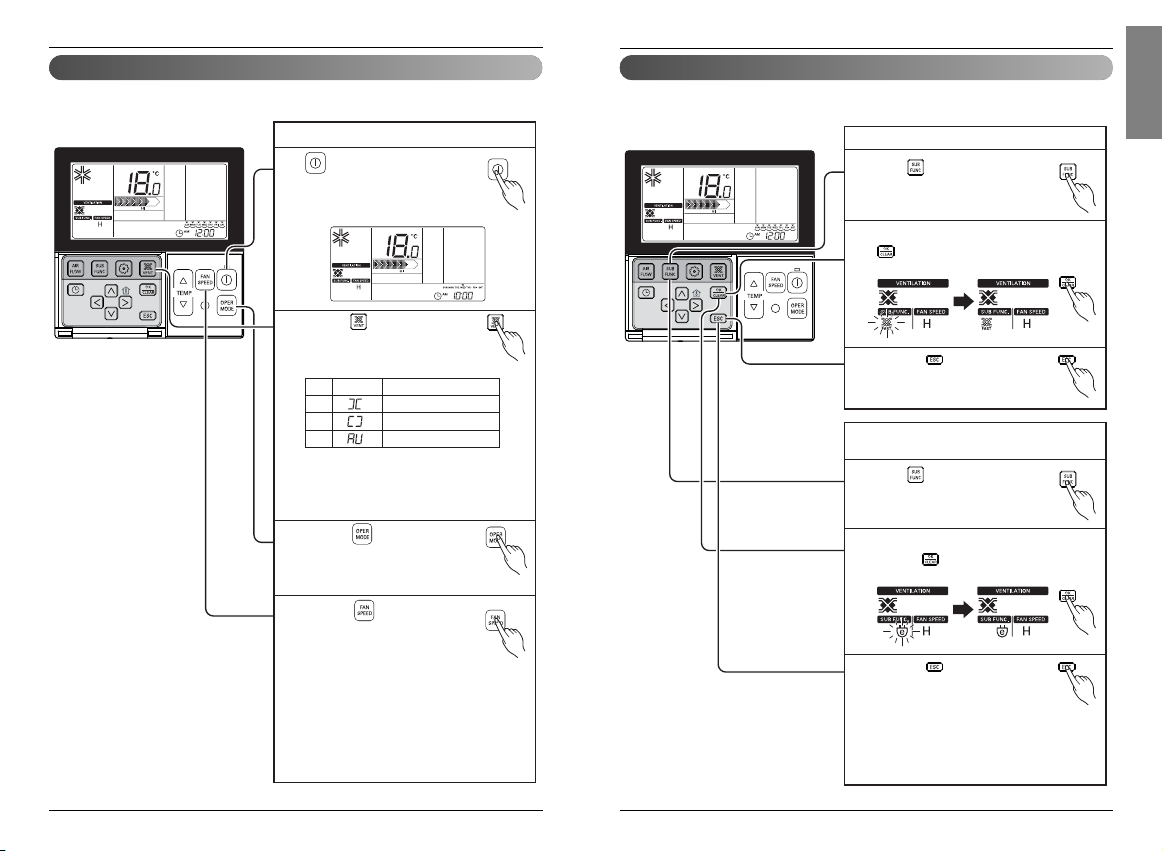
Owner’s & Installation Manual 65
ENGLISH
64 New Wide Wired Remote Controller
Ventilation Product Additional Operations - Fast / Power Saving
Press button in ventilation mode.
- It converts in the order of 'fast
→
power saving' in ventilation mode.
1
'Fast' is blinking on the display, and pressing
button will stabilize 'fast' icon, and the
function is set.
2
Pressing button will exit the
settings.
3
Press button in ventilation mode.
- It converts in the order of 'fast
→
power saving' in ventilation mode.
1
'Power Saving' is blinking on the display, and
pressing button will stabilize 'Power
Saving' icon, and the function is set.
2
Pressing button will exit the
settings.
❈ General ventilation and direct expansion
ventilation have the same additional
functions.
❈ Ventilation/Heater/Humidifier additional
function settings are the same as air
conditioner.
3
Fast : ventilates fast
Power Saving : efficiently ventilates and performs
power savings.
It is a function to operate ventilation function more efficiently through the ventilation additional
functions, fast / power saving settings.
Owner's instruction
Ventilation Product User Manual - Single Operation with Direct Expansion Ventilation
button on the remote controller.
It displays as the figure right side in
the direct expansion type ventilation
single operation.
1
Pressing button will change the
ventilation mode.
Pressing the button converts from 'heat
exchange → normal → automatic'.
2
Pressing button will change
operation mode.
- Pressing the button will convert from
'cooling → eating → automatic
→
stop'.
3
Pressing button in ventilation
mode changes the strength of wind.
- Pressing the button can select from
'weak → strong → very strong'.
❈ Cooling/heating operation selection and the
desired temperature can be adjusted in
direct expansion type ventilation single
operation.
❈ Refer to the basic operation - temperature
adjustment for changing desired
temperature.
4
❈ The 88 segment display above is only displayed
when it is in direct expansion type ventilation
single operation and the air conditioner is
stopped.
Direct expansion type ventilation single operation
Ventilation
mode
Heat
exchange
Normal
Automatic
Remote Controller
Display
Contents
Circulate indoor air without loss of heat
Directly circulate indoor air without going
through heat exchanger
Circulate indoor air with automatically
comparing indoor and outdoor air
Pressing It performs ventilation operation with cooling or heating at the same time using the heat
exchanger inside the direct expansion type ventilation product.
Owner's instruction
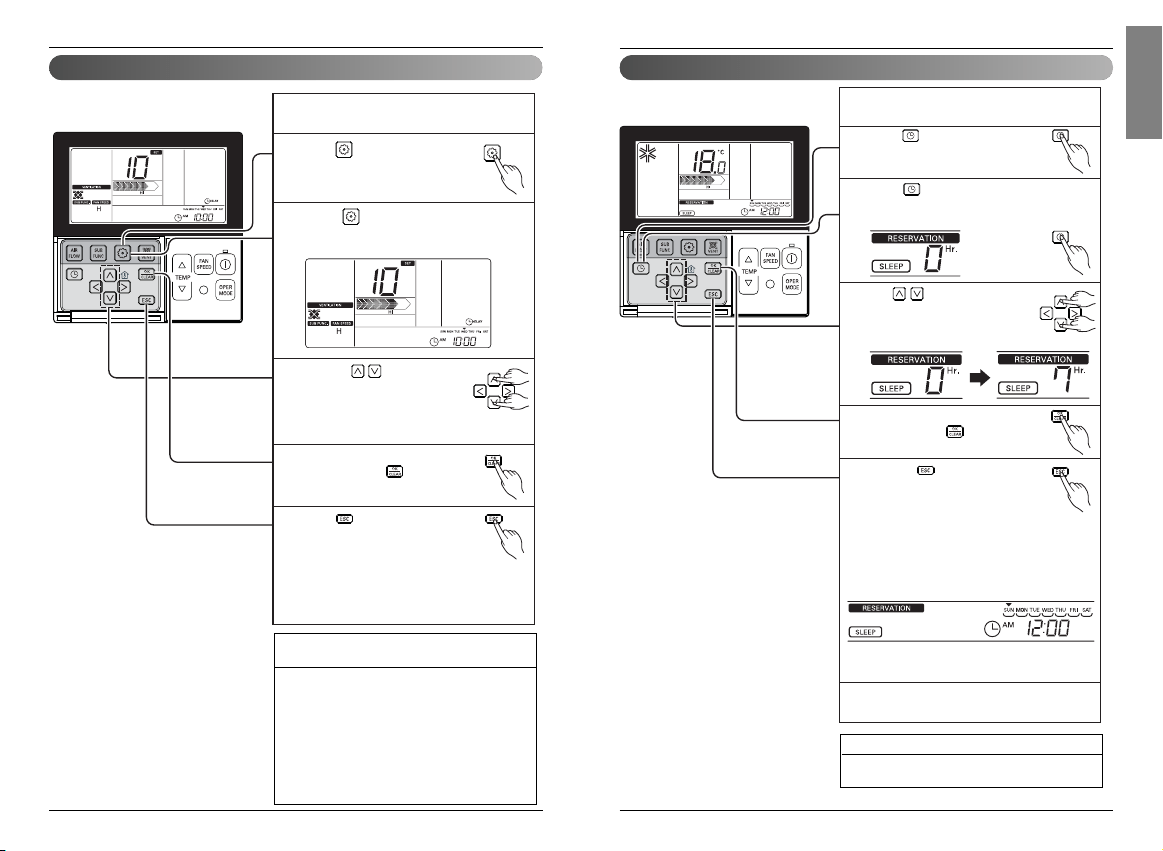
Owner’s & Installation Manual 67
ENGLISH
66 New Wide Wired Remote Controller
Ventilation Product Reservations Settings
Press button to enter the
reservation settings mode.
1
Press button again to move to Sleep.
'Sleep' icon blinks and the reservation time is
displayed.
2
Use button to set the
reservation time.
Reservation time can be set
between 1 ~ 12 hours.
3
When Sleep reservation setting is
finished, press button.
4
When the sleep reservation setting is finished,
it operates lightly for the set time.
6
Pressing button will exit the
settings mode.
❈ If no button input for 60 seconds
after the setting, it exits the
settings mode automatically.
❈ When exiting without pressing set button,
the manipulated value is not reflected.
- When the reservation is set, 'Sleep' is
displayed at the bottom of LCD screen.
5
- When the reservation is cancelled, 'Sleep'
mark disappears.
Sleep Reservations : Sets to operate ventilation
lightly during the sleep.
Owner's instruction
Simple, ON, OFF, Weekdays, Holidays Reservations
❈ Please refer to the Reservation Settings part of the air conditioner for
Simple, ON, OFF, Weekdays, Holidays Reservations
Ventilation Product Function Settings
Press Settings button.
1
Pressing button repeatedly will move to the delay
time menu. Then delay time icon is displayed, and the
delay time blinks at the perature display area.
2
Pressing button will
change the delay time settings.
❈ Boundary of delay time
settings : 00 ~ 60 minutes
(in the units of 1 minute)
3
When the desired delay time is
displayed, press button to
finish the settings.
4
Press button when the setting
is finished.
❈ If no button input for 1 minute
after the setting, it exits the
settings mode automatically.
❈ When exiting without pressing set button,
the manipulated value is not reflected.
5
Delay Time : It operates after delay time in
ventilation operation.
Lock, Filter Cleaning, Time Setting,
Converting Temperature
❈ Refer to 'Function Settings - Lock Settings' part for
lock function.
❈ Refer to 'Function Settings - Filter Cleaning Display
Release' part for Filter Cleaning function.
❈ Refer to 'Function Settings - Time Settings' part for
Time Setting function.
❈ Refer to 'Function Settings - Temperature
Conversion' part for Temperature Conversion
function.
Owner's instruction

Owner’s & Installation Manual 69
ENGLISH
68 New Wide Wired Remote Controller
Different mode drive
While a few indoor units are running air-cooling
at one AHU, it doesn't operate heating drive if
one indoor unit operates heating drive.
1
While a few indoor units are running heating
at one AHU, it doesn't run if one indoor unit
runs cooling or humidity removal.
It is the indication that it is operating heating
drive at AHU.
2
If pressing button, indoor unit
automatically runs at the mode that
different indoor units are running after about 5
seconds and operates.
3
Different mode drive is a phenomenon taking place when indoor units' drive mode is different in the
case that a few indoor units are set up at one AHU.
(Different mode drive doesn't show up at cooling exclusive model.)
Owner's instruction
Ventilation Product Installer Setting Functions - Entering Method
Press button to enter ventilation
mode.
1
Pressing button down for more
than 3 seconds will enter the
settings mode.
- Pressing once shortly will enter
the user settings mode. You must press
down for more than 3 seconds.
2
When you enter the installer settings mode,
the data value that can be set is displayed at
the lower right corner of LCD screen.
3
Code
value
Seting
value
- Installer setting mode is a mode to set the detail functions of the remote controller.
- When the installer settings are not set properly, it may cause the fault of the product, injury to the
user, or damage to the property.
- It must be set by a certified technician, and when it is installed without certified technician or
changed discretionally, all of the problems are the responsibilities of the installer, and we do not
provide service free of charge.
CAUTION
• Some categories of the menu may not be displayed according to the function of the product, or
the menu name may be different.
Owner's instruction
Simple, ON, OFF, Weekdays, Holidays
Reservations
❈ Please refer to the Reservation Settings part of
the air conditioner for Simple, ON, OFF,
Weekdays, Holidays Reservations
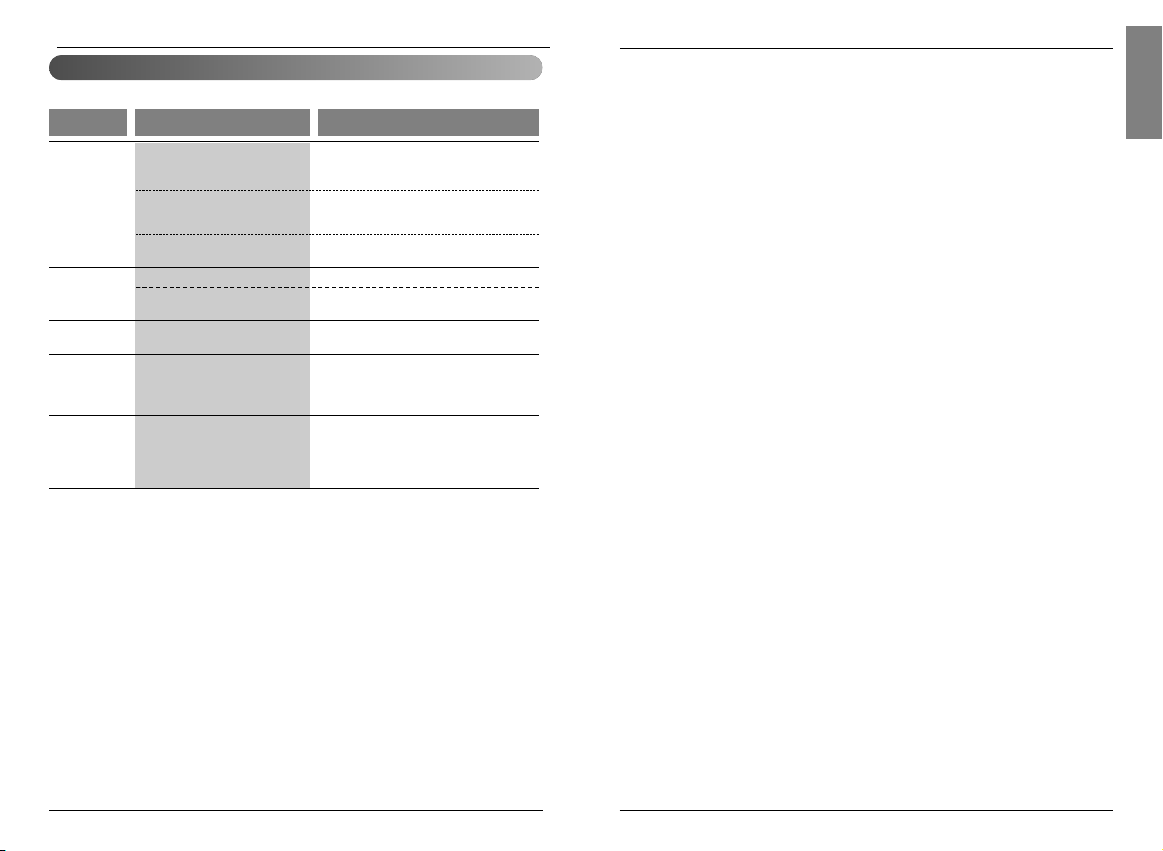
Owner’s & Installation Manual 71
ENGLISH
70 New Wide Wired Remote Controller
Checkups before reporting breakdown
Please first check the items below for product's defects before consulting to service center.
Symptoms
• Is air-conditioner's power on?
• Are air-conditioner and remote
controller properly connected
with cable?
• Is cable connection correct?
• Did you correctly setup time?
• Did you correctly make a
reservation?
• Is desired temperature setup
lower than current temperature?
• Isn't reservation drive setup?
• Does remote controller indication
window indicate 'CH03'?
It has no power
on.
It doesn't operate
reservation drive.
It doesn't release
cool wind.
Air-conditioner
automatically runs
or stops.
Error is indicated
on remote
controller
indication window.
• Please check up circuit breaker.
• Please check up wire remote controller's
setup condition.
• Please connect air-conditioner and remote
controller cable.
• Please check again referring to setup
method at the manual.
• Please set up current time correctly.
• Please set up again referring to the
manual.
• Please set up desired temperature lower
than current temperature.
• When reservation setting button and
set/cancel button are pressed
simultaneously for 3 seconds or longer, all
set reservations will be cancelled.
• Please check again wire remote
controller's setup condition.
• Please check again connection condition
of air-conditioner and remote controller
cable.
ManagementCheck-up
Owner's instruction



