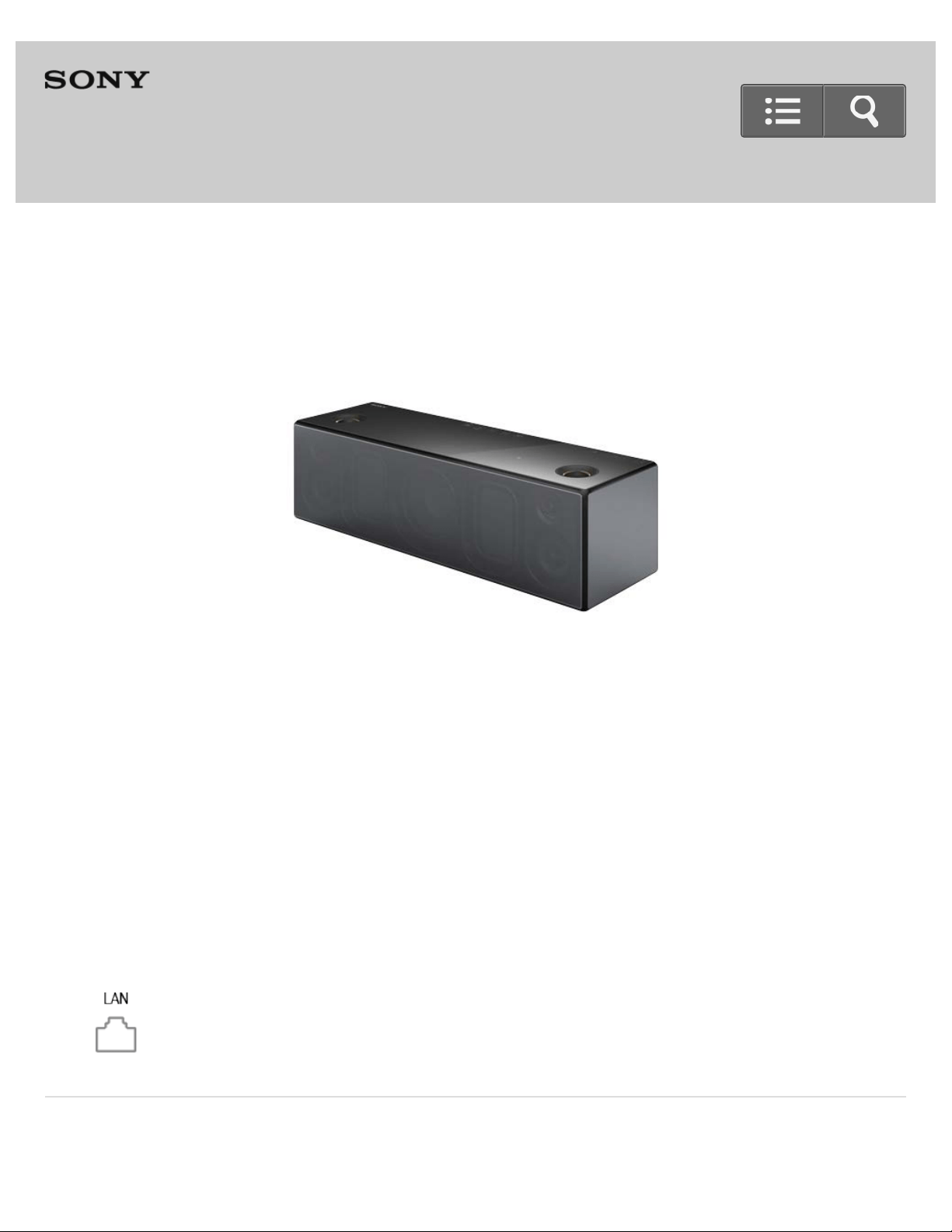
Personal Audio System
SRS-X99
The following explains how to use this speaker. Select a topic from the navigation pane on
the left.
The content referenced in the Wi-Fi Startup Guide and Operating Instructions are
described in detail through the following links.
Help Guide
Network connection (wired)
You can connect the speaker to a wired network if a Wi-Fi network connection is not
possible.
Playback via a network (Windows 8, Windows Media Player)
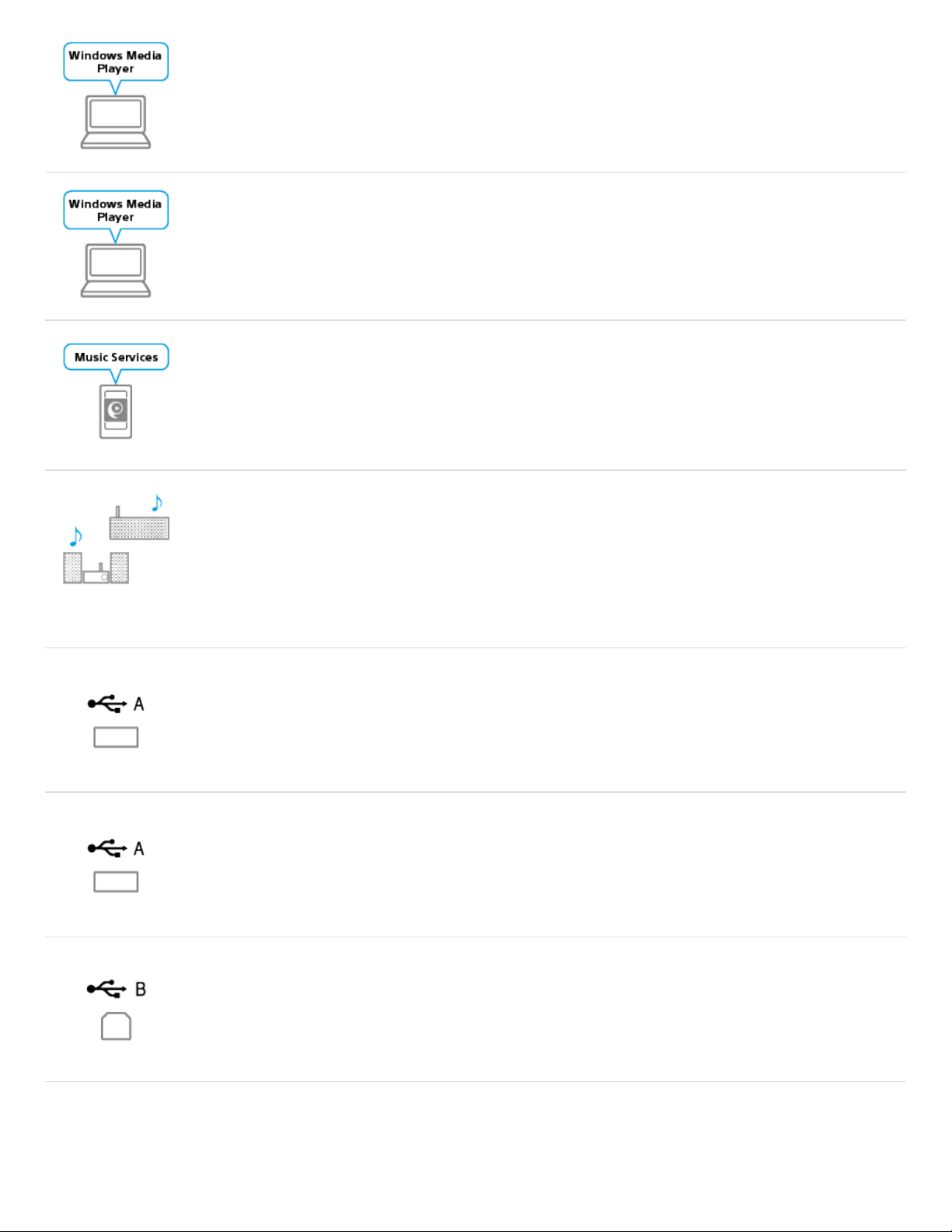
You can listen to music stored in a Windows 8 PC connected to your network using
Windows Media Player.
Playback via a network (Windows 7, Windows Media Player)
You can listen to music stored in a Windows 7 PC connected to your network using
Windows Media Player.
Playback via a network (internet music streaming service (Google
Cast))
You can stream music from the internet using SongPal.
Playback via a network (SongPal Link)
Enjoy music in any room via Wi-Fi. You can listen to your favorite music stored in
your computer or mobile phone, or from music streaming services, in different rooms
with high sound quality.
USB connection (USB A port, USB flash drive)
You can connect a USB flash drive to the USB A port.
USB connection (USB A port, Walkman)
You can connect a Walkman to the USB A port.
USB connection (USB B port, High-resolution supported Walkman)
You can connect a high-resolution supported Walkman to the USB B port.
USB connection (USB B port, High-resolution supported Xperia)
You can connect a high-resolution supported Xperia to the USB B port.
Go to Page Top
Getting Started
SongPal
Listening to music via home network
Listening to music via BLUETOOTH connection
Listening to music via USB connection
Listening to music by connecting with an audio cable
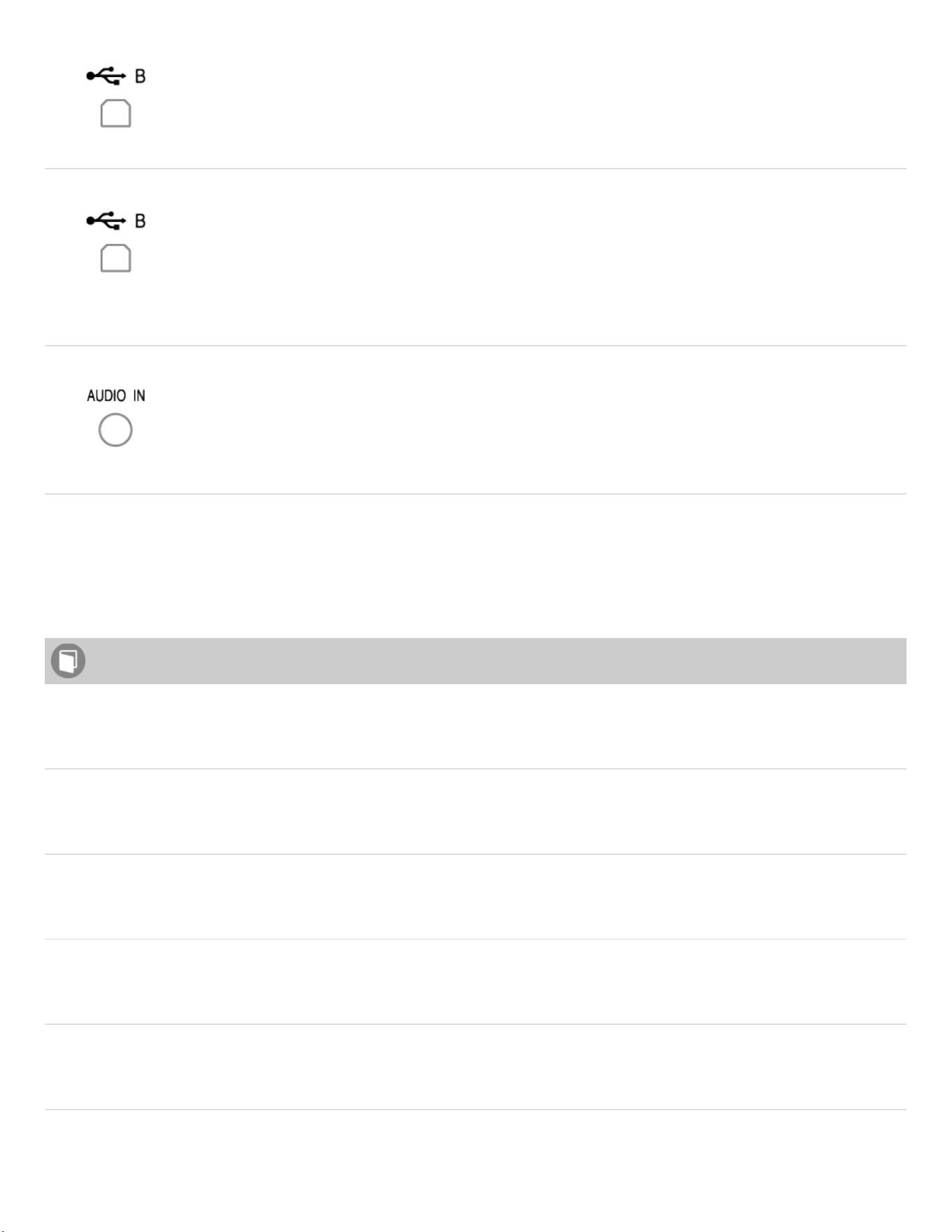
USB connection (USB B port, PC/Mac)
You can connect a PC/Mac storing High-Resolution Audio files to the USB B port. To
play back a High-Resolution Audio file, the dedicated software “Sony | Music Center
for PC” or “Hi-Res Audio Player” is required to be downloaded.
Audio cable connection (AUDIO IN port, portable audio device)
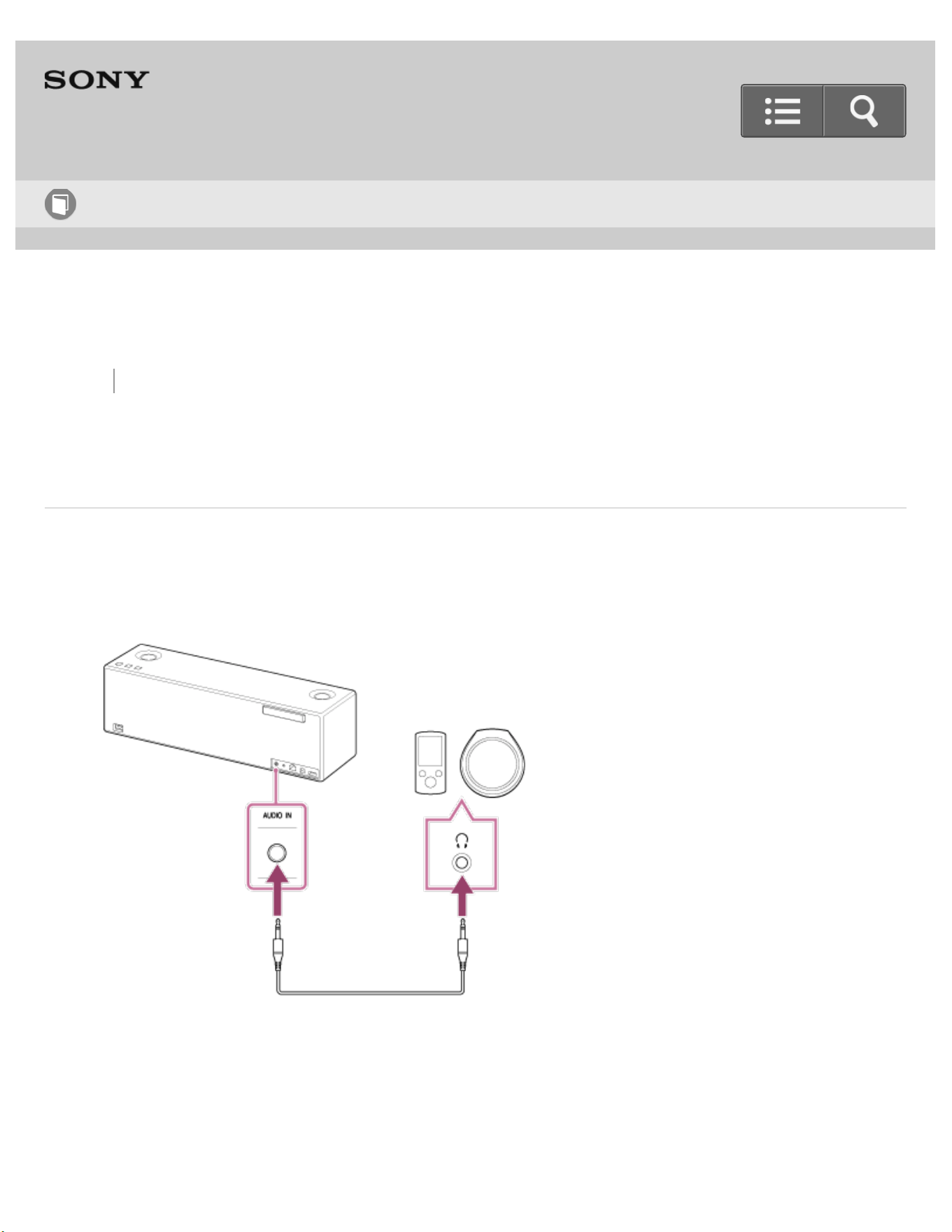
You can connect the device to the AUDIO IN jack with a commercially-available audio
cable.
How to Use

Go to Page Top
Listening to music on an Xperia
Listening to music on a smartphone
Listening to music on an iPhone/iPad/iPod
Listening to music on a Walkman
Listening to music on a PC (Windows 8)
Listening to music on a PC (Windows 7)
Listening to music on a Mac
Listening to music on a USB flash drive
Listening to High-Resolution Audio format files
Information
Troubleshooting
Troubleshooting

Table Of Contents
Help Guide SRS-X99 i
Connection method 4: Connecting to a wired network 1
Listening to music on a PC via a network (Windows 8) (Windows Media Player) 3
Listening to music on a PC via a network (Windows 7) Windows Media Player 7
Listening to music from an internet streaming service (Google Cast) 11
Listening to the same music with multiple speakers or different music in
different places (SongPal Link function) 14
Connecting a USB flash drive 16
Connecting a Walkman 18
Connecting a high-resolution supported Walkman 20
Connecting a high-resolution supported Xperia 22
Connecting a computer/Installing the driver 31
Connecting to a portable audio device, etc. 33
Getting Started 24
Overview 103
What you can do with the speaker 229
Parts and controls 104
Parts and controls (Main unit) 231
Parts and controls (Remote control) 74
Included items 105
Checking the included items 236
Power source 106
Connecting to an AC outlet 238
Inserting the batteries of the remote control 240
Turning the power on 242
Turning the power off 244
Using the BLUETOOTH/Network standby function 72
Charging USB devices, such as smartphones 97
Auto standby function 246
SongPal 25
About SongPal 108
How to use the SongPal screen 248
What you can do with SongPal 86
Wi-Fi network connection 109
Connecting to a Wi-Fi network using SongPal (Smartphone) 251
Connecting to a Wi-Fi network using SongPal (iPhone) 257
TOC-1

Device control 110
Listening to music on a PC via a Wi-Fi network 77
Listening to the music stored in your smartphone/iPhone over Wi-Fi network
263
Listening to music on a device via a USB connection (USB-A) 91
Listening to music on a computer via a USB connection (USB-B) 144
Listening to music from an internet streaming service (Google Cast) 11
Listening to the same music with multiple speakers or different music in
different places 14
Speaker settings 112
Setting the sound quality 266
Setting the auto standby function 268
Setting the BLUETOOTH/Network standby function 270
Setting the BLUETOOTH audio streaming playback quality (Codec) 272
Listening to music via home network 26
Selecting the network connection method 113
Selecting the Wi-Fi network connection method 274
Selecting the wired network connection method 276
About home network (DLNA) 114
DLNA (Digital Living Network Alliance) 277
Listening to music on a PC via a network (Modern UI) 115
Connection method 1: Connecting to a Wi-Fi network using the WPS button of
awireless router 279
Connection method 2: Connecting to a Wi-Fi network using a computer
connected witha LAN cable 282
Connection method 3: Connecting to a Wi-Fi network using a PC connected
wirelessly(Modern UI) 286
Connection method 4: Connecting to a wired network 1
Connection method 5: Connecting to a Wi-Fi network using an iPhone/iPad/
iPod touch 290
Setting your PC as a DLNA server and controller (Windows 8) 80
Setting your PC for operating from a controller such as smartphone/ iPhone
(Windows8) 294
Listening with the AirPlay function (iTunes) 297
Listening to music on a PC via a network (Windows 8) (Windows Media Player)
3
Listening to music on a PC via a network (“Sony | Music Center for PC”)
300
TOC-2

Listening to music on a PC via a network (“Sony | Music Center for PC” with
SongPaloperation) 304
Listening to music on a PC via a network (Windows 8) 117
Connection method 1: Connecting to a Wi-Fi network using the WPS button of
awireless router 279
Connection method 2: Connecting to a Wi-Fi network using a computer
connected witha LAN cable 282
Connection method 3: Connecting to a Wi-Fi network using a PC connected
wirelessly(Windows 7/Windows 8) 309
Connection method 4: Connecting to a wired network 1
Connection method 5: Connecting to a Wi-Fi network using an iPhone/iPad/
iPod touch 290
Setting your PC as a DLNA server and controller (Windows 8) 80
Setting your PC for operating from a controller such as smartphone/ iPhone
(Windows8) 294
Listening with the AirPlay function (iTunes) 297
Listening to music on a PC via a network (Windows 8) (Windows Media Player)
3
Listening to music on a PC via a network (“Sony | Music Center for PC”)
300
Listening to music on a PC via a network (“Sony | Music Center for PC” with
SongPaloperation) 304
Listening to music on a PC via a network (Windows 7) 119
Connection method 1: Connecting to a Wi-Fi network using the WPS button of
awireless router 279
Connection method 2: Connecting to a Wi-Fi network using a computer
connected witha LAN cable 282
Connection method 3: Connecting to a Wi-Fi network using a PC connected
wirelessly(Windows 7/Windows 8) 309
Connection method 4: Connecting to a wired network 1
Connection method 5: Connecting to a Wi-Fi network using an iPhone/iPad/
iPod touch 290
Setting your PC as a DLNA server and controller (Windows 7) 83
Listening with the AirPlay function (iTunes) 297
Listening to music on a PC via a network (Windows 7) Windows Media Player
7
Listening to music on a PC via a network (“Sony | Music Center for PC”)
300
TOC-3

Listening to music on a PC via a network (“Sony | Music Center for PC” with
SongPaloperation) 304
Listening to music on a computer via a network (Mac) 121
Connection method 1: Connecting to a Wi-Fi network using the WPS button of
awireless router 279
Connection method 2: Connecting to a Wi-Fi network using a computer
connected witha LAN cable 282
Connection method 3: Connecting to a Wi-Fi network using a Mac connected
wirelessly 313
Connection method 4: Connecting to a wired network 1
Connection method 5: Connecting to a Wi-Fi network using an iPhone/iPad/
iPod touch 290
Listening with the AirPlay function (iTunes) 297
Listening to music on an iPhone/iPad/iPod via a network 123
Connection method 1: Connecting to a Wi-Fi network using the WPS button of
awireless router 279
Connection method 2: Connecting to a Wi-Fi network using a computer
connected witha LAN cable 282
Connection method 3: Connecting to a wired network 317
Connection method 4: Connecting to a Wi-Fi network using an iPhone/iPad/
iPod touch 319
Listening with the AirPlay function (iPhone/iPad/iPod touch) 323
Listening to music on an Xperia via a network 125
Connection method 1: Connecting to a Wi-Fi network using the WPS button of
awireless router 279
Connection method 2: Connecting to a Wi-Fi network using a computer
connected witha LAN cable 282
Connection method 3: Connecting to a wired network 317
Connection method 4: Connecting to a Wi-Fi network using an iPhone/iPad/
iPod touch 319
Listening to music with the Music application (Xperia) 327
Listening to an Internet music service 127
Listening to music from an internet streaming service (Google Cast) 11
Listening to an Internet music service (Spotify) 330
Listening to music via BLUETOOTH connection 28
How to make a wireless connection with BLUETOOTH devices 128
How to make a wireless connection with BLUETOOTH devices 332
Listening to music on a device via a BLUETOOTH connection 129
TOC-4

Connection method 1: Pairing and connecting with a BLUETOOTH device
335
Connection method 2: Connecting with a paired BLUETOOTH device 339
Connection method 3: Connecting with an NFC-compatible device by one
touch (NFC) 342
Listening to music on a device via a BLUETOOTH connection 345
Selecting the BLUETOOTH audio streaming playback quality (Codec) 348
Terminating the BLUETOOTH connection (After use) 350
Disconnecting the NFC-compatible device by one touch (NFC) 352
Switching devices by one touch (NFC) 353
Listening to music via USB connection 29
Listening to music on a USB flash drive via a USB connection (USB-A) 131
Connecting a USB flash drive 16
Listening to music on a USB flash drive 88
Listening to music on an iPhone/iPad/iPod via a USB connection (USB-A) 132
Connecting an iPhone/iPad/iPod 354
Listening to music on an iPhone/iPad/iPod 356
Listening to music on a Walkman via a USB connection (USB-A) 133
Connecting a Walkman 18
Listening to music on a Walkman 94
Listening to music on a high-resolution supported Walkman via a USB
connection (USB-B) 134
Connecting a high-resolution supported Walkman 20
Listening to music on a high-resolution supported Walkman 100
Listening to music on a high-resolution supported Xperia via a USB
connection (USB-B) 135
Connecting a high-resolution supported Xperia 22
Listening to music on a high-resolution supported Xperia 359
Listening to music on a computer via a USB connection (USB-B) 136
Connecting a computer/Installing the driver 31
Installing “Sony | Music Center for PC” or “Hi-Res Audio Player” to a PC
138
Listening to music on a computer 140
Listening to music by connecting with an audio cable 30
Listening to music on a portable audio device, etc., by connecting with an
audio cable (AUDIO IN) 137
Connecting to a portable audio device, etc. 33
Listening to music on a portable audio device, etc. 147
TOC-5

Listening to music on an Xperia 35
Selecting the network connection method 149
Selecting the Wi-Fi network connection method 274
Selecting the wired network connection method 276
How to make a wireless connection with BLUETOOTH devices 150
How to make a wireless connection with BLUETOOTH devices 332
Listening to music on an Xperia via a network 151
Connection method 1: Connecting to a Wi-Fi network using the WPS button of
awireless router 279
Connection method 2: Connecting to a Wi-Fi network using a computer
connected witha LAN cable 282
Connection method 3: Connecting to a wired network 317
Connection method 4: Connecting to a Wi-Fi network using an iPhone/iPad/
iPod touch 319
Listening to music with the Music application (Xperia) 327
Listening to music on a device via a BLUETOOTH connection 153
Connection method 1: Pairing and connecting with a BLUETOOTH device
335
Connection method 2: Connecting with a paired BLUETOOTH device 339
Connection method 3: Connecting with an NFC-compatible device by one
touch (NFC) 342
Listening to music on a device via a BLUETOOTH connection 345
Selecting the BLUETOOTH audio streaming playback quality (Codec) 348
Terminating the BLUETOOTH connection (After use) 350
Disconnecting the NFC-compatible device by one touch (NFC) 352
Switching devices by one touch (NFC) 353
Listening to music on a high-resolution supported Xperia via a USB
connection (USB-B) 155
Connecting a high-resolution supported Xperia 22
Listening to music on a high-resolution supported Xperia 359
Listening to music on a portable audio device, etc., by connecting with an
audio cable (AUDIO IN) 156
Connecting to a portable audio device, etc. 33
Listening to music on a portable audio device, etc. 147
Listening to music on a smartphone 36
How to make a wireless connection with BLUETOOTH devices 157
How to make a wireless connection with BLUETOOTH devices 332
Listening to music on a device via a BLUETOOTH connection 158
TOC-6

Connection method 1: Pairing and connecting with a BLUETOOTH device
335
Connection method 2: Connecting with a paired BLUETOOTH device 339
Connection method 3: Connecting with an NFC-compatible device by one
touch (NFC) 342
Listening to music on a device via a BLUETOOTH connection 345
Selecting the BLUETOOTH audio streaming playback quality (Codec) 348
Terminating the BLUETOOTH connection (After use) 350
Disconnecting the NFC-compatible device by one touch (NFC) 352
Switching devices by one touch (NFC) 353
Listening to music on a portable audio device, etc., by connecting with an
audio cable (AUDIO IN) 160
Connecting to a portable audio device, etc. 33
Listening to music on a portable audio device, etc. 147
Listening to music on an iPhone/iPad/iPod 37
Selecting the network connection method 161
Selecting the Wi-Fi network connection method 274
Selecting the wired network connection method 276
How to make a wireless connection with BLUETOOTH devices 162
How to make a wireless connection with BLUETOOTH devices 332
Listening to music on an iPhone/iPad/iPod via a network 163
Connection method 1: Connecting to a Wi-Fi network using the WPS button of
awireless router 279
Connection method 2: Connecting to a Wi-Fi network using a computer
connected witha LAN cable 282
Connection method 3: Connecting to a wired network 317
Connection method 4: Connecting to a Wi-Fi network using an iPhone/iPad/
iPod touch 319
Listening with the AirPlay function (iPhone/iPad/iPod touch) 323
Listening to music on an iPhone/iPad/iPod via a BLUETOOTH connection 165
Connection method 1: Pairing and connecting with a BLUETOOTH device
335
Connection method 2: Connecting with a paired BLUETOOTH device 339
Listening to music on a device via a BLUETOOTH connection 345
Selecting the BLUETOOTH audio streaming playback quality (Codec) 348
Terminating the BLUETOOTH connection (After use) 350
Listening to music on an iPhone/iPad/iPod via a USB connection (USB-A) 166
Connecting an iPhone/iPad/iPod 354
TOC-7

Listening to music on an iPhone/iPad/iPod 356
Listening to music on a portable audio device, etc., by connecting with an
audio cable (AUDIO IN) 167
Connecting to a portable audio device, etc. 33
Listening to music on a portable audio device, etc. 147
Listening to music on a Walkman 38
How to make a wireless connection with BLUETOOTH devices 168
How to make a wireless connection with BLUETOOTH devices 332
Listening to music on a Walkman via a BLUETOOTH connection 169
Connection method 1: Pairing and connecting with a BLUETOOTH device
335
Connection method 2: Connecting with a paired BLUETOOTH device 339
Listening to music on a device via a BLUETOOTH connection 345
Selecting the BLUETOOTH audio streaming playback quality (Codec) 348
Terminating the BLUETOOTH connection (After use) 350
Disconnecting the NFC-compatible device by one touch (NFC) 352
Switching devices by one touch (NFC) 353
Listening to music on a Walkman via a USB connection (USB-A) 171
Connecting a Walkman 18
Listening to music on a Walkman 94
Listening to music on a high-resolution supported Walkman via a USB
connection (USB-B) 172
Connecting a high-resolution supported Walkman 20
Listening to music on a high-resolution supported Walkman 100
Listening to music on a portable audio device, etc., by connecting with an
audio cable (AUDIO IN) 173
Connecting to a portable audio device, etc. 33
Listening to music on a portable audio device, etc. 147
Listening to music on a PC (Windows 8) 39
Selecting the network connection method 174
Selecting the Wi-Fi network connection method 274
Selecting the wired network connection method 276
About home network (DLNA) 175
DLNA (Digital Living Network Alliance) 277
How to make a wireless connection with BLUETOOTH devices 176
How to make a wireless connection with BLUETOOTH devices 332
Listening to music on a PC via a network (Modern UI) 177
Connection method 1: Connecting to a Wi-Fi network using the WPS button of
TOC-8

awireless router 279
Connection method 2: Connecting to a Wi-Fi network using a computer
connected witha LAN cable 282
Connection method 3: Connecting to a Wi-Fi network using a PC connected
wirelessly(Modern UI) 286
Connection method 4: Connecting to a wired network 1
Connection method 5: Connecting to a Wi-Fi network using an iPhone/iPad/
iPod touch 290
Setting your PC as a DLNA server and controller (Windows 8) 80
Setting your PC for operating from a controller such as smartphone/ iPhone
(Windows8) 294
Listening with the AirPlay function (iTunes) 297
Listening to music on a PC via a network (Windows 8) (Windows Media Player)
3
Listening to music on a PC via a network (“Sony | Music Center for PC”)
300
Listening to music on a PC via a network (“Sony | Music Center for PC” with
SongPaloperation) 304
Listening to music on a PC via a network (Windows 8) 179
Connection method 1: Connecting to a Wi-Fi network using the WPS button of
awireless router 279
Connection method 2: Connecting to a Wi-Fi network using a computer
connected witha LAN cable 282
Connection method 3: Connecting to a Wi-Fi network using a PC connected
wirelessly(Windows 7/Windows 8) 309
Connection method 4: Connecting to a wired network 1
Connection method 5: Connecting to a Wi-Fi network using an iPhone/iPad/
iPod touch 290
Setting your PC as a DLNA server and controller (Windows 8) 80
Setting your PC for operating from a controller such as smartphone/ iPhone
(Windows8) 294
Listening with the AirPlay function (iTunes) 297
Listening to music on a PC via a network (Windows 8) (Windows Media Player)
3
Listening to music on a PC via a network (“Sony | Music Center for PC”)
300
Listening to music on a PC via a network (“Sony | Music Center for PC” with
SongPaloperation) 304
TOC-9

Listening to music on a PC via a BLUETOOTH connection 181
Connection method 1: Pairing and connecting with a BLUETOOTH device
335
Connection method 2: Connecting with a paired BLUETOOTH device 339
Listening to music on a device via a BLUETOOTH connection 345
Selecting the BLUETOOTH audio streaming playback quality (Codec) 348
Terminating the BLUETOOTH connection (After use) 350
Listening to music on a computer via a USB connection (USB-B) 182
Connecting a computer/Installing the driver 31
Installing “Sony | Music Center for PC” or “Hi-Res Audio Player” to a PC
138
Listening to music on a computer 140
Listening to music on a PC (Windows 7) 40
Selecting the network connection method 183
Selecting the Wi-Fi network connection method 274
Selecting the wired network connection method 276
About home network (DLNA) 184
DLNA (Digital Living Network Alliance) 277
How to make a wireless connection with BLUETOOTH devices 185
How to make a wireless connection with BLUETOOTH devices 332
Listening to music on a PC via a network (Windows 7) 186
Connection method 1: Connecting to a Wi-Fi network using the WPS button of
awireless router 279
Connection method 2: Connecting to a Wi-Fi network using a computer
connected witha LAN cable 282
Connection method 3: Connecting to a Wi-Fi network using a PC connected
wirelessly(Windows 7/Windows 8) 309
Connection method 4: Connecting to a wired network 1
Connection method 5: Connecting to a Wi-Fi network using an iPhone/iPad/
iPod touch 290
Setting your PC as a DLNA server and controller (Windows 7) 83
Listening with the AirPlay function (iTunes) 297
Listening to music on a PC via a network (Windows 7) Windows Media Player
7
Listening to music on a PC via a network (“Sony | Music Center for PC”)
300
Listening to music on a PC via a network (“Sony | Music Center for PC” with
SongPaloperation) 304
TOC-10

Listening to music on a PC via a BLUETOOTH connection 188
Connection method 1: Pairing and connecting with a BLUETOOTH device
335
Connection method 2: Connecting with a paired BLUETOOTH device 339
Listening to music on a device via a BLUETOOTH connection 345
Selecting the BLUETOOTH audio streaming playback quality (Codec) 348
Terminating the BLUETOOTH connection (After use) 350
Listening to music on a computer via a USB connection (USB-B) 189
Connecting a computer/Installing the driver 31
Installing “Sony | Music Center for PC” or “Hi-Res Audio Player” to a PC
138
Listening to music on a computer 140
Listening to music on a Mac 41
Selecting the network connection method 190
Selecting the Wi-Fi network connection method 274
Selecting the wired network connection method 276
About home network (DLNA) 191
DLNA (Digital Living Network Alliance) 277
How to make a wireless connection with BLUETOOTH devices 192
How to make a wireless connection with BLUETOOTH devices 332
Listening to music on a computer via a network (Mac) 193
Connection method 1: Connecting to a Wi-Fi network using the WPS button of
awireless router 279
Connection method 2: Connecting to a Wi-Fi network using a computer
connected witha LAN cable 282
Connection method 3: Connecting to a Wi-Fi network using a Mac connected
wirelessly 313
Connection method 4: Connecting to a wired network 1
Connection method 5: Connecting to a Wi-Fi network using an iPhone/iPad/
iPod touch 290
Listening with the AirPlay function (iTunes) 297
Listening to music on a PC via a BLUETOOTH connection 195
Connection method 1: Pairing and connecting with a BLUETOOTH device
335
Connection method 2: Connecting with a paired BLUETOOTH device 339
Listening to music on a device via a BLUETOOTH connection 345
Selecting the BLUETOOTH audio streaming playback quality (Codec) 348
Terminating the BLUETOOTH connection (After use) 350
TOC-11

Listening to music on a computer via a USB connection (USB-B) 196
Connecting a computer/Installing the driver 31
Installing “Sony | Music Center for PC” or “Hi-Res Audio Player” to a PC
138
Listening to music on a computer 140
Listening to music on a USB flash drive 42
Listening to music on a device via a USB connection (USB-A) 91
Listening to High-Resolution Audio format files 43
About High-Resolution Audio format files 198
About High-Resolution Audio format files 99
Listening to High-Resolution Audio files via a network 199
Listening to High-Resolution Audio format files via a network 361
Listening to music on a USB flash drive via a USB connection (USB-A) 200
Connecting a USB flash drive 16
Listening to music on a USB flash drive 88
Listening to music on a high-resolution supported Walkman via a USB
connection (USB-B) 201
Connecting a high-resolution supported Walkman 20
Listening to music on a high-resolution supported Walkman 100
Listening to music on a high-resolution supported Xperia via a USB
connection (USB-B) 202
Connecting a high-resolution supported Xperia 22
Listening to music on a high-resolution supported Xperia 359
Listening to music on a computer via a USB connection (USB-B) 203
Connecting a computer/Installing the driver 31
Installing “Sony | Music Center for PC” or “Hi-Res Audio Player” to a PC
138
Listening to music on a computer 140
Information 44
About the indicators 204
About the indicators 363
Compatible devices and operating systems 205
Compatible iPhone/iPad/iPod models 367
Compatible Walkman models 371
Compatible operating system (Windows) 373
Compatible operating systems (Mac) 375
Compatible DLNA devices 376
Compatible BLUETOOTH devices 377
TOC-12

Compatible USB devices 379
Software update 206
Updating the pre-installed software 381
Update method 1: Automatic update via the Internet 383
Update method 2: Manual update via the Internet 386
Update method 3: Manual update via a USB flash drive 388
Manual update via a USB flash drive (when the update via a network has
failed) 390
Wi-Fi signal strength 207
Checking the Wi-Fi signal strength (reception sensitivity) 393
About standby functions 208
Standby mode differences 395
Notes on use 209
Precautions 397
What is BLUETOOTH wireless technology? 399
What is LDAC? 402
Trademarks 210
Trademarks 404
Important information on software 406
Notes on software 407
Support website 211
Customer support websites 409
Troubleshooting 45
Troubleshooting 212
What can I do to solve a problem? 410
Main unit 46
Power supply 213
Unable to turn on the speaker 411
None of the speaker buttons can be operated. 412
The setup conditions of the speaker used last time are not retained. 413
The speaker has entered standby mode or BLUETOOTH/Network standby
modeunexpectedly. 414
The power indicator flashes in red. 415
Sound 214
No sound/Sound from only one speaker/Low sound level 416
Distorted sound/Humming or noise in the speaker output 417
Remote control 47
Remote control operation 215
TOC-13

The remote control does not function 418
Network 48
Network connection 216
The speaker cannot connect to the network (Other equipment on the network
cannotfind or recognize the speaker) 419
Unable to connect to a network via a Wi-Fi connection 420
Unable to connect to a network via a Wi-Fi connection (even though a correct
SSID isselected) 422
The speaker cannot connect to a network using the WPS button 423
The speaker does not appear in the device list of the computer's music
playbackapplication. 425
The speaker does not appear in the device select screen of SongPal 426
Music Services 217
The speaker cannot connect to music services 429
Home network (DLNA) 218
The controller cannot find the speaker (The controller cannot browse the
contents of thespeaker) 430
Music started automatically (home network) 431
The sound is interrupted 432
Playback does not start 434
A music file cannot be played back 436
AirPlay 219
The speaker cannot be found from an iPhone/iPad/iPod touch or a computer
withiTunes 437
Music started automatically (AirPlay) 438
There is no sound, or the sound skips during playback 439
The speaker cannot be operated 441
BLUETOOTH 49
Pairing 220
Unable to pair the speaker with a BLUETOOTH device 442
One-touch connection (NFC) 221
Unable to connect the speaker to a BLUETOOTH device with One-touch
(NFC) 443
Sound 222
There is no sound (BLUETOOTH) 444
Distorted sound/Humming or noise 445
USB 50
USB device 223
TOC-14

An unsupported USB device is connected 446
There is no sound (USB) 447
There is noise, skipping, or distorted sound 448
A USB device is not recognized 449
Playback does not start 450
A music file cannot be played back 436
Playback does not start from the first track 451
A USB device cannot be charged 452
iPhone/iPad/iPod (USB-A) 225
An iPhone/iPad/iPod cannot be played back 453
The sound is distorted 454
The iPhone/iPad/iPod does not function 455
The iPhone/iPad/iPod cannot be charged 456
Additional information 51
Software update 226
Updating the pre-installed software 381
Update method 1: Automatic update via the Internet 383
Update method 2: Manual update via the Internet 386
Update method 3: Manual update via a USB flash drive 388
Manual update via a USB flash drive (when the update via a network has
failed) 390
Reset 227
Initializing the speaker 457
Disposal and transfer 228
Disposing of or giving away this speaker 458
How to Use 52
Troubleshooting 68
TOC-15
Back Back to Top Print
Personal Audio System
SRS-X99
Connection method 4: Connecting to a wired network
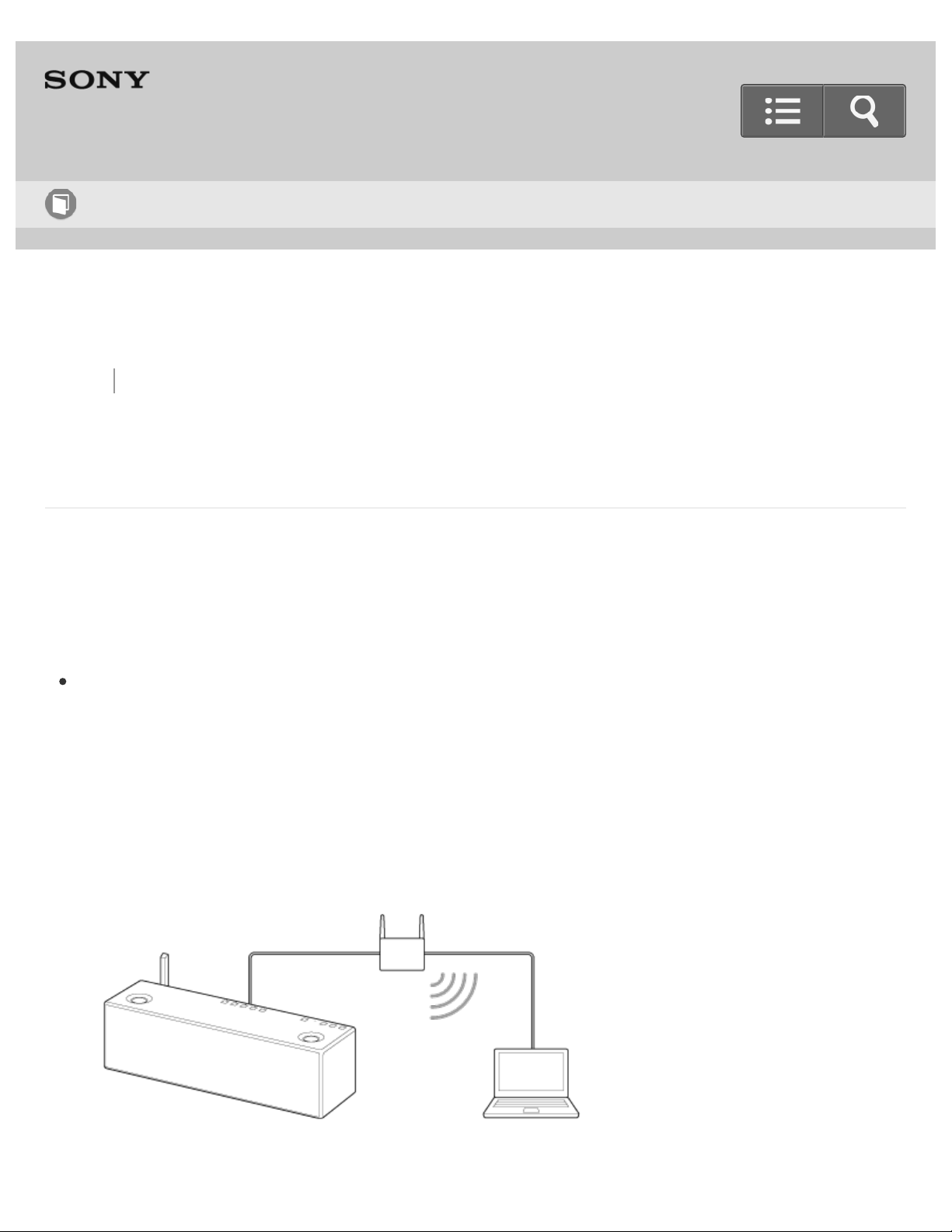
This section describes how to connect the speaker to a wireless router with a
commercially-available LAN cable, then how to connect the router to the computer.
Usually the DHCP setting is set to ON when you connect your computer to the network.
Do the following before starting.
Set the DHCP setting of your computer to ON.
1. Check that your computer and wireless router are turned on.
2. Connect the wireless router to the LAN port with a commercially-available LAN cable.
3. Connect the wireless router to your computer using another commercially-available
LAN cable, or a Wi-Fi connection.
Help Guide
How to Use
1
Go to Page Top
Go to Page Top
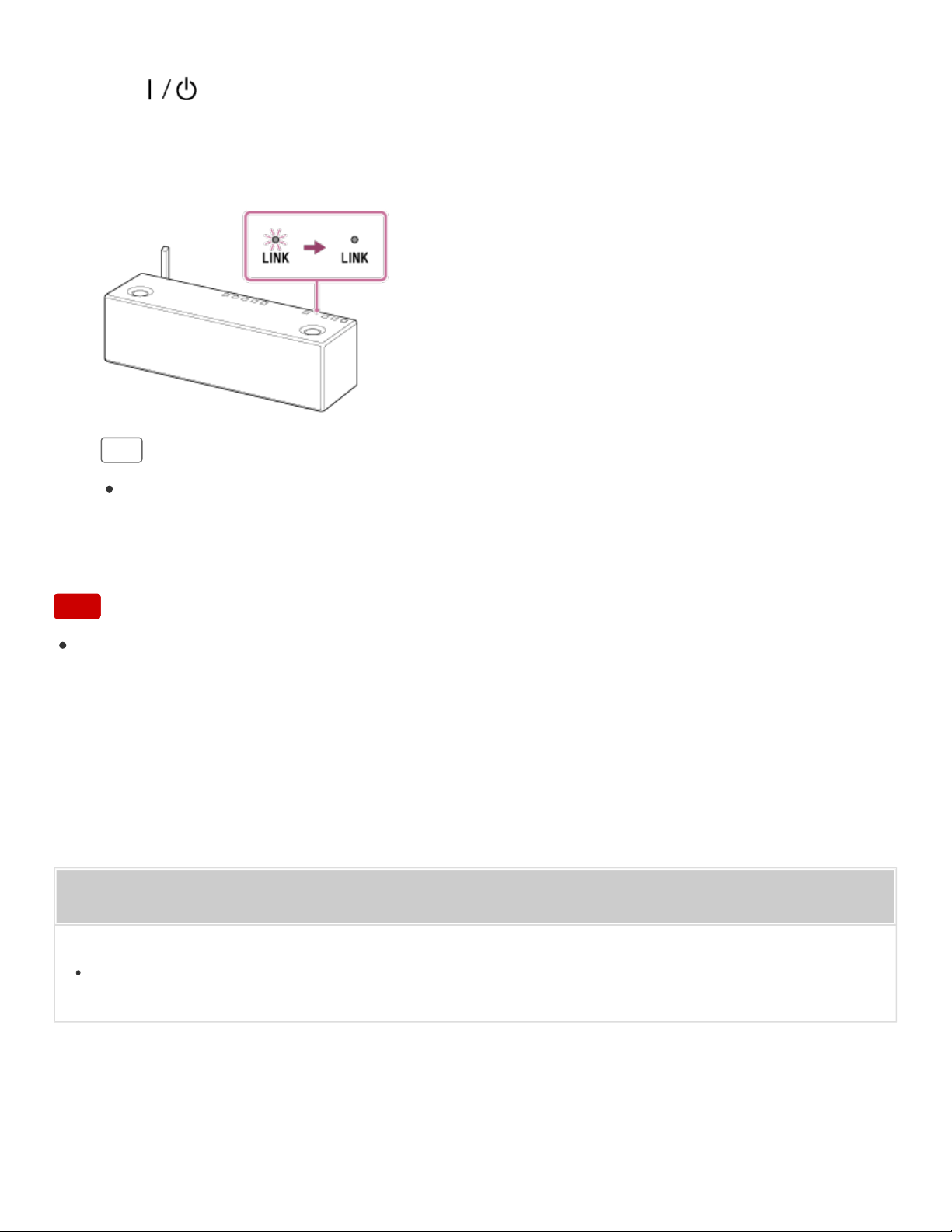
4. Turn the speaker on.
The (on/standby) indicator lights up in green, then the LINK indicator begins to
flash in pink. Wait about a minute until the LINK indicator lights up in pink.
When the connection is completed, the LINK indicator changes from flashing to
staying lit in pink.
Hint
When you connect the speaker to a computer for the first time, it takes about four
or five minutes until the LINK indicator stops flashing and stays lit in pink.
Note
When you connect the speaker to a network for the first time after purchase, or after
you initialize the speaker, the BLUETOOTH/Network standby function is turned on
automatically.
Related Topic
Using the BLUETOOTH/Network standby function
2
Back Back to Top Print
Personal Audio System
SRS-X99
Listening to music on a PC via a network (Windows 8) (Windows Media Player)
You can use a PC as a controller (operating device).
Music can be played back by using the [Play To] function, after starting Windows Media
Player. Follow the instructions on the PC screen to operate.
1. Connect the speaker and PC to the same network.
Connect the speaker and the PC to the same SSID of the wireless router.
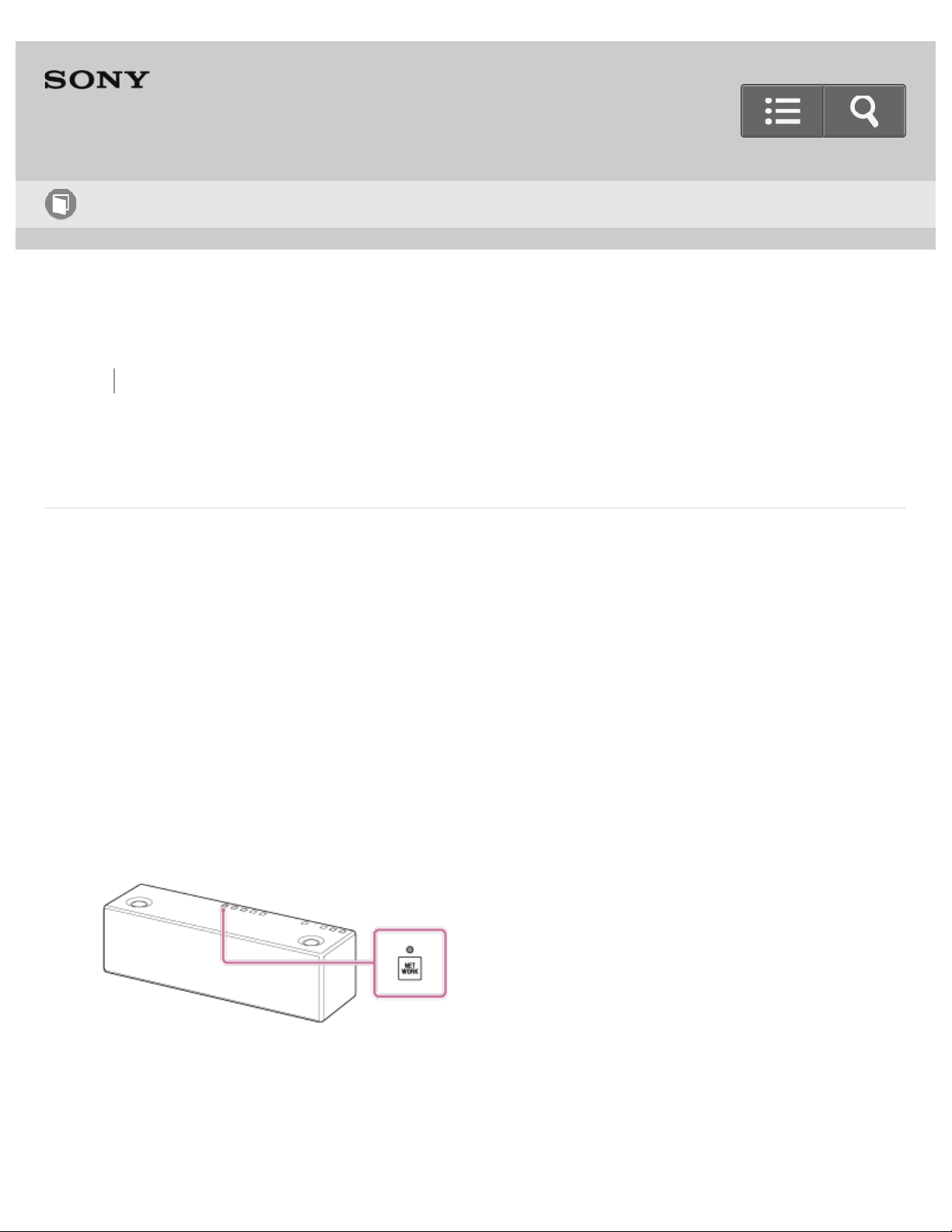
The LINK indicator lights up in orange or pink when the connection is complete.
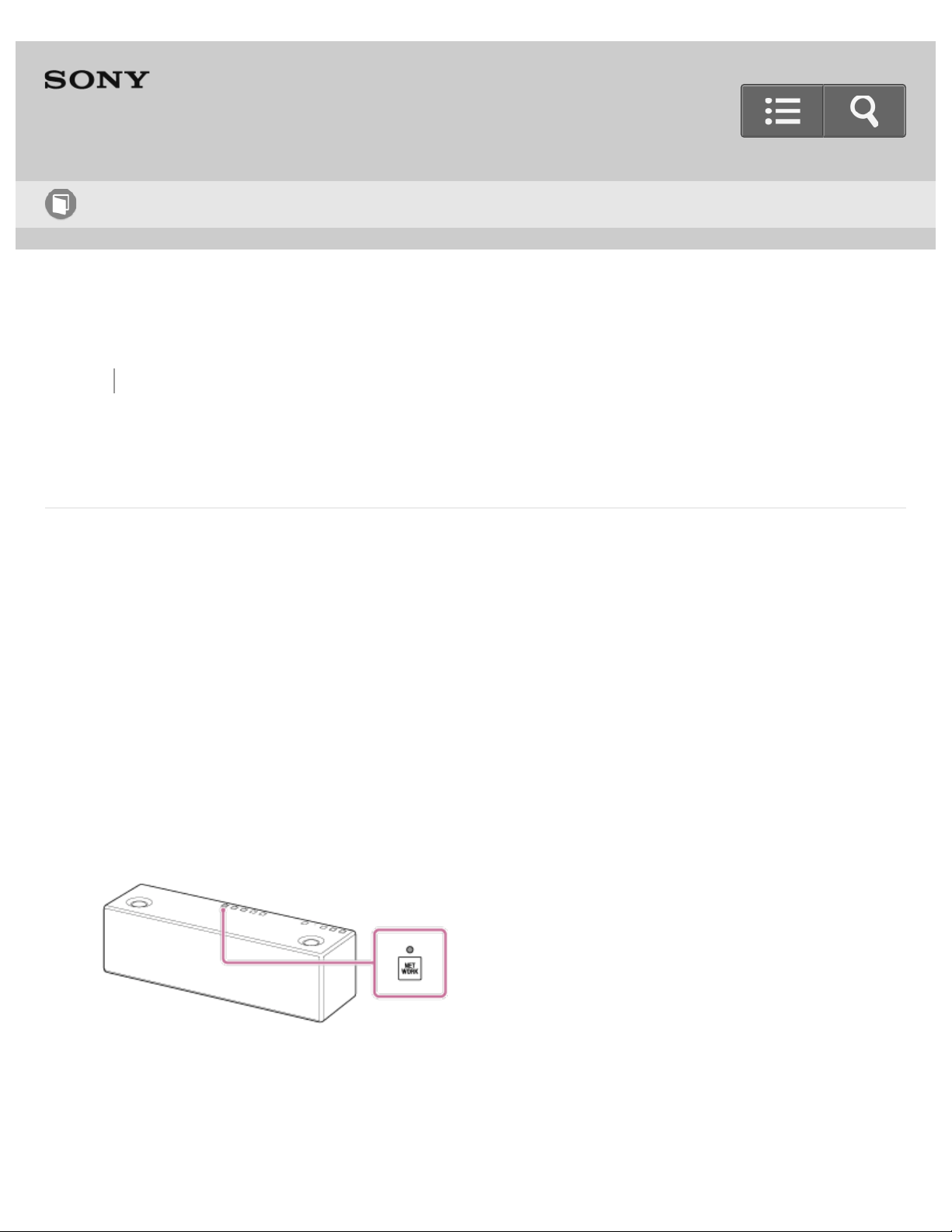
2. Tap the NETWORK button.
The NETWORK indicator lights up in white, and the speaker switches to NETWORK
mode.
The speaker can also be switched to NETWORK mode automatically, instead of
tapping the NETWORK button, by playing back music using the [Play To] function,
after starting Windows Media Player.
Help Guide
How to Use
3
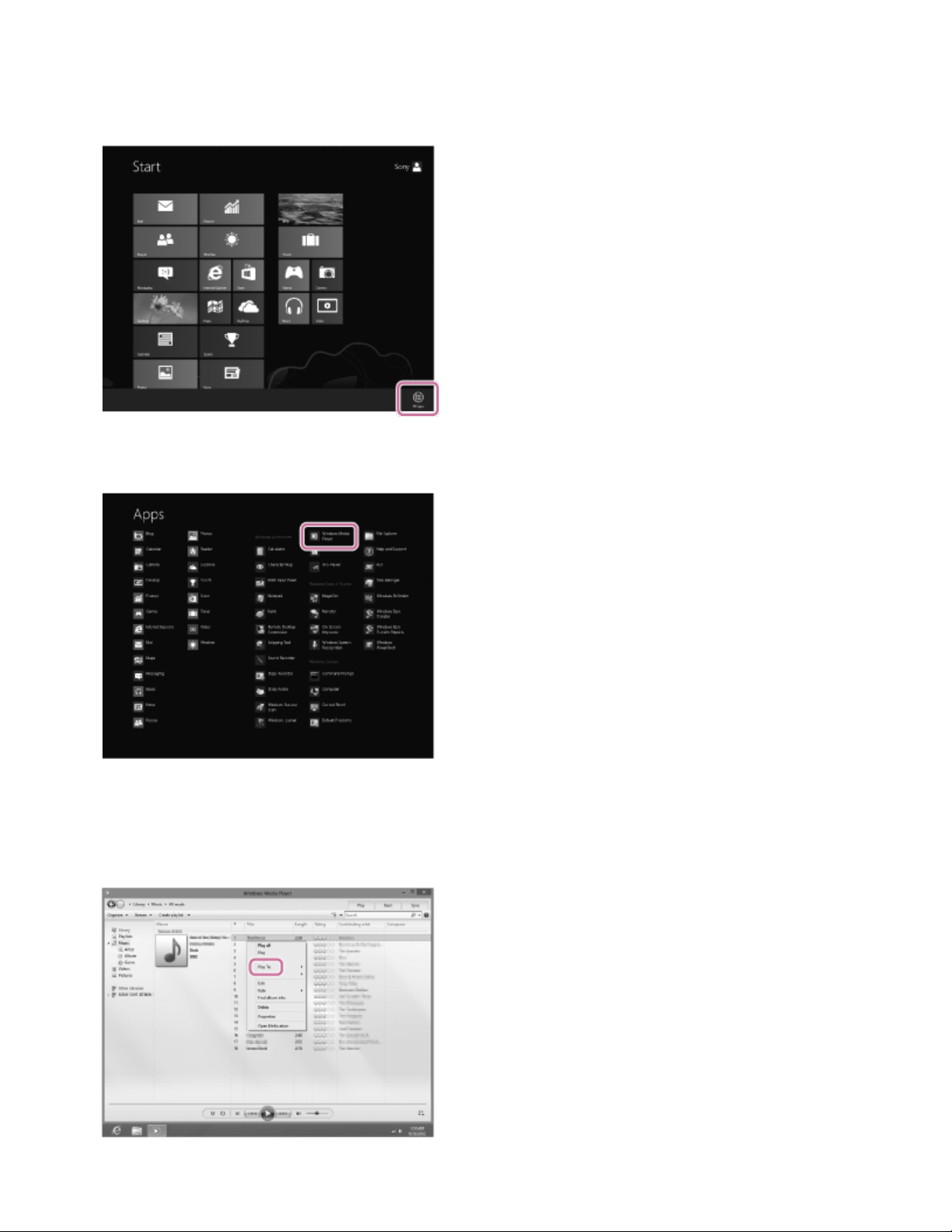
3. Right-click on the Start screen of the PC.
In the case of a touch-panel, swipe from the bottom to the top on the Start screen,
then select [All Apps] at the bottom-right of the screen.
4. Select [Windows Media Player].
5. Right-click or press and hold a song to be played.
6. Select [Play To] from the menu.
4
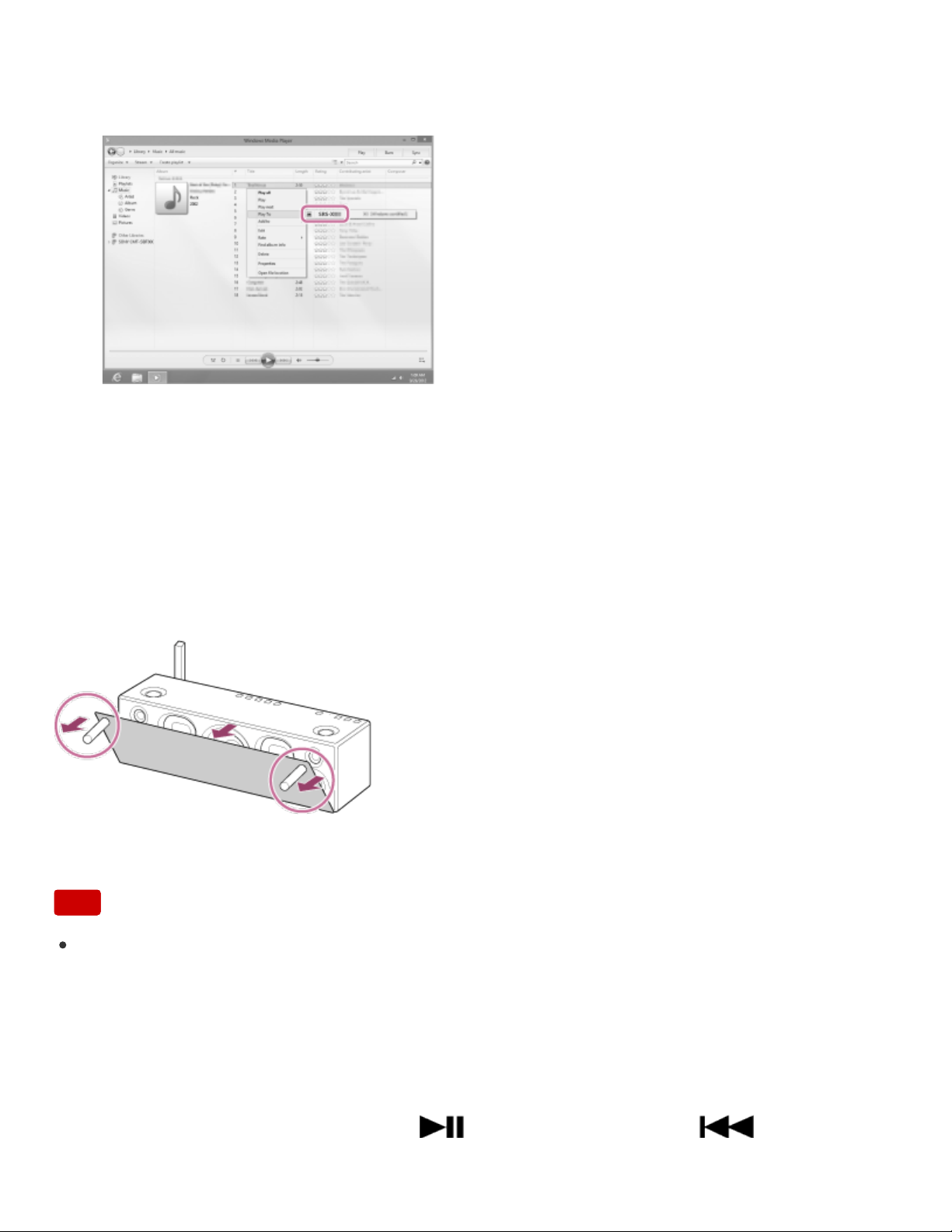
The device list appears.
7. Select [SRS-X99].
8. Play back the selected song, and adjust the volume.
The selected song will be heard from the speaker.
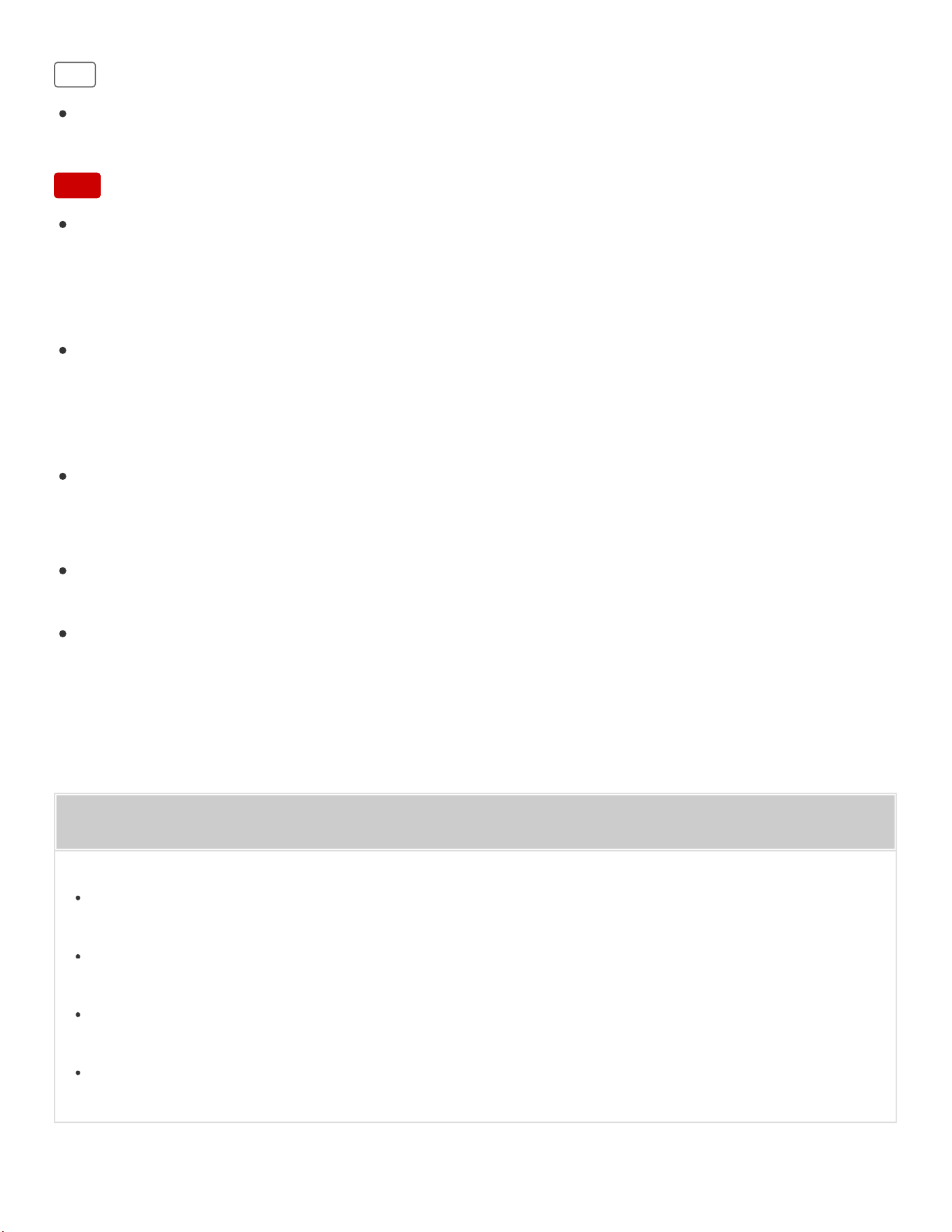
To enjoy a more dynamic sound
Remove the speaker grille from the front of the speaker with the speaker grille detach tool
(supplied).*
*
Keep the removed grille on a flat surface to prevent distortion.
Note
Do not touch the exposed part of the speaker (speaker units) after removing the
speaker grille.
Using the speaker or remote control during playback
You can adjust the volume using the VOL (volume) -/+ buttons of the speaker or the
VOLUME +/- buttons of the remote control.
You can also use the MUTING button, (Play/Pause) button, or (Previous)
button of the remote control.
5
Go to Page Top
Go to Page Top
Hint
After SongPal is downloaded and installed to your smartphone/iPhone, you can use it
as a remote control to operate devices connected to the speaker.
Note
The procedure explained above is for guidance only. Normally, the volume level on a
computer and the speaker do not synchronize. However, depending on the version of
the Windows Media Player installed on a computer or the computer's condition, the
volume levels may synchronize.
The speaker can play MP3, WMA, AAC and WAV format files (only AAC files with the
extension ".m4a," ".mp4," or ".3gp" can be played). Even if the bit rate and file format
are supported, the playback of all files is not guaranteed and there may be a change in
the specification.
Files with DRM (Digital Rights Management) copyright protection cannot be played on
the speaker. To check if a WMA file is protected by DRM, right-click the file on the PC. If
there is a [License] tab, the file is DRM-copyrighted.
When you listen to music via a home network, it may take some time, since each
DLNA-compatible device has to recognize the component currently used.
Some content may not be playable with DLNA certified products.
Related Topic
Parts and controls (Remote control)
Using the BLUETOOTH/Network standby function
Listening to music on a PC via a Wi-Fi network
Setting your PC as a DLNA server and controller (Windows 8)
6
Back Back to Top Print
Personal Audio System
SRS-X99
Listening to music on a PC via a network (Windows 7) Windows Media Player
You can use a PC as a controller (operating device).
Music stored in the PC can be played back by simple operations with the [Play To] function
of Windows 7. Follow the instructions on the PC screen to operate.
1. Connect the speaker and a PC to the same network.
Connect the speaker and the PC to the same SSID of your wireless router.
The LINK indicator lights up in orange or pink when the connection is complete.
2. Tap the NETWORK button.
The NETWORK indicator lights up in white, and the speaker switches to NETWORK
mode.
The speaker can also be switched to NETWORK mode automatically, instead of
tapping the NETWORK button, by playing back music using the [Play To] function,
after starting Windows Media Player.
Help Guide
How to Use
7
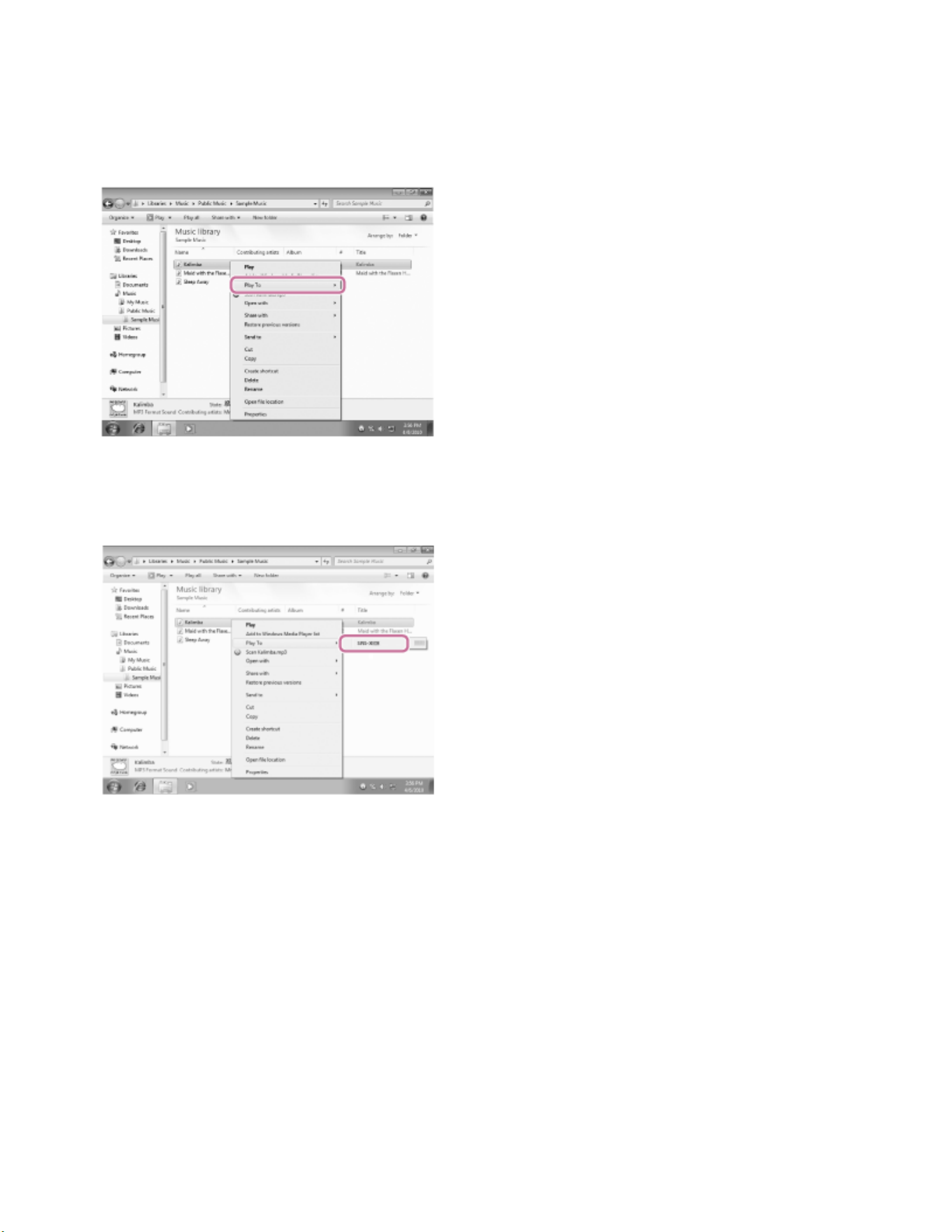
3. Start [Windows Media Player] in the PC.
4. Right-click the song to be played.
5. Select [Play To] from the menu.
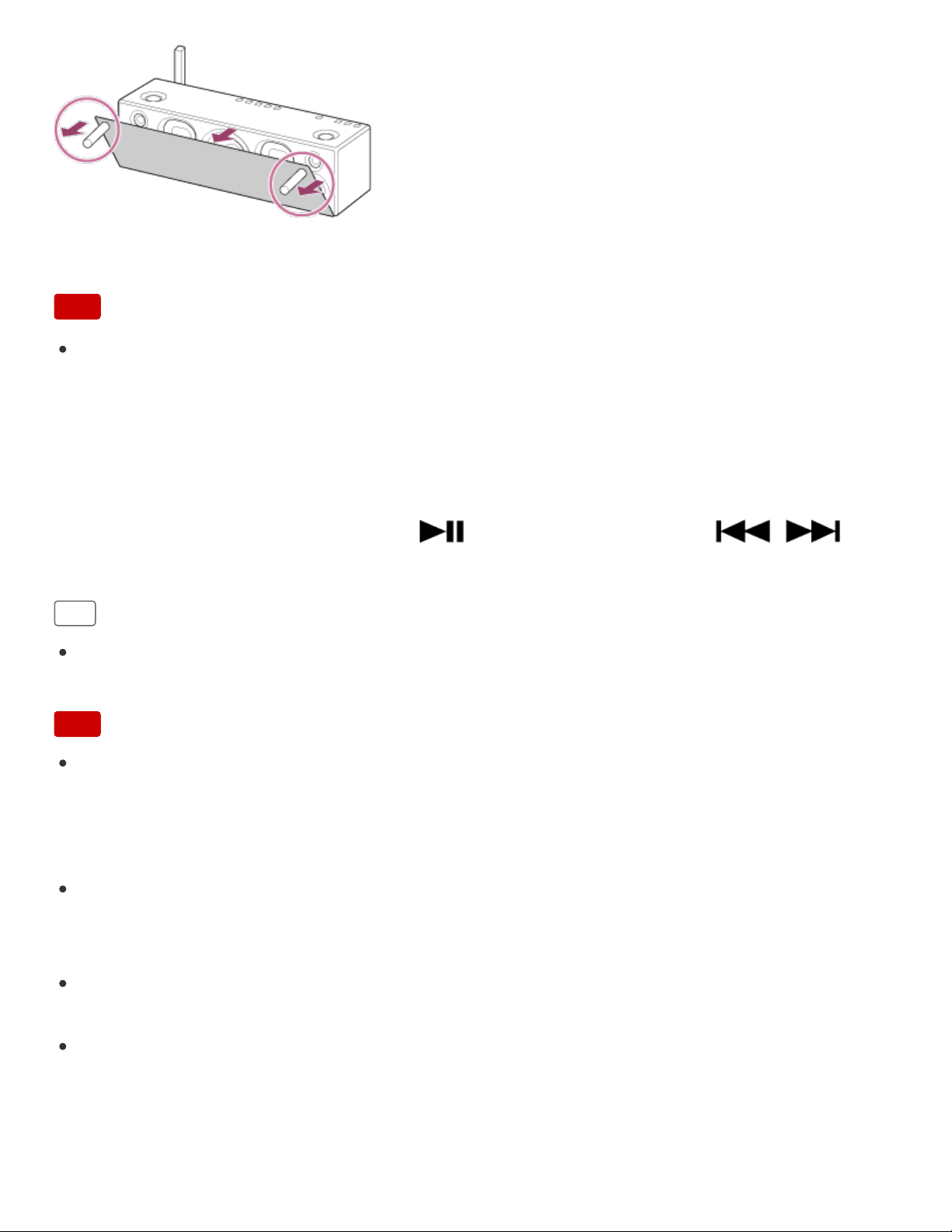
The device list appears.
6. Select [SRS-X99].
7. Play back the selected song, and adjust the volume.
The selected song will be heard from the speaker.
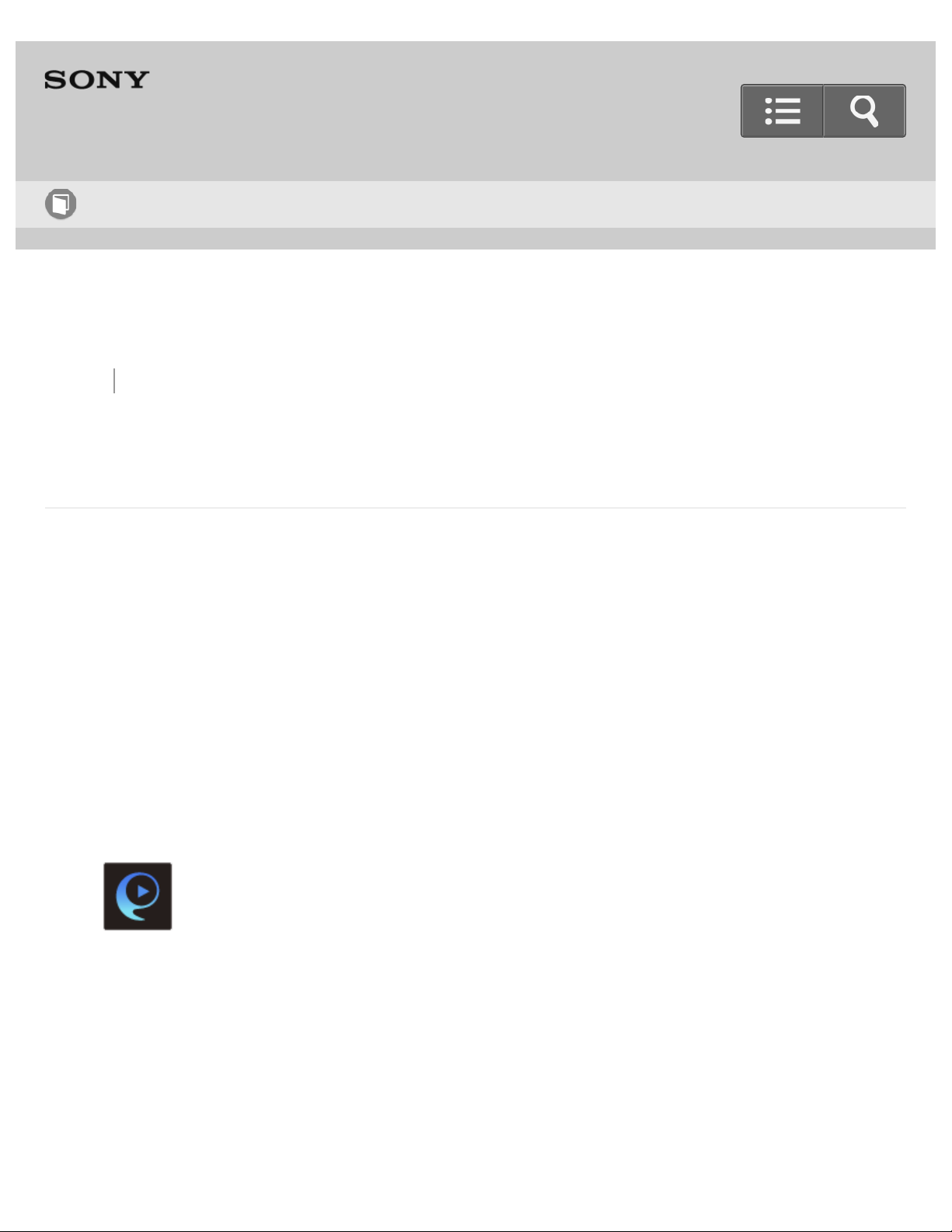
To enjoy a more dynamic sound
Remove the speaker grille from the front of the speaker with the speaker grille detach tool
(supplied).*
8
Go to Page Top
*
Keep the removed grille on a flat surface to prevent distortion.
Note
Do not touch the exposed part of the speaker (speaker units) after removing the
speaker grille.
Using the speaker or remote control during playback
You can adjust the volume using the VOL (volume) -/+ buttons of the speaker or the
VOLUME +/- buttons of the remote control.
You can also use the MUTING button, (Play/Pause) button, and /
(Previous/Next) button of the remote control.
Hint
After SongPal is downloaded and installed to your smartphone/iPhone, you can use it
as a remote control to operate devices connected to the speaker.
Note
The speaker can play MP3, WMA, AAC and WAV format files (only AAC files with the
extension ".m4a," ".mp4," or ".3gp" can be played). Even If the bit rate and file format
are supported, the playback of all files is not guaranteed and there may be a change in
the specification.
Files with DRM (Digital Rights Management) copyright protection cannot be played on
the speaker. To check if a WMA file is protected by DRM, right-click the file on the PC. If
there is a [License] tab, the file is DRM-copyrighted.
When you listen to music via a home network, it may take some time, since each
DLNA-compatible device has to recognize the component currently used.
Some content may not be playable with DLNA certified products.
9

Back Back to Top Print
Personal Audio System
SRS-X99
Listening to music from an internet streaming service (Google Cast)
You can enjoy music from various streaming services offered on the internet via your
smartphone/iPhone with SongPal installed.
The following instructions explain how to use a Google Cast-enabled music app.
For details about Google Cast, refer to the following URL:
http://www.google.com/cast/audio/learn/
Depending on the country and region, music services and their periods of availability may
differ.
The specification and design of the application may change without notice.
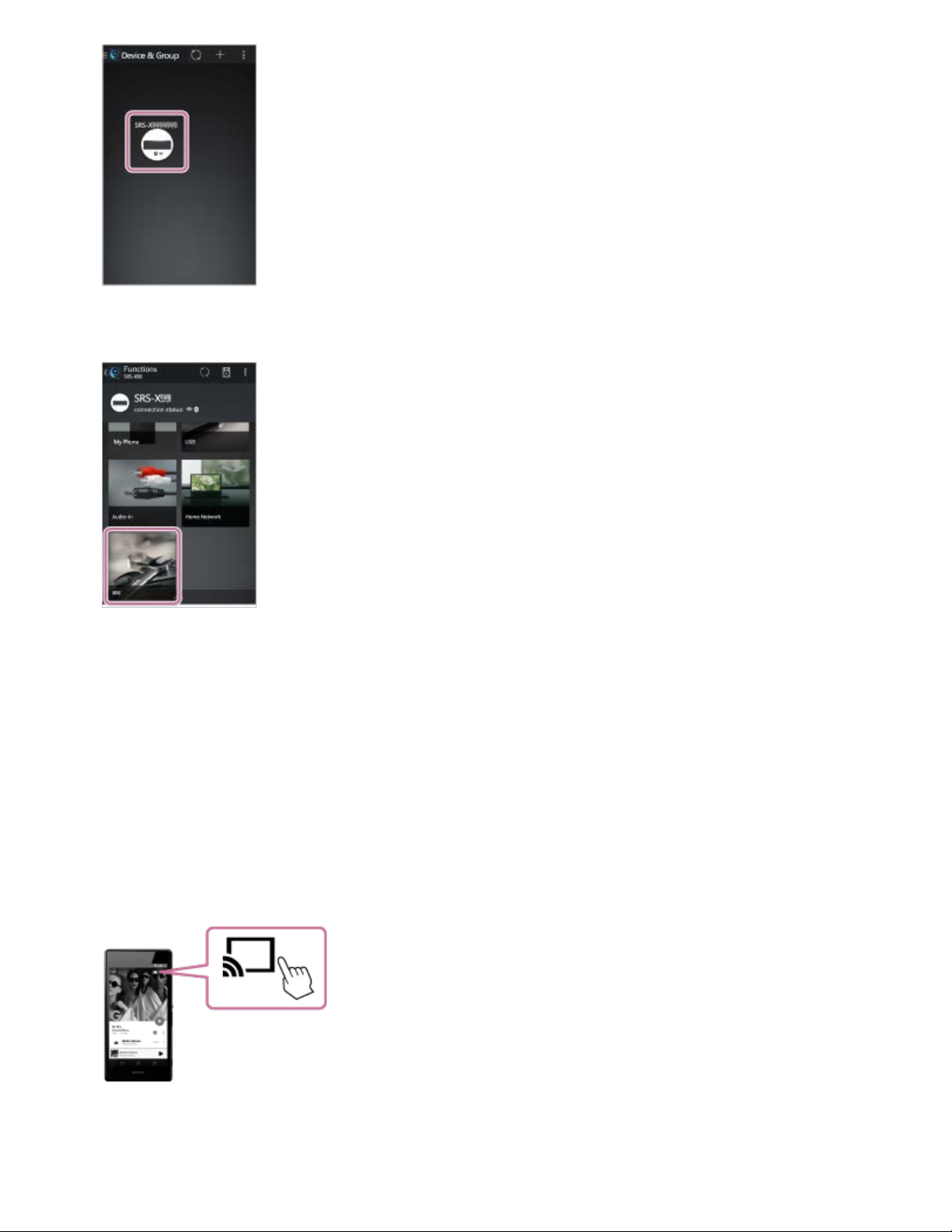
1. Tap [SongPal] on your smartphone/iPhone to start up the application.
SongPal
2. Tap [SRS-X99].
Help Guide
How to Use
11
3. Tap [Settings].
4. Tap [Google Cast].
5. Tap [Learn how to cast].
6. See the instructions, then find and install a Google Cast-enabled app on your
smartphone/iPhone.
7. Launch the Google Cast-enabled app.
8. Tap the Cast button to select [SRS-X99].
9. Select music to listen to on your Google Cast-enabled app.
12
Go to Page Top
Music will be heard from the speaker.
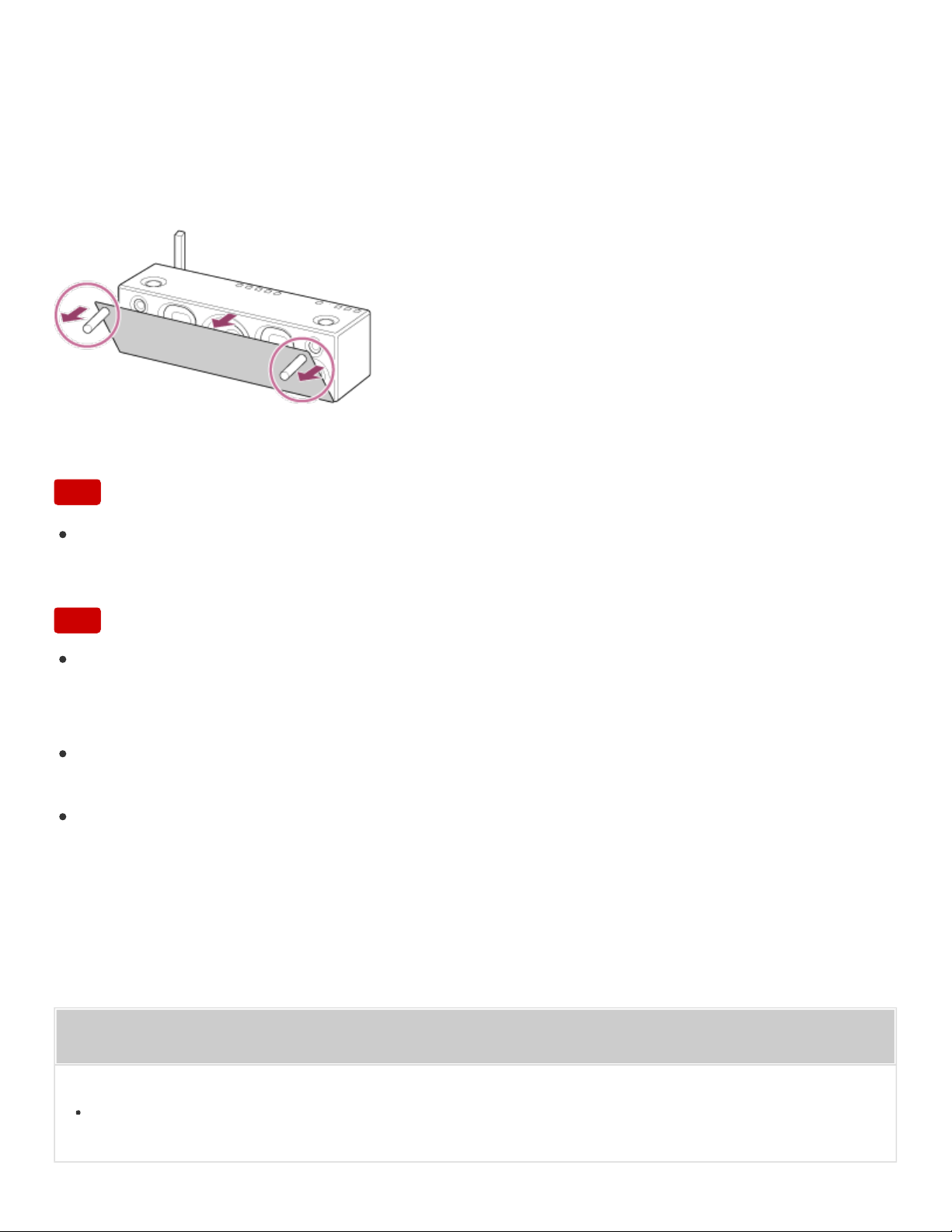
To enjoy a more dynamic sound
Remove the speaker grille from the front of the speaker with the speaker grille detach tool
(supplied).*
*
Keep the removed grille on a flat surface to prevent distortion.
Note
Do not touch the exposed part of the speaker (speaker units) after removing the
speaker grille.
Note
Depending on the country or region, music services and their period of availability may
differ. Separate registration is required for certain services. An update of the device may
be required.
In some cases, the speaker may need to be activated by a music service. Follow the
instructions on the music service’s application or SongPal.
The services that the third parties provide may be revised, stopped, and discontinued
without a notice. Sony bears no responsibility for this.
Related Topic
What you can do with SongPal
13
Back Back to Top Print
Personal Audio System
SRS-X99
Listening to the same music with multiple speakers or different music in different places
(SongPal Link function)
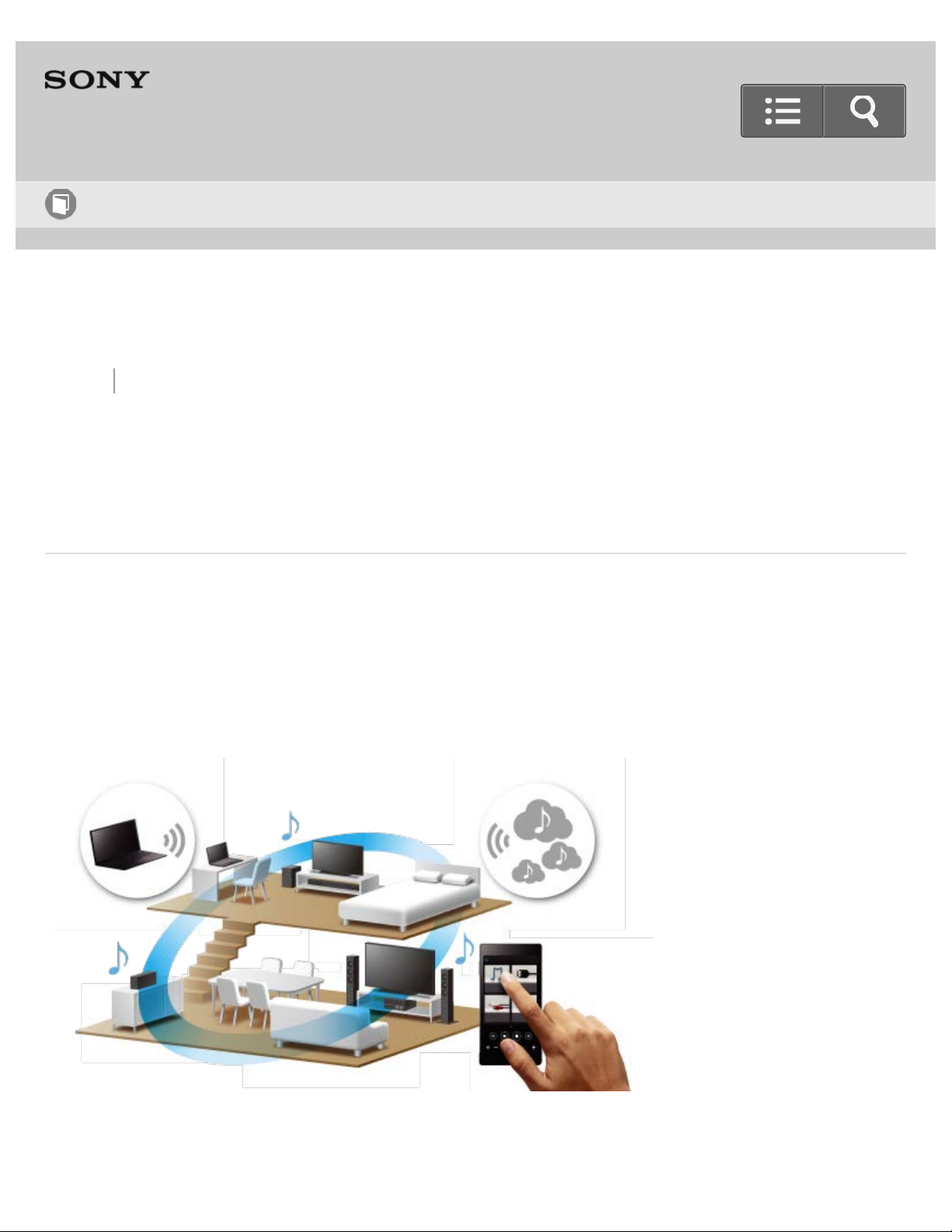
Enjoy music in any room via Wi-Fi.
You can listen to your favorite music stored in your PCs or mobile phones and
furthermore, music from streaming services in different rooms with ultimate sound quality.
For details about SongPal Link, refer to the following URL:
http://www.sony.net/nasite
1. Connect the speaker and your smartphone/iPhone to the same SSID of your wireless
Help Guide
How to Use
14

Back Back to Top Print
Personal Audio System
SRS-X99
Connecting a USB flash drive
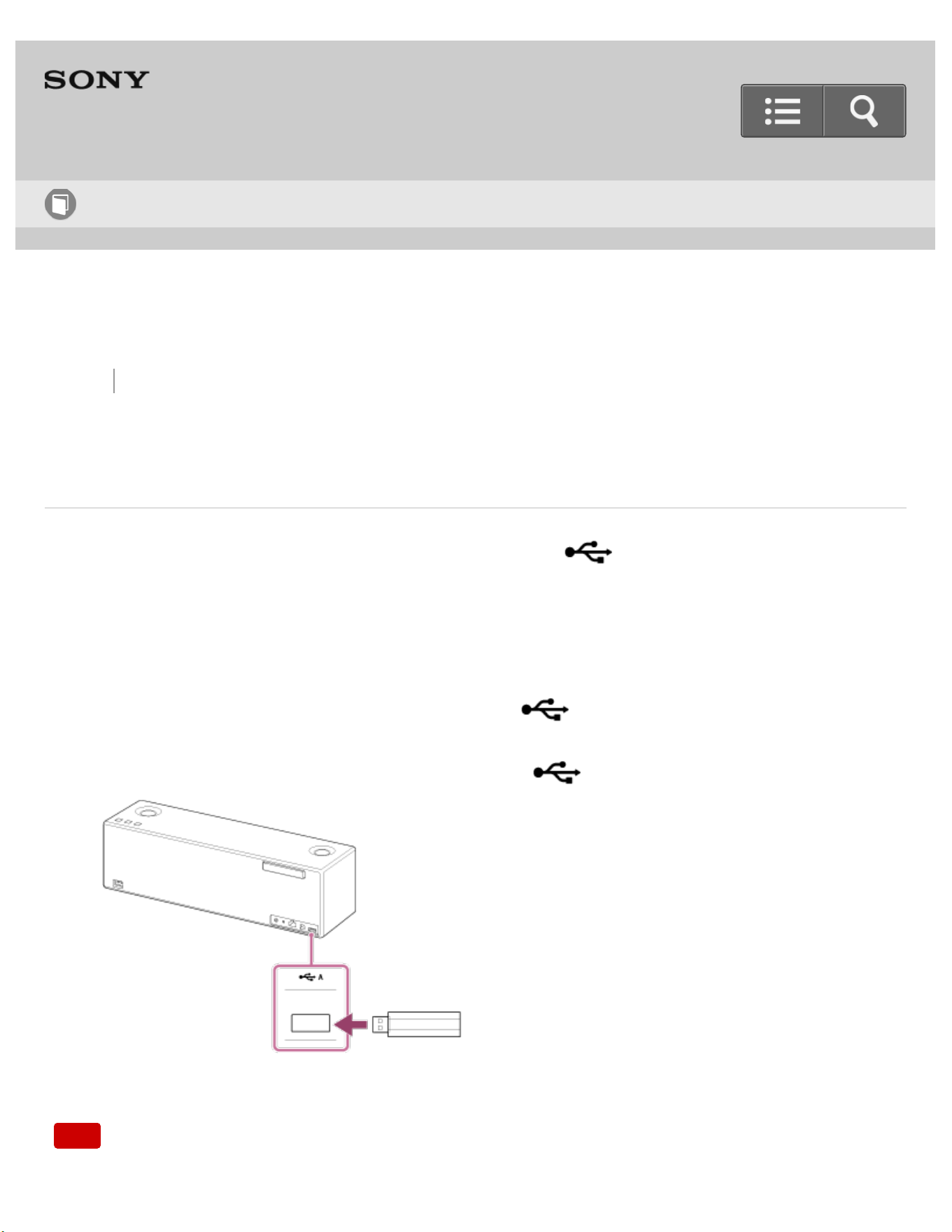
You can connect a USB flash drive to the USB A port ( A) directly.
You can also use a commercially-available USB cable to connect a USB device.
Music stored in a USB flash drive can be played back using the supplied remote control, or
with a smartphone/iPhone that has SongPal installed.
You can play back high-resolution audio format files by connecting a USB flash drive of Hi-
Speed USB standard or more, to the USB A port ( A).
1. Connect a USB flash drive to the USB A port ( A).
Note
Help Guide
How to Use
16
Go to Page Top
Go to Page Top
Do not disconnect a USB flash drive during operation. To prevent damage to data, stop
playback, then turn off the power of the speaker before disconnecting the USB flash
drive.
Sony is not responsible for any loss or damage to data in a USB flash drive that is
connected to the speaker.
Sony does not guarantee correct operation when a USB hub or USB extension cable is
used.
Do not connect a USB flash drive to the USB B port ( B). Only connect a USB
flash drive to the USB A port ( A).
Related Topic
Listening to music on a USB flash drive
Listening to music on a device via a USB connection (USB-A)
4-567-508-11(5)
Copyright 2015 Sony Corporation
17
Back Back to Top Print
Personal Audio System
SRS-X99
Connecting a Walkman
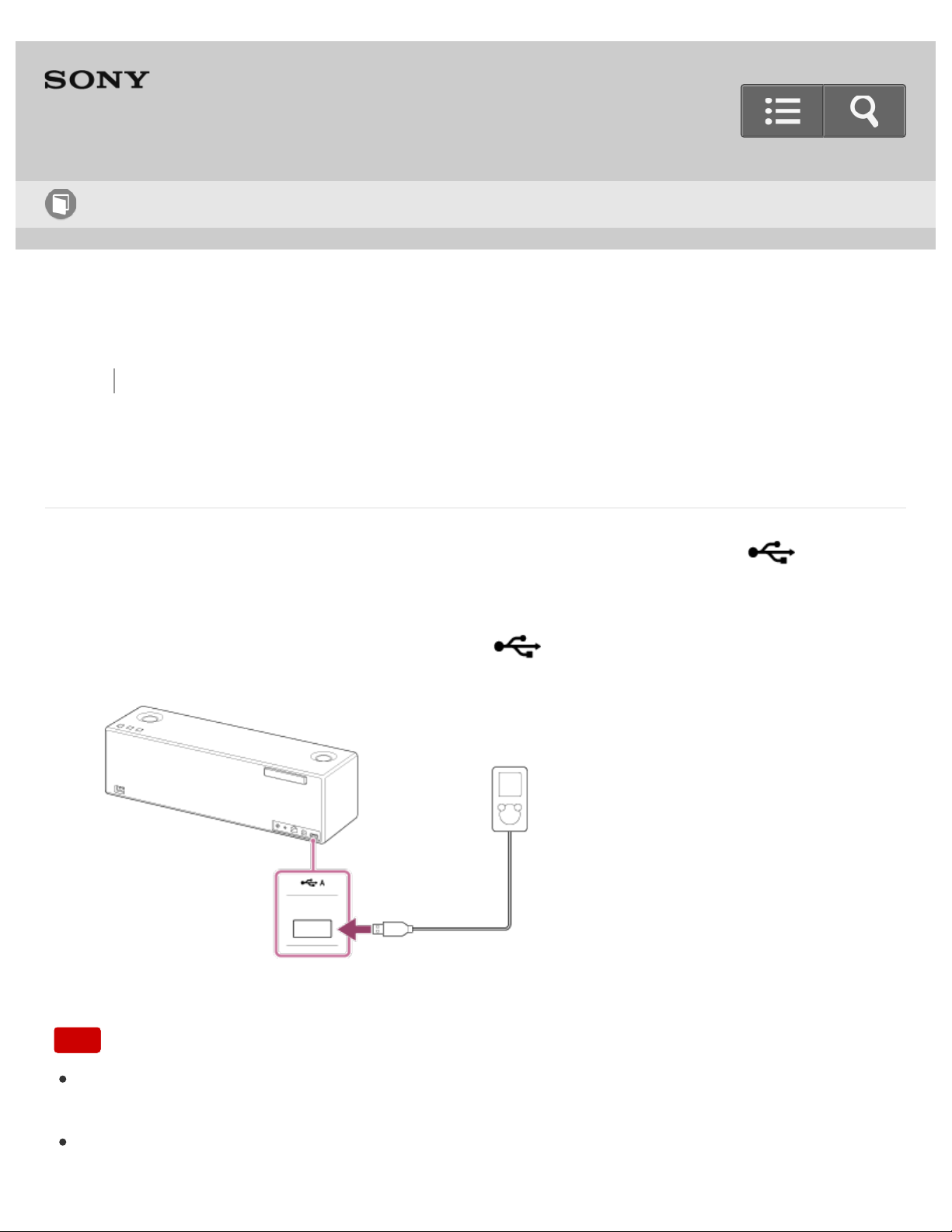
You can listen to music on a Walkman by connecting it to the USB A port ( A) with
the USB cable supplied with the Walkman.
1. Connect the Walkman to the USB A port ( A) with the USB cable supplied with
the Walkman.
Note
If the Walkman does not have a WM-PORT (22 pin), connect it to the AUDIO IN jack
with a commercially-available audio cable.
Sony is not responsible for any loss of data stored in a Walkman that is connected to
Help Guide
How to Use
18


Back Back to Top Print
Personal Audio System
SRS-X99
Connecting a high-resolution supported Walkman
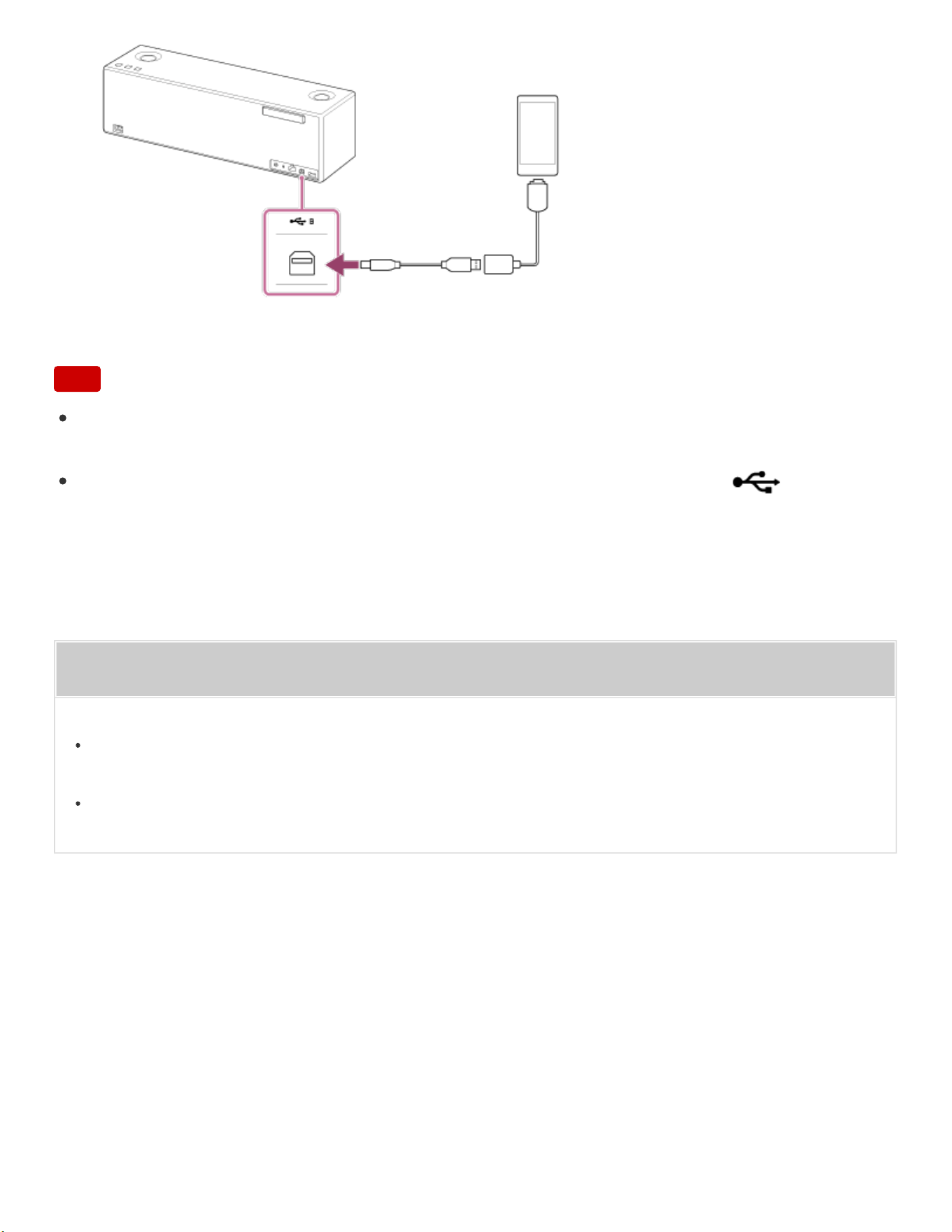
You can connect a high-resolution supported Walkman to the speaker with an optional
High-Resolution Audio USB Adaptor WM-PORT Cable
*
and commercially-available USB
cable.
The speaker receives unconverted digital audio data, which is converted to analog data
through the digital-to-analog converter of the speaker before being output.
*
Optional High-Resolution Audio USB Adaptor WM-PORT Cable can be ordered from your nearest
Sony Service Center.
1. Connect an optional High-Resolution Audio USB Adaptor WM-PORT Cable to the
Walkman.
2. Connect a commercially-available USB cable to the optional High-Resolution Audio
USB Adaptor WM-PORT Cable and USB B port ( B).
Help Guide
How to Use
20
Go to Page Top
Go to Page Top
Note
Sony is not responsible for any loss or damage to data in a Walkman that is connected
to the speaker.
The Walkman will not be charged if it is connected to the USB B port ( B).
Related Topic
About High-Resolution Audio format files
Listening to music on a high-resolution supported Walkman
4-567-508-11(5)
Copyright 2015 Sony Corporation
21
Back Back to Top Print
Personal Audio System
SRS-X99
Connecting a high-resolution supported Xperia
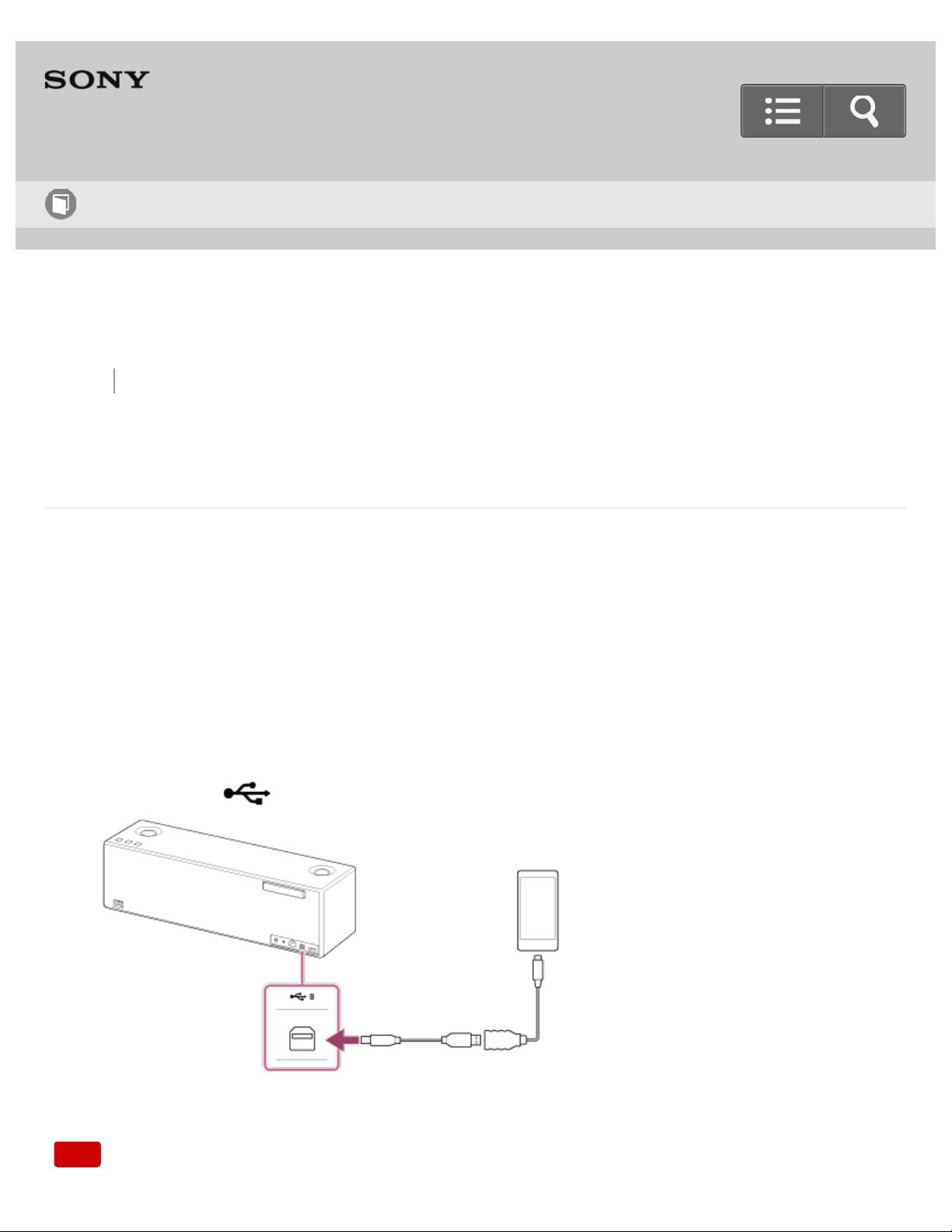
You can connect a high-resolution supported Xperia to the speaker with a commercially-
available USB cable and an optional cable for Xperia.
The speaker receives unconverted digital audio data, which is converted to analog data
through the digital-to-analog converter of the speaker before being output.
1. Connect an optional cable for Xperia to the Xperia.
2. Connect a commercially-available USB cable to the optional cable for Xperia and
USB B port ( B).
Note
Help Guide
How to Use
22




Back Back to Top
Personal Audio System
SRS-X99
Listening to music via home network
Selecting the network connection method
About home network (DLNA)
Listening to music on a PC via a network (Modern UI)
Listening to music on a PC via a network (Windows 8)
Listening to music on a PC via a network (Windows 7)
Listening to music on a computer via a network (Mac)
Listening to music on an iPhone/iPad/iPod via a network
Listening to music on an Xperia via a network
Help Guide
How to Use
26



Back Back to Top
Go to Page Top
Personal Audio System
SRS-X99
Listening to music via USB connection
Listening to music on a USB flash drive via a USB connection (USB-A)
Listening to music on an iPhone/iPad/iPod via a USB connection (USB-A)
Listening to music on a Walkman via a USB connection (USB-A)
Listening to music on a high-resolution supported Walkman via a USB connection
(USB-B)
Listening to music on a high-resolution supported Xperia via a USB connection (USB-
B)
Listening to music on a computer via a USB connection (USB-B)
Help Guide
How to Use
29
Back Back to Top Print
Personal Audio System
SRS-X99
Connecting a computer/Installing the driver
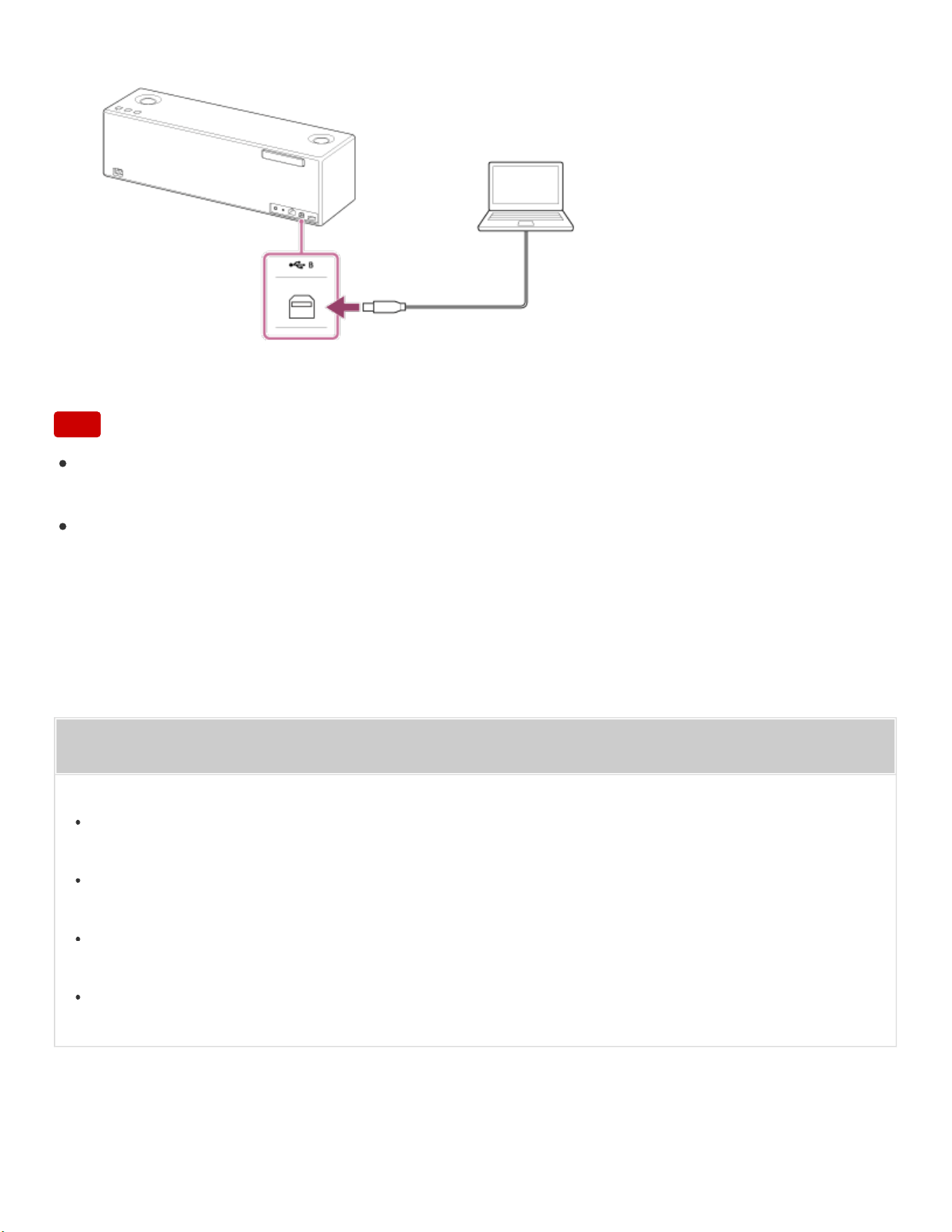
You can connect a computer to the USB B port ( B) with a commercially-available
USB cable.
To play High-Resolution Audio format files
The speaker is compatible with High-Resolution Audio format (192 kHz/24 bit).
To play High-Resolution Audio format files on your PC with the speaker, you need to
download and install “Sony | Music Center for PC” or “Hi-Res Audio Player” to your PC.
1. Connect a computer to the USB B port ( B) with a commercially-available USB
cable.
When connecting to Windows PC, the driver is automatically installed. If it is not
installed automatically, visit one of the following websites, and download and install
the driver.
For customers in Europe:
http://www.sony.eu/support
For customers in the USA:
http://esupport.sony.com/US
For customers in Canada:
http://esupport.sony.com/CA/
For customers in other countries/regions:
http://www.sony-asia.com/section/support
Help Guide
How to Use
31
Go to Page Top
Go to Page Top
For details on installing, refer to the download webpages.
Note
Sony does not guarantee correct operation when a USB hub or USB extension cable is
used.
Do not disconnect a computer during operation. To prevent damage to data, stop
playback and turn off the power of the speaker, before disconnecting the computer.
Related Topic
About High-Resolution Audio format files
Installing “Sony | Music Center for PC” or “Hi-Res Audio Player” to a PC
Listening to music on a computer
Listening to music on a computer via a USB connection (USB-B)
32


Back Back to Top
Go to Page Top
Personal Audio System
SRS-X99
Listening to music on an Xperia
Selecting the network connection method
How to make a wireless connection with BLUETOOTH devices
Listening to music on an Xperia via a network
Listening to music on a device via a BLUETOOTH connection
Listening to music on a high-resolution supported Xperia via a USB connection (USB-
B)
Listening to music on a portable audio device, etc., by connecting with an audio cable
(AUDIO IN)
Help Guide
How to Use
35

Back Back to Top
Go to Page Top
Personal Audio System
SRS-X99
Listening to music on a smartphone
How to make a wireless connection with BLUETOOTH devices
Listening to music on a device via a BLUETOOTH connection
Listening to music on a portable audio device, etc., by connecting with an audio cable
(AUDIO IN)
4-567-508-11(5)
Copyright 2015 Sony Corporation
Help Guide
How to Use
36

Back Back to Top
Go to Page Top
Personal Audio System
SRS-X99
Listening to music on an iPhone/iPad/iPod
Selecting the network connection method
How to make a wireless connection with BLUETOOTH devices
Listening to music on an iPhone/iPad/iPod via a network
Listening to music on an iPhone/iPad/iPod via a BLUETOOTH connection
Listening to music on an iPhone/iPad/iPod via a USB connection (USB-A)
Listening to music on a portable audio device, etc., by connecting with an audio cable
(AUDIO IN)
Help Guide
How to Use
37

Back Back to Top
Go to Page Top
Personal Audio System
SRS-X99
Listening to music on a Walkman
How to make a wireless connection with BLUETOOTH devices
Listening to music on a Walkman via a BLUETOOTH connection
Listening to music on a Walkman via a USB connection (USB-A)
Listening to music on a high-resolution supported Walkman via a USB connection
(USB-B)
Listening to music on a portable audio device, etc., by connecting with an audio cable
(AUDIO IN)
4-567-508-11(5)
Help Guide
How to Use
38

Back Back to Top
Go to Page Top
Personal Audio System
SRS-X99
Listening to music on a PC (Windows 8)
Selecting the network connection method
About home network (DLNA)
How to make a wireless connection with BLUETOOTH devices
Listening to music on a PC via a network (Modern UI)
Listening to music on a PC via a network (Windows 8)
Listening to music on a PC via a BLUETOOTH connection
Listening to music on a computer via a USB connection (USB-B)
Help Guide
How to Use
39

Back Back to Top
Go to Page Top
Personal Audio System
SRS-X99
Listening to music on a PC (Windows 7)
Selecting the network connection method
About home network (DLNA)
How to make a wireless connection with BLUETOOTH devices
Listening to music on a PC via a network (Windows 7)
Listening to music on a PC via a BLUETOOTH connection
Listening to music on a computer via a USB connection (USB-B)
Help Guide
How to Use
40

Back Back to Top
Go to Page Top
Personal Audio System
SRS-X99
Listening to music on a Mac
Selecting the network connection method
About home network (DLNA)
How to make a wireless connection with BLUETOOTH devices
Listening to music on a computer via a network (Mac)
Listening to music on a PC via a BLUETOOTH connection
Listening to music on a computer via a USB connection (USB-B)
Help Guide
How to Use
41


Back Back to Top
Go to Page Top
Personal Audio System
SRS-X99
Listening to High-Resolution Audio format files
About High-Resolution Audio format files
Listening to High-Resolution Audio files via a network
Listening to music on a USB flash drive via a USB connection (USB-A)
Listening to music on a high-resolution supported Walkman via a USB connection
(USB-B)
Listening to music on a high-resolution supported Xperia via a USB connection (USB-
B)
Listening to music on a computer via a USB connection (USB-B)
Help Guide
How to Use
43







Back Back to Top
Personal Audio System
SRS-X99
How to Use
Getting Started
Overview
What you can do with the speaker
Parts and controls
Parts and controls (Main unit)
Parts and controls (Remote control)
Included items
Checking the included items
Power source
Connecting to an AC outlet
Inserting the batteries of the remote control
Turning the power on
Turning the power off
Using the BLUETOOTH/Network standby function
Charging USB devices, such as smartphones
Help Guide
List of Topics
52

Auto standby function
SongPal
About SongPal
How to use the SongPal screen
What you can do with SongPal
Wi-Fi network connection
Connecting to a Wi-Fi network using SongPal (Smartphone)
Connecting to a Wi-Fi network using SongPal (iPhone)
Device control
Listening to music on a PC via a Wi-Fi network
Listening to the music stored in your smartphone/iPhone over Wi-Fi network
Listening to music on a device via a USB connection (USB-A)
Listening to music on a computer via a USB connection (USB-B)
Listening to music from an internet streaming service (Google Cast)
Listening to the same music with multiple speakers or different music in different places (SongPal
Link function)
Speaker settings
Setting the sound quality
Setting the auto standby function
Setting the BLUETOOTH/Network standby function
Setting the BLUETOOTH audio streaming playback quality (Codec)
Listening to music via home network
Selecting the network connection method
Selecting the Wi-Fi network connection method
53

Selecting the wired network connection method
About home network (DLNA)
DLNA (Digital Living Network Alliance)
Listening to music on a PC via a network (Modern UI)
Connection method 1: Connecting to a Wi-Fi network using the WPS button of a wireless router
Connection method 2: Connecting to a Wi-Fi network using a computer connected with a LAN
cable
Connection method 3: Connecting to a Wi-Fi network using a PC connected wirelessly (Modern
UI)
Connection method 4: Connecting to a wired network
Connection method 5: Connecting to a Wi-Fi network using an iPhone/iPad/iPod touch
Setting your PC as a DLNA server and controller (Windows 8)
Setting your PC for operating from a controller such as smartphone/ iPhone (Windows 8)
Listening with the AirPlay function (iTunes)
Listening to music on a PC via a network (Windows 8) (Windows Media Player)
Listening to music on a PC via a network (“Sony | Music Center for PC”)
Listening to music on a PC via a network (“Sony | Music Center for PC” with SongPal operation)
Listening to music on a PC via a network (Windows 8)
Connection method 1: Connecting to a Wi-Fi network using the WPS button of a wireless router
Connection method 2: Connecting to a Wi-Fi network using a computer connected with a LAN
cable
Connection method 3: Connecting to a Wi-Fi network using a PC connected wirelessly (Windows
7/Windows 8)
Connection method 4: Connecting to a wired network
Connection method 5: Connecting to a Wi-Fi network using an iPhone/iPad/iPod touch
Setting your PC as a DLNA server and controller (Windows 8)
Setting your PC for operating from a controller such as smartphone/ iPhone (Windows 8)
54

Listening with the AirPlay function (iTunes)
Listening to music on a PC via a network (Windows 8) (Windows Media Player)
Listening to music on a PC via a network (“Sony | Music Center for PC”)
Listening to music on a PC via a network (“Sony | Music Center for PC” with SongPal operation)
Listening to music on a PC via a network (Windows 7)
Connection method 1: Connecting to a Wi-Fi network using the WPS button of a wireless router
Connection method 2: Connecting to a Wi-Fi network using a computer connected with a LAN
cable
Connection method 3: Connecting to a Wi-Fi network using a PC connected wirelessly (Windows
7/Windows 8)
Connection method 4: Connecting to a wired network
Connection method 5: Connecting to a Wi-Fi network using an iPhone/iPad/iPod touch
Setting your PC as a DLNA server and controller (Windows 7)
Listening with the AirPlay function (iTunes)
Listening to music on a PC via a network (Windows 7) Windows Media Player
Listening to music on a PC via a network (“Sony | Music Center for PC”)
Listening to music on a PC via a network (“Sony | Music Center for PC” with SongPal operation)
Listening to music on a computer via a network (Mac)
Connection method 1: Connecting to a Wi-Fi network using the WPS button of a wireless router
Connection method 2: Connecting to a Wi-Fi network using a computer connected with a LAN
cable
Connection method 3: Connecting to a Wi-Fi network using a Mac connected wirelessly
Connection method 4: Connecting to a wired network
Connection method 5: Connecting to a Wi-Fi network using an iPhone/iPad/iPod touch
Listening with the AirPlay function (iTunes)
Listening to music on an iPhone/iPad/iPod via a network
Connection method 1: Connecting to a Wi-Fi network using the WPS button of a wireless router
55

Connection method 2: Connecting to a Wi-Fi network using a computer connected with a LAN
cable
Connection method 3: Connecting to a wired network
Connection method 4: Connecting to a Wi-Fi network using an iPhone/iPad/iPod touch
Listening with the AirPlay function (iPhone/iPad/iPod touch)
Listening to music on an Xperia via a network
Connection method 1: Connecting to a Wi-Fi network using the WPS button of a wireless router
Connection method 2: Connecting to a Wi-Fi network using a computer connected with a LAN
cable
Connection method 3: Connecting to a wired network
Connection method 4: Connecting to a Wi-Fi network using an iPhone/iPad/iPod touch
Listening to music with the Music application (Xperia)
Listening to an Internet music service
Listening to music from an internet streaming service (Google Cast)
Listening to an Internet music service (Spotify)
Listening to music via BLUETOOTH connection
How to make a wireless connection with BLUETOOTH devices
How to make a wireless connection with BLUETOOTH devices
Listening to music on a device via a BLUETOOTH connection
Connection method 1: Pairing and connecting with a BLUETOOTH device
Connection method 2: Connecting with a paired BLUETOOTH device
Connection method 3: Connecting with an NFC-compatible device by one touch (NFC)
Listening to music on a device via a BLUETOOTH connection
Selecting the BLUETOOTH audio streaming playback quality (Codec)
Terminating the BLUETOOTH connection (After use)
Disconnecting the NFC-compatible device by one touch (NFC)
56

Switching devices by one touch (NFC)
Listening to music via USB connection
Listening to music on a USB flash drive via a USB connection (USB-A)
Connecting a USB flash drive
Listening to music on a USB flash drive
Listening to music on an iPhone/iPad/iPod via a USB connection (USB-A)
Connecting an iPhone/iPad/iPod
Listening to music on an iPhone/iPad/iPod
Listening to music on a Walkman via a USB connection (USB-A)
Connecting a Walkman
Listening to music on a Walkman
Listening to music on a high-resolution supported Walkman via a USB connection
(USB-B)
Connecting a high-resolution supported Walkman
Listening to music on a high-resolution supported Walkman
Listening to music on a high-resolution supported Xperia via a USB connection
(USB-B)
Connecting a high-resolution supported Xperia
Listening to music on a high-resolution supported Xperia
Listening to music on a computer via a USB connection (USB-B)
Connecting a computer/Installing the driver
Installing “Sony | Music Center for PC” or “Hi-Res Audio Player” to a PC
Listening to music on a computer
Listening to music by connecting with an audio cable
Listening to music on a portable audio device, etc., by connecting with an audio
57

cable (AUDIO IN)
Connecting to a portable audio device, etc.
Listening to music on a portable audio device, etc.
Listening to music on an Xperia
Selecting the network connection method
Selecting the Wi-Fi network connection method
Selecting the wired network connection method
How to make a wireless connection with BLUETOOTH devices
How to make a wireless connection with BLUETOOTH devices
Listening to music on an Xperia via a network
Connection method 1: Connecting to a Wi-Fi network using the WPS button of a wireless router
Connection method 2: Connecting to a Wi-Fi network using a computer connected with a LAN
cable
Connection method 3: Connecting to a wired network
Connection method 4: Connecting to a Wi-Fi network using an iPhone/iPad/iPod touch
Listening to music with the Music application (Xperia)
Listening to music on a device via a BLUETOOTH connection
Connection method 1: Pairing and connecting with a BLUETOOTH device
Connection method 2: Connecting with a paired BLUETOOTH device
Connection method 3: Connecting with an NFC-compatible device by one touch (NFC)
Listening to music on a device via a BLUETOOTH connection
Selecting the BLUETOOTH audio streaming playback quality (Codec)
Terminating the BLUETOOTH connection (After use)
Disconnecting the NFC-compatible device by one touch (NFC)
Switching devices by one touch (NFC)
Listening to music on a high-resolution supported Xperia via a USB connection
58

(USB-B)
Connecting a high-resolution supported Xperia
Listening to music on a high-resolution supported Xperia
Listening to music on a portable audio device, etc., by connecting with an audio
cable (AUDIO IN)
Connecting to a portable audio device, etc.
Listening to music on a portable audio device, etc.
Listening to music on a smartphone
How to make a wireless connection with BLUETOOTH devices
How to make a wireless connection with BLUETOOTH devices
Listening to music on a device via a BLUETOOTH connection
Connection method 1: Pairing and connecting with a BLUETOOTH device
Connection method 2: Connecting with a paired BLUETOOTH device
Connection method 3: Connecting with an NFC-compatible device by one touch (NFC)
Listening to music on a device via a BLUETOOTH connection
Selecting the BLUETOOTH audio streaming playback quality (Codec)
Terminating the BLUETOOTH connection (After use)
Disconnecting the NFC-compatible device by one touch (NFC)
Switching devices by one touch (NFC)
Listening to music on a portable audio device, etc., by connecting with an audio
cable (AUDIO IN)
Connecting to a portable audio device, etc.
Listening to music on a portable audio device, etc.
Listening to music on an iPhone/iPad/iPod
Selecting the network connection method
59

Selecting the Wi-Fi network connection method
Selecting the wired network connection method
How to make a wireless connection with BLUETOOTH devices
How to make a wireless connection with BLUETOOTH devices
Listening to music on an iPhone/iPad/iPod via a network
Connection method 1: Connecting to a Wi-Fi network using the WPS button of a wireless router
Connection method 2: Connecting to a Wi-Fi network using a computer connected with a LAN
cable
Connection method 3: Connecting to a wired network
Connection method 4: Connecting to a Wi-Fi network using an iPhone/iPad/iPod touch
Listening with the AirPlay function (iPhone/iPad/iPod touch)
Listening to music on an iPhone/iPad/iPod via a BLUETOOTH connection
Connection method 1: Pairing and connecting with a BLUETOOTH device
Connection method 2: Connecting with a paired BLUETOOTH device
Listening to music on a device via a BLUETOOTH connection
Selecting the BLUETOOTH audio streaming playback quality (Codec)
Terminating the BLUETOOTH connection (After use)
Listening to music on an iPhone/iPad/iPod via a USB connection (USB-A)
Connecting an iPhone/iPad/iPod
Listening to music on an iPhone/iPad/iPod
Listening to music on a portable audio device, etc., by connecting with an audio
cable (AUDIO IN)
Connecting to a portable audio device, etc.
Listening to music on a portable audio device, etc.
Listening to music on a Walkman
How to make a wireless connection with BLUETOOTH devices
60

How to make a wireless connection with BLUETOOTH devices
Listening to music on a Walkman via a BLUETOOTH connection
Connection method 1: Pairing and connecting with a BLUETOOTH device
Connection method 2: Connecting with a paired BLUETOOTH device
Listening to music on a device via a BLUETOOTH connection
Selecting the BLUETOOTH audio streaming playback quality (Codec)
Terminating the BLUETOOTH connection (After use)
Disconnecting the NFC-compatible device by one touch (NFC)
Switching devices by one touch (NFC)
Listening to music on a Walkman via a USB connection (USB-A)
Connecting a Walkman
Listening to music on a Walkman
Listening to music on a high-resolution supported Walkman via a USB connection
(USB-B)
Connecting a high-resolution supported Walkman
Listening to music on a high-resolution supported Walkman
Listening to music on a portable audio device, etc., by connecting with an audio
cable (AUDIO IN)
Connecting to a portable audio device, etc.
Listening to music on a portable audio device, etc.
Listening to music on a PC (Windows 8)
Selecting the network connection method
Selecting the Wi-Fi network connection method
Selecting the wired network connection method
About home network (DLNA)
DLNA (Digital Living Network Alliance)
61

How to make a wireless connection with BLUETOOTH devices
How to make a wireless connection with BLUETOOTH devices
Listening to music on a PC via a network (Modern UI)
Connection method 1: Connecting to a Wi-Fi network using the WPS button of a wireless router
Connection method 2: Connecting to a Wi-Fi network using a computer connected with a LAN
cable
Connection method 3: Connecting to a Wi-Fi network using a PC connected wirelessly (Modern
UI)
Connection method 4: Connecting to a wired network
Connection method 5: Connecting to a Wi-Fi network using an iPhone/iPad/iPod touch
Setting your PC as a DLNA server and controller (Windows 8)
Setting your PC for operating from a controller such as smartphone/ iPhone (Windows 8)
Listening with the AirPlay function (iTunes)
Listening to music on a PC via a network (Windows 8) (Windows Media Player)
Listening to music on a PC via a network (“Sony | Music Center for PC”)
Listening to music on a PC via a network (“Sony | Music Center for PC” with SongPal operation)
Listening to music on a PC via a network (Windows 8)
Connection method 1: Connecting to a Wi-Fi network using the WPS button of a wireless router
Connection method 2: Connecting to a Wi-Fi network using a computer connected with a LAN
cable
Connection method 3: Connecting to a Wi-Fi network using a PC connected wirelessly (Windows
7/Windows 8)
Connection method 4: Connecting to a wired network
Connection method 5: Connecting to a Wi-Fi network using an iPhone/iPad/iPod touch
Setting your PC as a DLNA server and controller (Windows 8)
Setting your PC for operating from a controller such as smartphone/ iPhone (Windows 8)
Listening with the AirPlay function (iTunes)
62

Listening to music on a PC via a network (Windows 8) (Windows Media Player)
Listening to music on a PC via a network (“Sony | Music Center for PC”)
Listening to music on a PC via a network (“Sony | Music Center for PC” with SongPal operation)
Listening to music on a PC via a BLUETOOTH connection
Connection method 1: Pairing and connecting with a BLUETOOTH device
Connection method 2: Connecting with a paired BLUETOOTH device
Listening to music on a device via a BLUETOOTH connection
Selecting the BLUETOOTH audio streaming playback quality (Codec)
Terminating the BLUETOOTH connection (After use)
Listening to music on a computer via a USB connection (USB-B)
Connecting a computer/Installing the driver
Installing “Sony | Music Center for PC” or “Hi-Res Audio Player” to a PC
Listening to music on a computer
Listening to music on a PC (Windows 7)
Selecting the network connection method
Selecting the Wi-Fi network connection method
Selecting the wired network connection method
About home network (DLNA)
DLNA (Digital Living Network Alliance)
How to make a wireless connection with BLUETOOTH devices
How to make a wireless connection with BLUETOOTH devices
Listening to music on a PC via a network (Windows 7)
Connection method 1: Connecting to a Wi-Fi network using the WPS button of a wireless router
Connection method 2: Connecting to a Wi-Fi network using a computer connected with a LAN
cable
Connection method 3: Connecting to a Wi-Fi network using a PC connected wirelessly (Windows
63

7/Windows 8)
Connection method 4: Connecting to a wired network
Connection method 5: Connecting to a Wi-Fi network using an iPhone/iPad/iPod touch
Setting your PC as a DLNA server and controller (Windows 7)
Listening with the AirPlay function (iTunes)
Listening to music on a PC via a network (Windows 7) Windows Media Player
Listening to music on a PC via a network (“Sony | Music Center for PC”)
Listening to music on a PC via a network (“Sony | Music Center for PC” with SongPal operation)
Listening to music on a PC via a BLUETOOTH connection
Connection method 1: Pairing and connecting with a BLUETOOTH device
Connection method 2: Connecting with a paired BLUETOOTH device
Listening to music on a device via a BLUETOOTH connection
Selecting the BLUETOOTH audio streaming playback quality (Codec)
Terminating the BLUETOOTH connection (After use)
Listening to music on a computer via a USB connection (USB-B)
Connecting a computer/Installing the driver
Installing “Sony | Music Center for PC” or “Hi-Res Audio Player” to a PC
Listening to music on a computer
Listening to music on a Mac
Selecting the network connection method
Selecting the Wi-Fi network connection method
Selecting the wired network connection method
About home network (DLNA)
DLNA (Digital Living Network Alliance)
How to make a wireless connection with BLUETOOTH devices
64

How to make a wireless connection with BLUETOOTH devices
Listening to music on a computer via a network (Mac)
Connection method 1: Connecting to a Wi-Fi network using the WPS button of a wireless router
Connection method 2: Connecting to a Wi-Fi network using a computer connected with a LAN
cable
Connection method 3: Connecting to a Wi-Fi network using a Mac connected wirelessly
Connection method 4: Connecting to a wired network
Connection method 5: Connecting to a Wi-Fi network using an iPhone/iPad/iPod touch
Listening with the AirPlay function (iTunes)
Listening to music on a PC via a BLUETOOTH connection
Connection method 1: Pairing and connecting with a BLUETOOTH device
Connection method 2: Connecting with a paired BLUETOOTH device
Listening to music on a device via a BLUETOOTH connection
Selecting the BLUETOOTH audio streaming playback quality (Codec)
Terminating the BLUETOOTH connection (After use)
Listening to music on a computer via a USB connection (USB-B)
Connecting a computer/Installing the driver
Installing “Sony | Music Center for PC” or “Hi-Res Audio Player” to a PC
Listening to music on a computer
Listening to music on a USB flash drive
Listening to music on a USB flash drive via a USB connection (USB-A)
Connecting a USB flash drive
Listening to music on a USB flash drive
Listening to High-Resolution Audio format files
About High-Resolution Audio format files
65

About High-Resolution Audio format files
Listening to High-Resolution Audio files via a network
Listening to High-Resolution Audio format files via a network
Listening to music on a USB flash drive via a USB connection (USB-A)
Connecting a USB flash drive
Listening to music on a USB flash drive
Listening to music on a high-resolution supported Walkman via a USB connection
(USB-B)
Connecting a high-resolution supported Walkman
Listening to music on a high-resolution supported Walkman
Listening to music on a high-resolution supported Xperia via a USB connection
(USB-B)
Connecting a high-resolution supported Xperia
Listening to music on a high-resolution supported Xperia
Listening to music on a computer via a USB connection (USB-B)
Connecting a computer/Installing the driver
Installing “Sony | Music Center for PC” or “Hi-Res Audio Player” to a PC
Listening to music on a computer
Information
About the indicators
About the indicators
Compatible devices and operating systems
Compatible iPhone/iPad/iPod models
Compatible Walkman models
Compatible operating system (Windows)
Compatible operating systems (Mac)
66

Go to Page Top
Compatible DLNA devices
Compatible BLUETOOTH devices
Compatible USB devices
Software update
Updating the pre-installed software
Update method 1: Automatic update via the Internet
Update method 2: Manual update via the Internet
Update method 3: Manual update via a USB flash drive
Manual update via a USB flash drive (when the update via a network has failed)
Wi-Fi signal strength
Checking the Wi-Fi signal strength (reception sensitivity)
About standby functions
Standby mode differences
Notes on use
Precautions
What is BLUETOOTH wireless technology?
What is LDAC?
Trademarks
Trademarks
Important information on software
Notes on software
Support website
Customer support websites
67

Back Back to Top
Personal Audio System
SRS-X99
Troubleshooting
Troubleshooting
Troubleshooting
What can I do to solve a problem?
Main unit
Power supply
Unable to turn on the speaker
None of the speaker buttons can be operated.
The setup conditions of the speaker used last time are not retained.
The speaker has entered standby mode or BLUETOOTH/Network standby mode unexpectedly.
The power indicator flashes in red.
Sound
No sound/Sound from only one speaker/Low sound level
Distorted sound/Humming or noise in the speaker output
Help Guide
List of Topics
68

Remote control
Remote control operation
The remote control does not function
Network
Network connection
The speaker cannot connect to the network (Other equipment on the network cannot find or
recognize the speaker)
Unable to connect to a network via a Wi-Fi connection
Unable to connect to a network via a Wi-Fi connection (even though a correct SSID is selected)
The speaker cannot connect to a network using the WPS button
The speaker does not appear in the device list of the computer's music playback application.
The speaker does not appear in the device select screen of SongPal
Music Services
The speaker cannot connect to music services
Home network (DLNA)
The controller cannot find the speaker (The controller cannot browse the contents of the speaker)
Music started automatically (home network)
The sound is interrupted
Playback does not start
A music file cannot be played back
AirPlay
The speaker cannot be found from an iPhone/iPad/iPod touch or a computer with iTunes
Music started automatically (AirPlay)
There is no sound, or the sound skips during playback
The speaker cannot be operated
69

BLUETOOTH
Pairing
Unable to pair the speaker with a BLUETOOTH device
One-touch connection (NFC)
Unable to connect the speaker to a BLUETOOTH device with One-touch (NFC)
Sound
There is no sound (BLUETOOTH)
Distorted sound/Humming or noise
USB
USB device
An unsupported USB device is connected
There is no sound (USB)
There is noise, skipping, or distorted sound
A USB device is not recognized
Playback does not start
A music file cannot be played back
Playback does not start from the first track
A USB device cannot be charged
iPhone/iPad/iPod (USB-A)
An iPhone/iPad/iPod cannot be played back
The sound is distorted
The iPhone/iPad/iPod does not function
The iPhone/iPad/iPod cannot be charged
Additional information
70

Go to Page Top
Software update
Updating the pre-installed software
Update method 1: Automatic update via the Internet
Update method 2: Manual update via the Internet
Update method 3: Manual update via a USB flash drive
Manual update via a USB flash drive (when the update via a network has failed)
Reset
Initializing the speaker
Disposal and transfer
Disposing of or giving away this speaker
4-567-508-11(5)
Copyright 2015 Sony Corporation
71
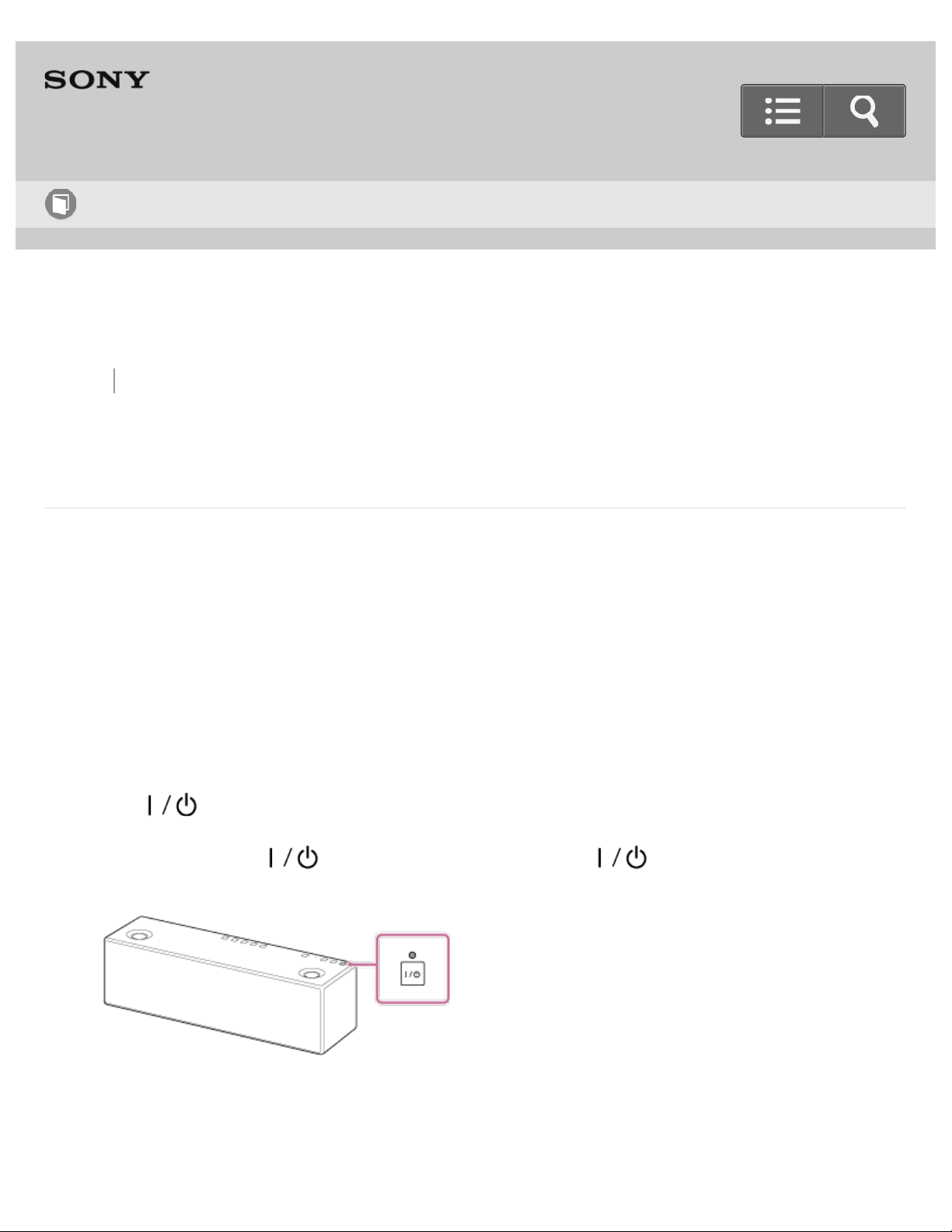
Back Back to Top Print
Personal Audio System
SRS-X99
Using the BLUETOOTH/Network standby function
If the BLUETOOTH/Network standby function is on, the speaker turns on automatically by
operating a BLUETOOTH device or network device, and BLUETOOTH or network
connection starts.
When you turn on the speaker in the BLUETOOTH/Network standby mode, the start-up
time becomes shorter and the speaker will become operational sooner, than when you
turn on the speaker in standby mode.
1. Turn on the speaker.
The (on/standby) indicator lights up in green.
2. Tap and hold the (on/standby) button until the (on/standby) indicator
lights up in orange.
The speaker turns off and enters the BLUETOOTH/Network standby mode.
If you operate a BLUETOOTH device or network device, the speaker turns on
automatically and connection starts.
Help Guide
How to Use
72
Go to Page Top
Go to Page Top
To turn off the BLUETOOTH/Network standby function
With the speaker turned on, tap and hold the (on/standby) button until the
(on/standby) indicator turns off. When the (on/standby) indicator turns off, the
BLUETOOTH/Network standby function is turned off and the speaker enters the standby
mode.
Hint
To comply with the power saving regulation in Europe, products with the serial number
2200001 or later cannot use this function when the product is connected to the wired
network or not connected to the wireless network. This function will not be available
when the network connection is disconnected as well. If so, set this function again.
When the multi-room function turns on, it supports TDLS (Tunneled Direct Link Setup)
and works as a wireless router that improves the data communication quality (Version
1.60 or later).
Related Topic
Turning the power off
Setting the auto standby function
Standby mode differences
4-567-508-11(5)
Copyright 2015 Sony Corporation
73
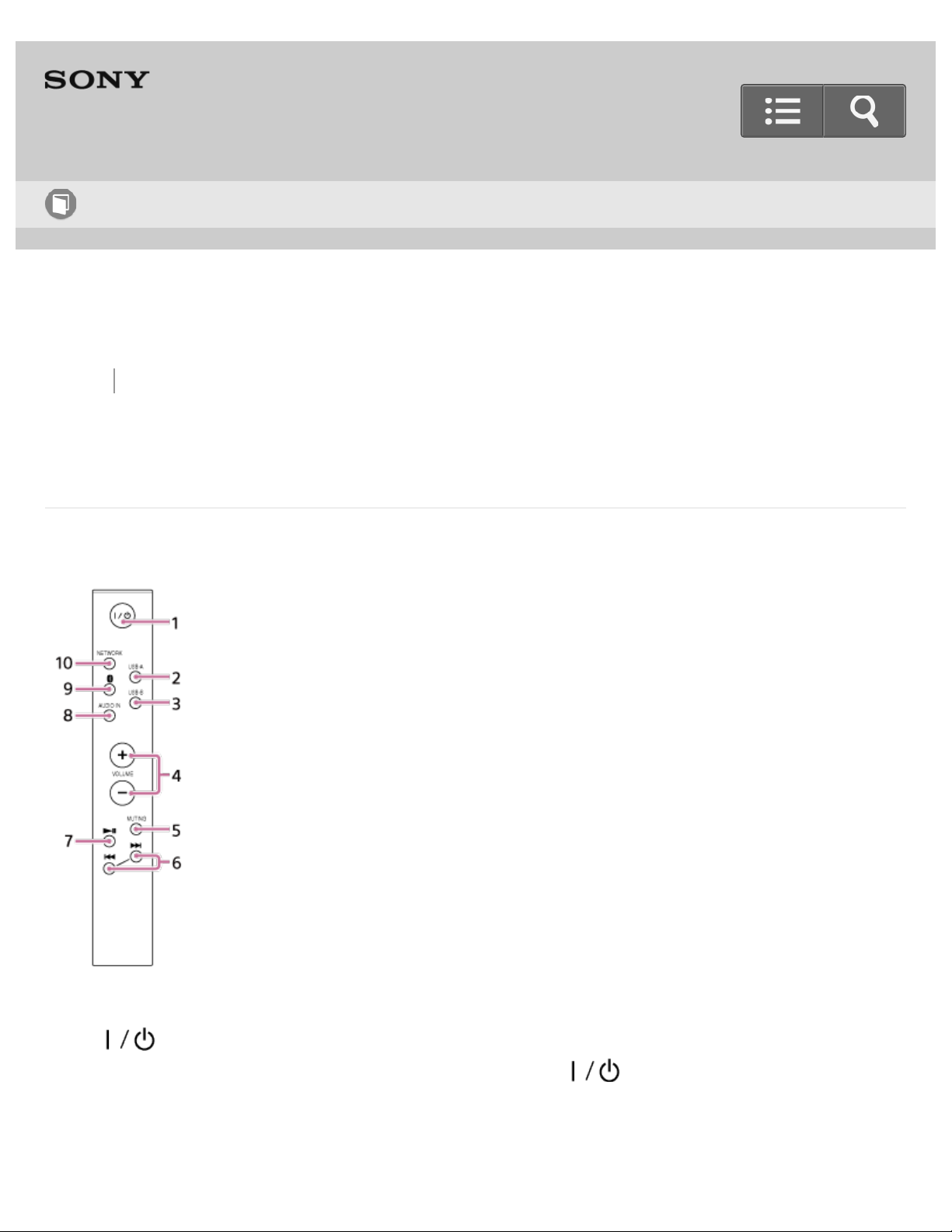
Back Back to Top Print
Personal Audio System
SRS-X99
Parts and controls (Remote control)
This Help Guide refers to the buttons on the speaker for explaining operations.
1. (on/standby) button
Press to turn the speaker’s power on and off. The (on/standby) indicator
flashes and lights up when the button is pressed.
2. USB-A button
Press to switch the speaker to USB-A mode.
Help Guide
How to Use
74
Press to listen to music in a device connected to the USB A port ( A).
The USB-A indicator lights up when the button is pressed.
3. USB-B button
Press to switch the speaker to USB-B mode.
Press to listen to music in a USB device connected to the USB B port ( B).
The USB-B indicator lights up when the button is pressed.
4. VOLUME +/- buttons
Press to adjust the volume.
The (on/standby) indicator and reaction indicator flash according to the volume
adjustment when pressed.
The VOLUME + button has a tactile dot. Use the tactile dot as a reference when
operating the remote.
5. MUTING button
Press once to silence the sound. Press once again to resume the sound.
6. / (Previous/Next) button
Press to operate a connected device while playing back music. Operation is not
possible if the device is connected to the USB B port ( B) or AUDIO IN jack.
Press once to play back the previous/next track.
This function may not be available depending on the devices.
7. (Play/Pause) button
Press to operate a connected device while playing back music.
Operation is not possible if the device is connected to the USB B port ( B) or
AUDIO IN jack.
During playback, press once to pause; during pause, press once to resume playback.
This function may not be available depending on the device.
8. AUDIO IN button
Press to switch the speaker to AUDIO IN mode.
Press to listen to music in a device connected to the AUDIO IN jack.
The AUDIO IN indicator lights up when the button is pressed.
9. (BLUETOOTH) button
Press to switch the speaker to BLUETOOTH mode.
Press to pair or connect with a BLUETOOTH device or to listen to music in a
BLUETOOTH device.
The (BLUETOOTH) PAIRING indicator flashes and lights up when the button
is pressed.
10. NETWORK button
75

Go to Page Top
Go to Page Top
Press to switch the speaker to NETWORK mode.
Press when listening to music stored in a device on the home network.
The NETWORK indicator flashes and lights up when the button is pressed.
Hint
When the speaker receives signals from the remote control, the reaction indicator
flashes.
Related Topic
Parts and controls (Main unit)
Inserting the batteries of the remote control
About the indicators
4-567-508-11(5)
Copyright 2015 Sony Corporation
76
Back Back to Top Print
Personal Audio System
SRS-X99
Listening to music on a PC via a Wi-Fi network
You can use a smartphone/iPhone with SongPal installed as a DLNA controller (operating
device). You can select/play music files on a PC via a Wi-Fi network by operating your
smartphone/iPhone.
To listen to music on the PC, it is necessary to set the PC as a DLNA server.
The specification and design of the application may change without notice.
1. Set up your PC as a DLNA server.
For details about settings, see Related Topic below.
2. Tap [SongPal] on your smartphone/iPhone to start up the application.
SongPal
3. Tap [SRS-X99].
Help Guide
How to Use
77
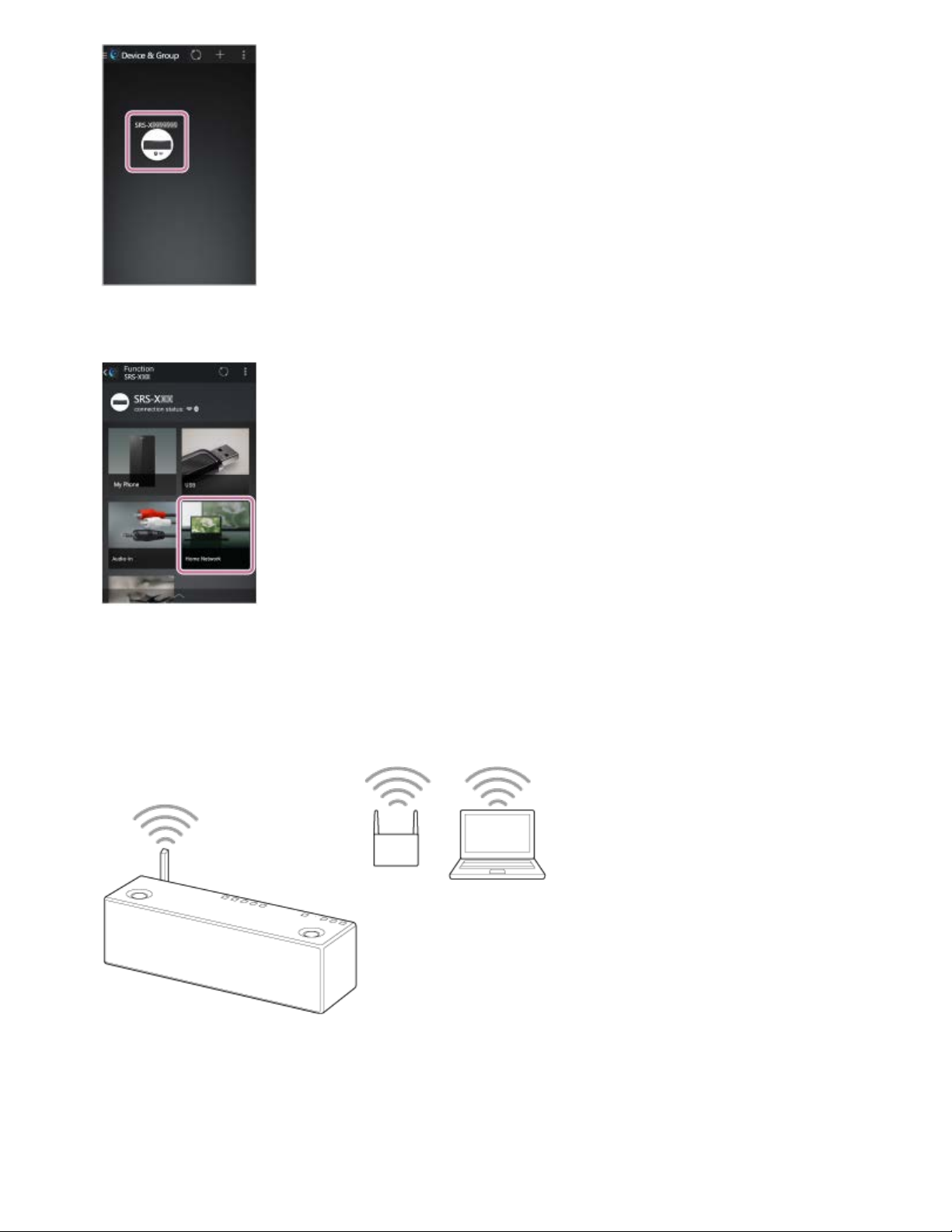
4. Tap [Home Network].
5. Select the DLNA server registered for your PC, by following the on-screen instruction
of SongPal.
6. Select a song from the list and start playback.
Music in your PC will be heard from the speaker.
To enjoy a more dynamic sound
Remove the speaker grille from the front of the speaker with the speaker grille detach tool
78
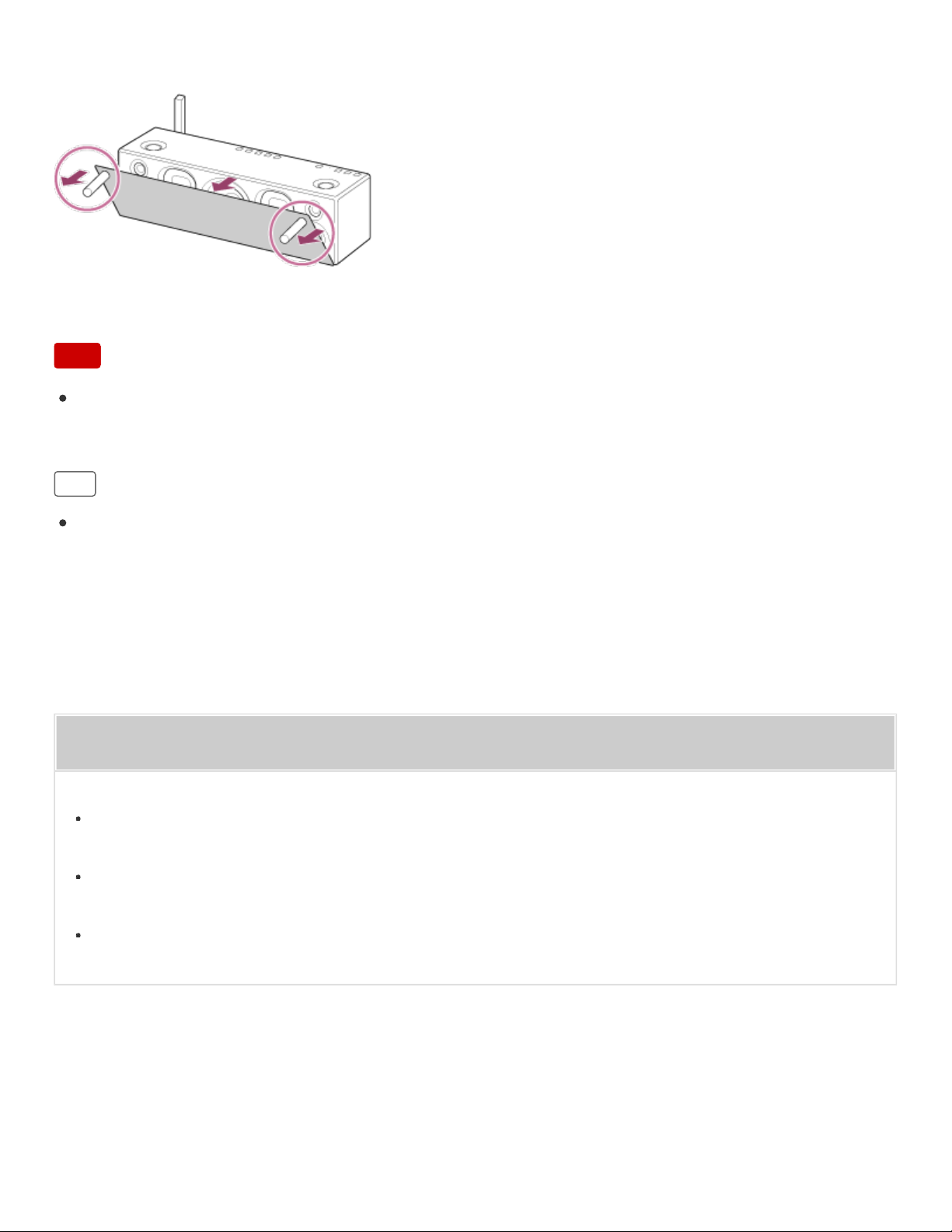
Go to Page Top
Go to Page Top
(supplied).*
*
Keep the removed grille on a flat surface to prevent distortion.
Note
Do not touch the exposed part of the speaker (speaker units) after removing the
speaker grille.
Hint
Using commercially-available LAN cables to connect the speaker, a router and a PC is
recommended to play back High-Resolution Audio files via a wired network.
Related Topic
Setting your PC as a DLNA server and controller (Windows 8)
Setting your PC for operating from a controller such as smartphone/ iPhone (Windows 8)
Setting your PC as a DLNA server and controller (Windows 7)
4-567-508-11(5)
Copyright 2015 Sony Corporation
79

Back Back to Top Print
Personal Audio System
SRS-X99
Setting your PC as a DLNA server and controller (Windows 8)
Windows 8 supports DLNA1.5. A Windows 8 PC can be used as both a DLNA server and
controller.
By operating from a Windows 8 PC, you can enjoy music stored in a DLNA server
(including a Windows 8 PC) on your home network with the speaker if you set the
following.
If you download SongPal to your smartphone/iPhone and operate a Windows 8 PC,
perform "Setting your PC for operating from a controller such as smartphone/iPhone
(Windows 8)."
1. Move the mouse pointer to the top-right (or bottom-right) corner of the Start screen to
display the charms, then select [Settings].
In the case of a touch panel, display the charms by swiping from the right side of the
Start screen, then select [Settings].
Help Guide
How to Use
80
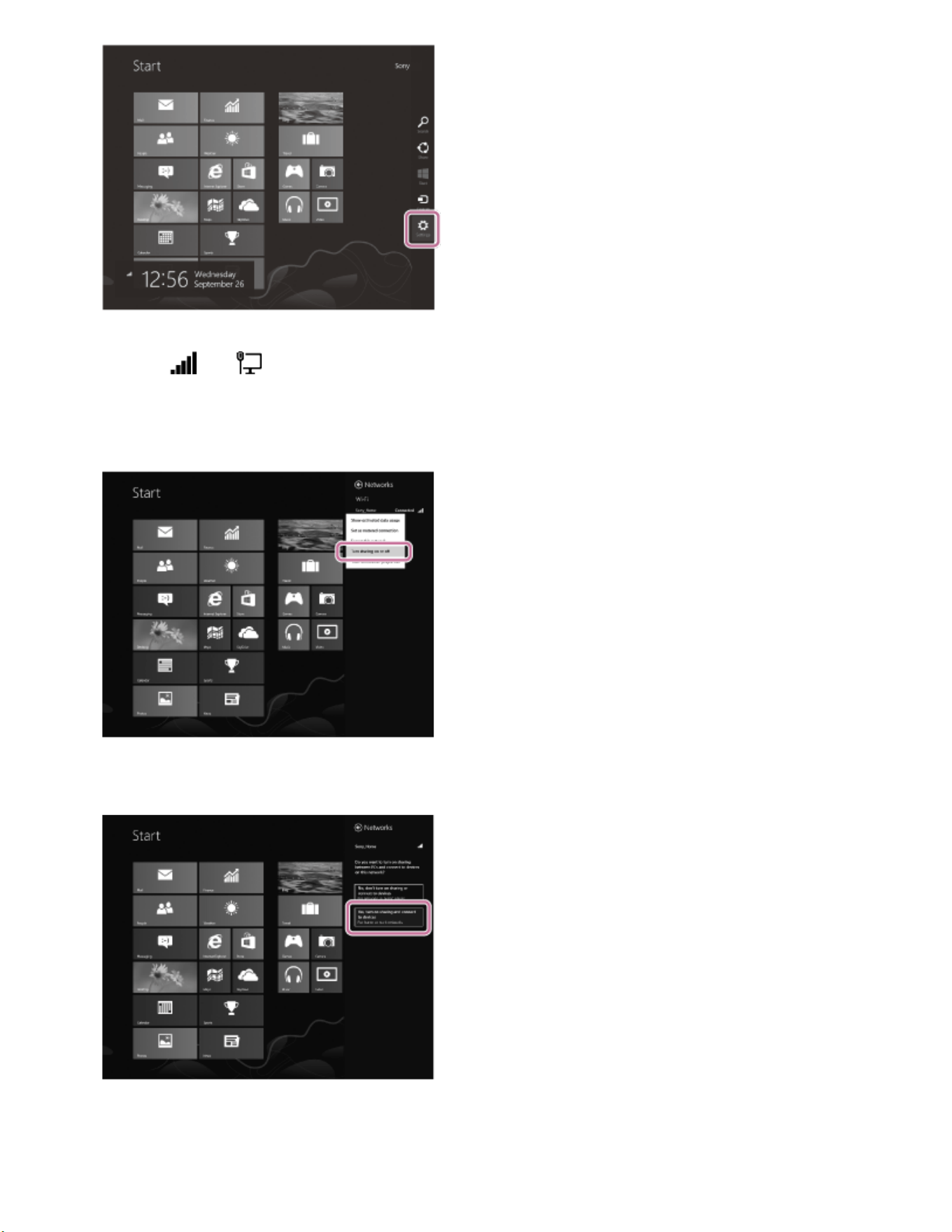

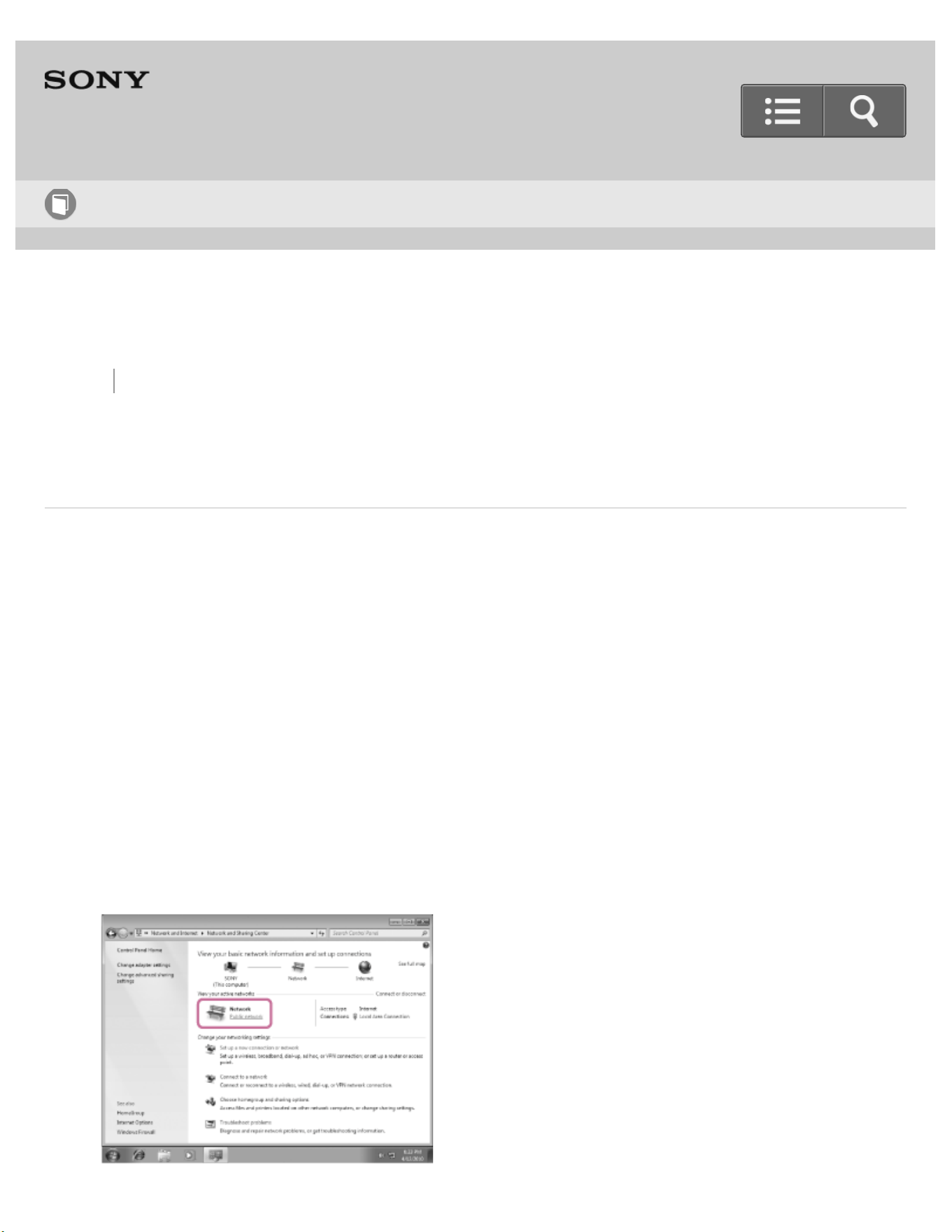
Back Back to Top Print
Personal Audio System
SRS-X99
Setting your PC as a DLNA server and controller (Windows 7)
A Windows 7 PC can be used as both DLNA server and controller.
By operating from a Windows 7 PC and DLNA controller on your home network, you can
enjoy music stored in a DLNA server (including a Windows 7 PC) on your home network
with the speaker if you set the following.
1. Go to [Start]-[Control Panel], then select [Network and Sharing Center].
The [Network and Sharing Center] screen appears.
If the desired item does not appear in the display, try changing the Control Panel
display type.
2. Select [Public network] under [View your active networks].
If the display shows other than [Public network], go to step 5.
Help Guide
How to Use
83
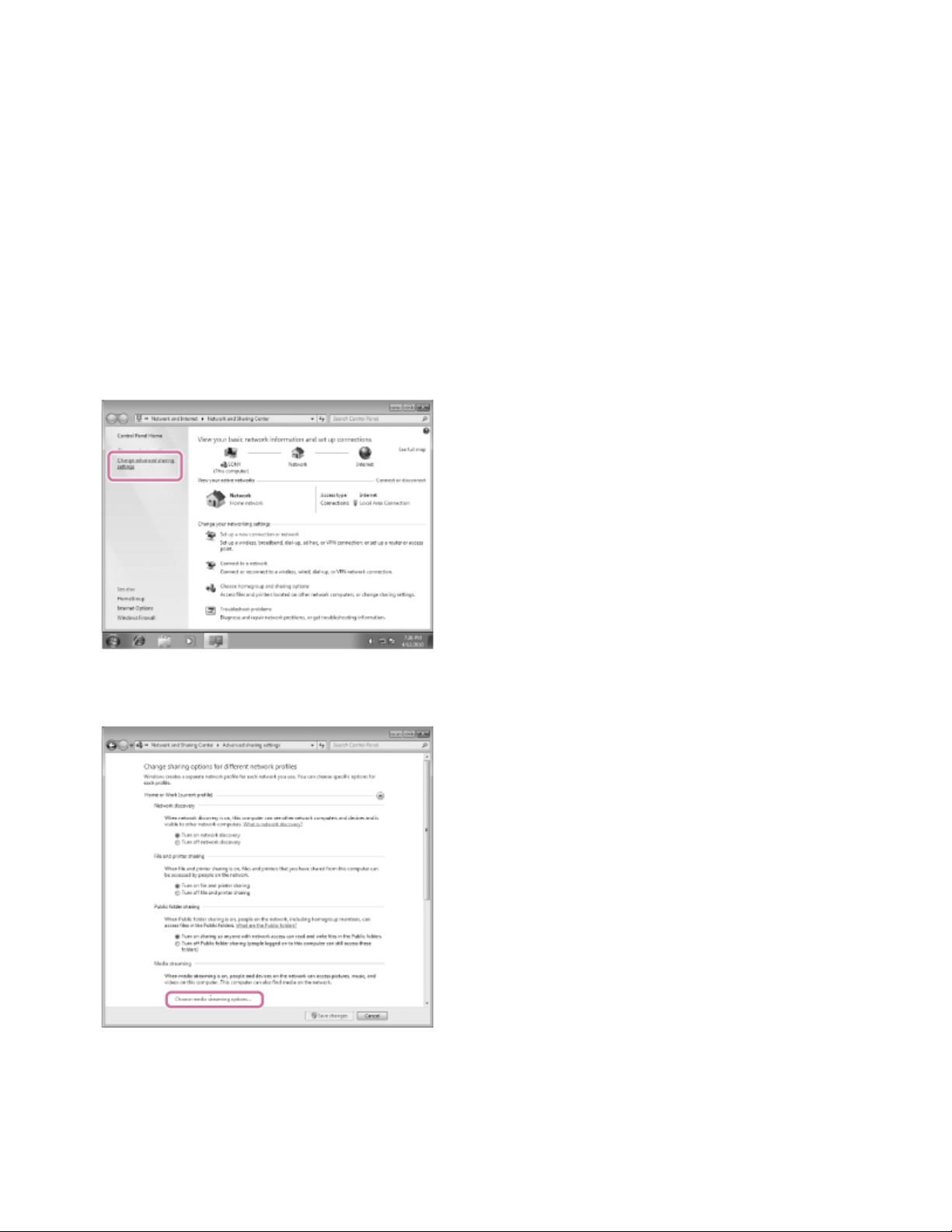
The [Set Network Location] screen appears.
3. Select [Home network] or [Work network] according to the environment in which the
speaker is used.
4. Follow the instructions that appear on the display according to the environment in
which the speaker is used.
When the setting is completed, in the [Network and Sharing Center] screen, confirm
that the item under [View your active networks] has changed to [Home network] or
[Work network].
5. Select [Change advanced sharing settings].
6. Select [Choose media streaming options…] from [Media streaming].
7. If [Media streaming is not turned on] appears in the [Media streaming options] screen,
select [Turn on media streaming].
8. Select [Allow All].
84
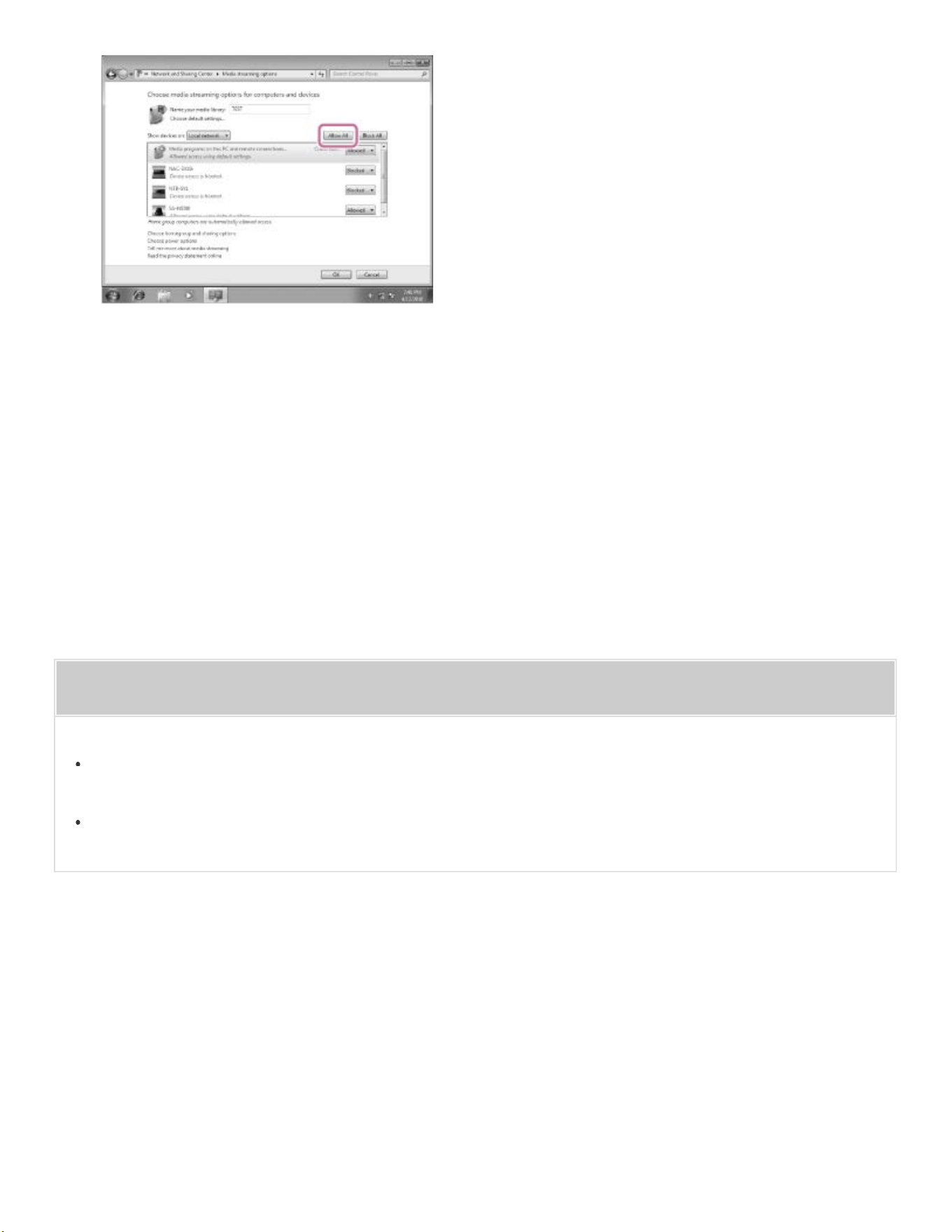
Go to Page Top
Go to Page Top
The [Allow All Media Devices] screen appears. If all the devices in the local network
are allowed ([Allow]) to access your network, select [OK] and close the screen.
9. Select [Allow all computers and media devices].
10. Select [OK] to close the screen.
Related Topic
Listening to music on a PC via a network (Windows 7) Windows Media Player
Listening to music on a PC via a Wi-Fi network
4-567-508-11(5)
Copyright 2015 Sony Corporation
85

Back Back to Top Print
Personal Audio System
SRS-X99
What you can do with SongPal
SongPal is the application for controlling Sony audio devices which are compatible with
SongPal, by your smartphone/iPhone.
Search for SongPal at Google Play or the App store and download it onto your
smartphone/iPhone.
For details about SongPal, refer to the following URL:
http://info.songpal.sony.net/help/
Downloading SongPal on to your smartphone/iPhone provides the following.
Sound settings of the speaker
You can easily customize your sound, or use the “ClearAudio+” and “DSEE HX” setting
recommended by Sony.
Music service
You can configure the initial settings to use music services
*
.
To enjoy music services, a third-party application is required.
*
Depending on the country or region, music services and their period of availability may differ.
Separate registration is required for certain services. An update of the device may be required.
Services offered by third parties may be changed, suspended, or terminated without prior notice. Sony
does not bear any responsibility for such situations.
Help Guide
How to Use
86

Go to Page Top
Controlling devices on your home network
You can play music stored in your PC or home network server over your network.
Controlling a device connected via USB
You can play music in a device connected to the USB A port ( A) of the speaker.
Note
What you can control with SongPal varies depending on the connected device. The
specification and design of the application may change without notice.
4-567-508-11(5)
Copyright 2015 Sony Corporation
87
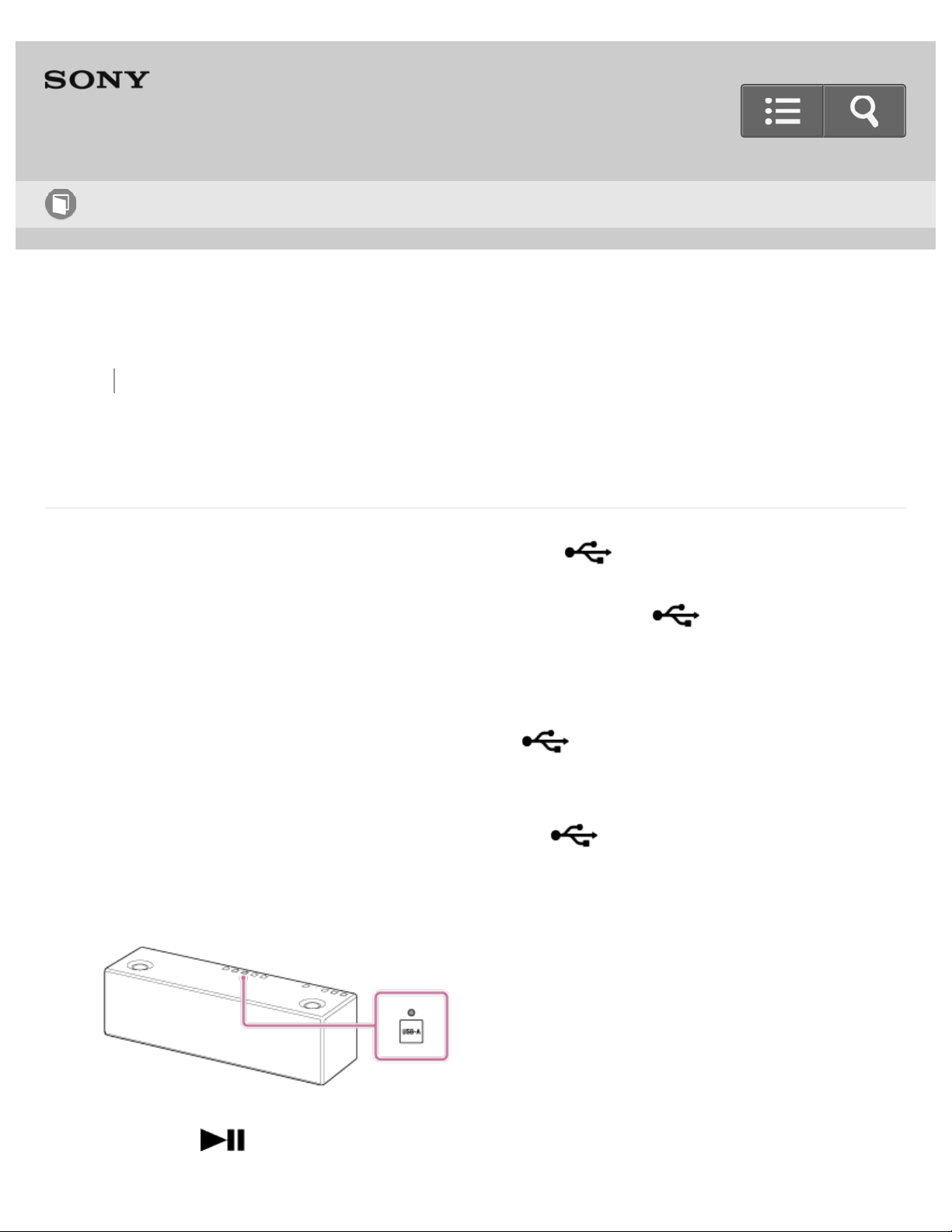
Back Back to Top Print
Personal Audio System
SRS-X99
Listening to music on a USB flash drive
You can connect a USB flash drive to the USB A port ( A) directly.
You can also use a commercially-available USB cable to connect a USB device.
Music stored in a USB flash drive connected to the USB A port ( A) can be played
back using the supplied remote control, or by a smartphone/iPhone that has SongPal
installed.
You can play back high-resolution audio format files by connecting a USB flash drive of Hi-
Speed USB standard or more, to the USB A port ( A). For details on file formats,
refer to the operating instructions supplied with your USB flash drive.
1. Connect the USB flash drive to the USB A port ( A).
2. Tap the USB-A button.
The speaker switches to the USB-A mode, and the USB-A indicator lights up in white.
3. Press the (Play/Pause) button on the remote control to play back music.
Help Guide
How to Use
88
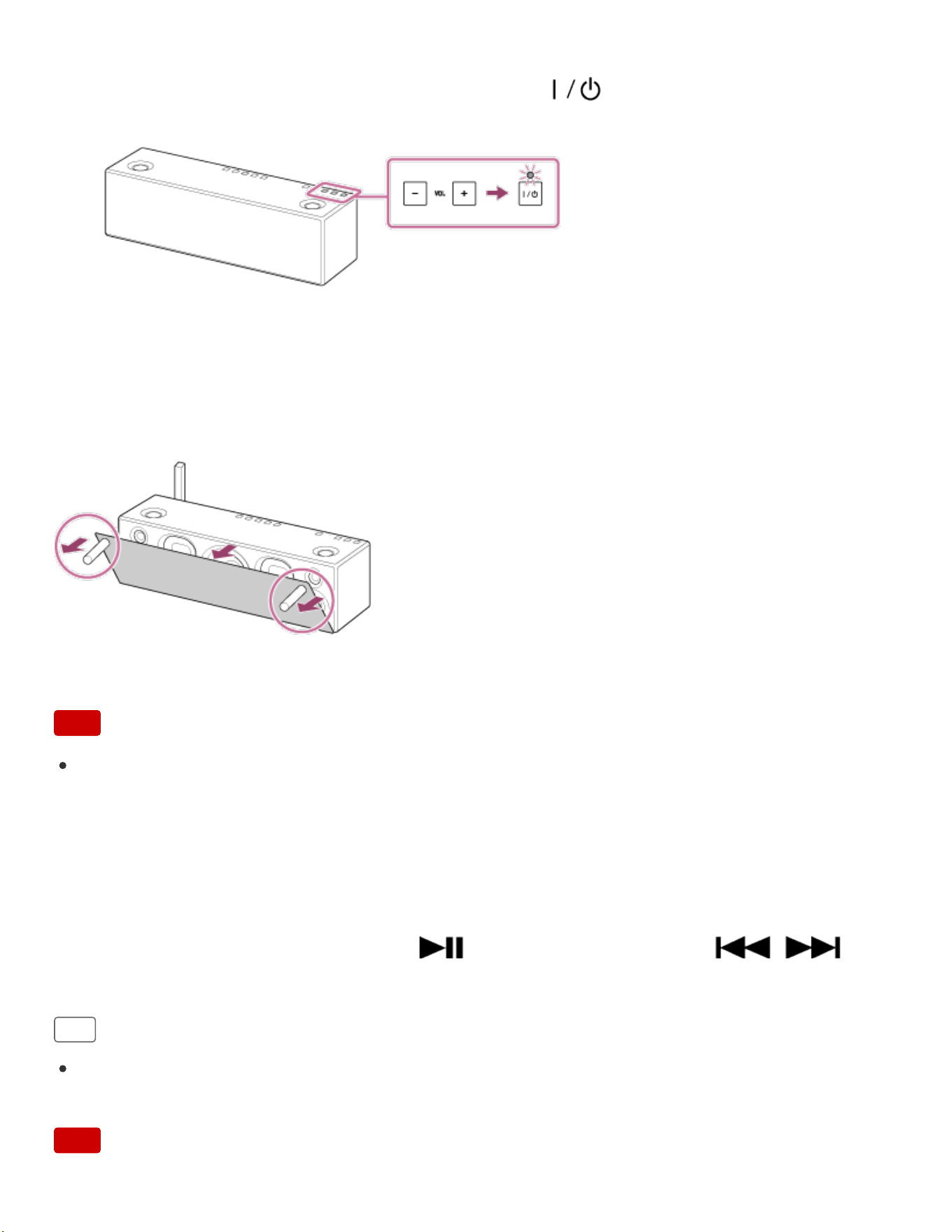
4. Tap the VOL (volume) –/+ button to adjust the volume.
When you tap the VOL (volume) –/+ button, the (on/standby) indicator flashes
once or three times according to the volume adjustment..
To enjoy a more dynamic sound
Remove the speaker grille from the front of the speaker with the speaker grille detach tool
(supplied).*
*
Keep the removed grille on a flat surface to prevent distortion.
Note
Do not touch the exposed part of the speaker (speaker units) after removing the
speaker grille.
What you can do with the speaker and remote control during playback
You can adjust the volume using the VOL (volume) –/+ buttons of the speaker or the
VOLUME +/- buttons of the remote control.
You can also use the MUTING button, (Play/Pause) button, and /
(Previous/Next) button of the remote control.
Hint
After SongPal is downloaded and installed to your smartphone/iPhone, you can use it
as a remote control.
Note
89

Go to Page Top
Go to Page Top
Sony is not responsible for any loss or damage to data in a USB flash drive that is
connected to the speaker.
Do not disconnect a USB flash drive during operation. To prevent damage to data, stop
playback, then turn off the power of the speaker before disconnecting the device.
Sony does not guarantee correct operation when a USB hub or USB extension cable is
used.
When you connect a USB flash drive, the speaker starts reading all the data stored on
it. Reading files may take some time.
Operation may become slow depending on the USB flash drive.
Related Topic
Parts and controls (Remote control)
Listening to music on a device via a USB connection (USB-A)
4-567-508-11(5)
Copyright 2015 Sony Corporation
90
Back Back to Top Print
Personal Audio System
SRS-X99
Listening to music on a device via a USB connection (USB-A)
You can use a smartphone/iPhone with SongPal installed as a remote control. You can
select/play music files on a device connected to the USB A port ( A) of the speaker
by operating your smartphone/iPhone.
The specification and design of the application may change without notice.
1. Connect the device to the USB A port ( A) of the speaker.
For details about connection, see Related Topic below.
2. Tap [SongPal] on your smartphone/iPhone to start up the application.
SongPal
3. Tap [SRS-X99].
Help Guide
How to Use
91
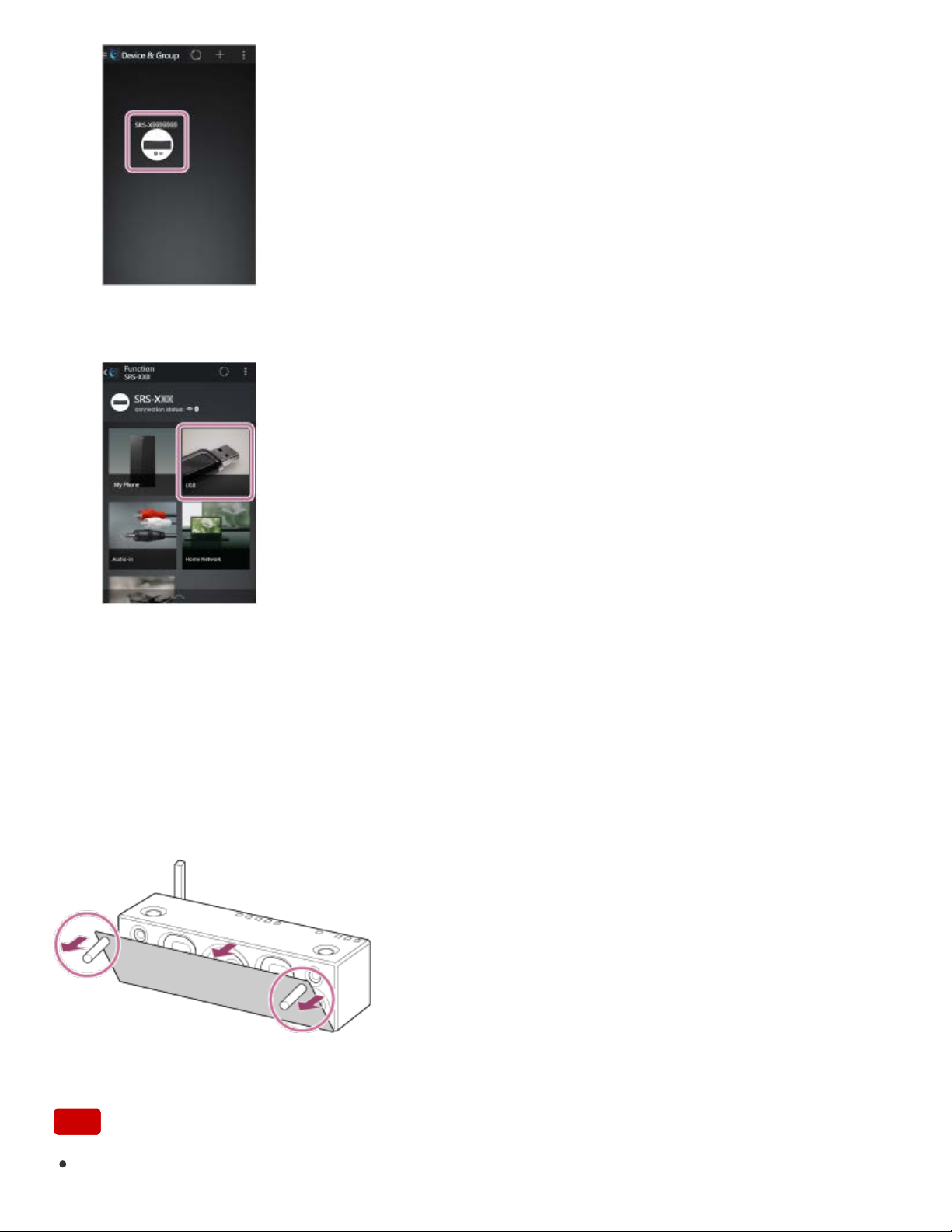
4. Tap [USB].
5. Select a song from the list and start playback.
Music will be heard from the speaker.
To enjoy a more dynamic sound
Remove the speaker grille from the front of the speaker with the speaker grille detach tool
(supplied).*
*
Keep the removed grille on a flat surface to prevent distortion.
Note
Do not touch the exposed part of the speaker (speaker units) after removing the
92

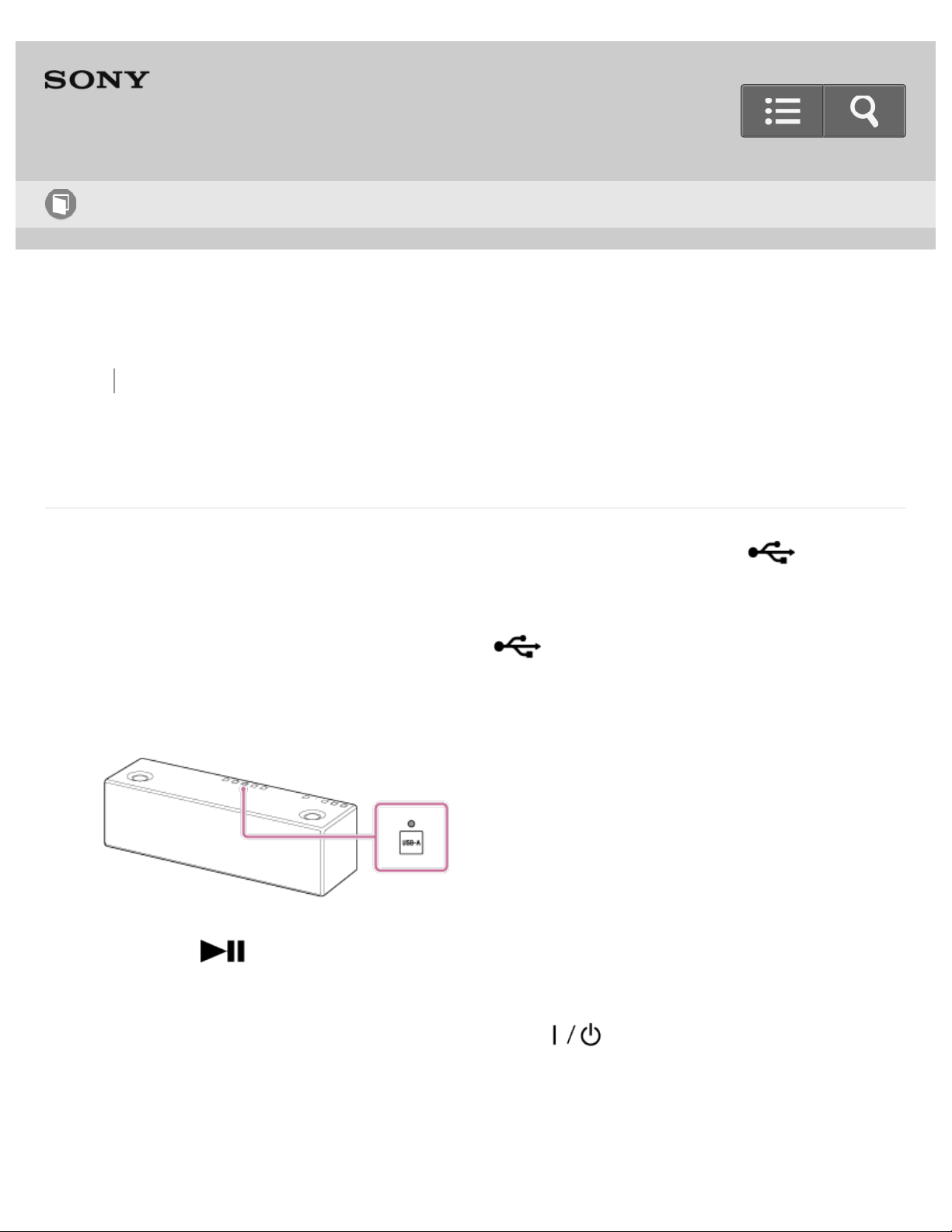
Back Back to Top Print
Personal Audio System
SRS-X99
Listening to music on a Walkman
You can listen to music on a Walkman by connecting it to the USB A port ( A) with
the USB cable supplied with the Walkman.
1. Connect the Walkman to the USB A port ( A).
2. Tap the USB-A button.
The speaker switches to USB-A mode and the USB-A indicator lights up in white.
3. Press the (Play/Pause) button of the remote control to start playback.
4. Tap the VOL (volume) –/+ button to adjust the volume.
When you tap the VOL (volume) –/+ button, the (on/standby) indicator flashes
once or three times according to the volume adjustment.
Help Guide
How to Use
94
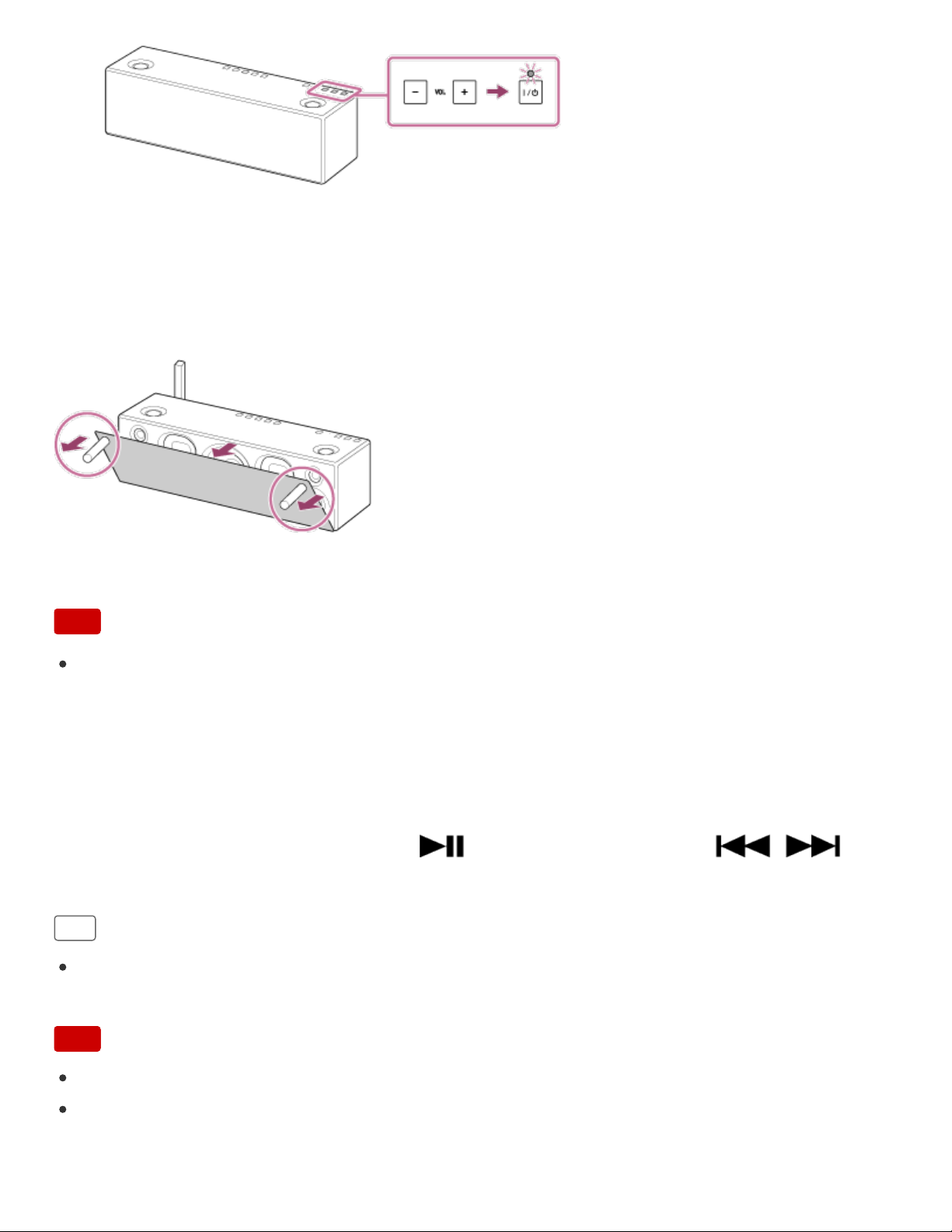
To enjoy a more dynamic sound
Remove the speaker grille from the front of the speaker with the speaker grille detach tool
(supplied).*
*
Keep the removed grille on a flat surface to prevent distortion.
Note
Do not touch the exposed part of the speaker (speaker units) after removing the
speaker grille.
What you can do with the speaker and remote control during playback
You can adjust the volume using the VOL (volume) –/+ buttons of the speaker or the
VOLUME +/- buttons of the remote control.
You can also use the MUTING button, (Play/Pause) button, and /
(Previous/Next) button of the remote control.
Hint
After SongPal is downloaded and installed to your smartphone/iPhone, you can use it
as the remote control.
Note
The speaker supports only audio playback functions of Walkman.
Sony is not responsible for loss or damage of data in a Walkman that is connected to
the speaker.
95

Go to Page Top
Go to Page Top
Correct operation is not guaranteed, even for a supported Walkman.
When the Walkman is connected, sound is not output from its headphone jack.
Related Topic
Parts and controls (Remote control)
Listening to music on a device via a USB connection (USB-A)
4-567-508-11(5)
Copyright 2015 Sony Corporation
96
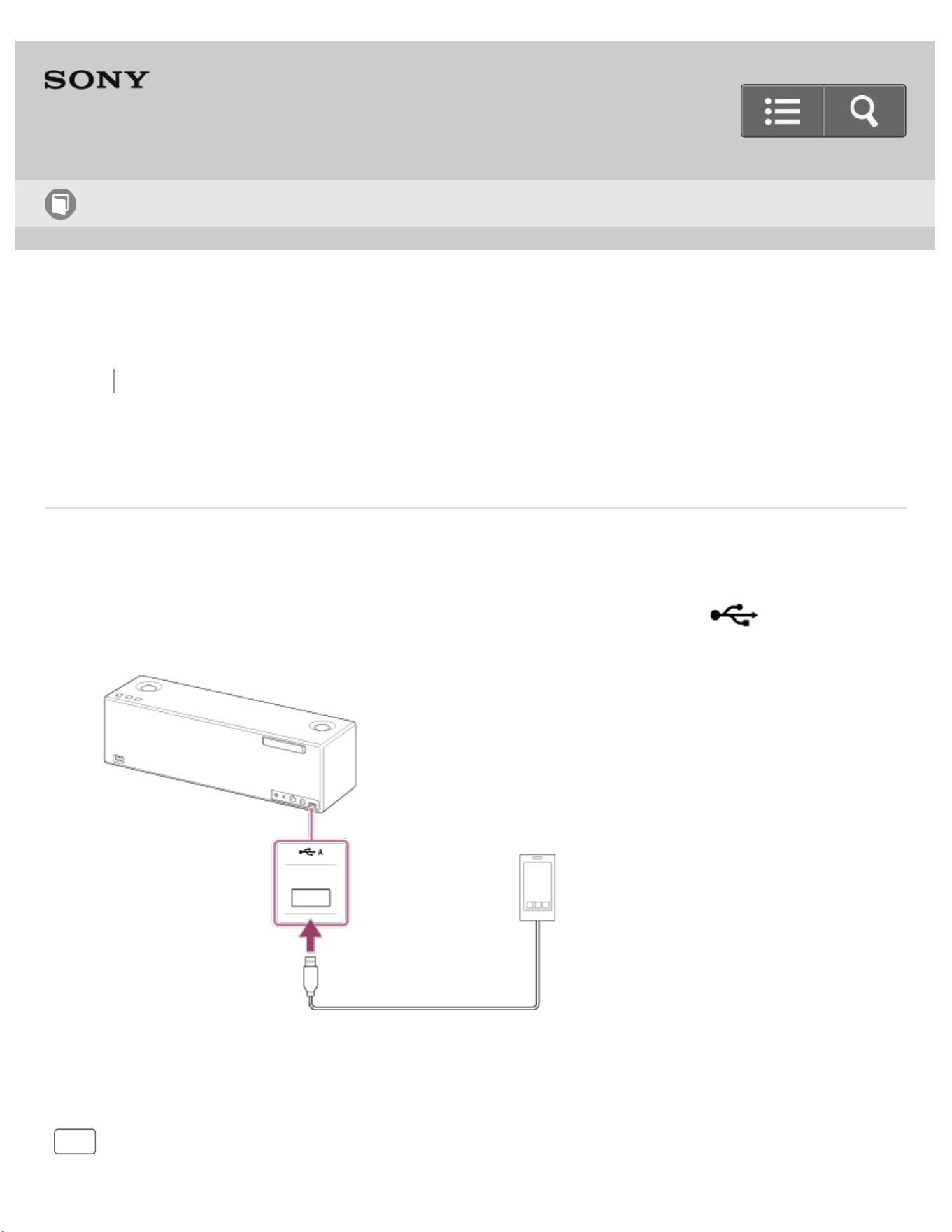
Back Back to Top Print
Personal Audio System
SRS-X99
Charging USB devices, such as smartphones
You can charge your smartphone via a USB connection to the speaker.
1. Connect a USB device such as a smartphone to the USB A port ( A) with a
commercially-available USB cable or the USB cable supplied with your USB device.
Charging of the USB device will start automatically.
Hint
Help Guide
How to Use
97

Go to Page Top
Go to Page Top
If the speaker is connected to an AC outlet, the USB device will be charged, even if the
speaker is turned off.
An iPhone/iPad/iPod or Walkman can be charged even while playing back music via the
USB A port ( A).
Note
Do not use a smartphone charging dock; it may prevent charging.
Charging of all USB devices cannot be guaranteed.
In an extremely hot environment, charging of the connected USB device will stop.
If the speaker is switched to another mode by tapping one of the function buttons while
charging, charging may be stopped. In this case, disconnect the USB cable from the
speaker and connect it again. Charging will resume.
Related Topic
Connecting an iPhone/iPad/iPod
Connecting a Walkman
4-567-508-11(5)
Copyright 2015 Sony Corporation
98

Back Back to Top Print
Go to Page Top
Personal Audio System
SRS-X99
About High-Resolution Audio format files
High-Resolution Audio, which is typically 96 kHz/24 bit or higher, is made by digitally
sampling an original analog audio source. The number of times at which sampling is
performed (in one-second increments) is called the sampling frequency, which is
expressed in hertz or “Hz”. Digitizing refers to the audio process where the sampled signal
is converted (or quantized) into binary digits, consisting of 1's and 0's, and expressed as
“bits”. The higher the number of bits, the closer the sample is to the original source. CDs
are standardized at 44.1 kHz/16 bit, but there is no single standard for High-Resolution
Audio.
An alternative way of digitizing an analog source is a method called DSD (Direct Stream
Digital) which captures sound information as a sequence of single bit values with an
extremely high sampling rate of either 2.8 MHz or 5.6 MHz. This is approximately 64 or
128 times the sampling rate of CD audio and is simply known as DSD 2.8 MHz or DSD 5.6
MHz. For some engineers, this is the closest a digital file sample can get to an original
analog source.
4-567-508-11(5)
Help Guide
How to Use
99
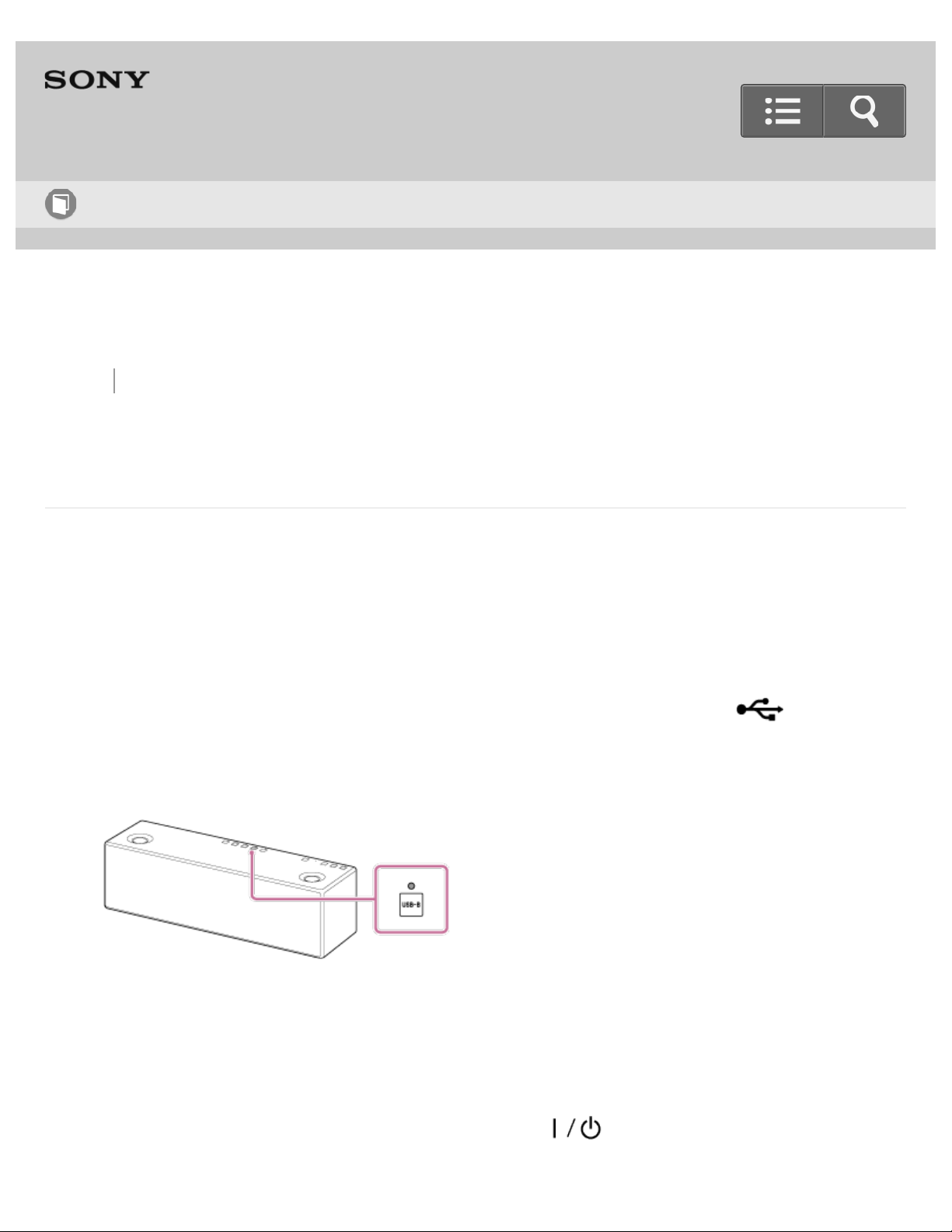
Back Back to Top Print
Personal Audio System
SRS-X99
Listening to music on a high-resolution supported Walkman
You can connect a high-resolution supported Walkman to the speaker with an optional
High-Resolution Audio USB Adaptor WM-PORT Cable.
The speaker will receive unconverted digital audio data, which is then converted to analog
data through the digital-to-analog converter of the speaker, and then output.
1. Connect the high-resolution supported Walkman to the USB B port ( B).
2. Tap the USB-B button.
The speaker switches to USB-B mode and the USB-B indicator lights up in white.
3. Operate the high-resolution supported Walkman to start playback and adjust the
volume to a moderate level.
4. Tap the VOL (volume) –/+ button to adjust the volume.
When you tap the VOL (volume) –/+ button, the (on/standby) indicator flashes
once or three times according to the volume adjustment.
Help Guide
How to Use
100
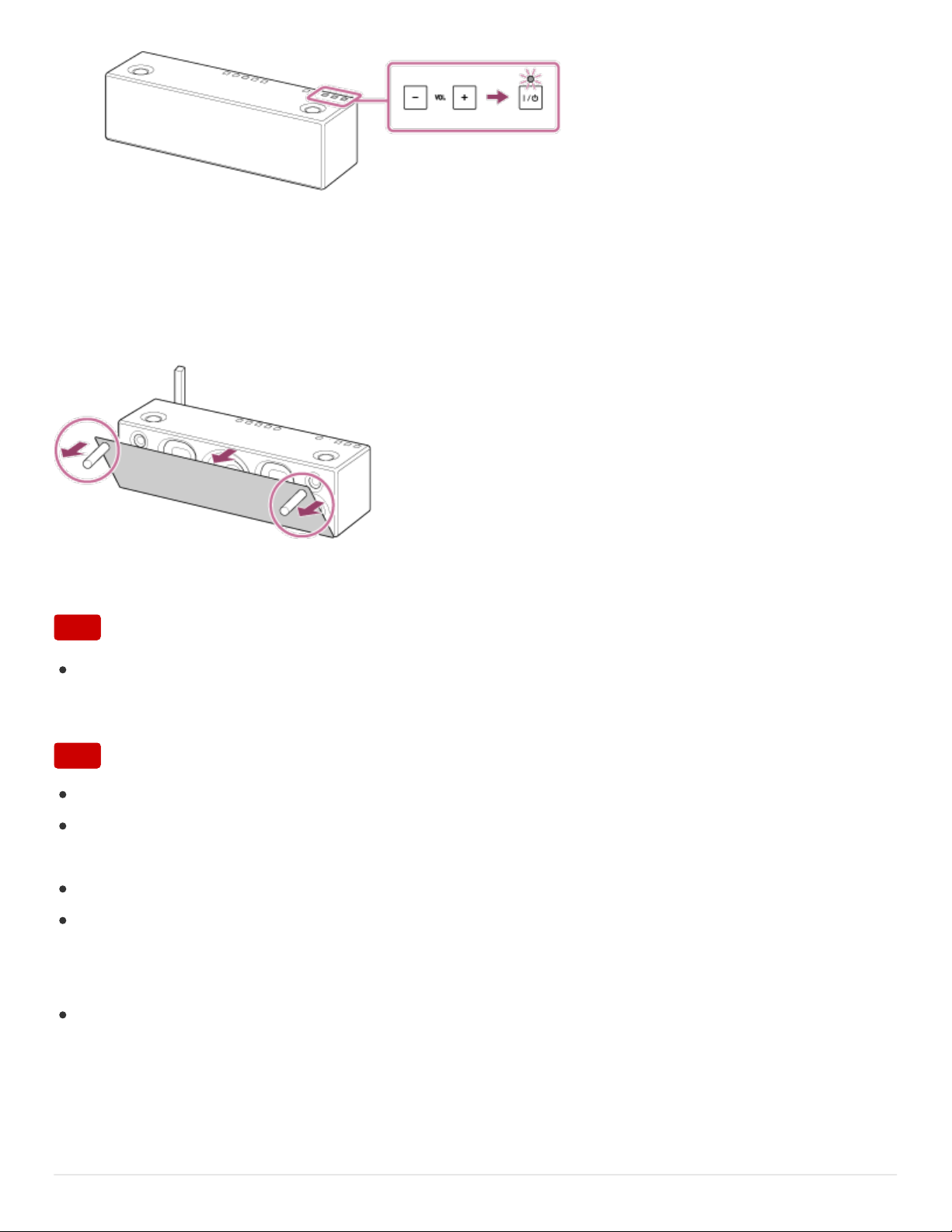
Go to Page Top
To enjoy a more dynamic sound
Remove the speaker grille from the front of the speaker with the speaker grille detach tool
(supplied).*
*
Keep the removed grille on a flat surface to prevent distortion.
Note
Do not touch the exposed part of the speaker (speaker units) after removing the
speaker grille.
Note
The speaker supports only audio playback functions of Walkman.
Sony is not responsible for any loss or damage to data in a Walkman that is connected
to the speaker.
Not all operations are guaranteed, even if the Walkman is supported.
Depending on the Walkman, dynamic normalizer, equalizer, VPT, DSEE and speaker
output optimizer may be set to on (or adjusted). If the sound is distorted, set these
functions to off.
When the Walkman is connected, sound is not output from its headphone jack.
101


Back Back to Top
Go to Page Top
Personal Audio System
SRS-X99
Parts and controls
Parts and controls (Main unit)
Introduction to the buttons, terminals and indicators on the speaker.
Parts and controls (Remote control)
Introduction to the buttons on the remote control.
4-567-508-11(5)
Copyright 2015 Sony Corporation
Help Guide
How to Use
104


Back Back to Top
Personal Audio System
SRS-X99
Power source
Connecting to an AC outlet
Connect the speaker to an AC outlet securely.
Inserting the batteries of the remote control
Before using the supplied remote control, insert the batteries.
Turning the power on
Turn the speaker on.
Turning the power off
Turn the speaker off.
Using the BLUETOOTH/Network standby function
The speaker turns on automatically by operating a BLUETOOTH device or network device, and
BLUETOOTH or network connection starts.
Help Guide
How to Use
106

Go to Page Top
Charging USB devices, such as smartphones
You can charge your USB device via a USB connection to the speaker.
Auto standby function
If no operation is performed and no sound is input for about 15 minutes, the speaker turns off
automatically.
4-567-508-11(5)
Copyright 2015 Sony Corporation
107

Back Back to Top
Go to Page Top
Personal Audio System
SRS-X99
About SongPal
How to use the SongPal screen
SongPal is a application for controlling Sony audio devices which are compatible with SongPal, by
your smartphone/iPhone.
What you can do with SongPal
SongPal can set up a Wi-Fi connection with the speaker, allowing you to select/play music on the PC
or server via your home network.
4-567-508-11(5)
Copyright 2015 Sony Corporation
Help Guide
How to Use
108

Back Back to Top
Go to Page Top
Personal Audio System
SRS-X99
Wi-Fi network connection
Connecting to a Wi-Fi network using SongPal (Smartphone)
You can connect the speaker to a Wi-Fi network using SongPal installed on your smartphone. First,
make a BLUETOOTH connection between the speaker and the smartphone.
Connecting to a Wi-Fi network using SongPal (iPhone)
You can connect the speaker to a Wi-Fi network using SongPal installed on your iPhone. First, make
a BLUETOOTH connection between the speaker and the iPhone.
4-567-508-11(5)
Copyright 2015 Sony Corporation
Help Guide
How to Use
109

Back Back to Top
Personal Audio System
SRS-X99
Device control
Listening to music on a PC via a Wi-Fi network
You can listen to music on a PC via a Wi-Fi network, using SongPal installed on your
smartphone/iPhone.
Listening to the music stored in your smartphone/iPhone over Wi-Fi network
You can listen to the music stored in your smartphone/iPhone over Wi-Fi network with SongPal.
Listening to music on a device via a USB connection (USB-A)
You can listen to music on a device connected to the USB A port of the speaker, using SongPal
installed on your smartphone/iPhone.
Listening to music on a computer via a USB connection (USB-B)
You can select a computer connected to the USB B port of the speaker, using SongPal installed on
your smartphone/iPhone.
Listening to music from an internet streaming service (Google Cast)
You can use various music streaming services offered on the internet, using SongPal installed on
Help Guide
How to Use
110


Back Back to Top
Go to Page Top
Personal Audio System
SRS-X99
Speaker settings
Setting the sound quality
You can easily customize the sound quality of the speaker by using your smartphone/iPhone with
Songpal installed.
Setting the auto standby function
You can turn on/off the auto standby function of the speaker, using SongPal installed on your
smartphone/iPhone.
Setting the BLUETOOTH/Network standby function
You can turn on/off the BLUETOOTH/Network standby function of the speaker, using your
smartphone/iPhone with SongPal installed.
Setting the BLUETOOTH audio streaming playback quality (Codec)
You can select the BLUETOOTH audio streaming playback quality of the speaker, using SongPal
installed on your smartphone/iPhone.
Help Guide
How to Use
112

Back Back to Top
Go to Page Top
Personal Audio System
SRS-X99
Selecting the network connection method
Selecting the Wi-Fi network connection method
Select the network connection method, which depends on your network environment.
Selecting the wired network connection method
Connect the speaker to your wireless router with a commercially-available LAN cable, then connect
the router to the computer.
4-567-508-11(5)
Copyright 2015 Sony Corporation
Help Guide
How to Use
113


Back Back to Top
Personal Audio System
SRS-X99
Listening to music on a PC via a network (Modern UI)
Connection method 1: Connecting to a Wi-Fi network using the WPS button of a
wireless router
If your wireless router has a WPS button (AOSS), you can connect to the Wi-Fi network by this
method.
Connection method 2: Connecting to a Wi-Fi network using a computer connected
with a LAN cable
Connect the speaker and a computer via a commercially-available LAN cable, then connect the
speaker to the wireless router using the computer.
Connection method 3: Connecting to a Wi-Fi network using a PC connected
wirelessly (Modern UI)
Connect the speaker with a Modern UI PC wirelessly, then connect to the Wi-Fi network.
Connection method 4: Connecting to a wired network
Connect the speaker to a wireless router with a commercially-available LAN cable, then connect the
router to the computer.
Help Guide
How to Use
115

Go to Page Top
Connection method 5: Connecting to a Wi-Fi network using an iPhone/iPad/iPod
touch
Connect the speaker to the same Wi-Fi network as the iPhone/iPad/iPod touch with iOS 8 or later.
Setting your PC as a DLNA server and controller (Windows 8)
Set a Windows 8 PC for use as a DLNA server and a controller.
Setting your PC for operating from a controller such as smartphone/ iPhone
(Windows 8)
Set a Windows 8 PC to listen to music stored in that PC by operating the DLNA controller.
Listening with the AirPlay function (iTunes)
You can listen to music stored in a computer with iTunes by using AirPlay.
Listening to music on a PC via a network (Windows 8) (Windows Media Player)
You can listen to music stored in a Windows 8 PC connected to your network using Windows Media
Player.
Listening to music on a PC via a network (“Sony | Music Center for PC”)
You can listen to music stored in a PC connected to your network using “Sony | Music Center for PC.”
Listening to music on a PC via a network (“Sony | Music Center for PC” with SongPal
operation)
You can listen to music stored in a PC connected to your network using “Sony | Music Center for PC.”
116

Back Back to Top
Personal Audio System
SRS-X99
Listening to music on a PC via a network (Windows 8)
Connection method 1: Connecting to a Wi-Fi network using the WPS button of a
wireless router
If your wireless router has a WPS button (AOSS), you can connect to the Wi-Fi network by this
method.
Connection method 2: Connecting to a Wi-Fi network using a computer connected
with a LAN cable
Connect the speaker and a computer via a commercially-available LAN cable, then connect the
speaker to the wireless router using the computer.
Connection method 3: Connecting to a Wi-Fi network using a PC connected
wirelessly (Windows 7/Windows 8)
Connect the speaker with a Windows 7 or Windows 8 PC wirelessly, then connect to the Wi-Fi
network.
Connection method 4: Connecting to a wired network
Connect the speaker to a wireless router with a commercially-available LAN cable, then connect the
router to the computer.
Help Guide
How to Use
117

Go to Page Top
Connection method 5: Connecting to a Wi-Fi network using an iPhone/iPad/iPod
touch
Connect the speaker to the same Wi-Fi network as the iPhone/iPad/iPod touch with iOS 8 or later.
Setting your PC as a DLNA server and controller (Windows 8)
Set a Windows 8 PC for use as a DLNA server and a controller.
Setting your PC for operating from a controller such as smartphone/ iPhone
(Windows 8)
Set a Windows 8 PC to listen to music stored in that PC by operating the DLNA controller.
Listening with the AirPlay function (iTunes)
You can listen to music stored in a computer with iTunes by using AirPlay.
Listening to music on a PC via a network (Windows 8) (Windows Media Player)
You can listen to music stored in a Windows 8 PC connected to your network using Windows Media
Player.
Listening to music on a PC via a network (“Sony | Music Center for PC”)
You can listen to music stored in a PC connected to your network using “Sony | Music Center for PC.”
Listening to music on a PC via a network (“Sony | Music Center for PC” with SongPal
operation)
You can listen to music stored in a PC connected to your network using “Sony | Music Center for PC.”
118

Back Back to Top
Personal Audio System
SRS-X99
Listening to music on a PC via a network (Windows 7)
Connection method 1: Connecting to a Wi-Fi network using the WPS button of a
wireless router
If your wireless router has a WPS button (AOSS), you can connect to the Wi-Fi network by this
method.
Connection method 2: Connecting to a Wi-Fi network using a computer connected
with a LAN cable
Connect the speaker and a computer via a commercially-available LAN cable, then connect the
speaker to the wireless router using the computer.
Connection method 3: Connecting to a Wi-Fi network using a PC connected
wirelessly (Windows 7/Windows 8)
Connect the speaker with a Windows 7 or Windows 8 PC wirelessly, then connect to the Wi-Fi
network.
Connection method 4: Connecting to a wired network
Connect the speaker to a wireless router with a commercially-available LAN cable, then connect the
router to the computer.
Help Guide
How to Use
119

Go to Page Top
Connection method 5: Connecting to a Wi-Fi network using an iPhone/iPad/iPod
touch
Connect the speaker to the same Wi-Fi network as the iPhone/iPad/iPod touch with iOS 8 or later.
Setting your PC as a DLNA server and controller (Windows 7)
Set a Windows 7 PC for use as a DLNA server and a controller.
Listening with the AirPlay function (iTunes)
You can listen to music stored in a computer with iTunes by using AirPlay.
Listening to music on a PC via a network (Windows 7) Windows Media Player
You can listen to music stored in a Windows 7 PC connected to your network.
Listening to music on a PC via a network (“Sony | Music Center for PC”)
You can listen to music stored in a PC connected to your network using “Sony | Music Center for PC.”
Listening to music on a PC via a network (“Sony | Music Center for PC” with SongPal
operation)
You can listen to music stored in a PC connected to your network using “Sony | Music Center for PC.”
4-567-508-11(5)
Copyright 2015 Sony Corporation
120

Back Back to Top
Personal Audio System
SRS-X99
Listening to music on a computer via a network (Mac)
Connection method 1: Connecting to a Wi-Fi network using the WPS button of a
wireless router
If your wireless router has a WPS button (AOSS), you can connect to the Wi-Fi network by this
method.
Connection method 2: Connecting to a Wi-Fi network using a computer connected
with a LAN cable
Connect the speaker and a computer via a commercially-available LAN cable, then connect the
speaker to the wireless router using the computer.
Connection method 3: Connecting to a Wi-Fi network using a Mac connected
wirelessly
Connect the speaker with a Mac wirelessly, then connect to the Wi-Fi network.
Connection method 4: Connecting to a wired network
Connect the speaker to a wireless router with a commercially-available LAN cable, then connect the
router to the computer.
Help Guide
How to Use
121

Go to Page Top
Connection method 5: Connecting to a Wi-Fi network using an iPhone/iPad/iPod
touch
Connect the speaker to the same Wi-Fi network as the iPhone/iPad/iPod touch with iOS 8 or later.
Listening with the AirPlay function (iTunes)
You can listen to music stored in a computer with iTunes by using AirPlay.
4-567-508-11(5)
Copyright 2015 Sony Corporation
122

Back Back to Top
Personal Audio System
SRS-X99
Listening to music on an iPhone/iPad/iPod via a network
Connection method 1: Connecting to a Wi-Fi network using the WPS button of a
wireless router
If your wireless router has a WPS button (AOSS), you can connect to the Wi-Fi network by this
method.
Connection method 2: Connecting to a Wi-Fi network using a computer connected
with a LAN cable
Connect the speaker and a computer via a commercially-available LAN cable, then connect the
speaker to the wireless router using the computer.
Connection method 3: Connecting to a wired network
Connect the speaker to a wireless router with a commercially-available LAN cable, then connect the
router to the computer.
Connection method 4: Connecting to a Wi-Fi network using an iPhone/iPad/iPod
touch
Connect the speaker to a Wi-Fi network that the iPhone/iPad/iPod touch with iOS 8 or later has been
connected to.
Help Guide
How to Use
123


Back Back to Top
Personal Audio System
SRS-X99
Listening to music on an Xperia via a network
Connection method 1: Connecting to a Wi-Fi network using the WPS button of a
wireless router
If your wireless router has a WPS button (AOSS), you can connect to the Wi-Fi network by this
method.
Connection method 2: Connecting to a Wi-Fi network using a computer connected
with a LAN cable
Connect the speaker and a computer via a commercially-available LAN cable, then connect the
speaker to the wireless router using the computer.
Connection method 3: Connecting to a wired network
Connect the speaker to a wireless router with a commercially-available LAN cable, then connect the
router to the computer.
Connection method 4: Connecting to a Wi-Fi network using an iPhone/iPad/iPod
touch
Connect the speaker to a Wi-Fi network that the iPhone/iPad/iPod touch with iOS 8 or later has been
connected to.
Help Guide
How to Use
125


Back Back to Top
Go to Page Top
Personal Audio System
SRS-X99
Listening to an Internet music service
Listening to music from an internet streaming service (Google Cast)
You can use various music streaming services offered on the internet, using SongPal installed on
your smartphone/iPhone.
Listening to an Internet music service (Spotify)
“Spotify” gives you instant access to millions of songs.
4-567-508-11(5)
Copyright 2015 Sony Corporation
Help Guide
How to Use
127

Back Back to Top
Go to Page Top
Personal Audio System
SRS-X99
How to make a wireless connection with BLUETOOTH devices
How to make a wireless connection with BLUETOOTH devices
An overview of pairing and BLUETOOTH connection with a BLUETOOTH device.
4-567-508-11(5)
Copyright 2015 Sony Corporation
Help Guide
How to Use
128

Back Back to Top
Personal Audio System
SRS-X99
Listening to music on a device via a BLUETOOTH connection
Connection method 1: Pairing and connecting with a BLUETOOTH device
You can register (pair) a BLUETOOTH device and the speaker with each other, and make a
BLUETOOTH connection.
Connection method 2: Connecting with a paired BLUETOOTH device
You can connect the speaker with a BLUETOOTH device that is already paired.
Connection method 3: Connecting with an NFC-compatible device by one touch
(NFC)
By touching the speaker with a smartphone, the speaker turns on automatically, then pairs with the
device and makes a BLUETOOTH connection.
Listening to music on a device via a BLUETOOTH connection
You can enjoy listening to music of your BLUETOOTH device wirelessly via a BLUETOOTH
connection.
Selecting the BLUETOOTH audio streaming playback quality (Codec)
Help Guide
How to Use
129

Go to Page Top
You can select the BLUETOOTH audio streaming playback quality of the speaker.
Terminating the BLUETOOTH connection (After use)
After use, terminate the BLUETOOTH connection between the speaker and BLUETOOTH device.
Disconnecting the NFC-compatible device by one touch (NFC)
You can disconnect the speaker from a connected smartphone by touching the speaker with it.
Switching devices by one touch (NFC)
You can switch devices by touching a new device once on the N-Mark of the speaker.
4-567-508-11(5)
Copyright 2015 Sony Corporation
130

Back Back to Top
Go to Page Top
Personal Audio System
SRS-X99
Listening to music on a USB flash drive via a USB connection (USB-A)
Connecting a USB flash drive
You can connect a USB flash drive to the USB A port.
Listening to music on a USB flash drive
You can listen to music stored in a USB flash drive connected to the speaker.
4-567-508-11(5)
Copyright 2015 Sony Corporation
Help Guide
How to Use
131

Back Back to Top
Go to Page Top
Personal Audio System
SRS-X99
Listening to music on an iPhone/iPad/iPod via a USB connection (USB-A)
Connecting an iPhone/iPad/iPod
You can connect an iPhone/iPad/iPod to the USB A port.
Listening to music on an iPhone/iPad/iPod
You can listen to music on an iPhone/iPad/iPod that is connected to the speaker with a USB cable.
4-567-508-11(5)
Copyright 2015 Sony Corporation
Help Guide
How to Use
132

Back Back to Top
Go to Page Top
Personal Audio System
SRS-X99
Listening to music on a Walkman via a USB connection (USB-A)
Connecting a Walkman
You can connect a Walkman to the USB A port.
Listening to music on a Walkman
You can enjoy music on a Walkman that is connected to the speaker with a USB cable.
4-567-508-11(5)
Copyright 2015 Sony Corporation
Help Guide
How to Use
133

Back Back to Top
Go to Page Top
Personal Audio System
SRS-X99
Listening to music on a high-resolution supported Walkman via a USB connection
(USB-B)
Connecting a high-resolution supported Walkman
You can connect a high-resolution supported Walkman to the USB B port.
Listening to music on a high-resolution supported Walkman
You can listen to music on a high-resolution supported Walkman connected to the speaker.
4-567-508-11(5)
Copyright 2015 Sony Corporation
Help Guide
How to Use
134

Back Back to Top
Go to Page Top
Personal Audio System
SRS-X99
Listening to music on a high-resolution supported Xperia via a USB connection (USB-B)
Connecting a high-resolution supported Xperia
You can connect a high-resolution supported Xperia to the USB B port.
Listening to music on a high-resolution supported Xperia
You can listen to music on a high-resolution supported Xperia connected to the speaker.
4-567-508-11(5)
Copyright 2015 Sony Corporation
Help Guide
How to Use
135

Back Back to Top
Go to Page Top
Personal Audio System
SRS-X99
Listening to music on a computer via a USB connection (USB-B)
Connecting a computer/Installing the driver
Connect a computer to the USB B port.
Installing “Sony | Music Center for PC” or “Hi-Res Audio Player” to a PC
“Sony | Music Center for PC” or “Hi-Res Audio Player” need to be downloaded and installed to your
computer before playing High-Resolution Audio format files.
Listening to music on a computer
You can listen to music on a PC or Mac that is connected to the speaker with a USB cable.
4-567-508-11(5)
Copyright 2015 Sony Corporation
Help Guide
How to Use
136

Back Back to Top
Go to Page Top
Personal Audio System
SRS-X99
Listening to music on a portable audio device, etc., by connecting with an audio cable
(AUDIO IN)
Connecting to a portable audio device, etc.
You can connect a portable audio device, etc., with a commercially-available audio cable.
Listening to music on a portable audio device, etc.
You can enjoy music of a portable audio device, etc., connected to the AUDIO IN jack.
4-567-508-11(5)
Copyright 2015 Sony Corporation
Help Guide
How to Use
137

Back Back to Top Print
Personal Audio System
SRS-X99
Installing “Sony | Music Center for PC” or “Hi-Res Audio Player” to a PC
The software is required to play High-Resolution Audio format files on your computer with
the speaker.
For a Windows computer: “Sony | Music Center for PC” or “Hi-Res Audio Player”
For a Mac: “Hi-Res Audio Player”
Access the following websites, and download the software.
You may have to pay a communication fee, depending on your internet contract.
“Sony | Music Center for PC”
http://www.sony.net/smc4pc/
“Hi-Res Audio Player”
For customers in Europe:
http://www.sony.eu/support
For customers in the USA:
http://esupport.sony.com/US
For customers in Canada:
http://esupport.sony.com/CA/
For customers in other countries/regions:
http://www.sony-asia.com/section/support
For details on installing, refer to the download webpages.
Help Guide
How to Use
138

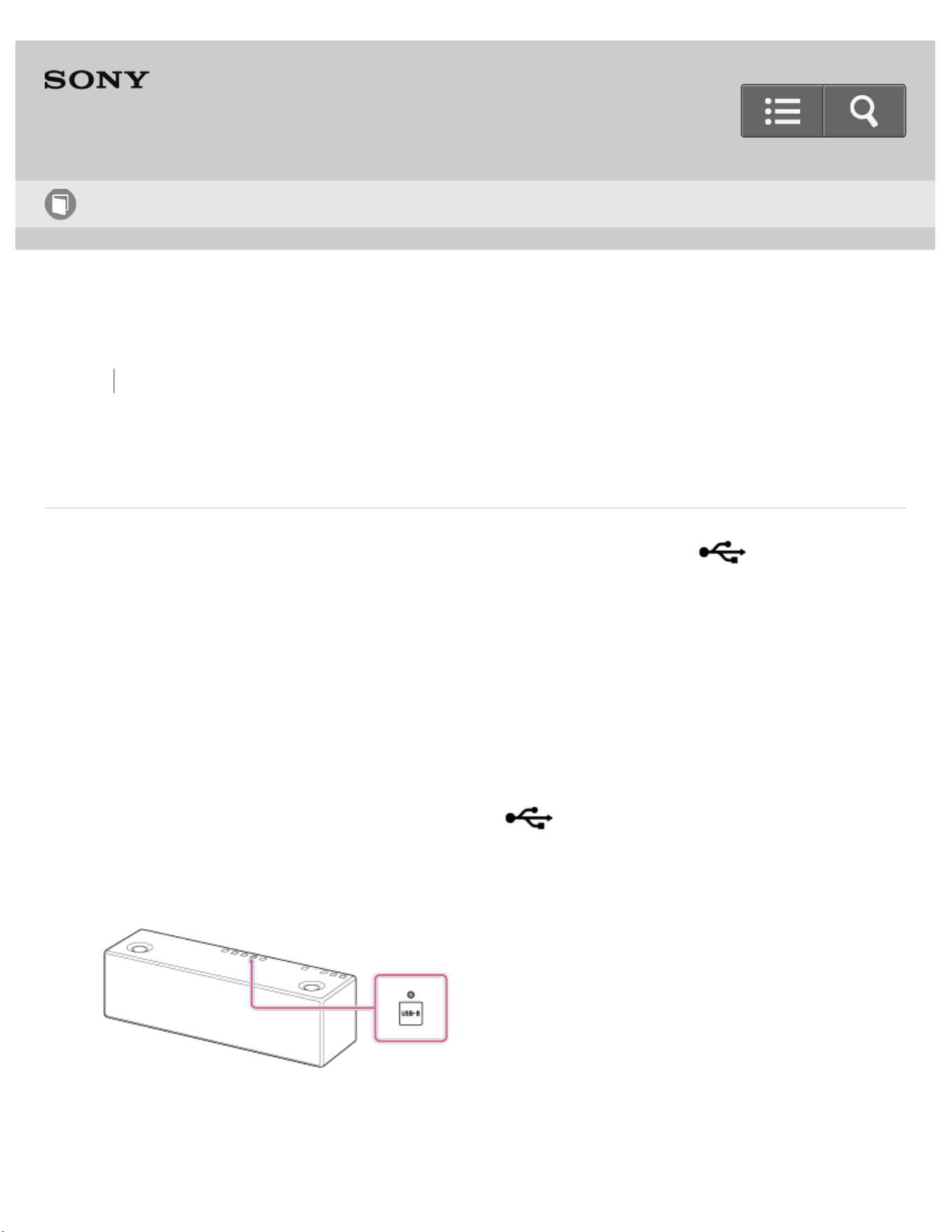
Back Back to Top Print
Personal Audio System
SRS-X99
Listening to music on a computer
You can listen to music on a computer connected to the USB B port ( B) of the
speaker.
To play High-Resolution Audio format files
The speaker is compatible with High-Resolution Audio format (192 kHz/24 bit).
To play High-Resolution Audio format files on your computer with the speaker, you need to
download and install “Sony | Music Center for PC” or “Hi-Res Audio Player” to your
computer.
1. Connect your computer to the USB B port ( B).
2. Tap the USB-B button.
The speaker switches to USB-B mode and the USB-B indicator lights up in white.
The following settings are required on “Sony | Music Center for PC” when using “Sony
| Music Center for PC.”
Help Guide
How to Use
140
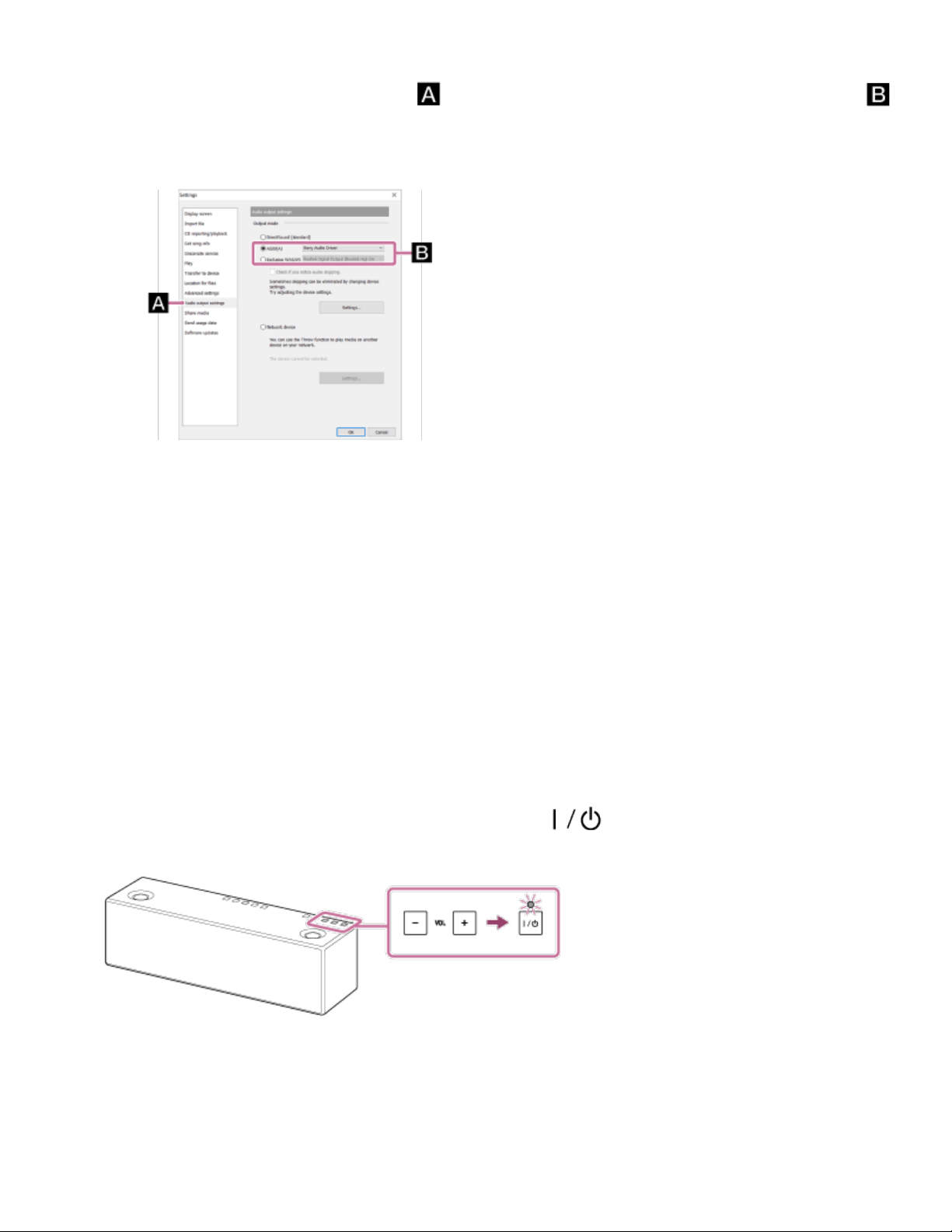
1. Select [Settings] from the [Tools] menu.
2. Click [Audio output settings] . Then, select [ASIO] or [Exclusive WASAPI]
under [Output mode]. Select the dedicated driver
*1
or connected device
*1
from
the pull-down menu.
*1
“Sony Audio Driver” or “Digital Audio Interface (Sony Audio)” may be displayed.
3. Follow the instructions on the computer screen to operate.
For details on the procedure, refer to [How to use] on the “Sony | Music Center for
PC” support website.
http://www.sony.net/smc4pc/
3. Operate the computer to start playback and adjust the volume to a moderate level.
To play back High-Resolution Audio files on the computer, use “Sony | Music Center
for PC” or “Hi-Res Audio Player.”
4. Tap the VOL (volume) –/+ button to adjust the volume.
When you tap the VOL (volume) –/+ button, the (on/standby) indicator flashes
once or three times according to the volume adjustment.
To enjoy a more dynamic sound
Remove the speaker grille from the front of the speaker with the speaker grille detach tool
(supplied).
*2
141
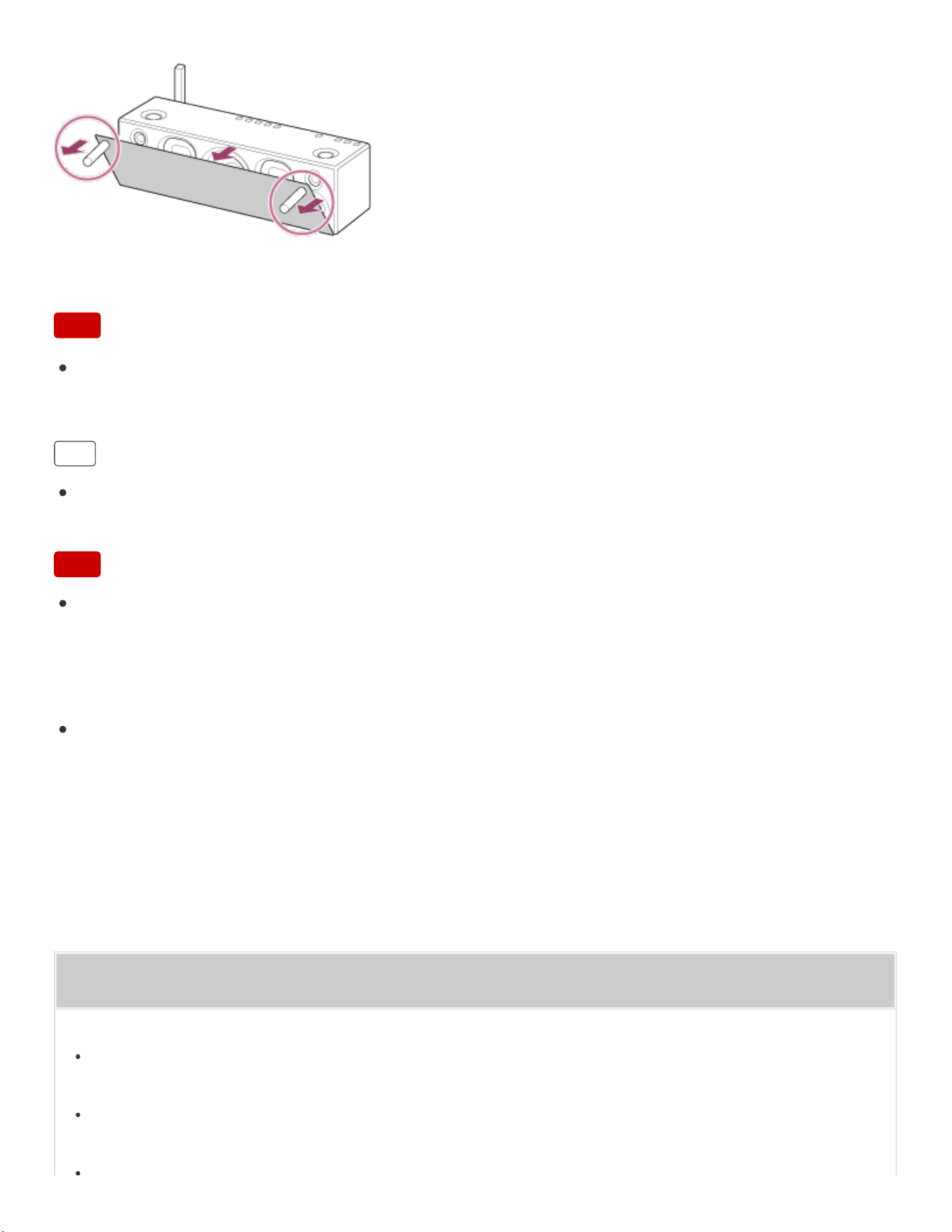
Go to Page Top
*2
Keep the removed grille on a flat surface to prevent distortion.
Note
Do not touch the exposed part of the speaker (speaker units) after removing the
speaker grille.
Hint
After SongPal is downloaded and installed to your smartphone/iPhone, you can use it
as a remote control to adjust the volume, etc..
Note
Sony does not guarantee correct operation when a USB hub or USB extension cable is
used. Do not disconnect the computer during operation. To prevent damage to data,
stop playback, then turn off the power of the speaker before disconnecting the
computer.
Digital broadcast audio is not output from the USB port of the computer. To listen to
digital broadcast audio, connect the computer's analog audio output to the AUDIO IN
jack of the speaker.
Related Topic
About High-Resolution Audio format files
Installing “Sony | Music Center for PC” or “Hi-Res Audio Player” to a PC
142

Back Back to Top Print
Personal Audio System
SRS-X99
Listening to music on a computer via a USB connection (USB-B)
You can use a smartphone/iPhone with SongPal installed as a remote control. Select the
computer connected to the USB B port ( B) of the speaker by using your
smartphone/iPhone, then operate the computer to playback music.
The specification and design of the application may change without notice.
1. Connect the computer to the USB B port ( B) of the speaker.
For details about connection, see Related Topic below.
2. Tap [SongPal] on your smartphone/iPhone to start up the application.
SongPal
3. Tap [SRS-X99].
Help Guide
How to Use
144

4. Tap [USB DAC].
5. Play back music on the computer.
For details, refer to the operating instructions of your computer.
To enjoy a more dynamic sound
Remove the speaker grille from the front of the speaker with the speaker grille detach tool
(supplied).*
*
Keep the removed grille on a flat surface to prevent distortion.
Note
Do not touch the exposed part of the speaker (speaker units) after removing the
145

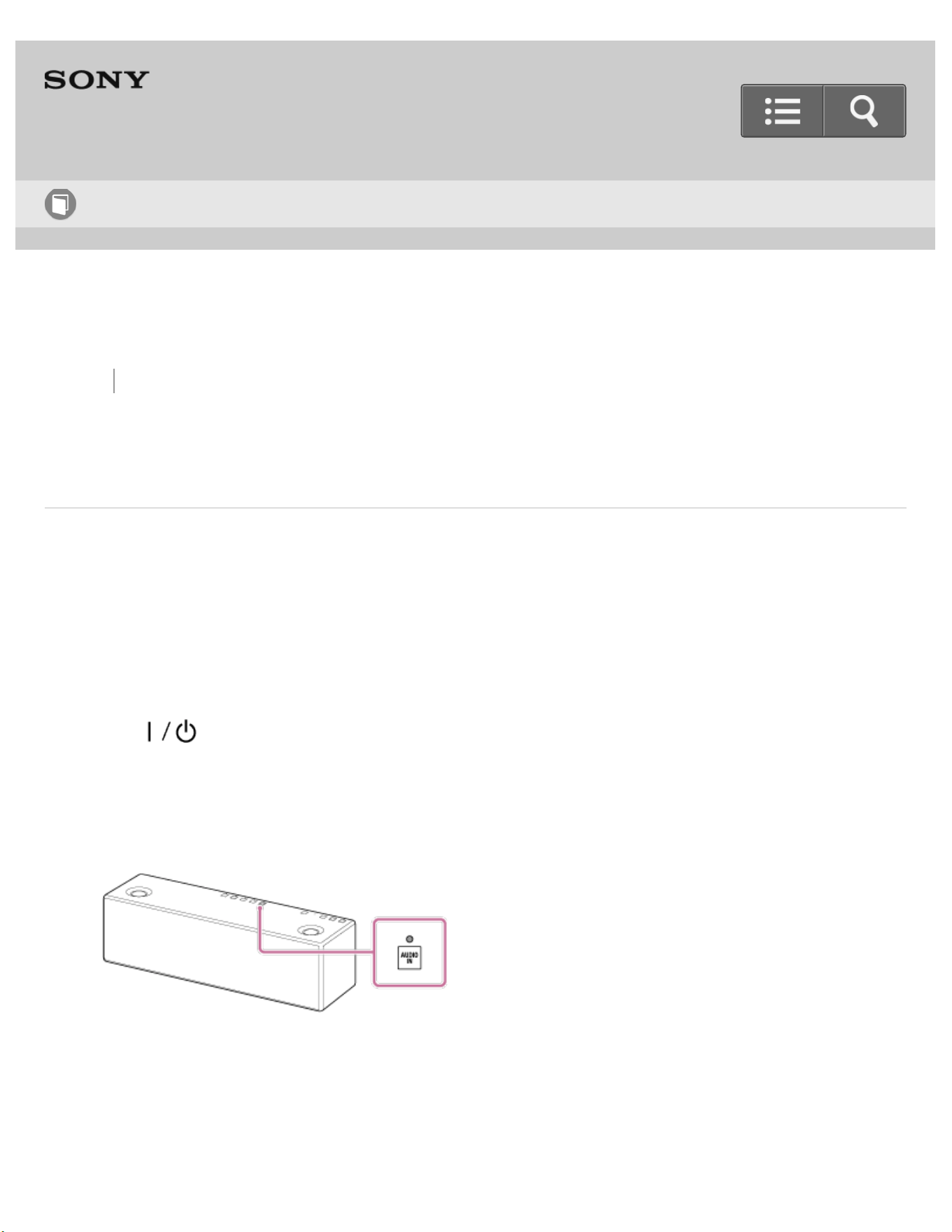
Back Back to Top Print
Personal Audio System
SRS-X99
Listening to music on a portable audio device, etc.
You can use the speaker as an ordinary wired speaker system by connecting a portable
audio device, etc., using a commercially-available audio cable.
1. Connect the device to the speaker using a commercially-available audio cable.
2. Turn on the speaker.
The (on/standby) indicator lights up in green.
3. Tap the AUDIO IN button.
The speaker switches to AUDIO IN mode and the AUDIO IN indicator lights up in
white.
4. Turn on the connected device.
5. Operate the connected device to start playback and adjust the volume to a moderate
level.
Help Guide
How to Use
147
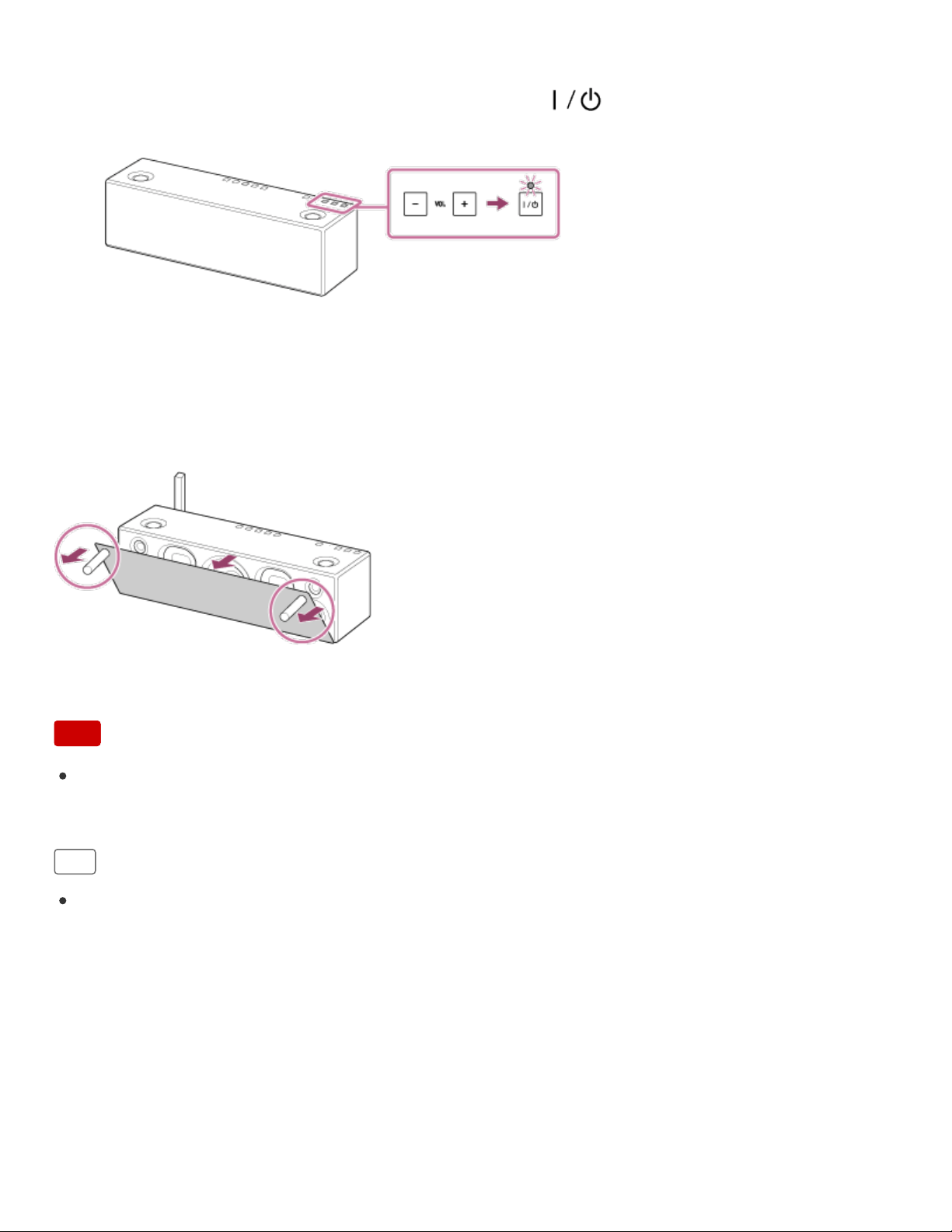
Go to Page Top
6. Tap the VOL (volume) –/+ button to adjust the volume.
When you tap the VOL (volume) –/+ button, the (on/standby) indicator flashes
once or three times according to the volume adjustment.
To enjoy a more dynamic sound
Remove the speaker grille from the front of the speaker with the speaker grille detach tool
(supplied).*
*
Keep the removed grille on a flat surface to prevent distortion.
Note
Do not touch the exposed part of the speaker (speaker units) after removing the
speaker grille.
Hint
After SongPal is downloaded and installed to your smartphone/iPhone, you can use it
as a remote control to adjust the speaker's volume, etc.
4-567-508-11(5)
Copyright 2015 Sony Corporation
148

Back Back to Top
Go to Page Top
Personal Audio System
SRS-X99
Selecting the network connection method
Selecting the Wi-Fi network connection method
Select the network connection method, which depends on your network environment.
Selecting the wired network connection method
Connect the speaker to your wireless router with a commercially-available LAN cable, then connect
the router to the computer.
4-567-508-11(5)
Copyright 2015 Sony Corporation
Help Guide
How to Use
149

Back Back to Top
Go to Page Top
Personal Audio System
SRS-X99
How to make a wireless connection with BLUETOOTH devices
How to make a wireless connection with BLUETOOTH devices
An overview of pairing and BLUETOOTH connection with a BLUETOOTH device.
4-567-508-11(5)
Copyright 2015 Sony Corporation
Help Guide
How to Use
150

Back Back to Top
Personal Audio System
SRS-X99
Listening to music on an Xperia via a network
Connection method 1: Connecting to a Wi-Fi network using the WPS button of a
wireless router
If your wireless router has a WPS button (AOSS), you can connect to the Wi-Fi network by this
method.
Connection method 2: Connecting to a Wi-Fi network using a computer connected
with a LAN cable
Connect the speaker and a computer via a commercially-available LAN cable, then connect the
speaker to the wireless router using the computer.
Connection method 3: Connecting to a wired network
Connect the speaker to a wireless router with a commercially-available LAN cable, then connect the
router to the computer.
Connection method 4: Connecting to a Wi-Fi network using an iPhone/iPad/iPod
touch
Connect the speaker to a Wi-Fi network that the iPhone/iPad/iPod touch with iOS 8 or later has been
connected to.
Help Guide
How to Use
151


Back Back to Top
Personal Audio System
SRS-X99
Listening to music on a device via a BLUETOOTH connection
Connection method 1: Pairing and connecting with a BLUETOOTH device
You can register (pair) a BLUETOOTH device and the speaker with each other, and make a
BLUETOOTH connection.
Connection method 2: Connecting with a paired BLUETOOTH device
You can connect the speaker with a BLUETOOTH device that is already paired.
Connection method 3: Connecting with an NFC-compatible device by one touch
(NFC)
By touching the speaker with a smartphone, the speaker turns on automatically, then pairs with the
device and makes a BLUETOOTH connection.
Listening to music on a device via a BLUETOOTH connection
You can enjoy listening to music of your BLUETOOTH device wirelessly via a BLUETOOTH
connection.
Selecting the BLUETOOTH audio streaming playback quality (Codec)
Help Guide
How to Use
153

Go to Page Top
You can select the BLUETOOTH audio streaming playback quality of the speaker.
Terminating the BLUETOOTH connection (After use)
After use, terminate the BLUETOOTH connection between the speaker and BLUETOOTH device.
Disconnecting the NFC-compatible device by one touch (NFC)
You can disconnect the speaker from a connected smartphone by touching the speaker with it.
Switching devices by one touch (NFC)
You can switch devices by touching a new device once on the N-Mark of the speaker.
4-567-508-11(5)
Copyright 2015 Sony Corporation
154

Back Back to Top
Go to Page Top
Personal Audio System
SRS-X99
Listening to music on a high-resolution supported Xperia via a USB connection (USB-B)
Connecting a high-resolution supported Xperia
You can connect a high-resolution supported Xperia to the USB B port.
Listening to music on a high-resolution supported Xperia
You can listen to music on a high-resolution supported Xperia connected to the speaker.
4-567-508-11(5)
Copyright 2015 Sony Corporation
Help Guide
How to Use
155

Back Back to Top
Go to Page Top
Personal Audio System
SRS-X99
Listening to music on a portable audio device, etc., by connecting with an audio cable
(AUDIO IN)
Connecting to a portable audio device, etc.
You can connect a portable audio device, etc., with a commercially-available audio cable.
Listening to music on a portable audio device, etc.
You can enjoy music of a portable audio device, etc., connected to the AUDIO IN jack.
4-567-508-11(5)
Copyright 2015 Sony Corporation
Help Guide
How to Use
156

Back Back to Top
Go to Page Top
Personal Audio System
SRS-X99
How to make a wireless connection with BLUETOOTH devices
How to make a wireless connection with BLUETOOTH devices
An overview of pairing and BLUETOOTH connection with a BLUETOOTH device.
4-567-508-11(5)
Copyright 2015 Sony Corporation
Help Guide
How to Use
157

Back Back to Top
Personal Audio System
SRS-X99
Listening to music on a device via a BLUETOOTH connection
Connection method 1: Pairing and connecting with a BLUETOOTH device
You can register (pair) a BLUETOOTH device and the speaker with each other, and make a
BLUETOOTH connection.
Connection method 2: Connecting with a paired BLUETOOTH device
You can connect the speaker with a BLUETOOTH device that is already paired.
Connection method 3: Connecting with an NFC-compatible device by one touch
(NFC)
By touching the speaker with a smartphone, the speaker turns on automatically, then pairs with the
device and makes a BLUETOOTH connection.
Listening to music on a device via a BLUETOOTH connection
You can enjoy listening to music of your BLUETOOTH device wirelessly via a BLUETOOTH
connection.
Selecting the BLUETOOTH audio streaming playback quality (Codec)
Help Guide
How to Use
158

Go to Page Top
You can select the BLUETOOTH audio streaming playback quality of the speaker.
Terminating the BLUETOOTH connection (After use)
After use, terminate the BLUETOOTH connection between the speaker and BLUETOOTH device.
Disconnecting the NFC-compatible device by one touch (NFC)
You can disconnect the speaker from a connected smartphone by touching the speaker with it.
Switching devices by one touch (NFC)
You can switch devices by touching a new device once on the N-Mark of the speaker.
4-567-508-11(5)
Copyright 2015 Sony Corporation
159

Back Back to Top
Go to Page Top
Personal Audio System
SRS-X99
Listening to music on a portable audio device, etc., by connecting with an audio cable
(AUDIO IN)
Connecting to a portable audio device, etc.
You can connect a portable audio device, etc., with a commercially-available audio cable.
Listening to music on a portable audio device, etc.
You can enjoy music of a portable audio device, etc., connected to the AUDIO IN jack.
4-567-508-11(5)
Copyright 2015 Sony Corporation
Help Guide
How to Use
160

Back Back to Top
Go to Page Top
Personal Audio System
SRS-X99
Selecting the network connection method
Selecting the Wi-Fi network connection method
Select the network connection method, which depends on your network environment.
Selecting the wired network connection method
Connect the speaker to your wireless router with a commercially-available LAN cable, then connect
the router to the computer.
4-567-508-11(5)
Copyright 2015 Sony Corporation
Help Guide
How to Use
161

Back Back to Top
Go to Page Top
Personal Audio System
SRS-X99
How to make a wireless connection with BLUETOOTH devices
How to make a wireless connection with BLUETOOTH devices
An overview of pairing and BLUETOOTH connection with a BLUETOOTH device.
4-567-508-11(5)
Copyright 2015 Sony Corporation
Help Guide
How to Use
162

Back Back to Top
Personal Audio System
SRS-X99
Listening to music on an iPhone/iPad/iPod via a network
Connection method 1: Connecting to a Wi-Fi network using the WPS button of a
wireless router
If your wireless router has a WPS button (AOSS), you can connect to the Wi-Fi network by this
method.
Connection method 2: Connecting to a Wi-Fi network using a computer connected
with a LAN cable
Connect the speaker and a computer via a commercially-available LAN cable, then connect the
speaker to the wireless router using the computer.
Connection method 3: Connecting to a wired network
Connect the speaker to a wireless router with a commercially-available LAN cable, then connect the
router to the computer.
Connection method 4: Connecting to a Wi-Fi network using an iPhone/iPad/iPod
touch
Connect the speaker to a Wi-Fi network that the iPhone/iPad/iPod touch with iOS 8 or later has been
connected to.
Help Guide
How to Use
163


Back Back to Top
Personal Audio System
SRS-X99
Listening to music on an iPhone/iPad/iPod via a BLUETOOTH connection
Connection method 1: Pairing and connecting with a BLUETOOTH device
You can register (pair) a BLUETOOTH device and the speaker with each other, and make a
BLUETOOTH connection.
Connection method 2: Connecting with a paired BLUETOOTH device
You can connect the speaker with a BLUETOOTH device that is already paired.
Listening to music on a device via a BLUETOOTH connection
You can enjoy listening to music of your BLUETOOTH device wirelessly via a BLUETOOTH
connection.
Selecting the BLUETOOTH audio streaming playback quality (Codec)
You can select the BLUETOOTH audio streaming playback quality of the speaker.
Terminating the BLUETOOTH connection (After use)
After use, terminate the BLUETOOTH connection between the speaker and BLUETOOTH device.
Help Guide
How to Use
165

Back Back to Top
Go to Page Top
Personal Audio System
SRS-X99
Listening to music on an iPhone/iPad/iPod via a USB connection (USB-A)
Connecting an iPhone/iPad/iPod
You can connect an iPhone/iPad/iPod to the USB A port.
Listening to music on an iPhone/iPad/iPod
You can listen to music on an iPhone/iPad/iPod that is connected to the speaker with a USB cable.
4-567-508-11(5)
Copyright 2015 Sony Corporation
Help Guide
How to Use
166

Back Back to Top
Go to Page Top
Personal Audio System
SRS-X99
Listening to music on a portable audio device, etc., by connecting with an audio cable
(AUDIO IN)
Connecting to a portable audio device, etc.
You can connect a portable audio device, etc., with a commercially-available audio cable.
Listening to music on a portable audio device, etc.
You can enjoy music of a portable audio device, etc., connected to the AUDIO IN jack.
4-567-508-11(5)
Copyright 2015 Sony Corporation
Help Guide
How to Use
167

Back Back to Top
Go to Page Top
Personal Audio System
SRS-X99
How to make a wireless connection with BLUETOOTH devices
How to make a wireless connection with BLUETOOTH devices
An overview of pairing and BLUETOOTH connection with a BLUETOOTH device.
4-567-508-11(5)
Copyright 2015 Sony Corporation
Help Guide
How to Use
168

Back Back to Top
Personal Audio System
SRS-X99
Listening to music on a Walkman via a BLUETOOTH connection
Connection method 1: Pairing and connecting with a BLUETOOTH device
You can register (pair) a BLUETOOTH device and the speaker with each other, and make a
BLUETOOTH connection.
Connection method 2: Connecting with a paired BLUETOOTH device
You can connect the speaker with a BLUETOOTH device that is already paired.
Listening to music on a device via a BLUETOOTH connection
You can enjoy listening to music of your BLUETOOTH device wirelessly via a BLUETOOTH
connection.
Selecting the BLUETOOTH audio streaming playback quality (Codec)
You can select the BLUETOOTH audio streaming playback quality of the speaker.
Terminating the BLUETOOTH connection (After use)
After use, terminate the BLUETOOTH connection between the speaker and BLUETOOTH device.
Help Guide
How to Use
169

Go to Page Top
Disconnecting the NFC-compatible device by one touch (NFC)
You can disconnect the speaker from a connected smartphone by touching the speaker with it.
Switching devices by one touch (NFC)
You can switch devices by touching a new device once on the N-Mark of the speaker.
4-567-508-11(5)
Copyright 2015 Sony Corporation
170

Back Back to Top
Go to Page Top
Personal Audio System
SRS-X99
Listening to music on a Walkman via a USB connection (USB-A)
Connecting a Walkman
You can connect a Walkman to the USB A port.
Listening to music on a Walkman
You can enjoy music on a Walkman that is connected to the speaker with a USB cable.
4-567-508-11(5)
Copyright 2015 Sony Corporation
Help Guide
How to Use
171

Back Back to Top
Go to Page Top
Personal Audio System
SRS-X99
Listening to music on a high-resolution supported Walkman via a USB connection
(USB-B)
Connecting a high-resolution supported Walkman
You can connect a high-resolution supported Walkman to the USB B port.
Listening to music on a high-resolution supported Walkman
You can listen to music on a high-resolution supported Walkman connected to the speaker.
4-567-508-11(5)
Copyright 2015 Sony Corporation
Help Guide
How to Use
172

Back Back to Top
Go to Page Top
Personal Audio System
SRS-X99
Listening to music on a portable audio device, etc., by connecting with an audio cable
(AUDIO IN)
Connecting to a portable audio device, etc.
You can connect a portable audio device, etc., with a commercially-available audio cable.
Listening to music on a portable audio device, etc.
You can enjoy music of a portable audio device, etc., connected to the AUDIO IN jack.
4-567-508-11(5)
Copyright 2015 Sony Corporation
Help Guide
How to Use
173

Back Back to Top
Go to Page Top
Personal Audio System
SRS-X99
Selecting the network connection method
Selecting the Wi-Fi network connection method
Select the network connection method, which depends on your network environment.
Selecting the wired network connection method
Connect the speaker to your wireless router with a commercially-available LAN cable, then connect
the router to the computer.
4-567-508-11(5)
Copyright 2015 Sony Corporation
Help Guide
How to Use
174


Back Back to Top
Go to Page Top
Personal Audio System
SRS-X99
How to make a wireless connection with BLUETOOTH devices
How to make a wireless connection with BLUETOOTH devices
An overview of pairing and BLUETOOTH connection with a BLUETOOTH device.
4-567-508-11(5)
Copyright 2015 Sony Corporation
Help Guide
How to Use
176

Back Back to Top
Personal Audio System
SRS-X99
Listening to music on a PC via a network (Modern UI)
Connection method 1: Connecting to a Wi-Fi network using the WPS button of a
wireless router
If your wireless router has a WPS button (AOSS), you can connect to the Wi-Fi network by this
method.
Connection method 2: Connecting to a Wi-Fi network using a computer connected
with a LAN cable
Connect the speaker and a computer via a commercially-available LAN cable, then connect the
speaker to the wireless router using the computer.
Connection method 3: Connecting to a Wi-Fi network using a PC connected
wirelessly (Modern UI)
Connect the speaker with a Modern UI PC wirelessly, then connect to the Wi-Fi network.
Connection method 4: Connecting to a wired network
Connect the speaker to a wireless router with a commercially-available LAN cable, then connect the
router to the computer.
Help Guide
How to Use
177

Go to Page Top
Connection method 5: Connecting to a Wi-Fi network using an iPhone/iPad/iPod
touch
Connect the speaker to the same Wi-Fi network as the iPhone/iPad/iPod touch with iOS 8 or later.
Setting your PC as a DLNA server and controller (Windows 8)
Set a Windows 8 PC for use as a DLNA server and a controller.
Setting your PC for operating from a controller such as smartphone/ iPhone
(Windows 8)
Set a Windows 8 PC to listen to music stored in that PC by operating the DLNA controller.
Listening with the AirPlay function (iTunes)
You can listen to music stored in a computer with iTunes by using AirPlay.
Listening to music on a PC via a network (Windows 8) (Windows Media Player)
You can listen to music stored in a Windows 8 PC connected to your network using Windows Media
Player.
Listening to music on a PC via a network (“Sony | Music Center for PC”)
You can listen to music stored in a PC connected to your network using “Sony | Music Center for PC.”
Listening to music on a PC via a network (“Sony | Music Center for PC” with SongPal
operation)
You can listen to music stored in a PC connected to your network using “Sony | Music Center for PC.”
178

Back Back to Top
Personal Audio System
SRS-X99
Listening to music on a PC via a network (Windows 8)
Connection method 1: Connecting to a Wi-Fi network using the WPS button of a
wireless router
If your wireless router has a WPS button (AOSS), you can connect to the Wi-Fi network by this
method.
Connection method 2: Connecting to a Wi-Fi network using a computer connected
with a LAN cable
Connect the speaker and a computer via a commercially-available LAN cable, then connect the
speaker to the wireless router using the computer.
Connection method 3: Connecting to a Wi-Fi network using a PC connected
wirelessly (Windows 7/Windows 8)
Connect the speaker with a Windows 7 or Windows 8 PC wirelessly, then connect to the Wi-Fi
network.
Connection method 4: Connecting to a wired network
Connect the speaker to a wireless router with a commercially-available LAN cable, then connect the
router to the computer.
Help Guide
How to Use
179

Go to Page Top
Connection method 5: Connecting to a Wi-Fi network using an iPhone/iPad/iPod
touch
Connect the speaker to the same Wi-Fi network as the iPhone/iPad/iPod touch with iOS 8 or later.
Setting your PC as a DLNA server and controller (Windows 8)
Set a Windows 8 PC for use as a DLNA server and a controller.
Setting your PC for operating from a controller such as smartphone/ iPhone
(Windows 8)
Set a Windows 8 PC to listen to music stored in that PC by operating the DLNA controller.
Listening with the AirPlay function (iTunes)
You can listen to music stored in a computer with iTunes by using AirPlay.
Listening to music on a PC via a network (Windows 8) (Windows Media Player)
You can listen to music stored in a Windows 8 PC connected to your network using Windows Media
Player.
Listening to music on a PC via a network (“Sony | Music Center for PC”)
You can listen to music stored in a PC connected to your network using “Sony | Music Center for PC.”
Listening to music on a PC via a network (“Sony | Music Center for PC” with SongPal
operation)
You can listen to music stored in a PC connected to your network using “Sony | Music Center for PC.”
180

Back Back to Top
Personal Audio System
SRS-X99
Listening to music on a PC via a BLUETOOTH connection
Connection method 1: Pairing and connecting with a BLUETOOTH device
You can register (pair) a BLUETOOTH device and the speaker with each other, and make a
BLUETOOTH connection.
Connection method 2: Connecting with a paired BLUETOOTH device
You can connect the speaker with a BLUETOOTH device that is already paired.
Listening to music on a device via a BLUETOOTH connection
You can enjoy listening to music of your BLUETOOTH device wirelessly via a BLUETOOTH
connection.
Selecting the BLUETOOTH audio streaming playback quality (Codec)
You can select the BLUETOOTH audio streaming playback quality of the speaker.
Terminating the BLUETOOTH connection (After use)
After use, terminate the BLUETOOTH connection between the speaker and BLUETOOTH device.
Help Guide
How to Use
181

Back Back to Top
Go to Page Top
Personal Audio System
SRS-X99
Listening to music on a computer via a USB connection (USB-B)
Connecting a computer/Installing the driver
Connect a computer to the USB B port.
Installing “Sony | Music Center for PC” or “Hi-Res Audio Player” to a PC
“Sony | Music Center for PC” or “Hi-Res Audio Player” need to be downloaded and installed to your
computer before playing High-Resolution Audio format files.
Listening to music on a computer
You can listen to music on a PC or Mac that is connected to the speaker with a USB cable.
4-567-508-11(5)
Copyright 2015 Sony Corporation
Help Guide
How to Use
182

Back Back to Top
Go to Page Top
Personal Audio System
SRS-X99
Selecting the network connection method
Selecting the Wi-Fi network connection method
Select the network connection method, which depends on your network environment.
Selecting the wired network connection method
Connect the speaker to your wireless router with a commercially-available LAN cable, then connect
the router to the computer.
4-567-508-11(5)
Copyright 2015 Sony Corporation
Help Guide
How to Use
183


Back Back to Top
Go to Page Top
Personal Audio System
SRS-X99
How to make a wireless connection with BLUETOOTH devices
How to make a wireless connection with BLUETOOTH devices
An overview of pairing and BLUETOOTH connection with a BLUETOOTH device.
4-567-508-11(5)
Copyright 2015 Sony Corporation
Help Guide
How to Use
185

Back Back to Top
Personal Audio System
SRS-X99
Listening to music on a PC via a network (Windows 7)
Connection method 1: Connecting to a Wi-Fi network using the WPS button of a
wireless router
If your wireless router has a WPS button (AOSS), you can connect to the Wi-Fi network by this
method.
Connection method 2: Connecting to a Wi-Fi network using a computer connected
with a LAN cable
Connect the speaker and a computer via a commercially-available LAN cable, then connect the
speaker to the wireless router using the computer.
Connection method 3: Connecting to a Wi-Fi network using a PC connected
wirelessly (Windows 7/Windows 8)
Connect the speaker with a Windows 7 or Windows 8 PC wirelessly, then connect to the Wi-Fi
network.
Connection method 4: Connecting to a wired network
Connect the speaker to a wireless router with a commercially-available LAN cable, then connect the
router to the computer.
Help Guide
How to Use
186

Go to Page Top
Connection method 5: Connecting to a Wi-Fi network using an iPhone/iPad/iPod
touch
Connect the speaker to the same Wi-Fi network as the iPhone/iPad/iPod touch with iOS 8 or later.
Setting your PC as a DLNA server and controller (Windows 7)
Set a Windows 7 PC for use as a DLNA server and a controller.
Listening with the AirPlay function (iTunes)
You can listen to music stored in a computer with iTunes by using AirPlay.
Listening to music on a PC via a network (Windows 7) Windows Media Player
You can listen to music stored in a Windows 7 PC connected to your network.
Listening to music on a PC via a network (“Sony | Music Center for PC”)
You can listen to music stored in a PC connected to your network using “Sony | Music Center for PC.”
Listening to music on a PC via a network (“Sony | Music Center for PC” with SongPal
operation)
You can listen to music stored in a PC connected to your network using “Sony | Music Center for PC.”
4-567-508-11(5)
Copyright 2015 Sony Corporation
187

Back Back to Top
Personal Audio System
SRS-X99
Listening to music on a PC via a BLUETOOTH connection
Connection method 1: Pairing and connecting with a BLUETOOTH device
You can register (pair) a BLUETOOTH device and the speaker with each other, and make a
BLUETOOTH connection.
Connection method 2: Connecting with a paired BLUETOOTH device
You can connect the speaker with a BLUETOOTH device that is already paired.
Listening to music on a device via a BLUETOOTH connection
You can enjoy listening to music of your BLUETOOTH device wirelessly via a BLUETOOTH
connection.
Selecting the BLUETOOTH audio streaming playback quality (Codec)
You can select the BLUETOOTH audio streaming playback quality of the speaker.
Terminating the BLUETOOTH connection (After use)
After use, terminate the BLUETOOTH connection between the speaker and BLUETOOTH device.
Help Guide
How to Use
188

Back Back to Top
Go to Page Top
Personal Audio System
SRS-X99
Listening to music on a computer via a USB connection (USB-B)
Connecting a computer/Installing the driver
Connect a computer to the USB B port.
Installing “Sony | Music Center for PC” or “Hi-Res Audio Player” to a PC
“Sony | Music Center for PC” or “Hi-Res Audio Player” need to be downloaded and installed to your
computer before playing High-Resolution Audio format files.
Listening to music on a computer
You can listen to music on a PC or Mac that is connected to the speaker with a USB cable.
4-567-508-11(5)
Copyright 2015 Sony Corporation
Help Guide
How to Use
189

Back Back to Top
Go to Page Top
Personal Audio System
SRS-X99
Selecting the network connection method
Selecting the Wi-Fi network connection method
Select the network connection method, which depends on your network environment.
Selecting the wired network connection method
Connect the speaker to your wireless router with a commercially-available LAN cable, then connect
the router to the computer.
4-567-508-11(5)
Copyright 2015 Sony Corporation
Help Guide
How to Use
190


Back Back to Top
Go to Page Top
Personal Audio System
SRS-X99
How to make a wireless connection with BLUETOOTH devices
How to make a wireless connection with BLUETOOTH devices
An overview of pairing and BLUETOOTH connection with a BLUETOOTH device.
4-567-508-11(5)
Copyright 2015 Sony Corporation
Help Guide
How to Use
192

Back Back to Top
Personal Audio System
SRS-X99
Listening to music on a computer via a network (Mac)
Connection method 1: Connecting to a Wi-Fi network using the WPS button of a
wireless router
If your wireless router has a WPS button (AOSS), you can connect to the Wi-Fi network by this
method.
Connection method 2: Connecting to a Wi-Fi network using a computer connected
with a LAN cable
Connect the speaker and a computer via a commercially-available LAN cable, then connect the
speaker to the wireless router using the computer.
Connection method 3: Connecting to a Wi-Fi network using a Mac connected
wirelessly
Connect the speaker with a Mac wirelessly, then connect to the Wi-Fi network.
Connection method 4: Connecting to a wired network
Connect the speaker to a wireless router with a commercially-available LAN cable, then connect the
router to the computer.
Help Guide
How to Use
193

Go to Page Top
Connection method 5: Connecting to a Wi-Fi network using an iPhone/iPad/iPod
touch
Connect the speaker to the same Wi-Fi network as the iPhone/iPad/iPod touch with iOS 8 or later.
Listening with the AirPlay function (iTunes)
You can listen to music stored in a computer with iTunes by using AirPlay.
4-567-508-11(5)
Copyright 2015 Sony Corporation
194

Back Back to Top
Personal Audio System
SRS-X99
Listening to music on a PC via a BLUETOOTH connection
Connection method 1: Pairing and connecting with a BLUETOOTH device
You can register (pair) a BLUETOOTH device and the speaker with each other, and make a
BLUETOOTH connection.
Connection method 2: Connecting with a paired BLUETOOTH device
You can connect the speaker with a BLUETOOTH device that is already paired.
Listening to music on a device via a BLUETOOTH connection
You can enjoy listening to music of your BLUETOOTH device wirelessly via a BLUETOOTH
connection.
Selecting the BLUETOOTH audio streaming playback quality (Codec)
You can select the BLUETOOTH audio streaming playback quality of the speaker.
Terminating the BLUETOOTH connection (After use)
After use, terminate the BLUETOOTH connection between the speaker and BLUETOOTH device.
Help Guide
How to Use
195

Back Back to Top
Go to Page Top
Personal Audio System
SRS-X99
Listening to music on a computer via a USB connection (USB-B)
Connecting a computer/Installing the driver
Connect a computer to the USB B port.
Installing “Sony | Music Center for PC” or “Hi-Res Audio Player” to a PC
“Sony | Music Center for PC” or “Hi-Res Audio Player” need to be downloaded and installed to your
computer before playing High-Resolution Audio format files.
Listening to music on a computer
You can listen to music on a PC or Mac that is connected to the speaker with a USB cable.
4-567-508-11(5)
Copyright 2015 Sony Corporation
Help Guide
How to Use
196

Back Back to Top
Go to Page Top
Personal Audio System
SRS-X99
Listening to music on a USB flash drive via a USB connection (USB-A)
Connecting a USB flash drive
You can connect a USB flash drive to the USB A port.
Listening to music on a USB flash drive
You can listen to music stored in a USB flash drive connected to the speaker.
4-567-508-11(5)
Copyright 2015 Sony Corporation
Help Guide
How to Use
197

Back Back to Top
Go to Page Top
Personal Audio System
SRS-X99
About High-Resolution Audio format files
About High-Resolution Audio format files
You can play back High-Resolution Audio format files such as 192 kHz/24 bit and 96 kHz/24 bit.
4-567-508-11(5)
Copyright 2015 Sony Corporation
Help Guide
How to Use
198

Back Back to Top
Go to Page Top
Personal Audio System
SRS-X99
Listening to High-Resolution Audio files via a network
Listening to High-Resolution Audio format files via a network
You can listen to High-Resolution Audio format files stored in a PC connected to your network.
4-567-508-11(5)
Copyright 2015 Sony Corporation
Help Guide
How to Use
199

Back Back to Top
Go to Page Top
Personal Audio System
SRS-X99
Listening to music on a USB flash drive via a USB connection (USB-A)
Connecting a USB flash drive
You can connect a USB flash drive to the USB A port.
Listening to music on a USB flash drive
You can listen to music stored in a USB flash drive connected to the speaker.
4-567-508-11(5)
Copyright 2015 Sony Corporation
Help Guide
How to Use
200

Back Back to Top
Go to Page Top
Personal Audio System
SRS-X99
Listening to music on a high-resolution supported Walkman via a USB connection
(USB-B)
Connecting a high-resolution supported Walkman
You can connect a high-resolution supported Walkman to the USB B port.
Listening to music on a high-resolution supported Walkman
You can listen to music on a high-resolution supported Walkman connected to the speaker.
4-567-508-11(5)
Copyright 2015 Sony Corporation
Help Guide
How to Use
201

Back Back to Top
Go to Page Top
Personal Audio System
SRS-X99
Listening to music on a high-resolution supported Xperia via a USB connection (USB-B)
Connecting a high-resolution supported Xperia
You can connect a high-resolution supported Xperia to the USB B port.
Listening to music on a high-resolution supported Xperia
You can listen to music on a high-resolution supported Xperia connected to the speaker.
4-567-508-11(5)
Copyright 2015 Sony Corporation
Help Guide
How to Use
202

Back Back to Top
Go to Page Top
Personal Audio System
SRS-X99
Listening to music on a computer via a USB connection (USB-B)
Connecting a computer/Installing the driver
Connect a computer to the USB B port.
Installing “Sony | Music Center for PC” or “Hi-Res Audio Player” to a PC
“Sony | Music Center for PC” or “Hi-Res Audio Player” need to be downloaded and installed to your
computer before playing High-Resolution Audio format files.
Listening to music on a computer
You can listen to music on a PC or Mac that is connected to the speaker with a USB cable.
4-567-508-11(5)
Copyright 2015 Sony Corporation
Help Guide
How to Use
203

Back Back to Top
Personal Audio System
SRS-X99
Compatible devices and operating systems
Compatible iPhone/iPad/iPod models
Compatible Walkman models
Compatible operating system (Windows)
Compatible operating systems (Mac)
Compatible DLNA devices
Compatible BLUETOOTH devices
Compatible USB devices
Help Guide
How to Use
205

Back Back to Top
Personal Audio System
SRS-X99
Software update
Updating the pre-installed software
There are three ways to update the pre-installed software of the speaker.
Update method 1: Automatic update via the Internet
The speaker detects if a new version of the software is available.
Update method 2: Manual update via the Internet
After the speaker informs you that a new version of software has been detected, update manually.
Update method 3: Manual update via a USB flash drive
Download the update file from the Internet, then use a USB flash drive or similar to install the file to
the speaker.
Manual update via a USB flash drive (when the update via a network has failed)
If update method 1 or 2 has failed, perform this procedure.
Help Guide
How to Use
206

Back Back to Top
Go to Page Top
Personal Audio System
SRS-X99
Wi-Fi signal strength
Checking the Wi-Fi signal strength (reception sensitivity)
You can check the signal strength (reception sensitivity) when the speaker is connected to a Wi-Fi
network.
4-567-508-11(5)
Copyright 2015 Sony Corporation
Help Guide
How to Use
207


Back Back to Top
Go to Page Top
Personal Audio System
SRS-X99
Notes on use
Precautions
Precautions on safety and use, etc.
What is BLUETOOTH wireless technology?
BLUETOOTH wireless technology is a short-range wireless technology that enables wireless data
communication between devices, such as a computer and digital camera.
What is LDAC?
LDAC is an audio coding technology for "High Resolution (Hi-Res) Audio", developed by Sony.
4-567-508-11(5)
Copyright 2015 Sony Corporation
Help Guide
How to Use
209




Back Back to Top
Go to Page Top
Personal Audio System
SRS-X99
Power supply
Unable to turn on the speaker
None of the speaker buttons can be operated.
The setup conditions of the speaker used last time are not retained.
The speaker has entered standby mode or BLUETOOTH/Network standby mode
unexpectedly.
The power indicator flashes in red.
4-567-508-11(5)
Help Guide
Troubleshooting
213
Back Back to Top
Go to Page Top
Personal Audio System
SRS-X99
Sound
No sound/Sound from only one speaker/Low sound level
Distorted sound/Humming or noise in the speaker output
You might be looking for the following topics:
There is no sound (BLUETOOTH)
Distorted sound/Humming or noise
4-567-508-11(5)
Copyright 2015 Sony Corporation
Help Guide
Troubleshooting
214


Back Back to Top
Personal Audio System
SRS-X99
Network connection
The speaker cannot connect to the network (Other equipment on the network cannot
find or recognize the speaker)
Unable to connect to a network via a Wi-Fi connection
Unable to connect to a network via a Wi-Fi connection (even though a correct SSID is
selected)
The speaker cannot connect to a network using the WPS button
The speaker does not appear in the device list of the computer's music playback
application.
The speaker does not appear in the device select screen of SongPal
Help Guide
Troubleshooting
216

Back Back to Top
Go to Page Top
Personal Audio System
SRS-X99
Home network (DLNA)
The controller cannot find the speaker (The controller cannot browse the contents of
the speaker)
Music started automatically (home network)
The sound is interrupted
Playback does not start
A music file cannot be played back
4-567-508-11(5)
Help Guide
Troubleshooting
218

Back Back to Top
Go to Page Top
Personal Audio System
SRS-X99
AirPlay
The speaker cannot be found from an iPhone/iPad/iPod touch or a computer with
iTunes
Music started automatically (AirPlay)
There is no sound, or the sound skips during playback
The speaker cannot be operated
4-567-508-11(5)
Copyright 2015 Sony Corporation
Help Guide
Troubleshooting
219


Back Back to Top
Go to Page Top
Personal Audio System
SRS-X99
Sound
There is no sound (BLUETOOTH)
Distorted sound/Humming or noise
You might be looking for the following topics:
No sound/Sound from only one speaker/Low sound level
Distorted sound/Humming or noise in the speaker output
4-567-508-11(5)
Copyright 2015 Sony Corporation
Help Guide
Troubleshooting
222
Back Back to Top
Personal Audio System
SRS-X99
USB device
An unsupported USB device is connected
There is no sound (USB)
There is noise, skipping, or distorted sound
A USB device is not recognized
Playback does not start
A music file cannot be played back
Playback does not start from the first track
Help Guide
Troubleshooting
223


Back Back to Top
Personal Audio System
SRS-X99
Software update
Updating the pre-installed software
There are three ways to update the pre-installed software of the speaker.
Update method 1: Automatic update via the Internet
The speaker detects if a new version of the software is available.
Update method 2: Manual update via the Internet
After the speaker informs you that a new version of software has been detected, update manually.
Update method 3: Manual update via a USB flash drive
Download the update file from the Internet, then use a USB flash drive or similar to install the file to
the speaker.
Manual update via a USB flash drive (when the update via a network has failed)
If update method 1 or 2 has failed, perform this procedure.
Help Guide
Troubleshooting
226


Back Back to Top Print
Personal Audio System
SRS-X99
What you can do with the speaker
Compatible with High-Resolution Audio formats up to 192 kHz/24 bit.
Music playback via a wireless connection (AirPlay/DLNA/BLUETOOTH)
Music service support
*1
BLUETOOTH supported codec
*2
: SBC (Subband Codec) / AAC (Advanced Audio
Coding) / LDAC
USB port supports playback from a USB flash drive, iPhone/iPad/iPod, and charging of
a smartphone
Easy operation from your smartphone and tablet
*3
Compatible with DSEE HX
This function enables enhancement
*4
of the sound quality for compressed audio files
and restores high-range sound removed during the compression process. [Auto] is set
as the default setting so you can enjoy both compressed audio files and high-resolution
audio files.
Compatible with ClearAudio+
Tap operation
*1
Music services and their period of availability may differ. An update of the device may be required.
Services offered by third parties may be changed, suspended, or terminated without prior notice. Sony
does not bear any responsibility for such situations.
*2
Help Guide
How to Use
229


Back Back to Top Print
Personal Audio System
SRS-X99
Parts and controls (Main unit)
Front and top side
After turning the speaker on, hold your hand above the top panel. The backlight lights up
and the function buttons (No.7 to No.11) are displayed. Buttons will be turned off when
there is no operation for about 20 seconds or more.
Help Guide
How to Use
231
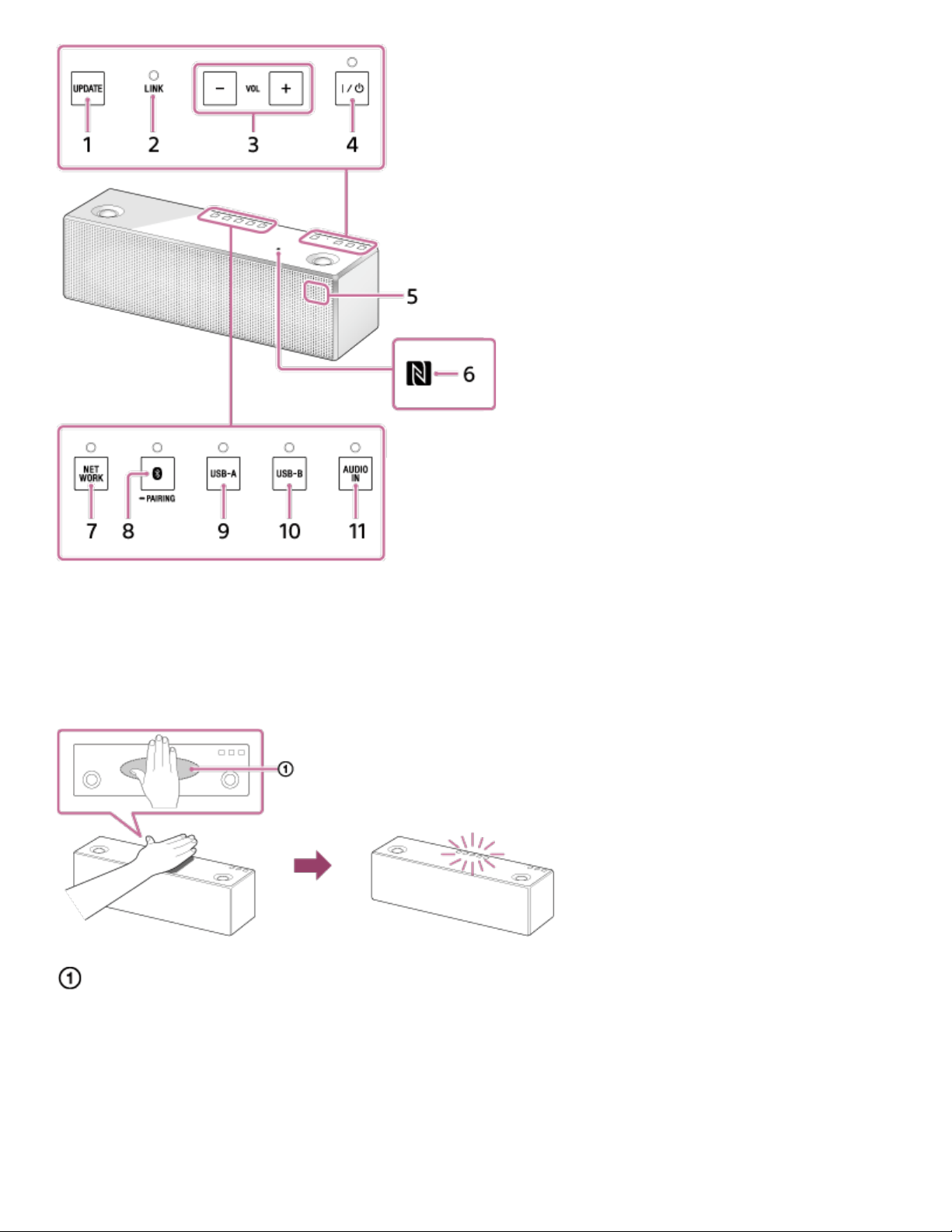
How to display the function buttons
Place your hand as illustrated below to display the function buttons. To display quickly,
touch the center of the top panel.
Reaction area
Rear side
232
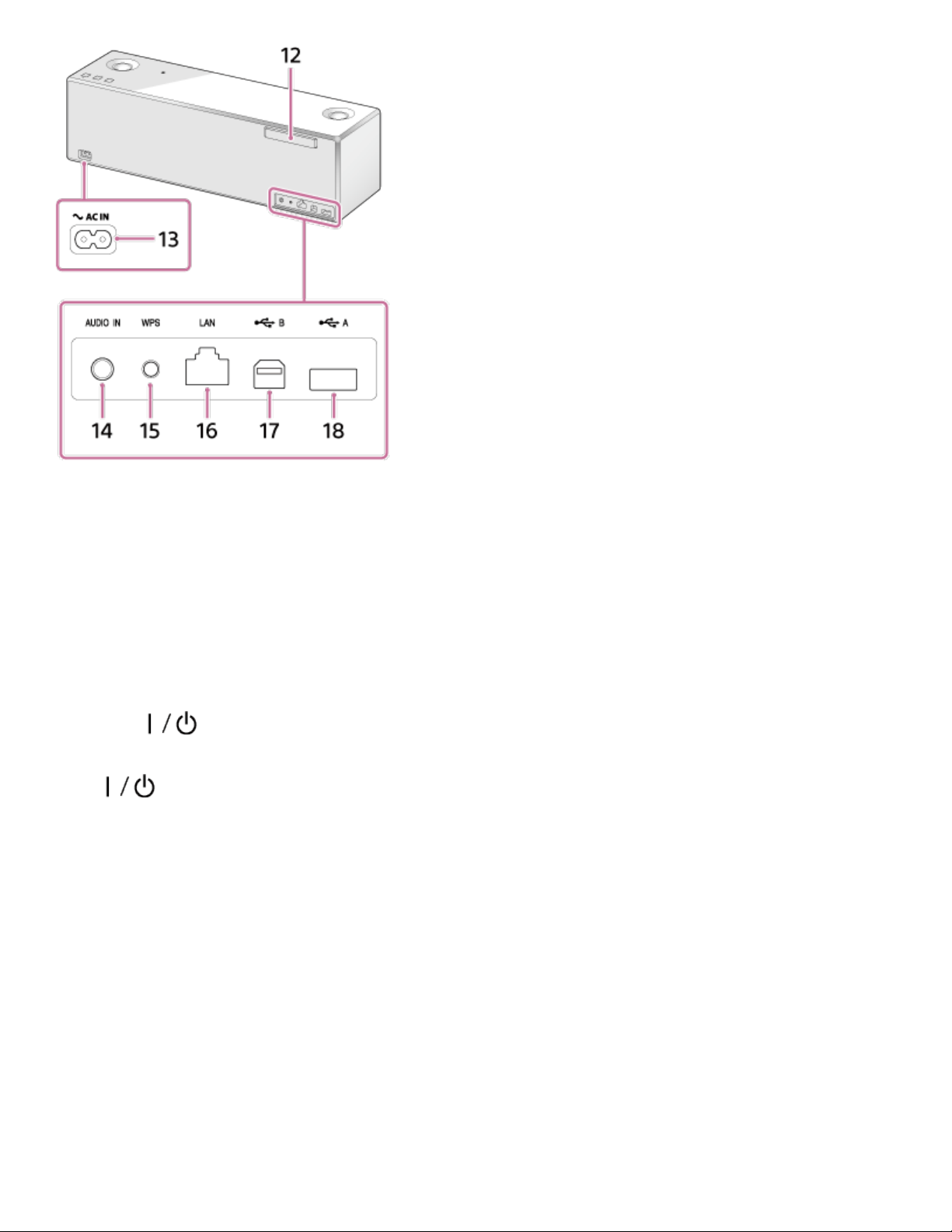
1. UPDATE button
Indicates the status of the unit's software update.
2. LINK indicator
Indicates the status of the speaker’s network connection.
3. VOL (volume) -/+ buttons
Tap to adjust the volume.
The (on/standby) indicator and reaction indicator flash according to the volume
adjustment when tapped.
4. (on/standby) button/indicator
Tap to turn the speaker’s power on and off.
The power status of the speaker is indicated by the lighting or flashing of the
indicator.
5. Remote sensor/Reaction indicator
When the speaker receives signals from the supplied remote control, the reaction
indicator (remote sensor) flashes.
Also, the indicator flashes according to the volume adjustment of the speaker.
6. N-Mark
If your smartphone or Walkman is NFC-compatible, touch it on the N-Mark of the
speaker. The speaker will turn on automatically, register (pair) with the device, and a
BLUETOOTH connection can be made.
7. NETWORK button/indicator
233
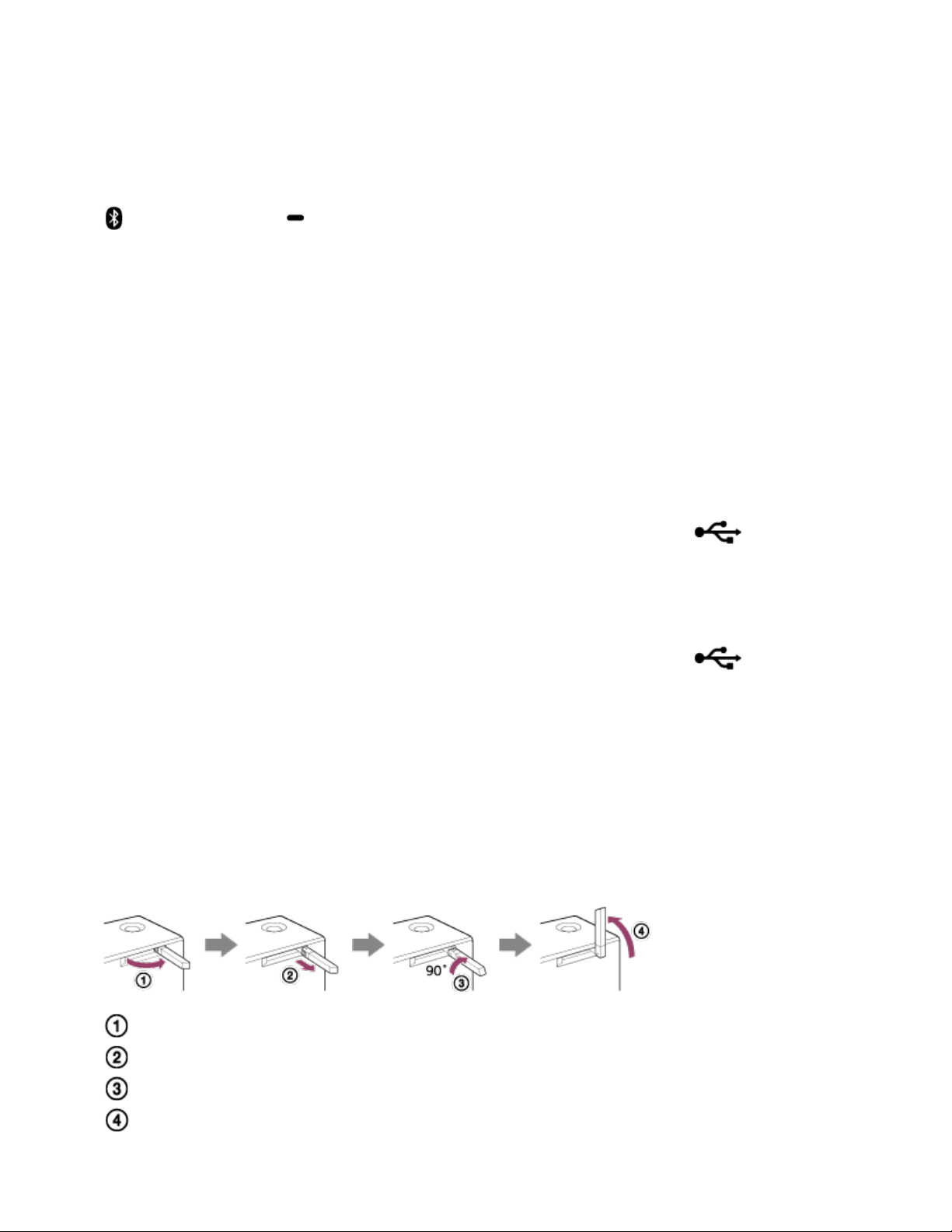
Tap to switch the speaker to NETWORK mode.
Tap to listen to music stored in a device and from music services on the home
network.
The connection status of the network is indicated by the flashing or lighting of the
indicator.
8. (BLUETOOTH) PAIRING button/indicator
Tap to switch the speaker to BLUETOOTH mode or pairing mode.
Tap to pair or connect with a BLUETOOTH device, or listen to music with a
BLUETOOTH device.
The connection status of the BLUETOOTH device is indicated by the flashing or
lighting of the indicator.
Tap once to switch the speaker to BLUETOOTH mode. Tap and hold to switch the
speaker to pairing mode.
9. USB-A button/indicator
Tap to switch the speaker to USB-A mode.
Tap to listen to music in a device connected to the USB A port ( A).
The USB-A indicator lights up when tapped.
10. USB-B button/indicator
Tap to switch the speaker to USB-B mode.
Tap to listen to music in a device connected to the USB B port ( B).
The USB-B indicator lights up when tapped.
11. AUDIO IN button/indicator
Tap to switch the speaker to AUDIO IN mode.
Tap to listen to music in a device connected to the AUDIO IN jack.
The AUDIO IN indicator lights up when tapped.
12. Wi-Fi antenna
Set upright before Wi-Fi connection, as below.
Swing the left side of the antenna outward.
Pull out the antenna slightly until it can be rotated.
Rotate the antenna 90 degrees clockwise.
Set the antenna upright.
13. AC IN terminal
234

Go to Page Top
Go to Page Top
Connect the AC power cord (supplied).
14. AUDIO IN jack
Connect to the headphone jack of a portable audio device, etc., using a
commercially-available audio cable.
15. WPS button
Press and hold when connecting to a Wi-Fi network.
After pressing and holding for 2 seconds, beeps will be heard indicating that the
speaker is ready to connect to a wireless router.
If your wireless router has a WPS button, you can use the speaker’s WPS button to
connect to the network.
16. LAN port
Use a commercially-available LAN cable to connect the computer or the wireless
router.
17. USB B port ( B)
Connect a computer using a USB cable (not supplied).
When connecting a high-resolution supported Walkman or Xperia, use a USB cable
and an optional cable for the Walkman or Xperia (not supplied).
18. USB A port ( A)
Connect a USB flash drive directly. When connecting to an iPhone/iPad/iPod or
Walkman, use the cable supplied with the device.
Related Topic
Parts and controls (Remote control)
About the indicators
235

Back Back to Top Print
Personal Audio System
SRS-X99
Checking the included items
After unpacking, check that all items in the list below are included.
If any items are missing, contact your dealer.
The number in ( ) indicates the quantity.
Main unit (SRS-X99) (1)
Remote control (1)
AC power cord (1)
*1
Speaker grille detach tool (2)
AAA size batteries for the remote control (2)
Cleaning cloth (1)
Wi-Fi Startup Guide: Listening to Music over Your Wi-Fi Network
Explains how to listen to music stored in your computer or other device over your Wi-Fi
network.
Operating Instructions (Warranty card
*2
)
Provides important safety information, BLUETOOTH connection method,
troubleshooting, etc.
Reference Guide
*2
Provides important safety information.
Warranty card
*2
Help Guide
How to Use
236

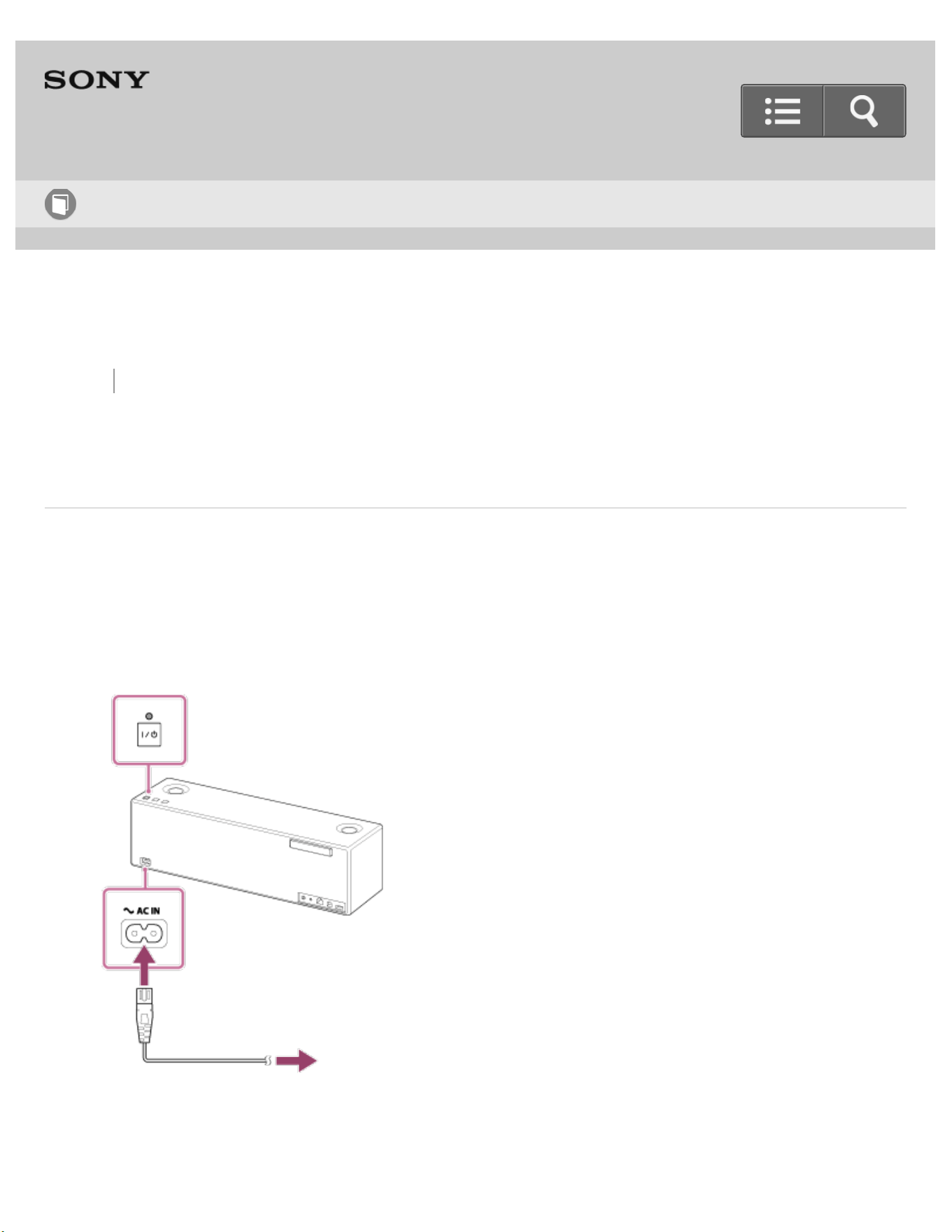
Back Back to Top Print
Go to Page Top
Personal Audio System
SRS-X99
Connecting to an AC outlet
Connect the speaker to an AC outlet with the AC power cord (supplied) securely.
1. Connect the AC power cord (supplied) to the AC IN terminal of the speaker.
2. Plug the other end of the AC power cord into an AC outlet.
Help Guide
How to Use
238

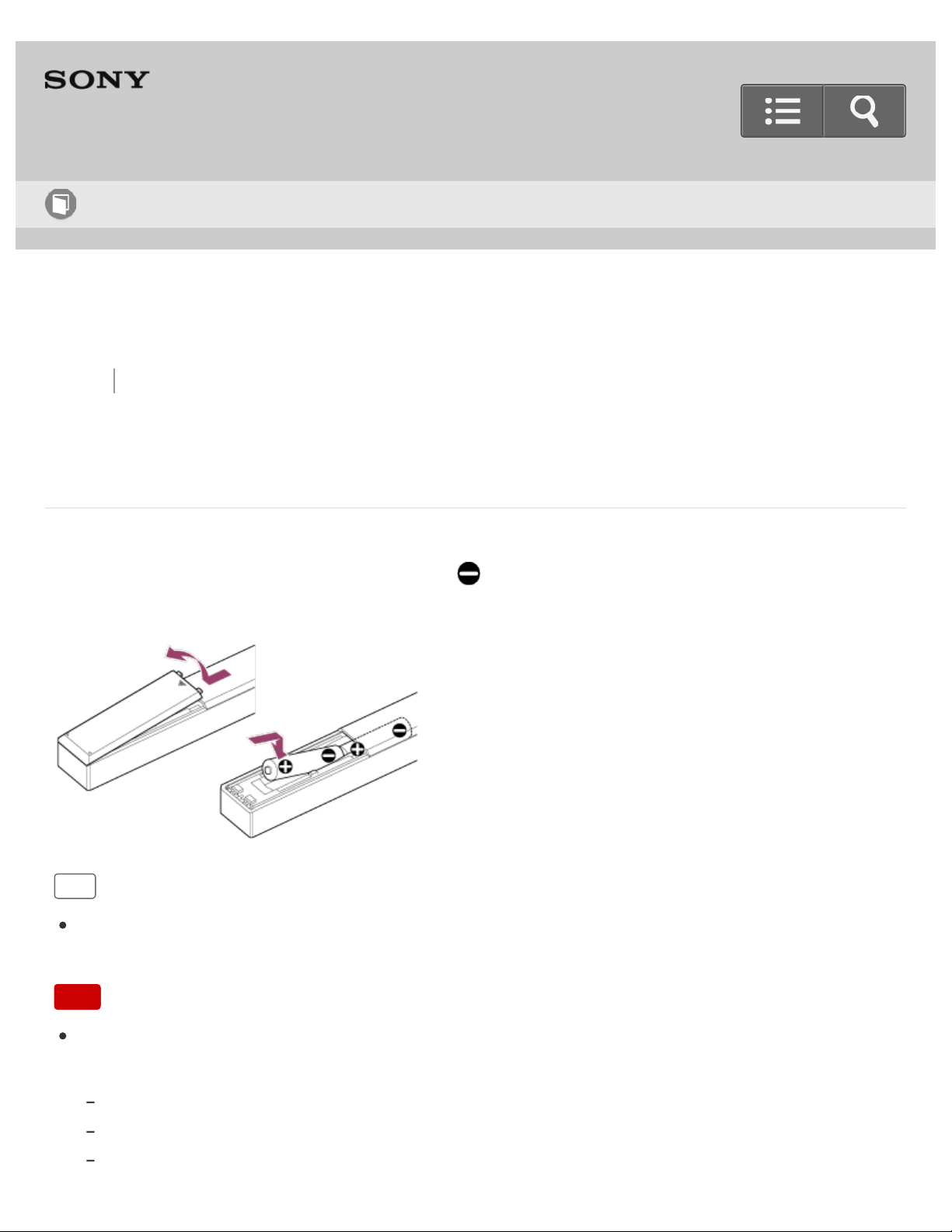
Back Back to Top Print
Personal Audio System
SRS-X99
Inserting the batteries of the remote control
Insert the two supplied AAA size batteries, side first, matching the polarities of the
batteries and battery compartment, as shown below.
Hint
When the speaker receives signals from the remote control, the reaction indicator
flashes.
Note
Incorrect use of the batteries may result in corrosion or leakage. Keep the following in
mind.
Insert the batteries matching the polarities of the batteries and battery compartment.
Do not use a combination of old and new batteries, or different battery types.
Do not attempt to charge the batteries.
Help Guide
How to Use
240

Go to Page Top
Go to Page Top
If you do not intend to use the remote control for a long period of time, remove the batteries.
If battery leakage occurs, remove any leaked fluid in the battery compartment, and replace the
batteries with new ones.
Strong light, such as lighting equipment or direct sunlight, may affect remote control
operation. The remote control may not work.
The batteries should be replaced within every 6 months. If you find it difficult to operate
the remote control, replace both batteries with new ones.
Related Topic
Parts and controls (Remote control)
4-567-508-11(5)
Copyright 2015 Sony Corporation
241
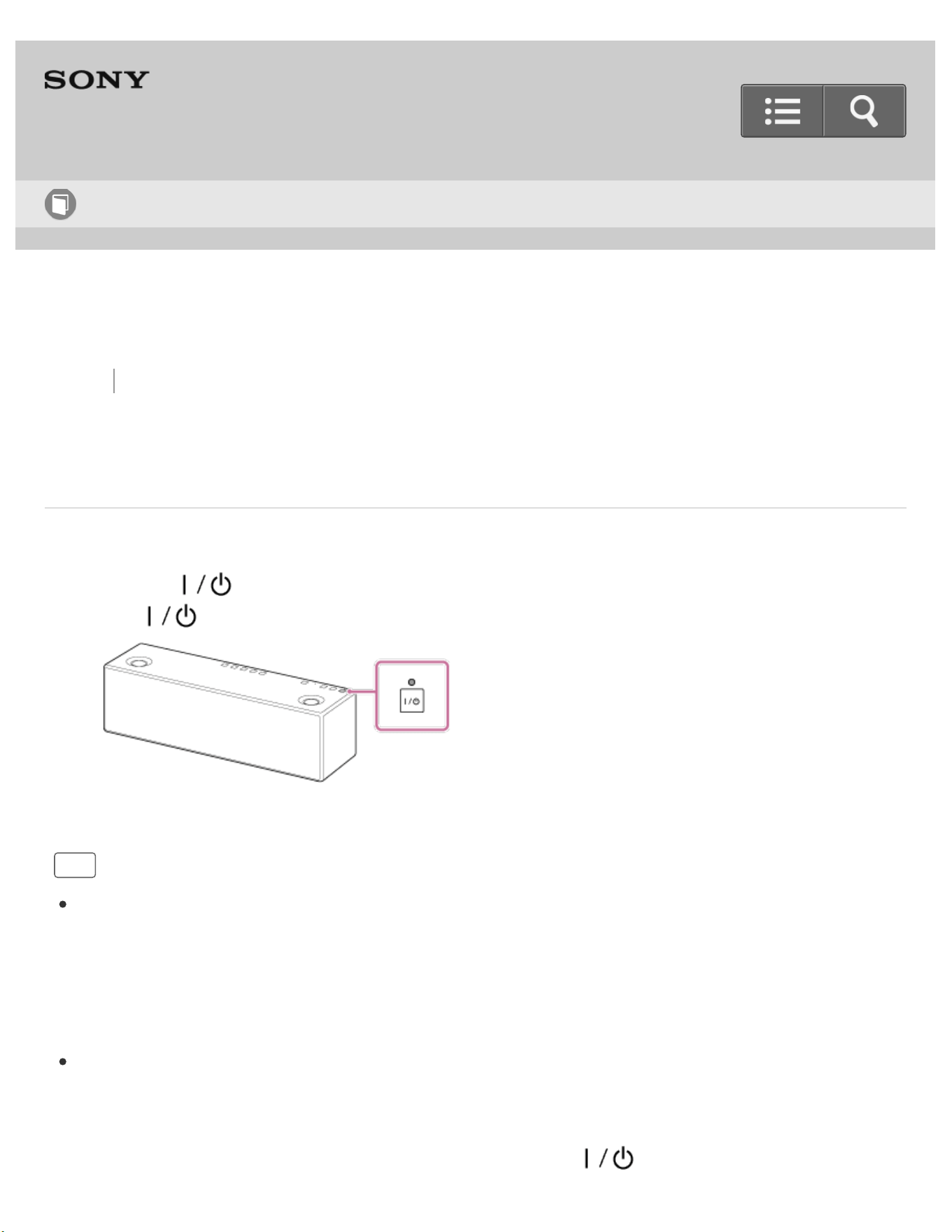
Back Back to Top Print
Personal Audio System
SRS-X99
Turning the power on
1. Tap the (on/standby) button.
The (on/standby) indicator lights up in green.
Hint
The LINK indicator also begins to flash when the speaker is turned on. When you turn
on the speaker for the first time after purchase, or after you initialize the speaker, you
can configure the network settings after the LINK indicator begins to flash slowly (once
per 3 seconds). In some cases, this slow flashing may take about four or five minutes to
begin.
When you turn on the speaker in the BLUETOOTH/Network standby mode, the start-up
time becomes shorter and the speaker will become operational sooner, than when you
turn on the speaker in standby mode. To turn on the BLUETOOTH/Network standby
function, with the speaker turned on, tap and hold the (on/standby) button until
Help Guide
How to Use
242
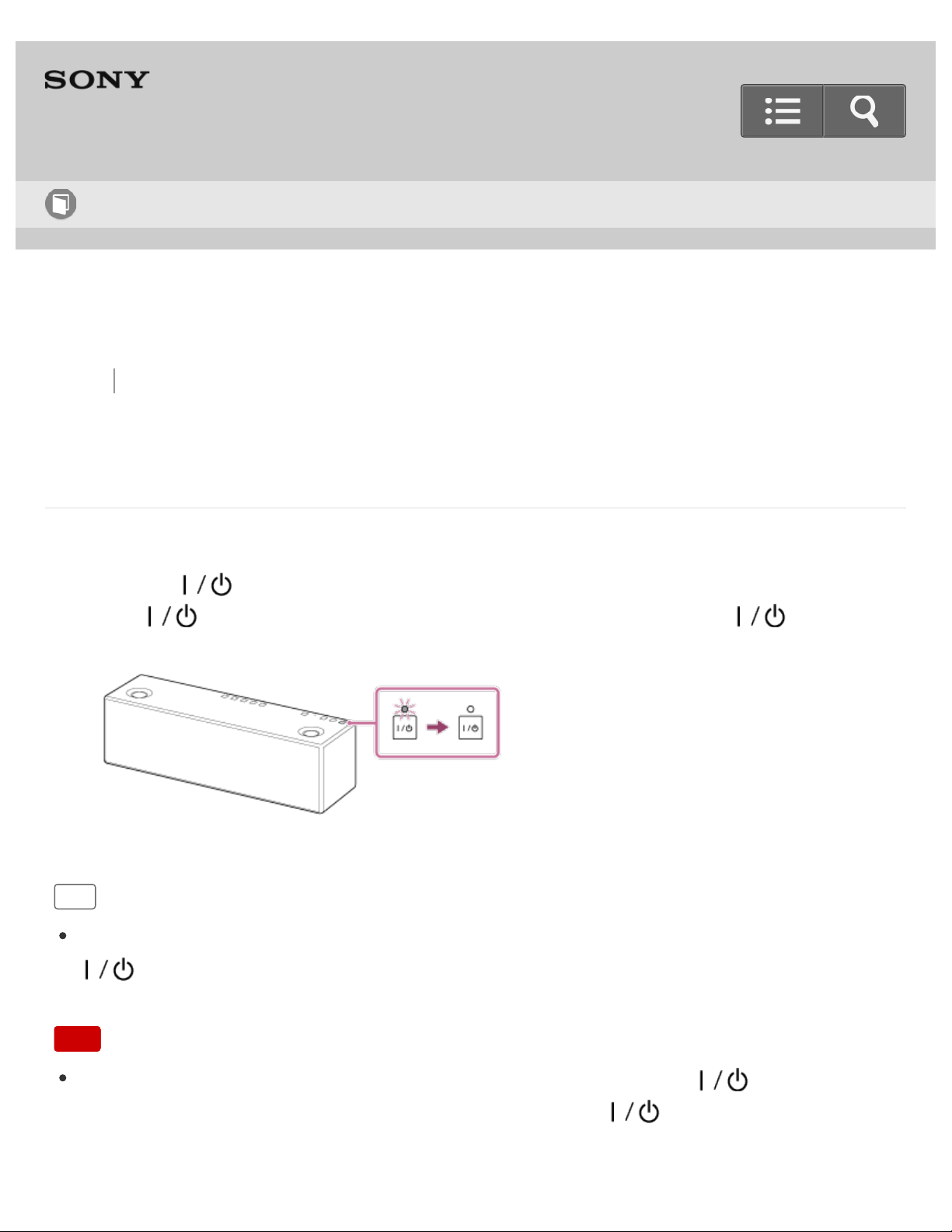
Back Back to Top Print
Personal Audio System
SRS-X99
Turning the power off
1. Tap the (on/standby) button.
The (on/standby) indicator flashes slowly in green. When the
(on/standby) indicator turns off, the speaker enters the standby mode.
Hint
If you turn off the speaker while the BLUETOOTH/Network standby function is on, the
(on/standby) indicator lights up in orange and the speaker enters the
BLUETOOTH/Network standby mode.
Note
If the speaker is turned off while the LINK indicator is flashing, the (on/standby)
indicator will flash for several tens of seconds. While the (on/standby) indicator is
flashing, the speaker is not operational.
Help Guide
How to Use
244

Back Back to Top Print
Go to Page Top
Personal Audio System
SRS-X99
Auto standby function
The speaker automatically enters standby mode or switches to the BLUETOOTH/Network
standby mode if the speaker remains in any of the following states for about 15 minutes.
No operation of the speaker.
Connection/disconnection operations to the speaker from external devices have not
been performed.
Music (sound) is not played while connected to an external devices.
Hint
Charging a USB device continues even when the speaker enters standby mode or
BLUETOOTH/Network standby mode.
You can use SongPal to turn off the auto standby function.
Related Topic
Setting the auto standby function
Help Guide
How to Use
246

Back Back to Top Print
Personal Audio System
SRS-X99
How to use the SongPal screen
SongPal is a application for controlling Sony audio devices which are compatible with
SongPal, by your smartphone/iPhone.
Search for SongPal at Google Play or the App store and download with your
smartphone/iPhone.
After downloading SongPal on to your smartphone or iPhone, [SongPal] will be
displayed on the screen.
For details about SongPal, refer to the following URL:
http://info.songpal.sony.net/help/
The specification and design of the application may change without notice.
To start up SongPal on your smartphone/iPhone
Tap [SongPal] on your smartphone/iPhone.
SongPal
Make sure you are connected to a network the first time you start SongPal with your
smartphone/iPhone.
Help Guide
How to Use
248
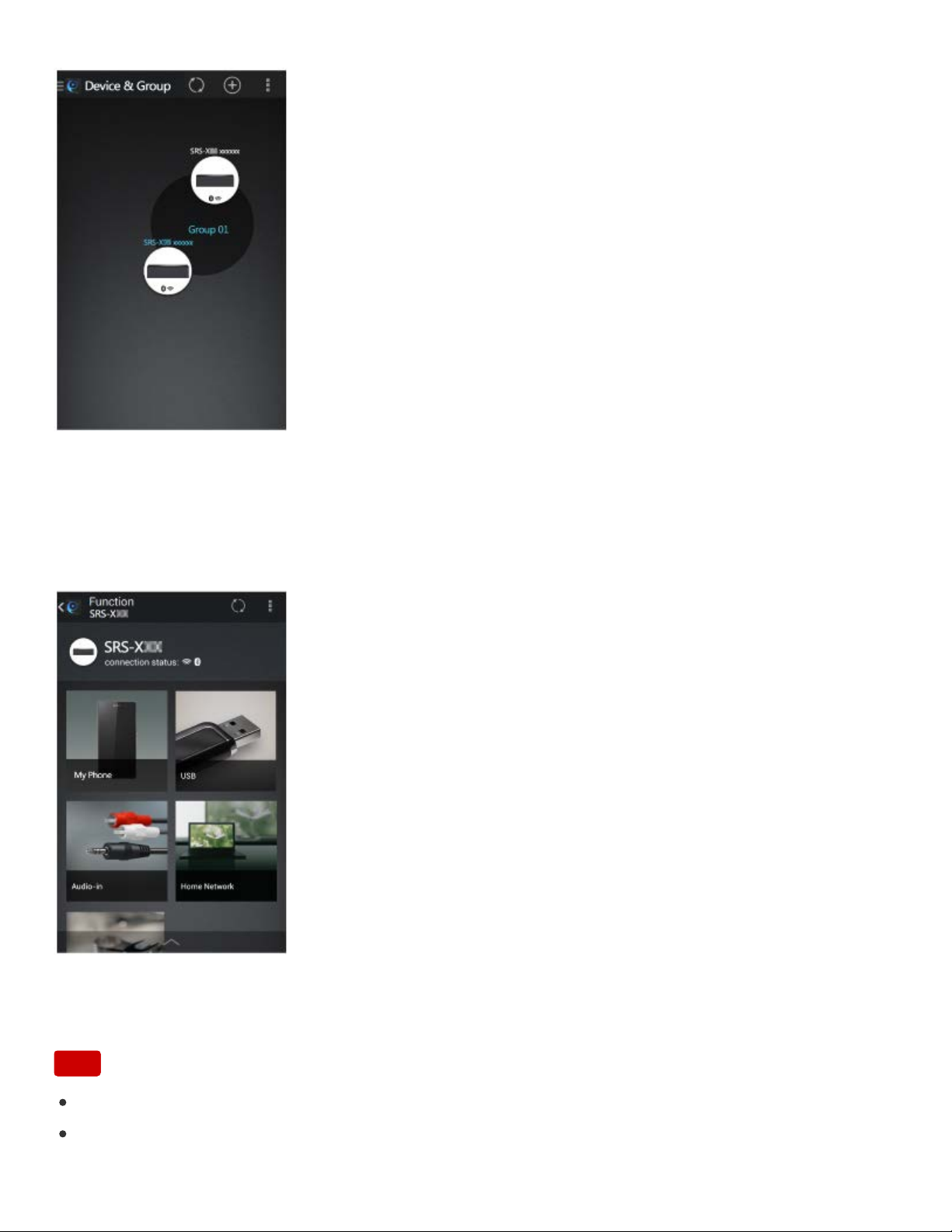
The overview of the devices on the home network is displayed.
You can select the audio device to play or group the audio devices using SongPal Link
(multi-room function).
You can select sound sources for playback. Also, you can make various sound/network
settings of an audio device.
Note
The screens above are the display examples. The actual display may differ.
What you can control with SongPal varies depending on the connected device.
249


Back Back to Top Print
Personal Audio System
SRS-X99
Connecting to a Wi-Fi network using SongPal (Smartphone)
You can connect the speaker to a Wi-Fi network using SongPal installed on your
smartphone.
First, make a BLUETOOTH connection between the speaker and the smartphone. Then
configure the Wi-Fi settings. Wi-Fi settings in SongPal are sent from your smartphone to
the speaker via BLUETOOTH. Complete step 10 within 15 minutes after turning on the
speaker. If the settings are not completed within 15 minutes, the speaker will turn off
automatically.
Do the following before starting.
Disconnect the LAN cable (not supplied) from the speaker.
Place the speaker closer to the wireless router.
Set the Wi-Fi antenna on the rear to the upright position.
Before starting this procedure, be aware that the setting information of your Wi-Fi network
will not be protected until the setting is complete. After the setting is complete, the setting
information of your Wi-Fi network will be protected again when you set wireless LAN
security.
The specification and design of the application may change without notice.
1. Connect your smartphone to your wireless router.
Connect it to 2.4 GHz band (11b, 11g, and 11n) or 5 GHz band (11a and 11n). The
speaker is not compatible with IEEE 802.11ac.
Help Guide
How to Use
251

2. Have the Wi-Fi network name (SSID) and password of the wireless router available
for reference.
Some wireless routers have multiple SSIDs. Be sure to have the SSID that your
smartphone is connected to.
For details, refer to the operating instructions of the wireless router.
3. Install SongPal on your smartphone.
Search for SongPal at Google Play™.
SongPal
4. Turn on the speaker.
Complete step 10 within 15 minutes after turning on the speaker.
The (on/standby) indicator lights up in green, then the LINK indicator begins to
flash. Go to the next step when the LINK indicator flashes slowly (once per three
seconds).
When you configure the settings of the speaker for the first time after purchase, or
after you initialize the speaker, this slow flashing, in some cases, may take about four
or five minutes to begin.
5. Tap [SongPal] on your smartphone to start up the application.
Follow the on-screen instructions.
SongPal
6. If your smartphone is NFC-compatible, touch the smartphone on the N-Mark ( ) of
the speaker. If your smartphone is not NFC-compatible, go to step 7.
Keep touching the smartphone on the N-Mark of the speaker until the smartphone
responds (it may take a few seconds). Then go to step 8.
252
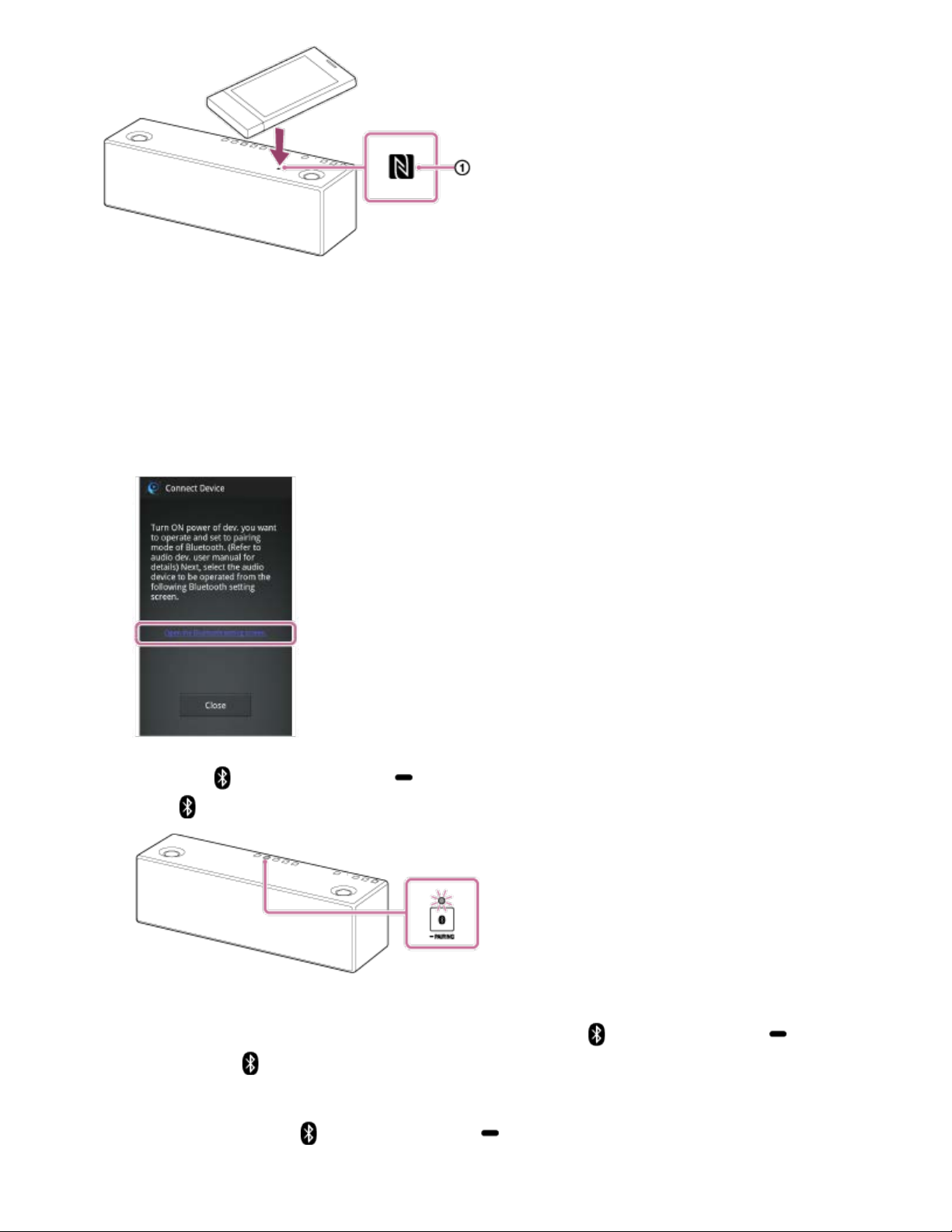
7. If your smartphone is not NFC-compatible, make the BLUETOOTH connection
between the speaker and the smartphone.
i. Turn on the BLUETOOTH function of your smartphone.
ii. Tap [Open the Bluetooth setting screen] on the SongPal screen of your
smartphone.
iii. Tap the (BLUETOOTH) PAIRING button on the speaker once.
The
(BLUETOOTH) indicator begins to flash in white.
When you turn on the speaker for the first time after purchase, pairing information
is not stored in the speaker. In this case, tap the
(BLUETOOTH) PAIRING
button, the
(BLUETOOTH) indicator will begin to flash quickly in white and the
speaker enters pairing mode automatically, then go to step v.
iv. Tap and hold the
(BLUETOOTH) PAIRING button on the speaker until
beeps are heard.
253
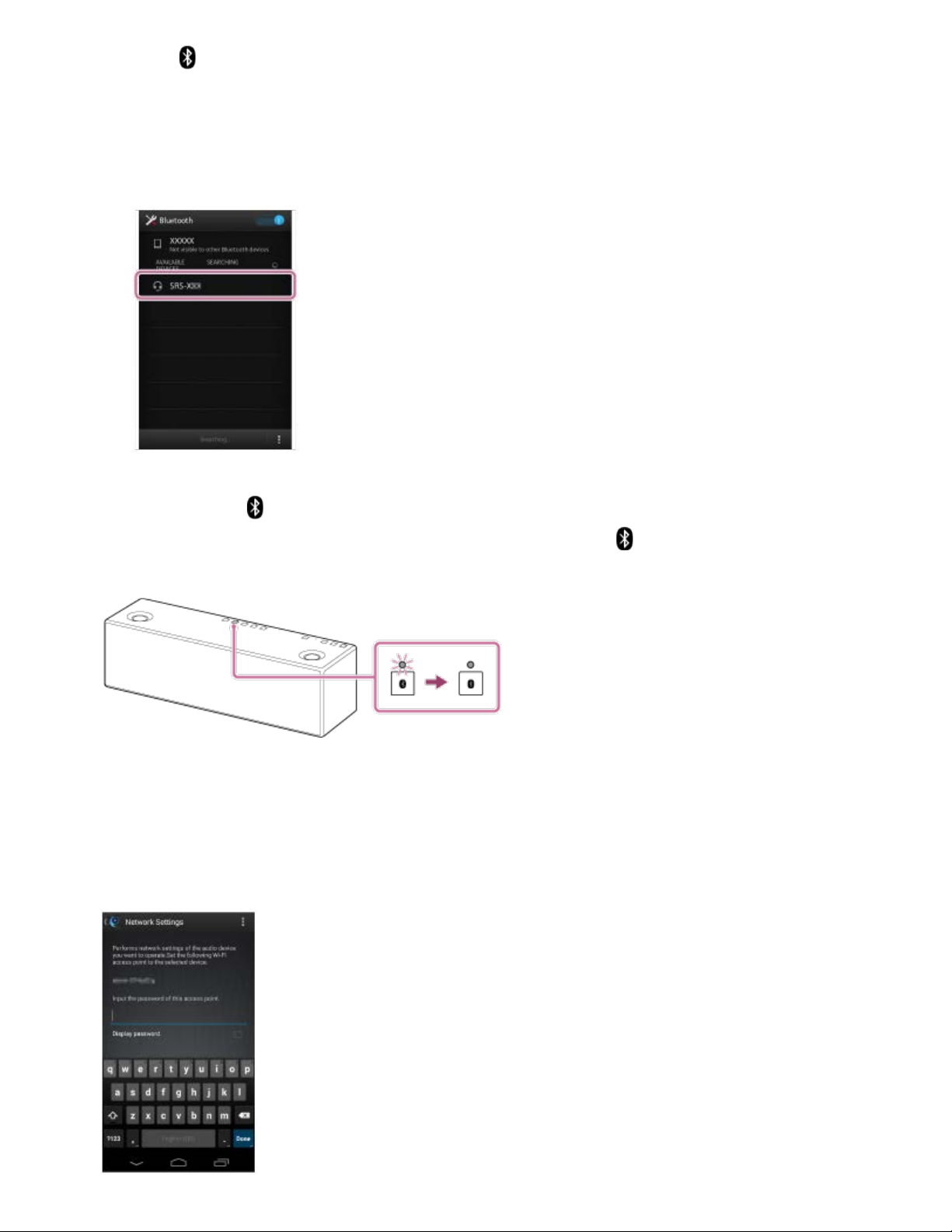
The (BLUETOOTH) indicator begins to flash quickly in white, and the speaker
enters pairing mode.
v. Tap [SRS-X99] on the SongPal screen of your smartphone.
If [SRS-X99] is not displayed, search for the device. For details, refer to the
operating instructions of your smartphone.
8. Check that the (BLUETOOTH) indicator on the speaker is lit.
When the BLUETOOTH connection is established, the (BLUETOOTH) indicator
stays lit.
9. Configure the Wi-Fi settings by your smartphone, following the on-screen instructions
of SongPal.
If a password is required, select the SSID that you recorded in step 2, and enter the
password.
254
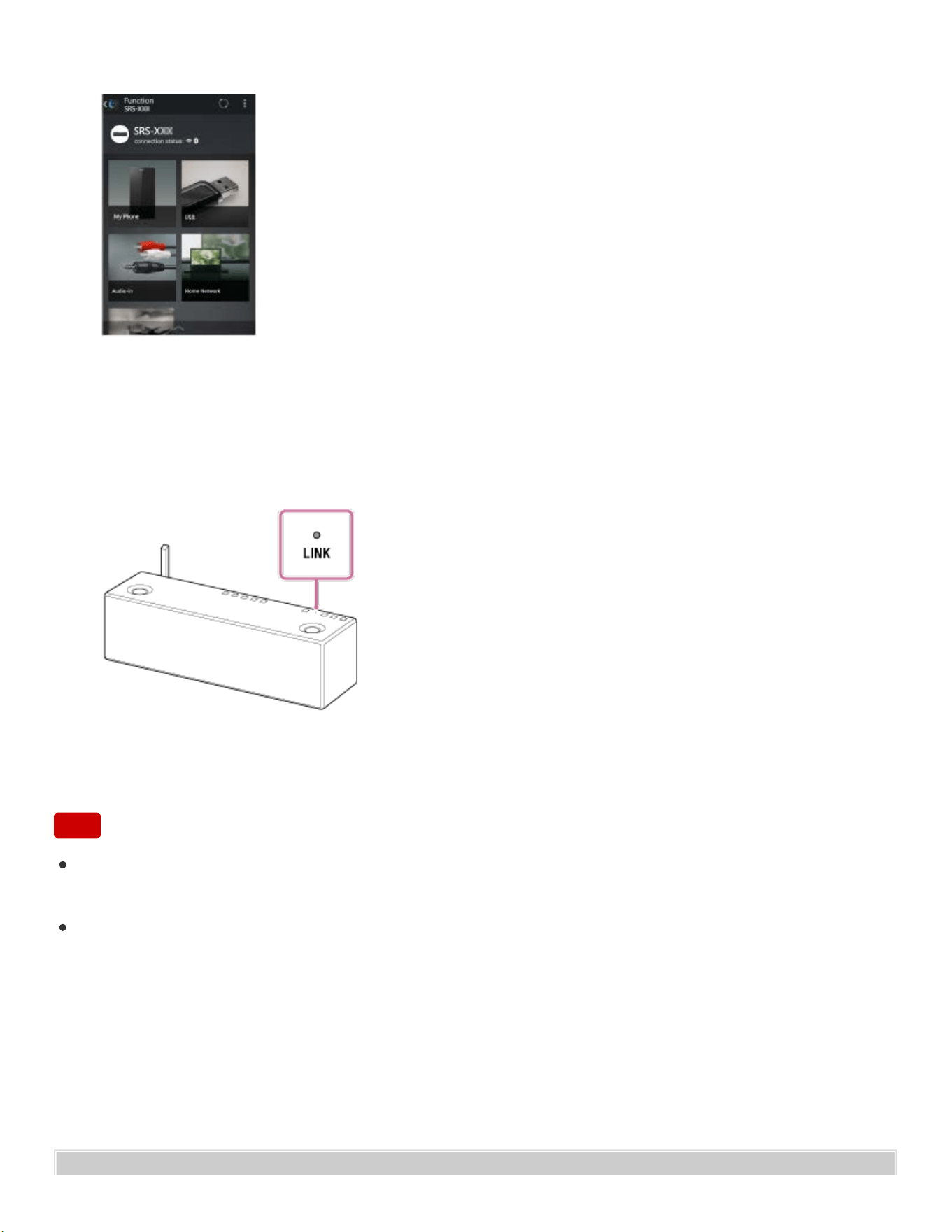
Go to Page Top
The following screen is displayed.
10. Check that the LINK indicator on the speaker lights up in orange.
When the Wi-Fi connection is completed, the LINK indicator lights up in orange.
Depending on the environment, it may take more than a minute for the LINK indicator
to light up.
The connection is complete.
Note
To download the app, you may have to pay a communication fee, depending on your
internet contract.
When you connect the speaker to a Wi-Fi network for the first time after purchase, or
after you initialize the speaker, the BLUETOOTH/Network standby function is turned on
automatically.
255


Back Back to Top Print
Personal Audio System
SRS-X99
Connecting to a Wi-Fi network using SongPal (iPhone)
You can connect the speaker to a Wi-Fi network using SongPal installed on your iPhone.
First, make a BLUETOOTH connection between the speaker and the iPhone. Then
configure the Wi-Fi settings. Wi-Fi settings in SongPal are sent from your iPhone to the
speaker via BLUETOOTH. Complete step 9 within 15 minutes after turning on the speaker.
If the settings are not completed within 15 minutes, the speaker will turn off automatically.
Do the following before starting.
Disconnect the LAN cable (not supplied) from the speaker.
Place the speaker closer to the wireless router.
Set the Wi-Fi antenna on the rear to the upright position.
Before starting this procedure, be aware that the setting information of your Wi-Fi network
will not be protected until the setting is complete. After the setting is complete, the setting
information of your Wi-Fi network will be protected again when you set wireless LAN
security.
The specification and design of the application may change without notice.
1. Connect your iPhone to your wireless router.
Connect to the 2.4 GHz band (11b, 11g, 11n) or 5 GHz band (11a, 11n). The speaker
is not compatible with IEEE 802.11ac.
Help Guide
How to Use
257
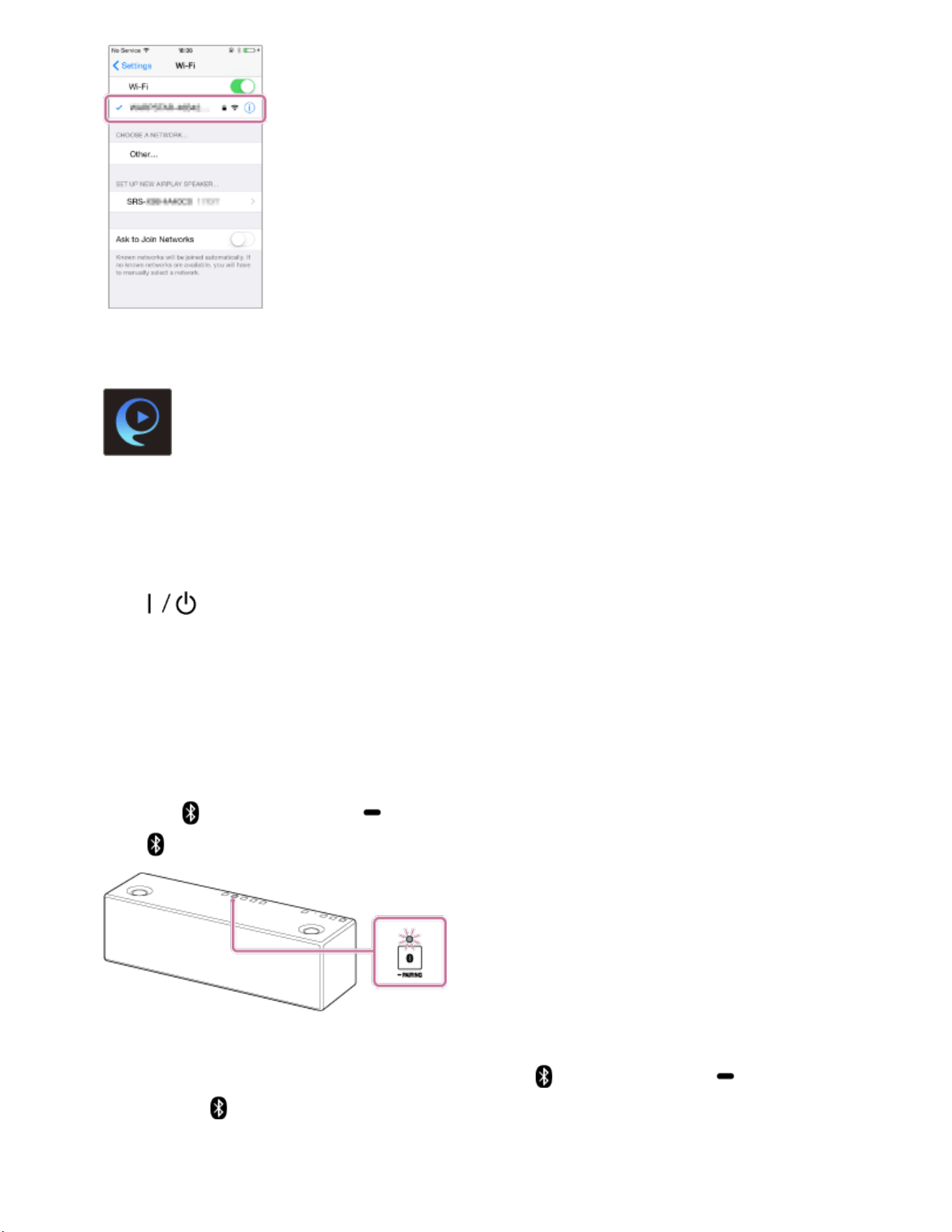
2. Search for SongPal at the App store and download it on to your iPhone.
SongPal
3. Turn on the speaker.
Complete step 9 within 15 minutes after turning on the speaker.
The (on/standby) indicator lights up in green, then the LINK indicator begins to
flash. Go to the next step when the LINK indicator flashes slowly (once per three
seconds).
When you configure the settings of the speaker for the first time after purchase, or
after you initialize the speaker, this slow flashing, in some cases, may take about four
or five minutes to begin.
4. Tap the (BLUETOOTH) PAIRING button on the speaker once.
The (BLUETOOTH) indicator begins to flash in white.
When you turn on the speaker for the first time after purchase, pairing information is
not stored in the speaker. In this case, tap the (BLUETOOTH) PAIRING
button, the (BLUETOOTH) indicator will begin to flash quickly in white and the
speaker enters pairing mode automatically, then go to step 6.
258
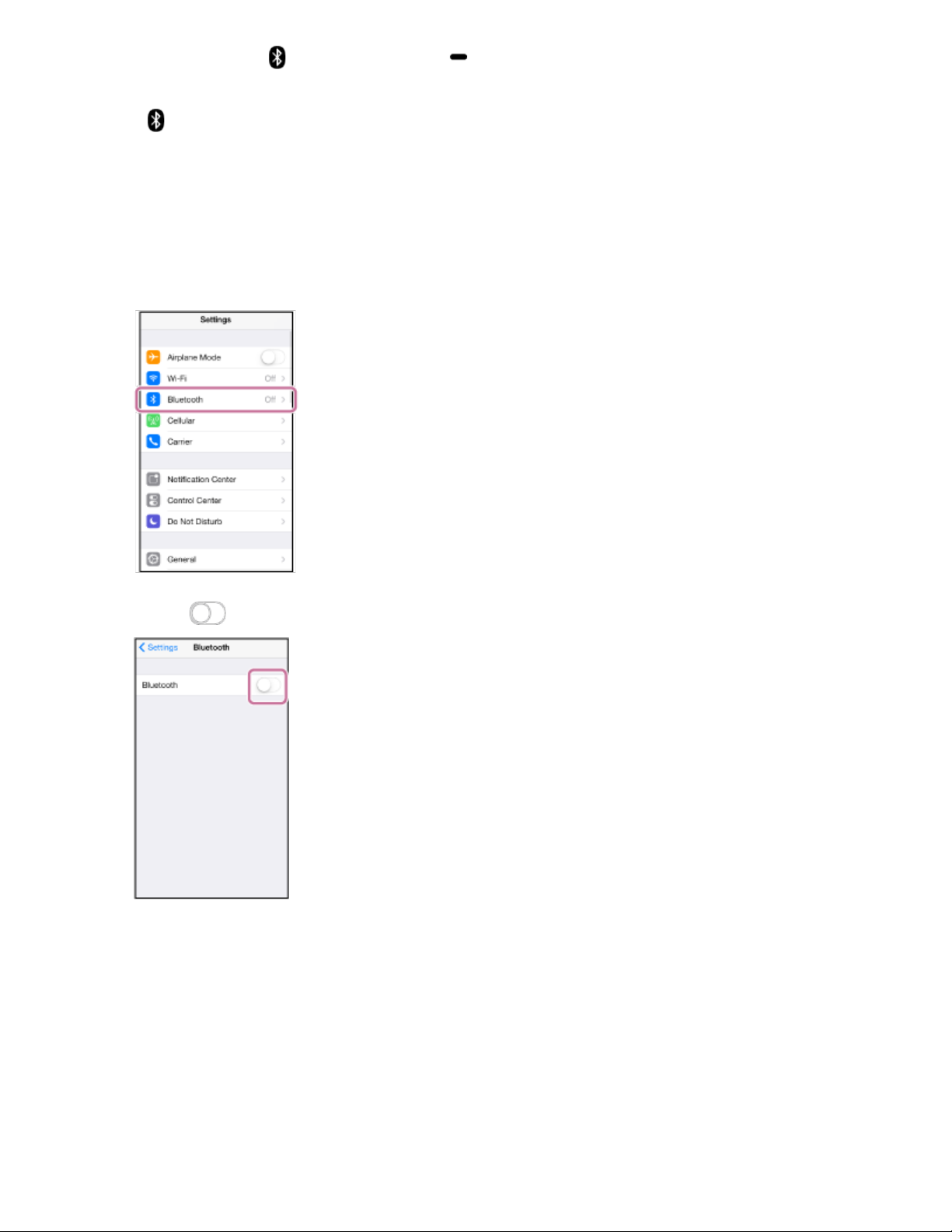
5. Tap and hold the (BLUETOOTH) PAIRING button on the speaker until beeps
are heard.
The (BLUETOOTH) indicator begins to flash quickly in white, and the speaker
enters pairing mode.
6. Search for the speaker by the iPhone.
i. Tap [Settings].
ii. Tap [Bluetooth].
iii. Tap to turn on BLUETOOTH.
iv. Tap [SRS-X99].
259
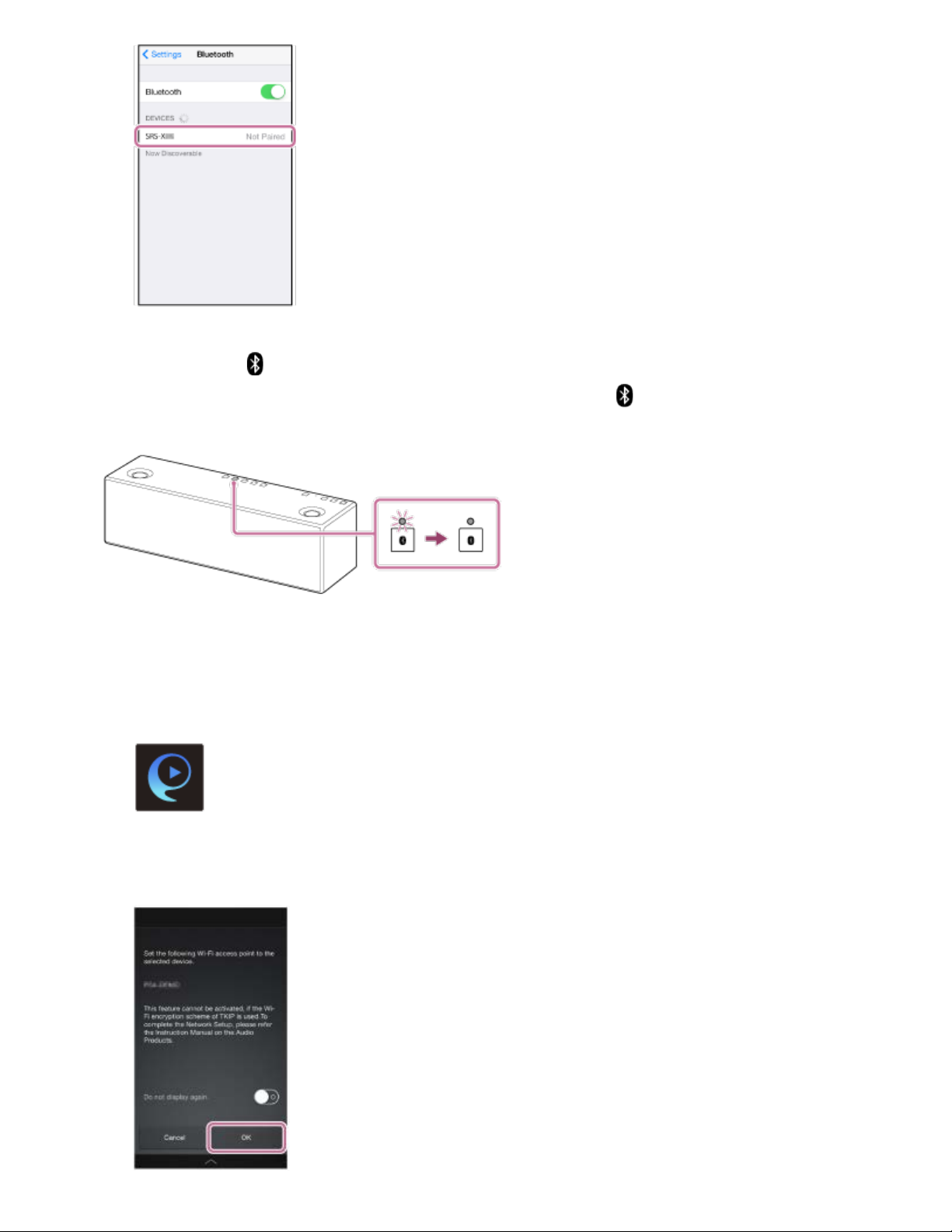
7. Check that the (BLUETOOTH) indicator on the speaker is lit.
When the BLUETOOTH connection is established, the (BLUETOOTH) indicator
stays lit.
8. Configure the Wi-Fi settings, following the on-screen instructions of SongPal.
i. Tap [SongPal] on your iPhone.
Follow the on-screen instructions.
SongPal
ii. When the following screen is displayed, tap [OK].
260
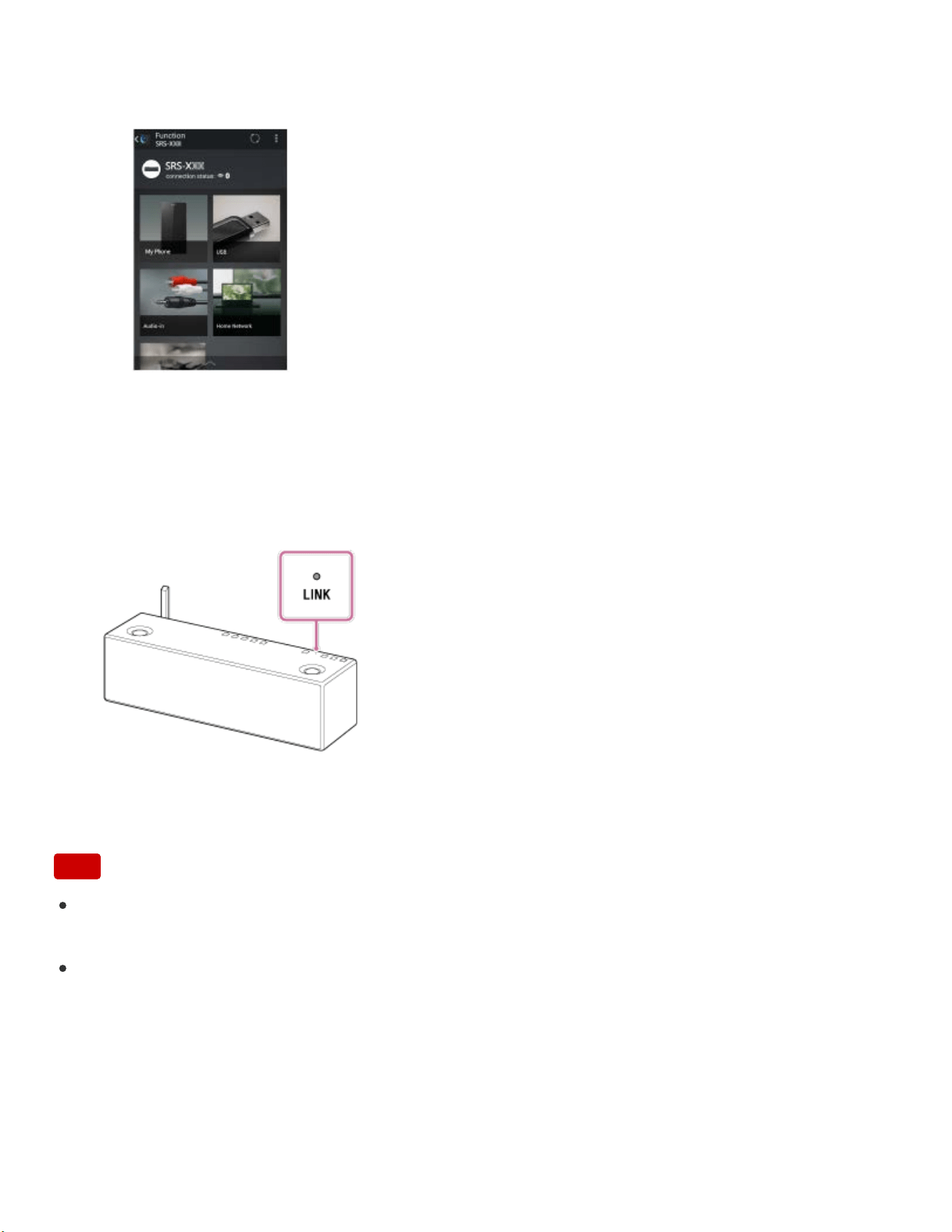
Go to Page Top
iii. If [Share Wi-Fi settings?] is displayed, tap [Allow].
The following screen will be displayed.
9. Check that the LINK indicator on the speaker lights up in orange.
When the Wi-Fi connection is completed, the LINK indicator lights up in orange.
Depending on the environment, it may take more than a minute for the LINK indicator
to light up.
The connection is complete.
Note
To download the app, you may have to pay a communication fee, depending on your
internet contract.
When you connect the speaker to a Wi-Fi network for the first time after purchase, or
after you initialize the speaker, the BLUETOOTH/Network standby function is turned on
automatically.
261


Back Back to Top Print
Personal Audio System
SRS-X99
Listening to the music stored in your smartphone/iPhone over Wi-Fi network
You can listen to the music stored in your smartphone/iPhone over Wi-Fi network with
SongPal.
The specification and design of the application may change without notice.
1. Connect the speaker and a smartphone/iPhone to the same network.
Connect the speaker and your smartphone/iPhone to the same SSID of your wireless
router.
The LINK indicator lights up in orange or pink when the speaker is connected to the
wireless router.
2. Tap [SongPal] on your smartphone/iPhone to start up the application.
SongPal
3. Tap [SRS-X99].
Help Guide
How to Use
263
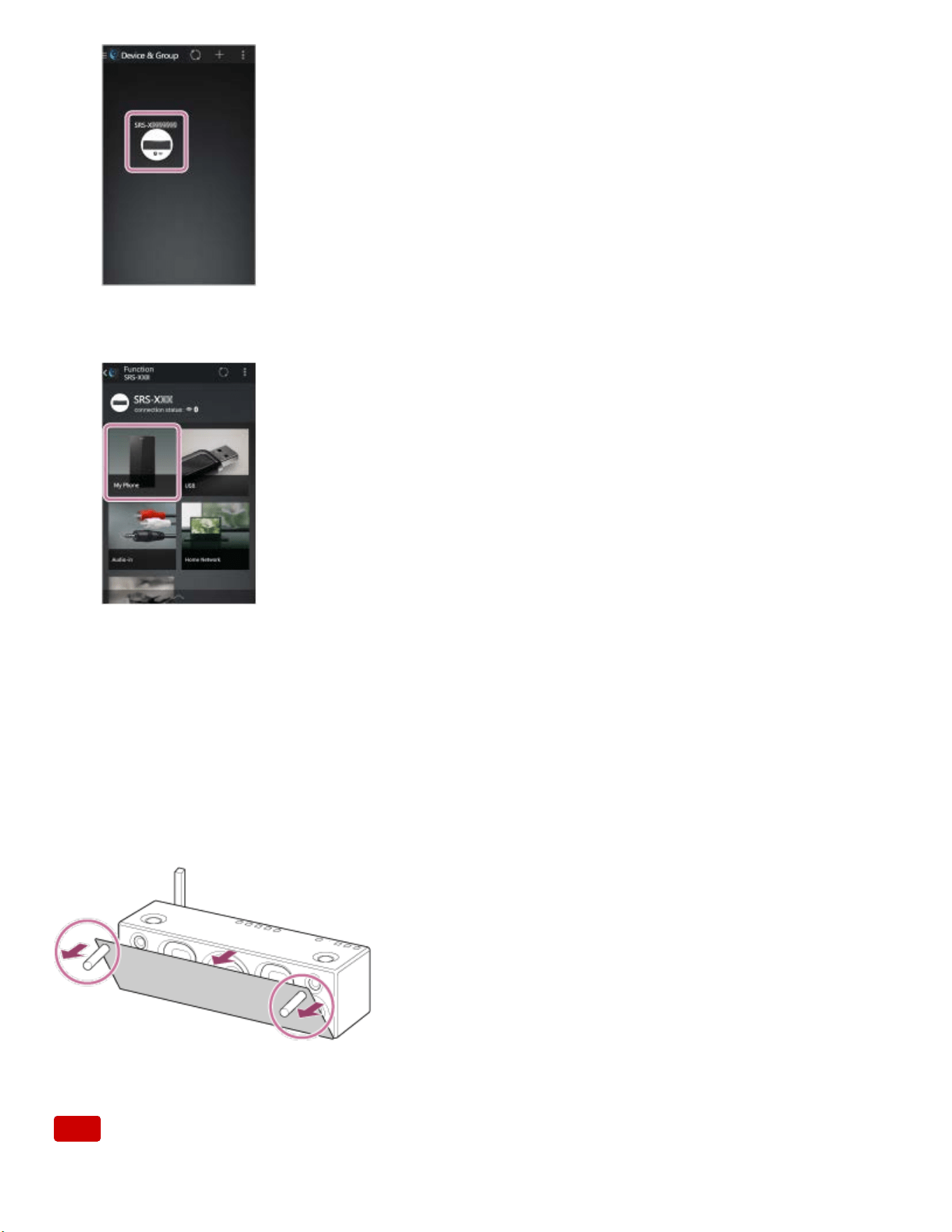
4. Select [My Phone].
5. Start playing back music on your smartphone/iPhone, and adjust the volume.
Music in the smartphone/iPhone will be heard from the speaker.
To enjoy a more dynamic sound
Remove the speaker grille from the front of the speaker with the speaker grille detach tool
(supplied).
*
*
Keep the removed grille on a flat surface to prevent distortion.
Note
264

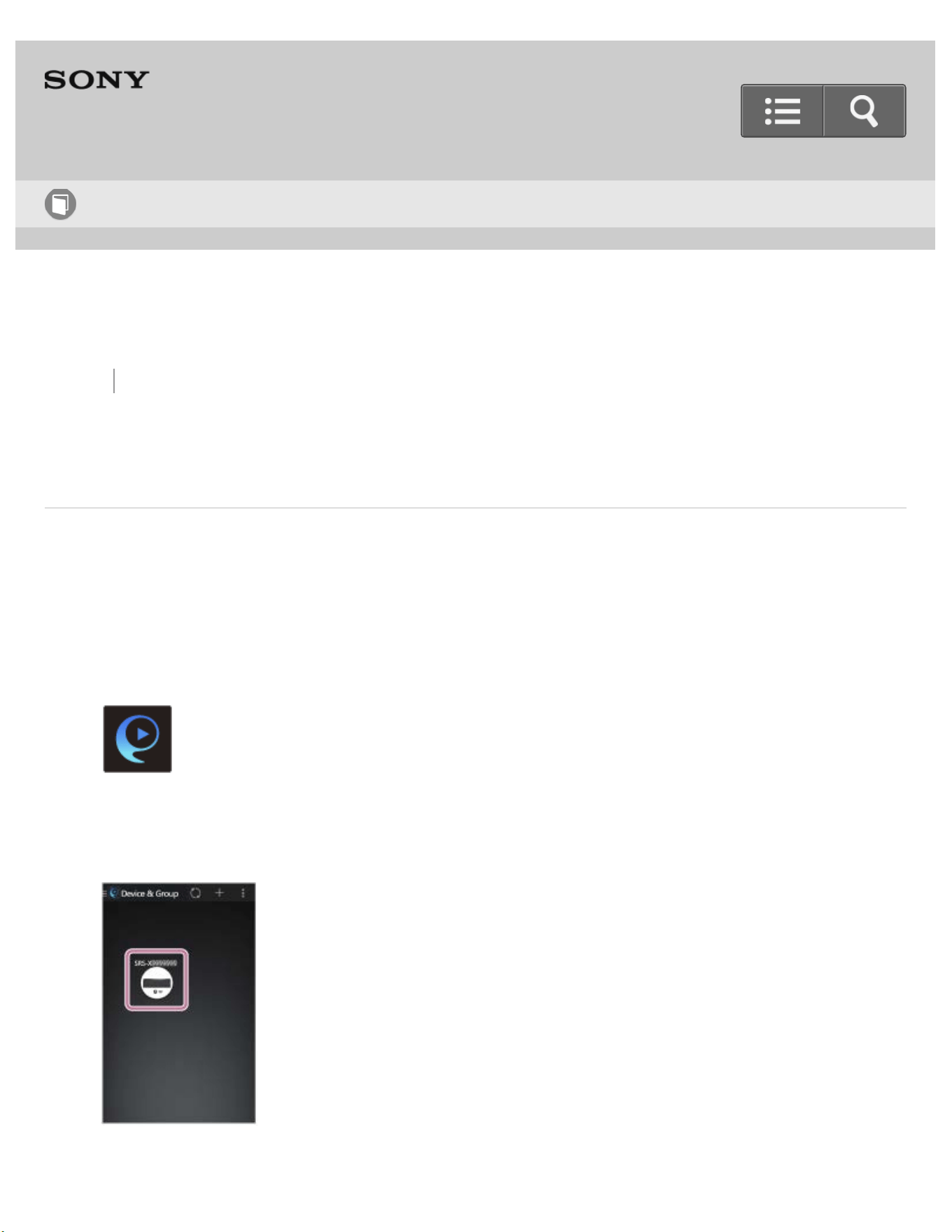
Back Back to Top Print
Personal Audio System
SRS-X99
Setting the sound quality
You can easily customize the sound quality of the speaker by using your
smartphone/iPhone with Songpal installed.
The specification and design of the application may change without notice.
1. Tap [SongPal] on your smartphone/iPhone to start up the application.
SongPal
2. Tap [SRS-X99].
Help Guide
How to Use
266

Go to Page Top
3. Tap [Settings].
4. Tap [Sound].
5. Select the desired setting and set the sound quality.
You can set the following sound settings.
ClearAudio+
You can enjoy ClearAudio+ mode (Sony-recommended sound quality).
ClearAudio+ mode is set as the default.
Equalizer
You can set the sound quality according to the music genre.
DSEE HX (Sound enhancer)
This function enables enhancement
*
of the sound quality for compressed audio
files and restores high-range sound removed during the compression process.
[Auto] is set as the default setting so you can enjoy both compressed audio files
and high-resolution audio files.
*
Enhancement up to 192 kHz/24 bit.
4-567-508-11(5)
Copyright 2015 Sony Corporation
267
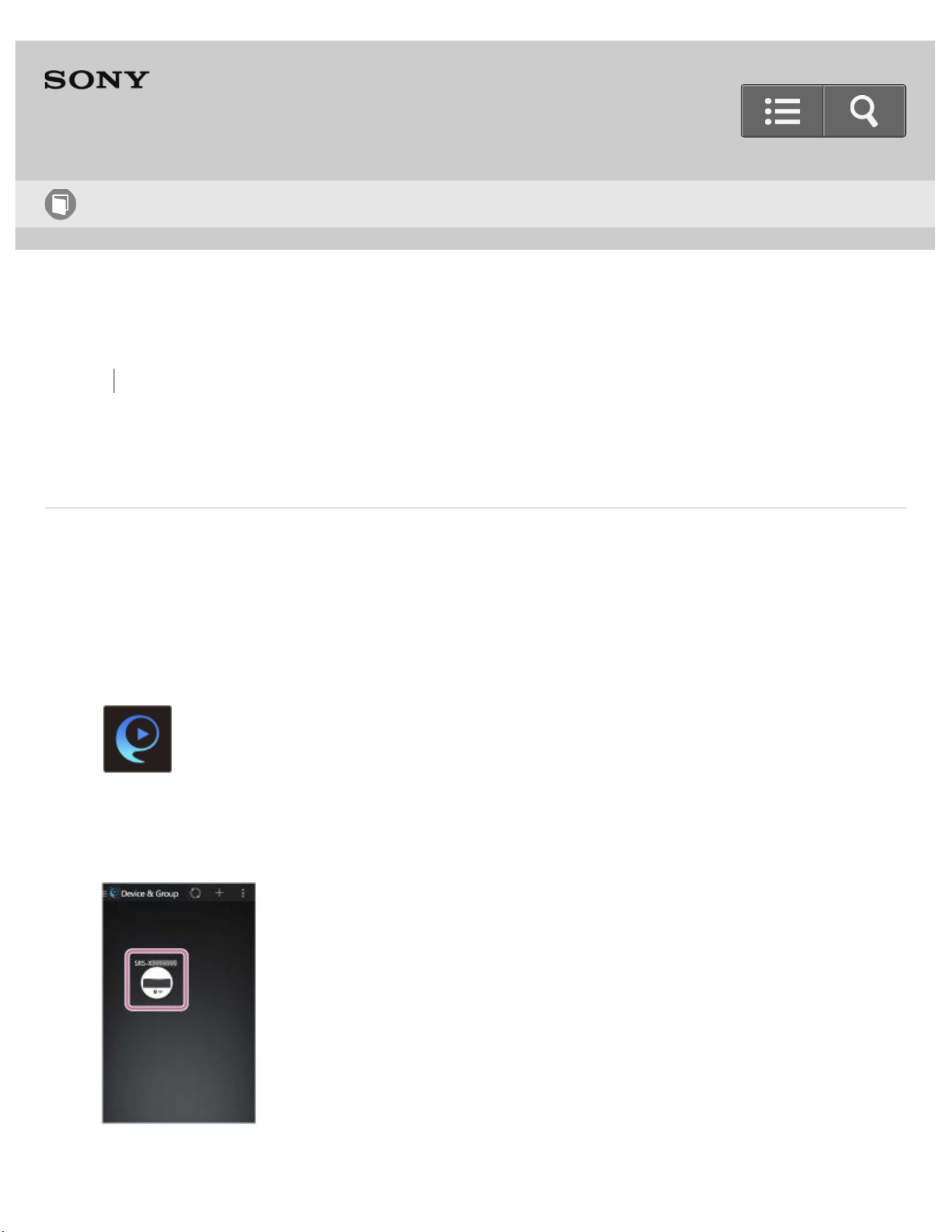
Back Back to Top Print
Personal Audio System
SRS-X99
Setting the auto standby function
You can turn on/off the auto standby function of the speaker, using SongPal installed on
your smartphone/iPhone.
The specification and design of the application may change without notice.
1. Tap [SongPal] on your smartphone/iPhone to start up the application.
SongPal
2. Tap [SRS-X99].
Help Guide
How to Use
268
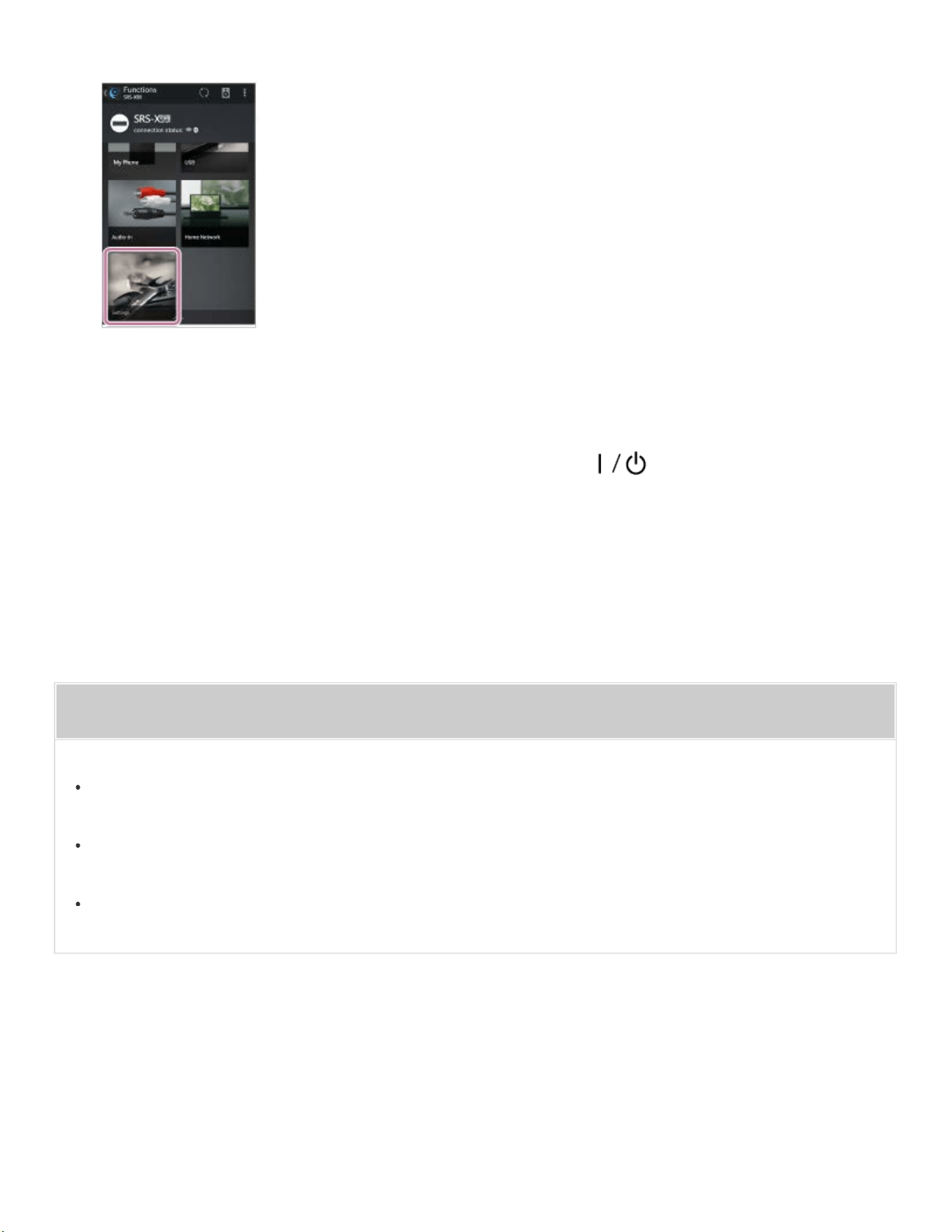
Go to Page Top
Go to Page Top
3. Tap [Settings].
4. Tap [Power Option].
5. Tap [Auto Standby] to turn on/off the auto standby function.
When the auto standby function is turned off, tap the (on/standby) button on
the speaker to turn off the speaker since it will not be turned off automatically.
Related Topic
Using the BLUETOOTH/Network standby function
Standby mode differences
Auto standby function
4-567-508-11(5)
Copyright 2015 Sony Corporation
269
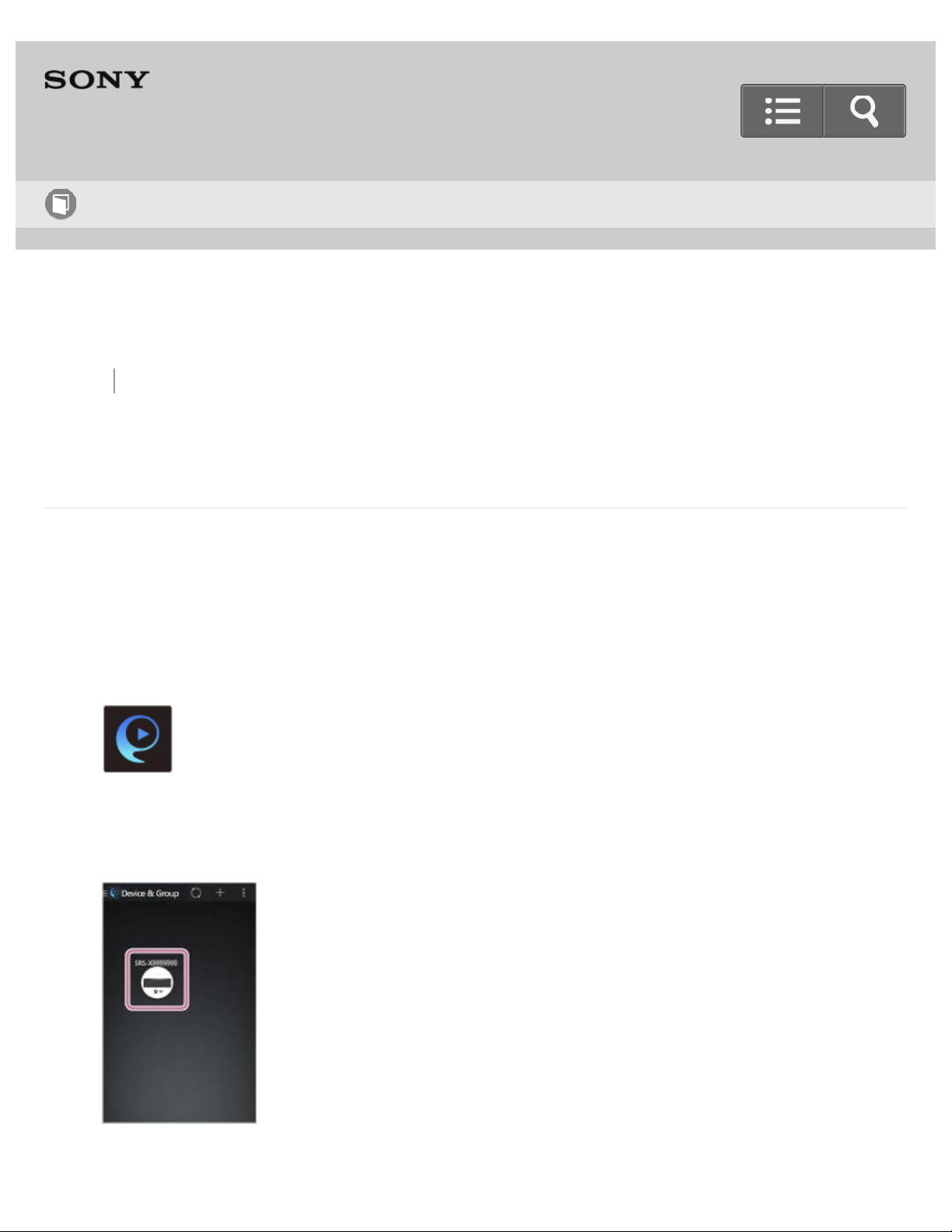
Back Back to Top Print
Personal Audio System
SRS-X99
Setting the BLUETOOTH/Network standby function
You can turn on/off the BLUETOOTH/Network standby function of the speaker, using
SongPal installed on your smartphone/iPhone.
The specification and design of the application may change without notice.
1. Tap [SongPal] on your smartphone/iPhone to start up the application.
SongPal
2. Tap [SRS-X99].
Help Guide
How to Use
270

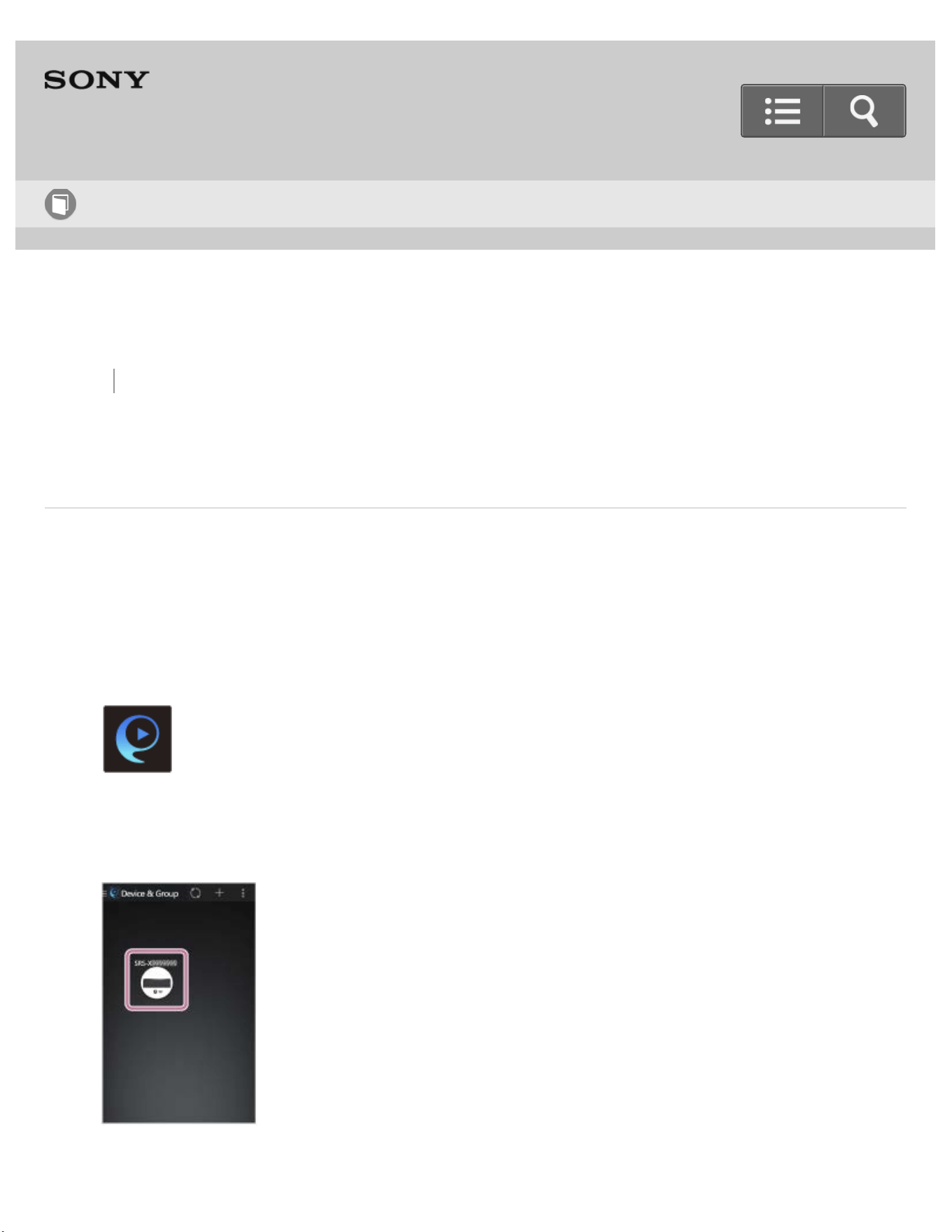
Back Back to Top Print
Personal Audio System
SRS-X99
Setting the BLUETOOTH audio streaming playback quality (Codec)
You can select the BLUETOOTH audio streaming playback quality of the speaker using
the SongPal installed on your smartphone/iPhone.
The specification and design of the application may change without notice.
1. Tap [SongPal] on your smartphone/iPhone to start up the application.
SongPal
2. Tap [SRS-X99].
Help Guide
How to Use
272
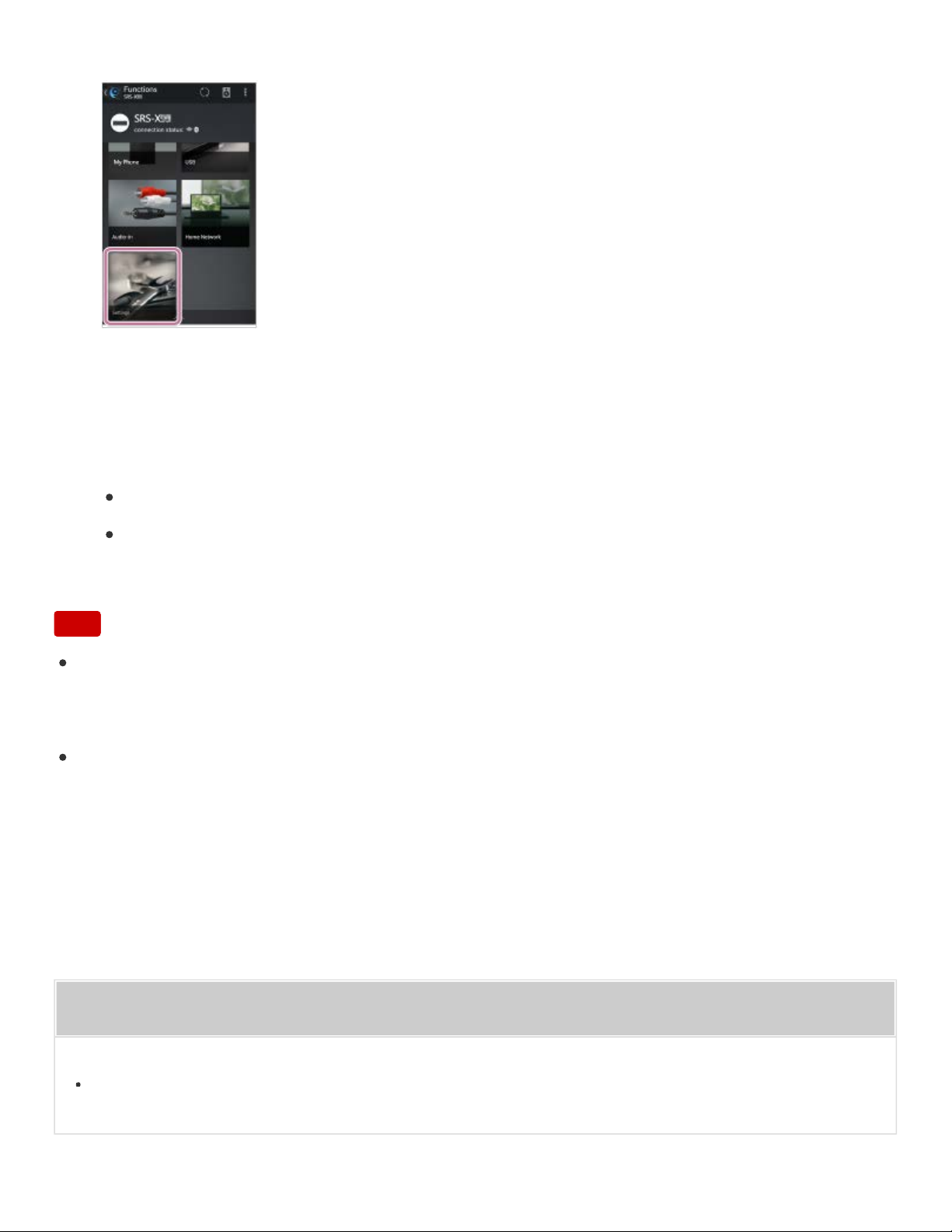
Go to Page Top
3. Tap [Settings].
4. Tap [Other Settings].
5. Tap [Bluetooth Codec] and select the desired codec.
You can set the following.
Auto: Optimal codec is automatically selected from AAC, LDAC, and SBC.
SBC: SBC is selected.
Note
If the playback quality setting is changed with the speaker turned on, the BLUETOOTH
connection is terminated. In this case, connect the BLUETOOTH device manually
again. After reconnecting, the playback quality is switched.
You may also need to adjust the settings of the connected device to change the
playback quality setting, such as SBC, AAC, LDAC. For details, refer to the operating
instructions supplied with the device.
Related Topic
Selecting the BLUETOOTH audio streaming playback quality (Codec)
273
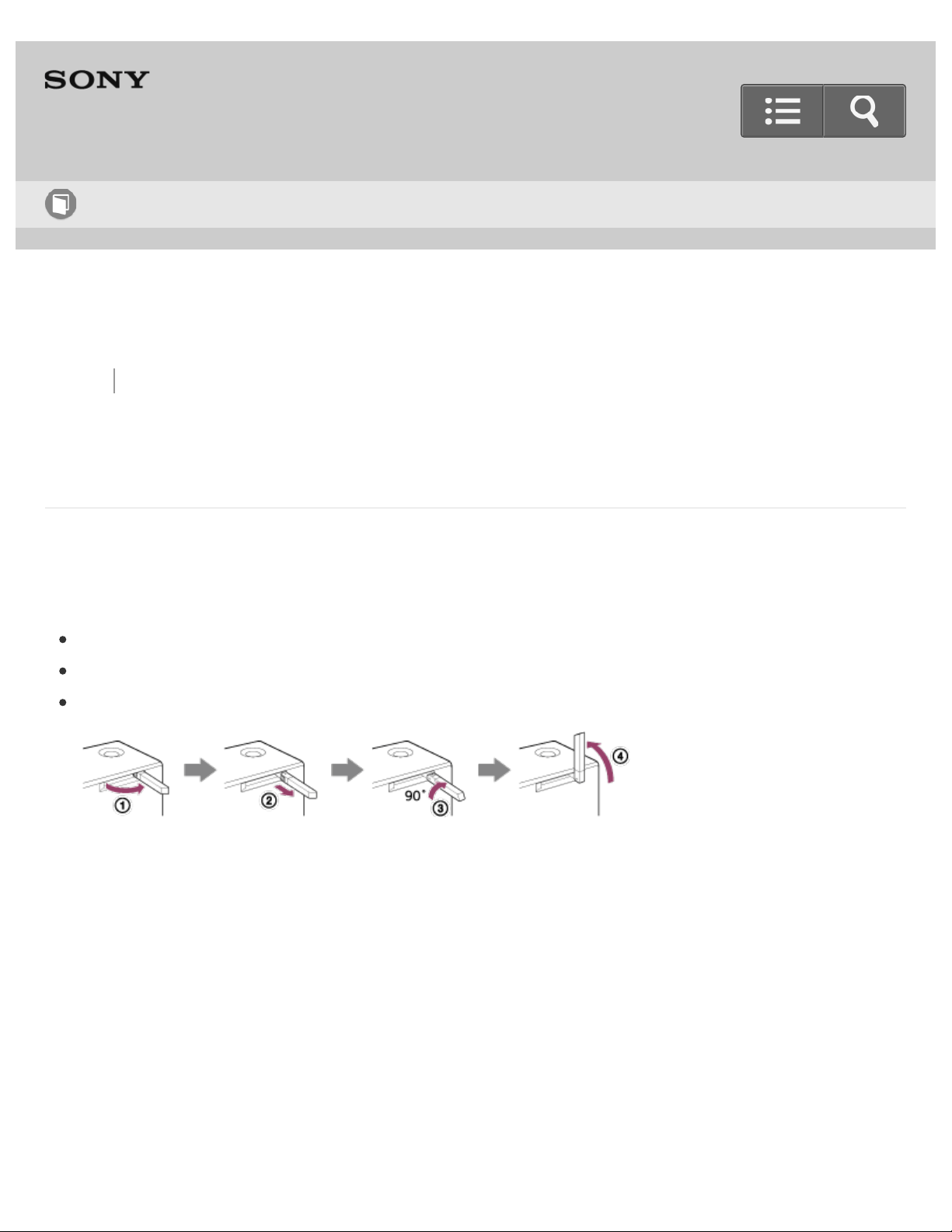
Back Back to Top Print
Personal Audio System
SRS-X99
Selecting the Wi-Fi network connection method
Select the appropriate connecting method for your network environment from below.
Do the following before starting.
Disconnect the LAN cable (not supplied) from the speaker.
Place the speaker closer to the wireless router.
Set the Wi-Fi antenna on the rear to the upright position.
Connecting to a Wi-Fi network using SongPal
Download SongPal, to your smartphone or iPhone. This application provides Wi-Fi
connection setup with the speaker, and allows you to select/play music files on a PC via a
Wi-Fi network by operating your smartphone/iPhone.
For details, see “Connecting to a Wi-Fi network using SongPal (Smartphone)” or
“Connecting to a Wi-Fi network using SongPal (iPhone)”
Connecting to a Wi-Fi network using the WPS button of the wireless router
If your wireless router has a WPS button, connect to the Wi-Fi network by this method.
To check if your wireless router is compatible with WPS (Wi-Fi Protected Setup), refer to
Help Guide
How to Use
274

Go to Page Top
Go to Page Top
the operating instructions of your router. For details, see “Connecting to a Wi-Fi network
using the WPS button of a wireless router”.
Connecting to a Wi-Fi network using a computer
If your wireless router does not have a WPS button, use your computer to connect the
speaker to the Wi-Fi network. Select one of the connecting methods from below.
Connecting to a Wi-Fi network using a computer connected with a commercially-
available LAN cable
For details, see “Connecting to a Wi-Fi network using a computer connected with a LAN
cable”.
Connecting to a Wi-Fi network using a computer connected wirelessly
The speaker should be initialized to the factory default for this connection.
For details, see “Connecting to a Wi-Fi network using a computer connected wirelessly
(Modern UI) / (Windows 7/Windows 8)” or “Connecting to a Wi-Fi network using a Mac
connected wirelessly”.
Connecting to a Wi-Fi network using an iPhone/iPad/iPod touch
The speaker and your iPhone/iPad/iPod touch can be connected to the same Wi-Fi
network. For details, see “Connecting to a Wi-Fi network using a iPhone/iPad/iPod touch”.
Related Topic
Connecting to a Wi-Fi network using SongPal (Smartphone)
Connecting to a Wi-Fi network using SongPal (iPhone)
Checking the Wi-Fi signal strength (reception sensitivity)
275
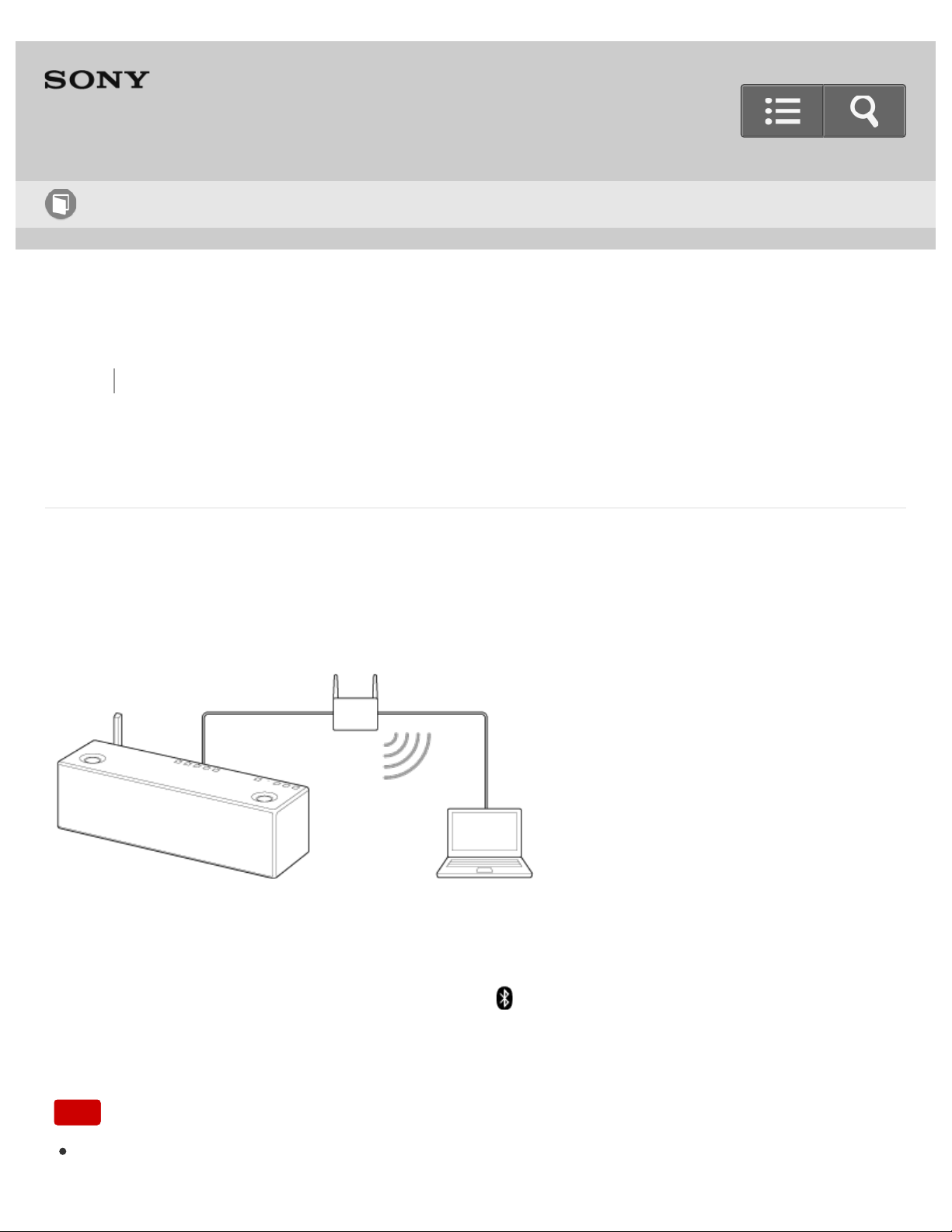
Back Back to Top Print
Personal Audio System
SRS-X99
Selecting the wired network connection method
Connect the speaker to your wireless router with a commercially-available LAN cable, then
connect the router to the computer.
For details, see "Connecting to a wired network."
To turn off the wireless function
You can turn off the wireless function. With the speaker turned on, press and hold both the
NETWORK button and WPS button. When the (BLUETOOTH) indicator and
NETWORK indicator begin to flash at the same time, the wireless function turns off. To
turn on the wireless function, do the above again.
Note
If you turn off the wireless function, Wi-Fi network, BLUETOOTH and NFC functions will
Help Guide
How to Use
276

Back Back to Top Print
Personal Audio System
SRS-X99
DLNA (Digital Living Network Alliance)
You can listen to music stored in a DLNA server (PC, etc.) on a home network using the
speaker.
By connecting DLNA-compatible digital devices with each other on the network, you can
play back a music stored in a DLNA server by using a DLNA controller.
To use the PC as a DLNA server or controller, it is necessary to set the PC.
To listen to music in a DLNA server (PC, etc.) by operating a
smartphone/iPhone
Download SongPal to your smartphone/iPhone.
This application provides Wi-Fi connection setup with the speaker, and allows you to
select/play music in the PC.
For details, see "Connecting to a Wi-Fi network using SongPal (Smartphone)/(iPhone)",
"Listening to music on a PC via a Wi-Fi network" or "Listening to music on a PC via a
network (“Sony | Music Center for PC” with SongPal operation)."
To listen to music in a DLNA server using your PC as a controller
You can play back music stored in a DLNA server by operating your PC.
Start Windows Media Player on your PC, then play back music by using the [Play To]
function (Windows 8) or the [Play To] function (Windows 7). Follow the on-screen
Help Guide
How to Use
277

Go to Page Top
Go to Page Top
instructions to operate.
To use the PC as a DLNA server or controller, it is necessary to set the PC.
For details, see "Setting your PC as a DLNA server and controller (Windows 8)/(Windows
7)", "Listening to music on a PC via a network Windows Media Player (Windows
8)/(Windows 7)" or "Listening to music on a PC via a network (“Sony | Music Center for
PC”)."
Note
The speaker can play MP3, Linear PCM, WMA, AAC, WAV, FLAC, ALAC and AIFF
format files (only AAC files with the extension ".m4a," ".mp4," or ".3gp" are playable).
Even if the bit rate and file format are supported, the playback of all files is not
guaranteed.
Files with DRM (Digital Rights Management) copyright protection cannot be played on
the speaker. To check if a WMA file is protected by DRM, right-click the file on the PC. If
there is a [License] tab, the file is DRM-copyrighted.
When you listen to music via a home network, it may take some time, since each
DLNA-compatible device has to recognize the component currently used.
You may not be able to play back some content of DLNA certified products.
Related Topic
Listening to music on a PC via a Wi-Fi network
4-567-508-11(5)
Copyright 2015 Sony Corporation
278
Back Back to Top Print
Personal Audio System
SRS-X99
Connection method 1: Connecting to a Wi-Fi network using the WPS button of a
wireless router
If your wireless router has a WPS button, you can connect to the Wi-Fi network by the
following method.
To check if your wireless router is compatible with WPS (Wi-Fi Protected Setup), refer to
the operating instructions of your router.
Do the following before starting.
Disconnect the LAN cable (not supplied) from the speaker.
Place the speaker near the wireless router.
Set the Wi-Fi antenna on the rear to the upright position.
1. Turn on the speaker.
The
(on/standby) indicator lights up in green, then the LINK indicator begins to
flash. Go to the next step when the LINK indicator flashes slowly (once per three
seconds).
When you configure the settings of the speaker for the first time after purchase, or
after you initialize the speaker, this slow flashing, in some cases, may take about four
or five minutes to begin.
2. Press and hold the WPS button on the rear of the speaker until a beep sound is
heard (for about 2 seconds).
Help Guide
How to Use
279
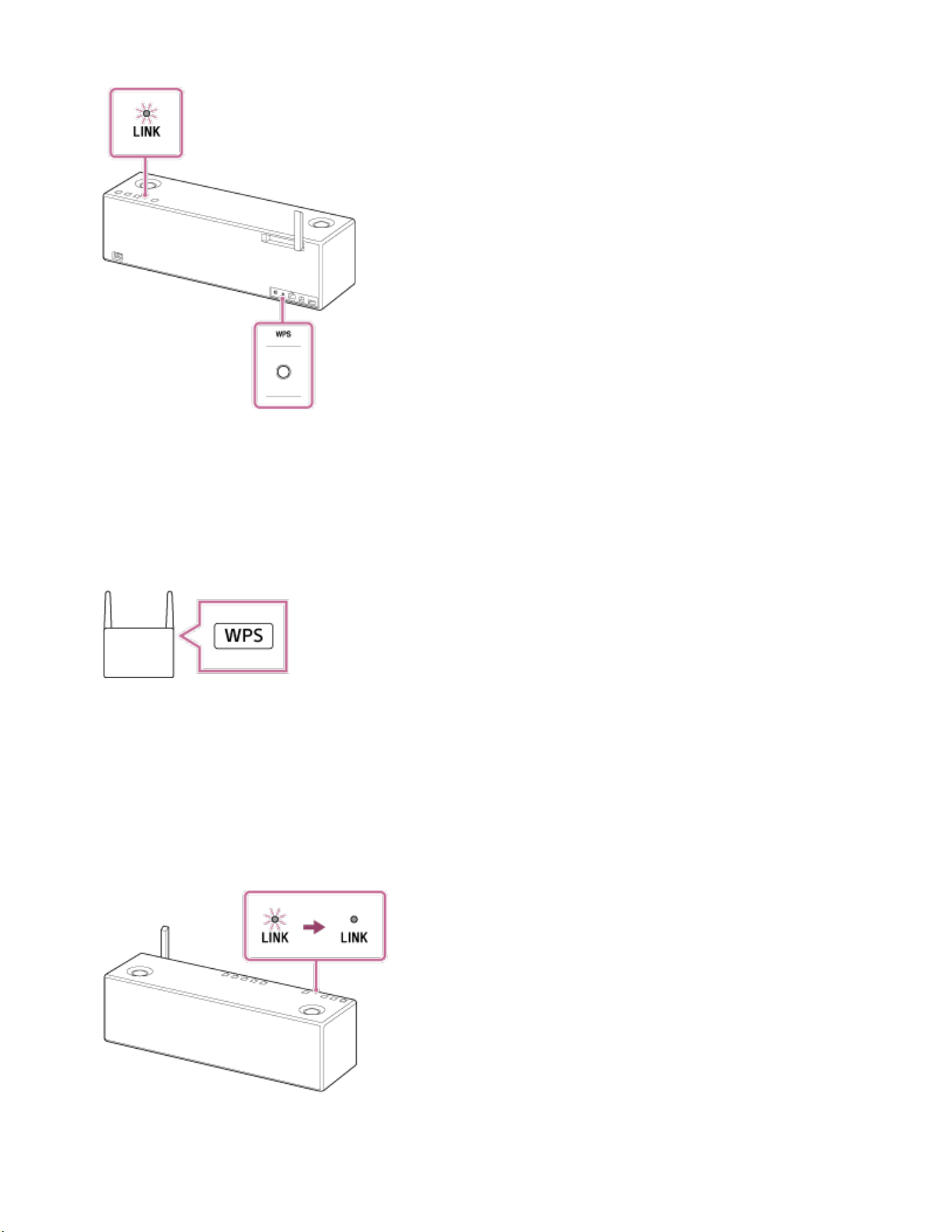
The LINK indicator flashes in orange.
3. Press the WPS button
*
of the wireless router.
Operate within 90 seconds after pressing the WPS button of the speaker. Depending
on the wireless router, you may need to press and hold the WPS button for a few
seconds. For details, refer to the operating instructions supplied with the router.
*
The position and shape of the WPS button differ depending on the wireless router.
4. Check that the LINK indicator changes from flashing to staying lit in orange.
When the Wi-Fi connection is completed, the LINK indicator lights up in orange.
Depending on the environment, it may take more than a minute for the LINK indicator
to light up.
The connection is complete.
280

Go to Page Top
Go to Page Top
If the LINK indicator lights up in red
The speaker failed to connect to the Wi-Fi network. Try connecting again.
Hint
For details on the WPS button of your wireless router, refer to its operating instructions.
If the Wi-Fi connection fails even if you try several times, initialize the speaker and
delete the setting information of the Wi-Fi connection, then try connecting again.
Note
While a LAN cable (not supplied) is connected to the speaker, the speaker cannot
connect to a Wi-Fi network.
When you connect the speaker to a Wi-Fi network for the first time after purchase, or
after you initialize the speaker, the BLUETOOTH/Network standby function is turned on
automatically.
Related Topic
Using the BLUETOOTH/Network standby function
4-567-508-11(5)
Copyright 2015 Sony Corporation
281
Back Back to Top Print
Personal Audio System
SRS-X99
Connection method 2: Connecting to a Wi-Fi network using a computer connected with
a LAN cable
This section describes the method to connect the speaker and a computer via a
commercially-available LAN cable, and the method to connect the speaker to the wireless
router, using the computer.
Do the following before starting.
Place the speaker closer to the wireless router.
Set the Wi-Fi antenna on the rear to the upright position.
Locate the SSID (the name of a wireless network) and encryption key (WEP or WPA),
which are required to set up a Wi-Fi network. The encryption key restricts access to
devices on a network. It is used to make more secure communication between the
devices connected to wireless routers and access points.
1. Have the Wi-Fi network name (SSID) and password of the wireless router available
for reference.
For the SSID and password, refer to the operating instructions of the wireless router.
2. Connect the computer to the LAN port with a commercially-available LAN cable.
Help Guide
How to Use
282

3. Turn on the speaker.
The (on/standby) indicator lights up in green, then the LINK indicator begins to
flash.
Wait about a minute until the LINK indicator lights up in pink.
Hint
When you connect the speaker to a computer for the first time, it takes about four
or five minutes until the LINK indicator stops flashing and stays lit in pink.
4. Display the [Sony Network Device Settings] screen on the computer.
i. Launch a browser (such as Internet Explorer).
ii. Enter the following URL in the address bar.
http://169.254.1.1
The above URL is used when connecting a computer and the speaker with a
commercially-available LAN cable.
5. Select [Network Settings] from the menu.
If the above screen does not appear, disconnect your computer from the wireless
283
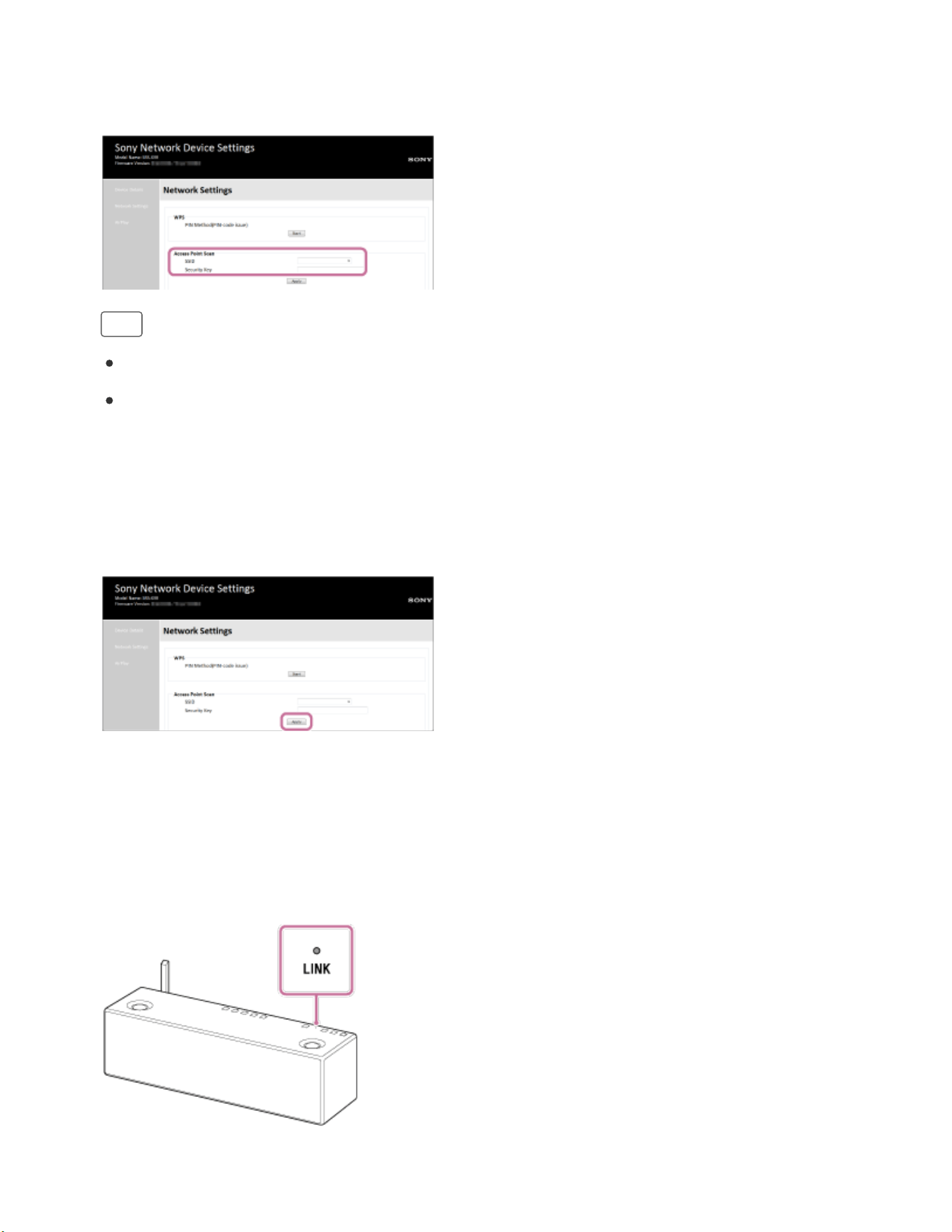
internet connection.
6. Select the SSID of the wireless router, and enter the password.
Hint
Up tp 20 SSIDs can be shown in the list.
When the SSID you want to connect does not appear in the list, check that the
wireless router is turned on, then turn off the speaker and repeat the procedure
from step 3 above again. If you still cannot find your desired SSID, input the SSID
directly into [Wireless Settings] in the window above.
7. Select [Apply].
8. When instructed by the computer screen, unplug the LAN cable from the speaker.
9. Check that the LINK indicator lights up in orange.
When the Wi-Fi connection is completed, the LINK indicator lights up in orange.
It may take more than a minute for the LINK indicator to light up.
The connection is complete.
284

Go to Page Top
Go to Page Top
If the LINK indicator lights up in red
The speaker failed to connect to the Wi-Fi network. Try connecting again.
Hint
If the Wi-Fi connection fails even if you try several times, initialize the speaker and
delete the setting information of the Wi-Fi connection, then try connecting again.
Note
When you connect the speaker to a Wi-Fi network for the first time after purchase, or
after you initialize the speaker, the BLUETOOTH/Network standby function is turned on
automatically.
Related Topic
Using the BLUETOOTH/Network standby function
4-567-508-11(5)
Copyright 2015 Sony Corporation
285
Back Back to Top Print
Personal Audio System
SRS-X99
Connection method 3: Connecting to a Wi-Fi network using a PC connected wirelessly
(Modern UI)
Note that the speaker should be initialized to the factory default for this connection. All
BLUETOOTH device registration (pairing) information is deleted.
This section describes how to connect a Modern UI PC and the speaker wirelessly, then
how to connect to a wireless router, using the PC.
Do the following before starting.
Disconnect the LAN cable (not supplied) from the speaker.
Place the speaker closer to the wireless router.
Set the Wi-Fi antenna on the rear to the upright position.
Locate the SSID (the name of a wireless network) and encryption key (WEP or WPA),
which are required to set up a Wi-Fi network. The encryption key restricts access to
devices on a network. It is used to make more secure communication between the
devices connected to wireless routers and access points.
1. Have the Wi-Fi network name (SSID) and password of the wireless router available
for reference.
For details, refer to the operating instructions of your wireless router.
2. With the speaker turned on, tap and hold the VOL (volume) – button and the
(on/standby) button at the same time for more than 5 seconds.
Help Guide
How to Use
286
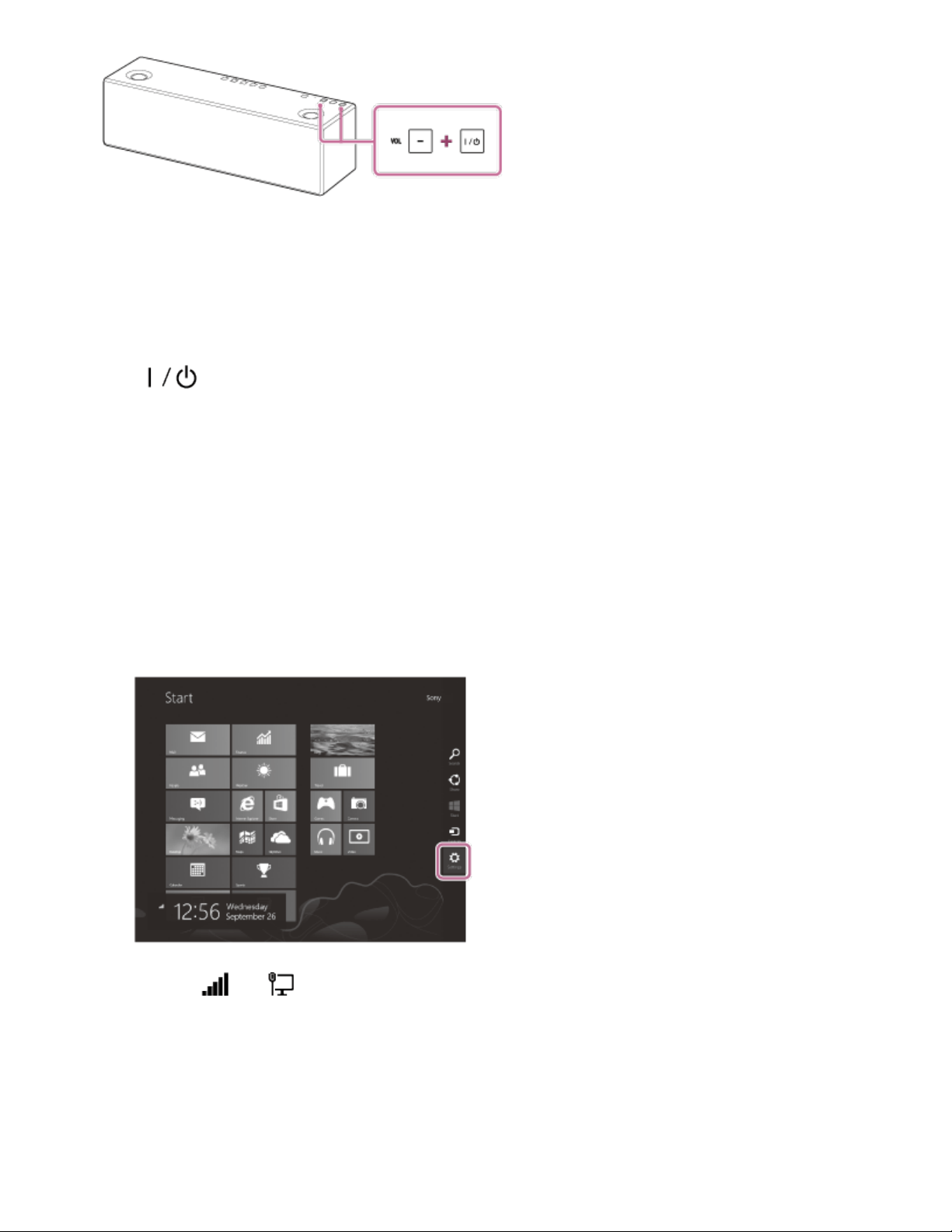
The power of the speaker turns off automatically. The settings of the speaker return
to their factory defaults, and network settings and all BLUETOOTH device registration
(pairing) information are deleted.
3. Turn on the speaker.
The (on/standby) indicator lights up in green, then the LINK indicator begins to
flash. Go to the next step when the LINK indicator flashes slowly (once per three
seconds).
In some cases, this slow flashing may take about four or five minutes to begin.
4. Connect the speaker to the PC.
i. Move the mouse pointer to the top-right (or bottom-right) corner of the Start
screen to display the charms, then select [Settings]. In the case of a touch panel,
display the charms by swiping from the right side of the Start screen, then select
[Settings].
ii. Select or .
iii. Select [SRS-X99] from the network list.
5. Display the [Sony Network Device Settings] screen.
i. Launch a browser (Internet Explorer, etc.).
ii. Enter the following URL in the address bar.
287
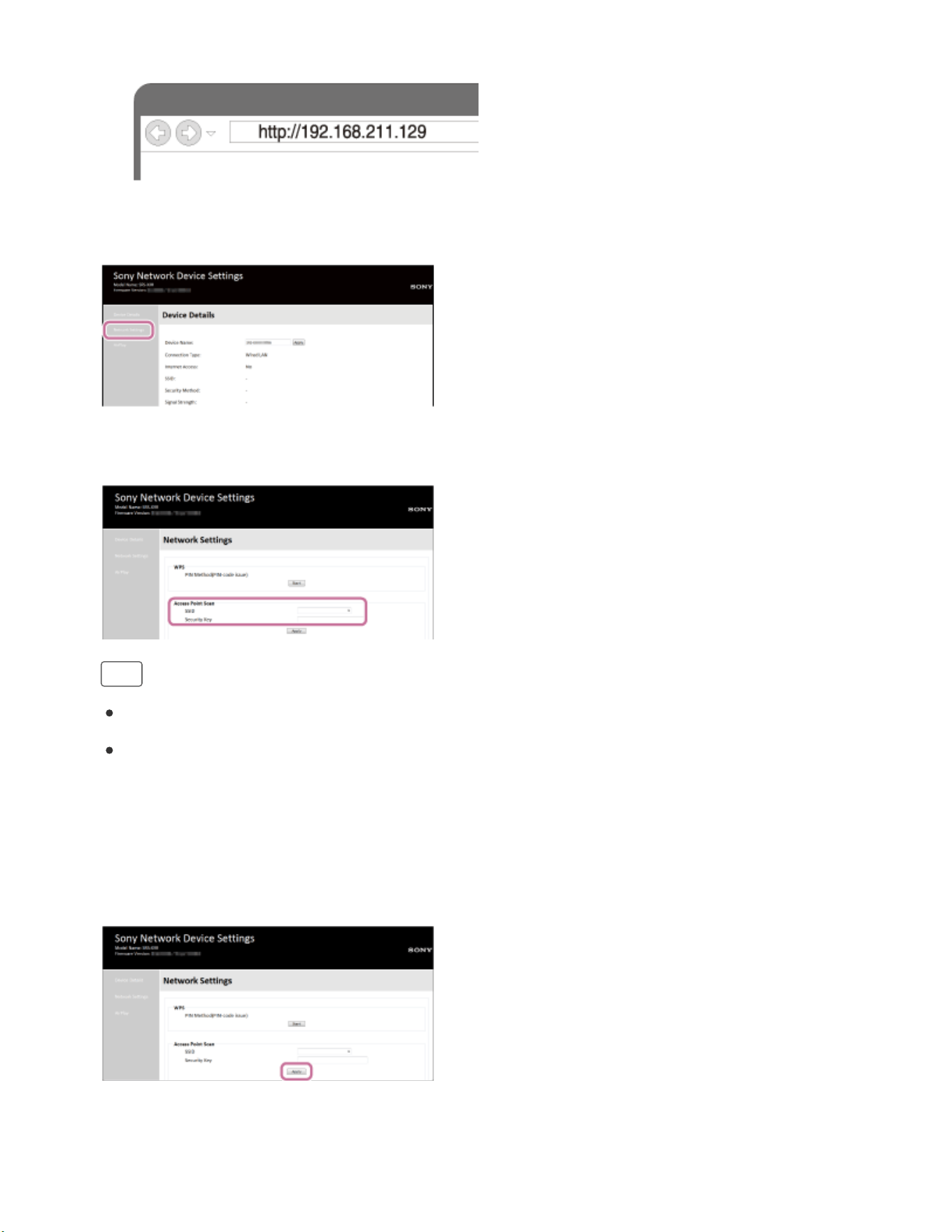
http://192.168.211.129
6. Select [Network Settings] from the menu.
7. Select the SSID of the wireless router, and enter the password.
Hint
Up tp 20 SSIDs can be shown in the list.
When the SSID you want to connect does not appear in the list, check that the
wireless router is turned on, then turn off the speaker and repeat the procedure
from step 3 above again. If you still cannot find your desired SSID, input the SSID
directly into [Wireless Settings] in the window above.
8. Select [Apply].
9. Check that the LINK indicator lights up in orange.
When the Wi-Fi connection is completed, the LINK indicator lights up in orange. It
288
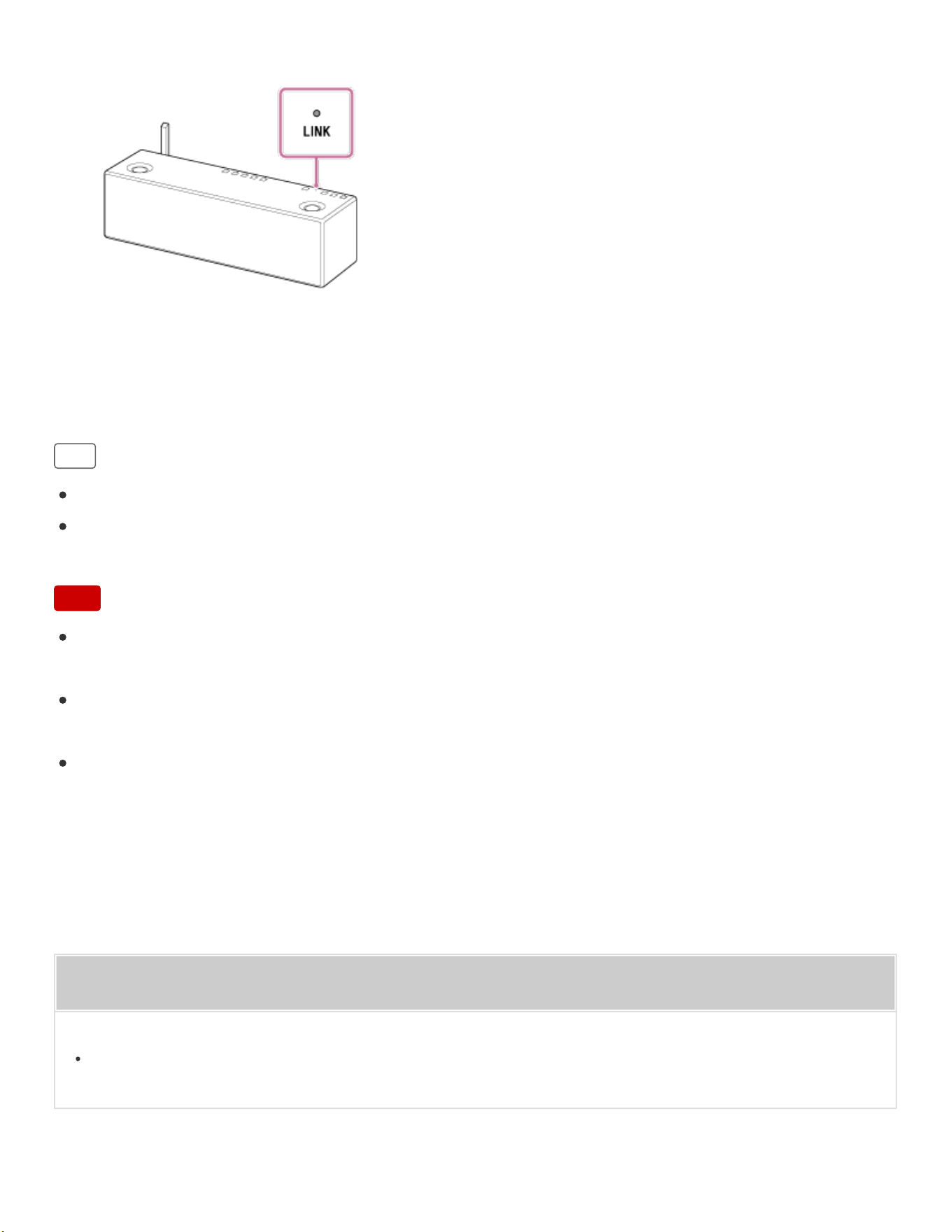
Go to Page Top
Go to Page Top
may take more than a minute for the LINK indicator to light up.
The connection is complete.
10. Connect the PC to the wireless router.
Hint
If you want to set a fixed IP address, set in the screen in step 6 above.
When the connection of the speaker to your Wi-Fi network has completed, connect your
computer to the previous destination or your wireless router.
Note
This procedure needs to be completed within 30 minutes. If you cannot complete within
30 minutes, start over from step 2.
Until you finish the Wi-Fi network setting, it will not be protected. The Wi-Fi network will
be protected again after setting the Wi-Fi security.
When you connect the speaker to a Wi-Fi network for the first time after purchase, the
BLUETOOTH/Network standby function is turned on automatically.
Related Topic
Using the BLUETOOTH/Network standby function
289

Back Back to Top Print
Personal Audio System
SRS-X99
Connection method 5: Connecting to a Wi-Fi network using an iPhone/iPad/iPod touch
Note that the speaker should be initialized to the factory default for this connection. All
BLUETOOTH device registration (pairing) information is deleted.
The speaker can be connected to the same Wi-Fi network as the iPhone/iPad/iPod touch,
if the iPhone/iPad/iPod touch is iOS 8 or later. The Wi-Fi settings of the speaker is made
by the iPhone/iPad/iPod touch.
Do the following before starting.
Disconnect the LAN cable (not supplied) from the speaker.
Place the speaker near the wireless router and the iPhone/iPad/iPod touch.
Set the Wi-Fi antenna on the rear to the upright position.
Make sure that the iPhone/iPad/iPod touch is updated to iOS 8 or later.
1. Connect a iPhone/iPad/iPod touch to the wireless router.
Connect it to 2.4 GHz band (11b, 11g, and 11n) or 5 GHz band (11a and 11n). The
speaker is not compatible with IEEE 802.11ac.
Help Guide
How to Use
290

2. With the speaker turned on, tap and hold the VOL (volume) – button and the
(on/standby) button at the same time for more than 5 seconds.
The power of the speaker turns off automatically. The settings of the speaker return
to their factory defaults, and network settings and all BLUETOOTH device registration
(pairing) information are deleted.
3. Turn on the speaker.
The (on/standby) indicator lights up in green, then the LINK indicator begins to
flash. Go to the next step when the LINK indicator flashes slowly (once per three
seconds).
In some cases, this slow flashing may take about four or five minutes to begin.
4. Search for the speaker using the iPhone/iPad/iPod touch.
i. Select [Settings].
ii. Touch [SRS-X99] from the network list.
291
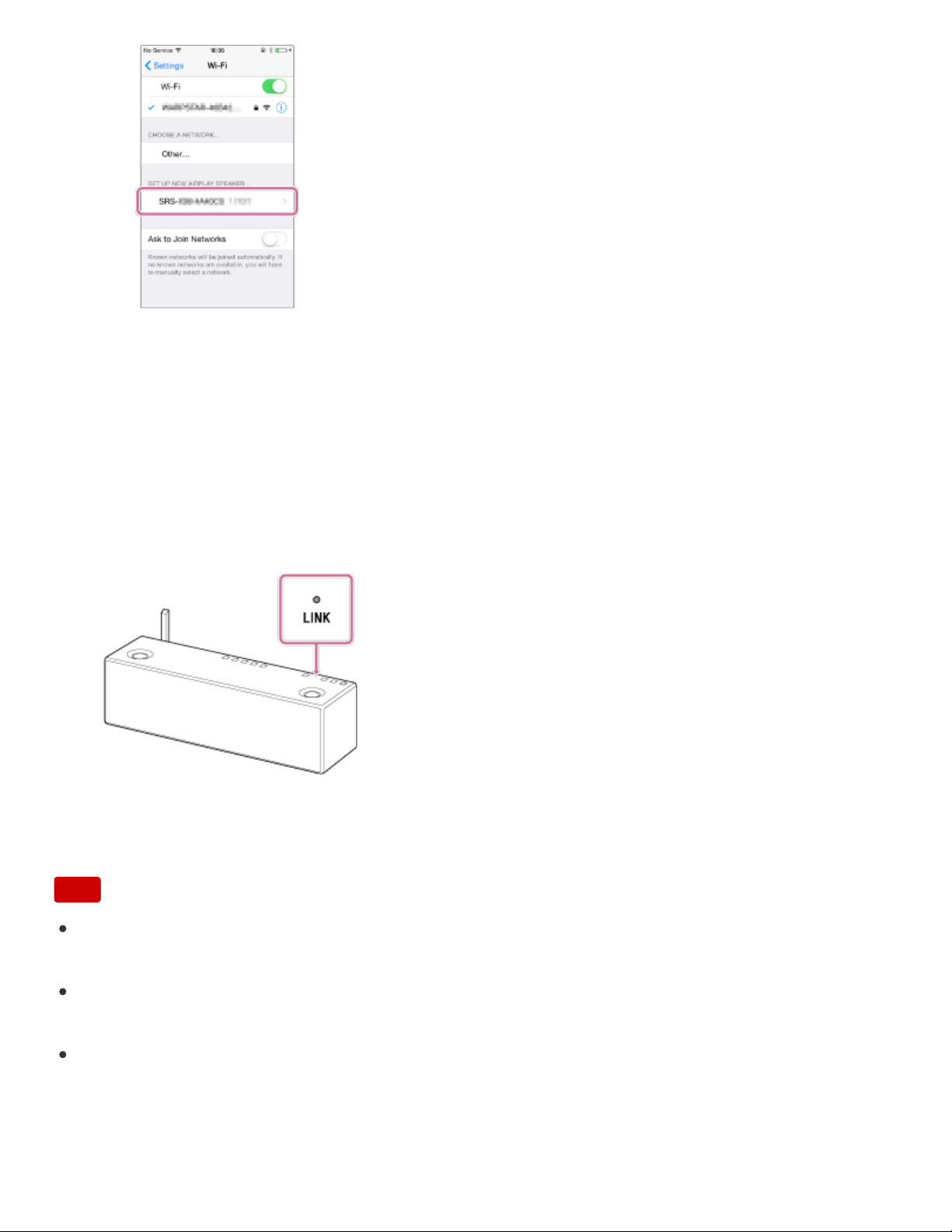
Go to Page Top
5. Perform the Wi-Fi network settings on the iPhone/iPad/iPod touch.
Follow the instructions on the screen.
6. Check that the LINK indicator lights up in orange.
When the speaker is connected to the same Wi-Fi network as the iPhone/iPad/iPod
touch, the LINK indicator lights up in orange. It may take more than a minute for the
LINK indicator to light up.
The connection is complete.
Note
This procedure needs to be completed within 30 minutes. If you cannot complete within
30 minutes, start over from step 2.
Until you finish the Wi-Fi network setting, it will not be protected. The Wi-Fi network will
be protected again after setting the Wi-Fi security.
When you connect the speaker to a Wi-Fi network for the first time after purchase, the
BLUETOOTH/Network standby function is turned on automatically.
292

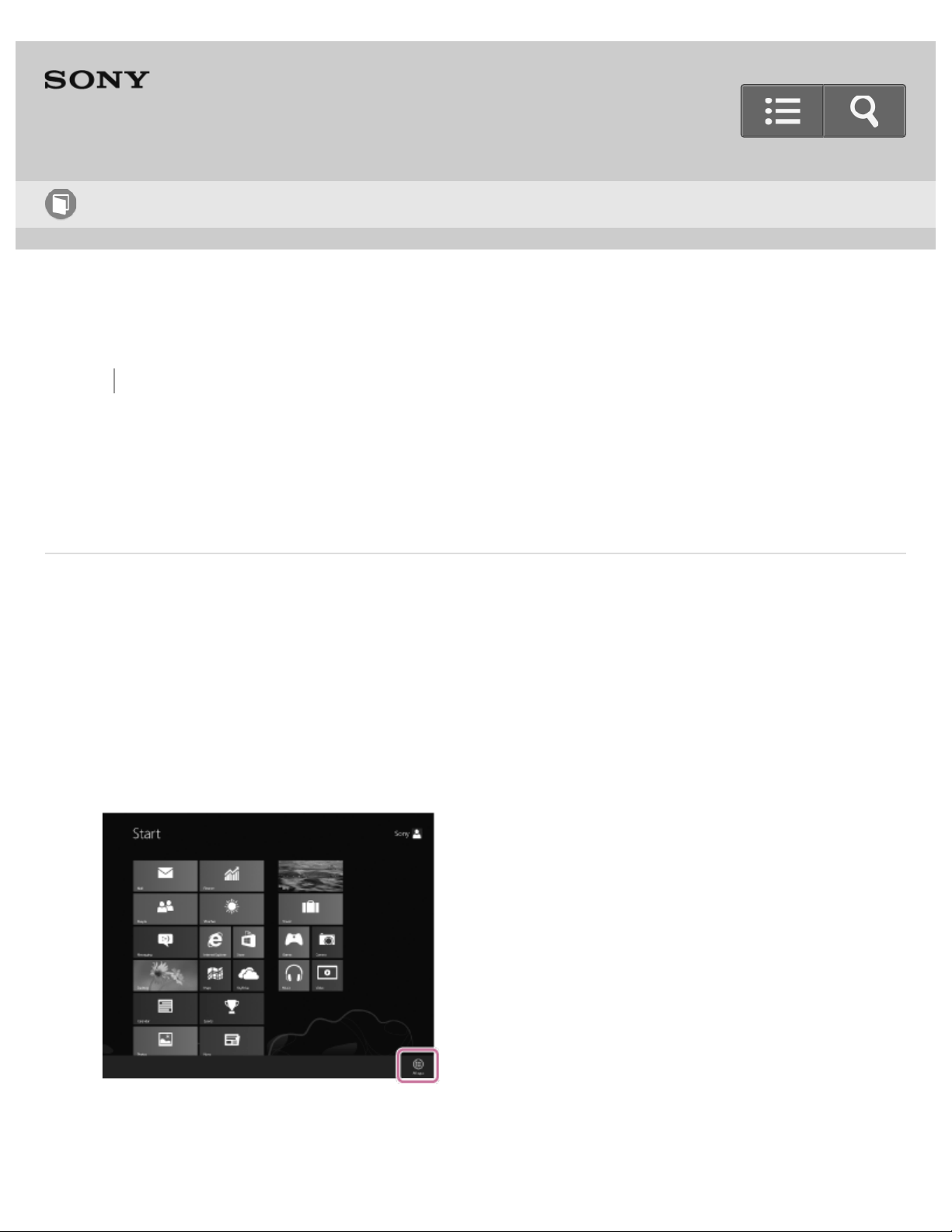
Back Back to Top Print
Personal Audio System
SRS-X99
Setting your PC for operating from a controller such as smartphone/ iPhone (Windows
8)
By operating from a controller such as smartphone/iPhone on your home network, you can
enjoy music stored in a Windows 8 PC on your home network with the speaker. Set your
PC as described below.
1. Right-click on the Start screen.
In the case of a touch panel, swipe the Start screen from the bottom to the top, and
select [All apps] at the bottom-right of the screen.
2. Select [Windows Media Player].
Help Guide
How to Use
294
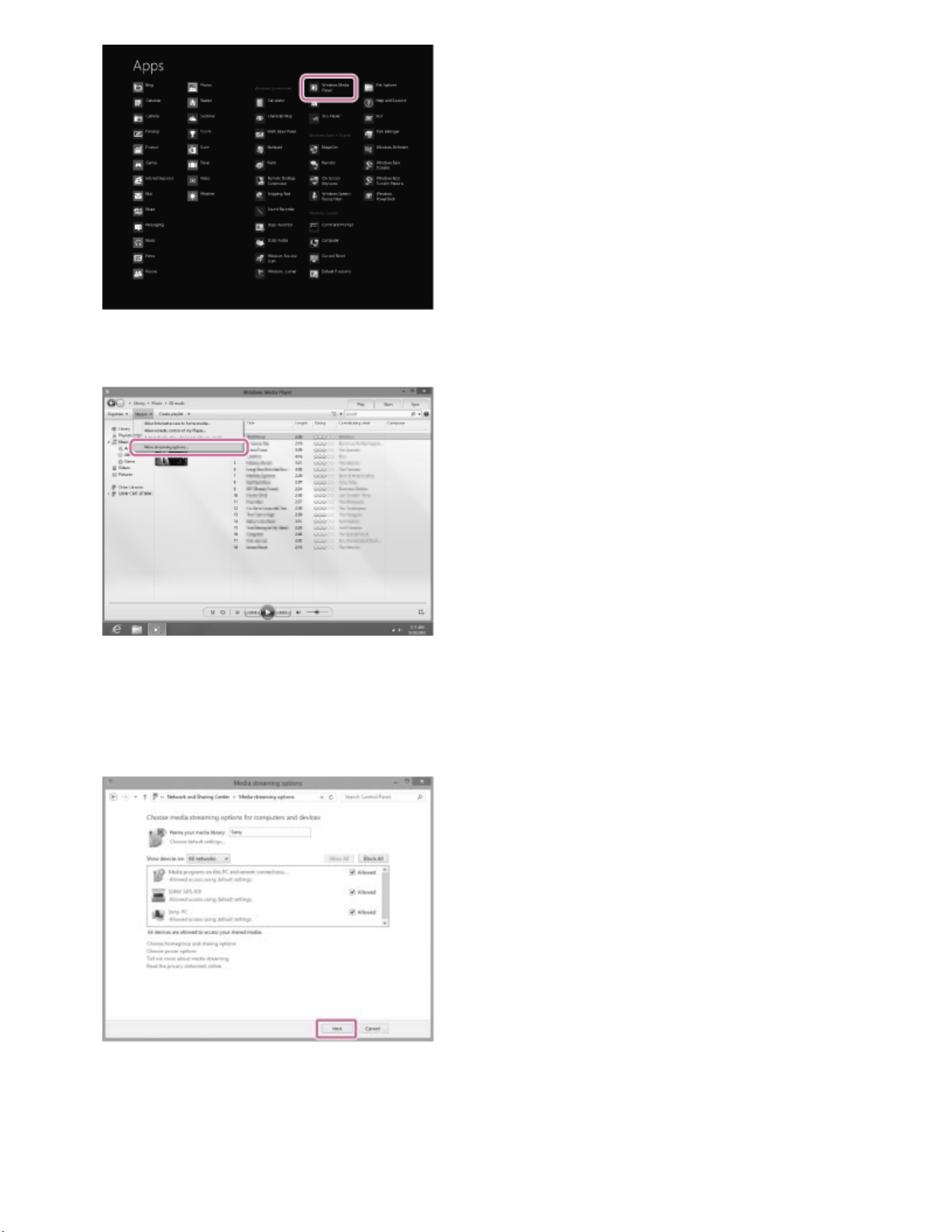
3. Click or tap [Stream], then select [More streaming options].
If [More streaming options] does not appear, select [Turn on media streaming...].
Then select [Turn on media streaming] on the [Media streaming options] screen.
4. If all devices are allowed, select [Next].
If not all devices are allowed, select [Allow All], then the [Allow All Media Devices]
screen appears.
Select [Allow all PCs and Media Devices].
295
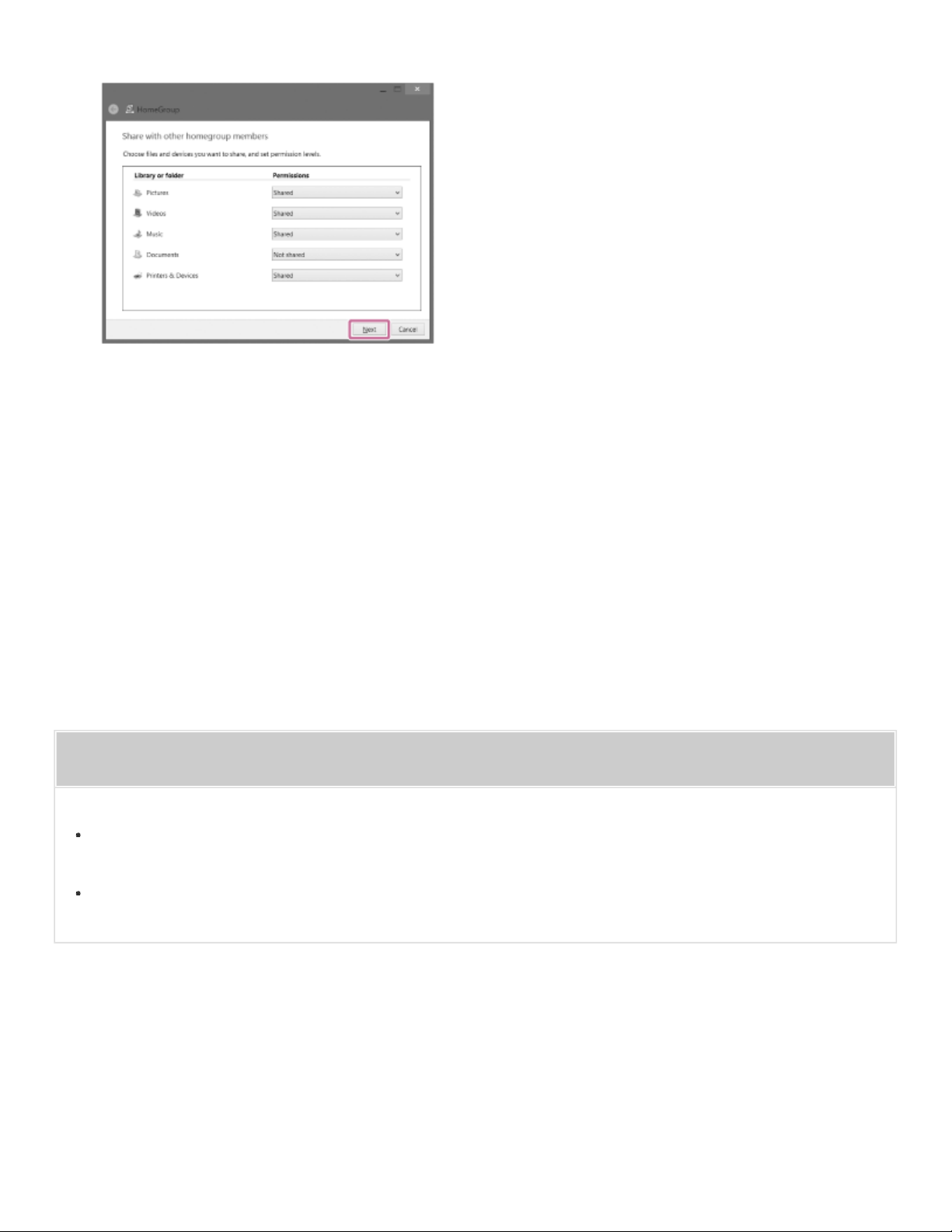
Go to Page Top
Go to Page Top
5. Check that [Music] is set to [Shared], then select [Next].
6. Select [Finish] to close the screen.
7. Select [Stream], then check that [Automatically allow devices to play my media...] has
been ticked.
The setting is now complete. You can listen to music stored in your PC, using your
smartphone/iPhone.
Related Topic
Setting your PC as a DLNA server and controller (Windows 8)
Listening to music on a PC via a Wi-Fi network
4-567-508-11(5)
Copyright 2015 Sony Corporation
296
Back Back to Top Print
Personal Audio System
SRS-X99
Listening with the AirPlay function (iTunes)
You can enjoy sound stored in a computer with iTunes wirelessly by using AirPlay.
Update iTunes to the latest version in advance.
1. Connect the speaker and a computer with iTunes to the same network.
Connect the speaker and your computer to the same SSID of the wireless router.
The LINK indicator lights up in orange or pink when the connection is complete.
2. Tap the NETWORK button.
The NETWORK indicator lights up in white, and the speaker switches to NETWORK
mode.
The speaker can also be switched to NETWORK mode automatically, instead of
tapping the NETWORK button, by selecting the speaker in the AirPlay menu of
iTunes and then playing back music.
3. Select the icon on the iTunes window.
Help Guide
How to Use
297
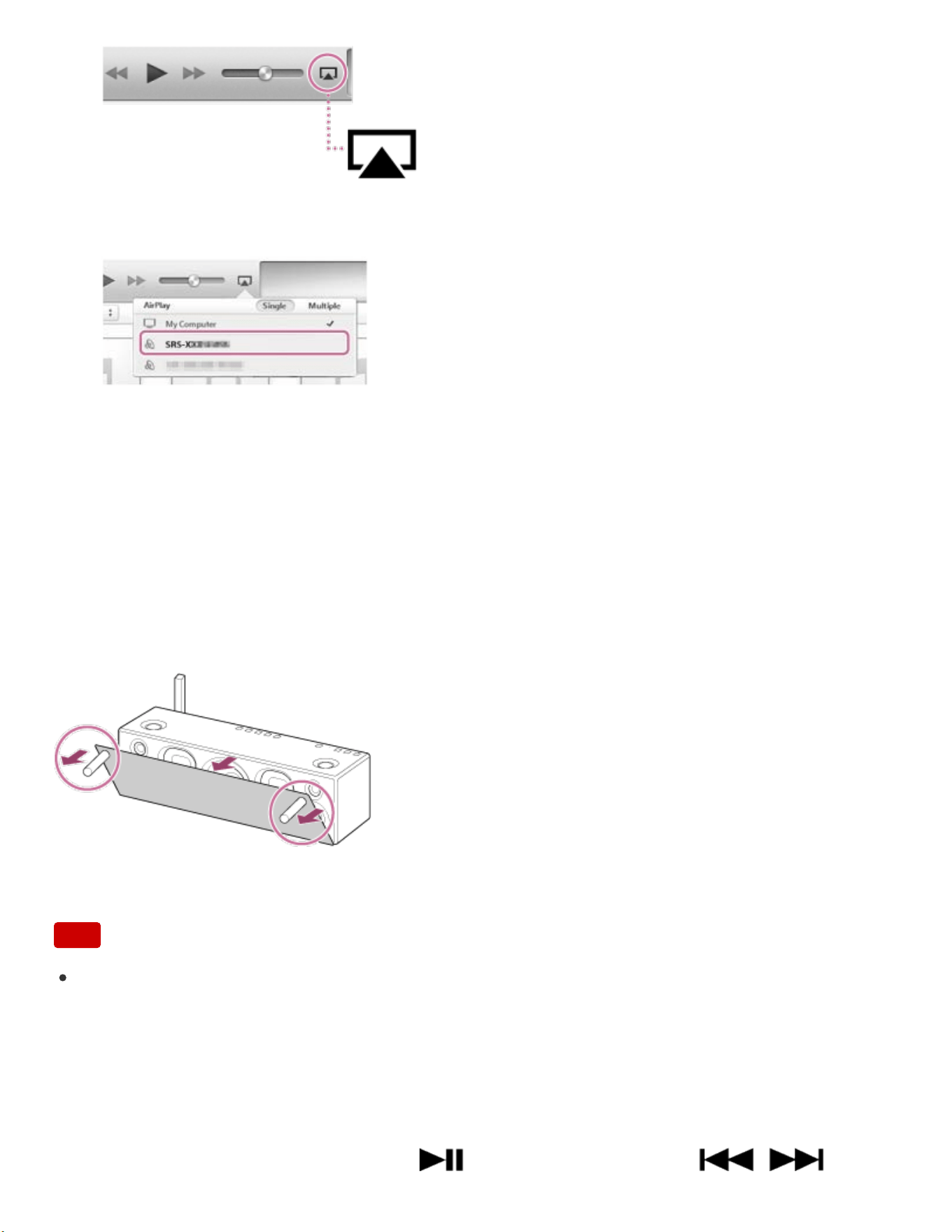
4. Select [SRS-X99] on the AirPlay menu of iTunes.
5. Start playing back music on iTunes, and adjust the volume.
The selected song will be heard from the speaker.
If playback does not start, perform the process again from step 3.
To enjoy a more dynamic sound
Remove the speaker grille from the front of the speaker with the speaker grille detach tool
(supplied).*
*
Keep the removed grille on a flat surface to prevent distortion.
Note
Do not touch the exposed part of the speaker (speaker units) after removing the
speaker grille.
Using the speaker or remote control during playback
You can adjust the volume using the VOL (volume) -/+ buttons of the speaker or the
VOLUME +/- buttons of the remote control.
You can also use the MUTING button, (Play/Pause) button, or /
298

Go to Page Top
Go to Page Top
(Previous/Next) button of the remote control.
Hint
The procedure explained above is for guidance only. For details, refer to the operating
instructions supplied with the device.
After SongPal is downloaded and installed to your smartphone/iPhone, you can use it
as a remote control to operate devices connected to the speaker.
The volume level set by the VOL (volume) -/+ buttons of the speaker and that set in
iTunes are synchronized.
For details on how to operate iTunes, refer to the help documentation of iTunes.
Note
Loud sound may be output from the speaker if you set the volume too high in iTunes.
In some cases, the volume level of iTunes might not synchronize with the volume level
of the speaker.
Related Topic
Parts and controls (Remote control)
Using the BLUETOOTH/Network standby function
Listening to music on a device via a BLUETOOTH connection
4-567-508-11(5)
Copyright 2015 Sony Corporation
299

Back Back to Top Print
Personal Audio System
SRS-X99
Listening to music on a PC via a network (“Sony | Music Center for PC”)
You can share music on your PC (server function) with the free application “Sony | Music
Center for PC” installed on your PC. You can listen to music on your PC from the speaker
via a Wi-Fi network.
Install or update the latest version of “Sony | Music Center for PC” on your PC beforehand.
Access the following website to download the application. You may have to pay a
communication fee, depending on your Internet contract.
http://www.sony.net/smc4pc/
For details on how to install the application, follow the instructions on the website.
The specification and design of the application may change without notice.
1. Connect the speaker and a PC to the same network.
Connect the speaker and the PC to the same SSID of the wireless router.
The LINK indicator lights up in orange or pink when the speaker is connected to your
network.
2. Tap the NETWORK button.
The NETWORK indicator lights up in white, and the speaker switches to NETWORK
mode.
Help Guide
How to Use
300
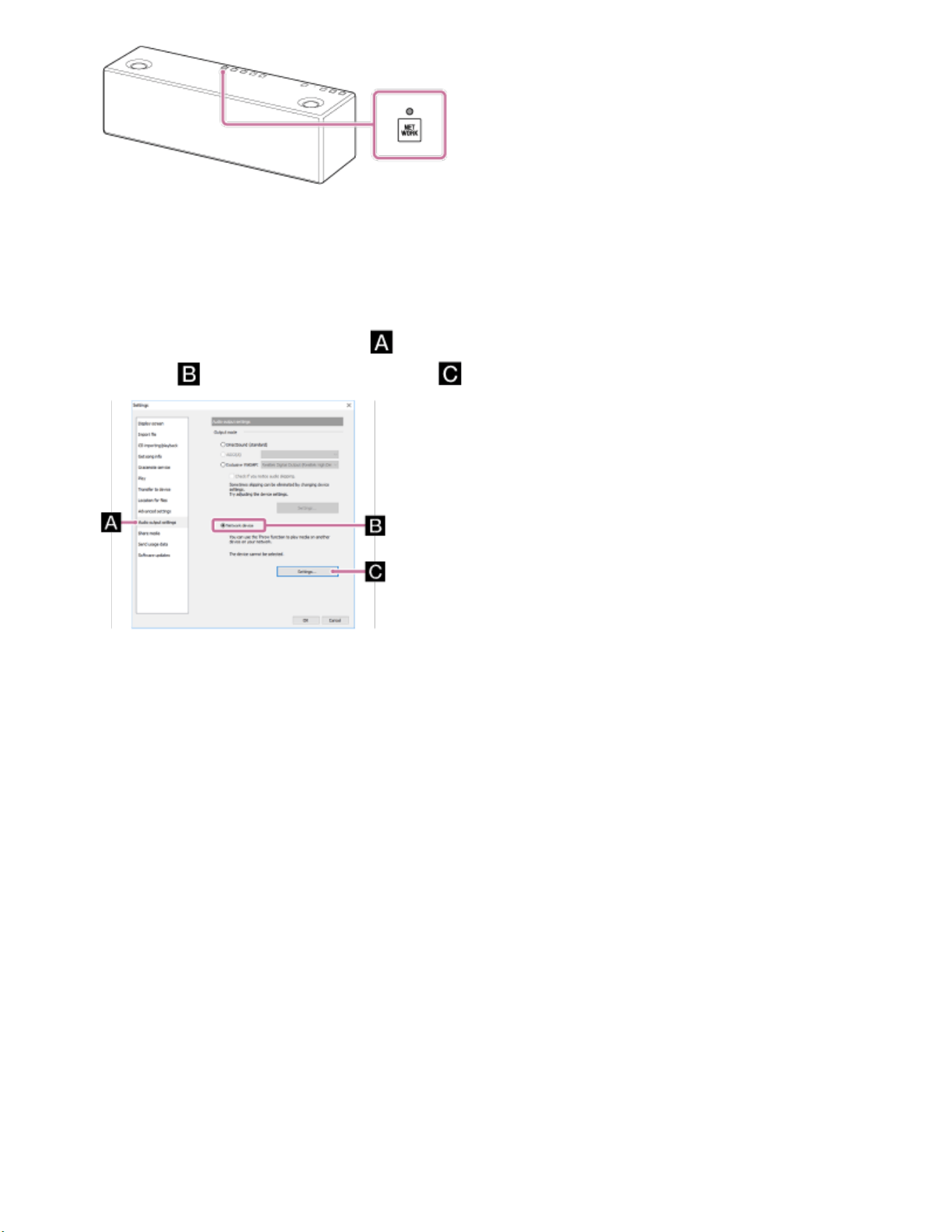
3. Start “Sony | Music Center for PC” installed on the PC.
4. Select [Settings] from the [Tools] menu.
5. Click [Audio output settings] and add a check mark to the check box for [Network
device] . Then, click [Settings...] .
6. Select [SRS-X99 xxxxxx (Sony Corporation)] from the list under [Select network
device]. Then, click [OK] to close the screen.
7. Select a song to play and adjust the volume.
The selected song will be heard from the speaker.
For details on the procedure, refer to [How to use] on the “Sony | Music Center for
PC” support website.
http://www.sony.net/smc4pc/
To enjoy a more dynamic sound
Remove the speaker grille from the front of the speaker with the speaker grille detach tool
(supplied).*
301
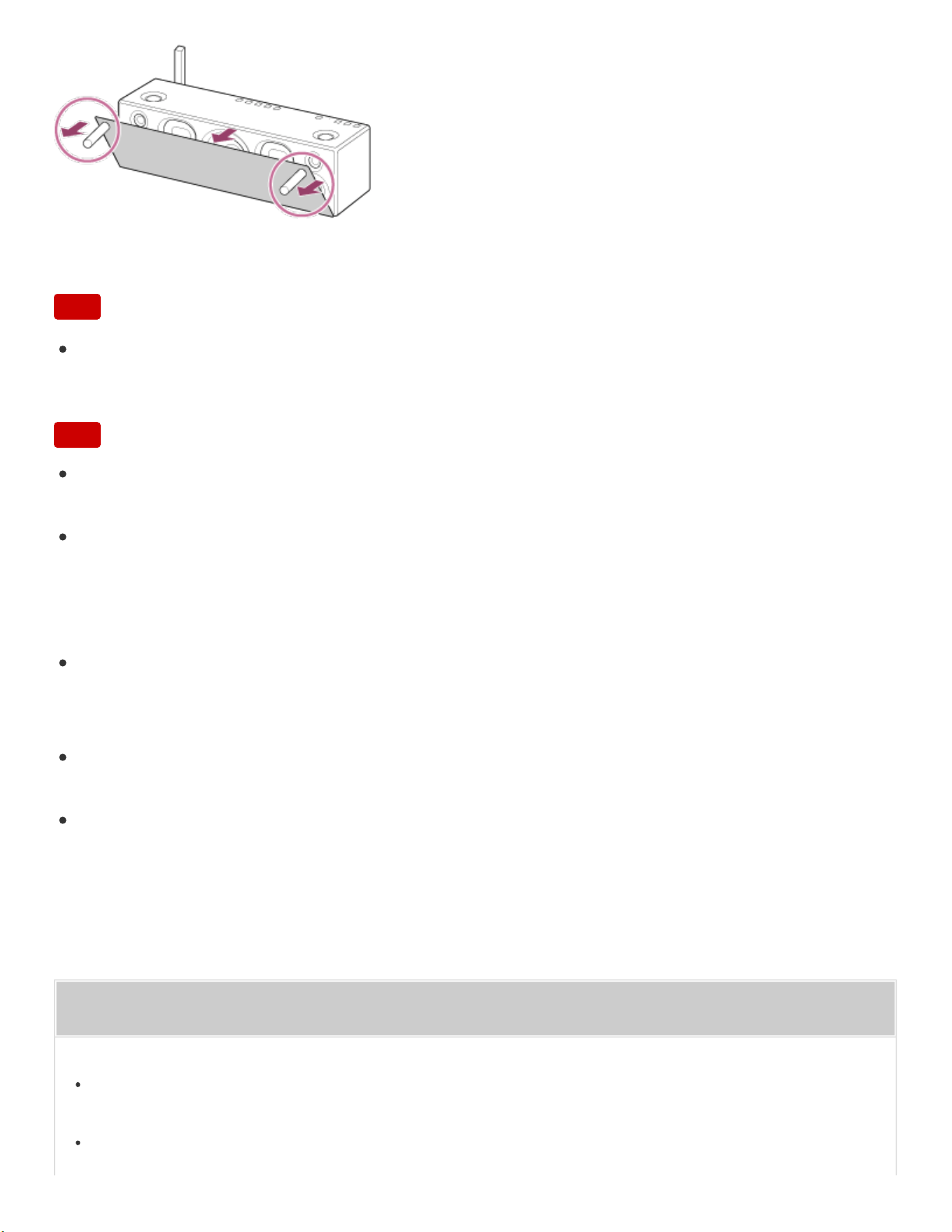
Go to Page Top
*
Keep the removed grille on a flat surface to prevent distortion.
Note
Do not touch the exposed part of the speaker (speaker units) after removing the
speaker grille.
Note
Before listening to music, connect your smartphone/iPhone installed with SongPal to
the same network as used by the speaker and PC.
The speaker can play MP3, WMA, AAC, WAV, FLAC, ALAC, AIFF, and DSD format
files (only AAC files with the extension “.m4a,” “.mp4,” or “.3gp” are playable). Even if
the bit rate and file format are supported, the playback of all files is not guaranteed and
there may be a change in the specification.
Files with DRM (Digital Rights Management) copyright protection cannot be played on
the speaker. To check if a WMA file is protected by DRM, right-click the file on the PC. If
there is a [License] tab, the file is DRM-copyrighted.
When you listen to music via a home network, it may take some time, since each
DLNA-compatible device has to recognize the component currently used.
Some content may not be playable with DLNA certified products.
Related Topic
Listening to music on a PC via a Wi-Fi network
Listening to music on a PC via a network (“Sony | Music Center for PC” with SongPal
302


Back Back to Top Print
Personal Audio System
SRS-X99
Listening to music on a PC via a network (“Sony | Music Center for PC” with SongPal
operation)
You can share music on your PC (server function) with the free application “Sony | Music
Center for PC” installed on your PC.
You can listen to music on your PC from the speaker via a Wi-Fi network by using the
SongPal installed on your smartphone/iPhone as a DLNA controller.
Install or update the latest version of “Sony | Music Center for PC” on your PC beforehand.
Access the following website to download the application. You may have to pay a
communication fee, depending on your Internet contract.
http://www.sony.net/smc4pc/
For details on how to install the application, follow the instructions on the website.
The specification and design of the application may change without notice.
1. Connect the speaker, a PC and a smartphone/iPhone with SongPal installed to the
same network.
Connect the speaker, the PC and the smartphone/iPhone to the same SSID of the
wireless router.
The LINK indicator lights up in orange or pink when the speaker is connected to your
network.
Help Guide
How to Use
304
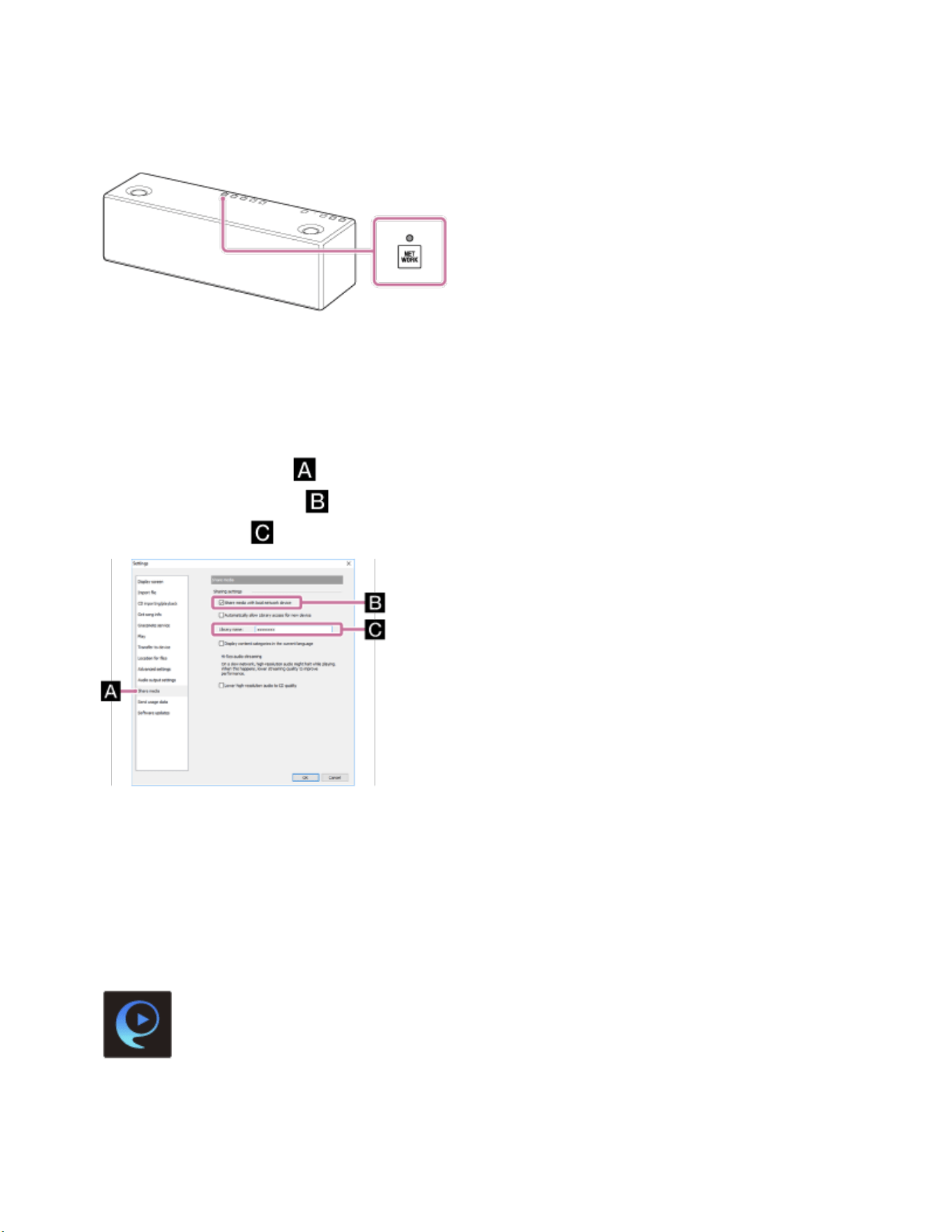
2. Tap the NETWORK button.
The NETWORK indicator lights up in white, and the speaker switches to NETWORK
mode.
3. Start “Sony | Music Center for PC” installed on the PC.
4. Select [Settings] from the [Tools] menu.
5. Click [Share media] and add a check mark to the check box for [Share media with
local network device] . Then, input an arbitrary library name in the text box for
[Library name:] . Click [OK] to close the screen.
For details on the procedure, refer to [How to use] on the “Sony | Music Center for
PC” support website.
http://www.sony.net/smc4pc/
6. Start up SongPal to select music on the PC.
Tap [SongPal] on your smartphone/iPhone.
SongPal
7. Tap [SRS-X99].
305
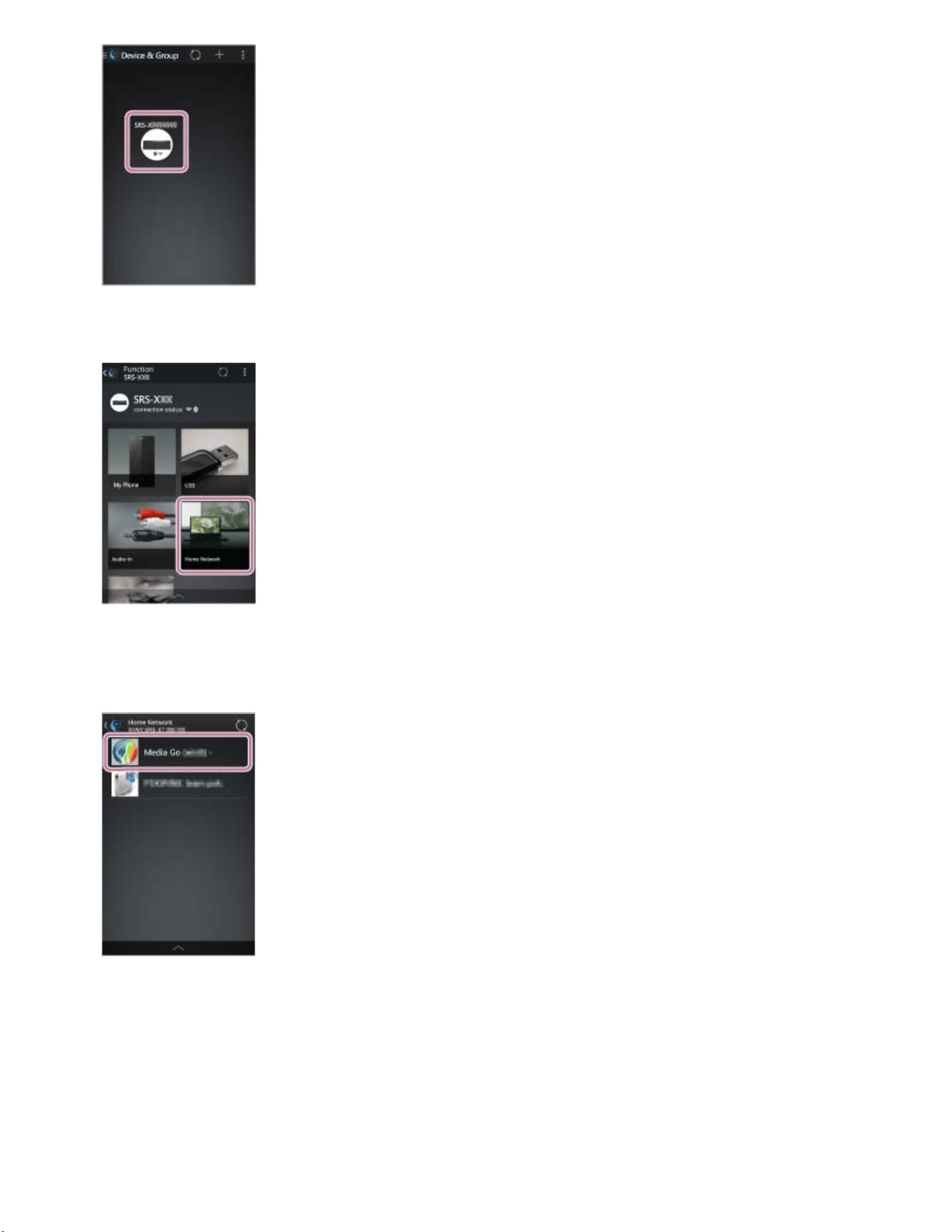
8. Tap [Home Network].
9. Select the same name as [Library name] checked in step 6 from the server list that
appeared on the screen.
10. Select [Music], then select a song from the list, and start playback.
The playback of the videos and photos are not supported.
306
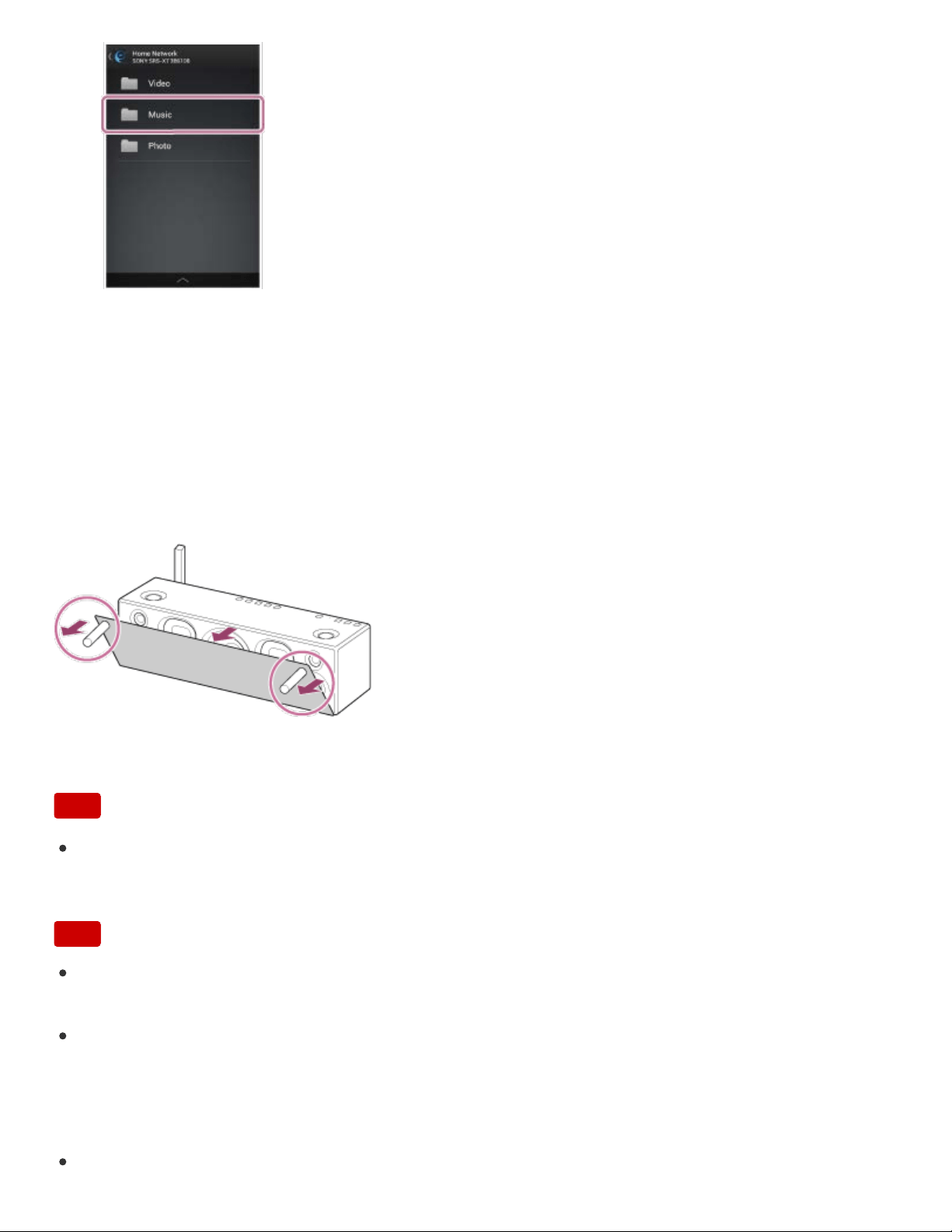
The selected song will be heard from the speaker.
11. Adjust the volume using SongPal.
To enjoy a more dynamic sound
Remove the speaker grille from the front of the speaker with the speaker grille detach tool
(supplied).*
*
Keep the removed grille on a flat surface to prevent distortion.
Note
Do not touch the exposed part of the speaker (speaker units) after removing the
speaker grille.
Note
Before listening to music, connect your smartphone/iPhone installed with SongPal to
the same network as used by the speaker and PC.
The speaker can play MP3, WMA, AAC, WAV, FLAC, ALAC, AIFF, and DSD format
files (only AAC files with the extension “.m4a,” “.mp4,” or “.3gp” are playable). Even if
the bit rate and file format are supported, the playback of all files is not guaranteed and
there may be a change in the specification.
Files with DRM (Digital Rights Management) copyright protection cannot be played on
307

Go to Page Top
Go to Page Top
the speaker. To check if a WMA file is protected by DRM, right-click the file on the PC. If
there is a [License] tab, the file is DRM-copyrighted.
When you listen to music via a home network, it may take some time, since each
DLNA-compatible device has to recognize the component currently used.
Some content may not be playable with DLNA certified products.
Related Topic
Listening to music on a PC via a Wi-Fi network
4-567-508-11(5)
Copyright 2015 Sony Corporation
308
Back Back to Top Print
Personal Audio System
SRS-X99
Connection method 3: Connecting to a Wi-Fi network using a PC connected wirelessly
(Windows 7/Windows 8)
Note that the speaker should be initialized to the factory default for this connection. All
BLUETOOTH device registration (pairing) information is deleted.
This section describes how to connect a Windows 7 or Windows 8 PC and the speaker
wirelessly, then how to connect to a wireless router using the PC.
Do the following before starting.
Disconnect the LAN cable (not supplied) from the speaker.
Place the speaker near the wireless router.
Set the Wi-Fi antenna on the rear to the upright position.
Locate the SSID (the name of a wireless network) and encryption key (WEP or WPA),
which are required to set up a Wi-Fi network. The encryption key restricts access to
devices on a network. It is used to make more secure communication between the
devices connected to wireless routers and access points.
1. Have the Wi-Fi network name (SSID) and password of the wireless router available
for reference.
For details, refer to the operating instructions of your wireless router.
2. With the speaker turned on, tap and hold the VOL (volume) – button and the
(on/standby) button at the same time for more than 5 seconds.
Help Guide
How to Use
309
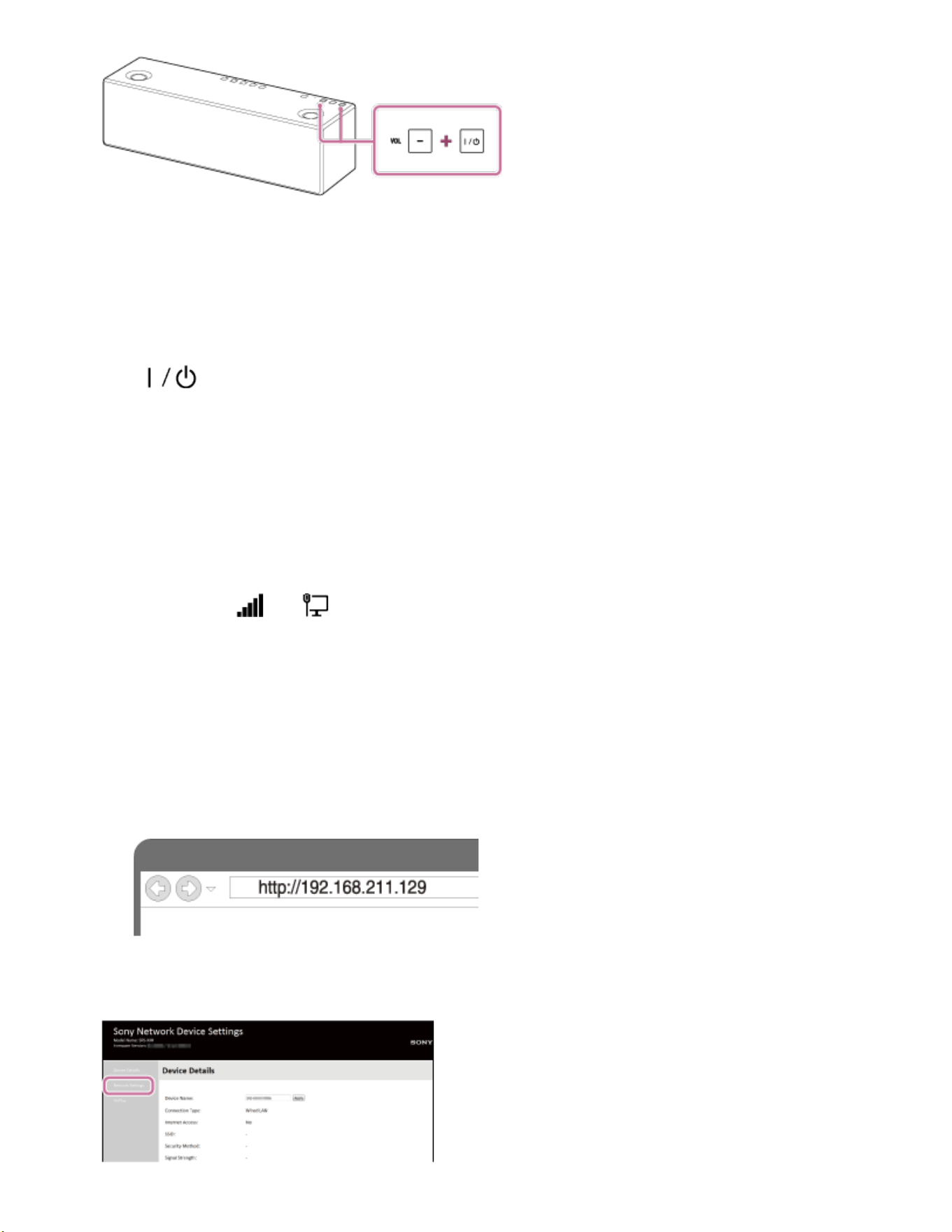
The power of the speaker turns off automatically. The settings of the speaker return
to their factory defaults, and network settings and all BLUETOOTH device registration
(pairing) information are deleted.
3. Turn on the speaker.
The (on/standby) indicator lights up in green, then the LINK indicator begins to
flash. Go to the next step when the LINK indicator flashes slowly (once per three
seconds).
In some cases, this slow flashing may take about four or five minutes to begin.
4. Connect the speaker to the PC.
i. Click or tap the desktop on the Start screen.
ii. Select the
or icon.
iii. Select [SRS-X99] from the network list.
5. Display the [Sony Network Device Settings] screen.
i. Launch a browser (Internet Explorer, etc.).
ii. Enter the following URL in the address bar.
http://192.168.211.129
6. Select [Network Settings] from the menu.
310
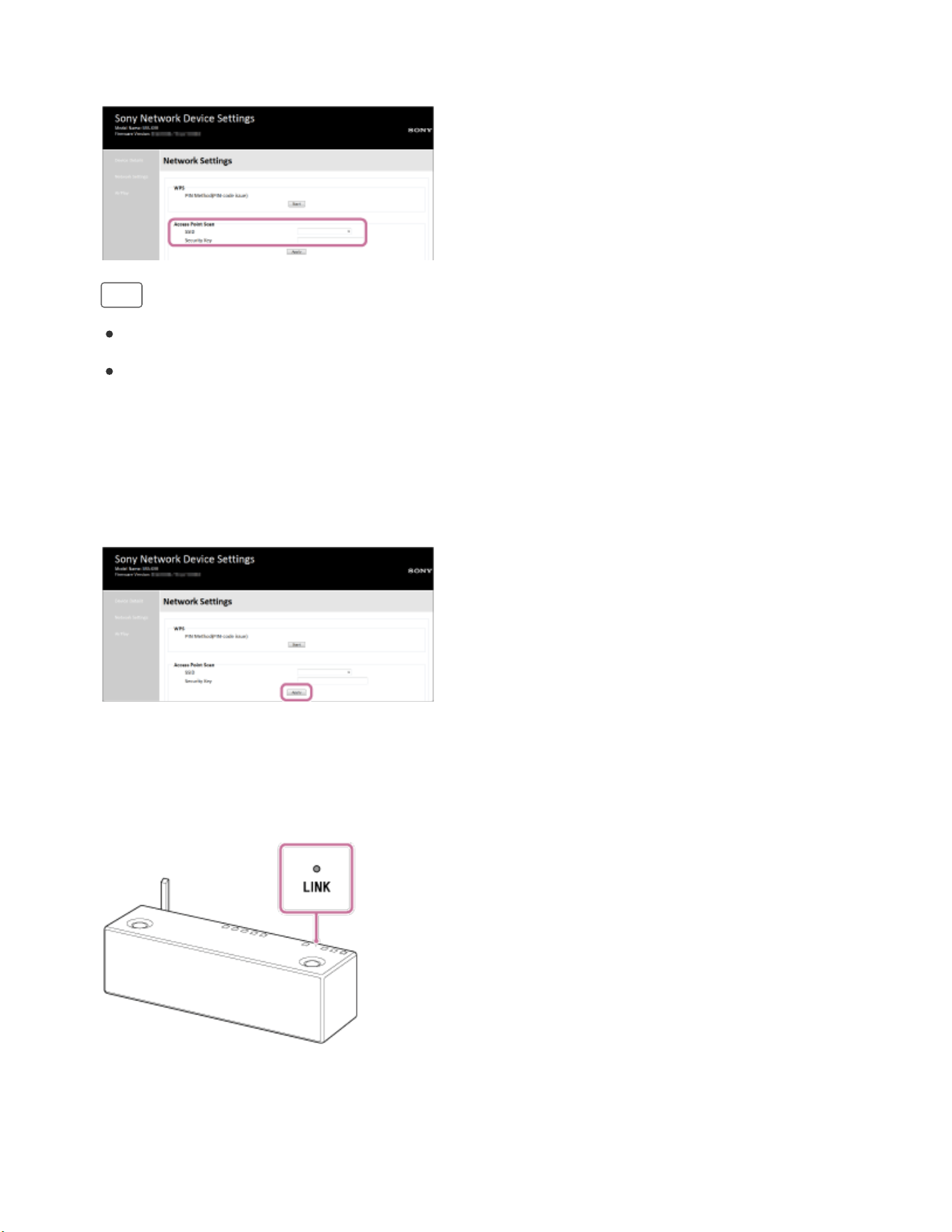
7. Select the SSID of the wireless router, and enter the password.
Hint
Up tp 20 SSIDs can be shown in the list.
When the SSID you want to connect does not appear in the list, check that the
wireless router is turned on, then turn off the speaker and repeat the procedure
from step 3 above again. If you still cannot find your desired SSID, input the SSID
directly into [Wireless Settings] in the window above.
8. Select [Apply].
9. Check that the LINK indicator lights up in orange.
When the Wi-Fi connection is completed, the LINK indicator lights up in orange. It
may take more than a minute for the LINK indicator to light up.
The connection is complete.
10. Connect the PC to the wireless router to be used.
311

Go to Page Top
Go to Page Top
Hint
If you want to set a fixed IP address, set in the screen in step 6 above.
When the connection of the speaker to your Wi-Fi network has completed, connect your
computer to the previous destination or your wireless router.
Note
This procedure needs to be completed within 30 minutes. If you cannot complete within
30 minutes, start over from step 2.
Until you finish the Wi-Fi network setting, it will not be protected. The Wi-Fi network will
be protected again after setting the Wi-Fi security.
When you connect the speaker to a Wi-Fi network for the first time after purchase, the
BLUETOOTH/Network standby function is turned on automatically.
Related Topic
Using the BLUETOOTH/Network standby function
4-567-508-11(5)
Copyright 2015 Sony Corporation
312

Back Back to Top Print
Personal Audio System
SRS-X99
Connection method 3: Connecting to a Wi-Fi network using a Mac connected wirelessly
Note that the speaker should be initialized to the factory default for this connection. All
BLUETOOTH device registration (pairing) information is deleted.
This section describes how to connect a Mac and the speaker wirelessly, then how to
connect to a wireless router, using the Mac.
Do the following before starting.
Disconnect the LAN cable (not supplied) from the speaker.
Place the speaker near the wireless router.
Set the Wi-Fi antenna on the rear to the upright position.
Locate the SSID (the name of a wireless network) and encryption key (WEP or WPA),
which are required to set up a Wi-Fi network. The encryption key restricts access to
devices on a network. It is used to make more secure communication between the
devices connected to wireless routers and access points.
1. Have the Wi-Fi network name (SSID) and password of the wireless router available
for reference.
For the SSID and password, refer to the operating instructions of the wireless router.
2. With the speaker turned on, tap and hold the VOL (volume) – button and the
(on/standby) button at the same time for more than 5 seconds.
Help Guide
How to Use
313
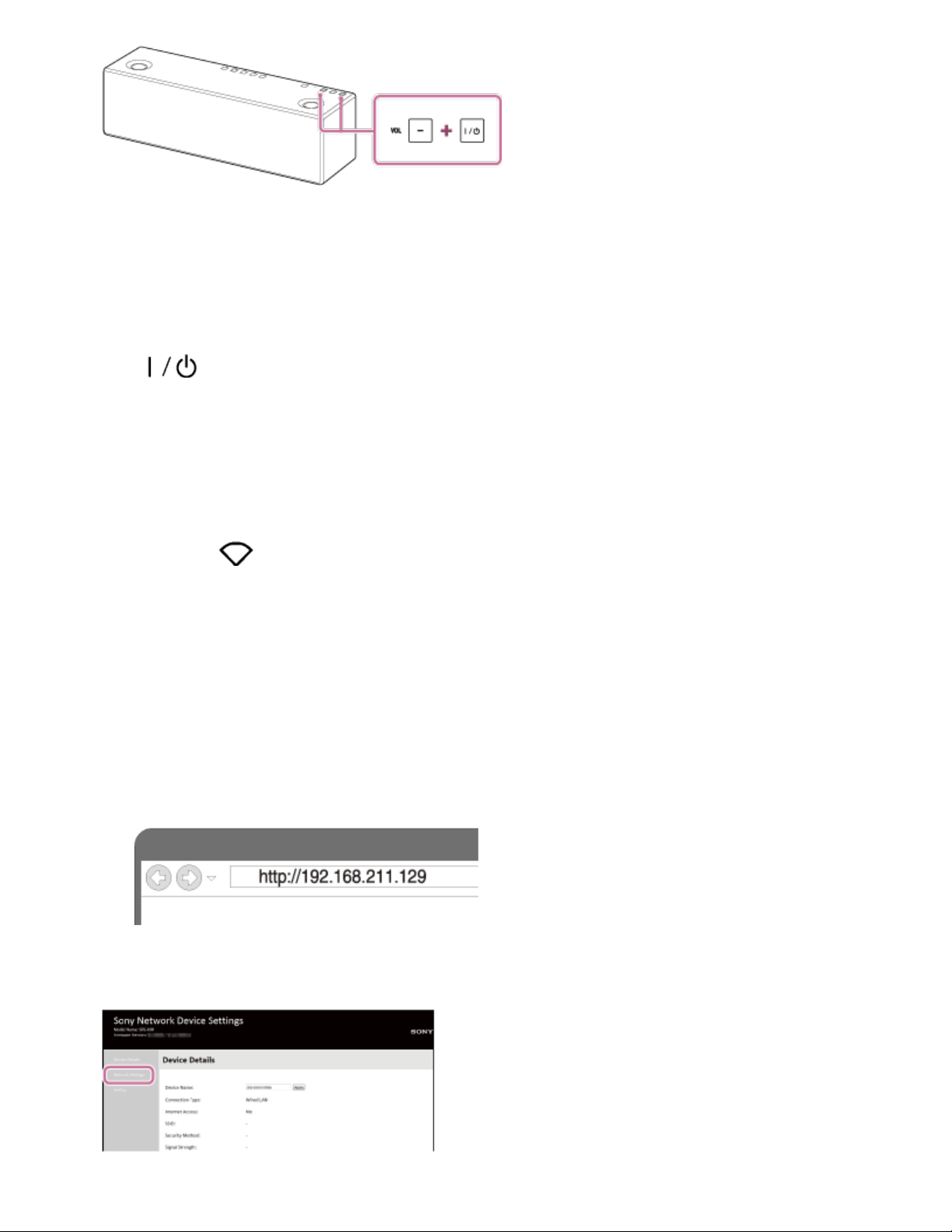
The power of the speaker turns off automatically. The settings of the speaker return
to their factory defaults, and network settings and all BLUETOOTH device registration
(pairing) information are deleted.
3. Turn on the speaker.
The (on/standby) indicator lights up in green, then the LINK indicator begins to
flash. Go to the next step when the LINK indicator flashes slowly (once per three
seconds).
In some cases, this slow flashing may take about four or five minutes to begin.
4. Connect the speaker to the Mac.
i. Click the
icon at the top of the screen.
ii. Select [Open Network Preferences...].
iii. Select [SRS-X99] from the network list.
5. Display the [Sony Network Device Settings] screen.
i. Launch a browser (Safari, etc.).
ii. Enter the following URL in the address bar.
http://192.168.211.129
6. Select [Network Settings] from the menu.
314
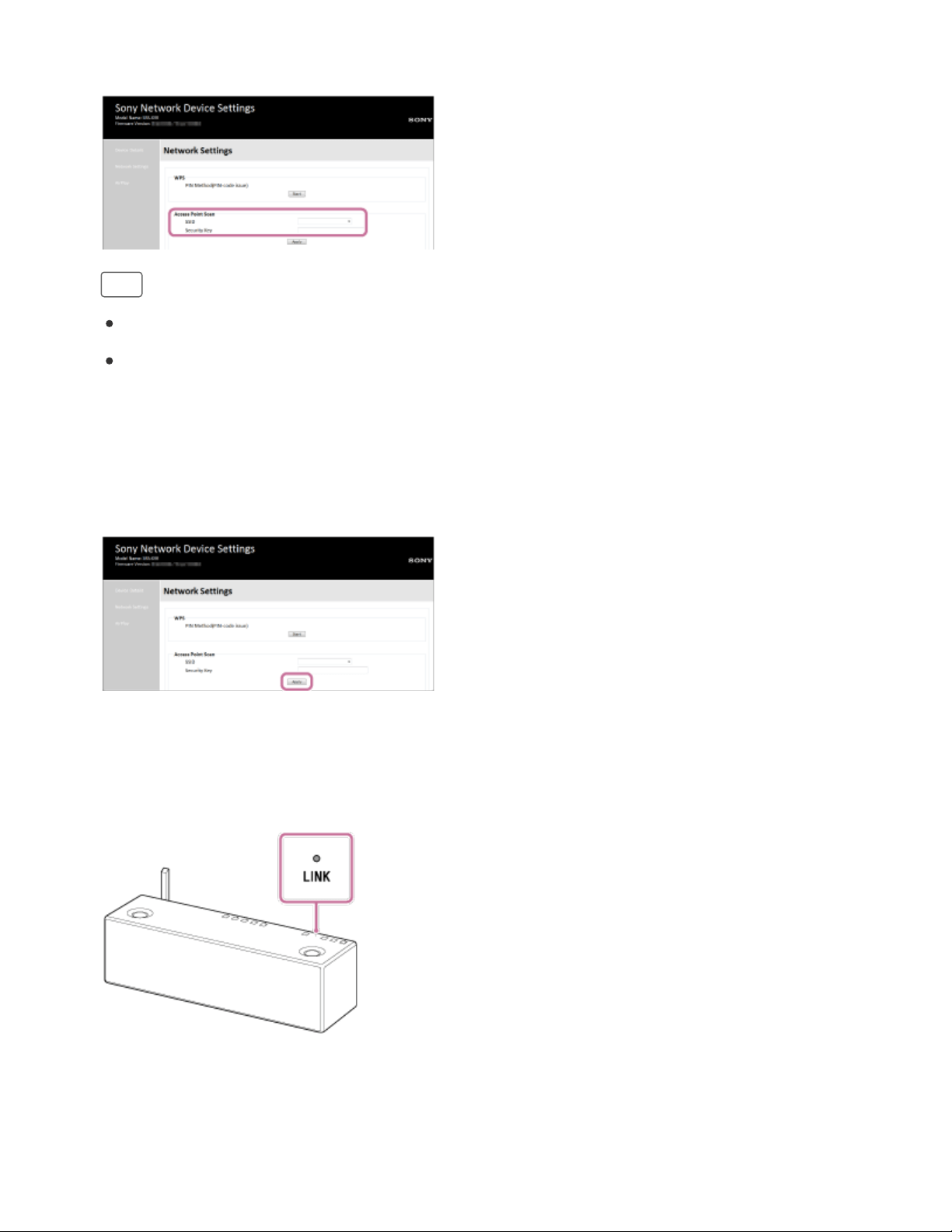
7. Select the SSID of the wireless router, and enter the password.
Hint
Up tp 20 SSIDs can be shown in the list.
When the SSID you want to connect does not appear in the list, check that the
wireless router is turned on, then turn off the speaker and repeat the procedure
from step 3 above again. If you still cannot find your desired SSID, input the SSID
directly into [Wireless Settings] in the window above.
8. Select [Apply].
9. Check that the LINK indicator lights up in orange.
When the Wi-Fi connection is completed, the LINK indicator lights up in orange. It
may take more than a minute for the LINK indicator to light up.
The connection is complete.
10. Connect the Mac to the wireless router to be used.
315
Go to Page Top
Go to Page Top
Hint
If you want to set a fixed IP address, set in the screen in step 6 above.
When the connection of the speaker to your Wi-Fi network has completed, connect your
Mac to the previous destination or your wireless router.
Note
This procedure needs to be completed within 30 minutes. If you cannot complete within
30 minutes, start over from step 2.
Until you finish the Wi-Fi network setting, it will not be protected. The Wi-Fi network will
be protected again after setting the Wi-Fi security.
When you connect the speaker to a Wi-Fi network for the first time after purchase, the
BLUETOOTH/Network standby function is turned on automatically.
Related Topic
Using the BLUETOOTH/Network standby function
4-567-508-11(5)
Copyright 2015 Sony Corporation
316
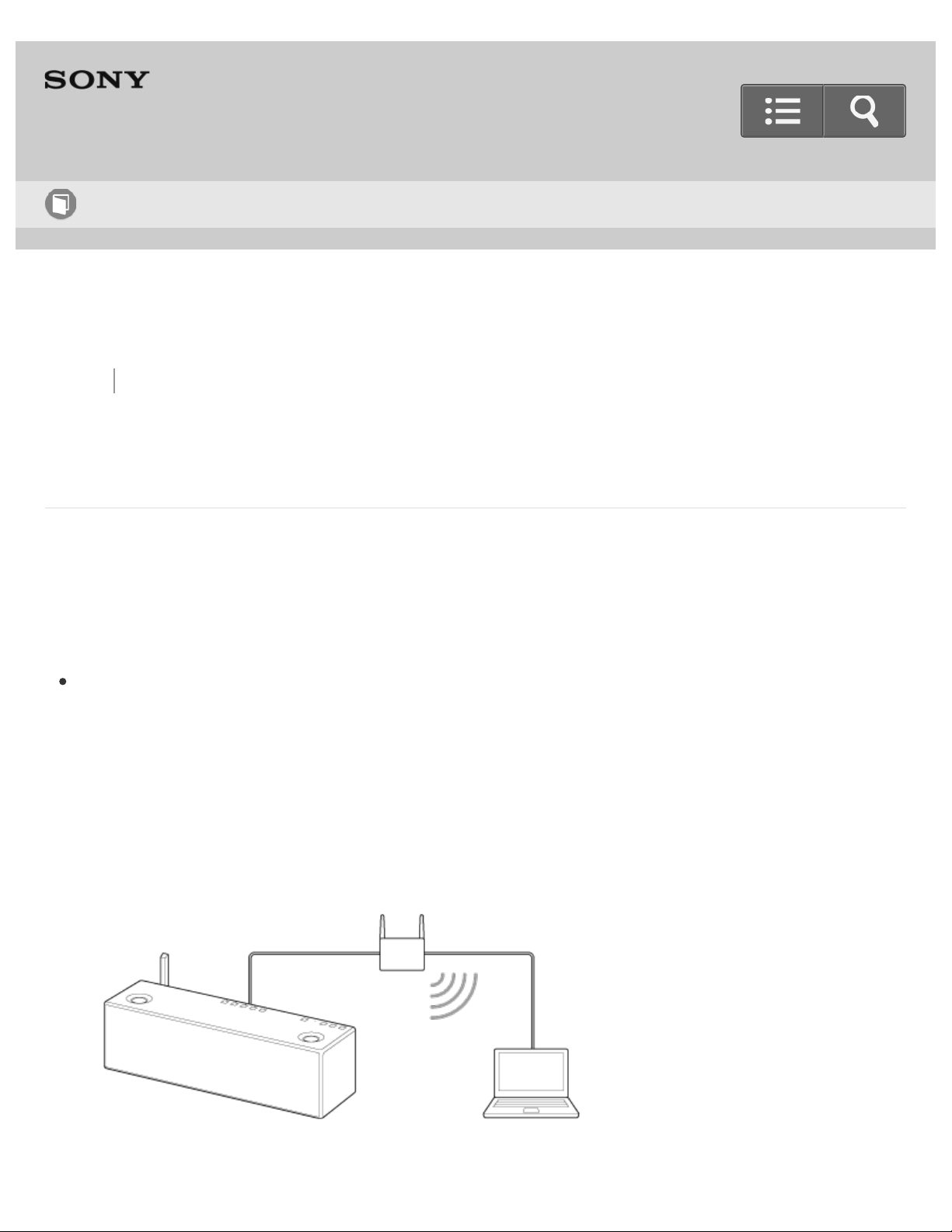
Back Back to Top Print
Personal Audio System
SRS-X99
Connection method 3: Connecting to a wired network
This section describes how to connect the speaker to a wireless router with a
commercially-available LAN cable, then how to connect the router to the computer.
Usually, the DHCP setting is set to ON when you connect your computer to the network.
Do the following before starting.
Set the DHCP setting of your computer to ON.
1. Check that your computer and wireless router are turned on.
2. Connect the wireless router to the LAN port with a commercially-available LAN cable.
3. Connect the wireless router to your computer using another commercially-available
LAN cable, or a Wi-Fi connection.
Help Guide
How to Use
317

Go to Page Top
Go to Page Top
4. Turn the speaker on.
The (on/standby) indicator lights up in green, then the LINK indicator begins to
flash in pink. Wait about a minute until the LINK indicator lights up in pink.
When the connection is completed, the LINK indicator changes from flashing to
staying lit in pink.
Hint
When you connect the speaker to a computer for the first time, it takes about four
or five minutes until the LINK indicator stops flashing and stays lit in pink.
Note
When you connect the speaker to a network for the first time after purchase, or after
you initialize the speaker, the BLUETOOTH/Network standby function is turned on
automatically.
Related Topic
Using the BLUETOOTH/Network standby function
318

Back Back to Top Print
Personal Audio System
SRS-X99
Connection method 4: Connecting to a Wi-Fi network using an iPhone/iPad/iPod touch
Note that the speaker should be initialized to the factory default for this connection. All
BLUETOOTH device registration (pairing) information is deleted.
The speaker can be connected to the same Wi-Fi network as the iPhone/iPad/iPod touch,
if the iPhone/iPad/iPod touch is iOS 8 or later. The Wi-Fi settings of the speaker is made
by the iPhone/iPad/iPod touch.
Do the following before starting.
Disconnect the LAN cable (not supplied) from the speaker.
Place the speaker near the wireless router and the iPhone/iPad/iPod touch.
Set the Wi-Fi antenna on the rear to the upright position.
Make sure that the iPhone/iPad/iPod touch is updated to iOS 8 or later.
1. Connect a iPhone/iPad/iPod touch to the wireless router.
Connect it to 2.4 GHz band (11b, 11g, and 11n) or 5 GHz band (11a and 11n). The
speaker is not compatible with IEEE 802.11ac.
Help Guide
How to Use
319
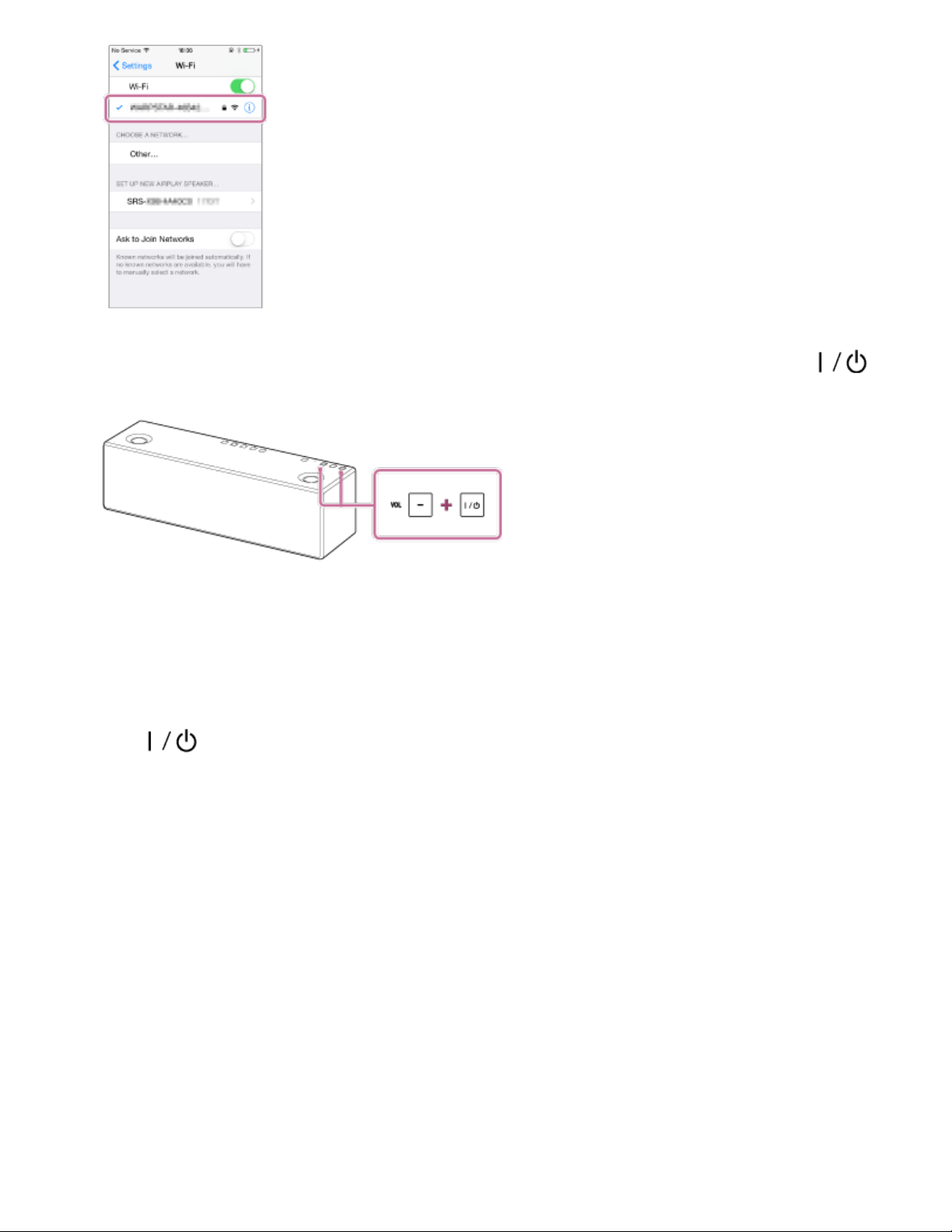
2. With the speaker turned on, tap and hold the VOL (volume) – button and the
(on/standby) button at the same time for more than 5 seconds.
The power of the speaker turns off automatically. The settings of the speaker return
to their factory defaults, and network settings and all BLUETOOTH device registration
(pairing) information are deleted.
3. Turn on the speaker.
The (on/standby) indicator lights up in green, then the LINK indicator begins to
flash. Go to the next step when the LINK indicator flashes slowly (once per three
seconds).
In some cases, this slow flashing may take about four or five minutes to begin.
4. Search for the speaker using the iPhone/iPad/iPod touch.
i. Select [Settings].
ii. Touch [SRS-X99] from the list.
320
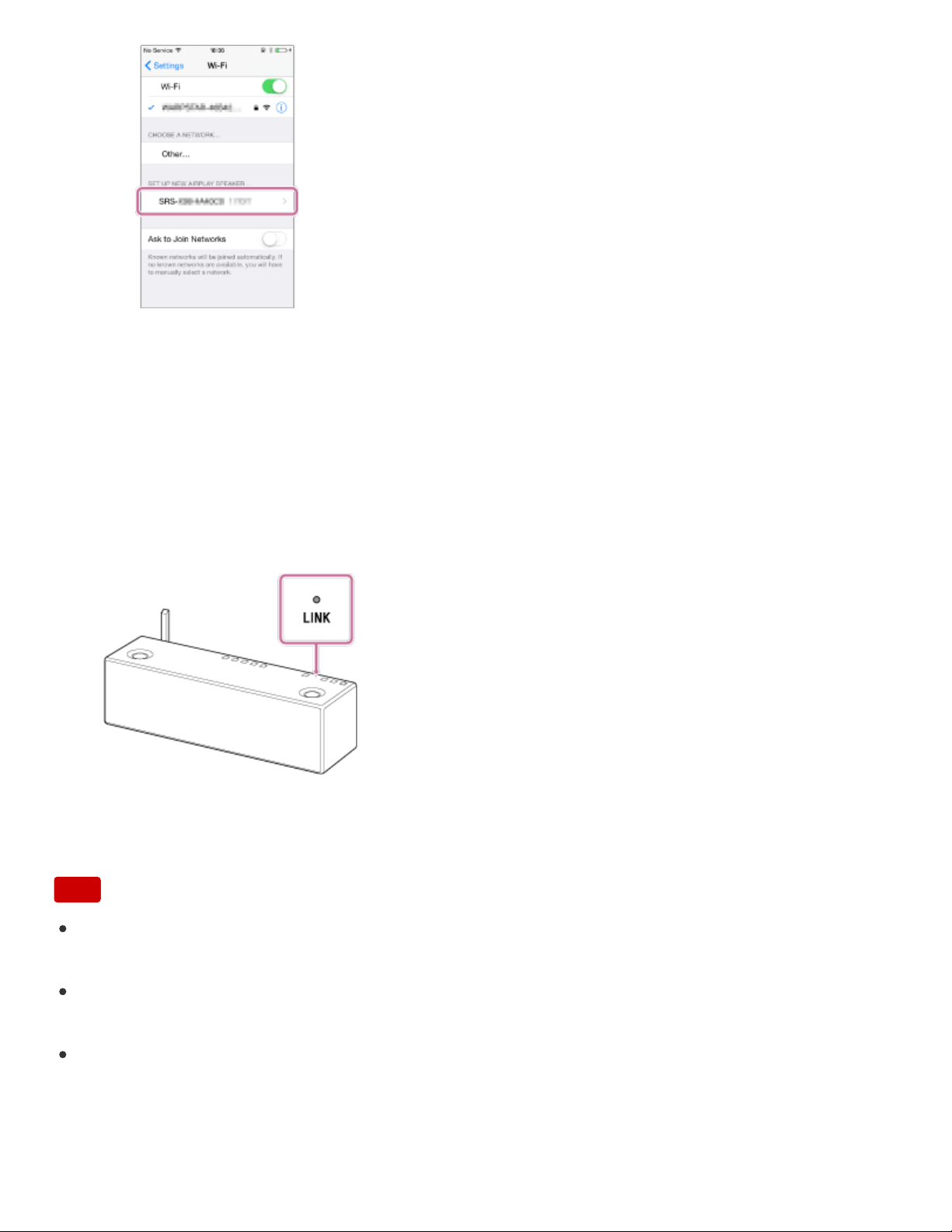
Go to Page Top
5. Perform the Wi-Fi network settings on the iPhone/iPad/iPod touch.
Follow the instructions on the screen.
6. Check that the LINK indicator lights up in orange.
When the speaker is connected to the same Wi-Fi network as the iPhone/iPad/iPod
touch, the LINK indicator lights up in orange. It may take more than a minute for the
LINK indicator to light up.
The connection is complete.
Note
This procedure needs to be completed within 30 minutes. If you cannot complete within
30 minutes, start over from step 2.
Until you finish the Wi-Fi network setting, it will not be protected. The Wi-Fi network will
be protected again after setting the Wi-Fi security.
When you connect the speaker to a Wi-Fi network for the first time after purchase, the
BLUETOOTH/Network standby function is turned on automatically.
321

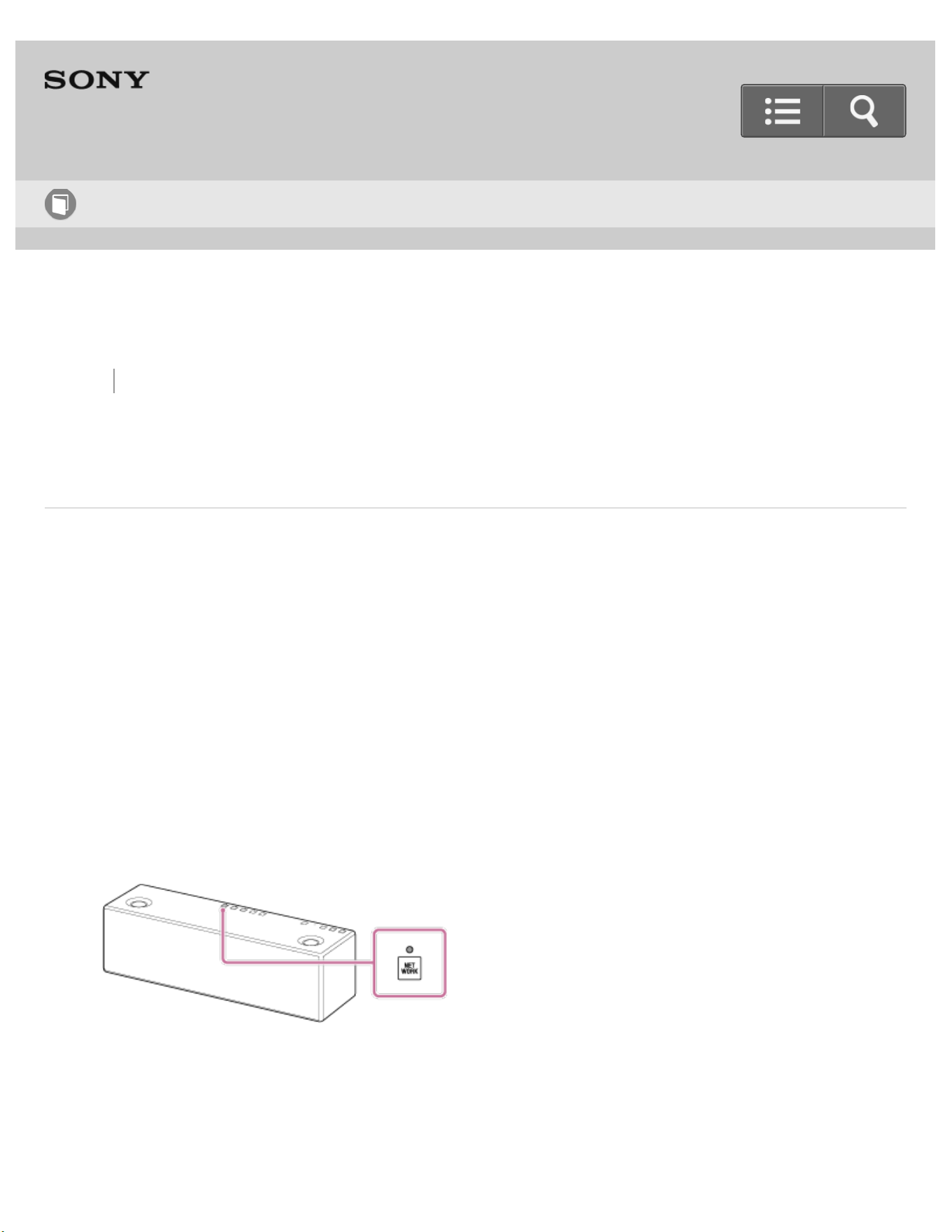
Back Back to Top Print
Personal Audio System
SRS-X99
Listening with the AirPlay function (iPhone/iPad/iPod touch)
You can enjoy music stored in an iPhone/iPad/iPod touch wirelessly using AirPlay.
Update the iPhone/iPad/iPod touch to the latest version in advance.
1. Connect the speaker and an iPhone/iPad/iPod touch to the same network.
Connect the speaker and your iPhone/iPad/iPod touch to the same SSID of the
wireless router.
The LINK indicator lights up in orange or pink when the connection is complete.
2. Tap the NETWORK button.
The NETWORK indicator lights up in white, and the speaker switches to NETWORK
mode.
The speaker can also be switched to NETWORK mode automatically, instead of
tapping the NETWORK button, by selecting the speaker in the AirPlay menu of the
iPhone/iPad/iPod touch, then playing back music.
Help Guide
How to Use
323
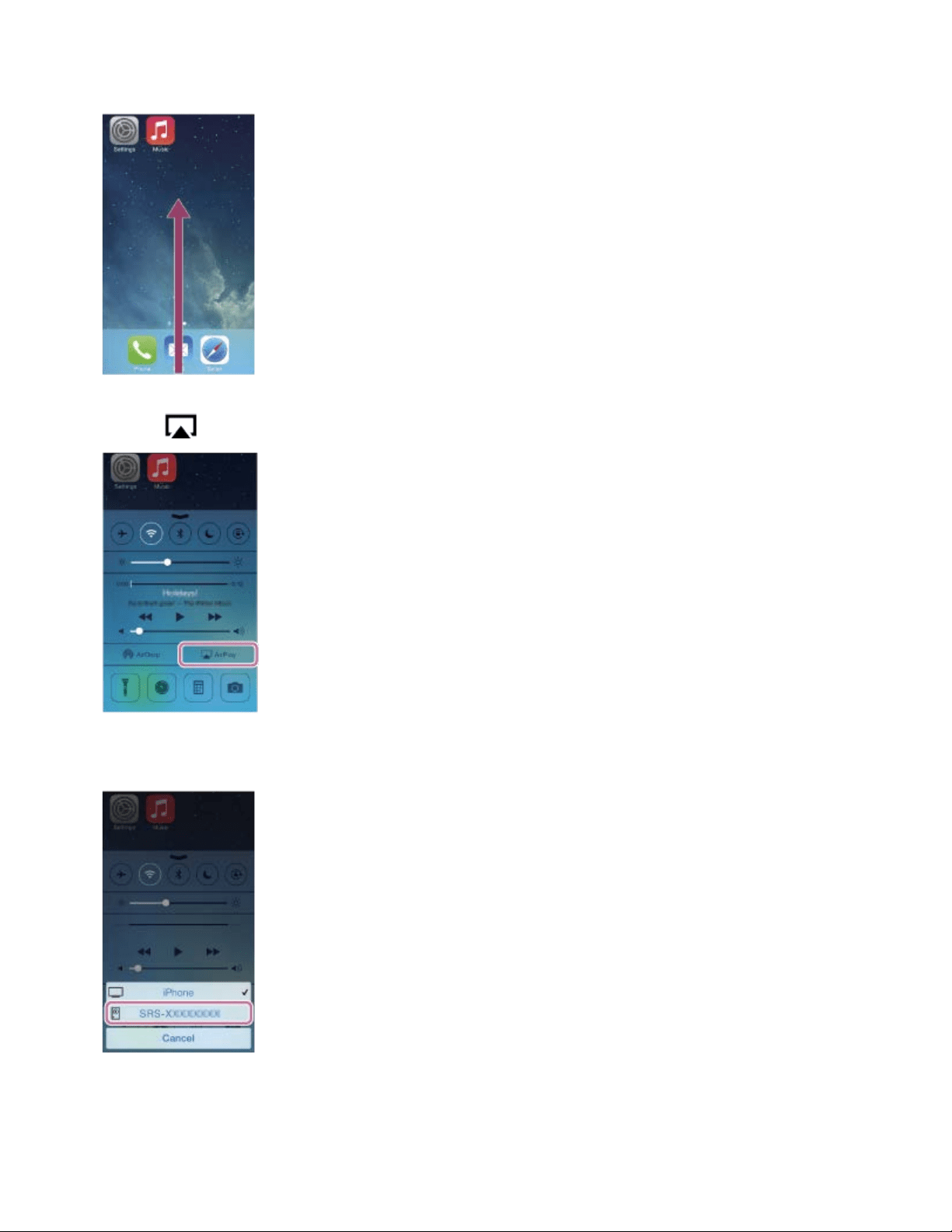
3. Swipe the screen of the iPhone/iPad/iPod touch from the bottom to the top to open
the control center.
4. Touch (AirPlay).
5. Select [SRS-X99] on the AirPlay menu of the iPhone/iPad/iPod touch.
6. Start playing back music on the iPhone/iPad/iPod touch, and adjust the volume.
The selected song will be heard from the speaker.
If playback does not start, perform the process again from step 3.
324
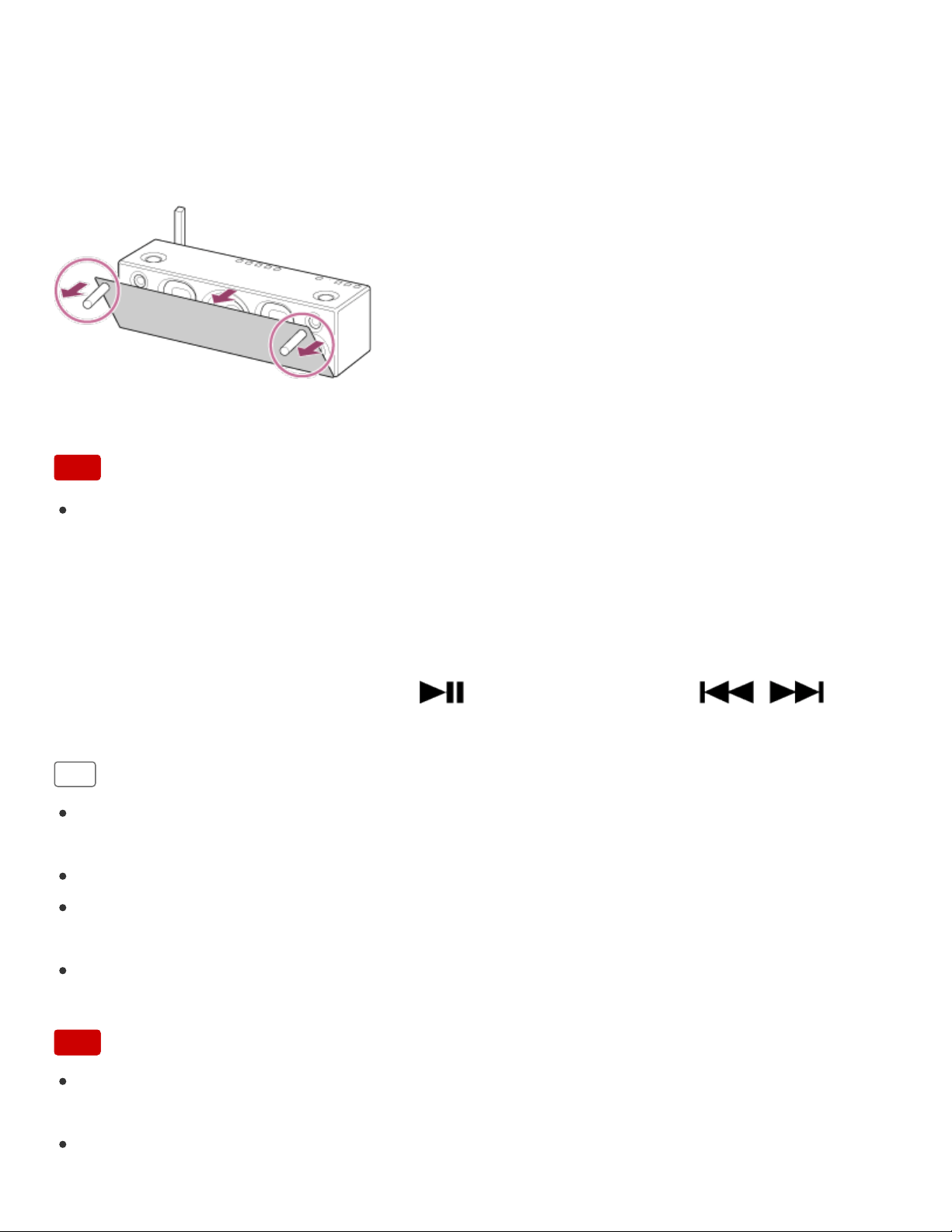
To enjoy a more dynamic sound
Remove the speaker grille from the front of the speaker with the speaker grille detach tool
(supplied).*
*
Keep the removed grille on a flat surface to prevent distortion.
Note
Do not touch the exposed part of the speaker (speaker units) after removing the
speaker grille.
Using the speaker or remote control during playback
You can adjust the volume using the VOL (volume) -/+ buttons of the speaker or the
VOLUME +/- buttons of the remote control.
You can also use the MUTING button, (Play/Pause) button, or /
(Previous/Next) button of the remote control.
Hint
The procedure explained above is for guidance only. For details, refer to the operating
instructions supplied with the device.
The window above is an example of iOS8.
After SongPal is downloaded and installed to your iPhone, you can use your iPhone as
a remote control to operate devices connected to the speaker.
The volume level set by the VOL (volume) -/+ buttons of the speaker and that set in
your iPhone/iPad/iPod touch are synchronized.
Note
Loud sound may be output from the speaker if you set the volume too high by the
iPhone/iPad/iPod touch.
In some cases, the volume level of the iPhone/iPad/iPod touch might not synchronize
325

Back Back to Top Print
Personal Audio System
SRS-X99
Listening to music with the Music application (Xperia)
Using the Music application, you can play music stored in an Xperia.
Do the following before starting.
The Music application is pre-installed in your Xperia.
Operations of the Music application are subject to change without notice. For details
about how to use the Music application, refer to the operating instructions supplied with
the Xperia.
Your Xperia may need to disable [Auto-select wireless option] of [Throw settings]. For
details, refer to the user guide of Xperia.
Update the Android OS on your Xperia to the latest version before using it with the
speaker.
Hint
Depending on the model, a music application installed in Xperia may be called as Music
or WALKMAN.
1. Connect the speaker and a Xperia to the same network.
Connect the speaker and your Xperia to the same SSID of the wireless router.
The LINK indicator lights up in orange or pink when the connection is complete.
2. Tap the NETWORK button.
Help Guide
How to Use
327
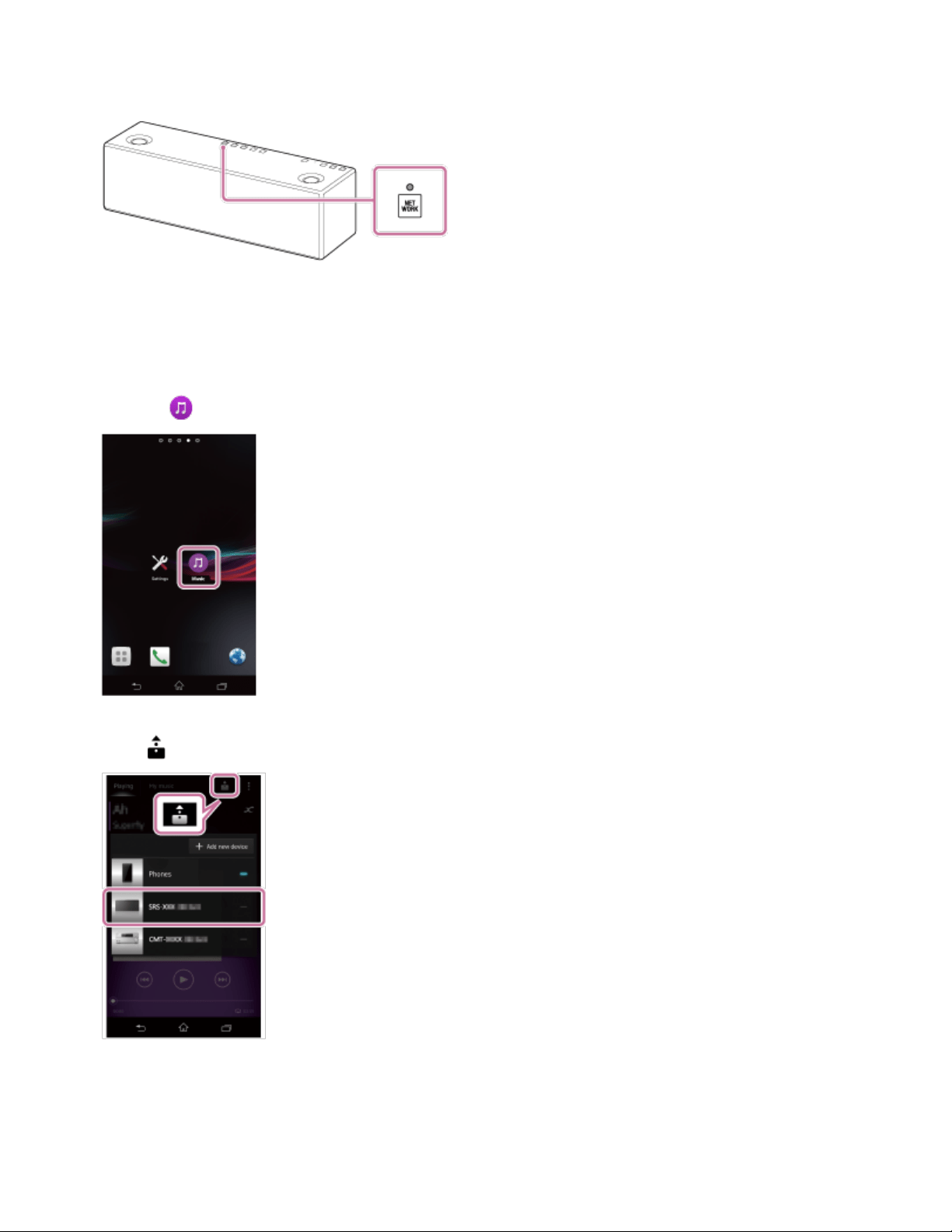
The NETWORK indicator lights up in white, and the speaker switches to NETWORK
mode.
The speaker can also be switched to NETWORK mode automatically, instead of
tapping the NETWORK button, by selecting the speaker in the menu of the Music
application on the Xperia, then playing back music.
3. Select [Music] on your Xperia.
4. Tap and select [SRS-X99] on the Xperia.
5. Start playing back music on the Xperia, and adjust the volume.
The selected song will be heard from the speaker.
If playback does not start, perform the process again from step 1.
328
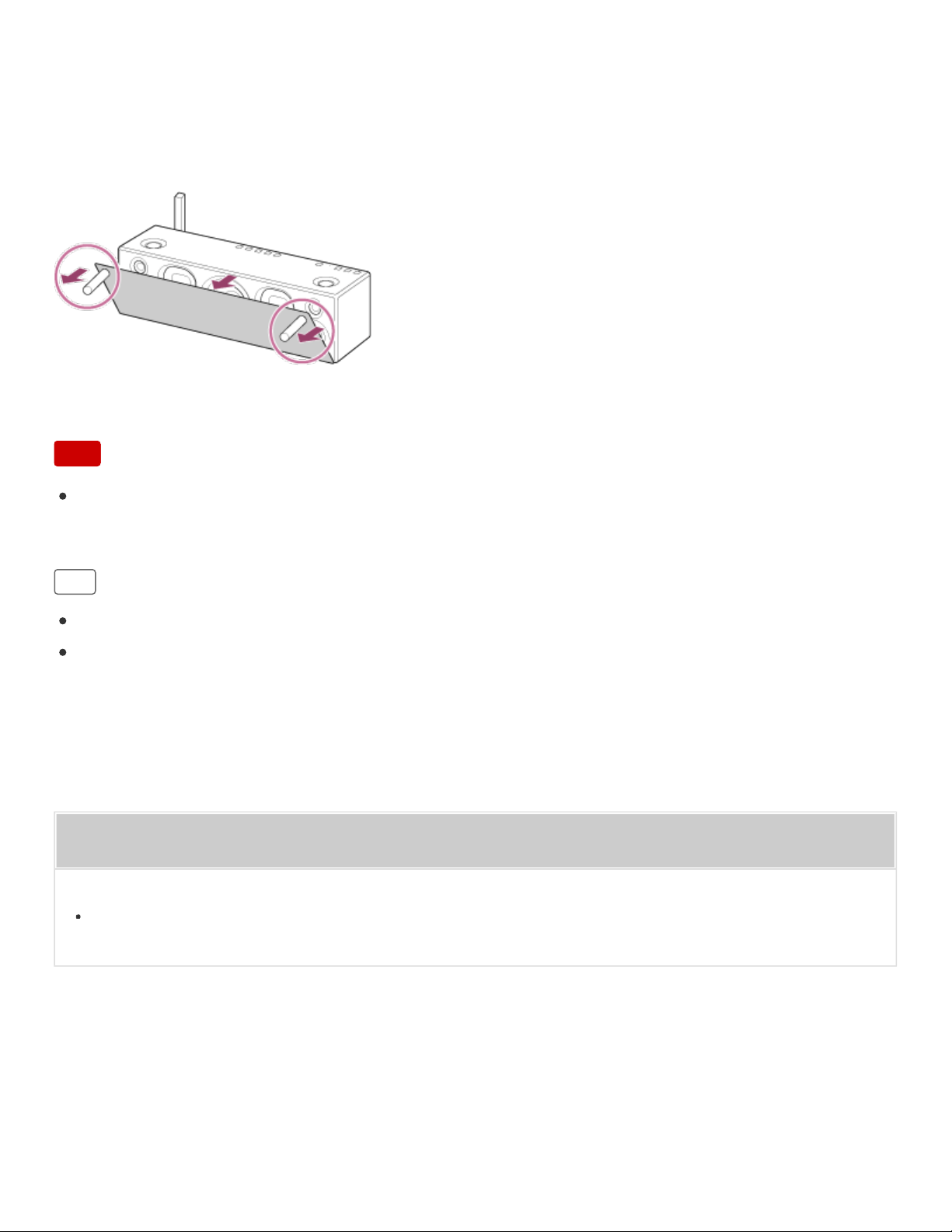
Go to Page Top
Go to Page Top
To enjoy a more dynamic sound
Remove the speaker grille from the front of the speaker with the speaker grille detach tool
(supplied).*
*
Keep the removed grille on a flat surface to prevent distortion.
Note
Do not touch the exposed part of the speaker (speaker units) after removing the
speaker grille.
Hint
Refer to the operating instructions of your Xperia for details.
For details on the use of the Android OS, refer to Help of Android OS.
Related Topic
Using the BLUETOOTH/Network standby function
4-567-508-11(5)
Copyright 2015 Sony Corporation
329

Back Back to Top Print
Personal Audio System
SRS-X99
Listening to an Internet music service (Spotify)
“Spotify” gives you instant access to millions of songs.
The “Spotify Connect” feature lets you select music on the Spotify app and stream it on the
unit. To use “Spotify Connect” feature, you need a Premium account.
For details about Spotify, refer to the following URL:
www.spotify.com/connect
Note
Depending on the country or region, the Spotify service availability may differ.
1. Connect the speaker and a smartphone/iPhone to the same network.
Connect the speaker and the smartphone/iPhone to the same SSID of the wireless
router.
The LINK indicator lights up in orange or pink when the speaker is connected to your
network.
2. Tap the NETWORK button.
The NETWORK indicator lights up in white, and the speaker switches to NETWORK
mode.
Help Guide
How to Use
330
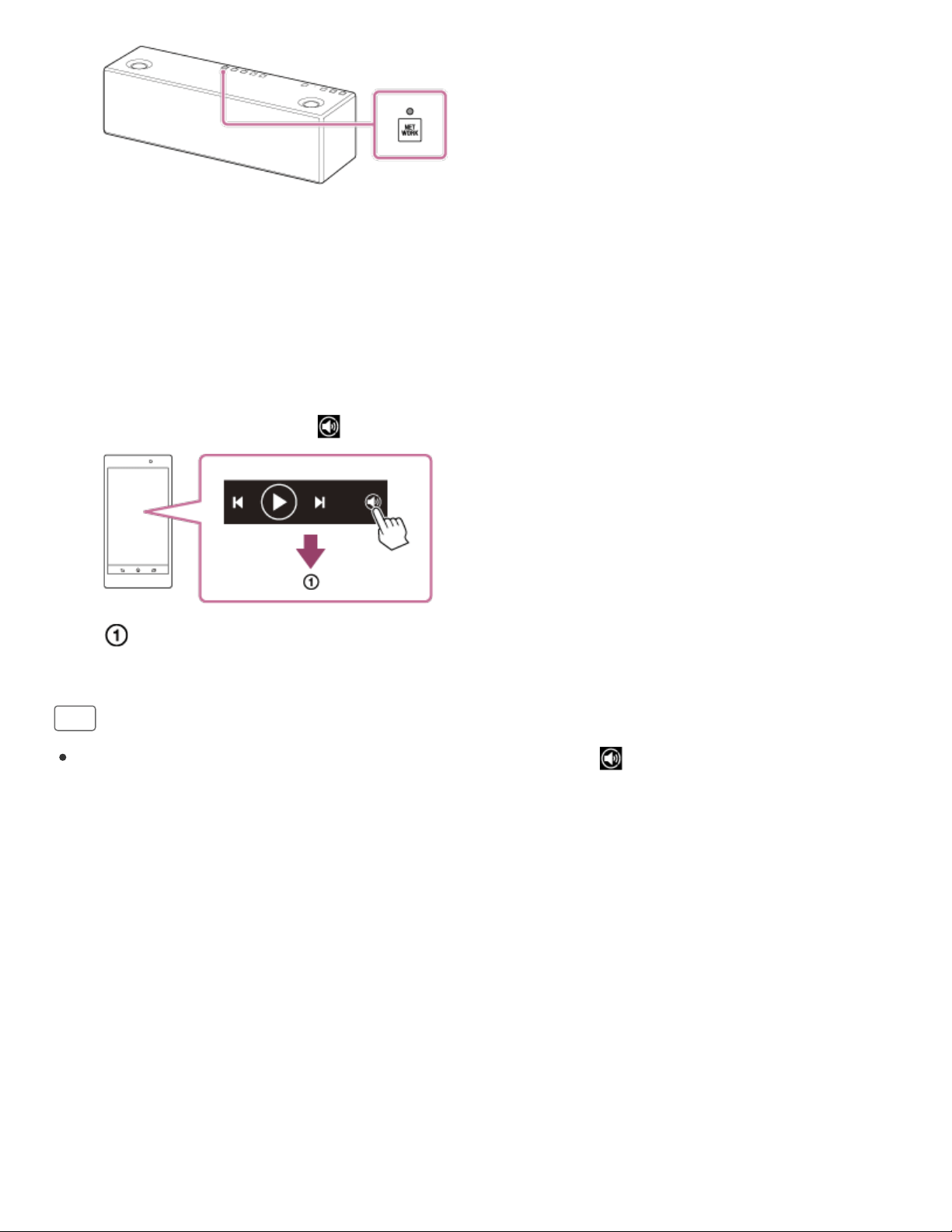
Go to Page Top
3. Download the Spotify app to your smartphone/iPhone from Google Play or the App
Store.
4. Launch the Spotify app and log in to a Spotify Premium account.
5. Select and start playing the music.
6. Tap the Connect icon ( ) and select the unit as the audio output device.
Select the unit
Hint
When “Spotify Connect” is activated, the Connect icon ( ) lights up.
4-567-508-11(5)
Copyright 2015 Sony Corporation
331

Back Back to Top Print
Personal Audio System
SRS-X99
How to make a wireless connection with BLUETOOTH devices
You can enjoy music with the speaker wirelessly by using your device’s BLUETOOTH
function.
Do the following before starting.
Place the BLUETOOTH device within 1 m (3 ft) of the speaker.
Prepare the operating instructions supplied with the BLUETOOTH device for reference.
Stop playback on the BLUETOOTH device to avoid sudden loud sound output from the
speaker.
Pairing the speaker with a BLUETOOTH device
Pairing is the process required to mutually register the information on BLUETOOTH
devices to be connected wirelessly.
It is necessary to pair a device with the speaker to be able to make a BLUETOOTH
connection for the first time.
See the following topic.
Connection method 1: Pairing and connecting with a BLUETOOTH device
Connecting the speaker with a paired device
Once BLUETOOTH devices are paired, there is no need to pair them again. To connect a
Help Guide
How to Use
332

device already paired, see the following topic.
Connection method 2: Connecting with a paired BLUETOOTH device
Connecting the speaker with an NFC-compatible device by one
touch (NFC)
By touching the speaker with an NFC-compatible device such as a smartphone or
Walkman,etc., the speaker turns on automatically, then pairs with the device and makes a
BLUETOOTH connection. For details, see the following topic.
Connection method 3: Connecting with an NFC-compatible device by one touch (NFC)
Compatible smartphones
NFC-compatible smartphones with Android 4.1 or later installed
Compatible Walkman models
NFC-compatible Walkman models
*
*
Even if your Walkman is compatible with the NFC function, it may not be able to make a
BLUETOOTH connection with the speaker by one touch. For details on the compatible models, refer
to the operating instructions supplied with your Walkman.
NFC
NFC (Near Field Communication) is a technology enabling short-range wireless
communication between various devices, such as smartphones and IC tags.
Thanks to the NFC function, data communication - for example, BLUETOOTH pairing -
can be achieved easily by simply touching NFC-compatible devices together (i.e., at the N-
Mark symbol or location designated on each device).
Note
Once BLUETOOTH devices are paired, there is no need to pair them again, except in
the following cases:
Pairing information has been deleted after repair, etc.
The speaker is already paired with 9 devices and another device is to be paired.
The speaker can be paired with up to 9 devices. If a new device is paired after 9 devices are
already paired, the paired device with the oldest connection time is replaced by the new one.
The pairing information with the speaker has been deleted from the BLUETOOTH device.
When the speaker is initialized, all pairing information is deleted. If you initialize the speaker, the
speaker may not be able to connect your iPhone/iPad/iPod or computer. In this case, erase the
pairing information on the iPhone/iPad/iPod or computer, and then perform the pairing
333

Go to Page Top
procedure again.
If you reset network settings of your iPhone/iPad/iPod or computer, the speaker may
not be able to connect to it. Perform the pairing procedure again.
The speaker can be paired with multiple devices, but can only play music from one
paired device at a time.
4-567-508-11(5)
Copyright 2015 Sony Corporation
334
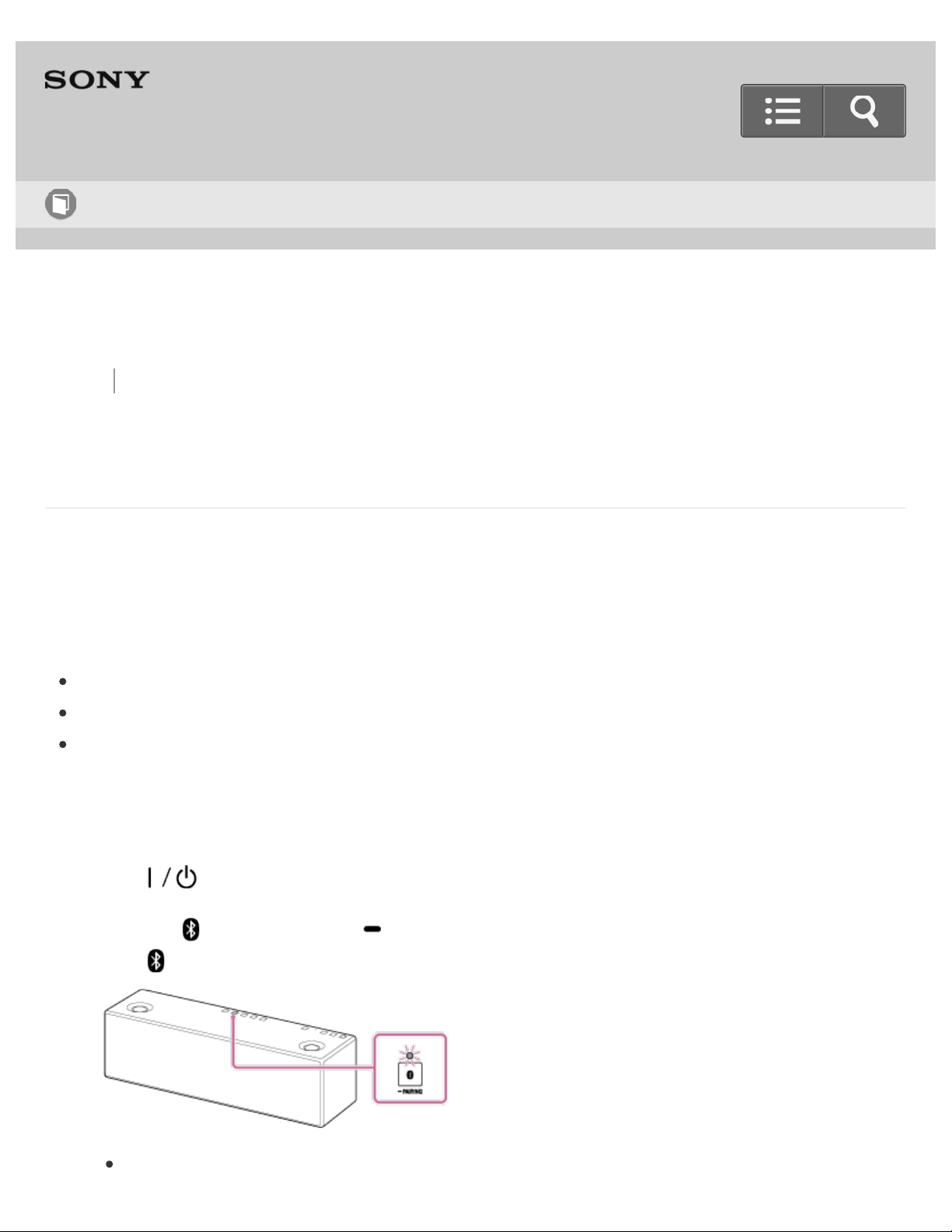
Back Back to Top Print
Personal Audio System
SRS-X99
Connection method 1: Pairing and connecting with a BLUETOOTH device
The speaker can be paired with up to 9 BLUETOOTH devices.
It is necessary to pair a device with the speaker to be able to make a BLUETOOTH
connection for the first time.
Do the following before starting.
Place the BLUETOOTH device within 1 m (3 ft) of the speaker.
Prepare the operating instructions supplied with the BLUETOOTH device for reference.
Stop playback on the BLUETOOTH device to avoid sudden loud sound output from the
speaker.
1. Turn on the speaker.
The
(on/standby) indicator lights up in green.
2. Tap the (BLUETOOTH) PAIRING button.
The (BLUETOOTH) indicator begins to flash in white.
When you turn on the speaker for the first time after purchase, pairing information
Help Guide
How to Use
335
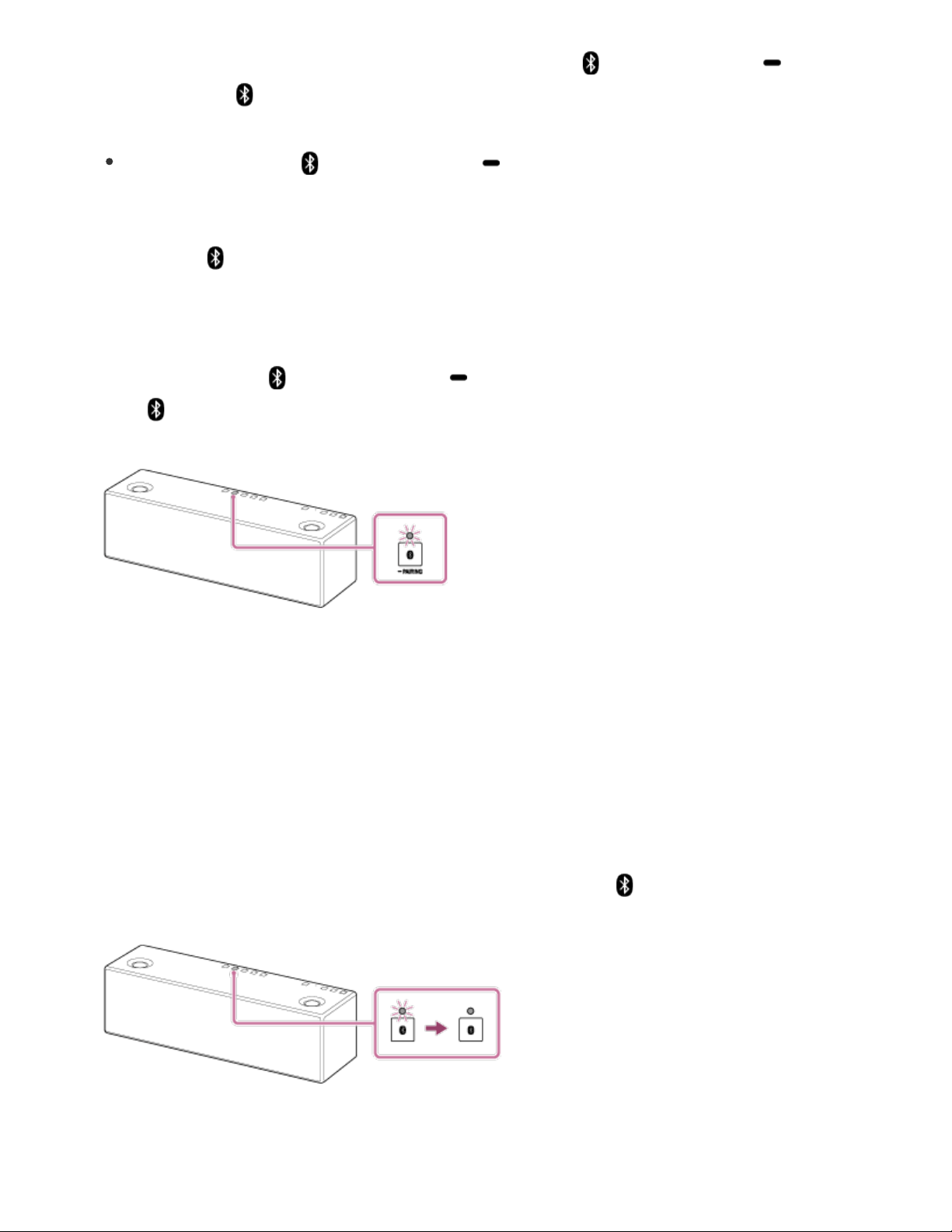
is not stored in the speaker. In this case, tap the (BLUETOOTH) PAIRING
button, the (BLUETOOTH) indicator will begin to flash quickly in white and the
speaker enters pairing mode automatically, then go to step 4.
When you tap the (BLUETOOTH) PAIRING button, the speaker tries to
make a BLUETOOTH connection with the last connected BLUETOOTH device. If
the device is nearby, the BLUETOOTH connection is established automatically
and the (BLUETOOTH) indicator stays lit. When you want to connect another
BLUETOOTH device, terminate the current BLUETOOTH connection by operating
the currently connected BLUETOOTH device.
3. Tap and hold the
(BLUETOOTH) PAIRING button until beeps are heard.
The (BLUETOOTH) indicator begins to flash quickly in white, and the speaker
enters pairing mode.
4. Perform the pairing procedure on the BLUETOOTH device to detect the speaker.
When a list of detected devices appears on the display of the BLUETOOTH device,
select [SRS-X99].
If a passkey
*
is required on the display of the BLUETOOTH device, enter “0000.”
*
A passkey may be called “Passcode”, “PIN code”, “PIN number” or “Password.”
5. Make the BLUETOOTH connection from the BLUETOOTH device.
When the BLUETOOTH connection is established, the (BLUETOOTH) indicator
stays lit.
If the BLUETOOTH connection is not established, repeat from step 3.
336

Go to Page Top
Hint
For details, refer to the operating instructions supplied with the BLUETOOTH device.
You can perform pairing or connect to another BLUETOOTH device even when a
BLUETOOTH connection is established. In this case, the previous connection will be
disconnected.
SongPal has no function of play music via a BLUETOOTH connection. Play music with
your BLUETOOTH device such as smartphone, computer, etc.
Note
Stop playback on the BLUETOOTH device and turn down the volume of the device
beforehand. Otherwise, you may experience sudden loud sound output from the
speaker when music is played back for the first time after pairing.
Pairing mode of the speaker is released after about 5 minutes and the
(BLUETOOTH) indicator flashes slowly. However, when pairing information is not
stored in the speaker, such as when you turn on the speaker for the first time after
purchase, pairing mode is not released. If pairing mode is released before finishing the
process, repeat from step 3.
When pairing with a BLUETOOTH device that cannot display a list of detected devices
or that has no display, you may pair the device by setting both the speaker and the
BLUETOOTH device to pairing mode. In this case, if a passkey besides "0000" is set on
the BLUETOOTH device, pairing cannot be done with the speaker.
Once BLUETOOTH devices are paired, there is no need to pair them again, except in
the following cases:
Pairing information has been deleted after repair, etc.
The speaker is already paired with 9 devices and another device is to be paired.
The speaker can be paired with up to 9 devices. If a new device is paired after 9 devices are
already paired, the paired device with the oldest connection time is replaced by the new one.
The pairing information with the speaker has been deleted from the BLUETOOTH device.
When the speaker is initialized, all the pairing information is deleted. If you initialize the speaker,
the speaker may not be able to connect your iPhone/iPad/iPod or computer. In this case, erase
the pairing information on the iPhone/iPad/iPod or computer, and then perform the pairing
procedure again.
The speaker can be paired with multiple devices, but can only play music from one
paired device at a time.
337


Back Back to Top Print
Personal Audio System
SRS-X99
Connection method 2: Connecting with a paired BLUETOOTH device
Do the following before starting.
Stop playback on the BLUETOOTH device to avoid sudden loud sound output from the
speaker.
1. Turn on the speaker.
The
(on/standby) indicator lights up in green.
2. Tap the (BLUETOOTH) PAIRING button.
The (BLUETOOTH) indicator begins to flash in white.
When you tap the (BLUETOOTH) PAIRING button, the speaker tries to make
a BLUETOOTH connection with the last connected BLUETOOTH device. If the
device is nearby, the BLUETOOTH connection is established automatically and the
(BLUETOOTH) indicator stays lit. When you want to connect another
BLUETOOTH device, terminate the current BLUETOOTH connection by operating
the currently connected BLUETOOTH device.
Help Guide
How to Use
339
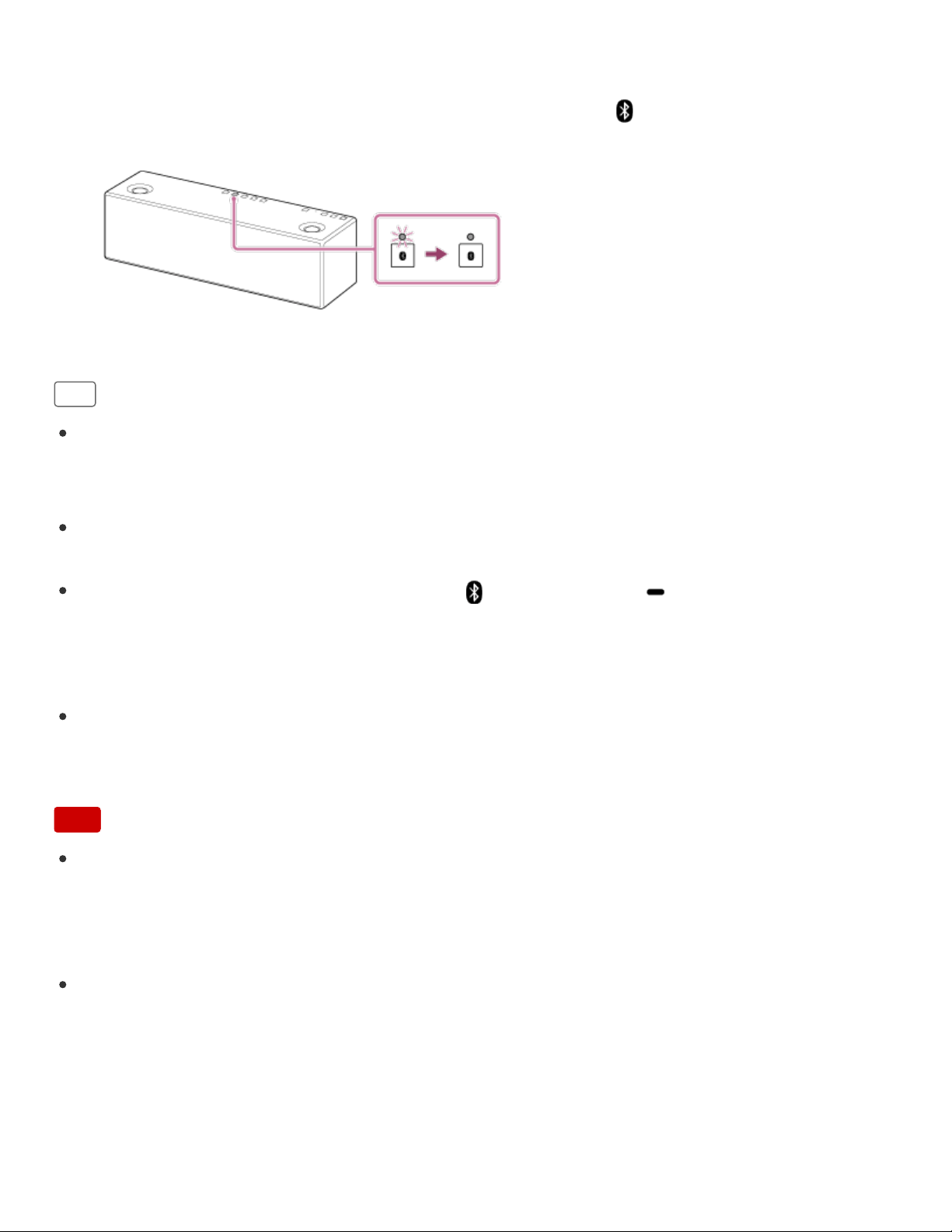
Go to Page Top
3. Make the BLUETOOTH connection from the BLUETOOTH device.
When the BLUETOOTH connection is established, the (BLUETOOTH) indicator
stays lit.
Hint
You can perform pairing or connect to another BLUETOOTH device even when a
BLUETOOTH connection is established. In this case, the previous connection will be
disconnected.
SongPal has no function of play music via a BLUETOOTH connection. Play music with
your BLUETOOTH device such as smartphone, computer, etc.
When you turn on the speaker or tap the (BLUETOOTH) PAIRING button, the
speaker tries to make a BLUETOOTH connection with the last connected BLUETOOTH
device. If the device’s BLUETOOTH function is on, the BLUETOOTH connection is
started automatically.
When the BLUETOOTH/Network standby function is turned on, the speaker turns on
automatically by operating a BLUETOOTH device, and starts the BLUETOOTH
connection.
Note
Stop playback on the BLUETOOTH device and turn down the volume of the device
beforehand. Otherwise, you may experience sudden loud sound output from the
speaker when music is played back for the first time after a BLUETOOTH connection
has been made.
If the speaker tries to reconnect with the last connected BLUETOOTH device, the
connection may fail. In this case, terminate the BLUETOOTH connection by operating
the connected BLUETOOTH device.
340


Back Back to Top Print
Personal Audio System
SRS-X99
Connection method 3: Connecting with an NFC-compatible device by one touch (NFC)
By touching the speaker with an NFC-compatible device such as a smartphone or
Walkman, etc., the speaker turns on automatically, then pairs with the device and makes a
BLUETOOTH connection.
Compatible smartphones
NFC-compatible smartphones with Android 4.1 or later installed
Compatible Walkman models
NFC-compatible Walkman models
*
*
Even if your Walkman is compatible with the NFC function, it may not be able to make a
BLUETOOTH connection with the speaker by one touch. For details on the compatible models, refer
to the operating instructions supplied with your Walkman.
NFC
NFC (Near Field Communication) is a technology enabling short-range wireless
communication between various devices, such as smartphones and IC tags.
Thanks to the NFC function, data communication - for example, BLUETOOTH pairing -
can be achieved easily by simply touching NFC-compatible devices together (i.e., at the N-
Mark symbol or location designated on each device).
Do the following before starting.
Stop playback on the BLUETOOTH device to avoid sudden loud sound output from the
Help Guide
How to Use
342
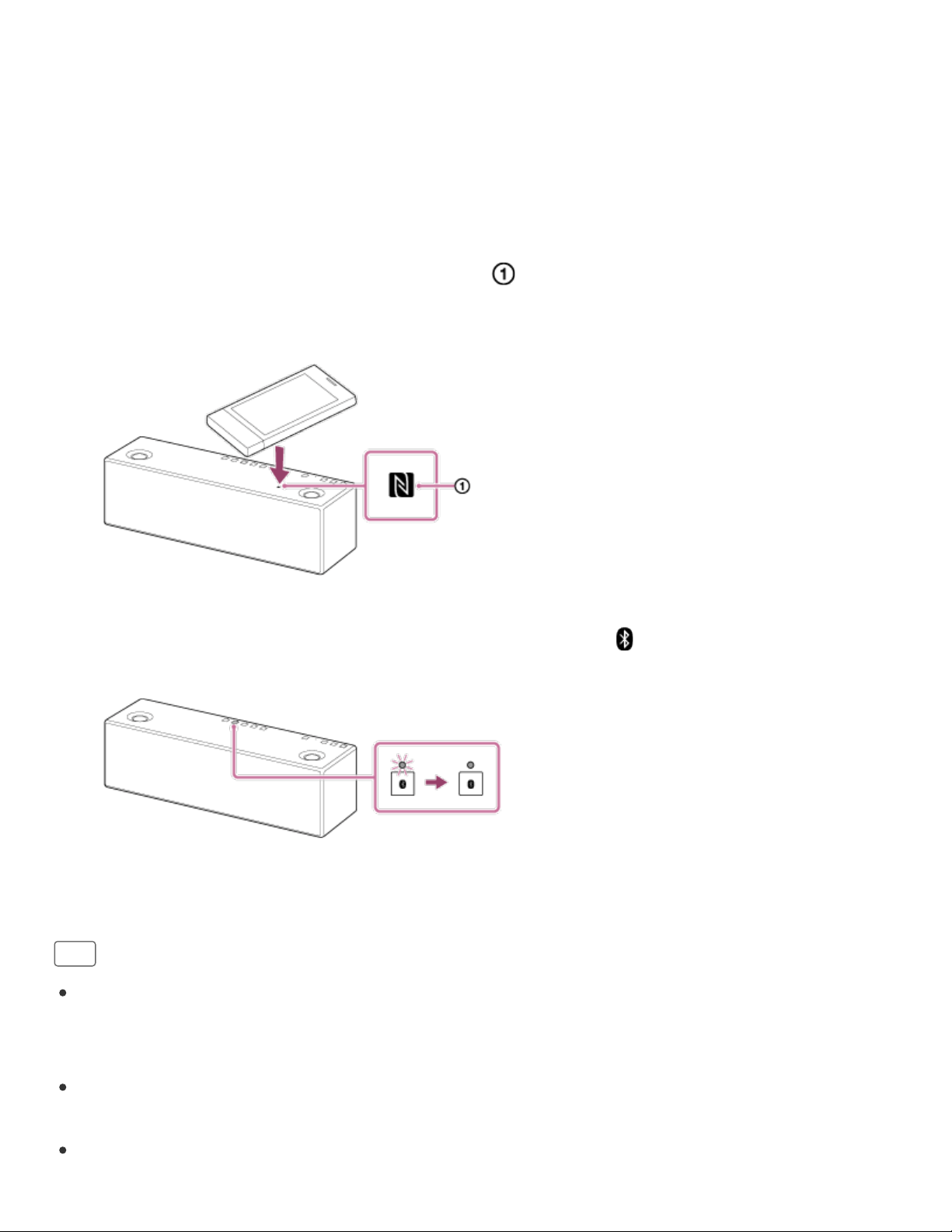
speaker.
1. Set the NFC function of the device to on.
For details, refer to the operating instructions supplied with the device.
2. Touch the speaker with the device.
Unlock the screen of the device beforehand.
Keep touching the device on the N-Mark ( ) of the speaker until the device
responds (it may take a few seconds).
If the speaker is off, it will turn on when the device touches it.
Follow the on-screen instructions to establish the connection.
When the BLUETOOTH connection is established, the (BLUETOOTH) indicator
stays lit.
To disconnect, touch the speaker with the device again.
Hint
You can perform pairing or connect to another BLUETOOTH device even when a
BLUETOOTH connection is established. In this case, the previous connection will be
disconnected.
SongPal has no function of play music via a BLUETOOTH connection. Play music with
your BLUETOOTH device such as smartphone, computer, etc.
If you cannot connect the speaker, try the following.
343

Go to Page Top
Go to Page Top
Move the device slowly over the N-Mark of the speaker.
If the device is in a case, remove the case.
Make sure that the app screen is displayed on the device.
If you touch a device on the speaker, the device terminates BLUETOOTH connection
with any current device (NFC-compatible headset, etc.), and connects with the speaker
(One-touch connection switching).
Note
Stop playback on the BLUETOOTH device and turn down the volume of the device
beforehand. Otherwise, you may experience sudden loud sound output from the
speaker when music is played back for the first time after a BLUETOOTH connection
has been made.
If your smartphone turns to standby mode in reacting to magnetism, the speaker may
not be able to be connected with NFC one touch. In this case, turn off the One-touch
function. For details, refer to the instruction manuals of your smartphone.
Related Topic
Disconnecting the NFC-compatible device by one touch (NFC)
Switching devices by one touch (NFC)
Listening to music on a device via a BLUETOOTH connection
4-567-508-11(5)
Copyright 2015 Sony Corporation
344
Back Back to Top Print
Personal Audio System
SRS-X99
Listening to music on a device via a BLUETOOTH connection
You can enjoy listening to music of a BLUETOOTH device and operate it via a
BLUETOOTH connection if it supports the following BLUETOOTH profiles.
A2DP (Advanced Audio Distribution Profile)
Enables you to enjoy high-quality audio contents wirelessly.
AVRCP (Audio Video Remote Control Profile)
Enables you to adjust the volume of a BLUETOOTH device, etc.
Operations may vary depending on the BLUETOOTH device. Refer also to the operating
instructions supplied with your BLUETOOTH device.
Note
Make sure beforehand that the volume on the BLUETOOTH device is set to a moderate
level to avoid sudden loud sound output from the speaker.
1. Connect the speaker with the BLUETOOTH device.
The
(BLUETOOTH) indicator lights up in white when the BLUETOOTH connection
is established.
Help Guide
How to Use
345
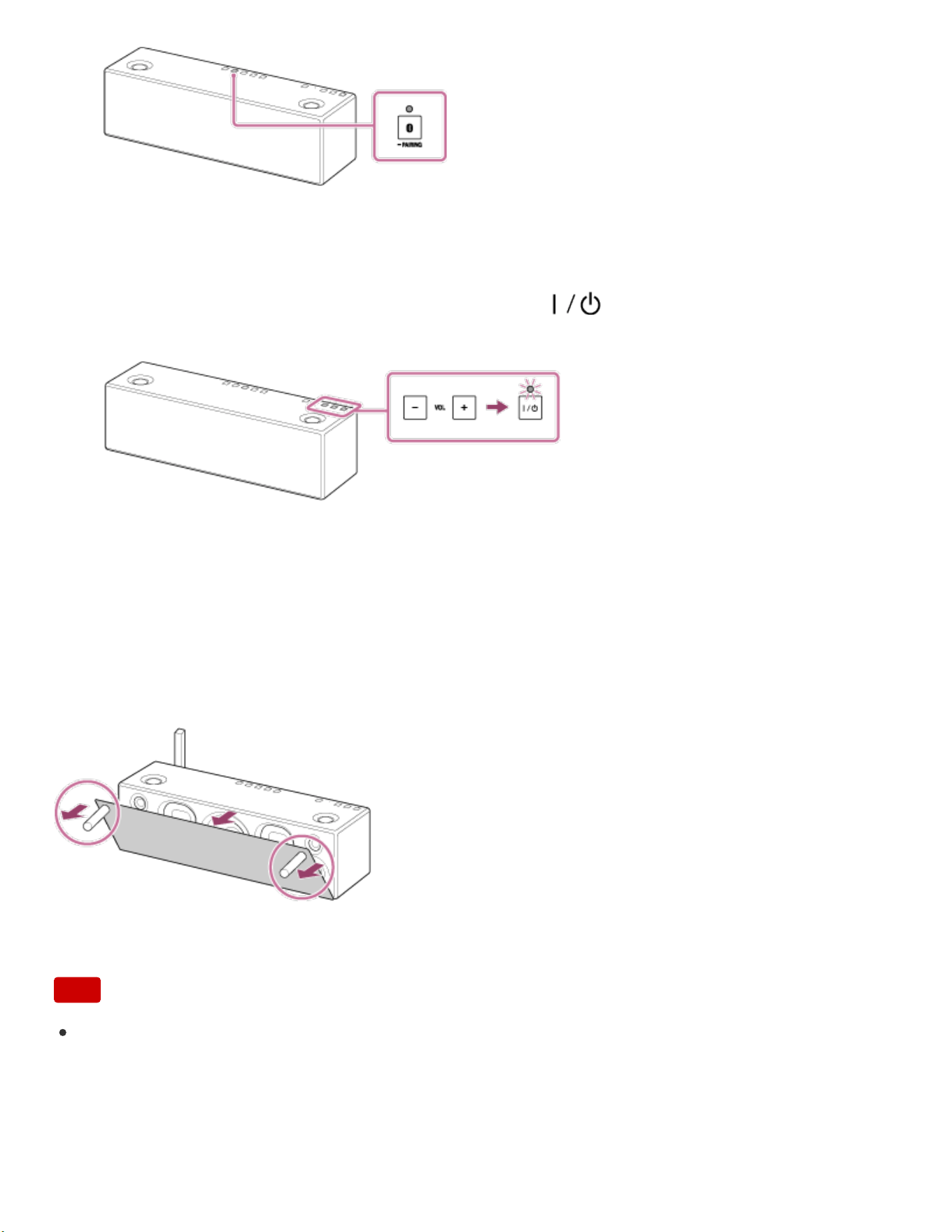
2. Adjust the volume with your BLUETOOTH device or the VOL (volume) –/+ button of
the speaker.
When you tap the VOL (volume) –/+ button, the (on/standby) indicator flashes
once or three times according to the volume adjustment.
3. Start playback on the BLUETOOTH device.
To enjoy a more dynamic sound
Remove the speaker grille from the front of the speaker with the speaker grille detach tool
(supplied).*
*
Keep the removed grille on a flat surface to prevent distortion.
Note
Do not touch the exposed part of the speaker (speaker units) after removing the
speaker grille.
What you can do with the speaker and remote control during playback
You can adjust the volume using the VOL (volume) -/+ buttons of the speaker or the
346
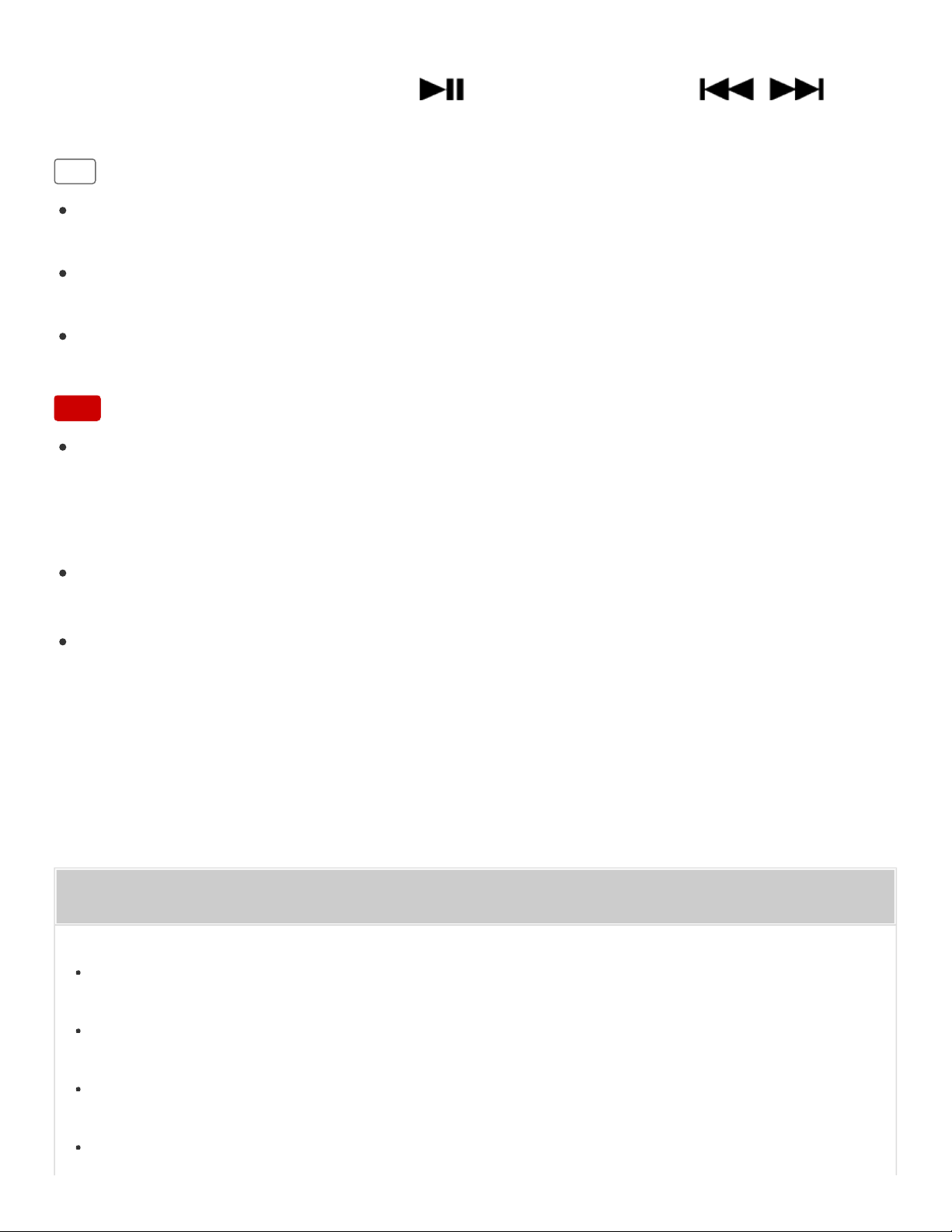
Go to Page Top
VOLUME +/- buttons of the remote control.
You can also use the MUTING button, (Play/Pause) button, or /
(Previous/Next) button of the remote control.
Hint
After SongPal is downloaded and installed to your smartphone/iPhone, you can use it
as a remote control to operate devices connected to the speaker.
SongPal has no function of play music via a BLUETOOTH connection. Play music with
your BLUETOOTH device such as smartphone, computer, etc.
Depending on the BLUETOOTH device, it may be necessary to adjust the volume or set
the audio output setting on the connected device.
Note
Stop playback on the BLUETOOTH device and turn down the volume of the device
beforehand. Otherwise, you may experience sudden loud sound output from the
speaker when music is played back for the first time after a BLUETOOTH connection
has been made.
If the communication condition is poor, the BLUETOOTH device may react incorrectly to
the operation on the speaker.
You can operate a BLUETOOTH device that supports AVRCP using the speaker or
remote control. Available functions may vary depending on the BLUETOOTH device.
Refer to the operating instructions supplied with the BLUETOOTH device.
Related Topic
Parts and controls (Remote control)
Using the BLUETOOTH/Network standby function
Selecting the BLUETOOTH audio streaming playback quality (Codec)
Terminating the BLUETOOTH connection (After use)
347
Back Back to Top Print
Personal Audio System
SRS-X99
Selecting the BLUETOOTH audio streaming playback quality (Codec)
The “Priority on sound quality” and “Priority on stable connection” modes are available as
options for selecting the playback quality of BLUETOOTH audio streaming. “Priority on
sound quality” enables you to playback with a setting of, not only SBC, but also AAC and
LDAC, so that you can enjoy high-quality sound via BLUETOOTH. “Priority on stable
connection” provides you with a more stable BLUETOOTH audio streaming. “Priority on
sound quality” is the default setting.
Playback quality
Priority on sound quality (default setting): Optimal codec is automatically selected from
AAC, LDAC, and SBC.
Priority on stable connection: SBC is selected.
1. Set the speaker to the BLUETOOTH/Network standby mode.
The
(on/standby) indicator lights up in orange.
2. Tap and hold the VOL (volume) + button and (on/standby) button at the same
time, until the (BLUETOOTH) indicator flashes in white.
When the setting is changed to "Priority on sound quality" mode, the
(BLUETOOTH) indicator flashes 3 times.
When the setting is changed to "Priority on stable connection" mode, the
(BLUETOOTH) indicator flashes 2 times.
Help Guide
How to Use
348
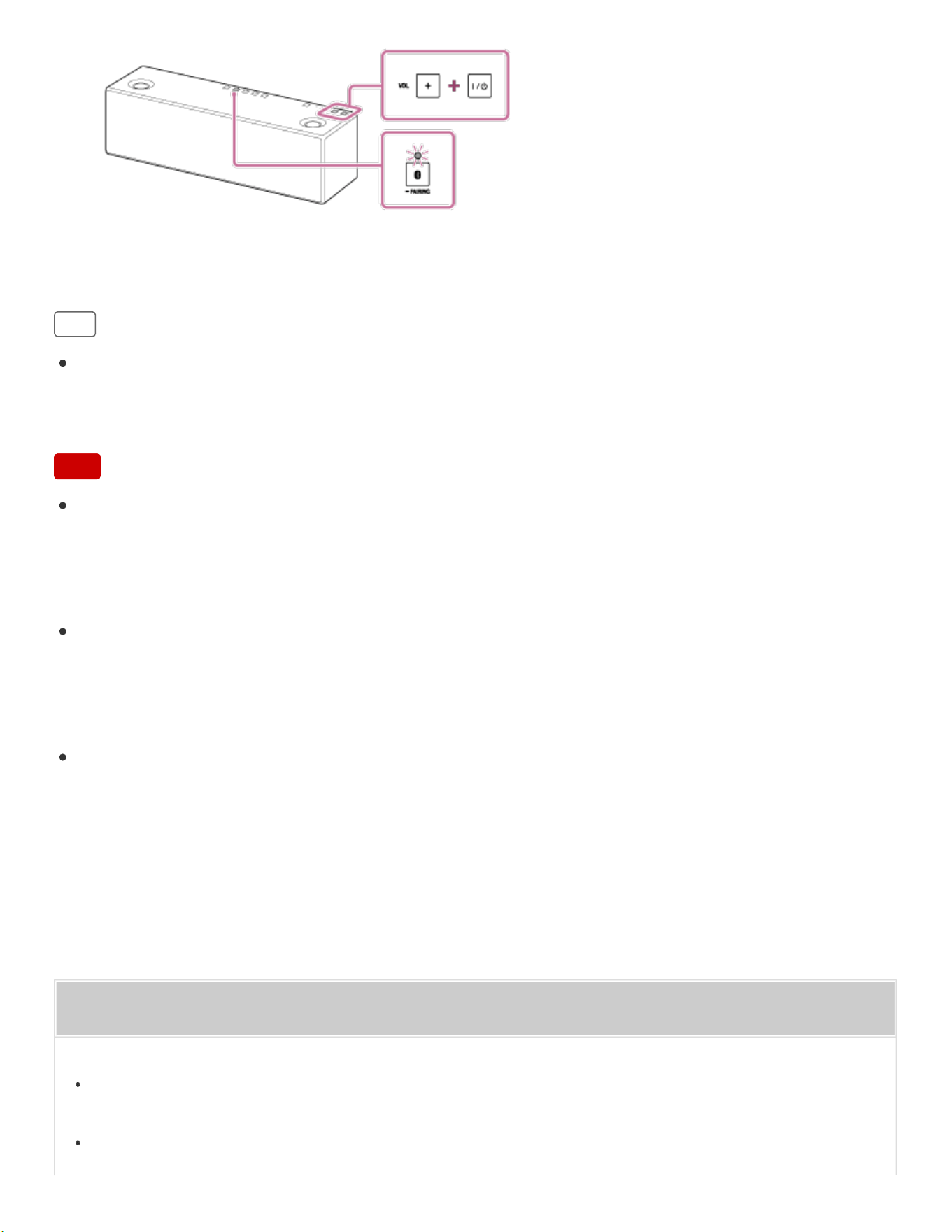
Go to Page Top
The playback quality is switched, and the speaker turns on.
Hint
You can switch the playback quality by using SongPal. "Priority on sound quality"
appears as [Auto] and "Priority on stable connection" appears as [SBC] when setting
with SongPal.
Note
Communication may become unstable in the "Priority on sound quality" mode,
depending on the setting of your BLUETOOTH device and the ambient conditions. In
this case, reset the speaker to the "Priority on stable connection" mode by performing
steps 1 and 2 above.
When the playback quality setting is changed by using Songpal while the speaker is
turned on, the BLUETOOTH connection is terminated. In this case, connect the
BLUETOOTH device manually again. After reconnecting, the playback quality is
switched.
You may also need to adjust the settings of the connected device to change the
playback quality setting, such as SBC, AAC, LDAC. For details, refer to the operating
instructions supplied with the device.
Related Topic
Using the BLUETOOTH/Network standby function
Setting the BLUETOOTH audio streaming playback quality (Codec)
349
Back Back to Top Print
Go to Page Top
Personal Audio System
SRS-X99
Terminating the BLUETOOTH connection (After use)
When you finish playing music with the BLUETOOTH device, perform any of the following
operations to terminate the BLUETOOTH connection.
Turn off the BLUETOOTH function on the BLUETOOTH device. For details, refer to the
operating instructions supplied with the device.
Turn off the BLUETOOTH device.
Turn off the speaker.
Touch the NFC-compatible device on the N-Mark of the speaker again (if your device
has the NFC function).
Hint
If no operation is performed and no music (sound) is input by a BLUETOOTH device for
about 15 minutes, the speaker enters standby mode automatically by the auto standby
function, then the BLUETOOTH connection terminates.
When you finish playing music, the BLUETOOTH connection may terminate
automatically, depending on the BLUETOOTH device.
Help Guide
How to Use
350

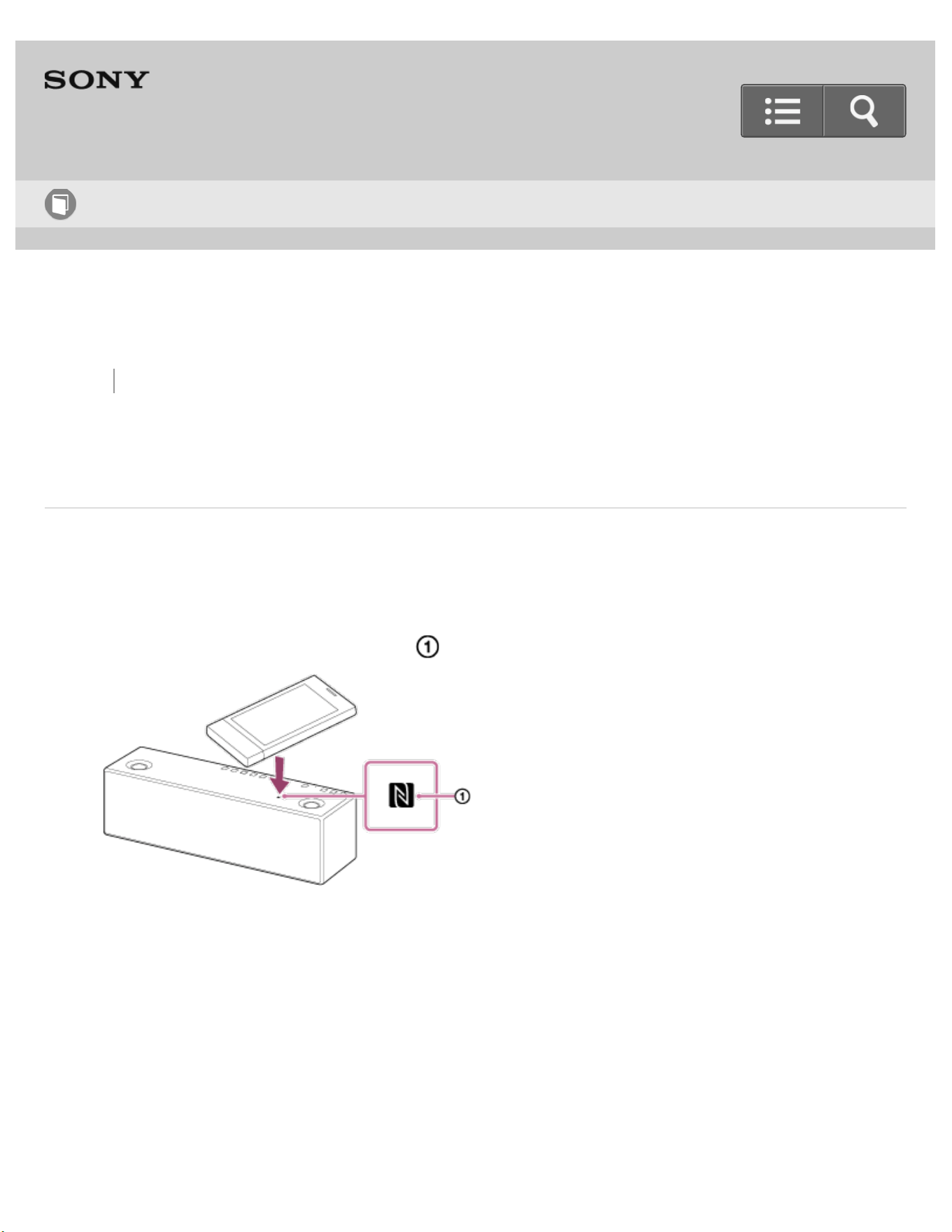
Back Back to Top Print
Go to Page Top
Personal Audio System
SRS-X99
Disconnecting the NFC-compatible device by one touch (NFC)
You can disconnect the speaker from the connected NFC-compatible device such as a
smartphone or Walkman, etc., by touching the speaker with it.
1. Touch the device on the N-Mark ( ) of the speaker.
4-567-508-11(5)
Copyright 2015 Sony Corporation
Help Guide
How to Use
352

Back Back to Top Print
Go to Page Top
Personal Audio System
SRS-X99
Switching devices by one touch (NFC)
If you move an NFC-compatible device over the N-Mark part of the speaker while the
speaker is connected with another BLUETOOTH device, the speaker disconnects from
the BLUETOOTH device. The speaker then connects with the NFC-compatible device
that was just touched.
When an NFC-compatible device is connected with the speaker via the BLUETOOTH
connection, it will disconnect from the speaker if you touch the device onto another
NFC-compatible BLUETOOTH headset or BLUETOOTH speaker. The device then
connects with the BLUETOOTH headset or BLUETOOTH speaker it has just touched.
4-567-508-11(5)
Copyright 2015 Sony Corporation
Help Guide
How to Use
353

Back Back to Top Print
Personal Audio System
SRS-X99
Connecting an iPhone/iPad/iPod
You can enjoy music on an iPhone/iPad/iPod by connecting it to the USB A port ( A)
with a USB cable (not supplied).
Update the iPhone/iPad/iPod software before connecting to the speaker.
1. Connect the iPhone/iPad/iPod to the USB A port ( A) using the USB cable
supplied with your device.
Note
Do not connect an iPhone/iPad/iPod that is not supported by the speaker. Sony does
not guarantee correct operation with a non-supported iPhone/iPad/iPod.
Help Guide
How to Use
354

Go to Page Top
Go to Page Top
Sony is not responsible for any loss or damage to data in an iPhone/iPad/iPod that is
connected to the speaker.
Do not disconnect an iPhone/iPad/iPod from the speaker during operation. To prevent
any damage to data, stop playback and turn off the power of the speaker before
connecting/disconnecting the iPhone/iPad/iPod.
Turn on the power of an iPhone or iPod touch before connecting it to the speaker;
otherwise, operation will not be possible.
Related Topic
Listening to music on an iPhone/iPad/iPod
Charging USB devices, such as smartphones
Listening to music on a device via a USB connection (USB-A)
4-567-508-11(5)
Copyright 2015 Sony Corporation
355
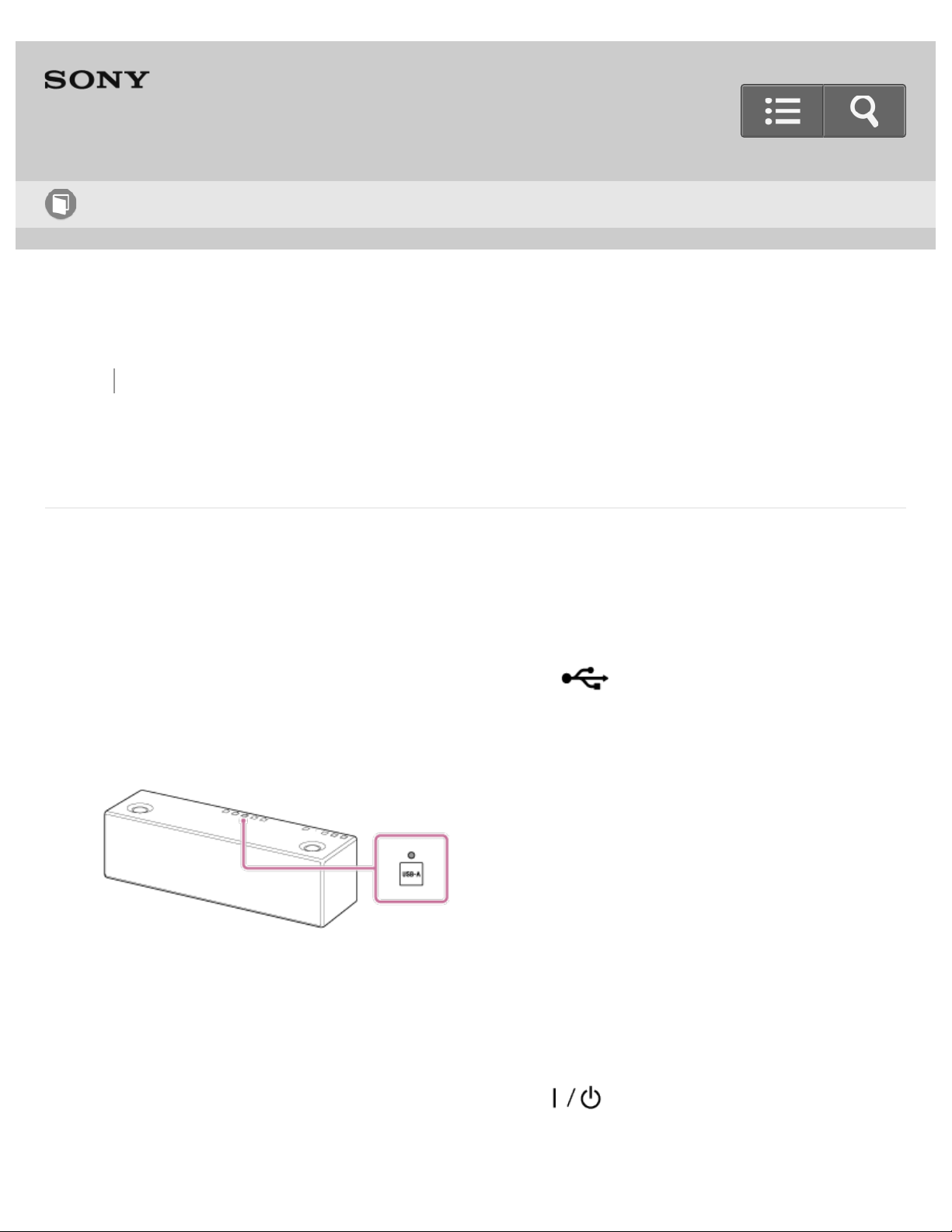
Back Back to Top Print
Personal Audio System
SRS-X99
Listening to music on an iPhone/iPad/iPod
You can listen to music on an iPhone/iPad/iPod that is connected to the speaker with a
USB cable.
Update the software of the iPhone/iPad/iPod before connecting to the speaker.
1. Connect an iPhone/iPad/iPod to the USB A port ( A).
2. Tap the USB-A button.
The speaker switches to the USB-A mode and the USB-A indicator lights up in white.
3. Operate the iPhone/iPad/iPod to start playback and adjust the volume to a moderate
level.
4. Tap the VOL (volume) –/+ button to adjust the volume.
When you tap the VOL (volume) –/+ button, the (on/standby) indicator flashes
once or three times according to the volume adjustment.
Help Guide
How to Use
356
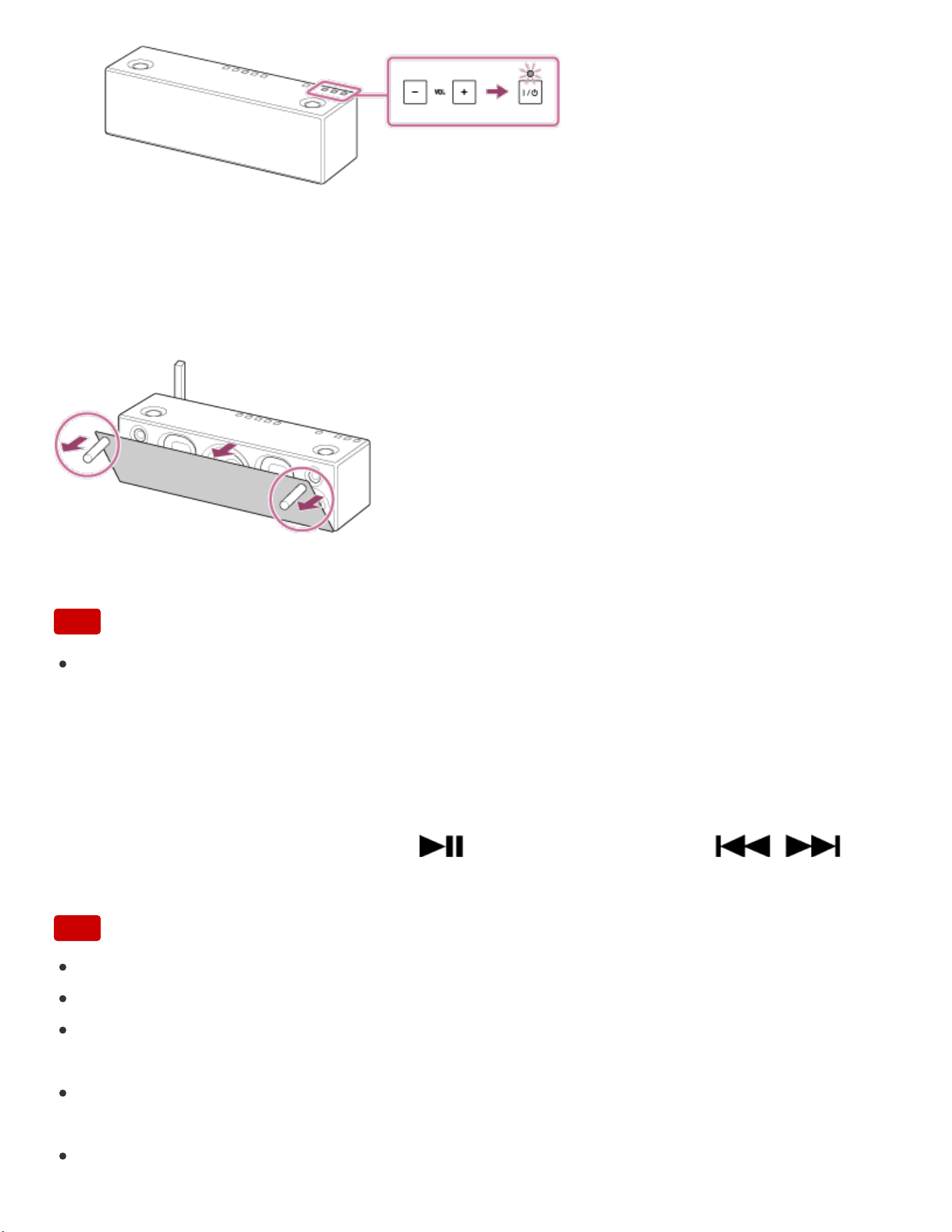
To enjoy a more dynamic sound
Remove the speaker grille from the front of the speaker with the speaker grille detach tool
(supplied).*
*
Keep the removed grille on a flat surface to prevent distortion.
Note
Do not touch the exposed part of the speaker (speaker units) after removing the
speaker grille.
What you can do with the speaker and remote control during playback
You can adjust the volume using the VOL (volume) –/+ buttons of the speaker or the
VOLUME +/- buttons of the remote control.
You can also use the MUTING button, (Play/Pause) button, and /
(Previous/Next) button of the remote control.
Note
If there is noise, turn off the iPhone/iPad/iPod once, then turn it on again.
The speaker supports only audio playback functions of an iPhone/iPad/iPod.
Do not connect a non-supported iPhone/iPad/iPod. Sony does not guarantee correct
operation of a non-supported iPhone/iPad/iPod.
Sony is not responsible for any loss or damage to data in an iPhone/iPad/iPod that is
connected to the speaker.
Do not disconnect an iPhone/iPad/iPod during operation. To prevent damage to data,
357

Go to Page Top
Go to Page Top
stop playback, then turn off the power of the speaker before disconnecting the
iPhone/iPad/iPod.
If sound is distorted, set the equalizer of your iPhone/iPad/iPod to “Off” or “Flat.”
Turn on the power of the iPhone or iPod touch before connecting it to the speaker;
otherwise, operation will not be possible.
Depending on the connected iPhone/iPad/iPod, loud sound may suddenly be output
when the volume is adjusted.
For details on operation of the iPhone/iPad/iPod, refer to its operation manual.
Related Topic
Parts and controls (Remote control)
Listening to music on a device via a USB connection (USB-A)
4-567-508-11(5)
Copyright 2015 Sony Corporation
358
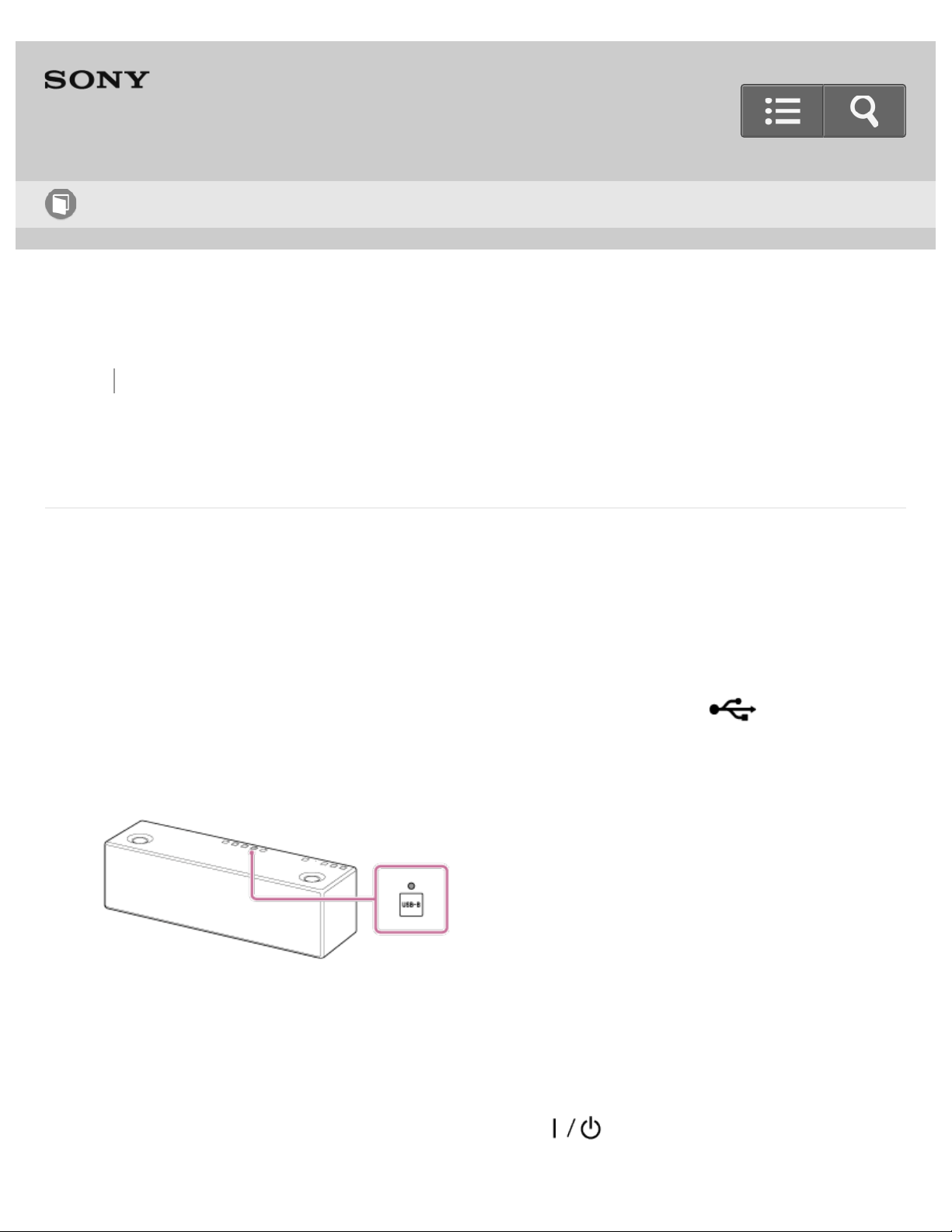
Back Back to Top Print
Personal Audio System
SRS-X99
Listening to music on a high-resolution supported Xperia
You can connect a high-resolution supported Xperia to the speaker with a commercially-
available USB cable and an optional cable for Xperia.
The speaker will receive unconverted digital audio data, which is then converted to analog
data through the digital-to-analog converter of the speaker, and then output.
1. Connect the high-resolution supported Xperia to the USB B port ( B).
2. Tap the USB-B button.
The speaker switches to USB-B mode and the USB-B indicator lights up in white.
3. Operate the high-resolution supported Xperia to start playback and adjust the volume
to a moderate level.
4. Tap the VOL (volume) –/+ button to adjust the volume.
When you tap the VOL (volume) –/+ button, the (on/standby) indicator flashes
once or three times according to the volume adjustment.
Help Guide
How to Use
359
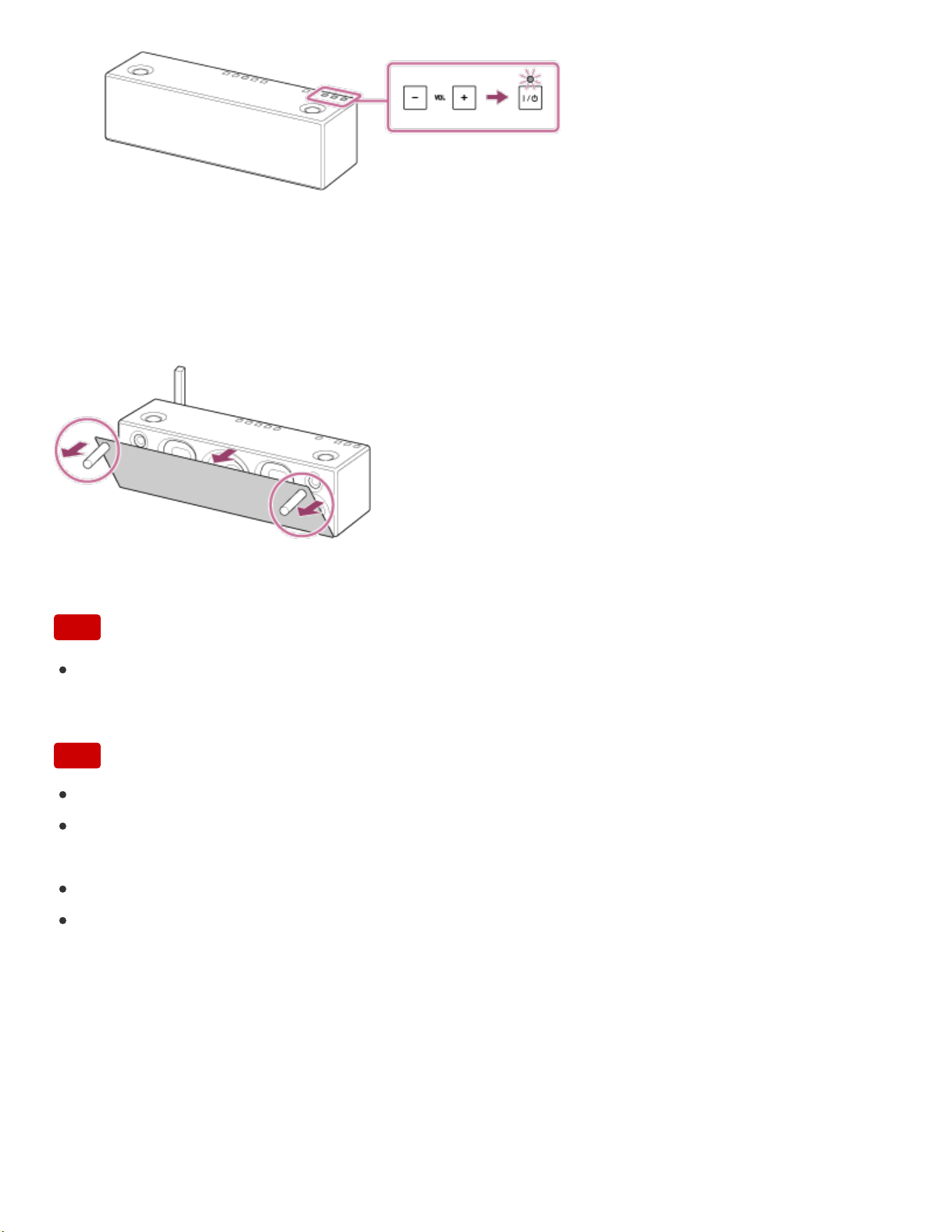
Go to Page Top
To enjoy a more dynamic sound
Remove the speaker grille from the front of the speaker with the speaker grille detach tool
(supplied).*
*
Keep the removed grille on a flat surface to prevent distortion.
Note
Do not touch the exposed part of the speaker (speaker units) after removing the
speaker grille.
Note
The speaker supports only audio playback functions of Xperia.
Sony is not responsible for any loss or damage to data in an Xperia that is connected to
the speaker.
The Xperia cannot be operated from the speaker.
The sound may be distorted if the equalizer function of the Xperia is set to on. Set the
function to off.
4-567-508-11(5)
Copyright 2015 Sony Corporation
360

Back Back to Top Print
Go to Page Top
Personal Audio System
SRS-X99
Listening to High-Resolution Audio format files via a network
You can listen to High-Resolution Audio format files stored in a PC connected to your
network.
High-Resolution Audio format file can be played back by using “Sony | Music Center for
PC” or “Hi-Res Audio Player.”
For details how to setup a computer, see “Listening to music on a computer.”
For more information about the music playback and connection, see Related Topic below.
When playing back High-Resolution Audio files, using commercially-available LAN cables
to connect the speaker, a router and a computer is recommended.
Related Topic
Connecting to a Wi-Fi network using SongPal (Smartphone)
Connecting to a Wi-Fi network using SongPal (iPhone)
Help Guide
How to Use
361

Go to Page Top
Selecting the Wi-Fi network connection method
DLNA (Digital Living Network Alliance)
Connection method 4: Connecting to a wired network
Listening to music on a PC via a Wi-Fi network
Listening with the AirPlay function (iTunes)
Listening to music on a PC via a network (Windows 8) (Windows Media Player)
Listening to music on a PC via a network (Windows 7) Windows Media Player
4-567-508-11(5)
Copyright 2015 Sony Corporation
362
Back Back to Top Print
Personal Audio System
SRS-X99
About the indicators
(on/standby) indicator
Turns off
The speaker is in the standby mode.
Lights up (green)
The speaker is turned on.
Lights up (orange)
The speaker is in the BLUETOOTH/Network standby mode.
Flashes (green)
If you turn off the speaker, the indicator flashes slowly in green, then lights up in orange
or turns off. While the indicator is flashing, the speaker is not operational.
When you tap the VOL (volume) -/+ button, the indicator flashes once or three times
according to the volume adjustment.
Flashes (red)
The speaker is in protect mode, or the software update has failed. See "The power
indicator flashes in red."
LINK indicator
Help Guide
How to Use
363

Turns off
The speaker is not connected to a network.
Lights up (orange)
The speaker is connected to a Wi-Fi network.
Lights up (pink)
The speaker is connected to a wired network.
Flashes (orange)
The speaker is in the process of connecting to a Wi-Fi network.
Flashes (pink)
The speaker is in the process of connecting to a wired network.
Lights up (green or light blue)
The speaker is connected to a music service.
Flashes (red)
The network connection failed.
Lights up (red)
The network connection failed, or connection failed even though the network setting is
complete.
Reaction indicator
Flashes (white)
When the remote control is operated and volume is adjusted, the indicator flashes.
When the volume is operated from the connected device, the indicator flashes.
When the volume is turned to the minimum or maximum volume level, the indicator
flashes three times.
AUDIO IN indicator
*1*2
Lights up (white)
The speaker is in the AUDIO IN mode.
USB-A indicator
*1*2
364

Lights up (white)
The speaker is in the USB-A mode.
USB-B indicator
*1*2
Lights up (white)
The speaker is in the USB-B mode.
(BLUETOOTH) PAIRING indicator
*1*2*3*4
Lights up (white)
The speaker is connected to a BLUETOOTH device.
Flashes quickly (white)
The speaker is pairing with a BLUETOOTH device.
Flashes (white)
The speaker is searching for a BLUETOOTH device to connect.
NETWORK indicator
*1*2*3
Lights up (white)
The speaker is in the NETWORK mode.
Flashes (white)
The speaker is receiving an audio file via the network.
UPDATE button
Lights up (orange)
The speaker detects the availability of a software update while connected to the internet.
When you tap and hold the lit button, the update of the speaker’s software is started.
Flashes (orange)
The speaker is updating the software. During the update, you cannot operate the
speaker.
When the speaker turns on for the first time after the software update, the UPDATE
button flashes three times to inform you that the update is completed.
365

Go to Page Top
Go to Page Top
*1
If software update fails, the indicator also lights up.
*2
When checking Wi-Fi signal strength, the indicator also flashes.
*3
When switching the wireless function to on or off, the indicator also flashes.
*4
When switching the BLUETOOTH audio streaming, the indicator also flashes.
Related Topic
Parts and controls (Main unit)
Checking the Wi-Fi signal strength (reception sensitivity)
Updating the pre-installed software
The power indicator flashes in red.
4-567-508-11(5)
Copyright 2015 Sony Corporation
366

Back Back to Top Print
Personal Audio System
SRS-X99
Compatible iPhone/iPad/iPod models
iPhone/iPad/iPod models that can be used with the speaker are shown below.
Update the software of your iPhone/iPad/iPod to the latest version before using it with the
speaker.
For the latest iPhone/iPad/iPod compatible models, access the following URL:
For customers in Europe:
http://www.sony.eu/support
For customers in the USA:
http://esupport.sony.com/US
For customers in Canada:
http://esupport.sony.com/CA/
For customers in other countries/regions:
http://www.sony-asia.com/section/support
AirPlay connection compatible models
iPhone 6 Plus
iPhone 6
iPhone 5s
iPhone 5c
iPhone 5
iPhone 4s
Help Guide
How to Use
367

iPhone 4
iPhone 3GS
iPad Air 2*
iPad mini 3*
iPad Air*
iPad mini 2*
iPad (4th generation)*
iPad mini*
iPad (3rd generation)*
iPad 2*
iPad*
iPod touch (5th generation)
iPod touch (4th generation)
iPod touch (3rd generation)*
BLUETOOTH connection compatible models
iPhone 6 Plus
iPhone 6
iPhone 5s
iPhone 5c
iPhone 5
iPhone 4s
iPhone 4
iPhone 3GS
iPad Air 2*
iPad mini 3*
iPad Air*
iPad mini 2*
iPad (4th generation)*
iPad mini*
iPad (3rd generation)*
iPad 2*
iPad*
iPod touch (5th generation)
iPod touch (4th generation)
iPod touch (3rd generation)*
368

iPod nano (7th generation)*
USB connection compatible models
iPhone 6 Plus
iPhone 6
iPhone 5s
iPhone 5c
iPhone 5
iPhone 4s
iPhone 4
iPhone 3GS
iPad Air 2*
iPad mini 3*
iPad Air*
iPad mini 2*
iPad (4th generation)*
iPad mini*
iPad (3rd generation)*
iPad 2*
iPad*
iPod touch (5th generation)
iPod touch (4th generation)
iPod touch (3rd generation)*
iPod classic*
iPod nano (7th generation)*
iPod nano (6th generation)*
iPod nano (5th generation)*
iPod nano (4th generation)*
*
SongPal does not support iPod touch (3rd generation), iPod classic, and iPod nano. As of January
2015, SongPal does not support the display optimized for iPad screens.
AirPlay works with iPhone, iPad, and iPod touch with iOS 4.3.3 or later, Mac with OS X
Mountain Lion or later, and Mac and PC with iTunes 10.2.2 or later.
Note
Sony cannot accept responsibility in the event that data recorded to an
iPhone/iPad/iPod is lost or damaged when using an iPhone/iPad/iPod connected to this
369


Back Back to Top Print
Personal Audio System
SRS-X99
Compatible Walkman models
Operation checked models (as of January 2015)
For the latest compatible models, access the following URL:
For customers in Europe:
http://www.sony.eu/support
For customers in the USA:
http://esupport.sony.com/US
For customers in Canada:
http://esupport.sony.com/CA/
For customers in other countries/regions:
http://www.sony-asia.com/section/support
A series
NW-A865/A866/A867
NW-A16/NW-A17
S series
NW-S754/S755/S756
NW-S754K/S755K
NW-S764/S765/S766
NW-S764K/S765K
Help Guide
How to Use
371

Go to Page Top
NW-S764BT
NW-S774/S775
NW-S774K/S775K
NW-S774BT
NW-S774/WI
NW-S774K/WI
NW-S784/S785/S786
NW-S784K/S785K
NW-S14/S14K/S15/S15K
E series
NW-E062/E063
NW-E062K/E063K
NW-E083/E083K
F series
NW-F805/F806/F807
NW-F805K/F806K
NW-F805BT
NW-F807/S
NW-F885/F886/F887
Z series
NW-Z1050/Z1060/Z1070/Z1070/W
ZX1 series
NW-ZX1/NW-ZX2
4-567-508-11(5)
Copyright 2015 Sony Corporation
372

Back Back to Top Print
Personal Audio System
SRS-X99
Compatible operating system (Windows)
Compatible PC
IBM PC/AT compatible computers
Supported Operating Systems
Windows RT 8.1
Windows 8.1 Enterprise
Windows 8.1 Pro
Windows RT
Windows 8 Enterprise
Windows 8 Professional
Windows 8 Core Edition
Windows 7 Ultimate
Windows 7 Professional
Windows 7 Home Premium
Windows 7 Home Basic
Windows 7 Starter
Suitable browsers
Internet Explorer 9 or later
Help Guide
How to Use
373

Go to Page Top
Any of the above operating systems must be factory installed in the PC.
Correct operation of all PCs is not guaranteed.
Correct operation with a home-built PC, personally upgraded operating system, or multi-
boot environment is not guaranteed.
Operations such as system suspend mode, sleep mode or hibernation mode are not
guaranteed for all PCs.
4-567-508-11(5)
Copyright 2015 Sony Corporation
374

Back Back to Top Print
Go to Page Top
Personal Audio System
SRS-X99
Compatible operating systems (Mac)
Supported Operating Systems
Mac OS X v10.10 Yosemite
Mac OS X v10.9 Mavericks
Mac OS X v10.8 Mountain Lion
Mac OS X v10.7 Lion
Mac OS X v10.6 Snow Leopard
Suitable browsers
Safari (latest version at the time of Mac OS X v10.6 Snow Leopard being released, or
later)
Any of the above operating systems must be factory installed in the computer.
Correct operation of all computers is not guaranteed.
Correct operation with a home-built computer, personally upgraded operating system,
or multi-boot environment is not guaranteed.
Operations such as system suspend mode, sleep mode or hibernation mode are not
guaranteed for all computers.
Help Guide
How to Use
375

Back Back to Top Print
Go to Page Top
Personal Audio System
SRS-X99
Compatible DLNA devices
For the latest compatible models, access the following URL:
For customers in Europe:
http://www.sony.eu/support
For customers in the USA:
http://esupport.sony.com/US
For customers in Canada:
http://esupport.sony.com/CA/
For customers in other countries/regions:
http://www.sony-asia.com/section/support
4-567-508-11(5)
Copyright 2015 Sony Corporation
Help Guide
How to Use
376

Back Back to Top Print
Personal Audio System
SRS-X99
Compatible BLUETOOTH devices
For the latest compatible models, access the following URL:
For customers in Europe:
http://www.sony.eu/support
For customers in the USA:
http://esupport.sony.com/US
For customers in Canada:
http://esupport.sony.com/CA/
For customers in other countries/regions:
http://www.sony-asia.com/section/support
Compatible BLUETOOTH Profiles
*1
A2DP (Advanced Audio Distribution Profile)
AVRCP (Audio Video Remote Control Profile)
Supported codec
*2
SBC
*3
AAC
*4
LDAC
*1
BLUETOOTH standard profiles indicate the purpose of BLUETOOTH communication between
devices.
Help Guide
How to Use
377


Back Back to Top Print
Personal Audio System
SRS-X99
Compatible USB devices
For the latest compatible models, access the following URL:
For customers in Europe:
http://www.sony.eu/support
For customers in the USA:
http://esupport.sony.com/US
For customers in Canada:
http://esupport.sony.com/CA/
For customers in other countries/regions:
http://www.sony-asia.com/section/support
USB A port (
A) supported format
*
MP3: 32/44.1/48 kHz, 16-320 kbps (CBR/VBR)
AAC: 32/44.1/48/88.2/96 kHz, 16-320 kbps (CBR/VBR)
WMA: 32/44.1/48 kHz, 16-320 kbps (CBR/VBR)
WAV: 32/44.1/48/88.2/96/176.4/192 kHz (16/24 bit)
AIFF: 32/44.1/48/88.2/96/176.4/192 kHz (16/24 bit)
FLAC: 32/44.1/48/88.2/96/176.4/192 kHz (16/24 bit)
ALAC: 32/44.1/48/88.2/96/176.4/192 kHz (16/24 bit)
DSD (DSF/DSDIFF): 2.8 MHz (1 bit)
USB B port (
B) supported format
*
Help Guide
How to Use
379

Back Back to Top Print
Personal Audio System
SRS-X99
Updating the pre-installed software
When a new version of the software is released, you can update your speaker’s pre-
installed software by using one of the following three methods.
By updating the software, new features will be added enabling you to experience more
convenient and stable use.
Update method 1: Automatic update via the Internet
When the speaker is connected to the Internet, it can detect a new software version and
automatically update when you are not using the speaker. This feature requires speaker
settings to be made.
Update method 2: Manual update via the Internet
When the speaker is connected to the Internet, it can detect a new software version and
if found, lights the UPDATE button in orange to inform you. This is the default setting.
Update method 3: Manual update via a USB flash drive
When the speaker is not connected to the Internet, use a computer or another device to
download the update file, then install it to the speaker.
Hint
After the software update is complete, the UPDATE button turns off and the speaker
automatically enters standby mode or BLUETOOTH/Network standby mode. When the
speaker is turned on for the first time after updating, the UPDATE button flashes in
Help Guide
How to Use
381


Back Back to Top Print
Personal Audio System
SRS-X99
Update method 1: Automatic update via the Internet
If you use the speaker while connected to the Internet via a wired or Wi-Fi network, the
speaker can update to the latest software automatically.
This feature is disabled by default.
To update software automatically
Launch SongPal on your smartphone/iPhone, and set [Time Zone] in the [Settings]
menu.
The automatic software update feature ([Auto Update]) of the speaker is activated. If
[Auto Update] is disabled, change the setting to enable.
The update is performed when you are not using the speaker, such as during midnight
or when the speaker is in standby mode. During update, the UPDATE button flashes in
orange, and turns off when the update is complete. When the speaker is turned on for
the first time after updating, the UPDATE button flashes in orange three times.
To deactivate the software automatic update
Disable [Auto Update] in the [Settings] menu by using SongPal installed on a
smartphone/iPhone.
However, the software may still be updated automatically for critical changes, even if
you disable this function.
Help Guide
How to Use
383

If the indicator and the button flash as explained in the following
The (on/standby) indicator flashes in red and the UPDATE button flashes in
orange
When the speaker is turned on, the (on/standby) indicator flashes in red and the
UPDATE button flashes in orange
The software update has failed.
If the network connection is not reliable, the update may fail before it completes. See the
following to update using a USB flash drive.
Manual update via a USB flash drive (when the update via a network has failed)
Hint
The number of flashes of the UPDATE button will change according to the update’s
progress. The UPDATE button flashes four times at first, and decreases by one flash,
then turns off when the updating is completed. Do not turn the speaker off during the
update.
When the speaker is connected to the Internet via a wired or Wi-Fi network, the
UPDATE button on the speaker lights up in orange when the speaker detects a new
software version. (The UPDATE button is usually turned off.)
Regardless of the [Auto Update] setting, the UPDATE button lights up in orange when
the speaker detects a new software version.
You can update the software manually even when the [Auto Update] setting is
activated. See "Update method 2: Manual update via the Internet".
Note
Updating normally takes 3 to 10 minutes. It may take longer depending on your network
environment.
Do not operate the speaker or remote control during an update. Also, keep the speaker
connected to the power supply and network while updating.
When the UPDATE button flashes four times while updating via Internet, you can
terminate the update procedure by tapping and holding the UPDATE button. (This does
not necessarily always apply.) After the update is terminated, the speaker automatically
enters standby mode or BLUETOOTH/Network standby mode. When you turn on the
speaker next time after termination, the UPDATE button will light up if the speaker
detects a new software version again.
384

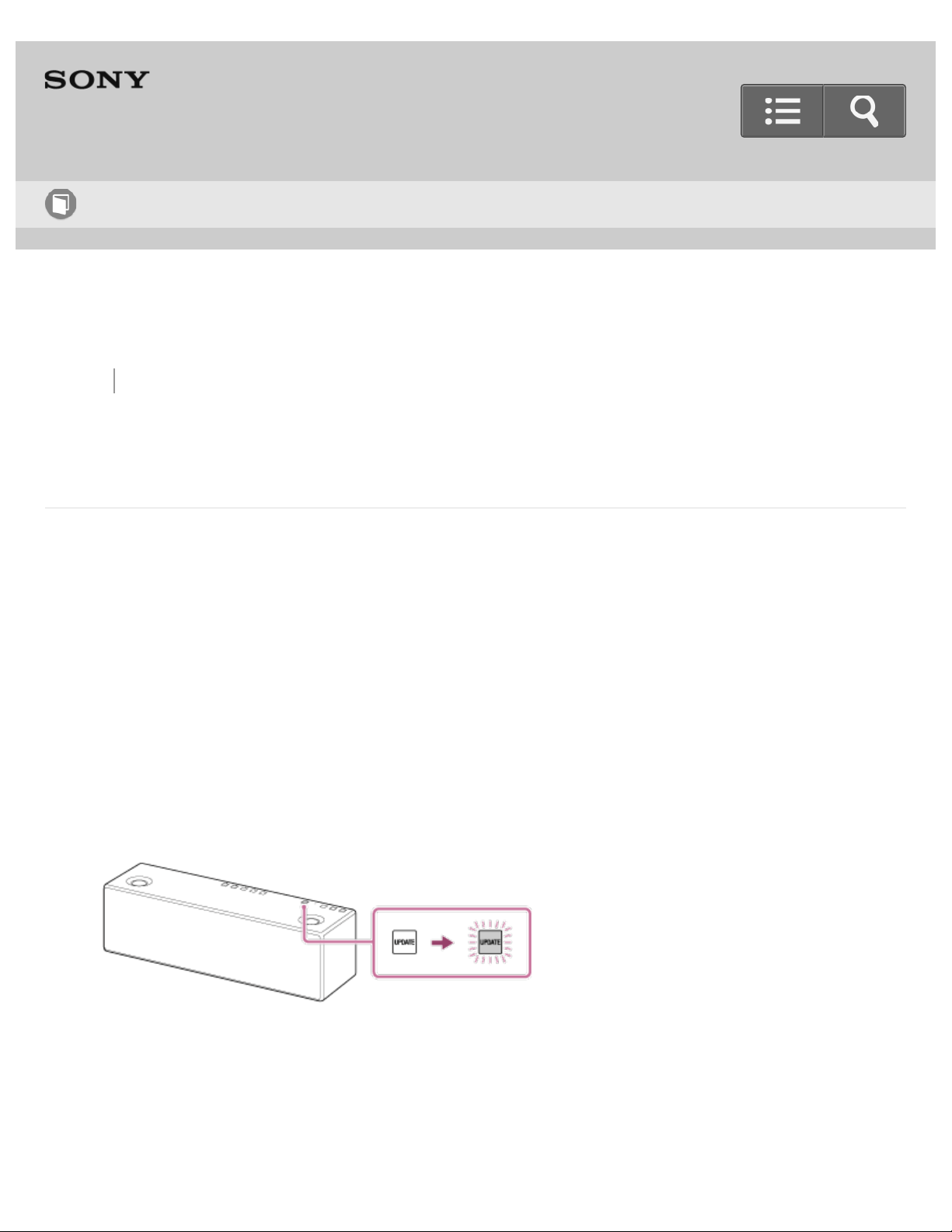
Back Back to Top Print
Personal Audio System
SRS-X99
Update method 2: Manual update via the Internet
When the speaker is connected to the Internet via a wired or Wi-Fi network, the UPDATE
button on the speaker lights up in orange when the speaker detects a software update is
available. (The UPDATE button is usually turned off.)
In this case, follow the steps below to update the software to the latest version.
When the update starts, any music being played will stop. Also, any BLUETOOTH
connection is disconnected.
1. Tap and hold the UPDATE button until beeps are heard.
The UPDATE button will flash in orange when updating starts.
The speaker is not operational while updating.
The UPDATE button turns off and the speaker switches to standby mode or
BLUETOOTH/Network standby mode automatically when updating is completed.
When you turn on the speaker the first time after an update, the UPDATE button
flashes three times.
Help Guide
How to Use
386
Go to Page Top
If the indicator flashes in red and the UPDATE button flashes in
orange during the update
The update has failed.
If the network connection is not reliable, the update may fail before it completes. See the
following to update using a USB flash drive.
Manual update via a USB flash drive (when the update via a network has failed)
Hint
The number of flashes of the UPDATE button will change according to the update’s
progress. The UPDATE button flashes four times at first, and decreases by one flash,
then turns off when the updating is completed. Do not turn the speaker off during the
update.
Note
Updating normally takes 3 to 10 minutes. It may take longer depending on your network
environment.
Do not operate the speaker or remote control during an update. Also, keep the speaker
connected to the power supply and network while updating.
When the UPDATE button flashes four times while updating via Internet, you can
terminate the update procedure by tapping and holding the UPDATE button. (This does
not necessarily always apply.) After the update is terminated, the speaker automatically
enters standby mode or BLUETOOTH/Network standby mode. When you turn on the
speaker next time after termination, the UPDATE button will light up if the speaker
detects a new software version again.
Related Topic
Update method 1: Automatic update via the Internet
Manual update via a USB flash drive (when the update via a network has failed)
387

Back Back to Top Print
Personal Audio System
SRS-X99
Update method 3: Manual update via a USB flash drive
You can use a USB flash drive to update the software when the speaker is not connected
to the Internet. Follow the steps below.
1. Stop any music that is being played.
2. Download the update file from the website below, then store it in a USB flash drive.
For customers in Europe:
http://www.sony.eu/support
For customers in the USA:
http://esupport.sony.com/US
For customers in Canada:
http://esupport.sony.com/CA/
For customers in other countries/regions:
http://www.sony-asia.com/section/support
3. Tap and hold both the AUDIO IN button and VOL (volume) - button until beeps are
heard.
The UPDATE button lights up.
Even though the UPDATE button is already lit, perform the procedure above until
beeps are heard for certain. (The UPDATE button may light up if the speaker is
connected to the Internet. In this case, the UPDATE button stays lit and does not
Help Guide
How to Use
388
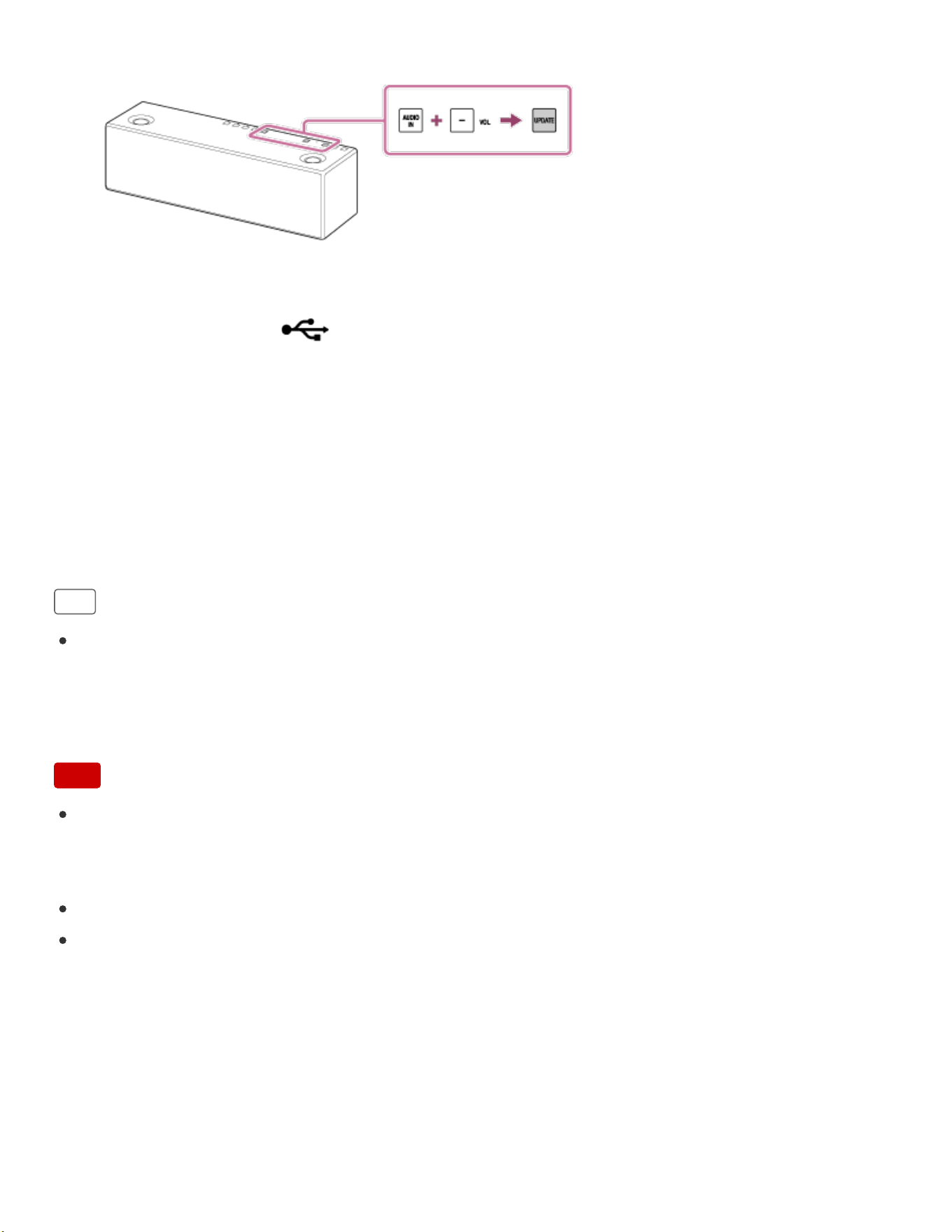
Go to Page Top
change.)
4. While the UPDATE button lights up, connect the USB flash drive prepared in Step 2
to the USB A port ( A) on the rear of the speaker.
When the update starts, the UPDATE button flashes in orange. While updating, the
speaker cannot be operated.
The UPDATE button turns off and the speaker switches to standby mode or
BLUETOOTH/Network standby mode automatically when the updating is completed.
When you turn on the speaker the first time after an update, the UPDATE button
flashes three times.
Hint
The number of flashes of the UPDATE button will change according to the update’s
progress. The UPDATE button flashes four times at first, and decreases by one flash,
then turns off when the updating is completed. Do not turn the speaker off during the
update.
Note
When you update using a USB flash drive, the update cannot be stopped. If the USB
flash drive is removed or the speaker is unplugged during the update, the speaker will
malfunction.
Updating normally takes 3 to 10 minutes.
Do not operate the speaker or remote control during an update. Also, keep the speaker
connected to the power supply and network while updating.
4-567-508-11(5)
Copyright 2015 Sony Corporation
389
Back Back to Top Print
Personal Audio System
SRS-X99
Manual update via a USB flash drive (when the update via a network has failed)
If the (on/standby) indicator flashes in red and the UPDATE button flashes in
orange, the software update has failed.
In this condition, the speaker will not respond to any operation and no functions can be
used, except the (on/standby) button operation. Follow the steps below to examine
the speaker’s condition, then complete the software update with an appropriate method.
1. Tap the (on/standby) button to turn the speaker off, then tap the button again
to turn on.
2. Wait about three minutes (or until a network connection is established), then check
the condition of the UPDATE button and (on/standby) indicator.
When the UPDATE button lights up in orange: The update is not complete,
though the speaker can be used normally. Turn the speaker off again, then follow
the instructions in the following link to complete the software update using a USB
flash drive.
Update method 3: Manual update via a USB flash drive
When the UPDATE button flashes in orange and the (on/standby)
indicator flashes in red (the same as the situation before turning the speaker
on again): The update has failed and the speaker cannot be used. Proceed to the
next step to update using a USB flash drive.
Help Guide
How to Use
390

The update procedure is different from "Update Method 3" and the following steps
are required. In this case, the update cannot be performed via a network.
3. If the UPDATE button flashes in orange and the
(on/standby) indicator flashes
in red, follow the steps below to update.
i. Download the update file from the website below, then store it in a USB flash
drive.
For customers in Europe:
http://www.sony.eu/support
For customers in the USA:
http://esupport.sony.com/US
For customers in Canada:
http://esupport.sony.com/CA/
For customers in other countries/regions:
http://www.sony-asia.com/section/support
ii. Turn the speaker off again.
After turning off the speaker, complete following steps until turning on the power
again within three minutes.
iii. Connect the USB flash drive to the USB A port (
A) on the rear of the
speaker.
iv. Turn the speaker on.
The UPDATE button flashes and the update starts automatically.
The UPDATE button turns off and the speaker switches to standby mode or
BLUETOOTH/Network standby mode automatically when the updating is
completed.
When you turn on the speaker the first time after an update, the UPDATE button
flashes three times.
Hint
The number of flashes of the UPDATE button will change according to the update’s
progress. The UPDATE button flashes four times at first, and decreases by one flash,
then turns off when the updating is completed. Do not turn the speaker off during the
update.
Note
When you update using a USB flash drive, the update cannot be stopped. If the USB
391

Go to Page Top
Go to Page Top
flash drive is removed or the speaker is unplugged during the update, the speaker will
malfunction.
Updating normally takes 3 to 10 minutes.
Do not operate the speaker or remote control during an update. Also, keep the speaker
connected to the power supply and network while updating.
Related Topic
Update method 3: Manual update via a USB flash drive
4-567-508-11(5)
Copyright 2015 Sony Corporation
392
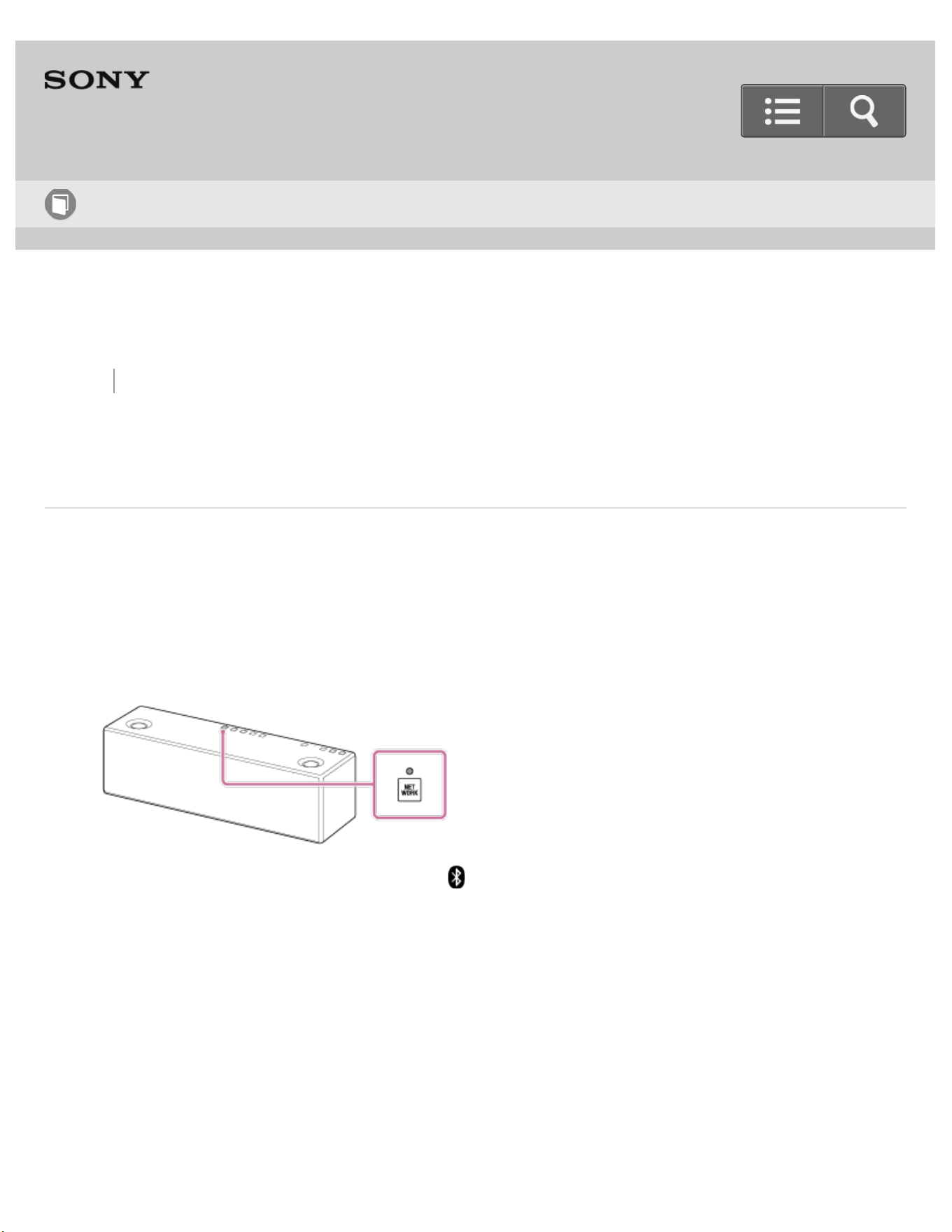
Back Back to Top Print
Personal Audio System
SRS-X99
Checking the Wi-Fi signal strength (reception sensitivity)
The indicator of the speaker shows signal strength (reception sensitivity) by its flashing
status when the speaker is connected to a Wi-Fi network.
1. While the speaker is connected to Wi-Fi a network (the LINK indicator lights up in
orange), tap and hold the NETWORK button until beeps are heard.
The function indicators (NETWORK, (BLUETOOTH), USB-A, USB-B, AUDIO IN)
on the top panel start to flash. The number of flashing indicators shows the strength
of the signal. Flashing stops when any button is tapped.
Help Guide
How to Use
393
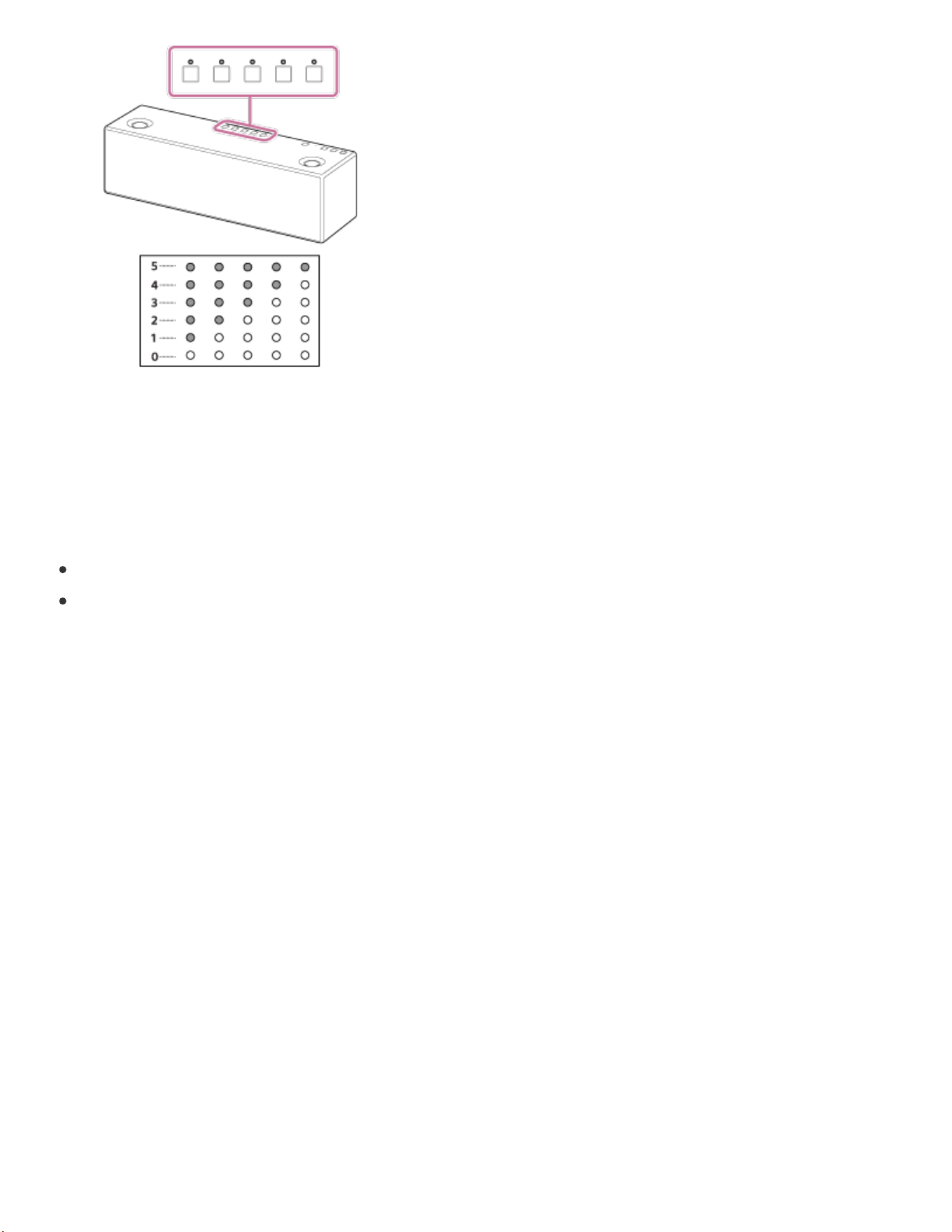
Go to Page Top
When no indicator is flashing, the signal strength is the weakest. When 5 indicators
are flashing, the signal strength is the strongest.
To receive a stronger signal
Try the following:
Change the direction of the wireless LAN antenna.
Turn off other wireless devices.
4-567-508-11(5)
Copyright 2015 Sony Corporation
394
Back Back to Top Print
Personal Audio System
SRS-X99
Standby mode differences
Standby function
The speaker is in standby mode when the (on/standby) indicator is off.
If you tap the (on/standby) button to turn off the speaker, the (on/standby)
indicator turns off and the speaker enters standby mode.
BLUETOOTH/Network standby function
The speaker is in the BLUETOOTH/Network standby mode when the (on/standby)
indicator lights up in orange.
If the BLUETOOTH/Network standby function is on, the speaker turns on automatically by
operating a network device or BLUETOOTH device, and network or BLUETOOTH
connection starts.
When you turn on the speaker in the BLUETOOTH/Network standby mode, the start-up
time becomes shorter and the speaker will become operational sooner, than when you
turn on the speaker in standby mode.
With the speaker turned on, tap and hold the (on/standby) button until the
(on/standby) indicator lights up in orange. The speaker turns off and enters the
BLUETOOTH/Network standby mode.
Hint
Help Guide
How to Use
395

Go to Page Top
To comply with the power saving regulation in Europe, products with the serial number
2200001 or later cannot use this function when the product is connected to the wired
network or not connected to the wireless network. This function will not be available
when the network connection is disconnected as well. If so, set this function again.
When the multi-room function turns on, it supports TDLS (Tunneled Direct Link Setup)
and works as a wireless router that improves the data communication quality (Version
1.60 or later).
Auto standby function
The speaker automatically enters standby mode or switches to the BLUETOOTH/Network
standby mode if the speaker remains in any of the following states for about 15 minutes.
No operation of the speaker.
No connect/disconnect operations to the speaker from external devices.
Music (sound) is not played while connected to an external device.
Hint
In standby mode, the power consumption of the speaker reduces.
In BLUETOOTH/Network standby mode, the speaker's start-up time will be shorter.
The auto standby function can be turned off by using SongPal.
Related Topic
Turning the power off
Using the BLUETOOTH/Network standby function
Auto standby function
Setting the auto standby function
Setting the BLUETOOTH/Network standby function
396

Back Back to Top Print
Personal Audio System
SRS-X99
Precautions
On safety
The nameplate indicating Sony trademark, model number and electrical rating, is located
on the bottom exterior of the speaker.
The MAC address is located on the bottom exterior of the speaker.
MAC1 : MAC address for wired networks
MAC2 : MAC address for Wi-Fi networks
Before operating the speaker, be sure that the operating voltage of the speaker
matches that of your local power supply.
About the main unit becoming warm
If you use the speaker for a long period, the main unit may become warm. This is not a
malfunction.
On placement
Do not set the speaker in an inclined position.
Do not leave the speaker in a location near heat sources, or in a place subject to direct
sunlight, excessive dust, moisture, rain or mechanical shock.
On operation
Help Guide
How to Use
397

Go to Page Top
Go to Page Top
Do not insert any small objects, etc., into the jacks or ventilation hole on the rear of the
speaker. The speaker may short out or malfunction.
On cleaning
Do not use alcohol, benzene, or thinner to clean the cabinet.
Others
If you have any questions or problems concerning the speaker that are not covered in
this Help Guide, please consult your nearest Sony dealer.
When disposing of or giving away the speaker, make sure to initialize it to reset all
settings to the factory defaults.
Related Topic
Notes on software
Updating the pre-installed software
4-567-508-11(5)
Copyright 2015 Sony Corporation
398

Back Back to Top Print
Personal Audio System
SRS-X99
What is BLUETOOTH wireless technology?
BLUETOOTH wireless technology is a short-range wireless technology that enables
wireless data communication between digital devices, such as a computer and digital
camera. BLUETOOTH wireless technology operates within a range of about 10 m (about
30 ft).
Connecting between only two devices is common, but some devices can be connected to
multiple devices at the same time.
You do not need to use a cable for connection, nor is it necessary for the devices to face
one another, such is the case with infrared technology. For example, you can use such a
device in a bag or pocket.
BLUETOOTH standard is an international standard supported by thousands of companies
all over the world, and used worldwide.
Maximum communication range
The maximum communication range may shorten under the following conditions.
There is an obstacle such as a person, metal, or wall between the speaker and
BLUETOOTH device.
A wireless LAN device is in use near the speaker.
A microwave oven is in use near the speaker.
A device that generates electromagnetic radiation is in use near the speaker.
Help Guide
How to Use
399

Interference from other devices
Because BLUETOOTH devices and wireless LAN (IEEE802.11b/g/n) use the same
frequency, microwave interference may occur and resulting in communication speed
deterioration, noise, or invalid connection if the speaker is used near a wireless LAN
device. In such a case, do the following.
Use the speaker at least 10 m (about 30 ft) away from the wireless LAN device.
If the speaker is used within 10 m (about 30 ft) of a wireless LAN device, turn off the
wireless LAN device.
Interference to other devices
Microwaves emitting from a BLUETOOTH device may affect the operation of electronic
medical devices. Turn off the speaker and other BLUETOOTH devices in the following
locations, as it may cause an accident.
where inflammable gas is present, in a hospital, train, airplane, or a gas station
near automatic doors or a fire alarm
Note
To be able to use the BLUETOOTH function, the BLUETOOTH device to be connected
requires the same profile as the system’s.
Note also that even when the same profile exists, devices may vary in function
depending on their specifications.
Due to the characteristics of BLUETOOTH wireless technology, the sound played on
the speaker is slightly delayed from the sound played on the BLUETOOTH device while
talking on the telephone or listening to music.
This speaker supports security capabilities that comply with the BLUETOOTH standard
to provide a secure connection when the BLUETOOTH wireless technology is used, but
security may not be enough depending on the setting. Be careful when communicating
using BLUETOOTH wireless technology.
Sony does not take any responsibility for the leakage of information during
BLUETOOTH communication.
A device featuring the BLUETOOTH function is required to conform to the
BLUETOOTH standard specified by Bluetooth SIG, and be authenticated. Even when
the connected device conforms to the above mentioned BLUETOOTH standard, some
devices may not be connected or work correctly, depending on the features or
specifications of the device.
400

Back Back to Top Print
Go to Page Top
Personal Audio System
SRS-X99
What is LDAC?
LDAC is an audio coding technology developed by Sony that enables the transmission of
High-Resolution (Hi-Res) Audio content, even over a BLUETOOTH connection. Unlike
other BLUETOOTH compatible coding technologies such as SBC, it operates without any
downconversion of the Hi-Res Audio content
*1
, and allows approximately three times more
data
*2
than those other technologies to be transmitted over a BLUETOOTH wireless
network with unprecedented sound quality, by means of efficient coding and optimized
packetization.
*1
excluding DSD format contents
*2
in comparison with SBC (Subband Coding) when the bitrate of 990 kbps (96/48 kHz) or 909 kbps
(88.2/44.1kHz) is selected
Note
Depending on the network environment, there may be an interruption at the high bitrate
transmission.
Help Guide
How to Use
402

Back Back to Top Print
Personal Audio System
SRS-X99
Trademarks
Windows, the Windows logo, and Windows Media are either registered trademarks or
trademarks of Microsoft Corporation in the United States and/or other countries.
This product is protected by certain intellectual property rights of Microsoft Corporation.
Use or distribution of such technology outside of this product is prohibited without a
license from Microsoft or an authorized Microsoft subsidiary.
Apple, the Apple logo, AirPlay, iPad, iPhone, iPod, iPod classic, iPod nano, iPod touch,
iTunes, Mac and OS X are trademarks of Apple Inc., registered in the U.S. and other
countries. iPad Air and iPad mini are trademarks of Apple Inc. App Store is a service
mark of Apple Inc.
"Made for iPod," "Made for iPhone," and "Made for iPad" mean that an electronic
accessory has been designed to connect specifically to iPod, iPhone, or iPad,
respectively, and has been certified by the developer to meet Apple performance
standards. Apple is not responsible for the operation of this device or its compliance
with safety and regulatory standards. Please note that the use of this accessory with
iPod, iPhone, or iPad may affect wireless performance.
is a mark of the Wi-Fi Alliance.
Wi-Fi®, Wi-Fi Protected Access® and Wi-Fi Alliance® are registered marks of the Wi-Fi
Alliance.
Wi-Fi CERTIFIED™, WPA™, WPA2™ and Wi-Fi Protected Setup™ are marks of the
Help Guide
How to Use
404

Go to Page Top
Wi-Fi Alliance.
DLNA™, DLNA Logo and DLNA CERTIFIED™ are trademarks, service marks, or
certification marks of the Digital Living Network Alliance.
"S-Master" is a trademark of Sony Corporation.
ClearAudio+ and are trademarks of Sony Corporation.
"DSEE" and are trademarks of Sony Corporation.
MPEG Layer-3 audio coding technology and patents licensed from Fraunhofer IIS and
Thomson.
The BLUETOOTH® word mark and logos are owned by the Bluetooth SIG, Inc., and
any use of such marks by Sony Corporation is under license. Other trademarks and
trade names are those of their respective owners.
The N-Mark is a trademark or registered trademark of NFC Forum, Inc., in the United
States and in other countries.
Google Play and Android are trademarks of Google Inc.
Google Cast™ and the Google Cast Badge are trademarks of Google Inc.
"Xperia" and "Xperia Tablet" are trademarks of Sony Mobile Communications AB.
WALKMAN and WALKMAN logo are registered trademarks of Sony Corporation.
LDAC and LDAC logo are trademarks of Sony Corporation.
AOSS is a trademark of BUFFALO INC.
This product incorporates Spotify software which is subject to 3rd party licenses found
here:
https://developer.spotify.com/esdk-third-party-licenses/
Spotify and Spotify logos are trademarks of the Spotify Group.
The system names and product names indicated in this Help Guide are generally the
trademarks or registered trademarks of the manufacturer. ™ and ® marks are omitted in
this Help Guide.
4-567-508-11(5)
Copyright 2015 Sony Corporation
405


Back Back to Top Print
Personal Audio System
SRS-X99
Notes on software
Notes on the License
This speaker contains software that Sony uses under a licensing agreement with the
owner of its copyright. We are obligated to announce the contents of the agreement to
customers under requirement by the owner of copyright for the software.
Please read the contents of the license described in Important information on software.
Notice on GNUGPL/LGPL applied software
This speaker contains software that is subject to the following GNU General Public
License (hereinafter referred to as “GPL”) or GNU Lesser General Public License
(hereinafter referred to as “LGPL”). These establish that customers have the right to
acquire, modify, and redistribute the source code of said software in accordance with the
terms of the GPL or LGPL supplied. The source code for the above-listed software is
available on the Web.
To download, please access the following URL then select the model name “SRS-X99”.
URL: http://oss.sony.net/Products/Linux/
Please note that Sony cannot answer or respond to any inquiries regarding the content of
the source code.
Notes on the update
If you use the speaker while connected to the Internet via a wired or Wi-Fi network, the
Help Guide
How to Use
407

Go to Page Top
speaker can update to the latest software automatically.
By updating the software, new features will be added enabling you to experience more
convenient and stable use.
If you do not want to automatically update the software, you can disable this function by
using the SongPal installed on your smartphone/iPhone.
However, the software may be updated automatically for stable use, etc., even if you
disable this function. Also, if you disable this function, you can still update the software
manually.
For details about how to set and operate, see Updating the pre-installed software. The
speaker may not be operational while updating.
Disclaimer regarding services offered by third parties
Services offered by third parties may be changed, suspended, or terminated without prior
notice. Sony does not bear any responsibility in these sorts of situations.
4-567-508-11(5)
Copyright 2015 Sony Corporation
408

Back Back to Top Print
Go to Page Top
Personal Audio System
SRS-X99
Customer support websites
Please access the following support home page to get support information about your
speaker:
For customers in Europe:
http://www.sony.eu/support
For customers in the USA:
http://esupport.sony.com/US
For customers in Canada:
http://esupport.sony.com/CA/
For customers in other countries/regions:
http://www.sony-asia.com/section/support
4-567-508-11(5)
Copyright 2015 Sony Corporation
Help Guide
How to Use
409
Back Back to Top Print
Go to Page Top
Personal Audio System
SRS-X99
What can I do to solve a problem?
If the speaker does not function as expected, try the following steps to resolve the issue.
Find the symptoms of the issue in this Help Guide, and try any corrective actions listed.
Unplug the power cord, leave it for a while, and plug it again.
Initialize the speaker.
All settings of the speaker return to their factory defaults. All the pairing information and
all the network settings are deleted.
Look up information about the issue on the customer support website.
If the operations above do not work, consult your nearest Sony dealer.
Related Topic
Customer support websites
Initializing the speaker
Help Guide
Troubleshooting
410
Back Back to Top Print
Go to Page Top
Go to Page Top
Personal Audio System
SRS-X99
Unable to turn on the speaker
Make sure the AC power cord is connected to the speaker and the AC outlet firmly.
Disconnect the AC power cord. After 2 minutes, reconnect the AC power cord and turn
on the speaker.
Related Topic
Connecting to an AC outlet
4-567-508-11(5)
Copyright 2015 Sony Corporation
Help Guide
Troubleshooting
411
Back Back to Top Print
Go to Page Top
Personal Audio System
SRS-X99
None of the speaker buttons can be operated.
The speaker may be in protect mode if the (on/standby) indicator is flashing red,
none of the buttons can be operated, and the speaker cannot be turned off by the
(on/standby) button.
Unplug the AC power cord of the speaker, and unplug all other items connected to the
speaker. Then, plug the AC power cord in again and turn on the speaker. If the
(on/standby) indicator keeps flashing, consult your nearest Sony dealer or the shop
from which you purchased this speaker.
Related Topic
Connecting to an AC outlet
The power indicator flashes in red.
Help Guide
Troubleshooting
412

Back Back to Top Print
Go to Page Top
Personal Audio System
SRS-X99
The setup conditions of the speaker used last time are not retained.
The setup conditions will not be retained if the AC power cord is unplugged while the
speaker is turned on. Turn off the speaker first, and then unplug the AC power cord.
4-567-508-11(5)
Copyright 2015 Sony Corporation
Help Guide
Troubleshooting
413
Back Back to Top Print
Go to Page Top
Go to Page Top
Personal Audio System
SRS-X99
The speaker has entered standby mode or BLUETOOTH/Network standby mode
unexpectedly.
The speaker enters standby mode or BLUETOOTH/Network standby mode
automatically if no operation is performed and no sound is input for about 15 minutes.
For details, see "Auto standby function."
Related Topic
Auto standby function
4-567-508-11(5)
Help Guide
Troubleshooting
414

Back Back to Top Print
Go to Page Top
Personal Audio System
SRS-X99
The power indicator flashes in red.
The speaker is in protect mode, or the software update has failed. Check the following:
The UPDATE button continues flashing in orange.
The software update has failed.Update using a USB flash drive.
For how to update using a USB flash drive, see “Manual update via a USB flash drive (when the
update via a network has failed).”
None of the buttons can be operated, and the speaker does not turn off even if the
(on/standby) button is tapped.
The speaker may be in the protect mode. Unplug the AC power cord of the speaker, and unplug
all other items connected to the speaker. Then, plug the AC power cord in again and turn on the
speaker. If the (on/standby) indicator keeps flashing, consult your nearest Sony dealer or
the shop from which you purchased this speaker.
4-567-508-11(5)
Copyright 2015 Sony Corporation
Help Guide
Troubleshooting
415
Back Back to Top Print
Go to Page Top
Personal Audio System
SRS-X99
No sound/Sound from only one speaker/Low sound level
Check that both the speaker and the connected device are turned on.
Turn up the volume of the speaker and the connected device.
Check that the connected device is playing back.
If the device is connected to the AUDIO IN jack, check that both plugs of the audio
cable are firmly inserted into the speaker and the connected device.
If the device that is connected to the AUDIO IN jack is monaural, sound will only be
output from the left speaker.
Keep the speaker away from metal objects.
The super tweeter speaker on the top panel produces high frequencies that exceed the
human audible range. You may hear no sound from the super tweeter. This is not a
malfunction.
4-567-508-11(5)
Copyright 2015 Sony Corporation
Help Guide
Troubleshooting
416

Back Back to Top Print
Go to Page Top
Personal Audio System
SRS-X99
Distorted sound/Humming or noise in the speaker output
Turn down the volume of the connected device. Adjust the volume of the connected
device since sound volume level may differ depending on a playback file.
If the connected device has an equalizer function, set it to off.
Keep the speaker away from microwave ovens or other wireless devices such as TVs
or radios with Wi-Fi function.
If you connect a device with a built-in radio or tuner to the speaker, broadcasts may not
be received, or sensitivity may be reduced. Locate the speaker farther away from the
device and check that you can listen to broadcasts satisfactorily.
Move the speaker away from sources of noise.
Connect the speaker to a different wall outlet.
Use a commercially-available AC power extension cord with a noise filter.
Keep the speaker away from metal objects.
4-567-508-11(5)
Copyright 2015 Sony Corporation
Help Guide
Troubleshooting
417
Back Back to Top Print
Go to Page Top
Go to Page Top
Personal Audio System
SRS-X99
The remote control does not function
Remove any obstacles between the remote control and the remote sensor on the
speaker, and position the speaker away from fluorescent lights.
Point the remote control at the remote sensor on the speaker.
Move the remote control closer to the speaker.
Batteries in the remote control are weak. Replace with new batteries.
There are no batteries in the remote control.
Related Topic
Inserting the batteries of the remote control
Help Guide
Troubleshooting
418

Back Back to Top Print
Go to Page Top
Personal Audio System
SRS-X99
The speaker cannot connect to the network (Other equipment on the network cannot
find or recognize the speaker)
It takes about 1 minute for the speaker to acquire an IP address when it is turned on in
a communication environment without a router.
If you use a fixed IP address, the same IP address might be used already in use by
other equipment. Therefore, use a different IP address.
There is more than one home network. The computer and smartphone are connected to
a different network than the speaker.
Confirm that the Wi-Fi antenna is set.
If the settings are correct, try the following.
Turn off the wireless router/access point, wait a while and turn on the power again.
Turn off the speaker, wait a while and turn on the power again.
4-567-508-11(5)
Copyright 2015 Sony Corporation
Help Guide
Troubleshooting
419

Back Back to Top Print
Personal Audio System
SRS-X99
Unable to connect to a network via a Wi-Fi connection
Make sure the wireless router/access point is turned on.
When the speaker is connected to a Wi-Fi network, place the wireless router/access
point and the speaker closer together and perform the setup again.
If a LAN cable (not supplied) is connected to the speaker, it automatically makes a
wired network connection. If you wish to use a Wi-Fi network, do not connect a LAN
cable (not supplied) to the speaker.
Check the settings of the wireless router/access point. Make sure the SSID stealth
mode on the wireless router is set to off. For details on the settings of the wireless
router, refer to its operating instructions.
Bring the speaker and wireless router closer together. Devices that use the 2.4 GHz
frequency band, such as a microwave oven, BLUETOOTH or digital cordless device,
etc., may interrupt Wi-Fi communication. Move the speaker away from such devices or
turn them off.
The speaker does not support IEEE 802.11ac . Use the 2.4 GHz frequency band (IEEE
802.11 b/g/n) or 5 GHz frequency band (IEEE 802.11 a/n) for Wi-Fi connection.
There is more than one home network. The computer and smartphone are connected to
a different network than the speaker.
Confirm that the Wi-Fi antenna is set.
If the settings are correct, try the following.
Help Guide
Troubleshooting
420

Back Back to Top Print
Go to Page Top
Personal Audio System
SRS-X99
Unable to connect to a network via a Wi-Fi connection (even though a correct SSID is
selected)
When the speaker cannot connect even though the correct SSID for your wireless
router is selected, check if the correct password (encryption key) is input.
The password (encryption key) is case sensitive, therefore make sure that you are
entering correct uppercase and lowercase characters. Multi-byte characters cannot be
used; enter single-byte characters.
Examples of easily mistaken characters:
“I (uppercase I)” and “l (lowercase L)”
“0 (numeral 0)” and “O (uppercase O)”
“d (lowercase D)” and “b (lowercase B)”
“9 (numeral 9)” and “q (lowercase Q)”
4-567-508-11(5)
Copyright 2015 Sony Corporation
Help Guide
Troubleshooting
422
Back Back to Top Print
Go to Page Top
Personal Audio System
SRS-X99
The speaker cannot connect to a network using the WPS button
Set up your network after searching the wireless router/access point using the computer
connected to the speaker (access point scan).
Update the firmware of the wireless router/access point to the latest version.
Press and hold the WPS button for about two seconds until beeps are heard.
Refer to the operating instructions of your wireless router to make sure you are
operating the WPS button on the wireless router correctly.
Depending on the wireless router, press and hold the WPS button for a few seconds.
For details, refer to the operating instructions of your wireless router.
Place the speaker closer to your wireless router.
Confirm that the Wi-Fi antenna is set.
If the settings are correct, try the following.
Turn off the wireless router/access point, wait a while and turn on the power again.
Turn off the speaker, wait a while and turn on the power again.
Related Topic
Help Guide
Troubleshooting
423

Back Back to Top Print
Go to Page Top
Personal Audio System
SRS-X99
The speaker does not appear in the device list of the computer's music playback
application.
Some software that is pre-installed on a computer cannot select the speaker as an
audio output device. Use software that can select the speaker as an audio output
device, such as Windows Media Player, etc.
Check the network connection.
Check that the speaker and the computer are connected to the same SSID of your
router.
Check that the speaker is turned on.
If your computer uses a firewall, this may prevent the speaker from appearing on the
list.
In this case, disable the firewall. For details, refer to the operating instructions or help
guide of the firewall software.
4-567-508-11(5)
Copyright 2015 Sony Corporation
Help Guide
Troubleshooting
425
Back Back to Top Print
Personal Audio System
SRS-X99
The speaker does not appear in the device select screen of SongPal
Check the network connection.
Set the Wi-Fi network settings of the smartphone/iPhone to on.
If you use a privacy separator function or network separating function of your wireless
router, the router may not connect to the speaker. In this case, disable these functions
on your router. For details about the setting, refer to the operating instructions of your
router.
Check that the speaker and the smartphone/iPhone are connected to the same SSID of
your wireless router.
Example of a good network connection
(The speaker ( ) and the smartphone/iPhone ( ) are connected to the same SSID
of your wireless router ( ), so they belong to the same network.)
In this situation, the smartphone/iPhone is able to recognize the speaker using
SongPal.
Help Guide
Troubleshooting
426
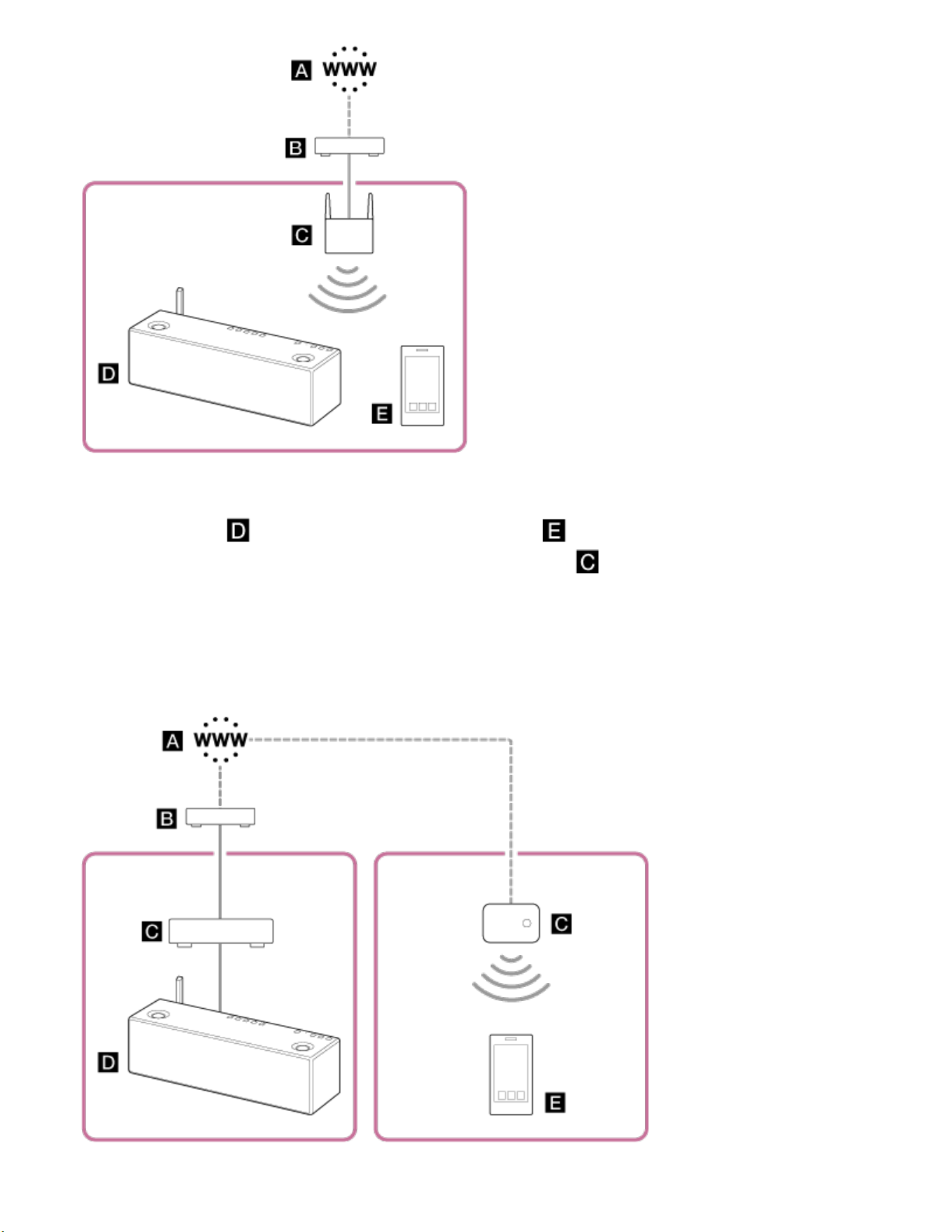
Example of a bad network connection
(The speaker ( ) and the smartphone/iPhone ( ) are connected to different SSIDs
of your wireless routers such as mobile routers, etc. ( ), so they belong to different
networks.)
In this situation, the smartphone/iPhone is not able to recognize the speaker using
SongPal. The SSID connected to the speaker can be identified by using SongPal if the
speaker and the smartphone/iPhone are connected via BLUETOOTH.
427

Go to Page Top
Go to Page Top
: Internet
: Modem
: Router
: Speaker
: Smartphone/iPhone
Distribute the connection using a network hub or a Wi-Fi access point set to
infrastructure mode when it is difficult to connect the speaker and the
smartphone/iPhone directly to one router (for example, when using SongPal on a
smartphone/iPhone placed in a different room from the speaker).
Depending on your network environment, for example if you are living in an apartment
building, the router may be shared with the other residents. For details about your
network environment, contact the person in charge of your network. You can verify the
SSID of the wireless router/access point that the speaker is connected to. While the
speaker is connected to the wireless router/access point, do steps 1 to 6 of "Connection
method 2: Connecting to a Wi-Fi network using a computer connected with a LAN
cable," then check the SSID of the wireless router/access point on the screen of step 6.
Related Topic
Connection method 2: Connecting to a Wi-Fi network using a computer connected with a LAN
cable
4-567-508-11(5)
Copyright 2015 Sony Corporation
428
Back Back to Top Print
Go to Page Top
Go to Page Top
Personal Audio System
SRS-X99
The speaker cannot connect to music services
Make sure the wireless router/access point is turned on.
When the speaker is connected to a Wi-Fi network, place the wireless router/access
point and the speaker closer together and perform the setup again.
Depending on the provider, only one connection to the internet may be allowed. In that
case, the speaker will not be able to connect if the connection is currently occupied.
Please consult your carrier or service provider.
Turn your smartphone/iPhone off for a short period, turn it on again, then restart the
SongPal application.
Related Topic
What you can do with SongPal
Help Guide
Troubleshooting
429
Back Back to Top Print
Go to Page Top
Personal Audio System
SRS-X99
The controller cannot find the speaker (The controller cannot browse the contents of the
speaker)
Make sure the wireless router/access point is turned on.
When the speaker is connected to a Wi-Fi network, place the wireless router/access
point and the speaker closer together and perform the setup again.
Make sure that the controller and the speaker are connected to the SSID of your
wireless router.
Disable the multicast control on the wireless router/access point. For details, refer to the
operating instructions supplied with your wireless router.
4-567-508-11(5)
Copyright 2015 Sony Corporation
Help Guide
Troubleshooting
430
Back Back to Top Print
Go to Page Top
Go to Page Top
Personal Audio System
SRS-X99
Music started automatically (home network)
The speaker may have been operated by another device on your home network. To
prevent this, set the BLUETOOTH/Network standby function to off.
Related Topic
Using the BLUETOOTH/Network standby function
Setting the auto standby function
4-567-508-11(5)
Copyright 2015 Sony Corporation
Help Guide
Troubleshooting
431

Back Back to Top Print
Go to Page Top
Personal Audio System
SRS-X99
The sound is interrupted
The DLNA server is overloaded. Quit all running applications.
Wireless signal condition is poor. Stop using your microwave oven, etc.
The communication speed of the Wi-Fi network may become slower for IEEE802.11n-
compliant wireless routers/access points if the security method is set to WEP or
WPA/WPA2-PSK (TKIP). If the speed slows down, change the security method to
WPA/WPA2-PSK (AES). The encryption (security) scheme varies depending on the
device. For details, refer to the operating instructions of your router/access point.
If the sound is interrupted or noise is generated via a Wi-Fi connection, connect the
speaker and wireless router via a commercially-available LAN cable, instead of via Wi-
Fi. If the quality does not improve, also connect the computer and wireless router via a
commercially-available LAN cable.
If the sound is interrupted or noise is generated during high-resolution audio playback
when compared to MP3, AAC, or other audio compressions, connect the speaker and
wireless router via a commercially-available LAN cable, instead of via Wi-Fi. If the
quality does not improve, also connect the computer and wireless router via a
commercially-available LAN cable.
Help Guide
Troubleshooting
432

Back Back to Top Print
Go to Page Top
Personal Audio System
SRS-X99
Playback does not start
Check that the speaker and the network device are connected to your home network.
Check whether the audio file is incompatible or has been deleted from the server. Refer
to the operating instructions of the server.
The server tries to play the audio file in an audio format that the speaker does not
support. Check the audio format information on the server.
Disable the multicast control on the wireless router/access point. If it is enabled, it may
take several minutes to output audio. For details, refer to the operating instructions of
the wireless router/access point.
Access for the speaker may not be permitted by the server. Change the settings on the
server to allow access for the speaker. For details, refer to the operating instructions of
the server.
Related Topic
DLNA (Digital Living Network Alliance)
Help Guide
Troubleshooting
434



Back Back to Top Print
Go to Page Top
Personal Audio System
SRS-X99
The speaker cannot be found from an iPhone/iPad/iPod touch or a computer with
iTunes
Make sure the wireless router/access point is turned on.
When the speaker is connected to a Wi-Fi network, place the wireless router/access
point and the speaker closer together and perform the setup again.
It takes about 1 minute for the speaker to acquire an IP address when the speaker is
turned on in a communication environment without a router.
If you use a fixed IP address, the same IP address might be already in use by other
equipment. Therefore, use a different IP address.
Make sure that the iPhone/iPad/iPod touch or computer with iTunes is connected to the
same home network as used by the speaker.
Before using with the speaker, update iOS and iTunes to the latest versions.
4-567-508-11(5)
Copyright 2015 Sony Corporation
Help Guide
Troubleshooting
437
Back Back to Top Print
Go to Page Top
Go to Page Top
Personal Audio System
SRS-X99
Music started automatically (AirPlay)
The speaker may be under the control of another component via AirPlay. To prevent
this, set the BLUETOOTH/Network standby function to off.
Related Topic
Using the BLUETOOTH/Network standby function
Setting the auto standby function
4-567-508-11(5)
Copyright 2015 Sony Corporation
Help Guide
Troubleshooting
438

Back Back to Top Print
Go to Page Top
Personal Audio System
SRS-X99
There is no sound, or the sound skips during playback
Make sure that the iPhone/iPad/iPod touch or computer with iTunes and the speaker
are connected to the same SSID of your wireless router.
The server is overloaded. Quit all unnecessary running software in the server.
Wireless signal condition is poor. Stop using your microwave oven, etc.
The communication speed of the Wi-Fi network may become slower for IEEE802.11n-
compliant wireless routers/access points if the security method is set to WEP or
WPA/WPA2-PSK (TKIP). If the speed slows down, change the security method to
WPA/WPA2-PSK (AES). The encryption (security) scheme varies depending on the
device. For details, refer to the operating instructions of your router/access point.
If the sound is interrupted or noise is generated via a Wi-Fi connection, connect the
speaker and wireless router via a commercially-available LAN cable, instead of via Wi-
Fi. If the quality does not improve, also connect the computer and wireless router via a
commercially-available LAN cable.
The super tweeter speaker on the top panel produces high frequencies that exceeds
the human audible range. You may hear no sound from the super tweeter. This is not a
malfunction.
Help Guide
Troubleshooting
439

Back Back to Top Print
Go to Page Top
Go to Page Top
Personal Audio System
SRS-X99
The speaker cannot be operated
Check that the speaker is turned on.
Update the software version of the iPhone/iPad/iPod touch to the latest version.
If the UPDATE button on the speaker lights up in orange, update the pre-installed
software of the speaker to the latest version.
Make sure another device is not streaming to the AirPlay compatible device at the same
time.
Update the SongPal software to the latest version.
Related Topic
Updating the pre-installed software
Help Guide
Troubleshooting
441
Back Back to Top Print
Go to Page Top
Personal Audio System
SRS-X99
Unable to pair the speaker with a BLUETOOTH device
Bring the speaker and the BLUETOOTH device to within 1 m (3 ft) of each other.
If the (BLUETOOTH) indicator is not flashing quickly in white, tap and hold the
(BLUETOOTH) (PAIRING) button until the speaker beeps and the
(BLUETOOTH) indicator starts flashing quickly in white.
If you initialize the speaker, it may not be able to connect with your iPhone/iPad/iPod or
computer. In this case, erase the pairing information on the iPhone/iPad/iPod or
computer, and then perform the pairing procedure again.
If you reset network settings of your iPhone/iPad/iPod or computer, the speaker may
not be able to connect to it. Perform the pairing procedure again.
4-567-508-11(5)
Copyright 2015 Sony Corporation
Help Guide
Troubleshooting
442
Back Back to Top Print
Go to Page Top
Personal Audio System
SRS-X99
Unable to connect the speaker to a BLUETOOTH device with One-touch (NFC)
Keep the NFC-compatible device close to the speaker until the NFC-compatible device
reacts. If it still fails to connect, move the NFC-compatible device slowly on the N-Mark
of the speaker.
Check that the NFC function of the NFC-compatible device is set to on.
If the NFC-compatible device is in a case, remove it.
NFC reception sensitivity varies depending on the device. If you repeatedly fail to
connect the speaker with an NFC-compatible device by one touch, make the connection
by an on-screen operation.
Check that your device is compatible with NFC. Refer to the customer support website.
Related Topic
Compatible BLUETOOTH devices
Help Guide
Troubleshooting
443
Back Back to Top Print
Go to Page Top
Personal Audio System
SRS-X99
There is no sound (BLUETOOTH)
If you are connecting a personal computer to the speaker, make sure that the audio
output setting of the computer is set for a BLUETOOTH device.
Check that the speaker has established a BLUETOOTH connection with the
BLUETOOTH device.
Pair the speaker and the BLUETOOTH device again.
The super tweeter speaker on the top panel produces high frequencies that exceeds
the human audible range. You may hear no sound from the super tweeter. This is not a
malfunction.
4-567-508-11(5)
Copyright 2015 Sony Corporation
Help Guide
Troubleshooting
444
Back Back to Top Print
Go to Page Top
Go to Page Top
Personal Audio System
SRS-X99
Distorted sound/Humming or noise
Bring the speaker and the BLUETOOTH device closer together. Remove any obstacles
between the speaker and the BLUETOOTH device.
There are some BLUETOOTH devices that can have the wireless playback quality
changed. If your device is compatible with this function, select a setting that prioritizes
stable connection over sound quality. For details, refer to the operating instructions
supplied with the device.
Select "Priority on stable connection" for the BLUETOOTH audio streaming playback
quality.
Related Topic
Selecting the BLUETOOTH audio streaming playback quality (Codec)
Help Guide
Troubleshooting
445
Back Back to Top Print
Go to Page Top
Go to Page Top
Personal Audio System
SRS-X99
An unsupported USB device is connected
If you connect an unsupported USB device, the following problems may occur. Check the
URL on “Compatible USB devices” and use a supported USB device.
The USB device is not recognized.
File or folder names are not displayed on the speaker.
Playback is not possible.
The sound skips.
There is noise.
The sound is distorted.
Related Topic
Compatible USB devices
Help Guide
Troubleshooting
446
Back Back to Top Print
Go to Page Top
Personal Audio System
SRS-X99
There is no sound (USB)
The USB device is not connected correctly. Turn off the speaker, then reconnect the
USB device.
When you listen to music on a computer connected to the USB B port ( B), restart
the music playback application on the computer. If you change the USB-B mode to
another mode by tapping the function buttons, the connection between the application
on the computer and the speaker may disconnect. For details, refer to the operating
instructions or help guide of the music playback application.
The super tweeter speaker on the top panel produces high frequencies that exceeds
the human audible range. You may hear no sound from the super tweeter. This is not a
malfunction.
4-567-508-11(5)
Copyright 2015 Sony Corporation
Help Guide
Troubleshooting
447
Back Back to Top Print
Go to Page Top
Personal Audio System
SRS-X99
There is noise, skipping, or distorted sound
An unsupported USB device is connected. Refer to the URL in “Compatible USB
devices” and use a supported USB device.
Turn off the speaker, then reconnect the USB device and turn on the speaker.
The music data itself contains noise, or the sound is distorted. In this case, delete the
music file from the USB device and copy the original music file again to the USB device.
If noise or distorted sound occurs in the same playback position each time, the music
data may be corrupted.
The bit rate used when encoding files was too low. In this case, delete the music file
from the USB device and copy the original music file again at a higher bit rate to the
USB device.
Related Topic
Compatible USB devices
Help Guide
Troubleshooting
448
Back Back to Top Print
Go to Page Top
Go to Page Top
Personal Audio System
SRS-X99
A USB device is not recognized
Turn off the speaker, then reconnect the USB device, then turn on the speaker.
An unsupported USB device is connected. Check the URL on “Compatible USB
devices” and use a supported USB device.
The USB device does not work properly. Refer to the operating instructions supplied
with the USB device for a solution.
Related Topic
Compatible USB devices
Help Guide
Troubleshooting
449
Back Back to Top Print
Go to Page Top
Go to Page Top
Personal Audio System
SRS-X99
Playback does not start
Check that the file format is supported by the speaker. For details, refer to the
Operating Instructions.
Turn off the speaker, reconnect the USB device, then turn on the speaker.
An unsupported USB device is connected. Refer to the URL in “Compatible USB
devices” and use a supported USB device.
Related Topic
Compatible USB devices
Help Guide
Troubleshooting
450

Back Back to Top Print
Go to Page Top
Go to Page Top
Personal Audio System
SRS-X99
A USB device cannot be charged
Make sure the USB device is connected securely to the USB A port ( A). The USB
device cannot be charged by connecting to the USB B port ( B).
An unsupported USB device is connected. Refer to the URL in “Compatible USB
devices” and use a supported USB device.
Related Topic
Compatible USB devices
4-567-508-11(5)
Help Guide
Troubleshooting
452
Back Back to Top Print
Go to Page Top
Go to Page Top
Personal Audio System
SRS-X99
An iPhone/iPad/iPod cannot be played back
Make sure the iPhone/iPad/iPod is connected securely to the USB A port ( A).
Stop playback of the iPhone/iPad/iPod before connecting to the speaker.
Make sure the iPhone/iPad/iPod is updated with the latest software. If not, update it
before using with the speaker.
Tap the VOL (volume) + button to turn up the volume.
The iPhone/iPad/iPod may not be supported by the speaker. See “Compatible
iPhone/iPad/iPod models.”
Related Topic
Compatible iPhone/iPad/iPod models
Help Guide
Troubleshooting
453
Back Back to Top Print
Go to Page Top
Go to Page Top
Personal Audio System
SRS-X99
The sound is distorted
Make sure the iPhone/iPad/iPod is connected securely to the USB A port ( A).
Tap the VOL (volume) - button to turn down the volume.
Set the EQ setting of the iPhone/iPad/iPod to Off or Flat.
The iPhone/iPad/iPod may not be supported by the speaker. See “Compatible
iPhone/iPad/iPod models.”
Related Topic
Compatible iPhone/iPad/iPod models
Help Guide
Troubleshooting
454
Back Back to Top Print
Go to Page Top
Personal Audio System
SRS-X99
The iPhone/iPad/iPod does not function
Quit any other iOS applications running on the iPhone/iPad/iPod. For details, refer to
the operation manual supplied with the iPhone/iPad/iPod.
Make sure the iPhone/iPad/iPod is connected securely to the USB A port ( A).
Make sure the iPhone/iPad/iPod is updated with the latest software. If not, update it
before using with the speaker.
You may not be able to operate the iPhone/iPad/iPod using buttons on the supplied
remote control. In this case, use the control buttons on the iPhone/iPad/iPod.
4-567-508-11(5)
Copyright 2015 Sony Corporation
Help Guide
Troubleshooting
455
Back Back to Top Print
Go to Page Top
Personal Audio System
SRS-X99
The iPhone/iPad/iPod cannot be charged
Make sure the iPhone/iPad/iPod is connected securely to the USB A port ( A) via
the cable supplied with the iPhone/iPad/iPod.
4-567-508-11(5)
Copyright 2015 Sony Corporation
Help Guide
Troubleshooting
456
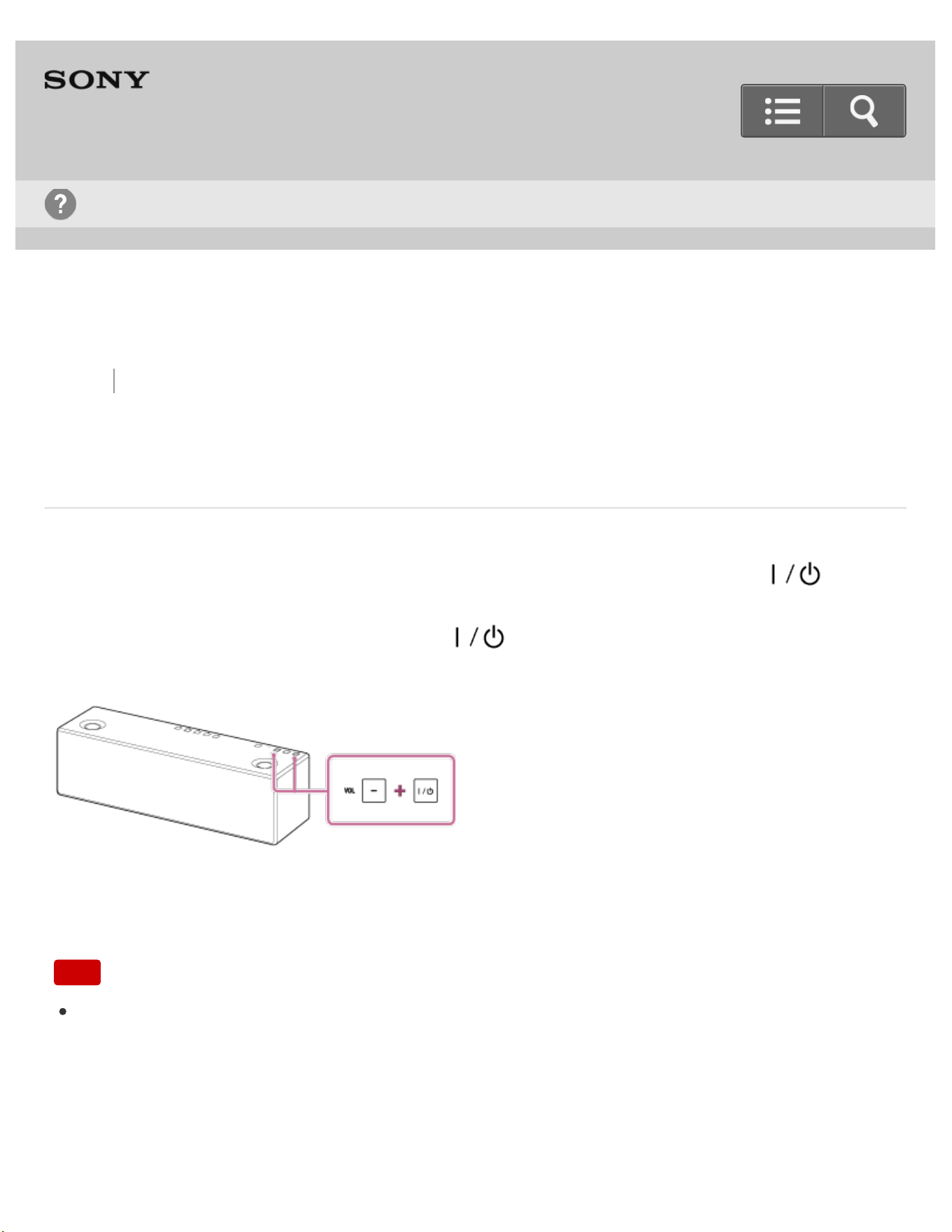
Back Back to Top Print
Go to Page Top
Personal Audio System
SRS-X99
Initializing the speaker
With the speaker turned on, tap and hold the VOL (volume) – button and the
(on/standby) button at the same time for more than 5 seconds.
When the speaker receives the signal, the (on/standby) button flashes in green
quickly for about two seconds.
The speaker is initialized, and it enters the standby mode. All settings of the speaker return
to their factory defaults. All the pairing information and all the network settings are deleted.
Note
If you initialize the speaker, it may not be able to connect your iPhone/iPad/iPod or
computer. In this case, erase the pairing information of the speaker on your
iPhone/iPad/iPod or computer, and then perform the pairing procedure again.
Help Guide
Troubleshooting
457
Back Back to Top Print
Go to Page Top
Go to Page Top
Personal Audio System
SRS-X99
Disposing of or giving away this speaker
When disposing of or giving away this speaker, erase information from the speaker.
Make sure you to initialize it to reset all settings to the factory defaults.
If you use in internet service such as music service, information about the speaker may
be retained by the service provider. In this case, contact the network service provider to
delete that information.
Related Topic
Initializing the speaker
Help Guide
Troubleshooting
458