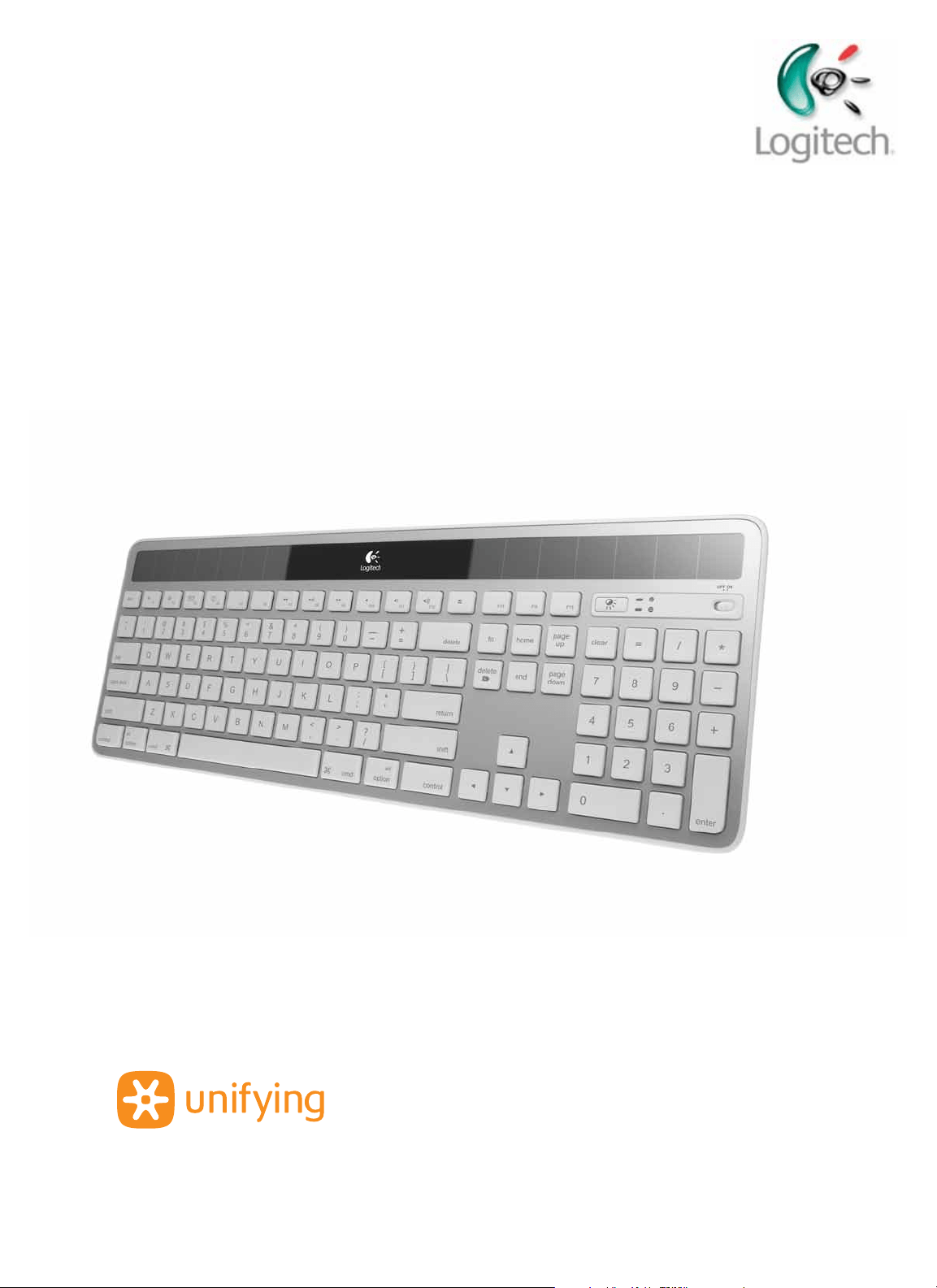
Getting started with
Logitech® Wireless Solar Keyboard K750
for Mac

Logitech® Wireless Solar Keyboard K750
2
Contents
English. . . . . . . . . . 3
Deutsch . . . . . . . . . 7
Français . . . . . . . . . 11
Italiano. . . . . . . . . . 15
www.logitech.com/k750-mac/support
. . . . . . . . . . 19
Logitech® Wireless Solar Keyboard K750
3 English
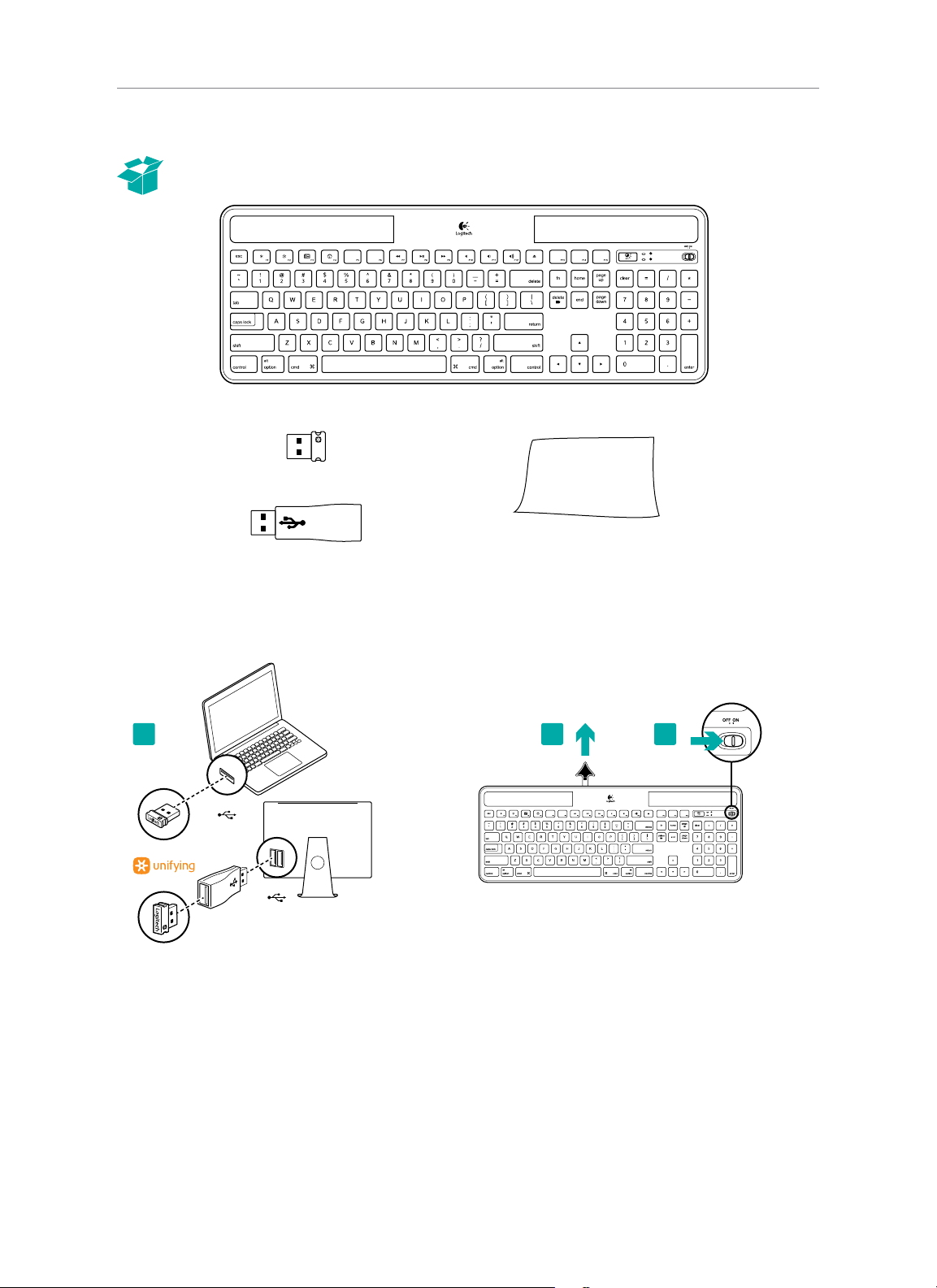
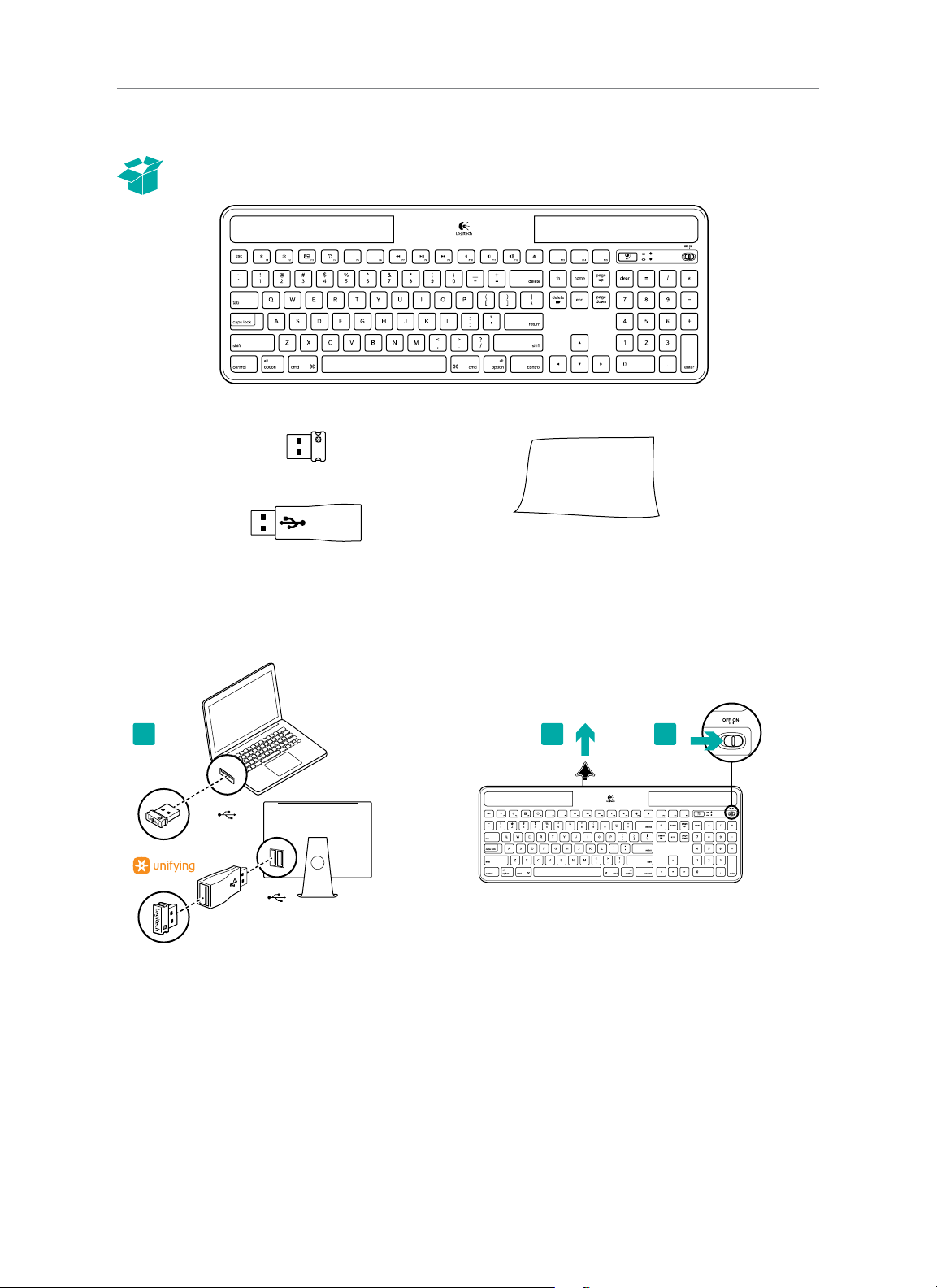
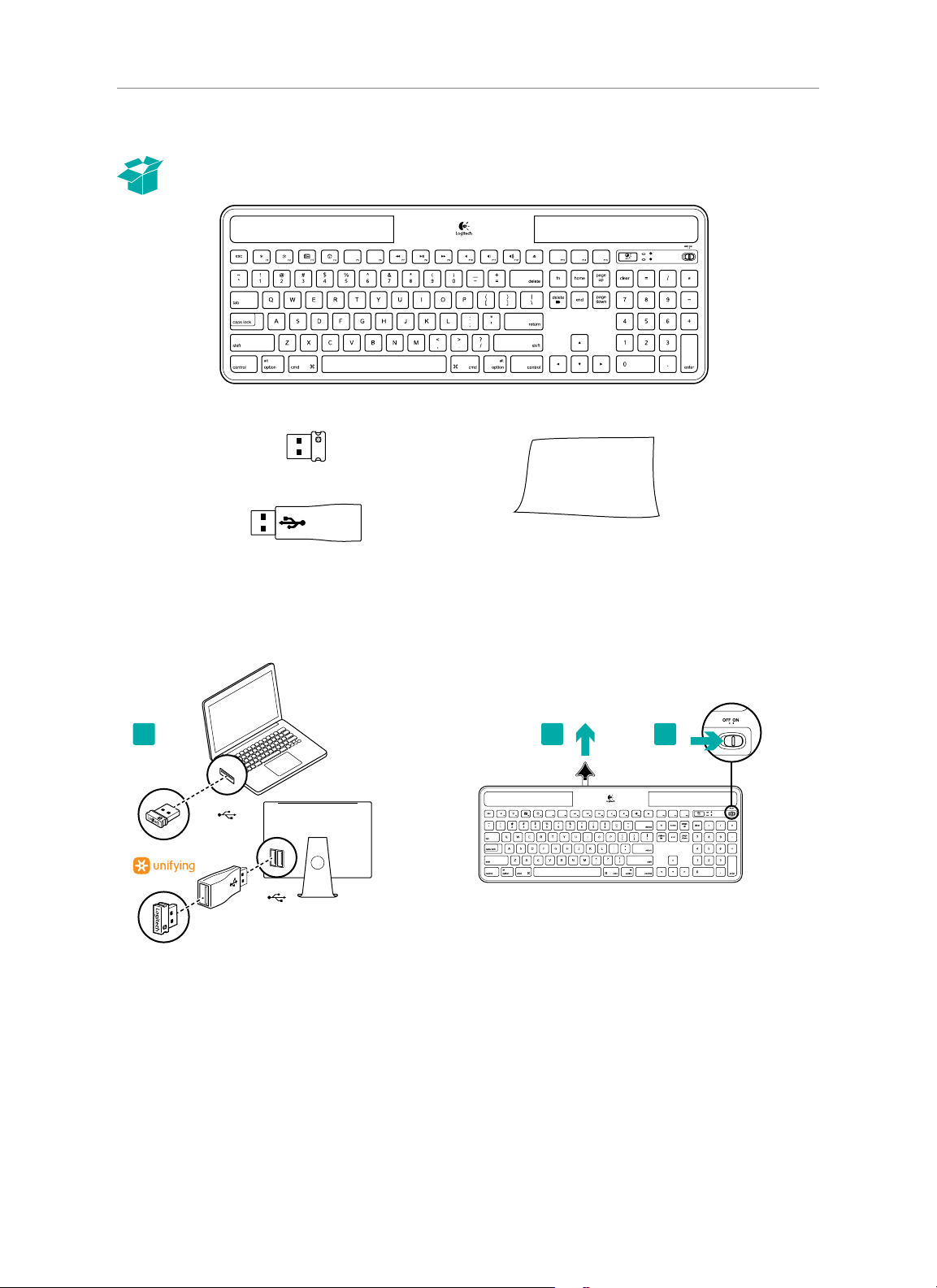
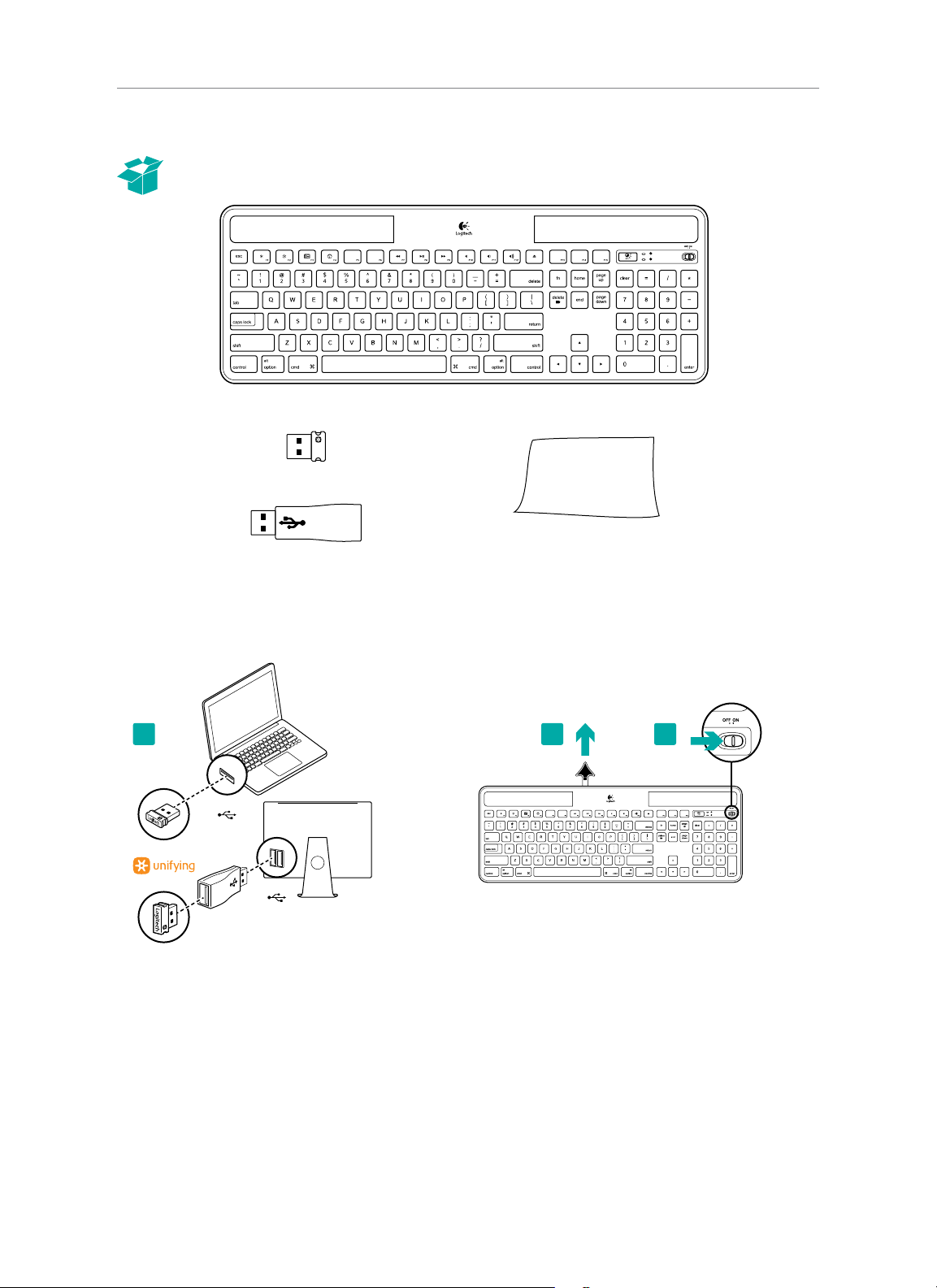
What’s in the box
Setting up the keyboard
1. Plug the Unifying receiver into a computer USB port.
For iMac, Mac Mini and Mac Pro, use the Wireless
extender to minimize the possibility of radio frequency
(RF) interference.
2. Pull the tab to activate the keyboard.
3. Turn on the keyboard.
Wireless Solar Keyboard K750 for Mac
Unifying receiver
Wireless extender
Cleaning cloth
USB
USB
1 2 3
Logitech® Wireless Solar Keyboard K750
4 English
How much light is needed?
The K750 requires only a modest level of light to operate and store energy. Indirect sunlight or indoor illumination is fine.
When exposed to dim room light on a continuous basis, the K750 has enough power for use. Because indoor environments
usually have periods of darkness, a moderate level of room lighting is recommended for much of the day. The recharge time
for the K750 is much less in brightly lit environments or when the K750 is placed in direct sunlight.
The K750 stores energy automatically, even when turned o. This stored energy allows you to use the K750 without light
for a while. With a full charge, the K750 can operate up to three months in total darkness before needing a recharge.
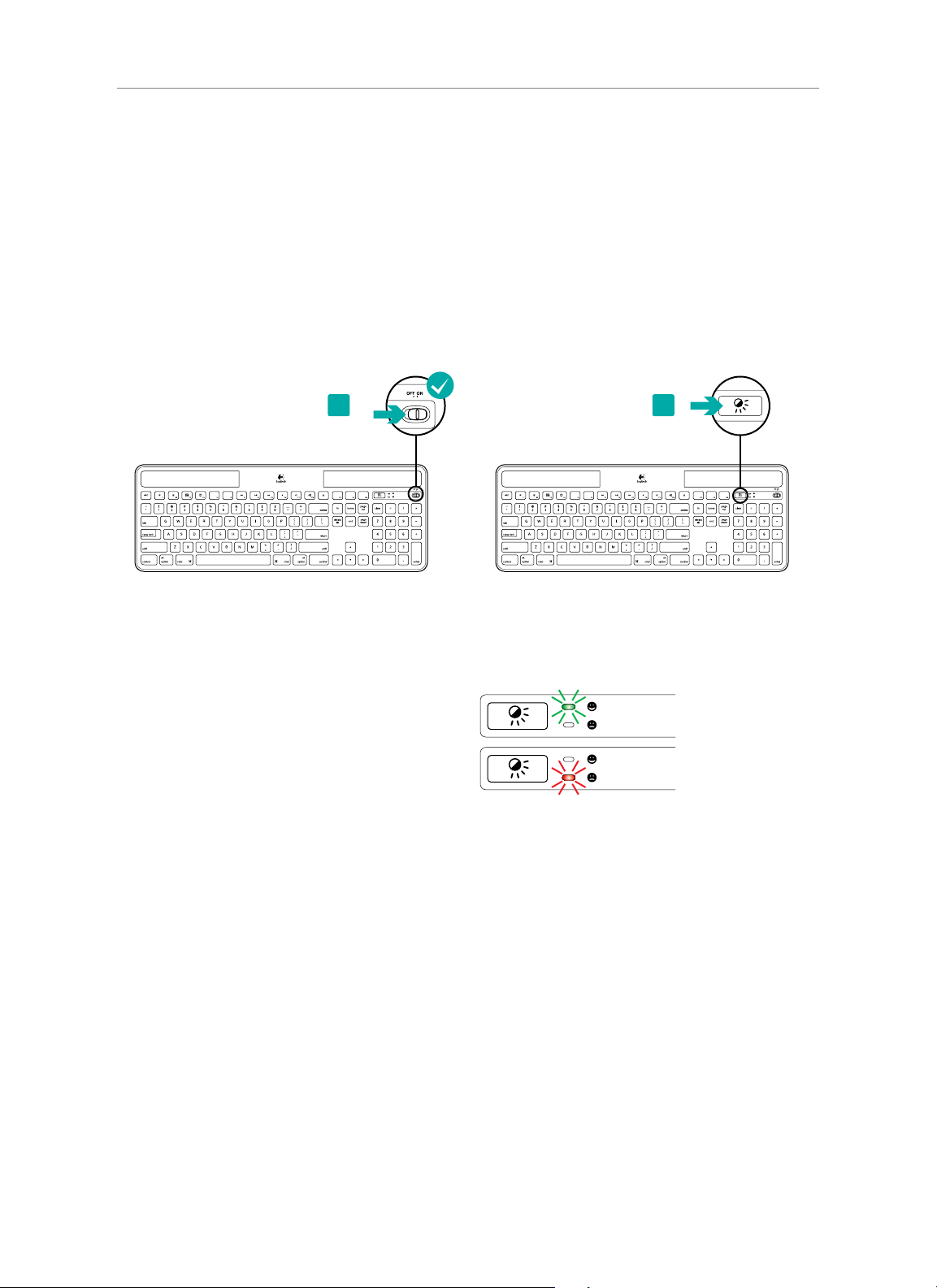
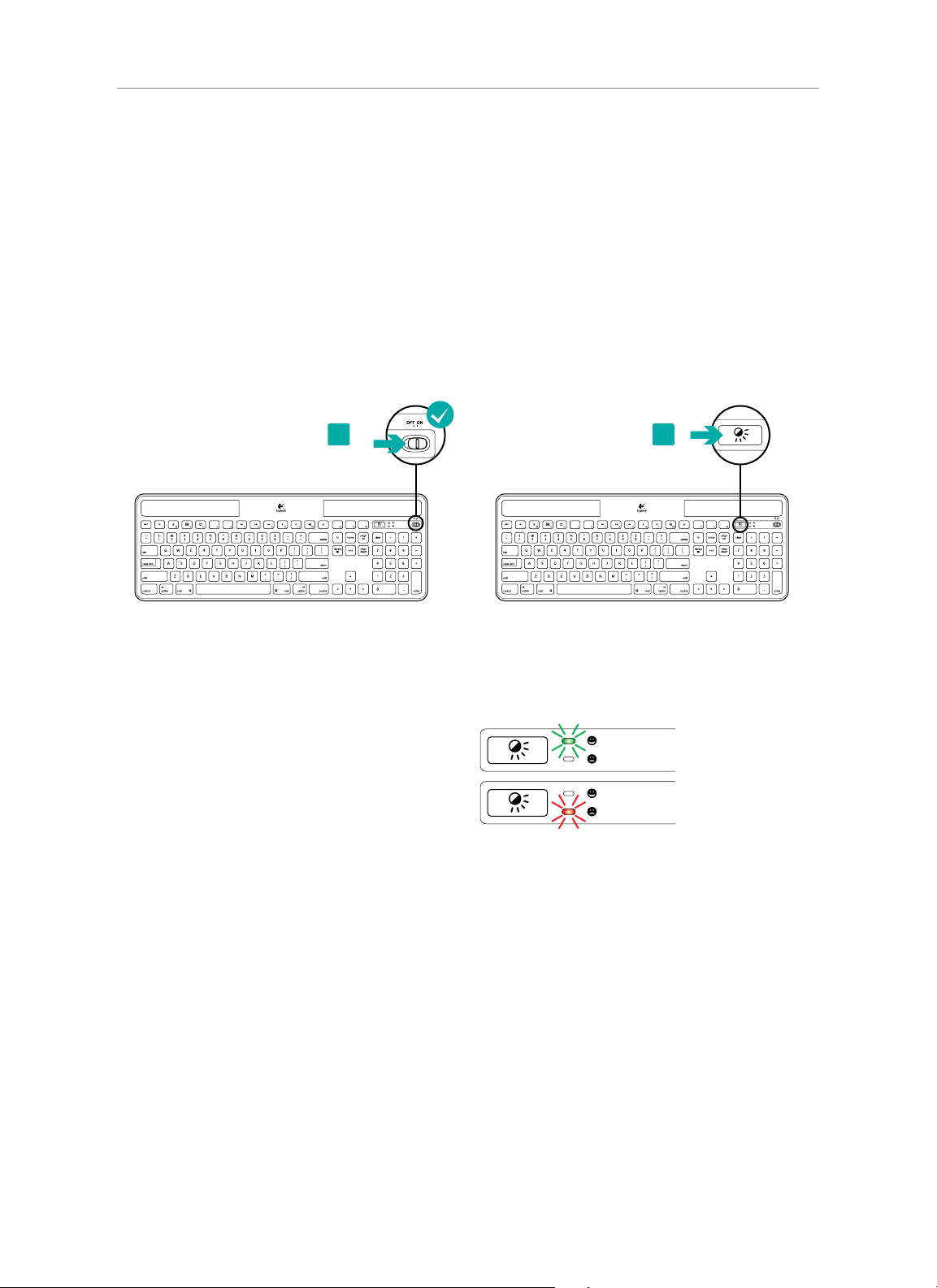
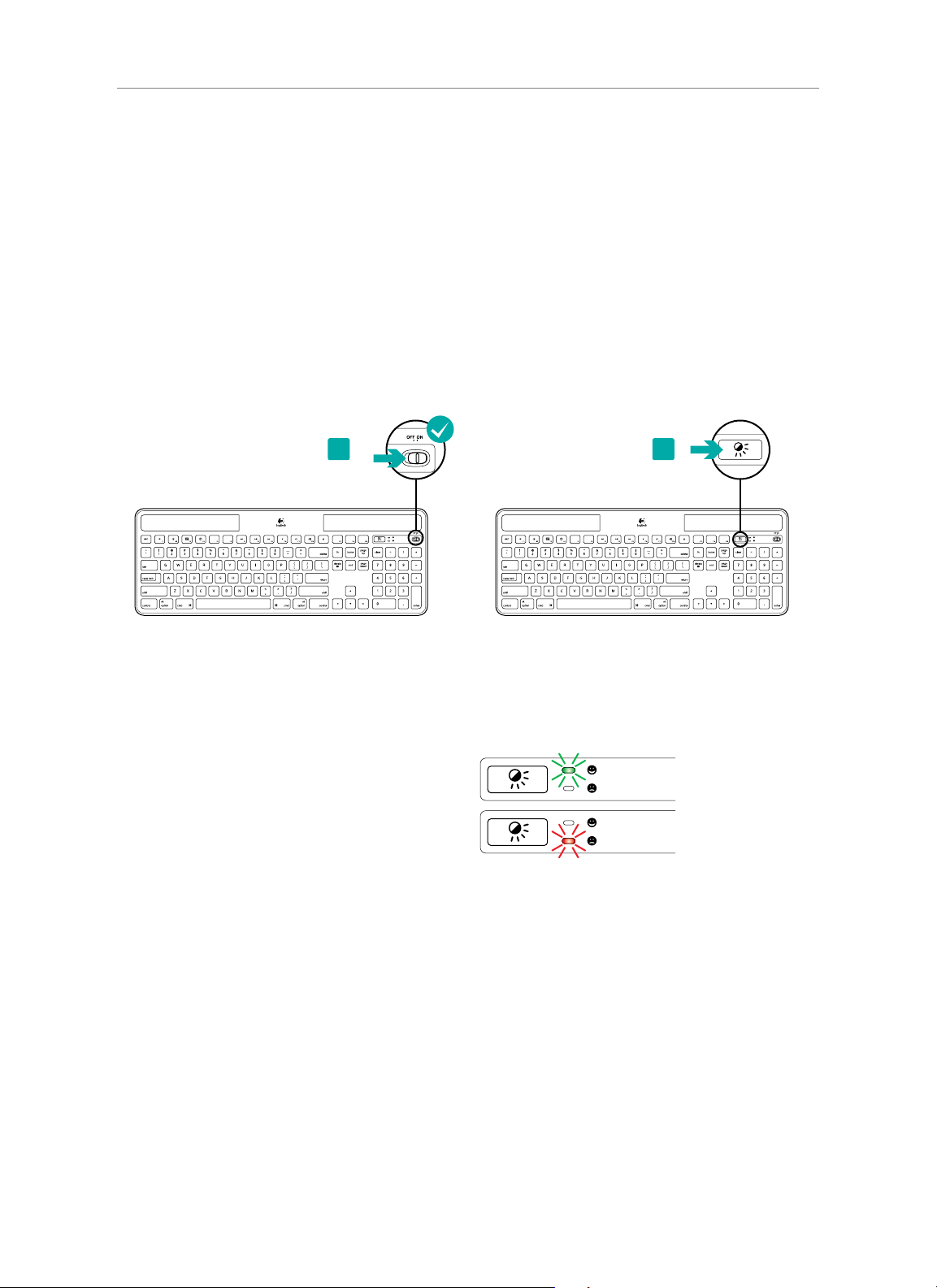
Checking for adequate light
How do you know whether there’s enough light for the K750? Use the Check Light hot key. The K750 tells you if it’s getting
enough illumination.
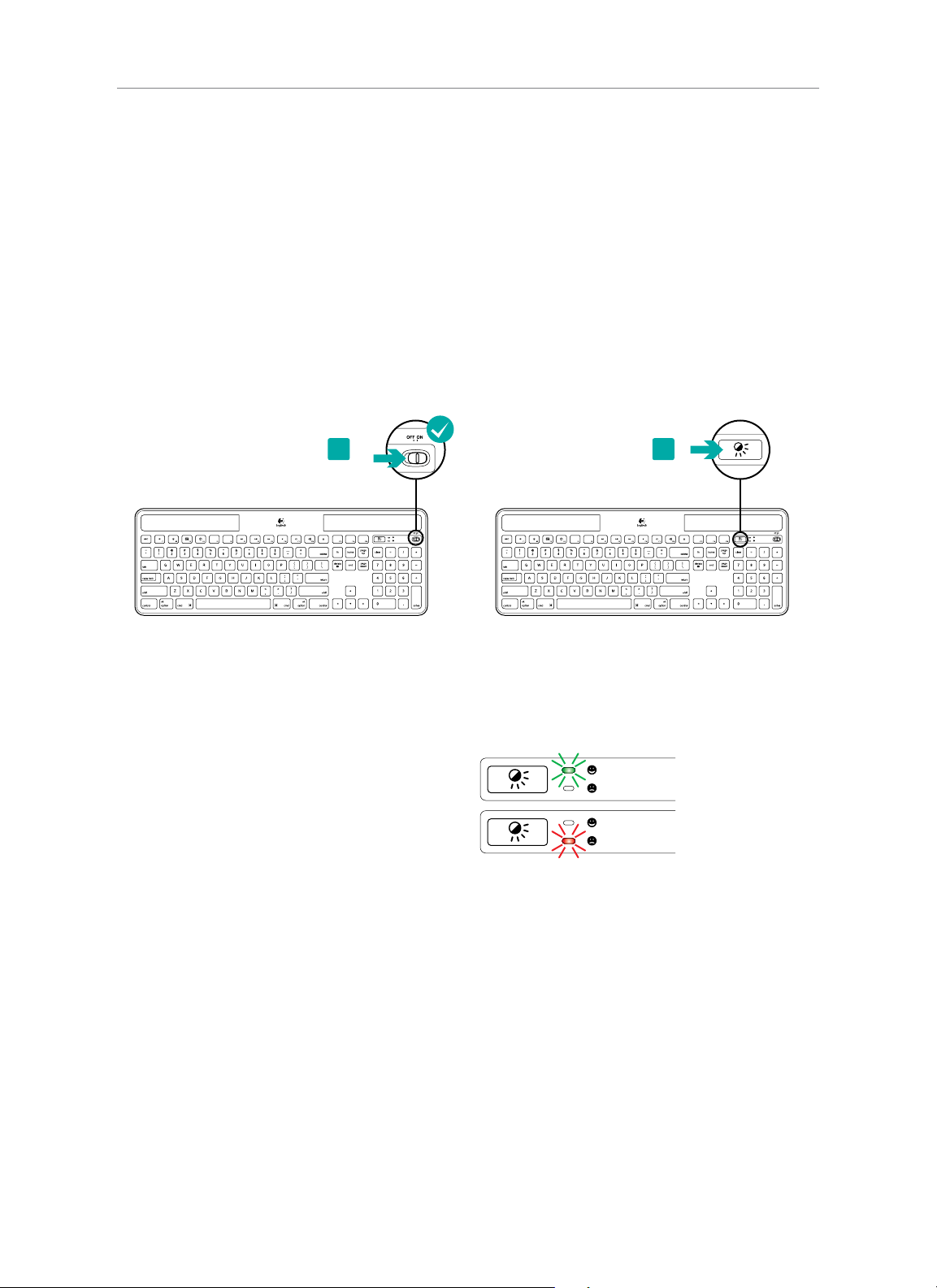
1. Make sure the K750 is turned on. 2. Press the Check Light hot key. The Check Light LED
will flash either green or red, or it won’t produce any
light at all. For more information, see Reading the Check
Light LED.
Reading the Check Light LED
• Check Light LED flashes green. The K750 is receiving
enough light and is ready for use.
• Check Light LED flashes red. The K750 requires more light
to continue working on a long-term basis.
Note: If the Check Light LED produces no light, please see Help
with setup for more information.
1
2
Logitech® Wireless Solar Keyboard K750
5 English
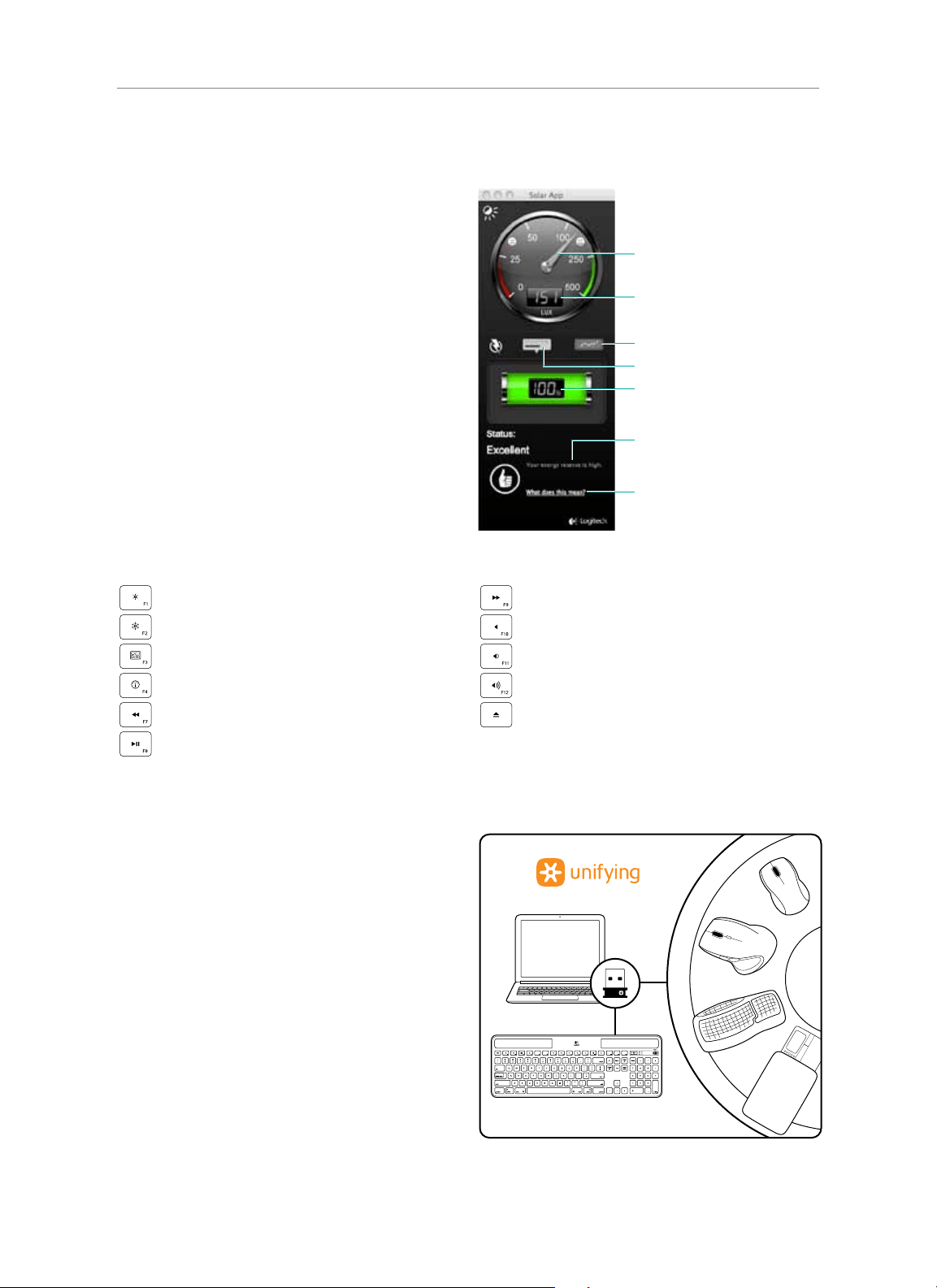
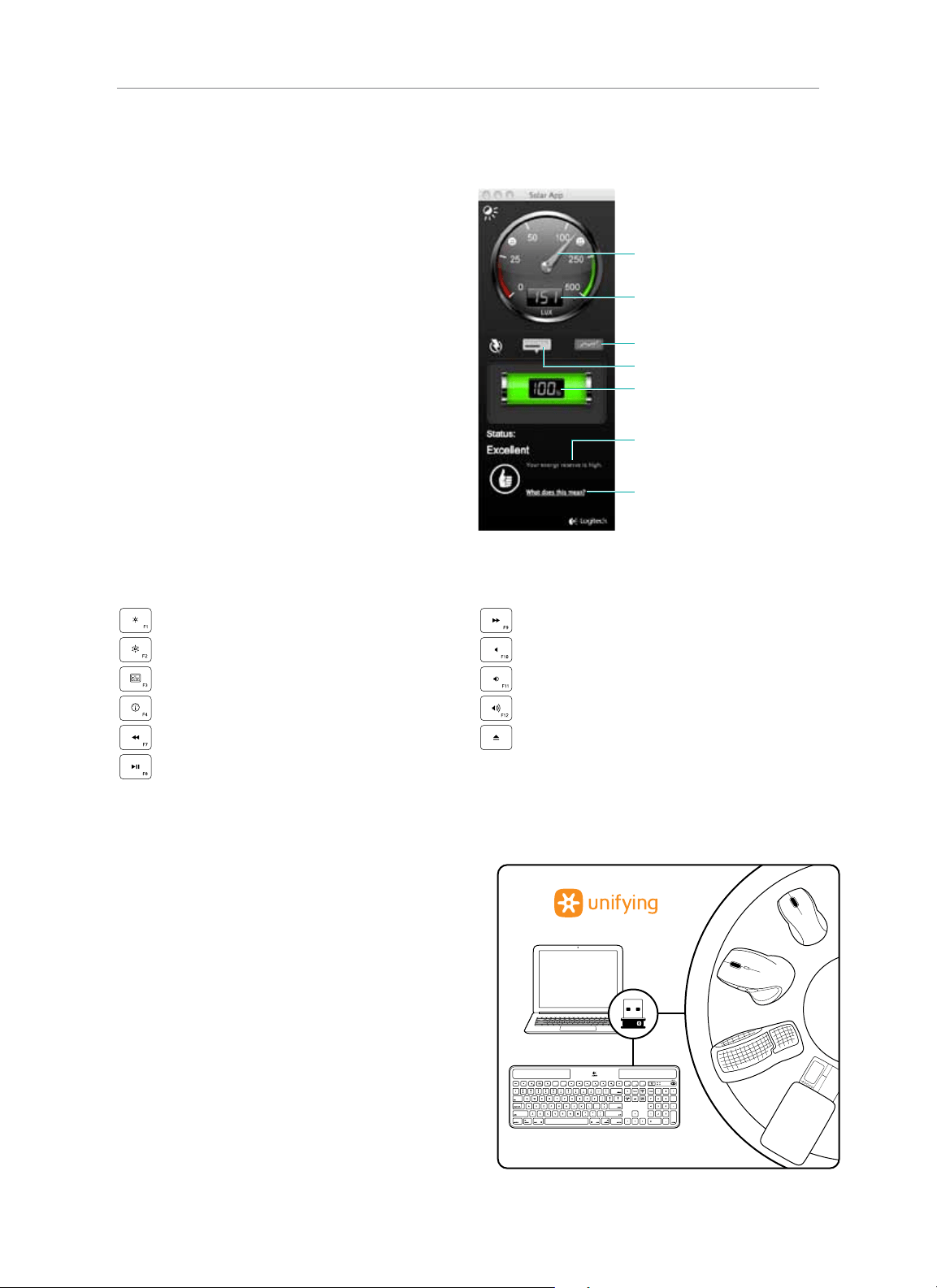
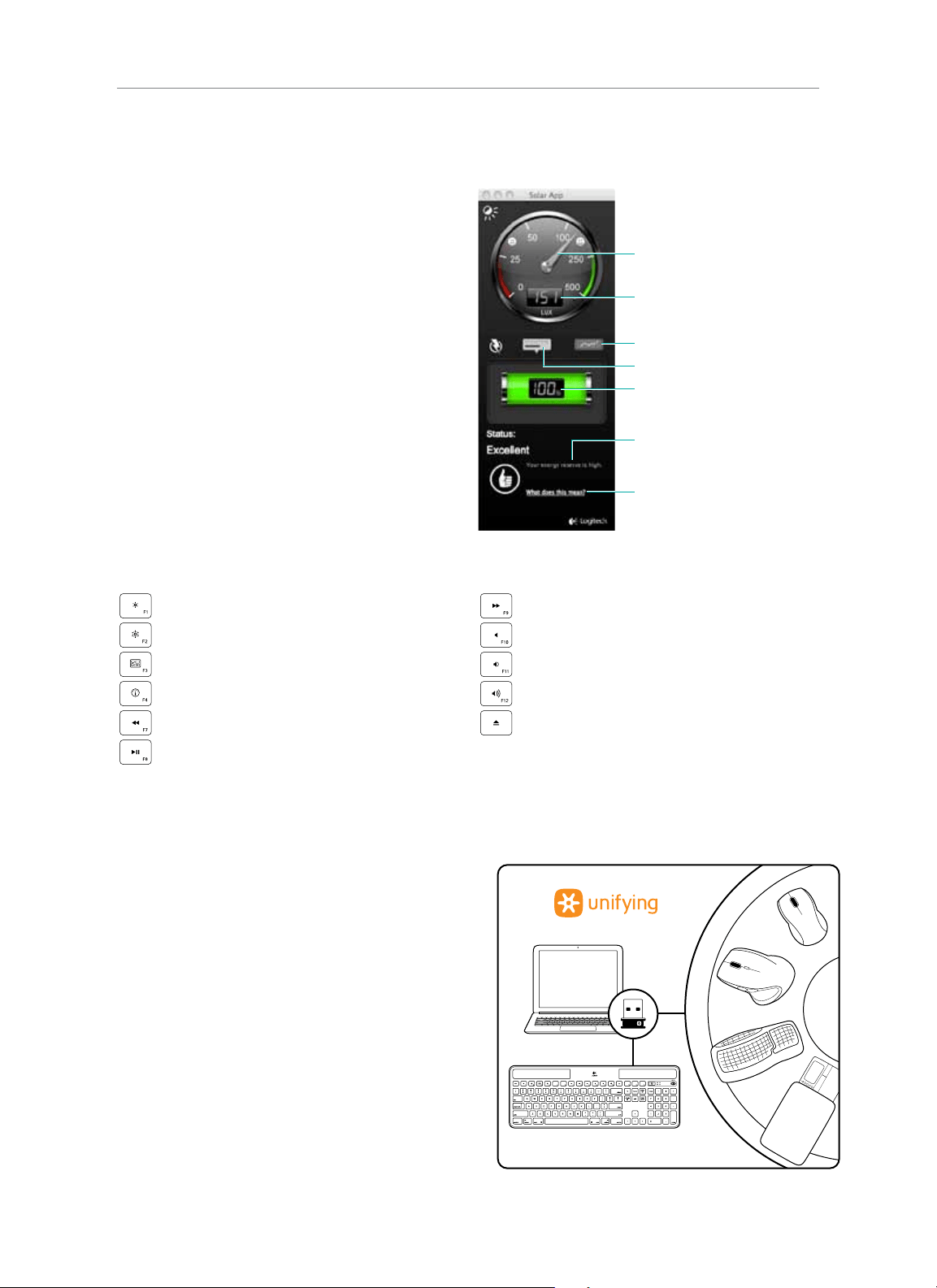
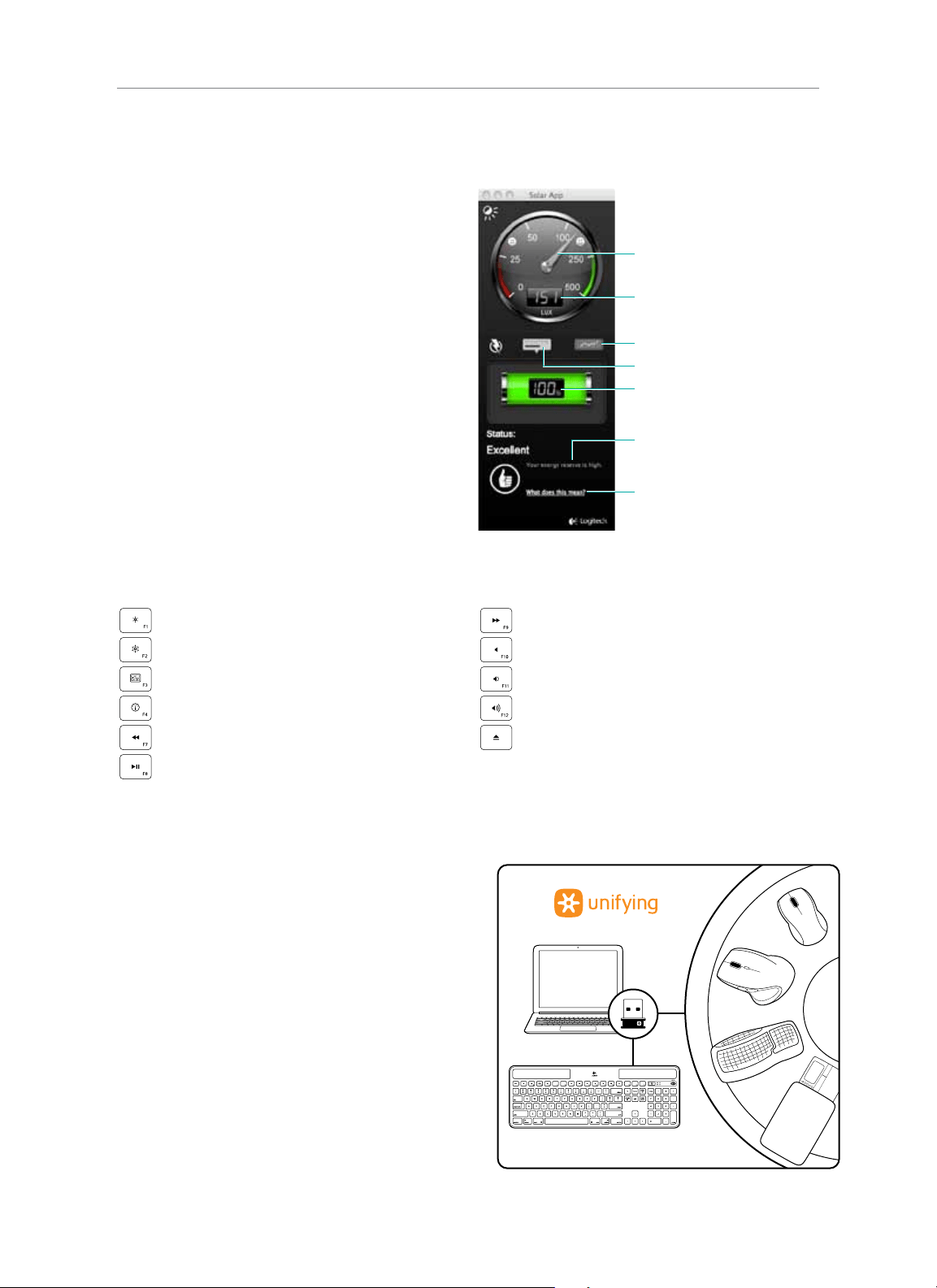
Using the Solar App
Want an easy and more visual way of checking the
available light falling on the K750 while keeping track
of the keyboard’s energy reserve? Download and install
the Solar App from www.logitech.com/k750-mac/solarapp
• The Solar App operates in the background and
notifies you whenever there is a change (up or down)
in the K750’s energy reserve.
• Try to keep the Check Light gauge pointing at 100 lux or
higher to make sure the K750 will have plenty of energy.
• To bring the Solar App to the foreground, press the Check
Light hot key on the keyboard. The Solar App will pop up,
and the Check Light gauge will activate immediately.
Keyboard features
Decrease display brightness
Increase display brightness
Mission control*
Dashboard
Rewind
Play/Pause
Fast-forward
Mute sound
Decrease volume
Increase volume
Eject disc
*Only works with OS X Lion default Keyboard Shortcuts. See Help with setup section for more details.
Plug it. Forget it. Add to it.
You’ve got a Logitech® Unifying receiver. Now add
a compatible wireless keyboard or mouse that uses
the same receiver.
It’s easy. Just start the Logitech® Unifying software*
and follow the onscreen instructions.
For more information and to download the software,
visit www.logitech.com/unifying
*Go to Applications/Utilities/Logitech Unifying Software
Check Light gauge
Check Light gauge readout
Energy reserve (historical)
Energy reserve (real time)
Energy reserve readout
(real time)
Click for guidance about energy
reserve management
Status notifications about
energy reserve
Logitech® Wireless Solar Keyboard K750
6 English
Help with setup
Keyboard not working
• Check the Unifying receiver. Also, try changing USB ports.
• Move closer? Try moving the K750 closer to the Unifying receiver, or plug the Unifying receiver into the Wireless extender
if you are using an iMac, Mac Mini, or Mac Pro.
• Is the K750 turned on? Slide the keyboard O/On switch to O and then to On position.
• Re-establish the connection. Use the Unifying software to reset the connection between the K750 and Unifying receiver.
Refer to the Unifying section in this guide for more information.
• Restart the computer.
• Press the Check Light hot key. If the Check Light LED produces no light, the K750 is out of energy. To use the K750 again,
significantly increase the amount of light over the keyboard to a level you might see in a brightly lit oce. It may take
a day or two for the K750 to recharge when exposed to this increased level of illumination, but only several hours if
the K750 is placed in direct sunlight.
Note: Any time the Check Light LED flashes red automatically, the K750 is nearly out of energy and needs more light to keep working on
a long-term basis.
• Download and use the Solar App. This handy widget gives you an easy and more visual way of checking the available light
hitting the K750 while keeping track of the keyboard’s energy reserve. Download the Solar App from www.logitech.com/
k750-mac/solarapp
Mission Control on F3 key not working
This feature only works with OS X Lion default Keyboard Shortcuts. To restore default shortcuts, go to your Mac
System Preferences>Keyboard>Keyboard Shortcuts>Mission Control>Restore Defaults.
If you are using Leopard (Mac OS 10.5) or Snow Leopard (10.6) you can re-assign this key to do ‘Expose’.
Go to Keyboard Shortcuts. Select Exposé. Double click the shortcut and then press the F3 key on the keyboard.
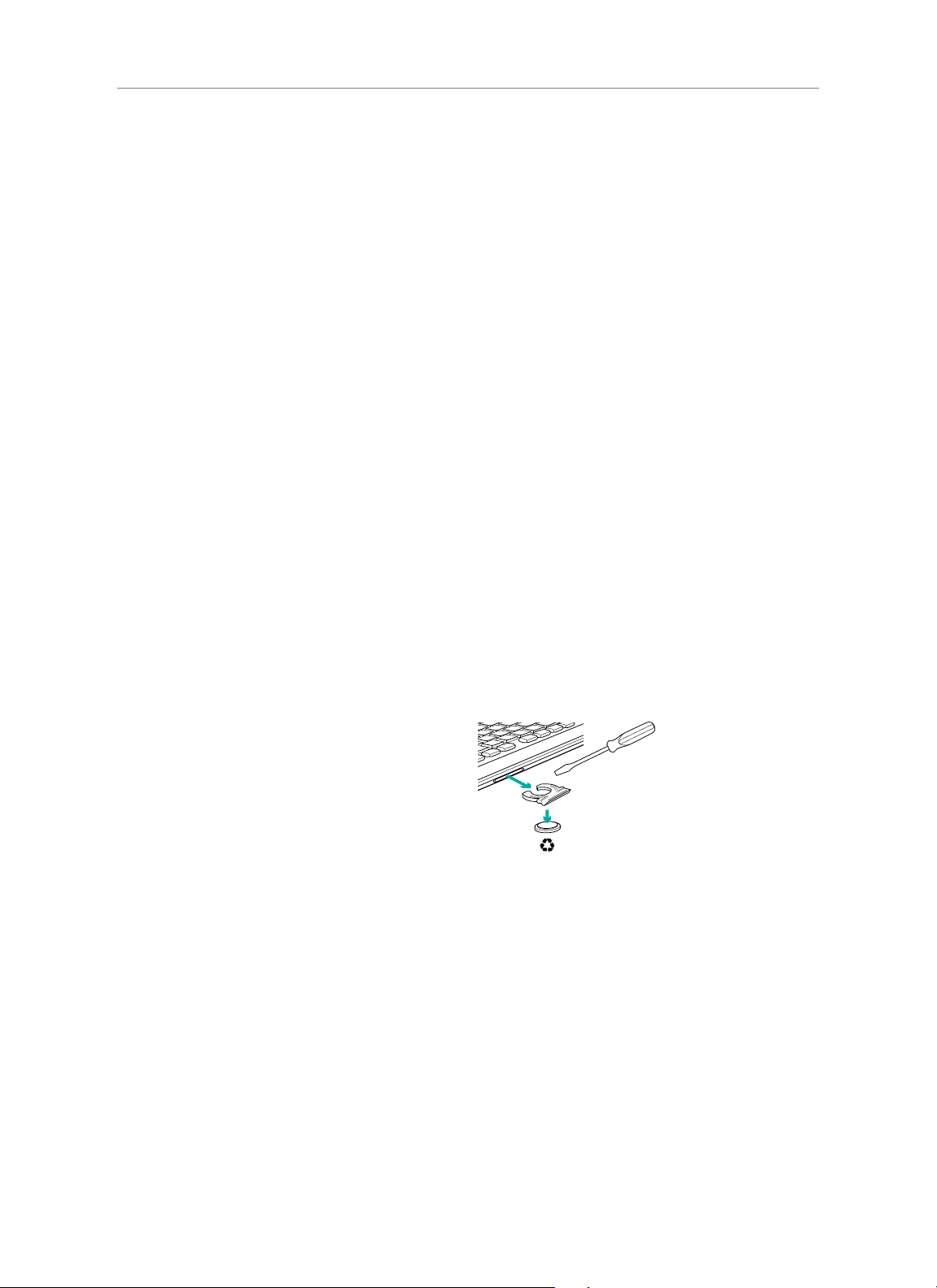
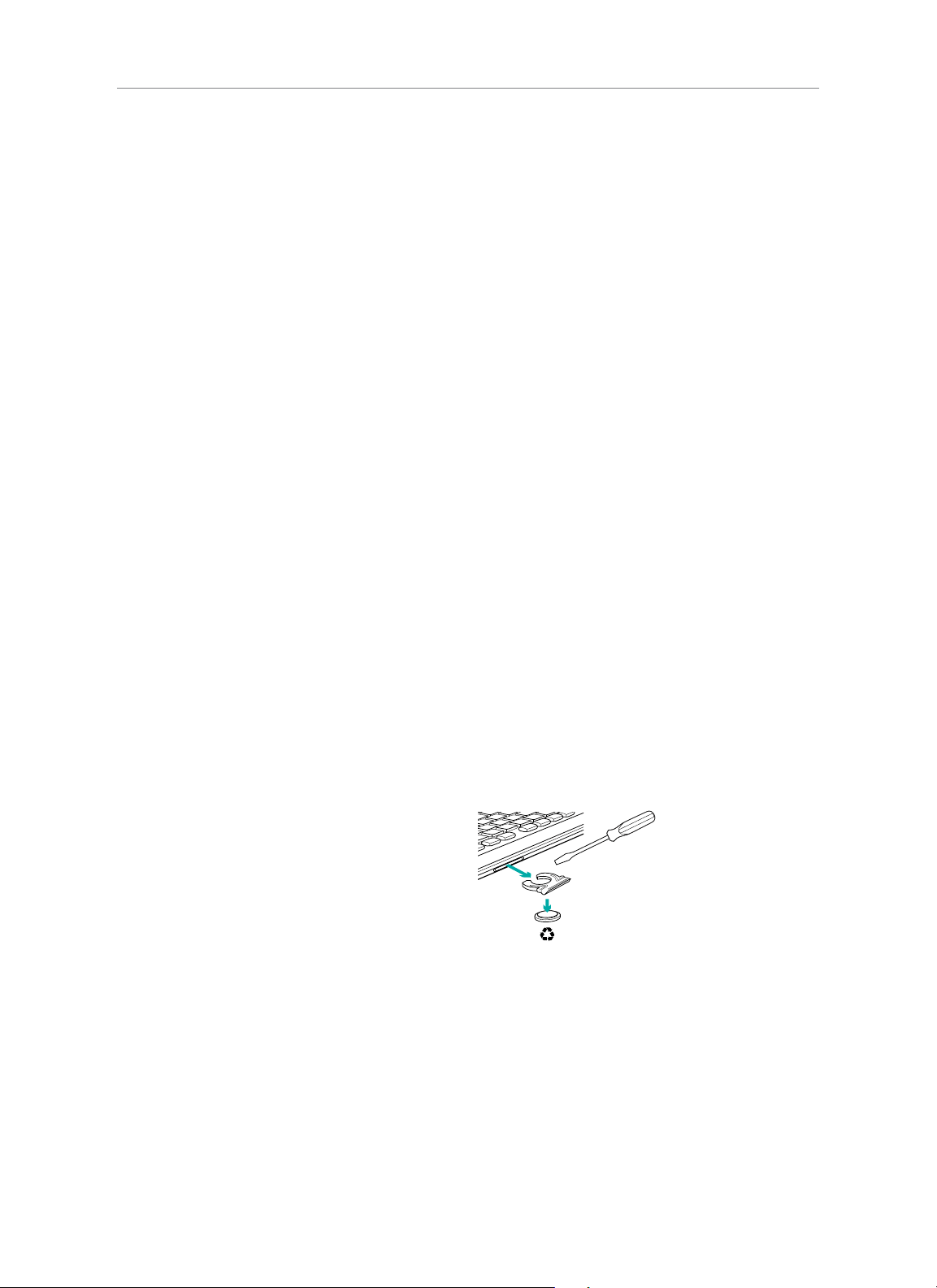
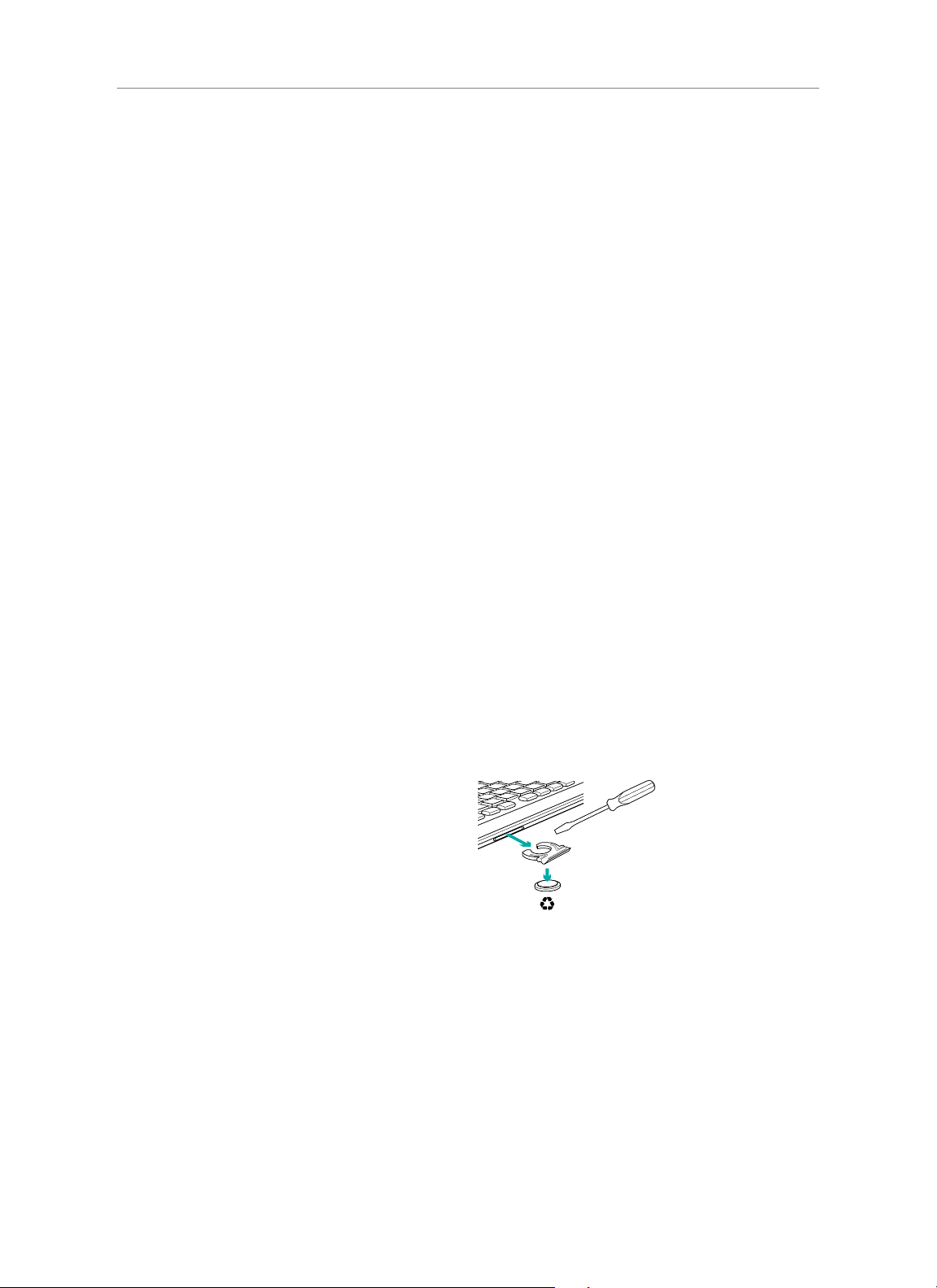
Handling the product at end of life
When you have made the decision to stop using your product, recycle it according to your local laws. Follow the instructions
below to remove the battery (not user replaceable) from the keyboard, and then recycle both the keyboard and battery
as recommended in steps 3 and 4.
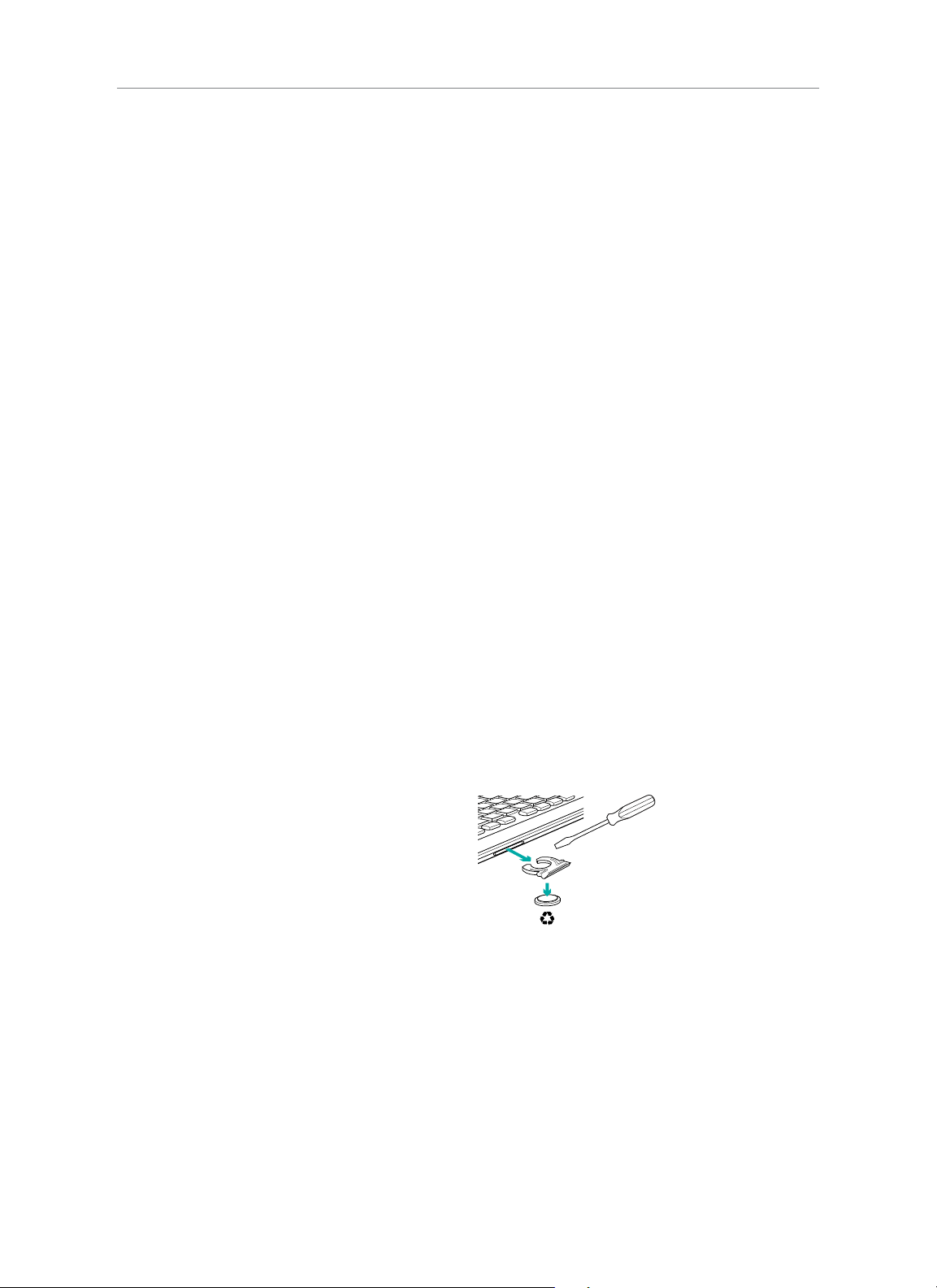
1. Use a screwdriver to open the battery tray.
2. Carefully remove the battery from the tray.
3. Hand over the spent battery to the appropriate collection
point for the recycling of batteries.
4. Hand over the product to the appropriate collection point
for the recycling of electrical and electronic equipment.
What do you think?
Please take a minute to tell us.
Thank you for purchasing our product.
www.logitech.com/ithink
Logitech® Wireless Solar Keyboard K750
7 Deutsch
Inhalt
Einrichten der Tastatur
1. Schließen Sie den Unifying-Empfänger an einen USB-
Anschluss des Computers an. Wenn Sie einen Mac,
Mac Mini oder Mac Pro verwenden, können Sie mithilfe
des Wireless Extender die Wahrscheinlichkeit von
Funkstörungen minimieren.
2. Ziehen Sie den Schutzstreifen heraus, um die Tastatur
zu aktivieren.
3. Schalten Sie die Tastatur ein.
Wireless Solar Keyboard K750 für Mac
Unifying-Empfänger
Wireless Extender
Reinigungstuch
USB
USB
1 2 3
Logitech® Wireless Solar Keyboard K750
8 Deutsch
Wie viel Licht ist erforderlich?
Um das K750 zu betreiben und Energie zu speichern, ist nur relativ wenig Licht erforderlich: Indirektes Sonnenlicht oder
künstliche Beleuchtung reicht aus.
Wenn das K750 kontinuierlich schwacher Raumbeleuchtung ausgesetzt ist, verfügt es über genug Energie für den Betrieb.
Da Innenräume gewöhnlich über Nacht dunkel sind, sollte tagsüber eine normale Raumbeleuchtung gewährleistet sein.
In hell beleuchteten Umgebungen oder bei direkter Sonneneinstrahlung wird das K750 wesentlich schneller aufgeladen.
Das K750 speichert Energie automatisch, selbst wenn es ausgeschaltet ist. Dank dieser gespeicherten Energie können Sie
die Tastatur eine Zeit lang ohne Licht verwenden. Wenn das K750 voll aufgeladen ist, muss es selbst bei völliger Dunkelheit
erst nach bis zu drei Monaten wieder aufgeladen werden.
Prüfen der Lichtverhältnisse
Wie können Sie feststellen, ob genug Licht für das K750 vorhanden ist? Verwenden Sie die Sondertaste „Licht prüfen“.
Das K750 zeigt an, ob es ausreichend Licht erhält.
1. Vergewissern Sie sich, dass das K750 eingeschaltet ist.
2. Drücken Sie die Sondertaste „Licht prüfen“.
Die Lichtprüfungs-LED blinkt entweder grün oder rot
oder sie leuchtet überhaupt nicht. Weitere Informationen
finden Sie unter „Lesen der Lichtprüfungs-LED“.
Lesen der Lichtprüfungs-LED
• Die Lichtprüfungs-LED blinkt grün. Das K750 erhält
ausreichend Licht und ist betriebsbereit.
• Die Lichtprüfungs-LED blinkt rot. Das K750 benötigt
für längerfristigen Betrieb mehr Licht.
Hinweis: Falls die Lichtprüfungs-LED nicht leuchtet, finden Sie
unter „Probleme bei der Einrichtung“ weitere Informationen.
1
2
Logitech® Wireless Solar Keyboard K750
9 Deutsch
Solar App
Sie möchten eine einfache und anschaulichere Möglichkeit,
das für das K750 verfügbare Licht zu prüfen und gleichzeitig
die Energiereserve der Tastatur im Auge zu behalten?
Laden Sie die Solar App von folgender Webseite herunter
und installieren Sie sie: www.logitech.com/k750-mac/
solarapp
• Die Solar App wird im Hintergrund ausgeführt und
benachrichtigt Sie, sobald die Energiereserve des K750
zu- oder abnimmt.
• Der Lichtmesser sollte mindestens 100 Lux anzeigen,
um sicherzustellen, dass das K750 über ausreichend
Energie verfügt.
• Um die Solar App im Vordergrund anzuzeigen, drücken
Sie auf der Tastatur die Sondertaste „Licht prüfen“.
Die Solar App wird eingeblendet und der Lichtmesser
wird sofort aktiviert.
Tastaturfunktionen
Display-Helligkeit verringern
Display-Helligkeit erhöhen
Mission Control*
Dashboard
Zurückspulen
Wiedergabe/Pause
Vorspulen
Stummschalten
Lautstärke verringern
Lautstärke erhöhen
Datenträger auswerfen
* Funktioniert nur mit Standard-Tastenkombinationen in OS X Lion. Im Abschnitt „Probleme bei der Einrichtung?“
finden Sie weitere Informationen.
Empfänger anschließen. Eingesteckt lassen.
Gerätehinzufügen.
Am Computer ist ein Logitech® Unifying-Empfänger
angeschlossen. Über denselben Empfänger können Sie nun
weitere kompatible Tastaturen oder Mäuse anschließen.
Es ist ganz einfach. Sie müssen nur die Logitech® Unifying-
Software* starten und anschließend den Anweisungen auf
dem Bildschirm folgen.
Weitere Informationen und die Software zum Herunterladen
erhalten Sie unter: www.logitech.com/unifying
* Wählen Sie Programme/Dienstprogramme/
Logitech Unifying Software.
Lichtmesser
Lichtmesswert
Energiereserve (Verlauf)
Energiereserve (Echtzeit)
Energiereservestand (Echtzeit)
Klicken Sie hier
für Informationen zur
Energiereserveverwaltung
Statusanzeige
zur Energiereserve
Logitech® Wireless Solar Keyboard K750
10 Deutsch
Probleme bei der Einrichtung:
Tastatur funktioniert nicht
• Überprüfen Sie, ob der Unifying-Empfänger richtig angeschlossen ist. Probieren Sie einen anderen USB-Anschluss
am Computer aus.
• Verringern Sie den Abstand. Rücken Sie das K750 näher an den Unifying-Empfänger heran. Falls Sie einen iMac, Mac Mini
oder Mac Pro verwenden, können Sie den Unifying-Empfänger an den Wireless Extender anschließen.
• Ist das K750 eingeschaltet? Schieben Sie den Ein-/Ausschalter auf O (Aus) und anschließend auf On (Ein),
um die Tastatur einzuschalten.
• Stellen Sie die Verbindung wieder her. Verwenden Sie die Unifying-Software, um die Verbindung zwischen K750
und Unifying-Empfänger wiederherzustellen. Weitere Informationen dazu finden Sie in dieser Bedienungsanleitung
im Abschnitt zum Unifying-Empfänger.
• Starten Sie den Computer neu.
• Drücken Sie die Sondertaste „Licht prüfen“. Leuchtet die Lichtprüfungs-LED nicht, ist die Energiereserve des K750
aufgebraucht. Um das K750 wieder benutzen zu können, müssen Sie die Lichteinstrahlung auf die Tastatur erheblich
erhöhen – ungefähr auf die Lichtstärke in einem hell erleuchteten Büro. Bei dieser stärkeren Lichteinstrahlung kann
es ein oder zwei Tage dauern, bis das K750 wieder voll aufgeladen ist, bei direkter Sonneneinstrahlung dagegen nur
einige Stunden.
Hinweis: Wenn die Lichtprüfungs-LED von sich aus rot blinkt, bedeutet dies, dass die Energiereserve des K750 niedrig ist und dass es
für längerfristigen Betrieb mehr Licht benötigt.
• Laden Sie die Solar App herunter und verwenden Sie sie. Dieses praktische Widget stellt eine einfache und anschaulichere
Möglichkeit dar, das für das K750 verfügbare Licht zu prüfen und gleichzeitig die Energiereserve der Tastatur
zu überwachen. Laden Sie die Solar App hier herunter: www.logitech.com/k750-mac/solarapp
Mission Control über F3-Taste funktioniert nicht
Funktioniert nur mit Standard-Tastenkombinationen in OS X Lion. Um die Standard-Tastenkombinationen wiederherzustellen,
wählen Sie „Mac-Systemeinstellungen > Tastatur > Tastaturkurzbefehle > Mission Control > Standard wiederherstellen“.
Wenn Sie Leopard (Mac OS 10.5) oder Snow Leopard (10.6) verwenden, können Sie diese Taste Exposé zuweisen. Rufen Sie
die Tastaturkurzbefehle auf. Wählen Sie „Exposé“. Doppelklicken Sie auf den Kurzbefehl und drücken Sie auf der Tastatur
die F3-Taste.
Hinweise zum Entsorgen des Produkts
Wenn Sie das Produkt nicht weiter verwenden möchten, entsorgen Sie es entsprechend den örtlich geltenden Bestimmungen.
Entfernen Sie gemäß den nachstehenden Anweisungen den Akku (der nicht vom Benutzer ausgetauscht werden kann)
aus der Tastatur und entsorgen Sie anschließend sowohl die Tastatur als auch den Akku wie in Schritt 3 und 4 empfohlen.
1. Önen Sie das Akkufach mit einem Schraubendreher.
2. Nehmen Sie den Akku vorsichtig aus der Tastatur.
3. Geben Sie den Akku bei einer geeigneten Sammelstelle
für das Recycling von Akkus und Batterien ab.
4. Geben Sie das Produkt bei einer geeigneten
Sammelstelle für das Recycling elektrischer
und elektronischer Geräte ab.
Ihre Meinung ist gefragt.
Bitte nehmen Sie sich etwas Zeit, um einige Fragen zu beantworten.
Vielen Dank, dass Sie sich für unser Produkt entschieden haben.
www.logitech.com/ithink
Logitech® Wireless Solar Keyboard K750
11 Français
Contenu du coret
Configuration du clavier
1. Branchez le récepteur Unifying sur un port USB
de l’ordinateur. Pour les iMac, Mac Mini et Mac Pro,
utilisez l'extension sans fil pour réduire les interférences
dues aux radiofréquences (RF).
2. Retirez la languette pour activer le clavier.
3. Mettez le clavier sous tension.
Clavier solaire Wireless Solar Keyboard K750 pour Mac
Récepteur Unifying
Extension sans fil
Chion nettoyant
USB
USB
1 2 3
Logitech® Wireless Solar Keyboard K750
12 Français
Quel niveau de luminosité est nécessaire?
Le clavier K750 ne nécessite qu'un niveau de luminosité modéré pour fonctionner et stocker de l'énergie. Les rayons du soleil
indirects et l'éclairage en intérieur sont susants.
Dans des conditions d'exposition continue à un éclairage faible, le clavier K750 possède susamment d'énergie pour
fonctionner. Etant donné qu'en intérieur, une pièce connaît des périodes d'obscurité, il est recommandé d'assurer un niveau
modéré d'éclairage pendant la majeure partie de la journée. Le temps de recharge du clavier K750 est beaucoup plus court
dans des pièces très éclairées ou lorsque le clavier est exposé directement aux rayons du soleil.
Le clavier K750 stocke l'énergie de façon automatique même lorsqu'il est hors tension. L'énergie stockée vous permet
d'utiliser le clavier K750 dans l'obscurité pendant une certaine période. Avec une charge complète, le clavier K750 peut
fonctionner pendant trois mois dans l'obscurité totale avant qu'une recharge soit nécessaire.
Contrôle de la luminosité
Comment savez-vous si la luminosité est susante pour le clavier K750? Utilisez le bouton de vérification de l'éclairage.
Le clavier K750 vous indique si les conditions d'éclairage sont susantes.
1. Vérifiez que le clavier K750 est sous tension.
2. Appuyez sur le bouton de vérification de l'éclairage.
Le témoin de vérification de l'éclairage clignote en vert ou
en rouge ou il ne s'allume pas. Pour plus d'informations,
consultez la section Lecture du témoin de vérification
de l'éclairage.
Lecture du témoin de vérification de l'éclairage
• Le témoin de vérification de l'éclairage clignote en vert.
Le clavier K750 capte susamment de lumière. Il est prêt
à l'emploi.
• Le témoin de vérification de l'éclairage clignote en rouge.
Le clavier K750 a besoin de davantage de lumière pour
continuer à fonctionner.
Remarque: Si le témoin de vérification de l'éclairage
ne s'allume pas, consultez la section Aide à la configuration
pour plus d'informations.
1
2
Logitech® Wireless Solar Keyboard K750
13 Français
Utilisation de Solar App
Vous cherchez un moyen plus simple et détaillé pour
contrôler le niveau de luminosité auquel le clavier K750
est exposé, tout en suivant ses réserves d'énergie?
Téléchargez et installez Solar App à partir de
www.logitech.com/k750-mac/solarapp
• Solar App s'exécute en arrière-plan et vous signale
toute augmentation ou diminution des réserves d'énergie
du clavier K750.
• Essayez de conserver l'indicateur d'éclairage sur
100 lux ou plus pour garantir que le clavier K750 stocke
le maximum d'énergie.
• Pour mettre Solar App au premier plan, appuyez sur
le bouton de vérification de l'éclairage sur le clavier.
Solar App s'ache et l'indicateur d'éclairage s'active
immédiatement.
Fonctions du clavier
Diminuer la luminosité de l'écran
Augmenter la luminosité de l'écran
Mission Control*
Dashboard
Retour rapide
Lecture/Pause
Avance rapide
Désactiver le son
Baisser le volume
Augmenter le volume
Ejecter le disque
* Fonctionne uniquement avec les raccourcis clavier par défaut du système OS X Lion. Pour plus d’informations, voir la section Aide
à la configuration.
Branchez-le. Oubliez-le.
Complétez-le.
Vous disposez d'un récepteur Logitech® Unifying.
Ajoutez un clavier ou une souris sans fil compatible
qui utilise le même récepteur.
C'est facile! Démarrez simplement le logiciel Logitech®
Unifying* et suivez les instructions à l'écran.
Pour en savoir plus et pour télécharger le logiciel,
rendez-vous sur www.logitech.com/unifying
* Sélectionnez Applications / Utilitaires /
logiciel Logitech Unifying
Indicateur d'éclairage
Mesure de l'indicateur
d'éclairage
Réserves d'énergie (historique)
Réserves d'énergie (en temps réel)
Mesure des réserves d'énergie
(en temps réel)
Cliquez pour obtenir
des conseils sur la gestion
des réserves d'énergie
Notifications d'état sur
les réserves d'énergie
Logitech® Wireless Solar Keyboard K750
14 Français
Aide à la configuration:
Le clavier ne fonctionne pas
• Vérifiez le récepteur Unifying. Essayez également de changer de ports USB.
• Problème de distance? Essayez de rapprocher le clavier K750 du récepteur Unifying ou branchez le récepteur Unifying
sur l’extension sans fil si vous utilisez un iMac, un Mac Mini ou un Mac Pro.
• Le clavier K750 est-il sous tension? Faites glisser le commutateur Marche/Arrêt du clavier en position O,
puis en position On.
• Rétablissez la connexion. Utilisez le logiciel Unifying pour réinitialiser la connexion entre le clavier K750 et
le récepteur Unifying. Pour en savoir plus, reportez-vous à la section Unifying de ce guide.
• Redémarrez l’ordinateur.
• Appuyez sur le bouton de vérification de l’éclairage. Si le témoin de vérification de l’éclairage ne s’allume pas, les réserves
d’énergie du clavier K750 sont épuisées. Pour utiliser le clavier K750 à nouveau, augmentez le niveau de luminosité
de façon significative, pour reproduire les conditions d’un bureau très éclairé. Le clavier K750 peut prendre une journée
ou deux pour se recharger s’il est exposé à un niveau d’éclairage accru, mais seulement quelques heures s’il est exposé
directement aux rayons du soleil.
Remarque: Lorsque le témoin de vérification de l’éclairage clignote en rouge automatiquement, cela signifie que le clavier K750 n’a presque
plus d’énergie et a besoin de davantage de luminosité pour assurer le fonctionnement à long terme.
• Téléchargez et utilisez Solar App. Ce widget pratique vous ore un moyen simple et détaillé pour contrôler le niveau
de luminosité auquel le clavier K750 est exposé, tout en suivant ses réserves d’énergie. Téléchargez Solar App à l’adresse
www.logitech.com/k750-mac/solarapp
Le lancement de Mission Control à l’aide de la touche F3
nefonctionne pas
Cette fonctionnalité fonctionne uniquement avec les raccourcis clavier par défaut du système OS X Lion. Pour restaurer
les raccourcis par défaut, sur votre Mac, sélectionnez Préférences système > Clavier > Raccourcis clavier > Mission Control >
Réglages par défaut.
Si vous utilisez Leopard (Mac OS 10.5) ou Snow Leopard (10.6), vous pouvez réassigner cette touche de sorte qu’elle active
Exposé. Sélectionnez Raccourcis clavier. Sélectionnez Exposé. Cliquez deux fois sur le raccourci, puis appuyez sur la touche
F3 du clavier.
Traitement du produit en fin de cycle de vie
Lorsque vous avez pris la décision d'arrêter d'utiliser le produit, recyclez-le conformément à la législation locale.
Appliquez les instructions ci-dessous pour retirer la batterie (laquelle ne peut pas être remplacée par l'utilisateur) du clavier,
puis recyclez le clavier et la batterie en suivant les recommandations des étapes 3 et 4.
1. Utilisez un tournevis pour ouvrir le plateau de la batterie.
2. Retirez avec précaution la batterie du plateau.
3. Déposez la batterie au centre de collecte adéquat pour
le recyclage des batteries.
4. Déposez le produit au centre de collecte adéquat pour
le recyclage des équipements électriques et électroniques.
Qu'en pensez-vous?
Veuillez prendre quelques minutes pour nous faire part de vos commentaires.
Vous venez d'acheter ce produit et nous vous en félicitons.
www.logitech.com/ithink
Logitech® Wireless Solar Keyboard K750
15 Italiano
Contenuto della confezione
Impostazione della tastiera
1. Collegare il ricevitore Unifying a una porta USB
del computer. Per iMac, Mac Mini e Mac Pro,
utilizzare l'estensore wireless per ridurre il rischio
di interferenze radio.
2. Tirare la linguetta per attivare la tastiera.
3. Accendere la tastiera.
Wireless Solar Keyboard K750 per Mac
Ricevitore Unifying
Estensore wireless
Panno di pulizia
USB
USB
1 2 3
Logitech® Wireless Solar Keyboard K750
16 Italiano
Quanta luce è necessaria?
È suciente una modesta quantità di luce anché la tastiera K750 possa funzionare correttamente e accumulare energia.
La luce del sole indiretta o l'illuminazione all'interno di una stanza sono generalmente sucienti.
L'esposizione continuata a una sorgente luminosa di lieve intensità garantisce energia a sucienza per un corretto utilizzo
della tastiera K750. Poiché gli ambienti interni sono normalmente soggetti a periodi di oscurità, è consigliabile mantenere
un livello di illuminazione della stanza moderato per la maggior parte della giornata. I tempi di ricarica della tastiera K750
risultano molto più brevi in ambienti molto luminosi, oppure quando la tastiera è esposta alla luce diretta del sole.
La tastiera K750 accumula energia automaticamente, anche quando è spenta. L'energia accumulata consente l'utilizzo
della tastiera K750 in condizioni di oscurità per un certo periodo. Con una carica completa, la tastiera K750 può essere
utilizzata per un periodo massimo di tre mesi nell'oscurità totale prima che sia necessario eettuare una ricarica.
Verifica della luce adeguata
Per sapere se la luce disponibile è suciente al corretto funzionamento della tastiera K750, premere il tasto dedicato per
la verifica del livello di luce e determinare se la tastiera K750 dispone di illuminazione a sucienza.
1. Accertarsi che la tastiera sia accesa.
2. Premere il tasto dedicato per la verifica del livello di luce.
Il LED di verifica del livello di luce lampeggia di colore
verde o rosso oppure rimane spento. Per ulteriori
informazioni, vedere la sezione Lettura del LED di verifica
del livello di luce.
Lettura del LED di verifica del livello di luce
• Se il LED di verifica del livello di luce lampeggia di colore
verde, la tastiera K750 è esposta a un'illuminazione
suciente ed è pronta all'uso.
• Se il LED di verifica del livello di luce lampeggia di colore
rosso, è necessaria una sorgente luminosa più intensa
anché la tastiera K750 possa funzionare correttamente
per periodi prolungati.
Nota: se il LED di verifica del livello di luce rimane spento,
fare riferimento alla sezione relativa ai problemi di configurazione
per ulteriori informazioni.
1
2
Logitech® Wireless Solar Keyboard K750
17 Italiano
Utilizzo di Solar App
Per una visualizzazione più immediata del livello di luce a cui
è esposta la tastiera e del livello di riserva di energia
immagazzinata dalla tastiera, scaricare e installare Solar App
dal sito Web www.logitech.com/k750-mac/solarapp
• L'applicazione Solar App viene eseguita in background
e invia notifiche all'utente quando interviene
un cambiamento (aumento o diminuzione) nel livello
di riserva di energia della tastiera K750.
• L'indicatore di verifica del livello di luce deve puntare su
un valore superiore o uguale a 100 lux anché la tastiera
K750 disponga di una discreta quantità di energia.
• Per portare l'applicazione Solar App in primo piano,
premere il tasto dedicato per la verifica del livello di luce
sulla tastiera. L'applicazione Solar App viene visualizzata
in primo piano e l'indicatore di verifica del livello di luce
viene attivato immediatamente.
Caratteristiche della tastiera
Riduce la luminosità del display
Aumenta la luminosità del display
Mission Control*
Dashboard
Riavvolgimento
Riproduzione/pausa
Avanzamento rapido
Disattiva l'audio
Riduce il volume
Aumenta il volume
Espelle il disco
*Funziona esclusivamente con i comandi di scelta rapida della tastiera predefiniti di OS X Lion. Per ulteriori informazioni, vedere la sezione
Problemi di installazione.
Collega. Dimentica. Aggiungi.
Disponi di un ricevitore Logitech® Unifying. Adesso aggiungi
una tastiera o un mouse wireless compatibile che utilizzi
lo stesso ricevitore.
È semplicissimo: basta avviare il software Logitech® Unifying*
e segui le istruzioni visualizzate.
Per ulteriori informazioni e per il download del software,
visitare il sito Web www.logitech.com/unifying.
*Accedere ad Applicazioni > Utility >
Logitech Unifying Software
Indicatore di verifica del livello
di luce
Display dell'indicatore di verifica
del livello di luce
Riserva di energia (informazioni cronologiche)
Riserva di energia (indicazione in tempo reale)
Display riserva di energia
(indicazione in tempo reale)
Fare clic per informazioni sulla
gestione della riserva di energia
Notifiche di stato sulla riserva
di energia
Logitech® Wireless Solar Keyboard K750
18 Italiano
Problemi di configurazione:
La tastiera non funziona
• Controllare il ricevitore Unifying. Provare anche a utilizzare un'altra porta USB.
• Avvicinare il dispositivo. Provare ad avvicinare la tastiera K750 al ricevitore Unifying o collegare il ricevitore Unifying
all'estensore Wireless se si utilizza un iMac, Mac Mini o Mac Pro.
• Controllare che la tastiera K750 sia accesa. Fare scorrere l'interruttore di accensione/spegnimento nella posizione O
e quindi nella posizione On.
• Ristabilire la comunicazione. Utilizzare il software Unifying per ripristinare la comunicazione fra la tastiera K750
e il ricevitore Unifying. Per ulteriori informazioni, fare riferimento alla sezione Unifying in questo documento.
• Riavviare il computer.
• Premere il tasto dedicato per la verifica del livello di luce. Se il LED rimane spento, l'energia della tastiera K750 è esaurita.
Per continuare a utilizzare la tastiera K750, aumentare significativamente la luminosità dell'ambiente di utilizzo in modo
che corrisponda a quella di un ambiente d'ucio ben illuminato. In tali condizioni di luminosità, la ricarica della tastiera
K750 richiede circa uno o due giorni. È tuttavia possibile ridurre i tempi di ricarica ad alcune ore esponendo la tastiera
alla luce diretta del sole.
Nota: quando il LED per la verifica del livello di luce inizia a lampeggiare automaticamente di colore rosso, l'energia della tastiera K750
è quasi esaurita ed è necessario incrementare la luminosità dell'ambiente per poter utilizzare la tastiera per periodi prolungati.
• Scaricare e utilizzare Solar App. Questa applicazione consente una visualizzazione più immediata del livello di luce a cui
è esposta la tastiera K750 e del livello di riserva di energia immagazzinata dalla tastiera. È possibile scaricare e installare
Solar App dal sito Web www.logitech.com/k750-mac/solarapp
Mission Control sul tasto F3 non funziona
Questa funzionalità può essere utilizzata esclusivamente con i comandi di scelta rapida della tastiera predefiniti di OS X Lion.
Per ripristinare i comandi di scelta rapida predefiniti nel Mac, accedere a Preferenze di Sistema>Tastiera>Scorciatoie
da tastiera>Mission Control>Ripristina default.
Se si utilizza Leopard (Mac OS 10.5) o Snow Leopard (10.6) è possibile riassegnare questo tasto per Exposé.
Accedere a Scorciatoie da tastiera. Selezionare Exposé. Fare doppio clic sul collegamento, quindi premere il tasto F3
sulla tastiera.
Smaltimento del prodotto al termine del ciclo di vita
Una volta raggiunta la decisione di disfarsi del prodotto, riciclarlo secondo quanto previsto dalla normativa locale.
Rimuovere la batteria (non sostituibile dall'utente) dalla tastiera seguendo le istruzioni riportate di seguito, quindi riciclare
la tastiera e la batteria secondo le indicazioni ai punti 3 e 4.
1. Aprire il comparto della batteria servendosi
di un cacciavite.
2. Rimuovere la batteria dal relativo comparto.
3. Depositare la batteria esaurita in un apposito punto
di raccolta per il riciclaggio.
4. Depositare il prodotto in un apposito punto di raccolta per
il riciclaggio di apparecchiature elettriche ed elettroniche.
Cosa ne pensi?
Dedicaci qualche minuto del tuo tempo e inviaci un commento.
Grazie per avere acquistato questo prodotto.
www.logitech.com/ithink

Logitech® Wireless Solar Keyboard K750
19
www.logitech.com/support
België/Belgique Dutch: +32-(0)2 200 64 44;
French: +32-(0)2 200 64 40
Česká Republika +420 239 000 335
Danmark +45-38 32 31 20
Deutschland +49-(0)69-51 709 427
España +34-91-275 45 88
France +33-(0)1-57 32 32 71
Ireland +353-(0)1 524 50 80
Italia +39-02-91 48 30 31
Magyarország +36 (1) 777-4853
Nederland +31-(0)-20-200 84 33
Norge +47-(0)24 159 579
Österreich +43-(0)1 206 091 026
Polska 00800 441 17 19
Portugal +351-21-415 90 16
Россия +7(495) 641 34 60
Schweiz/Suisse D +41-(0)22 761 40 12
Svizzera F +41-(0)22 761 40 16
I +41-(0)22 761 40 20
E +41-(0)22 761 40 25
South Africa 0800 981 089
Suomi +358-(0)9 725 191 08
Sverige +46-(0)8-501 632 83
Türkiye 00800 44 882 5862
United Arab 8000 441-4294
Emirates
United Kingdom +44-(0)203-024-81 59
European, English: +41-(0)22 761 40 25
Mid. East., & Fax: +41-(0)21 863 54 02
African Hq.
Morges,
Switzerland
Eastern Europe English: 41-(0)22 761 40 25
United States +1 646-454-3200
Argentina +0800 555 3284
Brasil +0800 891 4173
Canada +1-866-934-5644
Chile +1230 020 5484
Latin America +1 800-578-9619
Mexico +001 800 578 9619

www.logitech.com
© 2011 Logitech. All rights reserved. Logitech, the Logitech logo, and other Logitech marks are owned by Logitech and may be registered. All other trademarks
aretheproperty of their respective owners. Logitech assumes no responsibility for any errors that may appear in this manual. Information contained herein is subject
tochange without notice.
621-000061.002