2021.08
v1.0
User Manual
2
© 2021 DJI OSMO All Rights Reserved.
Using this Manual
Legend
Important Hints and Tips
Before Use
Read the following documents before using DJI OM 4 SE:
1. Safety Guidelines
2. Quick Start Guide
3. User Manual
It is recommend to watch all tutorial videos on the ofcial DJI website (www.dji.com/om-4-se/
video) or in the DJI Mimo app. Read the safety guidelines and quick start guide before using
for the rst time. Refer to this user manual for more information.
Download the DJI Mimo App
Scan the QR code on the right to download the latest version.
The iOS version of DJI Mimo is compatible with iOS v12.0 and later. The Android
version of DJI Mimo is compatible with Android v8.0 and later.
Searching for Keywords
Search for keywords such as “battery” and “install” to nd a topic. If you are using Adobe
Acrobat Reader to read this document, press Ctrl+F on Windows or Command+F on Mac to
begin a search.
Navigating to a Topic
View a complete list of topics in the table of contents. Click on a topic to navigate to that section.
Printing this Document
This document supports high resolution printing.

© 2021 DJI OSMO All Rights Reserved.
3
Contents
Using this Manual 2
Legend 2
Before Use 2
Download the DJI Mimo App 2
Introduction 4
Overview 4
Getting Started 5
Charging 5
Attaching the Phone 5
Using DJI OM 4 SE 7
Button and Port Functions 7
Operating Mode 9
DJI Mimo App 10
Connecting to the DJI Mimo App 10
Camera View 11
Firmware Update 15
How to Update 15
Storage 15
Specications 16
4
© 2021 DJI OSMO All Rights Reserved.
Introduction
Equipped with 3-axis stabilization, DJI OM 4 SE turns your mobile phone into a camera that
can deliver stabilized and super-smooth image. The foldable design makes DJI OM 4 SE
convenient to transport and store, while the brand new magnetic connection for the phone
means it is even easier to use. Lightweight and ergonomic, DJI OM 4 SE puts seamlessly
smooth video creation at your ngertips. Get creative with features such as ActiveTrack
TM
3.0,
Hyperlapse, Timelapse, DynamicZoom, Pano, and Story mode that are available through DJI
Mimo.
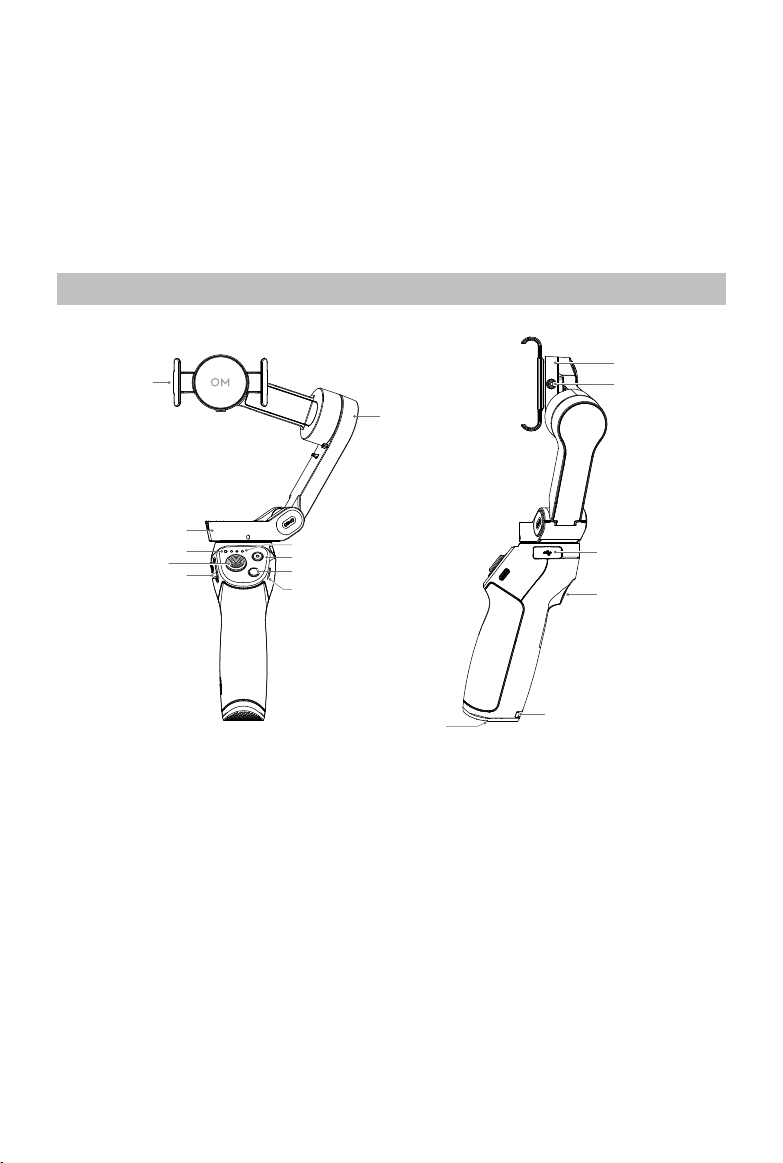
Overview
1. Magnetic Phone Clamp 2
2. Pan Motor
3. System Status Indicator
4. Joystick
5. Zoom Slider
6. Charging Port (USB-C)
7. Power/M Button
8. Shutter/Record Button
9. Battery Level Indicators
10. Tilt Motor
11. 1/4”-20 UNC Port
12. Lanyard Hole
13. Trigger
14. USB-A Port
15. M3×0.5 Screw Hole
16. Roll Motor
1
2
10
9
8
7
6
5
11
16
15
14
13
12
3
4
© 2021 DJI OSMO All Rights Reserved.
5
Getting Started
Charging
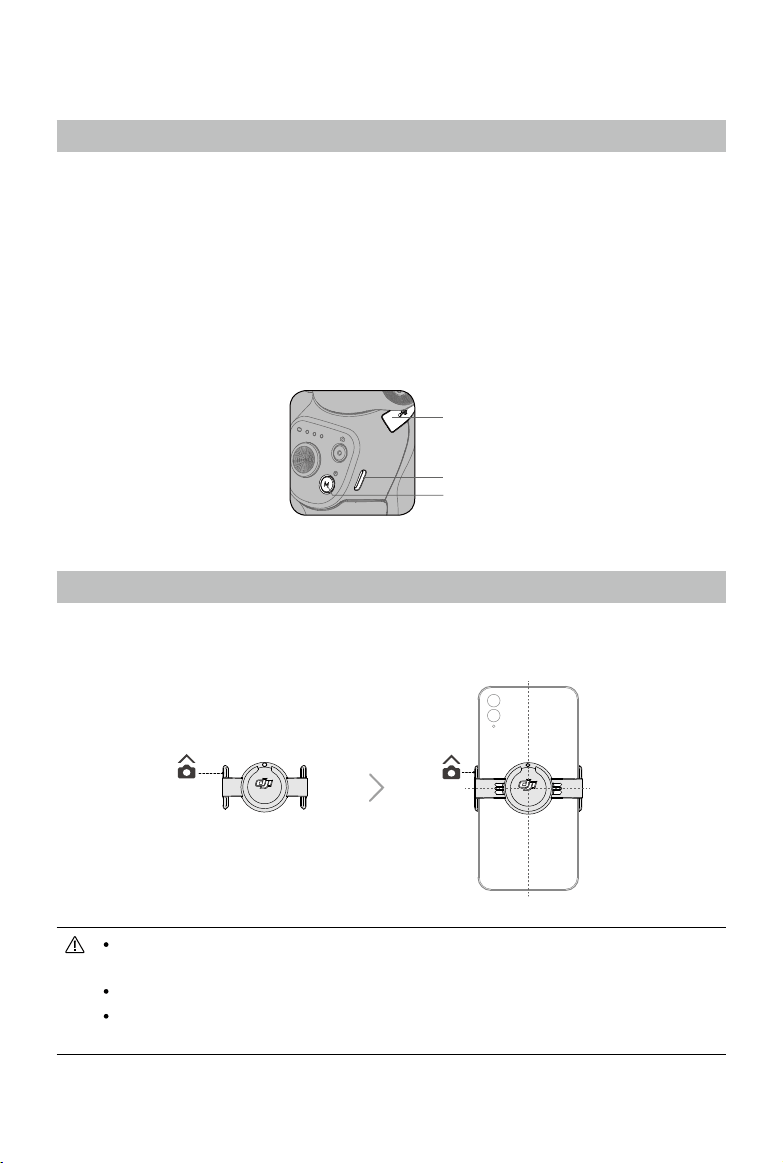
To charge DJI OM 4 SE, connect a USB adapter (not included) to the charging port using the
power cable (included). The battery is fully charged when the battery level indicators turn off.
Charging time: 2.5 hours (tested in the environment temperature of 25° C when using a 10 W
charger)
Max runtime: 15 hours (tested with the gimbal balanced and held steadily. This value should
be taken as a reference only)
DJI OM 4 SE can be used as a power bank. Connect your mobile phone to the USB-A port.
If DJI OM 4 SE is powered on, the mobile phone will begin to charge. If DJI OM 4 SE is
powered off, press the M button once to start charging.
Attaching the Phone
1. Using the Magnetic Phone Clamp: attach the magnetic phone clamp in the center of the
phone.
Make sure the direction of the magnetic phone clamp is the same as shown and it is
in the middle of the phone. Otherwise, the gimbal performance may be affected.
Adjust the phone clamp and make sure it is as vertical like the phone.
For optimal performance, use the provided riser pad if using a phone less than 7.5 mm
thick or weighing less than 170 g.
USB-A Port
Charging Port
M Button

6
© 2021 DJI OSMO All Rights Reserved.
DJI OM 4 SE
User Manual
2. Align the marks on the phone clamp and the mounting plate. Attach the mobile phone to
DJI OM 4 SE.
3. Unfold DJI OM 4 SE and press and hold the M button to power on.
Mount your mobile phone before powering on DJI OM 4 SE. If no mobile phone is
detected, DJI OM 4 SE will vibrate and enter standby mode. To bring it out of standby
mode, press any button after mounting the mobile phone.

© 2021 DJI OSMO All Rights Reserved.
7
Using DJI OM 4 SE
After powering on, DJI OM 4 SE will enter follow mode by default. The gimbal converts
joystick movements into smooth pan and tilt transitions, and reduces the impact of natural
vibrations.
The mobile phone can by adjusted by hand as well.
Button and Port Functions
M Button
When Powered Off
Press once: check battery level.
Press and hold until it beeps once: power on.
When Powered On
Press once: switch between photo and video mode (this is the default setting
and can be changed in DJI Mimo.)
Press twice: switch between landscape and portrait mode.
Press and hold until it beeps once: enter or exit standby mode.
Press and hold until it beeps twice: power off.
Joystick
Move vertically to tilt the mobile phone. Move horizontally to pan the mobile
phone. The joystick control direction can be set in DJI Mimo.
Shutter/Record Button
Press once to take a photo or start or stop recording. Press and hold for burst
shooting when in photo mode.
Battery Level Indicators
Indicates the battery level of DJI OM 4 SE.
System Status Indicator
Indicates the current status.
Blinking Pattern Descriptions
Solid yellow Bluetooth disconnected
Solid green Bluetooth connected
Pulses yellow or green Standby mode
Blinks red and green
alternatively
Firmware updating/rmware update failed
Solid red
Gimbal abnormality (such as temperature is too low
or high or battery is over discharged)

8
© 2021 DJI OSMO All Rights Reserved.
DJI OM 4 SE
User Manual
Zoom Slider
Move the slider to the T position to enlarge the subject and move the slider to
the W position to shrink. Push the slider once to change the zoom once. Push
the slider continuously to change the zoom continuously.
Trigger
Press and hold to enter lock mode. In lock mode, the gimbal will not follow the
handle movements. Release to exit lock mode.
Press once to start or stop ActiveTrack 3.0.
Press twice to recenter the gimbal. When using ActiveTrack 3.0, the gimbal
will recenter to the center of the camera view.
Press three times to switch between front and back cameras.
Press once, and then press and hold to enter Sport mode. Release to exit. In Sport
mode, the follow speed of the gimbal increases for capturing quick movements.
Combination Operation
The Bluetooth connection can be reset if DJI OM 4 SE cannot be connected or found. Press
the M button, shutter button, and trigger simultaneously to reset the Bluetooth connection.
The Bluetooth connection is reset successfully when the system status indicator turns from
green to yellow. Search DJI OM 4 SE and reconnect.
DJI OM 4 SE will be powered off automatically if there is no operation for 10 minutes
in standby mode.
Charging Port (USB-C)
Charge DJI OM 4 SE by connecting a USB adapter to this port.
USB-A Port
The USB-A port can be used to charge mobile phones.
1/4”-20 UNC Port
The 1/4"-20 UNC port can be used to attach a tripod.
Lanyard Hole
The lanyard hole can be used to attach a wrist strap.
M3×0.5 Screw Hole
Used to mount counterweights. Counterweights should be used if a camera
lens or microphone is mounted on the mobile phone. Make sure the total
weight of these accessories is less than 290 g.

© 2021 DJI OSMO All Rights Reserved.
9
DJI OM 4 SE
User Manual
Operating Mode
The gures below depict the operation modes when using DJI OM 4 SE in landscape mode.
The same operation modes apply when used in portrait mode.
Upright Mode
Upright mode can be used without any
further user input. In this mode, press the
M button twice quickly to center the mobile
phone.
Side Grip Mode
Rotate DJI OM 4 SE to the right or left by
90° to go from Upright to Side Grip mode.
Underslung Mode
Hold DJI OM 4 SE upside down to enter
Underslung mode, in which the mobile
phone can easily capture images from a
lower position.
Low Position Mode
Press and hold the trigger, and then tilt
DJI OM 4 SE forward to enter Low Position
mode. The tilt angle is enlarged, making it
more suitable to shoot from a low position.
10
© 2021 DJI OSMO All Rights Reserved.
DJI Mimo App
Watch a live HD video feed on your mobile phone screen through the DJI Mimo app. The app
also allows you to use Hyperlapse, Timelapse, ActiveTrack 3.0, DynamicZoom, Pano, and
Story mode, or congure camera and gimbal settings in just a few taps.
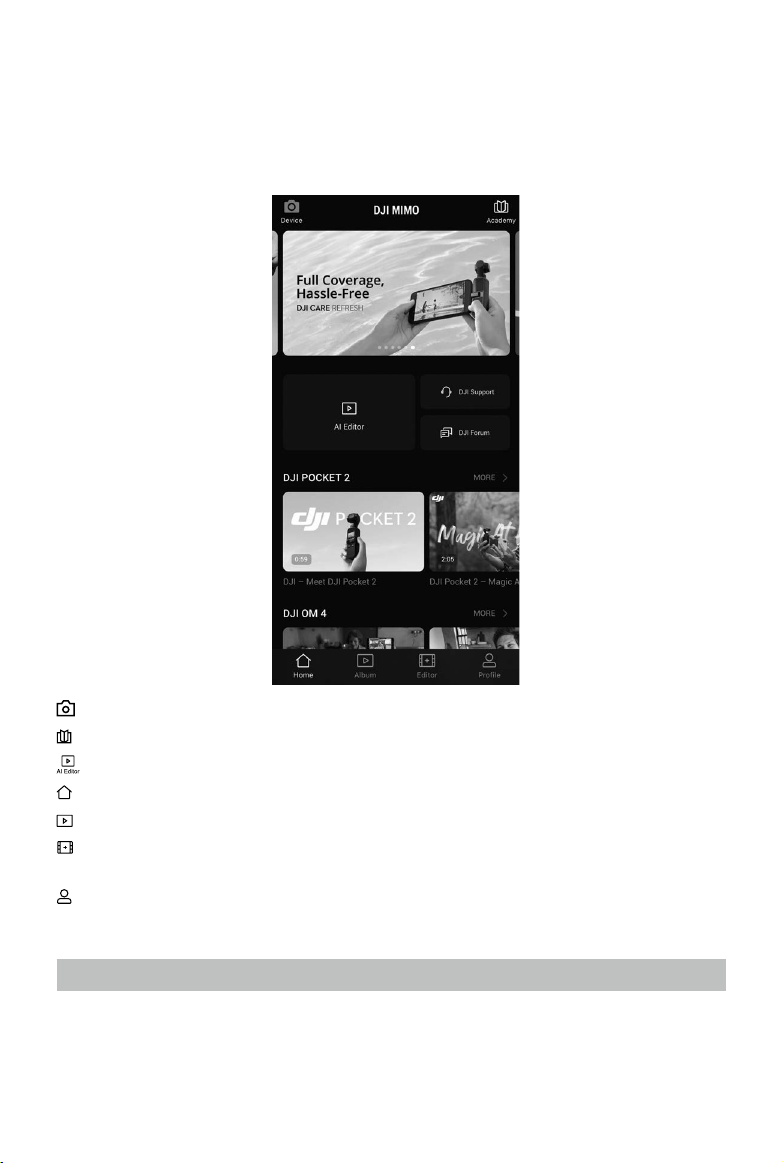
Device: tap to connect to DJI OM 4 SE. Once connected, DJI Mimo enters camera view.
Academy: tap to watch tutorials and view manuals.
AI Editor: provides several templates to edit photos or videos.
Home: tap to return to the home screen.
Album: manage and view footage from the phone or DJI devices.
Editor: tap to edit photos or videos from DJI OM 4 SE or import and edit from a mobile
device.
Profile: register or log in to a DJI account. View works and settings, check likes and
followers, send messages to other users, and connect with the DJI Store.
Connecting to the DJI Mimo App
1. Power on DJI OM 4 SE.
2. Enable Bluetooth on the mobile phone and connect to the device with an DJI OM 4 SE
prex name in DJI Mimo.
3. When using DJI Mimo for the rst time, it is required to activate DJI OM 4 SE using DJI Mimo.
Follow the instructions to activate. Register or log in to a DJI account when activating DJI
© 2021 DJI OSMO All Rights Reserved.
11
DJI OM 4 SE
User Manual
Camera View
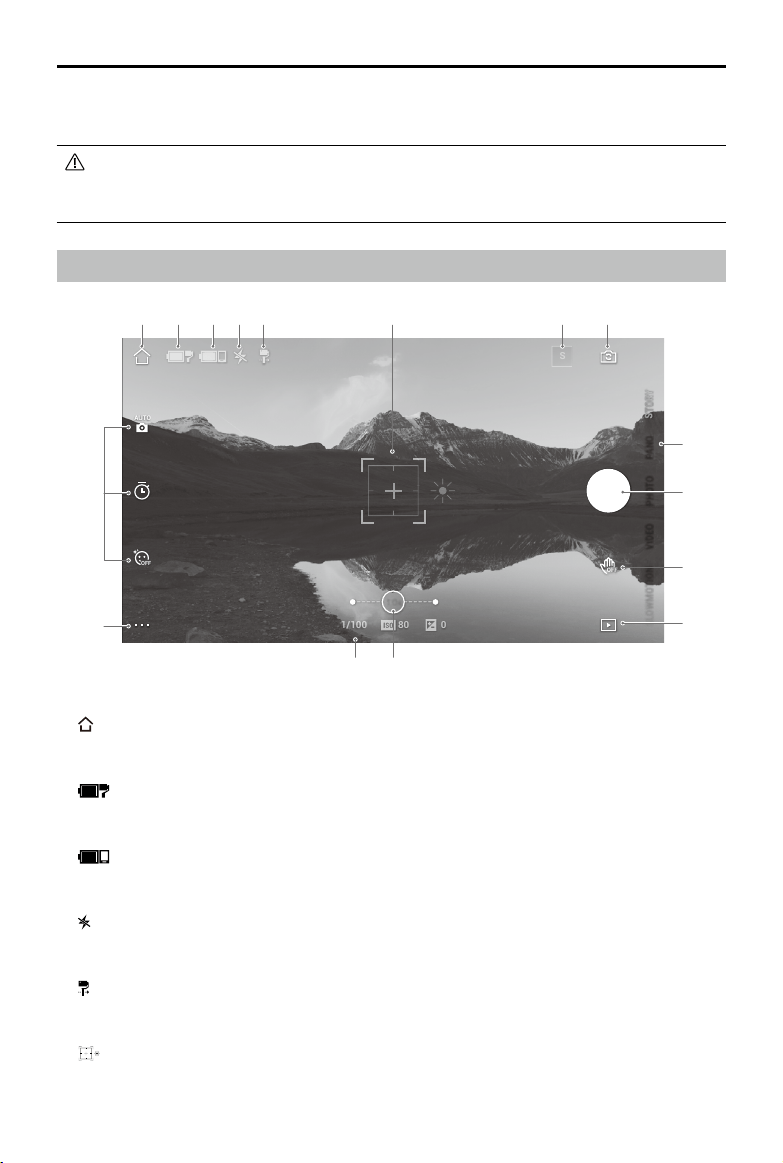
1. Home
:
Tap to return to the home screen.
2. Gimbal Battery Level
:
Displays the current battery level of the gimbal.
3. Mobile Phone Battery Level
:
Displays the current battery level of the mobile phone.
4. Flash
:
Displays the ash status.
5. Gimbal Mode
:
Displays the current gimbal mode: Follow, Tilt Locked, FPV, or SpinShot.
6. ActiveTrack Select Box
:
ActiveTrack 3.0 has been optimized for tracking human subjects with a head and
shoulder model along with face detection using deep learning algorithms. The subject
will remain in the center of the camera view by default. The camera view can be adjusted
S
OFF
1.0x
1.0x
1/100
1/100
80
80
0
0
AUTO
OFF
PHOTO
PANO
VIDEOSLOWMOTIONDYNA-ZOOM
21 3 4 5 6 7 8
9
10
11
12
16
15
14 13
OM 4 SE. Make sure you are connected to the internet during the entire process.
4. Enter camera view after activation is complete.
When connected via Bluetooth, DJI OM 4 SE is able to control the camera of the
mobile phone without DJI Mimo. Refer to the Mobile Phone Compatibility List for
details.

12
© 2021 DJI OSMO All Rights Reserved.
DJI OM 4 SE
User Manual
The differences between the head and shoulder tracking and face tracking are that
head and shoulder tracking supports 360° tracking while face tracking does not. Also,
the detection range of the cameras are different. The detection range between the
back camera and the gesture is 0.5 to 4 m, and the distance between the front camera
and the gesture is 0.5 to 2 m. Note that ActiveTrack 3.0 may consume more power and
cause the temperature of the mobile phone to increase.
c. Press the trigger once to start or stop ActiveTrack 3.0. When using ActiveTrack 3.0,
move the joystick to adjust the camera view. Perform a palm or V gesture to stop
recording.
7. Story Mode
S
:
Story mode provides several templates for recording video. When you are nished
shooting, a video will be generated automatically according to the selected template.
8. Front/Back Camera Switch
:
Tap to switch between the front and back cameras of your mobile phone.
9. Shooting Modes
Scroll to select the shooting mode.
Hyperlapse:
enable to shoot a Timelapse photo while moving the mobile phone. Tap the
shutter button to begin.
Timelapse:
there are two types of Timelapse, Position and Path. After selecting the
Timelapse, tap the settings at the top of the screen. For Position Timelapse, set the interval
and duration time and start to shoot. For Path Timelapse, up to four positions can be
selected, and the gimbal will travel through the positions in order.
manually. There are three ways to use ActiveTrack 3.0:
a. Drag a box on the screen in the camera view in DJI Mimo. A green box around the
subject indicates ActiveTrack 3.0 is successfully enabled. Tap the X icon on the top
corner to stop tracking.
b. Enable Gesture Control in DJI Mimo and perform a palm or V gesture for one to two
seconds when facing the camera. The back camera will detect the nearest head and
shoulders and start to track the subject. The front camera will detect the nearest face
and start to track the subject.

© 2021 DJI OSMO All Rights Reserved.
13
DJI OM 4 SE
User Manual
DynamicZoom:
choose from Move Out and Move In mode. After selecting a mode, drag a
box to select a subject, and tap the shutter button to start shooting.
Slow Motion:
tap to shoot video at 8x slow motion.
Video:
tap to shoot a normal video.
Photos:
tap to take a single shot photo. Press and hold for burst shooting.
Pano:
tap to take a 3x3, 240°, or CloneMe panorama photo.
Story:
provides several templates for recording video.
10. Shutter Button
:
Tap to take a photo or to start or stop recording video.
11. Gesture Control Switch
OFF
:
Tap to access Gesture Control settings.
12. Playback
:
Tap to preview photos and videos.
13. Zoom
1.0x
:
Place two ngers on the screen and move them apart to zoom in or move
them together to zoom out.
14. Shooting Parameters
080
1/100
:
Displays the shutter speed, ISO, and EV values (for iOS only).
15. Settings
:
Camera Settings
Note that the ash, white balance, and grid settings are only available when using the
back camera. Sele Flip is only available when using the front camera in photo mode.
:
Gimbal Settings
Gimbal Mode:
a. Follow: pan and tilt axes follow.
b. Tilt Locked: only the pan axis follows.
c. FPV: pan, tilt, and roll axes follow.
d. SpinShot: pan, tilt, and roll axes follow. The joystick can be used to control the roll axis
rotation.
Sport Mode Switch: tap to enable or disable Sport mode. In Sport Mode, the follow speed
of the gimbal increases greatly. It is suitable for shooting in scenarios where subjects
move suddenly and at fast speeds.
Zoom Speed: tap to set the zoom speed when using the zoom slider.
Joystick Speed: tap to set the maximum speed when controlling the joystick. There are
Fast, Medium, and Slow options.
Joystick Control Direction: choose from Free and Horiz/Vert. Free enables the gimbal to
14
© 2021 DJI OSMO All Rights Reserved.
DJI OM 4 SE
User Manual
be controlled in horizontal and vertical direction simultaneously. Horiz/Vert enables the
gimbal to be controlled in a horizontal or vertical direction.
Invert Pan Control: after enabling this feature, the pan axis movement direction is the
reverse of the previous direction.
Invert Tilt Control: after enabling this feature, the tilt axis movement direction is the reverse
of the previous direction.
Press M Button: switch between photo and video mode or enter/exit the quick menu. The
function can be set by the user.
Gimbal Auto Calibration: reduces drift caused by nearby magnetic interference or human
error. Before calibrating, place DJI OM 4 SE on a at surface using a tripod. Do not touch
the gimbal during calibration.
Horizontal Gimbal Adjustment: make sure the magnetic phone clamp is level before
adjusting the gimbal.
:
General Settings
Includes information such as Device Management, Device Name, Firmware Version, and
Serial Number.
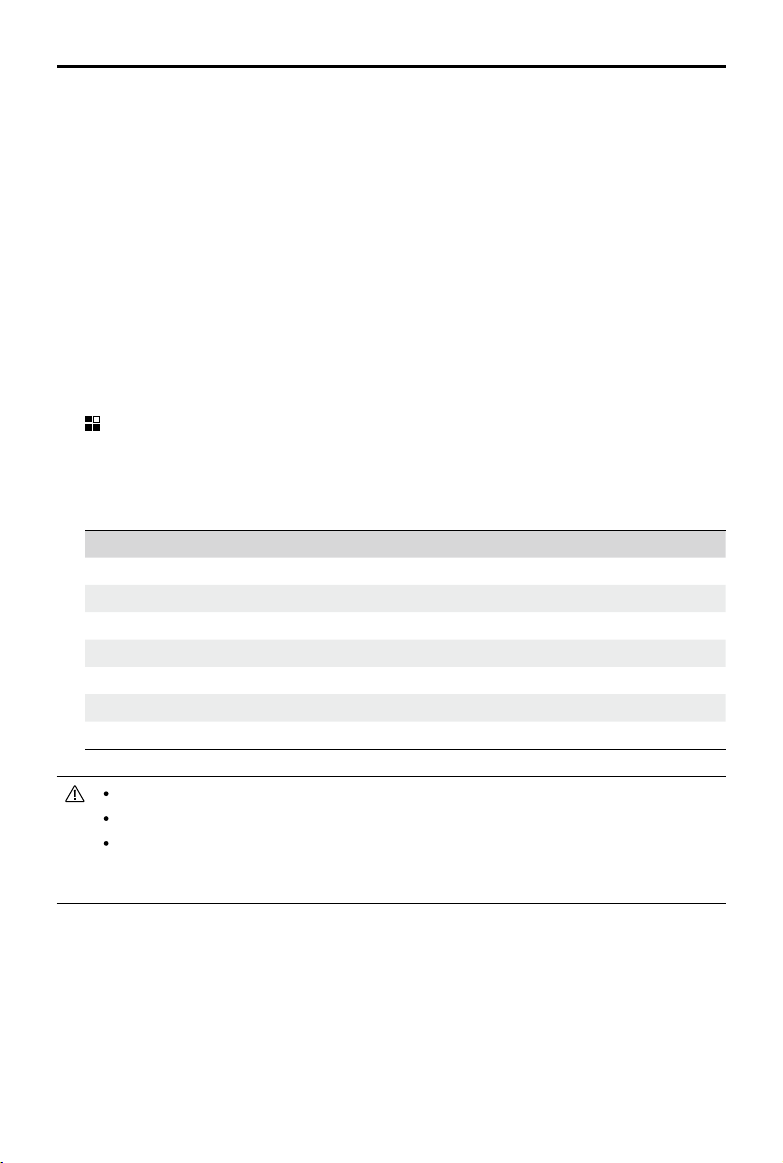
16. Shooting Parameters Settings
Shooting Modes Settings
Hyperlapse Resolution and FPS, Speed, ISO, Shutter, and EV
Timelapse Resolution and FPS, Video Frame Rate, ISO, Shutter, and EV
Dynamic Zoom Glamour Effects, Video Frame Rate, ISO, Shutter, and EV
Slow Motion ISO, Shutter, and EV
Video Glamour Effects, Video Frame Rate, ISO, Shutter, and EV
Photos Glamour Effects, Count Down, ISO, Shutter, and EV
Pano 3×3, 240°, and CloneMe Pano, Count Down, ISO, Shutter, and EV
FPS, ISO, Shutter, and EV settings are only available for iOS devices.
When enabling Glamour Effects, the max video resolution is 1080p.
Shooting parameter settings vary depending on the model of the mobile phone.
Refer to the Mobile Phone Compatibility List (www.dji.com/om-4-se/downloads) for
more information.
© 2021 DJI OSMO All Rights Reserved.
15
Firmware Update
Use DJI Mimo to update the DJI OM 4 SE rmware. It takes approximately three minutes to
complete an update.
How to Update
Before starting an update, make sure that the battery level is at least 15% (at least two battery
level indicators illuminated). Connect DJI OM 4 SE to your mobile device and launch DJI
Mimo. You will be prompted if a new rmware update is available. To start updating, connect
the mobile device to the internet and follow the on-screen instructions.
Do not exit DJI Mimo while updating the rmware. Pay attention to on-screen prompts. The
system status indicator will blink green and red alternatively and become solid green once
the rmware update has completed successfully.
If an update is unsuccessful, restart DJI OM 4 SE and DJI Mimo, reconnect the Bluetooth,
and retry.
Storage
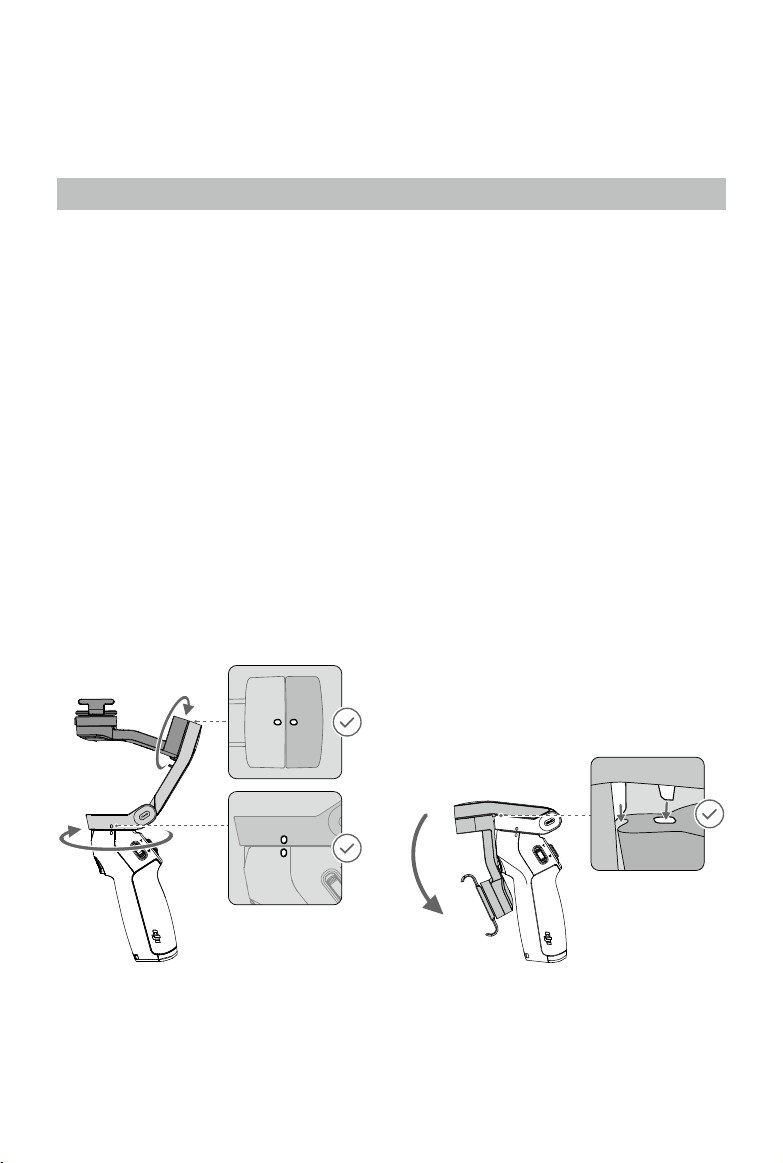
DJI OM 4 SE is designed to be folded for easier storage and transportation. Make sure to fold
DJI OM 4 SE when it is powered off.
Rotate the pan and tilt axis to align with the marks on the gimbal and fold DJI OM 4 SE. Note
that the hole on the pan motor should be matched with the marker on the arm. DJI OM 4 SE
will enter storage mode and can be folded after powering off.

16
© 2021 DJI OSMO All Rights Reserved.
Specications
Name DJI OM 4 SE
Model OK100
Dimensions
Unfolded: 276×120×104 mm
Folded: 163×100×47 mm
Weight
390 g (gimbal)
34 g (magnetic phone clamp)
Power Consumption 1.2 W (steady and balanced status)
Mechanical Range
Pan: -161.2° to 172°
Roll: -136.7° to 198°
Tilt: -106.5° to 235.5°
Max Controllable Speed 120°/s
Compatible Phones
Weight: 230±60 g
Diagonal: ≤ 196 mm (or ≤ 7.72 in)
Thickness: 6.9-10 mm
Width: 67-84 mm
Wireless Mode Bluetooth Low Energy 5.0
Transmission Power (EIRP) ≤4 dbm
Operating Frequency 2.400-2.4835 GHz
Battery Type 18650 Li-ion
Capacity 2450 mAh
Energy 17.64 Wh
Voltage 7.2 V
Charging Temperature 5° to 40° C (41° to 104° F)
Operating Temperature 0° to 40° C (32° to 104° F)
Charging Time
2.5 hours (Measured with a 10W charger in the environment
temperature of 25° C)
Operating Time
15 hours (Under ideal conditions with the gimbal fully
balanced)

This content is subject to change.
Download the latest version from
www.dji.com/om-4-se/downloads
OSMO
is a trademark of DJI OSMO.
Copyright © 2021 DJI OSMO All Rights Reserved.