
2
EN
Instructions in English are available at the link below.
ES
Las instrucciones de instalación en el español se encuentran disponibles en el enlace que
se indica a continuación.
FR
Les instructions d’installation en français sont disponibles au lien suivant.
DE
Eine Anleitung in englischer Sprache ist unter dem unten stehenden Link verfügbar.
NL
Instructies in het Nederlands zijn beschikbaar via onderstaande link.
ZH
安裝說明請詳見下列網址連結.
JA
日本語 のインストールガイドは下記リンク先でご覧いただけます。
KO
한국어로 작성된 설치 지침은 아래 링크에서 볼 수 있습니다.
RU
Инструкции по установке на русском языке можно найти по ссылке ниже.
IT
Le istruzioni per l’installazione in italiano sono disponibili nel link indicato in basso.
PT
Pode encontrar as instruções de instalação em português através do link em baixo.
PL
Instrukcja w języku polskim są dostępne w linku poniżej.
TH
คำ�แนะนำ�ในก�รติดตั้งไทยมีจัดไว้ให้ผ่�นลิงค์ต่อไปนี้ี่
www.audioquest.com/DragonFlyBlack/ight
3
Table of Contents
Introduction . . . . . . . . . . . . . . . . . . . . . . . . . . . . . . . . . . . . . . . . . . . . . . 4
What’s included? . . . . . . . . . . . . . . . . . . . . . . . . . . . . . . . . . . . . . . . . . . . 7
Setting Up DragonFly. . . . . . . . . . . . . . . . . . . . . . . . . . . . . . . . . . . . . . . . . 8
For Use with Mac. . . . . . . . . . . . . . . . . . . . . . . . . . . . . . . . . . . . . . . . . . . . 8
For Use with Windows . . . . . . . . . . . . . . . . . . . . . . . . . . . . . . . . . . . . . . . 13
For Use with Apple Mobile Devices . . . . . . . . . . . . . . . . . . . . . . . . . . . . . . . 17
For Use with Android Devices . . . . . . . . . . . . . . . . . . . . . . . . . . . . . . . . . . 18
Desktop Device Manager Application . . . . . . . . . . . . . . . . . . . . . . . . . . . . . 20
Take DragonFly Higher . . . . . . . . . . . . . . . . . . . . . . . . . . . . . . . . . . . . . . . 22
OR
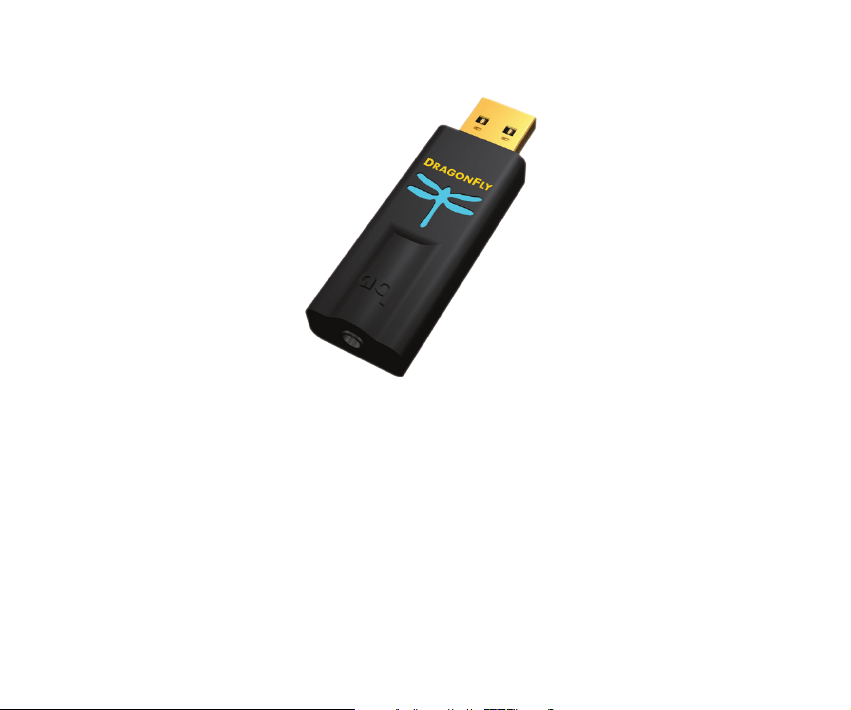
DragonFly Black v1.5 – Flight Manual
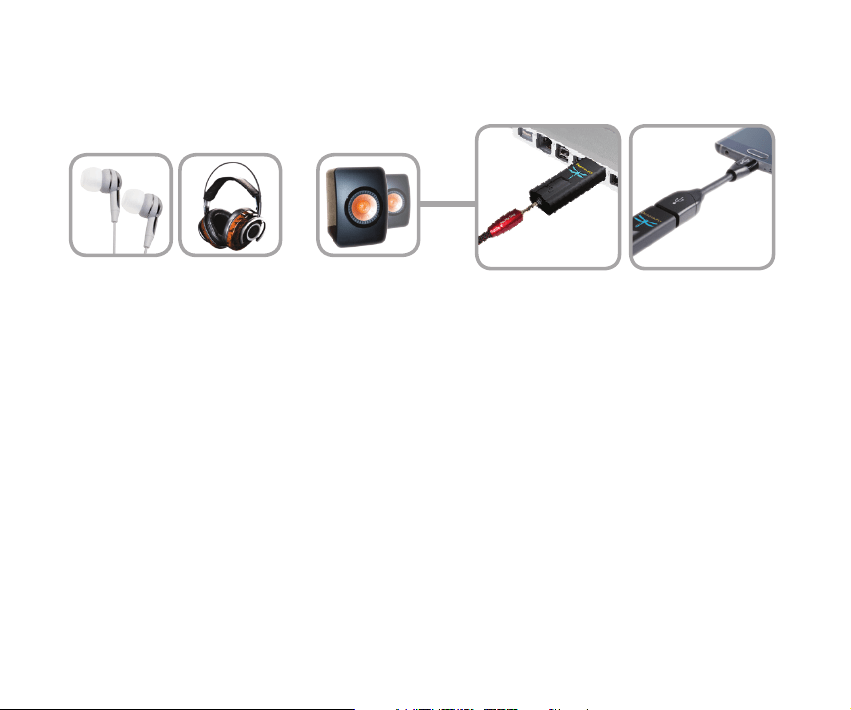
DragonFly Black is a USB digital-to-analog converter (DAC) designed to deliver cleaner,
clearer, more naturally beautiful sound from any computer, smartphone, or tablet.
DragonFly Black’s unique design allows for playback of any le type regardless of
resolution. Natively, DragonFly Black is capable of decoding 24-bit/96kHz data. (For les
with higher sample rates, your computer or mobile device, in conjunction with its playback
software, will resample the data to a compatible resolution. For more details, see “Why is
‘Format’ Important.”)
4

DragonFly Black represents the culmination of several new and exciting achievements.
Over the better part of three years, AudioQuest and acclaimed engineer Gordon
Rankin have been tirelessly developing sophisticated software solutions that have
allowed us to implement a new, high-performance class of USB microcontroller. We
have chosen to work with Microchip®, a leading provider of microcontroller and analog
semiconductors. With exceedingly low power consumption and extremely low-noise
power supplies, the Microchip microcontrollers achieve unprecedented levels of
eciency and signal-to-noise ratio, regardless of bit- or sample-rate.
While DragonFly versions 1.0 and 1.2 achieved new standards of performance and
portability in the high-delity audio world, many of our customers have longed for a
similar product that could be reliably used with their handheld mobile devices. Previously,
DragonFly’s power consumption limited its compatibility to Mac and Windows laptops
and PCs. Now, with our developments in the eld of microcontrollers, we are able to
improve DragonFly’s performance while also oering compatibility with handheld
Apple Mobile and Android devices. Improved performance and greater versatility!
DragonFly Black employs a unique clock system called a Hybrid-PLL. While not discrete,
the Hybrid-PLL performs equal to, or better than, many discrete clock systems, at a
fraction of their cost. This has allowed us to devote resources to more sophisticated
components elsewhere.
5

Additionally, DragonFly Black is software upgradable. Our collaboration with Gordon
Rankin and Microchip has now resulted in products that allow consumers to download
new software if and when it ever becomes necessary. While we can’t reliably predict
any necessary software changes, AudioQuest feels that it is important to provide long-
term support for our customers and their investments in audio.
Finally, we simply cannot overstate the signicance of Gordon Rankin’s contributions
to AudioQuest. DragonFly Black represents many of Gordon’s most innovative, creative,
and elegant solutions to date.
We encourage you to spend a few minutes reading through the Flight Manual and then
sit back, relax, and get high on your favorite music!
AudioQuest
6

What’s Included?
¡ DragonFly Black v1.5 Asynchronous USB DAC
¡ Travel Pouch
¡ Flight Manual
Supported Operating Systems
¡ Apple OS X®
¡ Apple iOS®
¡ Microsoft Windows® (7, 8.1, 10)
¡ Android™
7

Setting Up DragonFly
DragonFly Black is designed to be “plug and play” with all major desktop and mobile
devices and operating systems, such as Android, Apple, and Microsoft. No additional
drivers are required for DragonFly Black to operate with any of these systems.
Additionally, DragonFly Black is equipped with a 64-step analog volume control. With
DragonFly Black connected to a PC or mobile device, adjusting the host’s system volume
control will, through proxy, control the DragonFly Black’s onboard volume. This ensures
maximum resolution and the highest sound quality, regardless of volume setting.
For Use with Apple OS X®
(For Windows setup, skip to page 13; for Apple Mobile device setup, skip to page 17, for
Android setup, skip to page 18.)
DragonFly Black is compatible with Mac OS X, versions 10.6.8 and later. OS X menus
may appear slightly dierent from the screenshots shown below. Some have changed
over the life of OS X, but their functionality has remained the same.
8
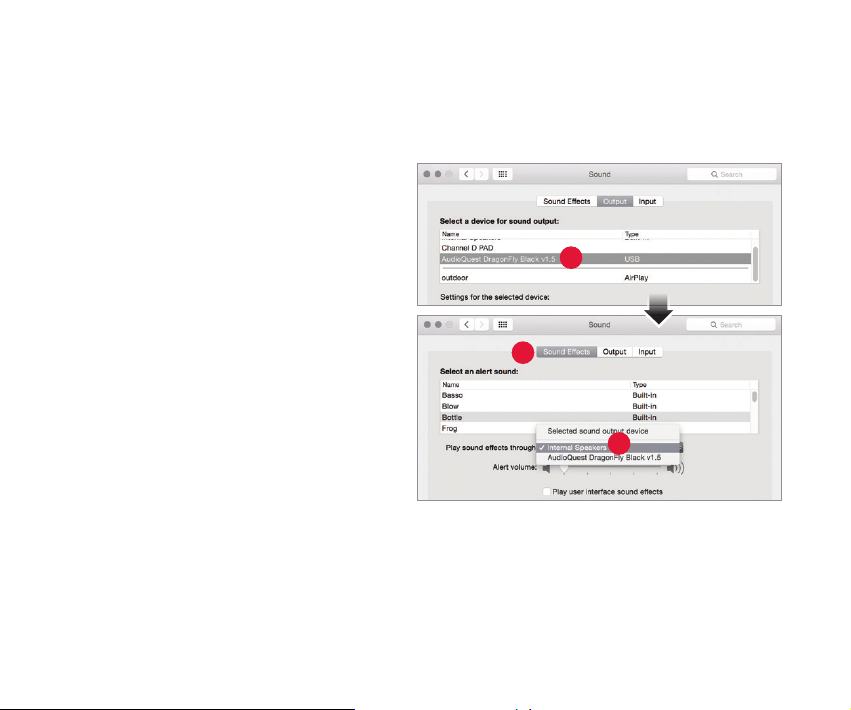
Setup for USB
Using “System Preferences” to send audio to DragonFly Black, while keeping alerts
and sound eects on the computer’s speakers:
1. Insert DragonFly Black into your
computer’s USB port.
2. Open “System Preferences” from the
Dock or from the Apple® dropdown
menu (top left).
3. Click on the “Sound” icon.
4. In the Sound panel, click on the
“Output” tab. Select “AudioQuest
DragonFly Black 1.5.”
5. Click on the Sound panel’s “Sound
Eects” tab.
6. In the “Play sound eects through”
menu, select “Internal Speakers.”
7. Close the window.
3
4
5
9
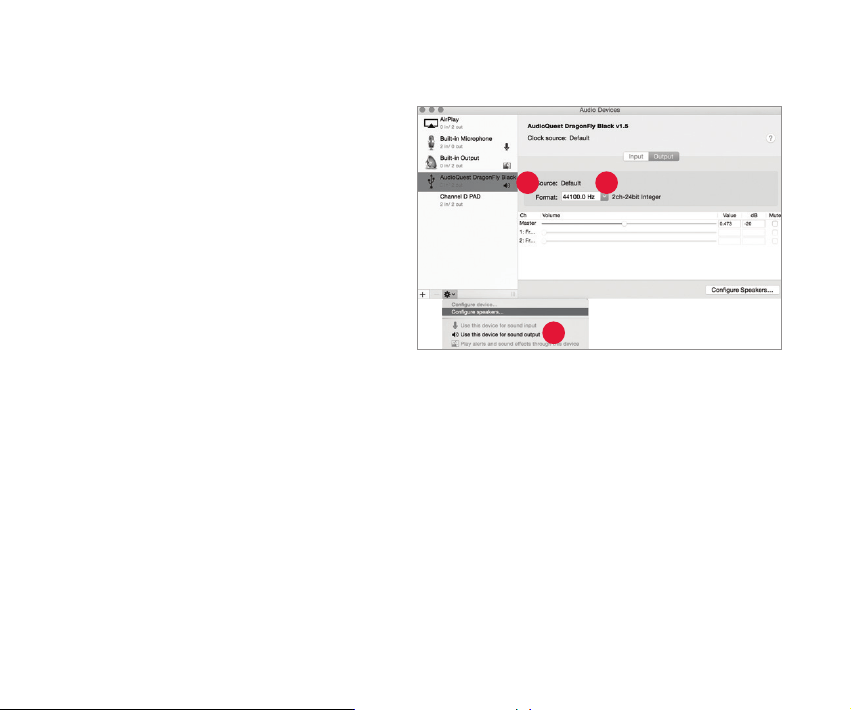
Setting up the “Audio MIDI Setup” so computer audio plays through DragonFly Black:
1. Open the “Applications” folder, and
then the “Utilities” folder.
2. Within Utilities, double-click to open
“Audio MIDI Setup.”
3. Within the “Audio Devices” panel, click
on “AudioQuest DragonFly Black 1.5.”
4. Select, “Use this device for
sound output”
5. Use the “Format” dropdown menu to
choose a sample rate—most likely
44100.0 Hz. (See “Why is ‘Format’
important,” right.)
3
4
5
10

Why is “Format” Important?
CDs operate at a sampling frequency of 44100.0 Hz. Compressed MP3 and AAC music
les and audio streams are typically encoded at three dierent quality levels—128kbps,
256kbps (iTunes Plus), and 320kbps—and are most often reconstructed as 44100.0 Hz
les. Similarly, many music downloads and CDs ripped as Apple Lossless or FLAC les
are reconstructed to 44100.0 Hz. If you have higher resolution les, it is important to
choose the correct higher sample rate in order to maximize the benet of those les.
For the best performance with sampling rates above DragonFly Black’s 96kHz ceiling,
les should be played at a rate mathematically related to their native resolution. For
instance, a 192kHz le should be played at 96kHz (i.e., 2 x 96000.0 = 192000.0).
Some programs (such as NPR) use 48000.0 Hz. These 24-bit/48000.0 Hz les can sound
amazingly close to higher sample-rate les. Some “high-res” les use 88200.0 Hz
because it is a multiple of the CD standard sample rate (i.e., 2 x 44100.0 = 88200.0).
Some “high-res” les use 96000.0 Hz because it is a multiple of the sample rates used on
DVDs, Blu-rays, and in the computer world (i.e., 2 x 48000.0 = 96000.0).
DragonFly Black’s LED lights up in dierent colors to indicate status or sample rate:
Red: Standby Green: 44100.0 Hz Blue: 48000.0 Hz
Amber: 88200.0 Hz Magenta: 96000.0 Hz
11
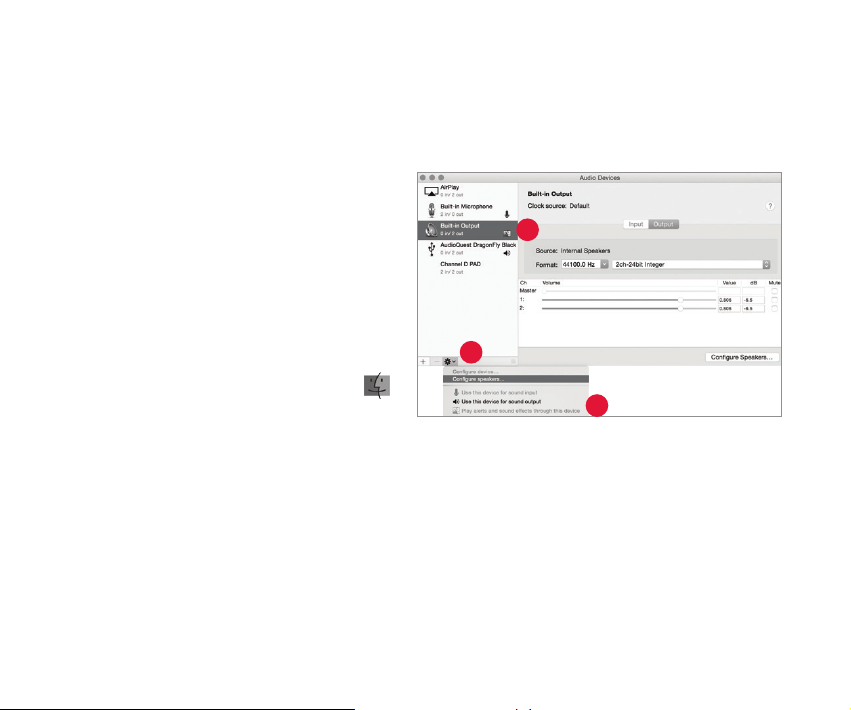
Apple OS X – continued
Making certain that sound eects are routed to the computer’s speakers and not to
DragonFly Black:
1. In the already open “Audio Devices”
window, click rst to highlight
“Built-In Output.”
2. Click on the gear icon drop-down
menu.
3. Check that “Play alerts and sound
eects through this device” is
grayed out.
4. If it is not, click to select it so the
now appears next to “Built-In Output.”
Plug in earbuds, headphones, or use a cable to connect DragonFly Black to your pow
ered
speakers or amplier, and you are ready to listen!
1
3
2
12
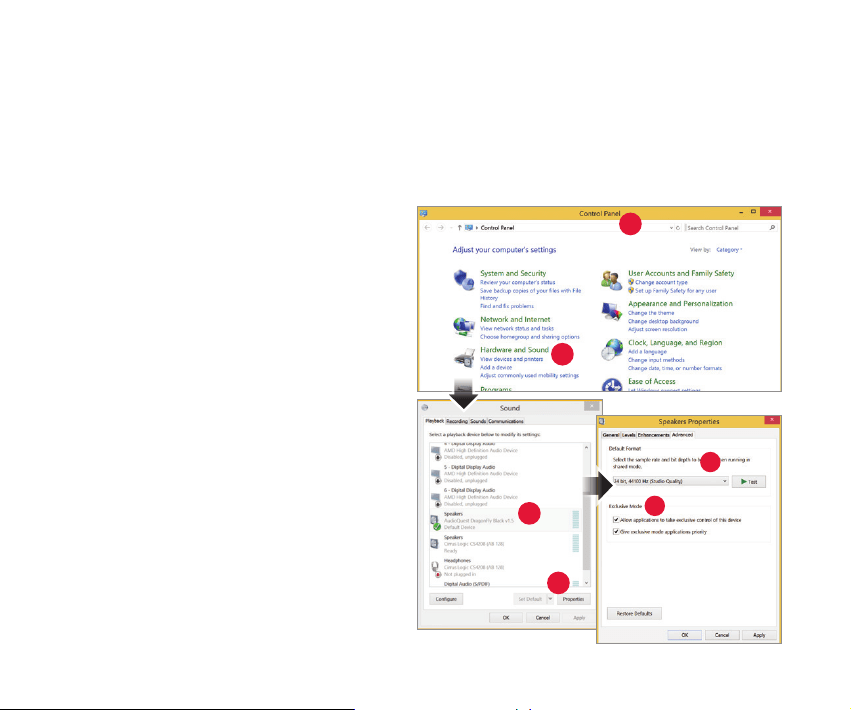
For Use with Windows® 7, 8.1, and 10
Setup for USB
Using “Control Panel” “Sound” settings to send audio to DragonFly Black, while keeping
alerts and sound eects on the computer’s speakers:
1. Insert DragonFly Black into your
computer’s USB port.
2. Go to Start menu and launch
“Control Panel.”
3. Open “Hardware and Sound” panel.
4. Select “Sound.”
5. For USB: The AudioQuest DragonFly
Black is added as “Speakers.” Ensure
it is the “Default Device.” Select
“Speakers.”
6. Click “Properties” button for more
setup options.
a. Click “Advanced” tab. Use the
dropdown menu to choose the
sample rate—most likely
24-bit/44100.0 Hz.
3
2
5
6
6a
6b
13
(See “Why is ‘Format’ Important,”
right.)
b. For “Exclusive Mode,” check both
options, then click “OK.”
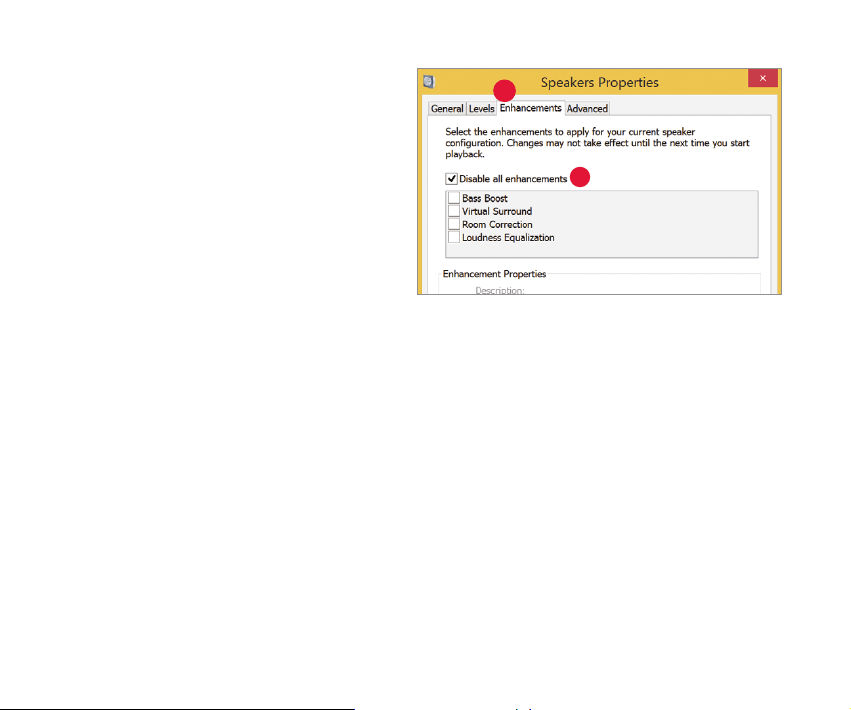
7. For Windows 8.1: Click “Enhancements”
button.
a. Select “Disable All Enhancements.”
8. For Windows 7: Setting chimes and
alerts to play through the computer’s
speakers and not DragonFly Black:
a. Select “Sounds” tab.
b. For “Sounds Scheme,” select “No
Sounds.” This prevents chimes and
computer alerts from playing back
through DragonFly Black.
c. Enter “DragonFly Black 1.5” as your
“Sound Scheme” (optional). Click
“OK.” Close window.
7
7a
14

Why is “Format” Important?
CDs operate at a sample frequency of 44100 Hz. Compressed MP3 and AAC music les
and audio streams are typically encoded at three dierent quality levels—128kbps,
256kbps (iTunes Plus), and 320kbps—and are most often reconstructed as 44100.0 Hz
les. Similarly, many music downloads and CDs ripped as Apple Lossless or FLAC les
are reconstructed to 44100 Hz. If you have higher resolution les, it is important to
choose the correct higher sample rate in order to maximize the benet of those les. For
the best performance with sampling rates above DragonFly Black 1.5’s 96kHz ceiling,
les should be played at a rate mathematically related to their native resolution. For
instance, a 192kHz le should be played at 96kHz (i.e., 2 x 96000.0 = 192000.0).
Some programs (such as NPR) use 48000 Hz. These 24-bit/48000 Hz les can sound
amazingly close to higher sample-rate les. Some “high-res” les use 88200 Hz, but
Windows 7 is not currently compatible with this sample rate. To play 88200 Hz music
les, Windows 7 users must select 44100 Hz, 48000 Hz, or 96000 Hz, with 44100
recommended as optimal because it is a direct multiple of the native sample rate (i.e.,
2 x 44100.0 = 88200.0). Windows 8 will play all sample rates. Windows-compatible
third-party music players, such as JRiver and foobar2000 will play 88200 Hz les at
their native sample rate. For support or more information about these music players,
please visit jriver.com or foobar2000.org. Some “high-res” les use 96000 Hz because
it is a multiple of the sample rates used on DVDs, Blu-rays and in the computer world
(i.e., 2 x 48000.0 = 96000.0).
15

DragonFly Black 1.5’s LED lights up in dierent colors to indicate status or sample rate:
Red: Standby Green: 44100 Hz Blue: 48000 Hz
Amber: 88200 Hz Magenta: 96000 Hz
Plug in earbuds, headphones, or use a cable to connect DragonFly Black to your powered
speakers or amplier, and you are ready to listen!
16

For use with Apple Mobile devices
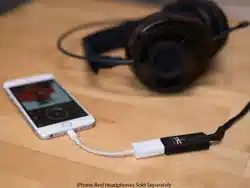
DragonFly Black will work with Apple’s mobile handheld devices. In order to connect
DragonFly Black to an iPhone or iPad and play music, an Apple Lightning-to-USB
Camera Adapter or Camera Connection Kit is required. For more info, visit http://www.
apple.com/shop.
1. Plug the Camera Adapter/Connector into your Apple mobile device.
2. Plug DragonFly Black into the Camera Adaptor/Connector’s USB port.
3. Turn down the volume on your mobile device to at least 50%.
4. Select your desired music/media app, and then select your desired song or stream.
5. Adjust volume to desired level.
17

18
For Use with Android™ Devices
DragonFly Black will work with most Android devices running on Lollipop OS (and
some Android devices running on KitKat), provided that the device manufacturer has
adhered to the USB specication and implementation, and supports audio over USB. To
verify that your Android device complies with isochronous USB audio, download and
run USB Host Check: https://play.google.com/store/apps/details?id=org.tauruslabs.
usbhostcheck.
In our early pre-production testing, we found that some Android devices (4.1 OS and
newer) do not provide native support for audio over USB. If you nd that your Android
device (4.1 or newer) does not support audio over USB, we ask that you please contact
the manufacturer of your device. To determine whether your device supports audio over
USB, consult the user manual or visit the manufacturer’s website.
For a reliable media player that has its own built-in USB device driver, ensuring reliable
connectivity to all USB DACs, we suggest the following application: http://www.
extreamsd.com/index.php/2015-07-22-12-01-14/usb-audio-driver. This application
is compatible with various audio formats and will manage music on both the Android’s
internal memory and inserted SD cards. Additionally, with the phone connected to the
Wi-Fi network, this application can nd and connect to DLNA servers/libraries. Version
2.2.5 USB Pro Player now supports playback for Tidal Streaming.
In order to connect your Android device to DragonFly Black:
1. Android devices use a USB format known as “OTG” (On the Go). OTG USB ports

19
require a unique 5-pin USB Micro to 4-pin USB A (Female) adaptor. In order to
connect an Android device in USB Host Mode to a DAC, an OTG adaptor must be
used. See www.audioquest.com/dragontailOTG
2. Select the appropriate cable for your Android device. AudioQuest oers a wide
range of high-performance USB cables, with connectors suitable for Android
devices (such as USB Micro and USB Mini). For more information, go to the USB
Cables section at http://www.audioquest.com/digital-interconnects/. In some
rare cases, a proprietary connection or adaptor will be required to transmit audio
over USB. (Consult your device’s user manual or visit the manufacturer’s website.)
3. Turn down the volume on your Android device to at least 50%.
4. Select your desired music/media app, and then select your desired song or stream.
5. Adjust volume to desired level.
20
Desktop Device Manager Application
Available for Mac OS X and Windows 7, 8.1, and 10
The AudioQuest Desktop Device Manager Application allows you to identify your
DragonFly’s serial number and software version to ensure that the device is up to date.
In order to install the AudioQuest Desktop Device Manager Application:
1. Go to: http://www.audioquest.com/dragony/app and download the latest
Device Manager available for your operating system.
2. Double-click the installer icon and follow the onscreen instructions until complete.
The application’s icon will appear on your desktop.
3. To run the Device Manager Application, double-click the application’s icon.
4. A window will appear, asking you to
connect a DragonFly Black device to
your computer.
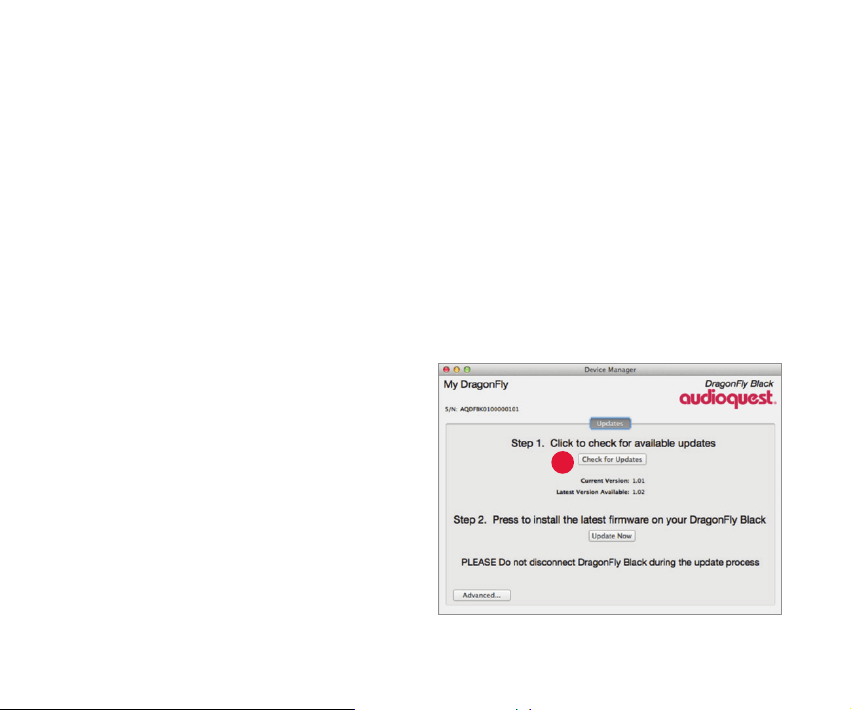
5. The Device Manager Application will
automatically check for available
software updates. However, if you’d like
to manually check for updates, you can
do so whenever you wish by clicking the
“Check for Updates” button. If an update
is available, the “Update Now” button
will be enabled. Click this button to start
the update process.
5

21
¡ PLEASE DO NOT DISCONNECT YOUR DRAGONFLY BLACK DURING THE UPDATE PROCESS.
Doing so can leave the DragonFly Black in a non-functional state. If, for any reason,
your DragonFly Black is disconnected during the update process, or your computer
unexpectedly shuts down during the update process, your DragonFly Black may be
rendered unusable. To reset your DragonFly Black, click the Advanced button. (See below.)
¡ RESETTING YOUR DRAGONFLY BLACK: With your DragonFly Black inserted in your
computer’s USB port, click the Advanced button, located in the lower left hand corner
of the Device Manager window. Select “Reset Now.” You will be asked to “Conrm” or
“Cancel” this action. Select “Conrm” and wait for the application to nish the reset
process. Again, please do not disconnect your DragonFly Black during the reset
process. If, for any reason, your DragonFly Black is disconnected during the reset
process, simply reinsert DragonFly Black and perform the reset process again.
¡ Once the update/reset process is complete, the Device Manager Application will display
the following message: The update is complete and it is safe to disconnect your device.
¡ Once you have checked for updates and/or made your desired changes, disconnect
the DragonFly Black and quit the Device Manager Application. Your DragonFly Black
is ready to use.
Visit http://www.audioquest.com/computer-audio for advanced computer audio
setup guides that include tips, tweaks, and techniques for getting the best sound
from various music applications such as iTunes, Roon, JRiver, foobar2000, Pure Music,
Decibel, and Bit Perfect.
22
Take DragonFly Higher
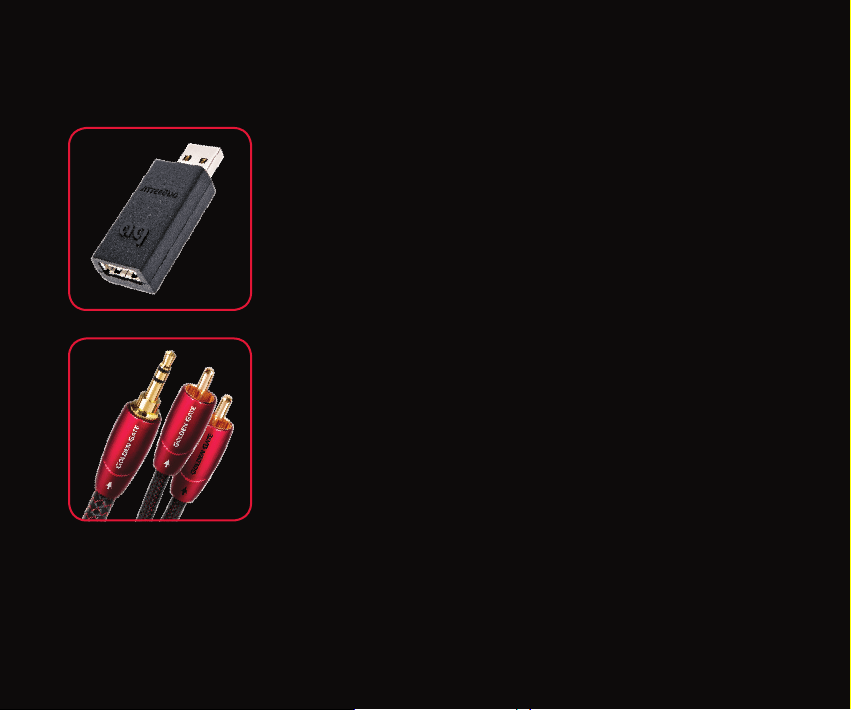
JitterBug USB Filter
Our JitterBug USB lter employs dual discrete noise-dissipation
circuits to reduce the noise and ringing that plague both the power
and data lines of USB ports throughout your audio system. It can be
used with USB DACs, hard drives, NAS devices, routers, streamers,
computer peripherals, and even with mobile devices into a car
stereo! For those who already own DragonFly, JitterBug should be
a fun, easy, and aordable upgrade: Simply plug JitterBug into an
available USB port, then plug DragonFly into it.
Bridges & Falls Analog Cables
Determining the correct connection for your device, and nding
a cable that’s commensurate in performance with your needs
and desires, should be painless. Bridges & Falls cables honor the
fact that today’s components require more connectivity options
than ever before, while taking full advantage of the efficiencies
in making single-ended stereo cables in a single jacket. With the
appropriate Bridges & Falls cable, you can connect DragonFly to
powered loudspeakers or a complete high-performance audio
system! AudioQuest oers a comprehensive selection with a wide
variety of modern connector congurations, such as 3.5mm to:
3.5mm
RCA
DIN
23
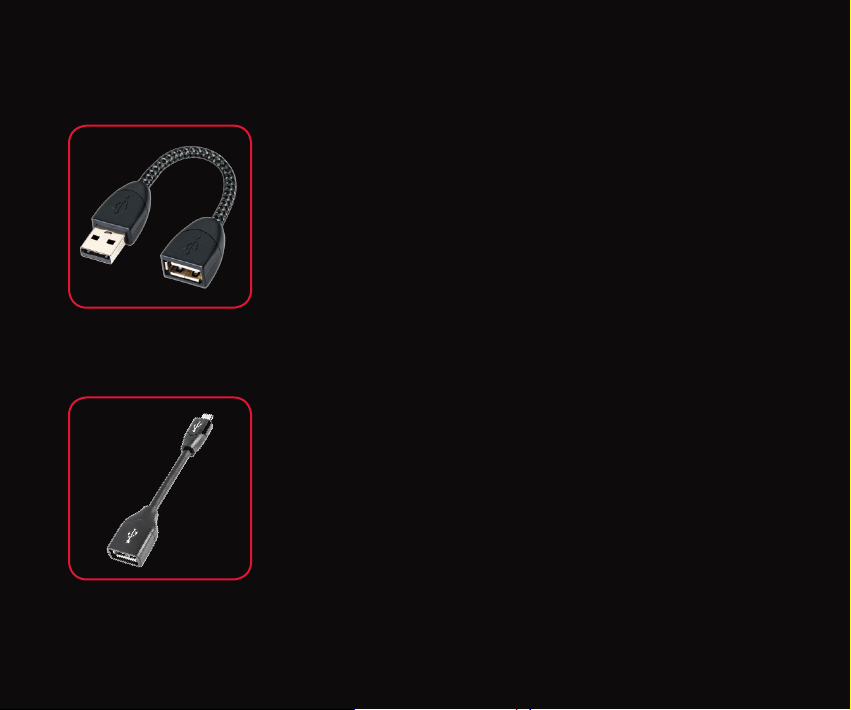
DragonTail USB Extender Cable
DragonTail is a USB extender cable that allows a USB device (such as
DragonFly or a ash drive) to more easily and safely t next to other
occupied computer ports. Most importantly, like all AudioQuest
products, DragonTail is designed and manufactured for low distortion
and maximum performance. Sharing design elements with our Carbon
USB cable, DragonTail uses solid conductors with silver plating that
comprises 5% of the total conductor metal, foamed-polyethylene
insulation to maintain critical signal-pair geometry, and direct-
silver-plated USB contacts. In addition, DragonTail’s signal-carrying
conductors are controlled for digital-audio directionality for more
engaging and immersive sound.
DragonTail USB Adaptor For Android
™
Devices
DragonTail for Android is a USB adaptor designed to activate USB Host
Mode on any Android-enabled device, allowing the device to transmit
audio over USB to an outboard digital-to-analog converter (DAC). Use
DragonTail for Android to connect any Android-enabled device to a USB
DAC, such as DragonFly Red or DragonFly Black, for improved audio
performance. Like DragonTail, DragonTail for Android shares design
elements with our Carbon USB cable, including solid conductors with
silver plating that comprises 5% of the total conductor metal, foamed-
polyethylene insulation, and signal-carrying conductors that have
been controlled for low-noise directionality.
©2016 AudioQuest 2621 White Road, Irvine CA 92614 USA
Tel (US): 949.585.0111 Tel (EU): +31.165.54.1404
www.audioquest.com
March 2016