7106507231 REV3.0.1
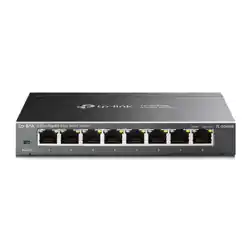
5/8-Port Gigabit Easy Smart Switch
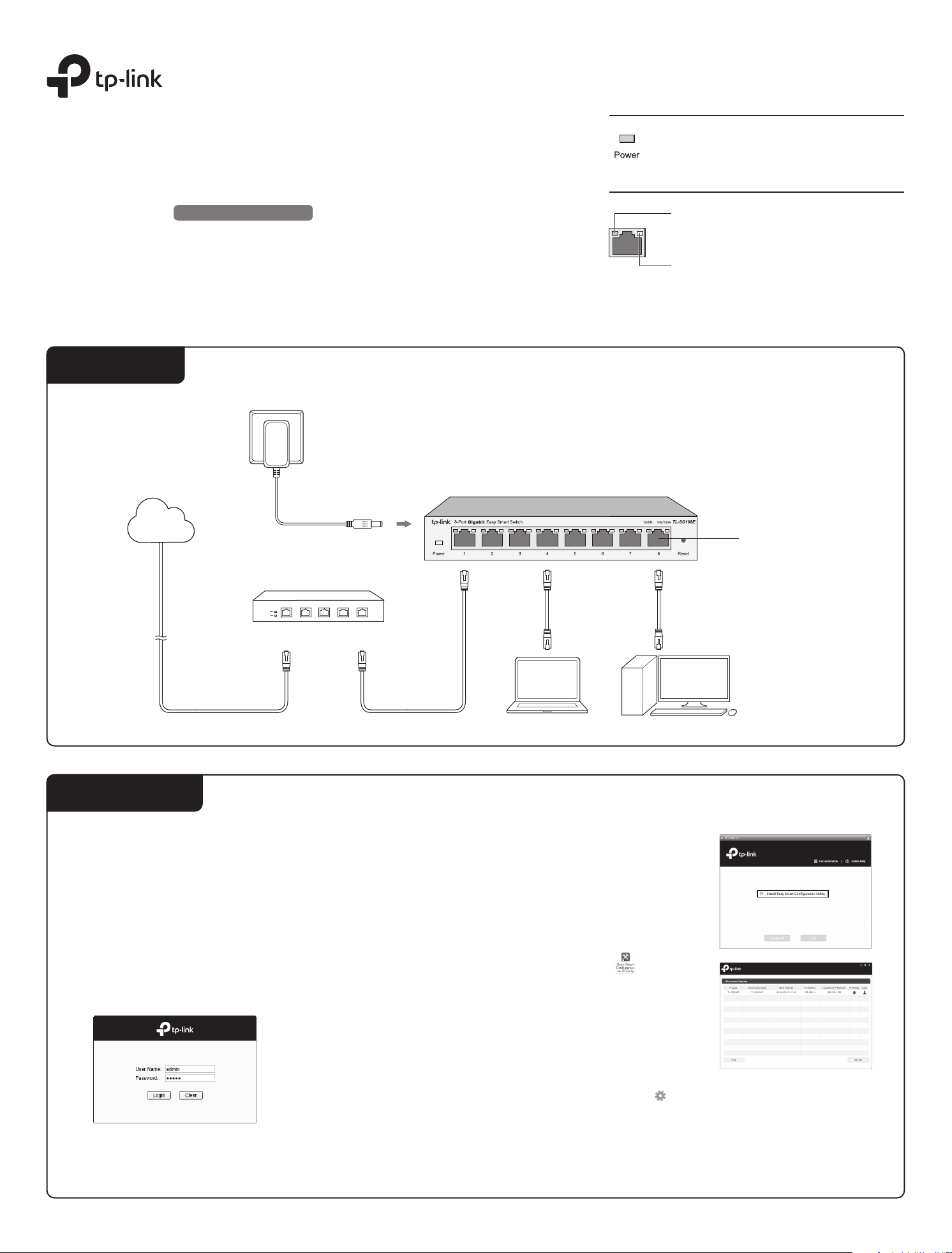
1000M (Green)
On: Running at 1000Mbps
Flashing: Transmitting/receiving data
10/100M (Yellow)
On: Running at 10/100Mbps
Flashing: Transmitting/receiving data
Note: For simplicity, we will take TL-SG108E for example throughout this Guide.
Conguration
Using the conguration utility
Using the Web-based GUI
The switch is plug and play. To manage the switch, you can use the
Web-based GUI or the conguration utility.
The utility is provided on the resource CD and only supported on
Windows now.
Double click the switch that you want to congure. Next enter the
username and password (both admin) for it. Then use the utility to
congure the switch.
5.
For more details, see the User Guide and the Easy Smart Conguration
Utility User Guide on the resource CD.
3. Double click the icon on the
desktop, and the utility home page
displays a list of TP-LINK Easy Smart
Switches on the local network.
1. Insert the resource CD into a computer connected to the switch.
2. The resource CD home screen will
appear. If not, double click AutoRun.exe
on the resource CD. Then click Install
Easy Smart Conguration Utility on the
home screen and follow the prompts to
install the program.
Visit the Web-based GUI with the default IP address of the switch
http://192.168.0.1, and log in with admin as both user name and
password. Then congure the switch on the GUI.
2.
Prepare your computer with a static IP address 192.168.0.x ("x" ranges
from 2 to 254), and a subnet mask 255.255.255.0.
1.
Make sure the switch that you want to manage is in the same subnet as
your computer. You can click to congure the switch IP address.
4.
Installation Guide
TL-SG105E/TL-SG108E
LED Explanation
Power
On: Power on
O: Power o
Link/Act
Connection
Ethernet Ports (1-8)
TL-SG108E
PC PC
Router
LAN PortWAN Port
Internet
IEEE802.3i, IEEE802.3u, IEEE802.3ab,
IEEE802.3x, IEEE802.1p, IEEE802.1q
CSMA/CD
Ethernet: 10Mbps (Half Duplex), 20Mbps (Full Duplex)
Fast Ethernet: 100Mbps (Half Duplex), 200Mbps (Full Duplex)
Gigabit Ethernet: 2000Mbps (Full Duplex)
10Base-T:
UTP category 3, 4, 5 cable (maximum 100m)
EIA/TIA-568 100
Ω
STP (maximum 100m)
100Base-TX:
UTP category 5, 5e cable (maximum 100m)
EIA/TIA-568 100
Ω
STP (maximum 100m)
1000Base-T:
UTP category 5e cable (maximum 100m)
EIA/TIA-568 100Ω STP (maximum 100m)
5/8 10/100/1000Mbps Auto-Negotiation RJ45 Ports
Power, 10/100M LED, 1000M LED
Store-and-Forward
Automatically learning, automatically aging
10Base-T: 14881pps/Port
100Base-Tx: 148810pps/Port
1000Base-T: 1488095pps/Port
10Base-T: 14881pps/Port
100Base-Tx: 148810pps/Port
1000Base-T: 1488095pps/Port
Standard
Protocol
Interface
LED indicators
Transfer Method
MAC Address Learning
Frame Filter Rate
Frame Forward Rate
General Specications
Data Transfer Rate
Network Media (Cable)
Frequently Asked Questions (FAQ)
The Power LED should be lit when the power system is working normally. If the
Power LED is not lit, please try the following:
A1:
Make sure the power adapter is connected to the switch with power source
properly.
A2:
Make sure the voltage of the power supply meets the requirements of the
input voltage of the switch.
A3:
Make sure the power source is ON.
Q1. Why is the Power LED not lit?
Q2. Why is the Link/Act LED not lit while a device is connected
to the corresponding port?
For technical support and other information, please visit
http://www.tp-link.com/support, or simply scan the QR code.
Operating Temperature
Storage Temperature
Operating Humidity
Storage Humidity
0˚C to 40˚C (32˚F to 104˚F)
-40˚C to 70˚C (-40˚F to 158˚F)
10%RH to 90%RH non-condensing
5%RH to 95%RH non-condensing
Environmental and Physical Specications
Specications
This equipment has been tested and found to comply with the limits for a Class B digital device, pursuant
to part 15 of the FCC Rules. These limits are designed to provide reasonable protection against harmful
interference in a residential installation. This equipment generates, uses and can radiate radio frequency
energy and, if not installed and used in accordance with the instructions, may cause harmful interference
to radio communications. However, there is no guarantee that interference will not occur in a particular
installation. If this equipment does cause harmful interference to radio or television reception, which can
be determined by turning the equipment o and on, the user is encouraged to try to correct the
interference by one or more of the following measures:
• Reorient or relocate the receiving antenna.
• Increase the separation between the equipment and receiver.
• Connect the equipment into an outlet on a circuit dierent from that to which the receiver is connected.
• Consult the dealer or an experienced radio/ TV technician for help.
This device complies with part 15 of the FCC Rules. Operation is subject to the following two conditions:
1) This device may not cause harmful interference.
2) This device must accept any interference received, including interference that may cause undesired
operation.
Any changes or modications not expressly approved by the party responsible for compliance could
void the user’s authority to operate the equipment.
FCC STATEMENT
This is a class B product. In a domestic environment, this product may cause radio interference, in which
case the user may be required to take adequate measures.
CE Mark Warning
Продукт сертифіковано згідно с правилами системи УкрСЕПРО на відповідність вимогам нормативних
документів та вимогам, що передбачені чинними законодавчими актами України.
Industry Canada Statement
CAN ICES-3 (B)/NMB-3(B)
Avoid water and wet locations.
Don’t disassemble the product, or make repairs yourself. You run the risk of electric shock
and voiding the limited warranty. If you need service, please contact us.
Safety Information
BSMI Notice
安全諮詢及注意事項
請使用原裝電源供應器或只能按照本產品注明的電源類型使用本產品。
清潔本產品之前請先拔掉電源線。請勿使用液體、噴霧清潔劑或濕布進行清潔。
注意防潮,請勿將水或其他液體潑灑到本產品上。
插槽與開口供通風使用,以確保本產品的操作可靠並防止過熱,請勿堵塞或覆蓋開口。
請勿將本產品置放於靠近熱源的地方。除非有正常的通風,否則不可放在密閉位置中。
請不要私自打開機殼,不要嘗試自行維修本產品,請由授權的專業人士進行此項工作。
Please try the following:
A1:
Make sure that the cable connectors are rmly plugged into the switch and
the device.
A2
:
Make sure the connected device is turned on and works normally.
A3
:
The cable must be less than 100 meters long (328 feet).
Some models featured in this guide may be unavailable in your country or region.
For local sales information, visit http://www.tp-link.com.
© 2017 TP-Link
Explanation of the symbols on the product label
DC voltage
RECYCLING
This product bears the selective sorting symbol for Waste electrical and electronic equipment
(WEEE). This means that this product must be handled pursuant to European directive 2012/19/EU
in order to be recycled or dismantled to minimize its impact on the environment.
User has the choice to give his product to a competent recycling organization or to the retailer
when he buys a new electrical or electronic equipment.
Indoor use only