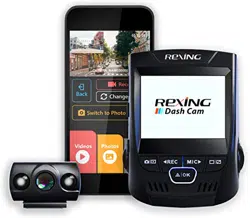

V1P
Quick Start Guide
V1P クイックスタートガイド
Guide de démarrage rapide de la V1P
Guida di avvio rapido V1P
Guía de inicio rápido V1P
V1P Schnellstartanleitung
FR
IT
DE
SP
JP

2
Table of Contents
English
Overview
What’s in the Box
Camera Overview
Installation
Basic Operation
日本語
概説
本製品の同梱物
カメラの概説
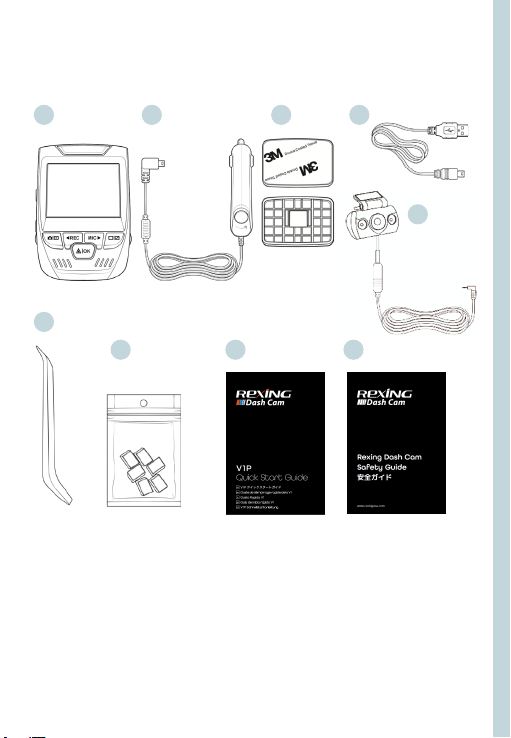
画面のアイコン
基本操作
Français
Aperçu
Que contient la Boîte
Aperçu de la Caméra
Installation
Opération de Base
Italiano
Descrizione
Nella Confezione
Descrizione Telecamera
Installazione
Funzionamento Base
page
4
5
6
8
13
20
21
22
24
29
36
37
38
40
45
52
53
54
56
61

3
Español
Visión General
Qué hay en la Caja
Resumen de la Cámara
Instalación
Operación Básica
Deutsch
Übersicht
Verpackungsinhalt
Kamera übersicht
Installation
Grundbedienung
68
69
70
72
77
84
85
86
88
93
page

4
1. Overview
Thank you for choosing REXING! We hope you love your new
product as much as we do.
If you need assistance, or have any suggestions to improve it,
please contact us. You can reach us via [email protected] or
call us at (203) 800-4466. Our support team will respond you as
soon as possible.
Always a surprise in Rexing. Check us out here.
https://www.facebook.com/rexingusa/
https://www.instagram.com/rexingdashcam/
https://www.rexingusa.com/support/registration/
Facebook Instagram Site
5
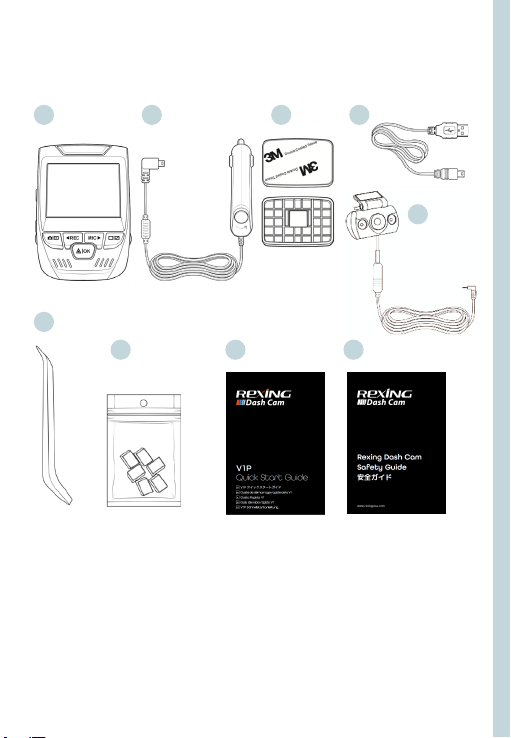
1. Overview
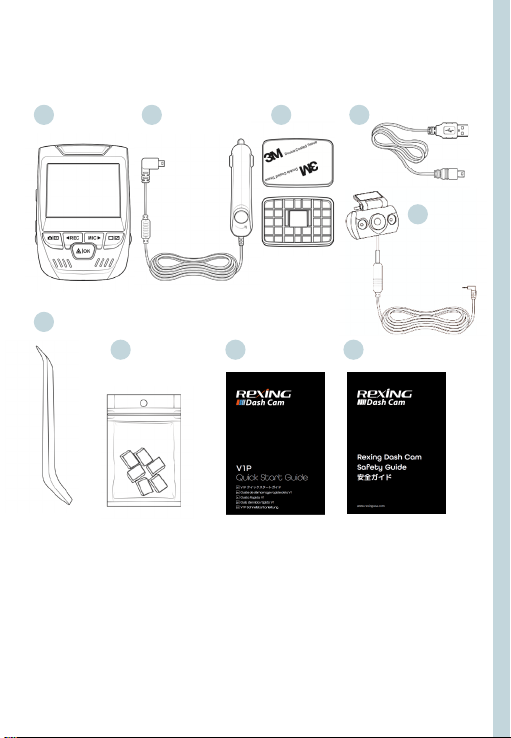
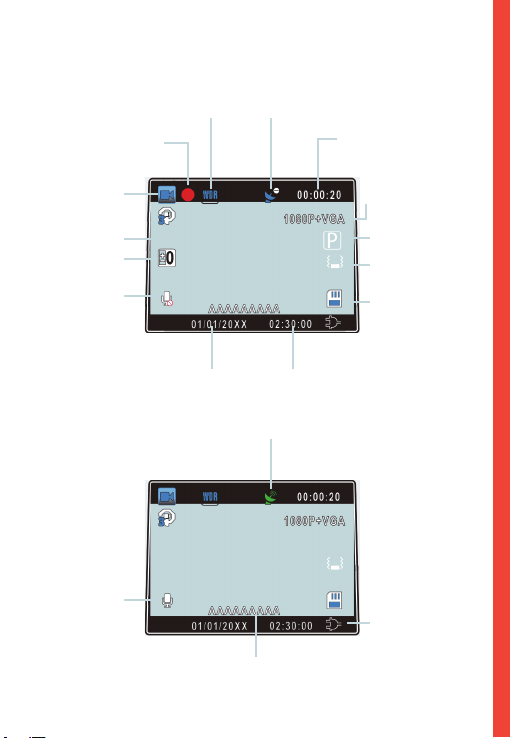
1. Rexing V1P Dash Cam
2. Car Charger
3. Mount Plate & 3M Adhesive
4. Mini-USB Cable
5. Rear Camera
6. Cable Management Tool
7. Cable Clips©
8. V1P Quick Start Guide
9. Safety Guide
1.
6.
7. 8. 9.
2. 3. 4.
2. What’s in the box
5.
6
3. Camera Overview
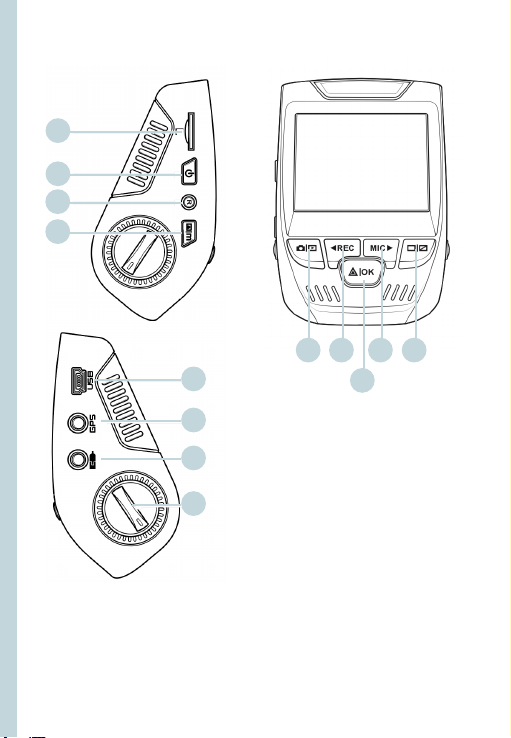
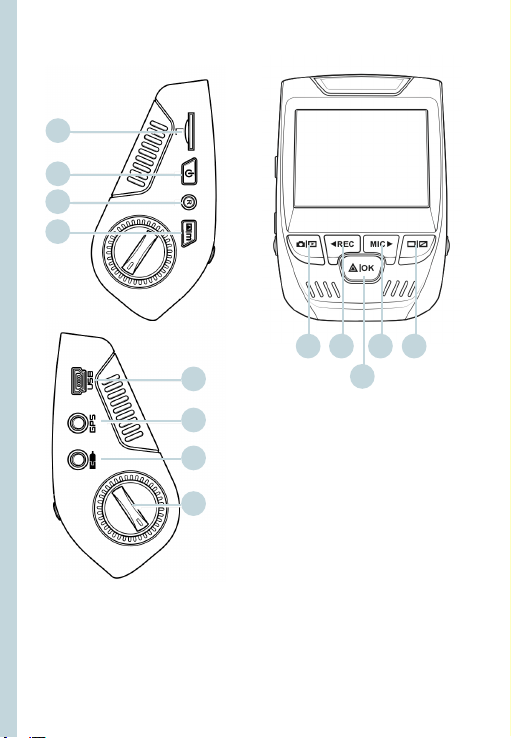
1. Micro SD Card Slot
2. Power Button
3. Reset Button
4. Menu Button
5. Mode Button
6. REC (Record) Button *
7. OK (Con irm) Button **
8. MIC (Microphone) Button ***
9. Screen Button
10. Mini-USB Port
11. GPS Logger Port
12. Rear Camera Port
13. Lens Angle Adjustment
* The Camera is recording when the LED is ashing red.
** The Camera is recording when the LED is ashing red. The device charging
or powered on when the LED is solid blue.
*** The device is charging or powered on when the LED is solid blue.
1.
10.
11.
5. 6. 8.
7.
9.
2.
3.
4.
12.
13.
7
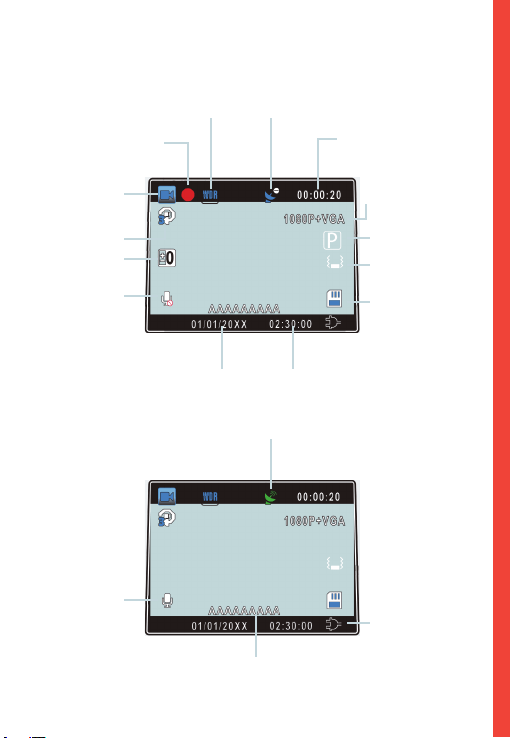
Screen Icons
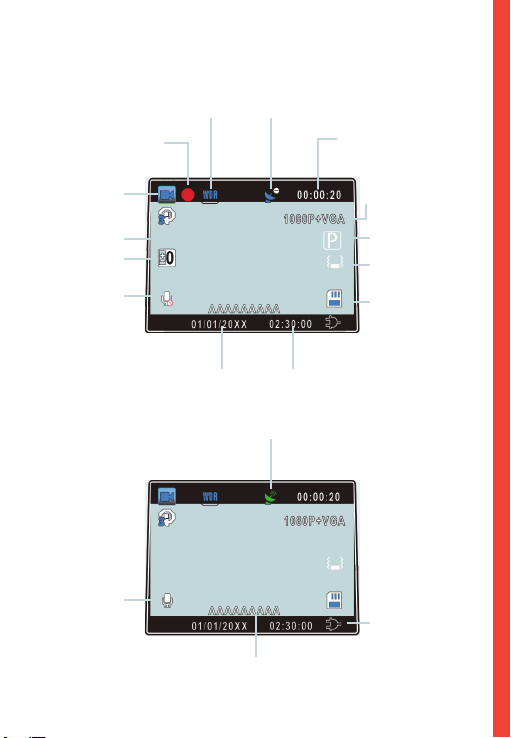
GPS Signal (not connected)
GPS Signal (locked)
Recording Time
(Current Clip)
Video Resolution
Parking Mode
(On)
G-Sensor
Sensitivity Level
Memory Card
(Inserted)
Battery Charging
WDR Mode (On)
Recording (On)
Recording
Standby Status
Loop Recording
Time
Exposure Value
MIC (O)
MIC (On)
Current Date
(DD/MM/YYY)
Time
(24H)
Plate Number
8
4. Installation
Step 1: Install the Dash Cam
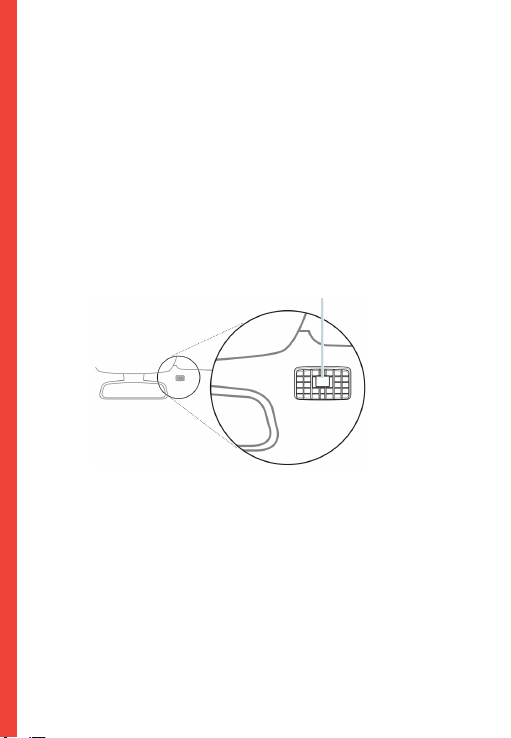
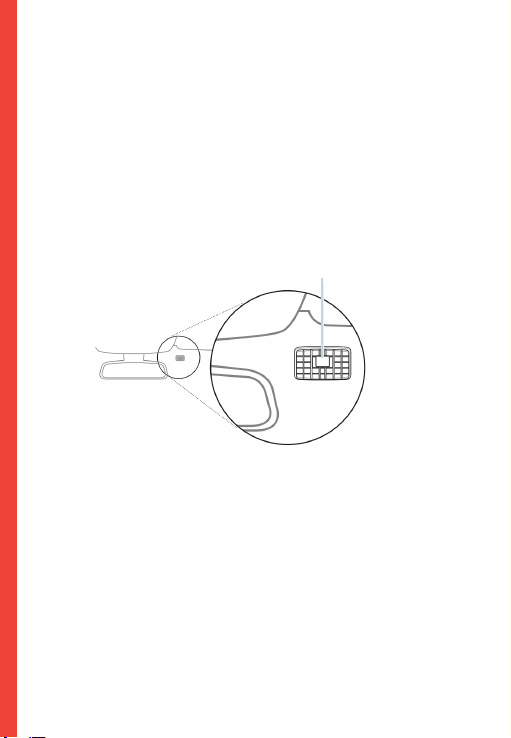
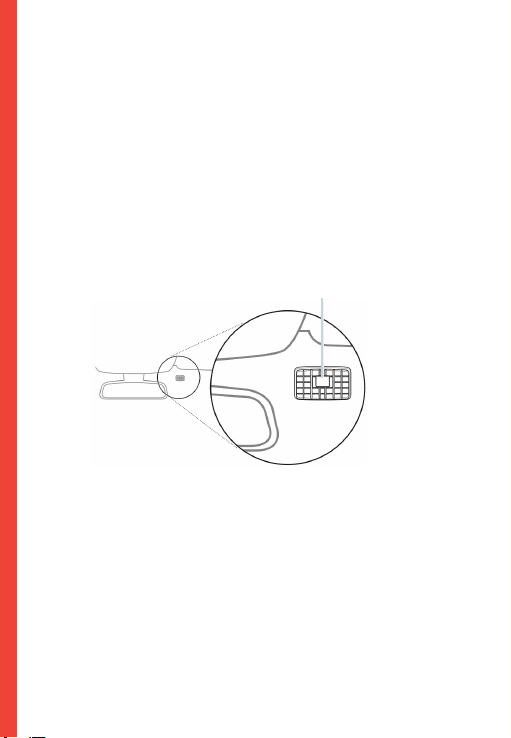
Place the 3M tape on the Mount and properly orient the
Mount square to the roof and hood line of the vehicle.
Important! Ensure the T-interlock on the Mount is oriented in
the correct direction.
Firmly press the Mount onto the windshield. Wait at least 20
minutes before mounting the camera.
Orientation mount as shown
Step 2: Insert the Memory Card
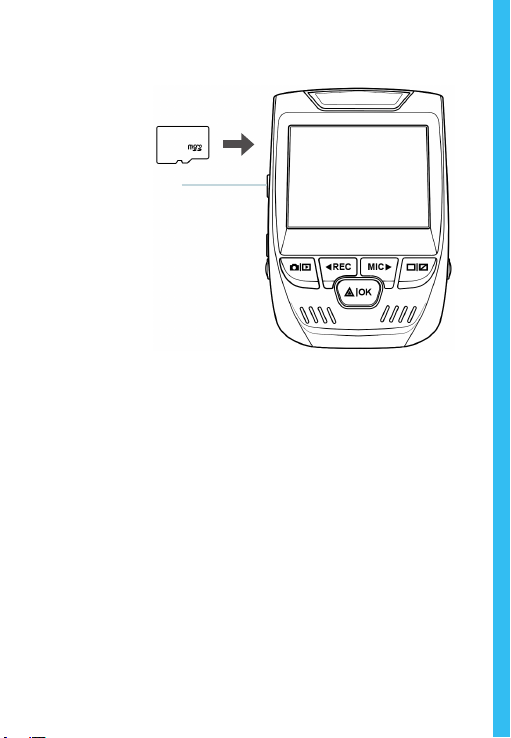
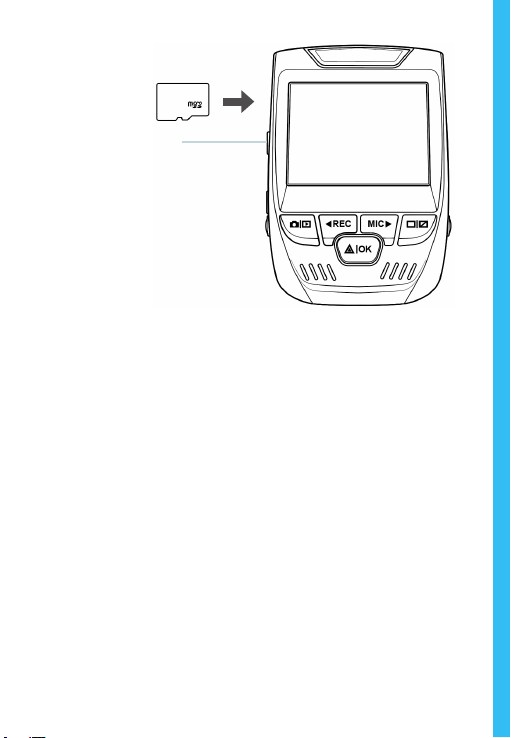
The Rexing V1P accepts [Class 10/ UHS-1 or higher] Micro
SD memory cards up to 256GB. You will need to insert a
memory card before you can begin recording. Before
inserting or removing a memory card, first ensure
you’ve powered down the device.
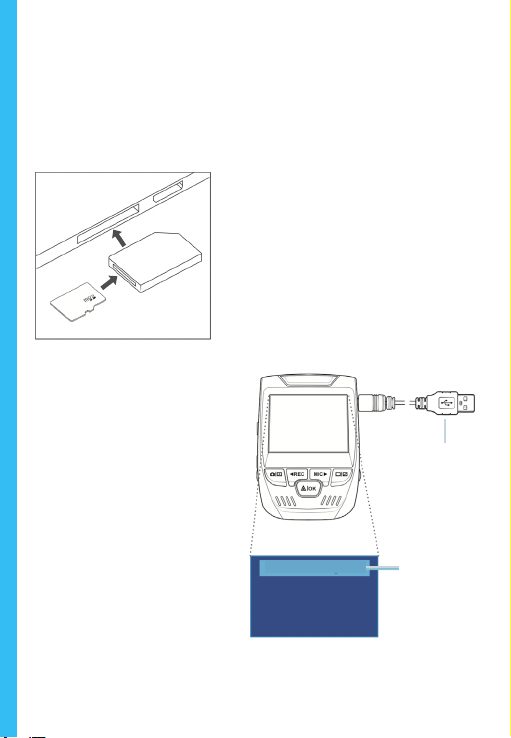
Gently push the memory card in until you hear a click, and allow
the spring release to push the card out.
9
Step 3: Power the Camera and Format the
Memory Card
Power the camera by connecting the charger to the car
cigarette lighter and camera.
To ensure the V1P records to your memory card properly
and without error. Before you start using a new memory
card, you must format the card within the camera
using the format function. Always backup important data
stored on the memory card before formatting.
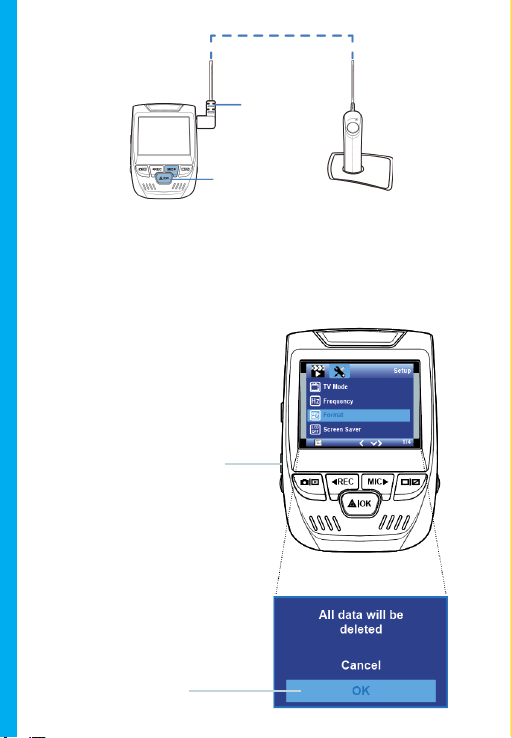
To format the memory card, make sure you have inserted
your memory card, then turn on the device by connecting
to a power source. Press REC to stop recording. Then press
the MENU button twice to enter the System Setup Menu.
Use the REC and MIC buttons and go to the Format setting.
Press the OK Button to con irm the selection.
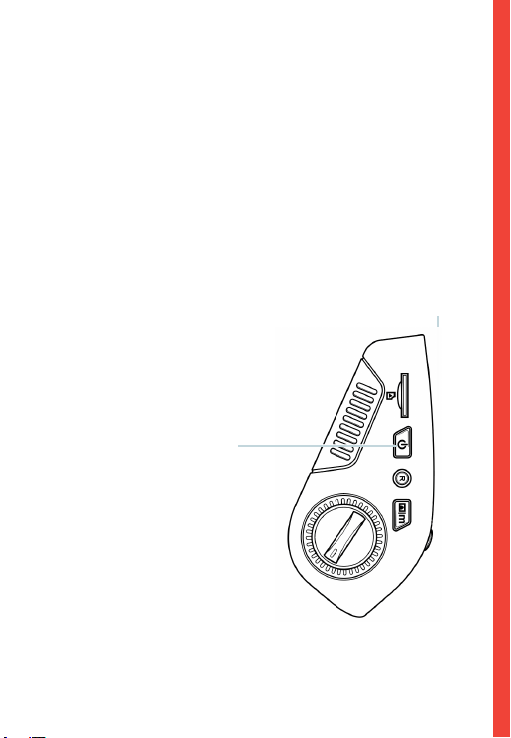
Press the Power button
to turn the power o
10
Press the Menu button twice
Press the OK button to
conrm formatting
the card
Connect Mini-
USB to the
camera
Blue LED
lights indicate
the device is
charging or powered
You may now disconnect from power. The camera will shut
down after 3 seconds. The camera should begin recording
automatically the next time it is powered on.
11
Step 4: Mount the Rear Camera
Mount the rear camera as shown below. Use the provided rear
camera cable to connect the rear camera to the front camera.
Plug Rear Camera
into the Dash Cam
Rear Camera
installation

12
Step 5: Installing the Camera onto the Windshield
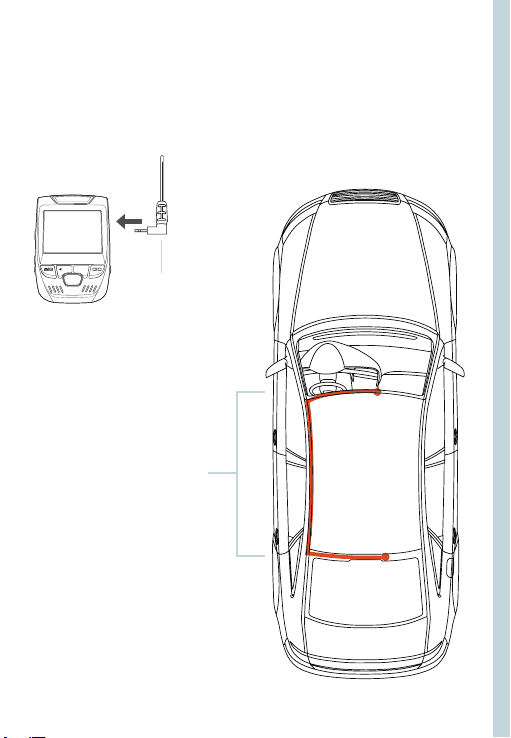
Place the camera on the mount and carefully route the power
cable around the windscreen and tuck in under the trim.
Plug the Car Charger Cable into a 12V DC power outlet or the
car cigarette lighter.
Connect car charger to the camera. The camera will auto-start
recording once powered on.
Plug Mini 5 pin
Connector to the
Dash Cam
Route power cable
to the Dash Cam
Plug charger into
power outlet or
cigarette lighter
13
5.
Basic Operation
Device Power
The device is automatically powered on when plugged into a
12V accessory socket or cigarette lighter and receives a charge
(i.e.: the vehicle is started.)
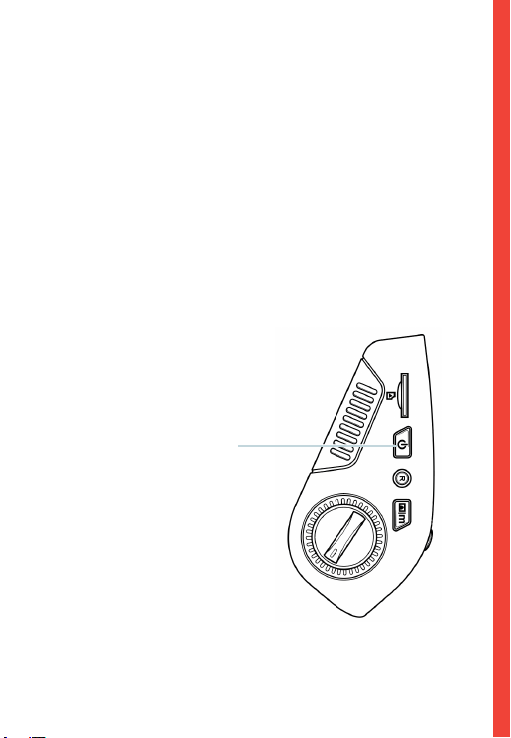
To turn the device on manually,press and hold the POWER
button until the welcome screen appears.
The camera will automatically start recording when powered on.
Press an hold the POWER button
to turn the device on manually
14
Menu Settings
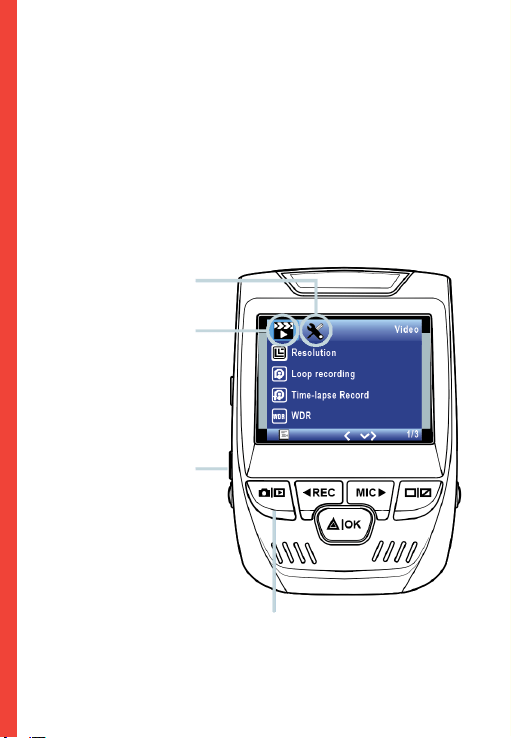
Power the camera on. If the camera is recording, press the REC
button to stop recording. Press the MODE button and toggle
to the desired mode.
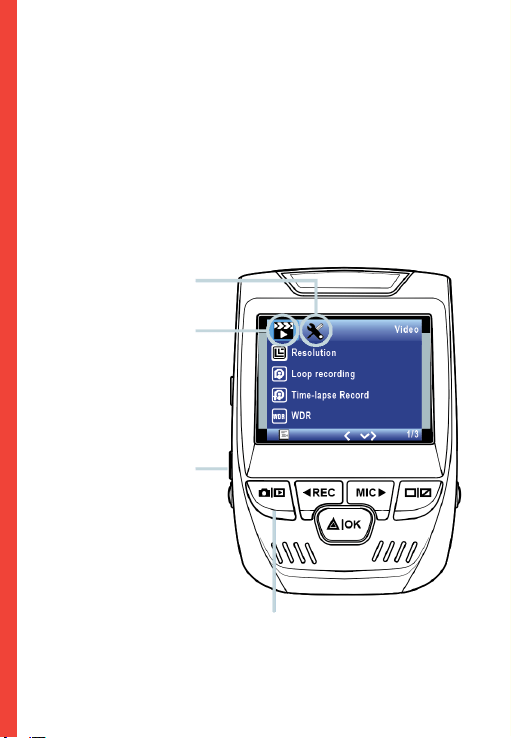
Press the MENU button once to enter the
settings menu for a Mode. Press the MENU button twice
to enter the System Settings.
System icon
Video Mode icon
Press the Menu button to
select the desired setting
Press the Mode button and toggle
to the desired Mode
15
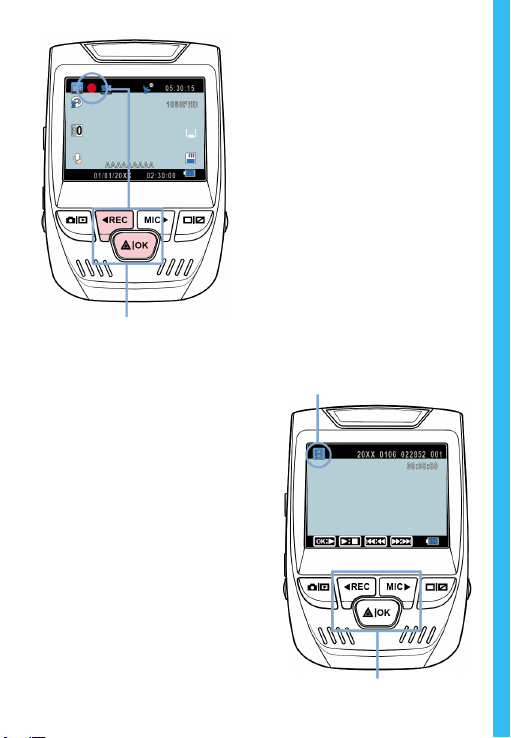
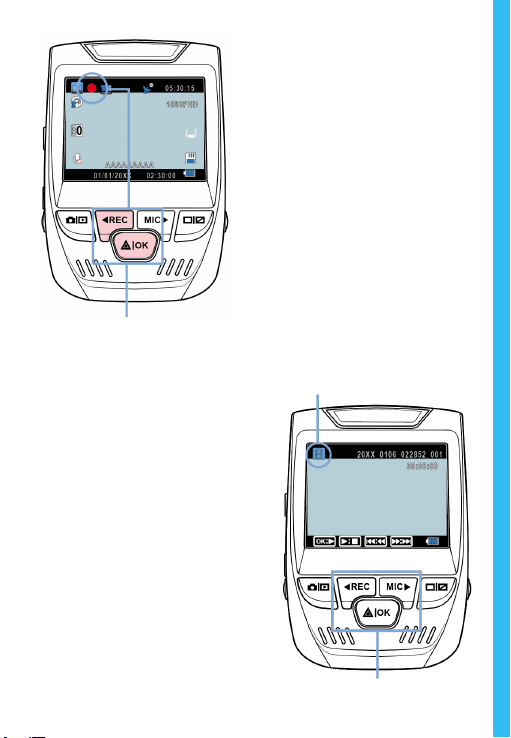
The camera automatically start
recording when powered on
Video Recording
The camera will automatically
start recording when the
device receives a charge. The
LED lights and the red dot
will blink when the device
is recording. Press the
REC button to stop
recording.
Playback mode
Control playback with these buttons
Video Playback
P
layback of videos can
be done on the device or
a computer. Also, if you
have purchased a Rexing
GPS Logger you may play
back the recordings in
a specialized application.
To playback a video on the
device, toggle to the
Playback mode. Use the
REC and MIC buttons to
toggle to the desired video.
Press the OK button to play.
16
During playback use the OK
(pause), MIC (fast forward) and
REC (rewind) buttons to control the video playback.
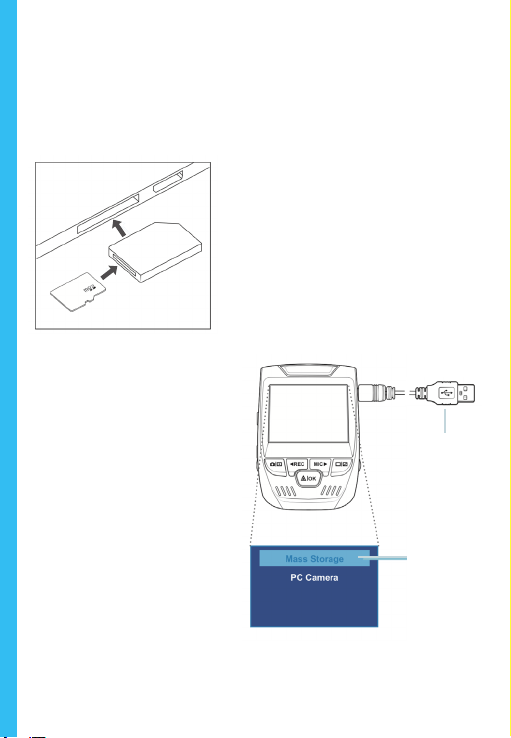
To playback a video on the computer either use an SD card
adapter or connect the device to the computer directly using
the USB to Mini B 5pin male cable.
To playback a video using
an SD card adapter,
remove the memory card and
insert it into an SD card
adapter. Place the adapter in
the computer.
To playback a video
using USB cable, connect
the USB Cable to the device
and the computer. After the
device powers up, press the
OK Button to select Mass
Storage.
On the computer, navigate
to device drive. The videos
are stored at: \CARDV\
MOVIE. Select the video to
playback.
Connect USB
connector to
computer
Select Mass
Storage
17
Parking Monitor
Connect the dash cam to the smart hardware kit to activate
the parking monitor function (Need to purchase the smart
hardware kit separately).
Please visit support.rexingusa.com to watch a video tutorial.
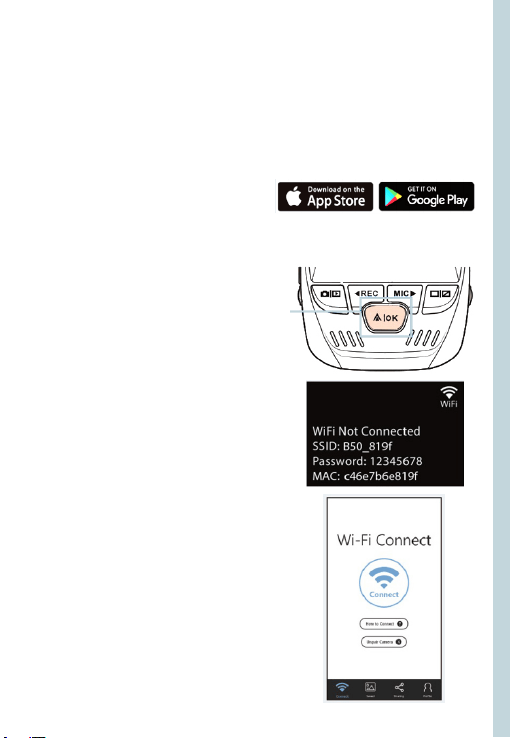
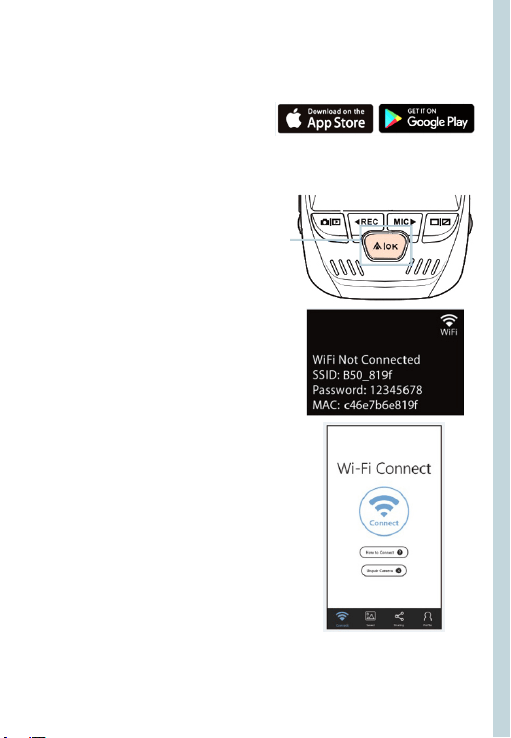
Wi-Fi Connect
Download “Rexing Connect” app from the App Store/Google
Play Store.
1. To access or exit the Wi-Fi
feature, hold down OK.
2. Open Wi-Fi settings on your
phone, ind “SSID:B50 _ XXXX”
from the list, tap to connect.
(Default password: 12345678)
3. Open the Rexing Connect App,
tap “Connect to enter realtime
video streaming page.
4. Once connected, the dash
cam screen will switch to the
camera view and will display
“Wi-Fi Connect” message.
Using the Rexing Connect app, you
can view a live preview of the dash
cam screen, start/stop recording, as
well as view and save your captures
with your mobile device.
For further instruction regarding the
Wi-Fi Connect feature, please visit
www.rexingusa.com/wi-connect/.
18
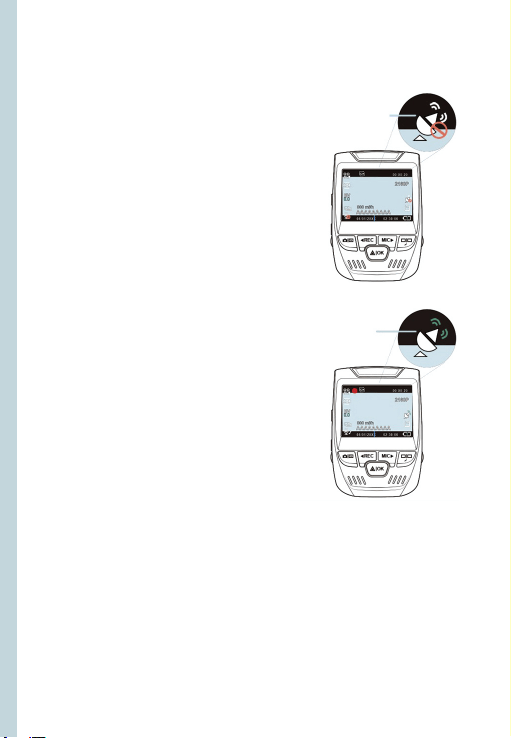
GPS Logger
(Need to purchase separately)
When connected to the camera,
it will record the speed and
location of your vehicle as you
drive.
You can then access this
information while playing back
your recordings using the GPS
Video player (For Windows and
Mac, available at rexingusa.com).
Press the MENU button
twice and enter the System
Settings.
Toggle to the GPS Speed Unit
setting and select your preferred
speed unit.
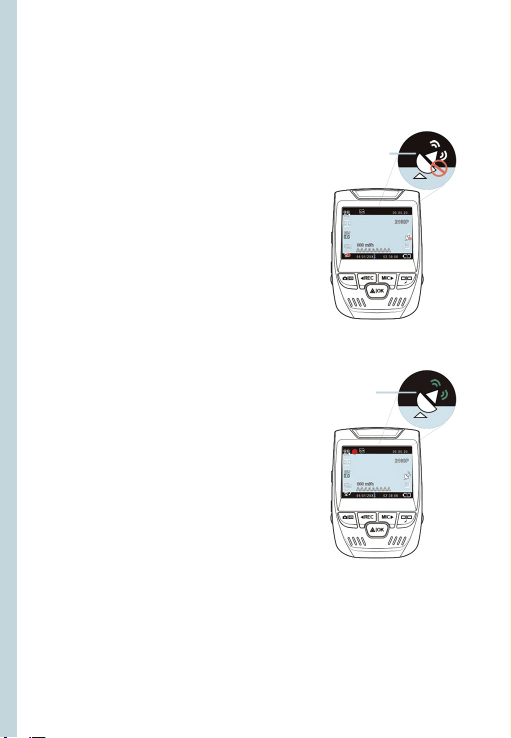
After a GPS signal is found, the
screen icon will turn from
blue to green.
Please visit gpsa.rexingusa.com
to watch a video tutorial.
GPS Signal
(not connected)
GPS Signal
(active)
19
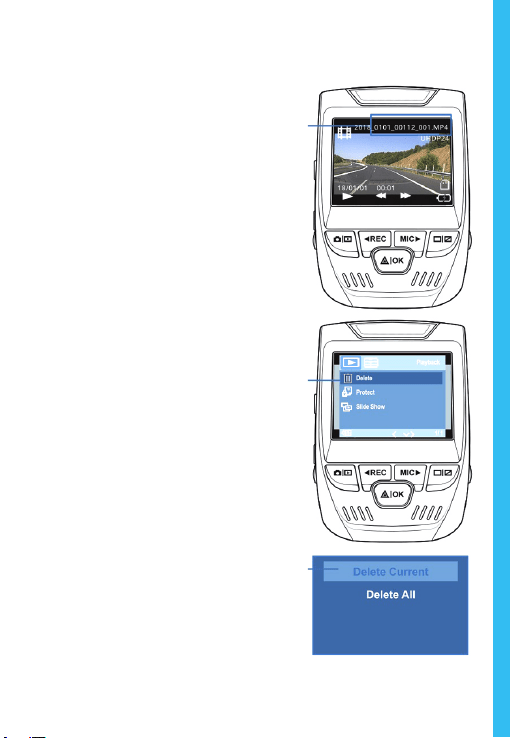
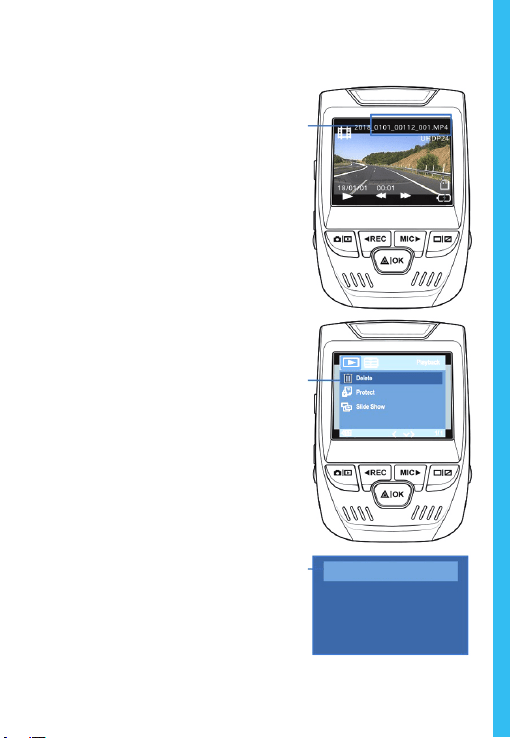
Taking Photos
To take a photo, stop
video recording and
toggle to the Photo
Mode. Press the OK
Button to take a
photo.
To view a photo, stop
video recording and
toggle to the Playback
Mode. Press the REC
and MIC Buttons to
toggle through your
photos.
To delete a photo,
stop video recording
and toggle to the
Playback Mode and
toggle through the
videos and photos to
the one you want to
delete. Press the
MENU button once
and toggle to the
Delete option. Press
the OK Button and
select Delete Current
or Delete All.
Toggle
to the
Playback
mode and
select a
photo to
view
Toggle to
the Delete
option
Choose
the desired
option

20
1. 概説
REXINGをお選びいただきありがとうございます! 私たちはお客様が
私たちと同じくらいこの新製品を気に入っていただくことを願ってい
ます。
サポートが必要な場合、または製品を改善するための提案がある場
合は、ご連絡ください。jp[email protected]に電子メールでする
できます。当社のサポートチームは、できるだけ早くお客様からのお
問い合わせにお答えいたします。
REXINGでいつも驚きを。こちらから最新情報をチェックください
https://www.facebook.com/rexingusa/
https://www.instagram.com/rexingdashcam/
https://www.rexingusa.com/support/registration/
Facebook Instagram
ホームページ
21
1. 概説
1. Rexing V1P ド
ライブレコーダー
2. 車載充電器
3. ドライブレコーダーマウントプレート & 3M接着シール
4. ミニUSBケーブル
5. リアカメラ
6. ケーブルガイドツール
7. ケーブルマウント(Cable Clips©)
8. V1Pクイックスタートガイド
9. 安全ガイド
2. 本製品の同梱物
1.
6.
7. 8. 9.
2. 3. 4.
5.

22
3. カメラの 概要
1. マイクロSDカードスロット
2. 電源ボタン
3. リ
セットボタン
4. メニューボタン
5. モードボタン
6. 録画ボタン*
7. OKボタン**
8. マイクボタン***
9. 画面ボタン
10. ミニUSBポート
11. GPSロガーポート
12. リアカメラポート(サポート
なし)
13. レンズ角度調整
* LEDが赤く点滅している時、カメラは録画中です。
** LEDが赤く点滅している時、カメラは録画中です。LEDが青く点灯している時、機
器は充電中または電源が入っている状態です。
*** LEDが青く点灯している時、機器は充電中または電源が入っている状態です。
1.
10.
11.
5. 6. 8.
7.
9.
2.
3.
4.
12.
13.
23
GPS 信号(未接続)
GPS
シグナル(ロック済み)
録画時間(現在のク
リップ )
ビデオ解像度
パーキングモード
(オン)
Gセンサー感度
レベル
メモリーカード
(挿入済み)
充電中
WDR モード(オン)
録画中(オン)
録画スタンバイス
テータス
ループ録画時間
露出値
マイク(オフ)
マイク(オン)
現在の日付
(日
/月/年)
時刻
(24時間表示)
車両ナンバー
画 面アイコン
24
4. 取り付け方 法
Step 1: ドライブレコーダー の 取り付け
3Mテープをマウントに取り付け、車両のルーフとフードラインに水平
にして、正しい方向で取り付けます。T字インターロックが正しい方向
を向くように注意してください。
フロントガラスにしっかりと取り付けます。取り付けてから少なくとも
20分間待ってから、カメラを取り付けます。
マウントを図のように向けて置きます
Step 2: メ
モリカードを挿入する
RexingドライブレコーダーV1Pは、最大256GBのマイクロSDメモリ
カード(Class 10/UHS-1以上)に対応しています。記録を開始する前
に、メモリカードを挿入する必要があります。メモリカードを挿入また
は取り出す場合は、事前にデバイスの電源が切れていることを確認し
てください。
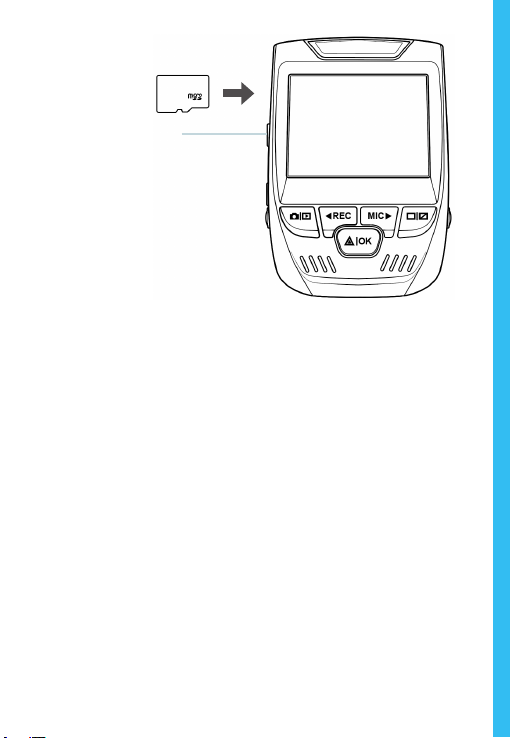
クリック音が聞こえるまでメモリーカードをゆっくりと押し込んでくだ
さい。メモリーカードをもう一度押し込むと、バネでカードが押し出さ
れます。
25
Step 3:
カメラの電源を入れ、メモリカードを初期化する
カメラを充電器で車両のシガーライターに接続して、カメラの電源
を入れます。
RexingドライブレコーダーV1Pがメモリカードを認識しており、エラ
ーなしで記録できることを確認します。新しいメモリカードの使用を開
始する前に、フォーマット機能を使用してカメラ内のカードをフォ
ーマットする必要があります。フォーマットする前に、メモリカード
に保存されている重要なデータを必ずバックアップしておいてく
ださい。
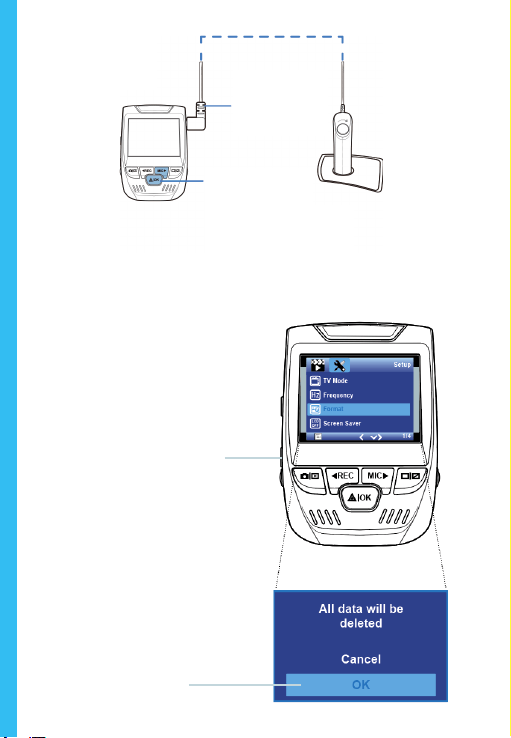
メモリカードを初期化するには、メモリカードが挿入されていること
を確認してから、電源に接続して機器の電源を入れます。録画を停
止するには、[REC] ボタンを押してください。次に、[MENU] ボタン
を 2 回押して、システムセットアップメニューに入ります。[REC] ボタ
ンと [MIC] ボタンを使って、[Format] メニューを選択します。[OK]
ボタンを押して初期化を実行してください。
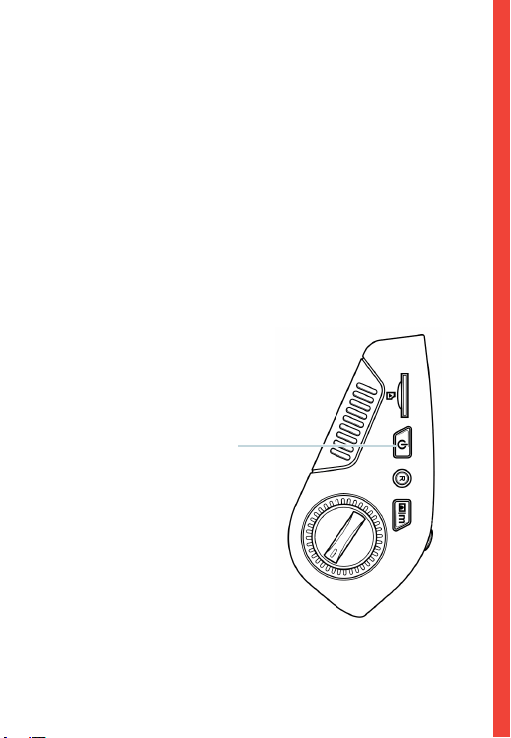
電源ボタンを押して電源
をオフにします
26
[メニュー]ボタンを2回押します
[OK] を
押してメモリカード
の初期化を実行します
ミニUSB端子に
接続します
LED が 青く点
灯している場合、
機器が充電中か、または機器
の電源が入っています
これで、カメラの 電源を切ることができます。カメラは3秒 後 に シャット
ダウンします。カメラは、次回電源がオンになると自動的に録画を開始
します。
27
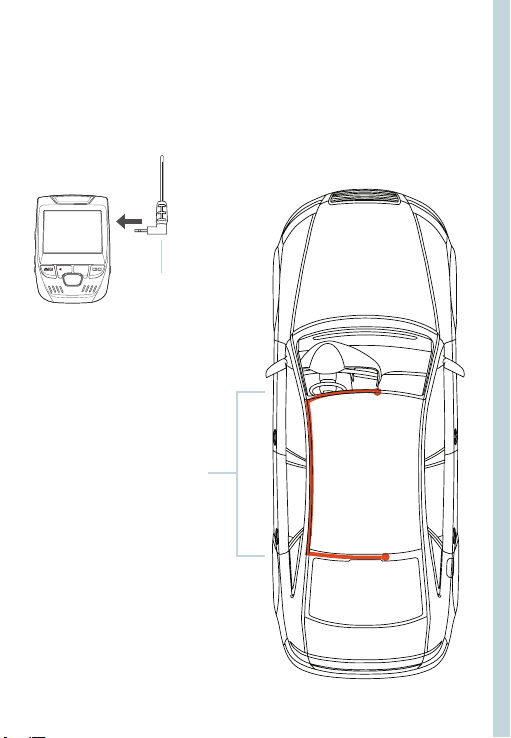
Step 4: リアカメラの取り付け
図のようにリアカメラを取り付けます。リアカメラ拡張ケーブルを使用
して、ウォータープルーフリアカメラをフロントカメラに接続します。
リアカメラをドライ
ブレコーダーに接
続する
リアカメラの取り付け
28
Step 5: フロントガラスへのカメラの取り付け
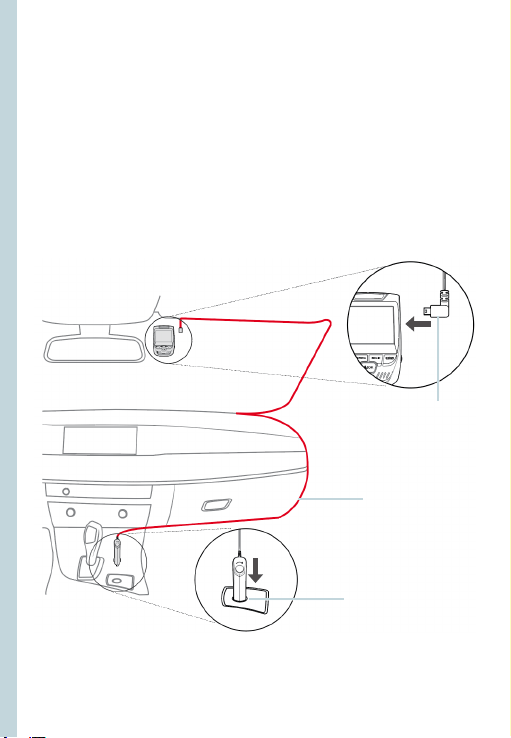
カメラをマウントにセットし、電源ケーブルをフロントガラスの周囲に
沿って慎重に配線し、トリムの下へとしまい込みます。
車載充電器を車両の12V DC電源コネクターまたはシガーライタ ー
に接続します。
車載充電器をカメラに接続します。電源が入ると、カメラは録画を自
動的に開始します。
ミニ5ピンコネクタ
を
ドライブレコー
ダーに差し込みま
す
電源ケーブルをドラ
イブレコーダーに接
続します
車両の電源コネクター
またはシガーライ
ターに車載充電器を接
続します
29
5. 基本操作
機
器の電源
機器は12Vアクセサリソケットまたはシガーライターに接続される
と、電源が自動的にオンになります。(つまり、車両が起動すると電源
がオンになります。)
機器の電源を手動でオンにするには、ようこその画面が表示される
まで [POWER] ボタンを押したままにします。
電源が入ると、カメラは自動的に録画を開始します。
電源ボタンを押したままにする
と、機器の電源を手動でオンにで
きます
30
メニューの設定
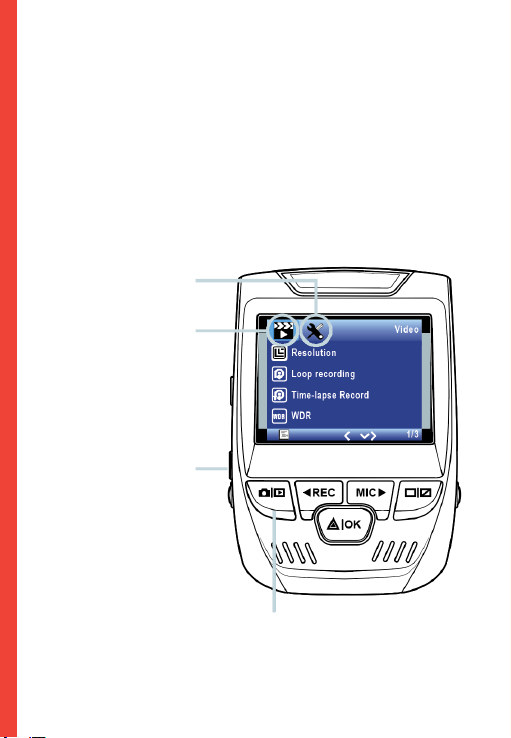
カメラの電源を入れます。カメラが録画中の場合は、[REC] ボタンをタ
ップして録画を停 止します。
[MODE] ボタンを押して、設定したいモードに切り替えてください。
[MENU] ボタンを1回押すと、モードの設定メニューが表示されま
す 。[ MENU] ボタンを2回押すと、システムの設定メニューが表示され
ます。
システムのアイコン
ビデオモードのアイコン
メニューボタンを押して、希望
の設定を選択します
モードボタンを押して、希望のモード
に切り替えます。
31
ビデオ録画
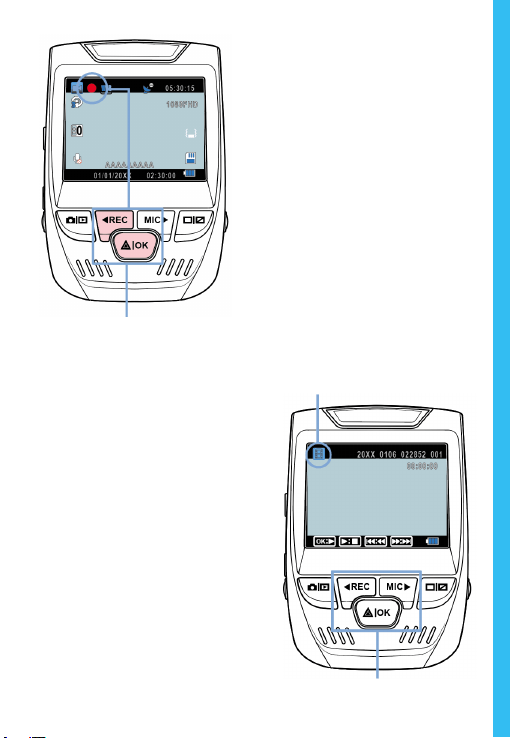
機器が電源に接続されると、
カメラは自動的に録画を開始
します。録画時にはLEDライ
トと赤いアイコンが点滅しま
す 。[ REC] ボタンを押すと録画
を停止します。
電源がオンになるとカメラは自動的
に録画を開始します
再生 モ ード
ボタンを使用してビデオの再生をコントロールしてください
ビデオの再生
ビデオの再生は、機器またはコ
ンピュータ上で行うことができ
ます 。Rexing GPSロガーを購入
している場合は、特殊なアプリ
ケーションでビデオを再生する
ことができます。
機器でビデオを再生する
には、再生モードに切り替え
ます。[REC] ボタンと[MIC] ボタ
ンを使用して再生したいビデ
オに切り替え、[OK] ボタンを押
して再生します。
32
再生中は、[OK] (一時停止)、[MIC] (早送り)、[REC] (巻き戻し)ボタンを
使用してビデオの再生をコントロールできます。
コンピュータでビデオを再生するには、SD カード アダプタを使用す
るか、機器をコンピュータにUSBケーブルで直接接続してください。
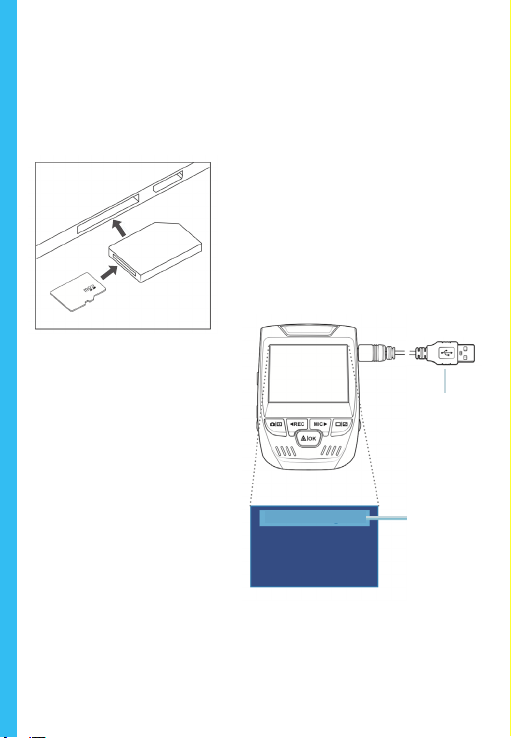
SDカードアダプタを 使 用してビデオ
を再生するには、メモリカードを 取
り外し、SDカードアダプタに挿入し
てから、SDカードアダプタをコンピ
ュータに挿入します。
USB端子でコ
ンピュータと接
続しますます
マスストレ
ージを選択
します
USBケーブルを使用してビデオ
を再生する場合は、USB ケー
ブルで機器をコンピュータと
接続します。機器の電源をオ
ンにしてから、[OK]ボタンを押
してマスストレージを選択し
ます。
コンピューターで機器のドラ
イブにアクセスします。ビデオ
は次の場所に保存されます。\
CARDV\MOVIE。再生するビ
デオを選択して、再生します。
駐車場モニター
ド
ライブレコーダーをスマート直接配線コードに接続して、駐車モ
ニター機能を有効にします。(スマート直接配線コードを別途購入
する必要があります)。
P Cカメラ
マスストレージ
33
Wi-Fi接続
App Store またはGoogle Playス ト ア か ら「 Rexing Connect」ア プ
リをダウンロードしてください。
1. Wi-Fi機能にアクセスするか終
了するには
、[OK]ボタンを長押し
します。
2. お使いのスマートフォンのWi-Fi
設定を開き、リストから「SSID:
B50 _ XXXX」を見つけ、タップし
て接続します。(デフォルトのパス
ワード: 12345678)
3. Rexing Connectアプリを開
き、「Connect」をタップしてリ
アルタイムビデオストリーミング画
面を表示させます。
4. 接続すると、ドライブレコーダー
のスクリーンがカメラビューに切り
替わり、「Wi-Fi接続済み」という
メッセージが表示されます。
Rexing Connectアプ
リを使用す ると、
ドライブレコーダーのスクリーンのラ
イブプレビューを表示したり、録画を開
始/停止したり、スマートフォンで録画
の表示/保存ができます。
Wi-Fi接続機能に関する詳細について
は、以下のリンクをご覧ください。
www.rexingusa.com/wifi-connect/.
ビデオチュートリアルを見るためには support.rexingusa.com にア
クセスしてください。
34
GPSロ
ガー
(別途購入する必要があります)
カメラに接続すると、運転中の車両
の速度と位置が記録されます。
GPS Video Playerを使用して録画
を再生しながらこれらの情報にア
クセスできます。(Windows と Mac
の場合は、rexingusa.comで入手で
きます)。
[MENU] ボタンを2回押して、システ
ム設定を表示します。
[GPS Speed Unit] の設定に切り替
え、希望の速度単位を選択しま
す。
GPS信号を受信すると、画面のア
イコンが青から緑に変わります。
ビデオチュートリアルを見るに
はgpsa.rexingusa.comにアクセス
してください。
GPS信号(接続
されていない)
GPS機能
(アクティブ )
35
写真を撮る
写真を撮るためには、ビデオ
録画を停止し、写真モードに
切り替えます。
[OK] ボタンを押して写真を
撮ります。
写真を表示するためには、ビ
デオ録画を停止し、再生モー
ドに切り替えます。
[REC] および [MIC] ボタンを
押して、写真を切り替えます。
写真を削除するには、ビデオ
録画を停止して再生モード
に切り替え、削除したい写真
またはビデオに切り替えま
す。
MENU を 1 回押し、削除オプ
ションを表示します。
[OK]ボタンを押して、[Delete
Current (現在表示している
写真/ビデオを削除)] または
[Delete All (すべて削除)] を
選択します。
再生 モ ード
に切り替え
て 、プ レ ビ ュ
ーする写真
を選びます
[Delete] ボ
タンを選択
します
削除オプシ
ョンを選 択
します
全て削除
現在選択しているものを削除

36
1. Aperçu
Nous vous
remercions pour votre choix sur REXING ! Nous
espérons que vous aimiez votre nouveau produit autant que
nous.
Si vous avez besoin d’aide ou vous avez des suggestions pour
l’améliorer, veuillez nous contacter. Vous pouvez nous joindre
répondra le plus vite possible.
Toujours une surprise à Rexing. Consultez-nous ici.
https://www.facebook.com/rexingusa/
https://www.instagram.com/rexingdashcam/
https://www.rexingusa.com/support/registration/
Facebook Instagram Site
37
1. Aperçu
1. Caméra de tableau de bord Rexing V1P
2. Chargeur de véhicule
3. Plaque de montage de caméra de tableau de bord & Adhésif 3M
4. Câble Mini-USB
5. Caméra arrière
6. Outil de gestion de câble
7. Serre-câble
8. Guide de démarrage rapide V1P
9. Guide de sécurité
2. Que contient la boîte
1.
6.
7. 8. 9.
2. 3. 4.
5.
38
3. Aperçu de la Caméra
1. Emplacement pour carte
Micro SD
2. Bouton Alimentation
3. Bouton Réinitialisation
4. Bouton Menu
5. Bouton Mode
6. Bouton REC*
7. Bouton OK**
8. Bouton MIC***
9. Bouton Ecran
10. Port Mini-USB
11. Port pour enregistreur GPS
12. Port pour caméra arrière
13. Réglage de l’angle d’objectif
* La caméra enregistre lorsque la LED clignote en rouge.
** La caméra enregistre lorsque la LED clignote en rouge. La caméra est en
charge ou allumée lorsque le voyant est d’un bleu xe.
*** La caméra est en cours de chargement ou sous tension lorsque le voyant
est d’un bleu xe.
1.
10.
11.
5. 6. 8.
7.
9.
2.
3.
4.
12.
13.
39
Icônes d’écran
Signal GPS (non connecté)
Signal GPS (verrouillé)
Temps d’enregistrement
(Clip actuel)
Résolution de
vidéo
Mode Parking
(activé)
Niveau de
sensitivité de
capteur G
Carte mémoire
(insérée)
Batterie en
recharge
Mode WDR (activé)
Enregistrement (activé)
Etat de
veille pour
enregistrement
Durée
d’enregistrement
en boucle
Valeur
d’exposition
MIC (désactivé)
MIC (activé)
Date actuelle
(JJ/MM/AAAA)
Heure
(24H)
Numéro de plaque
40
4. Installation
Étape 1: Installez la caméra de tableau de bord
Placez le ruban 3M sur le support et orientez correctement
le support carré par rapport au toit et au capot du véhicule.
Important ! Assurez-vous que le T-interlock sur le support soit
orienté dans la correcte direction.
Appuyez fermement le support sur le pare-brise. Attendez au
moins 20 minutes avant de monter la caméra.
Orientez le support comme indiqué
Étape 2: Insérez la carte mémoire
La Rexing V1P accepte les cartes mémoire Micro SD [Classe
10 / UHS-1 ou supérieure] jusqu’à 256 GB. Vous devrez
insérer une carte mémoire avant de pouvoir commencer
l’enregistrement. Avant d’insérer ou de retirer une carte
mémoire, assurez-vous d’abord d’avoir éteint l’appareil.
Poussez doucement la carte mémoire jusqu’à ce que vous
entendiez un déclic puis laissez le ressort libérer pour pousser
la carte vers l’extérieur.
41
3: Alimentez la caméra et formatez la carte
mémoire
Alimentez la caméra en connectant le chargeur à l’allume-cigare
du véhicule et à la caméra.
Pour garantir que la V1P enregistre correctement et sans erreur
sur votre carte mémoire, avant de commencer à utiliser une
nouvelle carte mémoire, vous devez formater la carte dans
la caméra à l’aide de la fonction de formatage. Sauvegardez
toujours les données importantes stockées sur la carte mémoire
avant de formater.
Pour formater la carte mémoire, assurez-vous d’avoir inséré
votre carte mémoire, puis allumez l’appareil en connectant
à une source d’alimentation. Appuyez sur REC pour arrêter
l’enregistrement. Ensuite appuyez deux fois sur le bouton MENU
pour accéder au menu de conguration du système. Utilisez
les boutons REC et MIC et accédez au Réglage de formatage.
Appuyez sur le bouton OK pour conrmer la sélection.
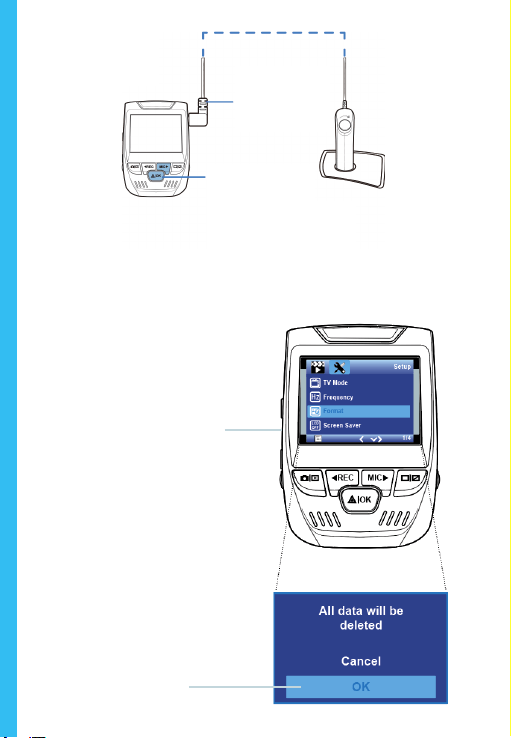
Appuyez sur le
bouton Alimentation
pour éteindre
l’appareil
42
Appuyez deux fois sur
le bouton Menu
Appuyez sur le bouton
OK pour conrmer le
formatage de la carte
Connectez le
Mini-USB à la
caméra
Le voyant LED
bleu indique que
l’appareil est en
charge ou sous
tension
Maintenant vous pouvez vous déconnecter de l’alimentation.
La caméra s’éteindra après 3 secondes. La caméra devrait
commencer à enregistrer automatiquement la prochaine
fois qu’elle sera allumée.
43
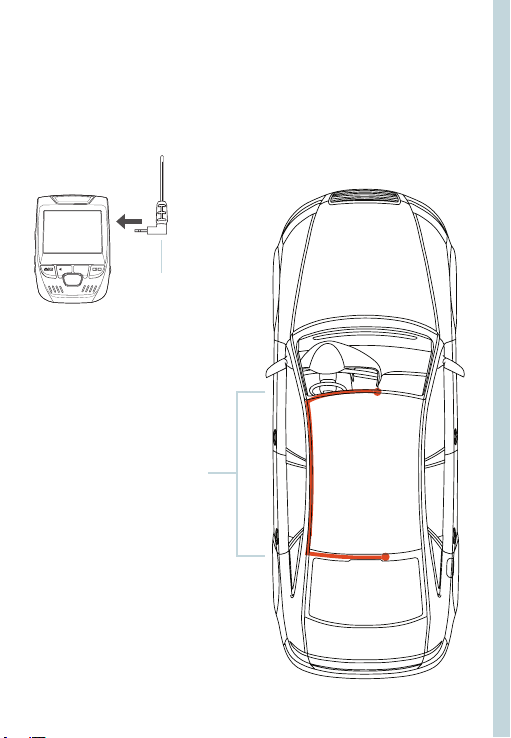
Étape 4 : Installez la caméra arrière
Installez la caméra arrière comme indiqué ci-dessous. Utilisez le
câble de caméra arrière fourni pour connecter la caméra arrière
à la caméra avant.
Insérez la caméra
arrière dans la
caméra de tableau
de bord
Installation de la
caméra arrière
44
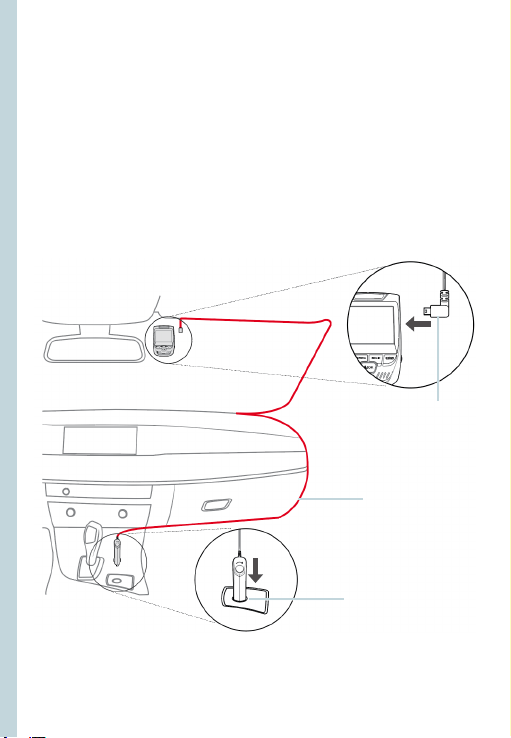
Étape 5 : Installez la caméra sur le pare-brise
Placez la caméra sur le support et passez soigneusement le
câble d’alimentation autour du pare-brise et glissez-le sous la
garniture.
Branchez le câble du chargeur du véhicule sur une prise de
courant 12 Vcc ou sur l’allume-cigare du véhicule.
Connectez le chargeur du véhicule à la caméra. La caméra
démarrera automatiquement l’enregistrement une fois qu’elle
est allumée.
Branchez le mini
connecteur rotatif à la
caméra de tableau de
bord
Acheminez le câble
d’alimentation à la
caméra de tableau
de bord
Branchez le chargeur
dans une prise
de courant ou un
allume-cigare
45
5. Opération basique
Alimentation pour appareil
L’appareil s’allume automatiquement lorsqu’il est branché à une
prise accessoire 12V ou à un allume-cigare lorsqu’il est mis sous
tension (c’est-à-dire : le véhicule est démarré).
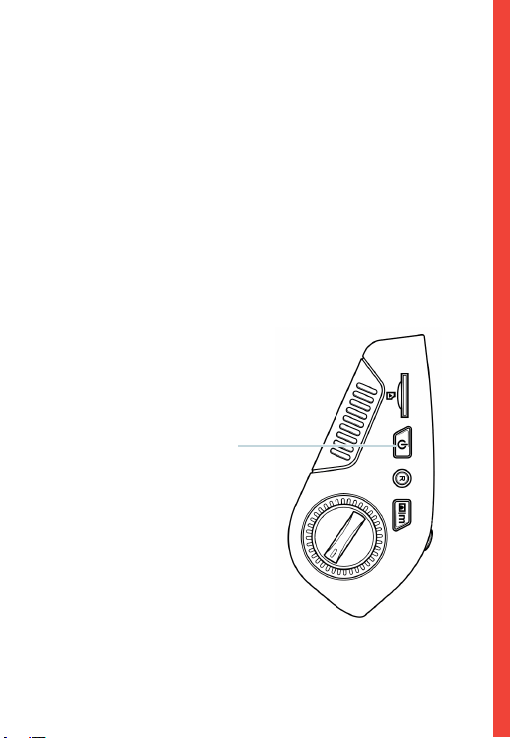
Pour allumer l’appareil manuellement, maintenez enfoncé le
bouton Alimentation jusqu’à ce que l’écran d’accueil apparaisse.
La caméra démarre automatiquement l’enregistrement
lorsqu’elle est allumée.
Appuyez et maintenez
le bouton Alimentation
pour allumer l’appareil
manuellement
46
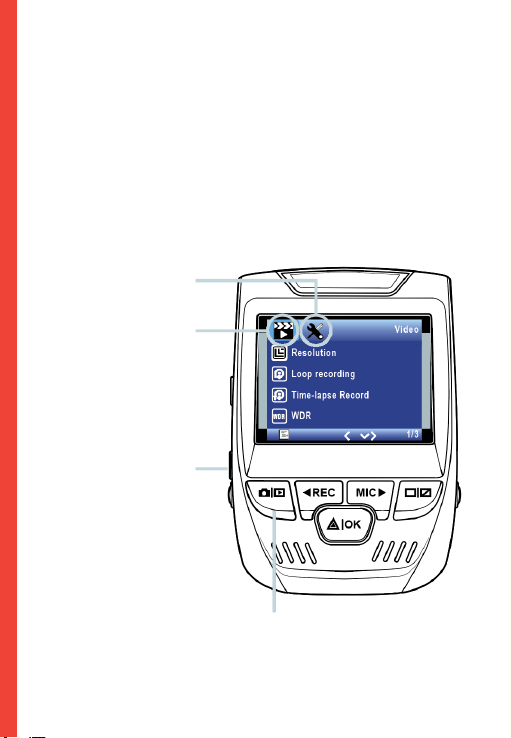
Menu Réglage
Allumez la caméra. Si la caméra enregistre, appuyez sur le
bouton REC pour arrêter l’enregistrement. Appuyez sur le
bouton MENU et passez au mode souhaité.
Appuyez une fois sur le bouton MENU pour accéder au menu
de réglage pour un mode. Appuyez deux fois sur le bouton
MENU pour accéder au Réglage du système.
Icône du Système
Icône de mode
Appuyez sur le bouton
Menu pour sélectionner la
conguration souhaitée
Appuyez sur le bouton Mode et
passez au mode souhaité
47
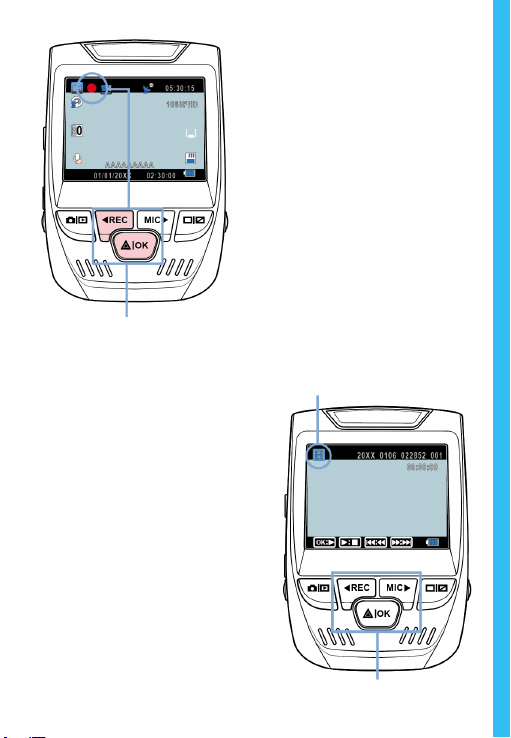
Enregistrement video
La caméra démarre
automatiquement
l’enregistrement lorsque
l’appareil est mis sous
tension. Le voyant LED et
le point rouge clignotent
en rouge lorsque l’appareil
enregistre. Appuyez sur le
bouton REC pour arrêter
l’enregistrement.
La caméra démarre automatiquement
l’enregistrement lorsque l’appareil s’allume.
Mode Lecture
Contrôlez la lecture par ces boutons.
Lecture des vidéos
enregistrées
La lecture des vidéos
enregistrées peut être eectuée
sur l’appareil ou un ordinateur.
De plus, si vous avez acheté un
enregistreur GPS Rexing, vous
pouvez lire les enregistrements
dans une application spécialisée.
Pour lire une vidéo sur
l’appareil, passez en mode
Lecture des vidéos enregistrées.
Utilisez les boutons REC et
MIC pour sélectionner la vidéo
souhaitée. Appuyez sur le
bouton OK pour jouer.
48
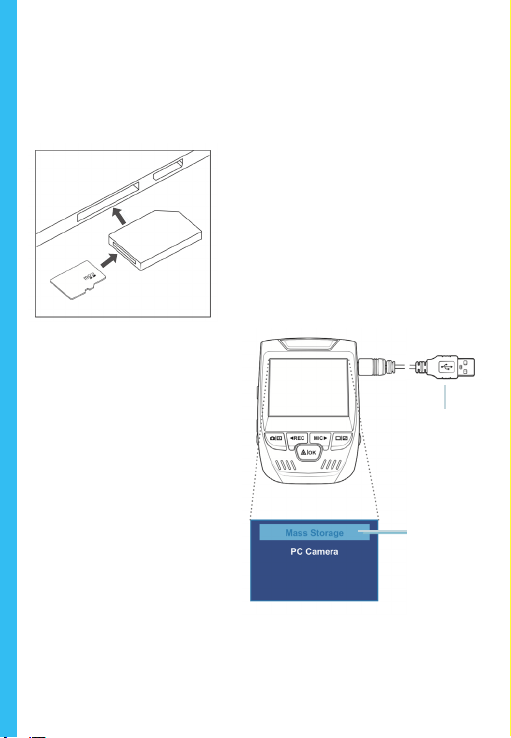
Pendant la lecture, utilisez les boutons OK (pause), MIC (avance
rapide) et REC (recul rapide) pour contrôler la lecture vidéo.
Pour lire une vidéo sur l’ordinateur, utilisez un adaptateur de
carte SD ou connectez l’appareil à l’ordinateur directement à
l’aide d’un câble USB.
Pour lire une vidéo à l’aide
d’un adaptateur de carte
mémoire SD, retirez la carte
mémoire et insérez-la dans un
adaptateur de carte SD. Placez
l’adaptateur dans l’ordinateur.
Pour lire une vidéo à
l’aide d’un câble USB,
connectez le câble USB à
l’appareil et à l’ordinateur.
Après avoir allumé l’appareil,
appuyez sur le bouton OK
pour sélectionner Stockage
de masse.
Sur l’ordinateur, accédez
au drive de périphérique.
Les vidéos sont stockées
dans : \CARDV\MOVIE.
Sélectionnez la vidéo à lire.
Connectez
le connector
USB à
l’ordinateur
Sélectionnez
le Stockage
de masse
Moniteur de stationnement
Connectez la caméra de tableau de bord au kit de câblage
intelligent pour activer la fonction de moniteur de stationnement
49
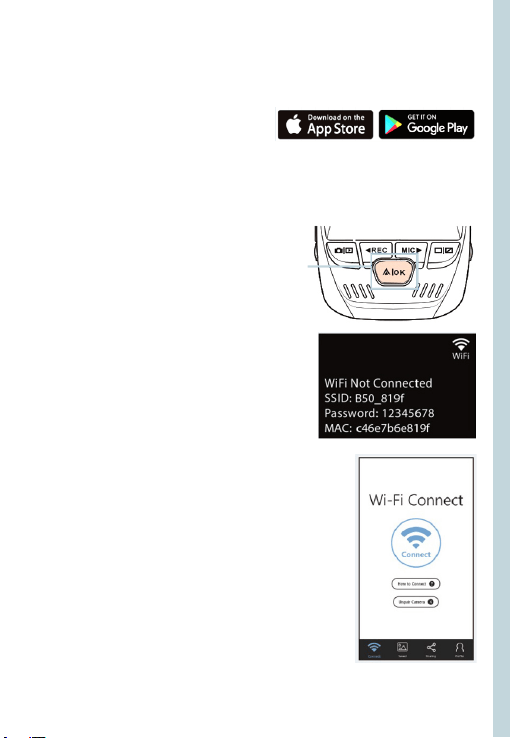
Connexion Wi-Fi
Téléchargez l’application « Rexing Connect » depuis App
Store/Google Play Store.
1. Pour accéder ou quitter la
fonction Wi-Fi, maintenez
enfoncé le bouton REC.
2. Ouvrez le réglage Wi-Fi sur
votre téléphone, recherchez «
SSID : B50—XXXX » dans la liste,
appuyez sur la touche pour
vous connecter. (Mot de passe
par défaut : 12345678)
3. Ouvrez l’application Rexing
Connect, appuyez sur « Connect
» pour accéder à la page de ux
vidéo en temps réel.
4. Une fois connecté, l’écran de la
caméra de tableau de bord passera
à la vue de la caméra et achera le
message « WiFi connecté ».
En utilisant l’application Rexing Connect,
vous pouvez acher un aperçu en direct
de l’écran de la caméra de tableau de
bord, démarrer/arrêter l’enregistrement, et
visualiser et enregistrer vos captures avec
votre appareil mobile.
Pour plus d’informations sur la fonction
de connexion Wi-Fi, veuillez visiter www.
rexingusa.com/wi-connect/.
(vous devez acheter le kit de câblage intelligent séparément).
Veuillez visiter support.rexingusa.com pour regarder un tutoriel
vidéo.
50
Enregistreur GPS
(Besoin d’acheter séparément)
Lorsqu’il est connecté à la
caméra, il enregistre la vitesse et
l’emplacement de votre véhicule
pendant que vous conduisez.
Vous pouvez ensuite accéder
à ces informations pendant la
lecture de vos enregistrements à
l’aide du lecteur vidéo GPS (pour
Windows et Mac, disponible sur
rexingusa.com).
Appuyez deux fois sur le bouton
MENU pour passer au Réglage du
système.
Passez au réglage de l’Unité de
vitesse GPS et sélectionnez votre
unité de vitesse préférée.
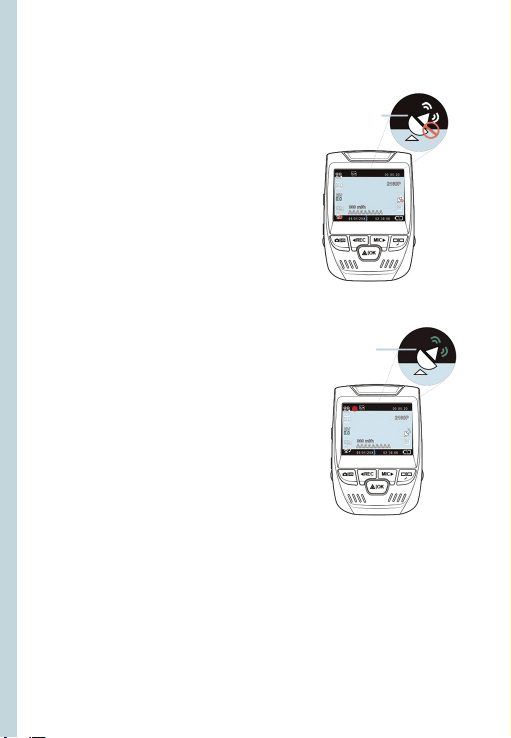
Après avoir trouvé un signal GPS,
l’icône de l’écran passera du bleu
au vert.
Veuillez visiter gpsa.rexingusa.
com pour regarder un tutoriel
vidéo.
Signal GPS
(non connecté)
Fonction GPS
(active)
51
Photographie
Pour prendre une photo,
arrêtez l’enregistrement
vidéo et passez en mode
Photo.
Appuyez sur le bouton OK
pour prendre une photo.
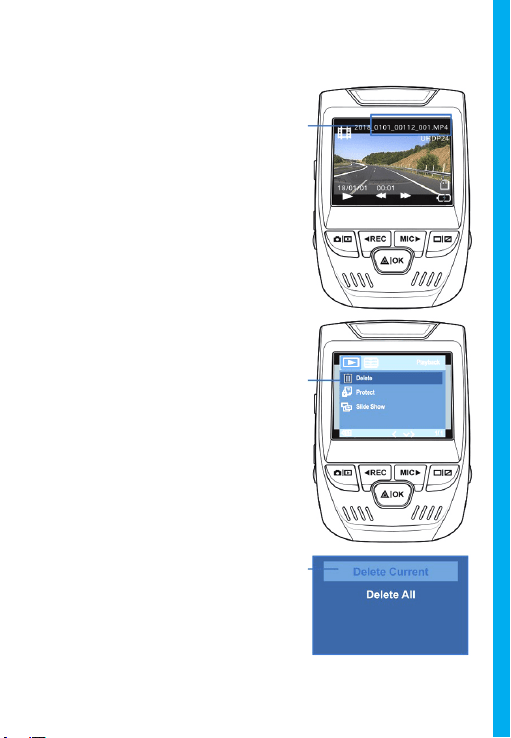
Pour acher une photo,
arrêtez l’enregistrement
vidéo et passez en mode
Lecture.
Appuyez sur les boutons
REC et MIC pour parcourir
vos photos.
Pour supprimer
une photo, arrêtez
l’enregistrement vidéo et
passez en mode Lecture
et parcourez entre les
vidéos et les photos pour
celle que vous souhaitez
supprimer.
Appuyez une fois sur le
MENU et passez à l’option
Supprimer.
Appuyez sur le bouton OK
et sélectionnez Supprimer
actuel ou Supprimer tout.
Passez
au mode
Lecture et
sélectionnez
une photo
à voir
Passez à
l’option
Supprimer
Sélectionnez
l’option
souhaitée

52
1. Descrizione
Grazie per aver scelto REXING! Speriamo che
ami il tuo nuovo
prodotto tanto quanto noi.
Se hai bisogno di assistenza o hai suggerimenti per migliorarlo,
ti preghiamo di contattarci. Puoi contattarci tramite care@
rexingusa.com. Il nostro team di supporto ti risponderà il prima
possibile.
Sempre una sorpresa in Rexing. Scoprici qui.
https://www.facebook.com/rexingusa/
https://www.instagram.com/rexingdashcam/
https://www.rexingusa.com/support/registration/
Facebook Instagram Site
53
1. Descrizione
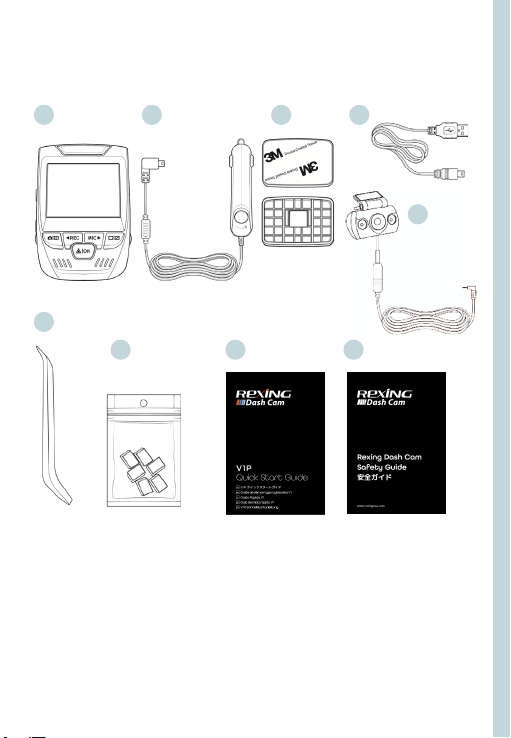
1. Rexing V1P Dash Cam
2. Caricabatterie per Auto
3. Piastra di Montaggio della Dash Cam e Adesivo 3M
4. Cavo Mini-USB
5. Telecamera Posteriore
6. Strumento di Gestione dei Cavi
7. Ganci per Cavi ©
8. Guida di Avvio Rapido V1P
9. Guida alla Sicurezza
2. Nella Confezione
1.
6.
7. 8. 9.
2. 3. 4.
5.
54
3. Descrizione Telecamera
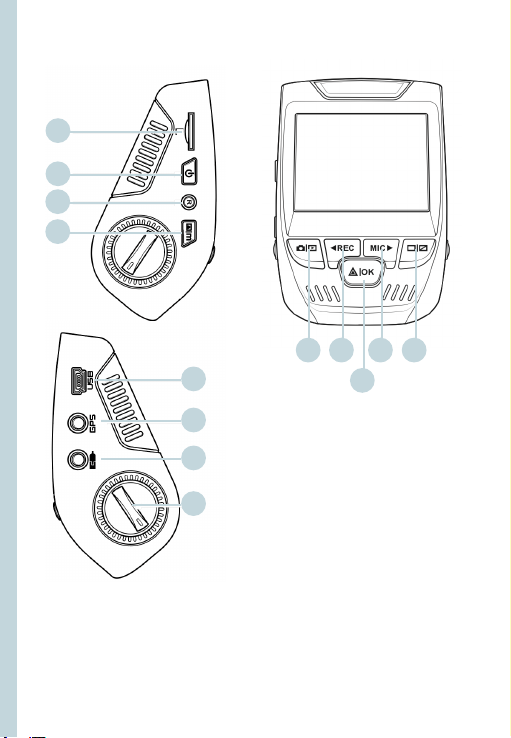
1. Slot per Scheda Micro SD
2. Pulsante di Alimentazione
3. Pulsante RESET
4. Pulsante MENU
5. Pulsante MODALITÀ
6. Pulsante REC *
7. Pulsante OK **
8. Pulsante MIC ***
9. Pulsante SCHERMO
10. Porta del Mini-USB
11. Porta del Logger CPS
12. Porta della Telecamera
Posteriore
13. Regolazione dell’angolo
dell’obiettivo
*La telecamera sta registrando quando il LED lampeggia in rosso.
** La telecamera sta registrando quando il LED lampeggia in rosso. Il
dispositivo si ricarica o si accende quando il LED è blu sso.
*** Il dispositivo si sta ricaricando o si accende quando il LED è blu sso.
1.
10.
11.
5. 6. 8.
7.
9.
2.
3.
4.
12.
13.
55
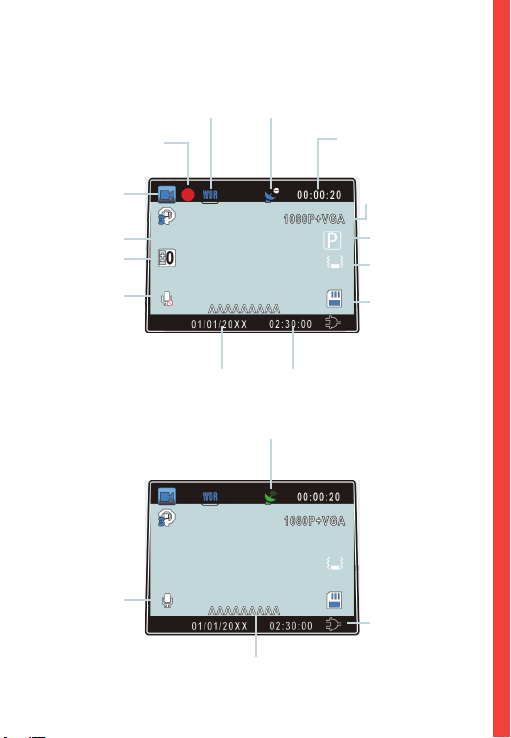
Icone dello Schermo
Segnale GPS (non connesso)
Segnale GPS (bloccato)
Tempo di
registrazione (calo
attuale)
Risoluzione video
Modalità di
Parcheggio
(accesa)
Livello di
Sensibilità del
Sensore G.
Scheda di
Memoria (inserita)
Ricarica della
Batteria
Modalità WDR (accesa)
Registrazione
(accesa)
Registrazione
dello Stato di
Attesa
Tempo di
Registrazione del
Ciclo
Valore di
Esposizione
MIC (spento)
MIC (acceso)
Data Corrente
(GG/MM/AAAA)
Ora
(24 ore)
Numero di Targa
56
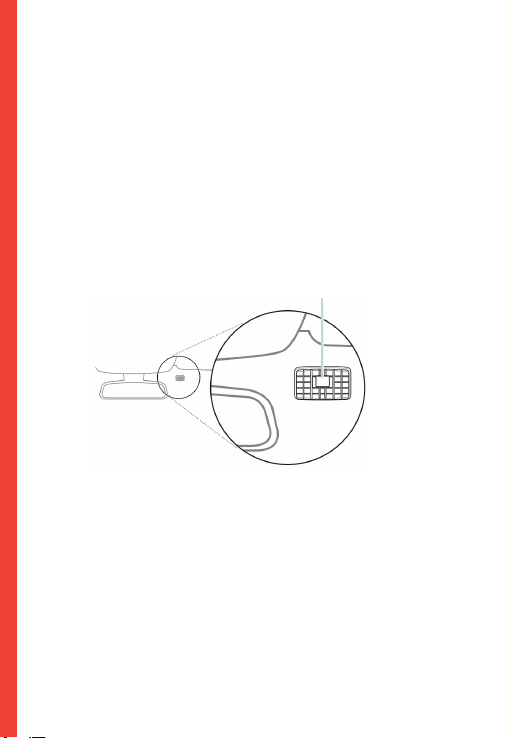
4. Installazione
Passo 1: Installare la Dash Cam
Posiziona il nastro 3M sul Supporto e orienta correttamente
il quadrato del Supporto verso il tetto e la linea del cofano
del veicolo. Importante! Assicurati che l’interblocco a T sul
Supporto sia orientato nella direzione corretta.
Premi con forza il Supporto sul parabrezza. Attendi almeno 20
minuti prima di montare la telecamera.
Orienta il supporto come mostrato
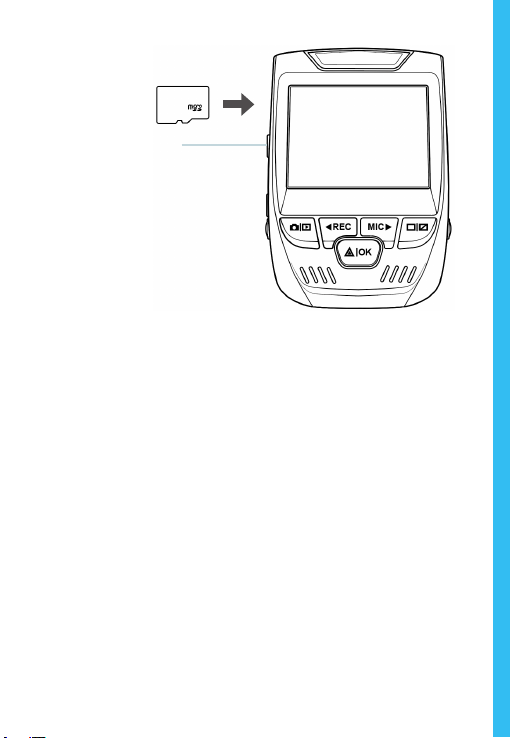
Passo 2: Inserire la Scheda di Memoria
La Rexing V1P accetta schede di memoria Micro SD [Classe 10/
UHS-1 o successive] no a 256 GB. Sarà necessario inserire una
scheda di memoria prima di poter iniziare la registrazione.
Prima di inserire o rimuovere una scheda di memoria,
assicurati innanzitutto di aver spento il dispositivo.
Spingi delicatamente la scheda di memoria no a quando non
ti senti un clic e consenti al rilascio della molla di spingere la
scheda.
57
Passo 3: Alimentare la Telecamera e Formattare la
Scheda di Memoria
Alimenta la telecamera connettendo il caricabatterie
all’accendisigari e alla telecamera dell’auto.
Per garantire che la V1P sulla tua scheda di memoria registri sulla
tua scheda di memoria correttamente e senza errori. Prima di
iniziare a usare una nuova scheda di memoria, devi formattare
la scheda all’interno della telecamera usando la funzione
di formattazione. Esegui sempre il backup dei dati importanti
memorizzati sulla scheda di memoria prima della formattazione.
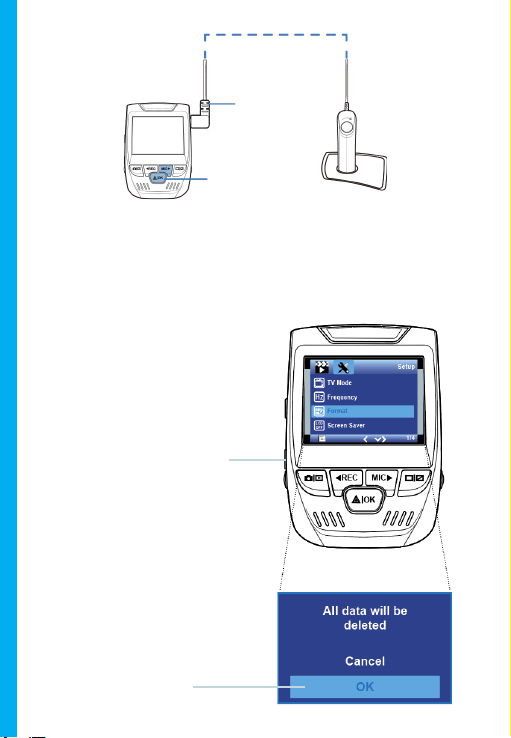
Per formattare la scheda di memoria, assicurati di aver
inserito la tua scheda di memoria, quindi accendi il dispositivo
connettendolo a una fonte di alimentazione. Premi REC
per interrompere la registrazione. Quindi premi due volte il
pulsante MENU per accedere al Menu di Congurazione del
Sistema. Usa i pulsanti REC e MIC e vai all’impostazione Formato.
Premi il pulsante OK per confermare la selezione.
Premere il pulsante
di accensione per
spegnere
58
Premi due volte il pulsante
Menu
Premi il pulsante Sì
per confermare la
formattazione della scheda
Connetti
Mini-USB alla
telecamera
Le luci LED blu
indicano che il
dispositivo è in
ricarica o acceso
Ora puoi disconnetterti dall’alimentazione. La telecamera
si spegnerà dopo 3 secondi. La telecamera dovrebbe iniziare
a registrare automaticamente la prossima volta che viene
accesa.
59
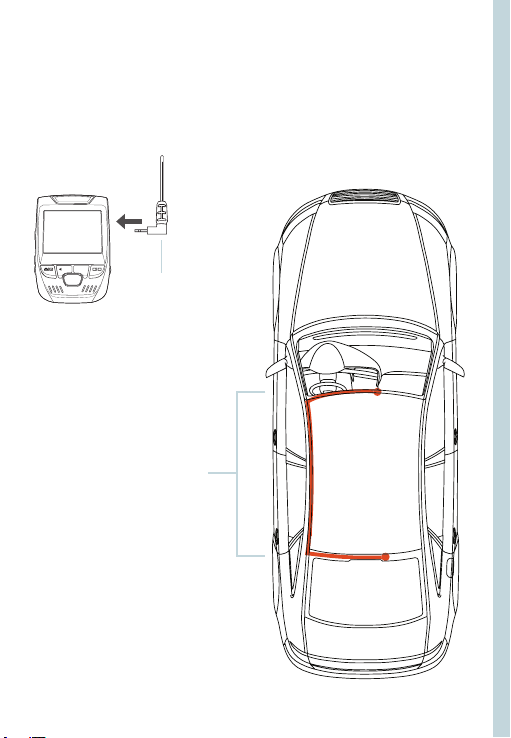
Passo 4: Montare La Telecamera Posteriore
Monta la telecamera posteriore come mostrato di seguito. Usa
il cavo della telecamera posteriore in dotazione per connettere
la telecamera posteriore alla telecamera anteriore.
Collega la
Telecamera
Posteriore alla
Dash Cam
Installazione
della Telecamera
Posteriore
60
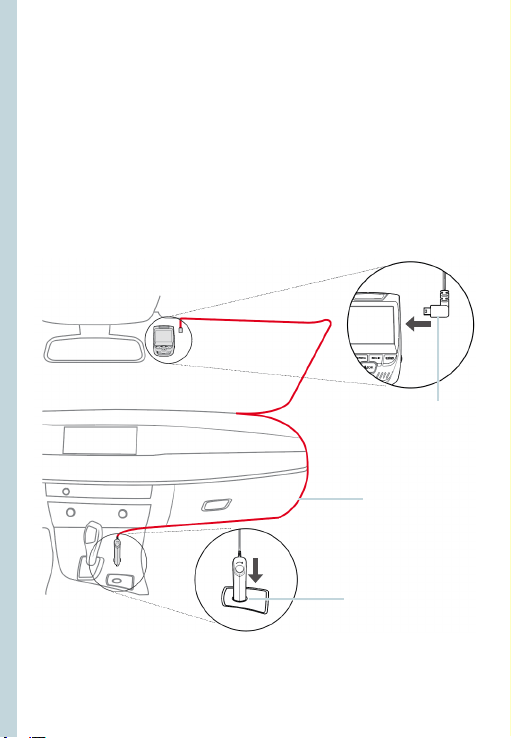
Passo 5: Installare la Telecamera sul Parabrezza
Posiziona la telecamera sul supporto e instrada attentamente
il cavo di alimentazione attorno al parabrezza e inlalo sotto il
rivestimento.
Collega il Cavo del Caricabatterie per Auto a una presa di
corrente da 12 V CC o all’accendisigari dell’auto.
Connetti il caricabatterie per auto alla telecamera. La telecamera
avvierà automaticamente la registrazione una volta accesa.
Collega il Mini Connettore
di Rotazione alla Dash
Cam
Instrada il cavo di
alimentazione alla
Dash Cam
Collega il
caricabatterie alla
presa di corrente o
all’accendisigari
61
5. Funzionamento Base
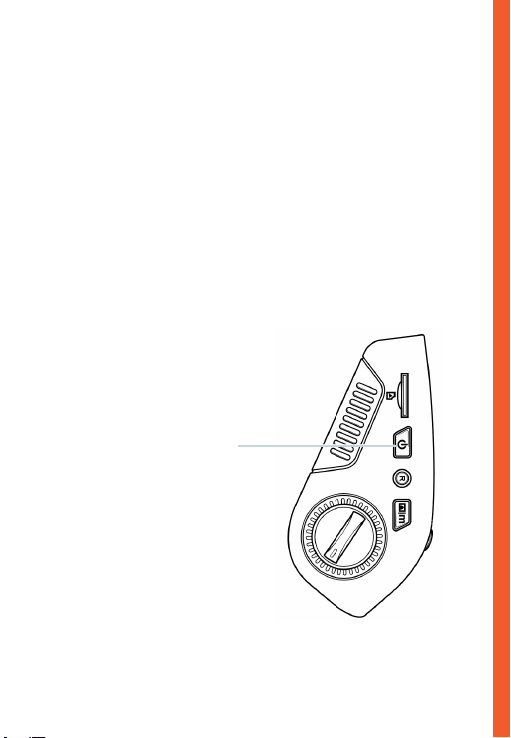
Accensione del Dispositivo
Il dispositivo si accenderà automaticamente quando collegato a
una presa per accessori da 12 V o all’accendisigari e riceve una
ricarica (ovvero: il veicolo viene avviato).
Per accendere manualmente il dispositivo, premi e tieni
premuto il pulsante di ACCENSIONE no a quando appare la
schermata di benvenuto.
La telecamera inizierà automaticamente a registrare quando è
accesa.
Premi e tieni premuto il pulsante
di Accensione per accendere
manualmente il dispositivo
62
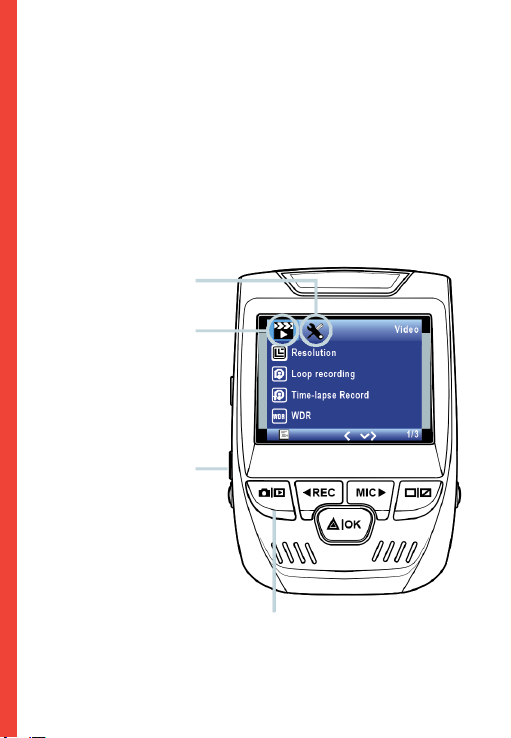
Impostazioni Menu
Accendi la telecamera. Se la telecamera sta registrando, premi il
pulsante OK per interrompere la registrazione. Premi il pulsante
MODALITÀ e passa alla modalità desiderata.
Premi una volta il pulsante MENU per accedere al menu delle
impostazioni per una Modalità. Premi due volte il pulsante
MENU per accedere alle Impostazioni di Sistema.
Icona Sistema
Icona della modalità
Premi il pulsante Menu per
selezionare l’impostazione
desiderata
Premi il pulsante Modalità e passa
alla Modalità desiderata

63
Registrazione Video
La telecamera avvierà
automaticamente la
registrazione quando il
dispositivo riceve una ricarica.
Le luci LED e il punto rosso
lampeggeranno durante la
registrazione. Premi il pulsante
REC per interrompere la
registrazione.
La telecamera avvia automaticamente
la registrazione all’accensione
Modalità di riproduzione
Controlla la riproduzione con
questi pulsanti
Riproduzione Video
La riproduzione di video
può essere eseguita sul
dispositivo o su un computer.
Inoltre, se hai acquistato
un Rexing Logger GPS, puoi
riprodurre le registrazioni in
un’applicazione specializzata.
Per riprodurre un video
sul dispositivo, passa alla
modalità di Riproduzione.
Usa i pulsanti REC e MIC per
passare al video desiderato.
Premi il pulsante OK per
riprodurre.
64
Durante la riproduzione, usa i pulsanti OK (pausa), MIC
(avanzamento rapido) e REC (riavvolgimento) per controllare la
riproduzione del video.
Per riprodurre un video sul computer, usa un adattatore per
scheda SD o connetti il dispositivo al computer direttamente
usando il cavo USB.
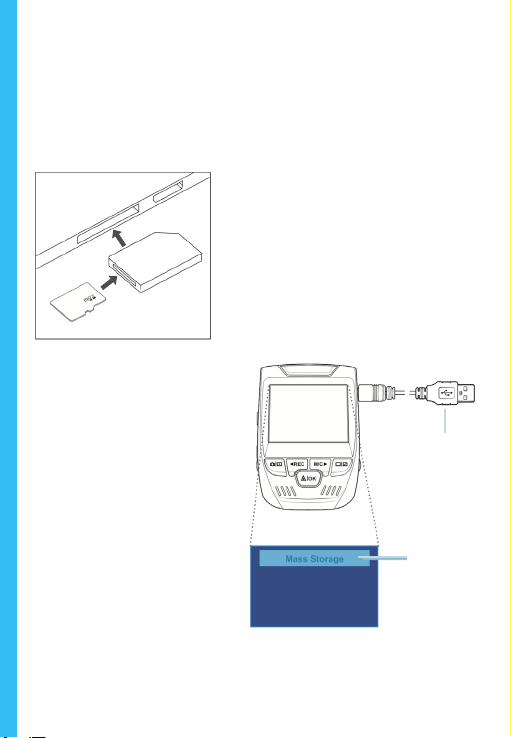
Per riprodurre un video
usando un adattatore
per scheda SD,
rimuovi la
scheda di memoria e inseriscila
in un adattatore per scheda
SD. Posiziona l’adattatore nel
computer.
Per riprodurre un
video usando il cavo
USB, connetti il Cavo
USB al dispositivo e al
computer. Dopo che il
dispositivo si accende,
premi il Pulsante OK per
selezionare Memoria di
Massa.
Sul computer, passa al
driver del dispositivo. I
video sono memorizzati
su: \CARDV\MOVIE.
Seleziona il video da
riprodurre.
Connetti il
connettore USB
al computer
Seleziona
Memoria di
Massa
Telecamera PC
65
Monitor di Parcheggio
Connetti la dash cam al kit hardwire intelligente per attivare la
funzione di monitore di parcheggio (È necessario acquistare
il kit hardwire intelligente separatamente). Si prega di visitare
support.rexingusa.com per guardare un video tutorial.
Connessione Wi-Fi
Scarica l’app “Rexing Connect” dall’App Store / Google Play
Store.
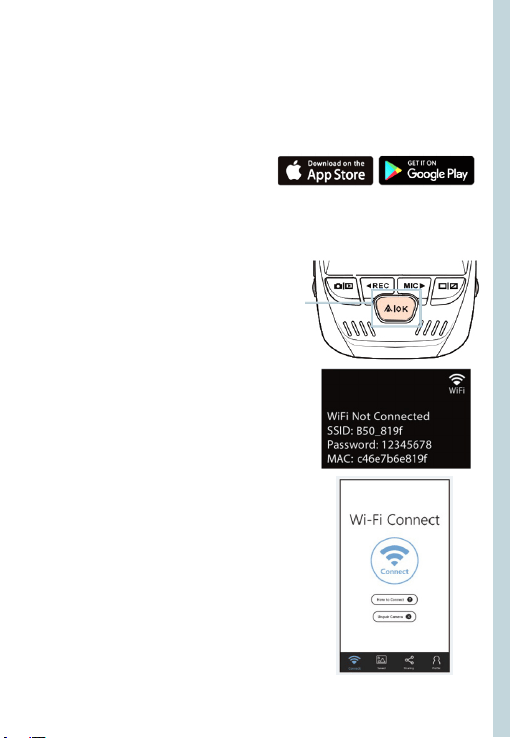
1. Per accedere o uscire dalla
funzione Wi-Fi, tieni premuto REC.
2. Apri le impostazioni Wi-Fi
sul tuo telefono, trova “SSID:
B50_XXXX” dall’elenco, tocca
per connetterti. (Password
predenita: 12345678)
3. Apri l’app Rexing Connect, tocca
“Connect” per accedere alla
pagina di streaming video in
tempo reale.
4. Una volta connesso, lo schermo
della dash cam passerà alla vista
della telecamera e visualizzerà il
messaggio “Wi-Fi Connect”.
Usando l’app Rexing Connect, puoi
vedere un’anteprima dal vivo dello
schermo della dash cam, avviare /
interrompere la registrazione, nonché
vedere e salvare le tue acquisizioni
con il tuo dispositivo mobile.
Per ulteriori istruzioni sulla funzione di
Connessione Wi-Fi, si prega di visitare
www.rexingusa.com/wi-connect/.
66
GPS Logger
(È necessario acquistare separatamente)
Quando è connesso alla
telecamera, registrerà la velocità
e la posizione del tuo veicolo
mentre guidi.
Puoi quindi accedere a
queste informazioni durante
la riproduzione delle tue
registrazioni usando il lettore
Video GPS (Per Windows e Mac,
disponibile su rexingusa.com).
Premi due volte il pulsante MENU
e accedere alle Impostazioni di
Sistema.
Passa all’impostazione dell’Unità
di Velocità GPS e seleziona
l’unità di velocità preferita.
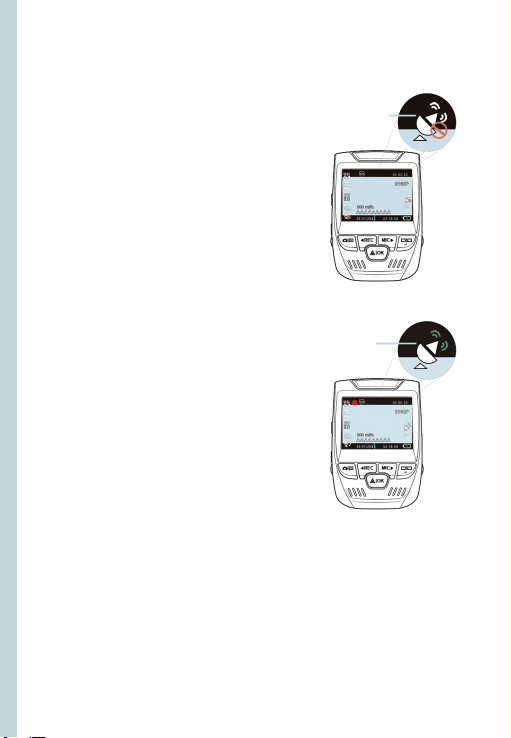
Dopo che un segnale GPS viene
trovato, l’icona dello schermo
passerà da blu a verde.
Si prega di visitare gpsa.
rexingusa.com per guardare un
video tutorial.
Segnale GPS
(non connesso)
Funzione GPS
(attiva)
67
Scattare Foto
Per scattare una foto,
interrompi la registrazione
video e passa alla Modalità
di Foto.
Premi il Pulsante OK per
scattare una foto.
Per visualizzare una foto,
interrompi la registrazione
video e passa alla Modalità
di Riproduzione.
Premi i pulsanti di
navigazione SU e GIÙ
per passare da una foto
all’altra.
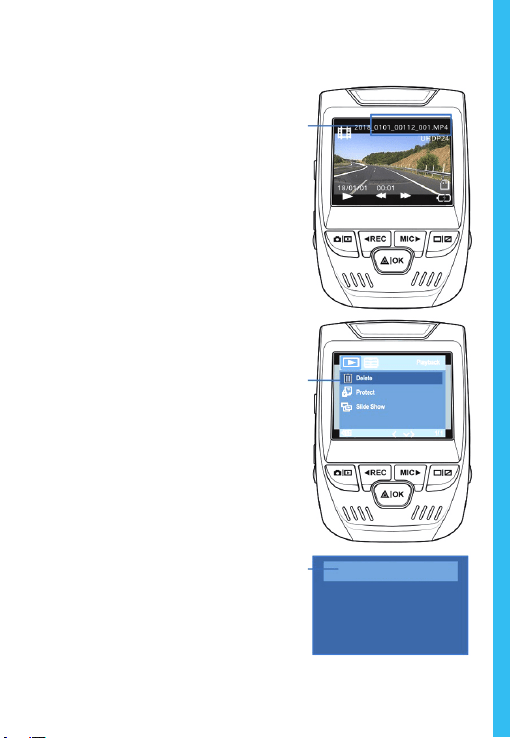
Per eliminare una foto,
interrompi la registrazione
video e passa alla Modalità
di Riproduzione e alterna i
video e le foto a quello che
desideri eliminare.
Premi una volta il pulsante
MENU e seleziona
l’opzione Elimina.
Premi il Pulsante OK e
seleziona Elimina Corrente
o Elimina Tutto.
Passa alla
modalità di
Riproduzione
e seleziona
una foto da
visualizzare
Passa
all’opzione
Elimina
Seleziona
l’opzione
desiderata
Elimina Tutto
Elimina Corrente

68
1. Visión General
¡Gracias
por elegir REXING! Esperamos que usted ame su nuevo
producto tanto como nosotros la amamos.
Si usted necesita ayuda o tiene alguna sugerencia para
mejorarla, contáctenos. Puede comunicarse con nosotros
a través de [email protected]. Nuestro equipo de soporte
le responderá lo antes posible.
Siempre es una sorpresa en Rexing. Visítenos aquí.
https://www.facebook.com/rexingusa/
https://www.instagram.com/rexingdashcam/
https://www.rexingusa.com/support/registration/
Facebook Instagram Site
69
1. Visión General
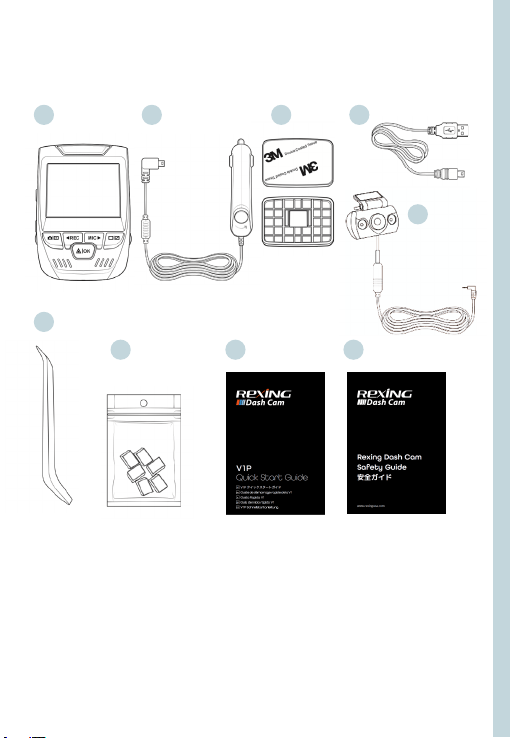
1. Rexing V1P Grabadora de conducción
2. Cargador de coche
3. Grabadora de conducción Placa de montaje y adhesivo 3M
4. Cable mini-USB
5. Cámara trasera
6. Herramienta de gestión de cables
7. Clips de cable©
8. V1P Guía de inicio rápido
9. Guía de seguridad
2. Qué hay en la caja
1.
6.
7. 8. 9.
2. 3. 4.
5.
70
3. Resumen de la Cámara
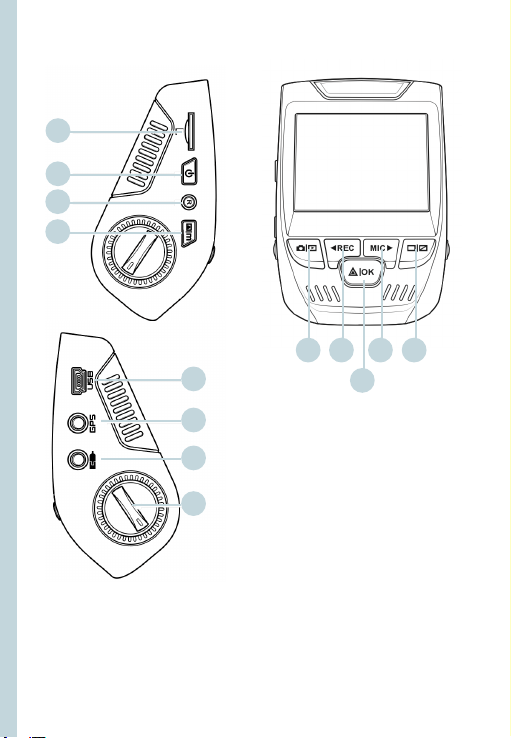
1. Ranura para tarjeta micro SD
2. Botón de encendido
3. Botón de reinicio
4. Botón de menú
5. Botón de modo
6. Botón REC *
7. Botón OK **
8. Botón MIC ***
9. Botón PANTALLA
10. Puerto mini-USB
11. Puerto de registrador de GPS
12. Puerto de cámara trasera (no
compatible)
13. Ajuste de ángulo del lente
*La cámara está grabando cuando el LED parpadea en rojo.
**La cámara está grabando cuando el LED parpadea en rojo. El dispositivo se
carga o se enciende cuando el LED es de color azul jo.
***El dispositivo se está cargando o encendiendo cuando el LED es azul jo.
1.
10.
11.
5. 6. 8.
7.
9.
2.
3.
4.
12.
13.
Tiempo de
grabación
en bucle
71
Iconos de pantalla
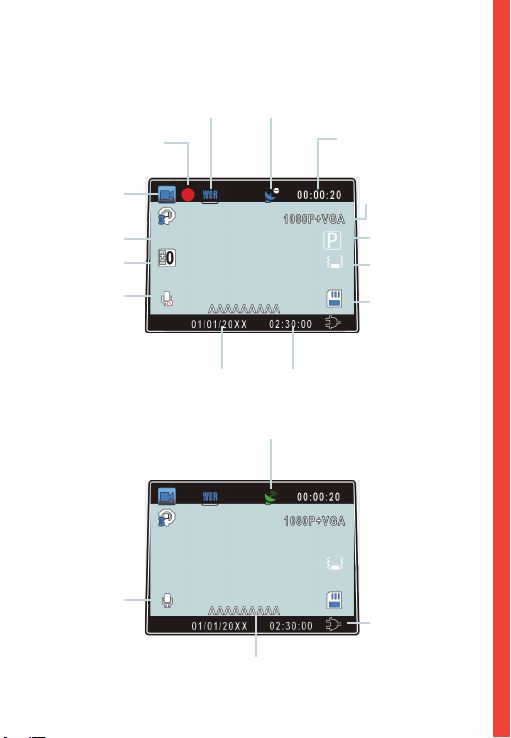
Señal de GPS (no conectada)
Señal GPS (bloqueada)
Tiempo de grabación
(clip actual)
Resolución de
video
Modo de
estacionamiento
(activado)
Sensor G
Nivel de
sensibilidad
Tarjeta de
memoria
(insertada)
Cargar batería
Modo AMPLIO RANGO
DINÁMICO (activado)
Grabación (activado)
Grabación
del estado de
espera
Tiempo de
grabación
en bucle
Valor de
exposición
Micrófono
(apagado)
Micrófono
(activado)
Fecha actual
(DD / MM / AAAA)
Hora
(24h)
Número de placa
72
4. Instalación
Paso 1: Instalar la Grabadora de Conducción
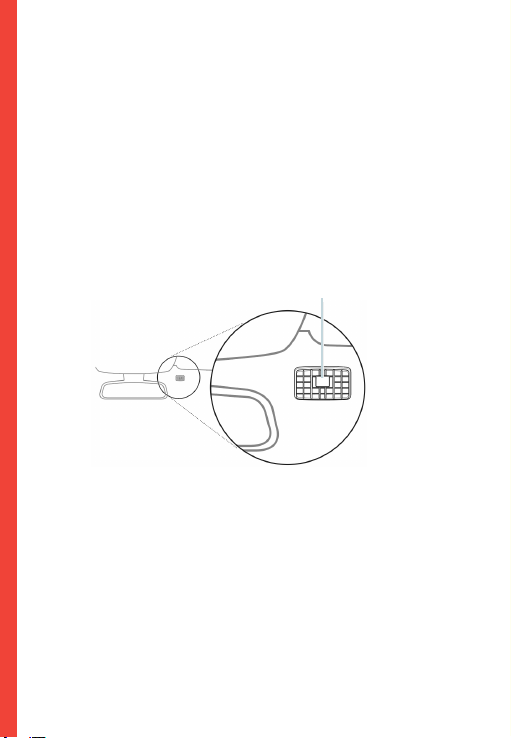
Coloque la cinta de 3M en el soporte y oriente adecuadamente
el cuadrado del soporte al techo y la línea del capó del vehículo.
¡Importante! Asegúrese de que el enclavamiento en T del
soporte esté orientado en la dirección correcta.
Presione rmemente el soporte sobre el parabrisas. Espere al
menos 20 minutos antes de montar la cámara.
Oriente la montura como se muestra
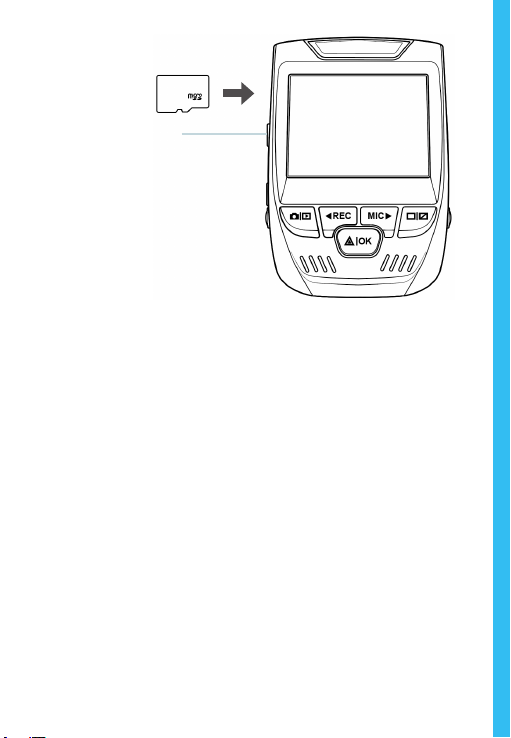
Paso 2: Inserte la Tarjeta de Memoria
El Rexing V1P acepta tarjetas de memoria Micro SD [Clase 10 /
UHS-1 o superior] de hasta 256 GB. Deberá insertar una tarjeta
de memoria antes de comenzar a grabar. Antes de insertar
o extraer una tarjeta de memoria, primero asegurarse de
haber apagado el dispositivo.
Empujar suavemente la tarjeta de memoria hacia adentro hasta
que escuche un clic y permitir la liberación del resorte para
empujar la tarjeta hacia afuera.
73
Paso 3: Encienda la Cámara y Formatee la Tarjeta
de Memoria
Encender la cámara a través de conectar el cargador al
encendedor de cigarrillo del automóvil y la cámara.
Para garantizar que el V1P registre en su tarjeta de memoria
correctamente y sin error. Antes de comenzar a usar una nueva
tarjeta de memoria, debe formatear la tarjeta dentro de la
cámara utilizando la función de formateo. Siempre haga una
copia de seguridad de los datos importantes almacenados en la
tarjeta de memoria antes de formatear.
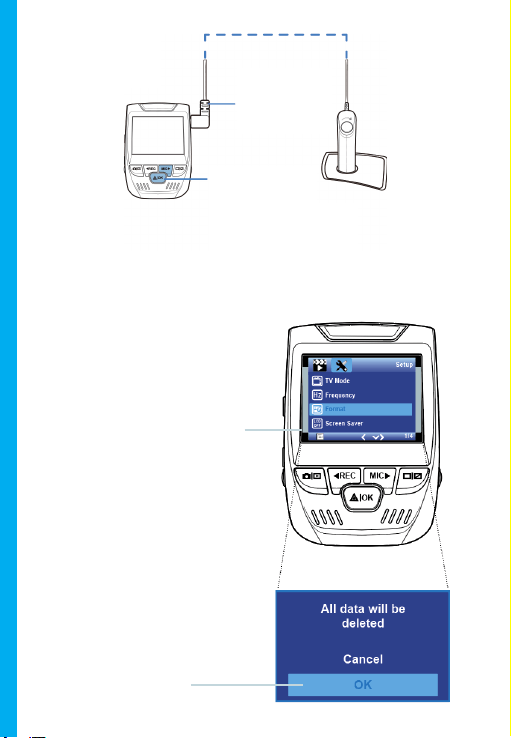
Para formatear la tarjeta de memoria, asegúrese de haber
insertado su tarjeta de memoria, luego encienda el dispositivo
conectándose a una fuente de alimentación. Presione REC
para detener la grabación. Luego presione el botón MENÚ dos
veces para ingresar al Menú de conguración del sistema. Use
los botones REC y MIC y vaya a la conguración de Formato.
Presione el botón OK para conrmar la selección.
Presionar el botón de
encendido para apagar
74
Presionar el botón de menú
dos veces
Presionar el botón de
OK para conrmar
formatear la tarjeta
Conectar el
mini usb a la
cámara
Las luces LED
azules indican que
el dispositivo está
cargando o está
encendido
Ahora puede desconectarse de fuente de alimentación.
La cámara se apagará después de 3 segundos. La cámara
debería comenzar a grabar automáticamente la próxima
vez que se encienda.
75
Paso 4: Montar la cámara trasera
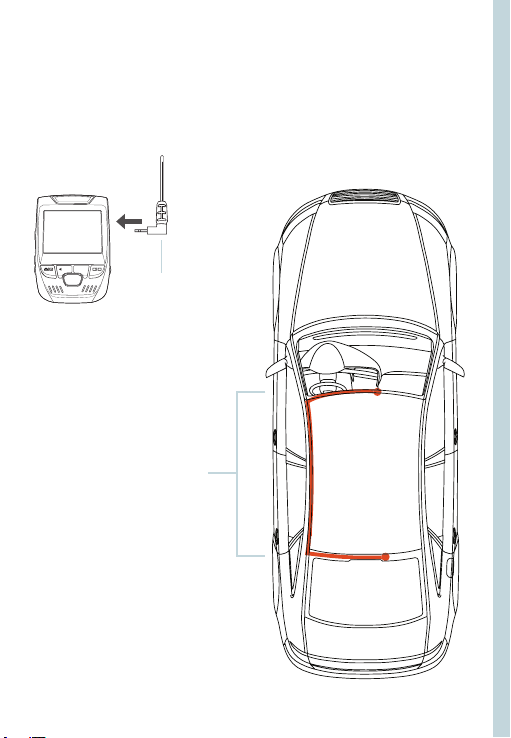
Montar la cámara trasera como se muestra a continuación. Usar
el cable de la cámara trasera provisto para conectar la cámara
trasera a la cámara frontal.
Conectar la
cámara trasera
a Grabadora de
Conducción
Instalación de
cámara trasera
76
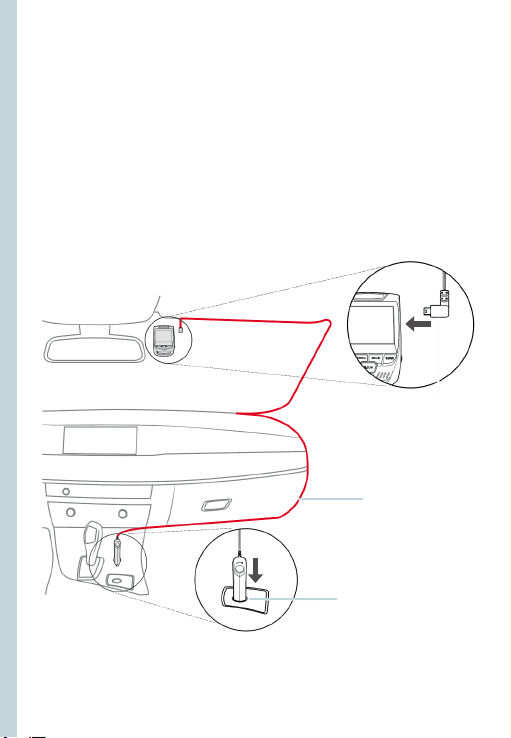
Conectar el conectador
Mini de 5 puntos
a la Grabadora de
conducción
Dirijir el cable de
alimentación a
la Grabadora de
conducción
Enchufar el cargador
a la toma de corriente
o al encendedor de
cigarrillo
Paso 5: Instalación de la Cámara en el Parabrisas
Colocar la cámara en el soporte y pasar con cuidado el cable de
alimentación alrededor del parabrisas y colocarlo debajo de la
moldura.
Conectar el cable del cargador de automóvil a una toma de
corriente de 12V DC o al encendedor de cigarrillo del automóvil.
Conectar el cargador del automóvil a la cámara. La cámara
iniciará automáticamente la grabación una vez que esté
encendida.
77
5. Operación Básica
Fuente de alimentación del dispositivo
El dispositivo se enciende automáticamente cuando se enchufa
a una toma de accesorios de 12V o encendedor de cigarrillos y
recibe una carga (es decir: el vehículo se enciende).
Para encender el dispositivo manualmente, mantenga
presionado el botón de ENCENDIDO hasta que aparezca la
pantalla de bienvenida.
La cámara comenzará a grabar automáticamente cuando se
encienda.
Mantenga presionado el botón
de Encendido para encender el
dispositivo manualmente
78
Configuraciones de menú
Encienda la cámara. Si la cámara está grabando, presione el
botón REC para detener la grabación. Presione el botón MODO
y cambie al modo deseado
Presione el botón MENÚ una vez para ingresar al menú de
conguración de un Modo. Presione el botón MENÚ dos veces
para ingresar a la Conguración del sistema.
Icono del sistema
Icono de modo
Presione el botón Menú
para seleccionar la
conguración deseada
Presione el botón Modo y
cambie al Modo deseado
79
Grabación de vídeo
La cámara comenzará a grabar
automáticamente cuando el
dispositivo recibe una carga.
El LED se ilumina y el punto
rojo parpadeará cuando el
dispositivo esté grabando.
Presione el botón REC para
detener la grabación.Presione
el botón REC para detener la
grabación.
La cámara comienza a grabar
automáticamente cuando se enciende
Modo de reproducción
Controla la reproducción con
estos botones
Reproducción de vídeo
La reproducción de videos se
puede hacer en el dispositivo o
una computadora. Además, si
se ha comprado un Rexing GPS
Logger, puede reproducir las
grabaciones en una aplicación
especializada.
Para reproducir un vídeo
en el dispositivo, cambie al
modo Reproducción. Use los
botones REC y MIC para cambiar
al video deseado. Presione el
botón OK para reproducir.
80
Durante la reproducción, use OK (pausa), MIC (avance rápido)
y Botones REC (rebobinar) para controlar la reproducción de
video.
Para reproducir un video en la computadora, use un adaptador
de tarjeta SD o conecte el dispositivo a la computadora
directamente con el cable USB.
Para reproducir un video
usando un adaptador de
tarjeta SD, retire la tarjeta
de memoria e insértela en un
adaptador de tarjeta SD. Coloque
el adaptador en la computadora.
Para reproducir un
video con un cable
USB, conecte el cable
USB al dispositivo y la
computadora.
Después de que se
encienda el dispositivo,
presione el botón
OK para seleccionar
Almacenamiento Masivo.
En la computadora,
navegue al controlador
del dispositivo. Los videos
se almacenan en: \ CARDV
\ MOVIE. Seleccione el
video para reproducir.
Conecte el
conectador
USB a la
computadora
Cámara PC
Almacenamiento Masivo
Seleccionar
almacenamiento
masivo
81
Monitor de estacionamiento
Conecte la grabadora de conducción al equipo de
cableado inteligente para activar la función de monitor de
estacionamiento (necesita comprar el equipo de cableado
inteligente por separado). Visite support.rexingusa.com para
ver un video tutorial.
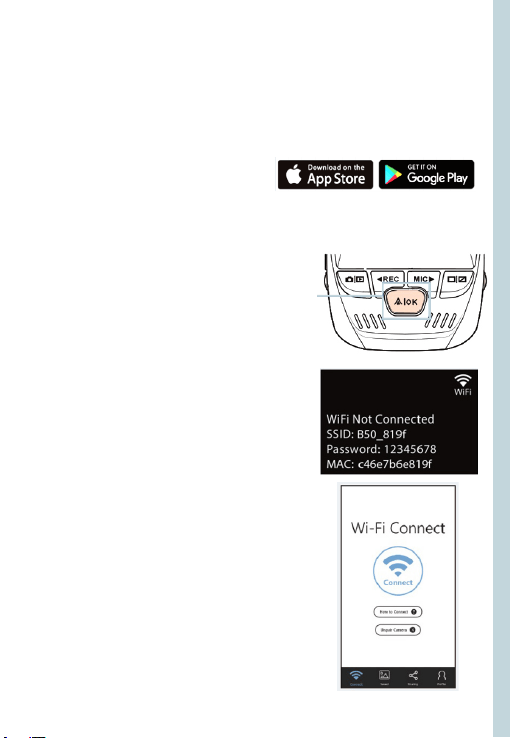
Conexión de wifi
Descargue la aplicación “Rexing Connect” de App Store /
Google Play Store.
1. Para acceder o salir de la función
Wi-Fi, mantenga presionado REC.
2. Abra la conguración de Wi-Fi
en su teléfono, busque “SSID:
B50-XXXX” en la lista, toque
para conectarse. (Contraseña
predeterminada: 12345678)
3. Abra la aplicación Rexing Connect,
toque “Conectar” para ingresar a
la página de transmisión de video
en tiempo real.
4. Una vez conectada, la pantalla de la
grabadora de conducción cambiará
a la vista de la cámara y mostrará el
mensaje “Conexión Wi-Fi”.
Con la aplicación Rexing Connect, puede ver
una vista previa en vivo de la pantalla de la
grabadora de conducción, iniciar / detener
la grabación, así como ver y guardar sus
capturas con su dispositivo móvil.
Para obtener más instrucciones sobre
la función Wi-Fi Connect, visite www.
rexingusa.com/wi-connect/.
82
Registrador GPS
(Se necesita comprar por separado)
Cuando se conecta a la cámara, se
registrará la velocidad y la ubicación
de su vehículo mientras conduce.
Luego puede acceder a esta
información mientras reproduce
sus grabaciones utilizando el
reproductor de video GPS (para
Windows y Mac, disponible en
rexingusa.com).
Presione el botón MENÚ dos veces
y ingrese a la Conguración del
sistema.
Cambie a la conguración de Unidad
de velocidad GPS y seleccione su
unidad de velocidad preferida.
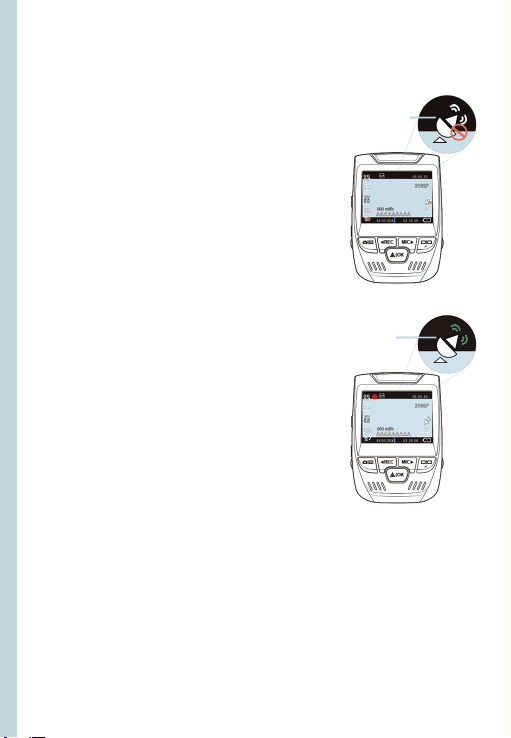
Después de encontrar una señal
GPS, el ícono de la pantalla cambiará
de azul a verde.
Visite gpsa.rexingusa.com para ver
un video tutorial.
Señal de GPS
(no conectada)
Función GPS
activa
83
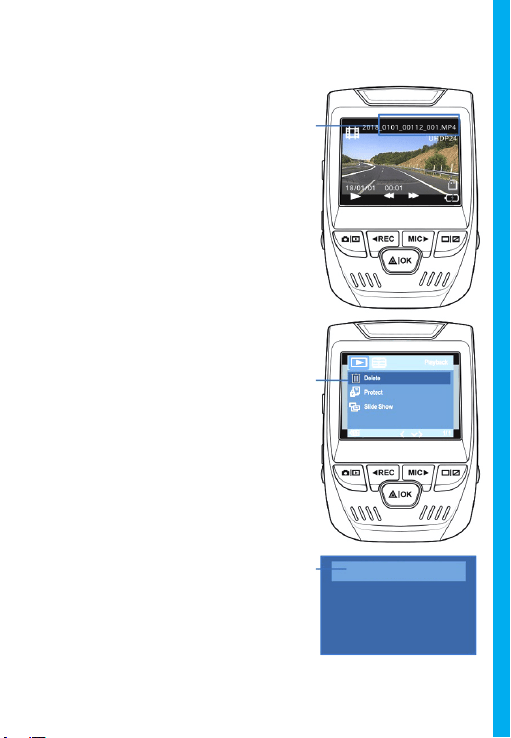
Tomando fotos
Para tomar una foto,
detenga la grabación de
video y cambie al Modo
foto.
Presione el botón OK para
tomar una foto.
Para ver una foto, detenga
la grabación de video
y cambie al Modo de
reproducción.
Presione los botones REC y
MIC para alternar entre sus
fotos.
Para eliminar una foto,
detenga la grabación de
video y cambie al Modo
de reproducción y cambie
entre los videos y las fotos
a la que quiere borrar.
Presione el botón MENÚ
una vez y cambie a la
opción Eliminar.
Presione el botón OK y
seleccione Eliminar actual
o Eliminar todos.
Cambie
al modo
Reproducción
y seleccione
una foto para
ver
Cambia a
la opción
Eliminar
Elige la
opción
deseada
Eliminar Todo
Eliminar Actual

84
1. Übersicht
Danke, dass Sie
sich für REXING entschieden haben! Wir hoen,
dass Sie Ihr neues Produkt so sehr lieben wie wir.
Wenn Sie Hilfe benötigen oder Vorschläge zur Verbesserung
haben, kontaktieren Sie uns bitte. Sie können uns erreichen
über [email protected]. Unser Support-Team wird Ihnen so
schnell wie möglich antworten.
Immer wieder eine Überraschung in Rexing. Schauen Sie hier
nach.
https://www.facebook.com/rexingusa/
https://www.instagram.com/rexingdashcam/
https://www.rexingusa.com/support/registration/
Facebook Instagram Site

85
1. Übersicht
1. Rexing V1P Dash-Cam
2. Auto-Ladegerät
3. Dash-Cam Montageplatte & 3M Kleber
4. Mini-USB-Kabel
5. Rückfahrkamera
6. Kabelmanagement-Tool
7. Kabelklemmen©
8. V1P Schnellstartanleitung für
9. Sicherheitshinweise
2. Verpackungsinhalt
1.
6.
7. 8. 9.
2. 3. 4.
5.
86
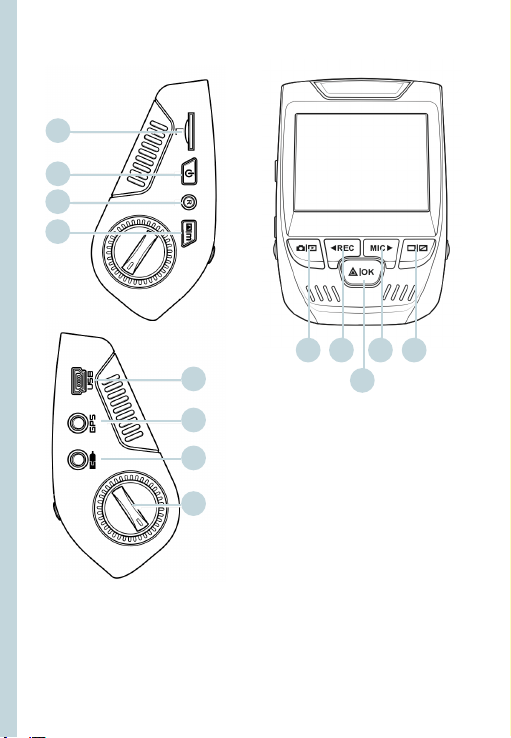
3. Kamera übersicht
1. Micro-SD-Kartensteckplatz
2. EIN- / AUS-Taste
3. RÜCKSETZUNGS-Taste
4. MENÜ-Taste
5. MODUS-Taste
6. AUFNAHME-Taste *
7. OK-Taste **
8. MIC-Taste***
9. BILDSCHIRM-Taste
10. Mini-USB-Anschluss
11. CPS-Logger-Anschluss
12. Rückfahrkamera-Anschluss
13. Objektiv-Winkelverstellung
*Die Kamera nimmt auf, wenn die LED rot blinkt.
**Die Kamera nimmt auf wenn die LED rot aufblinkt. Das Gerät wird
aufgeladen oder ist Betriebsmodus wenn die LED in solidem Blau leuchtet.
*** Das Gerät wird aufgeladen oder ist Betriebsmodus wenn die LED in
solidem Blau leuchtet.
1.
10.
11.
5. 6. 8.
7.
9.
2.
3.
4.
12.
13.
Schleifenaufnahme
Zeit
87
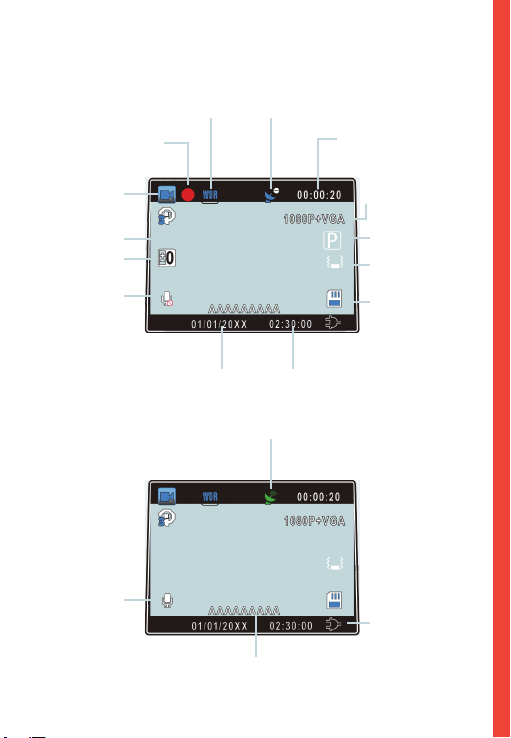
Bildschirmsymb
GPS Signal (nicht verbunden)
GPS Signal (gesperrt)
Schleifenaufnahme
Zeit (current clip)
Video Auösung
Park-Modus (ein)
G-Sensor
Sensibilitätsstufe
Speicherkarte
(eingesteckt)
Batterie Laden
WDR-Modus (ein)
Aufnahme (ein)
Aufnahme
Standby- Status
Schleifenaufnahme
Zeit
Belichtungswert
MIC (Aus)
MIC (Aus)
Aktuelles Datum
(TT/MM/JJJJ)
Zeit
(24 Std)
Plattennummer
88
4. Installation
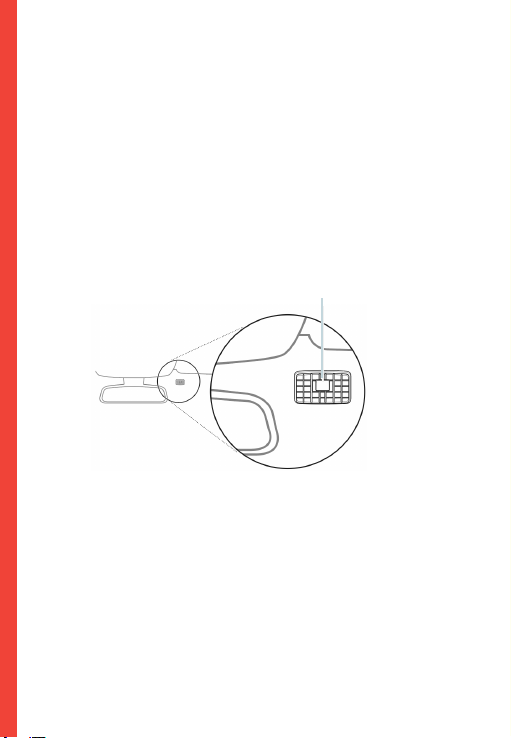
Schritt 1: Installation der Dash-Cam
Legen Sie das 3M-Band auf die Halterung und richten Sie
die Halterung rechtwinklig zur Dach- und Motorhaubenlinie
des Fahrzeugs aus. Wichtig! Stellen Sie sicher, dass die
T-Verriegelung auf der Halterung in die richtige Richtung
ausgerichtet ist.
Drücken Sie die Halterung fest auf die Windschutzscheibe.
Warten Sie mindestens 20 Minuten, bevor Sie die
Kamera montieren.
Richten Sie die Halterung so aus
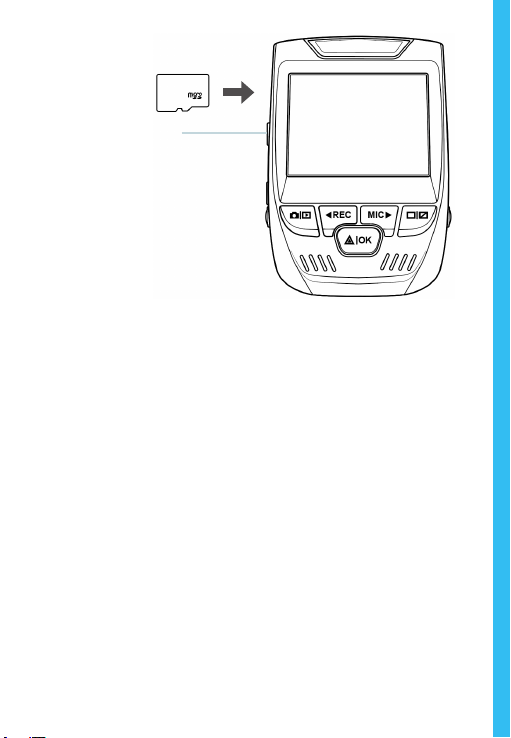
Schritt 2: Speicherkarte einstecken
Der Rexing VIP akzeptiert [Klasse 10/ UHS-1 oder höher] Micro
SD-Speicherkarten bis zu 256 GB. Sie müssen eine Speicherkarte
einstecken, bevor Sie mit der Aufnahme beginnen können.
Bevor Sie eine Speicherkarte einstecken oder entfernen,
stellen Sie sicher, dass das Gerät ausgeschaltet ist.
Stecken Sie die Speicherkarte vorsichtig ein, bis Sie ein Klicken
hören, und lassen Sie den Druckmechanismus die Karte
herausschieben.
89
Richten Sie die Halterung so aus
Schritt 3: Kamera einschalten und Speicherkarte
formatieren
Schließen Sie das Ladegerät an den Zigarettenanzünder
des Autos und die Kamera an, um die Kamera mit Strom zu
versorgen.
Um sicherzustellen, dass die VIP-Aufzeichnungen korrekt
und fehlerfrei auf Ihre Speicherkarte aufzeichnet. Bevor Sie
eine neue Speicherkarte verwenden können, müssen Sie
die Karte in der Kamera mit der Formatierungsfunktion
formatieren. Sichern Sie wichtige Daten, die auf der
Speicherkarte gespeichert sind, immer vor dem Formatieren.
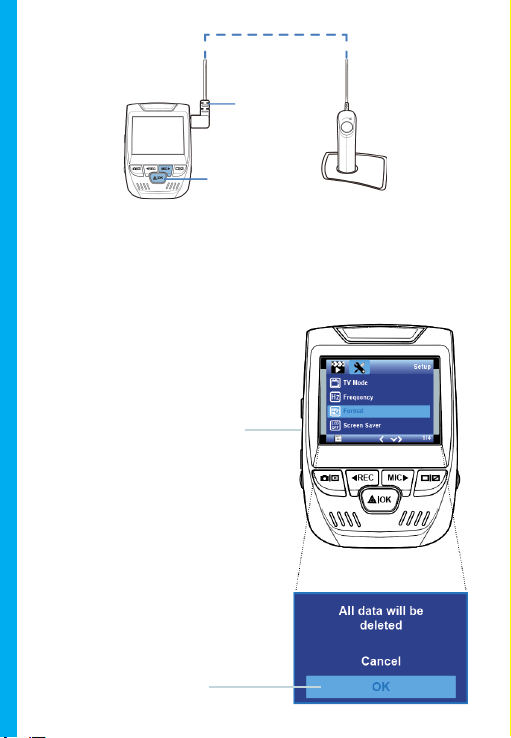
Um die Speicherkarte zu formatieren, vergewissern Sie sich,
dass Sie Ihre Speicherkarte eingesteckt haben, und schalten
Sie dann das Gerät ein, indem Sie es an eine Stromquelle
anschließen. Drücken Sie REC, um die Aufnahme zu beenden.
Drücken Sie dann zweimal die MENÜ-Taste, um das System-
Setup-Menü aufzurufen. Benutzen Sie die Tasten REC und MIC
und gehen Sie zur Einstellung „Formatieren“. Drücken Sie die
OK-Taste, um die Auswahl zu bestätigen.
Drücken Sie die Ein/
Aus-Taste, um das Gerät
auszuschalten
90
Drücken Sie die Menü-
Taste zweimal
Drücken Sie die OK-Taste,
um das Formatieren der
Karte zu bestätigen.
Mini-USB an
die Kamera
anschließen
Blaue LED-
Leuchten zeigen
an, dass das Gerät
geladen oder
eingeschaltet ist
Sie können nun die Verbindung zur Stromversorgung
trennen. Die Kamera schaltet sich nach 3 Sekunden aus. Die
Kamera sollte beim nächsten Einschalten automatisch mit
der Aufnahme beginnen.
91
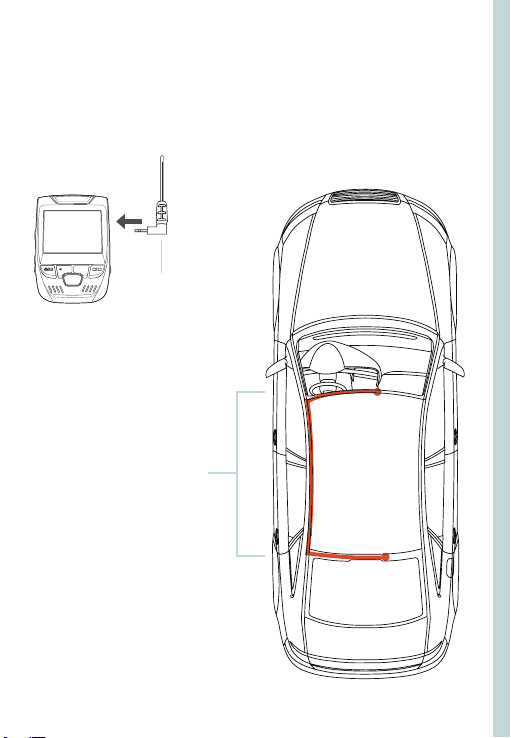
Schritt 4: Rückfahrkamera befestigen
Montieren Sie die Rückfahrkamera wie unten abgebildet.
Verwenden Sie das mitgelieferte Rückfahrkamerakabel, um die
Rückfahrkamera mit der Frontkamera zu verbinden.
Schließen Sie die
Rückfahrkamera
an die Dash -Cam
Installation der
Rückfahr- kamera
92
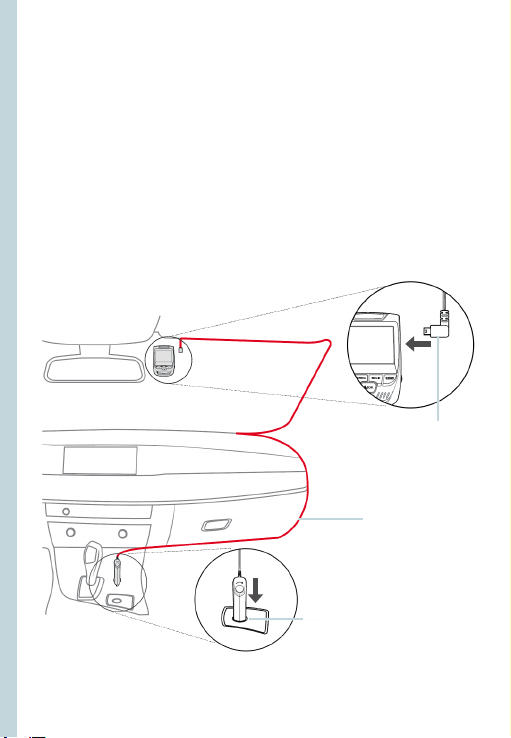
Schritt 5: Installation der Kamera auf der
Windschutzscheibe
Legen Sie die Kamera auf die Halterung und führen Sie das
Stromkabel vorsichtig um die Windschutzscheibe herum und
stecken Sie es unter die Verkleidung.
Stecken Sie das Autoladekabel in eine 12 V DC-Steckdose oder in
den Zigarettenanzünder des Autos.
Schließen Sie das Autoladegerät an die Kamera an. Die Kamera
startet die Aufnahme automatisch, sobald sie eingeschaltet
wird.
Mini-Drehstecker auf das
Dash-Cam stecken
Stromkabel in
der Dash-Cam
verlegen
Stecken Sie das Ladegerät
in die Steckdose oder in den
Zigaretten- anzünder
93
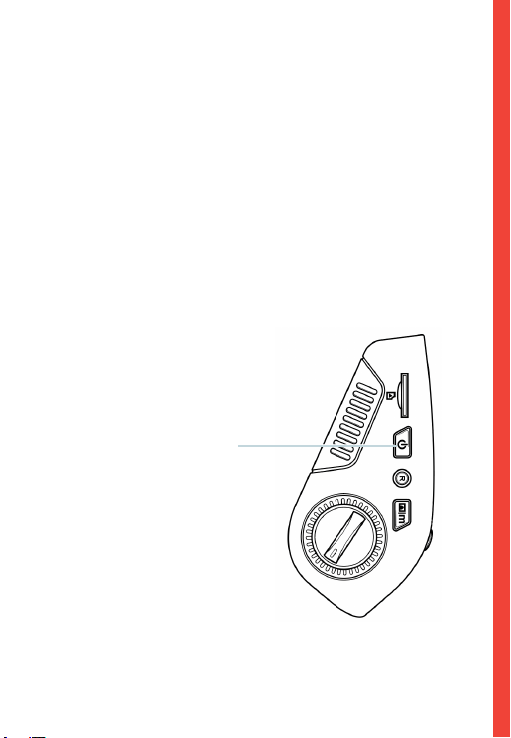
5. Grundbedienung
Gerät-Stromversorgung
Das Gerät wird automatisch eingeschaltet, wenn es an eine 12
V DC-Steckdose oder einen Zigarettenanzünder angeschlossen
und geladen wird (d.h.: das Fahrzeug wird gestartet).
Um das Gerät manuell einzuschalten, halten Sie die Ein/Aus-
Taste gedrückt, bis der Begrüßungsbildschirm erscheint.
Die Kamera beginnt automatisch mit der Aufnahme, wenn sie
eingeschaltet wird.
Halten Sie die Ein/Aus-Taste
gedrückt, um das Gerät manuell
einzuschalten.
94
Menüeinstellungen
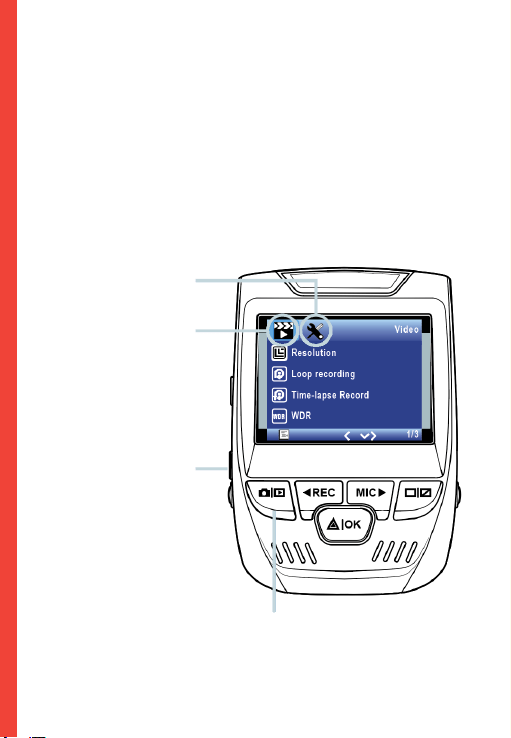
Schalten Sie die Kamera ein. Wenn die Kamera gerade
aufnimmt, drücken Sie die REC-Taste, um die Aufnahme zu
beenden. Halten Sie die MODE-Taste gedrückt und wechseln Sie
in den gewünschten Modus.
Drücken Sie die MENÜ-Taste einmal, um das Einstellungsmenü
für einen Modus aufzurufen. Drücken Sie die Menü-Taste
zweimal, um die Systemeinstellungen zu önen.
Systemsymbol
Modussymbol
Drücken Sie die Menü-
Taste, um die gewünschte
Einstellung zu wählen
Drücken Sie die Modus-Taste und
wechseln Sie in den gewünschten Modus
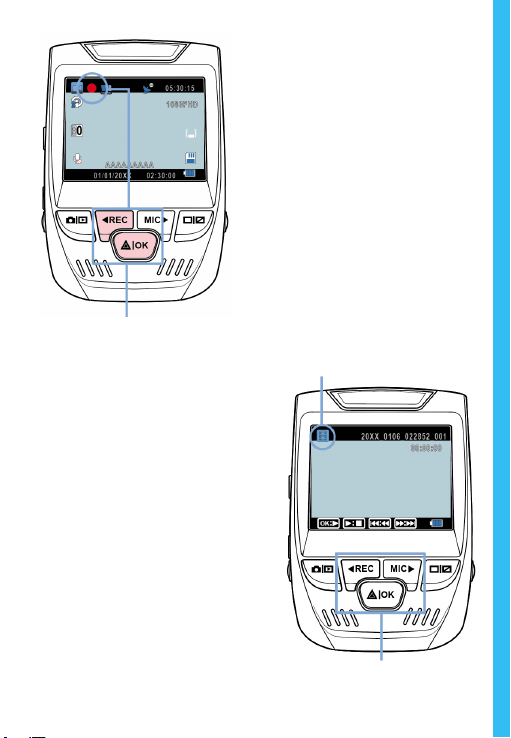
95
Videoaufnahme
Die Kamera beginnt
automatisch mit der
Aufnahme, wenn das Gerät
aufgeladen wird. Die LED
leuchtet und der rote Punkt
blinkt, wenn das Gerät
aufnimmt. Drücken Sie auf die
REC-Taste, um die Aufnahme
zu beenden.
Die Kamera startet die Aufnahme
automatisch beim Einschalten
Wiedergabemodus
Sie steuern die Wiedergabe mit
diesen Tasten
Videowiedergabe
Die Wiedergabe von Videos
kann auf dem Gerät oder einem
Computer erfolgen. Auch wenn
Sie einen Rexing GPS Logger
erworben haben, können Sie
die Aufzeichnungen in einer
speziellen Anwendung abspielen.
Um ein Video auf dem Gerät
wiederzugeben, wechseln
Sie in den Wiedergabemodus.
Verwenden Sie die Tasten REC
und MIC, um zum gewünschten
Video umzuschalten. Drücken Sie
zur Wiedergabe die OK-Taste.
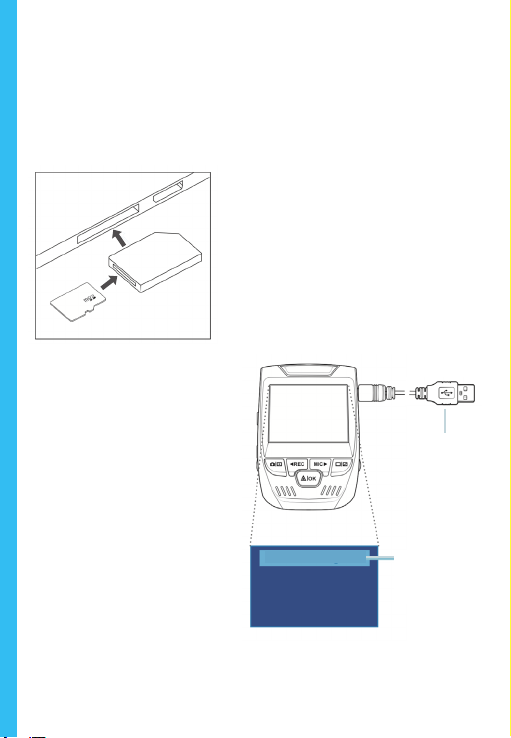
96
Verwenden Sie während der Wiedergabe die Tasten OK
(Anhalten), MIC (Vorspulen) und REC (Zurückspulen), um die
Videowiedergabe zu steuern.
Um ein Video auf dem Computer abzuspielen, verwenden Sie
entweder einen SD-Kartenadapter oder schließen Sie das Gerät
mit dem USB-Kabel direkt an den Computer an.
Um ein Video mit einem
SD-Kartenadapter
wiederzugeben,
entfernen Sie
die Speicherkarte und stecken Sie
sie in einen SD-Kartenadapter ein.
Stecken Sie den Adapter in den
Computer ein.
Um ein Video über
ein USB-Kabel
wiederzugeben,
schließen Sie das USB-
Kabel an das Gerät und den
Computer an. Nachdem
das Gerät eingeschaltet ist,
drücken Sie die OK-Taste,
um Massenspeicher zu
wählen.
Navigieren Sie auf dem
Computer zum Laufwerk
des Geräts. Die Videos
werden gespeichert unter:
\CARDV\MOVIE. Wählen Sie
das abzuspielende Video
aus.
Verbinden
Sie den USB
Stecker mit
dem
Wählen Sie
Massenspeicher
PC-Kamera
Massenspeicher
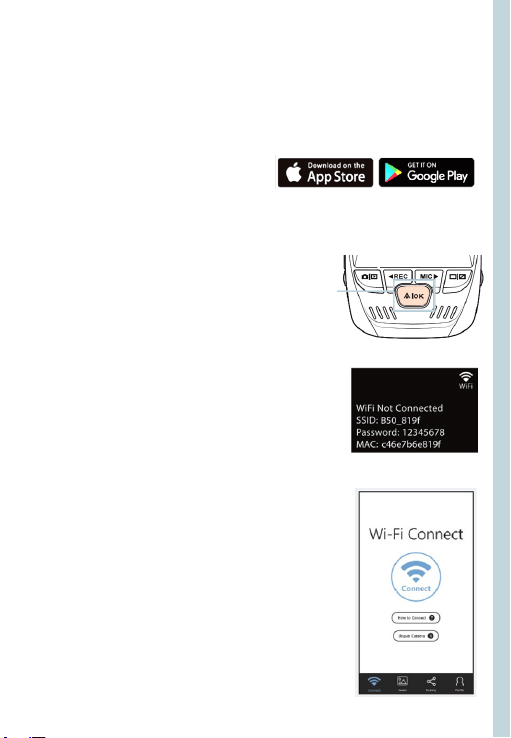
97
Park-monitor
Schließen Sie die Dash-Cam an das Smart Hardwire-Kit an, um
die Parkmonitor-Funktion zu aktivieren (das Smart Hardwire-Kit
muss separat erworben werden). Bitte besuchen Sie support.
rexingusa.com, um ein Video-Tutorial anzusehen.
Wi-Fi Verbindung
Laden Sie die „Rexing Connect“ –App aus dem App Store/
Google Play Store herunter.
1. Um auf die Wi-Fi-Funktion
zuzugreifen oder sie zu beenden,
halten Sie REC gedrückt.
2. Önen Sie die Wi-Fi-Einstellungen auf
Ihrem Telefon, suchen Sie „SSID: B50_
XXXX“ aus der Liste und tippen Sie auf,
um eine Verbindung herzustellen.
(Standardkennwort: 12345678)
3. Önen Sie die Rexing Connect-App,
tippen Sie auf „Verbinden“, um die
Seite für das Echtzeit-Videostreaming
aufzurufen.
4. Sobald die Verbindung hergestellt ist,
wechselt der Bildschirm der Dash-
Cam in die Kameraansicht und zeigt
die Meldung „Wi-Fi Connect“ an.
Mit der Rexing Connect App können Sie
sich eine Live-Vorschau des Dash-Cam-
Bildschirms ansehen, die Aufnahme starten
/ stoppen sowie Ihre Aufnahmen mit Ihrem
mobilen Gerät ansehen und speichern.
Weitere Anweisungen zur Wi-Fi-Connect-
Funktion besuchen Sie bitte www.rexingusa.
com/wi-connect/.
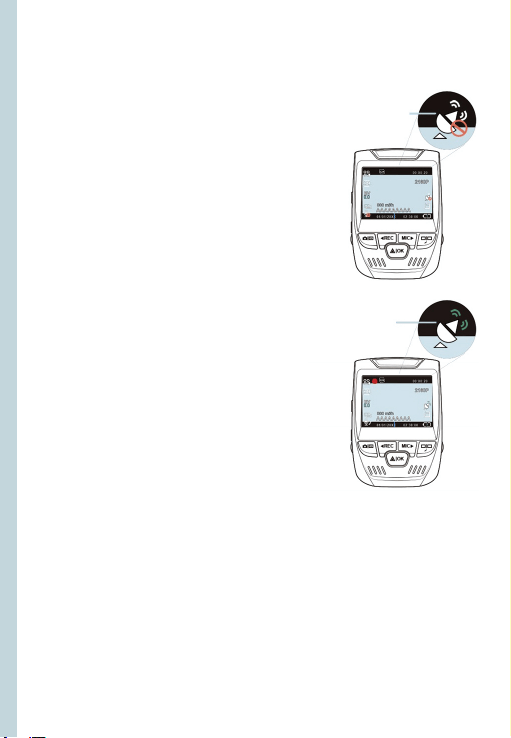
98
GPS-Logger
(Muss separat gekauft werden)
Wenn die Kamera angeschlossen
ist, zeichnet sie während der Fahrt
die Geschwindigkeit und den
Standort Ihres Fahrzeugs auf.
Sie können dann auf diese
Informationen zugreifen, während
Sie Ihre Aufzeichnungen mit dem
GPS-Video-Player wiedergeben (für
Windows und Mac, verfügbar unter
rexingusa.com).
Drücken Sie zweimal die
MENÜ-Taste und rufen Sie die
Systemeinstellungen auf.
Wechseln Sie zur Einstellung der
GPS-Geschwindigkeitseinheit
und wählen Sie Ihre bevorzugte
Geschwindigkeitseinheit aus.
Nachdem ein GPS-Signal
gefunden wurde, wechselt das
Bildschirmsymbol von blau zu grün.
Bitte besuchen Sie gpsa.rexingusa.
com um sich ein Video-Tutorial
anzusehen.
GPS Signal
(nicht verbunden)
GPS-Funktion
(Aktiviert)
99
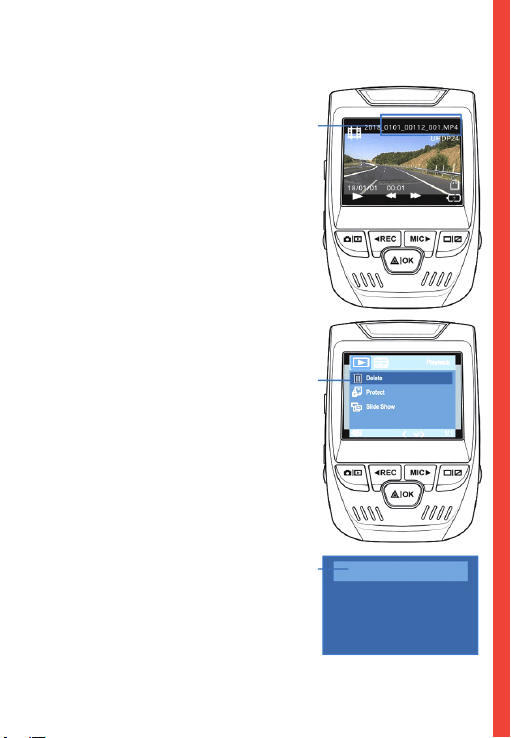
Fotos aufnehmen
Um ein Foto aufzunehmen,
stoppen Sie die Videoaufnahme
und wechseln Sie in den
Fotomodus.
Drücken Sie die OK-Taste,
um ein Foto zu machen.
Um ein Foto anzusehen,
stoppen Sie die Videoaufnahme
und wechseln Sie in den
Wiedergabemodus.
Drücken Sie die Tasten REC
und MIC, um durch Ihre
Fotos zu blättern.
Um ein Foto zu
löschen, stoppen Sie die
Videoaufnahme und wechseln
Sie in den Wiedergabemodus
und schalten Sie durch
die Videos und Fotos zu
demjenigen, das Sie löschen
möchten.
Drücken Sie die MENÜ-Taste
einmal und wechseln Sie auf
die Option Löschen.
Drücken Sie die OK-Taste
und wählen Sie „Aktuelle
löschen“ oder „Alle löschen“.
Wechseln
Sie in den
Wiedergabe
modus und
wählen Sie
ein Foto zur
Ansicht
Wechseln
Sie auf die
Option
Löschen
Wählen Sie
die
gewünschte
Option
Alle Löschen
Aktuelles Löschen

100