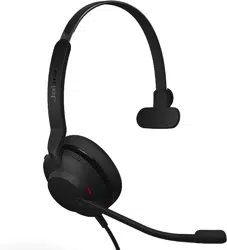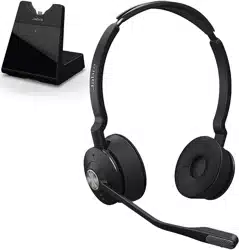

User manual
Jabra
Engage 75

2018 GN Audio A/S. All rights reserved. Jabra
®
is a trade-
mark of GN Audio A/S. The Bluetooth
®
word mark and
logos are registered trademarks owned by the Blue-
tooth SIG, Inc. and any use of such marks by GN Audio
A/S is under license.
Declaration of Conformity can be found on
www.jabra.com/CP/US/declarations-of-conformity
Made in China
MODEL: WHB051BS
WHB050HS

1. Welcome ........................................5
2. What’s in the box ......................... 6
2.1 Stereo variant
2.2 Mono variant
2.3 Convertible variant
3. How to wear ..................................9
3.1 Stereo/Mono headset
3.2 Convertible headset
3.3 How to change mono headset wearing styles
3.4 How to change the convertible headset
EarGels
3.5 How to change the convertible headset
EarHook
3.6 How to change the convertible headset
wearing style
4. How to charge ........................... 14
4.1 Connect to power
4.2 Charge the headset
4.3 Headset PowerNap
5. How to connect ......................... 17
5.1 Connect to a desk phone with a headset port
5.2 Connect to a desk phone without a headset
port
5.3 Connect to a USB desk phone
5.4 Connect to a computer
5.5 Pair to a mobile device, or mobile devices,
using Bluetooth
5.6 Pair to a mobile device using NFC

6. How to use ................................ 23
6.1 Stereo/Mono headset overview
6.2 Convertible headset overview
6.3 Base overview
6.4 Base status icons
6.5 How to change language
6.6 How to adjust the microphone volume for
desk phone calls
6.7 How to reset
7. How to make calls ................... 29
7.1 Basic call usage
7.2 Merge calls
7.3 Conference calls
7.4 Transfer a call from desk phone to headset
7.5 Transfer a call from headset to desk phone
7.6 Transfer a call from mobile device to headset
7.7 Multiple call handling
8. How to change settings .......... 39
8.1 Basic settings
8.2 Advanced settings
9. Jabra Direct ................................ 48
9.1 Firmware update
10. Support ....................................... 49
10.1 FAQ
10.2 How to care for your device
10.3 Replacement accessories

5
ENGLISH
1. Welcome
Thank you for using the Jabra Engage 75. We
hope you will enjoy it!
Jabra Engage 75 features
• Control all your devices
Desk phone, computer, mobile device
• Pick your wearing style
Earhook, neckband, headband
• World’s lightest DECT headset
Convertible headset
• Avoid disturbances
Built-in Busylight
• Use all day long
Up to 13 hours talk time (stereo/mono)
Up to 9 hours talk time (convertible)
• Take calls anywhere in the office
Up to 100 meters/325 feet range
• Secure confidential calls
DECT AES 128 bit encryption
6
ENGLISH
2. What’s in the box
The Jabra Engage 75 comes with one of three
different headset styles: stereo, mono, and
convertible.
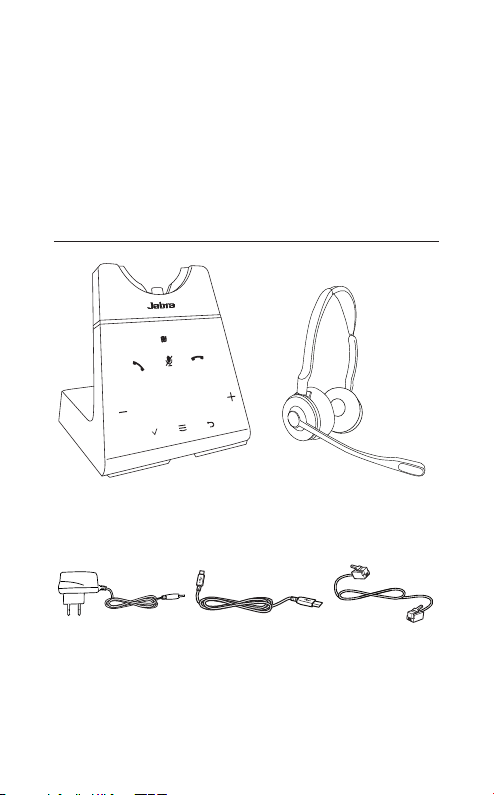
2.1 Stereo variant
Stereo
headset
Base
Micro-USB
cable
Power cable Telephone
cable
7
ENGLISH
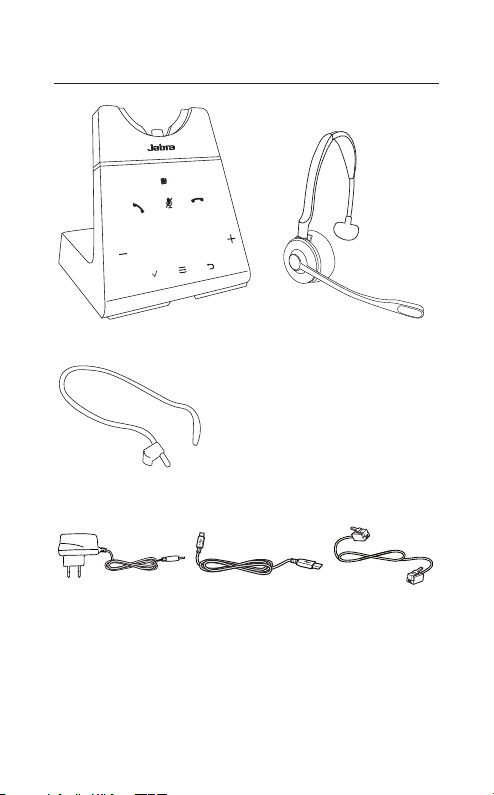
2.2 Mono variant
Mono
headset
Base
Neckband
Micro-USB
cable
Power cable Telephone
cable
8
ENGLISH
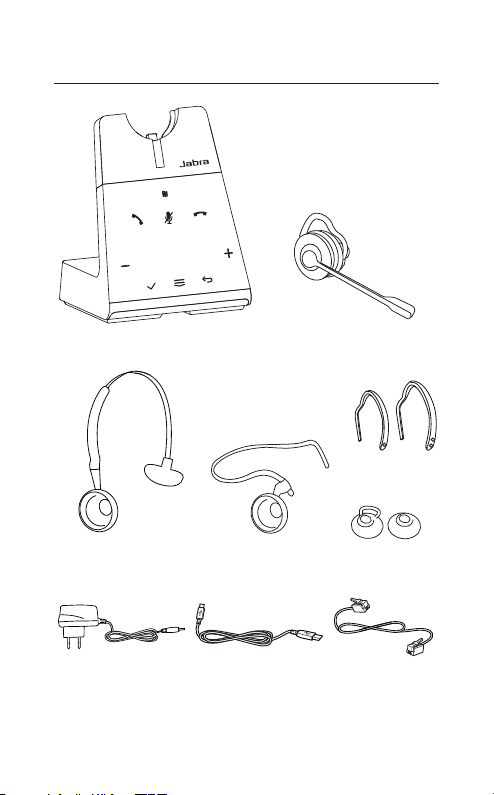
2.3 Convertible variant
Convertible
headset
Base
Headband
Neckband EarGels
(looped and normal)
EarHooks
(medium and large)
Micro-USB
cable
Power cable Telephone
cable
Note: The medium EarHook and normal EarGel are already attached to the
headset.
9
ENGLISH
3. How to wear
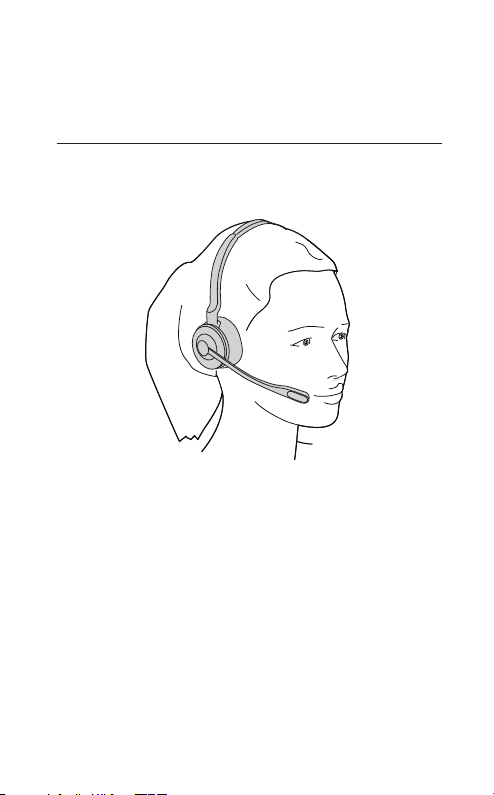
3.1 Stereo/Mono headset
The headset can be worn with the microphone
on the left or the right.
10
ENGLISH
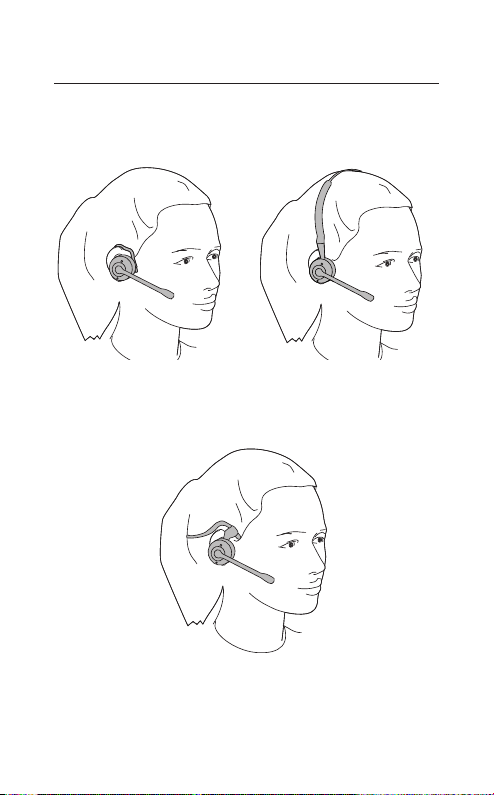
3.2 Convertible headset
The headset can be worn on the left or the
right ear.
EarHook Headband
Neckband
11
ENGLISH
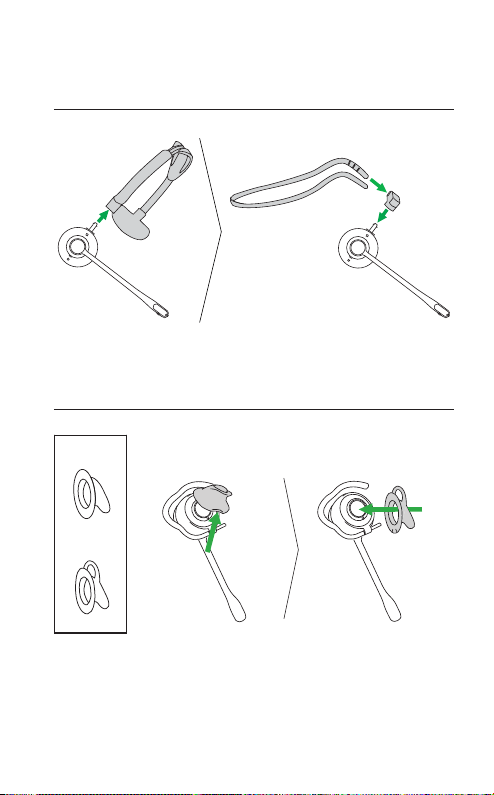
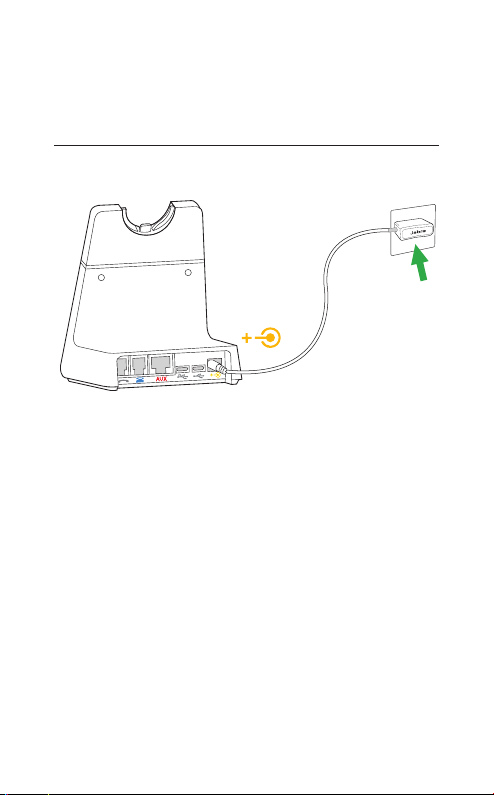
3.3 How to change mono headset
wearing styles
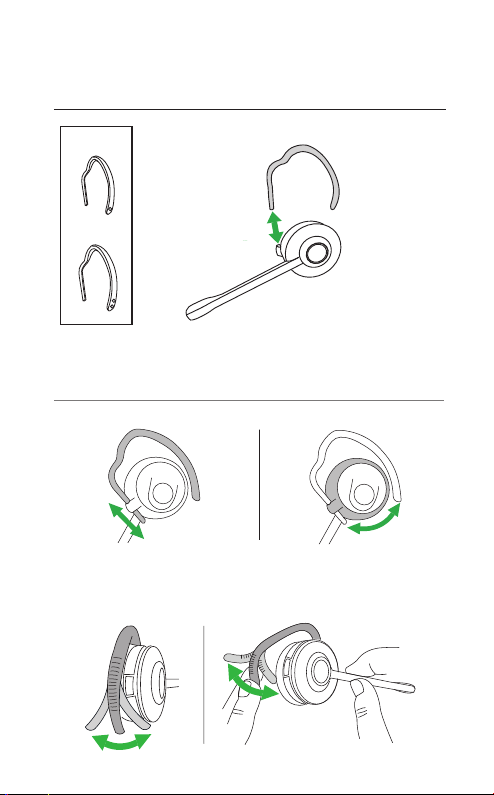
3.4 How to change the convertible
headset EarGels
Normal
Looped
12
ENGLISH
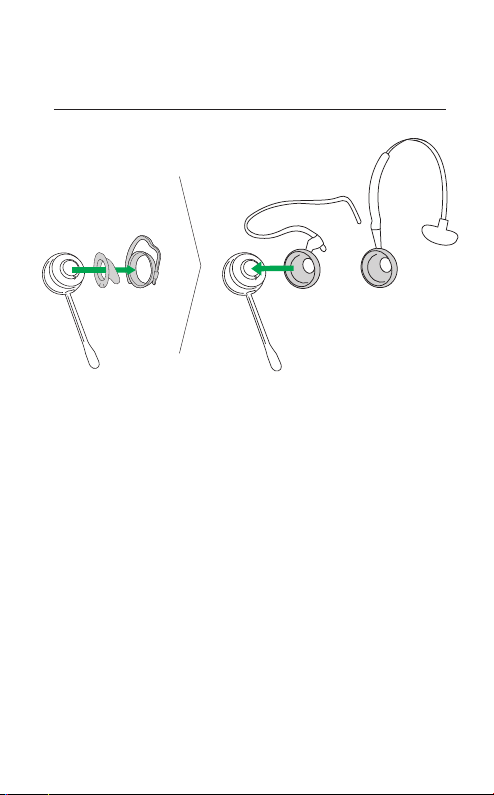
3.5 How to change the convertible
headset EarHook
Medium
Large
The EarHook with one dot is the medium size,
and the EarHook with two dots is the large.
The EarHooks are flexible, and can be bent to
suit your ear for a secure and comfortable fit.
13
ENGLISH
3.6 How to change the convertible
headset wearing style
14
ENGLISH
4. How to charge
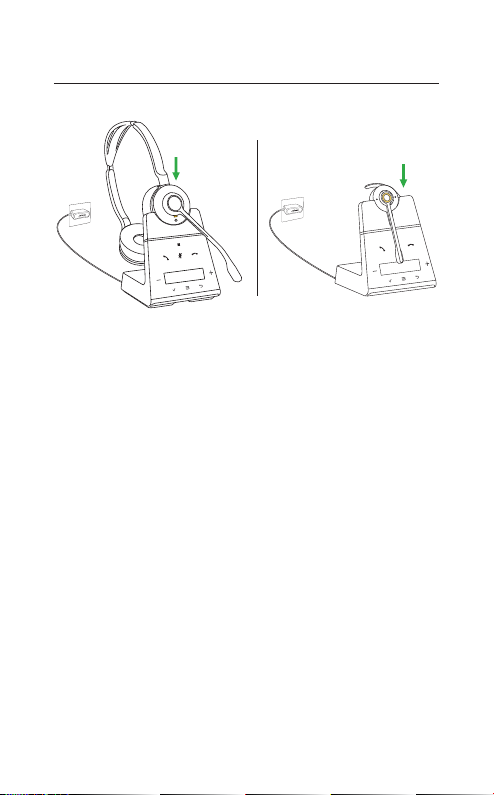
4.1 Connect to power
Plug the base into a power supply using the
supplied power cable.
It is recommended to connect the telephone or
computer cables before connecting the base to
a power supply (see Chapter 5 for more
information).
15
ENGLISH
4.2 Charge the headset
The headset will charge whenever it is docked
in a base that is connected to a power supply.
The status LED on the headset and the battery
icon on the base will pulse to indicate the
headset is charging.
The stereo/mono headsets have up to 13 hours
of battery, and the convertible headset has up
to 9 hours of battery.
All headsets take approx. 1.5 hours to fast
charge to full. 40% of the battery will charge in
approx. 30 minutes.

16
ENGLISH
4.3 Headset PowerNap
To conserve battery, the headset will
automatically power off when it has not been
docked for 30 minutes, has not been moved,
and is not in use.
To end PowerNap, either move the headset
(the headset has built-in motion sensors), press
any button on the headset, or dock the headset
in the base.
PowerNap can be permanently turned off
using Jabra Direct.
17
ENGLISH
5. How to connect
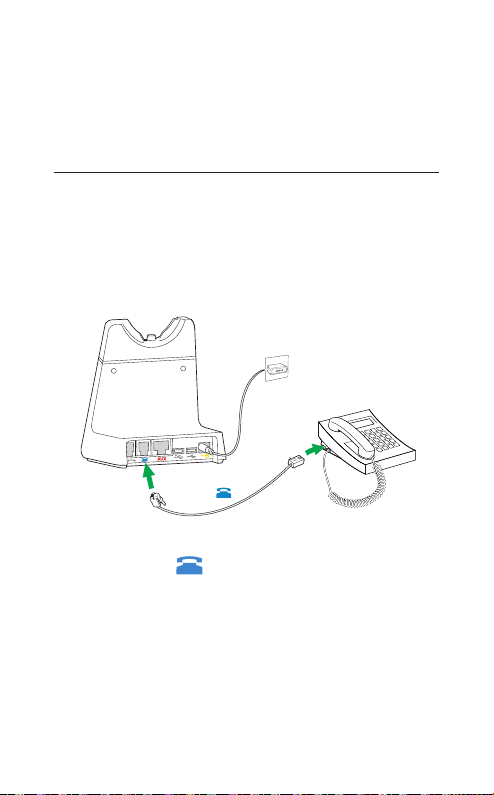
5.1 Connect to a desk phone with a
headset port
This type of desk phone has a dedicated
headset port. These phones typically have a
button on the front panel for switching
between the desk phone handset and the
headset.
1. Plug the supplied telephone cable into the
port marked on the base, and into the
headset port on the desk phone.
2. Plug the base into a power supply using the
supplied power cable.
3. Select a language on the base, and then start
the setup wizard.
Note: For more assistance for your specific desk phone,
visit www.jabra.com/compatibilityguide.
18
ENGLISH
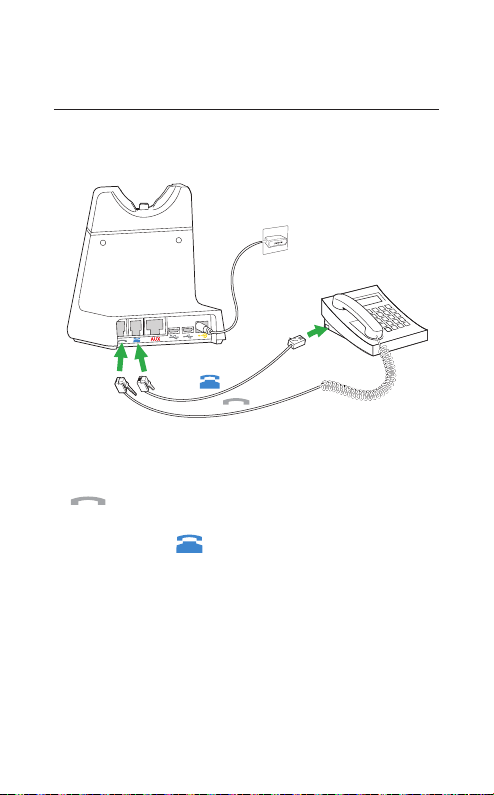
5.2 Connect to a desk phone without a
headset port
This type of desk phone does not have a
dedicated headset port.
1. Unplug the handset cable from the handset
port on the desk phone, and plug it into the
port on the base.
2. Plug the supplied telephone cable into the
port marked on the base, and into the
handset port on the desk phone.
3. Plug the base into a power supply using the
supplied power cable.
4. Select a language on the base, and then start
the setup wizard.
Note: For more assistance for your specific desk phone,
visit www.jabra.com/compatibilityguide.
19
ENGLISH
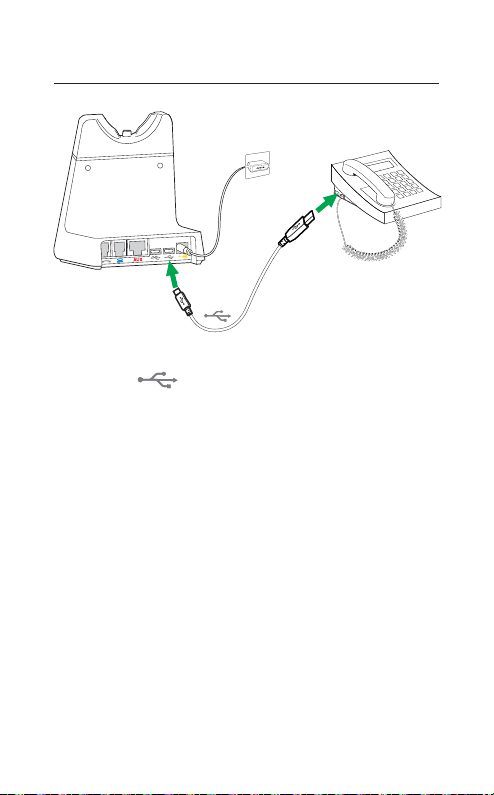
5.3 Connect to a USB desk phone
1. Plug a micro-USB cable into the port
marked on the base, and into an
available USB port on your USB desk phone.
2. Plug the base into a power supply using the
supplied power cable.
3. Select a language on the base, and do not
start the setup wizard. The base is already
configured for USB desk phones and does
not require the setup wizard.
20
ENGLISH
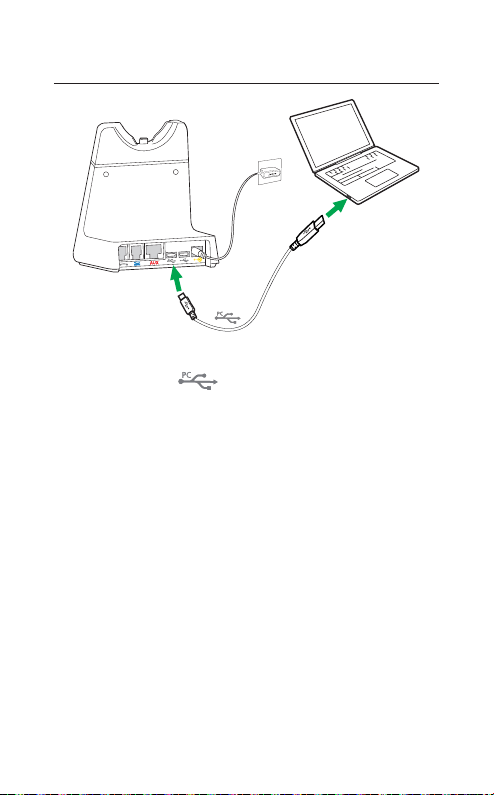
5.4 Connect to a computer
1. Plug the supplied micro-USB cable into the
port marked on the base, and into an
available USB port on your computer.
2. Plug the base into a power supply using the
supplied power cable.
3. Select a language on the base, and do not
start the setup wizard. The base is already
configured for computers and does not
require the setup wizard.
4. Ensure the Jabra Engage 75 is set as the
default playback device and recording device
in your operating system’s sound settings,
and/or your preferred softphone (e.g. Skype
for Business). It is recommended to
download and install Jabra Direct from
jabra.com/direct.
21
ENGLISH
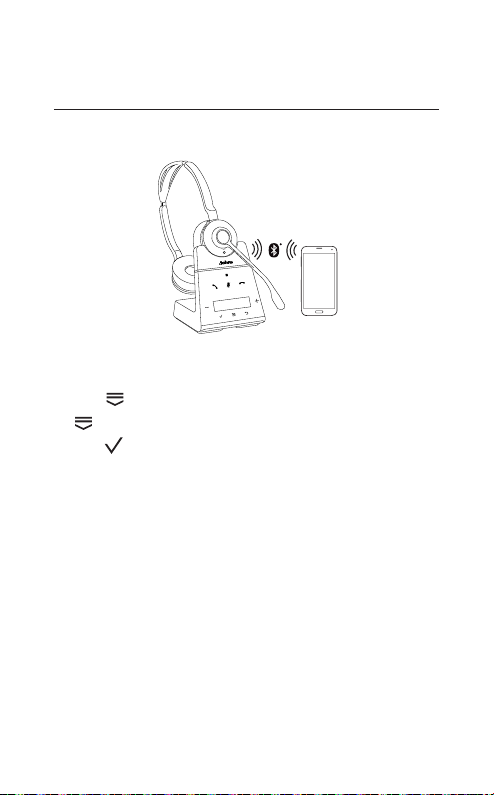
5.5 Pair to a mobile device, or mobile
devices, using Bluetooth
It is possible to pair and connect to two mobile
devices.
1. Plug the base into a power supply using the
supplied power cable.
2. Tap to open the Settings menu, and tap
to navigate down to Mobile device.
3. Tap to select New. Follow the onscreen
pairing instructions to pair your mobile
device to the headset.
After pairing, the headset and base will
automatically connect to your mobile device
whenever the mobile device is turned on, within
range of the base, and has Bluetooth enabled.
Note: Pairing to a third mobile device will replace the pairing
of one of the previously paired mobile devices, so long as
one of those mobile devices is currently not connected to
the base.
22
ENGLISH
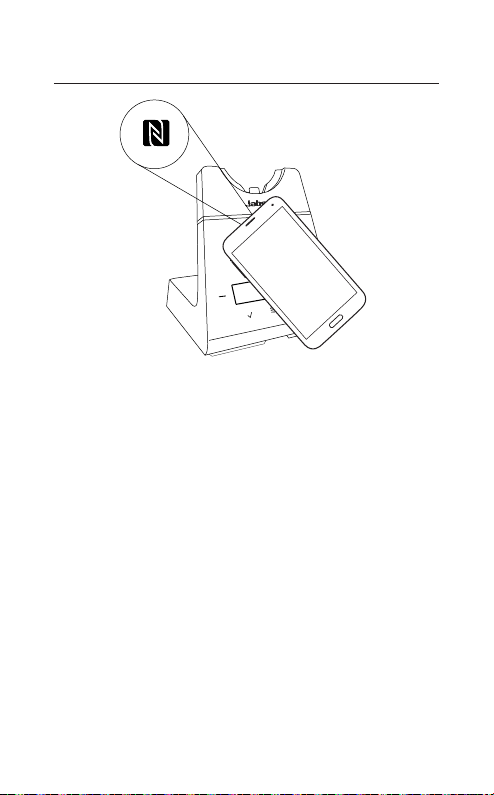
5.6 Pair to a mobile device using NFC
Yes--No
1. Plug the base into a power supply using the
supplied power cable.
2. Ensure NFC is enabled on your mobile
device.
3. Hold the mobile device against the NFC logo
on the base, and follow the instructions on
your mobile device to complete the pairing.
After pairing, the headset and base will
automatically connect to your mobile device
whenever the mobile device is turned on, within
range of the base, and has Bluetooth enabled.
Note: The specific NFC location on the mobile device may
vary. Refer to the user manual for the mobile device for
more information.
23
ENGLISH
6. How to use
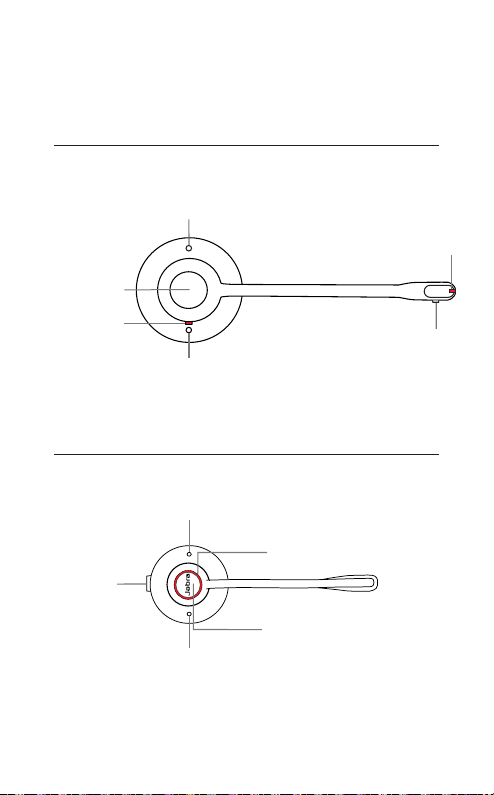
6.1 Stereo/Mono headset overview
Mute
button
Busylight
Volume
button
Volume
button
Call button
Status LED
6.2 Convertible headset overview
Status LED
Mute
button
Volume
button
Volume
button
Call button
24
ENGLISH
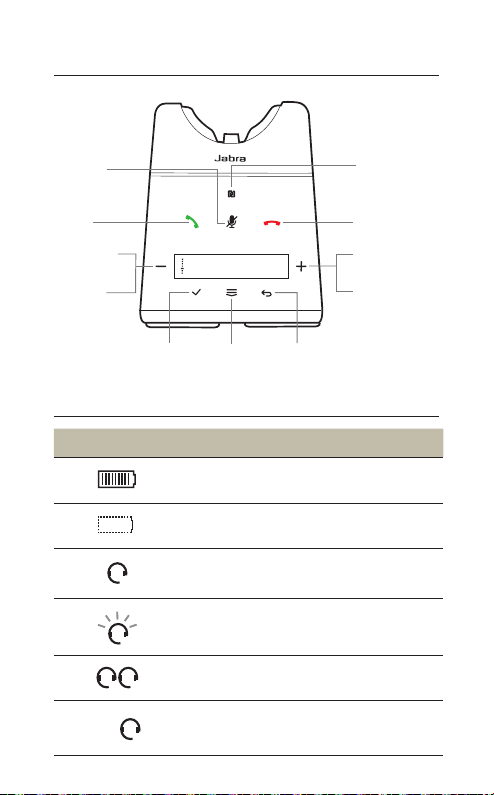
6.3 Base overview
BackMenuAccept
Menu
left
Volume
down
Answer
call
Mute NFC zone
End/reject
call
Volume
up
Menu
right
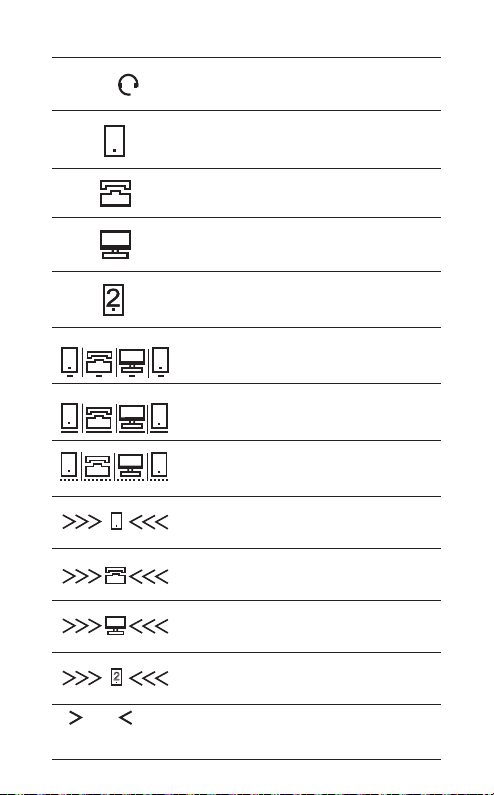
6.4 Base status icons
Icon Description
Battery status
Unknown battery status
Headset connected
(blinking) Headset not detected
Two headsets in conference mode
3x
Three headsets in conference mode
25
ENGLISH
4x
Four headsets in conference mode
Mobile device
Desk phone
Computer
Second mobile device
2
Target phone
2
Call on target phone
2
Held call
Incoming call on mobile device
Incoming call on desk phone
Incoming call on computer
2
Incoming call on second mobile device
Caller ID
Incoming call with caller id

26
ENGLISH
6.5 How to change language
Onscreen text
There are 16 available languages for the
onscreen text: English, German, French,
Chinese (simplified), Spanish, Czech, Danish,
Dutch, Finnish, Hungarian, Italian, Norwegian,
Polish, Russian, Swedish, and Turkish.
Headset voice announcements
There are 5 available languages for the headset
voice announcements: English, German,
French, Japanese, and Spanish.
To change language:
1. Tap to open the Settings menu, and tap
to navigate down to Language.
2. Tap or to switch between Text or
Voice, and then tap to confirm your
choice.
3. Tap or to cycle through the available
languages, and then tap to confirm your
choice.
Note: When choosing a voice language, if Follow text is
selected and the current text language is not one of the 5
available voice languages, the voice language will default to
English.

27
ENGLISH
6.6 How to adjust the microphone
volume for desk phone calls
To adjust the desk phone microphone volume:
1. Tap on the base to open the Settings
menu.
2. Tap or to adjust the desk phone
microphone volume, and then tap to
confirm your choice.
The microphone volume can be adjusted while
you are on a call, however the microphone
volume will reset to the default level when the
call ends.

28
ENGLISH
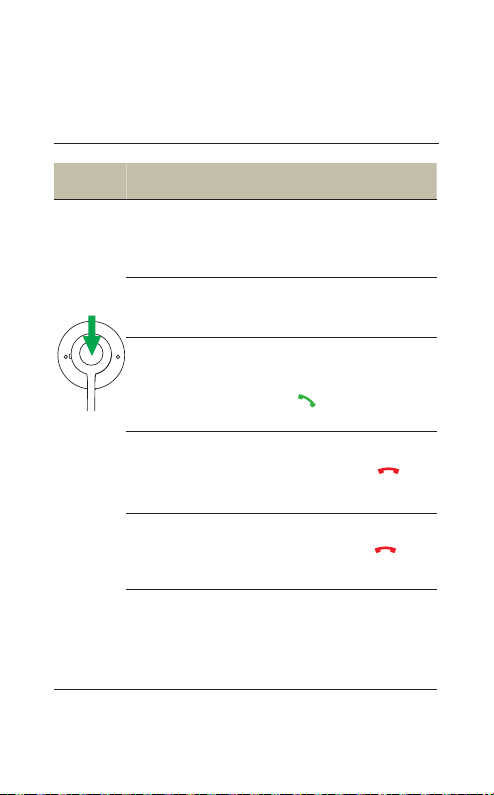
6.7 How to reset
Resetting the headset and the base clears the
list of paired devices and resets all settings.
To reset:
1. Dock the headset in the base.
2. Hold for 2 seconds to open the Advanced
settings menu.
3. Tap to select Base, and then tap to
confirm your choice.
4. Ta p to navigate down through the
settings until Reset configuration is
selected.
5. Tap to select Yes, and then tap to
confirm your choice. The headset and base
will reboot and all settings will return to
their default values.
29
ENGLISH
7. How to make calls
7.1 Basic call usage
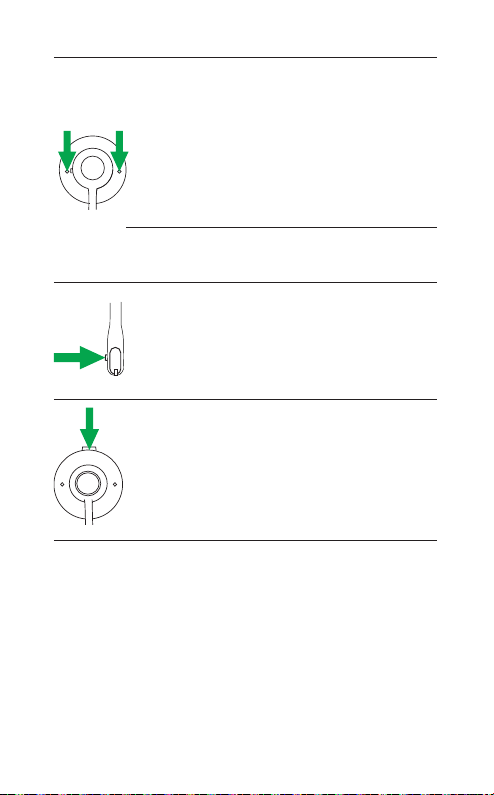
Function Action
Power on
Press the Call button on
the headset, or dock the
headset in the base
Power o
Hold the Call button for 4
seconds
Answer call
Press the Call button,
undock the headset,
or tap on the base
End call
Press the Call button, dock
the headset, or tap on
the base
Reject call
Double-press the
Call button, or tap on
the base
Switch target
phone
Undock the headset and
hold the Call button for 1
second
30
ENGLISH
Adjust volume
Press the Volume buttons.
The headset uses motion
senses to detect which
button is volume up and
which is volume down,
depending on the headset
orientation
Toggle
Busylight
Press both Volume buttons
at the same time
Mute/un-mute
microphone
Press the Mute button
(stereo/mono headset)
Mute/un-mute
microphone
Press the Mute button
(convertible headset)

31
ENGLISH
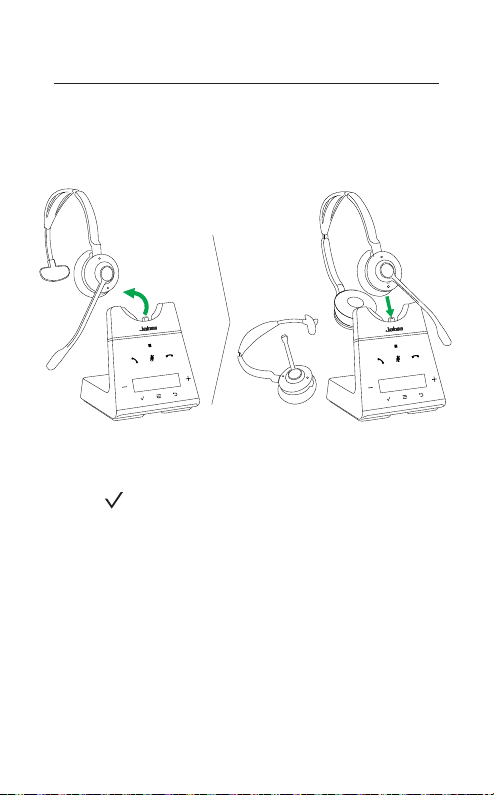
7. 2 Merge calls
It is possible to merge an incoming call with a
current call.
To merge calls:
1. Hold the Call button (2 secs) on the headset,
or tap on the base, to accept the
incoming call. This will place the current call
on hold.
2. Tap and select Yes to merge the calls.
To unmerge the calls, tap and then select
Yes to unmerge the calls.
To end the merged call, dock the headset or
press the Call button on the headset.
32
ENGLISH
7. 3 Conference calls
Add headset(s) to a conference call
Up to three additional headsets can be
connected to one base for conferencing.
Primary
headset
Primary
headset
Additional
headset
1. Undock the primary headset.
2. Dock an additional headset in the base.
3. Tap to add the headset as an additional
conference headset.
4. A voice prompt will play in the primary
headset. Press the Call button on the
primary headset to accept the additional
headset to the conference. The audio will
now be shared between headsets.
By default, the additional headset will be
muted.
Note: It is possible to use Jabra Engage 65 headsets for
conference calls.

33
ENGLISH
Add headset(s) to a conference call
without docking
Up to three additional headsets can be
connected to one base, without the need to
dock the headsets.
1. Tap on the base to open the settings
menu, and navigate to Add headset.
2. Tap to switch to Pair without docking.
3. Tap to put the base into pairing mode.
4. Power off the additional headset by holding
the Call button for 4 seconds.
5. Put the additional headset into pairing mode
by holding the Call button for 5 seconds until
the status LED on the headset flashes blue.
6. A voice prompt will play in the primary
headset. Press the Call button on the
primary headset to accept the additional
headset, to the conference. The audio will
now be shared between headsets.
By default, the additional headset will be
muted.
Note: It is possible to use Jabra Engage 65 headsets for
conference calls.

34
ENGLISH
End or leave a conference call
To end the call for all headsets, press the Call
button on the primary headset, or dock the
primary headset in the base.
Additional headsets can leave the conference
by pressing the Call button on the headset, or
by docking the additional headset in the
primary headset’s base (not the additional
headset’s base). The conference call will
continue for all other headsets.
Permanent conference mode
By default, the conference will end
automatically for all additional headsets when
the call ends.
It is possible to continue the conference with
the additional headsets until the primary
headset is docked, by changing this setting in
Jabra Direct.
35
ENGLISH
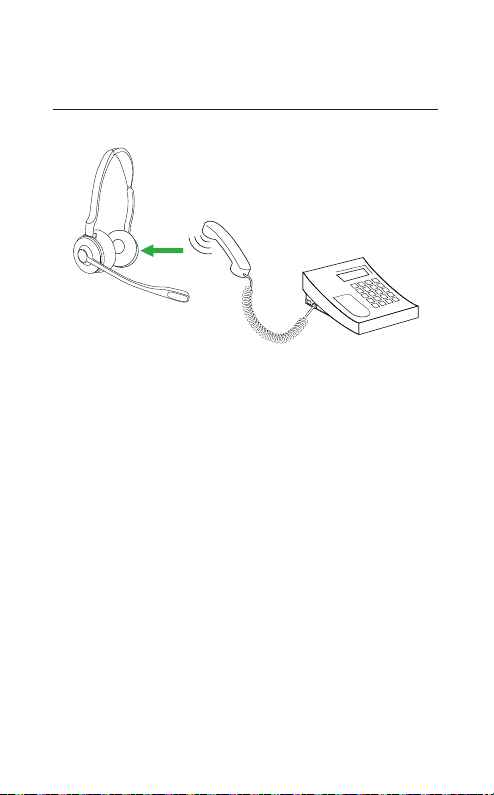
7.4 Transfer a call from desk phone to
headset
To transfer a call:
1. Select the desk phone as the target phone
on the base.
2. Lift the headset from the base, or tap the
Call button on the headset. If necessary,
press the headset button on the desk phone.
The audio will transfer from the desk phone
handset to the headset.
Do not hang up the desk phone handset until
the call is finished.
36
ENGLISH
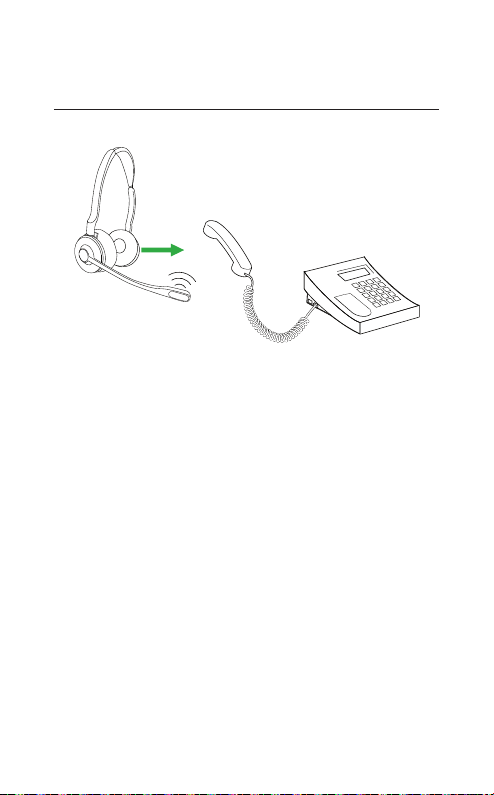
7.5 Transfer a call from headset to
desk phone
To transfer a call from the headset to a desk
phone, lift the desk phone handset and then
dock the headset in the base.
The audio will transfer from the headset to the
desk phone.
37
ENGLISH
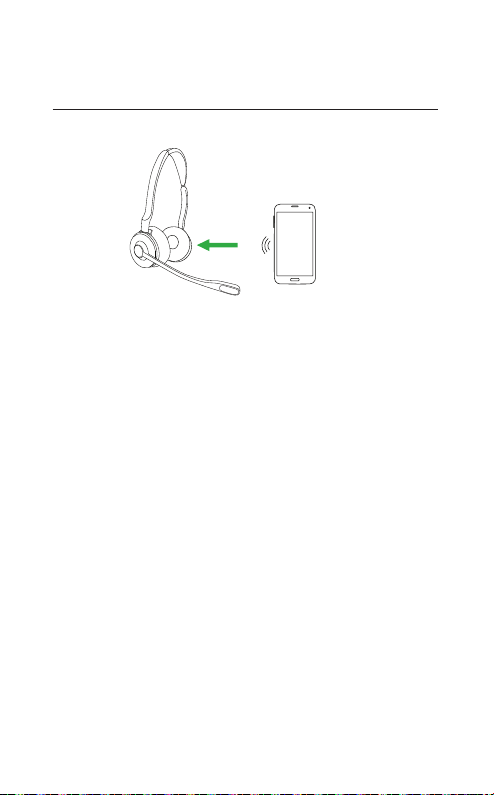
7.6 Transfer a call from mobile device
to headset
To transfer a call:
1. Select the mobile device as the target
phone on the base.
2. Lift the headset from the base, or tap the
Call button on the headset.
3. Select Yes on the base to transfer the call
audio to the headset.
Do not end the call on the mobile device until
the call is finished.

38
ENGLISH
7.7 Multiple call handling
The headset and base can accept and handle
multiple calls at the same time.
Multiple call handling
Answer incoming call and put
current call on hold
Tap on the base
Switch between held call and
active call
Tap on the base
Reject incoming call, while on a
current call
Tap on the base

39
ENGLISH
8. How to change
settings
Headset, base, phone, and general settings can
be changed on the base using the Basic settings
menu, or the Advanced settings menu.
Alternatively, all settings can be changed using
Jabra Direct on your computer. Jabra Direct
can be downloaded at jabra.com/direct.
8.1 Basic settings
Tap to access the Basic settings menu.
Desk phone microphone
Volume
controls
Tap + or - to adjust the desk phone
microphone volume
Add headset settings
How to
View instructions on how to add a new
headset to the base
Pair without
docking
Select to put the base into pairing
mode, and then view instructions on
how to pair a headset to the base
without docking the headset
Conference
Select the method to use for ending
conference calls

40
ENGLISH
Mobile device settings
New
View instructions on how to pair the
headset/base to a mobile device
Devices View a list of paired mobile devices
Disconnect
Select to disconnect all paired mobile
devices
Delete pairing Select to unpair all mobile devices
Language settings
Text
Select the screen text language from a
list of 16 languages
Voice
Select the headset voice language from
a list of 5 langauges
Ringtone settings
Desk phone
Select a ringtone and ringtone volume
for incoming desk phone calls
USB desk
phone
Select a ringtone and ringtone volume
for incoming USB desk phone calls
Softphone
Select a ringtone and ringtone volume
for incoming softphone calls
Mobile device
Select a ringtone and ringtine volume
for incoming mobile device calls

41
ENGLISH
Screen settings
Idle screen
Select what should be displayed on the
base when it is not in use
Brightness
Select the brightness of the screen and
the screensaver
Clock settings*
Hour format Select the clock format
Set Set the time
*Only available when Synchronize clock with computer is
set to Off in Jabra Direct.

42
ENGLISH
8.2 Advanced settings
Hold (2 secs) to access the Advanced
settings menu.
Headset settings
Equalizer for calls
Select an audio preference to use
for all calls
Optimize audio for
music
Select to optimize the audio for
music, or to optimize for battery
performance and reduced density
issues
Audio
announcements
Select the audio announcement
type
Audio protection
Select the level of audio
protection to be used. The headset
always provides protection against
sound spikes, ensuring that your
hearing is always protected,
regardless of the setting selected
Audio bandwidth
Select the audio bandwidth type.
Wideband provides better audio,
and narrowband provides better
battery life
Mute reminder
Select to use a periodic audio
reminder when the microphone
is muted

43
ENGLISH
Sidetone
Select the volume level used
for Sidetone. Sidetone refers to
audio from the microphone that
is reproduced in the headset,
enabling you to hear your own
voice. Sidetone does not aect the
volume level of your voice that
other people will hear
Voice language
Select the headset voice
announcement language
Busylight
Select to enable or disable the
headset busylight
Headset
conferencing
Select to enable headset
conferencing mode, allowing the
connection of multiple headsets to
the same call
Pair without docking
Select to enable pairing of a
headset without docking it
PowerNap
Select to enable sleep mode when
the headset has not been docked
for 30 minutes, and has not been
moved, and is not in use

44
ENGLISH
Base settings
Button feedback
volume
Select the volume level of the
sound made when you tap the
buttons on the base
Screen brightness
Select the brightness level of the
screen and the screensaver
Wireless signal
range
Select the wireless range between
the headset and base
Record call
Select to enable calls from mobile
devices or desk phones to be
recorded on your computer. The
supplied USB cable needs to be
connected between the base and
the computer, and third party
recording software is required
Merge call
Select to enable call merging,
allowing multiple ongoing
calls to participate in the same
conversation
Call priority
Select which call takes priority
when a second call is accepted,
without interaction on the base
(e.g. a second phone call was
accepted on the phone).
Phone for outgoing
call
Select which phone to use for
outgoing calls

45
ENGLISH
Answer call on
undock
Select to enable incoming calls
to be answered by undocking the
headset
Simultaneous ring
Select which incoming call is
displayed, if several connected
phones ring simultaneously
PowerNap
Select to enable sleep mode if the
base has been idle for 10 hours
Base name
View the base name. The base
name can be changed using Jabra
Direct
Reset configuration
Select to reset the headset and
base to their default configuration
Softphone settings
Start setup
Select Yes to open the Advanced
softphone settings menu
Tap to navigate down through
the available softphone settings
Press to accept any changes
made to the settings. The base will
reboot

46
ENGLISH
Desk phone settings
Start setup
Select Yes to open the Advanced
desk phone settings menu
Tap to navigate down through
the available desk phone settings
Press to accept any changes
made to the settings. The base will
reboot
USB desk phone settings
Start setup
Select Yes to open the Advanced
USB desk phone settings menu
Tap to navigate down through
the available USB desk phone
settings
Press to accept any changes
made to the settings The base
will reboot
Mobile device settings
Start setup
Select Yes to open the Advanced
Mobile device settings menu
Tap to navigate down through
the available mobile device
settings
Press to accept any changes
made to the settings. The base will
reboot

47
ENGLISH
Product information
Tap to navigate down through
the list of product information
48
ENGLISH
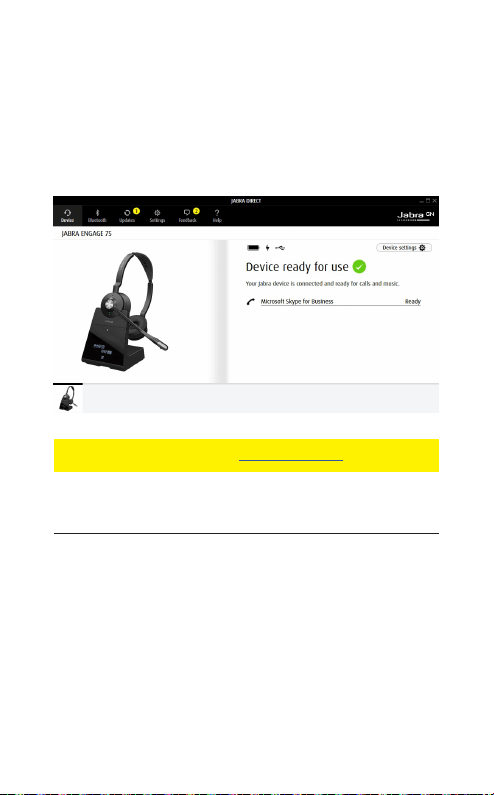
9. Jabra Direct
Jabra Direct is computer software designed to
support, manage, and enable optimal
functionality for your Jabra devices.
Download via jabra.com/direct
9.1 Firmware update
Jabra Direct will notify you when there is a
firmware update available.

49
ENGLISH
10. Support
10.1 FAQ
View the FAQs on jabra.com/engage.
10.2 How to care for your device
• It is recommended to keep the headset
between -5°C and 45°C (23°F and 113°F).
• Do not store the headset for extended
periods of time without recharging the
battery (max. three months).
• If the headset or base becomes dirty, it is
recommended to clean them with a soft,
lint-free cloth that has been dampened with
clean water.
10.3 Replacement accessories
Replacement or additional accessories can be
purchased online at jabra.com/accessories.

50
ENGLISH
REV A
jabra.com/engage75