Simply Better Living
Wi-Fi CONNECT GUIDE
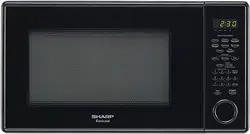
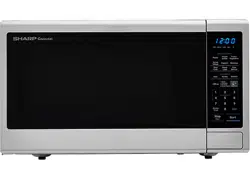
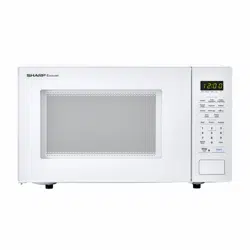
SMART COUNTERTOP MICROWAVE OVEN
MODEL SMC1139FS & SMC1449FS
HOW TO CONNECT AND PAIR YOUR APPLIANCE TO THE SHARP KITCHEN APP
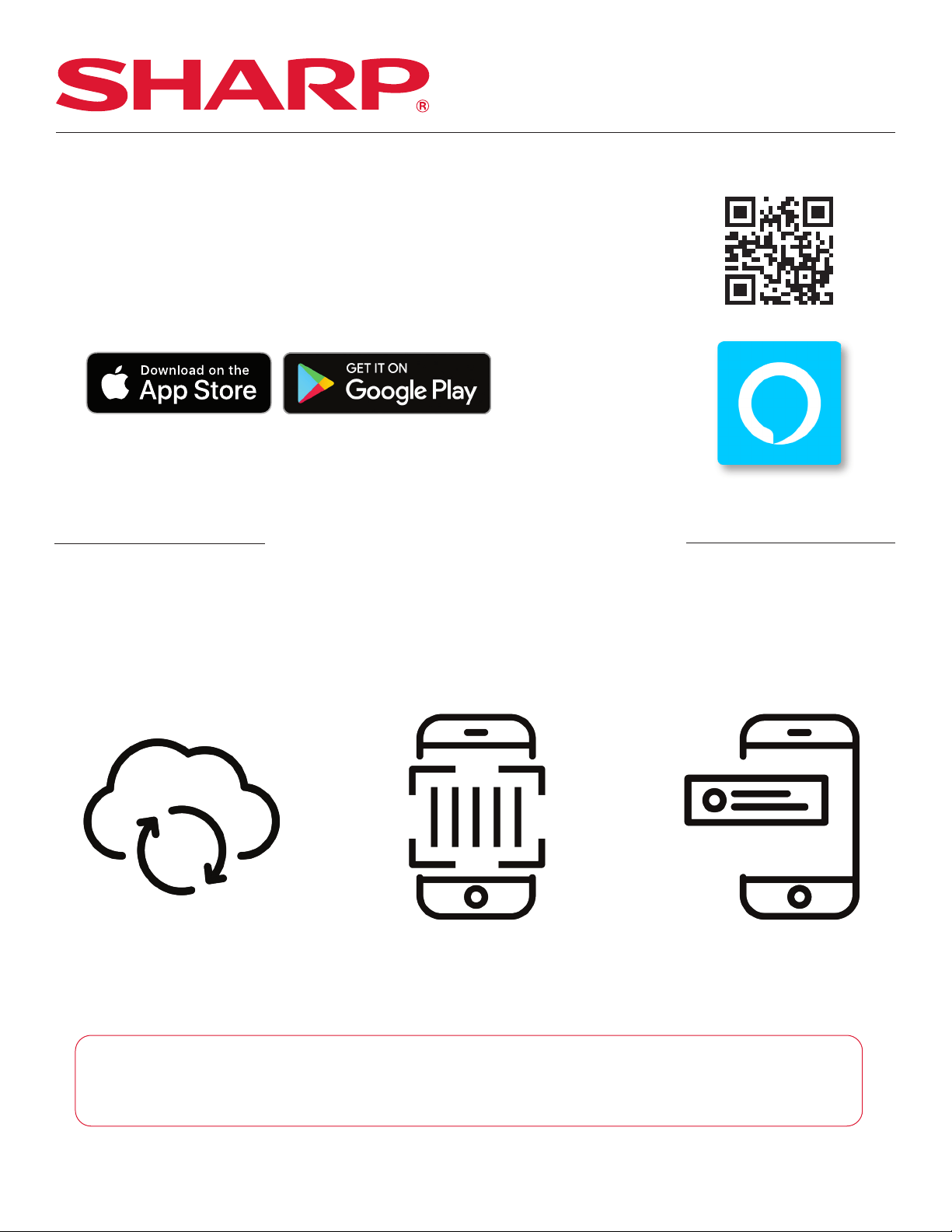
Scan this QR code or visit http://www.sharpusa.com/Support.aspx and
search for SMC1139FS or SMC1449FS on how to connect and pair your
appliance to the Amazon Alexa App.
1. GETTING STARTED
• Download the Amazon Alexa App on the App Store
®
or Google Play.
• Launch the Amazon Alexa App and sign in or create an account.
*If you already have an Amazon account, enter credentials and select [SIGN IN].
THREE WAYS TO PAIR YOUR DEVICE
ZERO TOUCH SETUP
Page 3
BARCODE SETUP
Page 4
USER GUIDED SETUP
Page 6
These pairing methods work for both the SMC1139FS and SMC1449FS. In order to begin the
process of connecting your Sharp Smart Countertop Microwave Oven to the internet please
make sure you’ve downloaded the Alexa App onto your mobile device, have created an
account, and that the Alexa App is connected to your Echo device.
Please make sure your mobile device is connected to the same network that you will use to
connect your microwave oven to the internet and please make sure your Echo device is
placed near the oven for the pairing process.
SHARP ELECTRONICS CORPORATION
2
WI-FI CONNECT GUIDE
SMC1139FS & SMC1449FS
Smart Countertop Microwave Oven
2. PAIRING YOUR APPLIANCE
• Launch the Amazon Alexa app and sign into your account. Follow the instructions below to
connect your Smart Countertop Microwave Oven to the internet, then pair your app to your
appliance.
ZERO TOUCH SETUP
BEFORE YOU BEGIN
In order to pair using the Zero Touch setup method, all pre-requisites listed below must be met. If not,
please utilize
Barcode Setup or User Guided Setup to Pair.
• You opted-in to store your Wi-Fi credentials to your Amazon account in the past. This occurs when
you previously set up another Echo family device or a Works with Alexa device.
• The microwave oven must have been ordered from the same Amazon account and while
ordering you must have opted to link the device upon purchase. If the microwave oven was
received as a gi, or the user de-selected this option upon purchase, the microwave oven will not
be linked to the end user’s Amazon/Alexa account and Zero Touch Setup will not be enabled.
Please go to the second and third pairing methods.
• The microwave oven will need to be within the Wi-Fi range of the user’s Wi-Fi network.
• The microwave oven will need to be within the wireless range of an Echo family device, which
was signed into the same Amazon account.
PAIRING PROCESS
1. Simply plug your Sharp Microwave Oven.
2. Your oven is now trying to connect to the internet.
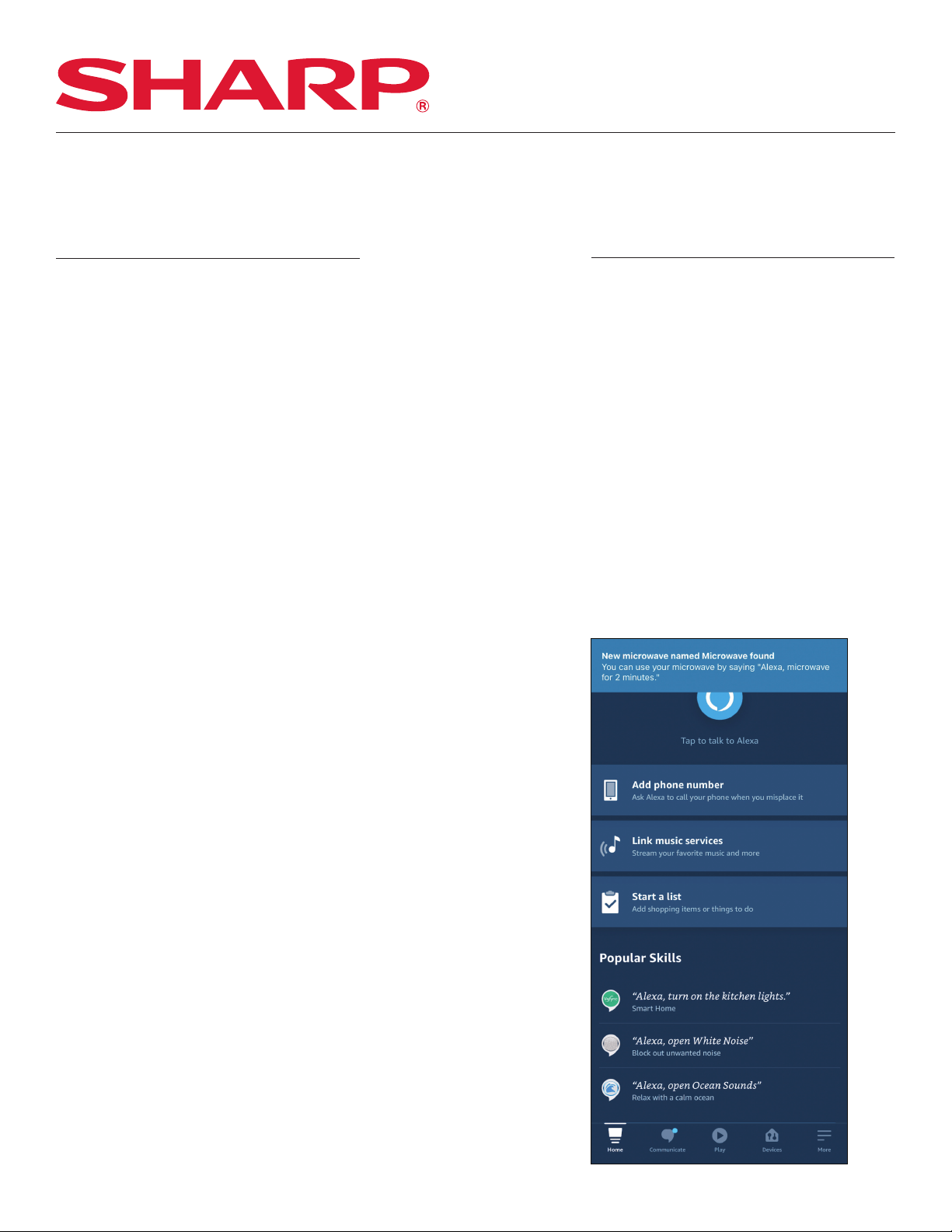
Once connected, your oven will display “Done” and
in the Alexa app, you will receive a notification stating
“New microwave named Microwave found” followed
by a Skill Tip
3. Once connected, the blinking Wi-Fi indicator light on
your oven will turn solid and your oven will automatically
display the time. Please note this can take up-to
one minute.
4. In the app select [DEVICES], refresh your screen and your
new microwave oven will be displayed.
SHARP ELECTRONICS CORPORATION
3
WI-FI CONNECT GUIDE
SMC1139FS & SMC1449FS
Smart Countertop Microwave Oven
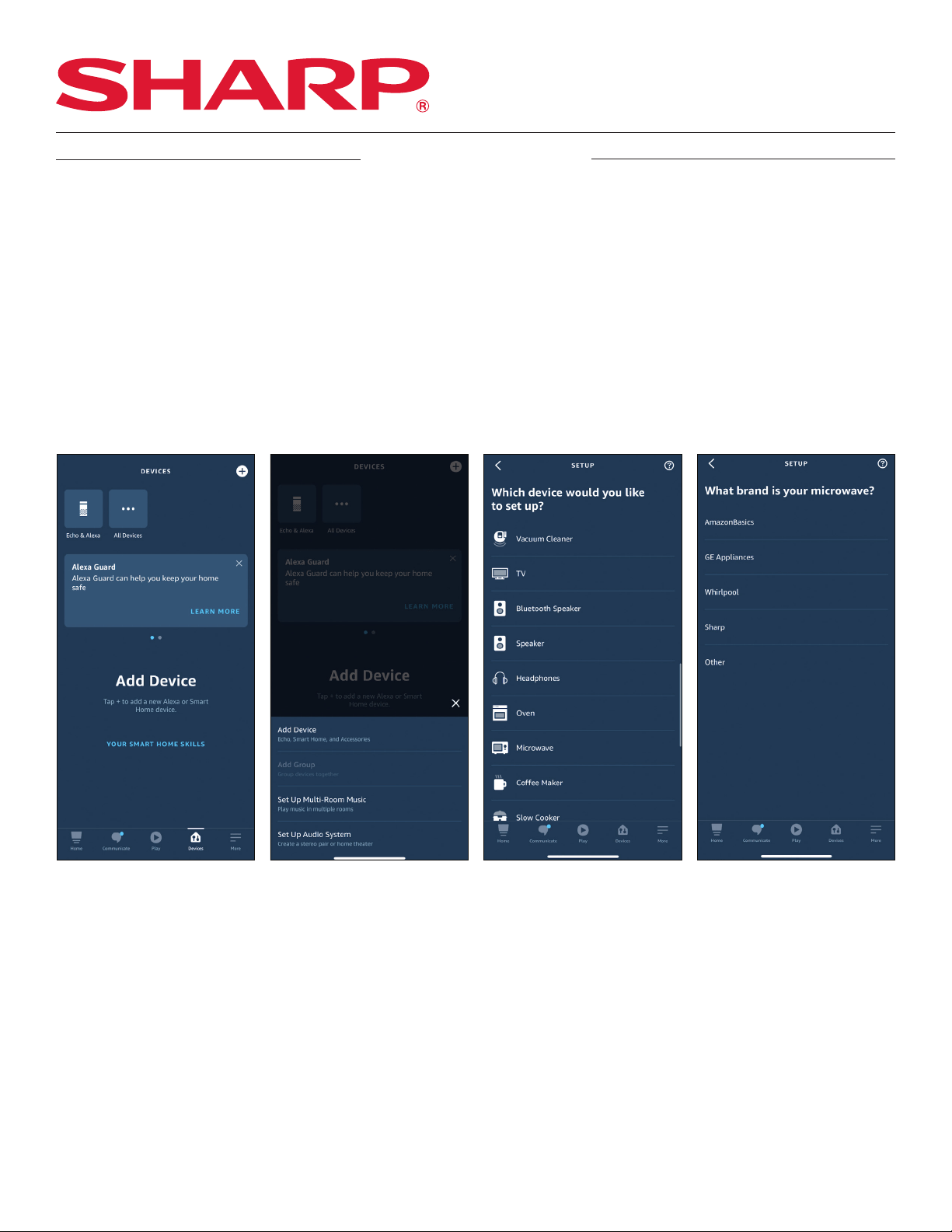
BARCODE SETUP
BEFORE YOU BEGIN
In order to connect your Sharp microwave oven to Alexa, the app will ask for permission to access
your mobile device’s Bluetooth and Camera.
PAIRING PROCESS
1. Open the Alexa app and select [DEVICES] on the bottom of your screen.
2. Press the [+] icon on the top right of your screen and select [ADD DEVICE]. This will bring you to a
screen with a list of devices to add to your Alexa app.
3. Scroll down the list and select [MICROWAVE] then select [SHARP].
4. In order to continue pairing your microwave oven select [NEXT]. By pressing [NEXT], you agree to
Amazon’s Conditions of Use. All terms can be found by clicking the link [HERE].
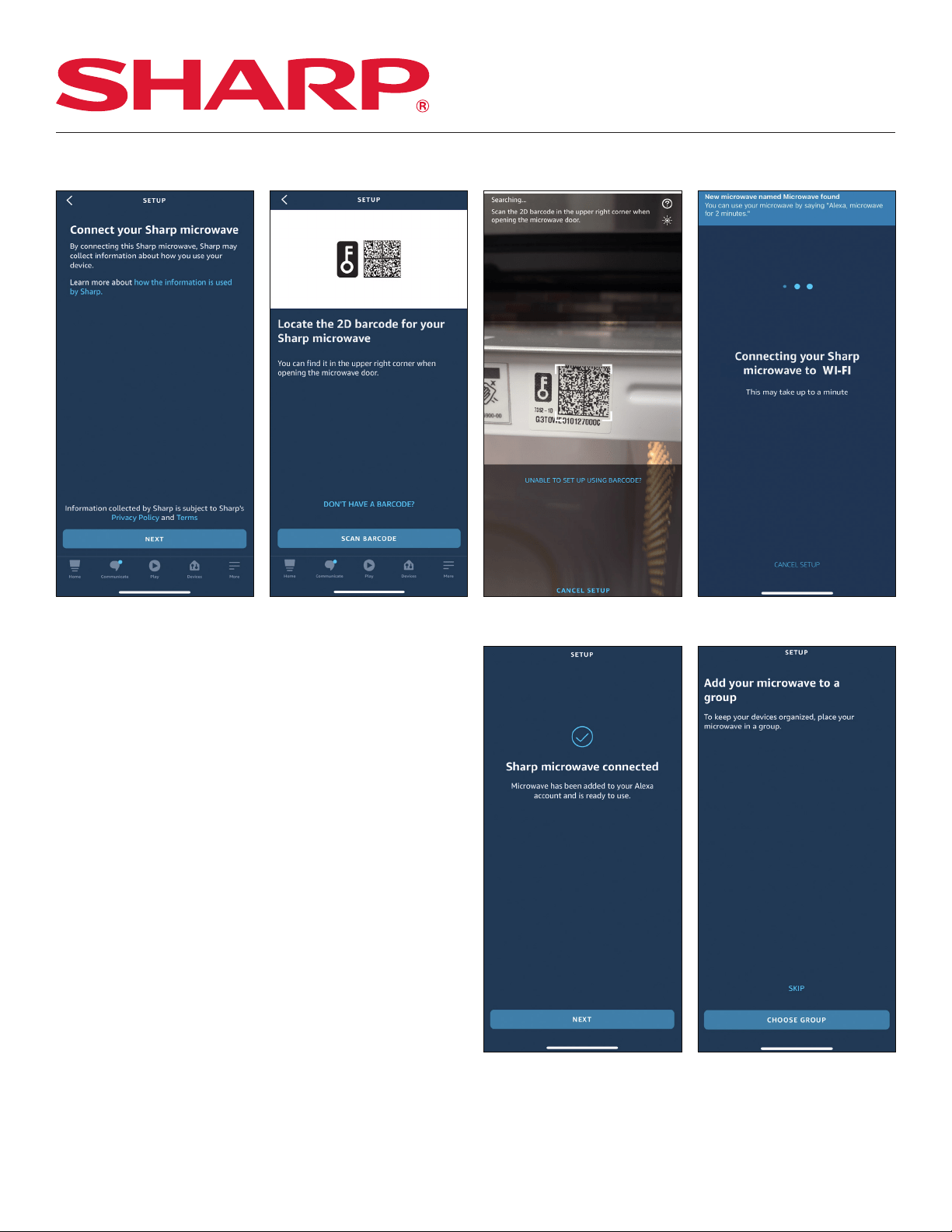
5. On your oven, locate the 2D barcode on your Sharp microwave oven. You can find the barcode
in the upper right corner when you open the microwave oven door.
6. Once you locate the barcode select [SCAN BARCODE] in your app.
7. Line up the bacode provided in your microwave oven to the highlighted frame overlaid on
the camera.
8. Once successfully scanned the Alexa app will locate your microwave oven. Your oven is now
trying to connect to the internet. Please note this can take up-to one minute.
SHARP ELECTRONICS CORPORATION
4
WI-FI CONNECT GUIDE
SMC1139FS & SMC1449FS
Smart Countertop Microwave Oven
PAIRING PROCESS CONT.
9. In the Alexa app, once your microwave
oven is connected you will receive a notifi-
cation stating that, “New microwave named
Microwave found” followed by a Skill Tip.
10. Once connected, the blinking Wi-Fi
indicator light on your oven will turn solid and
your oven will automatically display the time.
In your Alexa app select [NEXT] to continue
setting up your microwave oven.
11. You now can add your microwave oven to
a group in order to keep your devices
organized. If you do not wish to do this
select [SKIP].
12. In the app select [DEVICES], refresh your
screen and your new microwave oven will
be displayed.
SHARP ELECTRONICS CORPORATION
5
WI-FI CONNECT GUIDE
SMC1139FS & SMC1449FS
Smart Countertop Microwave Oven
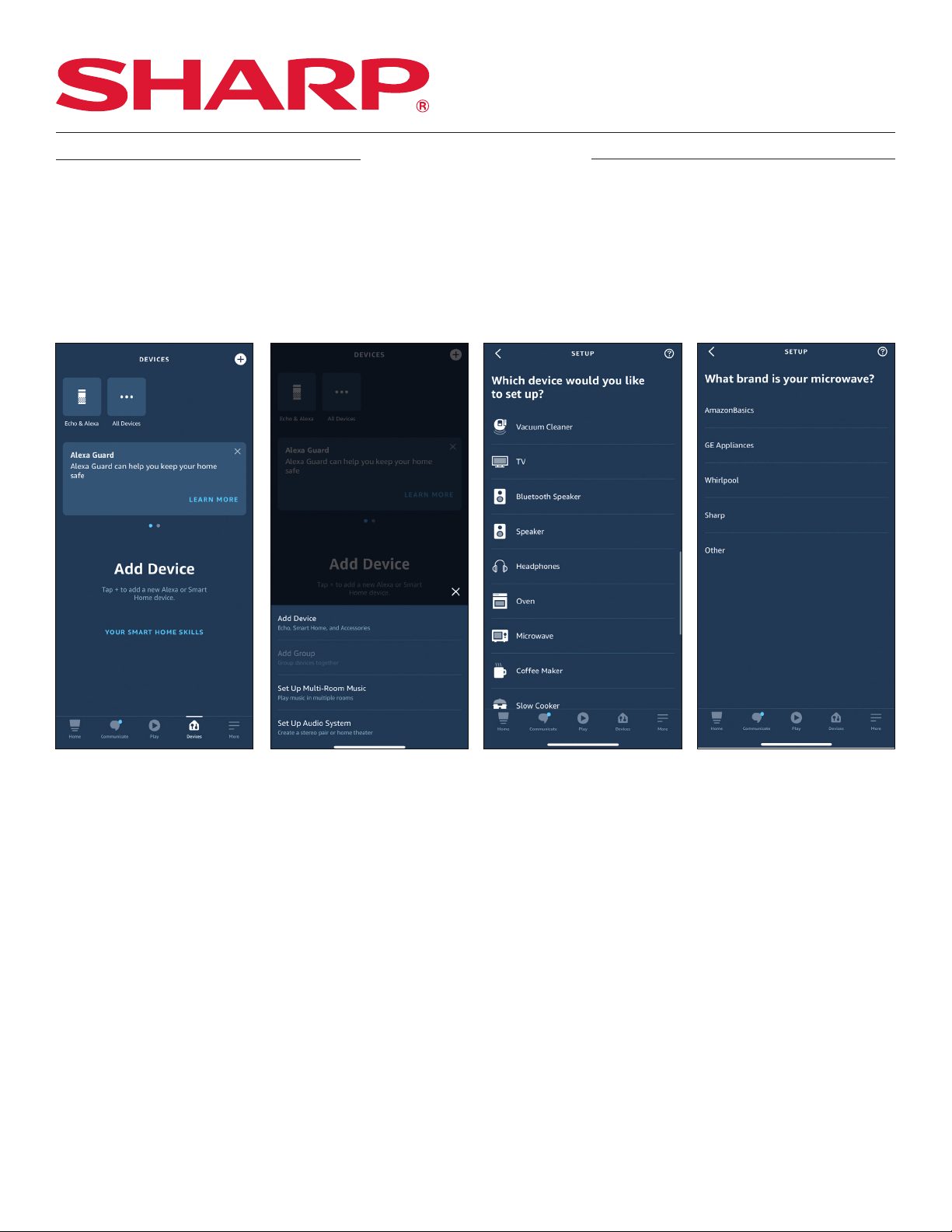
USER GUIDED SETUP
PAIRING PROCESS
1. Open the Alexa app and select [DEVICES] on the bottom of your screen.
2. Press the “+” icon on the top right of your screen and select [ADD DEVICE]. This will bring you to a
screen with a list of devices to add to your Alexa app.
3. Scroll down the list and select [MICROWAVE] then select [SHARP].
4. In order to continue pairing your microwave oven select [NEXT]. By pressing [NEXT], you agree to
Amazon’s Conditions of Use. All terms can be found by clicking the link [HERE].
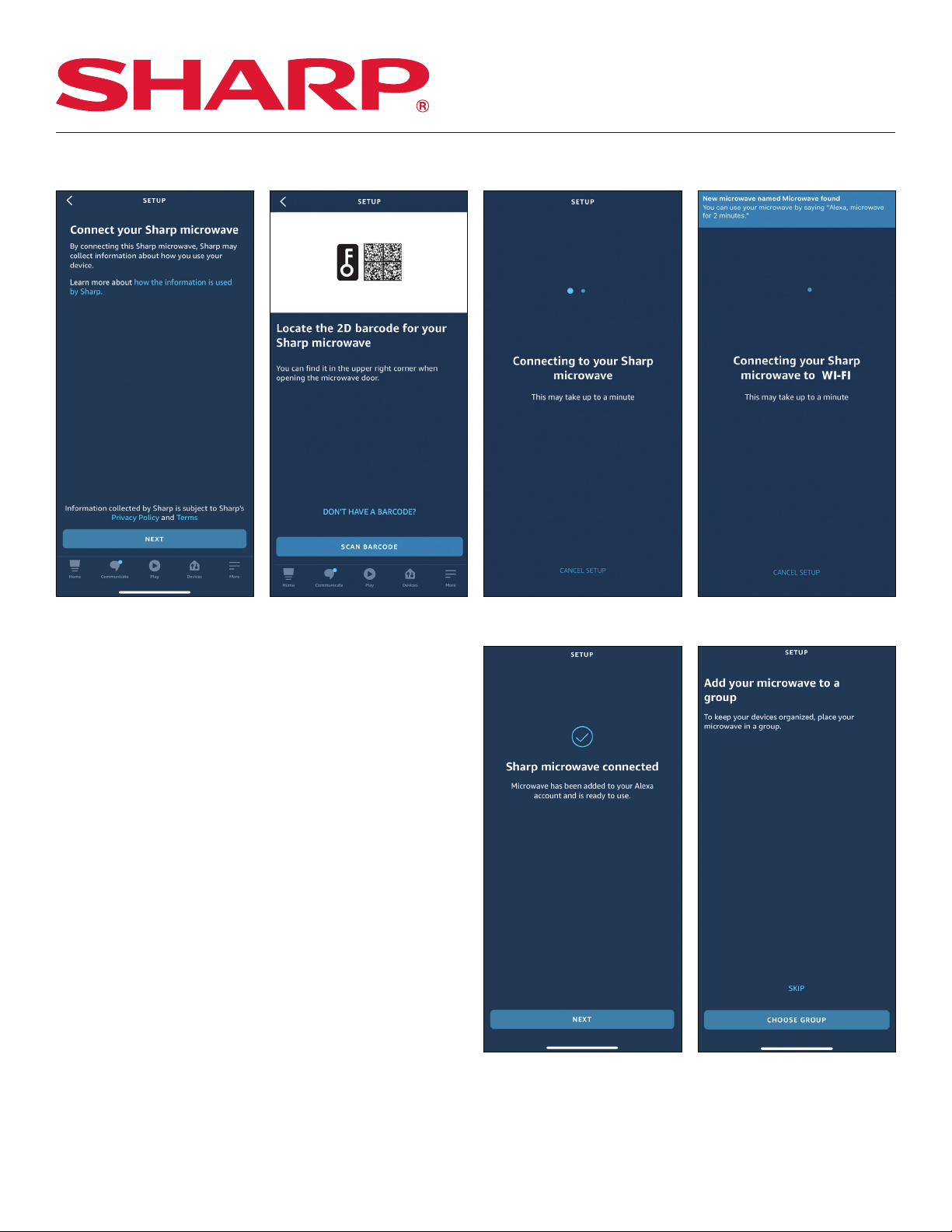
5. On the next screen select [NEXT]. By connecting your new microwave oven, Sharp may collect
information about how you use your device. Click [DON’T HAVE A BACODE].
6. Power on your oven. Press and hold the [STOP/CLEAR] button and the number [5] button together
until “UGS” is displayed and the Wi-Fi icon blinks to show the microwave is ready for setup.
7. Your microwave is now trying to connect to the internet.
SHARP ELECTRONICS CORPORATION
6
WI-FI CONNECT GUIDE
SMC1139FS & SMC1449FS
Smart Countertop Microwave Oven
PAIRING PROCESS CONT.
8. Once connected, the blinking Wi-Fi indicator
light on your oven will turn will turn solid and
your oven will automatically display the time.
In your Alexa app select [NEXT] to continue
setting up your microwave oven.
9. You now can add your microwave oven to
a group in order to keep your devices
organized. If you do not wish to do this
select [SKIP].
10. In the app select [DEVICES], refresh your
screen and your new microwave oven will
be displayed.
SHARP ELECTRONICS CORPORATION
7
WI-FI CONNECT GUIDE
SMC1139FS & SMC1449FS
Smart Countertop Microwave Oven
STILL NEED ASSISTANCE?
TROUBLESHOOTING
SHARP ELECTRONICS CORPORATION
8
See the Contact Us section on our website U.S. | www.sharpusa.com/support Contact a Sharp Advisor on the phone
CALL US
US 800-BE-SHARP
800-237-4277
Mon-Fri: 7am-7pm CST
Sat-Sun: 9am-7pm CST
EMAIL
Available 24/7
US: sharpusa.com
CHAT ONLINE
Mon-Fri: 7am-7pm CST
Sat-Sun: 9am-7pm CST
Will this microwave oven connect to a 5ghz
wireless network?
No, the microwave oven will only connect to a
2.4ghz wireless network.
I cannot connect my device to the oven.
Please confirm the following before you begin to
setup:
• Make sure you have downloaded the Alexa
App onto your mobile device and have
created an account. The App must be
connected to your Echo device before setup.
• Make sure your mobile device is connected to
the same network that you will use to connect
your microwave oven to the internet.
• Make sure your Echo device is placed near the
microwave oven for the pairing process.
My microwave oven was working with Alexa
and now it does not.
• Make sure the microwave oven’s Wi-Fi is turned
on. The Wi-Fi icon will appear on the display
when it is turned on.
• If the Wi-Fi icon is not illuminated, press the
(Wi-Fi) button one time to activate.
The Wi-Fi icon on the microwave oven display
is blinking.
Check your internet status or your home network
equipment status. Your router or modem could be
resetting itself.
How many Alexa accounts can be paired to the
microwave oven?
One Alexa account can be paired to the oven.
Alexa says “The Microwave is already running
when the cooking command was initiated.”
The microwave oven is in paused status. Press the
“STOP/CLEAR” keypad and try giving the command
again.
WI-FI CONNECT GUIDE
SMC1139FS & SMC1449FS
Smart Countertop Microwave Oven
SHARP ELECTRONICS CORPORATION
100 Paragon Drive, Montvale NJ, 07645
1.800.237.4277 • www.shop.sharpusa.com
Simply Better Living
FOLLOW @SHARPHOMEUSA
Simply Better Living
At Sharp Home Electronics Company of America, we are committed to Simply Better Living.
Our innovative home appliances are simple to use, better than the competition and encourage a
healthy lifestyle. Our Simply Better Living Blog is dedicated to simple, creative solutions for living your best life.
Every day we share tips, recipes, life-hacks and articles with our readers along with a weekly newsletter of the
latest stories you don’t want to miss. It’s all about the food you eat and the air you breathe. Welcome home.
http://sbl.sharpusa.com or http://simplybetterliving.sharpusa.com
Scan the QR code below to sign up to receive the weekly Simply Better Living newsletter.
© 2021 Sharp Electronics Corporation. All rights reserved.
Amazon, Alexa and all related logos are trademarks of Amazon.com, Inc.
and its aliates
Apple and iPhone are trademarks of Apple Inc., registered in the U.S. and
other countries.
Google Play and the Google Play logo are trademarks of Google LLC.
Android is a trademark of Google LLC.