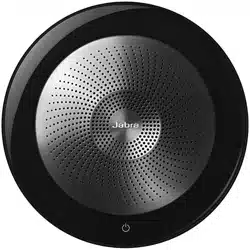
User manual
Speak 710
Jabra

© 2017 GN Audio A/S. All rights reserved. Jabra
®
is a
trademark of GN Audio A/S. The Bluetooth
®
word mark and
logos are registered trademarks owned by the Bluetooth
SIG, Inc. and any use of such marks by GN Audio A/S is under
license.
Declaration of Conformity can be found on
www.jabra.com/CP/US/declarations-of-conformity
Designed and engineered in Denmark
Made in China
MODEL: PHS040W END040W

3
ENGLISH
Jabra Speak 710
1. Welcome .........................................5
2. Overview ......................................... 6
3. Where To Position ........................7
3.1 Small Meeting Room
3.2 Large Meeting Room
3.3 Desk
3.4 Stereo Media
4. How To Charge ........................... 11
4.1 Usb Charging
4.2 Automatic Power O
4.3 Battery Status
5. How To Connect ........................ 13
5.1 Connect To Pc (Bluetooth)
5.2 Connect To Pc (Usb Cable)
5.3 Connect To Smartphone
6. How To Use ................................ 15
6.1 Button Visibility
6.2 Typical Use
6.3 Multiple Call Handling
6.4 Link Button
6.5 Smart Button
6.6 Voice Guidance
6.7 Shared Use
6.8 Factory Reset

4
ENGLISH
Jabra Speak 710
7. Software ...................................... 22
7.1 Jabra Direct
7.2 Update Firmware
8. Support ........................................ 24
8.1 Faq And Technical Specifications
8.2 How To Care For Your Jabra Device

5
ENGLISH
Jabra Speak 710
1. Welcome
Thank you for using the Jabra Speak 710.
We hope you will enjoy it!
Jabra Speak 710 features
• Immersive sound for calls and music
• Intuitive plug and play connectivity - connect
to laptop, smartphone and tablet via USB or
Bluetooth
®
• Lightweight design, protective travel pouch,
and 15 hours of battery life
• Flexible and scalable for small and large
meetings
• Interact with your voice assistant with the
one touch Smart button
• Certified for Avaya, Cisco and Skype for
Business for a plug-and-play experience

6
ENGLISH
Jabra Speak 710
2. Overview
Power on/o
Answer call
End call
Bluetooth
Link button
Volume up
Smart button
Mute
Battery status
Volume
down
jabra
USB cable Table stand
jabra
Jabra Link 370

7
ENGLISH
Jabra Speak 710
3. Where to position
3.1 Small meeting room
Position the speakerphone in the center of the
table, up to 2m/6ft from each participant. A
single Jabra Speak 710 is ideal for up to 6
people.
2m/6ft

8
ENGLISH
Jabra Speak 710
3.2 Large meeting room
For large meetings of up to 12 people in a
single room, position two Jabra Speak 710’s at
either end of the table to ensure all participants
in the meeting be heard clearly.
2m/6ft
To temporarily link the audio between two
Jabra Speak 710’s, press the Link button on
both speakerphones when they are within
2m/6ft.
jabra
jabra
max 2 m/6 ft

9
ENGLISH
Jabra Speak 710
3.3 Desk
When using the Jabra Speak 710 at your desk it
is recommended to put the speakerphone into
an upright position using the table stand. This
will better direct the audio towards you.

10
ENGLISH
Jabra Speak 710
3.4 Stereo media
If you are presenting or viewing stereo
multimedia, two Jabra Speak 710’s can be
positioned on either side of a projector or
display for automatic stereo sound.
To temporarily link the audio between two
Jabra Speak 710’s, press the Link button on
both speakerphones when they are within
2m/6ft.
jabra
jabra
max 2 m/6 ft
11
ENGLISH
Jabra Speak 710
4. How to charge
4.1 USB charging
Plug the Jabra Speak 710 into a USB power
source using the attached USB cable. The Jabra
Speak 710 battery lasts for up to 15 hours of
talk time and takes approx. 3 hours to fully
charge.
jabra
4.2 Automatic power o
To preserve battery while unplugged, the Jabra
Speak 710 will automatically power off when it
has not been connected to a bluetooth device
for 15 minutes.
If connected to a bluetooth device and
unplugged, it will automatically power off after
8 hours.

12
ENGLISH
Jabra Speak 710
4.3 Battery status
To view the current battery status, press the
Battery status button. The LEDs around the
edge of the Jabra Speak 710 will light up to
indicate the current battery status.
Medium battery
Low battery

13
ENGLISH
Jabra Speak 710
5. How to connect
5.1 Connect to PC (Bluetooth)
Plug the Jabra Link 370 into a USB port on your
PC. The Jabra Speak 710 and the Jabra Link 370
are pre-paired and ready to use out of the box.
The bluetooth range is 30m.
jabra
jabra
3 0m/100 ft
For the Jabra Speak 710 to work correctly you
may need to set the Jabra Link 370 as the
playback device in your operating system’s
audio settings.
To manually pair the Jabra Speak 710 with the
Jabra Link 370, please use Jabra Direct.

14
ENGLISH
Jabra Speak 710
5.2 Connect to PC (USB cable)
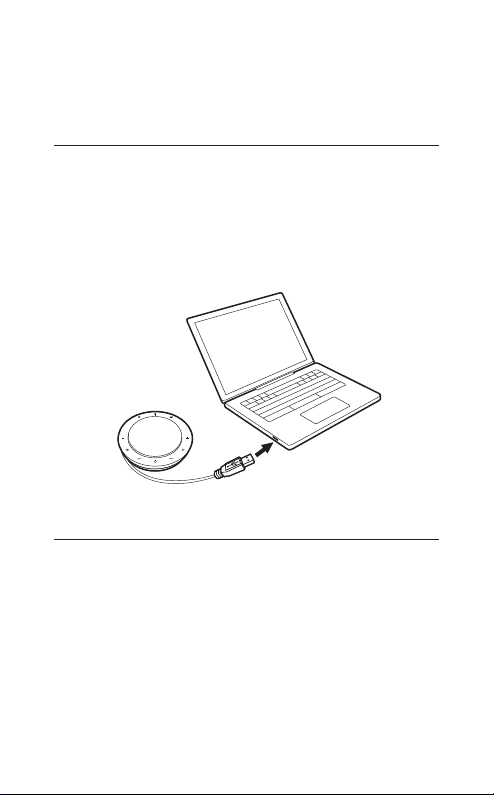
Plug the Jabra Speak 710 into a USB port on
your PC. You may need to set the Jabra Speak
710 as the playback device in your operating
system’s audio settings.
jabra
5.3 Connect to smartphone
Hold the Bluetooth button for 2 seconds and
follow the voice-guided instructions to pair to
your smartphone. The bluetooth range is 10m.
jabra
10 m/30 ft
To disconnect or reconnect, press the
Bluetooth button again.

15
ENGLISH
Jabra Speak 710
6. How to use
Power on/o
Answer call
End call
Bluetooth
Link button
Volume up
Smart button
Mute
Battery status
Volume
down
6.1 Button visibility
The buttons are backlit and only visible when
the speakerphone is powered on. After 1
minute of inactivity the buttons will fade, and
can be reactivated by tapping the area where
the buttons are located.
The Smart button, Link button, and Mute
button will only be visible under certain
conditions (e.g. the Link button is only visible
when the Jabra Speak 710 is in close promixity
to another Jabra Speak 710).

16
ENGLISH
Jabra Speak 710
6.2 Typical use
WHAT HOW
Power on or o
Hold (1 sec) the Power
button
Answer call Press the Answer call button
End or reject
call
Press the End call button
Turn on/o
voice guidance
Hold (8 secs) the End call
button
Volume up/
down
Press (or hold) the Volume
up or Volume down button
Mute/unmute
microphone
Press the Mute button
Battery status
Press the Battery status
button
Connect
Bluetooth
device
Press the Bluetooth status
button

17
ENGLISH
Jabra Speak 710
WHAT HOW
Link two Jabra
Speak 710’s
Press the Link button (only
visible when within 2m/6ft
range of another Jabra Speak
710)
Voice assistant
(Smartphones)
Press the Smart button (only
visible when connected to a
smartphone)
Speed dial
(o by default)
Press the Smart button (use
Jabra Direct to enable speed
dial)
6.3 Multiple call handling
WHAT HOW
Put current call on hold
and answer incoming call
Press the Answer
call button
Switch between held call
and active call
Press the Answer
call button
Reject incoming call, and
continue current call
Press the End call
button

18
ENGLISH
Jabra Speak 710
6.4 Link button
To temporarily link the audio between two
Jabra Speak 710’s, press the Link button on
both speakerphones when they are within
2m/6ft. The Link button will only be visible
when two Jabra Speak 710’s are within 2m/6ft.
jabra
jabra
max 2 m/6 ft
To unlink the speakerphones, press the Link
button on one of the speakerphones.
NOTE If two bluetooth devices are connected to the Jabra
Speak 710, the last connected Bluetooth device will be
replaced by the temporary link.

19
ENGLISH
Jabra Speak 710
6.5 Smart button
By default, the Smart button will activate your
smartphone’s voice assistant (Siri
®
, Google
Now™, Cortana™). However, if you would
prefer the Smart button to instead speed dial a
phone number on your Smartphone or PC, this
can be configured using Jabra Direct.
jabra
6.6 Voice guidance
The voice guidance can be turned on or off by
holding the End call button for 8 seconds.
jabra

20
ENGLISH
Jabra Speak 710
6.7 Shared use
If the Jabra Speak 710 is to be shared by many
users, it is recommended to enable Shared use
in Jabra Direct. When Shared use is enabled,
the speakerphone will not automatically
connect to a previously connected Smartphone
or Jabra Link 370.
To connect to a smartphone or Jabra Link 370,
press the Bluetooth button on the
speakerphone and follow the voice-guided
instructions.
NOTE When Shared mode is enabled, you will need to re-
pair to your smartphone or Jabra Link 370.

21
ENGLISH
Jabra Speak 710
6.8 Factory reset
Resetting the Jabra Speak 710 clears the list of
paired Bluetooth devices and also clears all
personalized settings. After a factory reset, it is
necessary to re-pair the Jabra Speak 710 to
your Bluetooth devices or Jabra Link 370.
To factory reset, hold the Answer call button
and the End call button for 8 seconds until
‘Factory reset’ is announced by the
speakerphone.
jabra

22
ENGLISH
Jabra Speak 710
7. Software
7.1 Jabra Direct
Jabra Direct is PC software designed to
support, manage and enable optimal
functionality for Jabra devices.
Download the latest version from jabra.com/direct

23
ENGLISH
Jabra Speak 710
7. 2 Update firmware
Firmware updates improve performance or
add new functionality to Jabra devices.
1. Connect the Jabra Speak 710 to a PC using
the USB cable or Jabra Link 370.
2. Install Jabra Direct on your PC.
3. Use Jabra Direct to check for the latest
firmware updates.

24
ENGLISH
Jabra Speak 710
8. Support
8.1 FAQ and technical specifications
View the FAQ, certifications, and technical
specifications at jabra.com/speak710
8.2 How to care for your Jabra device
• The Jabra Speak 710 is for indoor use only.
• Avoid storage at extreme temperatures
(above 65°C/149°F or below -40°C/-40°F).
• Do not expose the Jabra Speak 710 to rain or
other liquids.
• Do not cover the Jabra Speak 710 with
stickers or labels.

25
ENGLISH
Jabra Speak 710
REV B
www.jabra.com/speak710
