Owner’s Guide • คู่มืิอผู้ใช้ • 사용자 안내서
用户指南 • 使用者指南 • オーナーズガイド •

2 - English
Important Safety Instructions
Please read this owner’s guide carefully and save it for future reference.
Thelightningashwitharrowheadsymbolwithinanequilateraltrianglealertstheusertothepresenceofuninsulated,
dangerousvoltagewithinthesystemenclosurethatmaybeofsufcientmagnitudetoconstituteariskofelectricshock.
Theexclamationpointwithinanequilateraltrianglealertstheusertothepresenceofimportantoperatingandmaintenance
instructionsintheowner’sguide.
WARNINGS:
• Toreducetheriskofreorelectricshock,donotexposethisproducttorainormoisture.
• Donotexposethisapparatustodrippingorsplashing,anddonotplaceobjectslledwithliquids,suchasvases,onor
neartheapparatus.Aswithanyelectronicproducts,usecarenottospillliquidsintoanypartoftheproduct.Exposureto
liquidsmaycreateafailureand/orrehazard.
• ReplaceonlywithaAA(IECLR06)alkalinebattery(orbatteries).
• Donotplacenakedamesources,suchaslightedcandles,onorneartheproduct.
CAUTIONS:
• Donotmakeunauthorizedalterationstotheproduct;doingsomaycompromisesafety,regulatorycompliance,system
performance,andmayvoidthewarranty.
• Long-termexposuretoloudmusicmaycausehearingdamage.Itisbesttoavoidextremevolumewhenusinghead-
phones,especiallyforextendedperiods.
WARNING:Containssmallpartswhichmaybeachokinghazard.Notsuitableforchildrenunderage3.
WARNING:
Thisproductcontainsmagneticmaterial.Contactyourphysicianifyouhavequestionsonwhetherthismight
affecttheoperationofyourimplantablemedicaldevice.
NOTES:
• Theproductlabelislocatedonthebottomoftheconsole.
• Wherethemainsplugorappliancecouplerisusedasthedisconnectdevice,suchdisconnectdeviceshallremainreadily
operable.
• Thisproductmustbeusedindoors.Itisneitherdesignednortestedforuseoutdoors,inrecreationalvehicles,oronboats.
• Thespeakerwireandinterconnectcablesincludedwiththesystemarenotapprovedforin-wallinstallation.Pleasecheckyour
localbuildingcodesforthecorrecttypeofwireandcablerequiredforin-wallinstallation.
Important Safety Instructions
1. Readtheseinstructions.
2. Keeptheseinstructions.
3. Heedallwarnings.
4. Followallinstructions.
5. Donotusethisapparatusnearwater.
6. Cleanonlywithadrycloth.
7. Donotblockanyventilationopenings.Installinaccordancewiththemanufacturer’sinstructions.
8. Donotinstallnearanyheatsources,suchasradiators,heatregisters,stoves,orotherapparatus(includingampliers)thatproduce
heat.
9. Protectthepowersupplyorcordfrombeingwalkedonorpinched,particularlyatplugs,conveniencereceptacles,andthepointwhere
theyexitfromtheapparatus.
10. Onlyuseattachments/accessoriesspeciedbythemanufacturer.
11. Unplugthisapparatusduringlightningstormsorwhenunusedforlongperiodsoftime.
12. Referallservicingtoqualiedservicepersonnel.Servicingisrequiredwhentheapparatushasbeendamagedinanyway:suchas
powersupplyorcordisdamaged;liquidhasbeenspilledorobjectshavefallenintotheapparatus;theapparatushasbeenexposed
torainormoisture,doesnotoperatenormally,orhasbeendropped.
English - 3
Regulatory Information
Note: ThisequipmenthasbeentestedandfoundtocomplywiththelimitsforaClassBdigitaldevice,pursuanttoPart15ofthe
FCCRules.Theselimitsaredesignedtoprovidereasonableprotectionagainstharmfulinterferenceinaresidentialinstalla-
tion.Thisequipmentgenerates,uses,andcanradiateradiofrequencyenergyand,ifnotinstalledandusedinaccordance
withtheinstructions,maycauseharmfulinterferencetoradiocommunications.However,thereisnoguaranteethat
interferencewillnotoccurinaparticularinstallation.Ifthisequipmentdoescauseharmfulinterferencetoradioortelevision
reception,whichcanbedeterminedbyturningtheequipmentoffandon,theuserisencouragedtotrytocorrecttheinterfer-
encebyoneormoreofthefollowingmeasures:
• Reorientorrelocatethereceivingantenna.
• Increasetheseparationbetweentheequipmentandreceiver.
• Connecttheequipmentintoanoutletonacircuitdifferentfromthattowhichthereceiverisconnected.
• Consultthedealeroranexperiencedradio/TVtechnicianforhelp.
ChangesormodicationsnotexpresslyapprovedbyBoseCorporationcouldvoidtheuser’sauthoritytooperatethisequipment.
Thisdevicecomplieswithpart15oftheFCCRulesandIndustryCanadalicense-exemptRSSstandard(s).Operationissubjectto
thefollowingtwoconditions:(1)Thisdevicemaynotcauseharmfulinterference,and(2)thisdevicemustacceptanyinterference
received,includinginterferencethatmaycauseundesiredoperation.
For SoundTouch™ wireless adapter:
Thisequipmentshouldbeinstalledandoperatedwithaminimumdistanceof8in.(20cm)betweenthisdeviceandyourbody.
ThisClassBdigitalapparatuscomplieswithCanadianICES-003.
CANICES-3(B)/NMB-3(B)
ThisdevicecomplieswithFCCandIndustryCanadaRFradiationexposurelimitssetforthforgeneralpopulation.Itmustnotbe
co-locatedorbeoperatinginconjunctionwithanyotherantennasortransmitters.
Please dispose of used batteries properly,followinglocalregulations.Donotincinerate.
Thissymbolmeanstheproductmustnotbediscardedashouseholdwaste,andshouldbedeliveredtoanappropriate
collectionfacilityforrecycling.Properdisposalandrecyclinghelpsprotectnaturalresources,humanhealthandthe
environment.Formoreinformationondisposalandrecyclingofthisproduct,contactyourlocalmunicipality,disposal
service,ortheshopwhereyouboughtthisproduct.
BoseCorporationherebydeclaresthatthisproductisincompliancewiththeessentialrequirementsandother
relevantprovisionsofDirective1999/5/ECandallotherapplicable
EUdirectiverequirements.Thecompletedeclarationofconformitycanbefoundat:
www.Bose.com/compliance
Names and Contents of Toxic or Hazardous Substances or Elements
Toxic or Hazardous Substances and Elements
PartName
Lead
(Pb)
Mercury
(Hg)
Cadmium
(Cd)
Hexavalent
(CR(VI))
Polybrominated
Biphenyl (PBB)
Polybrominated
diphenylether (PBDE)
PCBs X O O O O O
Metalparts X O O O O O
Plasticparts O O O O O O
Speakers X O O O O O
Cables X O O O O O
ThistableispreparedinaccordancewiththeprovisionsofSJ/T11364.
O:Indicatesthatthistoxicorhazardoussubstancecontainedinallofthehomogeneousmaterialsforthispartisbelowthelimit
requirementofGB/T26572.
X:Indicatesthatthistoxicorhazardoussubstancecontainedinatleastoneofthehomogeneousmaterialsusedforthispartis
abovethelimitrequirementofGB/T26572

4 - English
Please complete and retain for your records:
Serial numbers can be found on the Acoustimass
®
module’s connector panel and on the packag-
ing for the remote control.
Model number: ______________________________________________________________________
Module serial number: ________________________________________________________________
Remote serial number: ________________________________________________________________
Console serial number: ________________________________________________________________
Soundbar serial number: ______________________________________________________________
Purchase date: _______________________________________________________________________
We suggest you keep your receipt with this owner’s guide.
Regulatory Information
Date of manufacture
Thefourboldeddigitsintheserialnumberindicatethedateofmanufacture.Therstdigitistheyearof
manufacture;“5”is2005or2015.Digits2-4arethemonthanddate;“001”isJanuary1and“365”isDecember31.
China Importer:BoseElectronics(Shanghai)CompanyLimited,PartC,Plan9,No.353NorthRiyingRoad,China(Shanghai)
PilotFreeTradeZone
EU Importer: BoseGP,CastleblayneyRoad,Carrickmacross,Ireland
Taiwan Importer:BoseTaiwanBranch,Room905,9F,WorldwideHouse,131MinShengEastRd,Section3,Taipei,Taiwan,
105
AppStoreisaservicemarkofAppleInc.
Amazon,KindleandFirearetrademarksofAmazon.com,Inc.oritsafliates.
AndroidandGooglePlayaretrademarksofGoogleInc.
Blu-rayDisc
™
andBlu-ray
™
aretrademarksoftheBlu-rayDiscAssociation.
The Bluetooth
®
wordmarkandlogosareregisteredtrademarksownedbyBluetoothSIG,Inc.andanyuseofsuchmarksbyBose
Corporationisunderlicense.
ManufacturedunderlicensefromDolbyLaboratories.Dolbyandthedouble-DsymbolaretrademarksofDolby
Laboratories.
ForDTSpatents,seehttp://patents.dts.com.ManufacturedunderlicensefromDigitalTheaterSystems,INC.DTS,
theSymbol,&DTSandtheSymboltogetherareregisteredtrademarks,andDTSDigitalSurroundisatrademark
ofDTS,Inc.©DTS,Inc.AllRightsReserved.
ThetermsHDMIandHDMIHigh-DenitionMultimediaInterface,andtheHDMILogoaretrademarksorregistered
trademarksofHDMILicensingLLCintheUnitedStatesandothercountries.
iHeartRadioisaregisteredtrademarkofiHeartMedia,Inc.
ThisproductincorporatesSpotifysoftwarewhichissubjectto3rdpartylicensesfoundhere:
www.spotify.com/connect/third-party-licenses.
SpotifyisaregisteredtrademarkofSpotifyAB.
SoundTouchandthewirelessnotedesignaretrademarksofBoseCorporationintheU.S.andothercountries.
Wi-FiisaregisteredmarkoftheWi-FiAlliance.
©2015BoseCorporation.Nopartofthisworkmaybereproduced,modied,distributed,orotherwiseusedwithoutpriorwritten
permission.

English - 5
Contents
Introduction
About your SoundTouch™
120 home theater system ..................................................... 8
System Features ........................................................................................................... 8
SoundTouch™ ....................................................................................................................... 8
SoundTouch™ Features .............................................................................................. 8
Unpacking the system ......................................................................................................... 9
Placement guidelines .......................................................................................................... 10
Sample system placement ......................................................................................... 10
Setting Up the Acoustimass
®
Module
Attaching the rubber feet to the Acoustimass module ................................................ 11
Connecting the Acoustimass module to power ............................................................. 12
Setting Up the Speakers
Connecting the soundbar ................................................................................................... 13
Wall mounting the soundbar ............................................................................................. 13
Setting Up the Console
Connecting the SoundTouch™ wireless adapter ............................................................. 14
Connecting the console to your TV ................................................................................... 14
Using the HDMI™ ARC connector ............................................................................... 14
TVs without an HDMI™ ARC connector ..................................................................... 15
Connecting the console to other sources ........................................................................ 16
Connecting to HDMI™ compatible sources .............................................................. 16
Connecting to non HDMI™ compatible sources ...................................................... 16
Connecting to audio only sources ............................................................................. 16
Starting Up the System
Connecting the console to power ...................................................................................... 17
Installing the remote control’s batteries ......................................................................... 17
Powering on the system and selecting your language ................................................. 18
Checking for sound ............................................................................................................... 18

6 - English
ADAPTiQ
®
Running the ADAPTiQ
®
audio calibration......................................................................... 19
Setting up SoundTouch™
Adding the system to your Wi-Fi
®
network...................................................................... 20
Add the system to an existing SoundTouch™ account ......................................... 20
Download and install the SoundTouch™ app .......................................................... 20
Connect the system to your home Wi-Fi
®
network ................................................ 20
Using the System
Remote control buttons ...................................................................................................... 21
Programming the universal remote control ................................................................... 22
Consumer Electronics Control ................................................................................... 22
Test your HDMI™-connected sources for CEC .......................................................... 22
Program the remote to control your source ............................................................ 23
Source selection ................................................................................................................... 24
Select a source connected to the Bose
®
system .................................................... 24
Select a source connected to your TV ...................................................................... 24
Universal source buttons and console connectors ........................................................ 24
Using the
button .................................................................................................. 25
SoundTouch™ ................................................................................................................ 25
Bluetooth
®
wireless technology ................................................................................ 25
SIDE AUX ........................................................................................................................ 25
Adjusting the volume .......................................................................................................... 26
Function buttons .................................................................................................................. 26
Programming a non-Bose remote control ....................................................................... 26
Using SoundTouch™
Accessing SoundTouch™ ..................................................................................................... 27
Using the SoundTouch™ app ...................................................................................... 27
Using the SoundTouch™ source................................................................................. 27
Contents

English - 7
Contents
Bluetooth
®
Pairing a Bluetooth
®
enabled device ................................................................................ 28
Connecting to a paired Bluetooth
®
enabled device ....................................................... 29
Using the button ......................................................................................... 29
Using the Bluetooth
®
feature on the paired device ............................................... 29
Getting System Information
Using the System menu ...................................................................................................... 30
Error messages ............................................................................................................. 31
Acoustimass
®
module status indicator ........................................................................... 31
Care and Maintenance
Troubleshooting ................................................................................................................... 32
If your console cannot find the Acoustimass
®
module ......................................... 35
ADAPTiQ
®
audio calibration error messages ........................................................... 35
Factory reset the system ............................................................................................ 36
Reset a source button on the remote control ......................................................... 36
Service connectors on the Acoustimass
®
module ................................................. 36
Cleaning .................................................................................................................................. 37
Customer service .................................................................................................................. 37
Limited warranty .................................................................................................................. 37
Technical information .......................................................................................................... 37
Appendix: Using a Computer for Setup
Important setup information ............................................................................................. 38
Using a desktop computer for setup ........................................................................ 38
Setting up the system using a computer ........................................................................ 38

8 - English
Introduction
About your SoundTouch™
120
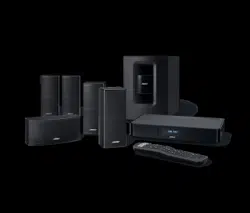
home theater system
The SoundTouch
™
120 home theater system provides Bose
®
quality audio for video
sources, SoundTouch
™
and Bluetooth
®
technology.
System Features
• Advanced Bose audio processing provides natural and lifelike sound.
• ADAPTiQ
®
audio calibration optimizes sound quality.
• Display provides access to system settings and information.
• HDMI
™
connectivity allows easy setup and ensures high-quality audio from your
connected sources.
• Supports Consumer Electronics Control (CEC).
• Programmable universal remote can control your TV, cable/satellite box and
other connected sources.
• Hideaway wireless Acoustimass
®
module provides impactful bass sound.
• Soundbar can be mounted on the wall (kit available separately).
• SoundTouch
™
wireless adapter enables SoundTouch
™
and Bluetooth
®
on your
system.
SoundTouch™
SoundTouch
™
provides clear, room-filling sound streamed wirelessly over your
home Wi-Fi network. If you have Wi-Fi
®
at home, you’re ready to enjoy your favorite
music in any room you want.
SoundTouch™ Features
• Enjoy wireless access to Internet radio, music services and your music library.
• Access your favorite music easily with your personalized Presets.
• Wireless setup using your smartphone or tablet.
• Works with your existing home Wi-Fi network.
• Stream music from Bluetooth
®
enabled devices.
• Free SoundTouch
™
app for your computer, smartphone, or tablet.
• Simply add additional systems at any time for a multi-room listening experience.
• Wide selection of Bose
®
audio systems lets you choose the right solution for
any room.
English - 9
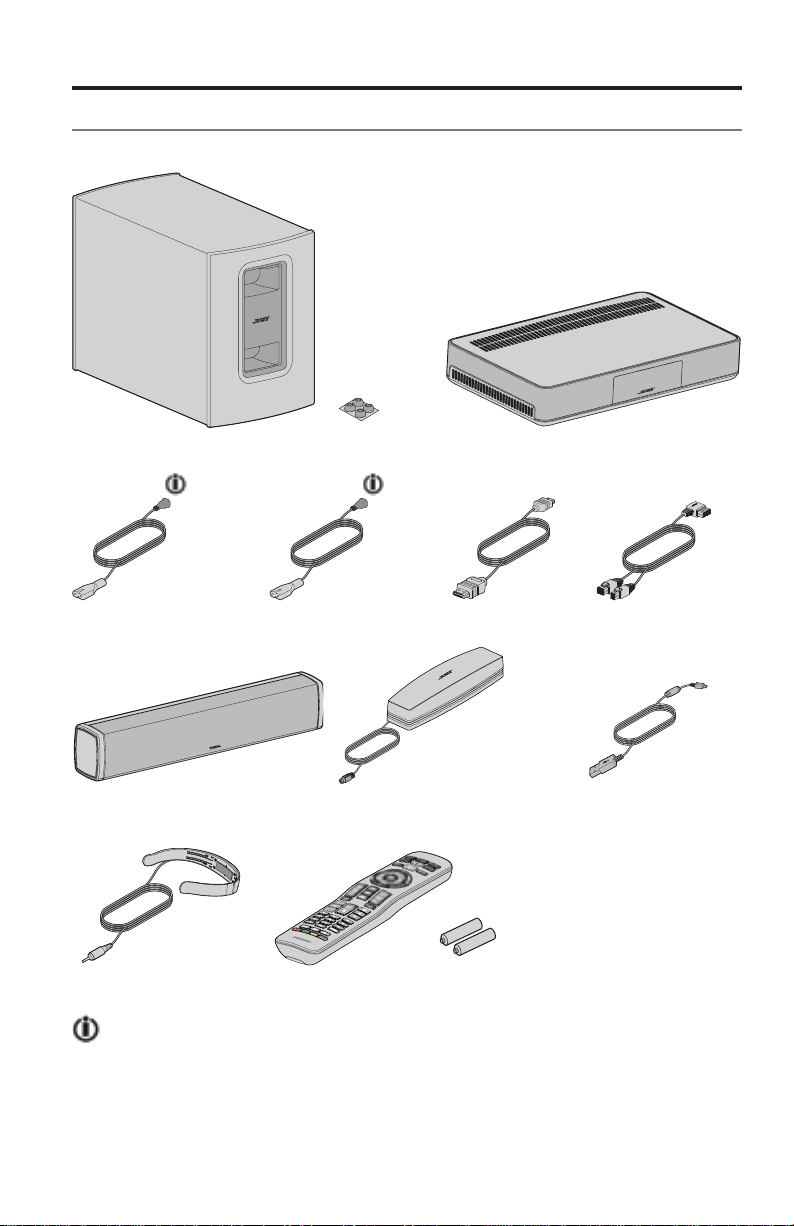
Unpacking the system
Carefully unpack the carton and confirm that the following parts are included:
Acoustimass
®
module Rubber feet Console
Acoustimass
power cord Console power cord HDMI
™
cable Speaker cable
Soundbar SoundTouch
™
wireless adapter
series II
USB cord
ADAPTiQ
®
headset
Universal remote control
The appropriate power cords for your region are supplied.
Note: If part of the system is damaged, do not use it. Contact your authorized
Bose
®
dealer or Bose customer service. Refer to the contact sheet in
the carton.
Introduction
10 - English
Introduction
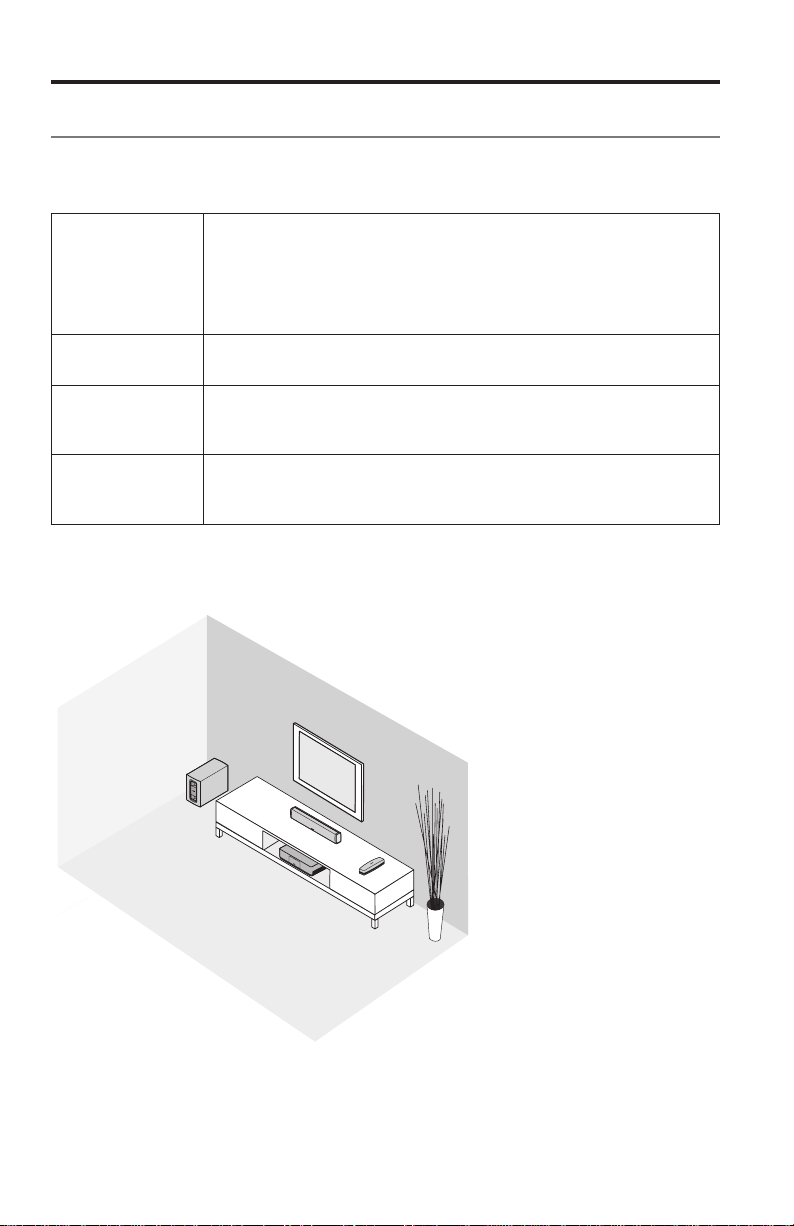
Placement guidelines
To avoid wireless interference, keep other wireless equipment away from the
system. Place the system outside of and away from metal cabinets, away from
other audio/video components and away from direct heat sources.
Acoustimass
®
module
• Stand the Acoustimass module on its rubber feet along the same
wall as your TV, or along any other wall in the front third of the room.
• Choose a stable and level surface. Vibration can cause the
Acoustimass module to move, particularly on smooth surfaces like
marble, glass or highly polished wood.
• Make sure there is an AC (mains) outlet nearby.
Soundbar • Place the soundbar in front of your TV.
• Do not place the soundbar inside a cabinet.
Console • Place the console near your TV. Do NOT place the TV on top of
your console.
• Make sure there is an AC (mains) outlet nearby.
SoundTouch
™
wireless adapter
• Place the adapter 1 - 6 ft. (.3 - 1.8 m) away from the console,
Acoustimass module and other wireless devices to avoid wireless
interference.
Sample system placement
English - 11
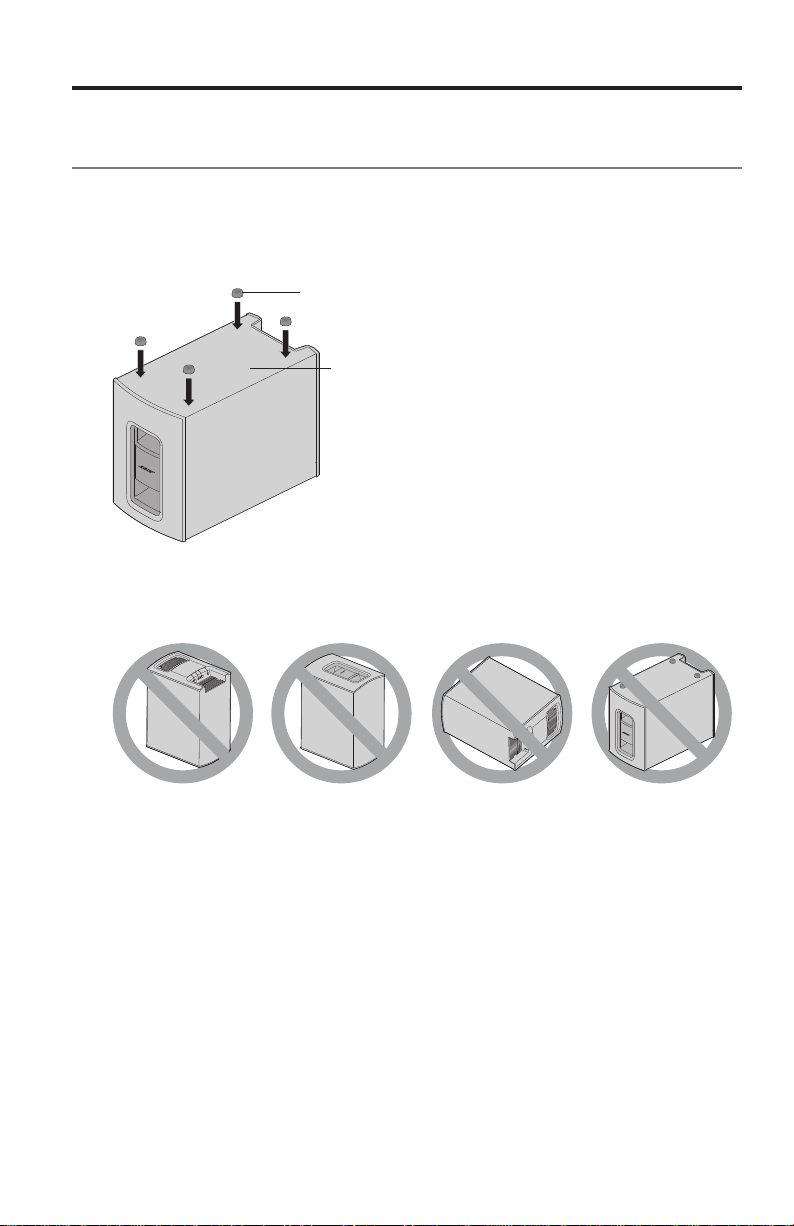
Attaching the rubber feet to the
Acoustimass module
Attach the rubber feet to the Acoustimass module to protect your floor.
1. Turn the Acoustimass module upside down onto a soft surface to protect it
from being damaged.
2. Attach the rubber feet to the bottom of the Acoustimass module.
Bottom of Acoustimass module
Rubber foot
3. Place the Acoustimass module on its feet.
Caution: Do not place the Acoustimass module on its front, back end, side or
top when in use.
4. Remove all protective films. These may affect acoustic performance if left
in place.
Setting Up the Acoustimass
®
Module
12 - English
Setting Up the Acoustimass
®
Module
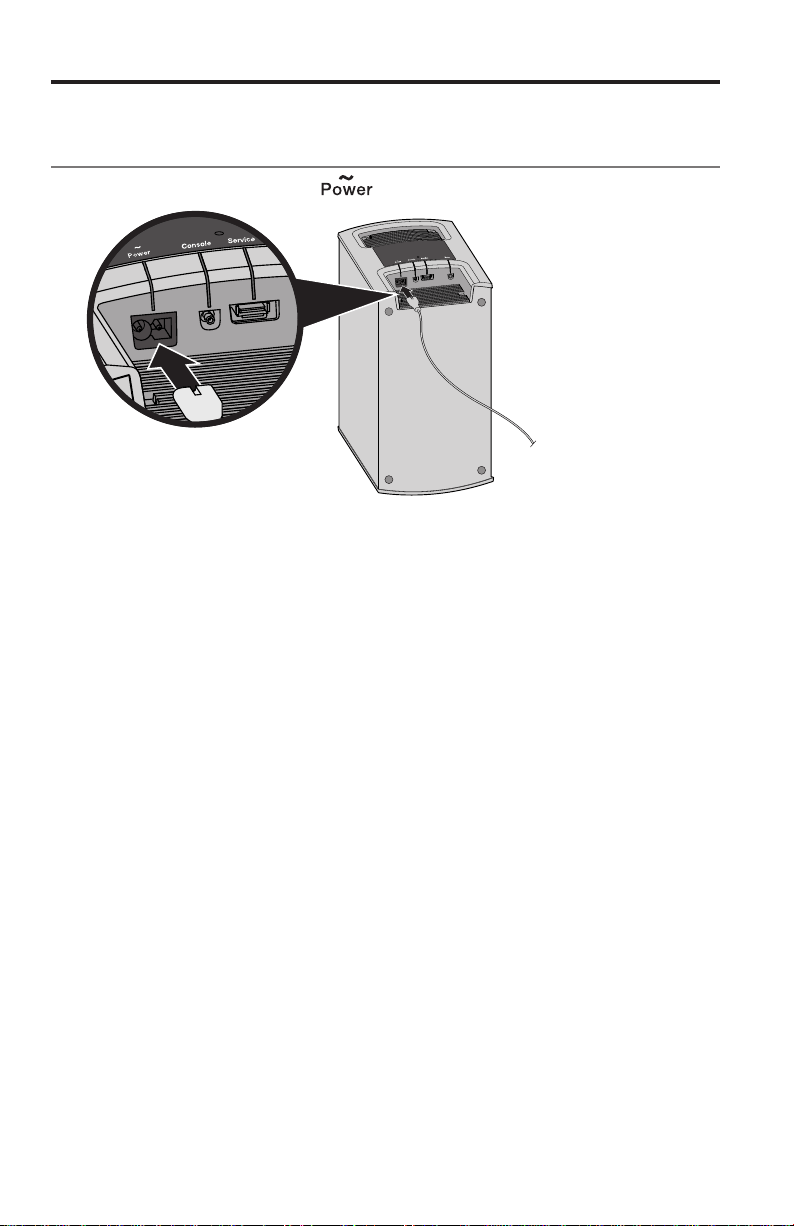
Connecting the Acoustimass module
to power
1. Plug the power cord into the connector on the Acoustimass module.
2. Plug the power cord into an AC (mains) outlet.
English - 13
Connecting the soundbar
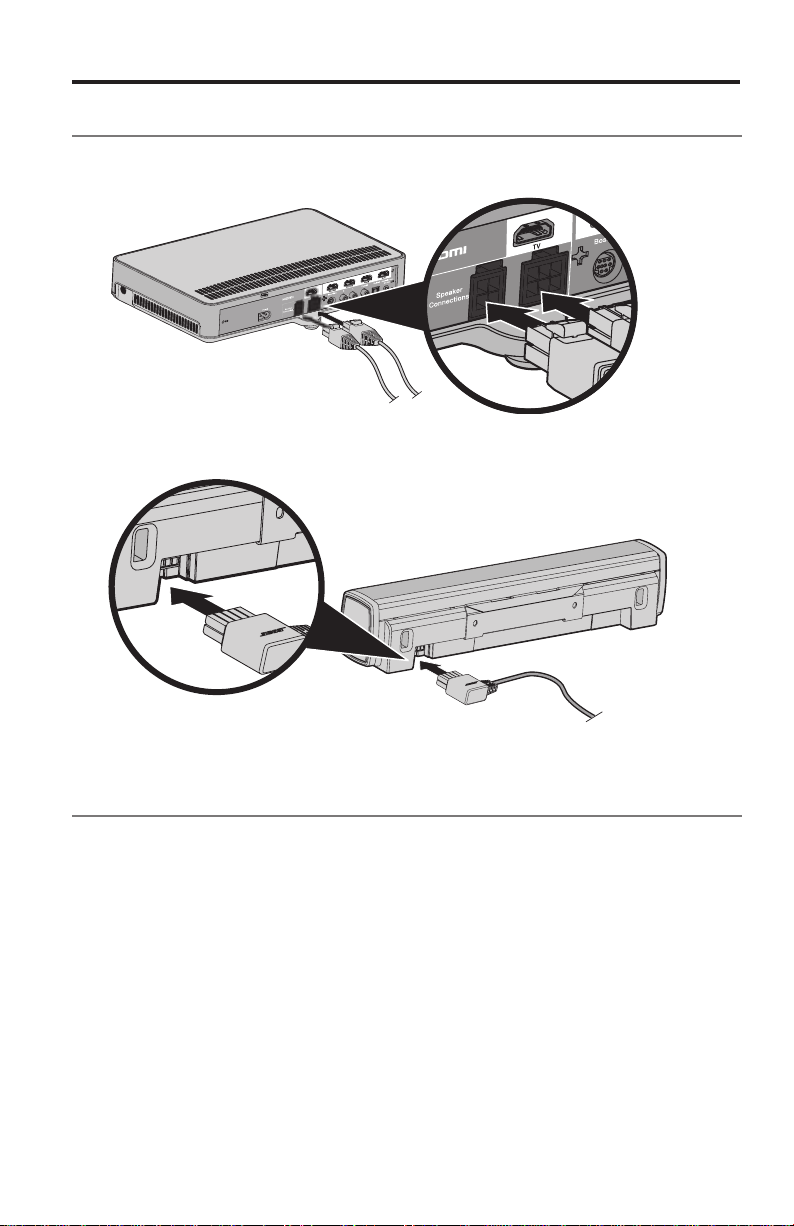
1. Insert the two-pronged end of the speaker cable into the
Speaker Connections connectors on the console.
2. Insert the other end of the speaker cable into the 10-pin connector on
the soundbar.
Wall mounting the soundbar
You can mount the soundbar on a wall. To purchase the WB-120 Wall Mount Kit,
contact your local Bose dealer or visit www.Bose.com
CAUTION: Do not use any other hardware to mount the soundbar.
Setting Up the Soundbar
14 - English
Setting Up the Console
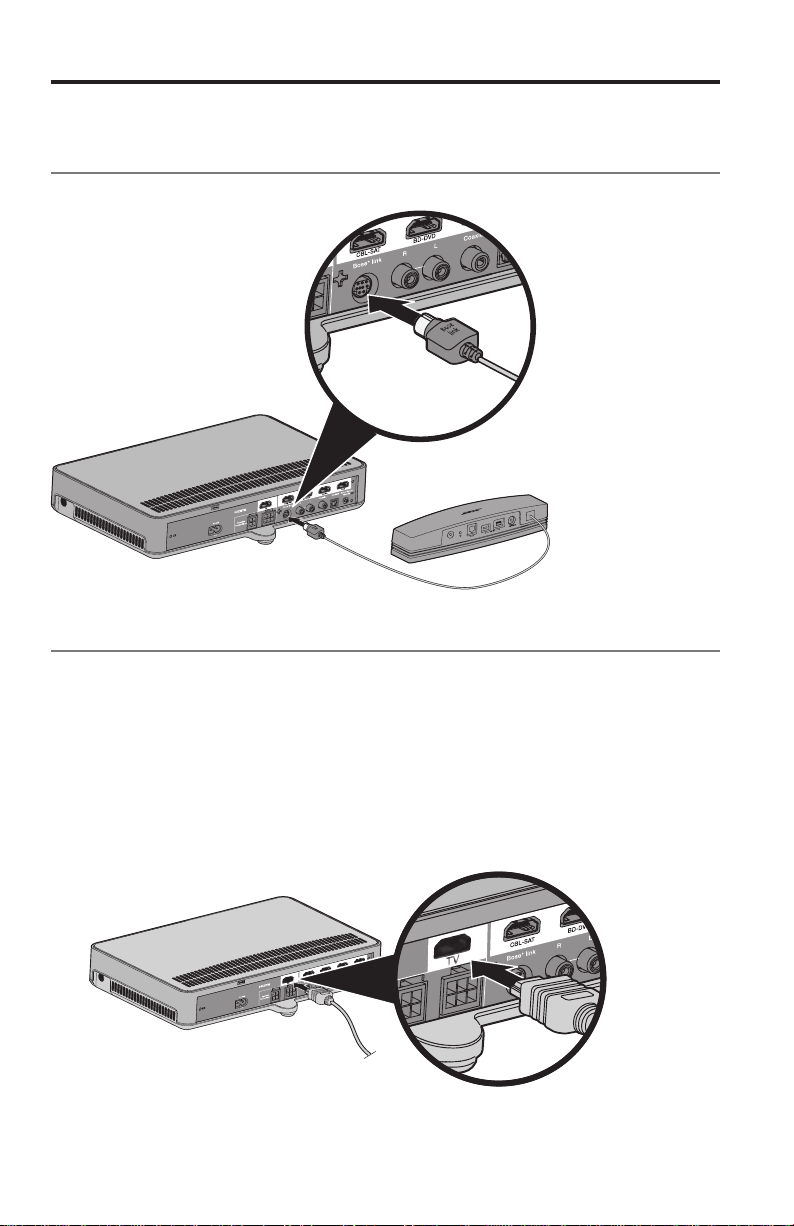
Connecting the SoundTouch™
wireless adapter
Connect the adapter to the Bose
®
link connector on the console.
Connecting the console to your TV
Use your TV’s HDMI connector labeled ARC or Audio Return Channel if available.
If your TV does not have an HDMI ARC connector, see page 15.
Using the HDMI™ ARC connector
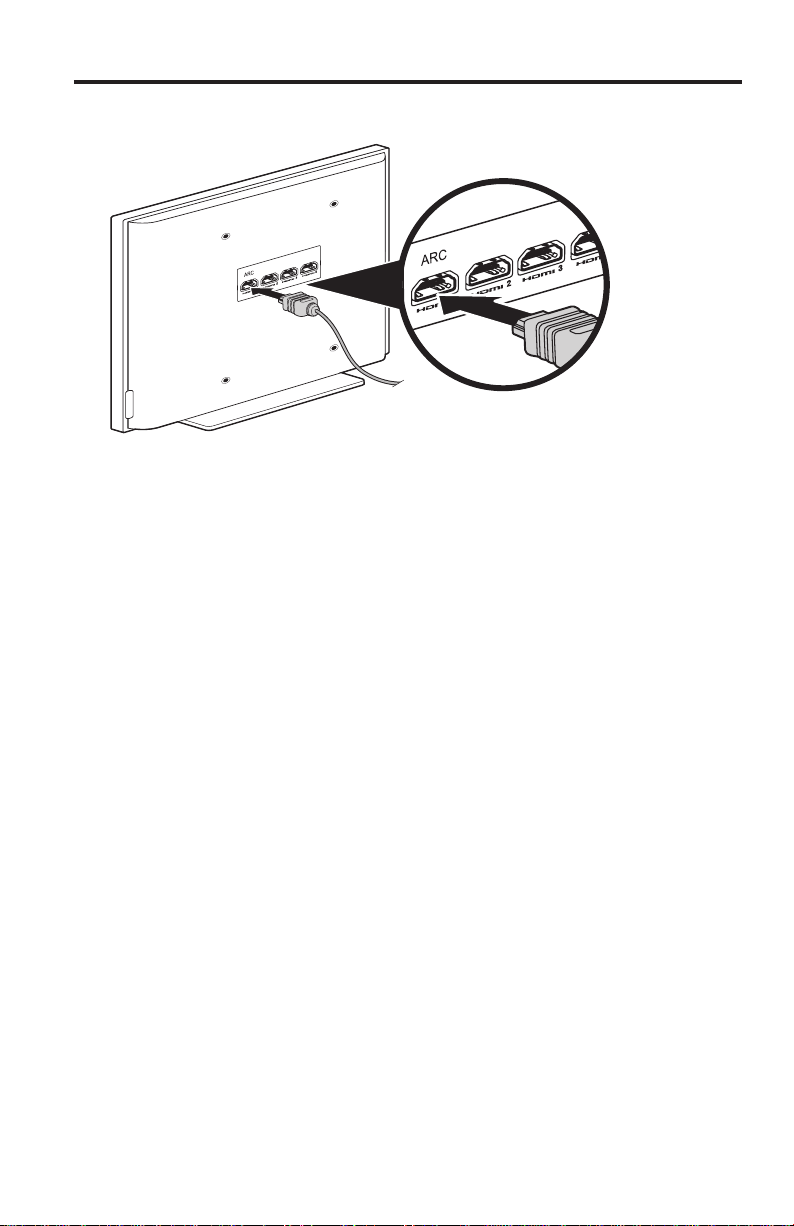
Use the Bose
®
HDMI cable to connect the console to your TV.
1. Disconnect your HDMI connected sources, such as a cable/satellite box, DVD
or Blu-ray Disc
™
player or game system, from your TV.
2. Insert one end of the Bose
®
HDMI cable into the TV connector on the console.
English - 15
3. Insert the other end of the HDMI cable into your TV’s HDMI connector.
TVs without an HDMI™ ARC connector
If your TV does not have an HDMI ARC connector, you may need to make a
secondary connection to the console with an optical, coaxial or analog stereo
audio cable. Without this secondary connection, you may not hear audio from the
Bose
®
system.
Use a secondary connection in the following configurations:
• You are using internal sources (such as Internet applications or an
over-the-air antenna).
• You are connecting sources to your TV.
Refer to your TV owner’s guide for more information.
Tip: If your TV has IN and OUT audio connector panels, use audio OUT for your
secondary connection.
Setting Up the Console
16 - English
Setting Up the Console
Connecting the console to other sources
Connecting to HDMI™ compatible sources
You can connect the console to other sources, such as a cable/satellite box, DVD
or Blu-ray Disc
™
player or game system with an HDMI cable (available separately).
If your source is non HDMI compatible, see “Connecting to non HDMI
™
compatible
sources” for configurations with devices that do not support HDMI.
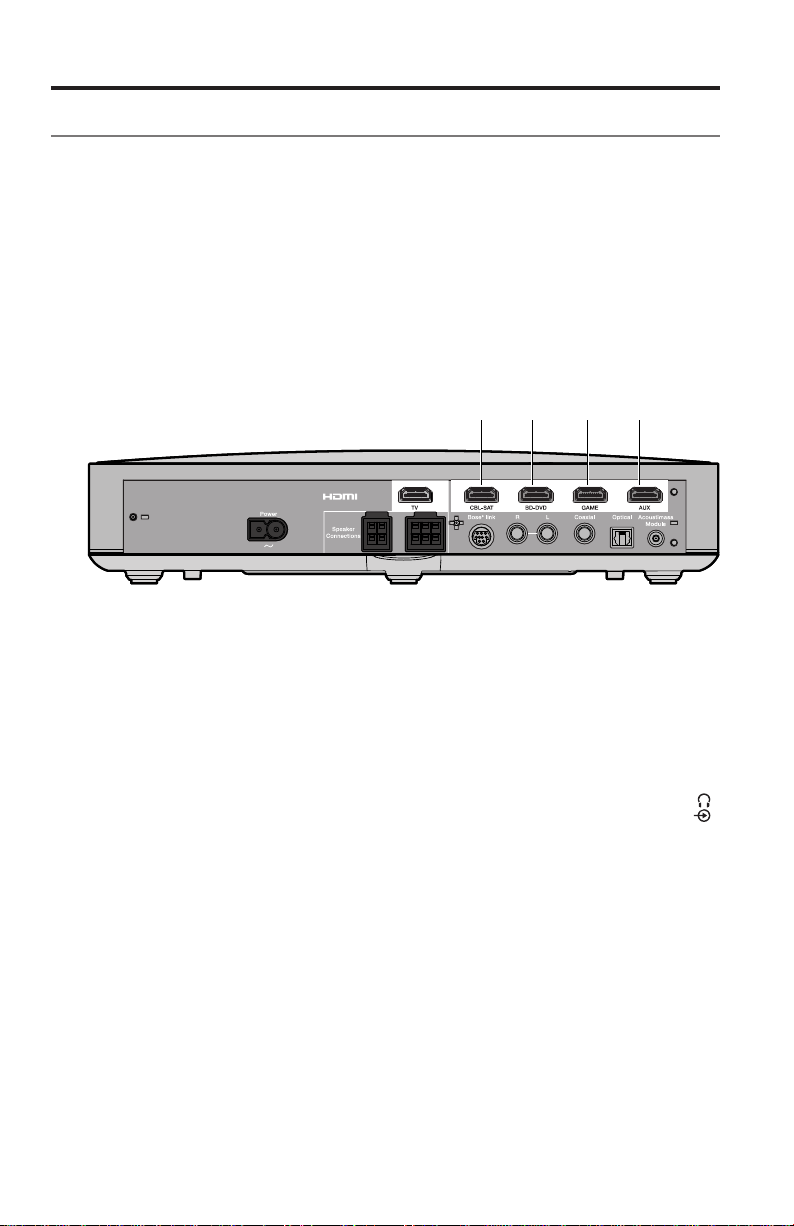
1. Insert one end of an HDMI cable into your source’s HDMI (OUT) connector.
2. Insert the other end of an HDMI cable into the appropriate HDMI connector on
the console. For example, to connect a game system, connect an HDMI cable
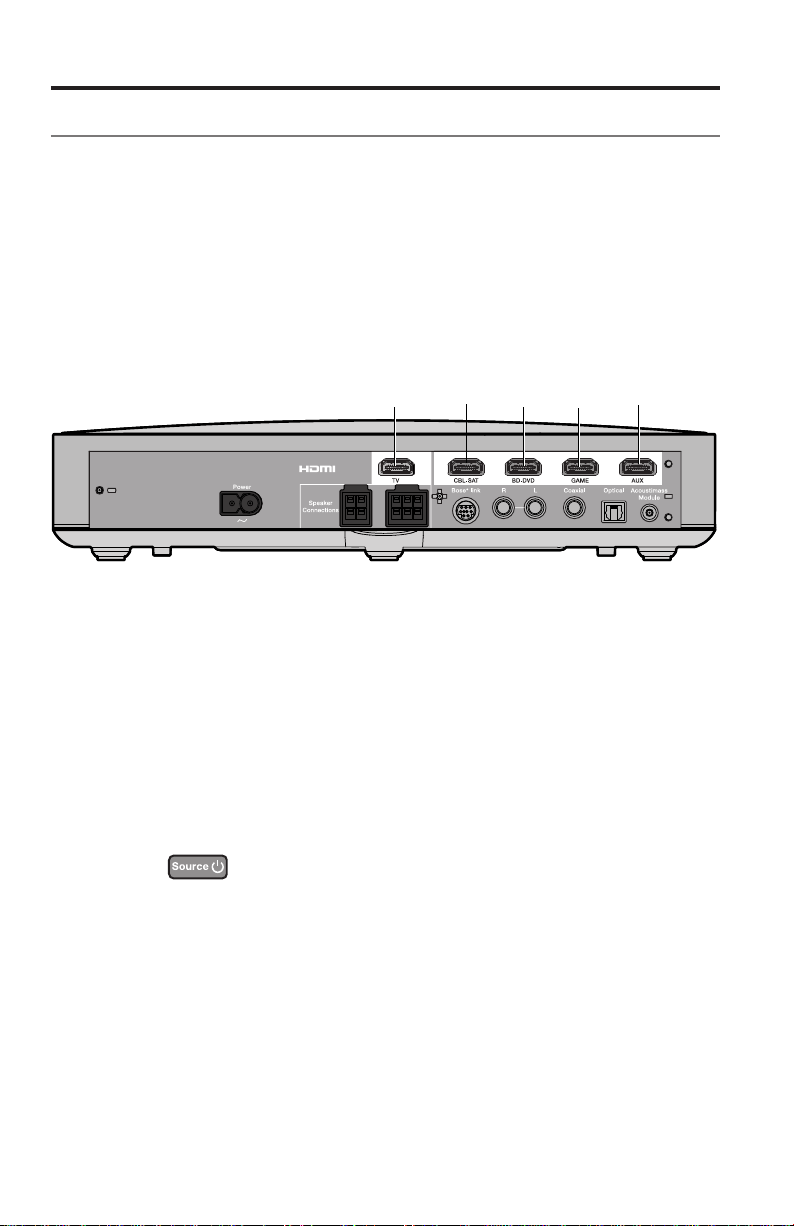
to the GAME connector.
Connect other sources to the
appropriate HDMI connector
on the console.
Connecting to non HDMI™ compatible sources
If your source is non HDMI compatible, connect it to your TV using audio and video
cables (available separately). Refer to your TV owner’s guide for more information.
Tip: If your source has IN and OUT audio connector panels, use audio OUT.
Connecting to audio-only sources
If your audio-only source, such as a media or CD player, is non HDMI compatible:
1. Connect your source to the console’s optical, coaxial, analog or SIDE AUX (
)
connector.
Note: You can use an optical, coaxial, analog or 3.5 mm audio cable
(available separately).
2. Set the optical, coaxial, analog or SIDE AUX input for the appropriate source.
You can access these settings using the System menu (see page 30).
English - 17
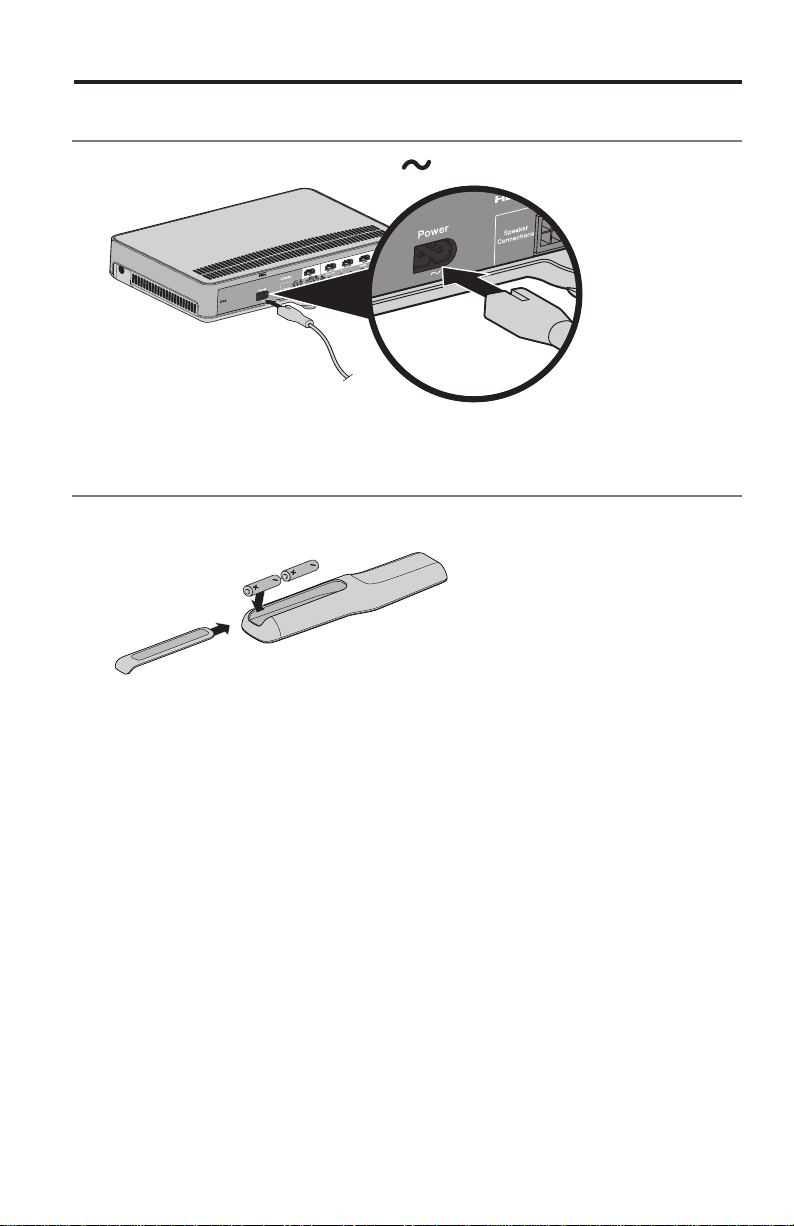
Connecting the console to power
1. Plug the power cord into the Power connector on the console.
2. Plug the power cord into an AC (mains) outlet.
Installing the remote control’s batteries
1. Slide open the battery compartment cover on the back of the remote control.
2. Insert the two provided AA (IEC-LR6) 1.5V batteries. Match the + and –
symbols on the batteries with the + and – markings inside the compartment.
3. Slide the battery compartment cover back into place.
Starting up the System
18 - English
Starting Up the System
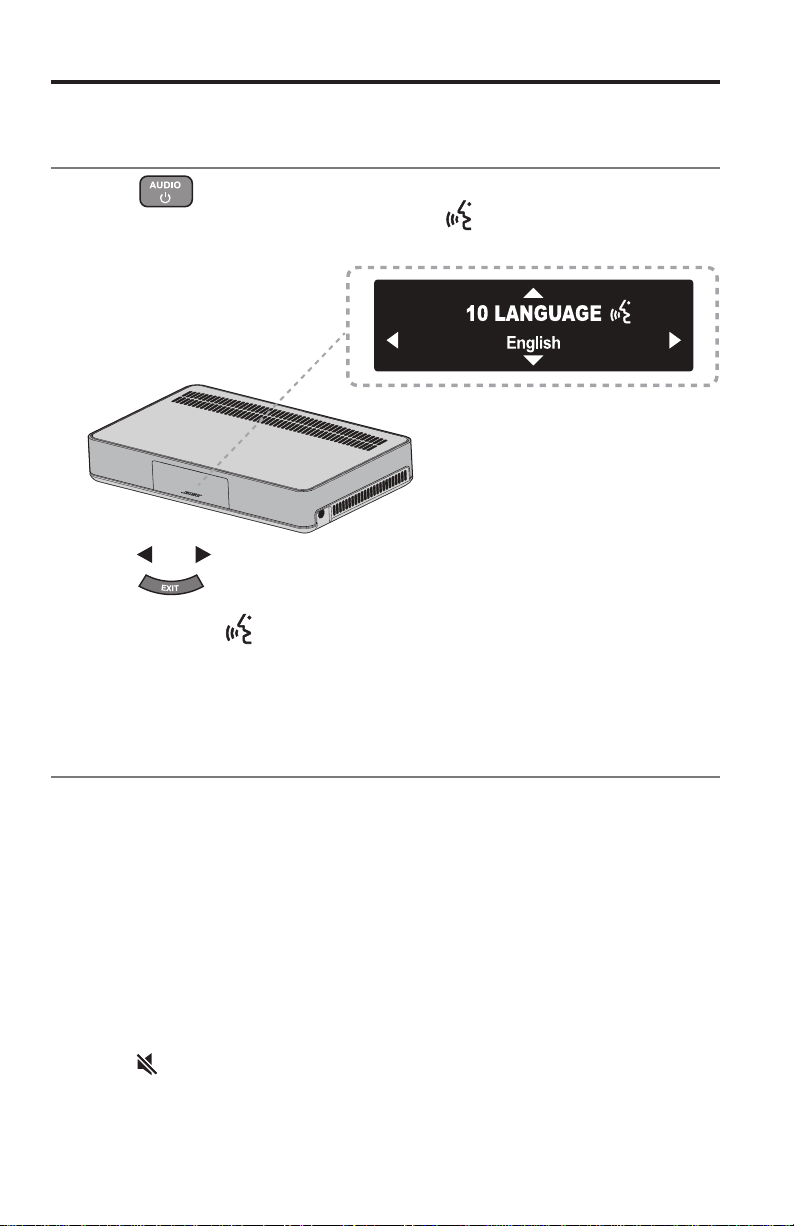
Powering on your system and
selecting your language
1. Press on the remote.
The console powers on and 10 LANGUAGE
appears on the display.
Note: After first time startup, the display defaults to your last used source.
2. Press and to select your language.
3. Press
.
Tip: Look for the
icon in the System menu if you select the wrong
language.
The system powers off after sixteen minutes of inactivity. You can disable AUTO
OFF using the System menu (see page 30).
Checking for sound
1. Power on your TV.
2. If you are using a cable/satellite box or other secondary source, power on
this source.
Tip: If your secondary source is connected to your TV, select the appropriate
TV input. You may need to use a different remote.
3. Power on the system.
4. Press the appropriate source button.
5. Check if sound is coming from the soundbar.
Note: If you do not hear sound from the soundbar, see “Troubleshooting” on
page 32.
6. Press
on the remote control. Check that no sound is coming from the TV
speakers.
Note: If you hear sound coming from your TV speakers, see “Troubleshooting”
on page 32.
English - 19
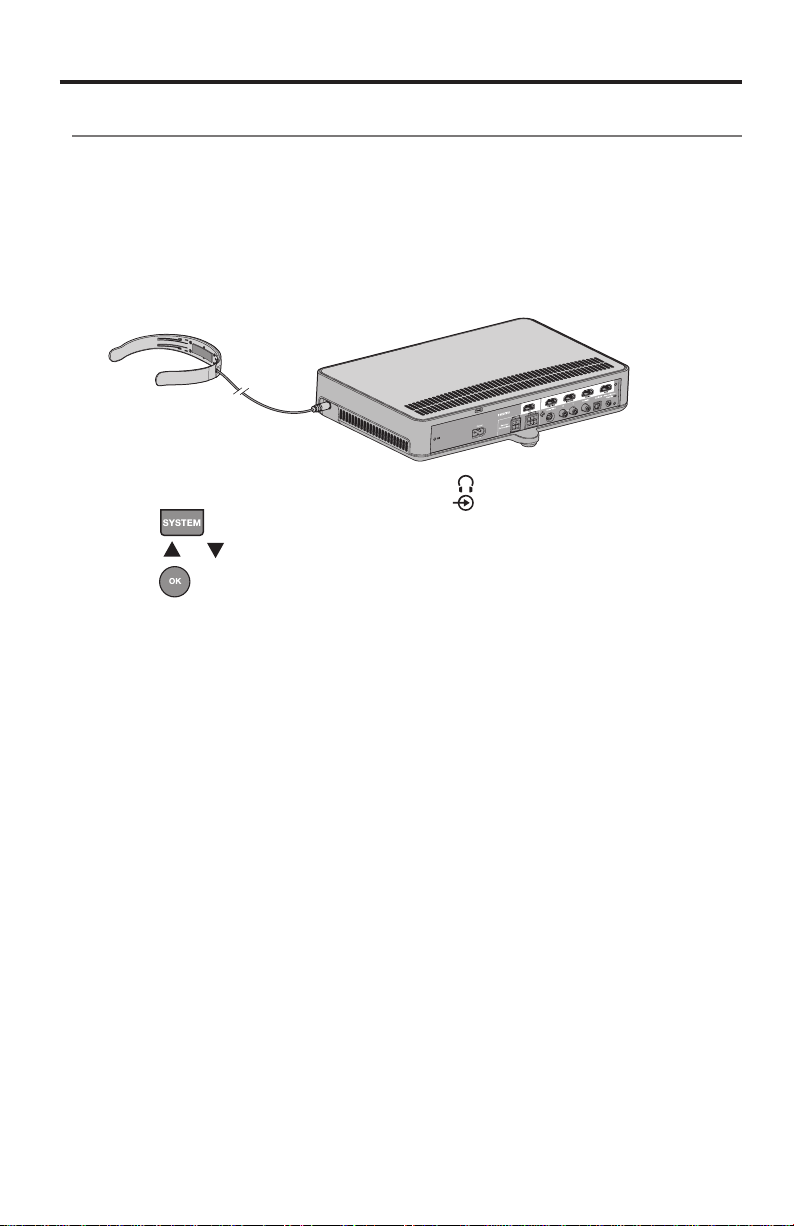
Running the ADAPTiQ
®
audio calibration
The ADAPTiQ audio calibration customizes the sound of the system to the
acoustics of your listening area by taking five audio measurements. To perform
an audio calibration, you need 10 minutes when the room is quiet.
1. Put the ADAPTiQ headset on your head.
During the ADAPTiQ audio calibration, a microphone on the top of the
headset measures the sound characteristics of your room to determine
optimal sound quality.
2. Insert the ADAPTiQ headset cable into the connector on the console.
3. Press
on the remote control.
4. Press
or until 14 ADAPTiQ appears on the display.
5. Press
.
6. Follow the voice prompts until the system completes the process.
Note: If you hear an error message and are unable to complete the ADAPTiQ
audio calibration, see page 35.
7. Unplug the ADAPTiQ headset from the console and store it in a safe place.
Note: If you move or mount the system or move any furniture, run the
ADAPTiQ audio calibration again to ensure optimal sound quality.
ADAPTiQ
®

20 - English
Setting up SoundTouch™
Adding the system to your Wi-Fi
®
network
You must download and install the SoundTouch
™
app onto a smartphone or tablet
that is connected to your network. The app guides you through connecting the
system to your network.
Note: If you do not have a smartphone or tablet, you can use a computer for setup
(see page 38).
Add the system to an existing SoundTouch™ account
If you have already set up SoundTouch
™
for another system, you do not need to
download the SoundTouch
™
app again.
1. On your smartphone or tablet, select
to launch the app.
2. Select EXPLORE > SETTINGS > Systems > ADD SYSTEM to add
another system.
The app guides you through setup.
Download and install the SoundTouch™ app
If this is your first time setting up a SoundTouch
™
system, you must install the app.
On your smartphone or tablet, download the SoundTouch
™
controller app.
Bose
®
SoundTouch
TM
controller app
• iOS users: download from the App Store
• Android
™
users: download from the Google Play
™
store
• Amazon Kindle Fire users: download from the Amazon Appstore for Android
Connect the system to your home Wi-Fi
®
network
After you install the app, add the system to your network:
1. On your smartphone or tablet, select
to launch the app.
The app guides you through connecting the system to your Wi-Fi
®
network.
2. Follow the instructions in the app to complete setup, including creating a
SoundTouch
™
account, adding a music library and music services.
For more information on using SoundTouch
™
, see page 27 or download the
SoundTouch
™
wireless adapter series II owner’s guide from the Bose website.
English - 21
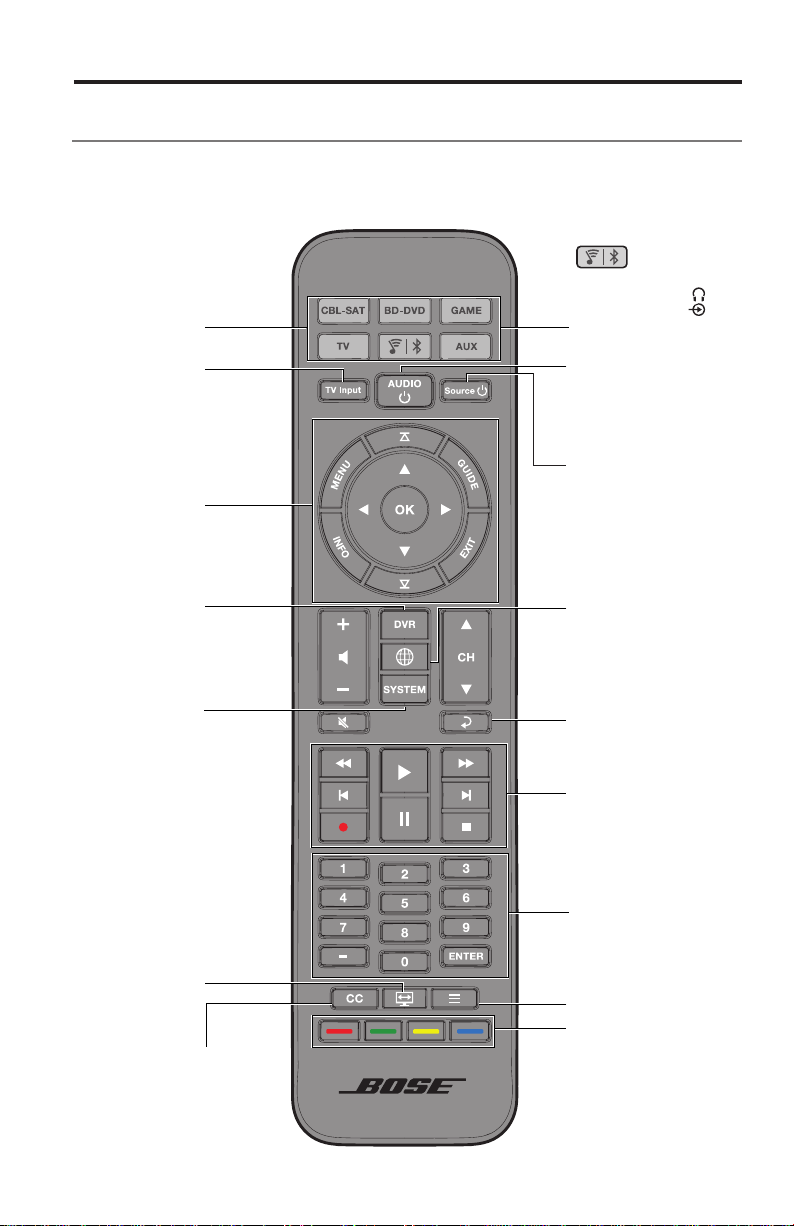
Remote control buttons
Use the remote to control sources connected to your system, adjust the system
volume, change channels, use playback functions, enable cable/satellite box
functions and navigate the System menu.
Navigation pad
Source selection
Lists recorded
DVR programs
TV aspect ratio
Closed captioning
Selects a source
connected to
your TV
Function buttons
(see page 26)
Teletext mode
Displays the Internet
TV home page
System menu
Playback
controls
Powers on/off the
Bose
®
system
Powers on/off a
selected source
Toggles be-
tween SoundTouch
™
,
Bluetooth
®
and
connector.
See page 25.
Previous channel,
chapter or track
Using the System
Numeric keypad.
Numbers 1-6 can play
SoundTouch
™
Presets.
22 - English
Using the System
Programming the universal remote control
You can use the remote to control your TV, cable/satellite box, DVD or
Blu-ray Disc
™
player, game system, DVR or other auxiliary source.
Consumer Electronics Control
The system supports Consumer Electronics Control (CEC). CEC allows you to
control multiple HDMI
™
-connected sources without programming the remote. You
can turn on/off CEC using the System menu (see page 30).
Your source may support CEC, but refer to it with a different name. Refer to your
source owner’s guide for more information.
CEC controls sources connected to
the console’s HDMI connectors.
Tip: You may need to use your source or TV’s system menu to enable CEC. Refer
to your source owner’s guide for more information.
Test your HDMI™ connected sources for CEC
If your sources successfully respond to their corresponding source buttons, you do
not have to program your remote.
Note: Your HDMI connected source may not support CEC. Refer to your source
owner’s guide for more information.
1. Power on the Bose
®
system, your TV, and the source you are testing.
2. Press a variety of buttons that correspond with your source’s functions.
3. Press the
button. The source powers off.
If your source does not perform one of the functions, program the remote
control (see page 22).
English - 23
Program the remote to control your source
If your source does not support CEC, you can program the universal remote to
control your source, such as a TV, DVD/Blu-ray Disc
™
player, cable/satellite box,
game system or DVR, by entering the code for your source’s brand. There may be
several codes for your source. You may need to perform this procedure multiple
times to locate the correct code.
Locate your source’s code
1. Power on your source.
2. Locate the code for your source’s brand in the Universal Remote Device
Codes book (provided).
Enter your source’s code
1. On the remote control, press and hold the appropriate source button until all
six source buttons glow, then release.
For example, to program your TV, press and hold
until all six source
buttons glow, then release.
The appropriate source button continues to glow.
2. On the number keypad, enter the code for your source’s brand and press + on
the volume button.
Test your source’s code
1. Test your source for basic functions. Follow the instructions for your source:
• TV: press the channel buttons. Press
. The settings menu appears.
Press
and to navigate.
• Cable/satellite box: press
. The programming guide appears.
Press
and to navigate.
• DVD or Blu-ray Disc
™
player: press . The settings menu appears.
Press
and to navigate.
• Game system: press
and to navigate through your menu.
2. Based on your source’s response to basic functions:
• Remote responds accurately: press
to exit programming and
save your settings.
• Remote does not respond or does not respond accurately:
- If your source button glows: press + on the volume button to move to
the next code. Repeat steps 1-2 in “Test your source’s code”. You may
need to repeat this procedure 30 or more. If all six buttons blink three
times, you have cycled through all codes for your source.
- If your source button is off: your remote exited programming mode.
Repeat steps 1-2 in “Enter your source’s code” and steps 1-2 in “Test
your source’s code”.
Note: Your source may not be compatible with IR universal remote controls. Refer
to your source’s owner’s guide for more information.
Using the System

24 - English
Using the System
Source selection
You can switch between sources by pressing the appropriate source button on the
remote control. Before you begin, program the remote to control your source
(see page 22).
Select a source connected to the Bose
®
system
If your source is connected to the console and does not use CEC, follow this
procedure to set the console to the appropriate mode and turn on the source.
1. Power on the system.
2. Press the button for the source you want to control.
The source button glows.
3. Press
.
The source powers on.
Select a source connected to your TV
If your source is connected to your TV, follow this procedure to select the
appropriate TV input.
1. Power on the system, your TV and the appropriate source.
2. Press
to select the correct input on your TV.
You may need to press
several times to select the TV input for
the source.
On some TVs,
displays a menu. Use the remote control to choose the
correct TV input and close this menu.
Universal source buttons and
console connectors
The source buttons on your remote control correspond with the connectors on
the back of the console. For example,
corresponds with the BD-DVD
HDMI
™
connector.
Your source buttons work with any source that is connected to the corresponding
connector. If you have a secondary DVD or Blu-ray Disc
™
player and connect it to
the CBL-SAT connector, it can be programmed to work with
.
Note: Ensure you are using the code appropriate for the source rather than the
connection point when programming the remote.

English - 25
Using the System
Using the button
This multifunction button enables you to play music on your system.
• Access the SoundTouch
™
source on your system
• Stream music from a connected Bluetooth
®
enabled device
• Access the SIDE AUX connector
Press
to toggle between SoundTouch
™
( ), Bluetooth ( ), and the
SIDE AUX (
) connector.
SoundTouch™
You can control a subset of SoundTouch
™
features on your system such as
playback controls and Presets. See “Using SoundTouch
™
” on page 27.
Bluetooth
®
wireless technology
Your system has Bluetooth wireless technology which lets you stream music from
Bluetooth enabled devices to your system. Your system stores eight previously
connected devices in its pairing list. See page 28.
SIDE AUX
The connector is a 3.5 mm connector located on the side of the console. When
set as a connector for an audio in source, the connector can be accessed through
the
toggle.
See ”5 SIDE AUX” on page 30 for information on how to change the connector
settings.

26 - English
Using the System
Adjusting the volume
On the remote control:
• Press + to increase the volume.
• Press – to decrease the volume.
• Press
to mute or unmute the audio.
Note: If you hear sound coming from your TV, see “Troubleshooting” on page 32.
Function buttons
The red, green, yellow and blue buttons on the remote control correspond with the
color-coded function buttons on your cable/satellite box, Blu-Ray Disc
™
player or
teletext functions.
• Cable/satellite box or Blu-Ray Disc
™
player functions: refer to your cable/satellite
box owner’s guide.
• Teletext functions: correspond with color-coded page numbers, headings or
shortcuts on a teletext display.
Programming a non-Bose
®
remote control
You can program a non-Bose remote control, such as your cable/satellite box
remote, to control the system. Refer to your non-Bose remote control owner’s
guide or cable/satellite website for instructions.
Once programmed, the non-Bose remote controls basic functions such as power
on/off and volume.

English - 27
Accessing SoundTouch™
After you create a SoundTouch
™
account, you are ready to enjoy SoundTouch
™
on
your system. You can access SoundTouch
™
through the SoundTouch
™
app or by
pressing
on your remote control.
For more information on using SoundTouch
™
, download the SoundTouch
™
wireless
adapter series II owner’s guide.
Using the SoundTouch™ app
The SoundTouch
™
app is a software application that enables you to set up and
control SoundTouch
™
from your smartphone, tablet, or computer. Using the app,
your smart device acts as a rich remote for the SoundTouch
™
source.
• Easily personalize Presets to your favorite music.
• Explore Internet radio, music services and your music library.
• Manage system settings.
Using the SoundTouch™ source
Once you have set up SoundTouch
™
, you can use the remote to control a subset of
features on your system:
• Personalize and play Presets using numbers 1-6 on the numeric keypad.
• Control playback (play, pause, stop, skip to the next track, etc.).
To start SoundTouch™:
Press on your remote.
A SOUNDTOUCH message appears on the display.
Using SoundTouch™
28 - English
Bluetooth
®
Pairing a Bluetooth
®
enabled device
Bluetooth
®
wireless technology enables you to stream music from Bluetooth
enabled smartphones, tablets, computers or other audio devices to your
SoundTouch
™
system. You can even stream music from Bluetooth enabled devices
that are not part of your SoundTouch
™
ecosystem, such as a guest’s smartphone
or tablet.
Before you can stream music from a Bluetooth enabled device, you must pair the
device with your system.
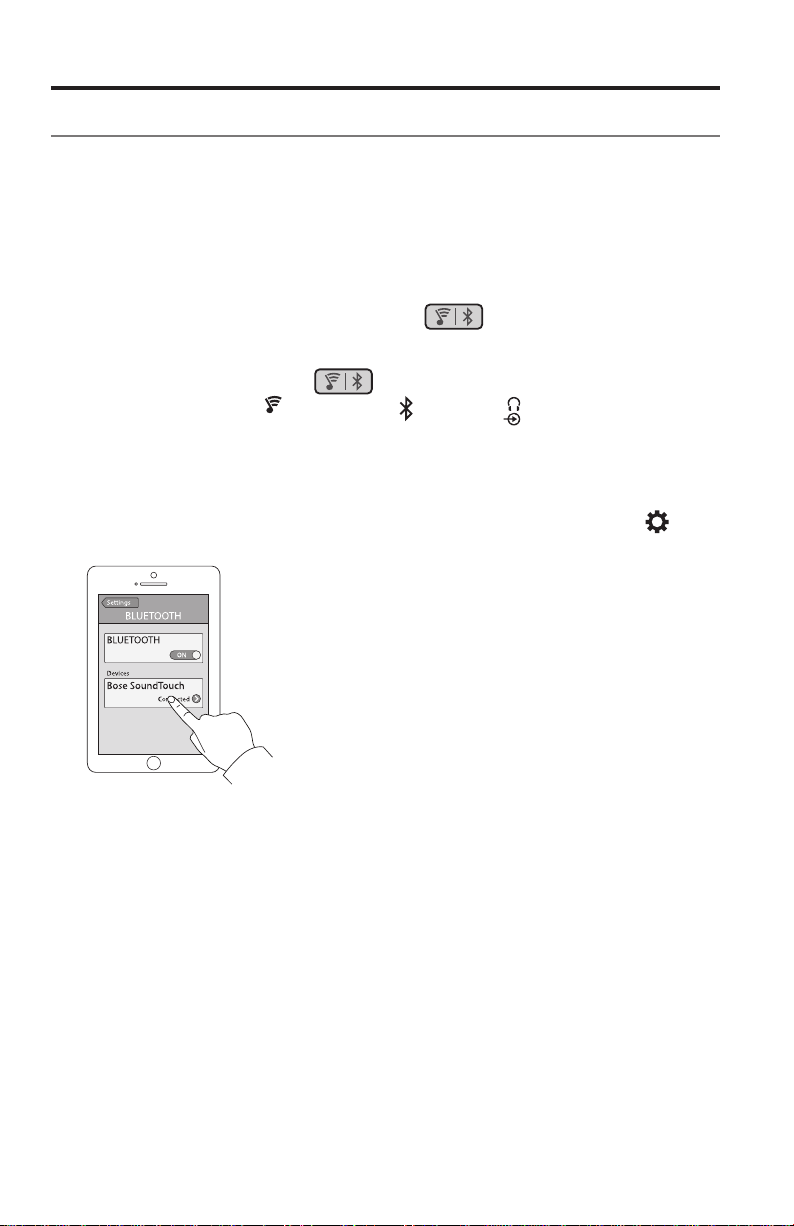
1. On the remote control, press and release
until a Bluetooth pairing
message appears on the display.
Note: Each time you press
the system toggles between
SoundTouch
™
( ), Bluetooth ( ), and the connector.
Make sure you see a Bluetooth pairing message on the display before you pair
your device.
2. On your Bluetooth
®
enabled device, turn on the Bluetooth feature.
Tip: The Bluetooth feature is usually found in Settings. A gear icon (
)
often represents Settings on the Home screen.
3. Select your SoundTouch
™
system from the device list.
Once paired, your SoundTouch
™
system’s name appears connected in the
device list.
4. On the Bluetooth enabled device, play music to stream to your system.
If you cannot pair your device
You may need to clear the system’s Bluetooth pairing list (see “Troubleshooting” on
page 32 for more information). After you clear the list, try pairing again.

English - 29
Connecting to a paired Bluetooth
®
enabled device
You can stream audio from a Bluetooth
®
enabled device to your system. There are
two ways to stream audio from a paired device to your SoundTouch
™
system.
If there are multiple devices stored in the system’s pairing list, it may take a minute
or two for the paired device to connect. Your system’s display indicates connection
status.
Using the button
1. On the system’s remote control, press and release until a Bluetooth
connecting message appears on the display.
The system connects to the last device that streamed to your system.
2. On the device, play music.
Tip: If a paired device is connected, you do not need to press
.
If you cannot stream audio from a paired device
Your SoundTouch
™
system may have lost connection to the device. Check the
system’s display. If the paired device is out of range of your system, move the
device within range.
Using the Bluetooth
®
feature on the paired device
1. On the Bluetooth enabled device, turn on the Bluetooth feature.
2. Select your SoundTouch
™
system from the device list.
3. Once connected, on the Bluetooth enabled device, play music to stream to
your system.
Bluetooth
®
30 - English
Getting System Information
Using the System menu
Use the System menu to adjust audio levels, turn on/off features (such as
AUTO OFF), change the language, set the coaxial, analog and optical inputs for
a particular source, run the ADAPTiQ
®
audio calibration, pair your Acoustimass
®
module with the console or factory reset the system.
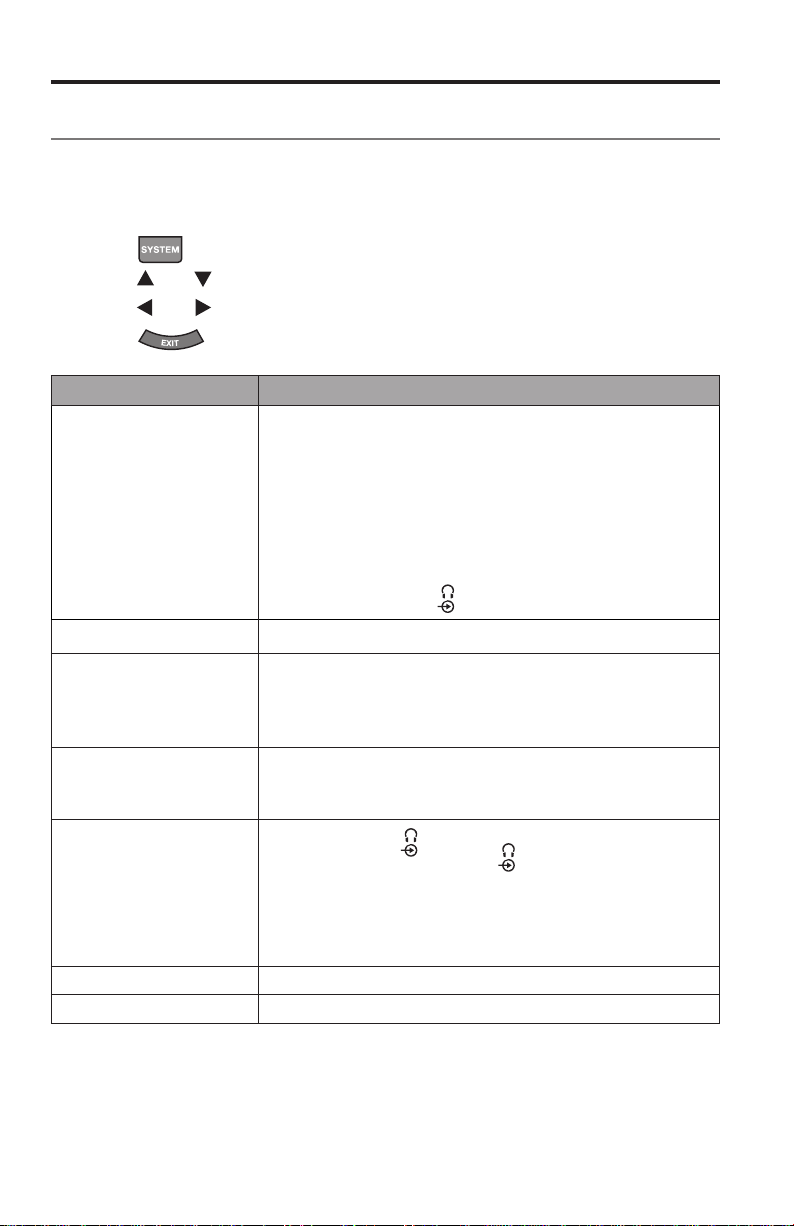
1. Press
on the remote.
2. Press
and to scroll through the System menu.
3. Press
and to adjust the settings.
4. Press
.
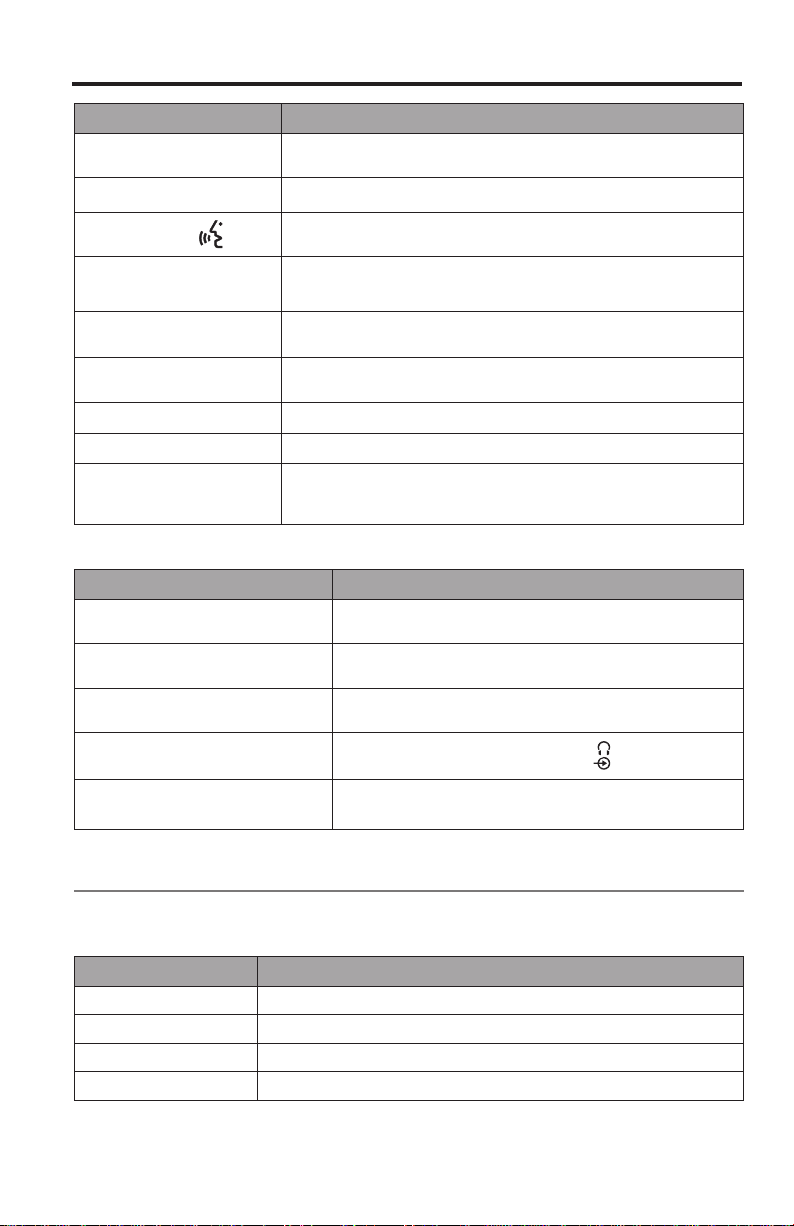
Display System state
1 AUDIO COMP
Off: (Default) No change to audio track.
Enhance dialogue: Increases the level of dialogue and sound
effects at low volume settings while
providing full audio impact at high volume settings.
Smart volume: Reduces the range of volume levels in a
movie soundtrack so the difference between extremely loud
outbursts and soft sounds is less noticeable.
Note: Enhance dialogue and smart volume features are not
available for SoundTouch
™
, Bluetooth
®
, or devices
connected to the connector.
2 AUDIO/VIDEO SYNC
Adjusts the audio delay to synchronize audio and video.
3 HDMI-CEC
Default On: (Default) Enables CEC (see page 22).
Alternate On: Prevents unintended source switching and may
fix CEC inconsistencies (see page 32).
Off: Disables CEC.
4 AUTO OFF
Enable: (Default) The system powers off after sixteen minutes
of inactivity (no sound coming from the system).
Disable: The system will not automatically power off.
5 SIDE AUX
Audio in: Sets the
connector for an auxiliary source.
Headphones: (Default) Sets the
connector as a head-
phone output.
Note: If set to Headphones and a cable is connected, the
soundbar is muted.
Disconnect your headphones when not in use.
6 BASS LEVEL
Adjusts bass level.
7 TREBLE LEVEL
Adjusts treble level.
English - 31
Display System state
8 CENTER LEVEL
Increases or decreases the level of dialogue for movies and
T V.
9 SURROUND LEVEL
NOT AVAILABLE.
10 LANGUAGE
Changes the language on the console and the ADAPTiQ audio
calibration.
11 SET OPTICAL INPUT
Sets the optical connector to Auto/TV (Default),
CBL SAT, BD DVD, GAME or AUX source.
12 SET COAXIAL INPUT
Sets the coaxial connector to Auto/TV (Default),
CBL SAT, BD DVD, GAME or AUX source.
13 SET ANALOG INPUT
Sets the analog connector to Auto/TV (Default),
CBL SAT, BD DVD, GAME or AUX source.
14 ADAPTIQ
Starts the ADAPTiQ audio calibration process.
15 PAIR ACOUSTIMASS
Reconnects the Acoustimass
®
module to the system.
16 FACTORY RESET
Sets the System menu and the ADAPTiQ audio calibration to
the
factory settings.
Error messages
Display System state
ERROR
Cannot find Acoustimass
The Acoustimass
®
module is not connected to
the console.
ERROR
Cannot find soundbar
The soundbar is not connected to the console.
<SOURCE>
No signal
The source is not connected to the console, or the
source is connected to the console and powered off.
SIDE AUX
Nothing connected
The source is not connected to the
connector on
the console.
ERROR
Call Bose
Call Bose
®
customer service. Refer to the contact
sheet in the carton.
Acoustimass
®
module status indicator
The status indicator on the back of the Acoustimass module provides information
on system activity.
Indicator activity Acoustimass module state
Amber Connected to the console.
Blinking amber Disconnected from the console.
Slow blinking amber Available to make a wireless connection to the console.
Red System error.
Getting System Information

32 - English
Care and Maintenance
Troubleshooting
Problem What to do
No power • Secure the Acoustimass
®
module’s, soundbar’s and console’s
power cords.
• Reconnect the Acoustimass module’s, soundbar’s and console’s
power cords firmly into an AC (mains) outlet.
• Use the remote control to power on the system.
No sound • Unmute the system.
• Increase the volume.
• Plug the Acoustimass module, soundbar and console into a live AC
(mains) outlet.
• Insert the speaker cable into the Speaker Connections connector,
not the Bose
®
Link connector.
• Insert the HDMI
™
cable into a connector on your TV labeled ARC
or Audio Return Channel. If your TV does not have an HDMI ARC
connector, use a secondary audio cable in addition to the HDMI
cable (see page 15).
• If using a secondary audio cable, insert the cable into a connector
on your TV labeled Output or OUT, not Input or IN.
• Secure all cable connections on the soundbar, TV and connected
sources.
• If your source is connected to your TV, select the correct TV input
(see page 24).
• Toggle CEC between Alternate On and Default On (see page 30).
• Disconnect headphones when not in use.
• If connecting your source through the connector, enable Audio in
using the System menu (see page 30).
• If you are connecting headphones to the connector, enable
Headphones using the System menu (see page 30).
• If you see the error message Cannot find Acoustimass, pair the
Acoustimass module with the console (see page 35).
• Reset the system (see page 35).
Sound is coming
from your TV
speakers
• Insert the HDMI cable into a connector on your TV labeled ARC or
Audio Return Channel (if available).
• Turn off your TV speakers (refer to your TV owner’s guide).
• Decrease your TV volume to its lowest setting.
No or poor video • Switch to a different source, then return to the affected source to try
and re-establish a signal.
• Disconnect and reconnect the HDMI cable of the affected source.
• Disconnect and reconnect the HDMI cable from the console to the
T V.
• Power off and on the affected source, TV and the console.
• If you assigned the optical, analog, or coaxial digital connector to
one of your HDMI
™
sources, change it back to Auto/TV (Default) us-
ing the system menu. See page 30.

English - 33
Problem What to do
Remote control
is inconsistent or
does not work
• Match the + and – symbols on the batteries with the + and – mark-
ings inside the compartment (see page 17).
• Replace the battery (see page 17).
• Press the volume button on the remote control and see if the correct
source button flashes.
• Remove the protective film from the console.
• If using CEC:
- Point the remote control at the console.
- Use the Alternate On setting (see page 30).
- Disable CEC on your system (see page 30) and program the
remote to control your source (see page 22).
• If you have programmed the remote to control your source:
- Point the remote control at the appropriate source.
- Ensure you have entered the correct code for your source’s brand.
- Program the remote with another code (see page 22).
System does not
sync with the
correct source /
selects the incor-
rect source after
delay (CEC)
• Use the Alternate On setting (see page 30).
• Disable CEC on your source (refer to your source owner’s guide for
more information).
• Disable CEC on your system (see page 30) and program the
remote to control your source (see page 22).
CEC
inconsistent or
does not work
• Use the Alternate On setting (see page 30).
• Disable CEC on your source (refer to your source owner’s guide for
more information).
• Disable CEC on your system (see page 30) and program the
remote control (see page 24).
Poor or distorted
sound
• Remove all protective films from the system.
• Secure all cable connections on the soundbar, TV, and connected
sources.
• If you see the error message Cannot find Acoustimass:
- Plug in the Acoustimass
®
module.
- Pair the Acoustimass module with the console (see page 35).
• If using the analog or connector, decrease the volume on your
source.
• Factory reset the system (see page 35) and run the ADAPTiQ
®
audio calibration
(see page 19).
Intermittent sound • Secure all cable connections on the soundbar, TV, and connected
sources.
• Move system away from potential interference, such as a wireless
router, cordless phone, television, microwave, etc.
• Toggle CEC between Alternate On and Default On (see page 30).
Care and Maintenance

34 - English
Care and Maintenance
Problem What to do
Cannot complete
network setup
• Connect the system to AC (mains) power.
• Select correct network name and enter password.
• Connect the device and SoundTouch
™
system to the same Wi-Fi
®
network.
• Place the wireless adapter within range of the router.
• Enable Wi-Fi on the device (mobile or computer) you are
using for setup .
• If network name does not appear or is hidden, select
Manually Connect to Another Network on the
CONNECT TO HOME WI-FI NETWORK screen.
• Close other open applications.
• If using a computer for setup, check firewall settings to ensure that
the SoundTouch
™
app and SoundTouch
™
Music Server are allowed
programs.
• Test your Internet connection by loading www.SoundTouch.com
• Restart your mobile device, or computer, and router.
• Uninstall the app, reset the adapter, and restart setup.
Cannot play
Bluetooth
®
audio
On your system:
• Pair a device (page 28).
• Try pairing a different device.
• See “No sound”.
• Clear the system’s pairing list using the SoundTouch
™
app:
- Go to EXPLORE > SETTINGS > Systems and select your
SoundTouch
™
system.
- Open the Bluetooth
®
item and clear the pairing list.
• Set up SoundTouch
™
first, and perform all system updates.
On your mobile device:
• Disable and re-enable the Bluetooth feature.
• Remove the system from the Bluetooth menu. Pair again.
• Refer to your Bluetooth enabled device’s documentation.

English - 35
Care and Maintenance
If your console cannot find the Acoustimass
®
module
The Acoustimass module and console are paired at the factory. However, if you
see the error message Cannot find Acoustimass on the display, perform this
pairing procedure:
1. Unplug the Acoustimass module.
2. Press
on the remote control.
3. Press
until 15 PAIR ACOUSTIMASS appears on the display.
4. Press
.
Plug in Acoustimass appears on the display.
5. Plug the AC power cord into an AC (mains) outlet.
After the Acoustimass module connects to the console, Pairing complete
appears on the display.
Note: For alternate connection options due to excessive wireless interference,
contact customer service.
ADAPTiQ
®
audio calibration error messages
Listen to the voice prompts for the following error messages:
Error
message
Problem What to do
1 The microphone on the ADAPTiQ
headset cannot detect sound.
• Secure all speaker cables.
• Ensure the microphone opening on the
top of ADAPTiQ headset is
not blocked.
• Your ADAPTiQ headset may be
damaged. Call Bose
®
customer service
for replacement parts. Refer to the
contact sheet in the carton.
2 The room is too loud. Restart the ADAPTiQ audio calibration
when the room is quiet.
3 The ADAPTiQ headset is too
close to the speakers.
Move the ADAPTiQ headset farther away
from the speakers.
4 The listening locations are
too similar.
Move 1 - 2 ft. (.3 - .6 m) away from your
previous listening location.
5 The ADAPTiQ headset cannot
take measurements due to
movement.
Hold your head still.
After correcting your problem, you must restart the ADAPTiQ audio calibration
(see page 19).
If you hear a different error message, call Bose customer service for further
instructions. Refer to the contact sheet in the carton.
36 - English
Factory reset the system
To troubleshoot problems, reset the System menu and the ADAPTiQ
®
audio
calibration to the factory settings.
1. Press
on the remote control.
2. Press
until 16 FACTORY RESET appears on the display.
3. Press 5.
The system resets.
4. Run the ADAPTiQ audio calibration
(see page 19).
Reset a source button on the remote control
If you are experiencing problems with a source button on the remote control, reset
the source button to the factory settings.
After performing this procedure, your source button is in CEC mode.
1. On the remote control, press and hold the appropriate source button until all
six source buttons glow, then release.
Only the appropriate source button glows.
2. On the number keypad, enter 0140.
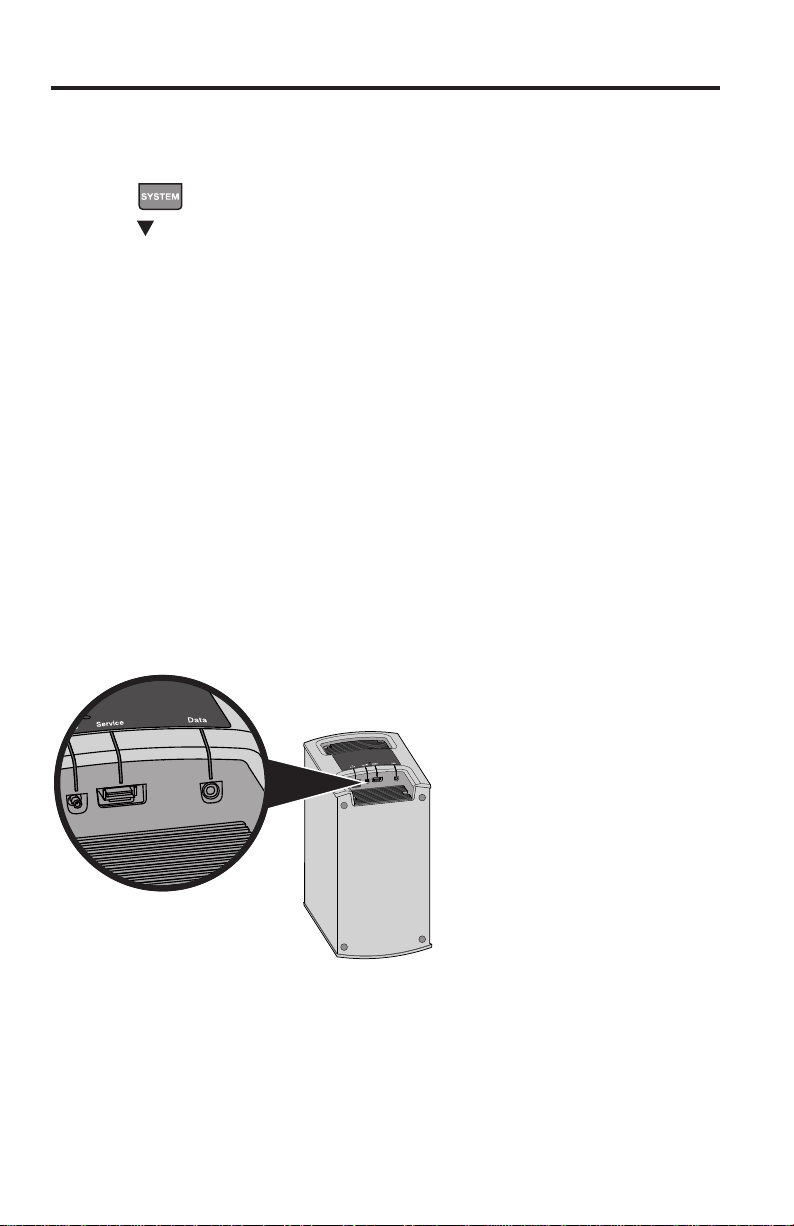
Service connectors on the Acoustimass
®
module
The Service and Data connectors are for service use only. Do not insert any cables
into these connectors.
Care and Maintenance

English - 37
Cleaning
• Clean the surface of the system with a soft, dry cloth.
• Do not use any sprays near the system. Do not use any solvents, chemicals, or
cleaning solutions containing alcohol, ammonia or abrasives.
• Do not allow liquids to spill into any openings.
Customer service
For additional help using the system:
• Visit SoundTouch.com
• Contact Bose
®
Customer Service. Refer to the contact sheet in the carton.
Limited warranty
Your system is covered by a limited warranty. Details of the limited warranty are
provided on the product registration card that is in the carton. Please refer to the
card for instructions on how to register. Failure to register will not affect your limited
warranty rights.
The warranty information provided with this product does not apply in Australia
and New Zealand. See our website at www.Bose.com.au/warranty or
www.Bose.co.nz/warranty for details of the Australia and New Zealand warranty.
Technical information
Acoustimass
®
module
Power rating: 100-240V
50/60Hz 150W
Console
Power rating: 100-240V
50/60Hz 60W
Care and Maintenance

38 - English
Appendix: Using a Computer for Setup
Important setup information
• You can set up your system using a computer rather than a smartphone
or tablet.
• Use a computer that is on your Wi-Fi
®
network.
• Use a computer where your music library is stored.
• You need the provided USB cable.
*
• Do not connect the USB cable until the app instructs you to connect the cable.
*
The SETUP A USB connector on the back of the system is for computer setup only. The USB
connectors are not designed to charge smartphones, tablets, or similar devices.
Using a desktop computer for setup
If you are using a desktop computer, move the console and SoundTouch
™
wireless adapter near the computer to set up your system. During setup,
the app prompts you to connect the USB cable from the computer to the
wireless adapter (temporarily).
After setup, disconnect the USB cable and the console from your computer and
from AC (mains power) and move the system to its permanent location.
Setting up the system using a computer
1. On your computer, open a browser and go to:
SoundTouch.com/app
Tip: Use the computer where your music library is stored.
2. Download and run the SoundTouch
™
app.
3. Connect the system to your home network (see page 19).
The app guides you through setup.

English - 39
Owner’s Guide •