
SRS-RA3000
Wireless Speaker
Operating Instructions
2
What’s in the box 3
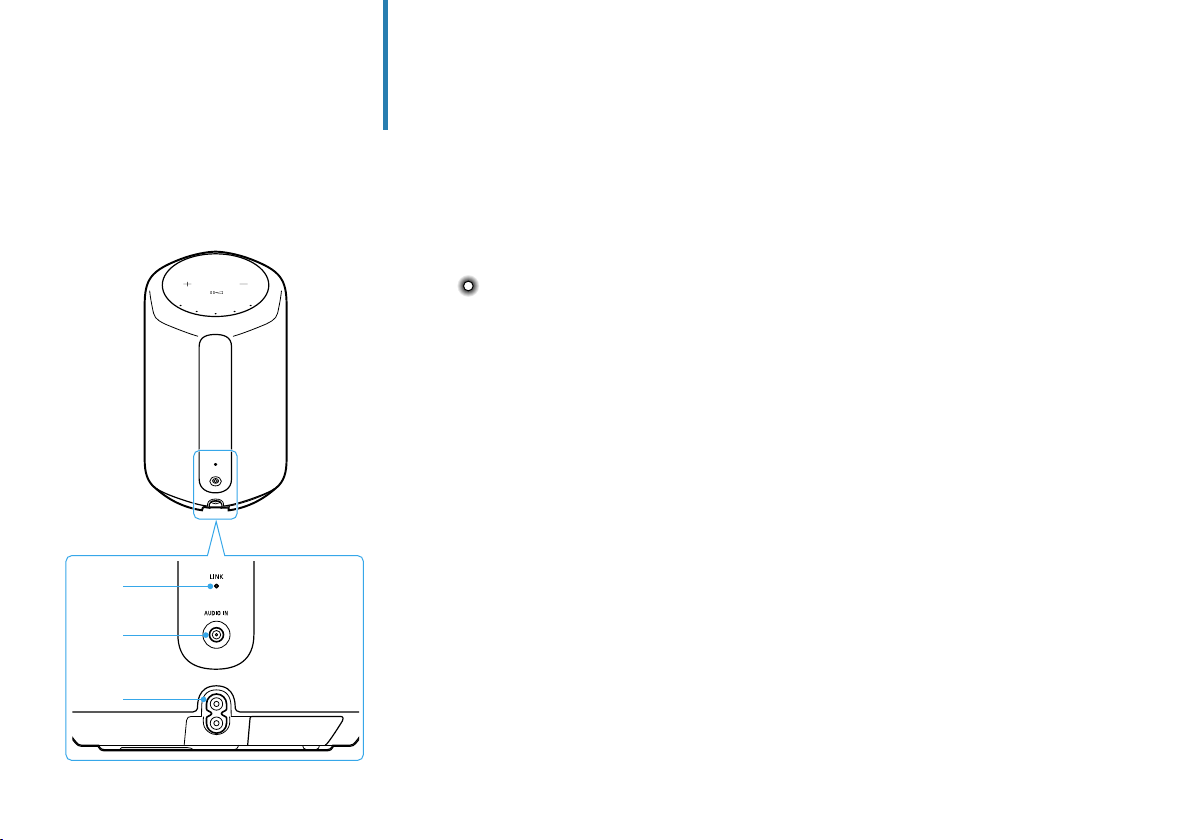
Part names
4
Set up the speaker
7
Play music
Play music using a Chromecast-enabled app 10
Play music by talking to an Alexa Built-in device 12
Play 360 Reality Audio music 15
Play music via a BLUETOOTH® connection 16
Others
18
Table of contents
Help Guide
(Web document for a PC/smartphone)
The “Help Guide” describes the features of the
speaker, how to use the speaker in detail, and
how to troubleshoot.
http://rd1.sony.net/help/ha/srsra3000/h_zz/
3
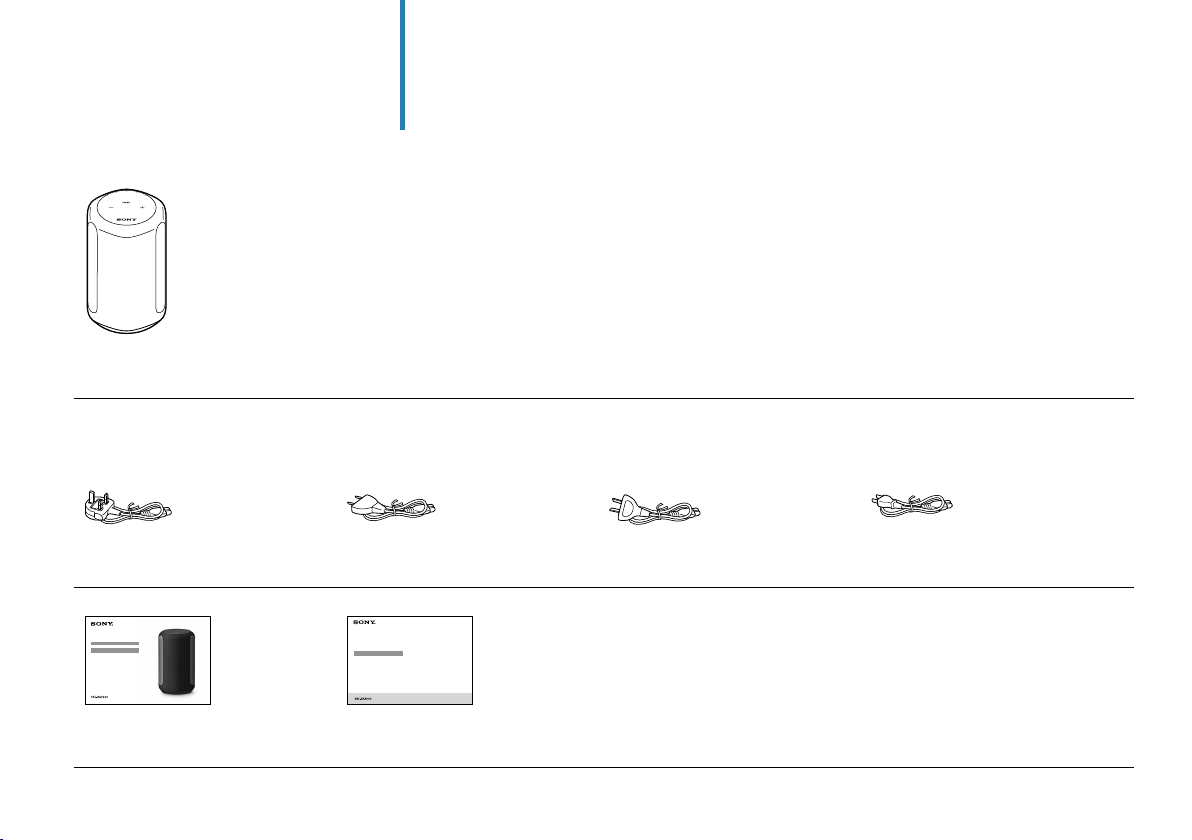
What’s in the box
Wireless Speaker (1)
Models for UK and Ireland Models for Europe
(excluding UK and Ireland)
and India
Models for Australia and
New Zealand
Models for other countries/
regions
AC power cord (1) AC power cord (1) AC power cord (1) AC power cord (1)
Operating Instructions
(this document) (1)
Precautions/Specifications (1)
4
Part names
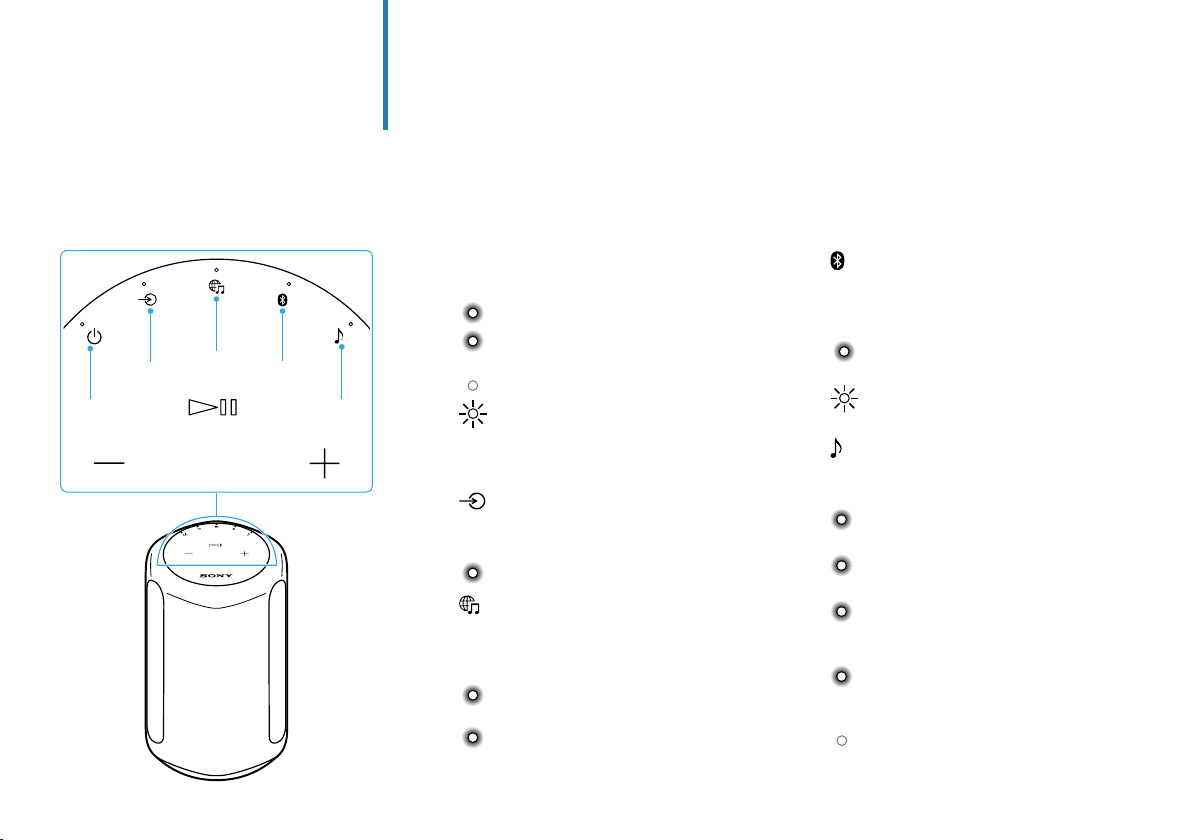
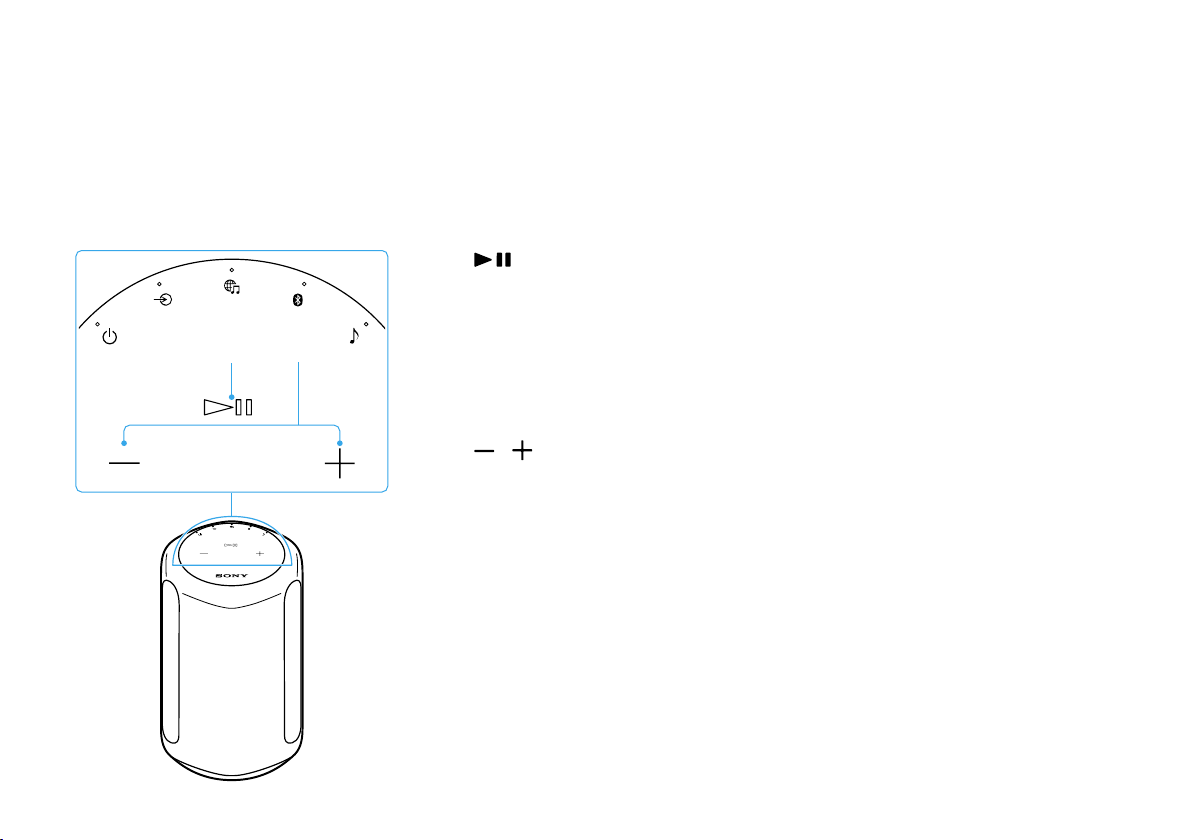
(BLUETOOTH) button/indicator
Touch to select BLUETOOTH input.
Touch and hold for more than 2seconds
to enter the BLUETOOTH pairing mode.
(Blue): BLUETOOTH input is
selected.
(Blue): The speaker is in
BLUETOOTH pairing mode.
(Sound Mode) button/indicator
Touch to turn the Immersive Audio
Enhancement on/off (page19).
(Cyan): 360 Reality Audio is being
played back.
(White): The Immersive Audio
Enhancement is on.
(Blinks slowly* in cyan): Executing the
Sound Calibration (While 360Reality
Audio is being played back.)
(Blinks slowly* in white): Executing
the Sound Calibration (While
normal audio is being played back.)
(Turns off): The Immersive Audio
Enhancement is off.
* The indicator slowly brightens and dims.
(Power) button/indicator
Touch to turn the power on/off.
(Green): Power on
(Amber): BLUETOOTH/Network
Standby
(Turns off): Power off
(Red): The speaker is in
protect mode. Refer to
“Troubleshooting” in the
Help Guide.
(AUDIO IN) button/indicator
Touch to select input from the device
connected to the AUDIO IN jack.
(White): Audio input is selected.
(Music Service) button/
indicator
Touch to select input from the Wi-Fi
network.
(White): Wi-Fi network input is
selected.
(Green): The speaker connects to
a music service through
input from the Wi-Fi
network.
Front
5
(Play/Pause) button
• Touch 1 time to play or pause music.
• Touch 2 times to go to the next song.
• Touch 3 times to go back to the
previous song.
• Touch and hold for more than
2seconds to play back the 360Reality
Audio sample music. To stop
playback, touch the button again.
/ (Volume -/+) buttons
Front
7
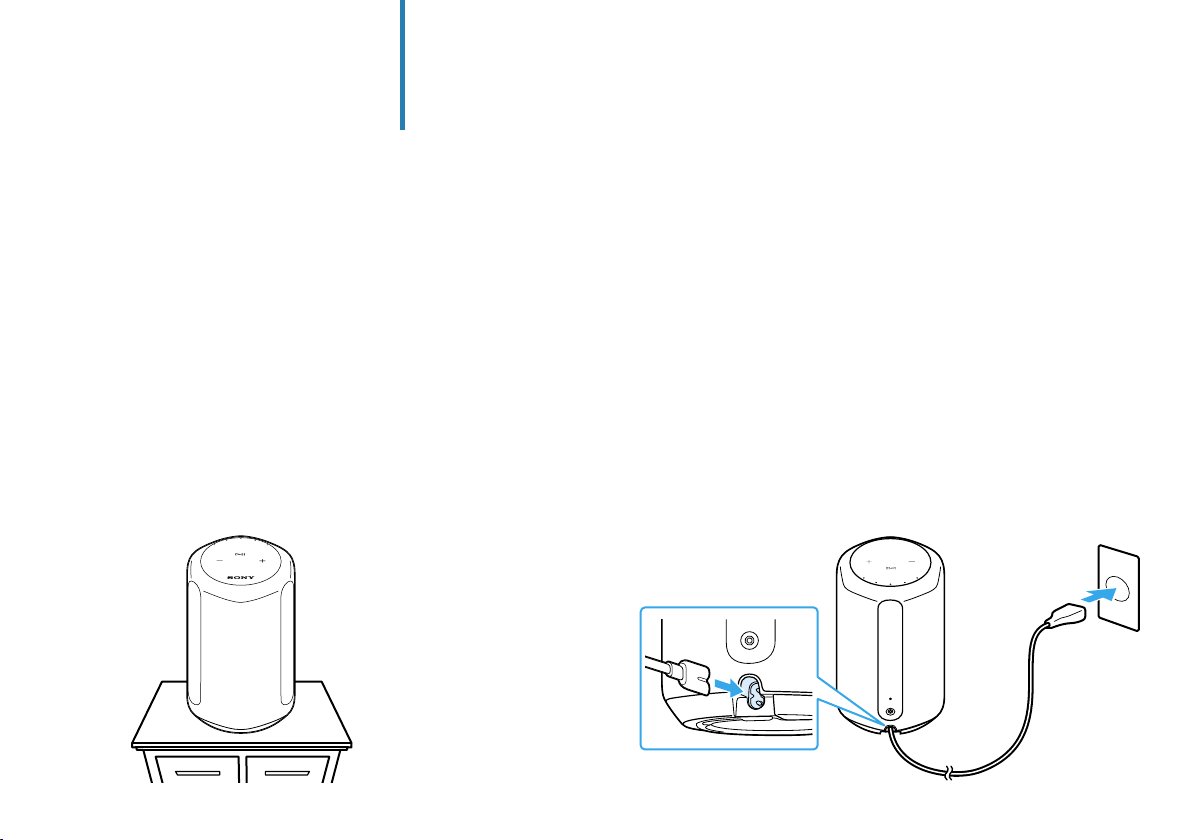
1
Place the speaker where you are going to
use it.
Set up the speaker
2
Connect the AC power cord to the
speaker, and then plug it into an outlet.
8
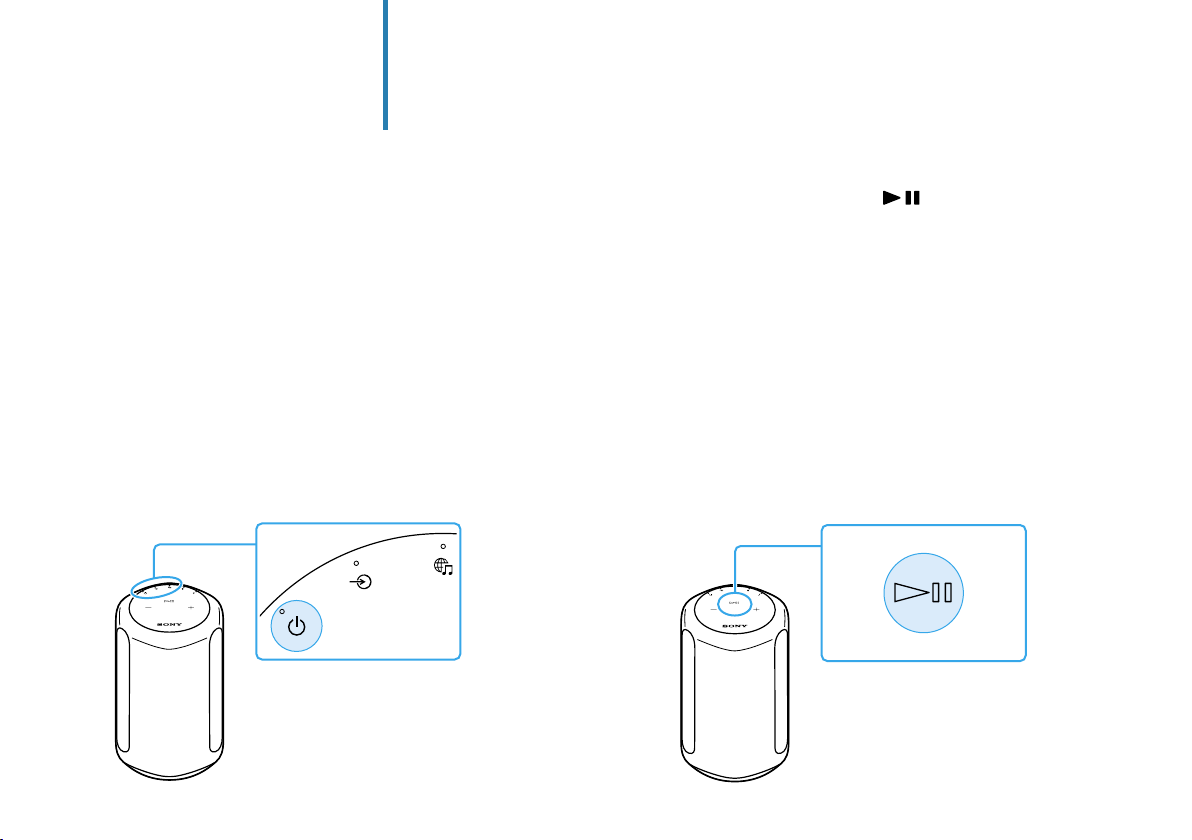
3
Touch the
(Power) button to turn on the
speaker.
Set up the speaker
4
Touch and hold the (Play/Pause)
button for more than 2 seconds.
The 360 Reality Audio sample music plays back.

9
About the Auto Sound Calibration
• Even if you change the location of the speaker,
when you turn it on and play music, the speaker
automatically calibrates the sound to suit the
location.
• During the Sound Calibration, the (Sound Mode)
indicator blinks slowly*.
• The efficacy of the Sound Calibration may vary,
depending on the surrounding environment and
music being played back.
* The indicator slowly brightens and dims.

10
Play music using a Chromecast-enabled app
1
Install the Google Home app on your
smartphone.
Play music
This speaker comes with Chromecast built-in™*.
By using a Chromecast-enabled app, you can stream
music you select on your mobile device to the
speaker.
For more information about Chromecast-enabled
apps, visit the support page for Google.
* Services may not be available, depending on your country or
region.
11
2
Follow the Google Home app’s on-screen
instructions to connect your speaker to
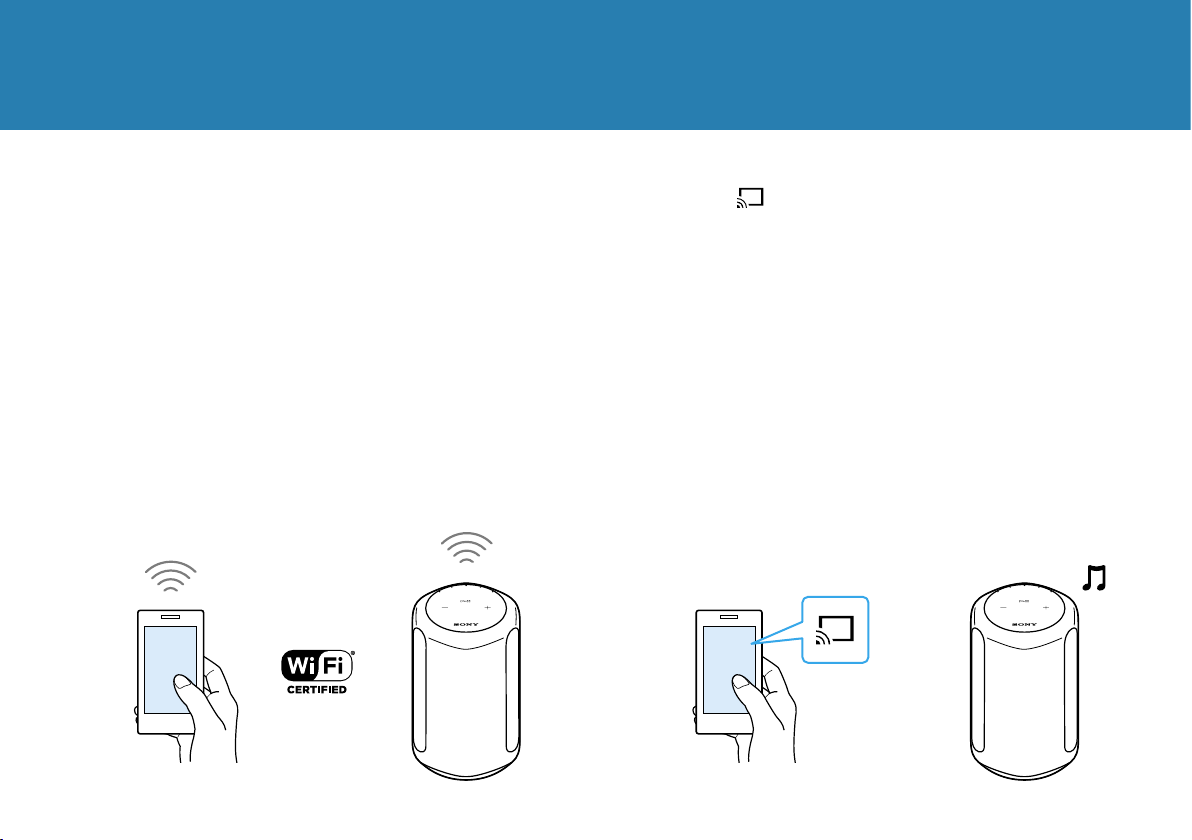
the same Wi-Fi network as your
smartphone.
3
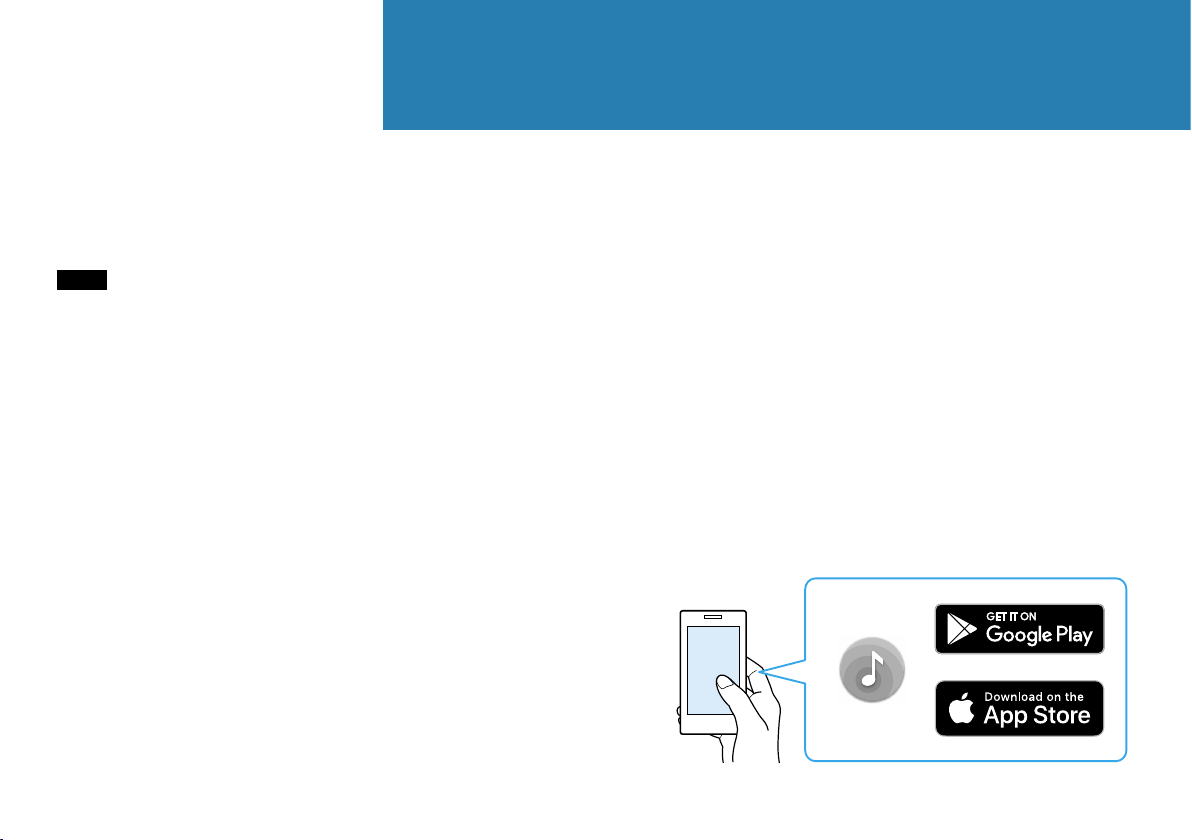
Tap (cast) in your favorite streaming
service to start streaming music to the
speaker.
For playing back 360 Reality Audio music, see “Play 360
Reality Audio music” (page 15).
12
Play music by talking to an Alexa Built-in device
1
Install “Sony | Music Center” on your
smartphone.
Play music
By talking to an Alexa Built-in device, you can stream
music to the speaker from a streaming service that
supports Alexa.
Note
• Before operating the speaker, connect the Alexa Built-in device to
the same Wi-Fi network as your smartphone and complete the
initial setup.
• Alexa Voice Service is not available in all languages and
countries/regions.
• The design of the app may change without notice.
13
2
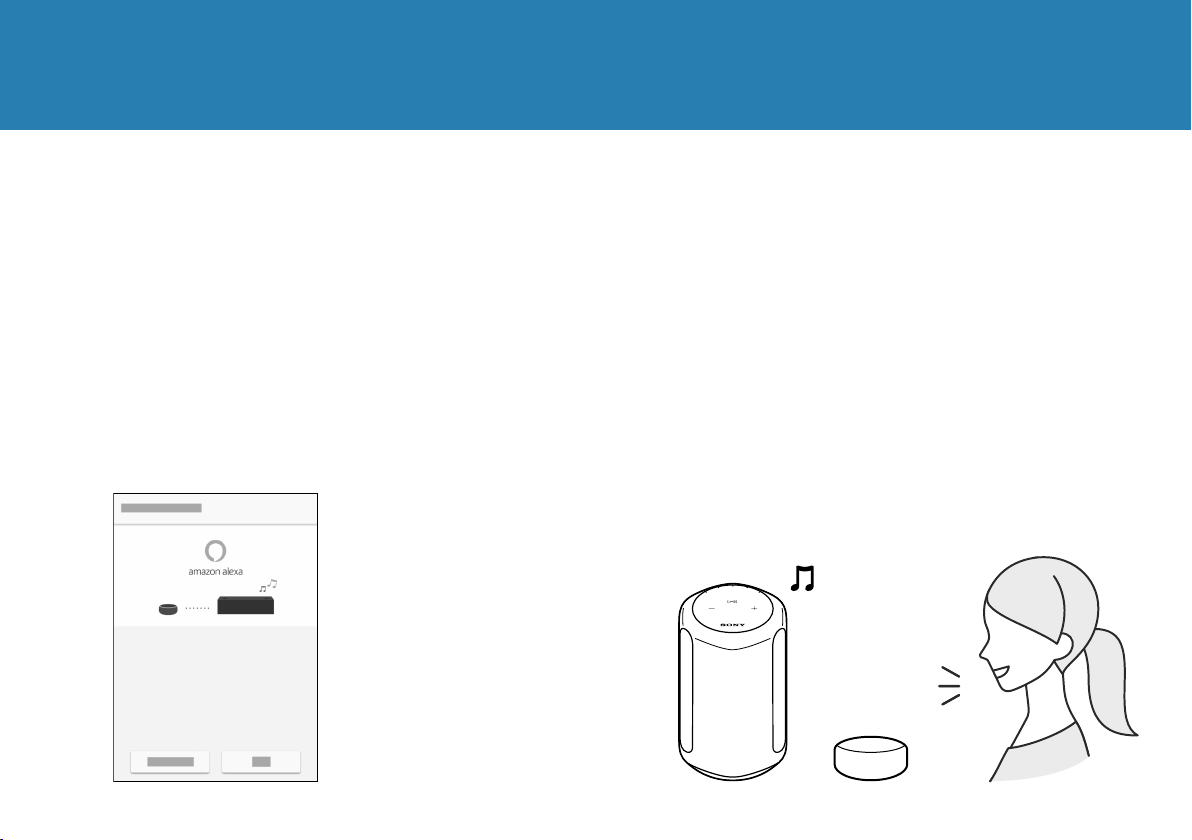
Select your speaker on the screen in
“Sony | Music Center.”
3
Follow the on-screen instructions in
“Sony | Music Center” to connect your
speaker to the same Wi-Fi network as
your smartphone.
14
4
Follow the on-screen instructions to do
the settings for operating the speaker
with Alexa.
If the settings screen for Amazon Alexa does not appear,
select [Settings] - [Amazon Alexa] - [Initial Setup] on the
screen on which you selected the speaker.
5
Talk to Alexa to play music.
For playing back 360 Reality Audio music, see “Play 360
Reality Audio music” (page 15).

15
Play 360 Reality Audio music
Play music
A Wi-Fi network connection is required to
play 360 Reality Audio music. Music cannot
be played back via a BLUETOOTH connection.
1
Follow the procedure in “Play music
using a Chromecast-enabled app”
(pages10to11) or “Play music
by talking to an Alexa Built-in device”
(pages12 to14) and connect the
speaker to a Wi-Fi network to enable
music playback.
2
Install a streaming service app* that
provides 360 Reality Audio on your
smartphone.
3
Use the app you installed in step 2 to cast
(play) the music you want to play to the
speaker.
* You can see the streaming services that provide 360 Reality
Audio in “Sony | Music Center.” Services may not be available,
depending on your country or region.
16
Play music via a BLUETOOTH® connection
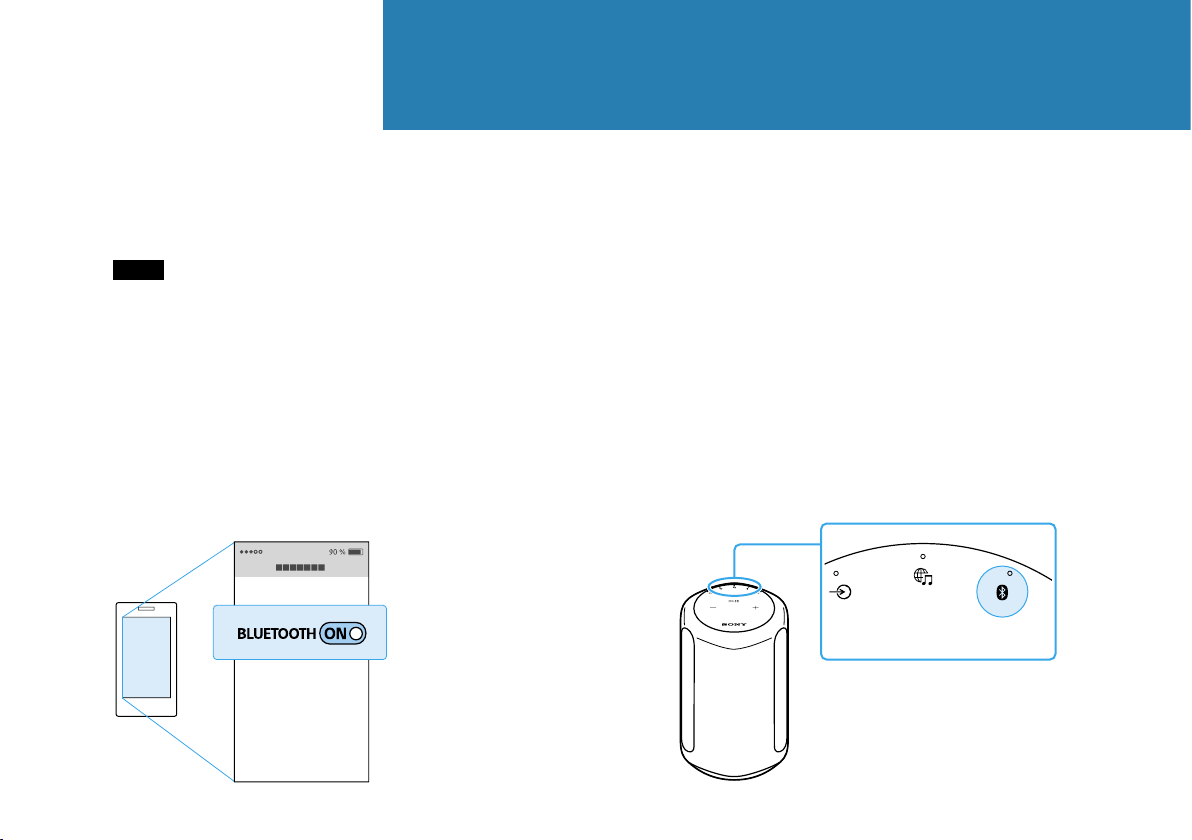
1
Turn on your smartphone’s BLUETOOTH
function.
Note
360 Reality Audio cannot be played back via a BLUETOOTH
connection. See “Play 360 Reality Audio music” (page15).
Play music
2
Touch and hold the speaker's BLUETOOTH
button for more than 2 seconds to enter
the BLUETOOTH pairing mode.
The BLUETOOTH indicator flashes.
17
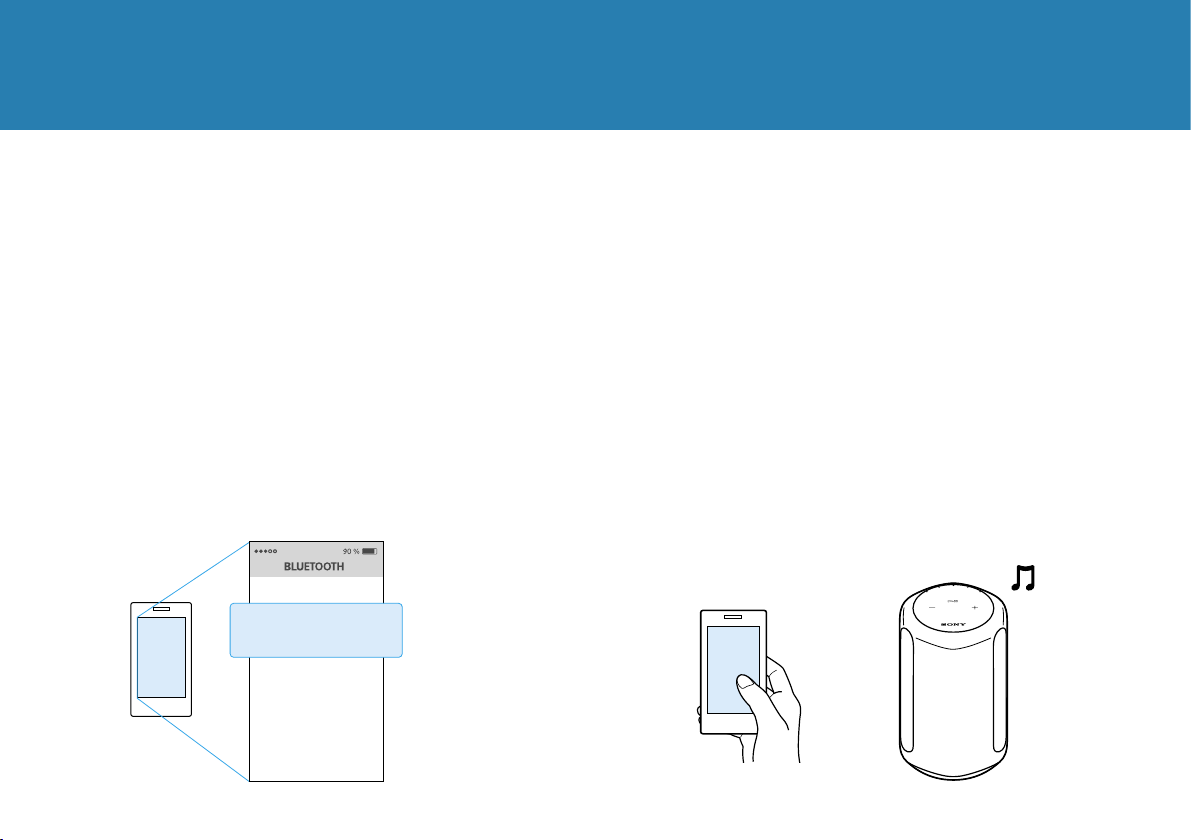
3
Search for the speaker on your
smartphone, and then tap either
[SRS-RA3000] or the name you gave the
speaker to connect to the Wi-Fi network.
Wait until the BLUETOOTH indicator stops flashing and
remains lit.
4
Play music using a music playback app on
your smartphone.
SRS-RA3000
18
Others
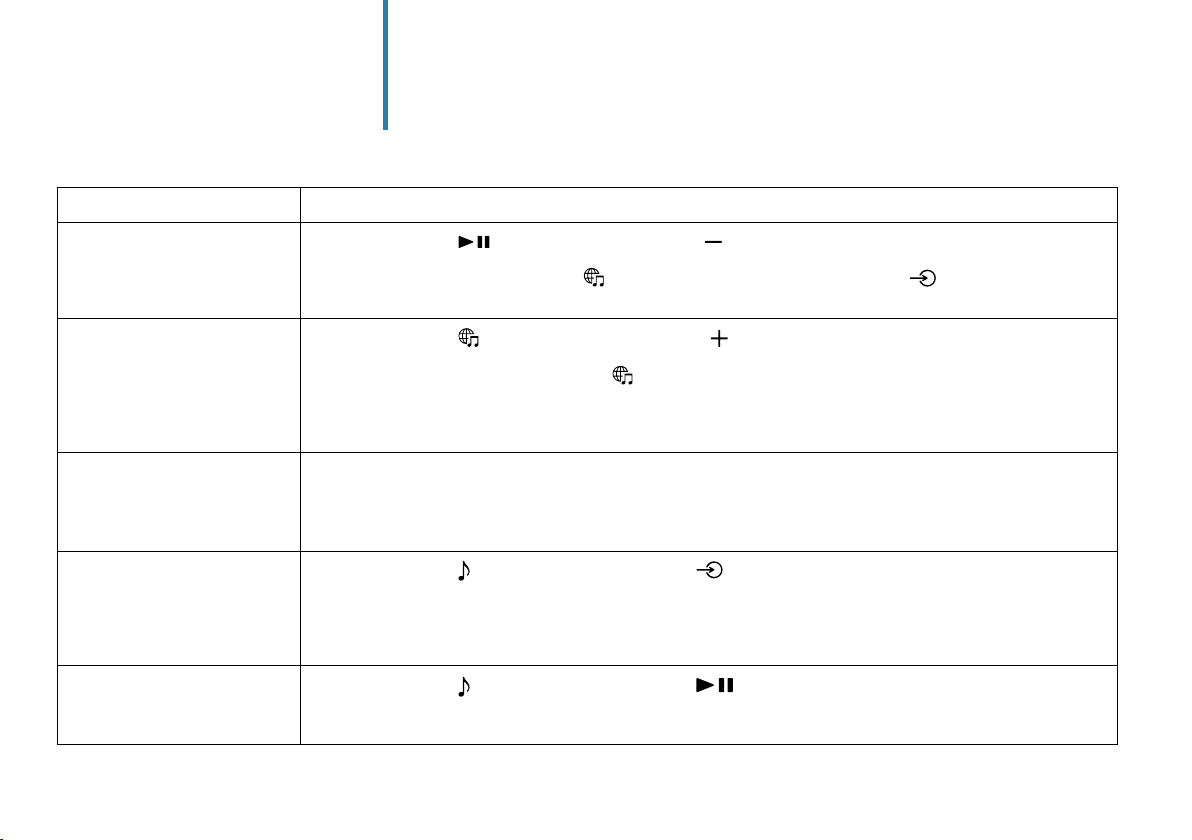
You can change the functions' settings by touching the various buttons on the speaker.
Functions How to operate
The speaker's settings can be
returned to their default.
Touch and hold the
(Play/Pause) button and the (Volume -) button simultaneously for more than
4seconds.
The BLUETOOTH indicator (blue), the (Music Service) indicator (white), and the (AUDIO IN) indicator
(white) light at the same time when the speaker is initialized.
The BLUETOOTH/Wi-Fi
network can be set to on or
off.
Touch and hold the
(Music Service) button and the (Volume +) button simultaneously for more than
4seconds.
The BLUETOOTH indicator (blue) and the (Music Service) indicator (white) flash when the setting
changes.
• Set to on: slowly flash 2 times
• Set to off: quickly flash 10 times
The BLUETOOTH/Network
Standby function can be set
to on or off.
Touch and hold the
(Power) button and the BLUETOOTH button simultaneously for more than 4seconds.
The speaker automatically turns off when the setting changes.
• Set to on: the
(Power) indicator (amber) lights when the speaker is off
• Set to off: the
(Power) indicator turns off when the speaker is off
The Auto Standby function
can be set to on or off.
Touch and hold the
(Sound Mode) button and the (AUDIO IN) button simultaneously for more than
4seconds.
The
(Power) indicator (green) flashes when the setting changes.
• Set to on: flashes 2 times
• Set to off: flashes 3 times
The System Sound can be set
to on or off.
Touch and hold the
(Sound Mode) button and the (Play/Pause) button simultaneously for more than
4seconds.
This changes the System Sound between enabled and disabled.

19
What is the Immersive Audio Enhancement?
The Immersive Audio Enhancement is a sound mode
that allows you to experience the music of typical
2-channel playback in a three-dimensional sound
field.