WHG-SLK2i/WHG-SLK1i.GB.4-187-068-15(1)WHG-SLK2i/WHG-SLK1i.GB.4-187-068-15(1)
WHG-SLK2i/WHG-SLK1i.GB.4-187-068-11(1)
2
GB
WARNING
To reduce the risk of re or electric
shock, do not expose this apparatus
to rain or moisture.
To reduce the risk of re, do not cover the
ventilation opening of the apparatus with
newspapers, tablecloths, curtains, etc.
Do not place the naked ame sources such
as lighted candles on the apparatus.
To reduce the risk of re or electric shock,
do not expose this apparatus to dripping
or splashing, and do not place objects
lled with liquids, such as vases, on the
apparatus.
As the main plug is used to disconnect
the unit from the mains, connect the unit
to an easily accessible AC outlet. Should
you notice an abnormality in the unit,
disconnect the main plug from the AC
outlet immediately.
Do not install the appliance in a conned
space, such as a bookcase or built-in
cabinet.
Do not expose batteries or apparatus with
battery-installed to excessive heat such as
sunshine, re or the like.
e unit is not disconnected from the
mains as long as it is connected to the
AC outlet, even if the unit itself has been
turned o.
Excessive sound pressure from earphones
and headphones can cause hearing loss.
CAUTION
e use of optical instruments with this
product will increase eye hazard.
is appliance is classied as a CLASS 1
LASER product. is marking is located
on the rear exterior.
e dating code and the nameplate are
located on the bottom exterior.
ese following indications are located
on the bottom exterior.
Notice for customers in the U.S.A.
and Canada
is symbol is intended
to alert the user to the
presence of uninsulated
“dangerous voltage”
within the product’s
enclosure that may be of
sucient magnitude to
constitute a risk of electric
shock to persons.
is symbol is intended
to alert the user to the
presence of important
operating and
maintenance (servicing)
instructions in the
literature accompanying
the appliance.
Owner’s Record
e model and serial numbers are located
on the bottom of the unit. Record these
numbers in the space provided below.
Refer to them whenever you call upon
your Sony dealer regarding this product.
Model No.
Serial No.

WHG-SLK2i/WHG-SLK1i.GB.4-187-068-11(1)
3
GB
Important Safety Instructions
1) Read these instructions.
2) Keep these instructions.
3) Heed all warnings.
4) Follow all instructions.
5) Do not use this apparatus near water.
6) Clean only with dry cloth.
7) Do not block any ventilation openings.
Install in accordance with the
manufacturer’s instructions.
8) Do not install near any heat sources
such as radiators, heat registers,
stoves, or other apparatus (including
ampliers) that produce heat.
9) Do not defeat the safety purpose of
the polarized or grounding-type plug.
A polarized plug has two blades with
one wider than the other. A grounding
type plug has two blades and a third
grounding prong. e wide blade or
the third prong are provided for your
safety. If the provided plug does not t
into your outlet, consult an electrician
for replacement of the obsolete outlet.
10) Protect the power cord from being
walked on or pinched particularly at
plugs, convenience receptacles, and
the point where they exit from the
apparatus.
11) Only use attachments/accessories
specied by the manufacturer.
12) Use only with the cart,
stand, tripod, bracket,
or table specied by
the manufacturer,
or sold with the
apparatus. When
a cart is used, use
caution when moving
the cart/apparatus
combination to avoid
injury from tip-over.
13) Unplug this apparatus during lightning
storms or when unused for long
periods of time.
14) Refer all servicing to qualied service
personnel. Servicing is required when
the apparatus has been damaged in any
way, such as power-supply cord or plug
is damaged, liquid has been spilled or
objects have fallen into the apparatus,
the apparatus has been exposed to
rain or moisture, does not operate
normally, or has been dropped.

WHG-SLK2i/WHG-SLK1i.GB.4-187-068-11(1)
4
GB
The following FCC statement applies
only to the version of this model
manufactured for sale in the U.S.A.
Other versions may not comply with
FCC technical regulations.
NOTE:
is equipment has been tested and found
to comply with the limits for a Class B
digital device, pursuant to Part 15 of the
FCC Rules. ese limits are designed to
provide reasonable protection against
harmful interference in a residential
installation. is equipment generates,
uses and can radiate radio frequency
energy and, if not installed and used
in accordance with the instructions,
may cause harmful interference to
radio communications. However, there
is no guarantee that interference will
not occur in a particular installation.
If this equipment does cause harmful
interference to radio or television
reception, which can be determined
by turning the equipment o and on,
the user is encouraged to try to correct
the interference by one or more of the
following measures:
Reorient or relocate the receiving
antenna.
Increase the separation between the
equipment and receiver.
Connect the equipment into an
outlet on a circuit dierent from that
to which the receiver is connected.
Consult the dealer or an experienced
radio/TV technician for help.
CAUTION
You are cautioned that any changes or
modications not expressly approved in
this manual could void your authority to
operate this equipment.
Notice for customers: the following
information is only applicable
to equipment sold in countries
applying EU directives.
e manufacturer of this product is Sony
Corporation, 1-7-1 Konan Minato-ku,
Tokyo, 108-0075 Japan. e Authorized
Representative for EMC and product safety
is Sony Deutschland GmbH, Hedelnger
Strasse 61, 70327 Stuttgart, Germany. For
any service or guarantee matters, please
refer to the addresses given in separate
service or guarantee documents.

WHG-SLK2i/WHG-SLK1i.GB.4-187-068-11(1)
5
GB
Disposal of Old
Electrical & Electronic
Equipment
(Applicable in the
European Union
and other European
countries with
separate collection
systems)
is symbol on the product or on its
packaging indicates that this product
shall not be treated as household waste.
Instead it shall be handed over to the
applicable collection point for the
recycling of electrical and electronic
equipment. By ensuring this product
is disposed of correctly, you will help
prevent potential negative consequences
for the environment and human health,
which could otherwise be caused by
inappropriate waste handling of this
product. e recycling of materials will
help to conserve natural resources. For
more detailed information about recycling
of this product, please contact your
local Civic Oce, your household waste
disposal service or the shop where you
purchased the product.
Applicable accessories: Remote
commander
Disposal of waste
batteries (applicable
in the European Union
and other European
countries with
separate collection
systems)
is symbol on the battery or on the
packaging indicates that the battery
provided with this product shall not be
treated as household waste. On certain
batteries this symbol might be used in
combination with a chemical symbol.
e chemical symbols for mercury (Hg)
or lead (Pb) are added if the battery
contains more than 0.0005% mercury or
0.004% lead. By ensuring these batteries
are disposed of correctly, you will help
prevent potentially negative consequences
for the environment and human health
which could otherwise be caused by
inappropriate waste handling of the
battery. e recycling of the materials will
help to conserve natural resources.
In case of products that for safety,
performance or data integrity reasons
require a permanent connection with an
incorporated battery, this battery should
be replaced by qualied service sta only.
To ensure that the battery will be treated
properly, hand over the product at end-of-
life to the applicable collection point for
the recycling of electrical and electronic
equipment.
For all other batteries, please view the
section on how to remove the battery from
the product safely. Hand the battery over
to the applicable collection point for the
recycling of waste batteries.
For more detailed information about
recycling of this product or battery, please
contact your local Civic Oce, your
household waste disposal service or the
shop where you purchased the product.

WHG-SLK2i/WHG-SLK1i.GB.4-187-068-11(1)
6
GB
About product
registration (for U.S.
customers only)
Proper registration will enable us to
send you periodic mailings about
new products and other important
announcements. Registering your
product will also allow us to contact you
in the unlikely event that it will need
adjustment or modication. Please take
the time to register your new product at
our website:
http://www.sony.com/productregistration
You will nd the product serial number
on the main unit and the carton box.
If you have any operational questions
regarding your new purchase, please
contact your retailer. For the location
of a Sony dealer in your area, or for any
other questions, please call 1-800-222-
SONY(7669).
About this manual
e instructions in this manual are for
models WHG-SLK2i and WHG-SLK1i.
Each model consists of the following
components.
WHG-SLK2i
Main unit:
HCD-SLK2i
Speaker system:
SS-SLK2i (Front speakers)
WHG-SLK1i
Main unit:
HCD-SLK1i
Speaker system:
SS-SLK1i (Front speakers)
Icons, such as , listed at the top
of each explanation indicate what kind
of media can be used with the function
being explained.
e Control Menu items may be
dierent depending on the disc.
e Control Menu items may vary
depending on the area.
e “SETUP” menu items may be
dierent depending on the area.
e order of the displayed items on
the Control Menu or the “SETUP”
menu may be dierent from the actual
display.
DivX and MPEG4 video les on a disc
cannot be played back on the North
American model.
e playable video format for les
stored on a USB device, “Memory
Stick” media or SD memory card is
MPEG4/MPEG2/MPEG1/Motion
JPEG.
You can view any video contents stored
in the connected iPod.

WHG-SLK2i/WHG-SLK1i.GB.4-187-068-11(1)
7
GB
Table of Contents
Tuner
Listening to the radio .......................59
iPod
Playing the iPod ..................................61
USB Device/Memory Card
Before using the USB device
and the memory card with this
system ....................................................65
Playing a le on the USB device or
memory card .......................................67
Sound Adjustment
Adjusting the sound .........................72
About product registration
(for U.S. customers only) .................... 6
About this manual ...............................6
Playable discs ........................................ 9
Guide to parts and controls ...........12
Basic operations .................................18
Getting Started
Hooking up the system
securely ..................................................24
Hooking up the TV.............................27
Performing the basic
adjustments .........................................28
Setting the clock ................................30
Disc
Playing a disc .......................................32
Using play mode ................................46
Adjusting the delay between the
picture and sound (“A/V SYNC”) ...50
Restricting playback of the disc
(PARENTAL CONTROL) ......................51
Using the “SETUP” menu .................53
Continued

WHG-SLK2i/WHG-SLK1i.GB.4-187-068-11(1)
8
GB
Other Operations
Enjoying simultaneous
playback ................................................75
Using the timers .................................76
Changing the display .......................78
Using the calendar and clock
functions ...............................................81
Changing other settings..................82
Hooking up optional
components .........................................83
Additional Information
Troubleshooting .................................85
Precautions ........................................ 100
Specications ................................... 104
Compatible devices with
this system ......................................... 110
Guide to the Control Menu display
(CD/DVD function only) ................ 113
Language code list ......................... 117
Glossary .............................................. 119
Index .................................................... 122
License and trademark notice .... 124
WHG-SLK2i/WHG-SLK1i.GB.4-187-068-11(1)
9
GB
Playable discs
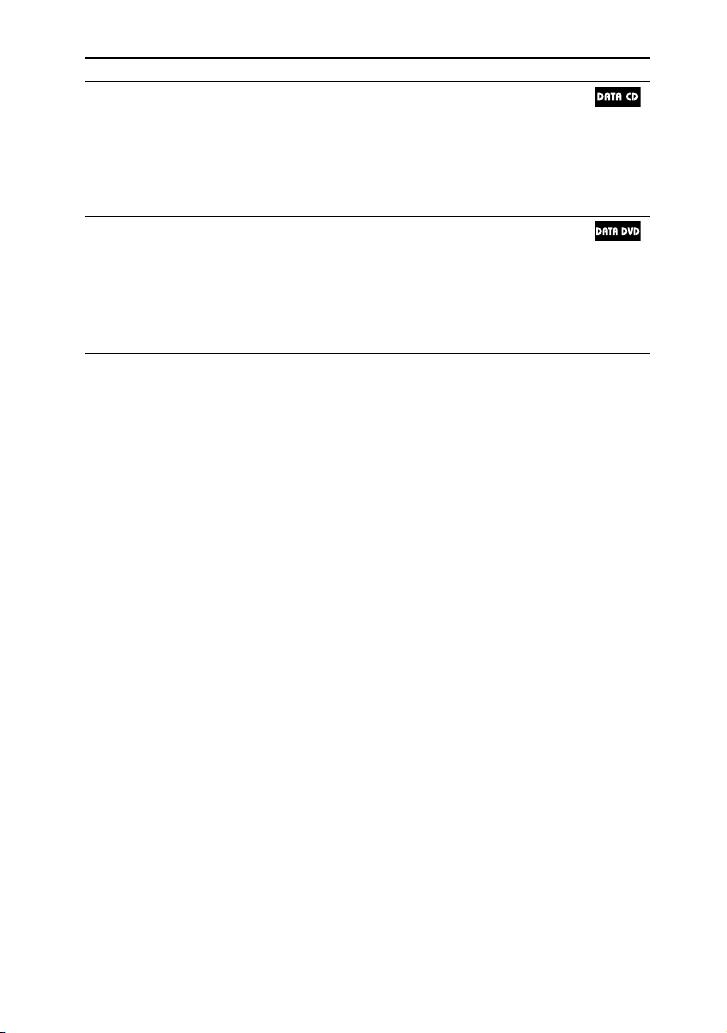
Type Disc logo Characteristics Icon
DVD VIDEO
DVD VIDEO
DVD-R/DVD-RW in DVD
VIDEO format or video mode
DVD+R/DVD+RW in DVD
VIDEO format
VR (Video
Recording)
mode
DVD-R/DVD-RW in VR (Video
Recording) mode (except for
DVD-R DL)
VIDEO CD
VIDEO CD (Ver. 1.1 and 2.0
discs)
Super VCD
CD-R/CD-RW/CD-ROM in
video CD format or Super VCD
format
CD
Audio CD
CD-R/CD-RW in audio CD
format
WHG-SLK2i/WHG-SLK1i.GB.4-187-068-11(1)
10
GB
Type Disc logo Characteristics Icon
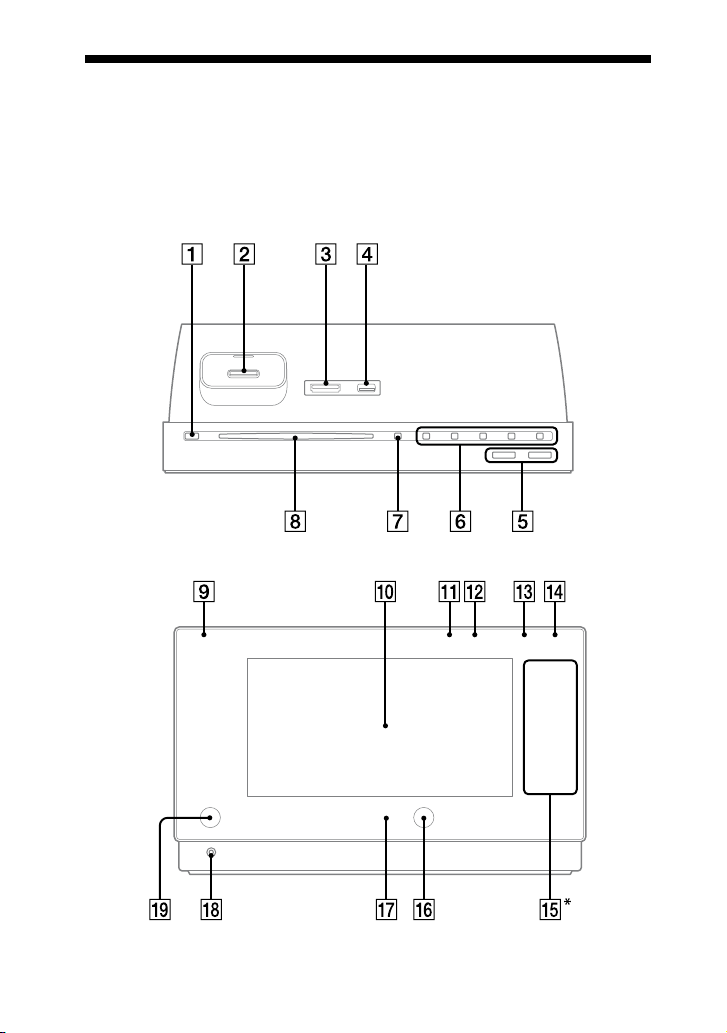
DATA CD
CD-R/CD-RW/CD-ROM in
DATA CD format, containing
MP3 les, JPEG image les,
DivX video les and MPEG4
video les, and conforming to
ISO 9660 Level 1/Level 2, or
Joliet (expansion format)
DATA DVD
DVD-ROM/DVD-R/DVD-RW/
DVD+R/DVD+RW in DATA
DVD format, containing MP3
les, JPEG image les, DivX
video les and MPEG4 video
les, and conforming to UDF
(Universal Disk Format)
MP3 les: MP3 (MPEG 1 Audio Layer 3) is a standard format dened by ISO (International
Organization for Standardization)/MPEG (Moving Picture Experts Group) which compresses
audio data. MP3 les must be in MPEG 1 Audio Layer 3 format.
JPEG image les: JPEG image les must conform to the DCF image le format (DCF “Design rule
for Camera File System”: Image standards for digital cameras regulated by “Japan Electronics and
Information Technology Industries Association” (JEITA)).
DivX video les: DivX video les must be recorded in DivX format with the extension “.avi” or
“.divx”. Please be aware that playback of DivX video les is not supported on the North American
model.
MPEG4 video les: MPEG4 video les must be recorded in MP4 le format with the extension
“.mp4” or “.m4v”. Please be aware that playback of MPEG4 video les is not supported on the North
American model.
ISO 9660: A logical format of les and folders on CD-ROMs, dened by ISO.

WHG-SLK2i/WHG-SLK1i.GB.4-187-068-11(1)
11
GB
Discs that cannot be played
CD-ROMs recorded in PHOTO CD
format
DATA CDs recorded in MP3 PRO
format
Data part of CD-Extras
1)
Data part of Mixed CDs
2)
Super Audio CDs
DVD Audio discs
DVD-RAMs
CPRM compatible DVD-R/RW
recorded in Copy-once programs
3)
Discs of non-standard shape (for
example, heart, square, star)
Discs that have adhesive tape, paper, or
sticker attached to them
Rental or used discs with attached seals
where the glue extends beyond the seal
Discs that have labels printed using ink
that feels tacky when touched
1)
CD-Extra: is format records audio
(AUDIO CD data) on the tracks in session 1
and data on the tracks in session 2.
2)
Mixed CD: is format records data on the
rst track and audio (AUDIO CD data)
on the second and subsequent tracks of a
session.
3)
CPRM: “Content Protection for Recordable
Media” is a coding technology that protects
copyright for Copy-Once programs.
See “Region code of DVD VIDEOs you
can play back on this system” and “Notes
on discs” (page 100) regarding the region
code and notes on discs.
WHG-SLK2i/WHG-SLK1i.GB.4-187-068-11(1)
12
GB
Guide to parts and controls
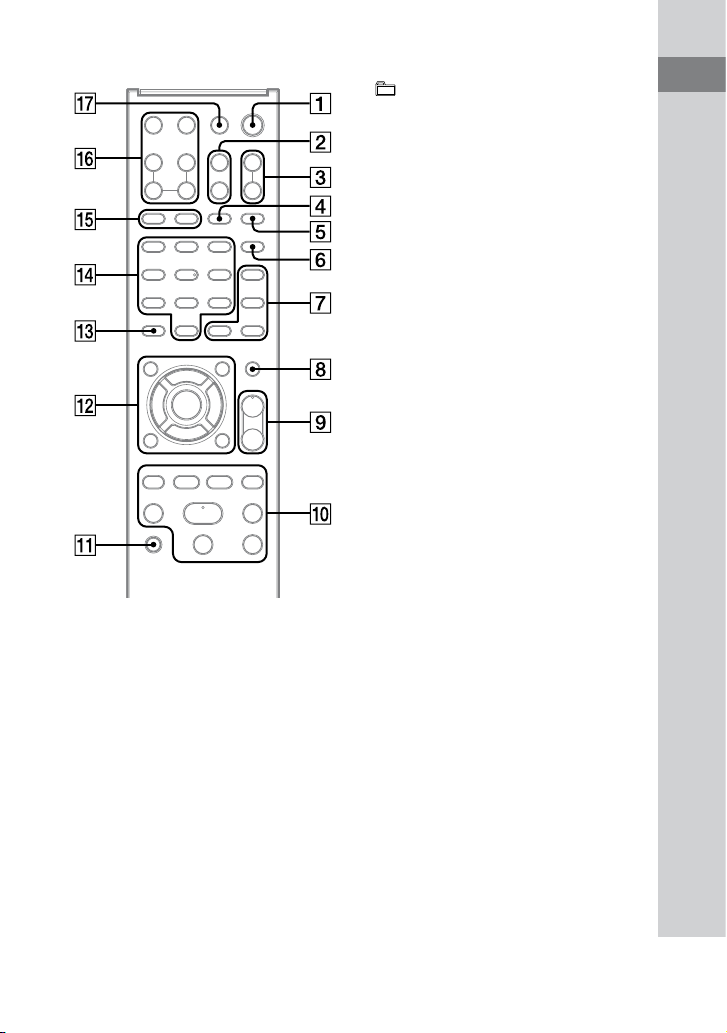
is manual mainly explains operations using the remote, but the same operations can
also be performed using the buttons on the unit having the same or similar names.
Main unit
Top
Front
* Touch sensitive buttons

WHG-SLK2i/WHG-SLK1i.GB.4-187-068-11(1)
13
GB
Guide to parts and controls
Continued
(on/standby) button
Press to turn on or o the system.
iPod Dock (page 26, 61)
Multi memory card slot
Insert a “Memory Stick” media or an SD
memory card to play back audio les,
video les, or image les.
(USB) port
Connect an optional USB device.
VOL +/ button
Press to adjust the volume.
(play) button
Press to start playback.
(pause) button
Press to pause playback.
(stop) button
Press to stop playback.
+/ (tuning) button
Press to tune in the desired station.
/ (go backward/go
forward) button
Press to select a track, le or chapter.
(eject) button
Press to eject a disc.
Disc slot
ON/STANDBY indicator
Lights up in green when the system is
turned on and lights up in red when the
system is in standby mode.
LCD screen

WHG-SLK2i/WHG-SLK1i.GB.4-187-068-12(1)
14
GB
PLAY indicator
Lights up in green during playback and
turns o when playback is stopped.
PAUSE indicator
Lights up in amber when playback is in
pause status.
TIMER indicator
Lights up in amber when Play Timer is
set.
AUTO STANDBY indicator
Lights up in amber when the system is in
automatic standby mode.
You can turn on or o the automatic
standby function. For details, see page 97.
*
HOME button (page 18)
Press to display the home menu.
OPTIONS button (page 19)
Press to bring up the Options menu to
change the current setting while using
any of the functions.
RETURN/iPod MENU button
(page 18, 19, 42, 62, 64, 69)
Press to return to the previous menu,
previous screen or previous status.
Press to display the iPod menu for
operations when using the iPod function.
/
/
/
button
Press to select the menu items.
ENTER button
Press to enter the current operation or
setting.
Ambient light sensor
Sony logo (page 82)
You can change the brightness of Sony
logo on the unit. For details, see page 82.
(headphones) jack
Remote sensor
WHG-SLK2i/WHG-SLK1i.GB.4-187-068-11(1)
15
GB
Guide to parts and controls
Continued
Remote
(on/standby) button
Press to turn on or o the system.
DISPLAY button (page 20, 23)
Press to switch back to the CD music
playback screen from the Control Menu
(CD/DVD function only), or to turn on
or o the status bar when viewing DVD
VIDEOs, video les or slideshows.
TIME/TEXT button (page 78, 79)
Press to change the information on the
display.
+/ button (page 33, 69)
Press to select a folder.
TUNER/BAND button
Press to select the tuner function.
Press to switch between FM and AM
bands.
PICTURE NAVI button (page 41)
Press to display the thumbnail pictures
from the original image les stored on a
DATA CD or DATA DVD when using
the CD/DVD function.
AUDIO button (page 36, 37)
Press to select the audio format or mode
during playback.

WHG-SLK2i/WHG-SLK1i.GB.4-187-068-11(1)
16
GB
SUBTITLE/D.TUNING button
(page 34, 59)
Press to switch the language of the
subtitles (e.g., DVD VIDEO).
Press to switch to direct tuning mode.
ANGLE button (page 34)
Press to change the angle (DVD VIDEO
with multi-angles only).
DVD TOP MENU/DVD MENU
button (page 33, 36, 41)
Press to display the DVD title on the
screen.
Press to select the DVD menu items such
as the languages and subtitles.
Press to turn on or o the menu items on
the screen.
MUTING button
Press to mute the sound.
VOLUME +/
2)
button
Press to adjust the volume.
+/ (tuning) button
Press to tune in the desired station.
/ (go backward/go
forward) button
Press to select a track, le or chapter.
/ (rewind/fast forward)
button
Press to nd a point in a track, le or
chapter.
SLOW/SLOW button
Press to watch slow-motion play.
STEP button (page 34)
Press to play one frame at a time when
playback is paused.
REPLAY/ADVANCE button
(page 34)
Press to replay the previous scene during
playback.
Press to advance the current scene during
playback.
2)
button
Press to start playback.
(pause) button
Press to pause playback.
(stop) button
Press to stop playback.
SOUND FIELD button (page 72)
Press to select the sound eld for
surround sound.

WHG-SLK2i/WHG-SLK1i.GB.4-187-068-11(1)
17
GB
Guide to parts and controls
HOME button (page 18)
Press to display the home menu.
RETURN/iPod MENU button
(page 18, 19, 42, 62, 64, 69)
Press to return to the previous menu,
previous screen or previous status.
Press to display the iPod menu for
operations when using the iPod function.
/
/
/
button
Press to select the menu items.
ENTER button
Press to enter the current operation or
setting.
DISPLAY button (page 22, 23,
113)
Press to turn on or o the Control Menu
on the screen.
e Control Menu can be displayed only
when using the CD/DVD function.
OPTIONS button (page 19)
Press to bring up the Options menu to
change the current setting while using
any of the functions.
CLEAR button (page 40, 43, 47)
Press to return to the original or previous
status.
Press to delete a pre-programmed track.
Numeric buttons
2)
Press to select a track, chapter or le with
its item number.
Press to enter numbers or values.
GROOVE button (page 72)
Press to reinforce the bass.
EQ button (page 72)
Press to select the preset sound eect.
TV INPUT
1)
button
Press to switch the input sources.
TV VOL +/
1)
button
Press to adjust the TV volume.
TV (on/standby)
1)
button
Press to turn on or o the TV.
TV CH +/
1)
button
Press to change the TV channels.
SLEEP button (page 76)
Press to set the Sleep Timer.
1)
is button is used to operate a Sony TV. For
details, see “Operating a Sony TV” (page 28).
2)
e numeric button 5, VOLUME + and
buttons on the remote have a tactile dot. Use
the tactile dot as a reference when operating
the system.
WHG-SLK2i/WHG-SLK1i.GB.4-187-068-11(1)
18
GB
Basic operations
Operations with the home menu
Home menu
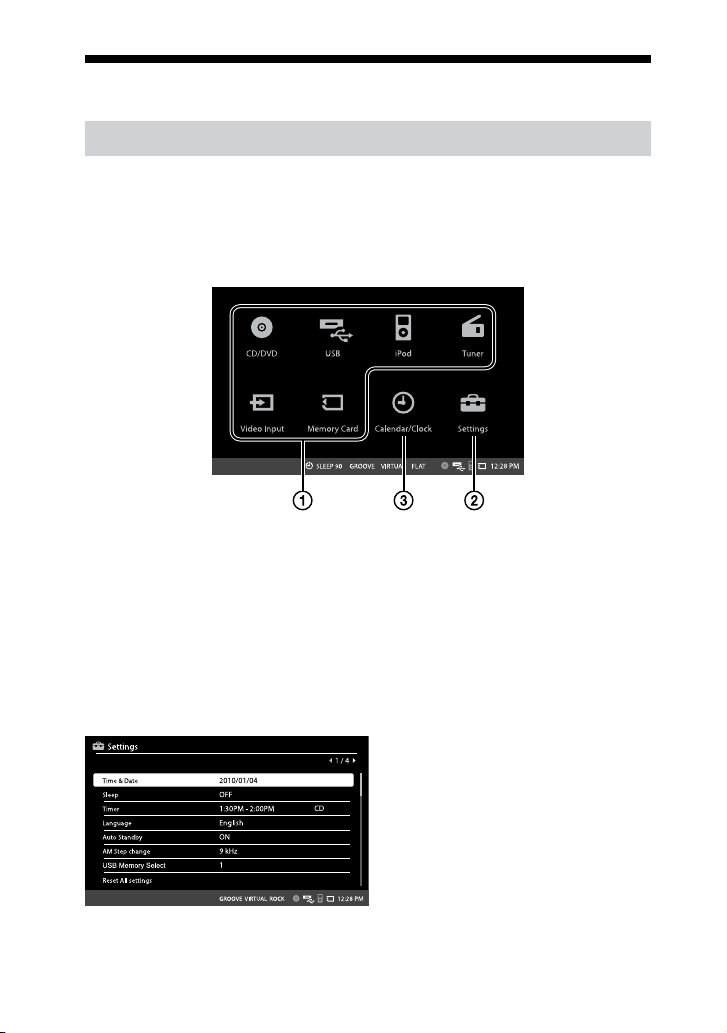
e home menu is the basic user interface of this system to select a function, to access
the “Settings” menu, and to allow you to use the system as a calendar or a clock. e
system turns on with this home screen. However, you can display the home menu at any
time by pressing HOME button.
Functions
Settings: See below.
Calendar/Clock: Displays a
calendar or a clock. See “Using
the calendar and clock functions”
(page 81).
<Basic operations>
/
/
/
: Moves the focus to an item.
ENTER: Enters the focused item to use
the function.
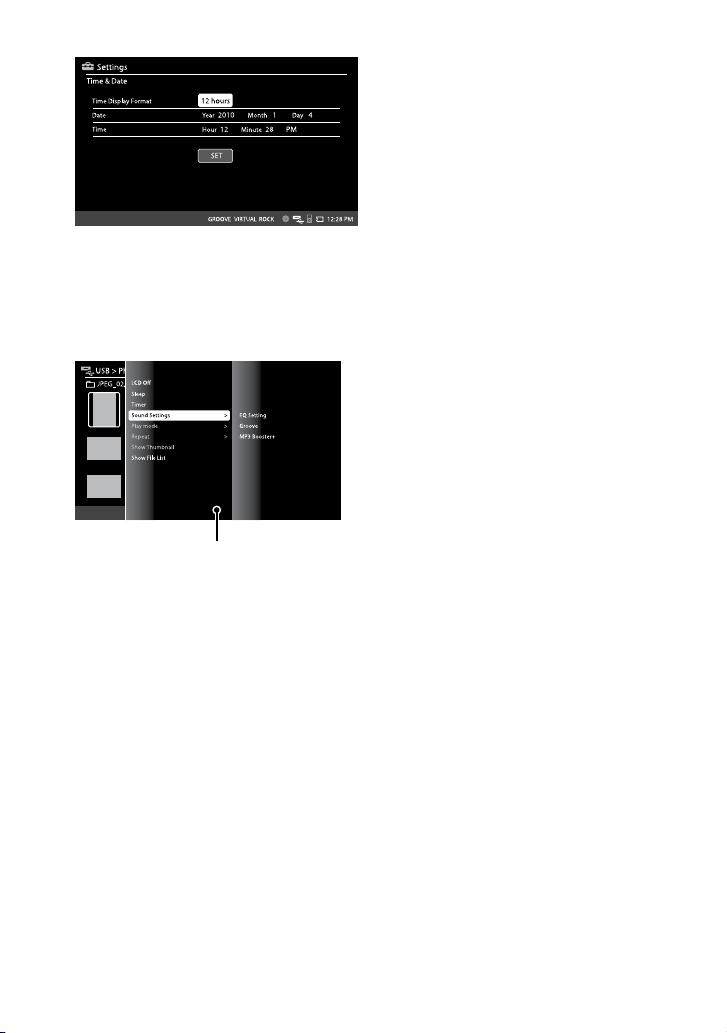
Settings menu
e “Settings” menu is composed of 4 pages and you can set various system settings.
<Basic operations>
/
: Advances a page to next or
previous page.
ENTER: Enters the highlight to select
the menu.
RETURN: Cancels the current
operation.
* “AM Step change” is not displayed on
European and Saudi Arabian models.
WHG-SLK2i/WHG-SLK1i.GB.4-187-068-11(1)
19
GB
Continued
<Operations in setting boxes>
/
/
/
: Moves the focus to a setting
box. In each setting box, you can select
a setting by pressing
/
.
ENTER: Enters the focus to change
the setting, or enters the selection or
setting you made.
RETURN: Cancels the current
operation or returns to unfocused
status.
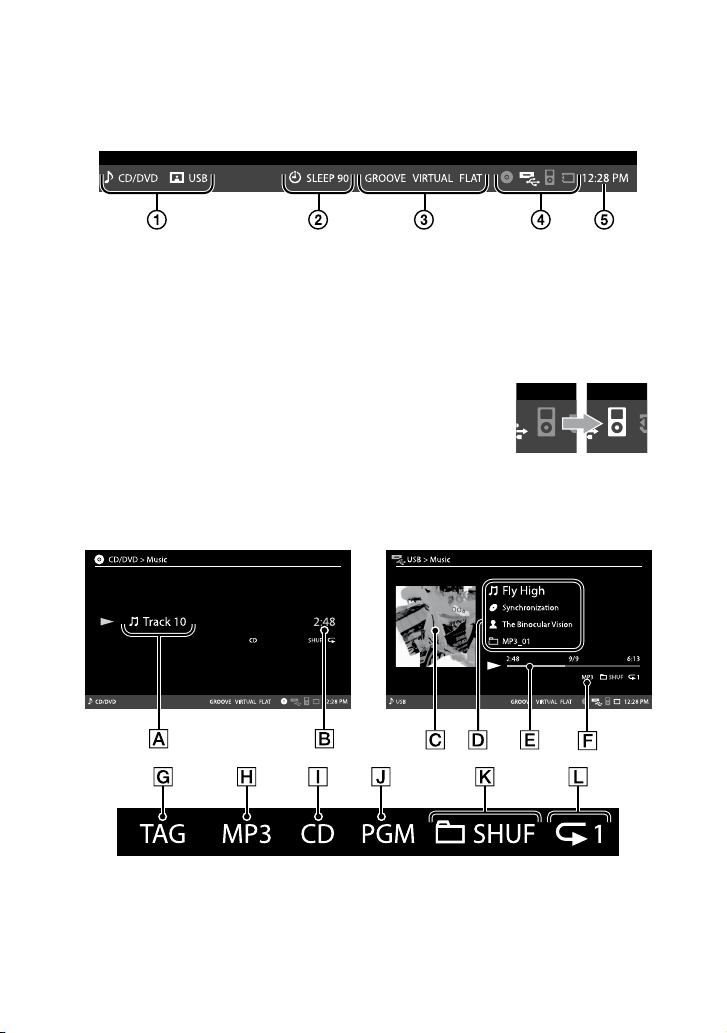
Options menu
You can bring up the Options menu at any time by pressing OPTIONS button while
using a function. Displayed menu items are related to the function you select, and vary
with each function of this system.
Options menu
<Basic operations>
OPTIONS: Brings up the Options
menu while using a function.
/
: Moves the highlight up/down.
ENTER: Enters the highlight to
select the menu. When the menu has
submenu items, pressing ENTER
moves the highlight to a top menu in
the submenu.
RETURN: Cancels the current
operation or closes the Options menu.
Tip
You can bring up the menu items “LCD O,” “Sleep,” “Timer” and “Sound Settings” in the Options
menu regardless of a function.
WHG-SLK2i/WHG-SLK1i.GB.4-187-068-14(1)
20
GB
Status bar
e Status bar indicates the following information. By default, the status bar is not
displayed when playing back a DVD VIDEO, video le or slideshow. To show the status
bar, press DISPLAY.
Indicates music or sound source and photo image source.
Indicates the status of Play Timer or Sleep Timer.
Indicates current GROOVE, surround and equalizer settings.
Indicates media insertion or connection status.
Clock
Note on the iPod connection status
e system may take a while to recognize the iPod. Use the icon color,
white or grey, to determine the iPod connection status. Grey indicates that
the iPod is not ready for use or cannot be recognized by the system (page
90).
Playback screens and indicators
CD-DA/MP3 disc USB device/iPod/Memory card
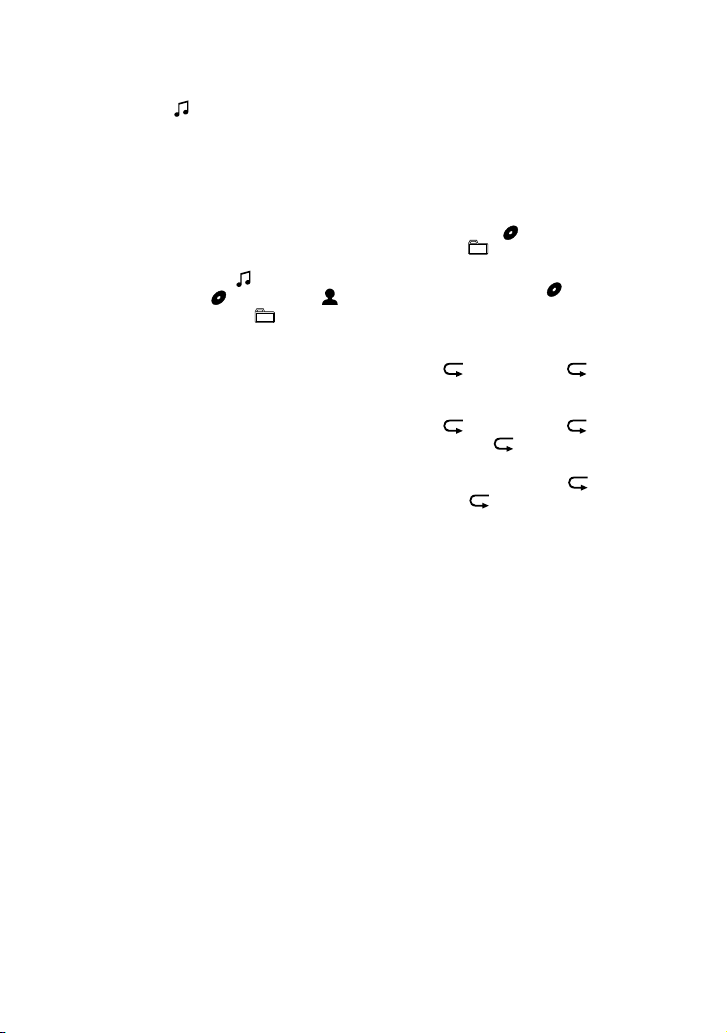
WHG-SLK2i/WHG-SLK1i.GB.4-187-068-11(1)
21
GB
Track Information
Current track name and its album
number ( ) (MP3 disc only) (see
“Information display on the CD
music playback screen” on page 79)
Time information
See “Information display on the CD
music playback screen” on page 79.
Album artwork (If available)
Music information (If available)
Current le name ( )/Album
(folder) name ( )/Artist name ( )/
Current folder name ( )
Playback progress bar
Audio format (USB device and
memory card only)
Lights up when the ID3 tag
information is displayed (MP3
les on MP3 disc only).
Lights up when an MP3 disc is
inserted.
Lights up when a CD-DA/CD-R/
CD-RW music disc is inserted.
Lights up when using Program
Play with a CD-DA disc or
VIDEO CD.
Play mode indicator
CD-DA/MP3 disc: No display
(normal play)/SHUF (shue play)
USB device/Memory card: No
display (normal play)/SHUF
(shue play)/ SHUF (album
shue)/ SHUF (folder shue)
iPod: No display (normal play)/
SHUF (shue play)/ SHUF
(album shue)
Repeat mode indictor
CD-DA disc: No display (Repeat
o)/ (Repeat 1 disc)/ 1
(Repeat one track)
MP3 disc: No display (Repeat
o)/ (Repeat 1 disc)/ (Repeat
one folder) / 1 (Repeat one le)
USB device/iPod/Memory card:
No display (Repeat o)/ (Repeat
all les)/ 1 (Repeat one le)
Continued
Notes
When “Please Wait” is displayed in the album artwork area, the system is waiting for album
artwork from the iPod. It may take some time for the artwork to appear. Some operations are
unavailable during this process.
Album artwork may not be displayed in some cases.
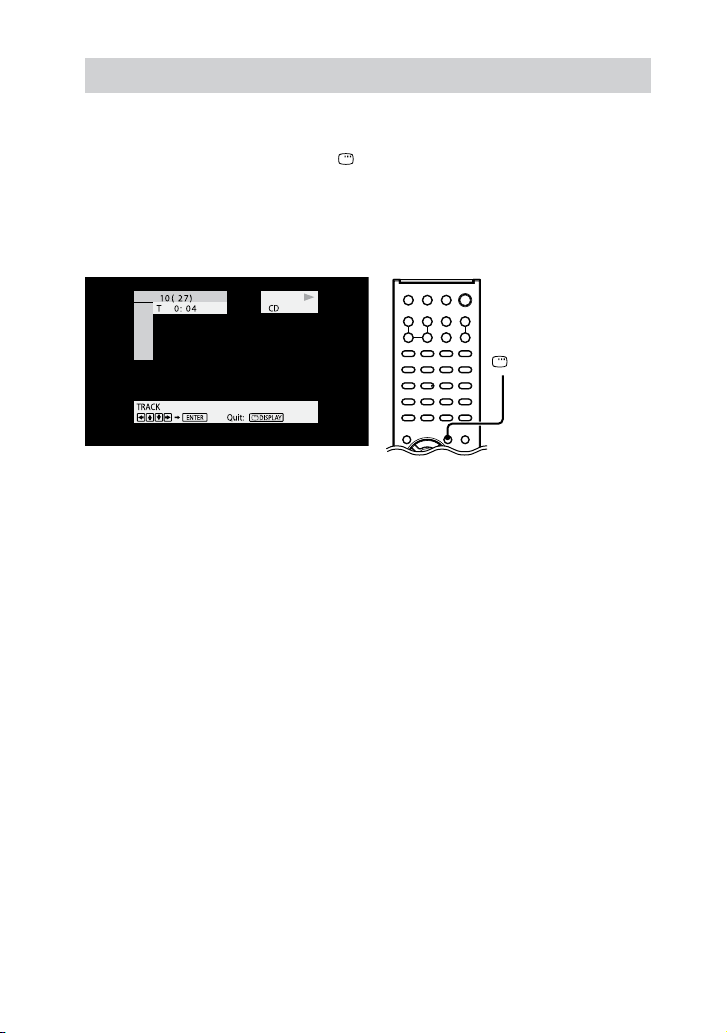
WHG-SLK2i/WHG-SLK1i.GB.4-187-068-11(1)
22
GB
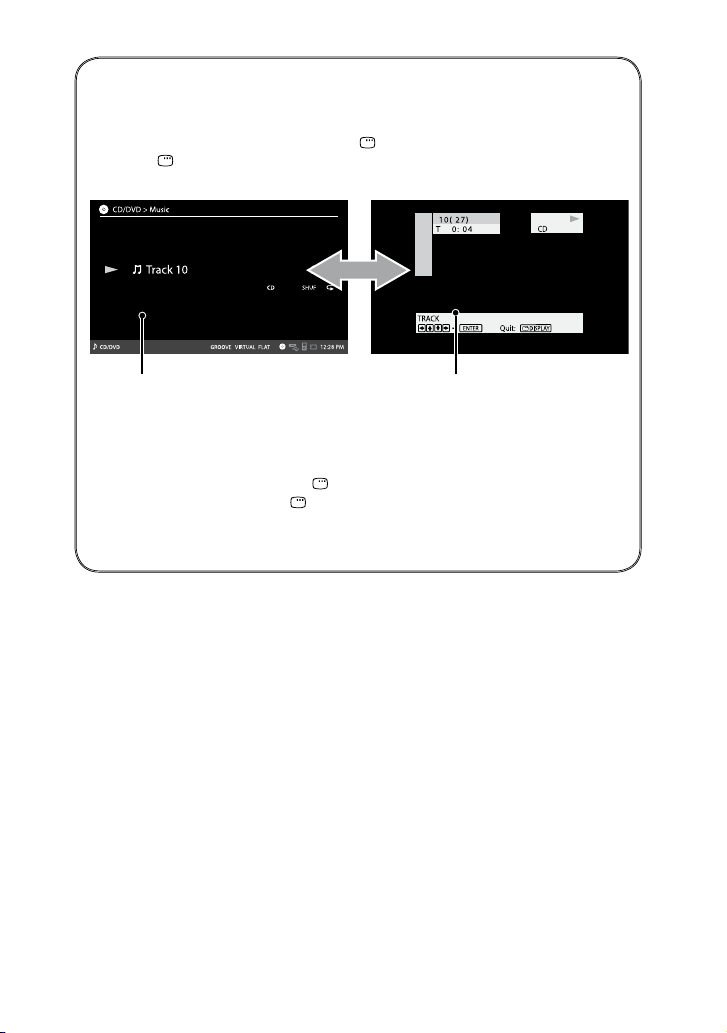
Operations with the Control Menu (CD/DVD function only)
e Control Menu can be used when using the CD/DVD function for optional settings
such as play mode or repeat mode settings or for various DVD-oriented functions. You
can call up the Control Menu using the DISPLAY button on the remote. For more
detailed information about the Control Menu, see each section of the “Disc” chapter in
the Operating Instructions and “Guide to the Control Menu display (CD/DVD function
only)” (page 113).
Control Menu
The Control Menu can
be called up using the
DISPLAY button.
WHG-SLK2i/WHG-SLK1i.GB.4-187-068-11(1)
23
GB
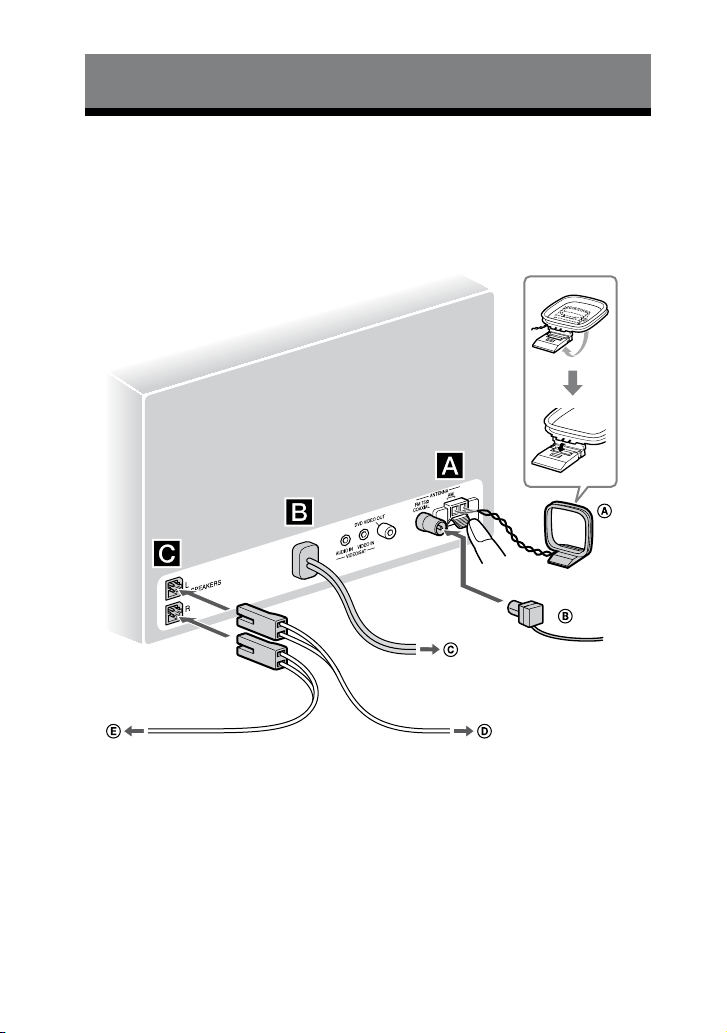
How to call up the Control Menu
when the CD music playback screen is displayed
If you want to call up the Control Menu while the CD music playback screen is
displayed, make sure to repeatedly press DISPLAY on the remote. Repeatedly
pressing DISPLAY allows you to call up the Control Menu.
When you switch back to the CD music playback screen, press DISPLAY.
CD music playback screen
Control Menu appears on the screen
Tips
You can also use the following combinations to call up the Control Menu while the CD music
playback screen is displayed.
Press DVD MENU, and then press DISPLAY repeatedly.
Press
/
/
/
, and then press DISPLAY repeatedly.
When listening to the MP3 disc, repeatedly pressing DVD MENU allows you to display the
folder list or the le list directory from the CD music playback screen.
WHG-SLK2i/WHG-SLK1i.GB.4-187-068-11(1)
24
GB
Getting Started
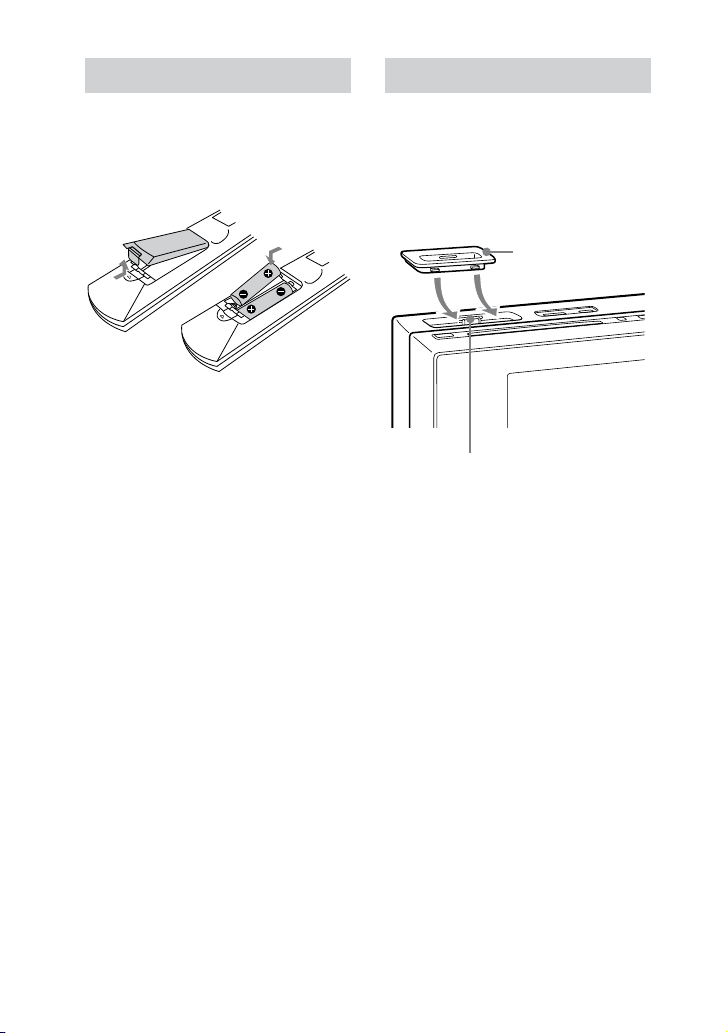
Hooking up the system securely
Connect the speaker cords and FM/AM antennas to the system as illustrated below.
WHG-SLK2i can be installed on the wall using the supplied wall-mounting brackets.
When you wall-mount the system, follow the instructions described in the separate
leaet “Installing the system on the wall” aer connections of speaker cords and
antennas are made.
AM loop antenna
FM lead antenna (Extend it horizontally.)
To wall outlet
To front speaker (Left)
To front speaker (Right)

WHG-SLK2i/WHG-SLK1i.GB.4-187-068-14(1)
25
GB
Getting Started
Continued
FM/AM antennas
Find a location and an orientation that
provide good reception, and then set up
the antennas.
Keep the antennas away from the speaker
cords, the power cord and the USB cable
to avoid picking up noise.
Power
Connect the power cord to a wall outlet.
If the supplied adaptor on the plug does
not t your wall outlet, detach it from the
plug (only for models equipped with an
adaptor).
Speakers
Connect the speaker cords to the
SPEAKERS jacks.
Cancelling the automatic
demonstration
When you rst turn on the system,
the demonstration screen appears
automatically.
To turn o the automatic demonstration
screen, follow the procedure below.
1
Select “Settings” from the home
menu, then press ENTER.
2
Select “Demonstration mode,”
then press ENTER.
e setting screen appears.
3
Press
/
repeatedly to select
“OFF,” then press ENTER.
Saving power in standby mode
is system enters standby mode
when you turn o the system using
the / button, minimizing the
power consumption automatically
(power saving mode). However, if
“Demonstration mode” has been enabled,
the system cannot enter power saving
mode. Be sure to turn o demonstration
mode to save power in standby mode.
Note
Be aware that the system cannot enter
power saving mode even if you turn on the
“Auto Standby” function (page 97) when
“Demonstration mode” has been enabled.
WHG-SLK2i/WHG-SLK1i.GB.4-187-068-11(1)
26
GB
Inserting batteries
Slide and remove the battery
compartment lid, and insert the two
supplied R6 (size AA) batteries, side
rst, matching the polarities shown
below.
Note
If you do not use the remote for a long period
of time, remove the batteries to avoid possible
damage from battery leakage and corrosion.
Tip
With normal use, the batteries should last for
about six months. When the remote no longer
operates the system, replace both batteries with
new ones.
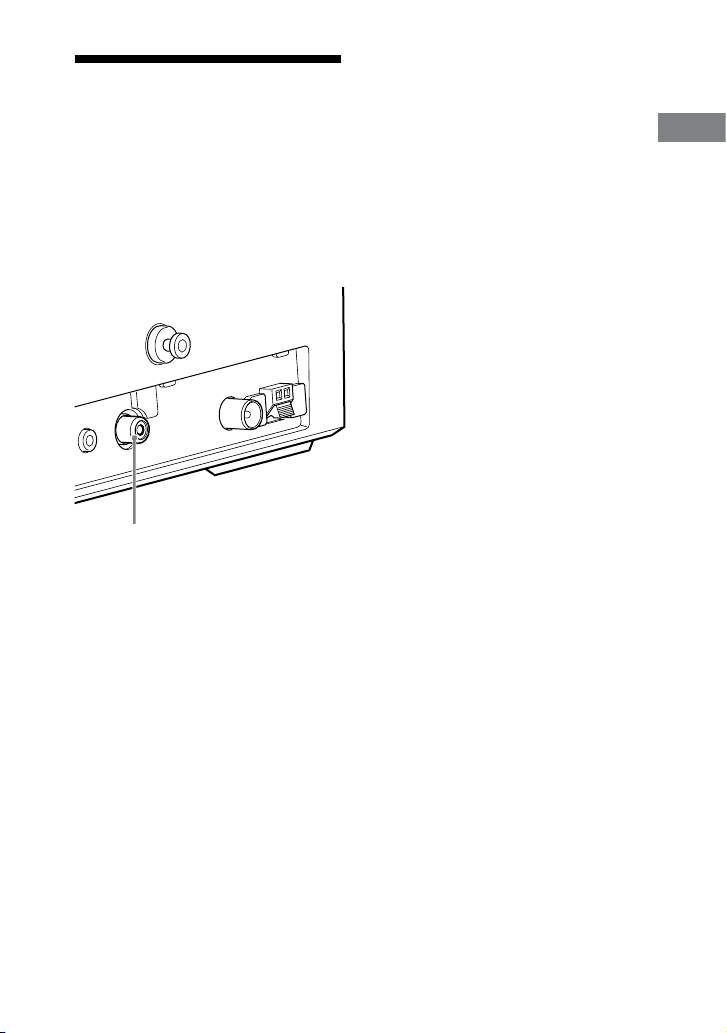
Using the iPod
Insert an iPod Dock Adapter into the
Dock before use. e iPod Dock Adapter
is not supplied with the system. Use
an iPod Dock Adapter supplied with
your iPod. For details on the iPod Dock
Adapter, refer to the user’s guide of your
iPod.
iPod Dock Adapter
Connector
To remove the iPod Dock Adapter, pull
it up with your ngernail or a at object
using the slot inside the adapter.
WHG-SLK2i/WHG-SLK1i.GB.4-187-068-11(1)
27
GB
Getting Started
Continued
Hooking up the TV
Connect the video input jack of your
TV to the DVD VIDEO OUT jack
on the unit, using the supplied video
cord (WHG-SLK2i) or a commercially
available video cord (WHG-SLK1i).
Please be aware that the connection
should be made before installing the
system on the wall if you purchased
WHG-SLK2i and are using it on the wall.
DVD VIDEO OUT
Notes on the video output of DVD
VIDEO OUT jack
Video output is available only when you are
using the CD/DVD function and the inserted
disc contains motion picture or still image
data.
You cannot view video contents stored in
the iPod, USB device or memory card on
the connected TV screen. Video contents on
those devices can be viewed only on the LCD
screen.
Changing the color system
(Except for North American, European
and Latin American models)
Set the color system to PAL or NTSC
depending on the color system of your
TV.
e default setting for the color system is
dierent depending on the area.
Each time you perform the procedure
below, the color system changes as
follows:
NTSC
PAL
1
Press / to turn on the system.
2
Select “CD/DVD” from the home
menu, then press ENTER.
3
Press / to turn o the system.
4
Press / on the unit while holding
down on the unit.
e system turns on automatically and
the color system is changed.
“DVD COLOR NTSC” or “DVD
COLOR PAL” appears on the screen.

WHG-SLK2i/WHG-SLK1i.GB.4-187-068-11(1)
28
GB
When using a TV
Turn on the TV and select the video
input so that you can view the pictures
from this system.
Operating a Sony TV
You can use the following buttons to
operate a Sony TV.
To Press
Turn the TV on
or o
TV /.
Switch the TV’s
input source
between the TV
and other input
sources
TV INPUT.
Select the TV
channels
TV CH +/.
Adjust the
volume of the TV
speaker(s)
TV VOL +/.
Performing the basic
adjustments
You can make the basic adjustments for
using the system.
Performing “QUICK” setup for
CD/DVD function
Follow the steps below to select the
display language and the TV type. If
you do not want to perform “QUICK”
setup, press CLEAR in step 3. e guide
message will disappear from the screen.
1
Turn on your TV and select the
video input*.
* is step is not required when using the
LCD screen for performing “QUICK”
setup.
2
Press / to turn on the system.
Note
Make sure there is no disc in the unit.
Otherwise, the guide message does not
appear.
WHG-SLK2i/WHG-SLK1i.GB.4-187-068-11(1)
29
GB
Getting Started
7
Press ENTER.
e setting is selected and “QUICK
SETUP is complete.” appears.
e system is ready for playback.
If you want to change each setting
individually, see “Using the “SETUP”
menu” (page 53).
If you make a mistake
Press , then select the item again.
To quit “QUICK” setup
Press DISPLAY.
To recall “QUICK” setup settings
1
Press DISPLAY when playback is
stopped.
e Control Menu appears.
2
Press or repeatedly to select
(SETUP), then press ENTER.
3
Press or repeatedly to select
“QUICK,” then press ENTER.
Note
e guide message appears at the bottom of
the screen when you turn on the system for
the rst time or aer performing “RESET”
(page 96).
3
Select “CD/DVD” from the home
menu, then press ENTER.
e guide message appears at the
bottom of the screen.
4
Press ENTER without inserting a
disc.
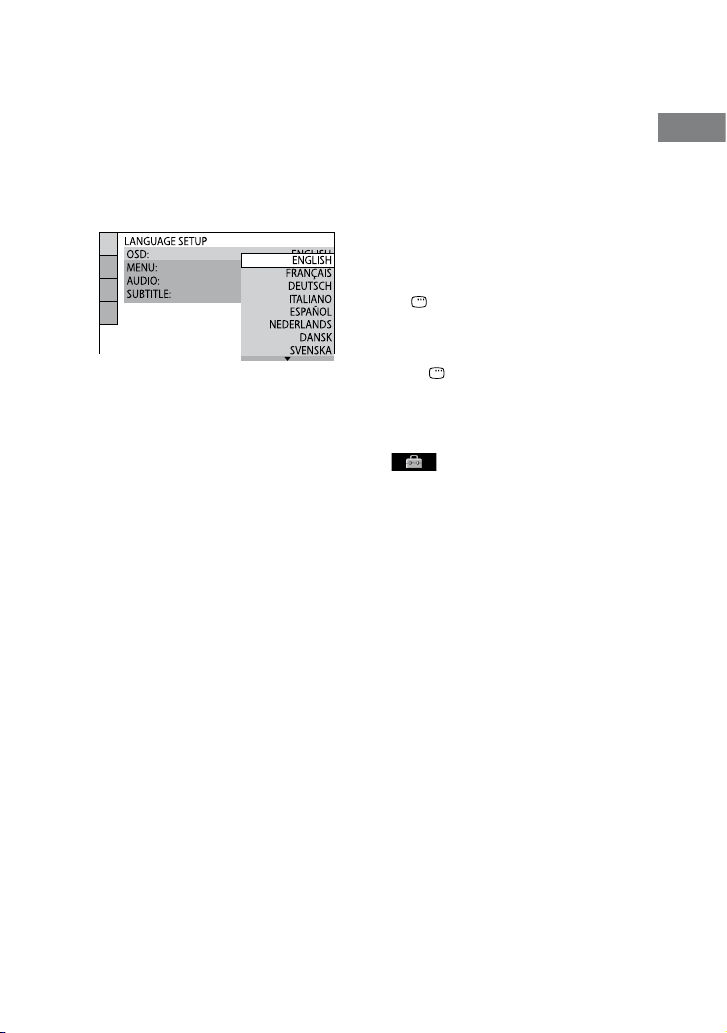
“LANGUAGE SETUP” appears.
5
Press
or
repeatedly to select
a desired language, then press
ENTER.
e setting is selected and “VIDEO
SETUP” appears.
Tip
Selected language is applied to the “OSD,”
“MENU” and “SUBTITLE” of the Control
Menu (page 54).
Note
e selectable language is dierent
depending on the area.
6
Press
or
repeatedly to select
the setting that matches your TV
type.
If you have a 4:3 standard TV:
Select “4:3 LETTER BOX” or “4:3
PAN SCAN” (page 55).
If you have a wide-screen TV or a
4:3 standard TV with wide-screen
mode:
Select “16:9” (page 55).
Continued
WHG-SLK2i/WHG-SLK1i.GB.4-187-068-11(1)
30
GB
Selecting the display language
for the home menu
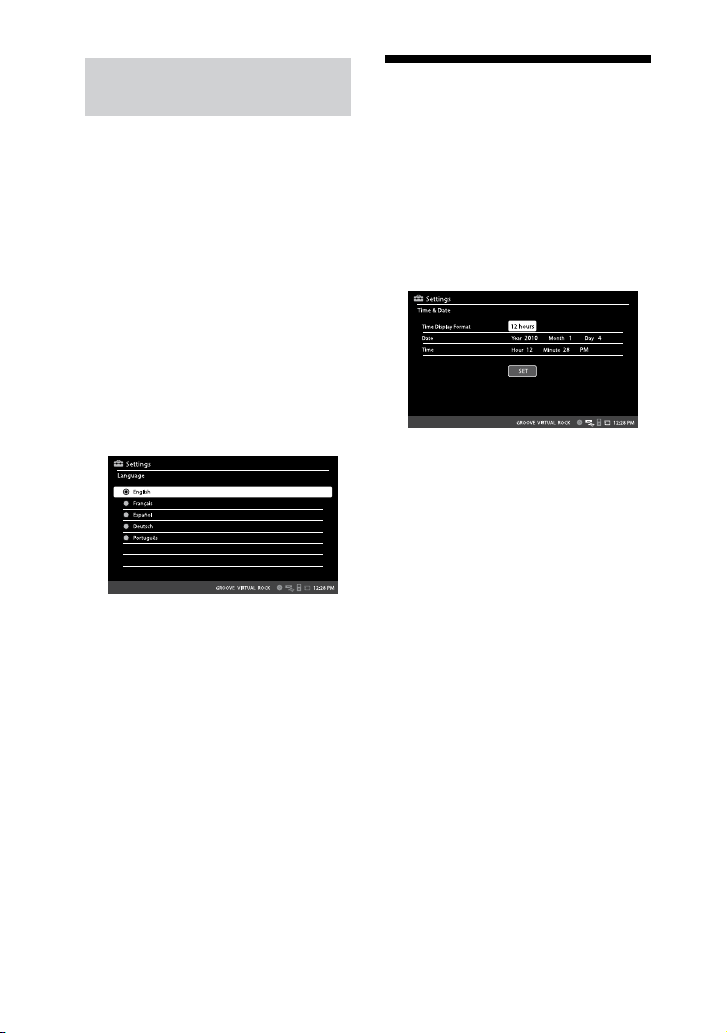
You can select a language for the home
menu.
English, French, Spanish, German or
Portuguese can be selected for the display
language.
1
Select “Settings” from the home
menu, then press ENTER.
2
Press
/
repeatedly to select
“Language,” then press ENTER.
e setting screen appears.
3
Press
/
repeatedly to select
the desired language, then
press ENTER.
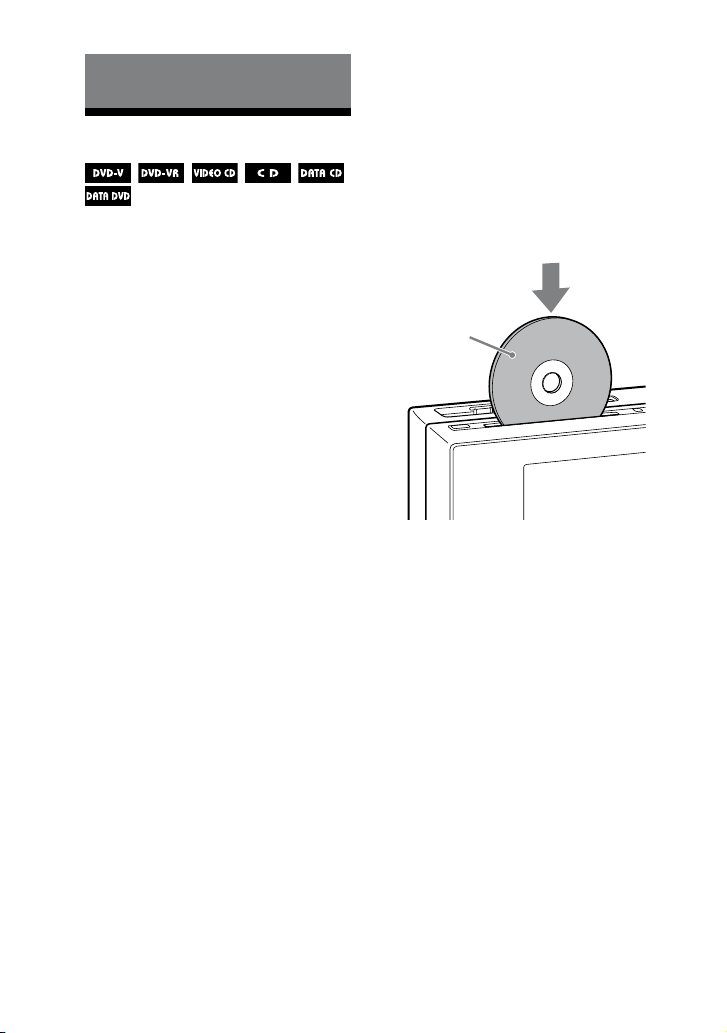
Setting the clock
1
Select “Settings” from the home
menu, then press ENTER.
2
Press
/
repeatedly to select
“Time & Date,” then press ENTER.
e setting screen appears.
3
Set the time and date as follows.

WHG-SLK2i/WHG-SLK1i.GB.4-187-068-11(1)
31
GB
Getting Started
“Time Display Format”
Select “12 hours” or “24 hours.” When
you select the format of “12 hours,”
“AM” or “PM” can be selected.
Aer selecting the time format, set
the hour (“Hour”) and the minutes
(“Minute”).
“Date”
Set the values for “Year,” “Month” and
“Day.”
“Time”
Set the values for “Hour” and
“Minute,” and select “AM” or “PM.”
Note
e clock settings are cancelled when you
disconnect the power cord or if a power failure
occurs.
WHG-SLK2i/WHG-SLK1i.GB.4-187-068-11(1)
32
GB
Disc
Playing a disc
Depending on the DVD VIDEO or
VIDEO CD, some operations may
be dierent or restricted. Refer to the
operating instructions supplied with the
disc.
Note that the playback of video les
(DivX/MPEG4 video les) on the disc
is not available on the North American
model.
Note on the maximum number of
tracks, les and folders on a DATA
CD/DATA DVD
is system cannot play a DATA CD/
DATA DVD in the following cases.
When the number of tracks or les on
a folder exceeds 150.
When the number of folders on a disc
exceeds 200.
ese numbers may vary depending on
the track structure, the le structure and
the folder structure.
1
Select “CD/DVD” from the home
menu, then press ENTER.
2
Insert a disc.
Insert a disc in the disc slot with the
label side facing forward.
Playback starts automatically when
you insert a disc in the disc slot. If the
playback does not start automatically,
press .
Insert a disc with
the label side facing
forward.
WHG-SLK2i/WHG-SLK1i.GB.4-187-068-11(1)
33
GB
Disc
Notes
Do not insert a disc with non-
standard shapes (e.g., heart,
square, star). The disc may fall into
the system and cause irreparable
damage.
When pressing on the unit and then
reinserting the disc that appears in the
disc slot, do not simply push in the disc.
Remove the disc from the disc slot and
then reinsert it.
Do not turn o the system with a disc
halfway inserted in the disc slot. Doing
so may cause the disc to fall.
Do not use a disc with tape, seals or paste
on it as this may cause malfunction.
When you eject a disc, handle the disc by
its edge. Do not touch the surface.
Do not push a disc into the disc slot
when the system is o . Doing so may
cause the system to malfunction.
Do not insert an 8 cm disc with an
adaptor. Doing so may cause the system
to malfunction.
Do not place any object on the disc slot.
Depending on the system status, the
volume level may not appear on the
screen.
Other operations
Operations for video les are not
available on the North American model.
To Do this
Stop playback Press . To resume
playback where you
stopped the disc, press
. To play back from
the beginning of the
disc, press again.
Pause playback Press
1)
. To resume
playback, press again
or press .
Select a track,
audio le,
chapter or
video le
2)
Press or
repeatedly during
playback.
Or, press any of the
numeric buttons, then
press ENTER
3)
.
Select a title
4)
Press DVD TOP
MENU, then press
/// or any of the
numeric buttons.
Select a folder
5)
Press +/
repeatedly during
playback or when
playback is paused.
Continued
WHG-SLK2i/WHG-SLK1i.GB.4-187-068-11(1)
34
GB
To Do this
Locate a point
quickly in fast
forward or fast
reverse (Lock
Search)
6)
Press or
during playback.
Each time you press
or , the
playback speed changes
cyclically
7)
.
To return to normal
playback, press .
Watch frame by
frame (Slow-
motion Play)
8)
Press SLOW
9)
or SLOW when
playback is paused.
Each time you press
SLOW or SLOW
, the playback speed
changes.
To return to normal
playback, press .
Play one
frame at a
time (Freeze
Frame)
8)
Press STEP
9)
or
STEP to reverse
or advance frame by
frame when playback is
paused.
Each time you press
STEP or STEP ,
the frame changes.
To return to normal
playback, press .
To Do this
Replay the
previous scene
(Instant
Replay)
10)
Press REPLAY
during playback.
Briey fast
forward the
current scene
(Instant
Advance)
10)
Press ADVANCE
during playback.
Change the
angle
11)
Press ANGLE
repeatedly during
playback. Each time
you press ANGLE, the
angle changes.
Display the
subtitle
Press SUBTITLE
repeatedly during
playback. Each time
you press SUBTITLE,
the subtitle language
changes
12)
or turns
o
13)
.
1)
ere may be some disturbance in the video
image.
2)
Except for JPEG image les. You cannot
select an audio track or le during Lock
Search operation of MP3 les.
3)
DVD VIDEO, DVD-R/-RW in VR mode,
VIDEO CD, AUDIO CD and video les only.
4)
DVD VIDEO only.
5)
MP3 les, JPEG image les, DivX video les
and MPEG4 video les only.
6)
Except for JPEG image les.
7)
Depending on the disc, the actual speed may
dier.

WHG-SLK2i/WHG-SLK1i.GB.4-187-068-11(1)
35
GB
Disc
Continued
8)
DVD VIDEO, DVD-R/-RW in VR mode,
video les and VIDEO CD only.
9)
Except for VIDEO CD and video les.
10)
DVD VIDEO and DVD-R/-RW in VR mode
only.
11)
Multi-angle DVD VIDEO only.
12)
For DVD VIDEO, DVD-R/-RW in VR
mode or DivX video les with multilingual
subtitles.
13)
For DVD VIDEO, DVD-R/-RW in VR mode
or DivX video les with subtitles.
Options menu for the CD/DVD function
You can use the Options menu items
during playback of DVD VIDEOs.
Functions of the menu items are the same
as DVD TOP MENU, DVD MENU and
DISPLAY on the remote.
Press OPTIONS to select any of the
menus during playback.
Notes
You cannot perform resume playback during
Shue Play or Program Play.
Resume playback may not work properly
with some discs.
You cannot search for a still picture on a
DVD-R/-RW in VR mode.
You may not be able to use the Instant Replay
or Instant Advance function in Repeat Play
mode or with some scenes.
Depending on the DVD VIDEO, you may
not be able to change the angle, even if multi-
angles are recorded on the DVD VIDEO.
Depending on the DVD VIDEO, you may
not be able to change the subtitles even if
multilingual subtitles are recorded on the
DVD VIDEO. You also may not be able to
turn the subtitles o.
You can change the subtitles if the DivX
video le has an “.avi” or “.divx” extension
and contains subtitle information within the
same le.
On Multi-disc Resume
(DVD VIDEO and VIDEO CD only)
is system can store the point where
you stopped the playback of the disc for
up to 6 discs and resumes playback when
you insert the same disc again. If you
store a playback resume point for the 7th
disc, the playback resume point for the
rst disc will be deleted.
e default setting is “ON.” To turn
o this function, set “MULTI-DISC
RESUME” in “SYSTEM SETUP” to
“OFF” (page 58).
Notes
If “MULTI-DISC RESUME” in “SYSTEM
SETUP” is set to “ON” and you play back a
recorded disc such as DVD-R, the system
may play back other recorded discs from
the same playback resume point. To start
playback from the beginning of the disc,
press twice and then press .
e playback resume point is deleted when
the power cord is disconnected.

WHG-SLK2i/WHG-SLK1i.GB.4-187-068-11(1)
36
GB
Changing the language/sound
Press AUDIO repeatedly during
playback to select the desired
audio format or mode.
If the CD music playback screen
is displayed, make sure to press
DISPLAY repeatedly to call up the
Control Menu (page 23) before pressing
AUDIO.
e default setting is underlined.
When playing a DVD VIDEO:
Depending on the DVD VIDEO, the
option of language and audio format
varies.
When a 4-digit number is displayed, the
digits represent a language code (see
“Language code list” (page 117)). When
the same language is displayed two or
more times, the DVD VIDEO is recorded
in multiple audio formats (PCM, MPEG
audio or Dolby Digital). Note that the
sound changes automatically depending
on the disc.
Some DVD VIDEOs allow you to select
items such as the language for the
subtitles and the language for the sound
using DVD MENU.
When playing a DivX video le:
e options for audio format dier
depending on the DivX video les.
When playing a DVD-R/-RW in VR
mode:
e number of audio tracks recorded on
a disc are displayed.
Example:
1: MAIN: the main sound of the audio
track 1.
1: SUB: the sub sound of the audio
track 1.
1: MAIN+SUB: the main and sub
sound of the audio track 1.
2: MAIN*: the main sound of the audio
track 2.
2: SUB*: the sub sound of the audio
track 2.
2: MAIN+SUB*: the main and sub
sound of the audio track 2.
* ese items do not appear if only one audio
stream is recorded on the disc being played
back.
When playing a VIDEO CD, AUDIO CD,
or MP3 le:
You can select the sound from the right
or le channel and listen to the sound
of the selected channel through both
the right and le speakers. For example,
when playing a track with the vocals on
the right channel and the instruments
on the le channel, you can hear the
instruments from both speakers by
selecting the le channel.
STEREO: the standard stereo sound.
1/L: the sound of the le channel
(monaural).
2/R: the sound of the right channel
(monaural).
WHG-SLK2i/WHG-SLK1i.GB.4-187-068-11(1)
37
GB
Disc
Continued
When playing a Super VCD:
1: STEREO: the stereo sound of the
audio track 1.
1: 1/L: the sound of the le channel of
the audio track 1 (monaural).
1: 2/R: the sound of the right channel
of the audio track 1 (monaural).
2: STEREO: the stereo sound of the
audio track 2.
2: 1/L: the sound of the le channel of
the audio track 2 (monaural).
2: 2/R: the sound of the right channel
of the audio track 2 (monaural).
Note
While the system is playing a Super VCD
on which the audio track 2 is not recorded,
no sound will come out when you select
“2: STEREO,” “2: 1/L” or “2: 2/R.”
To display the audio signal format
(DVD VIDEO and video les only)
When you press AUDIO repeatedly
during playback, the format of the
current audio signal is displayed on the
screen.
When playing a DVD VIDEO:
For example, in Dolby Digital format,
multiple signals ranging from monaural
to 5.1 channel signals can be recorded on
a DVD VIDEO.
Example: For Dolby Digital 5.1 channel
2 Surround components
2 Front components +
1 Center component
1 LFE (Low Frequency
Eect) component
When playing a video le on a disc:
Example: Format information about MP3
audio
Bit rate

WHG-SLK2i/WHG-SLK1i.GB.4-187-068-11(1)
38
GB
Playing VIDEO CDs with PBC
functions (PBC Playback)
(Version 2.0)
You can use the PBC (Playback Control)
menus included on the VIDEO CDs
(Version 2.0 only) on the screen to
enjoy the disc’s interactive soware. e
menu format and structure may dier
depending on each disc.
1
Select “CD/DVD” from the home
menu, then press ENTER.
2
Insert a VIDEO CD.
e PBC menu appears on the screen.
Depending on the VIDEO CD, the
menu may not appear.
3
Press the numeric buttons to
select the desired item number.
4
Press ENTER.
Depending on the VIDEO CD,
“Press ENTER” may appear as
“Press SELECT” in the operating
instructions supplied with the disc. In
this case, press .
5
Continue playback according to
the instructions on the menus.
Refer to the operating instructions
supplied with the VIDEO CD, as
the operating procedure may dier
depending on the VIDEO CD.
Note
PBC playback is cancelled when Shue Play,
Program Play or Repeat Play is activated.
To cancel playback with PBC
functions
1
Press or repeatedly or
press the numeric buttons to select a
track when playback is stopped.
2
Press or ENTER.
Playback starts from the selected track.
Still images, such as the menu screens,
will not be shown.
To return to PBC playback, press
twice, then press .
WHG-SLK2i/WHG-SLK1i.GB.4-187-068-11(1)
39
GB
Disc
Continued
Selecting “ORIGINAL” or “PLAY
LIST”
is function is only available for DVD-
Rs/-RWs in VR mode with a playlist
created.
1
Press DISPLAY when playback
is stopped.
e Control Menu appears.
2
Press
or
repeatedly to select
(ORIGINAL/PLAY LIST),
then press ENTER.
e options for “ORIGINAL/PLAY
LIST” appear.
3
Press
or
repeatedly to select
the desired setting.
PLAY LIST: play back according to
the playlist created on the disc.
ORIGINAL: play back according to
the originally recorded sequence.
4
Press ENTER.
Searching for items on a disc by
the assigned numbers
You can search by dierent information
recorded on a disc, such as title, track,
scene, le, and folder. Each item is
assigned a unique number on the disc,
and you can select the numbered item
you want from the Control Menu. You
can also search for a particular point
using the time code (Time Search) (DVD
VIDEO and DVD-R/-RW in VR mode
only).
1
Press DISPLAY.
e Control Menu appears.
2
Press
or
repeatedly to select
the search item.
Example: when you select
(CHAPTER)
“** (**)” is selected (** refers to a
number). e number in parentheses
indicates the total number of titles,
chapters, tracks, index, scenes, folders
or les.
Selected row
WHG-SLK2i/WHG-SLK1i.GB.4-187-068-11(1)
40
GB
3
Press ENTER.
“** (**)” changes to “– – (**).”
4
Press
or
repeatedly or the
numeric buttons to select the
title, track, folder or le, etc.
If you make a mistake, press CLEAR
to cancel the number.
5
Press ENTER.
e system starts playback from the
selected title, track, folder or le, etc.
Tip
When the Control Menu display is turned o,
you can search for a chapter (DVD VIDEO and
DVD-R/-RW in VR mode) or track (AUDIO
CD and VIDEO CD) or le (video les in
DATA CD/DVD) by pressing the numeric
buttons and ENTER.
To search for a particular point using
the time code (Time Search)
(DVD VIDEO and DVD-R/-RW in VR
mode only)
1
Press DISPLAY.
2
Press
or
repeatedly to select
(TIME).
“T **:**:**” (elapsed playing time of
the current title) is selected.
3
Press ENTER.
“T **:**:**” changes to “T--:--:--.”
4
Input the time code using the
numeric buttons, then press ENTER.
For example, to nd the scene at 2
hours, 10 minutes, and 20 seconds
from the beginning, enter “21020.”
If you make a mistake, press CLEAR to
cancel the number.
Note
Depending on the disc, you cannot perform
Time Search.
Selecting a folder/le using
the Control Menu
1
Press DISPLAY when playback
is stopped.
e Control Menu appears.
2
Press
or
repeatedly to select
* (MEDIA), then press
ENTER.
e options for “MEDIA” appear.
* appears on the North American
model.
MUSIC/PHOTO: for playing both
MP3 les and JPEG image les in
the same folder as a slideshow
MUSIC: for playing MP3 les
VIDEO (except for the North
American model): for playing DivX
or MPEG4 video les
PHOTO: for playing JPEG image
les
WHG-SLK2i/WHG-SLK1i.GB.4-187-068-11(1)
41
GB
Disc
Continued
3
Press
or
repeatedly to select
the desired option, then press
ENTER. When the desired option
has already been selected, press
DVD MENU.
A list of folders that contains the les
of the selected le type appears.
4
Press
or
repeatedly to select
a folder.
Playing a folder:
Press .
e system starts playback from the
rst le of the selected folder.
To stop playback, press .
Playing an MP3 le:
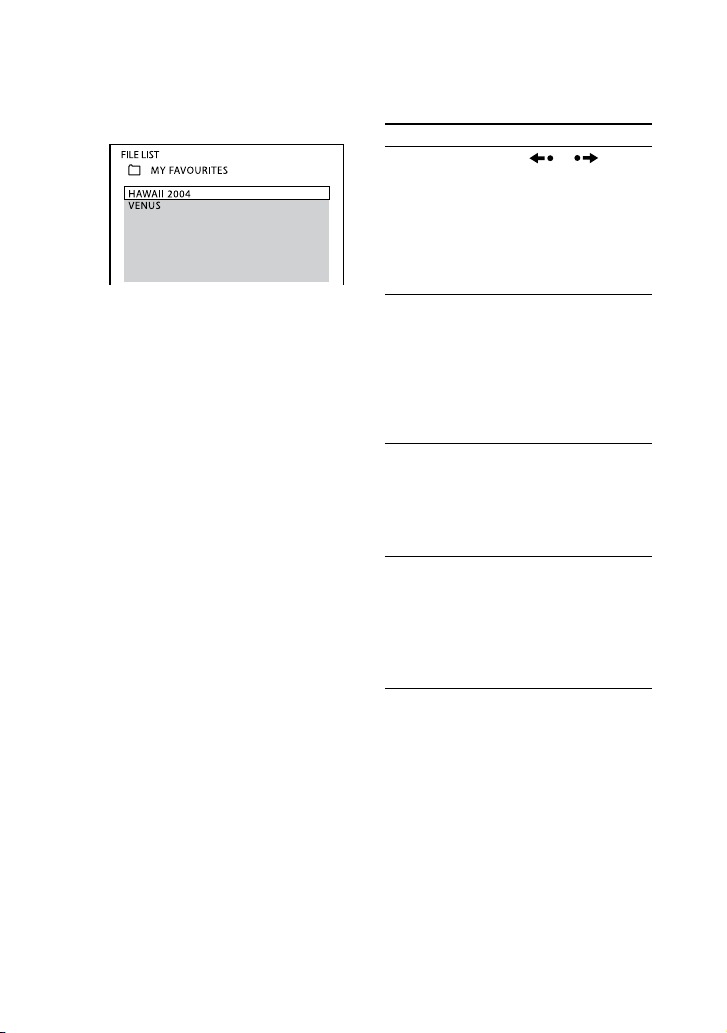
1
Press ENTER.
“TRACK LIST” appears.
2
Press
or
repeatedly to select
the desired MP3 le, then press
ENTER.
e system starts playback of the
selected MP3 le.
To stop playback, press .
Playing an image le:
1
Press PICTURE NAVI.
umbnail picture for the rst
16 JPEG image les in the selected
folder is displayed.
2
Press
/
/
/
repeatedly to
select the image you want to
view, then press ENTER.
e selected image is displayed
on the screen. To display the next
or previous image, press
/
. To
return to the thumbnail view, press
PICTURE NAVI.
When you press aer selecting
a image le, the slideshow starts
from the selected image le. To
stop the slideshow, press .
WHG-SLK2i/WHG-SLK1i.GB.4-187-068-11(1)
42
GB
Playing a video le (except for the
North American model):
1
Press ENTER.
“FILE LIST” appears.
2
Press
or
repeatedly to select
the desired video le, then press
ENTER.
e system starts playback of the
selected video le.
To stop playback, press .
Other operations
Operations for video les are not
available on the North American model.
To Do this
Display
the next or
previous page
of “TRACK
LIST,”
“FOLDER
LIST” or “FILE
LIST”
Press or
repeatedly.
Play back the
next folder of
MP3 les or
video les
Press repeatedly
until reaching the
last le of the current
folder, then press
once. To select
the previous folder,
select the folder from
“FOLDER LIST.”
Return to
“FOLDER
LIST” when
“TRACK LIST”
or “FILE LIST”
is displayed
Press RETURN.
Play back the
next folder of
JPEG image
les
Press
repeatedly until
reaching the last le of
the current folder, then
press
once. To select
the previous folder,
select the folder from
“FOLDER LIST.”

WHG-SLK2i/WHG-SLK1i.GB.4-187-068-11(1)
43
GB
Disc
Continued
To Do this
Rotate the
image by
90 degrees
Press
or
repeatedly
while viewing an image
or slideshow. To return
to the original view,
press CLEAR. Rotating
an image during a
slideshow stops the
slideshow. To resume
slideshow, press .
Notes
Supported le formats are as follows:
MP3: le extension “.mp3”
DivX: le extension “.avi” or “.divx”
MP4: le extension “.mp4” or “.m4v”
JPEG: le extension “.jpg” or “.jpeg”
Note that even when le names have the
above le extensions, if the actual les
dier, the system cannot play those les, or
playback problems occur even if you play the
les. Especially, such audio les and audio
data in video les may generate a loud noise
which could damage the speaker system and
the system may malfunction.
Depending on the encoding/writing soware,
recording device, or the recording media
used to record data, you may encounter
problems such as being unable to play back,
sound interruptions and noise.
e following discs/situations can increase
the time it takes to start playback:
a disc recorded with a complicated tree
structure.
a disc recorded in multi session.
a disc to which data can be added (non-
nalized disc).
when the tracks or les in another folder
have just been played back.
Some CD-Rs/-RWs or DVD-Rs/-RWs/+Rs/
+RWs cannot be played back on the system
depending on the le format.
e system can play back to a depth of
8 folders only.
e system may not play certain types of
JPEG image les (ex. a JPEG image le that is
less than 8 (width) × 8 (height) pixels).
When you press
or
to select the next or
previous image, the image will return to its
original view even if you have rotated the
image previously.
e system may not play back a video le
when the le has been combined from two or
more video les.
e system cannot play back any video le
that is more than 720 (width) × 576 (height)
pixels in resolution or 2 GB in le size.
Depending on the video le, the picture may
be unclear or the sound may skip.
e system cannot play back some video les
that are longer than 3 hours.
WHG-SLK2i/WHG-SLK1i.GB.4-187-068-11(1)
44
GB
Due to the compression technology used for
video les, it may take some time aer you
press for the picture to appear.
Depending on the video le, the sound may
not match the pictures on the screen.
Tip on playing the DivX video les
If the number of viewing times has been preset,
you can play back the DivX video les as many
times as the preset number. e following
occurrences are counted:
when the system is turned o.
when the disc is removed.
when another video le is played back.
To play MP3 les and JPEG image les
as a slideshow with sound
(DATA CD and DATA DVD only)
You can play back a slideshow with
sound by rst placing both JPEG image
les and MP3 les in the same folder on a
DATA CD/DVD.
1
Press DISPLAY when playback is
stopped.
e Control Menu appears.
2
Press
or
repeatedly to select
* (MEDIA), then press ENTER.
e options for “MEDIA” appear.
* appears on the North American
model.
3
Press
or
repeatedly to select
“MUSIC/PHOTO,” then press ENTER.
When “MUSIC/PHOTO” has already
been selected, press DVD MENU.
“FOLDER LIST” appears.
4
Press
or
repeatedly to select the
desired folder, then press .
e slideshow with sound starts from
the selected folder.
5
Press DISPLAY to switch to the image
display screen from the CD music
playback screen.
You can switch between these screens
by pressing DISPLAY repeatedly.
To stop playback, press .
To cancel the slideshow with sound,
select “MUSIC” or “PHOTO” in
step 3.
Note
If you play back a large data size of MP3 les
and JPEG image les at the same time, the
sound may skip.

WHG-SLK2i/WHG-SLK1i.GB.4-187-068-11(1)
45
GB
Disc
To select a transition eect for image
les in the slideshow
(JPEG image les only)
1
Press DISPLAY during slideshow.
e Control Menu appears.
If “EFFECT” is not displayed on the
Control Menu, press DISPLAY
repeatedly until “EFFECT” appears.
2
Press
or
repeatedly to select
(EFFECT), then press ENTER.
e options for “EFFECT” appear.
3
Press
or
repeatedly to select the
desired setting.
e default setting is underlined.
MODE 1: e image sweeps in
from top to bottom of the screen.
MODE 2: e image sweeps in
from le to right of the screen.
MODE 3: e image stretches out
from the center of the screen.
MODE 4: e image randomly
cycles through the eects.
MODE 5: e next image slides
over the current image.
OFF: turns o this function.
4
Press ENTER.
e selected setting takes eect.
To specify the slideshow speed
(JPEG image les only)
1
Press DISPLAY during slideshow.
e Control Menu appears.
If “INTERVAL” is not displayed on
the Control Menu, press DISPLAY
repeatedly until “INTERVAL” appears.
2
Press
or
repeatedly to select
(INTERVAL), then press ENTER.
e options for “INTERVAL” appear.
3
Press
or
repeatedly to select the
desired transition interval.
e default setting is underlined.
NORMAL: Sets to the standard
duration.
FAST: Sets the duration shorter
than “NORMAL.”
SLOW 1: Sets the duration longer
than “NORMAL.”
SLOW 2: Sets the duration longer
than “SLOW 1.”
4
Press ENTER.
e selected setting takes eect.
Note
Some JPEG image les (especially progressive
JPEG image les or JPEG image les with
3,000,000 pixels or more) may take a longer
time to display than others, which may make
the transitions seem longer than that of the
option you selected.
Continued
WHG-SLK2i/WHG-SLK1i.GB.4-187-068-11(1)
46
GB
To select the playback priority for the
le type
You can select playback priority when
les of dierent media types, including
MP3 les, JPEG image les and video
les, are present on the disc.
1
Press DISPLAY when playback is
stopped.
e Control Menu appears.
2
Press
or
repeatedly to select
* (MEDIA), then press ENTER.
e options for “MEDIA” appear.
* appears on the North American
model.
3
Press
or
repeatedly to select the
desired setting.
MUSIC/PHOTO: You can play
back a slideshow with sound, when
MP3 les and JPEG image les are
in the same folder.
MUSIC: MP3 le playback has
priority.
VIDEO (except for the North
American model): Video le
playback has priority.
PHOTO: JPEG image le playback
has priority.
4
Press ENTER.
e selected setting takes eect.
For further details of the playback
priority of le types, see page 116.
Using play mode
Creating your own program
(Program Play)
You can make a program of up to 99
steps in the order you want them to be
played back.
You can only program the tracks from
the disc.
1
Press DISPLAY when playback
is stopped.
e Control Menu appears.
2
Press
or
repeatedly to select
(PROGRAM), then press
ENTER.
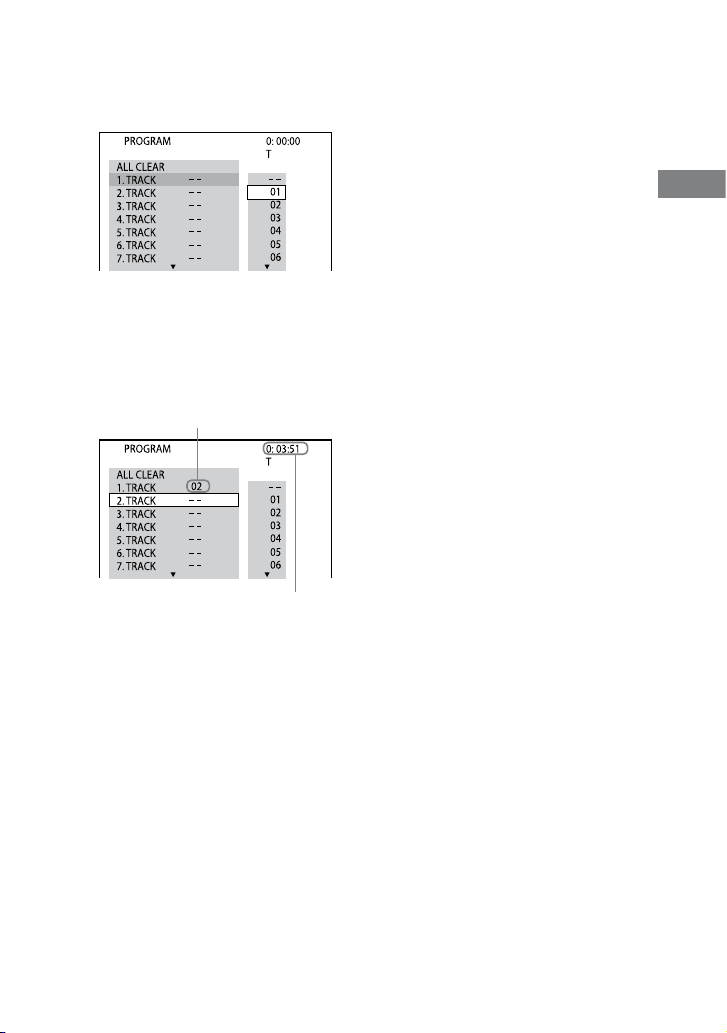
e options for “PROGRAM” appear.
3
Press
or
repeatedly to select
“SET
,” then press ENTER.
Track number
WHG-SLK2i/WHG-SLK1i.GB.4-187-068-11(1)
47
GB
Disc
4
Press
.
e cursor moves to the track list “T”
(in this case, “01”).
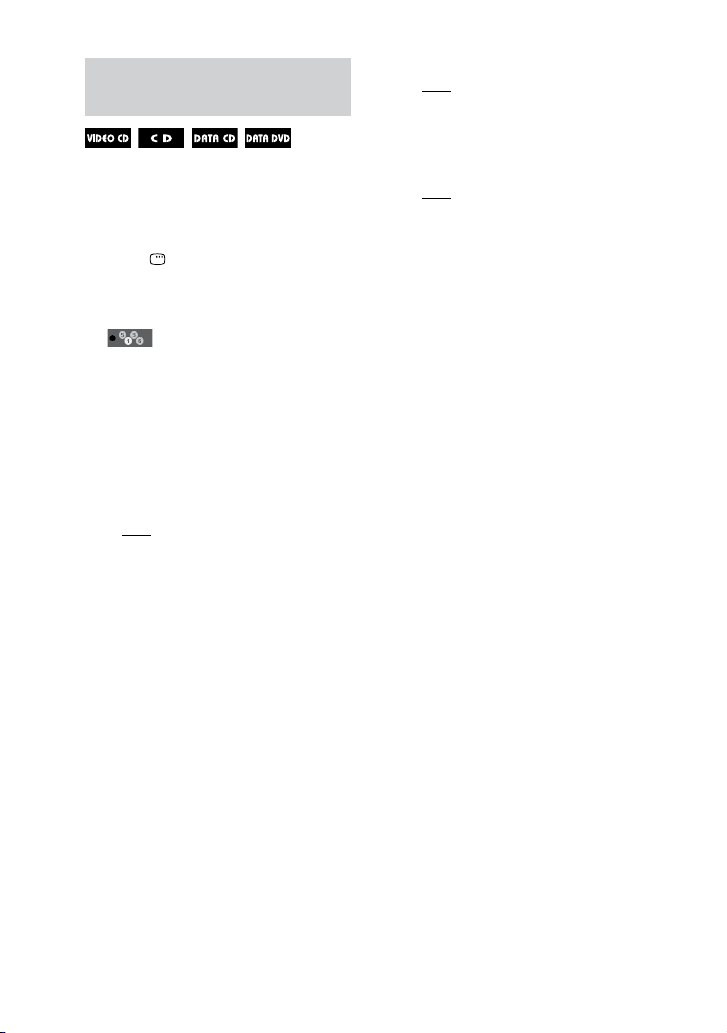
5
Select the track you want to
program.
For example, select track “02.”
Press
or
repeatedly to select “02”
under “T,” then press ENTER.
Selected track
Total time of the programmed tracks
6
To program other tracks, repeat
steps 4 and 5.
7
Press .
Program Play starts.
When the Program Play ends, you
can restart the same program by
pressing .
To change a programmed step:
Press
or
repeatedly to select the
programmed step number you want
to change. en, press
and select
the desired track number.
To delete a programmed step:
Press
or
repeatedly to select the
programmed step number you want
to delete. en, press CLEAR.
To delete all of the programmed
steps in the program list:
Press
to select “ALL CLEAR.” en,
press ENTER.
To cancel Program Play
Press CLEAR or select “OFF” in step 3.
To play back the same program again,
select “ON” in step 3 and press ENTER.
Notes
When Program Play is activated, the
“REPEAT” setting is automatically changed
to “ON” if the current setting is “DISC” or
“TRACK.”
You cannot perform Program Play with
VIDEO CDs during PBC playback.
Tip
e Program Play is cancelled and the program
list is cleared when
you eject the disc.
you turn o the system.
you change the function.
you press HOME to return to the home
menu.
Continued
WHG-SLK2i/WHG-SLK1i.GB.4-187-068-11(1)
48
GB
Playing in random order
(Shue Play)
You can play back the tracks on the
current disc in random order. Each time
you perform Shue Play, the playing
order may dier.
1
Press DISPLAY.
e Control Menu appears.
2
Press
or
repeatedly to select
(SHUFFLE), then press
ENTER.
e options for “SHUFFLE” appear.
3
Press
or
repeatedly to select
the desired setting.
e default setting is underlined.
When playing a VIDEO CD or
AUDIO CD:
OFF: turns o this function.
TRACK: all tracks on the disc are
played back randomly.
When Program Play is activated:
OFF: turns o this function.
ON: all tracks in the program list
are played back randomly.
When playing a DATA CD/DVD
(except for video les):
OFF: turns o this function.
ON(MUSIC): all MP3 les in the
selected folder on the disc are
played back randomly.
When no folder is selected, the rst
folder is played back randomly.
4
Press ENTER.
5
Press .
Shue Play starts.
To cancel Shue Play, press CLEAR
or select “OFF” in step 3.
Notes
You cannot perform Shue Play with
VIDEO CDs during PBC playback.
e same song may be played back
repeatedly for MP3 les.
Tip
Shue Play is cancelled when
you eject the disc.
you turn o the system.
you change the function.
you perform Track/Index Search.
you press HOME to return to the home
menu.
WHG-SLK2i/WHG-SLK1i.GB.4-187-068-11(1)
49
GB
Disc
Continued
Playing repeatedly (Repeat
Play)
You can play the contents on a disc
repeatedly.
You can also repeat Shue Play or
Program Play.
1
Press DISPLAY.
e Control Menu appears.
2
Press
or
repeatedly to select
(REPEAT), then press
ENTER.
e options for “REPEAT” appear.
3
Press
or
repeatedly to select
the desired setting.
e default setting is underlined.
When playing a DVD VIDEO or
DVD-R/DVD-RW in VR mode:
OFF: does not play back repeatedly.
DISC: repeats all the titles on the
disc.
TITLE: repeats the current title.
CHAPTER: repeats the current
chapter.
When playing a VIDEO CD or
AUDIO CD:
OFF: does not play back repeatedly.
DISC: repeats all the tracks on the
current disc.
TRACK: repeats the track.
When playing a DATA CD or DATA
DVD:
OFF: does not play back repeatedly.
DISC: repeats all the folders on the
disc.
FOLDER: repeats the current
folder.
TRACK
1)
: repeats the current audio
le.
FILE
2)
: repeats the current video
le.
1)
MP3 les only.
2)
Not available on the North American
model.
When Program Play or Shue
Play is activated:
OFF: does not play back repeatedly.
ON: repeats the Program Play or
Shue Play.
4
Press ENTER.
5
Press .
Repeat Play starts.
To cancel Repeat Play, press CLEAR
or select “OFF” in step 3.
WHG-SLK2i/WHG-SLK1i.GB.4-187-068-11(1)
50
GB
Notes
Depending on the DVD VIDEO, you cannot
perform Repeat Play.
You cannot perform Repeat Play with
VIDEO CDs during PBC playback.
When playing a DATA CD/DVD which
contains MP3 les and JPEG image les, the
audio sound will not match the image if their
playing time are dierent.
Repeat Play is cancelled when
you eject the disc.
you turn o the system.
you change the function.
you press HOME to return to the home
menu.
Adjusting the delay
between the picture
and sound (“A/V SYNC”)
When the sound does not synchronize
with the displayed pictures, you can
adjust the delay between the picture and
sound.
1
Press DISPLAY.
e Control Menu appears.
2
Press
or
repeatedly to select
(A/V SYNC), then press
ENTER.
e options for “A/V SYNC” appear.
3
Press
or
repeatedly to select
the desired setting.
e default setting is underlined.
OFF: Does not adjust.
ON: Adjusts the dierence between
picture and sound.
4
Press ENTER.
Note
Depending on the input stream, this function
may not be eective.
WHG-SLK2i/WHG-SLK1i.GB.4-187-068-11(1)
51
GB
Disc
Restricting playback
of the disc (PARENTAL
CONTROL)
You can limit the playback of some DVD
VIDEOs according to a predetermined
level such as the age of the users. When
a limited scene is played back, that scene
may be skipped or replaced with dierent
scenes.
1
Press DISPLAY when playback
is stopped.
e Control Menu appears.
2
Press
or
repeatedly to
select (SETUP), then press
ENTER.
e options for “SETUP” appear.
3
Press
or
repeatedly to select
“CUSTOM,” then press ENTER.
e Setup Menu appears.
4
Press
or
repeatedly to select
“SYSTEM SETUP,” then press
ENTER.
5
Press
or
repeatedly to select
“PARENTAL CONTROL,” then
press ENTER.
If you have not registered a
password:
e display for registering a new
password appears on the screen.
Enter a 4-digit password using the
numeric buttons, then press ENTER.
e display for conrming the
password appears on the screen.
When you have already registered
a password:
e display for entering the password
appears on the screen.
If you make a mistake when
entering your password:
Press
repeatedly to delete the
number you have entered, then
re-enter your password again.
Continued
WHG-SLK2i/WHG-SLK1i.GB.4-187-068-11(1)
52
GB
6
Enter or re-enter your 4-digit
password using the numeric
buttons, then press ENTER.
e display for setting the playback
limitation level appears on the screen.
7
Press
or
repeatedly to select
“STANDARD,” then press ENTER.
e options for “STANDARD”
appear.
8
Press
or
repeatedly to
select a geographic area as the
playback limitation level, then
press ENTER.
e area is selected.
When you select “OTHERS
,”
enter the area code for the geographic
area you want by using the numeric
buttons (see “Parental Control area
code list” (page 118)).
9
Press
or
repeatedly to select
“LEVEL,” then press ENTER.
e options for “LEVEL” appear.
10
Press
or
repeatedly to select
the desired level, then press
ENTER.
“PARENTAL CONTROL” setting is
completed.
e lower the value, the stricter the
limitation.
To turn o the “PARENTAL CONTROL”
function
Set “LEVEL” to “OFF” in step 10.
To change the password
1
Follow the procedure from step 1
to step 6 of “Restricting playback
of the disc (PARENTAL CONTROL)”
(page 51), and press
/
repeatedly
to select “CHANGE PASSWORD,” and
then ENTER.
2
Enter a new 4-digit password using
the numeric buttons, then press
ENTER.
3
Re-enter the new password for
conrmation, then press ENTER.

WHG-SLK2i/WHG-SLK1i.GB.4-187-068-11(1)
53
GB
Disc
If you forget your password
Remove the disc and repeat steps 1 to
5 of “Restricting playback of the disc
(PARENTAL CONTROL)” (page 51).
When you are asked to enter your
password, enter “199703” using the
numeric buttons, then press ENTER.
e display will ask you to enter a new
4-digit password. Aer you enter a new
4-digit password, reload the disc and
press . When the display for entering
your password appears, enter your new
password.
To play back a disc for which
“PARENTAL CONTROL” is set
1
Insert the disc and press .
e display for entering your password
appears on the screen.
2
Enter your 4-digit password using the
numeric buttons, then press ENTER.
e system starts playback.
Notes
When you play back DVD VIDEOs which
do not have the “PARENTAL CONTROL”
function, playback cannot be limited on this
system.
Depending on the DVD VIDEO, you
may be asked to change the “PARENTAL
CONTROL” level while playing the disc. In
this case, enter your password, then change
the level. If resume playback is cancelled, the
level returns to the original level.
Using the “SETUP”
menu
By using the Setup Menu, you can make
various adjustments to items such as
picture and sound.
Displayed items vary depending on the
country or region.
Note
Playback settings stored in the disc take
priority over the “SETUP” menu settings.
erefore, some of the “SETUP” menu settings
may not be performed.
1
Press DISPLAY when playback
is stopped.
e Control Menu appears.
2
Press
or
repeatedly to
select (SETUP), then press
ENTER.
e options for “SETUP” appear.
3
Press
or
repeatedly to select
“CUSTOM,” then press ENTER.
e Setup Menu appears.
Continued
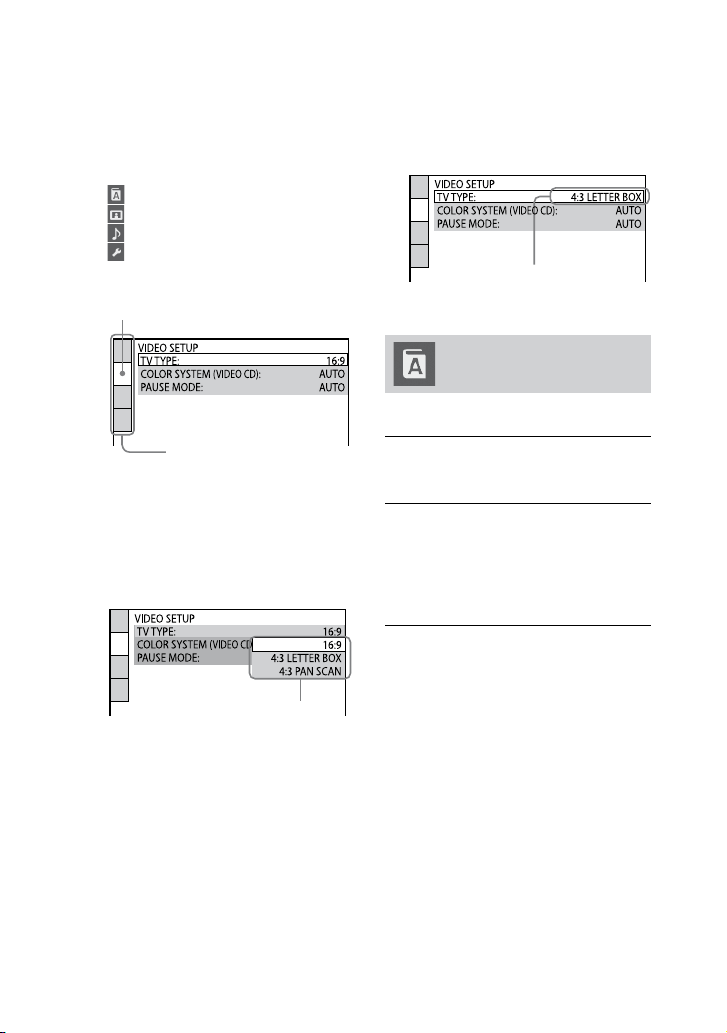
WHG-SLK2i/WHG-SLK1i.GB.4-187-068-11(1)
54
GB
4
Press
or
repeatedly to
select the setup item from the
displayed list, then press ENTER.
e setup item is selected.
Setup items:
: LANGUAGE SETUP
: VIDEO SETUP
: AUDIO SETUP
: SYSTEM SETUP
Example: “VIDEO SETUP”
Selected item
Setup items
5
Press
or
repeatedly to select
the desired item, then press
ENTER.
e options for the selected item
appear.
Example: “TV TYPE”
Options
6
Press
or
repeatedly to select
the desired setting, then press
ENTER.
e setting is selected and setup is
completed.
Selected setting
Setting the language
“LANGUAGE SETUP”
Congure language-related settings.
OSD
(On-Screen Display)
Sets the display language for the “OSD.”
MENU*
(DVD VIDEO only)
Sets the language for the DVD menu.
When you select “OTHERS
,” enter a
language code using the numeric buttons
(page 117).
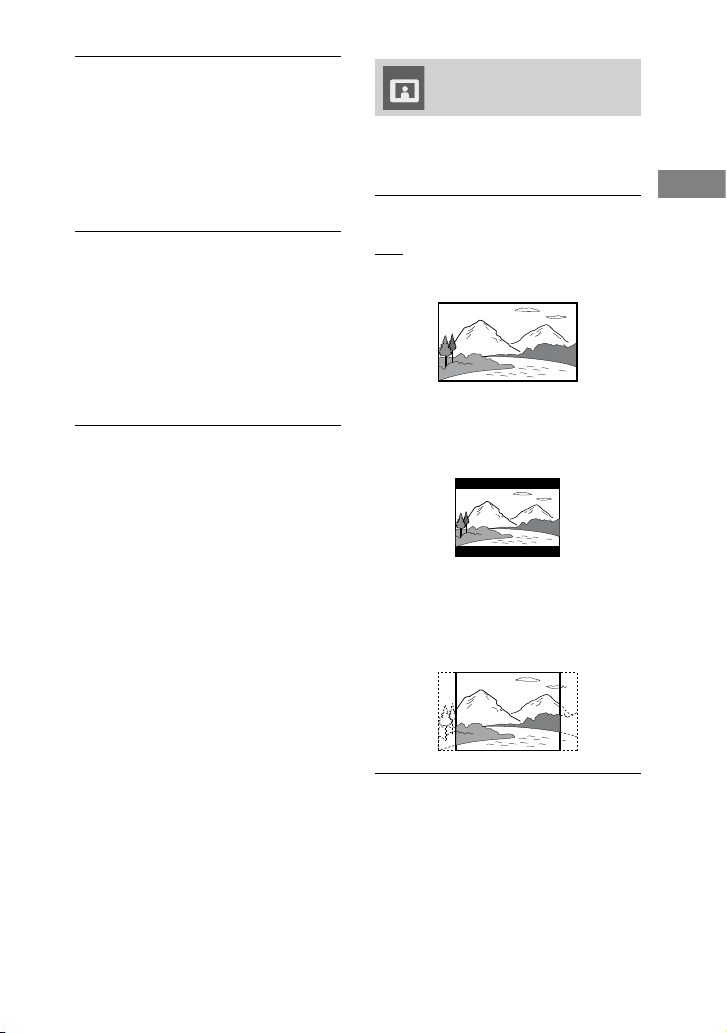
WHG-SLK2i/WHG-SLK1i.GB.4-187-068-11(1)
55
GB
Disc
Continued
AUDIO*
(DVD VIDEO only)
Switches the language of the sound track.
When you select “ORIGINAL,” the
language given priority in the disc is
selected.
When you select “OTHERS
,” enter a
language code using the numeric buttons
(page 117).
SUBTITLE*
(DVD VIDEO only)
Switches the language of the subtitle.
When you select “AUDIO FOLLOW,”
the language for the subtitles changes
according to the language you selected
for the sound track.
When you select “OTHERS
,” enter a
language code using the numeric buttons
(page 117).
* If language which you have selected is
not available from the language tracks
recorded on a DVD VIDEO, the language
is automatically set based on the given
priority by the disc. However, depending on
the disc, the language may not be selected
automatically due to the disc specications.
Setting the TV screen
“VIDEO SETUP”
Choose the settings according to the TV
you connected.
e default setting is underlined.
TV TYPE
(DVD VIDEO only)
16:9: Select this when you connect a
wide-screen TV or a TV with a wide
mode function.
4:3 LETTER BOX: Select this when you
connect a 4:3 screen TV. is setting
displays a wide picture with bands on the
upper and lower portions of the screen.
4:3 PAN SCAN*: Select this when you
connect a 4:3 screen TV. is setting
displays the wide picture on the entire
screen and cuts o the portions that do
not t.

WHG-SLK2i/WHG-SLK1i.GB.4-187-068-11(1)
56
GB
COLOR SYSTEM(VIDEO CD)
(Except for North American, European
and Latin American models)
Sets the output video signal for playback
of a VIDEO CD.
AUTO: Outputs the video signal
according to the color system of the disc,
either PAL or NTSC.
PAL: Changes the video signal of an
NTSC disc and output it in PAL system.
NTSC: Changes the video signal of a PAL
disc and output it in NTSC system.
BLACK LEVEL
(North American and Latin American
models only)
Sets the black level (setup level) for the
video signal output.
ON: Sets the black level of the output
signal to the standard level.
OFF: Lowers the standard black level.
Use this when the picture becomes too
white.
PAUSE MODE
(DVD VIDEO and DVD-R/-RW in VR
mode only)
AUTO: e picture, including subjects
that move dynamically, is output with no
jitter. Normally select this option.
FRAME: e picture, including subjects
that do not move dynamically, is output
in high resolution.
* Depending on the DVD VIDEO, “4:3
LETTER BOX” may be selected automatically
instead of “4:3 PAN SCAN” or vice versa.
Setting the audio
options
“AUDIO SETUP”
Congure audio related settings.
e default setting is underlined.
AUDIO DRC
1)
(Dynamic Range
Compression)
(DVD VIDEO only)
OFF: No compression of dynamic range.
STANDARD: Reproduces the sound
track with the kind of dynamic range that
the recording engineer intended. Useful
for watching movies at low volume late
at night.
MAX: Narrows the dynamic range fully.
WHG-SLK2i/WHG-SLK1i.GB.4-187-068-11(1)
57
GB
Disc
Continued
TRACK SELECTION
(DVD VIDEO only)
Gives priority to the sound track which
contains the highest number of channels
when you play back a DVD VIDEO on
which multiple audio formats (PCM,
MPEG audio, or Dolby Digital)
2)
are
recorded.
OFF: No priority given.
AUTO
3)
: Priority given.
1)
“AUDIO DRC” can only be performed with
Dolby Digital sources.
2)
If each audio sound track has the same
number of channels, the system selects the
audio sound tracks in the order from PCM,
Dolby Digital, to MPEG audio.
3)
When you set “TRACK SELECTION” to
“AUTO,” the language may change. e
“TRACK SELECTION” setting has higher
priority than the “AUDIO” settings in
“LANGUAGE SETUP” (page 54). However,
depending on the disc, this function may not
be performed.
Setting the system
“SYSTEM SETUP”
SCREEN SAVER
e screen saver will help prevent your
display device from becoming damaged
(ghosting). Press any button (e.g., ) to
cancel the screen saver.
ON: e screen saver image appears if
you do not operate the system for about
15 minutes.
OFF: e screen saver does not appear.
BACKGROUND
Sets the background color or picture
to be displayed on the screen. e
background color or picture is displayed
when playback is stopped or while
playing an AUDIO CD and MP3 les.
JACKET PICTURE: e jacket picture
(still picture) appears in the background,
but only when the jacket picture is
already recorded on the disc (DVD
VIDEO, CD-Extra, etc.). If the disc
does not contain a jacket picture, the
“GRAPHICS” picture appears.
GRAPHICS: A preset picture stored in
the system appears in the background.
BLUE: e background color is blue.
BLACK: e background color is black.

WHG-SLK2i/WHG-SLK1i.GB.4-187-068-11(1)
58
GB
PARENTAL CONTROL
Sets the playback restrictions. For details,
see “Restricting playback of the disc
(PARENTAL CONTROL)” (page 51).
DivX
(except for North American model)
Displays the registration code for this
system.
For more information, go to http://www.
divx.com on the Internet.
MULTI-DISC RESUME
(DVD VIDEO and VIDEO CD only)
ON: Stores the resume playback point in
the memory for up to 6 discs.
OFF: Does not store the resume playback
point in the memory. Playback starts at
the resume playback point only for the
current disc in the system.
RESET
Returns “SETUP” settings to the default
settings. For details, see “To reset the
“SETUP” settings in the Control Menu of
CD/DVD function” (page 96).
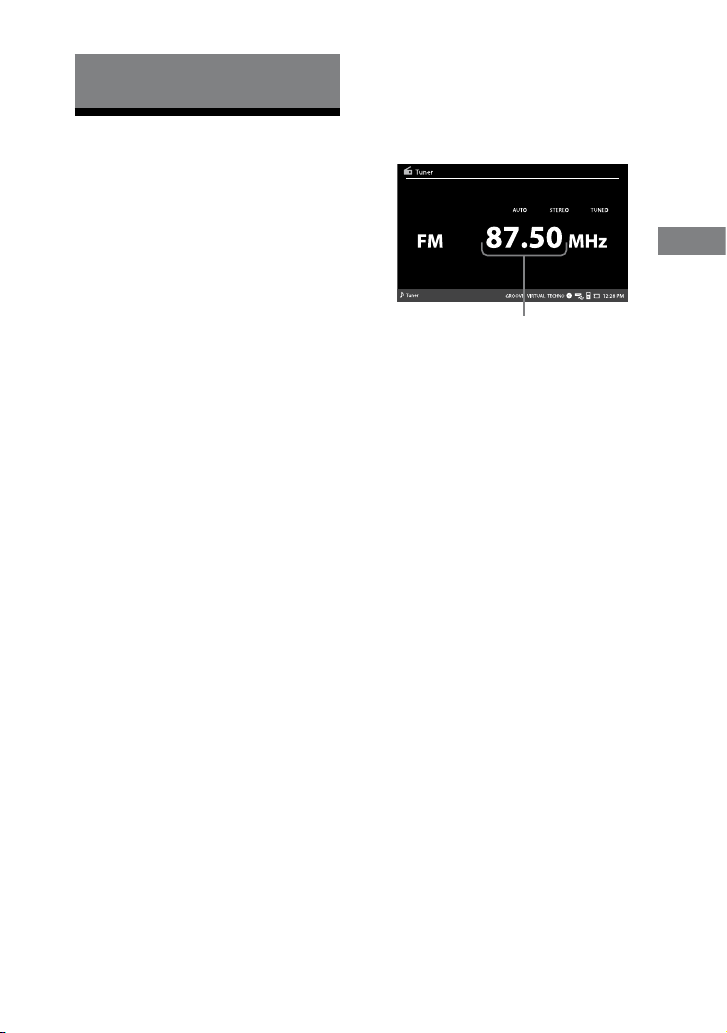
WHG-SLK2i/WHG-SLK1i.GB.4-187-068-11(1)
59
GB
Tuner
Tuner
Listening to the radio
You can listen to a radio station either
by automatic or manual tuning, or by
selecting a preset station.
1
Select “Tuner” from the home
menu, then press ENTER.
2
Press TUNER/BAND repeatedly
to select the FM or AM band.
3
Press OPTIONS to bring up the
Options menu.
4
Select the auto or manual
tuning mode.
Select “Tuning mode.”
Press
ENTER.
Select “AUTO” or
“MANUAL.”
Press ENTER.
5
Perform tuning.
For automatic scanning
Press +/.
Scanning stops automatically when a
station is tuned in and “TUNED” and
“STEREO” (for stereo program only)
appear.
If “TUNED” does not appear and the
scanning does not stop while tuning
in, press and perform manual
tuning.
For manual tuning:
Press +/ repeatedly until the
frequency of the desired radio station
appears.
Example: FM display
Frequency*
* If an FM station provides RDS services,
the service name or station name
appears below the displayed frequency
(European model only).
For direct tuning:
Press D.TUNING, then use the
numeric buttons to enter the
frequency of the desired station. For
example, press 1, 0, 2, 5 and 0 to enter
the frequency of FM 102.50 MHz,
then press ENTER. If you cannot
tune in the station, make sure you
have entered the right frequency. If
you still cannot tune in the station,
the frequency is not used in your
area. To cancel direct tuning, press
D.TUNING.
Continued

WHG-SLK2i/WHG-SLK1i.GB.4-187-068-11(1)
60
GB
Tip
You can also change the FM/AM tuner band
from the Options menu. Press OPTIONS to
bring up the Options menu aer selecting
“Tuner” from the home menu and follow the
procedure below.
Select “BAND change.”
Press ENTER.
Select “FM” or “AM.”
Press ENTER.
Presetting a radio station
1
Tune in the desired station.
2
Press OPTIONS to bring up the
Options menu.
3
Press
or
repeatedly to select
“Tuner Memory,” then press
ENTER.
4
Press / repeatedly
(or press the numeric buttons)
to select the desired preset
number.
5
Press ENTER.
e station is stored.
If another station is already assigned
to the selected preset number, the
station is replaced by the new station.
6
Repeat steps 1 to 5 to store
other stations.
You can preset up to 20 FM stations
and 10 AM stations.
To listen to the preset radio station
1
Follow the procedure from step 1 to
step 3 of “Listening to the radio” to
select the “PRESET” tuning mode.
Select “Tuning mode.”
Press
ENTER.
Select “PRESET.”
Press
ENTER.
2
Press / repeatedly (or
the numeric buttons) to select the
desired preset number.
Tips
When an FM stereo program has static noise,
monaural reception mode may reduce the
noise. You can select the monaural mode
from Options menu. Press OPTIONS to
bring up the Options menu while listening to
FM stereo program, select “MONO” in the
“FM mode” menu.
To improve broadcast reception, adjust the
supplied antennas, or connect an external
antenna.
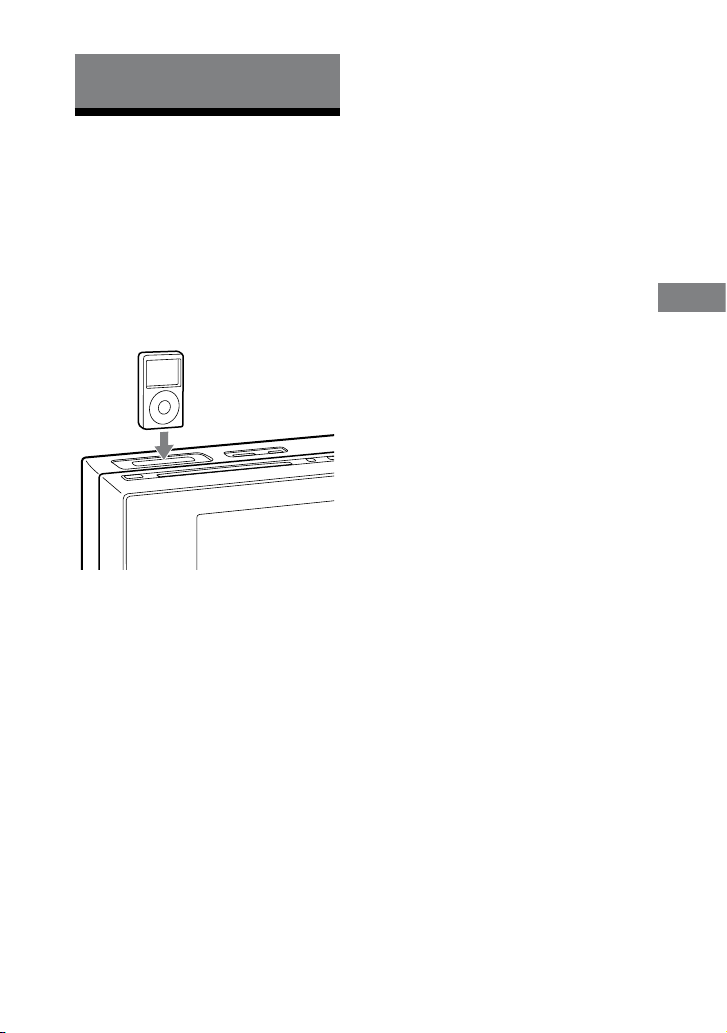
WHG-SLK2i/WHG-SLK1i.GB.4-187-068-14(1)
61
GB
iPod
iPod
Playing the iPod
You can enjoy audio, video and photo
contents stored in your iPod with this
system.
See “Compatible devices with this
system” (page 110) for iPod models that
can be connected to this system.
1
Place an iPod into the iPod Dock
on the unit.
2
Select “iPod” from the home
menu, then press ENTER.
Make sure the iPod has been
recognized by the system before
pressing ENTER (page 20, 90).
3
Select “Music” or “Video,” then
press ENTER.
When playing back a slideshow with
photo contents on the iPod, select
“Video,” then manually start playback
of the slideshow on the iPod.
Notes
Conrm the output video signal setting
(NTSC/PAL) on your iPod before connecting
your iPod to the system.
You cannot view pictures of the video content
with “Music” content type. If you start
playback of a video content with “Music”
setting, only music data in the video content
is played back.
If you want to return to the home menu,
press HOME. Note that RETURN cannot
be used while you play back a music or video
content.
Note for the iPod touch user
e video content from the iPod touch does
not start automatically. Start playback of the
video content manually on the iPod touch.
Continued

WHG-SLK2i/WHG-SLK1i.GB.4-187-068-11(1)
62
GB
Basic operations
To Press
Resume
playback when
the playback is
paused
.
Pause playback /.
Scroll up/down
the iPod menus
/. You can scroll up
or down the iPod menus
much like the Click
Wheel operations of the
iPod or the drag up-or-
down operations of the
iPod touch.
Select a track,
chapter of
audiobook/
podcast, video
le or photo le
(image le)
/. To fast-
forward or fast-rewind,
hold down the button.
Choose the
selected item
/ENTER. You can
choose the selected item
much like the center
button on the iPod or
the touch operation of
the iPod touch.
Find a point in
a track, chapter
of audiobook/
podcast or
video content
Hold down /
during playback, and
release the button at the
desired point.
Return to the
previous menu
or select a
menu
/iPod MENU. You can
return to the previous
menu or select a menu
much like the Menu
button on the iPod or
the touch operation of
the iPod touch.
To use the system as a battery charger
You can use the system as a battery
charger for the iPod when the system
is on.
e charging begins when the iPod is
placed on the iPod Dock. e charging
status appears in the iPod display. For
details, see the user’s guide of your iPod.
To stop charging the iPod
Remove the iPod. Turning o the system
also stops charging the iPod.
Note on charging the iPod
e system does not charge the iPod in
the following cases even when the iPod is
connected.
When the system is o.
When the auto standby function is enabled
(page 97) and the system has entered
standby mode.

WHG-SLK2i/WHG-SLK1i.GB.4-187-068-11(1)
63
GB
iPod
Notes
When placing or removing the iPod, handle
the iPod in the same angle as that of the iPod
connector on the unit and do not twist or
sway the iPod to prevent connector damage.
Do not carry the unit with an iPod set
on the connector. Doing so may cause a
malfunction.
When placing or removing the iPod, brace
the unit with one hand and take care not to
press the controls of the iPod by mistake.
Depending on the connected iPod,
operations may dier.
It may take time to start playback depending
on the contents.
Before disconnecting the iPod, pause
playback.
To change the volume level, use VOLUME
+/ (or VOL +/ on the unit). e volume
level does not change even if adjusted on the
iPod.
Hold down / to fast-forward (fast-
rewind) while playing video if / does
not function.
e iPod Dock on the unit is designed for
iPod only. You cannot connect any other
portable audio players.
For details on iPod operation, refer to the
user’s guide of your iPod.
Sony cannot accept responsibility in the event
that data recorded to iPod is lost or damaged
when using an iPod with this system.
Because the operation of the system and the
iPod are dierent, you may not operate the
iPod using buttons on the remote or unit. In
this case, use control buttons on the iPod.
Changing the play mode
You can change the play mode during
playback or play-paused status. e play
mode can be selected only when you play
back music contents.
1
Press OPTIONS to bring up the
Options menu.
2
Press
/
repeatedly to select
“Play mode,” then press ENTER.
3
Press
/
repeatedly to select
the desired setting.
Normal: e system plays all the
tracks on the iPod.
Shue Tracks: e system plays all
the tracks on the iPod in random
order.
Shue Albums: e system plays
the tracks in the multiple albums in
random order.
Continued

WHG-SLK2i/WHG-SLK1i.GB.4-187-068-11(1)
64
GB
4
Press ENTER.
Playback starts or resumes in the
selected play mode. To return to the
playback screen, press RETURN
twice.
Note
Shue play is cancelled when:
you remove the iPod.
you turn o the system.
Changing the repeat play
mode
You can change the repeat mode for the
selected play mode during playback or
play-paused status. e repeat mode
can be selected only when you play back
music contents.
1
Press OPTIONS to bring up the
Options menu.
2
Press
/
repeatedly to select
“Repeat,” then press ENTER.
3
Press
/
repeatedly to select
the desired setting.
OFF: Repeat play is o.
One Track: e system plays the
selected track repeatedly.
All Tracks: e system plays all the
tracks repeatedly in the selected
play mode.
4
Press ENTER.
Repeat play starts in the selected
repeat play mode. To return to the
playback screen, press RETURN
twice.
Note
Repeat play is cancelled when:
you remove the iPod.
you turn o the system.

WHG-SLK2i/WHG-SLK1i.GB.4-187-068-11(1)
65
GB
USB Device/Memory Card
USB Device/Memory
Card
Before using the USB
device and the memory
card with this system
You can use the USB device and the
memory card with this system. Check the
compatible devices that can be used with
the system. For details, see “Compatible
devices with this system” (page 110).
Notes on the USB device
When USB cable connection is necessary,
connect the USB device with a USB cable
supplied with the device. See the operating
instructions supplied with the USB device for
details.
Do not connect the system and the USB
device through a USB hub.
Notes on using a memory card
When using the memory card, make sure to
insert the card in the correct orientation.
When inserting the memory card, do not
forcibly push it as this could damage the
memory card and/or the system.
When you carry or store a memory card, put
it in the case supplied with the memory card.
Do not touch the terminal of a card with
your hand or a metal object.
Notes on using a USB device and
memory card
Do not remove the USB device or memory
card during playback. Otherwise, data
may be corrupted. Sony cannot accept
responsibility in the event that recorded data
is lost or damaged.
We recommend that you back up important
data on the USB device or memory card.
It may take some time before “Reading”
appears on the screen depending on the type
of USB device or memory card.
e system takes a certain time to display the
folder list from when you select the “Music,”
“Photo” or “Video” content type.
Compatibility with all encoding soware
cannot be guaranteed. If audio and video les
were encoded with incompatible soware,
those les may produce audio noise,
interrupted audio, unsmooth motion of
video, or may not play at all.
is system cannot continue playback in the
following cases.
When the number of les per folder
exceeds 5,000.
When the number of folders on the USB
device or memory card exceeds 1,000.
When the number of les on the USB
device or memory card exceeds 5,000.
ese numbers may vary depending on a le
and folder structure of your device. Do not
save unnecessary folders and les to your
device that has audio, video and image les
to be played back with the system.
Continued

WHG-SLK2i/WHG-SLK1i.GB.4-187-068-11(1)
66
GB
Supported le formats are as follows:
MP3: le extension “.mp3”
WMA: le extension “.wma”
AAC: le extension “.m4a”
MPEG4: le extension “.mp4” or “.avi”
MPEG2/MPEG1: le extension “.mpg” or
“.avi”
Motion JPEG: le extension “.avi”
JPEG: le extension “.jpg” or “.jpeg”
Note that even when le names have the
above le extensions, if the actual les
dier, the system cannot play those les, or
playback problems occur even if you could
play les. Especially, such audio les and
audio data in video les may generate a
loud noise which could damage the speaker
system and the system may malfunction.
e following situations can increase the
time it takes to start playback:
les and folders recorded on the USB
device or memory card with a complicated
tree structure.
when the les in another folder have just
been played back.
when you play back AAC les.
Playback of MP3 les may take time
depending on the encoding soware used to
create the MP3 les.
e system can play back to a depth of
8 folders only.
Resume play back is cancelled when you
change the function.
e system does not necessarily support all
the functions of USB device or memory card.
e playback order of les and folders for the
system may dier from the original order of
their creation on the USB device or memory
card.
Folders that have no MP3/WMA/AAC audio
les, video les, JPEG image les are skipped
during playback.
To select the memory on the USB
device
If the USB device has more than one
memory (for example, internal memory
and a memory card), you can select
which memory to use and then start
playback.
You cannot select a memory during
playback. Make sure to select a memory
before starting playback.
1
Connect the USB device to the
(USB) port.
2
Select “Settings” from the home
menu, then press ENTER.
3
Press / repeatedly to select “USB
Memory Select,” then press ENTER.
e setting screen appears.
4
Press / repeatedly to select a
memory number, then press ENTER.
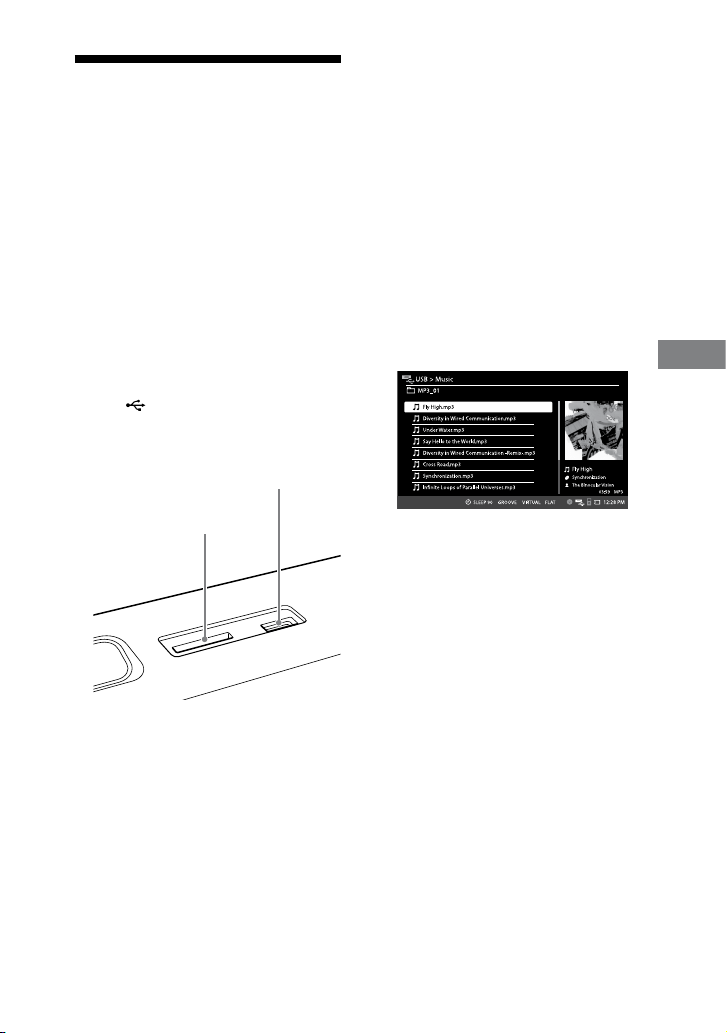
WHG-SLK2i/WHG-SLK1i.GB.4-187-068-11(1)
67
GB
USB Device/Memory Card
Playing a le on the
USB device or memory
card
You can play audio, video and image les
stored on the USB device or memory
card with this system.
Supported le formats are MP3*/WMA*/
AAC* for audio les, MPEG4*/MPEG2/
MPEG1/Motion JPEG for video les and
JPEG for image les.
* Files with DRM (Digital Rights
Management) copyright protection cannot
be played back on the system.
1
Connect a USB device to
the (USB) port, or insert
a memory card to the multi
memory card slot.
Insert a memory card
Insert a USB device
2
Select “USB” or “Memory Card”
from the home menu, then
press ENTER.
3
Select “Music,” “Photo” or “Video,”
then press ENTER.
e folder list appears.
4
Press
or
repeatedly to select
a folder.
5
Press ENTER.
Track list or le list appears.
Example: Track list of MP3 les
6
Press
or
repeatedly to select
a desired le, then press ENTER.
e system starts playback of the
selected audio or video le. When
selecting a JPEG image le, the
slideshow starts from the selected
image le.
To stop playback or slideshow, press
.
Continued
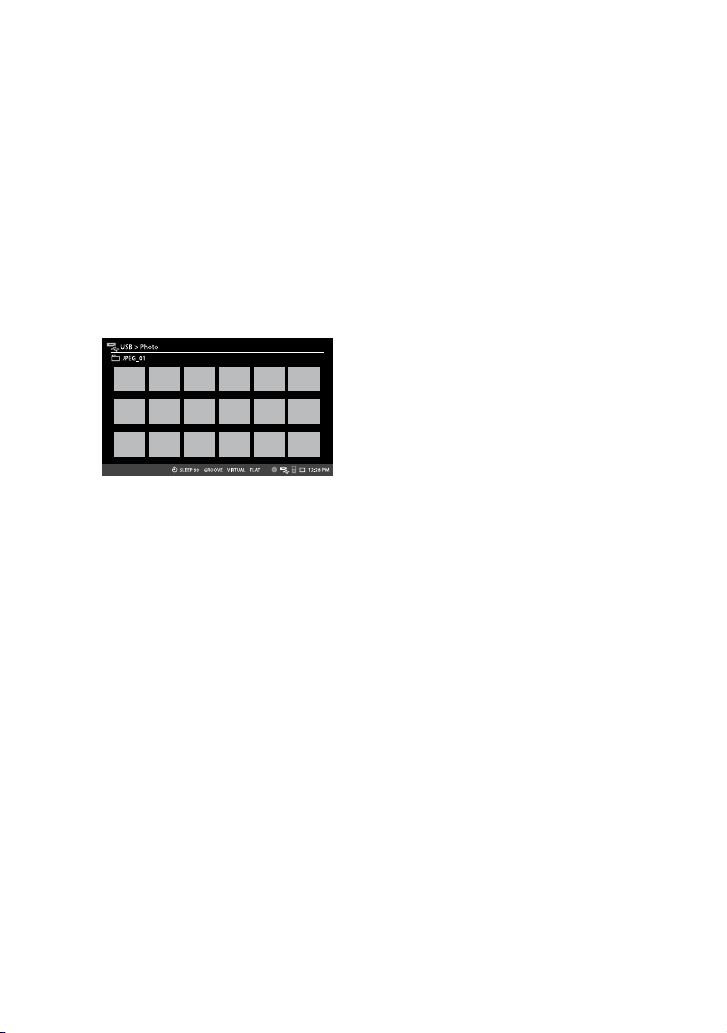
WHG-SLK2i/WHG-SLK1i.GB.4-187-068-11(1)
68
GB
To start the slideshow from the
thumbnail view
You can switch to the thumbnail view
from the le list (or vice-versa) by
pressing the DISPLAY button, and start
the slideshow from the selected image
le.
1
Press DISPLAY while the le list of
image les is displayed.
umbnail pictures for rst 18 JPEG
image les in the selected folder are
displayed. If there are more than 18
image les in the folder, the scroll bar
appears at the right.
2
Press
/
/
/
repeatedly to select
an image le, then press ENTER.
e slideshow starts from the selected
image le.
If you want to return to the le list,
press DISPLAY again while the
thumbnail view is displayed.
To specify the slideshow speed
(JPEG image les only)
1
Select “Settings” from the home
menu, then press ENTER.
2
Select “Slideshow Interval,” then press
ENTER.
e setting screen appears.
3
Press / repeatedly to select a
desired transition interval.
e default setting is “7 sec.”
If you want to turn o the slideshow
function, select “OFF.” Turning o
the function allows you to display
one picture at a time, and to manually
display the previous or next image le
using the
/
button.
e slideshow speed may change
depending on the selected transition
eect (see below) or the le size of
each image le stored on the USB
device or memory card.
Note
Some JPEG image les (especially progressive
JPEG image les or JPEG image les with
3,000,000 pixels or more) may take a longer
time to display than others, which may make
the transitions seem longer than that of the
option you selected.
To select a transition eect for the
slideshow
(JPEG image les only)
1
Select “Settings” from the home
menu, then press ENTER.
2
Select “Transition Eect,” then press
ENTER.
e setting screen appears.
WHG-SLK2i/WHG-SLK1i.GB.4-187-068-11(1)
69
GB
USB Device/Memory Card
3
Press / repeatedly to select a
desired transition eect.
e default setting is underlined.
None: Turns o this function.
Crossfade: Current image changes
to the next image with fade in and
out eect.
Vert. Blinds: Current image
changes to the next image with
fade in and out eect, simulating a
vertical blind for a window.
Horiz. Blinds: Current image
changes to the next image with
fade in and out eect, simulating a
horizontal blind for a window.
Vert. Wipe: Next image wipes out
the current image from top to
bottom.
Horiz. Wipe: Next image wipes out
the current image from le to right.
Mosaic: Image les in the selected
folder are displayed as mosaic
blocks.
Random: e above eects are
randomly applied to the slideshow
playback.
To select a display size of image on the
screen
(JPEG image les only)
1
Select “Settings” from the home
menu, then press ENTER.
2
Select “Fit,” then press ENTER.
e setting screen appears.
3
Press / repeatedly to select a
desired display size.
e default setting is underlined.
Entire image: Enlarges an image in
largest possible with the original
aspect ratio and displays entire
image. To ll the screen, margins at
top and bottom or le and right are
shown on the screen.
Fit to screen: Stretches an image to
t the screen.
Other operations
To Do this
Play back audio
or video les in
a next folder
Press repeatedly
until reaching the
last le of the current
folder, then press
once. To select the
previous folder, select
the folder from the
folder list.
Return to the
folder list from
the track/le
list
Press RETURN.
Select a folder
Press +/
repeatedly during
playback, or when
playback is paused or
stopped.
Tip
You can turn on or o the status bar during a
playback of video le or slideshow by pressing
DISPLAY.
Continued

WHG-SLK2i/WHG-SLK1i.GB.4-187-068-11(1)
70
GB
To remove the USB device
1
Press to stop playback.
2
Remove the USB device.
To remove the memory card
1
Press to stop playback.
2
Pull out the inserted memory card
from the multi memory card slot.
Changing the play mode
You can change the play mode during
playback or play-paused status.
Supported les for play modes are MP3/
WMA/AAC audio les, JPEG image les
and MPEG4/MPEG2/MPEG1/Motion
JPEG video les stored on the USB
device or the memory card.
1
Press OPTIONS to bring up the
Options menu.
2
Press
or
repeatedly to select
“Play mode,” then press ENTER.
3
Press
or
repeatedly to select
the desired setting.
Normal: e system plays all the
les on the USB device or the
memory card in sequential order.
Shue: e system plays all the
les on the USB device or the
memory card in random order.
Folder: e system plays all the
les in the selected folder on the
USB device or the memory card in
sequential order.
Folder Shue: e system plays all
the les in the selected folder on
the USB device or the memory card
in random order.
4
Press ENTER.
Playback starts or resumes in the
selected play mode. To return to the
playback screen, press RETURN
twice.
Note
e same song may be played back repeatedly
for audio les.

WHG-SLK2i/WHG-SLK1i.GB.4-187-068-11(1)
71
GB
USB Device/Memory Card
Changing the repeat play
mode
You can change the repeat mode for the
selected play mode during playback or
play-paused.
Supported les for repeat play modes
are MP3/WMA/AAC audio les, JPEG
image les and MPEG4/MPEG2/
MPEG1/Motion JPEG video les stored
on the USB device or the memory card.
1
Press OPTIONS to bring up the
Options menu.
2
Press
or
repeatedly to select
“Repeat,” then press ENTER.
3
Press
or
repeatedly to select
the desired setting.
OFF: Repeat play is o.
One Track: e system plays the
selected le repeatedly.
All Tracks: e system plays all the
les repeatedly in the selected play
mode.
4
Press ENTER.
Repeat play starts in the selected
repeat play mode. To return to the
playback screen, press RETURN
twice.

WHG-SLK2i/WHG-SLK1i.GB.4-187-068-15(1)
72
GB
Sound Adjustment
Adjusting the sound
To Do this
Reinforce the
sound
Press GROOVE
repeatedly.
Each time you press the
button, the display on
the status bar changes
as follows:
GROOVE*
Z-GROOVE*
No display (GROOVE
o) GROOVE
…
Select the
preset sound
eect
Press EQ repeatedly.
Each time you press the
button, the display on
the status bar changes
as follows:
ROCK POP
JAZZ DANCE
SOUL TECHNO
HIP HOP
FLAT…
* e volume switches to power mode and the
equalizer curve changes.
Tips
You can also select the Groove setting
from “Settings” in the home menu. Select
“Settings” from the home menu and follow
the procedure below.
Select “Groove.” Press ENTER. Select
“OFF,” “Groove” or “Z-Groove.” Press
ENTER.
You can also select the EQ setting from
“Settings” in the home menu. Select
“Settings” from the home menu and follow
the procedure below.
Select “EQ Setting.” Press ENTER.
Select a desired EQ Setting. Press ENTER.
Selecting the sound eld
You can take advantage of the surround
sound simply by selecting one of the
sound elds. ey bring the exciting and
powerful sound of movie theaters into
your home.
Press SOUND FIELD repeatedly.
Each time you press the button, the
sound eld setting is changed as follows.

WHG-SLK2i/WHG-SLK1i.GB.4-187-068-11(1)
73
GB
Sound Adjustment
Continued
When the headphones are not
connected:
2CH STEREO
e normal stereo sound eld for all
functions.
Reproduces stereo output from multi
channel sources such as DVD VIDEOs
during DVD function. e system
outputs the original sound when the
sound source is originally stereo sound
(Audio CD, VIDEO CD, MP3 les and
MPEG4 les on the DATA CD/DATA
DVD, etc.).
2CH SURROUND
e sound eld with surround eect for
all functions.
Reproduces stereo output with surround
eect from multi channel sources such as
DVD function.
VIRTUAL A* (DVD function only)
Creates 3 sets of virtual surround
speakers from the sound of the front
speakers. is sound eld is only eective
when you play back multi channel
sources.
VIRTUAL B* (DVD function only)
Creates 1 set of virtual surround speakers
from the sound of the front speakers
without using actual surround speakers.
is mode is eective when the distance
between the front speakers is short. is
sound eld is only eective when you
play back multi channel sources.
When the headphones are connected:
HP STEREO
e normal sound eld for headphones.
HP SURROUND
e sound eld for headphones with
surround eect.
HP VIRTUAL* (DVD function only)
e sound eld for headphones with
virtual surround eect. is sound eld
is only eective when you play back multi
channel sources.
* ese sound elds cannot be selected when
the system is in standby mode.
Note
Depending on the disc, the surround eect
may not be as much as expected.

WHG-SLK2i/WHG-SLK1i.GB.4-187-068-11(1)
74
GB
Selecting the MP3 Booster+
eect
You can enhance the sound quality of
MP3, WMA or AAC audio les.
1
Select “Settings” from the home
menu, then press ENTER.
2
Select “MP3 Booster+,” then
press ENTER.
e setting screen appears.
3
Press
/
repeatedly to select
a desired setting, then press
ENTER.
e default setting is underlined.
AUTO: e MP3 Booster+ eect
is automatically activated when
starting playback.
OFF: Turns o this function.

WHG-SLK2i/WHG-SLK1i.GB.4-187-068-11(1)
75
GB
Other Operations
Other Operations
Enjoying simultaneous
playback
You can enjoy simultaneous playback of
sound and image data as a slideshow.
1
Prepare the sound source and
start the music content or
sound.
When using a CD-DA disc or MP3
disc as a sound source:
See “Playing a disc” (page 32).
To start from a specic track, create
your own program (page 46).
When using a USB device or
memory card as a sound source:
See “Playing a le on the USB device
or memory card” (page 67).
When using an iPod as a sound
source:
See “Playing the iPod” (page 61).
When using a tuner reception as a
sound source:
See “Listening to the radio” (page 59).
When using a connected optional
component as a sound source:
See “Listening to a connected VCR or
satellite tuner” (page 84).
2
Press OPTIONS to bring up the
Options menu.
3
Select “Photo Select,” then press
ENTER.
4
Select “USB,” “Memory Card” or
“iPod” for an image playback
source, then press ENTER.
5
Select an image le and start
the slideshow.
When using a USB device or
memory card as an image source:
See “Playing a le on the USB device
or memory card” (page 67).
When using an iPod as an image
source:
See “Playing the iPod” (page 61). Note
that you cannot select “iPod” for the
image source when you are using the
iPod as a music source.
Continued

WHG-SLK2i/WHG-SLK1i.GB.4-187-068-11(1)
76
GB
To play the same slideshow with music
or sound
1
Conrm the preparation of the
music or sound source. See step 1 of
“Enjoying simultaneous playback.”
2
Press OPTIONS to bring up the
Options menu.
3
Select “Start Slideshow,” then press
ENTER.
Note
Make sure to always start the music or sound
rst when enjoying simultaneous playback.
Using the timers
e system oers two timer functions. If
you use both timers, the Sleep Timer has
priority.
Sleep Timer
You can fall asleep to music. is
function works even if the clock is not
set.
1
Press SLEEP, then press ENTER.
e setting screen appears.
2
Select the time you want, then
press ENTER.
3
Select “SET,” then press ENTER.
e system turns o on the preset
time.
Play Timer
e Play Timer can be set with the
“CD/DVD,” “USB,” “iPod,” “Tuner” or
“Memory Card” function.
Make sure you have set the clock.
1
Prepare the sound source.
Prepare the sound source, and then
press VOLUME +/ (or VOL +/ on
the unit) to adjust the volume.
2
Select “Settings” from the home
menu, then press ENTER.
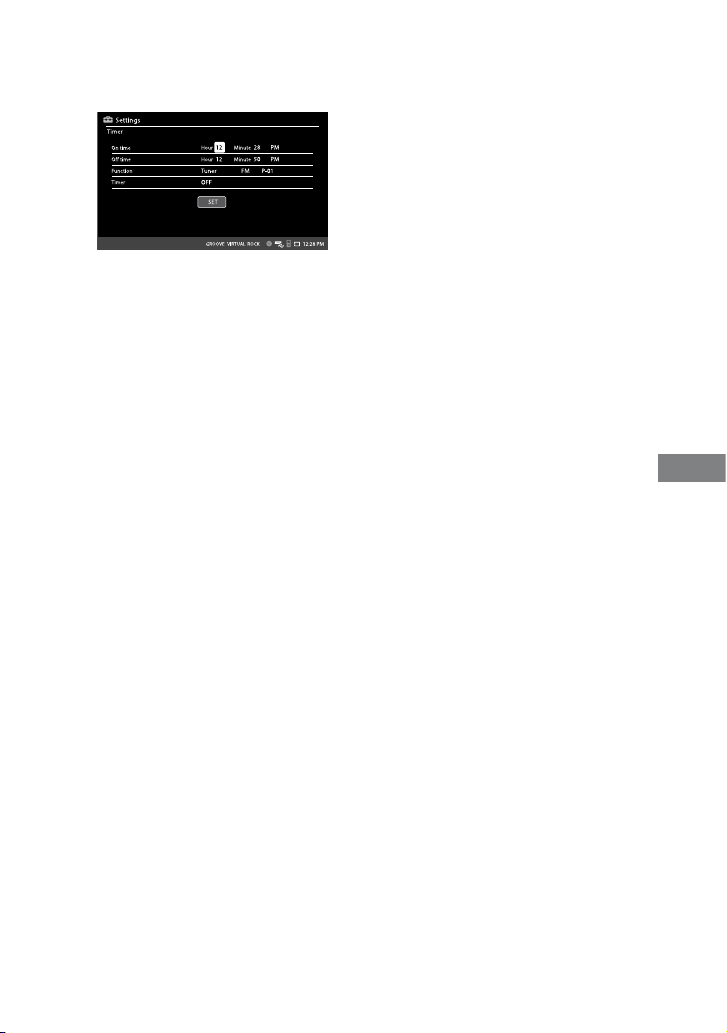
WHG-SLK2i/WHG-SLK1i.GB.4-187-068-11(1)
77
GB
Other Operations
3
Select “Timer,” then press ENTER.
e setting screen appears.
4
Set the Play Timer as follows.
“On time” and “O time”
Set the start time and stop time.
“AM”/“PM” can be selected only
when you have selected the 12-hour
time display format in the clock
setting (page 30).
“Function”
Set the function for sound source. If
you have selected tuner function, you
can select the tuner band (“FM” or
“AM”) and a preset number in each
setting box accordingly.
“Timer”
Select “ON” to turn on the Play
Timer.
5
Select “SET,” then press ENTER to
enter the settings.
6
Press to turn o the system.
e system turns on 30 seconds
before the preset time.
If the system is on at the preset time,
the Play Timer will not be activated.
Do not operate the system from the
time the system turns on until the
playback starts.
To check the Play Timer setting
Display the “Timer” menu in the
“Settings.” Current setting of the Play
Timer is shown at right.
To change the Play Timer setting
Start over from step 1.
To cancel the Play Timer
Repeat the procedure and select “OFF”
for “Timer” in step 4.
Notes for the iPod user
Make sure the iPod is not playing when using
the Play Timer.
e Play Timer may not be activated
depending on the status of the connected
iPod.
Continued

WHG-SLK2i/WHG-SLK1i.GB.4-187-068-11(1)
78
GB
Note
e Play Timer will not be activated if the
system is turned on. Be sure to turn o the
system at least 120 seconds before the preset
time.
Tips
You can also set the Sleep Timer from
“Settings” in the home menu. Select
“Settings” from the home menu and follow
the procedure below.
Select “Sleep.” Press ENTER. Select
the upper setting box. Press ENTER.
Select a desired setting. Press ENTER.
Select “SET.” Press ENTER. To cancel the
Sleep Timer, select “OFF” in the setting box.
e Play Timer setting remains as long as the
setting is not cancelled manually.
Changing the display
Viewing information about the
playback source
You can view various information
of playback source on the “TIME”
display during playback when using the
CD/DVD function. When playing back
a CD-DA track on an AUDIO CD or
an MP3 le on a DATA CD/DVD, you
can also view information on the CD
music playback screen. For details, see
“Information display on the CD music
playback screen” (page 79).
Press TIME/TEXT repeatedly.
Each time you press TIME/TEXT during
playback, the display changes from
… …
e time display that you can view on the
screen depends on the playback source.
If the CD music playback screen
is displayed, make sure to press
DISPLAY repeatedly to call up the
Control Menu (page 23) before pressing
TIME/TEXT.
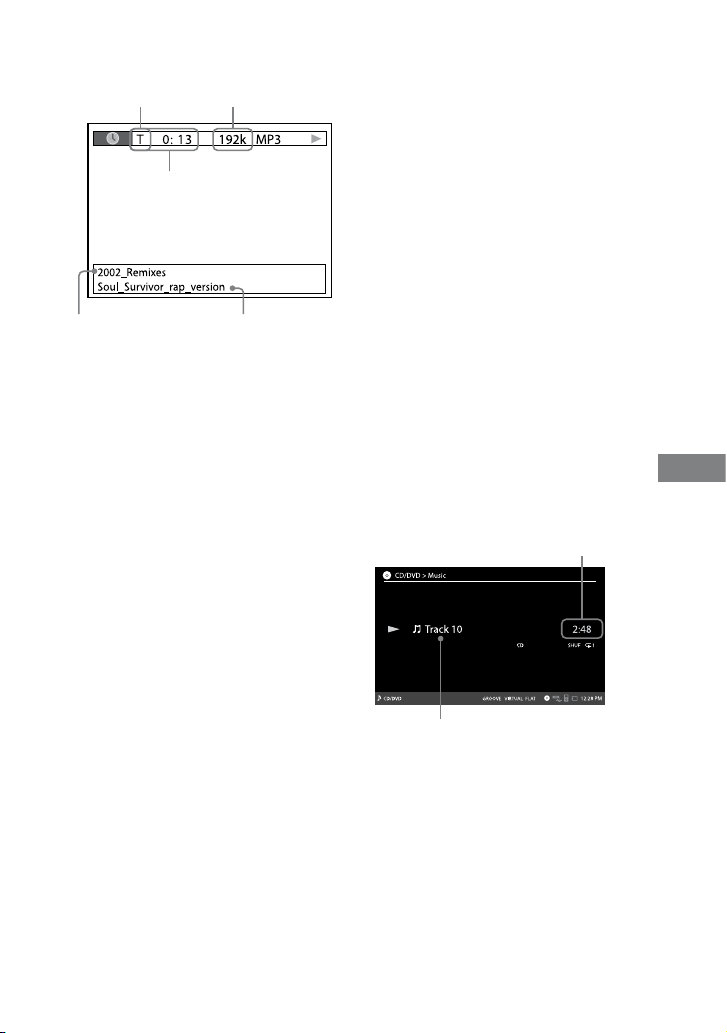
WHG-SLK2i/WHG-SLK1i.GB.4-187-068-11(1)
79
GB
Other Operations
T: title or track
C: chapter
D: disc
Bit rate
Time information
Folder name
Track/le name
When playing a DVD VIDEO or DVD-
R/-RW in VR mode:
Elapsed playing time of the current
title
Remaining time of the current title
Elapsed playing time of the current
chapter
Remaining time of the current chapter
Elapsed playing time of the current
title and disc title
When playing a VIDEO CD with PBC
function:
Elapsed playing time of the current
scene
Elapsed playing time of the current
scene and disc title
When playing an AUDIO CD or VIDEO
CD without PBC function:
Elapsed playing time of the current
track
Remaining time of the current track
Elapsed playing time of the disc
Remaining time of the disc
Elapsed playing time of the current
track and track name
When playing MP3 les or video les
on a DATA CD/DVD:
Elapsed playing time of the current le
and folder/le name
Information display on the CD music
playback screen
You can also view information about a
CD-DA track or MP3 le when the CD
music playback screen is displayed, and
a track is being played back or paused.
Each time you press TIME/TEXT
during an CD-DA track or MP3 le is
being played back or paused, the display
changes from …
…
Time information
Track/le name
Continued
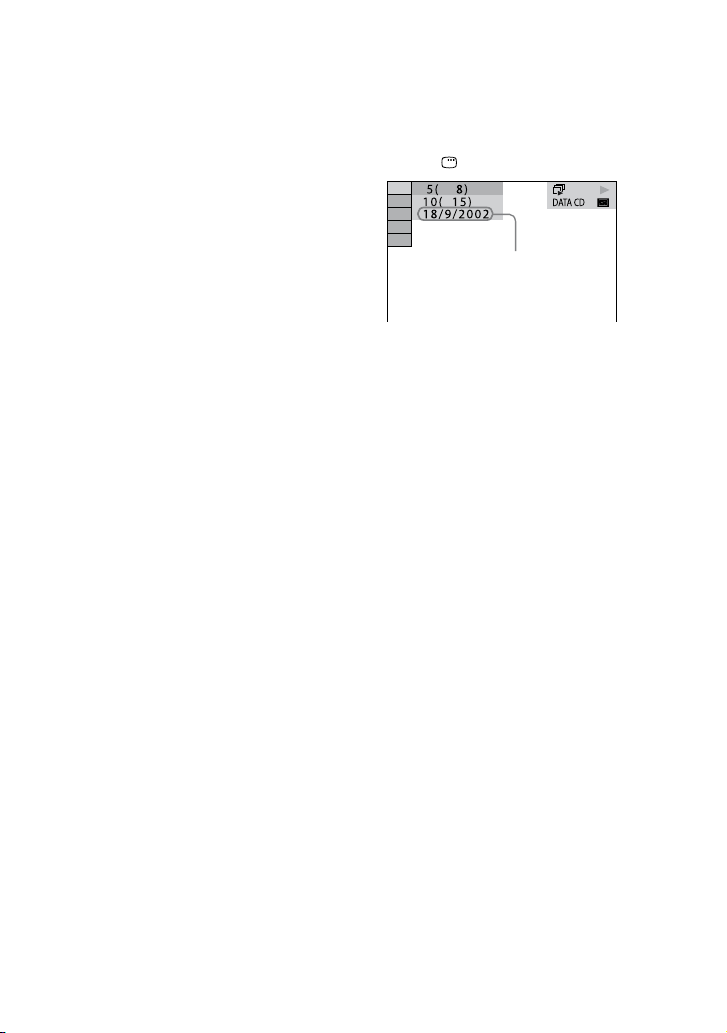
WHG-SLK2i/WHG-SLK1i.GB.4-187-068-11(1)
80
GB
When playing an AUDIO CD:
Elapsed playing time of the current
track
Remaining time of the current track
Elapsed playing time of the disc
Remaining time of the disc
Track name
When playing an MP3 le on a DATA
CD/DVD:
Elapsed playing time of the current le
and its le name
Notes
For MP3 les with format other than ISO
9660 Level 1 and Level 2, folder name and le
name may not be displayed.
Only alphabet letters, numbers and some
symbols can be displayed.
Depending on the media, the system can
only display a limited number of characters.
Tip
If an MP3 le has the ID3 tag, the system will
display an album name or title name from
the ID3 tag information. e system supports
ID3 ver 1.0/1.1/2.2/2.3. ID3 ver 2.2/2.3 tag
information display has priority when both ID3
ver 1.0/1.1 and ver 2.2/2.3 tags are used for a
single MP3 le.
Checking the date information of JPEG
image les recorded on the disc
When “Exif”* tag is recorded in the
JPEG image les, you can check the date
information in the Control Menu by
pressing DISPLAY during playback.
Date information
* “Exchangeable Image File Format” is a
digital camera image format dened by
the “Japan Electronics & Information
Technology Industries Association” (JEITA).
Note
e date information format varies depending
on the area.
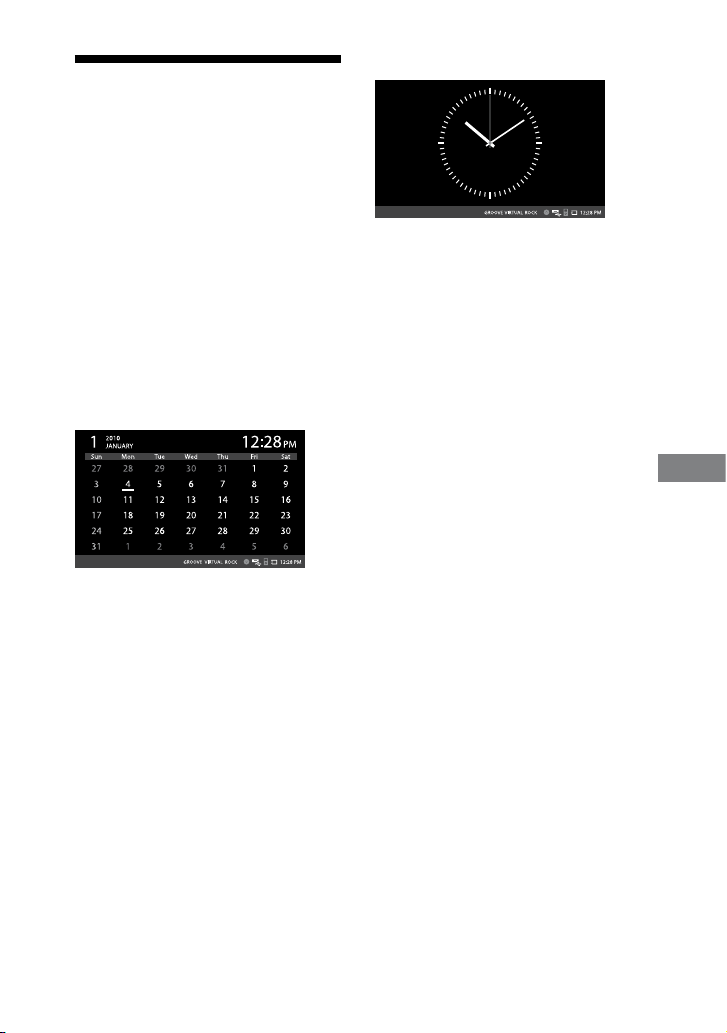
WHG-SLK2i/WHG-SLK1i.GB.4-187-068-11(1)
81
GB
Other Operations
Using the calendar and
clock functions
You can use this system as a calendar or
clock display, depending on your taste.
Select “Calendar/Clock” from the
home menu, then press ENTER.
e calendar display appears on the
screen.
You can select the calendar display
or analogue clock display by pressing
DISPLAY repeatedly.
When using the calendar display, you can
advance a month to the previous or next
month by pressing
/
.
Calendar
Analogue clock
To display the clock while playing back
a content
1
Press OPTIONS during playback to
bring up the Options menu.
2
Select “Show Clock,” then press
ENTER.

WHG-SLK2i/WHG-SLK1i.GB.4-187-068-11(1)
82
GB
Changing other
settings
e following settings can be changed
from the “Settings” menu in the home
menu.
e default setting is underlined.
To Do this
Change the
LCD brightness
1
Select “Display
Brightness,” then
press ENTER.
2
Select a desired
setting, then press
ENTER.
AUTO
Low
Mid
High
Change the
brightness of
touch sensitive
buttons on the
unit
1
Select “Key
Brightness,” then
press ENTER.
2
Select a desired
setting, then press
ENTER.
OFF
Low
Mid
High
To Do this
Change the
Sony logo
backlight
1
Select “Sony Logo
Backlight,” then
press ENTER.
2
Select a desired
setting, then press
ENTER.
OFF
ON
Change the
beep sound
1
Select “Beep sound,”
then press ENTER.
2
Select a desired
setting, then press
ENTER.
OFF
Low
Mid
High
Setting a screen mode for the LCD
screen
You can select a screen mode for pictures
displayed on the LCD screen.
is function is available when using
the “CD/DVD,” “iPod,” “Video Input” or
“SAT Input” function.
e default setting is underlined.
1
Press OPTIONS to bring up the
Options menu while the pictures are
displayed.
2
Press
/
repeatedly to select “Wide
Mode,” then press ENTER.
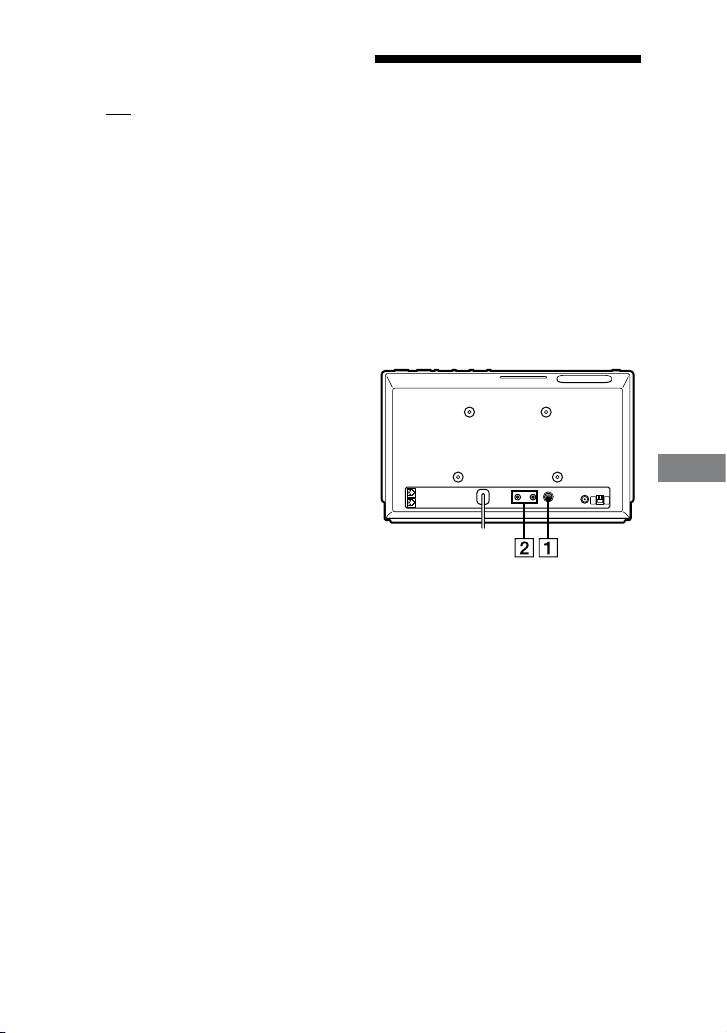
WHG-SLK2i/WHG-SLK1i.GB.4-187-068-11(1)
83
GB
Other Operations
3
Press
/
repeatedly to select the
desired setting, then press ENTER.
Full: Select this when viewing
pictures in 16:9-format. is setting
displays pictures in full screen
mode.
Normal: Select this when viewing
pictures in 4:3-format. is setting
displays pictures in normal screen
mode with bands on the le and
right portions of the screen.
Note
e selected screen mode may not be eective
if the screen mode is xed, as a priority setting,
on the source pictures.
Hooking up optional
components
To enhance your system, you can connect
optional components. Refer to the
operating instructions provided with
each component.
If you purchased WHG-SLK2i and
installed the system on the wall, please
be aware that the connections should
be made before installation. For details,
refer to the separate leaet “Installing the
system on the wall.”
Rear panel
DVD VIDEO OUT jack
Connect the video input jack of the
TV or projector.
Continued

WHG-SLK2i/WHG-SLK1i.GB.4-187-068-11(1)
84
GB
Notes
Video output is available only when you
are using the CD/DVD function and the
inserted disc contains motion picture or
still image data.
You cannot view video contents stored in
an iPod, USB device or memory card on
the connected TV screen. Video contents
on those devices can be viewed only on
the LCD screen.
VIDEO/SAT AUDIO IN jack,
VIDEO/SAT VIDEO IN jack
Connect the audio and video output
jacks of an optional component (such
as VCR or satellite tuner).
Listening to a connected VCR or
satellite tuner
1
Select “Video Input” or “SAT
Input” from the home menu,
then press ENTER.
2
Start playing the connected
component.
To switch between the “Video Input”
and “SAT Input” function
1
Select “Settings” from the home
menu, then press ENTER.
2
Select “External Video source,” then
press ENTER.
e setting screen appears.
3
Press
/
repeatedly to select “Video”
or “Satellite,” then press ENTER.
Note
If the sound is distorted or too loud when
“Video” is selected, change the function to
“Satellite.”
Tip
e icon name on the home menu changes to
“Video Input” or “SAT Input” depending on
the “External Video source” setting.

WHG-SLK2i/WHG-SLK1i.GB.4-187-068-11(1)
85
GB
Additional Information
Additional Information
Troubleshooting
Should you encounter a problem with
your system, do the following:
1
Make sure the power cord and
speaker cords are connected
correctly and rmly.
2
Find your problem in the
troubleshooting checklist below and
take the indicated corrective action.
3
If the system still does not operate
properly, reset the system (page 95,
96).
If the problem persists aer doing all
of the above, consult your nearest Sony
dealer.
If the STANDBY indicator ashes
Immediately unplug the power cord,
and check the following items.
Are you using only the supplied
speakers?
Is anything blocking the ventilation
hole on the rear of the system?
Aer the STANDBY indicator stops
ashing, reconnect the power cord,
and turn on the system. If the issue
persists, contact your nearest Sony
dealer.
General
The images with Sony illumination
appear after you connect the power
cord, even though you have not
turned on the system.
Turn o the automatic demonstration
(page 25).
The system does not turn on.
Is the power cord plugged in?
It takes some time for the home
menu screen to appear when you
turn on the system.
is is not a malfunction. e system
takes a certain time for readying and
displaying the home menu when you
turn on the system. Wait for a while
and do not attempt to press again
as the system will already be in the
process to display the home menu.
Continued

WHG-SLK2i/WHG-SLK1i.GB.4-187-068-11(1)
86
GB
The system has entered standby
mode unexpectedly.
is is not a malfunction. e system
enters standby mode automatically
aer about 30 minutes when there is
no operation, or when playback ends
on the connected device. See “To turn
o the automatic standby function”
(page 97).
The clock or timer setting is
cancelled.
e power cord is disconnected or a
power failure occurred. Redo “Setting
the clock” (page 30). If you have set
the timer, redo “Using the timers”
(page 76).
There is no sound.
Press VOLUME + (or VOL + on the
unit) repeatedly.
e headphones are connected to the
PHONES jack.
Check the speaker connections
(page 24).
e system is in pause mode, in Slow-
motion Play or in Lock Search. Press
to start the playback.
There is severe hum or noise.
A TV or VCR is placed too close to the
unit. Move the unit away from the TV
or VCR.
Move the unit away from the source of
noise.
Install a noise lter (commercially
available) to the power cord.
The timer does not function.
Check the timer setting and set the
correct time (page 76).
Cancel the Sleep Timer function.
The remote does not function.
Remove the obstacles between the
remote and the unit.
Move the remote closer to the unit.
Point the remote at the unit’s sensor.
Replace the batteries (R6/size AA).
Locate the unit away from the
uorescent light.
There is acoustic feedback.
Reduce the volume.

WHG-SLK2i/WHG-SLK1i.GB.4-187-068-11(1)
87
GB
Additional Information
The sound from the component
connected to the VIDEO/AUDIO IN
jacks is distorted.
If “Video Input” is displayed on the
home menu, switch the mode to
“Satellite” (see “To switch between
the “Video Input” and “SAT Input”
function” (page 84)).
“Over Current!” appears.
A problem has been detected with the
level of electrical current from the iPod
connector, (USB) port or memory
card terminal on the unit. Turn o
the system and remove the iPod, USB
device or memory card from the
system. Make sure there is no problem
with these devices. If this display
pattern persists, contact your nearest
Sony dealer.
Speakers
Sound comes from one channel or
unbalanced left and right volume.
Place the speakers as symmetrically as
possible.
Check that the speakers are connected
securely and correctly.
e source being played back is
monaural.
Disc Player
The system does not eject the disc
and “LOCKED” appears.
Consult your nearest Sony dealer or
local authorized Sony service facility.
Playback does not start.
Check whether a disc is loaded.
Wipe the disc clean (page 100).
Reload the disc.
Load the disc that this system can play
back (page 9, 32).
Remove the disc and wipe away the
moisture on the disc, then leave the
system turned on for a few hours until
the moisture evaporates.
Press to start playback.
e region code on the DVD VIDEO
does not match the system.
The sound skips.
Wipe the disc clean (page 100).
Reload the disc.
Move the unit to a place without
vibrations (e.g., on top of a stable
stand).
Move the speakers away from the
unit, or place them on separate stands.
When you listen to a track or le
with bass sounds at high volume, the
speaker vibration may cause the sound
to skip.
Continued

WHG-SLK2i/WHG-SLK1i.GB.4-187-068-11(1)
88
GB
Playback does not start from the rst
track.
Shue Play mode, Program Play mode
or Repeat Play mode is selected.
Resume playback has been selected.
Press twice. en, press to start
playback.
e title of DVD VIDEO or PBC menu
of VIDEO CD automatically appears
on the screen.
Playback stops automatically.
Some discs may contain an auto pause
signal. While playing such a disc, the
playback stops at auto pause signal.
You cannot perform some functions
such as Stop, Lock Search, Slow-
motion Play, Repeat Play, Shue Play
or Program Play.
Depending on the disc, you may not
be able to do some of the operations
above. Refer to the operating
instructions supplied with the disc.
The DATA CD/DVD (MP3 le/JPEG
image le/DivX video le/MPEG4
video le) cannot be played back.
e DATA CD is not recorded in a
format that conforms to ISO 9660
Level 1, Level 2, or Joliet (expansion
format).
e DATA DVD is not recorded
in a format that conforms to UDF
(Universal Disk Format).
e MP3 le does not have the
extension “.mp3”.
e data is not stored in the desired
format.
e audio le is not stored in MP3
(MPEG 1 Audio Layer 3) format.
e system can play back to a depth of
8 folders only.
e disc contains more than
200 folders.
e folder contains more than 150 les.
e JPEG image le does not have the
extension “.jpg” or “.jpeg”.
e JPEG image le is larger than
3,072 (width) × 2,048 (height) pixels in
normal mode, or more than 2,000,000
pixels in Progressive JPEG mode,
which is mainly used on the Internet
website.
e MPEG4 video le does not have
the extension “.mp4” or “.m4v”.
e DivX video le does not have the
extension “.avi” or “.divx”.
DivX and MPEG4 video les cannot
be played back on the North American
model.
e video le is larger than 720 (width)
× 576 (height) pixels.

WHG-SLK2i/WHG-SLK1i.GB.4-187-068-11(1)
89
GB
Additional Information
If you cannot change the “MEDIA”
setting, re-load the disc or turn the
system o, then on.
The MP3 les take longer time to play
back than others.
Aer the system reads all the MP3 les
on the disc, playback may take more
time than usual if:
the number of folders or MP3 les
on the disc is very large.
the le structure is extremely
complex.
“Data Error” appears on the screen
when playing a DATA CD/DVD.
e MP3 le/JPEG image le you want
to play is broken.
e MP3 le does not conform to
MPEG 1 Audio Layer 3.
e JPEG image le format does not
conform to DCF.
e JPEG image le has the extension
“.jpg” or “.jpeg”, but is not in JPEG
format.
e DivX video le has the extension
“.avi” or “.divx”, but is not in DivX
format.
e DivX video le does not conform
to a DivX Certied prole.
e MPEG4 video le has the
extension “.mp4” or “.m4v”, but does
not conform to MPEG4 Simple Prole.
The disc title, CD-TEXT and DVD-TEXT
characters do not appear properly.
e disc is recorded in format other
than ISO 9660 Level 1, Level 2 or Joliet
(expansion).
e character code that can be
displayed by this system are as follows:
Upper cases (A to Z)
Numbers (0 to 9)
Symbols (< > * + , ? / [ ] \ _)
Other characters appear as “_”.
The surround eect is dicult to hear
when you are playing a Dolby Digital
or MPEG audio sound track.
Make sure the sound eld is set
properly (page 72).
Check the speaker connection
(page 24).
Depending on the DVD VIDEO, the
output signal may not be the entire 5.1
channel. It may be monaural or stereo,
even if the sound track is recorded in
Dolby Digital or MPEG audio format.
The sound loses stereo eect when
you play back a DVD VIDEO, VIDEO
CD, AUDIO CD, MP3 le or video le.
Make sure the system is connected
properly.
Check the speaker connection
(page 24).
Continued

WHG-SLK2i/WHG-SLK1i.GB.4-187-068-14(1)
90
GB
iPod
There is no sound.
Make sure the iPod is connected
securely.
Make sure the iPod is updated with the
latest soware. If not, update the iPod
before using with the system.
Make sure the iPod is playing music.
Adjust the volume.
It may take time to start playback
depending on the contents.
The sound is distorted.
Make sure the iPod is connected
securely.
Turn down the volume.
Set the “EQ” setting of the iPod to
“O” or “Flat.”
The iPod does not function.
Make sure the iPod is connected
securely.
Make sure the iPod is updated with the
latest soware. If not, update the iPod
before using with the system.
Because operation of the system and
the iPod are dierent, you may not
operate the iPod using buttons on the
remote or unit. In this case, use control
buttons on the iPod.
Check if your iPod is compatible with
this system (page 112).
The iPod cannot be charged.
Make sure the iPod is connected
securely.
You can use the system as a battery
charger for iPod only when the system
is on.
e system is in standby status with the
automatic standby function. Turn o
the automatic standby function (page
97).
Video/photo image from the iPod
does not appear on the LCD screen.
Make sure the iPod is connected
securely.
Check that the TV output setting on
the iPod is on. (Refer to the user’s
guide of your iPod.)
Check that the iPod is compatible with
the video output. (Refer to the user’s
guide of your iPod.)
Video/photo image from the iPod
does not appear on the iPod display.
Make sure the iPod is connected
securely.
Adjust the video/photo image output
settings to the appropriate settings.
“iPod” on the home menu cannot be
selected.
Check the iPod icon on the status bar.
If the icon is grey, the iPod is being
recognized. Wait until the icon turns
white.
e iPod may not be recognized. Make
sure the iPod is connected securely.

WHG-SLK2i/WHG-SLK1i.GB.4-187-068-11(1)
91
GB
Additional Information
USB device/Memory card
Are you using a supported USB
device or memory card?
If you use an unsupported USB
device or memory card, the following
problems may occur. See “Compatible
devices with this system” (page 110) for
the supported device types.
USB device or memory card is not
recognized.
File or folder names are not
displayed on this system.
Playback is not possible.
e sound skips.
ere is noise.
A distorted sound is output.
There is no sound.
e USB device is not connected
correctly. Turn o the system and
reconnect the USB device, then turn on
the system again.
e memory card is not inserted
correctly. Turn o the system and
reinsert the memory card, then turn on
the system again.
There is noise, skipping, or distorted
sound.
Turn o the system, then reconnect the
USB device.
Turn o the system, then reinsert the
memory card.
e music data itself contains noise,
or the sound is distorted. Noise may
have entered when creating music data
due to the conditions of the computer.
Create the music data again.
e bitrate used when encoding audio
les was low. Send audio les with
higher bit rate to the USB device or the
memory card.
The USB device cannot be connected
into the (USB) port.
e USB device is being connected
backwards. Connect the USB device in
the correct orientation.
The memory card cannot be inserted
into the multi memory card slot on
the unit.
e memory card is being inserted
backwards. Insert the memory card in
the correct orientation.
Continued

WHG-SLK2i/WHG-SLK1i.GB.4-187-068-11(1)
92
GB
“Reading” is displayed for an
extended time, or it takes a long time
before playback starts.
e reading process can take a long
time in the following cases.
ere are many folders or les on the
USB device or the memory card.
e le structure is extremely
complex.
e memory capacity is excessive.
e le size is extremely large.
e internal memory is fragmented.
us, we recommend following these
guidelines.
Total folders on the USB device or
the memory card: 200 or less
Total les per folder: 150 or less
Erroneous display
Send the music data to the USB device
or the memory card again, as the
stored data may have been corrupted.
Character codes that can be displayed
by this system are as follows:
Upper cases (A to Z)
Numbers (0 to 9)
Symbols (< > * + , ? / [ ] \ _)
Other characters appear as “_”.
The USB device or the memory card is
not recognized.
e USB device is not connected
correctly. Turn o the system and
reconnect the USB device, then turn on
the system again.
e memory card is not inserted
correctly. Turn o the system and
reinsert the memory card, then turn on
the system again.
See “Compatible devices with this
system” (page 110) for the supported
device types.
e USB device or the memory card
does not work properly. Refer to the
operating instructions supplied with
the USB device or the memory card for
how to deal with this problem. If the
problem persists, contact your nearest
Sony dealer.
“Data Error” appears on the screen
when playing a le on the USB device
or the memory card.
e le on the USB device or the
memory card is not playable.
Play does not start.
e USB device is not connected
correctly. Turn o the system and
reconnect the USB device, then turn on
the system again.

WHG-SLK2i/WHG-SLK1i.GB.4-187-068-11(1)
93
GB
Additional Information
e memory card is not inserted
correctly. Turn o the system and
reinsert the memory card, then turn on
the system again.
See “Compatible devices with this
system” (page 110) for the supported
device types.
Press to start playback.
Play does not start from the rst
track.
Set the play mode to normal play
mode.
Files cannot be played back.
e MP3 le does not have the
extension “.mp3”.
e WMA le does not have the
extension “.wma”.
e AAC le does not have the
extension “.m4a”.
e MPEG4 le does not have the
extension “.mp4” or “.avi”.
e MPEG2/MPEG1 le does not have
the extension “.mpg” or “.avi”.
e Motion JPEG le does not have the
extension “.avi”.
e audio le is not stored in MP3/
WMA/AAC format.
e video le is not stored in MPEG4/
MPEG2/MPEG1/Motion JPEG format.
e JPEG image le does not have the
extension “.jpg” or “.jpeg”.
e JPEG image le is larger than
3,072 (width) × 2,048 (height) pixels in
normal mode, or more than 2,000,000
pixels in Progressive JPEG mode which
is mainly used on the Internet website.
USB devices or memory cards
formatted with le systems other than
FAT16 or FAT32 are unsupported.*
e WMA le stored in WMA DRM/
WMA Lossless/WMA PRO format
cannot be played back.
e AAC le stored in copyright-
protected AAC or AAC Lossless format
cannot be played back.
AAC les encoded at a sampling
frequency of 96 kHz cannot be played
back.
If you use a partitioned USB device,
only les on the rst partition can be
played.
e system can play back to a depth of
8 folders only.
e number of folders has exceeded
200.
e number of les has exceeded 150.
Files that are encrypted or protected by
passwords, etc. cannot be played back.
* is system supports FAT16 and FAT32,
but some USB devices may not support all
of these FAT. For details, see the operating
instructions of each USB device or contact
the manufacturer.
Continued

WHG-SLK2i/WHG-SLK1i.GB.4-187-068-11(1)
94
GB
Picture
There is no picture on the TV screen.
Check that the system is connected
securely.
e video cord is damaged. Replace it
with a new one.
Make sure you connect the unit to the
video input jack of your TV (page 83).
Make sure you turn on the TV and
operate the TV correctly.
Make sure you select the video input
on the TV so that you can view the
pictures from the system.
Make sure you set the color system
correctly, according to your TV’s color
system (page 27).
You cannot view the pictures from the
optional component which connected
to the VIDEO/SAT VIDEO IN jack on
the unit.
Picture noise appears on the TV
screen.
Wipe the disc clean (page 100).
If video signal from your system has to
go through your VCR to your TV, the
copy-protection applied to some DVD
VIDEO programs could aect the
picture quality.
When you play back a VIDEO CD
recorded in a dierent color system
from the one you set to the system,
the picture image may be distorted
(page 56).
Set the color system to match your TV
(page 27).
The aspect ratio of the TV screen
cannot be changed even though
you can set “TV TYPE” under “VIDEO
SETUP” in the Setup Menu when you
play back a wide picture.
e aspect ratio is xed on your DVD
VIDEO.
Depending on the TV, you may not
change the aspect ratio.
Messages do not appear on the
screen in your desired language.
When using the CD/DVD function,
select the language for the on-screen
display in “OSD” under “LANGUAGE
SETUP” in the Setup Menu (page 29,
54).
When using a function other than
CD/DVD function, select the language
for the home menu (page 30).
The language for the sound track
cannot be changed.
Multilingual tracks are not recorded on
the DVD VIDEO being played back.
e DVD VIDEO prohibits changing
the language for the sound track.
The subtitles language cannot be
changed.
Multilingual subtitles are not recorded
on the DVD VIDEO being played
back.
e DVD VIDEO prohibits changing
the subtitles.

WHG-SLK2i/WHG-SLK1i.GB.4-187-068-11(1)
95
GB
Additional Information
The subtitles cannot be turned o.
e DVD VIDEO prohibits turning o
subtitles.
The angles cannot be changed.
Multi-angles are not recorded on the
DVD VIDEO being played back.
e DVD VIDEO prohibits changing
the angles.
Tuner
There is severe hum or noise.
(“TUNED” or “STEREO” ashes on the
screen.)
Set the proper band and frequency
(page 59).
Connect the antenna properly
(page 24).
Find a place and an orientation that
provide good reception, then set up
the antenna again. If you cannot obtain
good reception, we recommend that
you connect a commercially available
external antenna.
e supplied FM lead antenna receives
signals along its entire length, so make
sure you extend it fully.
Locate the antennas as far away from
the speaker cords and the power cord
as possible, to avoid picking up noise.
Try turning o the surrounding
electrical equipment.
A stereo FM program cannot be
received in stereo, or stereo FM
program has static noise.
Change the FM tuning mode from
stereo to monaural (page 60).
Optional components
There is no sound.
Refer to General item “ere is no
sound.” (page 86) and check the
condition of the system.
Connect the component properly
(page 83) while checking:
if the cords are connected properly.
if the cord plugs are rmly inserted
all the way.
Turn on the connected component.
Refer to the operating instructions
supplied with the connected
component and start playback.
To reset the settings in the home
menu
1
Select “Settings” from the home
menu, then press ENTER.
2
Select “Reset All settings,” then press
ENTER.
e setting screen appears.
3
Select “Yes,” then press ENTER.
All the settings are reset and returned
to the default settings.
4
Press / to turn on the system.
Continued
WHG-SLK2i/WHG-SLK1i.GB.4-187-068-11(1)
96
GB
To reset the “SETUP” settings in the
Control Menu of CD/DVD function
1
Press DISPLAY when playback is
stopped.
e Control Menu appears.
2
Press or repeatedly to select
(SETUP), then press ENTER.
3
Press or repeatedly to select
“CUSTOM,” then press ENTER.
e Setup Menu appears.
4
Press or repeatedly to select
“SYSTEM SETUP,” then press ENTER.
5
Press or repeatedly to select
“RESET,” then press ENTER.
6
Press or repeatedly to select
“YES,” then press ENTER.
e “SETUP” settings are reset
to the default settings except for
“PARENTAL CONTROL” settings
(page 51). Do not press while
resetting. Resetting takes a few
minutes to complete.
Note
“MEDIA,” “INTERVAL” and “EFFECT”
settings also return to the default settings.
Self-diagnosis function
(When letters/numbers appear on the
screen)
When the self-diagnosis function
is activated to prevent the system
from malfunctioning, a 5-character
service number (e.g. C 13 50) with a
combination of a letter and 4 digits
appears on the screen. In this case, check
the following table.
First 3
characters of
the service
number
Cause and corrective
action
C 13 is disc is dirty.
Clean the disc with a
so cloth (page 100).
C 31 e disc is not inserted
correctly.
Restart the system,
then re-insert the
disc correctly.

WHG-SLK2i/WHG-SLK1i.GB.4-187-068-11(1)
97
GB
Additional Information
To change the AM tuning interval
(except for European and Saudi
Arabian models)
e AM tuning interval is factory-preset
to 9 kHz (or 10 kHz for some areas).
Follow the steps below when you change
the AM tuning interval. Note that all the
AM preset stations are erased when you
change the AM tuning interval.
1
Select “Settings” from the home
menu, then press ENTER.
2
Select “AM Step change,” then press
ENTER.
e setting screen appears.
3
Press / repeatedly to select “9 kHz”
or “10 kHz,” then press ENTER.
To turn o the automatic standby
function
is system is equipped with an
automatic standby function. With this
function, the system enters standby mode
automatically aer about 30 minutes
when there is no operation, or when
playback ends on the connected device.
By default, the automatic standby
function is turned on.
You can turn o the automatic standby
mode from the home menu.
1
Select “Settings” from the home
menu, then press ENTER.
2
Select “Auto Standby,” then press
ENTER.
e setting screen appears.
3
Press / repeatedly to select “OFF,”
then press ENTER.
To turn on the function, repeat the
procedure and select “ON” for “Auto
Standby.”
Continued

WHG-SLK2i/WHG-SLK1i.GB.4-187-068-14(1)
98
GB
Notes
e automatic standby function is invalid
for the “iPod,” “Tuner,” “Video Input,” “SAT
Input” and “Calendar/Clock” functions, even
when you have enabled it.
e system may not enter standby mode
automatically in the following cases;
during playback of audio tracks or les.
while the preset Play Timer or Sleep Timer
is in process.
Tip
e system enters standby mode automatically
when playback of music stops while enjoying
a slideshow.
Messages
One of the following messages may
appear or ash on the screen during
operation.
Cannot Play
A disc that cannot be played back was
inserted.
A DVD VIDEO with unsupported
region code was inserted.
Complete!
e radio preset operation ended
normally.
Data Error
You tried to play a le on the USB device
or the memory card that is not playable.
Data Error (for DATA CD/DVDs)
e MP3 le, JPEG image le, DivX
video le and MPEG4 video le you
want to play back is damaged.
e MP3 le does not conform to
MPEG 1 Audio Layer 3 format.
e JPEG image le does not conform
to DCF format.
e MP3 le has the extension “.mp3”,
but is not in MP3 format.
e JPEG image le has the extension
“.jpg” or “.jpeg”, but is not in JPEG
format.

WHG-SLK2i/WHG-SLK1i.GB.4-187-068-11(1)
99
GB
Additional Information
e DivX video le does not conform
to DivX Certied proles.
e DivX video le has the extension
“.avi” or “.divx”, but is not in DivX
format.
e MPEG4 video le has the
extension “.mp4” or “.m4v”, but does
not conform to MPEG4 Simple Prole.
Device Error
e connected USB device could not
be recognized or an unknown device is
connected.
e inserted memory card could not
be recognized or a unknown memory
card is inserted.
No Audio
ere is no audio le in the selected
folder.
No Data
ere is no le or folder to play back.
ere is no playable track on the DATA
DVD.
No Device
No USB device or iPod is connected.
No Disc
ere is no disc in the player, or you have
loaded a disc that cannot be played back.
No Memory
e memory card is not inserted.
Not in Use
You have pressed a button whose
operation is not allowed or invalid at that
time.
OFF TIME NG!
e on time and o time of Play Timer
is the same.
Over Current!
An over current from the iPod connector,
(USB) port or memory card terminal
was detected. See ““Over Current!”
appears.” (page 87).
Please Wait
e system is doing initialization process.
Reading
e system is reading information
from the disc, USB device or memory
card. Some buttons are not available.
e system is recognizing the USB
device or memory card.
SET CLOCK!
You tried to select the timer when the
clock is not set.

WHG-SLK2i/WHG-SLK1i.GB.4-187-068-11(1)
100
GB
Precautions
Notes on discs
Before playing, wipe the disc with a
cleaning cloth from the center out to
the edge.
Do not clean discs with solvents, such
as benzine, thinner, or commercially
available cleaners or anti-static spray
intended for vinyl LPs.
Do not expose discs to direct sunlight
or heat sources such as hot air ducts,
nor leave it in a car parked in direct
sunlight.
Region code of DVD VIDEOs you can
play back on this system
Your system has a region code printed
on the back of the unit and will only
play back DVD VIDEOs labeled with
identical region code.
DVD VIDEOs labeled will also be
played back on this system.
If you try to play back any other region
code DVD VIDEO, the message
“Playback prohibited by area limitations.”
will appear on the TV screen. Depending
on the DVD VIDEO, no region code
indication may be labeled even though
playing the DVD VIDEO is prohibited by
area restrictions.
Note on DualDiscs
A DualDisc is a two sided disc product
which mates DVD recorded material on
one side with digital audio material on
the other side. However, since the audio
material side does not conform to the
Compact Disc (CD) standard, playback
on this product is not guaranteed.
Notes on CD-R/-RW and DVD-R/-RW/
+R/+RW
In some cases, CD-Rs/-RWs and
DVD-Rs/-RWs/+Rs/+RWs cannot be
played back on this system due to the
recording quality or physical condition
of the disc, or the characteristics of
the recording device and authoring
soware. e disc will not be played
back if it has not been correctly
nalized. For more information, see
the operating instructions for the
recording device.
Please be aware that some playback
functions may not work with some
DVD+Rs/+RWs, even if they have
been correctly nalized. In this case,
view the disc by normal playback.
A disc created in Packet Write format
cannot be played back.
Please be aware that DivX video les
or MPEG4 video les cannot be played
back on the North American model
even if they are present on multi
session discs.

WHG-SLK2i/WHG-SLK1i.GB.4-187-068-11(1)
101
GB
Additional Information
Note on playback operations of DVD
VIDEOs and VIDEO CDs
Some playback operations of DVD
VIDEOs and VIDEO CDs may be
intentionally set by soware producers.
Since this system play back DVD
VIDEOs and VIDEO CDs according to
the disc contents the soware producers
designed, some playback features may
not be available. Also, refer to the
instructions supplied with the DVD
VIDEOs or VIDEO CDs.
Music discs encoded with copyright
protection technologies
is product is designed to play back
discs that conform to the Compact Disc
(CD) standard. Recently, various music
discs encoded with copyright protection
technologies are marketed by some
record companies. Please be aware that
among those discs, there are some that
do not conform to the CD standard and
may not be playable by this product.
Notes on multi session disc
If the rst session is recorded in
AUDIO CD or VIDEO CD format,
only the rst session will be played
back.
e system will recognize a multi
session disc as an AUDIO CD if there
is a session recorded in AUDIO CD
format on the disc. However, the
system will only play back the disc if
the rst session is recorded in AUDIO
CD format.
is system can play back multi session
discs when an MP3 le, a JPEG image
le, a DivX video le or an MPEG4
video le is contained in the rst
session. Any subsequent MP3 les,
JPEG image les, DivX video les or
MPEG4 video les recorded in later
sessions can also be played back.
Please be aware that DivX video les
or MPEG4 video les cannot be played
back on the North American model
even if they are present on multi
session discs.
Note on copyright-protected content
e transferred music is limited to
private use only. Use of the music beyond
this limit requires permission of the
copyright holders.
On cleaning discs, disc/lens cleaner
Do not use a commercially available
cleaning disc or disc/lens cleaner (wet or
spray type). ese may cause apparatus to
malfunction.
Continued

WHG-SLK2i/WHG-SLK1i.GB.4-187-068-11(1)
102
GB
Notes on using a memory card
Do not strike, bend or drop a memory
card.
Do not disassemble or modify a
memory card.
Do not expose a memory card to water.
Do not use or store a memory card
under the following conditions;
Locations beyond the required
operational conditions including
locations such as the hot interior of
a car parked in the sun and/or in
the summer, the outdoors exposed
to direct sunlight, or a place near a
heater
Humid locations or locations with
corrosive substances present
Locations subject to static
electricity or electrical noises
On safety
Completely disconnect the power
cord (mains lead) from the wall outlet
(mains) if it is not going to be used
for an extended period of time. When
unplugging the unit, always grip the
plug. Never pull the cord itself.
Should any solid object or liquid get
into the system, unplug the system, and
have it checked by qualied personnel
before operating it again.
On placement
Do not place the system in an inclined
position or in locations that are
extremely hot, cold, dusty, dirty, or
humid or lacking adequate ventilation,
or subject to vibration, direct sunlight
or a bright light.
Be careful when placing the unit
or speakers on surfaces that have
been specially treated (for example,
with wax, oil, polish) as staining or
discoloration of the surface may result.
If the system is brought directly
from a cold to a warm location or is
placed in a very damp room, moisture
may condense on the lens inside the
DVD player, and cause the system to
malfunction. In this situation, remove
the disc, and leave the system turned
on for about an hour until the moisture
evaporates.
On heat buildup
Heat buildup on the unit during
operation is normal and is not cause
for alarm.
Do not touch the cabinet if it has been
used continuously at a high volume
because the cabinet may have become
hot.
Do not obstruct the ventilation holes.

WHG-SLK2i/WHG-SLK1i.GB.4-187-068-11(1)
103
GB
Additional Information
Notes on LCD screen
e displayed image on the screen is
not identical in picture quality and
colors with the printed image because
phosphor methods or proles dier.
Please regard the displayed image as
just a reference.
Do not press against the LCD screen.
e screen may be discolored and that
may cause a malfunction.
Exposing the LCD screen to direct
sunlight for long periods may cause
malfunctions.
e LCD screen is manufactured
using extremely high-precision
technology, so over 99.99% of the
pixels are operational for eective
use. However, there may be some
tiny black points and/or bright points
(white, red, blue or green in color)
that constantly appear on the LCD
screen. ese points are normal in the
manufacturing process and do not
aect the printing in any way.
Images may trail across on the LCD
screen in a cold location. is is not a
malfunction.
On the speaker system
is speaker system is not magnetically
shielded, and the picture on nearby TV
sets may become magnetically distorted.
In this situation, turn o the TV, wait
15 to 30 minutes, and turn it back on.
If there is no improvement, move the
speakers far away from the TV.
IMPORTANT NOTICE
Caution: If you leave a still video
image or on-screen display image
displayed on your TV for an
extended period of time via this
system, you risk permanent damage
to your TV screen. Projection TVs
are especially susceptible to this.
Cleaning the cabinet
Clean this system with a so cloth
slightly moistened with a mild
detergent solution. Do not use any type
of abrasive pads, scouring powder, or
solvents, such as thinner, benzine, or
alcohol.
Wipe o ngerprints and smudges on
the unit with a so dry cloth or a so
cloth slightly moistened with a mild
detergent solution.

WHG-SLK2i/WHG-SLK1i.GB.4-187-068-11(1)
104
GB
Specications
Main unit
AUDIO POWER SPECIFICATIONS
POWER OUTPUT AND TOTAL
HARMONIC DISTORTION:
(WHG-SLK1i e United States model
only)
With 8 ohm loads, both channels driven,
from 120 10,000 Hz; rated 35 watts per
channel minimum RMS power, with no
more than 1% total harmonic distortion
from 800 milliwatts to rated output.
Amplier section
e following measured at AC 120 V, 60 Hz
(North American model)
e following measured at AC 127 V, 60 Hz
(Mexican model)
e following measured at AC 127 V
240 V, 60 Hz (Brazilian model)
e following measured at AC 220 V
240 V, 50/60 Hz (European, Korean,
Argentine, ai and Australian models)
e following measured at AC 120 V
240 V, 50/60 Hz (Other models)
WHG-SLK2i
Brazilian model:
Power output (rated):
85 W + 85 W (at 6 Ω, 1 kHz,
1% THD)
RMS output power (reference):
100 W + 100 W (per channel at 6 Ω,
1 kHz, 10% THD)
Other models:
Power output (rated):
85 W + 85 W (at 6 Ω, 1 kHz,
1% THD)
RMS output power (reference):
120 W + 120 W (per channel at 6 Ω,
1 kHz)
WHG-SLK1i
e United States model:
RMS output power (reference):
65 W + 65 W (per channel at 8 Ω,
1 kHz)
Other models:
Power output (rated):
40 W + 40 W (at 8 Ω, 1 kHz,
1% THD)
RMS output power (reference):
65 W + 65 W (per channel at 8 Ω,
1 kHz)
Inputs
VIDEO/SAT VIDEO IN:
1 Vp-p, 75 Ω
VIDEO/SAT AUDIO IN:
voltage 250/450 mV, impedance
47 kΩ
Outputs
DVD VIDEO OUT:
max. output level 1 Vp-p, unbalanced,
Sync negative, load impedance 75 Ω
PHONES:
accepts headphones of 8 Ω or more
SPEAKERS:
Use only the supplied speakers
SS-SLK2i (WHG-SLK2i) or SS-SLK1i
(WHG-SLK1i).

WHG-SLK2i/WHG-SLK1i.GB.4-187-068-11(1)
105
GB
Additional Information
USB section
(USB) port: Type A
Maximum current: 500 mA
Memory card section
Multi memory card slot:
Compatible with “Memory Stick”
media (page 110), SD memory cards
(page 111)
Disc player section
System:
Compact disc and digital audio and
video system
Laser Diode Properties
Emission duration: Continuous
Laser Output*: Less than 44.6 µW
* is output is the value measurement
at a distance of 200mm from the
objective lens surface on the Optical
Pick-up Block with 7mm aperture.
Frequency response
DVD (PCM 48 kHz): 2 Hz 22 kHz
(±1 dB)
CD: 2 Hz 20 kHz (±0.5 dB)
Video color system format
North American and Latin American
models: NTSC
Other models: NTSC and PAL
Tuner section
FM stereo, FM/AM superheterodyne tuner
FM tuner section
Tuning range
North American and Brazilian
models:
87.5 MHz 108.0 MHz (100 kHz
step)
Other models:
87.5 MHz 108.0 MHz (50 kHz step)
Antenna:
FM lead antenna
Antenna terminals:
75 Ω unbalanced
Intermediate frequency:
10.7 MHz
AM tuner section
Tuning range
European and Saudi Arabian models:
531 kHz 1,602 kHz (9 kHz step)
North American and Latin American
models:
530 kHz 1,710 kHz (10 kHz step)
531 kHz 1,710 kHz (9 kHz step)
Australian model:
531 kHz 1,710 kHz (9 kHz step)
530 kHz 1,710 kHz (10 kHz step)
Other models:
531 kHz 1,602 kHz (9 kHz step)
530 kHz 1,610 kHz (10 kHz step)
Antenna:
AM loop antenna
Antenna terminals:
External antenna terminal
Intermediate frequency:
450 kHz
Continued

WHG-SLK2i/WHG-SLK1i.GB.4-187-068-11(1)
106
GB
Speaker
Front speaker (SS-SLK2i) for WHG-
SLK2i
Speaker system:
2-way 2-driver speaker system, Bass
reex
Speaker unit
Woofer: 130 mm, cone type
Tweeter: 40 mm, cone type
Rated impedance: 6 Ω
Dimensions (W/H/D):
Approx. 330 mm × 203 mm ×
138 mm
Mass:
Approx. 3.1 kg
Front speaker (SS-SLK1i) for WHG-
SLK1i
Speaker system:
2-way 2-driver speaker system, Bass
reex
Speaker unit
Woofer: 100 mm, cone type
Tweeter: 40 mm, cone type
Rated impedance: 8 Ω
Dimensions (W/H/D):
Approx. 140 mm × 203 mm ×
138 mm
Mass:
Approx. 1.3 kg
General
Power requirements
North American model:
AC 120 V, 60 Hz
Mexican model:
AC 127 V, 60 Hz
Brazilian model:
AC 127 V 240 V, 60 Hz
European, Korean, Argentine, ai
and Australian models:
AC 220 V 240 V, 50/60 Hz
Other models:
AC 120 V 240 V, 50/60 Hz
Power consumption
WHG-SLK2i:
80 W
WHG-SLK1i:
60 W
Dimensions (W/H/D) (excl. speakers)
WHG-SLK2i:
Approx. 330 mm × 203 mm ×
141 mm
WHG-SLK1i:
Approx. 330 mm × 203 mm ×
138 mm
Mass (excl. speakers)
WHG-SLK2i:
Approx. 3.7 kg
WHG-SLK1i:
Approx. 3.6 kg
Supplied accessories:
Remote Commander (1)
AM loop antenna (1)
FM lead antenna (1)
Video cord (1) (WHG-SLK2i only)
R6 (Size AA) batteries (2)
Wall-mount bracket (3) (WHG-SLK2i
only)
Bracket lock levers (3) and screws (3)
(WHG-SLK2i only)
Leaet “Installing the system on the
wall” (1) (WHG-SLK2i only)

WHG-SLK2i/WHG-SLK1i.GB.4-187-068-11(1)
107
GB
Additional Information
Supported le format
Media
type and
le format
DATA CD/DATA DVD USB device
“Memory Stick”
media/SD
memory card
Audio MP3
File extension: .mp3
Bitrate: 32 kbps 320
kbps, VBR
Sampling frequencies:
32/44.1/48 kHz
DRM: Not compatible
MP3
File extension: .mp3
Bitrate: 32 kbps 320 kbps, VBR
Sampling frequencies: 32/44.1/48 kHz
DRM: Not compatible
WMA
File extension: .wma
Bitrate: 48 kbps 192 kbps
Sampling frequencies: 44.1 kHz
DRM: Not compatible
AAC
File extension: .m4a
Bitrate: 48 kbps 320 kbps
Sampling frequencies: 44.1 kHz
DRM: Not compatible
Continued
WHG-SLK2i/WHG-SLK1i.GB.4-187-068-13(1)
108
GB
Media
type and
le format
DATA CD/DATA DVD USB device
“Memory Stick”
media/SD
memory card
Video DivX
1)
File extension: .avi/.divx
Video codec: DivX video
Bitrate: 8 Mbps (MAX)
Frame rate: 30 fps
Resolution: 720 (width) ×
576 (height) pixels
Audio codec: MP3
MPEG4
1)
File format: MP4
File extension: .mp4/.m4v
Video codec:
MPEG4 Simple
Prole (AVC is not
compatible.)
Bitrate: 4 Mbps
Frame rate: 30 fps
Resolution: 720 (width) ×
576 (height) pixels
Audio codec: AAC-LC
(HE-AAC is not
compatible.)
DRM:
Not compatible
MPEG4
File format: MP4/AVI
File extension: .mp4/.avi
Video codec:
MPEG4 Simple Prole/MPEG4 Advanced
Simple Prole (AVC is not compatible.)
Bitrate: 1.5 Mbps
Frame rate: 30 fps
Resolution: 720 (width) × 480 (height) pixels
Audio codec:
AAC-LC (HE-AAC is not compatible.)/MP3
Channel (s): 2-channels (MAX)
Bitrate: 128 kbps
Sampling frequency: 44.1 kHz
DRM:
Not compatible
MPEG2/MPEG1
File format: MPEG2/MPEG1/AVI
File extension: .mpg/.avi
Bitrate: 1.5 Mbps (including audio streams)
Frame rate: 30 fps
Resolution: 720 (width) × 480 (height) pixels
Audio codec:
MP1 (MPEG1 Audio Layer 1)/MP2
(MPEG1 Audio Layer 2)
Channel (s): 2-channels (MAX)
Bitrate: 128 kbps
Sampling frequency: 44.1 kHz
Motion JPEG
File format: AVI
File extension: .avi
Bitrate: 1.5 Mbps
Frame rate: 30 fps
Resolution: 640 (width) × 480 (height) pixels
Audio codec:
AAC-LC (HE-AAC is not compatible.)/MP3
Channel (s): 2-channels (MAX)
Bitrate: 128 kbps
Sampling frequency: 44.1 kHz
WHG-SLK2i/WHG-SLK1i.GB.4-187-068-11(1)
109
GB
Additional Information
Media
type and
le format
DATA CD/DATA DVD USB device
“Memory Stick”
media/SD
memory card
Image JPEG
Image format: Interlace or progressive format, DCF conformity, 24-bit RGB
color
File extension: .jpg/.jpeg
Resolution:
8 (width) × 8 (height) pixels (MIN) 3,071 (width) × 2,047 (height)
pixels (MAX)
2)
1)
Not supported on the North American model.
2)
Less than 2,000,000 pixels for progressive JPEG format.
Design and specications are subject to change without notice.
Standby power consumption: 0.5 W
Halogenated ame retardants are not used in the certain printed wiring boards.

WHG-SLK2i/WHG-SLK1i.GB.4-187-068-11(1)
110
GB
“Memory Stick” media
You can use the following types of
“Memory Stick” media
1)2)
:
“Memory Stick”
3)
(Not compatible with
“MagicGate”)
“Memory Stick”
3)
(Compatible with
“MagicGate”)
“MagicGate Memory Stick”
4)
“Memory Stick PRO”
3)
“Memory Stick PRO DUO”
“Memory Stick PRO-HG”
“Memory Stick Micro”
5)
(“M2”
6)
)
1)
is system supports FAT32.
2)
e system has been demonstrated as
operable with a “Memory Stick” media with
a capacity of 32 GB or less manufactured
by Sony Corporation. However, we do not
guarantee the operations of all “Memory
Stick” media.
3)
e multi memory card slot on the unit is
compatible with both standard-size and
Duo-size media. Without a “Memory Stick
Duo” media adaptor, you can use both a
standard-size “Memory Stick” media and the
compact-size “Memory Stick Duo” media.
4)
Data reading that requires “MagicGate”
copyright protection cannot be performed.
“MagicGate”is the general name of a
copyright protection technology developed
by Sony using authentication and
encryption.
5)
When using a “Memory Stick Micro” media,
always insert it into an M2 adaptor.
6)
“M2” is an abbreviation for “Memory Stick
Micro” media. In this section, “M2” is used
to describe “Memory Stick Micro” media.
Compatible devices
with this system
USB devices
Check the websites below for information
about compatible USB devices.
For customers in the U.S.A.:
<http://www.sony.com/shelfsupport>
For customers in Canada:
English <http://www.sony.ca/
ElectronicsSupport/>
French <http://fr.sony.ca/
ElectronicsSupport/>
For customers in Europe:
<http://support.sony-europe.com/>
For customers in Latin America:
<http://www.sony-latin.com/index.crp>
For customers in Asia and Oceania:
<http://www.sony-asia.com/support>

WHG-SLK2i/WHG-SLK1i.GB.4-187-068-11(1)
111
GB
Additional Information
SD memory card
You can use the following types of
memory cards:
SD memory card
1)4)
miniSD memory card and microSD
memory card (An adaptor is
necessary.)
2)4)
SDHC memory card
3)4)
1)
e system has been demonstrated as
operable with an SD memory card with a
capacity of 2 GB or smaller.
2)
Some commercially available card adaptors
have projected terminals on the rear. is
type of adaptor may not work properly with
the system.
3)
e system has been demonstrated as
operable with an SDHC memory card with a
capacity of 8 GB or less.
4)
We do not guarantee proper operations for
all types of SD memory cards.
Note on SD memory card
Data reading that requires a copyright
protection cannot be performed.
Continued
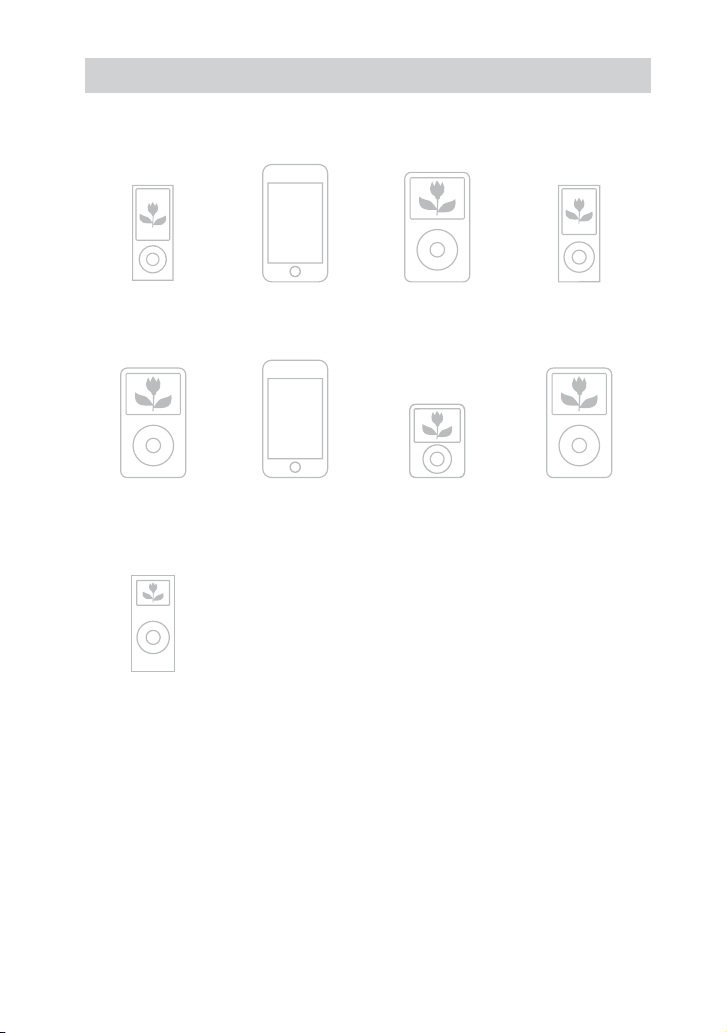
WHG-SLK2i/WHG-SLK1i.GB.4-187-068-11(1)
112
GB
iPod models
You can use the following iPod models on this system. Update your iPod with the latest
soware before using it.
iPod nano
5th generation
(video camera)
iPod touch
2nd generation
iPod classic
120 GB
160 GB (2009)
iPod nano
4th generation
(video)
iPod classic
160 GB (2007)
iPod touch
1st generation
iPod nano
3rd generation
(video)
iPod classic
80 GB
iPod nano
2nd generation
(aluminum)
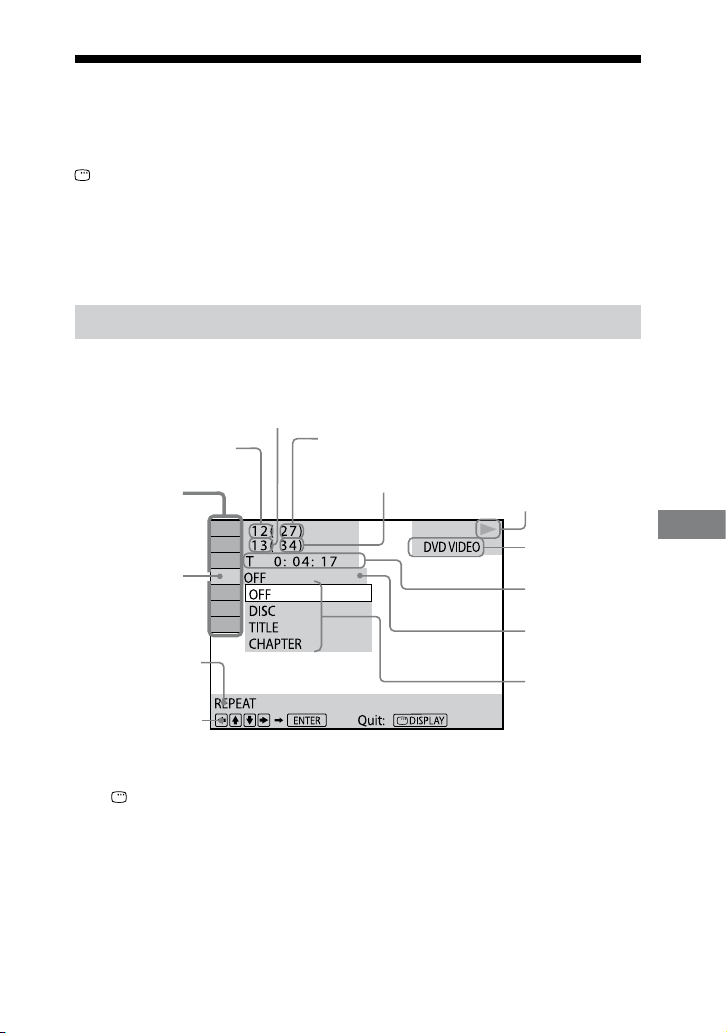
WHG-SLK2i/WHG-SLK1i.GB.4-187-068-11(1)
113
GB
Additional Information
Guide to the Control Menu display (CD/DVD
function only)
Use the Control Menu to select a function and to view related information. Press
DISPLAY repeatedly to turn on, turn o or change the Control Menu display as
follows:
Control Menu display 1 Control Menu display 2* Control Menu display o
Control Menu display 1 …
* Control Menu display 2 appears when available.
Control Menu display
e Control Menu display 1 and 2 will show dierent items depending on the disc type.
Example: Control Menu display 1 when playing a DVD VIDEO
Currently playing title
number
Currently playing chapter number
Total number of titles
Total number of chapters
Playback status ( Playback,
Pause, Stop, etc.)
Type of disc being
played back
Elapsed playing time
Current setting
Options
Control Menu
items
Selected item
Function name of
selected Control
Menu item
Operation message
To turn o the Control Menu
Press DISPLAY repeatedly until the Control Menu disappears from the TV screen.
Continued
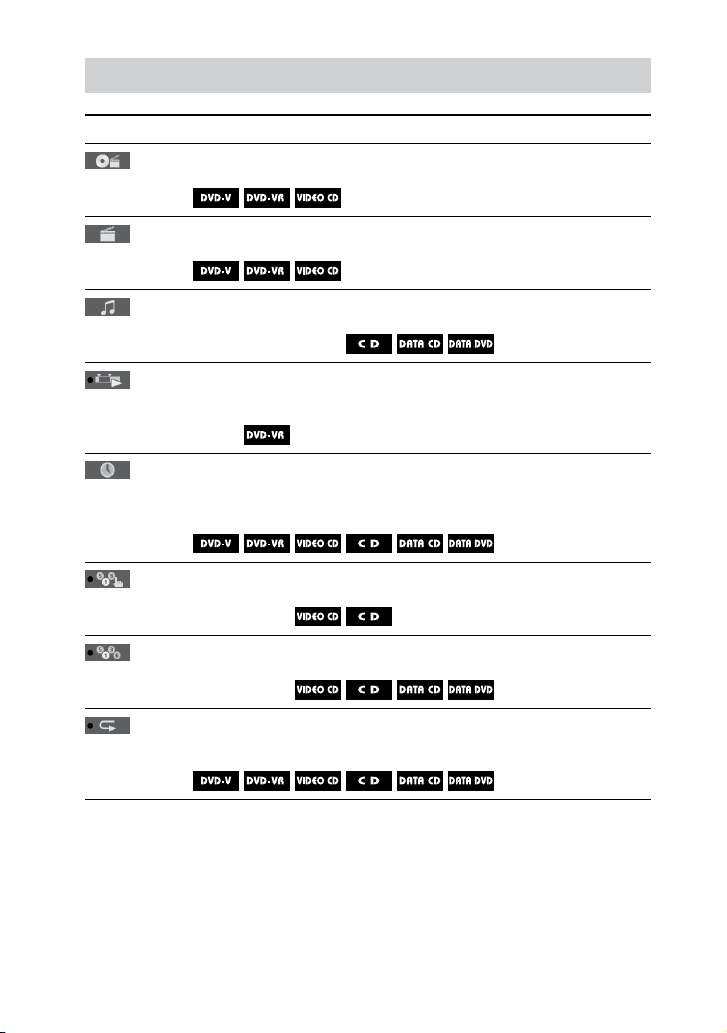
WHG-SLK2i/WHG-SLK1i.GB.4-187-068-11(1)
114
GB
List of Control Menu items
Item Item Name, Function, Relevant Disc Type
[TITLE]/[SCENE]/[TRACK] (page 39)
Selects a title, scene or track to be played back.
[CHAPTER]/[INDEX] (page 39)
Selects a chapter or index to be played back.
[TRACK] (page 39)
Selects a track or audio le to be played back.
[ORIGINAL/PLAY LIST] (page 39)
Selects the playback sequence either to the originally recorded
sequence or to the playlist created on the disc.
[TIME] (page 40)
Displays the elapsed playing time and the remaining time.
You can play from a desired point by inputting the time code (DVD
VIDEO/DVD-VR only).
[PROGRAM] (page 46)
Plays back the tracks in the order you want.
[SHUFFLE] (page 48)
Plays back the tracks or audio les in random order.
[REPEAT] (page 49)
Plays back a disc repeatedly, the entire disc (all titles/all tracks/all les/
all folders) repeatedly or one title/chapter/track/folder/le repeatedly.
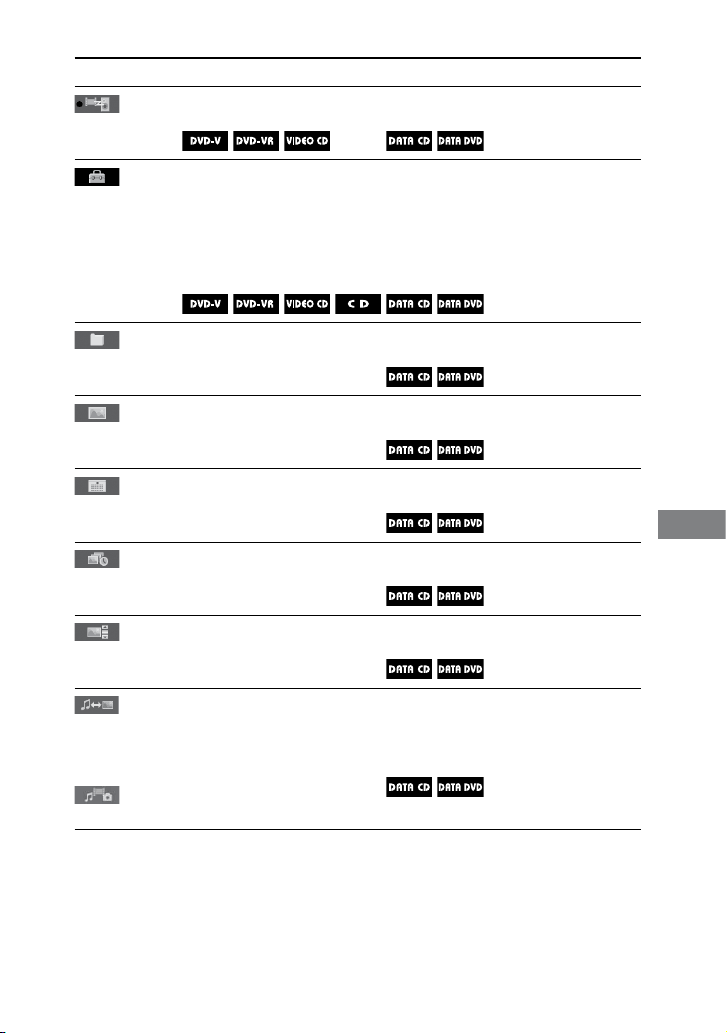
WHG-SLK2i/WHG-SLK1i.GB.4-187-068-11(1)
115
GB
Additional Information
Continued
Item Item Name, Function, Relevant Disc Type
[A/V SYNC] (page 50)
Adjusts the delay between the picture and sound.
[SETUP] (page 28, 53)
QUICK
Use “QUICK” setup to choose the display language of the Control
Menu display and the aspect ratio of the TV screen.
CUSTOM
In addition to the “QUICK” setup setting, you can adjust other
settings.
[FOLDER] (page 49)
Selects a folder to be played back.
[FILE] (page 49)
Selects a JPEG image le or video le to be played back.
[DATE]
(page 80)
Displays the date when the picture was taken by a digital camera.
[INTERVAL] (page 45)
Selects the duration for which the JPEG image les are played back.
[EFFECT] (page 45)
Selects the transition eects to be used during a slideshow.
:
North
American
model
:
Other models
[MEDIA] (page 40, 44, 46)
Selects the data type (MP3 le, JPEG image le, video le, or both
MP3 le and JPEG image le) to be played back.
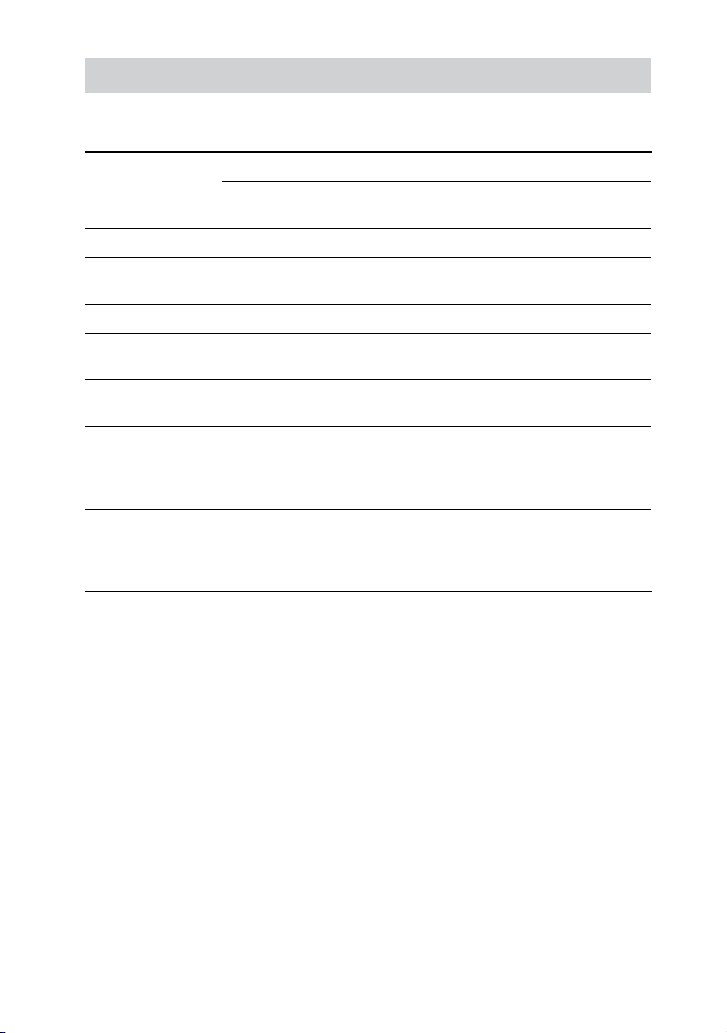
WHG-SLK2i/WHG-SLK1i.GB.4-187-068-11(1)
116
GB
Playback priority of le types
e table below describes the playback priority of le types under the “MEDIA” setting.
File type on a
disc
“MEDIA” setting
VIDEO* MUSIC/
PHOTO
MUSIC PHOTO
Video les only Video les Video les Video les Video les
JPEG image les
only
JPEG image
les
JPEG image
les
JPEG image
les
JPEG image
les
MP3 les only MP3 les MP3 les MP3 les MP3 les
Video les and
JPEG image les
Video les JPEG image
les
Video les JPEG image
les
Video les and
MP3 les
Video les MP3 les MP3 les MP3 les
MP3 les and
JPEG image les
MP3 les and
JPEG image
les with
slideshow
MP3 les and
JPEG image
les with
slideshow
MP3 les JPEG image
les
Video les, MP3
les, and JPEG
image les
Video les MP3 les and
JPEG image
les with
slideshow
MP3 les JPEG image
les
* Not available on the North American model.
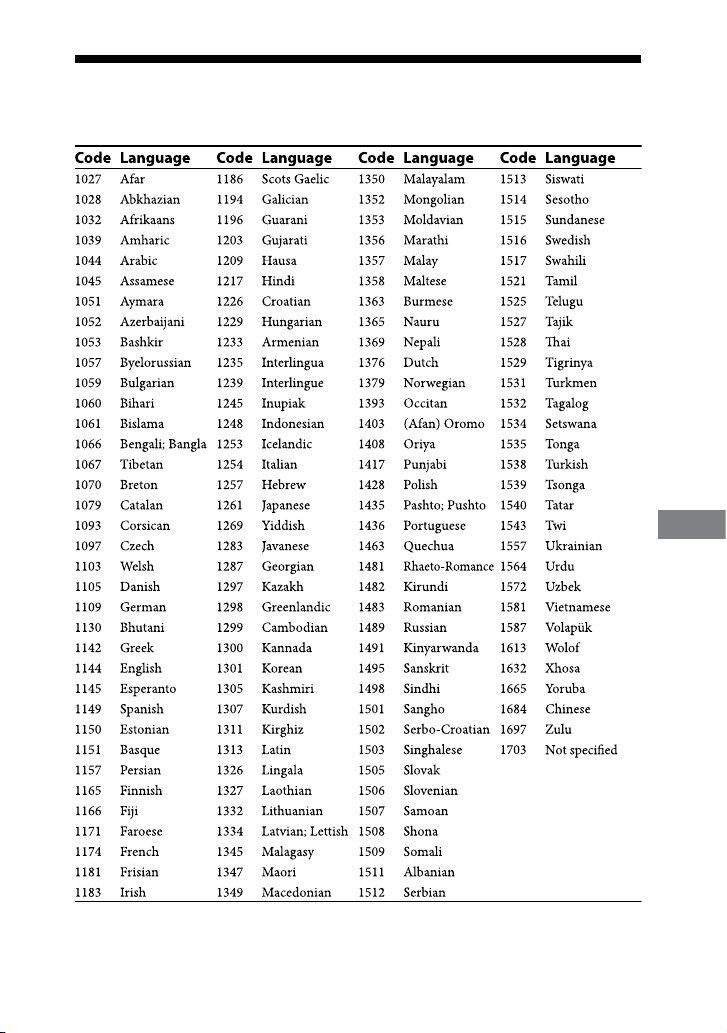
WHG-SLK2i/WHG-SLK1i.GB.4-187-068-11(1)
117
GB
Additional Information
Language code list
e language spellings conform to the ISO 639:1988 (E/F) standard.
Continued
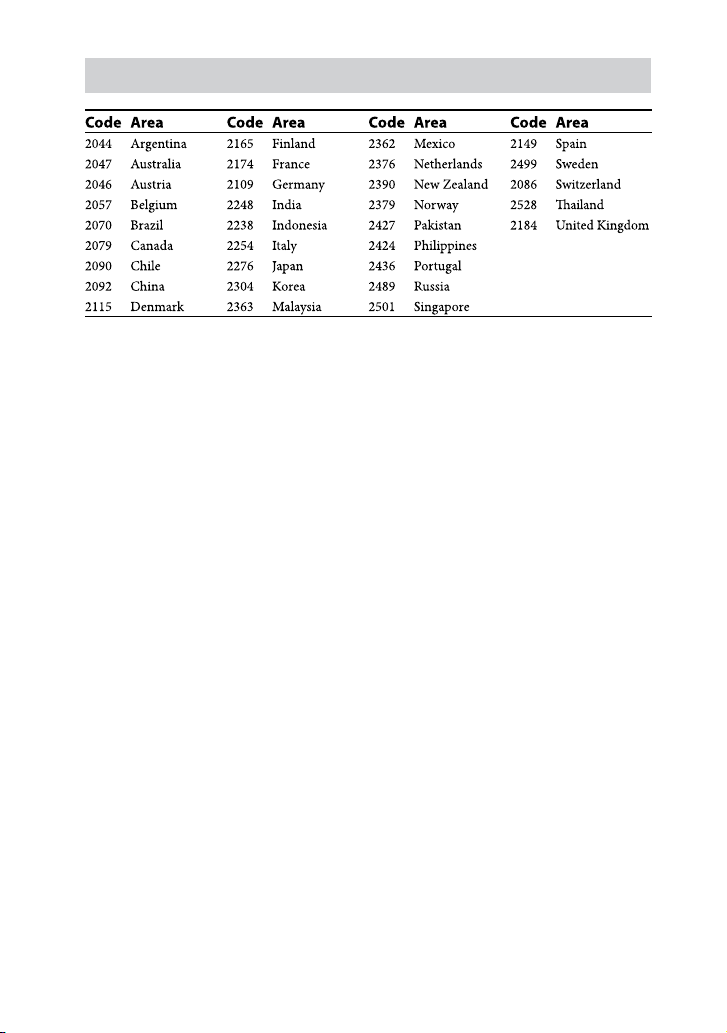
WHG-SLK2i/WHG-SLK1i.GB.4-187-068-11(1)
118
GB
Parental Control area code list

WHG-SLK2i/WHG-SLK1i.GB.4-187-068-11(1)
119
GB
Additional Information
Glossary
Auto Pause
An automatic pause according to the
signal encoded on the disc while playing
a VIDEO CD. If the CD/DVD player
does not resume playback for a long time,
perform resume playback manually.
Chapter
Subdivision of a title on a DVD VIDEO.
A title is composed of several chapters.
DivX
®
Digital video technology created by
DivX, Inc. Videos encoded with DivX
technology are among the highest quality
with a relatively small le size.
Dolby Digital
is movie theater sound format is
more advanced than Dolby Surround
Pro Logic. In this format, the surround
speakers output stereo sound with
an expanded frequency range and a
subwoofer channel for deep bass is
independently provided. is format is
also called “5.1” because the subwoofer
channel is counted as 0.1 channel (since
it functions only when a deep bass eect
is needed). All six channels in this format
are recorded separately for superior
channel separation. Furthermore, since
all the signals are processed digitally, less
signal degradation occurs.
DVD VIDEO
A disc that contains up to 8 hours of
moving pictures even though its diameter
is the same as an AUDIO CD. e data
capacity of a single-layer and single-
sided DVD VIDEO, at 4.7 GB (Giga
Byte), is 7 times that of an AUDIO CD.
Furthermore, the data capacity of a dual-
layer and single-sided DVD VIDEO is
8.5 GB, a single-layer and double-sided
DVD VIDEO 9.4 GB, and a dual-layer
and double-sided DVD VIDEO 17 GB.
e picture data uses the MPEG 2
format, one of the worldwide standards
for digital compression technology. e
picture data is compressed to about 1/40
of its original size. e DVD VIDEO
also uses variable rate coding technology
that changes the data to be allocated
according to the status of the picture.
e audio data is recorded in Dolby
Digital as well as in PCM, allowing you to
enjoy more realistic audio presence.
Furthermore, various advanced functions
such as the multi-angle, multilingual, and
Parental Control functions are provided
with the DVD VIDEO.
Continued

WHG-SLK2i/WHG-SLK1i.GB.4-187-068-11(1)
120
GB
DVD-RW
A DVD-RW is a recordable and
rewritable disc that is the same size as
a DVD VIDEO. e DVD-RW has two
dierent modes: VR mode and Video
mode. DVD-RWs created in Video
mode have the same format as a DVD
VIDEO, while discs created in VR (Video
Recording) mode allow the contents to
be programmed or edited.
DVD+RW
A DVD+RW (plus RW) is a recordable
and rewritable disc. DVD+RWs use a
recording format that is comparable to
the DVD VIDEO format.
File
Audio le (MP3/WMA/AAC), JPEG
image le, DivX and MPEG4 video le
recorded on a DATA CD, DATA DVD,
USB device or memory card. (“File” is an
exclusive denition for this system.)
Film based software, Video based
software
DVD VIDEOs can be classied as Film
based or Video based soware. Film
based DVD VIDEOs contain the same
images (24 frames per second) that are
shown at movie theaters. Video based
DVD VIDEOs, such as television dramas
or sitcoms, display images at 30 frames
(or 60 elds) per second.
Folder
Section of a music or picture piece on a
DATA CD, DATA DVD, USB device or
memory card containing data such as
MP3 les, JPEG image les and video
les.
Menu Playback
Playback using the menu screens
recorded on VIDEO CDs with PBC
functions. You can enjoy simple
interactive soware using the menu
playback function.
Multi-angle function
Various angles, or viewpoints of the video
camera, for a scene are recorded on some
DVD VIDEOs.
Multilingual function
Several languages for the sound or
subtitles in a picture are recorded on
some DVD VIDEOs.
Multi Session
is is a recording method that enables
adding of data using the Track-At-Once
method. Conventional CDs begin at a
CD control area called the Lead-in and
end at an area called Lead-out. A multi
session disc is a disc having multiple
sessions, with each segment from Lead-in
to Lead-out regarded as a single session.

WHG-SLK2i/WHG-SLK1i.GB.4-187-068-11(1)
121
GB
Additional Information
Parental Control
A function of the DVD VIDEO to limit
playback of the disc by the age of the
users according to the limitation level in
each country. e limitation varies from
disc to disc; when it is activated, playback
is completely prohibited, violent scenes
are skipped or replaced with other scenes
and so on.
Playback Control (PBC)
Signals encoded on VIDEO CDs (Version
2.0) to control playback. By using menu
screens recorded on VIDEO CDs with
PBC functions, you can enjoy playing
simple interactive programs, programs
with search functions, and so on.
Region Code
is system is used to protect copyrights.
A region code is allocated on each DVD
system or DVD VIDEO according to
the sales region. Each region code is
shown on the unit as well as on the disc
packaging. e system can play back
the discs that match its region code. e
system can also play back discs with the
“ ” mark. Even when the region code
is not shown on the DVD VIDEO, the
region limit may still be activated.
Scene
On a VIDEO CD with PBC functions,
the menu screens, moving pictures and
still pictures are divided into sections
called “scenes.”
Title
e longest section of a picture or a
music piece on a DVD VIDEO; a movie,
etc., for a picture piece on video soware,
or the entire album in audio soware.
Track
Section of a music or a picture on a
VIDEO CD, CD, or section of a music
on a CD.
VIDEO CD
A compact disc that contains moving
pictures.
e picture data uses the MPEG 1
format, one of the worldwide standards
for digital compression technology. e
picture data is compressed to about 1/140
of its original size. Consequently, a 12 cm
VIDEO CD can contain up to 74 minutes
of moving pictures.
VIDEO CDs also contain compact audio
data.
Sounds outside the range of human
hearing are compressed while the
sounds we can hear are not compressed.
VIDEO CDs can hold 6 times the audio
information of conventional AUDIO
CDs.
ere are 2 versions of VIDEO CDs.
Version 1.1: You can play back only
moving pictures and sounds.
Version 2.0: You can play back high-
resolution still pictures and enjoy PBC
functions.
is system conforms to both versions.

WHG-SLK2i/WHG-SLK1i.GB.4-187-068-11(1)
122
GB
Index
Numerics
16:9 55
4:3 LETTER BOX 55
4:3 PAN SCAN 55
5.1 Channel surround 37
A
A/V SYNC 50, 115
AAC 107
Analogue clock 81
AUDIO 55
AUDIO DRC 56
AUDIO SETUP 56
Automatic demonstration
25, 78
Auto pause 119
Auto standby function 97
B
BACKGROUND 57
Batteries 26
Beep sound 82
BLACK LEVEL 56
C
Calendar 81
CD music playback screen 23
CHAPTER 49, 114
Chapter 33, 119
Clock setup 30
COLOR SYSTEM(VIDEO
CD) 56
Controlling the TV 28
Control Menu 22
Control Menu display 113
CUSTOM 51, 53
D
DATE 80, 115
Display language 29, 30, 54
DivX 108
Dolby Digital 119
DVD 9, 10
DVD+RW 9, 10, 120
DVD-RW 9, 10, 120
DVD VIDEO 119
E
EFFECT 45, 115
F
Fast forward 34
Fast reverse 34
FILE 49, 115
File 120
Film based soware 120
FOLDER 49, 115
Folder 120
Freeze Frame 34
H
Home menu 18
I
INDEX 39, 114
Indicator 20
Instant Advance 34
Instant Replay 34
INTERVAL 45, 115
iPod 26, 61, 112
iPod Dock Adapter 26
J
JPEG 109
K
Key brightness 82
L
Language code list 117
LCD brightness 82
LCD screen mode 82
M
Main unit 12
MEDIA 40, 44, 46, 115
Memory card 65
Memory select 66
“Memory Stick” media 110
MENU 54
Motion JPEG 108
MP3 107
MP3 Booster+ 74
MPEG1 108
MPEG2 108
MPEG4 108
Multi-angle 34, 120
MULTI-DISC RESUME
35, 58
Multilingual 120
Multi session disc 101, 120
O
Options menu 19
ORIGINAL 39, 114
OSD 54
Other Component Hookup
83

WHG-SLK2i/WHG-SLK1i.GB.4-187-068-11(1)
Additional Information
123
GB
P
PARENTAL CONTROL 51
Parental control 121
PAUSE MODE 56
PBC playback 38
Photo tting 69
Playback Control (PBC) 121
Playback priority 116
Playback screen 20
PLAY LIST 39, 114
Play Timer 76
Power saving mode 25
Preset sound eect 72
PROGRAM 46, 114
Program play 46
Q
QUICK setup 28
R
Rear panel 83
Region code 121
Remote 15
Repeat play 49, 64, 71, 114
RESET 96
Reset 95
S
Satellite tuner 84
SCENE 114
Scene 121
Screen mode 82
Screen saver 57
SD memory card 111
Settings menu 18
SETUP menu 53, 115
Shue play 48, 63, 70, 114
Simultaneous playback 75
Sleep Timer 76
Slideshow 44, 67, 68
Slow-motion Play 34
Sony logo backlight 82
Sound eld 72
Status bar 20
SUBTITLE 55
SYSTEM SETUP 57
T
TIME 40, 114
Time display format 31
Timer 76
TITLE 49, 114
Title 33, 121
TRACK 48, 114
TRACK SELECTION 57
Troubleshooting 85
Tuner memory 60
Tuning mode 59
TV Hookup 27
TV TYPE 55
U
Usable discs 9
USB device 65
User registration 6
V
VIDEO CD 9, 121
Video input 84
VIDEO SETUP 29, 55
W
WMA 107
WHG-SLK2i/WHG-SLK1i.GB.4-187-068-12(1)
124
GB
License and trademark
notice
Manufactured under license from Dolby
Laboratories. “Dolby” and the double-
D symbol are trademarks of Dolby
Laboratories.
“DVD+RW,” “DVD-RW,” “DVD+R,” “DVD
VIDEO,” and the “CD” logos are trademarks.
DivX
®
is a video le compression
technology, developed by DivX, Inc. DivX,
DivX Certied, and associated logos are
trademarks of DivX, Inc. and are used under
license.
is product is an ocial DivX
®
certied
product.
MPEG Layer-3 audio coding technology and
patents licensed from Fraunhofer IIS and
omson.
iPod is a trademark of Apple Inc., registered
in the U.S. and other countries.
“Made for iPod” means that an electronic
accessory has been designed to connect
specically to iPod and has been certied by
the developer to meet Apple performance
standards.
Apple is not responsible for the operation of
this device or its compliance with safety and
regulatory standards.
, “Memory Stick,” ,
“Memory Stick Duo,” ,
“MagicGate Memory Stick,” “Memory Stick
PRO,” , “Memory
Stick PRO Duo,” ,
“Memory Stick PRO-HG Duo,”
, “Memory Stick
Micro,” , , “Memory
Stick-ROM,” ,
“MagicGate,” and are
trademarks or registered trademarks of Sony
Corporation.
SDHC Logo is a trademark of SD-3C, LLC.
Windows Media is either a registered
trademark or trademark of Microso
Corporation in the United States and/or
other countries.
is product is protected by certain
intellectual property rights of Microso
Corporation. Use or distribution of such
technology outside of this product is
prohibited without a license from Microso
or an authorized Microso subsidiary.

WHG-SLK2i/WHG-SLK1i.GB.4-187-068-11(1)
Additional Information
125
GB
THIS PRODUCT IS LICENSED UNDER
THE MPEG-4 VISUAL PATENT
PORTFOLIO LICENSE FOR THE
PERSONAL AND NON-COMMERCIAL
USE OF A CONSUMER FOR
(i) ENCODING VIDEO IN COMPLIANCE
WITH THE MPEG-4 VISUAL STANDARD
(“MPEG-4 VIDEO”)
AND/OR
(ii) DECODING MPEG-4 VIDEO THAT
WAS ENCODED BY A CONSUMER
ENGAGED IN A PERSONAL AND NON-
COMMERCIAL ACTIVITY AND/OR WAS
OBTAINED FROM A VIDEO PROVIDER
LICENSED BY MPEG LA TO PROVIDE
MPEG-4 VIDEO.
NO LICENSE IS GRANTED OR SHALL
BE IMPLIED FOR ANY OTHER
USE. ADDITIONAL INFORMATION
INCLUDING THAT RELATING TO
PROMOTIONAL, INTERNAL AND
COMMERCIAL USES AND LICENSING
MAY BE OBTAINED FROM MPEG LA,
LLC. SEE http://www.mpegla.com/
All other trademarks and registered
trademarks are of their respective holders.
In this manual,
TM
and
®
marks are not
specied.

WHG-SLK2i/WHG-SLK1i.GB.4-187-068-11(1)
126
GB

WHG-SLK2i/WHG-SLK1i.GB.4-187-068-11(1)
Additional Information
127
GB