

2
Contents
Getting Started
Installing the Swann Security App 4
Creating your Swann Security Account 5
Pairing the Device 7
Scanning the QR Code 8
About the App Interface
App Navigation 10
App Menu 11
12
13
14
15
16
17
Device Settings
19
20
24
29
33
37
42
47
Appendix
53
Viewing and Managing Manual Recordings 54
55
56
58
59
60

Getting Started
4
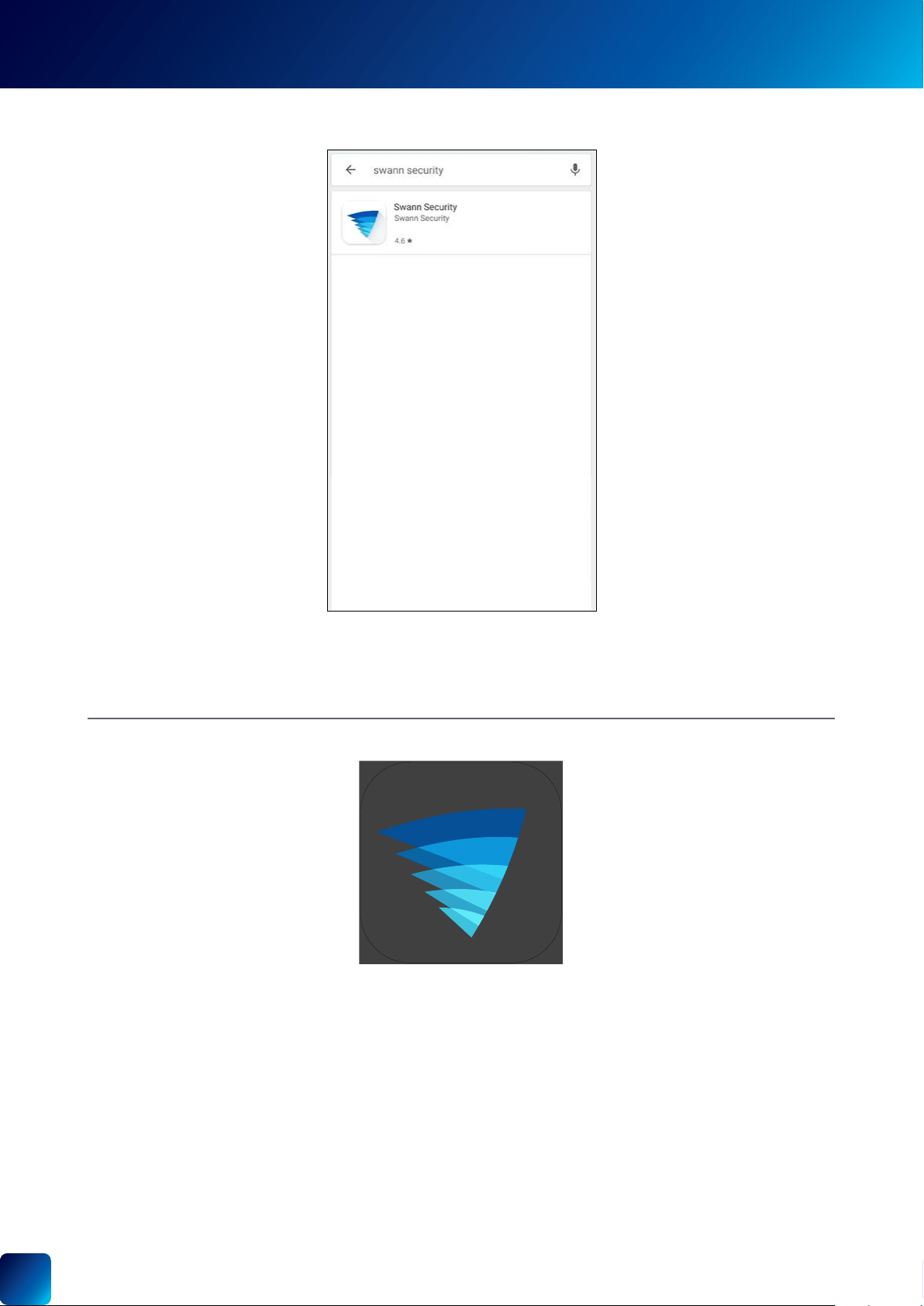
INSTALLING THE SWANN SECURITY APP
Search and download the latest version of the Swann Security app
®
store app on your phone.
After the Swann Security app is installed on your phone,
To open the Swann Security app, tap the app icon.
Swann Security
5
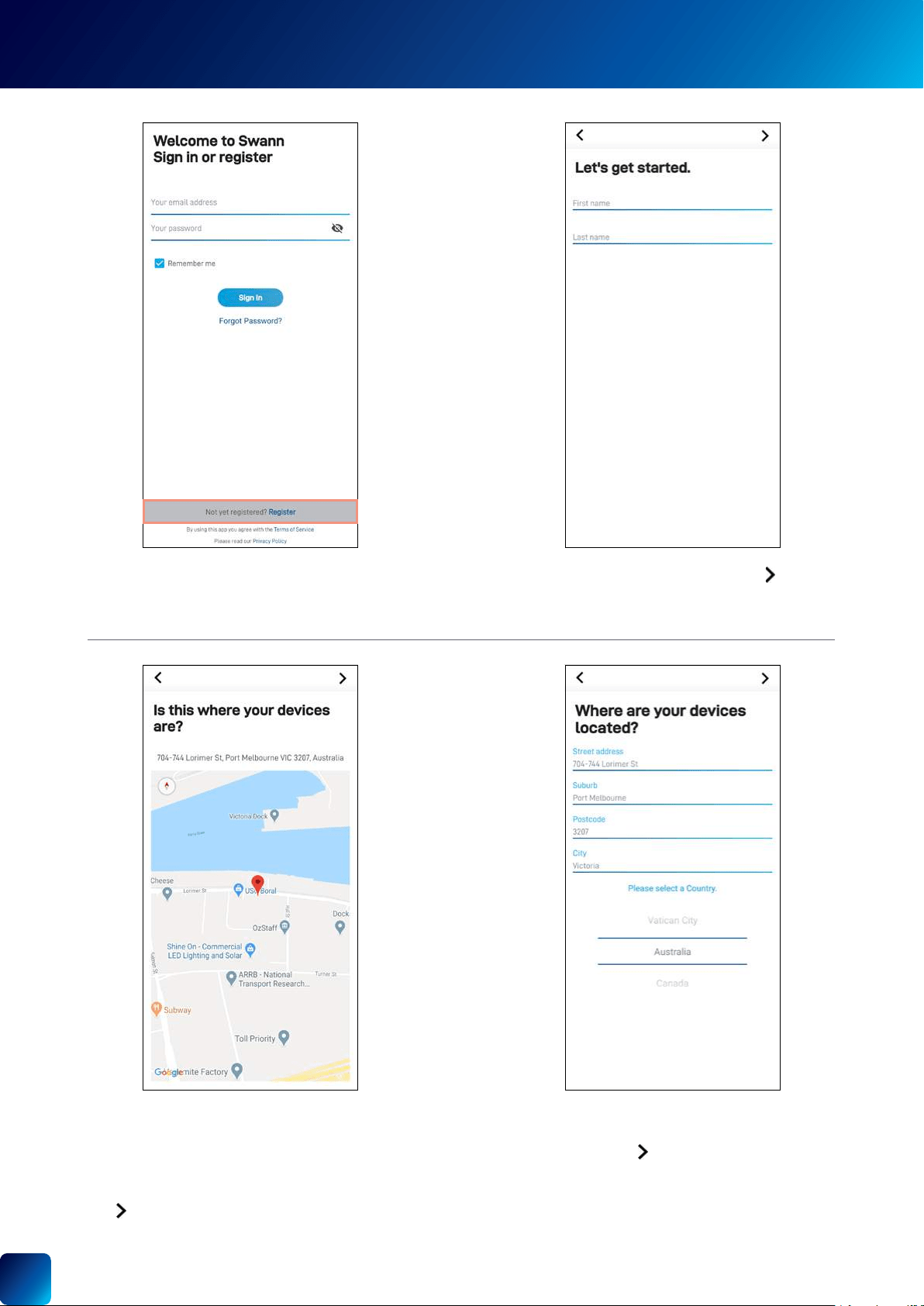
CREATING YOUR SWANN SECURITY ACCOUNT
Open the Swann Security app and tap Not yet
registered? Register.
Tap
.
.
This helps us verify your identity if you contact us
for assistance with your account or device.
necessary, then tap
.
This helps us personalize your experience on the
Swann Security app and other Swann services.
(Continued on the next page)
6
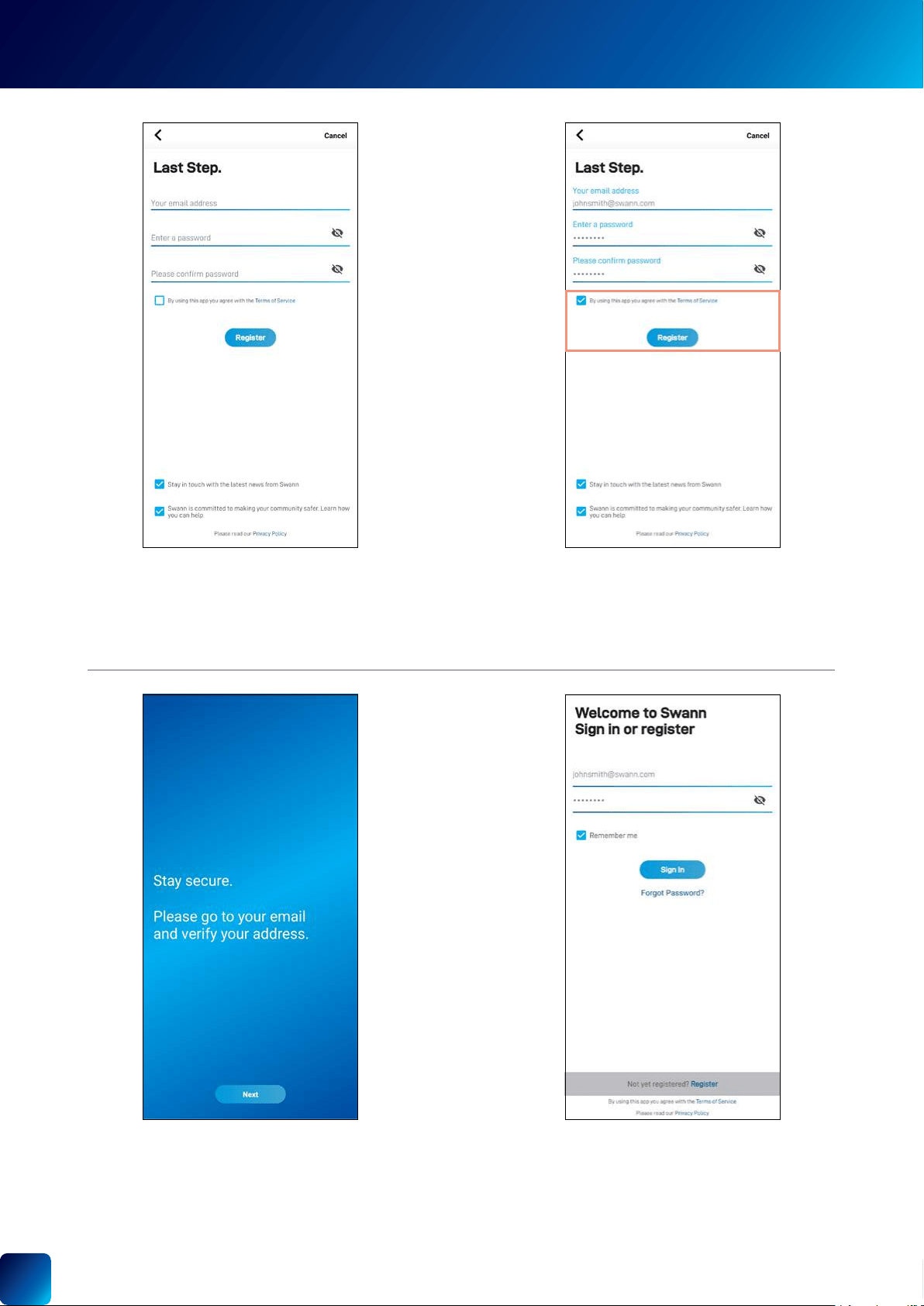
CREATING YOUR SWANN SECURITY ACCOUNT
to sign into the Swann Security app.
Tap the NextSign In screen.
Read the and Privacy Policy
to agree to the , and then tap the
Register
address and password you used to set up your
Swann Security account, then tap the Sign In
NOTE You can toggle the Remember Me option on
7
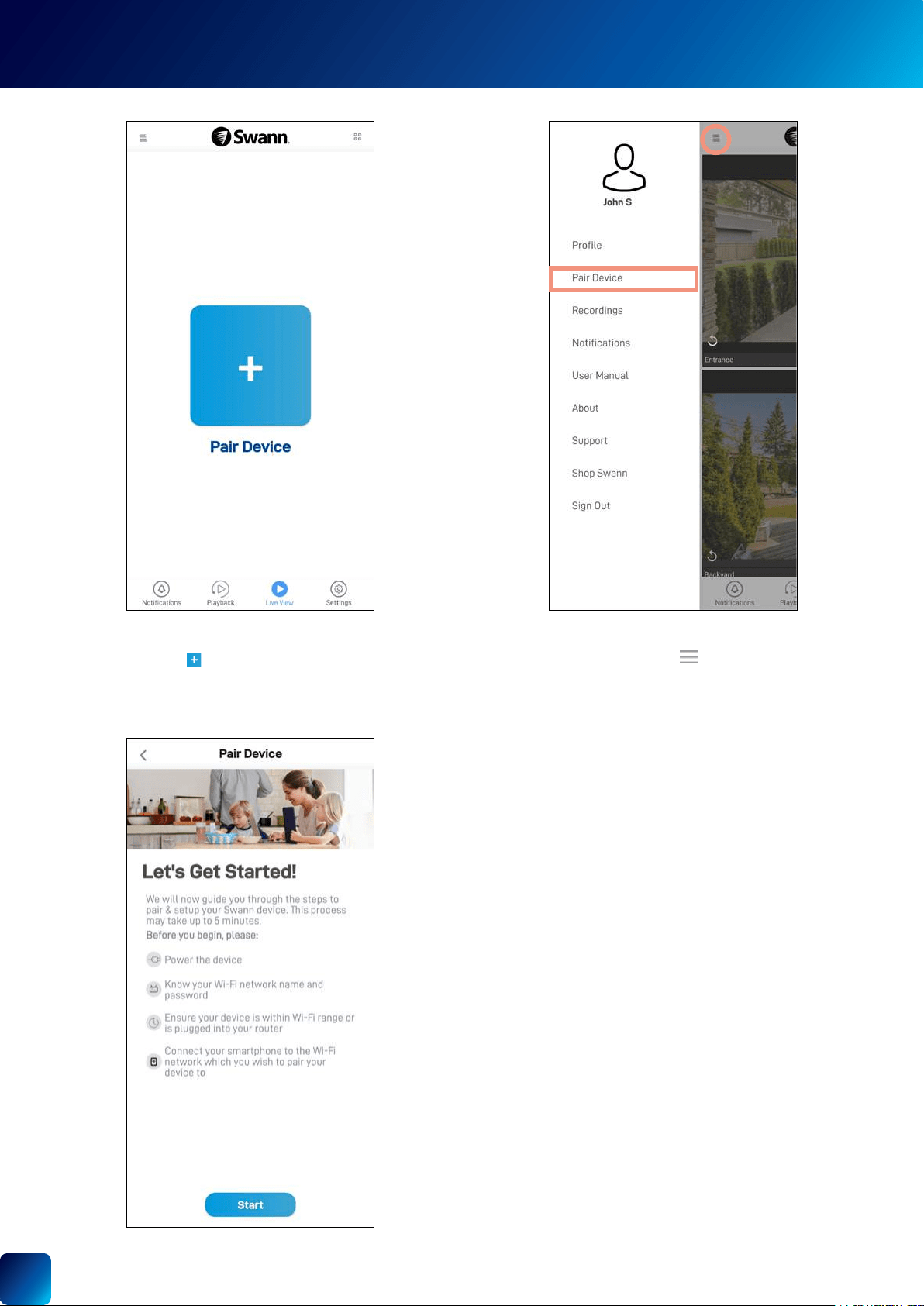
the Pair Device
Pair
Device
in the top left of the
screen.
PAIRING THE DEVICE
"Scanning the QR
Code" on page 8.
For SWIFI/SWWHD camera models
•
Allow only
or
Allow
the "Preferred Wi-Fi
•
8
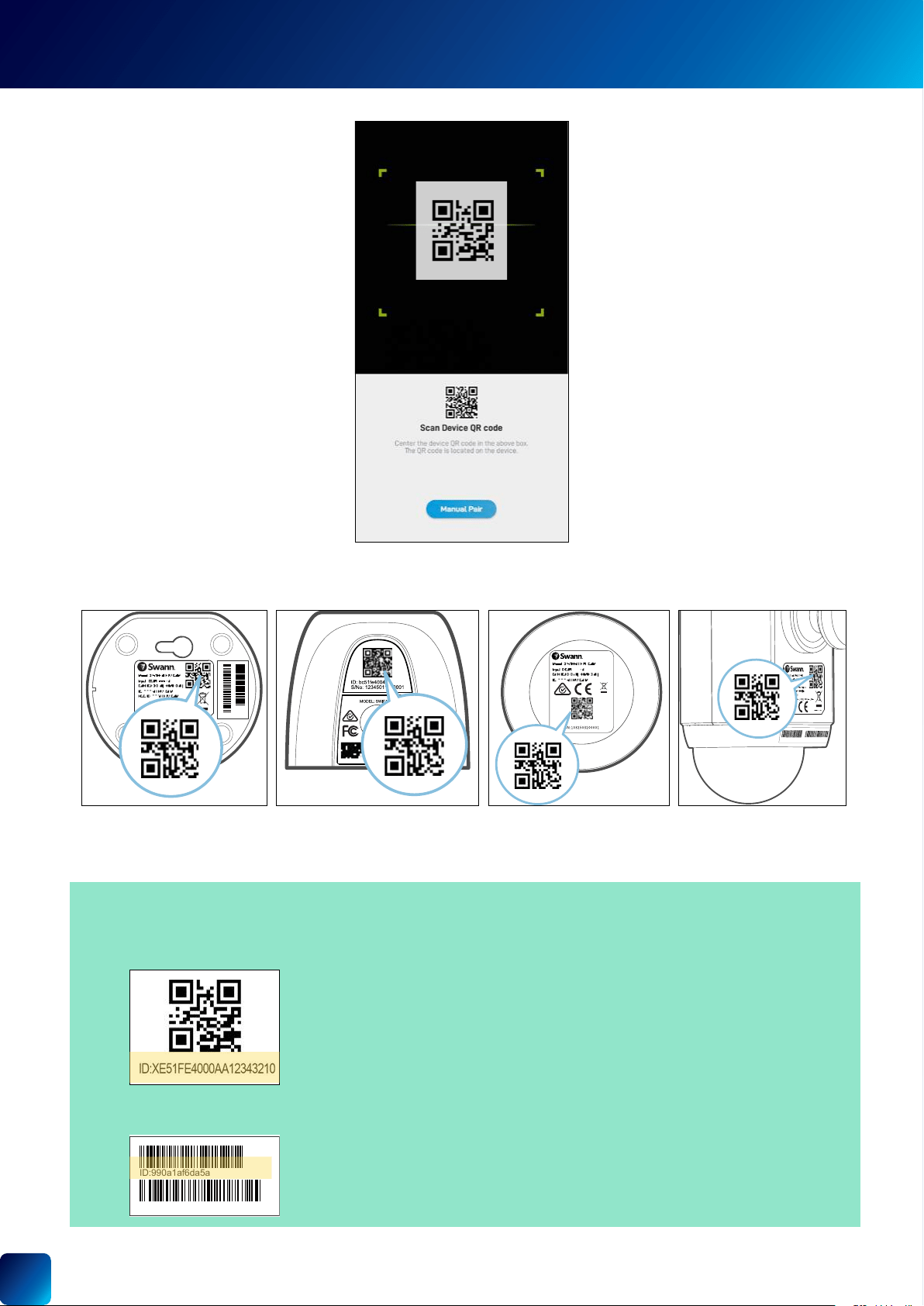
SCANNING THE QR CODE
If your phone can’t scan the QR code
• You can tap the Manual Pair
•
•
S/N:89052081900001
ID:
990a1af6da5a
ID:990a1af6da5a
S/N:89052081900001
ID:
990a1af6da5a
S/N:89052081900001
ID:
990a1af6da5a
NOTE
which you can scan with your phone.

About the App Interface
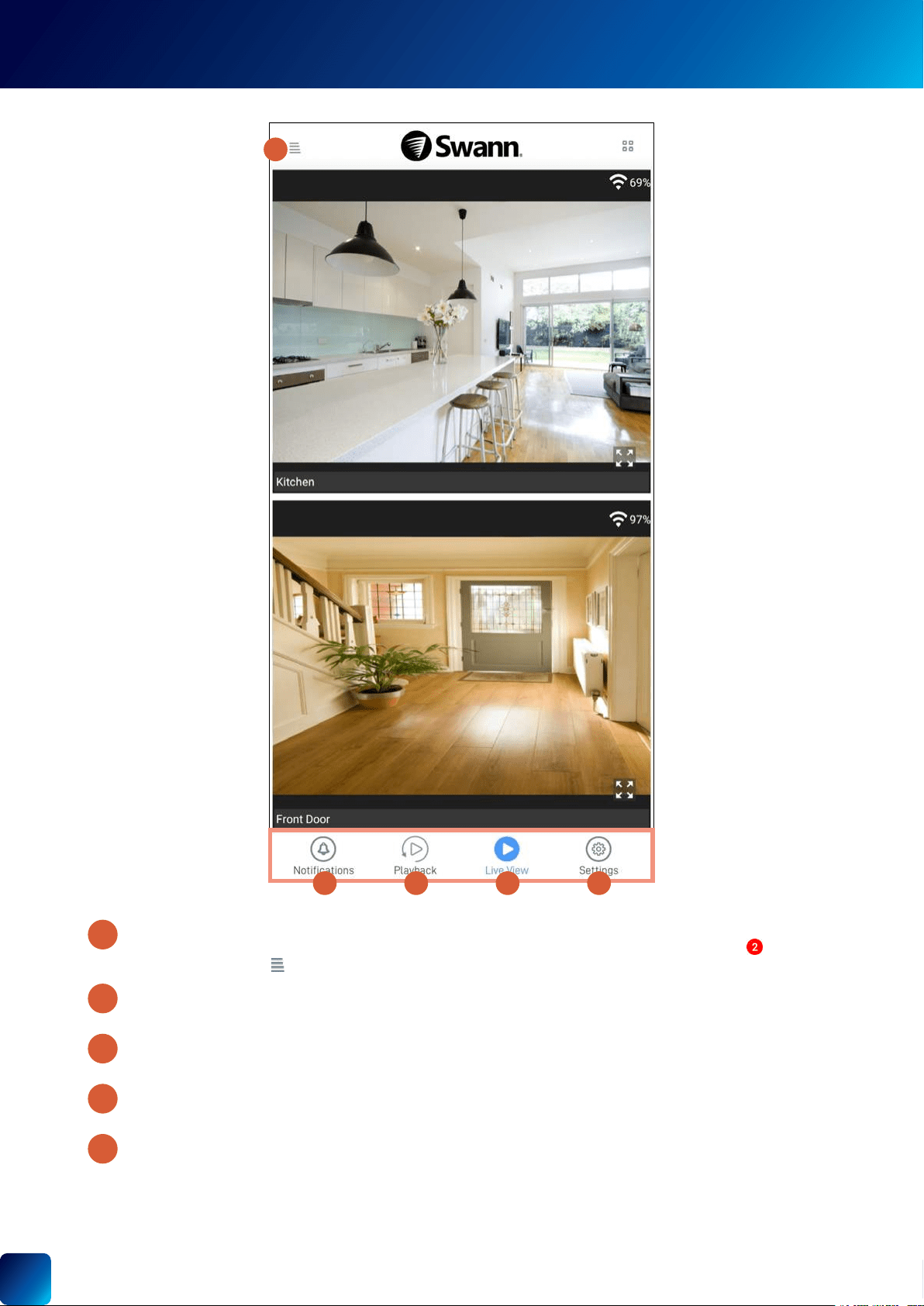
10
Notications Tab:
"Notications Tab" on page 12.
App Menu:
"App Menu" on page 11.
,
screen.
Playback Tab:
"Playback Tab" on page 17.
Live View Tab: Tap to access the
"Live View Tab - CCTV System" on page 13 and "Live View Tab - Wi-Fi Cameras" on page 15.
Settings Tab: Tap to access the
"Device Settings" on page 18.
2
1
3
4
5
APP NAVIGATION
2
1
3 4 5
11
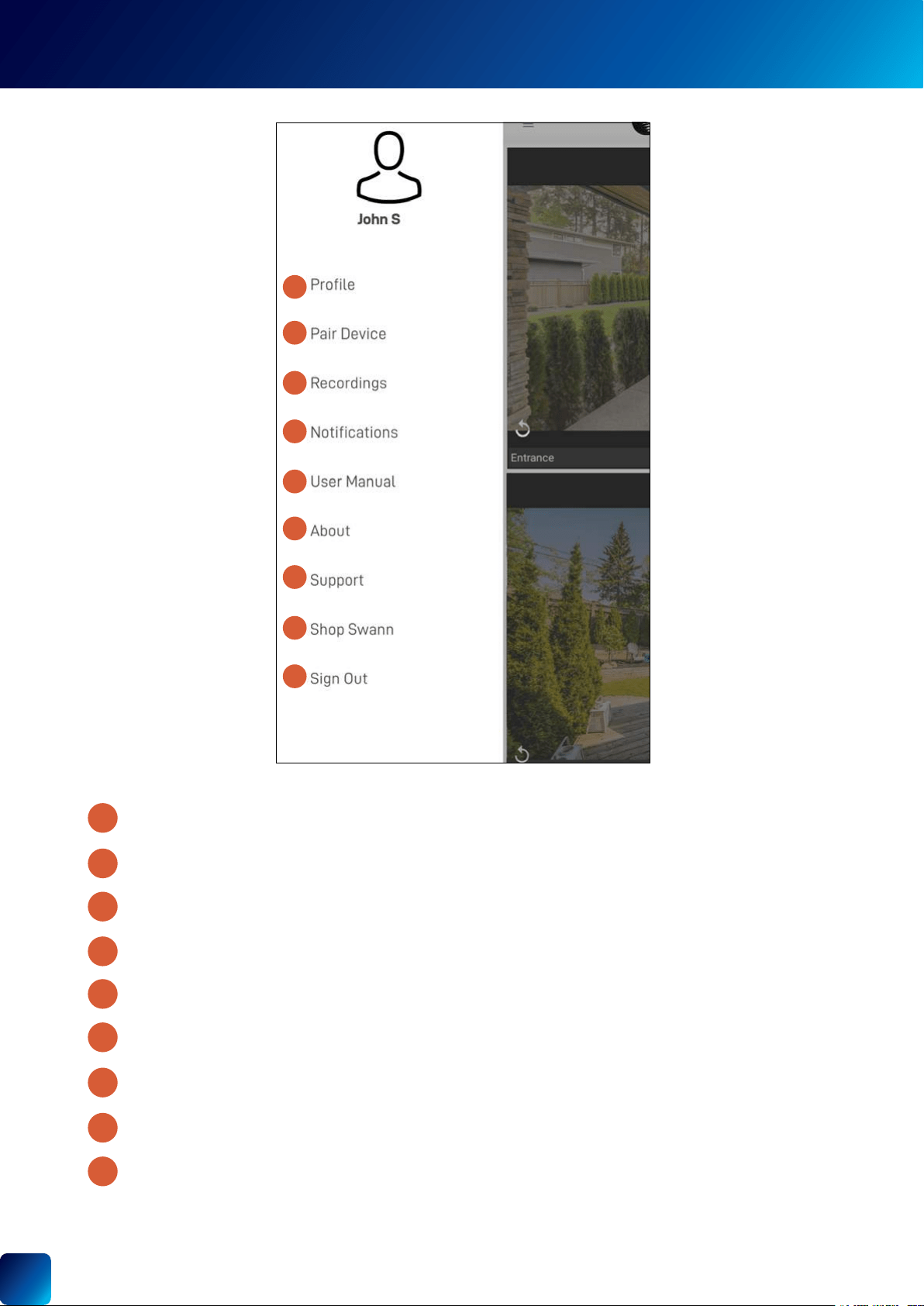
APP MENU
"Updating Your Account Profile" on page 53.
reset.
"Viewing and Managing
Manual Recordings" on page 54.
Swann Security app.
See "Notications Tab" on page 12.
account and devices.
Sign out of the Swann Security app.
2
3
5
6
4
7
8
9
1
1
2
3
4
5
6
7
8
9
12
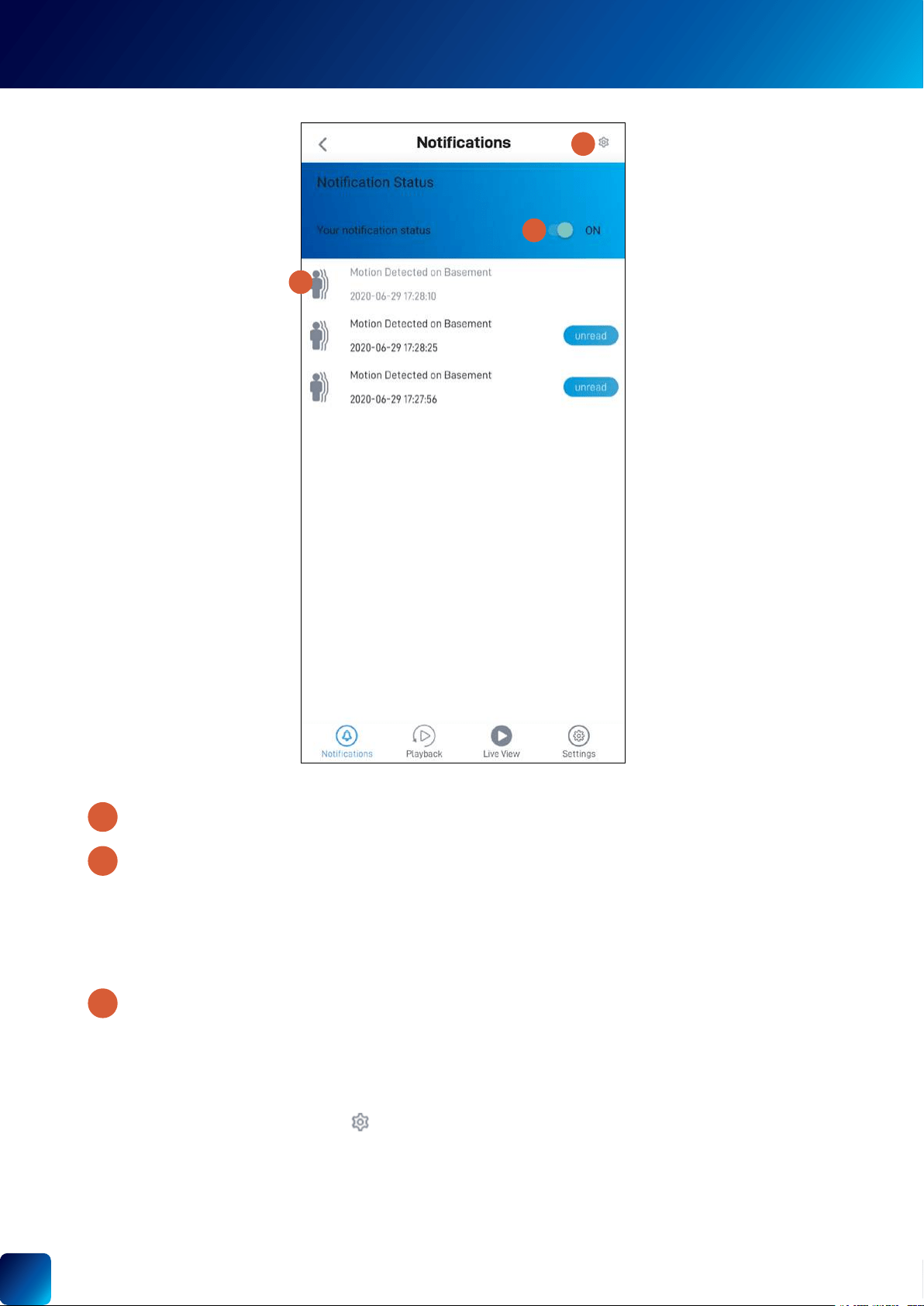
NOTIFICATIONS TAB
Tap on the Notication Status
• Motion detection
• Sound detection
• Person detection
•
•
recent on top.
•
• Conrm on the Clear Event
•
at the top right and tap Clear Events.
2
3
1
1
2
3
13
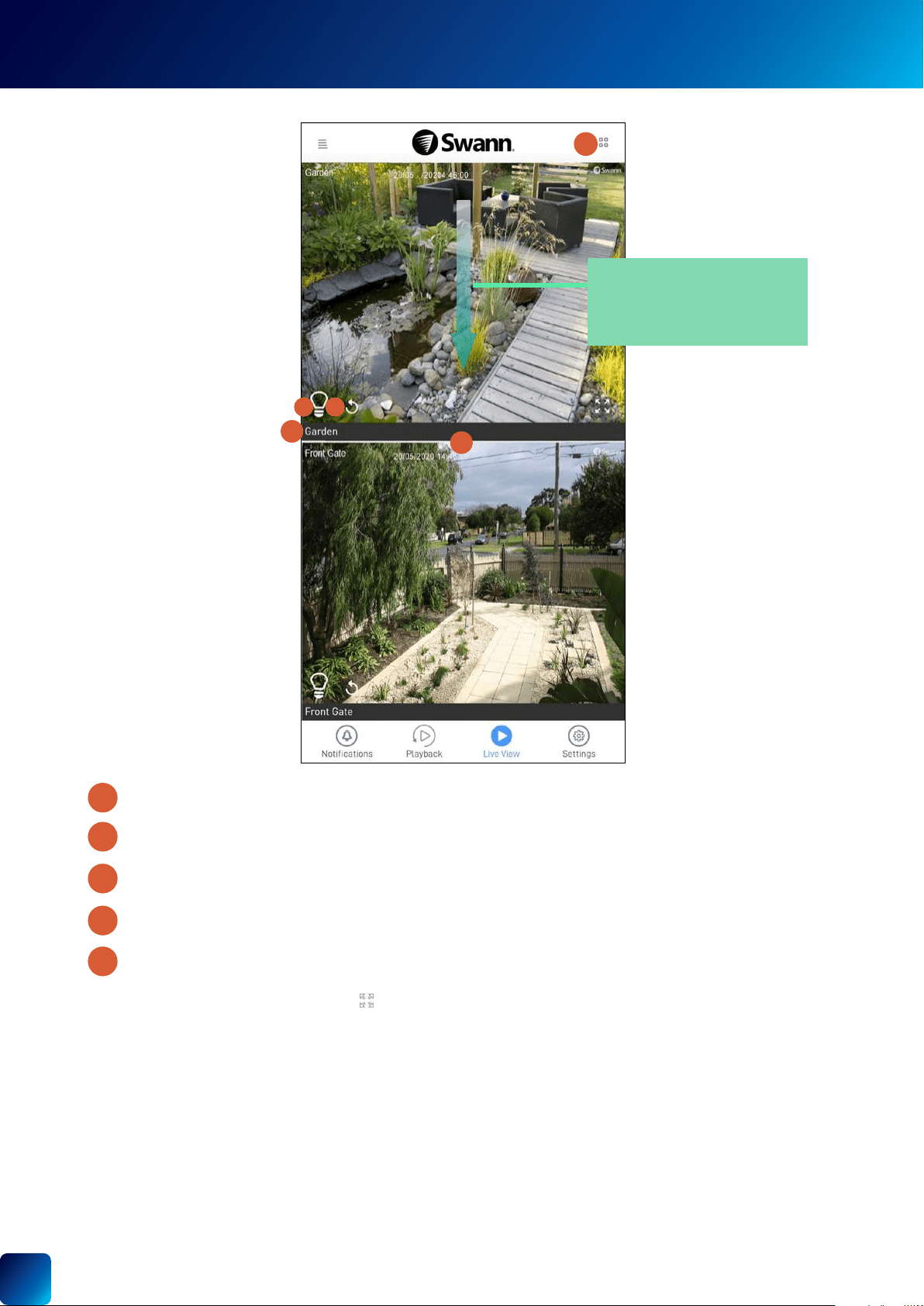
Bulb
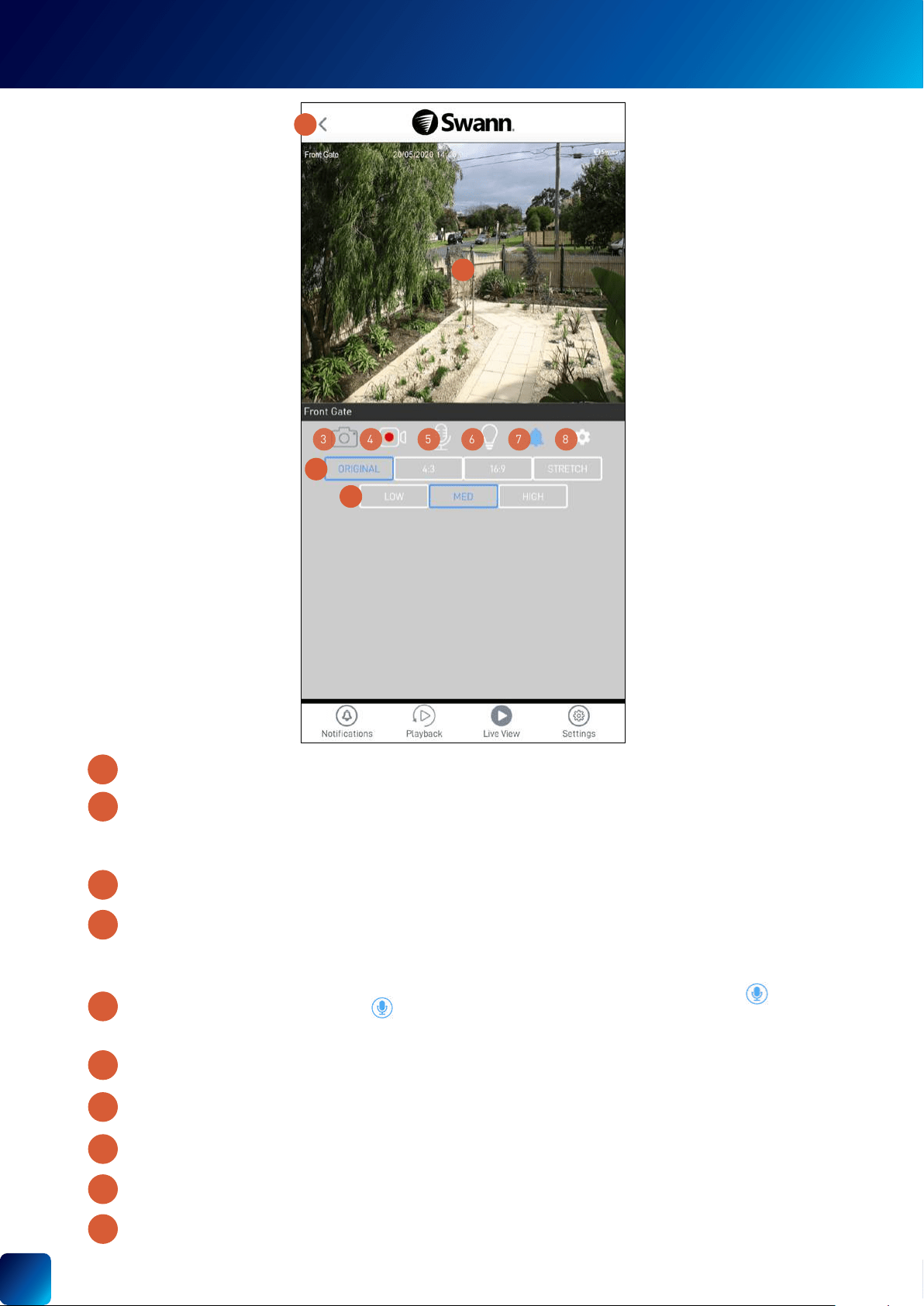
The viewing area.
•
•
•
1
2
3
4
5
1
2 3
4
5
LIVE VIEW TAB - CCTV SYSTEM
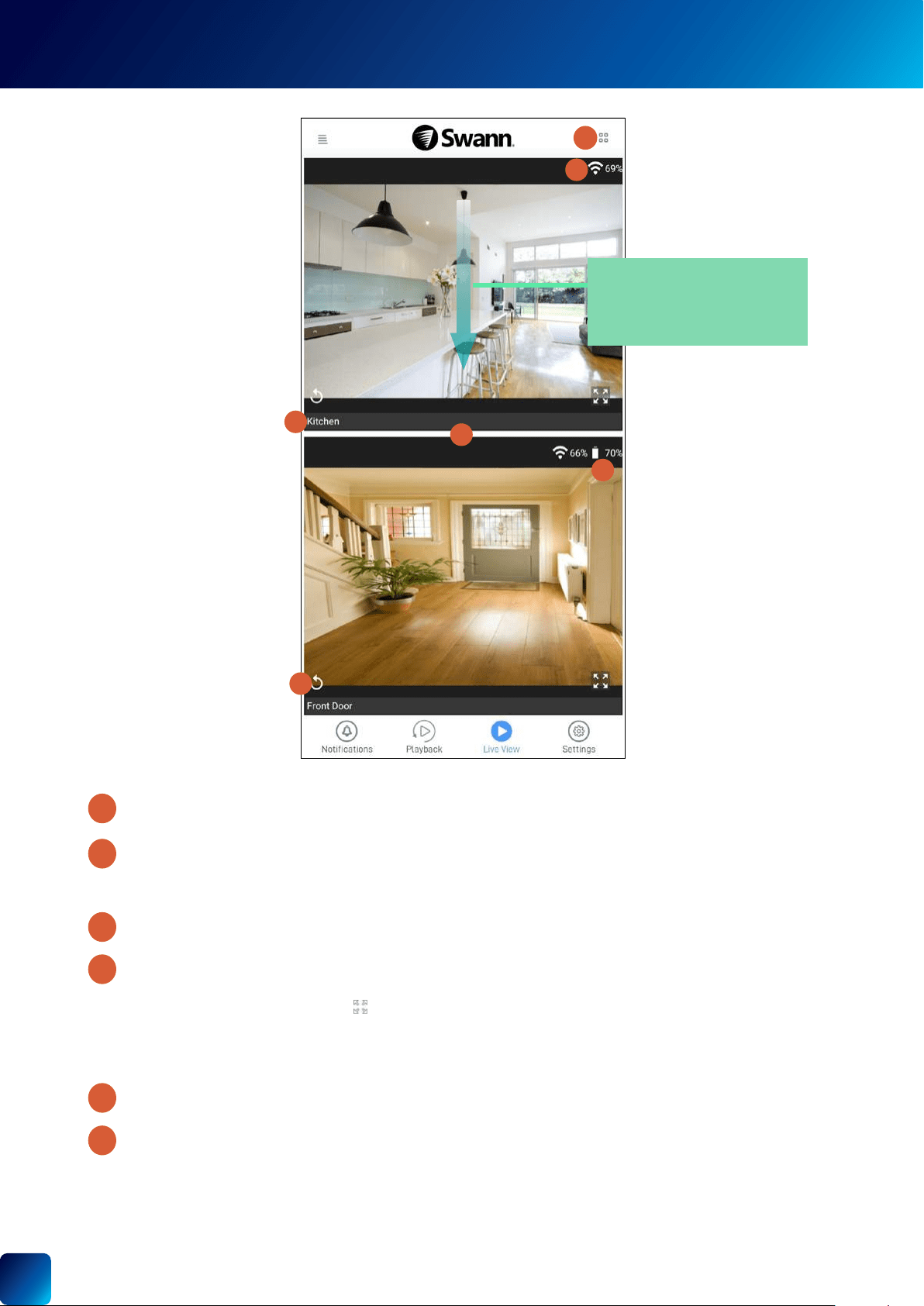
TIP
If camera tiles are not being displayed, try
pulling down on the screen to manually
refresh the Live View tab.
14
•
•
“” folder.
icon in
icon to listen.
Note:
Note:
Note:
overview screen. See "CCTV System - Settings Overview" on page 19.
16:9, 4:3,
Low, , and
Each time you take a video clip,
the clip is added to the section (Menu > Recordings) of the app. See "Viewing and Managing Manual
Recordings" on page 54.
” folder.
2
3
5
6
7
8
9
10
4
11
4
5
6
7
8
3
9
10
1
2
SINGLE CAMERA VIEW MODE - CCTV SYSTEM
15
(Only for battery-powered cameras)
The viewing area.
•
•
•
LIVE VIEW TAB - WI-FI CAMERAS
1
2
3
5
6
4
1
2
3
4
5
6
TIP
If camera tiles are not being displayed, try
pulling down on the screen to manually
refresh the Live View tab.
16
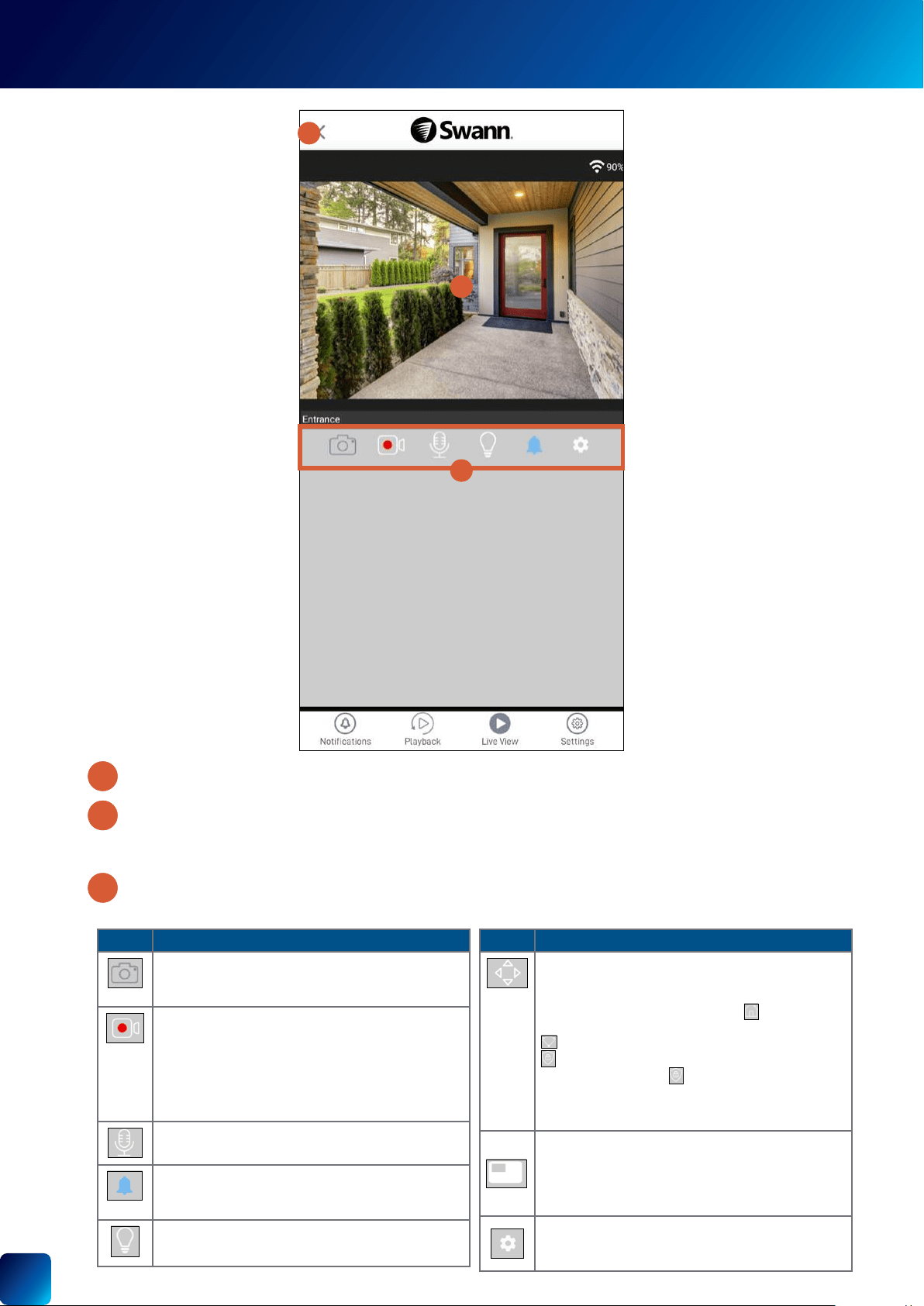
SINGLE CAMERA VIEW MODE - WI-FI CAMERAS
•
•
1
1
1
1
3
2
1
Icon Description
“” folder or in the photo app.
Tap again to stop the recording. Each time you take a
video clip, the clip is added to the section
(Menu > Recordings) of the app. See "Viewing and
Managing Manual Recordings" on page 54. You
” folder.
spotlights.
3
2
Icon Description
Displays the pan and tilt control panel which will allow
down arrow repeatedly. You can tap
to revert to the
, and . This
the
Tap to go to the screen of the
17
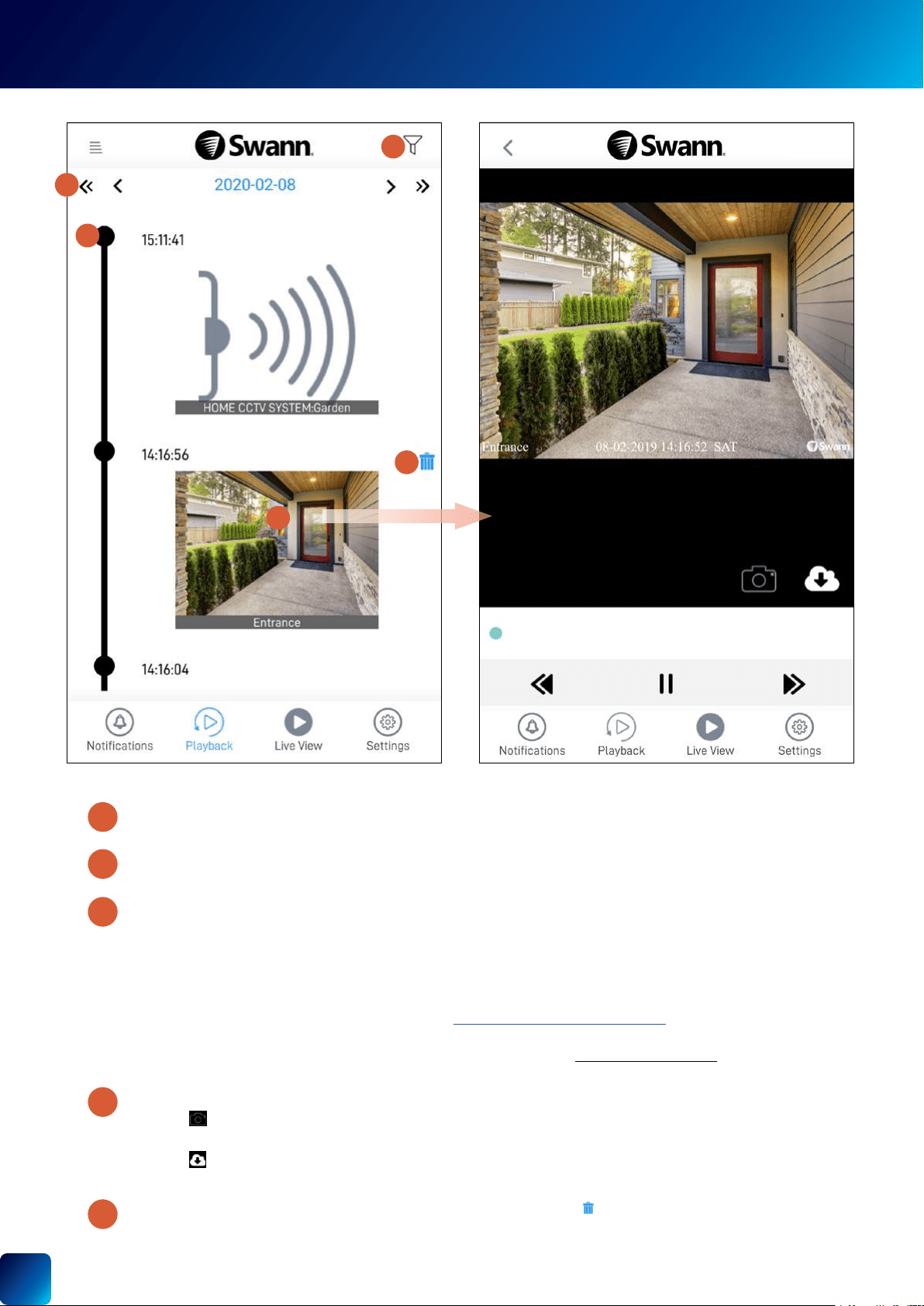
PLAYBACK TAB
devices that are currently online.
Notes:
• For CCTV system cameras
• For Wi-Fi camera models with cloud storage feature
• For Wi-Fi camera models without cloud storage feature (for example, the SWIFI Security Tracker Camera model),
installed on the
• Tap
“
• Tap
” folder.
(Only for Wi-Fi camera models with cloud storage feature) Tap the Bin
2
3
4
5
1
4
5
2
1
3

Device Settings
19
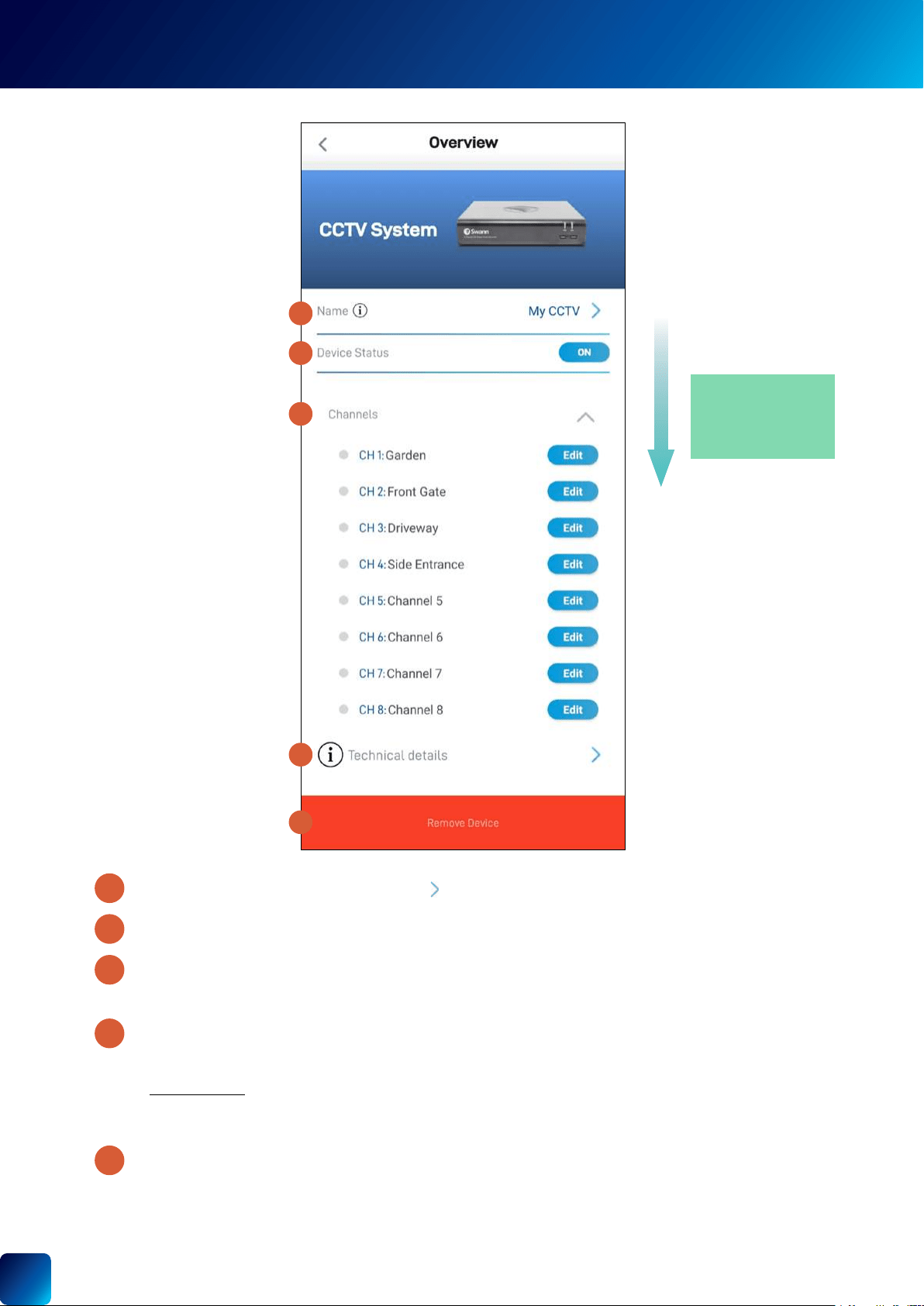
CCTV SYSTEM - SETTINGS OVERVIEW
CCTV SYSTEM
to change it.
Note:
Unlock screen > Forgot Password
Tap the Edit
2
4
3
5
1
1
2
3
4
5
TIP
Scroll down to view more
device information
20
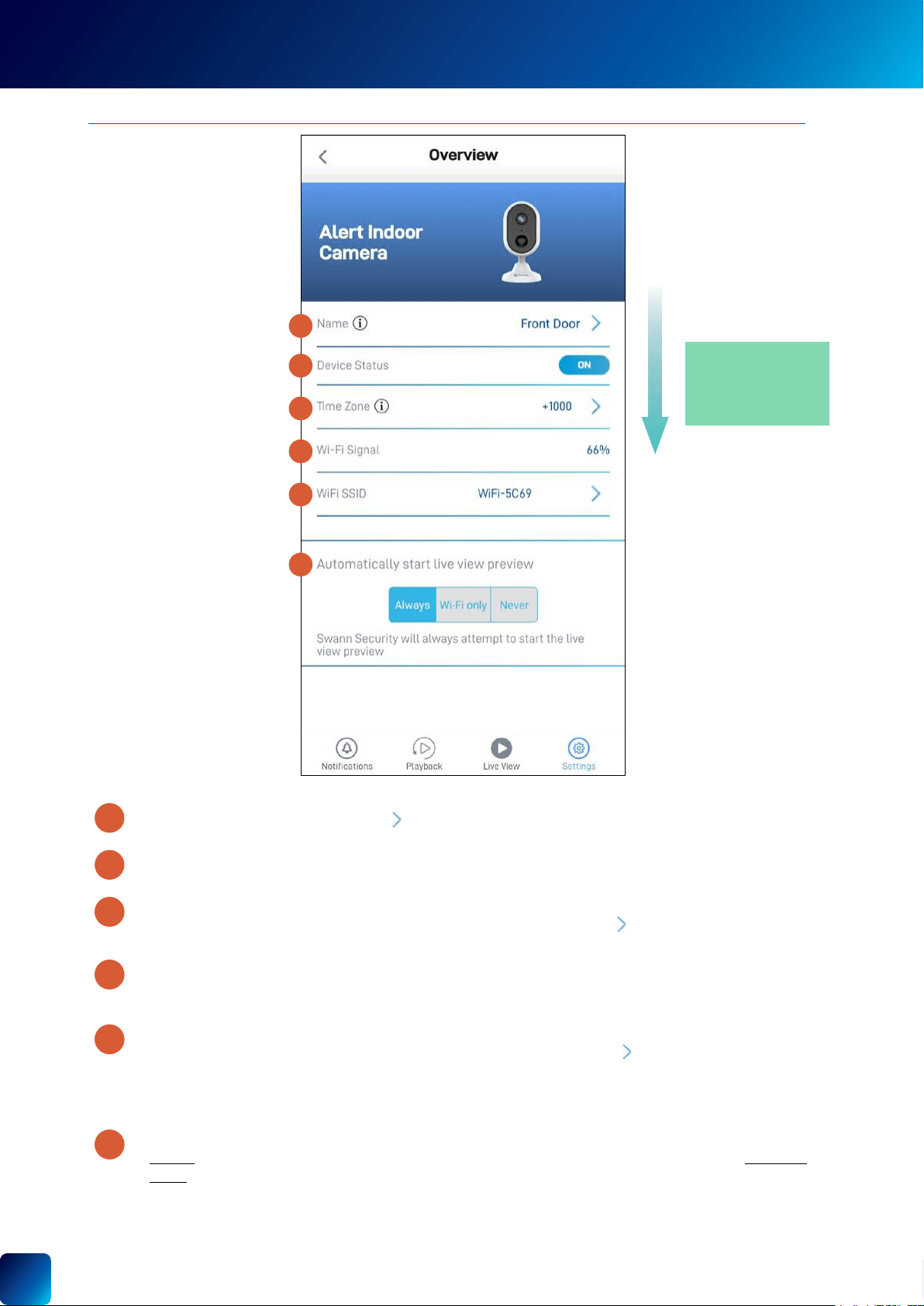
INDOOR SECURITY CAMERA - SETTINGS OVERVIEW
INDOOR
SECURITY
CAMERA (SWIFI-
ALERTCAM/
SWWHD-
INDCAM)
to change it.
to update it. You can sync the
"Changing the Camera's Wi-Fi Network" on page 55
nearest to it.
Wi-Fi only, or
2
2
2
2
3
5
6
4
1
1
2
3
4
5
6
(Continued on the next page)
NOTE: PRODUCT NAMES AND IMAGES SHOWN MAY DIFFER SLIGHTLY DEPENDING ON YOUR CAMERA MODEL
TIP
Scroll down to view more
camera information and
settings
21
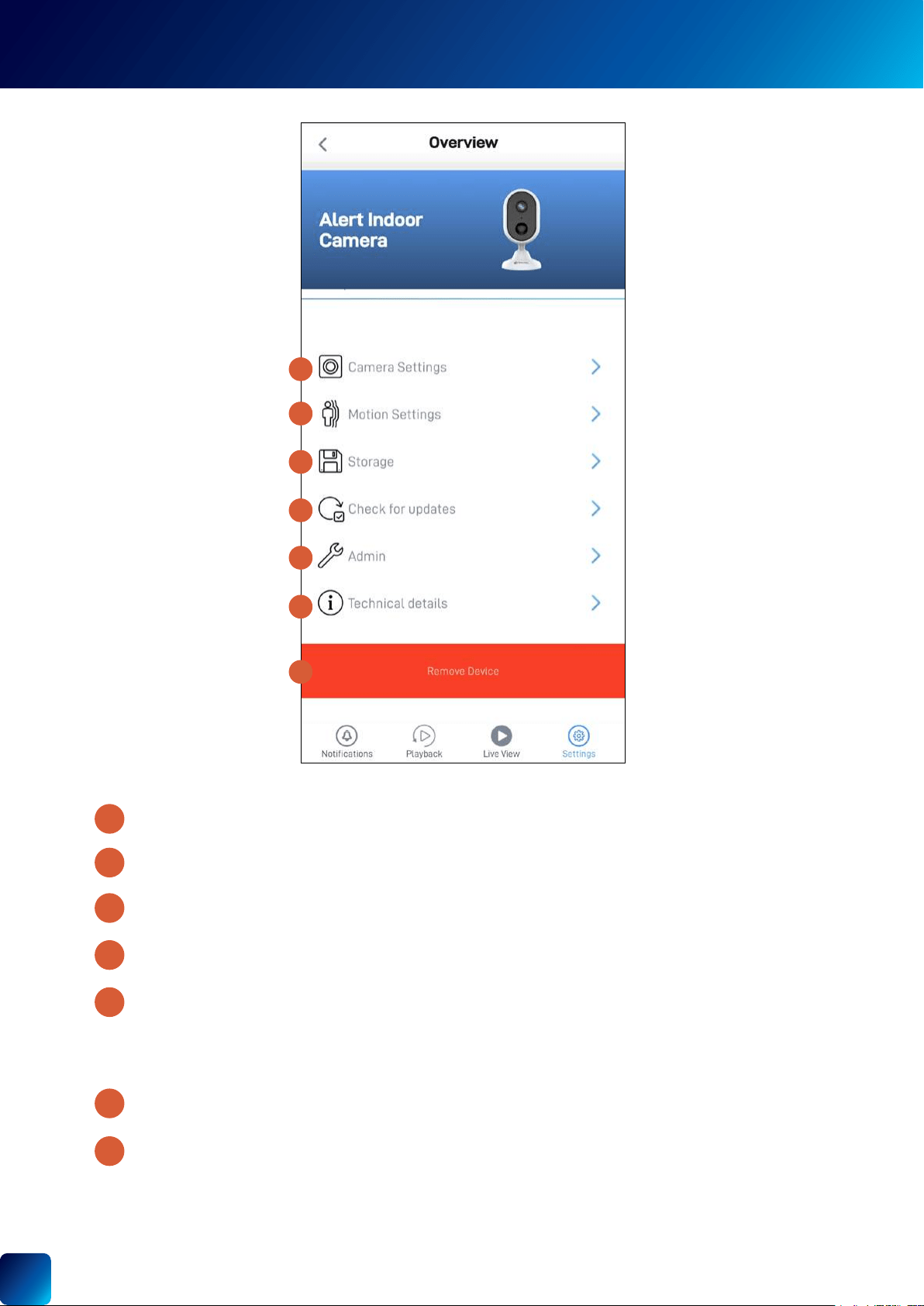
See "Indoor Security Camera - Motion Settings" on page 23.
"Indoor Security Camera - Camera Settings" on page 22.
storage, and factory reset.
Note:
settings to factory default. See "Factory Resetting the Camera" on page 56.
Note:
9
10
11
12
13
8
7
INDOOR SECURITY CAMERA - SETTINGS OVERVIEW
7
8
9
10
11
12
13
22
1
3
5
4
6
7
2
8
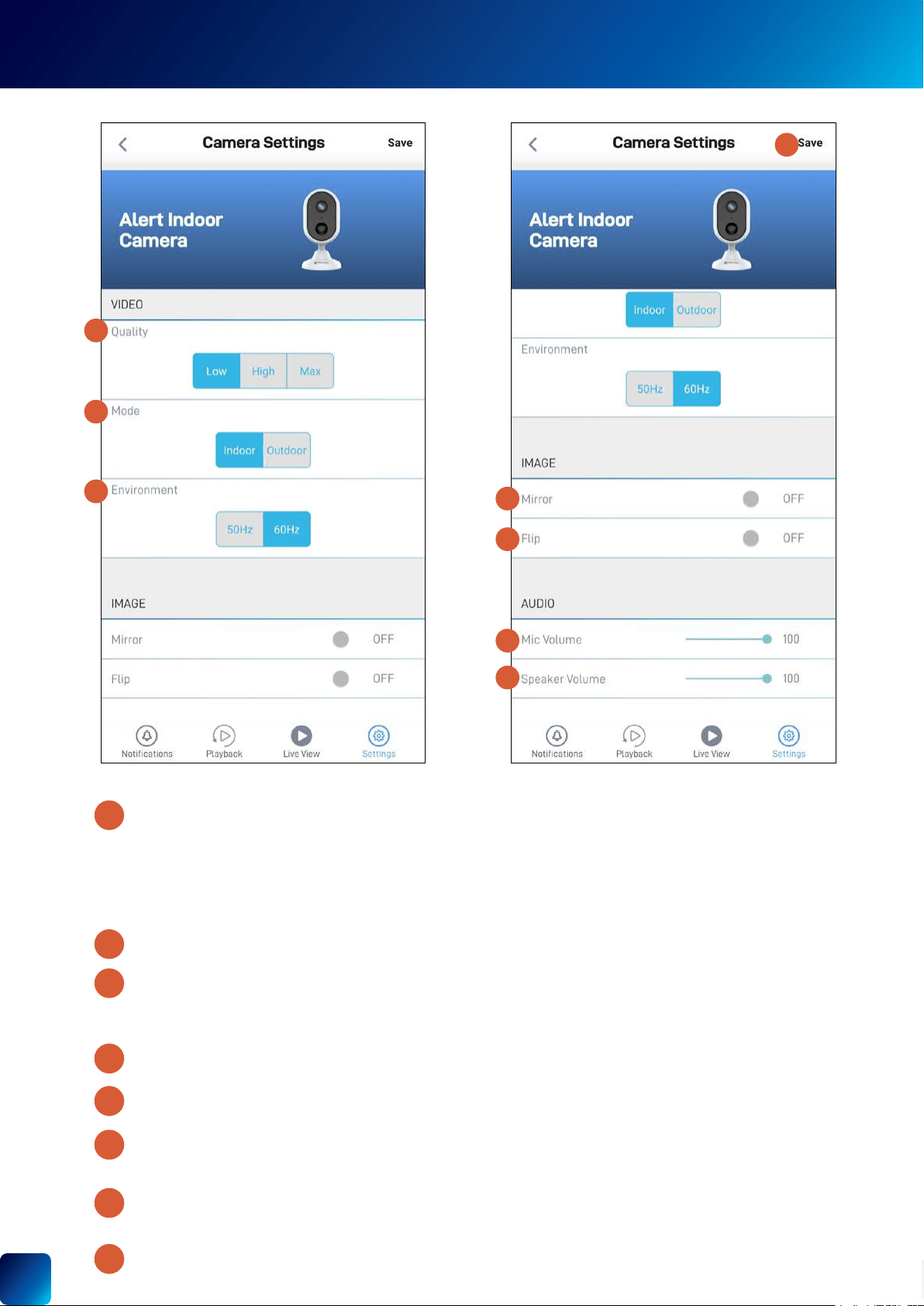
INDOOR SECURITY CAMERA - CAMERA SETTINGS
Low
Low
Note:
•
•
detection sensitivity.
in siren.
down.
3
2
2
2
4
6
7
8
5
2
1
23
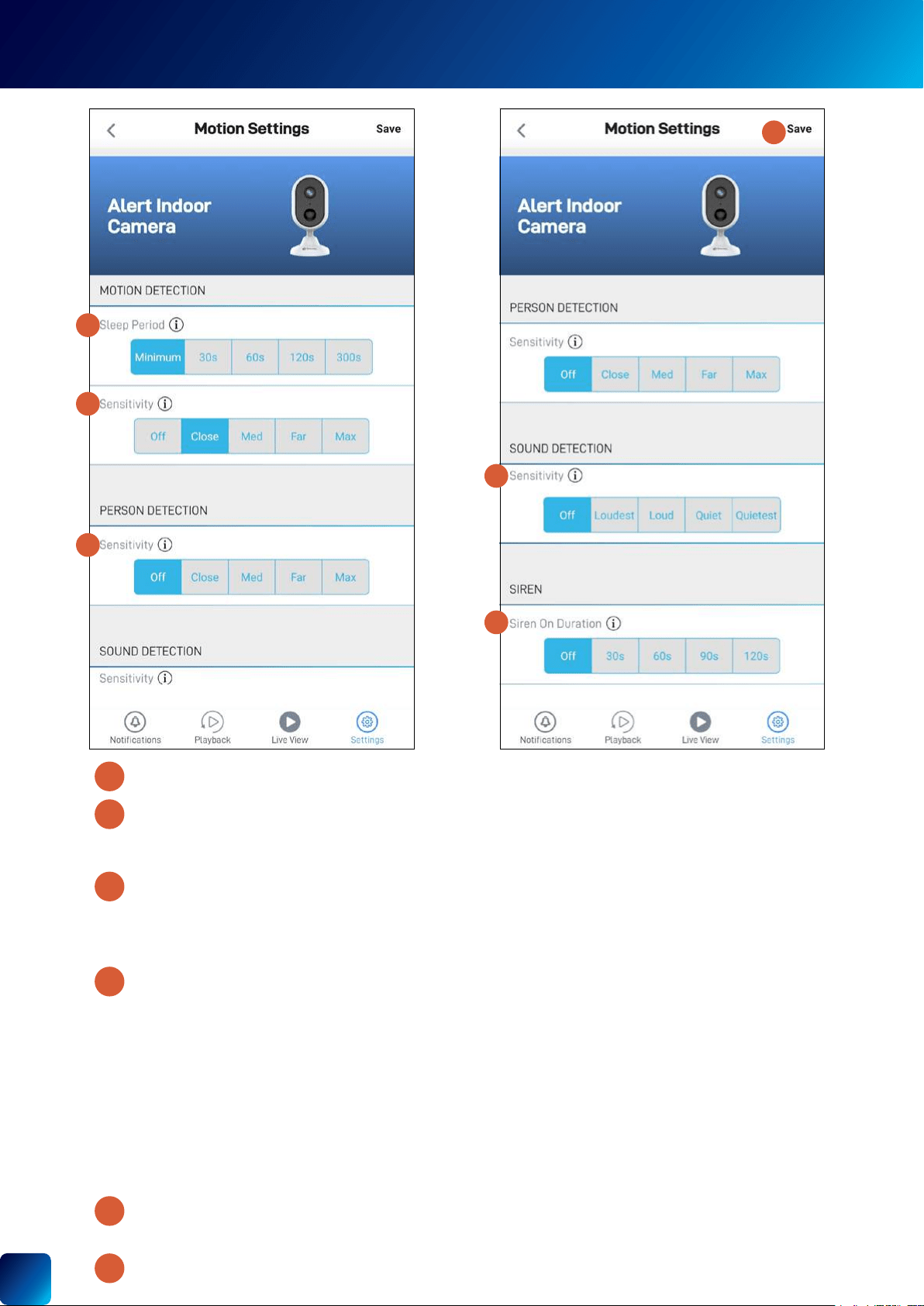
INDOOR SECURITY CAMERA - MOTION SETTINGS
Off
Off turns off person
Off.
•
• Loud
•
.
•
• Off.
detected. Note:
2
3
4
5
6
1
1
4
2
3
5
6
24
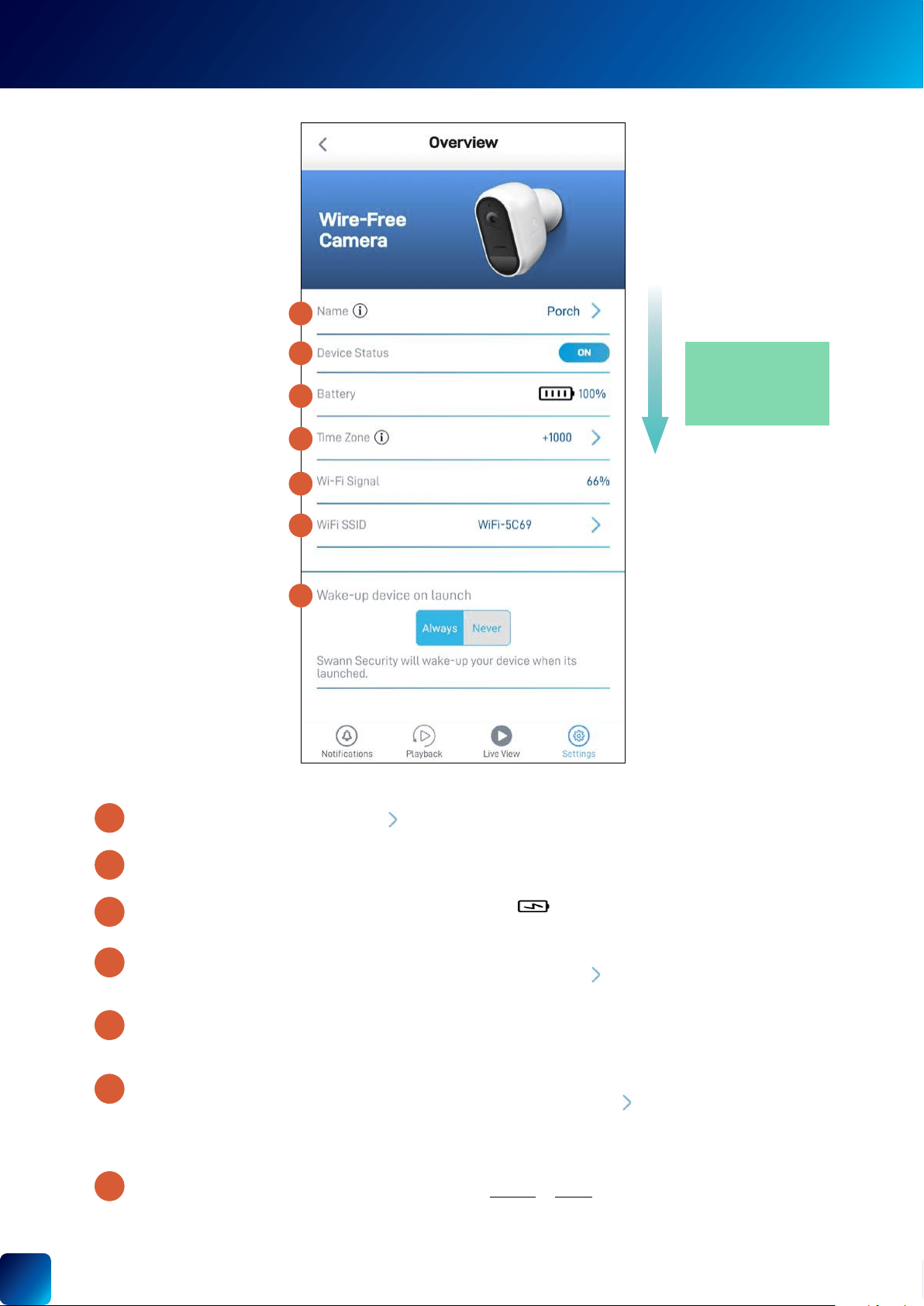
WIRE-FREE SECURITY CAMERA - SETTINGS OVERVIEW
WIRE-FREE
SECURITY
CAMERA
(SWIFI-
CAM)
to change it.
"Changing the Camera's Wi-Fi Network" on page 55
nearest to it.
When the app is launched, you can choose whether to or
to update it. You can sync the
2
2
2
2
3
5
6
7
4
1
1
2
3
4
5
7
6
(Continued on the next page)
TIP
Scroll down to view more
camera information and
settings
25
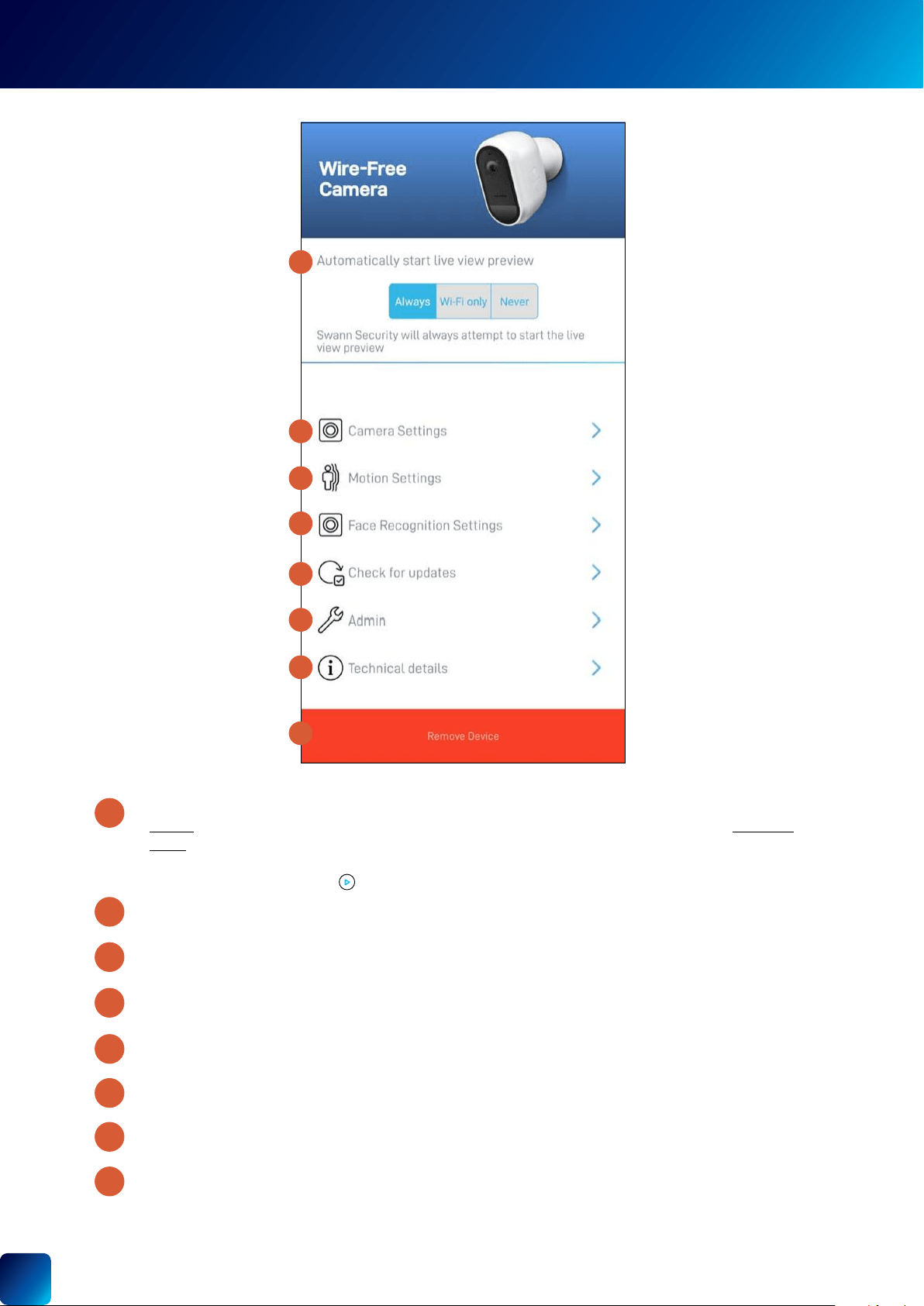
See "Wire-Free Security Camera - Motion Settings" on page 27.
"Wire-Free Security Camera - Face
Recognition Settings" on page 28 .
"Wire-Free Security Camera - Camera Settings" on page 26.
storage, and factory reset.
Note:
12
13
14
15
10
11
9
8
WIRE-FREE SECURITY CAMERA - SETTINGS OVERVIEW
9
8
10
11
12
13
14
15
Wi-Fi only, or
Note:
26
1
3
5
4
6
7
2
8
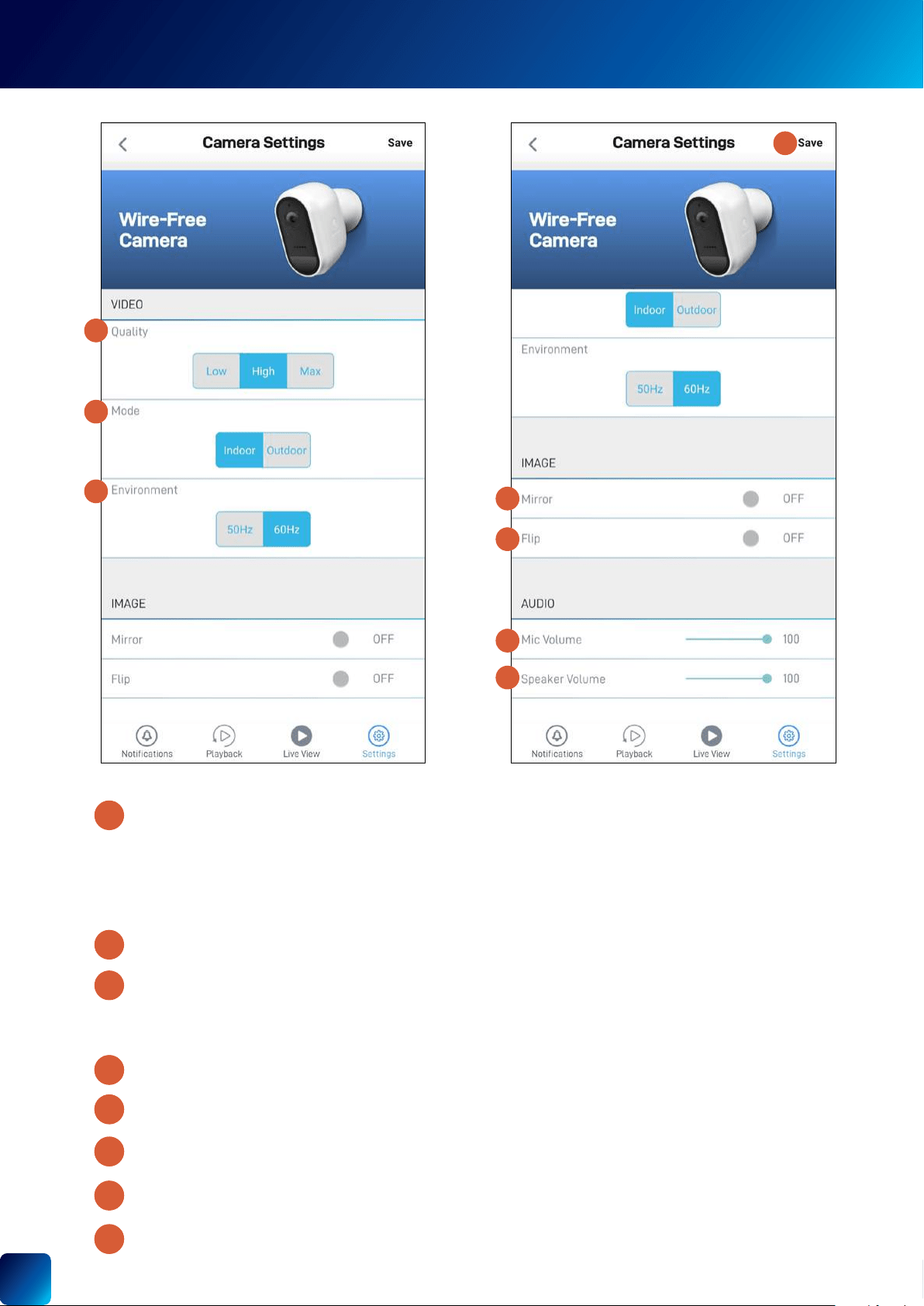
WIRE-FREE SECURITY CAMERA - CAMERA SETTINGS
Low
Low
Note:
•
•
the way to the left.
way to the left.
down.
3
2
2
2
4
6
7
8
5
2
1
27
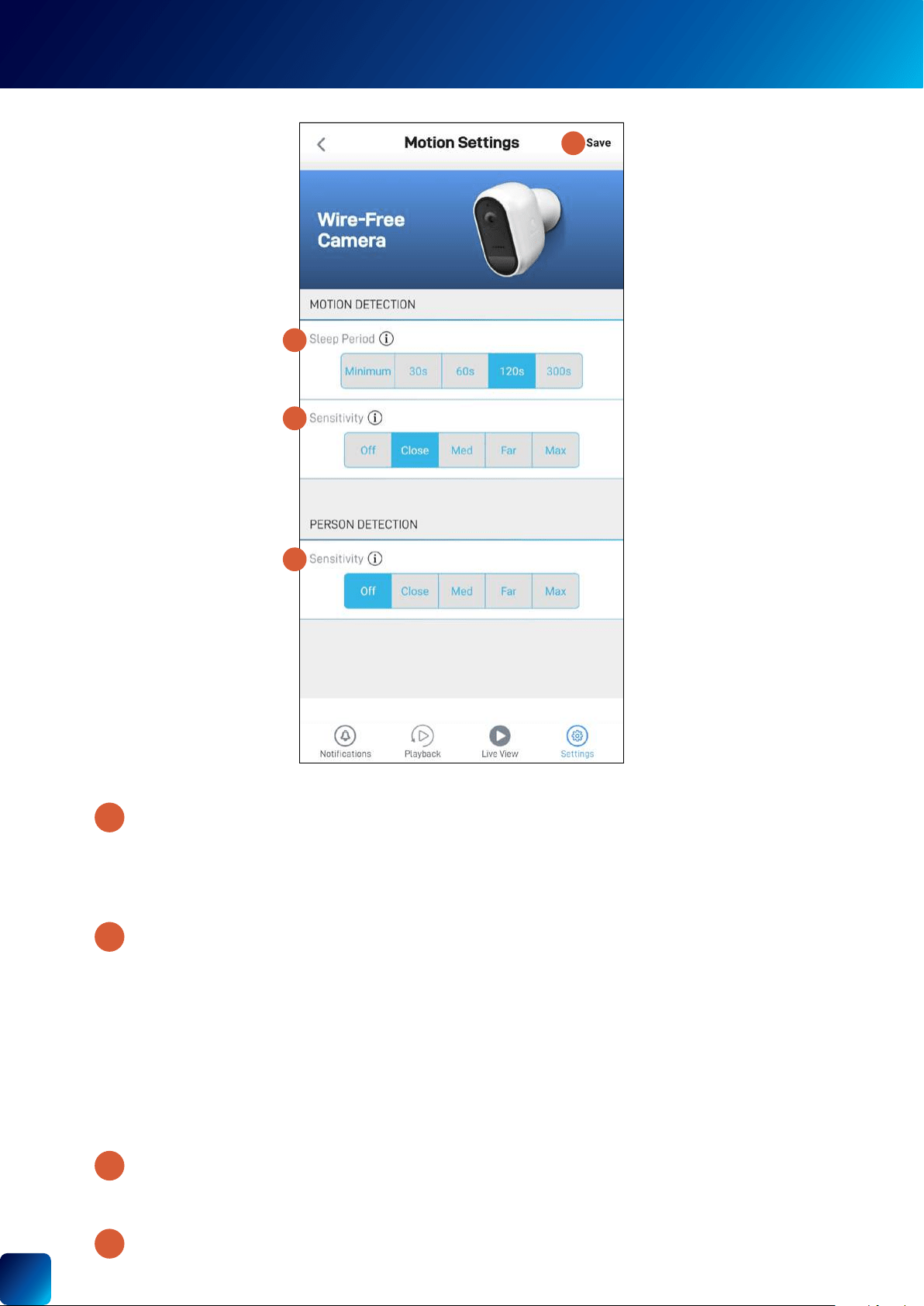
WIRE-FREE SECURITY CAMERA - MOTION SETTINGS
TIP
Off
TIP
Note:
Off
Off.
1
2
3
4
1
2
3
4
28
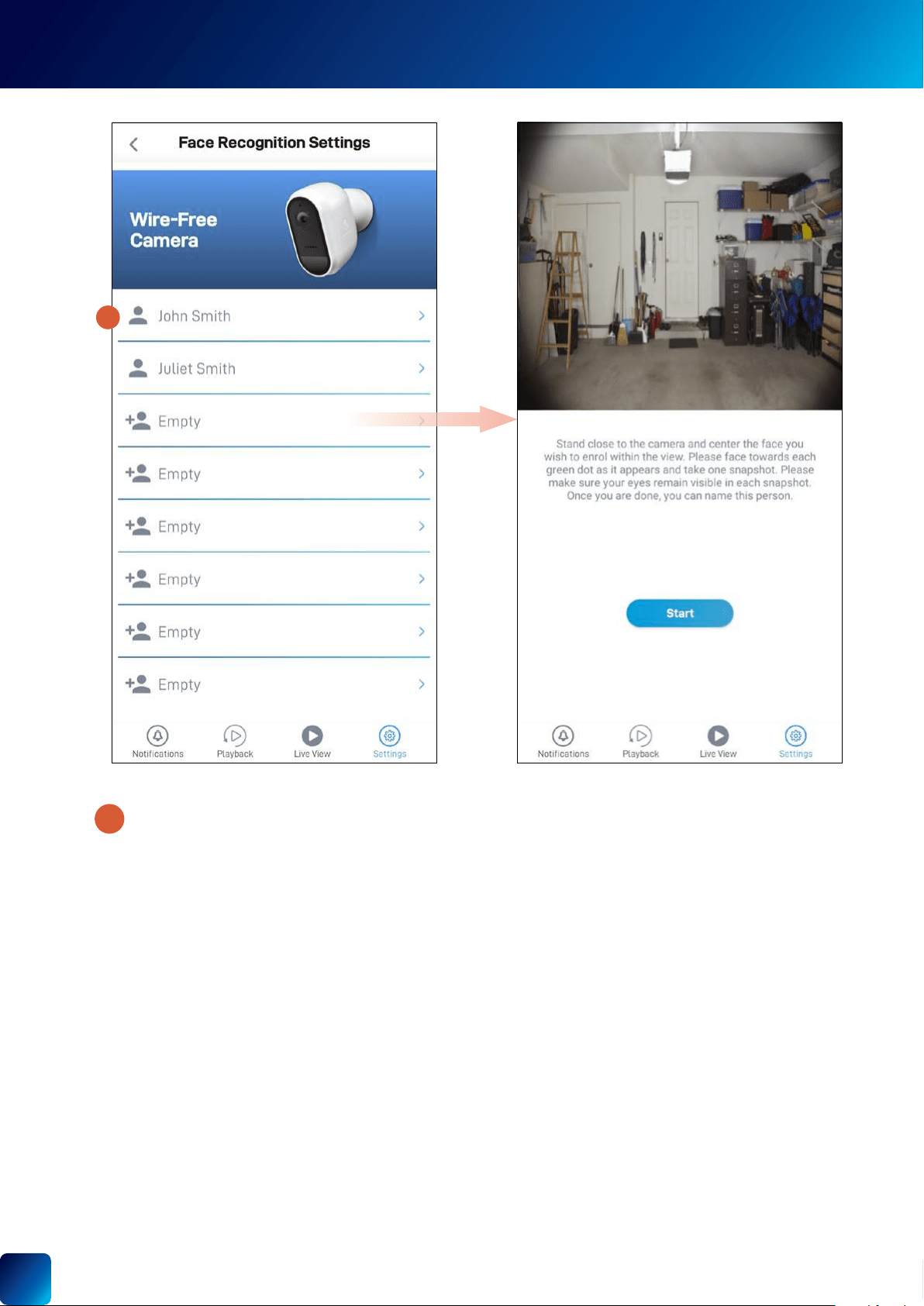
NOTE
•
•
•
•
•
•
registration process again.
•
•
Off.
•
1
WIRE-FREE SECURITY CAMERA - FACE RECOGNITION SETTINGS
1
29
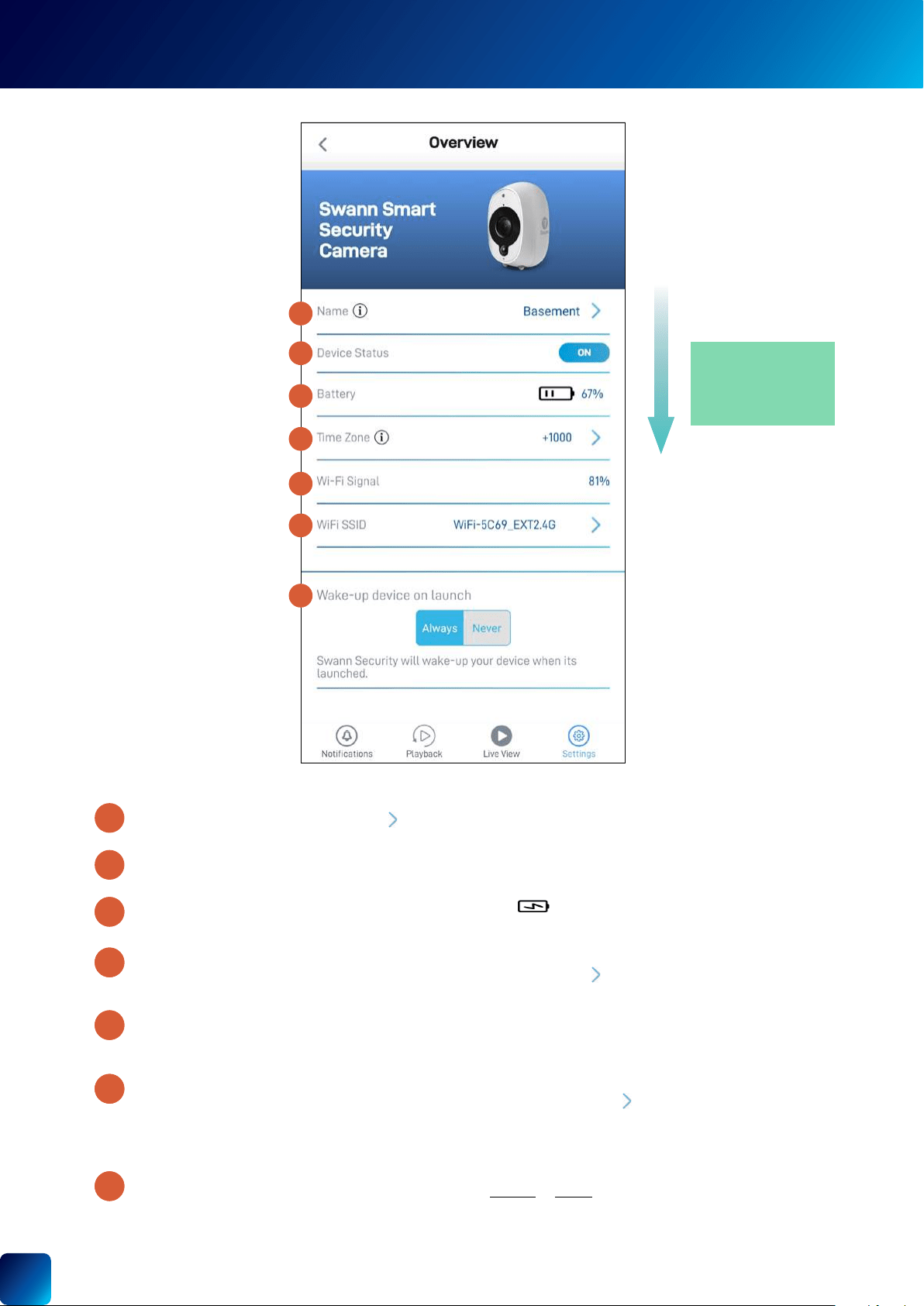
SMART SECURITY CAMERA - SETTINGS OVERVIEW
SMART
SECURITY
CAMERA
(SWWHD-
INTCAM)
to change it.
"Changing the Camera's Wi-Fi Network" on page 55
nearest to it.
When the app is launched, you can choose whether to or
to update it. You can sync the
2
2
2
2
3
5
6
7
4
1
1
2
3
4
5
7
6
(Continued on the next page)
TIP
Scroll down to view more
camera information and
settings
30
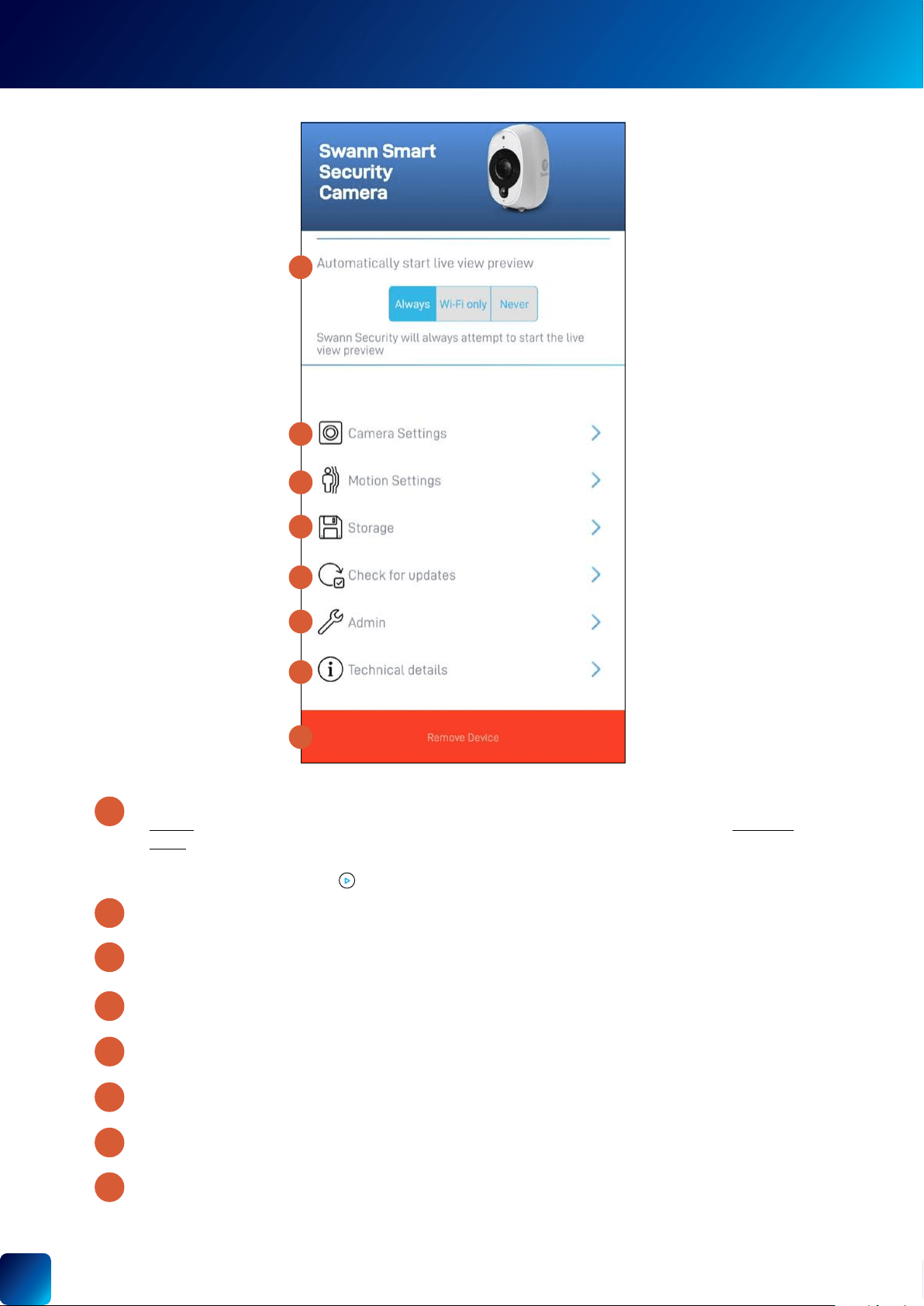
See "Smart Security Camera - Motion Settings" on page 32.
"Smart Security
Camera - Camera Settings" on page 31.
storage, and factory reset.
Note:
11
12
13
14
15
10
9
SMART SECURITY CAMERA - SETTINGS OVERVIEW
9
8
10
11
12
13
14
15
8
Wi-Fi only, or
Note:
31
1
5
3
4
2
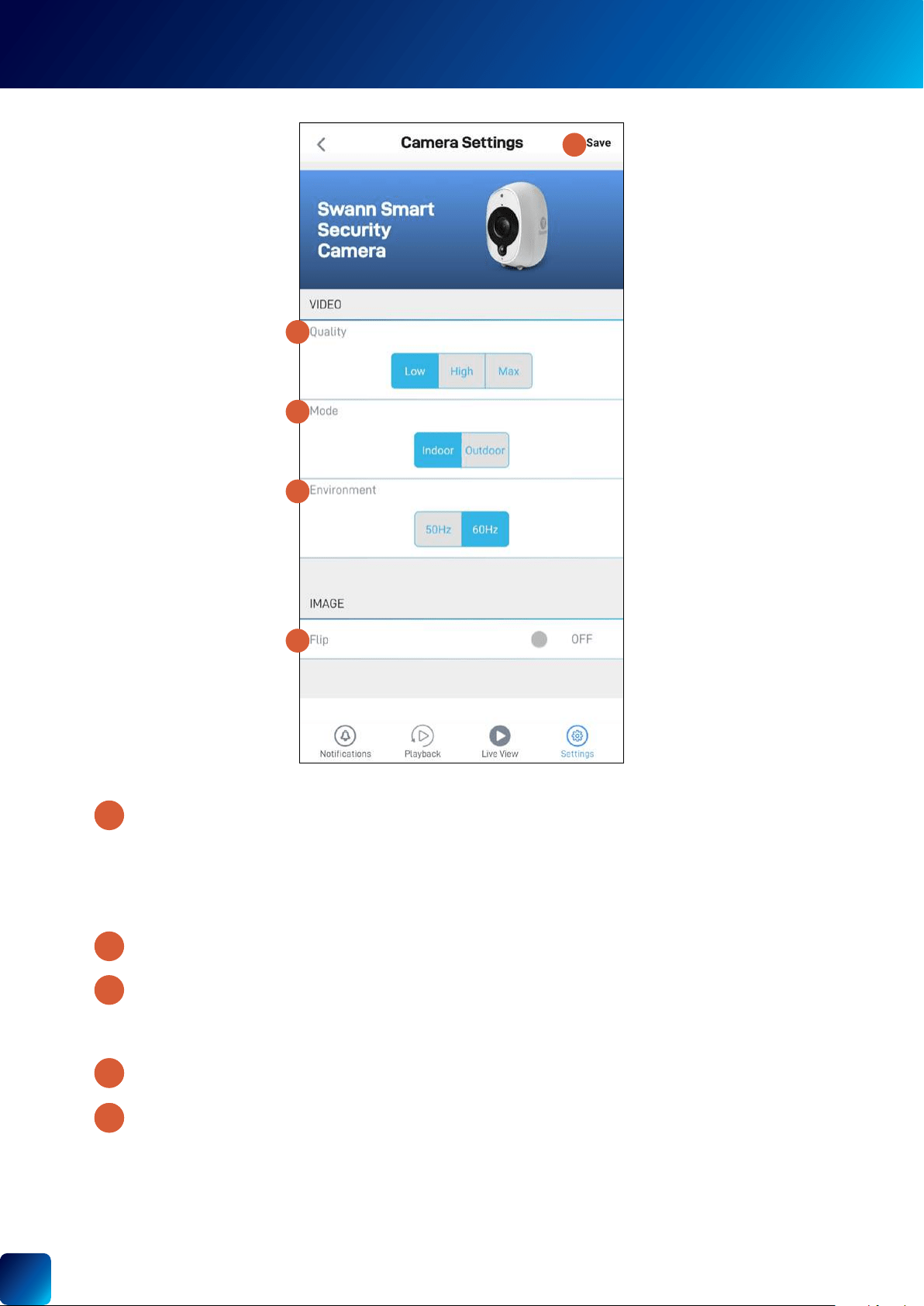
SMART SECURITY CAMERA - CAMERA SETTINGS
Low
Low
Note:
•
•
down.
3
24
5
2
1
32
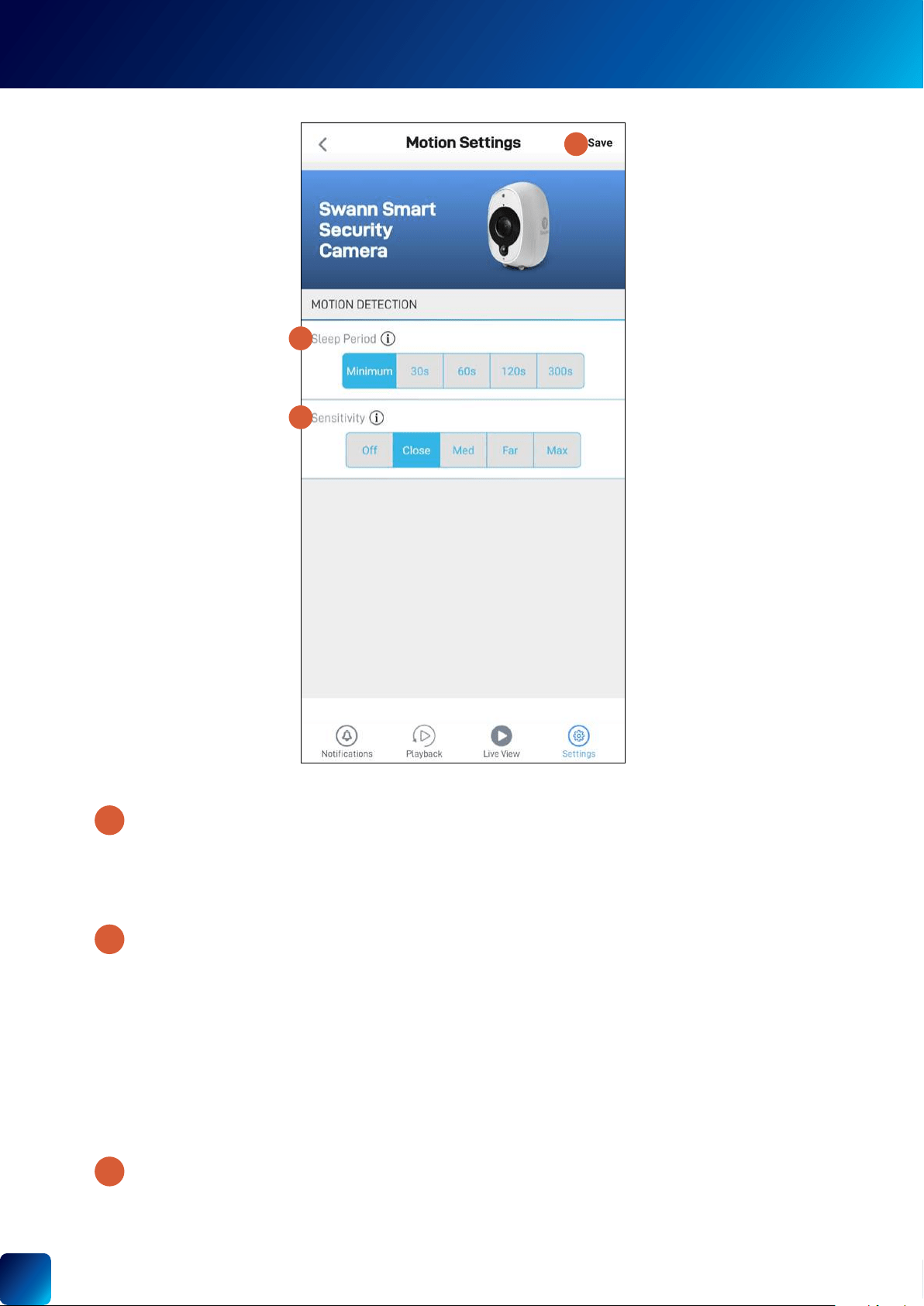
Off
TIP
Note:
TIP
3
2
1
SMART SECURITY CAMERA - MOTION SETTINGS
1
2
3
33
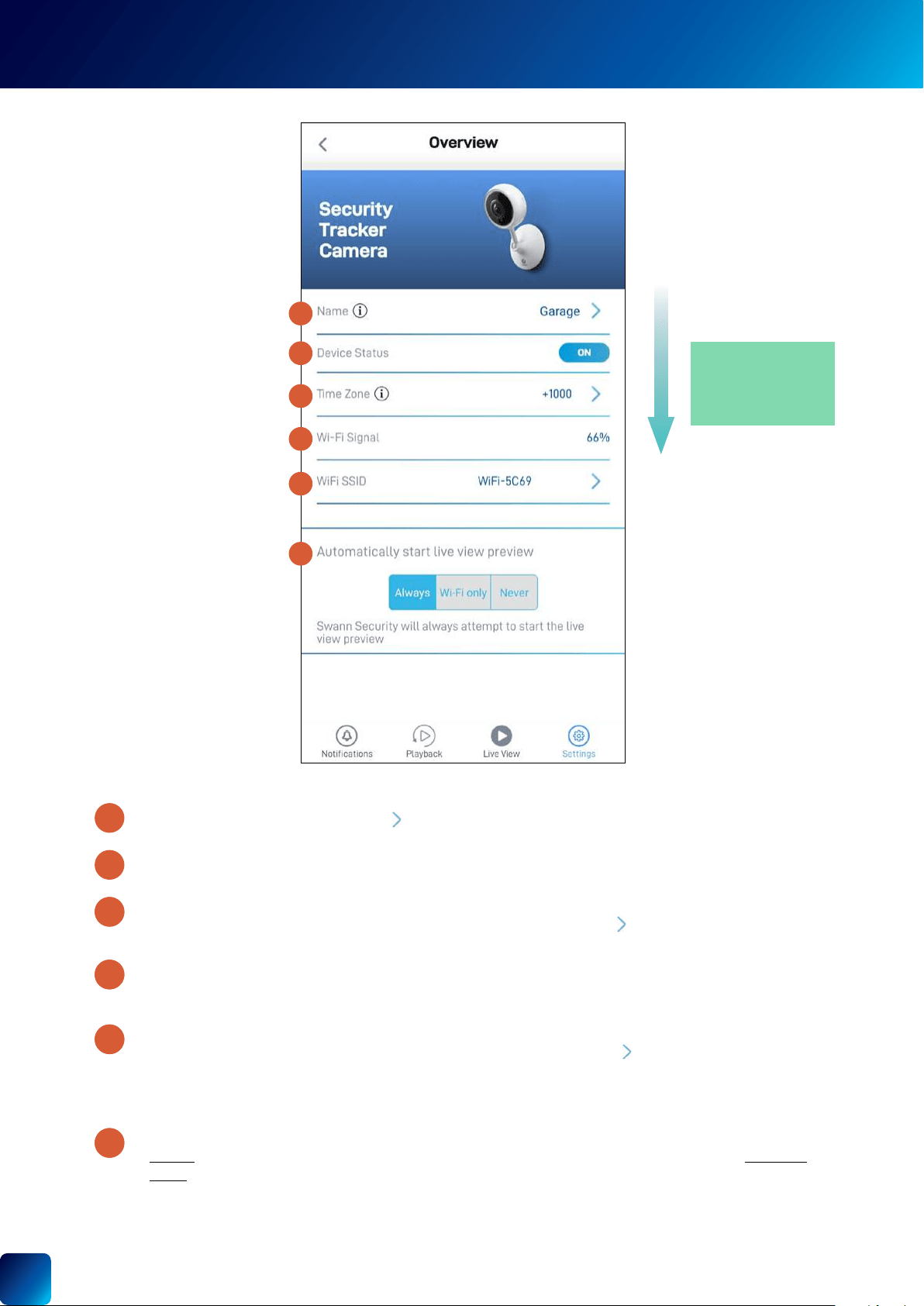
SECURITY TRACKER CAMERA - SETTINGS OVERVIEW
SECURITY
TRACKER
CAMERA
(SWIFI-
TRACKCAM)
to change it.
to update it. You can sync the
"Changing the Camera's Wi-Fi Network" on page 55
nearest to it.
Wi-Fi only, or
2
2
2
2
3
5
6
4
1
1
2
3
4
5
6
(Continued on the next page)
TIP
Scroll down to view more
camera information and
settings
34
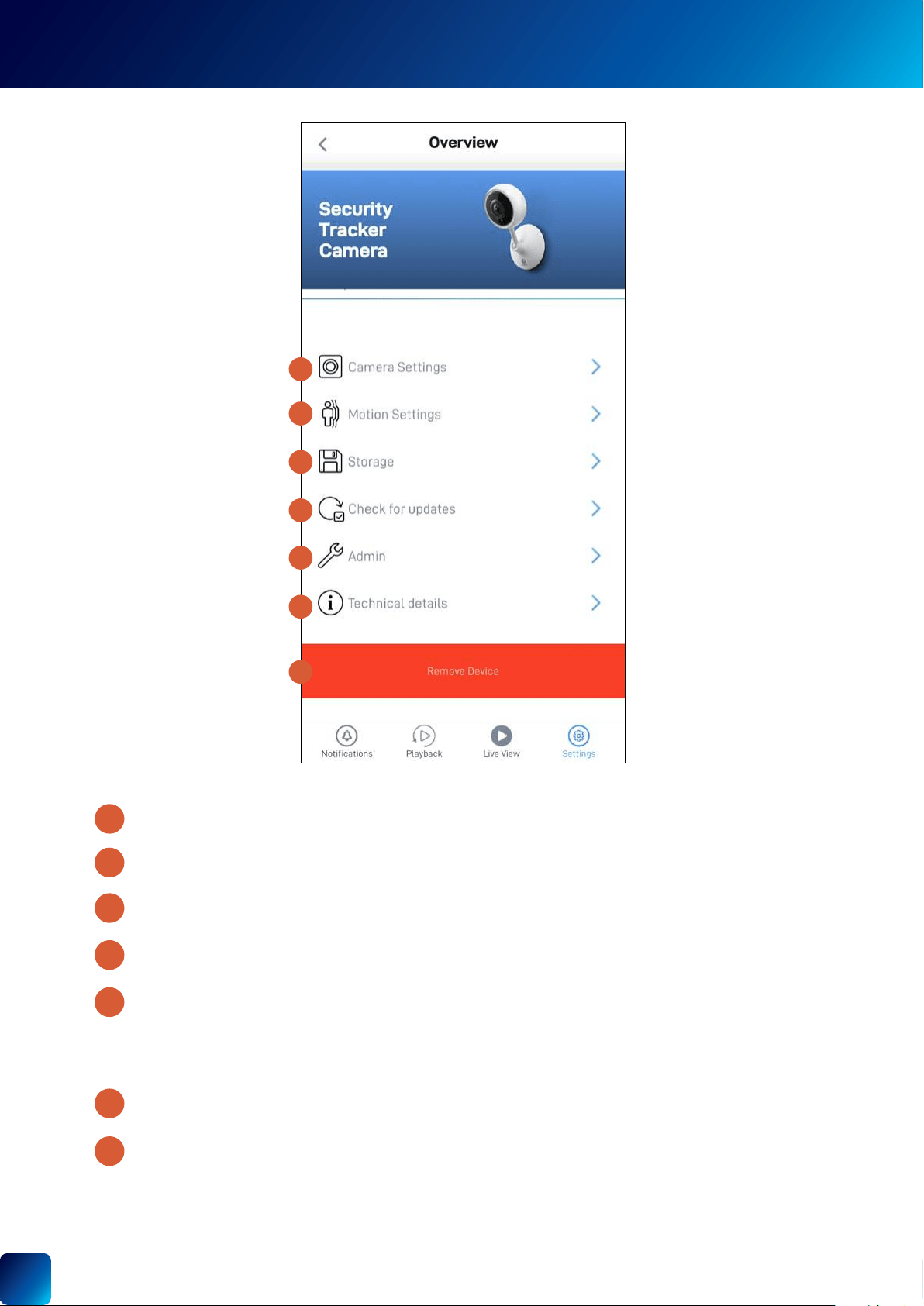
See "Security Tracker Camera - Motion Settings" on page 36.
"Security Tracker Camera - Camera Settings" on page 35.
storage, and factory reset.
Note:
settings to factory default. See "Factory Resetting the Camera" on page 56.
Note:
9
10
11
12
13
8
7
SECURITY TRACKER CAMERA - SETTINGS OVERVIEW
7
8
9
10
11
12
13
35
1
5
4
6
7
2
3
8
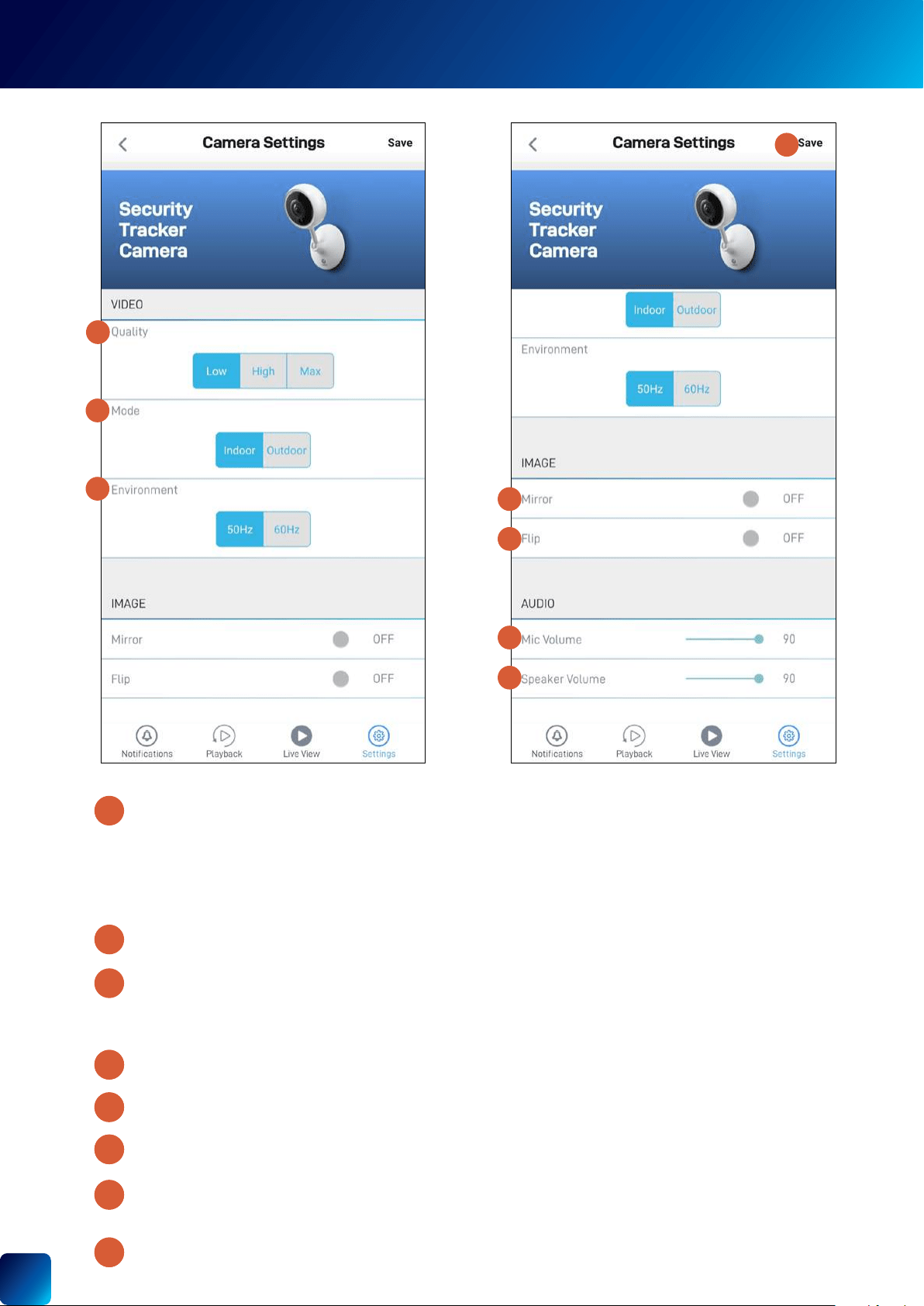
SECURITY TRACKER CAMERA - CAMERA SETTINGS
Low
Low
Note:
•
•
the way to the left.
in siren.
down.
3
2
2
2
4
6
7
8
5
2
1
36
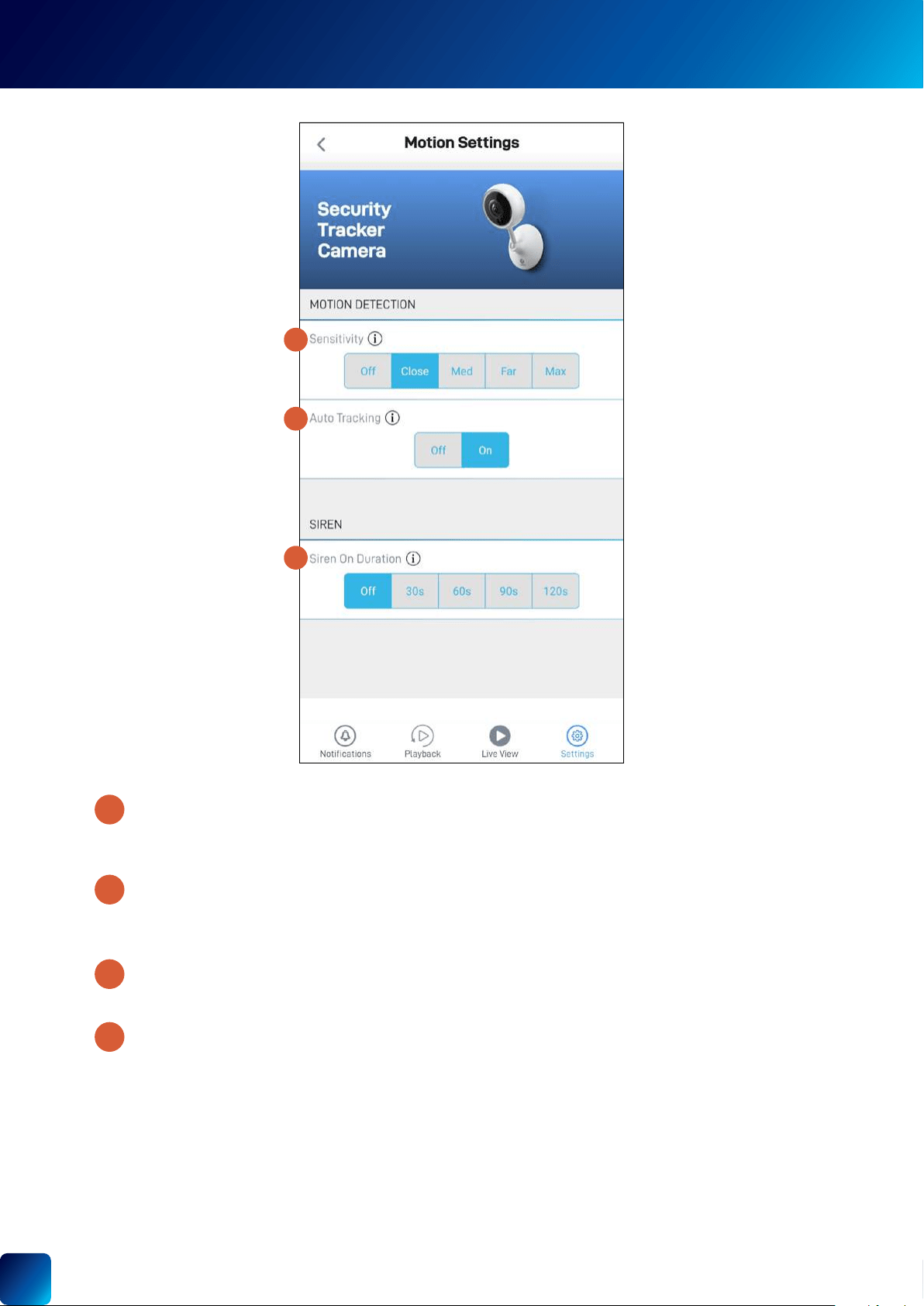
SECURITY TRACKER CAMERA - MOTION SETTINGS
Off
feature. If you turn
Note:
1
2
3
4
1
2
3
37
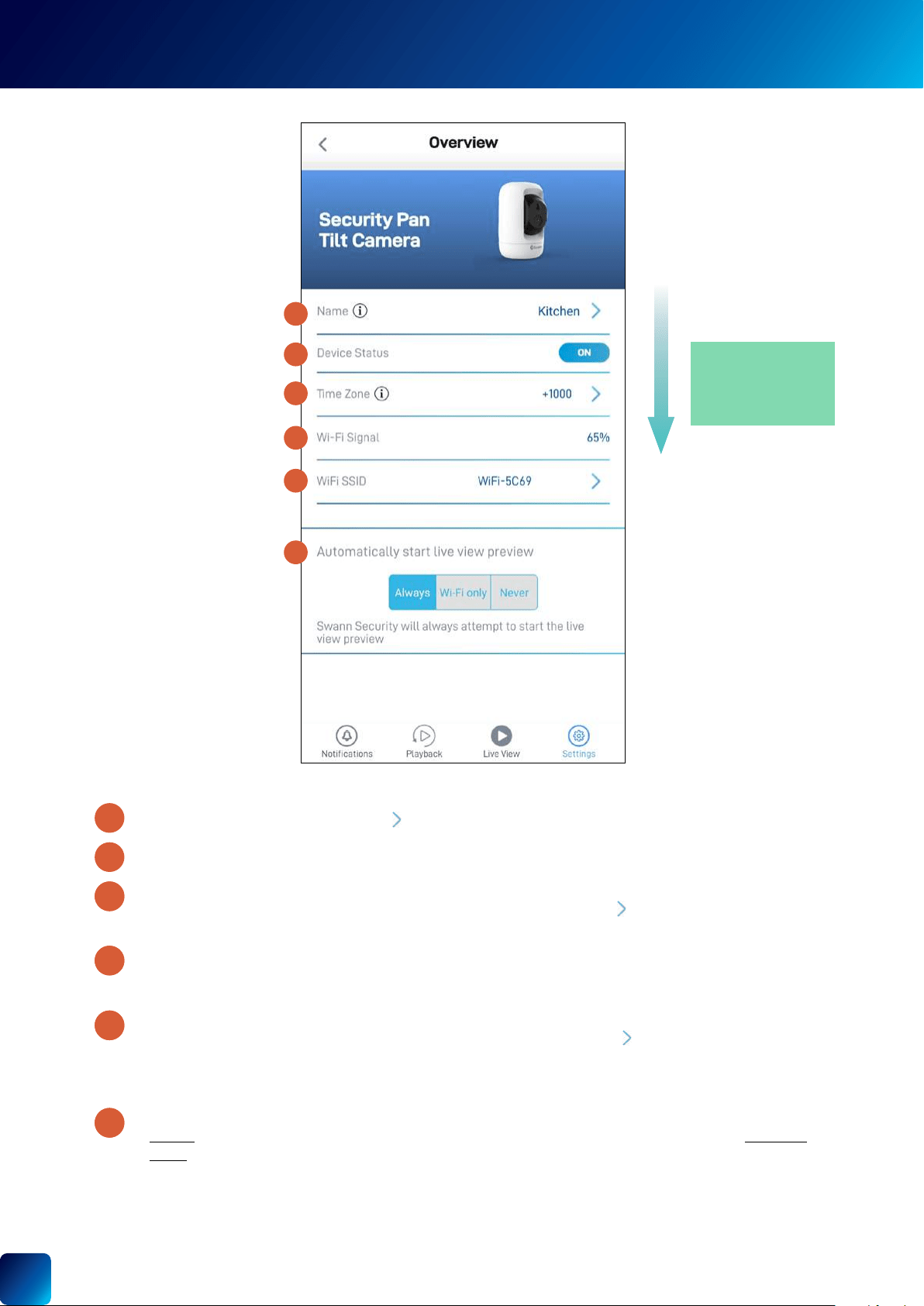
to change it.
to update it. You can sync the
"Changing the Camera's Wi-Fi Network" on page 55
nearest to it.
Wi-Fi only, or
2
2
2
2
3
5
6
4
1
1
2
3
4
5
6
(Continued on the next page)
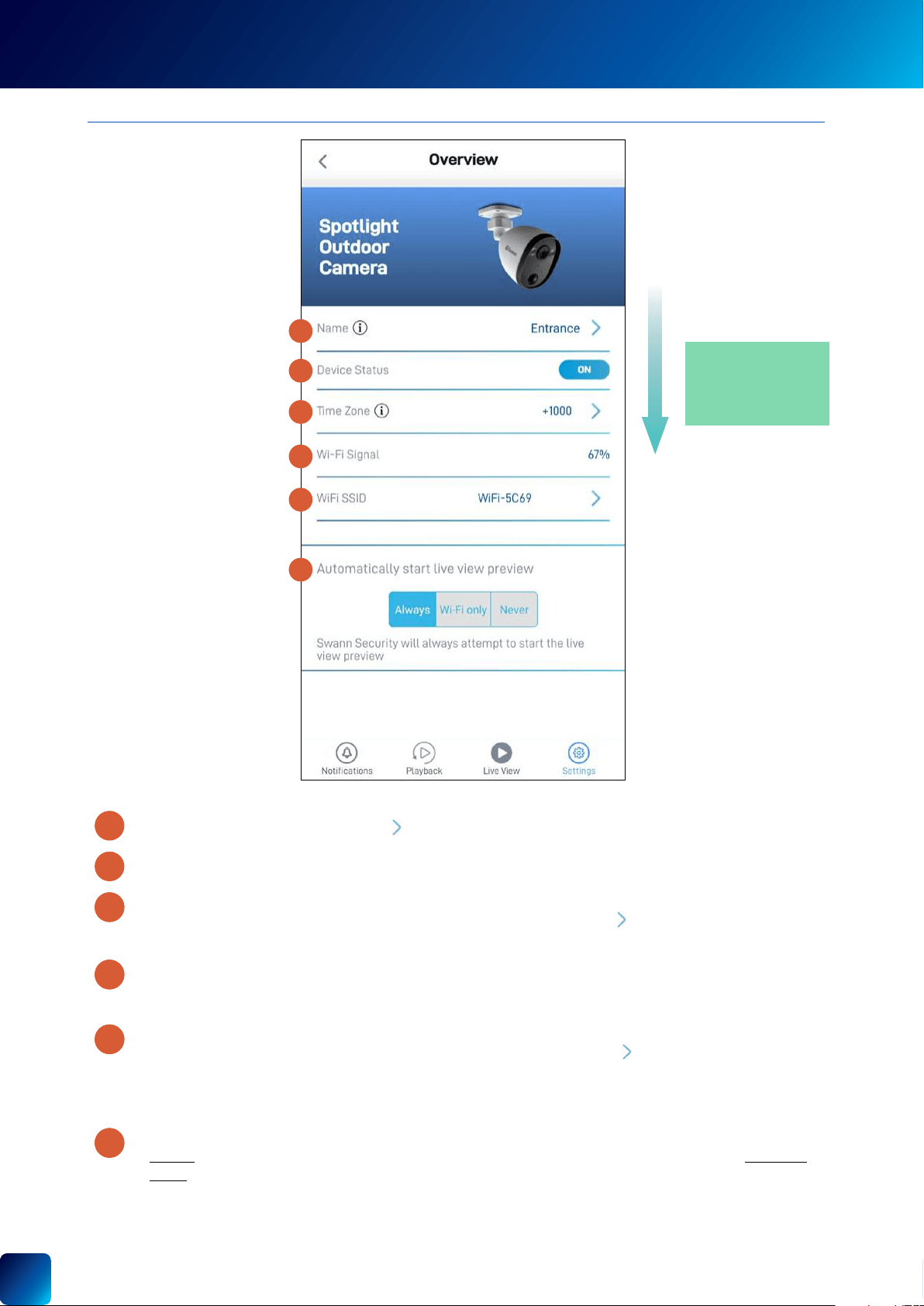
SECURITY PAN TILT CAMERA - SETTINGS OVERVIEW
SECURITY
PAN TILT
CAMERA
(SWIFI-
PTCAM)
TIP
Scroll down to view more
camera information and
settings
38
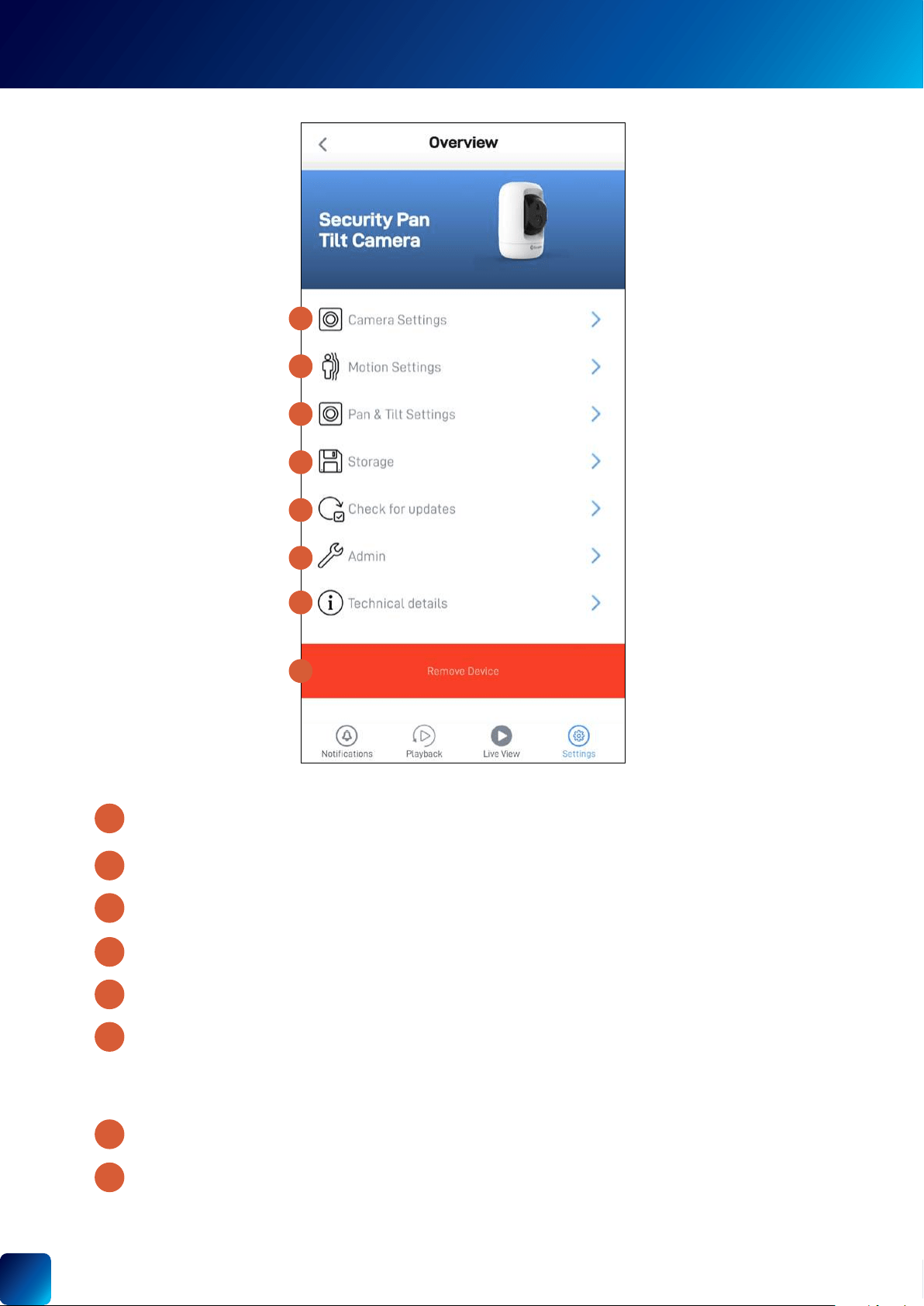
"Security Pan Tilt Camera - Camera Settings" on page 39.
See "Security Pan Tilt Camera - Motion Settings" on page 40.
Note:
"Factory Resetting the Camera" on page 56.
See "Security Pan Tilt Camera - Pan & Tilt Settings" on page 41.
Note:
11
8
12
9
13
14
10
7
SECURITY PAN TILT CAMERA - SETTINGS OVERVIEW
10
7
11
8
12
9
13
14
39
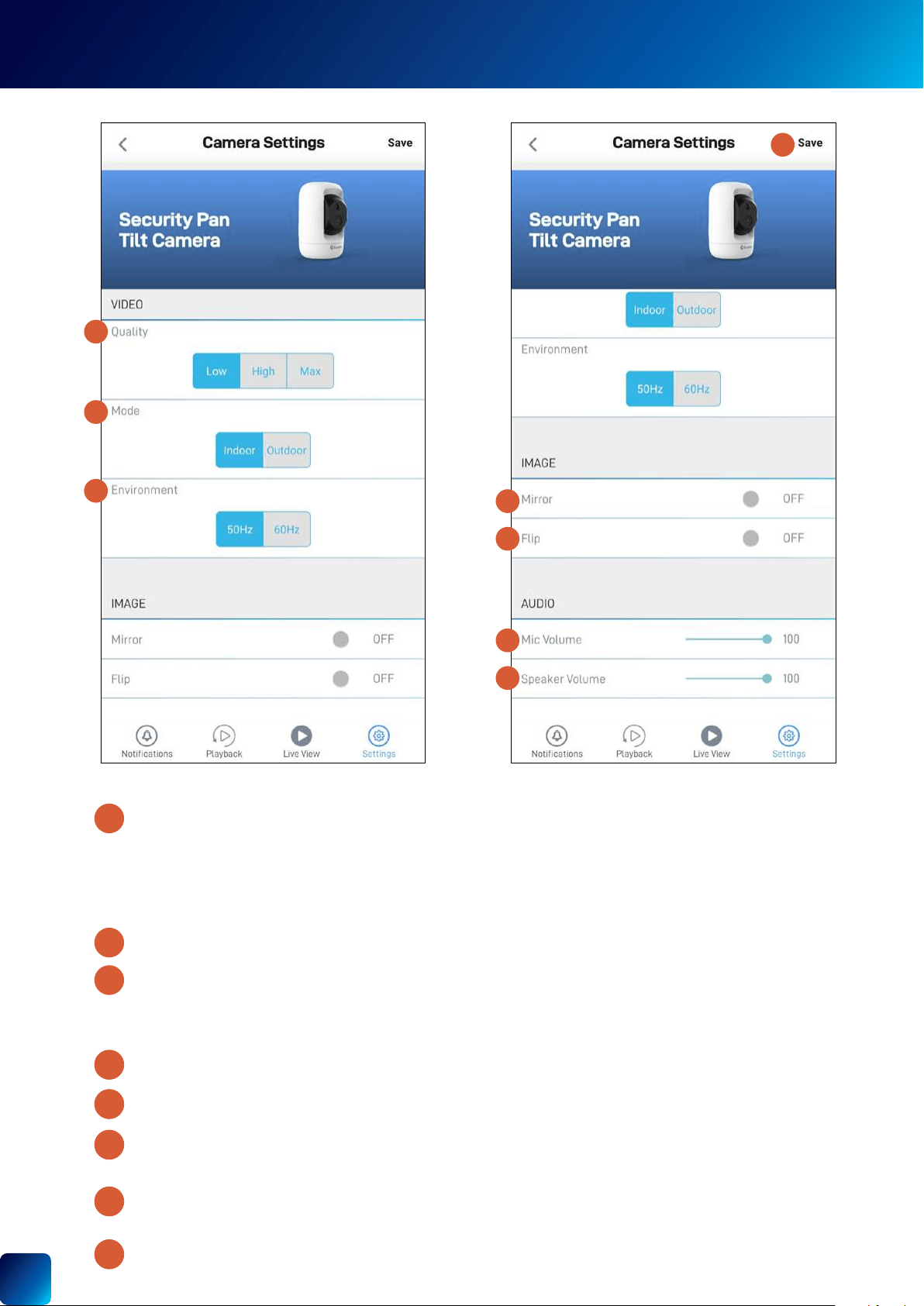
SECURITY PAN TILT CAMERA - CAMERA SETTINGS
1
6
4
7
5
2
3
8
Low
Low
Note:
•
•
detection sensitivity.
in siren.
down.
3
2
2
2
4
6
7
8
5
2
1
40
Off
Note:
Off
Off.
1
4
5
2
1
2
3
4
5
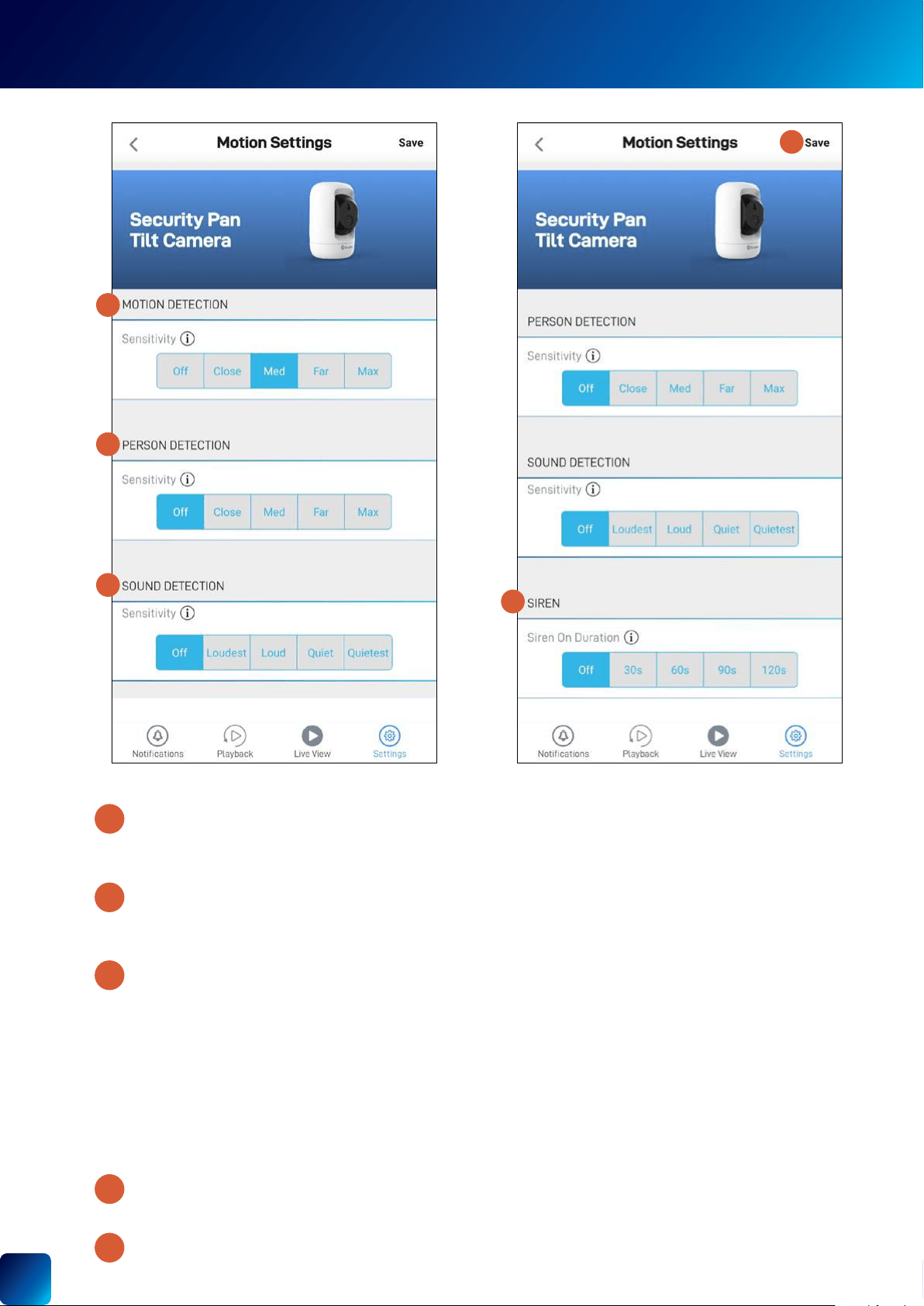
SECURITY PAN TILT CAMERA - MOTION SETTINGS
Select the sound detection sensitivity level needed to trigger recordings.
•
whispers or rustling leaves.
• Loud
•
.
•
• Off.
3
41
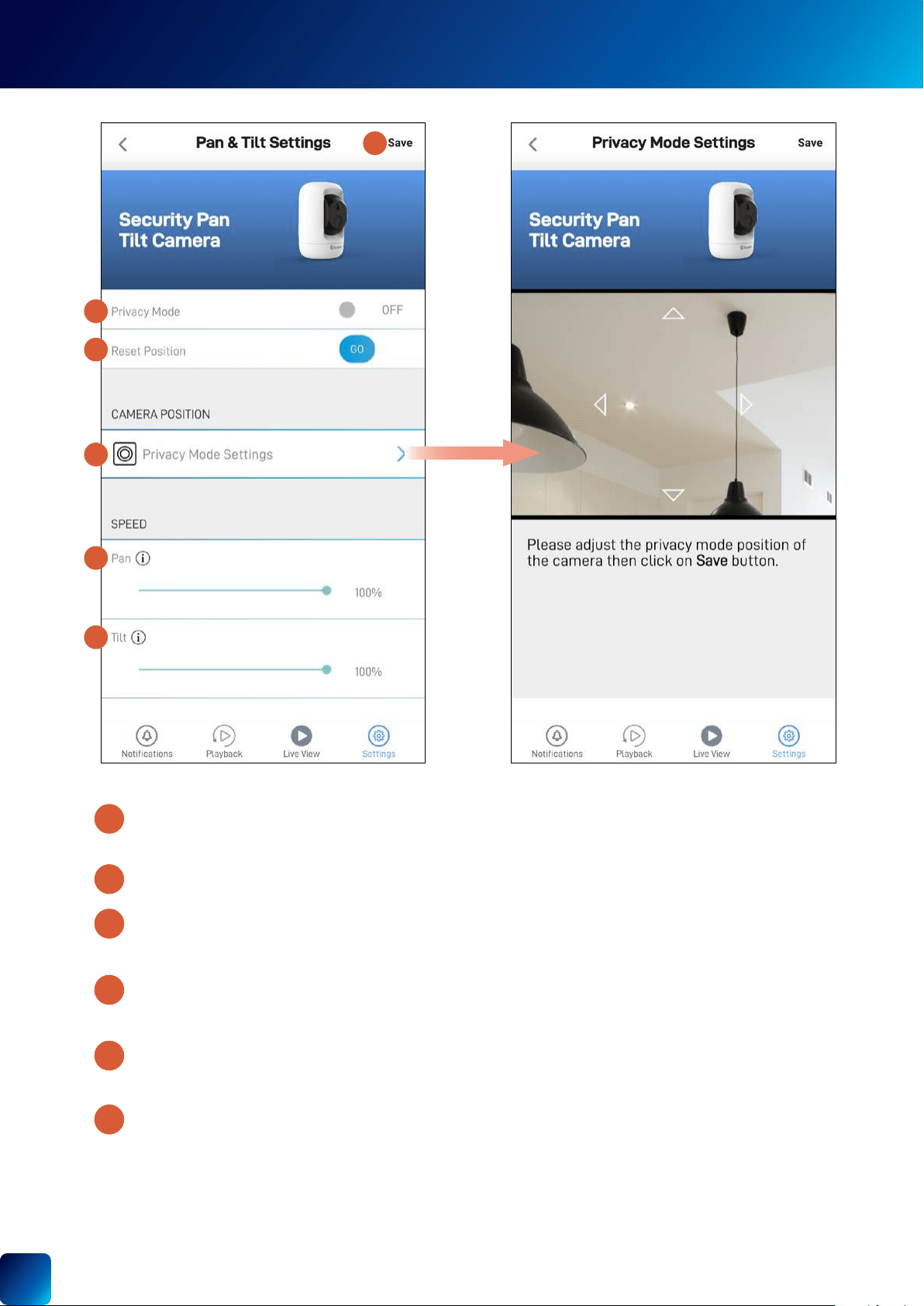
SECURITY PAN TILT CAMERA - PAN & TILT SETTINGS
1
2
3
4
5
6
Note:
at the top right.
2
2
2
2
3
5
6
4
1
42
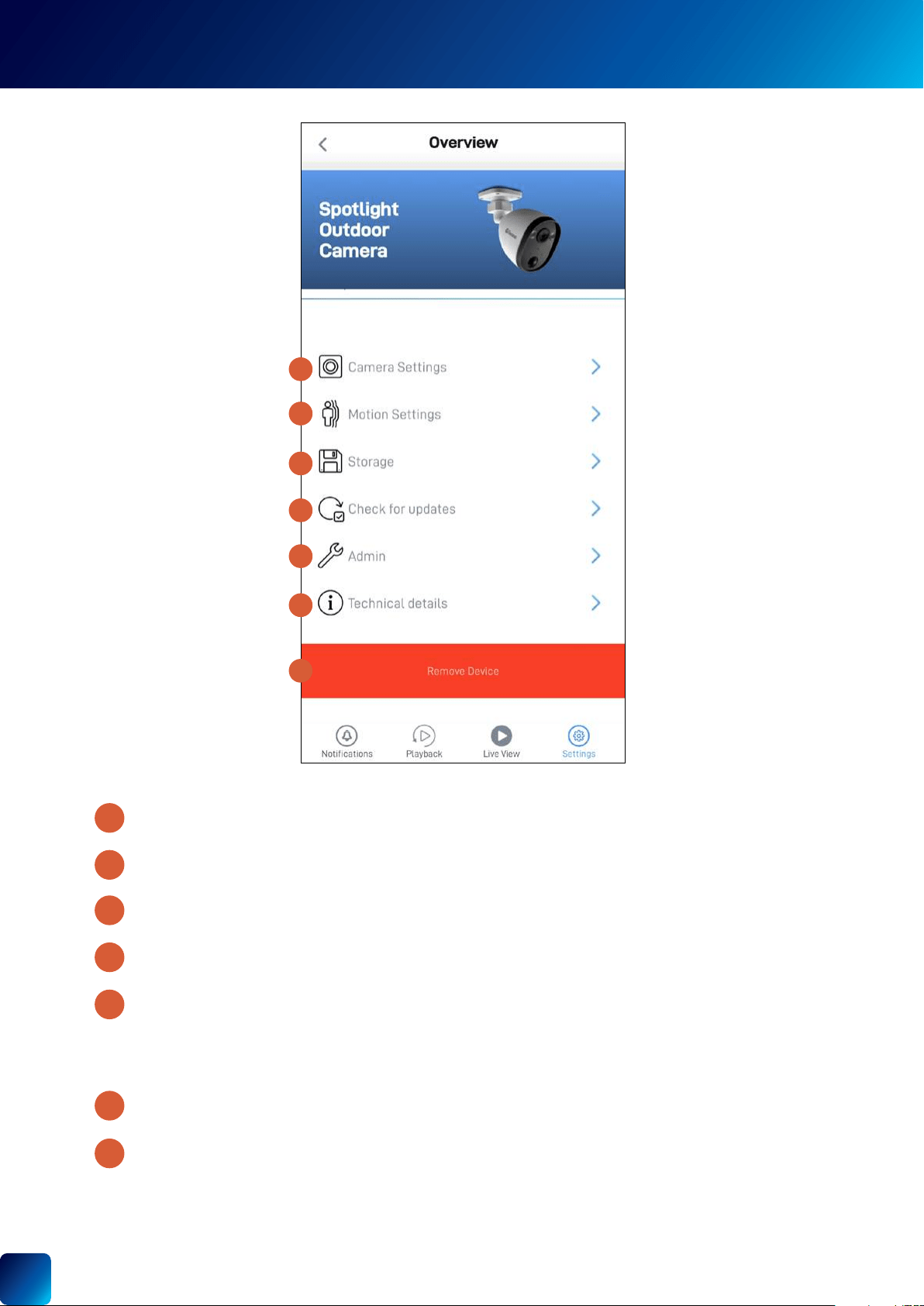
OUTDOOR SECURITY CAMERA - SETTINGS OVERVIEW
OUTDOOR
SECURITY
CAMERA
(SWIFI-
SPOTCAM/
SWWHD-
OUTCAM)
to update it. You can sync the
"Changing the Camera's Wi-Fi Network" on page 55
nearest to it.
Wi-Fi only, or
2
2
2
2
3
5
6
4
1
1
2
3
4
5
6
(Continued on the next page)
NOTE: PRODUCT NAMES AND IMAGES SHOWN MAY DIFFER SLIGHTLY DEPENDING ON YOUR CAMERA MODEL
TIP
Scroll down to view more
camera information and
settings
43
See "Outdoor Security Camera - Motion Settings" on page 45.
"Outdoor Security Camera - Camera Settings" on page 44.
storage, and factory reset.
Note:
settings to factory default. See "Factory Resetting the Camera" on page 56.
Note:
9
10
11
12
13
8
7
OUTDOOR SECURITY CAMERA - SETTINGS OVERVIEW
7
8
9
10
11
12
13
44
1
4
6
5
7
2
3
8
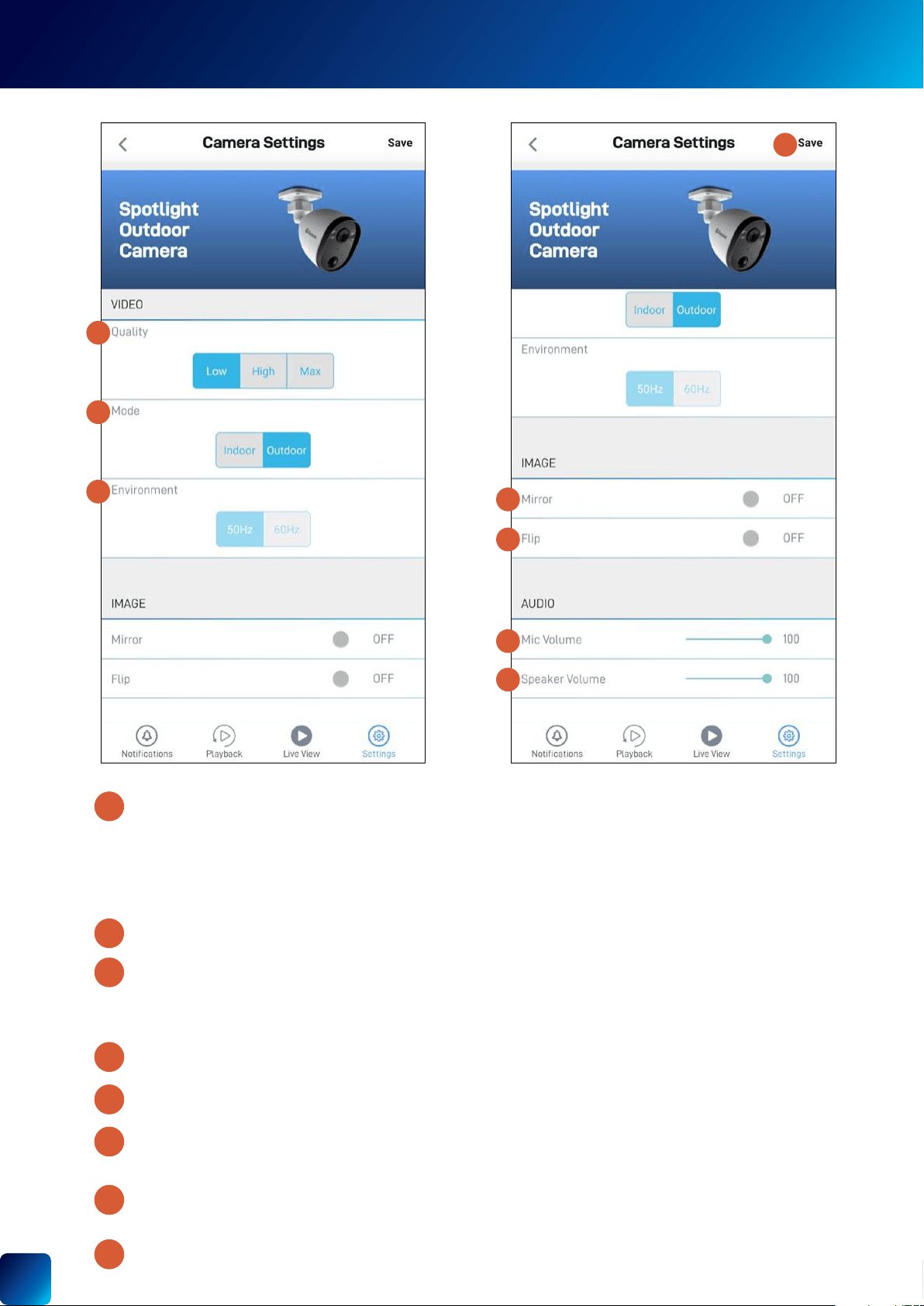
OUTDOOR SECURITY CAMERA - CAMERA SETTINGS
Low
Low
Note:
•
•
(Only for SWIFI-SPOTCAM model)
level will also reduce the sound detection sensitivity.
(Only for SWIFI-SPOTCAM model)
down.
3
2
2
2
4
6
7
8
5
2
1
45
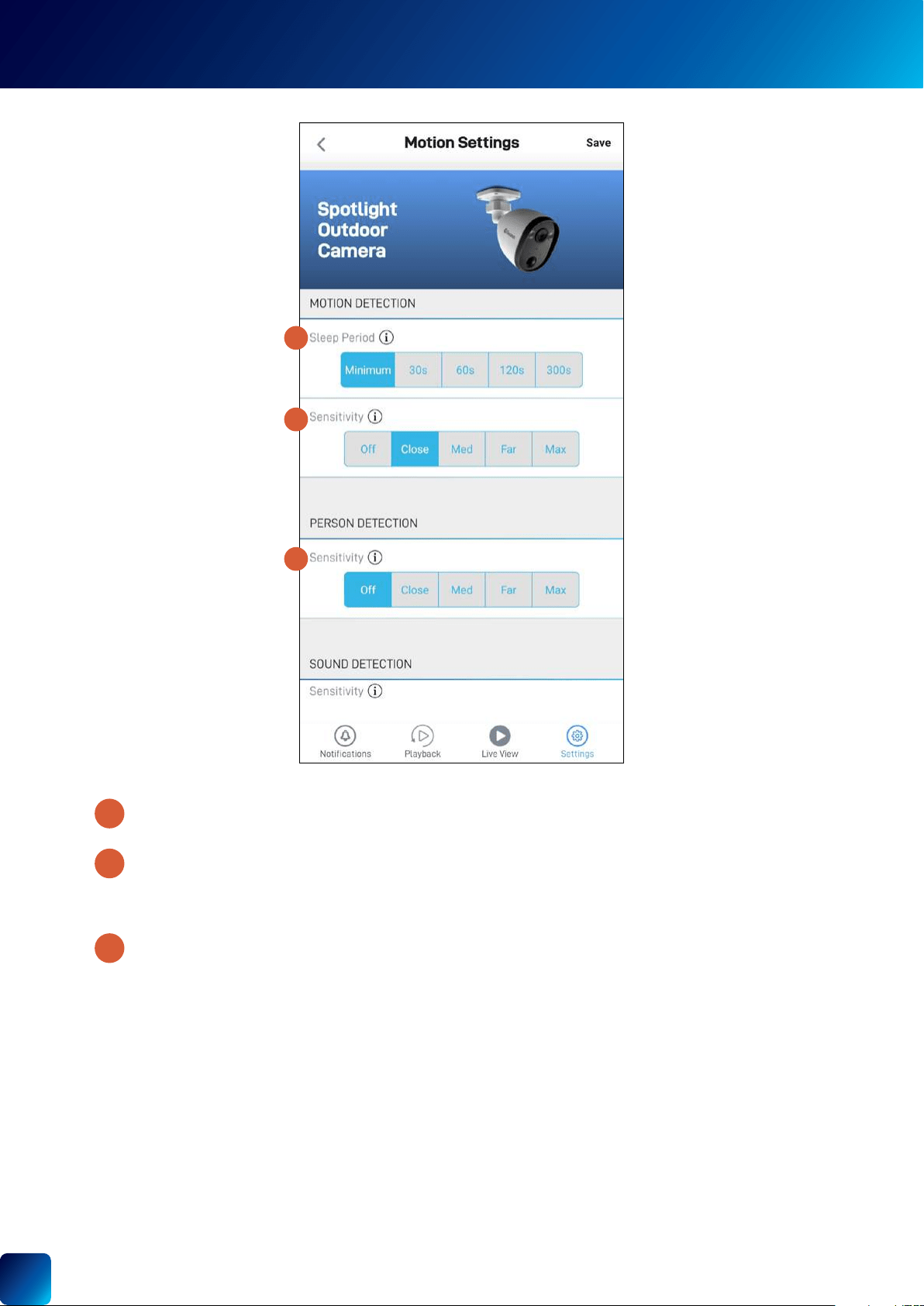
Off
(Only for SWIFI-SPOTCAM model)
Off turns off person
Off.
2
1
3
1
2
3
OUTDOOR SECURITY CAMERA - MOTION SETTINGS
(Continued on the next page)
46
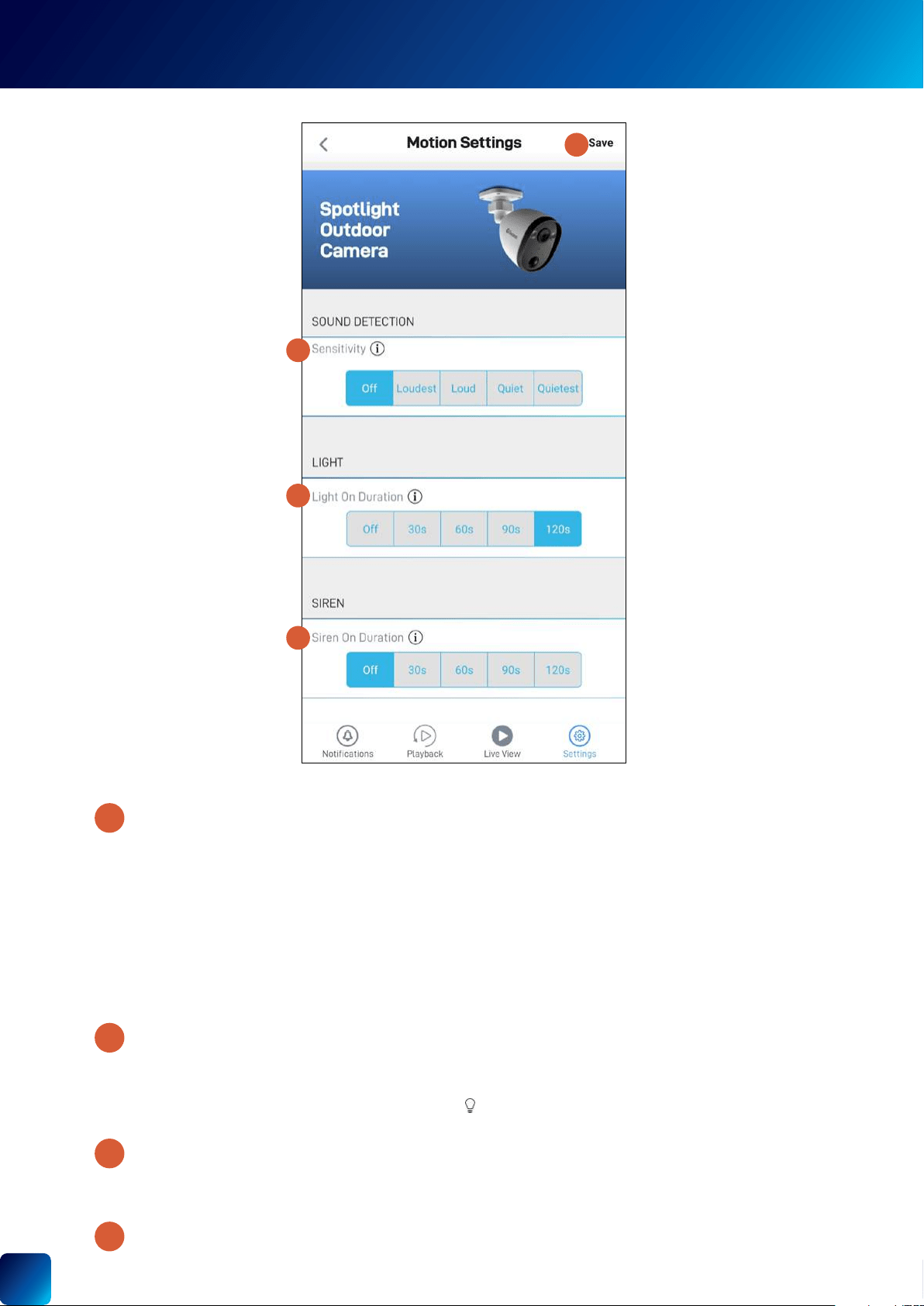
(Only for SWIFI-SPOTCAM model)
detected.
Note:
6
7
4
5
5
6
OUTDOOR SECURITY CAMERA - MOTION SETTINGS
(Only for SWIFI-SPOTCAM model)
Note:
(Only for SWIFI-SPOTCAM model) Select the sound detection sensitivity level needed to trigger recordings.
•
whispers or rustling leaves.
• Loud
•
.
•
• Off.
5
4
47
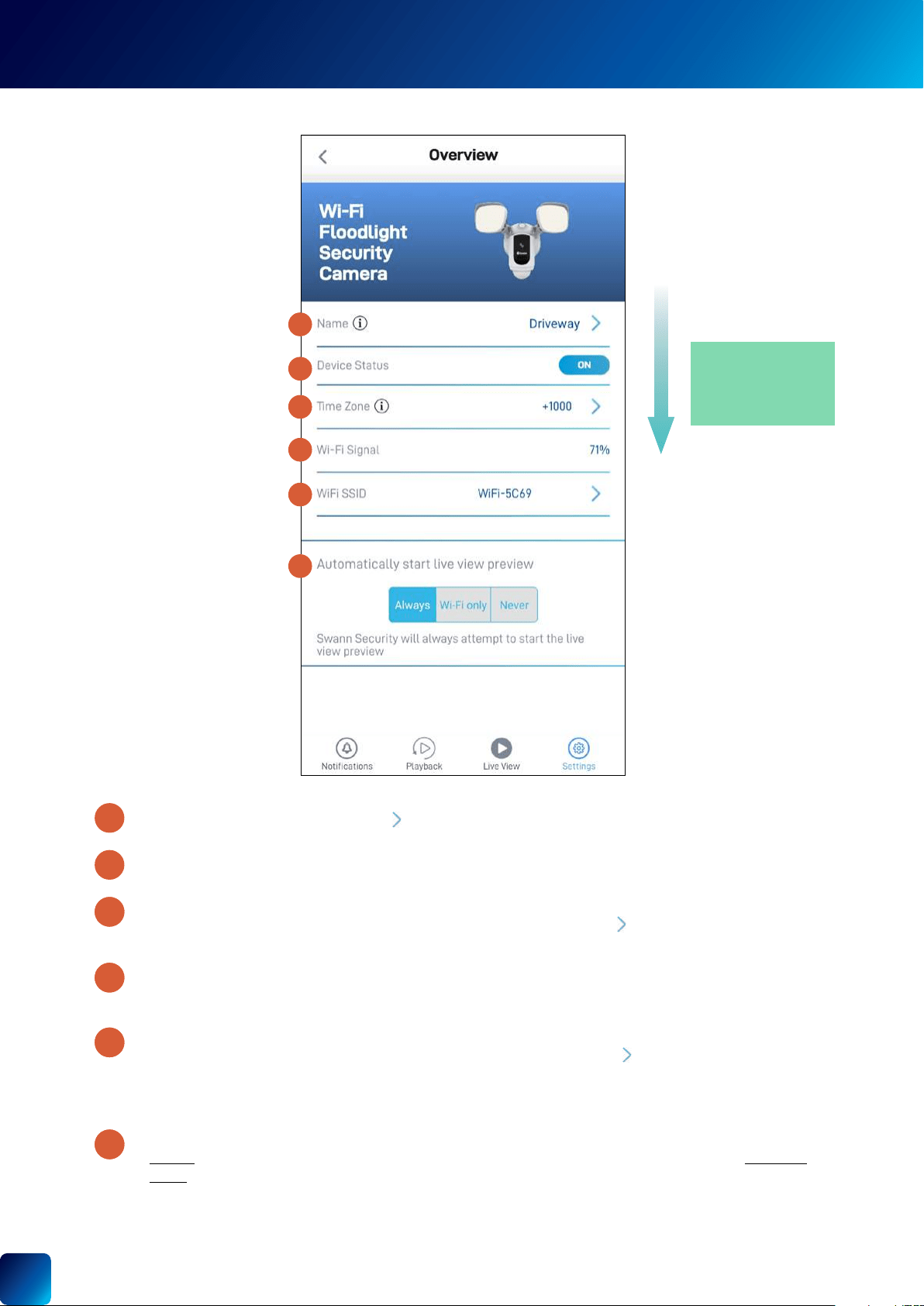
FLOODLIGHT SECURITY CAMERA - SETTINGS OVERVIEW
FLOODLIGHT
SECURITY
CAMERA
(SWIFI-
FLOCAM/
SWWHD-
FLOCAM)
1
2
3
4
5
6
to change it.
to update it. You can sync the
"Changing the Camera's Wi-Fi Network" on page 55
nearest to it.
Wi-Fi only, or
2
2
2
2
3
5
6
4
1
(Continued on the next page)
NOTE: PRODUCT NAMES AND IMAGES SHOWN MAY DIFFER SLIGHTLY DEPENDING ON YOUR CAMERA MODEL
TIP
Scroll down to view more
camera information and
settings
48
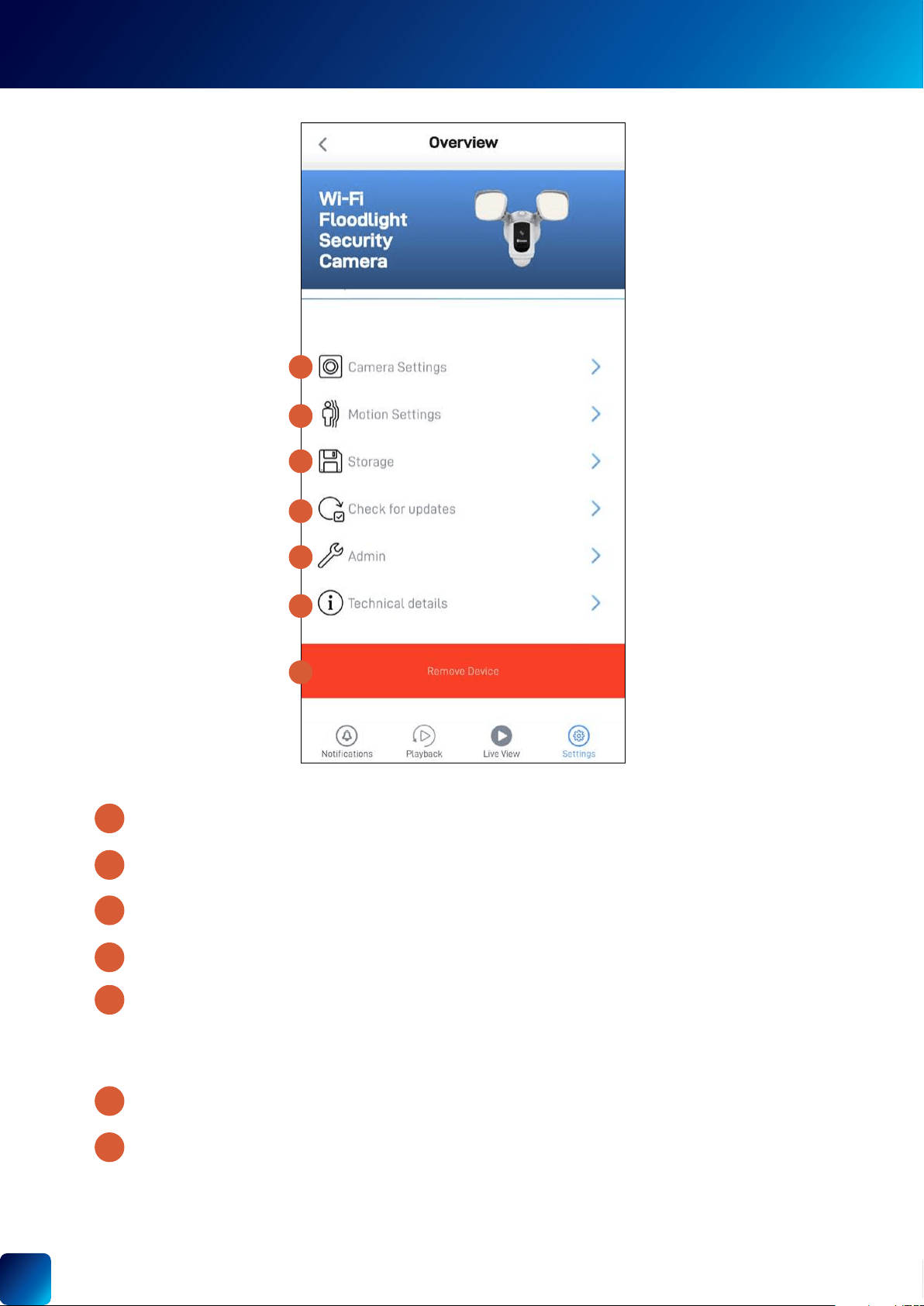
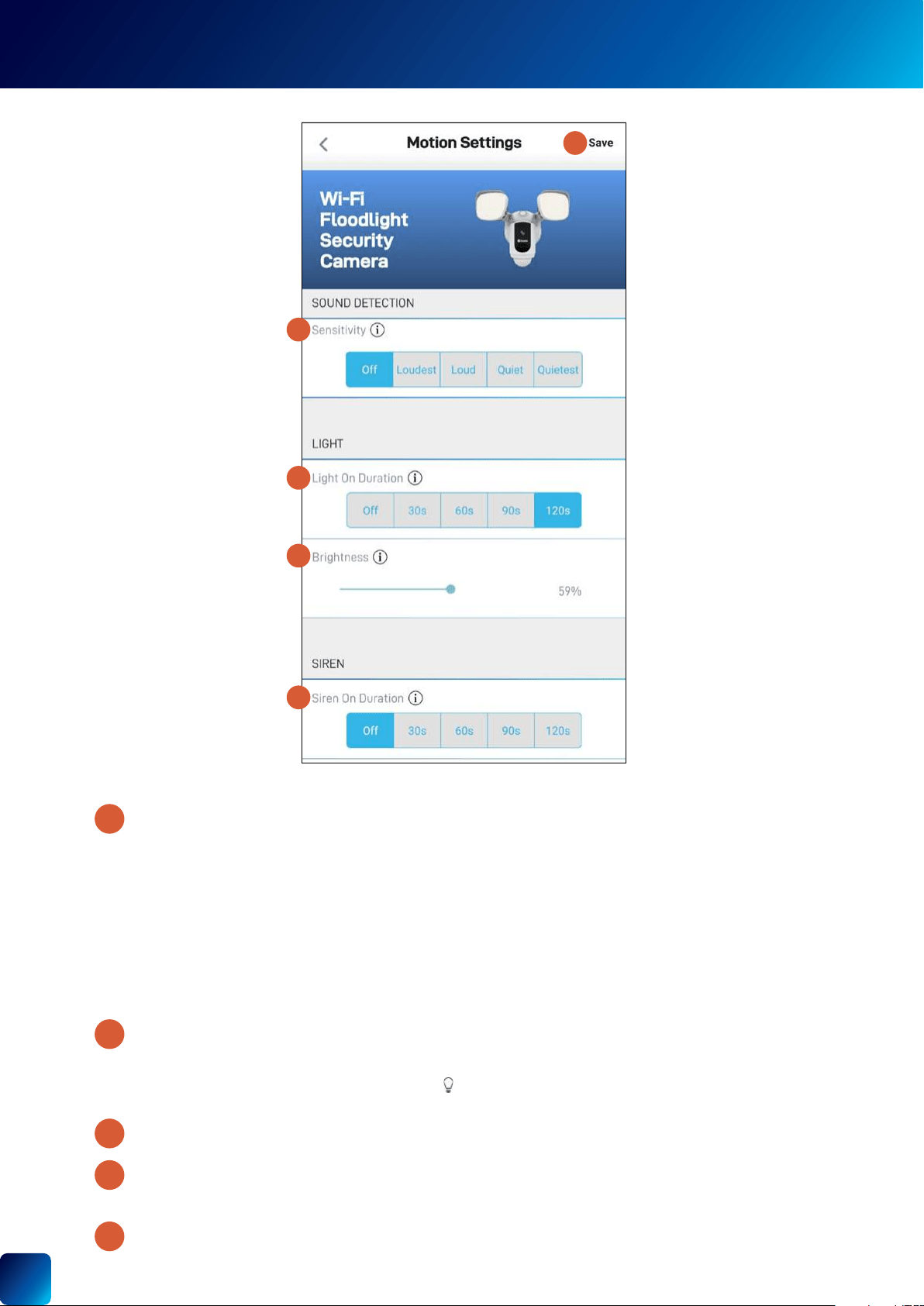
and duration. See "Floodlight Security Camera - Motion Settings" on page 50.
"Floodlight Security Camera - Camera Settings" on page 49.
storage, and factory reset.
Note:
settings to factory default. See "Factory Resetting the Camera" on page 56.
Note:
9
10
11
12
13
8
7
FLOODLIGHT SECURITY CAMERA - SETTINGS OVERVIEW
7
8
9
10
11
12
13
49
1
4
6
5
7
8
2
3
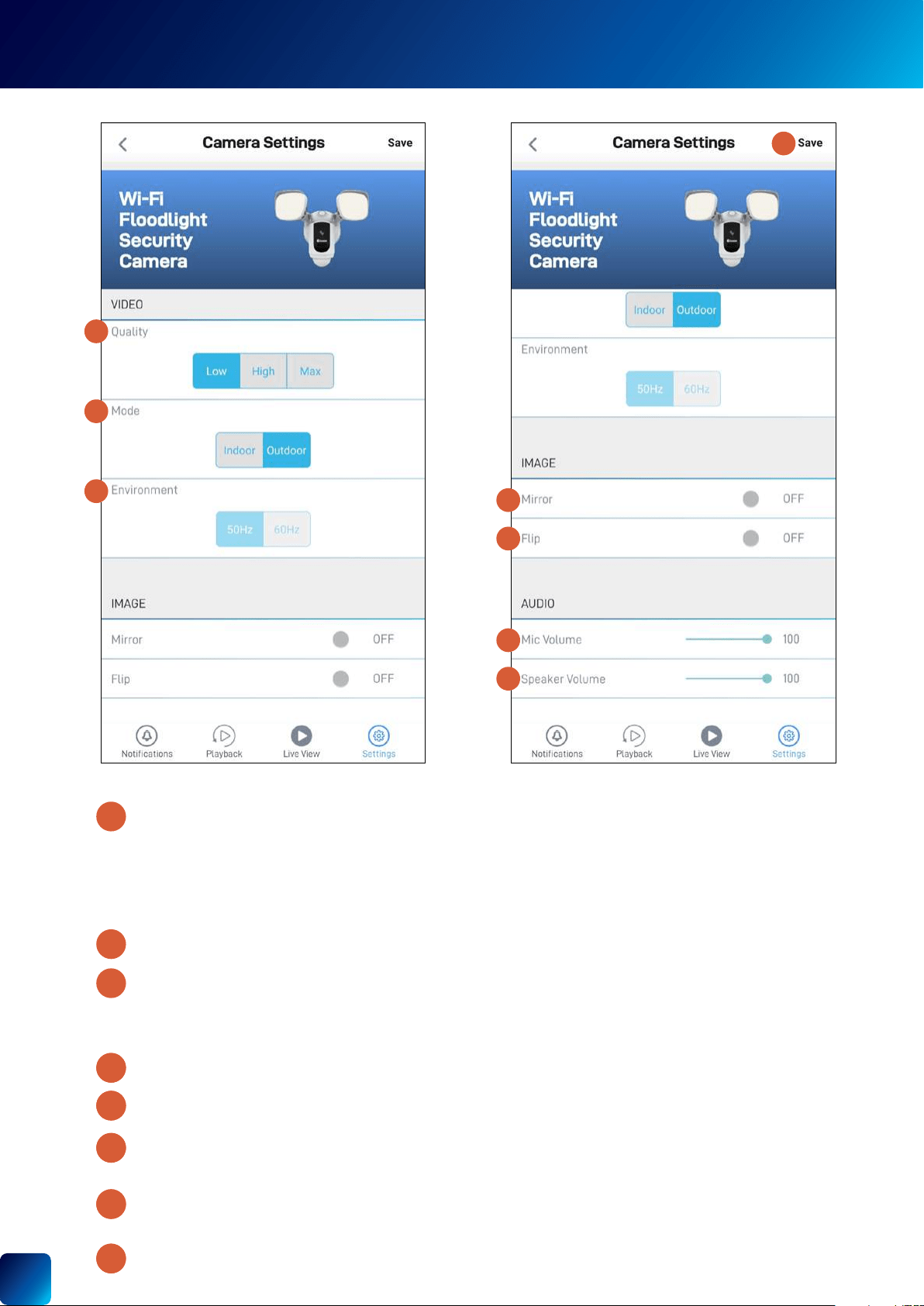
FLOODLIGHT SECURITY CAMERA - CAMERA SETTINGS
Low
Low
Note:
•
•
detection sensitivity.
in siren.
down.
3
2
2
2
4
6
7
8
5
2
1
50
Off
1
2
1
2
3
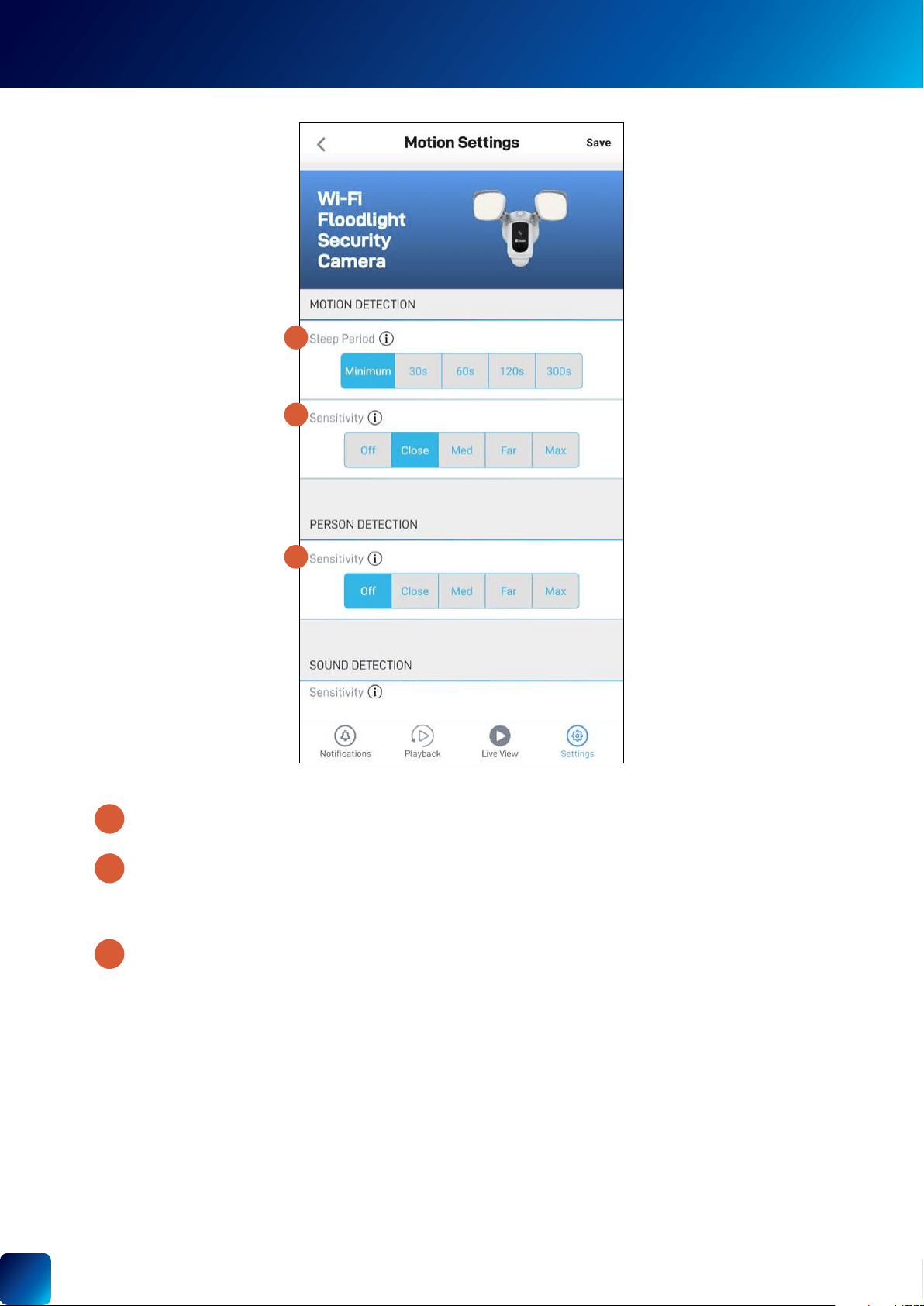
FLOODLIGHT SECURITY CAMERA - MOTION SETTINGS
(Only for SWIFI-FLOCAM model)
Off turns off person
Off.
3
(Continued on the next page)
51
Note:
7
6
8
4
5
6
7
8
FLOODLIGHT SECURITY CAMERA - MOTION SETTINGS
Note:
screen.
(Only for SWIFI-FLOCAM model) Select the sound detection sensitivity level needed to trigger recordings.
•
whispers or rustling leaves.
• Loud
•
.
•
• Off.
5
4

Appendix
53
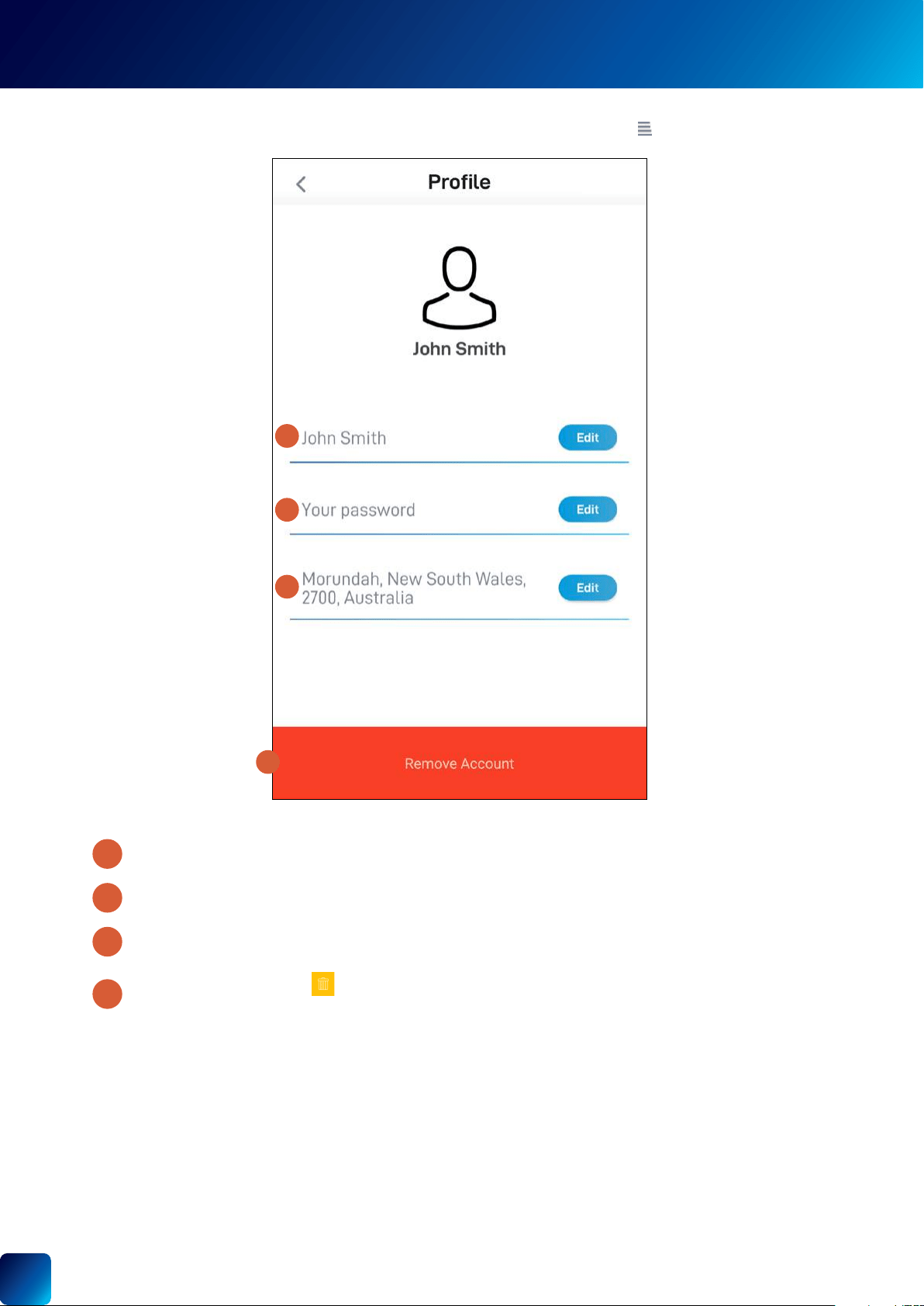
UPDATING YOUR ACCOUNT PROFILE
Tap the Edit
Tap the Edit
Tap the Edit
Swipe left and tap the Bin
1
2
3
4
1
2
4
3
You can update your Swann Security account profile information at any time. Tap Menu > Profile.
54
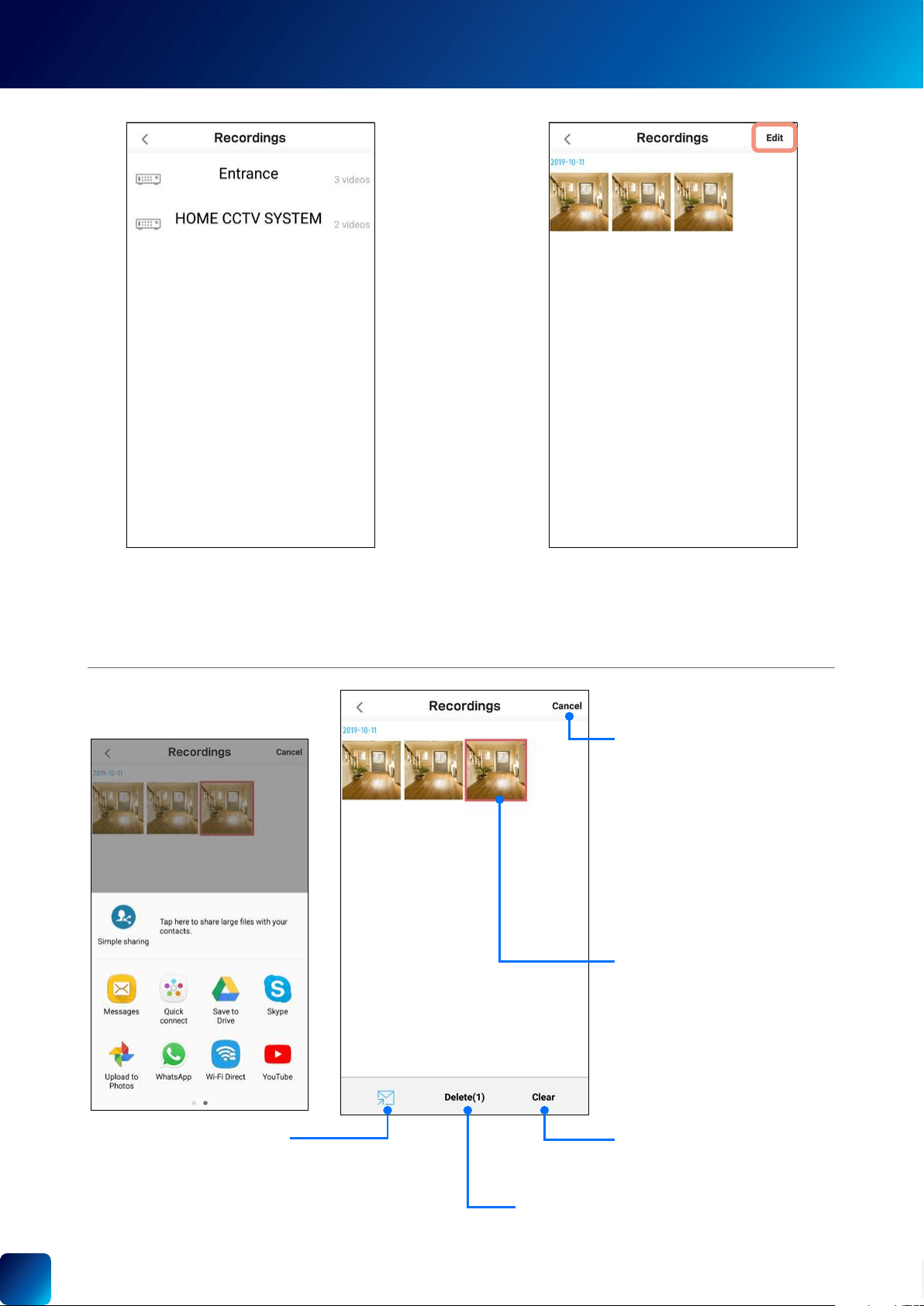
VIEWING AND MANAGING MANUAL RECORDINGS
Menu > Recordings
select your device.
Note: Only devices that contain clips which you
shown.
Tap to share selected
the recording.
Tap to select and delete all recordings.
Tap to deselect all recordings.
Edit.
55
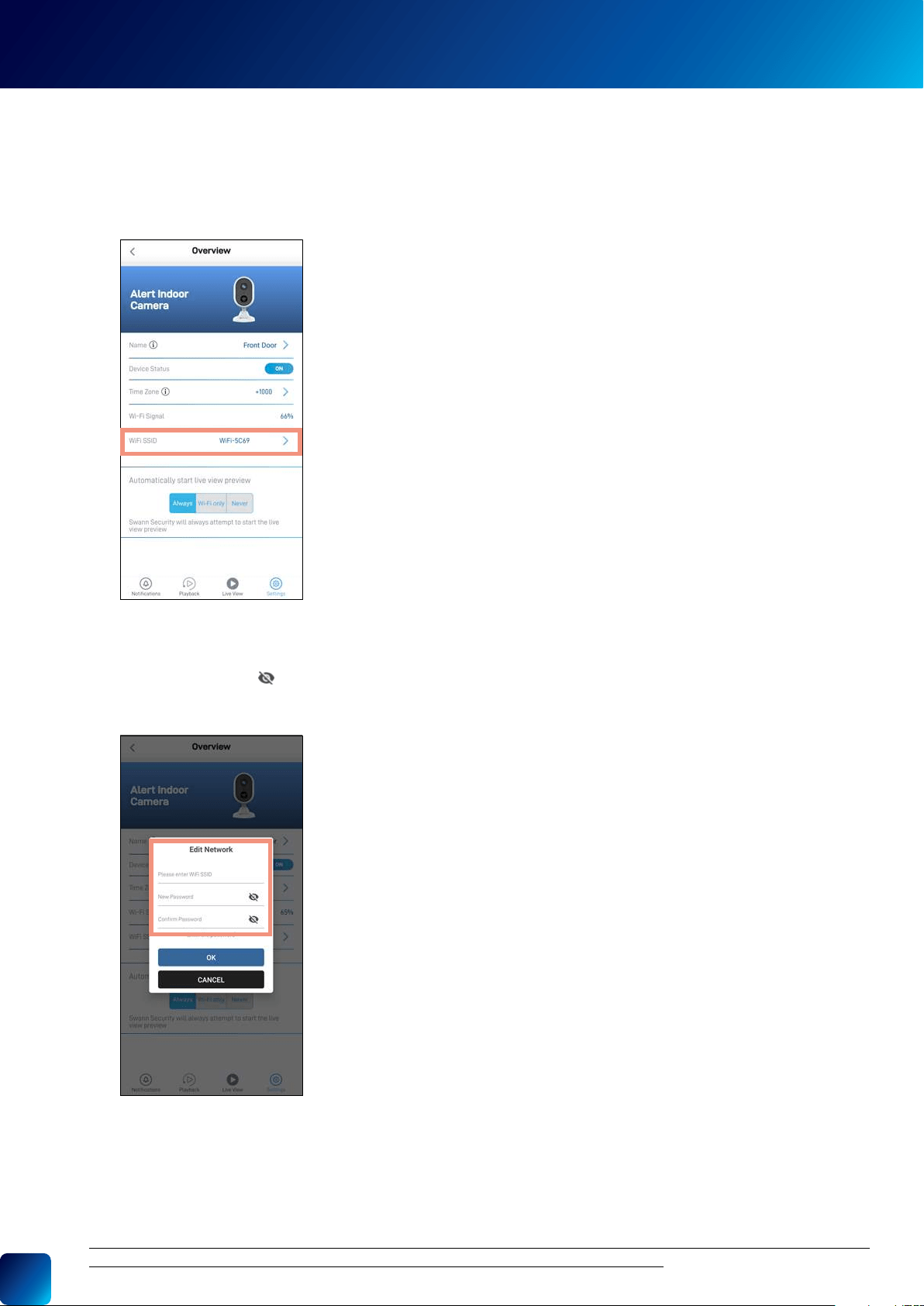
CHANGING THE CAMERA'S WI-FI NETWORK
or .
1. Settings > WiFi SSID.
Menu > Pair Device
2.
access point. Toggle
3. Tap the OK
A If the camera is currently connected to Wi-Fi
B If the camera is not currently connected to Wi-Fi
56
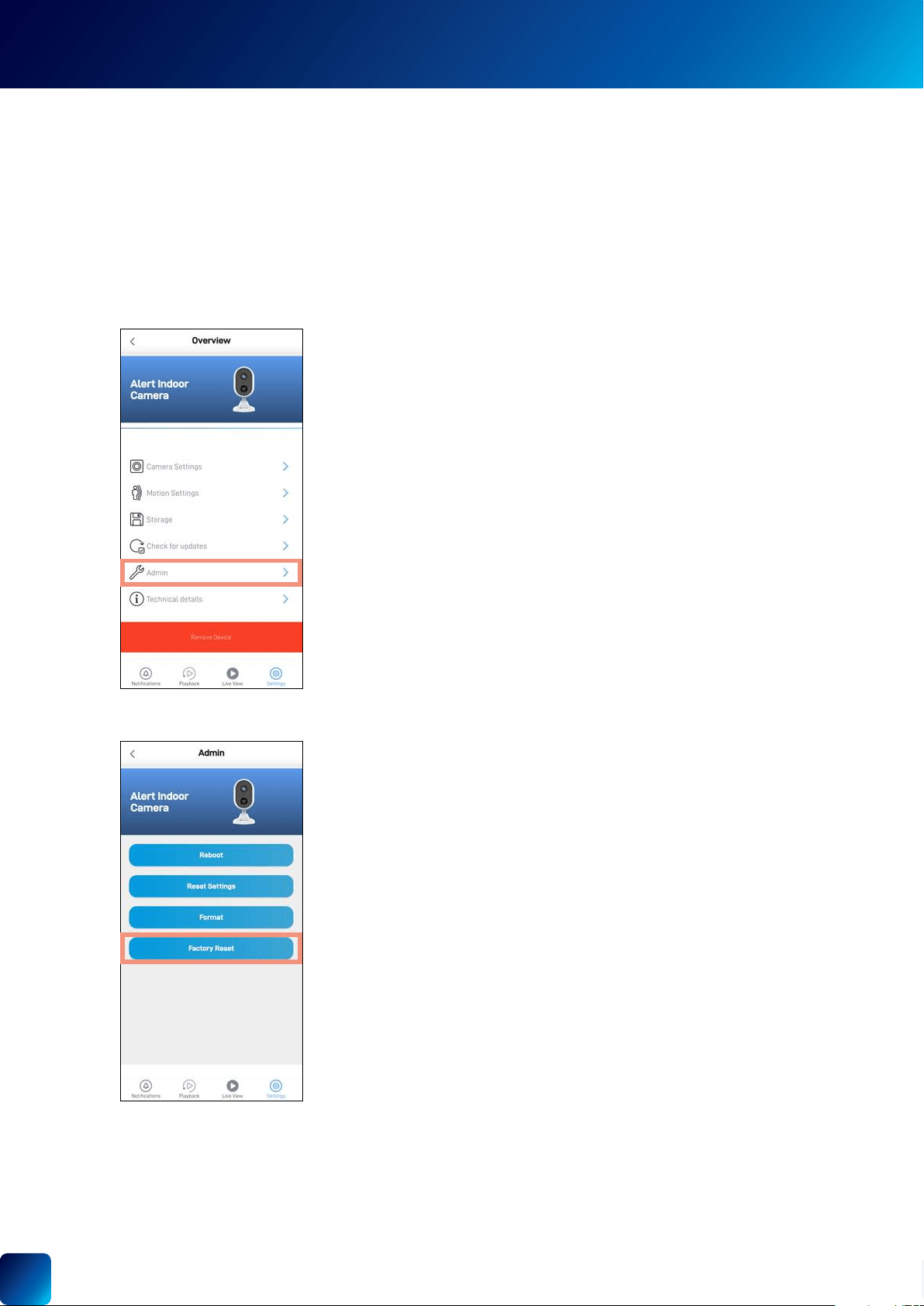
FACTORY RESETTING THE CAMERA
Note:
or .
1. Settings > Admin.
A If the camera is currently connected to Wi-Fi
2. Tap the Factory Reset
57
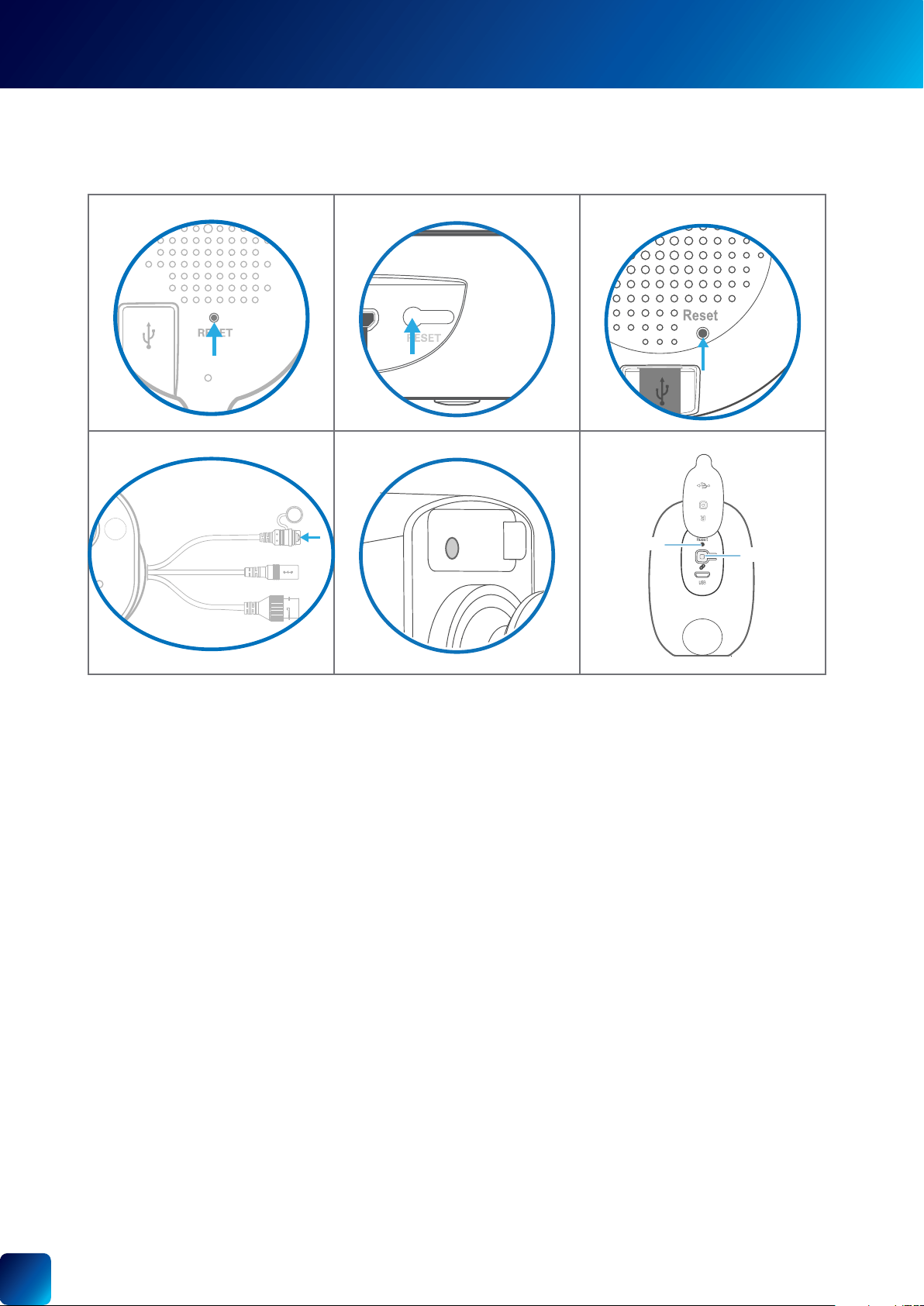
FACTORY RESETTING THE CAMERA
B If the camera is not currently connected to Wi-Fi
1. Locate the ResetPair
charged.
2a. For Indoor/Outdoor/Floodlight/Pan Tilt/Tracker Camera
Press and hold the Reset
For SWWHD-INTCAM Smart Security Camera
Press and hold the Reset and PairReset
only the PairPair
Indoor Security Camera Security Pan Tilt Camera
Security Tracker Camera
Outdoor Security Camera Floodlight Security Camera Smart Security Camera
58
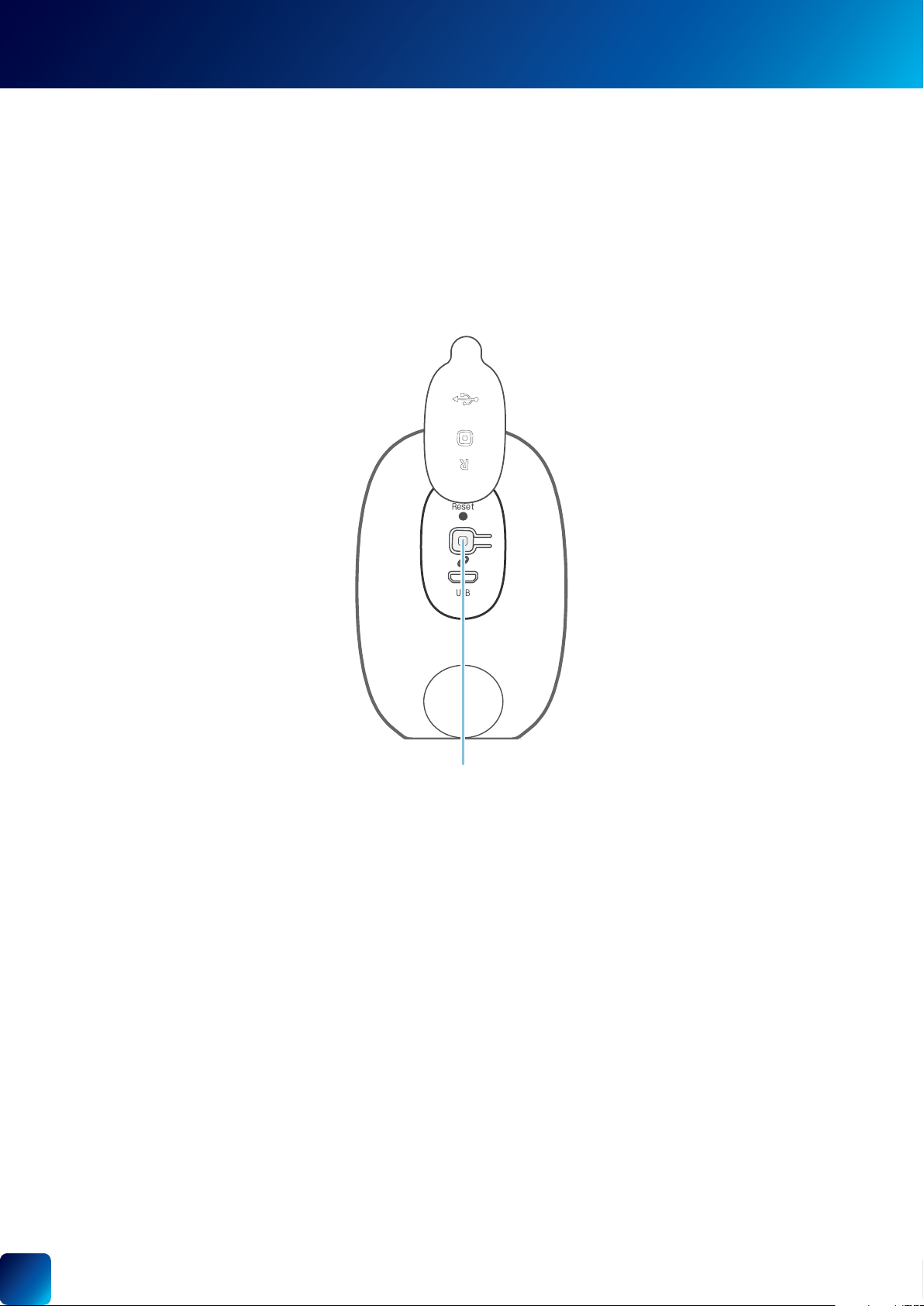
TURNING OFF THE CAMERA
To turn your camera off:
• Press and hold the Pair
To turn your camera on again:
• Press the Pair
Note: The following instructions are applicable to the SWWHD-INTCAM Smart Security Camera only
Swann Smart Security Camera
(SWWHD-INTCAM)

59
I have forgotten my Swann Security account password. How do I reset it?
Can I access my devices with another phone?
Can I register my devices to another Swann Security account?
Where is my device's ID?
device.
>
Where can I nd the snapshots and recordings taken using the app?
Menu > Recordings section of the app.
How do I get alerts on my phone?
toggle in the
Will I be able to stream live video if I'm travelling overseas?
Why is the live video stream slow to load?
•
speedtest.net
•
•
Why have I stopped receiving notications on my phone?
•
open the Swann Security app again.
•
> > on your phone for the Swann Security app so that
FAQS: GENERAL

60
FAQS: WI-FI CAMERAS
I cannot connect the camera to my Wi-Fi network. How do I x this?
•
•
•
•
•
•
•
Can I use my camera without an internet connection?
Why is my camera ofine?
Why am I getting false motion alerts?
Can my camera still record events if my internet connection goes down?
Settings > Storage.
If I set my camera's live view quality to Low, will it also affect the video quality of event clips?
(Continued on the next page)

61
(For Battery-powered cameras) What can I do to maximize the battery performance on my camera?
•
•
•
•
•
reception where it is located.
•
(For Wi-Fi camera models with cloud storage feature) How far back can I access my camera's cloud recordings?
Note: Please check the product specications to nd out if the cloud storage feature is available on your camera.
Playback
Can I disable the siren so it doesn’t sound when my camera is triggered?
Settings > Motion Settings, and under the Siren setting, select OFF.
How long is a camera event clip?
How long does it take for camera recordings to appear on the Playback tab?
recorded.
Why doesn't the camera event clip have sound?
(For SWIFI Pan Tilt Camera/Tracker Camera) Can my camera record events without a microSD card installed?
(For SWIFI Pan Tilt Camera/Tracker Camera) Why has my camera stopped recording events to the microSD card?
Settings > Admin and tap Reboot.
(For SWIFI Pan Tilt Camera/Tracker Camera) What is the maximum microSD card size that can be used?
FAQS: WI-FI CAMERAS

62
© 2020 Swann Communications
Swann Security Application Version: 1.9.11
The content in this manual is for information purposes only and is subject to change without notice. While
every effort is made to ensure that this manual is accurate and complete at the time of publication, no liability
is assumed for any errors and omissions that may have occurred. For the latest version of this user manual,
please visit: support.swann.com
Google, Android, and Google Play are trademarks of Google Inc.