Black plate (1,1)
Owner’s Manual
Manual de instrucciones
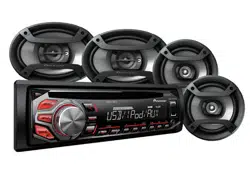
4 SPEAKER CAR AUDIO SYSYTEM PACKAGE
CD RECEIVER WITH DIRECT iPod AND iPhone CONTROL
TWO 6-1/2" 2-WAY SPEAKERS AND TWO 6" × 9" 3-WAY SPEAKERS
PAQUETE DE SISTEMA DE AUDIO PARA AUTOMÓVIL DE 4 ALTAVOCES
RECEPTOR DE CD CON DIRECTA iPod Y iPhone CONTROL,
DOS 6-1/2" ALTAVOCES DE 2 VÍAS Y DOS ALTAVOCES DE 3 VÍAS DE 6" × 9"
DXT-X2669UI
Important (Serial number)
The serial number is located on the bottom of this unit. For your own security and
convenience, be sure to record this number on the enclosed warranty card.
Importante (Número de serie)
El número de serie se encuentra en la parte inferior de esta unidad. Por su
propia seguridad y comodidad, asegúrese de anotar este número en la tarjeta de
garantía que se adjunta.
<QRD3234-A>1
English Español

Black plate (2,1)
Thank you for purchasing this PIONEER
product
To ensure proper use, please read through this
manual before using this product. It is especially
important that you read and observe WARN-
INGs and CAUTIONs in this manual. Please
keep the manual in a safe and accessible place for
future reference.
This device complies with Part 15 of the FCC
Rules. Operation is subject to the following
two conditions:
(1) this device may not cause harmful interfer-
ence, and (2) this device must accept any in-
terference received, including interference
that may cause undesired operation.
Information to User
Alteration or modifications carried out with-
out appropriate authorization may invalidate
the user’s right to operate the equipment.
Note
This equipment has been tested and found
to comply with the limits for a Class B digital
device, pursuant to Part 15 of the FCC Rules.
These limits are designed to provide reason-
able protection against harmful interference
in a residential installation. This equipment
generates, uses and can radiate radio fre-
quency energy and, if not installed and used
in accordance with the instructions, may
cause harmful interference to radio commu-
nications. However, there is no guarantee
that interference will not occur in a particu-
lar installation. If this equipment does cause
harmful interference to radio or television re-
ception, which can be determined by turning
the equipment off and on, the user is encour-
aged to try to correct the interference by one
or more of the following measures:
- Reorient or relocate the receiving antenna.
- Increase the separation between the equip-
ment and receiver.
- Connect the equipment into an outlet on a
circuit different from that to which the re-
ceiver is connected.
- Consult the dealer or an experienced radio/
TV technician for help.
The Safety of Your Ears is in
Your Hands
Get the most out of your equipment by playing it
at a safe level—a level that lets the sound come
through clearly without annoying blaring or dis-
tortion and, most importantly, without affecting
your sensitive hearing. Sound can be deceiving.
Over time, your hearing “comfort level” adapts to
higher volumes of sound, so what sounds “nor-
mal” can actually be loud and harmful to your
hearing. Guard against this by setting your
equipment at a safe level BEFORE your hearing
adapts.
ESTABLISH A SAFE LEVEL:
! Set your volume control at a low setting.
! Slowly increase the sound until you can hear
it comfortably and clearly, without distortion.
! Once you have established a comfortable
sound level, set the dial and leave it there.
BE SURE TO OBSERVE THE
FOLLOWING GUIDELINES:
! Do not turn up the volume so high that you
can’t hear what’s around you.
! Use caution or temporarily discontinue use
in potentially hazardous situations.
! Do not use headphones while operating a
motorized vehicle; the use of headphones
may create a traffic hazard and is illegal in
many areas.
About this unit
The tuner frequencies on this unit are allocated
for use in North America. Use in other areas
may result in poor reception.
WARNING
! Do not attempt to install or service this
product by yourself. Installation or serv-
icing of this product by persons without
training and experience in electronic
equipment and automotive accessories
may be dangerous and could expose you
to the risk of electric shock, injury or
other hazards.
! Do not attempt to operate the unit while driv-
ing. Make sure to pull off the road and park
your vehicle in a safe location before at-
tempting to use the controls on the device.
! Handling the cord on this product or cords
associated with accessories sold with the
product may expose you to chemicals listed
on proposition 65 known to the State of Cali-
fornia and other governmental entities to
cause cancer and birth defect or other repro-
ductive harm. Wash hands after handling.
CAUTION:
USE OF CONTROL OR ADJUSTMENT OR
PERFORMANCE OF PROCEDURES
OTHER THAN THOSE SPECIFIED HEREIN
MAY RESULT IN HAZARDOUS RADIATION
EXPOSURE.
CAUTION:
THE USE OF OPTICAL INSTRUMENTS
WITH THIS PRODUCT WILL INCREASE
EYE HAZARD.
CAUTION
! Do not allow this unit to come into contact
with liquids. Electrical shock could result.
Also, damage to this unit, smoke, and over-
heating could result from contact with
liquids.
! Always keep the volume low enough to hear
outside sounds.
! Avoid exposure to moisture.
CAUTION
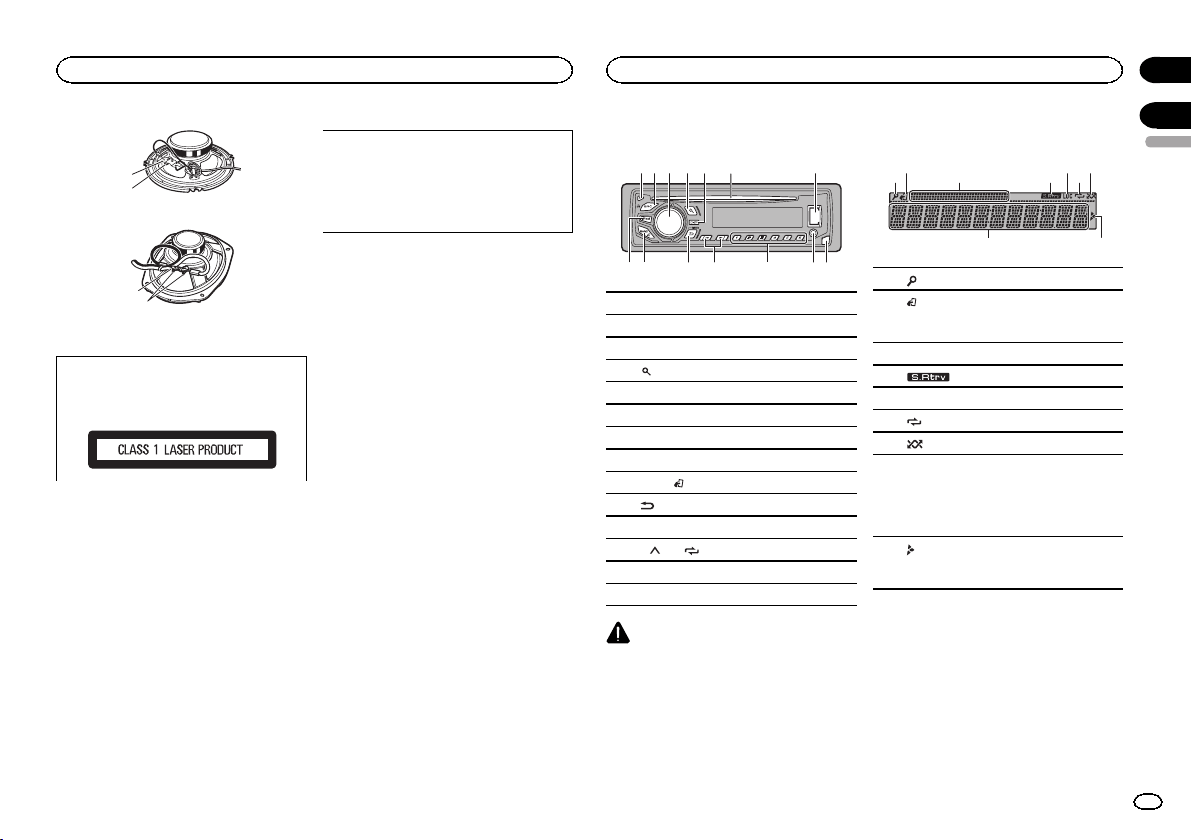
1 Do not touch the speaker flexible wire 1.
2 Do not change the direction of the speaker termi-
nal assembly 2.
3 Make sure lead and speaker terminals do not
contact metal.
4 When making connections, refer also to the in-
struction manual of the car stereo used.
Before you start
2
Section
Before you start
En
01
<QRD3234-A>2
Black plate (3,1)
1
2
16 cm 2-way speakers
1
2
6” ×9” 3-way speakers
CAUTION
This product is a class 1 laser product classi-
fied under the Safety of laser products, IEC
60825-1:2007.
After-sales service for
Pioneer products
Please contact the dealer or distributor from
where you purchased this unit for after-sales
service (including warranty conditions) or any
other information. In case the necessary infor-
mation is not available, please contact the com-
panies listed below:
Please do not ship your unit to the companies at
the addresses listed below for repair without ad-
vance contact.
U.S.A.
Pioneer Electronics (USA) Inc.
CUSTOMER SUPPORT DIVISION
P.O. Box 1760
Long Beach, CA 90801-1760
800-421-1404
For warranty information please see the Limited
Warranty sheet included with this unit.
If you experience problems
Should this unit fail to work properly, please con-
tact your dealer or nearest authorized PIONEER
Service Station.
Head unit
71 4 6
3
2
9
a de
8
5
c
b
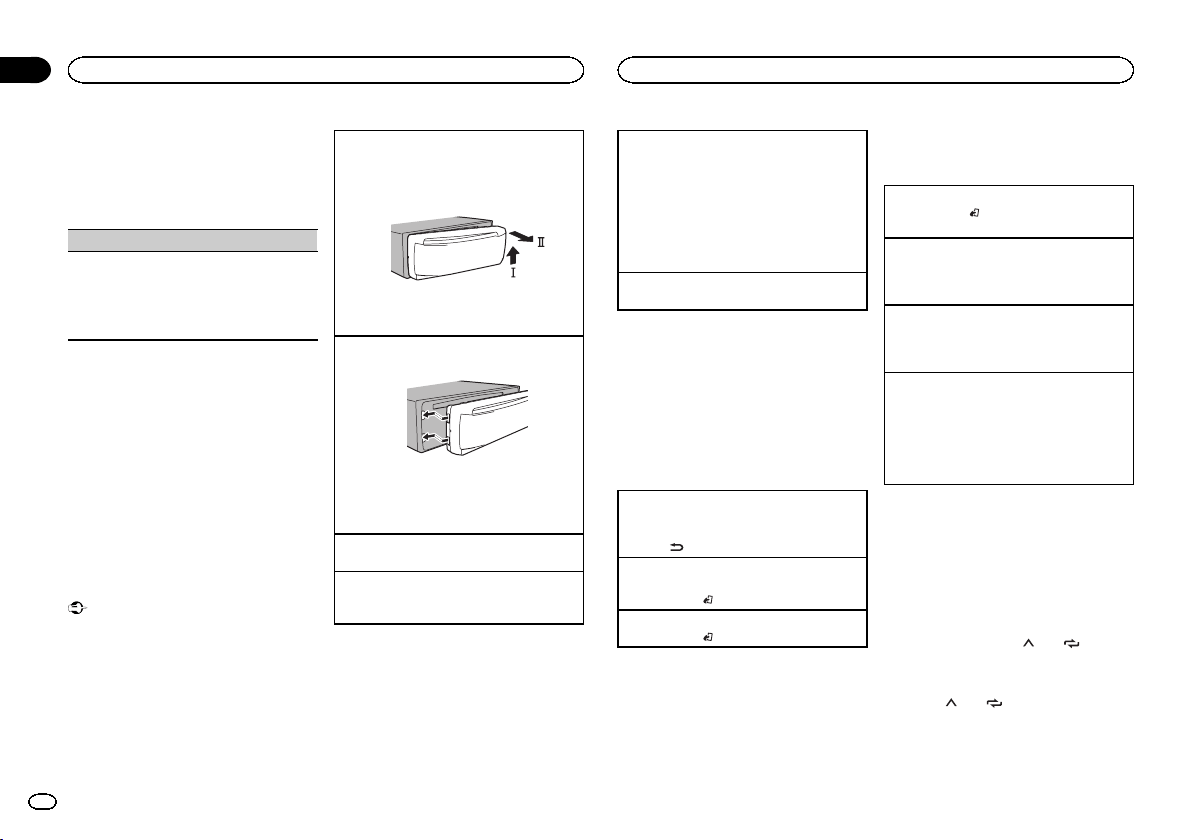
1 h (eject)
2 SRC/OFF
3 MULTI-CONTROL (M.C.)
4
(list)
5 DISP
6 Disc loading slot
7 USB port
8 iPod
9 BAND/
(iPod control)
a
(back)/DIMMER (dimmer)
b c/d
c 1/
to 6/
d AUX input jack (3.5 mm stereo jack)
e Detach button
CAUTION
Use an optional Pioneer USB cable (CD-U50E)
to connect the USB storage device as any device
connected directly to the unit will protrude out
from the unit, which could be dangerous.
Display indication
31 64
98
2 5 7
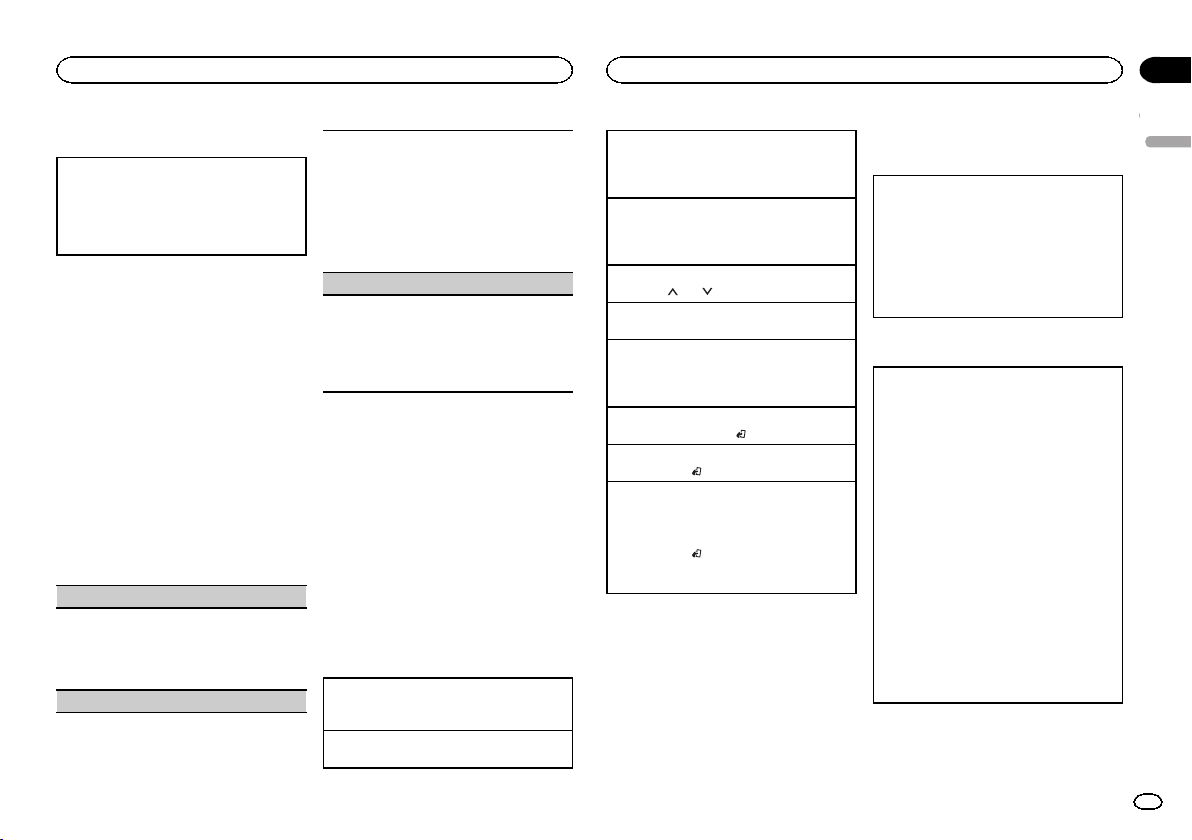
1 (list)
2
(iPod control)
This unit’s iPod function is operated from
your iPod.
3 Sub information section
4
(sound retriever)
5 LOC (local seek tuning)
6
(repeat)
7
(random/shuffle)
8
Main information section
! Tuner: band and frequency
! CD player, USB storage device and iPod:
elapsed playback time and text informa-
tion
9
Appears when a lower tier of folder or menu
exists.
Set up menu
1 After installation of this unit, turn the
ignition switch to ON.
SET UP appears.
2 Turn M.C. to switch to YES.
# If you do not use the unit for 30 seconds, the set
up menu will not be displayed.
# If you prefer not to set up at this time, turn M.C.
to switch to NO.
English
Before you start
3
Section
Using this unit
En
01
02
<QRD3234-A>3
Black plate (4,1)
3 Press M.C. to select.
4 Complete the procedure outlined below
to set the menu.
To proceed to the next menu option, you need to
confirm your selection.
CLOCK SET (setting the clock)
1 Turn M.C. to adjust hour.
2 Press M.C. to select minute.
3 Turn M.C. to adjust minute.
4 Press M.C. to confirm the selection.
QUIT appears.
5 To finish your settings, turn M.C. to select
YES.
# If you prefer to change your setting again, turn
M.C. to switch to NO.
6 Press M.C. to select.
Notes
! You can set up the menu options from the
system menu. For details about the settings,
refer to System menu on page 10.
! You can cancel set up menu by pressing
SRC/OFF.
Basic operations
Important
! Handle the front panel with care when re-
moving or attaching it.
! Avoid subjecting the front panel to excessive
shock.
! Keep the front panel out of direct sunlight
and high temperatures.
! To avoid damaging the device or vehicle inte-
rior, remove any cables and devices attached
to the front panel before detaching it.
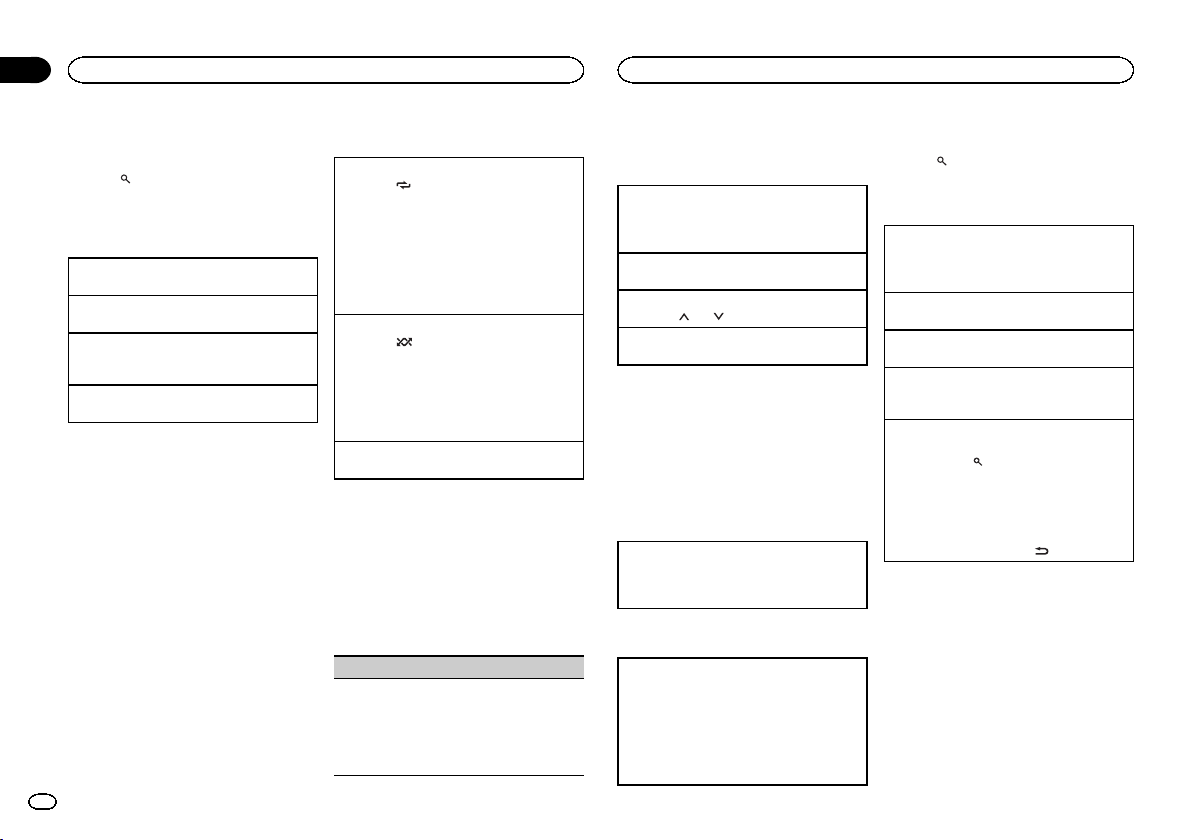
Removing the front panel
1 Press the detach button to release the front
panel.
2 Push the front panel upward (M) and then pull
it toward (N) you.
3 Always store the detached front panel in a pro-
tective case or bag.
Re-attaching the front panel
1 Slide the front panel to the left.
2 Press the right side of the front panel until it is
firmly seated.
Forcing the front panel into place may result in
damage to the front panel or head unit.
Turning the unit on
1 Press SRC/OFF to turn the unit on.
Turning the unit off
1 Press and hold SRC/OFF until the unit turns
off.
Selecting a source
1 Press SRC/OFF to cycle between:
RADIO—CD—USB/iPod—PANDORA—APP
(application)—AUX
! USB MTP displays while the MTP connection
is in use.
! When there is an iPod connected and a source
other than iPod is selected, you can switch to
iPod by pressing iPod.
Adjusting the volume
1 Turn M.C. to adjust the volume.
Note
When this unit’s blue/white lead is connected to
the vehicle’s auto-antenna relay control termi-
nal, the vehicle’s antenna extends when this
unit’s source is turned on. To retract the anten-
na, turn the source off.
Frequently used menu
operations
Returning to the previous display
Returning to the previous list (the folder one level
higher)
1 Press
/DIMMER.
Returning to the ordinary display
Canceling the main menu
1 Press BAND/
.
Returning to the ordinary display from the list
1 Press BAND/
.
Radio
Basic operations
Selecting a band
1 Press BAND/
until the desired band (FM1,
FM2, FM3 for FM or AM) is displayed.
Switching preset stations
1 Press c or d.
! Select PCH (preset channel) under SEEK to
use this function.
Manual tuning (step by step)
1 Press c or d.
! Select MAN (manual tuning) under SEEK to
use this function.
Seeking
1 Press and hold c or d, and then release.
You can cancel seek tuning by briefly pressing
c or d.
While pressing and holding c or d, you can
skip stations. Seek tuning starts as soon as
you release c or d.
Note
For details about SEEK, refer to SEEK (left/right
key setting) on page 5.
Storing and recalling stations
for each band
Using preset tuning buttons
1 To store: Press and hold down one of the
preset tuning buttons (1/
to 6/ ) until
the number stops flashing.
2 To recall: Press one of the preset tuning
buttons (1/
to 6/ ).
Using this unit
4
Section
Using this unit
En
02
<QRD3234-A>4
Black plate (5,1)
Switching the display
Selecting the desired text information
1 Press DISP to cycle between the following:
! FREQUENCY (program service name or
frequency)
! BRDCST INFO (song title/artist name)
! CLOCK (source name and clock)
Notes
! If the program service name cannot be ac-
quired in FREQUENCY, the broadcast fre-
quency is displayed instead. If the program
service name is detected, the program serv-
ice name will be displayed.
! Depending on the band, text information can
be changed.
! Text information items that can be changed
depend on the area.
Function settings
1 Press M.C. to display the main menu.
2 Turn M.C. to change the menu option
and press to select FUNCTION.
3 Turn M.C. to select the function.
Once selected, the following functions can be
adjusted.
BSM (best stations memory)
BSM (best stations memory) automatically stores
the six strongest stations in the order of their sig-
nal strength.
1 Press M.C. to turn BSM on.
To cancel, press M.C. again.
LOCAL (local seek tuning)
Local seek tuning allows you to tune in to only
those radio stations with sufficiently strong sig-
nals for good reception.
1 Press M.C. to select the desired setting.
FM: OFF—LV1—LV2—LV3—LV4
AM: OFF—LV1—LV2
The highest level setting allows reception of
only the strongest stations, while lower levels
allow the reception of weaker stations.
SEEK (left/right key setting)
You can assign a function to the left and right keys
of the unit.
Select MAN (manual tuning) to tune up or down
manually or select PCH (preset channel) to switch
between preset channels.
1 Press M.C. to select MAN or PCH.
CD/CD-R/CD-RW and USB
storage devices
MTP connection
MTP-compatible Android devices (running
Android OS 4.0 or higher) can be connected by
MTP connection using the USB source. To con-
nect an Android device, use the cable that came
with the device.
Notes
! This function is not compatible with MIX-
TRAX.
! This function is not compatible with WAV.
Basic operations
Playing a CD/CD-R/CD-RW
1 Insert the disc into the disc loading slot with
the label side up.
Ejecting a CD/CD-R/CD-RW
1 Press h.
Playing songs on a USB storage device
1 Open the USB port cover.
2 Plug in the USB storage device using a USB
cable.
Stopping playback of files on a USB storage de-
vice
1 You may disconnect the USB storage device at
any time.
Selecting a folder
1 Press 1/
or 2/ .
Selecting a track
1 Press c or d.
Fast forwarding or reversing
1 Press and hold c or d.
! When playing compressed audio, there is no
sound during fast forward or reverse.
Returning to root folder
1 Press and hold BAND/
.
Switching between compressed audio and CD-DA
1 Press BAND/
.
Switching between playback memor y devices
You can switch between playback memory devices
on USB storage devices with more than one Mass
Storage Device-compatible memory device.
1 Press BAND/
.
! You can switch between up to 32 different
memory devices.
Note
Disconnect USB storage devices from the unit
when not in use.
Operations using the MIXTRAX
button
Turning MIXTRAX on or off
You can use this function when USB is selected as
the source.
You cannot use this function with USB MTP.
1 Press 3/MIX to turn MIXTRAX on or off.
! For more details about MIXTRAX, refer to
About MIXTRAX on page 10.
! When MIXTRAX is in use, the sound retriever
function is disabled.
Switching the display
Selecting the desired text information
1 Press DISP to cycle between the following:
CD-DA
! ELAPSED TIME (track number and play-
back time)
! CLOCK (source name and clock)
! SPEANA (spectrum analyzer)
CD-TEXT
! TRACK INFO (track title/track artist/disc
title)
! ELAPSED TIME (track number and play-
back time)
! CLOCK (source name and clock)
! SPEANA (spectrum analyzer)
MP3/WMA/WAV
! TRACK INFO (track title/artist name/album
title)
! FILE INFO (file name/folder name)
! ELAPSED TIME (track number and play-
back time)
! CLOCK (source name and clock)
! SPEANA (spectrum analyzer)
English
Using this unit
5
Section
Using this unit
En
02
<QRD3234-A>5
Black plate (6,1)
Selecting and playing files/
tracks from the name list
1 Press to switch to the file/track name
list mode.
2 Use M.C. to select the desired file name
(or folder name).
Selecting a file or folder
1 Turn M.C.
Playing
1 When a file or track is selected, press M.C.
Viewing a list of the files (or folders) in the se-
lected folder
1 When a folder is selected, press M.C.
Playing a song in the selected folder
1 When a folder is selected, press and hold M.C.
Operations using special buttons
Selecting a repeat play range
1 Press 6/
to cycle between the following:
CD/CD-R/CD-RW
! ALL – Repeat all tracks
! ONE – Repeat the current track
! FLD – Repeat the current folder
USB storage device
! ALL – Repeat all files
! ONE – Repeat the current file
! FLD – Repeat the current folder
Playing tracks in random order
1 Press 5/
to turn random play on or off.
Tracks in a selected repeat range are played in
random order.
! To change songs during random play, press d
to switch to the next track. Pressing c restarts
playback of the current track from the begin-
ning of the song.
Pausing playback
1 Press 4/PAUSE to pause or resume.
Function settings
1 Press M.C. to display the main menu.
2 Turn M.C. to change the menu option
and press to select FUNCTION.
Once selected, the function below can be ad-
justed.
! S.RTRV is not available when MIXTRAX is
turned on.
S.RTRV (sound retriever)
Automatically enhances compressed audio and
restores rich sound.
1 Press M.C. to select the desired setting.
1—2—OFF (off)
1 is effective for low compression rates, and 2
is effective for high compression rates.
iPod
Basic operations
Playing songs on an iPod
1 Open the USB port cover.
2 Connect an iPod to USB input.
Playback is performed automatically.
Selecting a song (chapter)
1 Press c or d.
Selecting an album
1 Press 1/
or 2/ .
Fast forwarding or reversing
1 Press and hold c or d.
Notes
! The iPod cannot be turned on or off when the
control mode is set to CTRL AUDIO.
! Disconnect headphones from the iPod be-
fore connecting it to this unit.
! The iPod will turn off about two minutes after
the ignition is switched off.
Operations using the MIXTRAX
button
Turning MIXTRAX on or off
1 Press 3/MIX to turn MIXTRAX on or off.
! For more details about MIXTRAX, refer to
About MIXTRAX on page 10.
Switching the display
Selecting the desired text information
1 Press DISP to cycle between the following:
! TRACK INFO (track title/artist name/album
title)
! ELAPSED TIME (track number and play-
back time)
! CLOCK (source name and clock)
! SPEANA (spectrum analyzer)
Browsing for a song
1 Press to switch to the top menu of list
search.
2 Use M.C. to select a category/song.
Changing the name of the song or category
1 Turn M.C.
Playlists—artists—albums—songs—podcasts
—genres—composers—audiobooks
Playing
1 When a song is selected, press M.C.
Viewing a list of songs in the selected category
1 When a category is selected, press M.C.
Playing a song in the selected category
1 When a category is selected, press and hold
M.C.
Searching the list by alphabet
1 When a list for the selected category is dis-
played, press
to switch to alphabet search
mode.
! You also can switch to alphabet search
mode by turning M.C. twice.
2 Turn M.C. to select a letter.
3 Press M.C. to display the alphabetical list.
! To cancel searching, press
/DIMMER.
Notes
! You can play playlists created with the com-
puter application (MusicSphere). The appli-
cation will be available on our website.
! Playlists that you created with the computer
application (MusicSphere) are displayed in
abbreviated form.
Using this unit
6
Section
Using this unit
En
02
<QRD3234-A>6
Black plate (7,1)
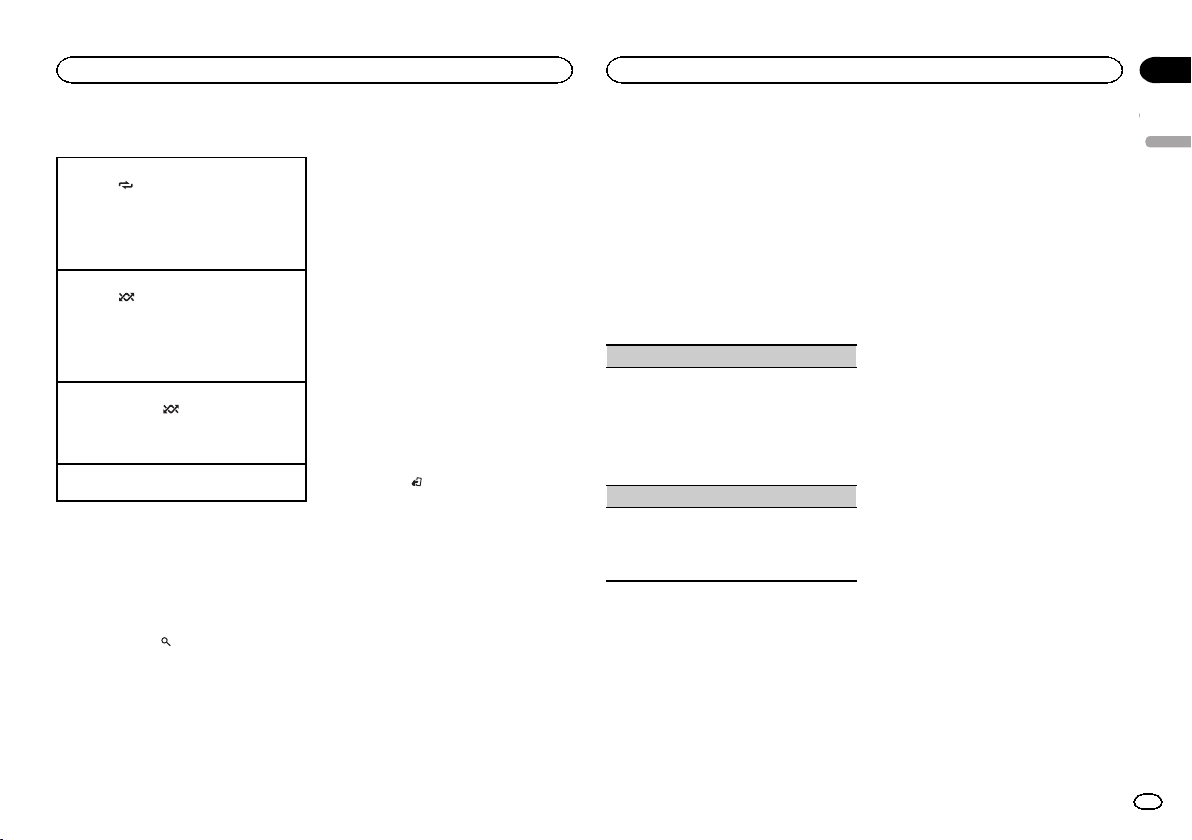
Operations using special buttons
Selecting a repeat play range
1 Press 6/
to cycle between the following:
! ONE – Repeat the current song
! ALL – Repeat all songs in the selected list
! When the control mode is set to CTRL iPod,
the repeat play range will be same as what is
set for the connected iPod.
Selecting a random play range (shuffle)
1 Press 5/
to cycle between the following:
! SNG – Play back songs in the selected list
in random order.
! ALB – Play back songs from a randomly se-
lected album in order.
! OFF – Not play back in random order.
Playing all songs in random order (shuffle all)
1 Press and hold 5/
to turn shuffle all on.
! To turn off shuffle all, select OFF in shuffle. For
details, refer to Selecting a random play range
(shuffle) on page 7.
Pausing playback
1 Press 4/PAUSE to pause or resume.
Playing songs related to the
currently playing song
You can play songs from the following lists.
• Album list of the currently playing artist
• Song list of the currently playing album
• Album list of the currently playing genre
1 Press and hold
to switch to link play
mode.
2 Turn M.C. to change the mode; press to
select.
! ARTIST – Plays an album by the artist cur-
rently playing.
! ALBUM – Plays a song from the album cur-
rently being played.
! GENRE – Plays an album from the genre cur-
rently being played.
The selected song/album will be played after the
currently playing song.
Notes
! The selected song/album may be canceled if
you use functions other than link search (e.g.
fast forward and reverse).
! Depending on the song selected to play, the
end of the currently playing song and the be-
ginning of the selected song/album may be
cut off.
Using this unit’s iPod function
from your iPod
This unit’s iPod function can be controlled by
using the connected iPod.
CTRL iPod is not compatible with the following
iPod models.
! iPod nano 1st generation
! iPod with video
% Press BAND/
to switch the control
mode.
! CTRL iPod – This unit’s iPod function can be
operated from the connected iPod.
! CTRL AUDIO – This unit’s iPod function can
be controlled by using this unit.
You can also switch the control mode by press-
ing iPod.
Notes
! Switching the control mode to CTRL iPod
pauses song playback. Use the iPod to re-
sume playback.
! The following operations are still accessible
from the unit even if the control mode is set
to CTRL iPod.
— Pausing
— Fast forward/reverse
— Selecting a song (chapter)
! The volume can only be adjusted from this
unit.
Function settings
1 Press M.C. to display the main menu.
2 Turn M.C. to change the menu option
and press to select FUNCTION.
3 Turn M.C. to select the function.
Once selected, the following functions can be
adjusted.
! AUDIO BOOK is not available when
CTRL iPod is selected in the control mode.
For details, refer to Using this unit’s iPod func-
tion from your iPod on page 7.
AUDIO BOOK (audiobook speed)
1 Press M.C. to display the setting mode.
2 Turn M.C. to select your favorite setting.
! FASTER – Playback at a speed faster than
normal
! NORMAL – Playback at normal speed
! SLOWER – Playback at a speed slower
than normal
S.RTRV (sound retriever)
1 Press M.C. to select the desired setting.
1—2—OFF (off)
1 is effective for low compression rates, and 2
is effective for high compression rates.
Streaming Pandora
â
IMPORTANT:
Requirements to access Pandora using the
Pioneer car audio/video products:
! Please update the firmware of the Pandora appli-
cation to the latest version before use.
! The latest version of the Pandora application can
be downloaded on iTunes App Store.
! Create a free or a paid account online. You can
create the account in the Pandora application
from your iPhone or on the website. The URL in
the following:
http://www.pandora.com/register
! If the Data Plan for your iPhone does not provide
for unlimited data usage, additional charges
from your carrier may apply for accessing the
Pandora service via 3G and/or EDGE networks.
! You need to connect to the Internet via 3G, EDGE
or Wi-Fi network to use the service from Pandora.
Limitations:
! Depending on the availability to the Internet, you
may not be able to receive Pandora service.
! Pandora service is subject to change without no-
tice. The service could be affected by any of the
following: firmware versions of iPhone, firmware
versions of Pandora application, changes to the
Pandora music service.
! Certain functions of the Pandora service are not
available when accessing the service through the
Pioneer car audio/video products. They include,
but not limited to the following: creating new sta-
tions, deleting stations, sending information
about current stations, buying tracks from
iTunes, viewing additional text information, log-
ging in to Pandora, adjusting Cell Network Audio
Quality.
Pandora internet radio is a music service not af-
filiated with Pioneer. More information is avail-
able at http://www.pandora.com.
The Pandora mobile application is available for
most iPhone and smartphone, please visit
www.pandora.com/everywhere/mobile for the
latest compatibility information.
Starting procedure for iPhone users
1 Connect an iPhone to USB input.
2 Switch the source to PANDORA.
English
Using this unit
7
Section
Using this unit
En
02
<QRD3234-A>7
Black plate (8,1)
3 Start up the application on the iPhone
and initiate playback.
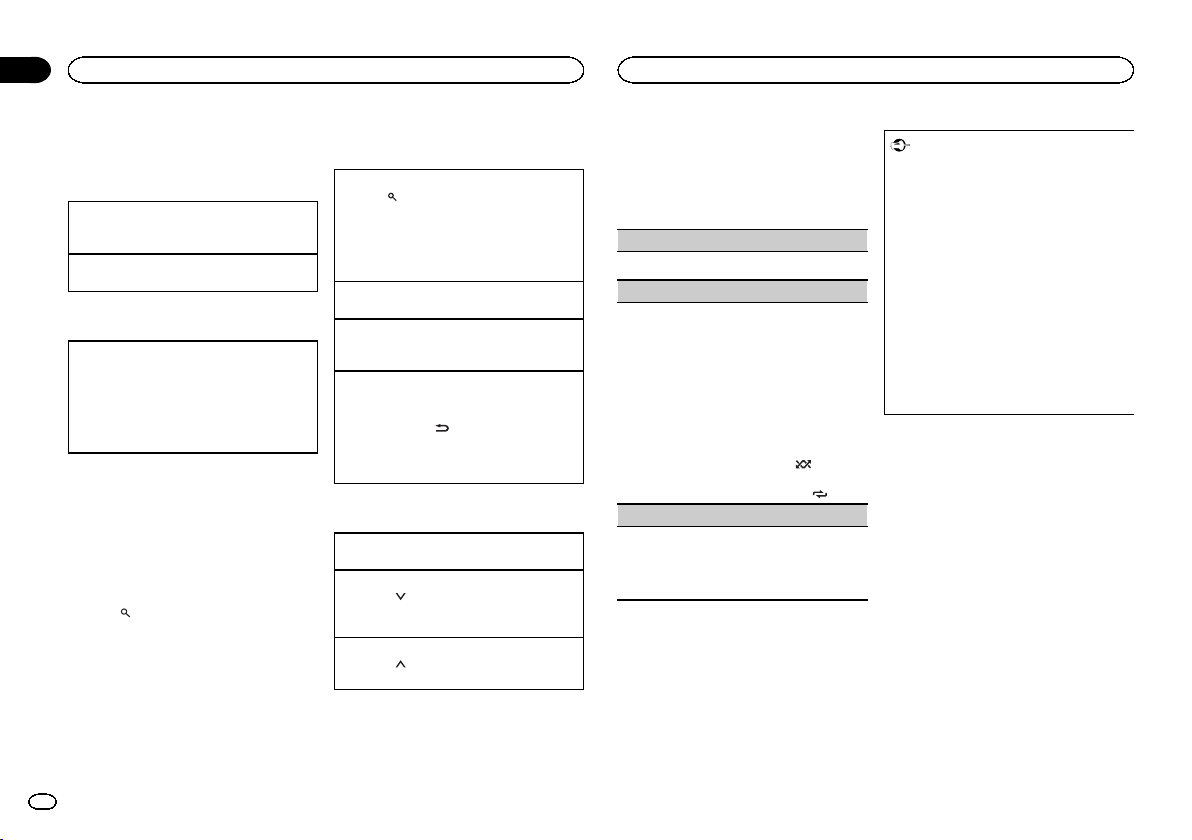
Basic operations
Playing tracks
For details, refer to Starting procedure for iPhone
users on page 7.
Skipping tracks
1 Press d.
Switching the display
Selecting the desired text information
1 Press DISP to cycle between the following:
! TRACK INFO (station name/track title/ar-
tist name/album title)
! ELAPSED TIME (playback time)
! CLOCK (source name and clock)
! SPEANA (spectrum analyzer)
Note
Depending on the station, text information can
be changed.
Selecting and playing the
Shuffle/station list
The display shown on this unit may not be the
same as that shown on the connected device.
1 Press
(list) to switch to the Shuffle/sta-
tion list mode.
2 Use M.C. to select the Shuffle or desired
station.
Changing the sort order
1 Press
(list).
! ABC – You can sort the items in the list alpha-
betically
! DATE – You can sort the items in the list in
order of the dates on which the items were
created
Changing Shuffle or stations
1 Turn M.C.
Playing
1 When Shuffle or the station is selected, press
M.C.
Deleting stations
1 When station is selected, press and hold M.C.
DELETE YES appears.
To cancel, press
/DIMMER. You will return
to the previous level.
2 Press M.C.
The station will be deleted.
Operations using special buttons
Pausing playback
1 Press 4/PAUSE to pause or resume.
Giving a Thumbs Down
1 Press 2/
to give a “Thumbs Down” for the
track currently playing and to skip to the next
track.
Giving a Thumbs Up
1 Press 1/
to give a “Thumbs Up” for the track
currently playing.
Function settings
1 Press M.C. to display the main menu.
2 Turn M.C. to change the menu option
and press to select FUNCTION.
3 Turn M.C. to select the function.
Once selected, the following functions can be
adjusted.
BOOKMARK (bookmark)
1 Press M.C. to store track information.
NEW STATION (new station)
A new station will be created from the information
for the artist or track of the station currently being
played.
1 Press M.C. to display the setting mode.
2 Turn M.C. to select the desired setting.
FROM TRACK (from track)—FROM ARTIST
(from artist)
3 Press M.C.
A new station is created.
! You can also create a new station from a track
by pressing and holding down 5/
.
! You can also create a new station from an ar-
tist by pressing and holding down 6/
.
S.RTRV (sound retriever)
1 Press M.C. to select the desired setting.
1—2—OFF (off)
1 is effective for low compression rates, and 2
is effective for high compression rates.
Using connected device
applications
You can use this unit to perform streaming play-
back of and control tracks in iPhone applica-
tions or just for streaming playback.
Important
Use of third party apps may involve or require
the provision of personally identifiable infor-
mation, whether through the creation of a
user account or otherwise, and for certain ap-
plications, the provision of geolocation data.
ALL THIRD PARTY APPS ARE THE SOLE RE-
SPONSIBILITY OF THE PROVIDERS, INCLUD-
ING WITHOUT LIMITATION COLLECTION AND
SECURITY OF USER DATA AND PRIVACY
PRACTICES. BY ACCESSING THIRD PARTY
APPS, YOU AGREE TO REVIEW THE TERMS
OF SERVICE AND PRIVACY POLICIES OF THE
PROVIDERS. IF YOU DO NOT AGREE WITH
THE TERMS OR POLICIES OF ANY PROVIDER
OR DO NOT CONSENT TO THE USE OF GEO-
LOCATION DATA WHERE APPLICABLE, DO
NOT USE THAT THIRD PARTY APP.
Information for compatibility of
connected devices
The following is the detailed information regard-
ing the terminals required to use the application
for iPhone on this unit.
For iPhone users
! This function is compatible with iPhone and
iPod touch.
! The device has iOS 5.0 or higher.
Notes
! Please check our website for a list of sup-
ported iPhone applications for this unit.
! Pioneer is not liable for any issues that may
arise from incorrect or flawed app-based
content.
! The content and functionality of the sup-
ported applications are the responsibility of
the App providers.
Using this unit
8
Section
Using this unit
En
02
<QRD3234-A>8
Black plate (9,1)
Starting procedure for iPhone users
1 Connect an iPhone to USB input.
2 Switch the source to APP.
3 Start up the application on the iPhone
and initiate playback.
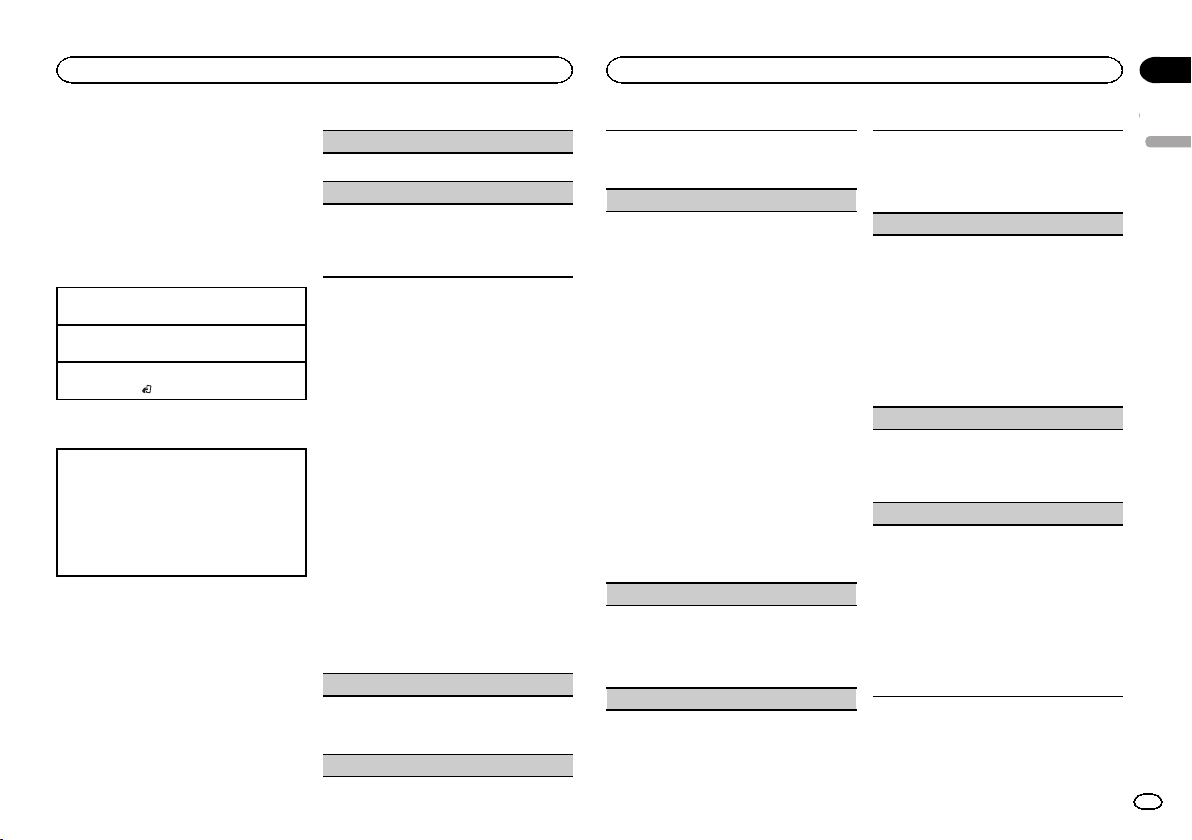
Basic operations
Selecting a track
1 Press c or d.
Fast forwarding or reversing
1 Press and hold c or d.
Pausing playback
1 Press BAND/
to pause or resume.
Switching the display
Selecting the desired text information
1 Press DISP to cycle between the following:
! TRACK INFO (track title/artist name/album
title)
! APP NAME (application name)
! ELAPSED TIME (playback time)
! CLOCK (source name and clock)
! SPEANA (spectrum analyzer)
Function settings
1 Press M.C. to display the main menu.
2 Turn M.C. to change the menu option
and press to select FUNCTION.
3 Turn M.C. to select the function.
Once selected, the following functions can be
adjusted.
PAUSE (pause)
1 Press M.C. to pause or resume.
S.RTRV (sound retriever)
1 Press M.C. to select the desired setting.
1—2—OFF (off)
1 is effective for low compression rates, and 2
is effective for high compression rates.
Audio adjustments
1 Press M.C. to display the main menu.
2 Turn M.C. to change the menu option
and press to select AUDIO.
3 Turn M.C. to select the audio function.
Once selected, the following audio functions
can be adjusted.
! FADER is not available when SUB.W/SUB.W
is selected in SP-P/O MODE. For details, refer
to SP-P/O MODE (rear output and preout set-
ting) on page 10.
! SUB.W and SUB.W CTRL are not available
when REAR/REAR is selected in
SP-P/O MODE. For details, refer to
SP-P/O MODE (rear output and preout set-
ting) on page 10.
! SUB.W CTRL is not available when SUB.W is
selected in OFF. For details, refer to SUB.W
(subwoofer on/off setting) on page 9.
! SLA is not available when FM is selected as
the source.
FADER (fader adjustment)
1 Press M.C. to display the setting mode.
2 Turn M.C. to adjust the front/rear speaker bal-
ance.
BALANCE (balance adjustment)
1 Press M.C. to display the setting mode.
2 Turn M.C. to adjust the left/right speaker bal-
ance.
EQ SETTING (equalizer recall)
1 Press M.C. to display the setting mode.
2 Turn M.C. to select the equalizer.
POWERFUL—NATURAL—VOCAL—CUS-
TOM1—CUSTOM2—FLAT—SUPER BASS
The equalizer band and equalizer level can be
customized when CUSTOM1 or CUSTOM2 is
selected.
If selecting CUSTOM1 or CUSTOM2, complete
the procedures outlined below. If selecting
other options, press M.C. to return to the pre-
vious display.
! CUSTOM1 can be set separately for each
source. However, USB, iPod, PANDORA
and APP are all set to the same setting au-
tomatically.
! CUSTOM2 is a shared setting used in com-
mon for all sources.
3 Press M.C. to display the setting mode.
4 Press M.C. to cycle between the following:
Equalizer band—Equalizer level
5 Turn M.C. to select the desired setting.
Equalizer band: 80HZ—250HZ—800HZ—
2.5KHZ—8KHZ
Equalizer level: +6 to –6
LOUDNESS (loudness)
Loudness compensates for deficiencies in the low-
frequency and high-frequency ranges at low vol-
ume.
1 Press M.C. to select the desired setting.
OFF (off)—LOW (low)—MID (mid)—HI (high)
SUB.W (subwoofer on/off setting)
This unit is equipped with a subwoofer output
which can be turned on or off.
1 Press M.C. to select the desired setting.
NOR (normal phase)—REV (reverse phase)—
OFF (subwoofer off)
SUB.W CTRL (subwoofer adjustment)
Only frequencies lower than those in the selected
range are outputted from the subwoofer.
1 Press M.C. to display the setting mode.
2 Press M.C. to cycle between the following:
Cut-off frequency—Output level—Slope level
Rates that can be adjusted will flash.
3 Turn M.C. to select the desired setting.
Cut-off frequency: 50HZ—63HZ—80HZ—
100HZ—125HZ—160HZ—200HZ
Output level: –24 to +6
Slope level: –12— –24
BASS BOOST (bass boost)
1 Press M.C. to display the setting mode.
2 Turn M.C. to select a desired level.
0 to +6 is displayed as the level is increased or
decreased.
HPF SETTING (high pass filter adjustment)
Use this function when wanting to listen only to
high-frequency sounds. Only frequencies higher
than the high-pass filter (HPF) cutoff are output
from the speakers.
1 Press M.C. to display the setting mode.
2 Press M.C. to cycle between the following:
Cut-off frequency—Slope level
3 Turn M.C. to select the desired setting.
Cut-off frequency: OFF—50HZ—63HZ—80HZ
—100HZ—125HZ—160HZ—200HZ
Slope level: –12— –24
English
Using this unit
9
Section
Using this unit
En
02
<QRD3234-A>9
Black plate (10,1)
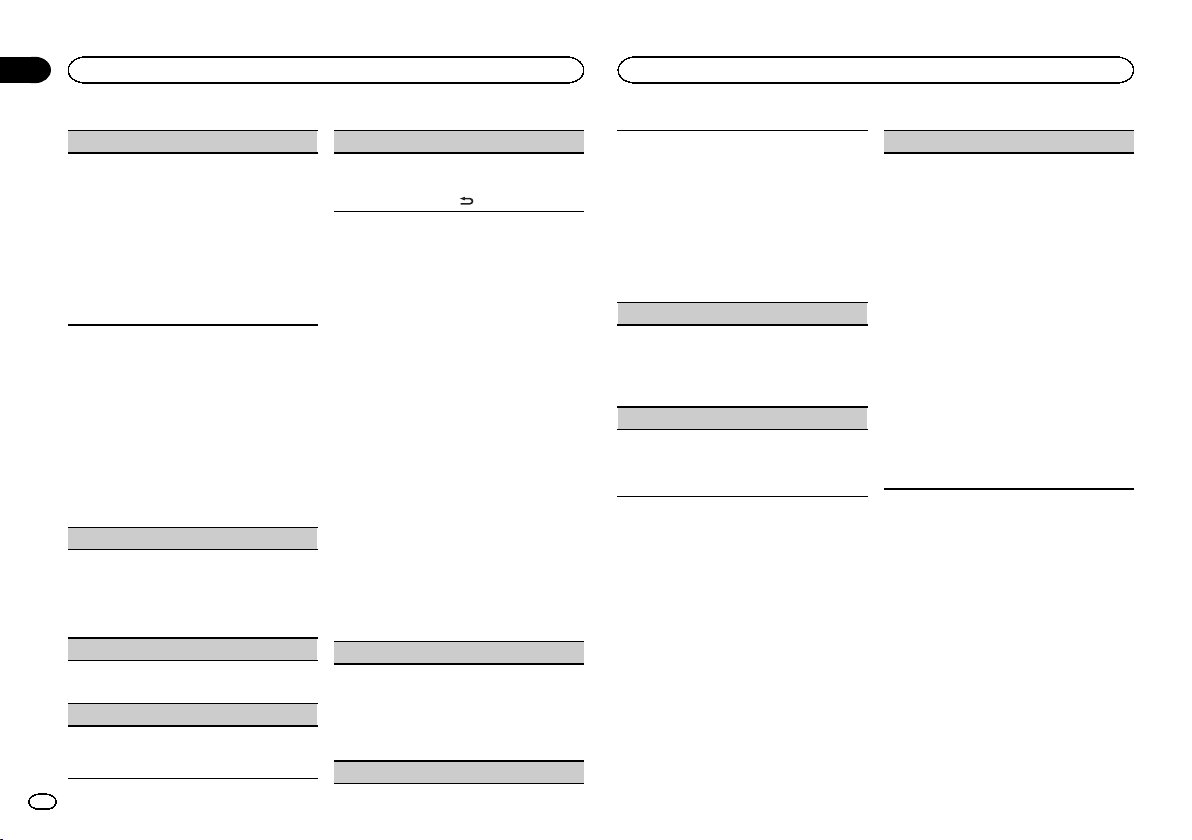
SLA (source level adjustment)
This function prevents the volume from changing
too dramatically when the source switches.
! Settings are based on the FM volume level,
which remains unchanged.
! The AM volume level can also be adjusted with
this function.
! USB, iPod, PANDORA and APP are all set to
the same setting automatically.
1 Press M.C. to display the setting mode.
2 Turn M.C. to adjust the source volume.
Adjustment range: +4 to –4
System menu
1 Press M.C. to display the main menu.
2 Turn M.C. to change the menu option
and press to select SYSTEM.
3 Turn M.C. to select the system menu
function.
Once selected, the following system menu func-
tions can be adjusted.
CLOCK SET (setting the clock)
1 Press M.C. to display the setting mode.
2 Press M.C. to select the segment of the clock
display you wish to set.
Hour—Minute
3 Turn M.C. to adjust the clock.
12H/24H (time notation)
1 Press M.C. to select the desired setting.
12H (12-hour clock)—24H (24-hour clock)
AUX (auxiliary input)
Activate this setting when using an auxiliary de-
vice connected to this unit.
1 Press M.C. to turn AUX on or off.
DIMMER (dimmer)
1 Press M.C. to turn the dimmer on or off.
! You can also change the dimmer setting by
pressing and holding
/DIMMER.
About MIXTRAX
MIXTRAX technology is used to insert a variety
of sound effects in between songs, allowing you
to experience your music as a nonstop mix com-
plete with visual effects.
Notes
! Depending on the file/song, sound effects
may not be available.
! Turn MIXTRAX off if the visual effects it pro-
duces have adverse effects on driving. Refer
to Operations using the MIXTRAX button on
page 5.
MIXTRAX menu
1 Press M.C. to display the main menu.
2 Turn M.C. to change the menu option
and press to select MIXTRAX.
3 Turn M.C. to select the MIXTRAX func-
tion.
Once selected, the following MIXTRAX functions
can be adjusted. The function is enabled when
MIXTRAX is on.
SHORT MODE (short playback mode)
You can select the length of the playback time.
1 Press M.C. to display the setting mode.
2 Turn M.C. to select the desired setting.
1.0 MIN (1.0 minute)—1.5 MIN (1.5 minutes)—
2.0 MIN (2.0 minutes)—2.5 MIN (2.5 minutes)
—3.0 MIN (3.0 minutes)—OFF (off)
MIX PATTERN (mix pattern)
The MIXTRAX special effects display changes with
changes in the audio level.
1 Press M.C. to display the setting mode.
2 Turn M.C. to select the desired setting.
! SOUND LEVEL – The mix pattern changes
according to the sound level.
! LOW PASS – The mix pattern changes ac-
cording to the bass level.
! RANDOM – The mix pattern changes ran-
domly according to the sound level mode
and low pass mode.
DISP FX (display effect)
The MIXTRAX special effects display can be turned
on or off.
1 Press M.C. to select the desired setting.
ON (MIXTRAX special effects display)—OFF
(normal display)
CUT IN FX (manual cut-in effect)
You can turn on or off the MIXTRAX sound effects
while manually changing tracks.
1 Press M.C. to select the desired setting.
ON (on)—OFF (off)
Initial menu
1 Press and hold SRC/OFF until the unit
turns off.
2 Press M.C. to display the main menu.
3 Turn M.C. to change the menu option
and press to select INITIAL.
Once selected, the initial menu function below
can be adjusted.
SP-P/O MODE (rear output and preout setting)
The rear speaker leads output and the RCA output
of this unit can be used to connect a full-range
speaker or subwoofer. Select a suitable option for
your connection.
1 Press M.C. to display the setting mode.
2 Turn M.C. to select the desired setting.
! REAR/SUB.W – Select when there is a full-
range speaker connected to the rear speak-
er leads output and there is a subwoofer
connected to the RCA output.
! SUB.W/SUB.W – Select when there is a
subwoofer connected directly to the rear
speaker leads output without any auxiliary
amp and there is a subwoofer connected
to the RCA output.
! REAR/REAR – Select when there is a full-
range speaker connected to the rear speak-
er leads output and the RCA output.
If there is a full-range speaker connected to
the rear speaker leads output and the RCA
output is not used, you may select either
REAR/SUB.W or REAR/REAR.
System menu
1 Press and hold SRC/OFF until the unit
turns off.
2 Press M.C. to display the main menu.
3 Turn M.C. to change the menu option
and press to select SYSTEM.
4 Turn M.C. to select the system menu
function.
For details, refer to System menu on page 10.
Using this unit
10
Section
Using this unit
En
02
<QRD3234-A>10
Black plate (11,1)
Using an AUX source
1 Insert the stereo mini plug into the AUX
input jack.
2 Press SRC/OFF to select AUX as the
source.
Note
AUX cannot be selected unless the auxiliary set-
ting is turned on. For more details, refer to AUX
(auxiliary input) on page 10.
Switching the display
Selecting the desired text information
1 Press DISP to cycle between the following:
! Source name
! Source name and clock
If an unwanted display appears
Turn off the unwanted display using the proce-
dures listed below.
1 Press M.C. to display the main menu.
2 Turn M.C. to change the menu option
and press to select SYSTEM.
3 Turn M.C. to display DEMO OFF and press
to select.
4 Turn M.C. to switch to YES.
5 Press M.C. to select.
Connections
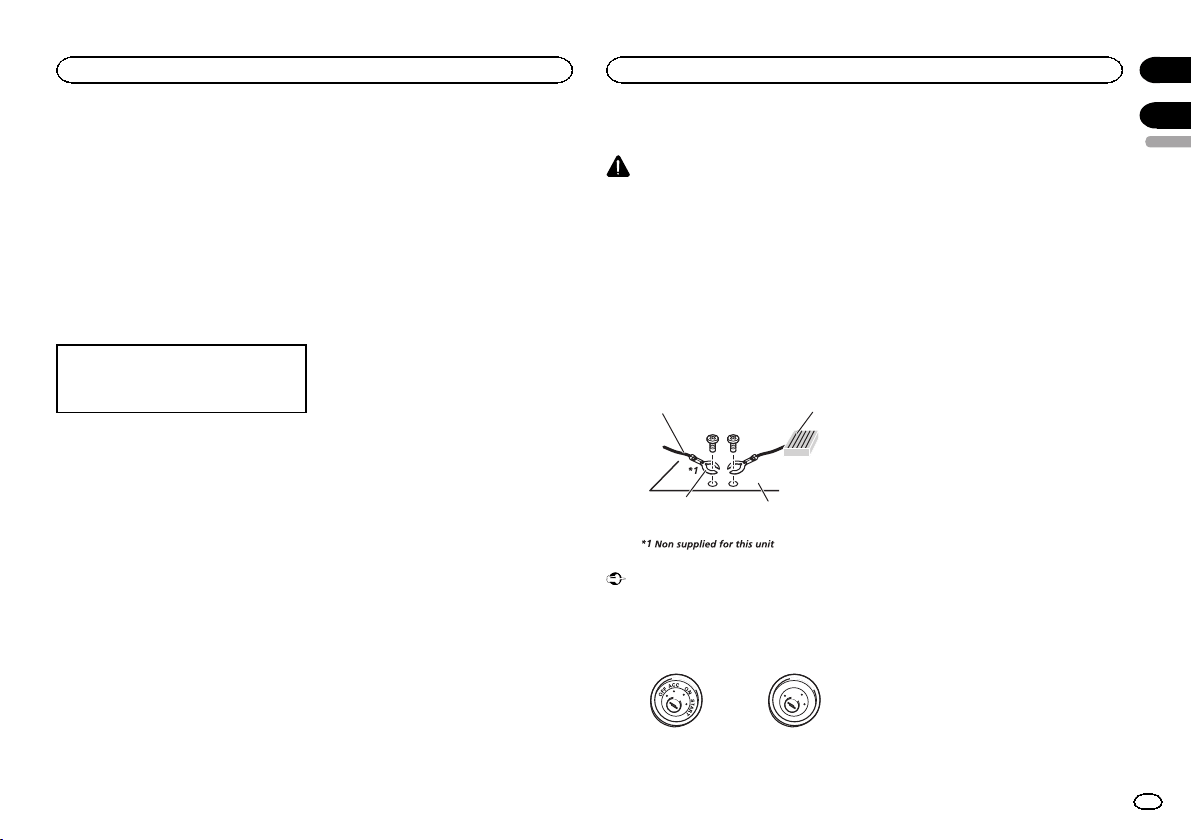
WARNING
! Use speakers over 50 W (output value) and
between 4 W to 8 W (impedance value). Do
not use 1 W to 3 W speakers for this unit.
! The black cable is ground. When installing
this unit or power amp (sold separately),
make sure to connect the ground wire first.
Ensure that the ground wire is properly con-
nected to metal parts of the car’s body. The
ground wire of the power amp and the one of
this unit or any other device must be con-
nected to the car separately with different
screws. If the screw for the ground wire loos-
ens or falls out, it could result in fire, genera-
tion of smoke or malfunction.
Ground wire
Metal parts of car’s body
POWER AMP
Other devices
(Another electronic
device in the car)
Important
! When installing this unit in a vehicle without
an ACC (accessory) position on the ignition
switch, failure to connect the red cable to the
terminal that detects operation of the ignition
key may result in battery drain.
O
N
S
T
A
R
T
O
F
F
ACC position No ACC position
! Use this unit with a 12-volt battery and nega-
tive grounding only. Failure to do so may re-
sult in a fire or malfunction.
! To prevent a short-circuit, overheating or mal-
function, be sure to follow the directions
below.
— Disconnect the negative terminal of the bat-
tery before installation.
— Secure the wiring with cable clamps or adhe-
sive tape. Wrap adhesive tape around wiring
that comes into contact with metal parts to
protect the wiring.
— Place all cables away from moving parts,
such as the shift lever and seat rails.
— Place all cables away from hot places, such
as near the heater outlet.
— Do not connect the yellow cable to the battery
by passing it through the hole to the engine
compartment.
— Cover any disconnected cable connectors
with insulating tape.
— Do not shorten any cables.
— Never cut the insulation of the power cable of
this unit in order to share the power with
other devices. The current capacity of the
cable is limited.
— Use a fuse of the rating prescribed.
— Never wire the negative speaker cable directly
to ground.
— Never band together negative cables of multi-
ple speakers.
! When this unit is on, control signals are sent
through the blue/white cable. Connect this
cable to the system remote control of an ex-
ternal power amp or the vehicle’s auto-anten-
na relay control terminal (max. 300 mA
12 V DC). If the vehicle is equipped with a
glass antenna, connect it to the antenna
booster power supply terminal.
! Never connect the blue/white cable to the
power terminal of an external power amp.
Also, never connect it to the power terminal
of the auto antenna. Doing so may result in
battery drain or a malfunction.
English
Using this unit
11
Section
Installation
En
02
03
<QRD3234-A>11
Black plate (12,1)
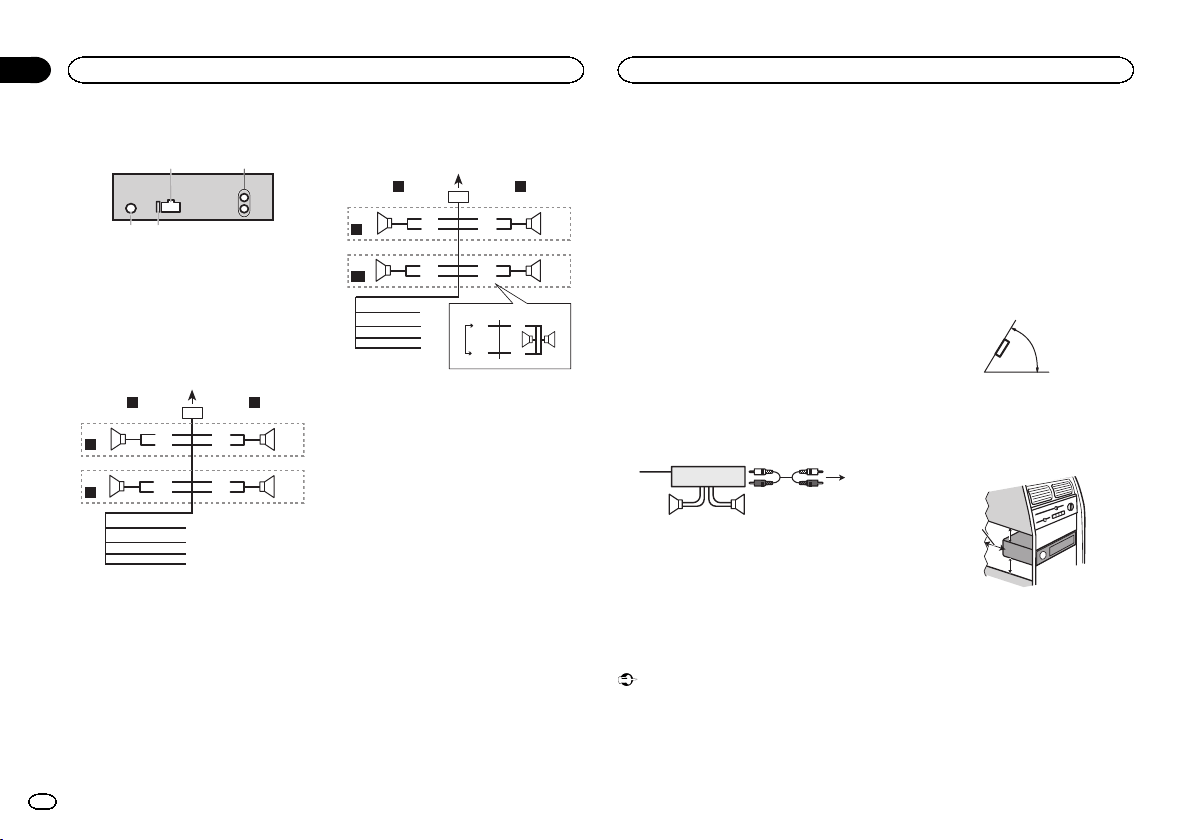
This unit
3 4
21
1 Power cord input
2 Rear output or subwoofer output
3 Antenna input
4 Fuse (10 A)
Power cord
Perform these connections when not connect-
ing a rear speaker lead to a subwoofer.
1
8
9
c
d
6
32
4
5
7
a
b
e
f
h
g
LR
F
R
Perform these connections when using a sub-
woofer without the optional amplifier.
1
8
9
c
d
6
32
4
7
a
b
a
b
e
f
h
g
LR
F
SW
i
j
d
c
k l
1 To power cord input
2 Left
3 Right
4 Front speaker
5 Rear speaker
6 White
7 White/black
8 Gray
9 Gray/black
a Green
b Green/black
c Violet
d Violet/black
e Black (chassis ground)
Connect to a clean, paint-free metal location.
f Yellow
Connect to the constant 12 V supply termi-
nal.
g Red
Connect to terminal controlled by ignition
switch (12 V DC).
h Blue/white
Connect to system control terminal of the
power amp or auto- antenna relay control ter-
minal (max. 300 mA 12 V DC).
i Subwoofer (4 W)
j When using a subwoofer of 70 W (2 W), be
sure to connect the subwoofer to the violet
and violet/black leads of this unit. Do not
connect anything to the green and green/
black leads.
k Not used.
l Subwoofer (4 W)×2
Notes
! When using a two-speaker system, do not
connect anything to speaker leads that are
not connected to a speaker.
! Change the initial menu of this unit. Refer to
SP-P/O MODE (rear output and preout set-
ting) on page 10.
The subwoofer output of this unit is monau-
ral.
Power amp (sold separately)
Perform these connections when using the op-
tional amplifier.
1
3
2
4
55
1 System remote control
Connect to Blue/white cable.
2 Power amp (sold separately)
3 Connect with RCA cables (sold separately)
4 To Rear output or subwoofer output
5 Rear speaker or subwoofer
Installation
Important
! Check all connections and systems before
final installation.
! Do not use unauthorized parts as this may
cause malfunctions.
! Consult your dealer if installation requires
drilling of holes or other modifications to the
vehicle.
! Do not install this unit where:
— it may interfere with operation of the vehicle.
— it may cause injury to a passenger as a result
of a sudden stop.
! The semiconductor laser will be damaged if
it overheats. Install this unit away from hot
places such as near the heater outlet.
! Optimum performance is obtained when the
unit is installed at an angle of less than 60°.
60°
! When installing, to ensure proper heat dis-
persal when using this unit, make sure you
leave ample space behind the rear panel and
wrap any loose cables so they are not block-
ing the vents.
5cmcm
Leave ample
space
5 cm
5 cm
DIN front/rear mount
This unit can be properly installed using either
front-mount or rear-mount installation.
Use commercially available parts when instal-
ling.
Installation
12
Section
Installation
En
03
<QRD3234-A>12
Black plate (13,1)
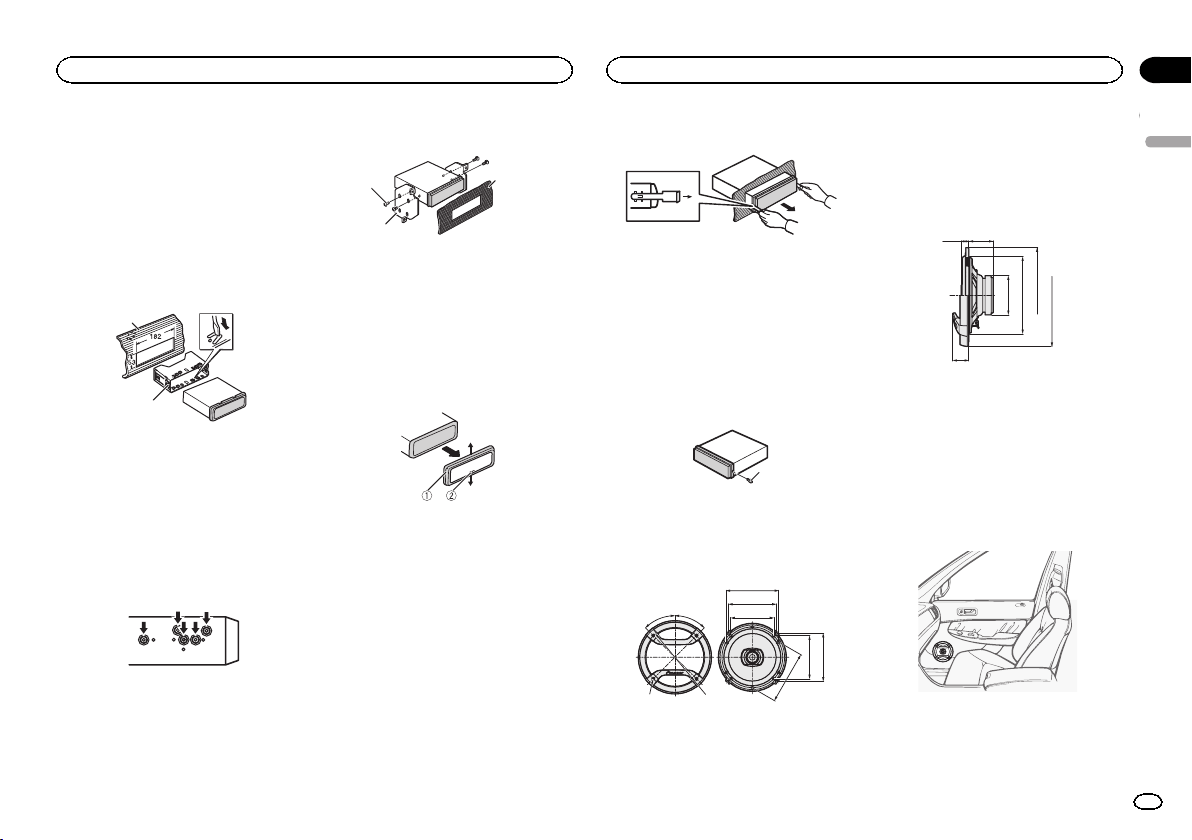
DIN Front-mount
1 Insert the mounting sleeve into the dash-
board.
For installation in shallow spaces, use the sup-
plied mounting sleeve. If there is enough space,
use the mounting sleeve that came with the ve-
hicle.
2 Secure the mounting sleeve by using a
screwdriver to bend the metal tabs (90°) into
place.
1
2
1 Dashboard
2 Mounting sleeve
# Make sure that the unit is installed securely in
place. An unstable installation may cause skipping
or other malfunctions.
DIN Rear-mount
1 Determine the appropriate position
where the holes on the bracket and the side
of the unit match.
2 Tighten two screws on each side.
1
2
3
1 Screw
2 Mounting bracket
3 Dashboard or console
! Use either truss (5 mm × 8 mm) or flush sur-
face (5 mm × 9 mm) screws, depending on
the bracket screw holes.
Removing the unit
1 Remove the trim ring.
1 Trim ring
2 Notched tab
! Releasing the front panel allows easier ac-
cess to the trim ring.
! When reattaching the trim ring, point the
side with the notched tab down.
2 Insert the supplied extraction keys into
both sides of the unit until they click into
place.
3 Pull the unit out of the dashboard.
Removing and re-attaching the
front panel
You can remove the front panel to protect your
unit from theft.
For details, refer to Removing the front panel and
Re-attaching the front panel on page 4.
Securing the front panel
The front panel can be secured with the sup-
plied screw.
1
1 Screw
Speaker installation
16 cm 2-way speakers
A
D
E
F
A
C
HI
B
G
Front
A 45°
B f 4.3 mm holes (3/16 in. Dia.)
C f 142 mm (5-5/8 in. Dia.)
D 123 mm (4-7/8 in.)
E 113 mm (4-1/2 in.)
F 100 mm (3-7/8 in.)
G 123 mm (4-7/8 in.)
H 100mm (3-7/8 in.)
I 113 mm (4-1/2 in.)
A
G
CD E F
B
Side
A 13 mm (1/2 in.)
B 41 mm (1-5/8 in.)
C f 65 mm (2-5/8 in. Dia.)
D f 128 mm (5 in. Dia.)
E f 158 mm (6-1/4 in. Dia.)
F f 170 mm (6-3/4 in. Dia.)
G 27 mm (1 in.)
1 Determine the location of the speaker as
illustrated.
English
Installation
13
Section
Installation
En
03
<QRD3234-A>13
Black plate (14,1)
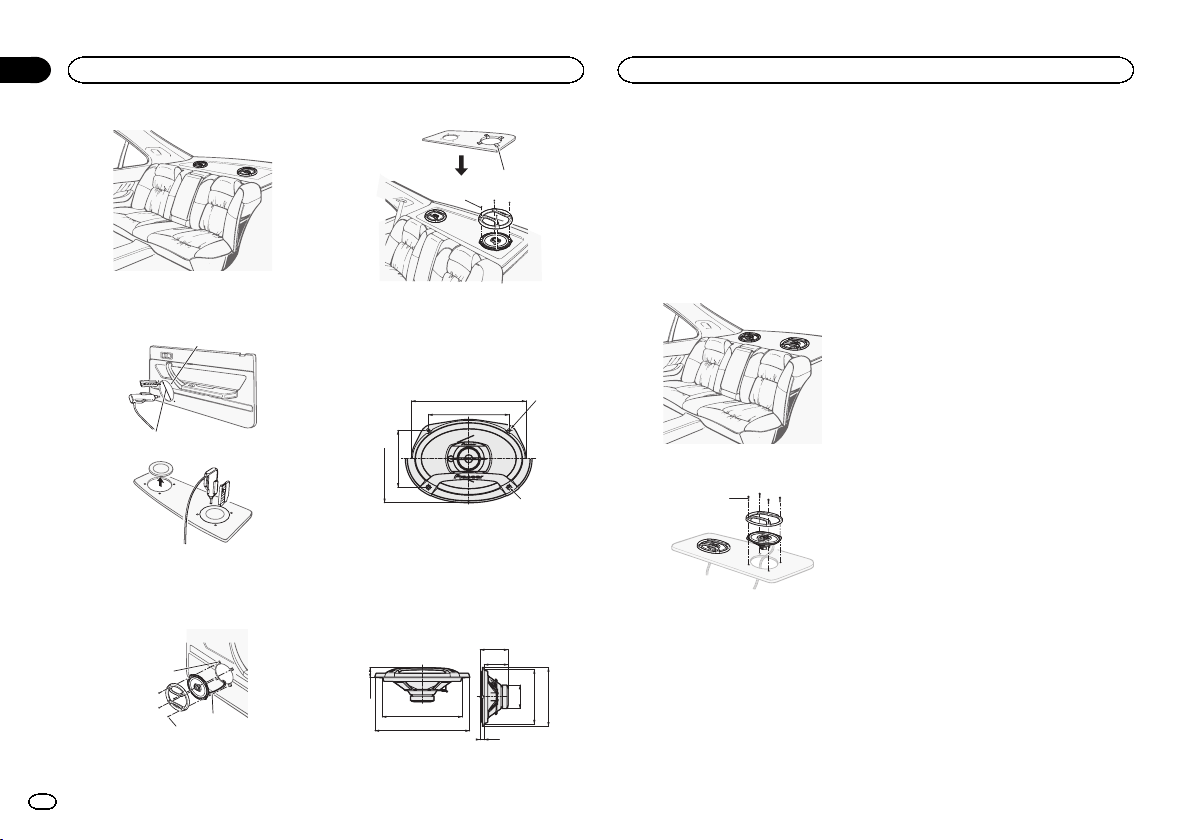
2 Make holes as illustrated. (If needed, re-
move the door upholstery.)
1
2
1 f 4.3 mm (3/16 in. Dia.)
2 f 128 mm (5 in. Dia.)
3 Install the speakers as illustrated.
1
2
3
2
1
1 Speed nut
2 Tapping-screws (4 mm × 25 mm)
3 Cable (gray or white)
6” ×9” 3-way speakers
C
B
DE
F
A
Front
A 5.6 mm × 8.7 mm holes (3/16 in.×5/16 in.)
B 237 mm (9-3/8 in.)
C 166.6 mm (6-1/2 in.)
D 117.5 mm (4-5/8 in.)
E 182 mm (7-1/4 in.)
F f 4.8 mm holes (3/16 in. Dia.)
B
D
I
E
FGH
A
C
Side
A 28.3 mm (1-1/8 in.)
B 222 mm (8-5/8 in.)
C 262 mm (10-3/8 in.)
D 77.6 mm (3 in.)
E 66.3 mm (2-5/8 in.)
F f 65 mm (2-5/8 in. Dia.)
G 153 mm (6 in.)
H 163mm (6-3/8 in.)
I 11 mm (3/8 in.)
1 Determine the location of the speaker as
illustrated.
2 Install the speakers as illustrated.
1
1 Tapping-screws (4 mm × 30 mm)
Installation
14
Section
Installation
En
03
<QRD3234-A>14
Black plate (15,1)
Troubleshooting
Symptoms are written in bold and causes in reg-
ular, non-indented text. Regular, indented text is
used to indicate actions to be taken.
The display automatically returns to the ordinary
display.
You did not perform any operation within about 30
seconds.
Perform operation again.
The repeat play range changes unexpectedly.
Depending on the repeat play range, the selected
range may change when another folder or track is
being selected or during fast forwarding/reversing.
Select the repeat play range again.
A subfolder is not played back.
Subfolders cannot be played when FLD (folder re-
peat) is selected.
Select another repeat play range.
NO XXXX appears when a display is changed
(NO TITLE, for example).
There is no embedded text information.
Switch the display or play another track/file.
The unit is malfunctioning.
There is interference.
You are using a device, such as a cellular phone,
that may cause audible interference.
Move electrical devices that may be causing the
interference away from the unit.
Error messages
When you contact your dealer or your nearest
Pioneer Service Center, be sure to note the error
message.
Error messages are written in bold and causes
in regular, non-indented text. Regular, indented
text is used to indicate actions to be taken.
Common
AMP ERROR
This unit fails to operate or the speaker connection is
incorrect; the protective circuit is activated.
Check the speaker connection. If the message
fails to disappear even after the engine is
switched off/on, contact your dealer or an
authorized Pioneer Service Station for
assistance.
CD player
ERROR-07, 11, 12, 17, 30
The disc is dirty.
Clean the disc.
The disc is scratched.
Replace the disc.
ERROR-07, 10, 11, 12, 15, 17, 30, A0
There is an electrical or mechanical error.
Turn the ignition switch OFF and back ON, or
switch to a different source, then back to the CD
player.
ERROR-15
The inserted disc is blank.
Replace the disc.
ERROR-23
Unsupported CD format.
Replace the disc.
FORMAT READ
Sometimes there is a delay between the start of play-
back and when you start to hear any sound.
Wait until the message disappears and you hear
sound.
NO AUDIO
The inserted disc does not contain any playable files.
Replace the disc.
SKIPPED
The inserted disc contains DRM protected files.
The protected files are skipped.
PROTECT
All the files on the inserted disc are embedded with
DRM.
Replace the disc.
USB storage device/iPod
FORMAT READ
Sometimes there is a delay between the start of play-
back and when you start to hear any sound.
Wait until the message disappears and you hear
sound.
NO AUDIO
There are no songs.
Transfer the audio files to the USB storage device
and connect.
The connected USB storage device has security en-
abled.
Follow the USB storage device instructions to
disable the security.
SKIPPED
The connected USB storage device contains DRM
protected files.
The protected files are skipped.
PROTECT
All the files on the connected USB storage device
are embedded with DRM.
Replace the USB storage device.
N/A USB
The connected USB device is not supported by this
unit.
! Connect a USB Mass Storage Class compliant
device.
! Disconnect your device and replace it with a
compatible USB storage device.
CHECK USB
The USB connector or USB cable has short-
circuited.
Check that the USB connector or USB cable is
not caught in something or damaged.
CHECK USB
The connected USB storage device consumes more
than maximum allowable current.
Disconnect the USB storage device and do not
use it. Turn the ignition switch to OFF, then to
ACC or ON and then connect only compliant
USB storage devices.
CHECK USB
The iPod operates correctly but does not charge.
Make sure the connection cable for the iPod has
not shorted out (e.g., not caught in metal
objects). After checking, turn the ignition switch
OFF and back ON, or disconnect the iPod and
reconnect.
ERROR-19
Communication failed.
Perform one of the following operations.
–Turn the ignition switch OFF and back ON.
–Disconnect the USB storage device.
–Change to a different source.
Then, return to the USB source.
English
Additional information
15
Appendix
Additional information
En
<QRD3234-A>15

Black plate (16,1)
iPod failure.
Disconnect the cable from the iPod. Once the
iPod’s main menu is displayed, reconnect the
iPod and reset it.
ERROR-23
USB storage device was not formatted with FAT12,
FAT16 or FAT32.
USB storage device should be formatted with
FAT12, FAT16 or FAT32.
ERROR-16
The iPod firmware version is old.
Update the iPod version.
iPod failure.
Disconnect the cable from the iPod. Once the
iPod’s main menu is displayed, reconnect the
iPod and reset it.
STOP
There are no songs in the current list.
Select a list that contains songs.
NOT FOUND
No related songs.
Transfer songs to the iPod.
Pandora
ERROR-19
Communication failed.
Disconnect the cable from the device. Once the
device’s main menu is displayed, reconnect the
device and reset it.
START UP APP
The Pandora application has not started running yet.
Start up the Pandora application.
INOPERABLE
The operation was disabled.
Run the same command for another track.
TRY AGAIN
Unable to save thumb rating.
Unable to save BookMark.
Unable to add station.
Try again later.
MAINTENANCE
Pandora system is undergoing maintenance.
Try again later.
SKIP LIMIT
Skip limit reached.
! Do not exceed the skip limit.
! Due to music licensing restrictions, Pandora
limits the total number of skips per hour.
CHECK APP
This version of the Pandora application is not sup-
ported.
Connect a device that has a compatible version
of the Pandora application installed.
CHECK DEVICE
Device error message displayed in Pandora applica-
tion.
Unable to play music from Pandora.
Please check your connected device.
NO STATION
No station found.
Create a station in the Pandora application on
your connected device.
NO ACTIVE ST
No station selected.
Select a station.
STATION FULL
A new station cannot be added.
Delete an old station to open a spot for a new
one.
CAN.T DELETE
The station could not be deleted.
Run the same command for another station.
NO NETWORK
The connected device is out of area.
Connect the connected device to a network.
NO SERVICE
The connected device is out of area.
Connect the connected device to a network.
CAN.T PLAY
The operation was disabled.
Run the same command for another station.
Apps
START UP APP
The application has not started running yet.
Follow the instructions that appear on the
screen.
Handling guidelines
Discs and player
Use only discs that feature either of the following
two logos.
Use 12-cm discs.
Use only conventional, fully circular discs.
The following types of discs cannot be used with
this unit:
! DualDiscs
! 8-cm discs: Attempts to use such discs with
an adapter may cause the unit to malfunction.
! Oddly shaped discs
! Discs other than CDs
! Damaged discs, including discs that are
cracked, chipped or warped
! CD-R/RW discs that have not been finalized
Do not touch the recorded surface of the discs.
Store discs in their cases when not in use.
Do not attach labels, write on or apply chemicals
to the surface of the discs.
To clean a CD, wipe the disc with a soft cloth out-
ward from the center.
Condensation may temporarily impair the player’s
performance. Let it rest for about one hour to ad-
just to a warmer temperature. Also, wipe any
damp discs off with a soft cloth.
Additional information
16
Appendix
Additional information
En
<QRD3234-A>16
Black plate (17,1)
Playback of discs may not be possible because of
disc characteristics, disc format, recorded applica-
tion, playback environment, storage conditions,
and so on.
Road shocks may interrupt disc playback.
When using discs that can be printed on label sur-
faces, check the instructions and the warnings of
the discs. Depending on the discs, inserting and
ejecting may not be possible. Using such discs
may result in damage to this equipment.
Do not attach commercially available labels or
other materials to the discs.
! The discs may warp making the disc unplay-
able.
! The labels may come off during playback and
prevent ejection of the discs, which may result
in damage to the equipment.
USB storage device
Connections via USB hub are not supported.
Do not connect anything other than a USB stor-
age device.
Firmly secure the USB storage device when driv-
ing. Do not let the USB storage device fall onto the
floor, where it may become jammed under the
brake or accelerator pedal.
Depending on the USB storage device, the follow-
ing problems may occur.
! Operations may vary.
! The storage device may not be recognized.
! Files may not be played back properly.
! The device may cause audible interference
when you are listening to the radio.
iPod
Do not leave the iPod in places with high tempera-
tures.
Firmly secure the iPod when driving. Do not let the
iPod fall onto the floor, where it may become
jammed under the brake or accelerator pedal.
About iPod settings
! When an iPod is connected, this unit changes
the EQ (equalizer) setting of the iPod to off in
order to optimize the acoustics. When you dis-
connect the iPod, the EQ returns to the original
setting.
! You cannot set Repeat to off on the iPod when
using this unit. Repeat is automatically
changed to All when the iPod is connected to
this unit.
Incompatible text saved on the iPod will not be dis-
played by the unit.
Compressed audio
compatibility (disc, USB)
WMA
File extension: .wma
Bit rate: 48 kbps to 320 kbps (CBR), 48 kbps to
384 kbps (VBR)
Sampling frequency: 32 kHz, 44.1 kHz, 48 kHz
Windows Mediaä Audio Professional, Lossless,
Voice/DRM Stream/Stream with video: Not com-
patible
MP3
File extension: .mp3
Bit rate: 8 kbps to 320 kbps (CBR), VBR
Sampling frequency: 8 kHz to 48 kHz (32 kHz,
44.1 kHz, 48 kHz for emphasis)
Compatible ID3 tag version: 1.0, 1.1, 2.2, 2.3, 2.4
(ID3 tag Version 2.x is given priority over Version
1.x.)
M3u playlist: Not compatible
MP3i (MP3 interactive), mp3 PRO: Not compatible
WAV
File extension: .wav
Quantization bits: 8 and 16 (LPCM), 4 (MS
ADPCM)
Sampling frequency: 16 kHz to 48 kHz (LPCM),
22.05 kHz and 44.1 kHz (MS ADPCM)
! You cannot use this function with USB MTP.
Supplemental information
Only the first 32 characters can be displayed as a
file name (including the file extension) or a folder
name.
This unit may not work properly depending on the
application used to encode WMA files.
There may be a slight delay at the start of playback
of audio files embedded with image data or audio
files stored on a USB storage device that has nu-
merous folder hierarchies.
Disc
Playable folder hierarchy: up to eight tiers (A prac-
tical hierarchy is less than two tiers.)
Playable folders: up to 99
Playable files: up to 999
File system: ISO 9660 Level 1 and 2, Romeo, Joliet
Multi-session playback: Compatible
Packet write data transfer: Not compatible
Regardless of the length of blank sections be-
tween the songs from the original recording, com-
pressed audio discs play with a short pause
between songs.
USB storage device
Playable folder hierarchy: up to eight tiers (A prac-
tical hierarchy is less than two tiers.)
Playable folders: up to 500
Playable files: up to 15 000
Playback of copyright-protected files: Not compati-
ble
Partitioned USB storage device: Only the first par-
tition can be played.
There may be a slight delay when starting play-
back of audio files on a USB storage device with
numerous folder hierarchies.
CAUTION
! Pioneer cannot guarantee compatibility with
all USB mass storage devices and assumes
no responsibility for any loss of data on
media players, smart phones, or other devi-
ces while using this product.
! Do not leave discs or a USB storage device
in any place that is subject to high tempera-
tures.
iPod compatibility
This unit supports only the following iPod mod-
els.
Made for
English
Additional information
17
Appendix
Additional information
En
<QRD3234-A>17
Black plate (18,1)
! iPod touch (5th generation)
! iPod touch (4th generation)
! iPod touch (3rd generation)
! iPod touch (2nd generation)
! iPod touch (1st generation)
! iPod classic
! iPod with video
! iPod nano (7th generation)
! iPod nano (6th generation)
! iPod nano (5th generation)
! iPod nano (4th generation)
! iPod nano (3rd generation)
! iPod nano (2nd generation)
! iPod nano (1st generation)
! iPhone 5
! iPhone 4S
! iPhone 4
! iPhone 3GS
! iPhone 3G
! iPhone
Depending on the generation or version of the
iPod, some functions may not be available.
Operations may vary depending on the software
version of iPod.
Users of iPod with the Lightning Connector should
use the Lightning to USB Cable (supplied with
iPod).
Users of iPod with the Dock Connector should use
CD-IU51. For details, consult your dealer.
About the file/format compatibility, refer to the
iPod manuals.
Audiobook, Podcast: Compatible
CAUTION
Pioneer accepts no responsibility for data lost
on the iPod, even if that data is lost while this
unit is used.
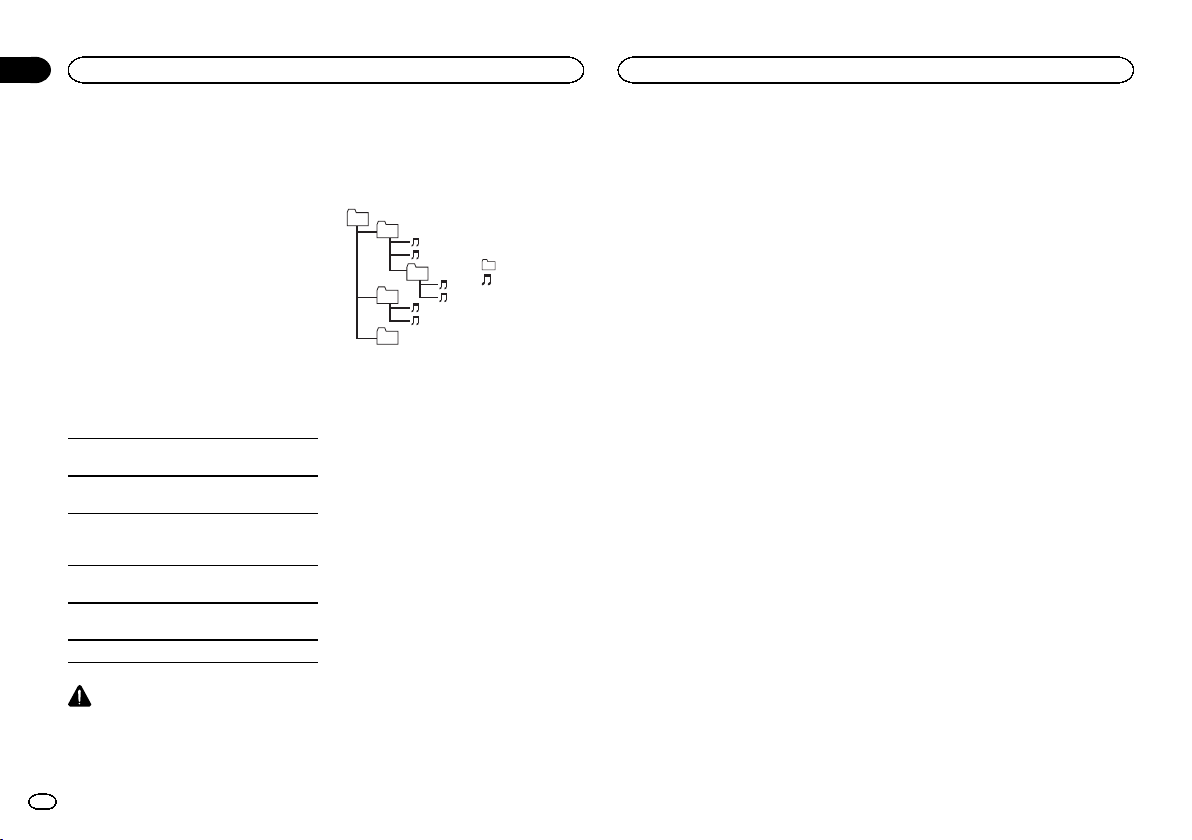
Sequence of audio files
The user cannot assign folder numbers and
specify playback sequences with this unit.
Example of a hierarchy
Level 1 Level 2 Level 3 Level 4
01
02
03
04
05
: Folder
: Compressed
audio file
01 to 05: Folder
number
1 to 6: Playback
sequence
Disc
Folder selection sequence or other operation
may differ depending on the encoding or writing
software.
USB storage device
Playback sequence is the same as recorded se-
quence in the USB storage device.
To specify the playback sequence, the following
method is recommended.
1 Create a file name that includes numbers
that specify the playback sequence (e.g.,
001xxx.mp3 and 099yyy.mp3).
2 Put those files into a folder.
3 Save the folder containing files on the USB
storage device.
However, depending on the system environment,
you may not be able to specify the playback se-
quence.
For USB portable audio players, the sequence is
different and depends on the player.
Copyright and trademark
iTunes
Apple and iTunes are trademarks of Apple Inc.,
registered in the U.S. and other countries.
MP3
Supply of this product only conveys a license for
private, non-commercial use and does not con-
vey a license nor imply any right to use this prod-
uct in any commercial (i.e. revenue-generating)
real time broadcasting (terrestrial, satellite,
cable and/or any other media), broadcasting/
streaming via internet, intranets and/or other
networks or in other electronic content distribu-
tion systems, such as pay-audio or audio-on-de-
mand applications. An independent license for
such use is required. For details, please visit
http://www.mp3licensing.com.
WMA
Windows Media is either a registered trademark
or trademark of Microsoft Corporation in the
United States and/or other countries.
This product includes technology owned by
Microsoft Corporation and cannot be used or
distributed without a license from Microsoft
Licensing, Inc.
iPod & iPhone
iPhone, iPod, iPod classic, iPod nano, and iPod
touch are trademarks of Apple Inc., registered in
the U.S. and other countries.
Lightning is a trademark of Apple Inc.
“Made for iPod” and “Made for iPhone” mean
that an electronic accessory has been designed
to connect specifically to iPod or iPhone, respec-
tively, and has been certified by the developer to
meet Apple performance standards. Apple is
not responsible for the operation of this device
or its compliance with safety and regulatory
standards. Please note that the use of this ac-
cessory with iPod or iPhone may affect wireless
performance.
Androidä
Android is a trademark of Google Inc.
Pandora
®
internet radio
PANDORA, the PANDORA logo, and the
Pandora trade dress are trademarks or regis-
tered trademarks of Pandora Media, Inc. Used
with permission.
MIXTRAX
MIXTRAX is a trademark of the PIONEER
CORPORATION.
Additional information
18
Appendix
Additional information
En
<QRD3234-A>18
Black plate (19,1)
Specifications
General
Power source ................... 14.4 V DC (10.8 V to 15.1 V al-
lowable)
Grounding system ............ Negative type
Maximum current consumption
................................... 10.0 A
Dimensions (W × H × D):
DIN
Chassis ............................ 178mm × 50mm × 165mm
(7 in. × 2 in. × 6-1/2 in.)
Nose ................................ 188 mm × 58mm × 15mm
(7-3/8 in.× 2-1/4 in.× 5/8 in.)
D
Chassis ............................ 178mm × 50mm × 165mm
(7 in.× 2 in.× 6-1/2 in.)
Nose ................................ 170 mm × 46mm × 16mm
(6-3/4 in.× 1-3/4 in.× 5/8 in.)
Weight ............................. 1kg (2.2 lbs)
Audio
Maximum power output ... 50 W × 4
70 W × 1/2 W (for subwoofer)
Continuous power output
................................... 22W × 4 (50 Hz to 15000 Hz,
5 % THD, 4 W load, both chan-
nels driven)
Load impedance .............. 4 W (4 W to 8 W allowable)
Preout maximum output level
................................... 2.0V
Loudness contour ............ +10dB (100 Hz), +6.5 dB
(10 kHz) (volume: –30 dB)
Equalizer (5-Band Graphic Equalizer):
Frequency ........................ 80 Hz/250 Hz/800 Hz/2.5 kHz/
8 kHz
Equalization range ........... ±12 dB (2 dB step)
Subwoofer (mono):
Frequency ........................ 50 Hz/63 Hz/80 Hz/100 Hz/
125 Hz/160 Hz/200 Hz
Slope ............................... –12 dB/oct, –24 dB/oct
Gain ................................ +6dB to –24 dB
Phase .............................. Normal/Reverse
CD player
System ............................ Compact disc audio system
Usable discs .................... Compact disc
Signal-to-noise ratio ......... 94dB (1kHz) (IHF-A network)
Number of channels ........ 2 (stereo)
MP3 decoding format ...... MPEG-1 & 2 Audio Layer 3
WMA decoding format ..... Ver. 7, 7.1, 8, 9, 10, 11, 12 (2ch
audio)
(Windows Media Player)
WAV signa l format ........... Linear PCM & MS ADPCM
(Non-compressed)
USB
USB standard specification
................................... USB 2.0 full speed
Maximum current supply
................................... 1 A
USB Class ....................... MSC (Mass Storage Class)
File system ....................... FAT12, FAT16, FAT32
MP3 decoding format ...... MPEG-1 & 2 Audio Layer 3
WMA decoding format ..... Ver. 7, 7.1, 8, 9, 10, 11, 12 (2ch
audio)
(Windows Media Player)
WAV signa l format ........... Linear PCM & MS ADPCM
(Non-compressed)
FM tuner
Frequency range .............. 87.9 MHz to 107.9 MHz
Usable sensitivity ............. 9 dBf (0.8 µV/75 W, mono, S/N:
30 dB)
Signal-to-noise ratio ......... 72dB (IHF-A network)
AM tuner
Frequency range .............. 530 kHz to 1710 kHz
Usable sensitivity ............. 25µV (S/N: 20 dB)
Signal-to-noise ratio ......... 62dB (IHF-A network)
CEA2006 Specifications
Power output ................... 14 W RMS × 4 Channels (4 W
and ≦ 1 % THD+N)
S/N ratio .......................... 91dBA (reference: 1 W into
4 W)
16 cm 2-way speakers
Reproduction system ....... Coaxial two way
Woofer ............................. f 158 mm (6-1/4 in. Dia.)
Water-resistant
Injection-molded polypropylene cone
High compliance, rolled edge
Heat-resistant voice coil
Magnet: 130 g (4.4 oz)
Tweeter ............................ f 30 mm (1-3/16 in. Dia.)
Dome
Nominal impedanc e ........ 4 W
Sensitivity ........................ 88dB (±1.5dB)
Frequency response ......... 31Hz to 16kHz (–20 dB)
Maximum music power .... 200W
Nominal power ................ 25W
Grille material .................. Heat-proof resin
Weight (per speaker including accessory parts)
................................... 0.45 kg (16 oz)
6” ×9” 3-way speakers
Reproduction system ....... Coaxial three way
Woofer ............................. 163mm × 237mm
(6-3/8 in.×9-3/8 in.)
Injection-molded polypropylene cone
High compliance, rolled edge
Heat-resistant voice coil
Magnet: 150 g (5.3 oz)
Midrange ......................... f 52 mm (2 in. Dia.)
Magnet: 12 g (0.5 oz)
Tweeter ............................ f 11 mm (3/8 in. Dia.)
Nominal impedanc e ........ 4 W
Sensitivity ........................ 88dB (±1.5dB)
Frequency response ......... 28 Hz to 32 kHz (–20 dB)
Maximum music power .... 230W
Nominal power ................ 30W
Grille material .................. Heat-proof resin
Weight (per speaker including accessory parts)
................................... 0.63 kg (1 lb 6 oz)
Note
Specifications and the design are subject to
modifications without notice.
English
Additional information
19
Appendix
Additional information
En
<QRD3234-A>19
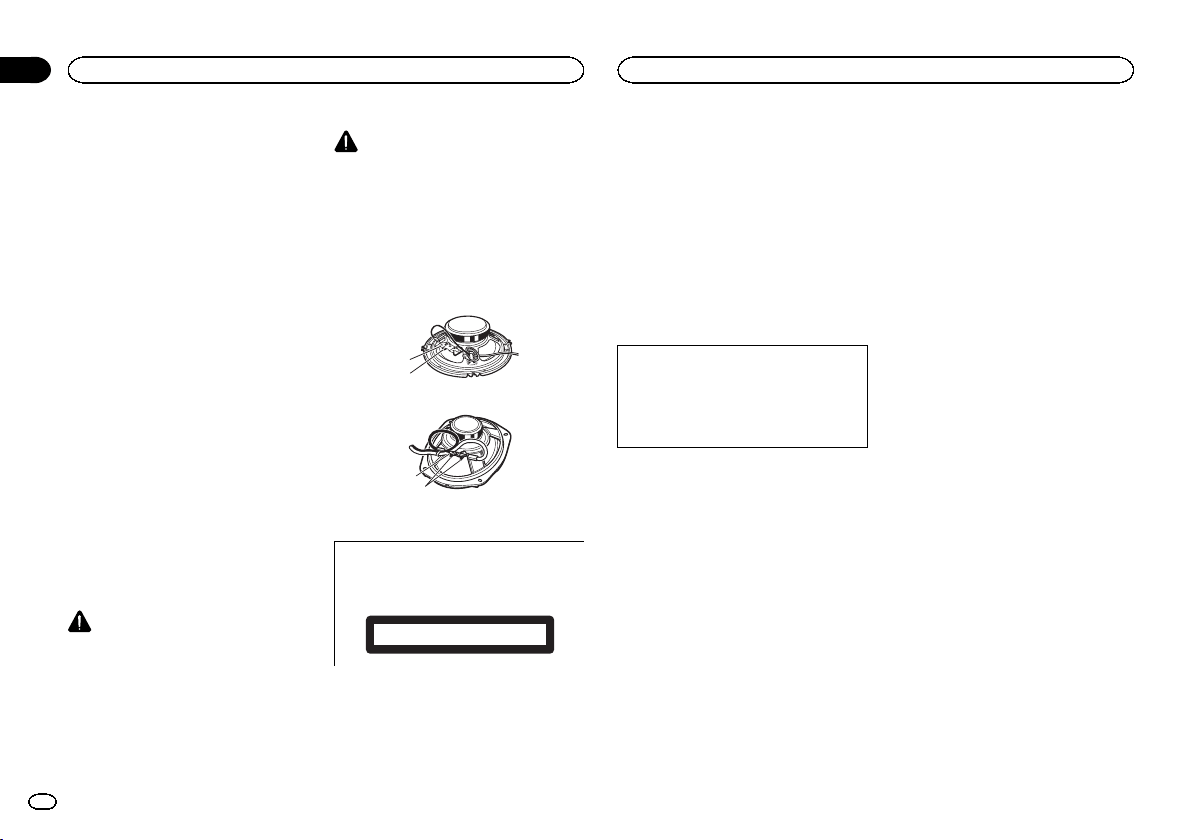
Black plate (20,1)
Gracias por haber adquirido este producto
PIONEER
Lea con detenimiento este manual antes de utili-
zar el producto por primera vez para que pueda
darle el mejor uso posible. Es muy importante
que lea y cumpla con la información que apare-
ce bajo los mensajes de ADVERTENCIA y
PRECAUCIÓN de este manual. Una vez leído,
guarde el manual en un lugar seguro y a mano
para poder consultarlo en el futuro.
Acerca de esta unidad
Las frecuencias del sintonizador de esta unidad
están asignadas para su uso en América del
Norte. El uso en otras áreas puede causar una
recepción deficiente.
! No trate de instalar o reparar este pro-
ducto usted mismo. La instalación o la
reparación de este producto por parte de
personas sin cualificación ni experiencia
en equipos electrónicos y accesorios
para automóviles puede ser peligrosa y
puede exponerle al riesgo de sufrir una
descarga eléctrica u otros peligros.
! No intente utilizar la unidad mientras esté
conduciendo. Asegúrese de salir de la carre-
tera y aparcar su vehículo en un lugar seguro
antes de intentar utilizar los controles del dis-
positivo.
PRECAUCIÓN
! Evite que esta unidad entre en contacto con
líquidos, ya que puede producir una descar-
ga eléctrica. Además, el contacto con líqui-
dos puede causar daños en la unidad, humo
y recalentamiento.
! Mantenga siempre el volumen lo suficiente-
mente bajo como para poder escuchar los
sonidos que provienen del exterior.
! Evite la exposición a la humedad.
PRECAUCIÓN
1 No se debe tocar el alambre flexible 1 del alta-
voz.
2 No cambiar la dirección del ensamblaje de termi-
nal del altavoz 2.
3 Asegurarse de que los terminales del altavoz y el
hilo conductor no están en contecto com el
metal.
4 Para hacer la conexión consultar también el ma-
nual de instrucciones que se provee para el “re-
productor”.
1
2
Altavoces de 2 vías de 16 cm
1
2
Altavoces de tres vías de 6" × 9"
PRECAUCIÓN
Este aparato es un producto de láser de clase
1 clasificado como tal en Seguridad de pro-
ductos de láser, IEC 60825-1:2007.
PRODUCTO LASER CLASE 1
Servicio posventa para
productos Pioneer
Póngase en contacto con el concesionario o dis-
tribuidor al que compró esta unidad para obte-
ner el servicio posventa (incluidas las
condiciones de garantía) o cualquier otra infor-
mación. En caso de que no esté disponible la in-
formación necesaria, póngase en contacto con
las empresas enumeradas abajo.
No envíe su producto para su reparación a las
empresas cuyas direcciones se indican abajo
sin haberse puesto antes en contacto con ellas.
EE.UU.
Pioneer Electronics (USA) Inc.
CUSTOMER SUPPORT DIVISION
P.O. Box 1760
Long Beach, CA 90801-1760
800-421-1404
Para obtener información sobre la garantía,
véase la hoja de Garantía limitada adjunta a este
producto.
En caso de problemas con el
dispositivo
Si esta unidad no funcionase correctamente,
póngase en contacto con su concesionario o
con el centro de servicio PIONEER autorizado
más cercano.
Antes de comenzar
20
Sección
Antes de comenzar
Es
01
<QRD3234-A>20
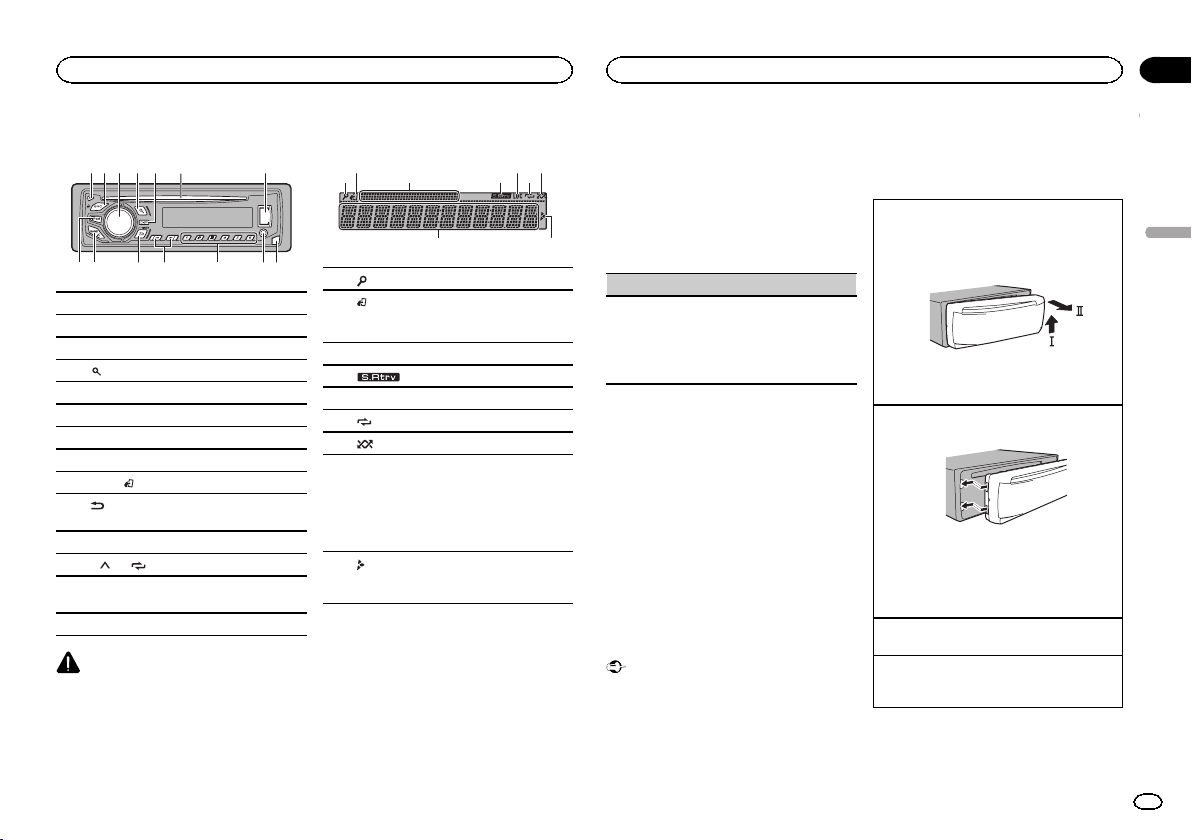
Black plate (21,1)
Unidad principal
71 4 6
3
2
9
a de
8
5
c
b
1 h (expulsar)
2 SRC/OFF
3 MULTI-CONTROL (M.C.)
4
(lista)
5 DISP
6 Ranura de carga de discos
7 Puerto USB
8 iPod
9 BAND/
(control de iPod)
a
(parte posterior)/DIMMER (reductor de
luz)
b c/d
c 1/
a 6/
d
Conector de entrada AUX (conector estéreo
de 3,5 mm)
e Botón de soltar
PRECAUCIÓN
Utilice un cable USB Pioneer opcional (CD-
U50E) para conectar el dispositivo de almacena-
miento USB, ya que cualquier dispositivo conec-
tado directamente a la unidad sobresaldrá de
ésta y podría resultar peligroso.
Indicaciones de la pantalla
31 64
98
2 5 7
1 (lista)
2
(control de iPod)
La función iPod de la unidad se controlará
desde el iPod.
3 Sección de información secundaria
4
(recuperador de sonido)
5 LOC (sintonización por búsqueda local)
6
(repetición)
7
(aleatorio/reproducción aleatoria)
8
Sección de información principal
! Sintonizador: banda y frecuencia
! Reproductor de CD, dispositivo de alma-
cenamiento USB y iPod: tiempo de re-
producción transcurrido e información
de texto
9
Aparece cuando existe un nivel, carpeta o
menú inferior.
Menú de configuración
1 Una vez instalada la unidad, gire la llave
de encendido hasta la posición ON.
Aparecerá SET UP.
2 Pulse M.C. para cambiar a YES.
# El menú de configuración desaparece si no utili-
za la unidad durante 30 segundos.
# Si prefiere dejar la configuración para más tarde,
gire M.C. para cambiar a NO.
3 Pulse M.C. para seleccionarlo.
4 Termine el proceso que se indica a conti-
nuación para ajustar el menú.
Para avanzar a la siguiente opción del menú
debe confirmar primero su selección.
CLOCK SET (ajuste del reloj)
1 Gire M.C. para ajustar la hora.
2 Presione M.C. para seleccionar el minuto.
3 Gire M.C. para ajustar el minuto.
4 Pulse M.C. para confirmar la selección.
Aparecerá QUIT.
5 Para cerrar la configuración, gire M.C. y
seleccione YES.
# Si prefiere volver a cambiar la configuración, gire
M.C. para cambiar a NO.
6 Pulse M.C. para seleccionarlo.
Notas
! Se pueden configurar las opciones del menú
desde el menú del sistema. Si desea más in-
formación sobre los ajustes, consulte Menú
del sistema en la página 28.
! Si desea cancelar el menú de configuración,
pulse SRC/OFF.
Funcionamiento básico
Importante
! Maneje con cuidado el panel frontal cuando
lo quite o ponga.
! Evite someter el panel delantero a impactos
excesivos.
! Mantenga el panel delantero alejado de la
luz solar directa y no lo exponga a altas tem-
peraturas.
! Para evitar que el dispositivo o el interior del
vehículo sufran daños, retire todos los cables
o dispositivos conectados al panel delantero
antes de extraerlo.
Extracción del panel frontal
1 Pulse el botón de soltar para liberar el panel
delantero.
2 Empuje el panel delantero hacia arriba (M)y
tire de él hacia usted (N).
3 Coloque siempre el panel frontal en la funda o
bolsa protectora.
Colocación del panel delantero
1 Deslice el panel hacia la izquierda.
2 Pulse el lado derecho del panel delantero
hasta que se asiente firmemente.
Si aplica una fuerza excesiva para fijar el
panel delantero, puede que resulte dañado el
panel delantero o la unidad principal.
Encendido de la unidad
1 Pulse SRC/OFF para encender la unidad.
Apagado de la unidad
1 Mantenga pulsado SRC/OFF hasta que se apa-
gue la unidad.
Español
Durante el uso de la unidad
21
Sección
Durante el uso de la unidad
Es
02
<QRD3234-A>21
Black plate (22,1)
Selección de una fuente
1 Pulse SRC/OFF para desplazarse entre:
RADIO—CD—USB/iPod—PANDORA—APP
(aplicación)—AUX
! Se muestra USB MTP mientras está en uso la
conexión MTP.
! Si hay un iPod conectado y se selecciona una
fuente diferente a iPod, se podrá cambiar a
iPod pulsando iPod.
Ajuste del volumen
1 Gire M.C. para ajustar el volumen.
Nota
Si el cable azul/blanco de esta unidad está co-
nectado al terminal de control del relé de la an-
tena automática del vehículo, la antena se
extenderá cuando se encienda el equipo. Para
retraer la antena, apague la fuente.
Operaciones del menú
utilizadas frecuentemente
Retorno a la visualización anterior
Para volver a la lista anterior (la carpeta de un
nivel superior)
1 Pulse
/DIMMER.
Retorno a la visualización normal
Acceso al menú principal
1 Pulse BAND/
.
Retorno a la visualización normal desde la lista
1 Pulse BAND/
.
Radio
Funcionamiento básico
Selección de una banda
1 Pulse BAND/
hasta que se visualice la
banda deseada (FM1, FM2 y FM3 para FM o
AM).
Cambio de emisoras presintonizadas
1 Pulse c o d.
! Para utilizar esta función, seleccione PCH
(canal presintonizado) en SEEK.
Sintonización manual (paso a paso)
1 Pulse c o d.
! Para utilizar esta función, seleccione MAN
(sintonización manual) en SEEK.
Búsqueda
1 Mantenga pulsado c o d y luego suéltelo.
Se puede cancelar la sintonización por bús-
queda pulsando brevemente c o d.
Mientras mantiene pulsado c o d se pueden
saltar las emisoras. La sintonización por bús-
queda comienza inmediatamente después de
que suelte c o d.
Nota
Para obtener detalles sobre SEEK, consulte
SEEK (ajuste tecla izquierda/derecha) en la pági-
na 22.
Almacenamiento y recuperación
de emisoras para cada banda
Uso de los botones de ajuste de
presintonías
1 Para guardar: mantenga pulsado uno de
los botones de ajuste de presintonías (1/
a
6/
) hasta que el número deje de parpa-
dear.
2 Para recuperar emisoras: pulse uno de los
botones de ajuste de presintonías (1/
a6/
).
Cambio de la visualización
Selección de la información de texto deseada
1 Pulse DISP para desplazarse entre las siguien-
tes opciones:
! FREQUENCY (nombre del servicio de pro-
grama o frecuencia)
! BRDCST INFO (título de la canción/nombre
del artista)
! CLOCK (nombre de la fuente y reloj)
Notas
! Si no se puede adquirir el nombre del servi-
cio de programa en FREQUENCY, se visuali-
zará la frecuencia en su lugar. Si se detecta
el nombre del servicio de programa, se visua-
lizará el nombre del servicio de programa.
! Dependiendo de la banda, puede cambiarse
la información de texto.
! Los elementos de información de texto pue-
den cambiar según la zona.
Ajustes de funciones
1 Pulse M.C. para acceder al menú princi-
pal.
2 Gire M.C. para cambiar la opción de
menú y pulse para seleccionar FUNCTION.
3 Gire M.C. para seleccionar la función.
Una vez seleccionado, se pueden ajustar las si-
guientes funciones.
BSM (memoria de las mejores emisoras)
BSM (memoria de las mejores emisoras) guarda
automáticamente las seis emisoras más fuertes
ordenadas por la intensidad de la señal.
1 Pulse M.C. para activar la función BSM.
Para cancelar, vuelva a pulsar M.C.
LOCAL (sintonización por búsqueda local)
La sintonización por búsqueda local le permite
sintonizar sólo las emisoras de radio con señales
lo suficientemente intensas como para asegurar
una correcta recepción.
1 Pulse M.C. para seleccionar el ajuste deseado.
FM: OFF—LV1—LV2—LV3—LV4
AM: OFF—LV1—LV2
El ajuste de nivel superior solo permite recibir
las emisoras con las señales más intensas,
mientras que los ajustes más bajos permiten
recibir las emisoras con señales más débiles.
SEEK (ajuste tecla izquierda/derecha)
Es posible asignar funciones a las teclas derecha
e izquierda de la unidad.
Seleccione MAN (sintonización manual) para
subir o bajar la frecuencia de forma manual o se-
leccione PCH (canales presintonizados) para cam-
biar entre los canales presintonizados.
1 Presione M.C. para seleccionar MAN o PCH.
CD/CD-R/CD-RW y dispositivos
de almacenamiento USB
Conexión MTP
Los dispositivos Android compatibles con MTP
(al ejecutar el sistema operativo Android 4.0 o
superior) se pueden conectar a través de la co-
nexión MTP utilizando la fuente USB. Para co-
nectar un dispositivo Android, utilice el cable
suministrado con el dispositivo.
Durante el uso de la unidad
22
Sección
Durante el uso de la unidad
Es
02
<QRD3234-A>22
Black plate (23,1)
Notas
! Esta función no es compatible con MIX-
TRAX.
! Esta función no es compatible con WAV.
Funcionamiento básico
Reproducción de un CD/CD-R/CD-RW
1 Inserte el disco en la ranura de carga de dis-
cos con el lado de la etiqueta hacia arriba.
Expulsión de un CD/CD-R/CD-RW
1 Pulse h.
Reproducción de canciones de un dispositivo de
almacenamiento USB
1 Abra la tapa del puerto USB.
2 Conecte el dispositivo de almacenamiento
USB mediante un cable USB.
Detención de la reproducción de archivos en un
dispositivo de almacenamiento USB
1 Puede desconectar el dispositivo de almace-
namiento USB en cualquier momento.
Selección de una carpeta
1 Pulse 1/
o 2/ .
Selección de una pista
1 Pulse c o d.
Avance rápido o retroceso
1 Mantenga pulsado c o d.
! Al reproducir audio comprimido, no hay soni-
do durante el avance rápido o el retroceso.
Regreso a la carpeta raíz
1 Mantenga pulsado BAND/
.
Cambio entre audio comprimido y CD-DA
1 Pulse BAND/
.
Cambio entre dispositivos de memoria de repro-
ducción
Se puede cambiar entre dispositivos de memoria
de reproducción en dispositivos de almacena-
miento USB con más de un dispositivo de memo-
ria compatible con uno de almacenamiento
masivo.
1 Pulse BAND/
.
! Se puede cambiar hasta 32 dispositivos de
memoria diferentes.
Nota
Desconecte los dispositivos de almacenamiento
USB de la unidad cuando no los utilice.
Operaciones con el botón MIXTRAX
Activación o desactivación de MIXTRAX
Se puede utilizar esta función cuando se seleccio-
na USB como fuente.
No puede usar esta función con USB MTP.
1 Presione 3/MIX para activar o desactivar MIX-
TRAX.
! Para obtener más información sobre MIX-
TRAX, consulte Sobre MIXTRAX en la página 28.
! Cuando se usa MIXTRAX, la función sound re-
triever se desactiva.
Cambio de la visualización
Selección de la información de texto deseada
1 Pulse DISP para desplazarse entre las siguien-
tes opciones:
CD-DA
! ELAPSED TIME (número de pista y tiempo
de reproducción)
! CLOCK (nombre de la fuente y reloj)
! SPEANA (analizador de espectro)
CD-TEXT
! TRACK INFO (título de la pista/artista de la
pista/título del disco)
! ELAPSED TIME (número de pista y tiempo
de reproducción)
! CLOCK (nombre de la fuente y reloj)
! SPEANA (analizador de espectro)
MP3/WMA/WAV
! TRACK INFO (título de la pista/nombre del
artista/título del álbum)
! FILE INFO (nombre del fichero/nombre de
la carpeta)
! ELAPSED TIME (número de pista y tiempo
de reproducción)
! CLOCK (nombre de la fuente y reloj)
! SPEANA (analizador de espectro)
Selección y reproducción de
archivos/pistas de la lista de
nombres
1 Pulse para cambiar al modo de lista
por nombre de archivo/pista.
2 Utilice M.C. para seleccionar el nombre
del archivo deseado (o de la carpeta).
Selección de un archivo o una carpeta
1 Gire M.C.
Reproducción
1 Tras seleccionar un archivo o una pista, pulse
M.C.
Visualización de una lista de los archivos (o las
carpetas) de la carpeta seleccionada
1 Tras seleccionar una carpeta, pulse M.C.
Reproducción de una canción de la carpeta selec-
cionada
1 Tras seleccionar una carpeta, mantenga pulsa-
do M.C.
Operaciones con botones especiales
Selección de un intervalo de repetición de repro-
ducción
1 Pulse 6/
para desplazarse entre las siguien-
tes opciones:
CD/CD-R/CD-RW
! ALL – Repite todas las pistas
! ONE – Repite la pista actual
! FLD – Repite la carpeta actual
Dispositivo de almacenamiento USB
! ALL – Repite todos los archivos
! ONE – Repite el archivo actual
! FLD – Repite la carpeta actual
Reproducción de las pistas en orden aleatorio
1 Pulse 5/
para activar o desactivar la repro-
ducción aleatoria.
Las pistas de una gama de repetición seleccio-
nada se reproducen en orden aleatorio.
! Para cambiar de canciones durante la repro-
ducción aleatoria, pulse d para cambiar a la
pista siguiente; si se pulsa c se reiniciará la
reproducción de la pista actual desde el princi-
pio de la canción.
Pausa de la reproducción
1 Pulse 4/PAUSE para pausar o reanudar.
Ajustes de funciones
1 Pulse M.C. para acceder al menú princi-
pal.
Español
Durante el uso de la unidad
23
Sección
Durante el uso de la unidad
Es
02
<QRD3234-A>23
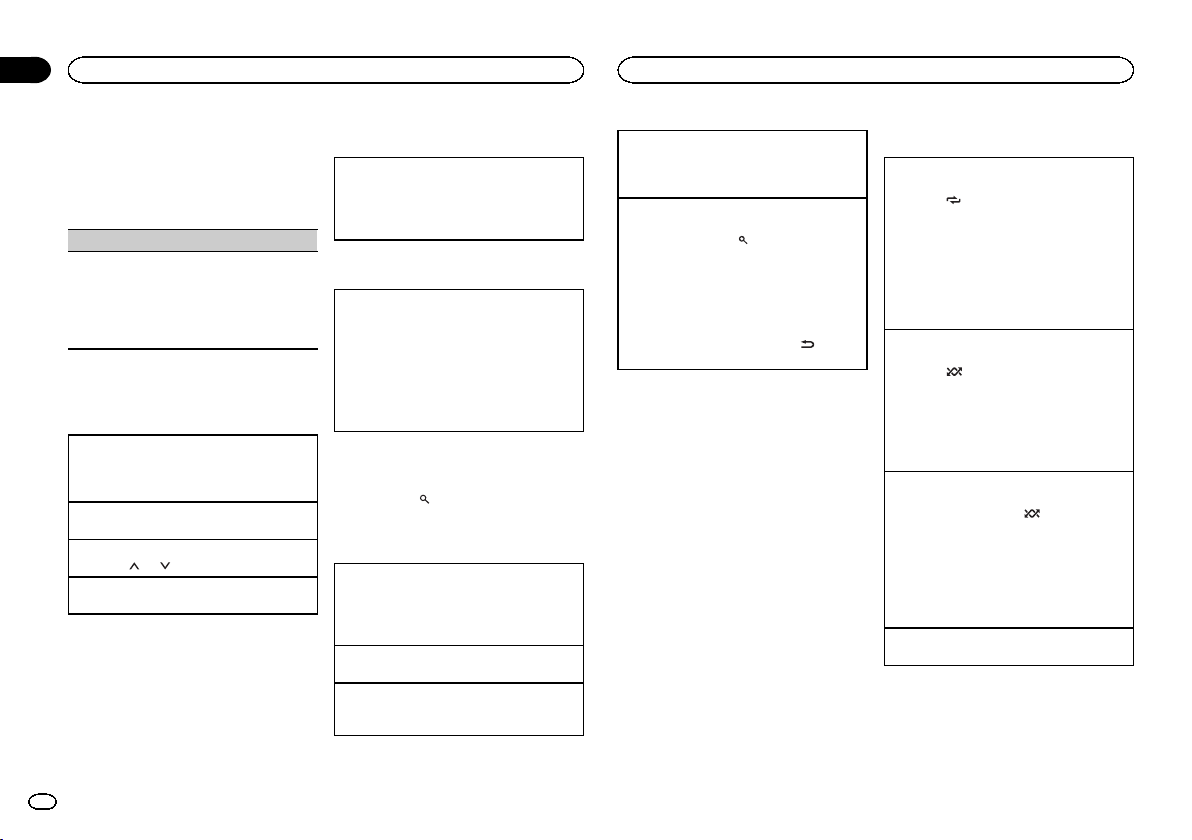
Black plate (24,1)
2 Gire M.C. para cambiar la opción de
menú y pulse para seleccionar FUNCTION.
Una vez seleccionado, se puede ajustar la fun-
ción de abajo.
! S.RTRV no está disponible cuando se activa
MIXTRAX.
S.RTRV (recuperador de sonido)
Mejora automáticamente el audio comprimido y
restaura el sonido óptimo.
1 Pulse M.C. para seleccionar el ajuste deseado.
1—2—OFF (desactivado)
1 es efectivo para tasas de compresión baja, y
2 para tasas de compresión alta.
iPod
Funcionamiento básico
Reproducción de canciones en un iPod
1 Abra la tapa del puerto USB.
2 Conecte un iPod a la entrada USB.
La reproducción se inicia automáticamente.
Selección de una canción (capítulo)
1 Pulse c o d.
Selección de un álbum
1 Pulse 1/
o 2/ .
Avance rápido o retroceso
1 Mantenga pulsado c o d.
Notas
! El iPod no puede encenderse o apagarse
cuando el modo de control está ajustado en
CTRL AUDIO.
! Desconecte los auriculares del iPod antes de
conectarlo a esta unidad.
! El iPod se apagará aproximadamente dos mi-
nutos después de que la llave de encendido
del automóvil se ponga en OFF.
Operaciones con el botón MIXTRAX
Activación o desactivación de MIXTRAX
1 Presione 3/MIX para activar o desactivar MIX-
TRAX.
! Para obtener más información sobre MIX-
TRAX, consulte Sobre MIXTRAX en la página 28.
Cambio de la visualización
Selección de la información de texto deseada
1 Pulse DISP para desplazarse entre las siguien-
tes opciones:
! TRACK INFO (título de la pista/nombre del
artista/título del álbum)
! ELAPSED TIME (número de pista y tiempo
de reproducción)
! CLOCK (nombre de la fuente y reloj)
! SPEANA (analizador de espectro)
Para buscar una canción
1 Para ir al menú superior de la búsqueda
de listas, pulse
.
2 Utilice M.C. para seleccionar una catego-
ría/canción.
Cambio del nombre de la canción o la categoría
1 Gire M.C.
Listas de reproducción—artistas—álbumes—
canciones—podcasts—géneros—composito-
res—audiolibros
Reproducción
1 Tras seleccionar una canción, pulse M.C.
Visualización de una lista de canciones de la cate-
goría seleccionada
1 Tras seleccionar una categoría, pulse M.C.
Reproducción de una canción de la categoría se-
leccionada
1 Tras seleccionar una categoría, mantenga pul-
sado M.C.
Búsqueda alfabética en las listas
1 Cuando se visualice una lista de la categoría
seleccionada, pulse
para cambiar al modo
de búsqueda alfabética.
! Es posible cambiar al modo de búsqueda
por orden alfabético girando M.C. dos
veces.
2 Haga girar M.C. para seleccionar una letra.
3 Pulse M.C. para visualizar la lista alfabética.
! Para cancelar la búsqueda, pulse
/DIM-
MER.
Notas
! Es posible reproducir listas de reproducción
creadas con el programa de ordenador
(MusicSphere). Dicho programa estará dis-
ponible en nuestro sitio web.
! Las listas de reproducción creadas con el
programa de ordenador (MusicSphere) se
muestran de forma abreviada.
Operaciones con botones especiales
Selección de un intervalo de repetición de repro-
ducción
1 Pulse 6/
para desplazarse entre las siguien-
tes opciones:
! ONE – Repite la canción actual
! ALL – Repite todas las canciones de la
lista seleccionada
! Cuando el modo de control se ha ajustado en
CTRL iPod, el intervalo de repetición de repro-
ducción será el mismo que el que se ajustó
para el iPod conectado.
Selección de un intervalo de reproducción aleato-
rio (shuffle)
1 Pulse 5/
para desplazarse entre las si-
guientes opciones:
! SNG – Reproduce canciones siguiendo un
orden aleatorio dentro de la lista.
! ALB – Reproduce canciones siguiendo un
orden aleatorio dentro del álbum.
! OFF – No se reproduce en orden aleatorio.
Reproducción de todas las canciones en orden
aleatorio (shuffle all)
1 Mantenga presionado 5/
para activar la
función de reproducción de todas las cancio-
nes en orden aleatorio (shuffle all).
! Para desactivar la reproducción de todas las
canciones en orden aleatorio, seleccione OFF
en reproducción aleatoria. Para más informa-
ción, consulte Selección de un intervalo de re-
producción aleatorio (shuffle) en la página 24.
Pausa de la reproducción
1 Pulse 4/PAUSE para pausar o reanudar.
Durante el uso de la unidad
24
Sección
Durante el uso de la unidad
Es
02
<QRD3234-A>24
Black plate (25,1)
Reproducción de canciones
relacionadas con la canción que
se está reproduciendo
Se pueden reproducir canciones de las siguien-
tes listas:
• Lista de álbumes del artista que se está repro-
duciendo
• Lista de canciones del álbum que se está re-
produciendo
• Lista de álbumes del género que se está repro-
duciendo
1 Mantenga pulsado
para cambiar al
modo de reproducción de enlace.
2 Haga girar M.C. para cambiar el modo y
pulse para seleccionarlo.
! ARTIST – Reproduce un álbum del artista
que se está reproduciendo.
! ALBUM – Reproduce una canción del álbum
que se está reproduciendo.
! GENRE – Reproduce un álbum del género
que se está reproduciendo.
La canción o el álbum seleccionado se reprodu-
cirá después de la canción que se esté reprodu-
ciendo en ese momento.
Notas
! Se puede cancelar la canción o el álbum se-
leccionado mediante funciones diferentes a
la búsqueda de enlace (p. ej., avance rápido
y retroceso).
! Según la canción seleccionada, pueden cor-
tarse el final de la canción que se esté repro-
duciendo o el principio de la canción o del
álbum seleccionados.
Uso de la función iPod de la
unidad desde el iPod
La función iPod de esta unidad se puede contro-
lar desde el iPod conectado.
CTRL iPod no es compatible con los siguientes
modelos de iPod:
! iPod nano 1ª generación
! iPod con vídeo
% Pulse BAND/
para cambiar el modo de
control.
! CTRL iPod – La función iPod de esta unidad
se puede utilizar desde el iPod conectado.
! CTRL AUDIO – La función iPod de esta uni-
dad se puede controlar desde esta unidad.
También puede cambiar el ajuste de salida pre-
sionando iPod.
Notas
! Al cambiar el modo de control a CTRL iPod,
se pausa la reproducción de la canción. Utili-
ce el iPod para reanudar la reproducción.
! Las siguientes operaciones estarán disponi-
bles en esta unidad aunque se ajuste el
modo de control en CTRL iPod.
— Pausa
— Avance rápido/retroceso
— Selección de una canción (capítulo)
! El volumen solo se puede controlar desde
esta unidad.
Ajustes de funciones
1 Pulse M.C. para acceder al menú princi-
pal.
2 Gire M.C. para cambiar la opción de
menú y pulse para seleccionar FUNCTION.
3 Gire M.C. para seleccionar la función.
Una vez seleccionado, se pueden ajustar las si-
guientes funciones.
! AUDIO BOOK no está disponible cuando se
selecciona CTRL iPod en modo de control.
Para más información, consulte Uso de la
función iPod de la unidad desde el iPod en la
página 25.
AUDIO BOOK (velocidad del audiolibro)
1 Pulse M.C. para mostrar el modo de ajuste.
2 Gire M.C. para seleccionar su ajuste favorito.
! FASTER – Reproducción con velocidad su-
perior a la normal
! NORMAL – Reproducción con velocidad
normal
! SLOWER – Reproducción con velocidad in-
ferior a la normal
S.RTRV (recuperador de sonido)
1 Pulse M.C. para seleccionar el ajuste deseado.
1—2—OFF (desactivado)
1 es efectivo para tasas de compresión baja, y
2 para tasas de compresión alta.
Flujo continuo (streaming)
de Pandora
â
IMPORTANTE:
Requisitos para acceder a Pandora mediante los
productos de audio/vídeo para automóvil de
Pioneer:
! Por favor, actualice el firmware de la aplicación
de Pandora a la última versión antes de utilizarla.
! Se puede descargar la última versión de la apli-
cación de Pandora en el iTunes App Store.
! Cree una cuenta online gratuita o de pago.
Puede crear la cuenta en la aplicación de
Pandora desde su iPhone o en el sitio web. La di-
rección URL es la siguiente:
http://www.pandora.com/register
! Si el plan de datos para su iPhone no incluye
transferencia ilimitada de datos, pueden aplicar-
se cargos adicionales por parte de su proveedor
para acceder a Pandora a través de las redes 3G
y/o EDGE.
! Necesitará conectarse a Internet a través de 3G,
EDGE o una red WiFi para poder utilizar el servi-
cio de Pandora.
Limitaciones:
! Dependiendo de la disponibilidad de Internet, tal
vez no pueda recibir el servicio de Pandora.
! El servicio de Pandora está sujeto a cambios sin
previo aviso. El servicio puede verse afectado por
uno de los siguientes factores: versiones de firm-
ware de iPhone, versiones de firmware de las
aplicaciones de Pandora, cambios en el servicio
de música de Pandora.
! Ciertas operaciones del servicio de Pandora no
están disponibles cuando se accede al servicio a
través de los productos de audio/vídeo para auto-
móvil de Pioneer. Estas incluyen, pero no están li-
mitadas a lo siguiente: la creación de nuevas
emisoras, eliminación de emisoras, envío de in-
formación acerca de las emisoras actuales, com-
pra de canciones desde iTunes, visualización de
información de texto adicional, iniciar sesión en
Pandora y ajustar la calidad de audio de la red
móvil.
El servicio de música Pandora Internet Radio no
está asociado con Pioneer. Encontrará mas in-
formación en http://www.pandora.com.
La aplicación móvil de Pandora está disponible
para la mayoría de los iPhones y teléfonos inteli-
gentes; por favor, visite
www.pandora.com/everywhere/mobile para ob-
tener la última información sobre la compatibili-
dad.
Procedimiento de inicio para
usuarios de iPhone
1 Conecte un iPhone a una salida USB.
2 Cambie la fuente a PANDORA.
3 Inicie la aplicación en el iPhone e inicie la
reproducción.
Español
Durante el uso de la unidad
25
Sección
Durante el uso de la unidad
Es
02
<QRD3234-A>25
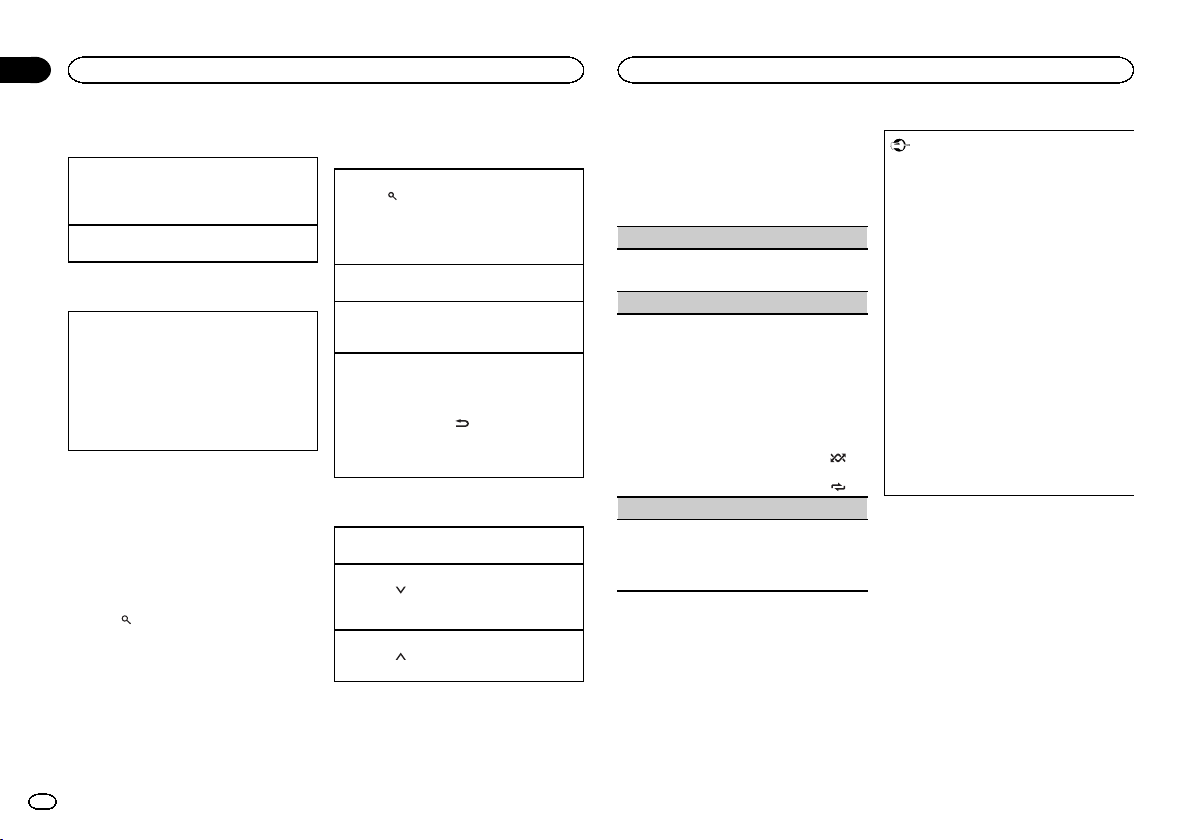
Black plate (26,1)
Funcionamiento básico
Reproducción de pistas
Para obtener más información, consulte Procedi-
miento de inicio para usuarios de iPhone en la pá-
gina 25.
Saltar pistas
1 Pulse d.
Cambio de la visualización
Selección de la información de texto deseada
1 Pulse DISP para desplazarse entre las siguien-
tes opciones:
! TRACK INFO (nombre de la emisora/título
de la pista/nombre del artista/título del
álbum)
! ELAPSED TIME (tiempo de reproducción)
! CLOCK (nombre de la fuente y reloj)
! SPEANA (analizador de espectro)
Nota
Dependiendo de la emisora, puede cambiarse la
información de texto.
Selección y reproducción de la lista
de emisoras/selección aleatoria
La pantalla mostrada en esta unidad puede no
ser la misma que la mostrada en el dispositivo
conectado.
1 Pulse
(lista) para cambiar al modo de
lista de emisoras/selección aleatoria.
2 Utilice M.C. para seleccionar la selección
aleatoria o la emisora deseada.
Cambio del criterio de ordenación
1 Pulse
(lista).
! ABC – Los elementos de la lista se ordenan al-
fabéticamente
! DATE – Los elementos de la lista se ordenan
por fecha de creación
Cambio de selección aleatoria o de emisoras
1 Gire M.C.
Reproducción
1 Cuando está seleccionada la selección aleato-
ria o la emisora, pulse M.C.
Eliminar emisoras
1 Tras seleccionar una emisora, mantenga pul-
sado M.C.
Aparece DELETE YES.
Para cancelar, pulse
/DIMMER. volverá al
nivel anterior.
2 Pulse M.C.
Se eliminará la emisora.
Operaciones con botones especiales
Pausa de la reproducción
1 Pulse 4/PAUSE para pausar o reanudar.
Dar un voto negativo
1 Pulse 2/
para dar un voto negativo a la can-
ción que se está reproduciendo y avanzar a la
siguiente canción.
Dar un voto positivo
1 Pulse 1/
para dar un voto positivo a la pista
que se está reproduciendo.
Ajustes de funciones
1 Pulse M.C. para acceder al menú princi-
pal.
2 Gire M.C. para cambiar la opción de
menú y pulse para seleccionar FUNCTION.
3 Gire M.C. para seleccionar la función.
Una vez seleccionado, se pueden ajustar las si-
guientes funciones.
BOOKMARK (favoritos)
1 Pulse M.C. para guardar la información de
pista.
NEW STATION (nueva emisora)
Se creará una nueva emisora con la información
del artista o pista que se está reproduciendo.
1 Pulse M.C. para mostrar el modo de ajuste.
2 Gire M.C. para seleccionar el ajuste deseado.
FROM TRACK (de la pista)—FROM ARTIST
(del artista)
3 Pulse M.C.
Se ha creado una nueva emisora.
! También puede crear una nueva emisora a par-
tir de una pista manteniendo pulsado 5/
.
! También puede crear una nueva emisora a par-
tir de un artista manteniendo pulsado 6/
.
S.RTRV (recuperador de sonido)
1 Pulse M.C. para seleccionar el ajuste deseado.
1—2—OFF (desactivado)
1 es efectivo para tasas de compresión baja, y
2 para tasas de compresión alta.
Uso de las aplicaciones del
dispositivo conectado
Puede utilizar la unidad para reproducir y con-
trolar las pistas en aplicaciones de iPhone o
simplemente para reproducir música.
Importante
El uso de aplicaciones de terceros puede im-
plicar o necesitar la puesta a disposición de
información de identificación personal, bien
mediante la creación de una cuenta de usua-
rio o de algún otro modo, y, para ciertas apli-
caciones, la puesta a disposición de datos de
geoubicación.
TODAS LAS APLICACIONES DE TERCEROS
SON RESPONSABILIDAD EXCLUSIVA DE
LOS PROVEEDORES, INCLUIDAS SIN LIMI-
TACIÓN LA RECOPILACIÓN Y LA SEGURI-
DAD DE LOS DATOS DE USUARIO Y LAS
PRÁCTICAS DE PRIVACIDAD. AL ACCEDER
A APLICACIONES DE TERCEROS, USTED SE
MANIFIESTA DE ACUERDO EN REVISAR LOS
TÉRMINOS DE SERVICIO Y LAS POLÍTICAS
DE PRIVACIDAD DE LOS PROVEEDORES. SI
NO ESTÁ DE ACUERDO CON LOS TÉRMINOS
O LAS POLÍTICAS DE ALGÚN PROVEEDOR O
NO CONSIENTE EL USO DE DATOS DE
GEOUBICACIÓN DONDE SEA APLICABLE,
NO UTILICE ESTAS APLICACIONES DE TER-
CEROS.
Información acerca de la
compatibilidad de dispositivos
conectados
A continuación se muestra información detalla-
da acerca de las terminales necesarias para uti-
lizar la aplicación para iPhone en esta unidad.
Para usuarios de iPhone
! Esta función es compatible tanto con iPhone
como con iPod touch.
! El dispositivo tiene un iOS 5.0 o superior.
Notas
! Compruebe en nuestra página web la lista
de las aplicaciones de iPhone compatibles
con esta unidad.
Durante el uso de la unidad
26
Sección
Durante el uso de la unidad
Es
02
<QRD3234-A>26
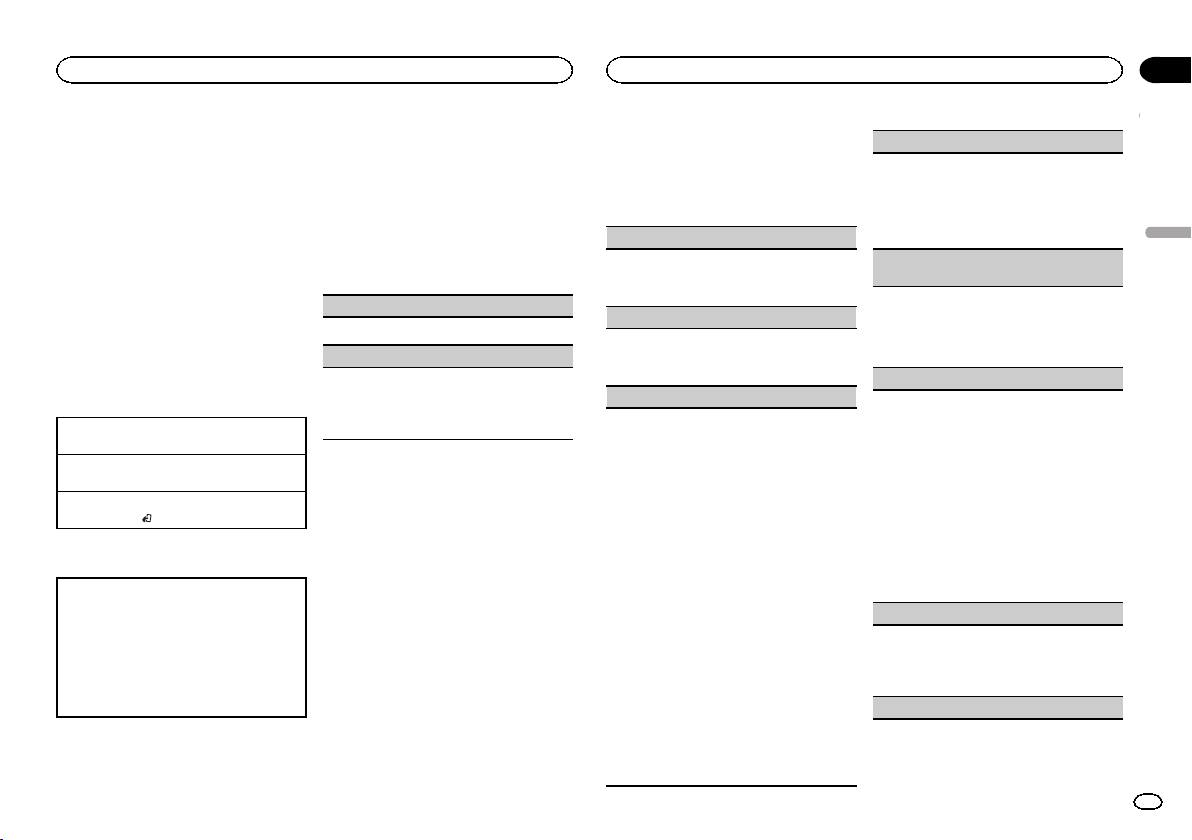
Black plate (27,1)
! Pioneer no se responsabiliza de cualquier
problema que pueda surgir a causa de un
contenido incorrecto o defectuoso de la apli-
cación.
! El contenido y funcionamiento de las aplica-
ciones compatibles son responsabilidad de
los proveedores de las mismas.
Procedimiento de inicio para
usuarios de iPhone
1 Conecte un iPhone a una salida USB.
2 Cambie la fuente a APP.
3 Inicie la aplicación en el iPhone e inicie la
reproducción.
Funcionamiento básico
Selección de una pista
1 Pulse c o d.
Avance rápido o retroceso
1 Mantenga pulsado c o d.
Pausa de la reproducción
1 Pulse BAND/
para pausar o reanudar.
Cambio de la visualización
Selección de la información de texto deseada
1 Pulse DISP para desplazarse entre las siguien-
tes opciones:
! TRACK INFO (título de la pista/nombre del
artista/título del álbum)
! APP NAME (nombre de la aplicación)
! ELAPSED TIME (tiempo de reproducción)
! CLOCK (nombre de la fuente y reloj)
! SPEANA (analizador de espectro)
Ajustes de funciones
1 Pulse M.C. para acceder al menú princi-
pal.
2 Gire M.C. para cambiar la opción de
menú y pulse para seleccionar FUNCTION.
3 Gire M.C. para seleccionar la función.
Una vez seleccionado, se pueden ajustar las si-
guientes funciones.
PAUSE (pausar)
1 Pulse M.C. para pausar o reanudar.
S.RTRV (recuperador de sonido)
1 Pulse M.C. para seleccionar el ajuste deseado.
1—2—OFF (desactivado)
1 es efectivo para tasas de compresión baja, y
2 para tasas de compresión alta.
Ajustes de audio
1 Pulse M.C. para acceder al menú princi-
pal.
2 Gire M.C. para cambiar la opción de
menú y pulse para seleccionar AUDIO.
3 Gire M.C. para seleccionar la función de
audio.
Una vez seleccionado, se pueden ajustar las si-
guientes funciones de audio.
! FADER no está disponible cuando se selec-
ciona SUB.W/SUB.W en SP-P/O MODE. Para
más información, consulte SP-P/O MODE
(ajuste de la salida posterior y del preamplifica-
dor) en la página 29.
! SUB.W y SUB.W CTRL no están disponibles
cuando se selecciona REAR/REAR en
SP-P/O MODE. Para más información, con-
sulte SP-P/O MODE (ajuste de la salida poste-
rior y del preamplificador) en la página 29.
! SUB.W CTRL no está disponible cuando se
selecciona SUB.W en OFF. Para más infor-
mación, consulte SUB.W (ajuste de subgra-
ves activado/desactivado) en la página 27.
! SLA no está disponible si se ha seleccionado
FM como fuente.
FADER (ajuste de ecualizador)
1 Pulse M.C. para mostrar el modo de ajuste.
2 Gire M.C. para ajustar el balance entre los alta-
voces delanteros/traseros.
BALANCE (ajuste del balance)
1 Pulse M.C. para mostrar el modo de ajuste.
2 Gire M.C. para ajustar el balance de los altavo-
ces izquierdo o derecho.
EQ SETTING (recuperación de ecualizador)
1 Pulse M.C. para mostrar el modo de ajuste.
2 Gire M.C. para seleccionar el ecualizador.
POWERFUL—NATURAL—VOCAL—CUS-
TOM1—CUSTOM2—FLAT—SUPER BASS
La banda y el nivel de ecualización se pueden
personalizar si se selecciona CUSTOM1 o
CUSTOM2.
Si selecciona CUSTOM1 o CUSTOM2, com-
plete los pasos que se describen más abajo. Si
selecciona otras opciones, pulse M.C. para
volver a la pantalla anterior.
! CUSTOM1 se puede ajustar por separado
para cada fuente; no obstante, USB, iPod,
PANDORA y APP se ajustan igual automá-
ticamente.
! CUSTOM2 es una configuración comparti-
da que se utiliza para todas las fuentes.
3 Pulse M.C. para mostrar el modo de ajuste.
4 Pulse M.C. para desplazarse entre las siguien-
tes opciones:
Banda de ecualización—Nivel de ecualización
5 Gire M.C. para seleccionar el ajuste deseado.
Banda de ecualización: 80HZ—250HZ—
800HZ—2.5KHZ—8KHZ
Nivel de ecualización: +6 a –6
LOUDNESS (sonoridad)
La sonoridad compensa las deficiencias en los in-
tervalos de frecuencias bajas y altas cuando se es-
cucha a un volumen bajo.
1 Pulse M.C. para seleccionar el ajuste deseado.
OFF (desactivado)—LOW (bajo)—MID
(medio)—HI (alto)
SUB.W (ajuste de subgraves activado/desactiva-
do)
Esta unidad está equipada con una salida de sub-
graves que se puede activar o desactivar.
1 Pulse M.C. para seleccionar el ajuste deseado.
NOR (fase normal)—REV (fase inversa)—OFF
(subgraves desactivados)
SUB.W CTRL (ajuste de subgraves)
Solo las frecuencias más bajas que aquellas en el
intervalo seleccionado se generan por el altavoz
de subgraves.
1 Pulse M.C. para mostrar el modo de ajuste.
2 Pulse M.C. para desplazarse entre las siguien-
tes opciones:
Frecuencia de corte—Nivel de salida—Nivel de
pendiente
Las tasas que se puedan ajustar parpadearán.
3 Gire M.C. para seleccionar el ajuste deseado.
Frecuencia de corte: 50HZ—63HZ—80HZ—
100HZ—125HZ—160HZ—200HZ
Nivel de salida: de –24 a +6
Nivel de pendiente: –12— –24
BASS BOOST (intensificación de graves)
1 Pulse M.C. para mostrar el modo de ajuste.
2 Gire M.C. para seleccionar el nivel que desee.
Se visualiza 0 a +6 mientras se aumenta o dis-
minuye el nivel.
HPF SETTING (ajuste del filtro de paso alto)
Español
Durante el uso de la unidad
27
Sección
Durante el uso de la unidad
Es
02
<QRD3234-A>27
Black plate (28,1)
Utilice esta función si desea escuchar solo soni-
dos de alta frecuencia. Solamente se emiten por
los altavoces frecuencias más altas que el corte
del filtro de paso alto (HPF).
1 Pulse M.C. para mostrar el modo de ajuste.
2 Pulse M.C. para desplazarse entre las siguien-
tes opciones:
Frecuencia de corte—Nivel de pendiente
3 Gire M.C. para seleccionar el ajuste deseado.
Frecuencia de corte: OFF—50HZ—63HZ—
80HZ—100HZ—125HZ—160HZ—200HZ
Nivel de pendiente: –12— –24
SLA (ajuste del nivel de fuente)
Esta función evita que el volumen cambie dema-
siado drásticamente cuando se cambia de fuente.
! Los ajustes se basan en el nivel de volumen de
FM, que se mantiene inalterado.
! El nivel del volumen de AM también se puede
ajustar con esta función.
! USB, iPod, PANDORA y APP reciben el mismo
ajuste automáticamente.
1 Pulse M.C. para mostrar el modo de ajuste.
2 Gire M.C. para ajustar el volumen de la fuente.
Gama de ajuste: de +4 a –4
Menú del sistema
1 Pulse M.C. para acceder al menú princi-
pal.
2 Gire M.C. para cambiar la opción de
menú y pulse para seleccionar SYSTEM.
3 Gire M.C. para seleccionar la función del
menú del sistema.
Una vez seleccionado, se pueden ajustar las si-
guientes funciones del menú de sistema.
CLOCK SET (ajuste del reloj)
1 Pulse M.C. para mostrar el modo de ajuste.
2 Pulse M.C. para seleccionar el segmento de la
pantalla del reloj que desea ajustar.
Hora—Minuto
3 Gire M.C. para ajustar el reloj.
12H/24H (anotación de la hora)
1 Pulse M.C. para seleccionar el ajuste deseado.
12H (reloj de 12 horas)—24H (reloj de 24
horas)
AUX (entrada auxiliar)
Active este ajuste si utiliza un dispositivo auxiliar
conectado a esta unidad.
1 Pulse M.C. para activar o desactivar AUX.
DIMMER (atenuador de luz)
1 Pulse M.C. para activar o desactivar el atenua-
dor de luz.
! También se puede cambiar la configuración de
atenuador de luz manteniendo pulsado
/DIMMER.
Sobre MIXTRAX
La tecnología MIXTRAX se utiliza para introducir
diversos efectos de sonido entre las canciones,
lo que permite experimentar la música como
una mezcla ininterrumpida que se complemen-
ta con una sucesión de efectos visuales.
Notas
! Según el archivo/canción, es posible que los
efectos de sonido no estén disponibles.
! Apague MIXTRAX si los efectos visuales que
produce tienen efectos adversos en la con-
ducción. Consulte Operaciones con el botón
MIXTRAX en la página 23.
Menú MIXTRAX
1 Pulse M.C. para acceder al menú princi-
pal.
2 Gire M.C. para cambiar la opción de
menú y pulse para seleccionar MIXTRAX.
3 Gire M.C. para seleccionar la función MIX-
TRAX.
Una vez seleccionado, pueden ajustarse las si-
guientes funciones de MIXTRAX. La función
está activada cuando MIXTRAX está activado.
SHORT MODE (modo de reproducción corto)
Se puede seleccionar la duración del tiempo de re-
producción.
1 Pulse M.C. para mostrar el modo de ajuste.
2 Gire M.C. para seleccionar el ajuste deseado.
1.0 MIN (1,0 minutos)—1.5 MIN (1,5 minutos)
—2.0 MIN (2,0 minutos)—2.5 MIN (2,5 minu-
tos)—3.0 MIN (3,0 minutos)—OFF (desactiva-
do)
MIX PATTERN (patrón de mezcla)
La visualización de efectos especiales de MIX-
TRAX cambia al cambiar el nivel de audio.
1 Pulse M.C. para mostrar el modo de ajuste.
2 Gire M.C. para seleccionar el ajuste deseado.
! SOUND LEVEL – El patrón de mezcla cam-
bia de acuerdo con el nivel de sonido.
! LOW PASS – El patrón de mezcla cambia
de acuerdo con el nivel de graves.
! RANDOM – El patrón de mezcla cambia
aleatoriamente de acuerdo con el modo de
nivel de sonido y el modo de paso bajo.
DISP FX (efecto de pantalla)
La visualización de los efectos especiales MIX-
TRAX se puede activar o desactivar.
1 Pulse M.C. para seleccionar el ajuste deseado.
ON (visualización de los efectos especiales
MIXTRAX)—OFF (visualización normal)
CUT IN FX (efecto de interrupción manual)
Puede activar o desactivar los efectos de MIXTRAX
mientras cambia de pista manualmente.
1 Pulse M.C. para seleccionar el ajuste deseado.
ON (activado)—OFF (desactivado)
Menú inicial
1 Mantenga pulsado SRC/OFF hasta que se
apague la unidad.
2 Pulse M.C. para acceder al menú princi-
pal.
3 Gire M.C. para cambiar la opción de
menú y pulse para seleccionar INITIAL.
Una vez seleccionado, se puede ajustar la fun-
ción del menú inicial de abajo.
Durante el uso de la unidad
28
Sección
Durante el uso de la unidad
Es
02
<QRD3234-A>28
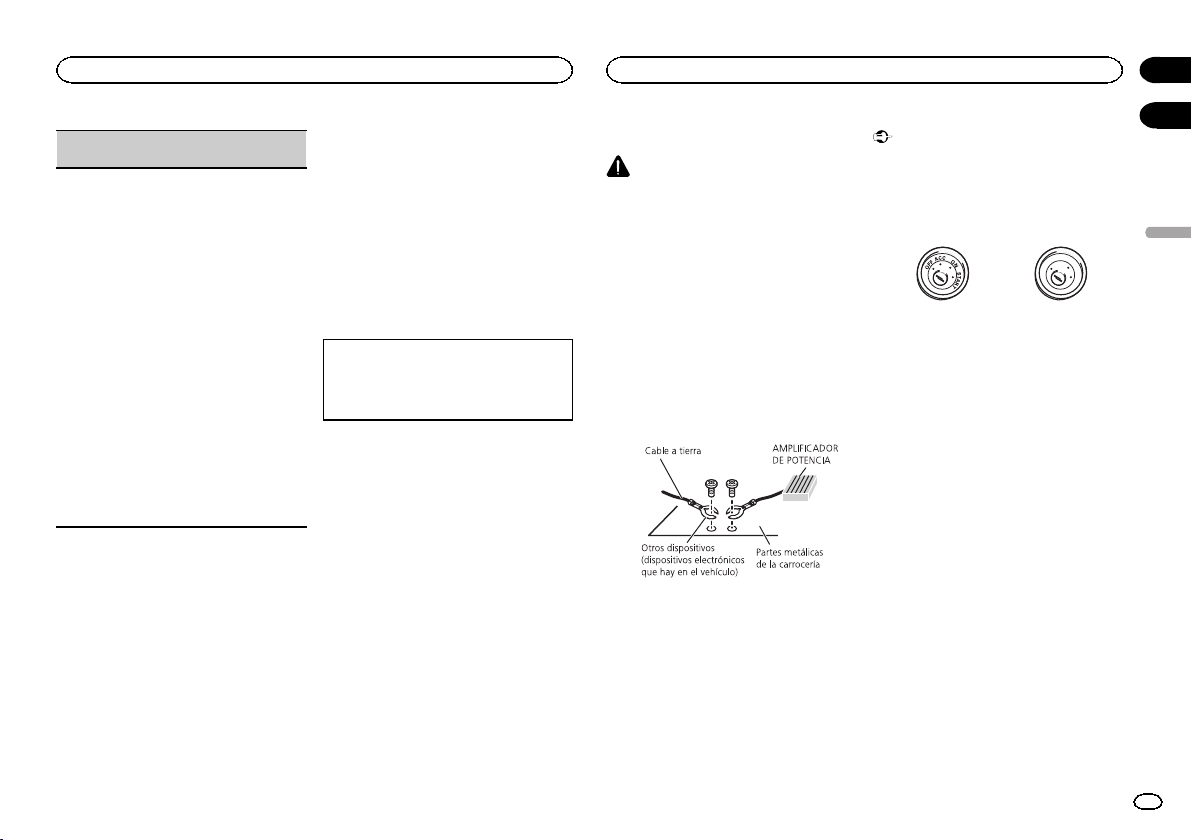
Black plate (29,1)
SP-P/O MODE (ajuste de la salida posterior y del
preamplificador)
La salida de cables de altavoces traseros y la sali-
da RCA de esta unidad se puede usar para co-
nectar altavoces de gama completa o de
subgraves. Seleccione la opción adecuada para
su conexión.
1 Pulse M.C. para mostrar el modo de ajuste.
2 Gire M.C. para seleccionar el ajuste deseado.
! REAR/SUB.W – Seleccione cuando haya
conectado un altavoz de gama completa a
la salida de cables de altavoces traseros y
un subgrave a la salida RCA.
! SUB.W/SUB.W – Seleccione cuando haya
conectado un subgrave directamente a la
salida de cables de altavoces traseros, sin
ningún amplificador auxiliar, y un subgrave
a la salida RCA.
! REAR/REAR – Seleccione cuando exista
un altavoz de gama completa conectado a
la salida de cables de los altavoces trase-
ros y a la salida RCA.
Si hay un altavoz de gama completa conec-
tado a la salida de cables de los altavoces
traseros y la salida RCA no se utiliza, podrá
seleccionar REAR/SUB.W o REAR/REAR.
Menú del sistema
1 Mantenga pulsado SRC/OFF hasta que se
apague la unidad.
2 Pulse M.C. para acceder al menú princi-
pal.
3 Gire M.C. para cambiar la opción de
menú y pulse para seleccionar SYSTEM.
4 Gire M.C. para seleccionar la función del
menú del sistema.
Para obtener más información, consulte Menú
del sistema en la página 28.
Uso de una fuente AUX
1 Inserte el miniconector estéreo en el co-
nector de entrada AUX.
2 Pulse SRC/OFF para seleccionar AUX
como fuente.
Nota
No se puede seleccionar AUX si no se activa el
ajuste auxiliar. Para obtener más información,
consulte AUX (entrada auxiliar) en la página 28.
Cambio de la visualización
Selección de la información de texto deseada
1 Pulse DISP para desplazarse entre las siguien-
tes opciones:
! Nombre de la fuente
! Nombre de la fuente y reloj
Si aparece un display no
deseado
Desactive el display no deseado mediante los
pasos que se indican a continuación.
1 Pulse M.C. para acceder al menú princi-
pal.
2 Gire M.C. para cambiar la opción de
menú y pulse para seleccionar SYSTEM.
3 Gire M.C. para visualizar DEMO OFF y
púlselo para realizar la selección.
4 Pulse M.C. para cambiar a YES.
5 Pulse M.C. para seleccionarlo.
Conexiones
ADVERTENCIA
! Utilice altavoces de más de 50 W (valor de
salida) y de entre 4 W y8W (valor de impe-
dancia). No utilice altavoces de 1 W a3W
con esta unidad.
! El cable negro es el cable a tierra. Cuando
instale esta unidad o el amplificador de po-
tencia (vendido por separado), siempre co-
necte primero el cable a tierra. Compruebe
que el cable de tierra está conectado adecua-
damente a las partes metálicas de la carroce-
ría del automóvil. El cable a tierra del
amplificador, el de esta unidad o el de cual-
quier otro dispositivo debe conectarse al
automóvil por separado usando tornillos dife-
rentes. Si el tornillo para el cable a tierra se
afloja o se cae, puede provocar incendios,
humo o averías.
No se suministra para esta unidad
*1
*1
Importante
! Cuando esta unidad se instale en un ve-
hículo sin posición ACC (accesorio) en la
llave de encendido, el cable rojo se debe co-
nectar al terminal que pueda detectar la ope-
ración de la llave de encendido. De lo
contrario, puede descargarse la batería.
O
N
S
T
A
R
T
O
F
F
Posición ACC Sin posición ACC
! Utilice esta unidad únicamente con una ba-
tería de 12 voltios y conexión a tierra negati-
va. De lo contrario, pueden producirse
incendios o averías.
! Para evitar cortocircuitos, sobrecalentamien-
to o fallos de funcionamiento, asegúrese de
seguir las siguientes instrucciones.
— Desconecte el terminal negativo de la batería
antes de la instalación.
— Asegure el cableado con pinzas para cables
o cinta adhesiva. Envuelva con cinta adhesiva
las partes en contacto con piezas metálicas
para proteger el cableado.
— Mantenga los cables alejados de las partes
móviles, como la palanca de cambios y los
raíles de los asientos.
— Coloque todos los cables alejados de lugares
calientes, como cerca de la salida del calefac-
tor.
— No conecte el cable amarillo a la batería pa-
sándolo a través del orificio hasta el compar-
timiento del motor.
— Cubra con cinta aislante los conectores de
cables que queden desconectados.
— No acorte ningún cable.
— Nunca corte el aislamiento del cable de ali-
mentación de esta unidad para compartir la
corriente con otros equipos. La capacidad de
corriente del cable es limitada.
Español
Durante el uso de la unidad
29
Sección
Instalación
Es
02
03
<QRD3234-A>29
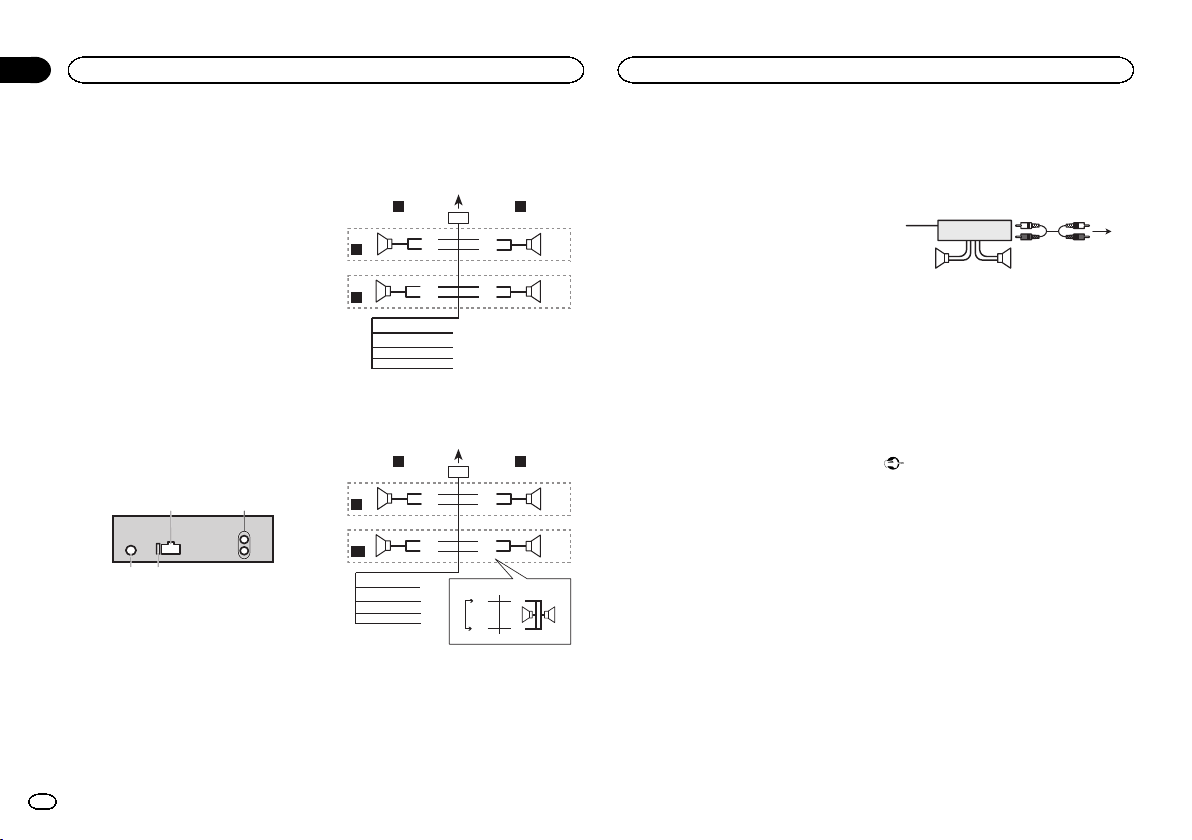
Black plate (30,1)
— Utilice un fusible con la intensidad nominal
indicada.
— Nunca conecte el cable negativo de los alta-
voces directamente a tierra.
— Nunca empalme los cables negativos de va-
rios altavoces.
! Cuando se enciende esta unidad, se emite
una señal de control a través del cable azul/
blanco. Conecte este cable al mando a dis-
tancia del sistema de un amplificador de po-
tencia externo o al terminal de control del
relé de la antena automática del vehículo
(máx. 300 mA 12 V cc). Si el vehículo posee
una antena integrada en el cristal del para-
brisas, conéctela al terminal de la fuente de
alimentación del amplificador de la antena.
! Nunca conecte el cable azul/blanco al termi-
nal de potencia de un amplificador de poten-
cia externo, ni al terminal de potencia de la
antena automática, de lo contrario, puede
descargarse la batería o producirse un fallo
de funcionamiento.
Esta unidad
3 4
21
1 Entrada del cable de alimentación
2 Salida trasera o salida de subgraves
3 Entrada de la antena
4 Fusible (10 A)
Cable de alimentación
Realice estas conexiones cuando no esté conec-
tado un altavoz trasero a uno de subgraves.
1
8
9
c
d
6
32
4
5
7
a
b
e
f
h
g
LR
F
R
Realice estas conexiones cuando esté usando
un altavoz de subgraves sin el amplificador op-
cional.
1
8
9
c
d
6
32
4
7
a
b
a
b
e
f
h
g
LR
F
SW
i
j
d
c
k l
1 A la toma del cable de alimentación
2 Izquierda
3 Derecha
4 Altavoz delantero
5 Altavoz trasero
6 Blanco
7 Blanco/negro
8 Gris
9 Gris/negro
a Verde
b Verde/negro
c Violeta
d Violeta/negro
e Negro (toma de tierra del chasis)
Conectar a una parte metálica limpia, sin
pintura.
f Amarillo
Conectar al terminal de alimentación cons-
tante de 12 V.
g Rojo
Conectar al terminal controlado por la llave
de encendido (12 V cc).
h Azul/blanco
Conectar al terminal de control del sistema
del amplificador de potencia o al terminal de
control del relé de la antena (máx. 300 mA
12 V cc).
i Subgraves (4 W)
j Al usar un altavoz de subgraves de 70 W
(2 W), conecte el mismo a los cables violeta y
violeta/negro de esta unidad. No conecte
nada al cable verde ni al verde/negro.
k No se utiliza.
l Subgraves (4 W)x2
Notas
! Si se utiliza un sistema de dos altavoces, no
conecte ningún otro aparato a las salidas de
cable que no estén conectadas a un altavoz.
! Cambie el menú inicial de esta unidad. Con-
sulte SP-P/O MODE (ajuste de la salida pos-
terior y del preamplificador) en la página 29.
La salida de graves de esta unidad es mo-
noaural.
Amplificador de potencia (se
vende por separado)
Realice estas conexiones cuando utilice el am-
plificador opcional.
1
3
2
4
55
1 Control remoto del sistema
Conexión a cable azul/blanco.
2 Amplificador de potencia (se vende por sepa-
rado)
3 Conectar con cables RCA (se venden por se-
parado)
4 A la salida trasera o salida de subgraves
5 Altavoz trasero o altavoz de subgraves
Instalación
Importante
! Compruebe todas las conexiones y sistemas
antes de la instalación final.
! No utilice piezas no autorizadas, ya que pue-
den causar fallos de funcionamiento.
! Consulte a su distribuidor si para la instala-
ción es necesario taladrar orificios o hacer
otras modificaciones al vehículo.
! No instale esta unidad en un lugar donde:
— Pueda interferir con el manejo del vehículo.
— Pueda lesionar a un pasajero como conse-
cuencia de un frenazo brusco.
! El láser semiconductor se dañará si se sobre-
calienta. Instale esta unidad alejada de
zonas que alcancen altas temperaturas,
como cerca de la salida del calefactor.
Instalación
30
Sección
Instalación
Es
03
<QRD3234-A>30
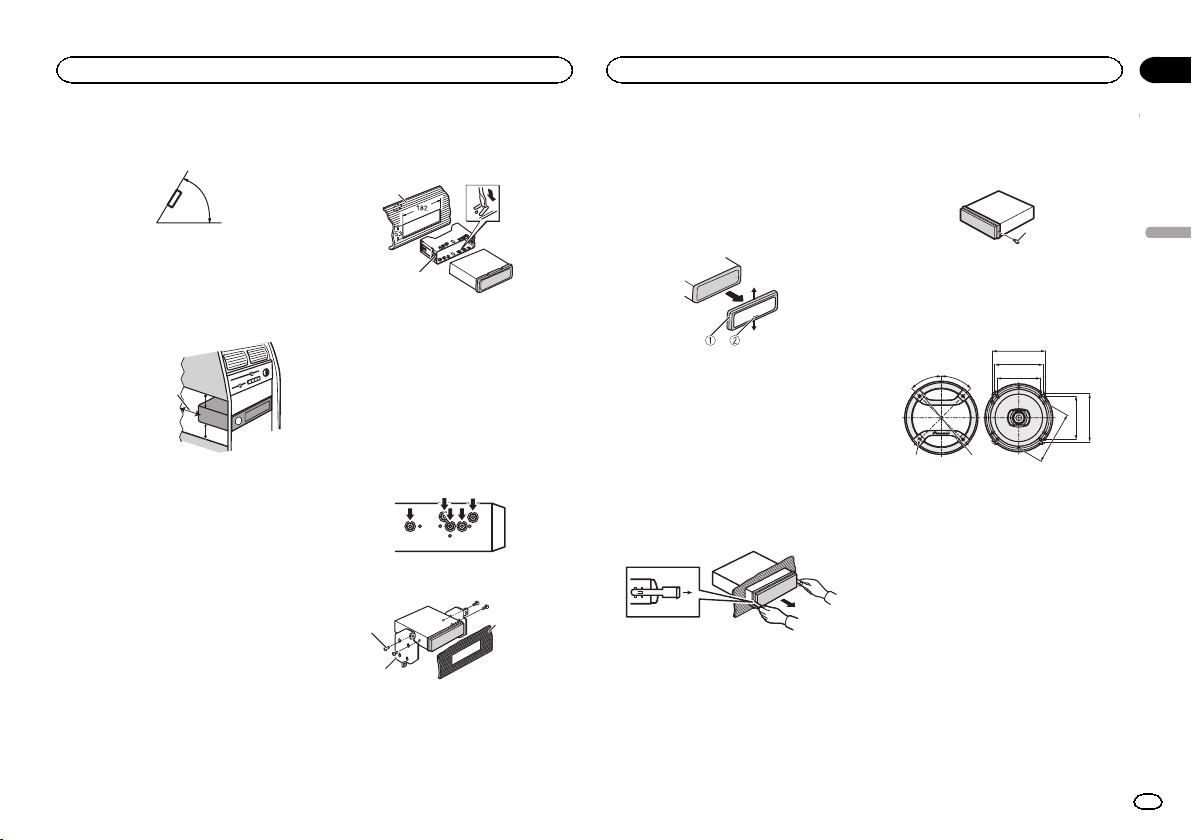
Black plate (31,1)
! Se logra un rendimiento óptimo si la unidad
se instala en un ángulo inferior a 60°.
60°
! Cuando instale, para asegurar la dispersión
apropiada del calor durante el uso de esta
unidad, asegúrese de dejar un amplio espa-
cio por detrás del panel trasero y enrolle los
cables sueltos de modo que no bloqueen las
aberturas de ventilación.
Deje un amplio espacio
5 cm
5 cm
Montaje delantero/posterior de DIN
Esta unidad puede instalarse correctamente
tanto si se realiza una instalación frontal o trase-
ra.
En la instalación, emplee piezas disponibles en
el mercado.
Montaje delantero DIN
1 Inserte el manguito de montaje en el sal-
picadero.
Si realiza la instalación en un espacio poco pro-
fundo, utilice el manguito de montaje suminis-
trado. Si hay suficiente espacio, utilice el
manguito de montaje que venía con el vehículo.
2 Fije el manguito de montaje utilizando
un destornillador para doblar las pestañas
metálicas (90°) y colocarlas en su lugar.
1
2
1 Salpicadero
2 Manguito de montaje
# Asegúrese de que la unidad esté firmemente ins-
talada en su lugar. Una instalación inestable puede
causar saltos en el audio o un mal funcionamiento
de la unidad.
Montaje trasero DIN
1 Determine la posición correcta, de modo
que los orificios del soporte y del lateral de
la unidad coincidan.
2 Apriete los dos tornillos en cada lado.
1
2
3
1 Tornillo
2 Carcasa
3 Salpicadero o consola
! Utilice tornillos de cabeza redonda (5 mm ×
8 mm) o tornillos de cabeza embutida (5 mm
× 9 mm), según los orificios roscados del so-
porte.
Extracción de la unidad
1 Retire el anillo de guarnición.
1 Anillo de guarnición
2 Pestaña con muesca
! Libere el panel delantero para acceder más
fácilmente al anillo de guarnición.
! Al volver a colocar el anillo de guarnición,
oriente hacia abajo la pestaña con muesca.
2 Inserte en ambos lados de la unidad las
llaves de extracción provistas hasta que se
escuche un ligero chasquido.
3 Extraiga la unidad del salpicadero.
Retirada y colocación del panel
delantero
Puede extraer el panel delantero para proteger
la unidad contra robo.
Para obtener más información, consulte Extrac-
ción del panel frontal y Colocación del panel de-
lantero en la página 21.
Fijación del panel frontal
El panel frontal puede fijarse con el tornillo su-
ministrado.
1
1 Tornillo
Instalación de los altavoces
Altavoces de 2 vías de 16 cm
A
D
E
F
A
C
HI
B
G
Delantero
A 45°
B f Orificios de 4,3 mm
C f 142 mm
D 123 mm
E 113 mm
F 100 mm
G 123 mm
H 100mm
I 113 mm
Español
Instalación
31
Sección
Instalación
Es
03
<QRD3234-A>31
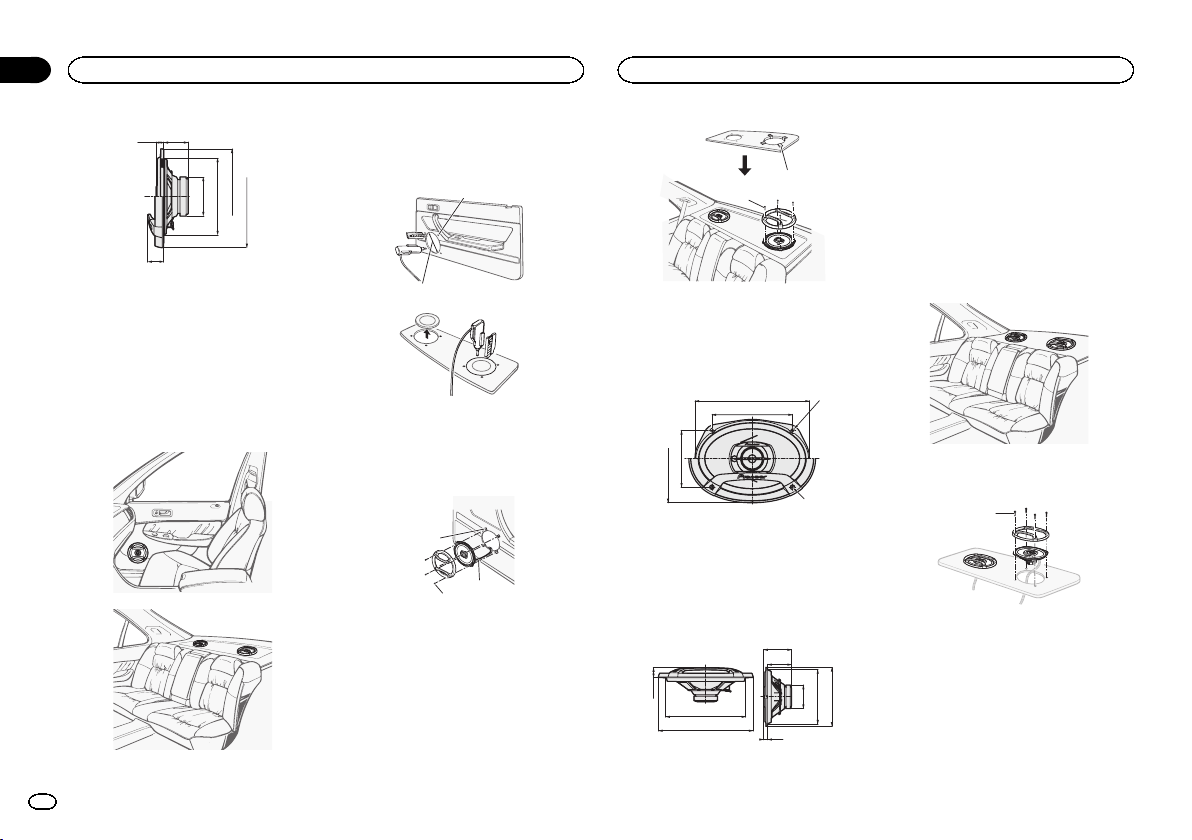
Black plate (32,1)
A
G
CD E F
B
Lado
A13mm
B41mm
C f 65 mm
D f 128 mm
E f 158 mm
F f 170 mm
G27mm
1 Coloque los altavoces en los lugares indi-
cados en la ilustración.
2 Haga los agujeros como se indica en la
ilustración (si es necesario, retire el tapizado
de la puerta).
1
2
1 f 4,3 mm
2 f 128 mm
3 Instale los altavoces como se indica en la
ilustración.
1
2
3
2
1
1 Tuerca rápida
2 Tornillos de rosca cortante (4 mm × 25 mm)
3 Cable (gris o blanco)
Altavoces de tres vías de 6" × 9"
C
B
DE
F
A
Delantero
A Orificios de 5,6 mm × 8,7 mm
B 237 mm
C 166,6 mm
D 117,5 mm
E 182 mm
F f Orificios de 4,8 mm
B
D
I
E
FGH
A
C
Lado
A 28,3 mm
B 222 mm
C 262 mm
D 77,6 mm
E 66,3 mm
F f 65 mm
G 153 mm
H 163mm
I11mm
1 Coloque los altavoces en los lugares indi-
cados en la ilustración.
2 Instale los altavoces como se indica en la
ilustración.
1
1 Tornillos de rosca cortante (4 mm × 30 mm)
Instalación
32
Sección
Instalación
Es
03
<QRD3234-A>32
Black plate (33,1)
Solución de problemas
Los síntomas se escriben en negrita y las cau-
sas en escritura normal sin sangría. El texto nor-
mal con sangría se utiliza para indicar las
acciones que se han de tomar.
La pantalla vuelve automáticamente a la
visualización normal.
No ha realizado ninguna operación en aproximada-
mente 30 segundos.
Realice la operación de nuevo.
El intervalo de repetición de reproducción cambia
de manera inesperada.
Dependiendo del intervalo de repetición de repro-
ducción, el intervalo seleccionado puede cambiar
cuando se selecciona otra carpeta o pista o cuando
se utilice el avance rápido/retroceso.
Seleccione de nuevo el intervalo de repetición de
reproducción.
No se reproduce una subcarpeta.
No se pueden reproducir las subcarpetas cuando se
selecciona FLD (repetición de carpeta).
Seleccione otro intervalo de repetición de
reproducción.
NO XXXX aparece cuando se cambia una pantalla
(NO TITLE, por ejemplo).
No hay información de texto incorporada.
Cambie la pantalla o reproduzca otra pista/
archivo.
La unidad no funciona correctamente.
Hay una interferencia.
Está utilizando un dispositivo, como un teléfono
móvil, que puede causar interferencias.
Aleje de la unidad los dispositivos eléctricos que
puedan estar causando interferencias.
Mensajes de error
Anote el mensaje de error antes de contactar
con su concesionario o con el servicio técnico
oficial de Pioneer más cercano.
Los mensajes de error se escriben en negrita y
producen un texto normal sin sangrado. El texto
normal y sangrado se emplea para indicar las
acciones que se han de tomar.
Comunes
AMP ERROR
La unidad no funciona o la conexión de los altavoces
es incorrecta; se activa el circuito de protección.
Compruebe la conexión de los altavoces. Si el
mensaje no desaparece aun después de apagar
y volver a encender el motor, contacte con su
distribuidor o con el Servicio técnico oficial
Pioneer.
Reproductor de CD
ERROR-07, 11, 12, 17, 30
El disco está sucio.
Limpie el disco.
El disco está rayado.
Sustituya el disco.
ERROR-07, 10, 11, 12, 15, 17, 30, A0
Se ha producido un error eléctrico o mecánico.
Coloque la llave de encendido del automóvil en
la posición de desactivación y luego pase de
nuevo a activación, o cambie a una fuente
diferente y, a continuación, vuelva a activar el
reproductor de CD.
ERROR-15
El disco insertado aparece en blanco.
Sustituya el disco.
ERROR-23
Formato de CD no compatible.
Sustituya el disco.
FORMAT READ
A veces se produce un retraso entre el comienzo de
la reproducción y la emisión del sonido.
Espere hasta que el mensaje desaparezca y oiga
sonido.
NO AUDIO
El disco insertado no contiene archivos reproduci-
bles.
Sustituya el disco.
SKIPPED
El disco insertado contiene archivos protegidos con
DRM.
Los archivos protegidos se saltan.
PROTECT
Todos los archivos del disco insertado tienen DRM
integrado.
Sustituya el disco.
Dispositivo de almacenamiento USB o
iPod
FORMAT READ
A veces se produce un retraso entre el comienzo de
la reproducción y la emisión del sonido.
Espere hasta que el mensaje desaparezca y oiga
sonido.
NO AUDIO
No hay canciones.
Transfiera los archivos de audio al dispositivo de
almacenamiento USB y conéctelo.
El dispositivo de almacenamiento USB conectado
tiene la seguridad activada.
Para desactivar la seguridad, siga las
instrucciones del dispositivo de almacenamiento
USB.
SKIPPED
El dispositivo de almacenamiento USB conectado
tiene archivos protegidos con DRM.
Los archivos protegidos se saltan.
PROTECT
Todos los archivos en el dispositivo de almacena-
miento USB conectado tienen DRM integrado.
Cambie el dispositivo de almacenamiento USB.
N/A USB
El dispositivo USB conectado no es compatible con
esta unidad.
! Conecte un dispositivo que cumpla con la
clase de almacenamiento masivo USB.
! Desconecte su dispositivo y sustitúyalo por un
dispositivo de almacenamiento USB compatible.
CHECK USB
El conector USB o el cable USB está cortocircui-
tado.
Compruebe que el conector USB o el cable USB
no esté enganchado en algo ni dañado.
CHECK USB
El dispositivo de almacenamiento USB consume
más de la corriente máxima admisible.
Desconecte el dispositivo de almacenamiento
USB y no lo utilice. Coloque la llave de
encendido del automóvil en posición OFF, luego
en ACC u ON y, a continuación, conecte
únicamente dispositivos de almacenamiento
USB compatibles.
Español
Información adicional
33
Apéndice
Información adicional
Es
<QRD3234-A>33
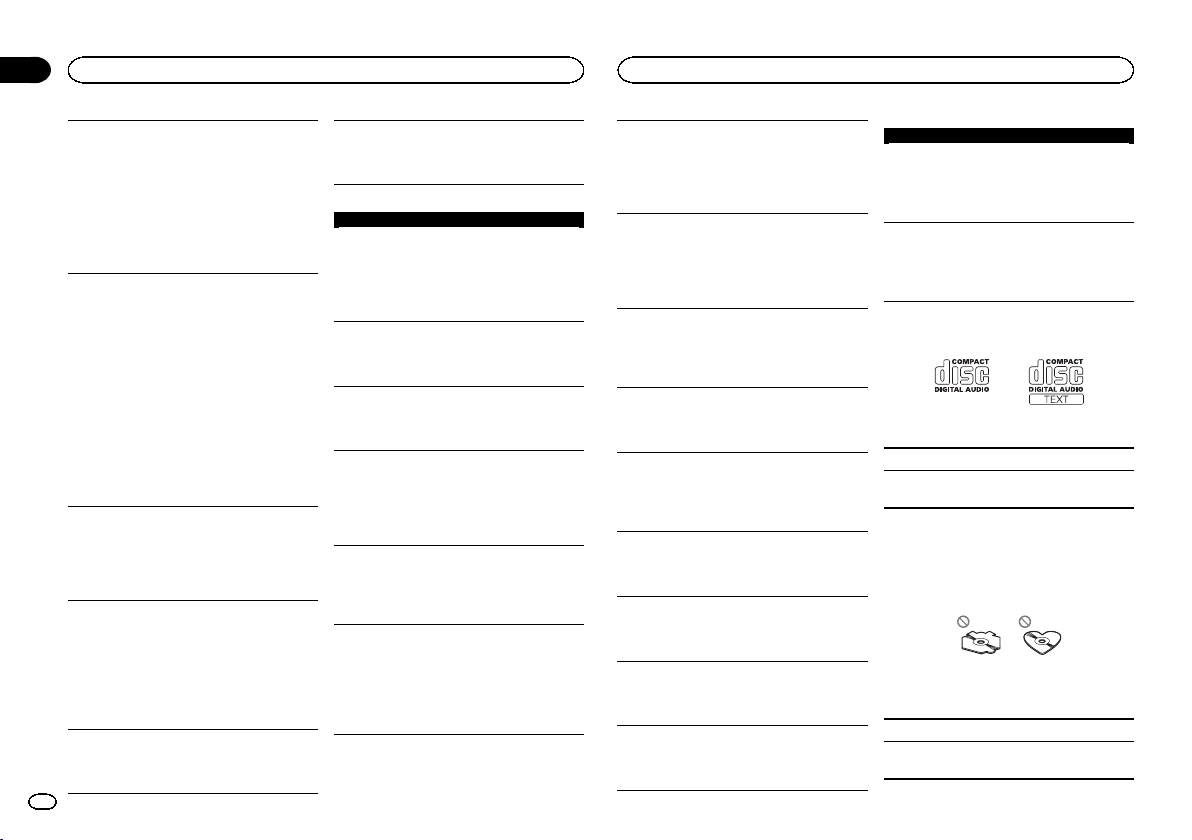
Black plate (34,1)
CHECK USB
El iPod funciona correctamente pero no se carga.
Compruebe que el cable de conexión del iPod no
esté cortocircuitado (p. ej., atrapado entre
objetos metálicos). Una vez confirmado, cambie
la llave de encendido del automóvil a la posición
de desactivación y luego pase de nuevo a
activación; o bien desconecte una vez el iPod y
conéctelo de nuevo.
ERROR-19
Error de comunicación.
Realice una de las siguientes operaciones:
–Cambie la llave de encendido del automóvil a la
posición de desactivación y luego pase de nuevo
a activación.
–Desconecte el dispositivo de almacenamiento
USB.
–Cambie a una fuente diferente.
Después vuelva a la fuente USB.
Fallo del iPod.
Desconecte el cable del iPod. Una vez que
aparezca el menú principal del iPod, vuelva a
conectar el iPod y reinícielo.
ERROR-23
El dispositivo de almacenamiento USB no está for-
mateado con FAT12, FAT16 ni FAT32.
El dispositivo de almacenamiento USB debe
formatearse con FAT12, FAT16 o FAT32.
ERROR-16
La versión de firmware del iPod es antigua.
Actualice la versión del iPod.
Fallo del iPod.
Desconecte el cable del iPod. Una vez que
aparezca el menú principal del iPod, vuelva a
conectar el iPod y reinícielo.
STOP
No hay canciones en la lista actual.
Seleccione una lista que contenga canciones.
NOT FOUND
No hay canciones relacionadas.
Transfiera canciones al iPod.
Pandora
ERROR-19
Error de comunicación.
Desconecte el cable del dispositivo. Una vez que
aparezca el menú principal del dispositivo,
vuelva a conectarlo y reinícielo.
START UP APP
La aplicación de Pandora no se ha iniciado aún.
Inicie la aplicación Pandora.
INOPERABLE
La operación está deshabilitada.
Ejecute el mismo comando para otra pista.
TRY AGAIN
No es posible guardar la puntuación.
No es posible guardar en Favoritos.
No es posible añadir emisora.
Vuelva a intentarlo más tarde.
MAINTENANCE
El sistema de Pandora se está sometiendo a tareas
de mantenimiento.
Vuelva a intentarlo más tarde.
SKIP LIMIT
Se ha llegado al límite de canciones saltadas.
! No sobrepasar el límite de canciones saltadas.
! Debido a restricciones de licencia de música,
Pandora limita el número total de saltos por
hora.
CHECK APP
Esta versión de la aplicación de Pandora no es com-
patible.
Conecte un dispositivo que tenga instalada una
versión compatible de Pandora.
CHECK DEVICE
La aplicación de Pandora muestra un mensaje de
error de dispositivo.
No es posible reproducir música desde Pandora.
Compruebe su dispositivo conectado.
NO STATION
No se encuentran estaciones.
Cree una emisora en la aplicación de Pandora en
su dispositivo.
NO ACTIVE ST
No se ha seleccionado ninguna estación.
Seleccione una estación.
STATION FULL
No se puede añadir una nueva emisora.
Elimine una antigua emisora para dejar espacio
para una nueva.
CAN.T DELETE
No se pudo eliminar la emisora.
Ejecute el mismo comando para otra emisora.
NO NETWORK
El dispositivo conectado está fuera de alcance.
Conecte el dispositivo conectado a una red.
NO SERVICE
El dispositivo conectado está fuera de alcance.
Conecte el dispositivo conectado a una red.
CAN.T PLAY
La operación está deshabilitada.
Ejecute el mismo comando para otra emisora.
Aplicaciones
START UP APP
La aplicación no se ha iniciado aún.
Siga las instrucciones que aparecen en la
pantalla.
Pautas para el manejo
Discos y reproductor
Utilice únicamente discos que tengan uno de
estos dos logotipos:
Utilice discos de 12 cm.
Utilice sólo discos convencionales y completa-
mente circulares.
Los siguientes tipos de discos no se pueden utili-
zar con esta unidad:
! DualDisc
! Discos de 8 cm: Si se utiliza este tipo de discos
con un adaptador, puede provocar el funciona-
miento defectuoso de la unidad.
! Discos con formas extrañas
! Discos que no sean CD
! Discos dañados, incluido discos que estén
partidos, desconchados o deformados
! Discos CD-R/RW que no se han finalizado
No toque la superficie grabada de los discos.
Cuando no utilice los discos, guárdelos en sus
cajas.
Información adicional
34
Apéndice
Información adicional
Es
<QRD3234-A>34

Black plate (35,1)
No fije etiquetas, no escriba ni aplique sustancias
químicas en la superficie de los discos.
Para limpiar un CD, pásele un paño suave desde
el centro hacia afuera.
La condensación puede afectar temporalmente al
rendimiento del reproductor. Deje de usarlo duran-
te una hora aproximadamente para que se adapte
a la temperatura más cálida. Además, si los dis-
cos tienen humedad, séquelos con un paño
suave.
Quizá no pueda reproducir algunos discos debido
a sus características, formato, programas graba-
dos, entorno de reproducción, condiciones de al-
macenamiento u otras causas.
Las vibraciones en las carreteras pueden inte-
rrumpir la reproducción de un disco.
Al usar discos de superficie imprimible para eti-
quetas, lea primero las instrucciones y las adver-
tencias de los discos. Es posible que algunos
discos no puedan insertarse ni expulsarse. La utili-
zación de este tipo de discos puede dañar el equi-
po.
No pegue etiquetas compradas por separado ni
otro tipo de material a los discos.
! Los discos podrían combarse y no podrán re-
producirse.
! Las etiquetas pueden despegarse durante la
reproducción, evitando la expulsión del disco y
causando de este modo daños en el equipo.
Dispositivo de almacenamiento
USB
No se admiten las conexiones a través de un con-
centrador USB.
No conecte ningún otro objeto que no sea un dis-
positivo de almacenamiento USB.
Cuando conduzca, fije el dispositivo de almacena-
miento USB firmemente. No deje caer el dispositi-
vo de almacenamiento USB al suelo, ya que
puede quedar atascado debajo del freno o del ace-
lerador.
Se pueden producir los siguientes problemas
según el dispositivo de almacenamiento USB que
se utilice.
! Las operaciones pueden variar.
! Es posible que no se reconozca el dispositivo
de almacenamiento.
! Puede que los archivos no se reproduzcan co-
rrectamente.
! El dispositivo puede causar interferencias al
escuchar la radio.
iPod
No deje el iPod en lugares expuestos a una tempe-
ratura elevada.
Cuando conduzca, fije el iPod firmemente. No
deje caer el iPod al suelo, ya que puede quedar
atascado debajo del freno o del acelerador.
Acerca de los ajustes del iPod
! Cuando el iPod está conectado, esta unidad
desactiva el ajuste EQ (ecualizador) del iPod
para mejorar la acústica; al desconectar el
iPod, el EQ retoma su valor original.
! No puede desactivar la Repetición del iPod
cuando utiliza esta unidad. La Repetición se
cambiará automáticamente a Todo cuando el
iPod esté conectado a esta unidad.
La unidad no mostrará el texto incompatible guar-
dado en el iPod.
Compatibilidad con audio
comprimido (disco, USB)
WMA
Extensión de archivo: .wma
Velocidad de grabación: de 48 kbps a 320 kbps
(CBR) y de 48 kbps a 384 kbps (VBR)
Frecuencia de muestreo: 32 kHz, 44,1 kHz, 48 kHz
Windows Mediaä Audio Professional, Lossless,
Voice/DRM Stream/Stream con vídeo: no compati-
ble
MP3
Extensión de archivo: .mp3
Velocidad de grabación: de 8 kbps a 320 kbps
(CBR), VBR
Frecuencia de muestreo: de 8 kHz a 48 kHz
(32 kHz, 44,1 kHz, 48 kHz para énfasis)
Versiones de etiqueta ID3 compatibles: 1.0, 1.1,
2.2, 2.3, 2.4 (la etiqueta ID3 versión 2.x tiene priori-
dad sobre la versión 1.x)
Lista de reproducción M3u: no compatible
MP3i (MP3 interactivo), mp3 PRO: no compatible
WAV
Extensión de archivo: .wav
Bits de cuantificación: 8 y 16 (LPCM), 4 (MS
ADPCM)
Frecuencia de muestreo: 16 kHz a 48 kHz (LPCM),
22,05 kHz y 44,1 kHz (MS ADPCM)
! No puede usar esta función con USB MTP.
Información complementaria
Solo se pueden visualizar los primeros 32 caracte-
res como nombre de archivo (incluida la exten-
sión) o nombre de carpeta.
Esta unidad puede no funcionar correctamente,
según la aplicación utilizada para codificar archi-
vos WMA.
Puede producirse una pequeña demora cuando
se inicie la reproducción de archivos de audio que
contienen datos de imágenes o archivos de audio
almacenados en un dispositivo USB con numero-
sas jerarquías de carpetas.
Disco
Jerarquía de carpetas reproducibles: hasta ocho
niveles (una jerarquía práctica de carpetas tiene
menos de dos niveles).
Carpetas reproducibles: hasta 99
Archivos reproducibles: hasta 999
Sistema de archivos: ISO 9660 Nivel 1 y 2, Romeo,
Joliet
Reproducción multisesión: compatible
Transferencia de datos en formato Packet Write:
no compatible
Independientemente de la longitud de la seccio-
nes en blanco que haya entre las canciones de la
grabación original, los discos de audio comprimi-
dos se reproducirán con una breve pausa entre
cada canción.
Español
Información adicional
35
Apéndice
Información adicional
Es
<QRD3234-A>35
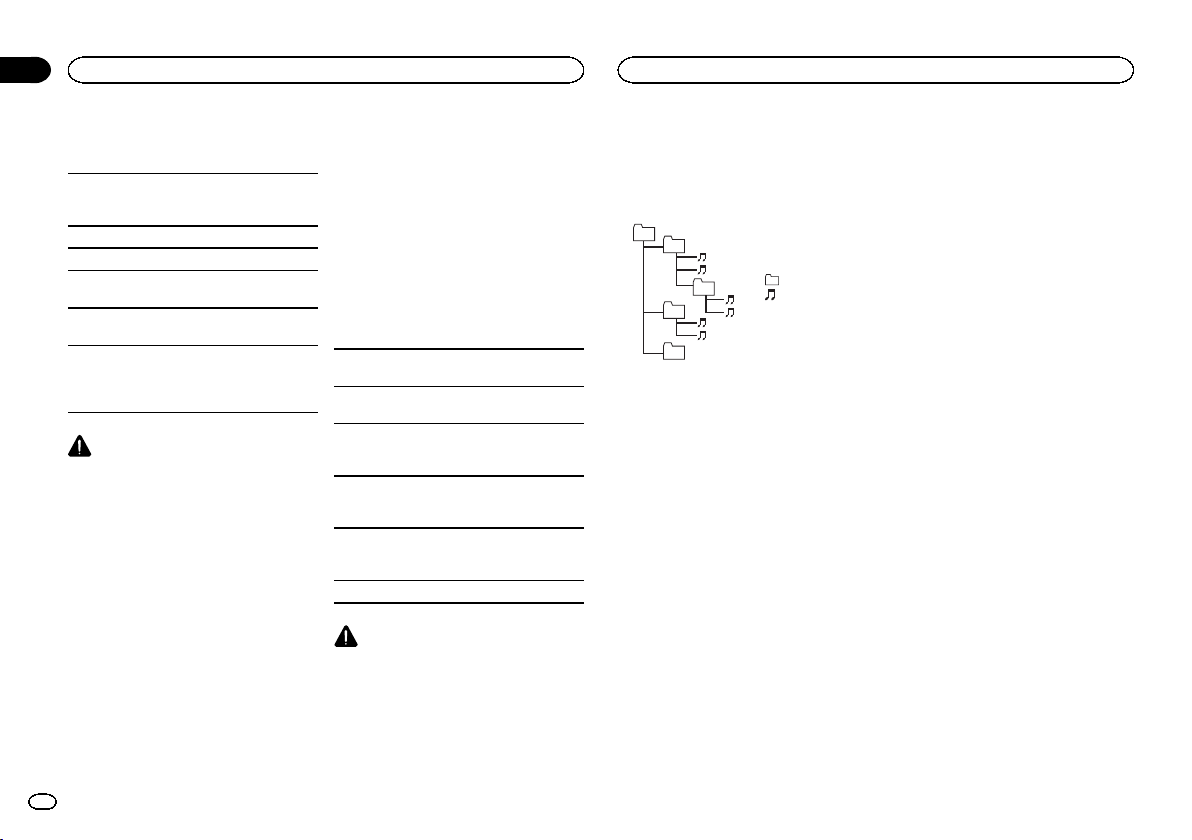
Black plate (36,1)
Dispositivo de almacenamiento
USB
Jerarquía de carpetas reproducibles: hasta ocho
niveles (una jerarquía práctica de carpetas tiene
menos de dos niveles).
Carpetas reproducibles: hasta 500
Archivos reproducibles: hasta 15 000
Reproducción de archivos protegidos por dere-
chos de autor: no compatible
Dispositivo de almacenamiento USB particionado:
solo se puede reproducir la primera partición.
Puede producirse cierto retraso cuando se inicie
la reproducción de archivos de audio en un dispo-
sitivo de almacenamiento USB con numerosas je-
rarquías de carpetas.
PRECAUCIÓN
! Pioneer no garantiza la compatibilidad con
todos los dispositivos de almacenamiento
masivo USB y no se hace responsable de la
pérdida de los datos en los reproductores
multimedia, smartphones u otros dispositi-
vos, mientras se utilicen con este producto.
! No deje discos ni dispositivos de almacena-
miento USB en lugares expuestos a altas
temperaturas.
Compatibilidad con iPod
Esta unidad sólo es compatible con los modelos
de iPod que se muestran a continuación.
Fabricado para
! iPod touch (5.ª generación)
! iPod touch (4.ª generación)
! iPod touch (3.ª generación)
! iPod touch (2.ª generación)
! iPod touch (1.ª generación)
! iPod classic
! iPod con vídeo
! iPod nano (7.ª generación)
! iPod nano (6.ª generación)
! iPod nano (5.ª generación)
! iPod nano (4.ª generación)
! iPod nano (3.ª generación)
! iPod nano (2.ª generación)
! iPod nano (1.ª generación)
! iPhone 5
! iPhone 4S
! iPhone 4
! iPhone 3GS
! iPhone 3G
! iPhone
Según la generación o versión del iPod, es posible
que algunas funciones no estén disponibles.
Las funciones pueden variar según la versión de
software del iPod.
Los usuarios de iPod con conector Lightning debe-
rían usar el cable Lightning a USB (suministrado
con el iPod).
Los usuarios de iPod con el conector del Dock de-
berían utilizar CD-IU51. Para más información,
consulte a su proveedor.
Si desea más información sobre la compatibilidad
de archivos y formatos, consulte los manuales del
iPod.
Audiolibro, podcast: compatible
PRECAUCIÓN
Pioneer no asume ninguna responsabilidad por
la pérdida de datos en el iPod, incluso si la pér-
dida ocurre durante el uso de esta unidad.
Secuencia de archivos de audio
El usuario no puede asignar números de carpe-
ta ni especificar secuencias de reproducción
con esta unidad.
Ejemplo de una jerarquía
1
2
3
4
5
6
01
02
03
04
05
Nivel 1 Nivel 2 Nivel 3 Nivel 4
: carpeta
: archivo de audio
comprimido
01 a 05: número de
carpeta
1 a 6: secuencia
de reproducción
Disco
La secuencia de selección de carpetas u otras
operaciones pueden diferir, dependiendo del
software de codificación o escritura.
Dispositivo de almacenamiento
USB
La secuencia de reproducción es la misma que
la secuencia grabada en el dispositivo de alma-
cenamiento USB.
Para especificar la secuencia de reproducción,
se recomienda el siguiente método.
1 Cree un nombre del archivo que incluya nú-
meros que especifiquen la secuencia de re-
producción (p. ej., 001xxx.mp3 y 099yyy.mp3).
2 Coloque esos archivos en una carpeta.
3 Guarde la carpeta que contiene los archivos
en el dispositivo de almacenamiento USB.
Sin embargo, dependiendo del entorno del siste-
ma, tal vez no pueda especificar la secuencia de
reproducción.
Para reproductores de audio portátiles USB, la
secuencia es diferente y depende del reproduc-
tor.
Copyright y marcas registradas
iTunes
Apple e iTunes son marcas comerciales de
Apple Inc., registradas en los EE.UU. y en otros
países.
MP3
La venta de este producto solo otorga una licen-
cia para su uso privado, no comercial. No otorga
ninguna licencia ni concede ningún derecho a
utilizar este producto en transmisiones comer-
ciales (es decir, lucrativas) en tiempo real (te-
rrestres, vía satélite, por cable y/o por cualquier
otro medio), transmisiones/streaming por Inter-
net, intranets u otras redes o en otros sistemas
de distribución de contenido electrónico, como
por ejemplo, aplicaciones de pago por escucha
(pay-audio) o audio bajo demanda (audio-on-de-
mand). Se necesita una licencia independiente
para su uso comercial. Para obtener más infor-
mación, visite
http://www.mp3licensing.com.
WMA
Windows Media es una marca registrada o una
marca de fábrica de Microsoft Corporation en
los Estados Unidos y/u otros países.
Este producto incluye tecnología propiedad de
Microsoft Corporation, y no se puede usar ni dis-
tribuir sin una licencia de Microsoft Licensing,
Inc.
iPod y iPhone
iPhone, iPod, iPod classic, iPod nano y iPod
touch son marcas comerciales de Apple Inc., re-
gistradas en los EE. UU. y en otros países.
Lightning es una marca comercial de Apple Inc.
Información adicional
36
Apéndice
Información adicional
Es
<QRD3234-A>36
Black plate (37,1)
“Made for iPod” y “Made for iPhone” significan
que un accesorio electrónico ha sido diseñado
para ser conectado específicamente a un iPod o
a un iPhone, respectivamente, y ha sido homolo-
gado por quien lo desarrolló para cumplir con
las normas de funcionamiento de Apple. Apple
no es responsable del funcionamiento de este
aparato ni de que cumpla con las normas de se-
guridad y reguladoras. Tenga presente que el
empleo de este accesorio con un iPod o iPhone
puede afectar la operación inalámbrica.
Androidä
Android es una marca comercial de Google Inc.
Pandora
®
internet radio
PANDORA, el logotipo de PANDORA y la ima-
gen comercial Pandora son marcas comerciales
o registradas de Pandora Media, Inc. y se usan
con su permiso.
MIXTRAX
MIXTRAX es una marca comercial de PIONEER
CORPORATION.
Especificaciones
Generales
Fuente de alimentación .... 14,4 V cc (10,8 V a 15,1 V per-
misible)
Sistema de derivación a tierra
................................... Tipo negativo
Consumo máximo de corriente
................................... 10,0 A
Dimensiones (An × Al × Pr):
DIN
Bastidor ........................... 178 mm × 50mm × 165mm
Cara anterior .................... 188 mm × 58mm × 15mm
D
Bastidor ........................... 178 mm × 50mm × 165mm
Cara anterior .................... 170 mm × 46mm × 16mm
Peso ................................ 1 kg
Audio
Potencia de salida máxima
................................... 50 W × 4
70 W × 1/2 W (para altavoz de
subgraves)
Potencia de salida continua
................................... 22W × 4 (50 Hz a 15000Hz,
5 % THD, 4 W de carga, ambos
canales activados)
Impedancia de carga ....... 4 W (4 W a8W permisibles)
Nivel de salida máxima del preamplificador
................................... 2,0V
Contorno de sonoridad ..... +10dB (100 Hz), +6,5 dB
(10 kHz) (volumen: –30 dB)
Ecualizador (ecualizador gráfico de 5 bandas):
Frecuencia ....................... 80Hz/250 Hz/800 Hz/2,5 kHz/
8 kHz
Gama de ecualización ...... ±12 dB (paso de 2 dB )
Altavoz de subgr aves (mono):
Frecuencia ....................... 50Hz/63 Hz/80 Hz/100 Hz/
125 Hz/160 Hz/200 Hz
Pendiente ........................ –12 dB/oct, –24 dB/oct
Ganancia ......................... +6dB a – 24 dB
Fase ................................. Normal/Inversa
Reproductor de CD
Sistema ........................... Sistema de audio de discos
compactos
Discos utilizables ............. Disco compacto
Relación de señal a ruido
................................... 94dB (1kHz) (red IHF-A)
Número de canales .......... 2 (estéreo)
Formato de decodificación MP3
................................... MPEG-1 & 2 Audio Layer 3
Formato de decodificación WMA
................................... Ver. 7, 7.1, 8, 9, 10, 11, 12
(audio 2 canales)
(Windows Media Player)
Formato de señal WAV ..... PCM lineal & MS ADPCM
(No comprimido)
USB
Especificación de la norma USB
................................... USB 2.0 velocidad máxima
Consumo máximo de corriente
................................... 1 A
Clase USB ....................... MCS (Clase de almacena-
miento masivo)
Sistema de archivos ......... FAT12, FAT16, FAT32
Formato de decodificación MP3
................................... MPEG-1 & 2 Audio Layer 3
Formato de decodificación WMA
................................... Ver. 7, 7.1, 8, 9, 10, 11, 12
(audio 2 canales)
(Windows Media Player)
Formato de señal WAV ..... PCM lineal & MS ADPCM
(No comprimido)
Sintonizador de FM
Intervalo de frecuencias ... de 87,9 MHz a 107,9 MHz
Sensibilidad utilizable ...... 9dBf (0,8 µV/75 W, mono,
señal/ruido: 30 dB)
Relación de señal a ruido
................................... 72dB (red IHF-A)
Sintonizador de AM
Intervalo de frecuencias ... de 530 kHz a 1 710 kHz
Sensibilidad utilizable ...... 25µV (señal/ruido: 20 dB)
Relación de señal a ruido
................................... 62dB (red IHF-A)
Especificaciones CEA2006
Potencia de salida ............ 14 W RMS × 4 canales (4 W y
≦ 1 % THD+N)
Relación de señal a ruido
................................... 91dBA (referencia: 1 W a 4 W)
Altavoces de 2 vías de 16 cm
Sistema e reproducción ... Coaxial de 2 vías
Woofer ............................. f 158 mm
A prueba de agua
Membrana de polipropileno moldeado por inyec-
ción
Alta elasticidad, borde laminado
Bobina de voz resistente al calor
Imán: 130 g
Altavoz de agudos (tweeter)
................................... f 30 mm Dome
Impedancia nominal ........ 4 W
Sensibilidad ..................... 88dB (±1,5dB)
Respuesta de frecuencia
................................... 31Hz a 16 kHz (–20 dB)
Potencia de música máxima
................................... 200W
Potencia nominal ............. 25W
Material de la rejilla .......... Resina resiste nte al calor
Peso (por altavoz, incluidas las piezas accesorias)
................................... 0,45 kg
Altavoces de tres vías de 6" × 9"
Sistema de reproducción
................................... Tres vías coaxial
Altavoz de graves (woofer)
................................... 163 mm × 237 mm
Membrana de polipropileno moldeado por inyec-
ción
Alta elasticidad, borde laminado
Bobina de voz resistente al calor
Imán: 150 g
Banda media ................... f 52 mm
Imán: 12 g
Altavoz de agudos (tweeter)
................................... f 11 mm
Impedancia nominal ........ 4 W
Español
Información adicional
37
Apéndice
Información adicional
Es
<QRD3234-A>37
Black plate (38,1)
Sensibilidad ..................... 88dB (±1,5dB)
Respuesta de frecuencia
................................... 28 Hz a 32 kHz (–20 dB)
Potencia de música máxima
................................... 230W
Potencia nominal ............. 30 W
Material de la rejilla .......... Resina resiste nte al calor
Peso (por altavoz, incluidas las piezas accesorias)
................................... 0,63 kg
Nota
Las especificaciones y el diseño están sujetos a
modificaciones sin previo aviso.
Información adicional
38
Apéndice
Es
<QRD3234-A>38
Black plate (39,1)
Español
39Es
<QRD3234-A>39
Black plate (40,1)
PIONEER CORPORATION
1-1, Shin-ogura, Saiwai-ku, Kawasaki-shi,
Kanagawa 212-0031, JAPAN
PIONEER ELECTRONICS (USA) INC.
P.O. Box 1540, Long Beach, California 90801-1540, U.S.A.
TEL: (800) 421-1404
PIONEER ELECTRONICS OF CANADA, INC.
340 Ferrier Street, Unit 2, Markham, Ontario L3R 2Z5, Canada
TEL: 1-877-283-5901
TEL: 905-479-4411
PIONEER EUROPE NV
Haven 1087, Keetberglaan 1, B-9120 Melsele, Belgium/Belgique
TEL: (0) 3/570.05.11
PIONEER ELECTRONICS ASIACENTRE PTE. LTD.
253 Alexandra Road, #04-01, Singapore 159936
TEL: 65-6472-7555
PIONEER ELECTRONICS AUSTRALIA PTY. LTD.
5 Arco Lane, Heatherton, Victoria, 3202 Australia
TEL: (03) 9586-6300
PIONEER ELECTRONICS DE MEXICO, S.A. de C.V.
Blvd.Manuel Avila Camacho 138 10 piso
Col.Lomas de Chapultepec, Mexico, D.F. 11000
TEL: 55-9178-4270
先鋒股份有限公司
台北市內湖區瑞光路407號8樓
電話: 886-(0)2-2657-3588
先鋒電子(香港)有限公司
香港九龍長沙灣道909號5樓
電話: 852-2848-6488
ã 2013 PIONEER CORPORATION. All rights reserved.
ã 2013 PIONEER CORPORATION. Todos los derechos reservados.
<QRD3234-A> US
Visit our website / Visite nuestro sitio Web
― Learn about product updates (such as firmware updates) for your
product.
― Register your product to receive notices about product updates and to
safeguard purchase details in our files in the event of loss or theft.
― Access owner’s manuals, spare parts information, service information,
and much more.
― Infórmese de las últimas actualizaciones (por ejemplo, actualizaciones
de firmware) para su producto.
― Registre su producto para recibir información sobre actualizaciones del
producto y para mantener la seguridad de los detalles de su compra en
nuestros archivos en caso de pérdida o robo.
― Acceso a manuales de instrucciones, información sobre piezas de
recambio y mucho más.
<KOKZ13F>
<QRD3234-A>40