08/80458/0 ISSUE: 4
INSTRUCTION MANUAL
Installation and Operating
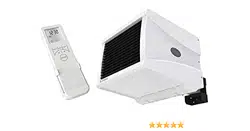
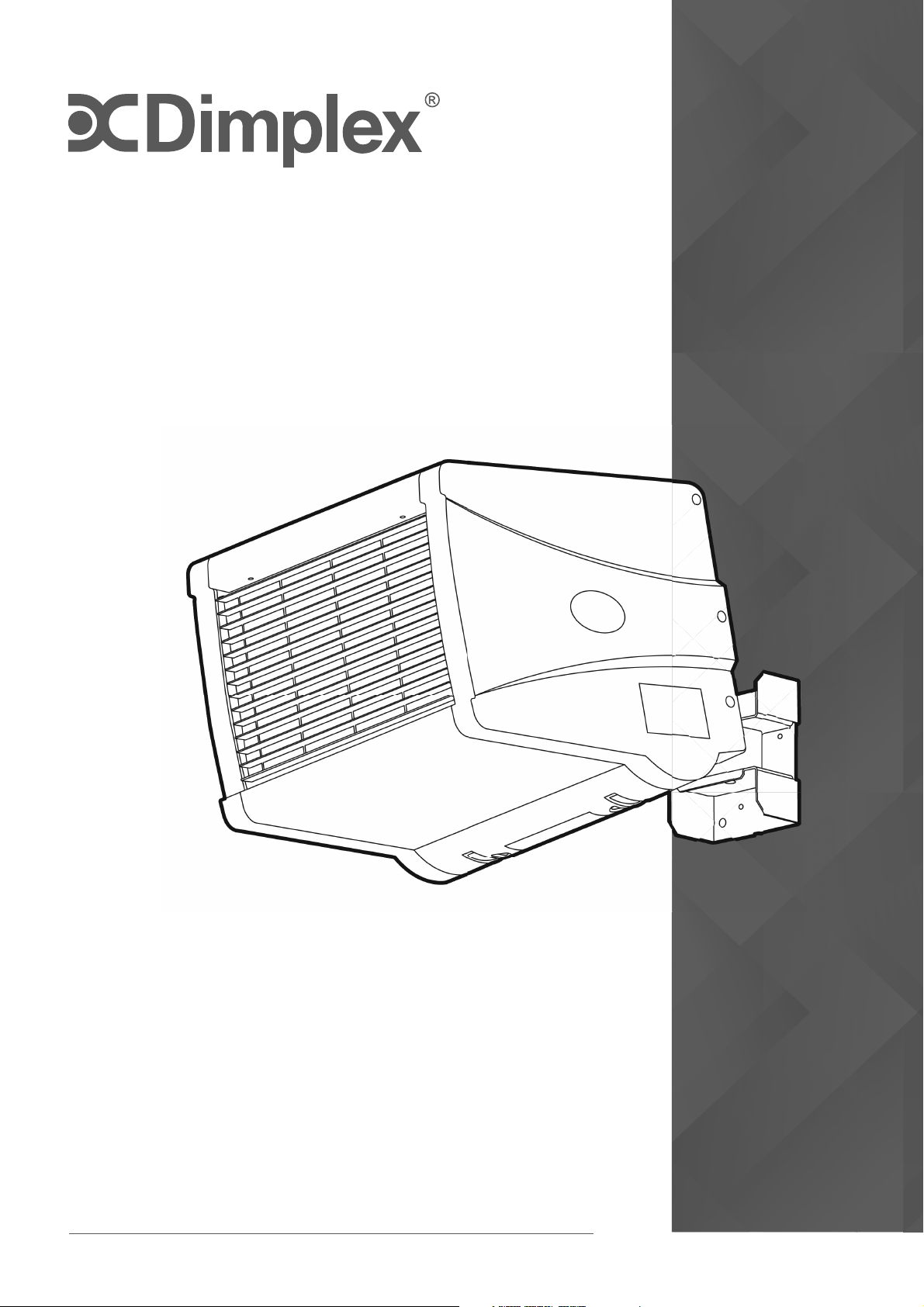
CFSE Commercial Fan Heater
Model: CFS30E
This product is supplied and operated with a Wireless Remote Control handset

IMPORTANT
THESE INSTRUCTIONS SHOULD BE READ C
AREFULLY AND RETAINED FOR
FUTURE REFERENCE. Note also the information presented on the appliance
IMPORTANT SAFETY ADVICE
DO NOT COVER OR OBSTRUCT the air inlet or outlet grille.
IMPORTANT
– Disconnect from the mains supply before carrying out maintenance
w
ork.
THIS APPLIANCE MUST BE EARTHED
This heater must not be located immediately above or below a fi xed socket outlet
or connection box.
Keep combustible materials such as drapes and other furnishings clear from the front,
sides and rear of the heater.
DO NOT use this heater in the immediate surrounding of a bath, a shower or a
swimming pool.
DO NOT use this heater in areas where excessive dust exists.
DO NOT store or use any fl ammable materials or sprays in the vicinity of the appliance
– FIRE HAZARD.
DO NOT insert any foreign objects into the appliance openings. Risk of injury, electric
shock or damage to the appliance may occur.
This product should be mounted safely to a solid wall.
Ensure the supply cables are of adequate current carrying capacity and are protected
by a suitable fuse.
This appliance should only be connected to the fi xed wiring of the premises by means
of conduit.
This product must not be subjected to water spray or immersion.
If the appliance is mounted in a toilet or washroom, the appliance should be mounted
such that no part of it can be touched by a person using a fi xed bath or shower.
If the appliance is mounted in a toilet or washroom an isolating switch must be
provided outside the washroom adjacent to the entrance door.
2

DO NOT use heater to dry your laundry.
DO NOT operate the heater with the mains lead overhanging the front outlet
grille.
This appliance can be used by children aged from 8 years and above and persons
with reduced physical, sensory or mental capabilities or lack of experience
and knowledge if they have been given supervision or instruction concerning use
of the appliance in a safe way and understand the hazards involved. Children shall
not play with the appliance. Cleaning and user maintenance shall not be made
by children without supervision.
Children of less than 3 years should be kept away unless continuously supervised.
Children aged from 3 years and less than 8 years shall only switch on/off the
appliance provided that it has been placed or installed in its intended normal
operating position and they have been given supervision or instruction
concerning use of the appliance in a safe way and understand the hazards
involved. Children aged from 3 years and less than 8 years shall not plug in,
regulate and clean the appliance or perform user maintenance.
CAUTION — Some parts of this product can become very hot and cause burns.
Particular attention has to be given where children and vulnerable people are
present.
The instruction leafl et belongs to the appliance and must be kept in a safe place.
If changing owners, the leafl et must be surrendered to the new owner.
Ensure proper manual handling procedures are observed at all times.
CAUTION – In order to avoid a hazard due to inadvertent resetting of the
thermal cut-out, this appliance MUST NOT be supplied through an external
switching device, such as a timer, or connected to a circuit that is regularly
switched on and off by the utility.
WARNING -Do not use this heater in small rooms where they are occupied by
persons not capable of leaving the room on their own, unless constant supervision
is provided.
WARNING: KEEP BATTERIES OUT OF REACH OF CHILDREN
• Swallowing may lead to serious injury in as little as 2 hours or death, due to
chemical burns and potential perforation of the oesophagus.
• If you suspect your child has swallowed or inserted a battery go straight to a
hospital emergency room.
• Examine devices and make sure the battery compartment is correctly
secured, i.e. that the battery cover is fi tted securely. Do not use if the
compartment is not secure.
• Dispose of used batteries immediately and safely. Flat batteries can still be
dangerous.
3

Model Identifi er(s): CFS30E
Nominal heat output Pnom 3.0 kW
Height (mm) 262
Width (mm) 306
Depth (mm) 530
Minimum heat
output (indicative)
Pmin N.A.
Maximum continuous heat output Pmax,c 3.0
Auxiliary electricity Consumption
At nominal heat output elmax 0.00
At minimum heat output elmin 0.00
In standby mode elSB <0.0005
Thi
s product meets the Ecodesign requirements for an electric fixed local space heater.
Commission Regulation (EU) 2015/1188.
Energy Related Product Directive
Technical Details
Type of heat output/ room temperature control
Electronic room temperature control plus week timer Yes
With open window detection No
With adaptive start control Yes
Contact details
Glen Dimplex Heating and Ventilation
Millbrook House, Grange Drive, Hedge End, Southampton SO30 2DF
Tel: 0344 879 3588
4

All Models
Controls
Digitally controlled, Electronic Thermostat
Timer modes:
7 Day Programmable User Timer
Continuous heat modes:
Manual, Runback, Fan Only, O
Controller UI
O -board control only. Requires pairing with Wireless remote.
Controller Functions
• Heat Selection: High, Low, Fan Only
• Adaptive-Start
• Advance time period
• Adjustable SP range (7-30°C)
• Wireless for control
Construction Steel case with plastic mouldings
Fan Type
Axial
Element Metal sheathed (CFS30E)
Installation Supplied with wall mounting bracket
Safety
Electric reset cut-out (115°C)
Battery Backup
None. Time and date must be re-programmed in event of power loss to
the product
Supply
Requires: 3 core for fused spur installation, 1/N/PE ~230-240 V, 50Hz
Class I, with earth wire
Colour / Finish Tra c White (RAL 9016) with black grille and bracket
Approvals CE
IP Rating IP24
G
uarantee
2 years
Country of Origin British Isles
Manufacturer Glen Dimplex Heating & Ventilation (Glen Dimplex UK Limited.)
5
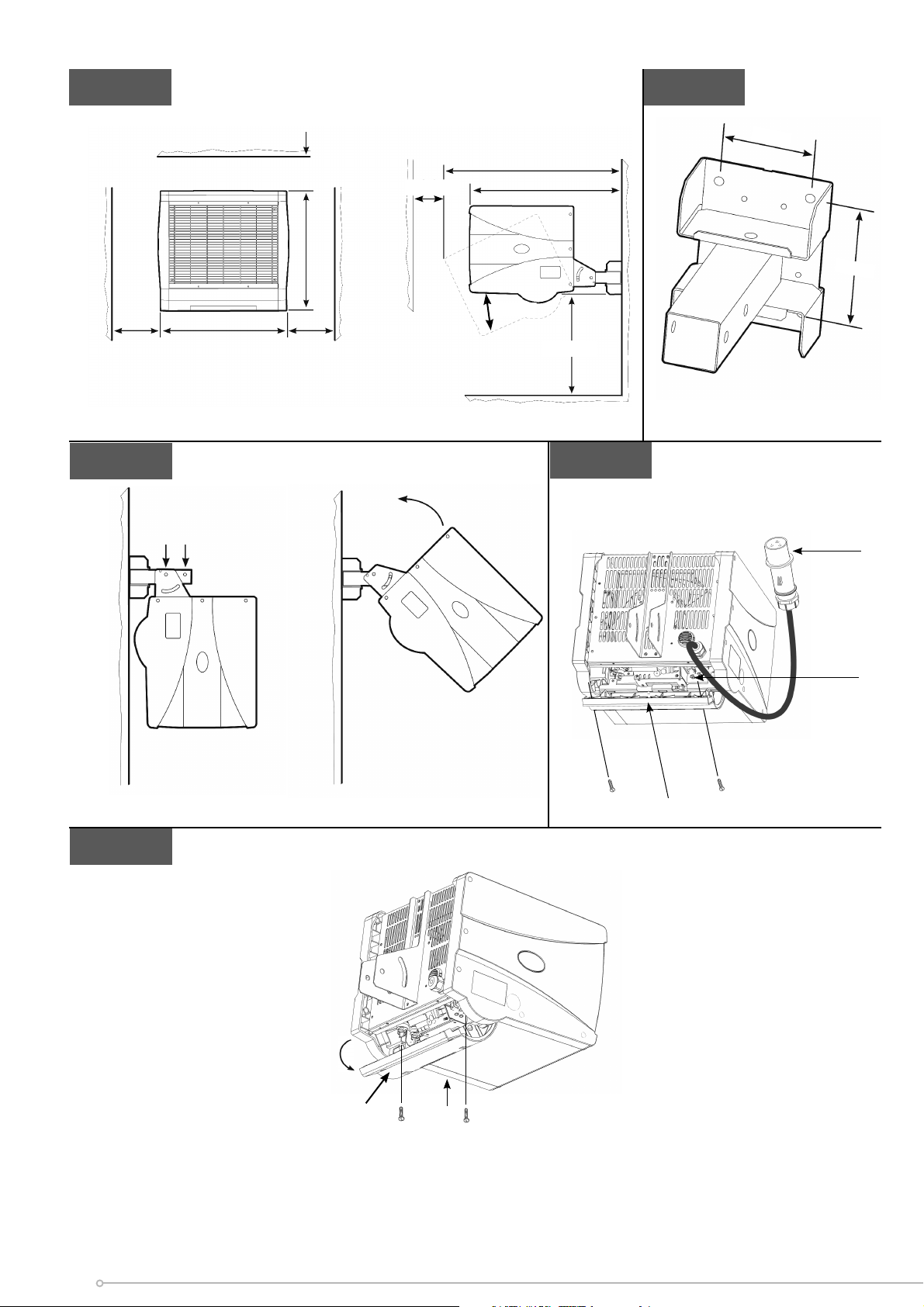
Fig. 1 Fig. 2
Fig. 3
Fig. 4
Fig. 5
L
H
500 mm
Min.
500 mm
Min.
1000 mm
Min.
1000 mm
Min.
D2
D1
2.1 m MIN
45° Max
70 mm
70 mm
1
2
3a. 3b.
‘y’
a
b
1
y
x
6

General
A robust, durable wall mounting fan heater designed to coordinate with the Dimplex
range of Air Curtains, providing environmental heating in commercial and light
industrial environments.
The heater works by gradually raising the air temperature in the building and should
be positioned so as best to achieve an even temperature distribution. The product
has an output of 3kW
Wall Mounting
Remove the wall mounting bracket from the back of the heater and using it as a
guide (see Fig. 2) mark o the hole positions on a suitable wall (a minimum height
of 2.1 metres is required from the fl oor level to the bottom of the bracket). Solid
brick or concrete block walls must be drilled and plugged. Fix the wall mounting
bracket to the wall and assemble the heater to the extension tube using a bolt and
wing nut fi tted into hole 1 shown in Fig. 3a. Rotate the heater as shown in Fig. 3b,
and fi x the heater into position using the remaining bolt and wing nut in hole 2. Pivot
and rotate the heater into the desired position and tighten all three wing nuts. A
6mm Allen key can be used as an aid to tightening the bolts.
Model
Heat
Output
(kW)
Electrical Sup-
ply
Electrical
Load (per
phase) (A)
Weight (kg)
Min installed
Height (M)
CFS30E 1.5 / 3 230-240V ~1PN 12.7 7.6 2.1
Electrical Connections
The installation of this appliance should be carried out by a competent electrician
and be in accordance with the current IEE wiring regulations.
Only cable with a minimum CSA (cross sectional area) of 2.5mm must be used on
this appliance.
Electrical power and control connections are made by removing the control housing.
The control housing (‘Y’ in Fig. 4 and Fig. 5) is detached by removing the two screws
and hinging the housing as shown (see step 1 and Fig. 5).
NOTE:
A suitable local isolating switch must be provided in the electrical
supply circuit as close as possible to the heater with at least 3mm
clearance on each pole
7

Thermal Safety Cut-Out
The power supply to the heating elements will be interrupted if one or a
combination of the following abnormal events occurs:
1.
Air inlet grilles are obstructed.
2.
Internal ventilation is impaired due to build up of dust and fl u .
3.
Blower unit stalls.
The CFS30E has an electrical reset cut-out which requires the power supply to be
removed for a short period of time to allow the cut-out to cool down. On return of
the power supply, the heater should operate normally.
NOTE:
Before re-setting the reason for activation must be
determined and corrective action taken.
Feed appropriate supply cable (see ‘a’ in Fig. 4) to terminal block (see ‘b’ Fig. 4).
Make electrical connections as shown in Fig. 6 and fi x cable in back panel using
cable gland.
8
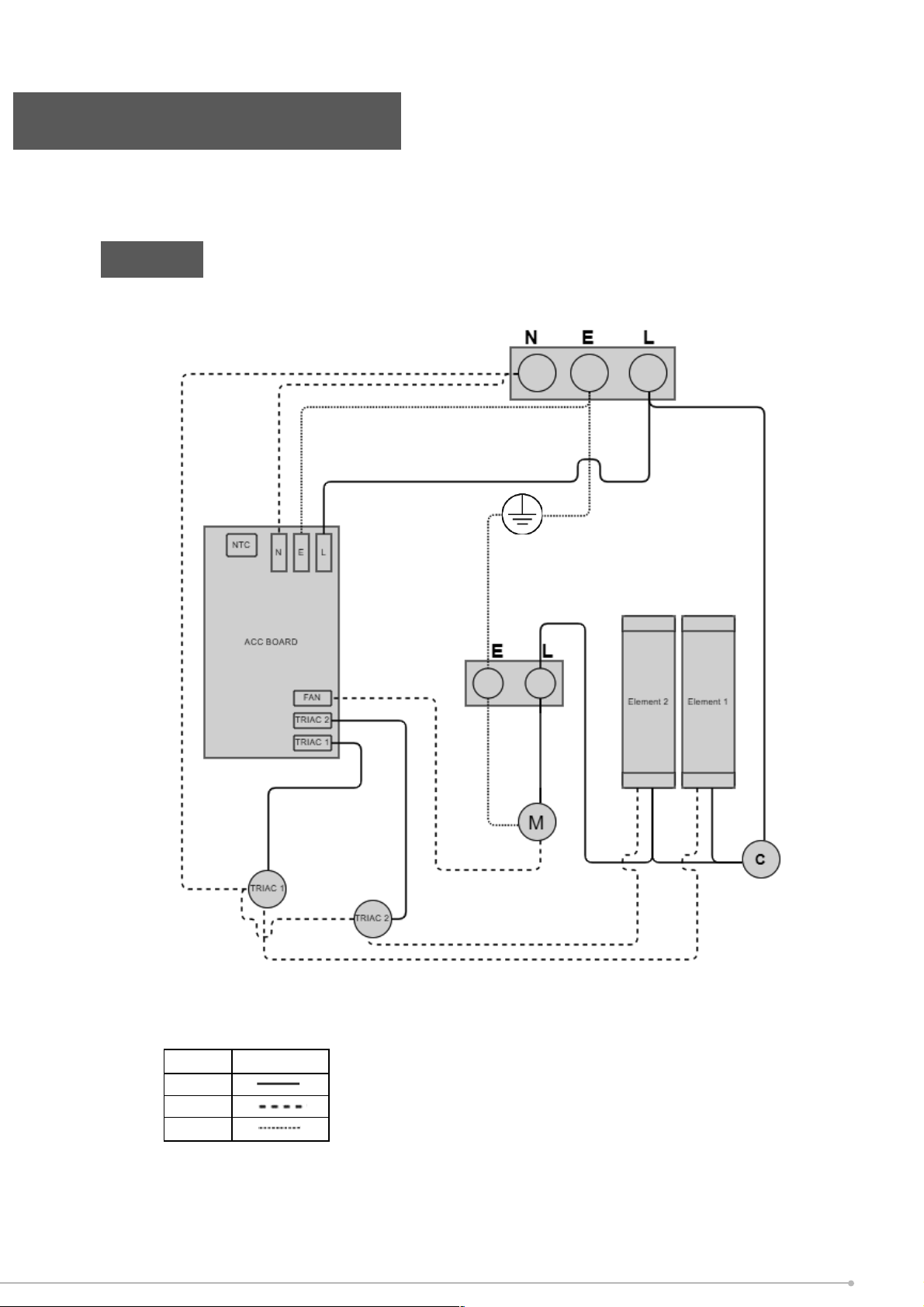
Wiring Diagram
Fig. 6
!
!
!"#$$
"#$%!!
&#'%!()*+%!
&#,%!!
!
-%.)$/+!!
!
0/$)1!!
!
!
!
!
9
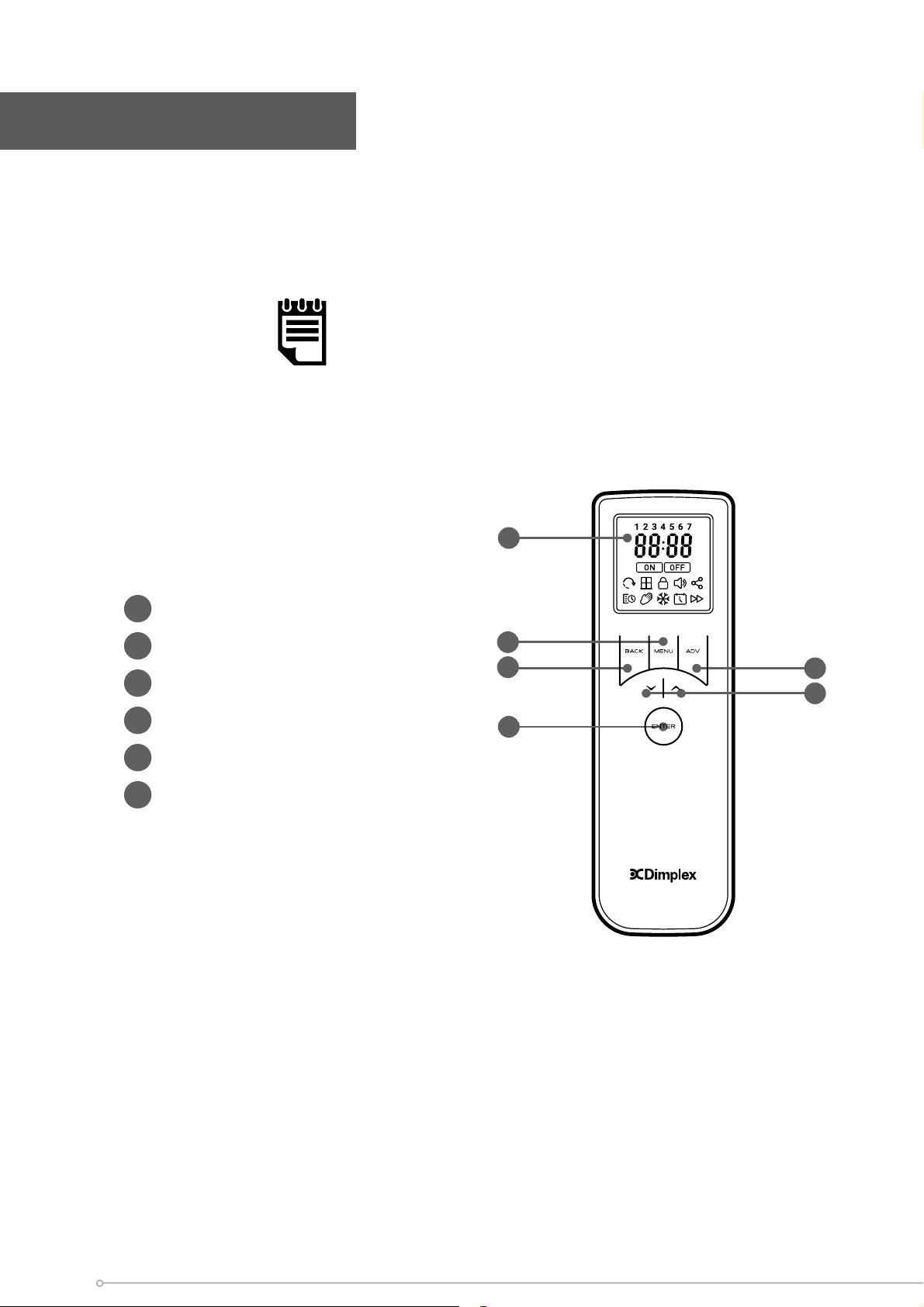
The product is supplied with a Wireless remote control, the remote control should be con-
tained in the carrier bag along with these instructions. This remote control is required to
operate the appliance. When paired with the remote control various operational modes
and features can be accessed.
IMPORTANT NOTE:
The remote control is required to operate the appliance. It is important
that the remote control remains near the appliance at all times.
Remote Control
1
Display Screen
2
‘Menu’ Button
3
‘Back’ Button
4
‘Advance’ Button
5
‘Up and Down’ Arrows
6
‘Enter’ Button
1
3
6
2
4
5
10
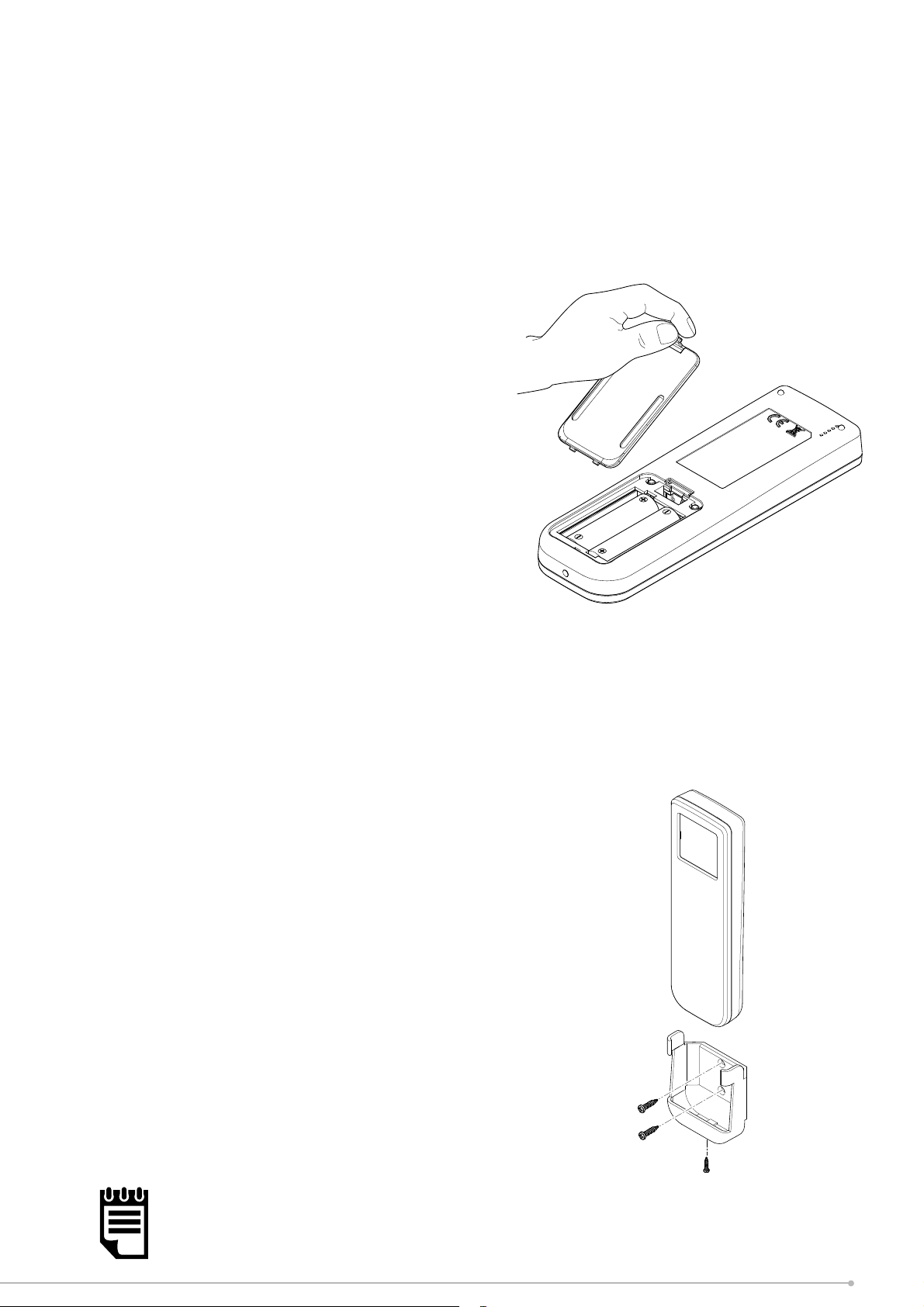
Fitting the Batteries:
The remote requires two AA batteries, these are supplied with the product contained
in the bag along with the instructions and remote.
To fi t the batteries:
1. On the rear of the remote, remove the
battery cover by pushing the catch
downwards and pulling outwards in one
motion.
2. It should be possible to completely remove
the battery cover to reveal the battery
cavity.
3. Carefully insert the new batteries, ensuring
the polarity is correct. Ensure the ‘+’ and
‘-‘ signs on the batteries match the signs
mark
ed inside the battery cavity.
4. Once the batteries are in place, replace the cover, ensuring the clip has engaged fully.
Once the batteries have been successfully fi tted the remote control will immediately
start scanning for a product to control. At this stage it is necessary to complete the
pairing process, see Remote Pairing Instructions.
Remote control cradle:
The remote control is supplied with a wall
mounting cradle. If desired, mount the cradle in
a suitable location. The cradle can be mounted
using suitable screws and the appropriate wall
fi xing solution, not supplied.
Mark and drill the wall accordingly to mount
the remote control cradle. The remote control
can also be fi xed to the cradle using the
bottom fi xing screw. The use of this screw is
optional, particularly if the remote will be used
as a portable device.
NOTE:
If the remote cradle is not initially required, please store in a suitable
loca
tion in case of future use. The bottom fi xing screw should also be
stored with the cradle
11
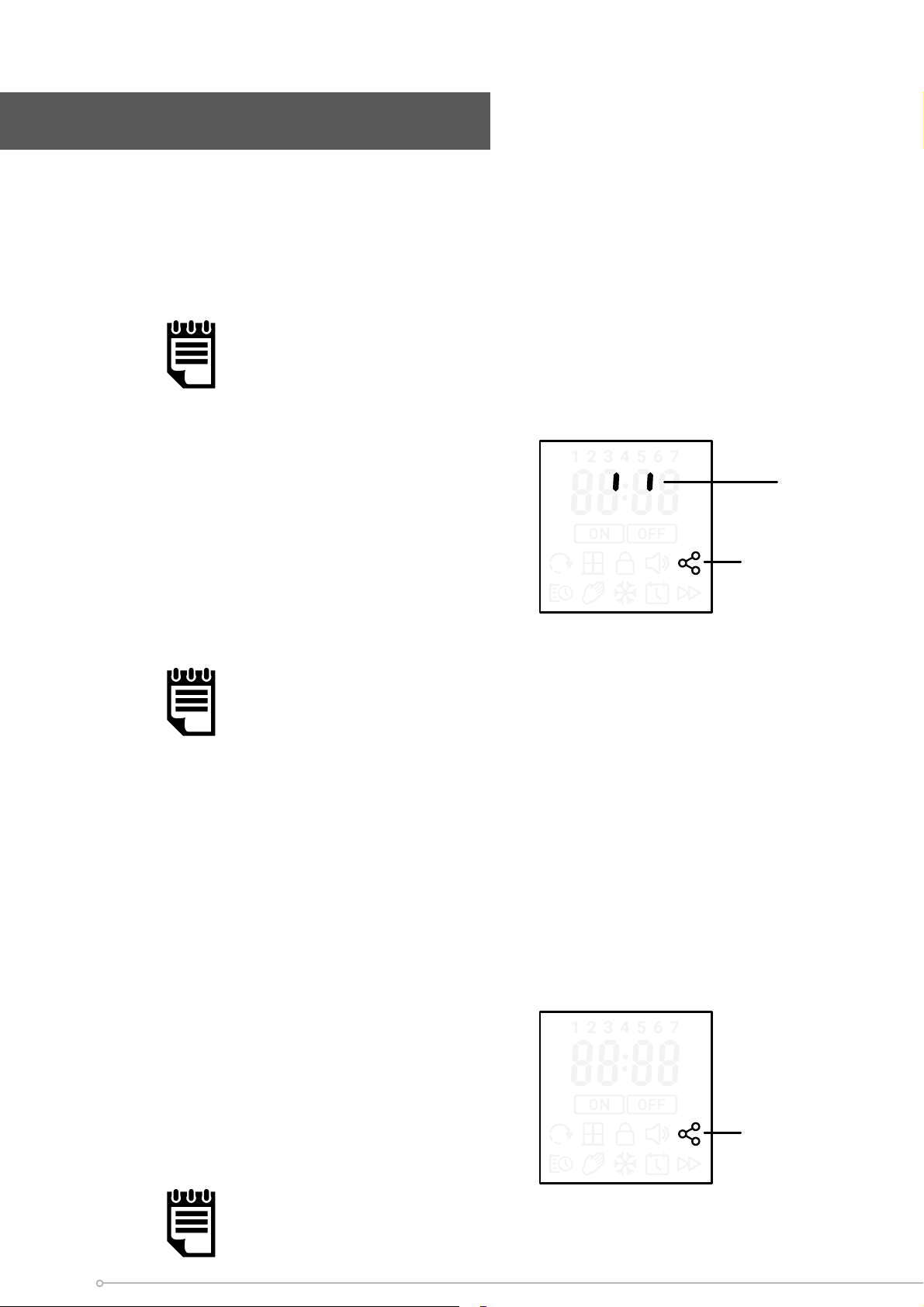
To pair the product to the Wireless remote:
1.
The product, once installed and turned on, will emit a beep and begin to broadcas
t
a signal t
o be paired with the Wireless remote.
2. Wake the remote by briefl y holding the ENTER
button.
Once awake the remote will then immediately
search for the product. This is indicated by the
rotating loading graphic and fl ashing connectivity
icon on the remote followed by the pairing
sequence.
NOTE:
The remote will attempt to pair with the fi rst product it fi nds. Please
ensure that no other products are broadcasting within the vicinity to
prevent pairing to the incorrect product.
3. The remote will search for devices for 1 minute. If no product can be found, the
r
emote will display ‘NO PROD’ before returning to a sleep state. If this
happens,
please r
epeat steps 1 and 2.
4.
If connection is successful the product will emit a second beep and the remot
e
scr
een will show a solid connectivity icon for 4 seconds then revert to the
home
scr
een.
NOTE:
After initial pairing the Time and Date must be set before the remote
will r
evert to the home screen.
Solid icon
Remote Pairing Instructions
NOTE:
If no remote pairs within 2 minutes, the product will stop broadcasting.
fl ashing icon
loading
graphic
12

13
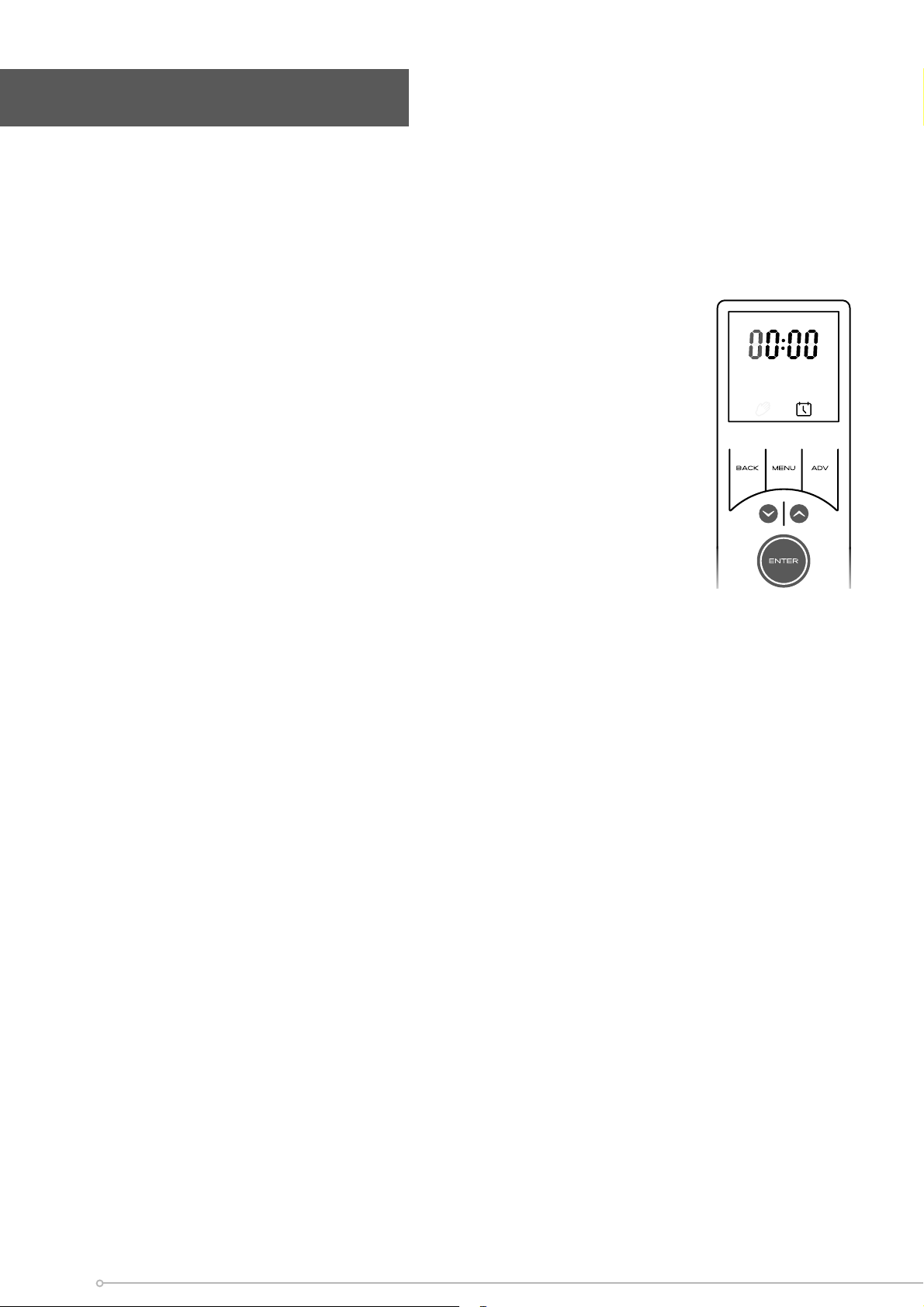
Setting Time & Date
After initial remote control start up and after replacing the batteries it is required to
set the time and date. It is not possible to navigate to the home screen and product
settings until the time and date have been set.
It is possible to modify these settings at any stage from within the menu structure,
see page 19.
Setting Time
It is required to set the hour and minute digits independently.
1. The fi rst digit of the Hour setting will be blinking. Use the
arrow key to set the fi rst digit of the time.
2. Confi rm the selection by pressing the ENTER button, the
second digit of the Hour can then be set.
3. Once the hour digits have been set and confi rmed, step 1
& 2 should be repeated to set the minute.
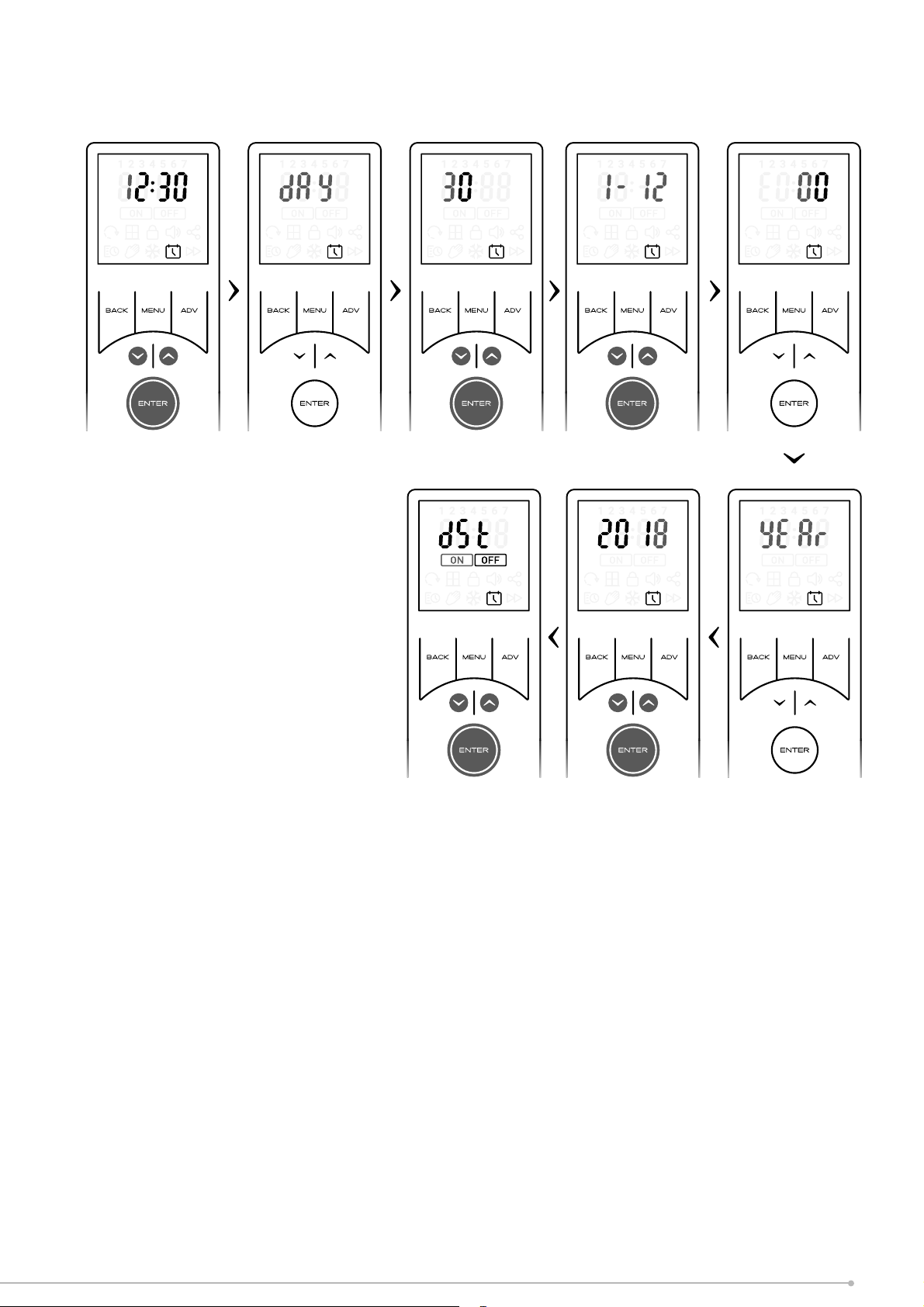
Setting Da
te
Once the time has been set the remote will automatically move to the date setting.
1.
After confi rming the last time digit ‘Day’ will blink three times and then change t
o
a
two-digit number with the fi rst digit blinking. This two-digit number repr
esents
the da
y of the month.
2.
Use the arrow key to set the fi rst digit of the date and confi rm using the ENTER
button.
3. T
he second digit will then blink and can be set as per step 2.
4. After the day has been confi rmed it is necessary to set the month, this is indicated
by ‘1-12’ blinking on the screen.
5.
A numerical v
alue for the month can be set using steps 2 & 3 above
.
6.
Once the month has been set the year can be set. Each digit must be set
and
c
onfi rmed individually
.
7.
Finally the remote will o er an option to turn on or o day light saving
settings.
‘On’ and ‘O ’ can be selected using the arrow keys and confi rmed by pressing enter.
Once the time and date have been set the remote will revert to the home screen and
normal operation can resume.
14
15
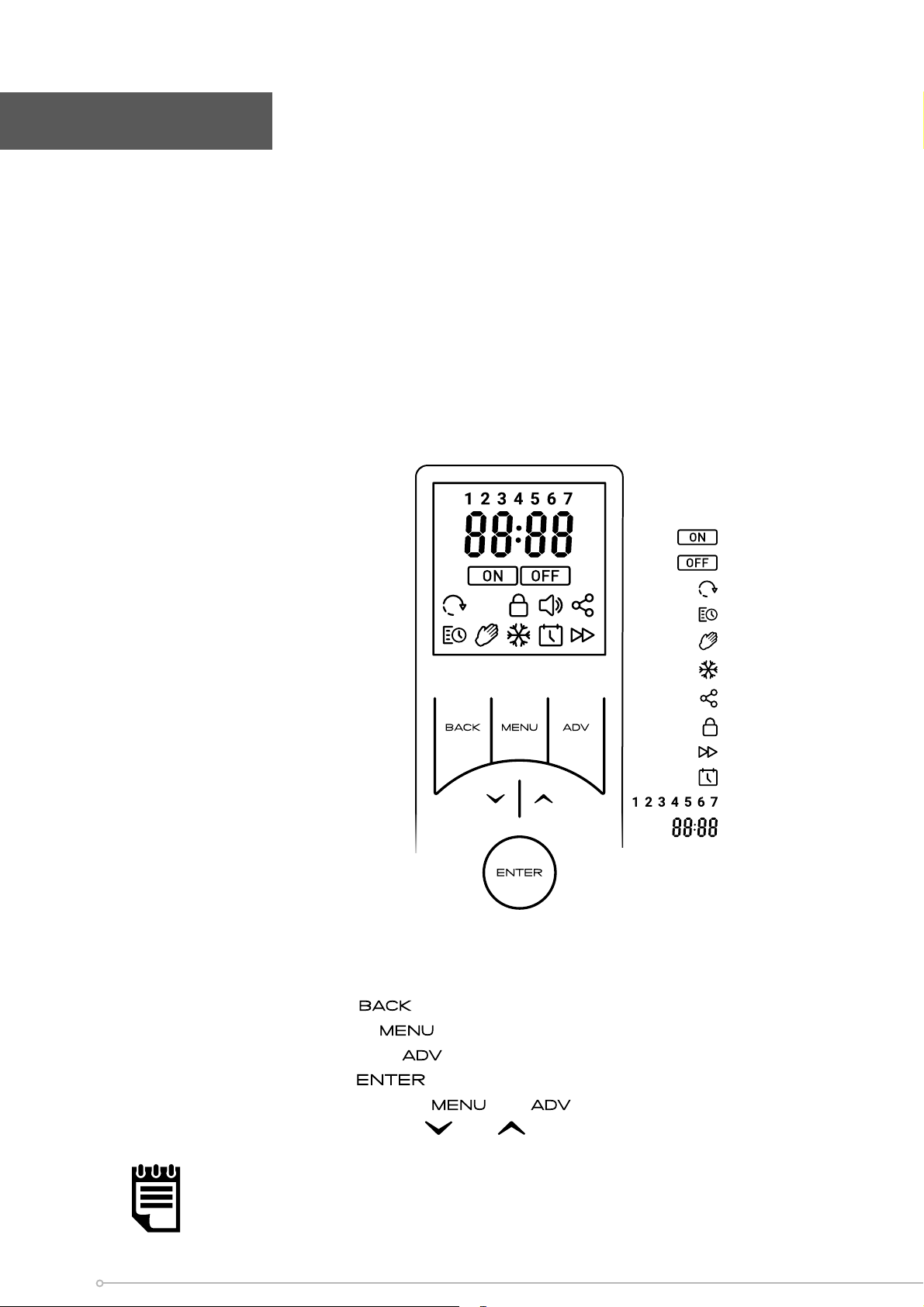
Operation
The product is controlled using the remote control. The remote consists of a display
screen and six touch sensitive buttons. The function of each button and the meaning of
each screen icon is explained in the graphic below. The remote o ers fully programmable
time and temperature control with a host of additional useful control features.
It is possible to control the appliance in various operational modes including Manual
operation mode, User timer and frost protection mode. There are also advanced
operating modes such as a runback mode and also a landlord PIN protected function. .
Button Functions
1. MENU - enters the main product
menu.
2. ENTER - used to confi rm
selections & settings.
3. BACK - returns to the previous
screen. If held for 2 seconds
,
the heater will enter Comfort
O mode
.
4 & 5. Arrow keys - used to
navigate through the menus and
adjust the room temperature
set-point.
6. ADV - use depends on the active
mode and settings, typically
used to advance the program
in timer mode or to initiate a
runback period in Manual/ PIN
mode.
Advanced button functions & Shortcut keys
Comfort O - Press and hold for 2 seconds
Temp Settings - Press and hold
for 2 seconds
Heating Settings - Press and hold
for 2 seconds
Service Info - Press and hold for 2 seconds
Advance Menu - Press and hold both and for 2 seconds
Factory Reset - Press and hold both
and for 5 seconds
Heating On
Heating O
Adaptive Start
Timer Schedule
Manual Mode
Frost Protection
Connectivity
Pin Lock
Advance
Set Time & Date
Days of the week
Time Numerals
Symbol Key
NOTE:
All setting changes and communications between the remote control and the
appliance are signifi ed with an audible ‘beep’ from the appliance. This beep
signifi es that connection is successful and the appliance has received a command
from the remote control.
16

Waking from Standby Mode
When in standby mode, holding ENTER for two seconds will wake the remote and
attempt to reconnect to the product, this will be signifi ed by the connectivity icon
and loading graphic appearing on the screen.
The remote control provides the option of a number of standard control modes,
• T
imer Mode: provides the greatest fl exibility to the user. Four heating periods ar
e
a
vailable throughout each day and these can be customised for every day of
the
w
eek. The desired set temperature can be set for each time slot independently
• Manual
Mode: Maintains the displayed temperature for an undetermined
period.
T
he default ‘comfort’ temperature in manual mode is set to 21°C however this
can
be adjus
ted to suit.
• Fr
ost Protect: maintains a room temperature of 7°C. This mode should be used t
o
pr
ovide protection against frost.
• C
omfort O : no room temperature control
There are also a number of advanced control options and features available
• Runback
Mode: This is an additional feature available to manual mode, with
this
mode
active the manual mode will operate for a determined time period and
then
r
evert to Comfort O mode.
• Setback Mode: This is an additional feature available to timer mode, with this mode
active the appliance will control the room to a pre-set temperature during timer
‘o ’ periods.
• Adaptive start Mode: This is a predictive mode that functions alongside the timer
mode. When activated it will automatic calculate when the appliance needs to switch
on so that the desired room temperature has been achieved from the start of a heat
on time period. If not active the appliance will only switch on at the programmed
on time.
• PIN Lock Mode: This mode will lock the appliance in the existing mode and will only
allow some basic functions to operate. Once activated, in order to change settings
the
user must input a pre-set PIN. This is ideal where it is desired to limit the
use
and functionality of the applianc
e
.
Operating Modes
17
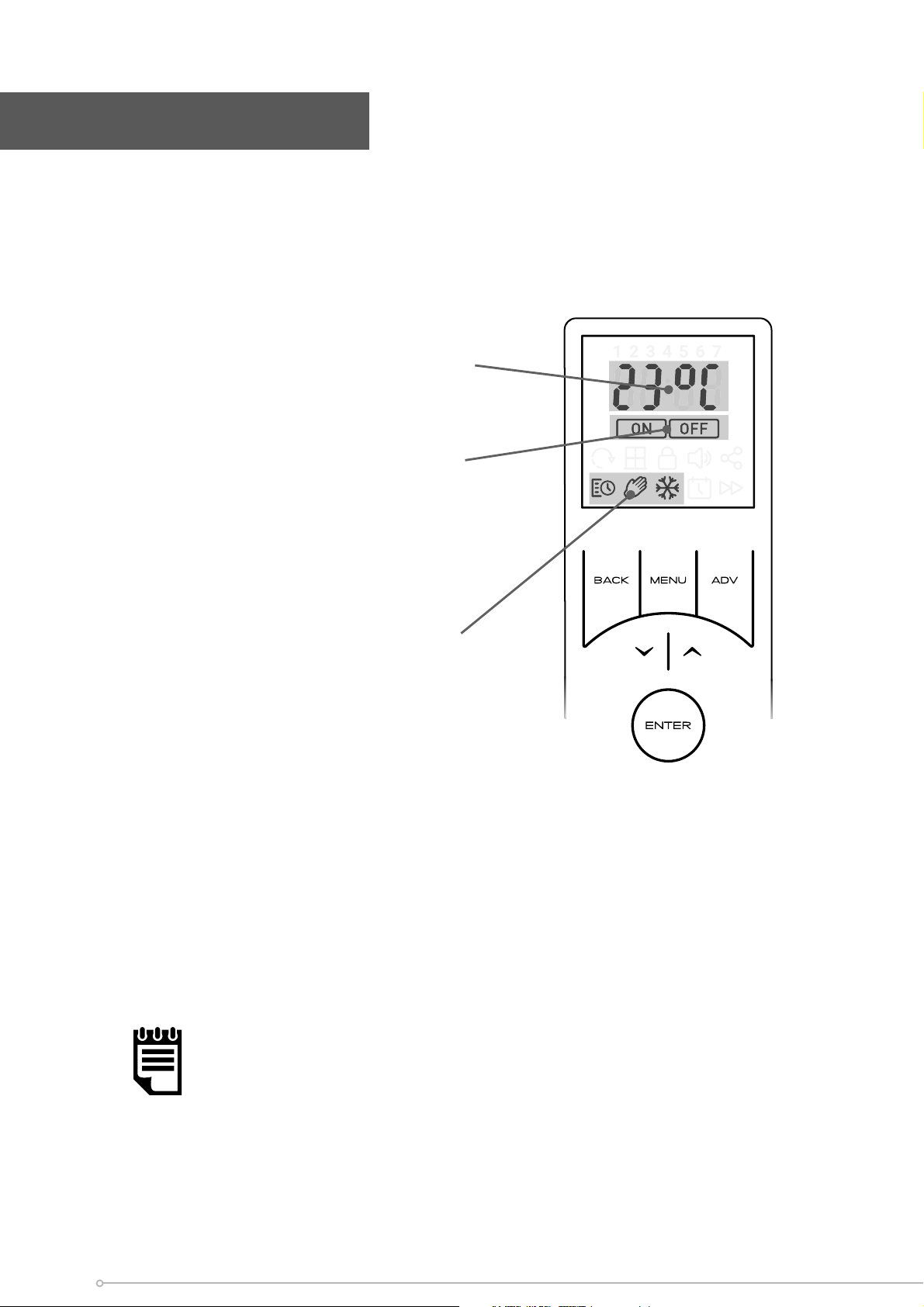
Typically the Home Screen will display the active operational mode, the desired room
temperature set-point and the heating status. Any of the Advance function which are
active will also be displayed on the home screen. Pressing ENTER while on the Home
screen will display the current time.
Target room temperature (set-point)
display, this is not an actual room
temperature display.
Product heating status display, this
indicates when the appliance is actively
heating or maintain a room temperature,
‘ON’ will be displayed. Otherwise, ‘OFF’
will be displayed
Active mode display, the active mode of
operation is displayed at the bottom of
the screen
Sleep mode, when the remote is left
inactive, the remote display will sleep,
turning the screen o . Briefl y hold ENTER
to wake the remote back up.
The remote control will enter sleep mode if left idle for the following intervals
Home Screen – Sleep after 10 seconds
Menu Screens – Sleep after 15 seconds
Settings – Sleep after 30 seconds
NOTE:
When the remote wakes, it must search for and re-connect with the heater. This
happens automatically and is indicated by the connectivity icon and the pairing
graphic. Once pairing is complete the product will beep and the remote home
screen is visible.
Home Screen
18
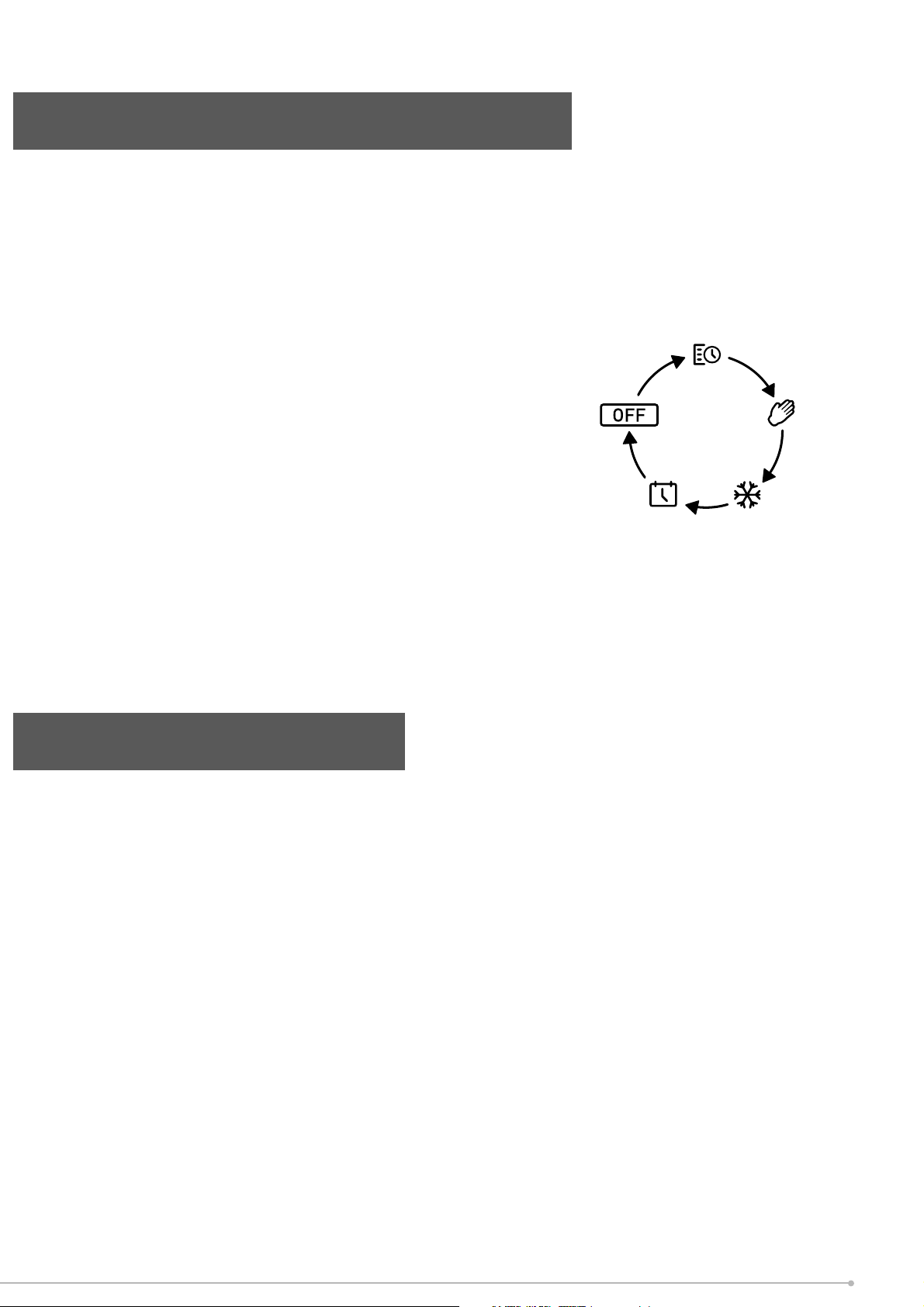
The remote control and menus are navigated using the six button keypad. In order
to select/ change operational mode, press the MENU button. The remote will then
enter the basic menu structure, this menu provides the option to quickly select the
following options, each option is represented by an icon.
• T
imer Mode: Activate mode or set/alter
the
pr
ogram times and temperatur
es,
• Manual Mode: Activate manual heating mode,
• Frost Protect: Activate frost protection mode,
• Time & Date: change the time and date settings
• OFF: Activate Comfort o mode
The primed mode for selection will be indicated by the fl ashing icon, use the Arrow
keys to navigate to the desired icon and confi rm selection using the ENTER key.
Depending on the mode selected you may be prompted for further action, see relevant
section relating to this mode.
The heater is fi tted with an adjustable electronic thermostat enabling the room
temperature to be controlled in all the operational modes. The minimum controllable
room temperature available is 7°C and the maximum temperature is 30°C.
A temperature of 21°C represents a normal ‘Comfort’ room temperature and this is set
as default in manual mode. Frost protect has a default value of 7°C. Temperatures in
Timer mode can be set to suit the application.
The temperature set point can be adjusted at any stage by using the Up & Down
arrows when the home screen is active.
Thermostat Control
Navigation and Selecting Modes
Timer
Schedule
Manual
Mode
Frost
Protect
Time/Date
Comfort
O
19
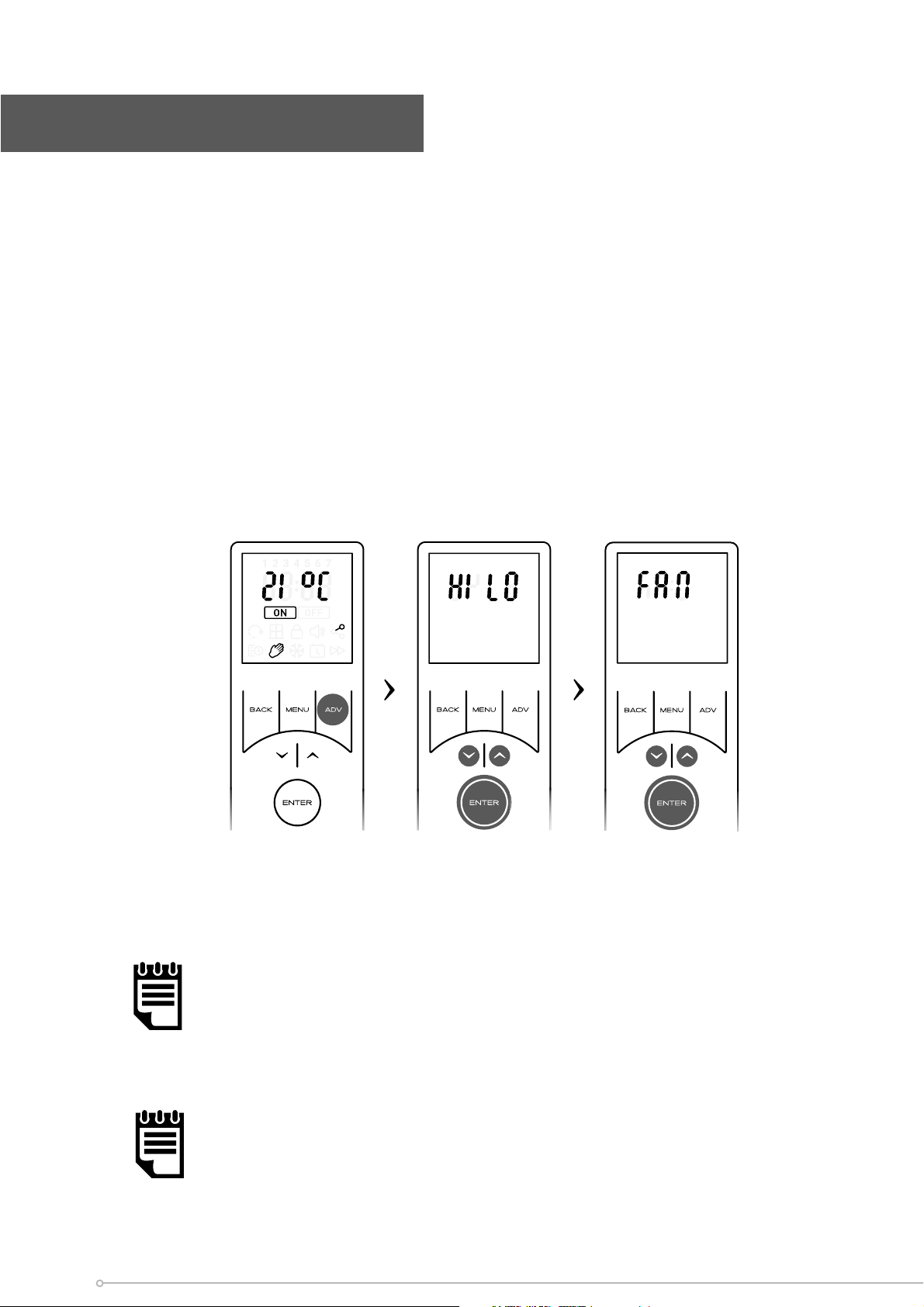
The remote control o ers the facility to select the heat output from the appliance
between HI, LO heat and FAN settings. HI heat is set by default. This is a global heat
setting and once set all other operational modes will operate with this setting.
In order to set/change the heat setting,
• From the home screen press and hold the ADV button for 2 seconds. The remote
will enter the heat selection screen.
• Use the arrow keys to navigate to the desired setting and confi rm using
the
ENTER
key. The FAN is on a separate screen that is accessed by c
ontinuously
pr
essing the arrow keys.
•
The remote will return to the home screen and all heating modes will
function
with the select
ed hea
t output.
NOTE:
If FAN output is selected FAN will be visible on the home screen instead of time.
Heat Output Selection
NOTE:
The HI temperature setting will modulate the heat output to optimise the e ciency
of the product. As the room temperature approaches the set-point the heater will
automatically switch to the LO heat setting.
20
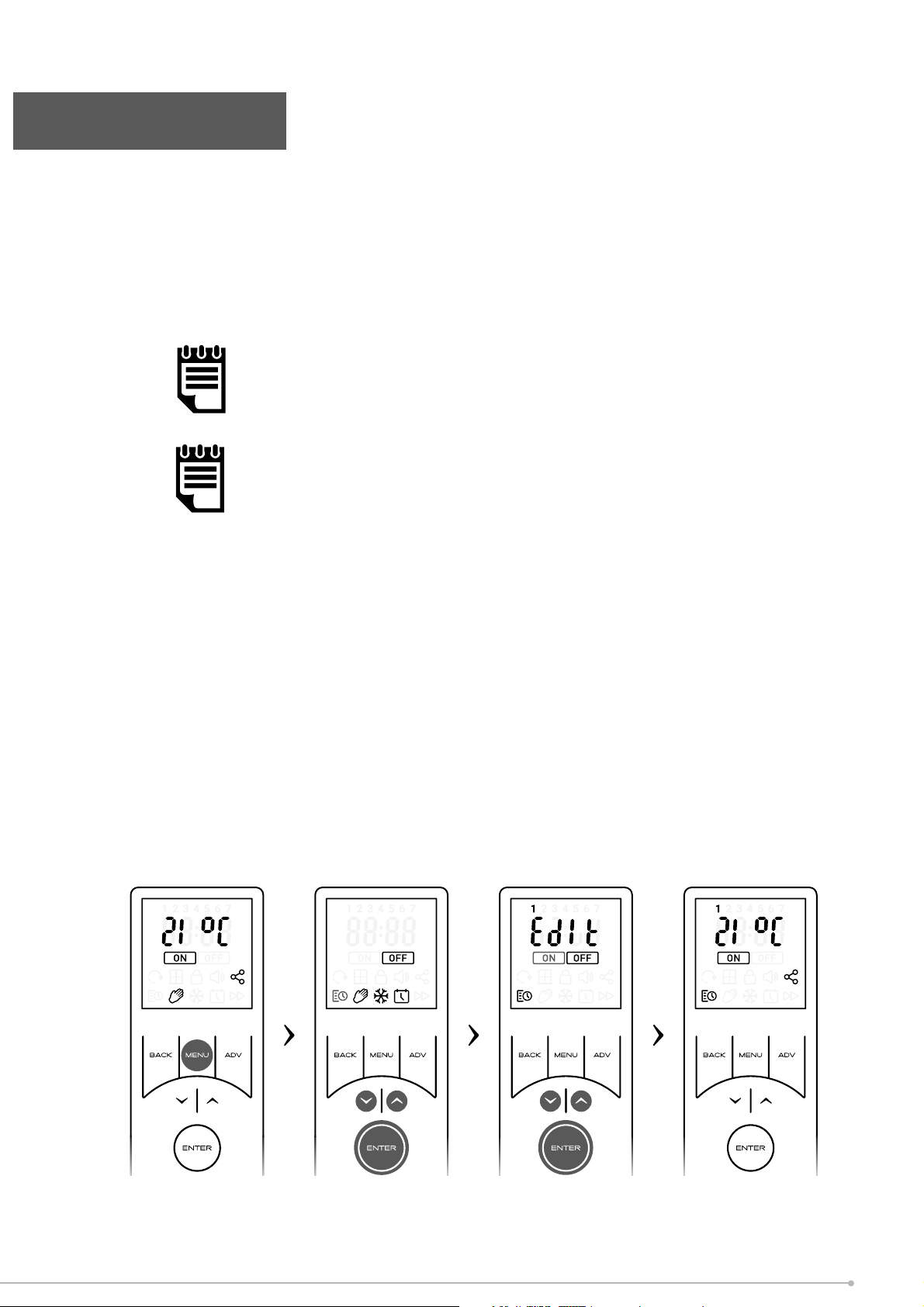
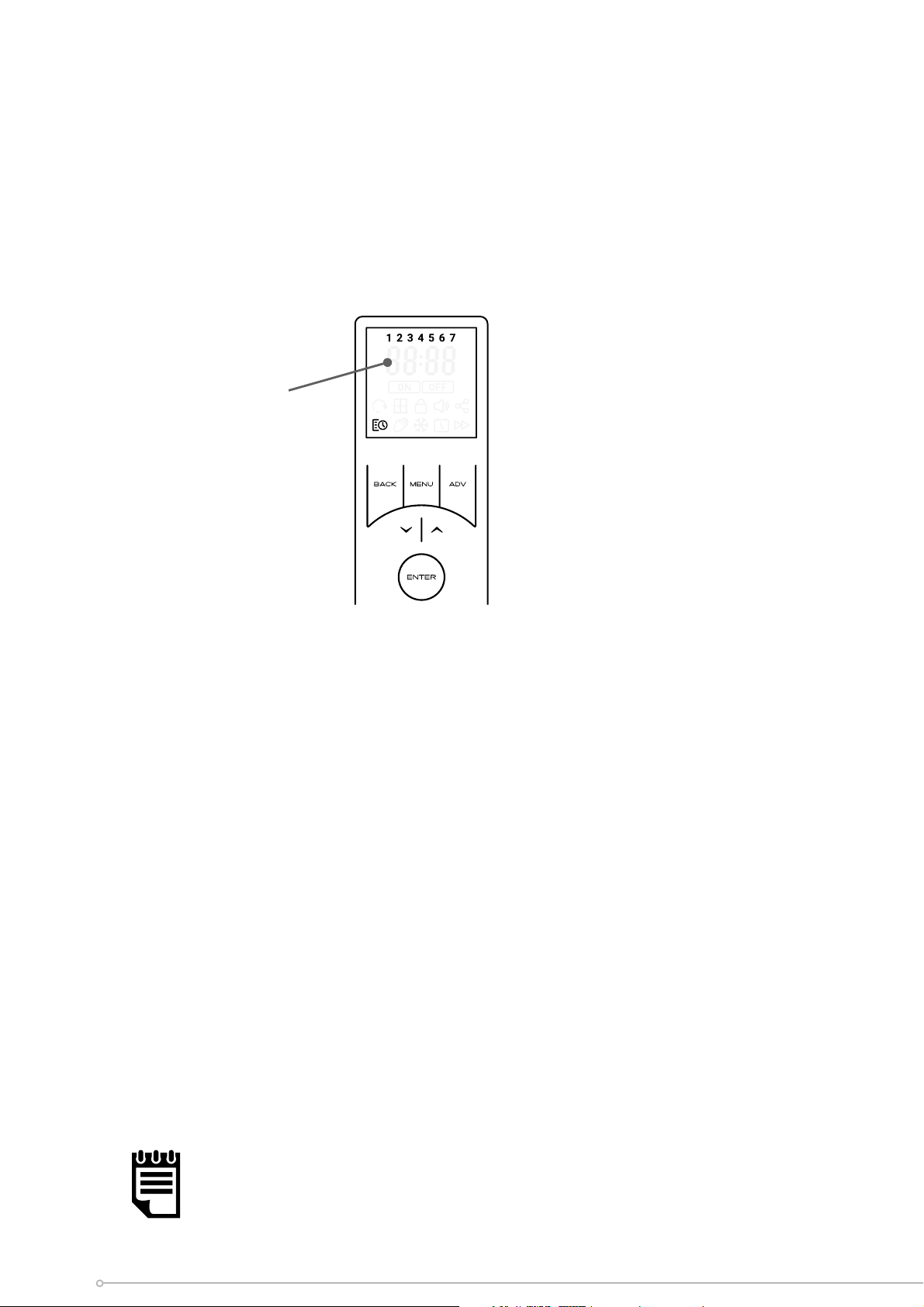
The Timer o ers the most e cient mode of operation for a predictable heat demand.
The user has the fl exibility program up to four distinct time and temperature profi les
per day, per week. The user has the ability to adjust the temperature during any heating
period and additional functions such as ‘Advance’ and set back add to the fl exibility
and comfort of this heating mode.
Activating the Timer
To activate the Timer mode:
• Pr
ess the MENU key from the home screen.
• Use the arr
ow keys to highlight the Schedule Icon,
• Pr
ess ENTER to enter T
imer Settings.
• Ensur
e ‘On’ is highlighted and Press ENTER again to activate timer mode
.
T
he active settings and target set temperature will be displayed on the home screen.
Timer Mode
NOTE:
If Adaptive Start is enabled, the heater may operate outside the
programmed heating period. This is normal and is required to ensure the
adaptive start function operates correctly.
NOTE:
If Set back mode is enabled, the heater will not revert to o outside the
programmed ‘On’ periods. The appliance will remain active and control to
the pre-set setback temperature.
21
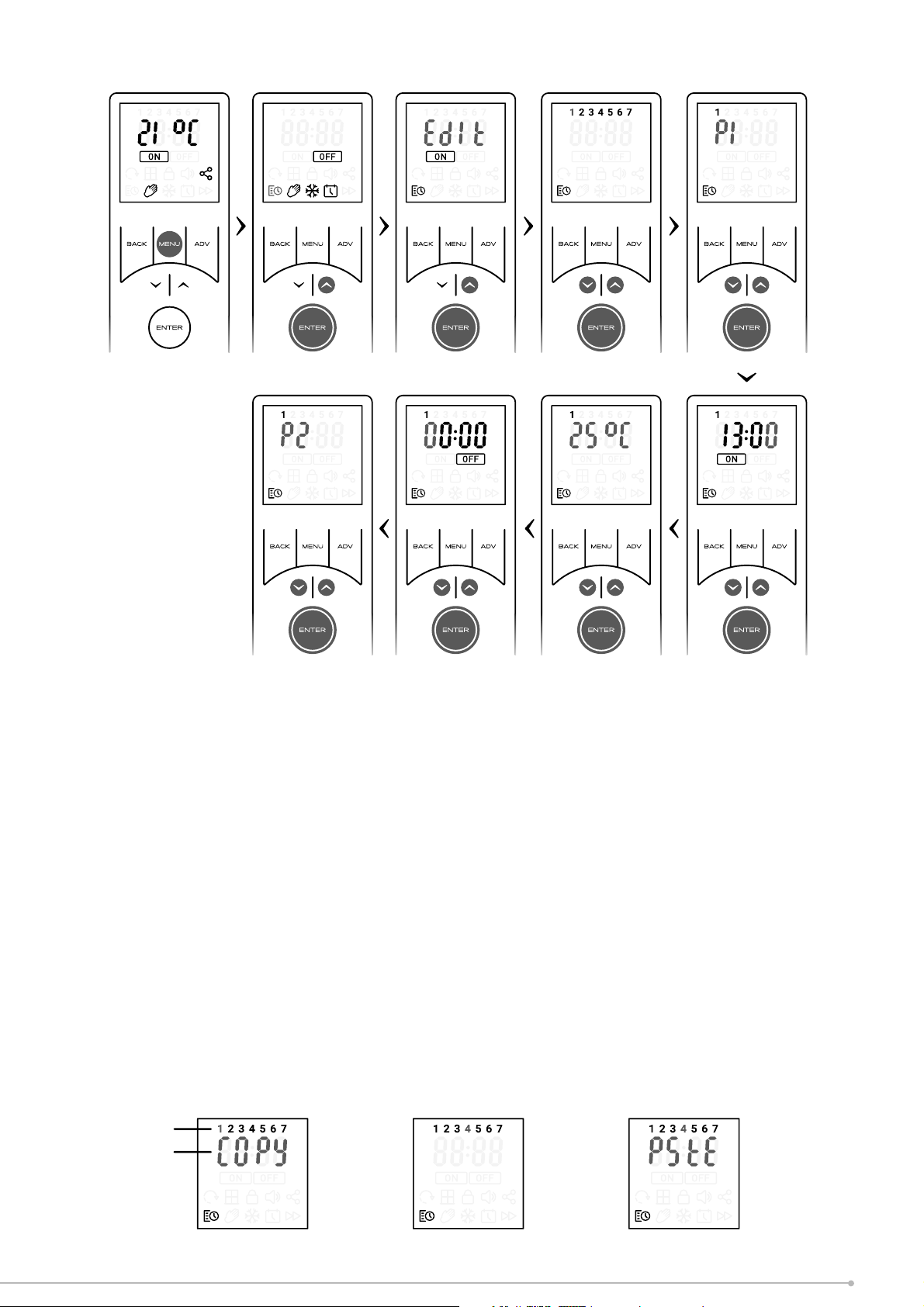
Setting/Modifying the Time Profi les
• Pr
ess the MENU key from the home screen.
• Use the arr
ow keys to highlight the Schedule Icon,
• Pr
ess ENTER to enter T
imer Settings.
• Use the arrow keys to highlight ‘Edit’ and Press ENTER again to confi rm selection.
• Use the arrow keys to select the day of the week you wish to set and confi rm
using the ENTER key.
Day 1 = Monday
Day 2 = Tuesday
Day 3 = Wednesday
Day 4 = Thursday
Day 5 = Friday
Day 6 = Saturday
Day 7 = Sunday
Day
selection
screen
•
Use the arrow keys to select the period (1-4) you wish to set and confi rm using
the ENTER key.
• Use the arrow keys to edit the ‘On’ time, confi rm each digit using the ENTER
key. After the fi nal digit is confi rmed the remote will automatically enter
the
set-point setting scr
een.
•
Use the arrow keys to set the desired set-point temperature, confi rm using
the
ENTER k
ey.
• T
he ‘O ’ time should then be set using the same method as the ‘On’ period.
You will then be returned to the Period setting screen, with the next period highlighted.
The previous Period has been successfully set and is confi rmed by a beep from the
appliance. The remainder of the periods can then be set as per the above procedure.
Alternatively, the timer setting mode can be exited by pressing MENU or continuously
pressing the BACK key
NOTE:
If the MENU key or the BACK key is used exit setting mode from the time or
temperature setting screen the changes will not be saved, it is essential that the
fi nal ‘O ’ time is confi rmed and a beep is heard from the appliance before exiting
this mode.
22
Copy and Paste Time profi les
It is possible to copy the complete time profi le from one day and paste it to another
day. This will copy all four program periods and associated time and temperatures. To
copy and paste a day profi le:
•
From the day selection screen, use the arrow keys to highlight the day you
wish
t
o copy.
• Hold the ADV key for 2 seconds, ‘COPY’ will fl ash on screen to show it has copied,
• Use the arrow key to highlight the day to which you wish to copy the profi le.
• Hold the ENTER key for 2 seconds, ‘PSTE’ will fl ash on the screen and the appliance
will beep to signify the timers have been pasted successfully.
• If required the same profi le can then be copied to other days using the same ‘Paste’
procedure.
1. Hold ADV for 2 seconds on
Monday (1)
2. Press UP until Thursday
(4) is fl ashing
3. Hold ENTER to paste timers
onto selected day
Flashing icon
Double Flash
23
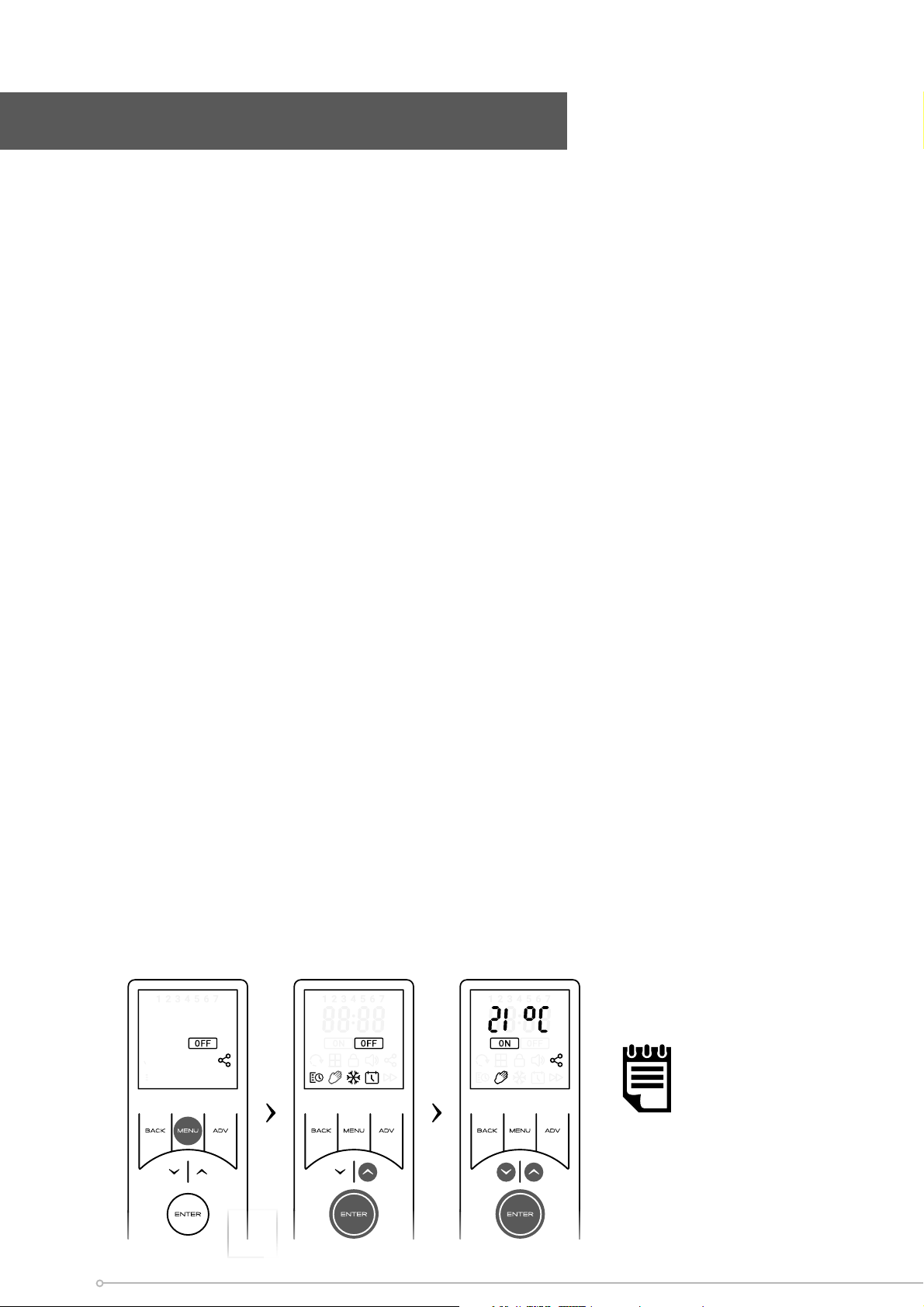
Continuous Heat Modes
A Continuous Heat mode is e ectively a constant heat control period. The heater will
maintain a predetermined room temperature indefi nitely irrespective of time until the
mode is changed by the User.
Available Continuous Heat Modes
Each continuous heat profi le is preloaded with a default Target Temperature value but
is fully adjustable.
• Manual mode
- Default temperature 21°C
- Can be changed from the Home Screen to any value within the Heater’s
Temperature Range.
• Frost Protection
- Default 7°C
- Can be changed from the Home Screen to any value, however once the
temperature is changed the unit will revert to a standard Manual mode.
• Comfort O
- Heating OFF, no temperature control.
Activating a Continuous Heat Mode
Manual Mode (Comfort On)
This mode ignores the User Timer and maintains the displayed temperature.
To activate manual mode:
• Press the MENU button,
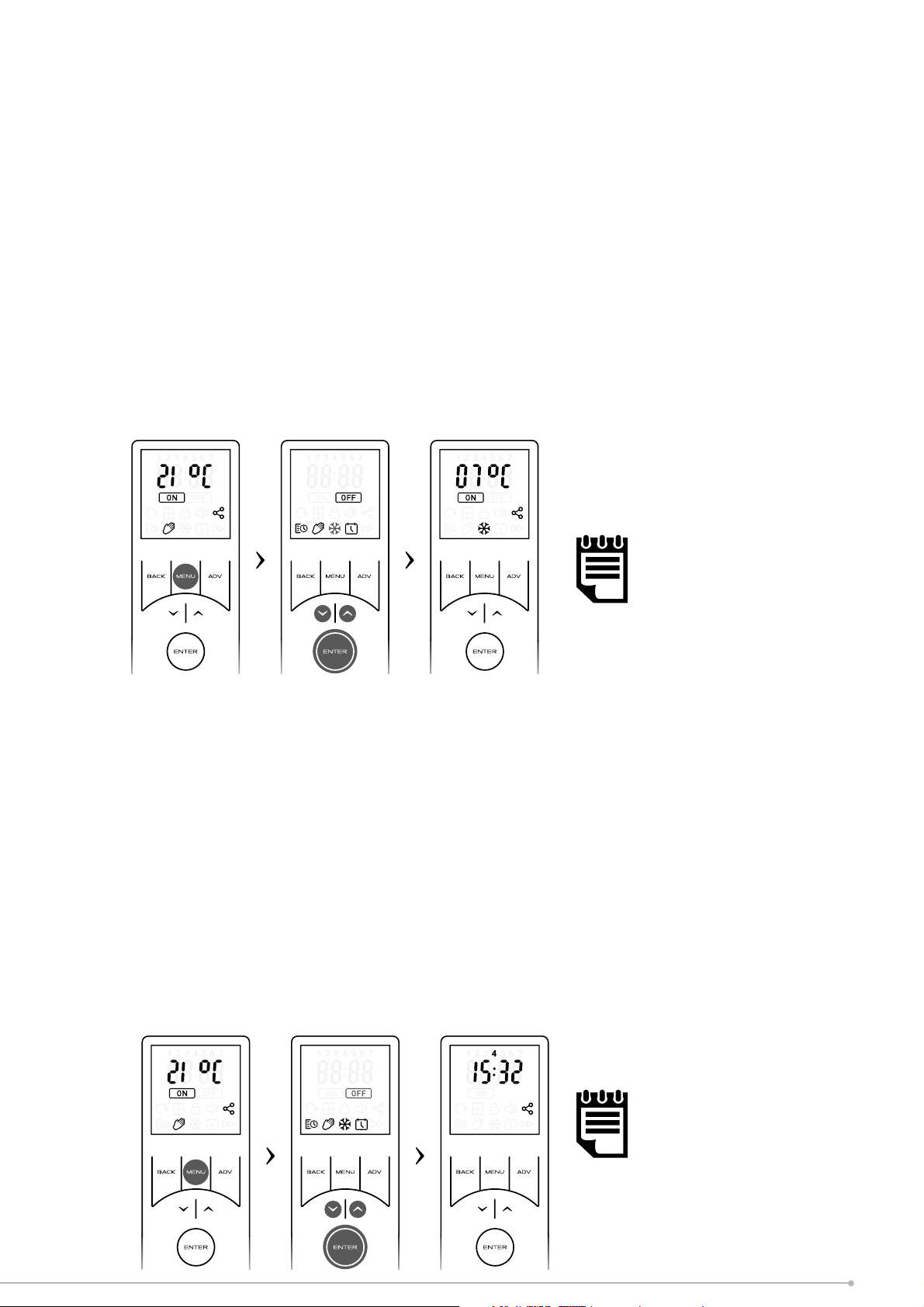
• Use the arrow keys to highlight the Hand Icon, then press ENTER to confi rm.
• Use the arrow keys to adjust the target temperature.
NOTE:
If the temperature is
set to 7ºC, the mode
will automatically
change to Frost
Protect
24
Frost Protect
This mode maintains a constant room temperature of 7°C. This mode is not intended
for human comfort and should be used to provide protection against frost. This mode
is indicated by the Frost icon.
To activate Frost Protect mode:
• Pr
ess the MENU key from the home scr
een.
• Use the arr
ow keys to highlight the Frost Ic
on,
• C
onfi rm the selection by pressing the ENTER key
,
• T
he home screen will reconfi gure to indicate Frost protection mode is active.
•
Alternatively frost protection mode can be accessed direct from the
manual
mode b
y pressing the down arrow until the set-point reached 7°C.
NOTE:
If the temperature is raised
in Frost Protect, the product
will automatically enter
Manual Mode
Comfort O
W
hen activated, this appliance will provide no room temperature control. No active
mode will be visible on the screen but the remote will display the current time and
day indicating the appliance is in comfort o mode. The remote screen will still revert
to sleep mode.
To activate comfort O mode:
• Pr
ess MENU from the home scr
een,
• Use the arr
ow keys to highlight the OFF ic
on,
• Pr
ess ENTER to confi rm the selection,
•
Alternatively, Comfort O mode can be activated at any time if the BACK
button is held for 2 seconds
Important:
Comfort O mode is an
active state and does not
imply the appliance is O , it
is simply not controlling to a
room set point.
25
These functions modify the normal behaviour of the appliances operational modes. The
advanced functions available will depend on the active operation mode, for example
an advance function is only available when timer mode is operational and similarly a
runback function is only available for continuous heating modes.
The ‘Advance’ Function
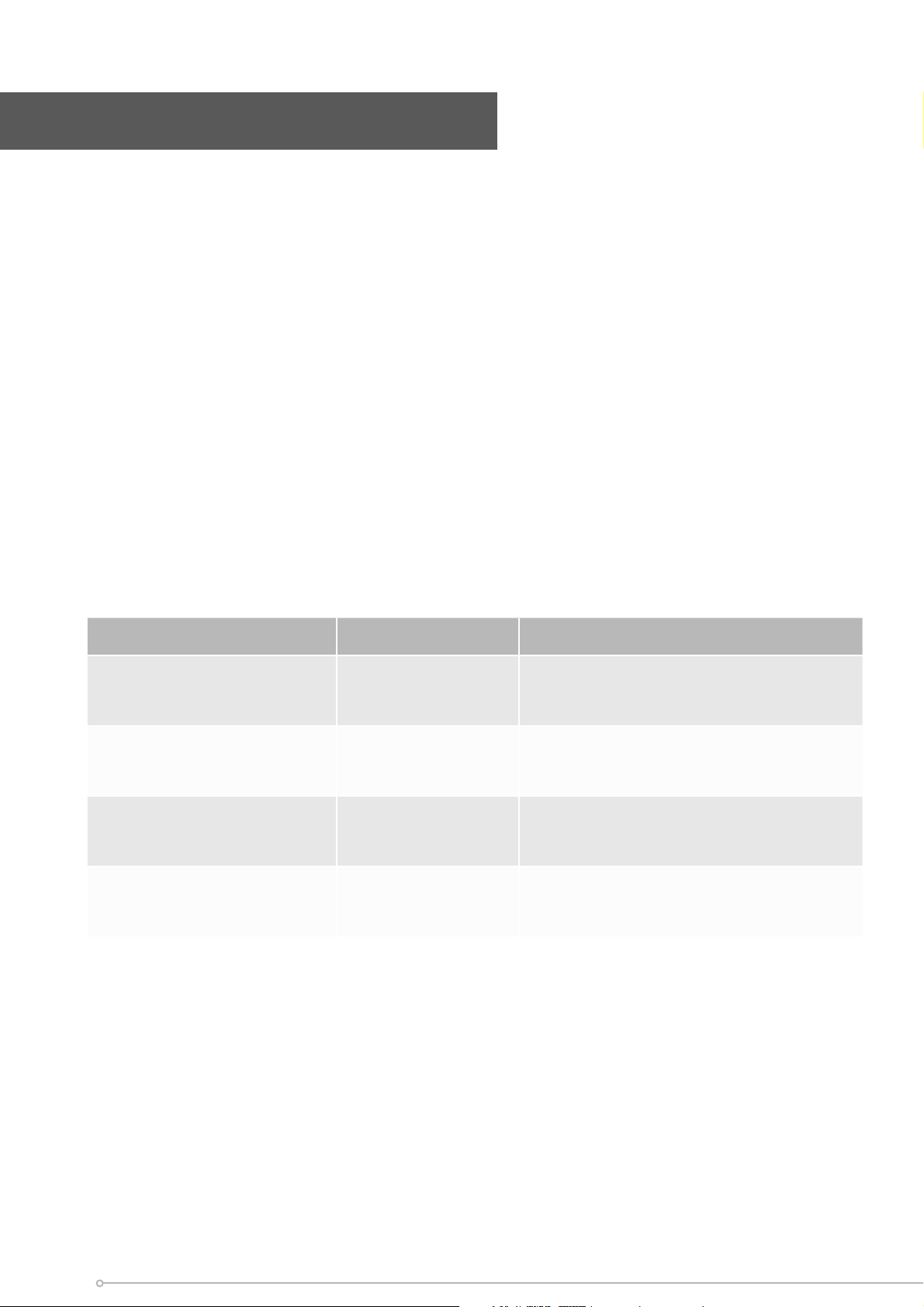
The ADV button forces the next timer segment to activate early, this forces a temporary
change and will not a ect the timer schedule. This allows the user the fl exibility to
begin or end a programmed heating period early, with the touch of a button.
This is useful if you are at home when you had not planned to be, or need to leave
when you had planned to have the heating on.
If the remote displays OFF, Schedule Icon or no target temperature, and heat is required,
press the ADV button. If the remote displays ON and heat is not required, press the
ADV button and the heater will stop heating until the beginning of the next ON period.
Pre-action State Action Impact
Heating On (Timer Mode) Advance activated
Heating On period switched to Heating
O until the next scheduled ‘Comfort On’
period.
Heating O (Timer Mode) Advance activated
Heating O switched to Heating On until
the next scheduled ‘Heating O ’ period.
Heating On (Advance Active) Advance deactivated
Heating On switches to Heating O .
Appliance will follow schedule set in the
currently active Timer Profi le
Heating O (Advance Active) Advance deactivated
Heating O Switches to Heating On.
Appliance will follow schedule set in the
currently active Timer Profi le
Advanced Mode Functions
26
Runback
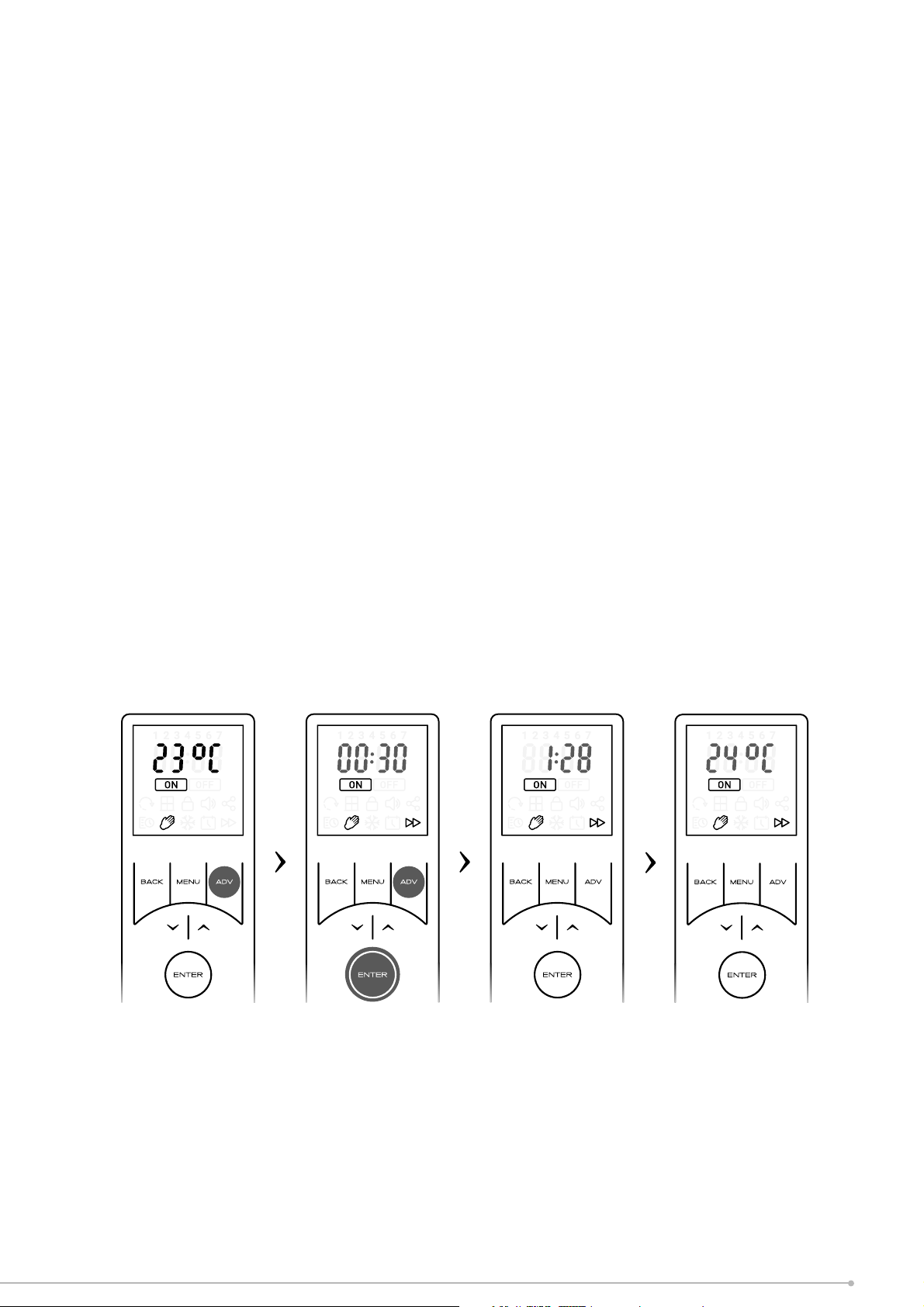
The Runback mode will assign a timed period to a continuous heating mode. Once this
time period has elapsed the appliance will revert to Comfort O mode. When runback
has been activated and the ADV key is pressed from a continuous heating mode then
it is possible to select between four available time durations. See Advanced Menu
instructions on page 28 for details on activating runback and setting the time periods.
Initiating Runback
• While in a continuous heat mode, press the ADV button to initiate the runback
function. The shortest available runback duration will appear fl ashing on the
screen.
•
If desired the additional runback duration periods can be accessed by pres
sing
the ADV button. There will be four runback time durations available to select from.
• Continue pressing Advance until the desired runback time has been reached
•
When satisfi ed with the selection press ENTER to confi rm.
• Once active the set-point will change to the pre-set value that has been selected
during the runback setup. The set point can be changed at any stage using the
arr
ow key
s.
•
The display will then alternate every 2 seconds between runback time left
and
c
urrent temperature set point.
Deactivating Runback
• During a runback period, use the ADV button to cycle through runback settings
until ‘OFF’ is fl ashing.
• Press ENTER to confi rm return to home screen in the heaters previous heat
setting.
(Runback time left) (Current setpoint)
27
The advanced menu contains several additional settings required for nonstandard
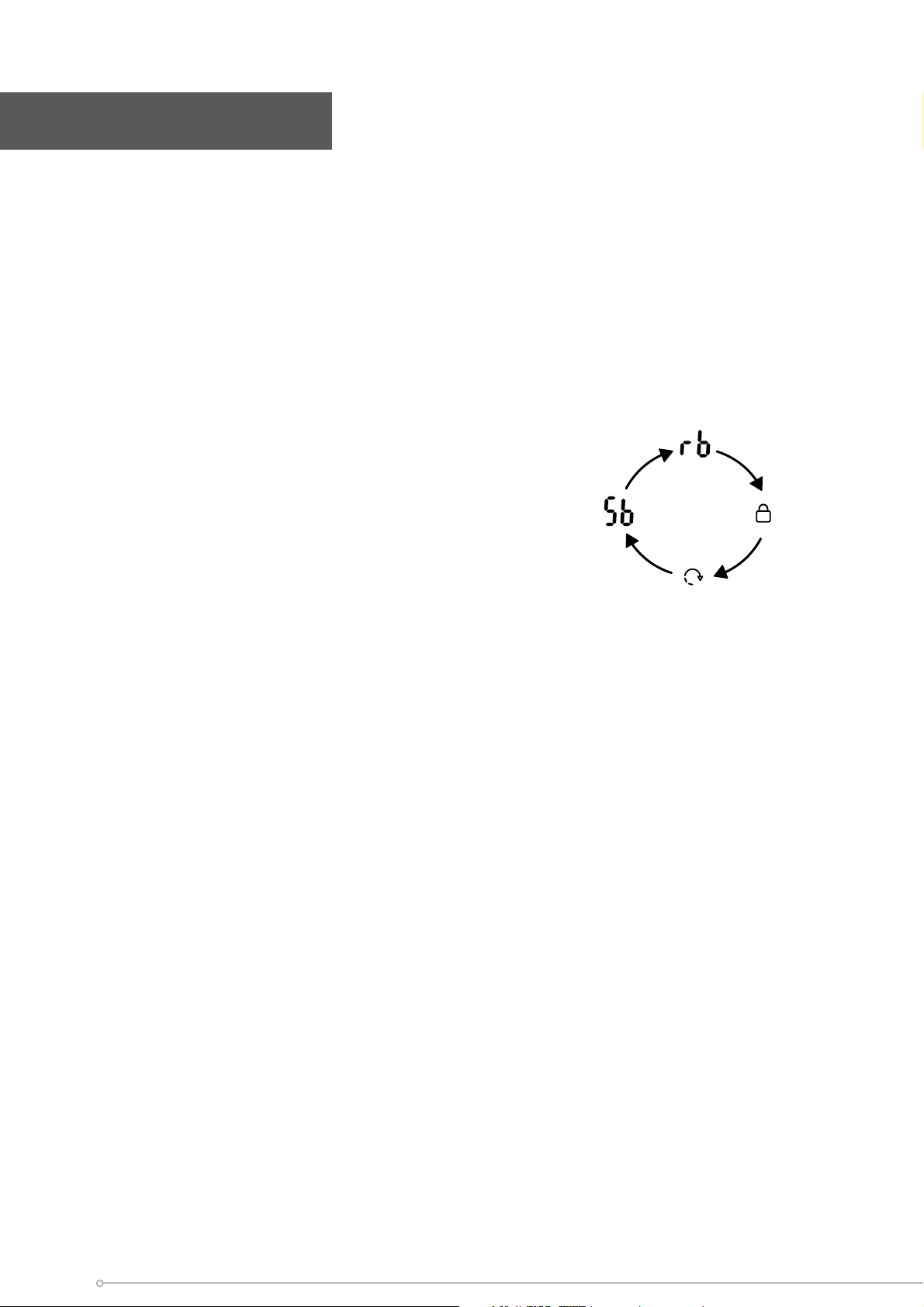
applications and installation. It is from within this menu the runback function can be
activated and the details can be setup. Setback, PIN lock and advanced start options
are also controlled from this menu.
To access the Advanced Menu, hold down the ADV and MENU buttons for 2 seconds.
You will then be able to scroll through the four advanced menu options by using the
arrow keys. Press ENTER to confi rm your selection.
The advanced menu options are:
• Runback
• Setback
• A
daptive Start
• PIN lock
Runback Settings
T
his menu is used to activate the runback function and also setup the main function
parameters, see ‘Runback’ in ‘Advanced mode Functions’ for description of this mode.
To activate and setup Runback mode:
• Hold do
wn ADV and MENU buttons for 2 seconds.
• ‘rb’ will be highlighted on the screen
• Press ENTER to enter the Runback settings
• Use the arrow keys to toggle Runback ON or OFF. Selecting OFF will return you
to the home screen with Runback deactivated.
• If you require to activate runback then highlight the ‘ON’ icon and press ENTER
to edit the Runback time
Advanced Menu
Runback
PIN Lock
Adaptive
start
Set back
28
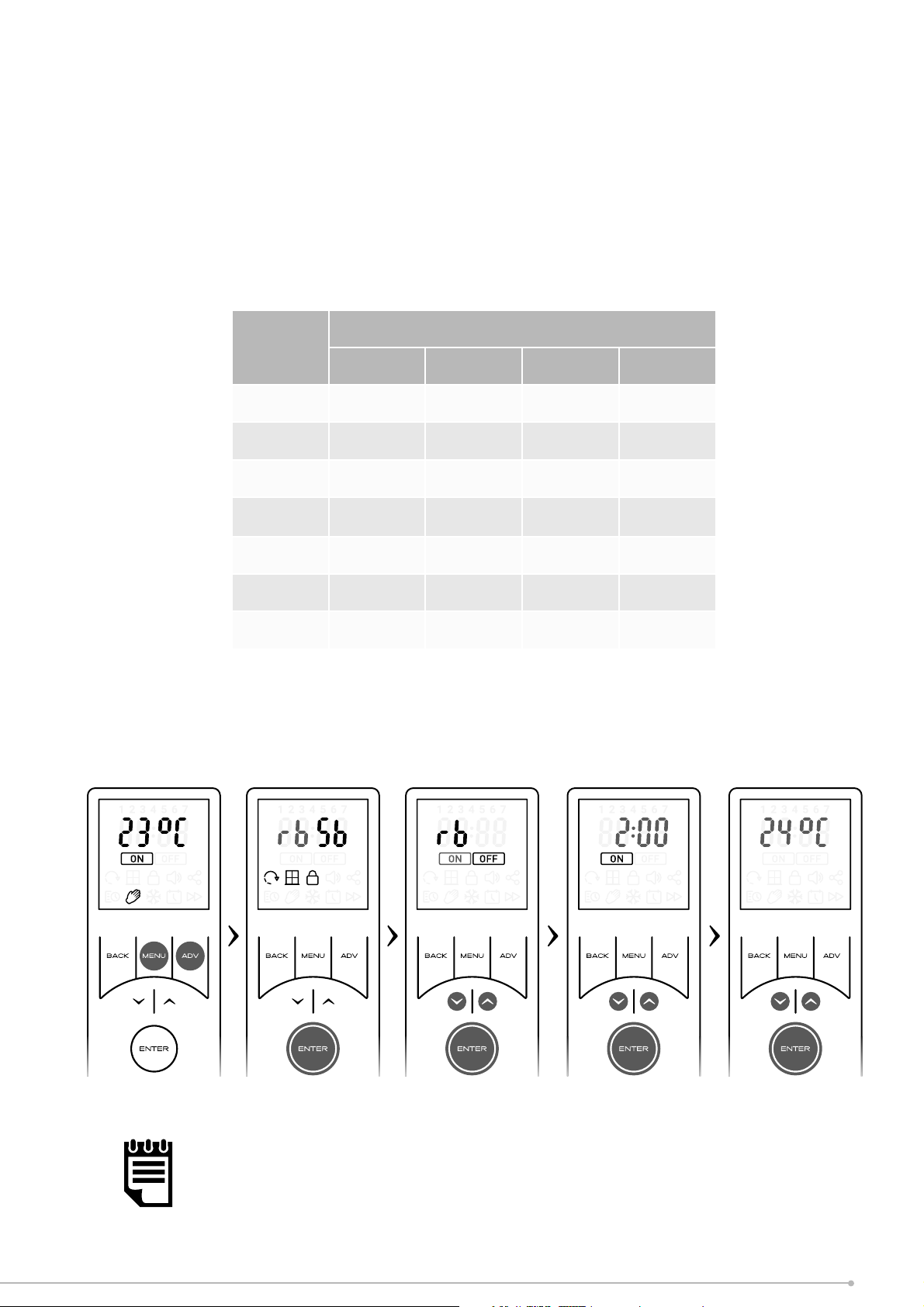
•
You will be required to select a Maximum Runback Duration, this value can be
selected from the preprogrammed list. Each Max Duration will provide four
selectable runback periods. See the table below for a breakdown of the options
available:
• Use the arrow keys to select to the desired runback time. Press ENTER to confi rm
and move onto Runback temperature settings.
• Use the arrow keys to select the desired Runback temperature. Press ENTER to
activate the Runback timer and return to the home screen.
Maximum
Runback
Duration
Selectable Runback options
Period 1 Period 2 Period 3 Period 4
0:30 0:15 0:20 0:25 0:30
1:00 0:15 0:30 0:45 1:00
1:30 0:15 0:30 1:00 1:30
2:00
(default)
0:30 1:00 1:30 2:00
4:00 1:00 2:00 3:00 4:00
6:00 1:30 3:00 4:30 6:00
8:00 2:00 4:00 6:00 8:00
NOTE:
When activated the temperature set-point which has been set during the mode
setup
(above) will be active. This value can be adjusted temporarily during runback
mode operation by using the arrow keys.
29
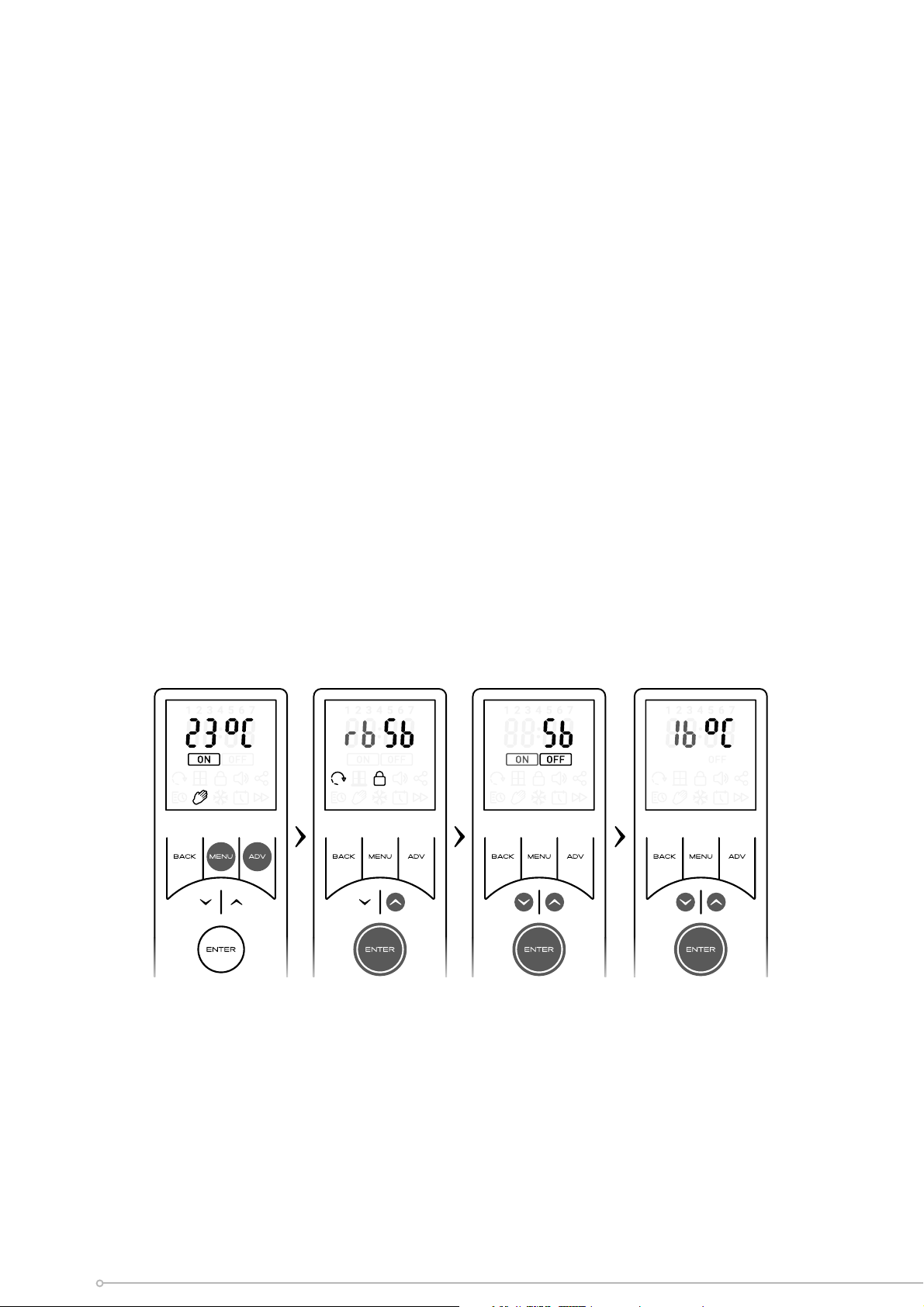
Setback Settings
Setback is a function that only modifi es Timer Mode operation. When Setback is enabled
it overrides any Heating O period to maintain a constant temperature during Heating
O periods.
This can be used to prevent the room temperature from falling below a minimum value
while there is no demand for heat (Heating On).
To activate and setup setback mode:
• Hold the AD
V and MENU buttons for 2 sec
onds.
• Use the arr
ow keys to highlight ‘Sb’ and confi rm using the ENTER key
•
Use the arrow keys to select Setback ON or OFF
.
• Selecting OFF will r
eturn you to the home screen with Setback deactivat
ed.
• If ‘ON’ ic
on is selected; you will be required to set a Setback temperature.
•
Use the arrow keys to select the desired setback temperature. Press ENTER t
o
c
onfi rm and return to the home screen. Setback mode will be active
30
Adaptive Start
Adaptive Start is a predictive function that only modifi es Timer Mode operation. This
function models the heating characteristics of the room and uses that information to
pre-heat the room to ensure the target temperature has been reached by the start of
the Heating On period.
For example, with Adaptive Start o , the Heating On time is the time that the Heater
will begin to try and achieve the Target Temperature. With Adaptive Start On, the
Heater will begin to heat the room before the User-defi ned Heating On time so that
the Target Temperature is achieved when the User defi ned the Heating On start time.
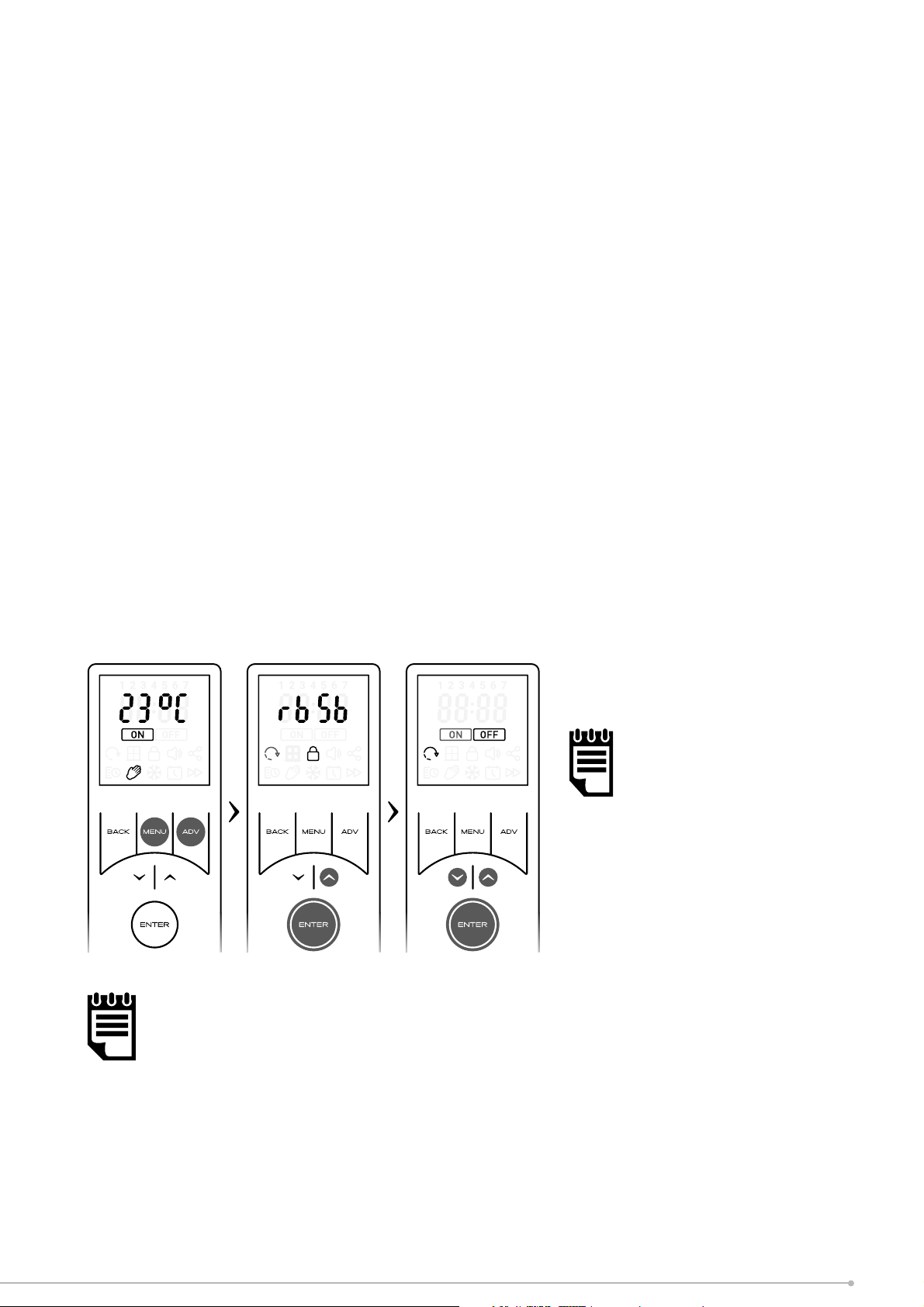
To activate Adaptive Start:
• Hold ADV and MENU buttons for 2 seconds
• Use the arrow keys to highlight the adaptive start icon and confi rm using the
ENTER key
• Use the arrow keys to toggle Adaptive Start ON or OFF
• Press ENTER to confi rm your option and return to the home screen. If adaptive
start has been activated, the icon will be visible when in timer mode home screen.
NOTE:
This is a continuously learning
function and will be a ected
daily by changes in the
heater’s environment. The
heater will take into account
the starting temperature
of the room so pre-heating
should remain accurate.
NOTE:
It is important that if multiple heaters are installed in one room that all heaters have the
Adaptive Start (AS) function enabled. If this is not the case, heaters with AS enabled will
pre-heat the room to the desired target temperature before the heaters with AS disabled
attempt to output heat.
It is likely that if multiple heaters are required in one room, that the output from one heater
may not be su cient to heat the room alone. This may cause the pre-heat time calculation
to extend to a large degree if the heaters do not all have AS enabled. This may lead to heat
at unwanted times and excessive wear to some heaters.
A two-hour limit is enforced on the calculation, however, if all heaters have AS enabled
and pre-heating takes over one-hour, extreme environmental factors may be a ecting the
calculation or the heaters may be under sized for the room. Please contact us for support if
your pre-heat time seems excessive.
31
PIN Lock
This locking method utilises a PIN code that is set by the User. When activated, the
appliance is locked in the previously active mode and user will be restricted to basic
functions. In order to change the mode or settings the PIN code must be re-entered.
It is important that all required parameters such as time profi les and/or temperatures
are set and the desired mode is activated before applying the PIN lock.
The following table summarises the product function after PIN lock has been applied
Active mode Function after PIN lock is applied
Timer mode
All functionality will be disabled, the appliance will continue to follow the
pre-set time and temperature profi les. Advance function is not available
Comfort On
All functionality will be disabled, the appliance will continue to control to
the pre-set comfort on temperature. Runback mode is not available
Frost protect
All functionality will be disabled, the appliance will continue to provide
frost protection. Runback mode is not available
Comfort O
All functionality will be disabled, the appliance will remain in Comfort o
mode with no heat or temperature control. Runback mode (if active) can
be initiated using the ADV key.
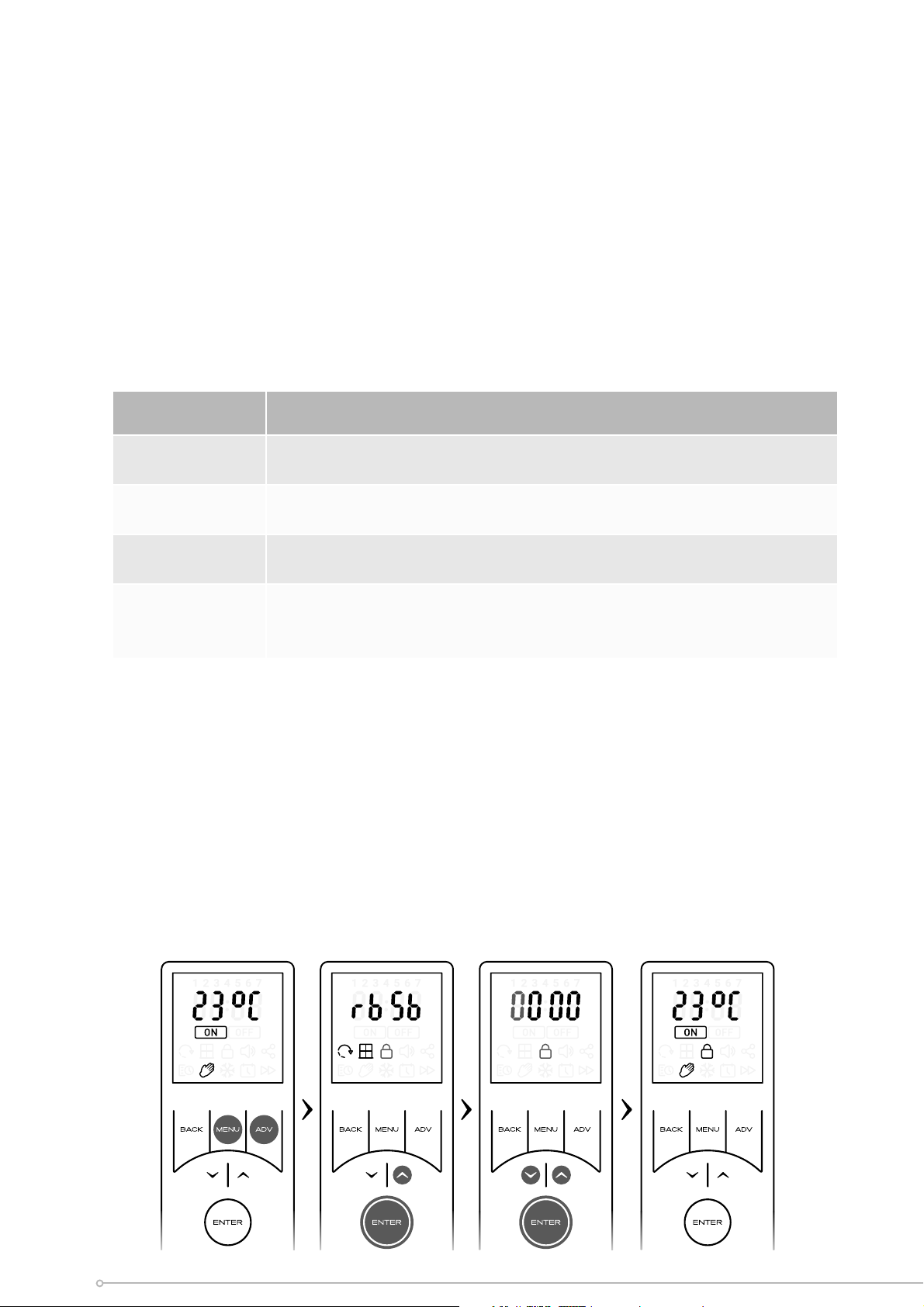
To activate PIN Lock:
•
First ensure the appliance is in the desired mode of operation, continuous hea
t
or user timer, ensure the desired temperature or time profi les are set and any
desired advanced modes are enabled.
• Hold
AD
V and MENU buttons for 2 seconds
•
Use the arrow keys to highlight the Pin Lock symbol and confi rm using
the
ENTER k
ey.
•
Use the arrow keys to select the fi rst digit. Press ENTER to set the next
digit.
R
epeat until all four digits have been set. Press ENTER to return to the
Home
scr
een with the device PIN lock
ed.
32
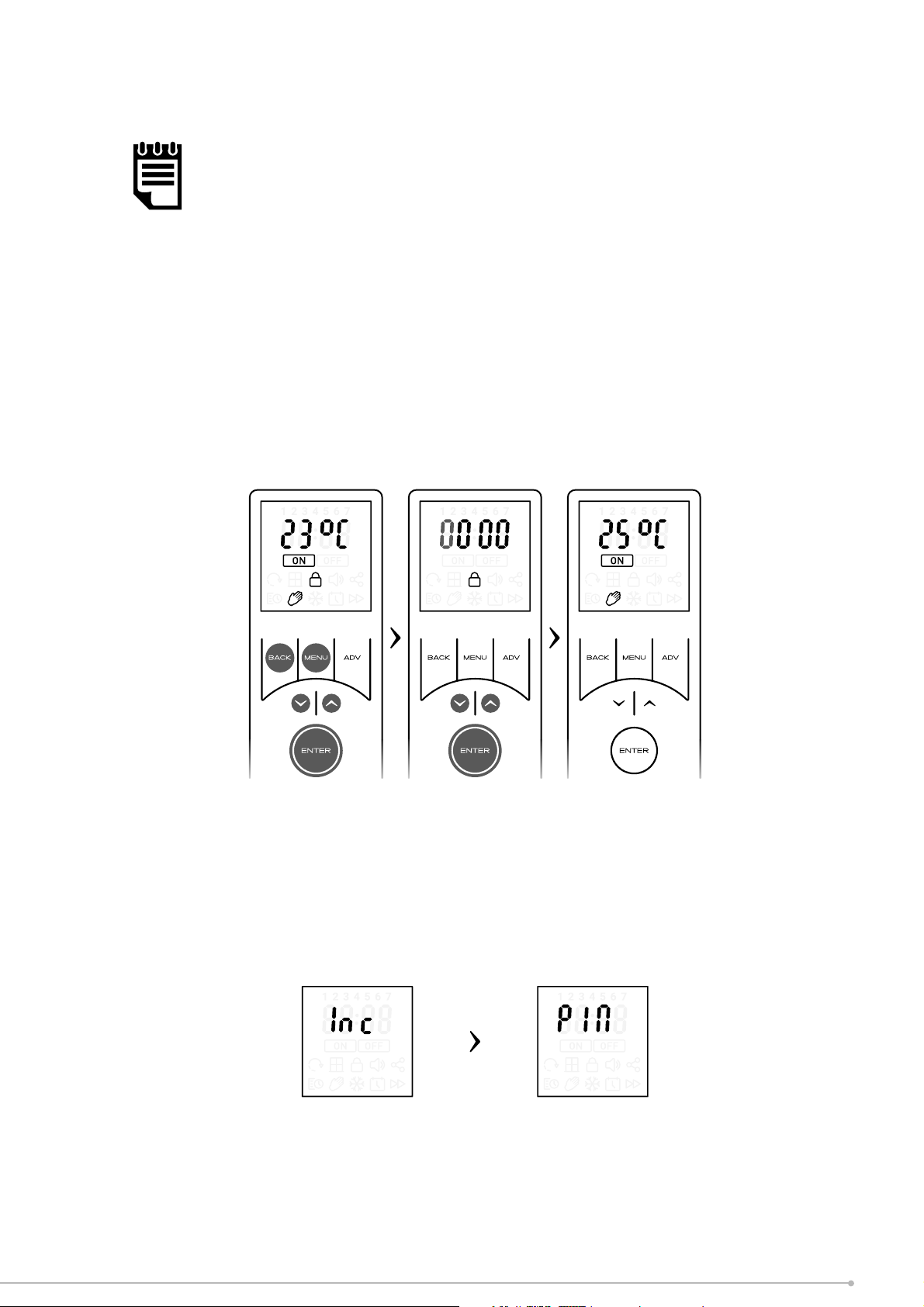
NOTE:
Once the PIN has been set you will be required to re-enter the PIN if any button
is pressed. The only exception is when the criteria has been met to allow runback
mode using the ADV key.
Exiting PIN Lock mode
• Press any button to enter the PIN display
• Use the arrow keys to input the fi rst digit. Press ENTER to confi rm.
• Repeat until all four digits have been entered, then press ENTER to confi rm.
If the correct PIN has been entered, the device will be unlocked and you will be returned
to the home screen.
If incorrect, the word ‘Inc’ will fl ash for 1 second, ‘Pin’ will be displayed for 1 second,
then the screen will return to the PIN locked home screen
Screen is displayed for 1
second before moving to
next screen
Screen is displayed for 1
second before moving to
next screen
33

Appliance ID & Software versions
The appliance and remote control are preloaded with software to ensure correct
operation. In some cases it may be necessary to reference the software version that is
installed on the remote or appliance. Both software versions along with the Wireless
appliance ID can be viewed using the remote control
To view the information:
• Hold do
wn ENTER for 2 seconds
• Use the arr
ow keys or the ENTER to scroll through the information pages
•
Once all the information screens have been viewed, the remote will return t
o
the home scr
een.
Alternatively, if idle for 5 seconds the screen will return to the home screen. You may
exit this screen at any time by pressing BACK.
UI Software
Version
Not assigned Remote Software
Version
UI ID
(NAME)
Service Settings
Temperature Settings
To choose whether the remote displays degrees
Celsius or degrees Fahrenheit:
• Hold do
wn the MENU button for 2 seconds
•
Use the arrow keys to toggle
o
C or
o
F.
The highlighted option will be fl ashing.
•
Press ENTER to confi rm y
our selection and
r
eturn to the home screen
34
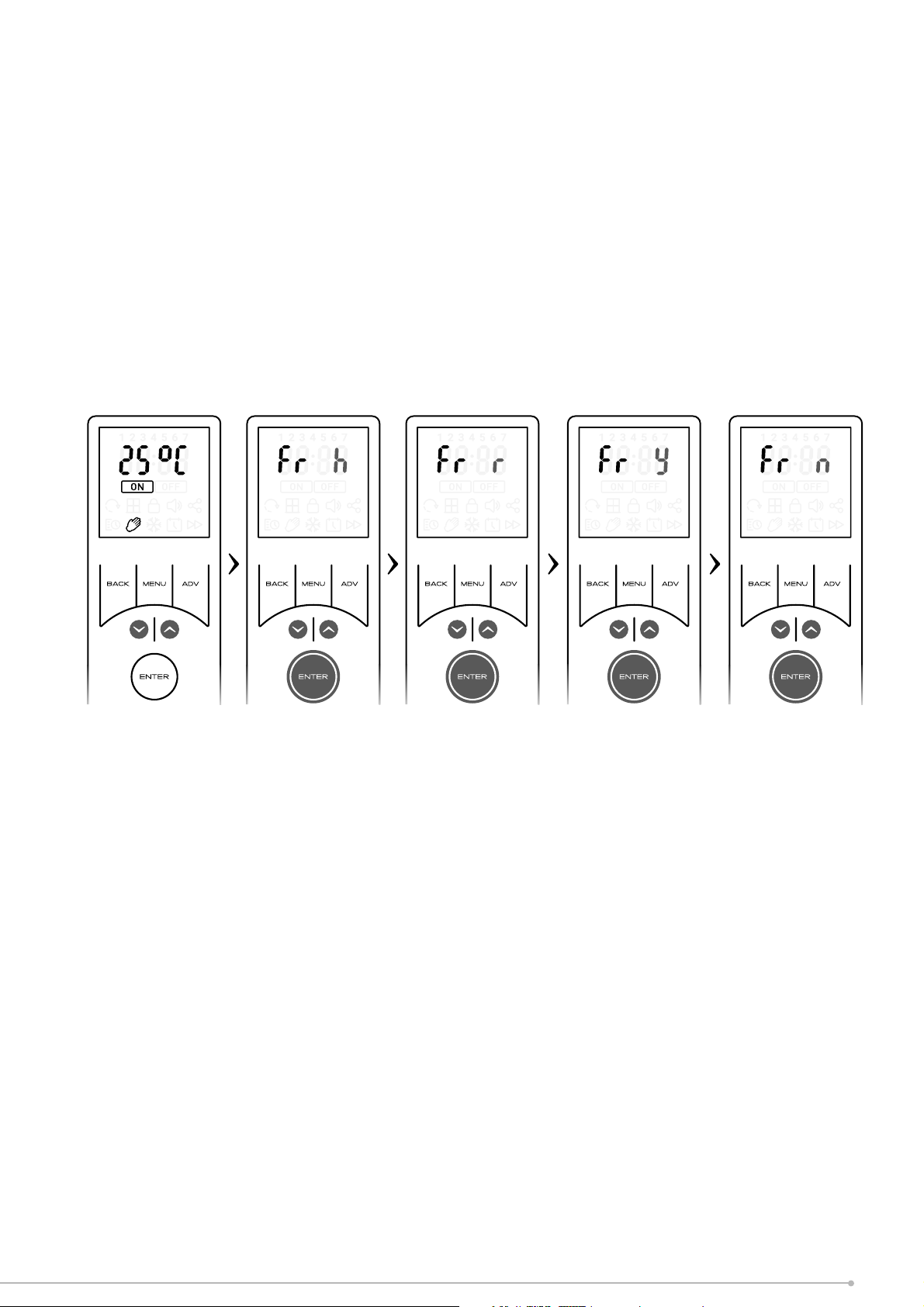
Factory Reset
If you wish to either reset the heater to default values, or disconnect and restore default
values of the Wireless remote:
•
Hold down Up and Down buttons at the same time for 5 seconds to enter “Fr
”
(F
actory Reset) options.
•
Use the arrow keys to toggle factory reset Heater (h) or Remote (r) and pres
s
ENTER t
o confi rm your option
• Use the arrow keys to toggle Factory reset YES (y) or NO (n), and press ENTER
to confi rm your option.
35
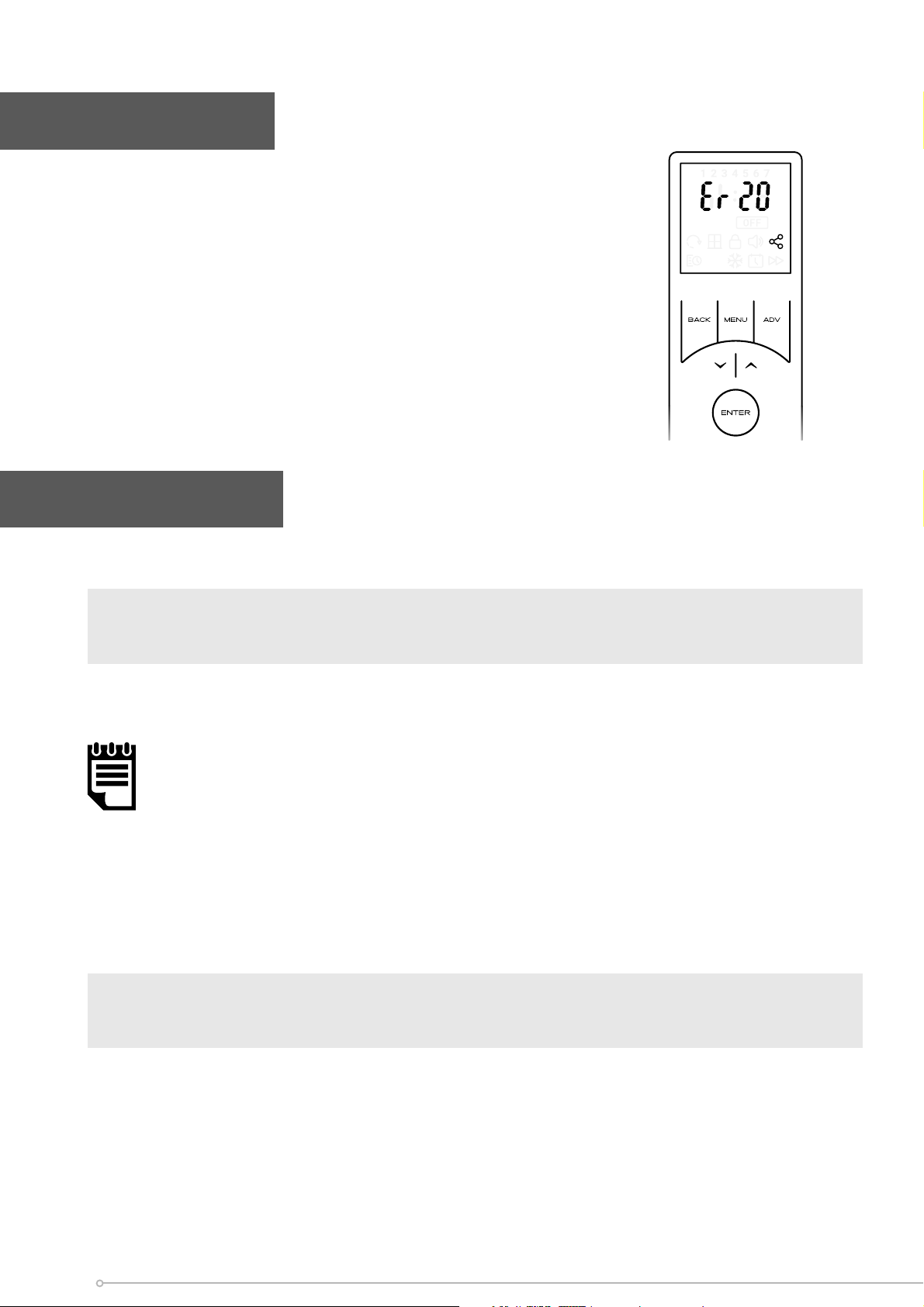
If an error code (Er 20) appears fl ashing on the remote screen,
this indicates that there has been an issue with the room
temperature sensor. Please contact customer service. .
Error Codes
Maintenance
Battery Replacement
see section for fi tting batteries.
NOTE:
Whenever new batteries are fi tted or replaced the Wireless remote control will automatically
reconnect with the product. However, the time and date settings on the handset will have
been lost and must be reset for time profi les to function correctly
IMPORTANT
Battery should be disposed of in an appropriate manner
Cleaning
General Cleaning
Before commencing cleaning, isolate the heater from the electrical supply and allow it
to cool. External appearance can be maintained by wiping occasionally with a damp
cloth; for stain removal, a weak soap solution can be applied, then wipe dry. Care must
be taken to avoid any moisture ingress into the product.
WARNING - ALWAYS DISCONNECT FROM THE POWER SUPPLY BEFORE
CLEANING THE HEATER.
36

For electrical products sold within the European Community.
At the end of the electrical products useful life it should not be
disposed of with household waste. Please recycle where facilities
exist. Check with a Local Authority or retailer for recycling advice
in your country. Batteries should be disposed of or recycled in
accordance with WEEE Directive 2012/19/EU. Packaging should
be recycled where possible.
Important
37

What does a Dimplex Guarantee cover?
Dimplex
products deliver reliable service for normal, household use in domestic
settings.
All Dimplex products are individually tested before leaving the factory.
If you are a consumer and you experience a problem with your Dimplex product,
which
is found to be defective due to faulty materials or workmanship within the
Guarantee
Period, this Dimplex Guarantee will cover repair or, at the discretion of
Dimplex,
replacement with a functionally equivalent Dimplex product.
The Dimplex Guarantee period is two calendar years from the date of purchase of
your
Dimplex product, or the date of delivery of the product, if later. The Dimplex
Guarantee
is conditional upon you providing the original purchase receipt as proof
of purchase. Please therefore retain your receipt as proof of purchase.
If you do experience a problem with your Dimplex product, please call the Helpline
on +44 (0)344 879 3588 or visit https://www.dimplex.co.uk/support. For ROI
please
email [email protected] or call +353(0)1 842 833. We will
need details
of your Dimplex product, its serial number and a description of the fault
which has
occurred. You can fi nd the model number and serial number for your
Dimplex product
on the heaters side. Once we receive your information and proof of
purchase we will contact you to make the necessary arrangements.
If your Dimplex product is not covered by this Dimplex Guarantee there may be a
charge
to repair your product. However, we will contact you for agreement to any
charges before any chargeable service is carried out.
What is not covered by a Dimplex Guarantee?
The Dimplex Guarantee does not cover any of the following:
• Any fault or damage to your Dimplex product due to faulty materials or
workmanship
occurring outside the two-year Guarantee period.
•
Any fault or
damage occurring to any pre-owned Dimplex product or to any other
equipment or property.
•
Accidental damage to your Dimplex product or damage to your Dimplex product
from
external sources (for example, transit, weather, electrical outages or power
surges).
•
Fault or damage to your Dimplex product which is:
• Not due to faulty materials or workmanship or which is due to circumstances
outside Dimplex’s control.
•
Caused by use of your Dimplex product for anything other than normal
domestic
household purposes in the country where it was purchased.
Guarantee
38

• Caused by any misuse, abuse or negligent use of the Dimplex product, including
but not limited to any failure to use it in accordance with the Operating Instructions
supplied with the product.
• Caused by any failure to assemble, install clean and maintain your Dimplex product
in accordance with the Operating Instructions supplied with the product unless this
was carried out by Dimplex or its authorised dealers.
•
Caused by repairs or alterations to your Dimplex product not carried out by Dimplex
service personnel or its authorised dealer(s).
• Caused by use of any consumables or spare parts for your Dimplex product which
are not Dimplex specified.
Terms and Conditions
• The Dimplex Guarantee is valid for Dimplex from the date of purchase of your
Dimplex
product from a recognised retailer in the country of purchase and use, or
the date of
delivery of the product if later, always provided the original receipt has
been retained
and is produced as proof of purchase.
•
You must provide to Dimplex or its authorised agents on request the original receipt as
proof of purchase and - if required by Dimplex - proof of delivery. If you are unable to
provide this documentation, you will be required to pay for any repair work required.
•
Any repair work under the Dimplex Guarantee will be carried out by Dimplex or
its
authorised dealer(s) and any parts that are replaced will become the property of
Dimplex. Any repairs performed under the Dimplex Guarantee will not extend the
Guarantee period.
•
Any replacement of your Dimplex product by Dimplex during the Guarantee will
start
the two-year Guarantee period afresh from the date of delivery of the replacement
Dimplex product to you.
•
The Dimplex G uarantee does not entitle you to recovery of any indirect or
consequential
loss or damage including but not limited to loss or damage to any
other property.
•
The Dimplex Guarantee is in addition to your statutory rights as a consumer and your
statutory rights are not affect by this Dimplex Guarantee.
Contact Dimplex
If you have any questions about what the Dimplex Guarantee covers and does not
cover
or how to claim under the Dimplex Guaran
tee, please contact us
using the
information on the back page.
39

Customer Helpline: 0344 879 3588
aftersales@dimplex.co.uk
www.dimplex.co.uk
Glen Dimplex Heating and Ventilation
Millbrook House, Grange Drive, Hedge End, Southampton SO30 2DF
© Glen Dimplex. All rights reserved.
Material contained in this publication may not be reproduced in
whole or in part, without prior permission in writing of Glen Dimplex