350 East Plumeria Drive
San Jose, CA 95134
USA
July 2016
202-11587-02
M4200 and M4300 Series ProSAFE
Managed Switches
User Manual
Software Version 12.0.2

2
M4200 and M4300 Series ProSAFE Managed Switches Web Management User Manual
Support
Thank you for purchasing this NETGEAR product. You can visit www.netgear.com/support to register your product, get help,
access the latest downloads and user manuals, and join our community. We recommend that you use only official NETGEAR
support resources.
Contact your Internet service provider for technical support.
Conformity
For the current EU Declaration of Conformity, visit http://kb.netgear.com/app/answers/detail/a_id/11621.
Compliance
For regulatory compliance information, visit http://www.netgear.com/about/regulatory.
See the regulatory compliance document before connecting the power supply.
Trademarks
© NETGEAR, Inc., NETGEAR and the NETGEAR Logo are trademarks of NETGEAR, Inc. Any non-NETGEAR trademarks are
used for reference purposes only.
Revision History
Publication Part Number Publish Date Comments
202-11587-02 July 2016 Made the following changes and additions:
• Changed the subnet over which you can access the
Ethernet network port to 169.254.0.0/16.
• Changed the subnet over which you can reach the
out-of-band (OOB) port to 192.168.0.0/16 and changed the
default IP address of the OOB port to 192.168.0.239.
• Added Loop Protection.
• Changed the procedures in Upload or Export a File From
the Switch.
• Changed the procedures in Download or Import a File to the
Switch.
202-11587-01 December 2015 First publication.

3
Contents
Chapter 1 Getting Started
Release Overview . . . . . . . . . . . . . . . . . . . . . . . . . . . . . . . . . . . . . . . . . . . . . . . . . . . 16
Available Publications and Online Help. . . . . . . . . . . . . . . . . . . . . . . . . . . . . . . . . . 16
Register Your Product. . . . . . . . . . . . . . . . . . . . . . . . . . . . . . . . . . . . . . . . . . . . . . . . 17
Understanding the User Interfaces . . . . . . . . . . . . . . . . . . . . . . . . . . . . . . . . . . . . . 17
Web Management Interface Overview . . . . . . . . . . . . . . . . . . . . . . . . . . . . . . . . . 17
Software Requirements for Using the Web Interface . . . . . . . . . . . . . . . . . . . 18
Use a Web Browser to Access the Switch and Log In. . . . . . . . . . . . . . . . . . . . . . 18
Web Interface Buttons and User-Defined Fields . . . . . . . . . . . . . . . . . . . . . . . 19
Interface Naming Conventions . . . . . . . . . . . . . . . . . . . . . . . . . . . . . . . . . . . . . . 19
Online Help. . . . . . . . . . . . . . . . . . . . . . . . . . . . . . . . . . . . . . . . . . . . . . . . . . . . . . . 20
Web Management Interface Device View. . . . . . . . . . . . . . . . . . . . . . . . . . . . . 21
Using SNMP . . . . . . . . . . . . . . . . . . . . . . . . . . . . . . . . . . . . . . . . . . . . . . . . . . . . . . . . 22
Chapter 2 Configure System Information
Initial Setup. . . . . . . . . . . . . . . . . . . . . . . . . . . . . . . . . . . . . . . . . . . . . . . . . . . . . . . . . 25
Configure the Initial IPv4 Management VLAN . . . . . . . . . . . . . . . . . . . . . . . . . 26
Configure the Initial IPv6 Management VLAN . . . . . . . . . . . . . . . . . . . . . . . . . 28
Configure the Initial Service Port Settings . . . . . . . . . . . . . . . . . . . . . . . . . . . . 29
View or Define System Information. . . . . . . . . . . . . . . . . . . . . . . . . . . . . . . . . . 30
View the Fan Status . . . . . . . . . . . . . . . . . . . . . . . . . . . . . . . . . . . . . . . . . . . . . . . 32
View the Temperature Sensor Information. . . . . . . . . . . . . . . . . . . . . . . . . . . . 33
View the Device Status . . . . . . . . . . . . . . . . . . . . . . . . . . . . . . . . . . . . . . . . . . . . 34
View the System CPU Status. . . . . . . . . . . . . . . . . . . . . . . . . . . . . . . . . . . . . . . . 36
Configure the CPU Thresholds . . . . . . . . . . . . . . . . . . . . . . . . . . . . . . . . . . . . . . 37
View and Clear Switch Statistics. . . . . . . . . . . . . . . . . . . . . . . . . . . . . . . . . . . . . 38
View USB Device Information . . . . . . . . . . . . . . . . . . . . . . . . . . . . . . . . . . . . . . . 41
View Slot Information . . . . . . . . . . . . . . . . . . . . . . . . . . . . . . . . . . . . . . . . . . . . . 42
Configure a Loopback Interface . . . . . . . . . . . . . . . . . . . . . . . . . . . . . . . . . . . . . 44
Configure Management Interfaces . . . . . . . . . . . . . . . . . . . . . . . . . . . . . . . . . . 45
Management VLAN Overview . . . . . . . . . . . . . . . . . . . . . . . . . . . . . . . . . . . . . . 49
Time. . . . . . . . . . . . . . . . . . . . . . . . . . . . . . . . . . . . . . . . . . . . . . . . . . . . . . . . . . . . . . . 59
Configure the Time Setting . . . . . . . . . . . . . . . . . . . . . . . . . . . . . . . . . . . . . . . . . 59
Configure the SNTP Global Settings . . . . . . . . . . . . . . . . . . . . . . . . . . . . . . . . . 60
View SNTP Global Status . . . . . . . . . . . . . . . . . . . . . . . . . . . . . . . . . . . . . . . . . . . 62
Configure an SNTP Server. . . . . . . . . . . . . . . . . . . . . . . . . . . . . . . . . . . . . . . . . . 64
Configure Daylight Saving Time Settings . . . . . . . . . . . . . . . . . . . . . . . . . . . . . 67
View the DayLight Saving Time Status . . . . . . . . . . . . . . . . . . . . . . . . . . . . . . . 69
Configure DNS Settings . . . . . . . . . . . . . . . . . . . . . . . . . . . . . . . . . . . . . . . . . . . . . . 70

4
M4200 and M4300 Series ProSAFE Managed Switches Web Management User Manual
Configure Global DNS Settings . . . . . . . . . . . . . . . . . . . . . . . . . . . . . . . . . . . . . . 70
Add a Static Entry to the Local DNS Table. . . . . . . . . . . . . . . . . . . . . . . . . . . . . 72
Configure the Switch Database Management Template Preference . . . . . . . . . 73
Configure Green Ethernet Settings . . . . . . . . . . . . . . . . . . . . . . . . . . . . . . . . . . . . 75
Configure Green Ethernet Interface Settings. . . . . . . . . . . . . . . . . . . . . . . . . . 76
Configure Green Ethernet Local and Remote Devices . . . . . . . . . . . . . . . . . . 77
Configure Green Ethernet Remote Device Details. . . . . . . . . . . . . . . . . . . . . . 80
View the Green Ethernet Statistics Summary . . . . . . . . . . . . . . . . . . . . . . . . . 81
Configure the Green Ethernet EEE LPI History. . . . . . . . . . . . . . . . . . . . . . . . . 83
Configure DHCP Server Settings . . . . . . . . . . . . . . . . . . . . . . . . . . . . . . . . . . . . . . 84
Configure DHCP Server . . . . . . . . . . . . . . . . . . . . . . . . . . . . . . . . . . . . . . . . . . . . 84
Configure the DHCP Pool . . . . . . . . . . . . . . . . . . . . . . . . . . . . . . . . . . . . . . . . . . 86
Configure DHCP Pool Options . . . . . . . . . . . . . . . . . . . . . . . . . . . . . . . . . . . . . . 88
View DHCP Server Statistics. . . . . . . . . . . . . . . . . . . . . . . . . . . . . . . . . . . . . . . . 89
View DHCP Bindings Information . . . . . . . . . . . . . . . . . . . . . . . . . . . . . . . . . . . . 91
View DHCP Conflicts . . . . . . . . . . . . . . . . . . . . . . . . . . . . . . . . . . . . . . . . . . . . . . 92
Configure the DHCP Relay. . . . . . . . . . . . . . . . . . . . . . . . . . . . . . . . . . . . . . . . . . 93
DHCP L2 Relay. . . . . . . . . . . . . . . . . . . . . . . . . . . . . . . . . . . . . . . . . . . . . . . . . . . . . . 95
Configure Global DHCP L2 Relay Settings . . . . . . . . . . . . . . . . . . . . . . . . . . . . 95
Configure a DHCP L2 Relay Interface . . . . . . . . . . . . . . . . . . . . . . . . . . . . . . . . 96
View DHCP L2 Relay Interface Statistics . . . . . . . . . . . . . . . . . . . . . . . . . . . . . 97
Configure UDP Relay Global Settings . . . . . . . . . . . . . . . . . . . . . . . . . . . . . . . . 98
Configure UDP Relay Interface Settings . . . . . . . . . . . . . . . . . . . . . . . . . . . . . . 99
Manage the DHCPv6 Server . . . . . . . . . . . . . . . . . . . . . . . . . . . . . . . . . . . . . . . . . 101
Enable or Disable the DHCPv6 Server. . . . . . . . . . . . . . . . . . . . . . . . . . . . . . . 101
Configure the DHCPv6 Pool . . . . . . . . . . . . . . . . . . . . . . . . . . . . . . . . . . . . . . . 102
Configure the DHCPv6 Prefix Delegation. . . . . . . . . . . . . . . . . . . . . . . . . . . . 103
Configure DHCPv6 Interface Settings. . . . . . . . . . . . . . . . . . . . . . . . . . . . . . . 104
View DHCPv6 Bindings Information . . . . . . . . . . . . . . . . . . . . . . . . . . . . . . . . 105
View DHCPv6 Server Statistics . . . . . . . . . . . . . . . . . . . . . . . . . . . . . . . . . . . . 107
Configure DHCPv6 Relay for an Interface . . . . . . . . . . . . . . . . . . . . . . . . . . . 109
Configure PoE . . . . . . . . . . . . . . . . . . . . . . . . . . . . . . . . . . . . . . . . . . . . . . . . . . . . . 111
Configure Basic PoE . . . . . . . . . . . . . . . . . . . . . . . . . . . . . . . . . . . . . . . . . . . . . . 111
Configure PoE Settings . . . . . . . . . . . . . . . . . . . . . . . . . . . . . . . . . . . . . . . . . . . 112
Configure PoE Ports . . . . . . . . . . . . . . . . . . . . . . . . . . . . . . . . . . . . . . . . . . . . . . 114
Configure SNMP . . . . . . . . . . . . . . . . . . . . . . . . . . . . . . . . . . . . . . . . . . . . . . . . . . . 116
Configure the SNMP V1/V2 Community . . . . . . . . . . . . . . . . . . . . . . . . . . . . 116
Configure SNMP V1/V2 Trap Settings . . . . . . . . . . . . . . . . . . . . . . . . . . . . . . 118
Configure SNMP V1/V2 Trap Flags . . . . . . . . . . . . . . . . . . . . . . . . . . . . . . . . . 120
View the Supported MIBs . . . . . . . . . . . . . . . . . . . . . . . . . . . . . . . . . . . . . . . . . 121
Configure SNMP V3 Users. . . . . . . . . . . . . . . . . . . . . . . . . . . . . . . . . . . . . . . . . 122
Configure LLDP . . . . . . . . . . . . . . . . . . . . . . . . . . . . . . . . . . . . . . . . . . . . . . . . . . . . 124
Configure LLDP Global Settings . . . . . . . . . . . . . . . . . . . . . . . . . . . . . . . . . . . . 124
Configure the LLDP Interface . . . . . . . . . . . . . . . . . . . . . . . . . . . . . . . . . . . . . . 125
View LLDP Statistics. . . . . . . . . . . . . . . . . . . . . . . . . . . . . . . . . . . . . . . . . . . . . . 126
View LLDP Local Device Information. . . . . . . . . . . . . . . . . . . . . . . . . . . . . . . . 128
View LLDP Remote Device Information . . . . . . . . . . . . . . . . . . . . . . . . . . . . . 130
View LLDP Remote Device Inventory . . . . . . . . . . . . . . . . . . . . . . . . . . . . . . . 131

5
M4200 and M4300 Series ProSAFE Managed Switches Web Management User Manual
Configure LLDP-MED Global Settings. . . . . . . . . . . . . . . . . . . . . . . . . . . . . . . 132
Configure LLDP-MED Interface . . . . . . . . . . . . . . . . . . . . . . . . . . . . . . . . . . . . 133
View LLDP-MED Local Device Information . . . . . . . . . . . . . . . . . . . . . . . . . . 134
View LLDP-MED Remote Device Information . . . . . . . . . . . . . . . . . . . . . . . . 135
View LLDP-MED Remote Device Inventory . . . . . . . . . . . . . . . . . . . . . . . . . . 138
Configure Link Dependency. . . . . . . . . . . . . . . . . . . . . . . . . . . . . . . . . . . . . . . . . . 139
Configure Link Dependency Group . . . . . . . . . . . . . . . . . . . . . . . . . . . . . . . . . 139
Configure a Link Dependency Interface . . . . . . . . . . . . . . . . . . . . . . . . . . . . . 140
Configure ISDP. . . . . . . . . . . . . . . . . . . . . . . . . . . . . . . . . . . . . . . . . . . . . . . . . . . . . 142
Configure ISDP Basic Global Settings . . . . . . . . . . . . . . . . . . . . . . . . . . . . . . . 142
Configure ISDP Global Settings . . . . . . . . . . . . . . . . . . . . . . . . . . . . . . . . . . . . 143
Configure an ISDP Interface . . . . . . . . . . . . . . . . . . . . . . . . . . . . . . . . . . . . . . . 145
View an ISDP Neighbor . . . . . . . . . . . . . . . . . . . . . . . . . . . . . . . . . . . . . . . . . . . 145
View ISDP Statistics . . . . . . . . . . . . . . . . . . . . . . . . . . . . . . . . . . . . . . . . . . . . . . 147
Timer Schedule . . . . . . . . . . . . . . . . . . . . . . . . . . . . . . . . . . . . . . . . . . . . . . . . . . . . 148
Configure the Global Timer Settings . . . . . . . . . . . . . . . . . . . . . . . . . . . . . . . . 148
Configure the Timer Schedule . . . . . . . . . . . . . . . . . . . . . . . . . . . . . . . . . . . . . 149
Chapter 3 Stacking
M4300 Series Switch Stacking Overview. . . . . . . . . . . . . . . . . . . . . . . . . . . . . . 152
Firmware Synchronization and Upgrade . . . . . . . . . . . . . . . . . . . . . . . . . . . . . . . 152
Stack Configuration Maintenance. . . . . . . . . . . . . . . . . . . . . . . . . . . . . . . . . . . . . 153
Stack Master Election . . . . . . . . . . . . . . . . . . . . . . . . . . . . . . . . . . . . . . . . . . . . . . . 153
Stack Factory Defaults Reset Behavior . . . . . . . . . . . . . . . . . . . . . . . . . . . . . . . . 154
Stack NSF . . . . . . . . . . . . . . . . . . . . . . . . . . . . . . . . . . . . . . . . . . . . . . . . . . . . . . . . . 154
Configure a Stack . . . . . . . . . . . . . . . . . . . . . . . . . . . . . . . . . . . . . . . . . . . . . . . . . . 155
Select a New Stack Master . . . . . . . . . . . . . . . . . . . . . . . . . . . . . . . . . . . . . . . . 155
Specify the Stack Sample Mode. . . . . . . . . . . . . . . . . . . . . . . . . . . . . . . . . . . . 156
Configure a Stack Member . . . . . . . . . . . . . . . . . . . . . . . . . . . . . . . . . . . . . . . . 157
Change the Settings for an Existing Stack Member . . . . . . . . . . . . . . . . . . . 158
Configure the Mode of the Stack Ports. . . . . . . . . . . . . . . . . . . . . . . . . . . . . . 160
Run Stack Port Diagnostics . . . . . . . . . . . . . . . . . . . . . . . . . . . . . . . . . . . . . . . . . . 162
Configure Stack Firmware Synchronization . . . . . . . . . . . . . . . . . . . . . . . . . . . . 163
View NSF Summary Data . . . . . . . . . . . . . . . . . . . . . . . . . . . . . . . . . . . . . . . . . . . . 164
View NSF Checkpoint Statistics. . . . . . . . . . . . . . . . . . . . . . . . . . . . . . . . . . . . . . . 166
Chapter 4 Configure Switching Information
Configure VLANs . . . . . . . . . . . . . . . . . . . . . . . . . . . . . . . . . . . . . . . . . . . . . . . . . . . 169
Configure Basic VLAN Settings. . . . . . . . . . . . . . . . . . . . . . . . . . . . . . . . . . . . . 169
Reset the VLAN Configuration to Default Setting . . . . . . . . . . . . . . . . . . . . . 171
Configure an Internal VLAN. . . . . . . . . . . . . . . . . . . . . . . . . . . . . . . . . . . . . . . . 172
Configure VLAN Trunking . . . . . . . . . . . . . . . . . . . . . . . . . . . . . . . . . . . . . . . . . 173
Configure VLAN Membership . . . . . . . . . . . . . . . . . . . . . . . . . . . . . . . . . . . . . . 175
View VLAN Status . . . . . . . . . . . . . . . . . . . . . . . . . . . . . . . . . . . . . . . . . . . . . . . . 177
Configure Port PVID Settings . . . . . . . . . . . . . . . . . . . . . . . . . . . . . . . . . . . . . . 178
Configure a MAC-Based VLAN . . . . . . . . . . . . . . . . . . . . . . . . . . . . . . . . . . . . . 180
Configure Protocol-Based VLAN Groups. . . . . . . . . . . . . . . . . . . . . . . . . . . . . 181

6
M4200 and M4300 Series ProSAFE Managed Switches Web Management User Manual
Configure Protocol-Based VLAN Group Membership . . . . . . . . . . . . . . . . . . 182
Configure an IP Subnet-Based VLAN. . . . . . . . . . . . . . . . . . . . . . . . . . . . . . . . 183
Configure a Port DVLAN . . . . . . . . . . . . . . . . . . . . . . . . . . . . . . . . . . . . . . . . . . 184
Configure a Voice VLAN. . . . . . . . . . . . . . . . . . . . . . . . . . . . . . . . . . . . . . . . . . . 185
Configure GARP Switch Settings . . . . . . . . . . . . . . . . . . . . . . . . . . . . . . . . . . . 187
Configure GARP Port . . . . . . . . . . . . . . . . . . . . . . . . . . . . . . . . . . . . . . . . . . . . . 188
Auto-VoIP . . . . . . . . . . . . . . . . . . . . . . . . . . . . . . . . . . . . . . . . . . . . . . . . . . . . . . . . . 189
Configure Protocol-Based Port Settings. . . . . . . . . . . . . . . . . . . . . . . . . . . . . 189
Configure Auto-VoIP OUI-Based Properties . . . . . . . . . . . . . . . . . . . . . . . . . 190
OUI-Based Port Settings . . . . . . . . . . . . . . . . . . . . . . . . . . . . . . . . . . . . . . . . . . 191
Add a New Entry to the OUI Table . . . . . . . . . . . . . . . . . . . . . . . . . . . . . . . . . . 192
Delete Entries From the OUI Table . . . . . . . . . . . . . . . . . . . . . . . . . . . . . . . . . . 193
View the Auto-VoIP Status . . . . . . . . . . . . . . . . . . . . . . . . . . . . . . . . . . . . . . . . 194
iSCSI Overview . . . . . . . . . . . . . . . . . . . . . . . . . . . . . . . . . . . . . . . . . . . . . . . . . . . . 194
Configure Global iSCSI Settings . . . . . . . . . . . . . . . . . . . . . . . . . . . . . . . . . . . . 195
View iSCSI Sessions . . . . . . . . . . . . . . . . . . . . . . . . . . . . . . . . . . . . . . . . . . . . . . 197
Control iSCSI Target Settings . . . . . . . . . . . . . . . . . . . . . . . . . . . . . . . . . . . . . . 198
View iSCSI Sessions . . . . . . . . . . . . . . . . . . . . . . . . . . . . . . . . . . . . . . . . . . . . . . 199
View iSCSI Session Details . . . . . . . . . . . . . . . . . . . . . . . . . . . . . . . . . . . . . . . . . 199
Spanning Tree Protocol. . . . . . . . . . . . . . . . . . . . . . . . . . . . . . . . . . . . . . . . . . . . . . 201
Configure Basic STP Settings . . . . . . . . . . . . . . . . . . . . . . . . . . . . . . . . . . . . . . 201
Configure Advanced STP Settings . . . . . . . . . . . . . . . . . . . . . . . . . . . . . . . . . . 204
Configure CST Settings . . . . . . . . . . . . . . . . . . . . . . . . . . . . . . . . . . . . . . . . . . . 206
Configure CST Port Settings . . . . . . . . . . . . . . . . . . . . . . . . . . . . . . . . . . . . . . . 208
View CST Port Status . . . . . . . . . . . . . . . . . . . . . . . . . . . . . . . . . . . . . . . . . . . . . 211
Configure MST Settings. . . . . . . . . . . . . . . . . . . . . . . . . . . . . . . . . . . . . . . . . . . 213
View the Spanning Tree MST Port Status . . . . . . . . . . . . . . . . . . . . . . . . . . . . 214
View STP Statistics . . . . . . . . . . . . . . . . . . . . . . . . . . . . . . . . . . . . . . . . . . . . . . . 216
Configure PVST VLAN Settings. . . . . . . . . . . . . . . . . . . . . . . . . . . . . . . . . . . . . 217
Configure the PVST Interface Settings . . . . . . . . . . . . . . . . . . . . . . . . . . . . . . 219
View PVST Statistics. . . . . . . . . . . . . . . . . . . . . . . . . . . . . . . . . . . . . . . . . . . . . . 221
Multicast. . . . . . . . . . . . . . . . . . . . . . . . . . . . . . . . . . . . . . . . . . . . . . . . . . . . . . . . . . 222
View the MFDB Table . . . . . . . . . . . . . . . . . . . . . . . . . . . . . . . . . . . . . . . . . . . . . 222
View the MFDB Statistics . . . . . . . . . . . . . . . . . . . . . . . . . . . . . . . . . . . . . . . . . 223
IGMP Snooping . . . . . . . . . . . . . . . . . . . . . . . . . . . . . . . . . . . . . . . . . . . . . . . . . . 224
Configure IGMP Snooping . . . . . . . . . . . . . . . . . . . . . . . . . . . . . . . . . . . . . . . . . 225
Configure IGMP Snooping for Interfaces . . . . . . . . . . . . . . . . . . . . . . . . . . . . 226
Configure IGMP Snooping for VLANs . . . . . . . . . . . . . . . . . . . . . . . . . . . . . . . 228
Configure a Multicast Router . . . . . . . . . . . . . . . . . . . . . . . . . . . . . . . . . . . . . . 229
Configure a Multicast Router VLAN . . . . . . . . . . . . . . . . . . . . . . . . . . . . . . . . . 230
IGMP Snooping Querier Overview. . . . . . . . . . . . . . . . . . . . . . . . . . . . . . . . . . 231
Configure IGMP Snooping Querier. . . . . . . . . . . . . . . . . . . . . . . . . . . . . . . . . . 231
Configure IGMP Snooping Querier for VLANs . . . . . . . . . . . . . . . . . . . . . . . . 233
Configure MLD Snooping . . . . . . . . . . . . . . . . . . . . . . . . . . . . . . . . . . . . . . . . . 234
Configure a MLD Snooping Interface . . . . . . . . . . . . . . . . . . . . . . . . . . . . . . . 236
Configure MLD VLAN Settings . . . . . . . . . . . . . . . . . . . . . . . . . . . . . . . . . . . . . 237
Enable or Disable a Multicast Router on an Interface . . . . . . . . . . . . . . . . . . 239
Configure Multicast Router VLAN Settings. . . . . . . . . . . . . . . . . . . . . . . . . . . 239

7
M4200 and M4300 Series ProSAFE Managed Switches Web Management User Manual
Configure MLD Snooping Querier . . . . . . . . . . . . . . . . . . . . . . . . . . . . . . . . . . 240
Configure MLD Snooping Querier VLAN Settings . . . . . . . . . . . . . . . . . . . . . 242
Configure MVR. . . . . . . . . . . . . . . . . . . . . . . . . . . . . . . . . . . . . . . . . . . . . . . . . . . . . 243
Configure Basic MVR Settings. . . . . . . . . . . . . . . . . . . . . . . . . . . . . . . . . . . . . . 243
Configure Advanced MVR Settings . . . . . . . . . . . . . . . . . . . . . . . . . . . . . . . . . 245
Configure an MVR Group. . . . . . . . . . . . . . . . . . . . . . . . . . . . . . . . . . . . . . . . . . 246
Configure an MVR Interface . . . . . . . . . . . . . . . . . . . . . . . . . . . . . . . . . . . . . . . 247
Configure MVR Group Membership . . . . . . . . . . . . . . . . . . . . . . . . . . . . . . . . . 248
View MVR Statistics . . . . . . . . . . . . . . . . . . . . . . . . . . . . . . . . . . . . . . . . . . . . . . 249
MAC Address Table . . . . . . . . . . . . . . . . . . . . . . . . . . . . . . . . . . . . . . . . . . . . . . . . . 250
Search the MAC Address Table . . . . . . . . . . . . . . . . . . . . . . . . . . . . . . . . . . . . . 250
Set the Dynamic Address Aging Interval . . . . . . . . . . . . . . . . . . . . . . . . . . . . . 251
Configure a Static MAC Address. . . . . . . . . . . . . . . . . . . . . . . . . . . . . . . . . . . . 252
Port Settings . . . . . . . . . . . . . . . . . . . . . . . . . . . . . . . . . . . . . . . . . . . . . . . . . . . . . . 253
Configure Port Settings . . . . . . . . . . . . . . . . . . . . . . . . . . . . . . . . . . . . . . . . . . . 253
Configure Port Descriptions . . . . . . . . . . . . . . . . . . . . . . . . . . . . . . . . . . . . . . . 256
View Port Transceiver Information. . . . . . . . . . . . . . . . . . . . . . . . . . . . . . . . . . 257
Link Aggregation Groups . . . . . . . . . . . . . . . . . . . . . . . . . . . . . . . . . . . . . . . . . . . . 258
Configure LAG Settings . . . . . . . . . . . . . . . . . . . . . . . . . . . . . . . . . . . . . . . . . . . 258
Configure LAG Membership . . . . . . . . . . . . . . . . . . . . . . . . . . . . . . . . . . . . . . . 260
Multiple Registration Protocol Overview. . . . . . . . . . . . . . . . . . . . . . . . . . . . . . . 262
Configure Global MRP Settings. . . . . . . . . . . . . . . . . . . . . . . . . . . . . . . . . . . . . 263
Configure MRP Port Settings . . . . . . . . . . . . . . . . . . . . . . . . . . . . . . . . . . . . . . 265
View MMRP and Clear Statistics. . . . . . . . . . . . . . . . . . . . . . . . . . . . . . . . . . . . 266
View and Clear MVRP Statistics . . . . . . . . . . . . . . . . . . . . . . . . . . . . . . . . . . . . 268
Loop Protection . . . . . . . . . . . . . . . . . . . . . . . . . . . . . . . . . . . . . . . . . . . . . . . . . . . . 269
About Loop Protection . . . . . . . . . . . . . . . . . . . . . . . . . . . . . . . . . . . . . . . . . . . . 269
Loop Protection and PDU Packet Transmission . . . . . . . . . . . . . . . . . . . . . . . 270
Loop Protection and Spanning Tree Protocol . . . . . . . . . . . . . . . . . . . . . . . . . 270
Configure the Global Loop Protection Settings . . . . . . . . . . . . . . . . . . . . . . . 270
Configure the Loop Protection Settings for Ports and View the
Loop Protection State. . . . . . . . . . . . . . . . . . . . . . . . . . . . . . . . . . . . . . . . . . . . . 272
Chapter 5 Routing
Manage Routes . . . . . . . . . . . . . . . . . . . . . . . . . . . . . . . . . . . . . . . . . . . . . . . . . . . . 275
Configure a Basic Route . . . . . . . . . . . . . . . . . . . . . . . . . . . . . . . . . . . . . . . . . . . 275
Configure Advanced Routes . . . . . . . . . . . . . . . . . . . . . . . . . . . . . . . . . . . . . . . 277
Specify Route Preferences . . . . . . . . . . . . . . . . . . . . . . . . . . . . . . . . . . . . . . . . 279
Configure the Routing IP Settings. . . . . . . . . . . . . . . . . . . . . . . . . . . . . . . . . . . . . 281
View Statistics . . . . . . . . . . . . . . . . . . . . . . . . . . . . . . . . . . . . . . . . . . . . . . . . . . . 282
Configure Routing Parameters for the Switch . . . . . . . . . . . . . . . . . . . . . . . . . . 286
View IP Statistics. . . . . . . . . . . . . . . . . . . . . . . . . . . . . . . . . . . . . . . . . . . . . . . . . 288
Configure the IP Interface . . . . . . . . . . . . . . . . . . . . . . . . . . . . . . . . . . . . . . . . . 291
Configure the Secondary IP Address . . . . . . . . . . . . . . . . . . . . . . . . . . . . . . . . 294
IPv6 . . . . . . . . . . . . . . . . . . . . . . . . . . . . . . . . . . . . . . . . . . . . . . . . . . . . . . . . . . . . . . 295
Configure IPv6 Global Settings. . . . . . . . . . . . . . . . . . . . . . . . . . . . . . . . . . . . . 295
View the IPv6 Route Table. . . . . . . . . . . . . . . . . . . . . . . . . . . . . . . . . . . . . . . . . 296
Configure IPv6 Interface Settings . . . . . . . . . . . . . . . . . . . . . . . . . . . . . . . . . . 297

8
M4200 and M4300 Series ProSAFE Managed Switches Web Management User Manual
IPv6 Prefix Configuration . . . . . . . . . . . . . . . . . . . . . . . . . . . . . . . . . . . . . . . . . 300
View IPv6 Statistics . . . . . . . . . . . . . . . . . . . . . . . . . . . . . . . . . . . . . . . . . . . . . . 301
View the IPv6 Neighbor Table and Clear IPv6 Neighbors . . . . . . . . . . . . . . . 306
IPv6 Static Route Configuration . . . . . . . . . . . . . . . . . . . . . . . . . . . . . . . . . . . . 308
View the IPv6 Route Table. . . . . . . . . . . . . . . . . . . . . . . . . . . . . . . . . . . . . . . . . 309
IPv6 Route Preferences . . . . . . . . . . . . . . . . . . . . . . . . . . . . . . . . . . . . . . . . . . . 310
Configure IPv6 Tunnels . . . . . . . . . . . . . . . . . . . . . . . . . . . . . . . . . . . . . . . . . . . 311
VLAN Overview . . . . . . . . . . . . . . . . . . . . . . . . . . . . . . . . . . . . . . . . . . . . . . . . . . . . 312
Use the VLAN Static Routing Wizard . . . . . . . . . . . . . . . . . . . . . . . . . . . . . . . . 313
Configure VLAN Routing . . . . . . . . . . . . . . . . . . . . . . . . . . . . . . . . . . . . . . . . . . 315
Configure Address Resolution Protocol . . . . . . . . . . . . . . . . . . . . . . . . . . . . . . . . 316
Display the ARP Entries in the ARP Cache. . . . . . . . . . . . . . . . . . . . . . . . . . . . 316
Add an Entry to the ARP Table . . . . . . . . . . . . . . . . . . . . . . . . . . . . . . . . . . . . . 317
View or Configure the ARP Table . . . . . . . . . . . . . . . . . . . . . . . . . . . . . . . . . . . 319
Configure RIP . . . . . . . . . . . . . . . . . . . . . . . . . . . . . . . . . . . . . . . . . . . . . . . . . . . . . . 321
Enable RIP. . . . . . . . . . . . . . . . . . . . . . . . . . . . . . . . . . . . . . . . . . . . . . . . . . . . . . . 321
Configure RIP Settings . . . . . . . . . . . . . . . . . . . . . . . . . . . . . . . . . . . . . . . . . . . . 322
Configure Advanced RIP Interface Settings . . . . . . . . . . . . . . . . . . . . . . . . . . 323
Route Redistribution. . . . . . . . . . . . . . . . . . . . . . . . . . . . . . . . . . . . . . . . . . . . . . 325
Configure Router Discovery . . . . . . . . . . . . . . . . . . . . . . . . . . . . . . . . . . . . . . . . . 328
Configure Virtual Router Redundancy Protocol . . . . . . . . . . . . . . . . . . . . . . . . . 329
Configure Global VRRP Settings . . . . . . . . . . . . . . . . . . . . . . . . . . . . . . . . . . . . 329
Configure Advanced VRRP Settings . . . . . . . . . . . . . . . . . . . . . . . . . . . . . . . . . 330
Configure an Advanced VRRP Secondary IP Address . . . . . . . . . . . . . . . . . . 333
Configure an Advanced VRRP Tracking Interface. . . . . . . . . . . . . . . . . . . . . . 334
View Advanced VRRP Statistics . . . . . . . . . . . . . . . . . . . . . . . . . . . . . . . . . . . . 335
Chapter 6 OSPF and OSPFv3
Configure OSPF . . . . . . . . . . . . . . . . . . . . . . . . . . . . . . . . . . . . . . . . . . . . . . . . . . . . 339
Configure Basic OSPF Settings . . . . . . . . . . . . . . . . . . . . . . . . . . . . . . . . . . . . . 339
Configure the OSPF Default Route Advertise Settings . . . . . . . . . . . . . . . . . 340
Configure OSPF Settings . . . . . . . . . . . . . . . . . . . . . . . . . . . . . . . . . . . . . . . . . . 341
Configure the OSPF Common Area ID . . . . . . . . . . . . . . . . . . . . . . . . . . . . . . . 345
Configure the OSPF Stub Area . . . . . . . . . . . . . . . . . . . . . . . . . . . . . . . . . . . . . 346
Configure the OSPF NSSA Area . . . . . . . . . . . . . . . . . . . . . . . . . . . . . . . . . . . . 347
Configure the OSPF Area Range. . . . . . . . . . . . . . . . . . . . . . . . . . . . . . . . . . . . 350
Configure the OSPF Interface. . . . . . . . . . . . . . . . . . . . . . . . . . . . . . . . . . . . . . 351
View and Clear OSPF Statistics for an Interface . . . . . . . . . . . . . . . . . . . . . . 355
View and the OSPF Neighbor Table and Clear OSPF Neighbors. . . . . . . . . . 358
View the OSPF Link State Database. . . . . . . . . . . . . . . . . . . . . . . . . . . . . . . . . 360
Configure the OSPF Virtual Link . . . . . . . . . . . . . . . . . . . . . . . . . . . . . . . . . . . . 363
Configure the OSPF Route Redistribution. . . . . . . . . . . . . . . . . . . . . . . . . . . . 367
View the NSF OSPF Summary. . . . . . . . . . . . . . . . . . . . . . . . . . . . . . . . . . . . . . 369
Configure OSPFv3. . . . . . . . . . . . . . . . . . . . . . . . . . . . . . . . . . . . . . . . . . . . . . . . . . 371
Configure Basic OSPFv3 Settings. . . . . . . . . . . . . . . . . . . . . . . . . . . . . . . . . . . 371
Configure OSPFv3 Default Route Advertise Settings . . . . . . . . . . . . . . . . . . 372
Configure the Advanced OSPFv3 Settings . . . . . . . . . . . . . . . . . . . . . . . . . . . 373

9
M4200 and M4300 Series ProSAFE Managed Switches Web Management User Manual
Configure the OSPFv3 Common Area . . . . . . . . . . . . . . . . . . . . . . . . . . . . . . . 375
Configure an OSPFv3 Stub Area. . . . . . . . . . . . . . . . . . . . . . . . . . . . . . . . . . . . 377
Configure the OSPFv3 NSSA Area . . . . . . . . . . . . . . . . . . . . . . . . . . . . . . . . . . 378
Configure the OSPFv3 Area Range . . . . . . . . . . . . . . . . . . . . . . . . . . . . . . . . . 380
Configure the OSPFv3 Interface . . . . . . . . . . . . . . . . . . . . . . . . . . . . . . . . . . . 381
View and Clear OSPFv3 Interface Statistics . . . . . . . . . . . . . . . . . . . . . . . . . . 385
View the OSPFv3 Neighbor Table and Clear OSPFv3 Neighbors. . . . . . . . . 388
View the OSPFv3 Link State Database . . . . . . . . . . . . . . . . . . . . . . . . . . . . . . 389
Configure the OSPFv3 Virtual Link . . . . . . . . . . . . . . . . . . . . . . . . . . . . . . . . . 392
Configure OSPFv3 Route Redistribution . . . . . . . . . . . . . . . . . . . . . . . . . . . . . 395
View the NSF OSPFv3 Summary . . . . . . . . . . . . . . . . . . . . . . . . . . . . . . . . . . . 396
Chapter 7 Multicast Routing
Multicast Overview. . . . . . . . . . . . . . . . . . . . . . . . . . . . . . . . . . . . . . . . . . . . . . . . . 400
View the Multicast Mroute Table . . . . . . . . . . . . . . . . . . . . . . . . . . . . . . . . . . . 400
Configure Global Multicast Settings . . . . . . . . . . . . . . . . . . . . . . . . . . . . . . . . 401
Configure the Multicast Interface . . . . . . . . . . . . . . . . . . . . . . . . . . . . . . . . . . 402
Configure Global Multicast DVMRP Settings . . . . . . . . . . . . . . . . . . . . . . . . . 403
Configure the DVMRP Interface . . . . . . . . . . . . . . . . . . . . . . . . . . . . . . . . . . . . 404
Search for DVMRP Neighbors . . . . . . . . . . . . . . . . . . . . . . . . . . . . . . . . . . . . . . 406
View the DVMRP Next Hop Settings . . . . . . . . . . . . . . . . . . . . . . . . . . . . . . . . 407
View the Multicast DVMRP Prune . . . . . . . . . . . . . . . . . . . . . . . . . . . . . . . . . . 408
View the DVMRP Route . . . . . . . . . . . . . . . . . . . . . . . . . . . . . . . . . . . . . . . . . . . 409
Configure Multicast IGMP Settings . . . . . . . . . . . . . . . . . . . . . . . . . . . . . . . . . . . 410
Configure IGMP Global Settings . . . . . . . . . . . . . . . . . . . . . . . . . . . . . . . . . . . . 410
Configure the IGMP Routing Interface . . . . . . . . . . . . . . . . . . . . . . . . . . . . . . 411
View IGMP Routing Interface Statistics. . . . . . . . . . . . . . . . . . . . . . . . . . . . . . 413
View IGMP Groups . . . . . . . . . . . . . . . . . . . . . . . . . . . . . . . . . . . . . . . . . . . . . . . 414
View the IGMP Membership . . . . . . . . . . . . . . . . . . . . . . . . . . . . . . . . . . . . . . . 416
Configure the IGMP Proxy Interface . . . . . . . . . . . . . . . . . . . . . . . . . . . . . . . . 417
View the IGMP Proxy Interface Statistics . . . . . . . . . . . . . . . . . . . . . . . . . . . . 419
View the IGMP Proxy Membership . . . . . . . . . . . . . . . . . . . . . . . . . . . . . . . . . 420
Configure PIM Settings. . . . . . . . . . . . . . . . . . . . . . . . . . . . . . . . . . . . . . . . . . . . . . 421
Configure the Multicast PIM Global Settings . . . . . . . . . . . . . . . . . . . . . . . . . 421
Configure PIM SSM Settings. . . . . . . . . . . . . . . . . . . . . . . . . . . . . . . . . . . . . . . 422
Configure PIM Interface . . . . . . . . . . . . . . . . . . . . . . . . . . . . . . . . . . . . . . . . . . 423
View the PIM Neighbor . . . . . . . . . . . . . . . . . . . . . . . . . . . . . . . . . . . . . . . . . . . 424
View the PIM Candidate Rendezvous Point . . . . . . . . . . . . . . . . . . . . . . . . . . 425
View the PIM Neighbor . . . . . . . . . . . . . . . . . . . . . . . . . . . . . . . . . . . . . . . . . . . 426
Configure the PIM Candidate Rendezvous Point . . . . . . . . . . . . . . . . . . . . . . 427
Configure the PIM Bootstrap Router Candidate . . . . . . . . . . . . . . . . . . . . . . 428
Configure the PIM Static Rendezvous Point . . . . . . . . . . . . . . . . . . . . . . . . . . 429
Configure Multicast Static Routes . . . . . . . . . . . . . . . . . . . . . . . . . . . . . . . . . . . . 430
Configure the Multicast Admin Boundary . . . . . . . . . . . . . . . . . . . . . . . . . . . . . . 431
Configure IPv6 Multicast Settings . . . . . . . . . . . . . . . . . . . . . . . . . . . . . . . . . . . . 432
View the IPv6 Multicast Mroute Table. . . . . . . . . . . . . . . . . . . . . . . . . . . . . . . 432
Configure the IPv6 PIM Global Settings . . . . . . . . . . . . . . . . . . . . . . . . . . . . . 433
Configure IPv6 PIM SSM . . . . . . . . . . . . . . . . . . . . . . . . . . . . . . . . . . . . . . . . . . 434

10
M4200 and M4300 Series ProSAFE Managed Switches Web Management User Manual
Configure the IPv6 PIM Interface . . . . . . . . . . . . . . . . . . . . . . . . . . . . . . . . . . 435
View the IPv6 PIM Neighbor. . . . . . . . . . . . . . . . . . . . . . . . . . . . . . . . . . . . . . . 436
Configure the IPv6 PIM Candidate Rendezvous Point . . . . . . . . . . . . . . . . . 437
Configure the IPv6 PIM Bootstrap Router Candidate Settings . . . . . . . . . . 438
Configure the IPv6 PIM Static Rendezvous Point . . . . . . . . . . . . . . . . . . . . . 439
Configure IPv6 MLD Global Settings . . . . . . . . . . . . . . . . . . . . . . . . . . . . . . . . 440
Configure the IPv6 MLD Routing Interface . . . . . . . . . . . . . . . . . . . . . . . . . . 441
View IPv6 MLD Routing Interface Statistics. . . . . . . . . . . . . . . . . . . . . . . . . . 443
View the IPv6 MLD Groups. . . . . . . . . . . . . . . . . . . . . . . . . . . . . . . . . . . . . . . . 444
View and Clear IPv6 MLD Traffic . . . . . . . . . . . . . . . . . . . . . . . . . . . . . . . . . . . 445
Configure the IPv6 MLD Proxy Interface . . . . . . . . . . . . . . . . . . . . . . . . . . . . 446
View IPv6 MLD Proxy Interface Statistics . . . . . . . . . . . . . . . . . . . . . . . . . . . 448
View the IPv6 MLD Proxy Membership . . . . . . . . . . . . . . . . . . . . . . . . . . . . . 449
Configure IPv6 Multicast Static Routes. . . . . . . . . . . . . . . . . . . . . . . . . . . . . . 450
Chapter 8 Configure Quality of Service
QoS Overview . . . . . . . . . . . . . . . . . . . . . . . . . . . . . . . . . . . . . . . . . . . . . . . . . . . . . 453
Class of Service . . . . . . . . . . . . . . . . . . . . . . . . . . . . . . . . . . . . . . . . . . . . . . . . . . . . 453
Configure Global CoS Settings . . . . . . . . . . . . . . . . . . . . . . . . . . . . . . . . . . . . . 454
Map 802.1p Priorities to Queues. . . . . . . . . . . . . . . . . . . . . . . . . . . . . . . . . . . 455
Map DSCP Values to Queues. . . . . . . . . . . . . . . . . . . . . . . . . . . . . . . . . . . . . . . 456
Configure CoS Interface Settings for an Interface . . . . . . . . . . . . . . . . . . . . 457
Configure CoS Queue Settings for an Interface. . . . . . . . . . . . . . . . . . . . . . . 458
Configure CoS Drop Precedence Settings. . . . . . . . . . . . . . . . . . . . . . . . . . . . 460
Differentiated Services Overview . . . . . . . . . . . . . . . . . . . . . . . . . . . . . . . . . . . . 461
DiffServ Wizard Overview . . . . . . . . . . . . . . . . . . . . . . . . . . . . . . . . . . . . . . . . 462
Use the DiffServ Wizard . . . . . . . . . . . . . . . . . . . . . . . . . . . . . . . . . . . . . . . . . . 462
Configure Basic DiffServ Settings . . . . . . . . . . . . . . . . . . . . . . . . . . . . . . . . . . 464
Configure the Global DiffServ Settings. . . . . . . . . . . . . . . . . . . . . . . . . . . . . . 465
Configure a DiffServ Class . . . . . . . . . . . . . . . . . . . . . . . . . . . . . . . . . . . . . . . . 467
Configure DiffServ IPv6 Class Settings. . . . . . . . . . . . . . . . . . . . . . . . . . . . . . 472
Configure DiffServ Policy . . . . . . . . . . . . . . . . . . . . . . . . . . . . . . . . . . . . . . . . . 476
Configure the DiffServ Service Interface . . . . . . . . . . . . . . . . . . . . . . . . . . . . 479
View DiffServ Service Statistics. . . . . . . . . . . . . . . . . . . . . . . . . . . . . . . . . . . . 480
Chapter 9 Manage Device Security
Manage User Accounts and Passwords . . . . . . . . . . . . . . . . . . . . . . . . . . . . . . . . 484
Configure User Accounts. . . . . . . . . . . . . . . . . . . . . . . . . . . . . . . . . . . . . . . . . . 484
Configure a User Password . . . . . . . . . . . . . . . . . . . . . . . . . . . . . . . . . . . . . . . . 485
Enable Password Configuration . . . . . . . . . . . . . . . . . . . . . . . . . . . . . . . . . . . . 486
Configure a Line Password . . . . . . . . . . . . . . . . . . . . . . . . . . . . . . . . . . . . . . . . 487
Manage the RADIUS Server Settings . . . . . . . . . . . . . . . . . . . . . . . . . . . . . . . . . . 488
Configure Global RADIUS Server Settings . . . . . . . . . . . . . . . . . . . . . . . . . . . 488
Configure a RADIUS Server. . . . . . . . . . . . . . . . . . . . . . . . . . . . . . . . . . . . . . . . 491
Configure RADIUS Accounting Servers . . . . . . . . . . . . . . . . . . . . . . . . . . . . . . 493
Manage the TACACS Settings . . . . . . . . . . . . . . . . . . . . . . . . . . . . . . . . . . . . . . . . 494

11
M4200 and M4300 Series ProSAFE Managed Switches Web Management User Manual
Configure Global TACACS Settings. . . . . . . . . . . . . . . . . . . . . . . . . . . . . . . . . . 495
Configure TACACS Server Settings . . . . . . . . . . . . . . . . . . . . . . . . . . . . . . . . . 496
Configure Authentication Lists . . . . . . . . . . . . . . . . . . . . . . . . . . . . . . . . . . . . . . . 497
Configure a Login Authentication List . . . . . . . . . . . . . . . . . . . . . . . . . . . . . . . 497
Configure an Enable Authentication List . . . . . . . . . . . . . . . . . . . . . . . . . . . . . 498
Configure the Dot1x Authentication List . . . . . . . . . . . . . . . . . . . . . . . . . . . . 499
Configure an HTTP Authentication List . . . . . . . . . . . . . . . . . . . . . . . . . . . . . . 500
Configure an HTTPS Authentication List . . . . . . . . . . . . . . . . . . . . . . . . . . . . . 502
View Login Sessions . . . . . . . . . . . . . . . . . . . . . . . . . . . . . . . . . . . . . . . . . . . . . . . . 503
Manage HHTP, HTTPS, and SSH Access. . . . . . . . . . . . . . . . . . . . . . . . . . . . . . . . 504
Configure HTTP Server Settings . . . . . . . . . . . . . . . . . . . . . . . . . . . . . . . . . . . 504
HTTPS Configuration . . . . . . . . . . . . . . . . . . . . . . . . . . . . . . . . . . . . . . . . . . . . . 506
Manage Certificates . . . . . . . . . . . . . . . . . . . . . . . . . . . . . . . . . . . . . . . . . . . . . . 507
Download Certificates . . . . . . . . . . . . . . . . . . . . . . . . . . . . . . . . . . . . . . . . . . . . 508
Configure SSH Settings . . . . . . . . . . . . . . . . . . . . . . . . . . . . . . . . . . . . . . . . . . . 510
Manage Host Keys . . . . . . . . . . . . . . . . . . . . . . . . . . . . . . . . . . . . . . . . . . . . . . . 512
Download Host Keys. . . . . . . . . . . . . . . . . . . . . . . . . . . . . . . . . . . . . . . . . . . . . . 513
Configure Telnet Access . . . . . . . . . . . . . . . . . . . . . . . . . . . . . . . . . . . . . . . . . . . . . 515
Configure a Telnet Authentication List. . . . . . . . . . . . . . . . . . . . . . . . . . . . . . . 515
Configure Inbound Telnet. . . . . . . . . . . . . . . . . . . . . . . . . . . . . . . . . . . . . . . . . . 516
Configure Outbound Telnet . . . . . . . . . . . . . . . . . . . . . . . . . . . . . . . . . . . . . . . . 518
Configure Console Port Access . . . . . . . . . . . . . . . . . . . . . . . . . . . . . . . . . . . . . . . 519
Configure Denial of Service Settings . . . . . . . . . . . . . . . . . . . . . . . . . . . . . . . . . . 520
Configure Access Control Settings . . . . . . . . . . . . . . . . . . . . . . . . . . . . . . . . . . . . 523
Configure an Access Control Profile. . . . . . . . . . . . . . . . . . . . . . . . . . . . . . . . . 523
Configure Access Rule Settings for the Access Control Profile . . . . . . . . . . 525
Manage Port Authentication . . . . . . . . . . . . . . . . . . . . . . . . . . . . . . . . . . . . . . . . . 526
Configure Global 802.1X Settings . . . . . . . . . . . . . . . . . . . . . . . . . . . . . . . . . . 526
Configure 802.1X Settings . . . . . . . . . . . . . . . . . . . . . . . . . . . . . . . . . . . . . . . . 528
Configure Port Authentication . . . . . . . . . . . . . . . . . . . . . . . . . . . . . . . . . . . . . 529
View the Port Summary. . . . . . . . . . . . . . . . . . . . . . . . . . . . . . . . . . . . . . . . . . . 532
View the Client Summary . . . . . . . . . . . . . . . . . . . . . . . . . . . . . . . . . . . . . . . . . 534
Control Traffic With MAC Filtering . . . . . . . . . . . . . . . . . . . . . . . . . . . . . . . . . . . . 535
Configure MAC Filtering . . . . . . . . . . . . . . . . . . . . . . . . . . . . . . . . . . . . . . . . . . 535
MAC Filter Summary . . . . . . . . . . . . . . . . . . . . . . . . . . . . . . . . . . . . . . . . . . . . . 537
Configure Port Security and Private Groups. . . . . . . . . . . . . . . . . . . . . . . . . . . . 538
Configure the Global Port Security Mode. . . . . . . . . . . . . . . . . . . . . . . . . . . . 538
Configure a Port Security Interface . . . . . . . . . . . . . . . . . . . . . . . . . . . . . . . . . 539
Convert Learned MAC Addresses to Static Addresses . . . . . . . . . . . . . . . . . 540
Configure Static MAC Addresses . . . . . . . . . . . . . . . . . . . . . . . . . . . . . . . . . . . 542
Configure Private Groups . . . . . . . . . . . . . . . . . . . . . . . . . . . . . . . . . . . . . . . . . 542
Configure Private Group Membership. . . . . . . . . . . . . . . . . . . . . . . . . . . . . . . 543
Protect Ports . . . . . . . . . . . . . . . . . . . . . . . . . . . . . . . . . . . . . . . . . . . . . . . . . . . . . . 545
Set Up Private VLANs . . . . . . . . . . . . . . . . . . . . . . . . . . . . . . . . . . . . . . . . . . . . . . . 546
Configure a Private VLAN Type. . . . . . . . . . . . . . . . . . . . . . . . . . . . . . . . . . . . . 546
Configure Private VLAN Association Settings . . . . . . . . . . . . . . . . . . . . . . . . 547
Configure the Private VLAN Port Mode . . . . . . . . . . . . . . . . . . . . . . . . . . . . . 548
Configure a Private VLAN Host Interface . . . . . . . . . . . . . . . . . . . . . . . . . . . . 549

12
M4200 and M4300 Series ProSAFE Managed Switches Web Management User Manual
Configure a Private VLAN Promiscuous Interface . . . . . . . . . . . . . . . . . . . . . 550
Manage the Storm Control Settings. . . . . . . . . . . . . . . . . . . . . . . . . . . . . . . . . . . 551
Configure Global Storm Control Settings . . . . . . . . . . . . . . . . . . . . . . . . . . . . 551
Configure Storm Control for a Port . . . . . . . . . . . . . . . . . . . . . . . . . . . . . . . . . 552
Configure DHCP Snooping . . . . . . . . . . . . . . . . . . . . . . . . . . . . . . . . . . . . . . . . . . . 554
Configure DHCP Snooping Global Settings. . . . . . . . . . . . . . . . . . . . . . . . . . . 554
Configure a DHCP Snooping Interface . . . . . . . . . . . . . . . . . . . . . . . . . . . . . . 555
Configure a Static DHCP Snooping Binding . . . . . . . . . . . . . . . . . . . . . . . . . . 556
View the Dynamic DHCP Snooping Bindings . . . . . . . . . . . . . . . . . . . . . . . . . 557
Configure Snooping Persistent Settings . . . . . . . . . . . . . . . . . . . . . . . . . . . . . 558
View and Clear the DHCP Snooping Statistics . . . . . . . . . . . . . . . . . . . . . . . . 559
Configure IP Source Guard Interfaces . . . . . . . . . . . . . . . . . . . . . . . . . . . . . . . . . 560
Configure IP Source Guard Binding Settings. . . . . . . . . . . . . . . . . . . . . . . . . . 562
Configure IPv6 Source Guard Interface Settings . . . . . . . . . . . . . . . . . . . . . . 563
Configure an IPv6 Source Guard Binding . . . . . . . . . . . . . . . . . . . . . . . . . . . . 564
Configure Dynamic ARP Inspection . . . . . . . . . . . . . . . . . . . . . . . . . . . . . . . . . . . 565
Configure the Global Dynamic ARP inspection Settings . . . . . . . . . . . . . . . . 565
Configure DAI VLANs . . . . . . . . . . . . . . . . . . . . . . . . . . . . . . . . . . . . . . . . . . . . . 566
Configure DAI Interfaces . . . . . . . . . . . . . . . . . . . . . . . . . . . . . . . . . . . . . . . . . . 567
Configure a DAI ACL. . . . . . . . . . . . . . . . . . . . . . . . . . . . . . . . . . . . . . . . . . . . . . 569
Configure a DAI ACL Rule . . . . . . . . . . . . . . . . . . . . . . . . . . . . . . . . . . . . . . . . . 569
View DAI Statistics . . . . . . . . . . . . . . . . . . . . . . . . . . . . . . . . . . . . . . . . . . . . . . . 570
Set Up Captive Portals . . . . . . . . . . . . . . . . . . . . . . . . . . . . . . . . . . . . . . . . . . . . . . 572
Configure Captive Portal Global Settings . . . . . . . . . . . . . . . . . . . . . . . . . . . . 572
Add a Captive Portal Instance . . . . . . . . . . . . . . . . . . . . . . . . . . . . . . . . . . . . . . 574
Configure Captive Portals Bindings . . . . . . . . . . . . . . . . . . . . . . . . . . . . . . . . . 576
View the Captive Portal Binding Table . . . . . . . . . . . . . . . . . . . . . . . . . . . . . . . 577
Configure a Captive Portal Group . . . . . . . . . . . . . . . . . . . . . . . . . . . . . . . . . . 578
Configure Captive Portal User Settings. . . . . . . . . . . . . . . . . . . . . . . . . . . . . . 579
Configure the Captive Portal Trap Flag Settings . . . . . . . . . . . . . . . . . . . . . . 580
View and Clear the Captive Portal Client . . . . . . . . . . . . . . . . . . . . . . . . . . . . 582
Set Up and Manage Access Control Lists . . . . . . . . . . . . . . . . . . . . . . . . . . . . . . . 583
Use the ACL Wizard to Create a Simple ACL. . . . . . . . . . . . . . . . . . . . . . . . . . 583
Configure an ACL Based on Destination MAC Address . . . . . . . . . . . . . . . . . 585
Use the ACL Wizard to Complete the Destination MAC ACL . . . . . . . . . . . . 587
Configure a Basic MAC ACL. . . . . . . . . . . . . . . . . . . . . . . . . . . . . . . . . . . . . . . . 587
Configure MAC ACL Rules . . . . . . . . . . . . . . . . . . . . . . . . . . . . . . . . . . . . . . . . . 589
Configure MAC Binding . . . . . . . . . . . . . . . . . . . . . . . . . . . . . . . . . . . . . . . . . . . 591
View and Delete MAC ACL Bindings in the MAC Binding Table . . . . . . . . . . 593
Configure an IP ACL . . . . . . . . . . . . . . . . . . . . . . . . . . . . . . . . . . . . . . . . . . . . . . 594
Configure Rules for an IP ACL . . . . . . . . . . . . . . . . . . . . . . . . . . . . . . . . . . . . . . 595
Configure Rules for an Extended IP ACL . . . . . . . . . . . . . . . . . . . . . . . . . . . . . 598
Configure an IPv6 ACL . . . . . . . . . . . . . . . . . . . . . . . . . . . . . . . . . . . . . . . . . . . . 604
Configure IPv6 Rules . . . . . . . . . . . . . . . . . . . . . . . . . . . . . . . . . . . . . . . . . . . . . 605
Configure IP ACL Interface Bindings . . . . . . . . . . . . . . . . . . . . . . . . . . . . . . . . 610
View and Delete IP ACL Bindings in the IP ACL Binding Table . . . . . . . . . . . 612
Configure VLAN ACL Bindings . . . . . . . . . . . . . . . . . . . . . . . . . . . . . . . . . . . . . 613

13
M4200 and M4300 Series ProSAFE Managed Switches Web Management User Manual
Chapter 10 Monitor the System
View Port and EAP Packet Statistics. . . . . . . . . . . . . . . . . . . . . . . . . . . . . . . . . . . 616
View and Clear Port Statistics. . . . . . . . . . . . . . . . . . . . . . . . . . . . . . . . . . . . . . 616
View and Clear the Detailed Port Statistics . . . . . . . . . . . . . . . . . . . . . . . . . . 617
View EAP Statistics . . . . . . . . . . . . . . . . . . . . . . . . . . . . . . . . . . . . . . . . . . . . . . . 624
Perform a Cable Test . . . . . . . . . . . . . . . . . . . . . . . . . . . . . . . . . . . . . . . . . . . . . 625
Manage the Buffered, Command, and Console Logs. . . . . . . . . . . . . . . . . . . . . 627
View and Clear the Buffered Logs . . . . . . . . . . . . . . . . . . . . . . . . . . . . . . . . . . 627
Configure the Buffered Log Settings . . . . . . . . . . . . . . . . . . . . . . . . . . . . . . . . 627
Message Log Format . . . . . . . . . . . . . . . . . . . . . . . . . . . . . . . . . . . . . . . . . . . . . 629
Enable or Disable the Command Log . . . . . . . . . . . . . . . . . . . . . . . . . . . . . . . . 629
Enable or Disable Console Logging. . . . . . . . . . . . . . . . . . . . . . . . . . . . . . . . . . 630
Configure the Syslog and Syslog Host Settings . . . . . . . . . . . . . . . . . . . . . . . . . 631
Configure the Syslog Settings. . . . . . . . . . . . . . . . . . . . . . . . . . . . . . . . . . . . . . 631
Configure the Syslog Host Settings . . . . . . . . . . . . . . . . . . . . . . . . . . . . . . . . . 632
View and Clear the Trap Logs . . . . . . . . . . . . . . . . . . . . . . . . . . . . . . . . . . . . . . . . 634
View and Clear the Event Log . . . . . . . . . . . . . . . . . . . . . . . . . . . . . . . . . . . . . . . . 635
Configure Multiple Port Mirroring . . . . . . . . . . . . . . . . . . . . . . . . . . . . . . . . . . . . 636
Globally Configure Multiple Port Mirroring . . . . . . . . . . . . . . . . . . . . . . . . . . 636
Configure The Port Mirroring Source Interface . . . . . . . . . . . . . . . . . . . . . . . 638
Manage an RSPAN VLAN . . . . . . . . . . . . . . . . . . . . . . . . . . . . . . . . . . . . . . . . . . . . 640
Configure an RSPAN VLAN . . . . . . . . . . . . . . . . . . . . . . . . . . . . . . . . . . . . . . . . 640
Configure an RSPAN Source Switch . . . . . . . . . . . . . . . . . . . . . . . . . . . . . . . . . 641
Configure an RSPAN Source Interface . . . . . . . . . . . . . . . . . . . . . . . . . . . . . . . 642
Configure the RSPAN Destination Switch . . . . . . . . . . . . . . . . . . . . . . . . . . . . 643
Configure sFlow . . . . . . . . . . . . . . . . . . . . . . . . . . . . . . . . . . . . . . . . . . . . . . . . . . . . 644
sFlow Agent Summary . . . . . . . . . . . . . . . . . . . . . . . . . . . . . . . . . . . . . . . . . . . . 645
Configure Basic sFlow Agent Information. . . . . . . . . . . . . . . . . . . . . . . . . . . . 645
Configure sFlow Agent Advanced Settings. . . . . . . . . . . . . . . . . . . . . . . . . . . 646
Configure an sFlow Receiver . . . . . . . . . . . . . . . . . . . . . . . . . . . . . . . . . . . . . . . 648
Configure the sFlow Interface. . . . . . . . . . . . . . . . . . . . . . . . . . . . . . . . . . . . . . 649
Chapter 11 Maintenance and Troubleshooting
Save the Configuration . . . . . . . . . . . . . . . . . . . . . . . . . . . . . . . . . . . . . . . . . . . . . . 652
Configure Auto Save Mode . . . . . . . . . . . . . . . . . . . . . . . . . . . . . . . . . . . . . . . . . . 652
Reset the Switch to Its Factory Default Settings . . . . . . . . . . . . . . . . . . . . . . . . 653
Reset All User Passwords to Their Default Settings . . . . . . . . . . . . . . . . . . . . . . 654
Upload or Export a File From the Switch . . . . . . . . . . . . . . . . . . . . . . . . . . . . . . . 655
Upload a File to the TFTP Server . . . . . . . . . . . . . . . . . . . . . . . . . . . . . . . . . . . 655
HTTP File Upload. . . . . . . . . . . . . . . . . . . . . . . . . . . . . . . . . . . . . . . . . . . . . . . . . 657
Upload a File from the Switch to a USB Device . . . . . . . . . . . . . . . . . . . . . . . 658
Download or Import a File to the Switch . . . . . . . . . . . . . . . . . . . . . . . . . . . . . . . 658
Download a File . . . . . . . . . . . . . . . . . . . . . . . . . . . . . . . . . . . . . . . . . . . . . . . . . . 658
Download a File to the Switch Using HTTP . . . . . . . . . . . . . . . . . . . . . . . . . . . 661
Download a File from a USB Device . . . . . . . . . . . . . . . . . . . . . . . . . . . . . . . . . 663
File Management . . . . . . . . . . . . . . . . . . . . . . . . . . . . . . . . . . . . . . . . . . . . . . . . . . . 664
Copy an Image. . . . . . . . . . . . . . . . . . . . . . . . . . . . . . . . . . . . . . . . . . . . . . . . . . . 664

14
M4200 and M4300 Series ProSAFE Managed Switches Web Management User Manual
Configure Dual Image Settings . . . . . . . . . . . . . . . . . . . . . . . . . . . . . . . . . . . . . 665
Troubleshooting . . . . . . . . . . . . . . . . . . . . . . . . . . . . . . . . . . . . . . . . . . . . . . . . . . . . 666
Ping IPv4 . . . . . . . . . . . . . . . . . . . . . . . . . . . . . . . . . . . . . . . . . . . . . . . . . . . . . . . 666
Ping IPv6 . . . . . . . . . . . . . . . . . . . . . . . . . . . . . . . . . . . . . . . . . . . . . . . . . . . . . . . 668
Traceroute IPv4 . . . . . . . . . . . . . . . . . . . . . . . . . . . . . . . . . . . . . . . . . . . . . . . . . . 669
Traceroute IPv6 . . . . . . . . . . . . . . . . . . . . . . . . . . . . . . . . . . . . . . . . . . . . . . . . . . 671
Packet Capturing. . . . . . . . . . . . . . . . . . . . . . . . . . . . . . . . . . . . . . . . . . . . . . . . . 673
Perform a Full Memory Dump . . . . . . . . . . . . . . . . . . . . . . . . . . . . . . . . . . . . . 674
Appendix A Default Settings
Appendix B Configuration Examples
Virtual Local Area Networks (VLANs) . . . . . . . . . . . . . . . . . . . . . . . . . . . . . . . . . 680
VLAN Configuration Examples . . . . . . . . . . . . . . . . . . . . . . . . . . . . . . . . . . . . . 681
Access Control Lists (ACLs) . . . . . . . . . . . . . . . . . . . . . . . . . . . . . . . . . . . . . . . . . . 682
MAC ACL Sample Configuration. . . . . . . . . . . . . . . . . . . . . . . . . . . . . . . . . . . . 682
Standard IP ACL Sample Configuration . . . . . . . . . . . . . . . . . . . . . . . . . . . . . . 683
Differentiated Services (DiffServ) . . . . . . . . . . . . . . . . . . . . . . . . . . . . . . . . . . . . 684
Class . . . . . . . . . . . . . . . . . . . . . . . . . . . . . . . . . . . . . . . . . . . . . . . . . . . . . . . . . . . 685
DiffServ Traffic Classes . . . . . . . . . . . . . . . . . . . . . . . . . . . . . . . . . . . . . . . . . . . 685
Creating Policies . . . . . . . . . . . . . . . . . . . . . . . . . . . . . . . . . . . . . . . . . . . . . . . . . 686
DiffServ Example Configuration . . . . . . . . . . . . . . . . . . . . . . . . . . . . . . . . . . . 687
802.1X . . . . . . . . . . . . . . . . . . . . . . . . . . . . . . . . . . . . . . . . . . . . . . . . . . . . . . . . . . . 688
802.1X Example Configuration . . . . . . . . . . . . . . . . . . . . . . . . . . . . . . . . . . . . 690
MSTP. . . . . . . . . . . . . . . . . . . . . . . . . . . . . . . . . . . . . . . . . . . . . . . . . . . . . . . . . . . . . 691
MSTP Example Configuration . . . . . . . . . . . . . . . . . . . . . . . . . . . . . . . . . . . . . . 693
Appendix C Acronyms and Abbreviations

15
1
1. Getting Started
This chapter provides an overview of how you can using your switch and access the web
management user interface.
The chapter contains the following sections:
• Release Overview
• Available Publications and Online Help
• Register Your Product
• Understanding the User Interfaces
• Web Management Interface Overview
• Use a Web Browser to Access the Switch and Log In
• Using SNMP
Note: For more information about the topics covered in this manual, visit the
support website at netgear.com/support.
Note: Firmware updates with new features and bug fixes are made
available from time to time at downloadcenter.netgear.com. Some
products can regularly check the site and download new firmware, or
you can check for and download new firmware manually. If the
features or behavior of your product does not match what is
described in this guide, you might need to update your firmware.

Getting Started
16
M4200 and M4300 Series ProSAFE Managed Switches Web Management User Manual
Release Overview
The NETGEAR Prosafe Managed software version 12.0.2 is for the M4200 and M4300
Series ProSAFE Managed Switches with 10G uplinks.
These switches introduce the following new features:
• Support for link dependency
The link dependency feature lets you enable or disable one or more ports based on the
link state of one or more different ports. With link dependency enabled on a port, the link
state of that port depends on the link state of another port. For example, if port A depends
on port B and the switch detects a link loss on port B, the switch automatically brings
down the link on port A. When the link is restored to port B, the switch automatically
restores the link to port A. For more information, see Configure Link Dependency on
page 139.
• Capability to send syslog messages can be sent to a to a USB flash storage drive. For
more information, see Configure the Syslog Settings on page 631.
• Capability to send packets that are mirrored from the CPU to a USB flash storage drive.
For more information, see Packet Capturing on page 673.
• Support for an out-of-band (OOB) port.
Available Publications and Online Help
A number of publications are available at downloadcenter.netgear.com, including the
following publication:
• The installation guide for your switch:
- Installation NETGEAR ProSAFE Managed Switches, M4200 Series
- Installation NETGEAR ProSAFE Managed Switches, M4300 Series
• The hardware installation guide for your switch:
- ProSAFE Managed Switch Series M4200 Hardware Installation Guide
- ProSAFE Managed Switch Series M4200 Hardware Installation Guide
• M4200 and M4300 Series ProSAFE Managed Switches Software Setup Manual
• M4200 and M4300 Series ProSAFE Managed Switches CLI Command Reference
Manual
• M4200 and M4300 Series ProSAFE Managed Switches Software Administration Manual
• M4200 and M4300 Series ProSAFE Managed Switches User Manual (this document).
You can also access this document online when you are logged in to the switch. Select
Help > Online Help > User Guide.
When you log into the web management interface, online help is available. See Online Help
on page 20.

Getting Started
17
M4200 and M4300 Series ProSAFE Managed Switches Web Management User Manual
Register Your Product
The first time you log in to the switch, you are given the option of registering with NETGEAR.
Registration confirms that your e-mail alerts work, lowers technical support resolution time,
and ensures that your shipping address accuracy. NETGEAR would also like to incorporate
your feedback into future product development. NETGEAR never sells or rents your e-mail
address and you can opt out of communications at any time.
To register with NETGEAR when you are prompted, click the REGISTER NOW button.
Understanding the User Interfaces
The switch software includes a set of comprehensive management functions for configuring
and monitoring the system by using one of the following methods:
• Web management interface, either over the an Ethernet network port or over the
out-of-band (OOB) port (also referred to as the service port)
• Simple Network Management Protocol (SNMP)
• Command-line interface (CLI)
Each of the standards-based management methods allows you to configure and monitor the
components of the switch The method you use to manage the system depends on your
network size and requirements, and on your preference.
The M4200 and M4300 Series ProSAFE Managed Switches User Manual (this book)
describes how to use the web-based interface to manage and monitor the system.
Web Management Interface Overview
Your switch contains an embedded web server and management software for managing and
monitoring switch functions. The switch functions as a simple switch without the
management software. However, you can use the management software to configure more
advanced features that can improve switch efficiency and overall network performance.
Web-based management lets you monitor, configure, and control your switch remotely using
a standard web browser instead of using expensive and complicated SNMP software
products. From your web browser, you can monitor the performance of your switch and
optimize its configuration for your network. You can configure all switch features, such as
VLANs, QoS, and ACLs, by using the web-based management interface.

Getting Started
18
M4200 and M4300 Series ProSAFE Managed Switches Web Management User Manual
Software Requirements for Using the Web Interface
To access the switch by using a web browser, the browser must meet the following software
requirements:
• Microsoft Internet Explorer 10 or 11
• Microsoft Edge 25
• Google Chrome 44 or 45
• Mozilla Firefox 40 or 40.6.01
• Opera 26, 29, or 31
• Apple Safari on OS X 9.0
Note: Other and later versions might work too but were not tested.
The Device View is based on HTML version 5
Use a Web Browser to Access the Switch and Log In
If this is the first time that you log in to the switch and you must use the default IP address of
the switch, see the information in the installation guide for your switch and in the M4200 and
M4300 Series ProSAFE Managed Switches Software Setup Manual.
You can use a web browser to access the switch and log in. You must be able to ping the IP
address of the management interface or out-of-band (OOB) port from your computer for web
access to be available.
IMPORTANT:
The procedures in this manual assume that you know the IP
address of your switch.
To access the switch over the web management interface:
1. Launch a web browser.
2. Enter http://<ipaddress> in the web browser address field.
The login window opens.
3. Enter the user name and password.
The default admin user name is admin and the default admin password is blank, that is,
do not enter a password.
4. Click the Login button.
The System Information page displays.

Getting Started
19
M4200 and M4300 Series ProSAFE Managed Switches Web Management User Manual
Web Interface Buttons and User-Defined Fields
The following table shows the command buttons that are used on the pages in the web
interface:
IMPORTANT:
When you click the Apply button, your changes are saved for the
web management session but are not retained by the switch when it
is rebooted. You can manually save the configuration permanently
(see Save the Configuration on page 652) or you can enable the
automatic saving feature (see Configure Auto Save Mode on
page 652), which lets the switch save the configuration
permanently.
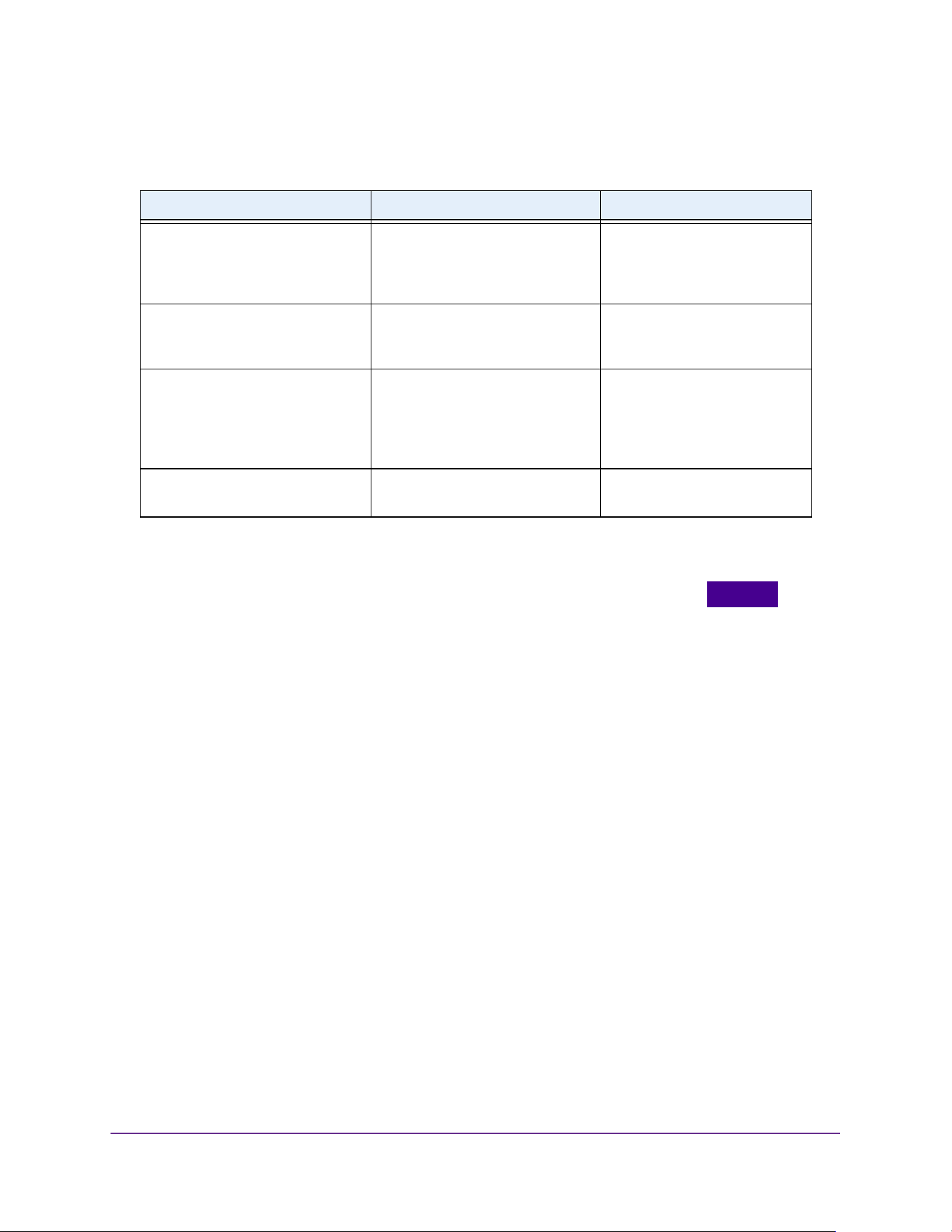
User-defined fields can contain 1 to 159 characters, unless otherwise noted on the
configuration web page. All characters can be used except for the following (unless
specifically noted in for that feature):
Interface Naming Conventions
The switch supports physical and logical interfaces. Interfaces are identified by their type and
the interface number. The physical ports are gigabit interfaces and are numbered on the front
panel. You configure the logical interfaces by using the software.
Table 1. Web interface command buttons
Button Function
Add Clicking the Add button adds the new item configured in the heading row of a table.
Apply Clicking the Apply button sends the updated configuration to the switch. Configuration
changes take effect immediately.
Cancel Clicking the Cancel button cancels the configuration on the page and resets the data on
the page to the previous values of the switch.
Delete Clicking the Delete button removes the selected item.
Update Clicking the Update button refreshes the page with the latest information from the device.
Logout Clicking the Logout button ends the session.
Table 2. Invalid characters for user-defined fields
\<
/>
*|
?
Getting Started
20
M4200 and M4300 Series ProSAFE Managed Switches Web Management User Manual
The following table describes the naming convention for all interfaces available on the switch.
Online Help
When you log in to the switch, each page contains a link to the online help that
contains information to assist in configuring and managing the switch. The online help pop-up
windows are context sensitive. For example, if the IP Addressing page is open, the help topic
for that page displays if you click the Help button.
You can connect to the online support site at netgear.com when you are logged in to the
switch.
To access the online support link:
1. Launch a web browser.
2. Enter http://<ipaddress> in the web browser address field.
The login window opens.
3. Enter the user name and password.
The default admin user name is admin and the default admin password is blank, that is,
do not enter a password.
4. Click the Login button.
The System Information page displays.
5. Select Help > Online Help > Support.
6. To connect to the NETGEAR support site for the M4200 and M4300 switches, click the
APPLY button.
Table 3. Naming conventions for interfaces
Interface Description Example
Physical The physical ports are Gigabit
Ethernet interfaces and are
numbered sequentially starting
from one.
0/1, 0/2, 0/3, and so on
Link aggregation group (LAG) LAG interfaces are logical
interfaces that are used only for
bridging functions.
LAG 1, LAG 2, lAG 3, and so on
CPU management interface This is the internal switch interface
responsible for the switch base
MAC address. This interface is not
configurable and is always listed in
the MAC Address Table.
5/1
Routing VLAN interfaces This is an interface used for routing
functionality.
VLAN 1, VLAN 2, VLAN 3, and
so on
Getting Started
21
M4200 and M4300 Series ProSAFE Managed Switches Web Management User Manual
Web Management Interface Device View
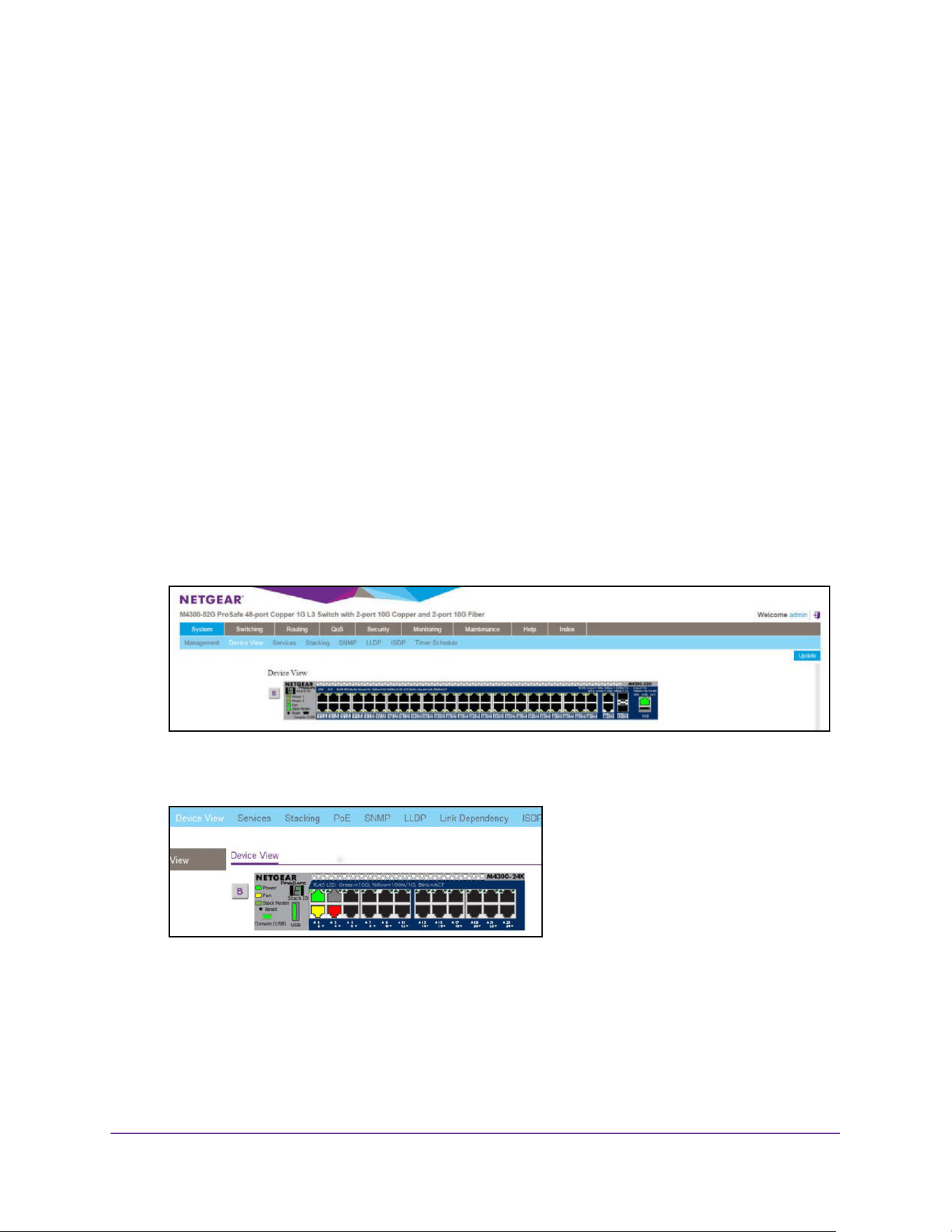
The Device View is an HTML applet that displays the ports on the switch. This graphic
provides an alternate way to navigate to configuration and monitoring options. The graphic
also provides information about device ports, current configuration and status, tables, and
feature components.
To use Device View:
1. Launch a web browser.
2. Enter http://<ipaddress> in the web browser address field.
The login window opens.
3. Enter the user name and password.
The default admin user name is admin and the default admin password is blank, that is,
do not enter a password.
4. Click the Login button.
The System Information page displays.
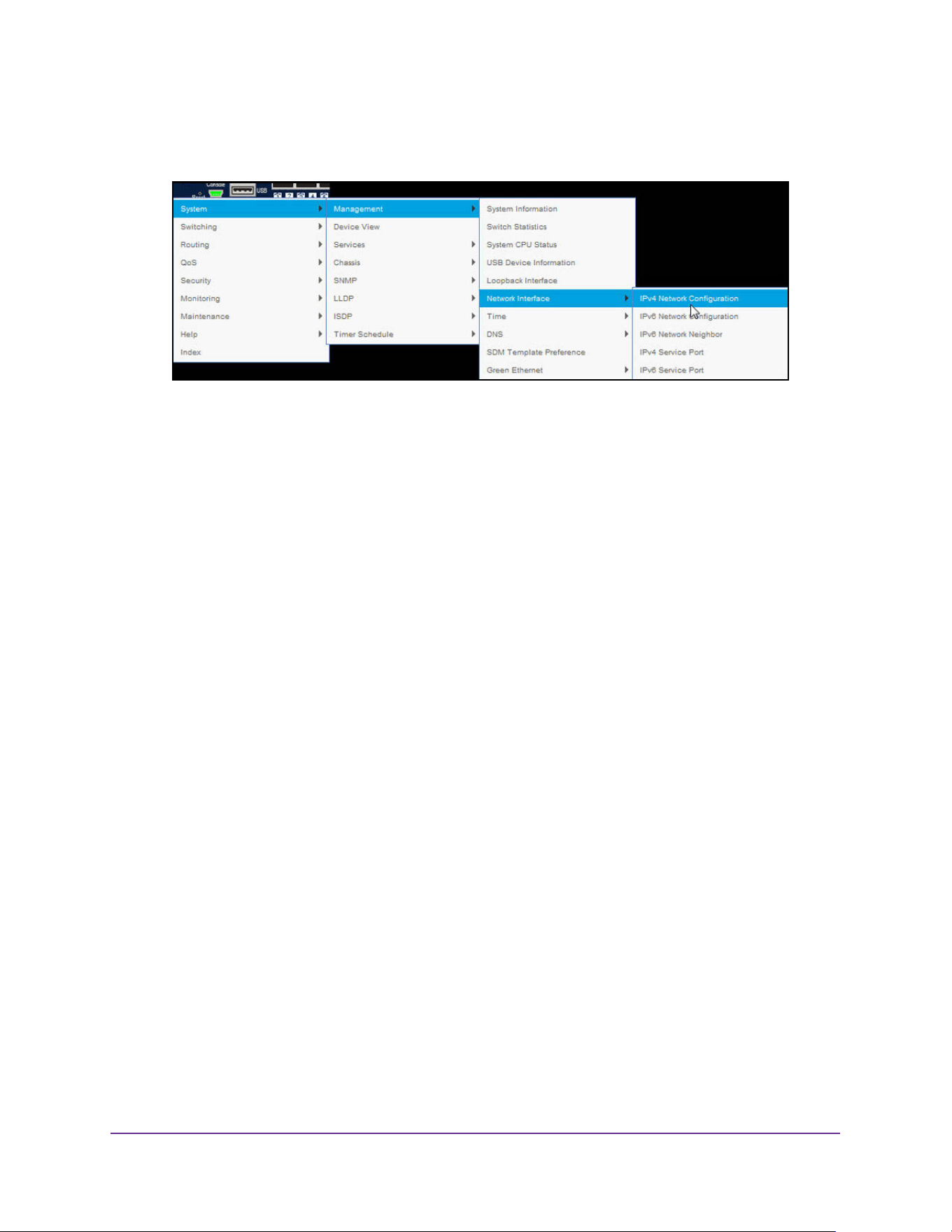
5. Select System > Device View.
As an example, the following figure shows the Device View page for model M4300-52G.
As another example, the following figure shows a close up of the Device View page for
model M4300-24X.
The port coloring indicates whether a port is currently active. Green indicates that the port
is enabled; red indicates that an error occurred on the port, or that the link is disabled.
6. Click a port to see a menu that displays statistics and configuration options.
You can click a menu option to access the page that contains the configuration or
monitoring options.
Getting Started
22
M4200 and M4300 Series ProSAFE Managed Switches Web Management User Manual
If you click the graphic, but do not click a specific port, the main menu displays. This
menu contains the same options as the navigation tabs at the top of the page.
Using SNMP
The switch software supports the configuration of SNMP groups and users that can manage
traps that the SNMP agent generates.
The switch uses both standard public MIBs for standard functionality and private MIBs that
support additional switch functionality. All private MIBs begin with a “-” prefix. The main object
for interface configuration is in -SWITCHING-MIB, which is a private MIB. Some interface
configurations also involve objects in the public MIB, IF-MIB.
SNMP is enabled by default. The System Information page, which is the page that displays
when you log in, displays the information that you need to configure an SNMP manager to
access the switch.
Any user can connect to the switch using the SNMP v3 protocol, but for authentication and
encryption, the switch supports only one user, which is admin; therefore, only one profile can
be created or modified.
To configure authentication and encryption settings for the SNMP v3 admin profile:
1. Launch a web browser.
2. Enter http://<ipaddress> in the web browser address field.
The login window opens.
3. Enter the user name and password.
The default admin user name is admin and the default admin password is blank, that is,
do not enter a password.
4. Click the Login button.
The System Information page displays.
5. Select System > SNMP > SNMP v3 > User Configuration.
The User Configuration page displays.

Getting Started
23
M4200 and M4300 Series ProSAFE Managed Switches Web Management User Manual
6. To enable authentication, select an Authentication Protocol option, which is either MD5 or
SHA.
7. To enable encryption, select the DES option in the Encryption Protocol list Then enter an
encryption code of eight or more alphanumeric characters in the Encryption Key field.
8. Click the APPLY button.
Your settings are saved.
Note: To access configuration information for SNMP V1 or SNMP V2, select
System > SNMP > SNMPv1/v2 and select the page that contains the
information that you want to configure.

24
2
2. Configure System Information
This chapter covers the following topics:
• Initial Setup
• Time
• Configure DNS Settings
• Configure the Switch Database Management Template Preference
• Configure Green Ethernet Settings
• Configure DHCP Server Settings
• DHCP L2 Relay
• Manage the DHCPv6 Server
• Configure PoE
• Configure SNMP
• Configure LLDP
• Configure Link Dependency
• Configure ISDP
• Timer Schedule
Configure System Information
25
M4200 and M4300 Series ProSAFE Managed Switches Web Management User Manual
Initial Setup
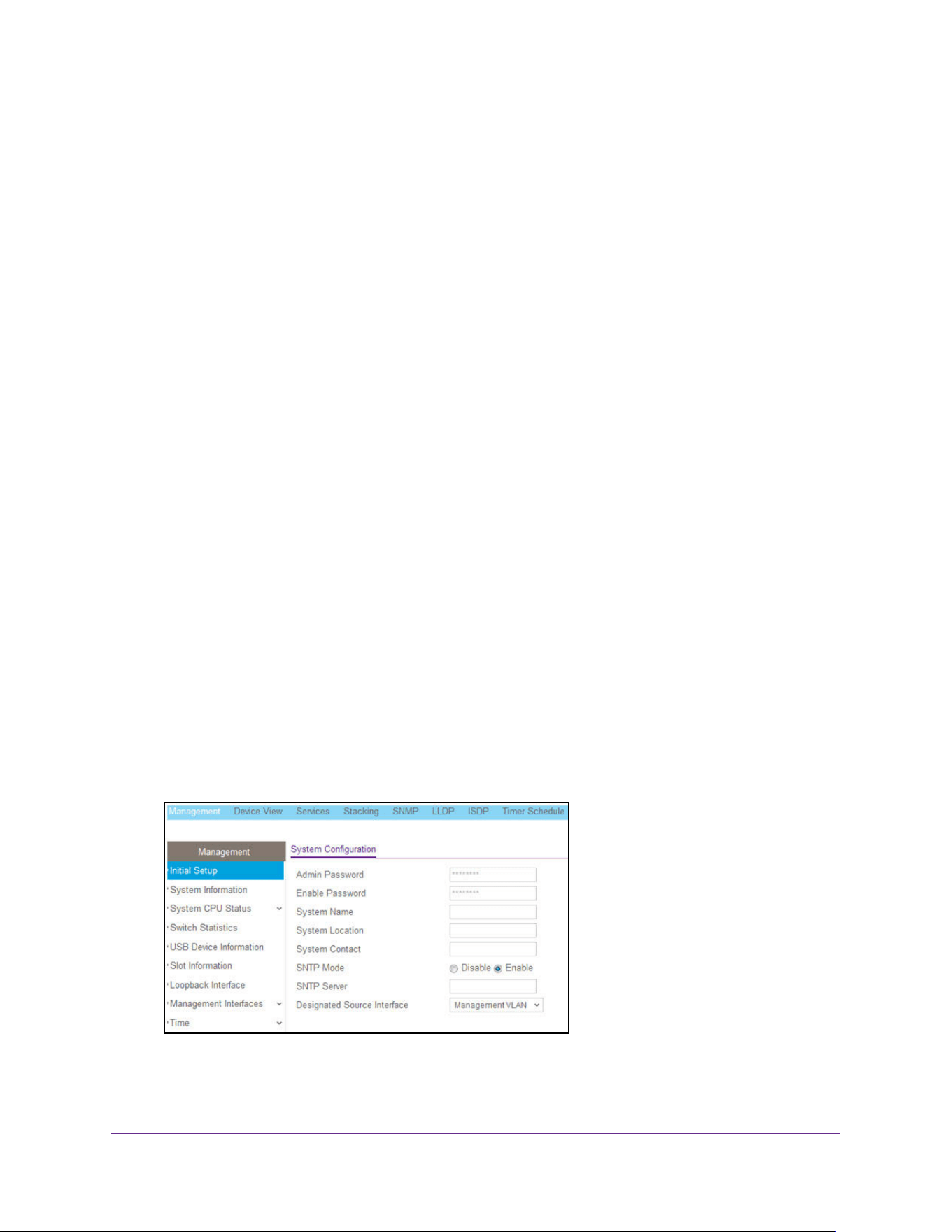
When you log in to a switch that has its factory settings, the Initial Setup page displays.
To perform the initial system configuration:
1. Prepare your computer with a static IP address:
• For access over an Ethernet network port, use a static IP address in the 169.254.0.0
subnet with subnet mask 255.255.0.0.
For example, use 169.254.100.201 for your computer.
• For access over the OOB port, use a static IP address in the 192.168.0.0 subnet with
subnet mask 255.255.0.0.
For example, use 192.168.0.201 for your computer.
2. Connect an Ethernet cable from an Ethernet port on your computer to either an Ethernet
network port on the switch or to the OOB port on the switch.
3. Launch a web browser such as Google Chrome, Mozilla Firefox, or Microsoft Internet
Explorer.
4. Enter the default IP address of the switch in the web browser address field:
• For access over an Ethernet network port, enter 169.254.100.100.
• For access over the OOB port, enter 192.168.0.239.
The login window opens.
5. Enter the user name and password.
The default admin user name is admin and the default admin password is blank, that is,
do not enter a password.
6. Click the Login button.
The web management interface menu displays.
7. Select System > Management > Initial Setup.
8. Enter the new password for the Admin account in the Admin Password field.

Configure System Information
26
M4200 and M4300 Series ProSAFE Managed Switches Web Management User Manual
The new password does not display as you type it; only dots are shown to hide the entry.
The password is from 8 to 64 alphanumeric characters in length and is case-sensitive.
9. In the Enable Password field, enter the new password for the enable mode in the
command-line interface.
The new password does not display as you type it; only dots are shown to hide the entry.
The password is from 8 to 64 alphanumeric characters in length and is case-sensitive.
10. In the System Name field, type the name to identify this switch.
You can use a name up to 255 characters in length. The factory default is blank.
11. In the System Location field, type the location of the switch.
You can use a location up to 255 characters in length. The factory default is blank.
12. Enter the System Contact, the name of the contact person for this switch.
You can use a contact name up to 255 characters in length. The factory default is blank.
13. In the SNTP mode field, select Enable or Disable.
This specifies the state of the SNTP client. The default value is Disable, and the local
clock is used to get the time value.
14. Specify the address of the SNTP Server.
Enter a text string of up to 64 characters containing the host name of an SNTP server.
The server address can be IPv4, IPv6, or a host name. The host name resolves into an IP
address each time an SNTP request is sent to it.
15. In the Designated Source Interface list, select Management VLAN or Service Port.
This is the source interface that is used for SNMP trap, syslog, DNS, TACACS+,
RADIUS, sflow, and SNTP applications. By default, Management VLAN is used as the
source interface.
Note: If you select Management VLAN as the source interface, the routing
mode for the selected VLAN must be enabled.
16. Click the Apply button.
The updated configuration is sent to the switch. Configuration changes take effect
immediately.
Configure the Initial IPv4 Management VLAN
To configure the initial IPv4 management VLAN:
1. Launch a web browser.
2. Enter http://<ipaddress> in the web browser address field.
The login window opens.
3. Enter the user name and password.
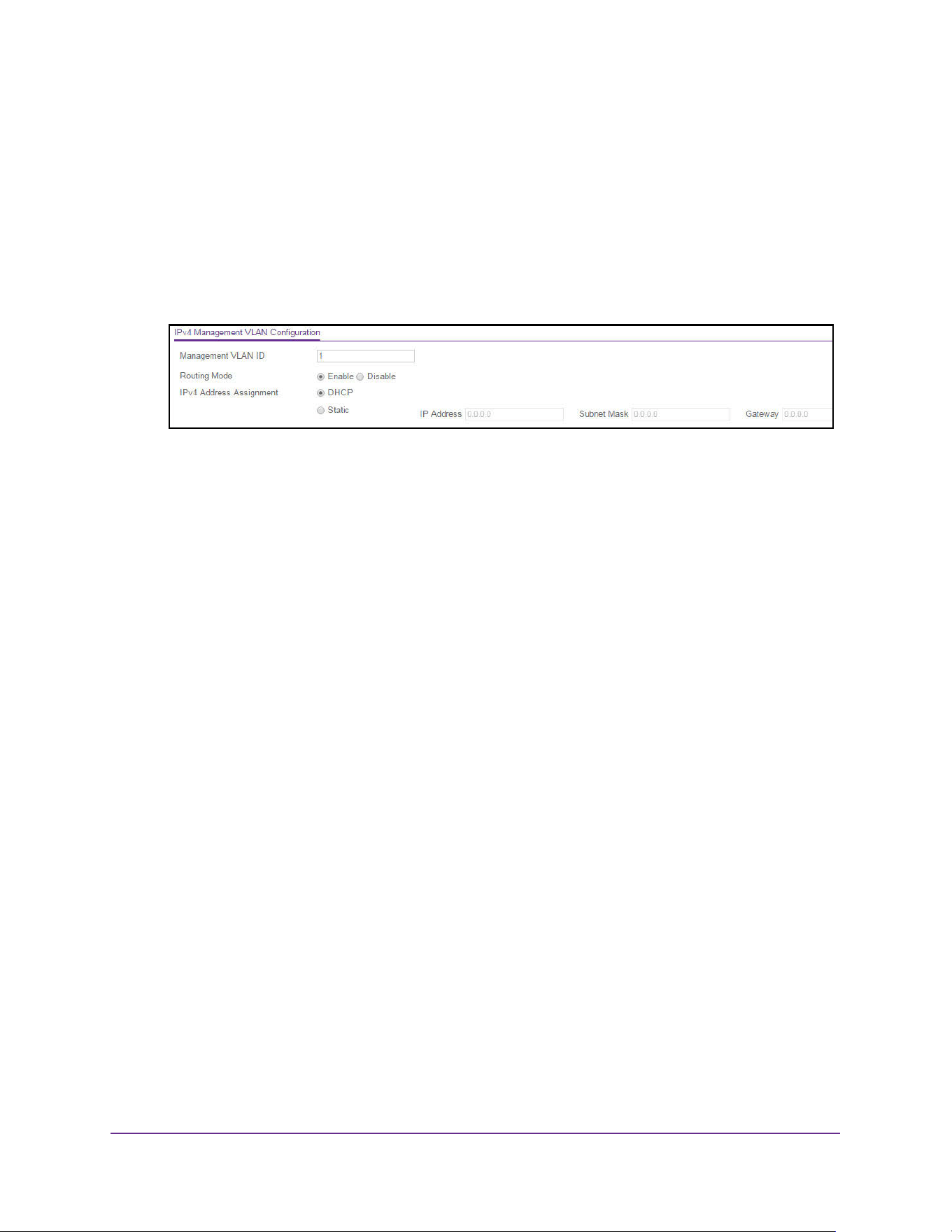
Configure System Information
27
M4200 and M4300 Series ProSAFE Managed Switches Web Management User Manual
The default admin user name is admin and the default admin password is blank, that is,
do not enter a password.
4. Click the Login button.
The System Information page displays.
5. Select System > Management > Initial Setup.
The Initial Setup page displays.
6. Scroll down to display the IPv4 Management VLAN Configuration section of the page.
7. Specify the Management VLAN ID of the switch.
The management VLAN is used for management of the switch. The VLAN ID can be any
value from 1 to 4093.
8. Select the radio button to Enable or Disable the global Routing Mode on the device.
The default is Enable.
9. Select the IPv4 Address Assignment DHCP or Static radio button.
This specifies the method for getting IPv4 network parameters (IPv4 address and
network mask) for the configured management VLAN interface. The default value for
VLAN 1 is Static.
10. In the IP Address field, specify the IP address of the management VLAN interface.
The factory default value is 169.254.100.100.
11. In the Subnet Mask field, specify the IP subnet mask for the management VLAN interface.
This is also referred to as the subnet/network mask and defines the portion of the
interface’s IP address that is used to identify the attached network. The factory default
value is 255.255.0.0.
12. In the Gateway field, specify the default gateway for the management VLAN interface.
The default value is 0.0.0.0.
13. Click the Apply button.
The updated configuration is sent to the switch. Configuration changes take effect
immediately.
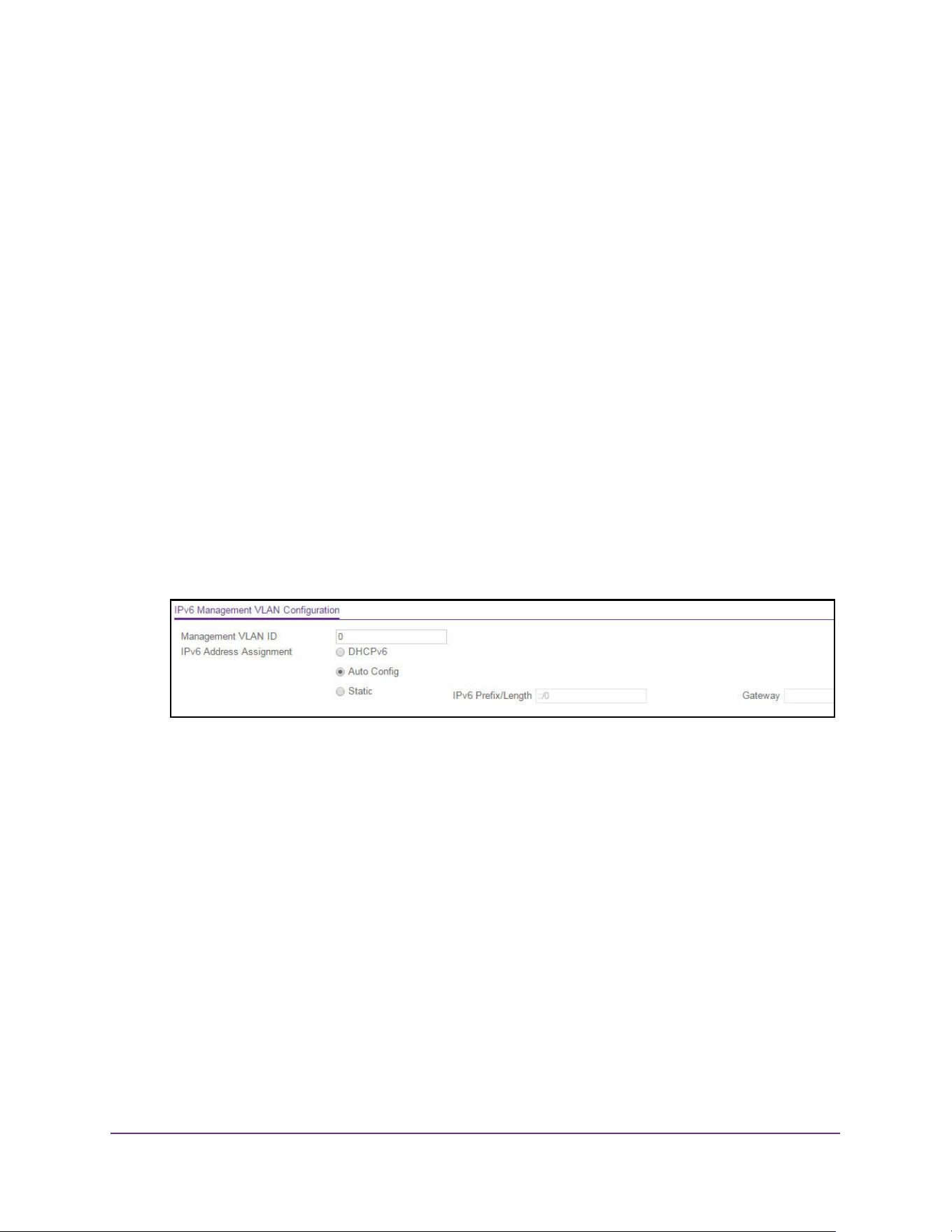
Configure System Information
28
M4200 and M4300 Series ProSAFE Managed Switches Web Management User Manual
Configure the Initial IPv6 Management VLAN
For IPv6 management, you can use the same management VLAN that you use for IPv4
management or you can use a different VLAN. By default, the switch does not include an
IPv6 management VLAN and you must set it up manually if you want to use it.
To configure the initial IPv6 management VLAN:
1. Launch a web browser.
2. Enter http://<ipaddress> in the web browser address field.
The login window opens.
3. Enter the user name and password.
The default admin user name is admin and the default admin password is blank, that is,
do not enter a password.
4. Click the Login button.
The System Information page displays.
5. Select System > Management > Initial Setup.
The Initial Setup page displays.
6. Scroll down to display the IPv6 Management VLAN Configuration section of the page.
7. Specify the Management VLAN ID of the switch.
The management VLAN is used for management of the switch. The VLAN ID can be any
value from 1 to 4093. There is no IPv6 management interface configured by default.
8. Select an IPv6 Address Assignment radio button.
This specifies the method for getting IPv6 network parameters (IPv6 prefix and prefix
length) for the configured management VLAN interface. The possible options are
DHCPv6, Auto Config, or Static. The default value for VLAN 1 is Auto Config.
9. In the IPv6 Prefix and Prefix Length field, specify the IPv6 prefix and prefix length for the
management VLAN interface.
When Auto Config is selected, the appropriate IPv6 prefix and prefix length is displayed
in this field.
10. In the IPv6 Gateway field, specify the default IPv6 gateway for the management VLAN
interface.
11. Click the Apply button.
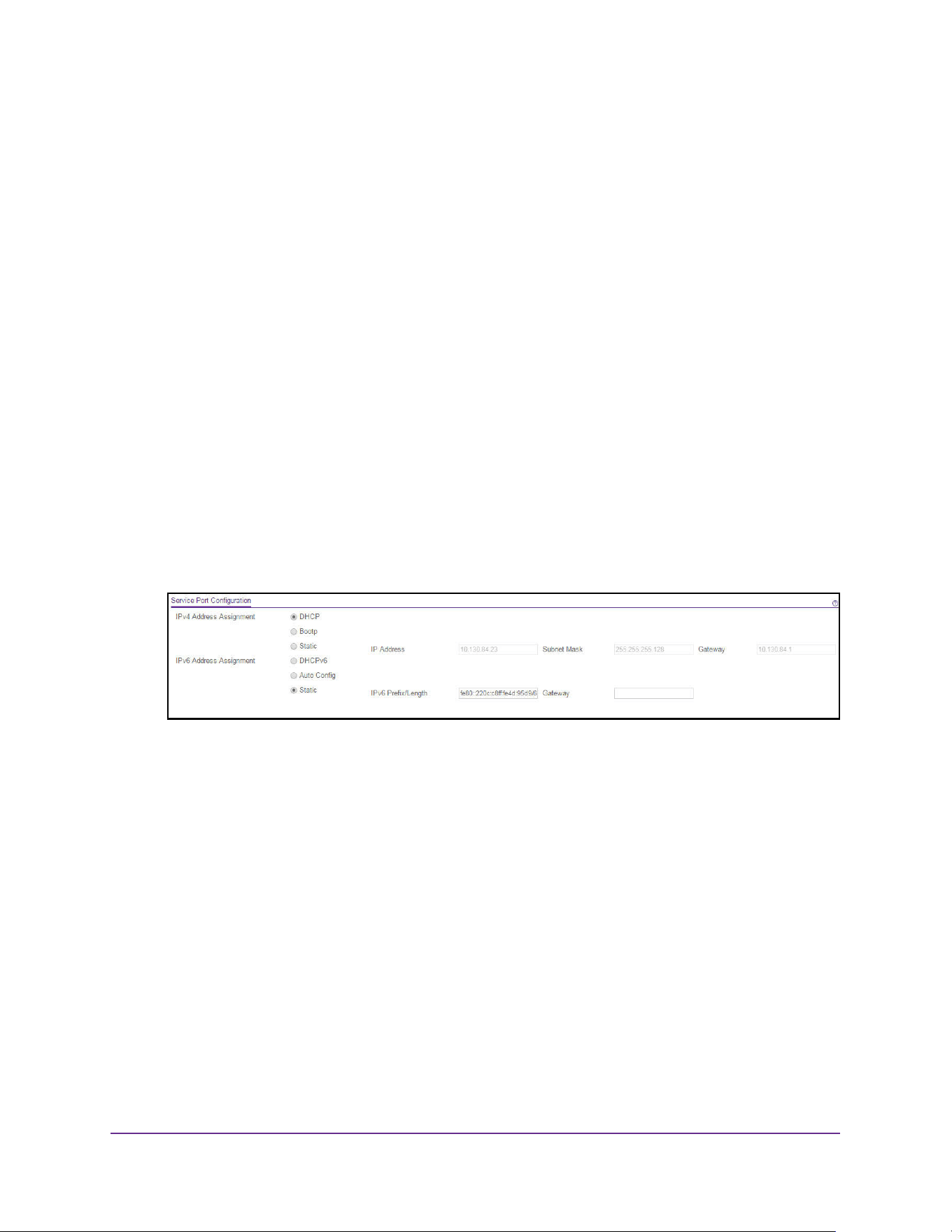
Configure System Information
29
M4200 and M4300 Series ProSAFE Managed Switches Web Management User Manual
The updated configuration is sent to the switch. Configuration changes take effect
immediately.
Configure the Initial Service Port Settings
To perform the initial service port configuration:
1. Launch a web browser.
2. Enter http://<ipaddress> in the web browser address field.
The login window opens.
3. Enter the user name and password.
The default admin user name is admin and the default admin password is blank, that is,
do not enter a password.
4. Click the Login button.
The System Information page displays.
5. Click System > Management > Initial Setup.
The Initial Setup page displays.
6. Scroll down to the bottom of the page to display the Service Port Configuration section.
7. Select an IPv4 Address Assignment radio button.
This specifies the method for getting IPv4 network parameters (IPv4 address and
network mask) for the service port. Possible options are DHCP, BootP, or Static. The
default value is Static.
8. Specify the IP Address for the service port.
The factory default value is 192.168.0.239.
9. Specify the Subnet Mask for the service port.
This is also referred to as the subnet/network mask and defines the portion of the
interface’s IP address that is used to identify the attached network. The factory default
value is 255.255.255.0.
10. Specify the default Gateway for the service port.
The default value is 0.0.0.0.
11. In the IPv6 Address Assignment field, select the method for getting IPv6 network
parameters (IPv6 prefix and prefix length) for the configured service port.
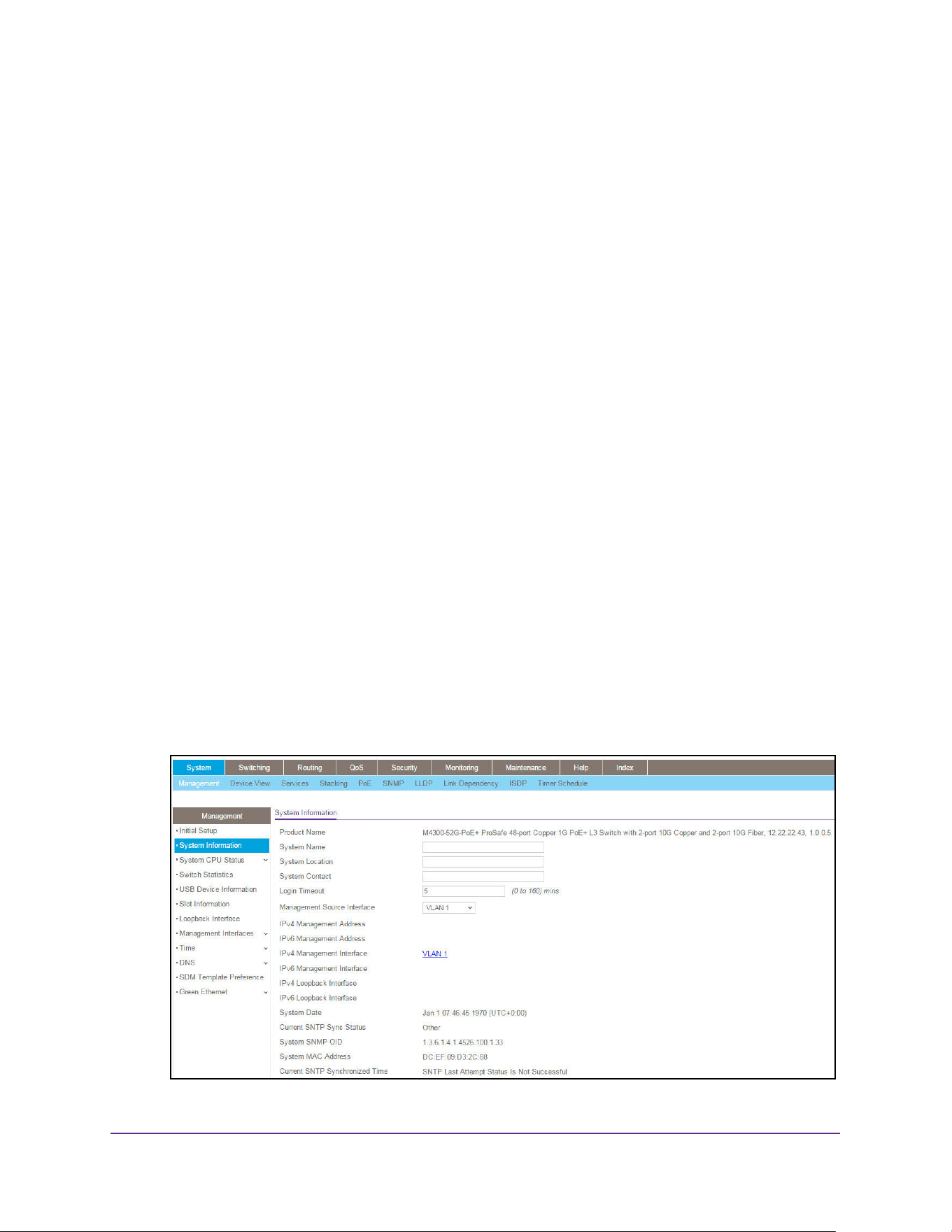
Configure System Information
30
M4200 and M4300 Series ProSAFE Managed Switches Web Management User Manual
Possible options are DHCPv6, Auto Config, or Static. The default value is Auto Config.
12. Specify the IPv6 Prefix and Prefix Length for the service port.
When Auto Config is selected, the appropriate IPv6 prefix and prefix length are displayed
in this field.
13. Specify the default IPv6 Gateway for the service port.
14. Click the Apply button.
The updated configuration is sent to the switch. Configuration changes take effect
immediately.
View or Define System Information
When you log in, the System Information page displays. You can configure and view general
device information.
To view or define system information:
1. Launch a web browser.
2. Enter http://<ipaddress> in the web browser address field.
The login window opens.
3. Enter the user name and password.
The default admin user name is admin and the default admin password is blank, that is,
do not enter a password.
4. Click the Login button.
The System Information page displays.
5. Select System > Management > System Information.
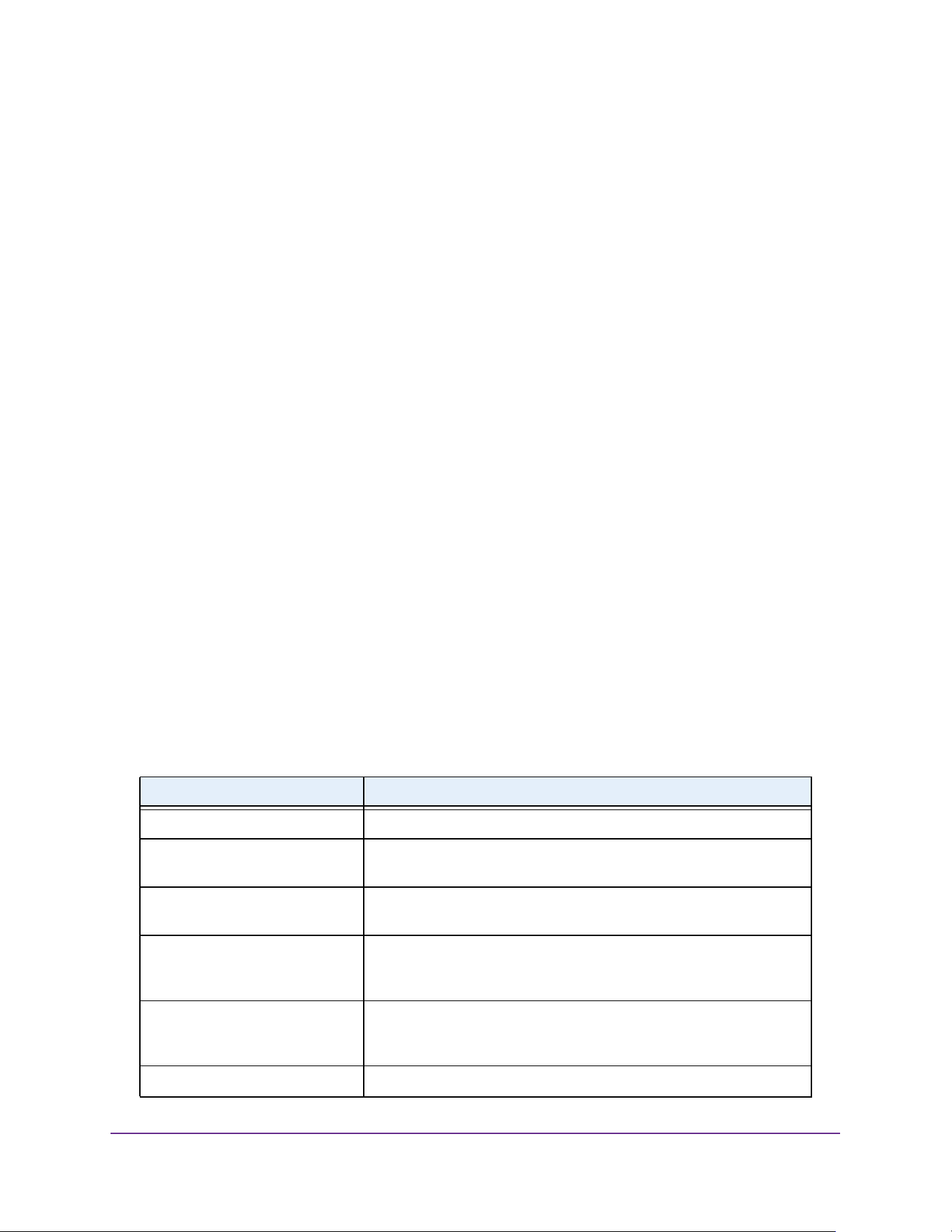
Configure System Information
31
M4200 and M4300 Series ProSAFE Managed Switches Web Management User Manual
6. Define the following fields:
• System Name. Enter the name to identify this switch. You can use up to 255
alphanumeric characters. The factory default is blank.
• System Location. Enter the location of this switch. You can use up to 255
alphanumeric characters. The factory default is blank.
• System Contact. Enter the contact person for this switch. You can use up to 255
alphanumeric characters. The factory default is blank.
• Login Timeout. Specify how many minutes of inactivity can occur on a serial port
connection before the switch closes the connection. Enter a number between 0 and
160 minutes. The factory default is 5. Entering 0 disables the time-out.
• Management Source Interface. Select the management interface that is used as
source interface for SNMP trap, syslog, DNS, TACACS+, RADIUS, sflow, and SNTP
applications. Possible values are as follows:
- None
- Routing Interface
- Routing VLAN
- Routing Loopback Interface
- Service Port
- Different. For some applications from the list, the source interface is configured
separately. They display in the list only if this is the case.
By default VLAN 1 is used as the source interface.
7. Click the Apply button.
The updated configuration is sent to the switch. Configuration changes take effect
immediately.
The following table describes the status information the System Information page displays.
Table 4. System Information
Field Description
Product Name The product name of this switch.
IPv4 Management Address The IPv4 address and mask assigned to the management VLAN
interface.
IPv6 Management Address The IPv6 address and mask assigned to the management VLAN
interface.
IPv4 Management Interface The IPv4 management VLAN ID of the switch. Click the displayed
Management VLAN ID value to jump to the configuration page. See
Configure an IPv4 Management VLAN on page 49.
IPv6 Management Interface The IPv6 management VLAN ID of the switch. Click the displayed
Management VLAN ID value to jump to the configuration page. See
Configure an IPv6 Management VLAN on page 51.
IPv4 Loopback Interface The IPv4 address and mask assigned to the loopback interface.
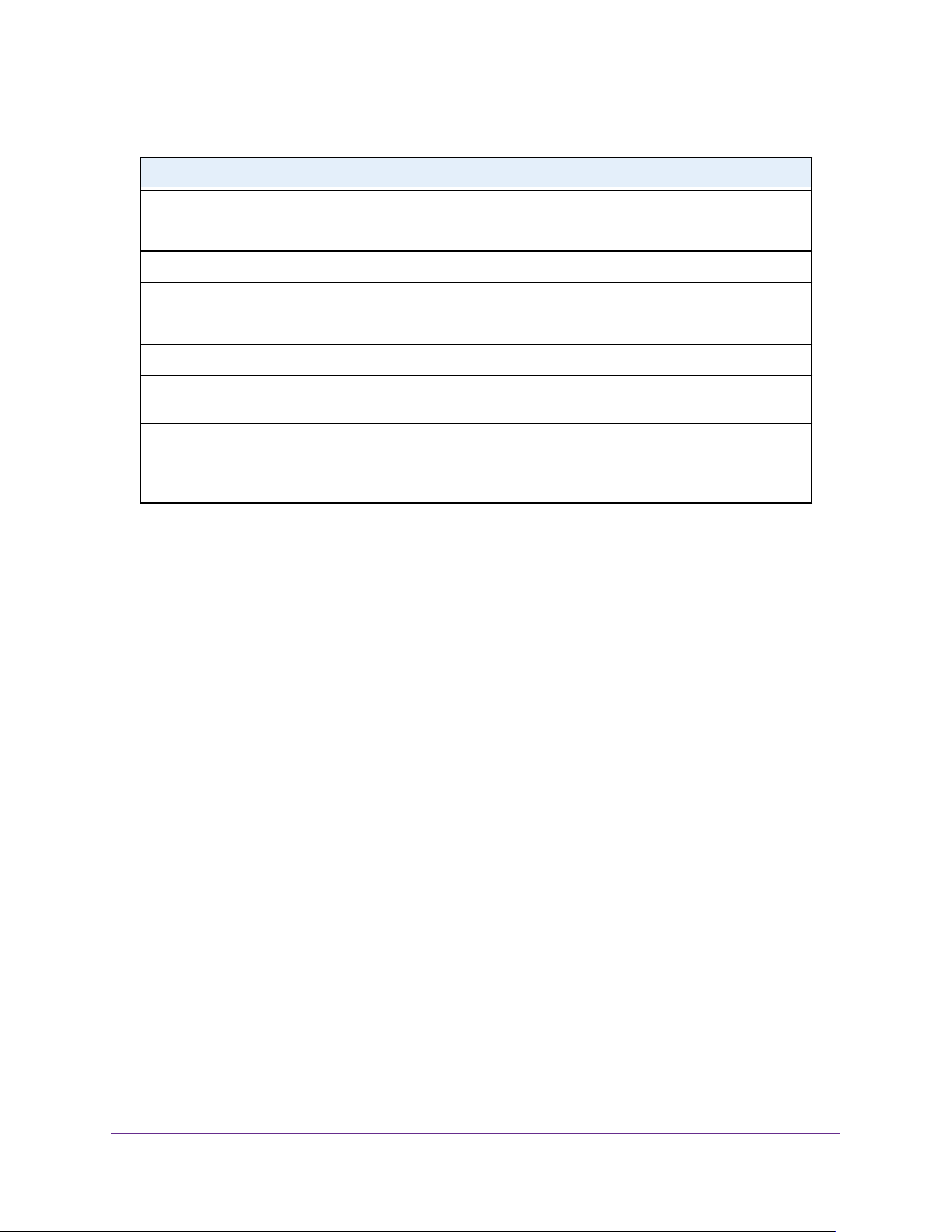
Configure System Information
32
M4200 and M4300 Series ProSAFE Managed Switches Web Management User Manual
View the Fan Status
This page shows the status of the fans in all units. These fans remove the heat generated by
the power, CP,U and other chipsets, and allow the chipsets work normally. Fan status has
three possible values: OK, Failure, and Not Present.
To view the fan status:
1. Launch a web browser.
2. Enter http://<ipaddress> in the web browser address field.
The login window opens.
3. Enter the user name and password.
The default admin user name is admin and the default admin password is blank, that is,
do not enter a password.
4. Click the Login button.
The System Information page displays.
5. Select Management > System Information > Fan Status.
IPv6 Loopback Interface The IPv6 prefix and prefix length assigned to the loopback interface.
System Date The current date.
Current SNTP Sync Status The current SNTP sync status.
System SNMP OID The base object ID for the switch's enterprise MIB.
System Mac Address Universally assigned network address.
Service Port MAC Address The MAC address used for out-of-band connectivity.
L2 MAC Address The MAC address used for communications on the Layer 2 network
segment.
L3 MAC Address The MAC address used for communications on the Layer 3 network
segment.
Current SNTP Synchronized Time The SNTP synchronized time.
Table 4. System Information (continued)
Field Description
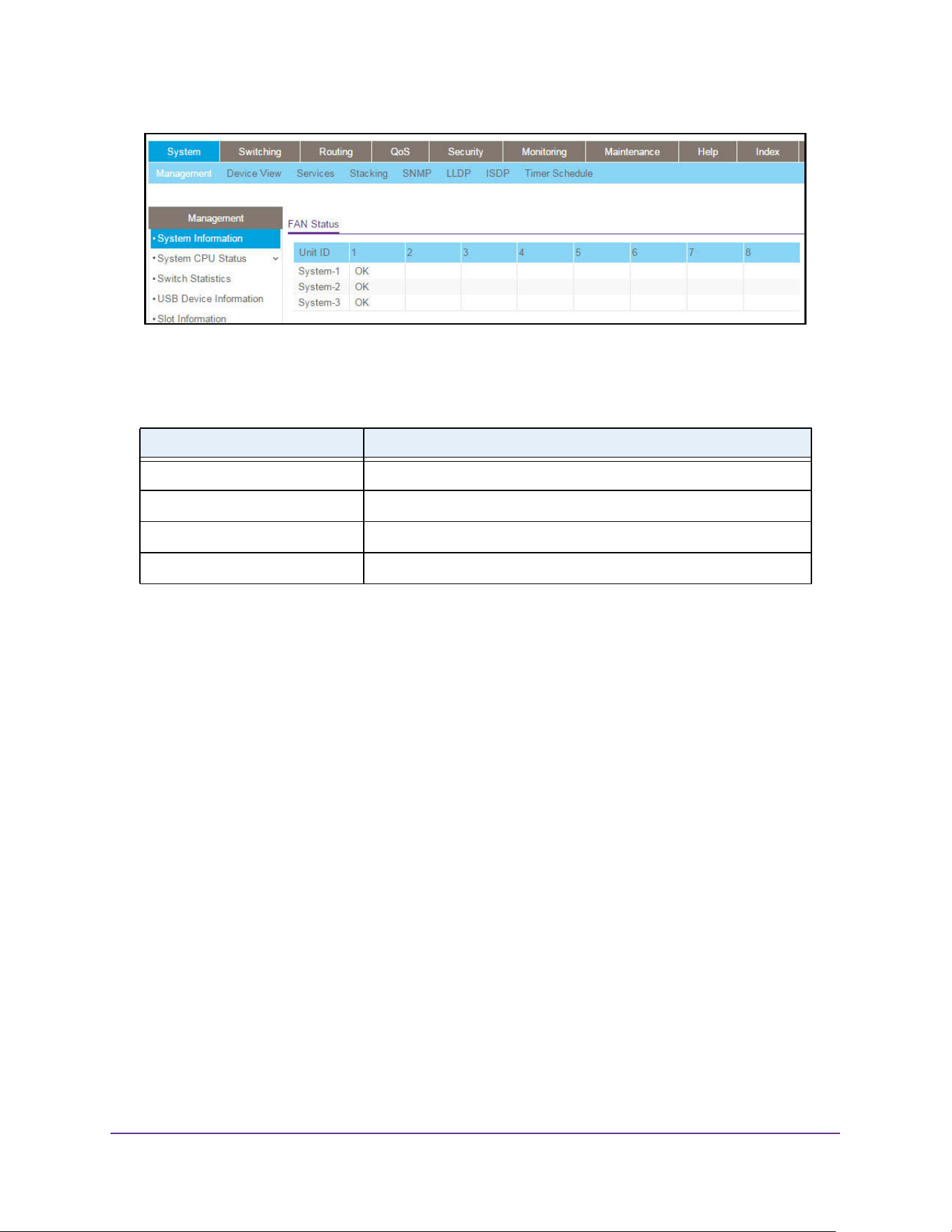
Configure System Information
33
M4200 and M4300 Series ProSAFE Managed Switches Web Management User Manual
6. To refresh the page, click the Update button.
The following table describes the nonconfigurable Fan Status information.
View the Temperature Sensor Information
You can view the current temperature of different system sensors using the Temperature
Status table. The temperature is instant and can be refreshed with the latest information on
the switch when the Update button is clicked. The maximum temperature of the CPU and
MACs depends on the actual hardware.
To view temperature information:
1. Launch a web browser.
2. Enter http://<ipaddress> in the web browser address field.
The login window opens.
3. Enter the user name and password.
The default admin user name is admin and the default admin password is blank, that is,
do not enter a password.
4. Click the Login button.
The System Information page displays.
5. Select System > Management > System Information > Temperature Sensors.
Table 5. Fan Status
Field Description
Unit ID The unit ID of the switch to which the fan belongs.
System-1 The working status of the System-1 fan in each unit.
System-2 The working status of the System-2 fan in each unit.
System-3 The working status of the System-3 fan in each unit.
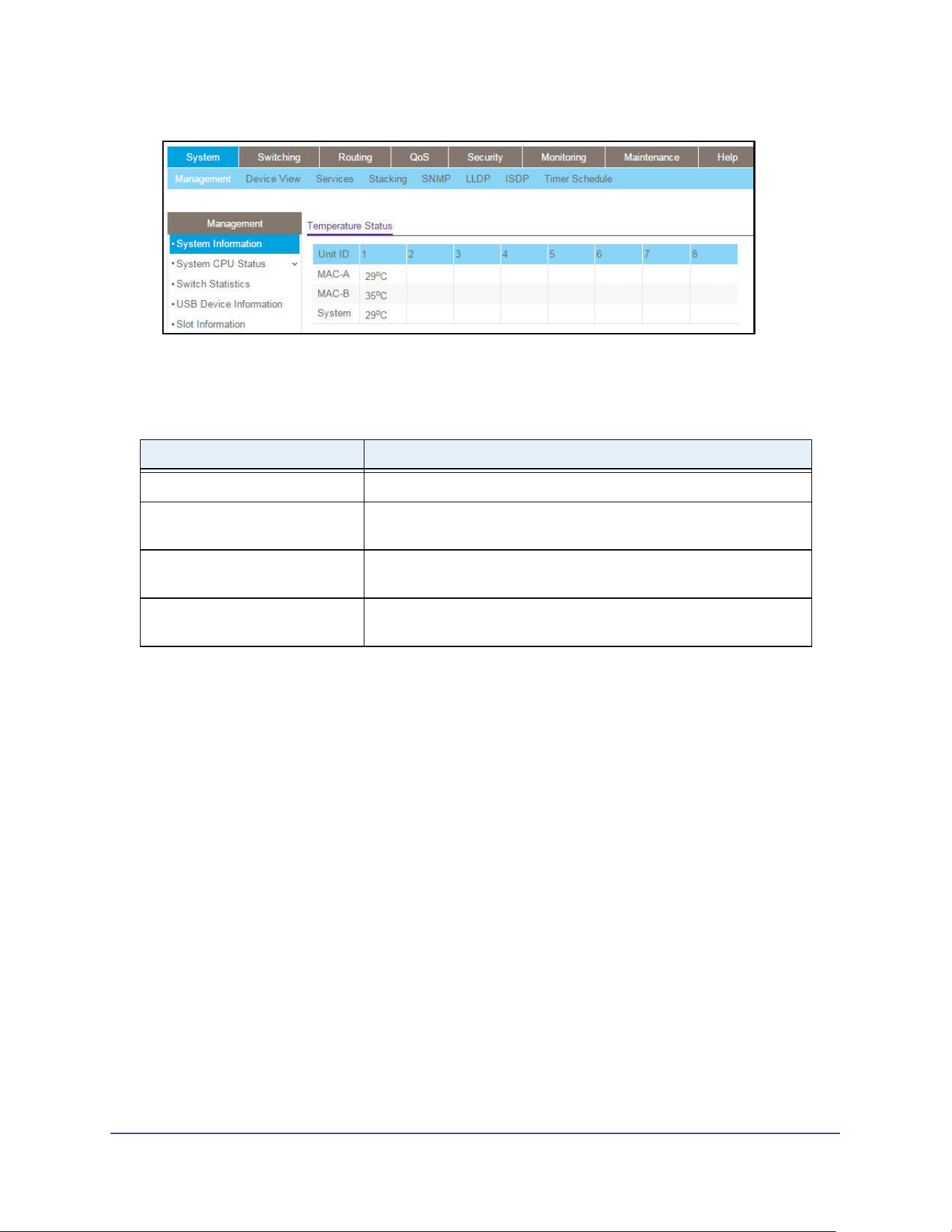
Configure System Information
34
M4200 and M4300 Series ProSAFE Managed Switches Web Management User Manual
6. To refresh the page, click the Update button.
The following table describes the nonconfigurable Temperature Status information.
View the Device Status
This page shows the software version of each device.
To view the device status:
1. Launch a web browser.
2. Enter http://<ipaddress> in the web browser address field.
The login window opens.
3. Enter the user name and password.
The default admin user name is admin and the default admin password is blank, that is,
do not enter a password.
4. Click the Login button.
The System Information page displays.
5. Select Management > System Information > Device Status.
Table 6. Temperature Status information
Field Description
Unit ID The unit number in the switch.
MAC-A The current temperature (in degrees Centigrade) of the MAC-A sensor
of the switch. The maximum is 31°C.
MAC-B The current temperature (in degrees Centigrade) of the MAC-B sensor
of the switch. The maximum is 37°C.
System The current temperature (in degrees Centigrade) of the System sensor
of the switch. The maximum is 31°C.
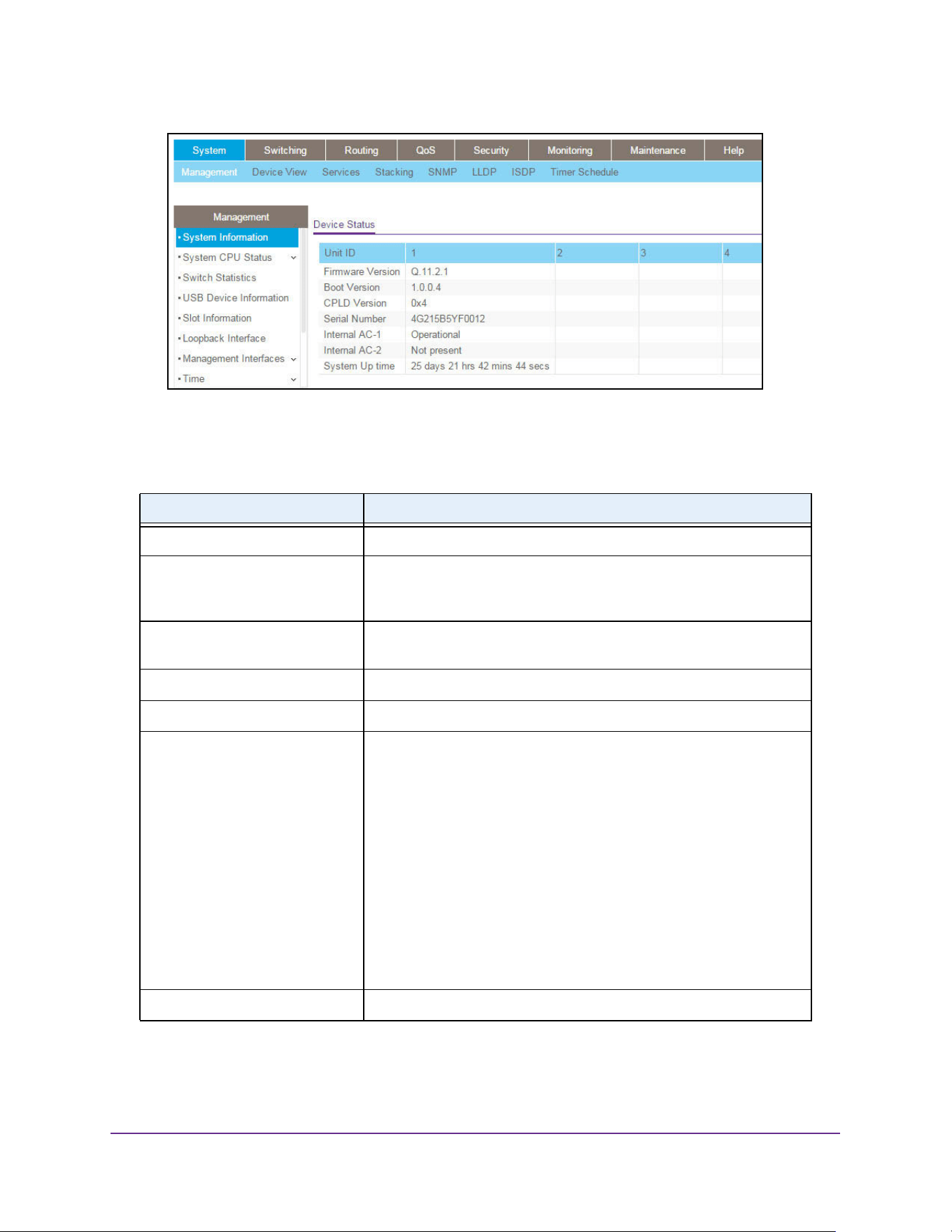
Configure System Information
35
M4200 and M4300 Series ProSAFE Managed Switches Web Management User Manual
6. To refresh the page, click the Update button.
The following table describes the nonconfigurable Device Status information.
Table 7. Device Status
Field Description
Unit ID The unit number in the switch.
Firmware Version The release.version.maintenance number of the code currently running
on the switch. For example, if the release was 1, the version was 2, and
the maintenance number was 4, the format would be 1.2.4.
Boot Version The version of the boot code that is in the flash memory to load the
firmware into the memory.
CPLD Version The version of the software for CPLD.
Serial Number The serial number of this switch.
Internal AC-1, Internal AC-2, and
so on
Indicates the status of the appropriate power module in each unit.
Status can be any of the following:
• Operational. Power module is present and functioning properly.
• Powering. Main power is failed or disconnected but RPS provides
power to the switch.
• Not Present. Power module is not present in the slot.
• Not powered. Power module is present but not connected to the
power source.
• Not powering. Power module is present and connected but the
switch uses another power source.
• Incompatible. Power module is present but incompatible.
• Failed. Power module is present, but power cable is not plugged in
or a bad cable is plugged in.
System Up Time The time in days, hours, and minutes since the last switch reboot.
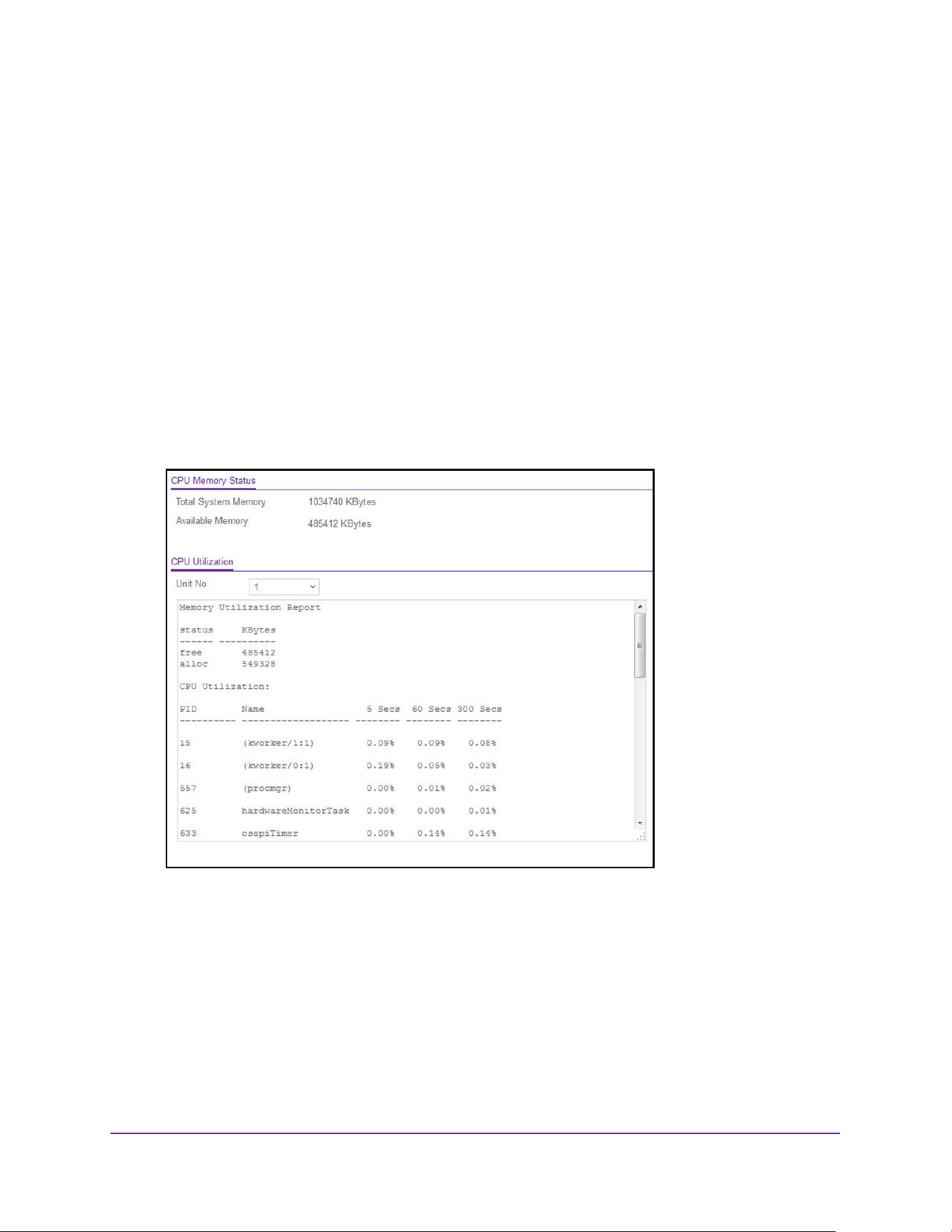
Configure System Information
36
M4200 and M4300 Series ProSAFE Managed Switches Web Management User Manual
View the System CPU Status
To view the system CPU status:
1. Launch a web browser.
2. Enter http://<ipaddress> in the web browser address field.
The login window opens.
3. Enter the user name and password.
The default admin user name is admin and the default admin password is blank, that is,
do not enter a password.
4. Click the Login button.
The System Information page displays.
5. Select System > Management > System CPU Status.
6. You can view the CPU Utilization information, which contains the memory information,
task-related information, and percentage of CPU utilization per task.
• Select the Unit No. to display the CPU Utilization information.
• Select All to display the CPU Utilization information for all units in a switch.
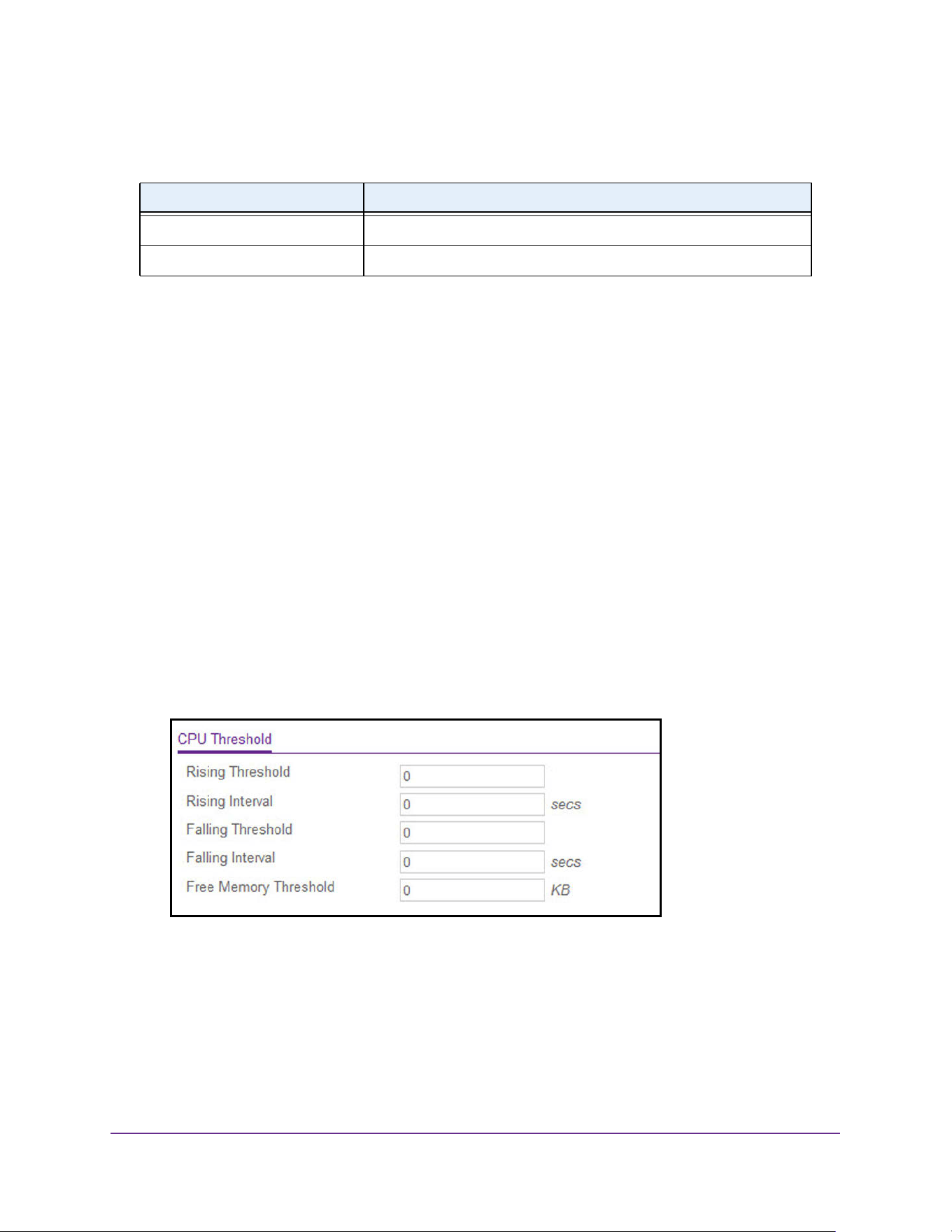
Configure System Information
37
M4200 and M4300 Series ProSAFE Managed Switches Web Management User Manual
The following table describes CPU Memory Status information.
Configure the CPU Thresholds
The CPU Utilization Threshold notification feature allows you to configure thresholds that,
when crossed, trigger a notification. The notification is done through SNMP trap and syslog
messages.
To configure the CPU thresholds:
1. Launch a web browser.
2. Enter http://<ipaddress> in the web browser address field.
The login window opens.
3. Enter the user name and password.
The default admin user name is admin and the default admin password is blank, that is,
do not enter a password.
4. Click the Login button.
The System Information page displays.
5. Select System > Management > System CPU Status > CPU Threshold.
6. Configure the Rising Threshold value.
Notification is generated when the total CPU utilization exceeds this threshold value over
the configured time period. The range is 1 to 100.
7. Configure the Rising Interval value.
This utilization monitoring time period can be configured from 5 to 86400 seconds in
multiples of 5 seconds.
Table 8. CPU Memory Status information
Field Description
Total System Memory The total memory of the switch in KBytes.
Available Memory The available memory space for the switch in KBytes.

Configure System Information
38
M4200 and M4300 Series ProSAFE Managed Switches Web Management User Manual
8. Configure the Falling Threshold.
Notification is triggered when the total CPU utilization falls below this level for a
configured period of time.
The falling utilization threshold must be equal to or less than the rising threshold value.
The falling utilization threshold notification is made only if a rising threshold notification
was done previously. Configuring the falling utilization threshold and time period is
optional. If the Falling CPU utilization parameters are not configured, then it takes the
same value as Rising CPU utilization parameters. The range is 1 to 100.
9. Configure the Falling Interval.
The utilization monitoring time period can be configured from 5 seconds to 86400
seconds in multiples of 5 seconds.
10. Configure the CPU Free Memory Threshold value in KB.
11. Click the Apply button.
The updated configuration is sent to the switch. Configuration changes take effect
immediately.
View and Clear Switch Statistics
To view and clear the switch statistics:
1. Launch a web browser.
2. Enter http://<ipaddress> in the web browser address field.
The login window opens.
3. Enter the user name and password.
The default admin user name is admin and the default admin password is blank, that is,
do not enter a password.
4. Click the Login button.
The System Information page displays.
5. Select System > Management > Switch Statistics.
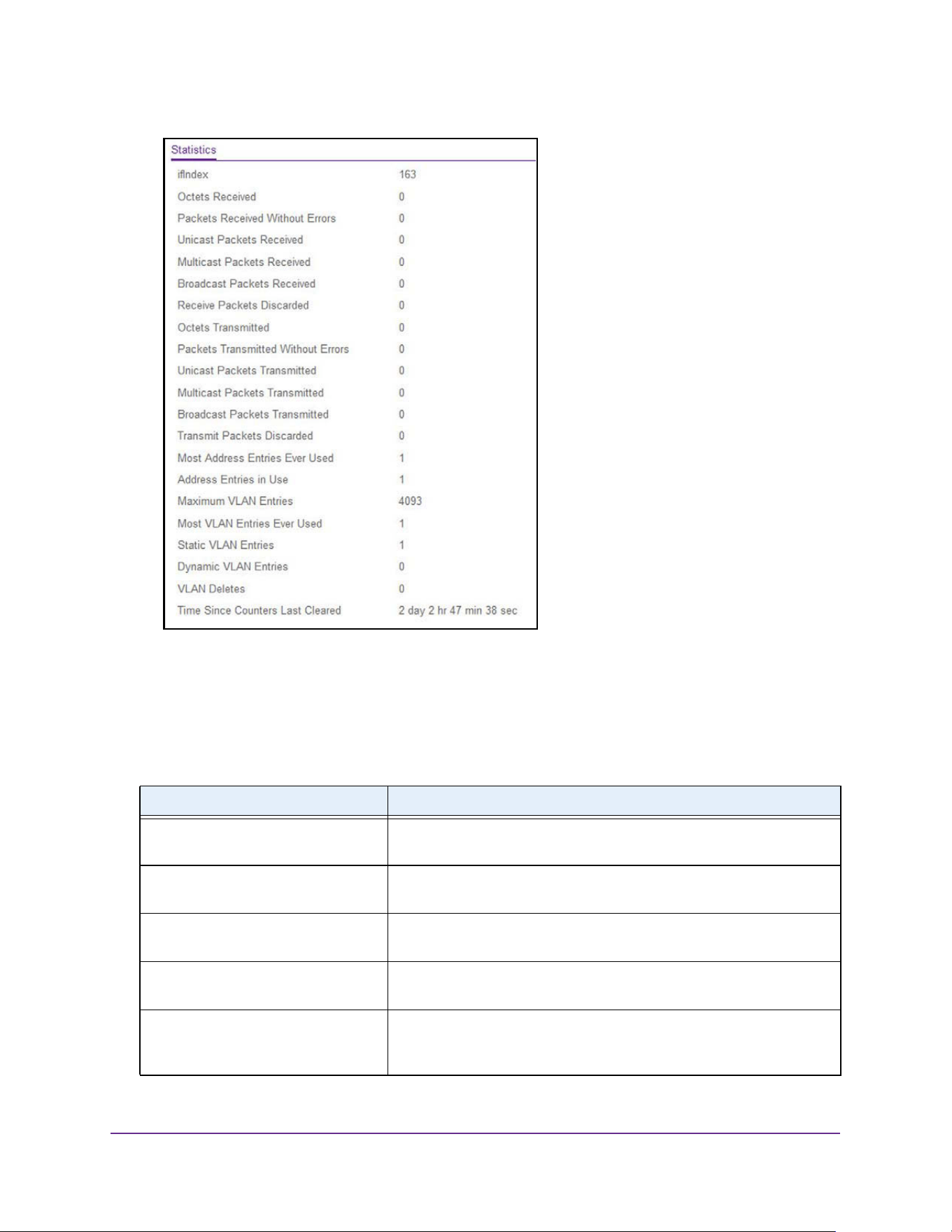
Configure System Information
39
M4200 and M4300 Series ProSAFE Managed Switches Web Management User Manual
6. To clear all the counters, resetting all switch summary and detailed statistics to default
values, click the Clear button.
The discarded packets count cannot be cleared.
The following table describes Switch Statistics information.
Table 9. Switch Statistics information
Field Description
ifIndex The ifIndex of the interface table entry associated with the processor of
this switch.
Octets Received The total number of octets of data received by the processor (excluding
framing bits but including FCS octets).
Packets Received Without Errors The total number of packets (including broadcast packets and multicast
packets) received by the processor.
Unicast Packets Received The number of subnetwork-unicast packets delivered to a higher-layer
protocol.
Multicast Packets Received The total number of packets received that were directed to a multicast
address. This number does not include packets directed to the
broadcast address.
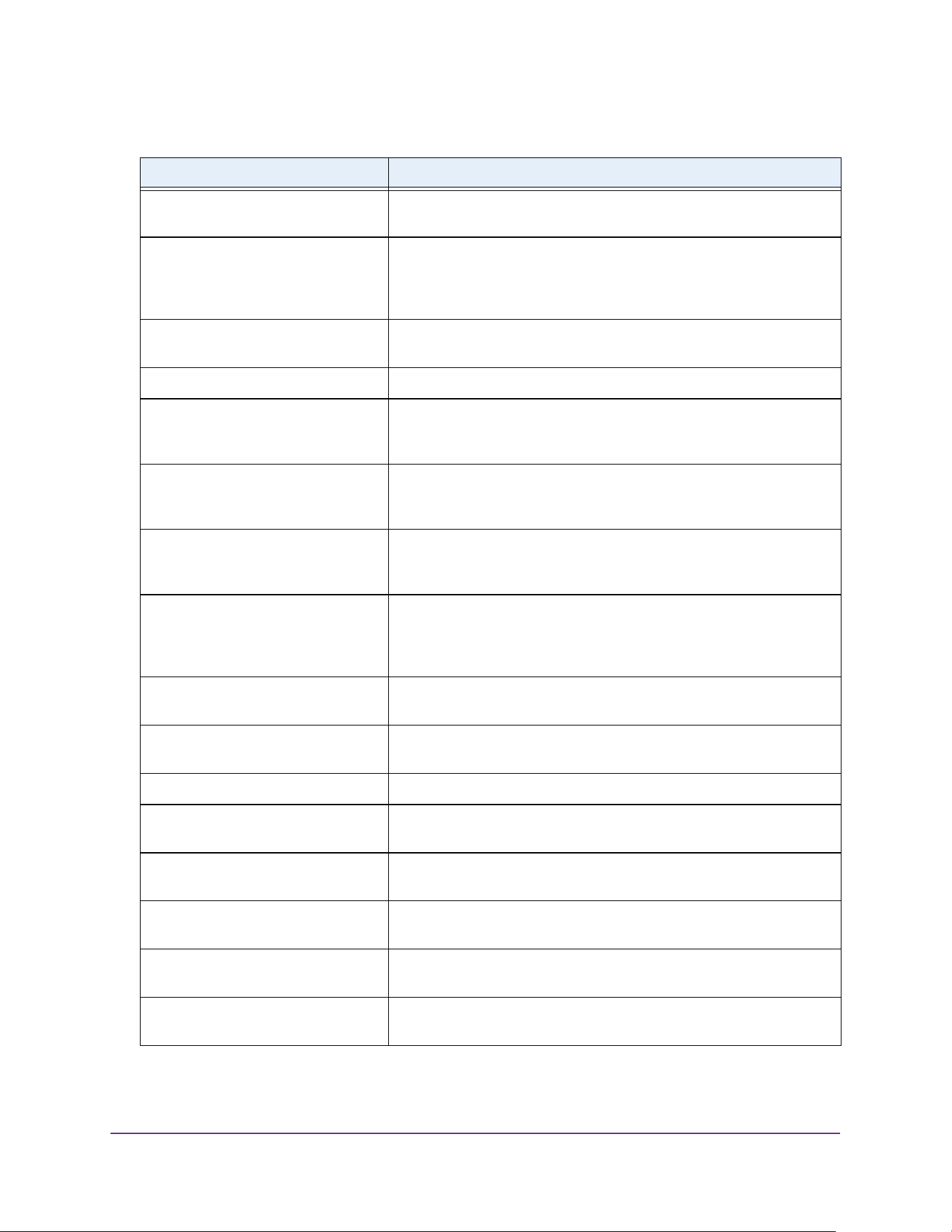
Configure System Information
40
M4200 and M4300 Series ProSAFE Managed Switches Web Management User Manual
Broadcast Packets Received The total number of packets received that were directed to the
broadcast address. This does not include multicast packets.
Receive Packets Discarded The number of inbound packets that were discarded even though no
errors were detected to prevent their being deliverable to a higher-layer
protocol. A possible reason for discarding a packet could be to free up
buffer space.
Octets Transmitted The total number of octets transmitted out of the interface, including
framing characters.
Packets Transmitted Without Errors The total number of packets transmitted out of the interface.
Unicast Packets Transmitted The total number of packets that higher-level protocols requested that
are transmitted to a subnetwork-unicast address, including those that
were discarded or not sent.
Multicast Packets Transmitted The total number of packets that higher-level protocols requested that
are transmitted to a multicast address, including those that were
discarded or not sent.
Broadcast Packets Transmitted The total number of packets that higher-level protocols requested that
are transmitted to the broadcast address, including those that were
discarded or not sent.
Transmit Packets Discarded The number of outbound packets that were discarded even though no
errors were detected to prevent their being deliverable to a higher-layer
protocol. A possible reason for discarding a packet could be to free up
buffer space.
Most Address Entries Ever Used The highest number of Forwarding Database Address Table entries
learned by this switch since the most recent reboot.
Address Entries in Use The number of learned and static entries in the Forwarding Database
Address Table for this switch.
Maximum VLAN Entries The maximum number of virtual LANs (VLANs) allowed on this switch.
Most VLAN Entries Ever Used The largest number of VLANs that were active on this switch since the
last reboot.
Static VLAN Entries The number of presently active VLAN entries on this switch that were
created statically.
Dynamic VLAN Entries The number of presently active VLAN entries on this switch that were
created by GVRP registration.
VLAN Deletes The number of VLANs on this switch that were created and then deleted
since the last reboot.
Time Since Counters Last Cleared The elapsed time, in days, hours, minutes, and seconds, since the
statistics for this switch were last cleared.
Table 9. Switch Statistics information (continued)
Field Description
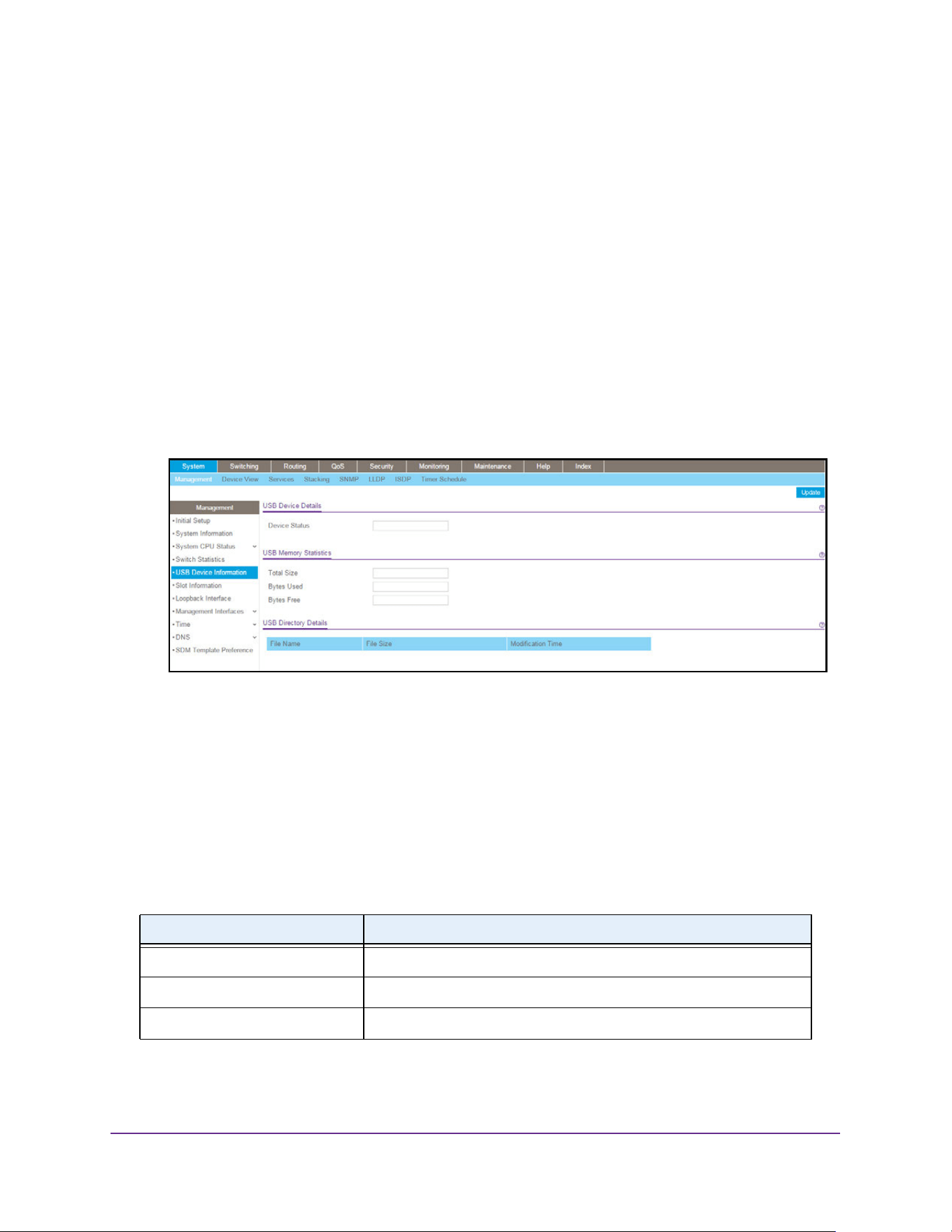
Configure System Information
41
M4200 and M4300 Series ProSAFE Managed Switches Web Management User Manual
View USB Device Information
To display the USB device information:
1. Launch a web browser.
2. Enter http://<ipaddress> in the web browser address field.
The login window opens.
3. Enter the user name and password.
The default admin user name is admin and the default admin password is blank, that is,
do not enter a password.
4. Click the Login button.
The System Information page displays.
5. Select System > Management > USB Device Information.
The Device Status field displays the current status of the device. The status is one of the
following:
• Active. The device is USB plugged in and recognized by the switch.
• Inactive. The device is not mounted.
• Invalid. The device is not present or an invalid device is plugged in.
6. To refresh the page, click the Update button.
The following table describes the USB Memory Statistics information.
Table 10. USB Memory Statistics information
Field Description
Total Size The USB flash device storage size in bytes.
Bytes Used The size of memory used on the USB flash device.
Bytes Free The size of memory free on the USB flash device.
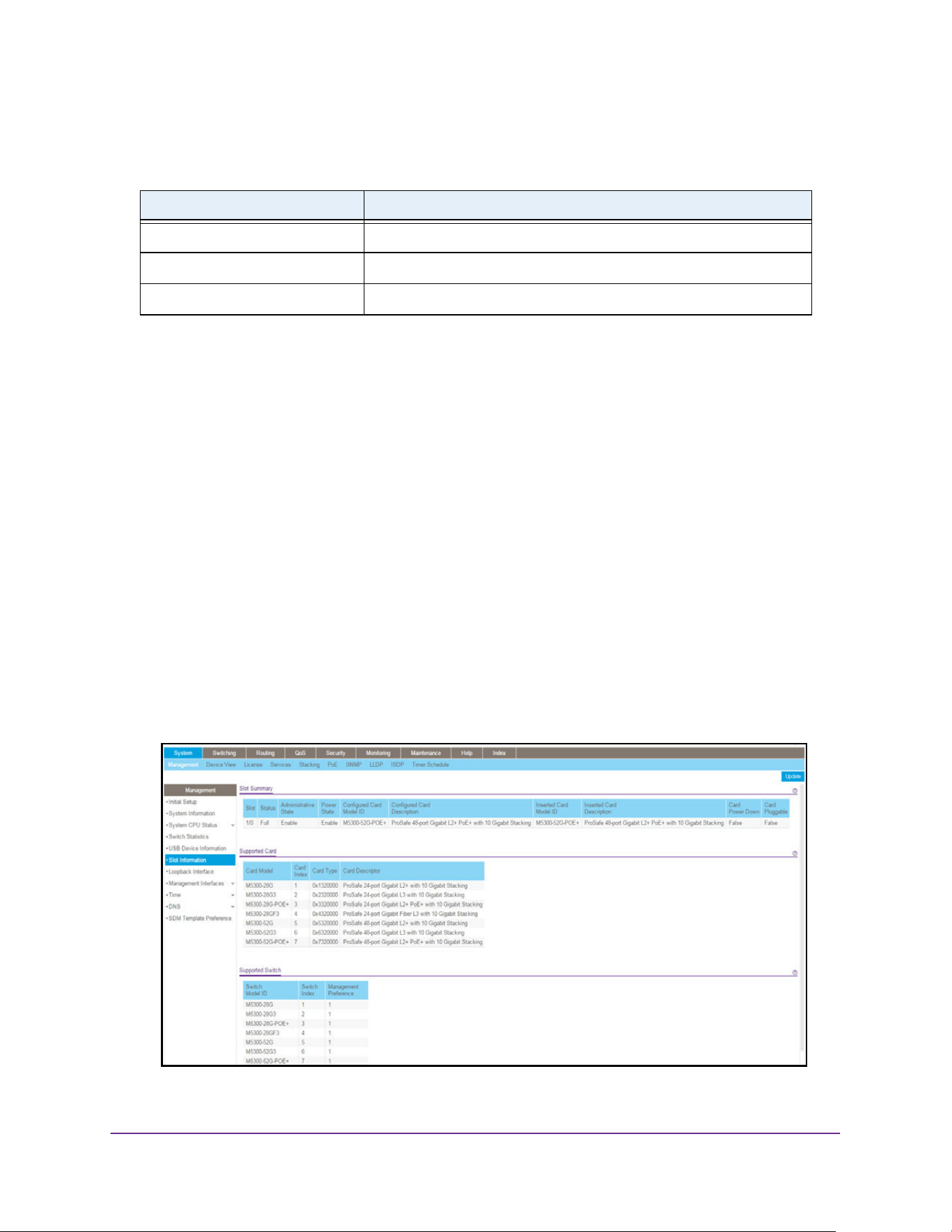
Configure System Information
42
M4200 and M4300 Series ProSAFE Managed Switches Web Management User Manual
The following table describes the USB Directory Details information.
View Slot Information
You can view information about the cards installed in the switch’s slots. This page also
provides information about the cards and switches that are compatible with the device.
To view slot information:
1. Launch a web browser.
2. Enter http://<ipaddress> in the web browser address field.
The login window opens.
3. Enter the user name and password.
The default admin user name is admin and the default admin password is blank, that is,
do not enter a password.
4. Click the Login button.
The System Information page displays.
5. Select System > Management > Slot Information.
Table 11. USB Directory Details information
Field Description
File Name The name of the file stored in the USB flash drive.
File Size The size of the file stored in the USB flash drive in bytes
Modification Time The last modification time of the file stored in the USB flash drive.
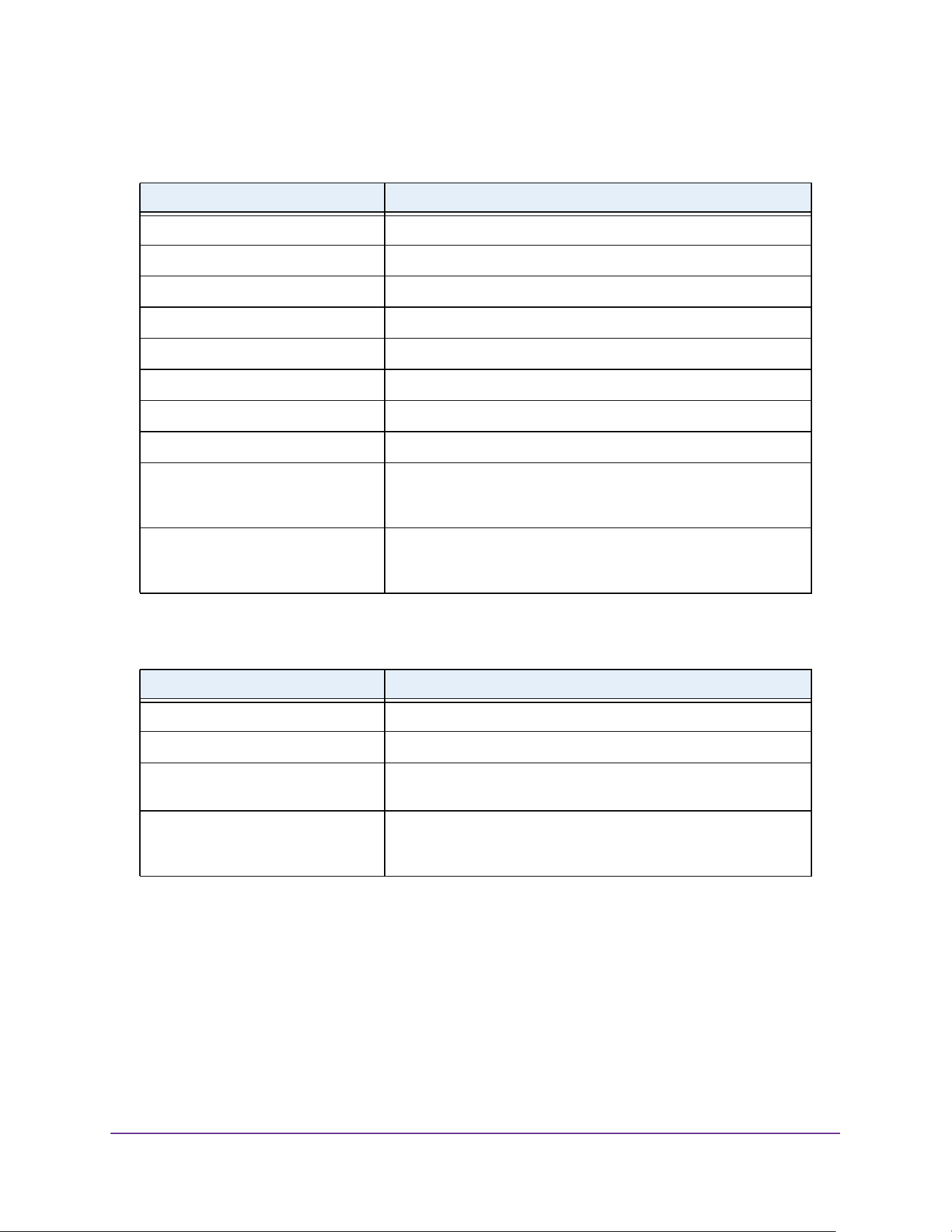
Configure System Information
43
M4200 and M4300 Series ProSAFE Managed Switches Web Management User Manual
The following table describes information in the Slot Summary table.
The following table describes information in the Supported Card table.
The following table describes information in the Supported Switch table. When you
preconfigure a new stack member, the switch index identifies the type of switch that is being
added to the stack.
Table 12. Slot Summary table
Field Description
Slot The slot number.
Status Indicates whether the slot is empty or full.
Administrative State Indicates whether the slot is administratively enabled or disabled.
Power State Indicates whether the device is providing power to the slot.
Configured Card Model ID The model ID of the card configured for the slot.
Configured Card Description The description of the card configured for the slot
Inserted Card Model ID The model ID of the card plugged into the slot.
Inserted Card Description The description of the card plugged into the slot.
Card Power Down If the value is True, the power state can be administratively enabled
or disabled. If the value is False, the power state cannot be
configured.
Card Pluggable If the value is True, the card can be administratively enabled or
disabled. If the value is False, the administrative state cannot be
configured.
Table 13. Supported Card table
Field Description
Card Model The model ID of the supported card.
Card Index The index assigned to the card type.
Card Type The hardware type of the supported card, which is assigned by the
manufacturer.
Card Descriptor Description of the supported card, which includes the
manufacturer's product number and information about number and
speed of the supported interfaces.
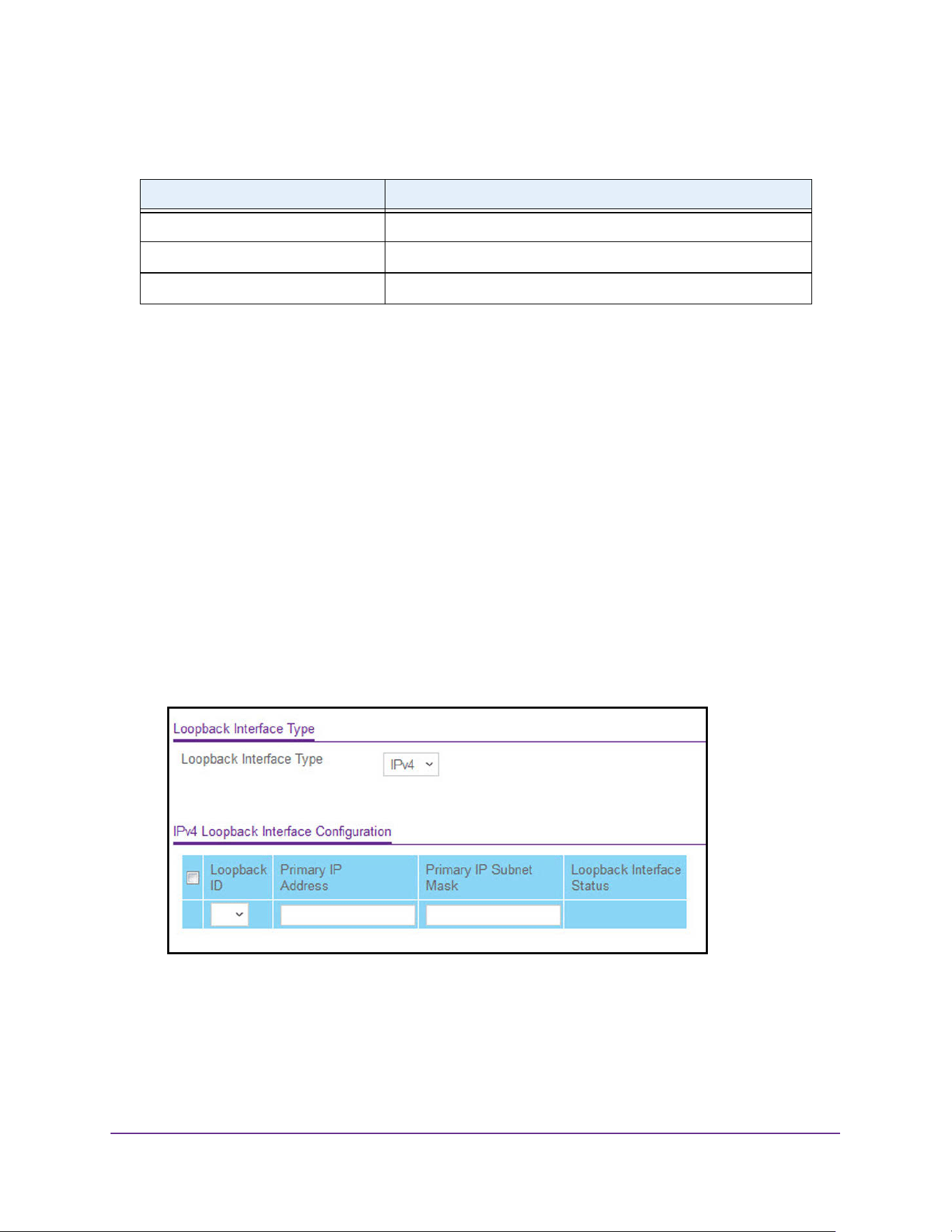
Configure System Information
44
M4200 and M4300 Series ProSAFE Managed Switches Web Management User Manual
Configure a Loopback Interface
You can create, configure, and remove loopback interfaces.
To configure a loopback interface:
1. Launch a web browser.
2. Enter http://<ipaddress> in the web browser address field.
The login window opens.
3. Enter the user name and password.
The default admin user name is admin and the default admin password is blank, that is,
do not enter a password.
4. Click the Login button.
The System Information page displays.
5. Select System > Management > Loopback Interface.
6. Use the Loopback Interface Type list to select IPv4 or IPv6 loopback interface.
7. In the Loopback ID list, select a list of currently configured loopback interfaces.
8. In the Primary IP Address field, enter the primary address for this interface in
dotted-decimal notation.
This option is visible when IPv4 loopback is selected.
Table 14. Supported Switch
Field Description
Switch Model ID The model number of the supported switch.
Switch Index The index assigned to the supported switch.
Management Preference The management preference of the supported switch.

Configure System Information
45
M4200 and M4300 Series ProSAFE Managed Switches Web Management User Manual
9. In the Primary IP Subnet Mask field, enter the primary IPv4 subnet mask in dotted-decimal
notation.
This option is visible when IPv4 loopback is selected.
10. In the Secondary IP Address field, enter the secondary IP address in dotted-decimal
notation.
This input field is visible only when Add Secondary is selected. This option is visible
when IPv4 loopback is selected.
11. In the Secondary Subnet Mask field, enter the secondary subnet mask for this interface in
dotted-decimal notation.
This input field is visible only when Add Secondary is selected. This option is visible
when IPv4 loopback is selected.
12. In the IPv6 mode field, enable IPv6 on this interface using the IPv6 address.
This option is configurable before you specify an explicit IPv6 address. This option is
visible when IPv6 loopback is selected.
13. Use the IPv6 Address field to enter the IPv6 address in the format prefix/length.
This option is visible when IPv6 loopback is selected.
14. Use the EUI64 field to optionally specify the 64-bit extended unique identifier (EUI-64).
This option is visible when IPv6 loopback is selected.
15. Click the Apply button.
The updated configuration is sent to the switch. Configuration changes take effect
immediately.
Configure Management Interfaces
The Web management interface includes separate options for interface and port-based IP
management. Port-based IP management disables VLAN-based (default/existing) IP
management once you configure the port-based IP management and vice versa.
The source interface for applications is set to VLAN 1 by default. Changes in IPv4
Management VLAN and port to a non-default value also sets the source interface to the
VLAN 1 default VLAN/port automatically.
Configure the IPv4 Service Port
You can configure network information on the IPv4 service port. The service port is a
dedicated Ethernet port for out-of-band management of the device. Traffic on this port is
segregated from operational network traffic on the switch ports and cannot be switched or
routed to the operational network.
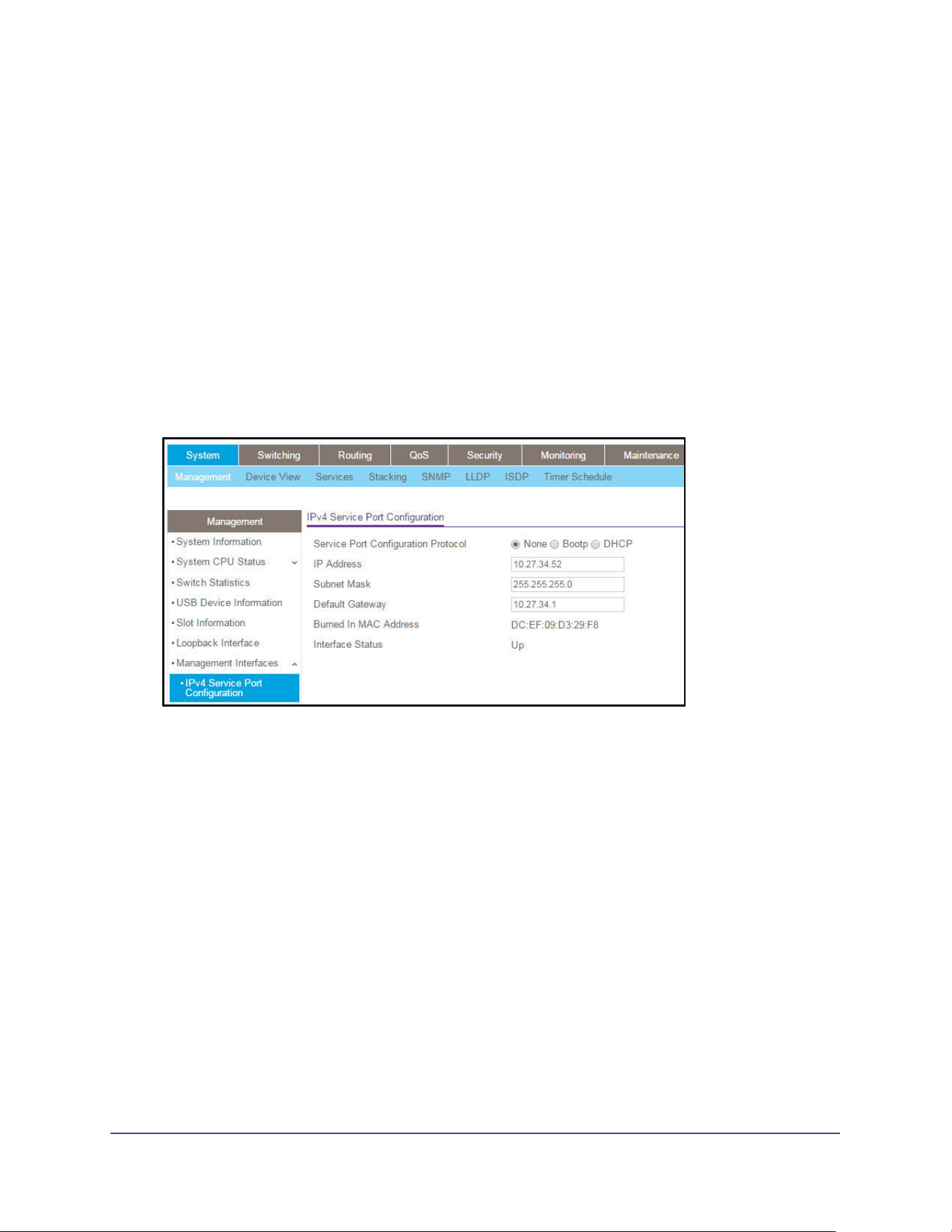
Configure System Information
46
M4200 and M4300 Series ProSAFE Managed Switches Web Management User Manual
To configure the IPv4 service port:
1. Launch a web browser.
2. Enter http://<ipaddress> in the web browser address field.
The login window opens.
3. Enter the user name and password.
The default admin user name is admin and the default admin password is blank, that is,
do not enter a password.
4. Click the Login button.
The System Information page displays.
5. Select System > Management > Management Interfaces > IPv4 Service Port
Configuration.
6. Select a Service Port Configuration Protocol radio button:
• BootP. During the next boot cycle, the BootP client on the device broadcasts a BootP
request in an attempt to acquire information from a BootP server on the network.
• DHCP. During the next boot cycle, the DHCP client on the device broadcasts a DHCP
request in an attempt to acquire information from a DHCP server on the network.
• None. The device does not attempt to acquire network information dynamically.
• This specifies how the device acquires network information on the service port.
7. In the IP Address field, specify the IP address of the interface.
• If the service port configuration protocol is None, you can manually configure a static
IP address.
• If the service port configuration protocol is BootP or DHCP, this field displays the IP
address that was dynamically acquired (if any).

Configure System Information
47
M4200 and M4300 Series ProSAFE Managed Switches Web Management User Manual
8. In the Subnet Mask field, specify the IP subnet mask for the interface:
• If the service port configuration protocol is None, you can manually configure a static
subnet mask.
• If the service port configuration protocol is BootP or DHCP, this field displays the
subnet mask that was dynamically acquired (if any).
9. In the Default Gateway field, specify the default gateway for the IP interface:
• If the Service Port Configuration Protocol is None, you can manually configure the IP
address of the default gateway.
• If the Service Port Configuration Protocol is BootP or DHCP, this field displays the
default gateway address that was dynamically acquired (if any).
10. Click the Apply button.
The updated configuration is sent to the switch. Configuration changes take effect
immediately.
The following table describes the nonconfigurable fields on the Service Port Configuration
page.
Configure the IPv6 Service Port
You can configure IPv6 network information on the service port. The service port is a
dedicated Ethernet port for out-of-band management of the device. Traffic on this port is
segregated from operational network traffic on the switch ports and cannot be switched or
routed to the operational network.
To configure the IPv6 service port:
1. Launch a web browser.
2. Enter http://<ipaddress> in the web browser address field.
The login window opens.
3. Enter the user name and password.
The default admin user name is admin and the default admin password is blank, that is,
do not enter a password.
4. Click the Login button.
The System Information page displays.
5. Select System > Management > Management Interfaces > IPv6 Service Port
Configuration.
Table 15. IPv4 Service Port Configuration
Field Description
Burned-in MAC Address The burned-in MAC address used for out-of-band connectivity.
Interface Status Indicates whether the link status is up or down.
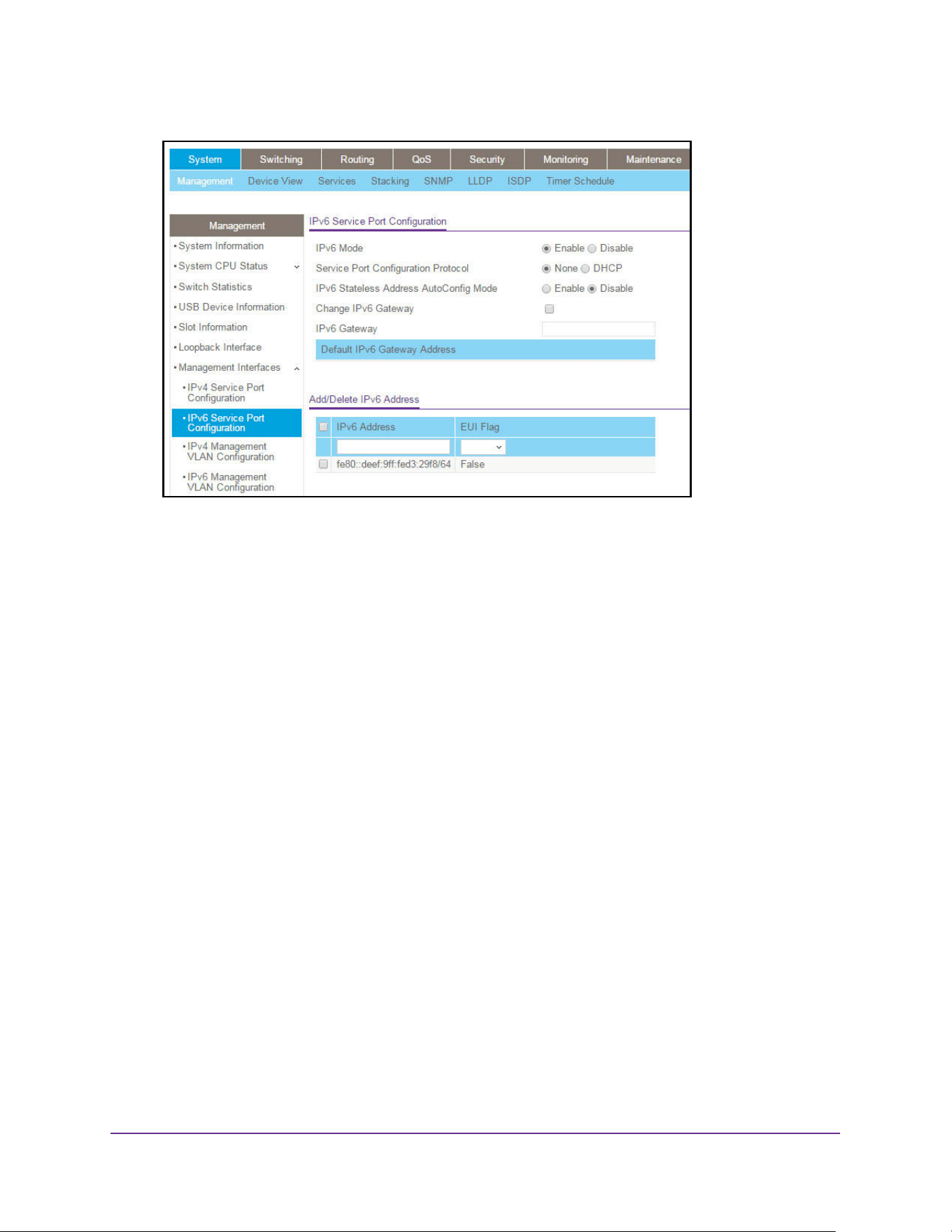
Configure System Information
48
M4200 and M4300 Series ProSAFE Managed Switches Web Management User Manual
6. Select the IPv6 mode Enable or Disable radio button.
This specifies the IPv6 administrative mode on the service port.
7. Select the Service Port Configuration Protocol None or DHCP radio button.
This specifies whether the device acquires network information from a DHCPv6 server.
Selecting None disables the DHCPv6 client on the service port.
8. Select the IPv6 Stateless Address AutoConfig mode Enable or Disable radio button:
• Enable. The service port can acquire an IPv6 address through IPv6 Neighbor
Discovery Protocol (NDP) and through the use of router advertisement messages.
• Disable. The service port does not use the native IPv6 address autoconfiguration
feature to acquire an IPv6 address.
This sets the IPv6 stateless address autoconfiguration mode on the service port.
9. The DHCPv6 Client DUID field displays the client identifier used by the DHCPv6 client (if
enabled) when sending messages to the DHCPv6 server.
10. To configure the IPv6 gateway, select the Change IPv6 Gateway check box.
The IPv6 gateway is the default gateway for the IPv6 service port interface.
11. Use the IPv6 Gateway field to specify the default gateway for the IPv6 service port interface.
The Add/Delete IPv6 Address table lists the manually configured static IPv6 addresses
on the service port interface.
12. Specify the following:
a. In the IPv6 Address field, specify the IPv6 address to add or remove from the service
port interface.
b. Select the EUI Flag option to enable the Extended Universal Identifier (EUI) flag for
IPv6 address, or clear the option to omit the flag.

Configure System Information
49
M4200 and M4300 Series ProSAFE Managed Switches Web Management User Manual
13. Click the Add button.
The IPv6 address is added to the service port interface.
14. Click the Apply button.
The updated configuration is sent to the switch. Configuration changes take effect
immediately.
Management VLAN Overview
For you to manage the device by using the web-based configuration utility, the device
management IP address must be defined and known. A management VLAN interface is
created by default and it gets an IP address if a DHCP server is present. If it fails to get an IP
address, a fallback address 169.254.100.100/255.255.0.0 is assigned to it. Management
VLAN is used as the default source interface for syslog, message log, and SNMP client, and
so on The network interface is disabled by default.
The management VLAN is the logical interface used for in-band connectivity with the switch
through any of the switch’s front panel ports. The configuration parameters associated with
the switch’s management VLAN do not affect the configuration of the front panel ports
through which traffic is switched or routed.
To access the switch over a network, you must first configure it with IP information (IP
address, subnet mask). You can configure the IP information using any of the following:
• DHCP
• Terminal interface through the EIA-232 port
After you establish in-band connectivity, you can change the IP information using any of the
following:
• Terminal interface through the EIA-232 port
• Terminal interface through Telnet
• SNMP-based management
• Web-based management
Configure an IPv4 Management VLAN
To configure an IPv4 Management VLAN:
1. Launch a web browser.
2. Enter http://<ipaddress> in the web browser address field.
The login window opens.
3. Enter the user name and password.
The default admin user name is admin and the default admin password is blank, that is,
do not enter a password.
4. Click the Login button.
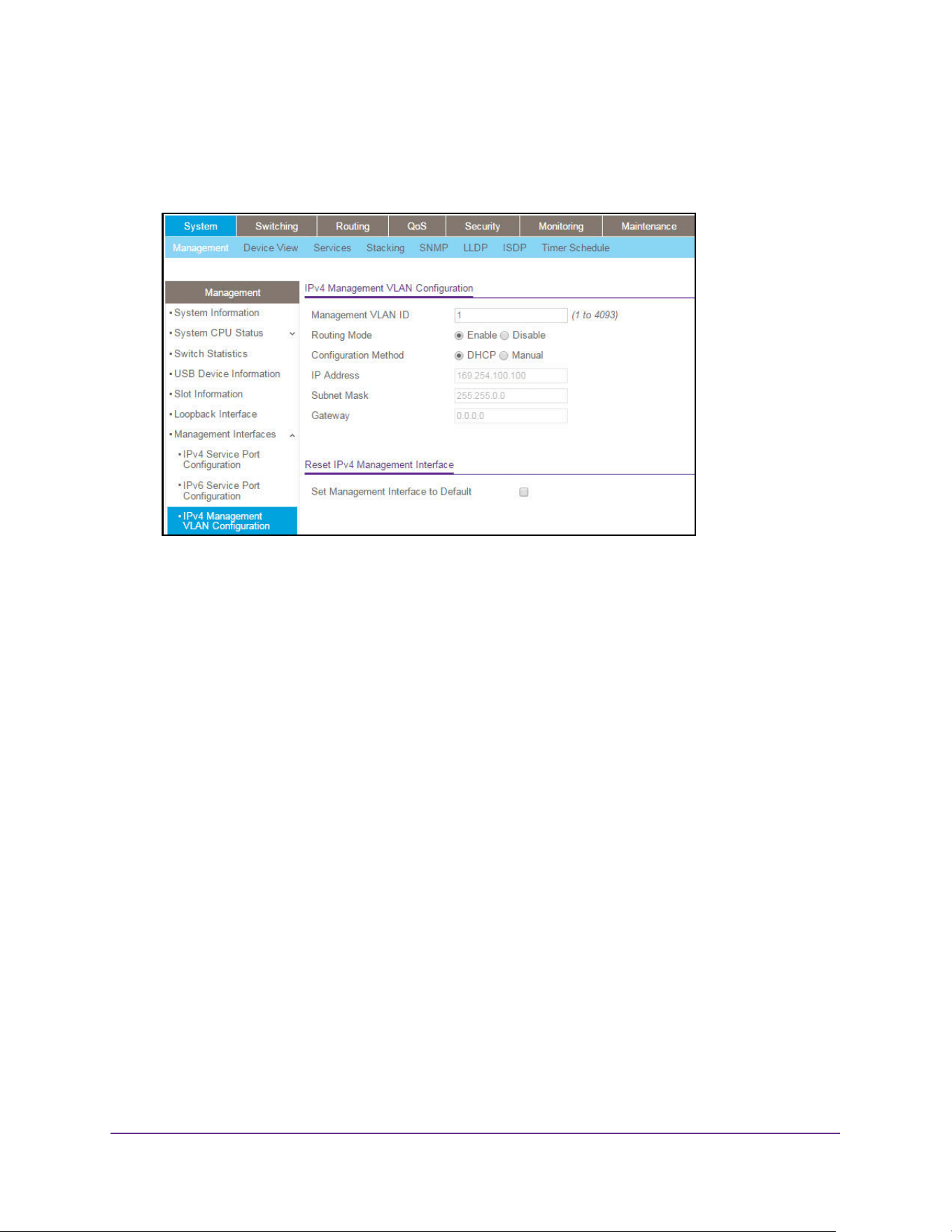
Configure System Information
50
M4200 and M4300 Series ProSAFE Managed Switches Web Management User Manual
The System Information page displays.
5. Select System > Management > Management Interfaces > IPv4 Management VLAN
Configuration.
6. In the Management VLAN ID field, specify the Management VLAN ID of the switch. The
management VLAN is used for management of the switch. It can be configured to any value
in the range of 1–4093.
7. Select the Routing Mode radio button to Enable or Disable the global routing on the
device. The default value is Enable.
8. Select the Configuration Method DHCP or Manual radio button:
• DHCP. Transmit a DHCP request.
• Manual. Do nothing.
This specifies what the switch does on start-up.
9. Specify the IP Address of the interface.
The factory default value is 169.254.100.100.
10. Specify the IP Subnet Mask for the interface. This is also referred to as the subnet/network
mask and defines the portion of the interface’s IP address that is used to identify the
attached network.
The factory default value is 255.255.0.0.
11. Specify the Gateway for the management VLAN interface.
The factory default value is 0.0.0.0.
12. In the Reset IPv4 Management Interface section of the page, use the Set Management
Interface to Default option to set the IPv4 management interface to the default VLAN 1.
13. Click the Apply button.
The updated configuration is sent to the switch. Configuration changes take effect
immediately.
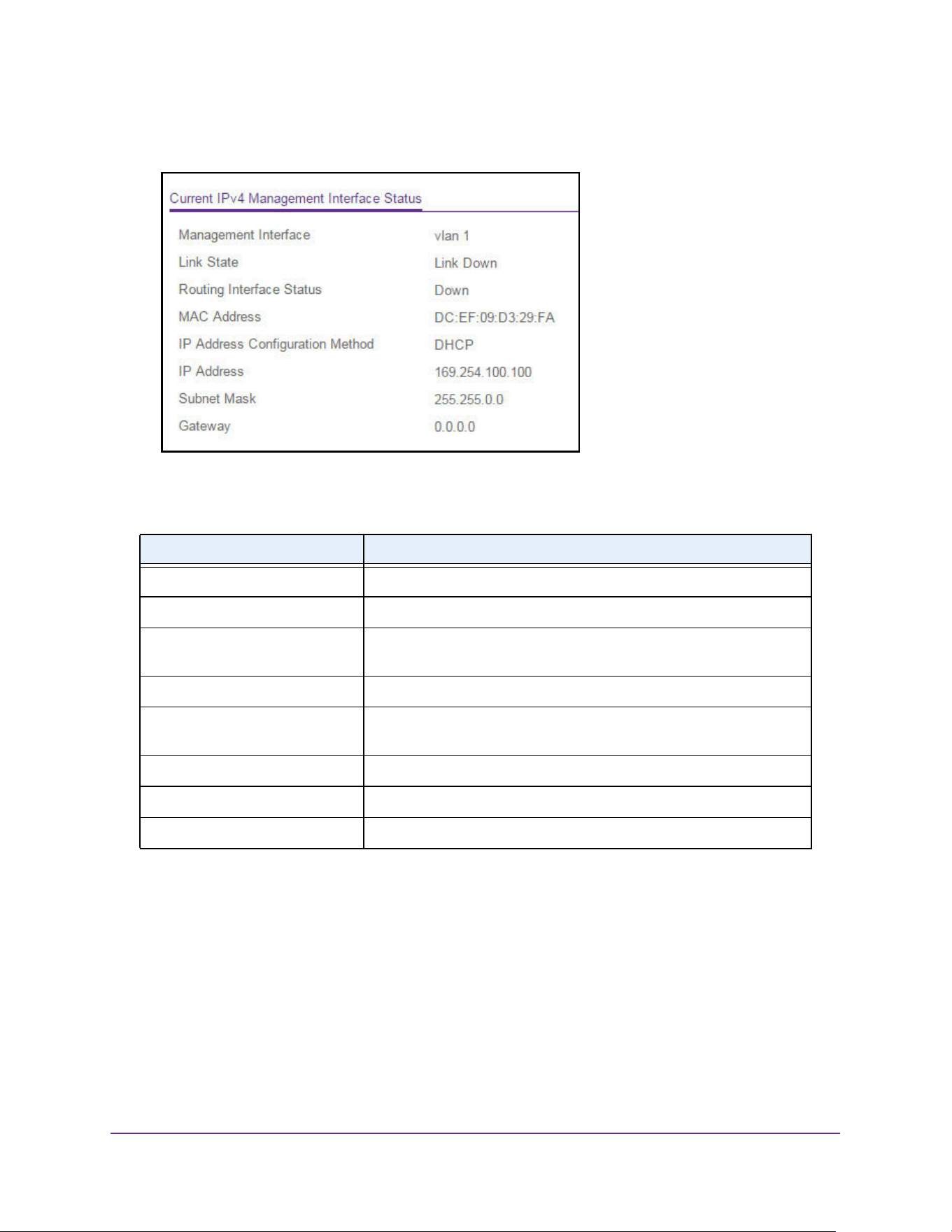
Configure System Information
51
M4200 and M4300 Series ProSAFE Managed Switches Web Management User Manual
The Current IPv4 Management Interface Status is displayed at the bottom of the page.
The table below describes the nonconfigurable fields.
Configure an IPv6 Management VLAN
To configure IPv6 Management, you have the choice to configure IPv6 Management using
the same VLAN as is used for IPv4 Management or using a different VLAN. IPv6
Management configuration is non-default and you need to create it manually.
To configure an IPv6 management VLAN:
1. Launch a web browser.
2. Enter http://<ipaddress> in the web browser address field.
The login window opens.
Table 16. Nonconfigurable IPv4 Management Interface Status
Field Description
Management Interface Displays the current IPv4 management interface
Link State Indicates whether the link status is up or down.
Routing Interface Status Indicates whether the link status is up or down for the management
interface.
MAC Address The MAC address assigned to the management interface.
IP Address Configuration Method Indicates whether the IP address configuration method is DHCP or
manual.
IP Address The IP address of the management interface.
Subnet Mask The IP subnet mask for the management interface.
Gateway The specified default gateway for the management interface.
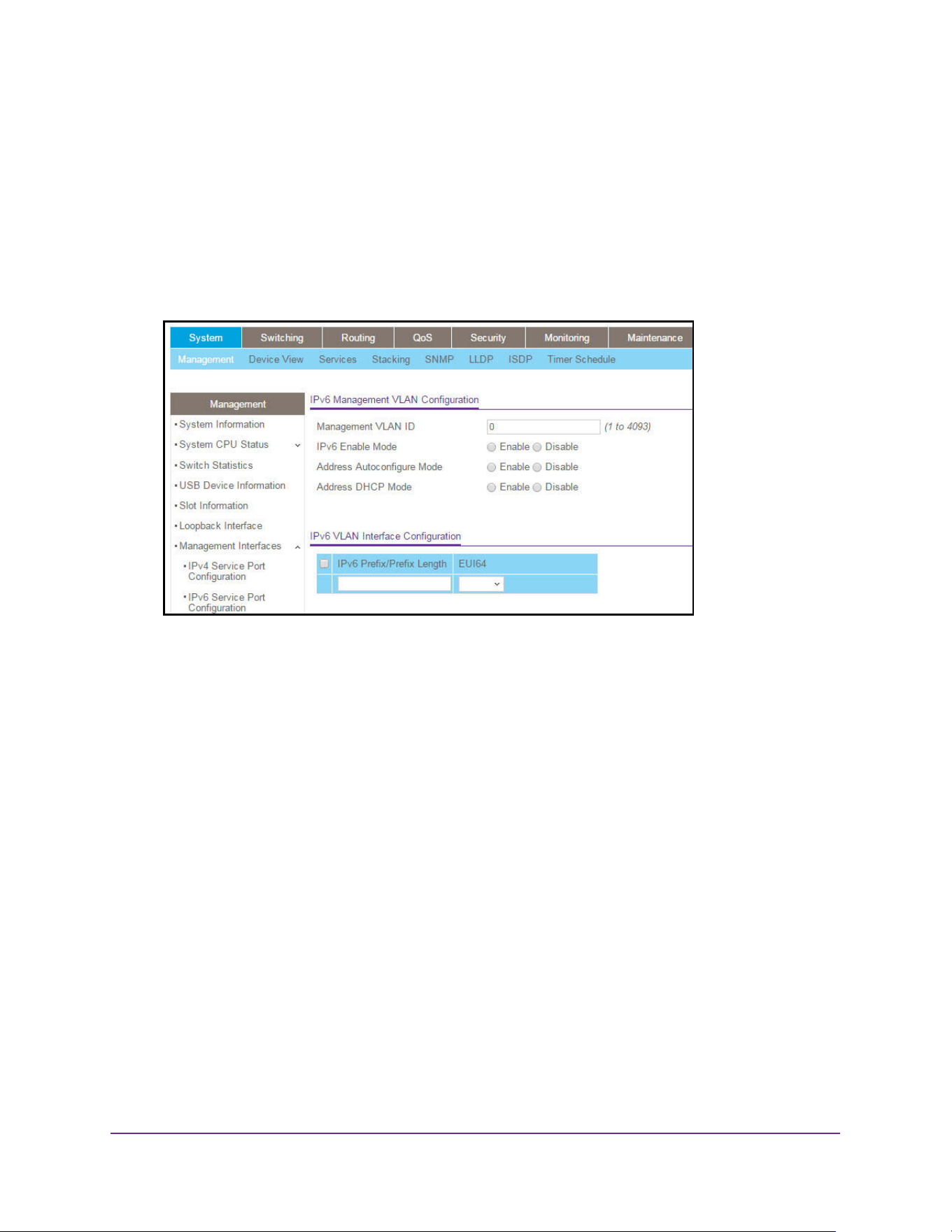
Configure System Information
52
M4200 and M4300 Series ProSAFE Managed Switches Web Management User Manual
3. Enter the user name and password.
The default admin user name is admin and the default admin password is blank, that is,
do not enter a password.
4. Click the Login button.
The System Information page displays.
5. Select System > Management > Management Interfaces > IPv6 Management VLAN
Configuration.
6. In the Management VLAN ID field, specify the Management VLAN ID of the switch. The
management VLAN is used for management of the switch. The VLAN ID can be any value
from 1 to 4093. There is no IPv6 management interface configured by default.
7. Select the IPv6 Enable Mode radio button to Enable or Disable the administration mode
for the management VLAN IPv6 interface on the switch.
8. Select the radio button to Enable or Disable Address Autoconfigure Mode. If you select
Enable, the IPv6 network parameters (IPv6 prefix and prefix length) are autoconfigured for
the configured management VLAN interface. The default value for VLAN 1 is Auto Config.
Note: The Address Autoconfigure mode option is available only if unicast
routing is globally disabled.
9. Select the Address DHCP Mode Enable or Disable radio button.
10. In the IPv6 VLAN Interface Configuration section of the page, select the IPv6 Prefix/Prefix
Length option, then specify the IPv6 address to add or remove from the management VLAN
interface. When Address Autoconfigure Mode is selected, the appropriate IPv6 prefix and
prefix length is shown in this field.
11. Select the EU164 option to True (enabled) the Extended Universal Identifier (EUI) flag for an
IPv6 address. The value is False if not specified.
12. Click the Add button.
The IPv6 address is added to the management VLAN.
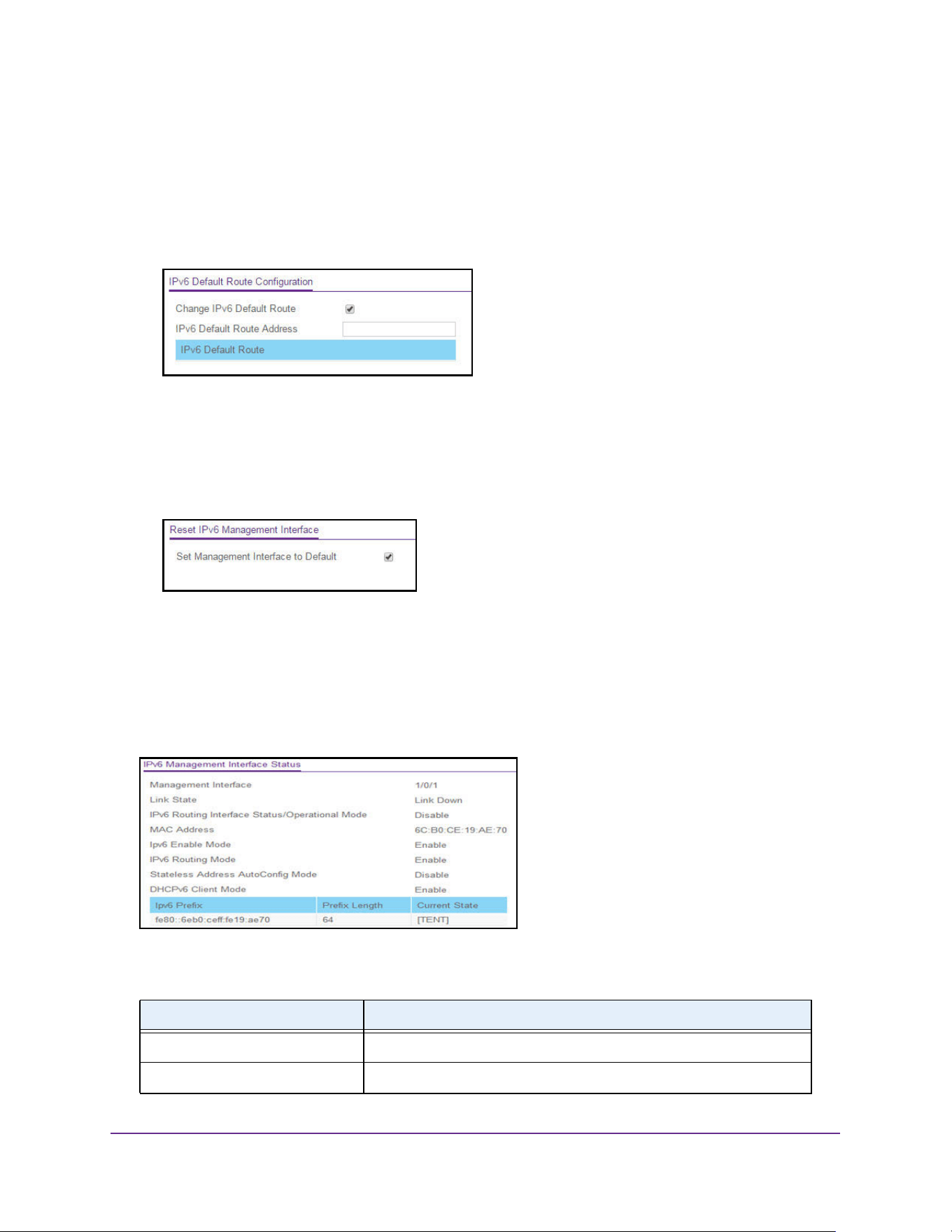
Configure System Information
53
M4200 and M4300 Series ProSAFE Managed Switches Web Management User Manual
13. Click the Apply button.
The updated configuration is sent to the switch. Configuration changes take effect
immediately.
In the IPv6 Default Route Configuration section of the page, the nonconfigurable IPv6
Default Route that is displayed is the default route for the IPv6 VLAN interface.
14. To make changes, do the following:
• To add or remove the IPv6 default route, select the Change IPv6 Default Route
option, and specify the address value in the IPv6 Default Route Address field.
• To reset the IPv6 management interface to the default VLAN 1, select the Set
Management Interface to Default option.
15. If you make any changes, click the Apply button.
The updated configuration is sent to the switch. Configuration changes take effect
immediately.
By default there is no IPv6 Management Interface.
The current IPv6 Management Interface Status is displayed at the bottom of the page.
The table below describes the nonconfigurable fields.
Table 17. Current IPv6 Management Interface Status
Field Description
Management Interface Displays the current IPv6 management interface
Link State Indicates whether the link status is up or down.
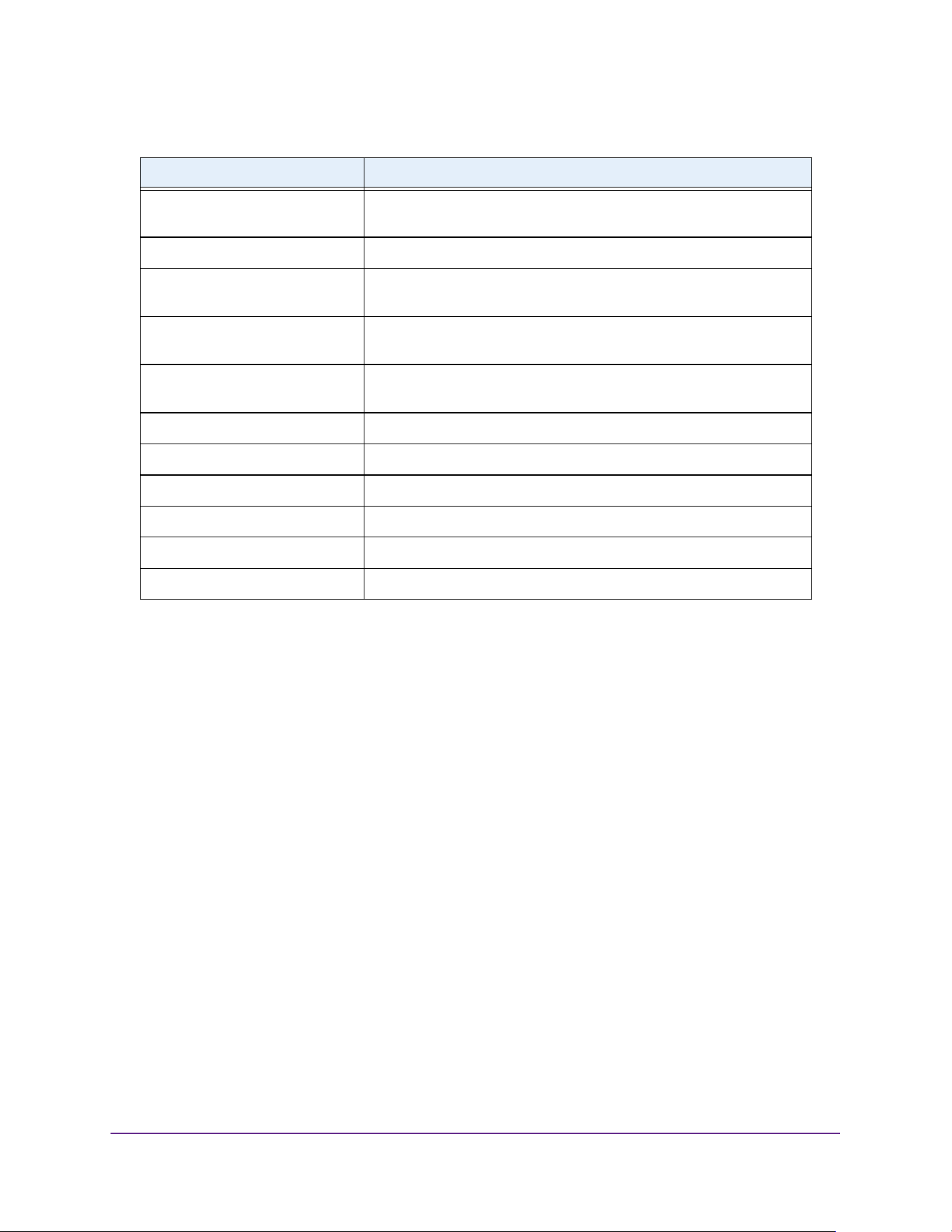
Configure System Information
54
M4200 and M4300 Series ProSAFE Managed Switches Web Management User Manual
Configure an IPv4 Management Interface
Use this page for port-based IP management for IPv4.
To configure an IPv4 management interface:
1. Launch a web browser.
2. Enter http://<ipaddress> in the web browser address field.
The login window opens.
3. Enter the user name and password.
The default admin user name is admin and the default admin password is blank, that is,
do not enter a password.
4. Click the Login button.
The System Information page displays.
5. Select System > Management > Management Interfaces > IPv4 Management Interface
Configuration.
IPv6 Routing Interface
Status/Operational Mode
Indicates whether the link status is up or down for the management
interface.
MAC Address The MAC address assigned to the management interface.
IPv6 Enable Mode Indicates whether IPv6 Enable Mode on the management interface is
enabled or disabled.
IPv6 Routing Mode Indicates whether IPv6 Routing Mode on the management interface is
enabled or disabled.
Stateless Address Autoconfig
Mode
Indicates whether the IP address autoconfiguration mode on the
management interface is enabled or disabled.
DHCPv6 Client Mode The Address DHCP mode on the management interface.
IPv6 Default Gateway The IPv6 default gateway of the switch.
IPv6 Next Hop Interface The IPv6 next hop interface of the switch.
Prefix Length The prefix length on the management interface.
EU164 The EUI-64 flag of the IPv6 address on the management interface.
Current State The current state of the IPv6 address on the management interface.
Table 17. Current IPv6 Management Interface Status
Field Description
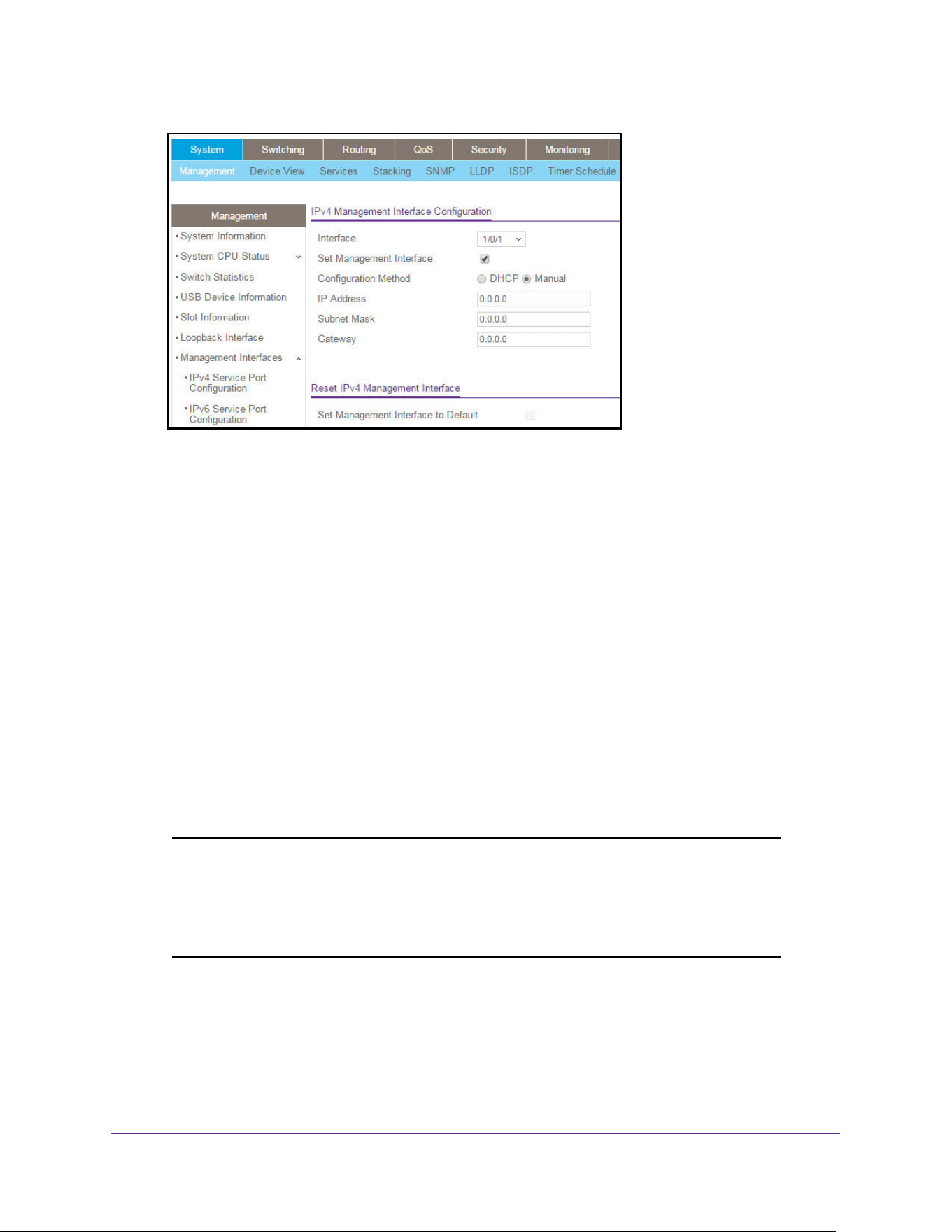
Configure System Information
55
M4200 and M4300 Series ProSAFE Managed Switches Web Management User Manual
6. Use the Interface list to select the interface for which IPv4 parameters or management
interface can be changed.
7. When you select the Set Management Interface option, it means that the management
interface must be configured based on the interface selected.
By default, this option is not selected.
8. Select the Configuration Method DHCP or Manual radio button.
9. Specify the IP Address of the interface and the subnet mask for the management interface.
This is also referred to as the subnet/network mask, and defines the portion of the
interface’s IP address that is used to identify the attached network. The factory default
value is 169.254.100.100.
10. In the Subnet Mask field, specify the IP subnet mask for the interface.
The factory default value is 255.255.0.0.
11. In the Gateway field, specify the default gateway for the management interface.
The default value is 0.0.0.0.
Note: If you need to reset the IPv4 management interface, in the Reset IPv4
Management Interface section of the page, use the Set Management
Interface to Default option to delete the port-based IPv4
management interface configuration and set the IPv4 management
interface back to the default VLAN 1.
12. Click the Apply button.
The updated configuration is sent to the switch. Configuration changes take effect
immediately.
The Current IPv4 Management Interface Status is displayed at the bottom of the page.
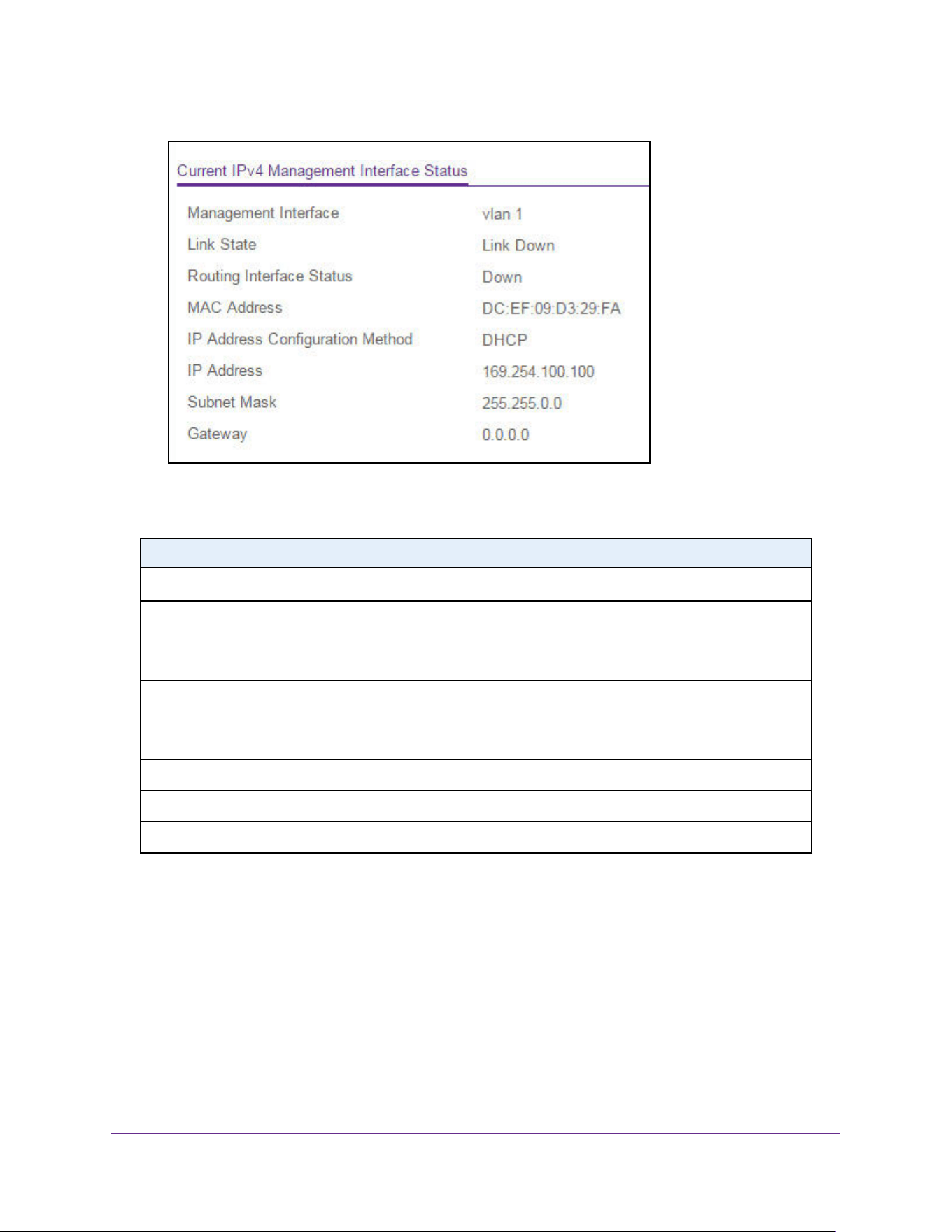
Configure System Information
56
M4200 and M4300 Series ProSAFE Managed Switches Web Management User Manual
The table below describes the nonconfigurable fields.
Configure an IPv6 Management Interface
Use this page for port-based IP management for IPv6.
To configure an IPv6 management interface:
1. Launch a web browser.
2. Enter http://<ipaddress> in the web browser address field.
The login window opens.
3. Enter the user name and password.
Table 18. Nonconfigurable IPv4 Management Interface Status
Field Description
Management Interface Displays the current IPv4 management interface
Link State Indicates whether the link status is up or down.
Routing Interface Status Indicates whether the link status is up or down for the management
interface.
MAC Address The MAC address assigned to the management interface.
IP Address Configuration Method Indicates whether the IP address configuration method is DHCP or
manual.
IP Address The IP address of the management interface.
Subnet Mask The IP subnet mask for the management interface.
Gateway The specified default gateway for the management interface.
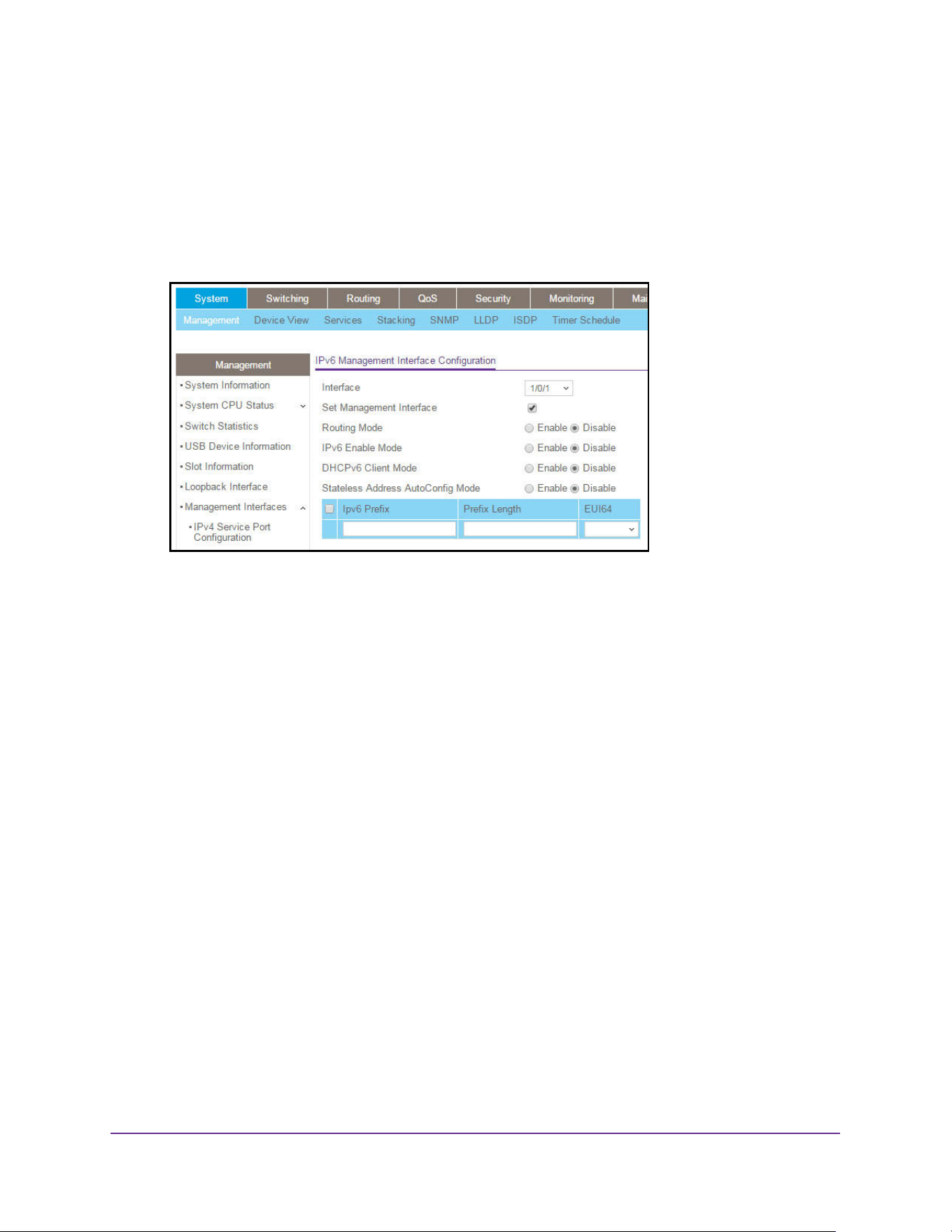
Configure System Information
57
M4200 and M4300 Series ProSAFE Managed Switches Web Management User Manual
The default admin user name is admin and the default admin password is blank, that is,
do not enter a password.
4. Click the Login button.
The System Information page displays.
5. Select System > Management > Management Interfaces > IPv6 Management Interface
Configuration.
6. Use the Interface list to select the interface for which IPv6 parameters or management
interface can be changed.
7. When you select the Set Management Interface option, it means that the management
interface must be configured based on the interface selected. By default, this option is not
selected.
8. Select the radio button to enable or disable the Routing Mode on the management
interface.
9. Select the radio button to enable or disable the IPv6 Mode on the management interface.
10. Select the radio button to enable or disable the DHCPv6 Client Mode on the management
interface.
11. Select the radio button to enable or disable the Address Autoconfigure Mode on the
management interface.
Note: The Address AutoConfigure Mode option is available only if Unicast
Routing is globally disabled.
12. Click the Apply button.
The updated configuration is sent to the switch. Configuration changes take effect
immediately.
In the IPv6 Default Route Configuration section of the page, the nonconfigurable IPv6
Default Route that is displayed is the default route for the IPv6 management interface.
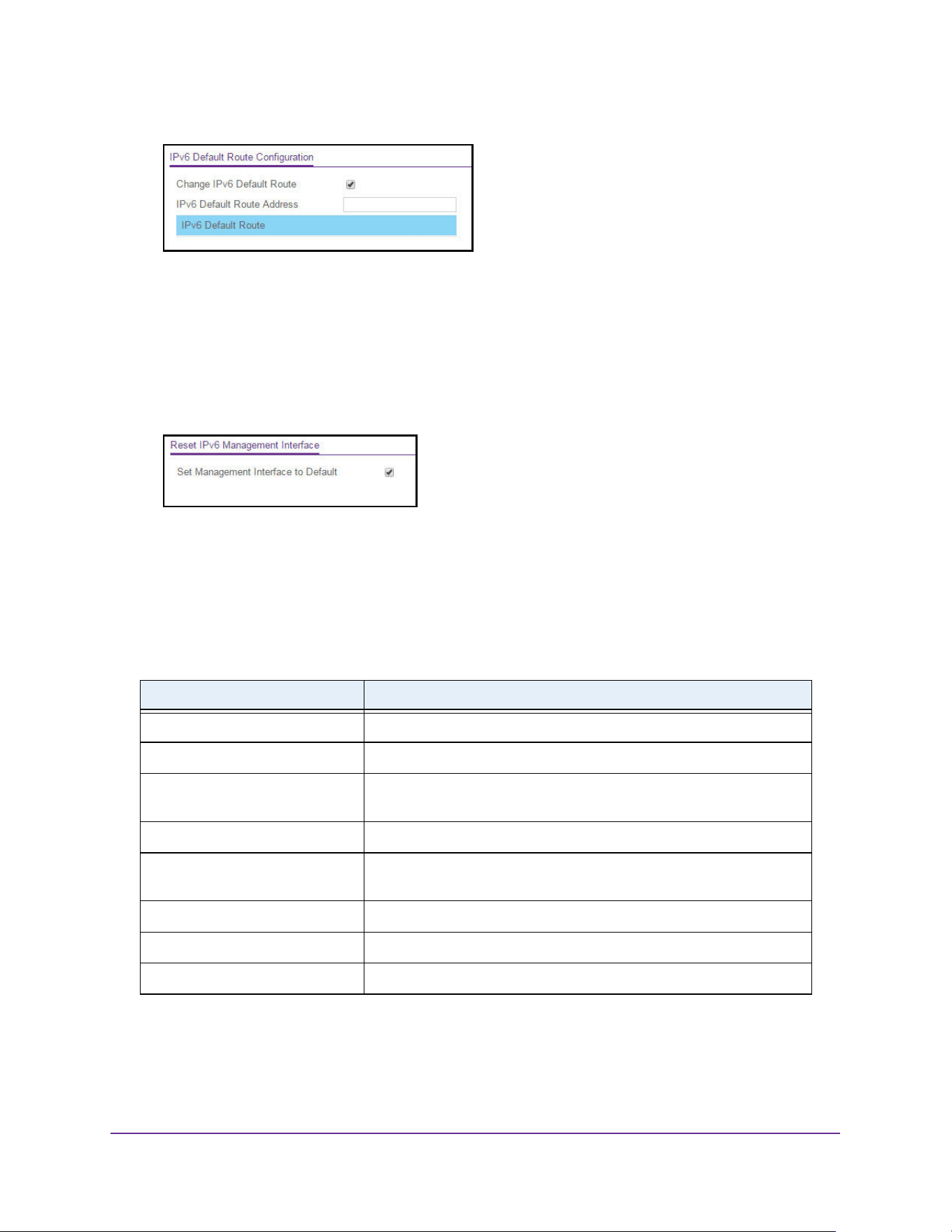
Configure System Information
58
M4200 and M4300 Series ProSAFE Managed Switches Web Management User Manual
13. To make changes, do the following:
• To add or remove the IPv6 default route, select the Change IPv6 Default Route
option, and specify the address value in the IPv6 Default Route Address field.
• In the Reset IPv6 Management Interface section of the page, use the Set
Management Interface to Default option to delete the port-based IPv6 management
interface configuration and set the IPv6 management interface back to the default
VLAN 1.
14. If you make any changes, click the Apply button.
The updated configuration is sent to the switch. Configuration changes take effect
immediately.
The current IPv6 Management Interface Status is displayed at the bottom of the page. The
table below describes the nonconfigurable fields.
Table 19. Current IPv6 Management Interface Status
Field Description
Management Interface Displays the current IPv6 management interface
Link State Indicates whether the link status is up or down.
IPv6 Routing Interface
Status/Operational Mode
Indicates whether the link status is up or down for the management
interface.
MAC Address The MAC address assigned to the management interface.
IP Address Configuration Method Indicates whether the IP address configuration method is DHCP or
manual.
IP Address The IP address of the management interface.
Subnet Mask The IP subnet mask for the management interface.
Gateway The specified default gateway for the management interface.
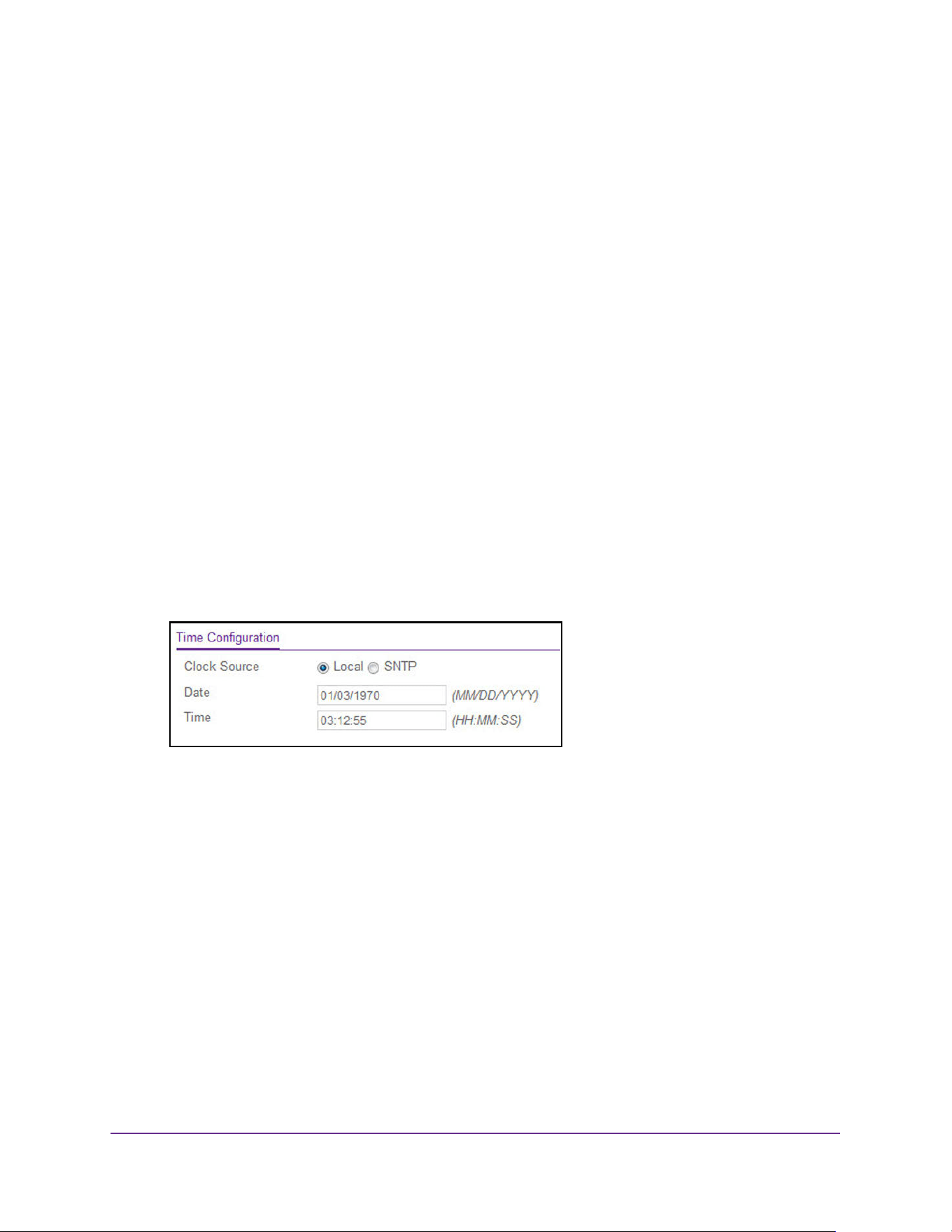
Configure System Information
59
M4200 and M4300 Series ProSAFE Managed Switches Web Management User Manual
Time
The switch software supports the Simple Network Time Protocol (SNTP). As its name
suggests, it is a less complicated version of Network Time Protocol, which is a system for
synchronizing the clocks of networked computer systems, primarily when data transfer is
handled through the Internet.
Configure the Time Setting
To configure the time setting:
1. Launch a web browser.
2. Enter http://<ipaddress> in the web browser address field.
The login window opens.
3. Enter the user name and password.
The default admin user name is admin and the default admin password is blank, that is,
do not enter a password.
4. Click the Login button.
The System Information page displays.
5. Select System > Management > Time > Time Configuration.
6. Select the Clock Source Local or SNTP radio button.
The default is SNTP. The local clock can be set to SNTP only if the following two
conditions are met:
• The SNTP server is configured.
• The SNTP last attempt status is successful.
7. In the Date field, specify the current date in months, days, and years.
8. In the Time field, specify the current time in hours, minutes, and seconds.
9. Click the Apply button.
The updated configuration is sent to the switch. Configuration changes take effect
immediately.
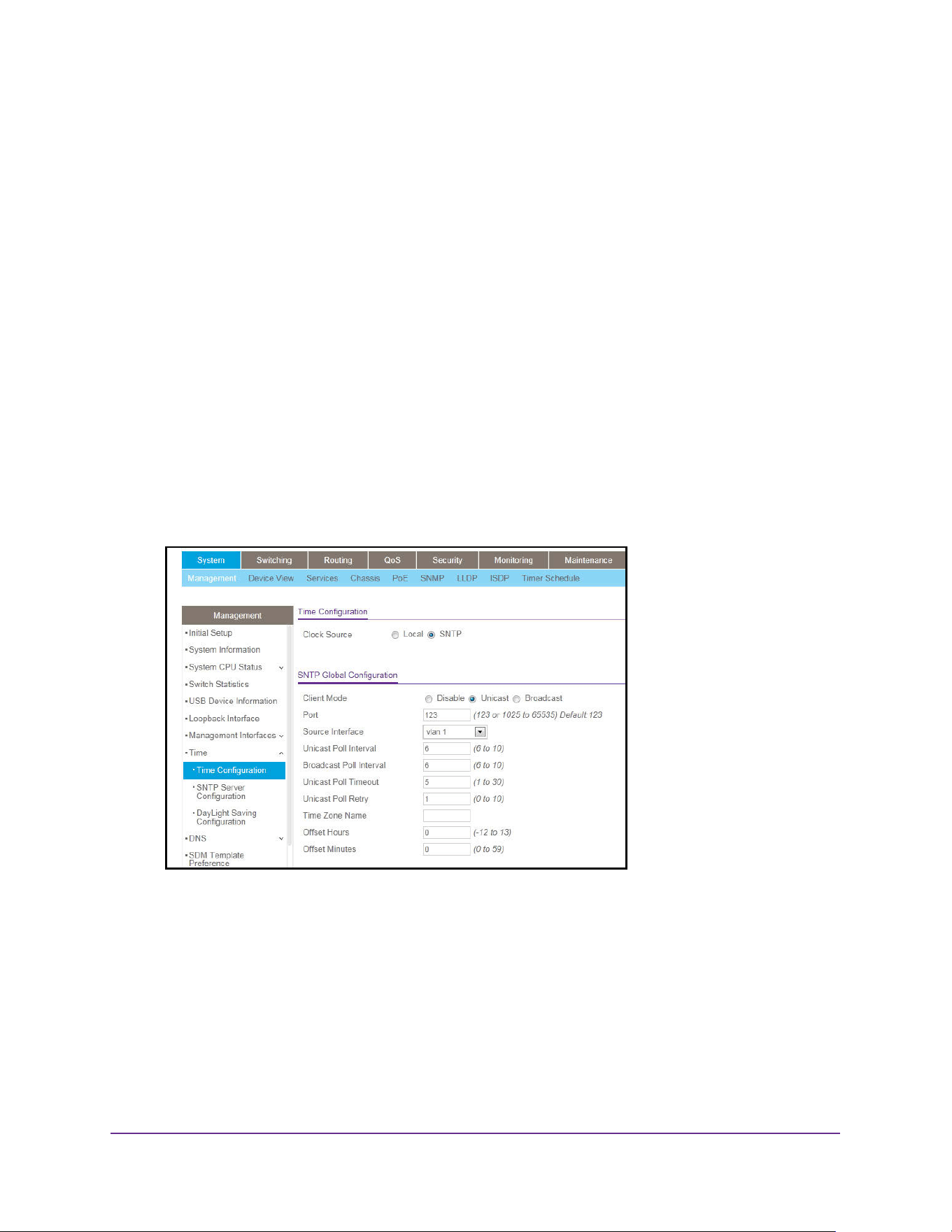
Configure System Information
60
M4200 and M4300 Series ProSAFE Managed Switches Web Management User Manual
Configure the SNTP Global Settings
To configure the SNTP global settings:
1. Launch a web browser.
2. Enter http://<ipaddress> in the web browser address field.
The login window opens.
3. Enter the user name and password.
The default admin user name is admin and the default admin password is blank, that is,
do not enter a password.
4. Click the Login button.
The System Information page displays.
5. Select System > Management > Time > Time Configuration > SNTP Global
Configuration.
When you select the SNTP option as the Clock Source, the SNTP Global Configuration
section is displayed below the Time Configuration section of the page.
6. Select a Client mode radio button to specify the mode of operation of the SNTP client:
• Disable. SNTP is not operational. No SNTP requests are sent from the client and no
received SNTP messages are processed.
• Unicast. SNTP operates in a point-to-point fashion. A unicast client sends a request
to a designated server at its unicast address and expects a reply from which it can
determine the time and, optionally, the round-trip delay and local clock offset relative
to the server.
• Broadcast. SNTP operates in the same manner as multicast mode but uses a local
broadcast address instead of a multicast address. The broadcast address has a
single subnet scope while a multicast address has Internet wide scope.

Configure System Information
61
M4200 and M4300 Series ProSAFE Managed Switches Web Management User Manual
The default value is Unicast.
7. In the Port field, specify the local UDP port that the SNTP client receives server packets on.
The allowed range is 1025 to 65535 and the value 123. The default value is 123. When
the default value is configured, the actual client port value used in SNTP packets is
assigned by the operating system.
8. Select the Source Interface to use for the SNTP client.
Possible values are as follows:
• None
• VLAN 1
• Routing interface
• Routing VLAN
• Routing loopback interface
• Tunnel interface
• Service port
By default VLAN 1 is used as the source interface.
9. Specify the Unicast Poll Interval.
This is the number of seconds between unicast poll requests expressed as a power of
two when configured in unicast mode. The allowed range is 6 to 10. The default value is
6.
10. Specify the Broadcast Poll Interval.
This is the number of seconds between broadcast poll requests expressed as a power of
2 when configured in broadcast mode. Broadcasts received prior to the expiry of this
interval are discarded. The allowed range is 6 to 10. The default value is 6.
11. Specify the Unicast Poll Timeout.
This is the number of seconds to wait for an SNTP response when configured in unicast
mode. The allowed range is 1 to 30. The default value is 5.
12. Specify the Unicast Poll Retry.
This is the number of times to retry a request to an SNTP server after the first time-out
before attempting to use the next configured server when configured in unicast mode.
The allowed range is 0 to 10. The default value is 1.
13. Use the Time Zone Name field to configure a time zone specifying the number of hours
and, optionally, the number of minutes difference from UTC with Offset Hours and Offset
Minutes.
The time zone can affect the display of the current system time. The default value is UTC.
When using SNTP/NTP time servers to update the switch's clock, the time data received
from the server is based on Coordinated Universal Time (UTC), which is the same as
Greenwich Mean Time (GMT). This might not be the time zone in which the switch is
located.
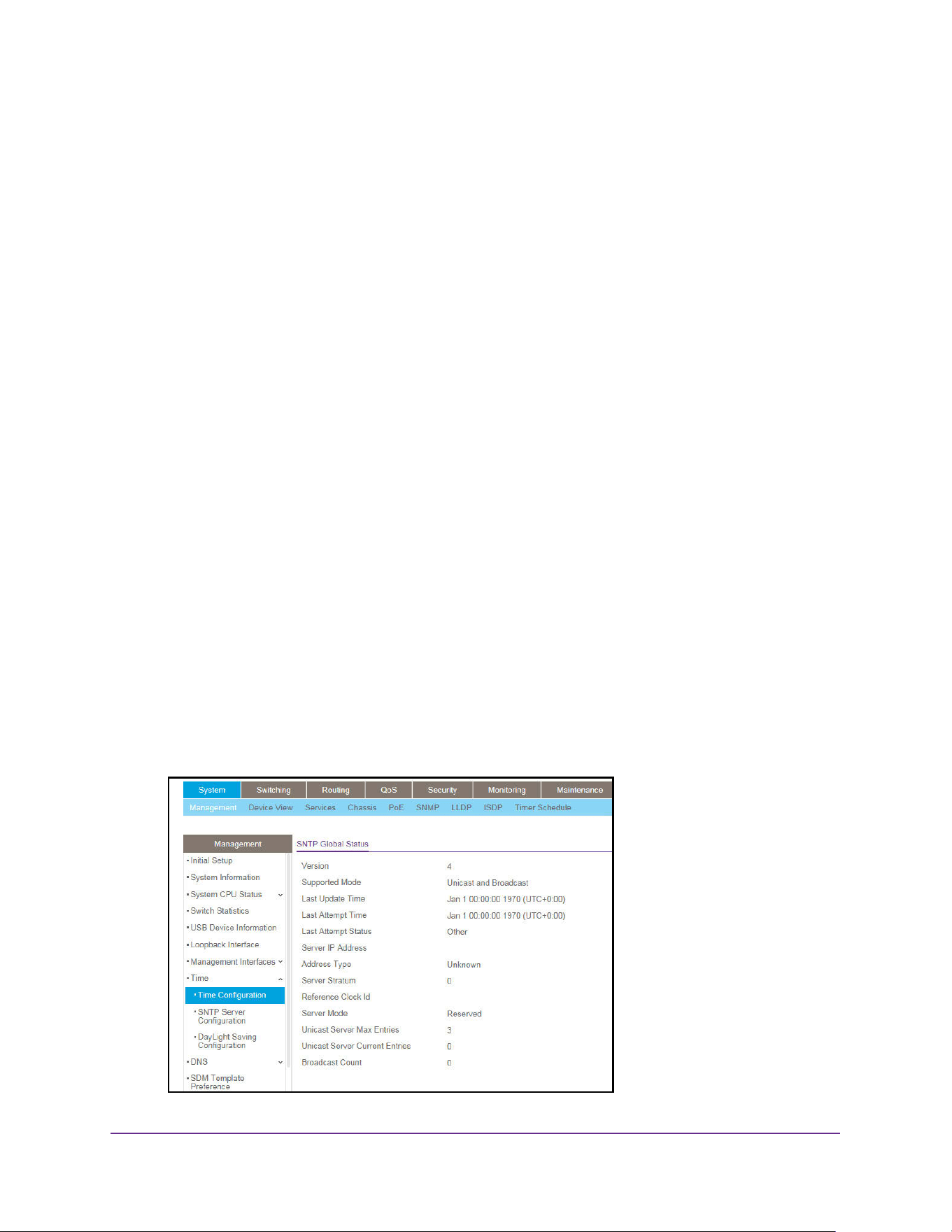
Configure System Information
62
M4200 and M4300 Series ProSAFE Managed Switches Web Management User Manual
14. Use the Offset Hours field to specify the number of hours of difference from UTC.
The allowed range is –12 to 13. The default value is 0.
15. Use the Offset Minutes field to specify the number of minutes of difference from UTC.
The allowed range is 0 to 59. The default value is 0.
16. Click the Apply button.
The updated configuration is sent to the switch. Configuration changes take effect
immediately.
View SNTP Global Status
When you select the SNTP option as the Clock Source, the SNTP global status is displayed
below the SNTP Global Configuration section of the page.
To view SNTP global status:
1. Launch a web browser.
2. Enter http://<ipaddress> in the web browser address field.
The login window opens.
3. Enter the user name and password.
The default admin user name is admin and the default admin password is blank, that is,
do not enter a password.
4. Click the Login button.
The System Information page displays.
5. Select System > Management > Time > Time Configuration > SNTP Global Status
6. Select the SNTP option as the Clock Source.
The SNTP Global Status is displayed below the SNTP Global Configuration section.

Configure System Information
63
M4200 and M4300 Series ProSAFE Managed Switches Web Management User Manual
The following table displays the nonconfigurable SNTP Global Status information.
Table 20. SNTP Global Status
Field Description
Version The SNTP version that the client supports.
Supported mode The SNTP modes that the client supports. Multiple modes can be
supported by a client.
Last Update Time The local date and time (UTC) that the SNTP client last updated the
system clock.
Last Attempt Time The local date and time (UTC) of the last SNTP request or receipt of an
unsolicited message.
Last Attempt Status The status of the last SNTP request or unsolicited message for both
unicast and broadcast modes. If no message was received from a
server, a status of Other is displayed. These values are appropriate for
all operational modes.
• Other. None of the following enumeration values.
• Success. The SNTP operation was successful and the system
time was updated.
• Request Timed Out. A directed SNTP request timed out without
receiving a response from the SNTP server.
• Bad Date Encoded. The time provided by the SNTP server is not
valid.
• Version Not Supported. The SNTP version supported by the
server is not compatible with the version supported by the client.
• Server Unsynchronized. The SNTP server is not synchronized
with its peers. This is indicated through the leap indicator field on
the SNTP message.
• Server Kiss Of Death. The SNTP server indicated that no further
queries were to be sent to this server. This is indicated by a
stratum field equal to 0 in a message received from a server.
Server IP Address The IP address of the server for the last received valid packet. If no
message was received from any server, an empty string is shown.
Address Type The address type of the SNTP server address for the last received valid
packet.
Server Stratum The claimed stratum of the server for the last received valid packet.
Reference Clock ID The reference clock identifier of the server for the last received valid
packet.
Server mode The mode of the server for the last received valid packet.
Unicast Server Max Entries The maximum number of unicast server entries that can be configured
on this client.
Unicast Server Current Entries The number of current valid unicast server entries configured for this
client.
Broadcast Count The number of unsolicited broadcast SNTP messages that were
received and processed by the SNTP client since the last reboot.

Configure System Information
64
M4200 and M4300 Series ProSAFE Managed Switches Web Management User Manual
Configure an SNTP Server
SNTP assures accurate network device clock time synchronization up to the millisecond.
Time synchronization is performed by a network SNTP server. The switch software operates
only as an SNTP client and cannot provide time services to other systems.
Time sources are established by stratums. Stratums define the accuracy of the reference
clock. The higher the stratum (where zero is the highest), the more accurate the clock. The
device receives time from Stratum 1 and above since it is itself a Stratum 2 device.
The following is an example of stratums:
• Stratum 0. A real-time clock is used as the time source, for example, a GPS system.
• Stratum 1. A server that is directly linked to a Stratum 0 time source is used. Stratum 1
time servers provide primary network time standards.
• Stratum 2. The time source is distanced from the Stratum 1 server over a network path.
For example, a Stratum 2 server receives the time over a network link, through NTP, from
a Stratum 1 server.
Information received from SNTP servers is evaluated based on the time level and server
type.
SNTP time definitions are assessed and determined by the following time levels:
• T1. Time that the original request was sent by the client.
• T2. Time that the original request was received by the server.
• T3. Time that the server sent a reply.
• T4. Time that the client received the server's reply.
The device can poll unicast server types for the server time.
Polling for unicast information is used for polling a server for which the IP address is known.
SNTP servers that were configured on the device are the only ones that are polled for
synchronization information. T1 through T4 are used to determine server time. This is the
preferred method for synchronizing device time because it is the most secure method. If this
method is selected, SNTP information is accepted only from SNTP servers defined on the
device using the SNTP Server Configuration page.
The device retrieves synchronization information, either by actively requesting information or
at every poll interval.
You can view and modify information for adding and modifying Simple Network Time Protocol
SNTP servers.
To configure the SNTP server settings:
1. Launch a web browser.
2. Enter http://<ipaddress> in the web browser address field.
The login window opens.
3. Enter the user name and password.
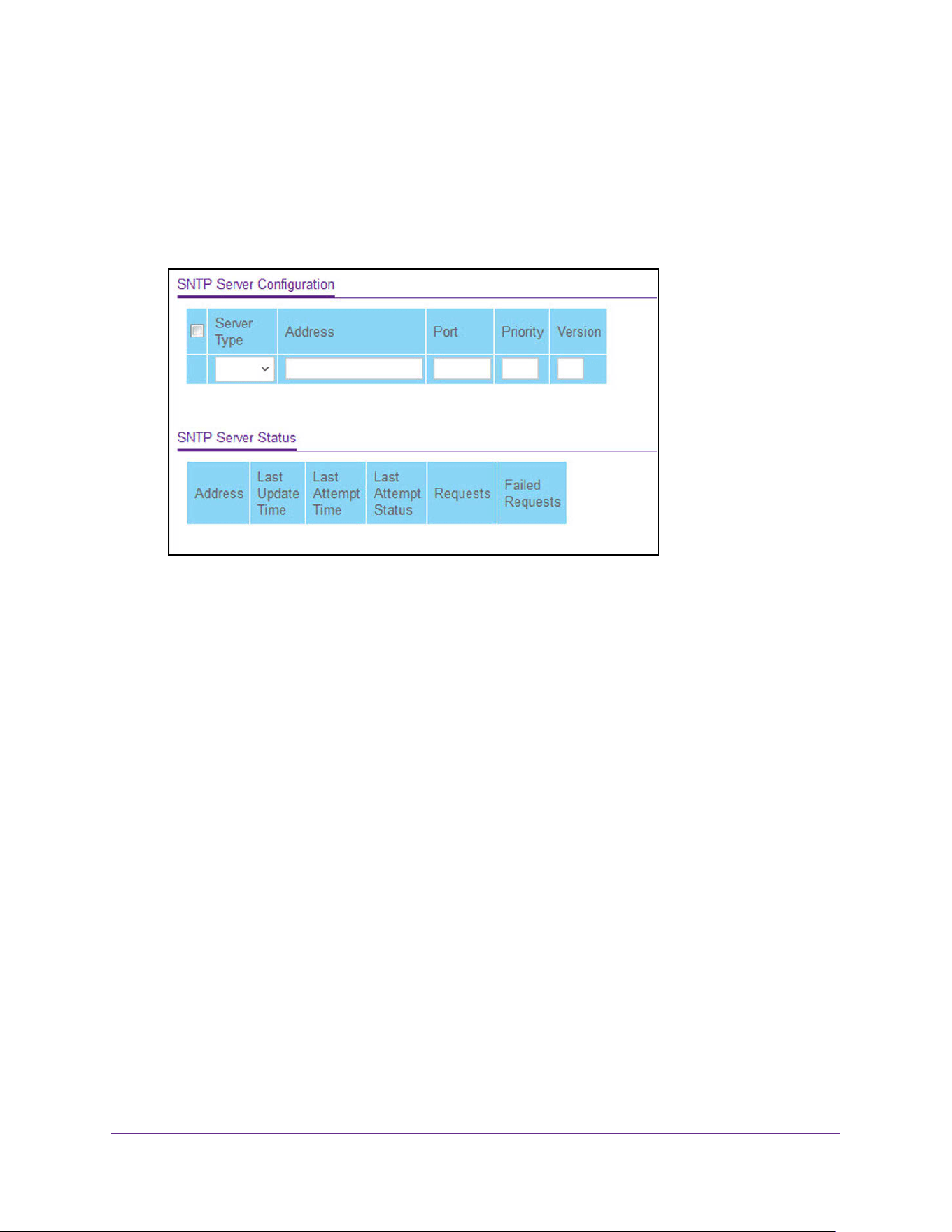
Configure System Information
65
M4200 and M4300 Series ProSAFE Managed Switches Web Management User Manual
The default admin user name is admin and the default admin password is blank, that is,
do not enter a password.
4. Click the Login button.
The System Information page displays.
5. Select System > Management > Time > SNTP Server Configuration.
6. In the Server Type list, select the address type of the configured SNTP server address.
Possible values are as follows:
• IPv4
• IPv6
• DNS
The default value is IPv4.
7. In the Address field, specify the address of the SNTP server.
This is a text string of up to 64 characters, containing the encoded unicast IP address or
host name of an SNTP server. Unicast SNTP requests are sent to this address. If this
address is a DNS host name, then that host name is resolved into an IP address each
time an SNTP request is sent to it.
8. Enter a Port number on the SNTP server to which SNTP requests are sent.
The valid range is 1 to 65535. The default value is 123.
9. Specify the Priority of this server entry in determining the sequence of servers to which
SNTP requests are sent.
The client continues sending requests to different servers until a successful response is
received, or all servers are exhausted. The priority indicates the order in which to query
the servers. A server entry with a precedence of 1 is queried before a server with a
priority of 2, and so forth. If more than one server has the same priority, then the
requesting order follows the lexicographical ordering of the entries in this table. The valid
range is 1 to 3. The default value is 1.
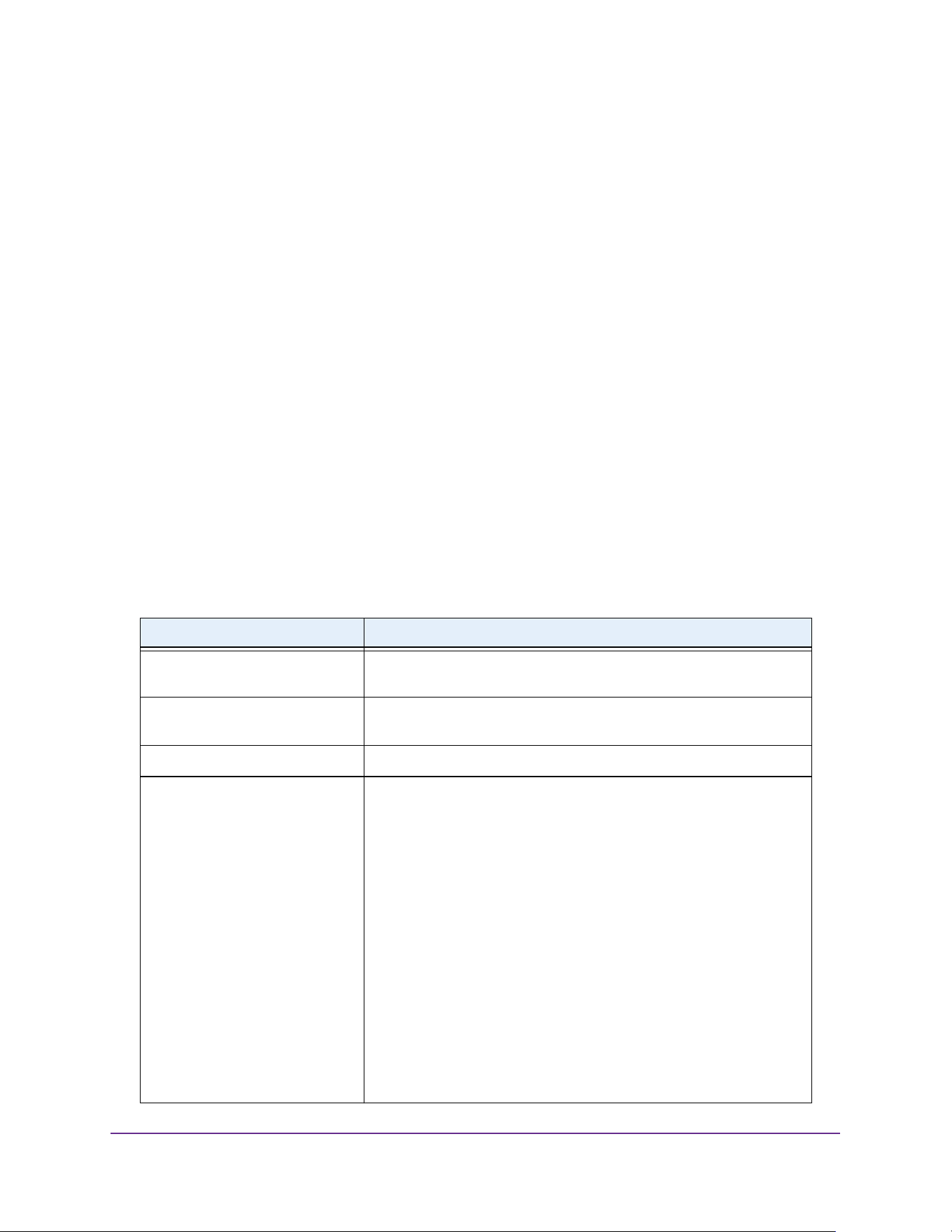
Configure System Information
66
M4200 and M4300 Series ProSAFE Managed Switches Web Management User Manual
10. Specify the NTP Version running on the server.
The range is 1 to 4. The default value is 4.
11. Click the Add button.
The SNTP server entry is added. This sends the updated configuration to the switch.
Configuration changes take effect immediately.
12. Repeat the previous steps to add additional SNTP servers.
You can configure up to three SNTP servers.
13. To change the settings for an existing SNTP server, select the check box next to the
configured server and enter new values in the available fields.
14. To remove an SNTP server entry, select the check box next to the configured server to
remove, and then click the Delete button.
The entry is removed, and the device is updated.
15. Click the Apply button.
The updated configuration is sent to the switch. Configuration changes take effect
immediately.
The SNTP Server Status table displays status information about the SNTP servers
configured on your switch. The following table displays SNTP Server Status information.
Table 21. SNTP Server Status
Field Description
Address All the existing server addresses. If no server configuration exists, a
message saying No SNTP server exists flashes on the page.
Last Update Time The local date and time (UTC) that the response from this server was
used to update the system clock.
Last Attempt Time The local date and time (UTC) that this SNTP server was last queried.
Last Attempt Status The status of the last S9 NTP request to this server. If no packet was
received from this server, a status of Other is displayed.
• Other. None of the following enumeration values.
• Success. The SNTP operation was successful and the system
time was updated.
• Request Timed Out. A directed SNTP request timed out without
receiving a response from the SNTP server.
• Bad Date Encoded. The time provided by the SNTP server is not
valid.
• Version Not Supported. The SNTP version supported by the
server is not compatible with the version supported by the client.
• Server Unsynchronized. The SNTP server is not synchronized
with its peers. This is indicated through the leap indicator field on
the SNTP message.
• Server Kiss Of Death. The SNTP server indicated that no further
queries were to be sent to this server. This is indicated by a
stratum field equal to 0 in a message received from a server.
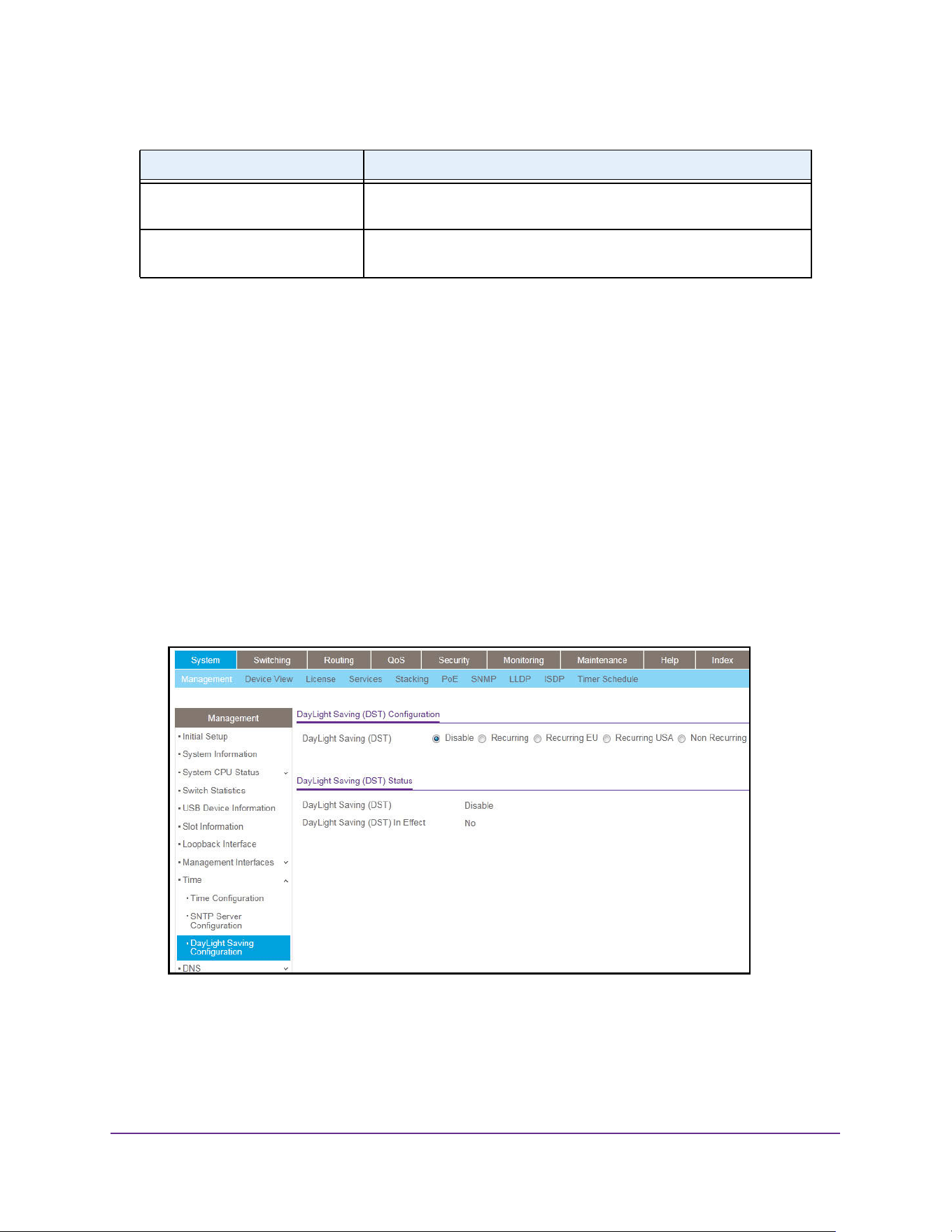
Configure System Information
67
M4200 and M4300 Series ProSAFE Managed Switches Web Management User Manual
Configure Daylight Saving Time Settings
To configure the Daylight Saving Time settings:
1. Launch a web browser.
2. Enter http://<ipaddress> in the web browser address field.
The login window opens.
3. Enter the user name and password.
The default admin user name is admin and the default admin password is blank, that is,
do not enter a password.
4. Click the Login button.
The System Information page displays.
5. Select System > Management > Time > Daylight Saving Configuration.
6. Select Daylight Saving (DST) radio button:
• Disable. Disable daylight saving time.
• Recurring. Enable Recurring daylight saving time.
• Recurring EU. Enable recurring EU daylight saving time.
Requests The number of SNTP requests made to this server since last agent
reboot.
Failed Requests The number of failed SNTP requests made to this server since last
reboot.
Table 21. SNTP Server Status (continued)
Field Description

Configure System Information
68
M4200 and M4300 Series ProSAFE Managed Switches Web Management User Manual
• Recurring USA. Enable recurring USA daylight saving time.
• Non Recurring. Configure non-recurring daylight saving time.
7. Click the Apply button.
The updated configuration is sent to the switch. Configuration changes take effect
immediately.
The fields in the following tables are visible only when DayLight Saving is Recurring or
Recurring EU or Recurring USA.
The fields in the following table are visible only when DayLight Saving is Non Recurring.
Table 22. DayLight Saving - Recurring
Field Description
Begins At These fields are used to configure the start values of the date and time.
• Week. Configure the start week.
• Day. Configure the start day.
• Month. Configure the start month.
• Hours. Configure the start hours.
• Minutes. Configure the start minutes.
Ends At These fields are used to configure the end values of date and time.
• Week. Configure the end week.
• Day. Configure the end day.
• Month. Configure the end month.
• Hours. Configure the end hours.
• Minutes. Configure the end minutes.
Offset Configure recurring offset in minutes. The valid range is 1–1440
minutes.
Zone Configure the time zone.
Table 23. DayLight Saving - Non Recurring
Field Description
Begins At These fields are used to configure the start values of the date and time.
• Week. Configure the start week.
• Day. Configure the start day.
• Month. Configure the start month.
• Hours. Configure the start hours.
• Minutes. Configure the start minutes.
Ends At These fields are used to configure the end values of date and time.
• Week. Configure the end week.
• Day. Configure the end day.
• Month. Configure the end month.
• Hours. Configure the end hours.
• Minutes. Configure the end minutes.
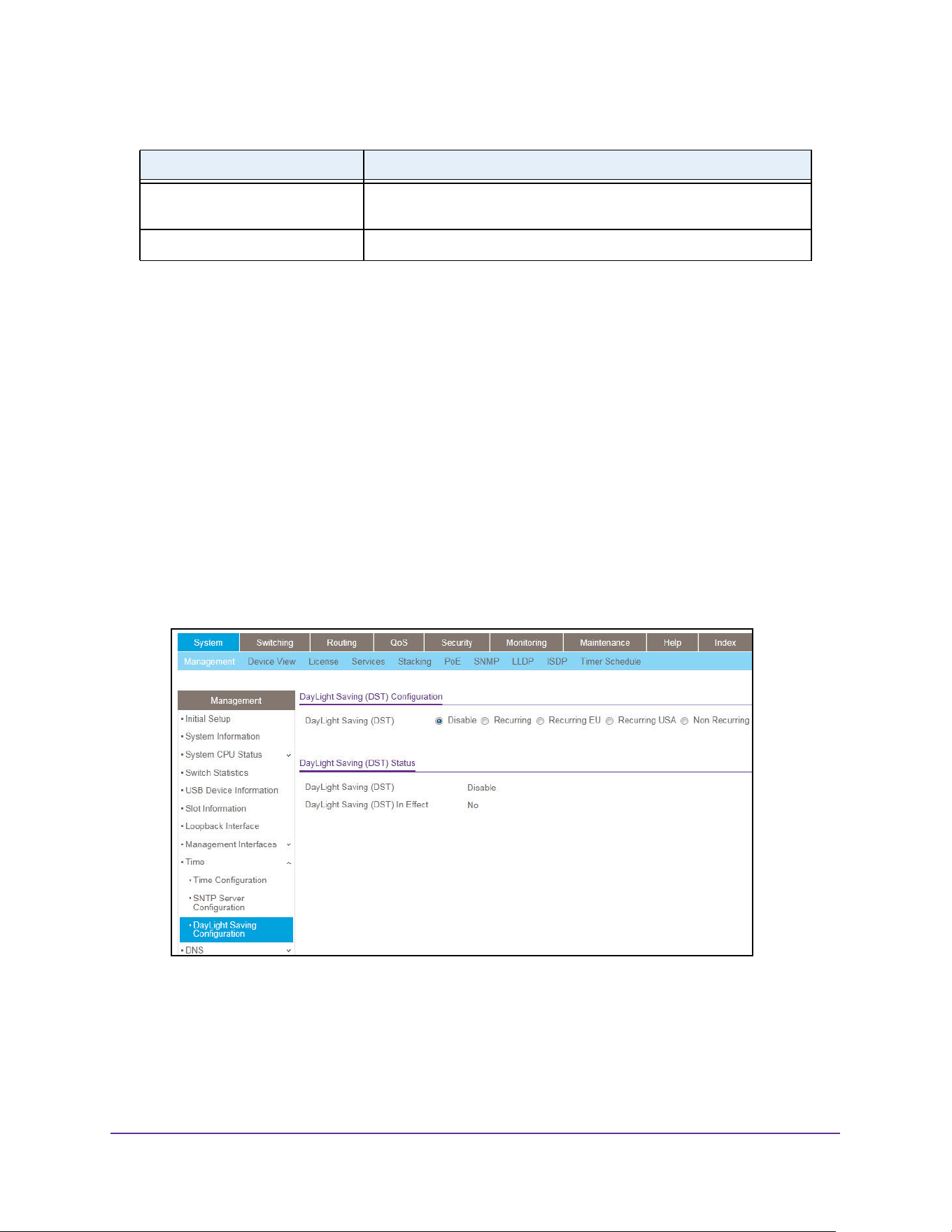
Configure System Information
69
M4200 and M4300 Series ProSAFE Managed Switches Web Management User Manual
View the DayLight Saving Time Status
To view the DayLight Saving Time status:
1. Launch a web browser.
2. Enter http://<ipaddress> in the web browser address field.
The login window opens.
3. Enter the user name and password.
The default admin user name is admin and the default admin password is blank, that is,
do not enter a password.
4. Click the Login button.
The System Information page displays.
5. Select System > Management > Time > DayLight Saving Configuration.
6. To refresh the page, click the Update button.
Offset Configure the non-recurring offset in minutes. The valid range is
1–1440 minutes.
Zone Configure the time zone.
Table 23. DayLight Saving - Non Recurring
Field Description

Configure System Information
70
M4200 and M4300 Series ProSAFE Managed Switches Web Management User Manual
The following table displays the nonconfigurable Daylight Saving (DST) status information.
Configure DNS Settings
You can configure information about DNS servers that the network uses and how the switch
operates as a DNS client.
Configure Global DNS Settings
You can configure global DNS settings and DNS server information.
To configure the global DNS settings:
1. Launch a web browser.
2. Enter http://<ipaddress> in the web browser address field.
The login window opens.
3. Enter the user name and password.
The default admin user name is admin and the default admin password is blank, that is,
do not enter a password.
4. Click the Login button.
The System Information page displays.
5. Select System > Management > DNS > DNS Configuration.
Table 24. DayLight Saving Status
Field Description
Daylight Saving (DST) The Daylight Saving value, which is one of the following:
• Disable
• Recurring
• Recurring EU
• Recurring USA
• Non Recurring
Begins At Displays when the daylight saving time begins. This field is not
displayed when daylight saving time is disabled.
Ends At Displays when the daylight saving time ends. This field is not displayed
when daylight saving time is disabled.
Offset (in Minutes) The offset value in minutes.This field is not displayed when daylight
saving time is disabled.
Zone The zone acronym. This field is not displayed when daylight saving
time is disabled.
Daylight Saving (DST) in Effect Displays whether daylight saving time is in effect.
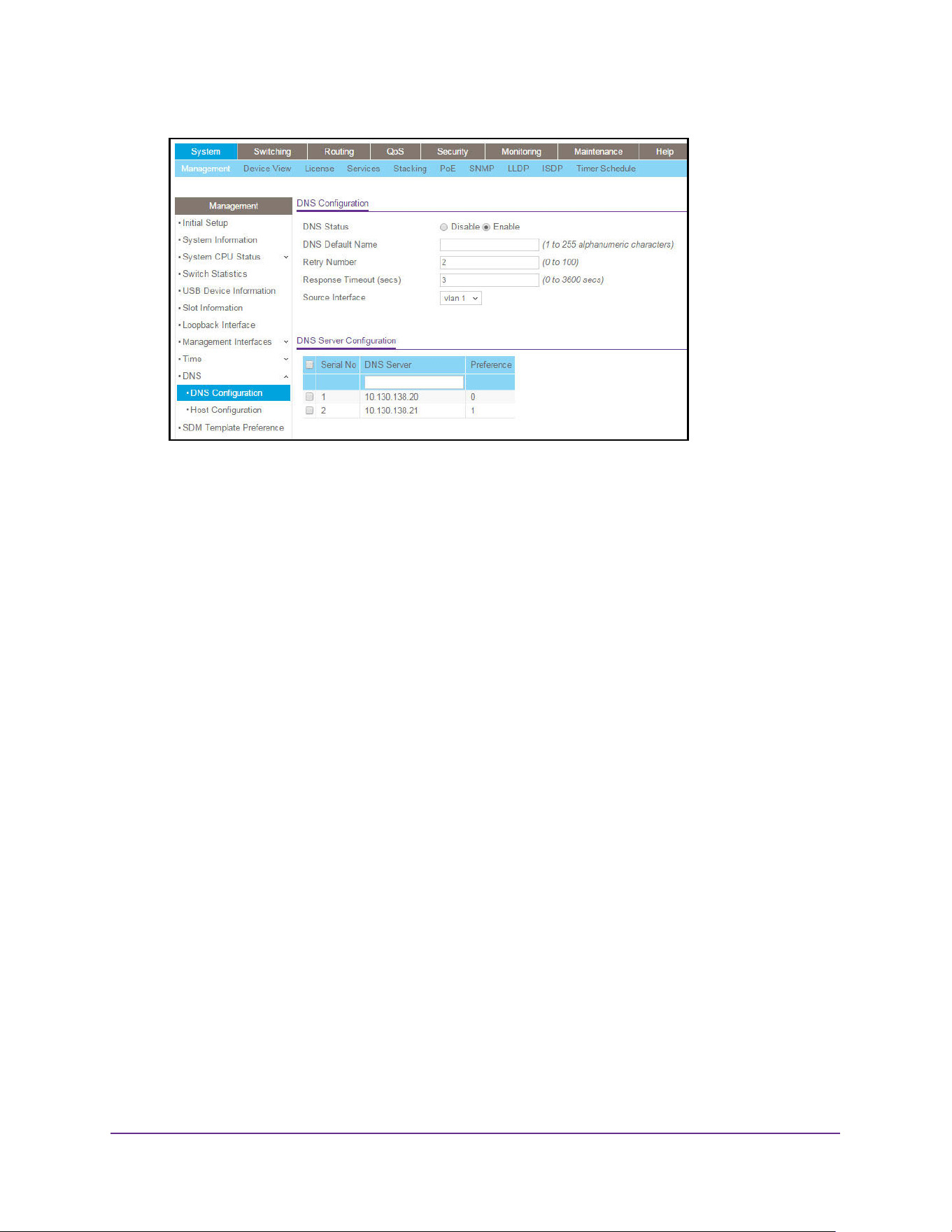
Configure System Information
71
M4200 and M4300 Series ProSAFE Managed Switches Web Management User Manual
6. Select the DNS Status Disable or Enable radio button:
• Enable. Allow the switch to send DNS queries to a DNS server to resolve a DNS
domain name. The default value is Enable.
• Disable. Prevent the switch from sending DNS queries.
7. Enter the DNS Default domain Name to include in DNS queries.
When the system is performing a lookup on an unqualified host name, this field is
provides the domain name (for example, if default domain name is netgear.com and the
user enters test, then test is changed to test.netgear.com to resolve the name). The
length of the name must not be longer than 255 characters.
8. Use Retry Number to specify the number of times to retry sending DNS queries to the DNS
server.
This number ranges from 0 to 100. The default value is 2.
9. Use Response Timeout (secs) to specify the amount of time, in seconds, to wait for a
response to a DNS query.
This time-out ranges from 0 to 3600. The default value is 3.
10. Specify the Source Interface to use for DNS.
Possible values are as follows:
• None
• VLAN 1
• Routing interface
• Routing VLAN
• Routing loopback interface
• Tunnel interface
• Service port
By default VLAN 1 is used as the source interface.
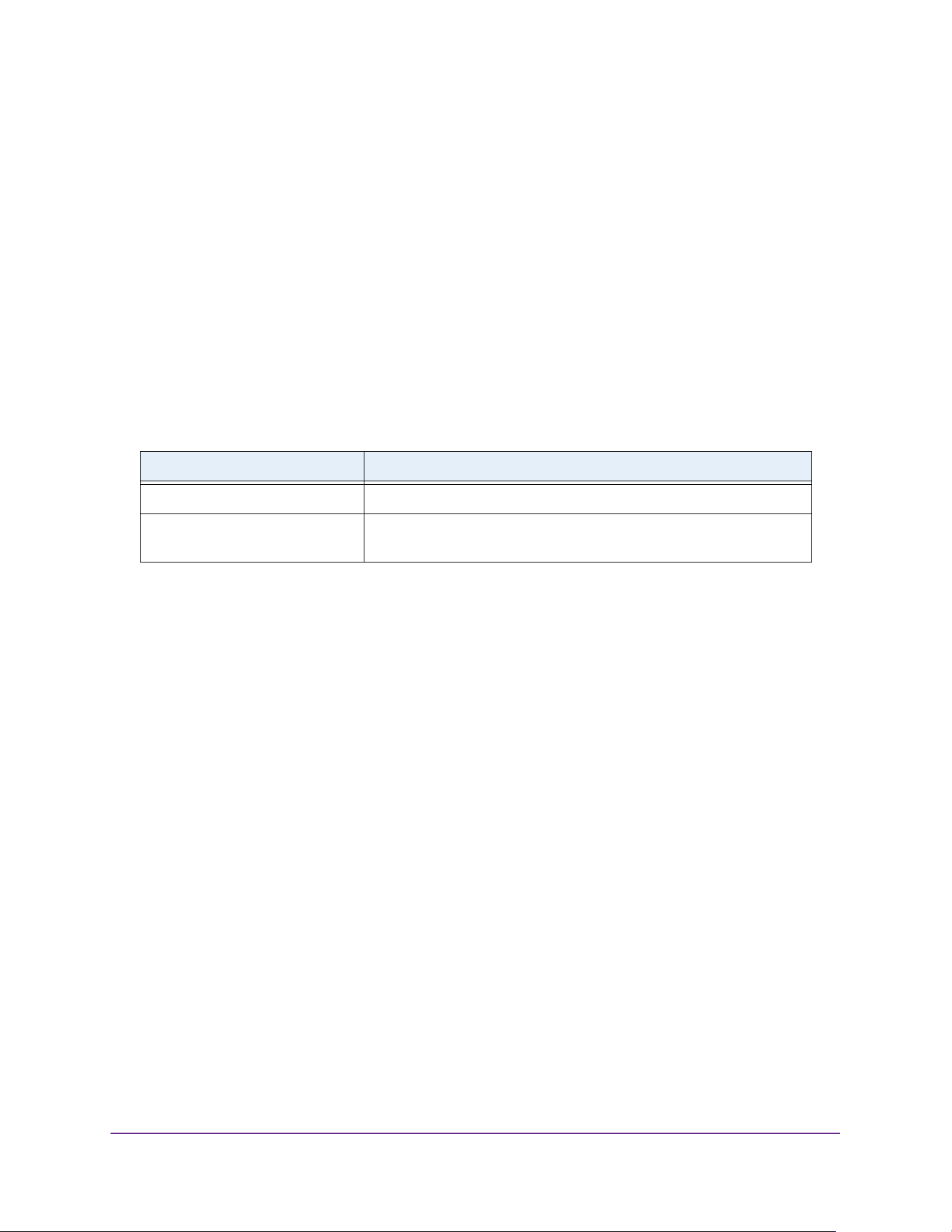
Configure System Information
72
M4200 and M4300 Series ProSAFE Managed Switches Web Management User Manual
11. To specify the DNS server to which the switch sends DNS queries, enter an IP address in
standard IPv4 dot notation in the DNS Server Address field and click the Add button.
The server appears in the list. You can specify up to eight DNS servers. The precedence
is set in the order created.
12. To remove a DNS server from the list, select its check box and click the Delete button.
If you click the Delete button without selecting a DNS server, all the DNS servers are
deleted.
13. Click the Apply button.
The updated configuration is sent to the switch. Configuration changes take effect
immediately.
The following table displays DNS Server Configuration information.
Add a Static Entry to the Local DNS Table
You can manually map host names to IP addresses or to view dynamic DNS mappings.
To add a static entry to the local DNS table:
1. Launch a web browser.
2. Enter http://<ipaddress> in the web browser address field.
The login window opens.
3. Enter the user name and password.
The default admin user name is admin and the default admin password is blank, that is,
do not enter a password.
4. Click the Login button.
The System Information page displays.
Table 25. DNS Server Configuration
Field Description
Serial No The sequence number of the DNS server.
Preference Shows the preference of the DNS server. The preference is determined
by the order in which they were entered.
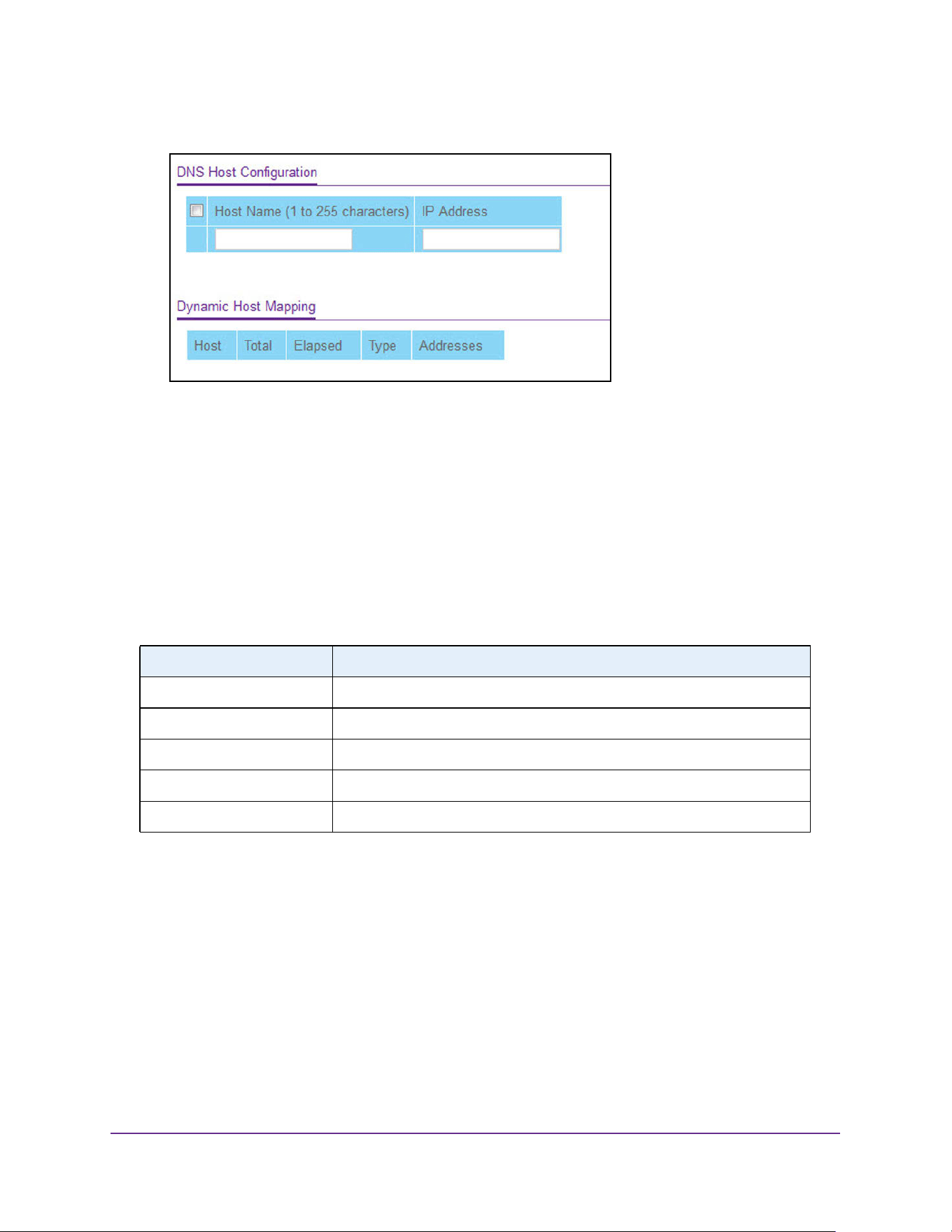
Configure System Information
73
M4200 and M4300 Series ProSAFE Managed Switches Web Management User Manual
5. Select System > Management > DNS > Host Configuration.
6. In the Host Name (1 to 255 characters) field, specify the static host name to add.
Its length cannot exceed 255 characters and it is a mandatory field.
7. In the IP Address field, enter the IP address in standard IPv4 dot notation to associate with
the host name.
8. Click the Add button.
The entry appears in the list on the page.
The Dynamic Host Mapping table shows host name-to-IP address entries that the switch
learned. The following table describes the dynamic host fields.
Configure the Switch Database Management Template
Preference
A Switch Database Management (SDM) template is a description of the maximum resources
a switch or router can use for various features. Different SDM templates allow different
combinations of scaling factors, enabling different allocations of resources depending on how
the device is used. In other words, SDM templates enable you to reallocate system
resources to support a different mix of features based on your network requirements.
Table 26. DNS Dynamic Host Mapping
Field Description
Host Lists the host name that you assign to the specified IP address.
Total Amount of time since the dynamic entry was first added to the table.
Elapsed Amount of time since the dynamic entry was last updated.
Type The type of the dynamic entry.
Addresses Lists the IP address associated with the host name.
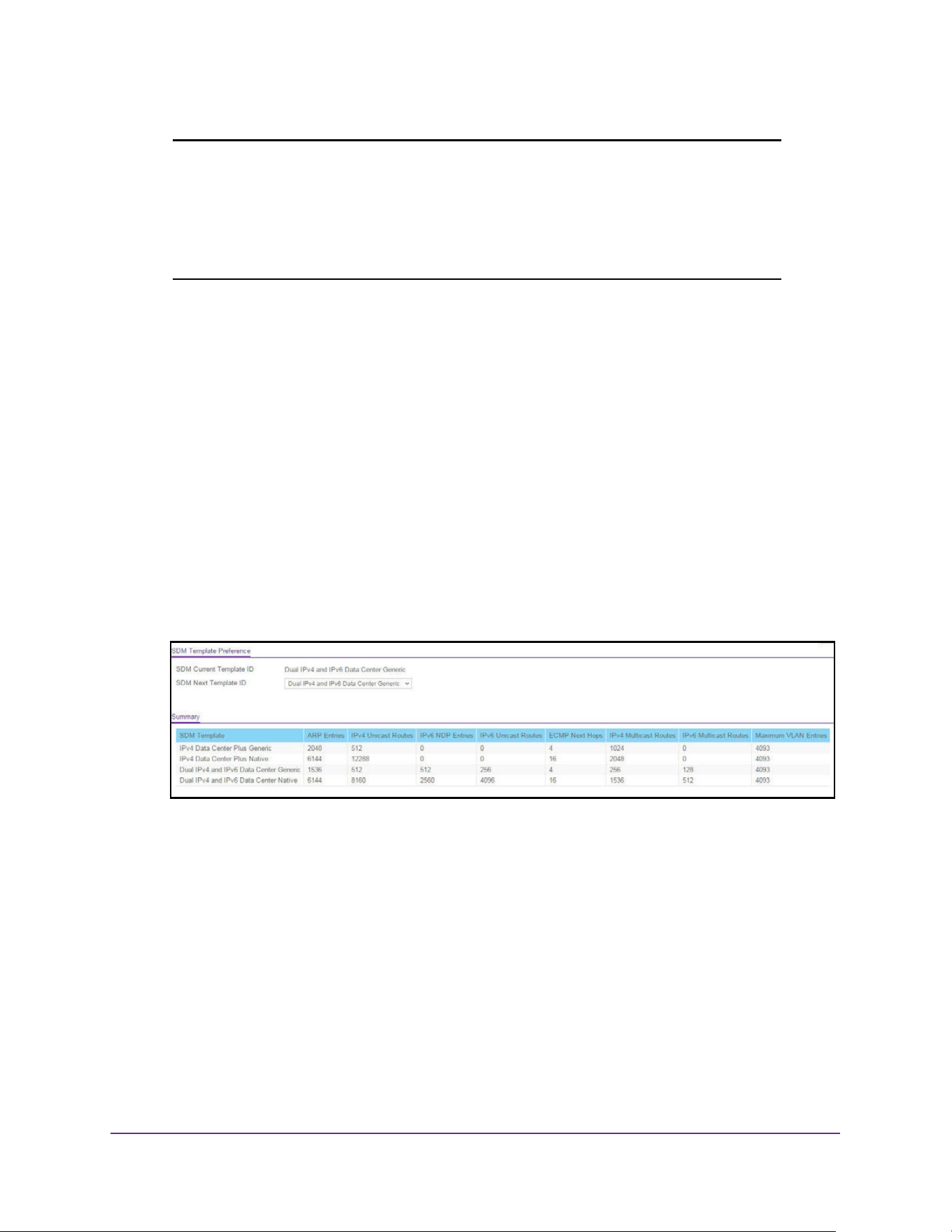
Configure System Information
74
M4200 and M4300 Series ProSAFE Managed Switches Web Management User Manual
Note: If you attach a unit to a stack and its template does not match the
stack’s template, then the new unit automatically reboots using the
template used by the other stacking members. To avoid the automatic
reboot, first set the template to the SDM template used by existing
members of the stack. Then power off the new unit, attach it to the
stack, and power it on.
You can configure SDM template preferences for the switch.
To configure the SDM Template Preference settings:
1. Launch a web browser.
2. Enter http://<ipaddress> in the web browser address field.
The login window opens.
3. Enter the user name and password.
The default admin user name is admin and the default admin password is blank, that is,
do not enter a password.
4. Click the Login button.
The System Information page displays.
5. Select System > Management > DNS > SDM Template Preference
6. Use SDM Next Template ID to configure the next active template.
It is active only after the next reboot. To revert to the default template after the next
reboot, use the Default option. Possible values are as follows:
• Default
• IPv4 Data Center Plus Generic
• Dual IPv4 and IPv6 Data Center Generic
• IPv4 Data Center Plus Native
• Dual IPv4 and IPv6 Data Center Native

Configure System Information
75
M4200 and M4300 Series ProSAFE Managed Switches Web Management User Manual
Note: The templates with the Native keyword are supported only on the
M4300-24X24F and M4300-48X stand-alone switches and on a
homogenous stack of M4300-24X24F and M4300-48X switches.
The following table displays Summary information.
Configure Green Ethernet Settings
To configure the Green Ethernet settings:
1. Launch a web browser.
2. Enter http://<ipaddress> in the web browser address field.
The login window opens.
3. Enter the user name and password.
The default admin user name is admin and the default admin password is blank, that is,
do not enter a password.
Table 27. SDM Template Preference Summary
Field Description
SDM Current Template ID The current active SDM template. Possible values are as follows:
• IPv4 Data Center Plus Generic
• IPv4 Data Center Plus Native
• Dual IPv4 and IPv6 Data Center Generic
• Dual IPv4 and IPv6 Data Center Native
SDM Template Identifies the template. The possible values are as follows:
• IPv4 Data Center Plus Generic
• IPv4 Data Center Plus Native
• Dual IPv4 and IPv6 Data Center Generic
• Dual IPv4 and IPv6 Data Center Native
ARP Entries The maximum number of entries in the IPv4 Address Resolution
Protocol (ARP) cache for routing interfaces.
IPv4 Unicast Routes The maximum number of IPv4 unicast forwarding table entries.
IPv6 NDP Entries The maximum number of IPv6 Neighbor Discovery Protocol (NDP)
cache entries.
IPv6 Unicast Routes The maximum number of IPv6 unicast forwarding table entries.
ECMP Next Hops The maximum number of next hops that can be installed in the IPv4
and IPv6 unicast forwarding tables.
IPv4 Multicast Routes The maximum number of IPv4 multicast forwarding table entries.
IPv6 Multicast Routes The maximum number of IPv6 multicast forwarding table entries.
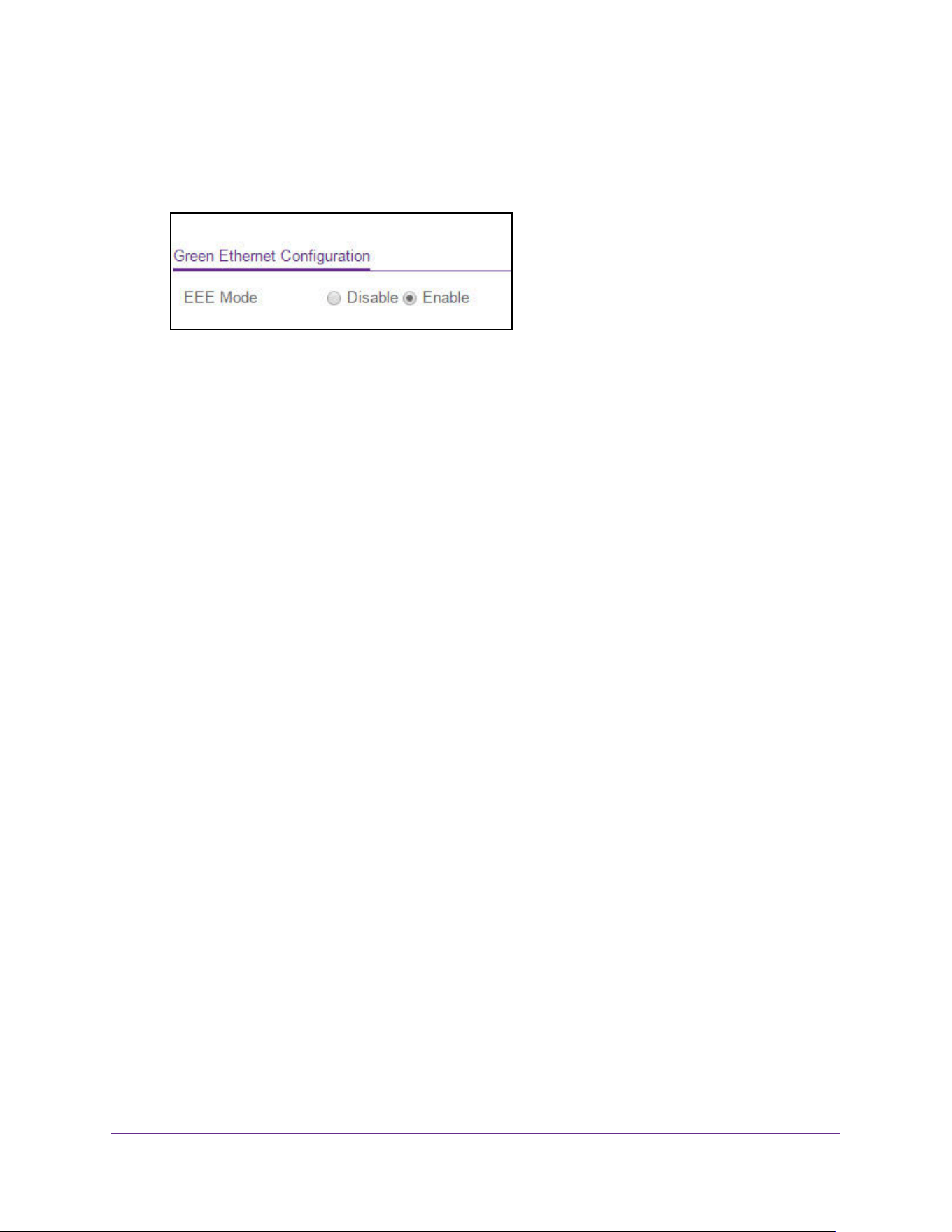
Configure System Information
76
M4200 and M4300 Series ProSAFE Managed Switches Web Management User Manual
4. Click the Login button.
The System Information page displays.
5. Select System > Management > Green Ethernet > Green Ethernet Configuration.
6. Select the EEE mode Disable or Enable radio button. The factory default is enable.
Energy Efficient Ethernet (EEE) combines the MAC with a family of PHYs that support
operation in a low power mode. It is defined by IEEE 802.3az Energy Efficient Task
Force. Lower power mode enables both the send and receive sides of the link to disable
some functionality for power savings when lightly loaded. Transition to low power mode
does not change the link status. Frames in transit are not dropped or corrupted in
transition to and from low power mode. Transition time is transparent to upper layer
protocols and applications.
7. Click the Apply button.
The updated configuration is sent to the switch. Configuration changes take effect
immediately.
Configure Green Ethernet Interface Settings
To configure the Green Ethernet interface settings:
1. Launch a web browser.
2. Enter http://<ipaddress> in the web browser address field.
The login window opens.
3. Enter the user name and password.
The default admin user name is admin and the default admin password is blank, that is,
do not enter a password.
4. Click the Login button.
The System Information page displays.
5. Select System > Management > Green Ethernet > Green Ethernet Interface
Configuration.
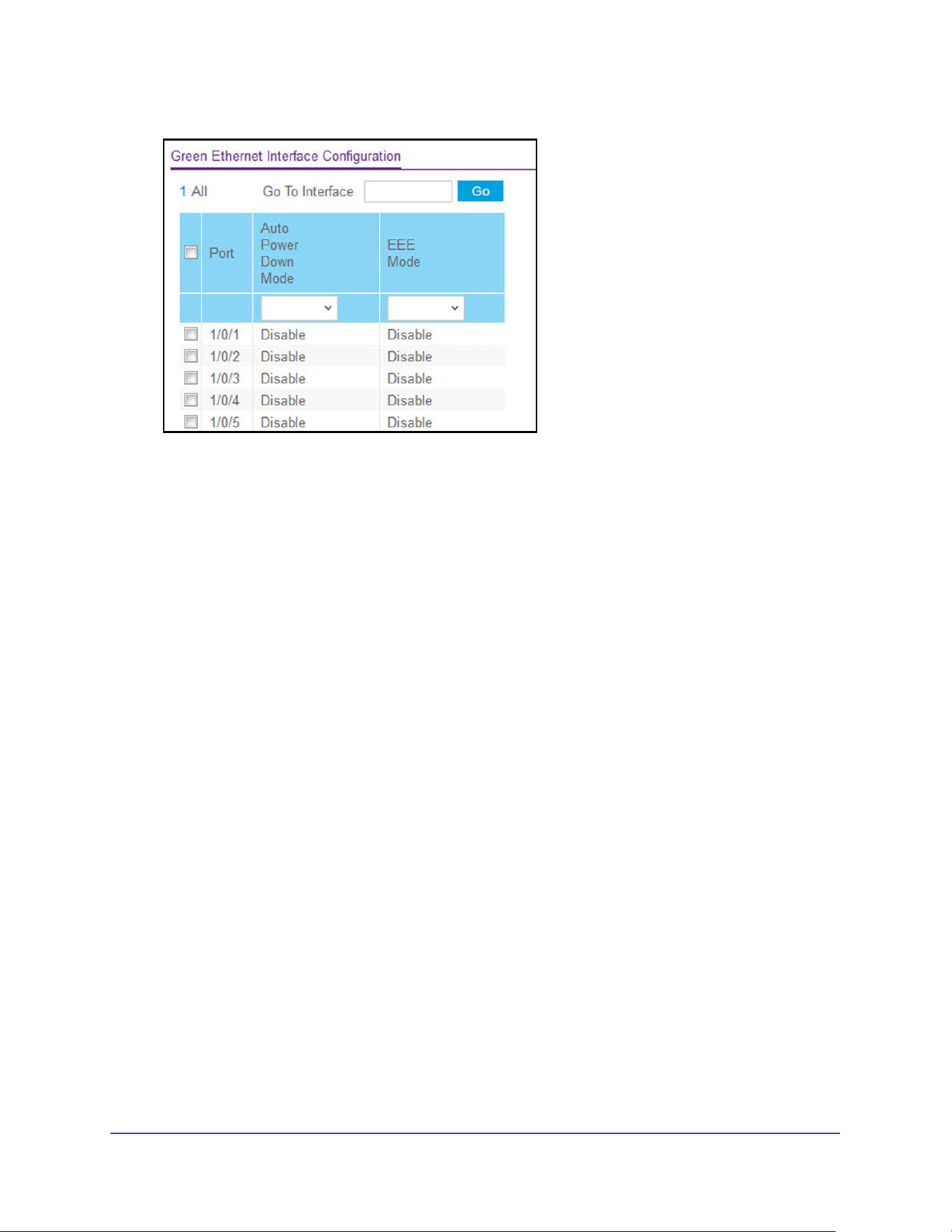
Configure System Information
77
M4200 and M4300 Series ProSAFE Managed Switches Web Management User Manual
6. Use one of the following methods to select an interface:
• In the Go To Interface field, enter the interface in the unit/slot/port format and click on
the Go button.
• Next to the Interface column, select the check box for the interface that you want to
configure
7. Use the Auto Power Down mode selection to enable or disable this option.
The factory default is Enable. When the port link is down, the PHY automatically goes
down for a short period of time, and then wakes up to check link pulses. This allows the
switch to perform autonegotiation and save power consumption when no link partner is
present.
8. Use the EEE mode menu to Enable or Disable this option.
The factory default is Disable. IF the EEE mode is not supported, then N/A is displayed.
9. Click the Apply button.
The updated configuration is sent to the switch. Configuration changes take effect
immediately.
Configure Green Ethernet Local and Remote Devices
To configure green Ethernet local and remote devices:
1. Launch a web browser.
2. Enter http://<ipaddress> in the web browser address field.
The login window opens.
3. Enter the user name and password.
The default admin user name is admin and the default admin password is blank, that is,
do not enter a password.
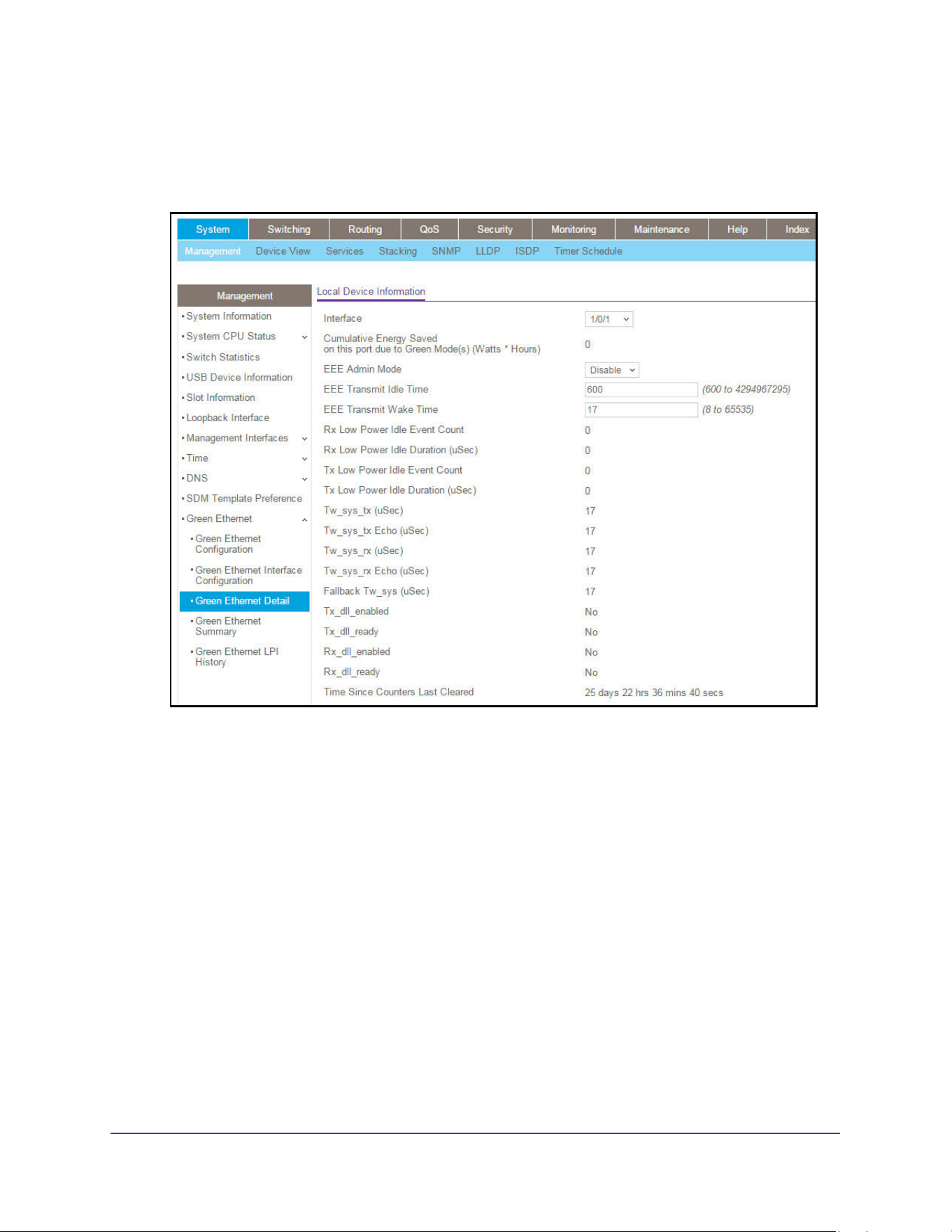
Configure System Information
78
M4200 and M4300 Series ProSAFE Managed Switches Web Management User Manual
4. Click the Login button.
The System Information page displays.
5. Select System
Management Green Ethernet Green Ethernet Details.
6. From the Interface menu, select the interface.
7. Use the EEE Admin Mode selection to enable or disable Energy Efficient Ethernet Admin
Mode on the port. With EEE mode enabled, the port transitions to low power mode during a
link idle condition. The default value is Disabled. If EEE Admin Mode is not supported, then
N/A is displayed.
8. In the EEE Transmit Wake Time field, enter the time for which MAC/switch must wait to go
back to active state from LPI state when it receives a packet for transmission. The range is
8 to 65535. The default value is 17.
9. Click the Apply button.
The updated configuration is sent to the switch. Configuration changes take effect
immediately.

Configure System Information
79
M4200 and M4300 Series ProSAFE Managed Switches Web Management User Manual
The following table describes the nonconfigurable fields.
Table 28. Green Ethernet Local Device information
Field Description
Cumulative Energy Saved on this
port due to Green mode(s) (Watts
* Hours)
Cumulative energy saved due to all green modes enabled on this port
in (Watts * Hours).
Rx Low Power Idle Event Count This field is incremented each time MAC RX enters low-power idle
(LPI) state. Shows the total number of Rx LPI events since EEE
counters were last cleared.
Rx Low Power Idle Duration
(uSec)
This field indicates duration of Rx LPI state in 10 us increments. Shows
the total duration of Rx LPI since the EEE counters were last cleared.
Tx Low Power Idle Event Count This field is incremented each time MAC TX enters LPI state. Shows
the total number of Tx LPI events since EEE counters were last
cleared.
Tx Low Power Idle Duration
(uSec)
This field indicates duration of Tx LPI state in 10 us increments. Shows
the total duration of Tx LPI since the EEE counters were last cleared.
Tw_sys_tx (uSec) Integer that indicates the value of Tw_sys that the local system can
support.
Tw_sys_tx Echo (uSec) Integer that indicates the remote system's Transmit Tw_sys that was
used by the local system to compute the Tw_sys that it wants to
request from the remote system.
Tw_sys_rx (uSec) Integer that indicates the value of Tw_sys that the local system
requests from the remote system.
Tw_sys_rx Echo (uSec) Integer that indicates the remote system’s Receive Tw_sys that was
used by the local system to compute the Tw_sys that it can support.
Fallback Tw_sys (uSec) Integer that indicates the value of fallback Tw_sys that the local system
requests from the remote system.
Tx_dll_enabled Data Link Layer Enabled: Initialization status of the EEE transmit Data
Link Layer management function on the local system.
Tx_dll_ready Data Link Layer ready: This variable indicates that the tx system
initialization is complete and is ready to update/receive LLDPDU
containing EEE TLV.
Rx_dll_enabled Status of the EEE capability negotiation on the local system.
Rx_dll_ready Data Link Layer ready: This variable indicates that the rx system
initialization is complete and is ready to update/receive LLDPDU
containing EEE TLV.
Time Since Counters Last Cleared Time Since Counters Last Cleared (since the time of power up, or after
EEE counters are cleared).
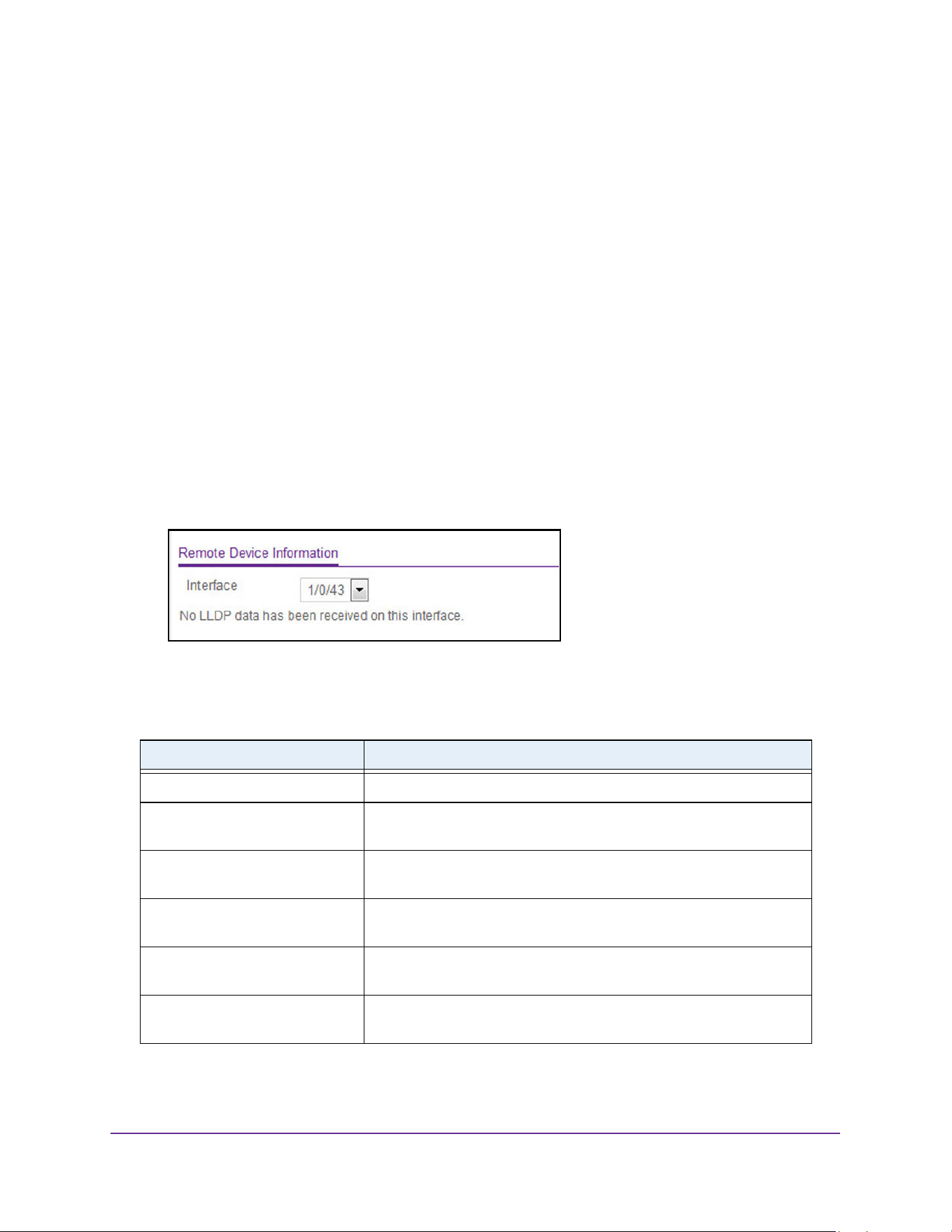
Configure System Information
80
M4200 and M4300 Series ProSAFE Managed Switches Web Management User Manual
Configure Green Ethernet Remote Device Details
To configure the Green Ethernet remote device information:
1. Launch a web browser.
2. Enter http://<ipaddress> in the web browser address field.
The login window opens.
3. Enter the user name and password.
The default admin user name is admin and the default admin password is blank, that is,
do not enter a password.
4. Click the Login button.
The System Information page displays.
5. Select System
Management Green Ethernet Green Ethernet Details.
The Green Ethernet Details page displays.
6. Scroll down to the Remote Device Information section.
7. Select the Interface.
The following table describes the nonconfigurable fields.
Table 29. Green Ethernet Remote Device Information
Field Description
Remote ID The remote client identifier assigned to the remote system.
Remote Tw_sys_tx (uSec) Integer that indicates the value of Tw_sys that the remote system can
support.
Remote Tw_sys_tx Echo (uSec) Integer that indicates the value of Transmit Tw_sys echoed back by the
remote system.
Remote Tw_sys_rx (uSec) Integer that indicates the value of Tw_sys that the remote system
requests from the local system.
Remote Tw_sys_rx Echo (uSec) Integer that indicates the value of Receive Tw_sys echoed back by the
remote system.
Remote Fallback Tw_sys (uSec) Integer that indicates the value of fallback Tw_sys that the remote
system is advertising.
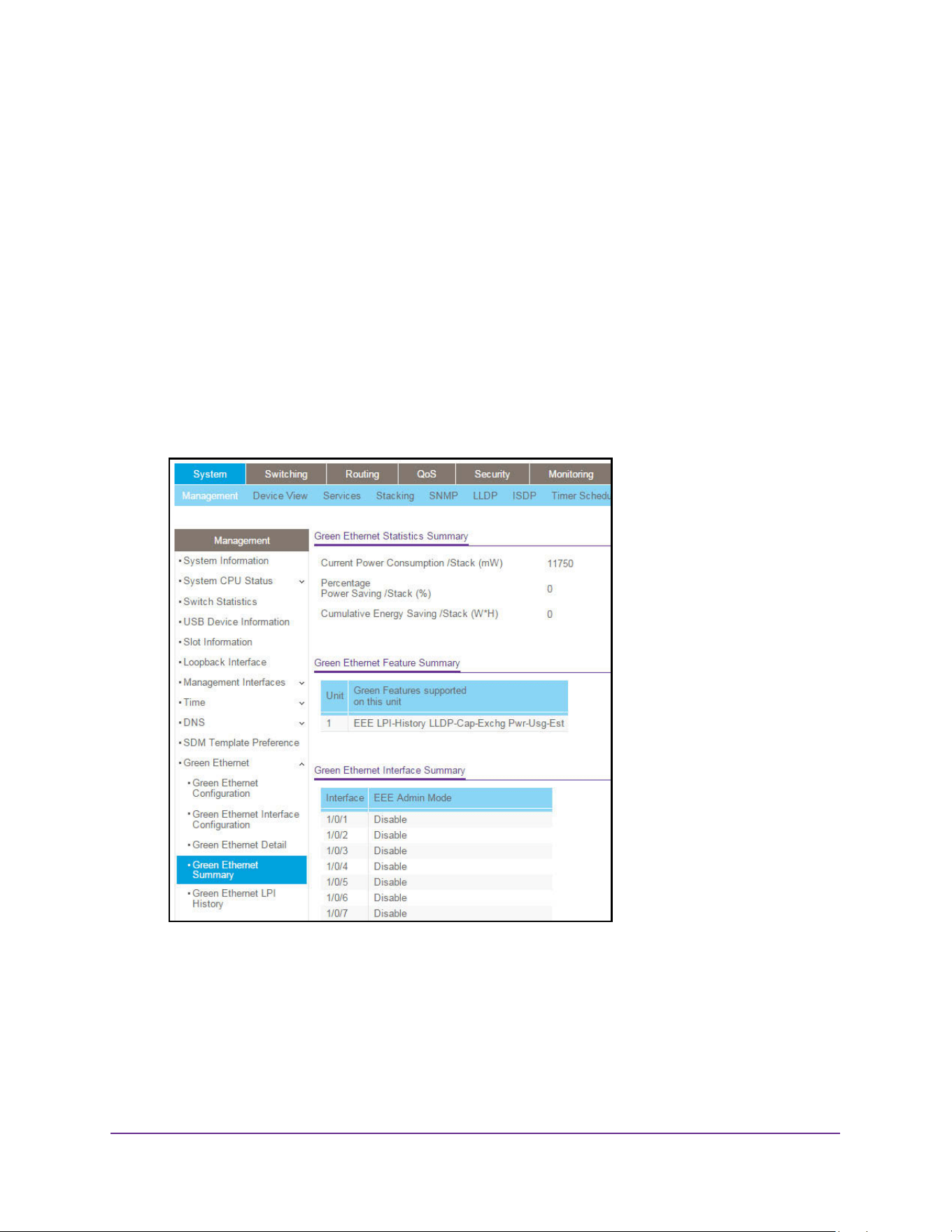
Configure System Information
81
M4200 and M4300 Series ProSAFE Managed Switches Web Management User Manual
View the Green Ethernet Statistics Summary
To view the green Ethernet statistics:
1. Launch a web browser.
2. Enter http://<ipaddress> in the web browser address field.
The login window opens.
3. Enter the user name and password.
The default admin user name is admin and the default admin password is blank, that is,
do not enter a password.
4. Click the Login button.
The System Information page displays.
5. Select System
Management Green Ethernet Green Ethernet Summary.
6. To refresh the page, click the Update button.
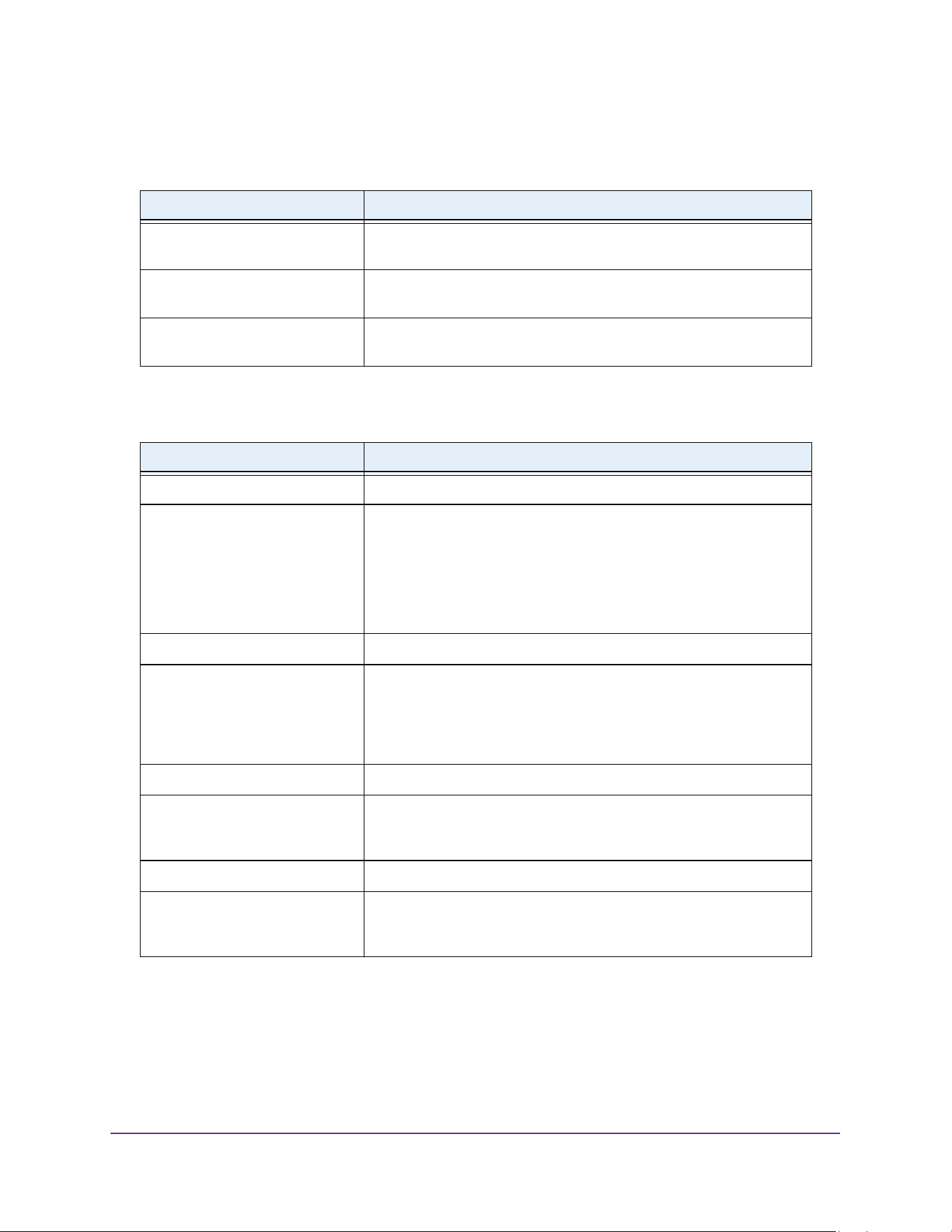
Configure System Information
82
M4200 and M4300 Series ProSAFE Managed Switches Web Management User Manual
The following table describes the nonconfigurable fields.
The following table describes the nonconfigurable fields.
Table 30. Green Ethernet Statistics Summary
Field Description
Current Power Consumption
/Stack (mWatts)
Power Consumption by all ports in switch in mWatts (mW).
Percentage Power Saving /Stack
(%)
Percentage of power saved on all ports in switch when Green mode is
enabled.
Cumulative Energy Saving /Stack
(Watts * Hours)
Cumulative energy saved per switch in (watts * hour) when all green
modes are enabled.
Table 31. Green Ethernet Feature Summary
Field Description
Unit The Unit ID.
Green Features supported on this
unit
List of green features supported on the given unit, which could be one
or more of the following:
• EEE (Energy Efficient Ethernet)
• LPI-History (EEE Low Power Idle History)
• LLDP-Cap-Exchg (EEE LLDP Capability Exchange)
• Pwr-Usg-Est (Power Usage Estimates).
Interface Interface for which data is displayed or configured.
Energy Detect Admin mode Enable or disable Energy Detect mode on the port. When this mode is
enabled, when the port link is down, the PHY automatically goes down
for a short period of time, then wakes up to check link pulses. This
allows the switch to perform autonegotiation and save power
consumption when no link partner is present.
Energy Detect Operational Status Current operational status of the Energy Detect mode.
Short Reach Admin mode Enable or disable Short Reach Admin mode on the port. With Short
Reach mode enabled, PHY is forced to operate in low power mode
irrespective of the cable length.
Short Reach Operational Status Current operational status of the Short Reach mode.
EEE Admin mode Enable or disable Energy Efficient Ethernet mode on the port. With
EEE mode enabled, the port transitions to low power mode during link
idle conditions.
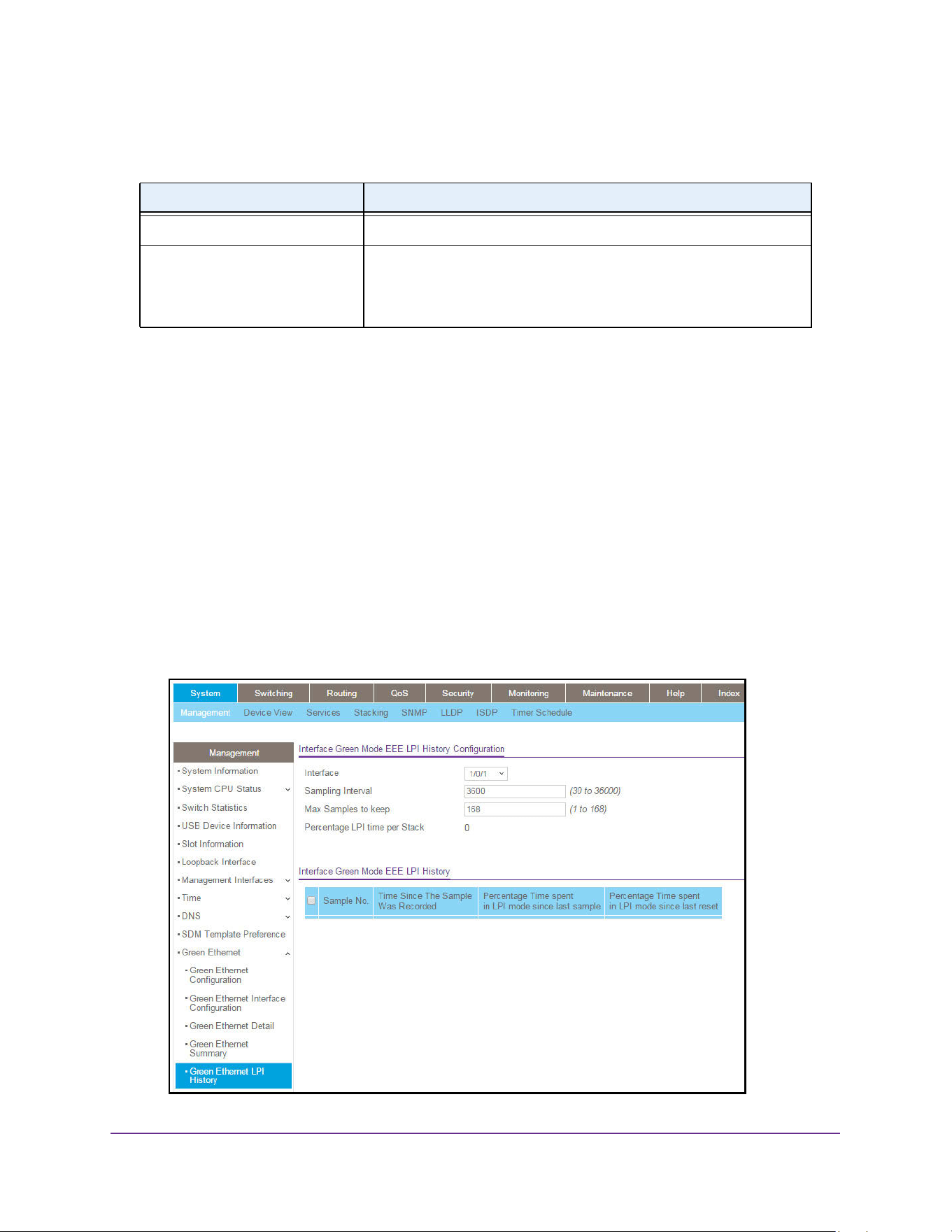
Configure System Information
83
M4200 and M4300 Series ProSAFE Managed Switches Web Management User Manual
The following table describes the nonconfigurable fields.
Configure the Green Ethernet EEE LPI History
To configure the port Green Mode EEE history:
1. Launch a web browser.
2. Enter http://<ipaddress> in the web browser address field.
The login window opens.
3. Enter the user name and password.
The default admin user name is admin and the default admin password is blank, that is,
do not enter a password.
4. Click the Login button.
The System Information page displays.
5. Select System
Management Green Ethernet Green Ethernet LPI History.
Table 32. Green Ethernet Interface Summary
Field Description
Interface Interface for which data is displayed or configured.
EEE Admin mode Enable or disable Energy Efficient Ethernet mode on the port. When
EEE mode is enabled, the port transitions to Low Power mode during
Link Idle condition. If EEE Admin Mode is not supported, then N/A is
displayed.
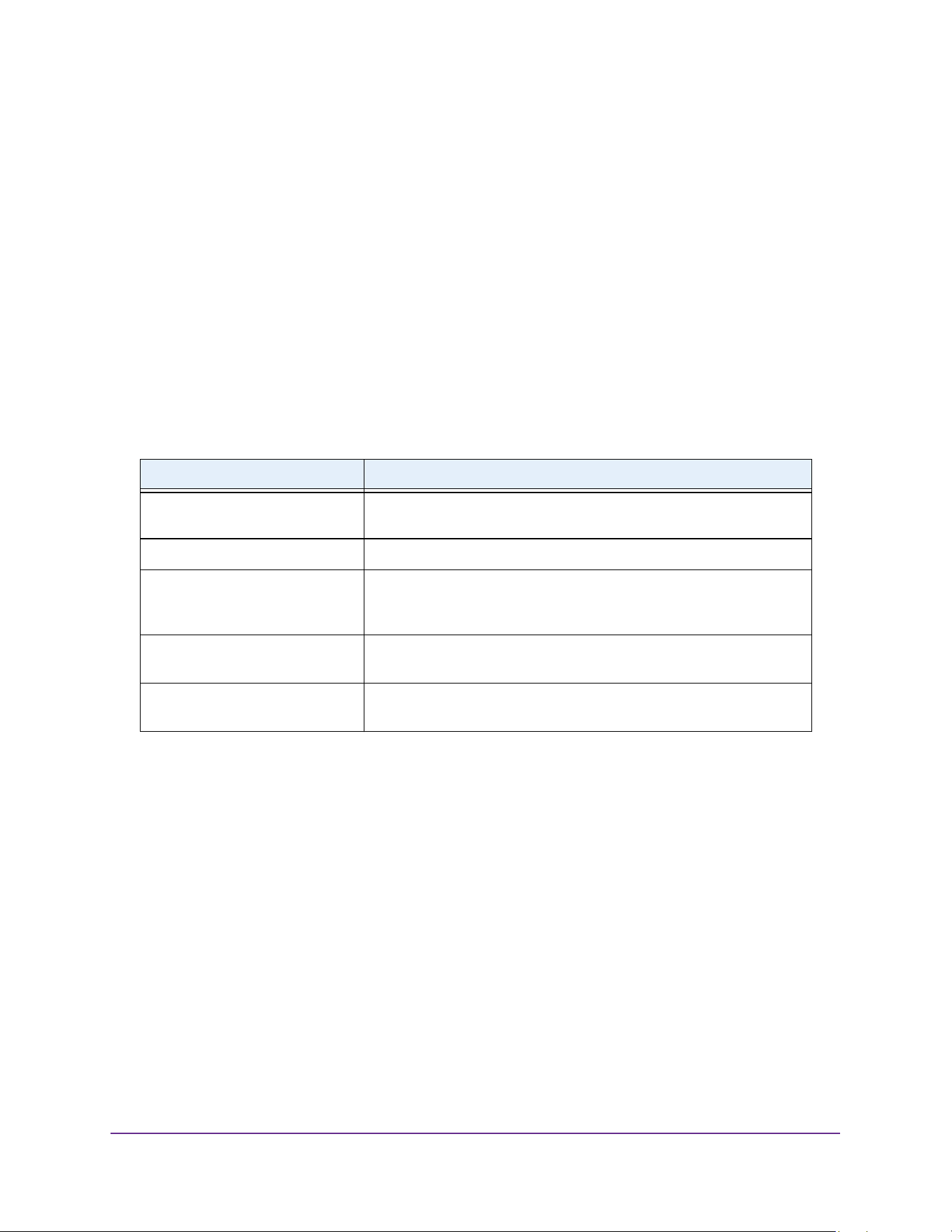
Configure System Information
84
M4200 and M4300 Series ProSAFE Managed Switches Web Management User Manual
6. Select the Interface.
7. In the Sampling Interval field, enter the interval at which EEE LPI data is collected.
This is a global setting and is applied to all interfaces. The range is 30 to 36000.The
default value is 3600.
8. In the Max Samples To Keep field, enter the maximum number of samples to keep.
This is a global setting and is applied to all interfaces. The range is 1 to 168.The default
value is 168.
9. Click the Apply button.
The updated configuration is sent to the switch. Configuration changes take effect
immediately.
The following table describes the nonconfigurable fields.
Configure DHCP Server Settings
You can configure settings for DHCP server, DHCP pools, DHCP bindings, and DHCP relay.
You can also view DHCP statistics and conflicts.
Configure DHCP Server
To configure a DHCP server:
1. Launch a web browser.
2. Enter http://<ipaddress> in the web browser address field.
The login window opens.
3. Enter the user name and password.
Table 33. Interface Green mode EEE LPI History
Field Description
Percentage LPI time per switch Time spent in LPI mode per switch since EEE counters were last
cleared.
Sample No. Sample index.
Time Since The Sample Was
Recorded
Each time the page is refreshed, it shows a different time as it reflects
the difference in current time and time at which the sample was
recorded.
Percentage Time spent in LPI
mode since last sample
Percentage of time spent in LPI mode during the current measurement
interval.
Percentage Time spent in LPI
mode since last reset
Percentage of time spent in LPI mode since EEE LPI statistics were
reset.
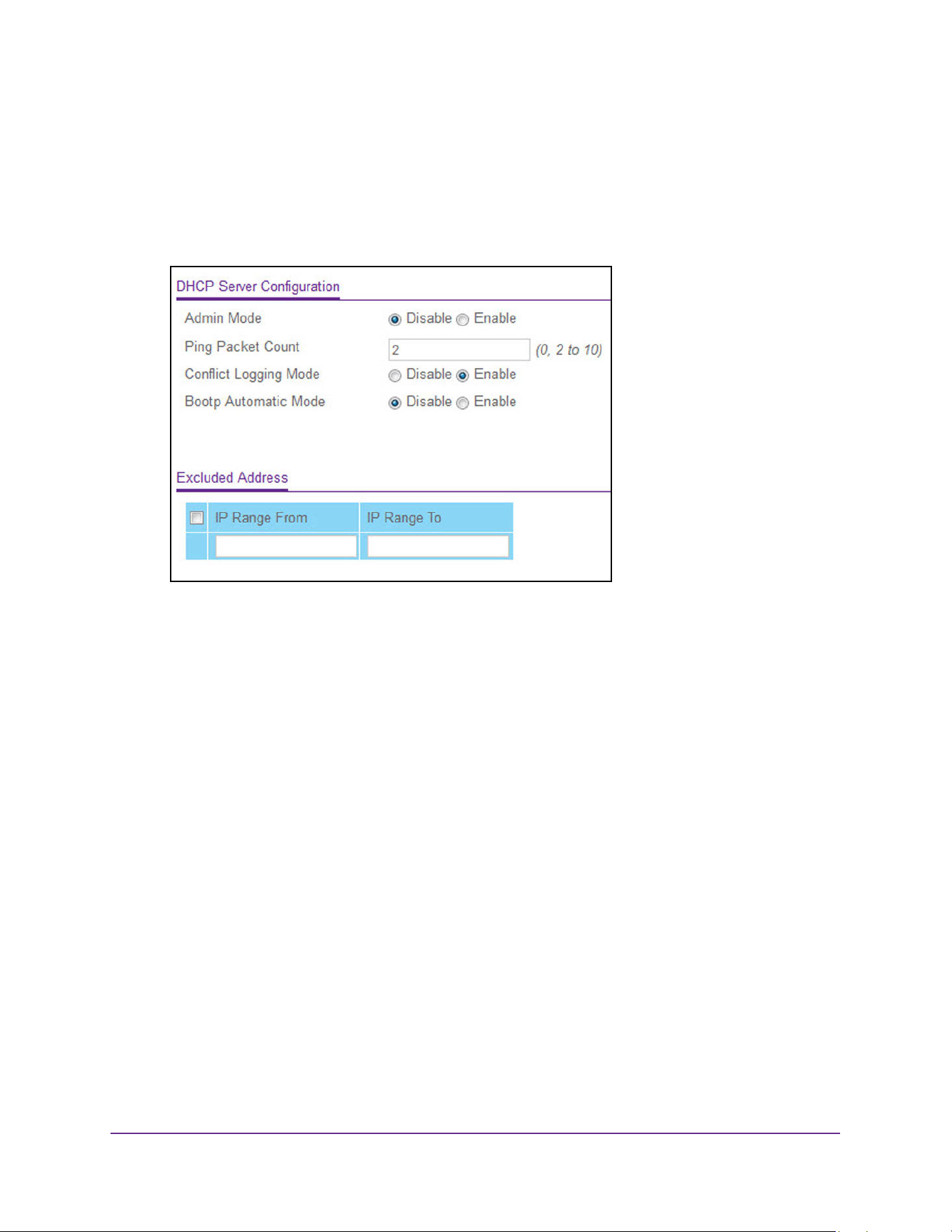
Configure System Information
85
M4200 and M4300 Series ProSAFE Managed Switches Web Management User Manual
The default admin user name is admin and the default admin password is blank, that is,
do not enter a password.
4. Click the Login button.
The System Information page displays.
5. Select System > Services > DHCP Server > DHCP Server Configuration.
6. Select the Admin Mode Disable or Enable radio button.
This specifies whether the DHCP service is enabled or disabled. The default value is
Disable.
7. Use Ping Packet Count to specify the number of packets a server sends to a pool address
to check for duplication as part of a ping operation.
The default value is 2. Valid range is 0, 2 to 10. Setting the value to 0 disables the
function.
8. Select the Conflict Logging mode Disable or Enable radio button.
This specifies whether conflict logging on a DHCP server is to be enabled or disabled.
The default value is Enable.
9. Select the BootP Automatic mode Disable or Enable radio button.
This specifies whether BootP for dynamic pools is to be enabled or disabled. The default
value is Disable.
10. To exclude addresses, do the following:
a. In the IP Range From field, enter the lowest address in the range or a single address
to be excluded.
b. In the IP Range To field, to exclude a range, enter the highest address in the range.
To exclude a single address, enter the same IP address as specified in the IP
Range From field, or leave it as 0.0.0.0.
11. Click the Add button.
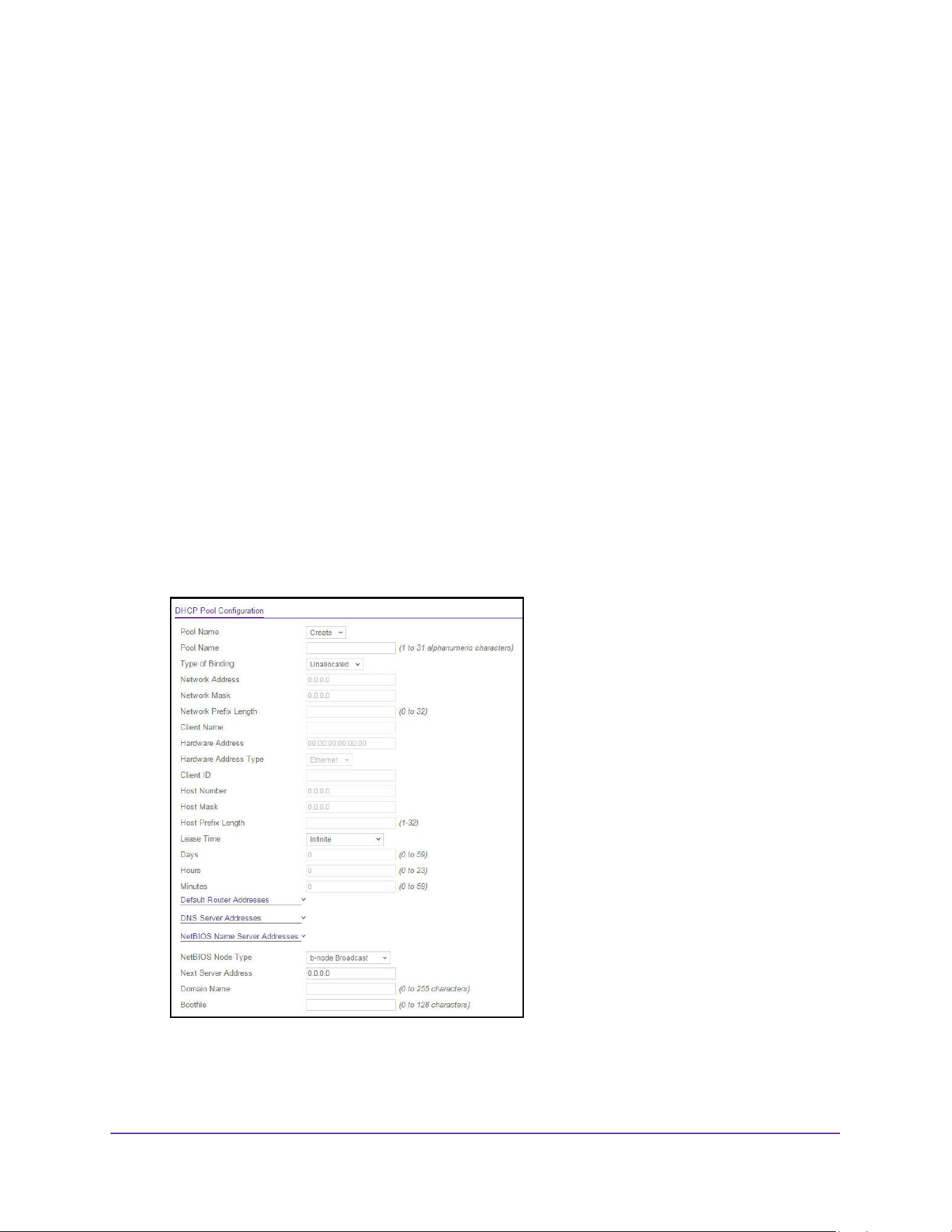
Configure System Information
86
M4200 and M4300 Series ProSAFE Managed Switches Web Management User Manual
The exclude addresses are added to the switch
12. Click the Apply button.
The updated configuration is sent to the switch. Configuration changes take effect
immediately.
Configure the DHCP Pool
To configure the DHCP pool:
1. Launch a web browser.
2. Enter http://<ipaddress> in the web browser address field.
The login window opens.
3. Enter the user name and password.
The default admin user name is admin and the default admin password is blank, that is,
do not enter a password.
4. Click the Login button.
The System Information page displays.
5. Select System > Services > DHCP Server > DHCP Pool Configuration.
6. Click the Add button.
The pool configuration is added.

Configure System Information
87
M4200 and M4300 Series ProSAFE Managed Switches Web Management User Manual
7. Click the Apply button.
The updated configuration is sent to the switch. Configuration changes take effect
immediately.
The following table describes the DHCP Pool Configuration fields.
Table 34. DHCP Pool Configuration
Field Description
Pool Name* For a user with read/write permission, this field shows names of all the
existing pools along with an additional option Create. When the user
selects Create, another text box Pool Name, appears where the user
can enter a name for the pool to be created. For a user with read-only
permission, this field shows names of the existing pools only.
Pool Name The name of the pool to be created. This field appears when the user
with read-write permission selects Create in the Pool Name list*. Pool
Name can be up to 31 characters in length.
Type of Binding The type of binding for the pool:
• Unallocated
• Dynamic
• Manual
Network Address The subnet address for a DHCP address of a dynamic pool.
Network Mask The subnet number for a DHCP address of a dynamic pool. Either
Network Mask or Prefix Length can be configured to specify the
subnet mask but not both.
Network Prefix Length The subnet number for a DHCP address of a dynamic pool. Either
Network Mask or Prefix Length can be configured to specify the
subnet mask but not both. The valid range is 0 to 32.
Client Name The client name for DHCP manual pool.
Hardware Address The MAC address of the hardware platform of the DHCP client.
Hardware Address Type The protocol of the hardware platform of the DHCP client. Valid types
are Ethernet and ieee802. The default value is Ethernet.
Client ID The client identifier for DHCP manual pool.
Host Number The IP address for a manual binding to a DHCP client. The host can be
set only if f Client Identifier or Hardware Address is specified. Deleting
Host would delete the client name, client ID, and hardware address for
the manual pool, and set the pool type to Unallocated.
Host Mask The subnet mask for a manual binding to a DHCP client. Either Host
Mask or Prefix Length can be configured to specify the subnet mask
but not both.
Host Prefix Length The subnet mask for a manual binding to a DHCP client. Either Host
Mask or Prefix Length can be configured to specify the subnet mask
but not both. The valid range is 0 to 32.

Configure System Information
88
M4200 and M4300 Series ProSAFE Managed Switches Web Management User Manual
Configure DHCP Pool Options
To configure DHCP Pool options:
1. Launch a web browser.
2. Enter http://<ipaddress> in the web browser address field.
Lease Time Can be selected as Infinite to specify lease time as Infinite or
Specified Duration to enter a specific lease period. In case of dynamic
binding infinite implies a lease period of 60 days and In case of manual
binding infinite implies indefinite lease period. The default value is
Specified Duration.
Days The number of days of the lease period. This field appears only if the
user specified Specified Duration as the Lease time. The default
value is 1. The valid range is 0 to 59.
Hours The number of hours of the lease period. This field appears only if the
user specified Specified Duration as the Lease time. The valid range
is 0 to 22.
Minutes The number of minutes of the lease period. This field appears only if
you specified Specified Duration as the lease time. The valid range is
0 to 86399.
Default Router Addresses The list of Default Router Addresses for the pool. Click the arrow
beside the field name to expand the page and display a table where
you can specify up to eight default router addresses in order of
preference.
DNS Server Addresses The list of DNS Server Addresses for the pool. Click the arrow beside
the field name to expand the page and display a table where you can
specify up to eight DNS Server Addresses in order of preference.
NetBIOS Name Server Addresses The list of NetBIOS Name Server Addresses for the pool. Click the
arrow beside the field name to expand the page and display a table
where you can specify up to eight NetBIOS name server addresses in
order of preference.
NetBIOS Node Type The NetBIOS node type for DHCP clients:
• b-node Broadcast
• p-node Peer-to-Peer
• m-node Mixed
• h-node Hybrid
Next Server Address The Next Server Address for the pool.
Domain Name The domain name for a DHCP client. Domain Name can be up to 255
characters in length.
Bootfile The name of the default boot image for a DHCP client. File Name can
be up to 128 characters in length.
Table 34. DHCP Pool Configuration (continued)
Field Description
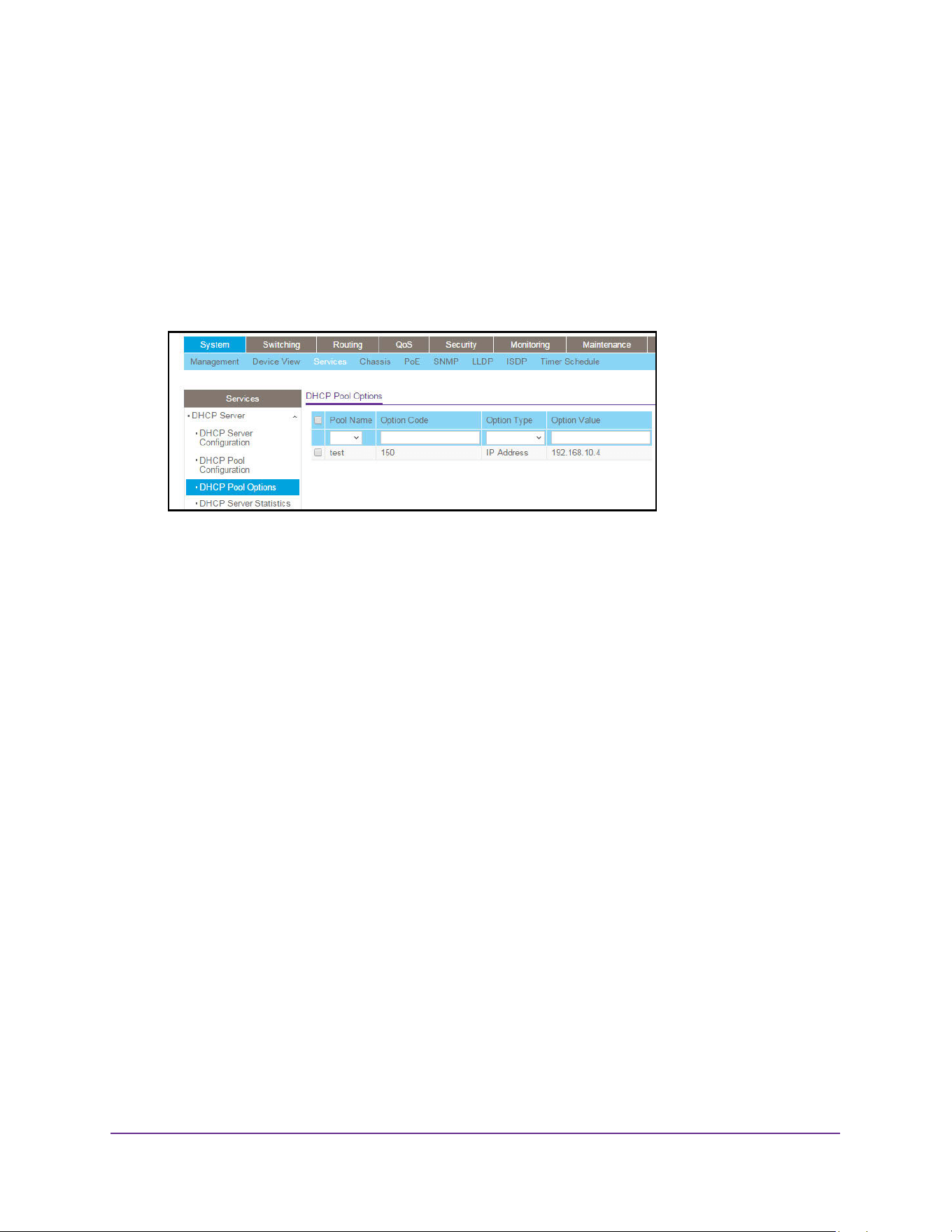
Configure System Information
89
M4200 and M4300 Series ProSAFE Managed Switches Web Management User Manual
The login window opens.
3. Enter the user name and password.
The default admin user name is admin and the default admin password is blank, that is,
do not enter a password.
4. Click the Login button.
The System Information page displays.
5. Select System > Services > DHCP Server> DHCP Pool Options.
6. In Pool Name list, select the pool name.
7. Option Code specifies the Option Code configured for the selected Pool.
8. Use Option Type to specify the Option Type against the Option Code configured for the
selected pool:
• ASCII
• Hex
• IP Address
9. Option Value specifies the value against the Option Code configured for the selected pool.
10. Click the Add button.
The Option Code is added for the selected pool.
View DHCP Server Statistics
To view the DHCP server statistics:
1. Launch a web browser.
2. Enter http://<ipaddress> in the web browser address field.
The login window opens.
3. Enter the user name and password.
The default admin user name is admin and the default admin password is blank, that is,
do not enter a password.
4. Click the Login button.
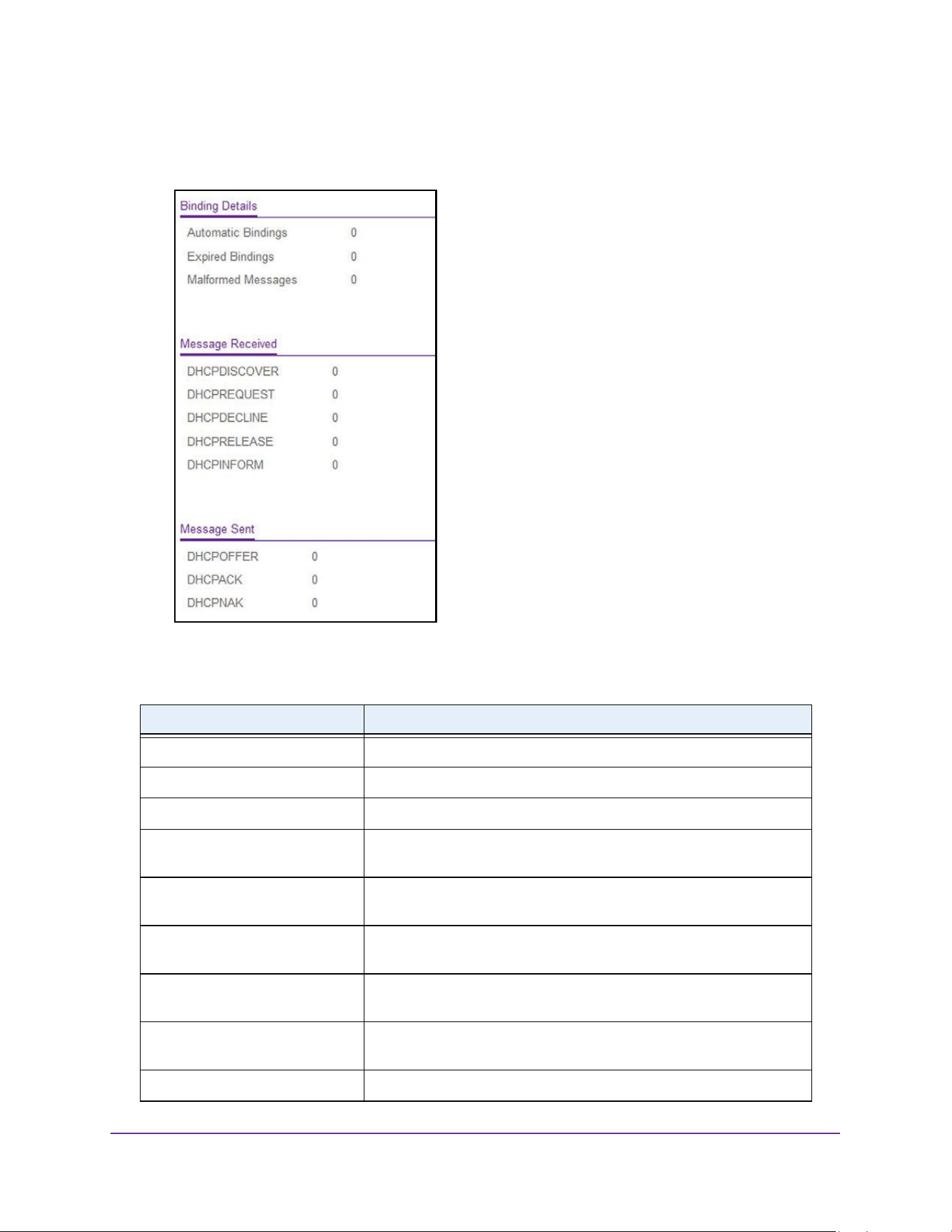
Configure System Information
90
M4200 and M4300 Series ProSAFE Managed Switches Web Management User Manual
The System Information page displays.
5. Select System > Services > DHCP Server > DHCP Server Statistics.
The following table describes the DHCP Server Statistics fields.
Table 35. DHCP Server Statistics
Field Description
Automatic Bindings The number of automatic bindings on the DHCP Server.
Expired Bindings The number of expired bindings on the DHCP Server.
Malformed Messages The number of the malformed messages.
DHCPDISCOVER The number of DHCPDISCOVER messages received by the DHCP
Server.
DHCPREQUEST The number of DHCPREQUEST messages received by the DHCP
Server.
DHCPDECLINE The number of DHCPDECLINE messages received by the DHCP
Server.
DHCPRELEASE The number of DHCPRELEASE messages received by the DHCP
Server.
DHCPINFORM The number of DHCPINFORM messages received by the DHCP
Server.
DHCPOFFER The number of DHCPOFFER messages sent by the DHCP Server.
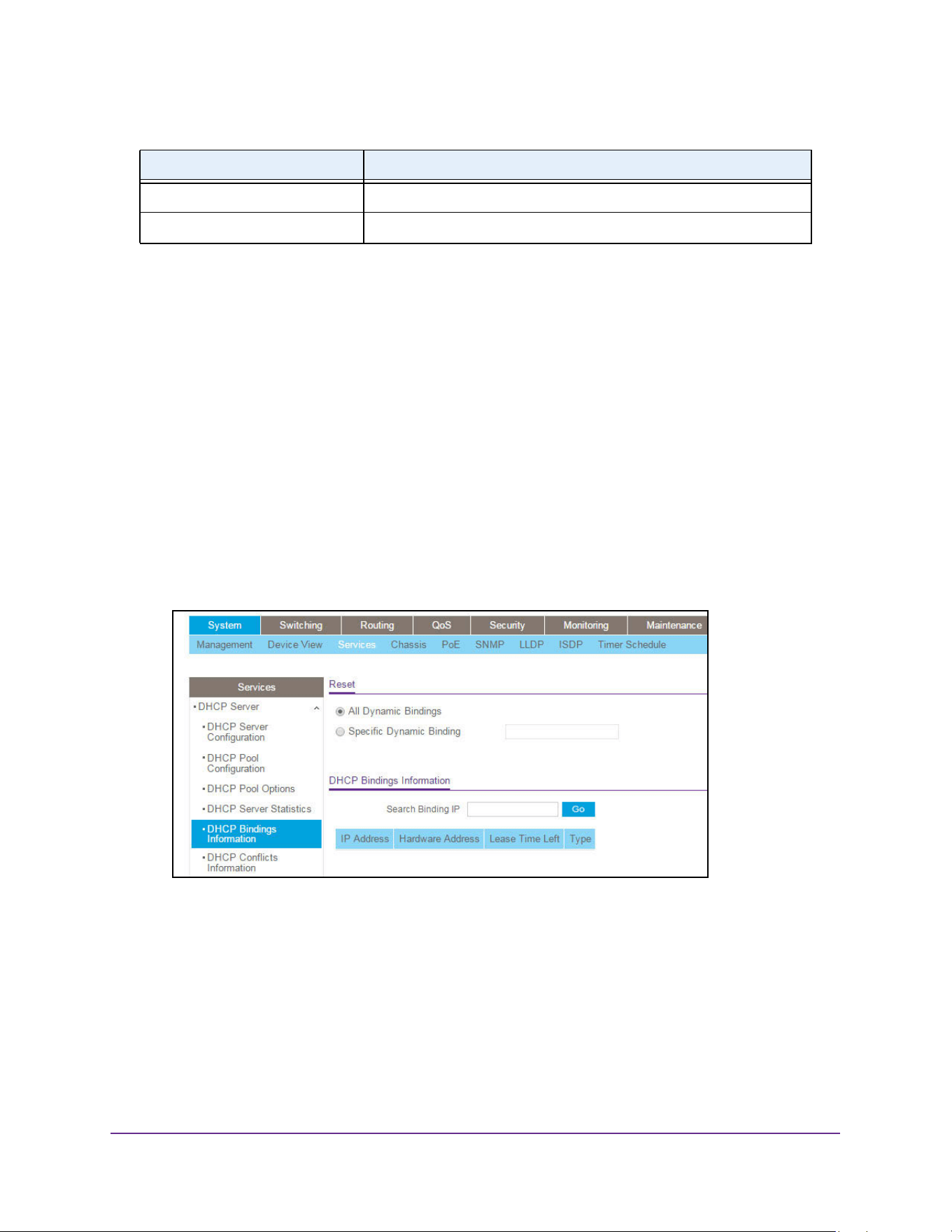
Configure System Information
91
M4200 and M4300 Series ProSAFE Managed Switches Web Management User Manual
View DHCP Bindings Information
To view the DHCP bindings:
1. Launch a web browser.
2. Enter http://<ipaddress> in the web browser address field.
The login window opens.
3. Enter the user name and password.
The default admin user name is admin and the default admin password is blank, that is,
do not enter a password.
4. Click the Login button.
The System Information page displays.
5. Select System > Services > DHCP Server > DHCP Bindings Information.
6. To display DHCP Bindings Information, select one of the following radio buttons:
• All Dynamic Bindings. Specify all dynamic bindings to be deleted.
• Specific Dynamic Binding. Specify specific dynamic binding to be deleted.
DHCPACK The number of DHCPACK messages sent by the DHCP Server.
DHCPNAK The number of DHCPNAK messages sent by the DHCP Server.
Table 35. DHCP Server Statistics (continued)
Field Description
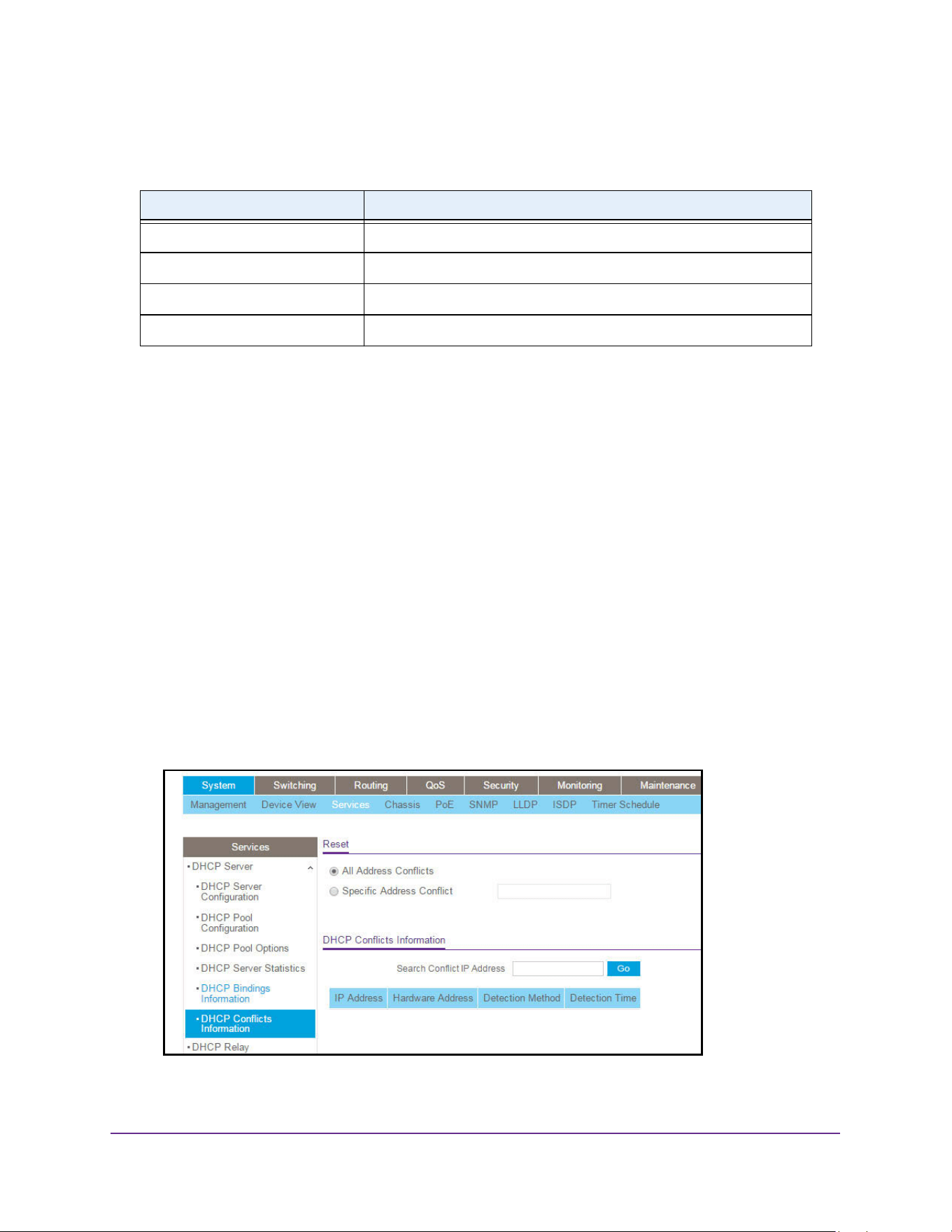
Configure System Information
92
M4200 and M4300 Series ProSAFE Managed Switches Web Management User Manual
The following table describes the DHCP Bindings Information fields.
View DHCP Conflicts
You can view information on hosts with address conflicts, such as when the same IP address
is assigned to two or more devices on the network.
To view the DHCP conflicts:
1. Launch a web browser.
2. Enter http://<ipaddress> in the web browser address field.
The login window opens.
3. Enter the user name and password.
The default admin user name is admin and the default admin password is blank, that is,
do not enter a password.
4. Click the Login button.
The System Information page displays.
5. Select System > Services > DHCP Server > DHCP Conflicts Information.
Table 36. DHCP Bindings Information
Field Description
IP Address The client's IP address.
Hardware Address The client's hardware address.
Lease Time Left The Lease Time Left in Days, Hours and Minutes dd:hh:mm format.
Type The Type of Binding: Dynamic or Manual.
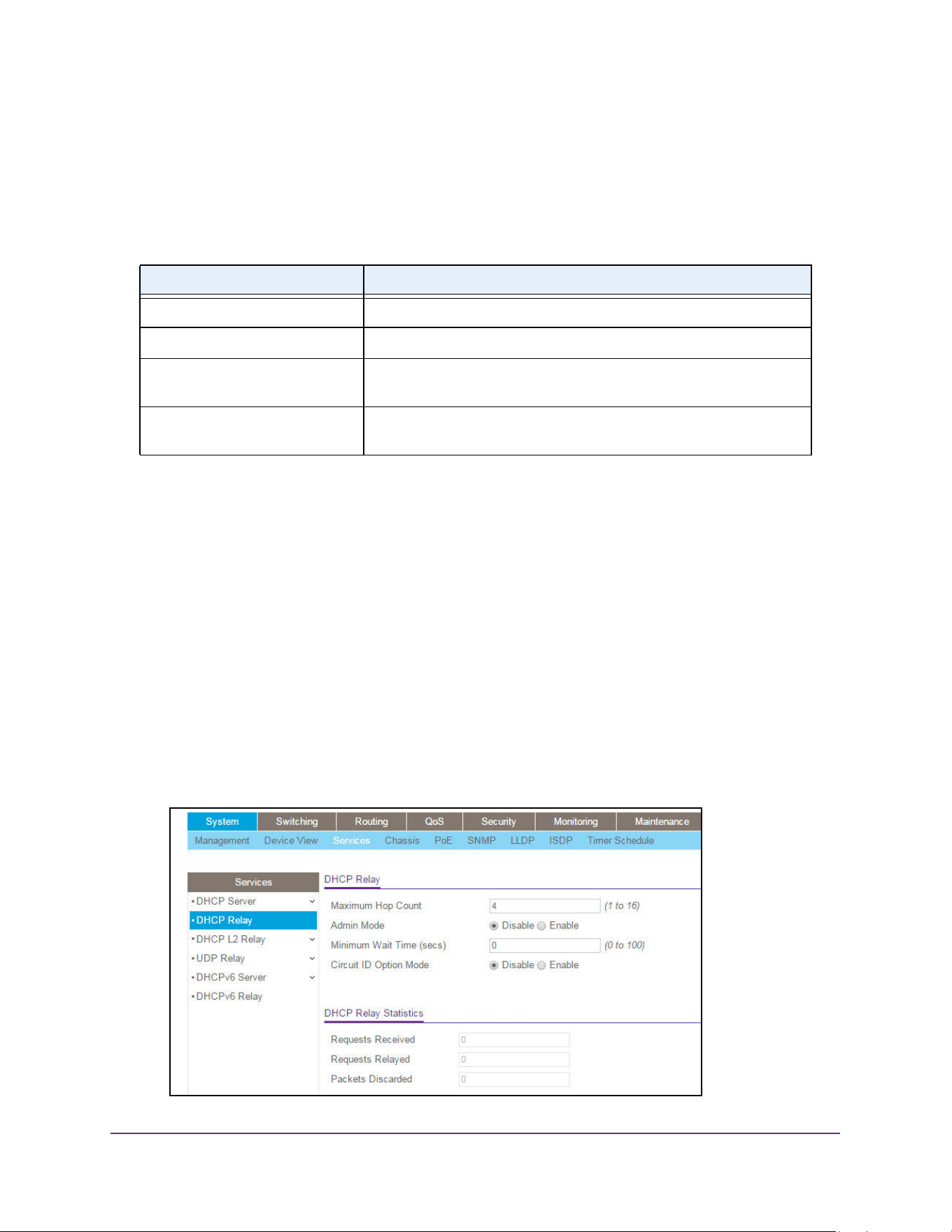
Configure System Information
93
M4200 and M4300 Series ProSAFE Managed Switches Web Management User Manual
6. To display DHCP conflicts information, select one of the following radio buttons:
• All Address Conflicts. Specify all address conflicts to be deleted.
• Specific Address Conflict. Specify a specific dynamic binding to be deleted.
The following table describes the DHCP Conflicts Information fields.
Configure the DHCP Relay
To configure DHCP relay:
1. Launch a web browser.
2. Enter http://<ipaddress> in the web browser address field.
The login window opens.
3. Enter the user name and password.
The default admin user name is admin and the default admin password is blank, that is,
do not enter a password.
4. Click the Login button.
The System Information page displays.
5. Select System > Services > DHCP Relay.
Table 37. DHCP Conflicts Information
Field Description
IP Address The IP address of the host as recorded on the DHCP server.
Hardware Address The client’s hardware address.
Detection Method The manner in which the IP address of the hosts were found on the
DHCP server.
Detection Time The time when the conflict was detected in N days NNh:NNm:NNs
format with respect to the system up time.
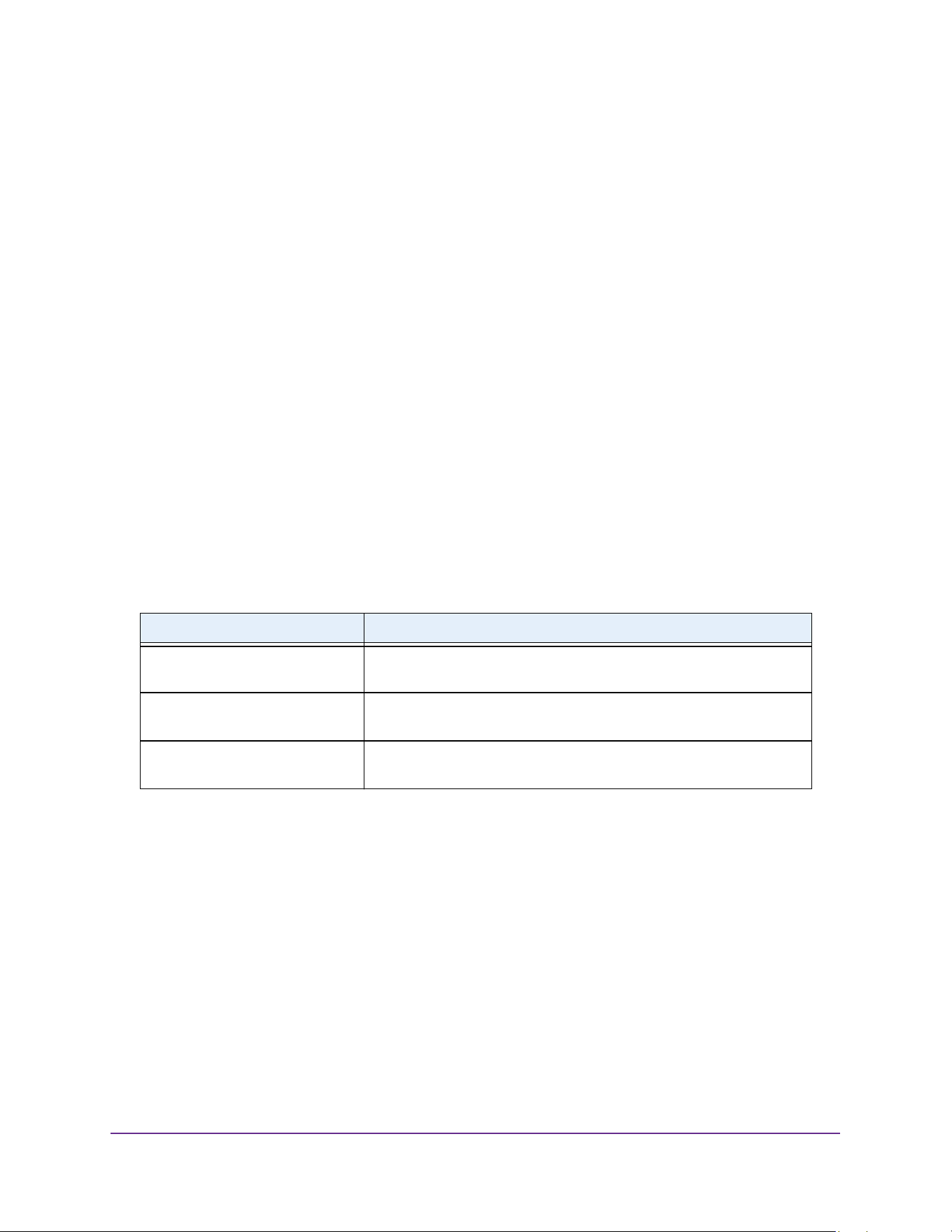
Configure System Information
94
M4200 and M4300 Series ProSAFE Managed Switches Web Management User Manual
6. Use Maximum Hop Count to enter the maximum number of hops a client request can take
before being discarded.
The range is (1 to 16). The default value is 4.
7. Select the Admin mode Disable or Enable radio button.
When you select Enable, DHCP requests are forwarded to the IP address you entered in
the Server Address field.
8. Use Minimum Wait Time to enter a Minimum Wait Time in seconds.
This value is compared to the time stamp in the client's request packets, which represents
the time since the client was powered up. Packets are forwarded only when the time
stamp exceeds the minimum wait time. The range is (0 to 100).
9. Select the Circuit ID Option mode Disable or Enable radio button.
If you select Enable, Relay Agent options are added to requests before they are
forwarded to the server and removed from replies before they are forwarded to clients.
10. Click the Apply button.
The updated configuration is sent to the switch. Configuration changes take effect
immediately.
The following table describes the DHCP Relay Statistics fields.
Table 38. DHCP Relay Status
Field Description
Requests Received The total number of DHCP requests received from all clients since the
last time the switch was reset.
Requests Relayed The total number of DHCP requests forwarded to the server since the
last time the switch was reset.
Packets Discarded The total number of DHCP packets discarded by this Relay Agent since
the last time the switch was reset.
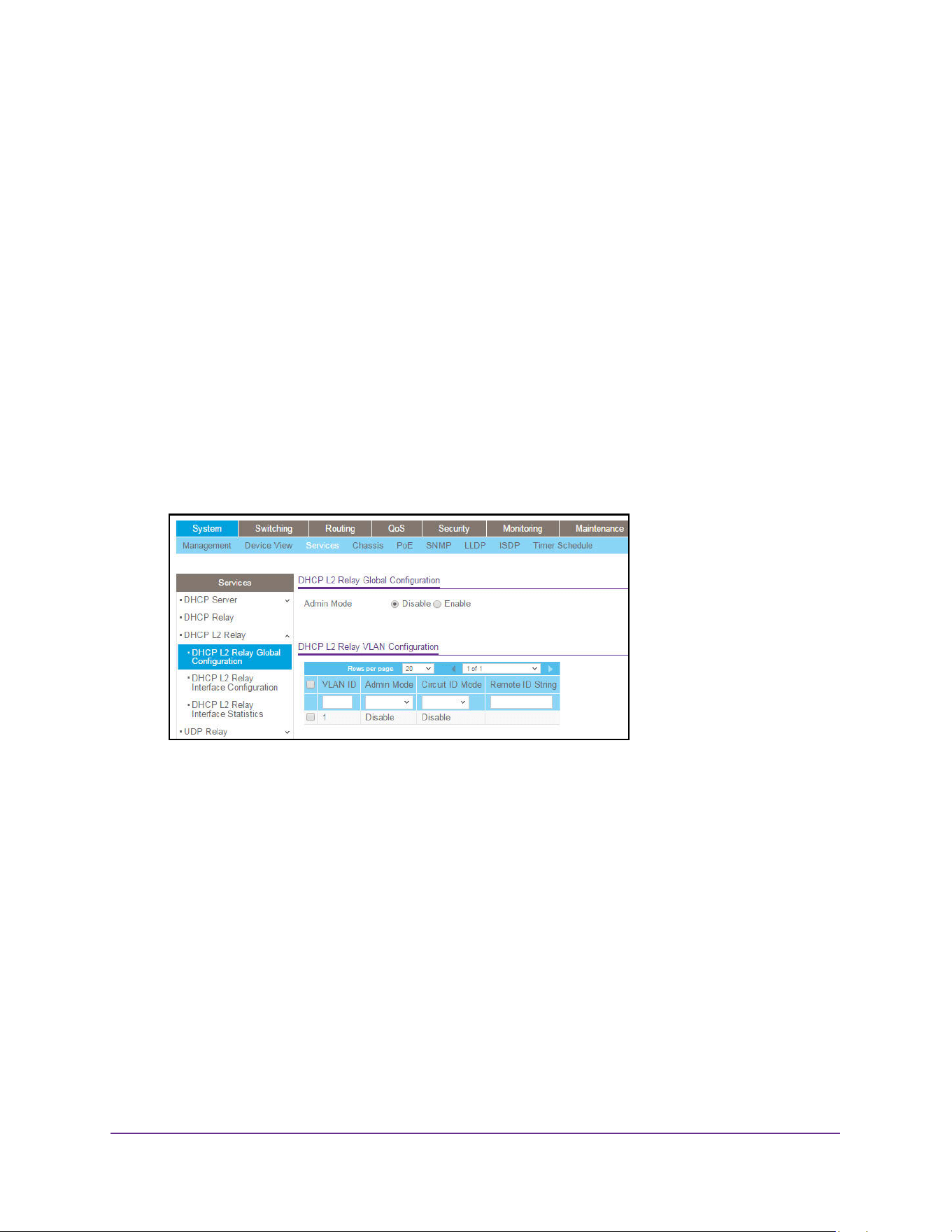
Configure System Information
95
M4200 and M4300 Series ProSAFE Managed Switches Web Management User Manual
DHCP L2 Relay
Configure Global DHCP L2 Relay Settings
To configure global DHCP L2 Relay settings:
1. Launch a web browser.
2. Enter http://<ipaddress> in the web browser address field.
The login window opens.
3. Enter the user name and password.
The default admin user name is admin and the default admin password is blank, that is,
do not enter a password.
4. Click the Login button.
The System Information page displays.
5. Select System > Services > DHCP L2 Relay > DHCP L2 Relay Global Configuration.
6. Select the Admin mode Disable or Enable radio button.
For global configuration, this enables or disables the DHCP L2 Relay on the switch. The
default is Disable.
7. For VLAN configuration, VLAN ID shows the VLAN ID configured on the switch.
a. Use Admin mode to enable or disable the DHCP L2 Relay on the selected VLAN.
b. Use Circuit ID mode to enable or disable the Circuit ID suboption of DHCP
Option-82.
c. Use Remote ID String to specify the Remote ID when Remote ID mode is enabled.
8. Click the Apply button.
The updated configuration is sent to the switch. Configuration changes take effect
immediately.
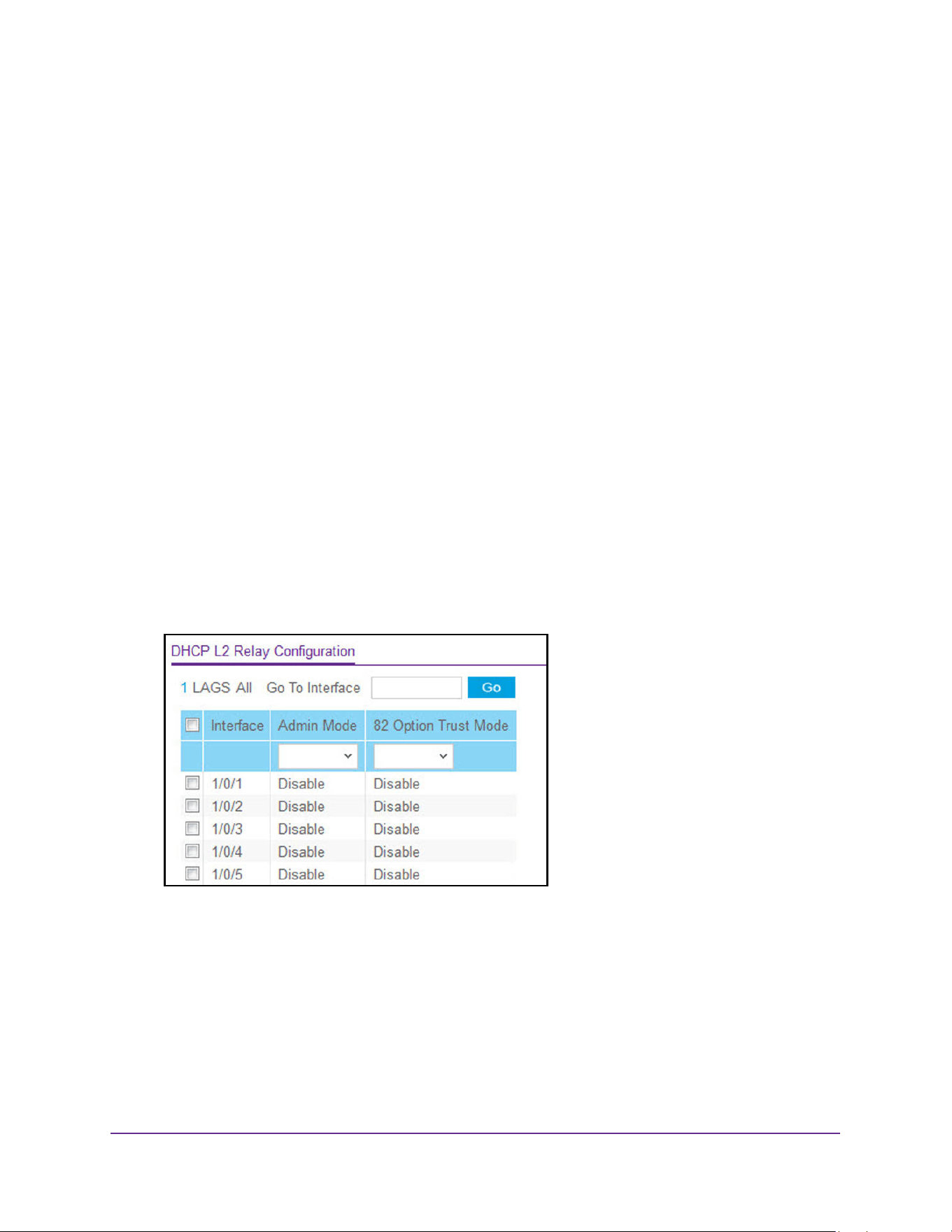
Configure System Information
96
M4200 and M4300 Series ProSAFE Managed Switches Web Management User Manual
The pagination navigation menu functions as follows:
- Rows per page. Select how many table entries are displayed per page. Possible
values are 20, 50, 100, 200, and All. If you select All, the browser might be slow to
display the information.
- <. Display the previous page of the table data entries.
- >. Display the next page of the table data entries.
Configure a DHCP L2 Relay Interface
To configure DHCP L2 Relay:
1. Launch a web browser.
2. Enter http://<ipaddress> in the web browser address field.
The login window opens.
3. Enter the user name and password.
The default admin user name is admin and the default admin password is blank, that is,
do not enter a password.
4. Click the Login button.
The System Information page displays.
5. Select System > Services > DHCP L2 Relay > DHCP L2 Relay Interface Configuration.
6. Use Admin mode to enable or disable the DHCP L2 Relay on the selected interface.
The default is Disable.
7. Use 82 Option Trust mode to enable or disable an interface to be trusted for DHCP L2
Relay (Option-82) received.
8. Click the Apply button.
The updated configuration is sent to the switch. Configuration changes take effect
immediately.
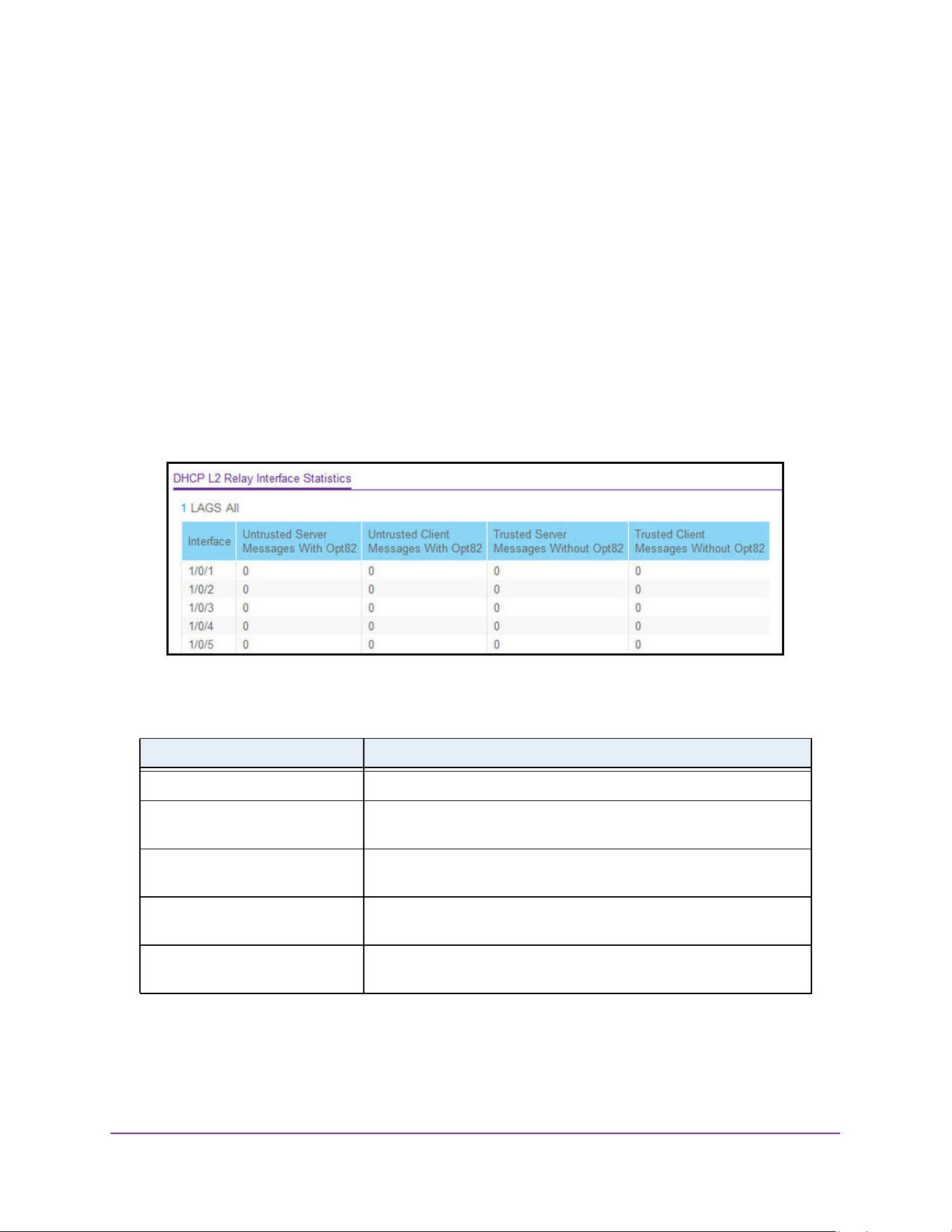
Configure System Information
97
M4200 and M4300 Series ProSAFE Managed Switches Web Management User Manual
View DHCP L2 Relay Interface Statistics
To view the DHCP L2 Relay Interface Statistics:
1. Launch a web browser.
2. Enter http://<ipaddress> in the web browser address field.
The login window opens.
3. Enter the user name and password.
The default admin user name is admin and the default admin password is blank, that is,
do not enter a password.
4. Click the Login button.
The System Information page displays.
5. Select System > Services > DHCP L2 Relay > DHCP L2 Relay Interface Statistics.
The following table describes the DHCP L2 Relay Interface Statistics fields.
Table 39. DHCP L2 Relay Interface Statistics
Field Description
Interface Shows the interface from which the DHCP message is received.
UntrustedServerMsgsWithOpt82 Shows the number of DHCP message with option82 received from an
untrusted server.
UntrustedClientMsgsWithOpt82 Shows the number of DHCP message with option82 received from an
untrusted client.
TrustedServerMsgsWithoutOpt82 Shows the number of DHCP message without option82 received from a
trusted server.
TrustedClientMsgsWithoutOpt82 Shows the number of DHCP message without option82 received from a
trusted client.
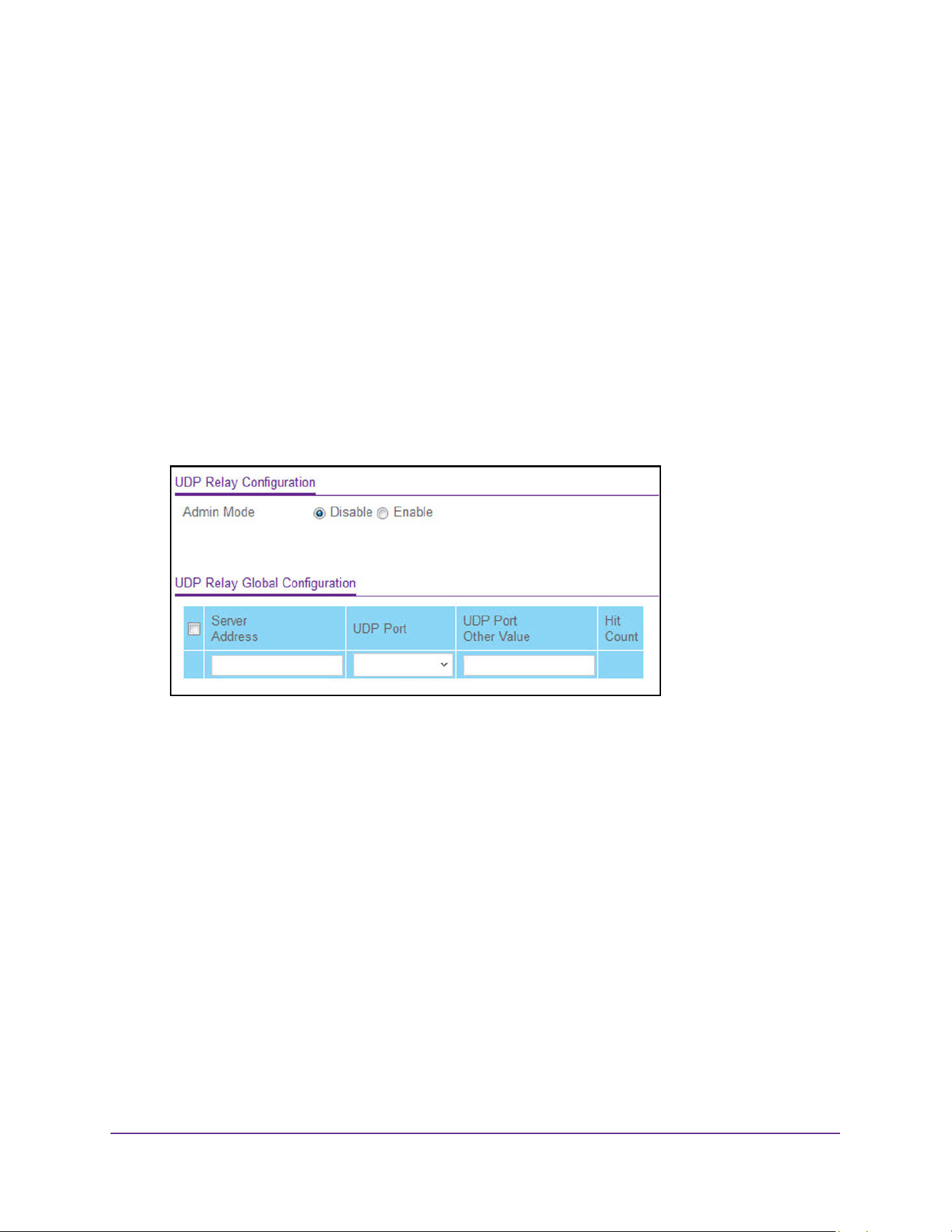
Configure System Information
98
M4200 and M4300 Series ProSAFE Managed Switches Web Management User Manual
Configure UDP Relay Global Settings
To configure UDP relay global settings:
1. Launch a web browser.
2. Enter http://<ipaddress> in the web browser address field.
The login window opens.
3. Enter the user name and password.
The default admin user name is admin and the default admin password is blank, that is,
do not enter a password.
4. Click the Login button.
The System Information page displays.
5. Select System > Services > UDP Relay > UDP Relay Global Configuration.
6. Select the Admin mode Disable or Enable radio button.
This enables or disables UDP Relay on the switch. The default value is Disable.
7. Use Server Address to specify the UDP Relay Server Address in x.x.x.x format.
8. Use UDP Port to specify the UDP Destination Port.
These ports are supported:
• DefaultSet. Relay UDP port 0 packets. This is specified if no UDP port is selected
when creating the Relay server.
• dhcp. Relay DHCP (UDP port 67) packets.
• domain. Relay DNS (UDP port 53) packets.
• isakmp. Relay ISAKMP (UDP port 500) packets.
• mobile-ip. Relay Mobile IP (UDP port 434) packets
• nameserver. Relay IEN-116 Name Service (UDP port 42) packets
• netbios-dgm. Relay NetBIOS Datagram Server (UDP port 138) packets
• netbios-ns. Relay NetBIOS Name Server (UDP port 137) packets
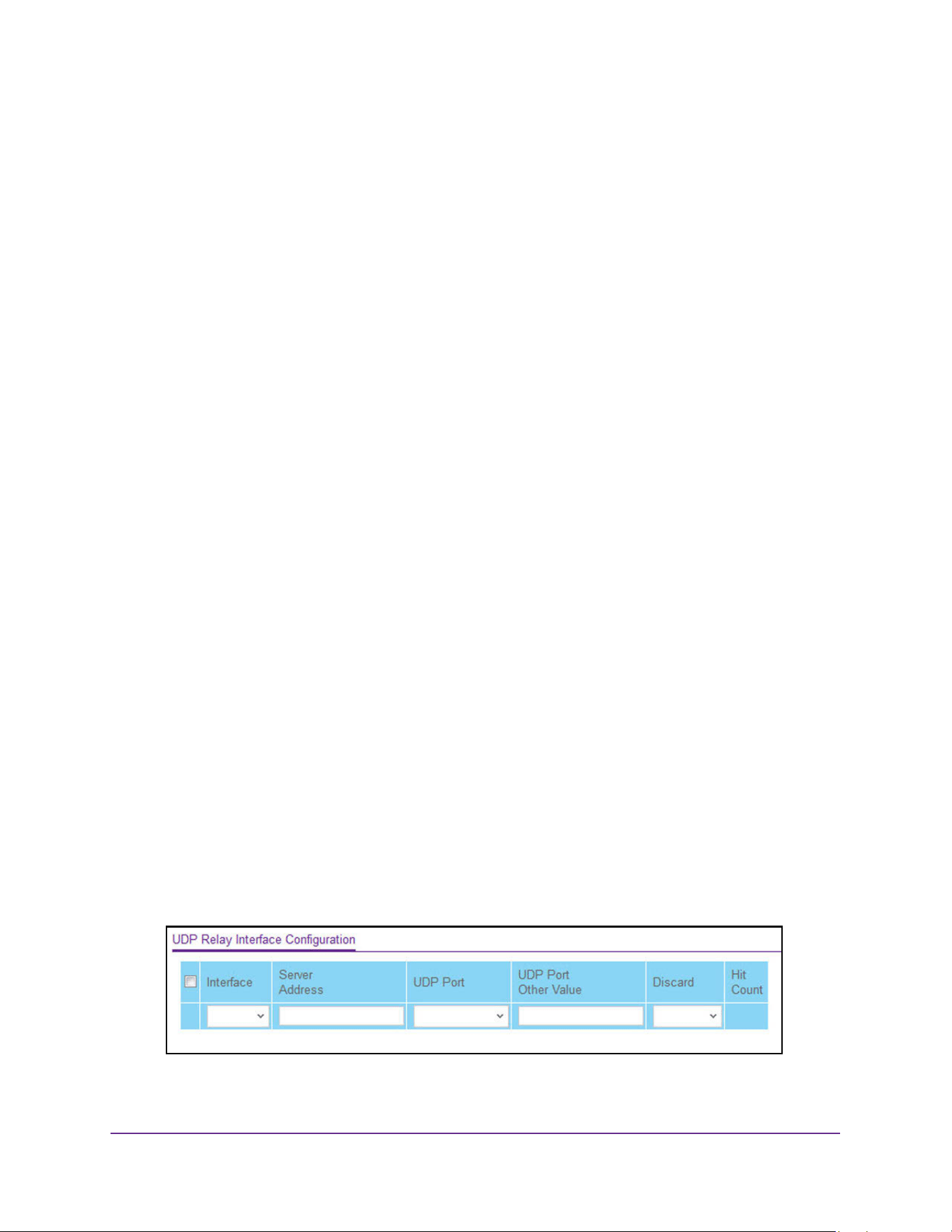
Configure System Information
99
M4200 and M4300 Series ProSAFE Managed Switches Web Management User Manual
• ntp. Relay network time protocol (UDP port 123) packets.
• pim-auto-rp. Relay PIM auto RP (UDP port 496) packets.
• rip. Relay Routing Image Protocol (RIP) (UDP port 520) packets
• tacacs. Relay TACACS (UDP port 49) packet
• tftp. Relay TFTP (UDP port 69) packets
• time. Relay time service (UDP port 37) packets
• Other. If this option is selected, the UDP Port Other Value is enabled. This option
permits you to enter your own UDP port in UDP Port Other Value.
9. Use UDP Port Other Value to specify a UDP Destination Port that lies between 0 and
65535.
10. Click the Add button.
An entry with the specified configuration is created in the UDP Relay Table.
11. Click the Apply button.
The updated configuration is sent to the switch. Configuration changes take effect
immediately.
The Hit Count field displays the number of UDP packets that are detected on the UDP
port.
Configure UDP Relay Interface Settings
To configure UDP Relay Interface settings:
1. Launch a web browser.
2. Enter http://<ipaddress> in the web browser address field.
The login window opens.
3. Enter the user name and password.
The default admin user name is admin and the default admin password is blank, that is,
do not enter a password.
4. Click the Login button.
The System Information page displays.
5. Select System > Services > UDP Relay > UDP Relay Interface Configuration.
6. Use Interface to select an Interface to be enabled for the UDP Relay.

Configure System Information
100
M4200 and M4300 Series ProSAFE Managed Switches Web Management User Manual
7. Use Server Address to specify the UDP Relay Server Address in x.x.x.x format.
8. Use UDP Port to specify UDP Destination Port.
The following ports are supported:
• DefaultSet. Relay UDP port 0 packets. This is specified if no UDP port is selected
when creating a Relay server.
• dhcp. Relay DHCP (UDP port 67) packets.
• domain. Relay DNS (UDP port 53) packets.
• isakmp. Relay ISAKMP (UDP port 500) packets.
• mobile-ip. Relay Mobile IP (UDP port 434) packets
• nameserver. Relay IEN-116 Name Service (UDP port 42) packets
• netbios-dgm. Relay NetBIOS Datagram Server (UDP port 138) packets
• netbios-ns. Relay NetBIOS Name Server (UDP port 137) packets
• ntp. Relay network time protocol (UDP port 123) packets.
• pim-auto-rp. Relay PIM auto RP (UDP port 496) packets.
• rip. Relay RIP (UDP port 520) packets
• tacacs. Relay TACACS (UDP port 49) packet
• tftp. Relay TFTP (UDP port 69) packets
• time. Relay time service (UDP port 37) packets
• Other. If this option is selected, the UDP Port Other Value is enabled. This option
permits the user to enter their own UDP port in UDP Port Other Value.
9. Use UDP Port Other Value to specify UDP Destination Port that lies between 0 and 65535.
10. Use Discard to enable/disable dropping of matched packets.
Enable can be chosen only when a user enters 0.0.0.0 IP address. Discard mode can be
set to Disable when user adds a new entry with a non-zero IP address.
11. Click the Add button.
An entry with the specified configuration is created in the UDP Relay Table.
12. Click the Apply button.
The updated configuration is sent to the switch. Configuration changes take effect
immediately.
The Hit Count field displays the number of UDP packets that are detected on the UDP
port.
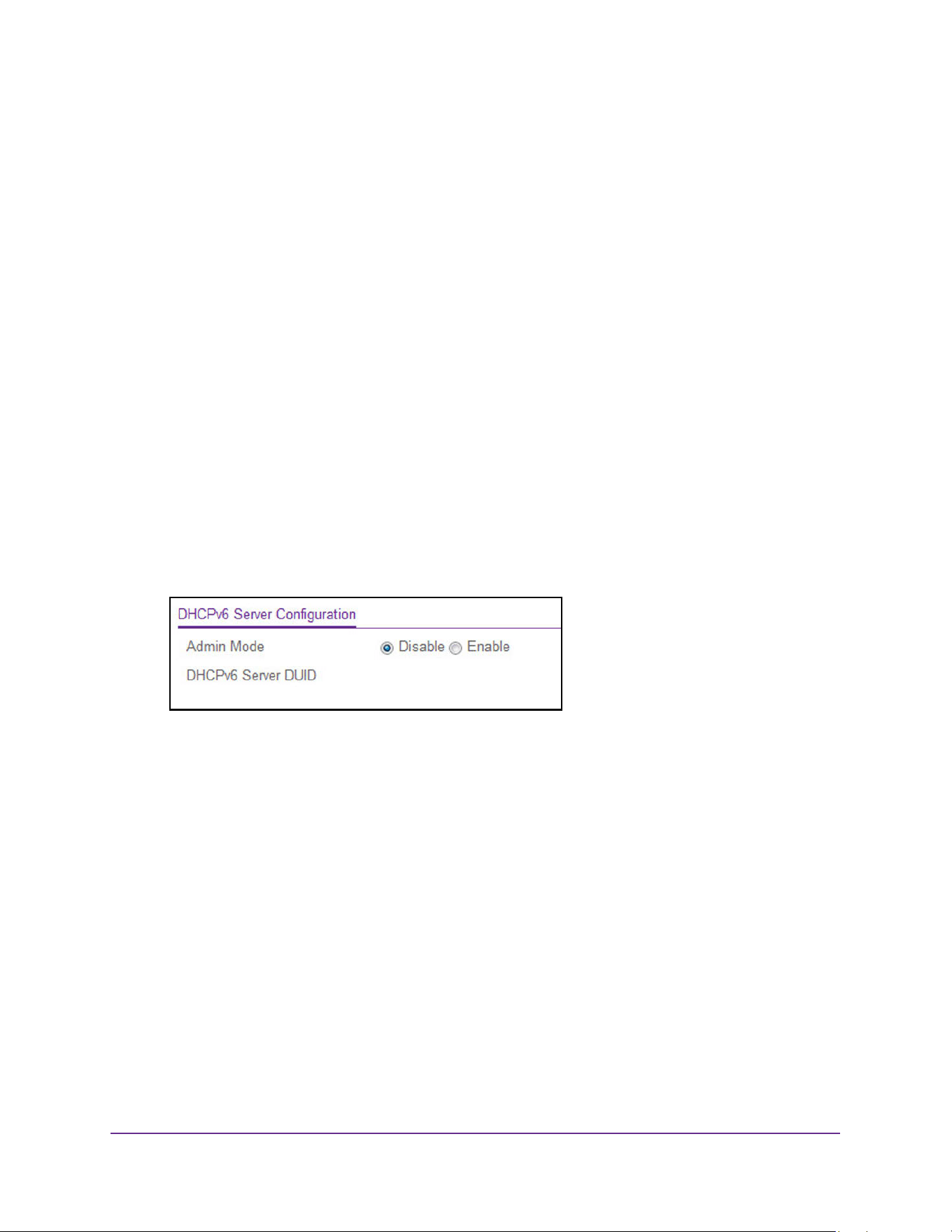
Configure System Information
101
M4200 and M4300 Series ProSAFE Managed Switches Web Management User Manual
Manage the DHCPv6 Server
Enable or Disable the DHCPv6 Server
You can configure the Dynamic Host Configuration Protocol for IPv6 (DHCPv6) server
settings on the device. The device can act as a DHCPv6 server or DHCPv6 relay agent to
help assign network configuration information to IPv6 clients.
To enable or disable DHCP service:
1. Launch a web browser.
2. Enter http://<ipaddress> in the web browser address field.
The login window opens.
3. Enter the user name and password.
The default admin user name is admin and the default admin password is blank, that is,
do not enter a password.
4. Click the Login button.
The System Information page displays.
5. Select System > Services > DHCPv6 Server > DHCPv6 Server Configuration.
6. Select the Admin mode Disable or Enable radio button.
This specifies whether the DHCPv6 Service administrative mode is enabled or disabled
The default value is Disable.
7. Use the DHCPv6 Server DUID field to specify the DHCP Unique Identifier (DUID) of the
DHCPv6 server.
8. Click the Apply button.
The updated configuration is sent to the switch. Configuration changes take effect
immediately.
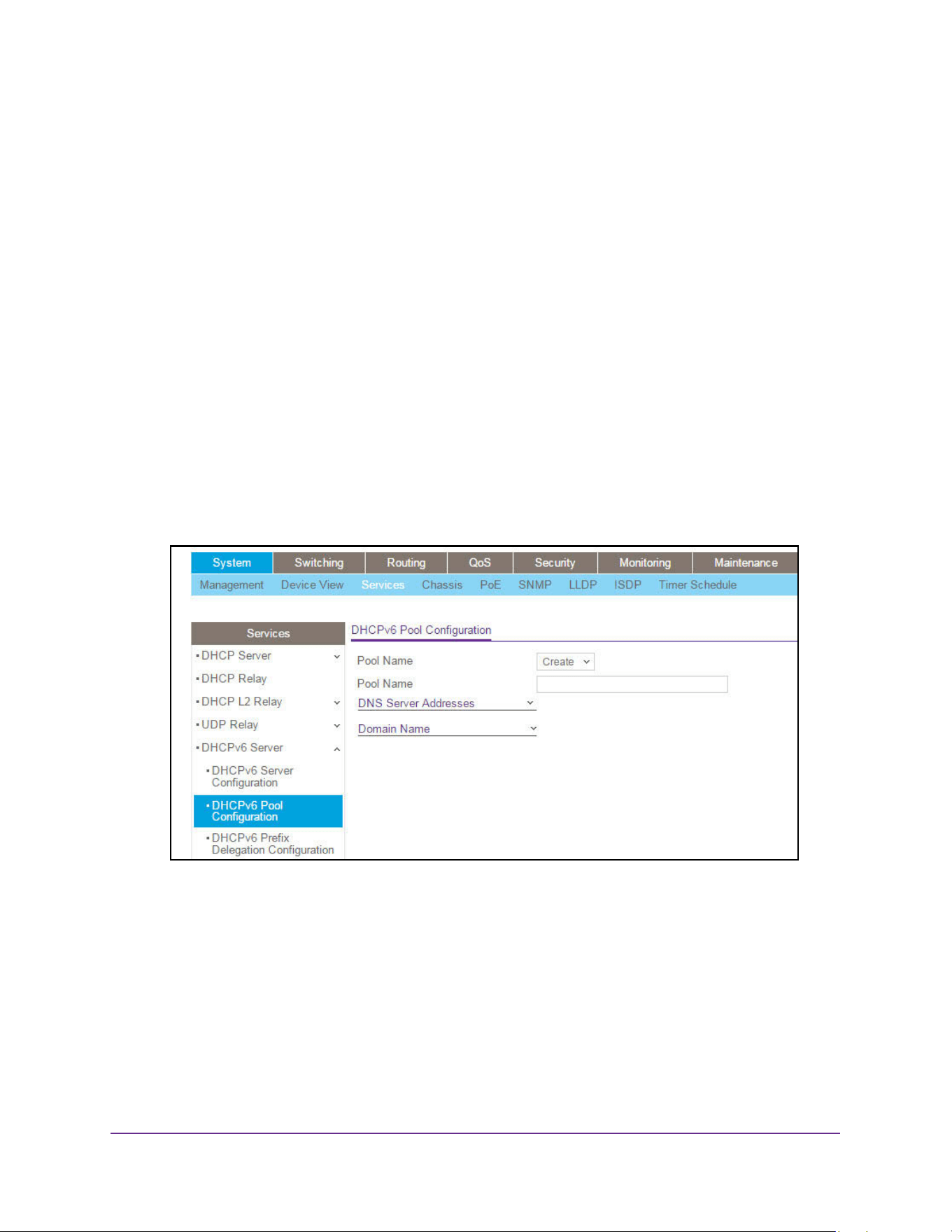
Configure System Information
102
M4200 and M4300 Series ProSAFE Managed Switches Web Management User Manual
Configure the DHCPv6 Pool
You can view the currently configured DHCPv6 server pools as well as to add and remove
pools. A DHCPv6 server pool is a set of network configuration information available to
DHCPv6 clients that request the information.
To configure DHCPv6 pool settings:
1. Launch a web browser.
2. Enter http://<ipaddress> in the web browser address field.
The login window opens.
3. Enter the user name and password.
The default admin user name is admin and the default admin password is blank, that is,
do not enter a password.
4. Click the Login button.
The System Information page displays.
5. Select System > Services > DHCPv6 Server > DHCPv6 Pool Configuration.
The Pool Name field shows the names of all the existing pools and the Create option.
Note: If you are logged in as a user with read-only permission, the Pool
Name field displays only the existing pool names. To create a pool, you
must log in with the admin user name, which has read/write
permissions.
6. To create a pool, select Create, and enter a unique name that identifies the DHCPv6 server
pool to be created.
The name can be up to 31 alphanumeric characters in length.
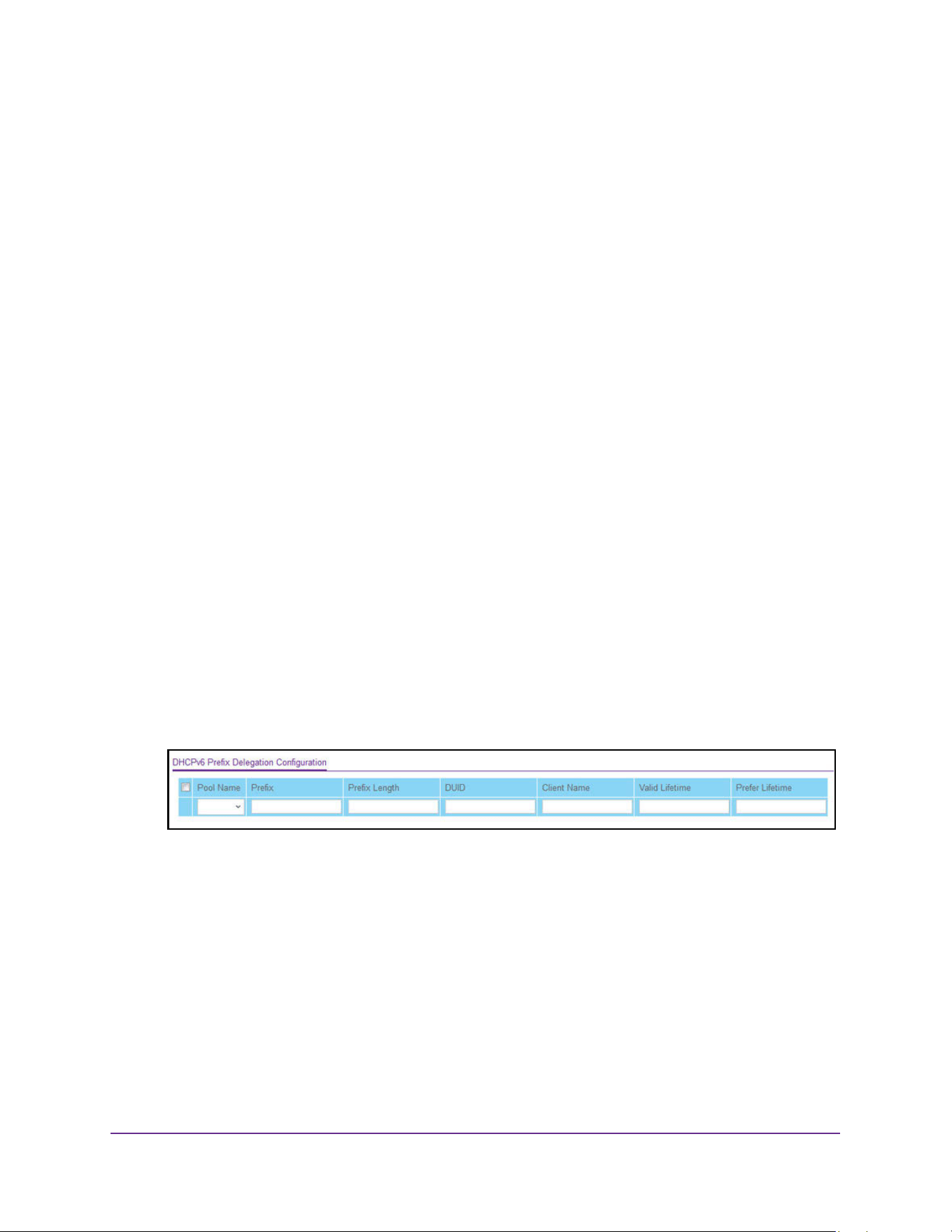
Configure System Information
103
M4200 and M4300 Series ProSAFE Managed Switches Web Management User Manual
7. Use the Default Router Addresses field to specify the list of default router addresses for
the pool.
The user can specify up to eight default router addresses in order of preference.
8. User the Domain Name field to specify the domain name for a DHCPv6 client in the pool.
The domain name can be up to 255 alphanumeric characters in length.
To delete the selected pool on the switch, click the Delete button.
9. Click the Apply button.
The updated configuration is sent to the switch. Configuration changes take effect
immediately.
Configure the DHCPv6 Prefix Delegation
To configure the DHCPv6 Prefix delegation settings:
1. Launch a web browser.
2. Enter http://<ipaddress> in the web browser address field.
The login window opens.
3. Enter the user name and password.
The default admin user name is admin and the default admin password is blank, that is,
do not enter a password.
4. Click the Login button.
The System Information page displays.
5. Select System > Services > DHCPv6 Server > DHCPv6 Prefix Delegation
Configuration.
6. Select from the list of configured Pool Names.
7. In the Prefix and Prefix Length fields, specify the delegated IPv6 prefix.
8. In the DUID field, specify the DUID identifier used to identify the client’s unique DUID value.
9. Specify the Client Name, which is useful for logging or tracing only.
The name can be up to 31 alphanumeric characters.
10. Specify the Valid Lifetime in seconds for the delegated prefix.
Valid values are 0 to 4294967295.
11. Specify the Prefer Lifetime in seconds for the delegated prefix.
Valid values are 0 to 4294967295.
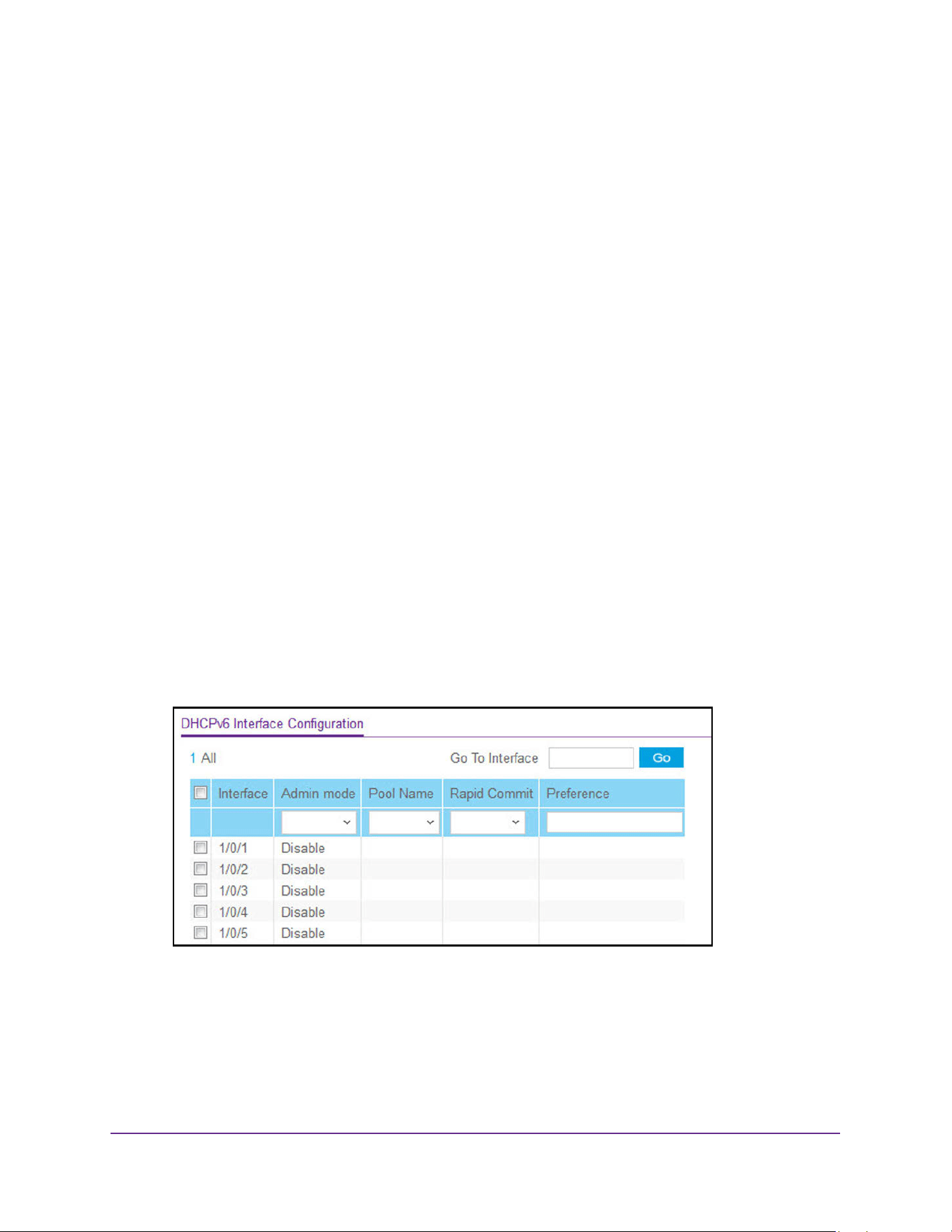
Configure System Information
104
M4200 and M4300 Series ProSAFE Managed Switches Web Management User Manual
12. Click the Add button.
The delegated prefix is added for the selected pool.
13. Click the Apply button.
The updated configuration is sent to the switch. Configuration changes take effect
immediately.
Configure DHCPv6 Interface Settings
You can configure the per-interface settings for DHCPv6. The DHCPv6 interface modes are
mutually exclusive. The fields that can be configured on this page depend on the selected
mode for the interface.
To configure DHCPv6 Interface settings:
1. Launch a web browser.
2. Enter http://<ipaddress> in the web browser address field.
The login window opens.
3. Enter the user name and password.
The default admin user name is admin and the default admin password is blank, that is,
do not enter a password.
4. Click the Login button.
The System Information page displays.
5. Select System > Services > DHCPv6 Server > DHCPv6 Interface Configuration.
6. Select the Interface with the information to view or configure. You can either:
a. In the Go To Interface field, enter the interface in unit/slot/port format and click the Go
button. The entry corresponding to the specified interface is selected.
b. Select the check box from the list of Interfaces configured for DHCPv6 server
functionality.

Configure System Information
105
M4200 and M4300 Series ProSAFE Managed Switches Web Management User Manual
7. In the Admin mode list, select to Enable or Disable DHCPv6 mode to configure server
functionality.
DHCPv6 server and DHCPv6 relay functions are mutually exclusive.
8. In the Pool Name field, specify the DHCPv6 pool containing stateless and/or prefix
delegation parameters.
9. Rapid Commit is an optional parameter. In the Rapid Commit list, select to Enable or
Disable allowing an abbreviated exchange between the client and server.
10. In the Preference field, specify the preference value used by clients to determine the
preference between DHCPv6 servers.
Valid values are 0 to 4294967295. The default value is 0.
11. Click the Apply button.
The updated configuration is sent to the switch. Configuration changes take effect
immediately.
View DHCPv6 Bindings Information
You can view entries in the DHCP Bindings table. After a client acquires IPv6 configuration
information from the DHCPv6 server, the server adds an entry to its database. The entry is
called a binding.
To view DHCPv6 bindings information:
1. Launch a web browser.
2. Enter http://<ipaddress> in the web browser address field.
The login window opens.
3. Enter the user name and password.
The default admin user name is admin and the default admin password is blank, that is,
do not enter a password.
4. Click the Login button.
The System Information page displays.
5. Select System > Services > DHCPv6 Server > DHCPv6 Bindings Information.
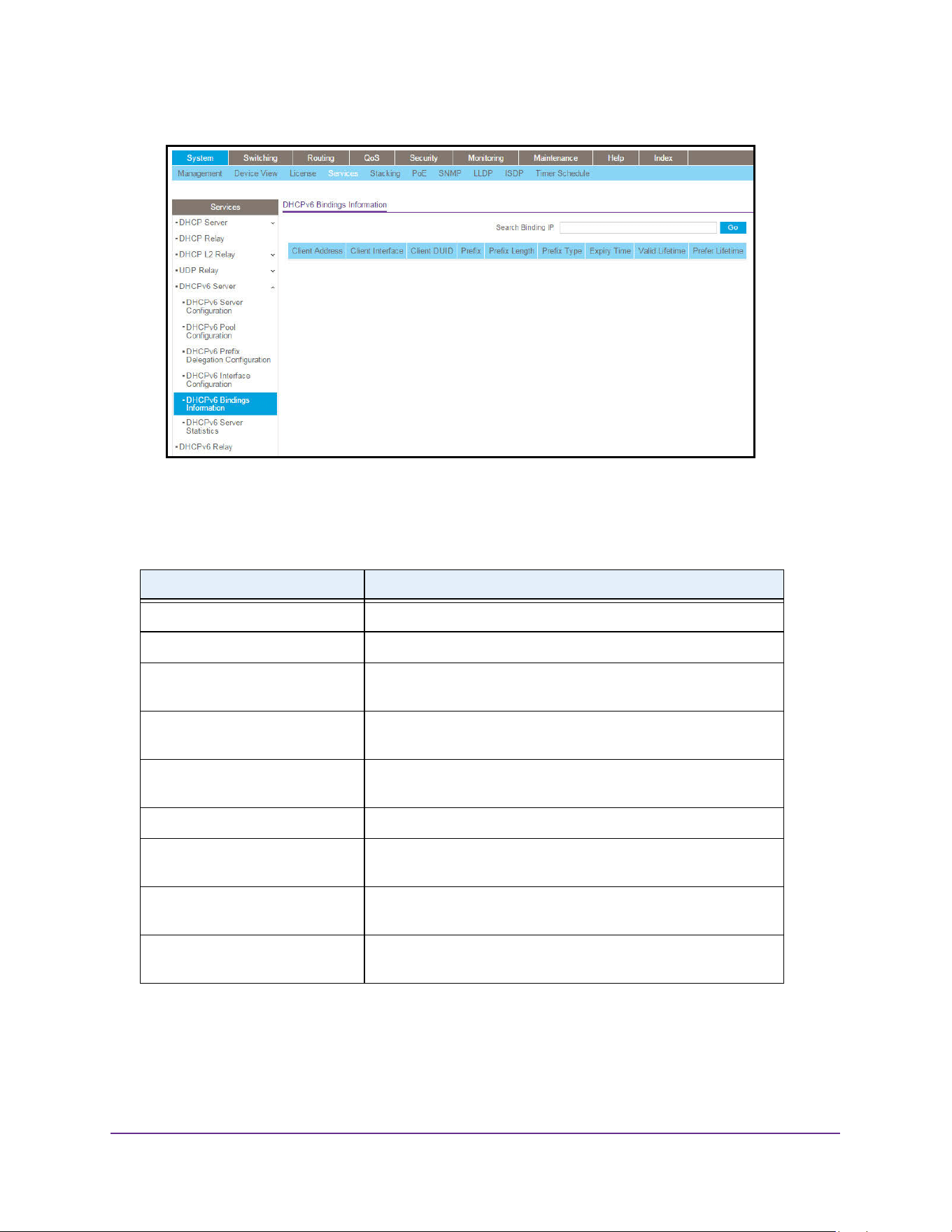
Configure System Information
106
M4200 and M4300 Series ProSAFE Managed Switches Web Management User Manual
6. To refresh the page, click the Update button.
The following table describes the nonconfigurable fields that are displayed.
Table 40. DHCPv6 Binding Information
Field Description
Client Address The IPv6 address of the client associated with the binding.
Client Interface The interface number where the client binding occurred.
Client DUID The DHCPv6 Unique Identifier (DUID) of the client. The DUID is a
combination of the client’s hardware address and client identifier.
Prefix The IPv6 address for the delegated prefix associated with this
binding.
Prefix Length The IPv6 mask length for the delegated prefix associated with this
binding.
Prefix Type The type of IPv6 prefix associated with this binding.
Expiry Time The number of seconds until the prefix associated with a binding
expires.
Valid Lifetime The maximum amount of time in seconds that the client is allowed
to use the prefix.
Prefer Lifetime The preferred amount of time in seconds that the client is allowed
to use the prefix.
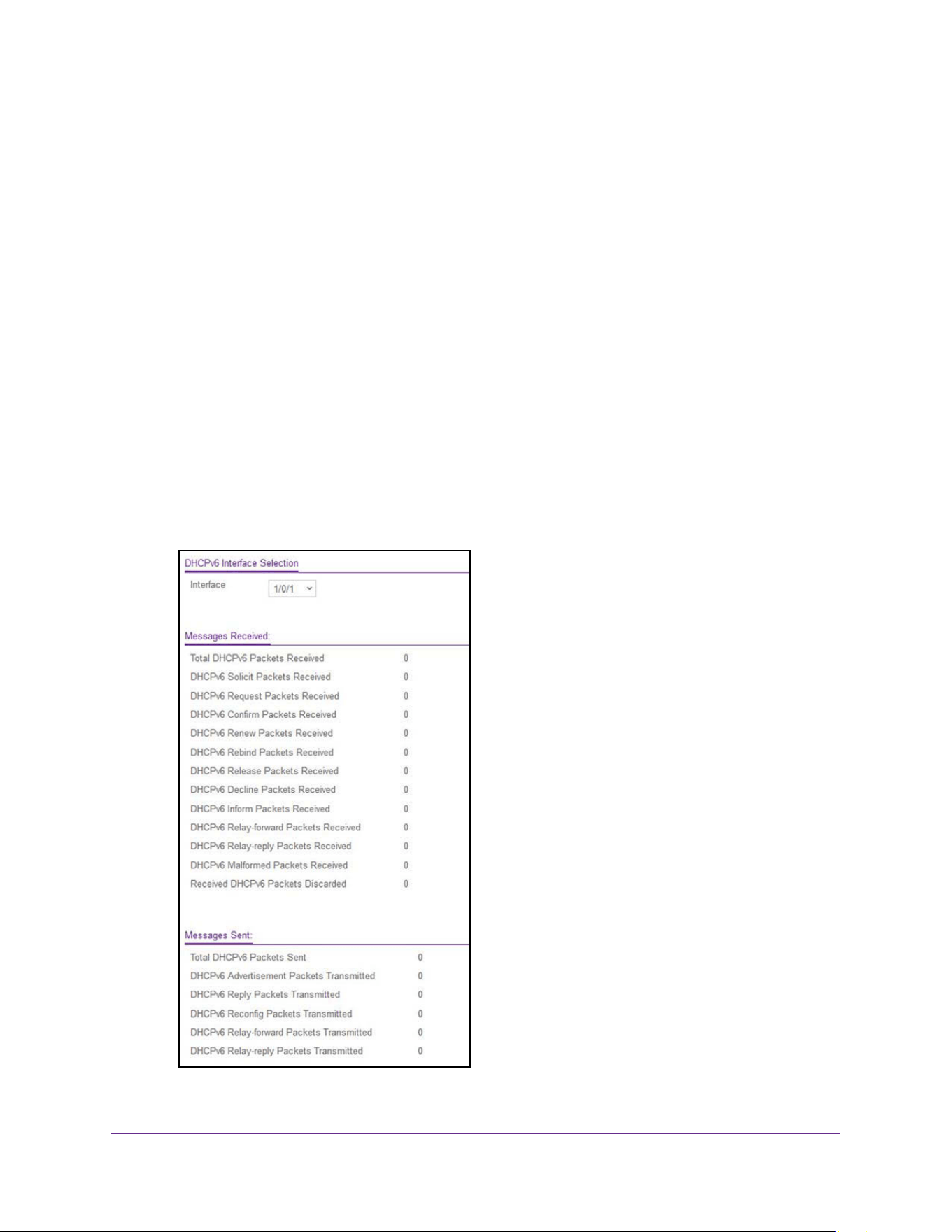
Configure System Information
107
M4200 and M4300 Series ProSAFE Managed Switches Web Management User Manual
View DHCPv6 Server Statistics
You can view the DHCPv6 server statistics for the device, including information about the
DHCPv6 messages, sent, received, and discarded globally and on each interface. The
values on the page indicate the various counts that accumulated since they were last
cleared.
To view DHCPv6 server statistics:
1. Launch a web browser.
2. Enter http://<ipaddress> in the web browser address field.
The login window opens.
3. Enter the user name and password.
The default admin user name is admin and the default admin password is blank, that is,
do not enter a password.
4. Click the Login button.
The System Information page displays.
5. Select System > Services > DHCPv6 Server > DHCPv6 Server Statistics.
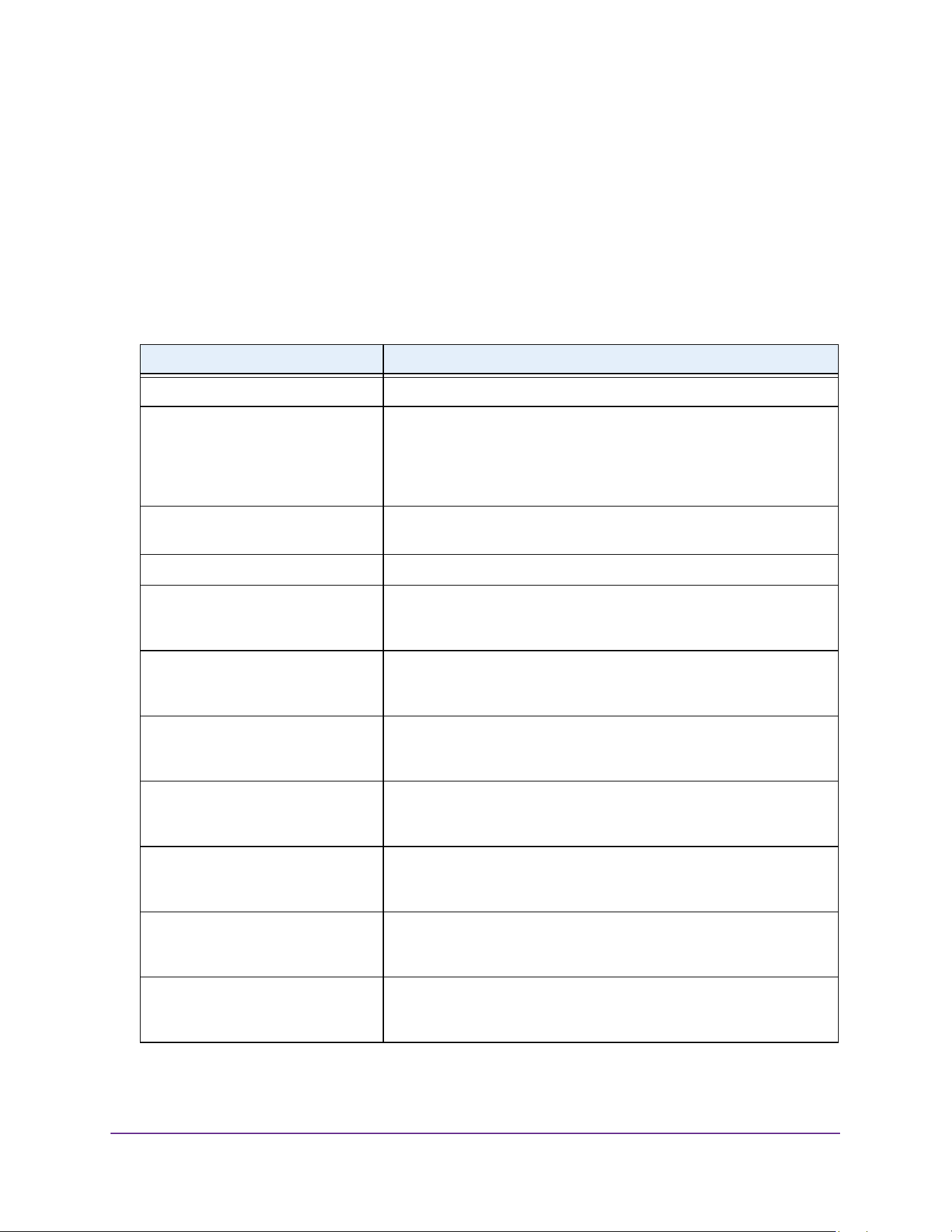
Configure System Information
108
M4200 and M4300 Series ProSAFE Managed Switches Web Management User Manual
6. To view detailed DHCPv6 statistics for an interface, from the Interface list select the entry
for which data is to be displayed.
If you select All, data is shown for all interfaces.
7. To reset the DHCPv6 counters for one or more interface, select each interface with the
statistics to reset and click the Clear button.
8. To refresh the page, click the Update button.
The following table describes the nonconfigurable fields that are displayed.
Table 41. DHCPv6 Server Statistics
Field Description
Messages Received The aggregate of all interface level statistics for received messages.
Total DHCPv6 Packets Received The number of DHCPv6 messages received on the interface. The
DHCPv6 messages sent from a DHCP v6 client to a DHCP v6 server
include solicit, request, confirm, renew, rebind, release, decline, and
information-request messages. Additionally, a DHCP v6 relay agent can
forward relay-forward messages to a DHCP v6 server.
DHCPv6 Solicit Packets Received The number of DHCPv6 Solicit messages received on the interface. This
type of message is sent by a client to locate DHCPv6 servers.
DHCPv6 Request Packets Received The number of requests.
DHCPv6 Confirm Packets Received The number of DHCPv6 Confirm messages received on the interface.
This type of message is sent by a client to all DHCPv6 servers to
determine whether its configuration is valid for the connected link.
DHCPv6 Renew Packets Received The number of DHCPv6 Renew messages received on the interface.
This type of message is sent by a client to extend and update the
configuration information provided by the DHCPv6 server.
DHCPv6 Rebind Packets Received The number of DHCPv6 Rebind messages received on the interface.
This type of message is sent by a client to any DHCPv6 server when it
does not receive a response to a Renew message.
DHCPv6 Release Packets Received The number of DHCPv6 Release messages received on the interface.
This type of message is sent by a client to indicate that it no longer
needs the assigned address.
DHCPv6 Decline Packets Received The number of DHCPv6 Decline messages received on the interface.
This type of message is sent by a client to the DHCPv6 server to
indicate that an assigned address is already in use on the link.
DHCPv6 Inform Packets Received The number of DHCP v6 information-request messages received on the
interface. This type of message is sent by a client to request
configuration information other than IP address assignment.
DHCPv6 Relay-forward Packets
Received
The number of DHCPv6 relay-forward messages received on the
interface. This type of message is sent by a relay agent to forward
messages to servers.

Configure System Information
109
M4200 and M4300 Series ProSAFE Managed Switches Web Management User Manual
Configure DHCPv6 Relay for an Interface
To configure DHCPv6 Relay for an interface:
1. Launch a web browser.
2. Enter http://<ipaddress> in the web browser address field.
The login window opens.
3. Enter the user name and password.
The default admin user name is admin and the default admin password is blank, that is,
do not enter a password.
DHCPv6 Relay-reply Packets
Received
The number of DHCP v6 relay-reply messages received on the
interface. This type of message is sent by a server to a DHCP v6 relay
agent and contains the message for the relay agent to deliver to the
client.
DHCPv6 Malformed Packets
Received
The number of DHCPv6 messages that were received on the interface
but were dropped because they were malformed.
Received DHCPv6 Packets
Discarded
The number of Packets Discarded.
Messages Sent The aggregate of all interface level statistics for messages sent.
Total DHCPv6 Packets Sent The number of DHCPv6 messages sent by the interface. The DHCPv6
messages sent from a DHCPv6 server to a DHCPv6 client include
Advertise, Reply, Reconfigure, and Relay-Reply messages.
DHCPv6 Advertisement Packets
Transmitted
The number of DHCPv6 Advertise messages sent by the interface. This
type of message is sent by a server to a DHCPv6 client in response to a
Solicit message and indicates that it is available for service.
DHCPv6 Reply Packets Transmitted The number of DHCPv6 Reply messages sent from the interface to a
DHCPv6 client in response to a solicit, request, renew, rebind,
information-request, confirm, release, or decline message.
DHCPv6 Reconfig Packets
Transmitted
The number of DHCPv6 reconfigure messages sent by the interface.
This type of message is sent by a server to a DHCPv6 client to inform
the client that the server has new or updated information. The client then
typically initiates a renew/reply or Information-request/reply transaction
with the server to receive the updated information.
DHCPv6 Relay-forward Packets
Transmitted
The number of DHCPv6 Relay-Forward messages sent by the interface.
This type of message is sent by a relay agent to forward messages to
servers.
DHCPv6 Relay-reply Packets
Transmitted
The number of DHCPv6 Relay-Reply messages sent by the interface.
This type of message is sent by a server to a DHCPv6 relay agent and
contains the message for the relay agent to deliver to the client.
Table 41. DHCPv6 Server Statistics (continued)
Field Description
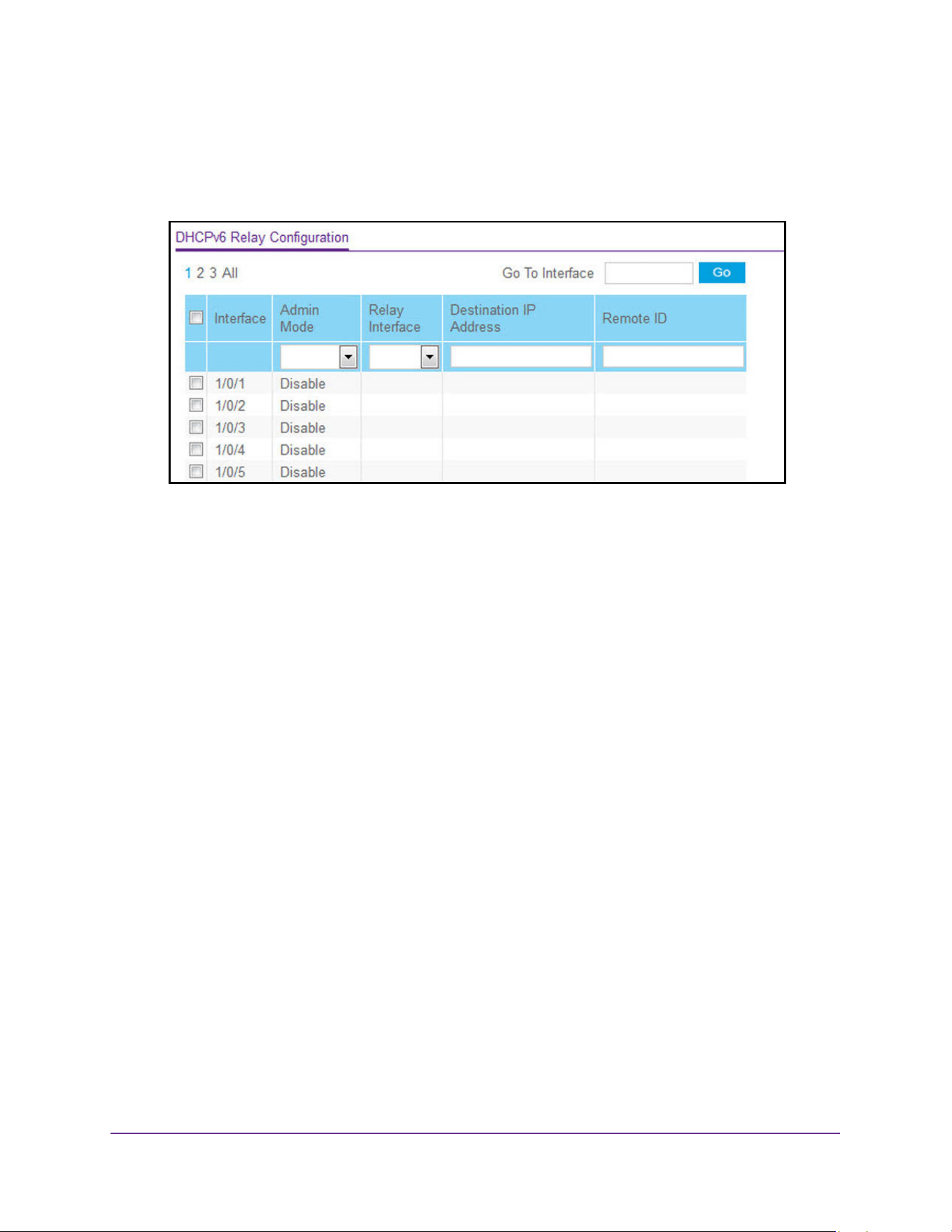
Configure System Information
110
M4200 and M4300 Series ProSAFE Managed Switches Web Management User Manual
4. Click the Login button.
The System Information page displays.
5. Select System > Services > DHCPv6 Relay.
6. Select the Interface with the information to view or configure.
You take one of the following actions:
• In the Go To Interface field, enter the interface in unit/slot/port format and click the Go
button. The entry corresponding to the specified interface is selected.
• Select the check box from the list of Interfaces configured for DHCPv6 Relay
functionality.
7. In the Admin mode field, specify the DHCPv6 mode, either Enable or Disable, to configure
DHCPv6 Relay functionality.
The default is Disable. DHCPv6 server and DHCPv6 relay functions are mutually
exclusive.
8. From the Relay Interface list, select an interface to reach a relay server.
9. In the Destination IP Address, specify an IPv6 address to reach a relay server.
10. In the Remote ID field, specify the relay agent information option.
The remote ID is derived from the DHCPv6 server DUID and the relay interface number,
or it can be specified as a user-defined string.
11. Click the Apply button.
The updated configuration is sent to the switch. Configuration changes take effect
immediately.
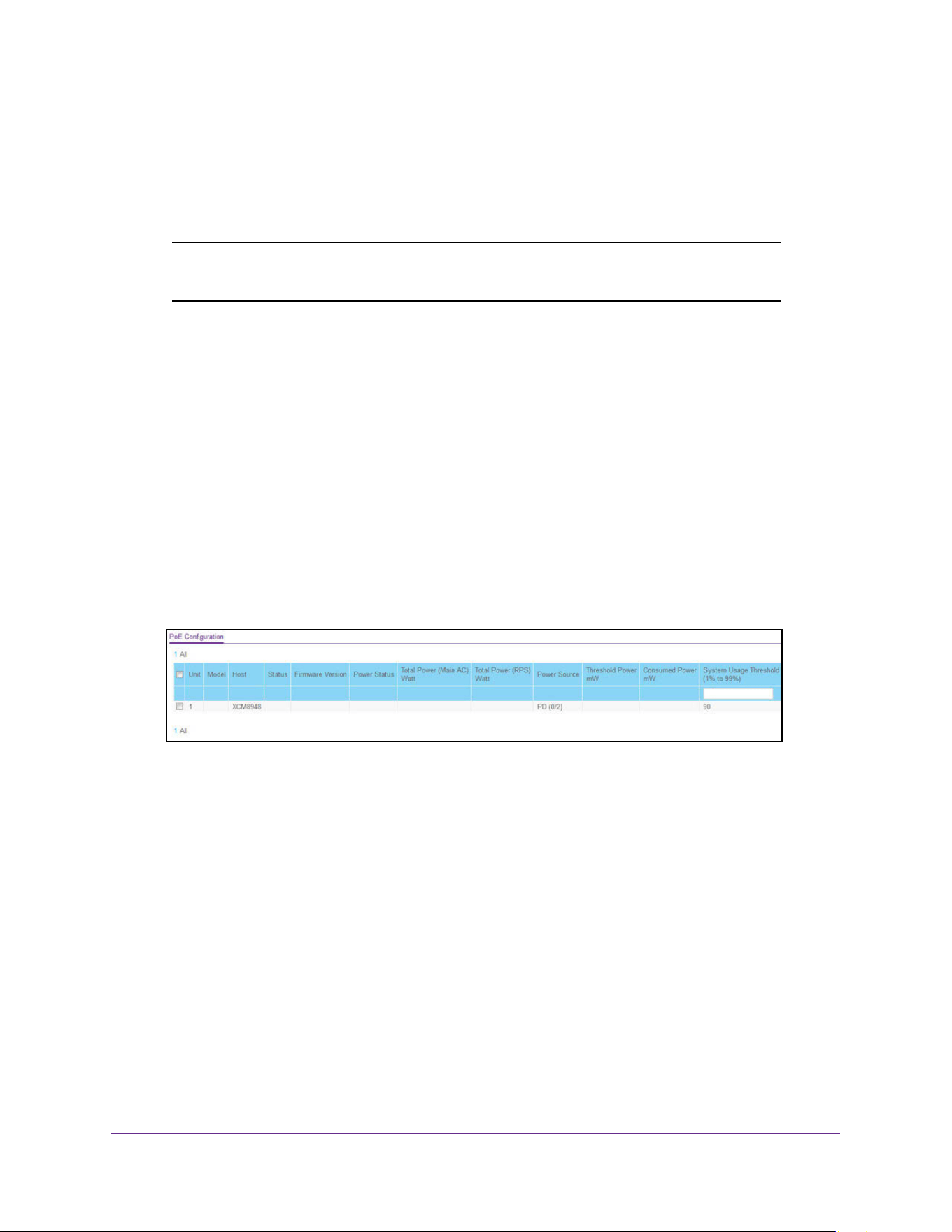
Configure System Information
111
M4200 and M4300 Series ProSAFE Managed Switches Web Management User Manual
Configure PoE
Configure Basic PoE
Note: PoE is supported on models M4200-10MG-PoE+, M4300-28G-POE+,
and M4300-52G-POE+ only.
To configure basic PoE settings:
1. Launch a web browser.
2. Enter http://<ipaddress> in the web browser address field.
The login window opens.
3. Enter the user name and password.
The default admin user name is admin and the default admin password is blank, that is,
do not enter a password.
4. Click the Login button.
The System Information page displays.
5. Select System > PoE > Basic > PoE Configuration.
The Unit Selection field displays the current PoE unit.
6. To change the PoE unit, select another unit from the list.
7. To set the System Usage Threshold percentage, enter a number from 1 to 99.
This sets the threshold level at which a trap is sent if consumed power is greater than the
threshold power.
8. The Power Management mode describes or controls the power management algorithm
used by the PSE to deliver power to the requesting PDs.
Select Static to indicate that the power allocated for each port depends on the type of
power threshold configured on the port. Select Dynamic to indicate that the power
consumption on each port is measured and calculated in real-time.
9. To set the traps, select Enable to activate the PoE traps.
Select Disable to deactivate the PoE traps. The default setting is enabled.
10. Click the Apply button.

Configure System Information
112
M4200 and M4300 Series ProSAFE Managed Switches Web Management User Manual
The updated configuration is sent to the switch. Configuration changes take effect
immediately.
The following table describes the PoE Configuration nonconfigurable fields.
Configure PoE Settings
To configure PoE settings:
1. Launch a web browser.
2. Enter http://<ipaddress> in the web browser address field.
The login window opens.
3. Enter the user name and password.
The default admin user name is admin and the default admin password is blank, that is,
do not enter a password.
4. Click the Login button.
The System Information page displays.
5. Select System > PoE > Advanced > PoE Configuration.
Table 42. PoE Configuration Nonconfigurable Fields
Field Description
Units The Current PoE Unit. You can change the PoE Unit by selecting
another unit ID listed here.
Model The model of the PoE card.
Host The PoE host.
Firmware Version The firmware version of the PoE software component.
Power Status Indicates the power status.
Total Power (Main AC) The total power provided by the MAIN AC power source.
Total Power (RPS) The total power provided by the redundant power source.
Power Source Current source of system power (Main AC or RPS).
Threshold Power System can power up one port, if consumed power is less than this
power. Consumed power can be between Nominal & Threshold Power
values. The threshold power value is determined by the configurable
System Usage Threshold percent.
Consumed Power Total amount of power in watts currently being consumed by connected
PoE devices.
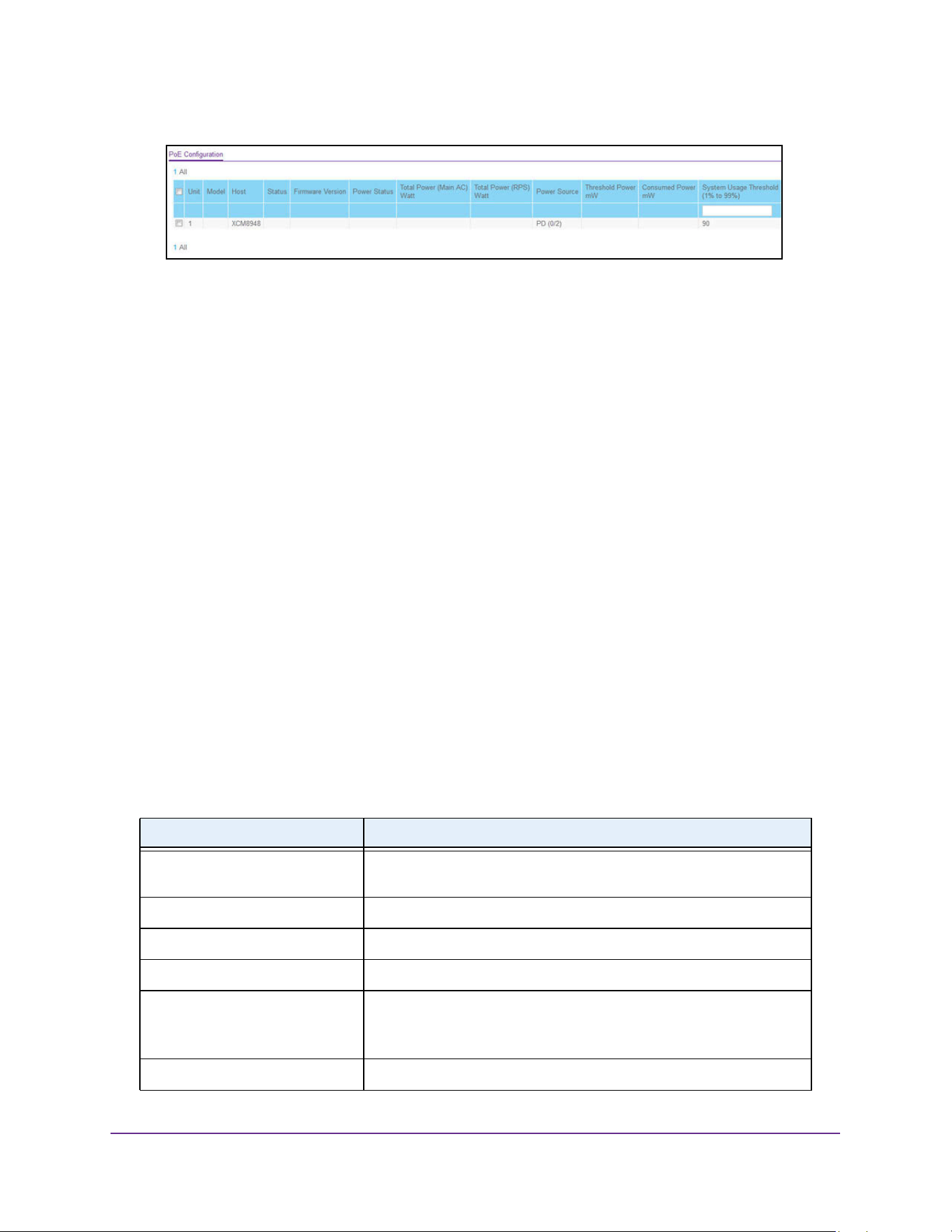
Configure System Information
113
M4200 and M4300 Series ProSAFE Managed Switches Web Management User Manual
The Unit Selection field displays the current PoE unit.
6. To change the PoE unit, select another unit from the list.
7. To set the System Usage Threshold percentage, enter a number from 1 to 99.
This sets the threshold level at which a trap is sent if consumed power is greater than the
threshold power.
8. The Power Management mode is the method by which the PoE controller determines
supplied power, which can be one of the following:
• Select Static to indicate that the power allocated for each is reserved and is not
available to any other port, even when less than the maximum allocation is being
used.
• Select Dynamic to indicate that the power consumption on each port is measured
and calculated in real-time. The power allocated to each port is not reserved. Unused
power may be allocated from one port to another as needed, up to the power limit
defined for each port.
9. To set the traps, select Enable to activate the PoE traps.
Select Disable to deactivate the PoE traps. The default setting is enabled.
10. Click the Apply button.
The updated configuration is sent to the switch. Configuration changes take effect
immediately.
The following table describes the PoE Configuration nonconfigurable fields.
Table 43. PoE Configuration
Field Description
Units The current PoE Unit. You can change the PoE Unit by selecting
another unit ID listed here.
Firmware Version The version of the PoE controller's FW image.
Power Status Indicates the power status.
Total Power (Main AC) The total power provided by the MAIN AC power source.
Total Power (RPS)
Total Power (PD) for GSM5212P
switches only
The total power provided by the redundant power source.
Power Source Current source of system power (Main AC or RPS).
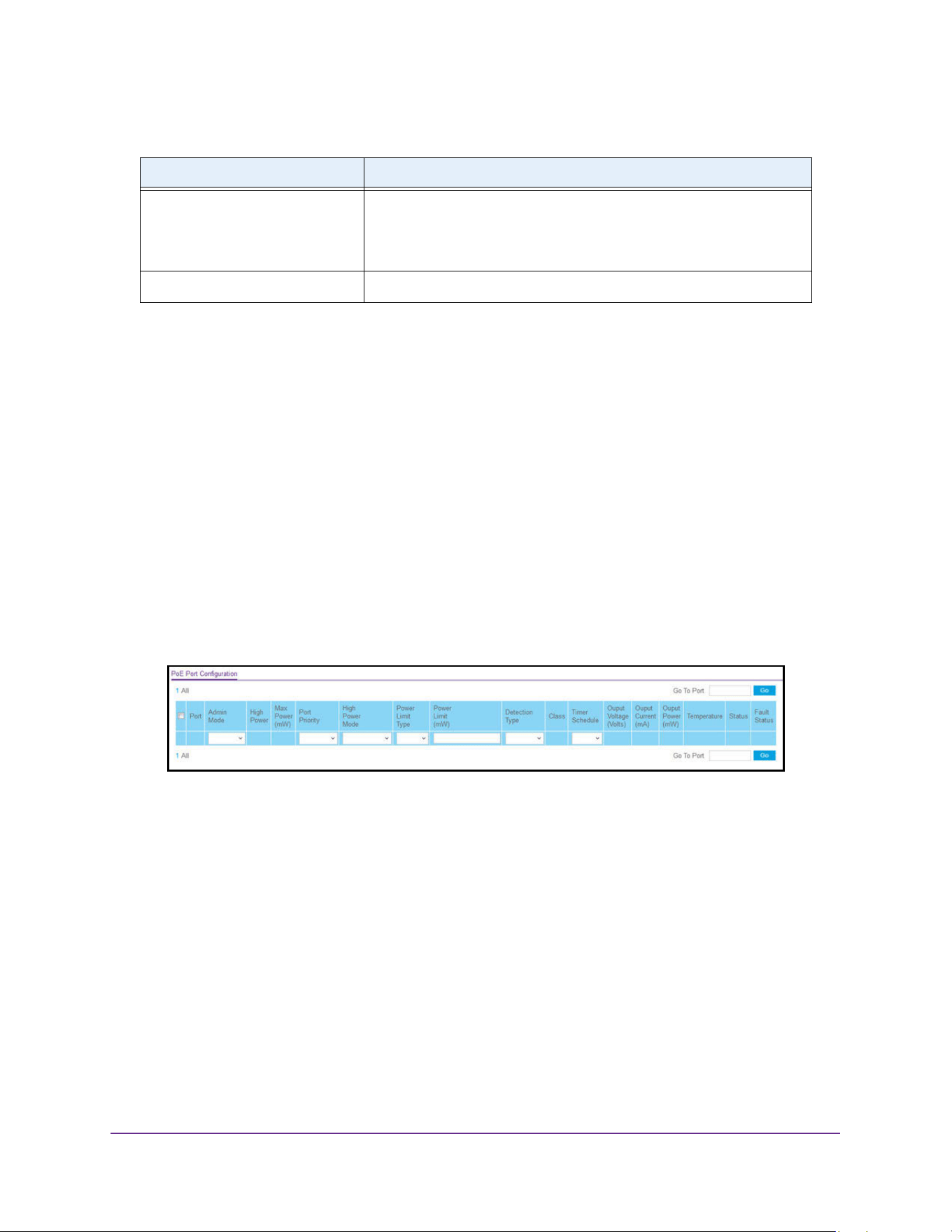
Configure System Information
114
M4200 and M4300 Series ProSAFE Managed Switches Web Management User Manual
Configure PoE Ports
To configure PoE port settings:,
1. Launch a web browser.
2. Enter http://<ipaddress> in the web browser address field.
The login window opens.
3. Enter the user name and password.
The default admin user name is admin and the default admin password is blank, that is,
do not enter a password.
4. Click the Login button.
The System Information page displays.
5. Select System > PoE > Advanced > PoE Port Configuration.
6. Select the Admin mode (Enable or Disable) to determine the ability of the port to deliver
power.
7. Port Priority is used to determine which ports can deliver power when the total power
delivered by the system crosses a specific threshold.
If the switch cannot supply power to all connected devices, the priority determines which
ports can supply power. The lowest numbered ports with the same Port Priority setting
are given higher priority. Select the priority order from the following list:
• Low. Low priority
• Medium. Medium priority
• High. High priority
• Critical. Critical priority
Threshold Power System can power up one port, if consumed power is less than this
power. i.e. Consumed power can be between Nominal and Threshold
Power values. The threshold power value is effected by changing
System Usage Threshold.
Consumed Power Total amount of a power which is currently being delivered to all ports.
Table 43. PoE Configuration (continued)
Field Description
Configure System Information
115
M4200 and M4300 Series ProSAFE Managed Switches Web Management User Manual
8. Select the High Power mode from the following options:
• Disabled indicates that a port is powered in the IEEE 802.3af mode.
• Legacy indicates that a port is powered using high-inrush current, used by legacy
PD's whose power requirements are more than 15W from power up.
• Pre-802.3at indicates a port is powered in the IEEE 802.3af mode initially and then
switched to the high-power IEEE 802.3at mode before 75 msec. This mode must be
selected if the PD is NOT performing Layer 2 Classification or the PSE is performing
2-Event Layer 1 Classification.
• 802.3at indicates that a port is powered in the IEEE 802.3at mode. For example, if the
class detected by PSE is not class4, then the PSE port does not power up the PD.
• upoe indicates that a port is powered in the UPoE mode.
9. The Power Limit Type describes or controls the maximum power that a port can deliver.
Select the type from the following list:
• Class indicates that the port power limit is equal to the class of the PD attached.
• User indicates that the port power limit is equal to the value specified by Power Limit.
• None indicates that the port draws up to class 0 maximum power in low power mode
and up to class 4 maximum power in high power mode.
10. Select the Power Limit to define the maximum power (in watts) which can be delivered by
a port.
The maximum allowed power limit is 60000 mW per port.
11. The Detection Type Describes a PD detection mechanism performed by the PSE port.
• pre-ieee. Only legacy detection is done.
• ieee. 4 Point Resistive Detection is done.
• auto. 4 Point Resistive Detection followed by Legacy Detection is done.
• 4point and Legacy indicates that the resistive 4 point detection scheme is used and
when it fails to detect a connected PD, legacy capacitive detection is used.
12. The Timer Schedule defines the timer schedule assigned to the port. Select None to
remove the timer schedule assignment.
13. Click Reset to forcibly reset the PSE port.
14. Click the Apply button.
The updated configuration is sent to the switch. Configuration changes take effect
immediately.
The following table describes the PoE Configuration nonconfigurable fields.
Table 44. PoE Configuration
Field Description
Port The interface for which data is to be displayed or configured.
High Power Enabled when particular port supports High Power mode.
Max Power The maximum power in Watts that can be provided by the port.

Configure System Information
116
M4200 and M4300 Series ProSAFE Managed Switches Web Management User Manual
Configure SNMP
You can configure SNMP settings for SNMP V1/V2 and SNMPv3.
Configure the SNMP V1/V2 Community
By default, two SNMP communities exist:
• Private, with read/write privileges and status set to Enable.
• Public, with read-only privileges and status set to Enable.
These are well-known communities. You can change the defaults or to add other
communities. Only the communities that you define can access to the switch using the SNMP
Class The Class defines the range of power a PD is drawing from the system.
Class definitions:
0 – 0.44-12.95 (watts)
1 – 0.44-3.83 (watts)
2 – 0.44-6.48 (watts)
3 – 0.44-12.95 (watts)
4 – 0.44-25.5 (watts)
Output Voltage Current voltage being delivered to device in volts.
Output Current Current being delivered to device in mA.
Output Power Current power being delivered to device in Watts.
Status The status is the operational status of the port PD detection.
• Disabled. No power being delivered.
• DeliveringPower. Power is being drawn by device.
• Fault. Indicates a problem with the port.
• Test. The port is in test mode.
• otherFault. The port is idle due to error condition.
• Searching. The port is not in one of the above states.
Fault Status Describes the error description when the PSE port is in fault status.
• No Error. The PSE port is not in any error state.
• MPS Absent. The PSE port has detected an absence of main
power supply.
• Short. The PSE port has detected a short circuit condition.
• Overload.The PD connected to the PSE port tried to provide more
power than it is permissible by the hardware.
• Power Denied. The PSE port was denied power because of
shortage of power or due to administrative action.
Table 44. PoE Configuration (continued)
Field Description
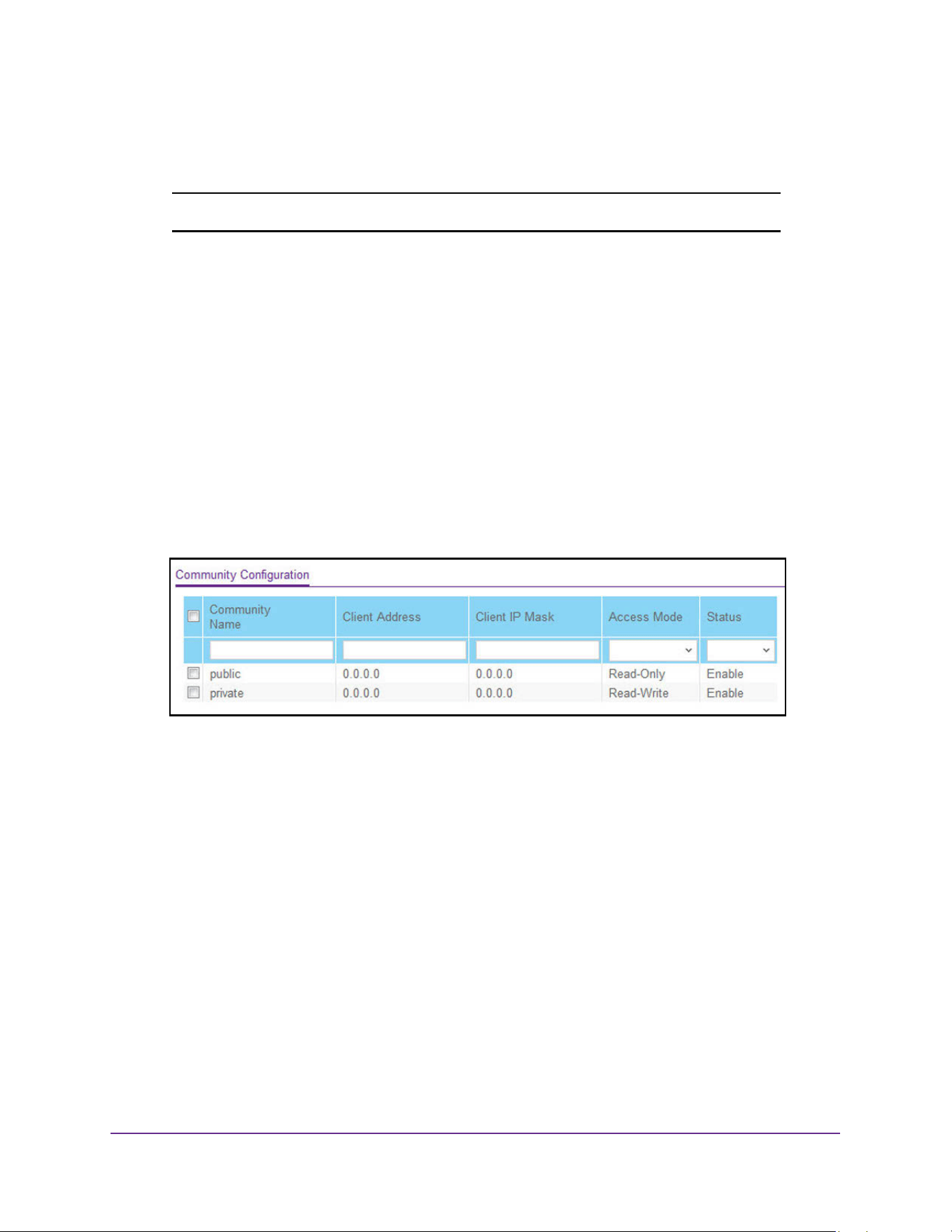
Configure System Information
117
M4200 and M4300 Series ProSAFE Managed Switches Web Management User Manual
V1 and SNMP V2 protocols. Only those communities with read/write level access can be
used to change the configuration using SNMP.
Note: If you want to use SNMP v3, use the User Accounts menu.
To configure the SNMP V1/V2 community:
1. Launch a web browser.
2. Enter http://<ipaddress> in the web browser address field.
The login window opens.
3. Enter the user name and password.
The default admin user name is admin and the default admin password is blank, that is,
do not enter a password.
4. Click the Login button.
The System Information page displays.
5. Select System > SNMP > SNMP V1/V2 > Community Configuration.
6. Use Community Name to reconfigure an existing community, or to create a new one.
Use this menu to select one of the existing community names, or select 'Create' to add a
new one. A valid entry is a case-sensitive string of up to 16 characters.
7. Client Address. Taken together, the Client Address and Client IP Mask denote a range of
IP addresses from which SNMP clients can use that community to access this device.
If either (Client Address or IP Mask) value is 0.0.0.0, access is allowed from any IP
address. Otherwise, every client's address is ANDed with the mask, as is the Client
Address, and, if the values are equal, access is allowed. For example, if the Client
Address and Client IP Mask parameters are 192.168.1.0/255.255.255.0, then any client
whose address is 192.168.1.0 through 192.168.1.255 (inclusive) is allowed access. To
allow access from only one station, use a Client IP Mask value of 255.255.255.255, and
use that machine's IP address for Client Address.
8. Client IP Mask. Taken together, the Client Address and Client IP Mask denote a range of IP
addresses from which SNMP clients can use that community to access this device.
If either (Client Address or IP Mask) value is 0.0.0.0, access is allowed from any IP
address. Otherwise, every client's address is ANDed with the mask, as is the Client
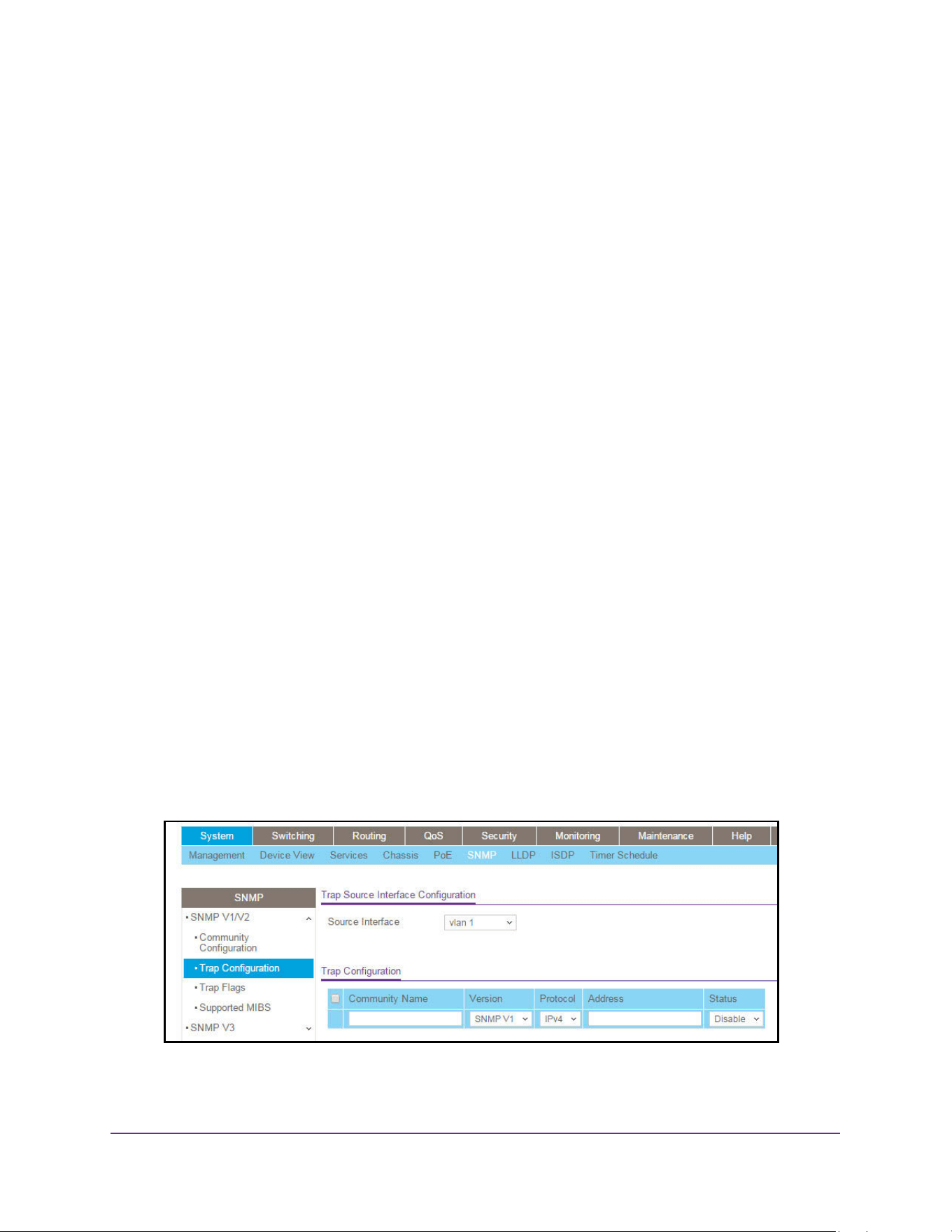
Configure System Information
118
M4200 and M4300 Series ProSAFE Managed Switches Web Management User Manual
Address, and, if the values are equal, access is allowed. For example, if the Client
Address and Client IP Mask parameters are 192.168.1.0/255.255.255.0, then any client
whose IP address is 192.168.1.0 through 192.168.1.255 (inclusive) is allowed access. To
allow access from only one station, use a Client IP Mask value of 255.255.255.255, and
use that machine's IP address for Client Address.
9. In the Access mode menu, select Read-Write or Read-Only.
This specifies the access level for this community.
10. Use Status to specify the status of this community by selecting Enable or Disable.
If you select enable, the Community Name must be unique among all valid Community
Names or the set request are rejected. If you select disable, the Community Name
becomes invalid.
11. Click the Add button.
The selected community is added to the switch.
Configure SNMP V1/V2 Trap Settings
To configure the SNMP V1/V2 trap settings:
1. Launch a web browser.
2. Enter http://<ipaddress> in the web browser address field.
The login window opens.
3. Enter the user name and password.
The default admin user name is admin and the default admin password is blank, that is,
do not enter a password.
4. Click the Login button.
The System Information page displays.
5. Select System > SNMP > SNMP V1/V2 > Trap Configuration.
6. In the Source Interface list, select the source interface to use for SNMP Trap receiver.

Configure System Information
119
M4200 and M4300 Series ProSAFE Managed Switches Web Management User Manual
Possible values are as follows:
• Routing interface
• Routing VLAN
• Routing loopback interface
• Tunnel interface
• Service port
VLAN 1 is used as source interface by default.
7. To add a host that receives SNMP traps, do the following steps:
a. Community Name. Enter the community string for the SNMP trap packet to be sent to
the trap manager. This name can be up to 16 characters and is case-sensitive.
b. Version. Select the trap version to be used by the receiver:
• SNMP V1. Uses SNMP V1 to send traps to the receiver.
• SNMP V2. Uses SNMP V2 to send traps to the receiver.
c. Protocol. Select the protocol to be used by the receiver. Select IPv4 if the receiver's
address is IPv4 address or IPv6 if the receiver's address is IPv6.
d. Address. Enter the IPv4 address in x.x.x.x format or the IPv6 address in
xxxx:xxxx:xxxx:xxxxx:xxxx:xxxx:xxxx:xxxx to receive SNMP traps from this device.
The length of the address cannot exceed 39 characters.
e. Status. Select the receiver's status:
• Enable. Send traps to the receiver
• Disable. Do not send traps to the receiver.
f. Click the Add button.
8. To make changes, do the following:
• To modify information about an existing SNMP recipient, select the check box for the
recipient, and change the desired fields.
• To delete a recipient, select the check box for the recipient and click the Delete
button.
9. Click the Apply button.
The updated configuration is sent to the switch. Configuration changes take effect
immediately.
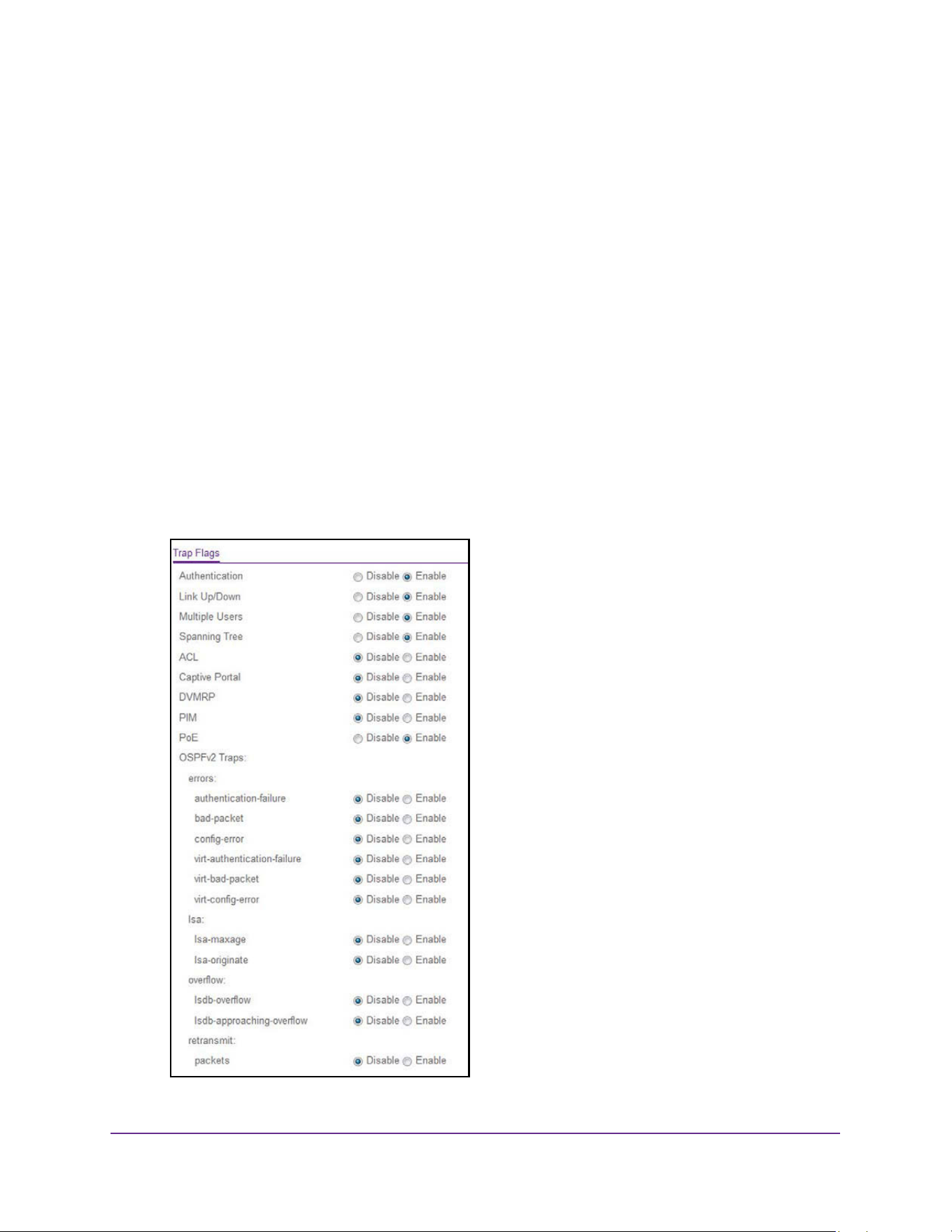
Configure System Information
120
M4200 and M4300 Series ProSAFE Managed Switches Web Management User Manual
Configure SNMP V1/V2 Trap Flags
You can enable or disable traps. When the condition identified by an active trap is
encountered by the switch, a trap message is sent to any enabled SNMP Trap Receivers,
and a message is written to the trap log.
To configure the trap flags:
1. Launch a web browser.
2. Enter http://<ipaddress> in the web browser address field.
The login window opens.
3. Enter the user name and password.
The default admin user name is admin and the default admin password is blank, that is,
do not enter a password.
4. Click the Login button.
The System Information page displays.
5. Select System > SNMP > SNMP V1/V2 > Trap Flags.

Configure System Information
121
M4200 and M4300 Series ProSAFE Managed Switches Web Management User Manual
6. Select the Authentication Disable or Enable radio button.
This enables or disables activation of authentication failure traps. The factory default is
Enable.
7. Select the Link Up/Down Disable or Enable radio button
This enables or disables activation of link status traps.The factory default is Enable.
8. Select the Multiple Users Disable or Enable radio button
This enables or disables activation of multiple user traps.The factory default is Enable.
This trap is triggered when the same user ID is logged into the switch more than once at
the same time (either through Telnet or the serial port).
9. Select the Spanning Tree Disable or Enable radio button.
This enables or disables activation of spanning tree traps. The factory default is Enable.
10. Select the ACL Disable or Enable radio button.
This enables or disables activation of ACL traps. The factory default is Disable.
11. Select the PoE Disable or Enable radio button.
This enables or disables activation of PoE traps. The factory default is Enable. Indicates
whether PoE traps are sent.
12. Click the Apply button.
The updated configuration is sent to the switch. Configuration changes take effect
immediately.
View the Supported MIBs
To view all the MIBs supported by the switch:
1. Launch a web browser.
2. Enter http://<ipaddress> in the web browser address field.
The login window opens.
3. Enter the user name and password.
The default admin user name is admin and the default admin password is blank, that is,
do not enter a password.
4. Click the Login button.
The System Information page displays.
5. Select System > SNMP > SNMP V1/V2 >Supported MIBs.
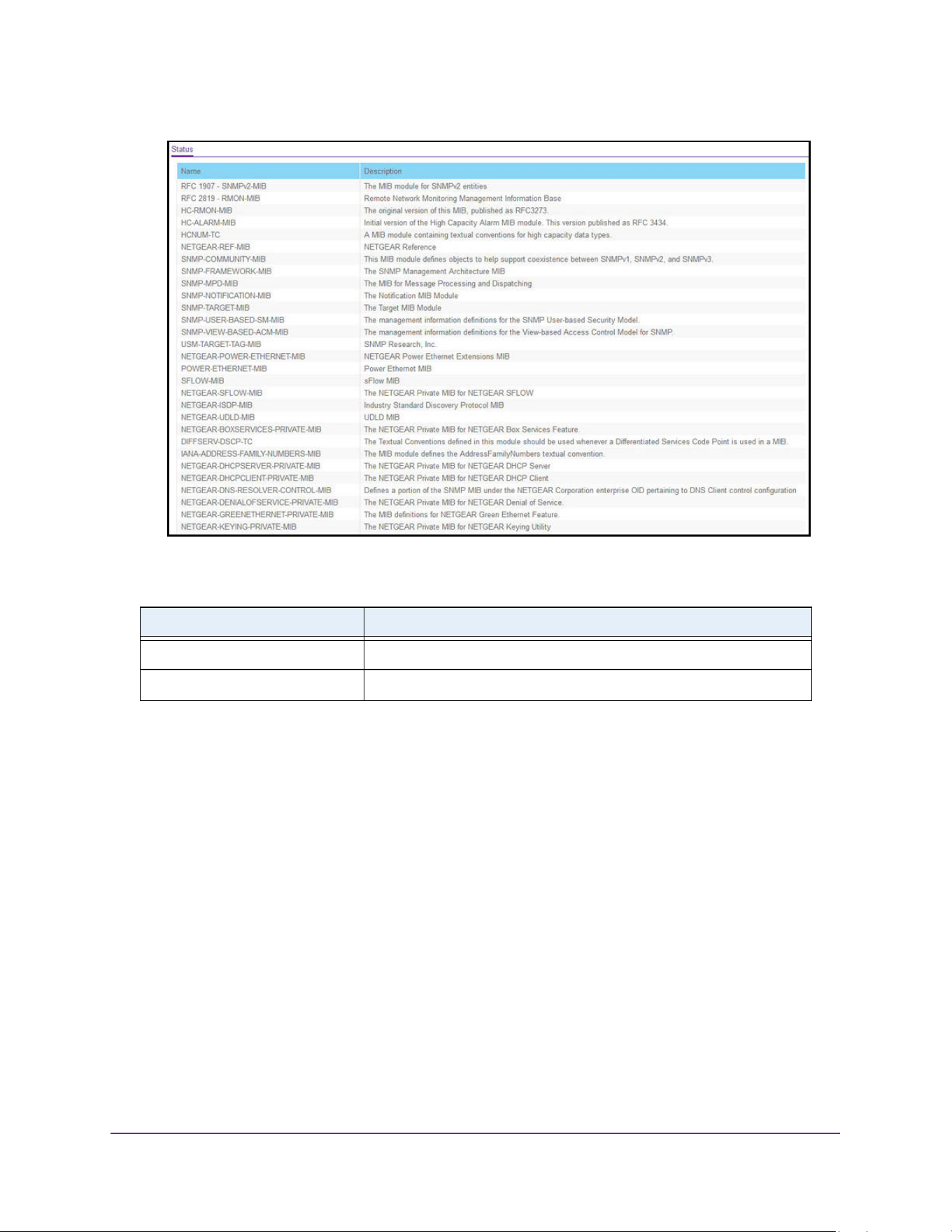
Configure System Information
122
M4200 and M4300 Series ProSAFE Managed Switches Web Management User Manual
The following table describes the SNMP Supported MIBs Status fields.
Configure SNMP V3 Users
To configure SNMPv3 settings for the user account:
1. Launch a web browser.
2. Enter http://<ipaddress> in the web browser address field.
The login window opens.
3. Enter the user name and password.
The default admin user name is admin and the default admin password is blank, that is,
do not enter a password.
4. Click the Login button.
The System Information page displays.
5. Select System > SNMP > SNMP V3 > User Configuration.
Table 45. SNMP Supported MIBs
Field Description
Name The RFC number if applicable and the name of the MIB.
Description The RFC title or MIB description.
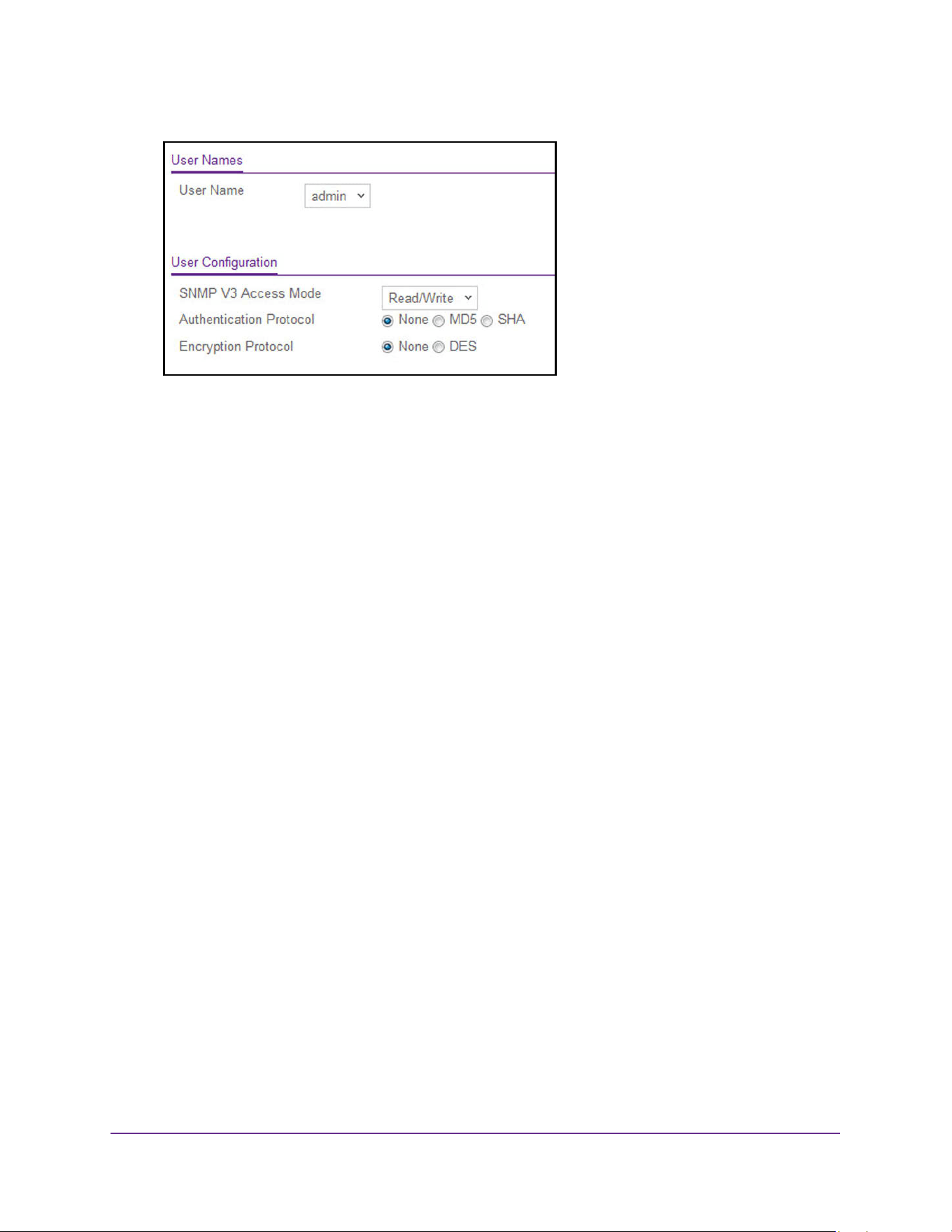
Configure System Information
123
M4200 and M4300 Series ProSAFE Managed Switches Web Management User Manual
6. In the User Name list, select the user account to be configured.
The SNMP v3 Access mode field indicates the SNMPv3 access privileges for the user
account. The admin account has read/write access, and all other accounts are assigned
read-only access.
7. Select an Authentication Protocol radio button.
The valid Authentication Protocols are None, MD5 or SHA:
• If you select None, the user cannot access the SNMP data from an SNMP browser.
• If you select MD5 or SHA, the user login password are used as the SNMPv3
authentication password, and you must therefore specify a password, and it must be
eight characters long.
This specifies the SNMPv3 Authentication Protocol setting for the selected user account.
8. Select a Encryption Protocol radio button.
The valid Encryption Protocols are None or DES:
• If you select the DES Protocol you must enter a key in the Encryption Key field.
• If None is specified for the Protocol, the Encryption Key is ignored.
This specifies the SNMPv3 Encryption Protocol setting for the selected user account.
9. If you selected DES in the Encryption Protocol field, enter the encryption key in the
SNMPv3 Encryption Key field.
If you did not select DES, this field is ignored. Valid keys are 0 to 15 characters long.
10. Click the Apply button.
The updated configuration is sent to the switch. Configuration changes take effect
immediately.

Configure System Information
124
M4200 and M4300 Series ProSAFE Managed Switches Web Management User Manual
Configure LLDP
The IEEE 802.1AB-defined standard, Link Layer Discovery Protocol (LLDP), allows stations
on an 802 LAN to advertise major capabilities and physical descriptions. This information is
viewed by a network manager to identify system topology and detect bad configurations on
the LAN.
LLDP is a one-way protocol; there are no request/response sequences. Information is
advertised by stations implementing the transmit function, and is received and processed by
stations implementing the receive function. The transmit and receive functions can be
enabled/disabled separately per port. By default, both transmit and receive are disabled on
all ports. The application is responsible for starting each transmit and receive state machine
appropriately, based on the configured status and operational state of the port.
The Link Layer Discovery Protocol-Media Endpoint Discovery (LLDP-MED) is an
enhancement to LLDP with the following features:
• Auto-discovery of LAN policies (such as VLAN, Layer 2 Priority, and DiffServ settings),
enabling plug and play networking.
• Device location discovery for creation of location databases.
• Extended and automated power management of Power over Ethernet endpoints.
• Inventory management, enabling network administrators to track their network devices
and determine their characteristics (manufacturer, software and hardware versions,
serial/asset number).
Configure LLDP Global Settings
You can specify LLDP parameters that are applied to the switch.
To configure global LLDP settings:
1. Launch a web browser.
2. Enter http://<ipaddress> in the web browser address field.
The login window opens.
3. Enter the user name and password.
The default admin user name is admin and the default admin password is blank, that is,
do not enter a password.
4. Click the Login button.
The System Information page displays.
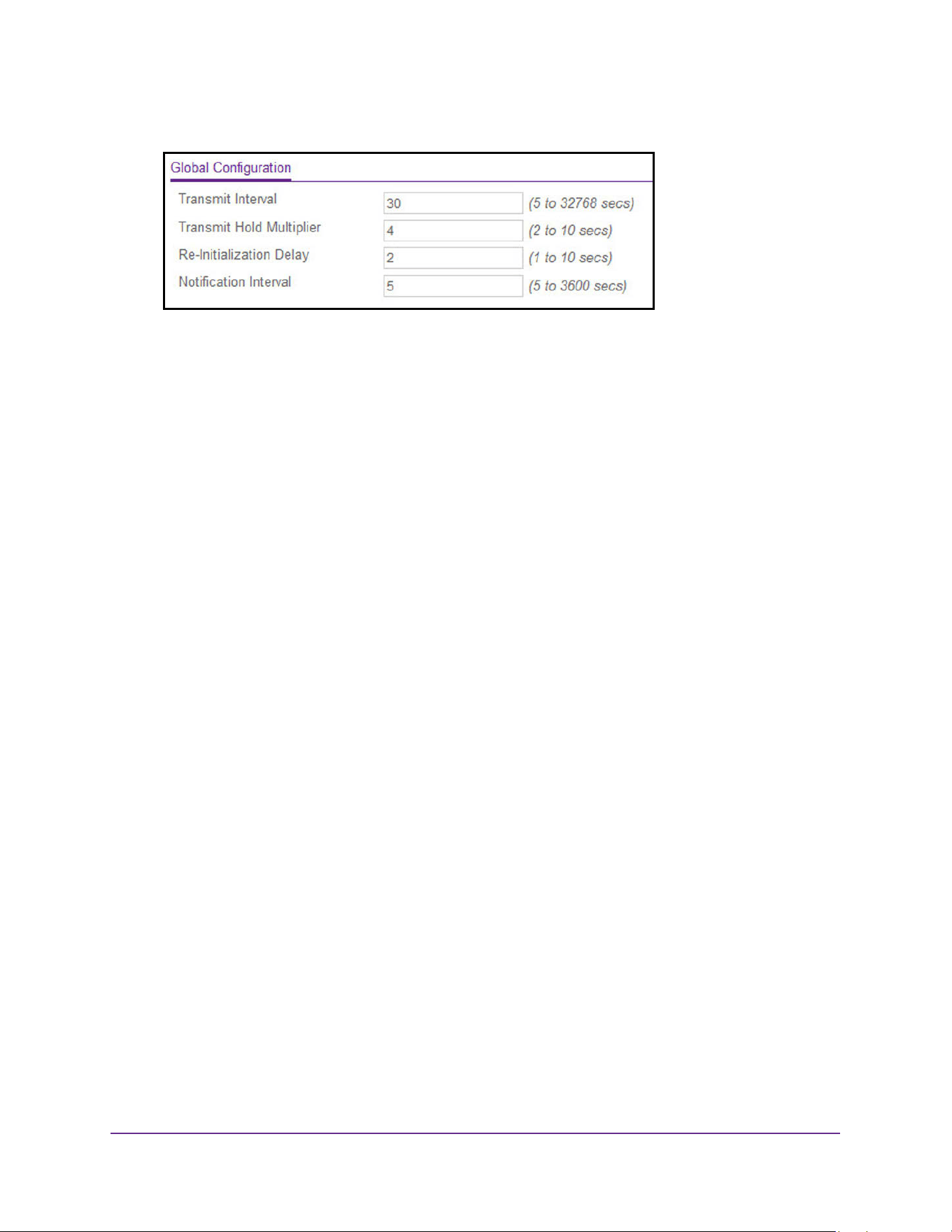
Configure System Information
125
M4200 and M4300 Series ProSAFE Managed Switches Web Management User Manual
5. Select System > LLDP > Global Configuration.
6. In the Transmit Interval field, enter the interval in seconds to transmit LLDP frames.
The range is from 5 to 32768 secs. The default value is 30 seconds.
7. In the Transmit Hold Multiplier field, enter the multiplier on Transmit Interval to assign TTL.
The range is from 2 to 10 secs. The default value is 4.
8. In the Re-Initialization Delay field, enter the delay before re-initialization.
The range is from 1 to 10 secs. The default value is 2 seconds.
9. In the Notification Interval field, enter the interval in seconds for transmission of
notifications.
The range is from 5 to 3600 secs. The default value is 5 seconds.
10. Click the Apply button.
The updated configuration is sent to the switch. Configuration changes take effect
immediately.
Configure the LLDP Interface
To configure the LLDP interface:
1. Launch a web browser.
2. Enter http://<ipaddress> in the web browser address field.
The login window opens.
3. Enter the user name and password.
The default admin user name is admin and the default admin password is blank, that is,
do not enter a password.
4. Click the Login button.
The System Information page displays.
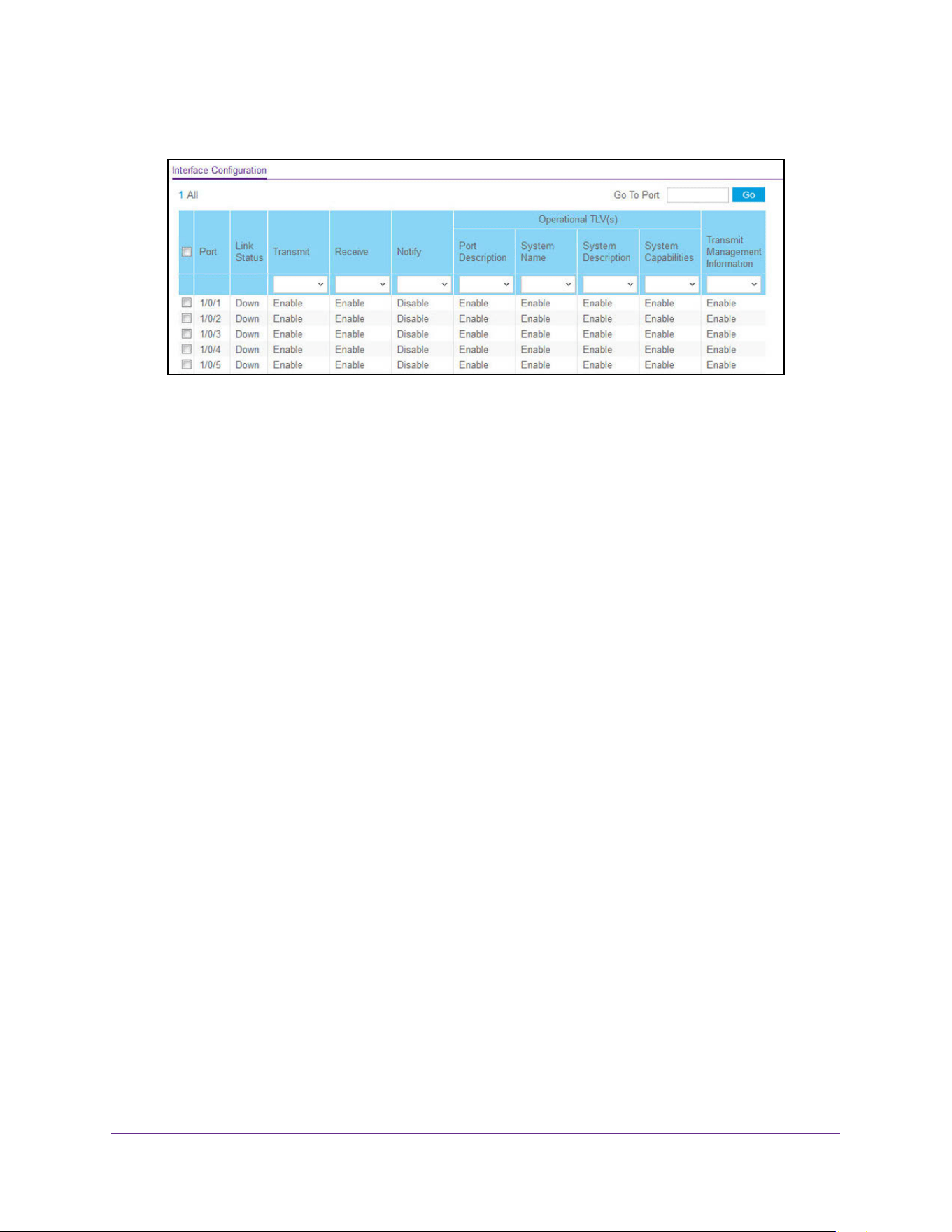
Configure System Information
126
M4200 and M4300 Series ProSAFE Managed Switches Web Management User Manual
5. Select System > LLDP > Interface Configuration.
6. Use Go To Port to enter the Port in unit/slot/port format and click the Go button.
The entry corresponding to the specified Port, is selected.
7. Use Port to specify the list of ports on which LLDP - 802.1AB can be configured.
The Link Status field indicates whether the link is up or down.
8. Use Transmit to specify the LLDP - 802.1AB transmit mode for the selected interface.
9. Use Receive to specify the LLDP - 802.1AB receive mode for the selected interface.
10. Use Notify to specify the LLDP - 802.1AB notification mode for the selected interface.
11. Optional TLV(s):
• Use Port Description to include port description TLV in LLDP frames.
• Use System Name to include system name TLV in LLDP frames.
• Use System Description to include system description TLV in LLDP frames.
• Use System Capabilities to include system capability TLV in LLDP frames.
12. Use Transmit Management Information to specify whether management address is
transmitted in LLDP frames for the selected interface.
13. Click the Apply button.
The updated configuration is sent to the switch. Configuration changes take effect
immediately.
View LLDP Statistics
To view LLDP statistics:
1. Launch a web browser.
2. Enter http://<ipaddress> in the web browser address field.
The login window opens.
3. Enter the user name and password.
The default admin user name is admin and the default admin password is blank, that is,
do not enter a password.
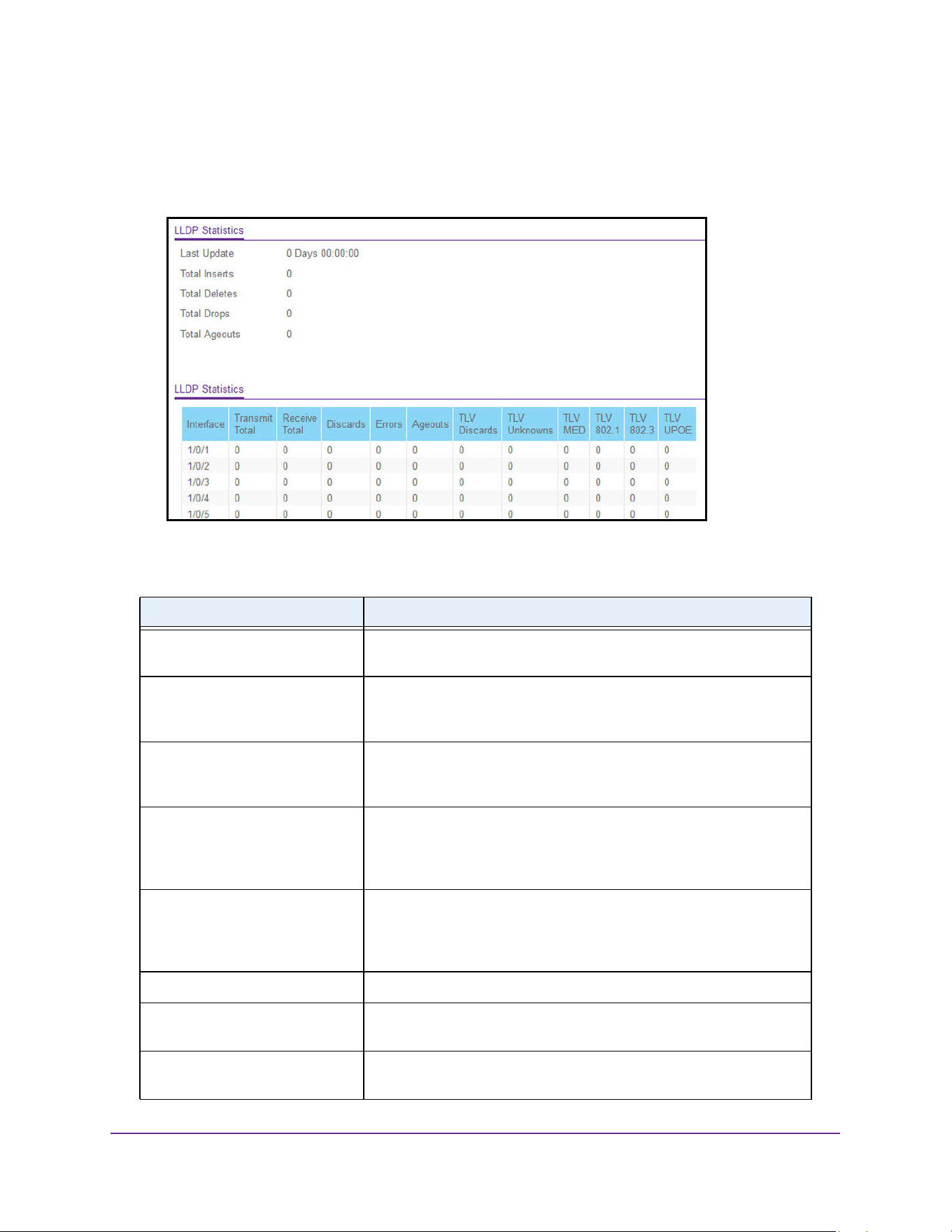
Configure System Information
127
M4200 and M4300 Series ProSAFE Managed Switches Web Management User Manual
4. Click the Login button.
The System Information page displays.
5. Select System > LLDP > Statistics.
The following table describes the LLDP Statistics fields.
Table 46. LLDP Statistics
Field Description
Last Update The time when an entry was created, modified or deleted in the tables
associated with the remote system.
Total Inserts The number of times the complete set of information advertised by a
particular MAC Service Access Point (MSAP) was inserted into tables
associated with the remote systems.
Total Deletes The number of times the complete set of information advertised by a
particular MAC Service Access Point (MSAP) was deleted from tables
associated with the remote systems.
Total Drops The number of times the complete set of information advertised by a
particular MAC Service Access Point (MSAP) could not be entered into
tables associated with the remote systems because of insufficient
resources.
Total Age outs The number of times the complete set of information advertised by a
particular MAC Service Access Point (MSAP) was deleted from tables
associated with the remote systems because the information timeliness
interval has expired.
Interface The unit/slot/port for the interfaces.
Transmit Total The number of LLDP frames transmitted by the LLDP agent on the
corresponding port.
Receive Total The number of valid LLDP frames received by this LLDP agent on the
corresponding port, while the LLDP agent is enabled.
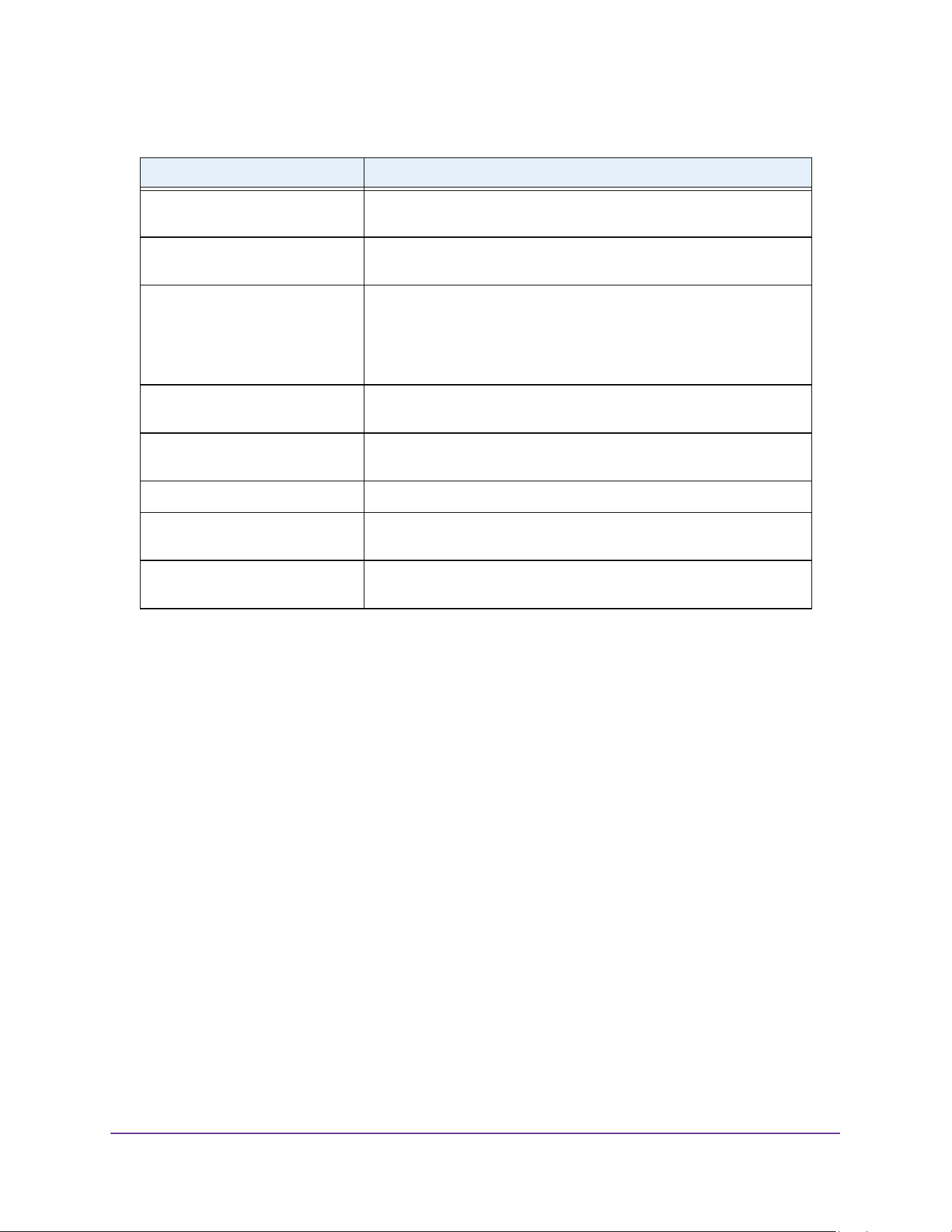
Configure System Information
128
M4200 and M4300 Series ProSAFE Managed Switches Web Management User Manual
View LLDP Local Device Information
To view LLDP local device information:
1. Launch a web browser.
2. Enter http://<ipaddress> in the web browser address field.
The login window opens.
3. Enter the user name and password.
The default admin user name is admin and the default admin password is blank, that is,
do not enter a password.
4. Click the Login button.
The System Information page displays.
5. Select System > LLDP > Local Device Information.
Discards The number of LLDP TLVs discarded for any reason by the LLDP agent
on the corresponding port.
Errors The number of invalid LLDP frames received by the LLDP agent on the
corresponding port, while the LLDP agent is enabled.
Age outs The number of age-outs that occurred on a given port. An age-out is
the number of times the complete set of information advertised by a
particular MAC Service Access Point (MSAP) was deleted from tables
associated with the remote entries because information timeliness
interval expired.
TLV Discards The number of LLDP TLVs discarded for any reason by the LLDP agent
on the corresponding port.
TLV Unknowns The number of LLDP TLVs received on the local ports which were not
recognized by the LLDP agent on the corresponding port.
TLV MED The total number of LLDP-MED TLVs received on the local ports.
TLV 802.1 The total number of LLDP TLVs received on the local ports which are of
type 802.1.
TLV 802.3 The total number of LLDP TLVs received on the local ports which are of
type 802.3.
Table 46. LLDP Statistics (continued)
Field Description
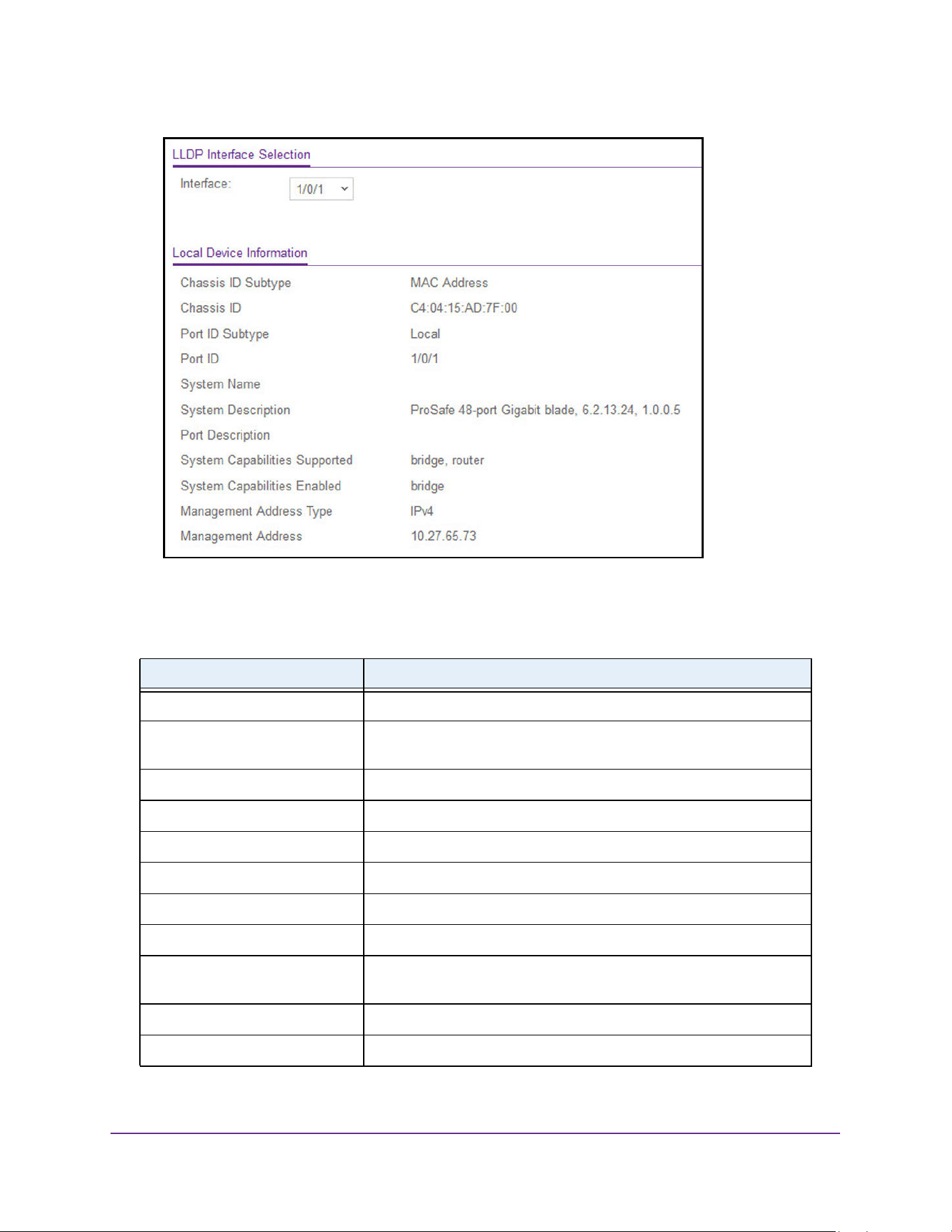
Configure System Information
129
M4200 and M4300 Series ProSAFE Managed Switches Web Management User Manual
6. In Interface list, select the ports on which LLDP - 802.1AB frames can be transmitted.
The following table describes the LLDP Local Device Information fields.
Table 47. LLDP Local Device Information
Field Description
Chassis ID Subtype The string that describes the source of the switch identifier.
Chassis ID The string value used to identify the switch component associated with
the local system.
Port ID Subtype The string that describes the source of the port identifier.
Port ID The string that describes the source of the port identifier.
System Name The system name of the local system.
System Description The description of the selected port associated with the local system.
Port Description The description of the selected port associated with the local system.
System Capabilities Supported The system capabilities of the local system.
System Capabilities Enabled The system capabilities of the local system which are supported and
enabled.
Management Address Type The type of the management address.
Management Address The advertised management address of the local system.
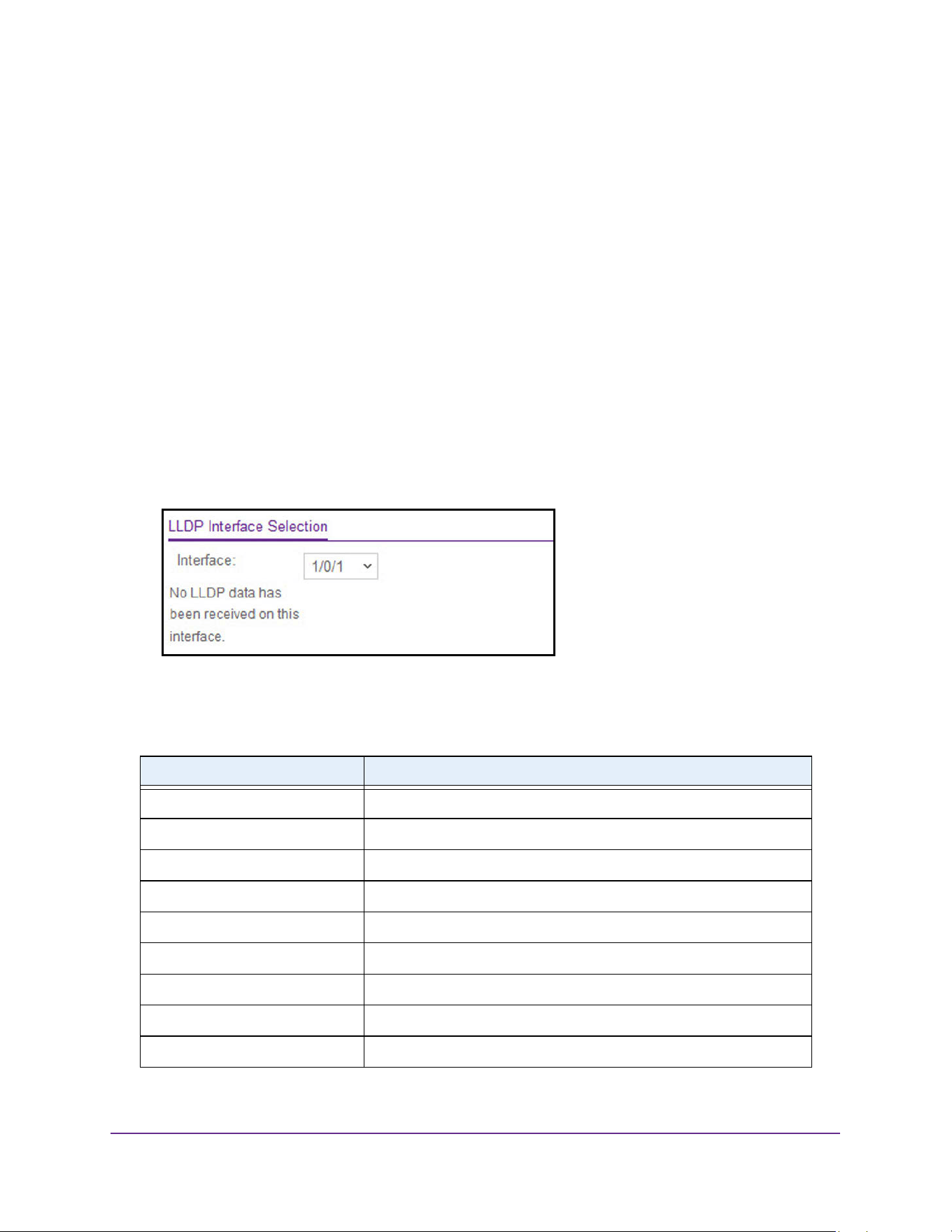
Configure System Information
130
M4200 and M4300 Series ProSAFE Managed Switches Web Management User Manual
View LLDP Remote Device Information
You can view information on remote devices connected to the port.
To view LLDP remote device information:
1. Launch a web browser.
2. Enter http://<ipaddress> in the web browser address field.
The login window opens.
3. Enter the user name and password.
The default admin user name is admin and the default admin password is blank, that is,
do not enter a password.
4. Click the Login button.
The System Information page displays.
5. Select System > LLDP > Remote Device Information.
6. Use Interface to select the local ports which can receive LLDP frames.
The following table describes the LLDP Remote Device Information fields.
Table 48. LLDP Remote Device Information
Field Description
Remote ID The remote ID.
Switch ID The switch component associated with the remote system.
Switch ID Subtype The source of the switch identifier.
Port ID The port component associated with the remote system.
Port ID Subtype The source of port identifier.
System Name The system name of the remote system.
System Description The description of the given port associated with the remote system.
Port Description The description of the given port associated with the remote system.
System Capabilities Supported The system capabilities of the remote system.
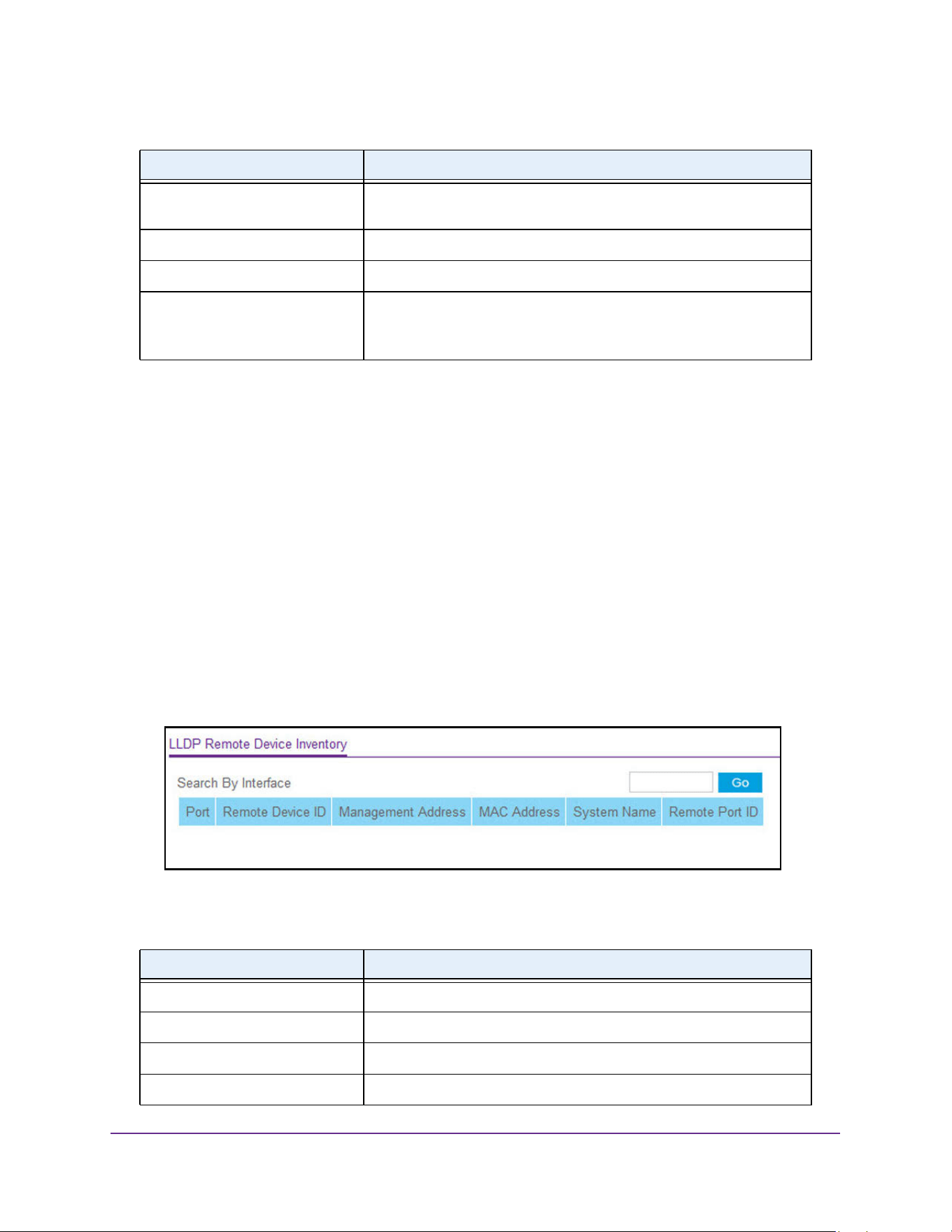
Configure System Information
131
M4200 and M4300 Series ProSAFE Managed Switches Web Management User Manual
View LLDP Remote Device Inventory
To view LLDP remote device inventory:
1. Launch a web browser.
2. Enter http://<ipaddress> in the web browser address field.
The login window opens.
3. Enter the user name and password.
The default admin user name is admin and the default admin password is blank, that is,
do not enter a password.
4. Click the Login button.
The System Information page displays.
5. Select System > LLDP > LLDP > Remote Device Inventory.
The following table describes the LLDP Remote Device Inventory fields.
System Capabilities Enabled The system capabilities of the remote system which are supported and
enabled.
Time to Live The Time To Live value in seconds of the received remote entry.
Management Address Type The type of the management address.
Management Address • Management Address. The advertised management address of the
remote system.
• Type. The type of the management address.
Table 49. LLDP Remote Device Inventory
Field Description
Port The list of all the ports on which LLDP frame is enabled.
Remote Device ID The remote device ID.
Management Address The advertised management address of the remote system.
MAC Address The MAC address associated with the remote system.
Table 48. LLDP Remote Device Information (continued)
Field Description
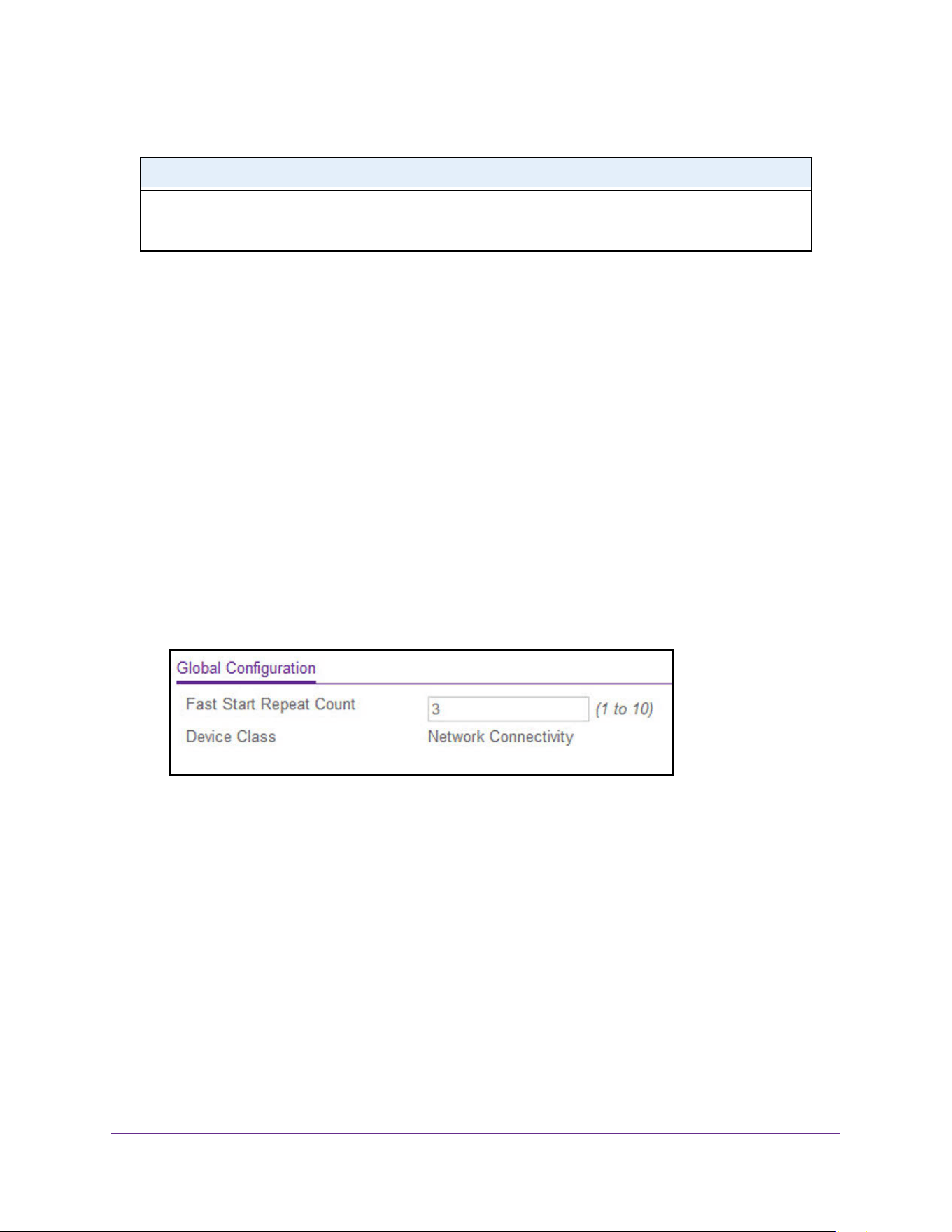
Configure System Information
132
M4200 and M4300 Series ProSAFE Managed Switches Web Management User Manual
Configure LLDP-MED Global Settings
You can specify LLDP-MED parameters that are applied to the switch.
To configure LLDP-MED global settings:
1. Launch a web browser.
2. Enter http://<ipaddress> in the web browser address field.
The login window opens.
3. Enter the user name and password.
The default admin user name is admin and the default admin password is blank, that is,
do not enter a password.
4. Click the Login button.
The System Information page displays.
5. Select System > LLDP > LLDP-MED > Global Configuration.
6. In the Fast Start Repeat Count field, enter the number of LLDP PDUs that are transmitted
when the protocol is enabled.
The range is from (1 to 10). Default value of fast repeat count is 3.
The Device Class field specifies local device's MED classification. There are four
different kinds of devices, three of them represent the actual end points (classified as
Class I Generic [IP Communication Controller and so on], Class II Media [Conference
Bridge and so on], Class III Communication [IP Telephone and so on]). The fourth device
is Network Connectivity Device, which is typically a LAN Switch/Router, IEEE 802.1
Bridge, IEEE 802.11 Wireless Access Point and so on.
7. Click the Apply button.
The updated configuration is sent to the switch. Configuration changes take effect
immediately.
System Name Specifies model name of the remote device.
Remote Port ID The port component associated with the remote system.
Table 49. LLDP Remote Device Inventory (continued)
Field Description
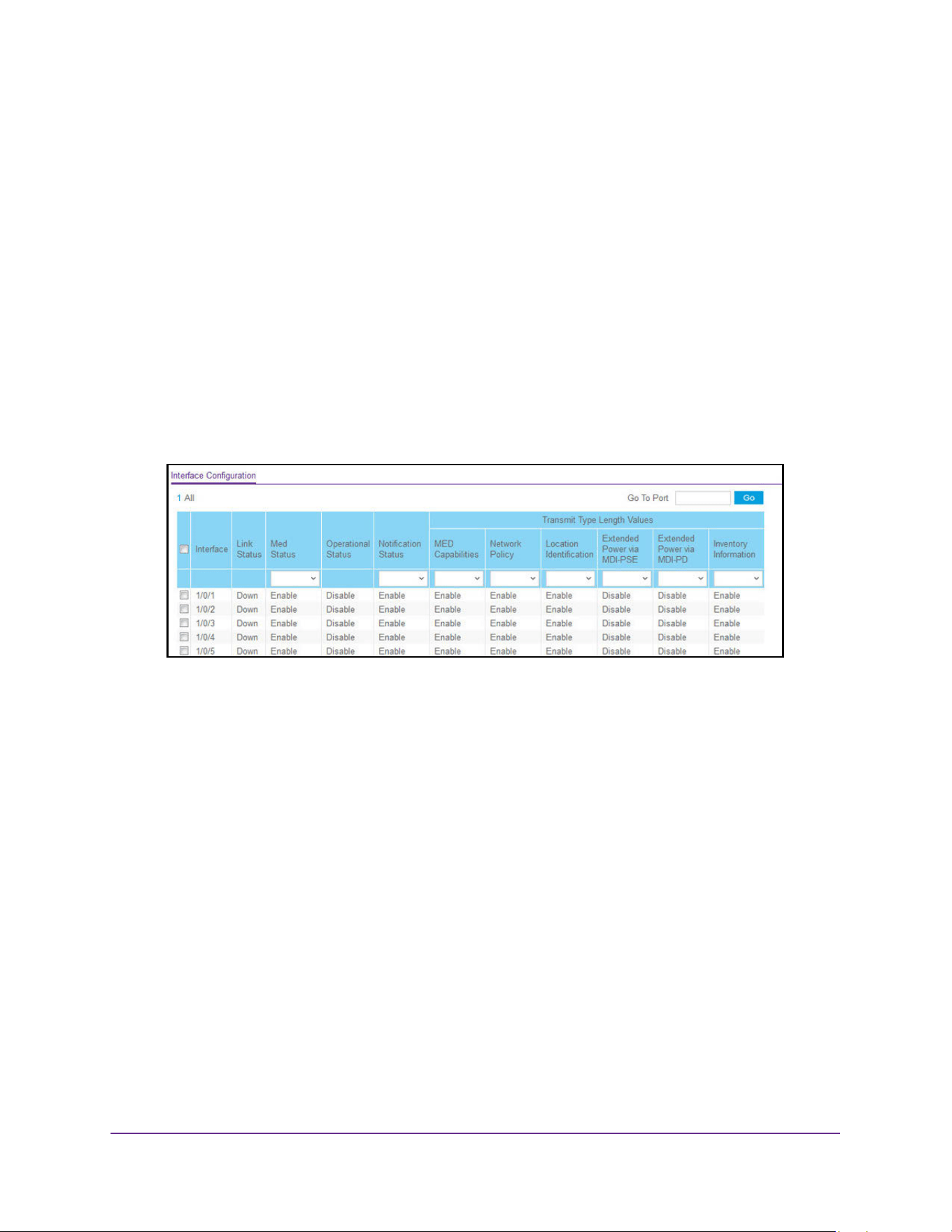
Configure System Information
133
M4200 and M4300 Series ProSAFE Managed Switches Web Management User Manual
Configure LLDP-MED Interface
To configure LLDP-MED Interface
1. Launch a web browser.
2. Enter http://<ipaddress> in the web browser address field.
The login window opens.
3. Enter the user name and password.
The default admin user name is admin and the default admin password is blank, that is,
do not enter a password.
4. Click the Login button.
The System Information page displays.
5. Select System > LLDP > LLDP-MED > Interface Configuration.
The Link Status field displays the link status of the port (up or down).
The Operational Status field displays whether the LLDP-MED TLVs are transferred on
this interface.
6. Use Go To Port to enter the Port in unit/slot/port format and click the Go button.
The entry corresponding to the specified Port, is selected.
7. Use Interface to specify the list of ports on which LLDP-MED - 802.1AB can be configured.
8. Use MED Status to specify whether LLDP-MED mode is enabled or disabled on this
interface.
9. Use Notification Status to specify the LLDP-MED topology notification mode of the
interface.
10. Use Transmit Type Length Values to specify which optional type length values (TLVs) in
the LLDP-MED is transmitted in the LLDP PDUs frames for the selected interface:
• MED Capabilities. To transmit the capabilities TLV in LLDP frames.
• Network Policy. To transmit the network policy TLV in LLDP frames.
• Location Identification. To transmit the location TLV in LLDP frames.
• Extended Power via MDI - PSE. To transmit the extended PSE TLV in LLDP frames.
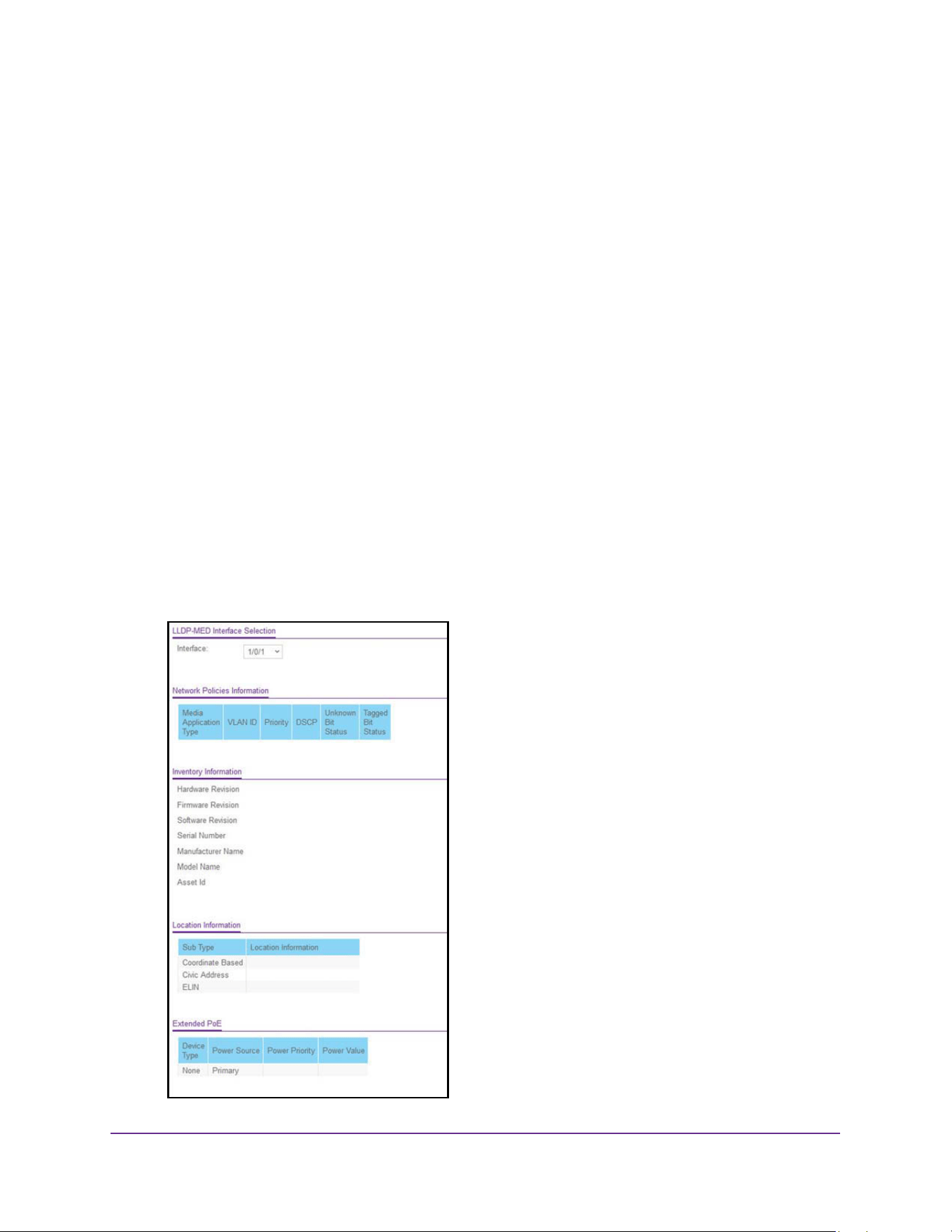
Configure System Information
134
M4200 and M4300 Series ProSAFE Managed Switches Web Management User Manual
• Extended Power via MDI - PD. To transmit the extended PD TLV in LLDP frames.
• Inventory Information. To transmit the inventory TLV in LLDP frames.
11. Click the Apply button.
The updated configuration is sent to the switch. Configuration changes take effect
immediately.
View LLDP-MED Local Device Information
To view LLDP-MED local device information:
1. Launch a web browser.
2. Enter http://<ipaddress> in the web browser address field.
The login window opens.
3. Enter the user name and password.
The default admin user name is admin and the default admin password is blank, that is,
do not enter a password.
4. Click the Login button.
The System Information page displays.
5. Select System > LLDP > LLDP-MED > Local Device Information.

Configure System Information
135
M4200 and M4300 Series ProSAFE Managed Switches Web Management User Manual
6. Use Interface to select the ports on which LLDP-MED frames can be transmitted.
The following table describes the LLDP-MED Local Device Information fields.L
View LLDP-MED Remote Device Information
To view LLDP-MED remote device information:
1. Launch a web browser.
2. Enter http://<ipaddress> in the web browser address field.
The login window opens.
3. Enter the user name and password.
The default admin user name is admin and the default admin password is blank, that is,
do not enter a password.
4. Click the Login button.
The System Information page displays.
Table 50. LDP-MED Local Device Information
Field Description
Network Policy Information: Specifies if network policy TLV is present in the LLDP frames.
Media Application Type The application type. Types of application types are unknown,
voicesignaling, guestvoice, guestvoicesignalling, softphonevoice,
videoconferencing, streammingvideo, vidoesignalling.
Each application type that is received has the VLAN ID, priority, DSCP,
tagged bit status and unknown bit status. A port can receive one or
many such application types.
If a network policy TLV was transmitted, only then would this
information be displayed
Inventory: Specifies if inventory TLV is present in LLDP frames
Hardware Revision Specifies hardware version.
Firmware Revision Specifies Firmware version.
Software Revision Specifies Software version.
Serial Number Specifies serial number.
Manufacturer Name Specifies manufacturers name.
Model Name Specifies model name.
Asset ID Specifies asset ID.
Location Information: Specifies if location TLV is present in LLDP frames.
Sub Type Specifies type of location information.
Location Information The location information as a string for given type of location ID.
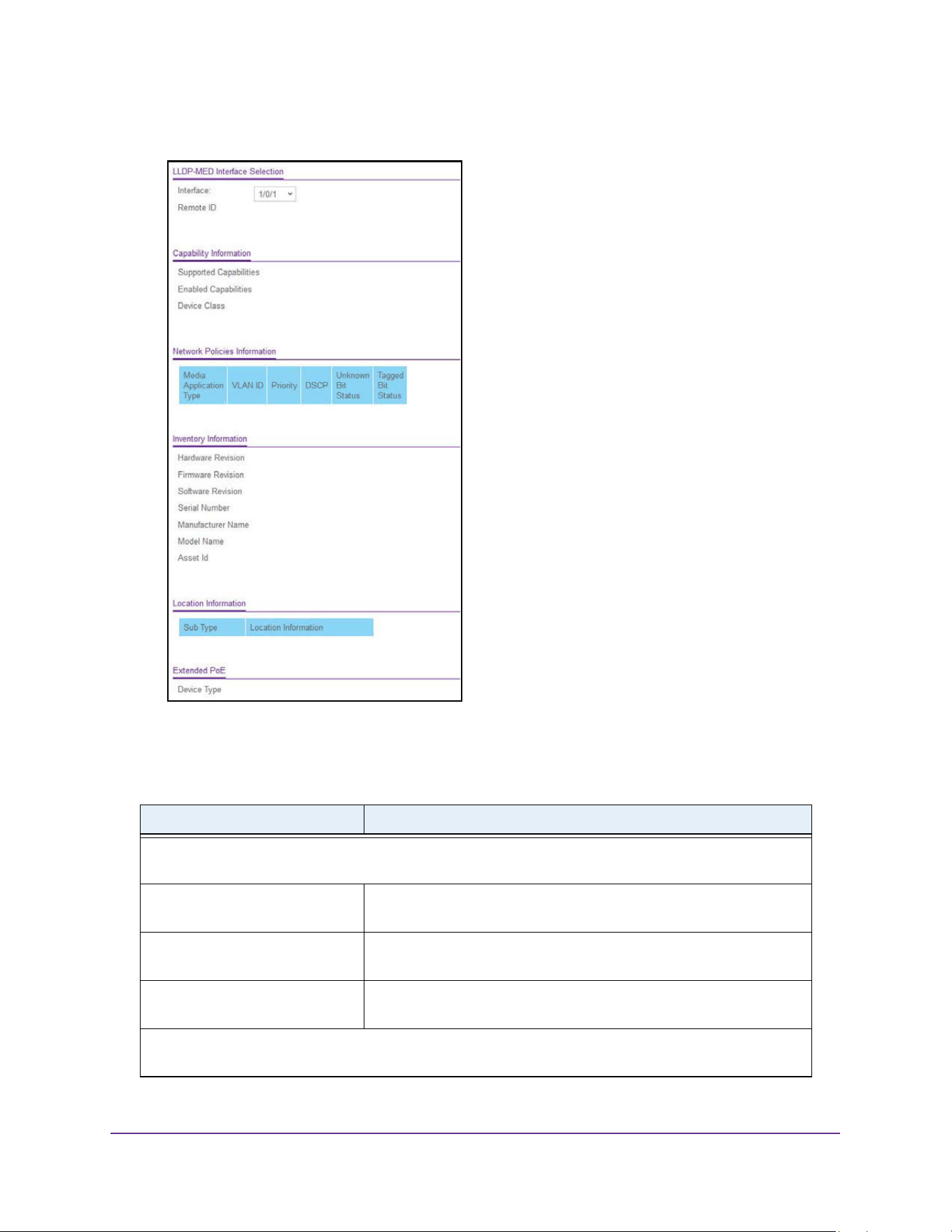
Configure System Information
136
M4200 and M4300 Series ProSAFE Managed Switches Web Management User Manual
5. Select System > LLDP > LLDP-MED > Remote Device Information.
6. Use Interface to select the ports on which LLDP-MED is enabled.
The following table describes the LLDP-MED Remote Device Information fields.
Table 51. LLDP-MED Remote Device Information
Field Description
Capability Information: The supported and enabled capabilities that was received in MED TLV on
this port.
Supported Capabilities Specifies supported capabilities that was received in MED TLV on this
port.
Enabled Capabilities Specifies enabled capabilities that was received in MED TLV on this
port.
Device Class Specifies device class as advertised by the device remotely connected
to the port.
Network Policy Information: Specifies if network policy TLV is received in the LLDP frames on this
port.

Configure System Information
137
M4200 and M4300 Series ProSAFE Managed Switches Web Management User Manual
Media Application Type The application type. Types of application types are unknown,
voicesignaling, guestvoice, guestvoicesignalling, softphonevoice,
videoconferencing, streammingvideo, vidoesignalling. Each
application type that is received has the VLAN ID, priority, DSCP,
tagged bit status and unknown bit status. A port can receive one or
many such application types. If a network policy TLV was received on
this port, only then would this information be displayed.
VLAN Id The VLAN ID associated with a particular policy type.
Priority The priority associated with a particular policy type.
DSCP The DSCP associated with a particular policy type.
Unknown Bit Status The unknown bit associated with a particular policy type.
Tagged Bit Status The tagged bit associated with a particular policy type.
Inventory Information: Specifies if inventory TLV is received in LLDP frames on this port.
Hardware Revision Specifies hardware version of the remote device.
Firmware Revision Specifies Firmware version of the remote device.
Software Revision Specifies Software version of the remote device.
Serial Number Specifies serial number of the remote device.
Manufacturer Name Specifies manufacturers name of the remote device.
Model Name Specifies model name of the remote device.
Asset ID Specifies asset ID of the remote device.
Location Information: Specifies if location TLV is received in LLDP frames on this port.
Sub Type Specifies type of location information.
Location Information The location information as a string for given type of location ID.
Extended POE: Specifies if remote device is a PoE device.
Device Type Specifies remote device's PoE device type connected to this port.
Extended POE PSE: Specifies if extended PSE TLV is received in LLDP frame on this port
Available The remote ports PSE power value in tenths of watts.
Source The remote ports PSE power source.
Priority The remote ports PSE power priority.
Extended POE PD: Specifies if extended PD TLV is received in LLDP frame on this port.
Required The remote port's PD power requirement.
Table 51. LLDP-MED Remote Device Information (continued)
Field Description
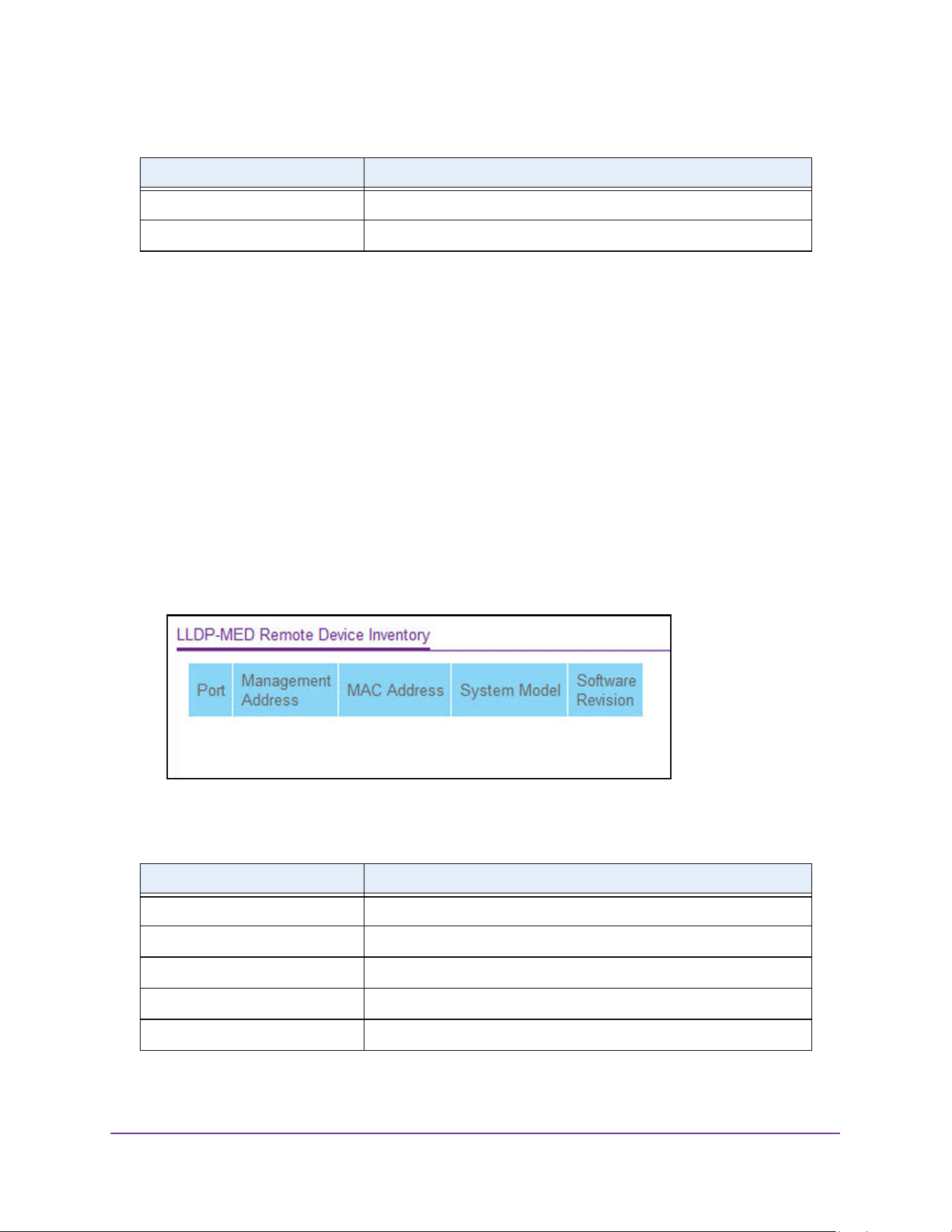
Configure System Information
138
M4200 and M4300 Series ProSAFE Managed Switches Web Management User Manual
View LLDP-MED Remote Device Inventory
To view LLDP-MED remote device inventory:
1. Launch a web browser.
2. Enter http://<ipaddress> in the web browser address field.
The login window opens.
3. Enter the user name and password.
The default admin user name is admin and the default admin password is blank, that is,
do not enter a password.
4. Click the Login button.
The System Information page displays.
5. Select System > LLDP > LLDP-MED > Remote Device Inventory.
The following table describes the LLDP-MED Remote Device Inventory fields.
Source The remote port's PD power source.
Priority The remote port's PD power priority.
Table 52. LLDP-MED Remote Device Inventory
Field Definition
Port The list of all the ports on which LLDP-MED is enabled.
Management Address The advertised management address of the remote system.
MAC Address The MAC address associated with the remote system.
System Model Specifies model name of the remote device.
Software Revision Specifies Software version of the remote device.
Table 51. LLDP-MED Remote Device Information (continued)
Field Description
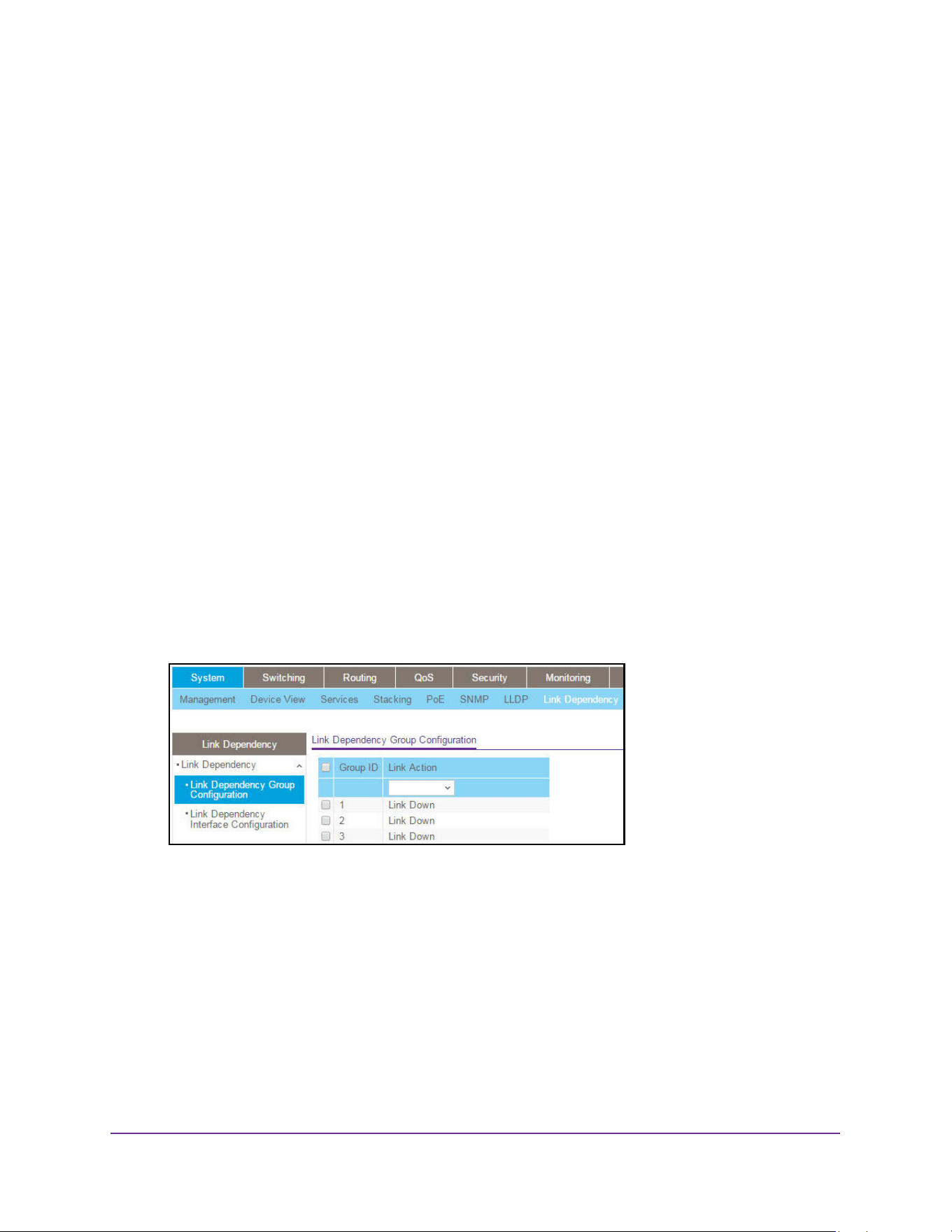
Configure System Information
139
M4200 and M4300 Series ProSAFE Managed Switches Web Management User Manual
Configure Link Dependency
The link dependency feature provides the ability to enable or disable one or more ports
based on the link state of one or more different ports. With link dependency enabled on a
port, the link state of that port is dependent on the link state of another port. For example, if
port A is dependent on port B and the switch detects a link loss on port B, the switch
automatically brings down the link on port A. When the link is restored to port B, the switch
automatically restores the link to port A.
Configure Link Dependency Group
To configure a link dependency group:
1. Launch a web browser.
2. Enter http://<ipaddress> in the web browser address field.
The login window opens.
3. Enter the user name and password.
The default admin user name is admin and the default admin password is blank, that is,
do not enter a password.
4. Click the Login button.
The System Information page displays.
5. Select System > Link Dependency > Link Dependency Group Configuration.
6. Select the Group ID option for which data is to be displayed. The range for Group ID is 1 to
16.
7. From the Link Action list, specify the action to be performed on the downstream interfaces
when all the interfaces in the upstream list go down. The default value is Link Down.
a. Link Down — When all the upstream interfaces are down, then all the downstream
interfaces are brought down. When any of the upstream interfaces are up, then all the
downstream interfaces are brought up.
b. Link Up — When all the upstream interfaces are down, then all the downstream
interfaces are brought up. When any of the upstream interfaces are up, then all the
downstream interfaces are brought down.
8. Click the Apply button.
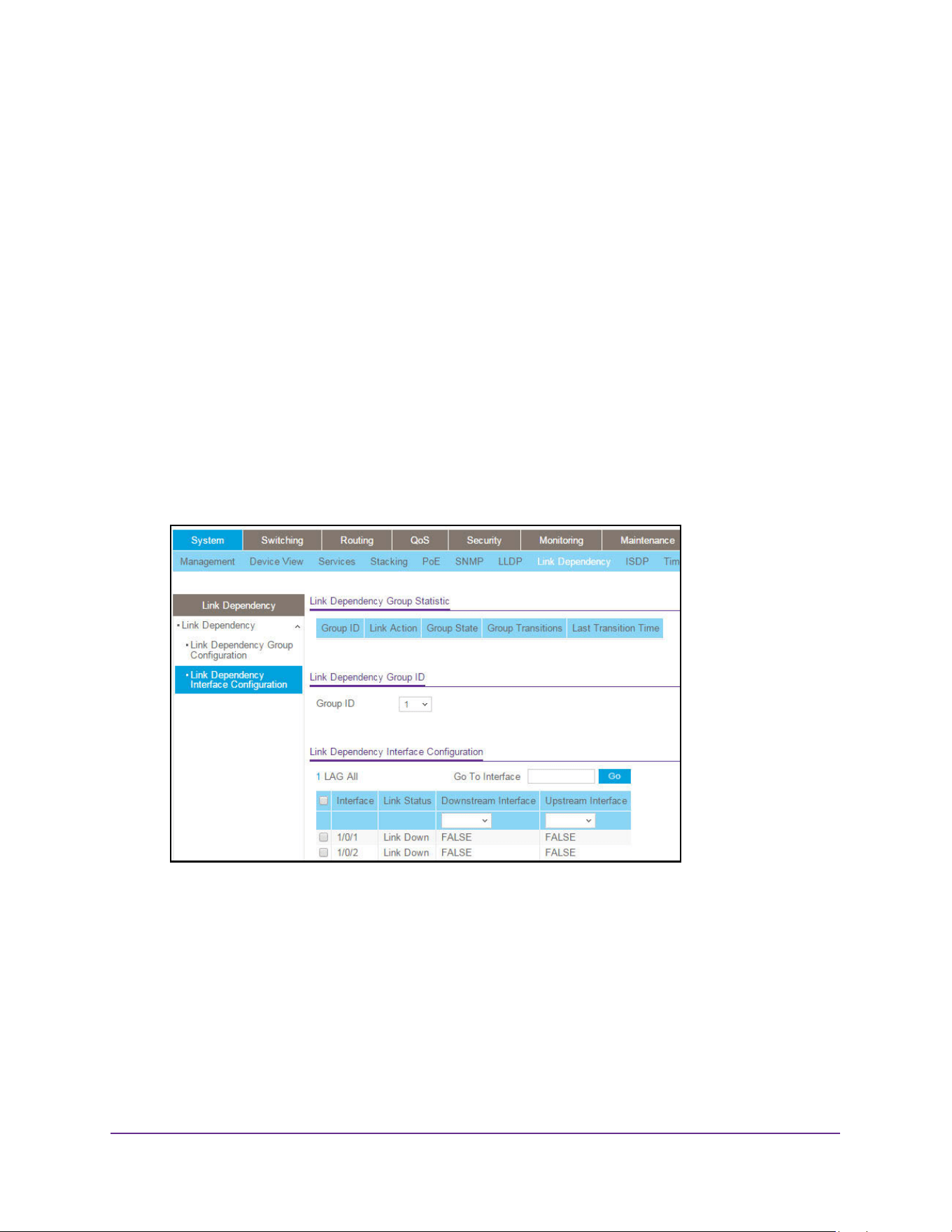
Configure System Information
140
M4200 and M4300 Series ProSAFE Managed Switches Web Management User Manual
The updated configuration is sent to the switch. Configuration changes take effect
immediately.
Configure a Link Dependency Interface
To configure a link dependency interface:
1. Launch a web browser.
2. Enter http://<ipaddress> in the web browser address field.
The login window opens.
3. Enter the user name and password.
The default admin user name is admin and the default admin password is blank, that is,
do not enter a password.
4. Click the Login button.
The System Information page displays.
5. Select System > Link Dependency > Link Dependency Interface Configuration.
6. In the Link Dependency Group ID section of the page, use the Group ID menu to select the
Group ID for which you want to display or configure data.
The range for Group ID is 1 to 16.
7. To make changes, do the following:
• Click the Clear button to clear all interfaces from the specified group.
• Click the Update button to refresh the page with the latest information on the switch.
8. Click the Apply button.
The updated configuration is sent to the switch. Configuration changes take effect
immediately.
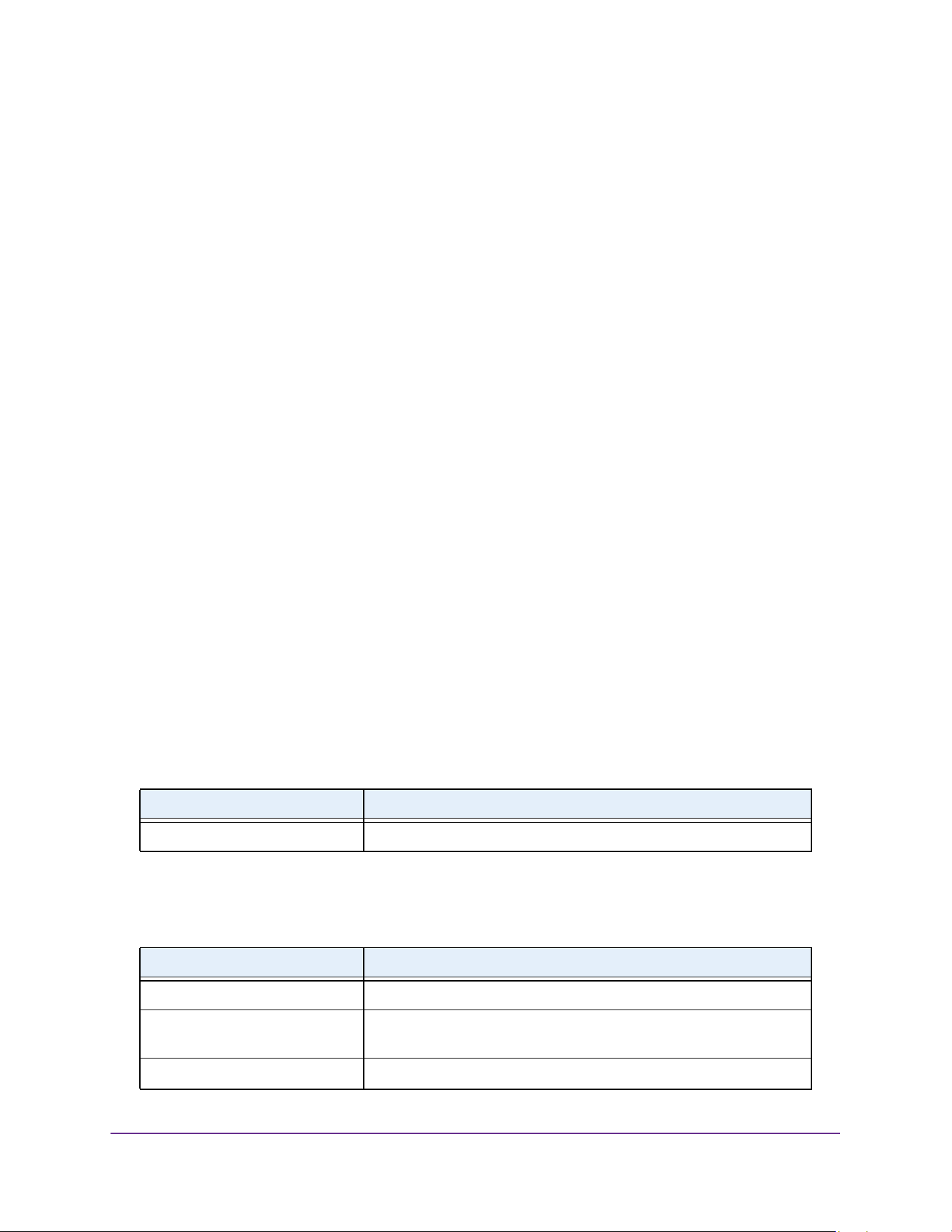
Configure System Information
141
M4200 and M4300 Series ProSAFE Managed Switches Web Management User Manual
9. In the Link Dependency Interface Configuration section of the page, select which interfaces
are displayed on the page:
• Use LAG to display LAGs only.
• Use All to display all physical ports and LAGs.
10. Use one of the following methods to select an interface:
• Use the Go To Interface field by entering the interface in unit/slot/port format and
click the Go button. The entry corresponding to the specified interface, is selected.
• Use Interface to select the interface for which data is to be displayed or configured.
11. In the Downstream Interface field, specify whether the interface belongs to the group’s
downstream list.
An interface that is defined as an upstream interface cannot be defined as a downstream
interface in the same link state group. The default value is False.
• Select False to delete an interface from the downstream list of the specified group.
• Select True to add an interface to the downstream list of the specified group.
12. In the Upstream Interface field, specify whether the interface belongs to the group’s
upstream list.
An interface that is defined as an upstream interface cannot be defined as a downstream
interface in the same link state group. The default value is False.
• Select False to delete an interface from the upstream list of the specified group.
• Select True to add an interface to the upstream list of the specified group.
13. Click the Apply button.
The updated configuration is sent to the switch. Configuration changes take effect
immediately.
The following table describes the Link Dependency Interface Configuration nonconfigurable
information that displays on the page.
The following table describes the Link Dependency Group Statistic nonconfigurable
information that displays on the page.
Table 53. Link Dependency Interface Configuration Nonconfigurable Field
Field Description
Link Status Indicates whether the link for the corresponding interface is up or down.
Table 54. Link Dependency Group Statistic
Field Description
Group ID The Group ID for which data is displayed. The range is 1 to 16.
Link Action The action to be performed on downstream interfaces when all the
interfaces in the upstream list go down.
Group State The current state of the group.
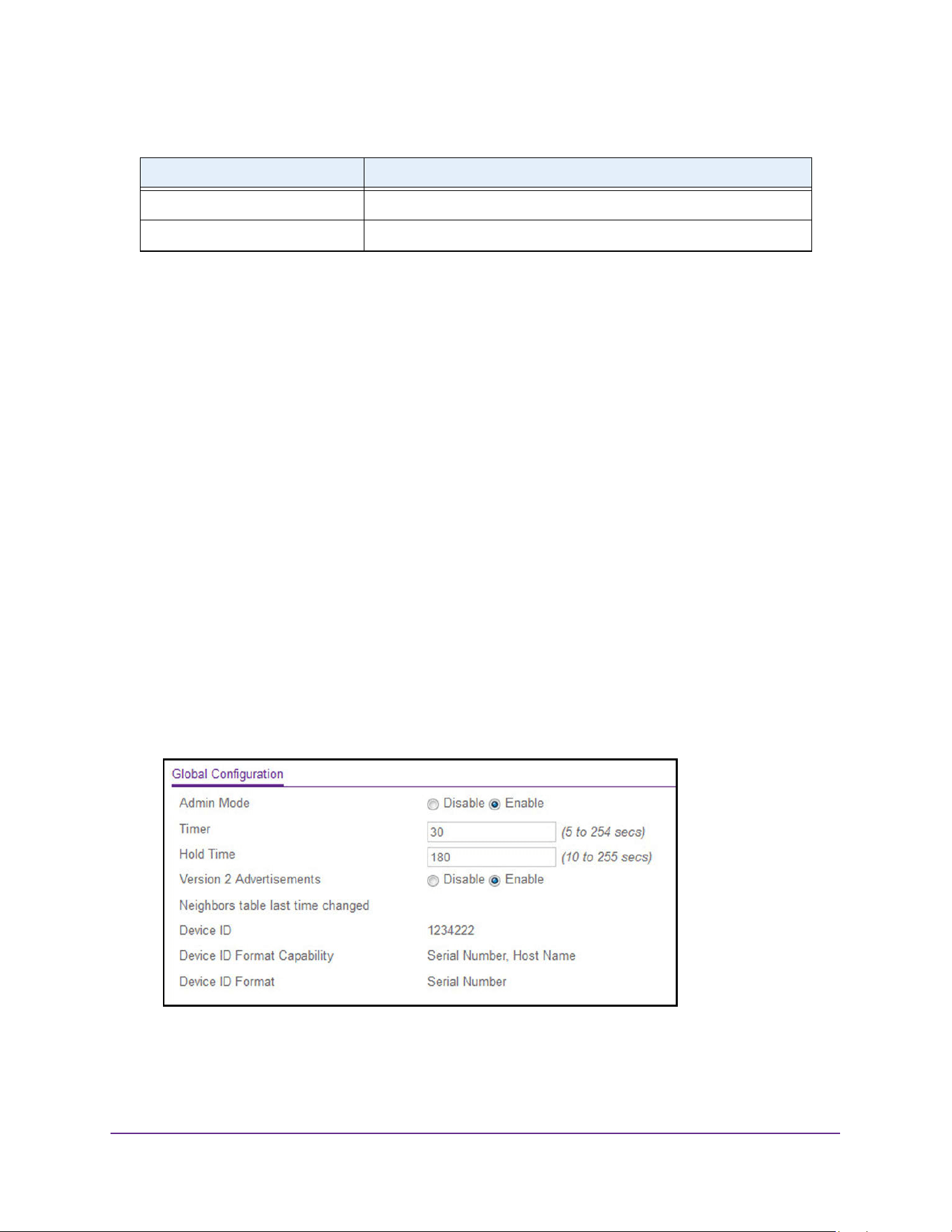
Configure System Information
142
M4200 and M4300 Series ProSAFE Managed Switches Web Management User Manual
Click the Update button to refresh the page with the latest information on the switch.
Configure ISDP
You can configure ISDP global and interface settings.
Configure ISDP Basic Global Settings
To configure ISDP basic global settings:
1. Launch a web browser.
2. Enter http://<ipaddress> in the web browser address field.
The login window opens.
3. Enter the user name and password.
The default admin user name is admin and the default admin password is blank, that is,
do not enter a password.
4. Click the Login button.
The System Information page displays.
5. Select System > ISDP > Basic > Global Configuration.
6. Select the Admin mode Disable or Enable radio button.
This specifies whether the ISDP Service is enabled or disabled. The default value is
Enabled.
Group Transitions Indicates the number of group transitions.
Last Transition Time Indicates the time of the last group transitions.
Table 54. Link Dependency Group Statistic (continued)
Field Description

Configure System Information
143
M4200 and M4300 Series ProSAFE Managed Switches Web Management User Manual
7. Use Timer to specify the period of time between sending new ISDP packets.
The range is 5 to 254 seconds. The default value is 30 seconds.
8. Use Hold Time to specify the hold time for ISDP packets that the switch transmits.
The hold time specifies how long a receiving device must store information sent in the
ISDP packet before discarding it. The range 10 to 255 seconds. The default value is 180
seconds.
9. Select the Version 2 Advertisements Disable or Enable radio button.
This enables or disables the sending of ISDP version 2 packets from the device. The
default value is Enabled.
10. Click the Apply button.
The updated configuration is sent to the switch. Configuration changes take effect
immediately.
The following table describes the ISDP Basic Global Configuration fields.
Configure ISDP Global Settings
To configure ISDP global settings:
1. Launch a web browser.
2. Enter http://<ipaddress> in the web browser address field.
The login window opens.
3. Enter the user name and password.
The default admin user name is admin and the default admin password is blank, that is,
do not enter a password.
4. Click the Login button.
The System Information page displays.
5. Select System > ISDP > Advanced > Global Configuration.
Table 55. ISDP Basic Global Configuration
Field Description
Neighbors table last time changed Specifies if
Device ID The device ID of this switch.
Device ID Format Capability The device ID format capability.
Device ID Format The device ID format.
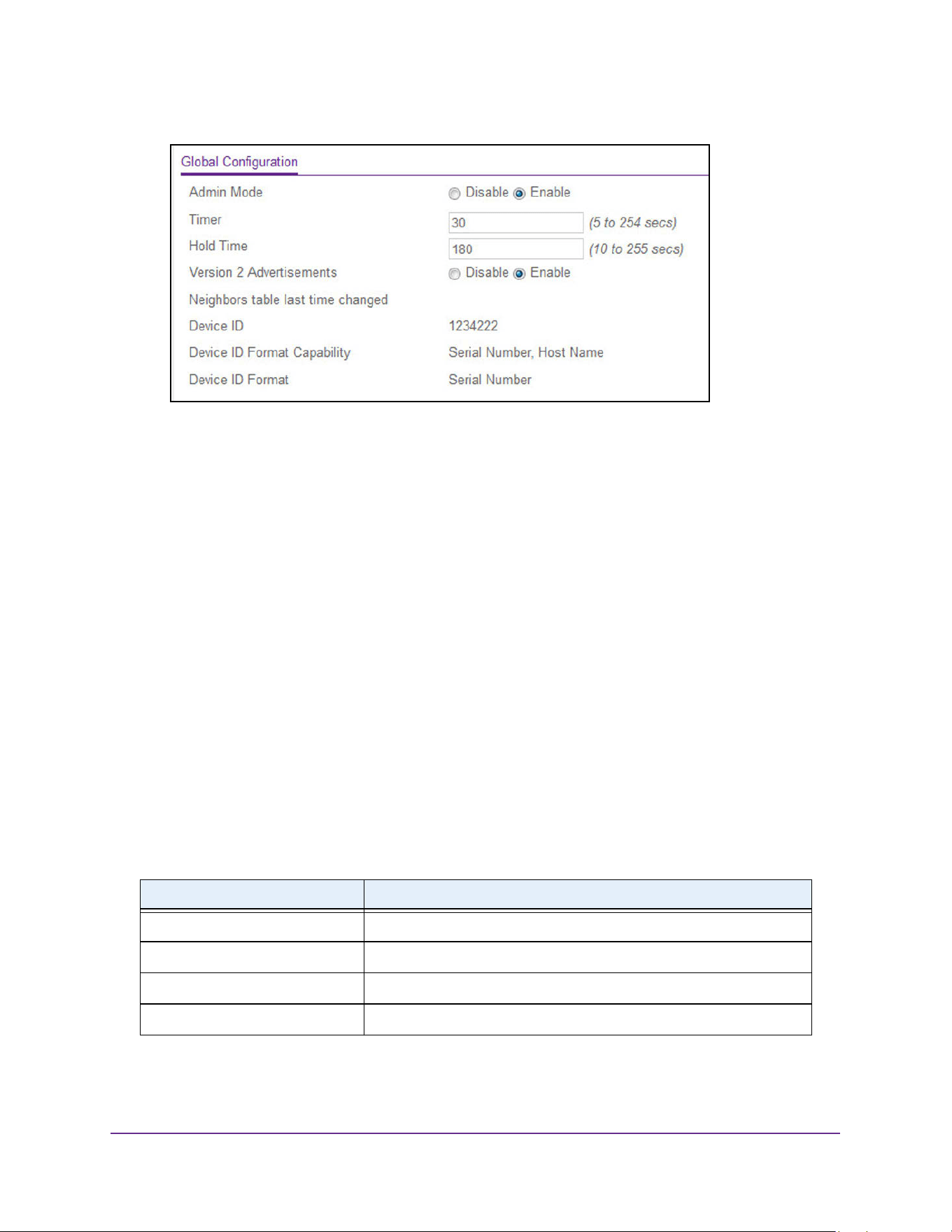
Configure System Information
144
M4200 and M4300 Series ProSAFE Managed Switches Web Management User Manual
6. Select the Admin mode Disable or Enable radio button.
This specifies whether the ISDP Service is enabled or disabled. The default value is
Enable.
7. In the Timer field, specify the period of time between sending new ISDP packets.
The range is 5 to 254 seconds. The default value is 30 seconds.
8. In the Hold Time field, specify the hold time for ISDP packets that the switch transmits.
The hold time specifies how long a receiving device must store information sent in the
ISDP packet before discarding it. The range 10 to 255 seconds. The default value is 180
seconds.
9. Select the Version 2 Advertisements Disable or Enable radio button.
This enables or disables the sending of ISDP version 2 packets from the device. The
default value is Enable.
10. Click the Apply button.
The updated configuration is sent to the switch. Configuration changes take effect
immediately.
The following table describes the ISDP Advanced Global Configuration fields.
Table 56. ISDP Advanced Global Configuration
Field Description
Neighbors table last time changed Displays when the Neighbors table last changed.
Device ID The device ID of this switch.
Device ID Format Capability The device ID format capability.
Device ID Format The device ID format.
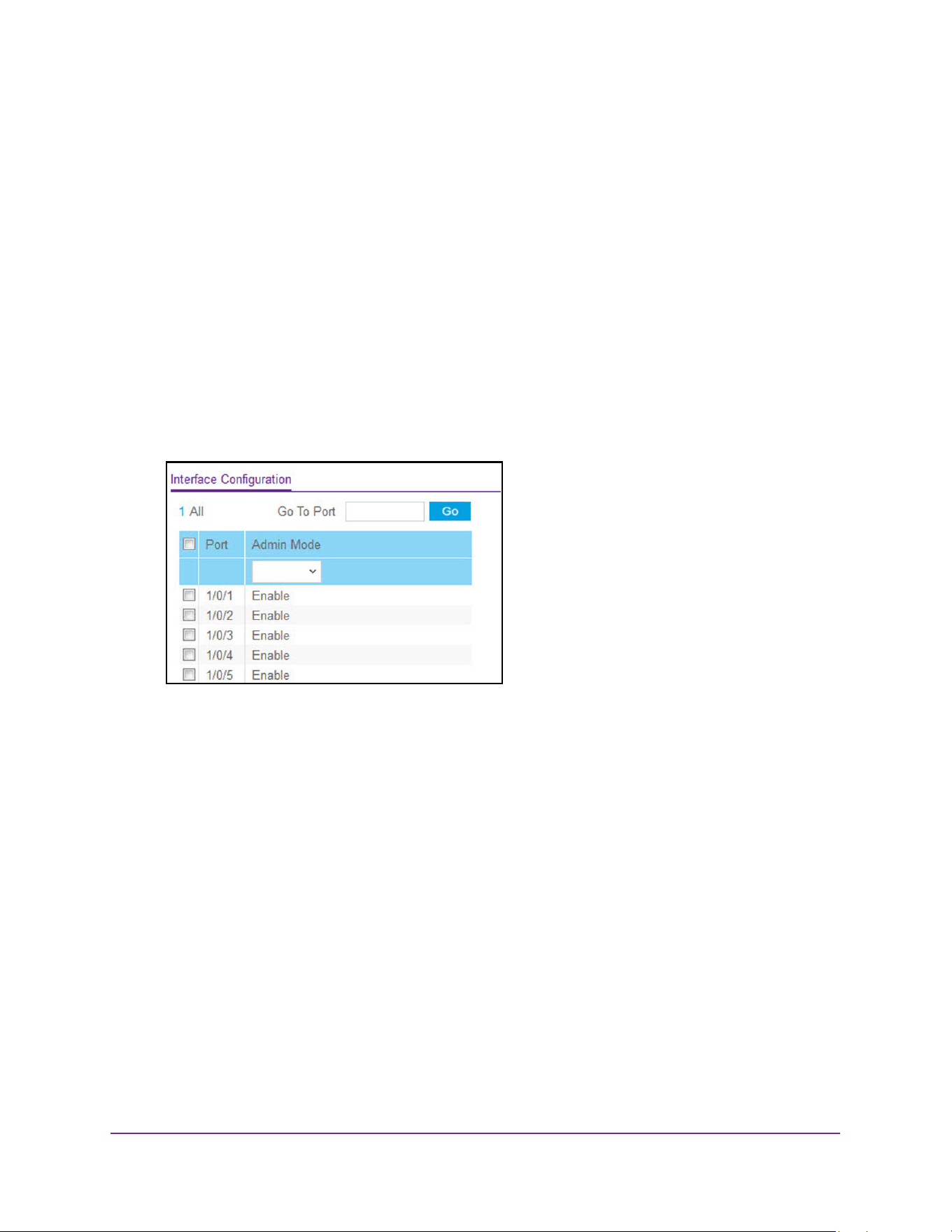
Configure System Information
145
M4200 and M4300 Series ProSAFE Managed Switches Web Management User Manual
Configure an ISDP Interface
To configure an ISDP interface:
1. Launch a web browser.
2. Enter http://<ipaddress> in the web browser address field.
The login window opens.
3. Enter the user name and password.
The default admin user name is admin and the default admin password is blank, that is,
do not enter a password.
4. Click the Login button.
The System Information page displays.
5. Select System > ISDP > Advanced > Interface Configuration.
6. Use Port to select the port on which the admin mode is configured.
7. Use Admin mode to enable or disable ISDP on the port.
The default value is Enable.
8. Click the Apply button.
The updated configuration is sent to the switch. Configuration changes take effect
immediately.
View an ISDP Neighbor
To view an ISDP neighbor:
1. Launch a web browser.
2. Enter http://<ipaddress> in the web browser address field.
The login window opens.
3. Enter the user name and password.
The default admin user name is admin and the default admin password is blank, that is,
do not enter a password.
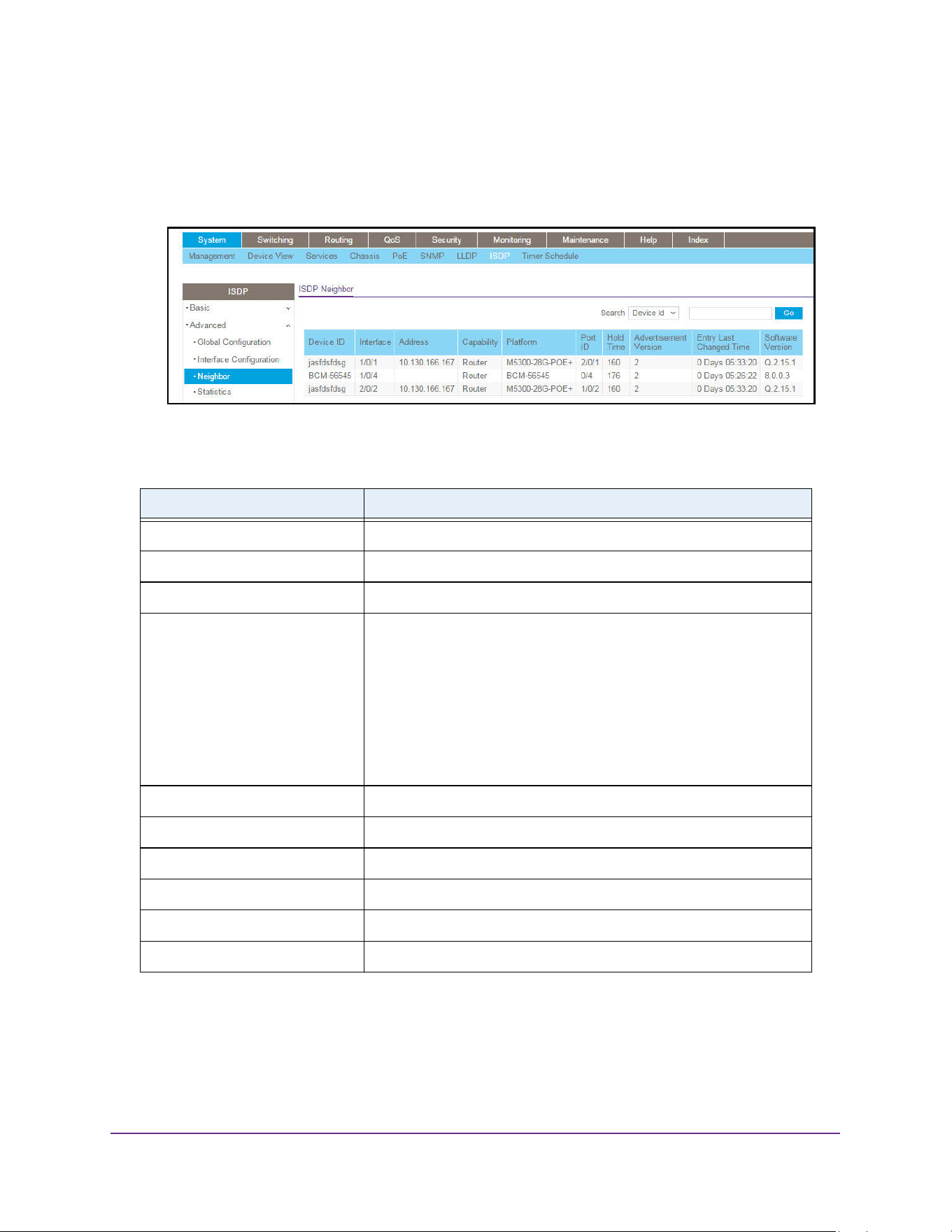
Configure System Information
146
M4200 and M4300 Series ProSAFE Managed Switches Web Management User Manual
4. Click the Login button.
The System Information page displays.
5. Select System > ISDP > Advanced > Neighbor.
The following table describes the ISDP Neighbor fields.
Table 57. ISDP Neighbor
Field Description
Device ID The device ID of the ISDP neighbor.
Interface The interface on which the neighbor is discovered.
Address The address of the neighbor.
Capability The capability of the neighbor. These are supported:
• Router
• Trans Bridge
• Source Route
• Switch
• Host
• IGMP
• Repeater
Platform The model type of the neighbor. (0 to 32)
Port ID The port ID on the neighbor.
Hold Time The hold time for ISDP packets that the neighbor transmits.
Advertisement Version The ISDP version sending from the neighbor.
Entry Last Changed Time The time since last entry is changed.
Software Version The software version on the neighbor.
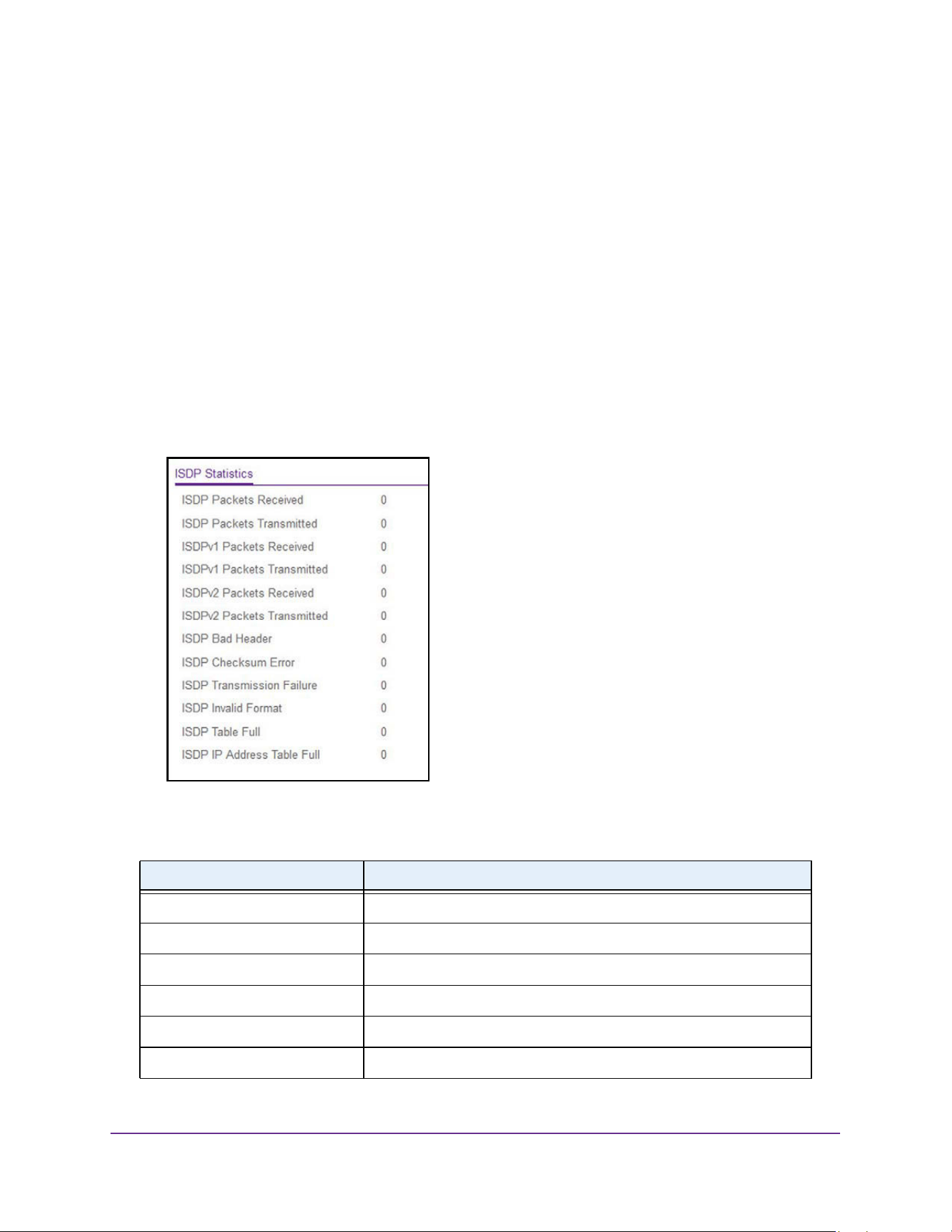
Configure System Information
147
M4200 and M4300 Series ProSAFE Managed Switches Web Management User Manual
View ISDP Statistics
To view ISDP statistics:
1. Launch a web browser.
2. Enter http://<ipaddress> in the web browser address field.
The login window opens.
3. Enter the user name and password.
The default admin user name is admin and the default admin password is blank, that is,
do not enter a password.
4. Click the Login button.
The System Information page displays.
5. Select System > ISDP > Advanced > Statistics.
The following table describes the ISDP Statistics fields.
Table 58. ISDP Statistics
Field Description
ISDP Packets Received The ISDP packets received including ISDPv1 and ISDPv2 packets.
ISDP Packets Transmitted The ISDP packets transmitted including ISDPv1 and ISDPv2 packets.
ISDPv1 Packets Received The ISDPv1 packets received.
ISDPv1 Packets Transmitted The ISDPv1 packets transmitted.
ISDPv2 Packets Received The ISDPv2 packets received.
ISDPv2 Packets Transmitted The ISDPv2 packets transmitted.
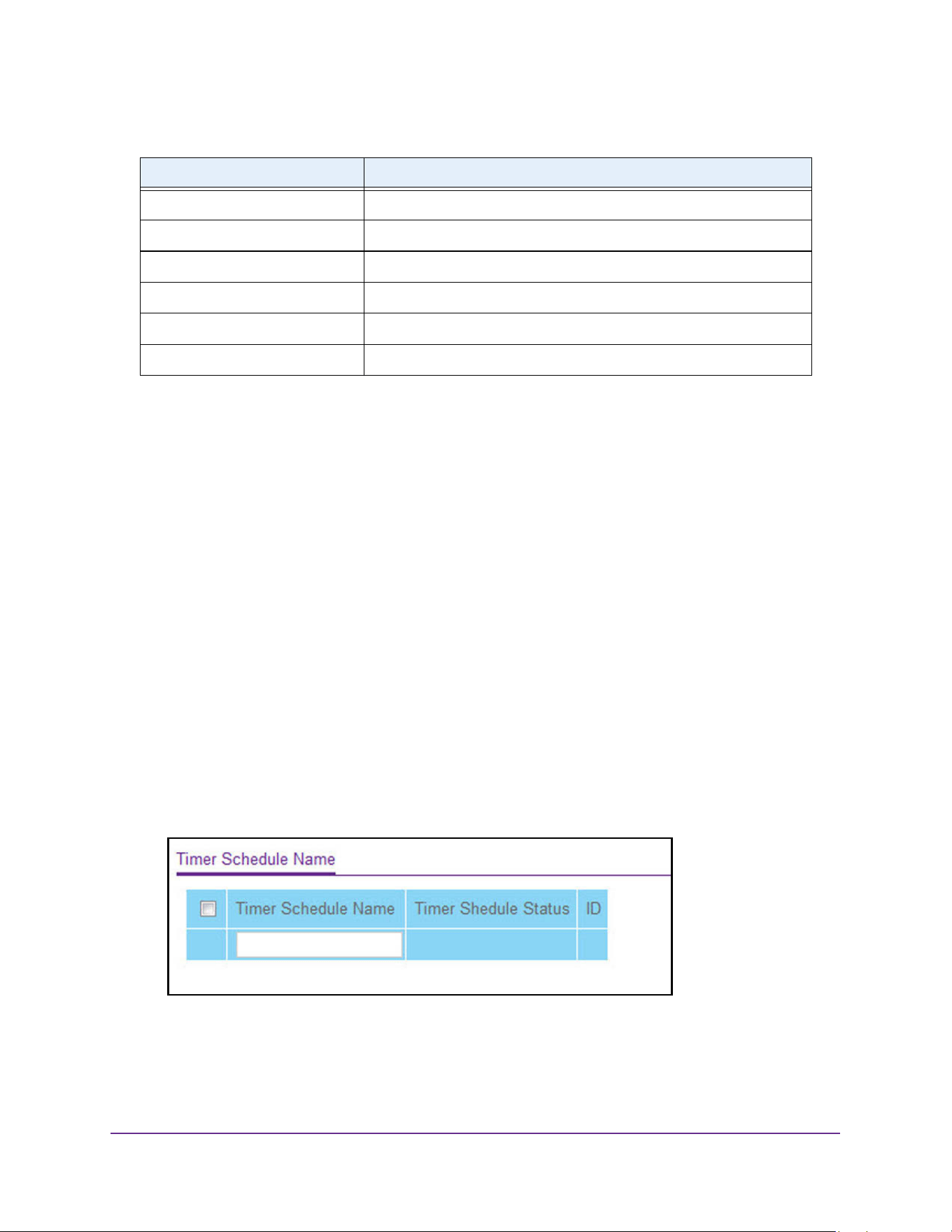
Configure System Information
148
M4200 and M4300 Series ProSAFE Managed Switches Web Management User Manual
Timer Schedule
You can configure the global timer settings and the timer schedule.
Configure the Global Timer Settings
To add or delete a global timer schedule:
1. Launch a web browser.
2. Enter http://<ipaddress> in the web browser address field.
The login window opens.
3. Enter the user name and password.
The default admin user name is admin and the default admin password is blank, that is,
do not enter a password.
4. Click the Login button.
The System Information page displays.
5. Select System > Timer Schedule > Basic > Global Configuration.
6. Use the Timer Schedule Name to specify the name of a timer schedule.
ISDP Bad Header The ISDP bad packets received.
ISDP Checksum Error The number of the checksum error.
ISDP Transmission Failure The number of the transmission failure.
ISDP Invalid Format The number of the invalid format ISDP packets received.
ISDP Table Full The table size of the ISDP table.
ISDP Ip Address Table Full The table size of the ISDP IP address table.
Table 58. ISDP Statistics (continued)
Field Description
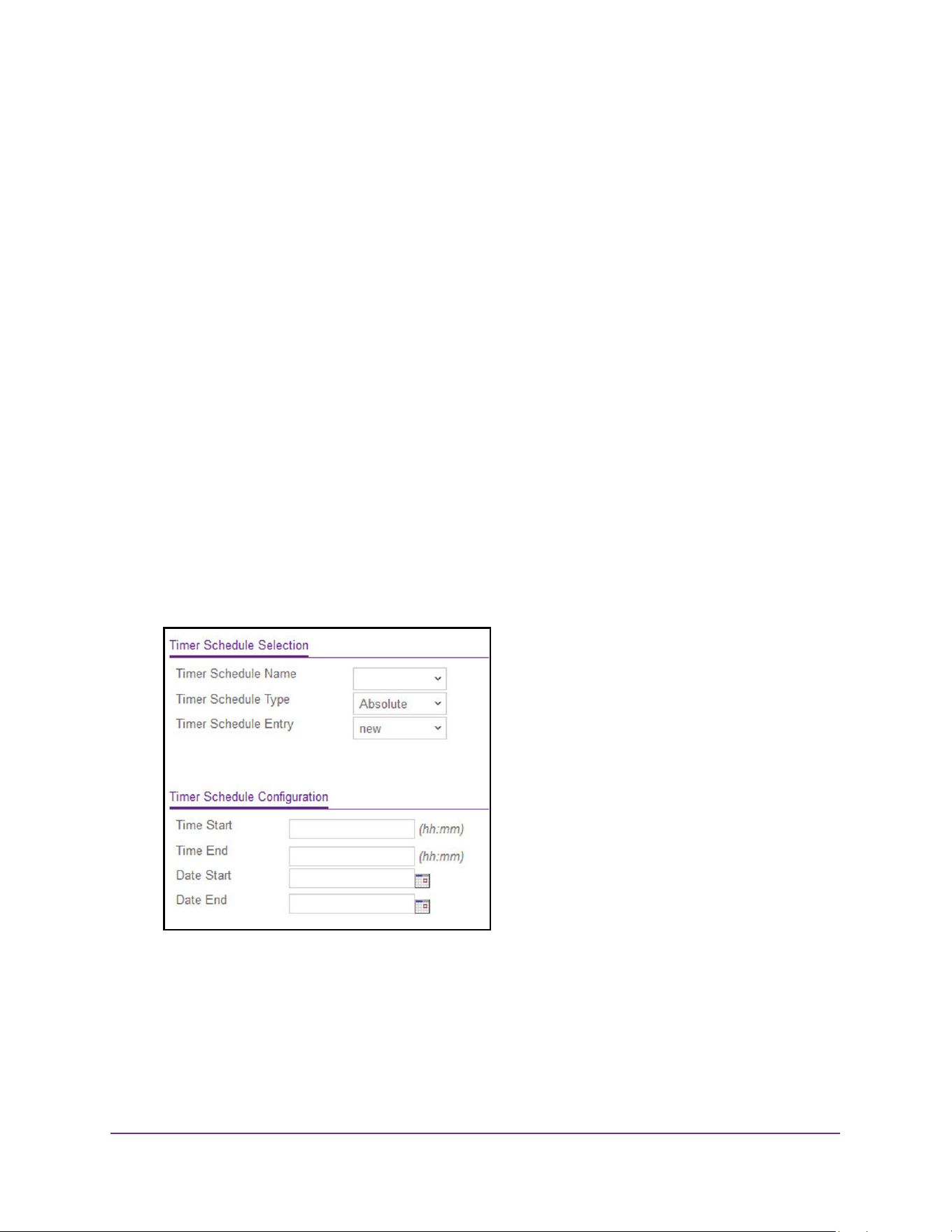
Configure System Information
149
M4200 and M4300 Series ProSAFE Managed Switches Web Management User Manual
7. Take one of the following actions:
• Click the Add button.
The timer schedule is added. The configuration changes take effect immediately.
• Click the Delete button.
The timer schedule is deleted.The configuration changes take effect immediately.
Configure the Timer Schedule
To configure the timer schedule:
1. Launch a web browser.
2. Enter http://<ipaddress> in the web browser address field.
The login window opens.
3. Enter the user name and password.
The default admin user name is admin and the default admin password is blank, that is,
do not enter a password.
4. Click the Login button.
The System Information page displays.
5. Select System > Services > Timer Schedule > Advanced > Schedule Configuration.
6. In the Timer Schedule Name list, select the timer schedule.
7. In the Timer Schedule Type list, select Absolute or Periodic.
8. In the Timer Schedule Entry list, select the number of the timer schedule entries to be
configured or added.
If you are adding an entry, select new.

Configure System Information
150
M4200 and M4300 Series ProSAFE Managed Switches Web Management User Manual
9. In the Time Start field, enter the time of the day in format (HH:MM) when the schedule
operation is started.
This field is required. If no time is specified, the schedule does not start running.
10. In the Time End field, enter the time of the day in format (HH:MM) when the schedule
operation is terminated.
11. Use the Date Start to set the schedule start date.
If no date is specified, the schedule starts running immediately.
12. Use the Date Stop to set the schedule termination date.
If No End Date selected, the schedule operates indefinitely.
13. Use the Recurrence Pattern to show with what period the event repeats.
If recurrence is not needed (a timer schedule must be triggered just once), then set Date
Stop as equal to Date Start. There are the following possible values of recurrence:
• Daily. The timer schedule works with daily recurrence
Daily mode. Every WeekDay selection means that the schedule is triggered every
day from Monday to Friday. Every Day(s) selection means that the schedule is
triggered every defined number of days. If number of days is not specified, then the
schedule is triggered every day.
• Weekly. The timer schedule works with weekly recurrence
- Every Week(s). Define the number of weeks when the schedule is triggered. If
number of weeks is not specified, then the schedule is triggered every week.
- WeekDay. Specify the days of week when the schedule operates.
• Monthly. The timer schedule works with monthly recurrence
Monthly mode. Show the day of the month when the schedule is triggered. Field
Every Month(s) means that the schedule is triggered every defined number of
months.
14. Click the Apply button.
The updated configuration is sent to the switch. The configuration changes take effect
immediately.

151
3
3. Stacking
This chapter covers the following topics:
• M4300 Series Switch Stacking Overview
• Firmware Synchronization and Upgrade
• Stack Configuration Maintenance
• Stack Master Election
• Stack Factory Defaults Reset Behavior
• Stack NSF
• Configure a Stack
• Run Stack Port Diagnostics
• Configure Stack Firmware Synchronization
• View NSF Summary Data
• View NSF Checkpoint Statistics
Note: The stacking feature applies to the M4300 series switches only.

Stacking
152
M4200 and M4300 Series ProSAFE Managed Switches Web Management User Manual
M4300 Series Switch Stacking Overview
A stackable switch is a switch that is fully functional operating as a stand-alone unit but can
also be set-up to operate together with up to seven other switches. This group of switches
shows the characteristics of a single switch while having the port capacity of the sum of the
combined switches.
One of the switches in the stack controls the operation of the stack. This switch is called the
stack master. The remaining switches in the stack are stack members. The stack members
use stacking technology to behave and work together as a unified system. Layer 2 and higher
protocols present the entire switch stack as a single entity to the network.
The stack master is the single point of stack-wide management. From the stack master, you
configure the following:
• System-level (global) features that apply to all stack members
• Interface-level features for all interfaces on any stack member
A switch stack is identified in the network by its network IP address. The network IP address
is assigned according to the MAC address of the stack master. Every stack member is
uniquely identified by its own stack member number, which is from 1 to 6. The stack master
can be any number within that range.
Stacking supports the following:
• Up to eight switches per stack
• Single IP address management through a web browser, the CLI, or SNMP.
• Master-slave configuration:
• The master retains configuration for entire stack.
• Automatic detection of new members, with synchronization of firmware (upgrade or
downgrade as needed).
• Configuration updates across the stack through a single operation.
• Automatic master failover. Fully resilient stack with chain and ring topology.
• Hot swapping (insertion and removal) of stack members.
Firmware Synchronization and Upgrade
All stack members must run the same software version to ensure compatibility within the
stack. By default, if a unit is added to the stack and its software version is not the same as the
stack master, that unit is not allowed to join the stack. You can enable the Stack Firmware
Auto Upgrade feature, which automatically synchronizes the firmware version on the new unit
with the version running on the stack master. The synchronization operation might result in
either upgrade or downgrade of firmware on the mismatched stack member.
Upgrading the firmware on a stack of switches is the same as upgrading the firmware on a
single switch. After you download a new image by using the File Download page or SCC, the
downloaded image is distributed to all the connected units of the stack.

Stacking
153
M4200 and M4300 Series ProSAFE Managed Switches Web Management User Manual
Note: We recommend that you set the active image for all stack members
the same as the active image of the stack master. In other words, if
image1 is the active image on the stack master, all units must use
image1 as the active image. For information about configuring the
active image, see Configure Dual Image Settings on page 665.
Stack Configuration Maintenance
The stack master stores and maintains the saved and running configuration files for the
switch stack. The configuration files include the system-level settings for the switch stack and
the interface-level settings for all stack members. Each stack member retains a copy of the
saved file for backup purposes. If the master is removed from the stack or becomes
unavailable, another member is elected master and then runs from that saved configuration.
The switch master copies its running configuration to the stack member configured as the
standby unit whenever it changes (subject to some restrictions to reduce overhead). This
enables the standby unit to take over the stack operation with minimal interruption if the stack
master becomes unavailable. The running-config synchronization also occurs when the
running configuration is auto-saved on the stack master or when the standby unit changes.
Stack Master Election
All stack members are eligible stack masters. If the stack master becomes unavailable, the
remaining stack members participate in electing a new stack master from among themselves.
The following factors determine which switch is elected the stack master:
• The switch that is master always has priority to retain the role of master.
• Assigned priority.
• MAC address.
When the stack is powered up and completes the boot process or the original stack master
becomes unavailable, the stack master is determined through an election process.
The rules for stack master election are as follows:
• If a unit was elected stack master previously, then it remains the stack master and other
units are stack members.
• If no units were stack masters, or more than one unit was a stack master, then the unit
with the highest management preference is elected stack master. The management
preference can be assigned by the administrator. However, if all units are assigned the
same management preference, then the unit with the highest MAC address is assigned
as the stack master.

Stacking
154
M4200 and M4300 Series ProSAFE Managed Switches Web Management User Manual
Stack Factory Defaults Reset Behavior
If the stack master is reset to the factory default settings (see Reset the Switch to Its Factory
Default Settings on page 653), the stack master applies the default settings to all the stack
members and resets the stack, including all participating stack members. When the stack
boots, the stack master election process begins.
A switch can be described in terms of three semi-independent functions called the forwarding
plane, the control plane, and the management plane. The forwarding plane forwards data
packets. The forwarding plane is implemented in hardware. The control plane is the set of
protocols that determine how the forwarding plane forwards packets, deciding which data
packets are allowed to be forwarded and where they go. Application software on the
management unit acts as the control plane. The management plane is application software
running on the management unit that provides interfaces allowing a network administrator to
configure and monitor the device.
Stack NSF
Nonstop forwarding (NSF) allows the forwarding plane of stack units to continue to forward
packets while the control and management planes restart as a result of a power failure,
hardware failure, or software fault on the management unit. A nonstop forwarding failover can
also be manually initiated by clicking the Initiate Failover button on the NSF Summary page.
Traffic flows that enter and exit the stack through physical ports on a unit other than the
management continue with at most sub-second interruption when the management unit fails.
To prepare the backup management unit in case of a failover, applications on the
management unit continuously checkpoint some state information to the backup unit.
Changes to the running configuration are automatically copied to the backup unit. MAC
addresses stay the same across a nonstop forwarding failover so that neighbors are not
required to relearn them.
When a nonstop forwarding failover occurs, the control plane on the backup unit starts from a
partially initialized state and applies the checkpointed state information. While the control
plane is initializing, the stack cannot react to external changes, such as network topology
changes. Once the control plane is fully operational on the new management unit, the control
plane ensures that the hardware state is updated as necessary. Control plane failover time
depends on the size of the stack, the complexity of the configuration, and the speed of the
CPU.
The management plane restarts when a failover occurs. Management connections must be
reestablished.

Stacking
155
M4200 and M4300 Series ProSAFE Managed Switches Web Management User Manual
For NSF to be effective, adjacent networking devices must not reroute traffic around the
restarting device. The switch uses three techniques to prevent traffic from being rerouted:
• A protocol can distribute a part of its control plane to stack units so that the protocol can
give the appearance that it is still functional during the restart. Spanning tree and port
channels use this technique.
• A protocol can enlist the cooperation of its neighbors through a technique known as
graceful restart. OSPF uses graceful restart if it is enabled.
• A protocol can restart after the failover if neighbors react slowly enough that they cannot
normally detect the outage. The IP multicast routing protocols are a good example of this
behavior.
To take full advantage of nonstop forwarding, Layer 2 connections to neighbors must be
through port channels that span two or more stack units, and Layer 3 routes must be ECMP
routes with next hops through physical ports on two or more units. The hardware can quickly
move traffic flows from port channel members or ECMP paths on a failed unit to a surviving
unit.
Configure a Stack
You can move the primary management unit functionality from one unit to another. Upon
execution, the entire stack (including all interfaces in the stack) is unconfigured and
reconfigured with the configuration on the new primary management unit. After the reload is
complete, all stack management capability must be performed on the new primary
management unit. To preserve the current configuration across a stack move, save the
current configuration to the NVRAM before performing the stack move. A stack move causes
all routes and Layer 2 addresses to be lost. The administrator is prompted to confirm the
management move.
Select a New Stack Master
To select a new stack master:
1. Launch a web browser.
2. Enter http://<ipaddress> in the web browser address field.
The login window opens.
3. Enter the user name and password.
The default admin user name is admin and the default admin password is blank, that is,
do not enter a password.
4. Click the Login button.
The System Information page displays.
5. Select System > Stacking > Basic > Stack Configuration.
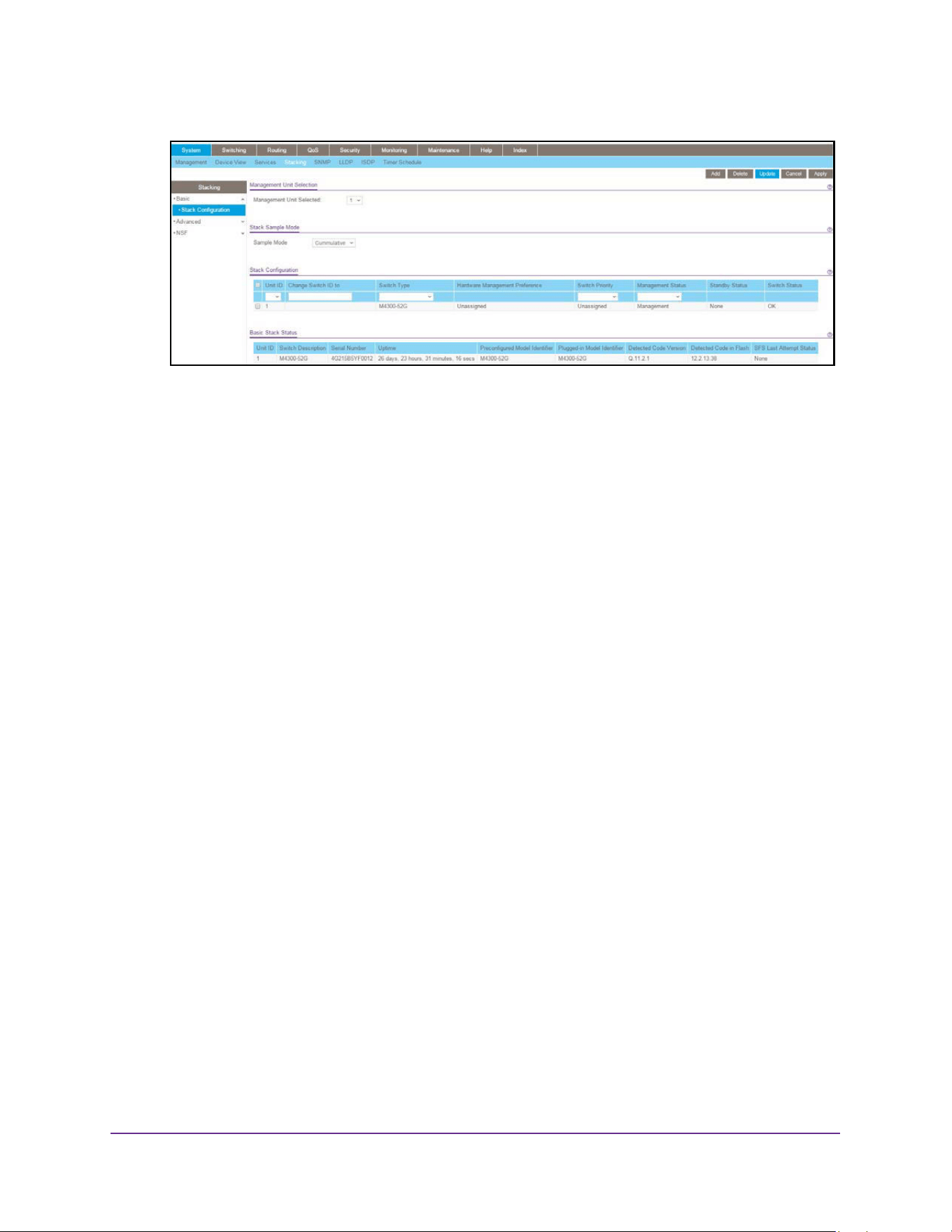
Stacking
156
M4200 and M4300 Series ProSAFE Managed Switches Web Management User Manual
The Management Unit Selected menu displays the current primary management unit.
6. To change the primary management unit, select another unit ID of the stack member to
become the stack master.
A message displays to notify you that moving stack management unconfigures the entire
stack including all interfaces.
7. Click the OK button to confirm the selection and reload the stack.
The stack is unavailable until the boot process completes.
Specify the Stack Sample Mode
To specify the stack sample mode:
1. Launch a web browser.
2. Enter http://<ipaddress> in the web browser address field.
The login window opens.
3. Enter the user name and password.
The default admin user name is admin and the default admin password is blank, that is,
do not enter a password.
4. Click the Login button.
The System Information page displays.
5. Select System > Stacking > Basic > Stack Configuration.
Use the Stack Sample mode section of the page to configure global status management
mode, and sample size. The mode and sample size parameters are applied globally to all
units in the stack.
6. In the Sample mode list, select one of the following:
• Cumulative. Tracks the sum of received time-stamp offsets cumulatively.
• History. Tracks the history of received timestamps.
7. In the Max Samples field, configure the maximum number of samples to keep.
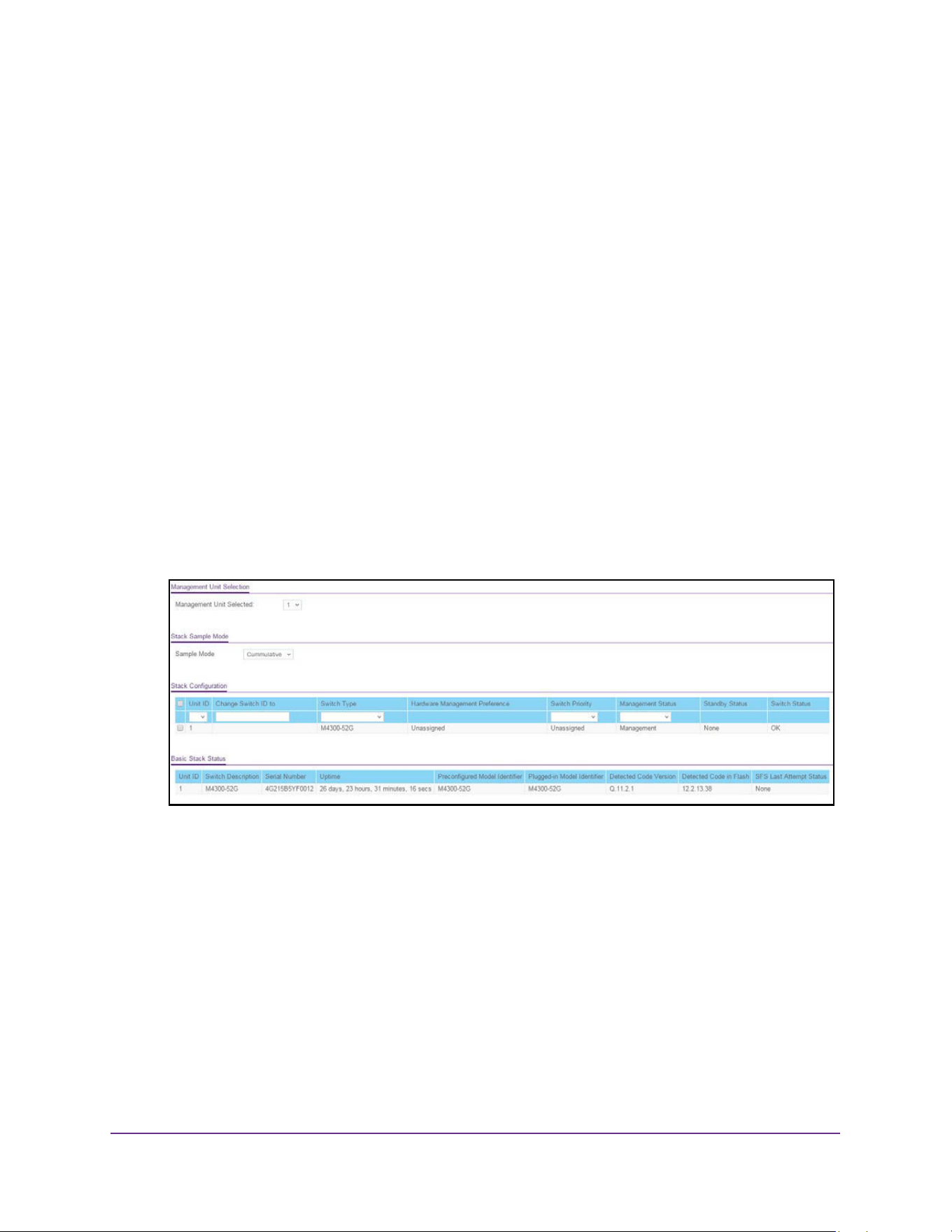
Stacking
157
M4200 and M4300 Series ProSAFE Managed Switches Web Management User Manual
The valid range is 100 to 500.
8. Click the Apply button.
The updated configuration is sent to the switch. Configuration changes take effect
immediately.
Configure a Stack Member
To configure a stack member before adding it to the stack:
1. Launch a web browser.
2. Enter http://<ipaddress> in the web browser address field.
The login window opens.
3. Enter the user name and password.
The default admin user name is admin and the default admin password is blank, that is,
do not enter a password.
4. Click the Login button.
The System Information page displays.
5. Select System > Stacking > Stack Configuration.
6. Select the Unit ID of the stack member to add.
7. Select the switch model number of the new unit from the Switch Type field.
8. Optionally, specify the Switch Priority to select whether this unit becomes a management
unit in preference to another unit.
The default value for this setting is undefined. If the preference level is set to zero, then
the device cannot become a management unit. A higher value indicates a higher priority.
The maximum value is 15.
9. Use the Management Status field to indicate whether the selected switch is the stack
master, a normal stacking member, or the standby unit.
A standby unit takes over the stack master responsibilities if the stack master becomes
unavailable.

Stacking
158
M4200 and M4300 Series ProSAFE Managed Switches Web Management User Manual
10. Click the Add button.
The preconfigured unit is added to the stack.
Change the Settings for an Existing Stack Member
To change the settings for an existing stack member:
1. Launch a web browser.
2. Enter http://<ipaddress> in the web browser address field.
The login window opens.
3. Enter the user name and password.
The default admin user name is admin and the default admin password is blank, that is,
do not enter a password.
4. Click the Login button.
The System Information page displays.
5. Select System > Stacking > Stack Configuration.
The Stack Configuration page displays.
6. Select the check box next to the stack member to configure.
7. If desired, specify a new unit ID for the stack member in the Change to Switch ID field.
The renumbering process causes the unit to reload.
8. Specify the switch type, priority, or management status from the available fields.
9. Click the Apply button.
The changes to the stack member are saved.
Note: If you configured a new unit number for an existing stack member, you
are asked to confirm the change. Click the OK button to continue or
click the Cancel button to retain the original settings.
10. To make other changes, do the following:
• To remove the selected unit from the stack, click the Delete button.
• To update the page with the latest information from the switch, click the Refresh
button.
Note: If you are adding or removing a dummy unit with PoE for
preconfiguration, you must log in again to an actual web session to
apply changes and observe relevant PoE web pages.
11. If you made any changes, click the Apply button.
The updated configuration is sent to the switch. Configuration changes take effect
immediately.

Stacking
159
M4200 and M4300 Series ProSAFE Managed Switches Web Management User Manual
The following table describes the nonconfigurable Stack Configuration fields.
The following table describes the nonconfigurable Stack Status information that is displayed.
Table 59. Stack Configuration
Field Description
Hardware Management
Preference
The hardware management preference of the switch. The hardware
management preference can be disabled or unassigned.
Standby Status Identifies the switch that is configured as the standby unit. The possible
values are as follows:
• Cfg Standby. Indicates that the unit is configured as the standby unit.
The unit configured as the standby switch becomes the stack manager if
the current manager fails.
• Opr Standby. Indicates that this unit is operating as the standby unit
and the configured standby unit is not part of the stack.
• None. The switch is not configured as the standby unit.
Switch Status The status of the selected unit. The possible values are as follows:
• OK
• Unsupported
• Code Mismatch
• Config Mismatch
• Not Present
Table 60. Stack Status nonconfigurable fields
Field Description
Hardware Management
Preference
The hardware management preference of the switch, which can be
disabled or unassigned.
Standby Status Identifies the switch that is configured as the standby unit:
• Cfg Standby. The unit is configured as the standby unit. The unit
configured as the standby switch becomes the stack manager if
the current manager fails.
• Opr Standby. This unit is operating as the standby unit and the
configured standby Unit is not part of the stack.
• None. The switch is not configured as the standby unit.
Switch Status The status of the selected unit. Possible values are as follows:
• OK. The unit is connected and works properly.
• Unsupported. The type of inserted unit is not supported.
• Code Mismatch. The code version is not identical to the
master/management unit.
• Config Mismatch. The inserted device type is different from the
configured devices.
• Not Present. The unit is not connected.
• SDM Mismatch. SDM template mismatch.
• Updating Code. A code update is in progress.
• STM Mismatch. STM template mismatch.
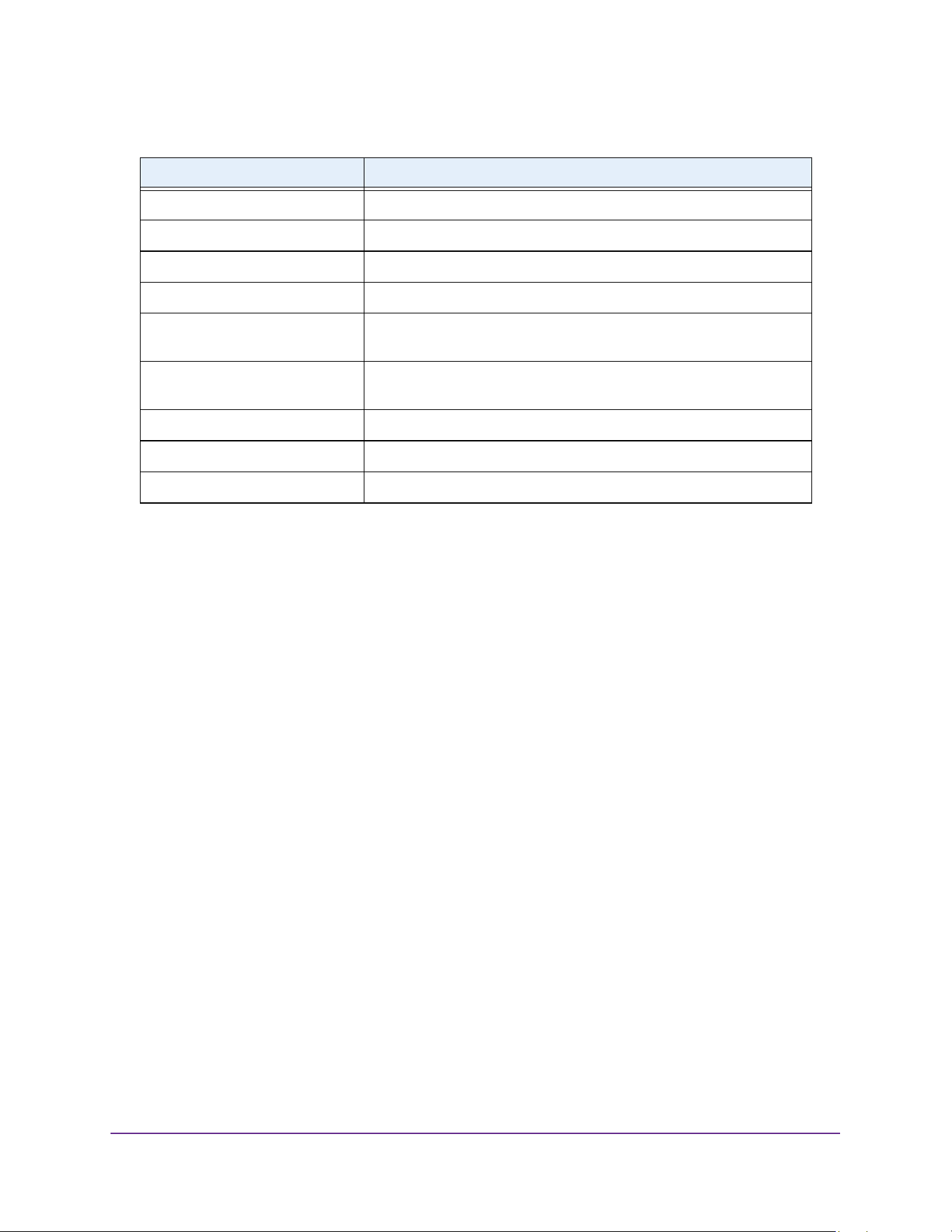
Stacking
160
M4200 and M4300 Series ProSAFE Managed Switches Web Management User Manual
Configure the Mode of the Stack Ports
By default, the stack ports on each switch are configured for stacking. However, you can use
these ports as standard Ethernet ports. Use the Stack Port Configuration page to configure
the mode of the stack ports and to view information about the ports.
To configure the mode of the stack ports:
1. Launch a web browser.
2. Enter http://<ipaddress> in the web browser address field.
The login window opens.
3. Enter the user name and password.
The default admin user name is admin and the default admin password is blank, that is,
do not enter a password.
4. Click the Login button.
The System Information page displays.
5. Select System > Stacking > Advanced > Stack Port Configuration.
Unit ID The unit ID of the specific switch.
Switch Description The description for the unit that is configured by the user.
Serial Number The unique box serial number for this switch.
Up Time The relative time since the last reboot of the switch.
Preconfigured Model Identifier The model type assigned by the device manufacturer to identify the
device.
Plugged-In Model Identifier The model type assigned by the device manufacturer to identify the
plugged-in device.
Detected Code Version The detected version of code on this unit.
Detected Code in Flash The release number and version number of the code stored in flash.
SFS Last Attempt Status The stack firmware synchronization last attempt status.
Table 60. Stack Status nonconfigurable fields (continued)
Field Description
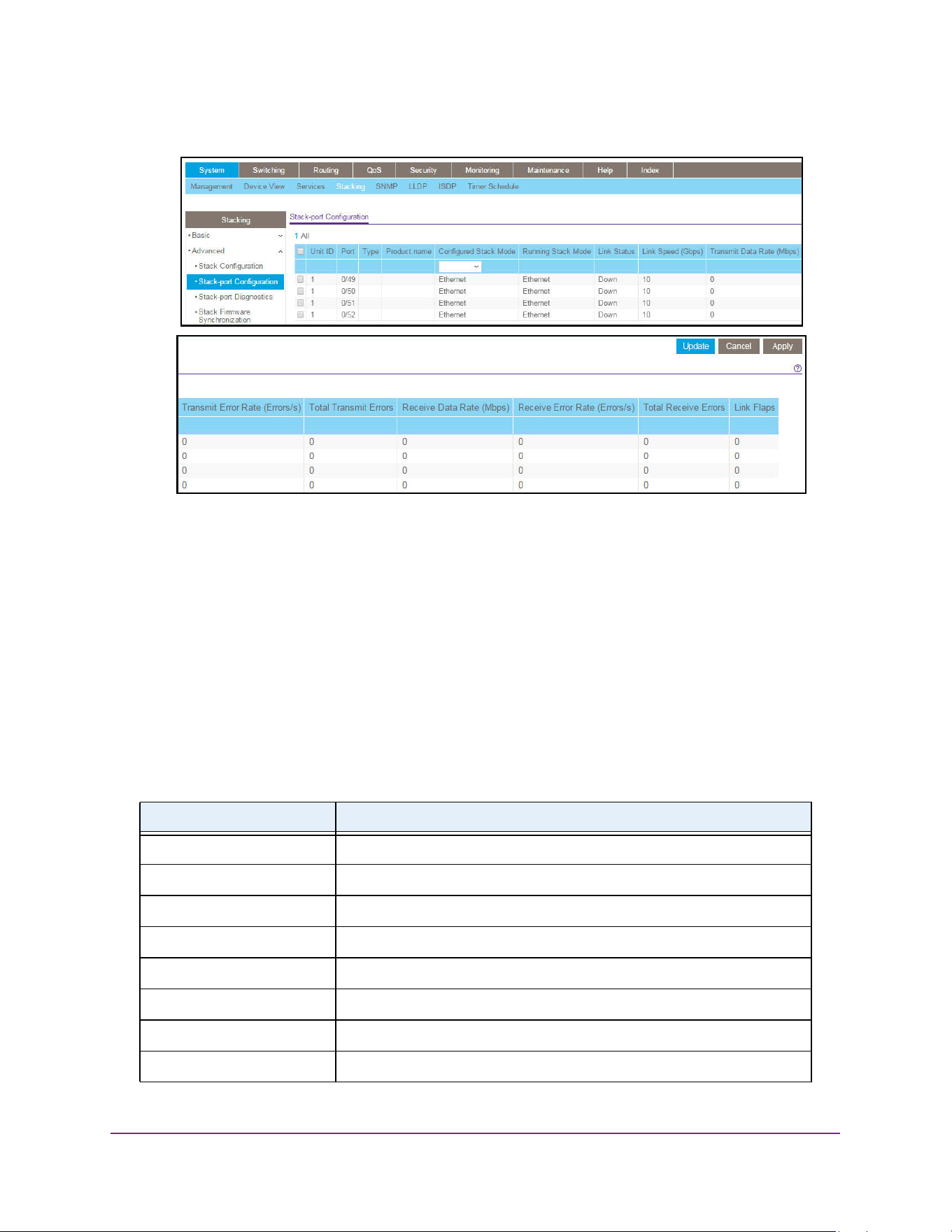
Stacking
161
M4200 and M4300 Series ProSAFE Managed Switches Web Management User Manual
The page is shown in two parts.
6. Select the check box associated with the unit and port to configure:
7. From the Configured Stack mode field, select the operating mode of the port to be either:
• Stack. The port connects to the stack port on another stack member. This is the
default value for back panel stack mode.
• Ethernet. The port operates as a standard switch port that receives and transmits
network traffic. This is the default value for front panel stack mode.
8. Click the Apply button.
The updated configuration is sent to the switch. Configuration changes take effect
immediately.
The following table describes Stack Port Configuration fields.
Table 61. Stack Port Configuration
Field Description
Unit ID The unit.
Port The stackable interfaces on the given unit.
Slot ID The slot ID in the format unit/slot.
Type The type of stackable interfaces on the given unit.
Product Name The name of the XFP/SFP+ adapter.
Running Stack mode The run-time mode of the stackable interface.
Link Status The link status (UP/DOWN) of the port.
Link Speed (Gbps) The maximum speed of the stacking port.
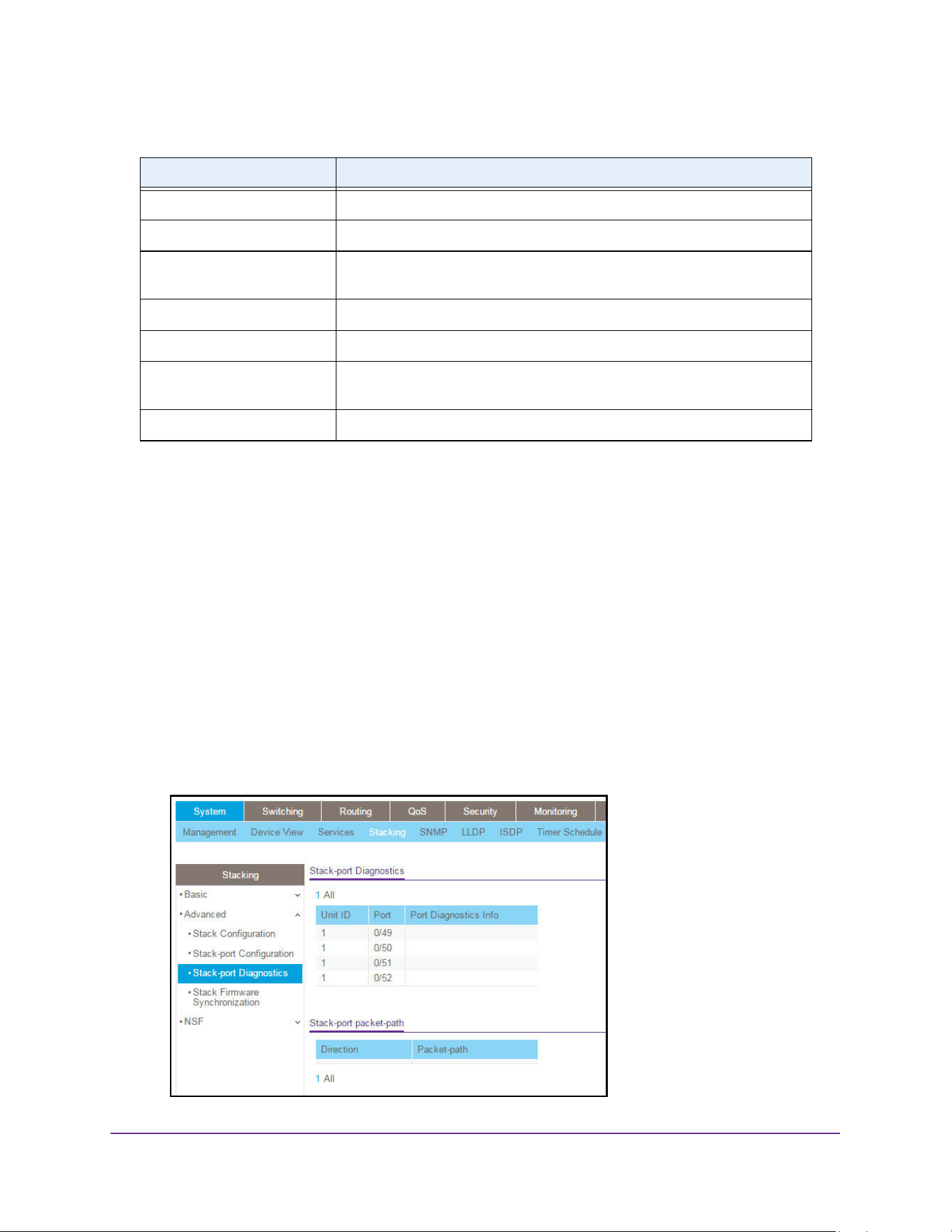
Stacking
162
M4200 and M4300 Series ProSAFE Managed Switches Web Management User Manual
Run Stack Port Diagnostics
To run stack port diagnostics:
1. Launch a web browser.
2. Enter http://<ipaddress> in the web browser address field.
The login window opens.
3. Enter the user name and password.
The default admin user name is admin and the default admin password is blank, that is,
do not enter a password.
4. Click the Login button.
The System Information page displays.
5. Select System > Stacking > Advanced > Stack Port Diagnostics.
Transmit Data Rate (Mbps) The approximate transmit rate on the stacking port.
Transmit Error Rate The number of errors in transmit packets per second.
Total Transmit Errors The total number of errors in transmit packets since boot. The counter might
wrap.
Receive Data Rate (Mbps) The approximate receive rate on the stacking port.
Receive Error Rate The number of errors in receive packets per second.
Total Receive Errors The total number of errors in receive packets since boot. The counter might
wrap.
Link Flaps The total number of link flaps.
Table 61. Stack Port Configuration (continued)
Field Description
Stacking
163
M4200 and M4300 Series ProSAFE Managed Switches Web Management User Manual
6. Select Unit ID to display the packet path starting from the selected unit.
7. Select All to display the packet path from all the units in the stack.
8. To refresh the page with the latest information on the switch, click the Update button.
The following table describes the Stack Port Diagnostics fields.
The following table describes the nonconfigurable Stack Port Packet Path fields.
Configure Stack Firmware Synchronization
To configure the stack firmware synchronization features:
1. Launch a web browser.
2. Enter http://<ipaddress> in the web browser address field.
The login window opens.
3. Enter the user name and password.
The default admin user name is admin and the default admin password is blank, that is,
do not enter a password.
4. Click the Login button.
The System Information page displays.
5. Select System > Stacking > Advanced > Stack Firmware Synchronization.
Table 62. Stack Port Diagnostics
Field Definition
Unit ID The unit.
Port The stackable interface on the given unit.
Port Diagnostics Info Displays three text fields (80 character strings) populated by the
driver containing debug and status information.
Table 63. Stack Port Packed Path
Field Definition
Direction The path direction.
Packet Path The packet path.
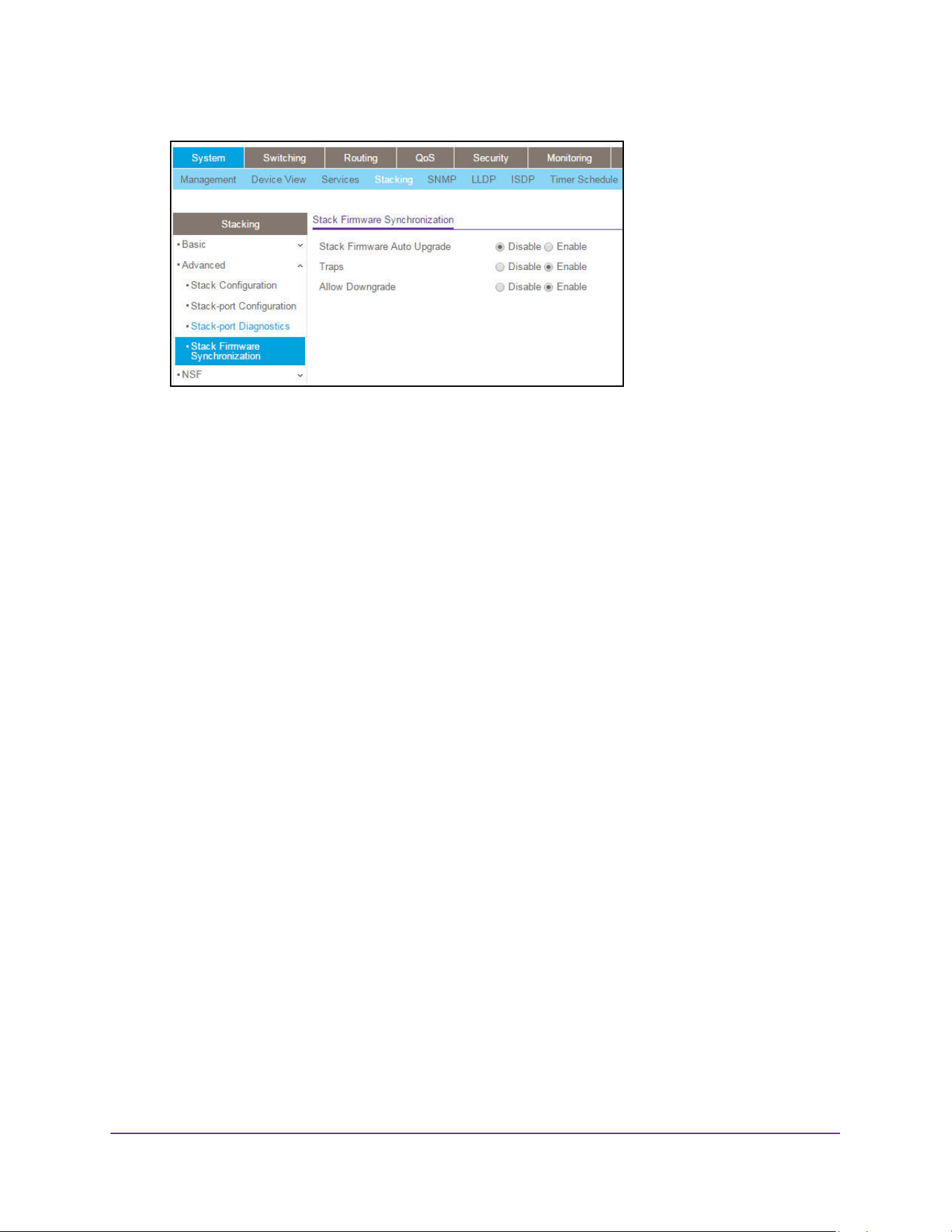
Stacking
164
M4200 and M4300 Series ProSAFE Managed Switches Web Management User Manual
6. Specify whether Stack Firmware Auto Upgrade is enabled or disabled.
This feature determines what to do when a new member attempts to join the stack, and
its firmware does not match the version running on the master.
• Enable. The stack master upgrades the version on the new member to match the
version running on the rest of the stack.
• Disable. The new member is not allowed to join.
7. Use the Traps field to enable or disable sending of traps during stack firmware
synchronization start, failure, or finish.
8. Use the Allow Downgrade field to determine whether the stack master downgrades the
firmware version on a new member that attempts to join the stack if the new member has a
firmware version that is more recent that the stack.
9. Click the Apply button.
The updated configuration is sent to the switch. Configuration changes take effect
immediately.
View NSF Summary Data
To display NSF Summary data:
1. Launch a web browser.
2. Enter http://<ipaddress> in the web browser address field.
The login window opens.
3. Enter the user name and password.
The default admin user name is admin and the default admin password is blank, that is,
do not enter a password.
4. Click the Login button.
The System Information page displays.
5. Select System > Stacking > NSF > NSF Summary
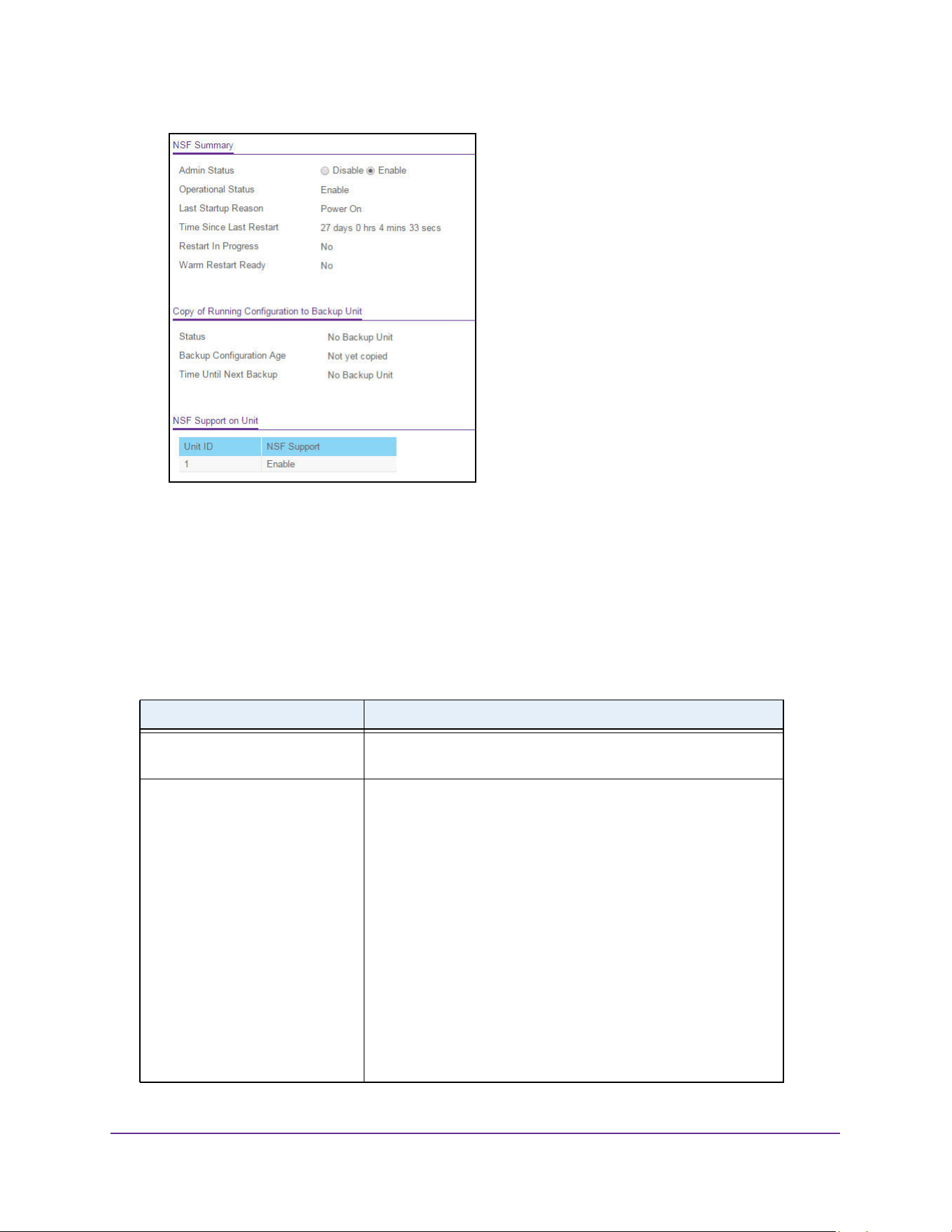
Stacking
165
M4200 and M4300 Series ProSAFE Managed Switches Web Management User Manual
6. Use the Admin Status radio button to enable or disable the NSF feature on the stack.
When enabled, the stack selects a backup unit. Applications on the management unit copy
data to the backup unit.
7. To cause the supervisor unit to fail over to the backup blade, click the Initiate Failover
button on the top right corner of the page.
8. To refresh the page with the latest information on the switch, click the Update button.
The following table describes the nonconfigurable NSF Summary data that is displayed.
Table 64. NSF Summary
Field Description
Operational Status Indicates whether NSF is enabled on the chassis. NSF is enabled
by default.
Last Startup Reason The type of activation that caused the software to start the last
time. The possible values are as follows:
• Power On. The switch is rebooted. A power cycle or an
administrative reload command might caused this
• Cold Admin Move. The system resets all hardware tables
without a reboot and the application begins from a
pre-initialized state, but no data is retained from before the
failover.
• Warm Admin Move. The administrator issued a command for
the standby manager to take over.
• Auto Warm. The primary management card restarted due to a
failure, and the system executed a nonstop forwarding failover.
• Auto Cold. The system switched from the active manager to
the backup manager and could not maintain user data traffic.
This is usually caused by multiple failures occurring close
together.
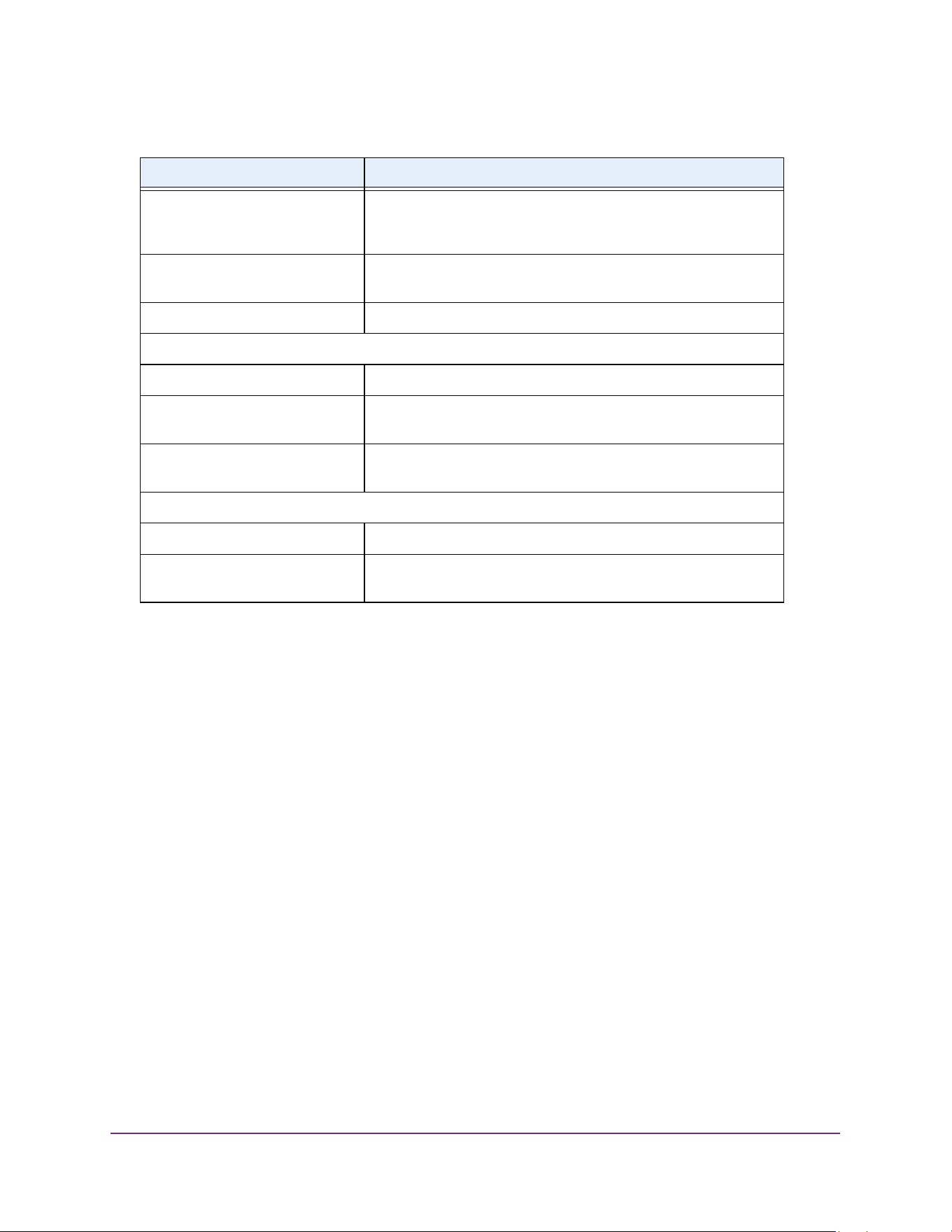
Stacking
166
M4200 and M4300 Series ProSAFE Managed Switches Web Management User Manual
View NSF Checkpoint Statistics
To view NSF checkpoint statistics:
1. Launch a web browser.
2. Enter http://<ipaddress> in the web browser address field.
The login window opens.
3. Enter the user name and password.
The default admin user name is admin and the default admin password is blank, that is,
do not enter a password.
4. Click the Login button.
The System Information page displays.
5. Select System > Chassis > NSF > Checkpoint Statistics.
Time Since Last Restart Time since the current management card because the active
management card. For the backup manager, the value is set to
0d:00:00:00.
Restart In Progress Indicates whether a restart is in progress. A restart is not
considered complete until all hardware tables are fully reconciled.
Warm Restart Ready Indicates whether the initial full checkpoint finished.
Copy of Running Configuration to Backup Unit
Status Status of copying the running configuration to backup blades.
Backup Configuration Age Indicates the time since the running configuration was last copied
to the backup blade.
Time Until Next Backup Indicates the number of seconds until the running configuration is
copied to the backup blade.
NSF Support on Unit
Unit ID The slot number for the blade.
NSF Support Displays whether the switch supports the nonstop forwarding
(NSF) feature.
Table 64. NSF Summary (continued)
Field Description
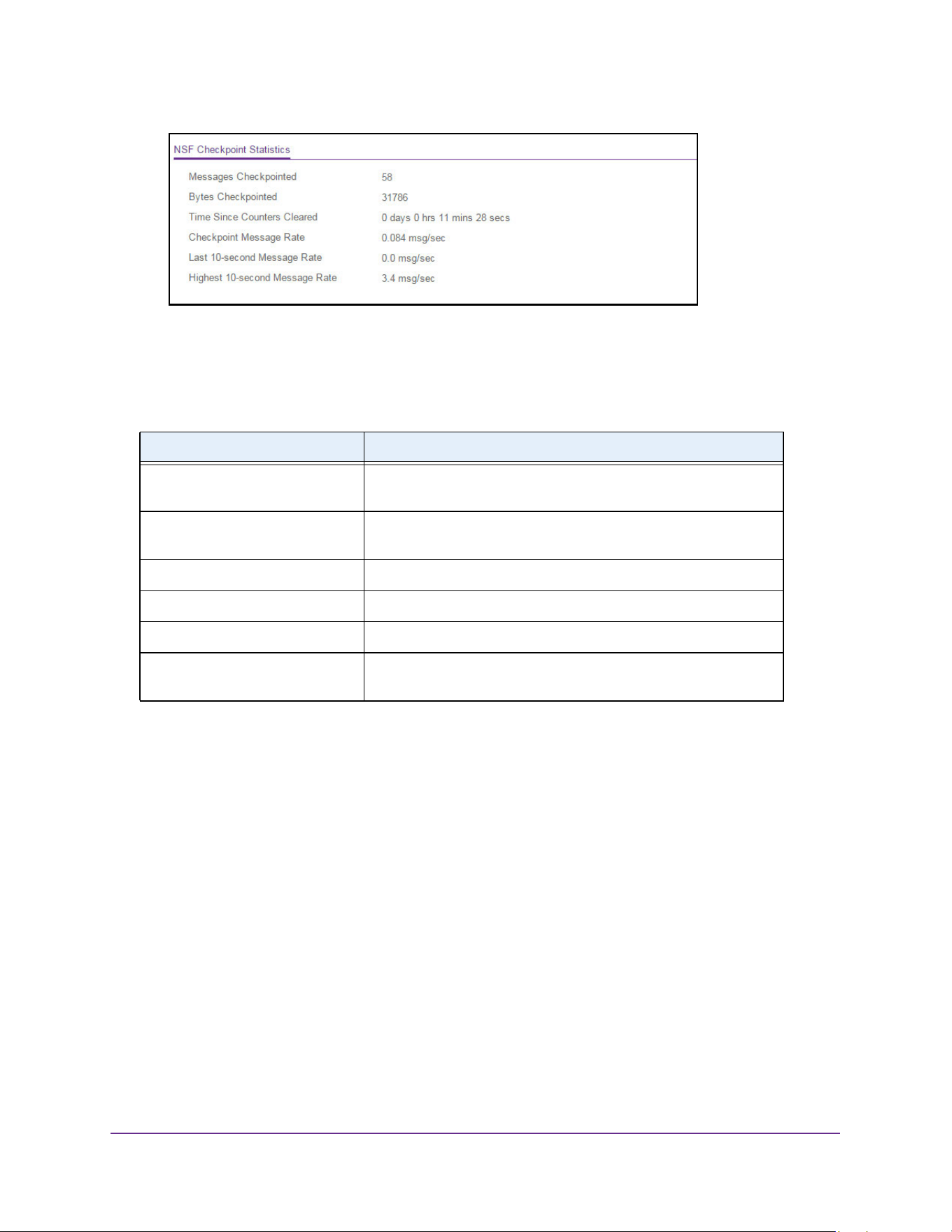
Stacking
167
M4200 and M4300 Series ProSAFE Managed Switches Web Management User Manual
6. To reset the statistics on the page, click the Clear button.
7. To refresh the page with the latest information on the switch, click the Update button.
The following table describes the nonconfigurable data that is displayed.
Table 65. NSF Checkpoint Statistics
Field Description
Messages Checkpoint The number of messages sent from the supervisor to the backup
blade.
Bytes Checkpointed How much data was sent from the supervisor until to the backup
blade.
Time Since Counters Cleared The amount of time since the counters were reset.
Checkpoint Message Rate The number of seconds between measurements.
Last 10-second Message Rate How many messages were sent in the last measurement interval.
Highest 10-second Message Rate The highest number of messages that were sent in a
measurement interval.

168
4
4. Configure Switching Information
This chapter covers the following topics:
• Configure VLANs
• Auto-VoIP
• iSCSI Overview
• Spanning Tree Protocol
• Multicast
• Configure MVR
• MAC Address Table
• Port Settings
• Link Aggregation Groups
• Multiple Registration Protocol Overview
• Loop Protection

Configure Switching Information
169
M4200 and M4300 Series ProSAFE Managed Switches Web Management User Manual
Configure VLANs
Adding virtual LAN (VLAN) support to a Layer 2 switch offers some of the benefits of both
bridging and routing. Like a bridge, a VLAN switch forwards traffic based on the Layer 2
header, which is fast, and like a router, it partitions the network into logical segments, which
provides better administration, security, and management of multicast traffic.
By default, all ports on the switch are in the same broadcast domain. VLANs electronically
separate ports on the same switch into separate broadcast domains so that broadcast
packets are not sent to all the ports on a single switch. When you use a VLAN, users can be
grouped by logical function instead of physical location.
Each VLAN in a network is assigned an associated VLAN ID, which appears in the IEEE
802.1Q tag in the Layer 2 header of packets transmitted on a VLAN. An end station can omit
the tag, or the VLAN portion of the tag, in which case the first switch port to receive the
packet can either reject it or insert a tag using its default VLAN ID. A given port can handle
traffic for more than one VLAN, but it can support only one default VLAN ID.
You can define VLAN groups stored in the VLAN membership table. Each switch in the
M4200 and M4300 family supports up to 1024 VLANs. VLAN 1 is created by default and is
the default VLAN of which all ports are members.
Configure Basic VLAN Settings
The internal VLAN is reserved by a port-based routing interface and invisible to the end user.
Once these internal VLANs are allocated by the port-based routing interface, they cannot be
assigned to a routing VLAN interface.
To configure internal VLAN settings:
1. Launch a web browser.
2. Enter http://<ipaddress> in the web browser address field.
The login window opens.
3. Enter the user name and password.
The default admin user name is admin and the default admin password is blank, that is,
do not enter a password.
4. Click the Login button.
The System Information page displays.
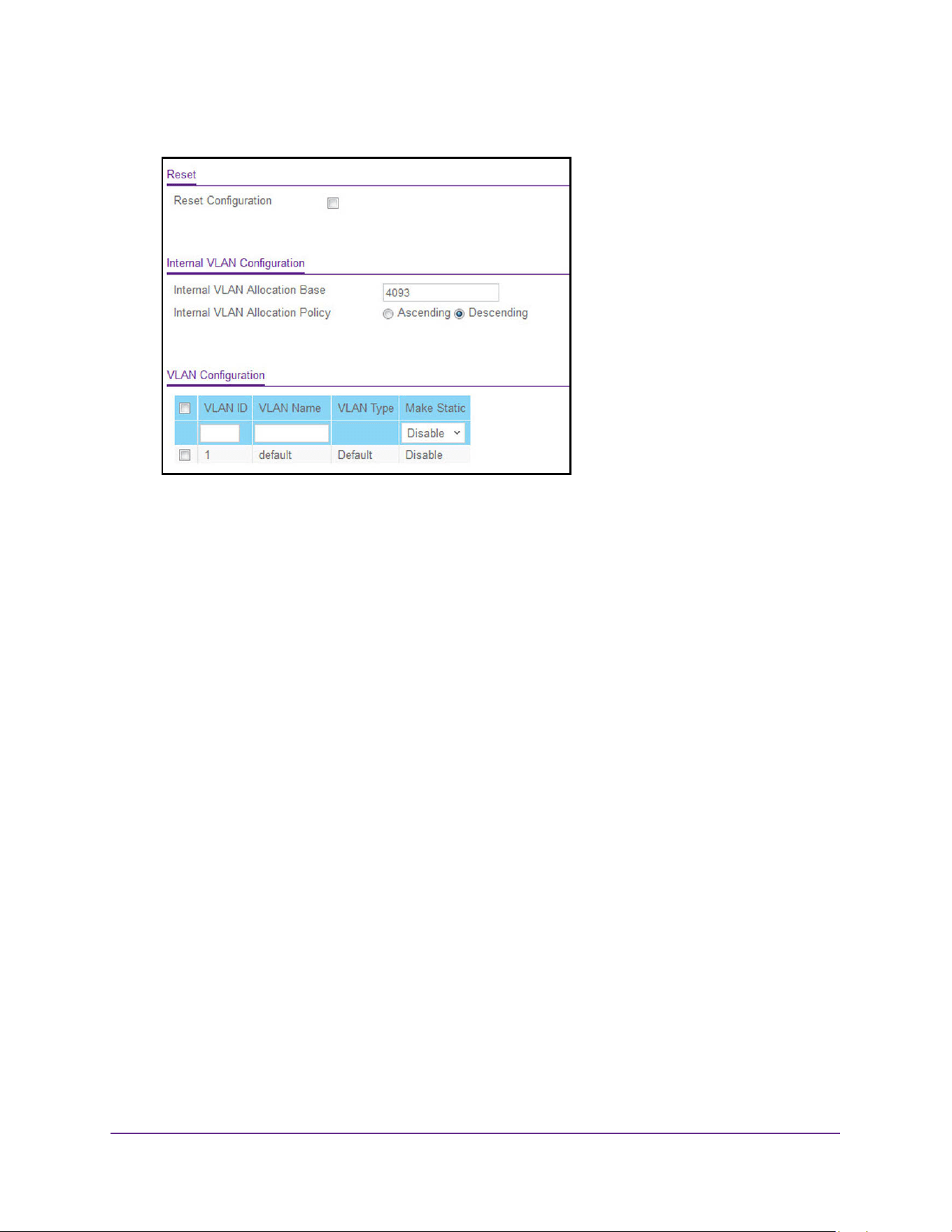
Configure Switching Information
170
M4200 and M4300 Series ProSAFE Managed Switches Web Management User Manual
5. Select Switching> VLAN > Basic > VLAN Configuration.
6. To reset VLAN settings to their default values, select the Reset Configuration check box.
The factory default values are as follows:
• All ports are assigned to the default VLAN of 1.
• All ports are configured with a PVID of 1.
• All ports are configured to an Acceptable Frame Types value of Admit All Frames.
• All ports are configured with Ingress Filtering disabled.
• All ports are configured to transmit only untagged frames.
• GVRP is disabled on all ports and all dynamic entries are cleared.
All VLANs, except for the default VLAN, are deleted.
7. Specify the internal VLAN settings.
The Internal VLAN Configuration section displays the allocation base and the allocation
mode of internal VLAN.
a. Use Internal VLAN Allocation Base to specify the VLAN allocation base for the
routing interface.
The default base range of the internal VLAN is 1 to 4093.
b. Select the Internal VLAN Allocation Policy Ascending or Descending radio
button.
This specifies a policy for the internal VLAN allocation.
8. Use VLAN ID to specify the VLAN identifier for the new VLAN.
The range of the VLAN ID is 1 to 4093.
9. Use the optional VLAN Name field to specify a name for the VLAN.
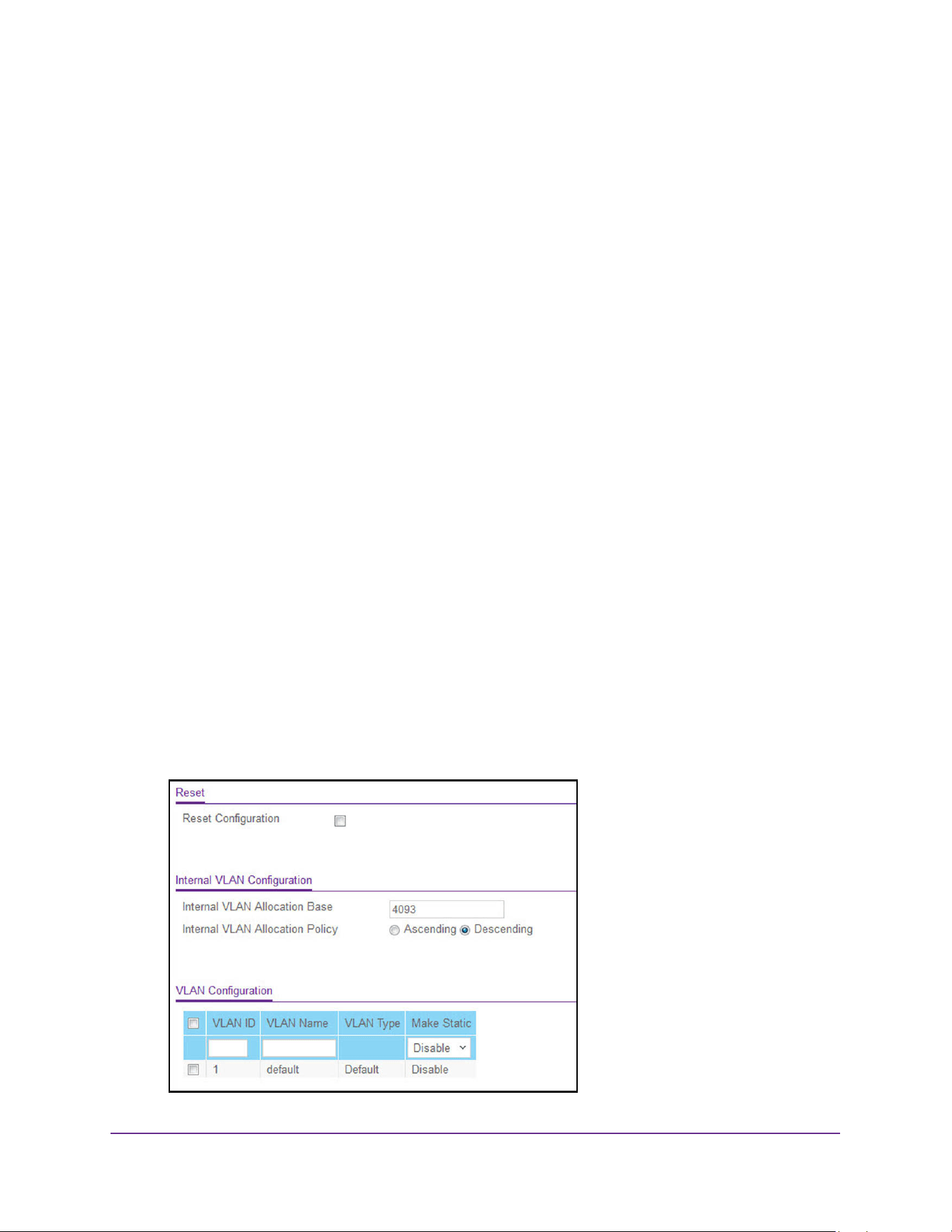
Configure Switching Information
171
M4200 and M4300 Series ProSAFE Managed Switches Web Management User Manual
The VLAN name can be up to 32 alphanumeric characters long, including blanks. The
default is blank. VLAN ID 1 always uses the name Default.
The VLAN Type field identifies the type of the VLAN you are configuring. You cannot
change the type of the default VLAN (VLAN ID = 1): it is always type Default. When you
create a VLAN using this page, its type is always Static. A VLAN that is created by GVRP
registration initially uses a type of Dynamic. When configuring a dynamic VLAN, you can
change its type to Static.
10. Click the Add button.
The VLAN is added to the switch.
11. Click the Apply button.
The updated configuration is sent to the switch. Configuration changes take effect
immediately.
Reset the VLAN Configuration to Default Setting
To reset the VLAN configuration to default settings:
1. Launch a web browser.
2. Enter http://<ipaddress> in the web browser address field.
The login window opens.
3. Enter the user name and password.
The default admin user name is admin and the default admin password is blank, that is,
do not enter a password.
4. Click the Login button.
The System Information page displays.
5. Select Switching> VLAN > Advanced > VLAN Configuration.

Configure Switching Information
172
M4200 and M4300 Series ProSAFE Managed Switches Web Management User Manual
6. Select the Reset Configuration check box.
WARNING:
If you select this button and confirm your selection on the next
page, all VLAN configuration parameters are reset to their factory
default values.
7. Confirm your selection.
All VLANs, except for the default VLAN, are deleted. The factory default values are as
follows:
• All ports are assigned to the default VLAN of 1.
• All ports are configured with a PVID of 1.
• All ports are configured to an Acceptable Frame Types value of Admit All Frames.
• All ports are configured with ingress filtering disabled.
• All ports are configured to transmit only untagged frames.
• GVRP is disabled on all ports and all dynamic entries are cleared.
Configure an Internal VLAN
The Internal VLAN section displays the allocation base and the allocation mode of internal
VLAN. The internal VLAN is reserved by a port-based routing interface and invisible to the
end user. Once these internal VLANs are allocated by the port-based routing interface, they
cannot be assigned to a routing VLAN interface.
To configure an internal VLAN:
1. Launch a web browser.
2. Enter http://<ipaddress> in the web browser address field.
The login window opens.
3. Enter the user name and password.
The default admin user name is admin and the default admin password is blank, that is,
do not enter a password.
4. Click the Login button.
The System Information page displays.
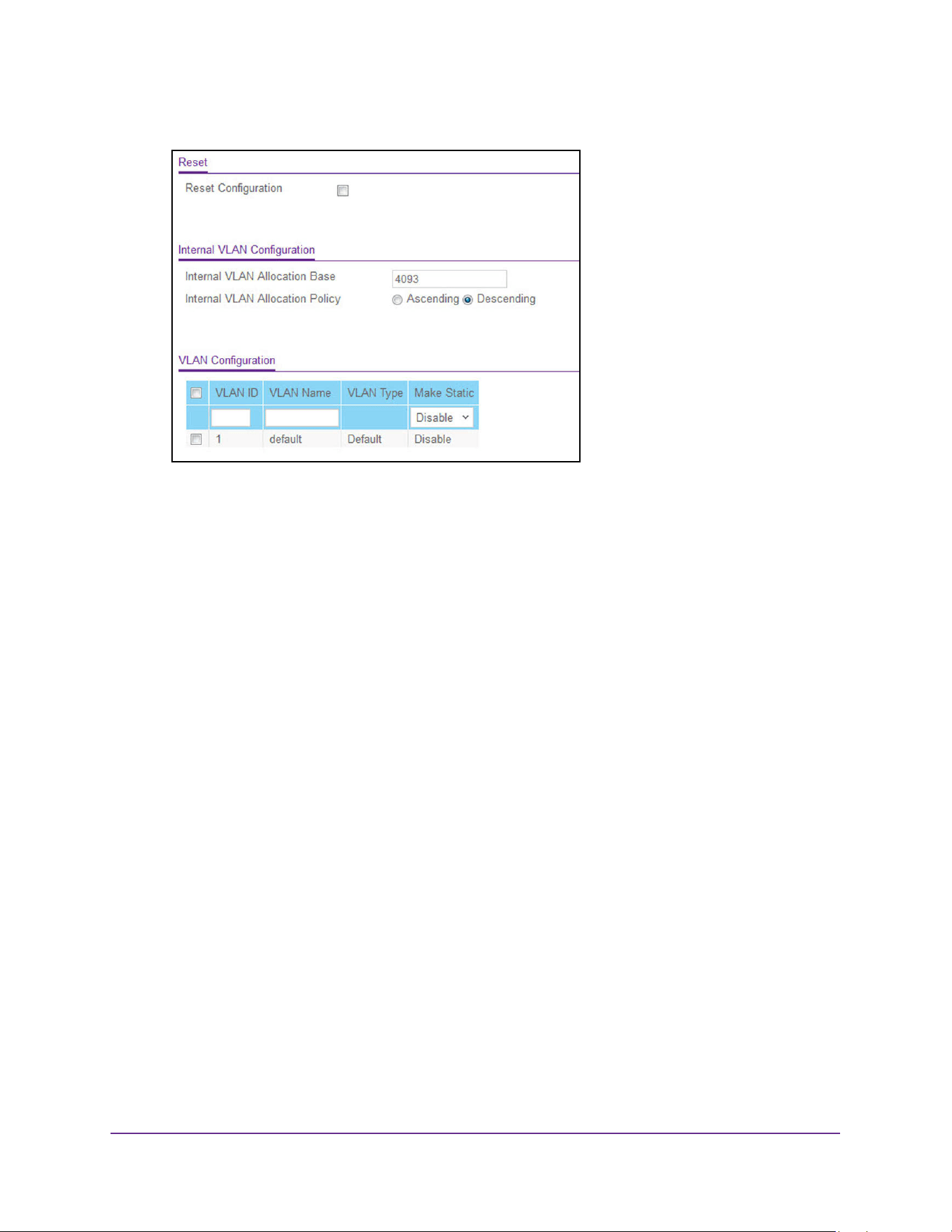
Configure Switching Information
173
M4200 and M4300 Series ProSAFE Managed Switches Web Management User Manual
5. Select Switching> VLAN > Advanced > VLAN Configuration.
6. In the Internal VLAN Allocation Base field, specify the VLAN allocation base for the routing
interface.
You can enter a value from 1 to 4093.
7. Select the Internal VLAN Allocation Policy Ascending or Descending radio button.
This specifies a policy for the internal VLAN allocation.
8. Click the Apply button.
The updated configuration is sent to the switch. Configuration changes take effect
immediately.
Configure VLAN Trunking
You can configure switchport mode settings on interfaces. The switchport mode defines the
purpose of the port based on the type of device it connects to and constraints the VLAN
configuration of the port accordingly. Assigning the appropriate switchport mode helps
simplify VLAN configuration and minimize errors.
To configure VLAN trunking:
1. Launch a web browser.
2. Enter http://<ipaddress> in the web browser address field.
The login window opens.
3. Enter the user name and password.
The default admin user name is admin and the default admin password is blank, that is,
do not enter a password.
4. Click the Login button.
The System Information page displays.
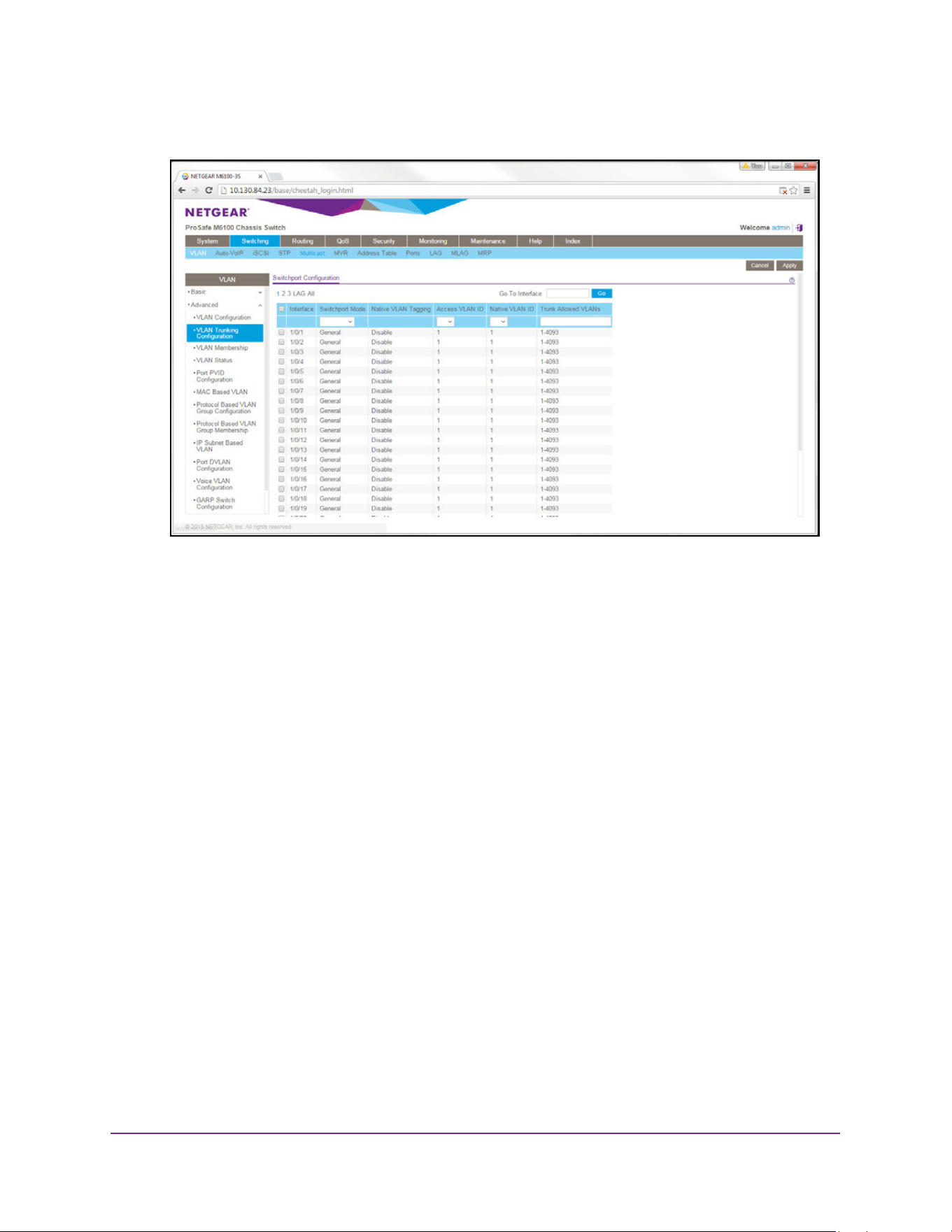
Configure Switching Information
174
M4200 and M4300 Series ProSAFE Managed Switches Web Management User Manual
5. Select Switching> VLAN > Advanced > VLAN Trunking Configuration.
6. To specify which interfaces are displayed on the page, select one of the following options:
• Select the Unit ID field to display physical port information for the selected unit.
• Use LAG to display LAGs only.
• Use All to display all physical ports.
7. Use one of the following methods to select an interface:
• Use Go To Interface to select an interface by entering its number.
• Use Interface to select the interface for which data is to be displayed or configured.
8. In the Switchport Mode list, select one of the following:
• Access. This mode is suitable for ports connected to end stations or end users.
Access ports participate in only one VLAN. They accept both tagged and untagged
packets, but always transmit untagged packets.
• Trunk. This mode is intended for ports that are connected to other switches. Trunk
ports can participate in multiple VLANs and accept both tagged and untagged
packets.
• General. This mode enables custom configuration of a port. You configure the
general port VLAN attributes, such as membership, PVID, tagging, ingress filter, and
so on, using the settings on the Port Configuration page. By default, all ports are
initially configured in General mode.
• Host. This mode is used for private VLAN configuration.
• Promiscuous. This mode is used for private VLAN configuration.
9. Select from the list to configure the Access VLAN ID.
This is the access VLAN for the port, and is valid only when the port switchport mode is
Access.

Configure Switching Information
175
M4200 and M4300 Series ProSAFE Managed Switches Web Management User Manual
10. Select from the list to configure the Native VLAN ID.
This is the native VLAN for the port, and is valid only when the port switchport mode is
Trunk.
11. Configure the Trunk Allowed VLANs.
This is the set of VLANs of which the port can be a member when configured in Trunk
mode. By default, this list contains all possible VLANs, even if they are not yet created.
VLAN IDs are in the range 1 to 4093. Use a hyphen (-) to specify a range, or a comma (,)
to separate VLAN IDs in a list. Spaces are not permitted. A zero value clears the allowed
VLANs. An All value sets all VLANs in the range (1 to 4093).
12. Click the Apply button.
The updated configuration is sent to the switch.Configuration changes take effect
immediately.
The Native VLAN Tagging field displays enabled or disabled:
• When VLAN tagging is enabled, if the trunk port receives untagged frames, it forwards
them on the native VLAN with no VLAN tag.
• When VLAN tagging is disabled, if the trunk port receives untagged frames, it includes
the native VLAN ID in the VLAN tag when forwarding
Configure VLAN Membership
To configure VLAN membership:
1. Launch a web browser.
2. Enter http://<ipaddress> in the web browser address field.
The login window opens.
3. Enter the user name and password.
The default admin user name is admin and the default admin password is blank, that is,
do not enter a password.
4. Click the Login button.
The System Information page displays.
5. Select Switching> VLAN > Advanced > VLAN Membership.
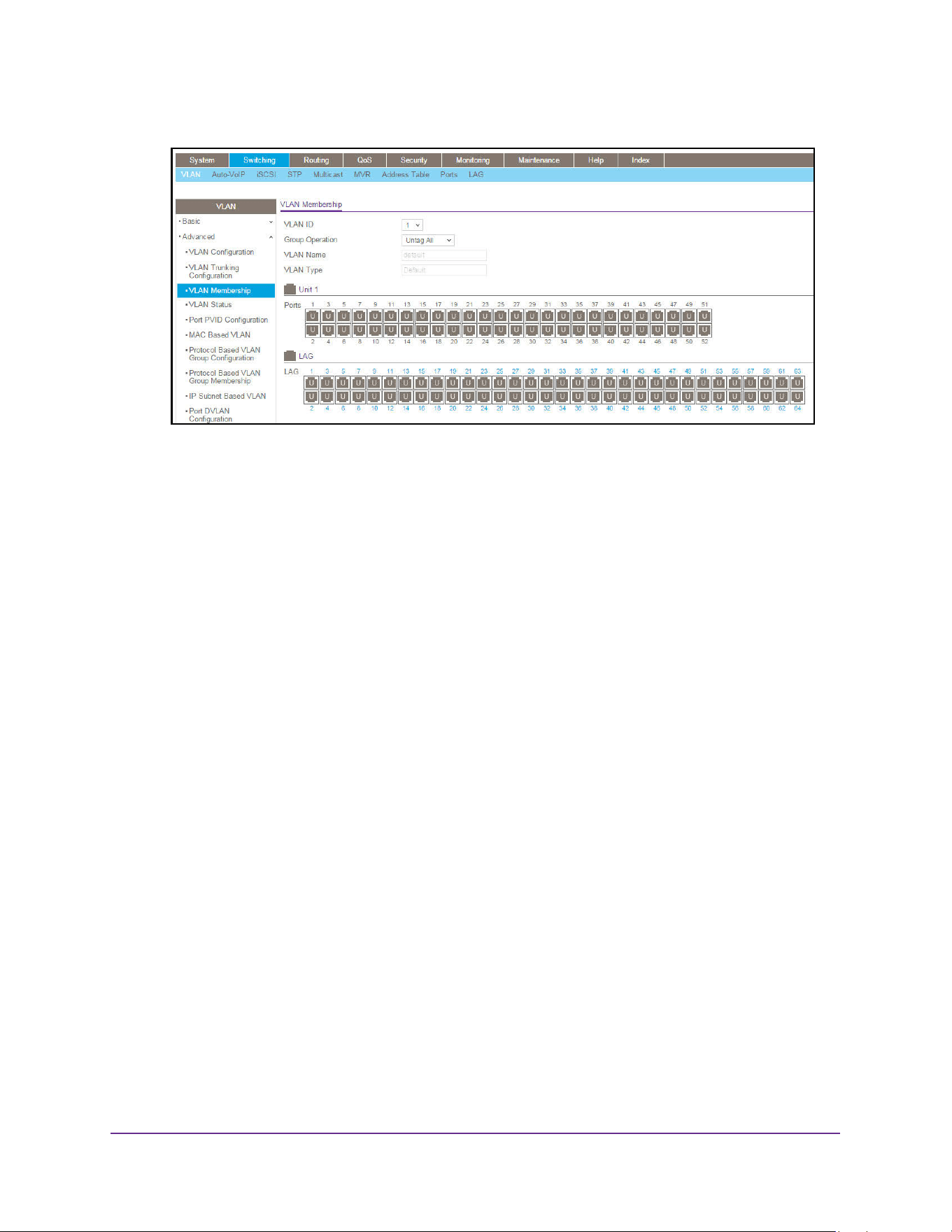
Configure Switching Information
176
M4200 and M4300 Series ProSAFE Managed Switches Web Management User Manual
6. In the VLAN ID list, select the VLAN ID.
7. In the Group Operation list, select all the ports and configure them:
• Untag All. Select all the ports on which all frames transmitted for this VLAN are
untagged. All the ports are included in the VLAN.
• Tag All. Select the ports on which all frames transmitted for this VLAN are tagged. All
the ports are included in the VLAN.
• Remove All. All the ports that can be dynamically registered in this VLAN through
GVRP. This selection excludes all ports from the selected VLAN.
8. In the Port display, select port numbers to add them to this VLAN.
Each port can use one of three modes:
• T (Tagged). Select the ports on which all frames transmitted for this VLAN are tagged.
The ports that are selected are included in the VLAN.
• U (Untagged). Select the ports on which all frames transmitted for this VLAN are
untagged. The ports that are selected are included in the VLAN.
• BLANK (Autodetect). Select the ports that can be dynamically registered in this
VLAN through GVRP. This selection excludes a port from the selected VLAN.
9. Click the Apply button.
The updated configuration is sent to the switch. Configuration changes take effect
immediately.
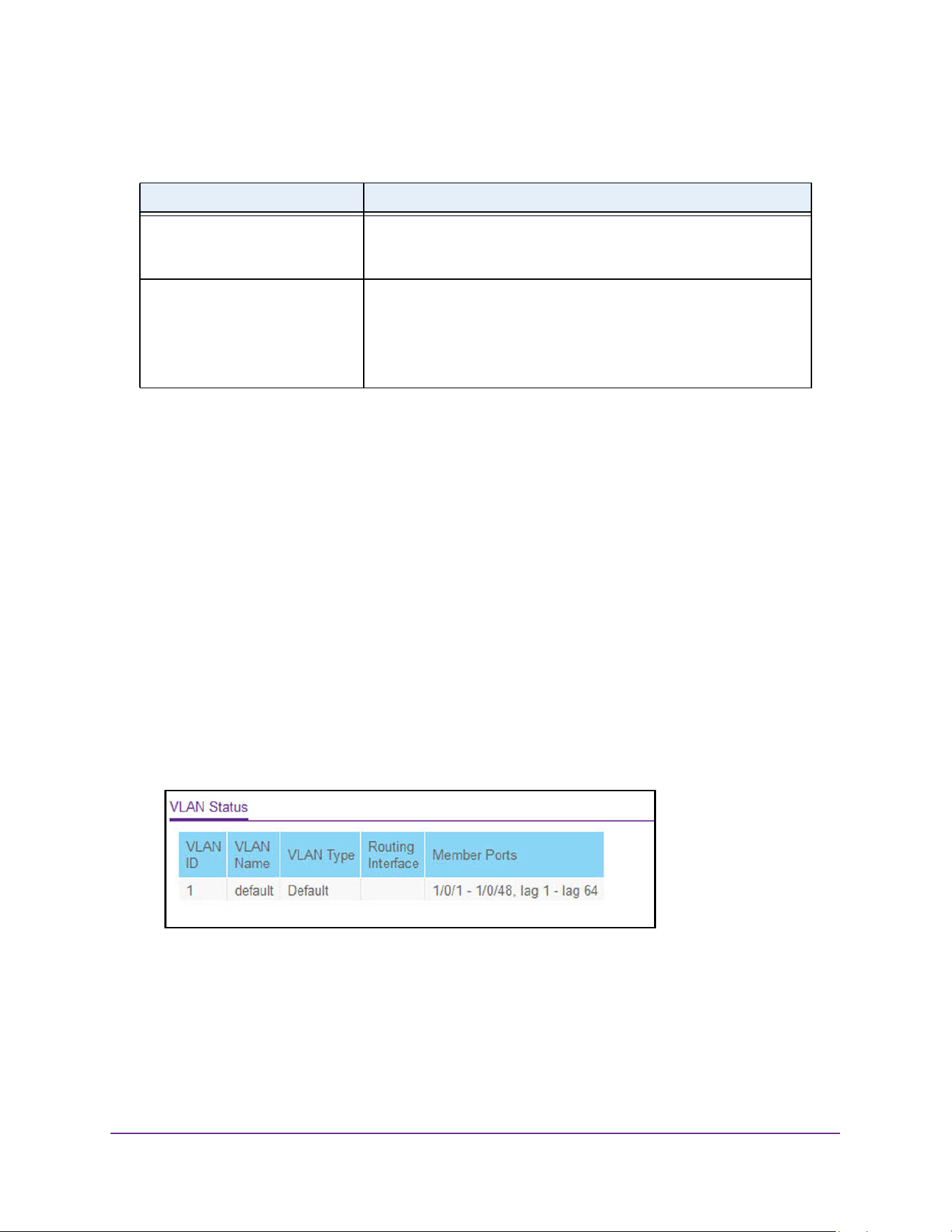
Configure Switching Information
177
M4200 and M4300 Series ProSAFE Managed Switches Web Management User Manual
The following table describes the nonconfigurable information displayed on the page.
View VLAN Status
You can view the status of all currently configured VLANs.
To view the VLAN status:
1. Launch a web browser.
2. Enter http://<ipaddress> in the web browser address field.
The login window opens.
3. Enter the user name and password.
The default admin user name is admin and the default admin password is blank, that is,
do not enter a password.
4. Click the Login button.
The System Information page displays.
5. Select Switching> VLAN > Advanced > VLAN Status.
Table 66. Advanced VLAN Membership
Field Definition
VLAN Name The name for the VLAN that you selected. It can be up to 32
alphanumeric characters long, including blanks. VLAN ID 1 always
uses the name Default.
VLAN Type The type of the VLAN you selected:
• Default (VLAN ID = 1). Always present
• Static. A VLAN that you configured
• Dynamic. A VLAN created by GVRP registration that you did not
convert to static, and that GVRP can therefore remove
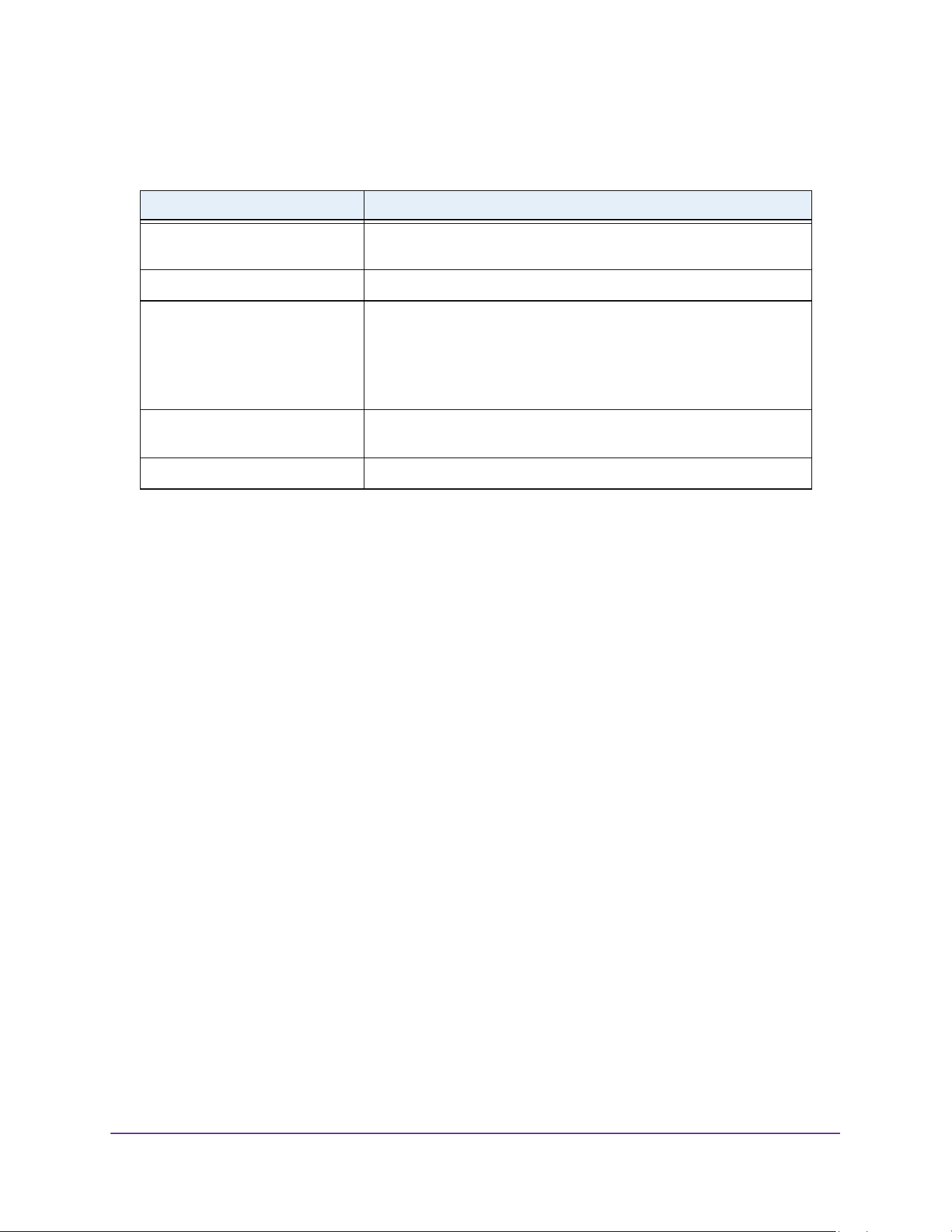
Configure Switching Information
178
M4200 and M4300 Series ProSAFE Managed Switches Web Management User Manual
The following table describes the nonconfigurable information displayed on the page.
Configure Port PVID Settings
You can assign a port VLAN ID (PVID) to an interface. There are certain requirements for a
PVID:
• You must define a PVID for all ports.
• If no other value is specified, the default VLAN PVID is used.
• To change the port’s default PVID, you must first create a VLAN that includes the port as
a member.
• Use the Port VLAN ID (PVID) Configuration page to configure a virtual LAN on a port.
To configure PVID settings:
1. Launch a web browser.
2. Enter http://<ipaddress> in the web browser address field.
The login window opens.
3. Enter the user name and password.
The default admin user name is admin and the default admin password is blank, that is,
do not enter a password.
4. Click the Login button.
The System Information page displays.
5. Select Switching> VLAN > Advanced > Port PVID Configuration.
Table 67. VLAN Status
Field Definition
VLAN ID The VLAN identifier (VID) of the VLAN. The range of the VLAN ID is 1
to 4093.
VLAN Name The name of the VLAN. VLAN ID 1 is always named `Default`.
VLAN Type The VLAN type:
• Default (VLAN ID = 1). Always present
• Static. A VLAN that you configured
• Dynamic. A VLAN created by GVRP registration that you did not
convert to static, and that GVRP can therefore remove
Routing Interface The interface associated with the VLAN, in the case that VLAN routing
is configured for this VLAN.
Member Ports The ports that are included in the VLAN.
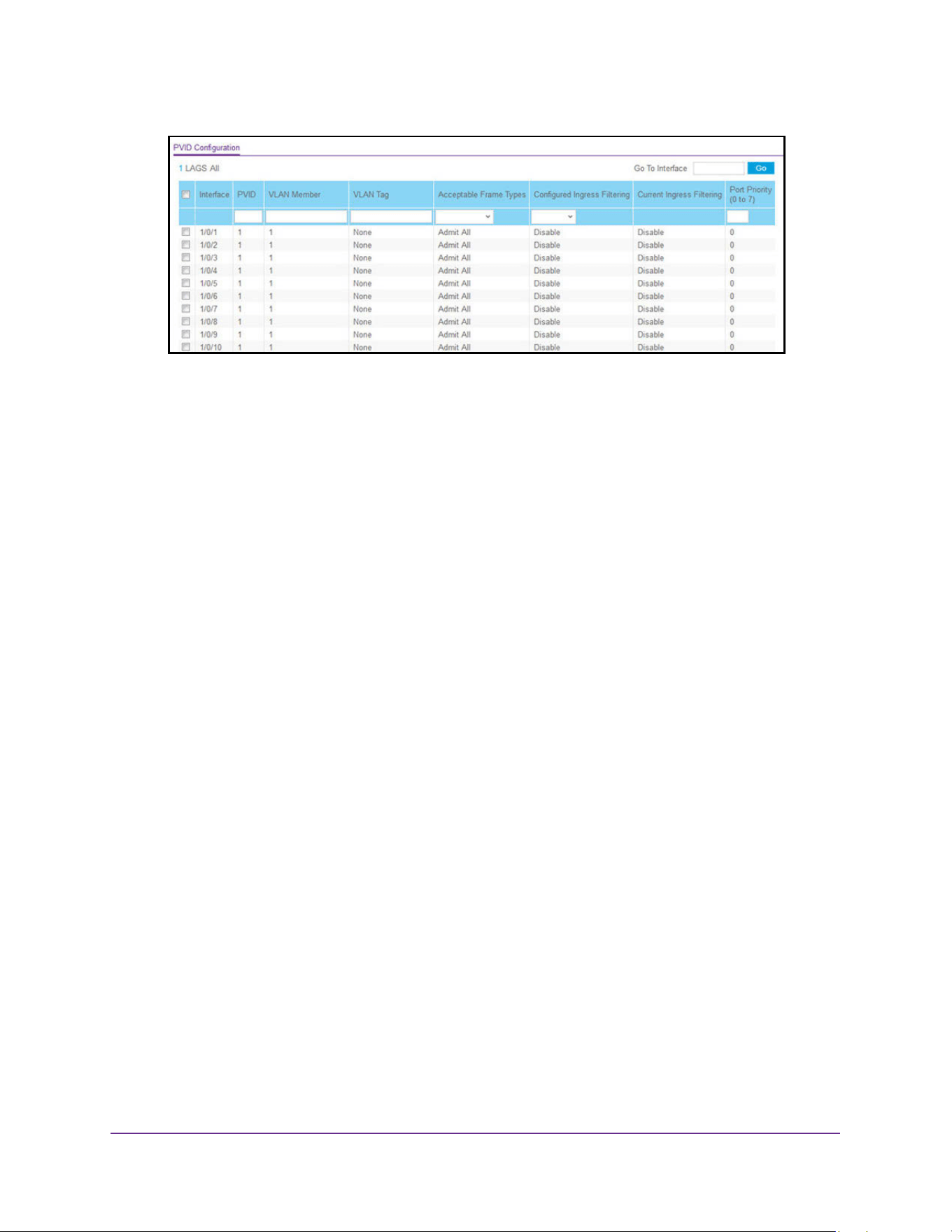
Configure Switching Information
179
M4200 and M4300 Series ProSAFE Managed Switches Web Management User Manual
6. To display information for all physical ports and LAGs, click the ALL button.
7. Select the interfaces.
Select the Interface check box next to the interfaces. You can select multiple interfaces.
To select all the interfaces, select the Interface check box in the heading row.
8. In the PVID field, specify the VLAN ID to assign to untagged or priority-tagged frames
received on this port.
The factory default is 1.
9. In the VLAN Member field, specify the VLAN ID or list of VLANs of a member port.
VLAN IDs range from 1 to 4093. The factory default is 1. Use a hyphen (-) to specify a
range or a comma (,) to separate VLAN IDs in a list. Spaces and zeros are not permitted.
10. In the VLAN Tag field, specify the VLAN ID or list of VLANs of a tagged port.
VLAN IDs range from 1 to 4093. Use a hyphen (-) to specify a range or a comma (,) to
separate VLAN IDs in a list. Spaces and zeros are not permitted. To reset the VLAN tag
configuration to the defaults, use the None keyword. Port tagging for the VLAN can be
set only if the port is a member of this VLAN.
11. In the Acceptable Frame Types list, specify the types of frames that can be received on
this port.
The options are VLAN only and Admit All:
• When set to VLAN only, untagged frames or priority-tagged frames received on this
port are discarded.
• When set to Admit All, untagged frames or priority-tagged frames received on this
port are accepted and assigned the value of the port VLAN ID for this port. With either
option, VLAN-tagged frames are forwarded in accordance to the 802.1Q VLAN
specification.
12. In the Configured Ingress Filtering field, select Enabled or Disabled.
• When enabled, the frame is discarded if this port is not a member of the VLAN with
which this frame is associated. In a tagged frame, the VLAN is identified by the VLAN
ID in the tag. In an untagged frame, the VLAN is the port VLAN ID specified for the
port that received this frame.

Configure Switching Information
180
M4200 and M4300 Series ProSAFE Managed Switches Web Management User Manual
• When disabled, all frames are forwarded in accordance with the 802.1Q VLAN bridge
specification. The factory default is disabled.
13. In the Port Priority field, specify the default 802.1p priority assigned to untagged packets
arriving at the port.
You can enter a number from 0 to 7.
14. Click the Apply button.
The updated configuration is sent to the switch. Configuration changes take effect
immediately.
Configure a MAC-Based VLAN
The MAC-Based VLAN feature allows incoming untagged packets to be assigned to a VLAN
and thus classify traffic based on the source MAC address of the packet.
You define a MAC to VLAN mapping by configuring an entry in the MAC to VLAN table. An
entry is specified through a source MAC address and the desired VLAN ID. The MAC to
VLAN configurations are shared across all ports of the device (that is, there is a system-wide
table with MAC address to VLAN ID mappings).
When untagged or priority-tagged packets arrive at the switch and entries exist in the MAC to
VLAN table, the source MAC address of the packet is looked up. If an entry is found, the
corresponding VLAN ID is assigned to the packet. If the packet is already priority tagged it
maintains this value; otherwise, the priority is set to zero. The assigned VLAN ID is verified
against the VLAN table, if the VLAN is valid, ingress processing on the packet continues;
otherwise the packet is dropped. This implies that the user is allowed to configure a MAC
address mapping to a VLAN that was not created on the system.
To add or delete a MAC-based VLAN:
1. Launch a web browser.
2. Enter http://<ipaddress> in the web browser address field.
The login window opens.
3. Enter the user name and password.
The default admin user name is admin and the default admin password is blank, that is,
do not enter a password.
4. Click the Login button.
The System Information page displays.
5. Select Switching> VLAN > Advanced > MAC Based VLAN.
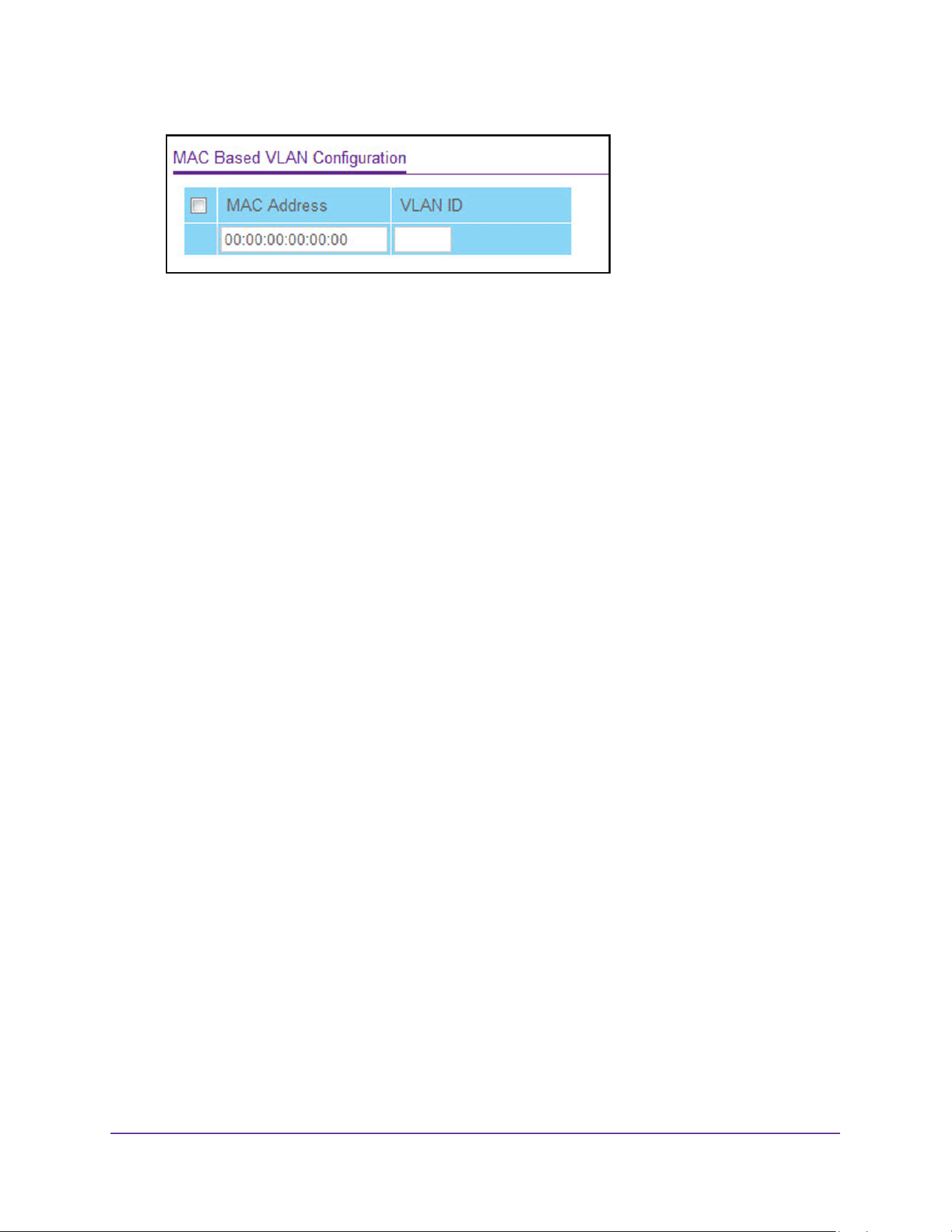
Configure Switching Information
181
M4200 and M4300 Series ProSAFE Managed Switches Web Management User Manual
6. In the MAC Address field, type a valid MAC address to be bound to a VLAN ID.
This field is configurable only when a MAC-based VLAN is created.
7. In the VLAN ID field, specify a VLAN ID in the range of 1 to 4093.
8. Take one of the following actions:
• To add the add a MAC address to the VLAN mapping, click the Add button.
• To delete a MAC address from VLAN mapping, click the Delete button.
Configure Protocol-Based VLAN Groups
You can use a protocol-based VLAN to define filtering criteria for untagged packets. By
default, if you do not configure any port-based (IEEE 802.1Q) or protocol-based VLANs,
untagged packets are assigned to VLAN 1. You can override this behavior by defining either
port-based VLANs or protocol-based VLANs, or both. Tagged packets are always handled
according to the IEEE 802.1Q standard, and are not included in protocol-based VLANs.
If you assign a port to a protocol-based VLAN for a specific protocol, untagged frames
received on that port for that protocol are assigned the protocol-based VLAN ID. Untagged
frames received on the port for other protocols are assigned the Port VLAN ID, either the
default PVID (1) or a PVID you specifically assigned to the port using the Port VLAN
Configuration page.
You define a protocol-based VLAN by creating a group. Each group has a one-to-one
relationship with a VLAN ID, can include one to three protocol definitions, and can include
multiple ports. When you create a group, you specify a name and a group ID is assigned
automatically.
To configure a protocol-based VLAN group:
1. Launch a web browser.
2. Enter http://<ipaddress> in the web browser address field.
The login window opens.
3. Enter the user name and password.
The default admin user name is admin and the default admin password is blank, that is,
do not enter a password.
4. Click the Login button.
The System Information page displays.
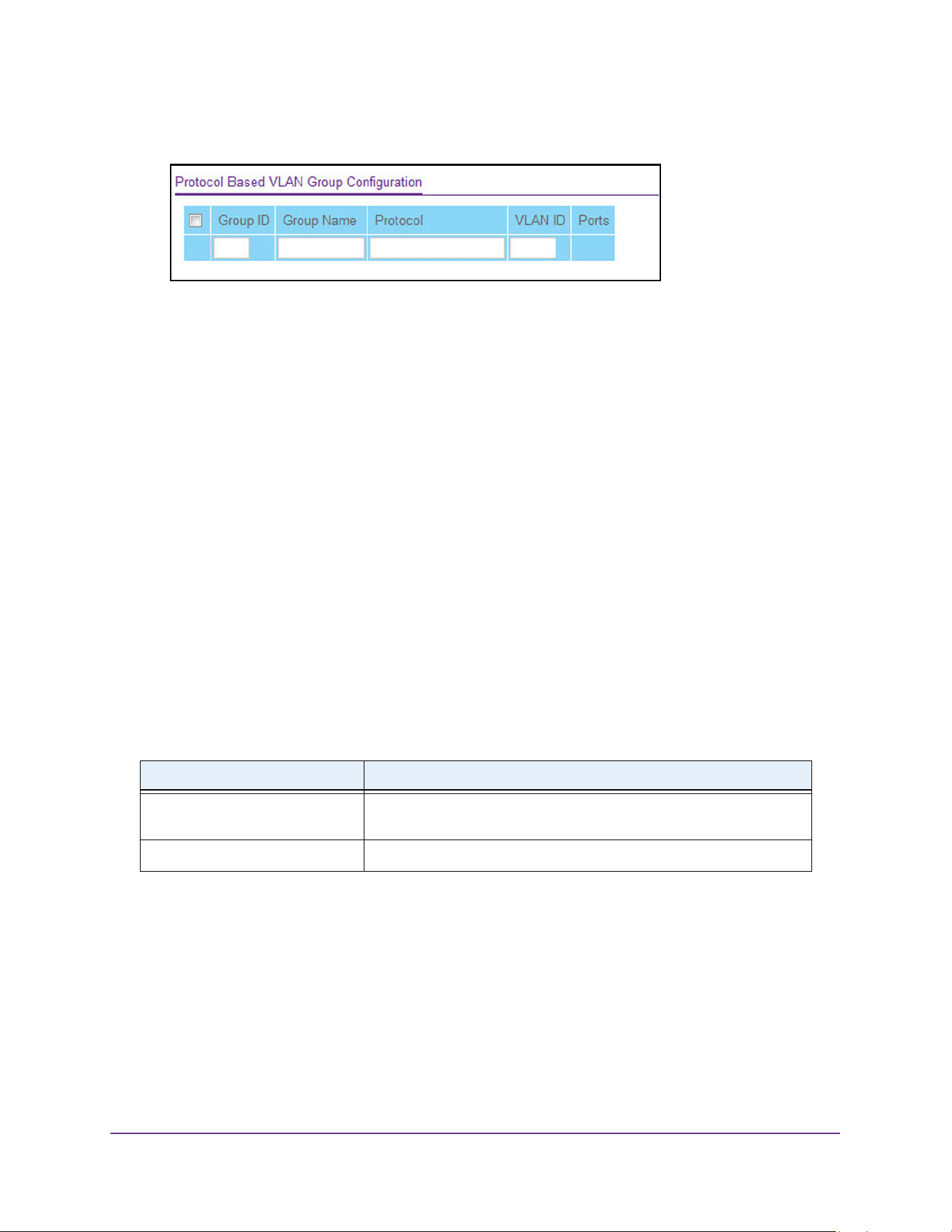
Configure Switching Information
182
M4200 and M4300 Series ProSAFE Managed Switches Web Management User Manual
5. Select Switching> VLAN > Advanced > Protocol Based VLAN Group Configuration.
6. In the Group Name field, type a name for the new group.
You can enter up to 16 characters.
7. In the Protocol field, select the protocols to be associated with the group.
There are three configurable protocols:
• IP. IP is a network layer protocol that provides a connectionless service for the
delivery of data.
• ARP. Address Resolution Protocol (ARP) is a low-level protocol that dynamically
maps network layer addresses to physical medium access control (MAC) addresses.
• IPX. The internetwork packet exchange (IPX) is a connectionless datagram
network-layer protocol that forwards data over a network.
8. In the VLAN ID field, select the VLAN ID.
It can be any number in the range of 1 to 4093. All the ports in the group assigns this
VLAN ID to untagged packets received for the protocols that you included in this group.
9. Click the Add button.
The protocol-based VLAN group is added to the switch.
The following table describes the nonconfigurable information displayed on the page.
Configure Protocol-Based VLAN Group Membership
To configure protocol-based VLAN group membership:
1. Launch a web browser.
2. Enter http://<ipaddress> in the web browser address field.
The login window opens.
3. Enter the user name and password.
Table 68. Protocol Based VLAN Group
Field Description
Group ID A number used to identify the group created by the user. Group IDs are
automatically assigned when a group is created by the user.
Ports Display all the member ports that belong to the group.
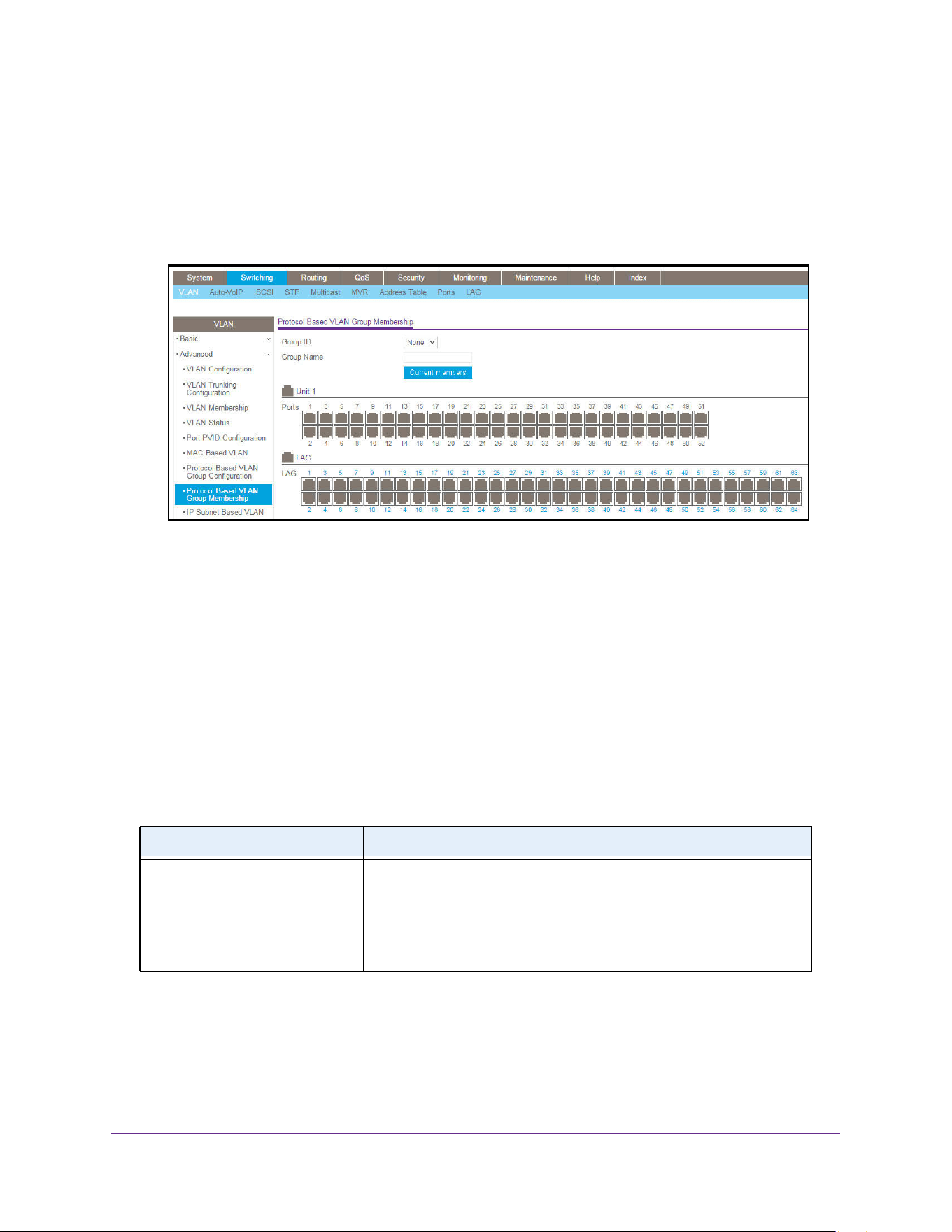
Configure Switching Information
183
M4200 and M4300 Series ProSAFE Managed Switches Web Management User Manual
The default admin user name is admin and the default admin password is blank, that is,
do not enter a password.
4. Click the Login button.
The System Information page displays.
5. Select Switching> VLAN > Advanced > Protocol Based VLAN Group Membership.
6. In the Group ID list, select the protocol-based VLAN group ID.
7. Select port numbers (1, 2, 3, and so on) to select ports to add to this protocol-based VLAN
group.
An interface can belong to only one group for a given protocol. If you already added a
port to a group for IP, you cannot add it to another group that also includes IP, although
you can add it to a new group for IPX.
8. Click the Apply button.
The updated configuration is sent to the switch. Configuration changes take effect
immediately.
The following table describes the nonconfigurable information displayed on the page.
Configure an IP Subnet-Based VLAN
IP subnet-to-VLAN mapping is defined by configuring an entry in the IP Subnet to VLAN
table. An entry is specified through a source IP address, network mask, and the desired
VLAN ID. The IP subnet-to-VLAN configurations are shared across all ports of the device.
Table 69. Protocol-Based VLAN Group Membership
Field Description
Group Name This field identifies the name for the protocol-based VLAN that you
selected. It can be up to 32 alphanumeric characters long, including
blanks.
Current Members This button can be click to show the current numbers in the selected
protocol-based VLAN group.
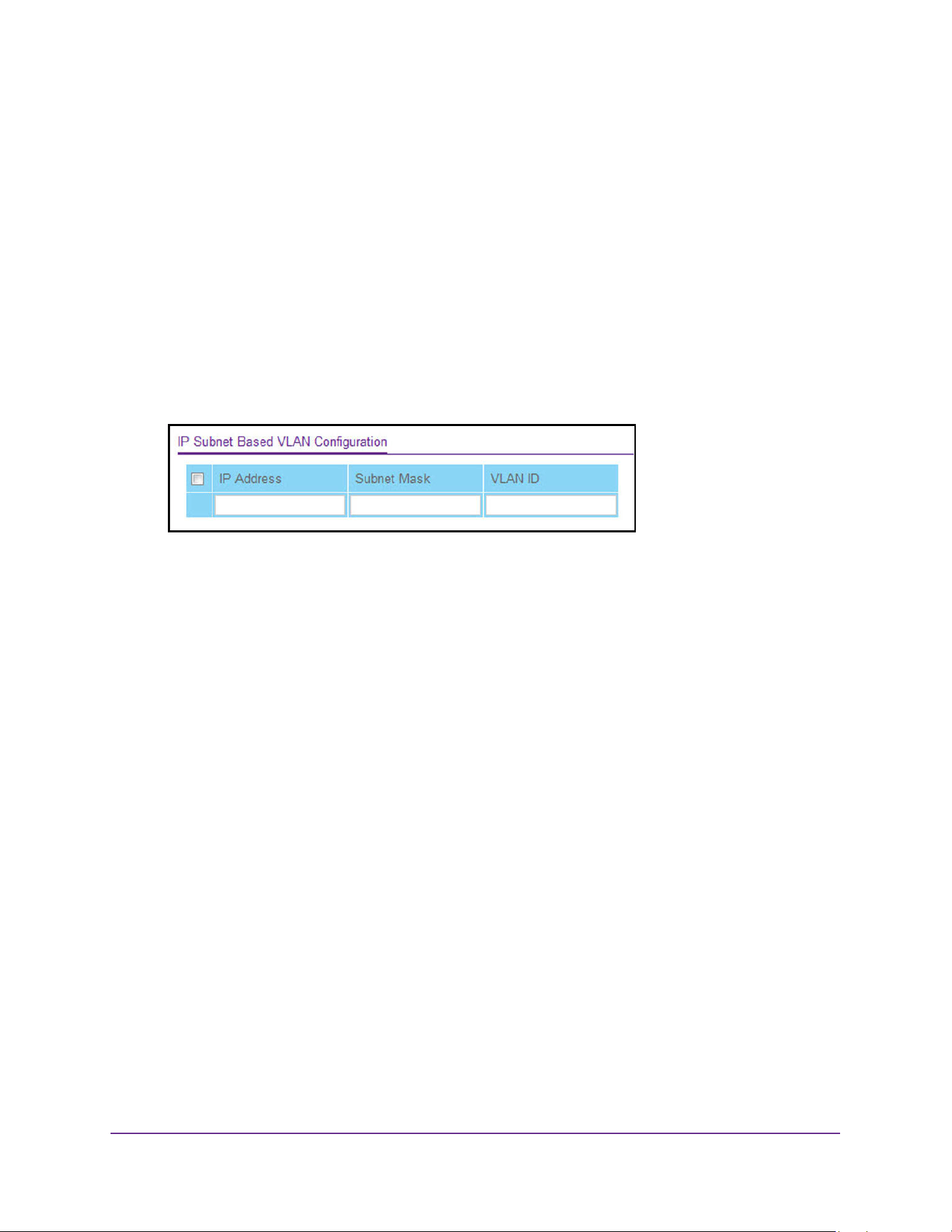
Configure Switching Information
184
M4200 and M4300 Series ProSAFE Managed Switches Web Management User Manual
To add or delete an IP subnet-based VLAN:
1. Launch a web browser.
2. Enter http://<ipaddress> in the web browser address field.
The login window opens.
3. Enter the user name and password.
The default admin user name is admin and the default admin password is blank, that is,
do not enter a password.
4. Click the Login button.
The System Information page displays.
5. Select Switching> VLAN > Advanced > IP Subnet Based VLAN.
6. In the IP Address field, specify a valid IP address bound to the VLAN ID.
Enter the IP address in dotted-decimal notation.
7. In the Subnet Mask field, specify a valid subnet mask of the IP address.
Enter the subnet mask in dotted-decimal notation.
8. In the VLAN ID field, specify a VLAN ID in the range of (1 to 4093).
9. Take one of the following actions:
• To add the IP subnet-based VLAN, click the Add button.
• To delete the IP subnet-based VLAN, click the Delete button.
Configure a Port DVLAN
To configure a port DVLAN:
1. Launch a web browser.
2. Enter http://<ipaddress> in the web browser address field.
The login window opens.
3. Enter the user name and password.
The default admin user name is admin and the default admin password is blank, that is,
do not enter a password.
4. Click the Login button.
The System Information page displays.
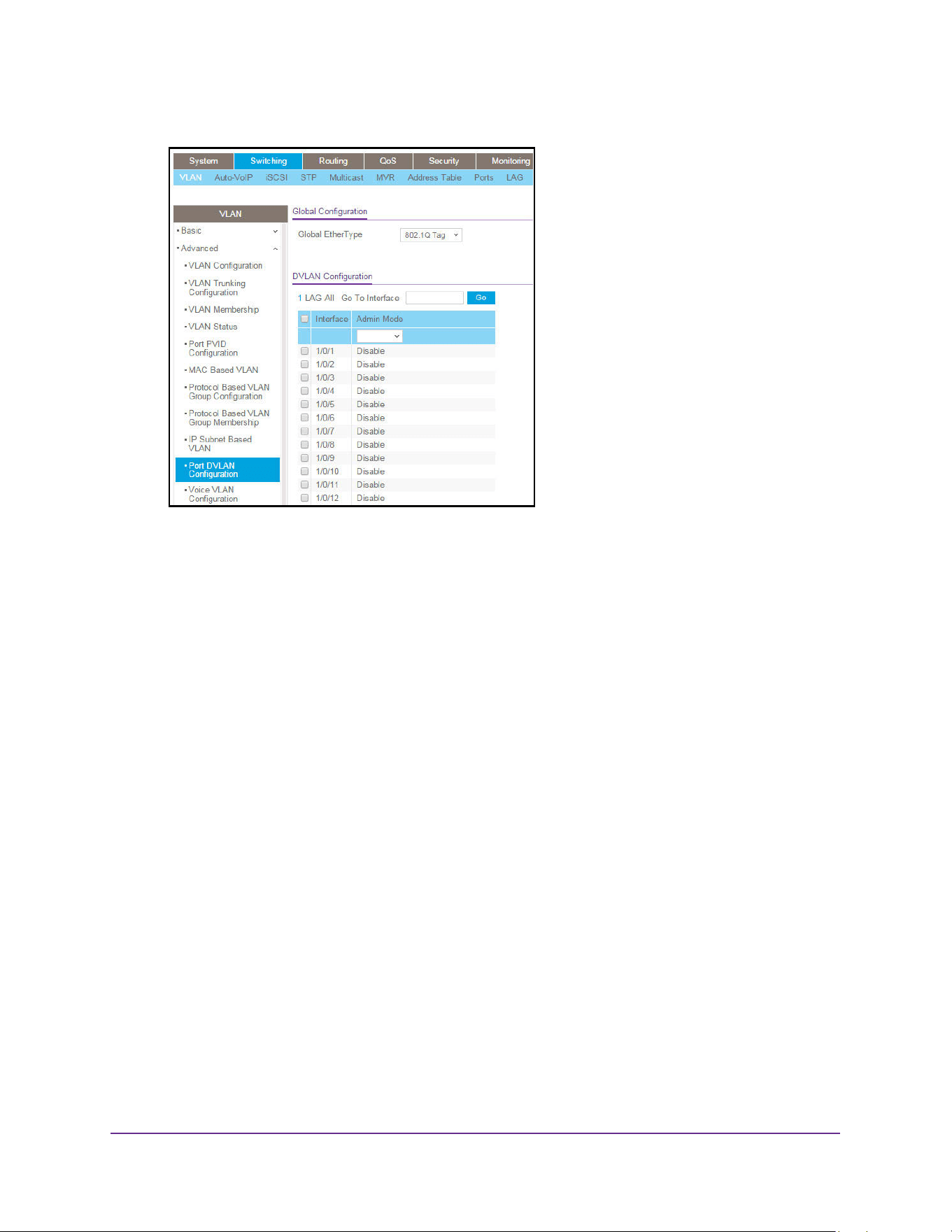
Configure Switching Information
185
M4200 and M4300 Series ProSAFE Managed Switches Web Management User Manual
5. Select Switching> VLAN > Advanced > Port DVLAN Configuration.
6. Select Interface check boxes to select the physical interface.
To select all ports, select the Interface check box at the top of the column.
7. In the Admin Mode field, select Enabled or Disabled.
This specifies the administrative mode through which double VLAN ragging can be
enabled or disabled. The default value for this is Disabled.
8. In the Global EtherType field, specify the first 16 bits of the DVLAN tag:
• 802.1Q Tag. Commonly used tag representing 0x8100
• vMAN Tag. Commonly used tag representing 0x88A8
• Custom Tag. Configure the EtherType in any range from 0 to 65535
9. Click the Apply button.
The updated configuration is sent to the switch. Configuration changes take effect
immediately.
Configure a Voice VLAN
You can configure the parameters for voice VLAN configuration. Only users with read/write
access privileges can change the data on this page.
To configure a voice VLAN:
1. Launch a web browser.
2. Enter http://<ipaddress> in the web browser address field.
The login window opens.
3. Enter the user name and password.
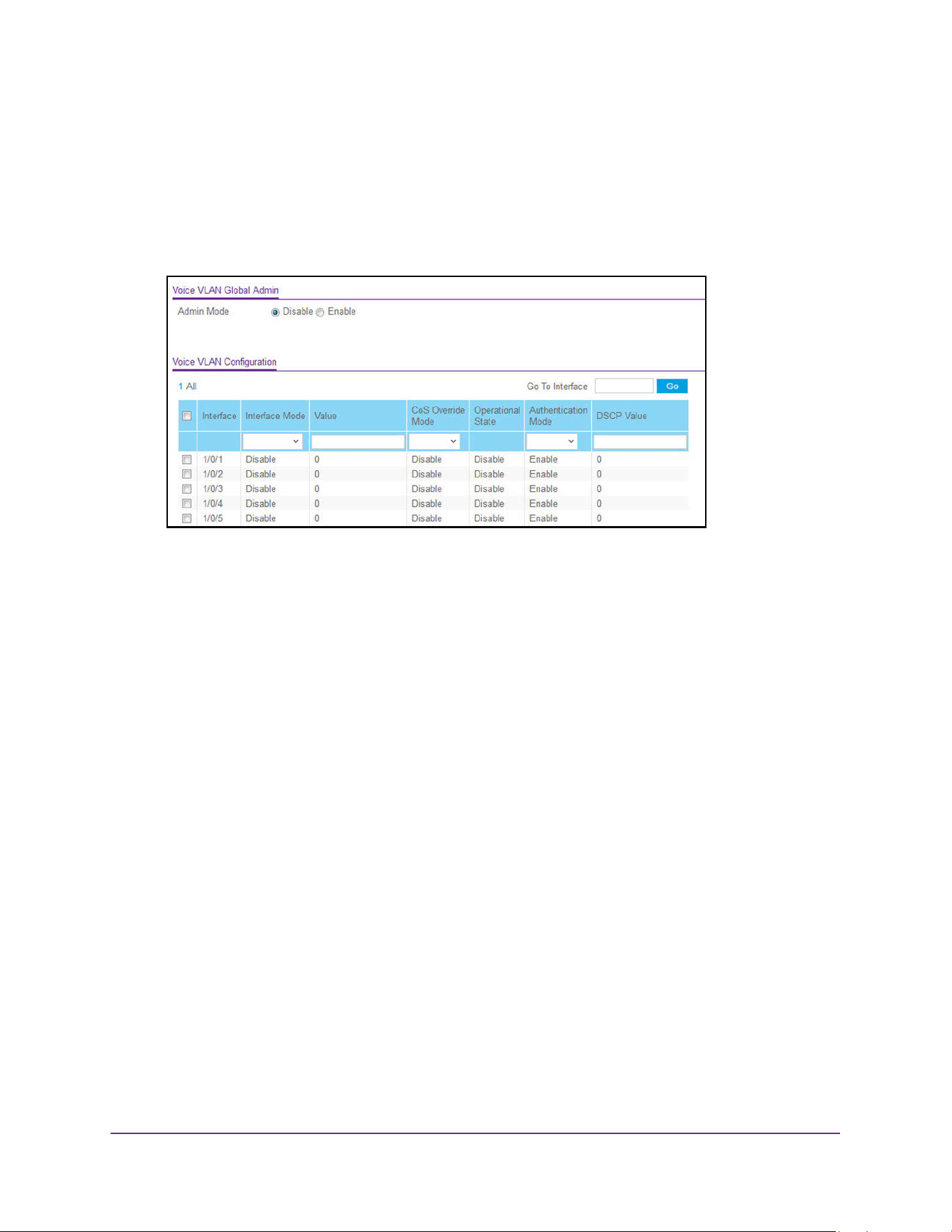
Configure Switching Information
186
M4200 and M4300 Series ProSAFE Managed Switches Web Management User Manual
The default admin user name is admin and the default admin password is blank, that is,
do not enter a password.
4. Click the Login button.
The System Information page displays.
5. Select Switching> VLAN > Advanced > Voice VLAN Configuration.
6. Select the Admin Mode Disable or Enable radio button.
This specifies the administrative mode for voice VLAN for the switch. The default is
Disable.
7. Use Interface to select the physical interface.
8. Use Interface Mode to select the voice VLAN mode for selected interface:
• Disable. This is the default value.
• None. Allow the IP phone to use its own configuration to send untagged voice traffic.
• VLAN ID. Configure the phone to send tagged voice traffic.
• dot1pConfigure voice VLAN 802.1p priority tagging for voice traffic. When this is
selected, enter the dot1p value in the Value field.
• Untagged. Configure the phone to send untagged voice traffic.
9. Use Value to enter the VLAN ID or dot1p value.
This is enabled only when VLAN ID or dot1p is selected as the interface mode.
10. In the CoS Override Mode field, select Disable or Enable.
The default is Disable.
11. In the Authentication Mode field, select Enable or Disable.
The default is Enable. When the authentication mode is enabled, voice traffic is allowed
on an unauthorized voice VLAN port. When the authentication mode is disabled, devices
are authorized through dot1x.
Note: Authentication through dot1x is possible only if dot1x is enabled.
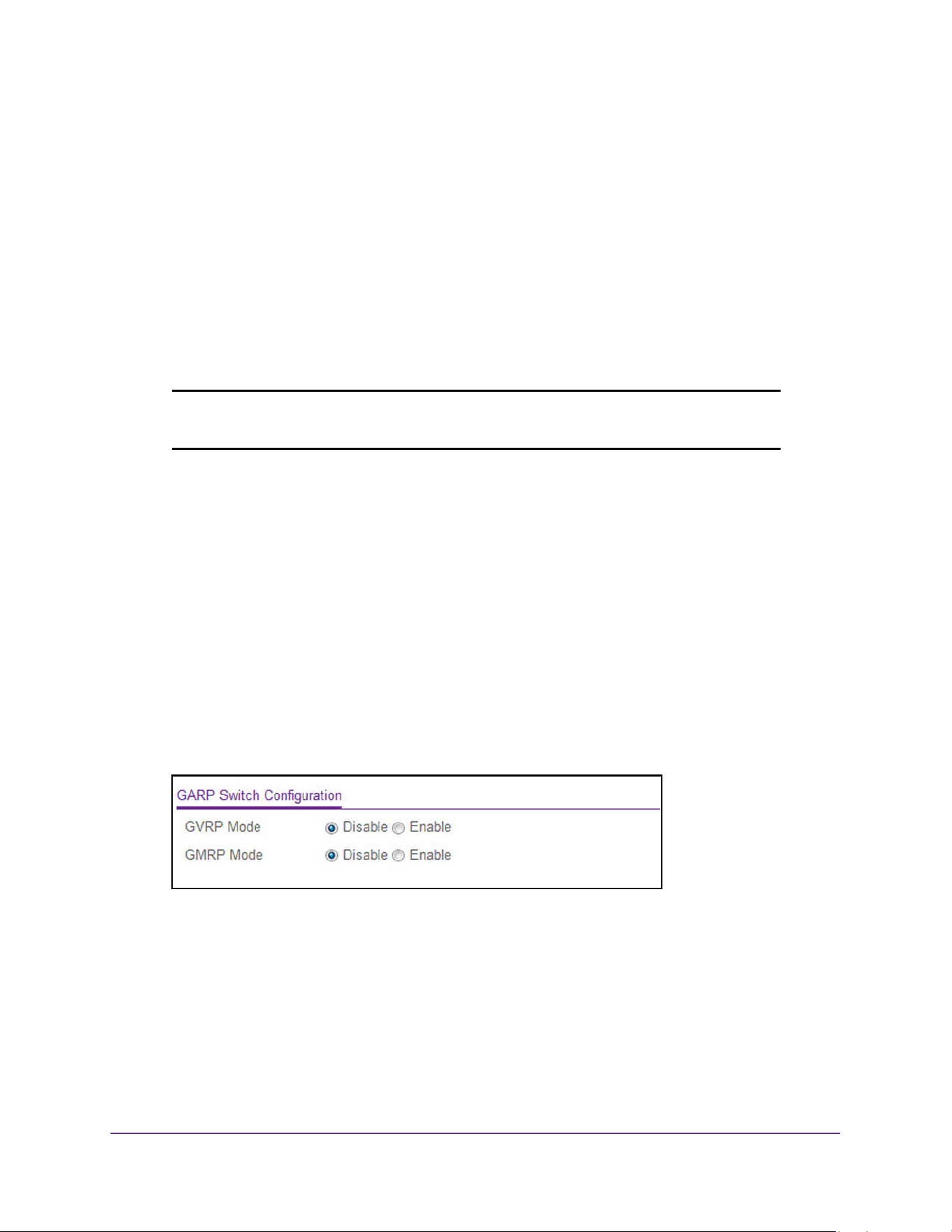
Configure Switching Information
187
M4200 and M4300 Series ProSAFE Managed Switches Web Management User Manual
12. In the DSCP Value field, configure the Voice VLAN DSCP value for the port.
The valid range is 0 to 64. The default value is 0.
The Operational State field displays the operational status of the voice VLAN on the
interface.
13. Click the Apply button.
The updated configuration is sent to the switch. Configuration changes take effect
immediately.
Configure GARP Switch Settings
Note: It can take up to 10 seconds for GARP configuration changes to take
effect.
To configure GARP switch settings:
1. Launch a web browser.
2. Enter http://<ipaddress> in the web browser address field.
The login window opens.
3. Enter the user name and password.
The default admin user name is admin and the default admin password is blank, that is,
do not enter a password.
4. Click the Login button.
The System Information page displays.
5. Select Switching> VLAN > Advanced > GARP Switch Configuration.
6. Select the GVRP Mode Disable or Enable radio button.
This selects the GARP VLAN registration protocol administrative mode for the switch.
The factory default is Disable.
7. Select the GMRP Mode Disable or Enable radio button.
This selects the GARP multicast registration protocol administrative mode for the switch.
The factory default is Disable.
8. Click the Apply button.
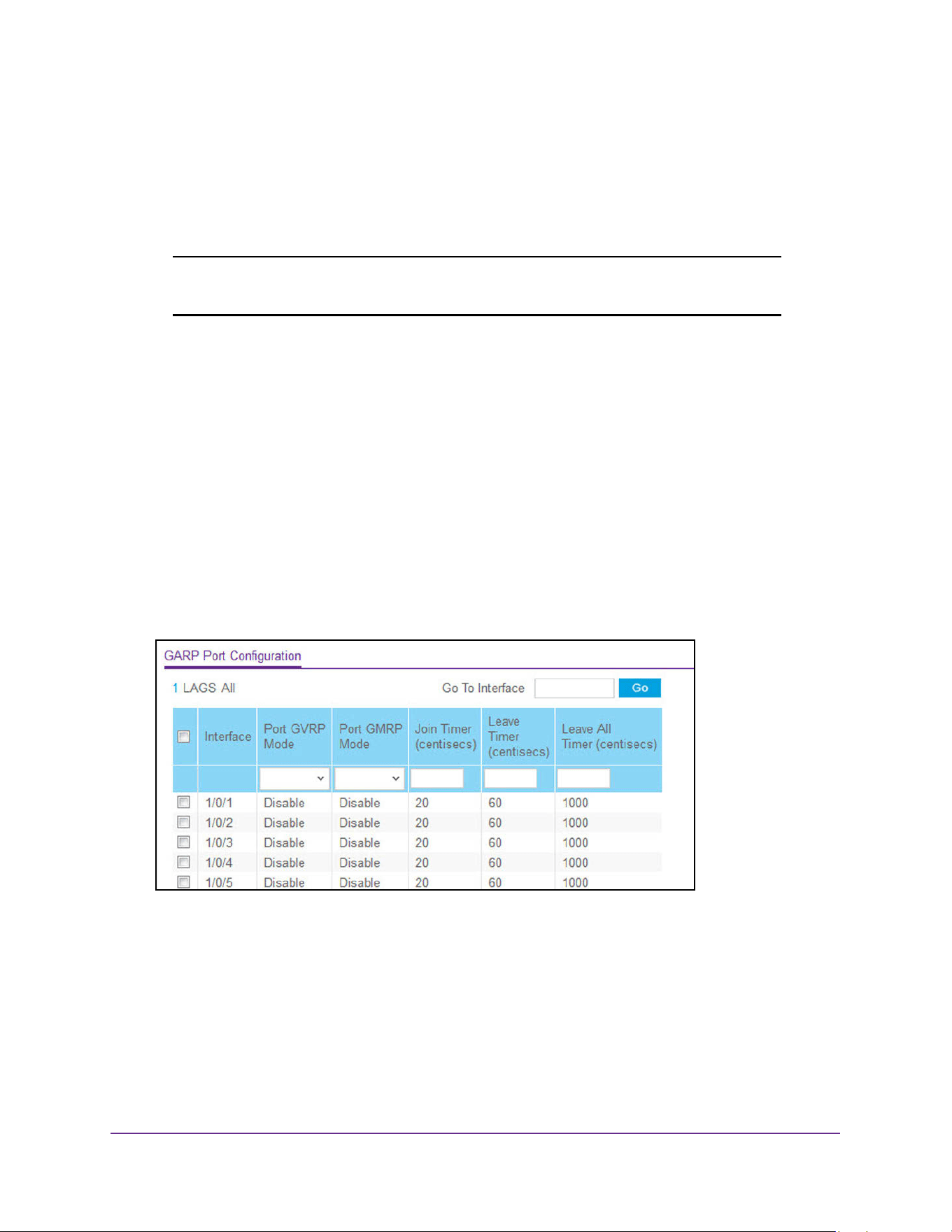
Configure Switching Information
188
M4200 and M4300 Series ProSAFE Managed Switches Web Management User Manual
The updated configuration is sent to the switch. Configuration changes take effect
immediately.
Configure GARP Port
Note: It can take up to 10 seconds for GARP configuration changes to take
effect.
To configure GARP port:
1. Launch a web browser.
2. Enter http://<ipaddress> in the web browser address field.
The login window opens.
3. Enter the user name and password.
The default admin user name is admin and the default admin password is blank, that is,
do not enter a password.
4. Click the Login button.
The System Information page displays.
5. Select Switching> VLAN > Advanced > GARP Port Configuration.
6. Use Interface to select the physical interface for which data is to be displayed or configured.
7. In the Port GVRP Mode field, select Enable or Disable.
This specifies the GARP VLAN registration protocol administrative mode for the port.If
you select Disable, the protocol is not active and the join time, leave time, and leave all
time have no effect. The factory default is Disable.
8. In the Port GMRP Mode field, select Enable or Disable

Configure Switching Information
189
M4200 and M4300 Series ProSAFE Managed Switches Web Management User Manual
This specifies the GARP multicast registration protocol administrative mode for the port. If
you select Disable, the protocol is not active, and the join time, leave time, and leave all
time have no effect. The factory default is Disable.
9. In the Join Time (centiseconds) field, specify the time between the transmission of GARP
PDUs registering (or re-registering) membership for a VLAN or multicast group in
centiseconds.
Enter a number between 10 and 100 (0.1 to 1.0 seconds). The factory default is 20
centiseconds (0.2 seconds). An instance of this timer exists for each GARP participant for
each port.
10. In the Leave Time (centiseconds) field, specify the time to wait after receiving an
unregister request for a VLAN or multicast group before deleting the associated entry, in
centiseconds.
This allows time for another station to assert registration for the same attribute to
maintain uninterrupted service. Enter a number between 20 and 600 (0.2 to 6.0 seconds).
The factory default is 60 centiseconds (0.6 seconds). An instance of this timer exists for
each GARP participant for each port.
11. Use Leave All Time (centiseconds) to control how frequently LeaveAll PDUs are
generated.
A LeaveAll PDU indicates that all registrations will be deregistered soon. To maintain
registration, participants must rejoin. The leave all period timer is set to a random value in
the range of LeaveAllTime to 1.5*LeaveAllTime. The timer is specified in centiseconds.
Enter a number between 200 and 6000 (2 to 60 seconds). The factory default is 1000
centiseconds (10 seconds). An instance of this timer exists for each GARP participant for
each port.
12. Click the Apply button.
The updated configuration is sent to the switch. Configuration changes take effect
immediately.
Auto-VoIP
You can configure protocol-based port settings and OUI settings.
Configure Protocol-Based Port Settings
To configure protocol-based port settings:
1. Launch a web browser.
2. Enter http://<ipaddress> in the web browser address field.
The login window opens.
3. Enter the user name and password.
The default admin user name is admin and the default admin password is blank, that is,
do not enter a password.
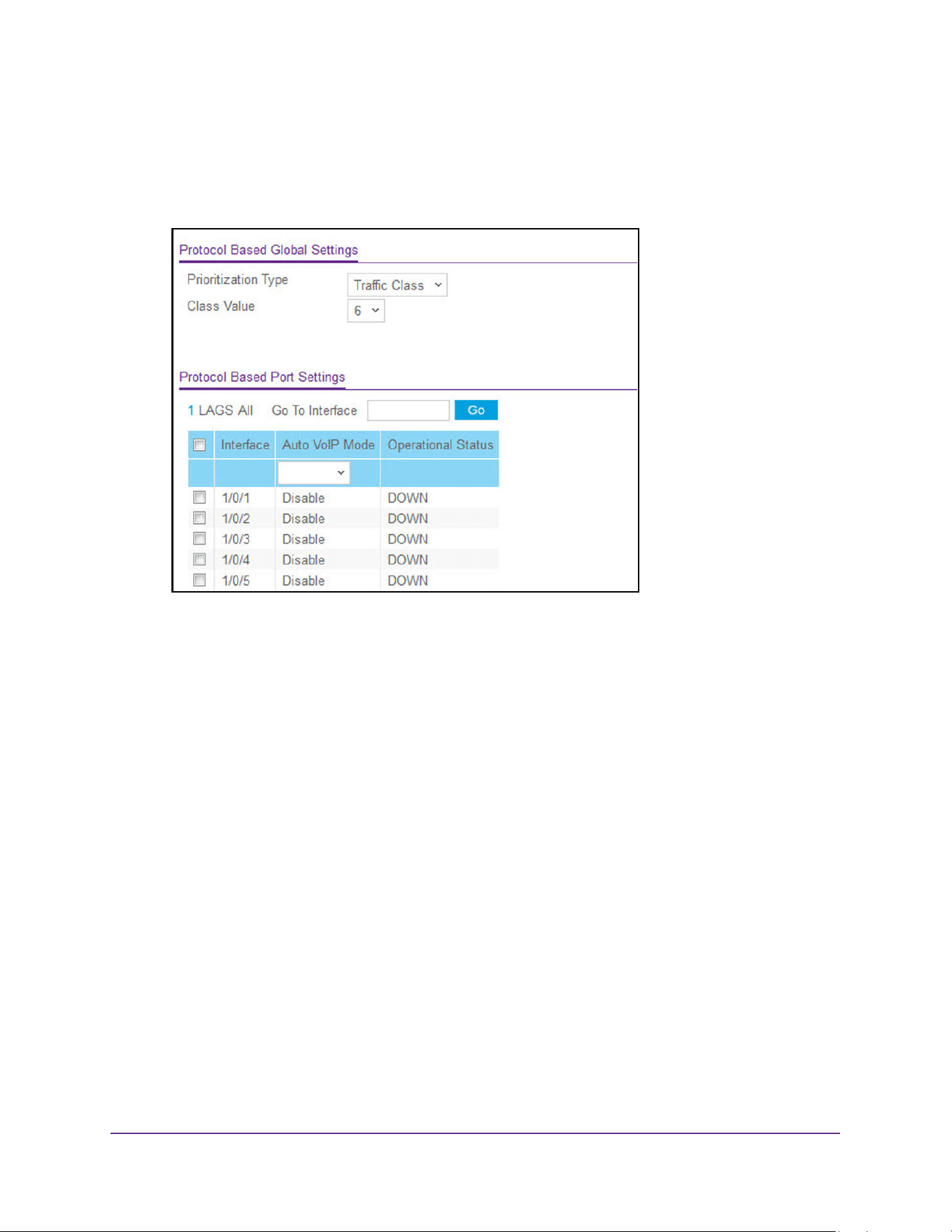
Configure Switching Information
190
M4200 and M4300 Series ProSAFE Managed Switches Web Management User Manual
4. Click the Login button.
The System Information page displays.
5. Select Switching > Auto-VoIP > Protocol-based > Port Settings.
6. In the Prioritization Type field, select Traffic Class or Remark.
This specifies the type of prioritization.
7. In the Class Value list, specify the CoS tag value to be reassigned for packets received on
the voice VLAN when Remark CoS is enabled.
8. Click the Apply button.
The updated configuration is sent to the switch. Configuration changes take effect
immediately.
Configure Auto-VoIP OUI-Based Properties
To configure auto-VoIP OUI-based properties:
1. Launch a web browser.
2. Enter http://<ipaddress> in the web browser address field.
The login window opens.
3. Enter the user name and password.
The default admin user name is admin and the default admin password is blank, that is,
do not enter a password.
4. Click the Login button.
The System Information page displays.
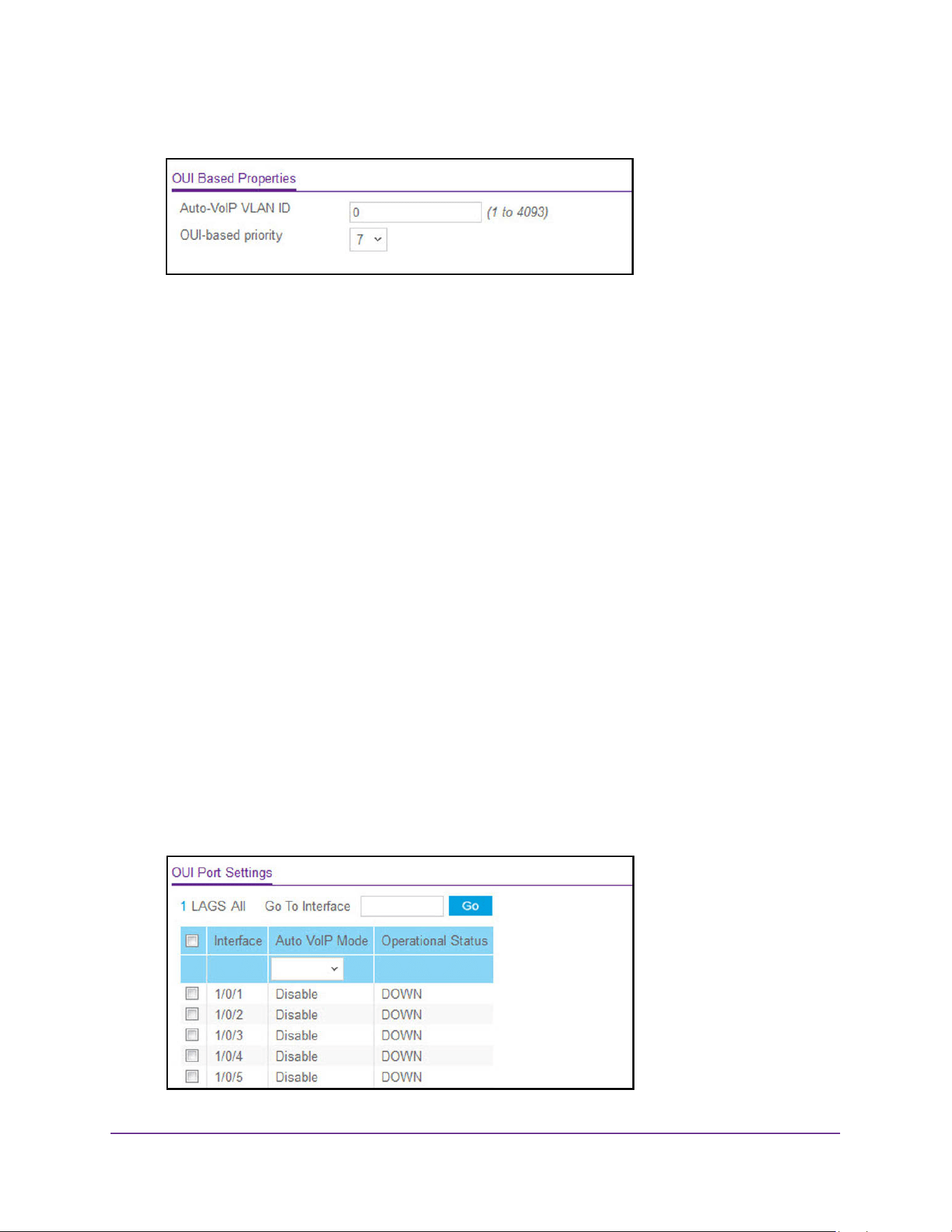
Configure Switching Information
191
M4200 and M4300 Series ProSAFE Managed Switches Web Management User Manual
5. Select Switching > Auto-VoIP > OUI-based > Properties.
6. In the VoIP VLAN ID field, type the VoIP VLAN ID of the switch.
There is no default VLAN for auto-VoIP, you must create a VLAN for it first.
7. In the OUI-based priority list, select the OUI-based priority of the switch.
The default value is 7.
8. Click the Apply button.
The updated configuration is sent to the switch. Configuration changes take effect
immediately.
OUI-Based Port Settings
To configure auto-VoIP OUI-based port settings:
1. Launch a web browser.
2. Enter http://<ipaddress> in the web browser address field.
The login window opens.
3. Enter the user name and password.
The default admin user name is admin and the default admin password is blank, that is,
do not enter a password.
4. Click the Login button.
The System Information page displays.
5. Select Switching > Auto-VoIP > OUI-based > Port Settings.
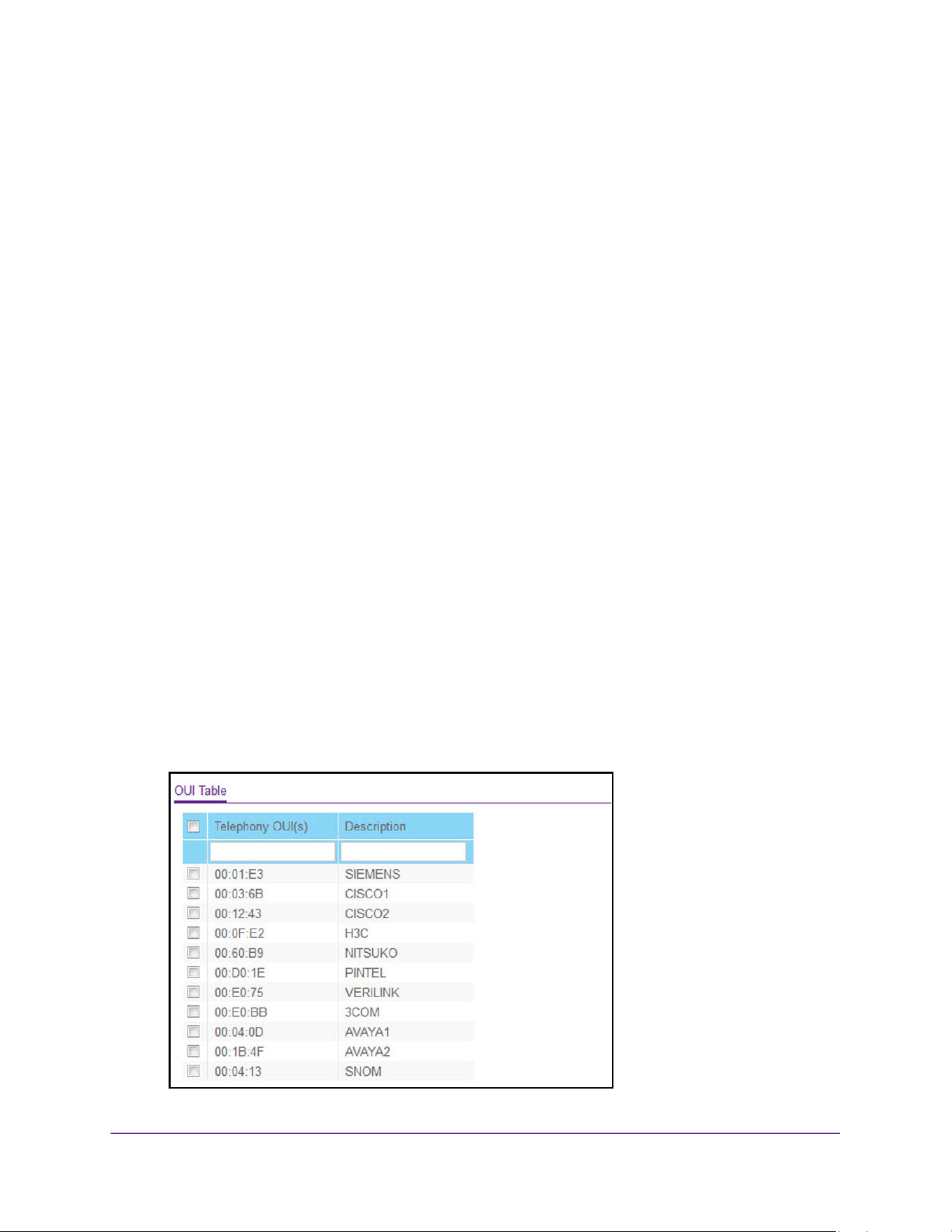
Configure Switching Information
192
M4200 and M4300 Series ProSAFE Managed Switches Web Management User Manual
The Operational Status field displays the current operational status of each interface.
6. Use one of the following methods to select an interface:
• In the Go To Interface field, enter the interface in the unit/slot/port format and click on
the Go button.
• Next to the Interface column, select the check box for the interface that you want to
configure.
7. In the Auto VoIP Mode field, select Disable or Enable.
Auto-VoIP is disabled by default.
8. Click the Apply button.
The updated configuration is sent to the switch. Configuration changes take effect
immediately.
Add a New Entry to the OUI Table
To add a new entry to the OUI table:
1. Launch a web browser.
2. Enter http://<ipaddress> in the web browser address field.
The login window opens.
3. Enter the user name and password.
The default admin user name is admin and the default admin password is blank, that is,
do not enter a password.
4. Click the Login button.
The System Information page displays.
5. Select Switching > Auto-VoIP > OUI-based > OUI Table.

Configure Switching Information
193
M4200 and M4300 Series ProSAFE Managed Switches Web Management User Manual
6. In the Telephony OUI(s) field, specify the VoIP OUI prefix to be added in the format
AA:BB:CC.
Up to 128 OUIs can be configured.
7. In the Description field, enter the description for the OUI.
The maximum length of description is 32 characters. The following OUIs are present in
the configuration by default:
• 00:01:E3 - SIEMENS
• 00:03:6B - CISCO1
• 00:12:43 - CISCO2
• 00:0F:E2 - H3C
• 00:60:B9 - NITSUKO
• 00:D0:1E - PINTEL
• 00:E0:75 - VERILINK
• 00:E0:BB - 3COM
• 00:04:0D - AVAYA1
• 00:1B:4F - AVAYA2
8. Click the Add button.
The telephony OUI entry is added.
Delete Entries From the OUI Table
To delete one or more entries from the OUI table:
1. Launch a web browser.
2. Enter http://<ipaddress> in the web browser address field.
The login window opens.
3. Enter the user name and password.
The default admin user name is admin and the default admin password is blank, that is,
do not enter a password.
4. Click the Login button.
The System Information page displays.
5. Select Switching > Auto-VoIP > OUI-based > OUI Table.
The OUI table displays.
6. Select one or more entries in the table.
7. Click the Delete button.
The entries are deleted.
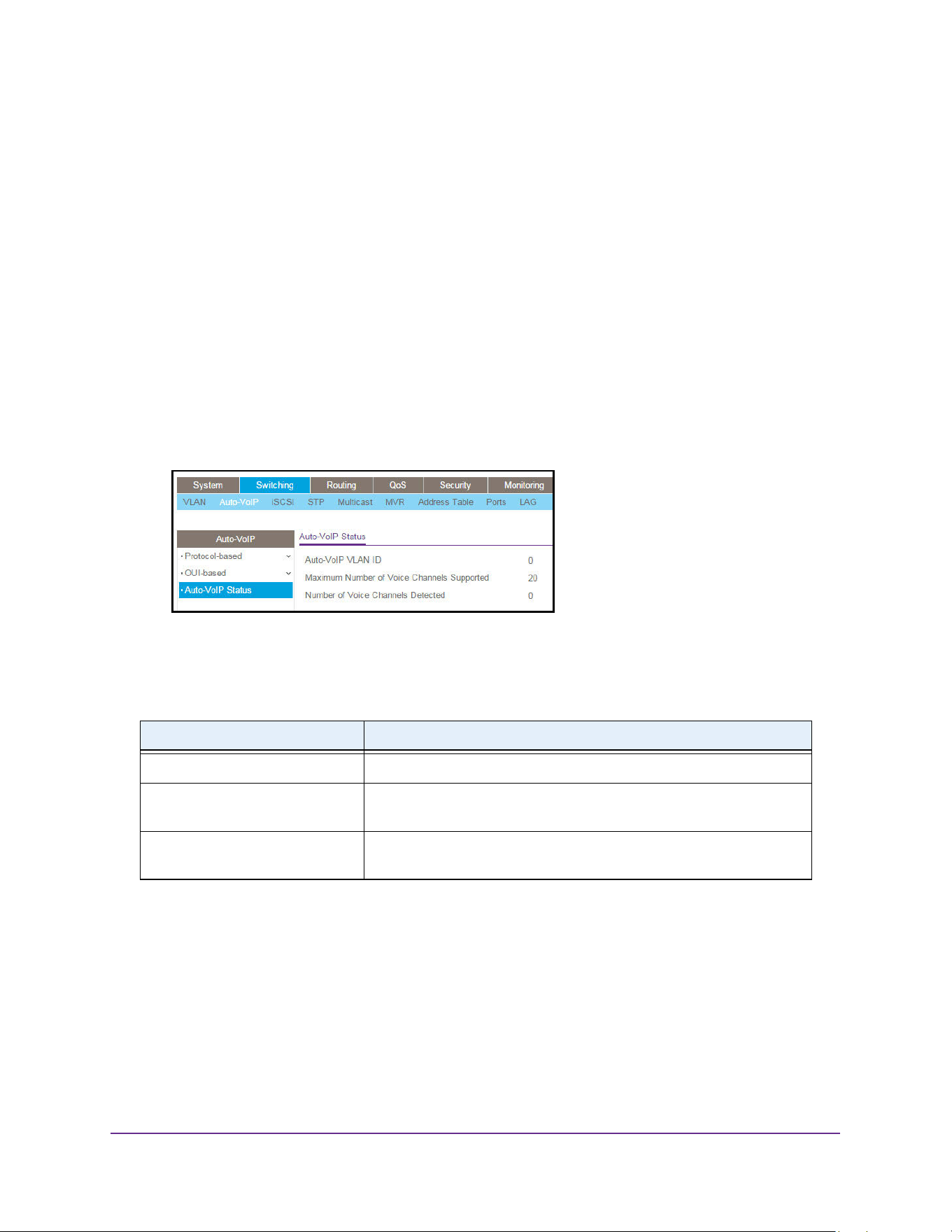
Configure Switching Information
194
M4200 and M4300 Series ProSAFE Managed Switches Web Management User Manual
View the Auto-VoIP Status
To view the auto-VoIP status:
1. Launch a web browser.
2. Enter http://<ipaddress> in the web browser address field.
The login window opens.
3. Enter the user name and password.
The default admin user name is admin and the default admin password is blank, that is,
do not enter a password.
4. Click the Login button.
The System Information page displays.
5. Select Switching > Auto-VoIP > Auto-VoIP Status.
6. To refresh the page with the latest information on the switch, click the Update button.
The following table describes the nonconfigurable Auto-VoIP status information.
iSCSI Overview
The Internet Small Computer System Interface (iSCSI) feature helps network administrators
track iSCSI traffic between iSCSI initiators and target systems. This is accomplished by
monitoring or snooping traffic to detect packets used by iSCSI stations in establishing iSCSI
sessions and connections. Data from these exchanges is used to create classification rules
that assign the traffic between the stations to a configured traffic class. Packets in the flow
are queued and scheduled for egress on the destination port based on these rules.
Table 70. Auto-VoIP Status
Field Description
Auto-VoIP VLAN ID The auto-VoIP VLAN ID.
Maximum Number of Voice
Channels Supported
The maximum number of voice channels supported.
Number of Voice Channels
Detected
The number of VoIP channels prioritized successfully.
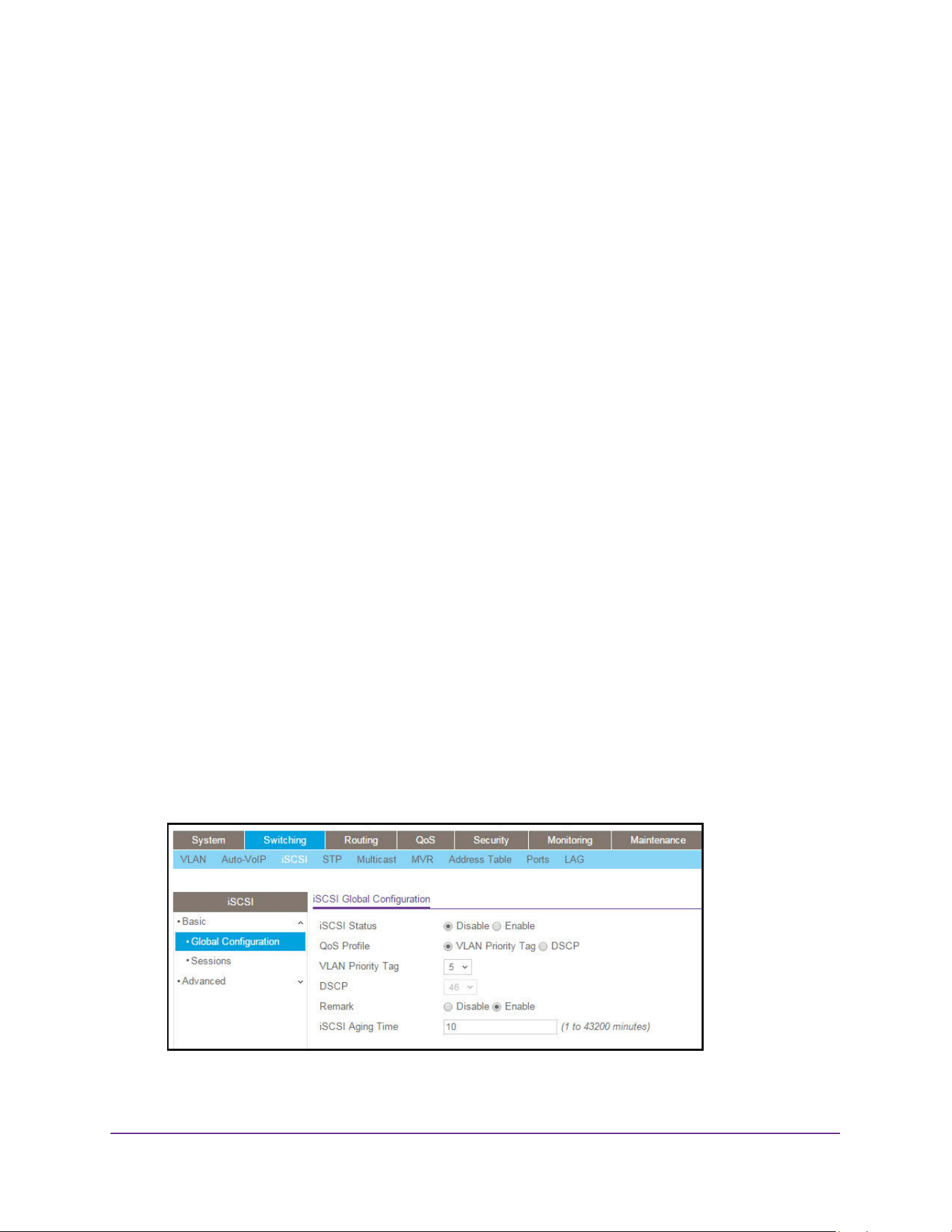
Configure Switching Information
195
M4200 and M4300 Series ProSAFE Managed Switches Web Management User Manual
In networks containing iSCSI initiators and targets, iSCSI helps to monitor iSCSI sessions or
give iSCSI traffic preferential Quality of Service (QoS) treatment. Dynamically-generated
classifier rules are used to direct the iSCSI data traffic to queues that can be given the
desired preference characteristics over other data traveling through the switch. This might
help to avoid session interruptions during times of congestion that would otherwise cause
iSCSI packets to be dropped. However, in systems where a large proportion of traffic is
iSCSI, it might also interfere with other network control-plane traffic, such as ARP or LACP.
The preferential treatment of iSCSI traffic must be balanced against the needs of other critical
data in the network.
You can view and manage iSCSI Optimization settings on the device. iSCSI Optimization
provides a means of giving traffic between iSCSI initiator and target systems special Quality
of Service (QoS) treatment.
In addition, if configured, the packets can be updated with IEEE 802.1 or IP-DSCP values.
This is done by enabling Remark. Remarking packets with priority data provides special QoS
treatment as the packets continue through the network.
Configure Global iSCSI Settings
To configure the global iSCSI settings on the switch:
1. Launch a web browser.
2. Enter http://<ipaddress> in the web browser address field.
The login window opens.
3. Enter the user name and password.
The default admin user name is admin and the default admin password is blank, that is,
do not enter a password.
4. Click the Login button.
The System Information page displays.
5. Select Switching > iSCSI > Basic > Global Configuration.
6. In the iSCSI Status field, select Enable or Disable.

Configure Switching Information
196
M4200 and M4300 Series ProSAFE Managed Switches Web Management User Manual
This globally enables or disables the iSCSI Optimization feature. By default, iSCSI
Optimization is disabled.
7. Select the QoS Profile VLAN Priority Tag or DSCP radio button.
This specifies the Quality of Service (QoS) profile that is applied to iSCSI flows. By
default, iSCSI flows are assigned to the highest VLAN Priority tag (VPT)/DSCP mapped
to the highest queue not used for switch management or voice VLAN.
Setting the VLAN Priority tag/DSCP sets the QoS profile which determines the egress
queue to which the frame is mapped. The switch default setting for egress queues
scheduling is Weighted Round Robin (WRR). Complete the QoS setting by configuring
the relevant ports to work in other scheduling and queue management modes through the
Class of Service settings. Depending on the platform, these choices might include strict
priority for the queue used for iSCSI traffic. The downside of strict priority is that, in certain
circumstances (under heavy high priority traffic), other lower priority traffic might get
starved. In WRR, the queue to which the flow is assigned to can be set to get the required
percentage.
8. Configure the global traffic class mapping in Class of Service.
The global traffic class mapping configuration determines the traffic class used to transmit
iSCSI packets. The traffic mapping configuration options are as follows:
• IEEE 802.1P
• IP-DSCP
The configuration of the CoS component determines changes in the mapping of IEEE
802.1p or IP-DSCP values to traffic classes. For more information, see Class of Service
on page 453.
9. If you are using VLAN Priority as the QoS profile, in the VLAN Priority Tag field, select the
iSCSI session packets.
The range is 0 to 7. The default is 5.
10. If you are using DSCP as the QoS profile, in the DSCP list, select a value to assign iSCSI
session packets.
The range is 0 to 63. The default is 46.
11. Select the Remark Enable or Disable radio button.
This enables or disables the marking of iSCSI frames with the configured VLAN Priority
tag/DSCP when egressing the switch. Enabling remarks updates the packets with IEEE
802.1p or IP-DSCP values. Remarking packets with priority data provides special QoS
treatment as the packets continue through the network. Remark is enabled by default.
12. In the iSCSI Aging Time field, set the number of minutes a session can be inactive prior to
If using DSCP as the QoS profile, useremoval.
The iSCSI Aging Time must be a whole number in the range of 1 to 43200 minutes. The
default is 10 minutes.
13. Click the Apply button.
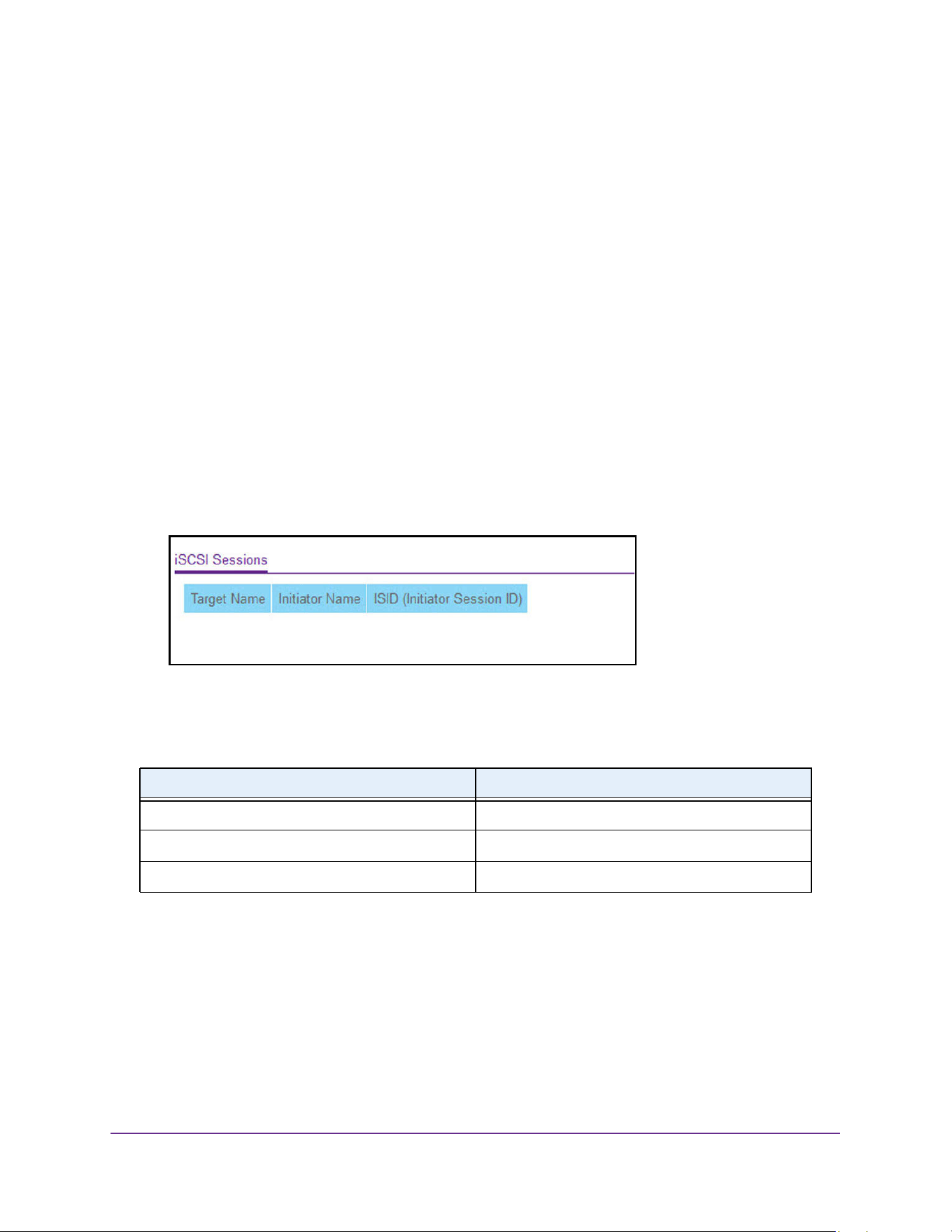
Configure Switching Information
197
M4200 and M4300 Series ProSAFE Managed Switches Web Management User Manual
The updated configuration is sent to the switch. Configuration changes take effect
immediately.
View iSCSI Sessions
To view active iSCSI session information:
1. Launch a web browser.
2. Enter http://<ipaddress> in the web browser address field.
The login window opens.
3. Enter the user name and password.
The default admin user name is admin and the default admin password is blank, that is,
do not enter a password.
4. Click the Login button.
The System Information page displays.
5. click Switching > iSCSI > Basic > Sessions.
6. To refresh the page with the latest information on the switch, click the Update button.
The following table describes the nonconfigurable iSCSI Sessions information.
Table 71. iSCSI Sessions
Field Description
Target Name The target’s name.
Initiator Name The initiator’s name.
Initiator Session ID (ISID) The iSCSI identifier.
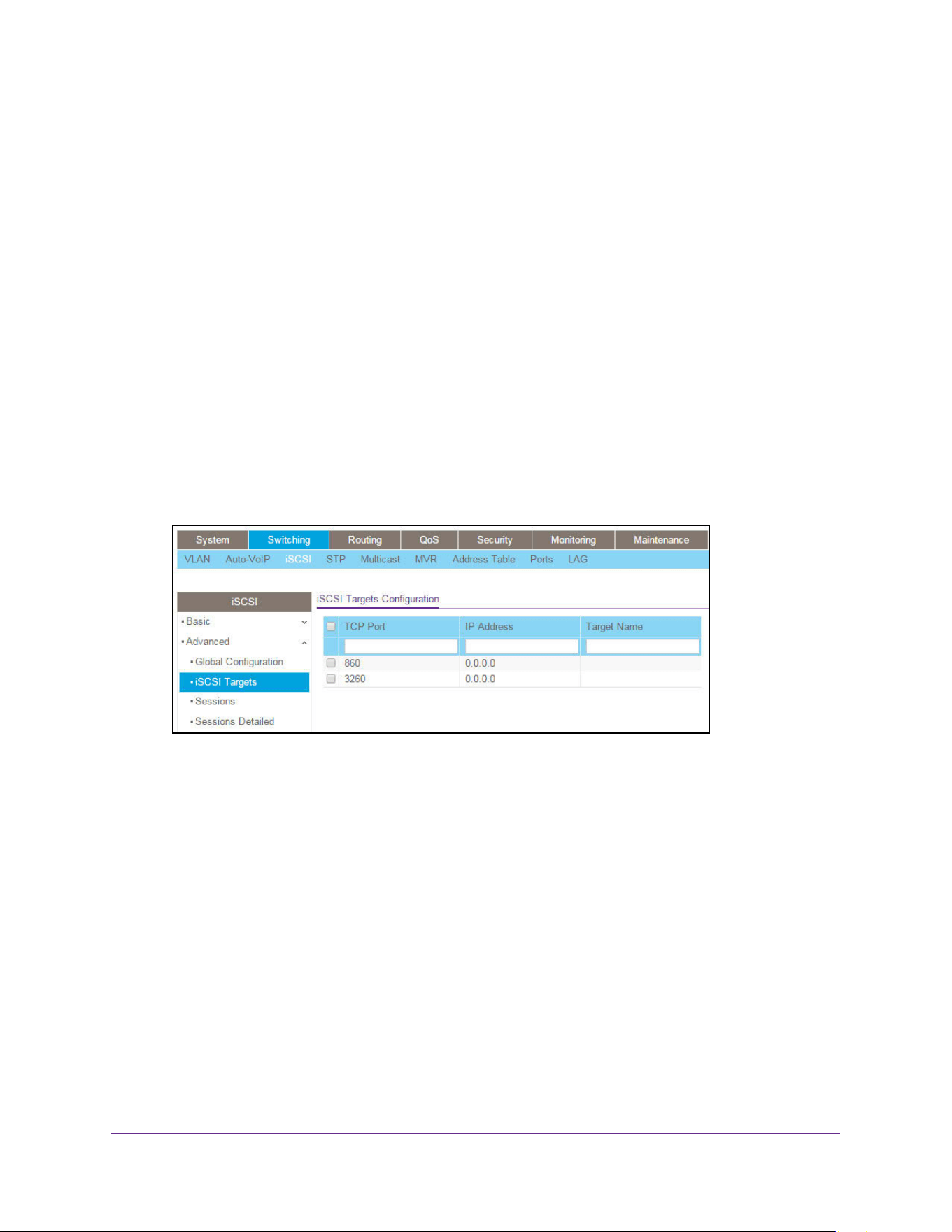
Configure Switching Information
198
M4200 and M4300 Series ProSAFE Managed Switches Web Management User Manual
Control iSCSI Target Settings
You can view iSCSI targets and assign target ports/port IP address combinations for iSCSI
optimization on the switch.
To configure iSCSI target settings
1. Launch a web browser.
2. Enter http://<ipaddress> in the web browser address field.
The login window opens.
3. Enter the user name and password.
The default admin user name is admin and the default admin password is blank, that is,
do not enter a password.
4. Click the Login button.
The System Information page displays.
5. Select Switching > iSCSI > Advanced > iSCSI Targets.
6. In the TCP Port field, specify the TCP port for the target that monitors iSCSI traffic.
Up to 16 TCP ports can be defined in the system. The well-known iSCSI ports 860 and
3260 are configured as defaults but you can remove them as any other configured target.
7. In the IP address field, specify an IP address for the target that monitors iSCSI traffic.
The default is 0.0.0.0.
8. In the Target Name field, specify a name to assign to the target.
The iSCSI Target Name can be up to 233 characters in length.
9. Click the Add button.
The iSCSI targets configuration is added.
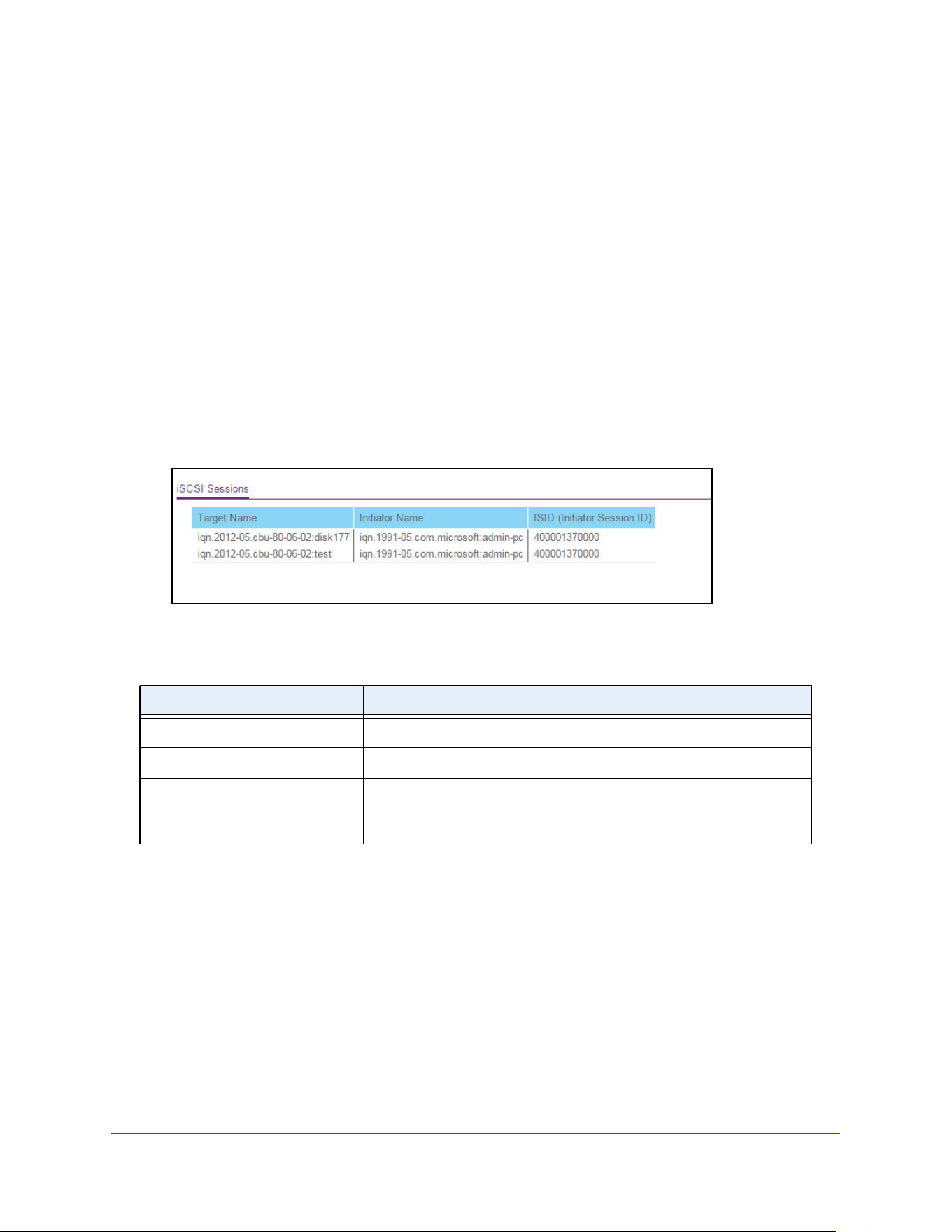
Configure Switching Information
199
M4200 and M4300 Series ProSAFE Managed Switches Web Management User Manual
View iSCSI Sessions
To view information about active iSCSI sessions:
1. Launch a web browser.
2. Enter http://<ipaddress> in the web browser address field.
The login window opens.
3. Enter the user name and password.
The default admin user name is admin and the default admin password is blank, that is,
do not enter a password.
4. Click the Login button.
The System Information page displays.
5. Select Switching > iSCSI > Advanced > Sessions.
The following describes the nonconfigurable iSCSI Sessions information that is displayed.
View iSCSI Session Details
You can view detailed information about active iSCSI sessions.
To view the iSCSI session details:
1. Launch a web browser.
2. Enter http://<ipaddress> in the web browser address field.
The login window opens.
3. Enter the user name and password.
Table 72. iSCSI Sessions
Field Description
Target Name The target’s name.
Initiator Name The initiator’s name.
Initiator Session ID (ISID) The unique identifier an initiator assigns to its session endpoint which,
when combined with the iSCSI initiator name, provides a unique name
for the iSCSI initiator port.
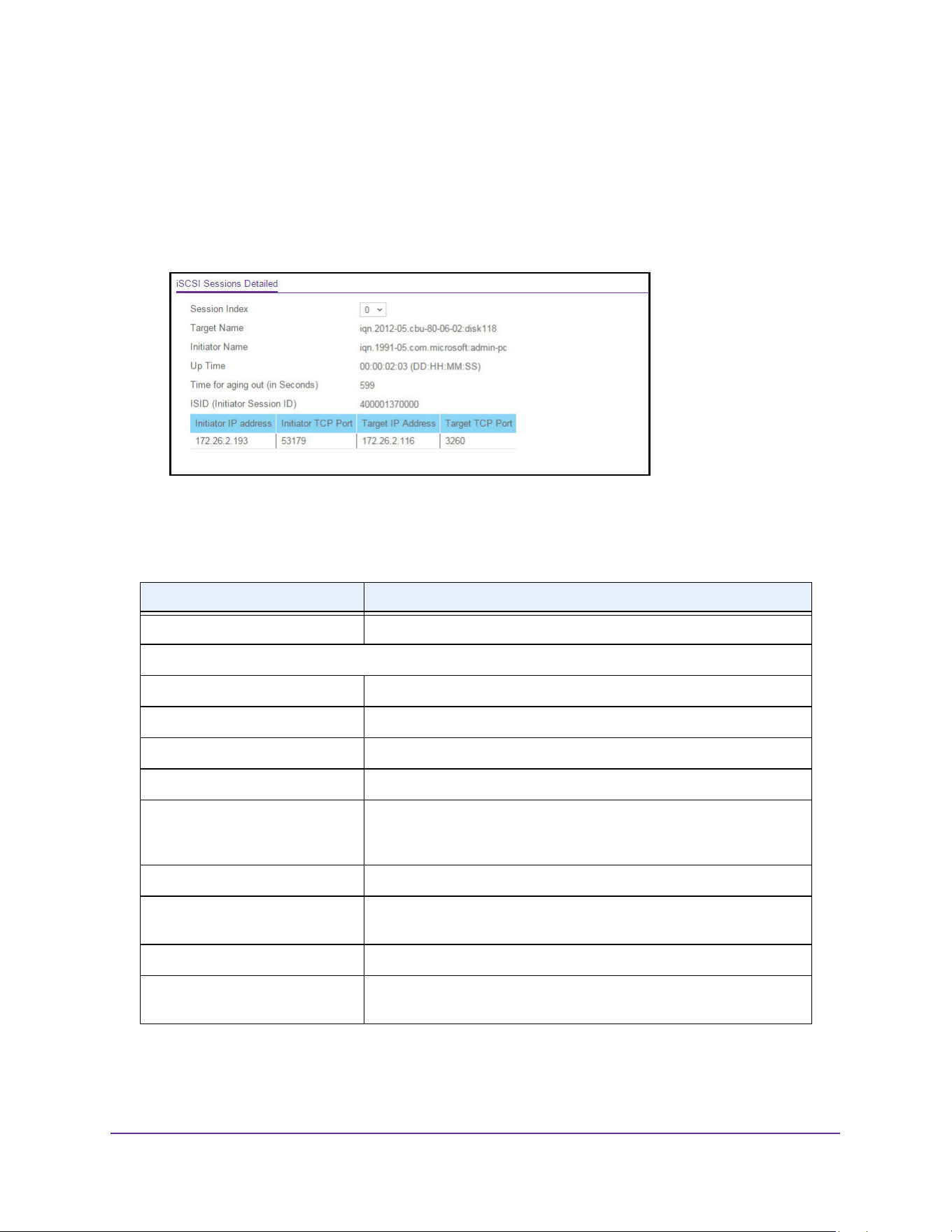
Configure Switching Information
200
M4200 and M4300 Series ProSAFE Managed Switches Web Management User Manual
The default admin user name is admin and the default admin password is blank, that is,
do not enter a password.
4. Click the Login button.
The System Information page displays.
5. Select Switching > iSCSI > Advanced > Sessions Detailed.
6. To refresh the page with the latest information on the switch, click the Update button.
The following table describes the nonconfigurable iSCSI Sessions Detailed information.
Table 73. iSCSI Sessions Detailed
Field Description
Session Index The list of session indices.
The rest of the fields on this page correspond to the currently selected Session Index.
Target Name The target’s name.
Initiator Name The initiator’s name.
Up Time The time elapsed since the creation of the current session.
Time for Aging Out (in Seconds) The time left for the current session to expire in seconds.
Initiator Session ID (ISID) The unique identifier an initiator assigns to its session endpoint which,
when combined with the iSCSI initiator name, provides a unique name
for the iSCSI initiator port.
Initiator IP Address The initiator’s IP address.
Initiator TCP Port The initiator’s TCP port number of one of the connections between the
target and initiator.
Target IP Address The IP address of the target.
Target TCP Port The target’s TCP port number of one of the connections between the
target and initiator.

Configure Switching Information
201
M4200 and M4300 Series ProSAFE Managed Switches Web Management User Manual
Spanning Tree Protocol
The Spanning Tree Protocol (STP) provides a tree topology for any arrangement of bridges.
STP also provides one path between end stations on a network, eliminating loops. Spanning
tree versions supported include Common STP, Multiple STP, and Rapid STP.
Classic STP provides a single path between end stations, avoiding and eliminating loops. For
information on configuring Common STP, see Configure CST Port Settings on page 208.
Multiple Spanning Tree Protocol (MSTP) supports multiple instances of Spanning Tree to
efficiently channel VLAN traffic over different interfaces. Each instance of the Spanning Tree
behaves in the manner specified in IEEE 802.1w, Rapid Spanning Tree (RSTP), with slight
modifications in the working but not the end effect (chief among the effects, is the rapid
transitioning of the port to Forwarding). The difference between the RSTP and the traditional
STP (IEEE 802.1D) is the ability to configure and recognize full-duplex connectivity and ports
which are connected to end stations, resulting in rapid transitioning of the port to Forwarding
state and the suppression of Topology Change Notification. These features are represented
by the parameters pointtopoint and edgeport. MSTP is compatible to both RSTP and STP. It
behaves appropriately to STP and RSTP bridges. A MSTP bridge can be configured to
behave entirely as a RSTP bridge or a STP bridge.
Note: For two bridges to be in the same region, the force version must be
802.1s and their configuration name, digest key, and revision level
must match. For additional information about regions and their effect
on network topology, refer to the IEEE 802.1Q standard.
Configure Basic STP Settings
To configure STP basic settings:
1. Launch a web browser.
2. Enter http://<ipaddress> in the web browser address field.
The login window opens.
3. Enter the user name and password.
The default admin user name is admin and the default admin password is blank, that is,
do not enter a password.
4. Click the Login button.
The System Information page displays.
5. Select Switching > STP > Basic > STP Configuration.
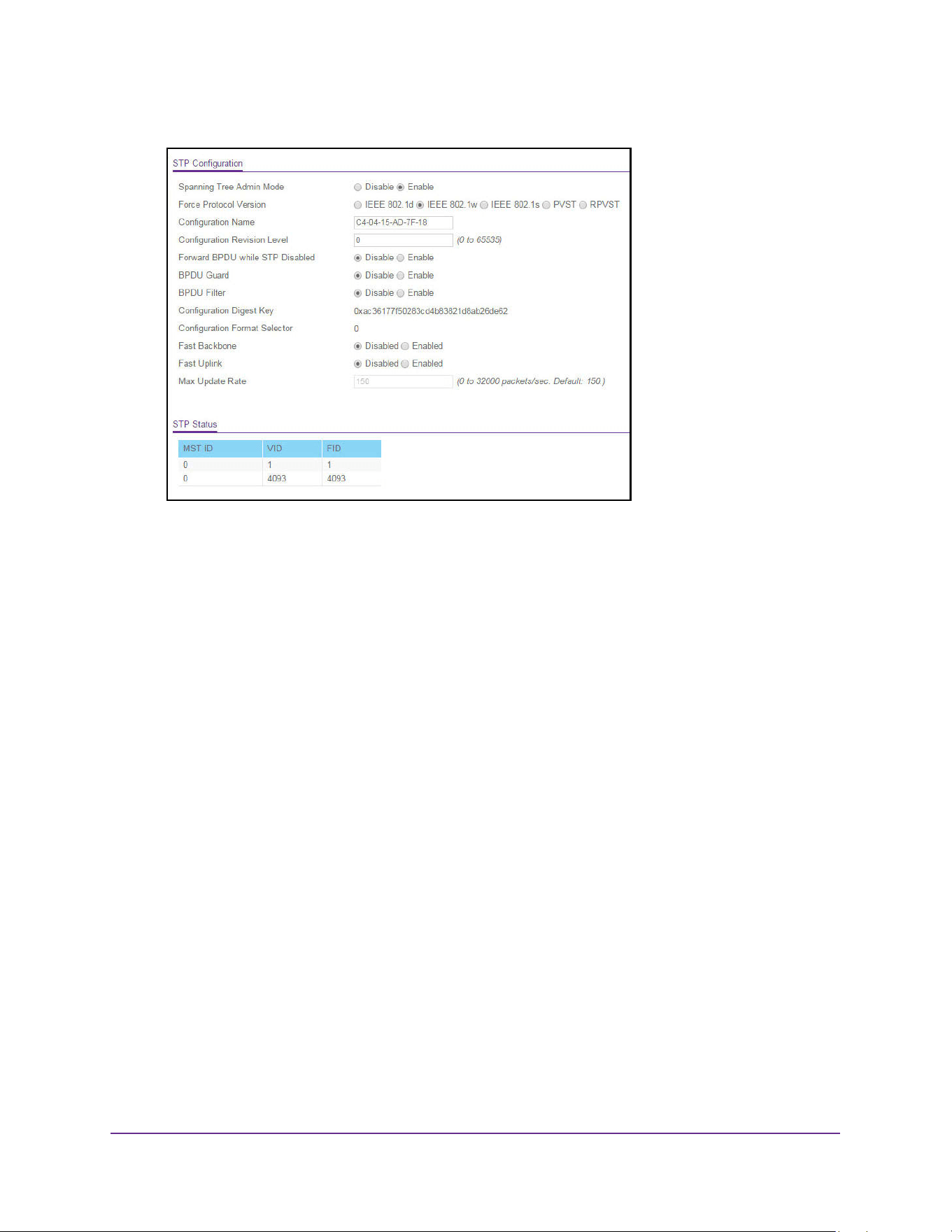
Configure Switching Information
202
M4200 and M4300 Series ProSAFE Managed Switches Web Management User Manual
6. Select the Spanning Tree Admin Mode Disable or Enable radio button.
This specifies whether spanning tree operation is enabled on the switch.
7. Use Force Protocol Version to specify the Force Protocol Version parameter for the
switch.
The options are IEEE 802.1d, IEEE 802.1w, IEEE 802.1s, PVST, and RPVST.
8. Use Configuration Name to specify an identifier used to identify the configuration currently
being used.
It can be up to 32 alphanumeric characters.
9. Use Configuration Revision Level to specify an identifier used to identify the configuration
currently being used.
The values allowed are between 0 and 65535. The default value is 0.
10. Select the Forward BPDU while STP Disabled Disable or Enable radio button.
This specifies whether spanning tree BPDUs are forwarded or not while spanning-tree is
disabled on the switch.
11. Select the BPDU Guard Disable or Enable radio button.
This specifies whether the BPDU guard feature is enabled. The STP BPDU guard allows
a network administrator to enforce the STP domain borders and keep the active topology
consistent and predictable. The switches behind the edge ports with STP BPDU guard
enabled do not influence the overall STP topology. At the reception of BPDUs, the BPDU
guard operation disables the port that is configured with this option and transitions the
port into disable state. This would lead to an administrative disable of the port.
12. Select the BPDU Filter Disable or Enable radio button.
Configure Switching Information
203
M4200 and M4300 Series ProSAFE Managed Switches Web Management User Manual
This specifies whether the BPDU Filter feature is enabled. STP BPDU filtering applies to
all operational edge ports. Edge Port in an operational state is supposed to be connected
to hosts that typically drop BPDUs. If an operational edge port receives a BPDU, it
immediately loses its operational status. In that case, if BPDU filtering is enabled on this
port then it drops the BPDUs received on this port.
13. Select the e Fast Backbone Mode Disable or Enable radio button. (PVSTP only.)
Use this option to choose a new indirect link when an indirect link fails. The system does
not ignore inferior BPDUs, as is done in 802.1d. Rather the system uses the BPDUs to
age out on the port it received the BPDUs. Later the system sends out root link queries
on other non-designated ports. Based on the replies, if there is a positive response to at
least one of them, it chooses a new indirect link. Fast Backbone mode is disabled by
default.
14. Select the Fast Uplink Mode Disable or Enable radio button. (PVSTP only.)
This option reduces the recovery time in selecting a new root port when the primary root
port goes down. Fast Uplink mode is disabled by default.
15. Use the Max Update Rate field to configure the Fast Uplink Maximum Update Rate.
This field is enabled for configuration when Fast Uplink mode is enabled. Allowed values
are 0 to 32000 packets per second. The default value is 150.
16. Click the Apply button.
The updated configuration is sent to the switch. Configuration changes take effect
immediately.
The following table describes the nonconfigurable fields.
Table 74. STP Configuration
Field Description
Configuration Digest Key Identifier used to identify the configuration currently being used.
Configuration Format Selector The version of the configuration format being used in the exchange of
BPDUs.
MST ID Table consisting of the MST instances (including the CST) and the
corresponding VLAN IDs associated with each of them.
VID ID Table consisting of the VLAN IDs and the corresponding FID
associated with each of them.
FID ID Table consisting of the FIDs and the corresponding VLAN IDs
associated with each of them.
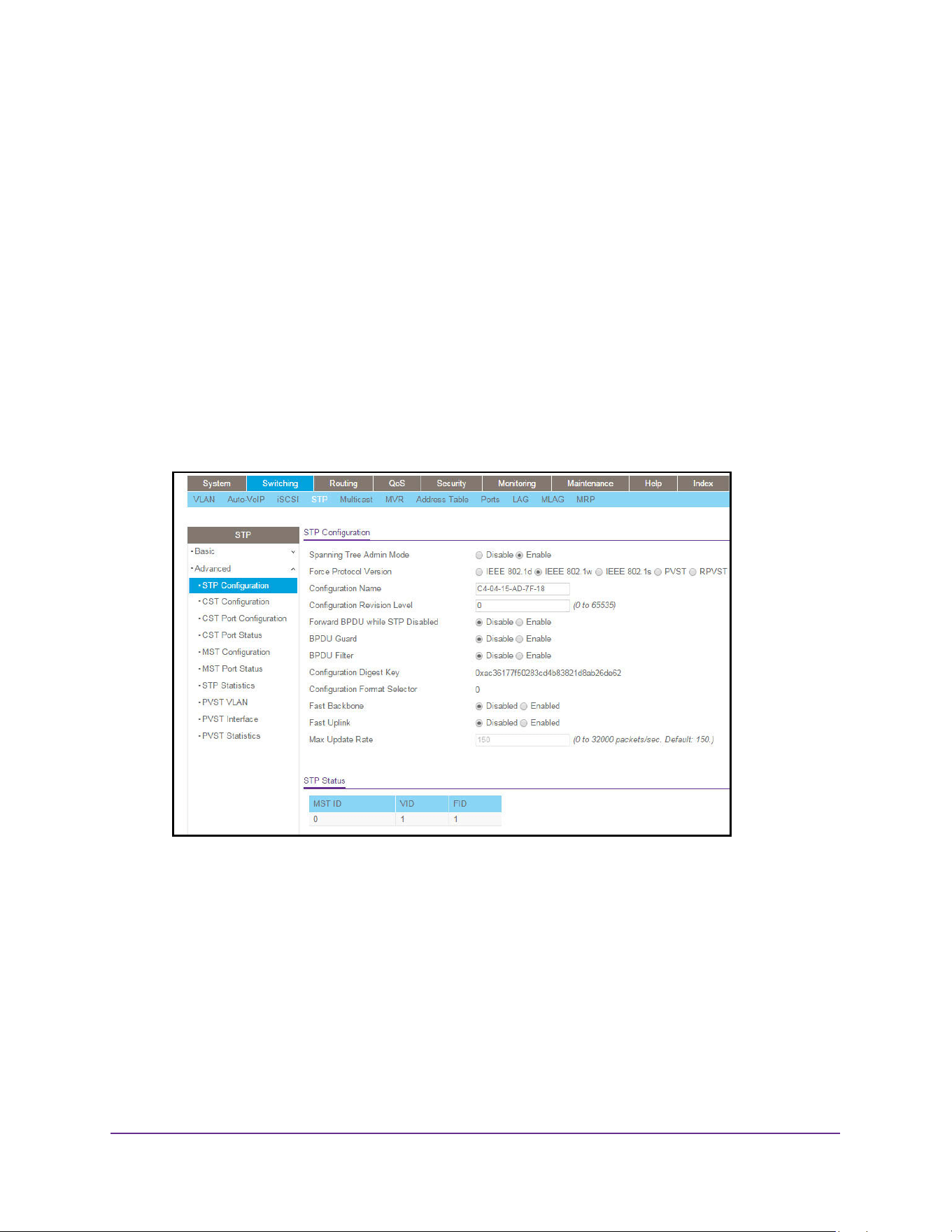
Configure Switching Information
204
M4200 and M4300 Series ProSAFE Managed Switches Web Management User Manual
Configure Advanced STP Settings
To configure advanced STP settings:
1. Launch a web browser.
2. Enter http://<ipaddress> in the web browser address field.
The login window opens.
3. Enter the user name and password.
The default admin user name is admin and the default admin password is blank, that is,
do not enter a password.
4. Click the Login button.
The System Information page displays.
5. Select Switching > STP > Advanced > STP Configuration.
6. Select the Admin Mode Disable or Enable radio button.
This specifies whether spanning tree operation is enabled on the switch. The default is
Enable.
7. Use Force Protocol Version to specify the Force Protocol Version parameter for the
switch.
The options are IEEE 802.1d, IEEE 802.1w, IEEE 802.1s, PVST, and RPVST. The default
is IEEE 802.1w.
8. Use Configuration Name to specify the identifier used to identify the configuration currently
being used.
It can be up to 32 alphanumeric characters.

Configure Switching Information
205
M4200 and M4300 Series ProSAFE Managed Switches Web Management User Manual
9. Use Configuration Revision Level to specify the identifier used to identify the configuration
currently being used.
The values allowed are between 0 and 65535. The default value is 0.
10. Select the Forward BPDU while STP Disabled Disable or Enable radio button.
This specifies whether spanning tree BPDUs are forwarded while spanning-tree is
disabled on the switch. The default is Disable.
11. Select the BPDU Guard Disable or Enable radio button.
This specifies whether the BPDU guard feature is enabled. The STP BPDU guard allows
a network administrator to enforce the STP domain borders and keep the active topology
consistent and predictable. The switches behind the edge ports with STP BPDU guard
enabled do not influence the overall STP topology. At the reception of BPDUs, the BPDU
guard operation disables the port that is configured with this option and transitions the
port into disable state. This would lead to an administrative disable of the port.
12. Select the BPDU Filter Disable or Enable radio button.
This specifies whether the BPDU Filter feature is enabled. STP BPDU filtering applies to
all operational edge ports. Edge Port in an operational state is supposed to be connected
to hosts that typically drop BPDUs. If an operational edge port receives a BPDU, it
immediately loses its operational status. In that case, if BPDU filtering is enabled on this
port then it drops the BPDUs received on this port.
13. Select the Fast Backbone Mode Disable or Enable radio button. (PVSTP only.)
Use this option to choose a new indirect link when an indirect link fails. The system does
not ignore inferior BPDUs, as is done in 802.1d. Rather the system uses the BPDUs to
age out on the port it received the BPDUs. Later the system sends out root link queries
on other non-designated ports. Based on the replies, if there is a positive response to at
least one of them, it chooses a new indirect link. Fast Backbone mode is disabled by
default.
14. Select the Fast Uplink Mode Disable or Enable radio button. (PVSTP only.)
This option reduces the recovery time in selecting a new root port when the primary root
port goes down. Fast Uplink mode is disabled by default.
15. Use the Max Update Rate field to configure the Fast Uplink Maximum Update Rate.
This field is enabled for configuration when Fast Uplink mode is enabled. Allowed values
are 0 to 32000 packets per second. The default value is 150.
16. Click the Apply button.
The updated configuration is sent to the switch. Configuration changes take effect
immediately.
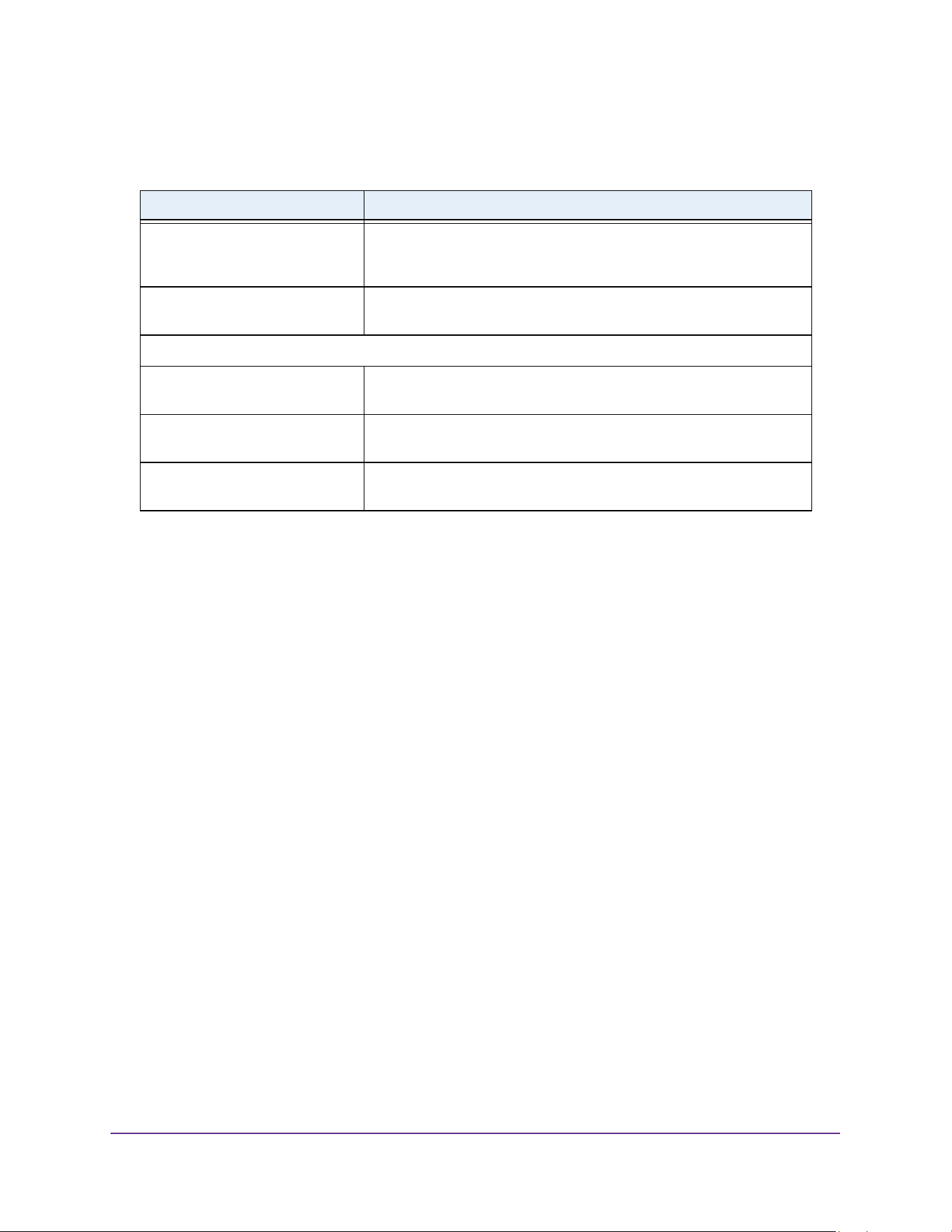
Configure Switching Information
206
M4200 and M4300 Series ProSAFE Managed Switches Web Management User Manual
The following table describes the nonconfigurable information displayed on the page.
Configure CST Settings
You can configure Common Spanning Tree (CST) and Internal Spanning Tree on the switch.
To configure CST settings:
1. Launch a web browser.
2. Enter http://<ipaddress> in the web browser address field.
The login window opens.
3. Enter the user name and password.
The default admin user name is admin and the default admin password is blank, that is,
do not enter a password.
4. Click the Login button.
The System Information page displays.
5. Select Switching > STP > Advanced > CST Configuration.
Table 75. STP Configuration
Field Description
Configuration Digest Key The 16-byte signature of type HMAC-MD5 created from the MST
Configuration Table (a VLAN ID-to-MST ID mapping) which is used to
identify the configuration currently being used.
Configuration Format Selector The version of the configuration format being used in the exchange of
BPDUs.
STP Status
MST ID Table consisting of the MST instances (including the CST) and the
corresponding VLAN IDs associated with each of them.
VID ID Table consisting of the VLAN IDs and the corresponding FID
associated with each of them.
FID ID Table consisting of the FIDs and the corresponding VLAN IDs
associated with each of them.
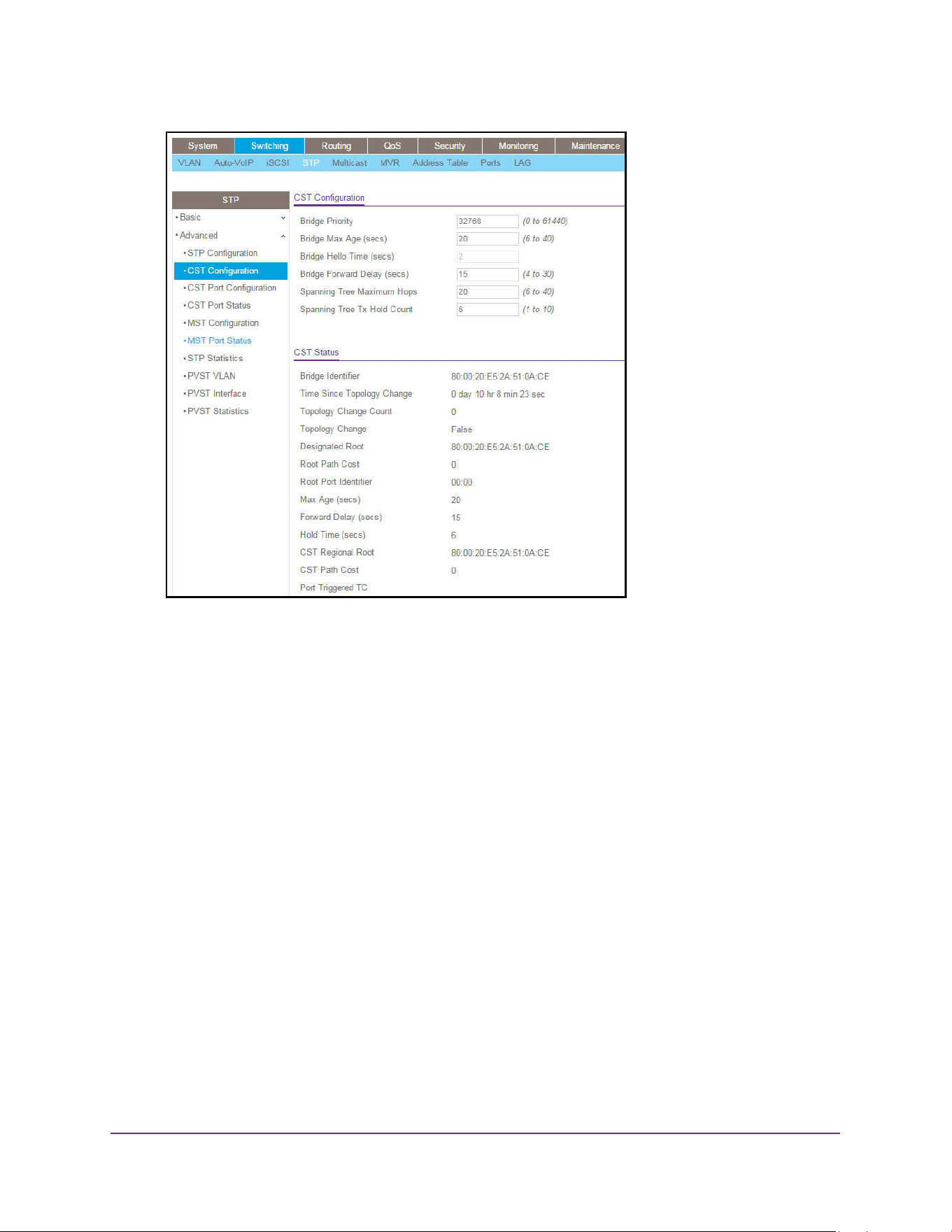
Configure Switching Information
207
M4200 and M4300 Series ProSAFE Managed Switches Web Management User Manual
6. Specify values for CST in the appropriate fields:
• Bridge Priority. When switches or bridges are running STP, each is assigned a
priority. After exchanging BPDUs, the switch with the lowest priority value becomes
the root bridge. Specifies the bridge priority value for the Common and Internal
Spanning Tree (CST). The valid range is 0–61440. The bridge priority is a multiple of
4096. If you specify a priority that is not a multiple of 4096, the priority is automatically
set to the next lowest priority that is a multiple of 4096. For example, if the priority is
attempted to be set to any value between 0 and 4095, it is set to 0. The default priority
is 32768.
• Bridge Max Age (secs). The bridge maximum age time for the Common and Internal
Spanning Tree (CST), which indicates the amount of time in seconds a bridge waits
before implementing a topological change. The valid range is 6–40, and the value
must be less than or equal to (2 * Bridge Forward Delay) – 1 and greater than or
equal to 2 * (Bridge Hello Time +1). The default value is 20.
• Bridge Hello Time (secs). The bridge hello time for the Common and Internal
Spanning Tree (CST), which indicates the amount of time in seconds a root bridge
waits between configuration messages. The value is fixed at 2 seconds. The value
must be less than or equal to (Bridge Max Age / 2) - 1. The default hello time value is
2.
• Bridge Forward Delay (secs). The bridge forward delay time, which indicates the
amount of time in seconds a bridge remains in a listening and learning state before
forwarding packets. The value must be greater or equal to (Bridge Max Age / 2) + 1.
The time range is from 4 seconds to 30 seconds. The default value is 15 seconds.
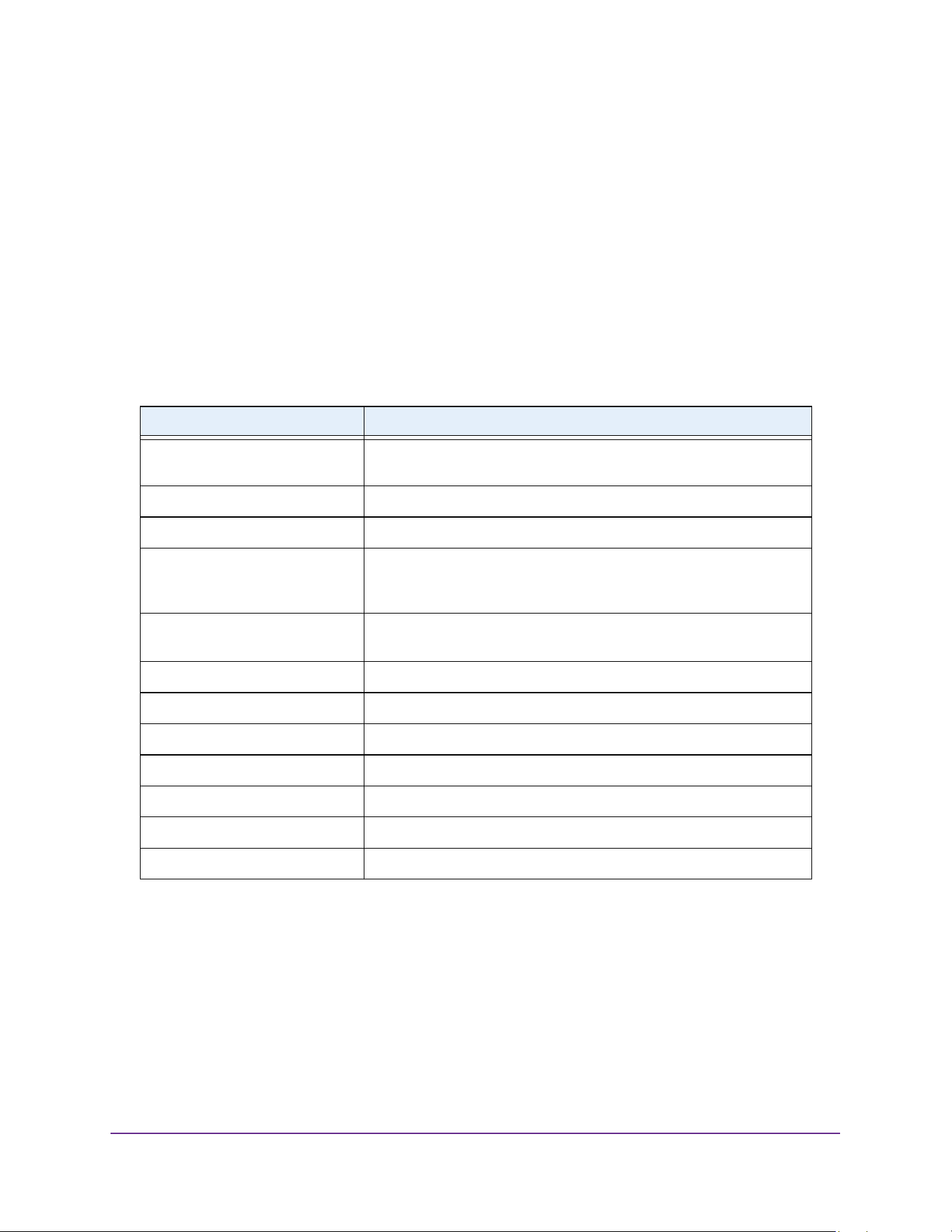
Configure Switching Information
208
M4200 and M4300 Series ProSAFE Managed Switches Web Management User Manual
• Spanning Tree Maximum Hops. The maximum number of bridge hops the
information for a particular CST instance can travel before being discarded. The valid
range is 6–40. The default is 20 hops.
• Spanning Tree Tx Hold Count. Configures the maximum number of bpdus the bridge
is allowed to send within the hello time window. The valid range is 1–10. The default
value is 6.
7. Click the Apply button.
The updated configuration is sent to the switch. Configuration changes take effect
immediately.
The following table describes the CST Status information that is displayed.
Configure CST Port Settings
You can configure the Common Spanning Tree (CST) and Internal Spanning Tree on a
specific port on the switch.
A port can become Diagnostically Disabled (D-Disable) when DOT1S experiences a severe
error condition. The most common cause is when the DOT1S software experiences BPDU
flooding. The flooding criteria is such that DOT1S receives more than 15 BPDUs in a
3-second interval. The other causes for DOT1S D-Disable are extremely rare.
Table 76. STP Advanced CST Configuration
Field Description
Bridge identifier The bridge identifier for the CST. It is made up using the bridge priority
and the base MAC address of the bridge.
Time since topology change The time in seconds since the topology of the CST last changed.
Topology change count Number of times topology changed for the CST.
Topology change The value of the topology change parameter for the switch indicating if
a topology change is in progress on any port assigned to the CST. It
takes a value if True or False.
Designated root The bridge identifier of the root bridge. It is made up from the bridge
priority and the base MAC address of the bridge.
Root Path Cost Path Cost to the Designated Root for the CST.
Root Port Identifier Port to access the Designated Root for the CST.
Max Age(secs) Path Cost to the Designated Root for the CST.
Forward Delay(secs) Derived value of the Root Port Bridge Forward Delay parameter.
Hold Time(secs) Minimum time between transmission of Configuration BPDUs.
CST Regional Root Priority and base MAC address of the CST Regional Root.
CST Path Cost Path Cost to the CST tree Regional Root.
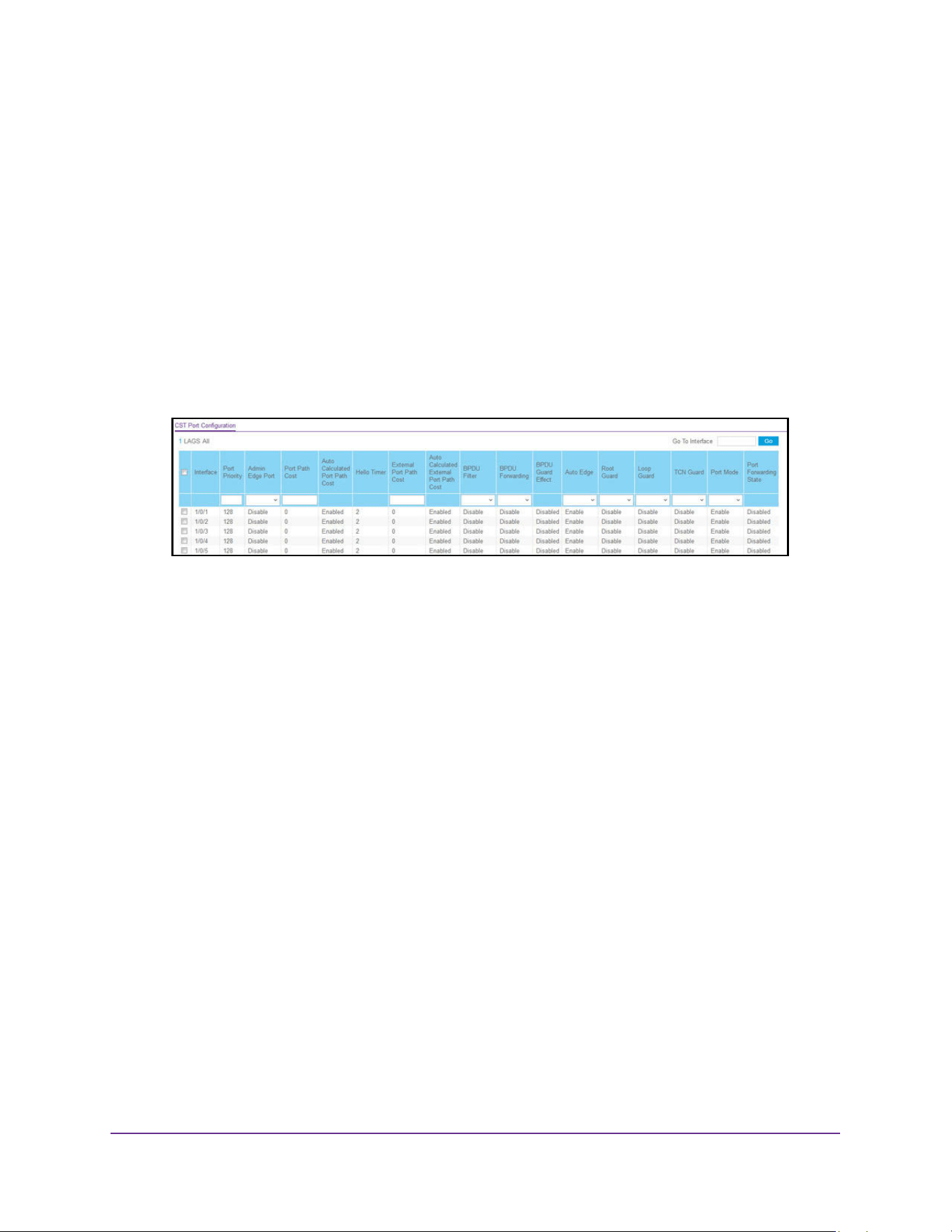
Configure Switching Information
209
M4200 and M4300 Series ProSAFE Managed Switches Web Management User Manual
To configure CST port settings:
1. Launch a web browser.
2. Enter http://<ipaddress> in the web browser address field.
The login window opens.
3. Enter the user name and password.
The default admin user name is admin and the default admin password is blank, that is,
do not enter a password.
4. Click the Login button.
The System Information page displays.
5. Select Switching > STP > Advanced > CST Port Configuration.
6. Select an interface.
You can select a physical or port channel interface associated with VLANs associated
with the CST.
7. Use Port Priority to specify the priority for a particular port within the CST.
The port priority is set in multiples of 16. For example if the priority is attempted to be set
to any value between 0 and 15, it is set to 0. If it is tried to be set to any value between 16
and (2*16-1) it is set to 16 and so on. The default value is 128.
8. Use Admin Edge Port to specify if the specified port is an Edge Port within the CIST.
Use the menu to select Disable or Enable. The default value is Disable.
9. Use Port Path Cost to set the Path Cost to a new value for the specified port in the
common and internal spanning tree.
It takes a value in the range of 1 to 200000000. The default is 0.
10. Use External Port Path Cost to set the External Path Cost to a new value for the specified
port in the spanning tree.
It takes a value in the range of 1 to 200000000. The default is 0.
11. Use BPDU Filter to configure the BPDU Filter, which filters the BPDU traffic on this port
when STP is enabled on this port.
The possible values are Enable or Disable. The default value is Disable.
12. Use BPDU Flood to configure the BPDU Flood, which floods the BPDU traffic arriving on
this port when STP is disabled on this port.
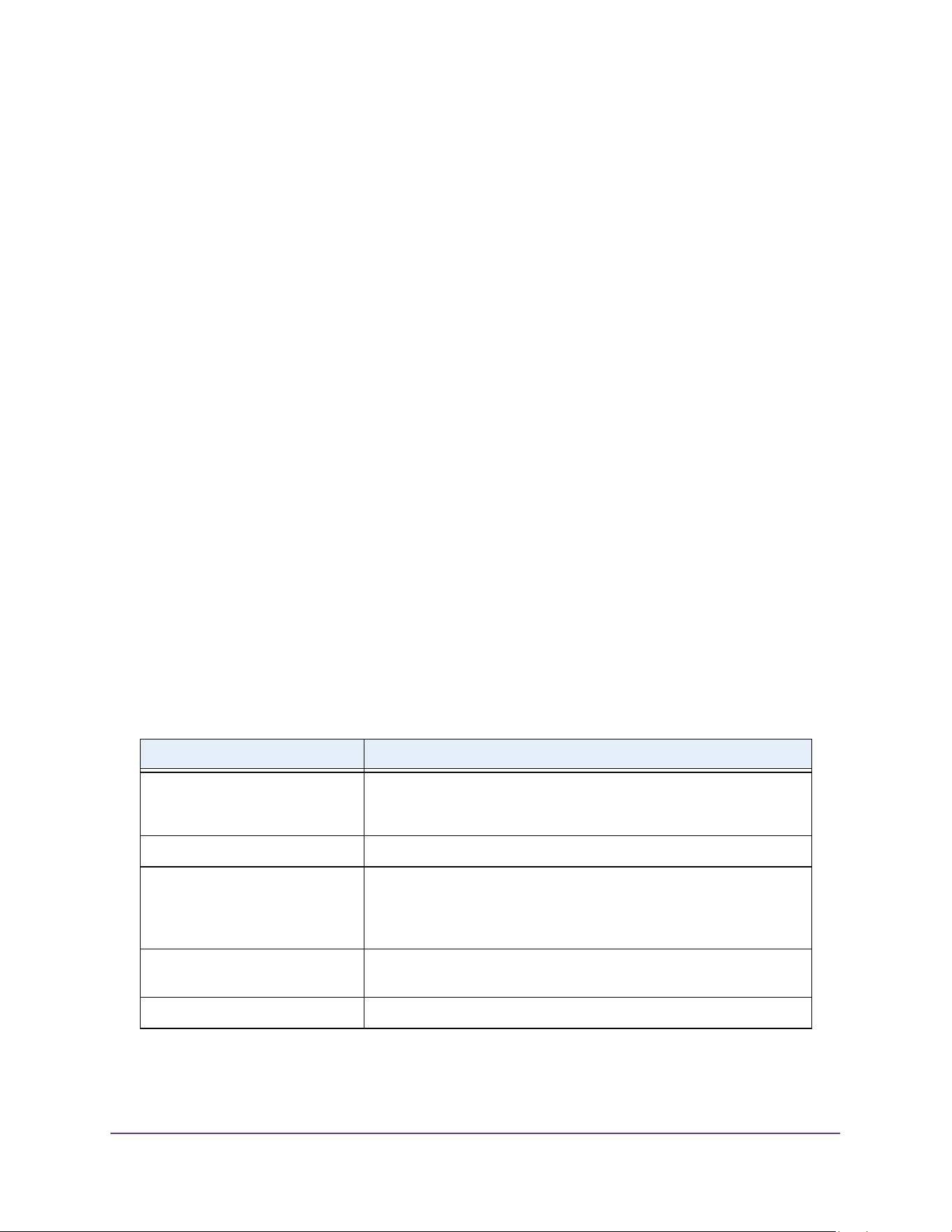
Configure Switching Information
210
M4200 and M4300 Series ProSAFE Managed Switches Web Management User Manual
The possible values are Enable or Disable. The default value is Disable.
13. Use Auto Edge to configure the auto edge mode of a port, which allows the port to become
an edge port if it does not see BPDUs for some duration.
The possible values are Enable or Disable. The default value is Enable.
14. Use Root Guard to configure the root guard mode, which sets a port to discard any superior
information received by the port and thus protect against root of the device from changing.
The port gets put into discarding state and does not forward any packets. The possible
values are Enable or Disable. The default value is Disable.
15. Use Loop Guard to enable or disable the loop guard on the port to protect Layer 2
forwarding loops.
If loop guard is enabled, the port moves into the STP loop inconsistent blocking state
instead of the listening/learning/forwarding state. The default value is Disable
16. Use TCN Guard to configure the TCN guard for a port restricting the port from propagating
any topology change information received through that port.
The possible values are Enable or Disable. The default value is Disable.
17. Use Port Mode to enable or disable Spanning Tree Protocol Administrative mode
associated with the port or port channel.
The possible values are Enable or Disable. The default value is Disable.
18. Click the Apply button.
The updated configuration is sent to the switch. Configuration changes take effect
immediately.
The following table describes the nonconfigurable information displayed on the page.
Table 77. CST Port Configuration
Field Description
Auto Calculated Port Path Cost Displays whether the path cost is automatically calculated (Enabled) or
not (Disabled). Path cost is calculated based on the link speed of the
port if the configured value for Port Path Cost is zero.
Hello Timer The value of the parameter for the CST.
Auto Calculated External Port Path
Cost
Displays whether the external path cost is automatically calculated
(Enabled) or not (Disabled). External Path cost is calculated based on
the link speed of the port if the configured value for External Port Path
Cost is zero.
BPDU Guard Effect Display the BPDU Guard Effect, it disables the edge ports that receive
BPDU packets. The possible values are Enable or Disable.
Port Forwarding State The Forwarding State of this port.
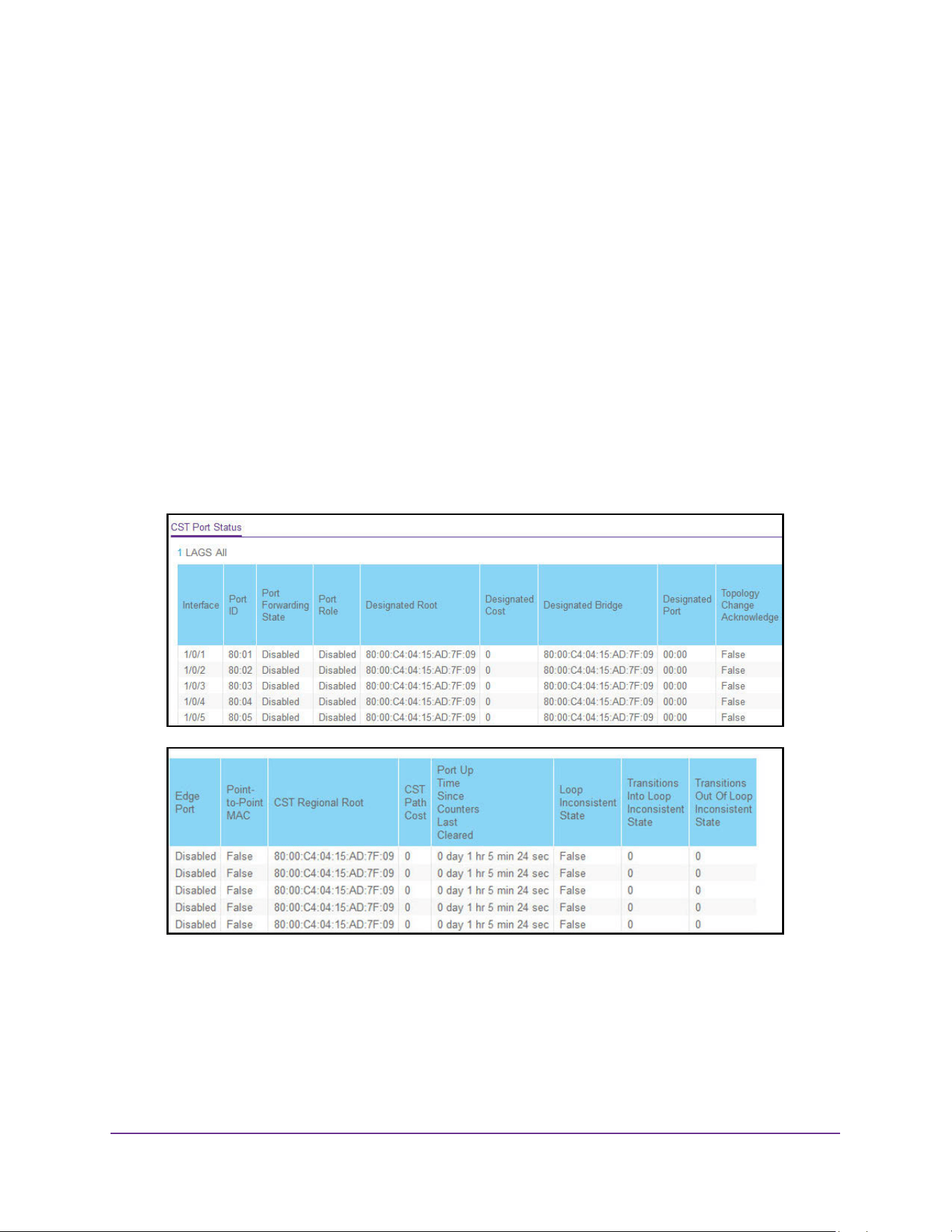
Configure Switching Information
211
M4200 and M4300 Series ProSAFE Managed Switches Web Management User Manual
View CST Port Status
You can view the Common Spanning Tree (CST) and Internal Spanning Tree on a specific
port on the switch.
To view the CST port status:
1. Launch a web browser.
2. Enter http://<ipaddress> in the web browser address field.
The login window opens.
3. Enter the user name and password.
The default admin user name is admin and the default admin password is blank, that is,
do not enter a password.
4. Click the Login button.
The System Information page displays.
5. Select Switching > STP > Advanced > CST Port Status.
6. To refresh the page with the latest information on the switch, click the Update button.

Configure Switching Information
212
M4200 and M4300 Series ProSAFE Managed Switches Web Management User Manual
The following table describes the CST Status information displayed on the page.
Table 78. CST Port Status
Field Description
Interface Identify the physical or port channel interfaces associated with VLANs
associated with the CST.
Port ID The port identifier for the specified port within the CST. It is made up
from the port priority and the interface number of the port.
Port Forwarding State The Forwarding State of this port.
Port Role Each MST Bridge Port that is enabled is assigned a Port Role for each
spanning tree. The port role is one of the following values: Root Port,
Designated Port, Alternate Port, Backup Port, Master Port or
Disabled Port.
Designated Root Root Bridge for the CST. It is made up using the bridge priority and the
base MAC address of the bridge.
Designated Cost Path Cost offered to the LAN by the Designated Port.
Designated Bridge Bridge Identifier of the bridge with the Designated Port. It is made up
using the bridge priority and the base MAC address of the bridge.
Designated Port Port Identifier on the Designated Bridge that offers the lowest cost to
the LAN. It is made up from the port priority and the interface number of
the port.
Topology Change Acknowledge Identifies whether the topology change acknowledgement flag is set for
the next BPDU to be transmitted for this port. It is either True or False.
Edge port Indicates whether the port is enabled as an edge port. It takes the value
Enabled or Disabled.
Point-to-point MAC Derived value of the point-to-point status.
CST Regional Root Bridge Identifier of the CST Regional Root. It is made up using the
bridge priority and the base MAC address of the bridge.
CST Path Cost Path Cost to the CST Regional Root.
Port Up Time Since Counters Last
Cleared
Time since the counters were last cleared, displayed in Days, Hours,
Minutes, and Seconds.
Loop Inconsistent State This parameter identifies whether the port is in loop inconsistent state
or not.
Transitions Into Loop Inconsistent
State
The number of times this interface transitioned into loop inconsistent
state.
Transitions Out Of Loop
Inconsistent State
The number of times this interface transitioned out of loop inconsistent
state.
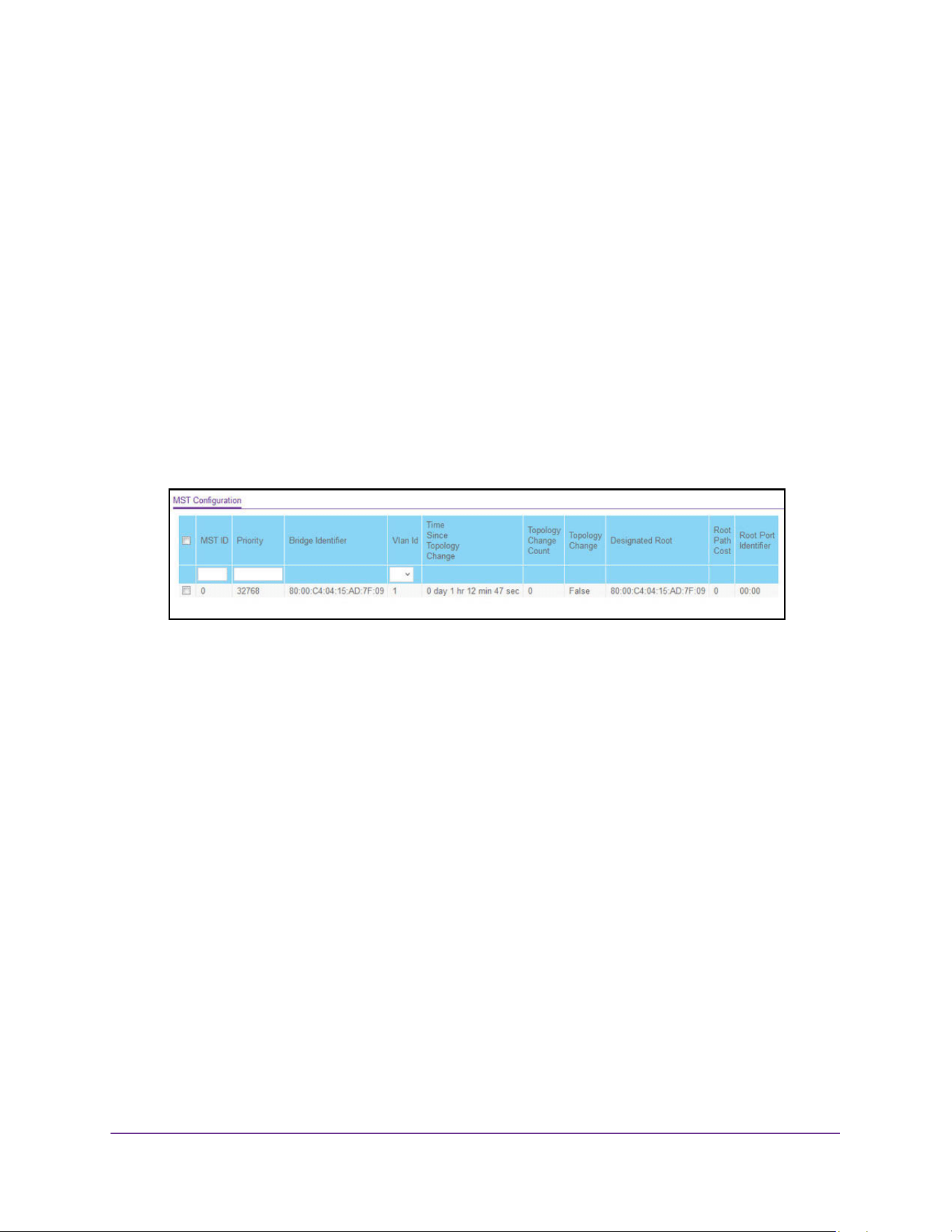
Configure Switching Information
213
M4200 and M4300 Series ProSAFE Managed Switches Web Management User Manual
Configure MST Settings
You can configure Multiple Spanning Tree (MST) on the switch.
To configure an MST instance:
1. Launch a web browser.
2. Enter http://<ipaddress> in the web browser address field.
The login window opens.
3. Enter the user name and password.
The default admin user name is admin and the default admin password is blank, that is,
do not enter a password.
4. Click the Login button.
The System Information page displays.
5. Select Switching > STP > Advanced > MST Configuration.
6. To add a new MST, do the following:
a. Configure the MST values,
• MST ID. Specify the ID of the MST to create. The valid values for this are 1 to
4094. This is only visible when the select option of the MST ID select box is
selected.
• Priority. The bridge priority value for the MST. When switches or bridges are
running STP, each is assigned a priority. After exchanging BPDUs, the switch with
the lowest priority value becomes the root bridge. The bridge priority is a multiple
of 4096. If you specify a priority that is not a multiple of 4096, the priority is
automatically set to the next lowest priority that is a multiple of 4096. For example,
if the priority is attempted to be set to any value between 0 and 4095, it is set to 0.
The default priority is 32768.The valid range is 0–61440.
• VLAN ID. This gives a combo box of each VLAN on the switch. These can be
selected or unselected for re-configuring the association of VLANs to MST
instances.
b. Click the Add button
This creates the new MST that you configured.
7. To modify an MST instance, do the following:
a. Select the check box next to the instance.
You can select multiple check boxes to apply the same setting to all selected ports.
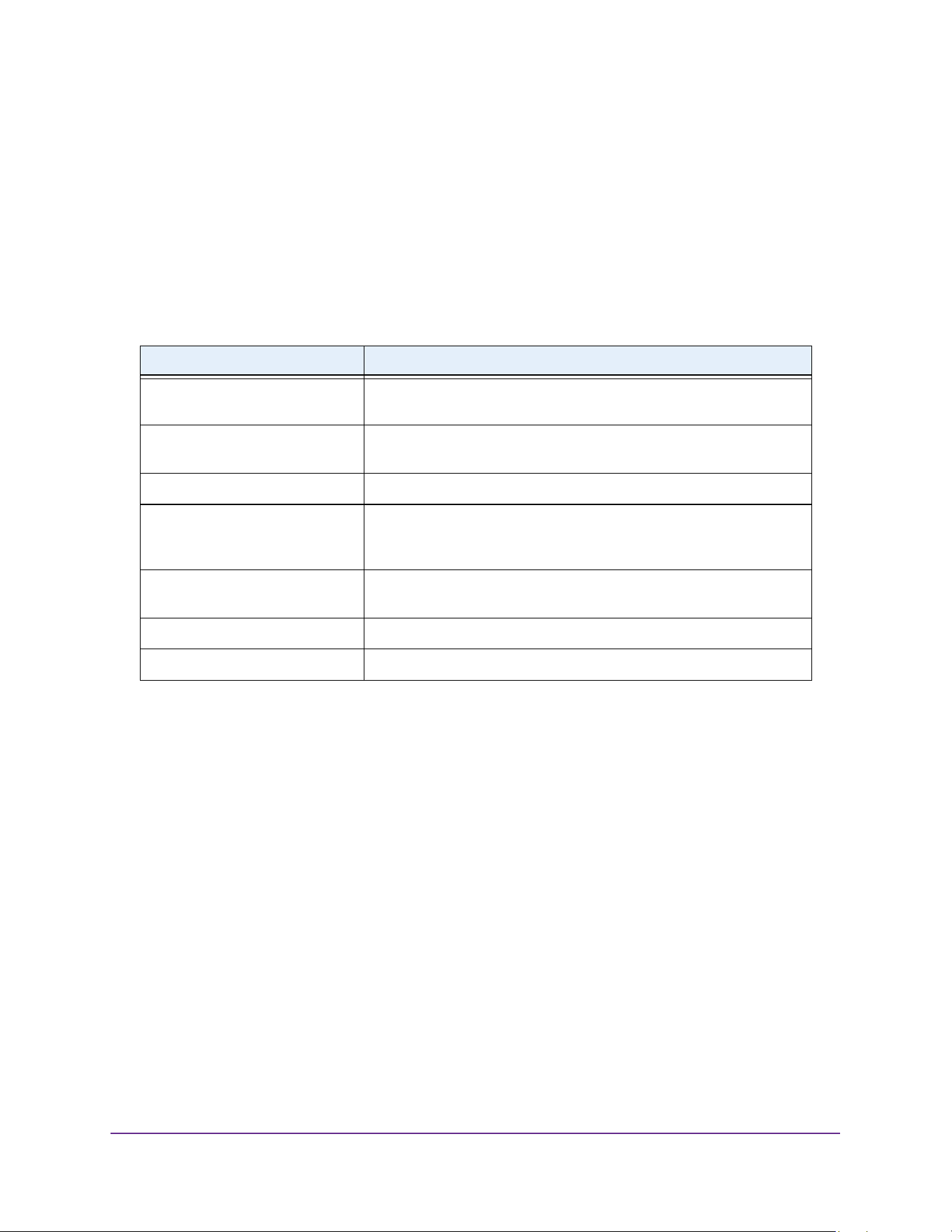
Configure Switching Information
214
M4200 and M4300 Series ProSAFE Managed Switches Web Management User Manual
b. Update the values.
c. click the Apply button.
8. To delete an MST instance, do the following:
a. Select the check box for the instance.
b. Click the Delete button.
For each configured instance, the information described in the following table displays on the
page.
View the Spanning Tree MST Port Status
You can configure and display Multiple Spanning Tree (MST) settings on a specific port on
the switch.
A port can become Diagnostically Disabled (D-Disable) when DOT1S experiences a severe
error condition. The most common cause is when the DOT1S software experiences BPDU
flooding. The flooding criteria is such that DOT1S receives more than 15 BPDUs in a
3-second interval. The other causes for DOT1S D-Disable are extremely rare.
To view the Spanning Tree MST port status:
1. Launch a web browser.
2. Enter http://<ipaddress> in the web browser address field.
The login window opens.
3. Enter the user name and password.
The default admin user name is admin and the default admin password is blank, that is,
do not enter a password.
Table 79. MST Configuration
Field Description
Bridge Identifier The bridge identifier for the selected MST instance. It is made up using
the bridge priority and the base MAC address of the bridge.
Time Since Topology Change The time n seconds since the topology of the selected MST instance
last changed.
Topology Change Count Number of times topology changed for the selected MST instance.
Topology Change The value of the topology change parameter for the switch indicating if
a topology change is in progress on any port assigned to the selected
MST instance. It takes a value if True or False.
Designated Root The bridge identifier of the root bridge. It is made up from the bridge
priority and the base MAC address of the bridge
Root Path Cost Path Cost to the Designated Root for this MST instance.
Root PortIdentifier Port to access the Designated Root for this MST instance.
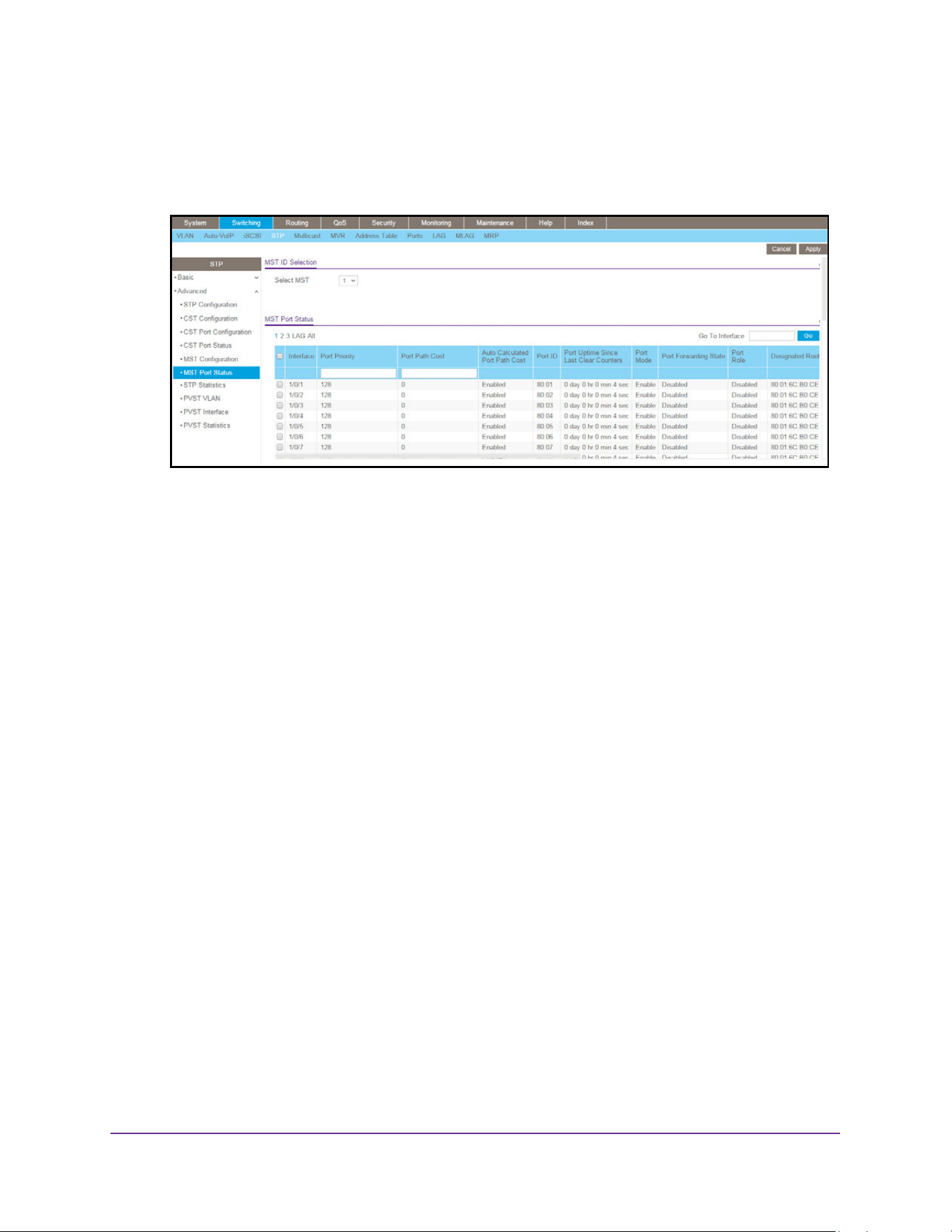
Configure Switching Information
215
M4200 and M4300 Series ProSAFE Managed Switches Web Management User Manual
4. Click the Login button.
The System Information page displays.
5. Select Switching > STP > Advanced > MST Port Status.
Note: If no MST instances were configured on the switch, the page displays
a No MSTs Available message and does not display the fields shown
in the field description table that follows.
6. Use MST ID to select one MST instance from existing MST instances.
7. Use Interface to select one of the physical or port channel interfaces associated with VLANs
associated with the selected MST instance.
8. Use Port Priority to specify the priority for a particular port within the selected MST
instance.
The port priority is set in multiples of 16. For example if the priority is attempted to be set
to any value between 0 and 15, it is set to 0. If it is tried to be set to any value between 16
and (2*16-1) it is set to 16 and so on.
9. Use Port Path Cost to set the Path Cost to a new value for the specified port in the selected
MST instance.
It takes a value in the range of 1 to 200000000.
10. Click the Apply button.
The updated configuration is sent to the switch. Configuration changes take effect
immediately.

Configure Switching Information
216
M4200 and M4300 Series ProSAFE Managed Switches Web Management User Manual
The following table describes the read-only MST port configuration information displayed on
the Spanning Tree CST Configuration page.
View STP Statistics
You can view information about the number and type of bridge protocol data units (BPDUs)
transmitted and received on each port.
To view Spanning Tree statistics:
1. Launch a web browser.
2. Enter http://<ipaddress> in the web browser address field.
The login window opens.
3. Enter the user name and password.
The default admin user name is admin and the default admin password is blank, that is,
do not enter a password.
Table 80. MST Port Status
Field Description
Auto Calculated Port Path Cost Displays whether the path cost is automatically calculated (Enable) or
not (Disable). Path cost is calculated based on the link speed of the
port if the configured value for Port Path Cost is zero.
Port ID The port identifier for the specified port within the selected MST
instance. It is made up from the port priority and the interface number of
the port.
Port Uptime Since Last Clear
Counters
Time since the counters were last cleared, displayed in Days, Hours,
Minutes, and Seconds.
Port Mode Spanning Tree Protocol Administrative mode associated with the port
or port channel. The possible values are Enable or Disable.
Port Forwarding State The Forwarding State of this port.
Port Role Each MST Bridge Port that is enabled is assigned a Port Role for each
spanning tree. The port role is one of the following values: Root Port,
Designated Port, Alternate Port, Backup Port, Master Port or
Disabled Port.
Designated Root Root Bridge for the selected MST instance. It is made up using the
bridge priority and the base MAC address of the bridge.
Designated Cost Path Cost offered to the LAN by the Designated Port.
Designated Bridge Bridge Identifier of the bridge with the Designated Port. It is made up
using the bridge priority and the base MAC address of the bridge.
Designated Port Port Identifier on the Designated Bridge that offers the lowest cost to
the LAN. It is made up from the port priority and the interface number of
the port.
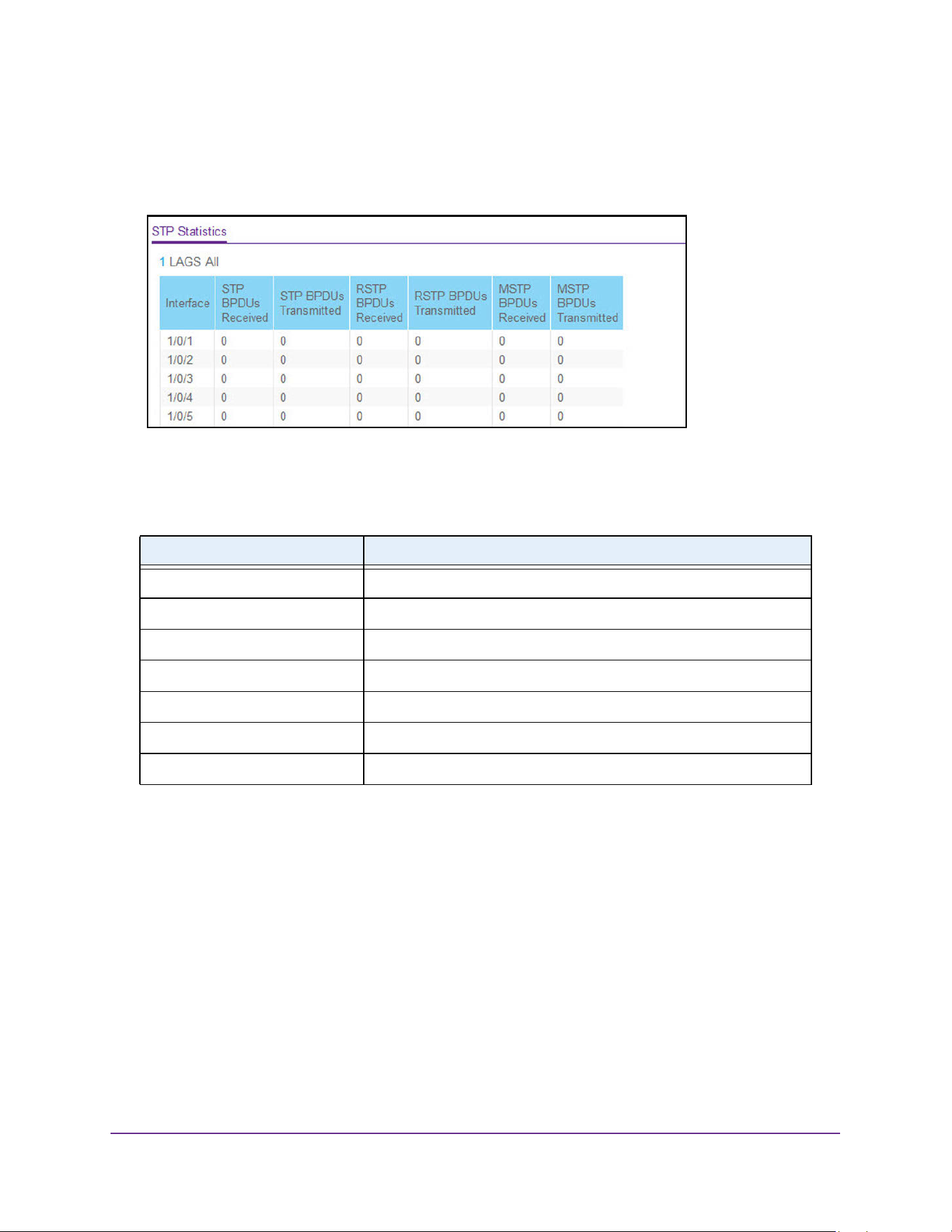
Configure Switching Information
217
M4200 and M4300 Series ProSAFE Managed Switches Web Management User Manual
4. Click the Login button.
The System Information page displays.
5. Select Switching > STP > Advanced > STP Statistics.
6. To refresh the page with the latest information on the switch, click the Update button.
The following table describes the information available on the STP Statistics page.
Configure PVST VLAN Settings
You can view and configure Per VLAN Spanning Tree Protocol (PVST)/Per VLAN Rapid
Spanning Tree Protocol (RPVST) VLAN settings for the device.
To configure PVST/RPVST VLAN settings for the device:
1. Launch a web browser.
2. Enter http://<ipaddress> in the web browser address field.
The login window opens.
3. Enter the user name and password.
The default admin user name is admin and the default admin password is blank, that is,
do not enter a password.
Table 81. STP Statistics
Field Description
Interface Selects one of the physical or port channel interfaces of the switch.
STP BPDUs Received Number of STP BPDUs received at the selected port.
STP BPDUs Transmitted Number of STP BPDUs transmitted from the selected port.
RSTP BPDUs Received Number of RSTP BPDUs received at the selected port.
RSTP BPDUs Transmitted Number of RSTP BPDUs transmitted from the selected port.
MSTP BPDUs Received Number of MSTP BPDUs received at the selected port.
MSTP BPDUs Transmitted Number of MSTP BPDUs transmitted from the selected port.
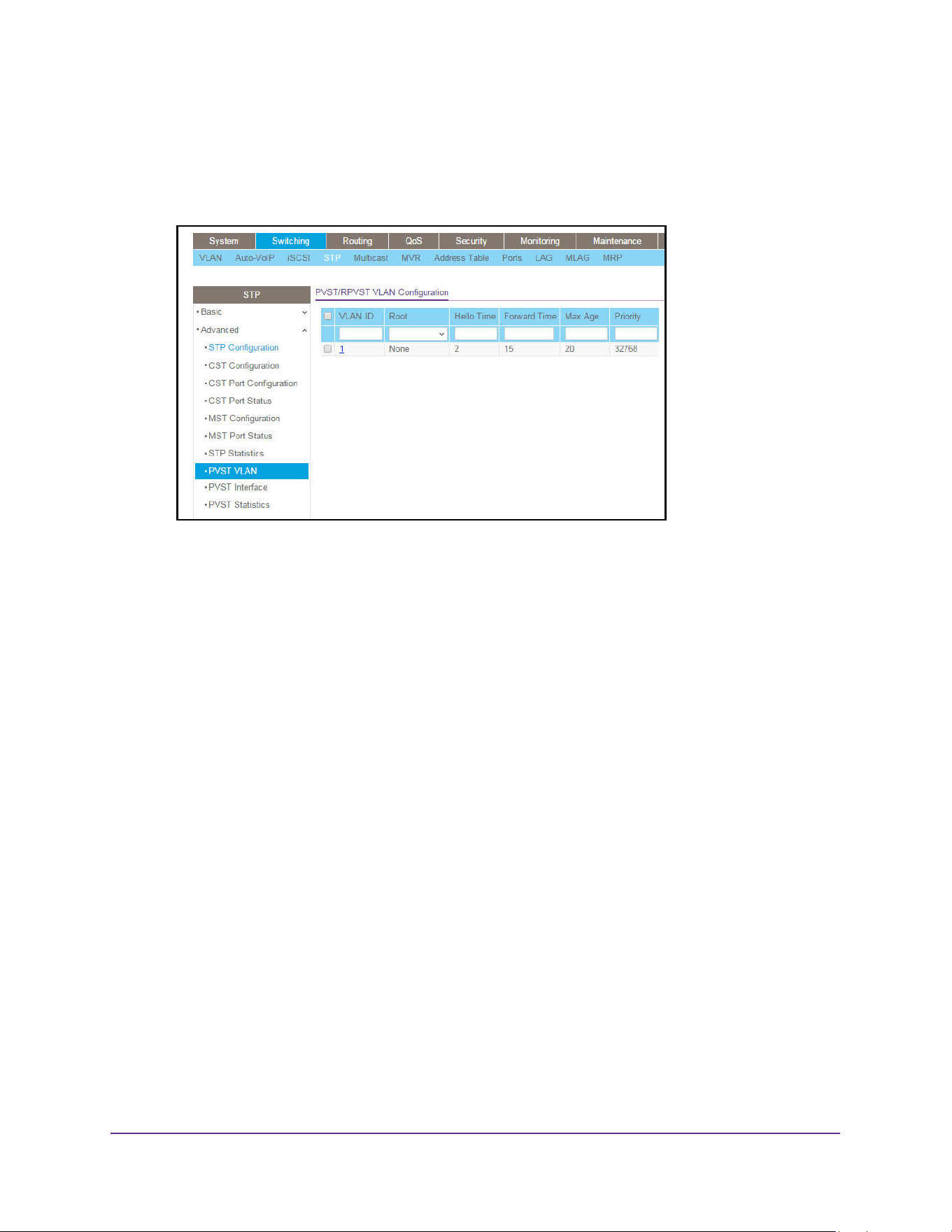
Configure Switching Information
218
M4200 and M4300 Series ProSAFE Managed Switches Web Management User Manual
4. Click the Login button.
The System Information page displays.
5. Select Switching > STP > Advanced > PVST VLAN in the navigation menu.
6. Select a VLAN ID, a unique VLAN identifier, from the list of VLANs with enabled STP Admin
mode and PVST or RPVST.
7. In the Root list, select None, Primary, or Secondary.
The default value is None. This setting configures the switch to become the root bridge or
standby root bridge by modifying the bridge priority from the default value of 32768 to a
lower value calculated to ensure the bridge is the root (or standby) bridge.
8. In the Hello Time field, configure the spanning tree hello time interval for the specified
VLAN
The hello time is the interval between sending successive BPDUs. Allowed values range
from 1 to 10 seconds. The default value is 2 seconds.
9. In the Forward Time field, configure the spanning tree forward delay time for a specified
VLAN.
The range is 4 to 30 seconds. The default value is 15 seconds. This interval is a time for
listening and learning states before transitioning a port to the forwarding state.
10. Use the Max Age field to configure the spanning tree maximum age time for a specified
VLAN.
Max age is the maximum age time before a bridge port saves its configuration
information. The range is 6 to 40 seconds. The default value is 20 seconds.
11. Configure the bridge Priority of a VLAN.

Configure Switching Information
219
M4200 and M4300 Series ProSAFE Managed Switches Web Management User Manual
The allowed values are between 0 and 61440. The valid values are listed in the following
table.
The default value is 32768. If the value configured is not among the specified values,
then it is rounded off to the nearest valid value.
12. Click the Add button.
PVST/RPVST is enabled for the selected VLAN.
13. Click the Apply button.
The updated configuration is sent to the switch. Configuration changes take effect
immediately.
Configure the PVST Interface Settings
You can view and configure Per VLAN Spanning Tree Protocol (PVST)/Per VLAN Rapid
Spanning Tree Protocol (RPVST) Interface settings for the device.
To configure the PVST/RPVST Interface settings:
1. Launch a web browser.
2. Enter http://<ipaddress> in the web browser address field.
The login window opens.
3. Enter the user name and password.
The default admin user name is admin and the default admin password is blank, that is,
do not enter a password.
4. Click the Login button.
The System Information page displays.
5. Select Switching > STP > Advanced > PVST Interface.
Table 82. PVST/RPVST VLAN Configuration - VLAN Bridge Priority
0 4096 8192
12288 16384 20480
24576 28672 32768 (default)
36864 40960 45056
49152 53248 57344
61440
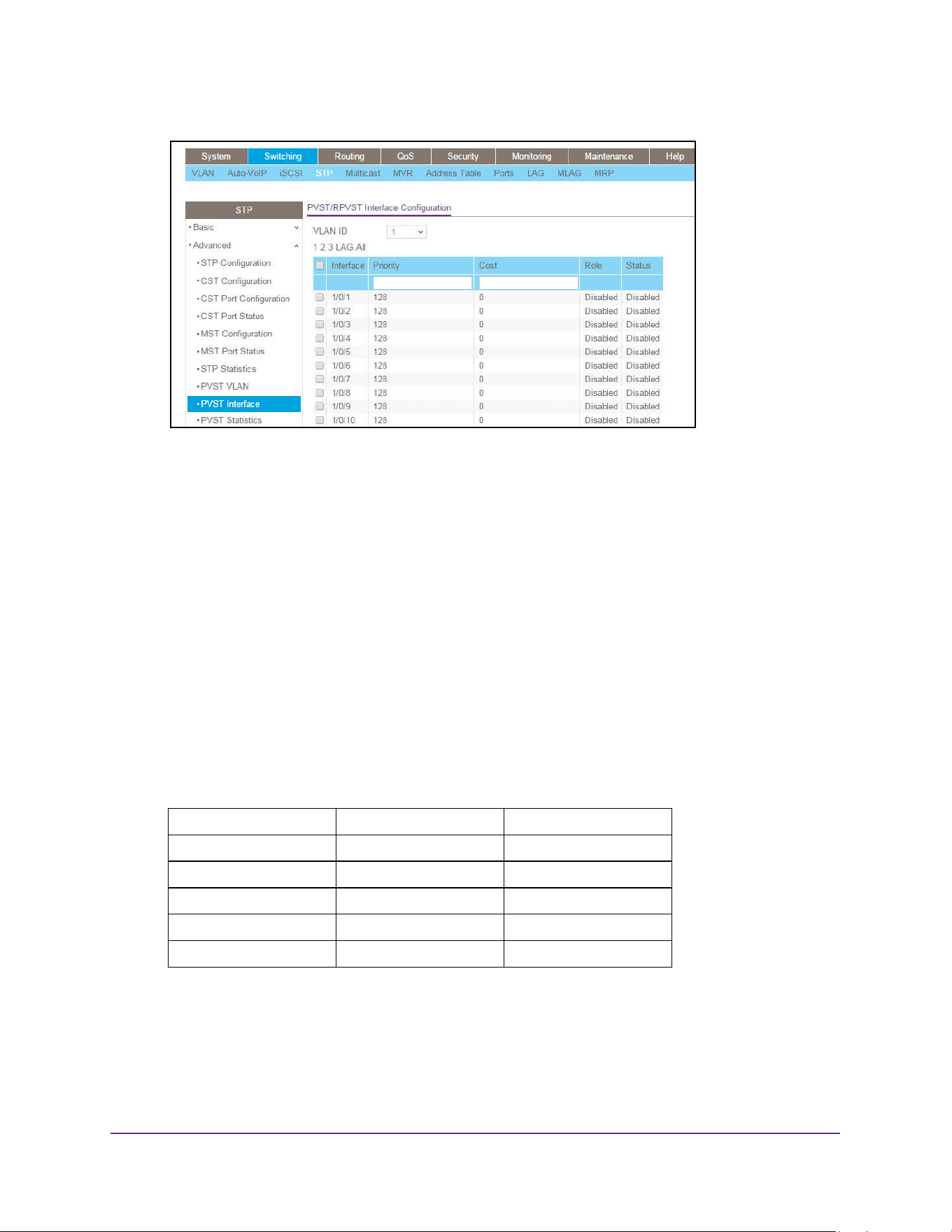
Configure Switching Information
220
M4200 and M4300 Series ProSAFE Managed Switches Web Management User Manual
6. Select a VLAN ID from the list of VLANs with enabled STP Admin mode and PVST or
RPVST.
Note: The Other option is used for configuring a VLAN which is not yet
created. Specify the required value for VLAN ID and click the Apply
button to observe actual values.
7. Configure the Priority value used to allow the operator to select the relative importance of
the port in the selection process for forwarding.
Set this value to a lower number to prefer a port for forwarding of frames. This priority
configuration is used when the port is configured as a point-to-point link type. The allowed
values are between 0 and 240. The priority values are listed in the following table. All
other values are rounded off. The default value is 128.
Note: The value must be a multiple of 16.
8. The Per VLAN Cost is the path cost from the port to the root bridge.
The values allowed are between 1 and 200,000,000. By default, cost is not configured.
Use the value 0 to unconfigure the setting. If per VLAN cost is not configured, the path
cost value is set based on Link Speed.
Table 83. PVST/RPVST Interface Configuration Priority Values
01632
48 64 80
96 112 128 (default)
144 160 176
192 208 224
240 – –
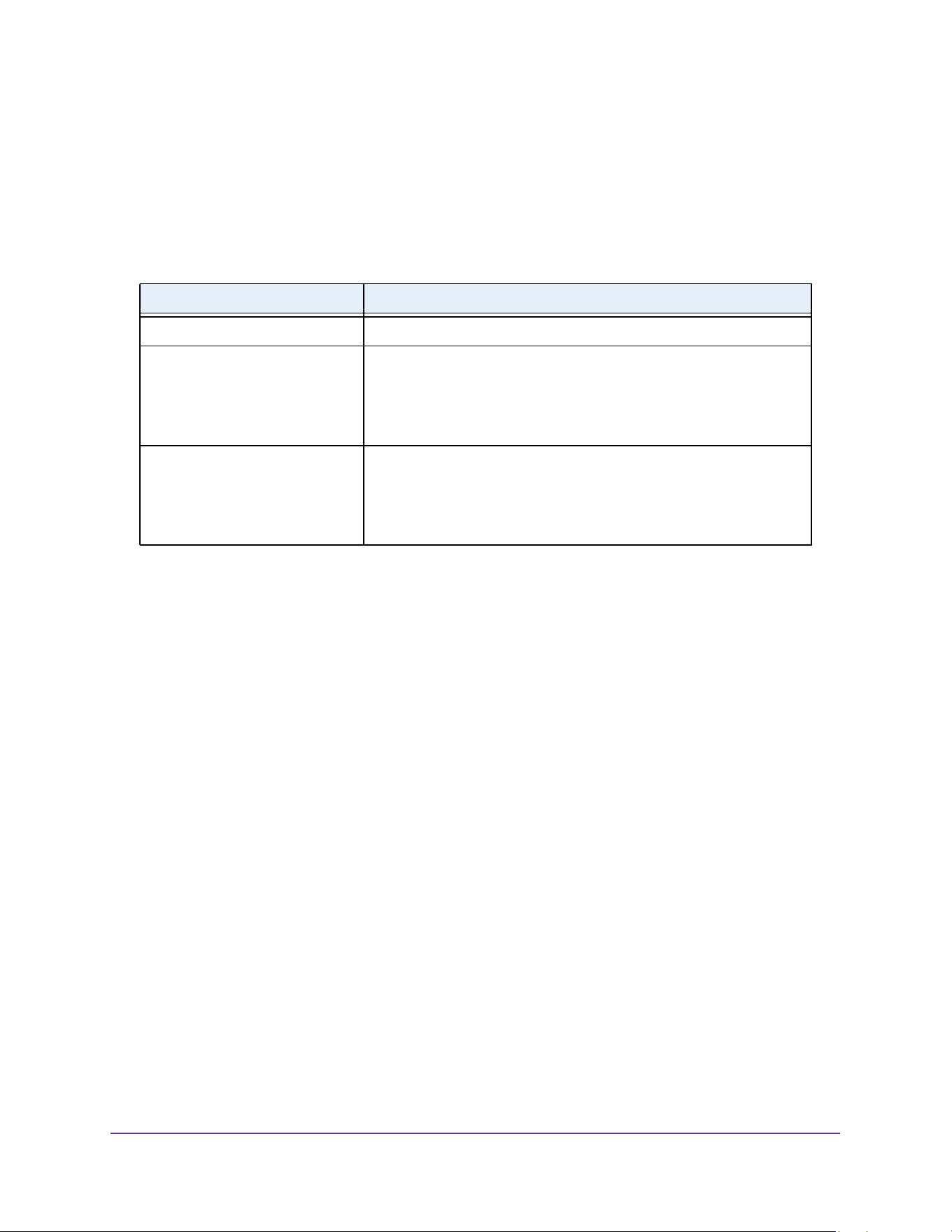
Configure Switching Information
221
M4200 and M4300 Series ProSAFE Managed Switches Web Management User Manual
9. Click the Apply button.
The updated configuration is sent to the switch. Configuration changes take effect
immediately.
The following table describes the nonconfigurable data that the PVST/RPVST Interface
Configuration page displays.
View PVST Statistics
You can view and configure Per VLAN Spanning Tree Protocol (PVST)/Per VLAN Rapid
Spanning Tree Protocol (RPVST) Statistics settings for the device.
To view the PVST/RPVST statistics:
1. Launch a web browser.
2. Enter http://<ipaddress> in the web browser address field.
The login window opens.
3. Enter the user name and password.
The default admin user name is admin and the default admin password is blank, that is,
do not enter a password.
4. Click the Login button.
The System Information page displays.
5. Select Switching > STP > Advanced > PVST Statistics.
Table 84. PVST/RPVST Interface Configuration
Field Description
Interface The list of physical interfaces and LAGs.
Role Indicates the role of the interface. Possible values are as follows:
Disabled, Root, Designated, Alternate, Backup, and Master.
Note: The blank field is displayed for the interface which is
not included for the specified VLAN.
Status Indicates the status of the interface. Possible values are as follows:
Discarding, Learning, Forwarding, and Disabled.
Note: The blank field is displayed for the interface which is
not included for the specified VLAN.
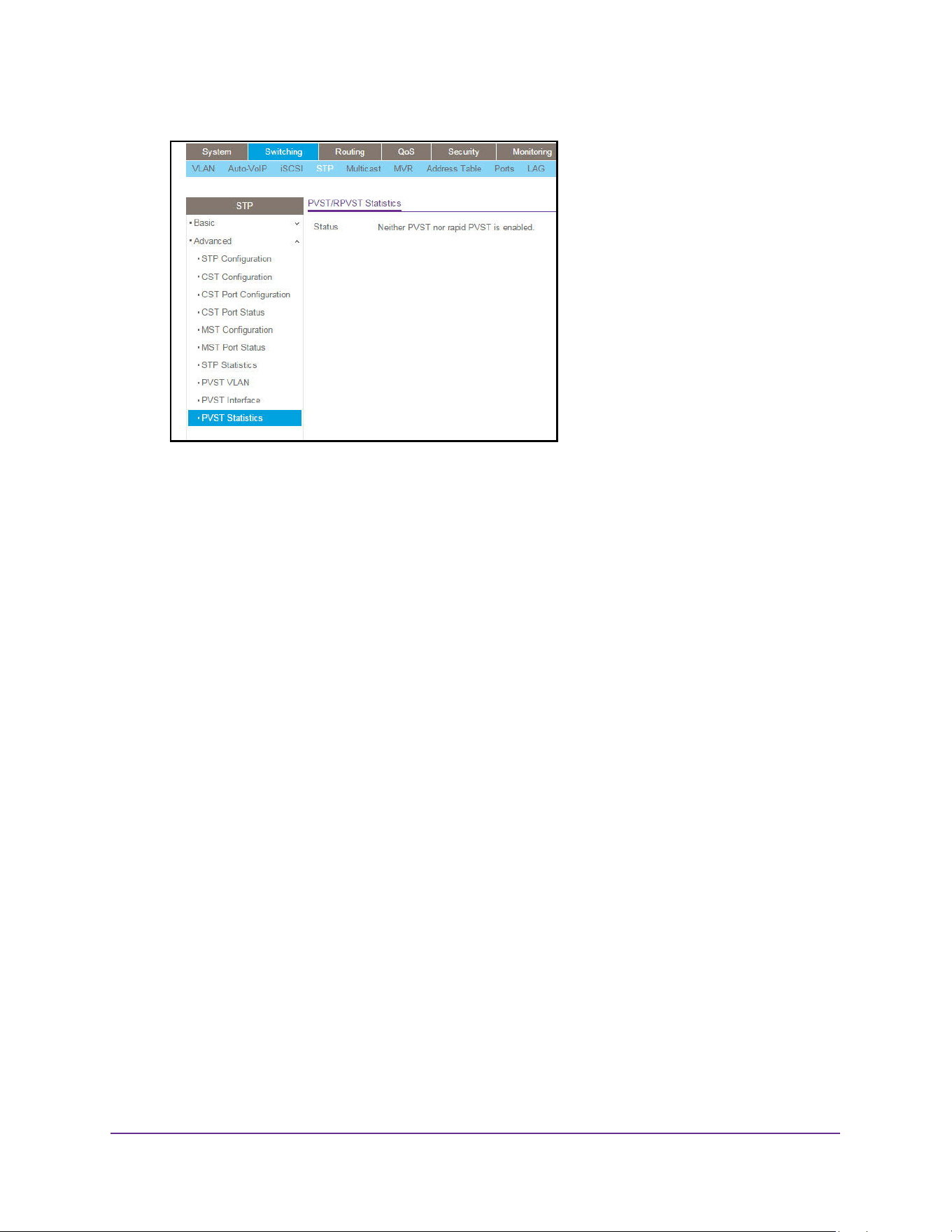
Configure Switching Information
222
M4200 and M4300 Series ProSAFE Managed Switches Web Management User Manual
6. To refresh the page with the latest information on the switch, click the Update button.
The Status field displays Neither PVST nor Rapid-PVST is enabled. If you change the
STP mode to PVST or to RPVST, the page displays statistic information.
Multicast
Multicast IP traffic is traffic that is destined to a host group. Host groups are identified by
class D IP addresses, which range from 224.0.0.0 to 239.255.255.255.
View the MFDB Table
The Multicast Forwarding Database holds the port membership information for all active
multicast address entries. The key for an entry consists of a VLAN ID and MAC address pair.
Entries can contain data for more than one protocol.
To view the MFDB Table:
1. Launch a web browser.
2. Enter http://<ipaddress> in the web browser address field.
The login window opens.
3. Enter the user name and password.
The default admin user name is admin and the default admin password is blank, that is,
do not enter a password.
4. Click the Login button.
The System Information page displays.
5. Select Switching > Multicast > MFDB > MFDB Table.
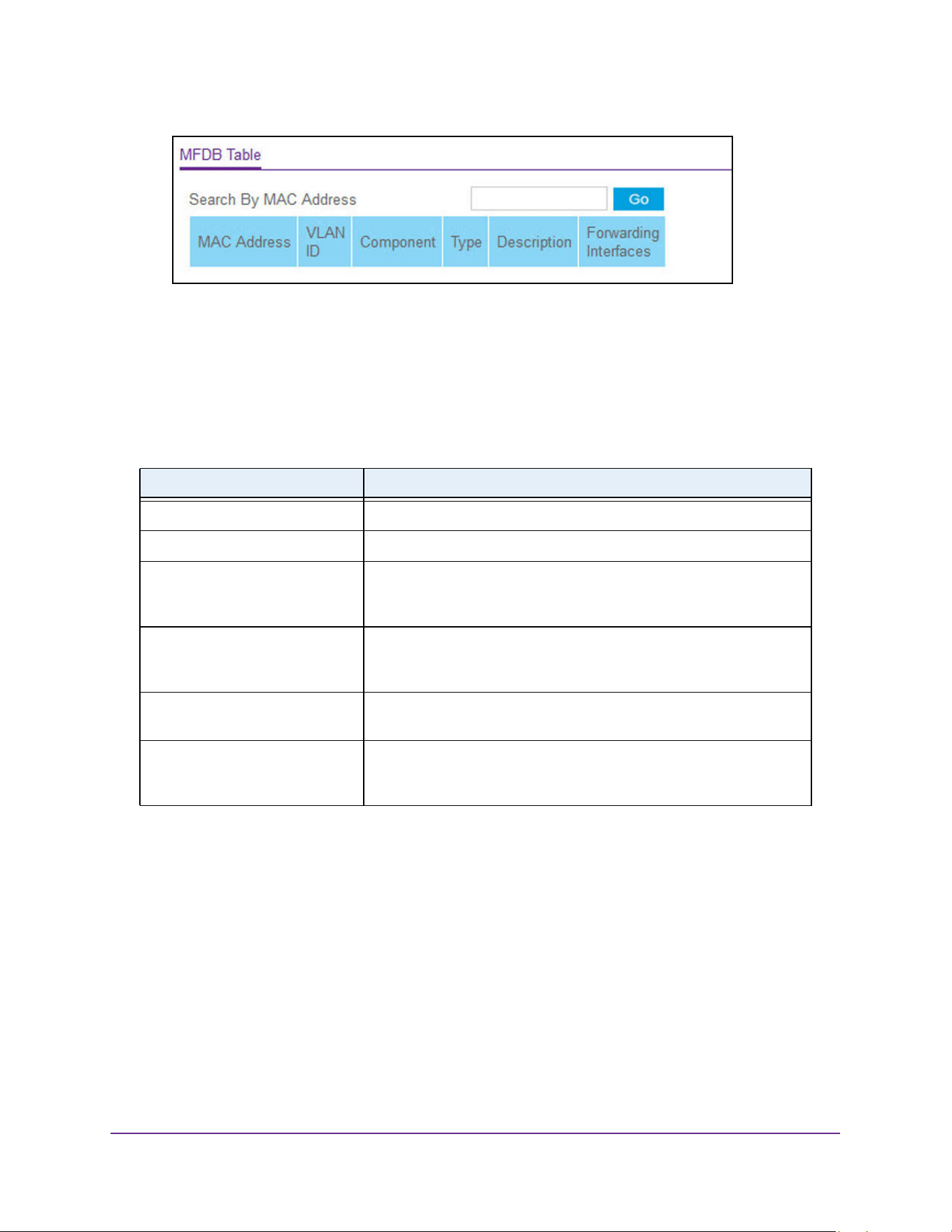
Configure Switching Information
223
M4200 and M4300 Series ProSAFE Managed Switches Web Management User Manual
6. Use Search by MAC Address to enter a MAC address.
Enter six two-digit hexadecimal numbers separated by colons, for example
00:01:23:43:45:67.
7. Click the GO button.
If the address exists, that entry is displayed. An exact match is required.
View the MFDB Statistics
To view the MFDB statistics:
1. Launch a web browser.
2. Enter http://<ipaddress> in the web browser address field.
The login window opens.
3. Enter the user name and password.
The default admin user name is admin and the default admin password is blank, that is,
do not enter a password.
4. Click the Login button.
Table 85. MFDB Table
Field Description
MAC Address The multicast MAC address for which you requested data.
VLAN ID The VLAN ID to which the multicast MAC address is related.
Type This displays the type of the entry. Static entries are those that are
configured by the end user. Dynamic entries are added to the table as a
result of a learning process or protocol.
Component This is the component that is responsible for this entry in the Multicast
Forwarding Database. Possible values are IGMP snooping, GMRP,
Static Filtering and MLD snooping.
Description The text description of this multicast table entry. Possible values are
Management Configured, Network Configured and Network Assisted.
Forwarding Interfaces The resultant forwarding list is derived from combining all the
forwarding interfaces and removing the interfaces that are listed as the
static filtering interfaces.
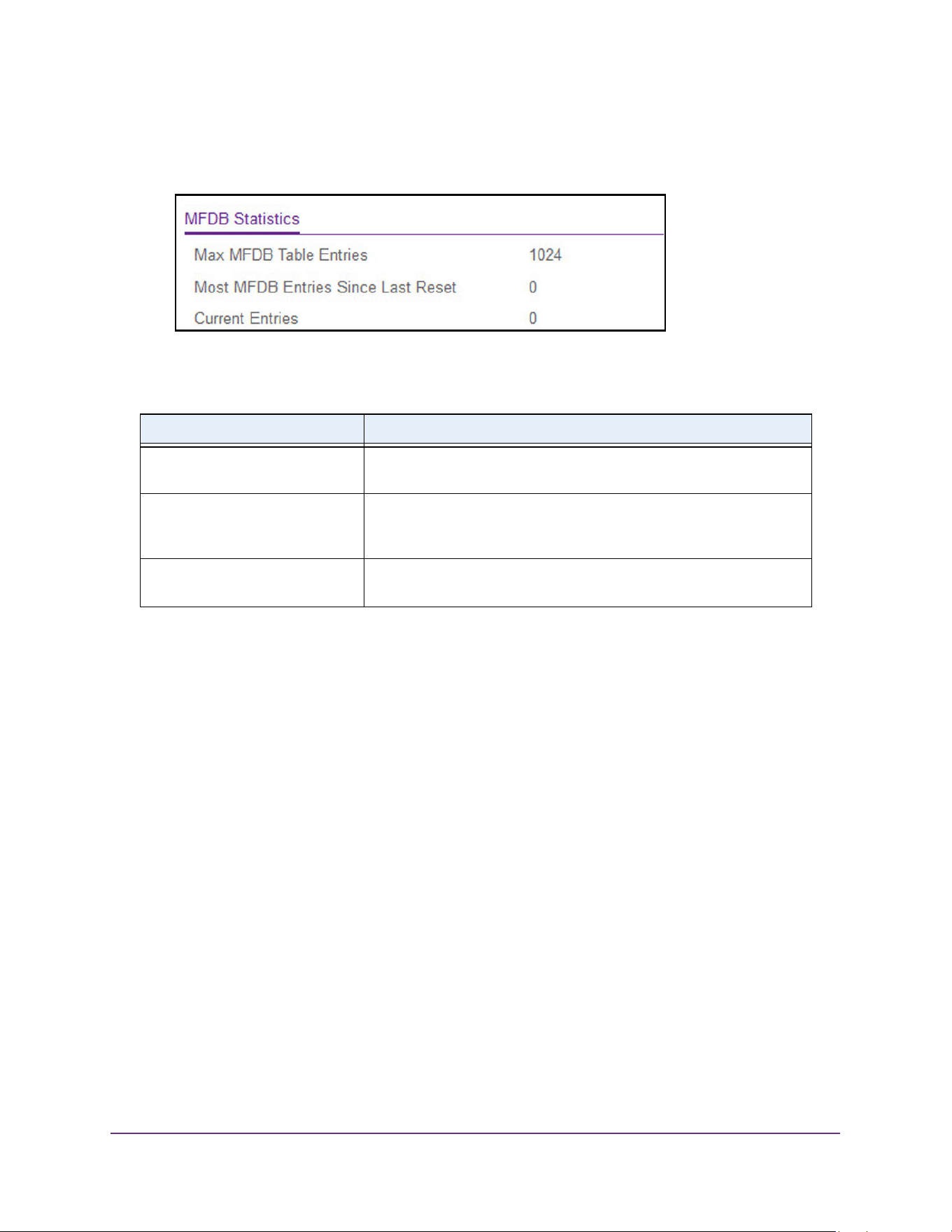
Configure Switching Information
224
M4200 and M4300 Series ProSAFE Managed Switches Web Management User Manual
The System Information page displays.
5. Select Switching > Multicast > MFDB > MFDB Statistics.
The following table describes the MFDB Statistics fields.
IGMP Snooping
Internet Group Management Protocol (IGMP) snooping is a feature that allows a switch to
forward multicast traffic intelligently on the switch. Multicast IP traffic is traffic that is destined
to a host group. Host groups are identified by class D IP addresses, which range from
224.0.0.0 to 239.255.255.255. Based on the IGMP query and report messages, the switch
forwards traffic only to the ports that request the multicast traffic. This prevents the switch
from broadcasting the traffic to all ports and possibly affecting network performance.
A traditional Ethernet network can be separated into different network segments to prevent
placing too many devices onto the same shared media. Bridges and switches connect these
segments. When a packet with a broadcast or multicast destination address is received, the
switch forwards a copy into each of the remaining network segments in accordance with the
IEEE MAC Bridge standard. Eventually, the packet is made accessible to all nodes
connected to the network.
This approach works well for broadcast packets that are intended to be seen or processed by
all connected nodes. In the case of multicast packets, however, this approach could lead to
less efficient use of network bandwidth, particularly when the packet is intended for only a
small number of nodes. Packets are flooded into network segments where no node is
receptive to the packet. While nodes rarely incur any processing overhead to filter packets
addressed to unrequested group addresses, they cannot transmit new packets onto the
shared media for the period of time that the multicast packet is flooded. The problem of
Table 86. MFDB Statistics
Field Description
Max MFDB Table Entries The maximum number of entries that the Multicast Forwarding
Database table can hold.
Most MFDB Entries Since Last
Reset
The largest number of entries that were present in the Multicast
Forwarding Database table since last reset. This value is also known as
the MFDB high-water mark.
Current Entries The current number of entries in the Multicast Forwarding Database
table.
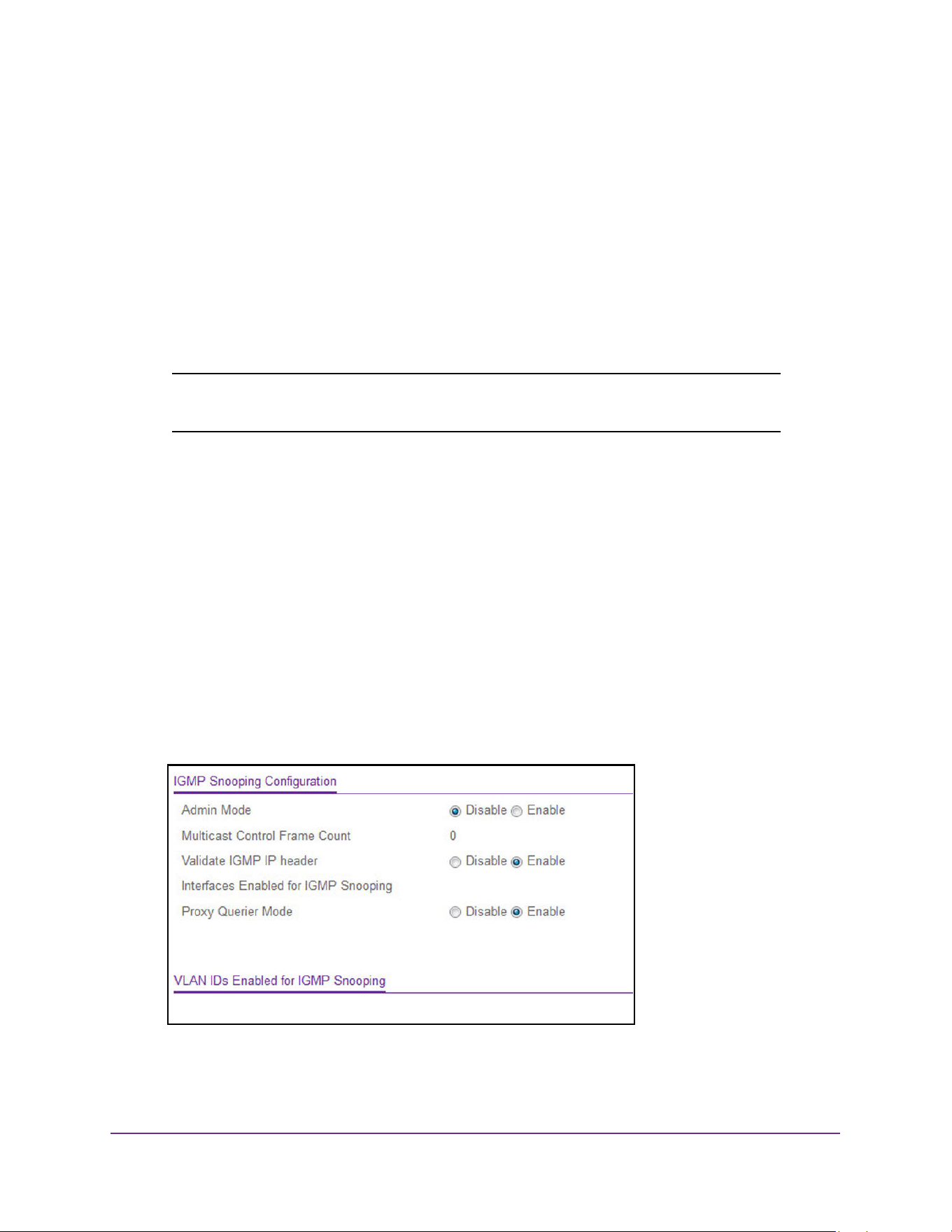
Configure Switching Information
225
M4200 and M4300 Series ProSAFE Managed Switches Web Management User Manual
wasting bandwidth is even worse when the LAN segment is not shared, for example in
full-duplex links.
Allowing switches to snoop IGMP packets is a creative effort to solve this problem. The
switch uses the information in the IGMP packets as they are being forwarded throughout the
network to determine which segments receive packets directed to the group address.
Configure IGMP Snooping
You can configure the parameters for IGMP snooping, which is used to build forwarding lists
for multicast traffic.
Note: You must log in as the admin user, which has read/write access
privileges to change the data on this page.
To configure IGMP snooping:
1. Launch a web browser.
2. Enter http://<ipaddress> in the web browser address field.
The login window opens.
3. Enter the user name and password.
The default admin user name is admin and the default admin password is blank, that is,
do not enter a password.
4. Click the Login button.
The System Information page displays.
5. Select Switching> Multicast > IGMP Snooping > Configuration.
6. Select the Admin mode Enable or Disable radio button.
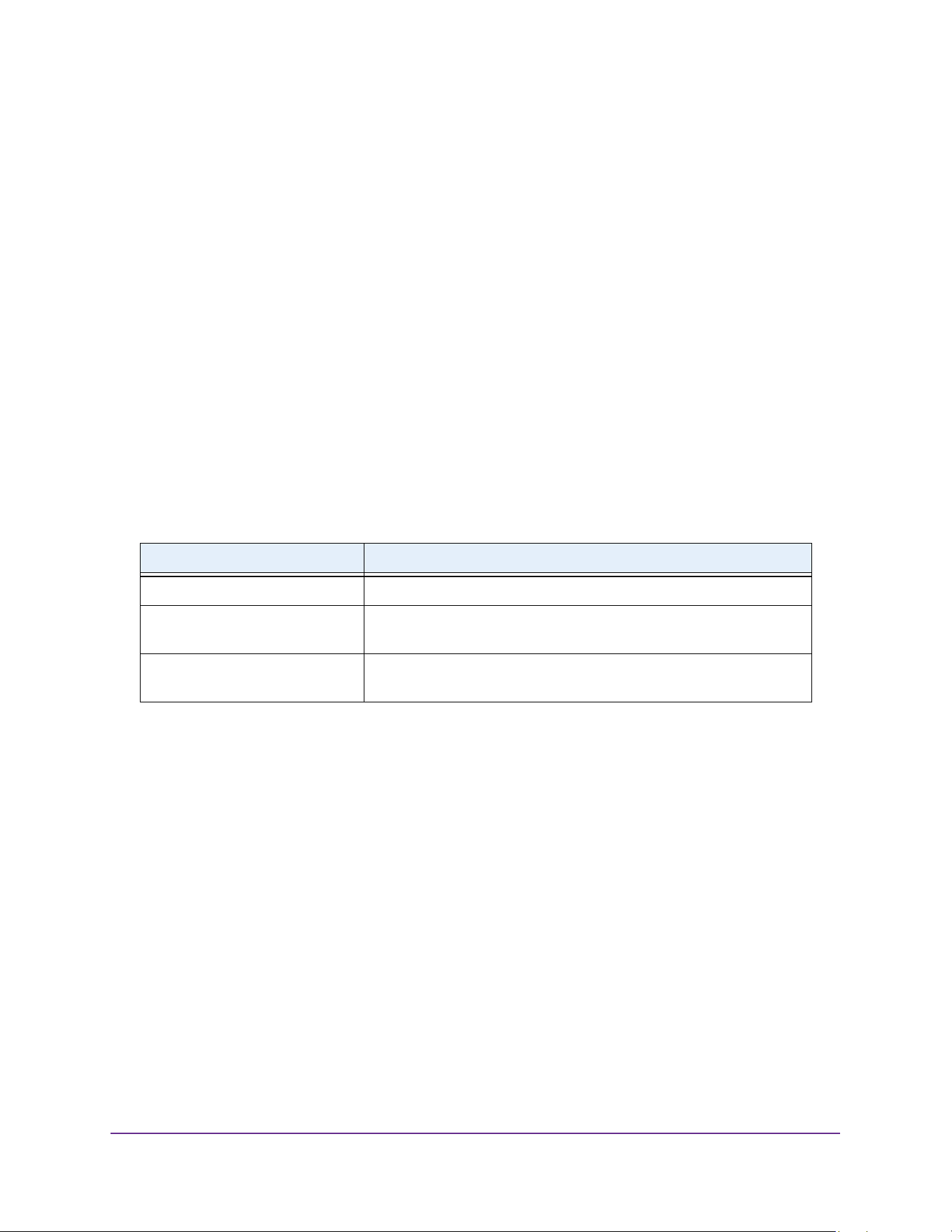
Configure Switching Information
226
M4200 and M4300 Series ProSAFE Managed Switches Web Management User Manual
This specifies the administrative mode for IGMP snooping for the switch. The default is
Disable.
7. Use the Validate IGMP IP header option to Enable or Disable header validation for all
IGMP versions.
If Validate IGMP IP Header is enabled, then IGMP IP header checks for Router Alert
option, ToS and TTL. The default value is Enable.
8. Select the Proxy Querier Mode Enable or Disable radio button.
This enables or disables IGMP proxy querier on the system. If disabled, then the IGMP
proxy query with source IP 0.0.0.0 is not sent in response to IGMP leave packet. the
default value is Enable.
9. Click the Apply button.
The updated configuration is sent to the switch. Configuration changes take effect
immediately.
The following table displays information about the global IGMP snooping status and statistics
on the page.
Configure IGMP Snooping for Interfaces
To configure IGMP snooping for interfaces:
1. Launch a web browser.
2. Enter http://<ipaddress> in the web browser address field.
The login window opens.
3. Enter the user name and password.
The default admin user name is admin and the default admin password is blank, that is,
do not enter a password.
4. Click the Login button.
The System Information page displays.
5. Select Switching> Multicast > IGMP Snooping > Interface Configuration.
Table 87. IGMP Snooping Configuration
Field Description
Multicast Control Frame Count The number of multicast control frames that are processed by the CPU.
Interfaces Enabled for IGMP
Snooping
A list of all the interfaces currently enabled for IGMP snooping.
VLAN IDs Enabled For IGMP
Snooping
Displays VLAN IDs enabled for IGMP snooping.
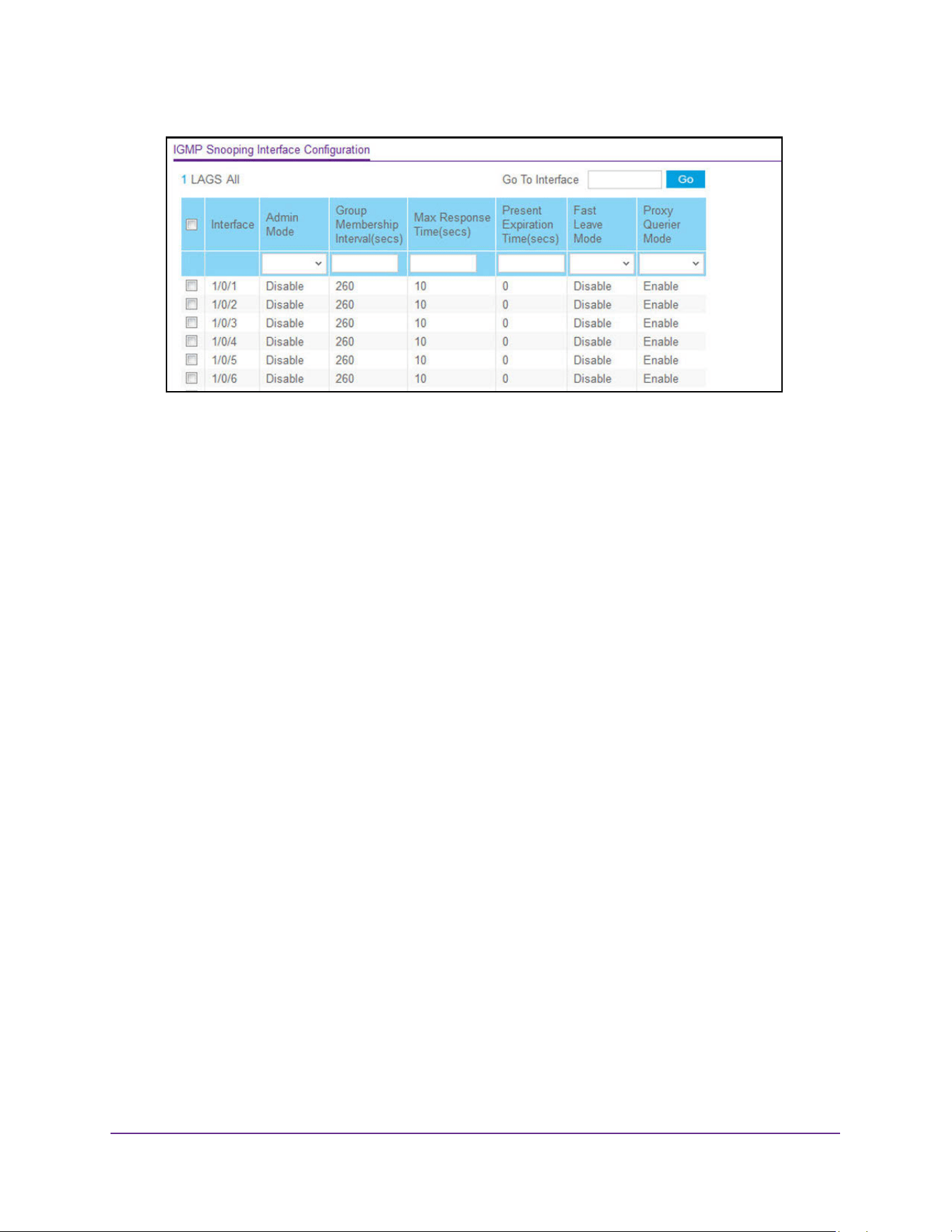
Configure Switching Information
227
M4200 and M4300 Series ProSAFE Managed Switches Web Management User Manual
The page lists all physical, VLAN, and LAG interfaces.
6. Use the Interface check boxes to select interfaces.
7. In the Admin Mode field, select Disable or Enable.
This specifies the interface mode for the selected interface for IGMP snooping for the
switch. The default is Disable.
8. Use Group Membership Interval to specify the amount of time the switch waits for a report
for a particular group on a particular interface before it deletes that interface from the group.
Enter a value between 1 and 3600 seconds. The default is 260 seconds.
9. Use Max Response Time to specify the amount of time the switch waits after sending a
query on an interface because it did not receive a report for a particular group on that
interface.
Enter a value greater or equal to 1 and less than the Group Membership Interval in
seconds. The default is 10 seconds. The configured value must be less than the Group
Membership Interval.
10. Use Present Expiration Time to specify the amount of time the switch waits to receive a
query on an interface before removing it from the list of interfaces with multicast routers
attached.
Enter a value between 0 and 3600 seconds. The default is 0 seconds. A value of zero
indicates an infinite time-out, i.e. no expiration.
11. Use Fast Leave Admin Mode to select the fast leave mode for a particular interface.
The default is Disable.
12. Use Proxy Querier Mode to select the proxy querier mode for a particular interface.
If it is disabled, then IGMP proxy query with source IP 0.0.0.0 is not sent in response to
IGMP leave packet. The default value is Enable.
13. Click the Apply button.
The updated configuration is sent to the switch. Configuration changes take effect
immediately.
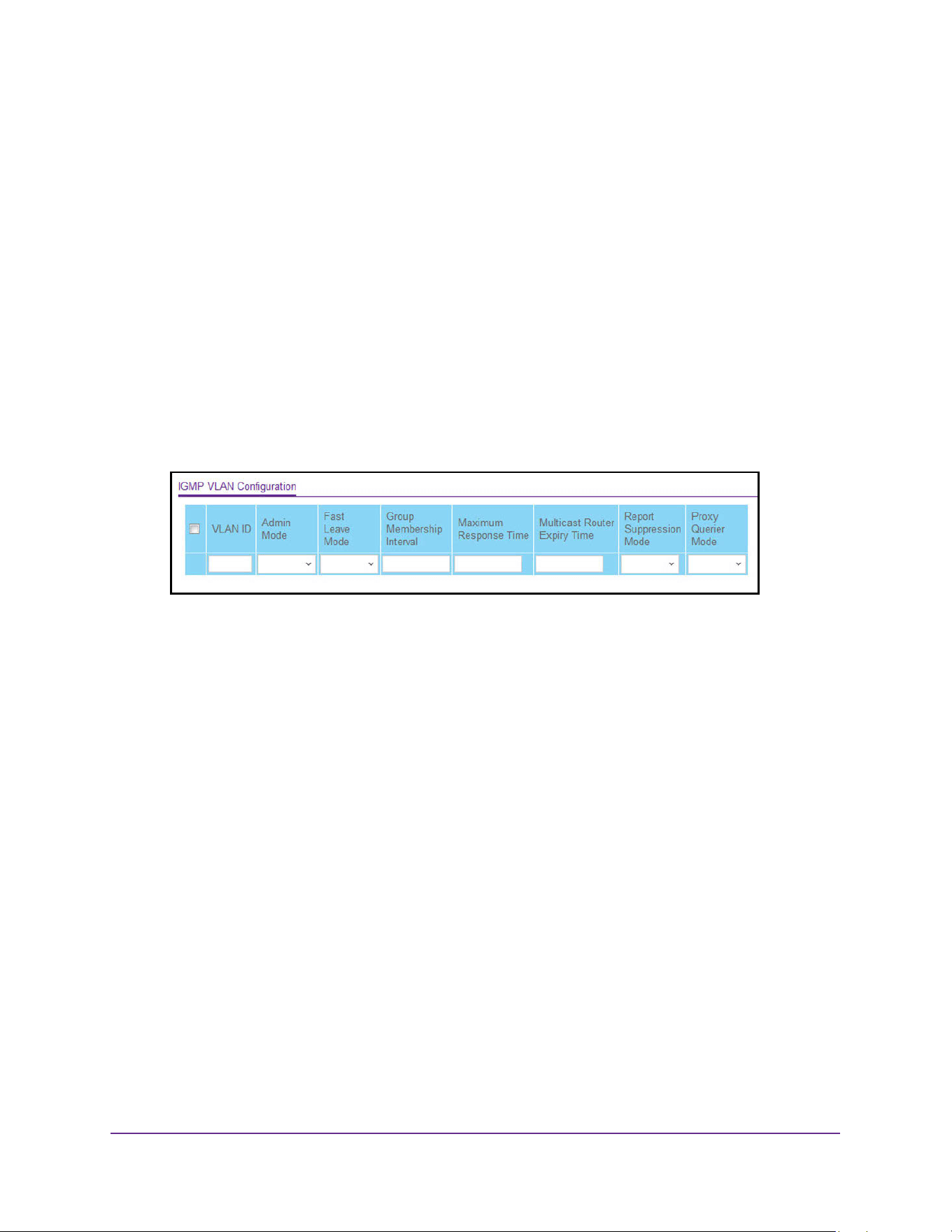
Configure Switching Information
228
M4200 and M4300 Series ProSAFE Managed Switches Web Management User Manual
Configure IGMP Snooping for VLANs
To configure IGMP snooping settings for VLANs:
1. Launch a web browser.
2. Enter http://<ipaddress> in the web browser address field.
The login window opens.
3. Enter the user name and password.
The default admin user name is admin and the default admin password is blank, that is,
do not enter a password.
4. Click the Login button.
The System Information page displays.
5. Select Switching> Multicast > IGMP Snooping > IGMP VLAN Configuration.
6. To enable IGMP snooping on a VLAN, do the following:
a. Enter the VLAN ID.
b. Configure the IGMP snooping values:
• Use Admin Mode to enable or disable IGMP snooping for the specified VLAN ID.
• Use Fast Leave Admin Mode to enable or disable the IGMP snooping fast leave
mode for the specified VLAN ID.
• Use Group Membership Interval to set the value for group membership interval of
IGMP snooping for the specified VLAN ID. The valid range is Maximum Response
Time + 1 to 3600 seconds.
• Use Maximum Response Time to set the value for maximum response time of
IGMP snooping for the specified VLAN ID. The valid range is 1 to Group
Membership Interval - 1. Its value must be greater than group membership
interval value.
• Use Multicast Router Expiry Time to set the value for multicast router expiry time
of IGMP snooping for the specified VLAN ID. The valid range is 0 to 3600
seconds.
• Use Report Suppression Mode to enable or disable IGMP snooping report
suppression mode for the specified VLAN ID. IGMP snooping report suppression
allows the suppression of the IGMP reports sent by the multicast hosts by building
a Layer 3 membership table, thereby sending only the very needed reports to the
IGMP Routers to receive the multicast traffic. As a result, the multicast report
traffic being sent to the IGMP Routers is reduced.

Configure Switching Information
229
M4200 and M4300 Series ProSAFE Managed Switches Web Management User Manual
• Enable or Disable the Proxy Querier Mode for the specified VLAN ID. If proxy
querier mode is disabled, then IGMP proxy query with source IP 0.0.0.0 is not
sent in response to an IGMP leave packet. The default is Enable.
c. Click the Apply button.
The updated configuration is sent to the switch. Configuration changes take effect
immediately.
7. To disable IGMP snooping on a VLAN, do the following:
a. Select the check box next to the VLAN ID.
b. Click the Delete button.
The VLAN is removed from the list.
8. To modify the IGMP snooping settings for a VLAN:
a. Select the check box next to the VLAN ID
b. Update the values
c. Click the Apply button.
The updated configuration is sent to the switch. Configuration changes take effect
immediately.
Configure a Multicast Router
You can configure the interface as the one the multicast router is attached to. All IGMP
packets snooped by the switch are forwarded to the multicast router reachable from this
interface. The configuration is not needed most of the time since the switch automatically
detects the multicast router and forwards IGMP packets accordingly. It is needed only if you
want to make sure that the multicast router always receives IGMP packets from the switch in
a complex network.
To configure a multicast router:
1. Launch a web browser.
2. Enter http://<ipaddress> in the web browser address field.
The login window opens.
3. Enter the user name and password.
The default admin user name is admin and the default admin password is blank, that is,
do not enter a password.
4. Click the Login button.
The System Information page displays.
5. Select Switching> Multicast > IGMP Snooping > Multicast Router Configuration.
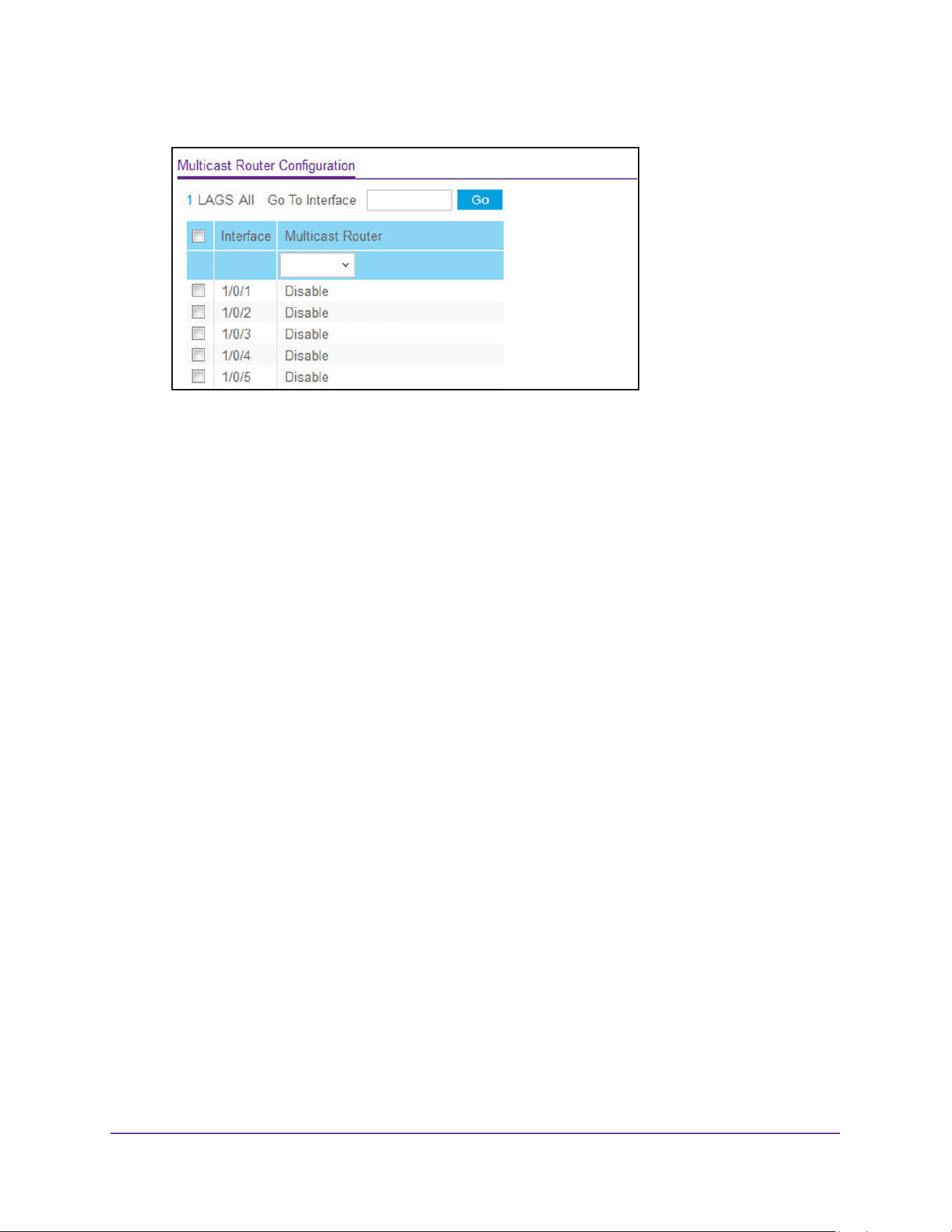
Configure Switching Information
230
M4200 and M4300 Series ProSAFE Managed Switches Web Management User Manual
6. Use Interface to select the physical interface.
7. In the Multicast Router field, select Enable or Disable.
8. Click the Apply button.
The updated configuration is sent to the switch. Configuration changes take effect
immediately.
Configure a Multicast Router VLAN
You can configure an interface to forward the snooped IGMP packets from a specific VLAN
only to the multicast router that is connected to the interface. The configuration is not needed
most of the time since the switch automatically detects a multicast router and forwards the
IGMP packets accordingly. It is needed only when you want to make sure that the multicast
router always receives IGMP packets from the switch in a complex network.
To configure a multicast router VLAN:
1. Launch a web browser.
2. Enter http://<ipaddress> in the web browser address field.
The login window opens.
3. Enter the user name and password.
The default admin user name is admin and the default admin password is blank, that is,
do not enter a password.
4. Click the Login button.
The System Information page displays.
5. Select Switching> Multicast > IGMP Snooping > Multicast Router VLAN
Configuration.
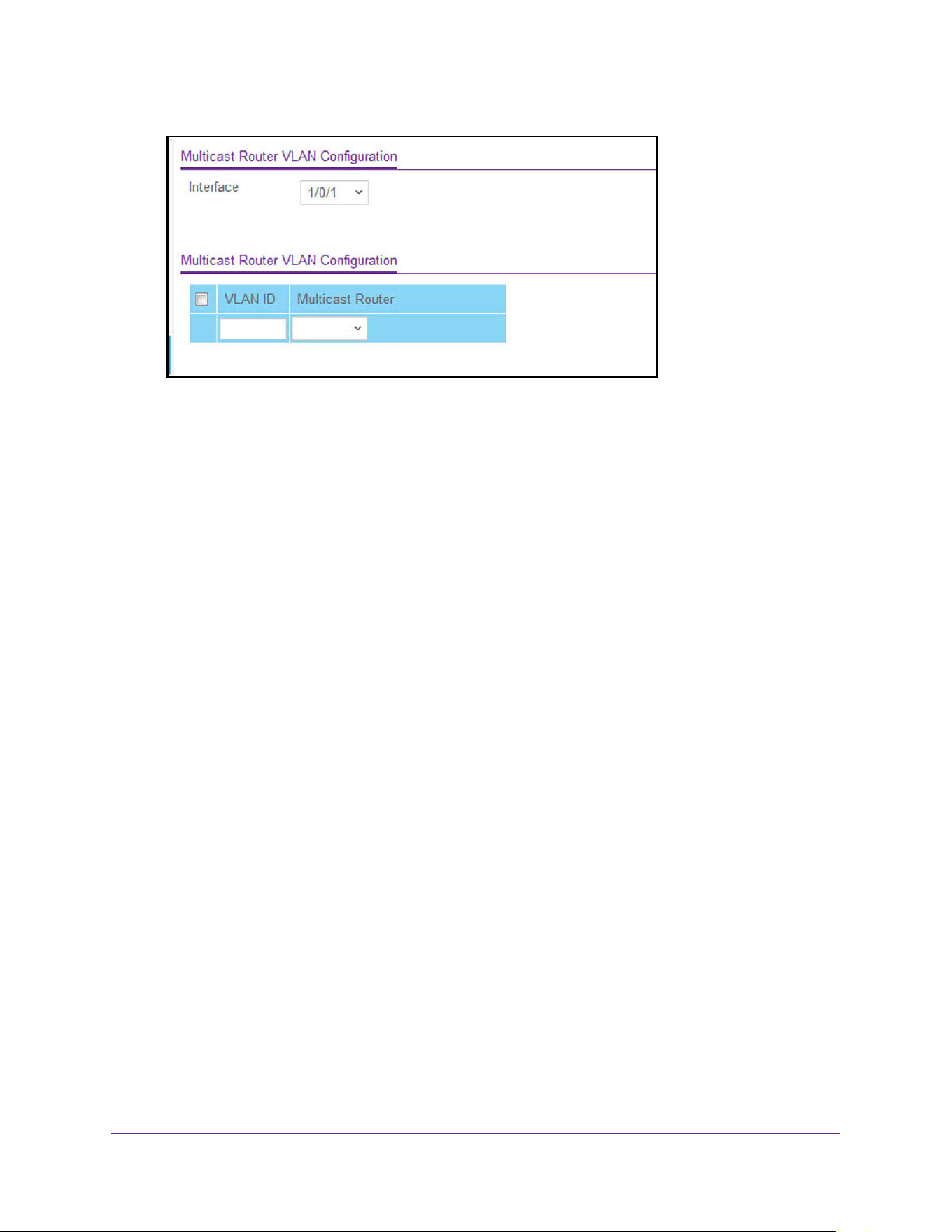
Configure Switching Information
231
M4200 and M4300 Series ProSAFE Managed Switches Web Management User Manual
6. Use Interface to select the interface.
7. Use VLAN ID to select the VLAN ID.
8. In the Multicast Router field, select Enable or Disable.
9. Click the Apply button.
The updated configuration is sent to the switch. Configuration changes take effect
immediately.
IGMP Snooping Querier Overview
IGMP snooping requires that one central switch or router periodically query all end-devices
on the network to announce their multicast memberships. This central device is the IGMP
querier. The IGMP query responses, known as IGMP reports, keep the switch updated with
the current multicast group membership on a port-by-port basis. If the switch does not
receive updated membership information in a timely fashion, it stops forwarding multicasts to
the port where the end device is located.
You can configure and display information on IGMP snooping queriers on the network and,
separately, on VLANs.
Configure IGMP Snooping Querier
You can configure the parameters for IGMP snooping querier. Only a user with read/write
access privileges can change the data on this page.
To configure IGMP snooping querier settings:
1. Launch a web browser.
2. Enter http://<ipaddress> in the web browser address field.
The login window opens.
3. Enter the user name and password.
The default admin user name is admin and the default admin password is blank, that is,
do not enter a password.
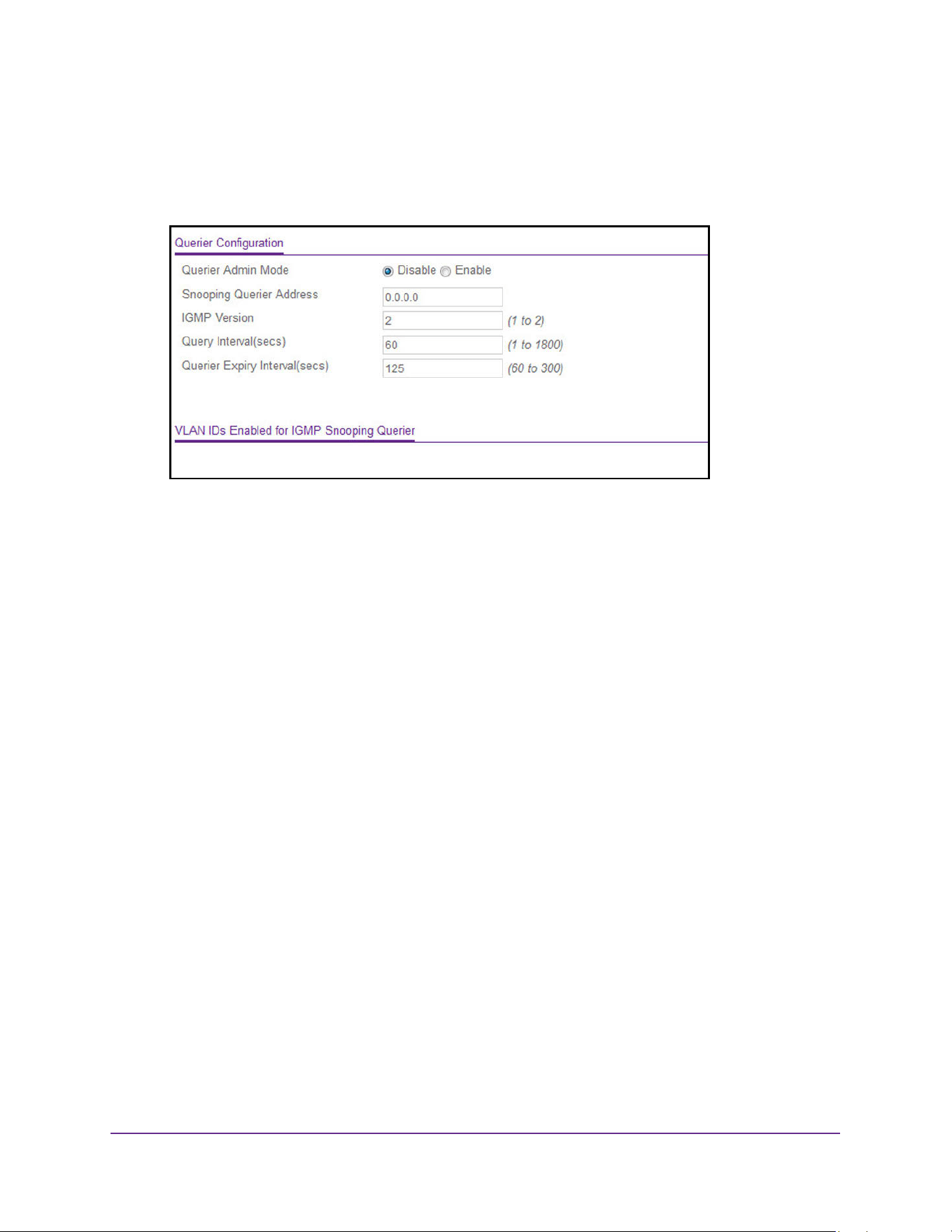
Configure Switching Information
232
M4200 and M4300 Series ProSAFE Managed Switches Web Management User Manual
4. Click the Login button.
The System Information page displays.
5. Select Switching> Multicast > IGMP Snooping > Querier Configuration.
6. Use Querier Admin Mode to select the administrative mode for IGMP snooping for the
switch.
The default is Disable.
7. In the Snooping Querier IP Address field, type an IP address.
This specifies the snooping querier address to be used as the source address in periodic
IGMP queries. This address is used when no address is configured on the VLAN on
which query is being sent.
8. Use IGMP Version to specify the IGMP protocol version used in periodic IGMP queries.
The range is 1 to 2. The default value is 2.
9. Use Query Interval(secs) to specify the time interval in seconds between periodic queries
sent by the snooping querier.
The query Interval must be a value in the range of 1 and 1800. The default value is 60.
10. Use Querier Expiry Interval(secs) to specify the time interval in seconds after which the
last querier information is removed.
The querier expiry Interval must be a value in the range of 60 and 300. The default value
is 125.
11. Click the Apply button.
The updated configuration is sent to the switch. Configuration changes take effect
immediately.
The page displays the VLAN IDs enabled for IGMP snooping querier.
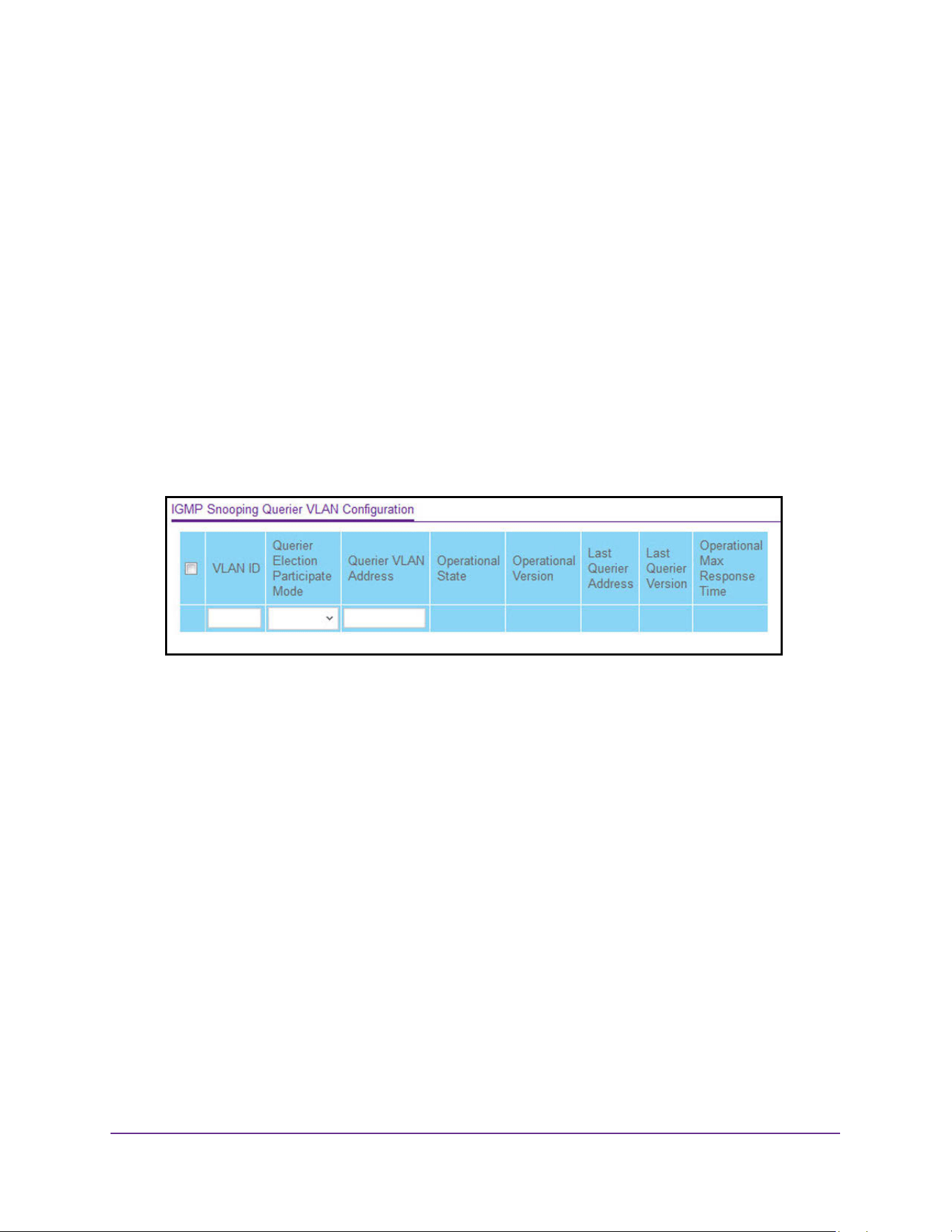
Configure Switching Information
233
M4200 and M4300 Series ProSAFE Managed Switches Web Management User Manual
Configure IGMP Snooping Querier for VLANs
You can configure IGMP queriers for use with VLANs on the network.
To configure querier VLAN settings:
1. Launch a web browser.
2. Enter http://<ipaddress> in the web browser address field.
The login window opens.
3. Enter the user name and password.
The default admin user name is admin and the default admin password is blank, that is,
do not enter a password.
4. Click the Login button.
The System Information page displays.
5. Select Switching> Multicast > IGMP Snooping > Querier VLAN Configuration.
6. To create a new VLAN ID for IGMP snooping, select New Entry from the VLAN ID field and
complete the following fields.
You can also set pre-configurable snooping querier parameters.
• VLAN ID. The VLAN ID for which the IGMP snooping querier is to be enabled.
• Querier Election Participate Mode. Enable or disable querier Participate mode.
- Disabled. Upon seeing another querier of the same version in the VLAN, the
snooping querier moves to the non-querier state.
- Enabled. The snooping querier participates in querier election, in which the least
IP address operates as the querier in that VLAN. The other querier moves to
non-querier state.
• Snooping Querier VLAN Address. Specify the snooping querier IP address to be
used as the source address in periodic IGMP queries sent on the specified VLAN.
7. Click the Apply button.
The updated configuration is sent to the switch. Configuration changes take effect
immediately.

Configure Switching Information
234
M4200 and M4300 Series ProSAFE Managed Switches Web Management User Manual
The following table describes the nonconfigurable information displayed on the page.
Configure MLD Snooping
You can configure the parameters for MLD snooping, which is used to build forwarding lists
for multicast traffic. Only a user with read/write access privileges can change the data on this
page.
To configure MLD snooping:
1. Launch a web browser.
2. Enter http://<ipaddress> in the web browser address field.
The login window opens.
3. Enter the user name and password.
The default admin user name is admin and the default admin password is blank, that is,
do not enter a password.
4. Click the Login button.
The System Information page displays.
5. Select Switching> Multicast > MLD Snooping > Configuration.
Table 88. Querier VLAN Configuration
Field Description
Operational State The operational state of the IGMP snooping querier on a VLAN. It can
be in any of the following states:
• Querier: The snooping switch is the querier in the VLAN. The
snooping switch sends out periodic queries with a time interval
equal to the configured querier query interval. If the snooping
switch finds a better querier in the VLAN, it moves to non-querier
mode.
• Non-Querier: The snooping switch is innNon-querier mode in the
VLAN. If the querier expiry interval timer expires, the snooping
switch moves into querier mode.
• Disabled: The snooping querier is not operational on the VLAN.
The snooping querier moves to disabled mode when IGMP
snooping is not operational on the VLAN or when the querier
address is not configured or the network management address is
also not configured.
Operational Version The operational IGMP protocol version of the querier.
Last Querier Address The IP address of the last querier from which a query was snooped on
the VLAN.
Last Querier Version The IGMP protocol version of the last querier from which a query was
snooped on the VLAN.
Operational Max Response Time Displays maximum response time to be used in the queries that are
sent by the snooping querier.
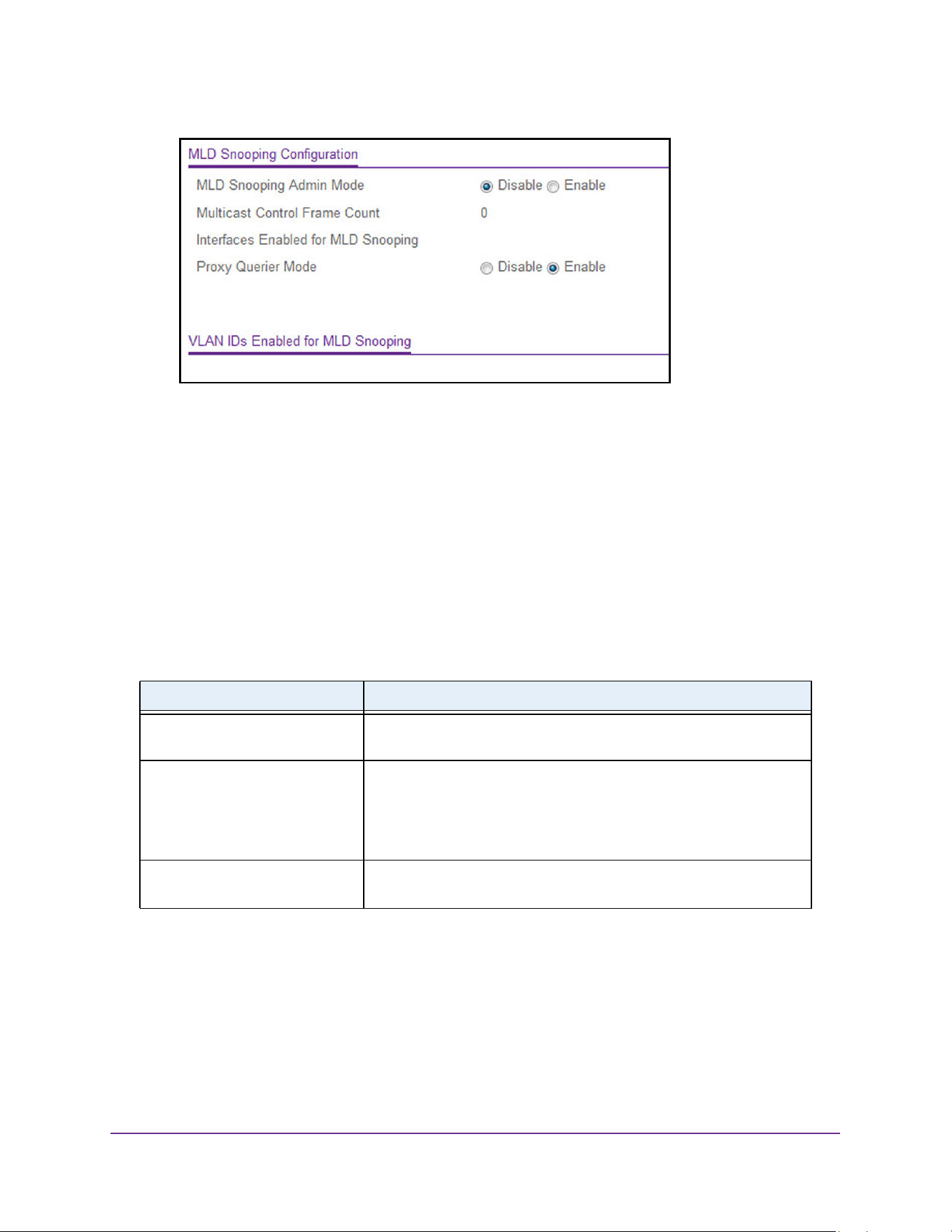
Configure Switching Information
235
M4200 and M4300 Series ProSAFE Managed Switches Web Management User Manual
6. Use MLD Snooping Admin Mode to select the administrative mode for MLD snooping for
the switch. The default is Disable.
7. Select the Proxy Querier Mode Enable or Disable radio button.
This enables or disables an MLD proxy querier on the system. If it is disabled, then an
MLD proxy query with source IP 0::0 is not sent in response to an MLD leave packet. If it
is enabled, then MLD proxy queries are sent. The default value is Enable.
8. Click the Apply button.
The updated configuration is sent to the switch. Configuration changes take effect
immediately.
The following table describes the nonconfigurable MLD Snooping Configuration fields.
Table 89. MLD Snooping Configuration
Field Definition
Multicast Control Frame Count The number of multicast control frames that have been processed by
the CPU.
Interfaces Enabled for MLD
Snooping
One or more interfaces on which MLD snooping is administratively
enabled. MLD snooping must be enabled globally and on an interface
for the interface to be able to snoop MLD packets to determine which
segments should receive multicast packets directed to the group
address.
VLAN IDs Enabled For MLD
Snooping
Displays one or more VLANs on which MLD snooping is
administratively enabled.
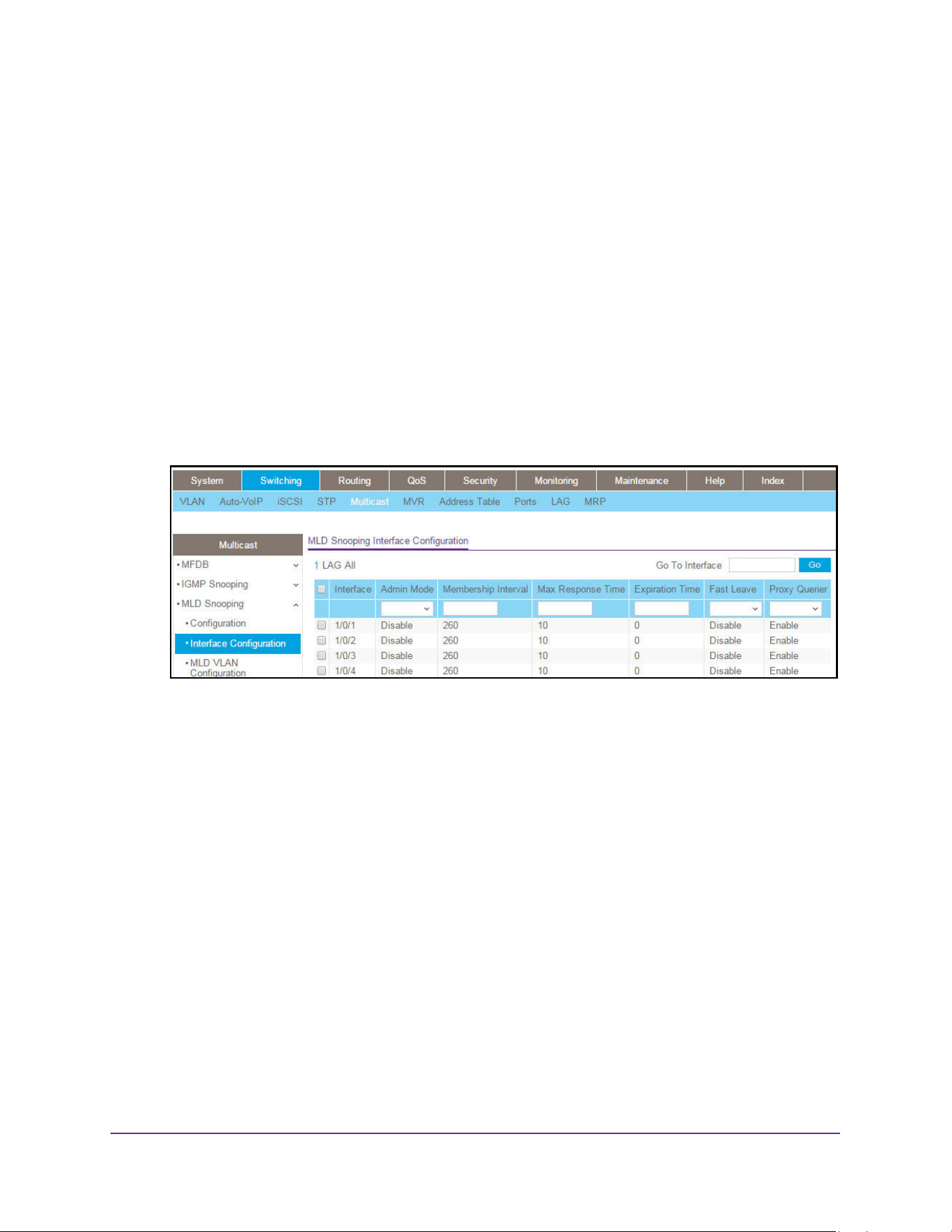
Configure Switching Information
236
M4200 and M4300 Series ProSAFE Managed Switches Web Management User Manual
Configure a MLD Snooping Interface
To configure a MLD snooping interface:
1. Launch a web browser.
2. Enter http://<ipaddress> in the web browser address field.
The login window opens.
3. Enter the user name and password.
The default admin user name is admin and the default admin password is blank, that is,
do not enter a password.
4. Click the Login button.
The System Information page displays.
5. Select Switching> Multicast > MLD Snooping > Interface Configuration.
All physical, VLAN, and LAG interfaces are displayed.
6. Use one of the following methods to select an interface:
• In the Go To Interface field, enter the interface in the unit/slot/port format and click on
the Go button.
• Next to the Interface column, select the check box for the interface that you want to
configure
All physical, VLAN, and LAG interfaces are listed in the Interface column.
7. Use Admin Mode to select the interface mode for the selected interface for MLD snooping
for the switch. The default is Disable.
8. Use Group Membership Interval(secs) to specify the amount of time you want the switch
to wait for a report for a particular group on a particular interface before it deletes that
interface from the group.
The valid range is from 2 to 3600 seconds. The configured value must be greater than
Max Response Time. The default is 260 seconds.
9. Use Max Response Time (secs) to specify the amount of time you want the switch to wait
after sending a query on an interface because it did not receive a report for a particular
group on that interface.

Configure Switching Information
237
M4200 and M4300 Series ProSAFE Managed Switches Web Management User Manual
Enter a value greater than or equal to 1 and less than the group membership interval in
seconds. The default is 10 seconds. The configured value must be less than the group
membership interval.
10. Use Present Expiration Time to specify the amount of time you want the switch to wait to
receive a query on an interface before removing it from the list of interfaces with multicast
routers attached.
Enter a value between 0 and 3600 seconds. The default is 0 seconds. A value of zero
indicates an infinite time-out, that is, no expiration.
11. Fast Leave Admin Mode is the administrative mode of Fast Leave on the interface.
If Fast Leave is enabled, the interface can be immediately removed from the Layer 2
forwarding table entry upon receiving an MLD leave message for a multicast group
without first sending out MAC-based general queries. The default is Disable.
12. Select Enable or Disable for the Proxy Querier Mode for a particular interface.
If the mode is disabled, an MLD proxy query with source IP 0::0 is not sent in response to
an MLD leave packet. If the mode is enabled, MLD proxy queries are sent. The default
value is Enable.
13. Click the Apply button.
The updated configuration is sent to the switch. Configuration changes take effect
immediately.
Configure MLD VLAN Settings
To configure MLD VLAN settings:
1. Launch a web browser.
2. Enter http://<ipaddress> in the web browser address field.
The login window opens.
3. Enter the user name and password.
The default admin user name is admin and the default admin password is blank, that is,
do not enter a password.
4. Click the Login button.
The System Information page displays.
5. Select Switching> Multicast > MLD Snooping > MLD VLAN Configuration.
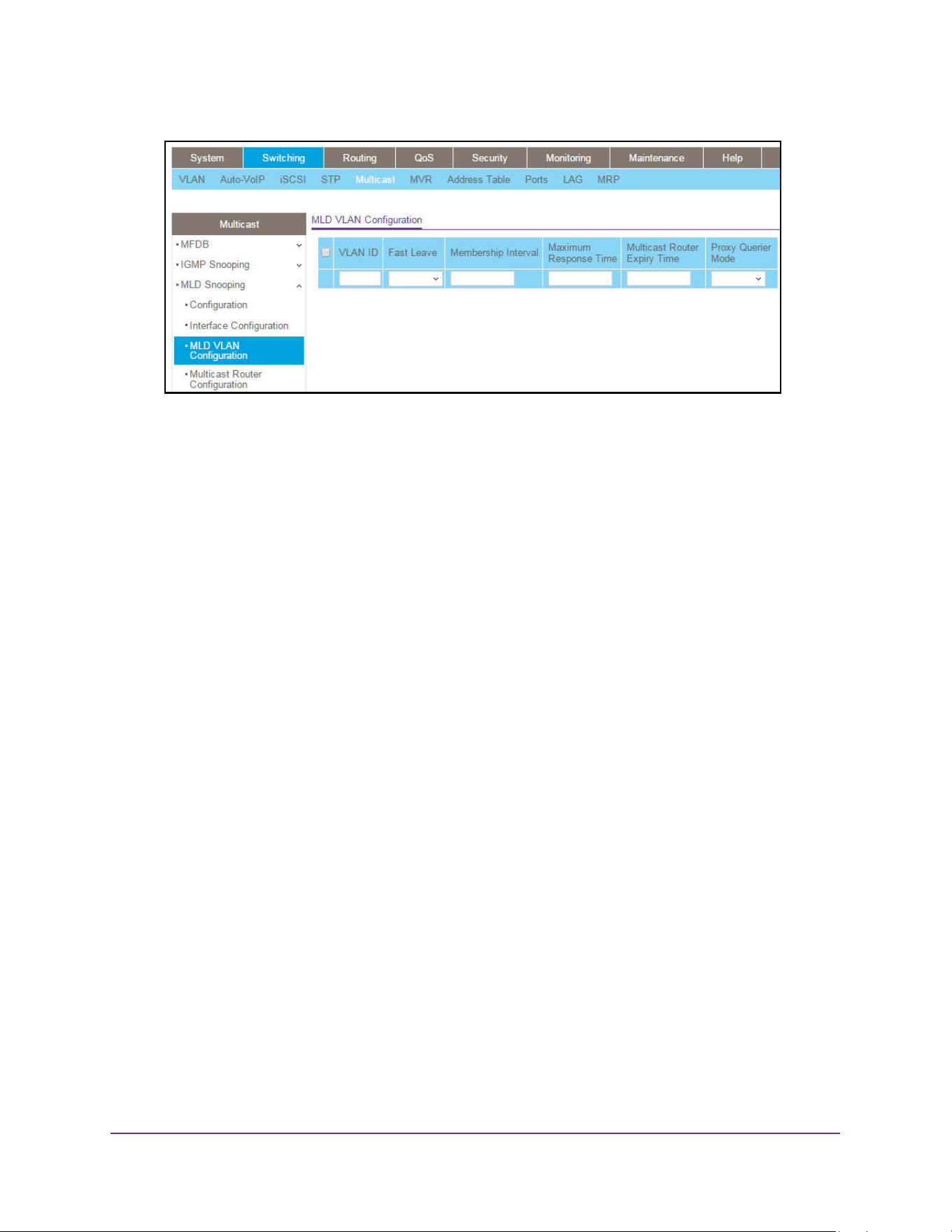
Configure Switching Information
238
M4200 and M4300 Series ProSAFE Managed Switches Web Management User Manual
6. Use VLAN ID to set the VLAN IDs for which MLD snooping is enabled.
7. Use Fast Leave Admin Mode to enable or disable the MLD snooping Fast Leave Mode for
the specified VLAN ID.
8. Use Group Membership Interval to set the value for group membership interval of MLD
snooping for the specified VLAN ID.
The valid range is (Maximum Response Time + 1) to 3600.
9. Use Maximum Response Time to set the value for the maximum response time of MLD
snooping for the specified VLAN ID.
The valid range is 1 to (Group Membership Interval –1). Its value must be less than group
membership interval value.
10. Use Multicast Router Expiry Time to set the value for the multicast router expiry time of
MLD Snooping for the specified VLAN ID.
The valid range is 0 to 3600.
11. Select the Proxy Querier Mode for the specified VLAN ID from the menu.
If you select Disable, then MLD proxy query with source IP 0::0 is not sent in response to
an MLD leave packet. The default value is Enable.
12. Click Add to enable MLD Snooping on the specified VLAN.
13. Click the Apply button.
The updated configuration is sent to the switch. Configuration changes take effect
immediately.
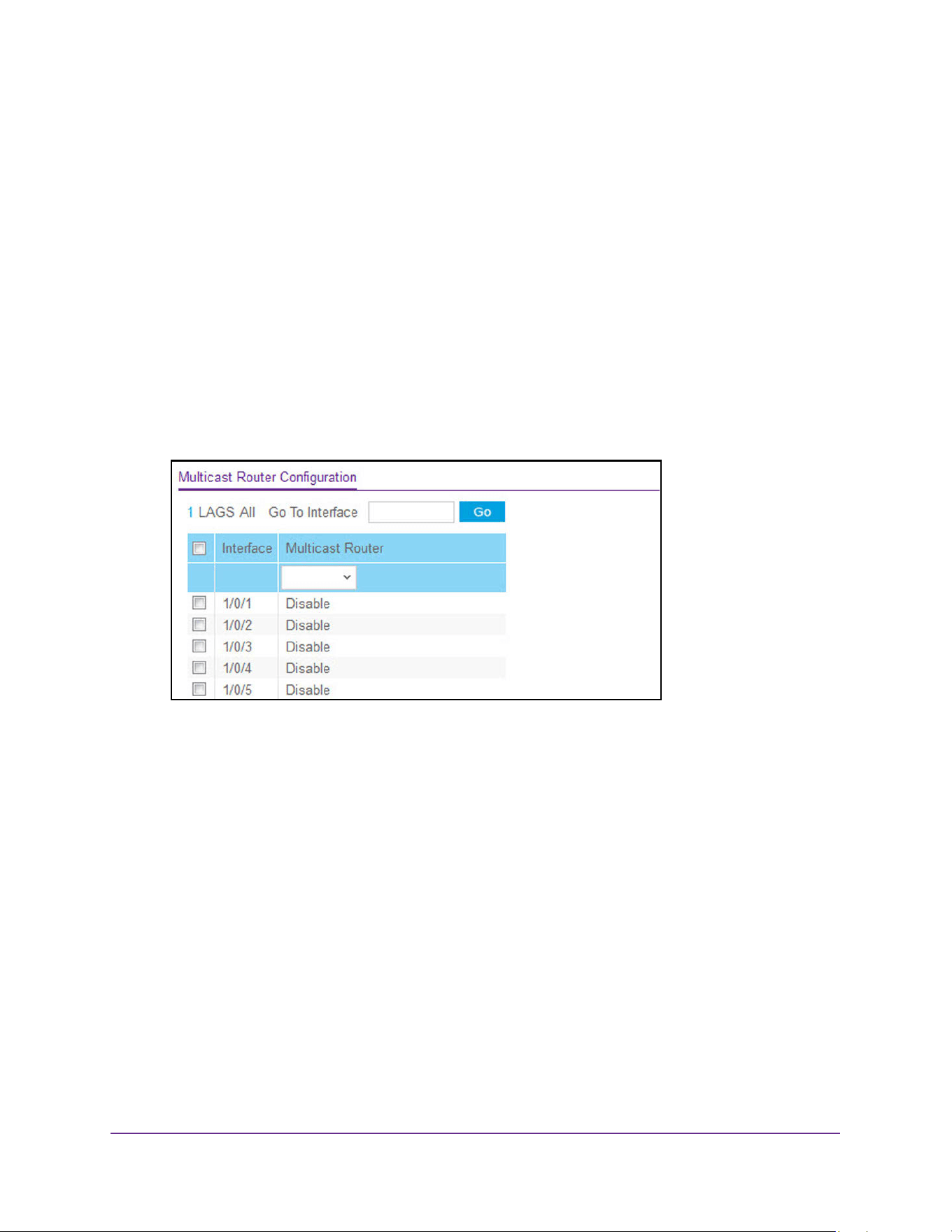
Configure Switching Information
239
M4200 and M4300 Series ProSAFE Managed Switches Web Management User Manual
Enable or Disable a Multicast Router on an Interface
To enable or disable a multicast router on an interface:
1. Launch a web browser.
2. Enter http://<ipaddress> in the web browser address field.
The login window opens.
3. Enter the user name and password.
The default admin user name is admin and the default admin password is blank, that is,
do not enter a password.
4. Click the Login button.
The System Information page displays.
5. Select Switching> Multicast > MLD Snooping > Multicast Router Configuration.
6. From the Interface menu, select the interface for which you want to enable or disable the
multicast router configuration.
7. From the Multicast Router menu, select Enable or Disable.
8. Click the Apply button.
The updated configuration is sent to the switch. Configuration changes take effect
immediately.
Configure Multicast Router VLAN Settings
To configure multicast router VLAN settings:
1. Launch a web browser.
2. Enter http://<ipaddress> in the web browser address field.
The login window opens.
3. Enter the user name and password.
The default admin user name is admin and the default admin password is blank, that is,
do not enter a password.
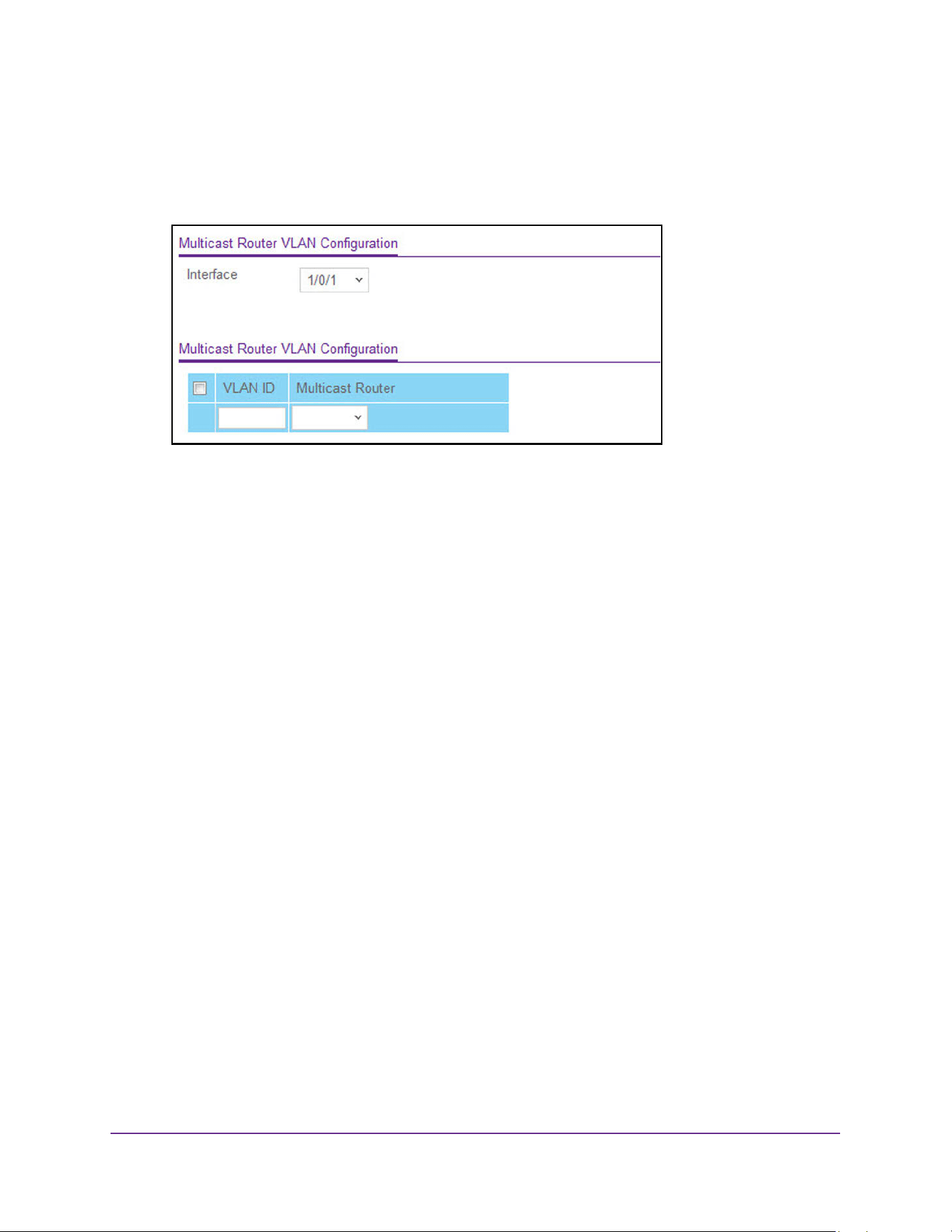
Configure Switching Information
240
M4200 and M4300 Series ProSAFE Managed Switches Web Management User Manual
4. Click the Login button.
The System Information page displays.
5. Select Switching> Multicast > MLD Snooping > Multicast Router VLAN Configuration.
6. From the Interface menu, select the interface for which you want to enable or disable the
multicast router configuration.
7. Use the VLAN ID field to specify the VLAN ID for which you want to enable or disable the
multicast router configuration.
8. Form the Multicast Router menu, select Enable or Disable.
9. Click the Apply button.
The updated configuration is sent to the switch. Configuration changes take effect
immediately.
Configure MLD Snooping Querier
You can configure the parameters for an MLD snooping querier. Only a user with read/write
access privileges can change the data on this page.
To configure an MLD snooping querier:
1. Launch a web browser.
2. Enter http://<ipaddress> in the web browser address field.
The login window opens.
3. Enter the user name and password.
The default admin user name is admin and the default admin password is blank, that is,
do not enter a password.
4. Click the Login button.
The System Information page displays.
5. Select Switching> Multicast > MLD Snooping > Querier Configuration.
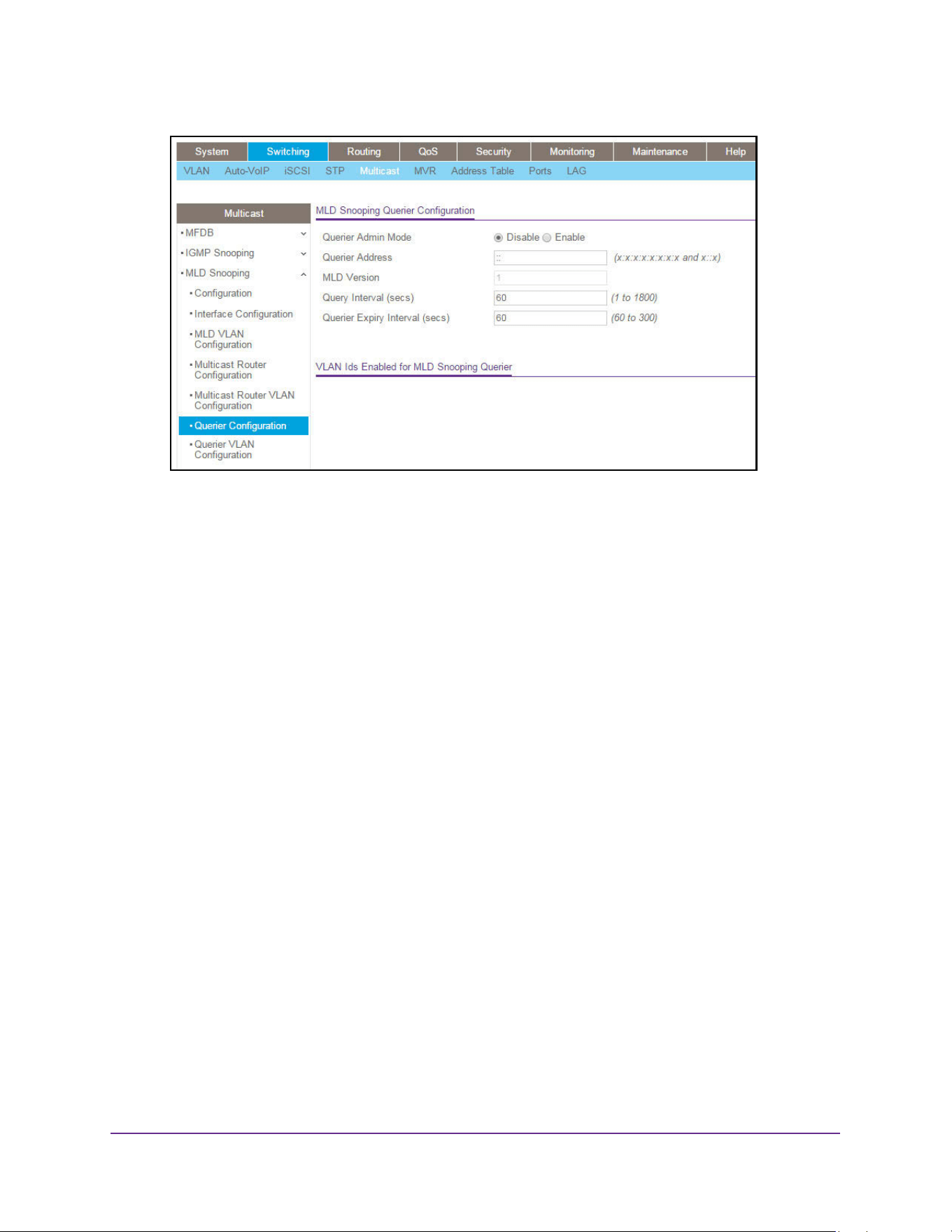
Configure Switching Information
241
M4200 and M4300 Series ProSAFE Managed Switches Web Management User Manual
6. Use Querier Admin Mode to select the administrative mode for MLD snooping for the
switch. The default is Disable.
7. Use Querier Address to specify the snooping querier address to be used as source
address in periodic MLD queries.
This address is used when no address is configured on the VLAN on which query is being
sent. The supported IPv6 formats are x:x:x:x:x:x:x:x and x::x.
8. Use MLD Version to specify the MLD protocol version used in periodic MLD queries.
9. Use Query Interval(secs) to specify the time interval in seconds between periodic queries
sent by the snooping querier.
The query interval must be a value in the range of 1 to 1800. The default value is 60.
10. Use Querier Expiry Interval(secs) to specify the time interval in seconds after which the
last querier information is removed.
The querier expiry Interval must be a value in the range of 60 to 300. The default value is
60. The page displays VLAN IDs enabled for the MLD snooping querier.
11. Click the Apply button.
The updated configuration is sent to the switch. Configuration changes take effect
immediately.
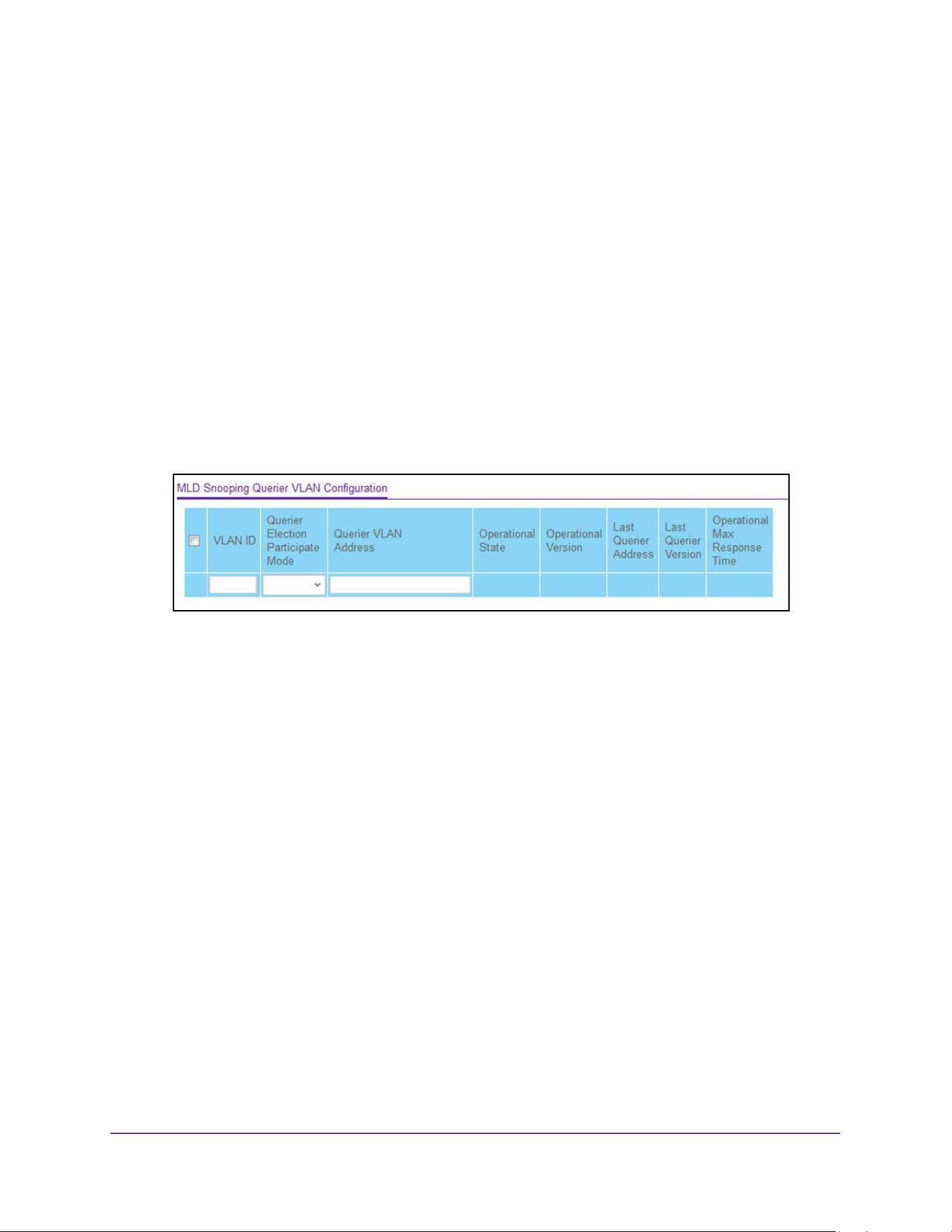
Configure Switching Information
242
M4200 and M4300 Series ProSAFE Managed Switches Web Management User Manual
Configure MLD Snooping Querier VLAN Settings
To configure MLD snooping querier VLAN settings:
1. Launch a web browser.
2. Enter http://<ipaddress> in the web browser address field.
The login window opens.
3. Enter the user name and password.
The default admin user name is admin and the default admin password is blank, that is,
do not enter a password.
4. Click the Login button.
The System Information page displays.
5. Select Switching> Multicast > MLD Snooping > Querier VLAN Configuration.
6. Use VLAN ID to select the VLAN ID on which the MLD snooping querier is administratively
enabled and a VLAN exists in the VLAN database.
7. Use Querier Election Participate Mode to enable or disable the MLD snooping querier
participation in election mode.
When this mode is disabled, on detecting another querier of same version in the VLAN,
the snooping querier moves to a non-querier state. When this mode is enabled, the
snooping querier participates in querier election where the lowest IP address wins the
querier election and operates as the querier in that VLAN. The other querier moves to
non-querier state.
8. Use Querier VLAN Address to specify the snooping querier address to be used as the
source address in periodic MLD queries sent on the specified VLAN.
9. Click the Apply button.
The updated configuration is sent to the switch. Configuration changes take effect
immediately.

Configure Switching Information
243
M4200 and M4300 Series ProSAFE Managed Switches Web Management User Manual
The following table describes the nonconfigurable information displayed on the page.
Configure MVR
You can configure basic, advanced, group, interface or group membership settings.
Configure Basic MVR Settings
To configure basic MVR settings:
1. Launch a web browser.
2. Enter http://<ipaddress> in the web browser address field.
The login window opens.
3. Enter the user name and password.
The default admin user name is admin and the default admin password is blank, that is,
do not enter a password.
4. Click the Login button.
The System Information page displays.
5. Select Switching > MVR > Basic > MVR Configuration.
Table 90. Querier VLAN Configuration
Field Description
Operational State The operational state of the MLD snooping querier on a VLAN. It can be in
any of the following states:
• Querier: Snooping switch is the querier in the VLAN. The snooping
switch sends out periodic queries with a time interval equal to the
configured querier query interval. If the snooping switch sees a better
querier in the VLAN, it moves to non-querier mode.
• Non-Querier: Snooping switch is in non-querier mode in the VLAN. If
the querier expiry interval timer is expired, the snooping switch moves
into querier mode.
• Disabled: Snooping querier is not operational on the VLAN. The
snooping querier moves to disabled mode when MLD snooping is not
operational on the VLAN or when the querier address is not configured
or the network management address is also not configured.
Operational Version The operational MLD protocol version of the querier.
Last Querier Address The IP address of the last querier from which a query was snooped on the
VLAN.
Last Querier Version The MLD protocol version of the last querier from which a query was
snooped on the VLAN.
Operational Max Response Time Displays maximum response time to be used in the queries that are sent by
the snooping querier.
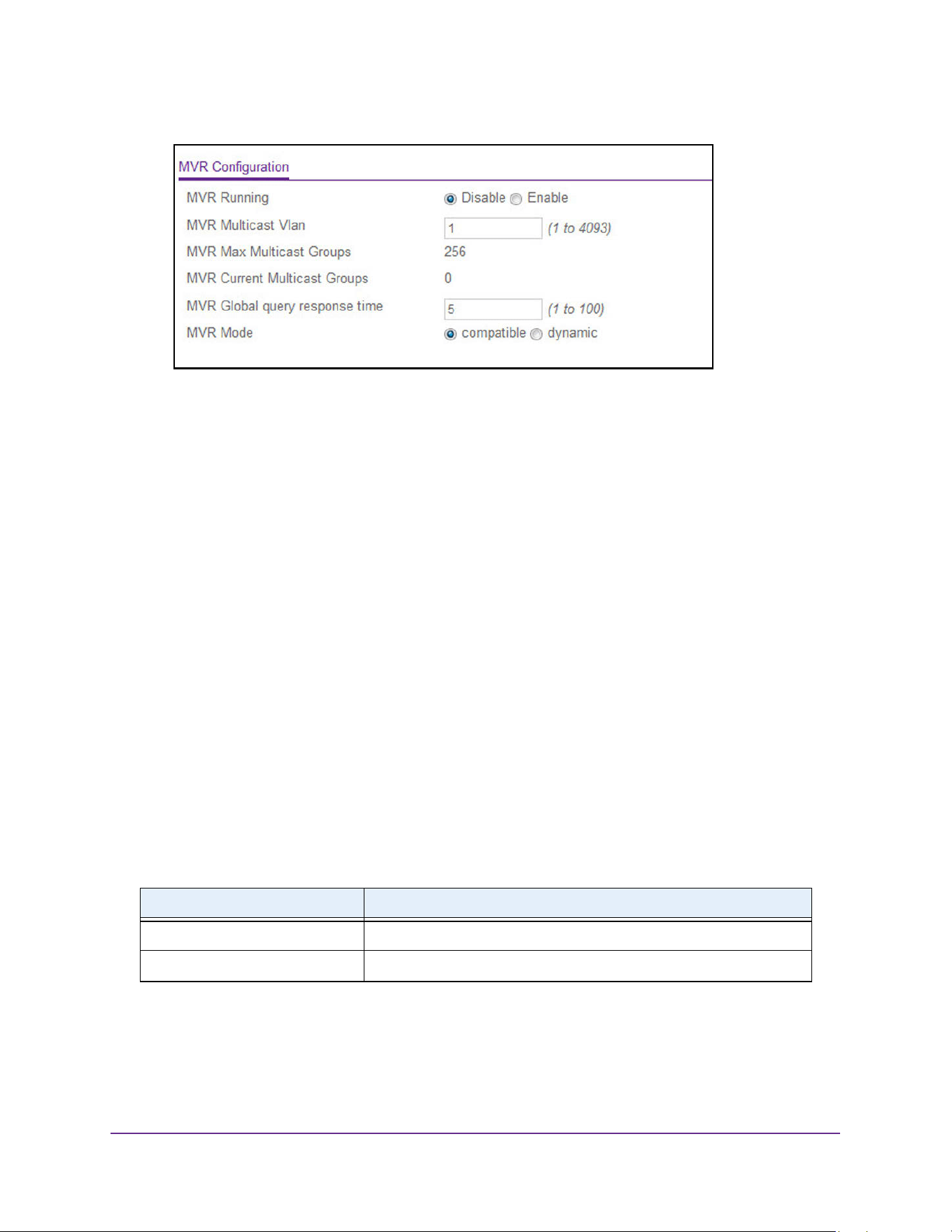
Configure Switching Information
244
M4200 and M4300 Series ProSAFE Managed Switches Web Management User Manual
6. Use MVR Running to Enable or Disable the MVR feature.
The factory default is Disable.
7. Use MVR Multicast VLAN to specify the VLAN on which MVR multicast data is received.
All source ports belong to this VLAN. The value can be set in a range of 1 to 4093. The
default value is 1.
8. Use MVR Global Query Response Time to set the maximum time to wait for the IGMP
reports membership on a receiver port.
This time applies only to receiver-port leave processing. When an IGMP query is sent
from a receiver port, the switch waits for the default or configured MVR query time for an
IGMP group membership report before removing the port from the multicast group
membership. The value is equal to the tenths of a second. The range is from 1 to 100
tenths. The factory default is 5 tenths or one-half.
9. Use MVR Mode to specify the MVR mode of operation.
Possible values are compatible or dynamic. The factory default is compatible.
10. Click the Apply button.
The updated configuration is sent to the switch. Configuration changes take effect
immediately.
The following table describes the nonconfigurable information displayed on the page.
Table 91. MVR Configuration
Field Definition
MVR Max Multicast Groups The maximum number of multicast groups that MVR supports.
MVR Current Multicast Groups Displays current number of the MVR groups allocated.
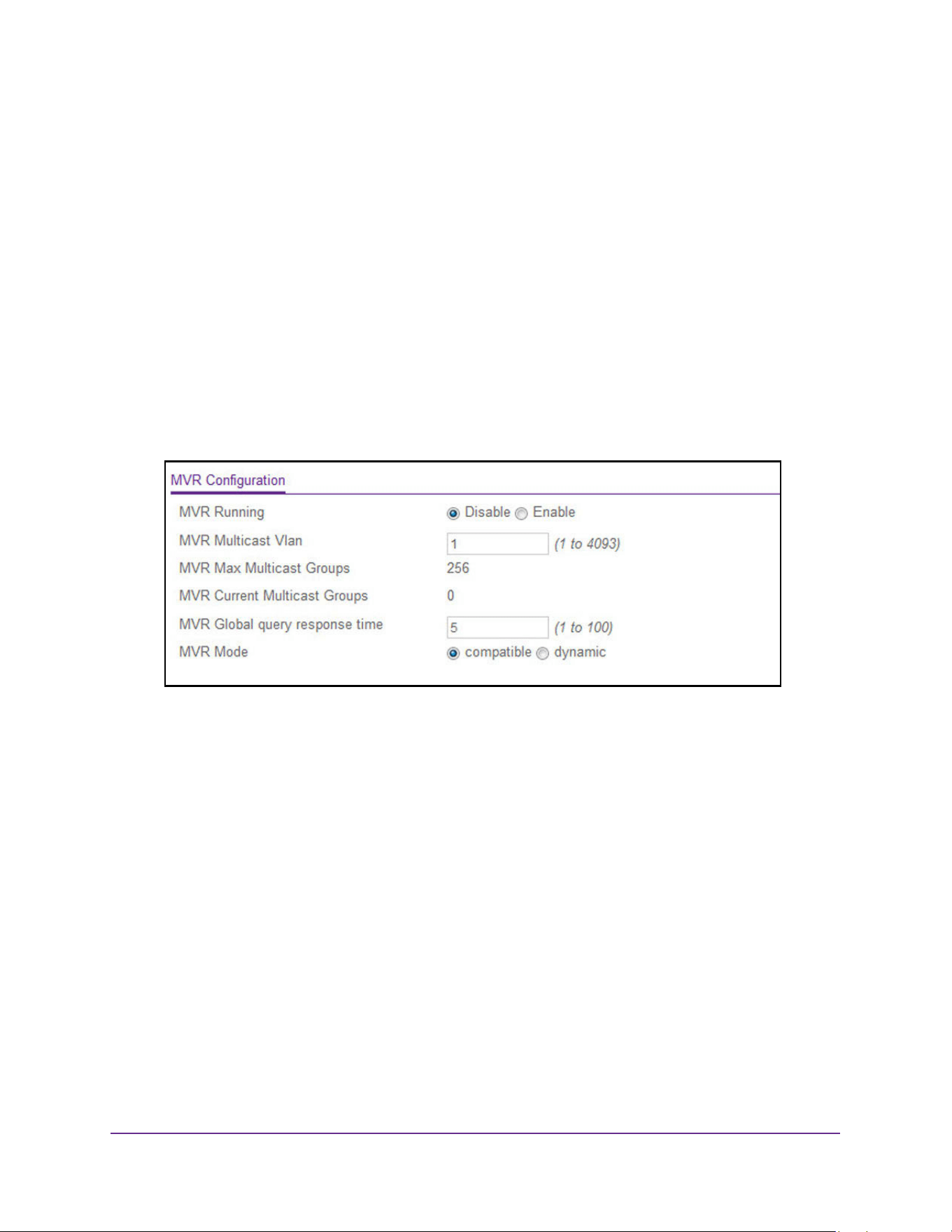
Configure Switching Information
245
M4200 and M4300 Series ProSAFE Managed Switches Web Management User Manual
Configure Advanced MVR Settings
To configure advanced MVR settings:
1. Launch a web browser.
2. Enter http://<ipaddress> in the web browser address field.
The login window opens.
3. Enter the user name and password.
The default admin user name is admin and the default admin password is blank, that is,
do not enter a password.
4. Click the Login button.
The System Information page displays.
5. Select Switching > MVR > Advanced > MVR Configuration.
6. Select the MVR Running Enable or Disable radio button.
The factory default is Disable.
7. Use the MVR Multicast VLAN to specify the VLAN on which MVR multicast data is
received.
All source ports belong to this VLAN. The value can be set in a range of 1 to 4094. The
default value is 1.
8. Use the MVR Global query response time to set the maximum time to wait for the IGMP
reports membership on a receiver port. This time applies only to receiver-port leave
processing. When an IGMP query is sent from a receiver port, the switch waits for the
default or configured MVR query time for an IGMP group membership report before
removing the port from the multicast group membership. The value is equal to the tenths of
second. The range is from 1 to 100 tenths. The factory default is 5 tenths or one-half.
9. Select a MVR Mode radio button to specify the MVR mode of operation.
The factory default is compatible.
10. Click the Apply button.
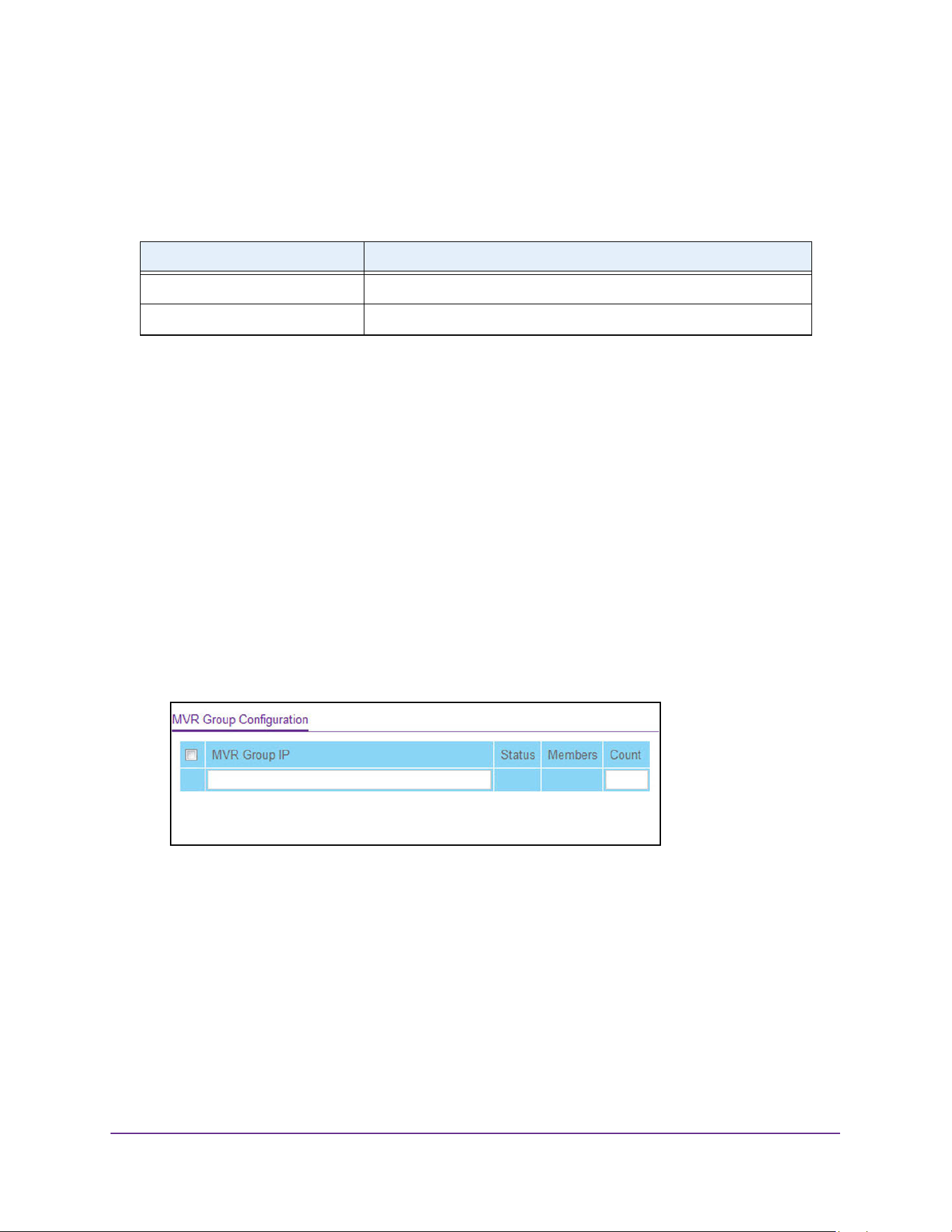
Configure Switching Information
246
M4200 and M4300 Series ProSAFE Managed Switches Web Management User Manual
The updated configuration is sent to the switch. Configuration changes take effect
immediately.
The following table describes the nonconfigurable information displayed on the page.
Configure an MVR Group
To configure an MVR group:
1. Launch a web browser.
2. Enter http://<ipaddress> in the web browser address field.
The login window opens.
3. Enter the user name and password.
The default admin user name is admin and the default admin password is blank, that is,
do not enter a password.
4. Click the Login button.
The System Information page displays.
5. Select Switching > MVR > Advanced > MVR Group Configuration.
6. Use the MVR Group IP to specify the IP address for the new MVR group.
7. Use the Count to specify the number of contiguous MVR groups.
This helps you to create multiple MVR groups through a single click of the Add button. If
the field is empty, then clicking the button creates only one new group. The field is
displayed as empty for each particular group. The range is from 1 to 256.
8. Click the Add button.
The MVR group is added.
Table 92. Advanced MVR Configuration
Field Definition
MVR Max Multicast Groups The maximum number of multicast groups that MVR supports.
MVR Current Multicast Groups Displays the current number of MVR groups allocated.
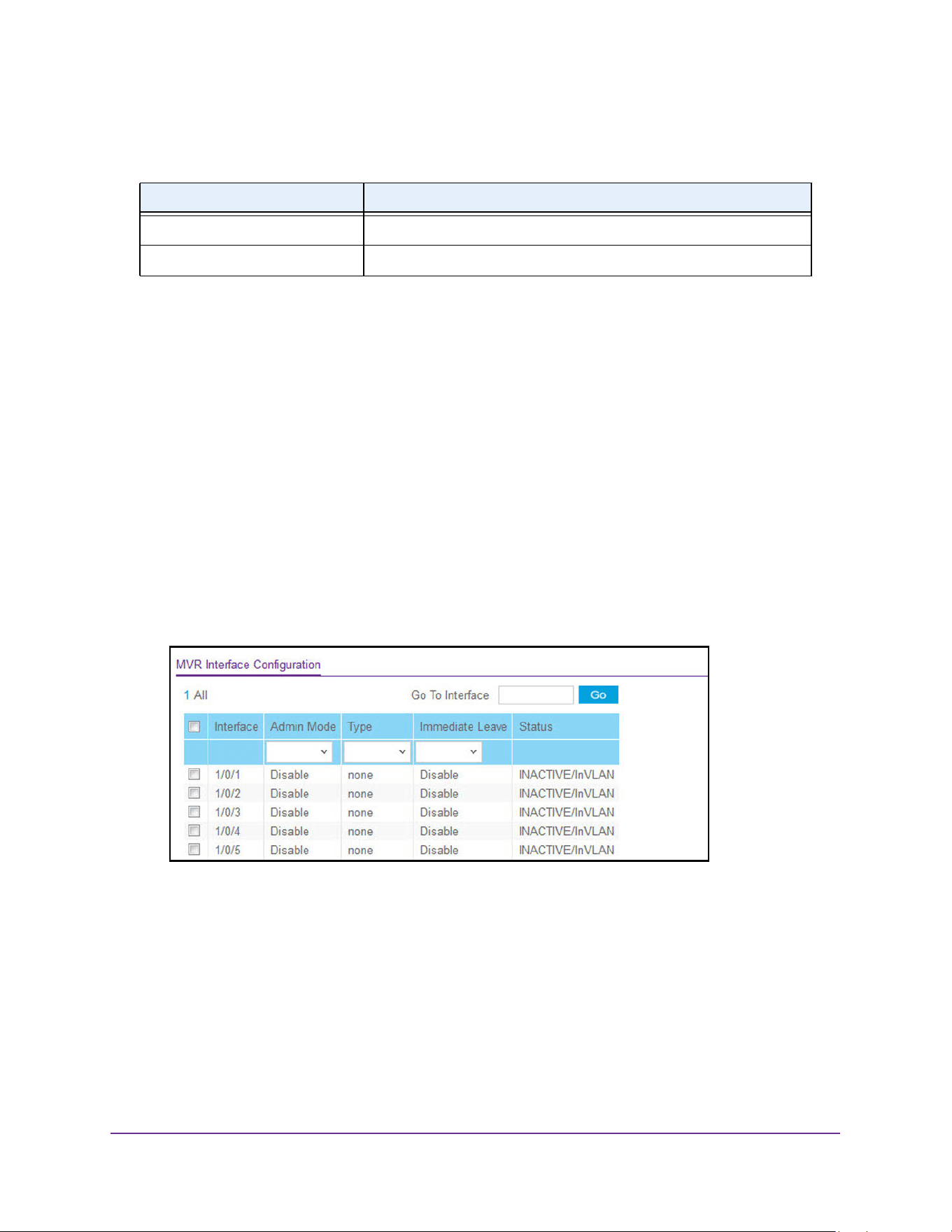
Configure Switching Information
247
M4200 and M4300 Series ProSAFE Managed Switches Web Management User Manual
The following table describes the nonconfigurable information displayed on the page.
Configure an MVR Interface
To configure an MVR interface:
1. Launch a web browser.
2. Enter http://<ipaddress> in the web browser address field.
The login window opens.
3. Enter the user name and password.
The default admin user name is admin and the default admin password is blank, that is,
do not enter a password.
4. Click the Login button.
The System Information page displays.
5. Select Switching > MVR > Advanced > MVR Interface Configuration.
The status of each port displays.
6. Use Interface to select the interface.
7. Use Admin Mode to Enable or Disable MVR on a port.
The factory default is Disable.
8. Use Type to configure the port as an MVR receiver port or a source port.
The default port type is none.
9. Use Immediate Leave to Enable or Disable the Immediate Leave feature of the MVR on
a port.
Table 93. MVR Group Configuration
Field Definition
Status The status of the specific MVR group.
Members The list of ports that participate in the specific MVR group.
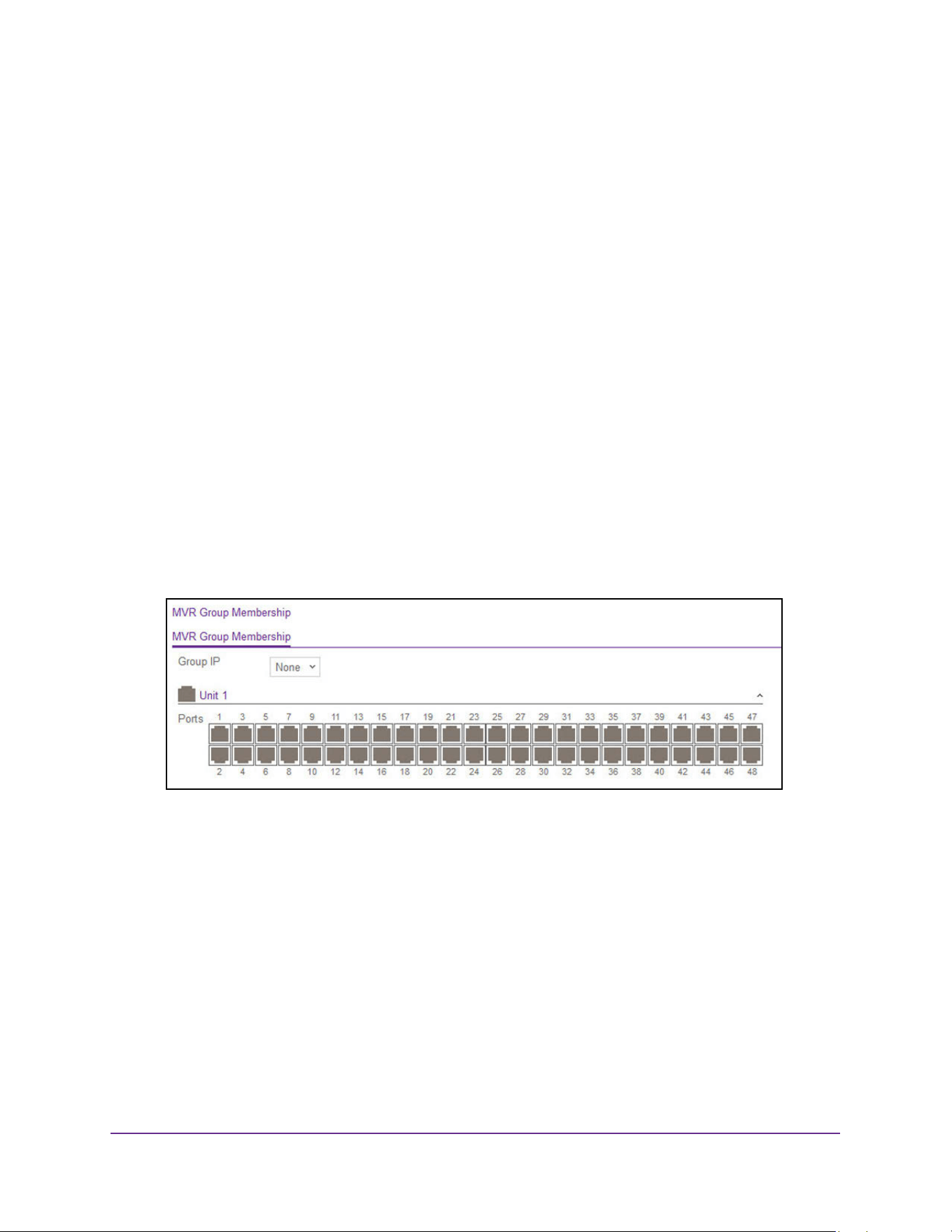
Configure Switching Information
248
M4200 and M4300 Series ProSAFE Managed Switches Web Management User Manual
The factory default is Disable.
10. Click the Apply button.
The updated configuration is sent to the switch. Configuration changes take effect
immediately.
Configure MVR Group Membership
To configure MVR group membership:
1. Launch a web browser.
2. Enter http://<ipaddress> in the web browser address field.
The login window opens.
3. Enter the user name and password.
The default admin user name is admin and the default admin password is blank, that is,
do not enter a password.
4. Click the Login button.
The System Information page displays.
5. Select Switching > MVR > Advanced > MVR Group Membership.
6. Use the Group IP to specify the IP multicast address of the MVR group.
7. Use the Port List to view the configured list of members of the selected MVR group.
You can use this port list to add the ports you selected to this MVR group.
8. Click the Apply button.
The updated configuration is sent to the switch. Configuration changes take effect
immediately.
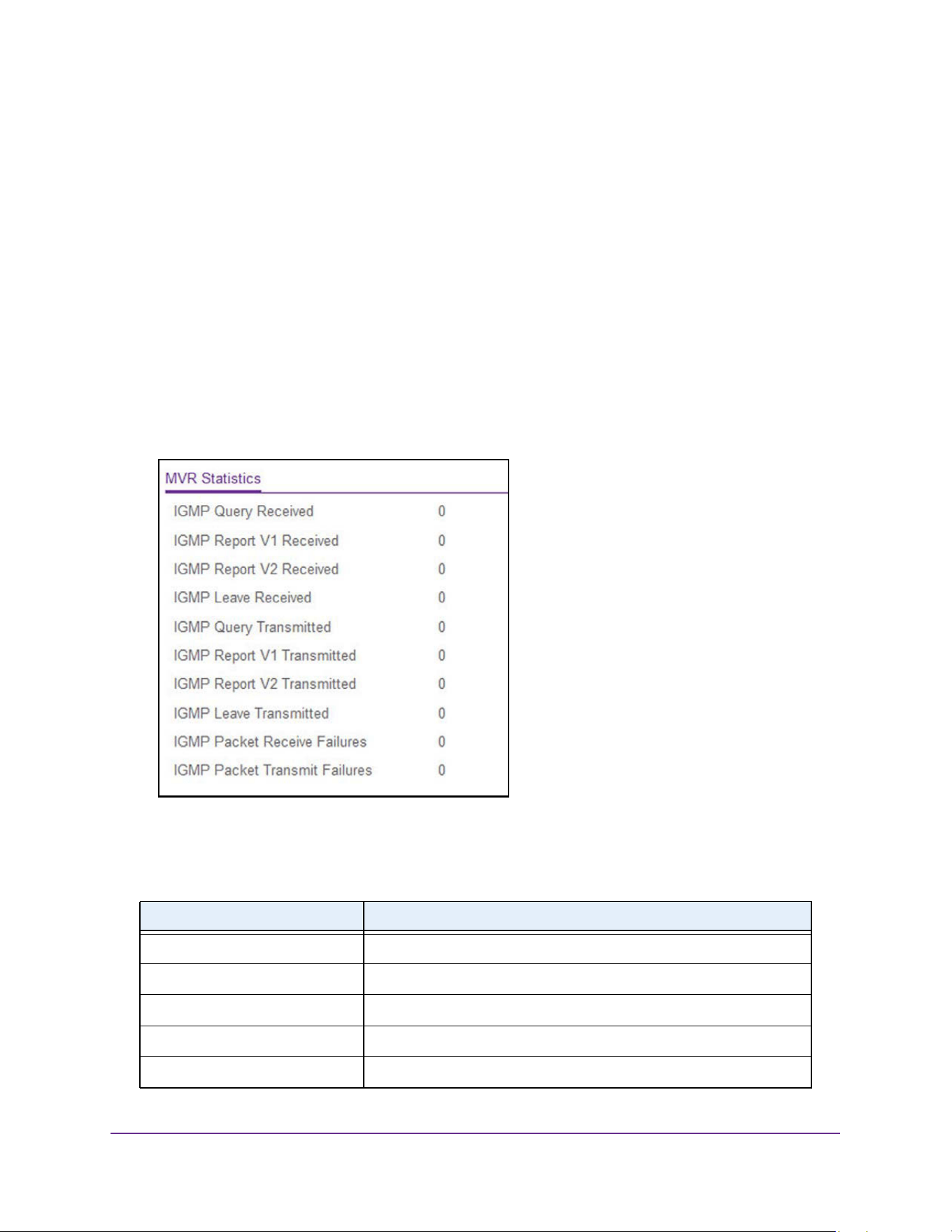
Configure Switching Information
249
M4200 and M4300 Series ProSAFE Managed Switches Web Management User Manual
View MVR Statistics
To view MVR statistics:
1. Launch a web browser.
2. Enter http://<ipaddress> in the web browser address field.
The login window opens.
3. Enter the user name and password.
The default admin user name is admin and the default admin password is blank, that is,
do not enter a password.
4. Click the Login button.
The System Information page displays.
5. Select Switching > MVR > Advanced > MVR Statistics.
6. To refresh the page with the latest information on the switch, click the Update button.
The following table describes the nonconfigurable information displayed on the page.
Table 94. MVR Statistics
Field Definition
IGMP Query Received The number of received IGMP queries.
IGMP Report V1 Received The number of received IGMP reports V1.
IGMP Report V2 Received The number of received IGMP reports V2.
IGMP Leave Received The number of received IGMP leaves.
IGMP Query Transmitted The number of transmitted IGMP queries.
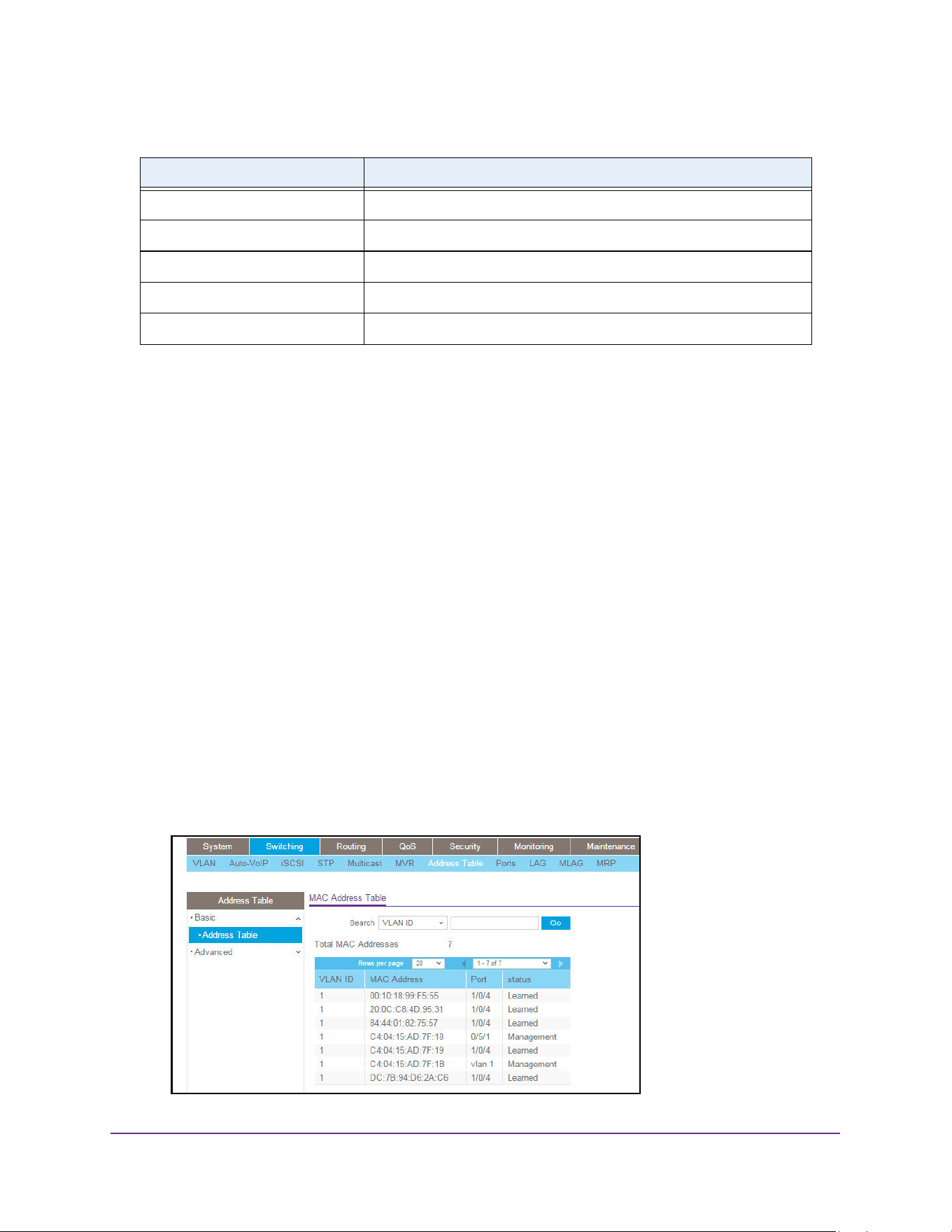
Configure Switching Information
250
M4200 and M4300 Series ProSAFE Managed Switches Web Management User Manual
MAC Address Table
You can view or configure the MAC Address Table. This table contains information about
unicast entries for which the switch has forwarding or filtering information. This information is
used by the transparent bridging function in determining how to propagate a received frame.
Search the MAC Address Table
To search the MAC address table:
1. Launch a web browser.
2. Enter http://<ipaddress> in the web browser address field.
The login window opens.
3. Enter the user name and password.
The default admin user name is admin and the default admin password is blank, that is,
do not enter a password.
4. Click the Login button.
The System Information page displays.
5. Select Switching > Address Table> Basic > Address Table.
IGMP Report V1 Transmitted The number of transmitted IGMP reports V1.
IGMP Report V2 Transmitted The number of transmitted IGMP reports V2.
IGMP Leave Transmitted The number of transmitted IGMP leaves.
IGMP Packet Receive Failures The number of IGMP packet receive failures.
IGMP Packet Transmit Failures The number of IGMP packet transmit failures.
Table 94. MVR Statistics (continued)
Field Definition

Configure Switching Information
251
M4200 and M4300 Series ProSAFE Managed Switches Web Management User Manual
6. Use Search By to search for MAC addresses by MAC address, VLAN ID, or port:
• Searched by MAC Address. Select MAC Address, enter the 6-byte hexadecimal
MAC address in two-digit groups separated by colons, for example,
01:23:45:67:89:AB. Then click the Go button. If the address exists, that entry is
displayed as the first entry followed by the remaining (greater) MAC addresses. An
exact match is required.
• Searched by VLAN ID. Select VLAN ID, enter the VLAN ID, for example, 100. Then
click the Go button. If the address exists, the entry is displayed as the first entry
followed by the remaining (greater) MAC addresses.
• Searched by Port. Select Port, enter the port ID in Unit/Slot/Port format, for example,
2/1/1. Then click the Go button. If the address exists, the entry is displayed as the first
entry followed by the remaining (greater) MAC addresses.
The following table describes the nonconfigurable information displayed on the page.
Set the Dynamic Address Aging Interval
You can set the address aging interval for the specified forwarding database.
To set the address aging interval:
1. Launch a web browser.
2. Enter http://<ipaddress> in the web browser address field.
The login window opens.
3. Enter the user name and password.
The default admin user name is admin and the default admin password is blank, that is,
do not enter a password.
Table 95. Basic Address Table
Field Description
Total MAC Address Displaying the number of total MAC addresses learned or configured.
MAC Address A unicast MAC address for which the switch has forwarding and/or
filtering information. The format is a 6 byte MAC address that is
separated by colons, for example 01:23:45:67:89:AB.
VLAN ID The VLAN ID associated with the MAC address.
Port The port upon which this address was learned.
Status The status of this entry. The meanings of the values are as follows:
• Static. The value of the corresponding instance was added by the
system or a user and cannot be relearned.
• Learned. The value of the corresponding instance was learned,
and is being used.
• Management. The value of the corresponding instance is also the
value of an existing instance of dot1dStaticAddress.
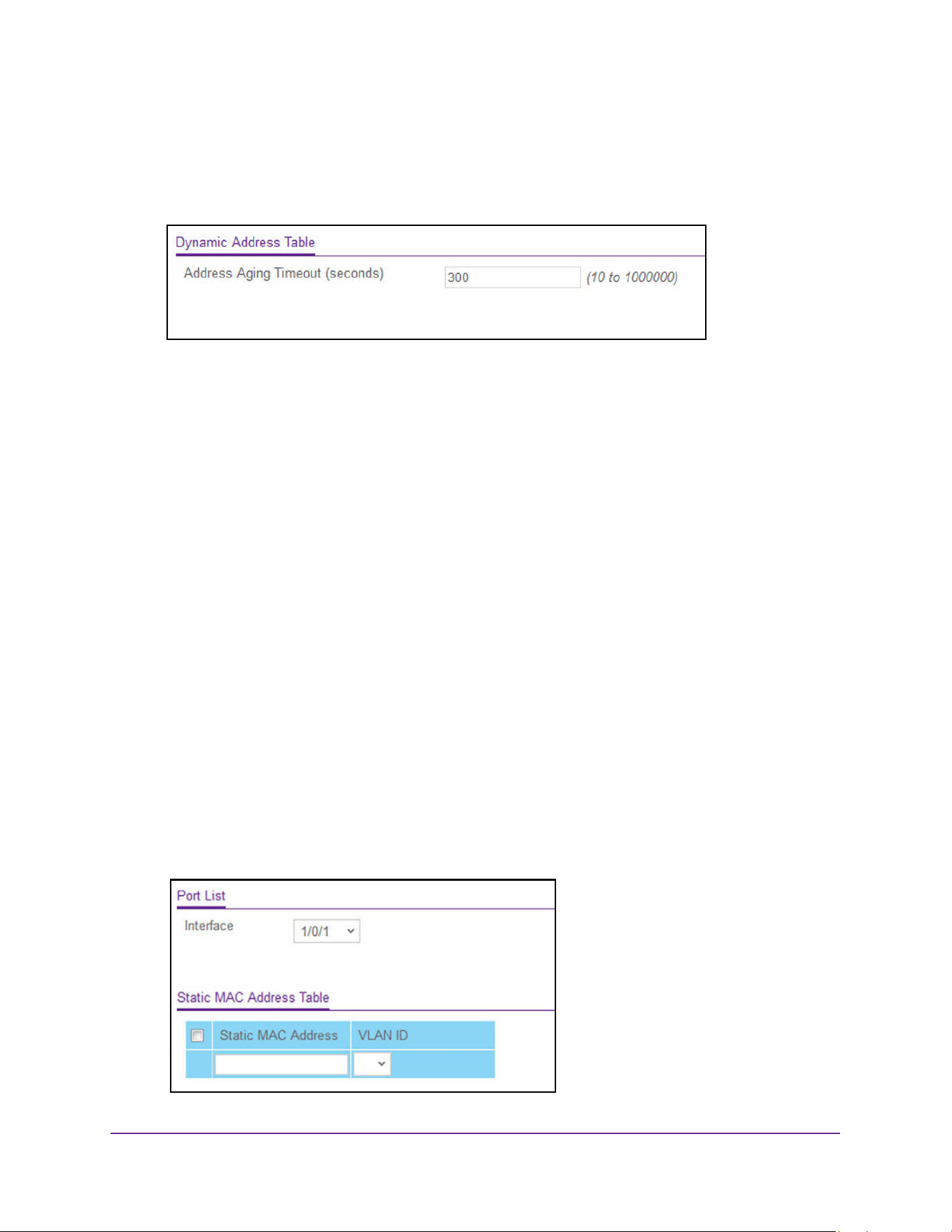
Configure Switching Information
252
M4200 and M4300 Series ProSAFE Managed Switches Web Management User Manual
4. Click the Login button.
The System Information page displays.
5. Select Switching > Address Table> Advanced > Dynamic Addresses.
6. Use Address Aging Timeout (seconds) to specify the time-out period in seconds for aging
out dynamically learned forwarding information.
IEEE 802.1D-1990 recommends a default of 300 seconds. The value can be specified as
any number between 10 and 1000000 seconds. The factory default is 300.
7. Click the Apply button.
The updated configuration is sent to the switch. Configuration changes take effect
immediately.
Configure a Static MAC Address
To configure a static MAC address:
1. Launch a web browser.
2. Enter http://<ipaddress> in the web browser address field.
The login window opens.
3. Enter the user name and password.
The default admin user name is admin and the default admin password is blank, that is,
do not enter a password.
4. Click the Login button.
The System Information page displays.
5. Select Switching > Address Table> Advanced > Static MAC Address.
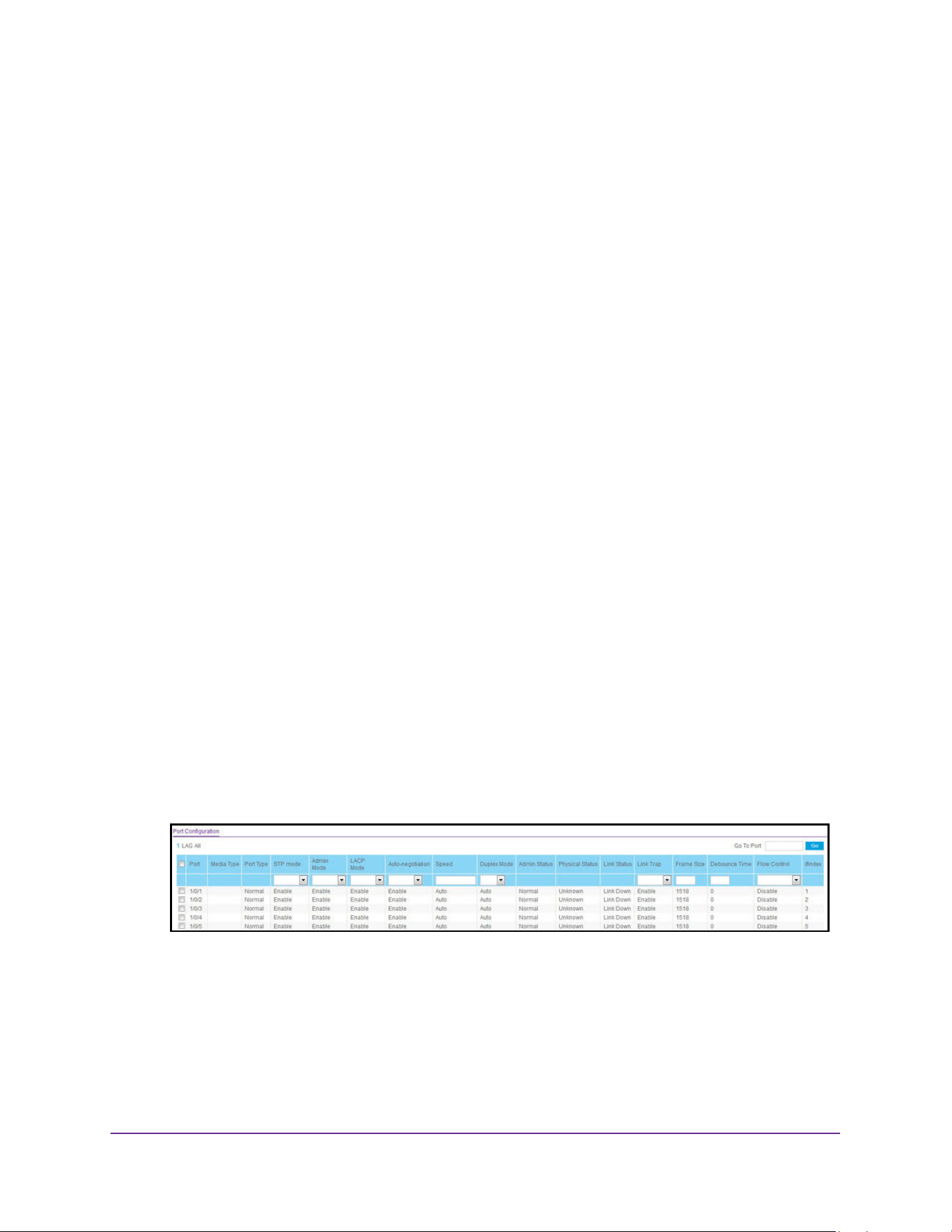
Configure Switching Information
253
M4200 and M4300 Series ProSAFE Managed Switches Web Management User Manual
6. Use Interface to select the physical interface/LAGs.
7. In the Static MAC Address field, type the MAC address.
8. Select the VLAN ID associated with the MAC address.
9. Take one of the following actions:
• Click the Add button.
The static MAC address is added to the switch.
• Click the Delete button.
The static MAC address deleted from the switch.
Port Settings
You can view and monitor the physical port information for the ports available on the switch.
Configure Port Settings
You can configure the physical interfaces on the switch.
To configure port settings:
1. Launch a web browser.
2. Enter http://<ipaddress> in the web browser address field.
The login window opens.
3. Enter the user name and password.
The default admin user name is admin and the default admin password is blank, that is,
do not enter a password.
4. Click the Login button.
The System Information page displays.
5. Select Switching > Ports > Port Configuration.
6. Use Port to select the interface.
7. Use STP Mode to select the Spanning Tree Protocol administrative mode for the port or
LAG.
The possible values are as follows:
• Enable. Select this to enable the Spanning Tree Protocol for this port.
• Disable. Select this to disable the Spanning Tree Protocol for this port.

Configure Switching Information
254
M4200 and M4300 Series ProSAFE Managed Switches Web Management User Manual
The default is Enable.
8. In the Admin Mode list, select Enable or Disable.
This sets the port control administrative mode.For the port to participate in the network,
you must select Enable. The factory default is Enable.
9. From the LACP Mode list, select Enable or Disable.
This selects the Link Aggregation Control Protocol administrative mode. The mode must
be enabled in order for the port to participate in link aggregation. The factory default is
Enable.
10. From the Auto-negotiation list, select Enable or Disable.
This specifies the auto-negotiation mode for this port. The default is Enable.
Note: After you change the auto-negotiation mode, the switch might be
inaccessible for a number of seconds while the new settings take effect.
11. From the Speed list, select the speed value for the selected port.
Possible field values are as follows:
• Auto. All supported speeds.
• 100. 100 Mbits/second
• 10G. 10 Gbits/second.
The delimiter characters for setting different speed values are a comma (,), a period (.)
and a space ( ). For you to set the auto-negotiation speed, the auto-negotiation mode
must be set to Enable. The default is Auto.
Note: After you change the speed value, the switch might be inaccessible for
a number of seconds while the new settings take effect.
12. From the Duplex Mode list, select the duplex mode for the selected port.
Possible values are as follows:
• Auto. Indicates that speed is set by the auto-negotiation process.
• Full. Indicates that the interface supports transmission between the devices in both
directions simultaneously.
• Half. Indicates that the interface supports transmission between the devices in only
one direction at a time.
The default is Auto.
Note: After you change the duplex mode, the switch might be inaccessible for
a number of seconds while the new settings take effect.
13. Use the Link Trap object to determine whether to send a trap when link status changes.
The factory default is enabled.

Configure Switching Information
255
M4200 and M4300 Series ProSAFE Managed Switches Web Management User Manual
14. Use Frame Size to specify the maximum Ethernet frame size the interface supports or is
configured to use, including Ethernet header, CRC, and payload.
The range is 1518 to 12288. The default maximum frame size is 1518.
15. Use Debounce Time to specify the timer value for port debouncing in a multiple of 100
milliseconds (msec) in the range to 100 to 5000.
The default debounce timer value is 0, which means that debounce is disabled.
16. From the Flow Control list, select to Enable or Disable IEEE 802.3 flow control.
The default is Disable. The switch does not send pause frames if the port buffers become
full. Flow control helps to prevent data loss when the port cannot keep up with the
number of frames being switched. When enabled, the switch can send a pause frame to
stop traffic on a port if the amount of memory used by the packets on the port exceeds a
preconfigured threshold and responds to pause requests from partner devices. The
paused port does not forward packets for the period of time specified in the pause frame.
When the pause frame time elapses, or the utilization returns to a specified low threshold,
the switch enables the port to again transmit frames. For LAG interfaces, flow control
mode is displayed as blank because flow control is not applicable.
17. Click the Apply button.
The updated configuration is sent to the switch. Configuration changes take effect
immediately.
The following table describes the nonconfigurable data that is displayed.
Table 96. Port Configuration
Field Description
Media Type The media type.
Port Type For normal ports this field is Normal. Otherwise the possible values are
as follows:
• Mirrored. The port is a mirrored port on which all the traffic is
copied to the probe port.
• Probe. Use this port to monitor a mirrored port.
• Trunk Member. The port is a member of a link aggregation trunk.
Look at the LAG pages for more information.
Admin Status When the port’s admin mode is D-Disable, this field indicates the
reason. Possible reasons are as follows:
• STP. Spanning Tree Protocol violation.
• UDLD. UDLD protocol violation.
• XCEIVER. Unsupported SFP/SFP+ inserted.
Physical Status Indicates the port speed and duplex mode.
Link Status Indicates whether the link is up or down.
ifIndex The ifIndex of the interface table entry associated with this port.
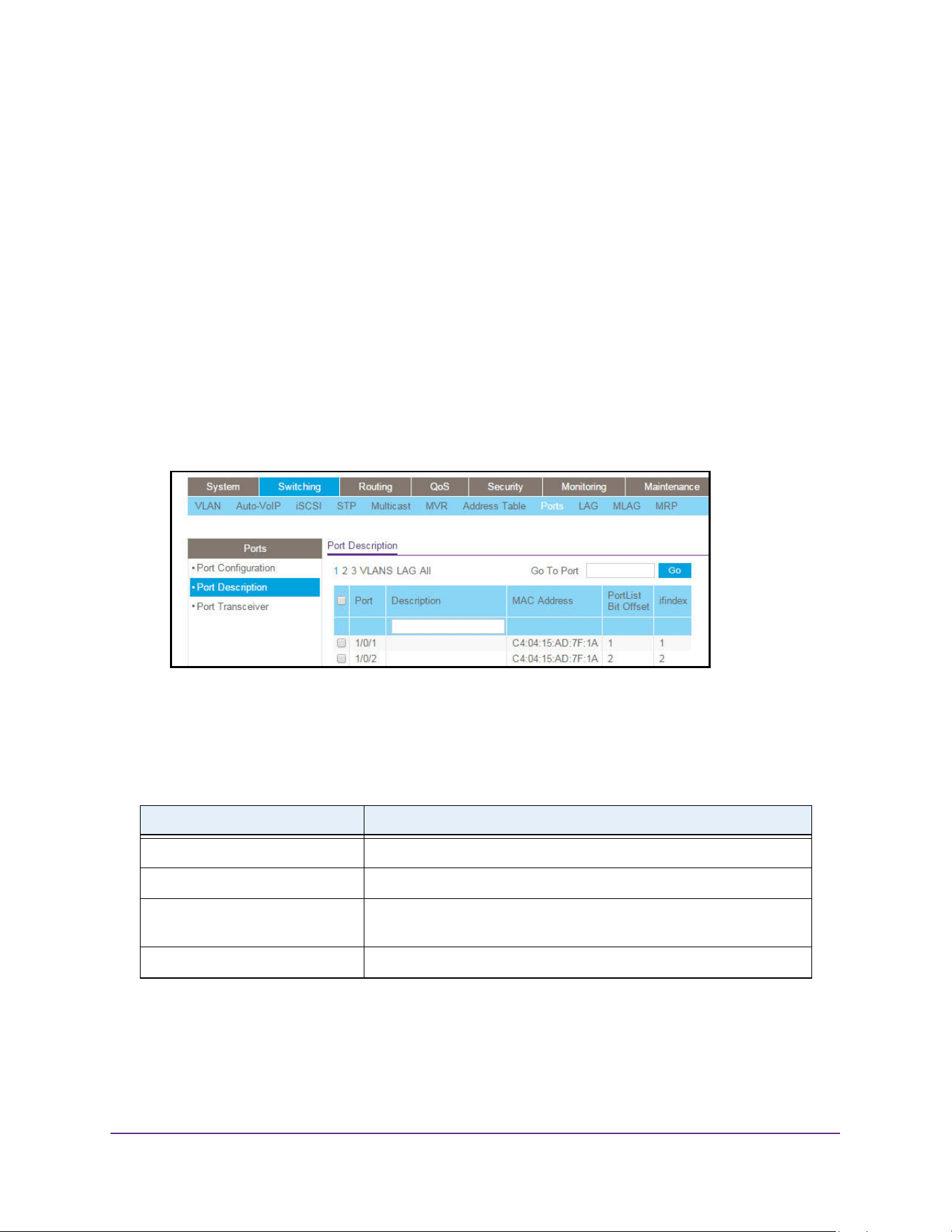
Configure Switching Information
256
M4200 and M4300 Series ProSAFE Managed Switches Web Management User Manual
Configure Port Descriptions
To configure and display the description for all ports in the device:
1. Launch a web browser.
2. Enter http://<ipaddress> in the web browser address field.
The login window opens.
3. Enter the user name and password.
The default admin user name is admin and the default admin password is blank, that is,
do not enter a password.
4. Click the Login button.
The System Information page displays.
5. Select Switching > Ports > Port Description.
6. Use Port Description to enter the description string to be attached to a port.
It can be up to 64 characters in length.
The following table describes the nonconfigurable information displayed on the page.
Table 97. Port Description
Field Description
Port Selects the interface for which data is to be displayed or configured.
MAC Address The physical address of the specified interface.
PortList Bit Offset The bit offset value that corresponds to the port when the MIB object
type PortList is used to manage in SNMP.
ifIndex The interface index associated with the port.
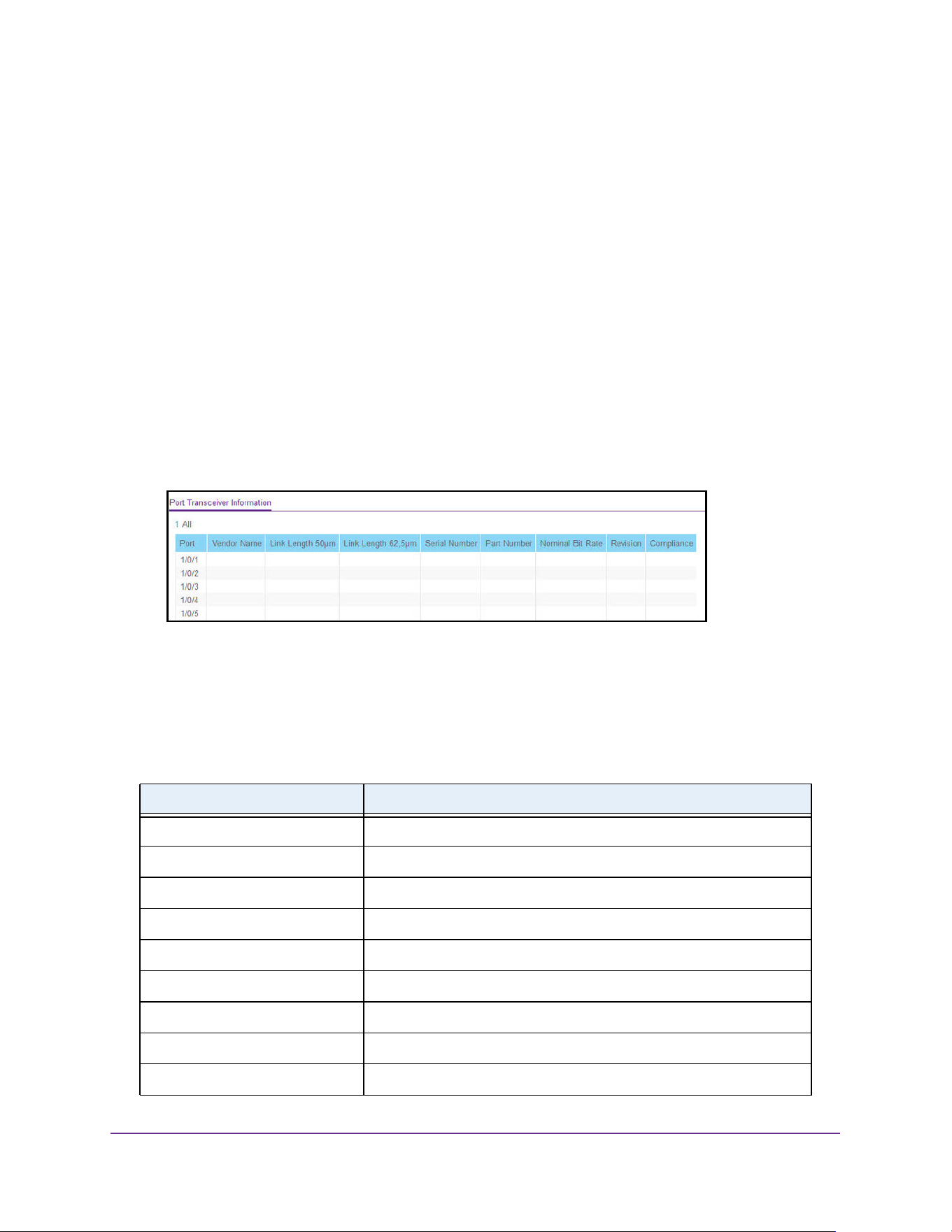
Configure Switching Information
257
M4200 and M4300 Series ProSAFE Managed Switches Web Management User Manual
View Port Transceiver Information
You can view the trans\ceiver information for all fiber ports on the switch
To view port transceiver information:
1. Launch a web browser.
2. Enter http://<ipaddress> in the web browser address field.
The login window opens.
3. Enter the user name and password.
The default admin user name is admin and the default admin password is blank, that is,
do not enter a password.
4. Click the Login button.
The System Information page displays.
5. Select Switching > Ports > Port Transceiver.
6. Select Unit ID to display physical ports of the selected unit or select All to display physical
ports of all units.
7. To refresh the page with the latest information on the switch, click the Update button.
The following describes the nonconfigurable data that is displayed.
Table 98. Port Transceiver
Field Description
Port The interface for which data is to be displayed.
Vendor Name Vendor name of the SFP.
Link Length 50 μm Link length supported for 50 μm fiber.
Link Length 62, 5 μm Link length supported for 62, 5 μm fiber.
Serial Number Serial number of the SFP.
Part Number Part number of the SFP.
Nominal Bit Rate Nominal signalling rate for SFP.
Revision Vendor revision of the SFP.
Compliance Compliance of the SFP.
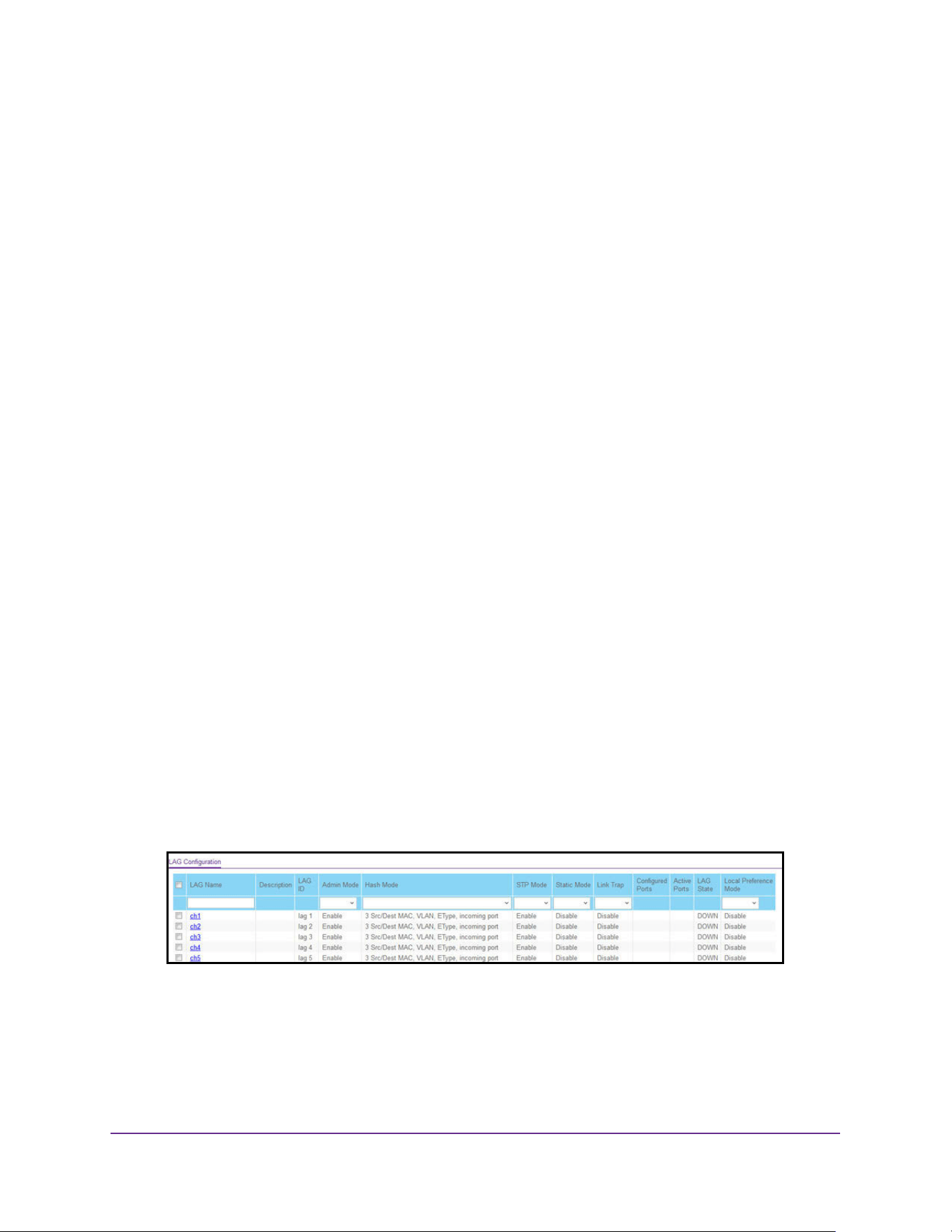
Configure Switching Information
258
M4200 and M4300 Series ProSAFE Managed Switches Web Management User Manual
Link Aggregation Groups
Link aggregation groups (LAGs), which are also known as port-channels, allow you to
combine multiple full-duplex Ethernet links into a single logical link. Network devices treat the
aggregation as if it were a single link, which increases fault tolerance and provides load
sharing. You assign the LAG VLAN membership after you create a LAG. The LAG by default
becomes a member of the management VLAN.
A LAG interface can be either static or dynamic, but not both. All members of a LAG must
participate in the same protocols. A static port-channel interface does not require a partner
system to be able to aggregate its member ports.
Static LAGs are supported. When a port is added to a LAG as a static member, it neither
transmits nor receives LACPDUs.
Configure LAG Settings
You can group one or more full-duplex Ethernet links to be aggregated together to form a link
aggregation group, which is also known as a port-channel. The switch treats the LAG as if it
were a single link.
To configure LAG settings:
1. Launch a web browser.
2. Enter http://<ipaddress> in the web browser address field.
The login window opens.
3. Enter the user name and password.
The default admin user name is admin and the default admin password is blank, that is,
do not enter a password.
4. Click the Login button.
The System Information page displays.
5. Select Switching> LAG > LAG Configuration.
6. Use LAG Name to enter the name to be assigned to the LAG.
You can enter any string of up to 15 alphanumeric characters. A valid name must be
specified for you to create the LAG.
7. Use Admin Mode to select Enable or Disable.

Configure Switching Information
259
M4200 and M4300 Series ProSAFE Managed Switches Web Management User Manual
When the LAG is disabled, no traffic flows and LACPDUs are dropped, but the links that
form the LAG are not released. The factory default is Enable.
8. Use Hash Mode to select the load-balancing mode used on a port-channel (LAG).
Traffic is balanced on a port-channel (LAG) by selecting one of the links in the channel
over which to transmit specific packets. The link is selected by creating a binary pattern
from selected fields in a packet, and associating that pattern with a particular link:
• Src MAC, VLAN, EType, incoming port. Source MAC, VLAN, EtherType, and
incoming port associated with the packet.
• Dest MAC, VLAN, EType, incoming port. Destination MAC, VLAN, EtherType, and
incoming port associated with the packet.
• Src/Dest MAC, VLAN, EType, incoming port. Source/Destination MAC, VLAN,
EtherType, and incoming port associated with the packet. Src/Dest MAC, VLAN,
EType, incoming port is the default.
• Src IP and Src TCP/UDP Port fields. Source IP and Source TCP/UDP fields of the
packet.
• Dest IP and Dest TCP/UDP Port fields. Destination IP and Destination TCP/UDP Port
fields of the packet.
• Src/Dest IP and TCP/UDP Port Fields. Source/Destination IP and source/destination
TCP/UDP Port fields of the packet.
• Enhanced hashing Mode. Features MODULO-N operation based on the number of
ports in the LAG, non-unicast traffic and unicast traffic hashing using a common hash
algorithm, excellent load balancing performance, and packet attributes selection
based on the packet type:
• For L2 packets, source and destination MAC address are used for hash
computation.
• For L3 packets, source IP, destination IP address, TCP/UDP ports are used.
9. Use STP Mode to enable or disable the Spanning Tree Protocol administrative mode
associated with the LAG.
The possible values are as follows:
• Disable. Spanning tree is disabled for this LAG.
• Enable. Spanning tree is enabled for this LAG. Enable is the default.
10. Use Static Mode to select Enable or Disable.
When the LAG is enabled, it does not transmit or process received LACPDUs that is, the
member ports do not transmit LACPDUs and all the LACPDUs it can receive are
dropped. The factory default is Disable.
11. Use Link Trap to specify whether to send a trap when the link status changes.
The factory default is Enable, which causes the trap to be sent.
12. Use Local Preference Mode to Enable or Disable the LAG interface’s local preference
mode.
The default is Disable.
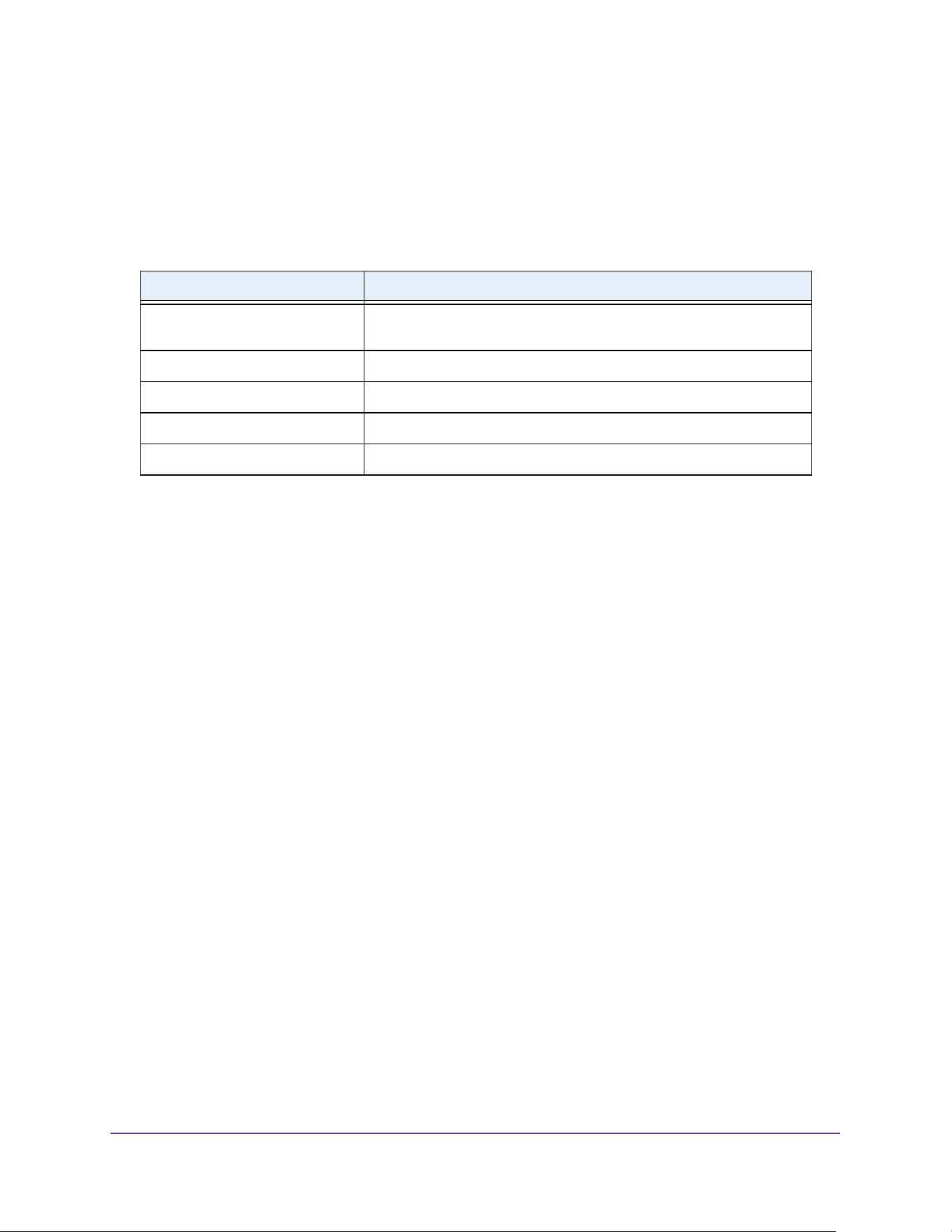
Configure Switching Information
260
M4200 and M4300 Series ProSAFE Managed Switches Web Management User Manual
13. Click the Apply button.
The switch is updated with the values you entered. Configuration changes take effect
immediately.
The following table describes the nonconfigurable information displayed on the page.
Configure LAG Membership
You can select two or more full-duplex Ethernet links to be aggregated together to form a link
aggregation group (LAG), which is also known as a port-channel. The switch can treat the
port-channel as if it were a single link.
To configure LAG membership:
1. Launch a web browser.
2. Enter http://<ipaddress> in the web browser address field.
The login window opens.
3. Enter the user name and password.
The default admin user name is admin and the default admin password is blank, that is,
do not enter a password.
4. Click the Login button.
The System Information page displays.
5. Select Switching> LAG > LAG Membership.
Table 99. LAG Configuration
Field Description
LAG Description Enter the description string to be attached to a LAG. It can be up to 64
characters in length.
LAG ID Identification of the LAG.
LAG State Indicates whether the link is up or down.
Configured Ports Indicate the ports that are members of this port-channel
Active Ports Indicates the ports that are actively participating in the port-channel.
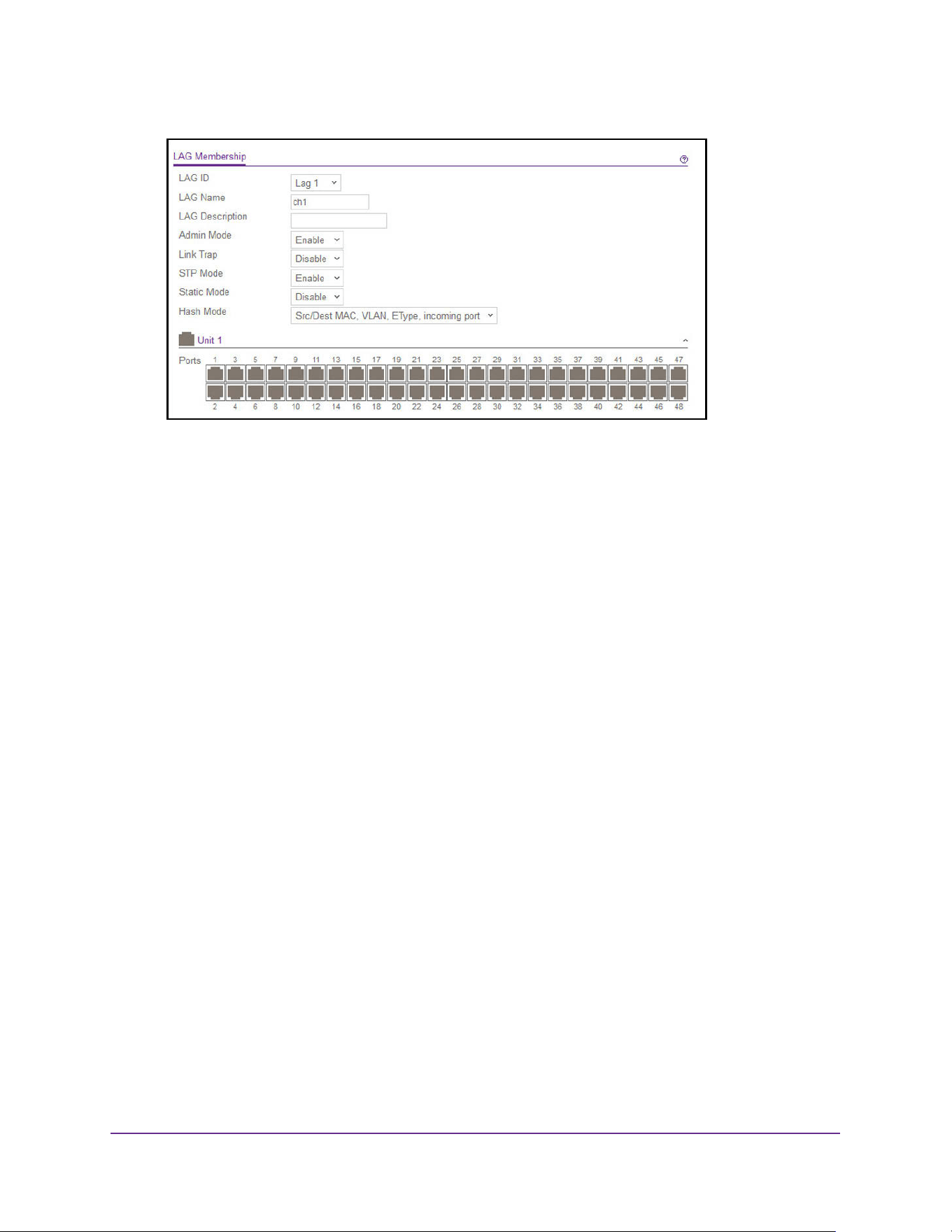
Configure Switching Information
261
M4200 and M4300 Series ProSAFE Managed Switches Web Management User Manual
6. Use LAG ID to select the identification of the LAG.
7. Use LAG Name to enter the name to be assigned to the LAG.
You can enter any string of up to 15 alphanumeric characters. A valid name must be
specified for you to create the LAG.
8. Use LAG Description to enter the description string to be attached to a LAG.
It can be up to 64 characters in length.
9. Use Admin Mode to select Enable or Disable.
When the LAG is disabled, no traffic flows and LACPDUs are dropped, but the links that
form the LAG are not released. The factory default is Enable.
10. Use Link Trap to specify whether to send a trap when the link status changes.
The factory default is Enable, which causes the trap to be sent.
11. Use STP Mode to enable or disable the Spanning Tree Protocol administrative mode
associated with the LAG.
The possible values are as follows:
• Disable. Spanning tree is disabled for this LAG.
• Enable. Spanning tree is enabled for this LAG. Enable is the default.
12. Use Static Mode to select enable or disable.
When the LAG is enabled, it does not transmit or process received LACPDUs that is, the
member ports do not transmit LACPDUs and all the LACPDUs it can receive are
dropped. The factory default is Disable.
13. Use Hash Mode to select the load-balancing mode used on a port-channel (LAG).
Traffic is balanced on a port-channel (LAG) by selecting one of the links in the channel
over which to transmit specific packets.

Configure Switching Information
262
M4200 and M4300 Series ProSAFE Managed Switches Web Management User Manual
The link is selected by creating a binary pattern from selected fields in a packet, and
associating that pattern with a particular link:
• Src MAC,VLAN,EType,incoming port. Source MAC, VLAN, EtherType, and incoming
port associated with the packet.
• Dest MAC,VLAN,EType,incoming port. Destination MAC, VLAN, EtherType, and
incoming port associated with the packet.
• Src/Dest MAC,VLAN,EType,incoming port. Source/Destination MAC, VLAN,
EtherType, and incoming port associated with the packet. This option is the default.
• Src IP and Src TCP/UDP Port fields. Source IP and Source TCP/UDP fields of the
packet.
• Dest IP and Dest TCP/UDP Port fields. Destination IP and Destination TCP/UDP Port
fields of the packet.
• Src/Dest IP and TCP/UDP Port fields. Source/Destination IP and source/destination
TCP/UDP Port fields of the packet.
• Enhanced Hashing Mode. Features MODULO-N operation based on the number of
ports in the LAG, non-unicast traffic and unicast traffic hashing using a common hash
algorithm, excellent load balancing performance, and packet attributes selection
based on the packet type:
- For L2 packets, source and destination MAC address are used for hash
computation.
- For L3 packets, source IP, destination IP address, TCP/UDP ports are used.
14. Use the Port Selection Table to select the ports as members of the LAG.
15. Click the Apply button.
The switch is updated with the values you entered. Configuration changes take effect
immediately.
Multiple Registration Protocol Overview
Like 802.1AS, Multiple Registration Protocol (MRP) is an audio video bridging (AVB) feature
that is available on some FASTPATH platforms. MVR is a base registration protocol that
enables devices running an MRP application to register attributes to other devices in a
network. MRP provides an application to register attributes such as bandwidth for a given AV
stream and MAC address information. It is used by various applications to propagate the
registration. Blade switches support the following MRP applications:
• Multiple MAC Registration Protocol (MMRP). MMRP allows for the propagation MAC
address information in the network, and allows for the registration and deregistration of
both individual MAC address information and group MAC address membership. End
stations can request to join or leave a multicast group, or to register an individual MAC
address with a specific VLAN. MAC address entries can be dynamically registered and
deregistered if MMRP is administratively enabled on the switch.
• Multiple VLAN Registration Protocol (MVRP). MVRP registers VLANs in the network,
enabling automatic VLAN configuration on the switch. In a typical network, VLAN tagging
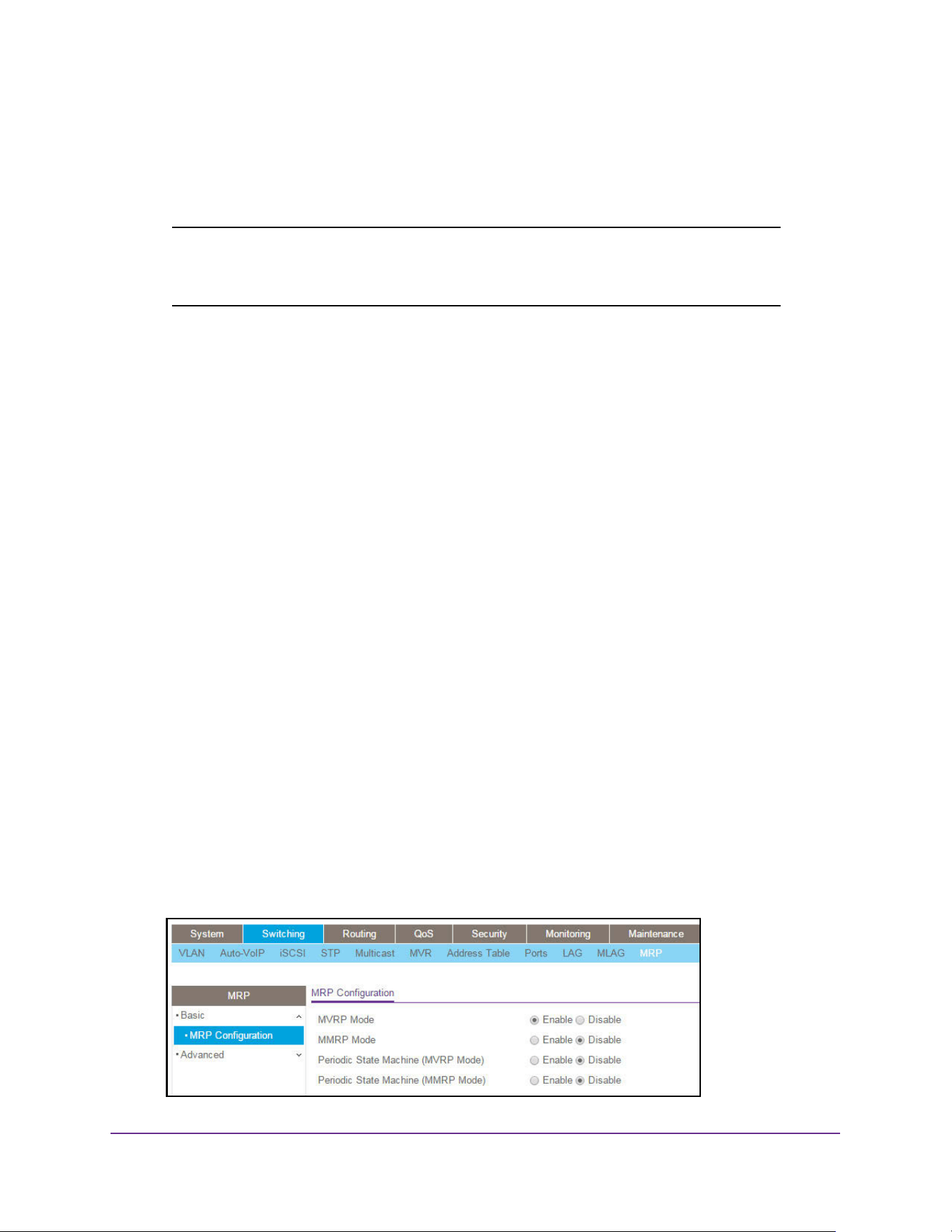
Configure Switching Information
263
M4200 and M4300 Series ProSAFE Managed Switches Web Management User Manual
is common. Many nodes require ingress traffic to be tagged with a specific VLAN ID, and
other nodes require egress traffic to be transmitted with a specific VLAN ID. With the use
of MVRP on both ingress and egress, no manual VLAN configuration is required to pass
tagged traffic through the network.
Note: MRP framework must be available and enabled in all intermediate
devices to ensure that the propagation of the attributes occurs
throughout the network.
With MRP, network attributes are declared, registered, withdrawn, and removed
completely dynamically without any user intervention. This dynamic nature is especially
useful in networks where the following is true:
- Network attributes are likely to change frequently, requiring reconfiguration of the
intermediate devices.
- Recipients of these attributes frequently increase or decrease in number.
- Each of these changes without a dynamic self-adjusting framework would require
constant attention from the network administrator.
Configure Global MRP Settings
You can configure global MRP settings for the switch.
To configure global MRP settings:
1. Launch a web browser.
2. Enter http://<ipaddress> in the web browser address field.
The login window opens.
3. Enter the user name and password.
The default admin user name is admin and the default admin password is blank, that is,
do not enter a password.
4. Click the Login button.
The System Information page displays.
5. Select Switching > MRP > Basic > MRP Configuration.

Configure Switching Information
264
M4200 and M4300 Series ProSAFE Managed Switches Web Management User Manual
Note: The fields available on the MRP Configuration page vary based on the
platform and its supported features.
6. Select the MVRP Mode Enable or Disable radio button.
This specifies the global administrative mode of MVRP on the device. The default is
Disable.
Multiple VLAN Registration Protocol (MVRP) registers VLANs in the network, enabling
automatic VLAN configuration on the device. In a typical network, VLAN tagging is
common. Many nodes require ingress traffic to be tagged with a specific VLAN ID, and
other nodes require egress traffic to be transmitted with a specific VLAN ID. With the use
of MVRP on both ingress and egress, no manual VLAN configuration is required to pass
tagged traffic through the network.
7. Select the MMRP Enable or Disable radio button.
This specifies the global administrative mode of MMRP on the device. The default is
Disable.
Multiple MAC Registration Protocol (MMRP) allows the propagation of MAC address
information in the network, and allows for the registration and deregistration of both
individual MAC address information and group MAC address membership. End stations
can request to join or leave a multicast group, or to register an individual MAC address
with a specific VLAN. MAC address entries can be dynamically registered and
deregistered if MMRP is administratively enabled on the device.
8. Select the Periodic State Machine (MVRP) Enable or Disable radio button.
When enabled, the state machine can help limit the effect of topology changes and
reduce the number of protocol data units (PDUs) transmitted between devices. The
default is Disable.
9. Select the Periodic State Machine (MMRP) Enable or Disable radio button.
When enabled, the state machine can help limit the effect of topology changes and
reduce the number of protocol data units (PDUs) transmitted between devices. The
default is Disable.
10. Click the Apply button.
The updated configuration is sent to the switch. Configuration changes take effect
immediately.
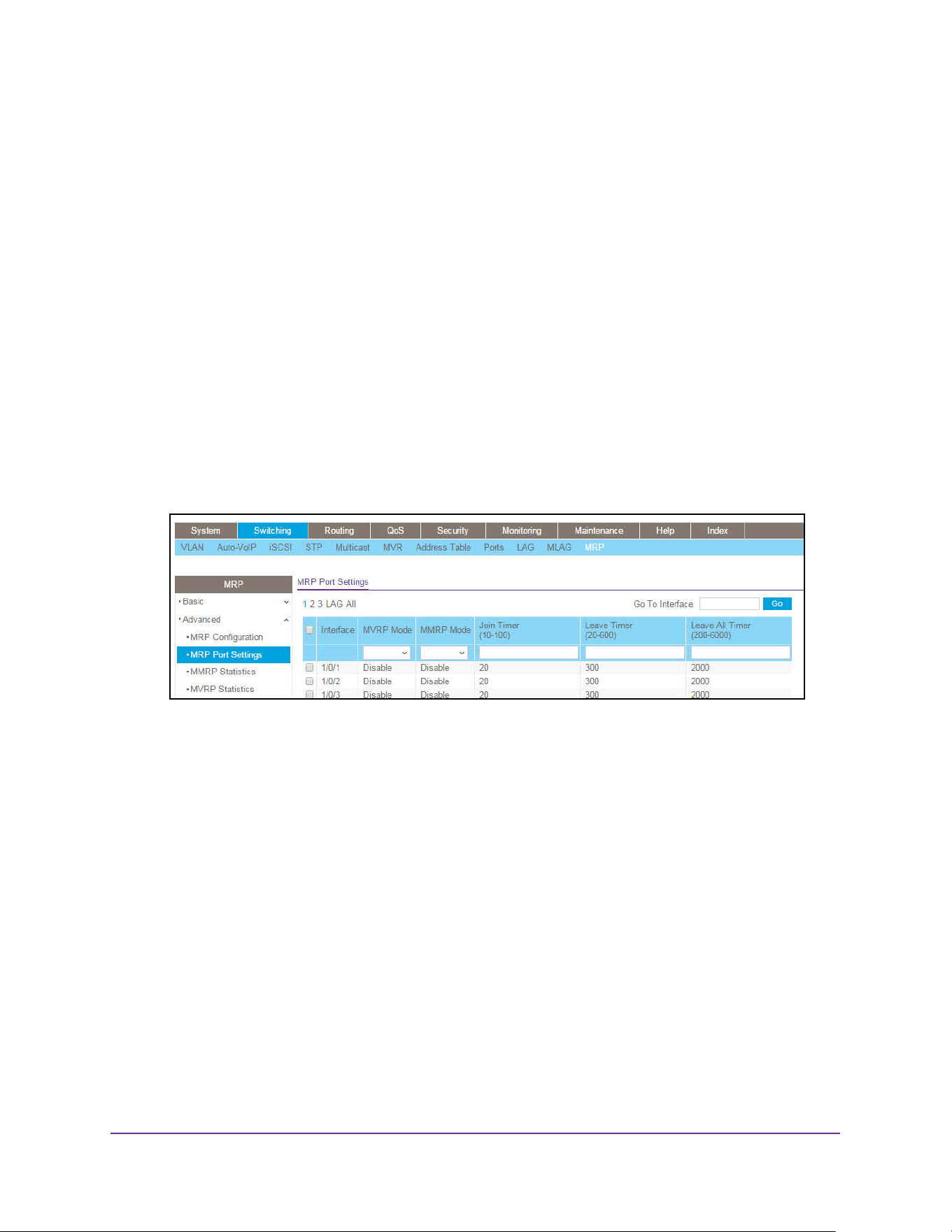
Configure Switching Information
265
M4200 and M4300 Series ProSAFE Managed Switches Web Management User Manual
Configure MRP Port Settings
You can configure the per-port MRP mode and timer settings. The timers control when and
how often various messages are transmitted on each interface.
To configure MRP port settings:
1. Launch a web browser.
2. Enter http://<ipaddress> in the web browser address field.
The login window opens.
3. Enter the user name and password.
The default admin user name is admin and the default admin password is blank, that is,
do not enter a password.
4. Click the Login button.
The System Information page displays.
5. Select Switching> MRP > Advanced > Port Settings.
6. To configure one or more ports or LAGs, select the check box next to each port or LAG to
configure.
You can select multiple ports to apply the same settings to the selected interfaces.
7. In the MVRP Mode field, select Enable or Disable.
This specifies the administrative mode of Multiple VLAN Registration Protocol (MVRP) on
the interface. MVRP registers VLANs in the network, enabling automatic VLAN
configuration on the device.
8. In the MMRP Mode field, select Enable or Disable.
This specifies the administrative mode of Multiple MAC Registration Protocol (MMRP) on
the interface. MMRP allows the propagation of MAC address information in the network
and allows for the registration and deregistration of both individual MAC address
information and group MAC address membership.
9. Use the MRP Join Timer field to configure the amount of time in centiseconds to wait for
JoinIn messages from other MRV participants after the interface sends a Join message.

Configure Switching Information
266
M4200 and M4300 Series ProSAFE Managed Switches Web Management User Manual
If the amount of time specified in this field passes before the interface receives a JoinIn
message, the interface resends the Join message. The range is 10 to 100 centiseconds.
The default value is 20.
10. Use the MRP Leave Timer field to configure the amount of time in centiseconds to wait
before the interface deregisters attributes from other MRV participants.
If the interface receives Join messages from other participants before the Leave timer
expires, the attributes are not deregistered. The range is 20 to 600 centiseconds. The
default value is 300.
11. Use the MRP Leave All Timer field to configure the amount of time to wait, after the
interface starts the MRP registration process, before the participants refresh and
reregister their attributes.
The range is 200 to 6000 centiseconds. The default value is 2000.
12. Click the Apply button.
The updated configuration is sent to the switch. Configuration changes take effect
immediately.
View MMRP and Clear Statistics
You can view and clear information regarding the MMRP frames transmitted and received by
the switch and by each interface.
To view and clear MMRP statistics:
1. Launch a web browser.
2. Enter http://<ipaddress> in the web browser address field.
The login window opens.
3. Enter the user name and password.
The default admin user name is admin and the default admin password is blank, that is,
do not enter a password.
4. Click the Login button.
The System Information page displays.
5. Select Switching > MRP > Advanced > MMRP Statistics.
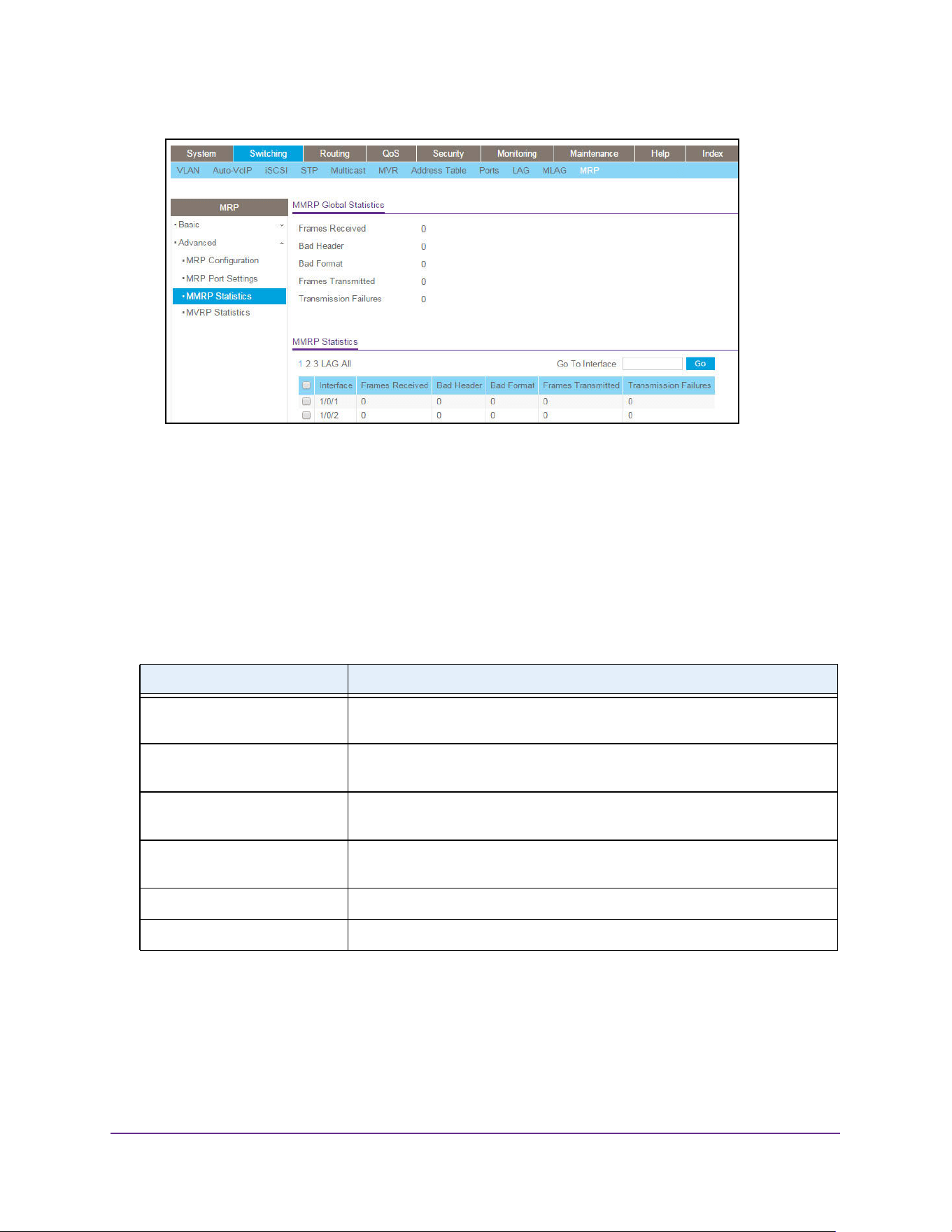
Configure Switching Information
267
M4200 and M4300 Series ProSAFE Managed Switches Web Management User Manual
6. To refresh the page with the latest information on the switch, click the Update button.
7. To clear the statistics for one or more ports, do the following:
a. Select the check box next to the interface or interfaces.
b. Click the Clear button.
The statistics are cleared.
The following table describes the nonconfigurable data that the MMRP Global Statistics page
displays.
Table 100. MMRP Global Statistics
Field Description
Interface In the MMRP Statistics table, this field identifies the interface associated with
the rest of the data in the row.
Frames Received The number of MMRP frames that were received on the device or on the
particular interface.
Bad Header The number of MMRP frames with bad headers that were received on the
switch.
Bad Format The number of MMRP frames with bad PDUs body formats that were received
on the switch.
Frames Transmitted The number of MMRP frames that were transmitted on the switch.
Transmission Failures The number of MMRP frames that the switch failed to transmit.
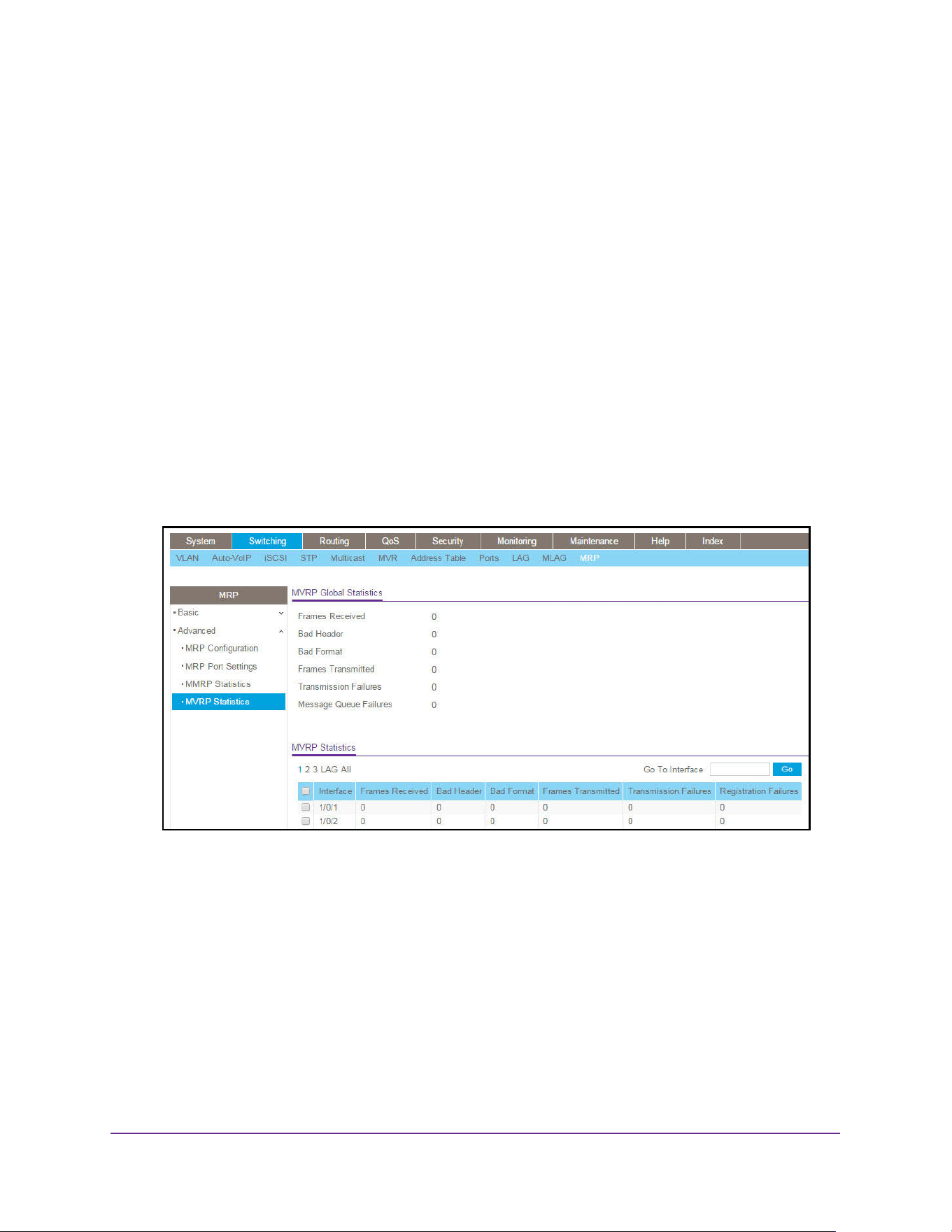
Configure Switching Information
268
M4200 and M4300 Series ProSAFE Managed Switches Web Management User Manual
View and Clear MVRP Statistics
You can view and clear information about the MVRP frames transmitted and received by the
switch and by each interface.
To view and clear MVRP statistics:
1. Launch a web browser.
2. Enter http://<ipaddress> in the web browser address field.
The login window opens.
3. Enter the user name and password.
The default admin user name is admin and the default admin password is blank, that is,
do not enter a password.
4. Click the Login button.
The System Information page displays.
5. Select Switching > MRP > MVRP Statistics.
6. To refresh the page with the latest information on the switch, click the Update button.
7. To clear the statistics for one or more ports, do the following:
a. Select the check box next to the interface or interfaces.
b. Click the Clear button.
The statistics are cleared.
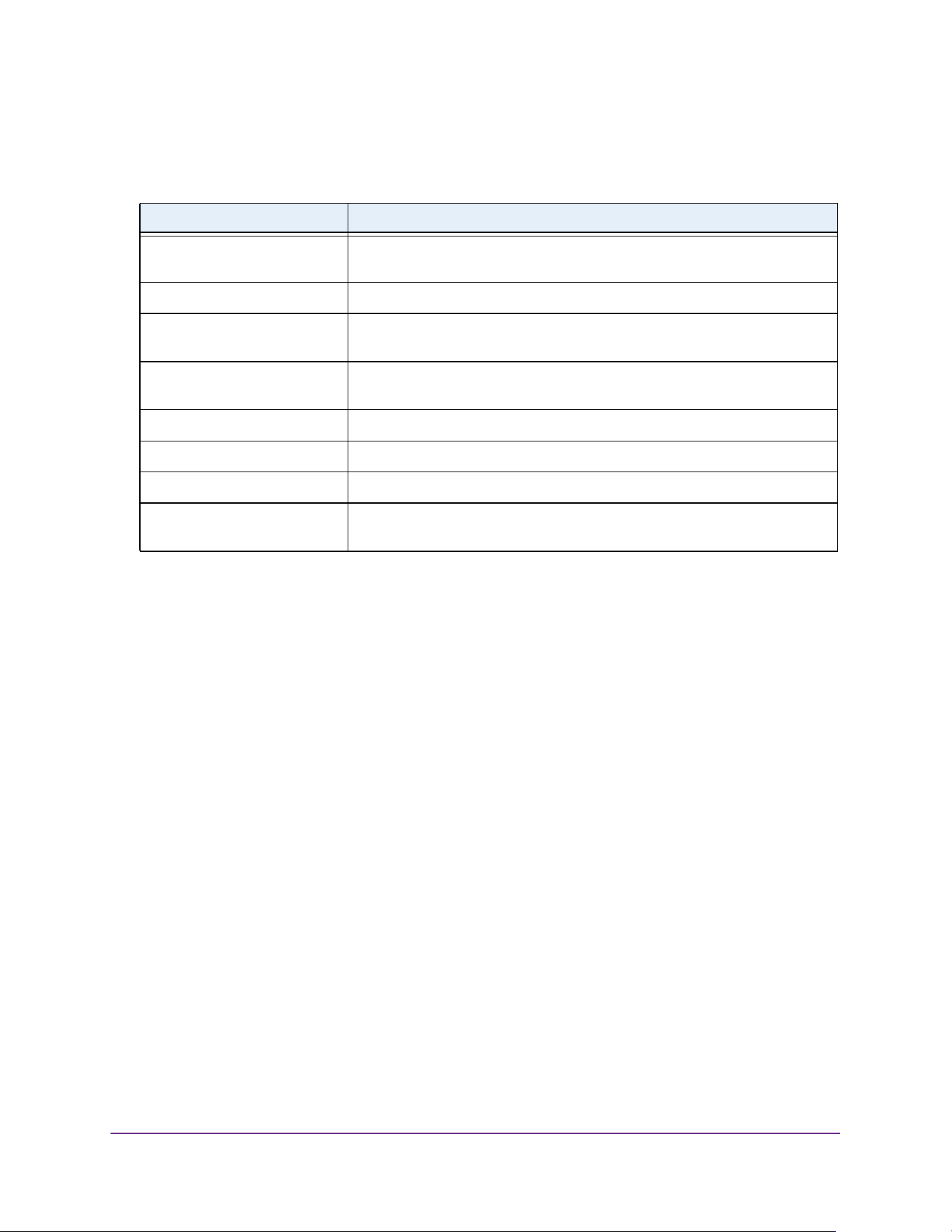
Configure Switching Information
269
M4200 and M4300 Series ProSAFE Managed Switches Web Management User Manual
The following table describes the nonconfigurable data that the MVRP Global Statistics page
displays.
Loop Protection
Loop protection can detect physical and logical loops between Ethernet ports on a device.
About Loop Protection
Loops inside a network are costly because they consume resources and reduce the
performance of the network. Detecting loops manually can be cumbersome.
The switch can automatically identify loops in the network. You can enable loop protection
per port or globally.
If loop protection is enabled, the switch sends predefined protocol data unit (PDU) packets to
a Layer 2 multicast destination address (09:00:09:09:13:A6) on all ports for which the feature
is enabled. You can selectively disable PDU packet transmission for loop protection on
specific ports even while port loop protection is enabled. If the switch receives a packet with
the previously mentioned multicast destination address, the source MAC address in the
packet is compared with the MAC address of the switch. If the MAC address does not match,
the packet is forwarded to all ports that are members of the same VLAN, just like any other
multicast packet. The packet is not forwarded to the port from which it was received.
Table 101. MVRP Statistics
Field Description
Interface In the MVRP Statistics table, this field identifies the interface associated with
the rest of the data in the row.
Frames Received The number of MVRP frames that were received on the switch.
Bad Header The number of MVRP frames with bad headers that were received on the
switch.
Bad Format The number of MVRP frames with bad PDUs body formats that were received
on the switch.
Frames Transmitted The number of MVRP frames that were transmitted on the switch.
Transmission Failures The number of MVRP frames that the switch failed to transmit.
Message Queue Failures The number of messages that failed to be added to the queue.
Registration Failures The number of MVRP frames that failed to register on a device or particular
interface.

Configure Switching Information
270
M4200 and M4300 Series ProSAFE Managed Switches Web Management User Manual
If the source MAC address matches the MAC address of the switch, the switch can perform
one of the following actions, depending on how you configure the action:
• The port is shut down.
• A log message is generated. (If a syslog server is configured, the log message can be
sent to the syslog server.)
• The port is shut down and a log message is generated.
If loop protection is disabled, the multicast packet is silently dropped.
Loop protection is not intended for ports that serve as uplinks between spanning tree–aware
switches. Loop protection is designed for unmanaged switches that drop spanning tree
bridge protocol data units (BPDUs).
You need to enable the feature globally before you can enable it at the port level so that the
system policy filter can be installed.
Loop Protection and PDU Packet Transmission
Loop protection sends loop protocol packets from all ports on which it is enabled. You can
configure the interval (1 to 5 seconds) between two successive loop protection PDU packets.
The default interval is 5 seconds. If the switch receives a loop protocol packet on a port for
which the action is set to shut down the port, the port can no longer receive and send frames.
Loop protection operates at a port level, regardless of VLAN assignment and membership,
detecting loops across VLANs.
Loop Protection and Spanning Tree Protocol
Loop protection does not impact end nodes and is not intended for ports that serve as uplinks
between spanning tree–aware switches. Loop protection can coexist with Spanning Tree
Protocol (STP). You can enable both loop protection and STP on a port because these
features function independently of each other. STP does not bring a port down when a loop is
detected but keeps the port in blocking state. Because PDUs are allowed in a blocking state,
loop protection packets are received and loop protection brings down the port that is involved
in the loop (if the configured action is to shut down the port).
Configure the Global Loop Protection Settings
Before you can configure loop protection for individual ports (see Configure the Loop
Protection Settings for Ports and View the Loop Protection State on page 272), you must
globally enable and configure loop protection.
To globally enable and configure loop protection:
1. Launch a web browser.
2. Enter http://<ipaddress> in the web browser address field.
The login window opens.
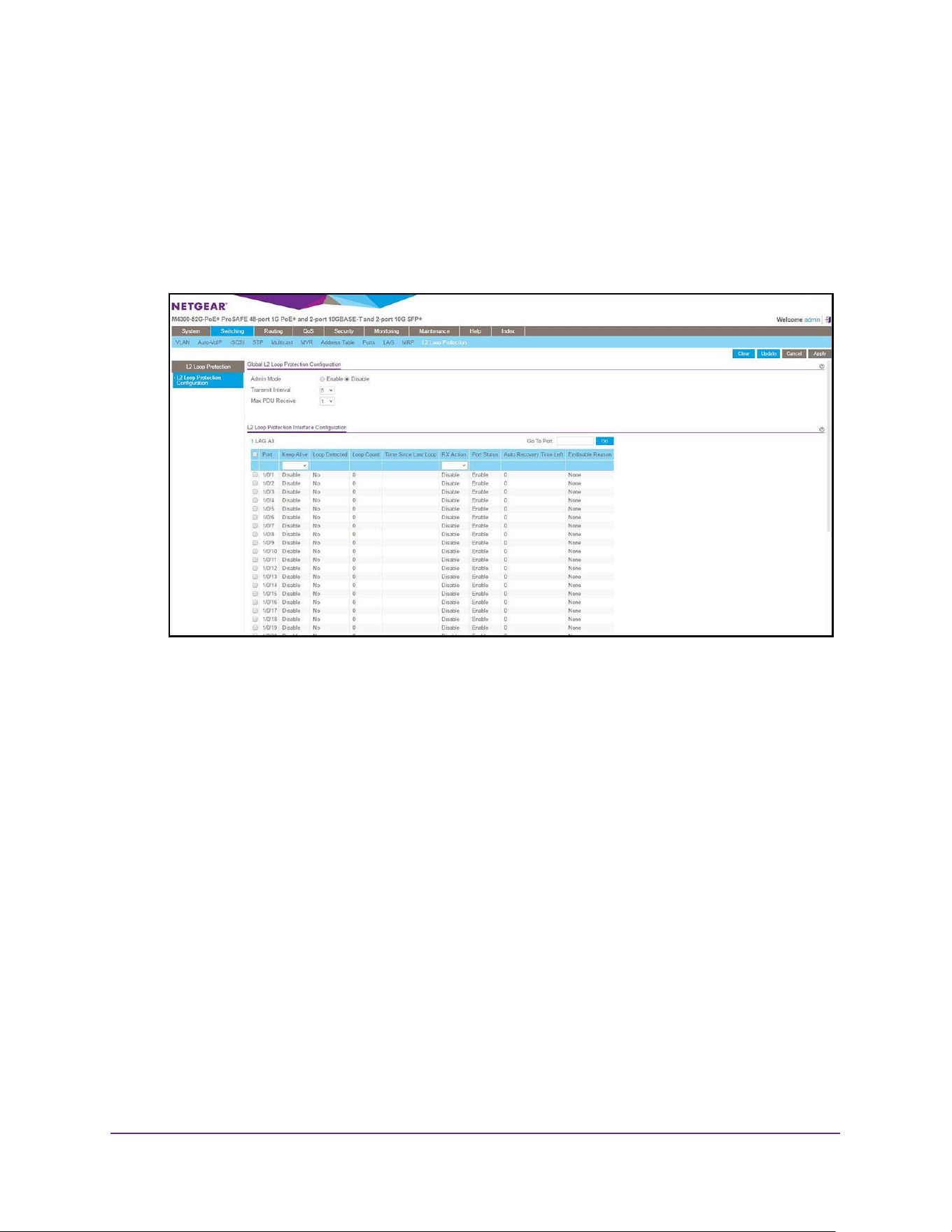
Configure Switching Information
271
M4200 and M4300 Series ProSAFE Managed Switches Web Management User Manual
3. Enter the user name and password.
The default admin user name is admin and the default admin password is blank, that is,
do not enter a password.
4. Click the Login button.
The System Information page displays.
5. Select Switching> L2 Loop Protection > L2 Loop Protection Configuration.
6. In the Global L2 Loop Protection Configuration section, configure the following settings:
• Next to Admin Mode, select the Enable or Disable radio button to specify the
administrative mode of loop protection on the switch.
By default, loop protection is globally disabled.
• From the Transmit Interval menu, select the interval between the transmissions of
loop packets on a port.
The range is from 1 to 5 seconds. The default setting is 5 seconds. The selected
interval applies to all ports for which you enable loop protection.
• From the Max PDU Receive menu, select the maximum number of packets that a
port can receive before an action is taken.
The default setting is 1 packet. The selected number of packets applies to all ports for
which you enable loop protection.
7. Click the Apply button.
The updated configuration is sent to the switch. Configuration changes take effect
immediately.
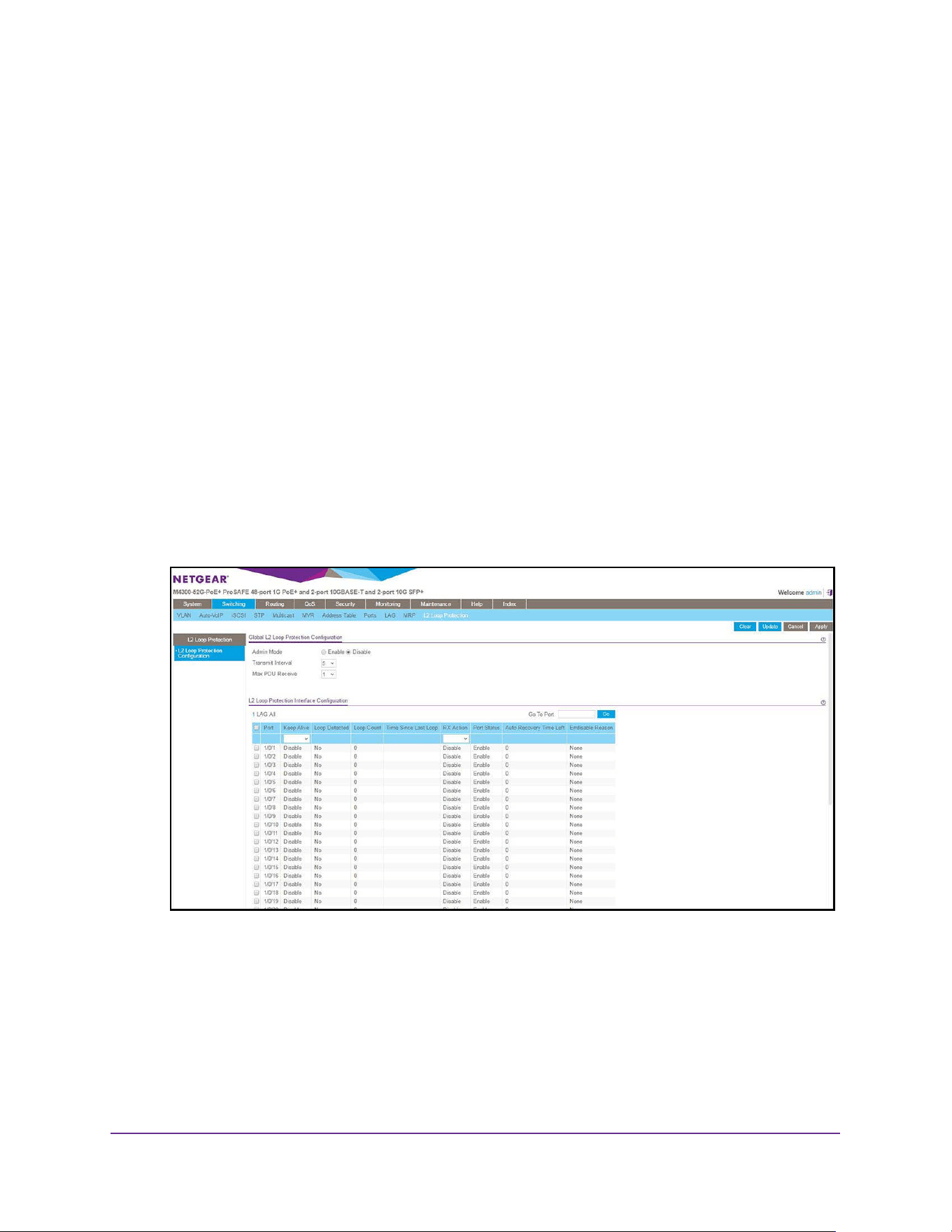
Configure Switching Information
272
M4200 and M4300 Series ProSAFE Managed Switches Web Management User Manual
Configure the Loop Protection Settings for Ports and View the
Loop Protection State
Before you can configure loop protection for individual ports, you must globally enable loop
protection (see Configure the Global Loop Protection Settings on page 270).
To enable and configure loop protection for a port and view the loop protection state
on the switch:
1. Launch a web browser.
2. Enter http://<ipaddress> in the web browser address field.
The login window opens.
3. Enter the user name and password.
The default admin user name is admin and the default admin password is blank, that is,
do not enter a password.
4. Click the Login button.
The System Information page displays.
5. Select Switching> L2 Loop Protection > L2 Loop Protection Configuration.
6. Select one of the following options to specify which ports are displayed on the page:
• Click LAG to show the list of all LAG interfaces.
• Click All to show the list of all physical ports as well as LAG interfaces.
7. Use one of the following methods to select a port:
• In the Go To Port field, enter the port in the unit/slot/port format and click on the Go
button.
• Next to the Port column, select the check box for the port that you want to configure.
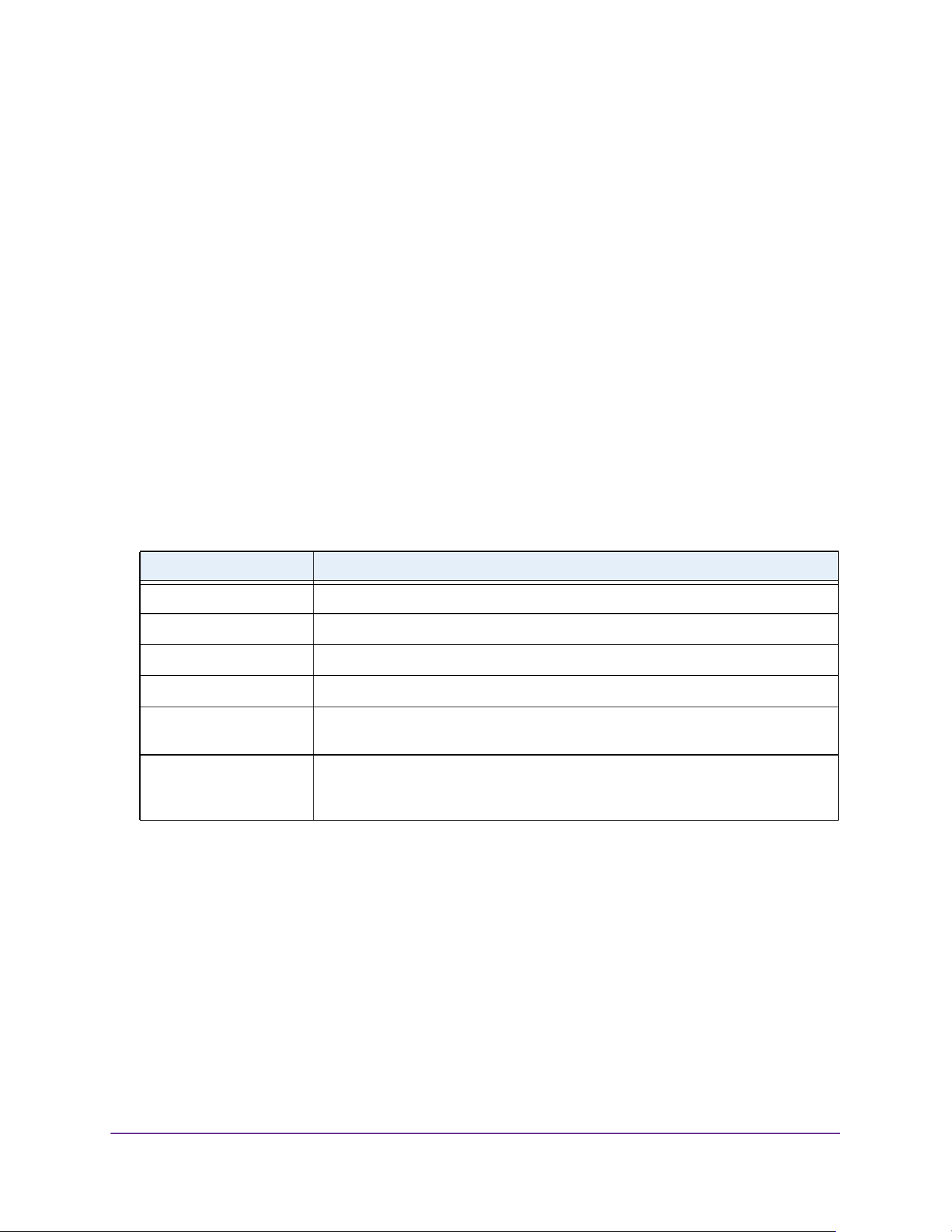
Configure Switching Information
273
M4200 and M4300 Series ProSAFE Managed Switches Web Management User Manual
Note: You can select multiple ports. You can select all ports by selecting the
check box in the table header.
8. From the Keep Alive menu, select Enable to specify that loop protection must be enabled
on the port.
By default, loop protection is disabled for a port.
9. From the RX Action menu, select the action that the switch takes when a loop is detected
on the port:
• Log. Log the message when a loop is detected on the port.
• Disable. Disable the port when a loop is detected. This is the default setting.
• Both. Log and disable the port when a loop is detected.
10. Click the Apply button.
The updated configuration is sent to the switch. Configuration changes take effect
immediately.
11. To refresh the page with the latest information on the switch, click the Update button.
The following table describes the nonconfigurable information that is displayed on the page.
Table 102. Loop protection interface configuration information
Field Description
Loop Detected Indicates (Yes or No) whether a loop is detected on the port.
Loop Count The number of packets that were received on the port after the loop was detected.
Time Since Last Loop The time since the loop was detected.
Port Status The status of the port (Enabled or Disabled).
Auto Recovery Time Left The time that is left before the port is reenabled through the autorecovery process.
The time is in the range from 30 to 604800 seconds.
Errdisable Reason The reason that the port was disabled. In addition to being disabled because of loop
protection, the port can be disabled because of Unidirectional Link Detection
(UDLD), a broadcast storm, a unicast storm, and so on.

274
5
5. Routing
This chapter covers the following topics:
• Manage Routes
• Configure the Routing IP Settings
• Configure Routing Parameters for the Switch
• IPv6
• VLAN Overview
• Configure Address Resolution Protocol
• Configure RIP
• Configure Router Discovery
• Configure Virtual Router Redundancy Protocol
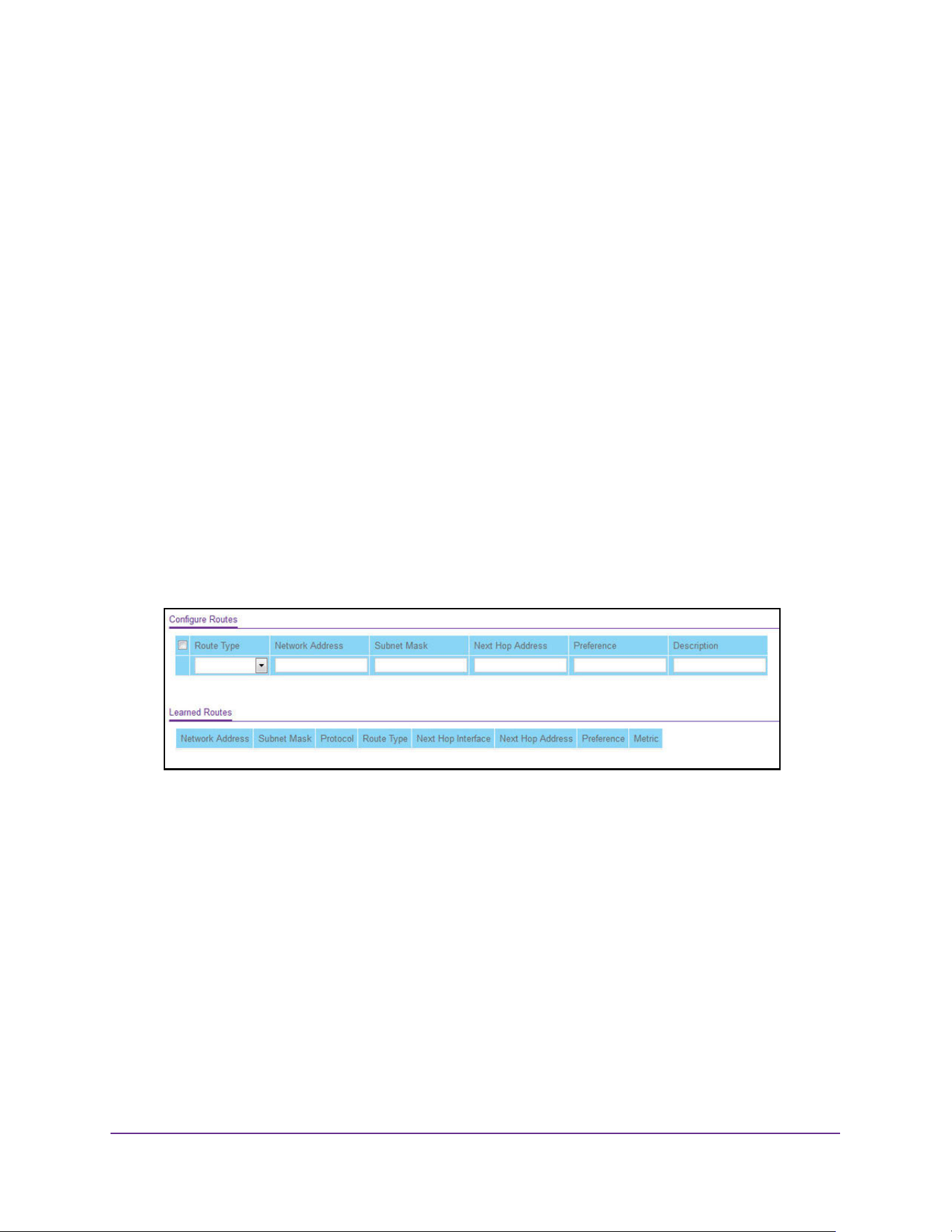
Routing
275
M4200 and M4300 Series ProSAFE Managed Switches Web Management User Manual
Manage Routes
The Routing Table collects routes from multiple sources: static routes and local routes. The
Routing Table can learn multiple routes to the same destination from multiple sources. The
Routing Table lists all routes.
Configure a Basic Route
To configure a basic route:
1. Launch a web browser.
2. Enter http://<ipaddress> in the web browser address field.
The login window opens.
3. Enter the user name and password.
The default admin user name is admin and the default admin password is blank, that is,
do not enter a password.
4. Click the Login button.
The System Information page displays.
5. Select Routing> Routing Table > Basic > Route Configuration.
6. In the Route Type list, select one of the following route types.
• Default. To create a default route, all that must be specified is the next hop address,
and preference.
• Static. To create a static route, specify the network address, subnet mask, next hop
address, and preference.
• Static Reject. To create a static reject route, specify the network address, subnet
mask, and preference.
7. Network Address displays the IP route prefix for the destination.
8. Subnet Mask indicates the portion of the IP interface address that identifies the attached
network.
This is also referred to as the subnet/network mask.
9. Next Hop IP Address displays the outgoing router IP address to use when forwarding traffic
to the next router (if any) in the path toward the destination.
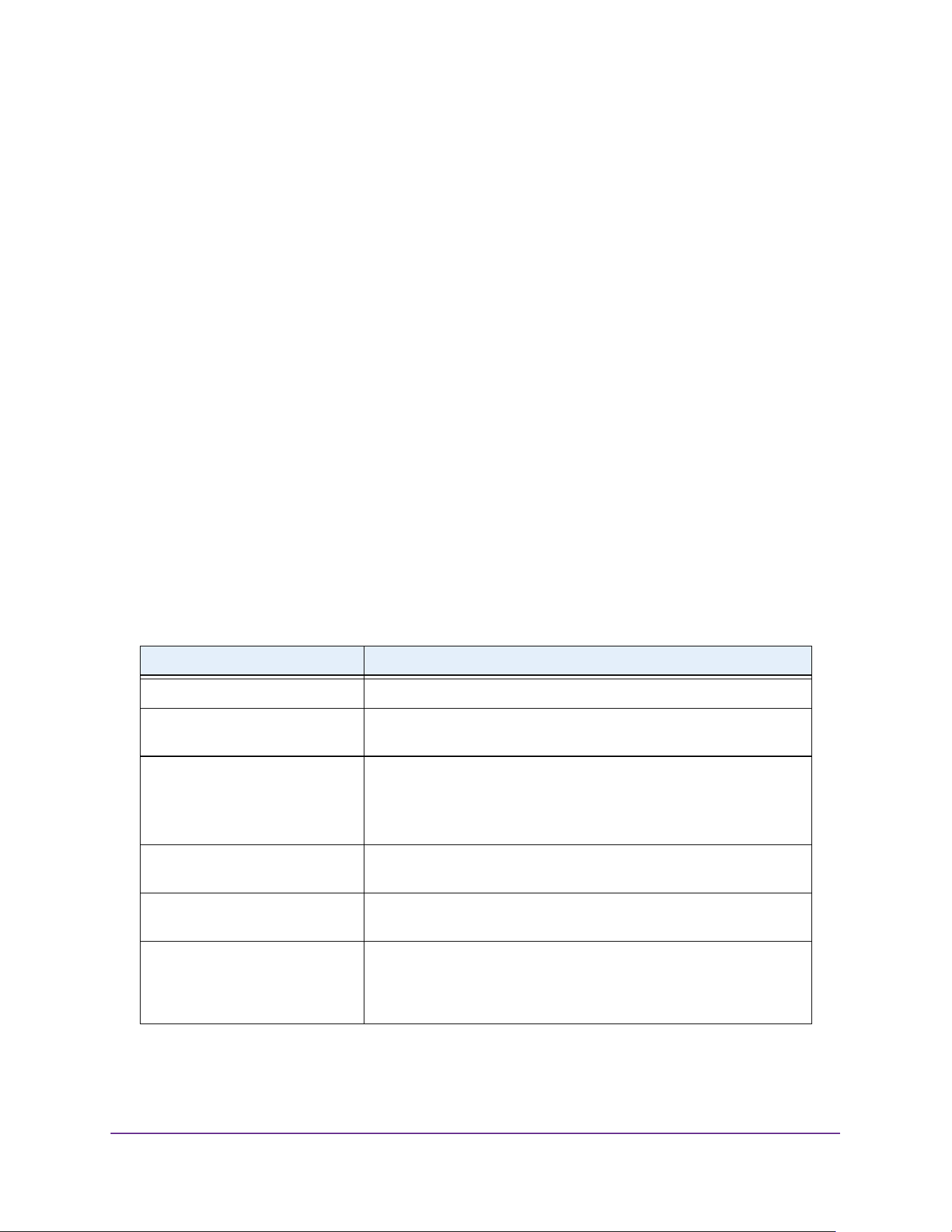
Routing
276
M4200 and M4300 Series ProSAFE Managed Switches Web Management User Manual
The next router is always one of the adjacent neighbors or the IP address of the local
interface for a directly attached network.
10. Preference displays an integer value from 1 to 255.
You can specify the preference value (sometimes called administrative distance) of an
individual static route. Among routes to the same destination, the route with the lowest
preference value is the route entered into the forwarding database. By specifying the
preference of a static route, the user controls whether a static route is more or less
preferred than routes from dynamic routing protocols. The preference also controls
whether a static route is more or less preferred than other static routes to the same
destination.
11. Use Description to specify the description of this route that identifies the route.
Description must consist of alphanumeric, hyphen, or underscore characters and can be
up to 31 characters in length.
12. Click the Add button.
The static route is added to the switch.
13. Click the Apply button.
The updated configuration is sent to the switch. Configuration changes take effect
immediately.
The following table describes the nonconfigurable data that is displayed.
Table 103. Routing Table Basic Route Configuration
Field Description
Network Address The IP route prefix for the destination.
Subnet Mask Also referred to as the subnet/network mask, this indicates the portion
of the IP interface address that identifies the attached network.
Protocol This field tells which protocol created the specified route. The
possibilities are one of the following:
• Local
• Static
Route Type This field can be Connected or Static or Dynamic based on the
protocol.
Next Hop Interface The outgoing router interface to use when forwarding traffic to the
destination.
Next Hop Address The outgoing router IP address to use when forwarding traffic to the
next router (if any) in the path toward the destination. The next router is
always one of the adjacent neighbors or the IP address of the local
interface for a directly attached network.
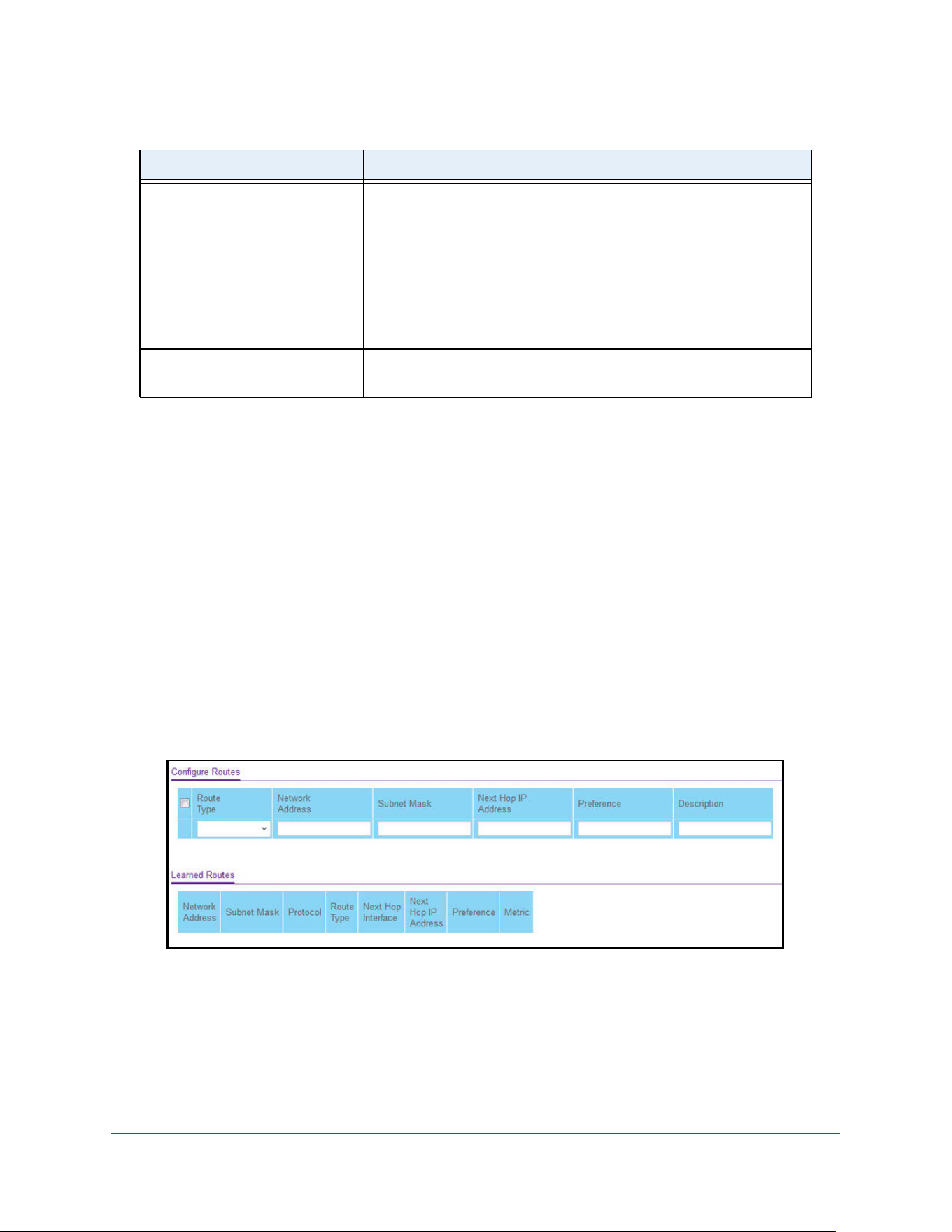
Routing
277
M4200 and M4300 Series ProSAFE Managed Switches Web Management User Manual
Configure Advanced Routes
To configure advanced routes:
1. Launch a web browser.
2. Enter http://<ipaddress> in the web browser address field.
The login window opens.
3. Enter the user name and password.
The default admin user name is admin and the default admin password is blank, that is,
do not enter a password.
4. Click the Login button.
The System Information page displays.
5. Select Routing> Routing Table> Advanced > Route Configuration.
6. Use the Route Type field to specify Default or static reject route.
If you are creating a default route, all that must be specified is the next hop IP address;
otherwise, each field must be completed.
7. Network Address displays the IP route prefix for the destination.
Preference The preference is an integer value from (0 to 255). The user can
specify the preference value (sometimes called administrative
distance) of an individual static route. Among routes to the same
destination, the route with the lowest preference value is the route
entered into the forwarding database. By specifying the preference of a
static route, the user controls whether a static route is more or less
preferred than routes from dynamic routing protocols. The preference
also controls whether a static route is more or less preferred than other
static routes to the same destination.
Metric Administrative cost of the path to the destination. If no value is entered,
default is 1. The range is 0–255.
Table 103. Routing Table Basic Route Configuration (continued)
Field Description
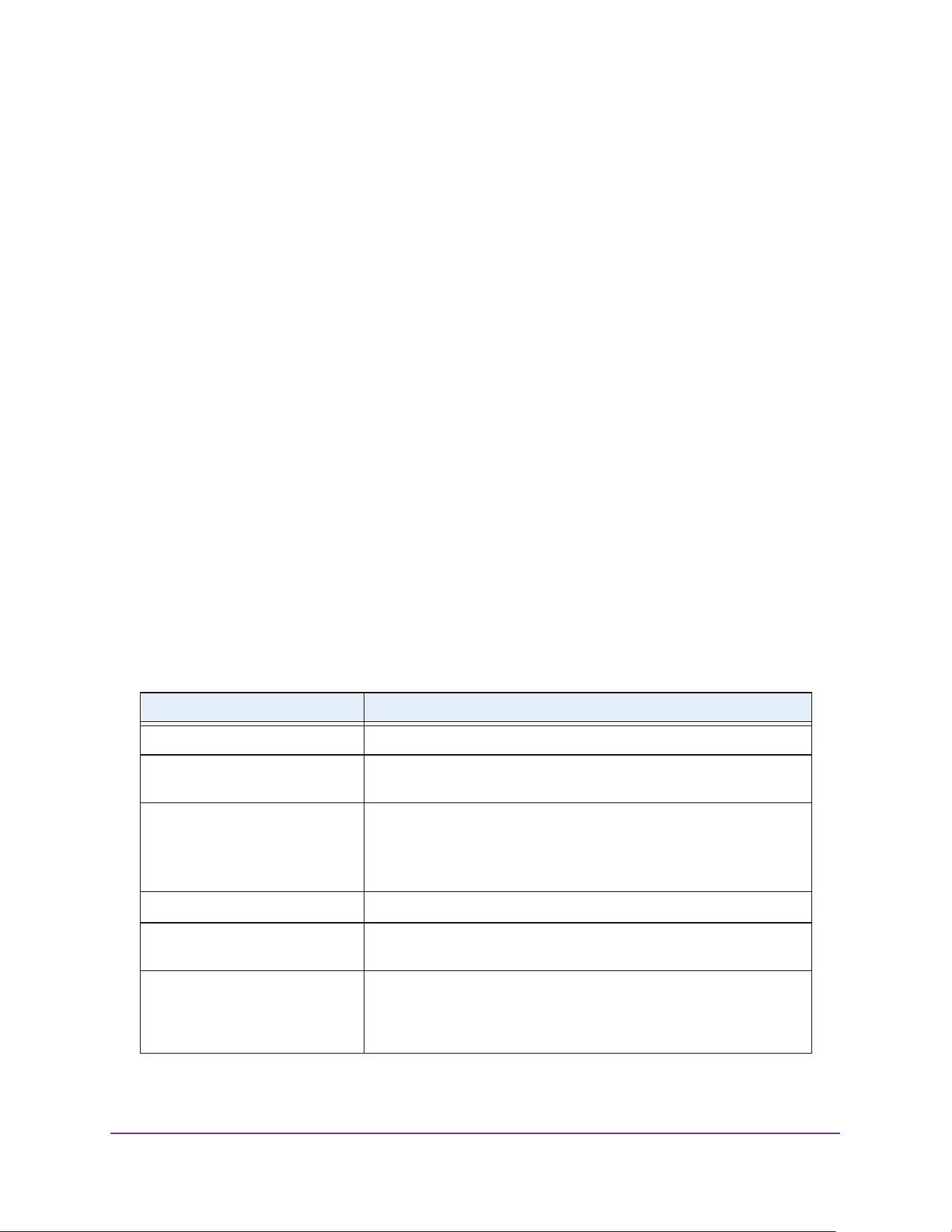
Routing
278
M4200 and M4300 Series ProSAFE Managed Switches Web Management User Manual
8. Subnet Mask indicates the portion of the IP interface address that identifies the attached
network.
This is also referred to as the subnet/network mask.
9. Next Hop IP Address displays the outgoing router IP address to use when forwarding traffic
to the next router (if any) in the path toward the destination.
The next router is always one of the adjacent neighbors or the IP address of the local
interface for a directly attached network.
10. Preference displays an integer value from 1 to 255.
You can specify the preference value (sometimes called administrative distance) of an
individual static route. Among routes to the same destination, the route with the lowest
preference value is the route entered into the forwarding database. By specifying the
preference of a static route, the user controls whether a static route is more or less
preferred than routes from dynamic routing protocols. The preference also controls
whether a static route is more or less preferred than other static routes to the same
destination.
11. Use Description to specify the description of this route that identifies the route.
The description must consist of alphanumeric, hyphen or underscore characters and can
be up to 31 characters in length.
12. Click the Add button.
The static route is added to the switch.
The following table describes the nonconfigurable information displayed on the page.
Table 104. Route Configuration - Learned Routes
Field Description
Network Address The IP route prefix for the destination.
Subnet Mask Also referred to as the subnet/network mask, this indicates the portion
of the IP interface address that identifies the attached network.
Protocol This field tells which protocol created the specified route. The
possibilities are one of the following:
• Local
• Static
Route Type This field can be either default or static.
Next Hop Interface The outgoing router interface to use when forwarding traffic to the
destination.
Next Hop IP Address The outgoing router IP address to use when forwarding traffic to the
next router (if any) in the path toward the destination. The next router is
always one of the adjacent neighbors or the IP address of the local
interface for a directly attached network.

Routing
279
M4200 and M4300 Series ProSAFE Managed Switches Web Management User Manual
Specify Route Preferences
You can configure the default preference for each protocol, for example, 60 for static routes,
120 for RIP. These values are arbitrary values in the range of 1 to 255 and are independent of
route metrics. Most routing protocols use a route metric to determine the shortest path known
to the protocol, independent of any other protocol.
The best route to a destination is chosen by selecting the route with the lowest preference
value. When there are multiple routes to a destination, the preference values are used to
determine the preferred route. If there is still a tie, the route with the best route metric is
chosen. To avoid problems with mismatched metrics (such as RIP and Open Shortest Path
First [OSPF] metrics, which are not directly comparable) you must configure different
preference values for each of the protocols.
To specify route preferences
1. Launch a web browser.
2. Enter http://<ipaddress> in the web browser address field.
The login window opens.
3. Enter the user name and password.
The default admin user name is admin and the default admin password is blank, that is,
do not enter a password.
4. Click the Login button.
The System Information page displays.
5. Select Routing> Routing Table > Advanced > Route Preferences.
Preference The preference is an integer value from 0 to 255. The user can specify
the preference value (sometimes called administrative distance) of an
individual static route. Among routes to the same destination, the route
with the lowest preference value is the route entered into the forwarding
database. By specifying the preference of a static route, the user
controls whether a static route is more or less preferred than routes
from dynamic routing protocols. The preference also controls whether a
static route is more or less preferred than other static routes to the
same destination.
Metric Administrative cost of the path to the destination. If no value is entered,
default is 1. The range is 0–255.
Table 104. Route Configuration - Learned Routes (continued)
Field Description
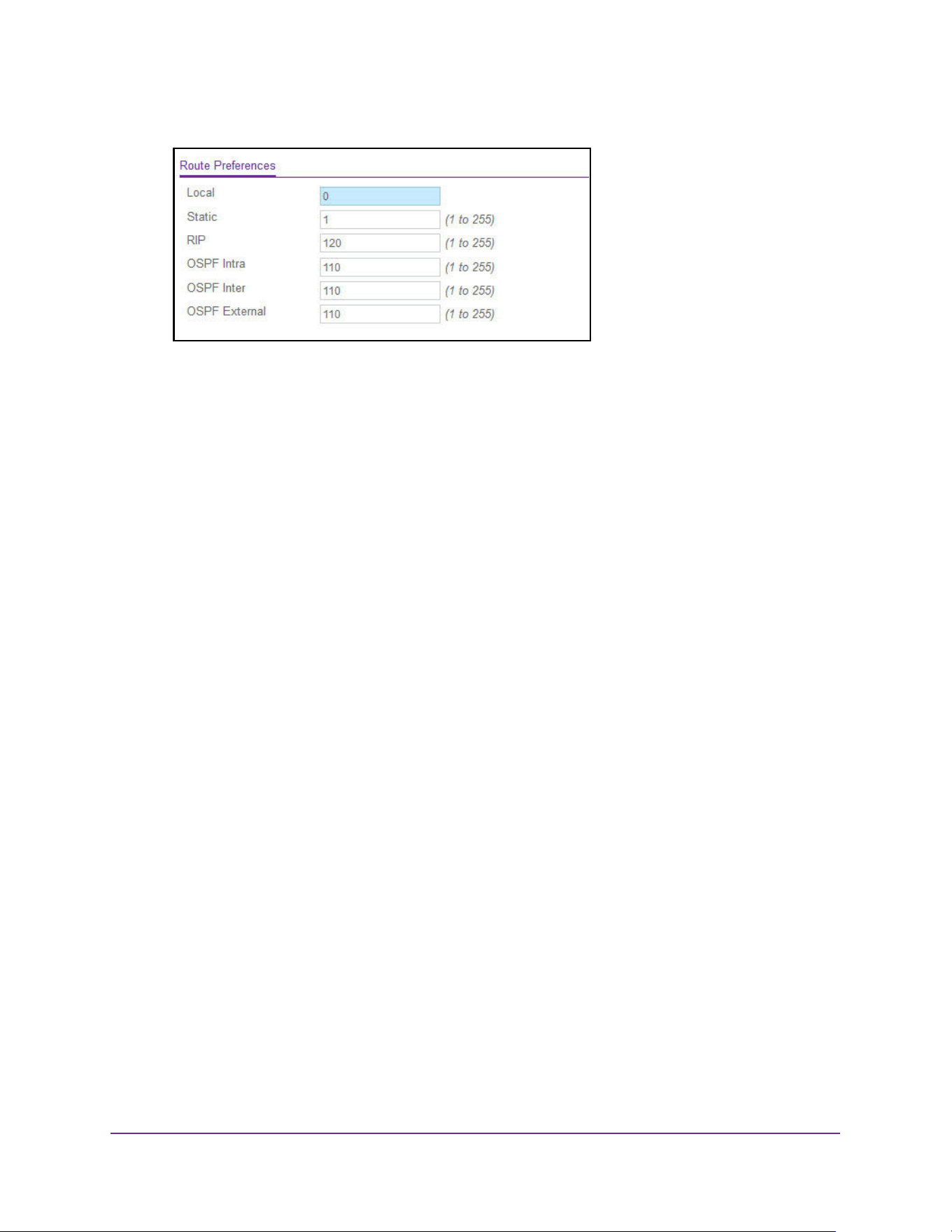
Routing
280
M4200 and M4300 Series ProSAFE Managed Switches Web Management User Manual
6. Use Static to specify the static route preference value in the router.
The default value is 1. The range is 1 to 255.
7. Specify the RIP route preference value in the router.
The default value is 120. The range is 1 to 255.
8. Specify the OSPF Intra route preference value in the router.
The default value is 110. The range is 1 to 255. The OSPF specification (RFC 2328)
requires that preferences must be given to the routes learned through OSPF in the
following order: intra < inter < type-1 < type-2.
9. Specify the OSPF Inter route preference value in the router.
The default value is 110. The range is 1 to 255. The OSPF specification (RFC 2328)
requires that preferences must be given to the routes learned through OSPF in the
following order: intra < inter < type-1 < type-2.
10. Specify the OSPF External route preference value in the router.
The default value is 110. The range is 1 to 255. The OSPF specification (RFC 2328)
requires that preference value must be the same for all the OSPF external route types,
such as type1/type2/nssa1/nssa2.
11. Click the Apply button.
The updated configuration is sent to the switch. Configuration changes take effect
immediately.
The Local field displays the local route preference value.
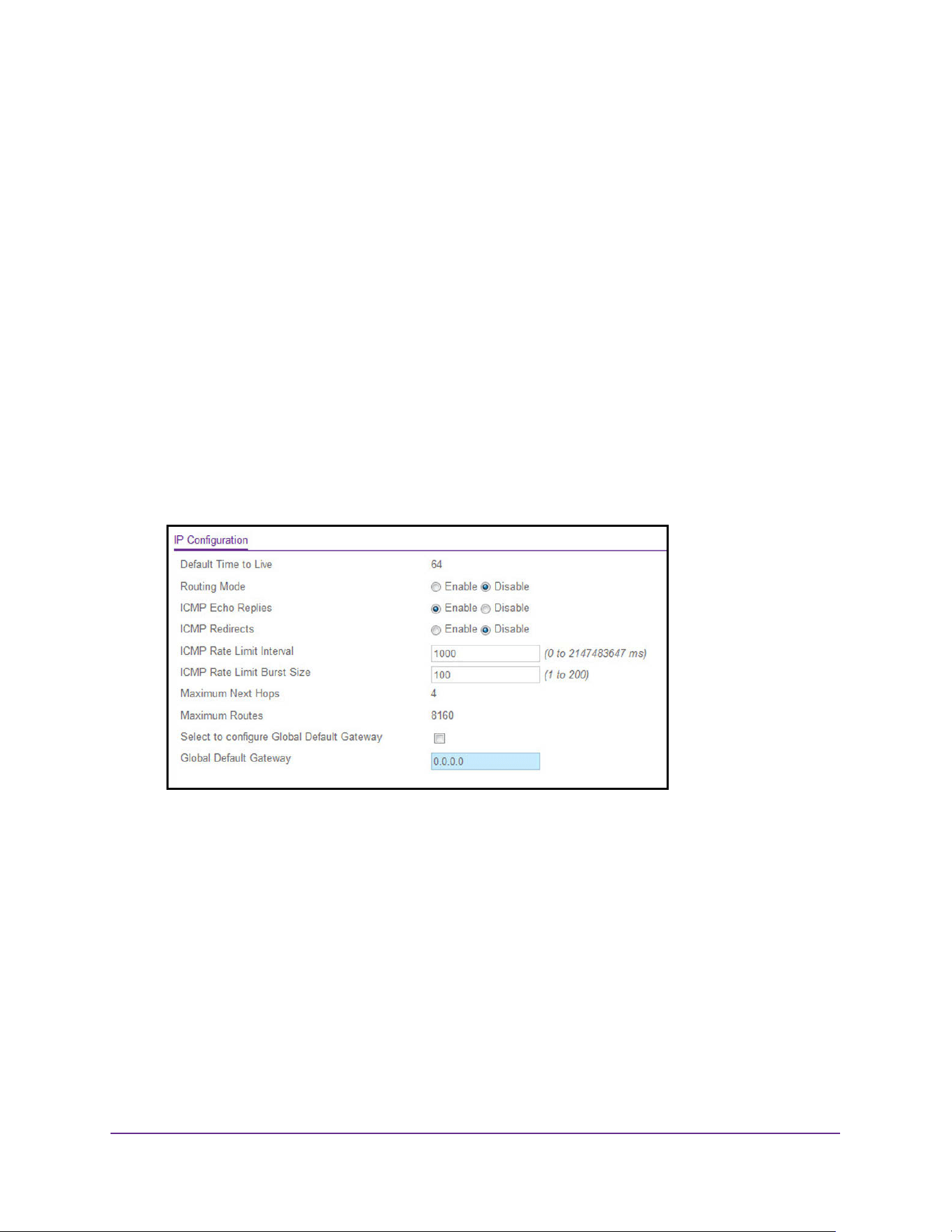
Routing
281
M4200 and M4300 Series ProSAFE Managed Switches Web Management User Manual
Configure the Routing IP Settings
You can configure routing IP settings for the switch, as opposed to the IP settings for an
interface.
To configure the routing IP settings:
1. Launch a web browser.
2. Enter http://<ipaddress> in the web browser address field.
The login window opens.
3. Enter the user name and password.
The default admin user name is admin and the default admin password is blank, that is,
do not enter a password.
4. Click the Login button.
The System Information page displays.
5. Select Routing> IP > Basic > IP Configuration.
6. Use Routing Mode to select Enable or Disable.
You must enable routing for the switch before you can route through any of the
interfaces. The default value is Disable.
7. Use ICMP Echo Replies to select Enable or Disable.
If you select Enable, then only the router can send ECHO replies. By default ICMP Echo
Replies are sent for echo requests.
8. Use ICMP Redirects to select Enable or Disable.
If this is enabled globally and on an interface level, then only the router can send ICMP
Redirects.
9. Use ICMP Rate Limit Interval to control the ICMP error packets by specifying the number
of ICMP error packets that are allowed per burst interval.
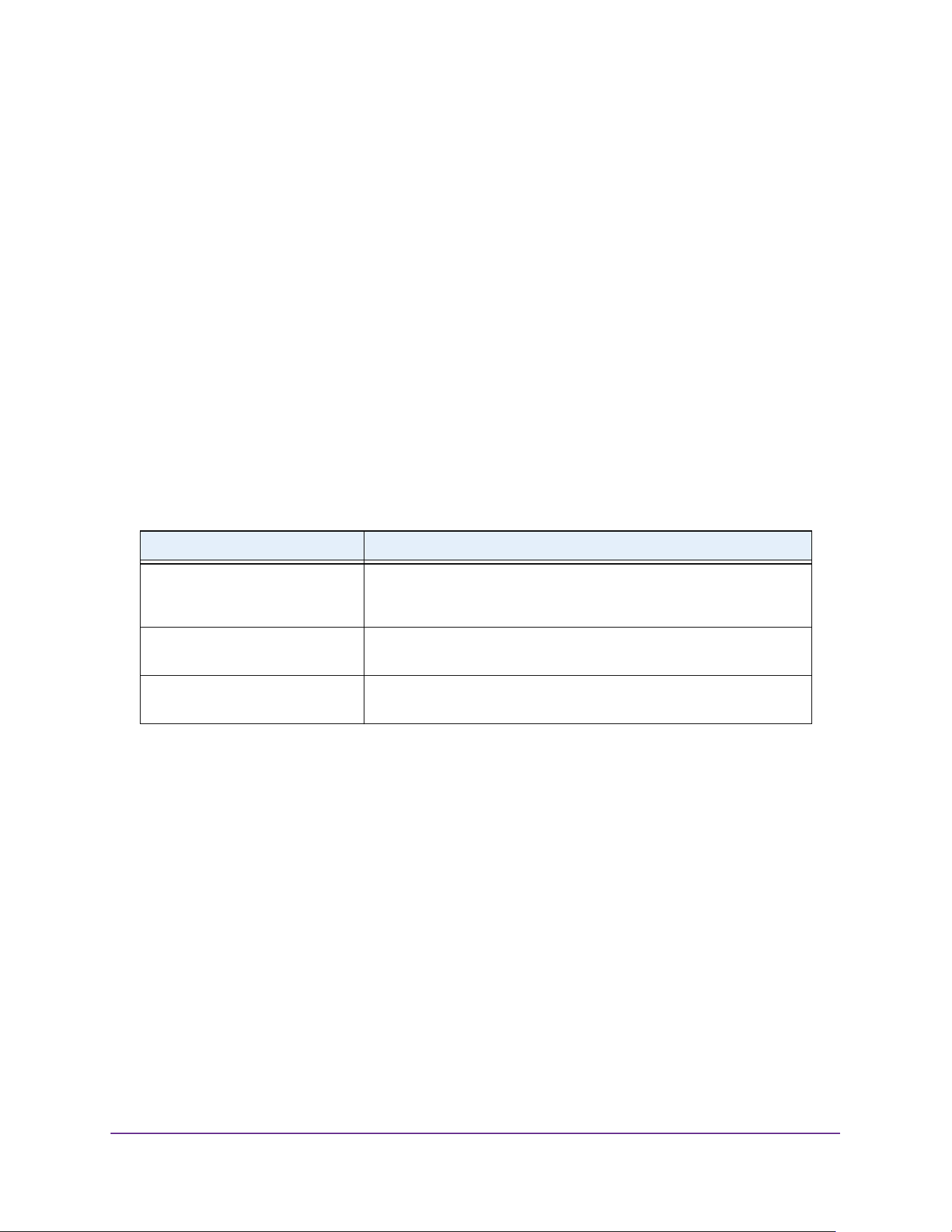
Routing
282
M4200 and M4300 Series ProSAFE Managed Switches Web Management User Manual
By default, the rate limit is 100 packets/sec (the burst interval is 1000 msec). To disable
ICMP Rate limiting, set this field to 0. The valid rate Interval is from 0 to 2147483647.
10. Use ICMP Rate Limit Burst Size to control the ICMP error packets by specifying the
number of ICMP error packets that are allowed per burst interval.
By default, burst size is 100 packets. When the burst interval is 0, then configuring this
field is not a valid operation. The valid burst size range is 1 to 200.
11. Use Select to configure Global Default Gateway to edit the Global Default Gateway field.
12. Use Global Default Gateway to set the global default gateway to the manually configured
value. A default gateway configured with this command is more preferred than a default
gateway learned from a DHCP server. Only one default gateway can be configured. If you
invoke this command multiple times, each command replaces the previous value.
13. Click the Apply button.
The updated configuration is sent to the switch. Configuration changes take effect
immediately.
The following table describes the nonconfigurable information displayed on the page.
View Statistics
The statistics reported on this page are as specified in RFC 1213.
To view statistics:
1. Launch a web browser.
2. Enter http://<ipaddress> in the web browser address field.
The login window opens.
3. Enter the user name and password.
The default admin user name is admin and the default admin password is blank, that is,
do not enter a password.
4. Click the Login button.
The System Information page displays.
Table 105. Routing IP Configuration
Field Description
Default Time to Live The default value inserted into the Time-To-Live field of the IP header
of datagrams originated by the switch, if a TTL value is not supplied by
the transport layer protocol.
Maximum Next Hops The maximum number of hops supported by the switch. This is a
compile-time constant.
Maximum Routes The maximum number of routes (routing table size) supported by the
switch. This is a compile-time constant.
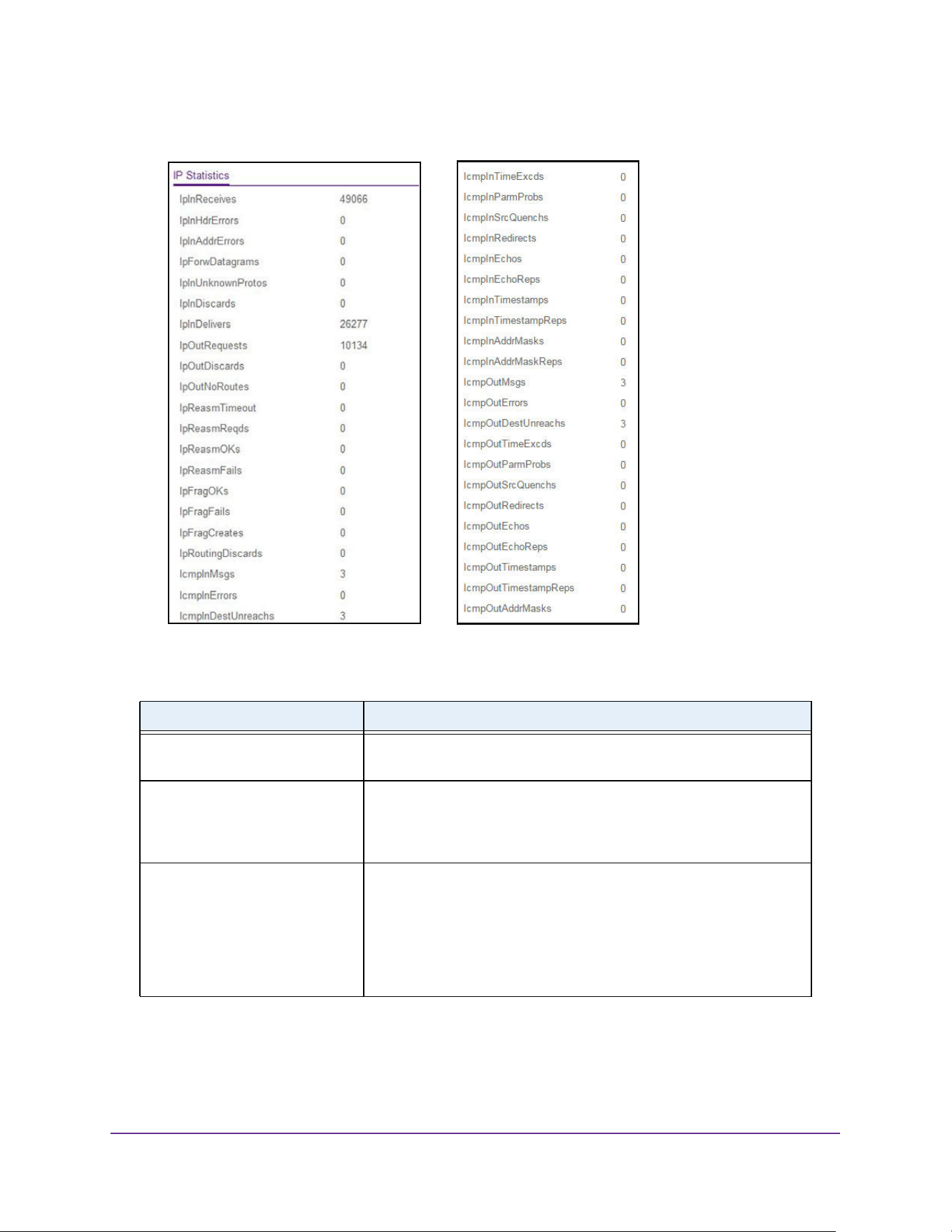
Routing
283
M4200 and M4300 Series ProSAFE Managed Switches Web Management User Manual
5. Select Routing> IP > Basic > Statistics.
The following table describes the nonconfigurable information displayed on the page.
Table 106. IP Basic Statistics
Field Description
IpInReceives The total number of input datagrams received from interfaces, including
those received in error.
IpInHdrErrors The number of input datagrams discarded due to errors in their IP
headers, including bad checksums, version number mismatch, other
format errors, time-to-live exceeded, errors discovered in processing
their IP options, and so on.
IpInAddrErrors The number of input datagrams discarded because the IP address in
their IP header's destination field was not a valid address to be
received at this entity. This count includes invalid addresses (for
example, 0.0.0.0) and addresses of unsupported classes (Class E). For
entities that are not IP gateways and therefore do not forward
datagrams, this counter includes datagrams discarded because the
destination address was not a local address.

Routing
284
M4200 and M4300 Series ProSAFE Managed Switches Web Management User Manual
IpForwDatagrams The number of input datagrams for which this entity was not their final
IP destination, as a result of which an attempt was made to find a route
to forward them to that final destination. In entities that do not act as IP
gateways, this counter includes only those packets that were
source-routed through this entity, and the source-route option
processing was successful.
IpInUnknownProtos The number of locally addressed datagrams received successfully but
discarded because of an unknown or unsupported protocol.
IpInDiscards The number of input IP datagrams for which no problems were
encountered to prevent their continued processing, but that were
discarded (for lack of buffer space). This counter does not include any
datagrams discarded while awaiting re-assembly.
IpInDelivers The total number of input datagrams successfully delivered to IP user
protocols (including ICMP).
IpOutRequests The total number of IP datagrams that local IP user protocols (including
ICMP) supplied to IP in requests for transmission. This counter does
not include any datagrams counted in ipForwDatagrams.
IpOutDiscards The number of output IP datagrams for which no problem was
encountered to prevent their transmission to their destination, but that
were discarded for reasons such as lack of buffer space. This counter
would include datagrams counted in ipForwDatagrams if any such
packets met this (discretionary) discard criterion.
IpOutNoRoutes The number of IP datagrams discarded because no route could be
found to transmit them to their destination. This counter includes any
packets counted in ipForwDatagrams that meet this no-route criterion.
This includes any datagrams that a host cannot route because all of its
default gateways are down.
IpReasmTimeout The maximum number of seconds for which received fragments are
held while they are awaiting reassembly at this entity.
IpReasmReqds The number of IP fragments received that were reassembled at this
entity.
IpReasmOKs The number of IP datagrams successfully re-assembled.
IpReasmFails The number of failures detected by the IP re-assembly algorithm (for
whatever reason: timed out, errors, and so on). This is not necessarily
a count of discarded IP fragments since some algorithms can lose track
of the number of fragments by combining them as they are received.
IpFragOKs The number of IP datagrams that were fragmented at this entity.
IpFragFails The number of IP datagrams that were discarded because they needed
to be fragmented at this entity but could not be, for reasons such as
their Don't Fragment flag was set.
IpFragCreates The number of IP datagram fragments that were generated as a result
of fragmentation at this entity.
Table 106. IP Basic Statistics (continued)
Field Description

Routing
285
M4200 and M4300 Series ProSAFE Managed Switches Web Management User Manual
IpRoutingDiscards The number of routing entries that were discarded even though they
were valid. One possible reason for discarding such an entry could be
to free up buffer space for other routing entries.
IcmpInMsgs The total number of ICMP messages that the entity received. This
counter includes all those counted by icmpInErrors.
IcmpInErrors The number of ICMP messages that the entity received but determined
as having ICMP-specific errors (bad ICMP checksums, bad length, and
so on).
IcmpInDestUnreachs The number of ICMP destination unreachable messages received.
IcmpInTimeExcds The number of ICMP time exceeded messages received.
IcmpInParmProbs The number of ICMP parameter problem messages received.
IcmpInSrcQuenchs The number of ICMP source quench messages received.
IcmpInRedirects The number of ICMP redirect messages received.
IcmpInEchos The number of ICMP echo (request) messages received.
IcmpInEchoReps The number of ICMP echo reply messages received.
IcmpInTimestamps The number of ICMP timestamp (request) messages received.
IcmpInTimestampReps The number of ICMP rimestamp reply messages received.
IcmpInAddrMasks The number of ICMP address mask request messages received.
IcmpInAddrMaskReps The number of ICMP address mask reply messages received.
IcmpOutMsgs The total number of ICMP messages that this entity attempted to send.
This counter includes all those counted by icmpOutErrors.
IcmpOutErrors The number of ICMP messages that this entity did not send due to
problems discovered within ICMP such as a lack of buffers. This value
does not include errors discovered outside the ICMP layer such as the
inability of IP to route the resultant datagram. In some implementations
there might be no types of error that contribute to this counter's value.
IcmpOutDestUnreachs The number of ICMP destination unreachable messages sent.
IcmpOutTimeExcds The number of ICMP time exceeded messages sent.
IcmpOutParmProbs The number of ICMP parameter problem messages sent.
IcmpOutSrcQuenchs The number of ICMP source quench messages sent.
IcmpOutRedirects The number of ICMP redirect messages sent. For a host, this is always
zero, since hosts do not send redirects.
IcmpOutEchos The number of ICMP echo (request) messages sent.
IcmpOutEchoReps The number of ICMP echo reply messages sent.
Table 106. IP Basic Statistics (continued)
Field Description
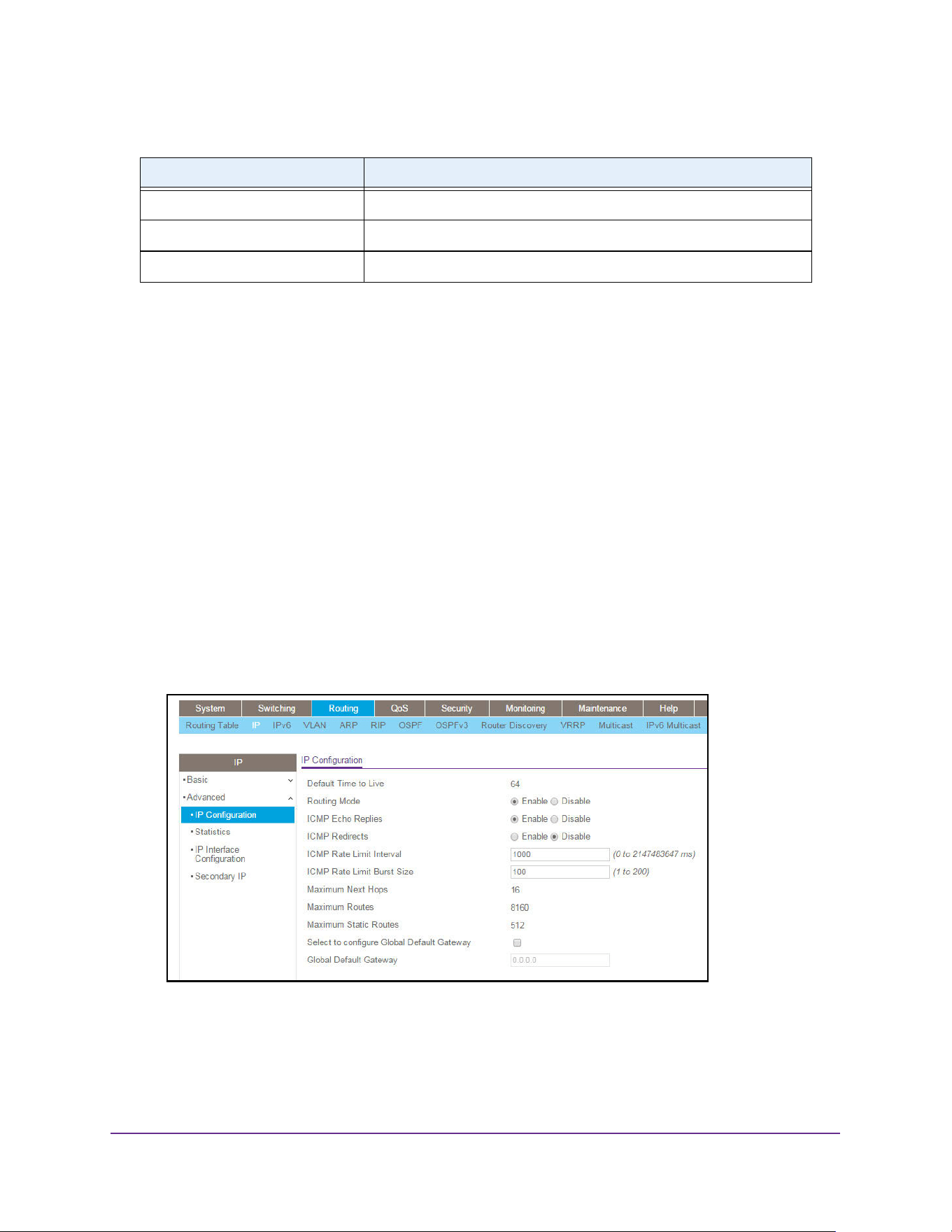
Routing
286
M4200 and M4300 Series ProSAFE Managed Switches Web Management User Manual
Configure Routing Parameters for the Switch
You can configure routing parameters for the switch as opposed to an interface.
To configure routing parameters for the switch:
1. Launch a web browser.
2. Enter http://<ipaddress> in the web browser address field.
The login window opens.
3. Enter the user name and password.
The default admin user name is admin and the default admin password is blank, that is,
do not enter a password.
4. Click the Login button.
The System Information page displays.
5. Select Routing> IP > Advanced > IP Configuration.
6. Use Routing Mode to select Enable or Disable.
You must enable routing for the switch before you can route through any of the interfaces.
The default value is Disable.
7. Use ICMP Echo Replies to select Enable or Disable.
IcmpOutTimestamps The number of ICMP timestamp (request) messages.
IcmpOutTimestampReps The number of ICMP timestamp reply messages sent.
IcmpOutAddrMasks The number of ICMP address mask request messages sent.
Table 106. IP Basic Statistics (continued)
Field Description
Routing
287
M4200 and M4300 Series ProSAFE Managed Switches Web Management User Manual
If you select Enable, then only the router can send ECHO replies. By default ICMP echo
replies are sent for echo requests.
8. Use ICMP Redirects to select Enable or Disable.
If it is enabled globally and on interface level then only the router can send ICMP
redirects.
9. Use ICMP Rate Limit Interval to control the ICMP error packets by specifying the number
of ICMP error packets that are allowed per burst interval.
By default, the rate limit is 100 packets/sec, (the burst interval is 1000 msec). To disable
ICMP Ratelimiting set this field to 0. The valid rate interval is in the range 0 to
2147483647.
10. Use ICMP Rate Limit Burst Size to control the ICMP error packets by specifying the
number of ICMP error packets that are allowed per burst interval.
By default, the burst size is 100 packets. When the burst interval is 0, then configuring
this field is not a valid operation. The valid burst size is 1 to 200.
11. Use Select to Configure Global Default Gateway to edit the Global Default Gateway field.
12. Use Global Default Gateway to set the global default gateway to the manually configured
value.
A default gateway configured with this command is more preferred than a default
gateway learned from a DHCP server. Only one default gateway can be configured. If you
invoke this command multiple times, each command replaces the previous value.
13. Click the Apply button.
The updated configuration is sent to the switch. Configuration changes take effect
immediately.
The following table describes the nonconfigurable information displayed on the page.
Table 107. Routing IP Configuration
Field Description
Default Time to Live The default value inserted into the Time-To-Live field of the IP header
of datagrams originated by the switch, if a TTL value is not supplied by
the transport layer protocol.
Maximum Next Hops The maximum number of hops supported by the switch. This is a
compile-time constant.
Maximum Routes The maximum number of routes (routing table size) supported by the
switch. This is a compile-time constant.
Maximum Static Routes The maximum number of static routes supported by the switch.
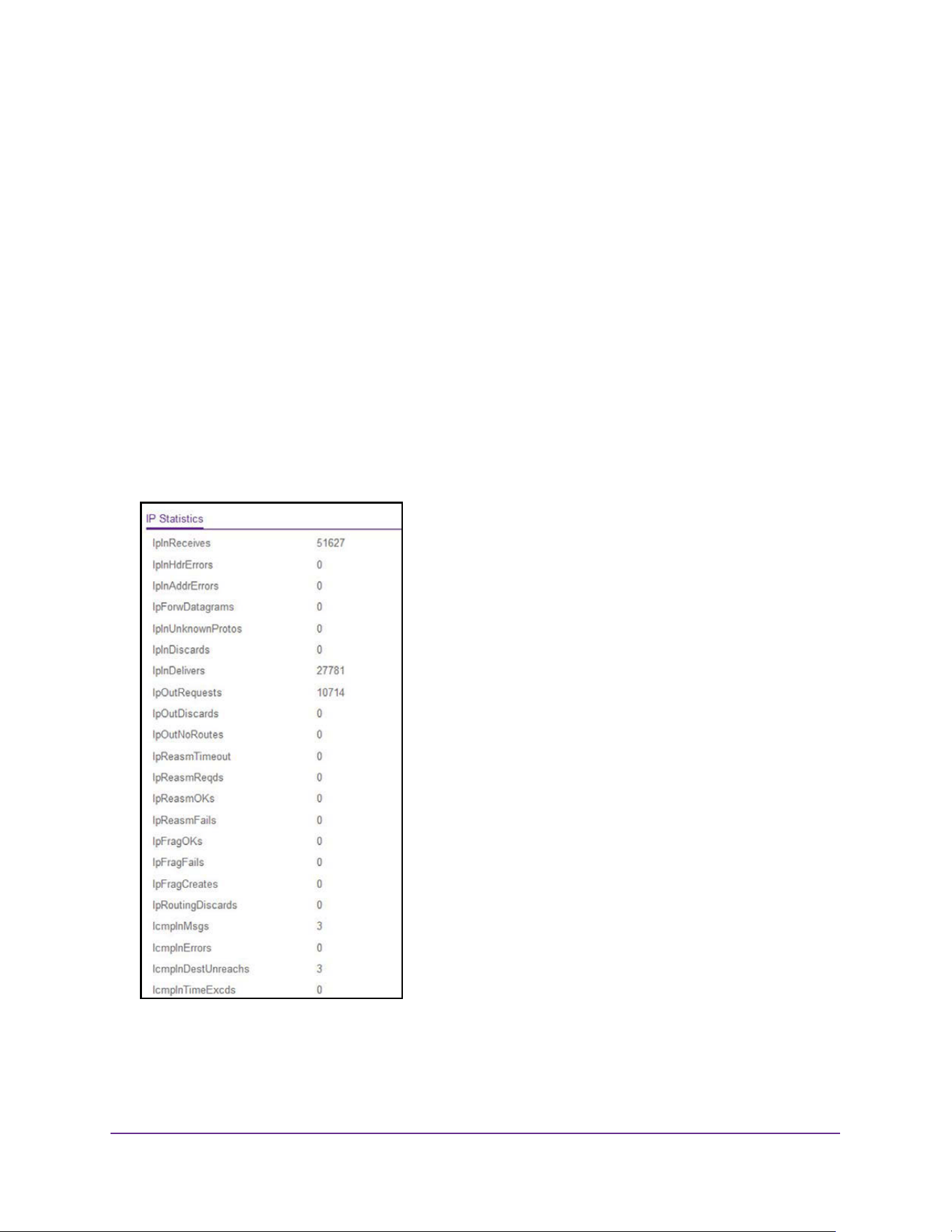
Routing
288
M4200 and M4300 Series ProSAFE Managed Switches Web Management User Manual
View IP Statistics
The statistics reported on this page are as specified in RFC 1213.
To view IP statistics:
1. Launch a web browser.
2. Enter http://<ipaddress> in the web browser address field.
The login window opens.
3. Enter the user name and password.
The default admin user name is admin and the default admin password is blank, that is,
do not enter a password.
4. Click the Login button.
The System Information page displays.
5. Select Routing> IP > Advanced > Statistics.

Routing
289
M4200 and M4300 Series ProSAFE Managed Switches Web Management User Manual
The following table describes the nonconfigurable information displayed on the page.
Table 108. IP Statistics
Field Description
IpInReceives The total number of input datagrams received from interfaces, including
those received in error.
IpInHdrErrors The number of input datagrams discarded due to errors in their IP
headers, including bad checksums, version number mismatch, other
format errors, time-to-live exceeded, errors discovered in processing
their IP options, and so on
IpInAddrErrors The number of input datagrams discarded because the IP address in
their IP header's destination field was not a valid address to be
received at this entity. This count includes invalid addresses (for
example, 0.0.0.0) and addresses of unsupported classes (such as.,
Class E). For entities that are not IP gateways and therefore do not
forward datagrams, this counter includes datagrams discarded
because the destination address was not a local address.
IpForwDatagrams The number of input datagrams for which this entity was not their final
IP destination, as a result of which an attempt was made to find a route
to forward them to that final destination. In entities that do not act as IP
gateways, this counter includes only those packets that were
source-routed through this entity, and the source-route option
processing was successful.
IpInUnknownProtos The number of locally-addressed datagrams received successfully but
discarded because of an unknown or unsupported protocol.
IpInDiscards The number of input IP datagrams for which no problems were
encountered to prevent their continued processing, but which were
discarded for reasons such as lack of buffer space. This counter does
not include any datagrams discarded while awaiting re-assembly.
IpInDelivers The total number of input datagrams successfully delivered to IP
user-protocols (including ICMP).
IpOutRequests The total number of IP datagrams that local IP user-protocols (including
ICMP) supplied to IP in requests for transmission. This counter does
not include any datagrams counted in ipForwDatagrams.
IpOutDiscards The number of output IP datagrams for which no problem was
encountered to prevent their transmission to their destination, but that
were discarded for reasons such as lack of buffer space. This counter
would include datagrams counted in ipForwDatagrams if any such
packets met this (discretionary) discard criterion.
IpOutNoRoutes The number of IP datagrams discarded because no route could be
found to transmit them to their destination. This counter includes any
packets counted in ipForwDatagrams that meet this no-route criterion.
This includes any datagrams that a host cannot route because all of its
default gateways are down.
IpReasmTimeout The maximum number of seconds for which received fragments are
held while they are awaiting reassembly at this entity.

Routing
290
M4200 and M4300 Series ProSAFE Managed Switches Web Management User Manual
IpReasmReqds The number of IP fragments received that needed to be reassembled at
this entity.
IpReasmOKs The number of IP datagrams successfully reassembled.
IpReasmFails The number of failures detected by the IP reassembly algorithm (for
whatever reason: timed out, errors, etc). This is not necessarily a count
of discarded IP fragments since some algorithms can lose track of the
number of fragments by combining them as they are received.
IpFragOKs The number of IP datagrams that were fragmented at this entity.
IpFragFails The number of IP datagrams that were discarded because they needed
to be fragmented at this entity but could not be, for example this can
occur because their Don't Fragment flag was set.
IpFragCreates The number of IP datagram fragments that were generated as a result
of fragmentation at this entity.
IpRoutingDiscards The number of routing entries that were discarded even though they
are valid. One possible reason for discarding such an entry could be to
free up buffer space for other routing entries.
IcmpInMsgs The total number of ICMP messages that the entity received. This
counter includes all those counted by icmpInErrors.
IcmpInErrors The number of ICMP messages that the entity received but determined
as having ICMP-specific errors (bad ICMP checksums, bad length, and
so on).
IcmpInDestUnreachs The number of ICMP destination unreachable messages received.
IcmpInTimeExcds The number of ICMP time exceeded messages received.
IcmpInParmProbs The number of ICMP parameter problem messages received.
IcmpInSrcQuenchs The number of ICMP source quench messages received.
IcmpInRedirects The number of ICMP redirect messages received.
IcmpInEchos The number of ICMP echo (request) messages received.
IcmpInEchoReps The number of ICMP echo reply messages received.
IcmpInTimestamps The number of ICMP timestamp (request) messages received.
IcmpInTimestampReps The number of ICMP timestamp reply messages received.
IcmpInAddrMasks The number of ICMP address mask request messages received.
IcmpInAddrMaskReps The number of ICMP address mask reply messages received.
IcmpOutMsgs The total number of ICMP messages that this entity attempted to send.
This counter includes all those counted by icmpOutErrors.
Table 108. IP Statistics (continued)
Field Description

Routing
291
M4200 and M4300 Series ProSAFE Managed Switches Web Management User Manual
Configure the IP Interface
You can update IP interface data for this switch.
To configure the IP interface:
1. Launch a web browser.
2. Enter http://<ipaddress> in the web browser address field.
The login window opens.
3. Enter the user name and password.
The default admin user name is admin and the default admin password is blank, that is,
do not enter a password.
4. Click the Login button.
The System Information page displays.
5. Select Routing> IP > Advanced > IP Interface Configuration.
IcmpOutErrors The number of ICMP messages that this entity did not send due to
problems discovered within ICMP such as a lack of buffers. This value
does not include errors discovered outside the ICMP Layer such as the
inability of IP to route the resultant datagram. In some implementations
there might be no types of error that contribute to this counter's value.
IcmpOutDestUnreachs The number of ICMP destination unreachable messages sent.
IcmpOutTimeExcds The number of ICMP time exceeded messages sent.
IcmpOutParmProbs The number of ICMP parameter problem messages sent.
IcmpOutSrcQuenchs The number of ICMP source quench messages sent.
IcmpOutRedirects The number of ICMP redirect messages sent. For a host, this is zero,
since hosts do not send redirects.
IcmpOutEchos The number of ICMP echo (request) messages sent.
IcmpOutEchoReps The number of ICMP echo reply messages sent.
IcmpOutTimestamps The number of ICMP timestamp (request) messages.
IcmpOutTimestampReps The number of ICMP timestamp reply messages sent.
IcmpOutAddrMasks The number of ICMP address mask request messages sent.
IcmpOutAddrMaskReps The number of ICMP address mask reply messages sent.
Table 108. IP Statistics (continued)
Field Description
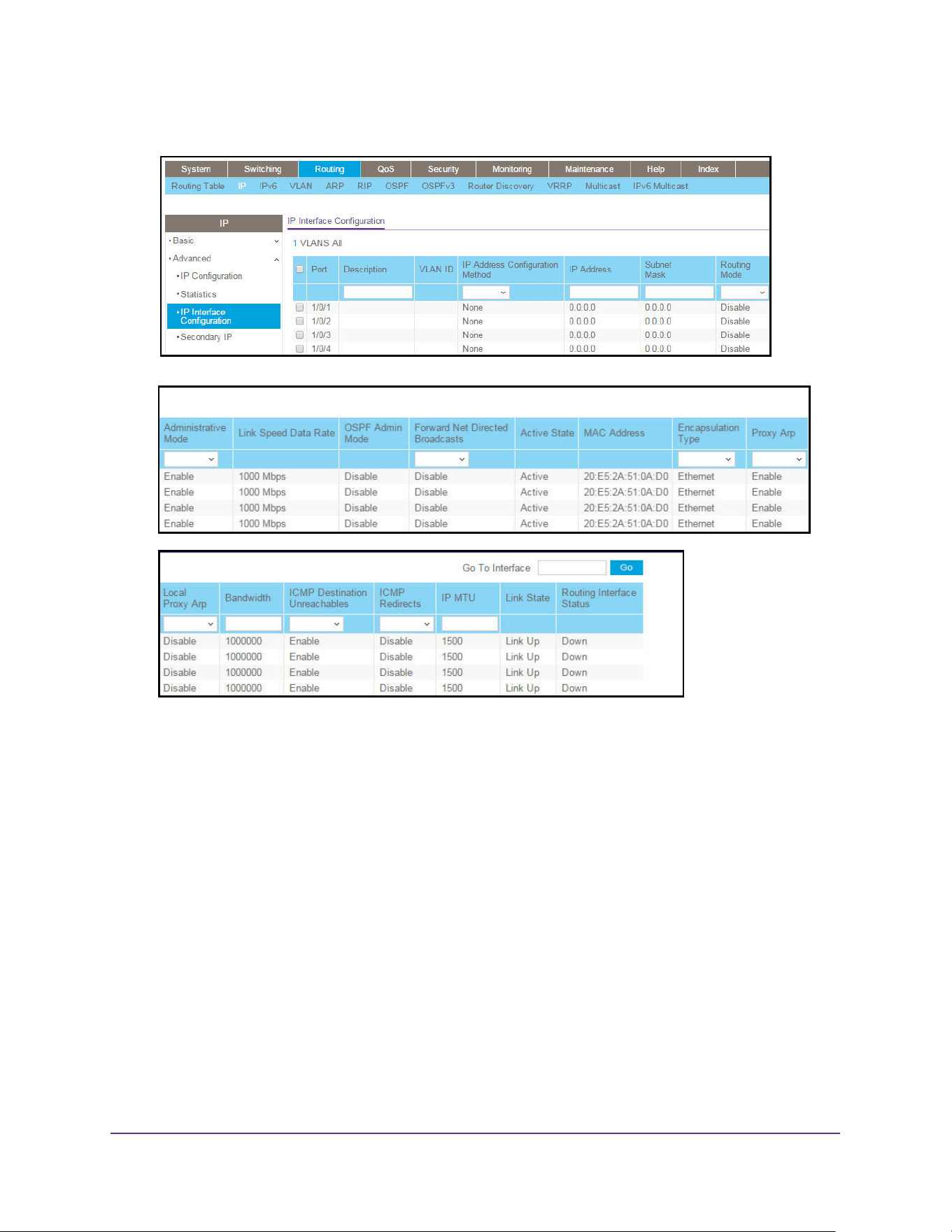
Routing
292
M4200 and M4300 Series ProSAFE Managed Switches Web Management User Manual
The page is shown in three parts.
6. Use one of the following methods to select an interface:
• In the Go To Interface field, enter the interface in the unit/slot/port format and click on
the Go button.
• Next to the Port column, select the check box for the interface that you want to
configure.
7. Use Description to enter the description for the interface.
8. Use IP Address Configuration Method to enter the method by which an IP address is
configured on the interface.
There are three methods: None, Manual, and DHCP. By default the method is None. Use
the None method to reset the DHCP method.
Note: When the configuration method is changed from DHCP to None, there
is a minor delay before the page refreshes.
9. Use IP Address to enter the IP address for the interface.
10. Use Subnet Mask to enter the subnet mask for the interface.

Routing
293
M4200 and M4300 Series ProSAFE Managed Switches Web Management User Manual
This is also referred to as the subnet/network mask, and defines the portion of the
interface's IP address that is used to identify the attached network.
11. In the Routing Mode list, select Enable or Disable.
The default value is Enable.
12. Use Administrative Mode to enable or disable the administrative mode of the interface.
The default value is Enable. This mode is not supported for logical VLAN interfaces.
13. Use Forward Net Directed Broadcasts to select how network directed broadcast packets
are handled.
If you select Enable, network directed broadcasts are forwarded.
If you select Disable, they are dropped. The default value is Disable.
14. Use Encapsulation Type to select the link layer encapsulation type for packets transmitted
from the specified interface.
The possible values are Ethernet and SNAP. The default is Ethernet.
15. Use Proxy Arp to disable or enable proxy ARP for the specified interface.
16. Use Local Proxy Arp to disable or enable local proxy ARP for the specified interface.
17. Use Bandwidth (kbps) to specify the configured bandwidth on this interface.
This parameter communicates the speed of the interface to higher level protocols. OSPF
uses bandwidth to compute link cost. The valid range is 1 to 10000000.
18. Use ICMP Destination Unreachables to specify the mode of sending ICMP destination
unreachables on this interface.
If this is Disabled then this interface does not send ICMP destination unreachables. By
default destination unreachables mode is enabled.
19. Use ICMP Redirects to enable or disable ICMP redirects mode.
The router sends an ICMP redirect on an interface only if redirects are enabled both
globally and on the interface. By default ICMP redirects mode is enabled.
20. Use IP MTU to specify the maximum size of IP packets sent on an interface.
The valid range is 68 bytes to the link MTU. The default value is 0. A value of 0 indicates
that the IP MTU is unconfigured. When the IP MTU is unconfigured, the router uses the
link MTU as the IP MTU. The IP MTU is the maximum frame size minus the length of the
Layer 2 header.
21. To delete the IP address from the selected interface, click the Delete button.
22. Click the Apply button.
The updated configuration is sent to the switch. Configuration changes take effect
immediately.
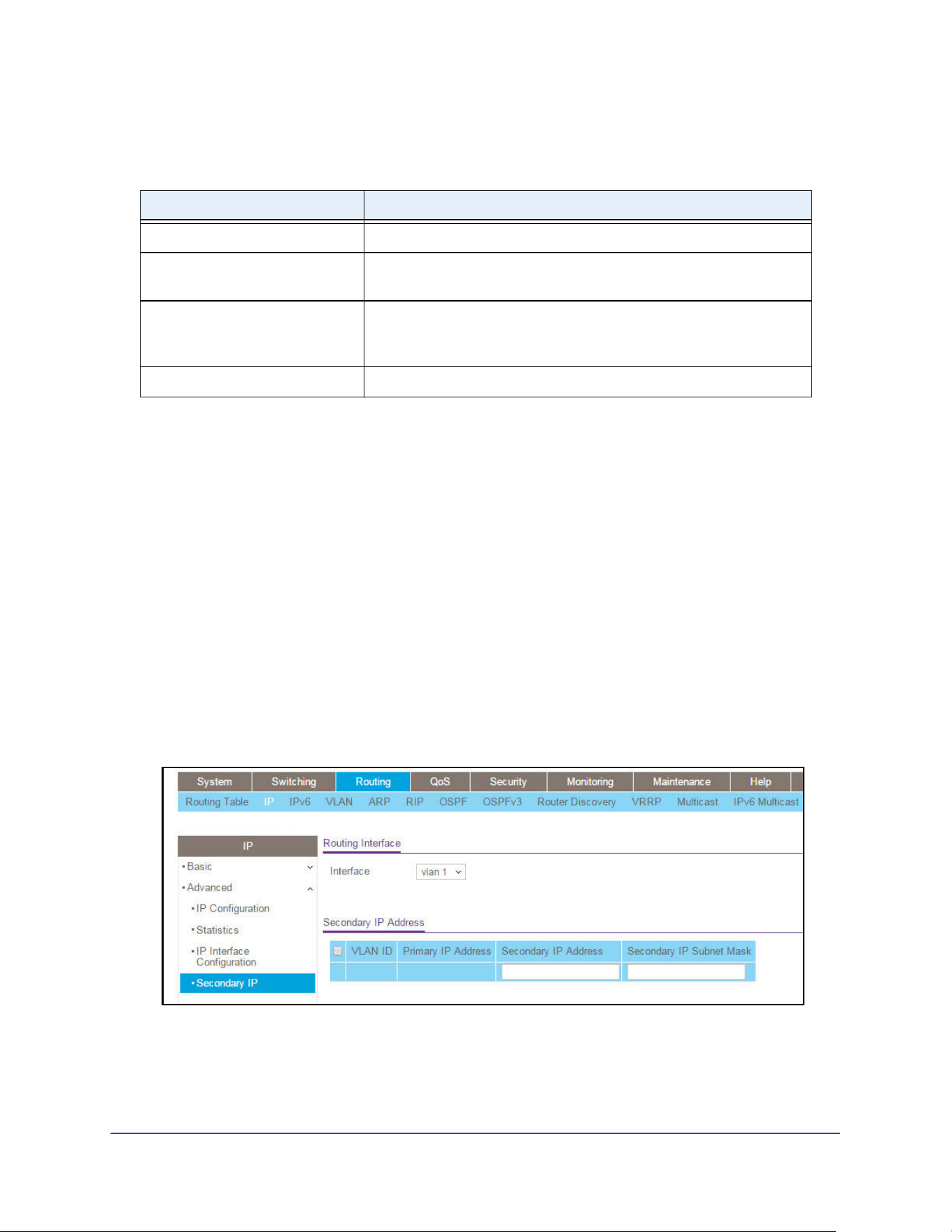
Routing
294
M4200 and M4300 Series ProSAFE Managed Switches Web Management User Manual
The following table describes the nonconfigurable data that is displayed.
Configure the Secondary IP Address
To configure the secondary IP address:
1. Launch a web browser.
2. Enter http://<ipaddress> in the web browser address field.
The login window opens.
3. Enter the user name and password.
The default admin user name is admin and the default admin password is blank, that is,
do not enter a password.
4. Click the Login button.
The System Information page displays.
5. Select Routing> IP > Advanced > Secondary IP.
6. In the Routing Interface list, select the interface.
7. In the Secondary IP Address field, add a secondary IP address to the selected interface.
Table 109. IP Interface Configuration
Field Description
VLAN ID The VLAN ID for the interface.
OSPF Admin Mode Displays the OSPF admin mode of the interface. The default value is
Disable.
Link State The state of the specified interface is either Active or Inactive. An
interface is considered active if it the link is up and it is in forwarding
state.
Routing Interface Status Indicates whether the link status is up or down.
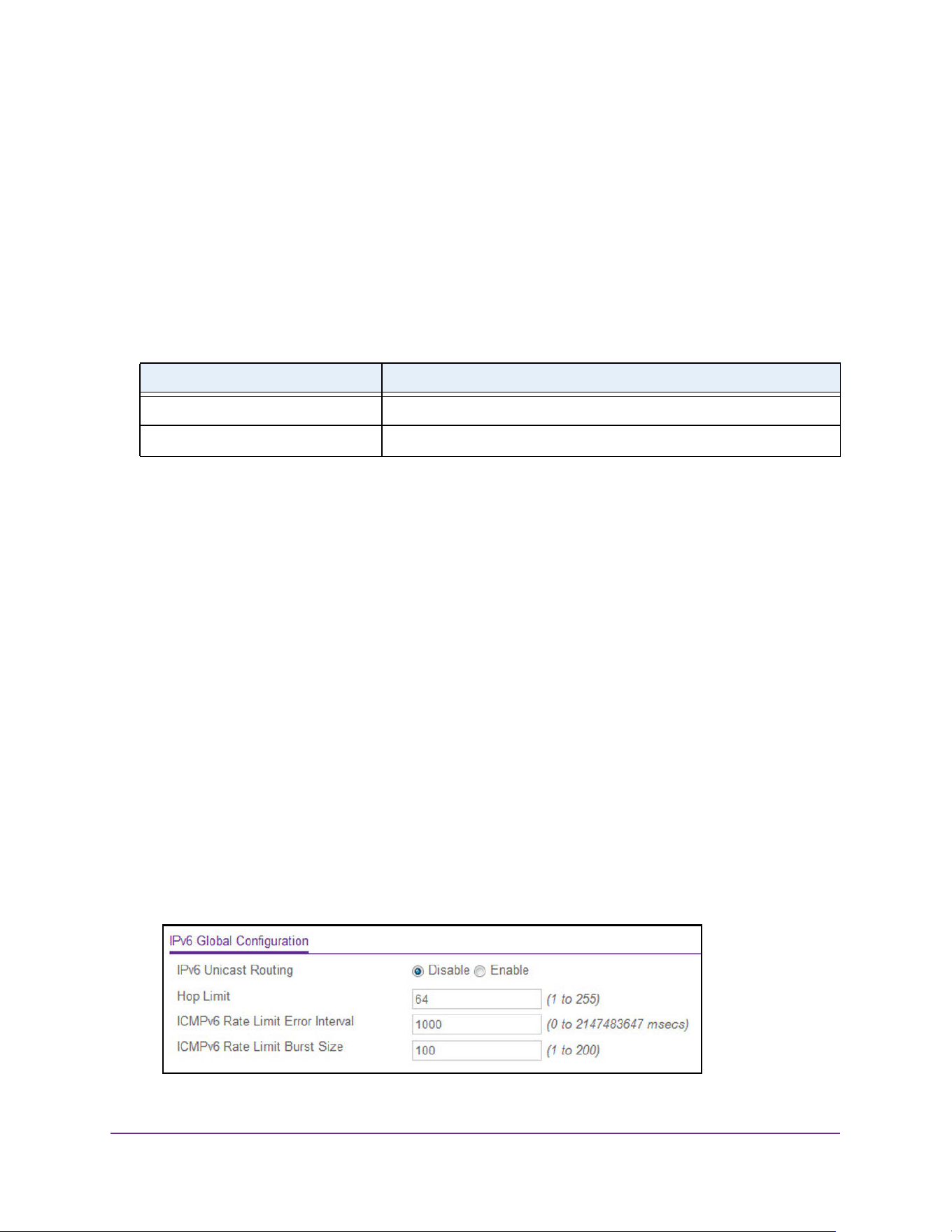
Routing
295
M4200 and M4300 Series ProSAFE Managed Switches Web Management User Manual
8. In the Secondary IP Subnet Mask field, enter the subnet mask associated with the
secondary IP address.
This is also referred to as the subnet/network mask, and defines the portion of the
interface’s IP address that is used to identify the attached network. This value is
read-only once configured.
9. Click the Add button.
The secondary IP address for the selected interface is added.
The following table describes the nonconfigurable data that is displayed.
IPv6
Configure IPv6 Global Settings
You can configure IPv6 routing parameters for the switch, as opposed to an interface.
To configure IPv6 global settings:
1. Launch a web browser.
2. Enter http://<ipaddress> in the web browser address field.
The login window opens.
3. Enter the user name and password.
The default admin user name is admin and the default admin password is blank, that is,
do not enter a password.
4. Click the Login button.
The System Information page displays.
5. Select Routing> IPv6 > Basic > Global Configuration.
Table 110. Secondary IP
Field Description
VLAN ID The VLAN ID associated with the displayed or configured interface.
Primary IP Address The primary IP address for the interface.

Routing
296
M4200 and M4300 Series ProSAFE Managed Switches Web Management User Manual
6. In the IPv6 Unicast Routing field, select the option to globally Enable or Disable IPv6
unicast routing.
7. In the Hop Limit field, enter a value for the unicast hop count used in IPv6 packets
originated by the node.
The value is also included in router advertisements. The valid values for hops are 1 to
255, inclusive. The default is Not Configured, which means that a value of zero is sent in
router advertisements.
8. In the ICMPv6 Rate Limit Error Interval field, specify the number of ICMP error packets
allowed per burst interval.
This value controls the ICMPv6 error packets. The default rate limit is 100 packets per
second, meaning that the burst interval is 1000 mseconds. To disable ICMP rate limiting,
set this field to 0. The valid rate interval must be in the range 0 to 2147483647 mseconds.
9. In the ICMPv6 Rate Limit Burst Size field, specify the number of ICMP error packets
allowed per burst interval.
This value controls the ICMP error packets. The default burst size is 100 packets. When
the burst interval is 0, then configuring this field is not a valid operation. The valid burst
size is 1 to 200.
10. Click the Apply button.
The updated configuration is sent to the switch. Configuration changes take effect
immediately.
View the IPv6 Route Table
To view the IPv6 Route Table:
1. Launch a web browser.
2. Enter http://<ipaddress> in the web browser address field.
The login window opens.
3. Enter the user name and password.
The default admin user name is admin and the default admin password is blank, that is,
do not enter a password.
4. Click the Login button.
The System Information page displays.
5. Select Routing> IPv6 > Basic > Route Table.
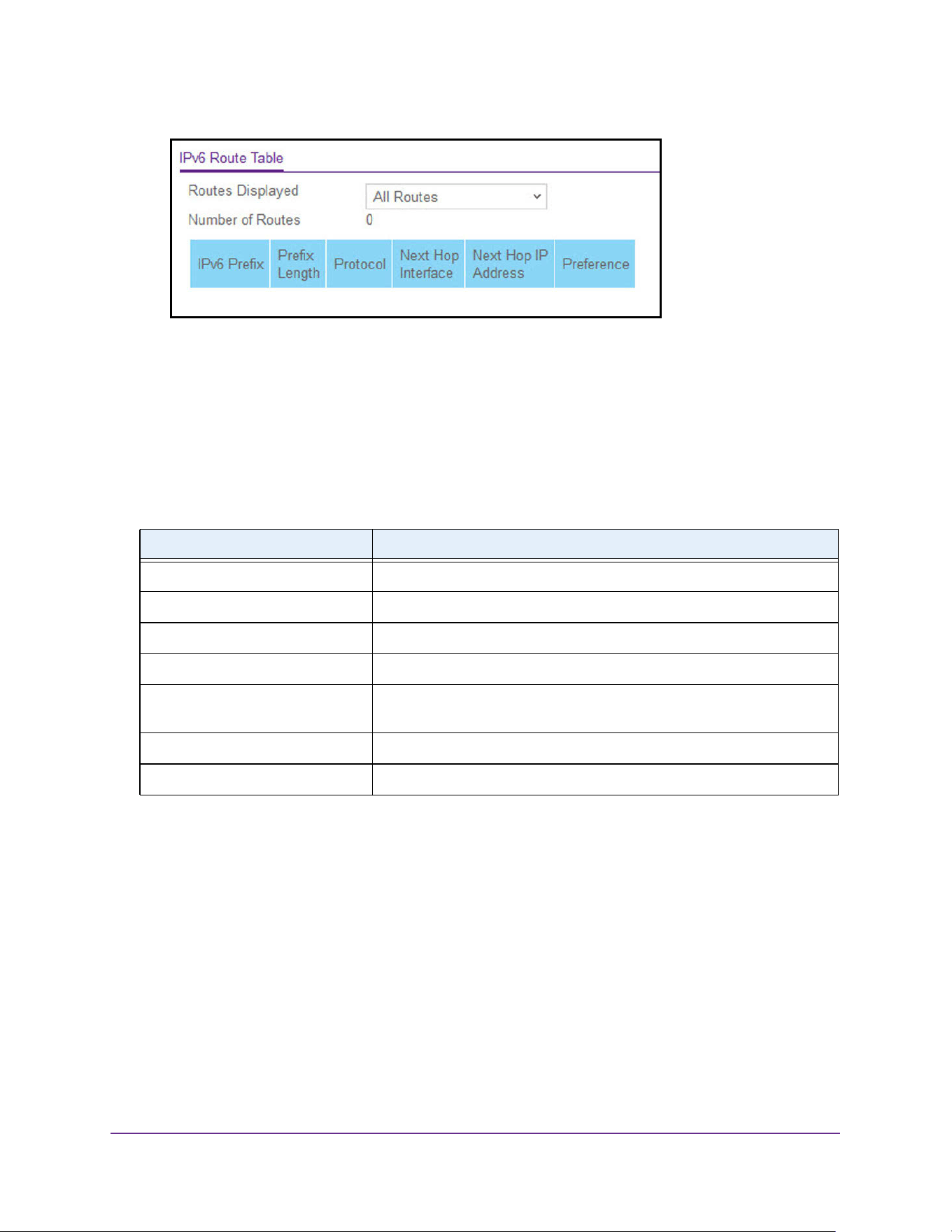
Routing
297
M4200 and M4300 Series ProSAFE Managed Switches Web Management User Manual
6. In the Routes Displayed list, select from the following:
• All Routes. Shows all active IPv6 routes.
• Best Routes Only. Shows only the best active routes.
• Configured Routes Only. Shows the routes configured by the user.
7. To refresh the page with the latest information on the switch, click the Update button.
The following table describes the nonconfigurable data that is displayed.
Configure IPv6 Interface Settings
Configure IPv6 interface settings:
1. Launch a web browser.
2. Enter http://<ipaddress> in the web browser address field.
The login window opens.
3. Enter the user name and password.
The default admin user name is admin and the default admin password is blank, that is,
do not enter a password.
4. Click the Login button.
Table 111. IPv6 Route Table
Field Description
Number of Routes The total number of active routes in the route table.
IPv6 Prefix The network prefix for the active route.
Prefix Length The prefix length for the active route.
Protocol The type of protocol for the active route.
Next Hop Interface The interface over which the route is active. For a reject route, the next
hop would be a Null0 interface.
Next Hop IP Address The next hop IPv6 address for the active route.
Preference The route preference of the configured route.
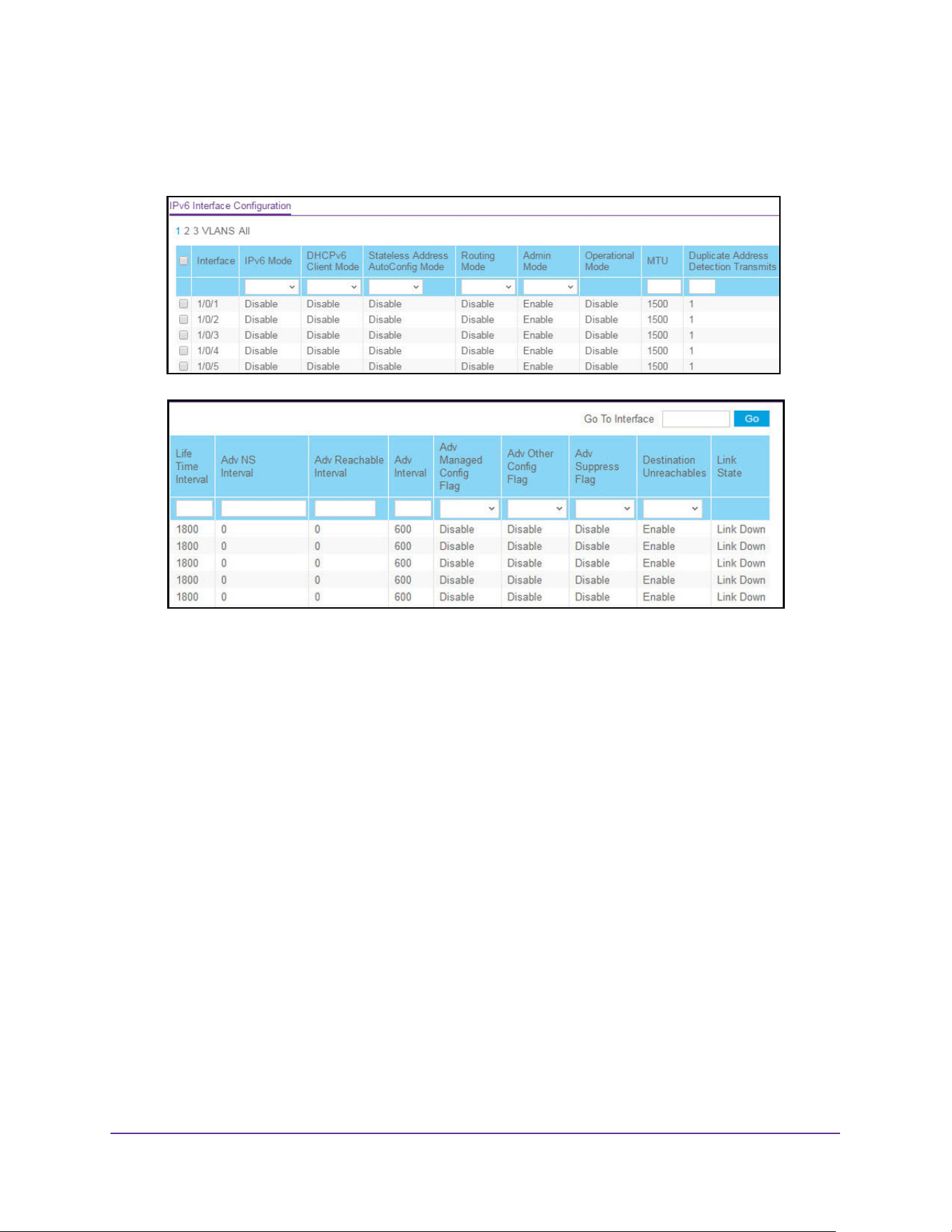
Routing
298
M4200 and M4300 Series ProSAFE Managed Switches Web Management User Manual
The System Information page displays.
5. Select Routing> IPv6 > Advanced > Interface Configuration.
6. Use one of the following methods to select an interface:
• In the Go To Interface field, enter the interface in the unit/slot/port format and click on
the Go button.
• Next to the Interface column, select the check box for the interface that you want to
configure.
All physical interfaces are valid.
7. Select Enable or Disable in the IPv6 Mode list.
When IPv6 mode is enabled, the interface is capable of IPv6 operation without a global
address. In this case, an EUI-64 based link-local address is used. The default value is
Disable.
8. In the DHCPv6 Client Mode list, select to Enable or Disable DHCPv6 client mode on an
interface.
At any point in time, only one interface can act as a client. The default value is Disable.
9. In the Stateless Address AutoConfig Mode list, select to Enable or Disable Stateless
Address AutoConfig mode on an interface.
The default value is Disable.
10. In the Routing Mode list, select to Enable or Disable the routing mode of an interface.
The default is Disable.

Routing
299
M4200 and M4300 Series ProSAFE Managed Switches Web Management User Manual
11. In the Admin Mode list, select to Enable or Disable IPv6 mode.
The default is Disable. When IPv6 mode is enabled, the interface is capable of IPv6
operation without a global address. In this case, an EUI-64 based link-local address is
used.
12. In the MTU field, specify the maximum transmit unit on an interface.
If the value is 0, then this interface is not enabled for routing. It is not valid to set this value
to 0 if routing is enabled. The MTU range 1280 to 1500. The default is 1500.
13. In the Duplicate Address Detection Transmits field, specify the number of duplicate
address detection (DAD) transmits on an interface.
DAD transmits values must be in the range 0 to 600. The default is 1.
14. Specify the router advertisement Life Time Interval sent from the interface.
This value must be greater than or equal to the maximum advertisement interval. 0
means do not use the router as the default router. The range of router life time is 0 to
9000. The default is 1800.
15. In the Adv NS Interval field, specify the retransmission time field of router advertisements
sent from the interface.
A value of 0 means the interval is not specified for the router. The range of the neighbor
solicit interval is 1000 to 4294967295. The default is 0.
16. In the Adv Reachable Interval field, specify the router advertisement time.
This is the amount of time allocated to consider the neighbors reachable after ND
confirmation. The range of reachable time is 0 to 3600000. The default is 0.
17. Use the Adv Interval field to specify the maximum time allowed between sending router
advertisements from the interface.
The range of the maximum advertisement interval is 4 to 1800. The default value is 600.
18. In the Adv Other Config Flag list, select Enable or Disable to specify the router
advertisement other stateful configuration flag.
Default value of other config flag is Disable.
19. In the Adv Suppress Flag list, select to Enable or Disable router advertisement
suppression on an interface.
The default value of the suppress flag is Disable.
20. In the Destination Unreachables list, select to Enable or Disable the mode of sending
ICMPv6 destination unreachables on this interface.
If disabled, then this interface does not send ICMPv6 destination unreachables. By
default, the IPv6 destination unreachables mode is enabled.
21. Click the Apply button.
The updated configuration is sent to the switch. Configuration changes take effect
immediately.
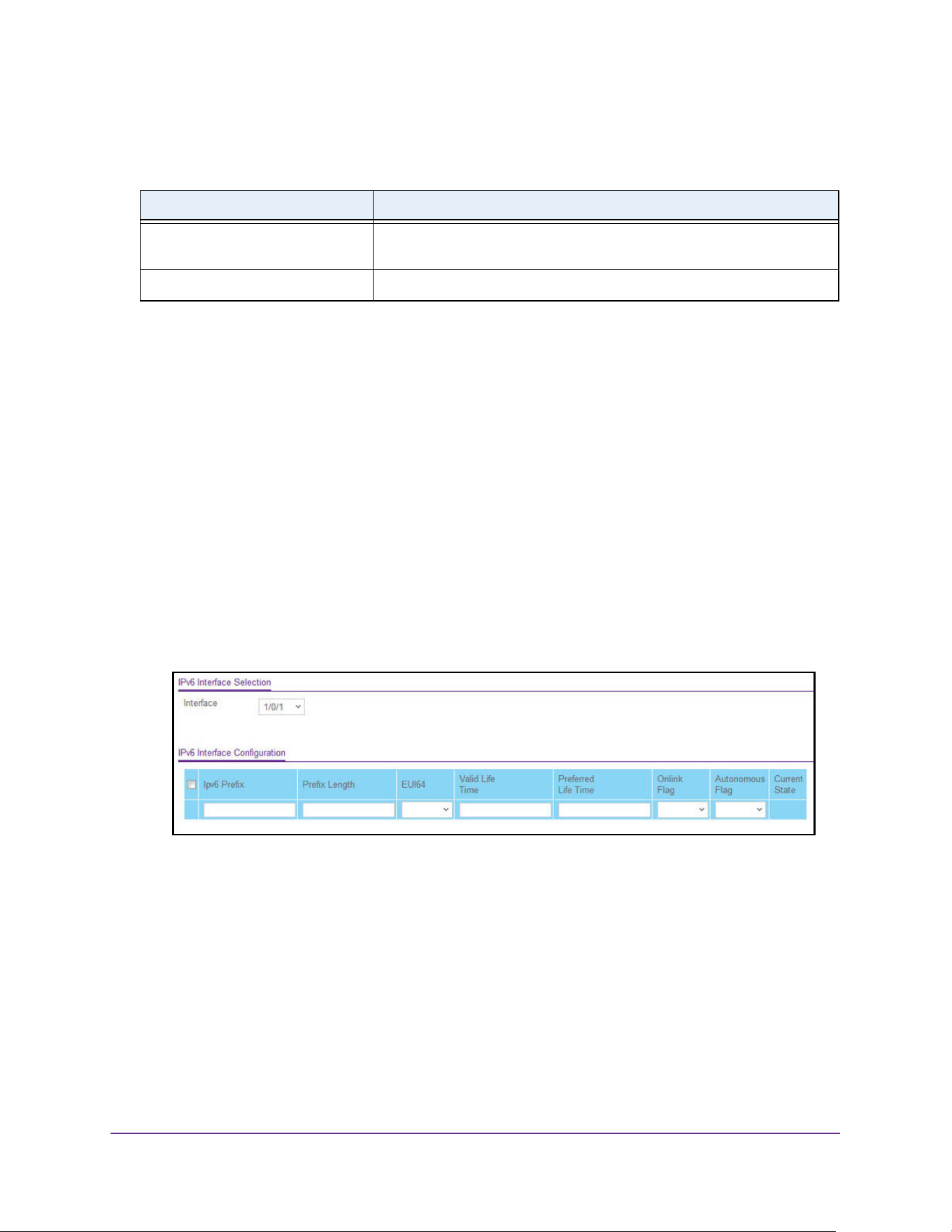
Routing
300
M4200 and M4300 Series ProSAFE Managed Switches Web Management User Manual
The following table describes the nonconfigurable data that is displayed.
IPv6 Prefix Configuration
Configure IPv6 prefix configuration:
1. Launch a web browser.
2. Enter http://<ipaddress> in the web browser address field.
The login window opens.
3. Enter the user name and password.
The default admin user name is admin and the default admin password is blank, that is,
do not enter a password.
4. Click the Login button.
The System Information page displays.
5. Select Routing> IPv6 > Advanced > Prefix Configuration.
6. From the Interface list, select the interface.
When the selection is changed, a page update occurs, causing all fields to be updated for
the newly selected port. All physical interfaces are valid.
7. In the IPv6 Prefix field, specify the IPv6 prefix for an interface.
8. In the Prefix Length field, specify the IPv6 prefix length for an interface.
9. In the EUI64 list, select to Enable or Disable the specified 64-bit unicast prefix.
10. In the Valid Life Time field, specify the router advertisement per prefix time.
This is the amount of time allowed to consider the prefix valid for the purpose of on-link
determination. The valid life time is 0 to 4294967295.
Table 112. IPv6 Advanced Interface Configuration
Field Description
Operational Mode Specifies the operational state of an interface. The default value is
Disable.
Link State Indicates whether the link is up or down.

Routing
301
M4200 and M4300 Series ProSAFE Managed Switches Web Management User Manual
11. In the Preferred Life Time field, specify the router advertisement per prefix time.
An autoconfigured address generated from this prefix is preferred. The preferred life time
must be in the range 0 to 4294967295.
12. From the Onlink Flag list, select Enable or Disable.
This specifies whether the selected prefix can be used for on-link determination. The
default is Enable.
13. In the Autonomous Flag list, select Enable or Disable.
This specifies whether the selected prefix can be used for autonomous address
configuration. The default value is Enable.
14. Click the Add button.
The IPv6 address is added to the interface.
15. Click the Apply button.
The updated configuration is sent to the switch. Configuration changes take effect
immediately.
The Current State field displays the state of the IPV6 address. The state is TENT if
routing is disabled or DAD fails. The state is Active if the interface is active and DAD is
successful.
View IPv6 Statistics
To view IPv6 interface statistics:
1. Launch a web browser.
2. Enter http://<ipaddress> in the web browser address field.
The login window opens.
3. Enter the user name and password.
The default admin user name is admin and the default admin password is blank, that is,
do not enter a password.
4. Click the Login button.
The System Information page displays.
5. Select Routing> IPv6 > Advanced > Statistics.
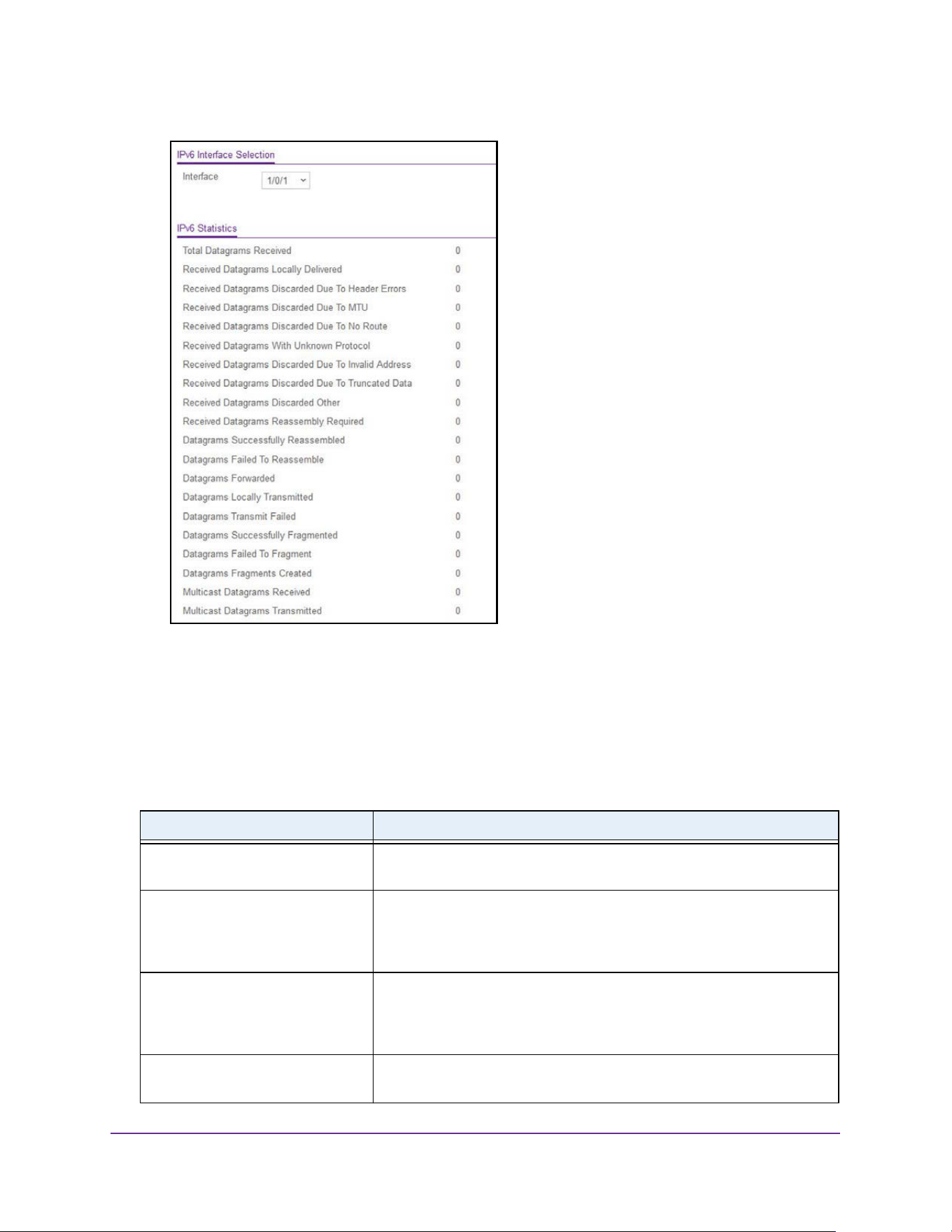
Routing
302
M4200 and M4300 Series ProSAFE Managed Switches Web Management User Manual
6. From the Interface list, select the interface.
When the selection is changed, a page refresh occurs, causing all fields to be updated for
the newly selected port.
7. To refresh the page with the latest information on the switch, click the Update button.
The following table describes the nonconfigurable data that is displayed.
Table 113. IPv6 Advanced Interface Statistics
Field Description
Total Datagrams Received The total number of input datagrams received by the interface, including
those received in error.
Received Datagrams Locally
Delivered
The total number of datagrams successfully delivered to IPv6
user-protocols (including ICMP). This counter is incremented at the
interface to which these datagrams were addressed, which might not be
the input interface for some of the datagrams.
Received Datagrams Discarded
Due To Header Errors
The number of input datagrams discarded due to errors in their IPv6
headers, including version number mismatch, other format errors, hop
count exceeded, errors discovered in processing their IPv6 options, and
so on
Received Datagrams Discarded
Due To MTU
The number of input datagrams that could not be forwarded because their
size exceeded the link MTU of outgoing interface.

Routing
303
M4200 and M4300 Series ProSAFE Managed Switches Web Management User Manual
Received Datagrams Discarded
Due To No Route
The number of input datagrams discarded because no route could be
found to transmit them to their destination
Received Datagrams With Unknown
Protocol
The number of locally-addressed datagrams received successfully but
discarded because of an unknown or unsupported protocol. This counter
is incremented at the interface to which these datagrams were addressed,
which might not be the input interface for some of the datagrams.
Received Datagrams Discarded
Due To Invalid Address
The number of input datagrams discarded because the IPv6 address in
their IPv6 header's destination field was not a valid address to be received
at this entity. This count includes invalid addresses (for example, ::0) and
unsupported addresses (such as addresses with unallocated prefixes).For
entities that are not IPv6 routers and therefore do not forward datagrams,
this counter includes datagrams discarded because the destination
address was not a local address.
Received Datagrams Discarded Dut
To Truncated Data
The number of input datagrams discarded because datagram frame didn't
carry enough data.
Received Datagrams Discarded
Other
The number of input IPv6 datagrams for which no problems were
encountered to prevent their continued processing, but that were
discarded for reasons such as lack of buffer space. This counter does not
include any datagrams discarded while awaiting re-assembly.
Received Datagrams Reassembly
Required
The number of IPv6 fragments received that needed to be reassembled at
this interface. This counter is incremented at the interface to which these
fragments were addressed, which might not be the input interface for
some of the fragments.
Datagrams Successfully
Reassembled
The number of IPv6 datagrams successfully reassembled. This counter is
incremented at the interface to which these datagrams were addressed,
which might not be necessarily the input interface for some of the
fragments.
Datagrams Failed To Reassemble The number of failures detected by the IPv6 reassembly algorithm (for
whatever reason: timed out, errors, and so on). This is not necessarily a
count of discarded IPv6 fragments since some algorithms (notably the
algorithm in RFC 815) can lose track of the number of fragments by
combining them as they are received. This counter is incremented at the
interface to which these fragments were addressed, which might not be
the input interface for some of the fragments.
Datagrams Forwarded The number of output datagrams that this entity received and forwarded to
their final destinations. In entities that do not act as IPv6 routers, this
counter includes only those packets that were source-routed through this
entity, and the source-route processing was successful. For a successfully
forwarded datagram the counter of the outgoing interface is incremented.
Datagrams Locally Transmitted The number of datagrams that this entity successfully transmitted from
this output interface.
Datagrams Transmit Failed The number of datagrams that this entity failed to transmit successfully.
Datagrams Successfully
Fragmented
The number of IPv6 datagrams that were fragmented at this output
interface.
Table 113. IPv6 Advanced Interface Statistics (continued)
Field Description
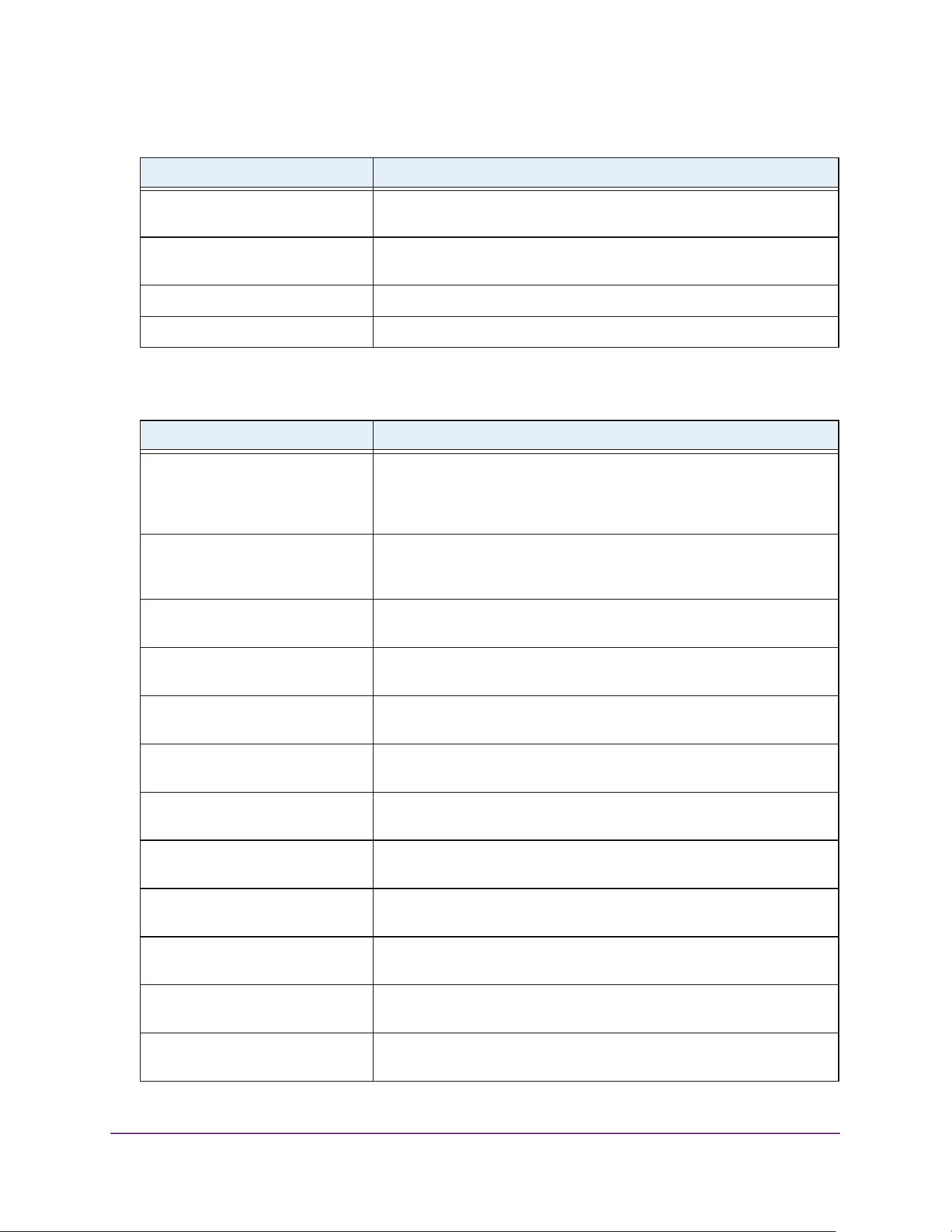
Routing
304
M4200 and M4300 Series ProSAFE Managed Switches Web Management User Manual
The following table describes the nonconfigurable data that is displayed.
Datagrams Failed To Fragment The number of output datagrams that could not be fragmented at this
interface.
Datagrams Fragments Created The number of output datagram fragments that were generated as a result
of fragmentation at this output interface.
Multicast Datagrams Received The number of multicast packets received by the interface.
Multicast Datagrams Transmitted The number of multicast packets transmitted by the interface.
Table 114. ICMPv6 Statistics
Field Description
Total ICMPv6 Messages Received The total number of ICMP messages received by the interface, which
includes all those counted by IPv6IfIcmpInErrors. This interface is the
interface to which the ICMP messages were addressed, which might not
be the input interface for the messages.
ICMPv6 Messages With Errors
Received
The number of ICMP messages that the interface received but determined
as having ICMP-specific errors (bad ICMP checksums, bad length, and so
on).
ICMPv6 Destination Unreachable
Messages Received
The number of ICMP Destination Unreachable messages received by the
interface.
ICMPv6 Messages Prohibited
Administratively Received
The number of ICMP destination unreachable/communication
administratively prohibited messages received by the interface.
ICMPv6 Time Exceeded Messages
Received
The number of ICMP Time Exceeded messages received by the interface.
ICMPv6 Parameter Problem
Messages Received
The number of ICMP Parameter Problem messages received by the
interface.
ICMPv6 Packet Too Big Messages
Received
The number of ICMP Packet Too Big messages received by the interface.
ICMPv6 Echo Request Messages
Received
The number of ICMP Echo (request) messages received by the interface.
ICMPv6 Echo Reply Messages
Received
The number of ICMP Echo Reply messages received by the interface.
ICMPv6 Router Solicit Messages
Received
The number of ICMP Router Solicit messages received by the interface.
ICMPv6 Router Advertisement
Messages Received
The number of ICMP Router Advertisement messages received by the
interface.
ICMPv6 Neighbor Solicit Messages
Received
The number of ICMP Neighbor Solicit messages received by the interface.
Table 113. IPv6 Advanced Interface Statistics (continued)
Field Description

Routing
305
M4200 and M4300 Series ProSAFE Managed Switches Web Management User Manual
ICMPv6 Neighbor Advertisement
Messages Received
The number of ICMP Neighbor Advertisement messages received by the
interface.
ICMPv6 Redirect Messages
Received
The number of ICMPv6 Redirect messaged received by the interface.
ICMPv6 Group Membership Query
Messages Received
The number of ICMPv6 Group Membership Query messages received by
the interface.
ICMPv6 Group Membership
Response Messages Received
The number of ICMPv6 Group Membership Response messages received
by the interface.
ICMPv6 Group Membership
Reduction Messages Received
The number of ICMPv6 Group Membership Reduction messages received
by the interface.
Total ICMPv6 Messages
Transmitted
The total number of ICMP messages that this interface attempted to send.
This counter includes all those counted by icmpOutErrors.
ICMPv6 Messages Not Transmitted
Due To Error
The number of ICMP messages that this interface did not send due to
problems discovered within ICMP such as a lack of buffers. This value
does not include errors discovered outside the ICMP layer such as the
inability of IPv6 to route the resultant datagram. In some implementations
there might be no types of error that contribute to this counter's value.
ICMPv6 Destination Unreachable
Messages Transmitted
The number of ICMP Destination Unreachable messages sent by the
interface.
ICMPv6 Messages Prohibited
Administratively Transmitted
Number of ICMP Destination Unreachable/Communication
Administratively Prohibited messages sent.
ICMPv6 Time Exceeded Messages
Transmitted
The number of ICMP Time Exceeded messages sent by the interface.
ICMPv6 Parameter Problem
Messages Transmitted
The number of ICMP Parameter Problem messages sent by the interface.
ICMPv6 Packet Too Big Messages
Transmitted
The number of ICMP Packet Too Big messages sent by the interface.
ICMPv6 Echo Request Messages
Transmitted
The number of ICMP Echo (request) messages sent by the interface.
ICMPv6 Echo Reply Messages
Transmitted
The number of ICMP Echo Reply messages sent by the interface.
ICMPv6 Router Solicit Messages
Transmitted
The number of ICMP Neighbor Solicitation messages sent by the
interface.
ICMPv6 Router Advertisement
Messages Transmitted
The number of ICMP Router Advertisement messages sent by the
interface.
ICMPv6 Neighbor Solicit Messages
Transmitted
The number of ICMP Neighbor Solicitation messages sent by the
interface.
ICMPv6 Neighbor Advertisement
Messages Transmitted
The number of ICMP Neighbor Advertisement messages sent by the
interface.
Table 114. ICMPv6 Statistics (continued)
Field Description
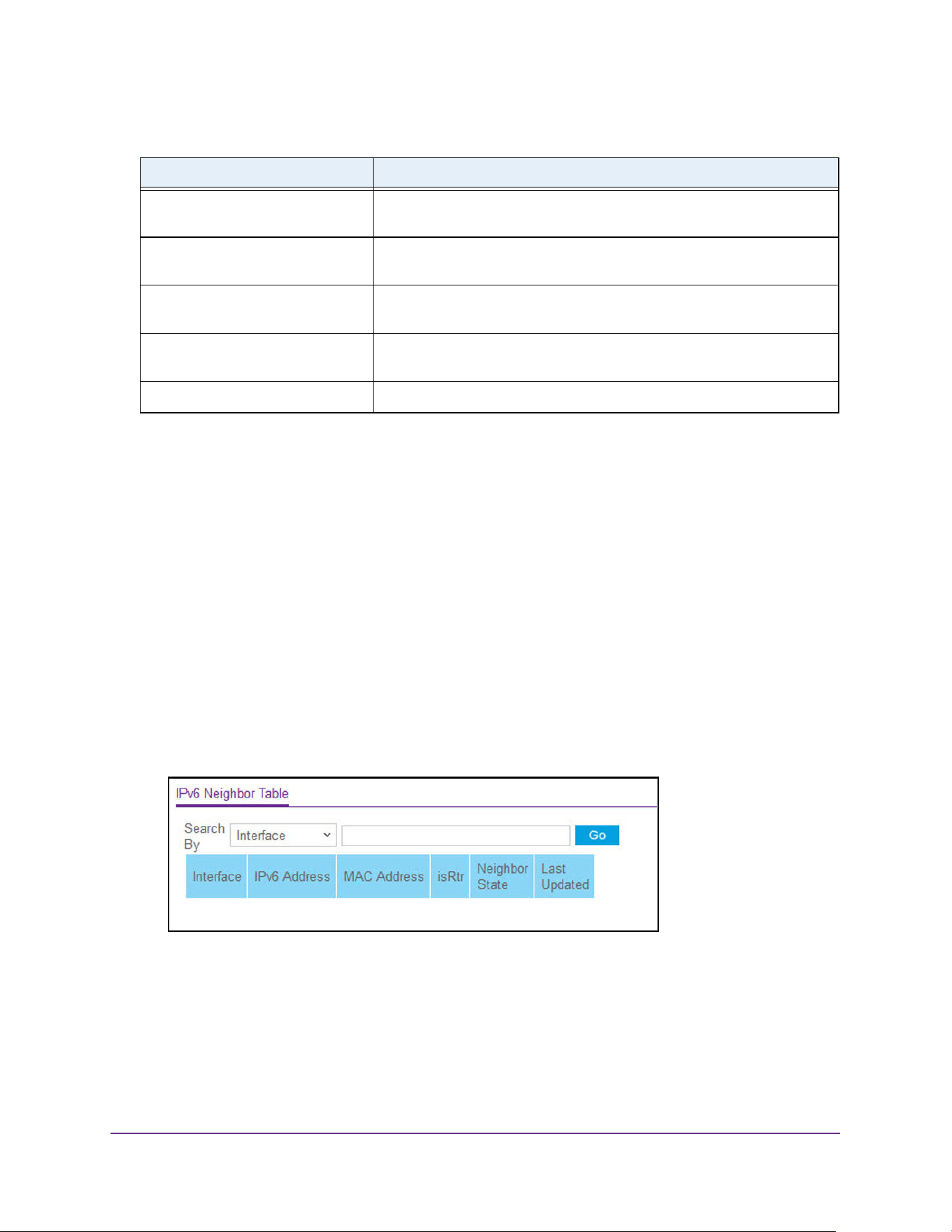
Routing
306
M4200 and M4300 Series ProSAFE Managed Switches Web Management User Manual
View the IPv6 Neighbor Table and Clear IPv6 Neighbors
To view the IPv6 neighbor table and clear IPv6 neighbors:
1. Launch a web browser.
2. Enter http://<ipaddress> in the web browser address field.
The login window opens.
3. Enter the user name and password.
The default admin user name is admin and the default admin password is blank, that is,
do not enter a password.
4. Click the Login button.
The System Information page displays.
5. Select Routing> IPv6 > Advanced > Neighbor Table.
6. Use the Search By field to search for IPv6 routes by IPv6 Address or Interface.
• To search by IPv6 address, select IPv6 Address from the Search By list. Enter the
128-byte hexadecimal IPv6 address in four-digit groups separated by colons, for
example, 2001:231F:::1. Then click the Go button. If the address exists, that entry is
displayed. An exact match is required.
ICMPv6 Redirect Messages
Transmitted
The number of Redirect messages sent.
ICMPv6 Group Membership Query
Messages Transmitted
The number of ICMPv6 Group Membership Query messages sent.
ICMPv6 Group Membership
Response Messages Transmitted
The number of ICMPv6 Group Membership Response messages sent.
ICMPv6 Group Membership
Reduction Messages Transmitted
The number of ICMPv6 Group Membership Reduction messages sent.
ICMPv6 Duplicate Address Detects The number of duplicate addresses detected by the interface.
Table 114. ICMPv6 Statistics (continued)
Field Description

Routing
307
M4200 and M4300 Series ProSAFE Managed Switches Web Management User Manual
• To search by Interface, select Interface from the Search By list, enter the interface
ID in unit/slot/port format, for example, 2/1/1. Then click the Go button. If the address
exists, that entry is displayed.
7. To refresh the page with the latest information on the switch, click the Update button.
8. To clear the IPv6 neighbors on a selected interface or on all interfaces, click the Clear
button.
The following table describes the nonconfigurable data that is displayed.
Table 115. IPv6 Advanced Neighbor Table
Field Description
Interface The interface whose settings are displayed in the current table row.
IPv6 Address The IPv6 address of the neighbor or interface.
MAC Address Specifies MAC address associated with an interface.
isRtr Indicates whether the neighbor is a router. If the neighbor is a router, the
value is True. If the neighbor is not a router, the value is False.
Neighbor State The state of the neighbor cache entry. Following are the states for
dynamic entries in the IPv6 neighbor discovery cache:
• Incmp. Address resolution is being performed on the entry.A neighbor
solicitation message was sent to the solicited-node multicast address
of the target, but the corresponding neighbor advertisement message
has not yet been received.
• Reach. Positive confirmation was received within the last Reachable
Time milliseconds that the forward path to the neighbor was
functioning properly. While in REACH state, the device takes no
special action as packets are sent.
• Stale. More than ReachableTime milliseconds elapsed since the last
positive confirmation was received that the forward path was
functioning properly. While in STALE state, the device takes no action
until a packet is sent.
• Delay. More than ReachableTime milliseconds elapsed since the last
positive confirmation was received that the forward path was
functioning properly. A packet was sent within the last
DELAY_FIRST_PROBE_TIME seconds. If no reachability
confirmation is received within DELAY_FIRST_PROBE_TIME
seconds of entering the DELAY state, send a neighbor solicitation
message and change the state to PROBE.
• Probe. A reachability confirmation is actively sought by resending
neighbor solicitation messages every RetransTimer milliseconds until
a reachability confirmation is received.
Last Updated Time since the address was confirmed to be reachable.
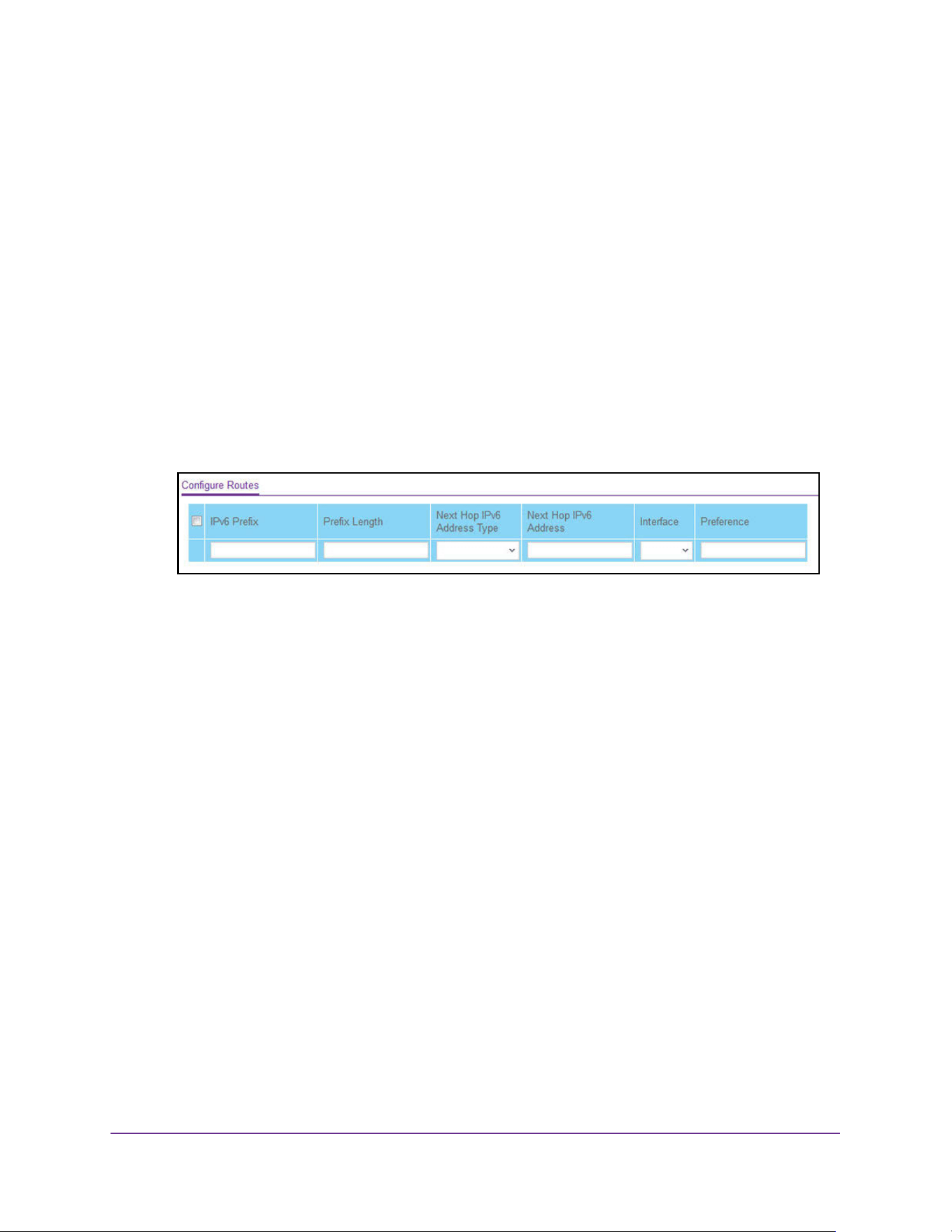
Routing
308
M4200 and M4300 Series ProSAFE Managed Switches Web Management User Manual
IPv6 Static Route Configuration
Configure an IPv6 static route:
1. Launch a web browser.
2. Enter http://<ipaddress> in the web browser address field.
The login window opens.
3. Enter the user name and password.
The default admin user name is admin and the default admin password is blank, that is,
do not enter a password.
4. Click the Login button.
The System Information page displays.
5. Select Routing> IPv6 > Advanced > Static Route Configuration.
6. In the IPv6 Prefix field, specify the IPv6 prefix for the configured route.
7. In the Prefix Length field, specify the IPv6 prefix length for the configured route.
8. In the Next Hop IPv6 Address Type list, select one of the following options:
• Global IPv6 Address.
• Link-Local IPv6 address. If the next hop IPv6 address specified is a link-local IPv6
address, then specify the interface for the link-local IPv6 next hop address.
• Static-Reject. Select Static-Reject to create a static-reject route for a destination
prefix. No next hop address is specified in that case.
9. Enter the Next Hop IPv6 Address for the configured route.
10. Select from the Interface list to specify in unit/slot/port format, the link-local IPv6 next hop
address.
This field is enabled only if Link-Local is selected.
11. Specify the route Preference of the configured route.
12. Click the Add button.
The route is added.
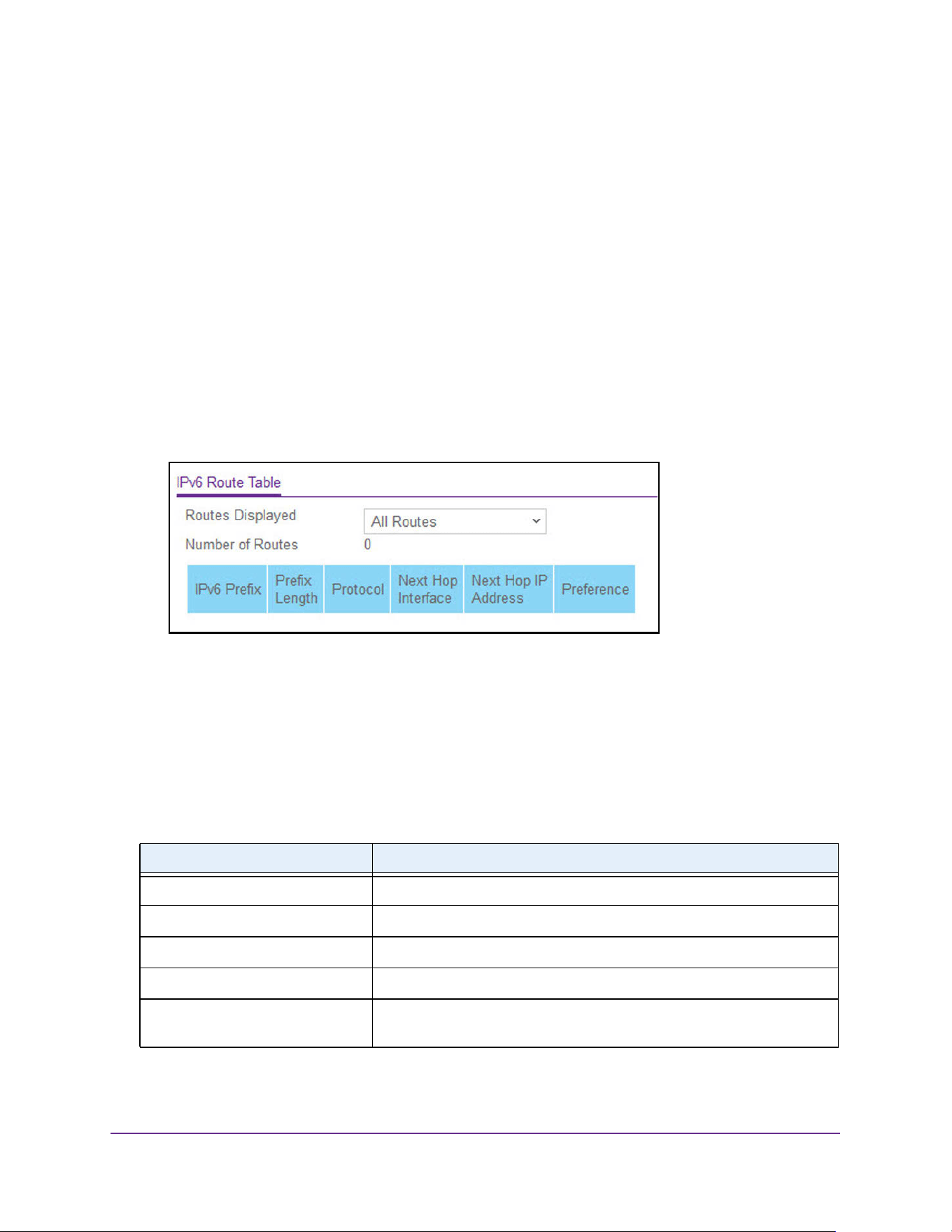
Routing
309
M4200 and M4300 Series ProSAFE Managed Switches Web Management User Manual
View the IPv6 Route Table
To view the IPv6 route table:
1. Launch a web browser.
2. Enter http://<ipaddress> in the web browser address field.
The login window opens.
3. Enter the user name and password.
The default admin user name is admin and the default admin password is blank, that is,
do not enter a password.
4. Click the Login button.
The System Information page displays.
5. Select Routing> IPv6 > Advanced > Route Table.
6. In the Routes Displayed field, select which routes to display from the following list:
• All Routes. Show all active IPv6 routes.
• Best Routes Only. Show only the best active routes.
• Configured Routes Only. Show the routes configured by the user.
7. To refresh the page with the latest information on the switch, click the Update button.
The following table describes the nonconfigurable data that is displayed.
Table 116. IPv6 Advanced Route Table
Field Description
Number of Routes The total number of active routes in the route table.
IPv6 Prefix The network prefix for the active route.
Prefix Length The prefix length for the active route.
Protocol The type of protocol for the active route.
Next Hop Interface The interface over which the route is active. For a reject route, the next
hop would be a Null0 interface.
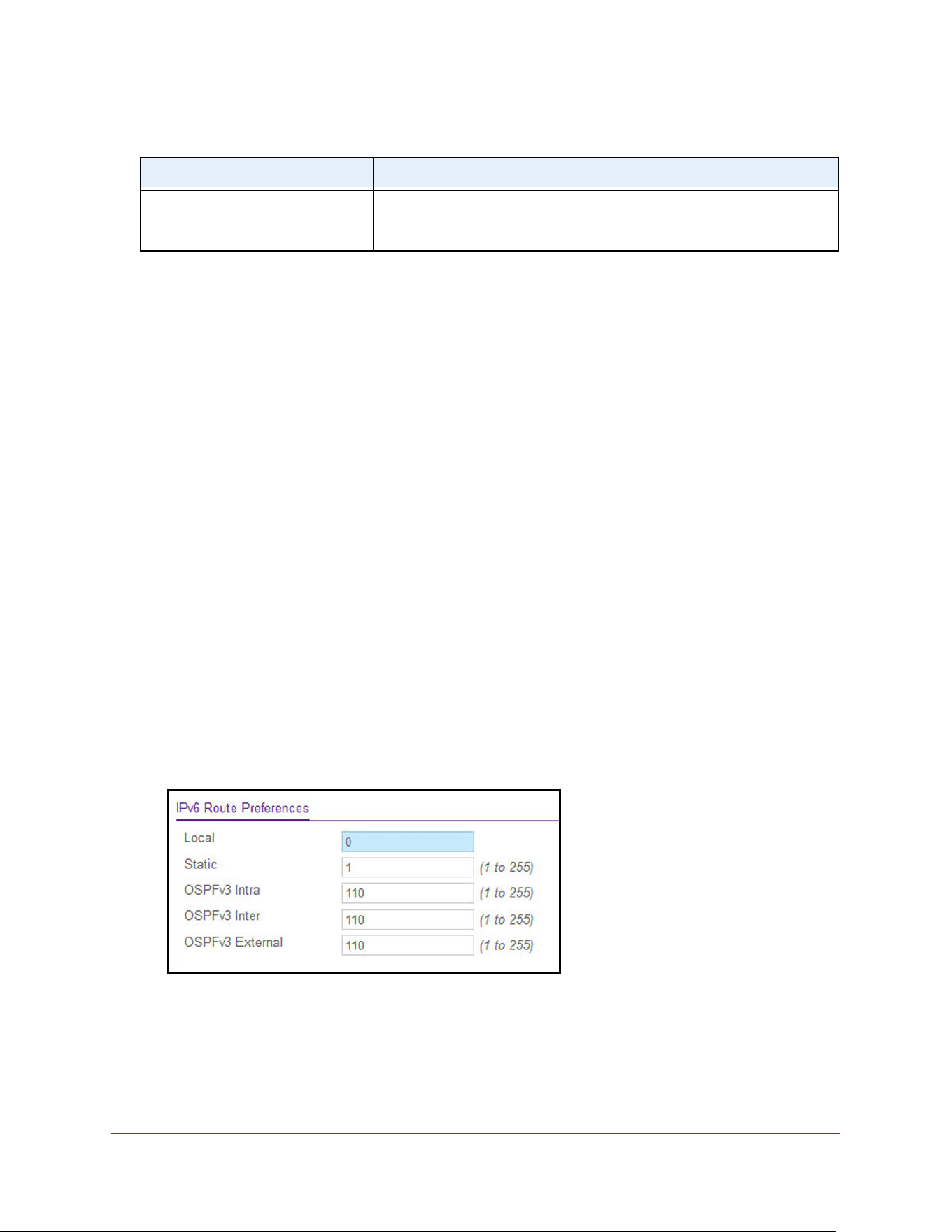
Routing
310
M4200 and M4300 Series ProSAFE Managed Switches Web Management User Manual
IPv6 Route Preferences
Use this page to configure the default preference for each protocol. These values are
arbitrary values in the range of 1 to 255 and are independent of route metrics. Most routing
protocols use a route metric to determine the shortest path known to the protocol,
independent of any other protocol. The best route to a destination is chosen by selecting the
route with the lowest preference value. When there are multiple routes to a destination, the
preference values are used to determine the preferred route. If there is still a tie, the route
with the best route metric is chosen. To avoid problems with mismatched metrics you must
configure different preference values for each of the protocols.
Configure the IPv6 route preferences:
1. Launch a web browser.
2. Enter http://<ipaddress> in the web browser address field.
The login window opens.
3. Enter the user name and password.
The default admin user name is admin and the default admin password is blank, that is,
do not enter a password.
4. Click the Login button.
The System Information page displays.
5. Select Routing> IPv6 > Advanced > Route Preference.
6. In the Static field, specify the static route preference value for the router.
The range is 1 to 255. The default value is 1.
7. In the OSPFv3 Intra field, specify the OSPFv3 intra route preference value in the router.
Next Hop IP Address The next hop IPv6 address for the active route.
Preference The route preference of the configured route.
Table 116. IPv6 Advanced Route Table (continued)
Field Description
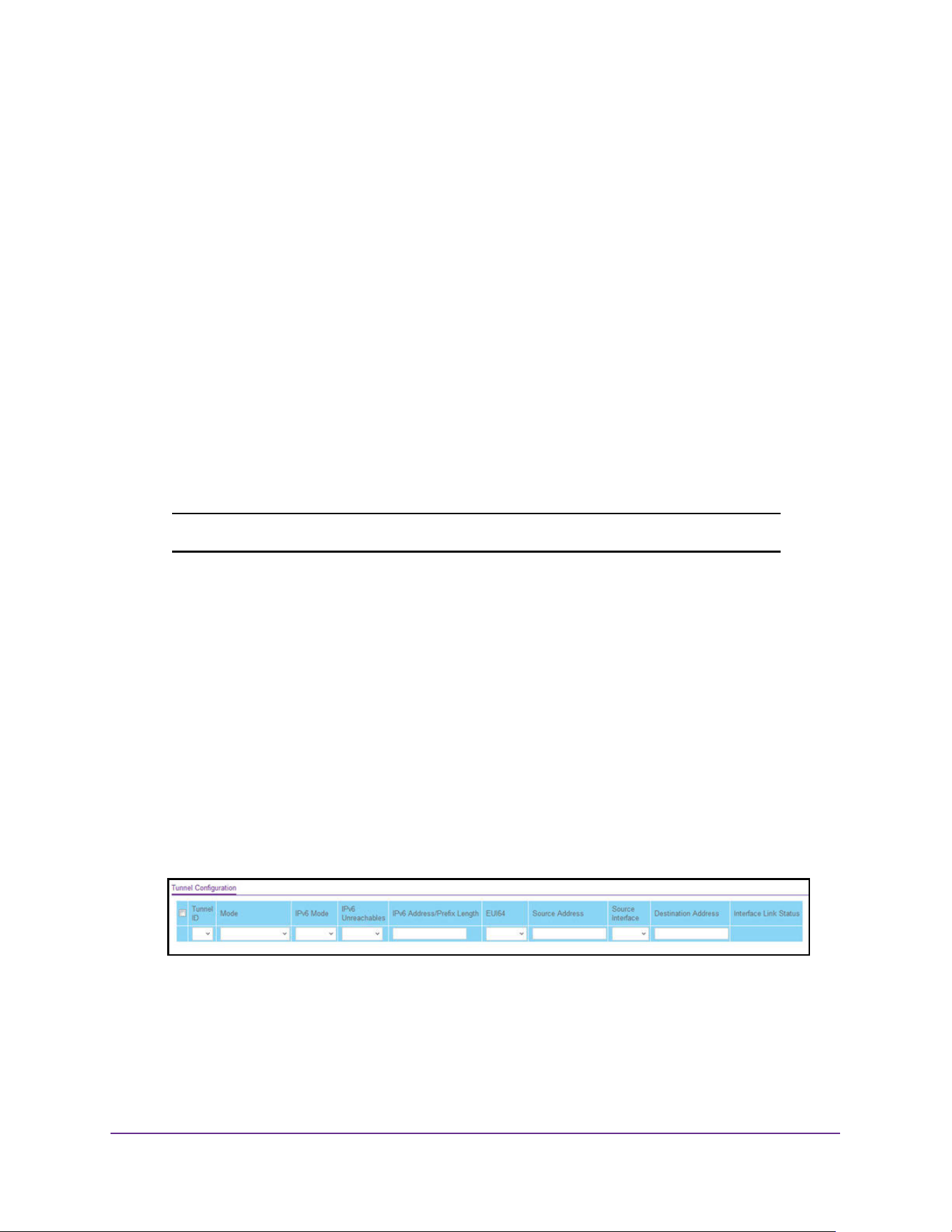
Routing
311
M4200 and M4300 Series ProSAFE Managed Switches Web Management User Manual
The range is 1 to 255. The default value is 110.
8. In the OSPFv3 Inter field, specify the OSPFv3 inter route preference value in the router.
The range is 1 to 255. The default value is 110.
9. In the OSPFv3 External field, specify the OSPFv3 external route preference value in the
router.
The range is 1 to 255. The default value is 110.
10. Click the Apply button.
The updated configuration is sent to the switch. Configuration changes take effect
immediately.
The Local field displays the local preference.
Configure IPv6 Tunnels
You can create, configure, and delete tunnels.
Note: IPv6 tunnels are supported on the M4300 series switches only.
To configure an IPv6 tunnel:
1. Launch a web browser.
2. Enter http://<ipaddress> in the web browser address field.
The login window opens.
3. Enter the user name and password.
The default admin user name is admin and the default admin password is blank, that is,
do not enter a password.
4. Click the Login button.
The System Information page displays.
5. Select Routing> IPv6 > Advanced > Tunnel Configuration.
6. In the Tunnel ID field, select from the list of available tunnel IDs.
7. In the Mode list, select a supported mode:
• 6-in-4-configured
• 6-to-4
8. Select the IPv6 Mode from the list.

Routing
312
M4200 and M4300 Series ProSAFE Managed Switches Web Management User Manual
9. Enable IPv6 on this interface using the IPv6 address.
This option is configurable only until you specify an explicit IPv6 address.
10. From the IPv6 Unreachables list, select to Enable or Disable.
This specifies the mode of sending ICMPv6 Destination Unreachables on this interface. If
you select Disable, then this interface does not send ICMPv6 destination unreachables.
By default IPv6 destination unreachables mode is enabled.
11. In the IPv6 Address/Prefix Length field, enter a configured IPv6 address for the selected
interface.
The address must be entered in the format prefix/length.
12. From the EUI64 list, select to Enable or Disable the 64-bit extended unique identifier
(EUI-64).
For 6to4 tunnels, configure the IPv6 address with first 48-bits in the format
2002:tunnel-source-IPv4-address::/48.
13. Specify the desired Source Address for this tunnel.
This value must be entered in dotted-decimal notation.
14. Select the Source Interface for this tunnel.
The address associated with the selected interface is used as the source address.
15. Enter the Destination Address for this tunnel in dotted-decimal notation.
16. Click the Add button.
The tunnel is added.
17. Click the Apply button.
The updated configuration is sent to the switch. Configuration changes take effect
immediately.
The Interface Link Status field indicates whether the tunnel interface is up or down.
VLAN Overview
You can configure the switch software so that some ports support VLANs and other ports
support routing. You can also configure the software to allow traffic on a VLAN to be treated
as if the VLAN were a router port.
When a port is enabled for bridging (default) rather than routing, all normal bridge processing
is performed for an inbound packet, which is then associated with a VLAN. Its MAC
destination address (MAC DA) and VLAN ID are used to search the MAC address table. If
routing is enabled for the VLAN, and the MAC DA of an inbound unicast packet is that of the
internal bridge-router interface, the packet is routed. An inbound multicast packet is
forwarded to all ports in the VLAN, plus the internal bridge-router interface, if it was received
on a routed VLAN.

Routing
313
M4200 and M4300 Series ProSAFE Managed Switches Web Management User Manual
Since a port can be configured to belong to more than one VLAN, VLAN routing might be
enabled for all of the VLANs on the port, or for a subset. VLAN routing can be used to allow
more than one physical port to reside on the same subnet. It could also be used when a
VLAN spans multiple physical networks, or when additional segmentation or security is
required. This section shows how to configure the NETGEAR switch to support VLAN
routing. A port can be either a VLAN port or a router port, but not both. However, a VLAN port
can be part of a VLAN that is a router port.
Use the VLAN Static Routing Wizard
The VLAN Static Routing Wizard creates a VLAN, adds selected ports to the VLAN. The
VLAN Static Routing Wizard gives you the option to add the selected ports as a link
aggregation (LAG). The Wizard does the following:
• Creates a VLAN and generates a unique name for VLAN.
• Adds selected ports to the newly created VLAN and removes selected ports from the
default VLAN.
• Creates a LAG, add selected ports to a LAG, then adds a LAG to the newly created
VLAN.
• Enables tagging on selected ports if the port is in another VLAN. Disables tagging if a
selected port does NOT exist in another VLAN.
• Excludes ports NOT selected from the VLAN.
• Enables routing on the VLAN using the IP address and subnet mask entered.
To use the VLAN Static Routing Wizard:
1. Launch a web browser.
2. Enter http://<ipaddress> in the web browser address field.
The login window opens.
3. Enter the user name and password.
The default admin user name is admin and the default admin password is blank, that is,
do not enter a password.
4. Click the Login button.
The System Information page displays.
5. Select Routing> VLAN > VLAN Static Routing Wizard.
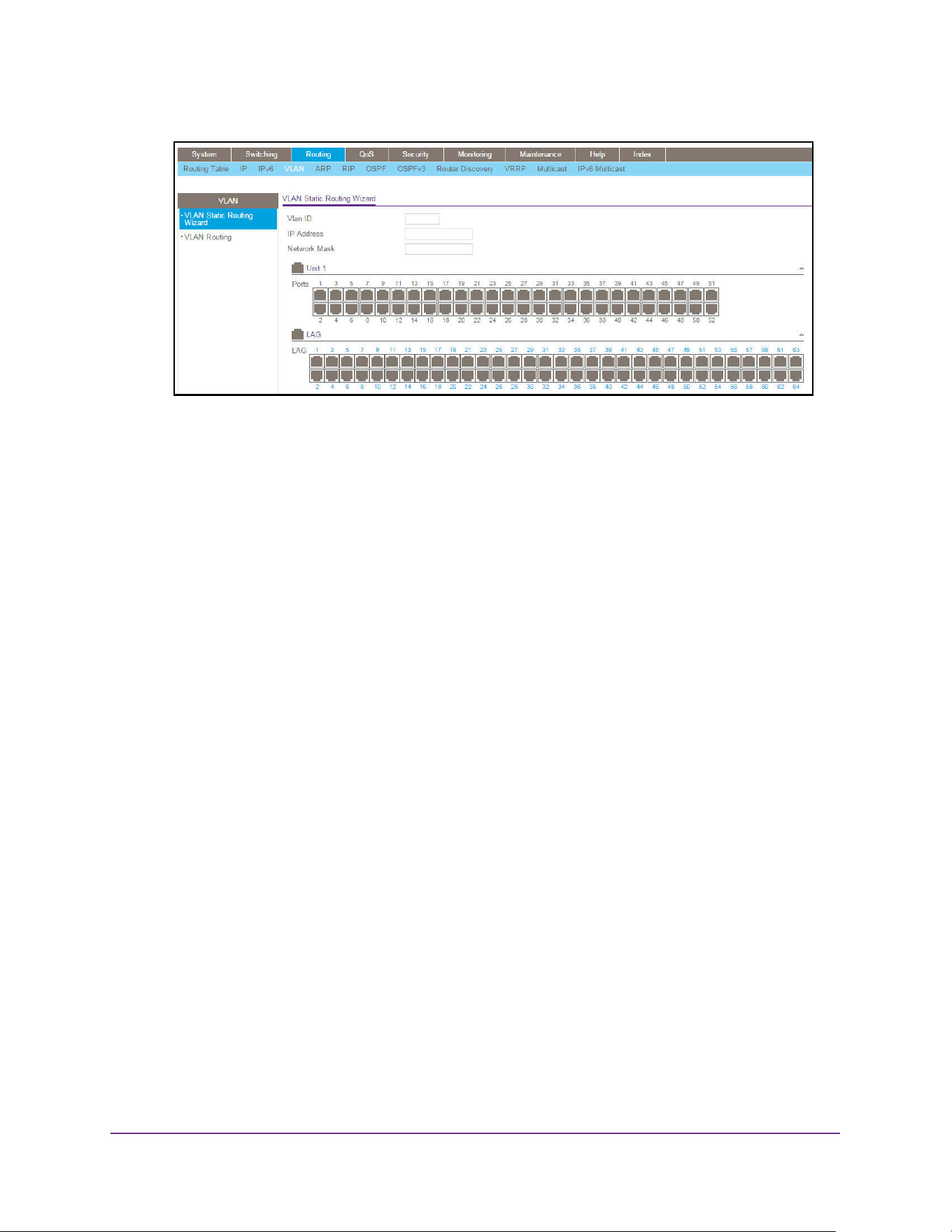
Routing
314
M4200 and M4300 Series ProSAFE Managed Switches Web Management User Manual
6. Use VLAN ID to specify the VLAN identifier (VID) associated with this VLAN.
The range of the VLAN ID is 1 to 4093.
7. Use Ports to display selectable physical ports and LAGs (if any).
Selected ports are added to the routing VLAN. Each port has three modes:
• T (Tagged). Select the ports on which all frames transmitted for this VLAN are tagged.
The ports that are selected are included in the VLAN.
• U (Untagged). Select the ports on which all frames transmitted for this VLAN are
untagged. The ports that are selected are included in the VLAN.
• BLANK(Autodetect). Select the ports that can be dynamically registered in this VLAN
through GVRP. This selection has the effect of excluding a port from the selected
VLAN.
8. Use the LAG Enabled option to add selected ports to VLAN as a LAG.
The default is No.
9. Use IP Address to define the IP address of the VLAN interface.
10. Use Network Mask to define the subnet mask of the VLAN interface.
11. Click the Apply button.
The updated configuration is sent to the switch. Configuration changes take effect
immediately.
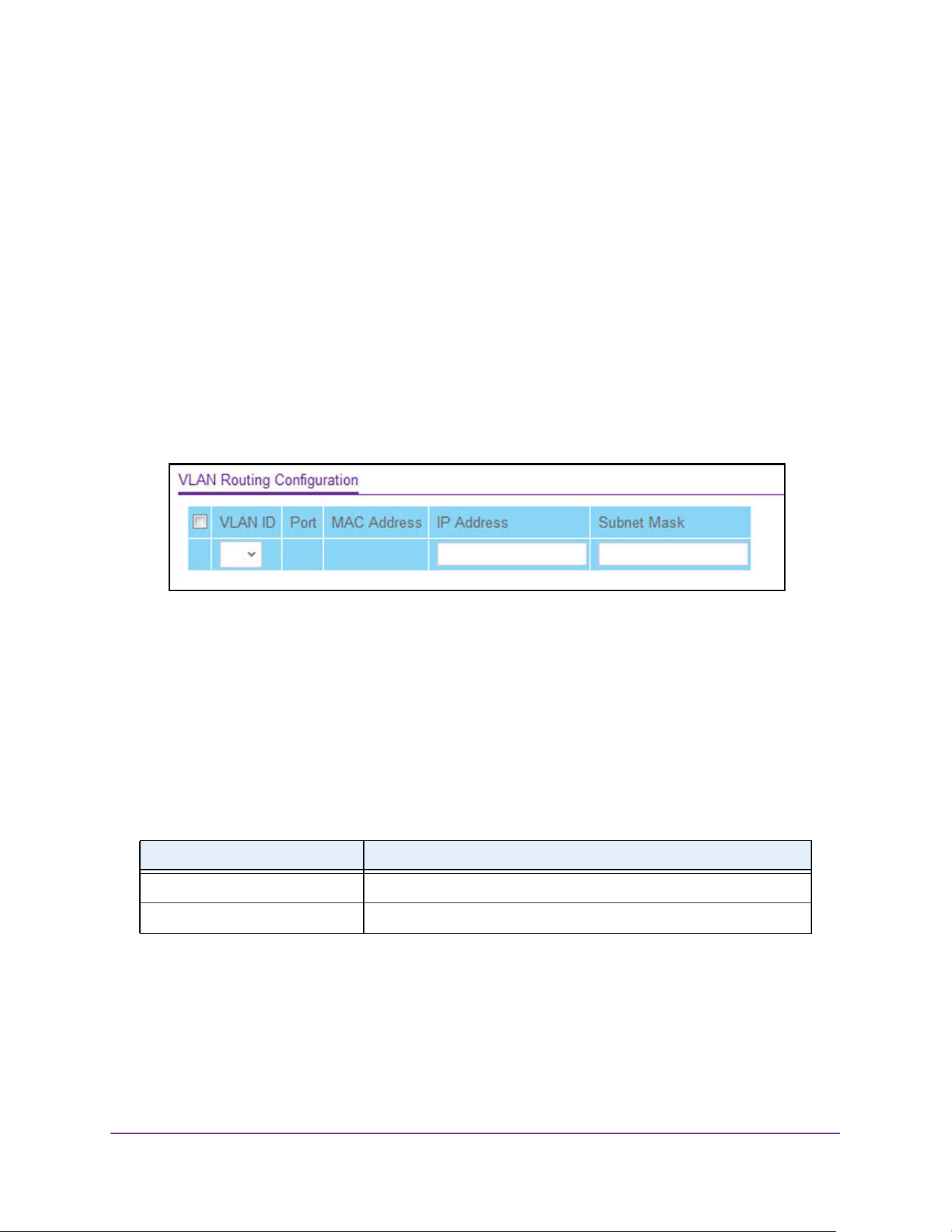
Routing
315
M4200 and M4300 Series ProSAFE Managed Switches Web Management User Manual
Configure VLAN Routing
To configure VLAN routing:
1. Launch a web browser.
2. Enter http://<ipaddress> in the web browser address field.
The login window opens.
3. Enter the user name and password.
The default admin user name is admin and the default admin password is blank, that is,
do not enter a password.
4. Click the Login button.
The System Information page displays.
5. Select Routing> VLAN > VLAN Routing.
6. Select the VLAN ID.
This field displays the IDs of all the VLANs configured on this switch.
7. Use IP Address to enter the IP address to be configured for the VLAN routing interface.
8. Use Subnet Mask to enter the subnet mask to be configured for the VLAN routing interface.
9. Click the Add button.
The VLAN routing interface is added for the selected VLAN ID.
The following table describes the nonconfigurable information displayed on the page.
Table 117. VLAN Routing Configuration
Field Description
Port The interface assigned to the VLAN for routing.
MAC Address The MAC Address assigned to the VLAN routing interface

Routing
316
M4200 and M4300 Series ProSAFE Managed Switches Web Management User Manual
Configure Address Resolution Protocol
The Address Resolution Protocol (ARP) associates a Layer 2 MAC address with a Layer 3
IPv4 address. The switch software features both dynamic and manual ARP configuration.
With manual ARP configuration, you can statically add entries into the ARP table.
ARP is a necessary part of the Internet Protocol (IP) and is used to translate an IP address to
a media (MAC) address, defined by a local area network (LAN) such as Ethernet. A station
needing to send an IP packet must learn the MAC address of the IP destination, or of the next
hop router, if the destination is not on the same subnet. This is achieved by broadcasting an
ARP request packet, to which the intended recipient responds by unicasting an ARP reply
containing its MAC address. Once learned, the MAC address is used in the destination
address field of the Layer 2 header prepended to the IP packet.
The ARP cache is a table maintained locally in each station on a network. ARP cache entries
are learned by examining the source information in the ARP packet payload fields, regardless
of whether it is an ARP request or response. Thus, when an ARP request is broadcast to all
stations on a LAN segment or virtual LAN (VLAN), each recipient has the opportunity to store
the sender’s IP and MAC address in its respective ARP cache. The ARP response, being
unicast, is normally seen only by the requestor, who stores the sender information in its ARP
cache. Newer information always replaces existing content in the ARP cache.
The number of supported ARP entries is platform dependent.
Devices can be moved in a network, which means that the IP address that was at one time
associated with a certain MAC address is now found using a different MAC, or it disappeared
from the network altogether (for example, it was reconfigured, disconnected, or powered off).
This leads to stale information in the ARP cache unless entries are updated in reaction to
new information seen on the network, periodically refreshed to determine if an address still
exists, or removed from the cache if the entry was identified as a sender of an ARP packet
during the course of an ageout interval, usually specified through configuration.
Display the ARP Entries in the ARP Cache
Use this page to display ARP entries in the ARP cache. The table lists the remote
connections most recently seen by this switch.
To display ARP entries in the ARP cache:
1. Launch a web browser.
2. Enter http://<ipaddress> in the web browser address field.
The login window opens.
3. Enter the user name and password.
The default admin user name is admin and the default admin password is blank, that is,
do not enter a password.
4. Click the Login button.
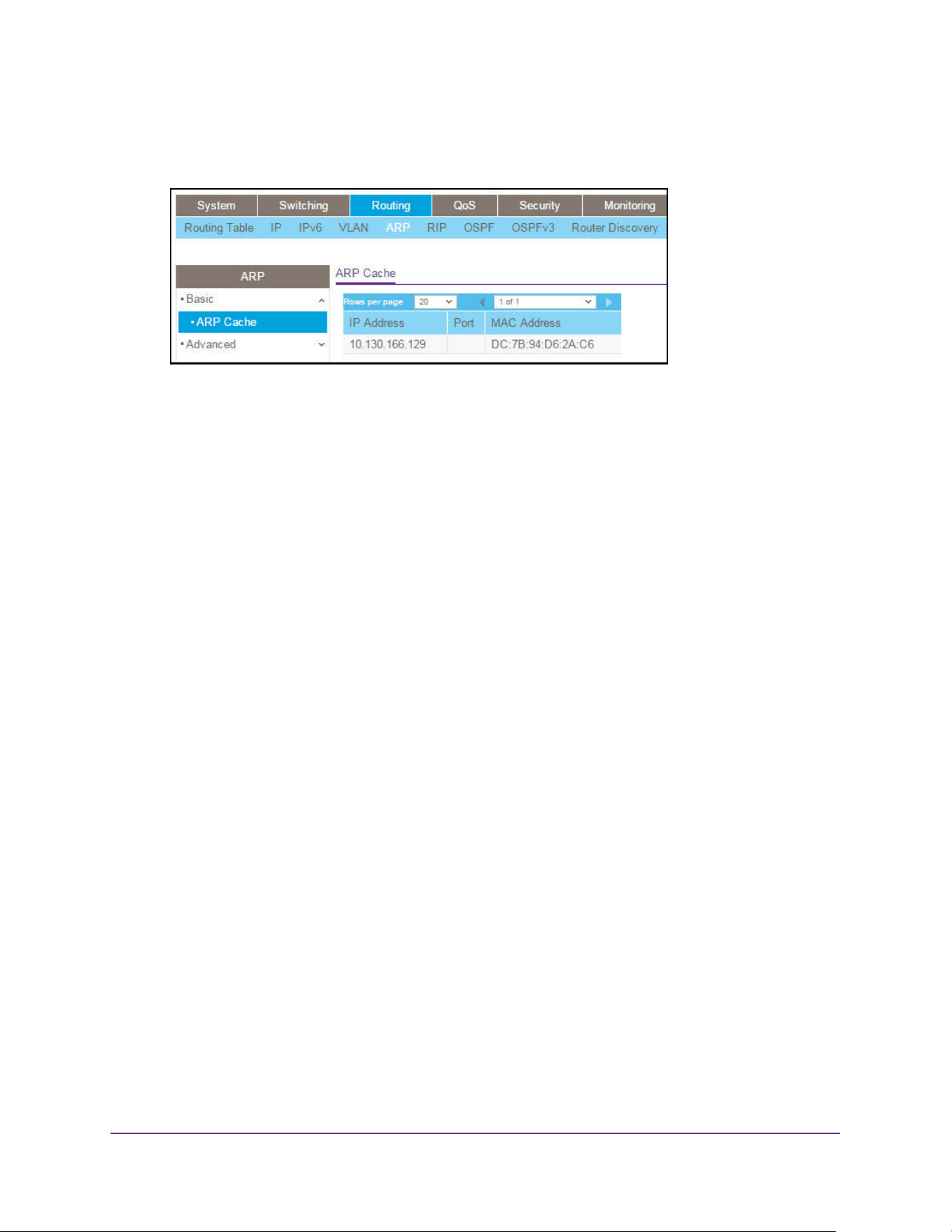
Routing
317
M4200 and M4300 Series ProSAFE Managed Switches Web Management User Manual
The System Information page displays.
5. Select Routing> ARP > Basic > ARP Cache.
The page displays the following information:
• IP Address. Displays the IP address associated with the system’s MAC address.
This address must be the IP address of a device on a subnet attached to one of the
switch's existing routing interfaces.
• Port. Displays the associated unit/slot/port of the connection.
• MAC Address. Displays the unicast MAC address of the device. The address is six
2-digit hexadecimal numbers separated by colons, for example, 00:06:29:32:81:40.
The pagination navigation menu functions as follows:
- Rows per page. Select how many table entries are displayed per page. Possible
values are 20, 50, 100, 200, and All. If you select All, the browser might be slow to
display the information.
- <. Display the previous page of the table data entries.
- >. Display the next page of the table data entries.
6. To refresh the page with the latest information on the switch, click the Update button.
Add an Entry to the ARP Table
You can add an entry to the Address Resolution Protocol (ARP) table.
To add an entry to the ARP table:
1. Launch a web browser.
2. Enter http://<ipaddress> in the web browser address field.
The login window opens.
3. Enter the user name and password.
The default admin user name is admin and the default admin password is blank, that is,
do not enter a password.
4. Click the Login button.
The System Information page displays.
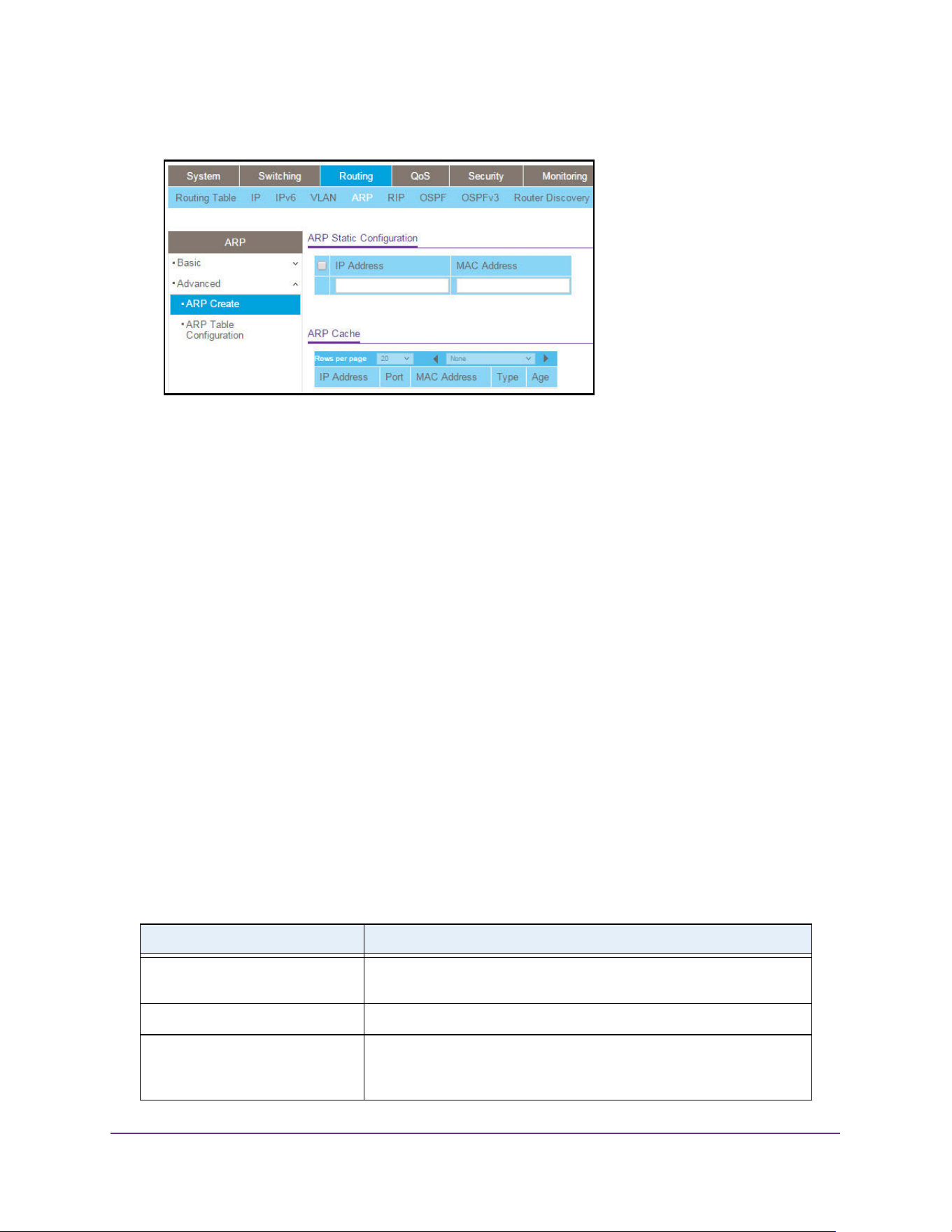
Routing
318
M4200 and M4300 Series ProSAFE Managed Switches Web Management User Manual
5. Select Routing> ARP > Advanced > ARP Create.
6. Use IP Address to enter the IP address to add.
It must be the IP address of a device on a subnet attached to one of the switch's existing
routing interfaces.
7. Use MAC Address to specify the unicast MAC address of the device.
Enter the address as six 2-digit hexadecimal numbers separated by colons, for example,
00:06:29:32:81:40.
8. Click the Add button.
The static ARP entry is added to the switch.
9. Click the Apply button.
The updated configuration is sent to the switch. Configuration changes take effect
immediately.
The pagination navigation menu functions as follows:
- Rows per page. Select how many table entries are displayed per page. Possible
values are 20, 50, 100, 200, and All. If you select All, the browser might be slow to
display the information.
- <. Display the previous page of the table data entries.
- >. Display the next page of the table data entries.
The following table describes the nonconfigurable information displayed on the page.
Table 118. ARP Cache
Field Description
IP Address The IP address. It must be the IP address of a device on a subnet
attached to one of the switch's existing routing interfaces.
Port The associated unit/slot/port of the connection.
MAC Address The unicast MAC address of the device. The address is six two-digit
hexadecimal numbers separated by colons, for example
00:06:29:32:81:40.
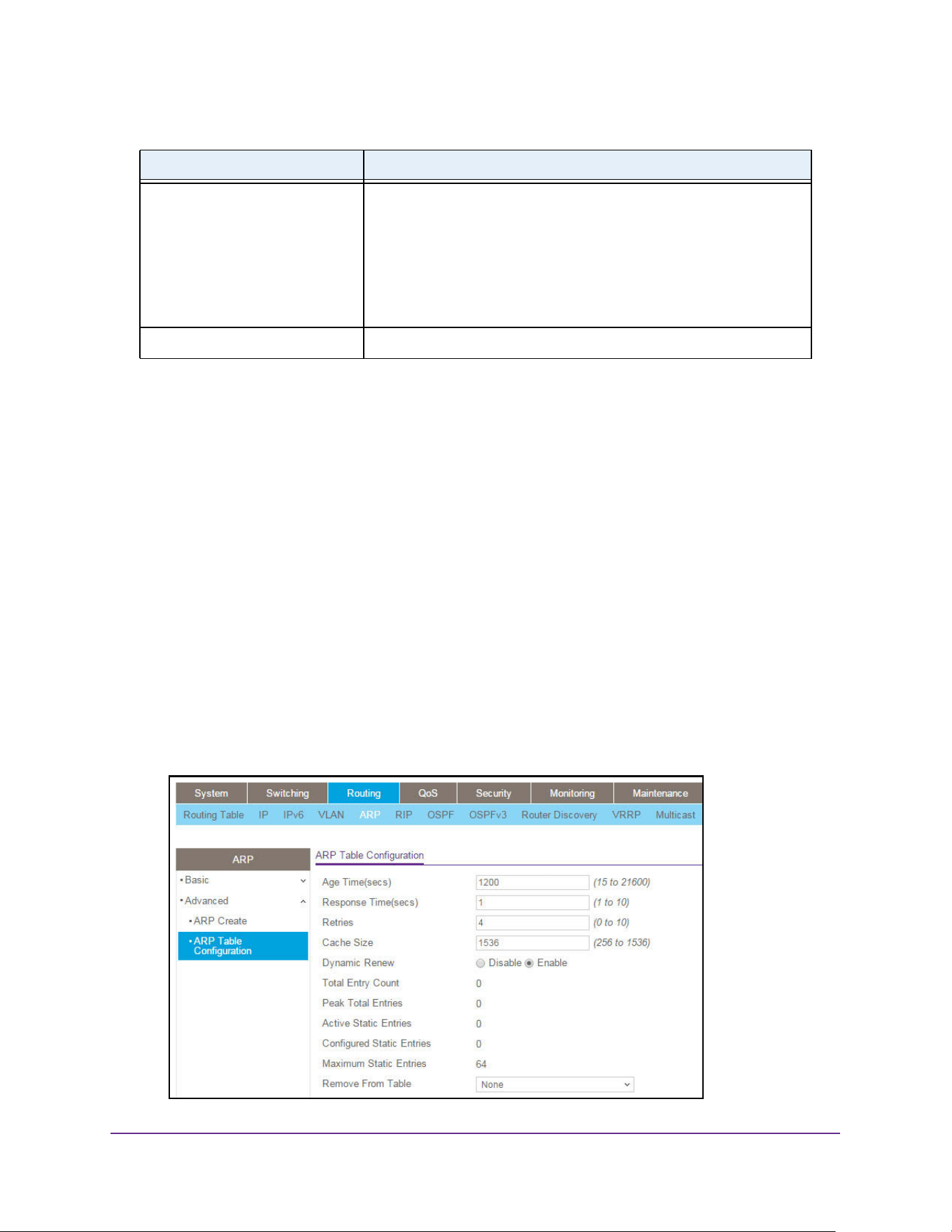
Routing
319
M4200 and M4300 Series ProSAFE Managed Switches Web Management User Manual
View or Configure the ARP Table
You can change the configuration parameters for the Address Resolution Protocol (ARP)
table. You can also use this page to display the contents of the table.
To configure the ARP table:
1. Launch a web browser.
2. Enter http://<ipaddress> in the web browser address field.
The login window opens.
3. Enter the user name and password.
The default admin user name is admin and the default admin password is blank, that is,
do not enter a password.
4. Click the Login button.
The System Information page displays.
5. Select Routing> ARP > Advanced > ARP Table Configuration.
Type The type of ARP entry. Possible values are as follows:
• Local. An ARP entry associated with one of the switch’s routing
interface’s MAC addresses.
• Gateway. A dynamic ARP entry whose IP address is that of a
router.
• Static. An ARP entry configured by the user.
• Dynamic. An ARP entry that was learned by the router.
Age Age since the entry was last refreshed in the ARP table (in seconds).
Table 118. ARP Cache (continued)
Field Description

Routing
320
M4200 and M4300 Series ProSAFE Managed Switches Web Management User Manual
6. Use Age Time to enter the amount of time, in seconds, that a dynamic ARP entry remains
in the ARP table before aging out.
The range is 15 to 21600 seconds. The default value for Age Time is 1200 seconds.
7. Use Response Time to enter the amount of time, in seconds that the device waits for an
ARP response to an ARP request that it sends.
The range for this field is 1 to 10 seconds. The default value is 1 second.
8. Use Retries to enter the maximum number of times an ARP request will be retried after an
ARP response is not received.
The number includes the initial ARP request. The range for this field is 0 to 10. The
default value for Retries is 4.
9. Use Cache Size to specify the maximum number of entries allowed in the ARP table.
This number includes all static and dynamic ARP entries.The range for this field is 256 to
1536. The default value for Cache Size is 1536.
10. When selected, the Dynamic Renew option allows the ARP component to automatically
attempt to renew dynamic ARP entries when they age out.
The default setting is Enable.
11. Use Remove from Table to remove certain entries from the ARP table.
The choices listed specify the type of ARP entry to be deleted:
• All Dynamic Entries
• All Dynamic and Gateway Entries
• Specific Dynamic/Gateway Entry. Selecting this allows the user to specify the
required IP address.
• Specific Static Entry. Selecting this allows the user to specify the required IP
address.
• None. Selected if the user does not want to delete any entry from the ARP Table.
• Remove IP Address. This field displays only if you select Specific
Dynamic/Gateway Entry or Specific Static Entry in the Remove from Table list.
The Remove IP Address field allows you to enter the IP address against the entry
that is to be removed from the ARP table.
12. Click the Apply button.
The updated configuration is sent to the switch. Configuration changes take effect
immediately.
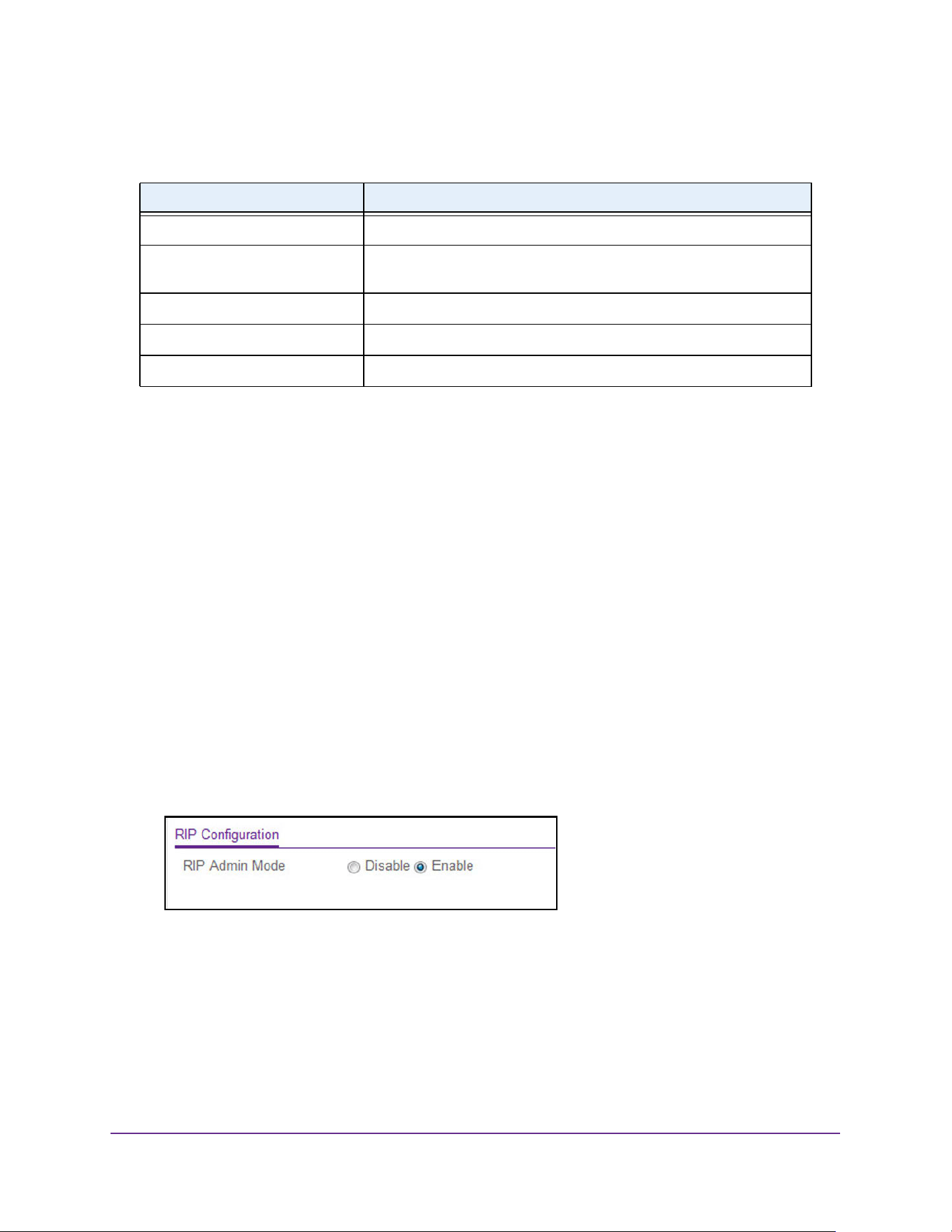
Routing
321
M4200 and M4300 Series ProSAFE Managed Switches Web Management User Manual
The following table describes the nonconfigurable information displayed on the page.
Configure RIP
Enable RIP
To enable RIP:
1. Launch a web browser.
2. Enter http://<ipaddress> in the web browser address field.
The login window opens.
3. Enter the user name and password.
The default admin user name is admin and the default admin password is blank, that is,
do not enter a password.
4. Click the Login button.
The System Information page displays.
5. Select Routing > RIP > Basic > RIP Configuration.
6. In the RIP Admin Mode field, select the Enable or Disable option.
If you select Enable, RIP is activated for the switch. The default is Enable.
7. Click the Apply button.
The updated configuration is sent to the switch. Configuration changes take effect
immediately.
Table 119. ARP Table Configuration
Field Description
Total Entry Count Total number of entries in the ARP table.
Peak Total Entries Highest value reached by Total Entry Count. This counter value is
restarted whenever the ARP table Cache Size value is changed.
Active Static Entries Total number of active static entries in the ARP table.
Configured Static Entries Total number of configured static entries in the ARP table.
Maximum Static Entries Maximum number of static entries that can be defined.
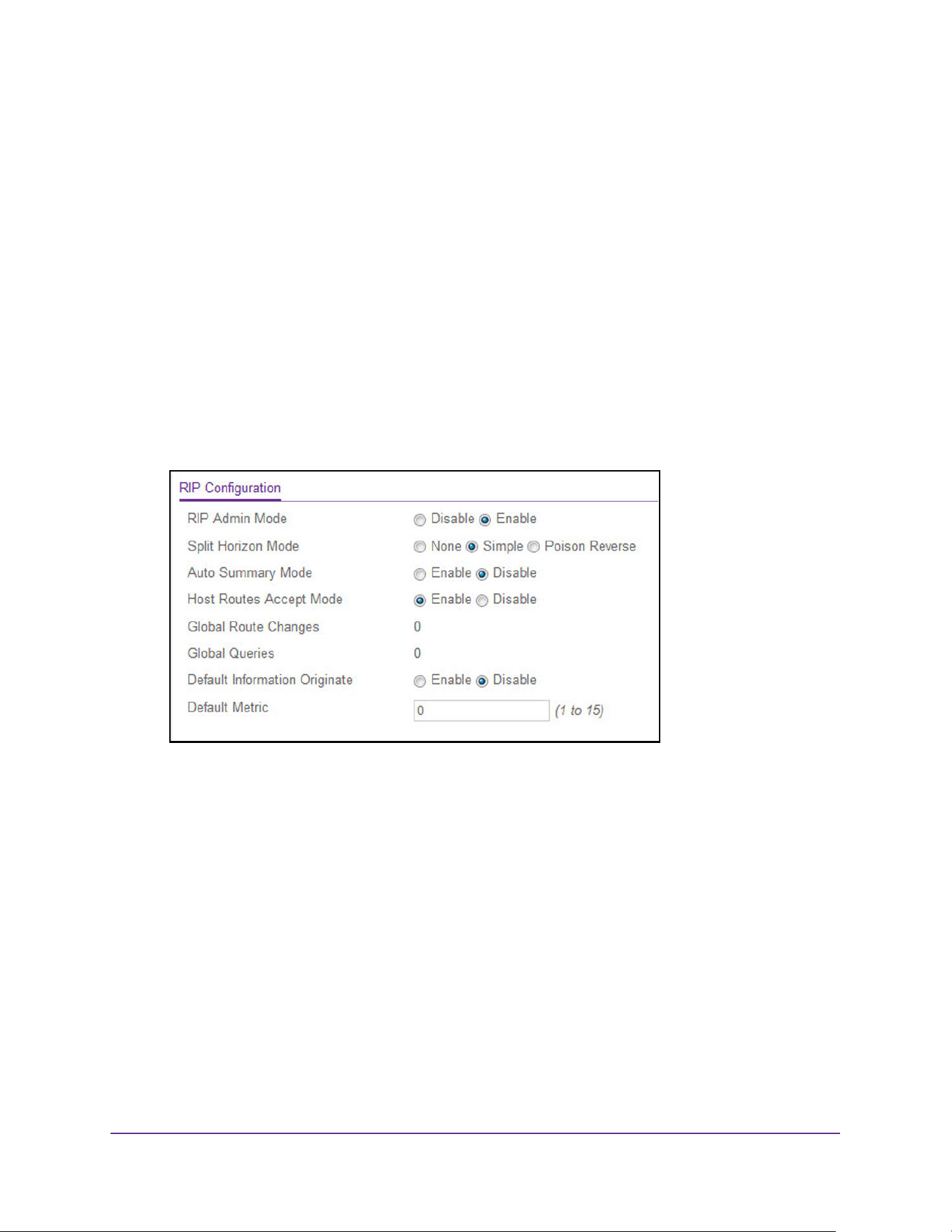
Routing
322
M4200 and M4300 Series ProSAFE Managed Switches Web Management User Manual
Configure RIP Settings
To configure advanced RIP settings:
1. Launch a web browser.
2. Enter http://<ipaddress> in the web browser address field.
The login window opens.
3. Enter the user name and password.
The default admin user name is admin and the default admin password is blank, that is,
do not enter a password.
4. Click the Login button.
The System Information page displays.
5. Select Routing > RIP > Advanced > RIP Configuration.
6. Select the RIP Admin Mode Disable or Enable radio button.
If you select Enable, RIP is activated for the switch. By default, RIP is enabled.
7. Select a Split Horizon Mode radio button:
• None. No special processing for this case.
• Simple. A route is not included in updates sent to the router from which it was
learned. The default is Simple.
• Poison Reverse. A route is included in updates sent to the router from which it was
learned, but the metric is set to infinity.
Split horizon is a technique for avoiding problems caused by including routes in updates
sent to the router from which the route was originally learned
8. In the Auto Summary Mode field, select the Enable or Disable option.
If you select Enable, groups of adjacent routes are summarized into single entries reduce
the total number of entries. The default is Disable.
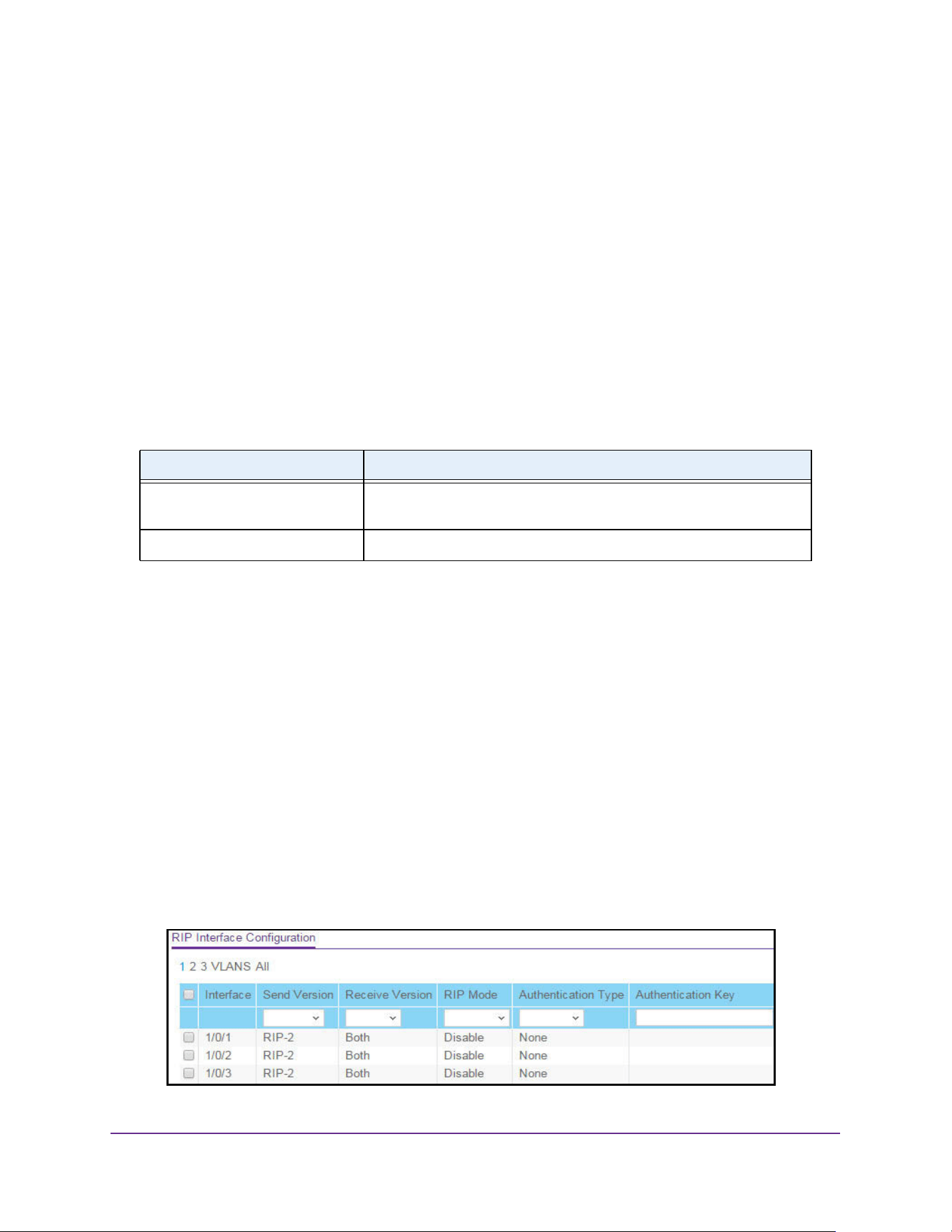
Routing
323
M4200 and M4300 Series ProSAFE Managed Switches Web Management User Manual
9. In the Host Routes Accept Mode field, select the Enable or Disable option.
If you select Enable, the router accepts host routes. The default is Enable.
10. In the Default Information Originate field, select to Enable or Disable default route
advertisement.
11. In the Default Metric field, specify a default value for the metric of redistributed routes.
This field displays the default metric if one has already been set, or 0 if one was not
configured earlier. The valid values are 1 to 15.
12. Click the Apply button.
The updated configuration is sent to the switch. Configuration changes take effect
immediately.
The following table describes the nonconfigurable data that is displayed.
Configure Advanced RIP Interface Settings
To configure advanced RIP interface settings:
1. Launch a web browser.
2. Enter http://<ipaddress> in the web browser address field.
The login window opens.
3. Enter the user name and password.
The default admin user name is admin and the default admin password is blank, that is,
do not enter a password.
4. Click the Login button.
The System Information page displays.
5. Select Routing > RIP > Advanced > Interface Configuration.
Table 120. RIP Advanced Configuration
Field Description
Global Route Changes The number of route changes made to the IP route database by RIP.
This does not include the refresh of a route's age.
Global Queries The number of responses sent to RIP queries from other systems.
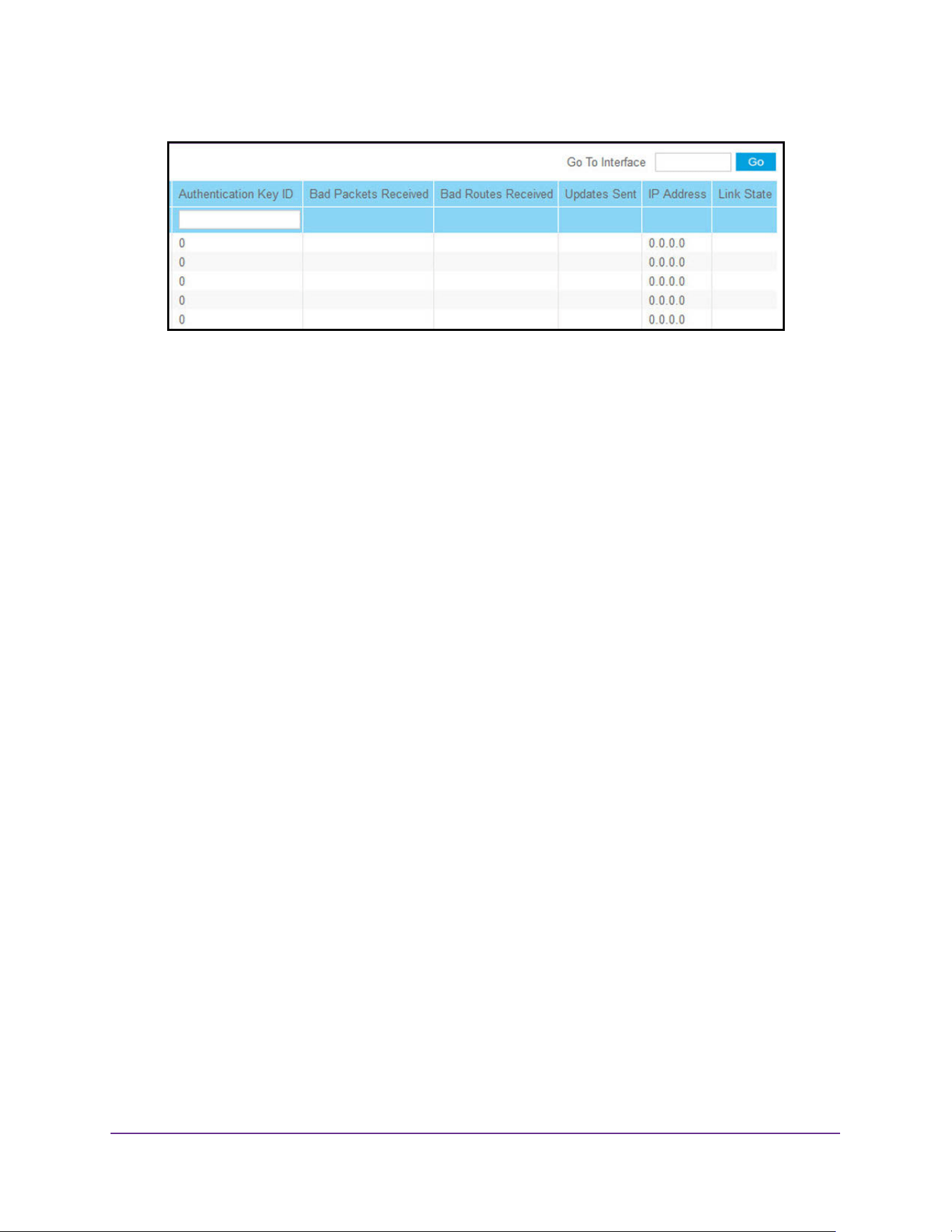
Routing
324
M4200 and M4300 Series ProSAFE Managed Switches Web Management User Manual
6. Use one of the following methods to select an interface:
• In the Go To Interface field, enter the interface in the unit/slot/port format and click on
the Go button.
• Next to the Interface column, select the check box for the interface that you want to
configure.
7. From the Send Version list, select the version of RIP control packets that the interface will
send.
The value is one of the following:
• None. No RIP control packets are sent.
• RIP-1. Send RIP version 1 formatted packets through broadcast.
• RIP-1c. RIP version 1–compatibility mode. Send RIP version 2–formatted packets
through broadcast.
• RIP-2. Send RIP version 2 packets using multicast. The default is RIP-2.
8. From the Receive Version list, select which RIP control packets the interface accepts.
The value is one of the following:
• RIP-1. Accept only RIP version 1–formatted packets.
• RIP-2. Accept only RIP version 2–formatted packets.
• Both. Accept packets in either format. The default is Both.
• None. No RIP control packets are accepted.
9. Select Enable or Disable from the RIP Mode list.
Before you enable RIP version 1 or version 1c on an interface, you must first enable
network directed broadcast mode on the corresponding interface. The default value is
Disable.
10. Select the Authentication Type from the list.
The types are as follows:
• None. This is the initial interface state. If you select this option, no authentication
protocols are run.
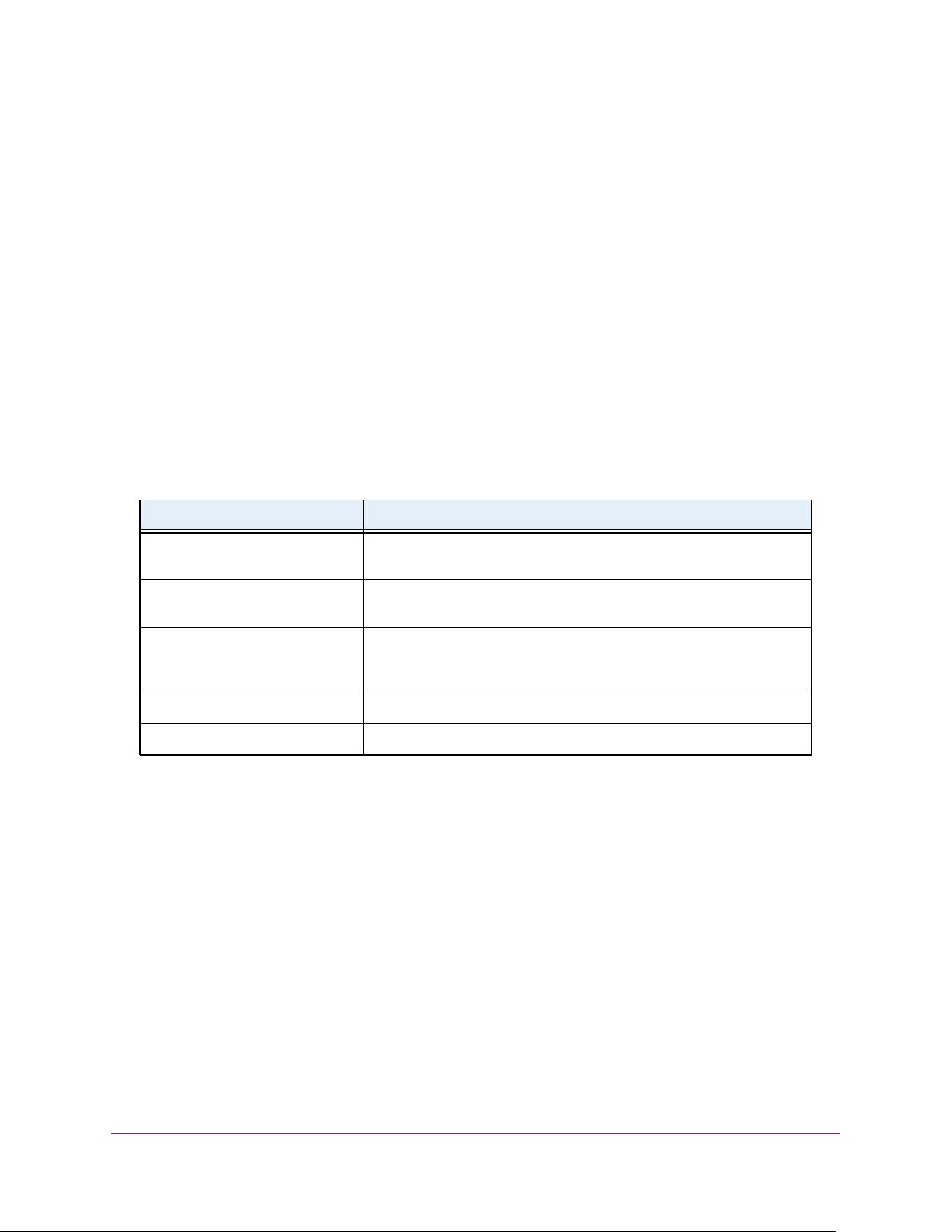
Routing
325
M4200 and M4300 Series ProSAFE Managed Switches Web Management User Manual
• Simple. If you select Simple, you are prompted to enter an authentication key. This
key is included, in the clear, in the RIP header of all packets sent on the network. All
routers on the network must be configured with the same key.
• Encrypt. If you select Encrypt, you are prompted to enter both an authentication key
and an authentication ID. Encryption uses the MD5 Message-Digest algorithm. All
routers on the network must be configured with the same key and ID.
11. Enter the RIP Authentication Key for the specified interface.
If you selected Authentication Type None, you are not prompted to enter a key. If you
selected Simple or Encrypt, the key can be up to 16 octets long. The key value is
displayed only if you are logged on with read/write privileges.
12. Click the Apply button.
The updated configuration is sent to the switch. Configuration changes take effect
immediately.
The following table describes the nonconfigurable data that is displayed.
Route Redistribution
Use this page to configure the RIP route redistribution parameters. The allowable values for
each field are displayed next to the field. If any invalid values are entered, an alert message
is displayed with the list of all the valid values.
To configure advanced RIP route redistribution settings:
1. Launch a web browser.
2. Enter http://<ipaddress> in the web browser address field.
The login window opens.
3. Enter the user name and password.
The default admin user name is admin and the default admin password is blank, that is,
do not enter a password.
Table 121. RIP Advanced Interface Configuration
Field Description
Bad Packets Received The number of RIP response packets received by the RIP process that
were subsequently discarded for any reason.
Bad Routes Received The number of routes in valid RIP packets that were ignored for any
reason (for example, unknown address family, or invalid metric).
Updates Sent The number of triggered RIP updates actually sent on this interface.
This explicitly does not include full updates sent containing new
information.
IP Address The IP address of the router interface.
Link State Indicates whether the RIP interface is up or down.
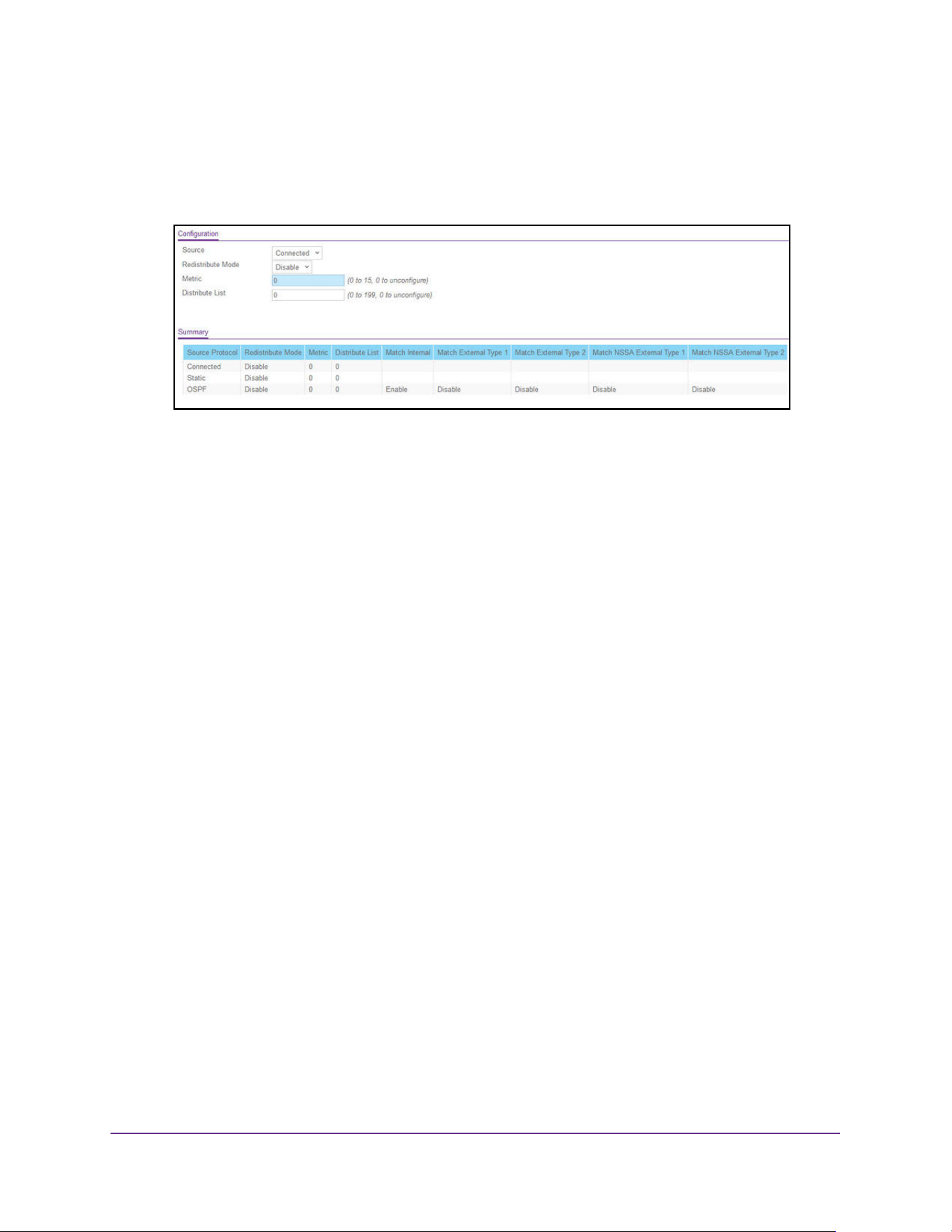
Routing
326
M4200 and M4300 Series ProSAFE Managed Switches Web Management User Manual
4. Click the Login button.
The System Information page displays.
5. Select Routing > RIP > Advanced > Route Redistribution.
The Source list is populated by only those source routes that are already configured for
redistribution by RIP. This allows you to configure another source route among the
available source routes.
6. In the Source list, select a value.
The valid values are as follows:
• Connected
• Static
• OSPF
7. From the Redistribute Mode list, select to Enable or Disable RIP redistribute mode.
The default is Disable.
8. Enter the Metric of redistributed routes for the given source route.
The valid values are is 0 to 15; 0 means unconfigure.
9. Use the Distribute List field to set the access list that filters the routes to be redistributed by
the destination protocol.
Only permitted routes are redistributed. If this command refers to a non-existent access
list, all routes are permitted. The valid values for Access List IDs are 0 to 199. When used
for route filtering, the only fields in an access list that get used are as follows:
• Source IP address and netmask
• Destination IP address and netmask
• Action (permit or deny)
All other fields (such as Source and Destination Port, Precedence, Tos, and so on) are
ignored.
The source IP address is compared to the destination IP address of the route. The source
IP netmask in the access list rule is treated as a wildcard mask, indicating which bits in
the source IP address must match the destination address of the route.

Routing
327
M4200 and M4300 Series ProSAFE Managed Switches Web Management User Manual
Note: A 1 in the mask indicates a do not care in the corresponding address bit.
When an access list rule includes a destination IP address and netmask (an extended
access list), the destination IP address is compared to the network mask of the
destination of the route. The destination netmask in the access list serves as a wildcard
mask, indicating which bits in the route's destination mask are significant for the filtering
operation.
10. Click the Apply button.
The updated configuration is sent to the switch. Configuration changes take effect
immediately.
The following table describes the RIP Route Redistribution nonconfigurable data that is
displayed.
Table 122. RIP Route Redistribution Summary
Field Description
Source Protocol The source route to be redistributed by RIP. The valid values are as
follows:
• Connected
• Static
• OSPF
Redistribute Mode The route redistribution mode for a particular source protocol. By
default this is disabled.
Metric The metric of redistributed routes for the given source route. The field
displays 0 when the metric is not configured.
Distribute List The access list that filters the routes to be redistributed by the
destination protocol. The field displays 0 when not configured.
The following list of redistributed routes is valid when OSPF is selected as source. The list can include one
or more of:
Match Internal Sets internal OSPF routes to be redistributed.
Match External Type 1 Sets external type 1 OSPF routes to be redistributed.
Match External Type 2 Sets external type 2 OSPF routes to be redistributed.
Match NSSA External Type 1 Sets NSSA external type 1 OSPF routes to be redistributed.
Match NSSA External Type 2 Sets NSSA external type 2 OSPF routes to be redistributed.
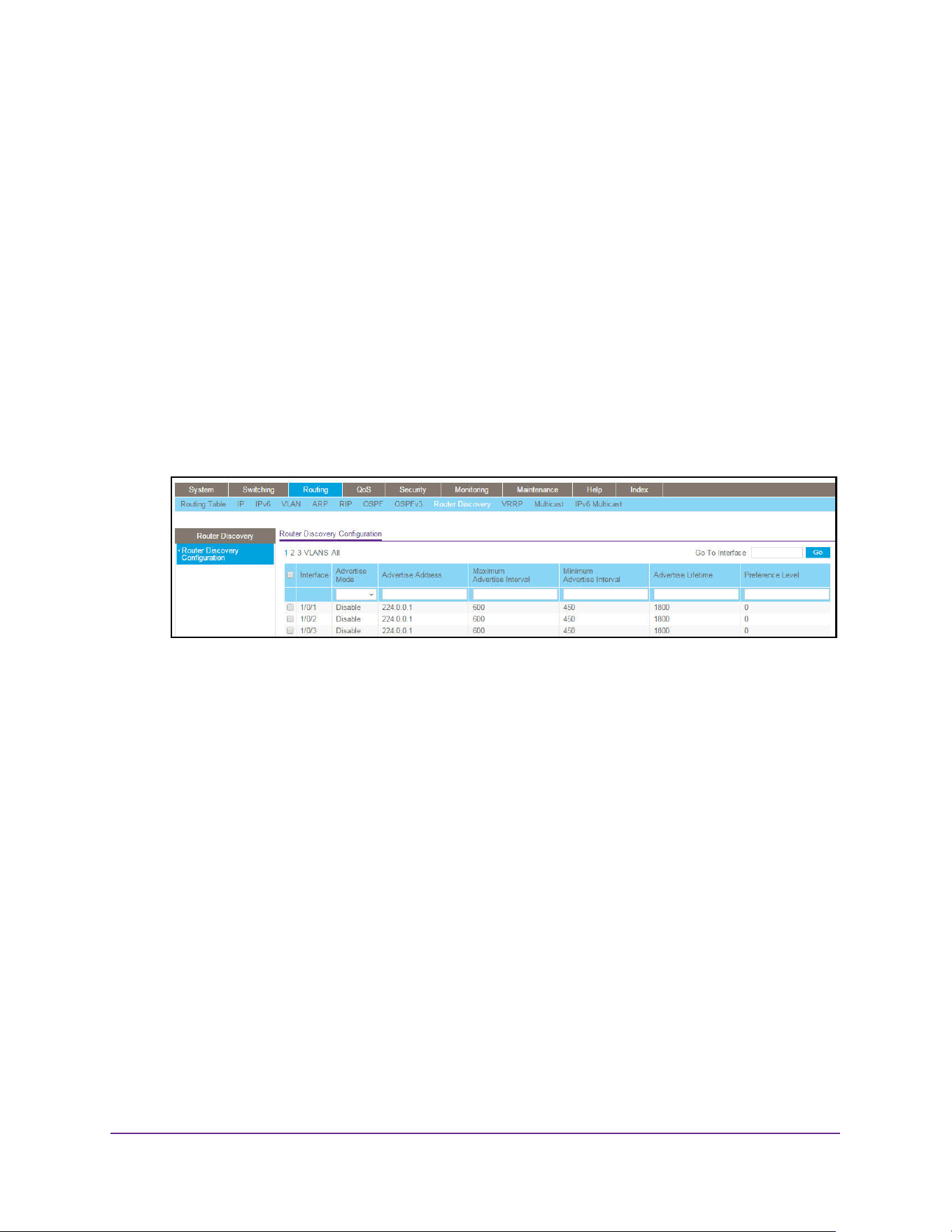
Routing
328
M4200 and M4300 Series ProSAFE Managed Switches Web Management User Manual
Configure Router Discovery
To configure router discovery:
1. Launch a web browser.
2. Enter http://<ipaddress> in the web browser address field.
The login window opens.
3. Enter the user name and password.
The default admin user name is admin and the default admin password is blank, that is,
do not enter a password.
4. Click the Login button.
The System Information page displays.
5. Select Routing> Router Discovery > Router Discovery Configuration.
6. Use one of the following methods to select an interface:
• In the Go To Interface field, enter the interface in the unit/slot/port format and click on
the Go button.
• Next to the Interface column, select the check box for the interface that you want to
configure.
7. Use Advertise Mode to select Enable or Disable.
If you select Enable, router advertisements are transmitted from the selected interface.
8. Use Advertise Address to select Enable or Disable.
If you select Enable, router advertisements are transmitted from the selected interface.
9. Use Maximum Advertise Interval to enter the maximum time (in seconds) allowed
between router advertisements sent from the interface.
10. Use Minimum Advertise Interval to enter the minimum time (in seconds) allowed between
router advertisements sent from the interface.
The value must be in the range of 3 to 1800. The default value is 450.000000.
11. Use Advertise Lifetime to enter the value (in seconds) to be used as the lifetime field in
router advertisements sent from the interface.
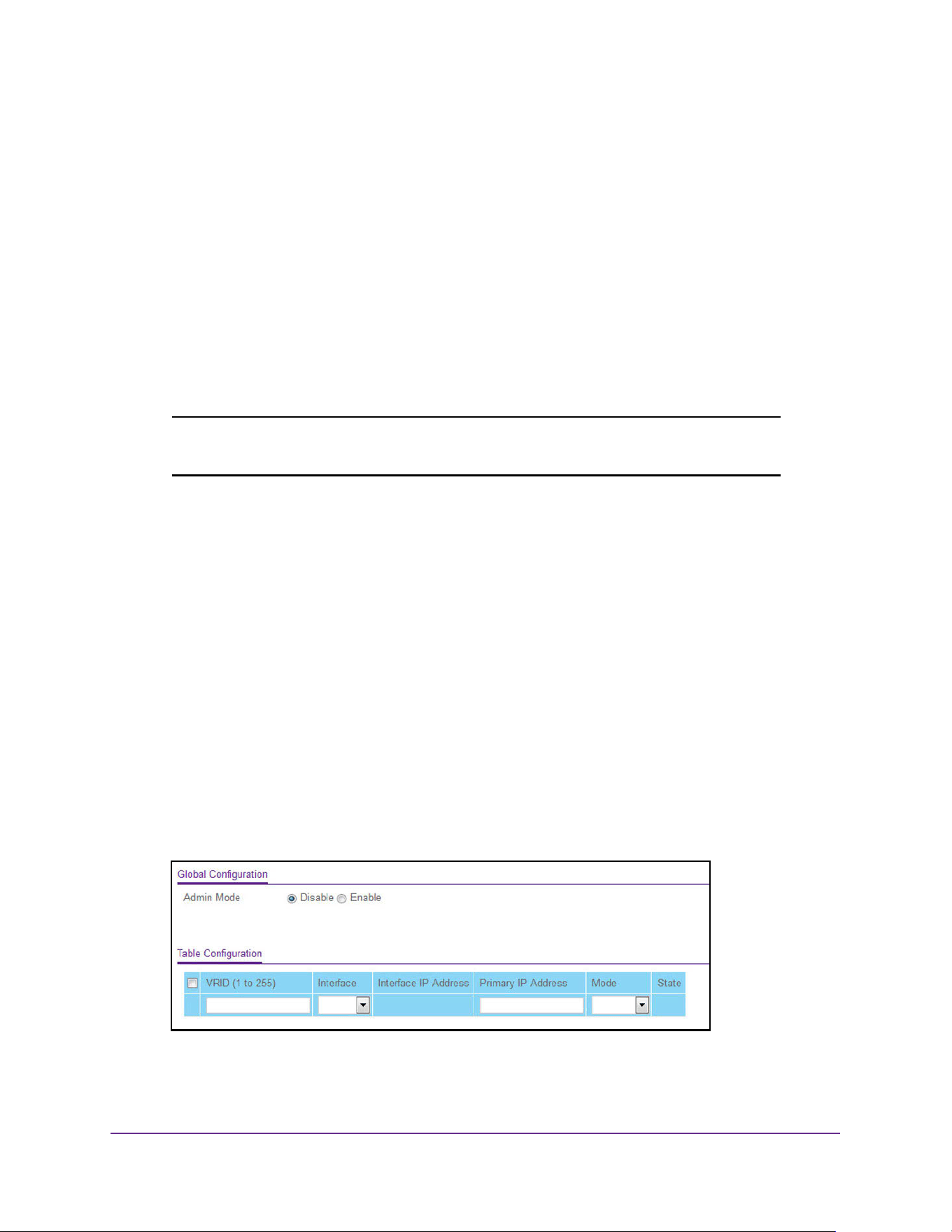
Routing
329
M4200 and M4300 Series ProSAFE Managed Switches Web Management User Manual
This is the maximum length of time that the advertised addresses are to be considered as
valid router addresses by hosts.
12. Use Preference Level to specify the preference level of the router as a default router
relative to other routers on the same subnet.
Higher numbered addresses are preferred. You must enter an integer.
13. Click the Apply button.
The updated configuration is sent to the switch. Configuration changes take effect
immediately.
Configure Virtual Router Redundancy Protocol
Note: Virtual Redundancy Protocol (VRRP) is supported on the
M4300 series switches only.
Configure Global VRRP Settings
To configure the global VRRP settings:
1. Launch a web browser.
2. Enter http://<ipaddress> in the web browser address field.
The login window opens.
3. Enter the user name and password.
The default admin user name is admin and the default admin password is blank, that is,
do not enter a password.
4. Click the Login button.
The System Information page displays.
5. Select Routing > VRRP > Basic > VRRP Configuration.
6. In the Global Configuration Admin Mode field, set the administrative status of VRRP in the
router by selecting the Enable or Disable radio button.
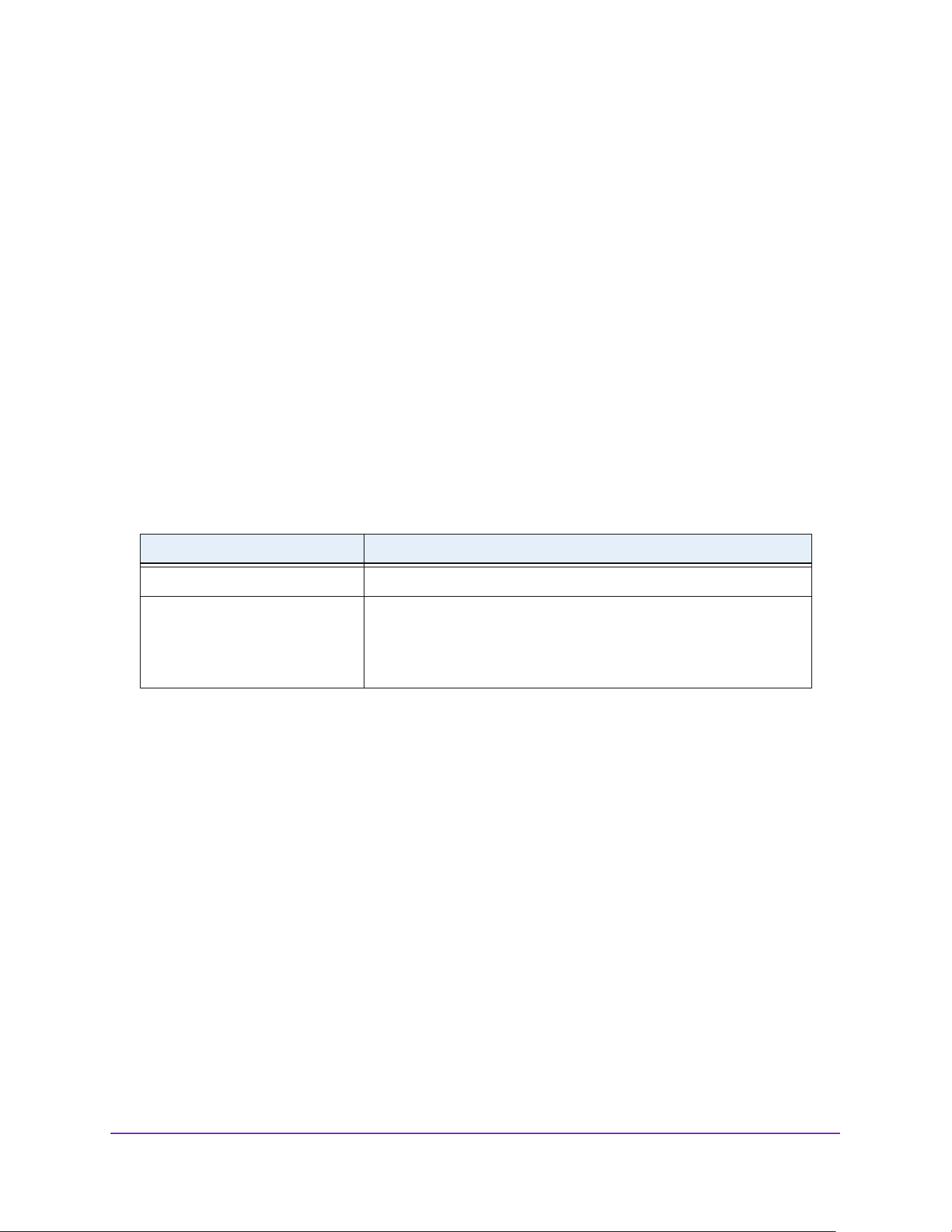
Routing
330
M4200 and M4300 Series ProSAFE Managed Switches Web Management User Manual
By default, VRRP is disabled.
7. Select the VRID.
The VRID field is configurable only if you are creating a new virtual router.
The valid values are 1 to 255.
8. Select the unit/slot/port for the new virtual router from the Interface menu.
9. In the Primary IP Address field, enter the primary IP address of the virtual router.
10. From the Mode menu, select the Active or Inactive mode for the new virtual router.
11. Click the Add button.
The virtual router is added to the switch configuration.
12. Click the Apply button.
The updated configuration is sent to the switch. Configuration changes take effect
immediately.
The following table describes the nonconfigurable data that is displayed.
Configure Advanced VRRP Settings
To configure the advanced VRRP global settings.
1. Launch a web browser.
2. Enter http://<ipaddress> in the web browser address field.
The login window opens.
3. Enter the user name and password.
The default admin user name is admin and the default admin password is blank, that is,
do not enter a password.
4. Click the Login button.
The System Information page displays.
5. Select Routing > VRRP > Advanced > VRRP Configuration.
Table 123. VRRP Global Configuration
Field Description
Interface IP Address Indicates the IP address associated with the selected interface.
State The current state of the virtual router. Possible values are as follows:
• Initialize
• Master
• Backup
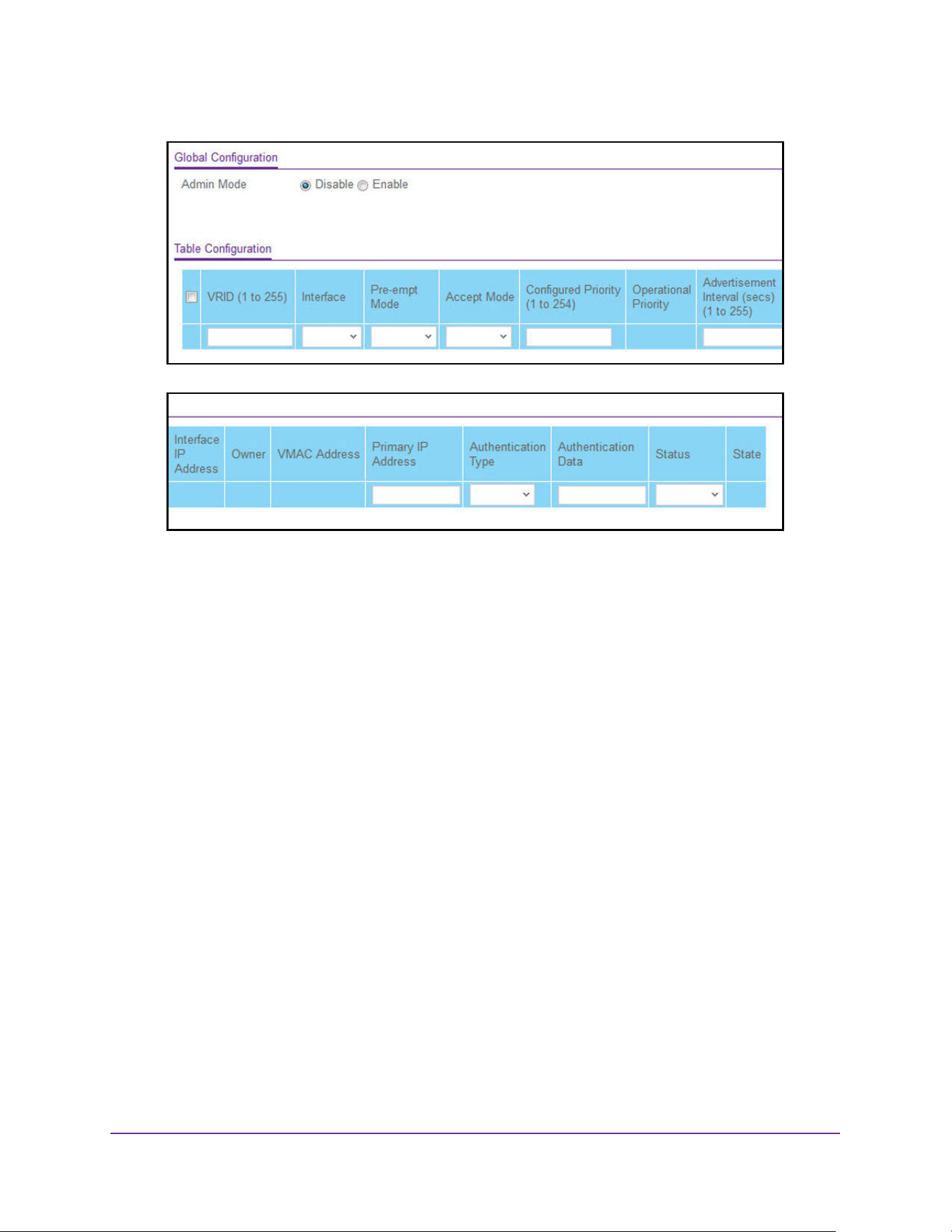
Routing
331
M4200 and M4300 Series ProSAFE Managed Switches Web Management User Manual
6. In the Global Configuration Admin Mode field, set the administrative status of VRRP in the
router by selecting the Enable or Disable radio button.
By default, VRRP is disabled.
7. Select the VRID.
The VRID field is configurable only if you are creating a new virtual router.
The valid values are 1 to 255.
8. Select the unit/slot/port for the new virtual router from the Interface menu.
9. In the Pre-empt Mode field, select the Enable or Disable option.
If you select Enable, a backup router preempts the master router if it has a priority
greater than the master virtual router's priority, provided the master is not the owner of the
virtual router IP address. The default is Enable.
10. In the Accept Mode field, select the Enable or Disable option.
If you select Enable, the VRRP master accepts all types of data packets addressed to IP
addresses associated with the virtual router. If you select Disable, the VRRP master
discards all types of data packets addressed to IP addresses associated with the virtual
router, if it is not the IP address owner. The default is Disable.
11. In the Configured Priority field, enter the to be used by the VRRP router in the election for
the master virtual router.
The valid values are 1 to 254. If the virtual IP address is the same as the interface IP
address, the priority gets set to 254, no matter what you enter.
12. In the Advertisement Interval field, enter the time, in seconds, between the transmission of
advertisement packets by this virtual router.
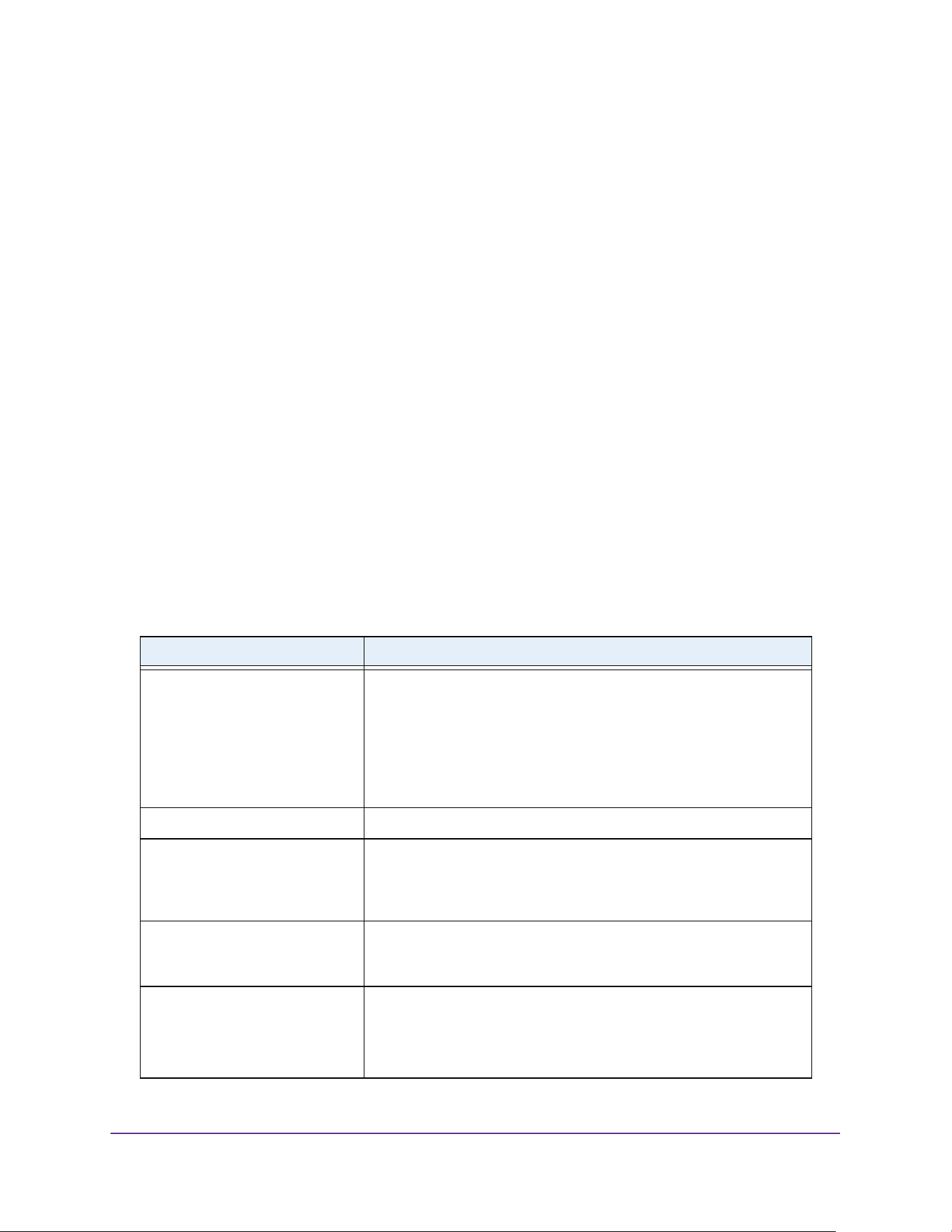
Routing
332
M4200 and M4300 Series ProSAFE Managed Switches Web Management User Manual
Enter a number from 1 to 255. The default value is 1 second.
13. In the Primary IP Address field, enter the IP address that is associated with the virtual
router.
The default is 0.0.0.0.
14. From the Authentication Type menu, select the type of authentication for the virtual router.
The options are as follows:
• 0-None. No authentication is performed. The default is None.
• 1-Simple. Authentication is performed using a text password.
15. From the Status menu, select the Active or Inactive option to start or stop the operation of
the virtual router.
The default is inactive.
16. Click the Add button.
The virtual router is added to the switch configuration.
17. Click the Apply button.
The updated configuration is sent to the switch. Configuration changes take effect
immediately.
The following table describes the nonconfigurable data that is displayed.
Table 124. Advanced VRRP Global Configuration
Field Description
Operational Priority Indicates the priority to be used for the virtual router master election
process. Higher values imply higher priority.
• A priority of 0 is sent by the master router to indicate that this
router has ceased to participate in VRRP and a backup virtual
router transitions to become a new master.
• A priority of 255 is used for the router that owns the associated IP
addresses.
Interface IP Address Indicates the IP address associated with the selected interface.
Owner Set to True if the virtual IP address and the interface IP address are the
same, otherwise set to False. If this parameter is set to True, the virtual
router is the owner of the virtual IP address, and always wins an
election for master router when it is active.
VMAC Address The virtual MAC address associated with the virtual router, composed
of a 24-bit organizationally unique identifier, the 16-bit constant
identifying the VRRP address block and the 8-bit VRID.
State The current state of the virtual router. Possible values are as follows:
• Initialize
• Master
• Backup
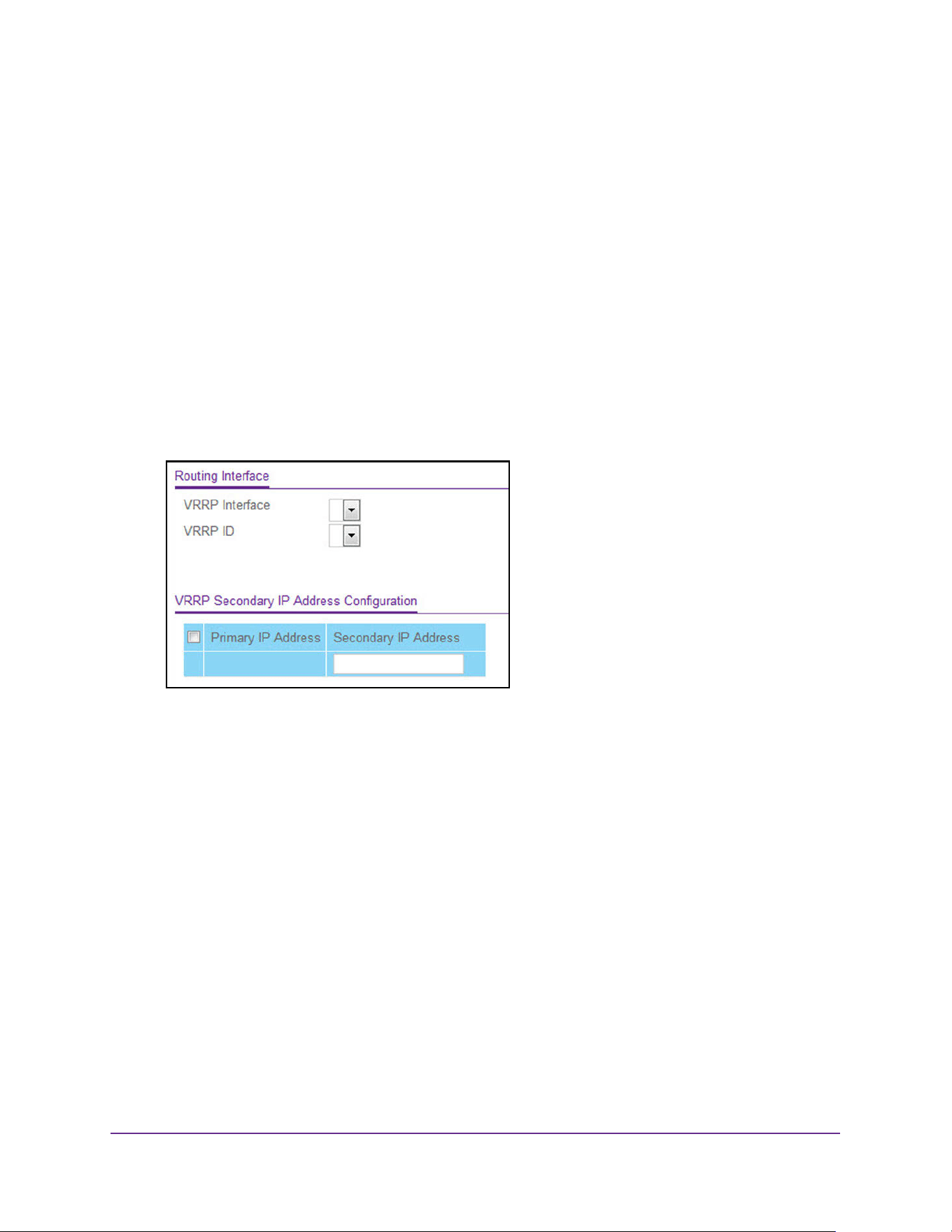
Routing
333
M4200 and M4300 Series ProSAFE Managed Switches Web Management User Manual
Configure an Advanced VRRP Secondary IP Address
To configure the advanced VRRP secondary IP address settings:
1. Launch a web browser.
2. Enter http://<ipaddress> in the web browser address field.
The login window opens.
3. Enter the user name and password.
The default admin user name is admin and the default admin password is blank, that is,
do not enter a password.
4. Click the Login button.
The System Information page displays.
5. Select Routing > VRRP > Advanced > VRRP Secondary IP Address Configuration.
6. From the VRRP Interface and VRRP ID menus, select a virtual router.
The virtual routers are listed by interface number and VRRP ID.
7. In the Secondary IP Address field, enter the IP address for the interface.
This address must be a member of one of the subnets currently configured on the
interface. This value is read-only once configured.
8. Click the Add button.
The secondary IP address is added to the selected VRRP interface.
9. Click the Apply button.
The updated configuration is sent to the switch. Configuration changes take effect
immediately.
The Primary IP Address field displays the primary IP address of the virtual router.
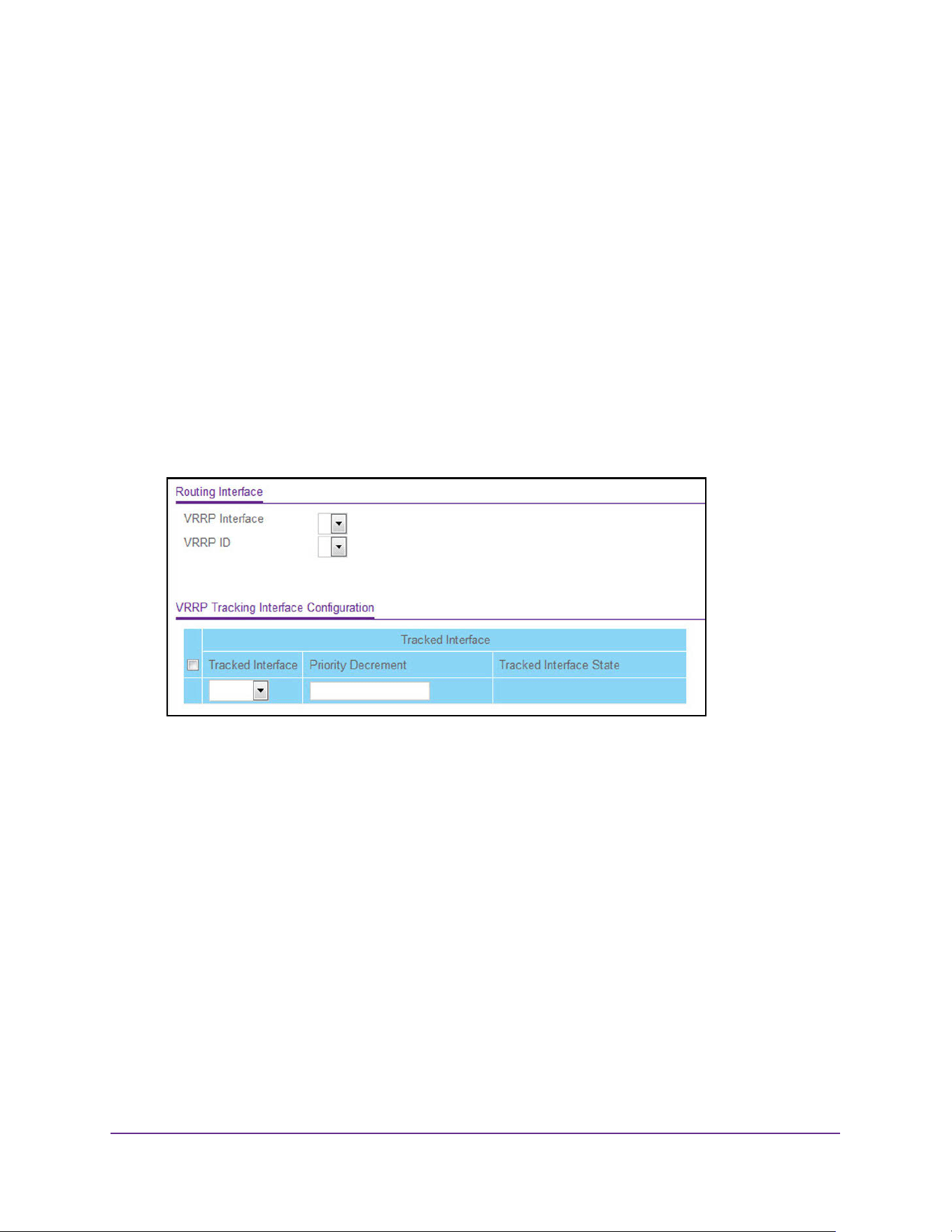
Routing
334
M4200 and M4300 Series ProSAFE Managed Switches Web Management User Manual
Configure an Advanced VRRP Tracking Interface
To configure an advanced VRRP tracking interface:
1. Launch a web browser.
2. Enter http://<ipaddress> in the web browser address field.
The login window opens.
3. Enter the user name and password.
The default admin user name is admin and the default admin password is blank, that is,
do not enter a password.
4. Click the Login button.
The System Information page displays.
5. Select Routing > VRRP > Advanced > VRRP Tracking Configuration.
6. From the VRRP Interface and VRRP ID menus, select a virtual router.
The virtual routers are listed by interface number and VRRP ID.
7. From the Tracked Interface menu, select a routing interface.
The menu lists all routing interfaces that are not yet tracked for the VRRP ID and interface
configuration. The menu does not list the loopback interfaces and tunnels that could not
be tracked.
8. In the Priority Decrement field, enter priority decrement value the for the tracked interface.
The valid range is 1 to 254. The default value is 10.
The nonconfigurable Tracked Interface State field displays the state of the tracked
interface.
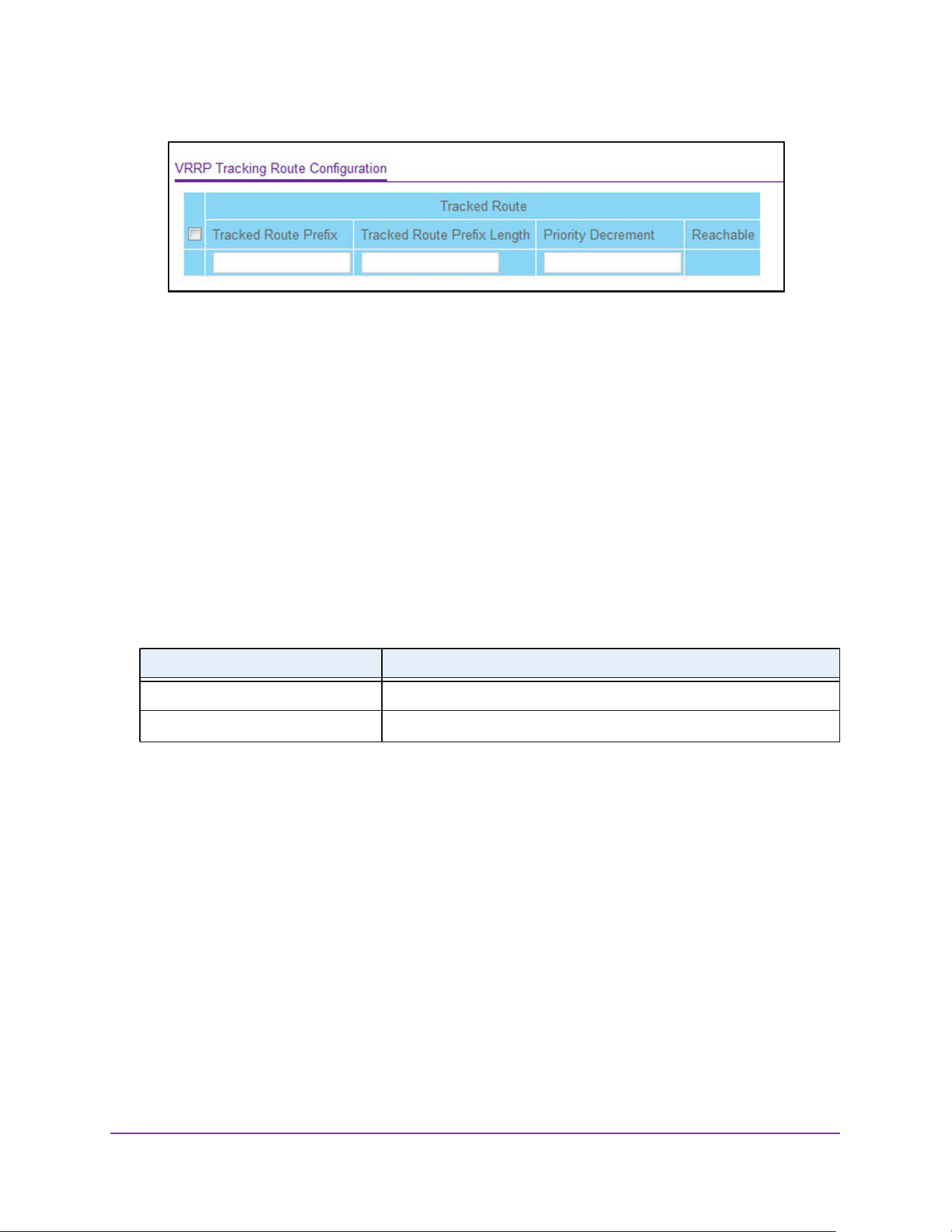
Routing
335
M4200 and M4300 Series ProSAFE Managed Switches Web Management User Manual
9. In the Tracked Route Prefix field, enter the prefix of the route.
10. In the Tracked Route Prefix Length field, enter the prefix length of the route.
11. In the Priority Decrement field, enter priority decrement value the for the route.
The valid range is 1 to 254. The default value is 10.
The nonconfigurable Reachable field displays the reachability of the tracked route.
12. Click the Add button.
The traced interface or tracked route is added to the VRRP.
13. Click the Apply button.
The updated configuration is sent to the switch. Configuration changes take effect
immediately.
The following table describes the nonconfigurable data that is displayed.
View Advanced VRRP Statistics
To view advanced VRRP statistics:
1. Launch a web browser.
2. Enter http://<ipaddress> in the web browser address field.
The login window opens.
3. Enter the user name and password.
The default admin user name is admin and the default admin password is blank, that is,
do not enter a password.
4. Click the Login button.
The System Information page displays.
5. Select Routing > VRRP > Advanced > VRRP Statistics.
Table 125. Advanced VRRP Tracking Configuration
Field Description
Tracked Interface State The state of the tracked interface.
Reachable The reachability of the tracked route.
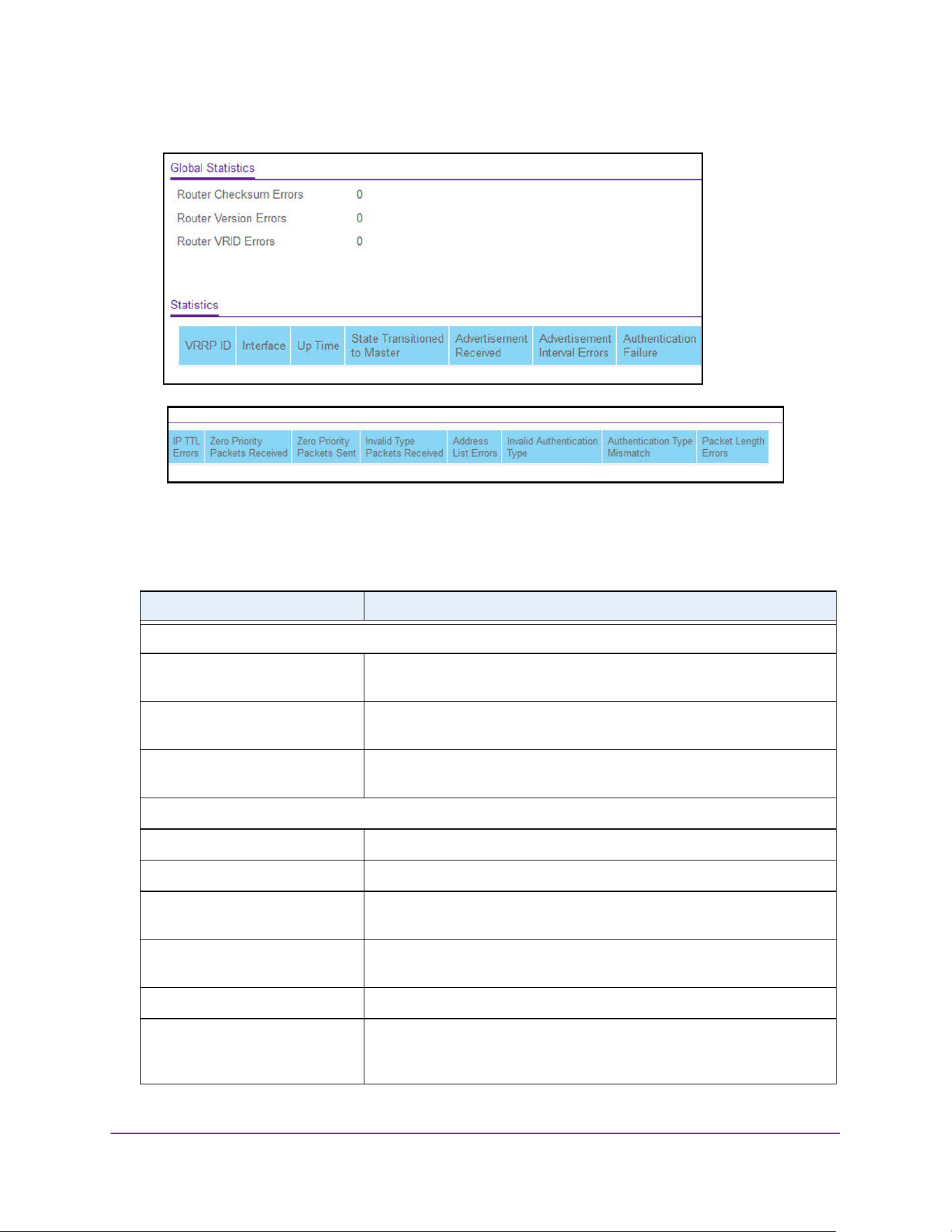
Routing
336
M4200 and M4300 Series ProSAFE Managed Switches Web Management User Manual
6. To refresh the page with the latest information on the switch, click the Update button.
The following table describes the nonconfigurable data that is displayed.
Table 126. Advanced VRRP Statistics
Field Description
Global Statistics
Router Checksum Errors The total number of VRRP packets received with an invalid VRRP
checksum value.
Router Version Errors The total number of VRRP packets received with an unknown or
unsupported version number.
Router VRID Errors The total number of VRRP packets received with an invalid VRID for this
virtual router.
Statistics
VRRP ID The VRID for the selected virtual router.
Interface The unit/slot/port for the selected virtual router.
Up Time The time, in days, hours, minutes and seconds, that elapsed since the
virtual router transitioned to the initialized state.
State Transitioned to Master The total number of times that this virtual router's state transitioned to
Master.
Advertisement Received The total number of VRRP advertisements received by this virtual router.
Advertisement Interval Errors The total number of VRRP advertisement packets received for which the
advertisement interval was different from the one configured for the local
virtual router.
Routing
337
M4200 and M4300 Series ProSAFE Managed Switches Web Management User Manual
Authentication Failure The total number of VRRP packets received that did not pass the
authentication check.
IP TTL Errors The total number of VRRP packets received by the virtual router with IP
Time-To-Live (TTL) not equal to 255.
Zero Priority Packets Received The total number of VRRP packets received by the virtual router with a
priority of 0.
Zero Priority Packets Sent The total number of VRRP packets sent by the virtual router with a priority
of 0.
Invalid Type Packets Received The number of VRRP packets received by the virtual router with an invalid
value in the Type field.
Address List Errors The total number of packets received for which the address list does not
match the locally configured list for the virtual router.
Invalid Authentication Type The total number of packets received with an unknown authentication type.
Authentication Type Mismatch The total number of packets received with an authentication type different
from the locally configured authentication method.
Packet Length Errors The total number of packets received with a packet length less than the
length of the VRRP header.
Table 126. Advanced VRRP Statistics (continued)
Field Description

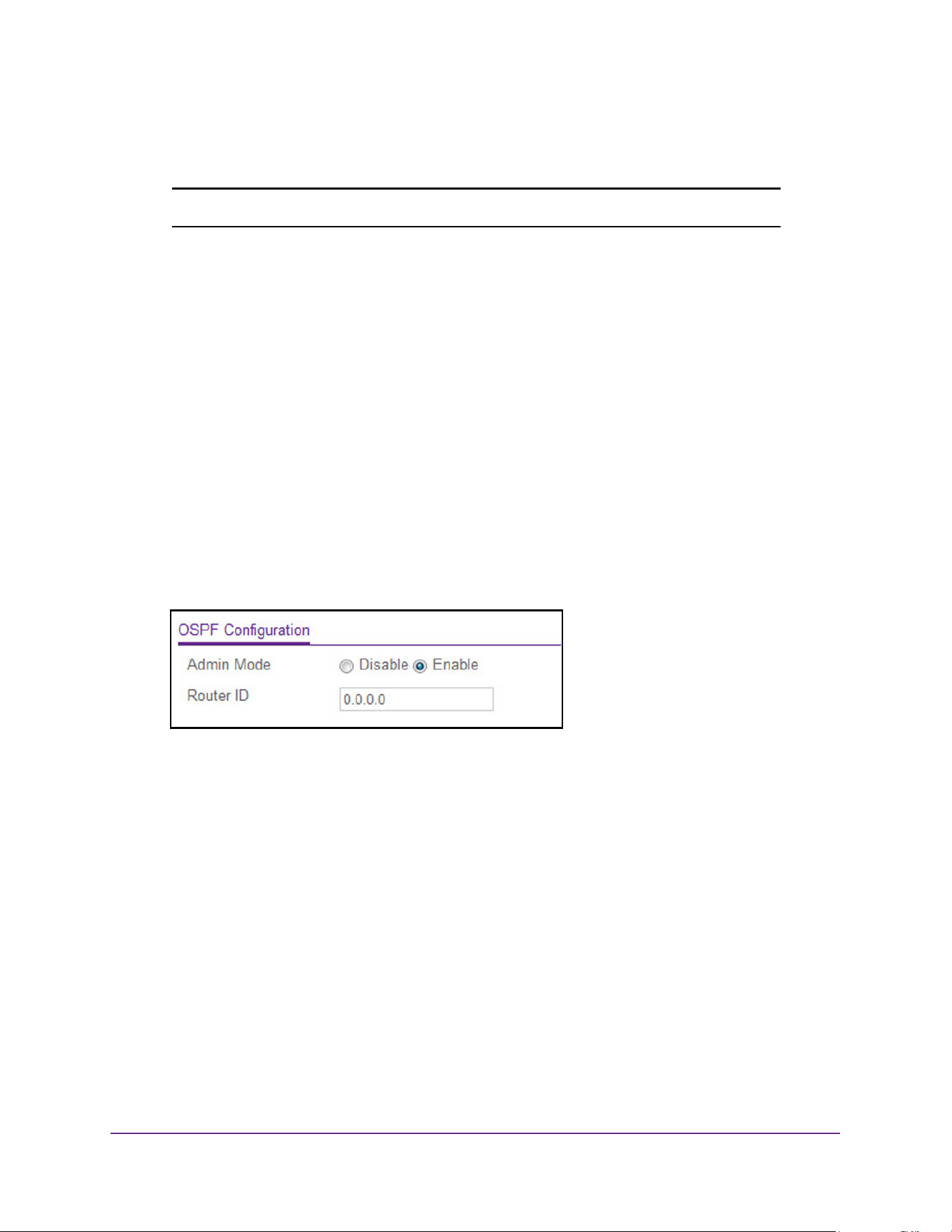
OSPF and OSPFv3
339
M4200 and M4300 Series ProSAFE Managed Switches Web Management User Manual
Configure OSPF
Note: OSPF is supported on the M4300 series switches only.
Configure Basic OSPF Settings
To configure basic OSPF settings:
1. Launch a web browser.
2. Enter http://<ipaddress> in the web browser address field.
The login window opens.
3. Enter the user name and password.
The default admin user name is admin and the default admin password is blank, that is,
do not enter a password.
4. Click the Login button.
The System Information page displays.
5. Select Routing > OSPF > Basic > OSPF Configuration.
6. Select the Admin Mode Disable or Enable radio button.
If you select Enable, OSPF is activated for the switch. By default, OSPF is enabled. You
must configure a router ID before OSPF can become operational. Use the IP
Configuration page to configure a router ID or issue the config router id CLI
command. For more information, see Configure the Routing IP Settings on page 281.
The Router ID displays the 32-bit integer in dotted-decimal format that uniquely identifies
the router within the autonomous system (AS).
To change the router ID, you must first disable OSPF. After you set the new router ID, you
must reenable OSPF for the change to take effect. The default value is 0.0.0.0, although
this is not a valid router ID.
7. Click the Apply button.
The updated configuration is sent to the switch. Configuration changes take effect
immediately.
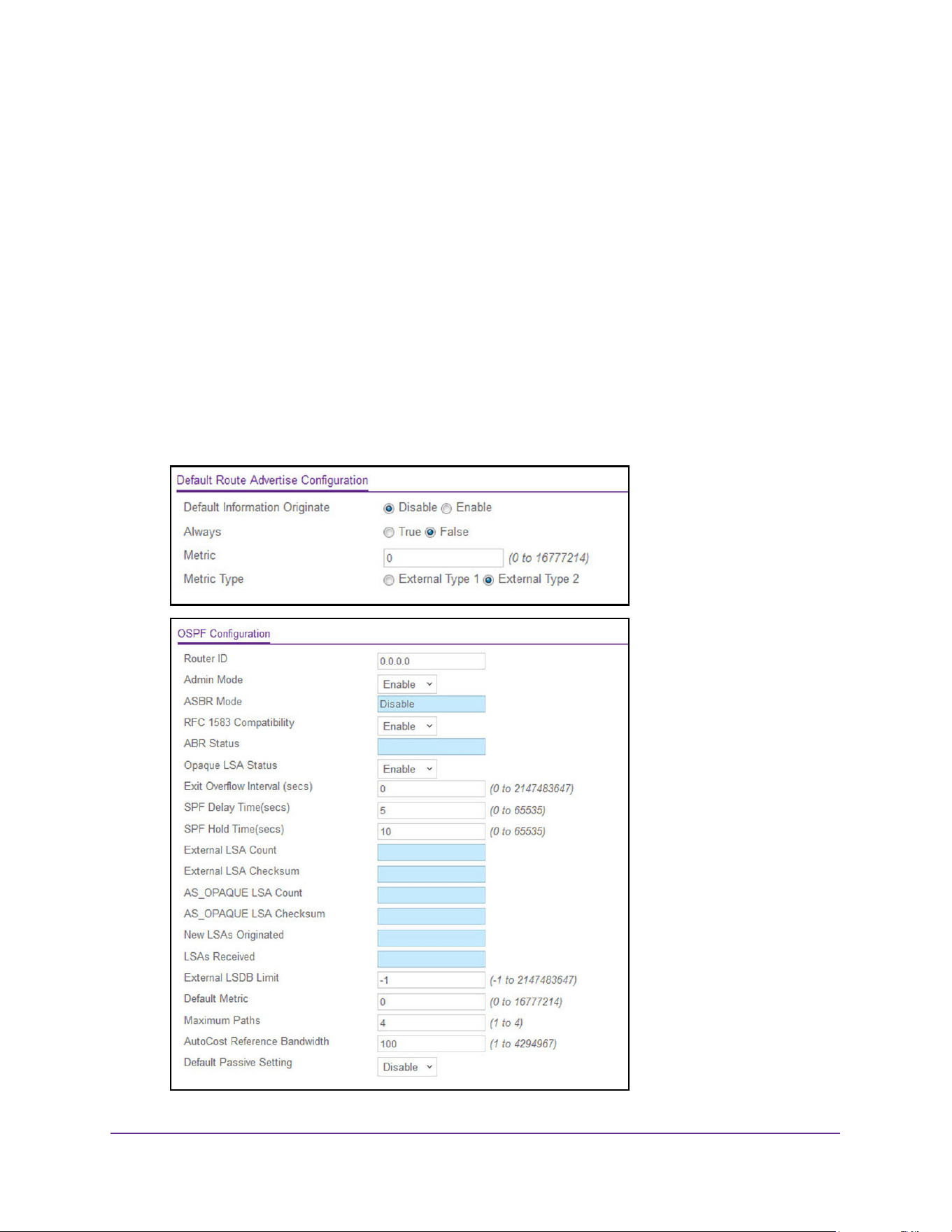
OSPF and OSPFv3
340
M4200 and M4300 Series ProSAFE Managed Switches Web Management User Manual
Configure the OSPF Default Route Advertise Settings
To configure default route advertise settings:
1. Launch a web browser.
2. Enter http://<ipaddress> in the web browser address field.
The login window opens.
3. Enter the user name and password.
The default admin user name is admin and the default admin password is blank, that is,
do not enter a password.
4. Click the Login button.
The System Information page displays.
5. Select Routing > OSPF > Advanced > OSPF Configuration.

OSPF and OSPFv3
341
M4200 and M4300 Series ProSAFE Managed Switches Web Management User Manual
6. In the Default Information Originate field, select the Enable or Disable option.
If you select Enable, OSPF originates an external LSA advertising a default route
(0.0.0.0/0.0.0.0). Default Information Originate is disabled by default.
7. In the Always field, select True or False.
If Default Information Originate is enabled, but the Always option is False, OSPF
originates a default route only if a default route is already in the router’s routing table.
Set Always to True to force OSPF to originate a default route regardless of whether a
default route already exists. The default is False.
8. In the Metric field, specify the metric of the default route.
The valid values range from 0 to 16777214. The default is 0.
9. In the Metric Type field, select the OSPF metric type of the default route.
Two types are supported: External Type 1 and External Type 2. The default is External
Type 2.
10. Click the Apply button.
The updated configuration is sent to the switch. Configuration changes take effect
immediately.
Configure OSPF Settings
To configure the OSPF settings:
1. Launch a web browser.
2. Enter http://<ipaddress> in the web browser address field.
The login window opens.
3. Enter the user name and password.
The default admin user name is admin and the default admin password is blank, that is,
do not enter a password.
4. Click the Login button.
The System Information page displays.
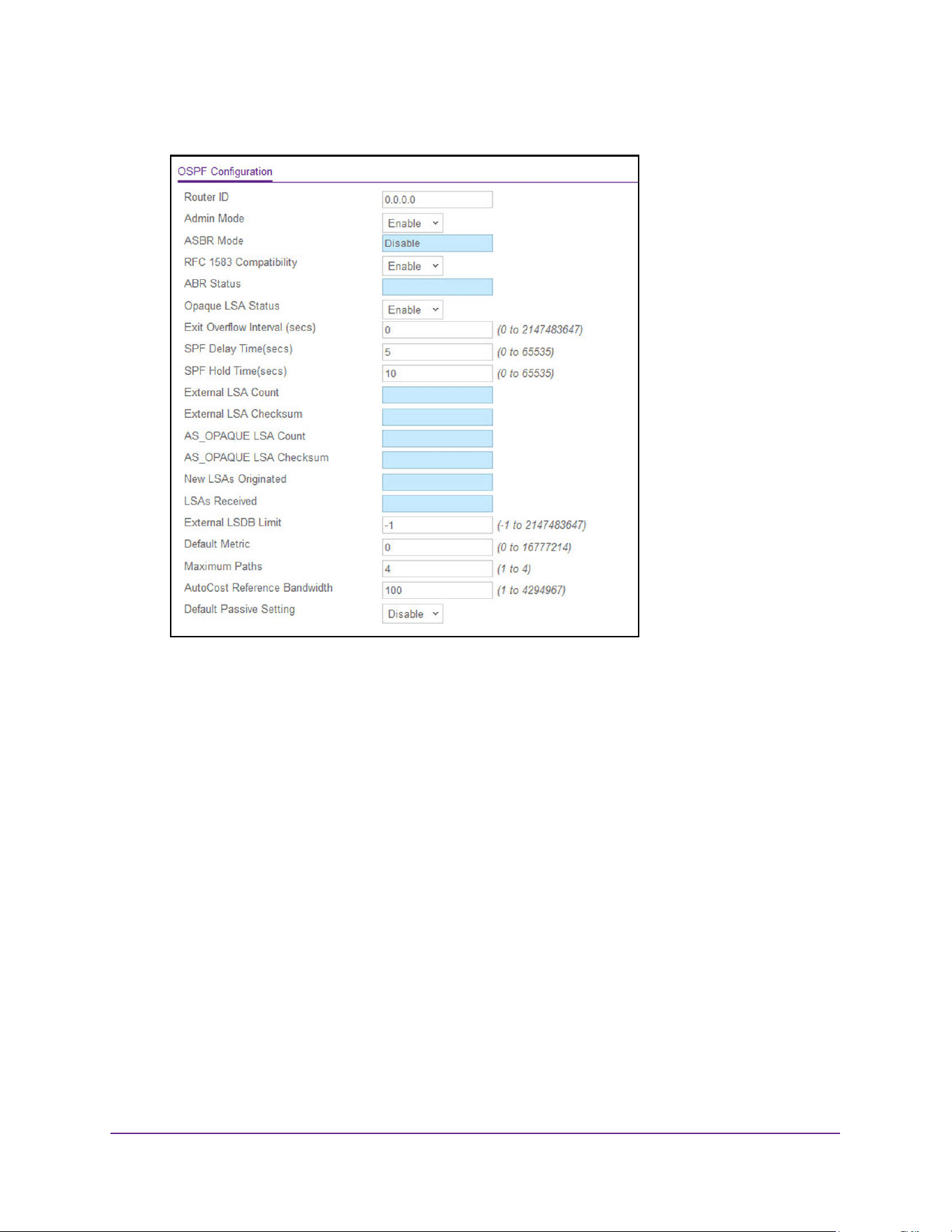
OSPF and OSPFv3
342
M4200 and M4300 Series ProSAFE Managed Switches Web Management User Manual
5. Select Routing > OSPF > Advanced > OSPF Configuration.
6. In the Router ID field, enter the 32-bit integer in dotted-decimal format that uniquely
identifies the router within the autonomous system (AS).
To change the router ID, you must first disable OSPF. After you set the new router ID, you
must reenable OSPF for the change to take effect. The default value is 0.0.0.0, although
this is not a valid router ID.
7. In the Admin Mode field, select Enable or Disable.
If you select Enable, OSPF is activated for the switch. The default value is Enable. You
must configure a router ID before OSPF can become operational. For more information,
see Configure the Routing IP Settings on page 281.
8. In the RFC 1583 Compatibility field, select Enable or Disable.
This specifies the preference rules that are used when choosing among multiple
AS-external-LSAs advertising the same destination. If you select Enable, the preference
rules are those defined in Section 16.4.1 of the OSPF-2 standard (RFC 2328), which
prevents routing loops when AS-external-LSAs for the same destination originated from
different areas. The default value is Enable. All routers in the OSPF domain must be
configured the same. If all OSPF routers are capable of operating according to RFC
2328, RFC 1583 Compatibility must be disabled.
9. Set the Opaque LSA Status to Enable if OSPF will store and flood opaque LSAs.

OSPF and OSPFv3
343
M4200 and M4300 Series ProSAFE Managed Switches Web Management User Manual
An opaque LSA is used for flooding user-defined information within an OSPF router
domain.
10. When the number of nondefault external LSAs exceeds a configured limit, the router enters
an overflow state as defined in RFC 1765.
Use the Exit Overflow Interval field to specify how long in seconds OSPF must wait
before attempting to leave overflow state. In overflow state, OSPF cannot originate
nondefault external LSAs. If the Exit Overflow Interval is 0, OSPF does not leave the
overflow state until it is disabled and reenabled. The range is 0 to 2,147,483,647
seconds. The default is 0.
11. Configure the SPF Delay Time.
This is the number of seconds from when OSPF receives a topology change to the start
of the next SPF calculation. Delay Time is an integer from 0 to 65535 seconds. The
default is 5 seconds. A value of 0 means that there is no delay; that is, the SPF
calculation is started upon a topology change.
12. Configure the SPF Hold Time.
This is the minimum time in seconds between two consecutive SPF calculations. The
range is 0 to 65,535 seconds. The default time is 10 seconds. A value of 0 means that
there is no delay; that is, two SPF calculations can be done, one immediately after the
other.
13. Use the External LSDB Limit field to set the number of the external LSDB limit for OSPF.
If the value is –1, then there is no limit. When the number of nondefault AS-external-LSAs
in a router’s link state database reaches the external LSDB limit, the router enters
overflow state. The router never holds more than the external LSDB limit none-default
AS-external-LSAs in the database. The external LSDB limit must be set identically in all
routers attached to the OSPF backbone and/or any regular OSPF area. The range for the
External LSDB Limit field is –1 to 2147483647. The default value is –1.
14. Use the Default Metric field to set a default for the metric of redistributed routes.
This field is blank if a default metric was not configured. The range of valid values is 1 to
16777214. The default value is 0.
15. Use the Maximum Paths field to set the number of paths that OSPF can report for a given
destination.
The range of valid values is 1 to 16. The default value is 4.
16. Configure the AutoCost Reference Bandwidth to control how OSPF calculates link cost.
Specify the reference bandwidth in megabits per second. Unless a link cost is configured,
the link cost is computed by dividing the reference bandwidth by the interface bandwidth.
The range is 1 to 4294967. The default is 100.
17. In the Default Passive Setting field, select Enable or Disable from the list to configure the
global passive mode setting for all OSPF interfaces.
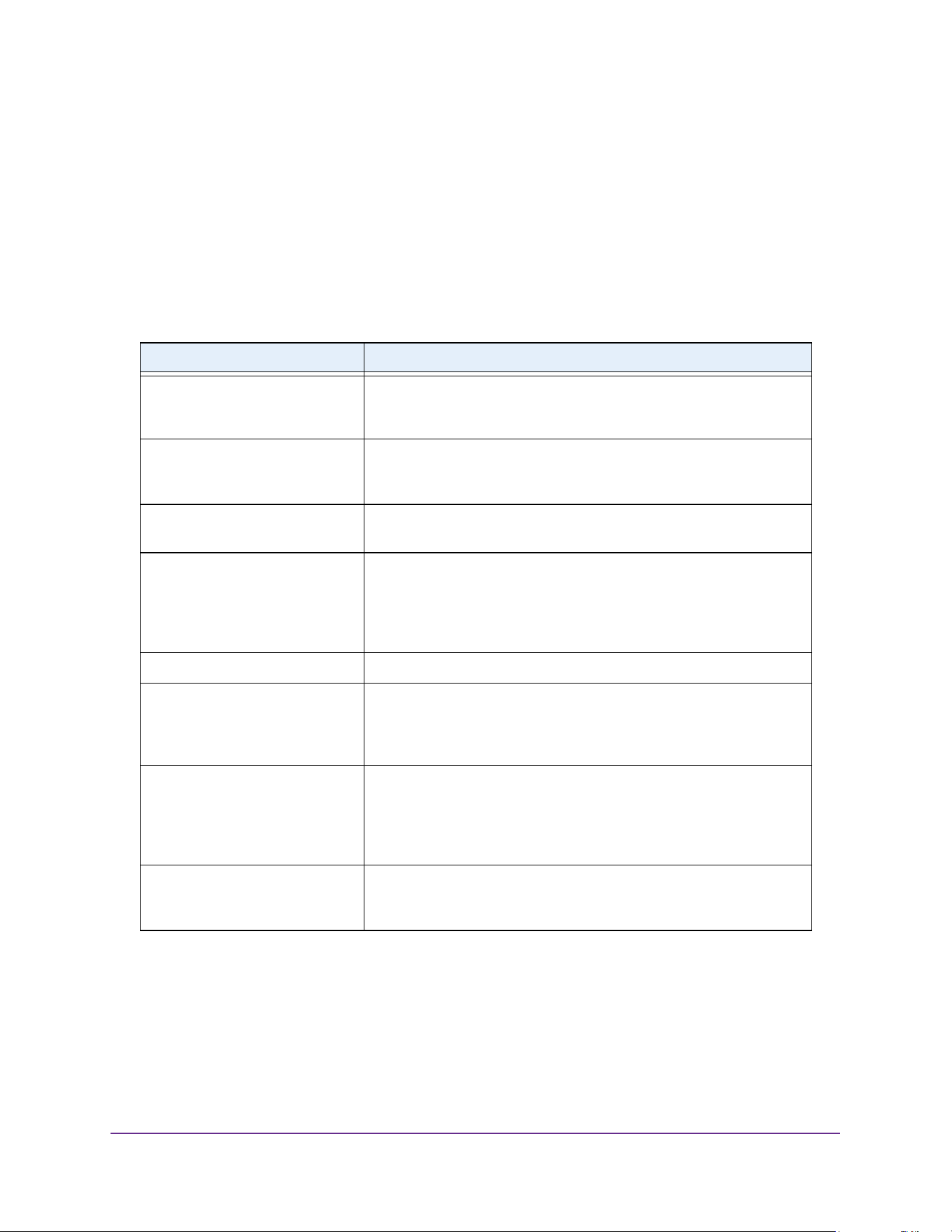
OSPF and OSPFv3
344
M4200 and M4300 Series ProSAFE Managed Switches Web Management User Manual
Configuring this field overwrites any present interface level passive mode setting. OSPF
does not form adjacencies on passive interfaces, but does advertise attached networks
as stub networks. The default is Disabled.
18. Click the Apply button.
The updated configuration is sent to the switch. Configuration changes take effect
immediately.
The following table describes the nonconfigurable data that is displayed.
Table 127. OSPF Configuration
Field Description
ASBR Mode The router is an autonomous system boundary router if it is configured
to redistribute routes from another protocol, or if it is configured to
originate an external LSA advertising the default route.
ABR Status The router is an autonomous system boundary router if it is configured
to redistribute routes from another protocol, or if it is configured to
originate an external LSA advertising the default route.
External LSA Count The number of external (LS type 5) LSAs (link state advertisements) in
the link state database.
External LSA Checksum The sum of the LS checksums of the external LSAs (link state
advertisements) contained in the link state database. This sum can be
used to determine if there was a change in a router's link state
database, and to compare the link state databases of two routers. This
value is in hexadecimal.
AS_OPAQUE LSA Count The number of opaque LSAs with domain-wide flooding scope.
AS_OPAQUE LSA Checksum The sum of the LS checksums of the opaque LSAs with domain wide
flooding scope. This sum can be used to determine if there was a
change in a router's link state database, and to compare the link state
databases of two routers. This value is in hexadecimal.
New LSAs Originated In any given OSPF area, a router originates several LSAs. Each router
originates a router-LSA. If the router is also the designated router for
any of the area's networks, it originates network LSAs for those
networks. This value represents the number of LSAs originated by this
router.
LSAs Received The number of LSAs (link state advertisements) received that were
determined to be new instantiations. This number does not include
newer instantiations of self-originated LSAs.
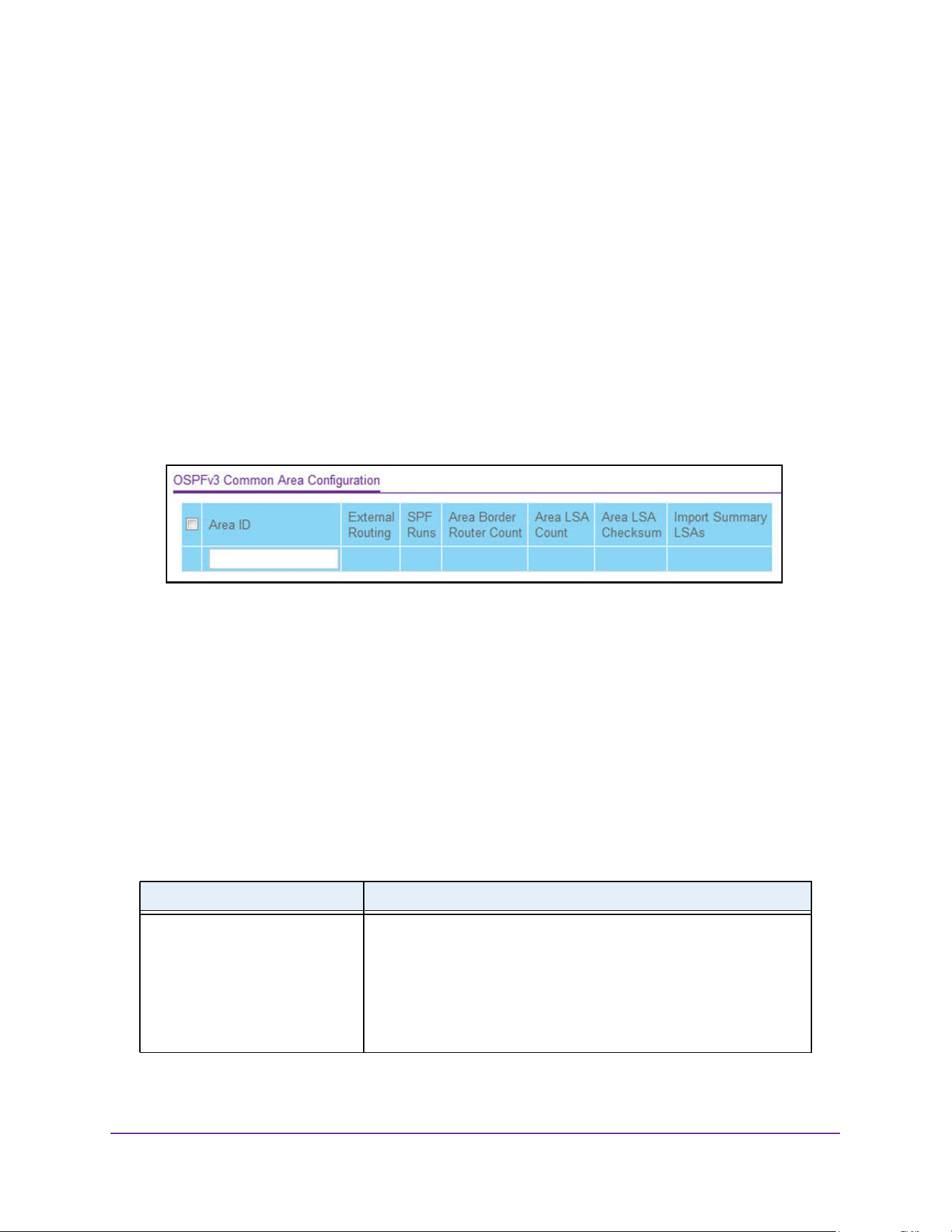
OSPF and OSPFv3
345
M4200 and M4300 Series ProSAFE Managed Switches Web Management User Manual
Configure the OSPF Common Area ID
To add or delete an area ID:
1. Launch a web browser.
2. Enter http://<ipaddress> in the web browser address field.
The login window opens.
3. Enter the user name and password.
The default admin user name is admin and the default admin password is blank, that is,
do not enter a password.
4. Click the Login button.
The System Information page displays.
5. Select Routing > OSPF > Advanced > Common Area Configuration.
6. Enter the OSPF Area ID.
An area ID is a 32-bit integer in dotted-decimal format that uniquely identifies the area to
which a router interface connects.
7. Take one of the following actions:
• Click the Add button.
The area ID is added.
• Click the Delete button.
The area ID is deleted.
The following table describes the nonconfigurable data that is displayed.
Table 128. OSPF Common Area Configuration
Field Description
External Routing A definition of the router's capabilities for the area, including whether or
not AS-external-LSAs are flooded into/throughout the area. If the area
is a stub area, then these are the possible options for which you can
configure the external routing capability; otherwise, the only option is
Import External LSAs.
• Import External LSAs. Import and propagate external LSAs.
• Import No LSAs. Do not import and propagate external LSAs.
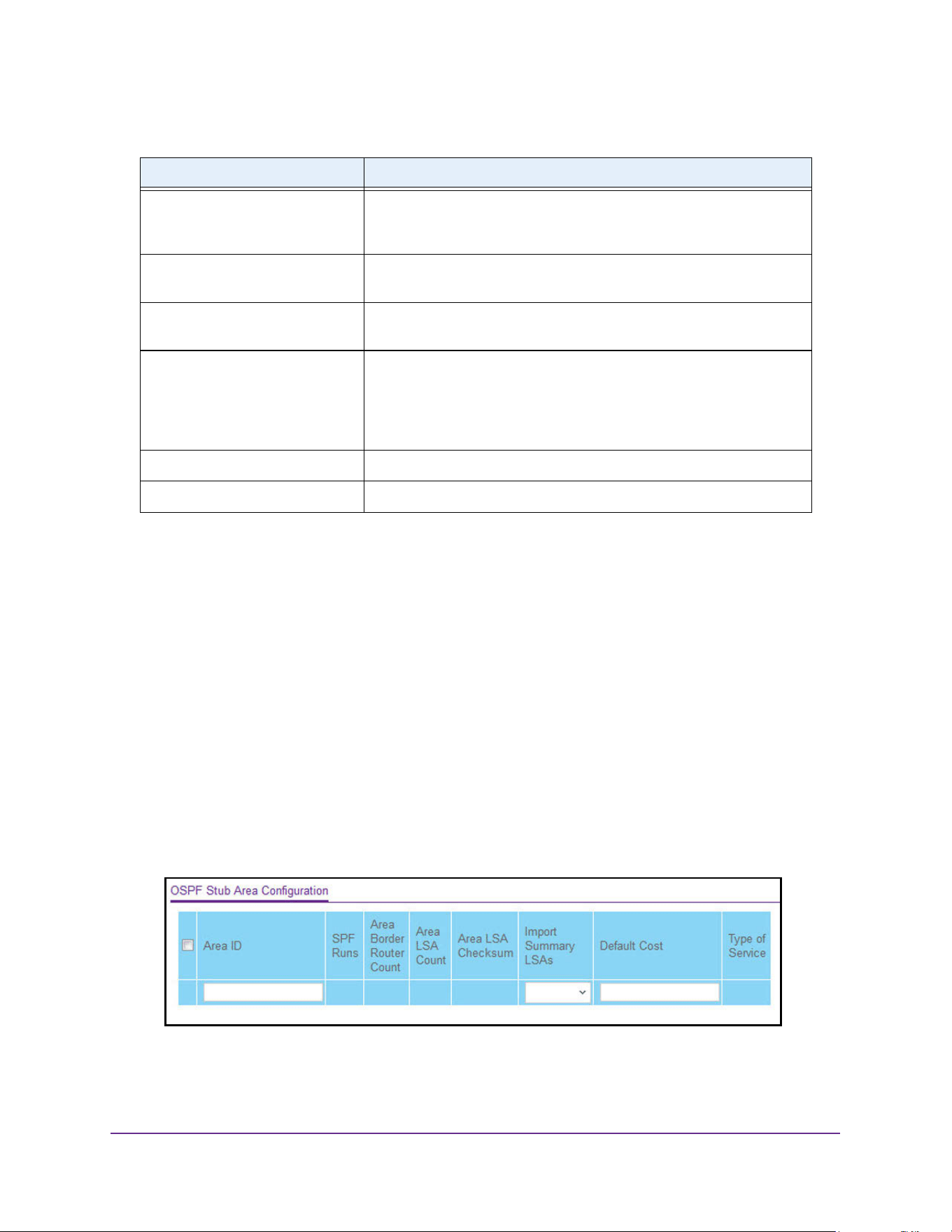
OSPF and OSPFv3
346
M4200 and M4300 Series ProSAFE Managed Switches Web Management User Manual
Configure the OSPF Stub Area
To configure the OSPF stub area:
1. Launch a web browser.
2. Enter http://<ipaddress> in the web browser address field.
The login window opens.
3. Enter the user name and password.
The default admin user name is admin and the default admin password is blank, that is,
do not enter a password.
4. Click the Login button.
The System Information page displays.
5. Select Routing > OSPF > Advanced > Stub Area Configuration.
6. Enter the OSPF Area ID.
SPF Runs The number of times that the intra-area route table was calculated
using this area's link state database. This is typically done using
Dijkstra's algorithm.
Area Border Router Count The total number of area border routers reachable within this area. This
is initially zero, and is calculated in each SPF pass.
Area LSA Count The total number of link state advertisements in this area's link state
database, excluding AS external LSAs.
Area LSA Checksum The 32-bit unsigned sum of the link state advertisements' LSA
checksums contained in this area's link state database. This sum
excludes external (LSA type 5) link state advertisements. The sum can
be used to determine if there was a change in a router's link state
database, and to compare the link state database of two routers.
Flood List Length This is the number of LSAs on this area's flood list.
Import Summary LSAs The summary LSAs are imported into this area.
Table 128. OSPF Common Area Configuration (continued)
Field Description
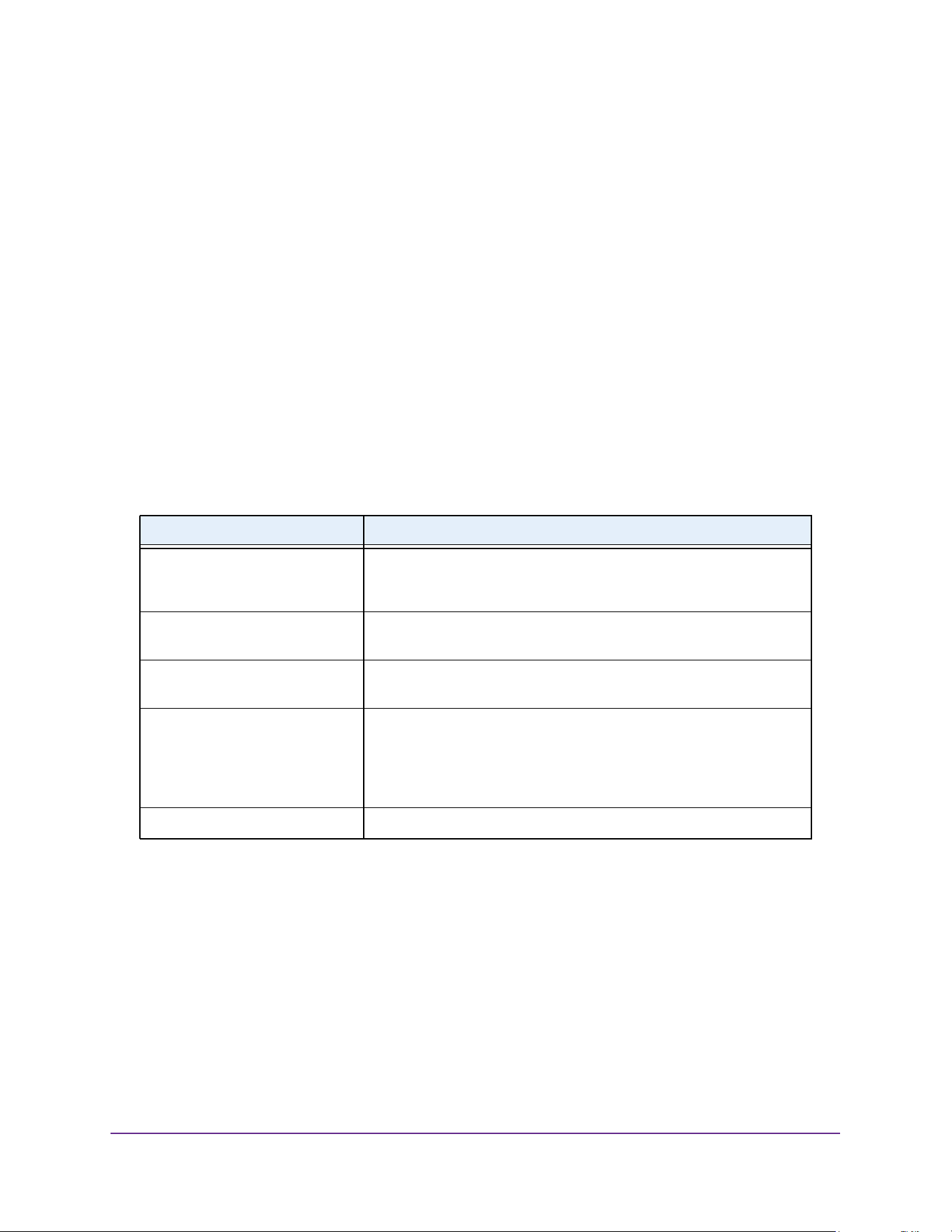
OSPF and OSPFv3
347
M4200 and M4300 Series ProSAFE Managed Switches Web Management User Manual
An area ID is a 32-bit integer in dotted-decimal format that uniquely identifies the area to
which a router interface connects.
7. Configure the Import Summary LSAs by selecting Enable or Disable from the list.
If you select Enable, summary LSAs are imported into stub areas.
8. Configure the Default Cost by entering the metric value to be applied for the default route
advertised to the stub area.
The valid values range from 1 to 16,777,215.
9. Click the Add button.
The area is configured as a stub area.
10. Click the Apply button.
The updated configuration is sent to the switch. Configuration changes take effect
immediately.
The following table describes the nonconfigurable data that is displayed.
Configure the OSPF NSSA Area
To configure the NSSA area:
1. Launch a web browser.
2. Enter http://<ipaddress> in the web browser address field.
The login window opens.
3. Enter the user name and password.
The default admin user name is admin and the default admin password is blank, that is,
do not enter a password.
Table 129. OSPF Stub Area Configuration
Field Description
SPF Runs The number of times that the intra-area route table was calculated
using this area's link state database. This is typically done using
Dijkstra's algorithm.
Area Border Router Count The total number of area border routers reachable within this area. This
is initially zero, and is calculated in each SPF pass.
Area LSA Count The total number of link state advertisements in this area's link state
database, excluding AS external LSAs.
Area LSA Checksum The 32-bit unsigned sum of the link state advertisements' LSA
checksums contained in this area's link state database. This sum
excludes external (LSA type 5) link state advertisements. The sum can
be used to determine if there was a change in a router's link state
database, and to compare the link state database of two routers.
Type of Service This field is the normal ToS associated with the stub metric.
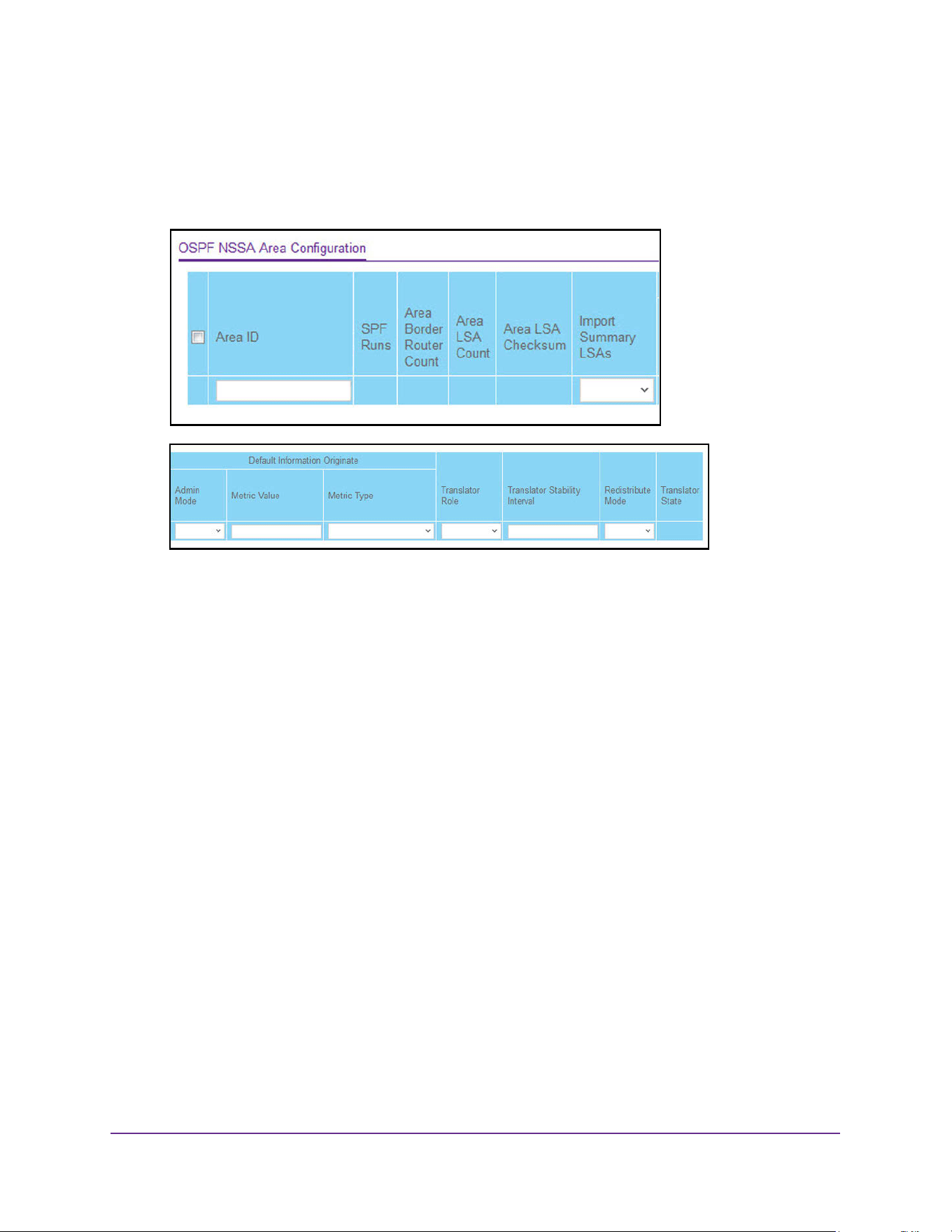
OSPF and OSPFv3
348
M4200 and M4300 Series ProSAFE Managed Switches Web Management User Manual
4. Click the Login button.
The System Information page displays.
5. Select Routing > OSPF > Advanced > NSSA Area Configuration.
6. Enter the OSPF Area ID.
An area ID is a 32-bit integer in dotted-decimal format that uniquely identifies the area to
which a router interface connects.
7. Configure the Import Summary LSAs by selecting Enable or Disable from the list.
If you select Enable, summary LSAs are imported into NSSA areas.
8. Configure the Default Information Originate.
This option lets you advertise a default route into the NSSA when the import of summary
LSAs is disabled.
a. In the Admin Mode list, select to Enable or Disable the default information originate.
b. In the Metric Value field, set the default metric value for default information
originate. The value range of values is 1 to 16777214.
c. In the Metric Type field, select the type of metric specified in the Metric Value field.
Options are as follows:
• Comparable Cost. External type 1 metrics that are comparable to the OSPF
metric.
• Non-comparable Cost. External type 2 metrics that are assumed to be larger
than the cost of the OSPF metric.
9. Select the Translator Role of the NSSA.
Options are as follows:
a. Always. Cause the router to assume the role of the translator the instant it becomes a
border router.
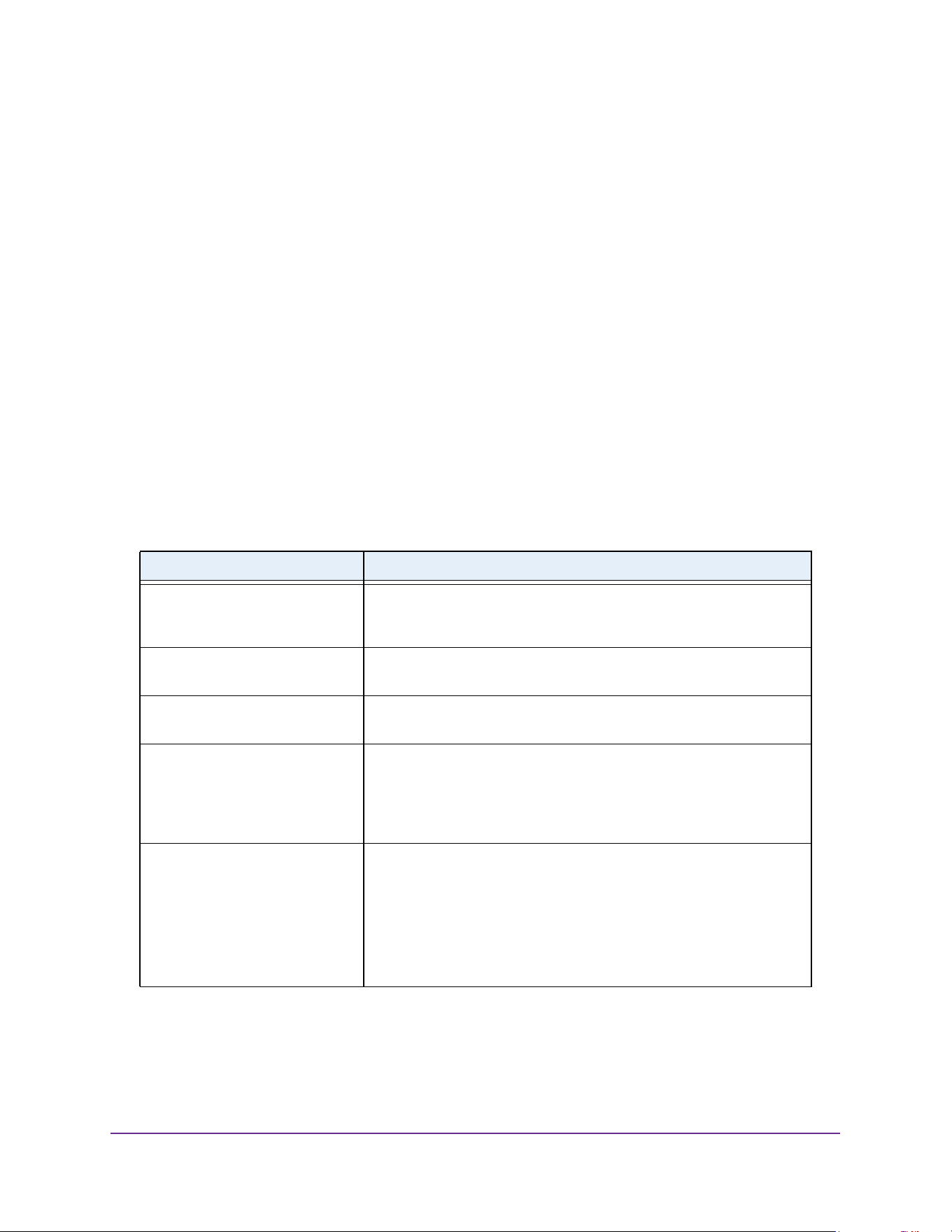
OSPF and OSPFv3
349
M4200 and M4300 Series ProSAFE Managed Switches Web Management User Manual
b. Candidate. Cause the router to participate in the translator election process when it
attains border router status.
10. In the Translator Stability Interval field, configure the translator of the NSSA.
The value is the period of time that an elected translator continues to perform its duties
after it determines that its translator status was deposed by another router. The valid
range is 0 to 3600.
11. In the Redistribute Mode field, select Enable or Disable from the list.
This configures the NSSA ABR so that learned external routes are redistributed to the
NSSA.
12. Click the Add button.
The area is configured as an NSSA area.
13. Click the Apply button.
The updated configuration is sent to the switch. Configuration changes take effect
immediately.
The following table describes the nonconfigurable data that is displayed.
Table 130. OSPF NSSA Area Configuration
Field Description
SPF Runs The number of times that the intra-area route table was calculated
using this area's link state database. This is typically done using
Dijkstra's algorithm.
Area Border Router Count The total number of area border routers reachable within this area. This
is initially zero, and is calculated in each SPF pass.
Area LSA Count The total number of link state advertisements in this area's link state
database, excluding AS external LSAs.
Area LSA Checksum The 32-bit unsigned sum of the link state advertisements' LSA
checksums contained in this area's link state database. This sum
excludes external (LSA type 5) link state advertisements. The sum can
be used to determine if there was a change in a router's link state
database, and to compare the link state database of two routers.
Translator State This field displays if and how the NSSA border router translates Type 7
into Type 5. Possible options are as follows:
• Enabled. The NSSA border router’s translator role is set to always.
• Elected. The candidate NSSA border router is translating Type 7
LSAs into Type 5.
• Disabled. The candidate NSSA border router is not translating
Type 7 LSAs into Type 5.
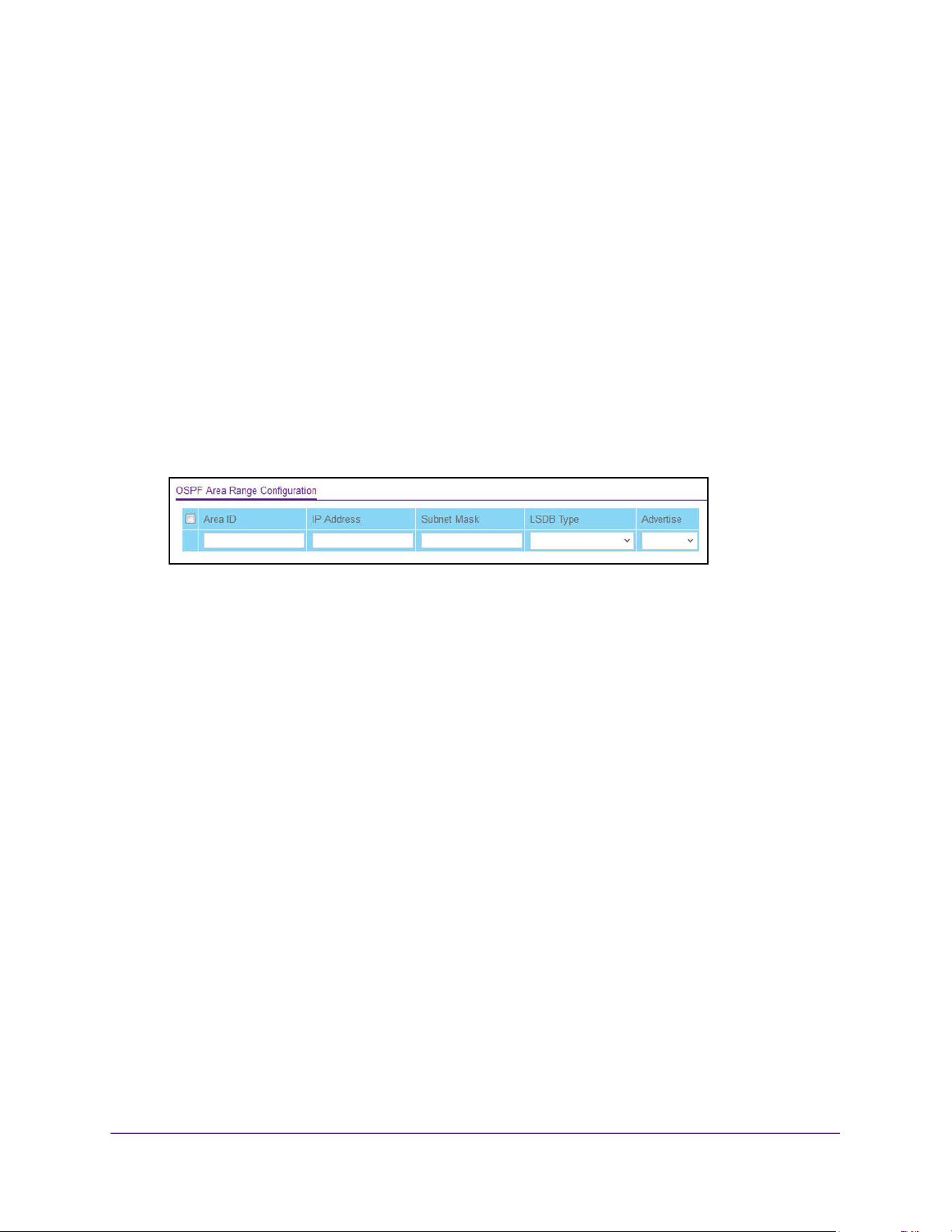
OSPF and OSPFv3
350
M4200 and M4300 Series ProSAFE Managed Switches Web Management User Manual
Configure the OSPF Area Range
Configure the OSPF area range:
1. Launch a web browser.
2. Enter http://<ipaddress> in the web browser address field.
The login window opens.
3. Enter the user name and password.
The default admin user name is admin and the default admin password is blank, that is,
do not enter a password.
4. Click the Login button.
The System Information page displays.
5. Select Routing > OSPF > Advanced > Area Range Configuration.
6. Enter the OSPF Area ID.
An area ID is a 32-bit integer in dotted-decimal format that uniquely identifies the area to
which a router interface connects.
7. Enter the IP Address for the address range for the selected area.
8. Enter the Subnet Mask for the address range for the selected area.
9. From the list in the LSDB Type field, select the type of link advertisement associated with
the specified area and address range.
Options are as follows: Network Summary or NSSA External. The default type is
Network Summary.
10. In the Advertise list, select Enable or Disable.
If you select Enable, the address range is advertised outside the area through a network
summary LSA. The default is Enable.
11. Click the Add button.
The new address range is added.
12. Click the Apply button.
The updated configuration is sent to the switch. Configuration changes take effect
immediately.
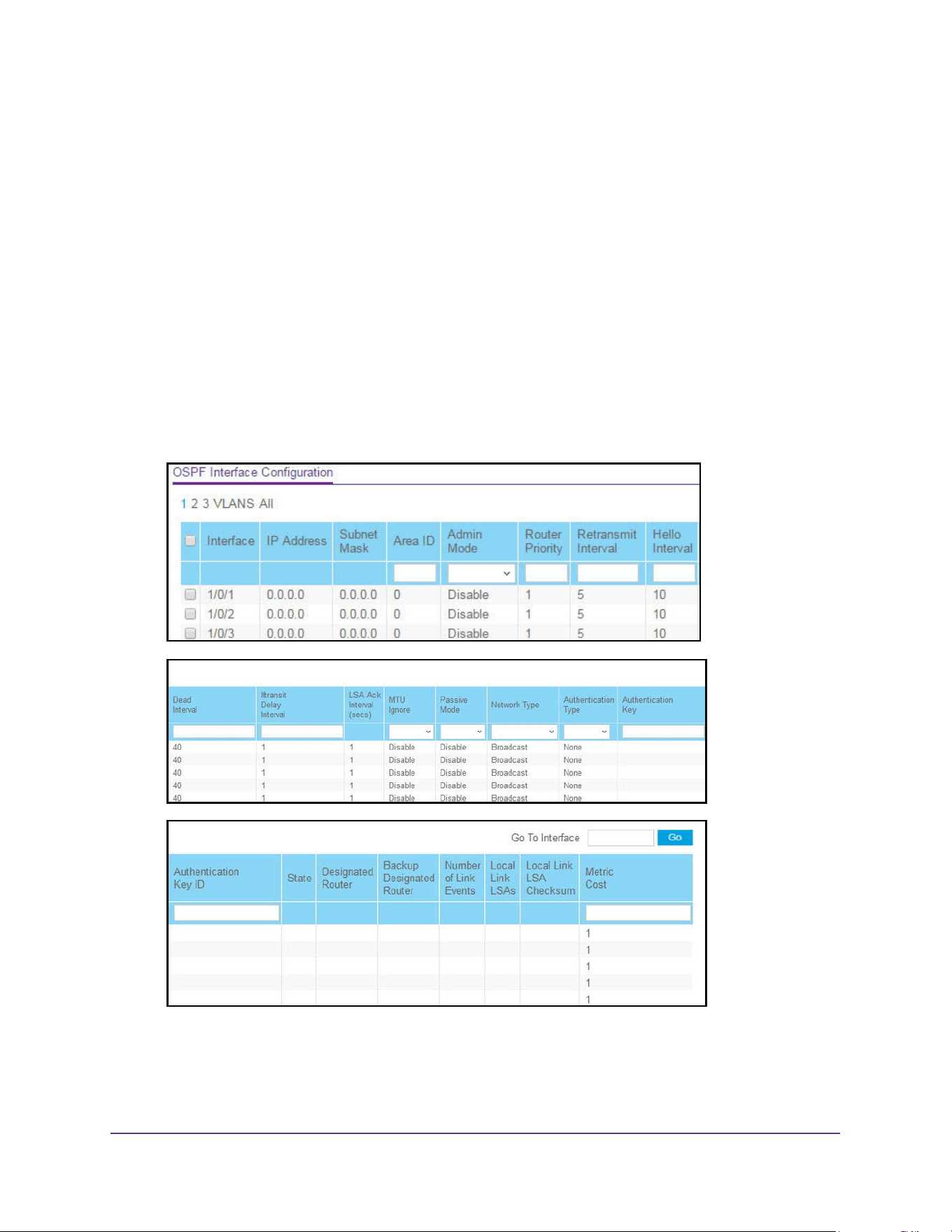
OSPF and OSPFv3
351
M4200 and M4300 Series ProSAFE Managed Switches Web Management User Manual
Configure the OSPF Interface
To configure the OSPF interface:
1. Launch a web browser.
2. Enter http://<ipaddress> in the web browser address field.
The login window opens.
3. Enter the user name and password.
The default admin user name is admin and the default admin password is blank, that is,
do not enter a password.
4. Click the Login button.
The System Information page displays.
5. Select Routing > OSPF > Advanced > Interface Configuration.
6. Use one of the following methods to select an interface:
• In the Go To Interface field, enter the interface in the unit/slot/port format and click on
the Go button.

OSPF and OSPFv3
352
M4200 and M4300 Series ProSAFE Managed Switches Web Management User Manual
• Next to the Interface column, select the check box for the interface that you want to
configure.
7. In the OSPF Area ID field, enter the 32-bit integer in dotted-decimal format.
This ID uniquely identifies the OSPF area to which the selected router interface connects.
If you assign an area ID that does not exist, the area is created with default values.
8. In the Admin Mode list, select Enable or Disable.
The default value is Disable. You can configure OSPF parameters without enabling
OSPF admin mode, but the change does not take effect until you enable admin mode.
The following information is displayed only if admin mode is enabled:
• State
• Designated router
• Backup designated router
• Number of link events
• LSA Ack interval
• Metric cost
For OSPF to be fully functional, you must enter a valid ID address and subnet mask. For
more information, see Configure the IP Interface on page 291.
Note: Once OSPF is initialized on the router, it remains initialized until the
router is reset.
9. In the Router Priority field, enter the OSPF priority for the selected interface.
The priority of an interface is specified as an integer from 0 to 255. The default is 1, which
is the highest router priority. A value of 0 indicates that the router is not eligible to become
the designated router on this network.
10. Configure the Retransmit Interval by entering the OSPF retransmit interval for the specified
interface.
This is the number of seconds between link state advertisements for adjacencies
belonging to this router interface. This value is also used when retransmitting database
descriptions and link state request packets. The valid values range from 1 to 3600
seconds (1 hour). The default is 5 seconds.
11. Configure the Hello Interval by entering the OSPF hello interval for the specified interface in
seconds.
This parameter must be the same for all routers attached to a network. Values range from
1 to 65,535. The default is 10 seconds.
12. Enter the OSPF Dead Interval for the specified interface in seconds.
This specifies how long a router waits to see a neighbor router’s hello packets before
declaring that the router is down. This parameter must be the same for all routers
attached to a network. This value must be a multiple of the hello interval (for example, 4).
The valid values range from 1 to 65,535. The default is 40 seconds.

OSPF and OSPFv3
353
M4200 and M4300 Series ProSAFE Managed Switches Web Management User Manual
13. In the Iftransit Delay Interval field, enter the OSPF transit delay for the specified interface.
This specifies the estimated number of seconds it takes to transmit a link state update
packet over the selected interface. The valid values range from 1 to 3600 seconds (1
hour). The default value is 1 second.
14. Configure MTU Ignore by selecting Enable or Disable from the list.
MTU Ignore disables OSPF MTU mismatch detection on received database description
packets. The default value is Disable (MTU mismatch detection is enabled).
15. Configure Passive Mode by selecting Enable or Disable from the list.
Make an interface passive to prevent OSPF from forming an adjacency on an interface.
OSPF advertises networks attached to passive interfaces as stub networks. Interfaces
are not passive by default, meaning that the passive mode default is Disable.
16. In the OSPF Network Type list, select Broadcast or Point-to-Point.
OSPF selects a designated router and originates network LSAs only for broadcast
networks. No more than two OSPF routers can be present on a point-to-point link. The
default network type for Ethernet interfaces is broadcast.
17. Select an Authentication Type other than None by selecting from the list.
The choices are as follows:
• None. This is the initial interface state. If you select this option from the list, no
authentication protocols are run. The default is None.
• Simple. You are prompted to enter an authentication key. This key is included, in the
clear, in the OSPF header of all packets sent on the network. All routers on the
network must be configured with the same key.
• Encrypt. You are prompted to enter an authentication key and an authentication ID.
Encryption uses the MD5 Message-Digest algorithm. All routers on the network must
be configured with the same key and ID.
18. Enter the Authentication Key ID to be used for authentication.
You are prompted to enter an ID only if you select Encrypt as the authentication type. The
ID is a number between 0 and 255, inclusive.
19. In the Metric Cost field, enter the link cost.
OSPF uses this value in computing shortest paths. The range is from 1 to 65,535. The
default is 1.
20. Click the Apply button.
The updated configuration is sent to the switch. Configuration changes take effect
immediately.

OSPF and OSPFv3
354
M4200 and M4300 Series ProSAFE Managed Switches Web Management User Manual
The following table describes the nonconfigurable data that is displayed.
Table 131. OSPF Interface Configuration
Field Description
IP Address The IP address of the interface.
Subnet Mask The network mask, indicating the portion of the IP address that identifies the
attached network.
LSA Ack Interval (secs) The number of seconds to wait before sending a delayed
acknowledgement.
State The state of the selected router interface. State is one of the following:
• Down. This is the initial interface state. The lower-level protocols
indicated that the interface is unusable. Interface parameters are set to
their initial values. All interface timers are disabled, and there are no
adjacencies associated with the interface.
• Loopback. The router's interface to the network is looped back either in
hardware or software. The interface is unavailable for regular data
traffic.You can get information on the quality of this interface by sending
ICMP pings to the interface or through something like a bit error test.
For this reason, IP packets can still be addressed to an interface in
loopback state. To facilitate this, such interfaces are advertised in
router- LSAs as single host routes, whose destination is the IP interface
address.
• Waiting. The router is trying to determine the identity of the backup
designated router for the network by monitoring received hello packets.
The router cannot elect a backup designated router or a designated
router until it transitions out of the waiting state. This prevents
unnecessary changes of the backup designated router.
• Designated Router. This router is the designated router on the
attached network. Adjacencies are established to all other routers
attached to the network. The router must also originate a network LSA
for the network node. The network LSA contains links to all routers
(including the designated router) attached to the network.
• Backup Designated Router. This router is the backup designated
router on the attached network. It is promoted to designated router if
the present designated router fails. The router establishes adjacencies
to all other routers attached to the network. The backup designated
router performs slightly different functions during the LSA flooding, as
compared to the designated router.
• Other Designated Router. The interface is connected to a broadcast
on which other routers are the designated router and backup
designated router. The router attempts to form adjacencies to both the
designated router and the backup designated router.
Designated Router The identity of the designated router for this network, in the view of the
advertising router. The designated router is identified here by its router ID.
The value 0.0.0.0 means that there is no designated router. This field
displays only if the OSPF admin mode is enabled.
Backup Designated Router The identity of the backup designated router for this network, in the view of
the advertising router. The backup designated router is identified here by its
router ID. Set to 0.0.0.0 if there is no backup designated router.
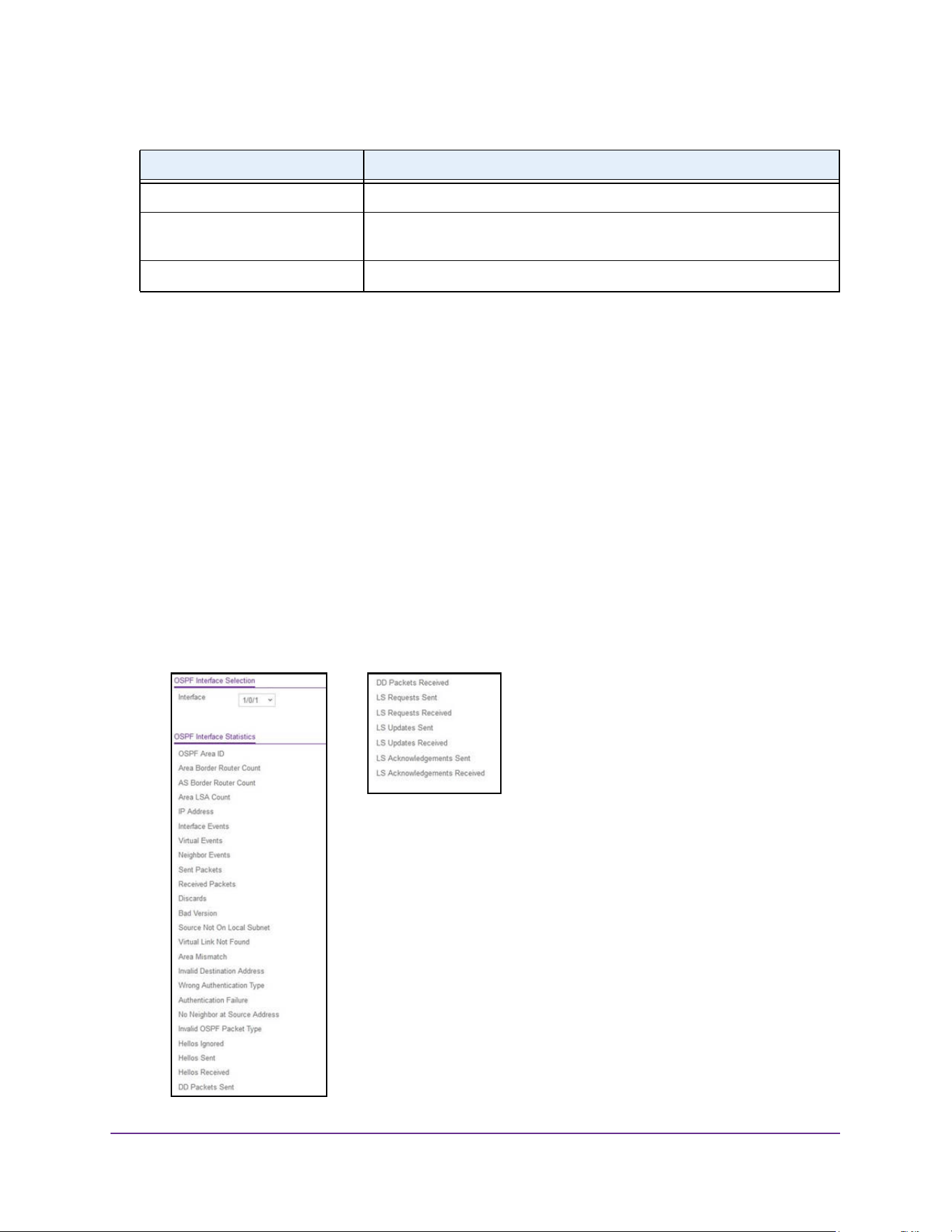
OSPF and OSPFv3
355
M4200 and M4300 Series ProSAFE Managed Switches Web Management User Manual
View and Clear OSPF Statistics for an Interface
If OSPF is enabled, you can view and clear statistics for the selected interface.
To view and clear OSPF statistics for an interface:
1. Launch a web browser.
2. Enter http://<ipaddress> in the web browser address field.
The login window opens.
3. Enter the user name and password.
The default admin user name is admin and the default admin password is blank, that is,
do not enter a password.
4. Click the Login button.
The System Information page displays.
5. Select Routing > OSPF > Advanced > Interface Statistics.
Number of Link Events The number of times the specified OSPF interface changed its state.
Local Link LSAs The number of opaque LSAs whose flooding scope is the link on this
interface.
Local Link LSA Checksum The sum of the checksums of local link LSAs for this link.
Table 131. OSPF Interface Configuration (continued)
Field Description

OSPF and OSPFv3
356
M4200 and M4300 Series ProSAFE Managed Switches Web Management User Manual
6. In the OSPF Interface Selection area of the page, from the list in the Interface field, select
the interface for which you want to display statistics.
7. To refresh the page with the latest information on the switch, click the Update button.
8. To clear all the statistics of the OSPF interface, click the Clear button.
The following table describes the nonconfigurable OSPF Interface Statistics data that is
displayed.
Table 132. OSPF Interface Statistics
Field Description
OSPF Area ID The OSPF area to which the selected router interface belongs. An
OSPF area ID is a 32 bit integer in dotted-decimal format that uniquely
identifies the area to which the interface connects.
Area Border Router Count The total number of area border routers reachable within this area. This
is initially zero, and is calculated in each SPF pass.
AS Border Router Count The total number of autonomous system border routers reachable
within this area. This is initially zero, and is calculated in each SPF
pass.
Area LSA Count The total number of link state advertisements in this area's link state
database, excluding AS external LSAs.
IP Address The IP address of the interface.
Interface Events The number of times the specified OSPF interface changed its state, or
an error occurred.
Virtual Events The number of state changes or errors that occurred on this virtual link.
Neighbor Events The number of times this neighbor relationship changed state, or an
error occurred.
Sent Packets The number of OSPF packets transmitted on the interface.
Received Packets The number of valid OSPF packets received on the interface.
Discards The number of received OSPF packets discarded because of an error
in the packet or an error in processing the packet.
Bad Version The number of received OSPF packets whose version field in the
OSPF header does not match the version of the OSPF process
handling the packet.
Source Not on Local Subnet The number of received packets discarded because the source IP
address is not within a subnet configured on a local interface.
Virtual Link Not Found The number of received OSPF packets discarded where the ingress
interface is in a non-backbone area and the OSPF header identifies the
packet as belonging to the backbone, but OSPF does not have a virtual
link to the packet's sender.
Area Mismatch The number of OSPF packets discarded because the area ID in the
OSPF header is not the area ID configured on the ingress interface.

OSPF and OSPFv3
357
M4200 and M4300 Series ProSAFE Managed Switches Web Management User Manual
Invalid Destination Address The number of OSPF packets discarded because the packet's
destination IP address is not the address of the ingress interface and is
not the AllDrRouters or AllSpfRouters multicast addresses.
Wrong Authentication Type The number of packets discarded because the authentication type
specified in the OSPF header does not match the authentication type
configured on the ingress interface.
Authentication Failure The number of OSPF packets dropped because the sender is not an
existing neighbor or the sender's IP address does not match the
previously recorded IP address for that neighbor.
No Neighbor at Source Address The number of OSPF packets dropped because the sender is not an
existing neighbor or the sender's IP address does not match the
previously recorded IP address for that neighbor.
Invalid OSPF Packet Type The number of OSPF packets discarded because the packet type field
in the OSPF header is not a known type.
Hellos Ignored The number of received hello packets that were ignored by this router
from the new neighbors after the limit was reached for the number of
neighbors on an interface or on the system as a whole.
Hellos Sent The number of hello packets sent on this interface by this router.
Hellos Received The number of hello packets received on this interface by this router.
DD Packets Sent The number of database description packets sent on this interface by
this router.
DD Packets Received The number of database description packets received on this interface
by this router.
LS Requests Sent The number of LS requests sent on this interface by this router.
LS Requests Received The number of LS requests received on this interface by this router.
LS Updates Sent The number of LS updates sent on this interface by this router.
LS Updates Received The number of LS updates received on this interface by this router.
LS Acknowledgements Sent The number of LS acknowledgements sent on this interface by this
router.
LS Acknowledgements Received The number of LS acknowledgements received on this interface by this
router.
Table 132. OSPF Interface Statistics (continued)
Field Description
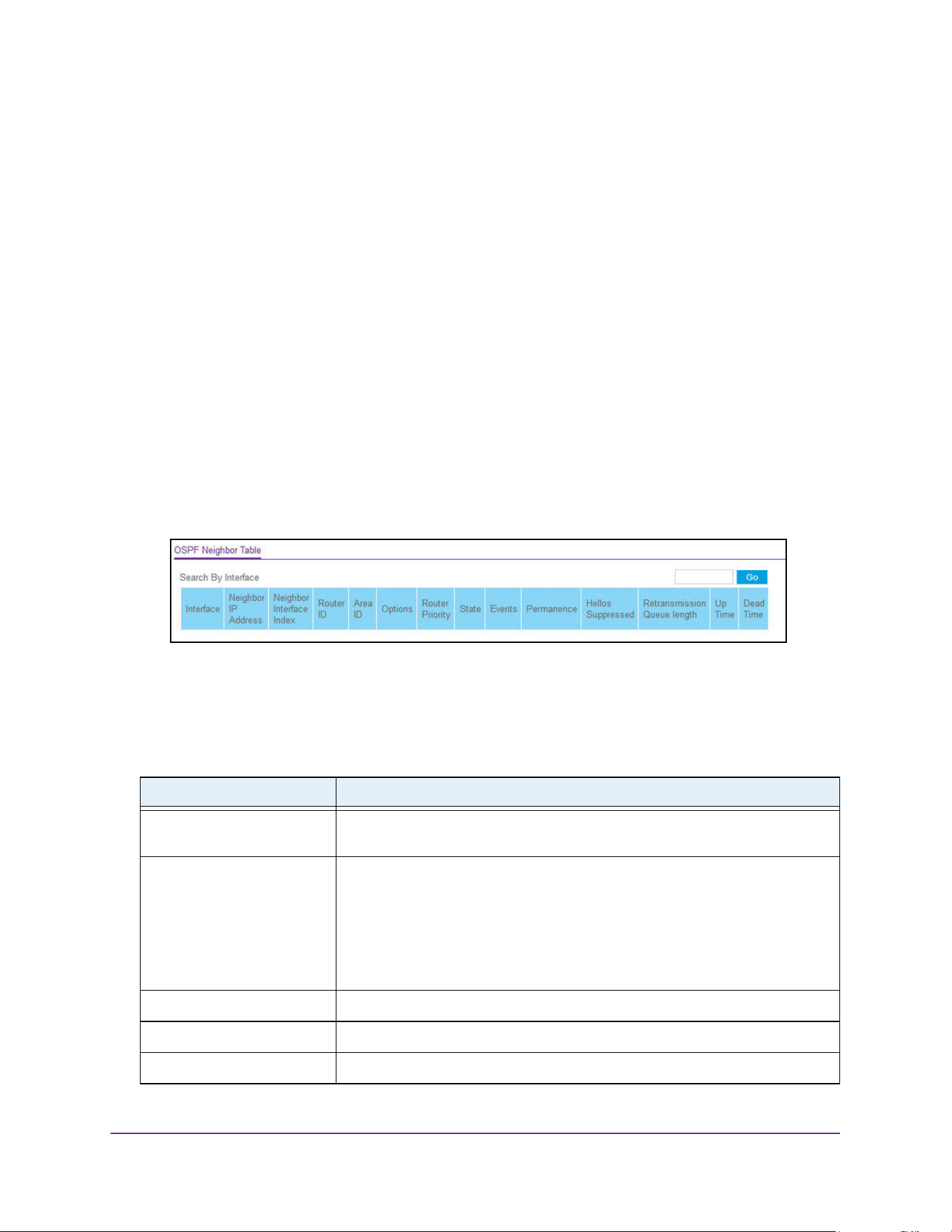
OSPF and OSPFv3
358
M4200 and M4300 Series ProSAFE Managed Switches Web Management User Manual
View and the OSPF Neighbor Table and Clear OSPF Neighbors
You can view the OSPF neighbor table list. When a particular neighbor ID is specified,
detailed information about a neighbor is given. The information is displayed only if OSPF is
enabled. You can also clear OSPF neighbors.
To view the OSPF neighbor table and clear OSPF neighbors:
1. Launch a web browser.
2. Enter http://<ipaddress> in the web browser address field.
The login window opens.
3. Enter the user name and password.
The default admin user name is admin and the default admin password is blank, that is,
do not enter a password.
4. Click the Login button.
The System Information page displays.
5. Select Routing > OSPF > Advanced > Neighbor Table.
6. To refresh the page with the latest information on the switch, click the Update button.
7. To clear all the neighbors in the table, click the Clear button.
The following table describes the nonconfigurable data that is displayed.
Table 133. OSPF Neighbor Table
Field Description
Interface The interface for which data is to be displayed or configured. Slot 0 is the base
unit.
Neighbor IP Address The IP address of the neighboring router's interface to the attached network. It is
used as the destination IP address when protocol packets are sent as unicasts
along this adjacency. Also used in router LSAs as the lik ID for the attached
network if the neighboring router is selected to be designated router. The
neighbor IP address is learned when hello packets are received from the
neighbor. For virtual links, the neighbor IP address is learned during the routing
table build process.
Neighbor Interface Index A unit/slot/port identifying the neighbor interface index.
Router ID A 32-bit integer in dotted-decimal format representing the neighbor interface.
Area ID The area ID of the OSPF area associated with the interface.

OSPF and OSPFv3
359
M4200 and M4300 Series ProSAFE Managed Switches Web Management User Manual
Options An integer value that indicates the optional OSPF capabilities supported by the
neighbor. The neighbor's optional OSPF capabilities are also listed in its hello
packets. This enables received hello packets to be rejected (for example,
neighbor relationships do not even start to form) if there is a mismatch in certain
crucial OSPF capabilities.
Router Priority The OSPF priority for the specified interface. The priority of an interface is a
priority integer from 0 to 255. A value of 0 indicates that the router is not eligible
to become the designated router on this network.
State The state of a neighbor can be the following:
• Down. This is the initial state of a neighbor conversation. It indicates that no
recent information was received from the neighbor. On NBMA networks,
hello packets can still be sent to Down neighbors, although at a reduced
frequency.
• Attempt. This state is valid only for neighbors attached to NBMA networks.
It indicates that no recent information was received from the neighbor, but
that a more concerted effort must be made to contact the neighbor. This is
done by sending the neighbor hello packets at hello intervals.
• Init. A hello packet was recently seen from the neighbor. However,
bidirectional communication was not yet established with the neighbor (for
example, the router did not appear in the neighbor's hello packet). All
neighbors in this state (or greater) are listed in the hello packets sent from
the associated interface.
• 2-Way. Communication between the two routers is bidirectional. This was
assured by the operation of the hello protocol. This is the most advanced
state short of beginning adjacency establishment. The backup designated
router is selected from the set of neighbors in state 2-way or greater.
• Exchange Start. This is the first step in creating an adjacency between the
two neighboring routers. The goal of this step is to decide which router is the
master, and to decide upon the initial DD sequence number. Neighbor
conversations in this state or greater are called adjacencies.
• Exchange. The router is describing its entire link state database by sending
database description packets to the neighbor. The link state request packets
can also be sent asking for the neighbor's more recent LSAs. All
adjacencies in the exchange state or greater are used by the flooding
procedure. These adjacencies are fully capable of transmitting and receiving
all types of OSPF routing protocol packets.
• Loading. Link state request packets are sent to the neighbor asking for the
more recent LSAs that were discovered (but not yet received) in the
exchange state.
• Full. The neighboring routers are fully adjacent. These adjacencies now
appear in router LSAs and network LSAs.
Events The number of times this neighbor relationship changed state, or an error
occurred.
Permanence This variable displays the status of the entry. Dynamic and Permanent refer to
how the neighbor became known.
Hellos Suppressed This indicates whether hellos are being suppressed to the neighbor.
Table 133. OSPF Neighbor Table (continued)
Field Description
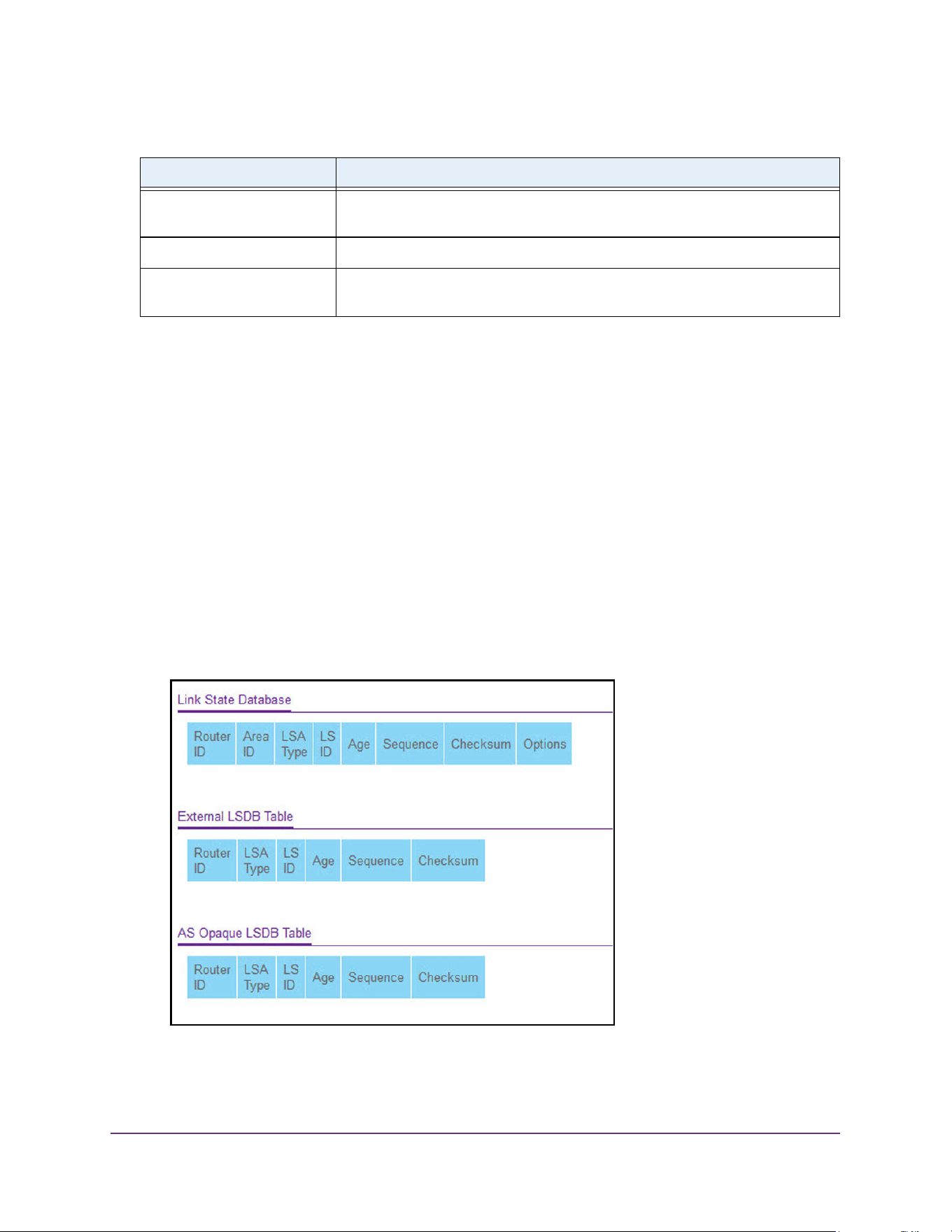
OSPF and OSPFv3
360
M4200 and M4300 Series ProSAFE Managed Switches Web Management User Manual
View the OSPF Link State Database
To view the OSPF link state database:
1. Launch a web browser.
2. Enter http://<ipaddress> in the web browser address field.
The login window opens.
3. Enter the user name and password.
The default admin user name is admin and the default admin password is blank, that is,
do not enter a password.
4. Click the Login button.
The System Information page displays.
5. Select Routing > OSPF > Advanced > Link State Database.
6. To refresh the page with the latest information on the switch, click the Update button.
Retransmission Queue
Length
An integer representing the current length of the retransmission queue of the
specified neighbor router ID of the specified interface.
Up Time Neighbor uptime; how long since the adjacency last reached the Full state.
Dead Time The amount of time, in seconds, to wait before the router assumes the neighbor
is unreachable.
Table 133. OSPF Neighbor Table (continued)
Field Description

OSPF and OSPFv3
361
M4200 and M4300 Series ProSAFE Managed Switches Web Management User Manual
The following table describes the nonconfigurable data that is displayed.
Table 134. OSPF Link State Database
Field Description
Router ID The 32-bit integer in dotted-decimal format that uniquely identifies the
router within the autonomous system (AS). The router ID is set on the
IP Configuration page. To change the router ID you must first disable
OSPF. After you set the new router ID, you must reenable OSPF for the
change to take effect. The default value is 0.0.0.0, although this is not a
valid router ID.
Area ID The ID of an OSPF area to which one of the router interfaces is
connected. An area ID is a 32-bit integer in dotted-decimal format that
uniquely identifies the area to which an interface is connected.
LSA Type The format and function of the link state advertisement. LSA Type is
one of the following:
• Illegal
• Router Links
• Network Links
• Network Summary
• ASBR Summary
• AS-external
• Group Member
• NSSA
• TMP2
• Link Opaque
• Area Opaque
• AS Opaque
• Unknown
LS ID The link state ID identifies the piece of the routing domain that is being
described by the advertisement. The value of the LS ID depends on the
advertisement's LS type.
Age The time since the link state advertisement was first originated, in
seconds.
Sequence The sequence number field is a signed 32-bit integer. It is used to
detect old and duplicate link state advertisements. The larger the
sequence number, the more recent the advertisement.
Checksum The checksum is used to detect data corruption of an advertisement.
This corruption can occur while an advertisement is being flooded, or
while it is being held in a router's memory. This field is the checksum of
the complete contents of the advertisement, except the LS age field.
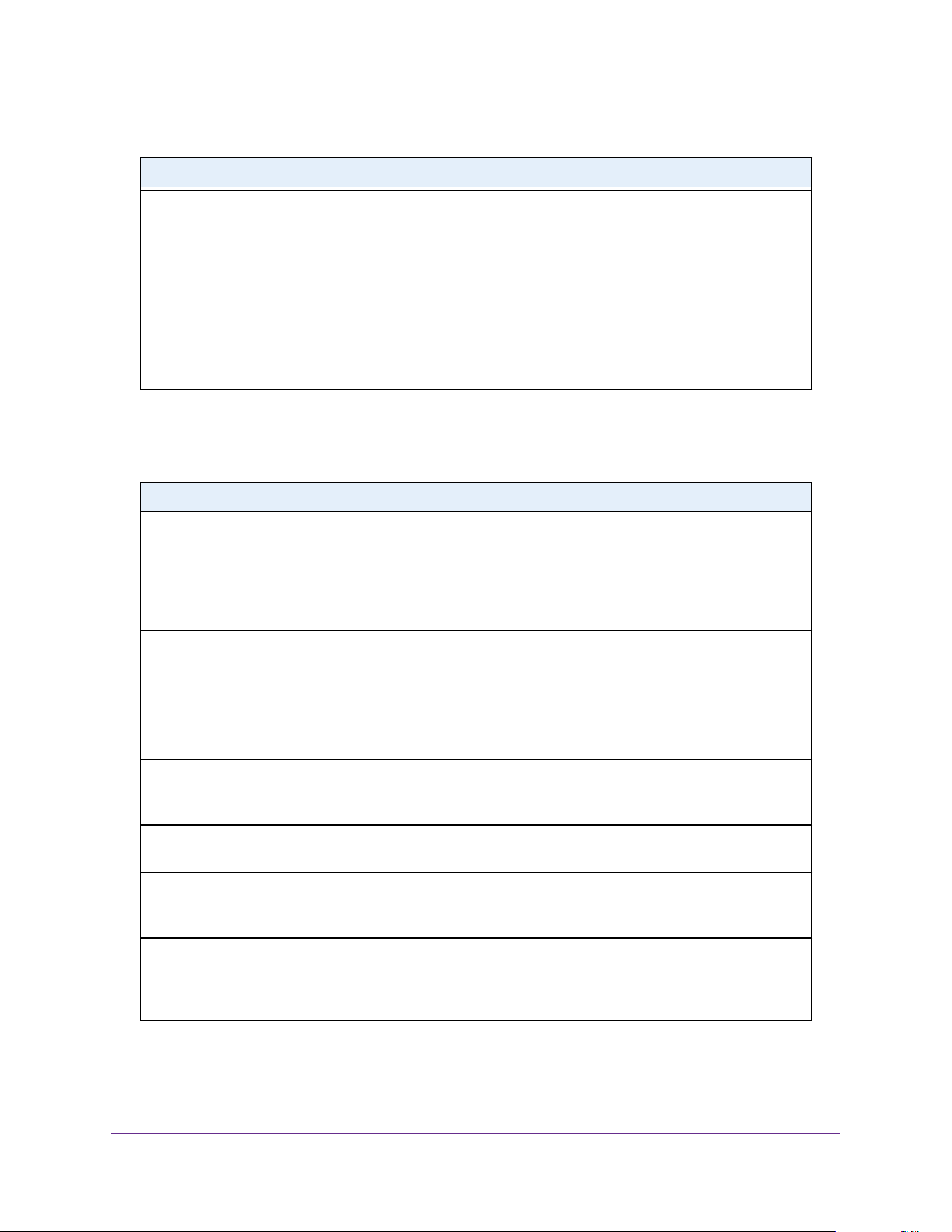
OSPF and OSPFv3
362
M4200 and M4300 Series ProSAFE Managed Switches Web Management User Manual
The following table describes the nonconfigurable data that is displayed in the External Link
State Database (LSDB) table.
Options The Options field in the link state advertisement header indicates which
optional capabilities are associated with the advertisement. The options
are as follows:
• Q. This enables support for QoS traffic engineering.
• E. This describes the way AS external LSAs are flooded.
• MC. This describes the way IP multicast datagrams are forwarded
according to the standard specifications.
• O. This describes whether opaque LSAs are supported.
• V. This describes whether OSPF++ extensions for VPN/COS are
supported.
Table 135. OSPF External Link State Database Table
Field Description
Router ID The 32-bit integer in dotted-decimal format that uniquely identifies the
router within the autonomous system (AS). The router ID is set on the
IP Configuration page. To change the router ID you must first disable
OSPF. After you set the new router ID, you must reenable OSPF for the
change to take effect. The default value is 0.0.0.0, although this is not a
valid router ID.
LSA Type The format and function of the link state advertisement. LSA Type is
one of the following:
• ASBR Summary
• AS-external
• NSSA
• TMP2
LS ID The link state ID identifies the piece of the routing domain that is being
described by the advertisement. The value of the LS ID depends on the
advertisement's LS type.
Age The time since the link state advertisement was first originated, in
seconds.
Sequence The sequence number field is a signed 32-bit integer. It is used to
detect old and duplicate link state advertisements. The larger the
sequence number, the more recent the advertisement.
Checksum The checksum is used to detect data corruption of an advertisement.
This corruption can occur while an advertisement is being flooded, or
while it is being held in a router's memory. This field is the checksum of
the complete contents of the advertisement, except the LS age field.
Table 134. OSPF Link State Database (continued)
Field Description

OSPF and OSPFv3
363
M4200 and M4300 Series ProSAFE Managed Switches Web Management User Manual
The following table describes the nonconfigurable data that is displayed in the AS Opaque
Link State Database (LSDB) table.
Configure the OSPF Virtual Link
To configure the OSPF virtual link:
1. Launch a web browser.
2. Enter http://<ipaddress> in the web browser address field.
The login window opens.
3. Enter the user name and password.
The default admin user name is admin and the default admin password is blank, that is,
do not enter a password.
4. Click the Login button.
The System Information page displays.
5. Select Routing > OSPF > Advanced > Virtual Link Configuration.
Table 136. OSPF AS Opaque Link State Database Table
Field Description
Router ID The 32-bit integer in dotted-decimal format that uniquely identifies the
router within the autonomous system (AS). The router ID is set on the
IP Configuration page. To change the router ID you must first disable
OSPF. After you set the new router ID, you must reenable OSPF for the
change to take effect. The default value is 0.0.0.0, although this is not a
valid router ID.
LSA Type The format and function of the link state advertisement. LSA Type is
one of the following:
• Area Opaque
• AS Opaque
• Link Opaque
LS ID The link state ID identifies the piece of the routing domain that is being
described by the advertisement. The value of the LS ID depends on the
advertisement's LS type.
Age The time since the link state advertisement was first originated, in
seconds.
Sequence The sequence number field is a signed 32-bit integer. It is used to
detect old and duplicate link state advertisements. The larger the
sequence number, the more recent the advertisement.
Checksum The checksum is used to detect data corruption of an advertisement.
This corruption can occur while an advertisement is being flooded, or
while it is being held in a router's memory. This field is the checksum of
the complete contents of the advertisement, except the LS age field.
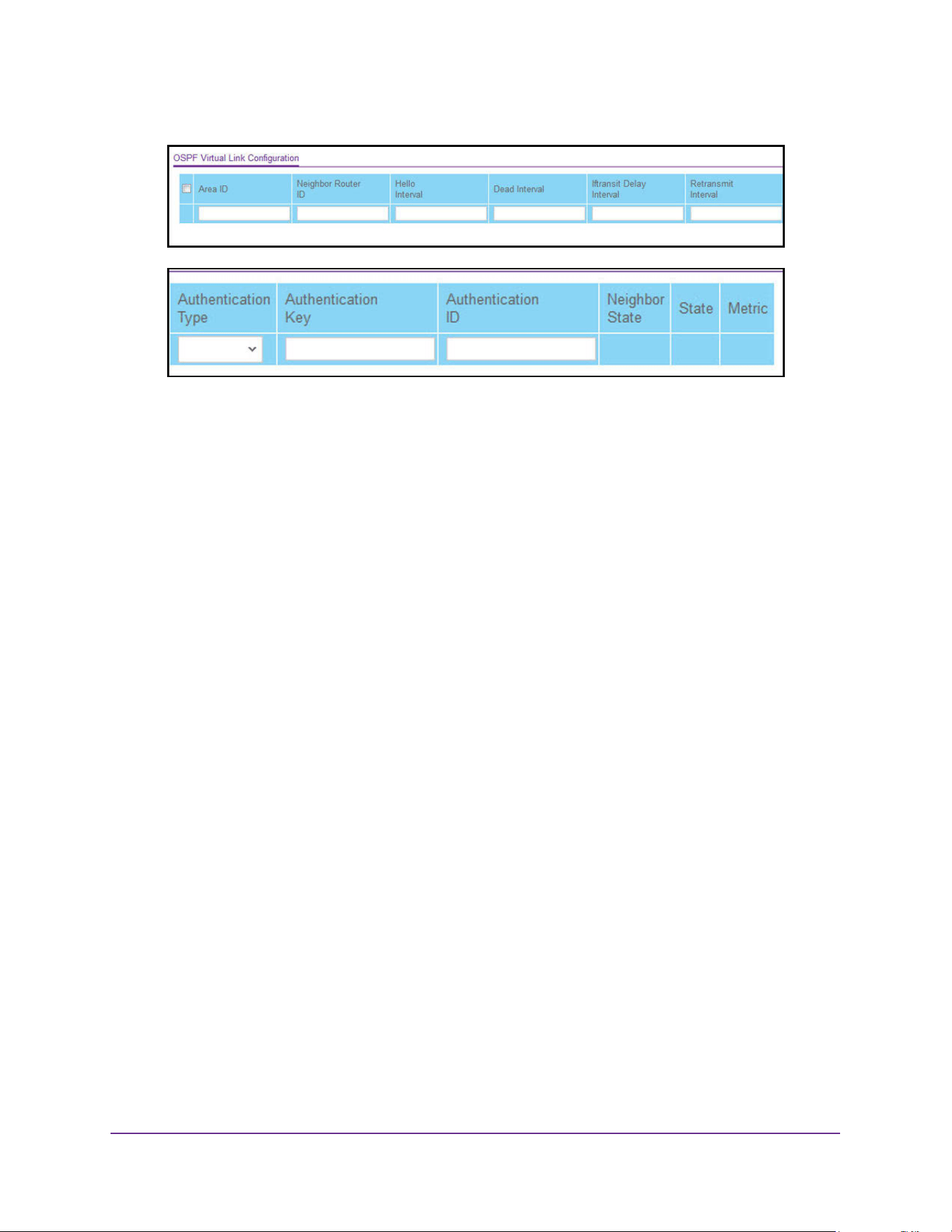
OSPF and OSPFv3
364
M4200 and M4300 Series ProSAFE Managed Switches Web Management User Manual
6. In the Area ID field, enter the OSPF area ID.
An area ID is a 32-bit integer in dotted-decimal format that uniquely identifies the area to
which a router interface connects.
Virtual links can be configured between any pair of area border routers having interfaces
to a common (non-backbone) area.
7. Configure the Neighbor Router ID by entering the neighbor portion of a virtual link
specification.
Virtual links can be configured between any pair of area border routers having interfaces
to a common (non-backbone) area.
8. In the Hello Interval field, enter the OSPF hello interval for the specified interface in
seconds.
This parameter must be the same for all routers attached to a network. The valid values
range from 1 to 65,535. The default is 10 seconds.
9. In the Dead Interval field, enter the OSPF dead interval for the specified interface in
seconds.
This specifies how long a router waits to see a neighbor router's hello packets before
declaring that the router is down. This parameter must be the same for all routers
attached to a network. This value must be a multiple of the hello interval (for example, 4).
The valid values range from 1 to 65,535. The default is 40.
10. In the Iftransit Delay Interval field, enter the OSPF transit delay for the specified interface.
This specifies the estimated number of seconds it takes to transmit a link state update
packet over the selected interface. The valid values range from 1 to 3600 seconds (1
hour). The default value is 1 second.
11. In the Retransmit Interval field, enter the OSPF retransmit interval for the specified
interface.
This is the number of seconds between link state advertisements for adjacencies
belonging to this router interface. This value is also used when retransmitting database
descriptions and link state request packets. The valid values range from 1 to 3600
seconds (1 hour). The default is 5 seconds.

OSPF and OSPFv3
365
M4200 and M4300 Series ProSAFE Managed Switches Web Management User Manual
12. From the Authentication Type menu, select one of the following authentication types:
• None. This is the initial interface state.
• Simple. If you select Simple, you are prompted to enter an authentication key. This
key is included, in the clear, in the OSPF header of all packets sent on the network.
All routers on the network must be configured with the same key.
• Encrypt. If you select Encrypt you are prompted to enter both an authentication key
and an authentication ID. Encryption uses the MD5 Message-Digest algorithm. All
routers on the network must be configured with the same key and ID.
13. In the Authentication Key field, enter the OSPF authentication key for the specified
interface.
If you do not select authentication, you are not prompted to enter a key.
• If you select Simple authentication, you cannot use a key of more than 8 octets.
• If you select Encrypt, the key can be up to 16 octets long.
The key value is displayed only if you are logged on with read/write privileges; otherwise,
it is displayed as asterisks.
14. In the Authentication ID field, enter the ID to be used for authentication.
You are prompted to enter an ID only when you select Encrypt as the authentication
type. The ID is a number between 0 and 255, inclusive.
15. Click the Add button
The new virtual link is added.
16. Click the Apply button.
The updated configuration is sent to the switch. Configuration changes take effect
immediately.
The following table describes the nonconfigurable data that is displayed.
Table 137. OSPF Virtual Link Configuration
Field Description
Neighbor State The OSPF interface state can be one of these values:
• Down. This is the initial interface state. The lower-level protocols
indicated that the interface is unusable. Interface parameters are set to
their initial values. All interface timers are disabled, and there are no
adjacencies associated with the interface.
• Waiting. The router is trying to determine the identity of the backup
designated router by monitoring received hello packets. The router is
not allowed to elect a backup designated router or a designated router
until it transitions out of Waiting state. This prevents unnecessary
changes of backup designated router.

OSPF and OSPFv3
366
M4200 and M4300 Series ProSAFE Managed Switches Web Management User Manual
Neighbor State
(continued)
• Point-to-Point. The interface is operational, and is connected either to
the virtual link. On entering this state the router attempts to form an
adjacency with the neighboring router. hello packets are sent to the
neighbor every hello interval seconds.
• Designated Router. This router is the designated router on the
attached network. Adjacencies are established to all other routers
attached to the network. The router must also originate a network-LSA
for the network node. The network- LSA contain links to all routers
(including the designated router) attached to the network.
• Backup Designated Router. This router is the backup designated
router on the attached network. It is promoted to designated router if
the present designated router fails. The router establishes adjacencies
to all other routers attached to the network. The backup designated
router performs slightly different functions during the flooding
procedure, as compared to the designated router.
• Other Designated Router. The interface is connected to a broadcast
or NBMA network on which other routers were selected to be the
designated router and backup designated router either. The router
attempts to form adjacencies to both the designated router and the
backup designated router.
State The state of the interface. It takes one the following values:
• Down. This is the initial interface state. The lower-level protocols
indicated that the interface is unusable. Interface parameters are set to
their initial values. All interface timers are disabled, and there are no
adjacencies associated with the interface.
• Waiting. The router is trying to determine the identity of the backup
designated router by monitoring received hello packets. The router is
not allowed to elect a backup designated router or a designated router
until it transitions out of waiting state. This prevents unnecessary
changes of backup designated router.
• Point-to-Point. The interface is operational, and is connected either to
the virtual link. On entering this state the router attempts to form an
adjacency with the neighboring router. hello packets are sent to the
neighbor every hello interval seconds.
• Designated Router. This router is the designated router on the
attached network. Adjacencies are established to all other routers
attached to the network. The router must also originate a network-LSA
for the network node. The network- LSA contain links to all routers
(including the designated router) attached to the network.
• Backup Designated Router. This router is the backup designated
router on the attached network. It is promoted to designated router if
the present designated router fails. The router establishes adjacencies
to all other routers attached to the network. The backup designated
router performs slightly different functions during the flooding
procedure, as compared to the designated router.
Table 137. OSPF Virtual Link Configuration (continued)
Field Description
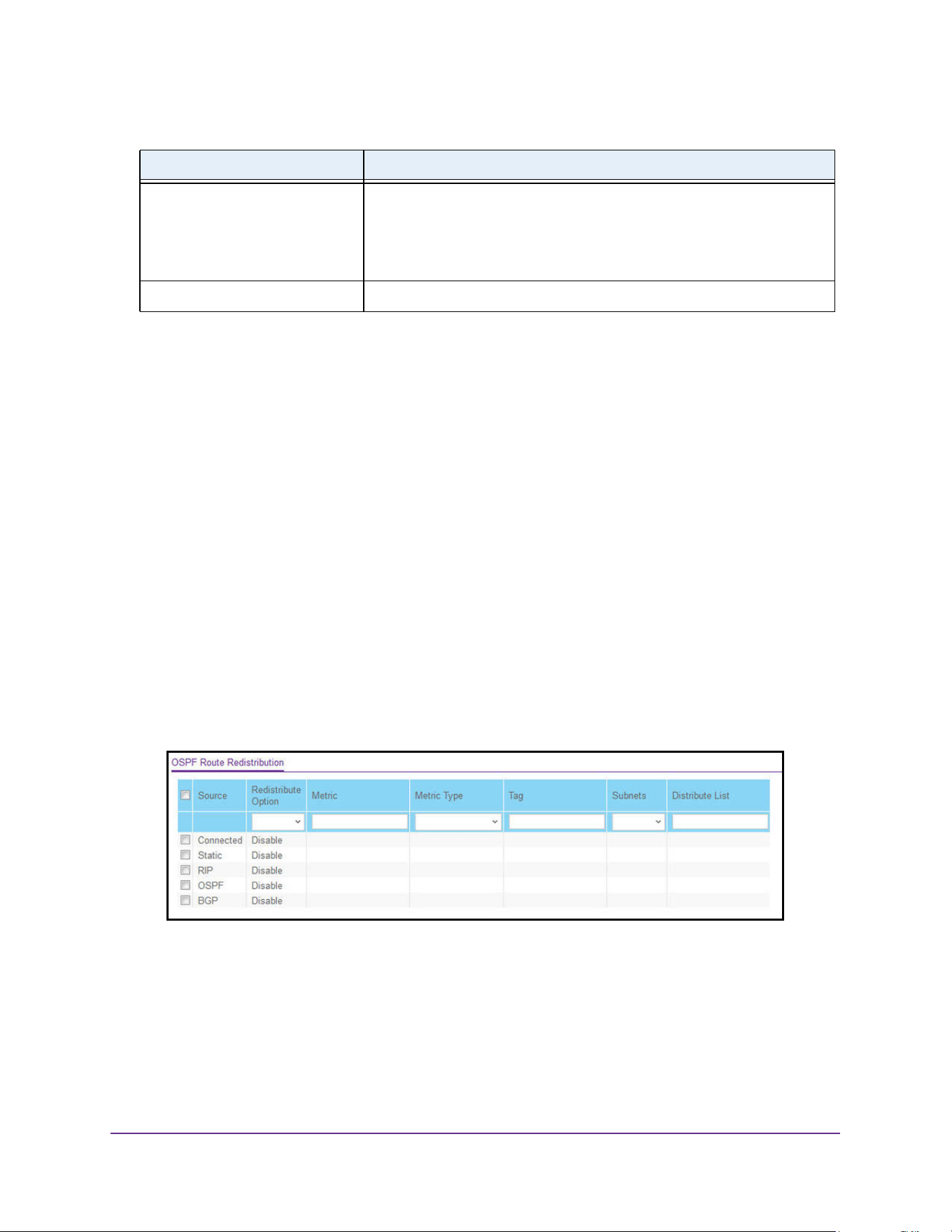
OSPF and OSPFv3
367
M4200 and M4300 Series ProSAFE Managed Switches Web Management User Manual
Configure the OSPF Route Redistribution
You can configure the OSPF Route Redistribution parameters. The allowable values for each
field are displayed next to the field. If any invalid values are entered, an alert message is
displayed with the list of all the valid values.
Configure the OSPF route redistribution:
1. Launch a web browser.
2. Enter http://<ipaddress> in the web browser address field.
The login window opens.
3. Enter the user name and password.
The default admin user name is admin and the default admin password is blank, that is,
do not enter a password.
4. Click the Login button.
The System Information page displays.
5. Select Routing > OSPF > Advanced > Route Redistribution.
6. From the Source menu, select from the list of available source routes that were not
previously configured for redistribution by OSPF.
The valid values are as follows:
• BGP
• Connected
• OSPF
State
(continued)
• Other Designated Router. The interface is connected to a broadcast
or NBMA network on which other routers were selected to be the
designated router and backup designated router either. The router
attempts to form adjacencies to both the designated router and the
backup designated router.
Metric The metric value used by the Virtual Link.
Table 137. OSPF Virtual Link Configuration (continued)
Field Description

OSPF and OSPFv3
368
M4200 and M4300 Series ProSAFE Managed Switches Web Management User Manual
• RIP
• Static
7. In the Redistribute list, select to Enable or Disable the redistribution for the selected source
protocol.
8. Set the Metric value to be used as the metric of redistributed routes.
This fields displays the metric if the source was preconfigured and can be modified. The
valid values are 0 to 16777214.
9. From the Metric Type list, select the OSPF metric type of redistributed routes.
10. Set the Tag field in routes redistributed.
This field displays the tag if the source was preconfigured; otherwise, the tag is 0 and can
be modified. The valid values are 0 to 4294967295.
11. From the Subnets list, select whether the subnetted routes will be redistributed (Enable) or
not (Disable).
12. In the Distribute List field, set the access list that filters the routes to be redistributed by the
destination protocol.
Only permitted routes are redistributed. If this command refers to a nonexistent access
list, all routes are permitted. The valid values for access list IDs are 1 to 199.
When used for route filtering, the only fields in an access list that get used are as follows:
• Source IP address and netmask
• Destination IP address and netmask
• Action (permit or deny)
All other fields (source and destination port, precedence, ToS, and so on) are ignored.
The source IP address is compared to the destination IP address of the route. The source
IP netmask in the access list rule is treated as a wildcard mask, indicating which bits in
the source IP address must match the destination address of the route.
Note: A 1 in the mask indicates a do not care in the corresponding address bit.
When an access list rule includes a destination IP address and netmask (an extended
access list), the destination IP address is compared to the network mask of the
destination of the route. The destination netmask in the access list serves as a wildcard
mask, indicating which bits in the route's destination mask are significant for the filtering
operation.
13. Click the Apply button.
The updated configuration is sent to the switch. Configuration changes take effect
immediately.
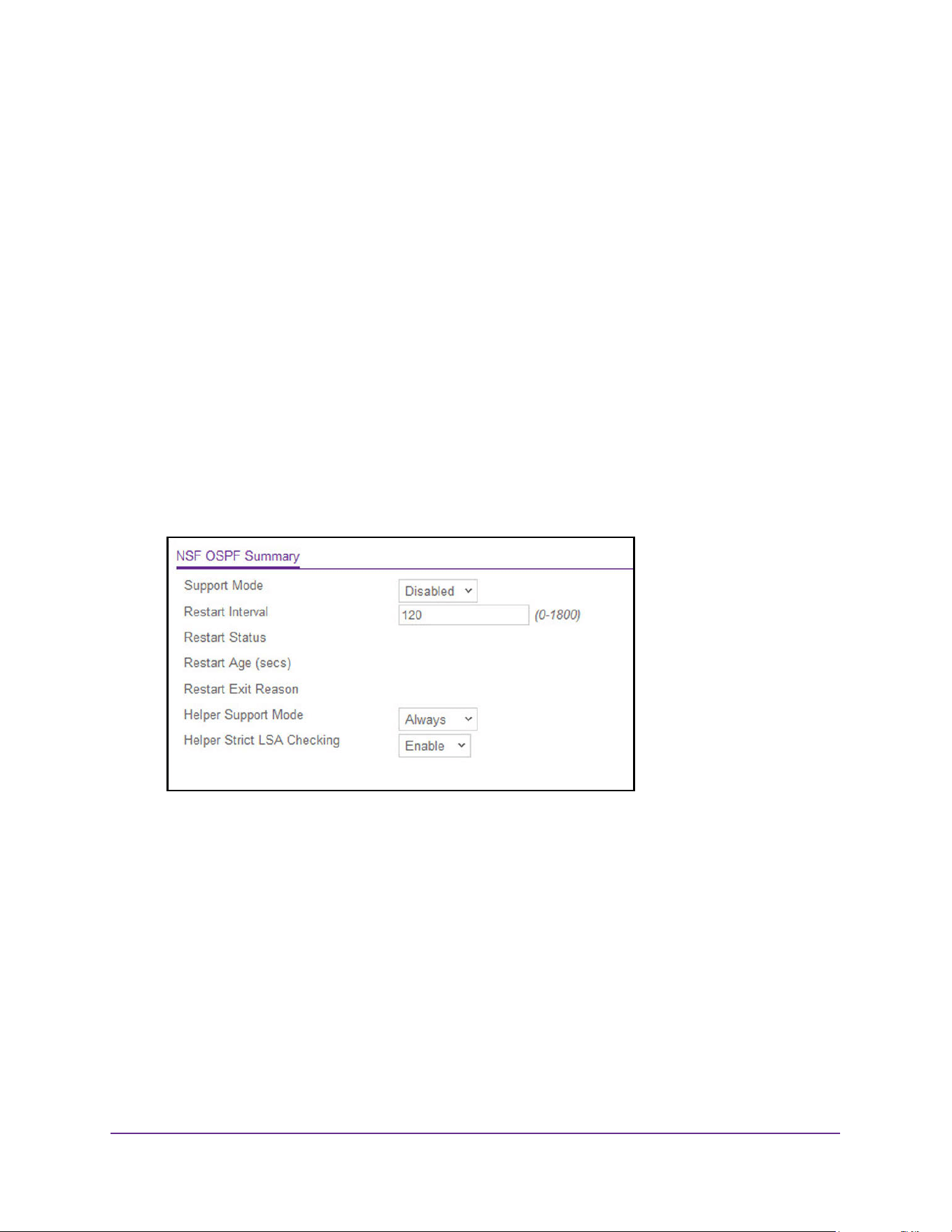
OSPF and OSPFv3
369
M4200 and M4300 Series ProSAFE Managed Switches Web Management User Manual
View the NSF OSPF Summary
You can view the NSF OSPF summary. The allowable values for each field are displayed
next to the field. If any invalid values are entered, an alert message is displayed with the list
of all the valid values.
To configure the NSF OSPF summary:
1. Launch a web browser.
2. Enter http://<ipaddress> in the web browser address field.
The login window opens.
3. Enter the user name and password.
The default admin user name is admin and the default admin password is blank, that is,
do not enter a password.
4. Click the Login button.
The System Information page displays.
5. Select Routing > OSPF > Advanced > NSF OSPF Summary.
6. From the Support Mode list, configure how the unit performs graceful restarts by selecting
from the following possible values:
• Always. Indicates that OSPF performs a graceful restart for all planned and
unplanned warm restart events.
• Disabled. Disables OSPF performing graceful restarts.
• Planned. Indicates that OSPF performs a graceful restart only when a restart is
planned (for example, due to an initiate failover command).
The default is Disabled.
7. Configure the Restart Interval. The valid values are 0 to 1800 in seconds.
The default is 120 seconds.
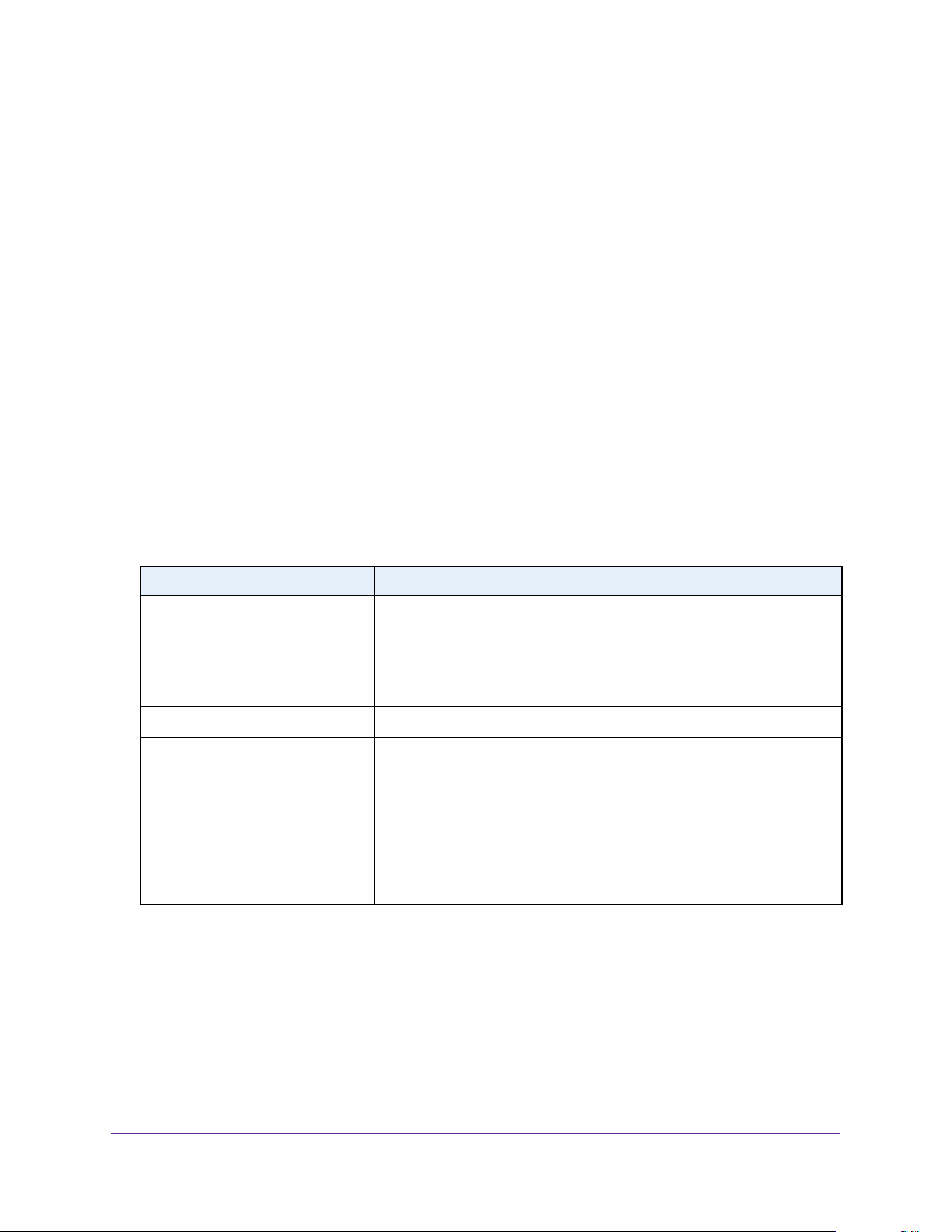
OSPF and OSPFv3
370
M4200 and M4300 Series ProSAFE Managed Switches Web Management User Manual
8. Use the Helper Support Mode field to configure how the unit acts when a neighbor
performs a warm restart.
The possible values are as follows:
• Always. Indicates that OSPF helps a restarting neighbor only during all planned and
unplanned warm restart events.
• Disabled. Disables OSPF acting as a helpful neighbor.
• Planned. Indicates that OSPF helps a restarting neighbor only during planned
events.
The default is Always.
9. Configure Helper Strict LSA Checking by selecting Enable or Disable.
When enabled, the unit exits helper mode whenever the topology changes.
10. Click the Apply button.
The updated configuration is sent to the switch. Configuration changes take effect
immediately.
The following table describes the nonconfigurable data that is displayed.
Table 138. NSF OSPF Summary
Field Description
Restart Status The restart status of OSPF Helper feature. The possible values are as
follows:
• Not Restarting
• Planned Restart
• Unplanned Restart
Restart Age (seconds) The amount of time since the last restart occurred.
Restart Exit Reason Displays how the master unit on the switch last started up. The possible
values are as follows:
• Not Attempted. Graceful restart was not attempted.
• In Progress. Restart is in progress.
• Completed. The previous graceful restart completed successfully.
• Timed Out. The previous graceful restart timed out.
• Topology Changed. The previous graceful restart terminated
prematurely because of a topology change.
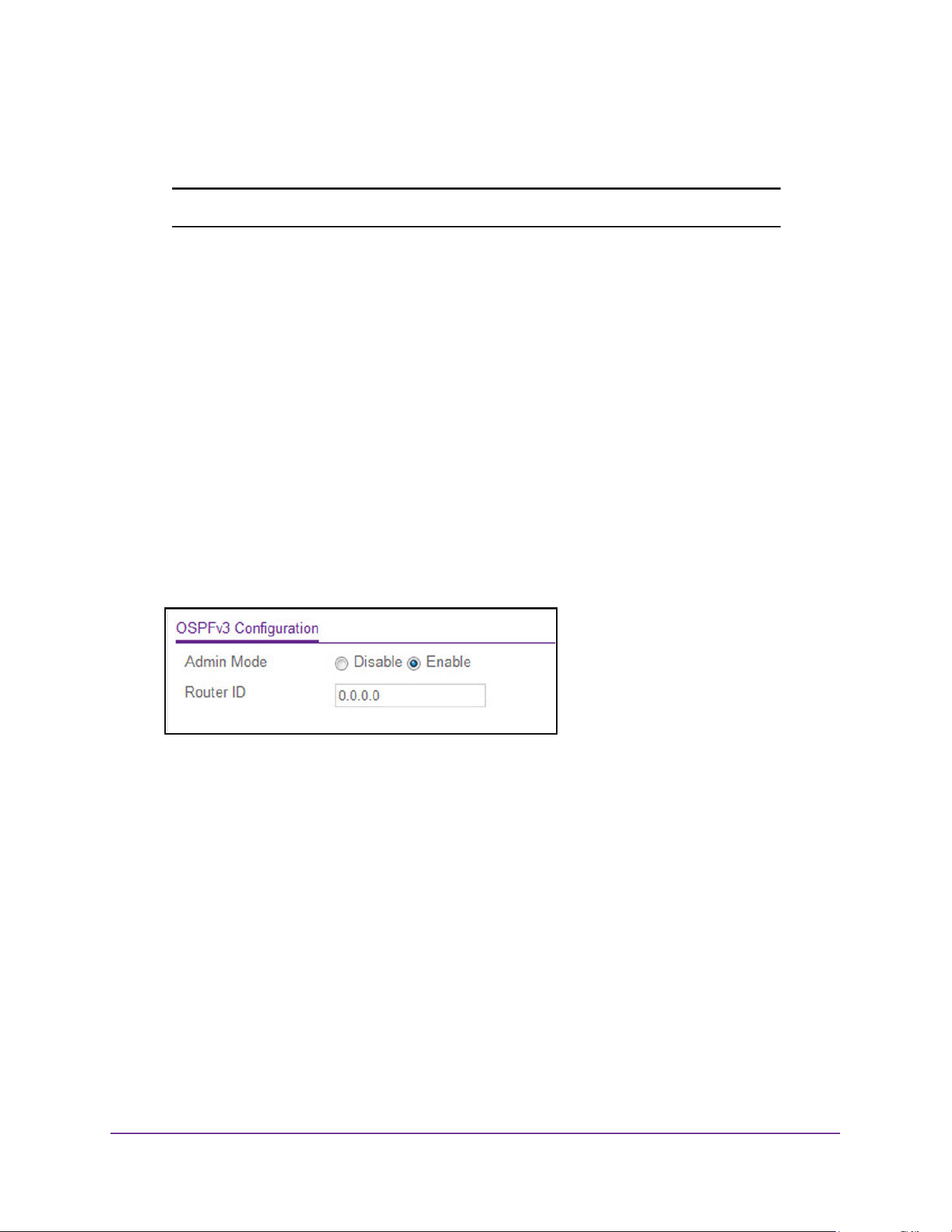
OSPF and OSPFv3
371
M4200 and M4300 Series ProSAFE Managed Switches Web Management User Manual
Configure OSPFv3
Note: OSPFv3 is supported on the M4300 series switches only.
Configure Basic OSPFv3 Settings
To configure the basic OSPFv3 settings:
1. Launch a web browser.
2. Enter http://<ipaddress> in the web browser address field.
The login window opens.
3. Enter the user name and password.
The default admin user name is admin and the default admin password is blank, that is,
do not enter a password.
4. Click the Login button.
The System Information page displays.
5. Select Routing > OSPFv3 > Basic > OSPFv3 Configuration.
6. Select the Admin Mode Disable or Enable radio button.
If you select Enable, OSPFv3 is activated for the switch. By default, OSPFv3 is enabled.
You must configure a router ID before OSPFv3 can become operational. For more
information, see Configure the Routing IP Settings on page 281.
Note: Once OSPFv3 is initialized on the router, it remains initialized until the
router is reset.
7. Enter the Router ID as a 32-bit integer in dotted-decimal format that uniquely identifies the
router within the autonomous system (AS).
To change the router ID, you must first disable OSPFv3. After you set the new router ID,
you must reenable OSPFv3 for the change to take effect. The default value is 0.0.0.0,
although this is not a valid router ID.
8. Click the Apply button.
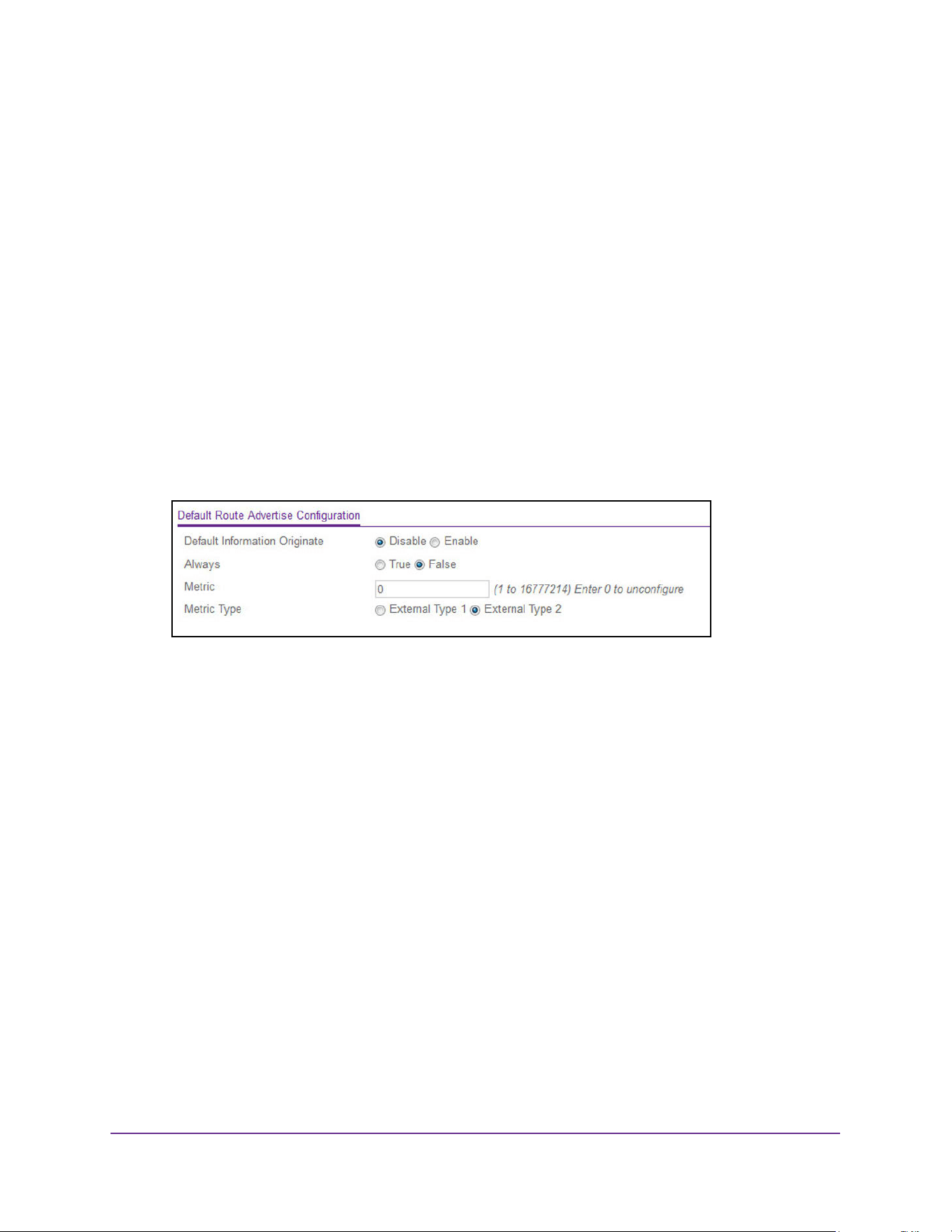
OSPF and OSPFv3
372
M4200 and M4300 Series ProSAFE Managed Switches Web Management User Manual
The updated configuration is sent to the switch. Configuration changes take effect
immediately.
Configure OSPFv3 Default Route Advertise Settings
1. Launch a web browser.
2. Enter http://<ipaddress> in the web browser address field.
The login window opens.
3. Enter the user name and password.
The default admin user name is admin and the default admin password is blank, that is,
do not enter a password.
4. Click the Login button.
The System Information page displays.
5. Select Routing > OSPFv3 > Advanced > OSPFv3 Configuration.
6. Select the Default Information Originate Enable radio button.
Selecting Enable makes it possible to specify the other settings on this page. Selecting
Disable returns the other fields on this page to their default values.
7. Select the Always True or False radio button.
When set to True, this field sets the router advertise. The default is False.
8. In the Metric field, specify the metric of the default route.
The valid values range from 0 to 16777214. The default is 0.
9. Select the Metric Type External Type 1 or External Type 2 radio button.
This sets the OSPFv3 metric type of the default route. The default is External Type 2.
10. Click the Apply button.
The updated configuration is sent to the switch. Configuration changes take effect
immediately.
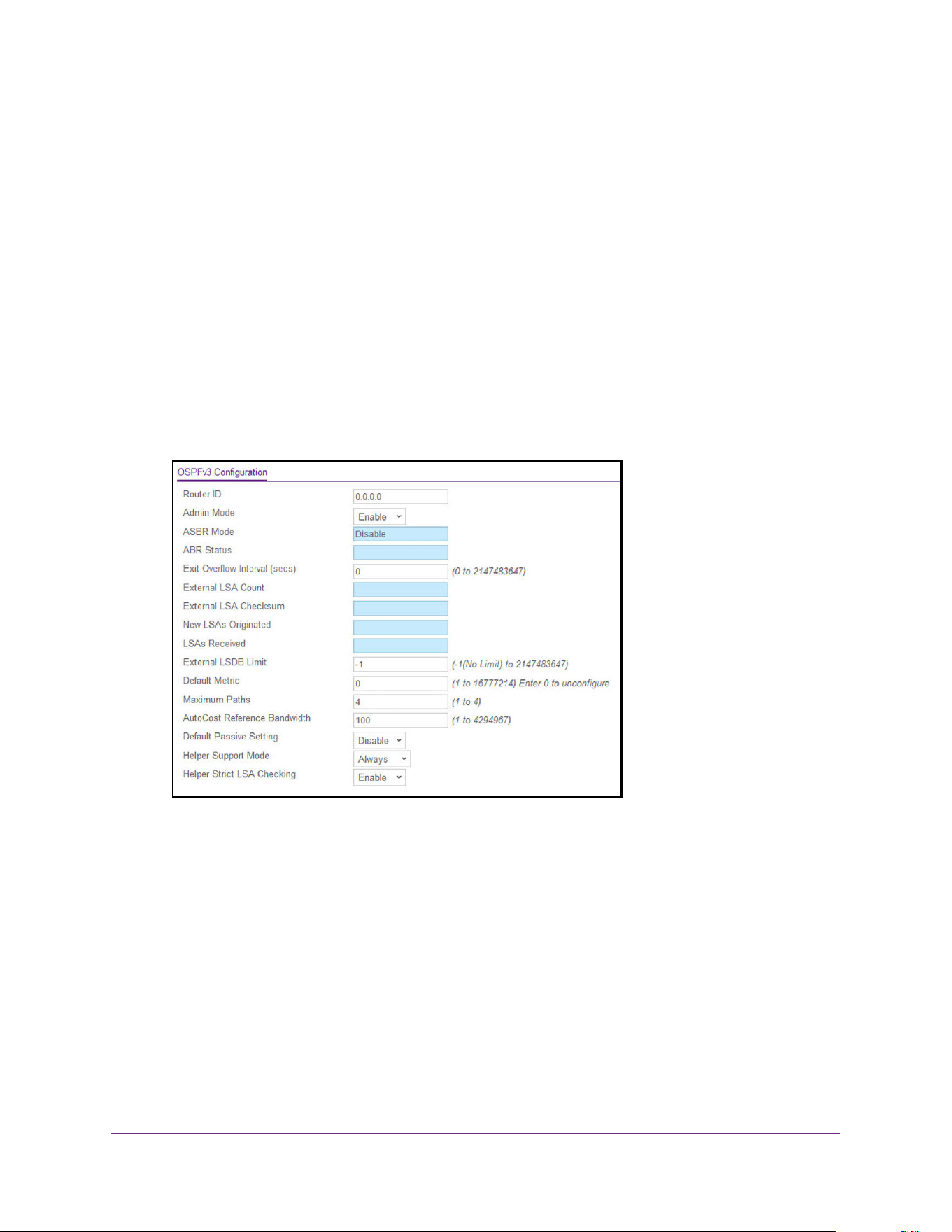
OSPF and OSPFv3
373
M4200 and M4300 Series ProSAFE Managed Switches Web Management User Manual
Configure the Advanced OSPFv3 Settings
To configure the advanced OSPFv3 settings:
1. Launch a web browser.
2. Enter http://<ipaddress> in the web browser address field.
The login window opens.
3. Enter the user name and password.
The default admin user name is admin and the default admin password is blank, that is,
do not enter a password.
4. Click the Login button.
The System Information page displays.
5. Select Routing > OSPFv3 > Advanced > OSPFv3 Configuration.
6. Enter the Router ID in 32-bit integer, dotted-decimal format that uniquely identifies the router
within the autonomous system (AS).
To change the router ID you must first disable OSPFv3. After you set the new router ID,
you must reenable OSPFv3 for the change to take effect. The default value is 0.0.0.0,
although this is not a valid router ID.
7. In the Admin Mode field, select Enable or Disable.
If you select Enable, OSPFv3 is activated for the switch. The default value is Enable. You
must configure a router ID before OSPFv3 can become operational. For more
information, see Configure the Routing IP Settings on page 281.
Note: Once OSPFv3 is initialized on the router, it remains initialized until the
router is reset.

OSPF and OSPFv3
374
M4200 and M4300 Series ProSAFE Managed Switches Web Management User Manual
8. In the Exit Overflow Interval field, specify the number of seconds that, after entering
overflow state, the router must wait before attempting to leave overflow state.
Because OSPFv3 cannot originate nondefault external LSAs while in overflow state, this
allows the router to again originate nondefault AS-external-LSAs. If you enter an exit
overflow interval of 0, the router does not leave the overflow state until it is restarted. The
range is 0 to 2,147,483,647 seconds. The default is 0.
When the number of nondefault external LSAs exceeds a configured limit, the router
enters an overflow state as defined in RFC 1765.
9. Enter the External LSDB Limit. This is the maximum number of AS-external-LSAs that can
be stored in the database.
A value of –1 implies there is no limit on the number that can be saved. The valid range of
values is –1 to 2147483647. The default is –1 (no limit).
10. Use the Default Metric field to set a default for the metric of redistributed routes.
This field displays the default metric if one was already set, or blank if one was not
configured earlier. The valid values are 1 to 16777214. The default is 0 (unconfigured).
11. Use the Maximum Paths field to configure the maximum number of paths that OSPFv3 can
report to a given destination.
The valid values are 1 to 4.
12. Configure the AutoCost Reference Bandwidth to control how OSPF calculates default
metrics for the interface.
The valid values are 1 to 4294967. The default is 100.
13. In the Default Passive Setting, select the Enable or Disable option to configure the global
passive mode setting for all OSPF interfaces.
Configuring this field overwrites any present interface-level passive mode setting. OSPF
does not form adjacencies on passive interfaces, but does advertise attached networks
as stub networks.
14. Use Helper Support Mode to configure how the unit acts when a neighbor performs a
warm restart.
The possible values are as follows:
• Planned. OSPF helps a restarting neighbor only during planned events.
• Always. OSPF helps a restarting neighbor during all planned and unplanned warm
restart events.
• Disabled. OSPF does not act as a helpful neighbor.
15. Configure Helper Strict LSA Checking by selecting the Enable or Disable option.
When enabled, the unit exits helper mode whenever the topology changes.
16. Click the Apply button.
The updated configuration is sent to the switch. Configuration changes take effect
immediately.

OSPF and OSPFv3
375
M4200 and M4300 Series ProSAFE Managed Switches Web Management User Manual
The following table describes the nonconfigurable data that is displayed.
Configure the OSPFv3 Common Area
To configure an OSPFv3 common area or return an OSPFv3 common area to the
normal state:
1. Launch a web browser.
2. Enter http://<ipaddress> in the web browser address field.
The login window opens.
3. Enter the user name and password.
The default admin user name is admin and the default admin password is blank, that is,
do not enter a password.
4. Click the Login button.
The System Information page displays.
5. Select Routing > OSPFv3 > Advanced > Common Area Configuration.
Table 139. Advanced OSPFv3 Configuration
Field Description
ASBR Mode Reflects whether the ASBR mode is enabled or disabled. Enable implies
that the router is an autonomous system border router. Router
automatically becomes an ASBR when it is configured to redistribute
routes learned from other protocol.
ABR Status The values of this are Enabled or Disabled. Enabled implies that the
router is an area border router. Disabled implies that it is not an area
border router.
External LSA Count The number of external (LS type 5) link state advertisements (LSAs) in
the link state database.
External LSA Checksum The sum of the LS checksums of the external LSAs contained in the link
state database. This sum can be used to determine if there was a
change in a router's link state database, and to compare the link state
databases of two routers.
New LSAs Originated In any given OSPFv3 area, a router originates several LSAs. Each router
originates a router-LSA. If the router is also the designated router for any
of the area's networks, it originates network-LSAs for those networks.
This value represents the number of LSAs originated by this router.
LSAs Received The number of LSAs received that were determined to be new
instantiations. This number does not include newer instantiations of
self-originated LSAs.
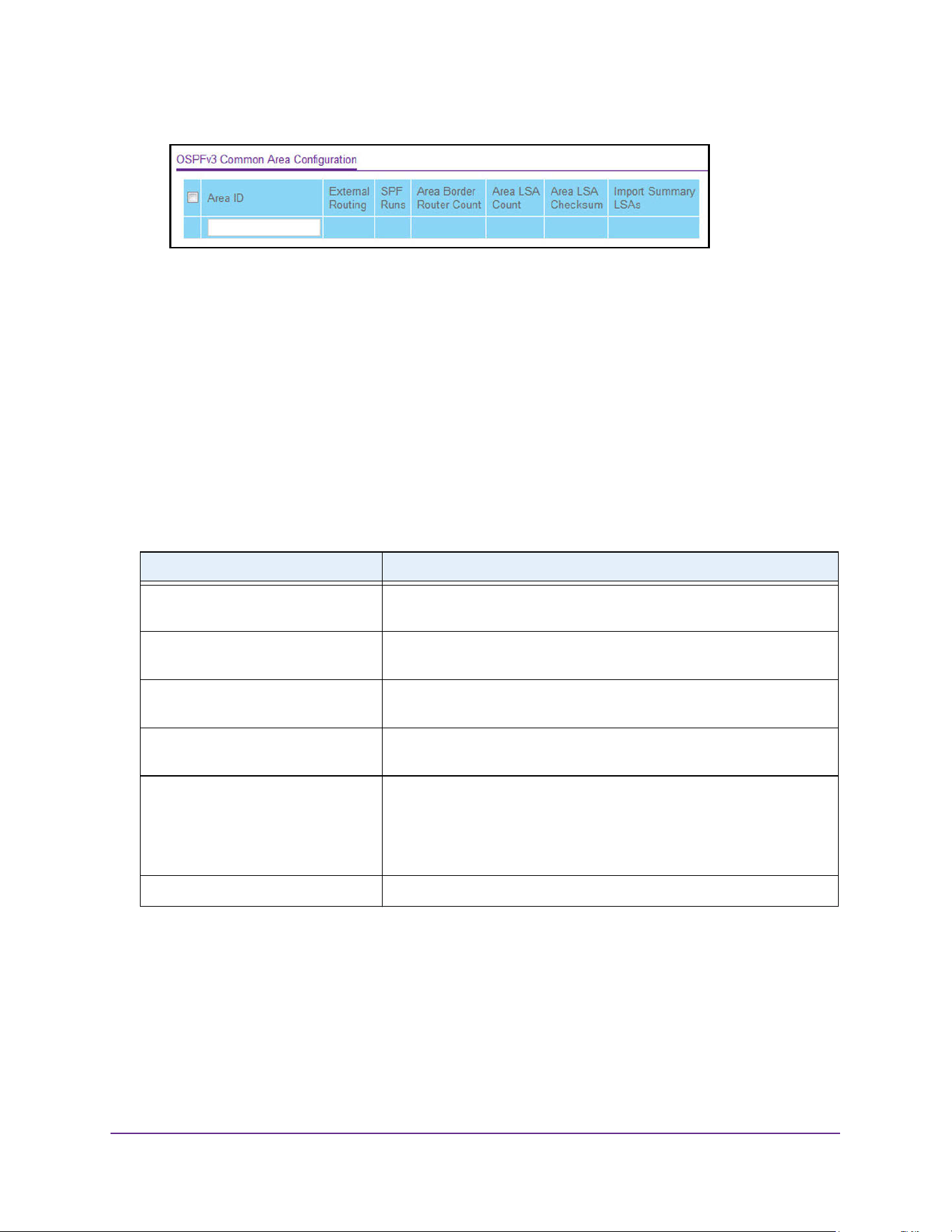
OSPF and OSPFv3
376
M4200 and M4300 Series ProSAFE Managed Switches Web Management User Manual
6. In the Area ID field, enter the OSPF area ID.
An area ID is a 32-bit integer in dotted-decimal format that uniquely identifies the area to
which a router interface connects.
7. Take one of the following actions:
• Click the Add button.
The area is configured as a common area.
• Click the Delete button.
The area is returned to the normal state.
The following table describes the nonconfigurable data that is displayed.
Table 140. Advanced OSPFv3 Common Area Configuration
Field Description
External Routing A definition of the router's capabilities for the area, including whether or
not AS-external-LSAs are flooded into or throughout the area.
SPF Runs The number of times that the intra-area route table was calculated using
this area's link state database. This is done using Dijkstra's algorithm.
Area Border Router Count The total number of area border routers reachable within this area. This
is initially zero, and is calculated in each SPF pass.
Area LSA Count The total number of link state advertisements in this area's link state
database, excluding AS external LSAs.
Area LSA Checksum The 32-bit unsigned sum of the link state advertisements' LSA
checksums contained in this area's link state database. This sum
excludes external (LSA type 5) link state advertisements. The sum can
be used to determine if there was a change in a router's link state
database, and to compare the link state database of two routers.
Import Summary LSAs The summary LSAs are enabled or disabled imported into this area.
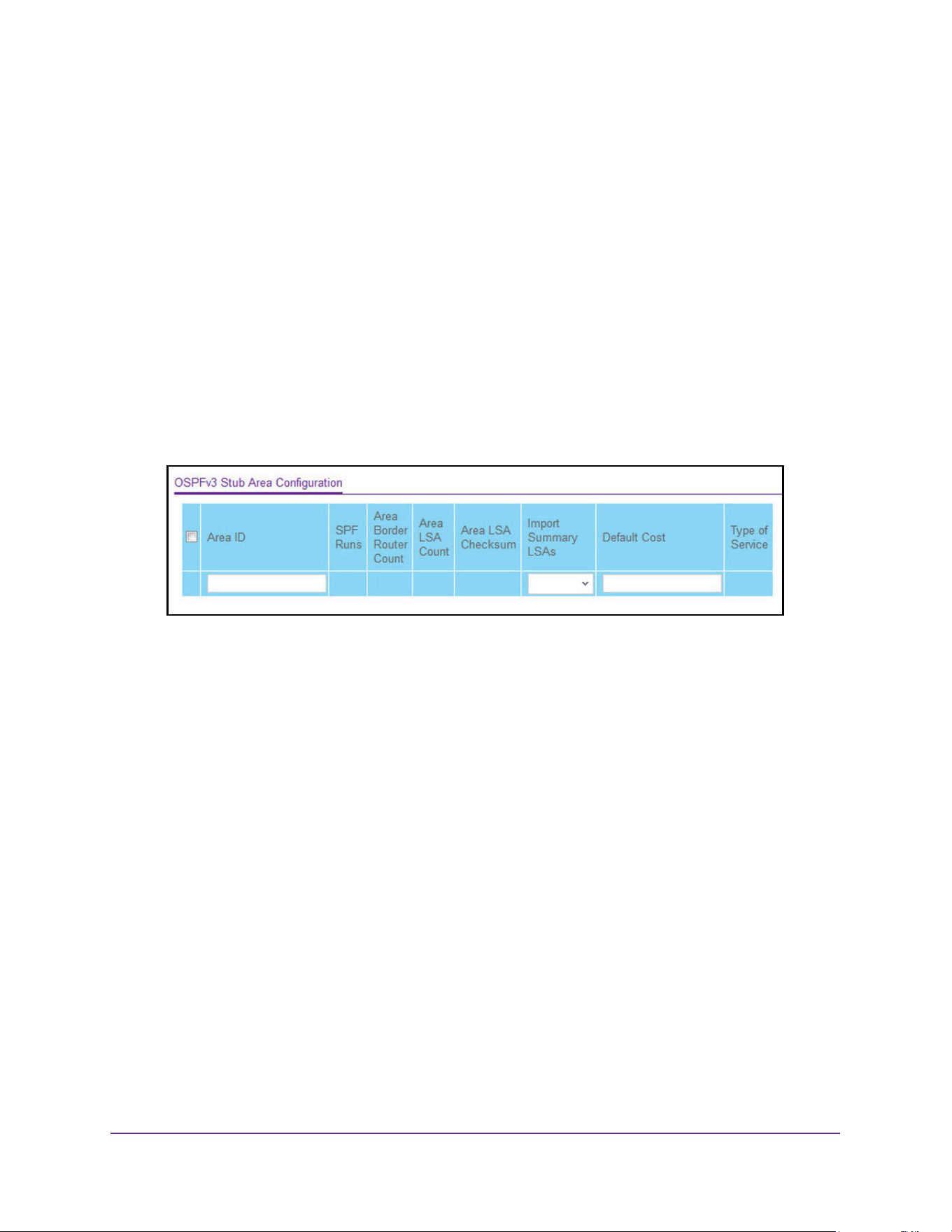
OSPF and OSPFv3
377
M4200 and M4300 Series ProSAFE Managed Switches Web Management User Manual
Configure an OSPFv3 Stub Area
To configure the OSPFv3 stub area:
1. Launch a web browser.
2. Enter http://<ipaddress> in the web browser address field.
The login window opens.
3. Enter the user name and password.
The default admin user name is admin and the default admin password is blank, that is,
do not enter a password.
4. Click the Login button.
The System Information page displays.
5. Select Routing > OSPFv3 > Advanced > Stub Area Configuration.
6. In the Area ID field, enter the OSPF area ID.
An area ID is a 32-bit integer in dotted-decimal format that uniquely identifies the area to
which a router interface connects.
7. In the Import Summary LSAs list, select the Enable or Disable option.
If you select Enable, summary LSAs are imported into areas. The default is Enable.
8. In the Default Cost field, enter the metric value to be applied for the default route advertised
into the stub area.
The valid values range from 1 to 16,777,215. This value is applicable only to stub areas.
9. Click the Add button.
The area is configured as a stub area.
10. Click the Apply button.
The updated configuration is sent to the switch. Configuration changes take effect
immediately.
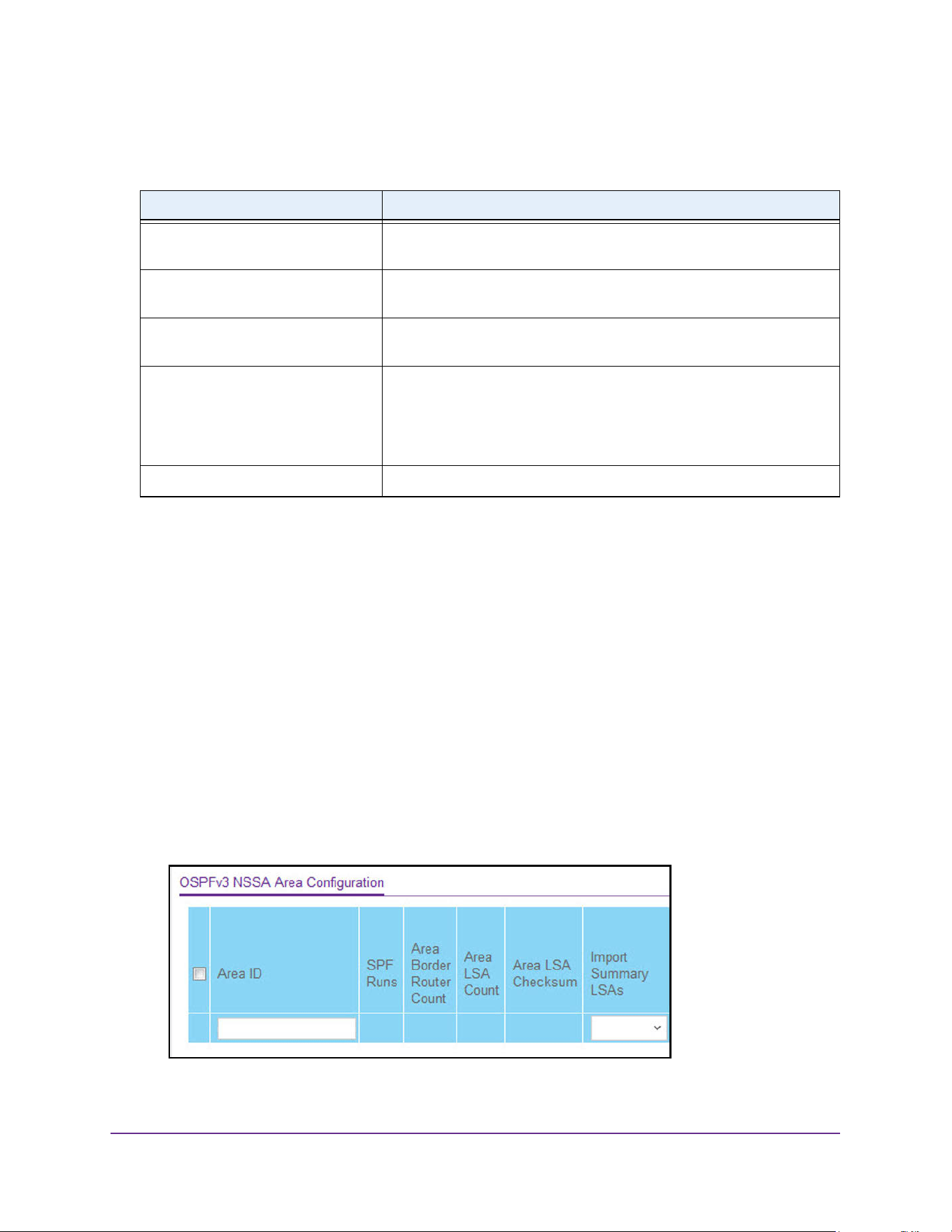
OSPF and OSPFv3
378
M4200 and M4300 Series ProSAFE Managed Switches Web Management User Manual
The following table describes the nonconfigurable data that is displayed.
Configure the OSPFv3 NSSA Area
To configure the OSPFv3 NSSA area:
1. Launch a web browser.
2. Enter http://<ipaddress> in the web browser address field.
The login window opens.
3. Enter the user name and password.
The default admin user name is admin and the default admin password is blank, that is,
do not enter a password.
4. Click the Login button.
The System Information page displays.
5. Select Routing > OSPFv3 > Advanced > NSSA Area Configuration.
Table 141. Advanced OSPFv3 Stub Area Configuration
Field Description
SPF Runs The number of times that the intra-area route table was calculated using
this area's link state database. This is done using Dijkstra's algorithm.
Area Border Router Count The total number of area border routers reachable within this area. This
is initially zero, and is calculated in each SPF Pass.
Area LSA Count The total number of link state advertisements in this area's link state
database, excluding AS External LSAs.
Area LSA Checksum The 32-bit unsigned sum of the link state advertisements' LSA
checksums contained in this area's link state database. This sum
excludes external (LSA type 5) link state advertisements. The sum can
be used to determine if there was a change in a router's link state
database, and to compare the link state database of two routers.
Type of Service This field is the normal ToS associated with the stub metric.
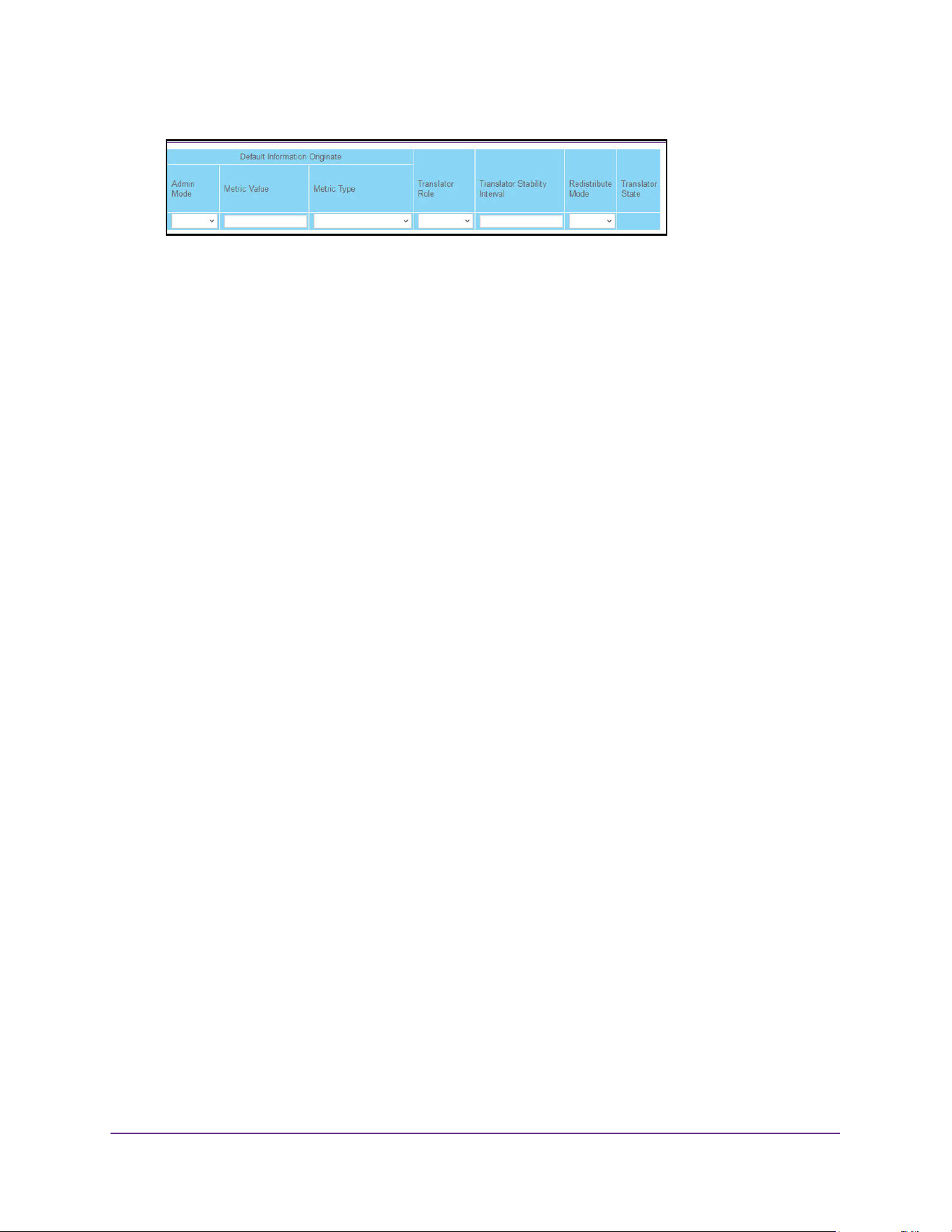
OSPF and OSPFv3
379
M4200 and M4300 Series ProSAFE Managed Switches Web Management User Manual
6. In the Area ID field, enter the OSPF area ID.
An area ID is a 32-bit integer in dotted-decimal format that uniquely identifies the area to
which a router interface connects.
7. Configure the Import Summary LSAs by selecting Enable or Disable from the list.
If you select Enable, summary LSAs are imported into stub areas.
8. Configure the Default Information Originate.
This option permits you to advertise a default route into the NSSA when the import
summary LSAs are disabled.
a. In the Admin Mode list, select to Enable or Disable the default information originate.
b. In the Metric Value field, set the default metric value for default information
originate. The value range of values is 1 to 16777214.
c. In the Metric Type field, select the type of metric specified in the Metric Value field.
Options are as follows:
• Comparable Cost. External type 1 metrics that are comparable to the OSPF
metric.
• Non-comparable Cost. External type 2 metrics that are assumed to be larger
than the cost of the OSPF metric.
9. Select the Translator Role of the NSSA.
Options are as follows:
a. Always. Cause the router to assume the role of the translator the instant it becomes a
border router.
b. Candidate. Cause the router to participate in the translator election process when it
attains border router status.
10. In the Translator Stability Interval field, configure the translator of the NSSA.
The value is the period of time that an elected translator continues to perform its duties
after it determines that its translator status was deposed by another router. The valid
range is 0 to 3600.
11. In the Redistribute Mode field, select to Enable or Disable.
This configures the NSSA ABR so that learned external routes are redistributed to the
NSSA.
12. Click the Add button.
The area is configured as an NSSA area.
13. Click the Apply button.

OSPF and OSPFv3
380
M4200 and M4300 Series ProSAFE Managed Switches Web Management User Manual
The updated configuration is sent to the switch. Configuration changes take effect
immediately.
The following table describes the nonconfigurable data that is displayed.
Configure the OSPFv3 Area Range
To configure the OSPFv3 area range:
1. Launch a web browser.
2. Enter http://<ipaddress> in the web browser address field.
The login window opens.
3. Enter the user name and password.
The default admin user name is admin and the default admin password is blank, that is,
do not enter a password.
4. Click the Login button.
The System Information page displays.
5. Select Routing > OSPFv3 > Advanced > Area Range Configuration.
Table 142. Advanced OSPFv3 NSSA Area Configuration
Field Description
SPF Runs The number of times that the intra-area route table was calculated
using this area's link state database. This is typically done using
Dijkstra's algorithm.
Area Border Router Count The total number of area border routers reachable within this area. This
is initially zero, and is calculated in each SPF pass.
Area LSA Count The total number of link state advertisements in this area's link state
database, excluding AS external LSAs.
Area LSA Checksum The 32-bit unsigned sum of the link state advertisements' LSA
checksums contained in this area's link state database. This sum
excludes external (LSA type 5) link state advertisements. The sum can
be used to determine if there was a change in a router's link state
database, and to compare the link state database of two routers.
Translator State The field tells you if and how the NSSA border router translates Type 7
into Type 5. Possible values are as follows:
• Enabled. The NSSA border router's translator role was set to
always.
• Elected. The candidate NSSA border router is translating Type 7
LSAs into Type 5.
• Disabled. The candidate NSSA border router is NOT translating
Type 7 LSAs into Type 5.
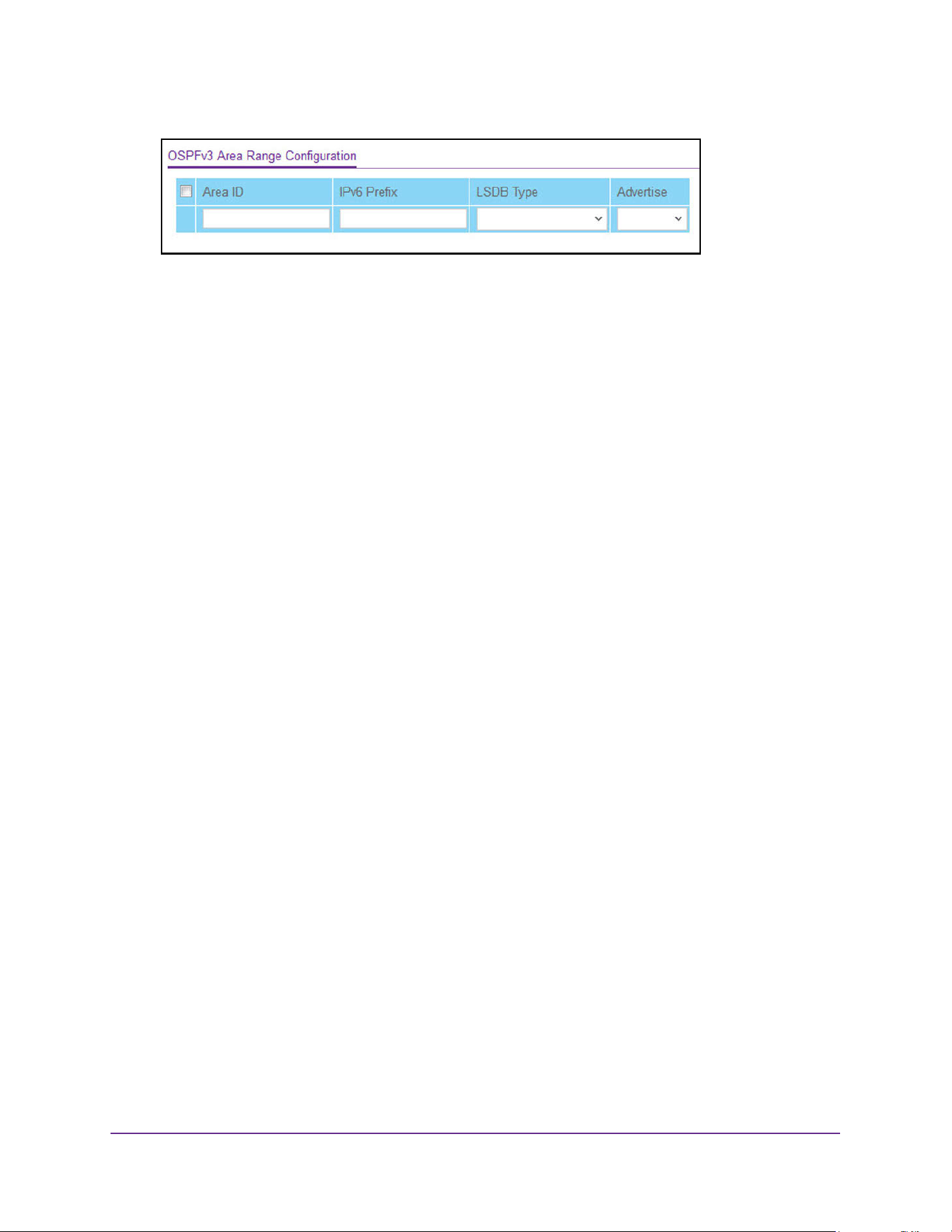
OSPF and OSPFv3
381
M4200 and M4300 Series ProSAFE Managed Switches Web Management User Manual
6. Enter the OSPFv3 Area ID.
An area ID is a 32-bit integer in dotted-decimal format that uniquely identifies the area to
which a router interface connects.
7. Enter the IPv6 Prefix for the address range for the selected area.
8. From the list in the LSDB Type field, select the type of link advertisement associated with
the specified area and address range.
Options are: Network Summary or NSSA External. The default type is Network
Summary.
9. In the Advertise field, select the Enable or Disable option.
If you select Enable, the address range is advertised outside the area through a network
summary LSA. The default is Enable.
10. Click the Add button.
The new address range is added to the switch.
Configure the OSPFv3 Interface
To configure the OSPFv3 interface:
1. Launch a web browser.
2. Enter http://<ipaddress> in the web browser address field.
The login window opens.
3. Enter the user name and password.
The default admin user name is admin and the default admin password is blank, that is,
do not enter a password.
4. Click the Login button.
The System Information page displays.
5. Select Routing > OSPFv3 > Advanced > Interface Configuration.
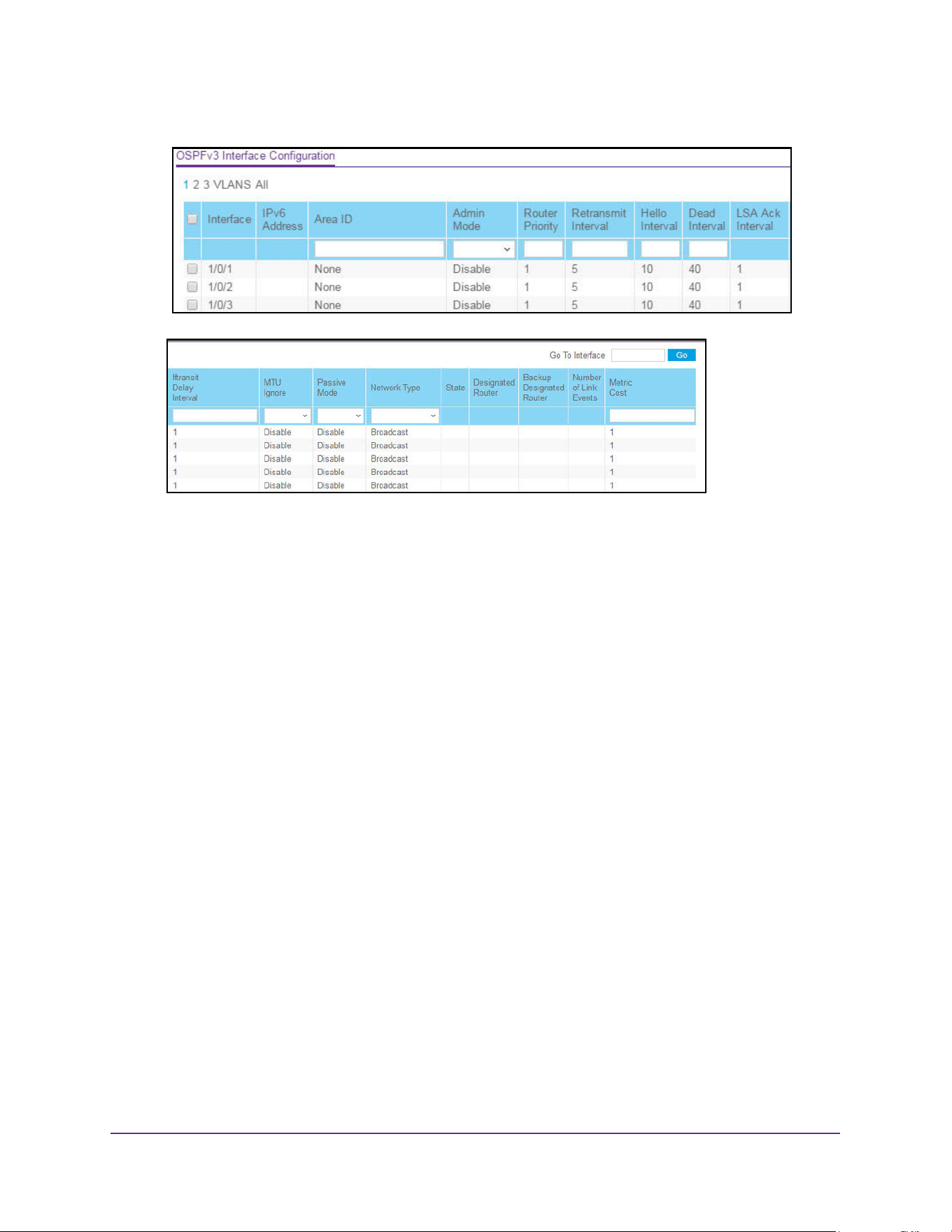
OSPF and OSPFv3
382
M4200 and M4300 Series ProSAFE Managed Switches Web Management User Manual
6. Use one of the following methods to select an interface:
• In the Go To Interface field, enter the interface in the unit/slot/port format and click on
the Go button.
• Next to the Interface column, select the check box for the interface that you want to
configure.
7. In the Area ID field, enter the 32-bit integer in dotted-decimal format that uniquely identifies
the OSPFv3 area to which the selected router interface connects.
If you assign an area ID that does not exist, the area is created with default values.
8. Configure the Admin Mode by selecting the Enable or Disable option from the list.
The default value is Disable. You can configure OSPFv3 parameters without enabling
OSPFv3 admin mode, but the settings do not take effect until you enable admin mode.
The following information is displayed only if admin mode is enabled:
• State
• Designated router
• Backup designated router
• Number of link events
• LSA Ack interval
• Metric cost
For OSPFv3 to be fully functional, you must enter a valid IPv6 prefix/prefix length. This
can be done using the CLI IPv6 address command.
Note: Once OSPFv3 is initialized on the router, it remains initialized until the
router is reset.

OSPF and OSPFv3
383
M4200 and M4300 Series ProSAFE Managed Switches Web Management User Manual
9. Configure the Router Priority by entering the OSPFv3 priority for the selected interface.
The priority of an interface is specified as an integer from 0 to 255. The default is 1, which
is the highest router priority. A value of 0 indicates that the router is not eligible to become
the designated router on this network.
10. Configure the Retransmit Interval by entering the OSPFv3 retransmit interval for the
specified interface.
This is the number of seconds between link state advertisements for adjacencies
belonging to this router interface. This value is also used when retransmitting database
descriptions and link state request packets. The valid values range from 0 to 3600
seconds (1 hour). The default is 5 seconds.
11. Configure the Hello Interval by entering the OSPFv3 hello interval for the specified interface
in seconds.
This parameter must be the same for all routers attached to a network. Value values
range from 1 to 65,535. The default is 10 seconds.
12. Enter the OSPFv3 Dead Interval for the specified interface in seconds.
This specifies how long a router waits to see a neighbor router’s hello packets before
declaring that the router is down. This parameter must be the same for all routers
attached to a network. This value is a multiple of the hello interval (for example, 4). The
valid values range from 1 to 65,535. The default is 40 seconds.
13. In the Iftransit Delay Interval field, enter the OSPFv3 transit delay for the specified
interface.
This specifies the estimated number of seconds it takes to transmit a link state update
packet over the selected interface. The valid values range from 1 to 3600 seconds (1
hour). The default value is 1 second.
14. Configure MTU Ignore by selecting Enable or Disable from the list.
MTU Ignore disables OSPF MTU mismatch detection on receiving database description
packets. The default value is Disable (MTU mismatch detection is enabled).
15. Configure Passive Mode by selecting Enable or Disable from the list.
Make an interface passive to prevent OSPF from forming an adjacency on an interface.
OSPF advertises networks attached to passive interfaces as stub networks. Interfaces
are not passive by default, meaning that the passive mode default is Disable.
16. Set the OSPFv3 Network Type on the interface by selecting either Broadcast or
Point-to-Point Mode from the list.
OSPFv3 selects a designated router and originates network LSAs only for broadcast
networks. No more than two OSPFv3 routers can be present on a point-to-point link. The
default network type for Ethernet interfaces is Broadcast.
17. In the Metric Cost field, enter the value for the cost Type of Service (TOS).
OSPF uses this value in computing shortest paths. The range is from 1 to 65,535. The
default is 1. Metric Cost is configurable only if OSPFv3 is initialized on the interface.
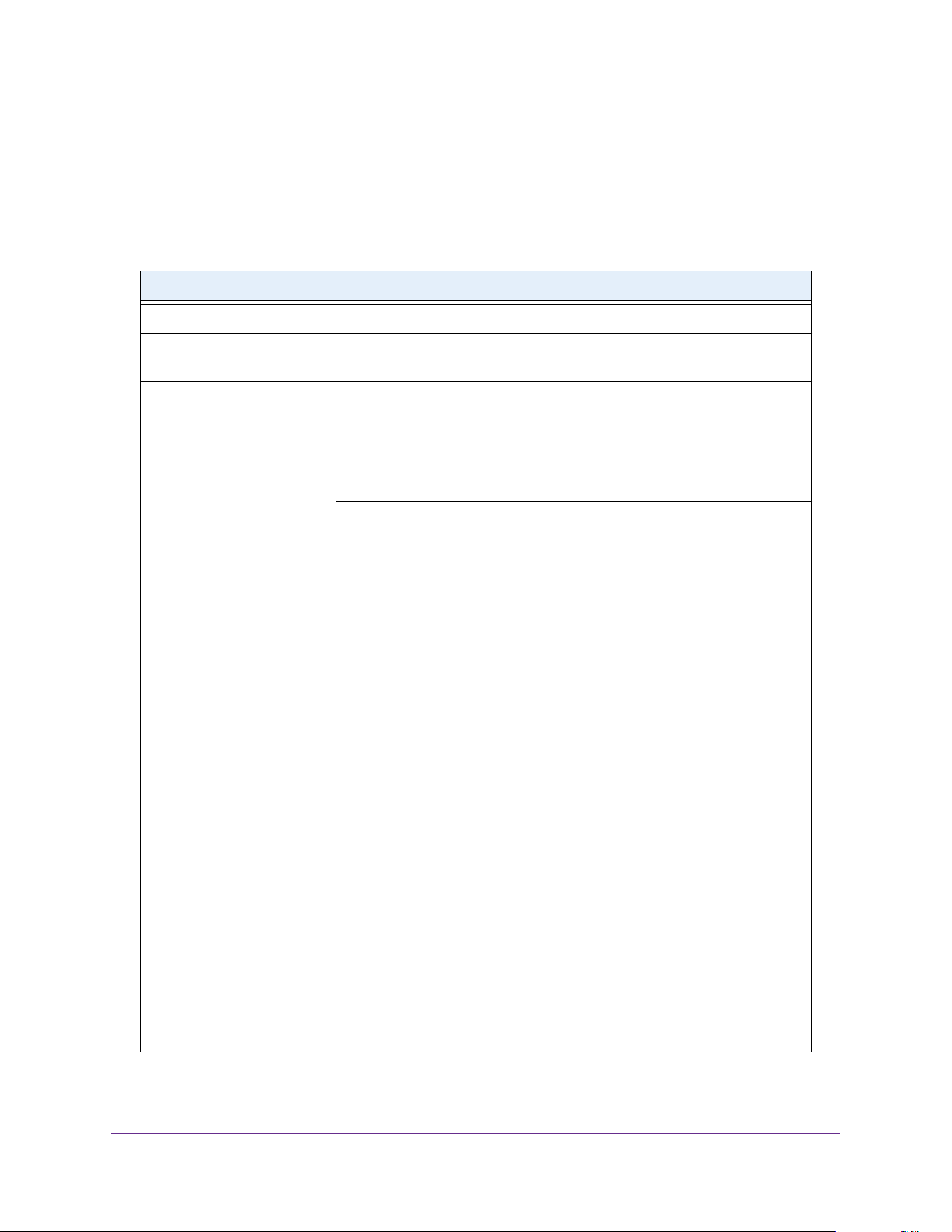
OSPF and OSPFv3
384
M4200 and M4300 Series ProSAFE Managed Switches Web Management User Manual
18. Click the Apply button.
The updated configuration is sent to the switch. Configuration changes take effect
immediately.
The following table describes the nonconfigurable data that is displayed.
Table 143. Advanced OSPFv3 Interface Configuration
Field Description
IPv6 Address The IPv6 address of the interface.
LSA Ack Interval (secs) The number of seconds between LSA acknowledgment packet
transmissions, which must be less than the retransmit interval.
State The current state of the selected router interface. State is one of the
following:
• Down. This is the initial interface state. The lower-level protocols
indicate that the interface is unusable. Interface parameters are set to
their initial values. All interface timers are disabled, and there are no
adjacencies associated with the interface.
• Loopback. The router's interface to the network is looped back in either
the hardware or software. The interface is unavailable for regular data
traffic. However, you might want to gain information about the quality of
this interface, either through sending ICMP pings to the interface or
through something like a bit error test. For this reason, IP packets can
still be addressed to an interface in loopback state. To facilitate this,
such interfaces are advertised in router LSAs as single host routes,
whose destination is the IP interface address.
• Waiting. The router is trying to determine the identity of the backup
designated router for the network by monitoring received hello packets.
The router is not allowed to elect a backup designated router or a
designated router until it transitions out of waiting state. This prevents
unnecessary changes of backup designated router.
• Designated Router. This router is the designated router on the
attached network. Adjacencies are established to all other routers
attached to the network. The router must also originate a network-LSA
for the network node. The network-LSA contains links to all routers
(including the designated router) attached to the network.
• Backup Designated Router. This router is the backup designated
router on the attached network. It is promoted to designated router if
the present designated router fails. The router establishes adjacencies
to all other routers attached to the network. The backup designated
router performs slightly different functions during the LSA flooding
procedure, as compared to the designated router.
• Other Designated Router. The interface is connected to a broadcast
or NBMA network on which other routers were selected to be either the
designated router or backup designated router. The router attempts to
form adjacencies to both the designated router and the backup
designated router.
Note: The state is displayed only if the OSPFv3 Admin mode is enabled.

OSPF and OSPFv3
385
M4200 and M4300 Series ProSAFE Managed Switches Web Management User Manual
View and Clear OSPFv3 Interface Statistics
You can view and clear statistics for the selected interface. The information is displayed only
if OSPFv3 is enabled.
To view and clear the OSPFv3 interface statistics:
1. Launch a web browser.
2. Enter http://<ipaddress> in the web browser address field.
The login window opens.
3. Enter the user name and password.
The default admin user name is admin and the default admin password is blank, that is,
do not enter a password.
4. Click the Login button.
The System Information page displays.
5. Select Routing > OSPFv3 > Advanced > Interface Statistics.
Designated Router The identity of the designated router for this network, in the view of the
advertising router. The designated router is identified here by its router ID.
The value 0.0.0.0 means that there is no designated router.
Note: This field displays only if the OSPFv3 admin mode is enabled.
Backup Designated Router The identity of the backup designated router for this network, in the view of
the advertising router. The backup designated router is identified here by its
router ID. Set to 0.0.0.0 if there is no backup designated router.
Note: This field displays only if the OSPFv3 admin mode is enabled.
Number of Link Events This is the number of times the specified OSPF interface changed its state.
Note: This field displays only if the OSPFv3 admin mode is enabled.
Table 143. Advanced OSPFv3 Interface Configuration (continued)
Field Description
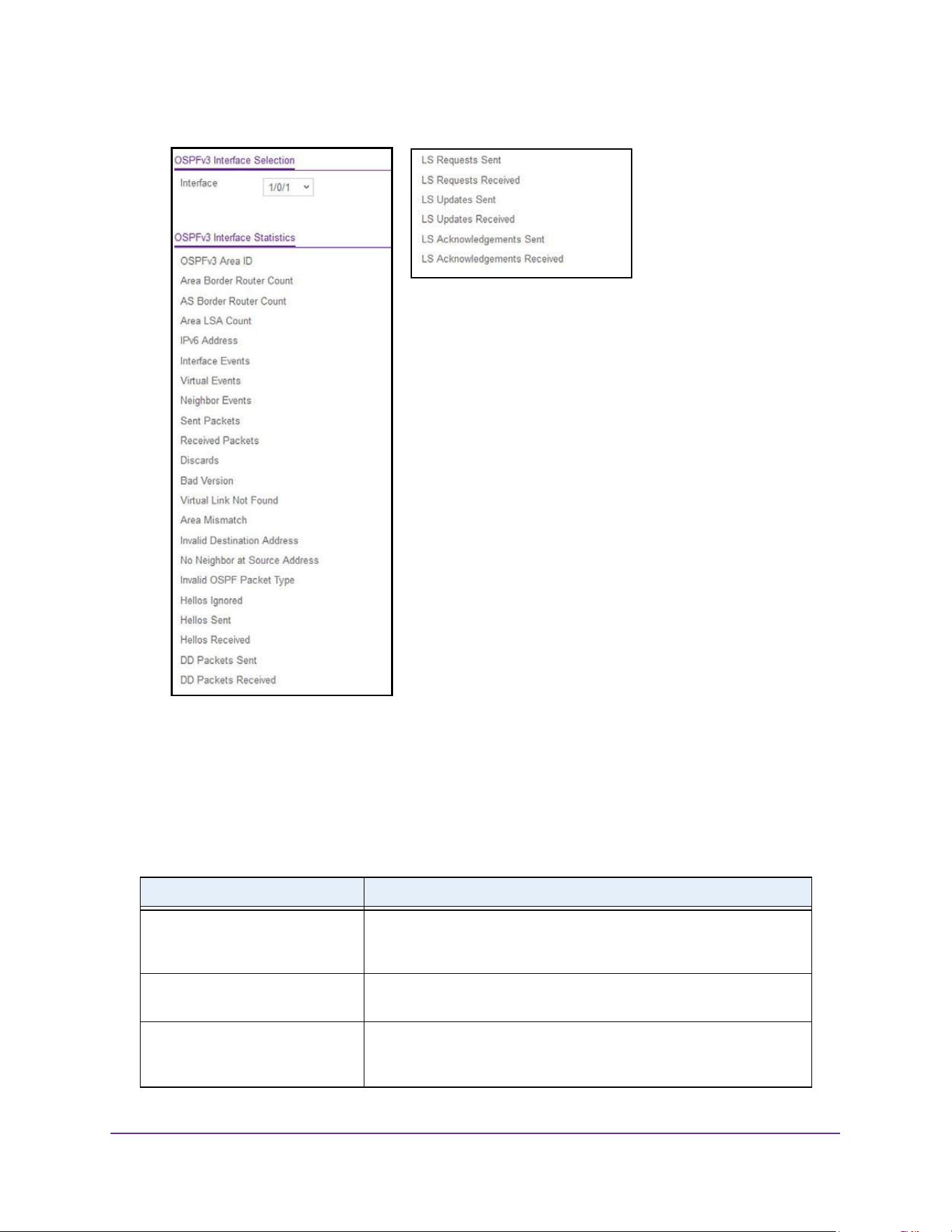
OSPF and OSPFv3
386
M4200 and M4300 Series ProSAFE Managed Switches Web Management User Manual
6. In the OSPFv3 Interface Selection area of the page, in the Interface list, select the interface.
7. To refresh the page with the latest information on the switch, click the Update button.
8. To clear all the statistics of the OSPFv3 interface, click the Clear button.
The following table describes the nonconfigurable OSPF Interface Statistics data that is
displayed.
Table 144. Advanced OSPFv3 Interface Statistics
Field Description
OSPFv3 Area ID The OSPFv3 area to which the selected router interface belongs. An
OSPFv3 area ID is a 32-bit integer in dotted-decimal format that
uniquely identifies the area to which the interface connects.
Area Border Router Count The total number of area border routers reachable within this area. This
is initially zero, and is calculated in each SPF pass.
AS Border Router Count The total number of autonomous system border routers reachable
within this area. This is initially zero, and is calculated in each SPF
pass.

OSPF and OSPFv3
387
M4200 and M4300 Series ProSAFE Managed Switches Web Management User Manual
Area LSA Count The total number of link state advertisements in this area's link state
database, excluding AS External LSAs.
IPv6 Address The IPv6 address of the interface.
Interface Events The number of times the specified OSPFv3 interface changed its state,
or an error occurred.
Virtual Events The number of state changes or errors that occurred on this virtual link.
Neighbor Events The number of times this neighbor relationship changed state, or an
error occurred.
Sent Packets The number of OSPFv3 packets transmitted on the interface.
Received Packets The number of valid OSPFv3 packets received on the interface.
Discards The number of received OSPFv3 packets discarded because of an
error in the packet or an error in processing the packet.
Bad Version The number of received OSPFv3 packets whose version field in the
OSPFv3 header does not match the version of the OSPFv3 process
handling the packet.
Virtual Link Not Found The number of received OSPFv3 packets discarded where the ingress
interface is in a non-backbone area and the OSPFv3 header identifies
the packet as belonging to the backbone, but OSPFv3 does not have a
virtual link to the packet's sender.
Area Mismatch The number of OSPFv3 packets discarded because the area ID in the
OSPFv3 header is not the area ID configured on the ingress interface.
Invalid Destination Address The number of OSPFv3 packets discarded because the packet's
destination IP address is not the address of the ingress interface and is
not the AllDrRouters or AllSpfRouters multicast address.
No Neighbor at Source Address The number of OSPFv3 packets dropped because the sender is not an
existing neighbor or the sender's IP address does not match the
previously recorded IP address for that neighbor.
Invalid OSPF Packet Type The number of OSPFv3 packets discarded because the packet type
field in the OSPFv3 header is not a known type.
Hellos Ignored The number of received hello packets that were ignored by this router
from the new neighbors after the limit was reached for the number of
neighbors on an interface or on the system as a whole.
Hellos Sent The number of hello packets sent on this interface by this router.
Hellos Received The number of hello packets received on this interface by this router.
DD Packets Sent The number of database description packets sent on this interface by
this router.
DD Packets Received The number of database description packets received on this interface
by this router.
Table 144. Advanced OSPFv3 Interface Statistics (continued)
Field Description
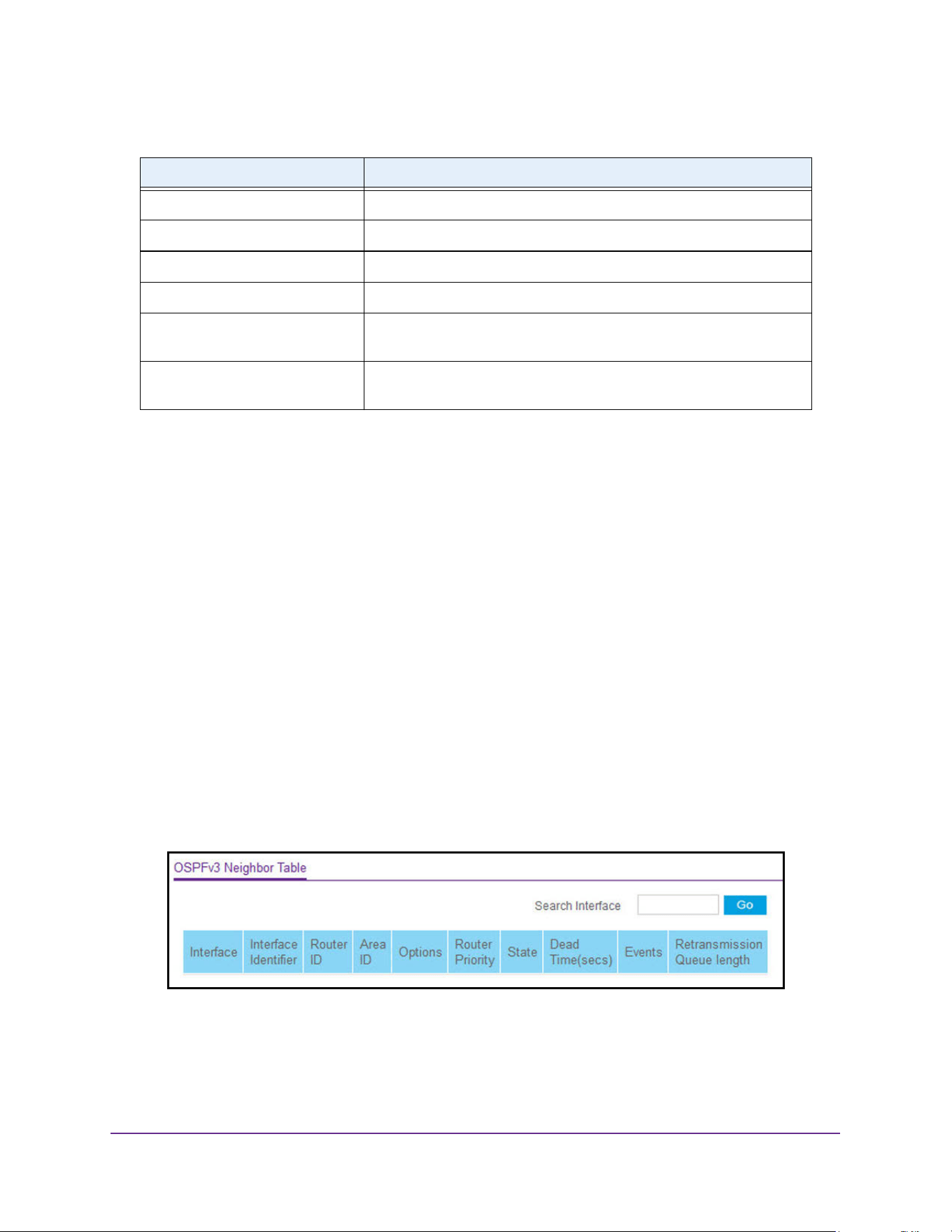
OSPF and OSPFv3
388
M4200 and M4300 Series ProSAFE Managed Switches Web Management User Manual
View the OSPFv3 Neighbor Table and Clear OSPFv3 Neighbors
This page displays the OSPFv3 neighbor table list. This information is displayed only if
OSPFv3 is enabled, and there exists at least one OSPFv3-enabled interface having a valid
neighbor. You can also clear OSPFv3 neighbors.
To view the OSPFv3 neighbor table and clear OSPFv3 neighbors:
1. Launch a web browser.
2. Enter http://<ipaddress> in the web browser address field.
The login window opens.
3. Enter the user name and password.
The default admin user name is admin and the default admin password is blank, that is,
do not enter a password.
4. Click the Login button.
The System Information page displays.
5. Select Routing > OSPFv3 > Advanced > Neighbor Table.
6. To refresh the page with the latest information on the switch, click the Update button.
7. To clear all the neighbors in the table, click the Clear button.
LS Requests Sent The number of LS requests sent on this interface by this router.
LS Requests Received The number of LS requests received on this interface by this router.
LS Updates Sent The number of LS updates sent on this interface by this router.
LS Updates Received The number of LS updates received on this interface by this router.
LS Acknowledgements Sent The number of LS acknowledgements sent on this interface by this
router.
LS Acknowledgements Received The number of LS acknowledgements received on this interface by this
router.
Table 144. Advanced OSPFv3 Interface Statistics (continued)
Field Description

OSPF and OSPFv3
389
M4200 and M4300 Series ProSAFE Managed Switches Web Management User Manual
The following table describes the nonconfigurable data that is displayed.
View the OSPFv3 Link State Database
To view the OSPF link state database:
1. Launch a web browser.
2. Enter http://<ipaddress> in the web browser address field.
The login window opens.
3. Enter the user name and password.
The default admin user name is admin and the default admin password is blank, that is,
do not enter a password.
4. Click the Login button.
The System Information page displays.
5. Select Routing > OSPFv3 > Advanced > Link State Database.
Table 145. Advanced OSPFv3 Neighbor Table
Field Description
Interface The interface for which data is to be displayed or configured. Slot 0 is
the base unit.
Interface Identifier The interface ID that the neighbor advertises in its hello packets on this
link.
Router ID A 32-bit integer in dotted-decimal format representing the router ID of
the neighbor on the selected interface.
Area ID A 32-bit integer in dotted-decimal format representing the area
common to the neighbor selected.
Options A bit mask corresponding to the neighbor's options field.
Router Priority The priority of this neighbor in the designated router election algorithm.
A value of 0 signifies that the neighbor is not eligible to become the
designated router on this particular network.
State The state of the relationship with this neighbor.
Dead Time The amount of time, in seconds, since the last hello was received from
adjacent neighbors. Set to 0 for neighbors in a state less than or equal
to Init.
Events The number of times this neighbor relationship changed state, or an
error occurred.
Retransmission Queue Length An integer representing the current length of the selected neighbor's
retransmit queue.
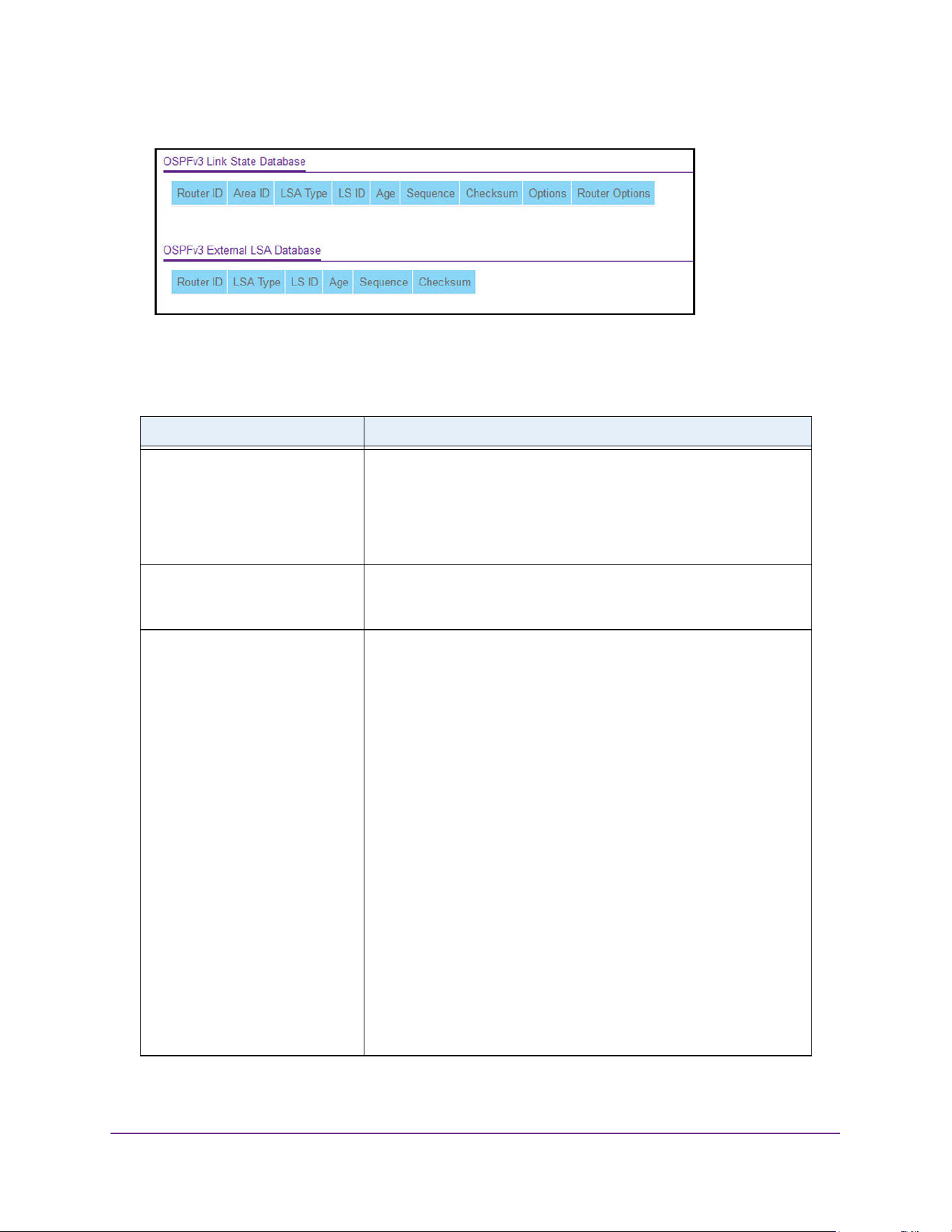
OSPF and OSPFv3
390
M4200 and M4300 Series ProSAFE Managed Switches Web Management User Manual
6. To refresh the page with the latest information on the switch, click the Update button.
The following table describes the nonconfigurable data that is displayed.
Table 146. Advanced OSPFv3 Link State Database
Field Description
Router ID The 32-bit integer in dotted-decimal format that uniquely identifies the
router within the autonomous system (AS). The router ID is set on the
OSPFv3 Configuration page. To change the router ID you must first
disable OSPFv3. After you set the new router ID, you must reenable
OSPFv3 for the change to take effect. The default value is 0.0.0.0,
although this is not a valid router ID.
Area ID The ID of an OSPFv3 area to which one of the router interfaces is
connected. An area ID is a 32-bit integer in dotted-decimal format that
uniquely identifies the area to which an interface is connected.
LSA Type The format and function of the link state advertisement. LSA Type is
one of the following:
• Router LSA. A router can originate one or more router LSAs for a
given area. Each router LSA originated in an area describes the
collected states of all the router's interfaces to the area.
• Network LSA. A network LSA is originated for every link having
two or more attached routers, by the designated router. It lists all
the routers attached to the link.
• Inter-Area Router LSA. This type describes a prefix external to
the area, yet internal to the autonomous system. It is originated by
an area border router.
• AS-External LSA. This LSA type describes a path to a prefix
external to the autonomous system and is originated by an
autonomous system border router.
• Link LSA. A router originates a separate Link LSA for each
attached link. It provides router's link local address to routers
attached to the link and also inform them of a list of IPv6 prefixes to
associate with the link.
• Intra-Area-Prefix LSA. A link's designated router originates one or
more intra-area prefix lsas to advertise the link's prefixes
throughout the area. A router can originate multiple
intra-area-prefix lsas for a given area to advertise its own prefixes
and those of its attached stub links.

OSPF and OSPFv3
391
M4200 and M4300 Series ProSAFE Managed Switches Web Management User Manual
The following table describes the nonconfigurable data that is displayed in the External Link
State Database (LSDB) table.
LS ID The link state ID identifies the piece of the routing domain that is being
described by the advertisement. The value of the LS ID depends on the
advertisement's LS type.
Age The time since the link state advertisement was first originated, in
seconds.
Sequence The sequence number field is a signed 32-bit integer. It is used to
detect old and duplicate link state advertisements. The larger the
sequence number, the more recent the advertisement.
Checksum The checksum is used to detect data corruption of an advertisement.
This corruption can occur while an advertisement is being flooded, or
while it is being held in a router's memory. This field is the checksum of
the complete contents of the advertisement, except the LS age field.
Options The Options field in the link state advertisement header indicates which
optional capabilities are associated with the advertisement. The options
are as follows:
• Q. This enables support for QoS traffic engineering.
• E. This describes the way AS-external LSAs are flooded.
• MC. This describes the way IP multicast datagrams are forwarded
according to the standard specifications.
• O. This describes whether opaque LSAs are supported.
• V. This describes whether OSPF++ extensions for VPN/COS are
supported.
Router Options The router-specific options.
Table 147. Advanced OSPFv3 External Link State Database Table
Field Description
Router ID The 32-bit integer in dotted-decimal format that uniquely identifies the
router within the autonomous system (AS). The router ID is set on the
OSPFv3 Configuration page. To change the router ID you must first
disable OSPFv3. After you set the new router ID, you must reenable
OSPFv3 for the change to take effect. The default value is 0.0.0.0,
although this is not a valid router ID.
LSA Type The format and function of the link state advertisement. LSA Type is
one of the following:
• Router LSA. A router can originate one or more router LSAs for a
given area. Each router LSA originated in an area describes the
collected states of all the router's interfaces to the area.
• Network LSA. A network LSA is originated for every link having
two or more attached routers, by the designated router. It lists all
the routers attached to the link.
Table 146. Advanced OSPFv3 Link State Database (continued)
Field Description

OSPF and OSPFv3
392
M4200 and M4300 Series ProSAFE Managed Switches Web Management User Manual
Configure the OSPFv3 Virtual Link
To configure the OSPFv3 virtual link:
1. Launch a web browser.
2. Enter http://<ipaddress> in the web browser address field.
The login window opens.
3. Enter the user name and password.
The default admin user name is admin and the default admin password is blank, that is,
do not enter a password.
4. Click the Login button.
The System Information page displays.
5. Select Routing > OSPFv3 > Advanced > Virtual Link Configuration.
LSA Type
(continued)
• Inter-Area Router LSA. This type describes a prefix external to
the area, yet internal to the autonomous system. It is originated by
an area border router.
• AS-External LSA. This LSA type describes a path to a prefix
external to the autonomous system and is originated by an
autonomous system border router.
• Link LSA. A router originates a separate link LSA for each
attached link. It provides router's link local address to routers
attached to the link and also inform them of a list of IPv6 prefixes to
associate with the link.
• Intra-Area-Prefix LSA. A link's designated router originates one or
more intraarea-prefix LSAs to advertise the link's prefixes
throughout the area. A router can originate multiple
intra-area-prefix LSAs for a given area to advertise its own prefixes
and those of its attached stub links.
LS ID The link state ID identifies the piece of the routing domain that is being
described by the advertisement. The value of the LS ID depends on the
advertisement's LS type.
Age The time since the link state advertisement was first originated, in
seconds.
Sequence The sequence number field is a signed 32-bit integer. It is used to
detect old and duplicate link state advertisements. The larger the
sequence number, the more recent the advertisement.
Checksum The checksum is used to detect data corruption of an advertisement.
This corruption can occur while an advertisement is being flooded, or
while it is being held in a router's memory. This field is the checksum of
the complete contents of the advertisement, except the LS age field.
Table 147. Advanced OSPFv3 External Link State Database Table (continued)
Field Description
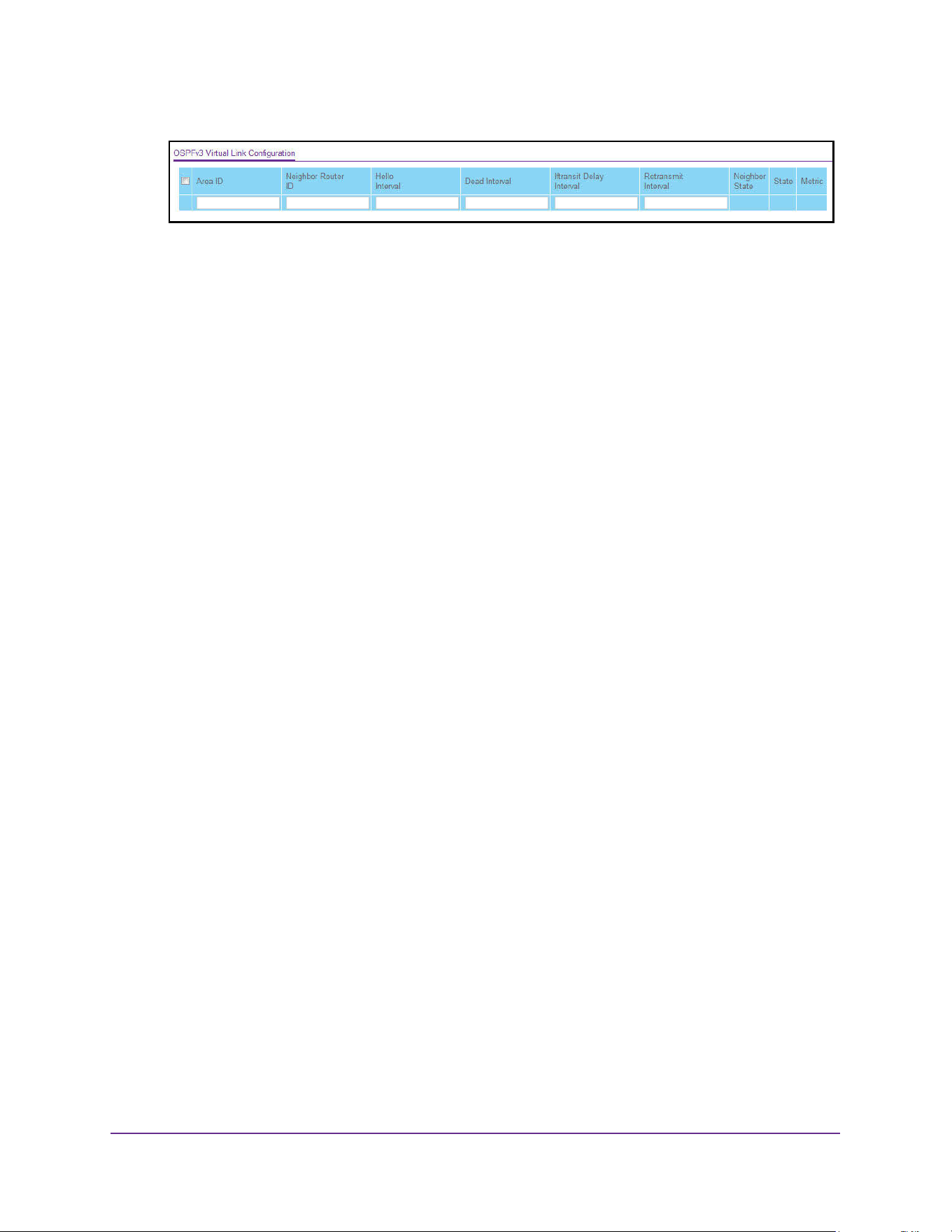
OSPF and OSPFv3
393
M4200 and M4300 Series ProSAFE Managed Switches Web Management User Manual
6. Enter the Area ID of the OSPF area.
An area ID is a 32-bit integer in dotted-decimal format that uniquely identifies the area to
which a router interface connects. Virtual links can be configured between any pair of
area border routers with interfaces to a common (non-backbone) area.
7. Configure the Neighbor Router ID by entering the neighbor portion of a virtual link
specification.
Virtual links can be configured between any pair of area border routers having interfaces
to a common (non-backbone) area.
8. In the Hello Interval field, enter the OSPFv3 hello interval for the specified interface in
seconds.
This parameter must be the same for all routers attached to a network. The valid values
range from 1 to 65,535. The default is 10 seconds.
9. In the Dead Interval field, enter the OSPFv3 dead interval for the specified interface in
seconds.
This specifies how long a router waits to see a neighbor router's hello packets before
declaring that the router is down. This parameter must be the same for all routers
attached to a network. This value is a multiple of the hello interval (for example, 4). The
valid values range from 1 to 65,535. The default is 40.
10. In the Iftransit Delay Interval field, enter the OSPFv3 transit delay for the specified
interface.
This specifies the estimated number of seconds it takes to transmit a link state update
packet over the selected interface. The valid values range from 1 to 3600 seconds (1
hour). The default value is 1 second.
11. In the Retransmit Interval field, enter the OSPFv3 retransmit interval for the specified
interface.
This is the number of seconds between link state advertisements for adjacencies
belonging to this router interface. This value is also used when retransmitting database
descriptions and link state request packets. The valid values range from 1 to 3600
seconds (1 hour). The default is 5 seconds.
12. Click the Add button
The new virtual link is added to the switch.
13. Click the Apply button.
The updated configuration is sent to the switch. Configuration changes take effect
immediately.

OSPF and OSPFv3
394
M4200 and M4300 Series ProSAFE Managed Switches Web Management User Manual
The following table describes the nonconfigurable data that is displayed.
Table 148. Advanced OSPFv3 Virtual Link Configuration
Field Description
Neighbor State The state of the virtual neighbor relationship. The OSPFv3 interface
state can be any of these values:
• Down. This is the initial interface state.The lower-level protocols
indicated that the interface is unusable. Interface parameters are
set to their initial values. All interface timers are disabled, and there
are no adjacencies associated with the interface.
• Waiting. The router is trying to determine the identity of the
(backup) designated router by monitoring received hello packets.
The router is not allowed to elect a backup designated router or a
designated router until it transitions out of the waiting state. This
prevents unnecessary changes of the (backup) designated router.
• Point-to-Point. The interface is operational, and is connected to
the virtual link. On entering this state the router attempts to form an
adjacency with the neighboring router. The interface sends hello
packets to the neighbor at every hello interval seconds.
• Designated Router. This router is the designated router on the
attached network. adjacencies are established to all other routers
attached to the network. The router must also originate a network
LSA for the network node. The network- LSA contains links to all
routers (including the designated router) attached to the network.
• Backup Designated Router. This router is the backup designated
router on the attached network. It is promoted to designated router
if the present designated router fails. The router establishes
adjacencies to all other routers attached to the network. The
backup designated router performs slightly different functions
during the flooding procedure, compared to the designated router.
• Other Designated Router. The interface is connected to a
broadcast or NBMA network on which other routers were selected
to be the designated router and backup designated router. The
router attempts to form adjacencies to both the designated router
and the backup designated router.
State The state of the interface. It takes one the following values:
• Down. This is the initial interface state. The lower-level protocols
indicated that the interface is unusable. Interface parameters are
set to their initial values. All interface timers are disabled, and there
are no adjacencies associated with the interface.
• Waiting. The router is trying to determine the identity of the backup
designated router by monitoring received hello packets. The router
is not allowed to elect a backup designated router or a designated
router until it transitions out of waiting state. This prevents
unnecessary changes of backup designated router.
• Point-to-Point. The interface is operational, and is connected
either to the virtual link. On entering this state the router attempts
to form an adjacency with the neighboring router. hello packets are
sent to the neighbor every hello interval seconds.

OSPF and OSPFv3
395
M4200 and M4300 Series ProSAFE Managed Switches Web Management User Manual
Configure OSPFv3 Route Redistribution
You can configure the OSPFv3 Route Redistribution parameters. The allowable values for
each field are displayed next to the field. If any invalid values are entered, an alert message
is displayed with the list of all the valid values.
To configure the OSPFv3 route redistribution:
1. Launch a web browser.
2. Enter http://<ipaddress> in the web browser address field.
The login window opens.
3. Enter the user name and password.
The default admin user name is admin and the default admin password is blank, that is,
do not enter a password.
4. Click the Login button.
The System Information page displays.
5. Select Routing > OSPFv3 > Advanced > Route Redistribution.
State
(continued)
• Designated Router. This router is the designated router on the
attached network. Adjacencies are established to all other routers
attached to the network. The router must also originate a
network-LSA for the network node. The network- LSA contains
links to all routers (including the designated router) attached to the
network.
• Backup Designated Router. This router is the backup designated
router on the attached network. It is promoted to designated router
if the present designated router fails. The router establishes
adjacencies to all other routers attached to the network. The
backup designated router performs slightly different functions
during the flooding procedure, as compared to the designated
router.
• Other Designated Router. The interface is connected to a
broadcast or NBMA network on which other routers were selected
to be the designated router and backup designated router either.
The router attempts to form adjacencies to both the designated
router and the backup designated router.
Metric The metric value used by the virtual link.
Table 148. Advanced OSPFv3 Virtual Link Configuration (continued)
Field Description
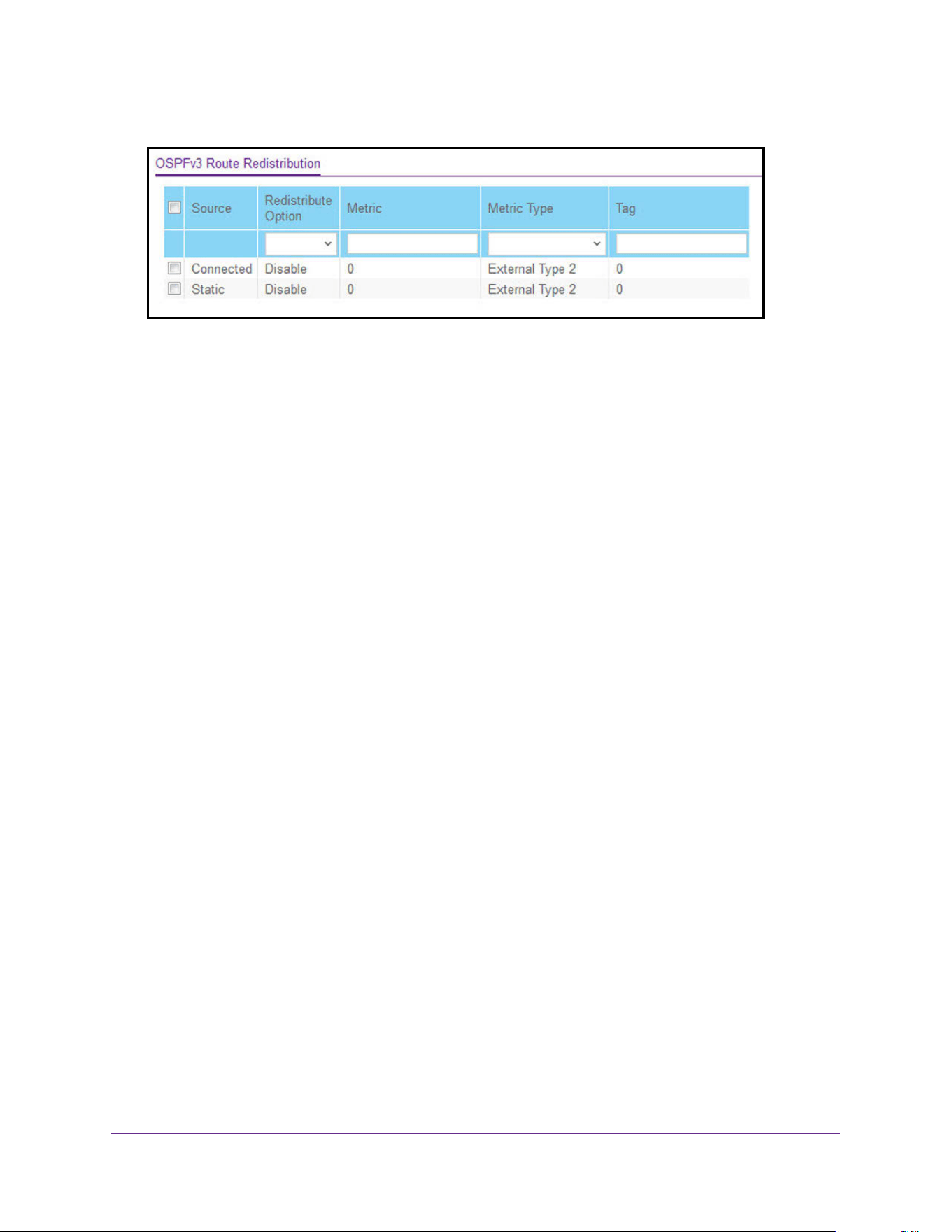
OSPF and OSPFv3
396
M4200 and M4300 Series ProSAFE Managed Switches Web Management User Manual
6. From the Source menu, select from the list of available source routes that were not
previously configured for redistribution by OSPFv3. The valid values are as follows:
• Connected
• Static
7. In the Redistribute Option list, select to Enable or Disable the redistribution for the
selected source protocol.
8. Set the Metric value to be used as the metric of redistributed routes.
This fields displays the metric if the source was preconfigured; otherwise, the tag is 0 and
can be modified. The valid values are 0 to 16777214.
9. From the Metric Type list, select the OSPFv3 metric type of redistributed routes.
10. Set the Tag field in routes redistributed.
This field displays the tag if the source was preconfigured; otherwise, the tag is 0 and can
be modified. The valid values are 0 to 4294967295.
11. Click the Apply button.
The updated configuration is sent to the switch. Configuration changes take effect
immediately.
View the NSF OSPFv3 Summary
You can view the NSF OSPFv3 summary. The allowable values for each field are displayed
next to the field. If any invalid values are entered, an alert message is displayed with the list
of all the valid values.
To view the NSF OSPF summary:
1. Launch a web browser.
2. Enter http://<ipaddress> in the web browser address field.
The login window opens.
3. Enter the user name and password.
The default admin user name is admin and the default admin password is blank, that is,
do not enter a password.
4. Click the Login button.
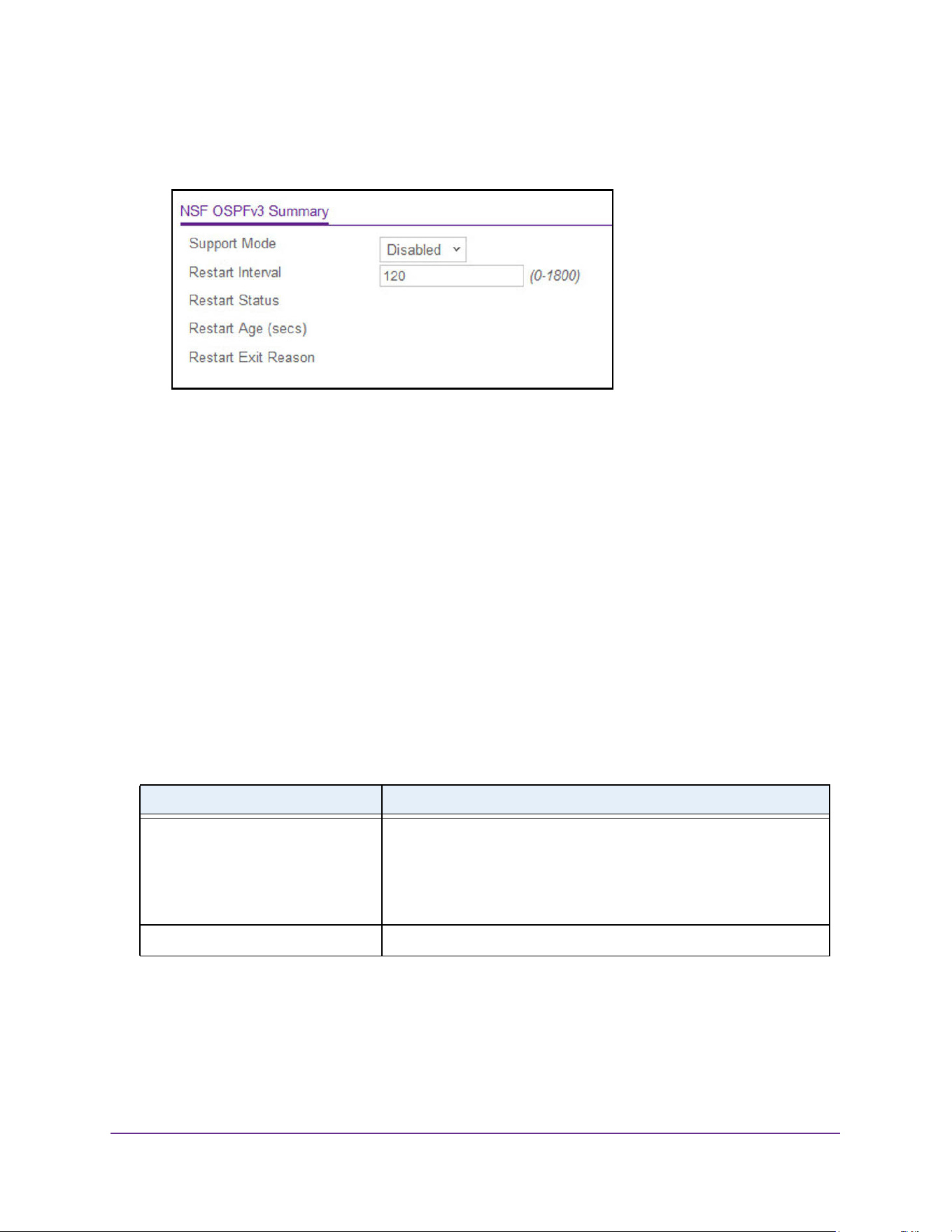
OSPF and OSPFv3
397
M4200 and M4300 Series ProSAFE Managed Switches Web Management User Manual
The System Information page displays.
5. Select Routing > OSPFv3 > Advanced > NSF OSPFv3 Summary.
6. From the Support mode list, select one of the following values:
• Always. OSPF performs a graceful restart for all planned and unplanned warm
restart events.
• Disabled. Prevents OSPF from performing graceful restarts.
• Planned. OSPF performs a graceful restart only when a restart is planned (for
example, due to an initiate failover command).
The default is Disabled. This setting configure how the unit performs graceful restarts.
7. Configure the Restart Interval.
The valid values are 0 to 1800 in seconds. The default is 120 seconds.
8. Click the Apply button.
The updated configuration is sent to the switch. Configuration changes take effect
immediately.
The following table describes the nonconfigurable data that is displayed.
Table 149. Advanced NSF OSPFv3 Summary
Field Description
Restart Status The restart status of OSPF helper feature. The possible values are as
follows:
• Not Restarting
• Planned Restart
• Unplanned Restart
Restart Age (seconds) The amount of time since the last restart occurred.
OSPF and OSPFv3
398
M4200 and M4300 Series ProSAFE Managed Switches Web Management User Manual
Restart Exit Reason Displays how the master unit on the switch last started up. The possible
values are as follows:
• Not Attempted. Graceful restart was not been attempted.
• In Progress. Restart is in progress.
• Completed. The previous graceful restart completed successfully.
• Timed Out. The previous graceful restart timed out.
• Topology Changed. The previous graceful restart terminated
prematurely because of a topology change.
Table 149. Advanced NSF OSPFv3 Summary (continued)
Field Description

399
7
7. Multicast Routing
This chapter covers the following topics:
• Multicast Overview
• Configure Multicast IGMP Settings
• Configure PIM Settings
• Configure Multicast Static Routes
• Configure the Multicast Admin Boundary
• Configure IPv6 Multicast Settings
Note: Multicast and IPv6 multicast are supported on the M4300 series
switches only.
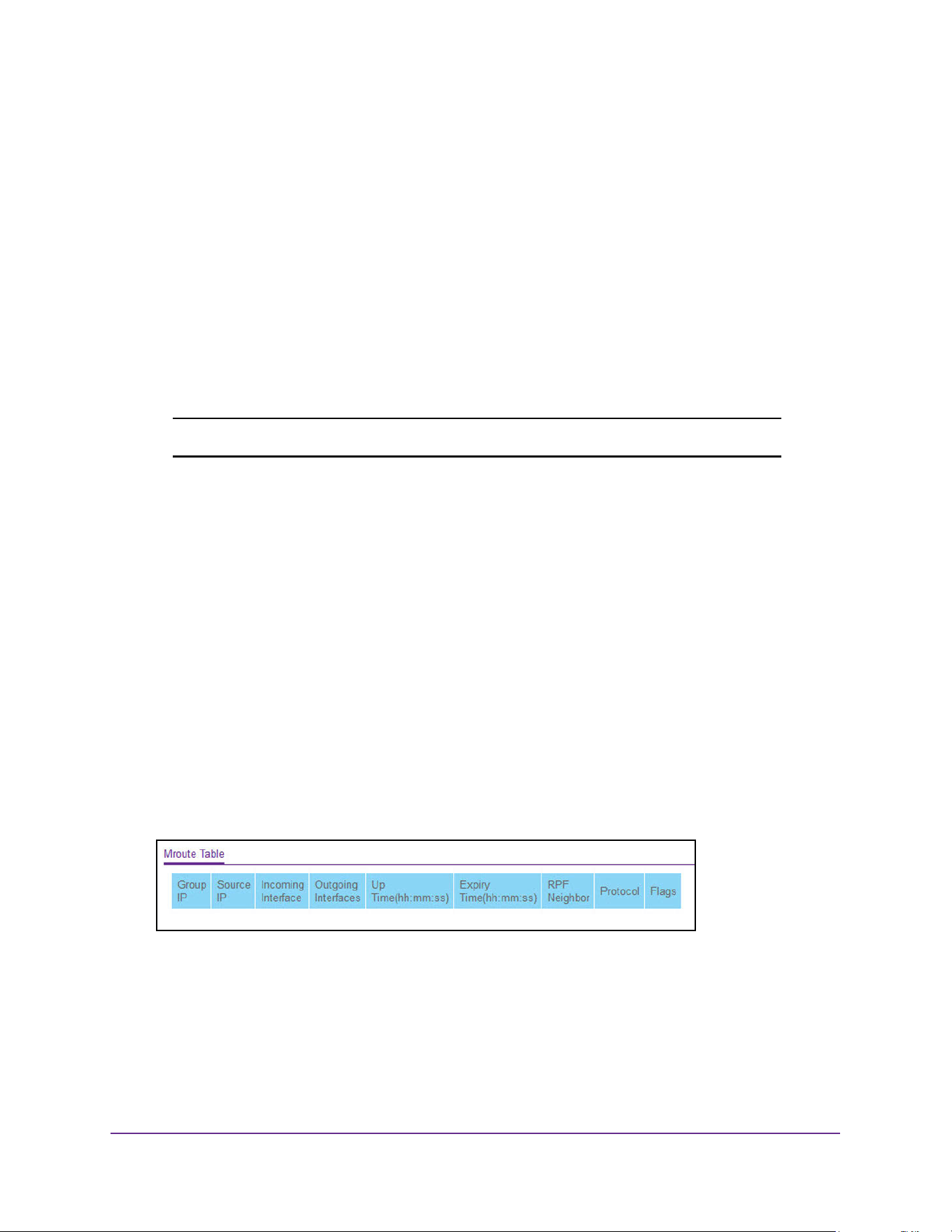
Multicast Routing
400
M4200 and M4300 Series ProSAFE Managed Switches Web Management User Manual
Multicast Overview
Multicast is best suited for video and audio traffic requiring multicast packet control for
optimal operation. Multicast includes support for IGMPv2 and IGMPv3. Communication from
point to multipoint is called multicasting. The source host (point) transmits a message to a
group of zero or more hosts (multipoint) that are identified by a single IP destination address.
Although the task can be accomplished by sending unicast (point-to-point) messages to each
of the destination hosts, multicasting is the more desirable method for this type of
transmission. A multicast message is delivered to all members of its destination host group
with the same best-efforts reliability as regular unicast IP messages. The message is not
guaranteed to arrive intact at all members of the destination group or in the same order
relative to other messages.
Note: Multicast is supported on the M4300 series switches only.
View the Multicast Mroute Table
To view the Mroute Table:
1. Launch a web browser.
2. Enter http://<ipaddress> in the web browser address field.
The login window opens.
3. Enter the user name and password.
The default admin user name is admin and the default admin password is blank, that is,
do not enter a password.
4. Click the Login button.
The System Information page displays.
5. Select Routing > Multicast > Mroute Table.
6. To refresh the page with the latest information on the switch, click the Update button.

Multicast Routing
401
M4200 and M4300 Series ProSAFE Managed Switches Web Management User Manual
The following table describes the nonconfigurable data that is displayed.
Configure Global Multicast Settings
To configure global multicast settings:
1. Launch a web browser.
2. Enter http://<ipaddress> in the web browser address field.
The login window opens.
3. Enter the user name and password.
The default admin user name is admin and the default admin password is blank, that is,
do not enter a password.
4. Click the Login button.
The System Information page displays.
5. Select Routing > Multicast > Global Configuration.
Table 150. Multicast Mroute Table
Field Description
Group IP The destination group IP address.
Source IP The IP address of the multicast packet source to be combined with the
group IP to fully identify a single route whose Mroute table entry.
Incoming Interface The incoming interface on which multicast packets for this source/group
arrive.
Outgoing Interfaces The list of outgoing interfaces on which multicast packets for this
source/group are forwarded.
Up Time (hh:mm:ss) The time in seconds since the entry was created.
Expiry Time (hh:mm:ss) The time in seconds before this entry ages out and is removed from the
table.
RPF Neighbor The IP address of the reverse path forwarding (RPF) neighbor.
Protocol The multicast routing protocol which created this entry. The possible
values are as follows:
• PIM-DM
• PIM-SM
• DVMRP
Flags The value displayed in this field is valid if the multicast routing protocol
running is PIM-SM. The possible values are RPT or SPT. For other
protocols a “------” is displayed.
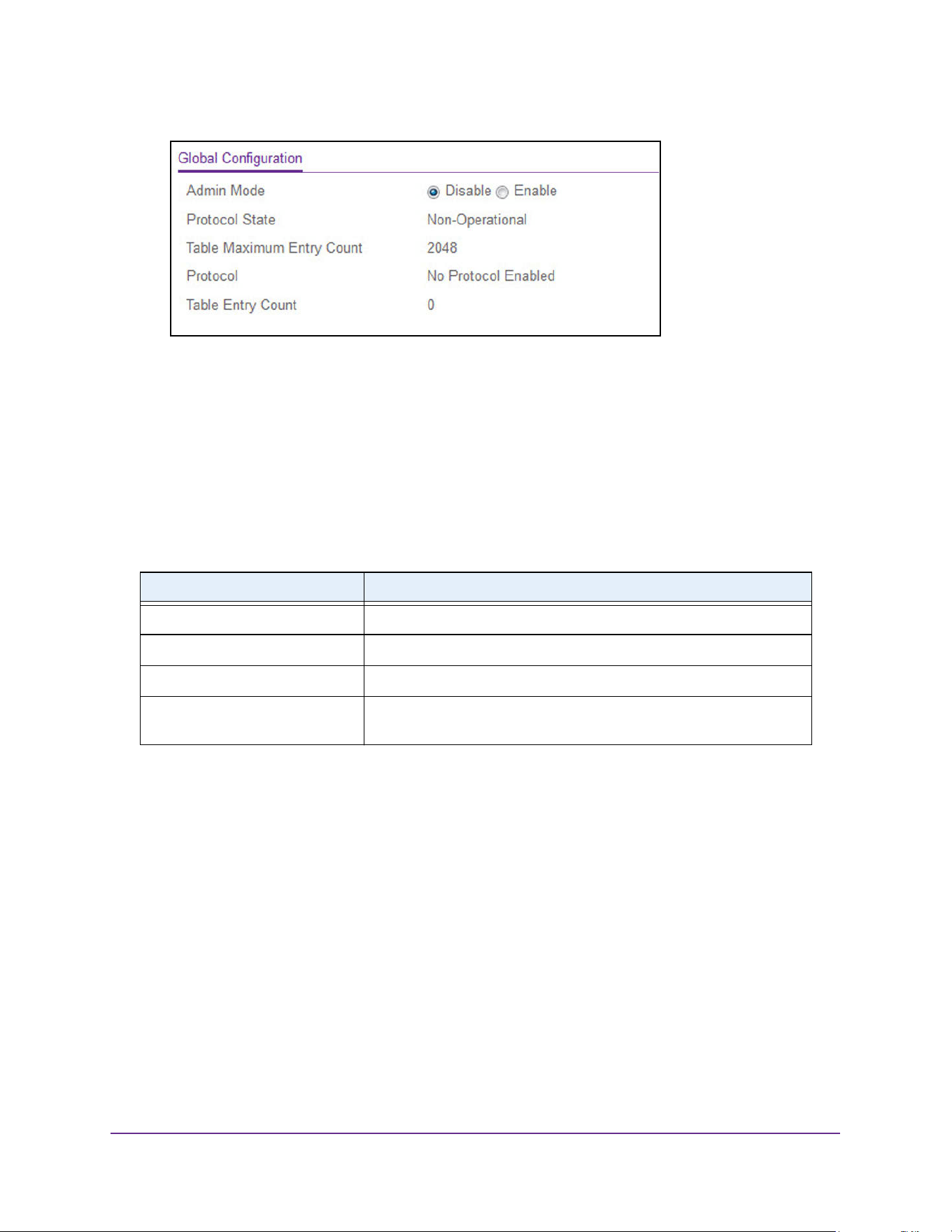
Multicast Routing
402
M4200 and M4300 Series ProSAFE Managed Switches Web Management User Manual
6. In the Admin Mode field, select the Enable or Disable option to set the administrative
status of multicast forwarding in the router.
The default is Disable.
7. Click the Apply button.
The updated configuration is sent to the switch. Configuration changes take effect
immediately.
The following describes the nonconfigurable data that is displayed.
Configure the Multicast Interface
To configure the multicast interface:
1. Launch a web browser.
2. Enter http://<ipaddress> in the web browser address field.
The login window opens.
3. Enter the user name and password.
The default admin user name is admin and the default admin password is blank, that is,
do not enter a password.
4. Click the Login button.
The System Information page displays.
5. Select Routing > Multicast > Interface Configuration.
Table 151. Multicast Global Configuration
Field Description
Protocol State The operational state of the multicast forwarding module.
Table Maximum Entry Count The maximum number of entries in the IP multicast routing table.
Protocol The multicast routing protocol presently activated on the router, if any.
Table Entry Count The number of multicast route entries currently present in the multicast
route table.
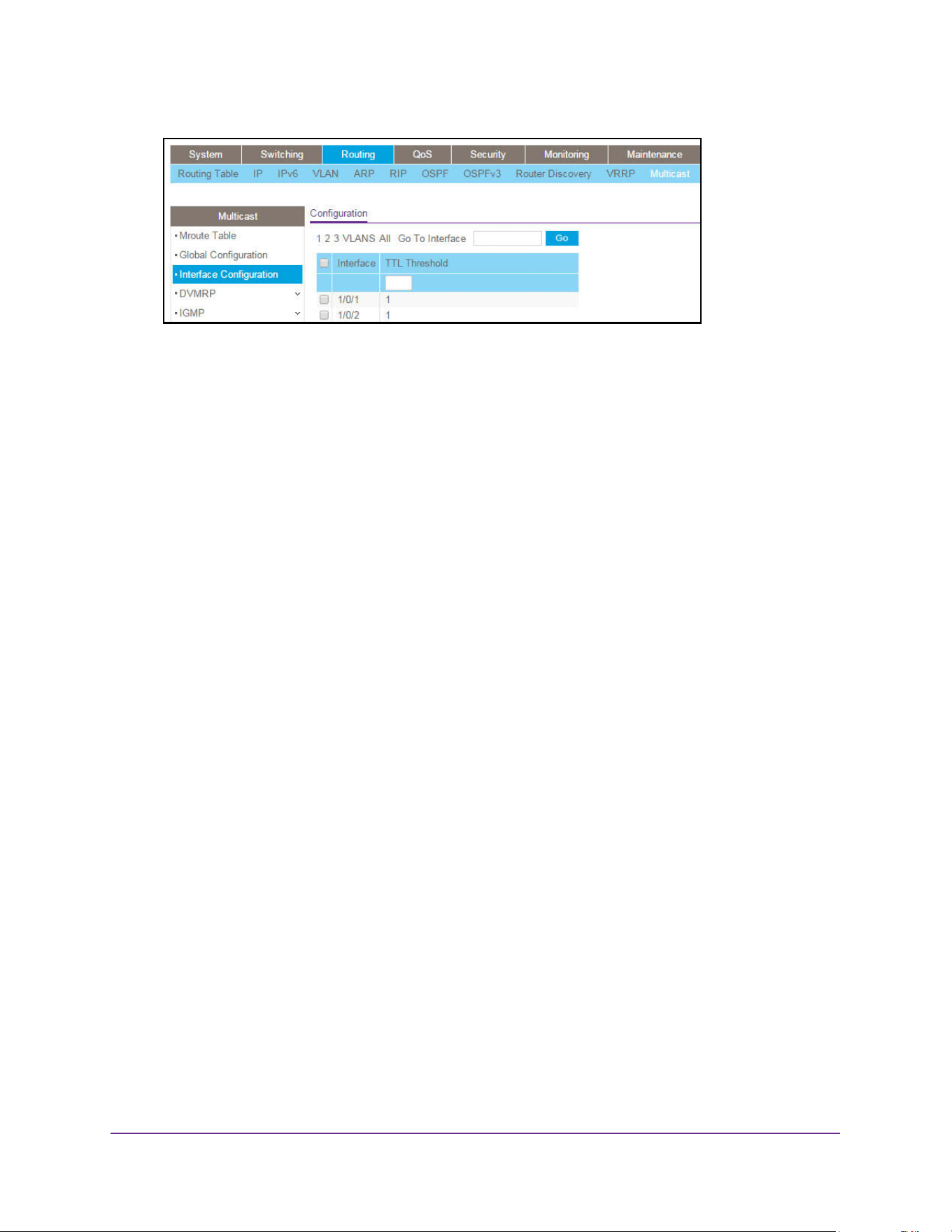
Multicast Routing
403
M4200 and M4300 Series ProSAFE Managed Switches Web Management User Manual
6. Use one of the following methods to select an interface:
• In the Go To Interface field, enter the interface in the unit/slot/port format and click on
the Go button.
• Next to the Interface column, select the check box for the interface that you want to
configure.
7. Enter the TTL Threshold below which a multicast data packet is not forwarded from the
selected interface.
Enter a number between 0 and 255. The default is 1. If you enter 0, all multicast packets
for the selected interface are forwarded. You must configure at least one router interface
before you see this field.
8. Click the Apply button.
The updated configuration is sent to the switch. Configuration changes take effect
immediately.
Configure Global Multicast DVMRP Settings
To configure global multicast DVMRP settings:
1. Launch a web browser.
2. Enter http://<ipaddress> in the web browser address field.
The login window opens.
3. Enter the user name and password.
The default admin user name is admin and the default admin password is blank, that is,
do not enter a password.
4. Click the Login button.
The System Information page displays.
5. Select Routing> Multicast > DVMRP > Global Configuration.
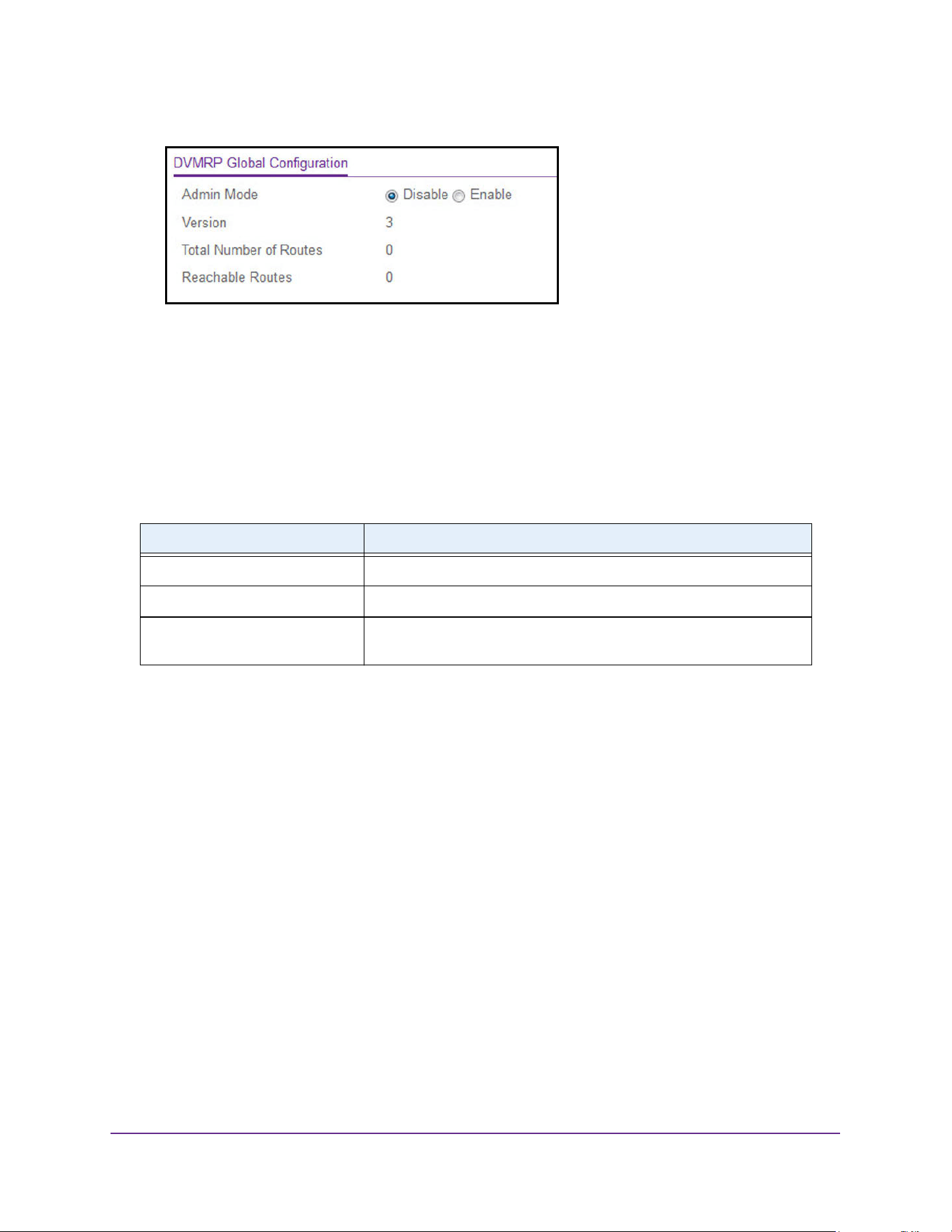
Multicast Routing
404
M4200 and M4300 Series ProSAFE Managed Switches Web Management User Manual
6. Select the Admin Mode Disable or Enable radio button.
This sets the administrative status of DVMRP to active or inactive. The default is Disable.
7. Click the Apply button.
The updated configuration is sent to the switch. Configuration changes take effect
immediately.
The following table describes the nonconfigurable data that is displayed.
Configure the DVMRP Interface
To configure the multicast DVMRP interface:
1. Launch a web browser.
2. Enter http://<ipaddress> in the web browser address field.
The login window opens.
3. Enter the user name and password.
The default admin user name is admin and the default admin password is blank, that is,
do not enter a password.
4. Click the Login button.
The System Information page displays.
5. Select Routing> Multicast > DVMRP > Interface Configuration.
Table 152. DVMRP Global Configuration
Field Description
Version The current value of the DVMRP version string.
Total Number of Routes The number of routes in the DVMRP routing table.
Reachable Routes The number of routes in the DVMRP routing table that use a
non-infinite metric.
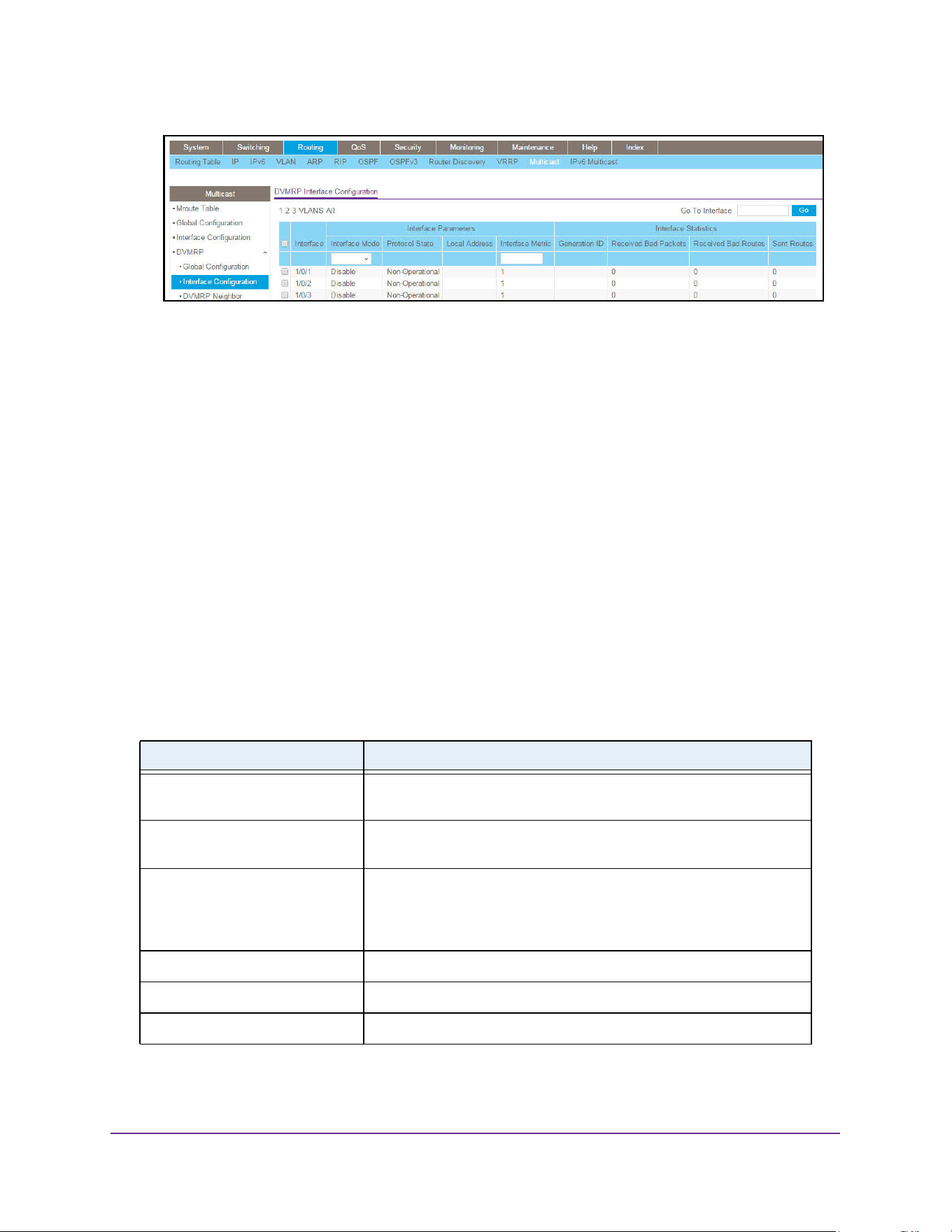
Multicast Routing
405
M4200 and M4300 Series ProSAFE Managed Switches Web Management User Manual
6. Use one of the following methods to select an interface:
• In the Go To Interface field, enter the interface in the unit/slot/port format and click on
the Go button.
• Next to the Interface column, select the check box for the interface that you want to
configure.
7. In the Interface Mode field, select the Enable or Disable option to set the administrative
mode of the selected DVMRP routing interface.
The default is Disable.
8. In the Interface Metric field, enter the DVMRP metric for the selected interface.
This value is sent in DVMRP messages as the cost to reach this network. Valid values
are 1 to 31. The default value is 1.
9. Click the Apply button.
The updated configuration is sent to the switch. Configuration changes take effect
immediately.
The following table describes the nonconfigurable data that is displayed.
Table 153. DVMRP Interface Configuration
Field Description
Protocol State The operational state of the DVMRP protocol on the selected interface,
either Operational or Non-Operational.
Local Address The IP address used as a source address in packets sent from the
selected interface.
Generation ID The DVMRP generation ID used by the router for the selected
interface. This value is reset every time an interface is started and is
placed in prune messages. A change in generation ID informs the
neighbor routers to discard any previous information about this router.
Received Bad Packets The number of invalid packets received on the selected interface.
Received Bad Routes The number of invalid routes received on the selected interface.
Sent Routes The number of routes sent on the selected interface.
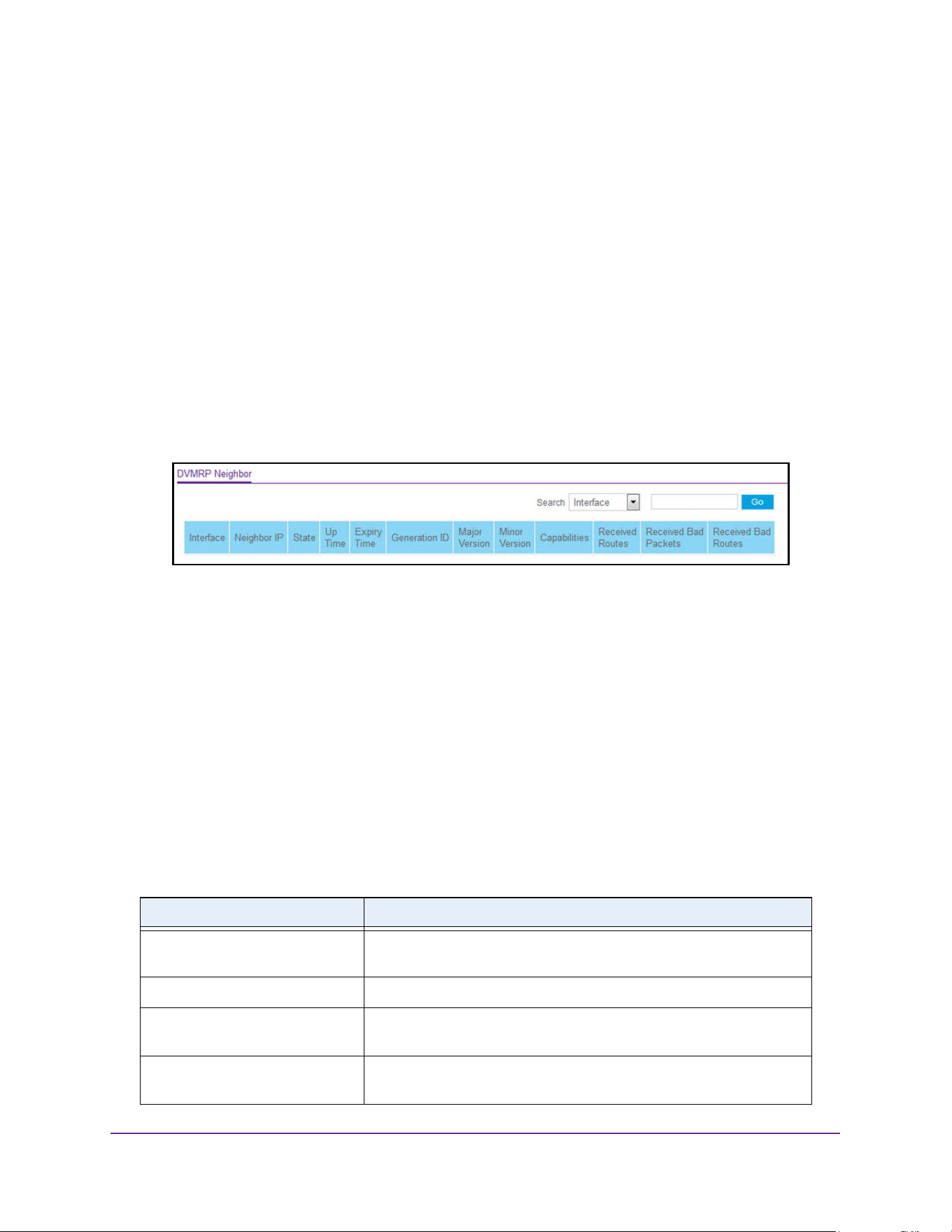
Multicast Routing
406
M4200 and M4300 Series ProSAFE Managed Switches Web Management User Manual
Search for DVMRP Neighbors
To search for DVMRP neighbors:
1. Launch a web browser.
2. Enter http://<ipaddress> in the web browser address field.
The login window opens.
3. Enter the user name and password.
The default admin user name is admin and the default admin password is blank, that is,
do not enter a password.
4. Click the Login button.
The System Information page displays.
5. Select Routing> Multicast > DVMRP > DVMRP Neighbor.
6. Use the Search menu to search for neighbor entries by MAC interface or neighbor IP
address:
• Select Interface from the menu, enter the interface in unit/slot/port format (for
example 1/0/13), and click the Go button.
If the neighbor entry exists, the entry is displayed as the first entry, followed by the
remaining entries.
• Select Neighbor IP from the menu, enter the neighbor IP address, and click the Go
button.
If the entry with the matching neighbor IP exists, the entry is displayed as the first
entry, followed by the remaining entries. An exact match is required.
The following table describes the nonconfigurable data that is displayed.
Table 154. DVMRP Neighbor
Field Description
Interface Select the interface for which data is to be displayed, or all the
interfaces are displayed.
Neighbor IP The IP address of the neighbor whose information is displayed
State The state of the specified neighbor router on the selected interface,
either active or down.
Up Time The DVMRP uptime for the specified neighbor on the selected
interface. This is the time since the neighbor entry was learned.
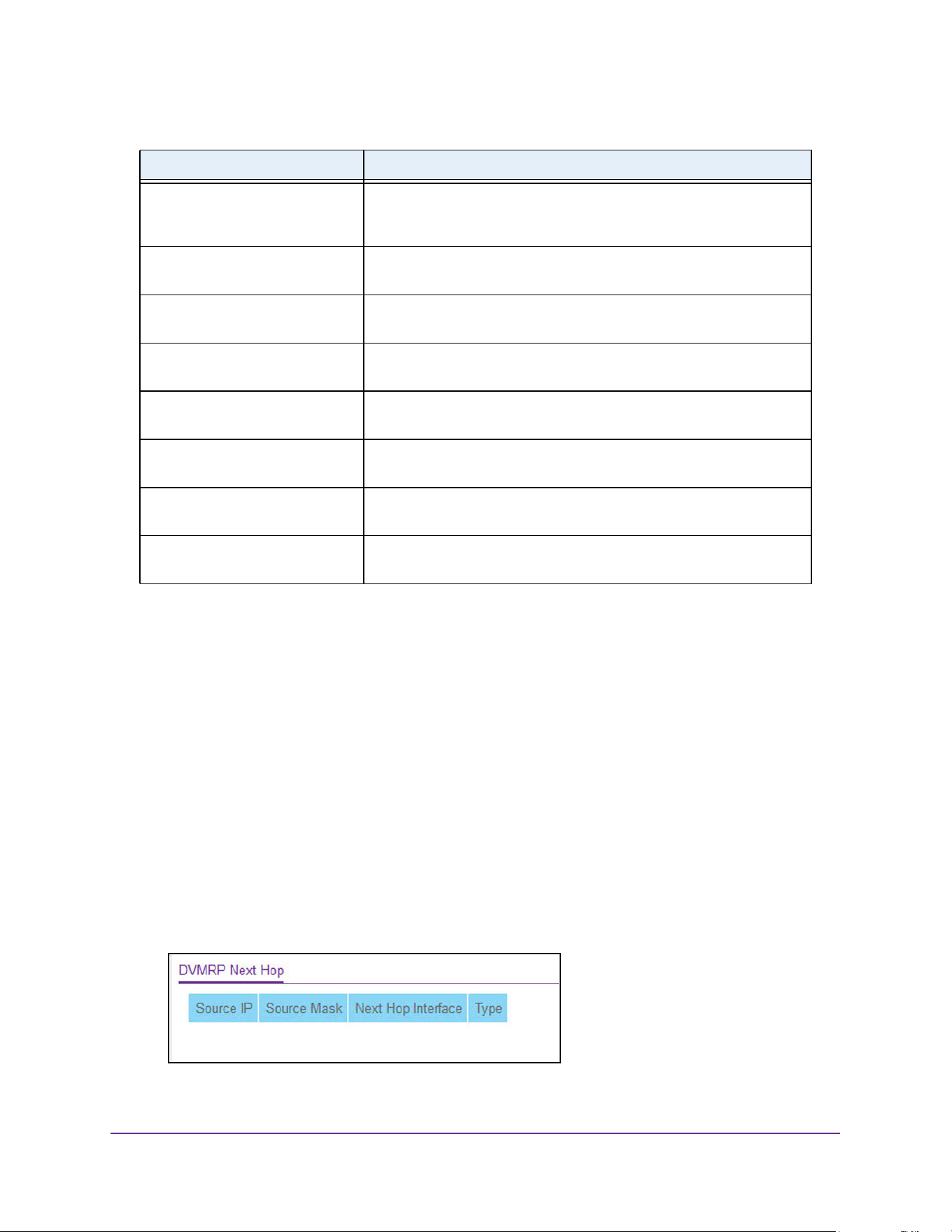
Multicast Routing
407
M4200 and M4300 Series ProSAFE Managed Switches Web Management User Manual
View the DVMRP Next Hop Settings
To view the multicast DVMRP Next Hop settings:
1. Launch a web browser.
2. Enter http://<ipaddress> in the web browser address field.
The login window opens.
3. Enter the user name and password.
The default admin user name is admin and the default admin password is blank, that is,
do not enter a password.
4. Click the Login button.
The System Information page displays.
5. Select Routing> Multicast > DVMRP > DVMRP Next Hop.
6. To refresh the page with the latest information on the switch, click the Update button.
Expiry Time The DVMRP expiry time for the specified neighbor on the selected
interface. This is the time left before this neighbor entry ages out, and is
not applicable if the neighbor router's state is down.
Generation ID The DVMRP generation ID for the specified neighbor on the selected
interface.
Major Version The DVMRP major version for the specified neighbor on the selected
interface.
Minor Version The DVMRP minor version for the specified neighbor on the selected
interface.
Capabilities The DVMRP capabilities of the specified neighbor on the selected
interface.
Received Routes The number of routes received for the specified neighbor on the
selected interface.
Received Bad Packets The number of invalid packets received for the specified neighbor on
the selected interface.
Received Bad Routes The number of invalid routes received for the specified neighbor on the
selected interface.
Table 154. DVMRP Neighbor (continued)
Field Description
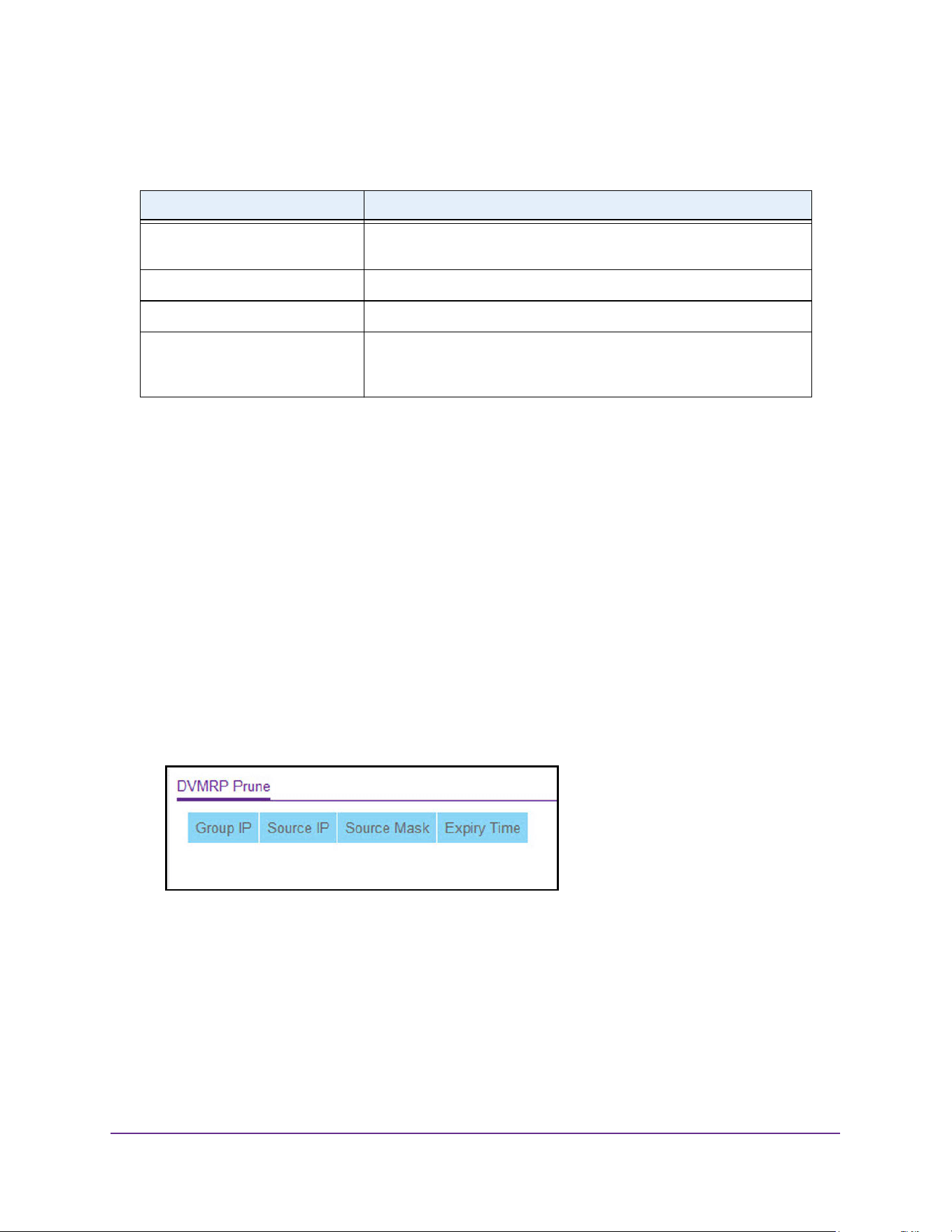
Multicast Routing
408
M4200 and M4300 Series ProSAFE Managed Switches Web Management User Manual
The following table describes the nonconfigurable data that is displayed.
View the Multicast DVMRP Prune
To view the multicast DVMRP prune:
1. Launch a web browser.
2. Enter http://<ipaddress> in the web browser address field.
The login window opens.
3. Enter the user name and password.
The default admin user name is admin and the default admin password is blank, that is,
do not enter a password.
4. Click the Login button.
The System Information page displays.
5. Select Routing> Multicast > DVMRP > DVMRP Prune.
6. To refresh the page with the latest information on the switch, click the Update button.
Table 155. DVMRP Next Hop
Field Description
Source IP The IP address used with the source mask to identify the source
network for this table entry.
Source Mask The network mask used with the source IP address.
Next Hop Interface The outgoing interface for this next hop.
Type The next hop type. Leaf means that no downstream dependent
neighbors exist on the outgoing interface. Otherwise, the type is
branch.
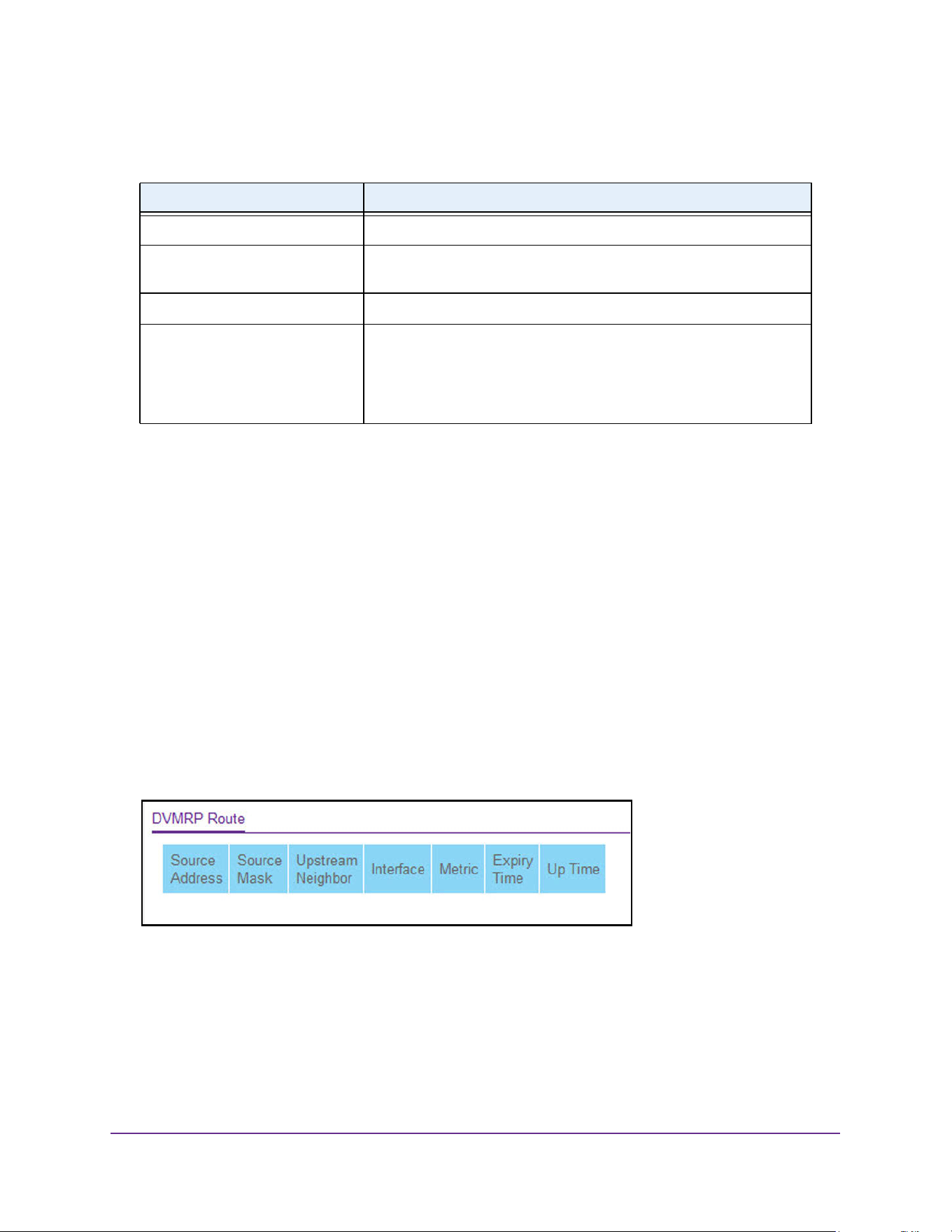
Multicast Routing
409
M4200 and M4300 Series ProSAFE Managed Switches Web Management User Manual
The following table describes the nonconfigurable data that is displayed.
View the DVMRP Route
To view the multicast DVMRP route:
1. Launch a web browser.
2. Enter http://<ipaddress> in the web browser address field.
The login window opens.
3. Enter the user name and password.
The default admin user name is admin and the default admin password is blank, that is,
do not enter a password.
4. Click the Login button.
The System Information page displays.
5. Select Routing> Multicast > DVMRP > DVMRP Route.
6. To refresh the page with the latest information on the switch, click the Update button.
Table 156. DVMRP Prune
Field Description
Group IP The group address that was pruned.
Source IP The IP address used with the source mask to identify the source
network for this table entry.
Source Mask The network mask used with the source IP address.
Expiry Time The amount of time remaining before this prune will expire at the
upstream neighbor. If no prune messages were received from
downstream neighbors, this is set to the value of the default prune
lifetime timer; otherwise, it is set to the smallest received value or the
default timer, whichever is less.
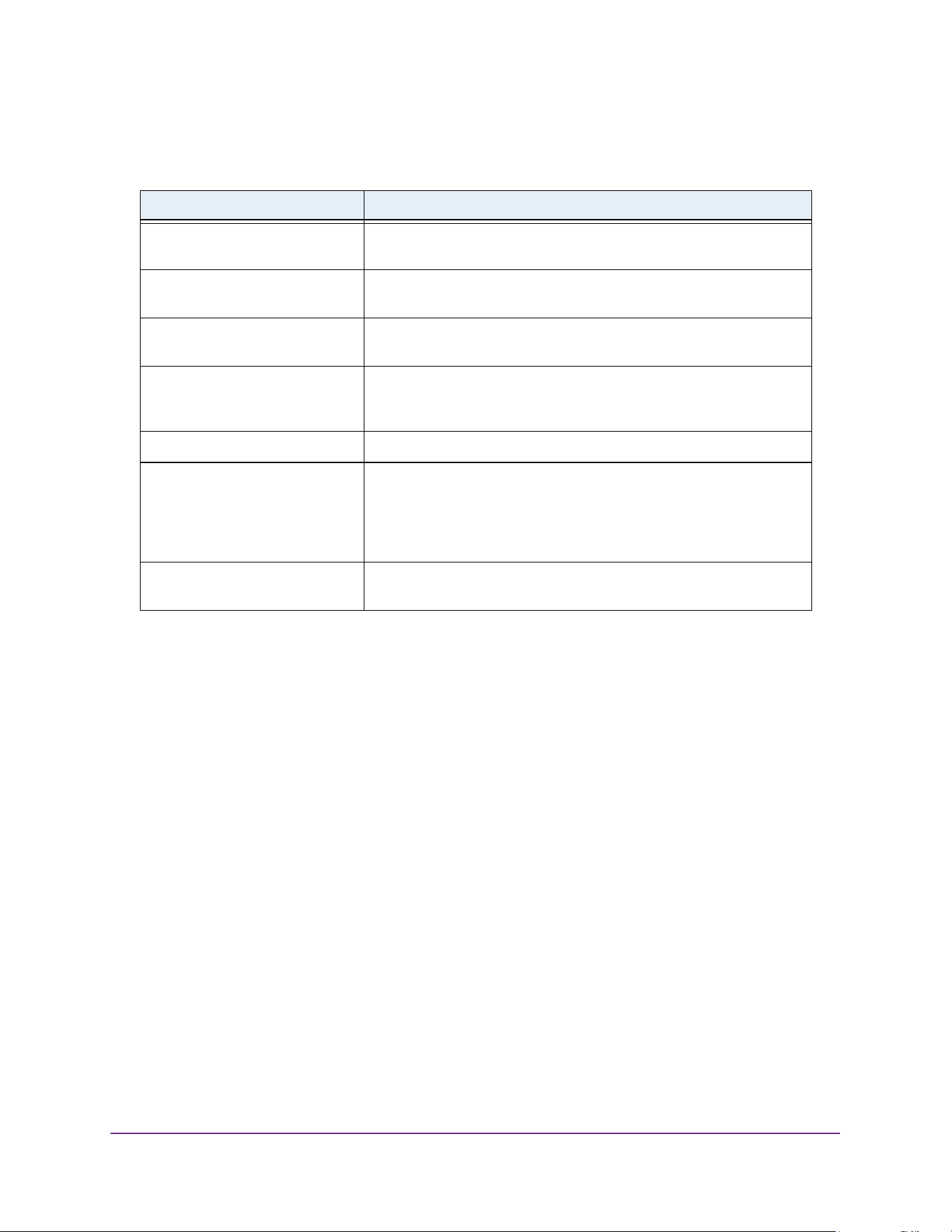
Multicast Routing
410
M4200 and M4300 Series ProSAFE Managed Switches Web Management User Manual
The following table describes the nonconfigurable data that is displayed.
Configure Multicast IGMP Settings
You can configure IGMP settings and view IGMP statistics.
Configure IGMP Global Settings
To configure the IGMP global settings:
1. Launch a web browser.
2. Enter http://<ipaddress> in the web browser address field.
The login window opens.
3. Enter the user name and password.
The default admin user name is admin and the default admin password is blank, that is,
do not enter a password.
4. Click the Login button.
The System Information page displays.
5. Select Routing> Multicast > IGMP > Global Configuration.
Table 157. DVMRP Route
Field Description
Source Address The network address that is combined with the source mask to identify
the sources for this entry.
Source Mask The network subnet mask used with the source IP address to identify
the sources for this entry.
Upstream Neighbor The address of the upstream neighbor (for example, RPF neighbor)
from which IP datagrams from these sources are received.
Interface The interface on which IP datagrams sent by these sources are
received. A value of 0 typically means the route is an aggregate for
which no next-hop interface exists.
Metric The distance in hops to the source subnet.
Expiry Time The amount of time remaining before this prune expires at the
upstream neighbor. If no prune messages were received from
downstream neighbors, this is set to value of the default prune lifetime
timer, otherwise it is set to the smallest received value or the default
timer, whichever is less.
Up Time The time since the route represented by this entry was learned by the
router.
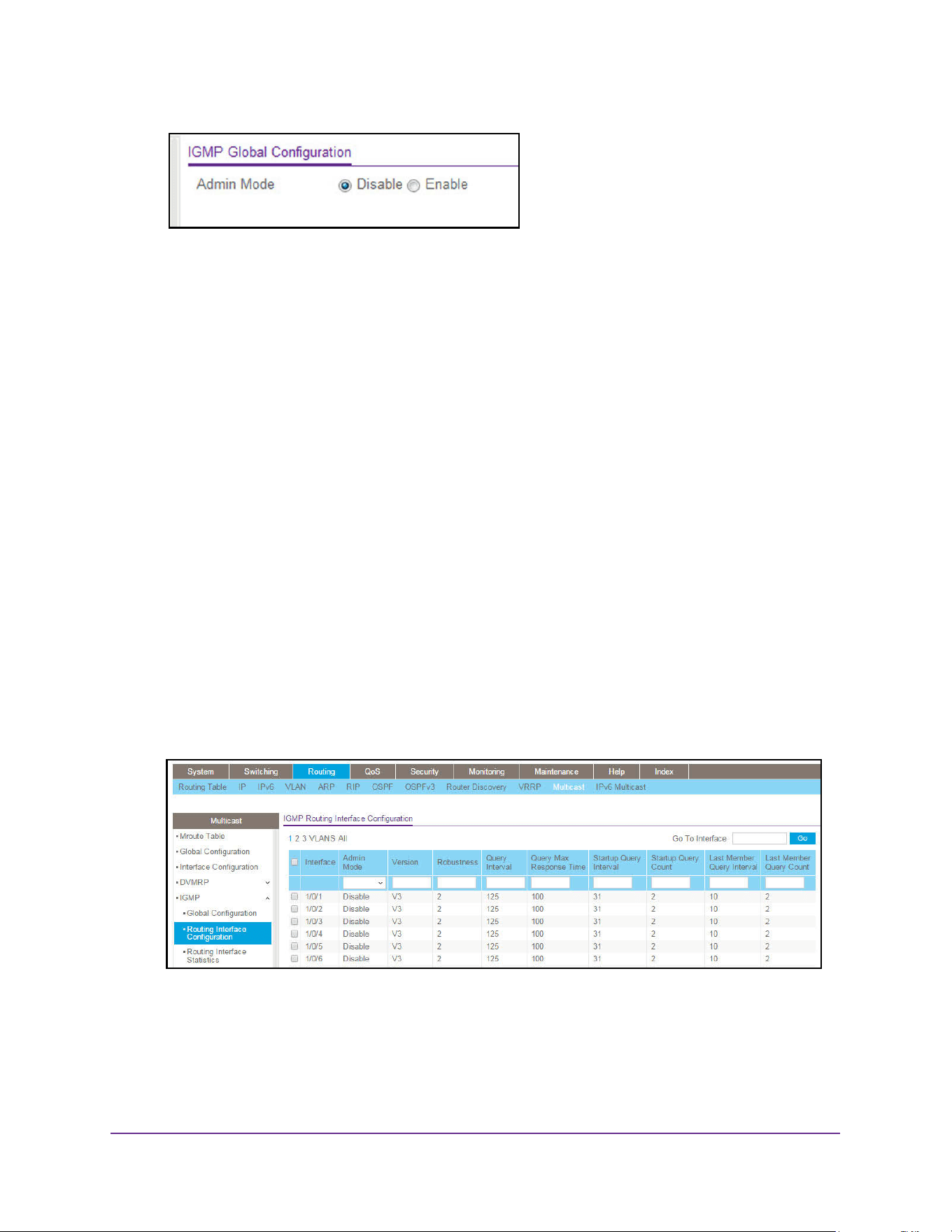
Multicast Routing
411
M4200 and M4300 Series ProSAFE Managed Switches Web Management User Manual
6. In the Admin Mode field, select the Enable or Disable option.
This sets the administrative status of IGMP in the router to active or inactive. The default
is Disable.
7. Click the Apply button.
The updated configuration is sent to the switch. Configuration changes take effect
immediately.
Configure the IGMP Routing Interface
To configure the IGMP routing interface:
1. Launch a web browser.
2. Enter http://<ipaddress> in the web browser address field.
The login window opens.
3. Enter the user name and password.
The default admin user name is admin and the default admin password is blank, that is,
do not enter a password.
4. Click the Login button.
The System Information page displays.
5. Select the Routing> Multicast > IGMP > Routing Interface Configuration.
6. Use one of the following methods to select an interface:
• In the Go To Interface field, enter the interface in the unit/slot/port format and click on
the Go button.
• Next to the Interface column, select the check box for the interface that you want to
configure.

Multicast Routing
412
M4200 and M4300 Series ProSAFE Managed Switches Web Management User Manual
7. In the Admin Mode field, select the Enable or Disable option to set the administrative
status of IGMP on the selected routing interface.
The default is Disable.
8. In the Version field, enter the version of IGMP to configure for the selected interface.
Valid values are 1 to 3. The default value is 3. This field is configurable only when IGMP
Interface mode is enabled.
9. In the Robustness field, enter the robustness value.
This variable allows tuning for the expected packet loss on a subnet. If you expect the
subnet to be lossy, enter a higher number for this parameter. IGMP is robust to
robustness variable –1 packet losses. Valid values are 1 to 255. The default value is 2.
10. In the Query Interval field, enter the frequency in seconds at which IGMP host-query
packets are to be transmitted on this interface.
Valid values are 1 to 3600. The default value is 125.
11. In the Query Max Response Time field, enter the maximum query response time, in tenths
of a second, to be advertised in IGMPv2 queries on this interface.
The default value is 100. Valid values are 0 to 255.
12. In the Startup Query Interval field, enter the number of seconds between the transmission
of startup queries on the selected interface.
Valid values are 1 to 300. The default value is 31.
13. In the Startup Query Count field, enter the number of queries to be sent on startup.
The valid values are 1 to 20. The default value is 2.
14. In the Last Member Query Interval field, enter the last member query interval in tenths of a
second.
This is the maximum response time to be inserted into group-specific queries sent in
response to leave group messages, and is also the amount of time between
group-specific query messages. Valid values are from 0 to 255. The default value is 10.
This value is not used for IGMP version 1.
15. In the Last Member Query Count field, enter the number of queries to be sent on receiving
a leave group report.
Valid values are from 1 to 20. The default value is 2.
16. Click the Apply button.
The updated configuration is sent to the switch. Configuration changes take effect
immediately.
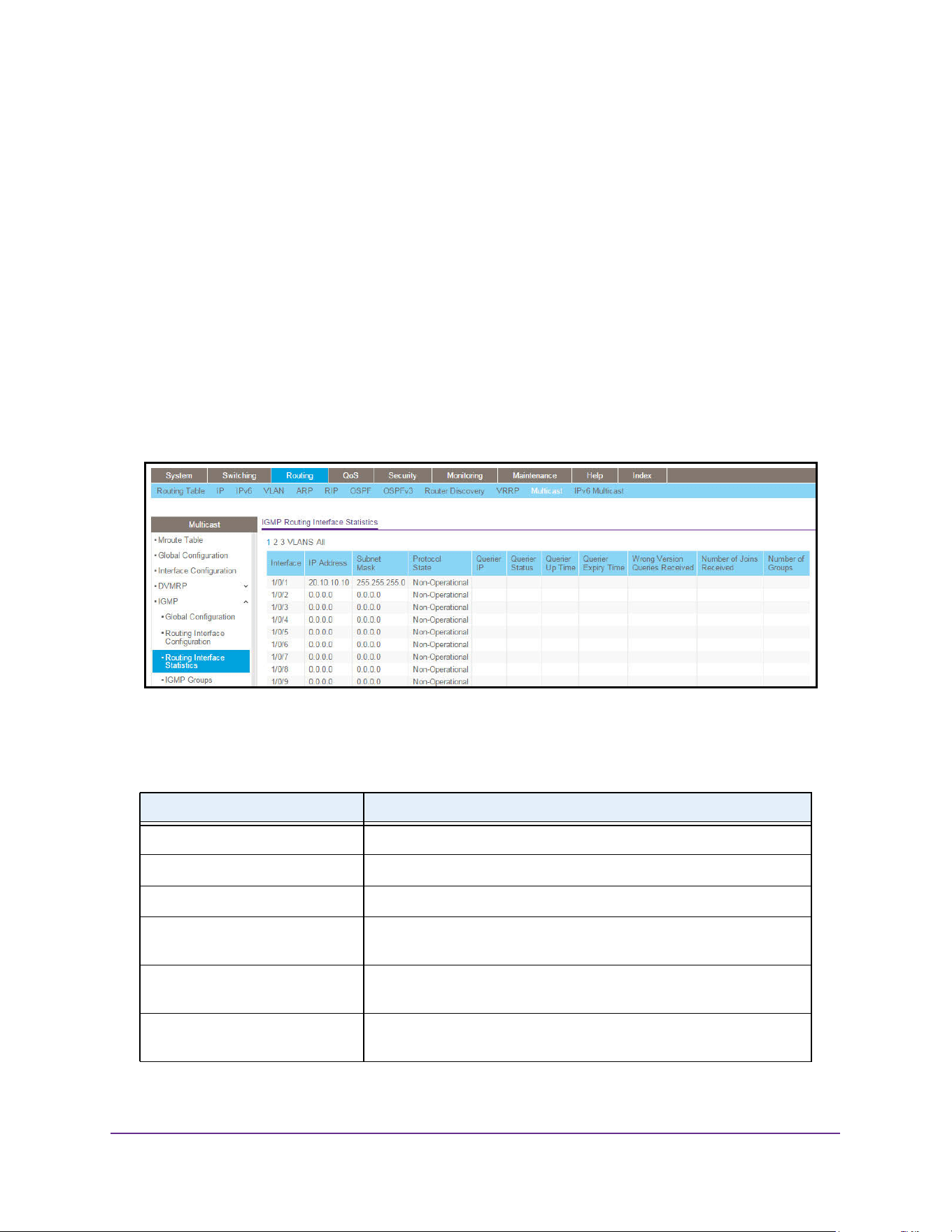
Multicast Routing
413
M4200 and M4300 Series ProSAFE Managed Switches Web Management User Manual
View IGMP Routing Interface Statistics
To view the IGMP routing interface statistics:
1. Launch a web browser.
2. Enter http://<ipaddress> in the web browser address field.
The login window opens.
3. Enter the user name and password.
The default admin user name is admin and the default admin password is blank, that is,
do not enter a password.
4. Click the Login button.
The System Information page displays.
5. Select Routing> Multicast > IGMP > Routing Interface Statistics.
6. To refresh the page with the latest information on the switch, click the Update button.
The following table describes the nonconfigurable data that is displayed.
Table 158. Multicast IGMP Routing Interface Statistics
Field Description
Interface The interface on which the IGMP is enabled.
IP Address The IP address of the selected interface.
Subnet Mask The subnet mask for the IP address of the selected interface.
Protocol State The operational state of IGMP on the selected interface, either
Operational or Non-Operational.
Querier IP The address of the IGMP querier on the IP subnet to which the
selected interface is attached.
Querier Status Indicates whether the selected interface is in querier or non-querier
mode.
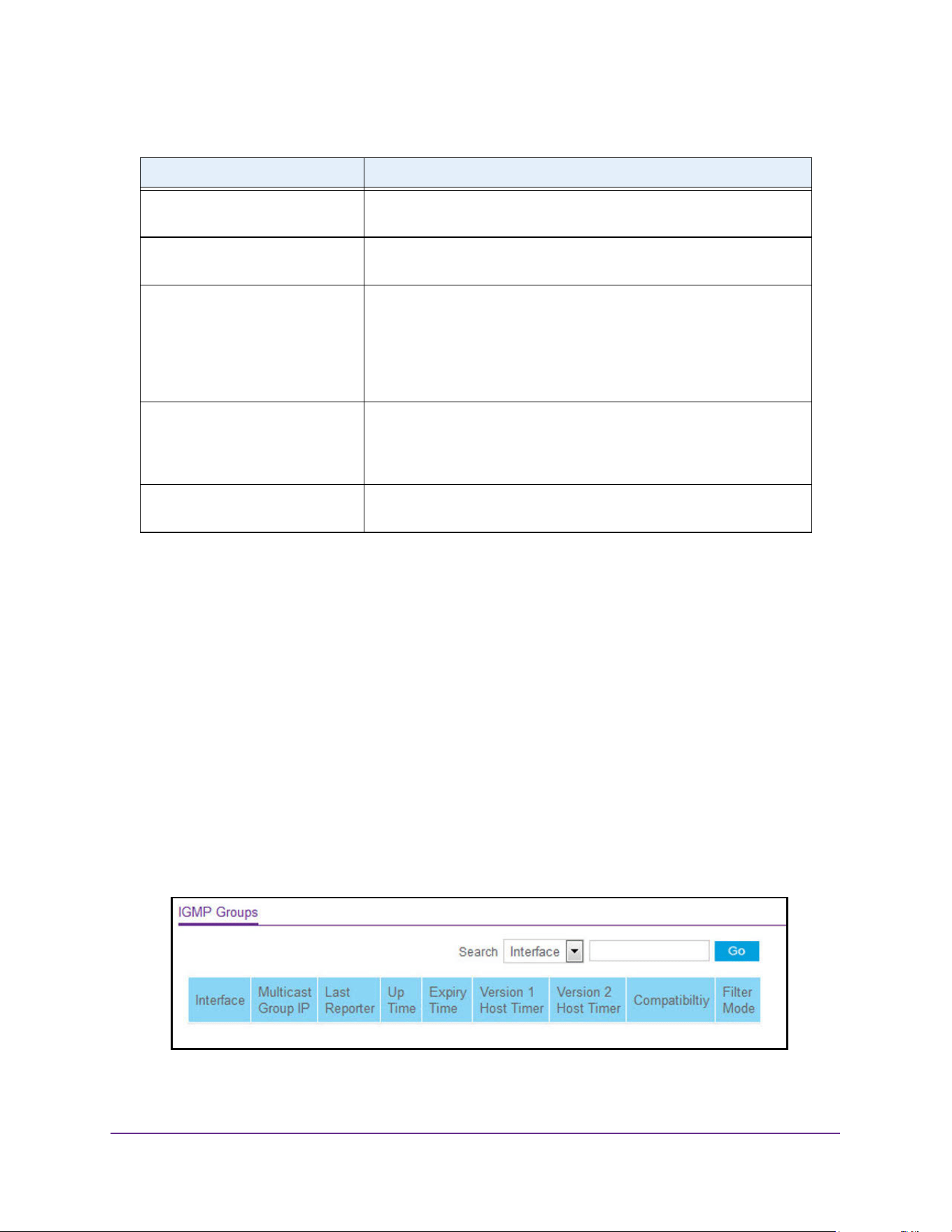
Multicast Routing
414
M4200 and M4300 Series ProSAFE Managed Switches Web Management User Manual
View IGMP Groups
To view the IGMP groups:
1. Launch a web browser.
2. Enter http://<ipaddress> in the web browser address field.
The login window opens.
3. Enter the user name and password.
The default admin user name is admin and the default admin password is blank, that is,
do not enter a password.
4. Click the Login button.
The System Information page displays.
5. Select Routing> Multicast > IGMP > IGMP Groups.
Querier Up Time The time in seconds since the IGMP interface querier was last
changed.
Querier Expiry Time The time in seconds remaining before the other querier present timer
expires. If the local system is the querier, this is zero.
Wrong Version Queries Received The number of queries that were received on the selected interface
with an IGMP version that does not match the IGMP version configured
for the interface, over the lifetime of the entry. IGMP requires that all
routers on a LAN be configured to run the same version of IGMP.
Therefore, a configuration error is indicated if any queries are received
with the wrong version number.
Number of Joins Received The number of times a group membership was added on the selected
interface; that is, the number of times an entry for this interface was
added to the cache table. This gives an indication of the amount of
IGMP activity on the interface.
Number of Groups The current number of entries for the selected interface in the cache
table.
Table 158. Multicast IGMP Routing Interface Statistics (continued)
Field Description

Multicast Routing
415
M4200 and M4300 Series ProSAFE Managed Switches Web Management User Manual
6. Use the Search menu to search for multicast entries by interface or group:
• Select Interface from the menu, enter the interface in unit/slot/port format (for
example 1/0/13), and click the Go button.
If the entry exists, the entry is displayed as the first entry, followed by the remaining
entries.
• Select Group from the menu, enter the multicast group IP address, and click the Go
button.
If the entry exists, that entry with the matching group is displayed as the first entry,
followed by the remaining entries. An exact match is required.
7. To refresh the page with the latest information on the switch, click the Update button.
The following table describes the nonconfigurable data that is displayed.
Table 159. Multicast IGMP Groups
Field Description
Interface The interface for which data is to be displayed.
Multicast Group IP The IP multicast group address for which data is to be displayed.
Last Reporter The IP address of the source of the last membership report received for
the IP multicast group address on the selected interface.
Up Time The time elapsed since this entry was created.
Expiry Time The minimum amount of time remaining before this entry is aged out.
Version 1 Host Timer The time remaining until the local router assumes that no IGMP version
1 members are on the IP subnet attached to this interface. When an
IGMPv1 membership report is received, this timer is reset to the group
membership timer. While this timer is non-zero, the local router ignores
any IGMPv2 leave messages for this group that it receives on the
selected interface. This field is displayed only if the interface is
configured for IGMP version 1.
Version 2 Host Timer The time remaining until the local router assumes that no IGMP version
2 members are on the IP subnet attached to this interface. When an
IGMPv2 membership report is received, this timer is reset to the group
membership timer. While this timer is non-zero, the local router ignores
any IGMPv1 and IGMPv3 leave messages for this group that it receives
on the selected interface. This field is displayed only if the interface is
configured for IGMP version 2.
Compatibility This parameter shows group compatibility mode (v1, v2, and v3) for this
group on the specified interface.
Filter Mode The source filter mode (Include, Exclude, or NA) for the specified
group on this interface. When NA mode is active, the field is blank.
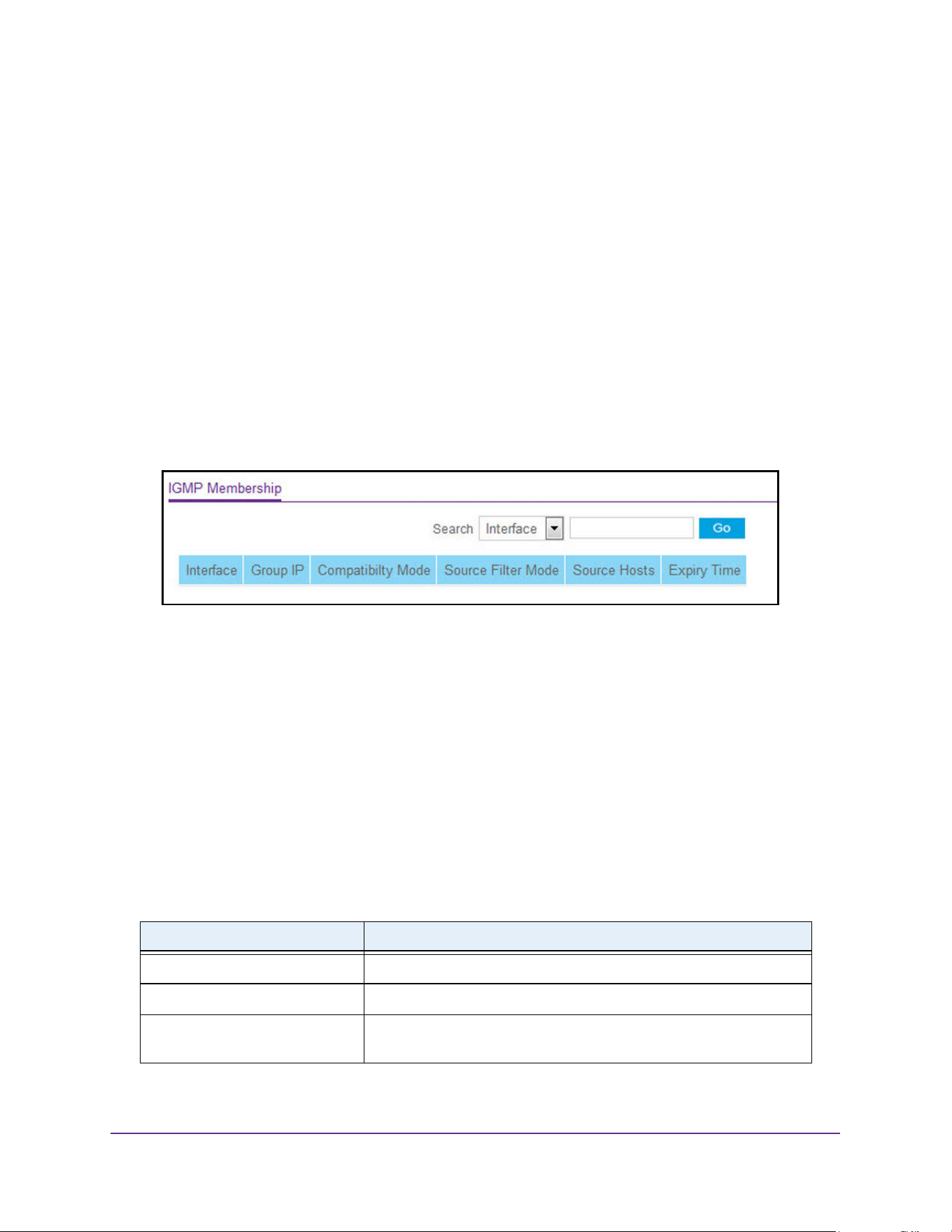
Multicast Routing
416
M4200 and M4300 Series ProSAFE Managed Switches Web Management User Manual
View the IGMP Membership
To view the IGMP membership:
1. Launch a web browser.
2. Enter http://<ipaddress> in the web browser address field.
The login window opens.
3. Enter the user name and password.
The default admin user name is admin and the default admin password is blank, that is,
do not enter a password.
4. Click the Login button.
The System Information page displays.
5. Select Routing> Multicast > IGMP > IGMP Membership.
6. Use the Search menu to search for multicast entries by interface or group IP address.
• Select Interface from the menu, enter the interface in unit/slot/port format (for
example, 1/0/13), and click the Go button.
If the entry exists, the entry is displayed as the first entry, followed by the remaining
entries.
• Select Group IP from the menu, enter the multicast group IP, and click the Go button.
If the entry exists, that entry with the matching group IP address is displayed as the
first entry, followed by the remaining entries. An exact match is required.
7. To refresh the page with the latest information on the switch, click the Update button.
The following table describes the nonconfigurable data that is displayed.
Table 160. Multicast IGMP Membership
Field Description
Interface The interface on which multicast packets are forwarded.
Group IP The IP multicast group address for which data is to be displayed.
Compatibility Mode This parameter shows group compatibility mode (v1, v2, and v3) for this
group on the specified interface.
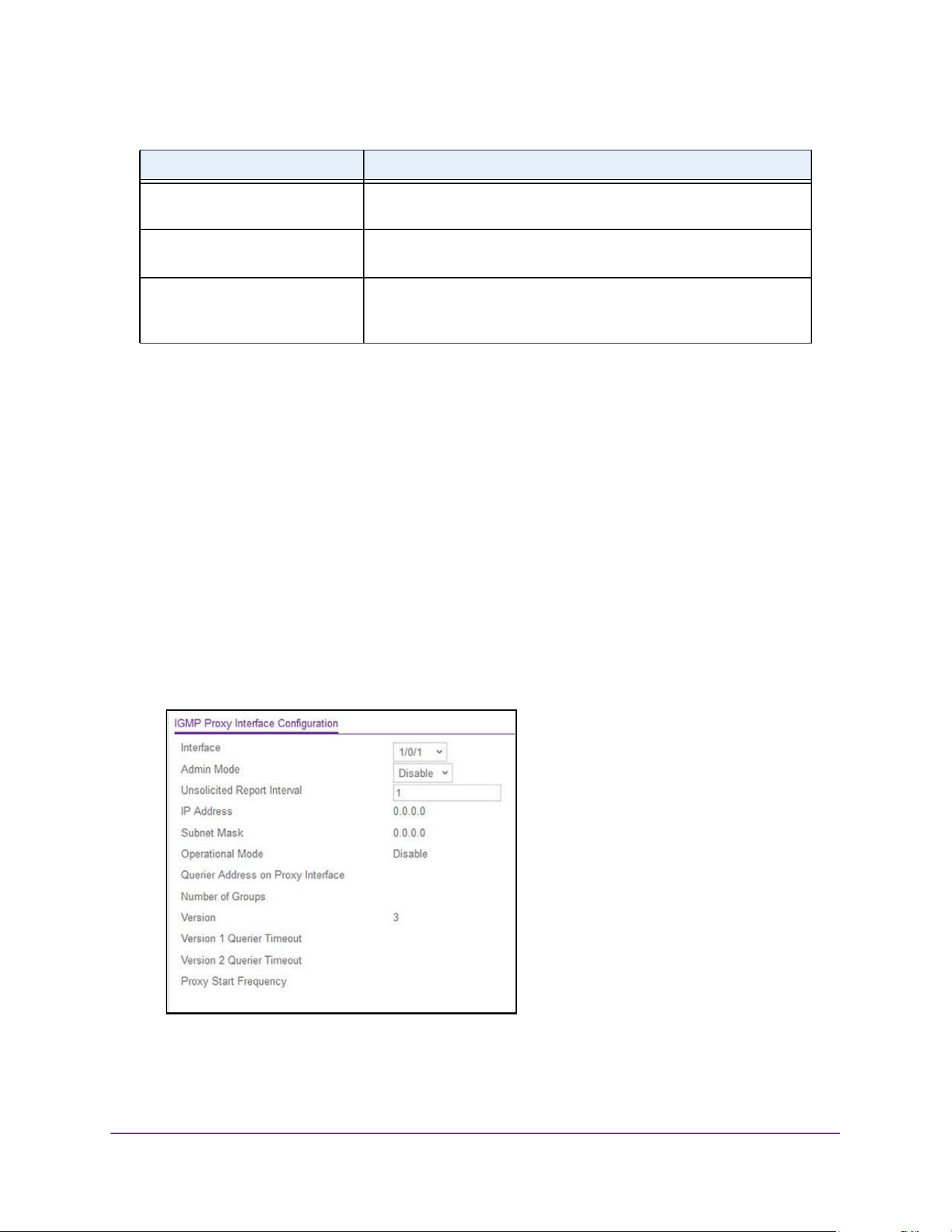
Multicast Routing
417
M4200 and M4300 Series ProSAFE Managed Switches Web Management User Manual
Configure the IGMP Proxy Interface
To configure the IGMP proxy interface:
1. Launch a web browser.
2. Enter http://<ipaddress> in the web browser address field.
The login window opens.
3. Enter the user name and password.
The default admin user name is admin and the default admin password is blank, that is,
do not enter a password.
4. Click the Login button.
The System Information page displays.
5. Select Routing> Multicast > IGMP > Proxy Interface Configuration.
6. Use the Interface list to select the port.
At least one router interface must be configured before you configure or display data for
an IGMP proxy interface, and it must not be an IGMP routing interface.
Source Filter Mode The source filter mode (Include, Exclude, or NA) for the specified
group on this interface. When NA mode is active, the field is blank.
Source Hosts This parameter shows source addresses that are members of this
multicast address.
Expiry Time This parameter shows expiry time interval against each source address
that are members of this multicast group. This is the amount of time
after which the specified source entry is aged out.
Table 160. Multicast IGMP Membership (continued)
Field Description
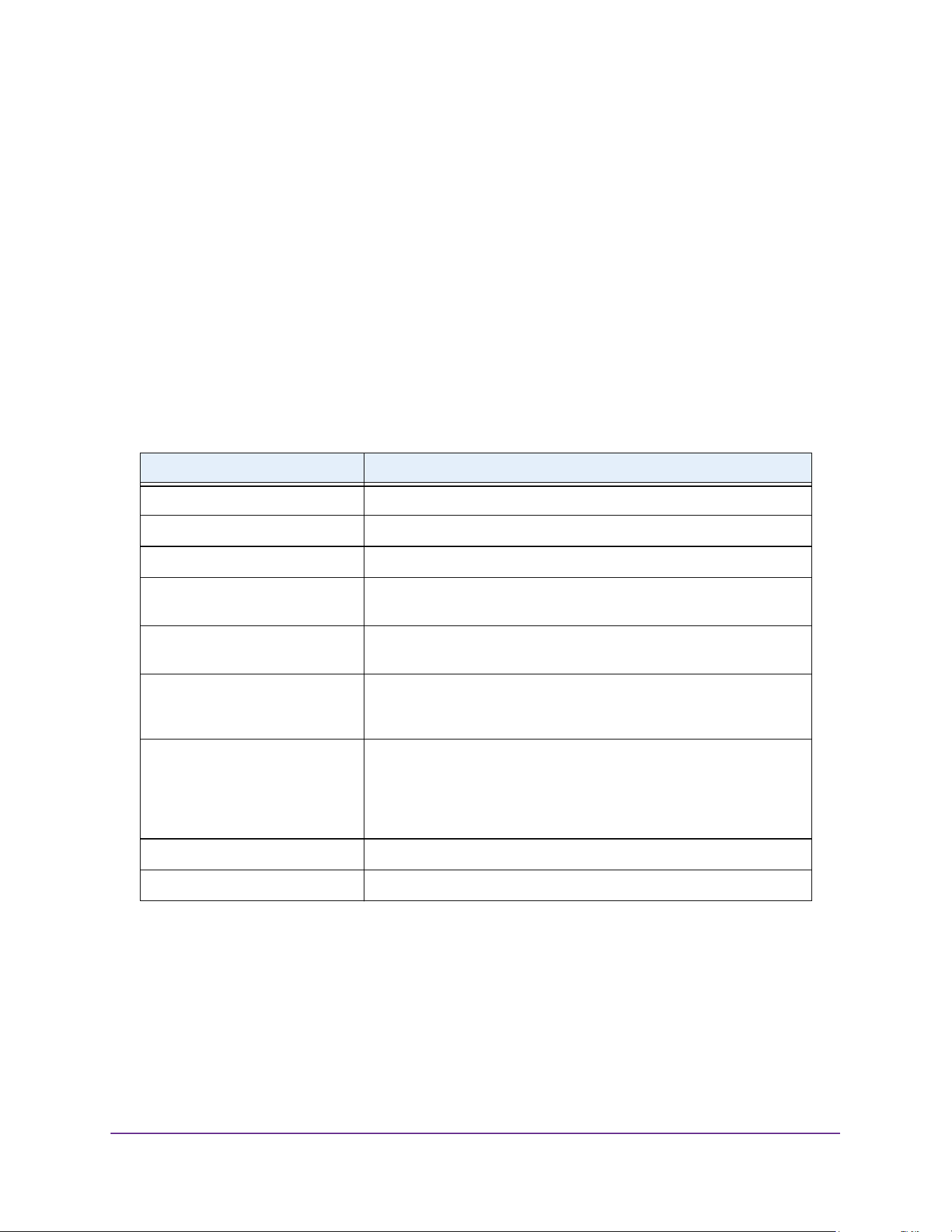
Multicast Routing
418
M4200 and M4300 Series ProSAFE Managed Switches Web Management User Manual
7. Select Enable or Disable from the Admin Mode list.
This sets the administrative status of IGMP proxy on the selected interface. The default is
Disable. Routing, IGMP and Multicast global admin modes must be enabled to enable
IGMP proxy interface mode.
8. In the Unsolicited Report Interval field, enter the unsolicited time interval value in seconds.
The unsolicited report interval is the time between repetitions of a host's initial report of
membership in a group. Valid values are from 1 to 260. The default value is 1.
9. Click the Apply button.
The updated configuration is sent to the switch. Configuration changes take effect
immediately.
The following table describes the nonconfigurable data that is displayed.
Table 161. Multicast IGMP Proxy Interface Configuration
Field Description
IP Address The IP address of the IGMP proxy interface.
Subnet Mask The subnet mask for the IP address of the IGMP proxy interface.
Operational Mode The operational state of IGMP proxy interface.
Querier Address on Proxy
Interface
The querier address on the proxy interface.
Number of Groups The current number of multicast group entries for the IGMP proxy
interface in the cache table.
Version Enter the version of IGMP to configure on the selected interface. Valid
values are 1 to 3; the default value is 3. This field is configurable only
when IGMP proxy Interface mode is enabled.
Version 1 Querier Timeout The older IGMP version 1 querier time-out value in seconds. The older
version querier Interval is the time-out for transitioning a host back to
IGMPv3 mode, once an older version query is heard. When an older
version query is received, hosts set their older version querier present
timer to older version querier Interval.
Version 2 Querier Timeout The older IGMP version 2 querier time-out value in seconds.
Proxy Start Frequency The number of times the proxy was brought up.
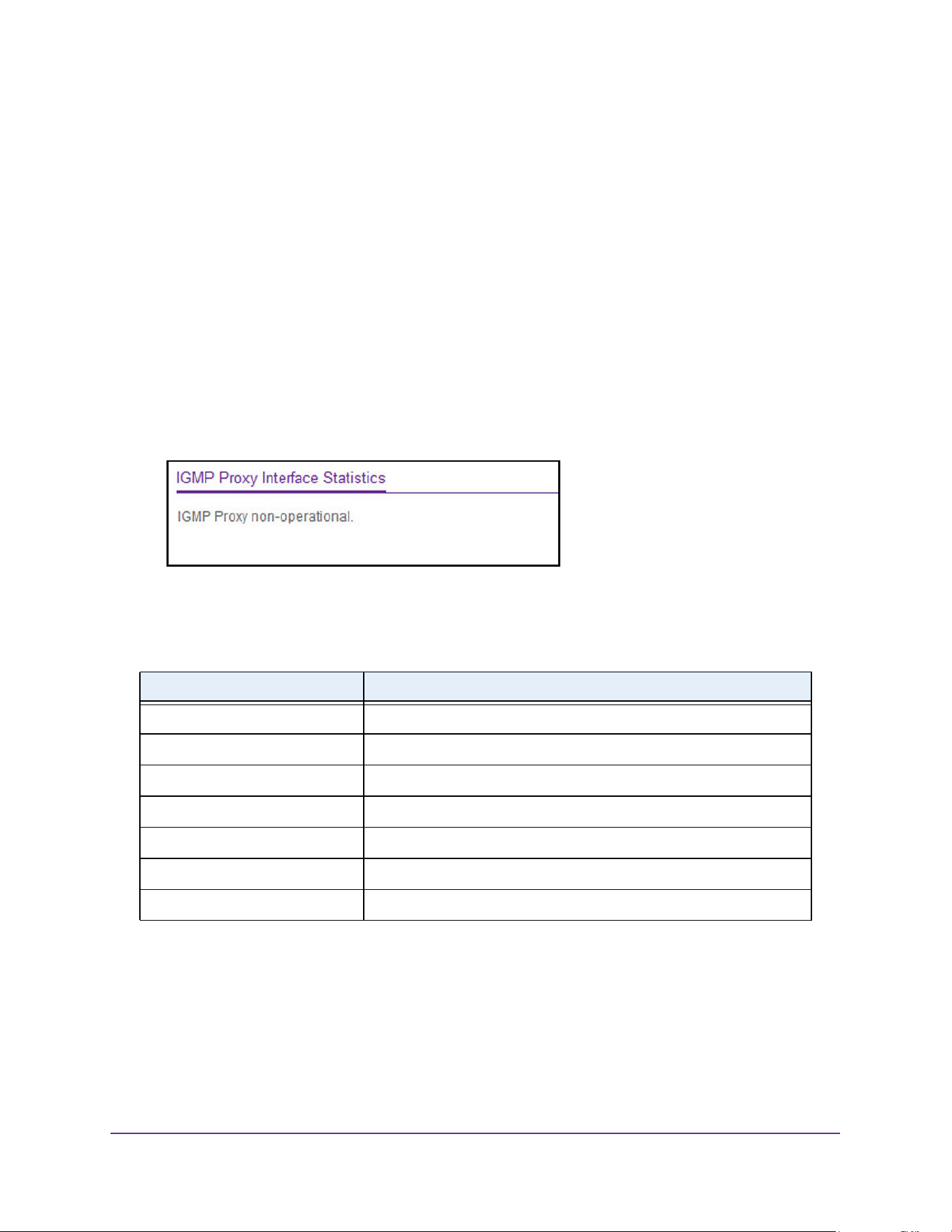
Multicast Routing
419
M4200 and M4300 Series ProSAFE Managed Switches Web Management User Manual
View the IGMP Proxy Interface Statistics
To view the IGMP proxy interface statistics:
1. Launch a web browser.
2. Enter http://<ipaddress> in the web browser address field.
The login window opens.
3. Enter the user name and password.
The default admin user name is admin and the default admin password is blank, that is,
do not enter a password.
4. Click the Login button.
The System Information page displays.
5. Select Routing> Multicast > IGMP > Proxy Interface Statistics.
6. To refresh the page with the latest information on the switch, click the Update button.
The following describes the nonconfigurable data that is displayed.
Table 162. Multicast IGMP Proxy Interface Statistics
Field Description
Proxy Interface The interface on which IGMP packets are received.
Version The version of IGMP packets received.
Queries Received The number of IGMP queries received.
Report Received The number of IGMP reports received.
Reports Sent The number of IGMP reports sent.
Leaves Received The number of IGMP leaves received.
Leaves Sent The number of IGMP leaves sent.
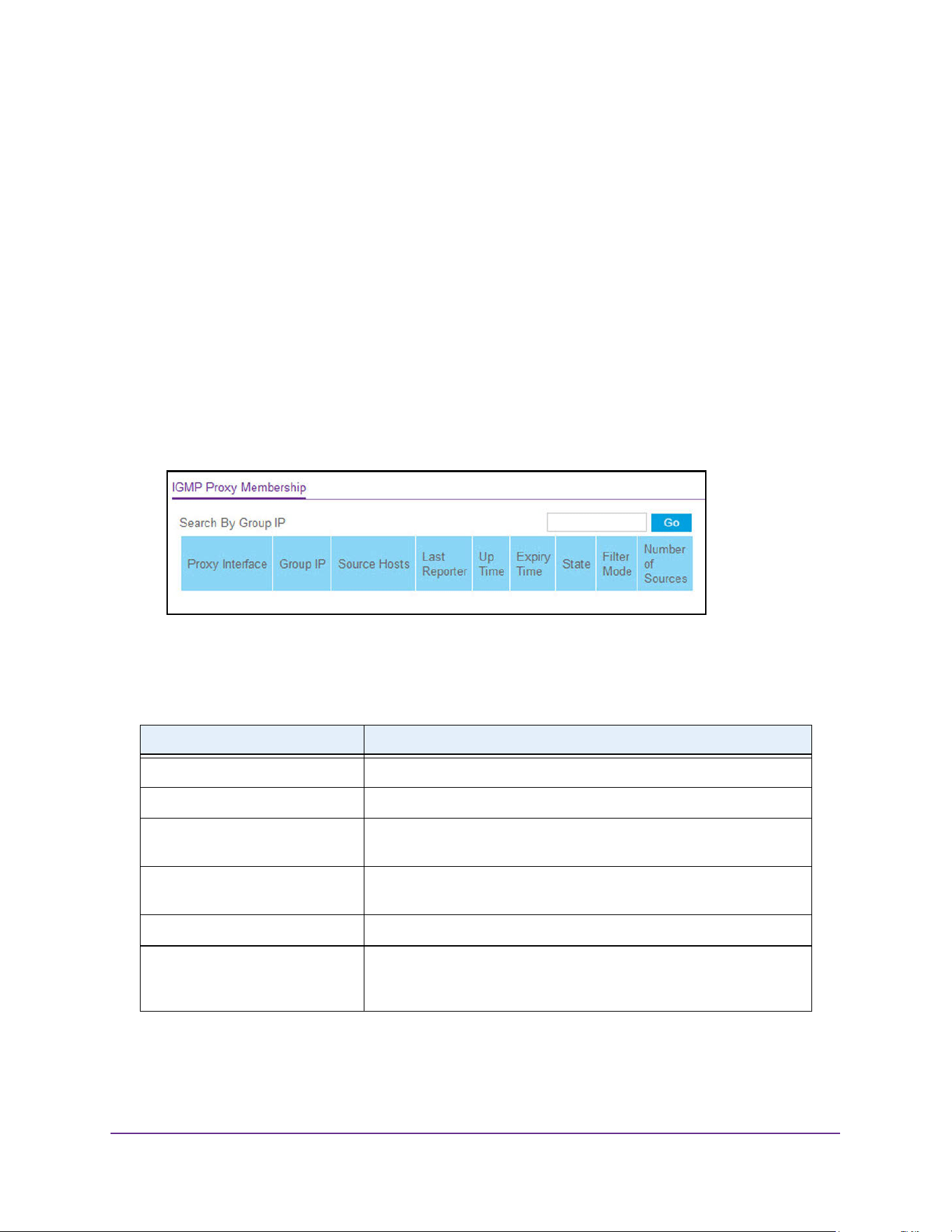
Multicast Routing
420
M4200 and M4300 Series ProSAFE Managed Switches Web Management User Manual
View the IGMP Proxy Membership
To view the IGMP proxy membership:
1. Launch a web browser.
2. Enter http://<ipaddress> in the web browser address field.
The login window opens.
3. Enter the user name and password.
The default admin user name is admin and the default admin password is blank, that is,
do not enter a password.
4. Click the Login button.
The System Information page displays.
5. Select Routing> Multicast > IGMP > Proxy Membership.
6. To refresh the page with the latest information on the switch, click the Update button.
The following table describes the nonconfigurable data that is displayed.
Table 163. Multicast IGMP Proxy Membership
Field Description
Proxy Interface The interface on which IGMP proxy is enabled.
Group IP The IP multicast group address.
Source Hosts This parameter shows source addresses that are members of this
multicast address.
Last Reporter The IP address of the source of the last membership report received for
the IP multicast group address on the IGMP proxy interface.
Up Time The time elapsed since this entry was created.
Expiry Time This parameter shows expiry time interval against each source address
that is a member of this multicast group. This is the amount of time after
which the specified source entry is aged out.
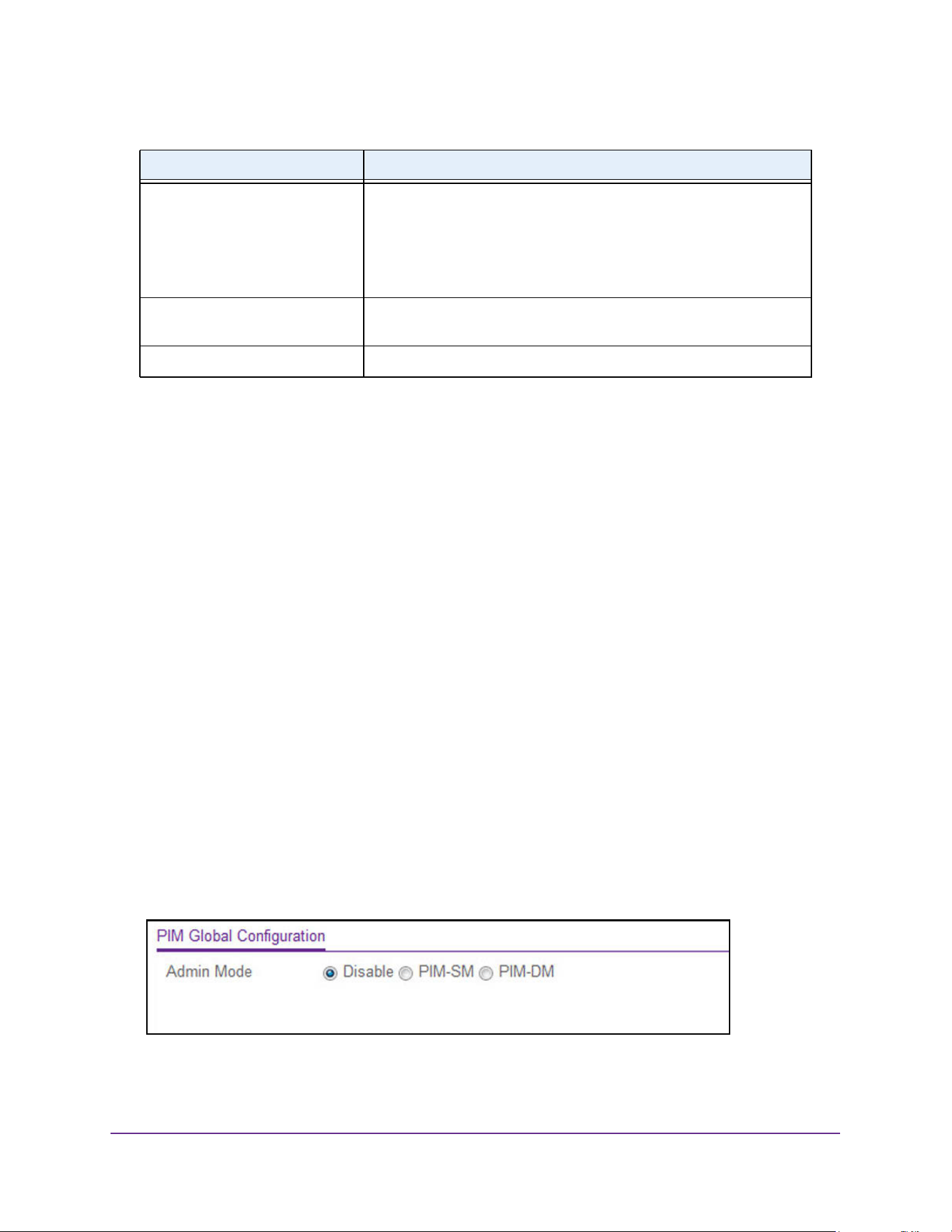
Multicast Routing
421
M4200 and M4300 Series ProSAFE Managed Switches Web Management User Manual
Configure PIM Settings
You can configure PIM settings and view PIM statistics.
Configure the Multicast PIM Global Settings
Protocol-Independent Multicast (PIM) is a standard multicast routing protocol that provides
scalable interdomain multicast routing across the Internet, independent of the mechanisms
provided by any particular unicast routing protocol.
To configure the PIM global settings:
1. Launch a web browser.
2. Enter http://<ipaddress> in the web browser address field.
The login window opens.
3. Enter the user name and password.
The default admin user name is admin and the default admin password is blank, that is,
do not enter a password.
4. Click the Login button.
The System Information page displays.
5. Select Routing> Multicast > PIM > Global Configuration.
6. In the Admin Mode field, select the protocol of PIM in the router.
Possible values are Disable, PIM-SM, or PIM-DM. The default is Disable.
State The state of the host entry. A host can be in one of the state.
Non-member state - does not belong to the group on the interface.
Delaying member state - host belongs to the group on the interface and
report timer running. The report timer is used to send out the reports.
Idle member state - host belongs to the group on the interface and no
report timer running.
Filter Mode The group filter mode (Include/Exclude/None) for the specified group
on the IGMP proxy interface.
Number of Sources The number of source hosts present in the selected multicast group.
Table 163. Multicast IGMP Proxy Membership (continued)
Field Description
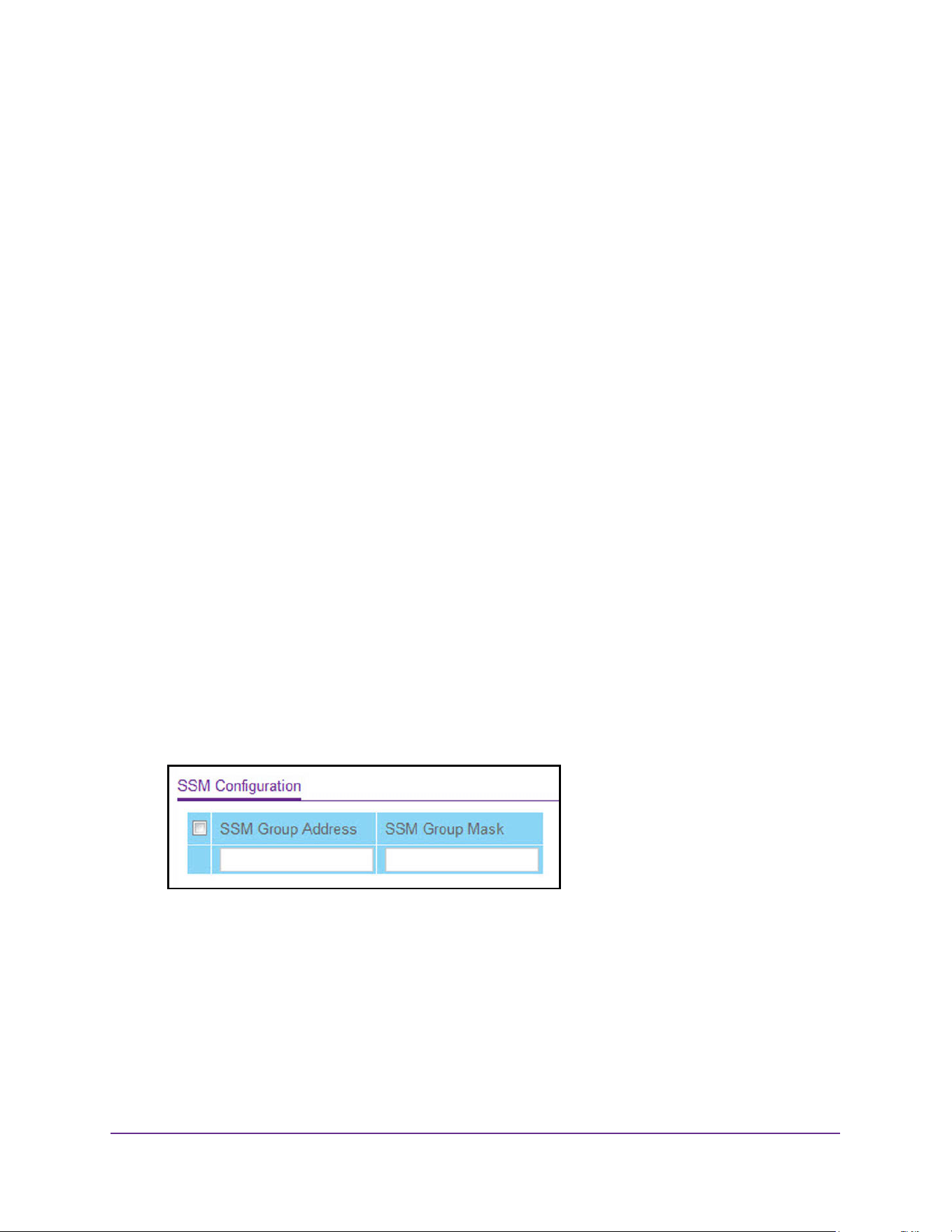
Multicast Routing
422
M4200 and M4300 Series ProSAFE Managed Switches Web Management User Manual
7. Click the Apply button.
The updated configuration is sent to the switch. Configuration changes take effect
immediately.
Configure PIM SSM Settings
While PIM employs a specially configured rendezvous point (RP) router that serves as a
meeting junction for multicast senders and listeners, Protocol-Independent Multicast
Single-Source Multicast (PIM-SSM) does not use an RP. It supports only source route
delivery trees. It is used between routers so that they can track which multicast packets to
forward to each other and to their directly connected LANs. The SSM service model can be
implemented with a strict subset of the PIM protocol mechanisms. Both regular IP multicast
and SSM semantics can coexist on a single router, and both can be implemented using the
PIM protocol. A range of multicast addresses, currently 232.0.0.0/8 in IPv4 and FF3x::/32 in
IPv6, is reserved for SSM.
To configure PIM SSM settings:
1. Launch a web browser.
2. Enter http://<ipaddress> in the web browser address field.
The login window opens.
3. Enter the user name and password.
The default admin user name is admin and the default admin password is blank, that is,
do not enter a password.
4. Click the Login button.
The System Information page displays.
5. Select Routing> Multicast > PIM > SSM Configuration.
6. In the SSM Group Address field, enter the source-specific multicast group IP address.
7. In the SSM Group Mask field, enter the source-specific multicast group IP address
mask.
8. Click the Add button.
The source-specific group is added.
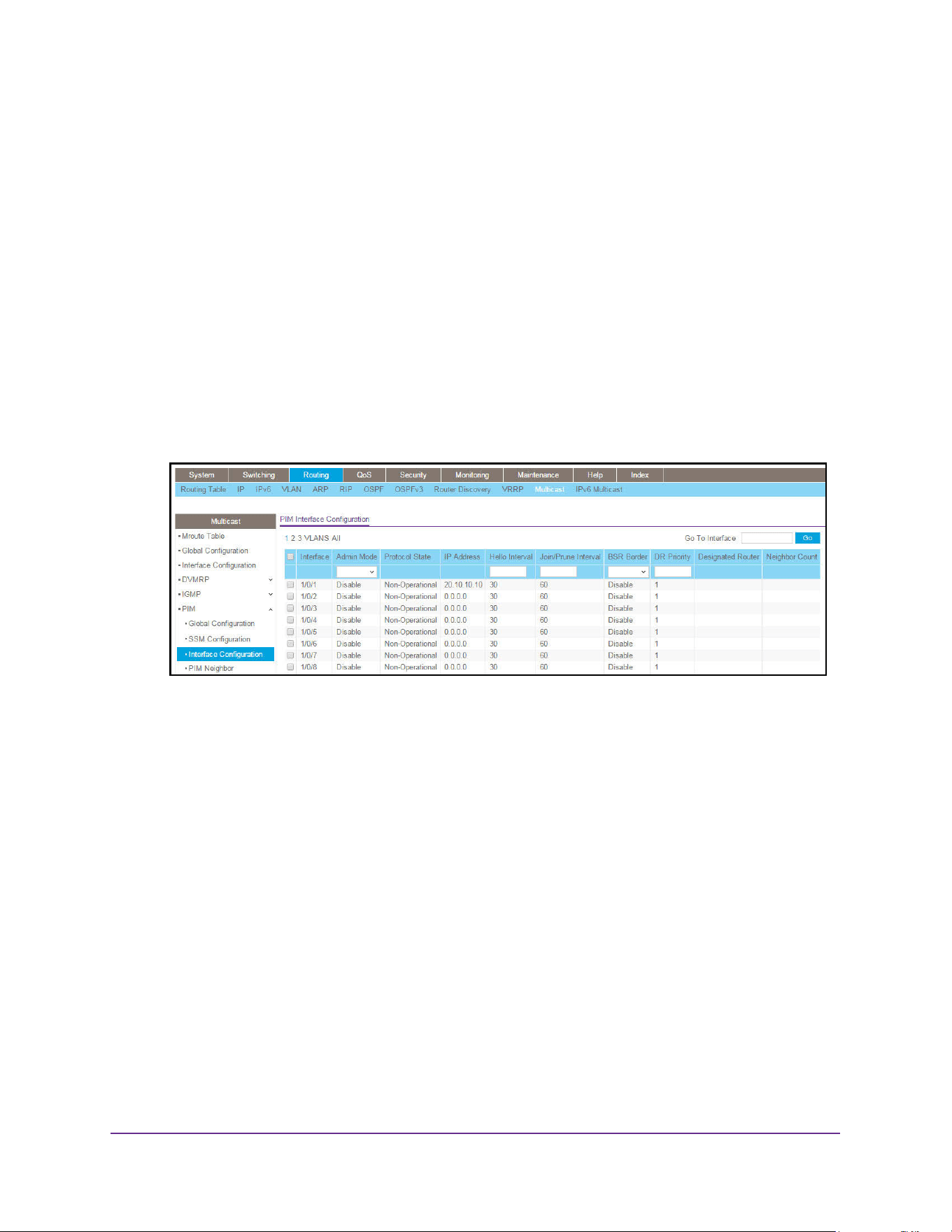
Multicast Routing
423
M4200 and M4300 Series ProSAFE Managed Switches Web Management User Manual
Configure PIM Interface
To configure the multicast PIM interface:
1. Launch a web browser.
2. Enter http://<ipaddress> in the web browser address field.
The login window opens.
3. Enter the user name and password.
The default admin user name is admin and the default admin password is blank, that is,
do not enter a password.
4. Click the Login button.
The System Information page displays.
5. Select Routing> Multicast > PIM > Interface Configuration.
6. Use one of the following methods to select an interface:
• In the Go To Interface field, enter the interface in the unit/slot/port format and click on
the Go button.
• Next to the Interface column, select the check box for the interface that you want to
configure.
7. In the Admin Mode field, select the Enable or Disable option to set the administrative
status of PIM in the router.
The default is Disable.
8. In the Hello Interval field, enter the time in seconds between the transmission of PIM hello
messages on this interface.
The valid values are from 0 to 18000. The default value is 30.
9. In the Join/Prune Interval, enter the time in seconds at which PIM Join/Prune messages
are transmitted on this PIM interface. The valid values are from 0 to 18000. The default
value is 60.
10. In the BSR Border field, select the Enable or Disable option to set the bootstrap router
(BSR) border status on the selected interface.
11. Enter the DR Priority for the selected interface.
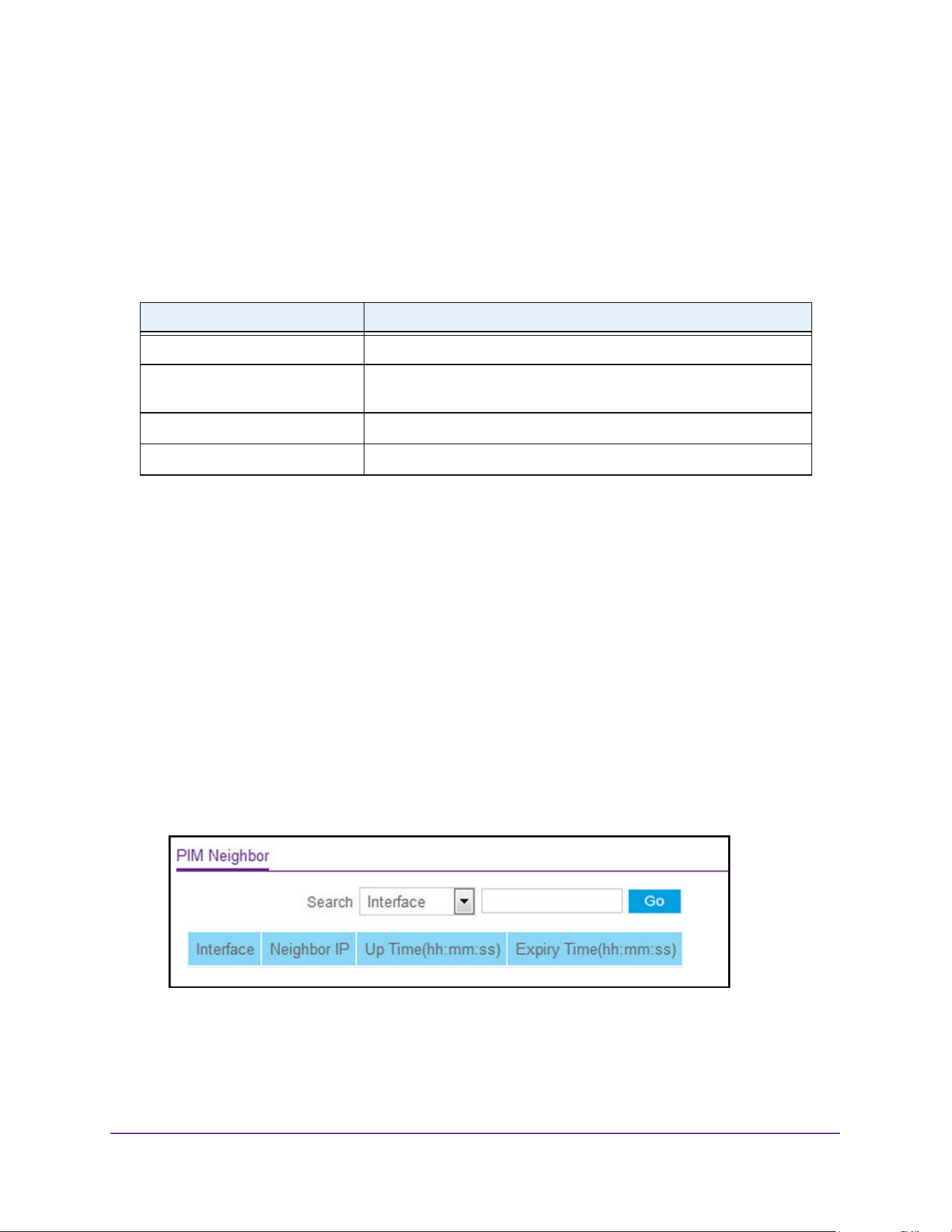
Multicast Routing
424
M4200 and M4300 Series ProSAFE Managed Switches Web Management User Manual
The valid values are from 0 to 2147483647. The default value is 1.
12. Click the Apply button.
The updated configuration is sent to the switch. Configuration changes take effect
immediately.
The following table describes the nonconfigurable data that is displayed.
View the PIM Neighbor
To view the PIM neighbor:
1. Launch a web browser.
2. Enter http://<ipaddress> in the web browser address field.
The login window opens.
3. Enter the user name and password.
The default admin user name is admin and the default admin password is blank, that is,
do not enter a password.
4. Click the Login button.
The System Information page displays.
5. Select Routing> Multicast > PIM > PIM Neighbor.
6. To refresh the page with the latest information on the switch, click the Update button.
Table 164. Multicast PIM Interface Configuration
Field Description
Protocol State The state of PIM in the router. either Operational or Non-Operational.
IP Address The IP address of the selected PIM interface. If you enter an IPv6
address, the format is prefix/prefix length.
Designated Router The designated router on the selected PIM interface.
Neighbor Count The number of PIM neighbors on the selected interface.
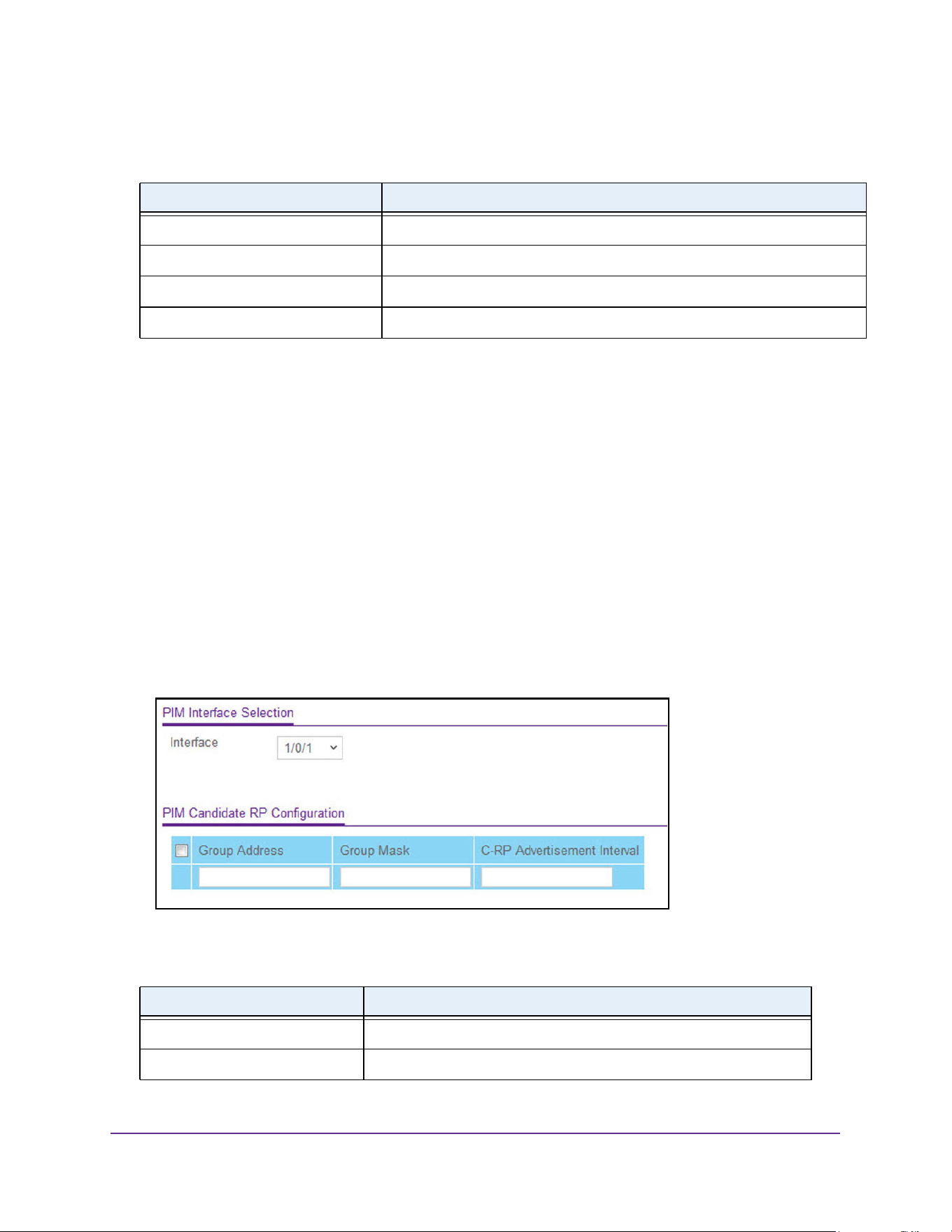
Multicast Routing
425
M4200 and M4300 Series ProSAFE Managed Switches Web Management User Manual
The following table describes the nonconfigurable data that is displayed.
View the PIM Candidate Rendezvous Point
To view the multicast PIM candidate rendezvous point (RP):
1. Launch a web browser.
2. Enter http://<ipaddress> in the web browser address field.
The login window opens.
3. Enter the user name and password.
The default admin user name is admin and the default admin password is blank, that is,
do not enter a password.
4. Click the Login button.
The System Information page displays.
5. Select Routing> Multicast > PIM > Candidate RP Configuration.
The following table describes the nonconfigurable data that is displayed.
Table 165. Multicast PIM Neighbor
Field Description
Interface The interface on which the neighbor is displayed.
Neighbor IP The IP address of the PIM neighbor for this entry.
Up Time (hh:mm:ss) The time since this PIM neighbor (last) became a neighbor of the local router.
Expiry Time (hh:mm:ss) The minimum time remaining before this PIM neighbor is aged out.
Table 166. Multicast PIM Neighbor
Field Description
Field Description
Interface The interface on which the neighbor is displayed.
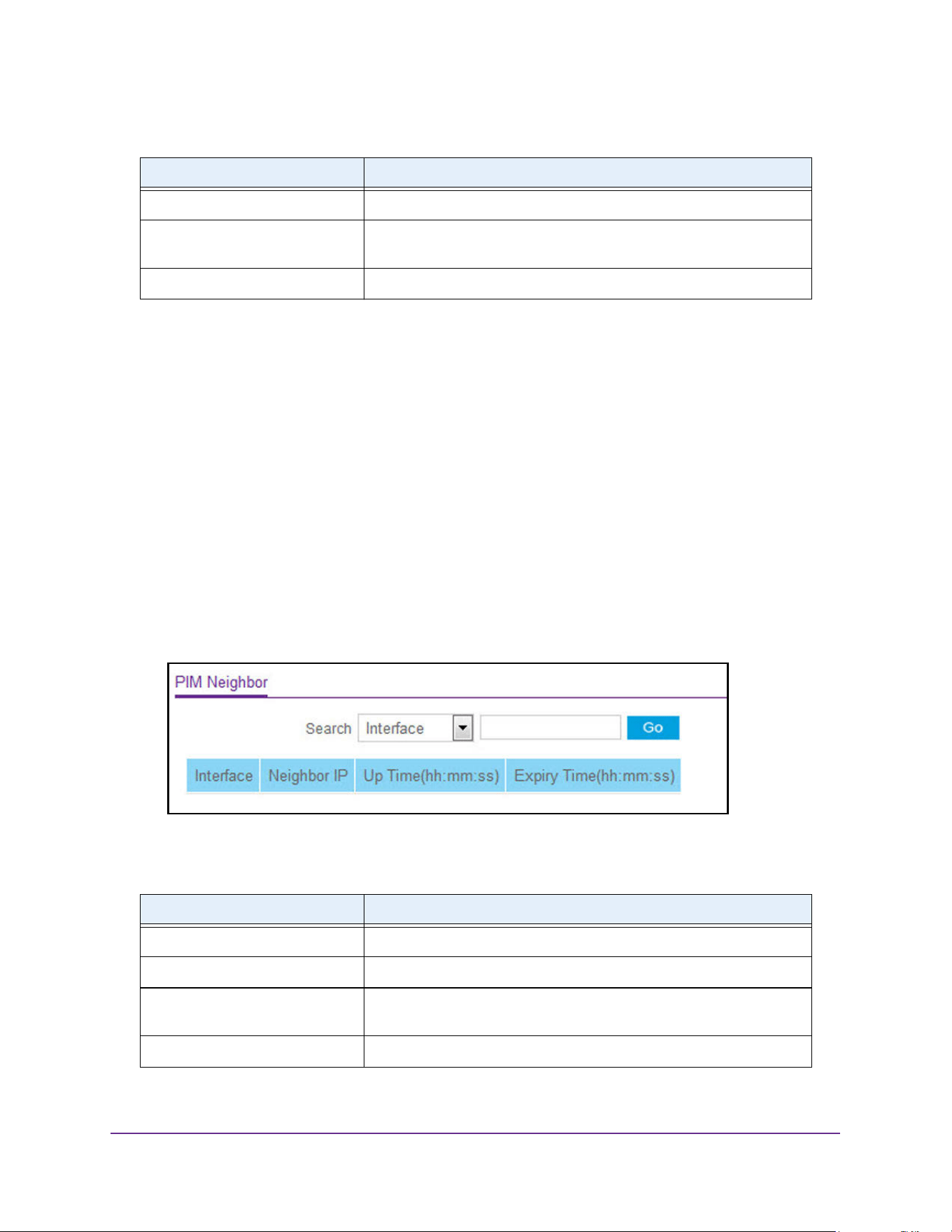
Multicast Routing
426
M4200 and M4300 Series ProSAFE Managed Switches Web Management User Manual
View the PIM Neighbor
To view the multicast PIM neighbor:
1. Launch a web browser.
2. Enter http://<ipaddress> in the web browser address field.
The login window opens.
3. Enter the user name and password.
The default admin user name is admin and the default admin password is blank, that is,
do not enter a password.
4. Click the Login button.
The System Information page displays.
5. Select Routing> Multicast > PIM > PIM Neighbor.
To refresh the page with the latest information on the switch, click the Update button.
Neighbor IP The IP address of the PIM neighbor for this entry.
Up Time (hh:mm:ss) The time since this PIM neighbor (last) became a neighbor of the local
router.
Expiry Time (hh:mm:ss) The minimum time remaining before this PIM neighbor is aged out.
Table 167. Multicast PIM Neighbor
Field Description
Interface The interface on which the neighbor is displayed.
Neighbor IP The IP address of the PIM neighbor for this entry.
Up Time (hh:mm:ss) The time since this PIM neighbor (last) became a neighbor of the local
router.
Expiry Time (hh:mm:ss) The minimum time remaining before this PIM neighbor is aged out.
Table 166. Multicast PIM Neighbor
Field Description
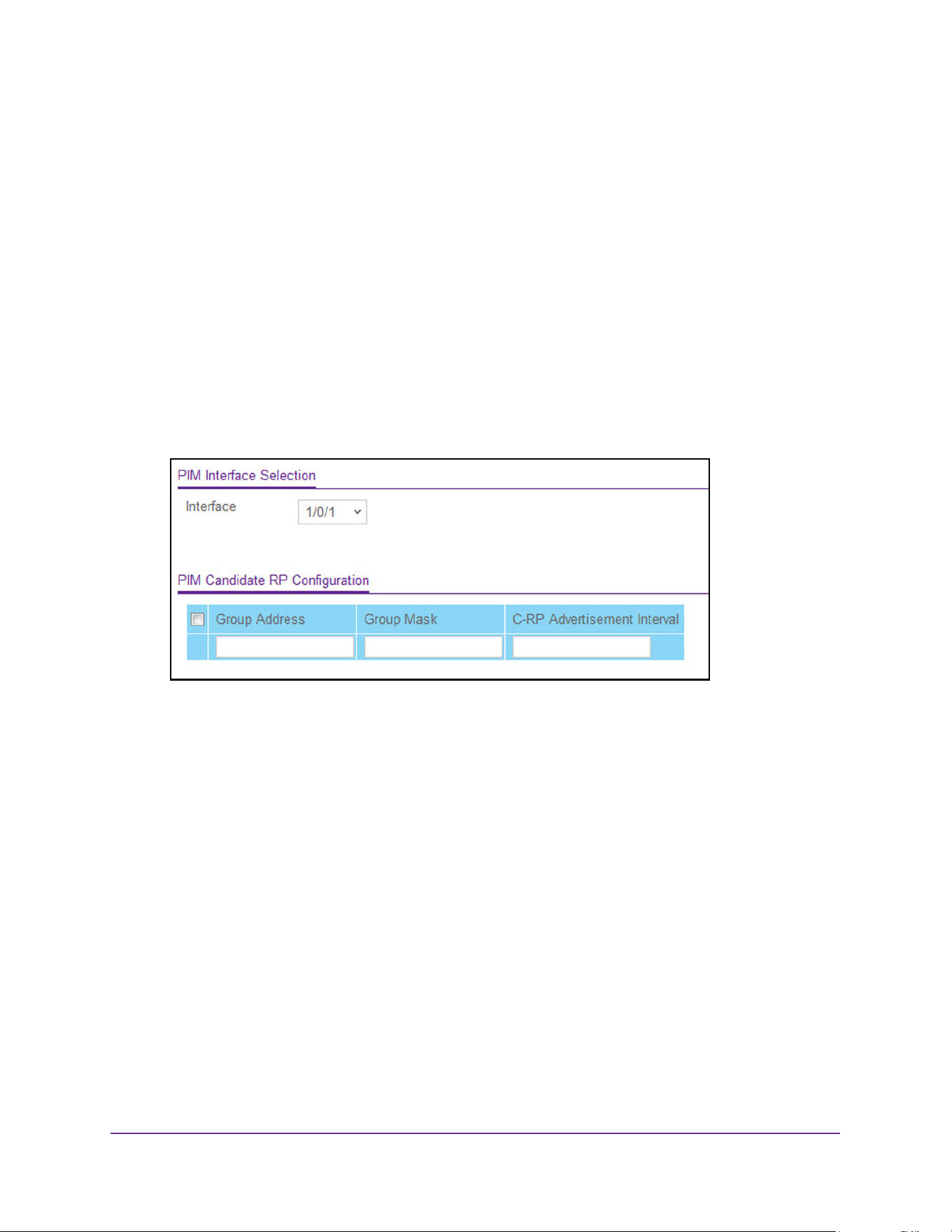
Multicast Routing
427
M4200 and M4300 Series ProSAFE Managed Switches Web Management User Manual
Configure the PIM Candidate Rendezvous Point
To configure the PIM candidate rendezvous point (RP):
1. Launch a web browser.
2. Enter http://<ipaddress> in the web browser address field.
The login window opens.
3. Enter the user name and password.
The default admin user name is admin and the default admin password is blank, that is,
do not enter a password.
4. Click the Login button.
The System Information page displays.
5. Select Routing> Multicast > PIM > Candidate RP Configuration.
6. From the list of interfaces, select the Interface.
7. Enter the Group Address transmitted in candidate-RP-advertisements.
If you enter an IPv6 address, the format is prefix/prefix length.
8. In the Group Mask field, enter the group address mask transmitted in
candidate-RP-advertisements
9. In the C-RP Advertisement Interval field, specify the duration in seconds at which the
C-RP messages are unicast to the bootstrap router (BSR).
The range is from 1 to 16383 seconds. The default value is 60 seconds. If this field is
submitted without any value, the default value is used.
10. Click the Add button.
The candidate-RP address is added for the PIM router.
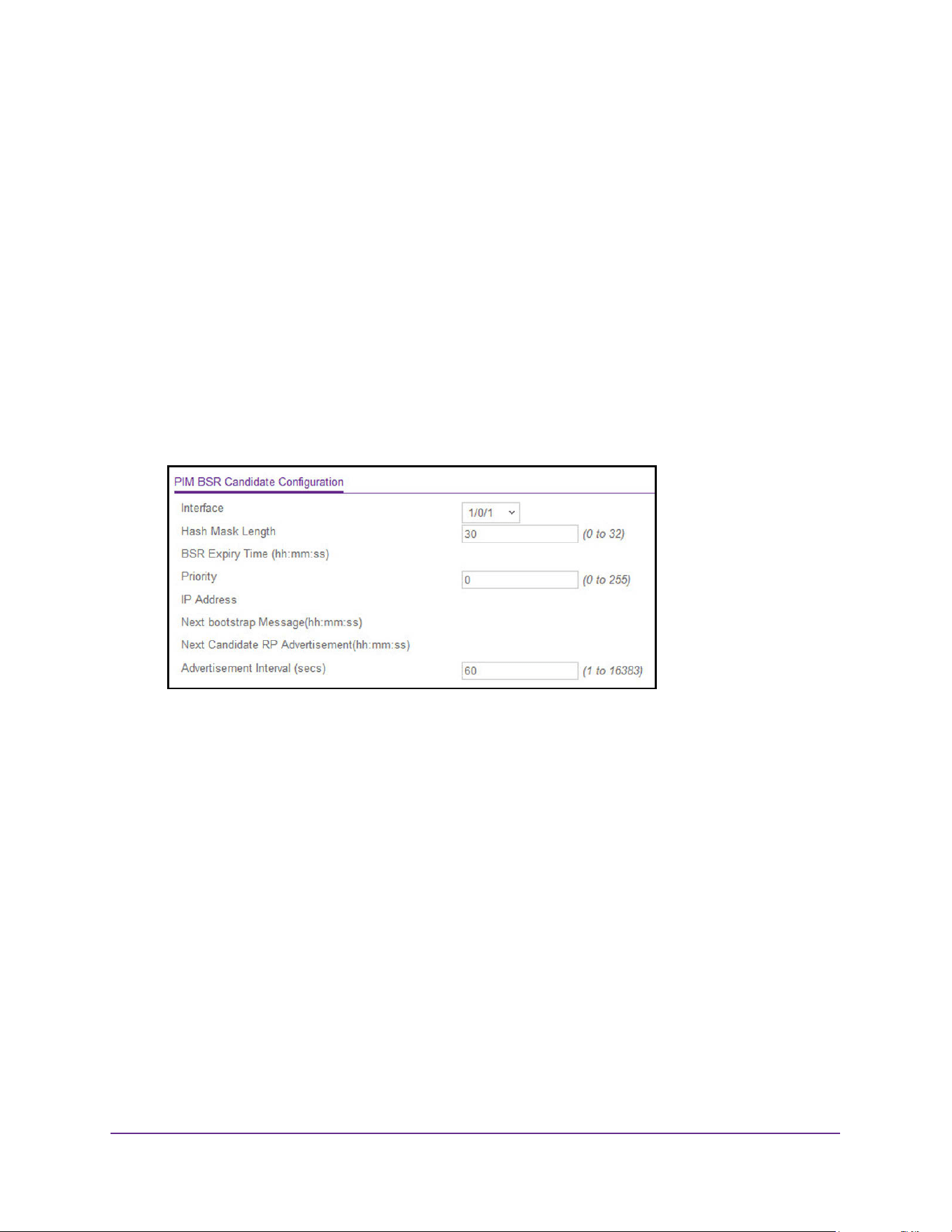
Multicast Routing
428
M4200 and M4300 Series ProSAFE Managed Switches Web Management User Manual
Configure the PIM Bootstrap Router Candidate
To configure the multicast PIM bootstrap router (BSR) candidate:
1. Launch a web browser.
2. Enter http://<ipaddress> in the web browser address field.
The login window opens.
3. Enter the user name and password.
The default admin user name is admin and the default admin password is blank, that is,
do not enter a password.
4. Click the Login button.
The System Information page displays.
5. Select Routing> Multicast > PIM > BSR Candidate Configuration.
6. From the list of interfaces, select the Interface.
7. Enter the C-BSR Hash Mask Length to be advertised in bootstrap messages.
This hash mask length is used in the hash algorithm for selecting the RP for a particular
group. The valid values are from 0 to 32. The default value is 30.
8. In the Priority field, enter the priority of C-BSR.
9. Enter the Advertisement Interval value of the C-BSR in seconds.
The default value is 60.
10. Click the Apply button.
The updated configuration is sent to the switch. Configuration changes take effect
immediately.
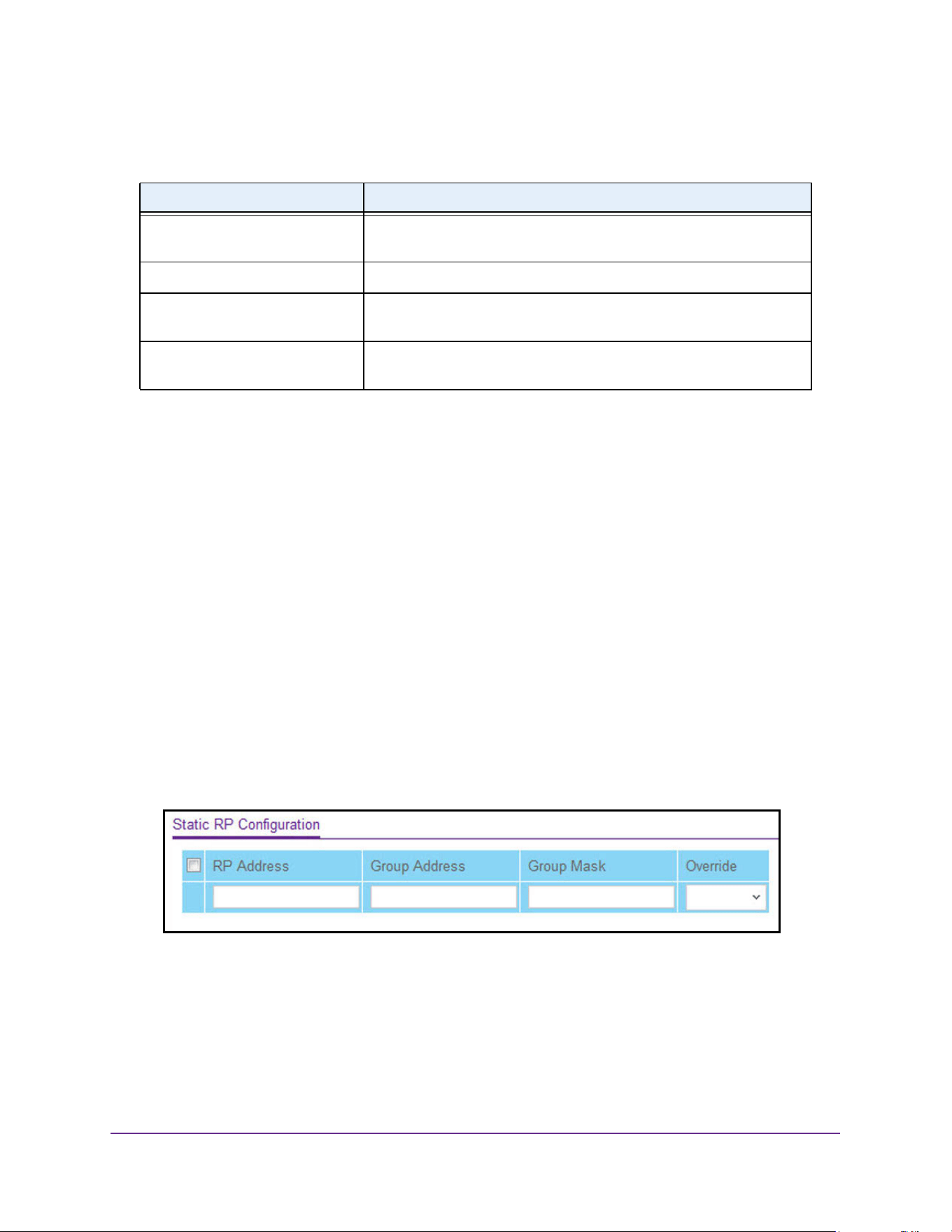
Multicast Routing
429
M4200 and M4300 Series ProSAFE Managed Switches Web Management User Manual
The following table describes the nonconfigurable data that is displayed.
Configure the PIM Static Rendezvous Point
You can statically configure the rendezvous point (RP) address for one or more multicast
groups.
To configure the PIM static RP:
1. Launch a web browser.
2. Enter http://<ipaddress> in the web browser address field.
The login window opens.
3. Enter the user name and password.
The default admin user name is admin and the default admin password is blank, that is,
do not enter a password.
4. Click the Login button.
The System Information page displays.
5. Select Routing> Multicast > PIM > Static RP Configuration.
6. In the RP Address field, enter the IP address for one or more multicast groups.
7. In the Group Address field, enter the group address of the RP.
8. Enter the Group Mask of the RP to be created or deleted.
9. In the Override field, select Enable or Disable.
Enable indicates that, if there is a conflict, the RP configured with this option prevails
over the RP learned by BSR.
Table 168. Multicast BSR Candidate Configuration
Field Description
BSR Expiry Time (hh:mm:ss) Time (in hours, minutes and seconds) in which the learned elected
bootstrap router (BSR) expires.
IP Address The IP address of the elected BSR.
Next bootstrap Message
(hh:mm:ss)
Time (in hours, minutes, and seconds) in which the next bootstrap
message is due from this BSR.
Next Candidate RP Advertisement
(hh:mm:ss)
Time (in hours, minutes, and seconds) in which the next candidate RP
advertisement is sent.
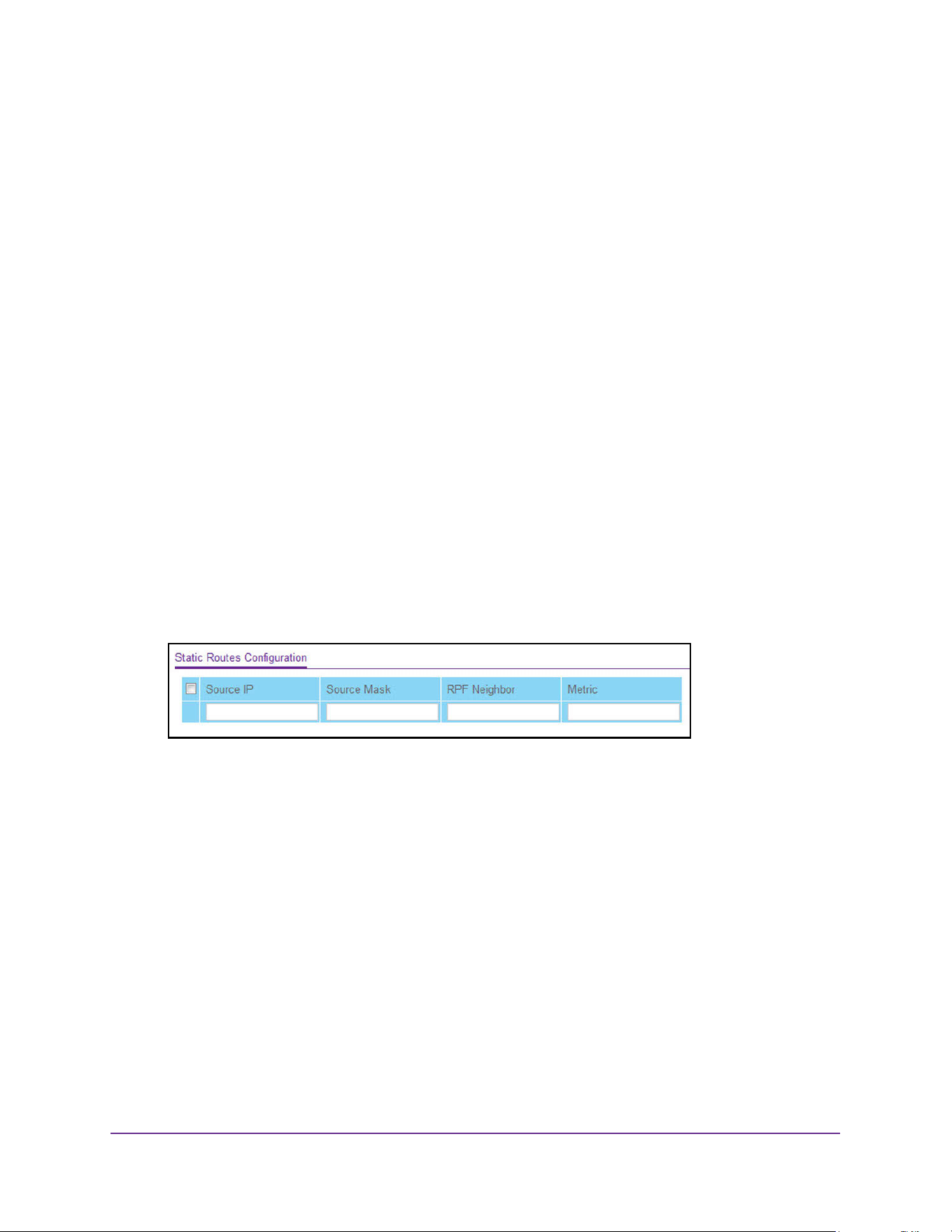
Multicast Routing
430
M4200 and M4300 Series ProSAFE Managed Switches Web Management User Manual
10. Click the Add button.
The static RP address is added for one or more multicast groups
11. Click the Apply button.
The updated configuration is sent to the switch. Configuration changes take effect
immediately.
Configure Multicast Static Routes
To configure multicast static routes:
1. Launch a web browser.
2. Enter http://<ipaddress> in the web browser address field.
The login window opens.
3. Enter the user name and password.
The default admin user name is admin and the default admin password is blank, that is,
do not enter a password.
4. Click the Login button.
The System Information page displays.
5. Select Routing> Multicast > Static Routes Configuration.
6. In the Source IP field, enter the IP address that identifies the multicast packet source for the
entry you are creating.
7. In the Source Mask field, enter the subnet mask to be applied to the source IP address.
8. In RPF Neighbor field, enter the IP address of the neighbor router on the path to the
source.
9. In the Metric field, enter the link state cost of the path to the multicast source.
The range is 0 to 255, the default is 1. You can change the metric for a configured route
by selecting the static route and editing this field.
10. Click the Add button.
The static route is added to the switch.
11. Click the Apply button.
The updated configuration is sent to the switch. Configuration changes take effect
immediately.
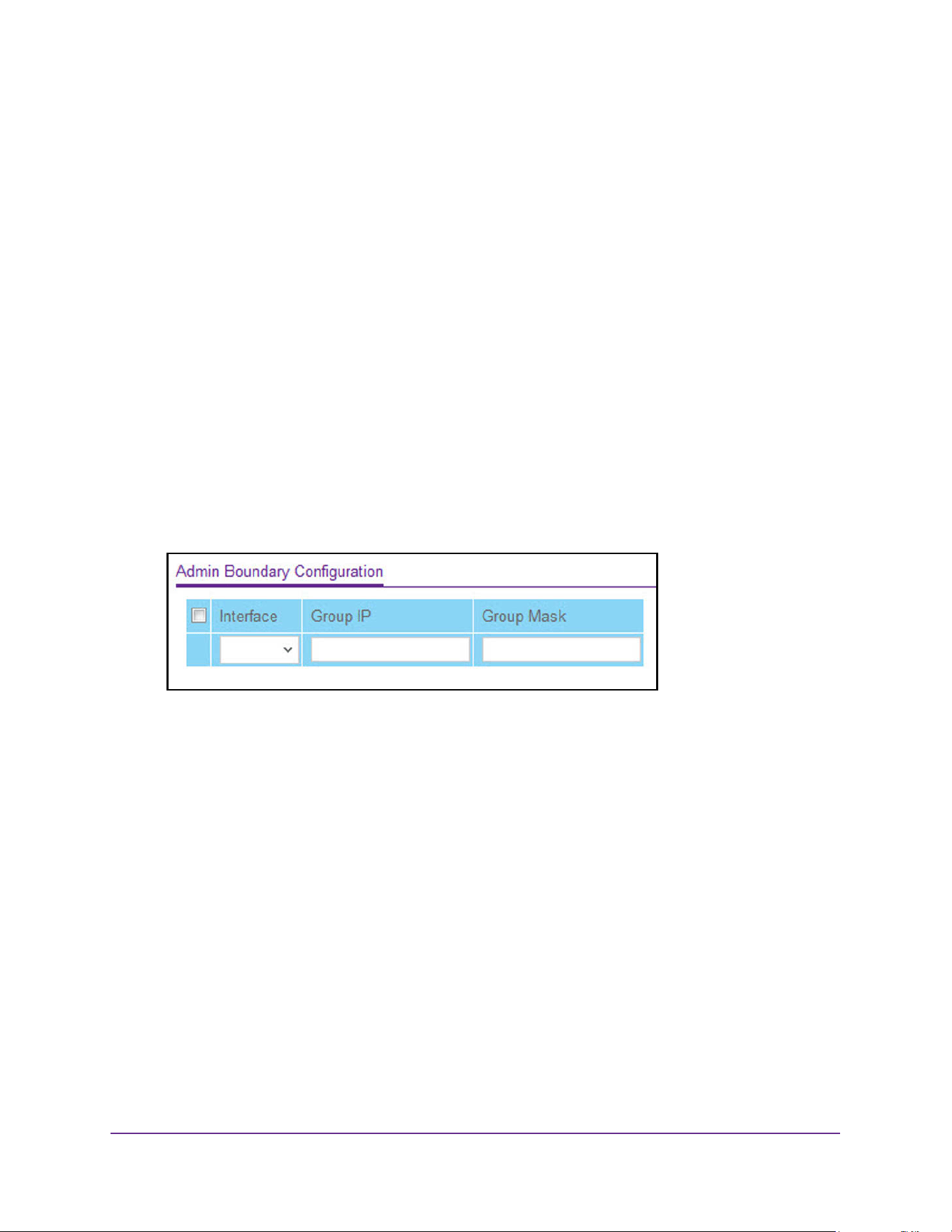
Multicast Routing
431
M4200 and M4300 Series ProSAFE Managed Switches Web Management User Manual
Configure the Multicast Admin Boundary
The definition of an administratively scoped boundary is a mechanism to stop the ingress and
egress of multicast traffic for a given range of multicast addresses on a given routing
interface.
To configure the multicast admin boundary:
1. Launch a web browser.
2. Enter http://<ipaddress> in the web browser address field.
The login window opens.
3. Enter the user name and password.
The default admin user name is admin and the default admin password is blank, that is,
do not enter a password.
4. Click the Login button.
The System Information page displays.
5. Select Routing> Multicast > Admin Boundary Configuration.
6. In the Interface list, select the router interface for which the administratively-scoped
boundary is to be configured.
7. In the Group IP field, enter the multicast group address for the start of the range of
addresses to be excluded.
The address must be in the range of 239.0.0.0 through 239.255.255.255.
8. In the Group Mask field, enter the mask to be applied to the multicast group address.
The combination of the mask and the group IP gives the range of administratively scoped
addresses for the selected interface.
9. Click the Add button.
The administratively scoped boundary is added.
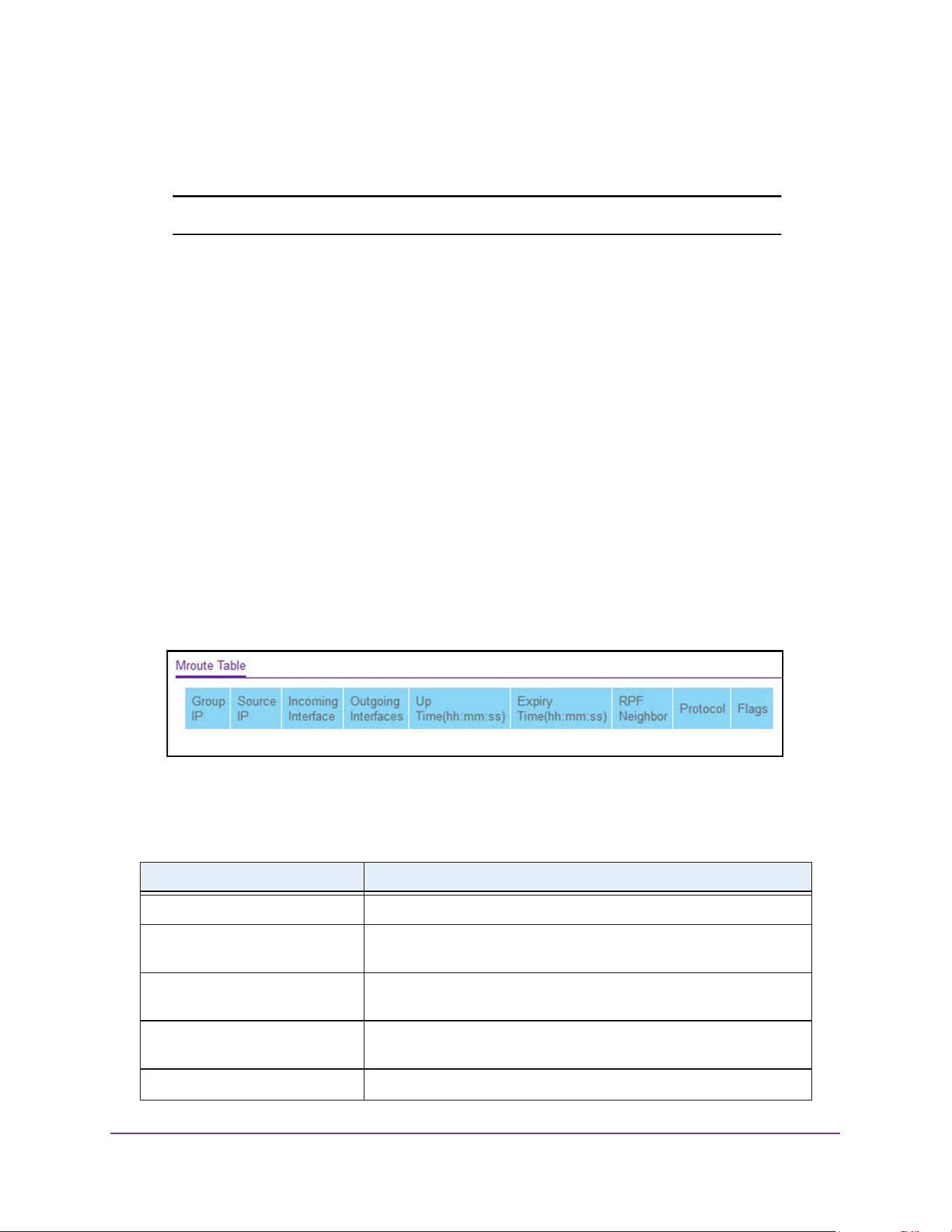
Multicast Routing
432
M4200 and M4300 Series ProSAFE Managed Switches Web Management User Manual
Configure IPv6 Multicast Settings
Note: IPv6 multicast is supported on the M4300 series switches only.
View the IPv6 Multicast Mroute Table
You can view the contents of the Mroute Table in tabular format.
To view the Mroute Table:
1. Launch a web browser.
2. Enter http://<ipaddress> in the web browser address field.
The login window opens.
3. Enter the user name and password.
The default admin user name is admin and the default admin password is blank, that is,
do not enter a password.
4. Click the Login button.
The System Information page displays.
5. Select Routing > IPv6 Multicast > Mroute Table.
6. To refresh the page with the latest information on the switch, click the Update button.
The following table describes the nonconfigurable data that is displayed.
Table 169. Multicast Mroute Table
Field Description
Group IP The destination group IP address.
Source IP The IP address of the multicast packet source to be combined with the
group IP to fully identify a single route whose Mroute table entry.
Incoming Interface The incoming interface on which multicast packets for this
source/group arrive.
Outgoing Interfaces The list of outgoing interfaces on which multicast packets for this
source/group are forwarded.
Up Time (hh:mm:ss) The time in seconds since the entry was created.
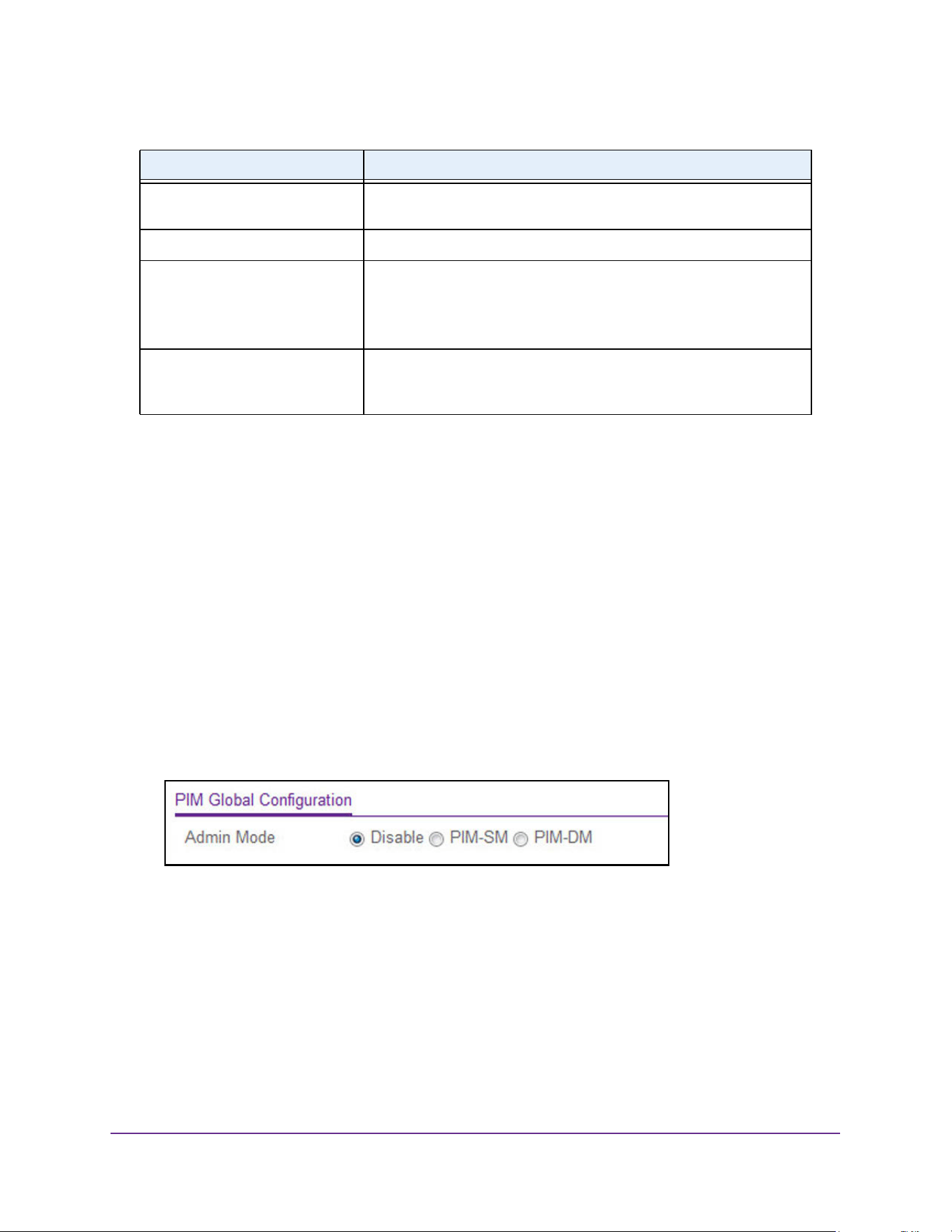
Multicast Routing
433
M4200 and M4300 Series ProSAFE Managed Switches Web Management User Manual
Configure the IPv6 PIM Global Settings
To configure the IPv6 PIM global settings:
1. Launch a web browser.
2. Enter http://<ipaddress> in the web browser address field.
The login window opens.
3. Enter the user name and password.
The default admin user name is admin and the default admin password is blank, that is,
do not enter a password.
4. Click the Login button.
The System Information page displays.
5. Select Routing> IPv6 Multicast > IPv6 PIM > Global Configuration.
6. Select an Admin Mode radio button.
The options are Disable, or the protocol variant of PIM option, dense mode (PIM-DM) or
sparse mode (PIM-SM).
By default, this setting is disabled. The Disable option sets the administrative status of
PM in the router to active or inactive.
7. Click the Apply button.
The updated configuration is sent to the switch. Configuration changes take effect
immediately.
Expiry Time (hh:mm:ss) The time in seconds before this entry ages out and is removed from the
table.
RPF Neighbor The IP address of the reverse path forwarding (RPF) neighbor.
Protocol The multicast routing protocol which created this entry. The possible
values are as follows:
• PIM-DM
• PIM-SM
Flags The value displayed in this field is valid if the multicast routing protocol
running is PIM-SM. The possible values are RPT or SPT. For other
protocols a – (hyphen) is displayed.
Table 169. Multicast Mroute Table (continued)
Field Description
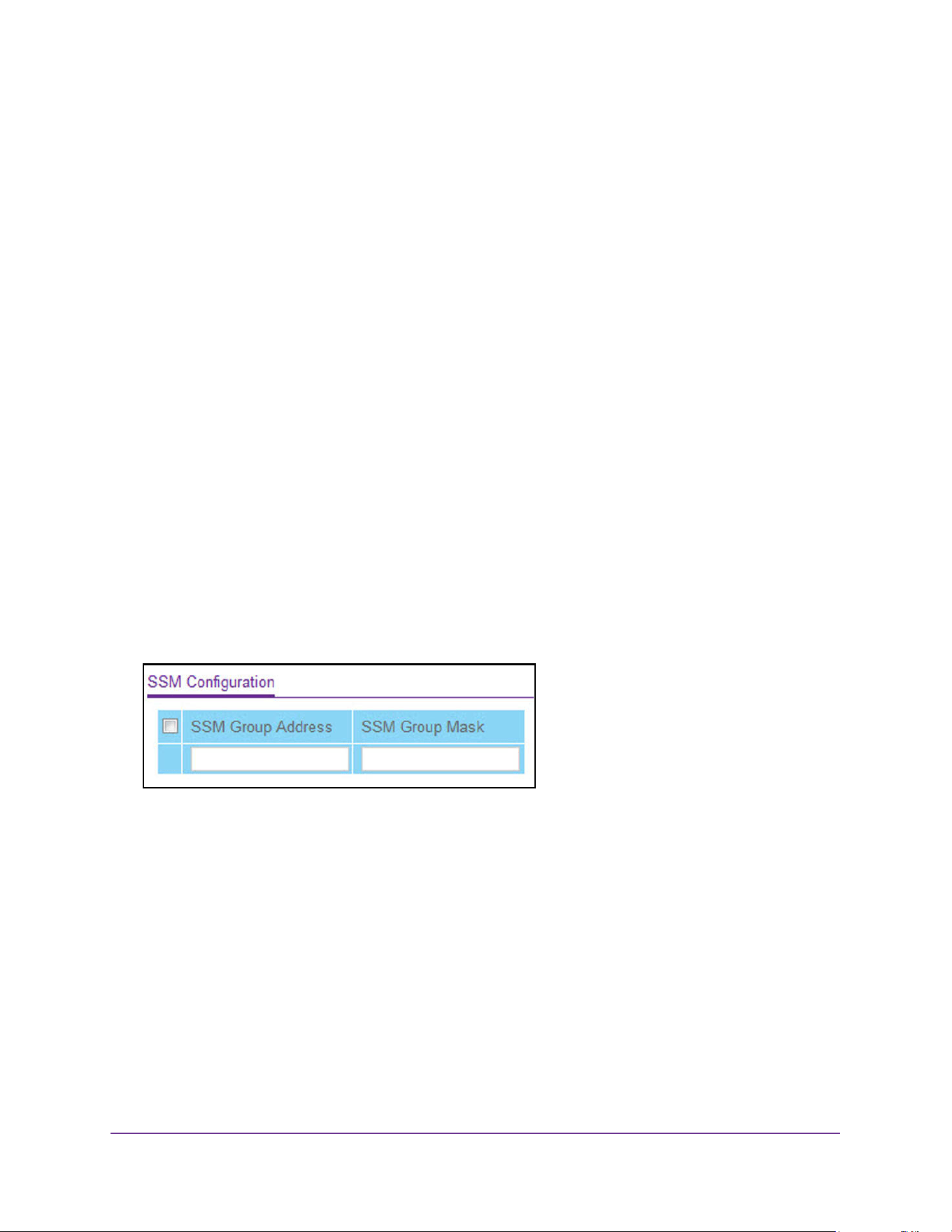
Multicast Routing
434
M4200 and M4300 Series ProSAFE Managed Switches Web Management User Manual
Configure IPv6 PIM SSM
While PIM employs a specially-configured rendezvous point (RP) router that serves as a
meeting junction for multicast senders and listeners, Protocol-Independent Multicast
Single-Source Multicast (PIM-SSM) does not use an RP. It supports only source route
delivery trees. It is used between routers so that they can track which multicast packets to
forward to each other and to their directly connected LANs. The SSM service model can be
implemented with a strict subset of the PIM protocol mechanisms. Both regular IP multicast
and SSM semantics can coexist on a single router, and both can be implemented using the
PIM protocol. A range of multicast addresses, currently 232.0.0.0/8 in IPv4 and FF3x::/32 in
IPv6, is reserved for SSM.
To configure the IPv6 PIM SSM settings:
1. Launch a web browser.
2. Enter http://<ipaddress> in the web browser address field.
The login window opens.
3. Enter the user name and password.
The default admin user name is admin and the default admin password is blank, that is,
do not enter a password.
4. Click the Login button.
The System Information page displays.
5. Select Routing> IPv6 Multicast > IPv6 PIM > SSM Configuration.
6. In the SSM Group Address field, enter the source-specific multicast group IP address.
7. In the SSM Group Mask field, enter the source-specific multicast group IP address
mask.
8. Click the Add button.
The source-specific group is added.
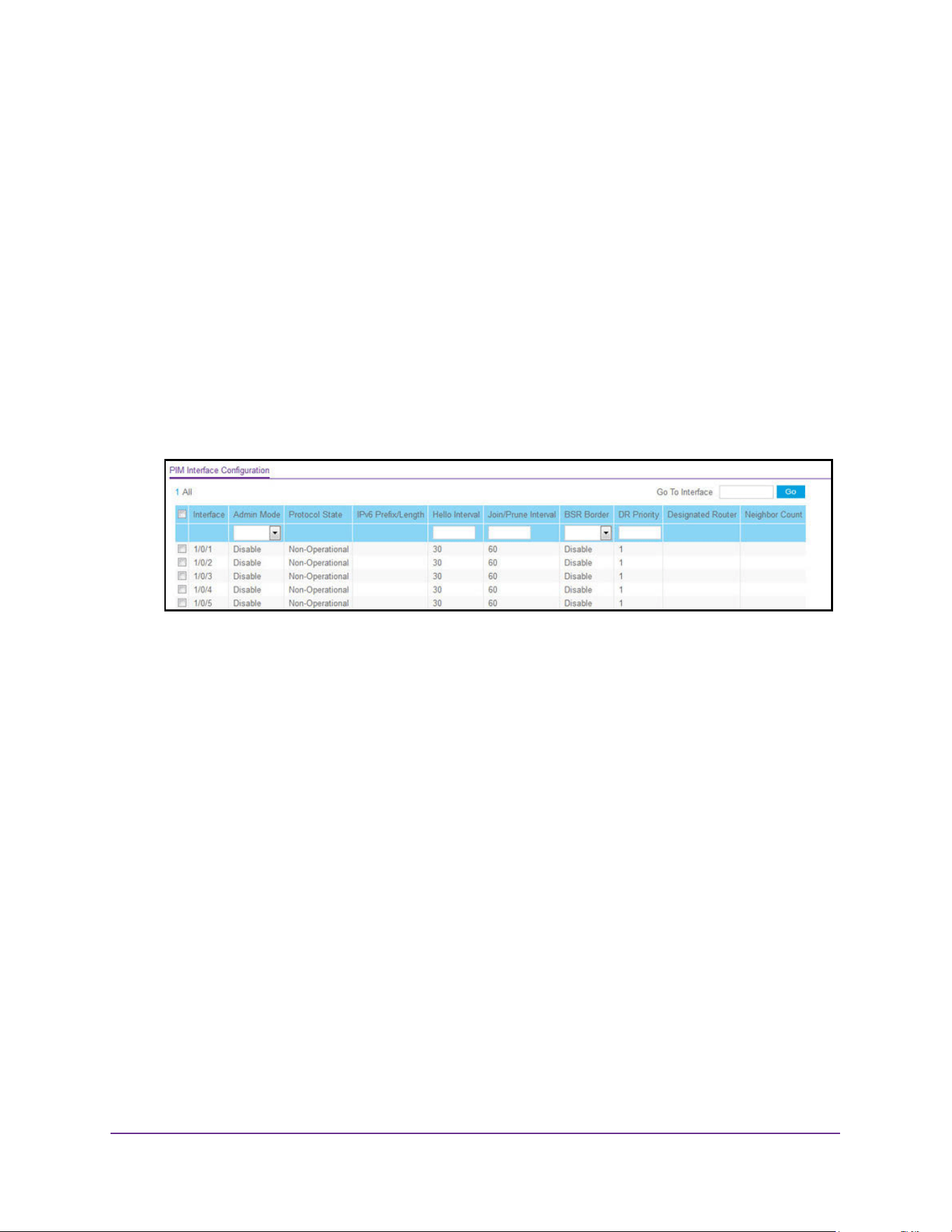
Multicast Routing
435
M4200 and M4300 Series ProSAFE Managed Switches Web Management User Manual
Configure the IPv6 PIM Interface
To configure the IPv6 PIM interface:
1. Launch a web browser.
2. Enter http://<ipaddress> in the web browser address field.
The login window opens.
3. Enter the user name and password.
The default admin user name is admin and the default admin password is blank, that is,
do not enter a password.
4. Click the Login button.
The System Information page displays.
5. Select Routing> IPv6 Multicast > IPv6 PIM > Interface Configuration.
6. Use one of the following methods to select an interface:
• In the Go To Interface field, enter the interface in the unit/slot/port format and click on
the Go button.
• Next to the Interface column, select the check box for the interface that you want to
configure.
7. In the Admin Mode field, select Enable or Disable.
This sets the administrative status of PIM-SM in the router. The default is Disable.
8. In the Hello Interval field, enter the time in seconds between the transmission of PIM hello
messages on this interface.
The valid values are from 0 to 18000. The default value is 30.
9. In the Join/Prune Interval field, enter the frequency at which PIM Join/Prune messages are
transmitted on this PIM interface.
The valid values are from 0 to 18000. The default value is 60.
10. In the BSR Border field, select the Enable or Disable option to set the bootstrap router
(BSR) border status on the selected interface.
11. Enter the DR Priority for the selected interface.
The valid values are from 0 to 2147483647. The default value is 1.
12. Click the Apply button.
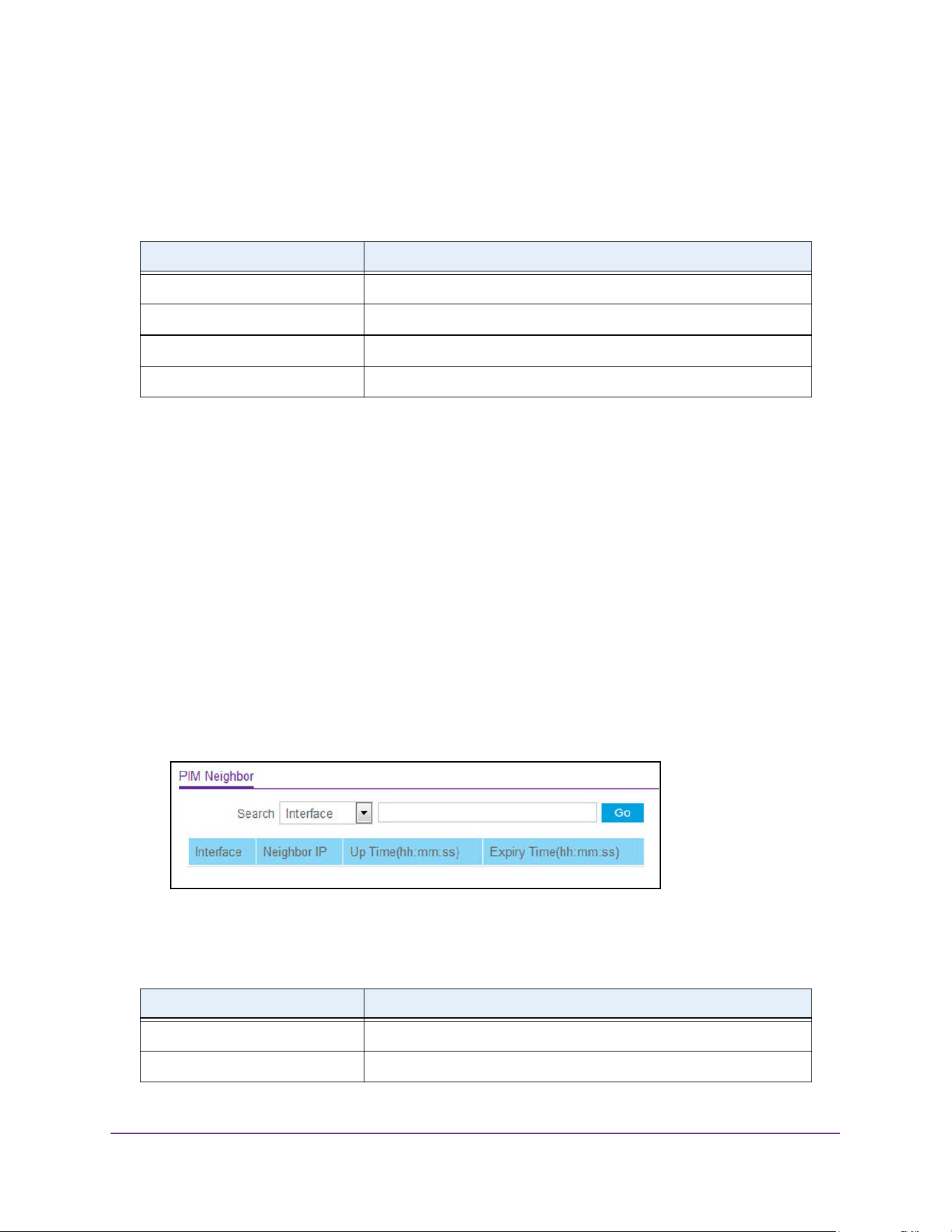
Multicast Routing
436
M4200 and M4300 Series ProSAFE Managed Switches Web Management User Manual
The updated configuration is sent to the switch. Configuration changes take effect
immediately.
The following table describes the nonconfigurable data that is displayed.
View the IPv6 PIM Neighbor
To view the IPv6 PIM neighbor:
1. Launch a web browser.
2. Enter http://<ipaddress> in the web browser address field.
The login window opens.
3. Enter the user name and password.
The default admin user name is admin and the default admin password is blank, that is,
do not enter a password.
4. Click the Login button.
The System Information page displays.
5. Select Routing> IPv6 Multicast > IPv6 PIM > PIM Neighbor.
6. To refresh the page with the latest information on the switch, click the Update button.
The following table describes the nonconfigurable data that is displayed.
Table 170. IPv6 PIM Interface Configuration
Field Description
Protocol State The state of PIM in the router. either Operational or Non-Operational.
IPv6 Prefix/Length The IPv6 address prefix and the length of the selected interface.
Designated Router The designated router on the selected PIM interface.
Neighbor Count The number of PIM neighbors on the selected interface.
Table 171. IPv6 PIM Neighbor
Field Description
Interface The interface on which the neighbor is displayed.
Neighbor IP The IP address of the PIM neighbor for this entry.
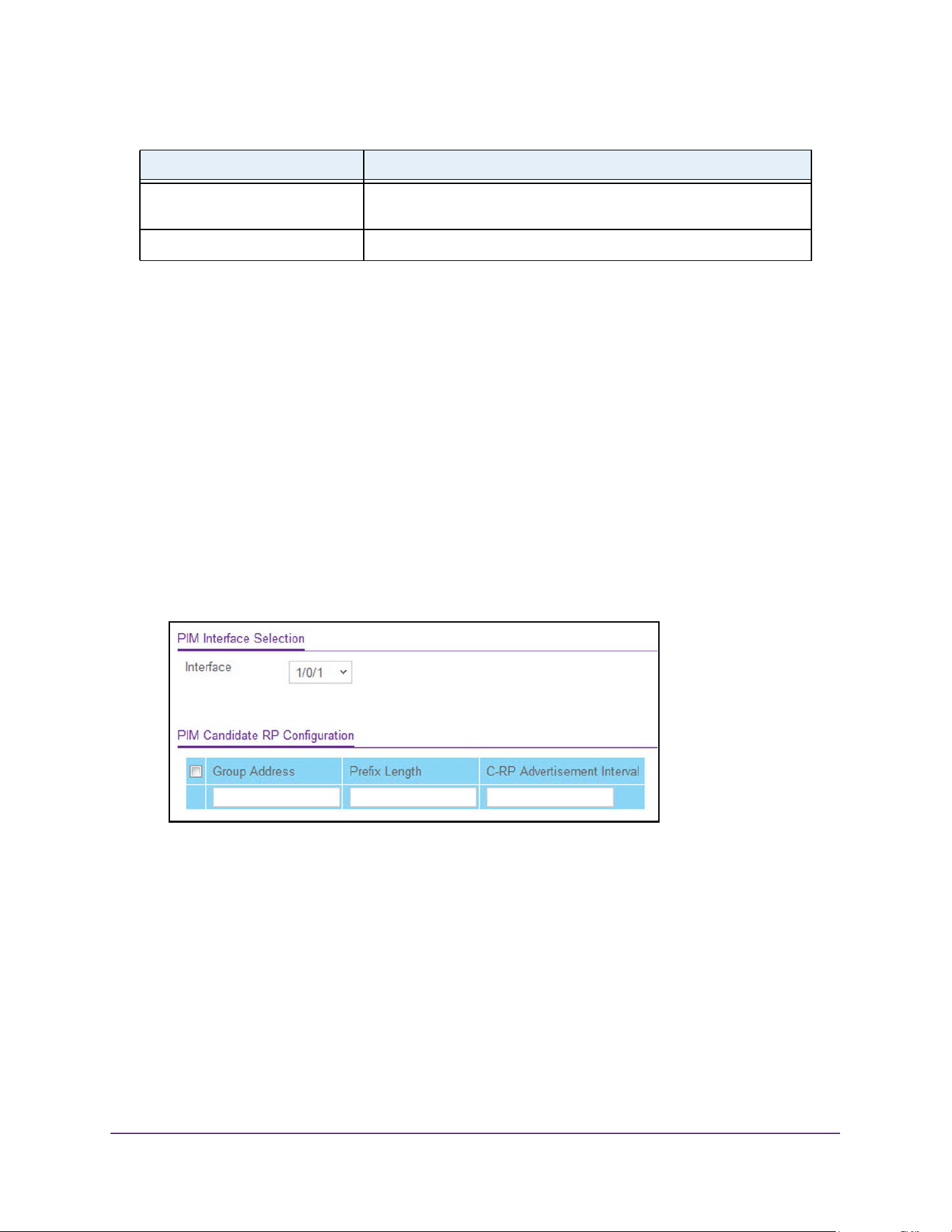
Multicast Routing
437
M4200 and M4300 Series ProSAFE Managed Switches Web Management User Manual
Configure the IPv6 PIM Candidate Rendezvous Point
To configure the IPv6 PIM candidate rendezvous point:
1. Launch a web browser.
2. Enter http://<ipaddress> in the web browser address field.
The login window opens.
3. Enter the user name and password.
The default admin user name is admin and the default admin password is blank, that is,
do not enter a password.
4. Click the Login button.
The System Information page displays.
5. Select Routing> IPv6 Multicast > IPv6 PIM > Candidate RP Configuration.
6. From the list of interfaces, select the Interface.
7. In the Group Address field, enter the group IPv6 address prefix transmitted in
candidate-RP-advertisements.
8. In the Prefix Length field, enter the group IPv6 Prefix Length transmitted in
candidate-RP-advertisements
9. In the C-RP Advertisement Interval, specify the duration in seconds at which the C-RP
messages are unicast to the bootstrap router (BSR).
The range is from 1 to 16383 seconds. The default value is 60 seconds. If this field is
submitted without any value, the default value is used.
10. Click the Add button.
The candidate-RP address is added for the PIM router.
Up Time (hh:mm:ss) The time since this PIM neighbor (last) became a neighbor of the local
router.
Expiry Time (hh:mm:ss) The minimum time remaining before this PIM neighbor is aged out.
Table 171. IPv6 PIM Neighbor
Field Description
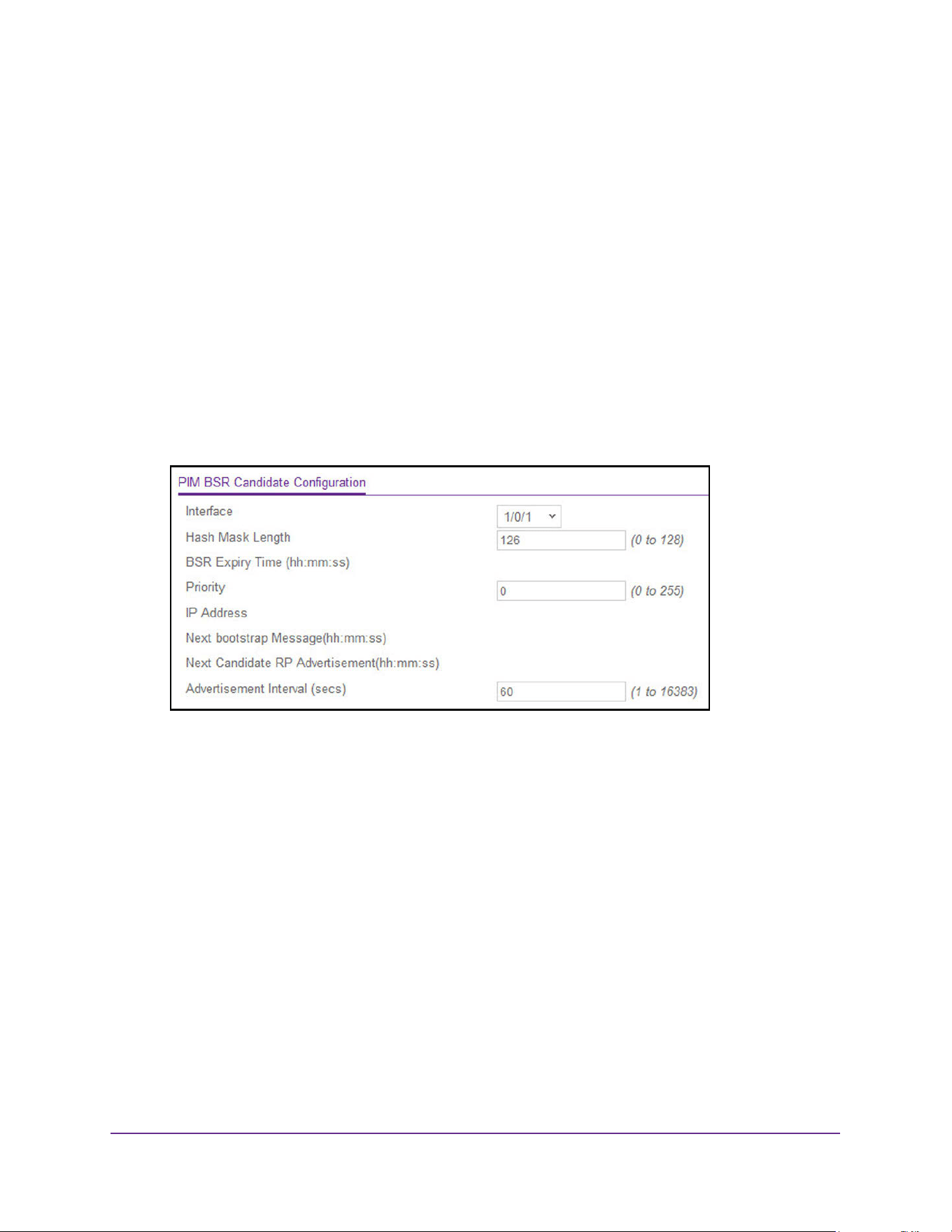
Multicast Routing
438
M4200 and M4300 Series ProSAFE Managed Switches Web Management User Manual
Configure the IPv6 PIM Bootstrap Router Candidate Settings
To configure the IPv6 PIM BSR Candidate settings:
1. Launch a web browser.
2. Enter http://<ipaddress> in the web browser address field.
The login window opens.
3. Enter the user name and password.
The default admin user name is admin and the default admin password is blank, that is,
do not enter a password.
4. Click the Login button.
The System Information page displays.
5. Select Routing> IPv6 Multicast > IPv6 PIM > BSR Candidate Configuration.
6. From the list of interfaces, select the Interface.
7. Enter the C-BSR Hash Mask Length to be advertised in bootstrap messages.
This hash mask length is used in the hash algorithm for selecting the RP for a particular
group. The valid values are from 0 to 128. The default value is 126.
8. In the Priority field, enter the priority of the C-BSR.
9. Enter the Advertisement Interval value of the C-BSR in seconds.
The default value is 60.
To remove the configured Hash Mask Length, and Priority values and restore them to the
default values, click the Delete button.
10. Click the Apply button.
The updated configuration is sent to the switch. Configuration changes take effect
immediately.
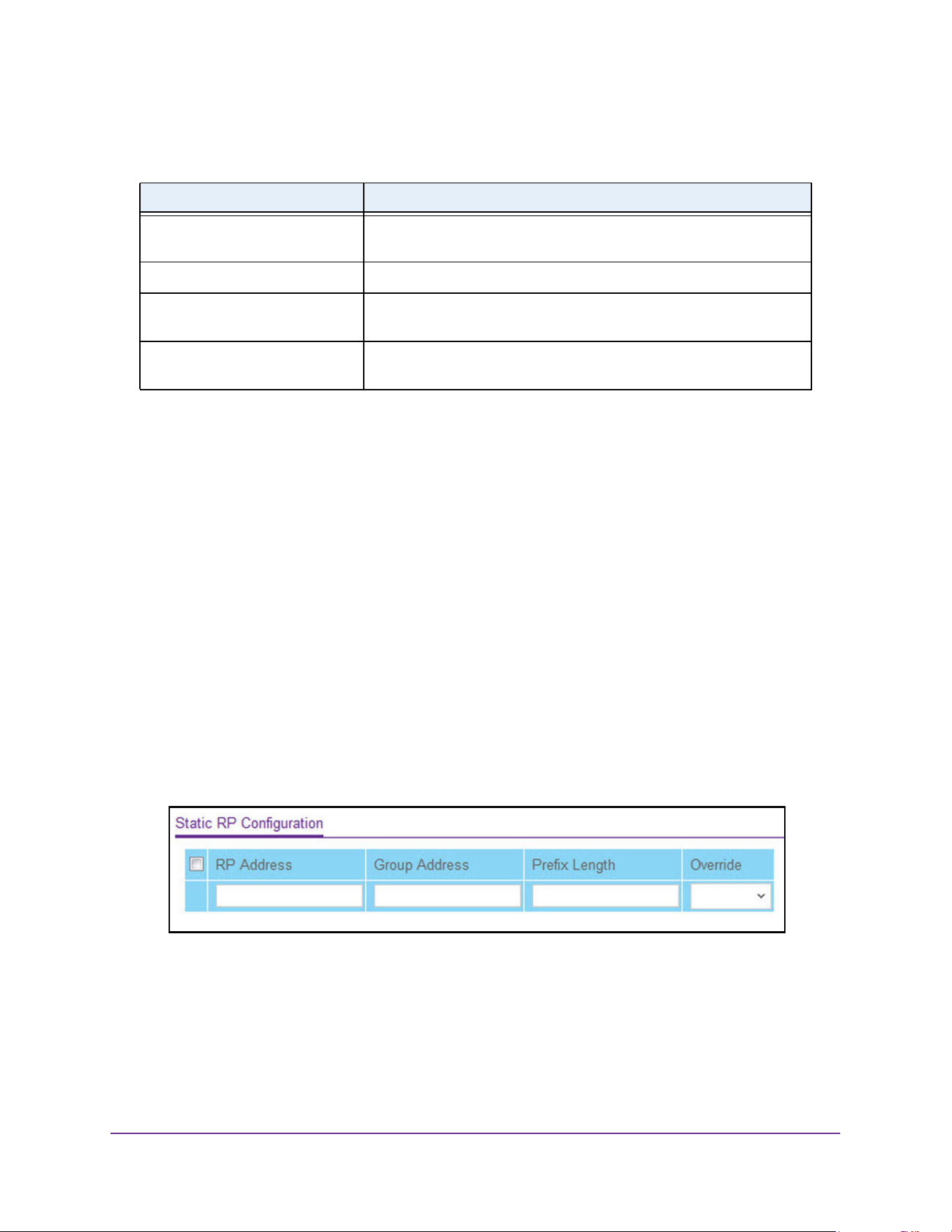
Multicast Routing
439
M4200 and M4300 Series ProSAFE Managed Switches Web Management User Manual
The following table describes the nonconfigurable data that is displayed.
Configure the IPv6 PIM Static Rendezvous Point
You can statically configure the rendezvous point (RP) address for one or more multicast
groups.
To configure the IPv6 PIM static RP:
1. Launch a web browser.
2. Enter http://<ipaddress> in the web browser address field.
The login window opens.
3. Enter the user name and password.
The default admin user name is admin and the default admin password is blank, that is,
do not enter a password.
4. Click the Login button.
The System Information page displays.
5. Select Routing> IPv6 Multicast > IPv6 PIM > Static RP Configuration.
6. In the RP Address field, enter the IP address of the RP.
7. In the Group Address field, enter the address of the RP.
8. In the Prefix Length field, enter the group address prefix length.
9. In the Override field, select Enable or Disable.
Enable indicates that, if there is a conflict, the RP configured with this option prevails
over the RP learned by BSR.
Table 172. IPv6 PIM BSR Candidate Configuration
Field Description
BSR Expiry Time (hh:mm:ss) Time (in hours, minutes and seconds) in which the learned elected
bootstrap router (BSR) expires.
IP Address The IP address of the elected BSR.
Next bootstrap Message
(hh:mm:ss)
Time (in hours, minutes, and seconds) in which the next bootstrap
message is due from this BSR.
Next Candidate RP Advertisement
(hh:mm:ss)
Time (in hours, minutes, and seconds) in which the next candidate RP
advertisement is sent.
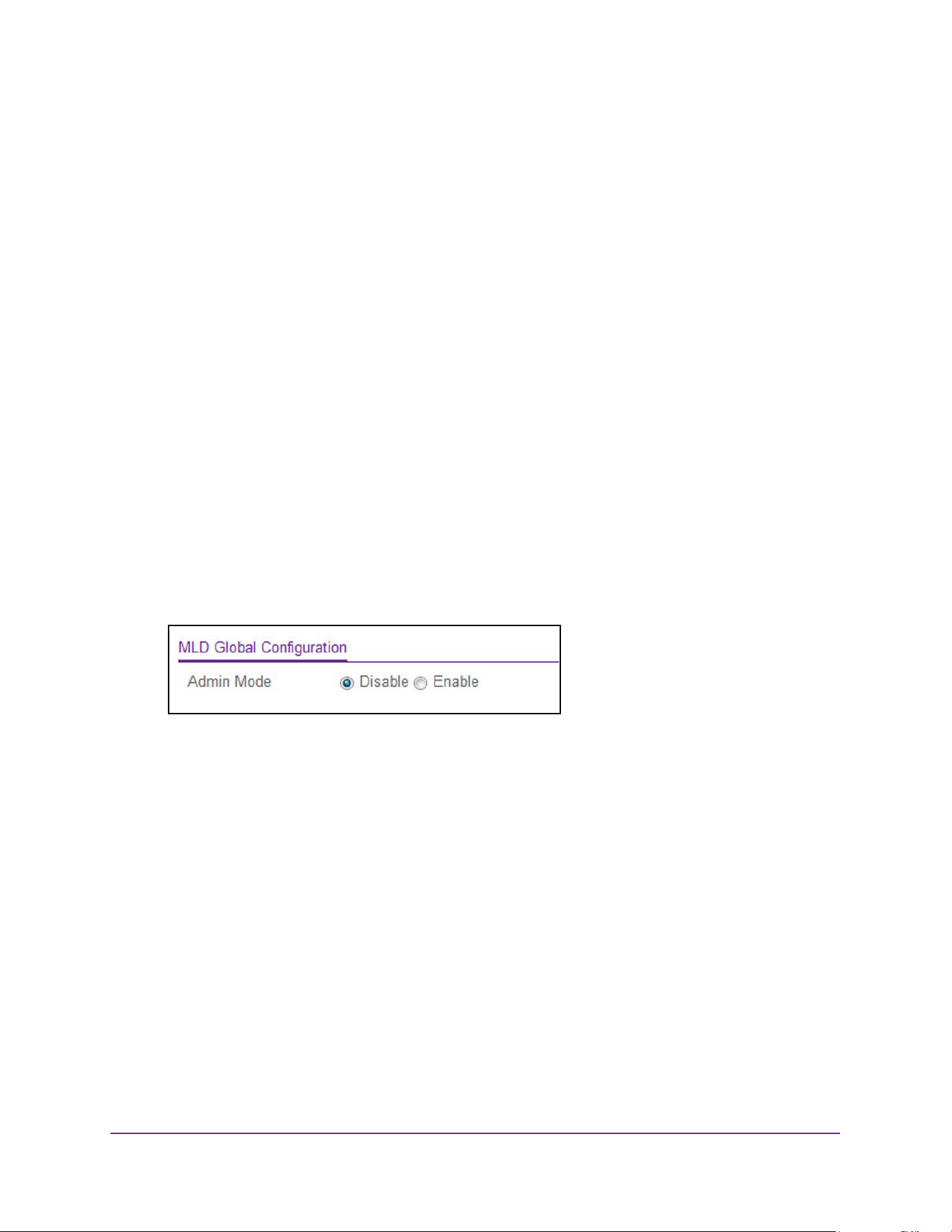
Multicast Routing
440
M4200 and M4300 Series ProSAFE Managed Switches Web Management User Manual
10. Click the Add button.
The static RP address is added for one or more multicast groups.
11. Click the Apply button.
The updated configuration is sent to the switch. Configuration changes take effect
immediately.
Configure IPv6 MLD Global Settings
To configure the IPv6 PIM global settings:
1. Launch a web browser.
2. Enter http://<ipaddress> in the web browser address field.
The login window opens.
3. Enter the user name and password.
The default admin user name is admin and the default admin password is blank, that is,
do not enter a password.
4. Click the Login button.
The System Information page displays.
5. Select Routing> IPv6 Multicast > MLD > Global Configuration.
6. Select the Admin Mode Disable or Enable radio button.
This sets the administrative status of MLD in the router to active or inactive. The default is
Disable.
7. Click the Apply button.
The updated configuration is sent to the switch. Configuration changes take effect
immediately.
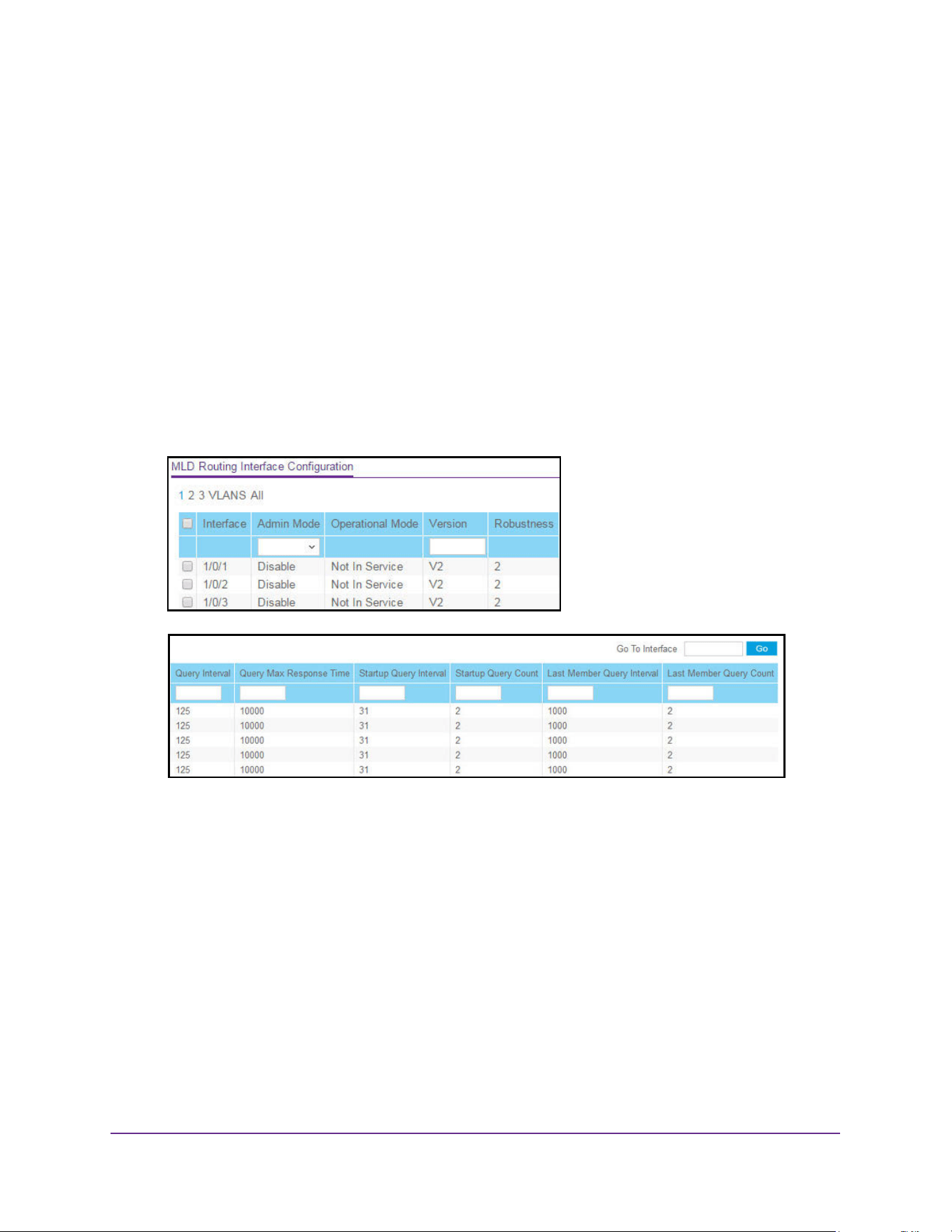
Multicast Routing
441
M4200 and M4300 Series ProSAFE Managed Switches Web Management User Manual
Configure the IPv6 MLD Routing Interface
To configure the IPv6 MLD routing interface:
1. Launch a web browser.
2. Enter http://<ipaddress> in the web browser address field.
The login window opens.
3. Enter the user name and password.
The default admin user name is admin and the default admin password is blank, that is,
do not enter a password.
4. Click the Login button.
The System Information page displays.
5. Select Routing> IPv6 Multicast > MLD > Routing Interface Configuration.
6. Use one of the following methods to select an interface:
• In the Go To Interface field, enter the interface in the unit/slot/port format and click on
the Go button.
• Next to the Interface column, select the check box for the interface that you want to
configure.
7. In the Admin Mode field, select Enable or Disable.
This sets the administrative status of MLD on the selected routing interface. The default is
Disable.
8. In the Version field, enter the version to configure for the selected interface.
Valid values are 1 to 2. The default value is 2.
9. In the Query Interval field, enter the frequency in seconds at which MLD host-query
packets are to be transmitted on this interface.
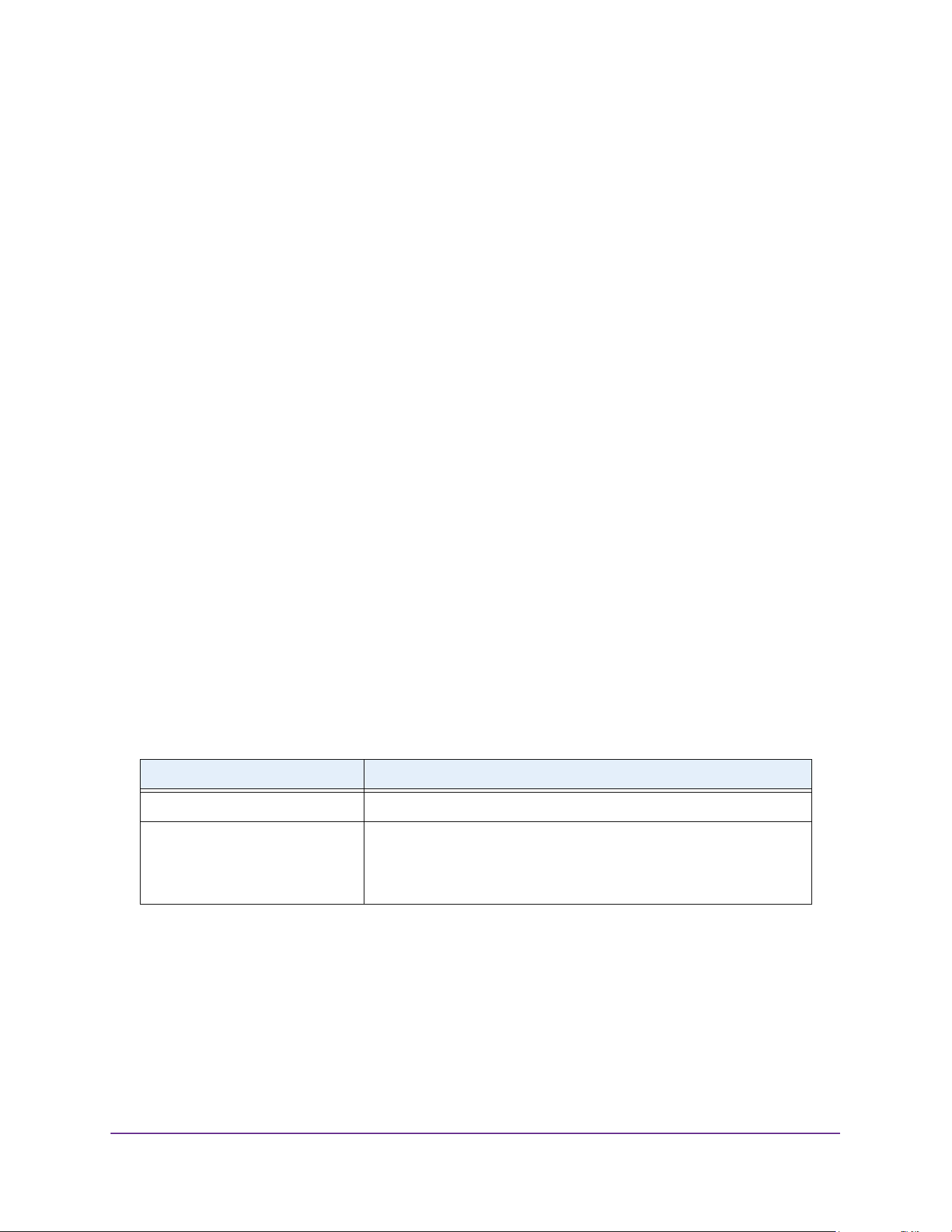
Multicast Routing
442
M4200 and M4300 Series ProSAFE Managed Switches Web Management User Manual
Valid values are 1 to 3600. The default value is 125.
10. In the Query Max Response Time field, enter the maximum query response time, in
milliseconds, to be advertised in MLDv2 queries on this interface.
Valid values are 0 to 65535. The default value is 10000 milliseconds.
11. In the Startup Query Interval field, enter the configured interval in seconds between
general queries sent by a querier on startup.
The default value is 31.
12. Enter the Startup Query Count value to indicate the configured number of queries sent out
on startup, separated by the startup query interval.
The default value is 2.
13. In the Last Member Query Interval field, enter the last member query interval in
milliseconds.
This is the maximum response time to be inserted into group-specific queries sent in
response to leave group messages, and is also the amount of time between
group-specific query messages. Valid values are from 0 to 655355. The default value is
1000 milliseconds.
14. In the Last Member Query Count field, enter the number of queries to be sent on receiving
a leave group report.
Valid values are from 1 to 20. The default value is 2.
15. Click the Apply button.
The updated configuration is sent to the switch. Configuration changes take effect
immediately.
The following table describes the nonconfigurable data that is displayed.
Table 173. IPv6 MLD Routing Interface Configuration
Field Description
Operational Mode The operational status of MLD on the Interface.
Robustness The robustness parameter for the selected interface. This variable
allows tuning for the expected packet loss on a subnet. If a subnet is
expected to be lossy, the robustness variable can be increased. MLD is
robust to robustness variable –1 packet losses. The default value is 2.
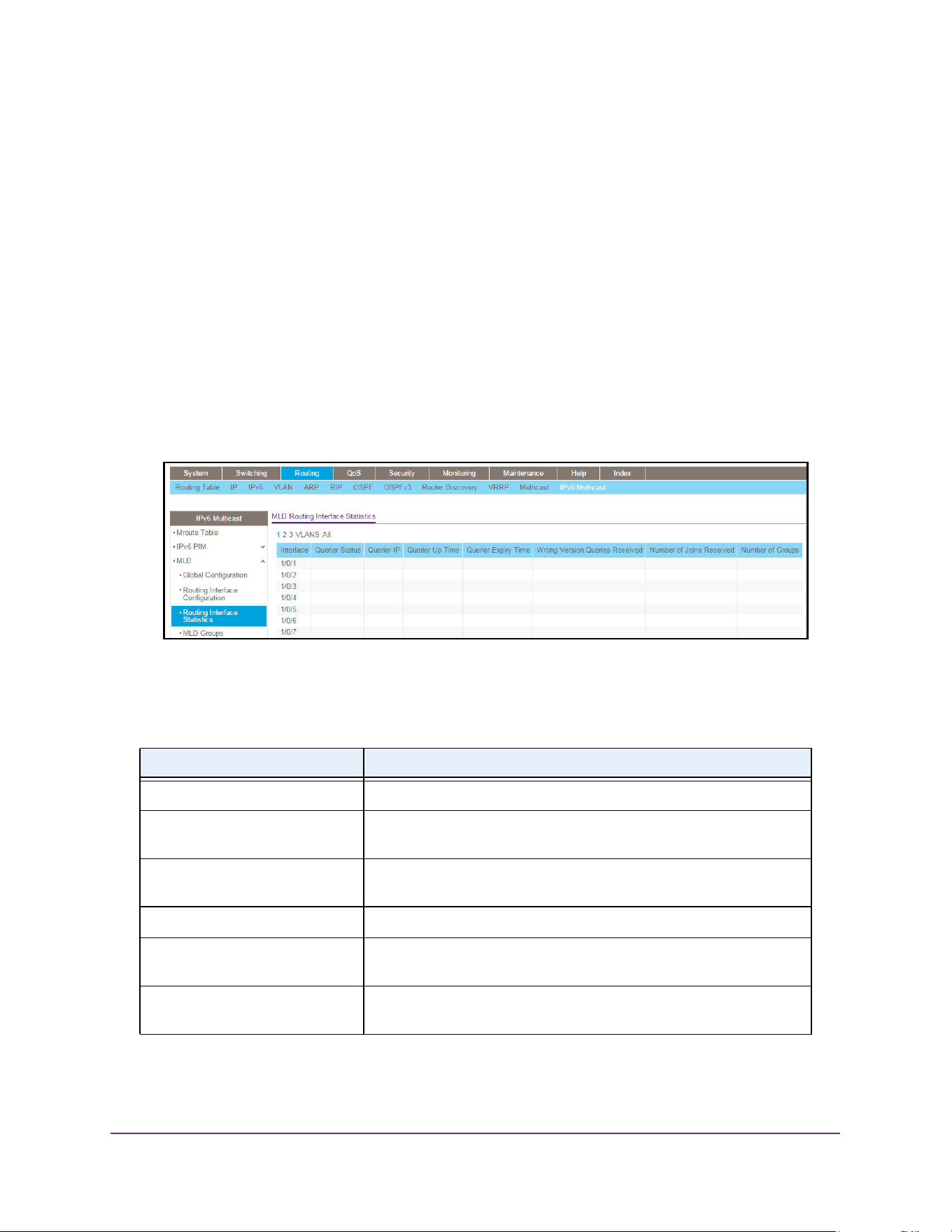
Multicast Routing
443
M4200 and M4300 Series ProSAFE Managed Switches Web Management User Manual
View IPv6 MLD Routing Interface Statistics
To view the IPv6 multicast MLD routing interface statistics:
1. Launch a web browser.
2. Enter http://<ipaddress> in the web browser address field.
The login window opens.
3. Enter the user name and password.
The default admin user name is admin and the default admin password is blank, that is,
do not enter a password.
4. Click the Login button.
The System Information page displays.
5. Select Routing> IPv6 Multicast > MLD > Routing Interface Statistics.
6. To refresh the page with the latest information on the switch, click the Update button.
The following table describes the nonconfigurable data that is displayed.
Table 174. IPv6 MLD Routing Interface Statistics
Field Description
Interface The interface for which data is to be displayed.
Querier Status Indicates whether the selected interface is an MLD querier or
non-querier on the subnet it is associated with.
Querier IP The address of the MLD querier on the IP subnet to which the selected
interface is attached.
Querier Up Time The time in seconds since the MLD interface querier was last changed.
Querier Expiry Time The time in seconds remaining before the other querier present timer
expires. If the local system is the querier, this is zero.
Wrong Version Queries Received The number of queries received whose MLD version does not match
the MLD version of the interface.
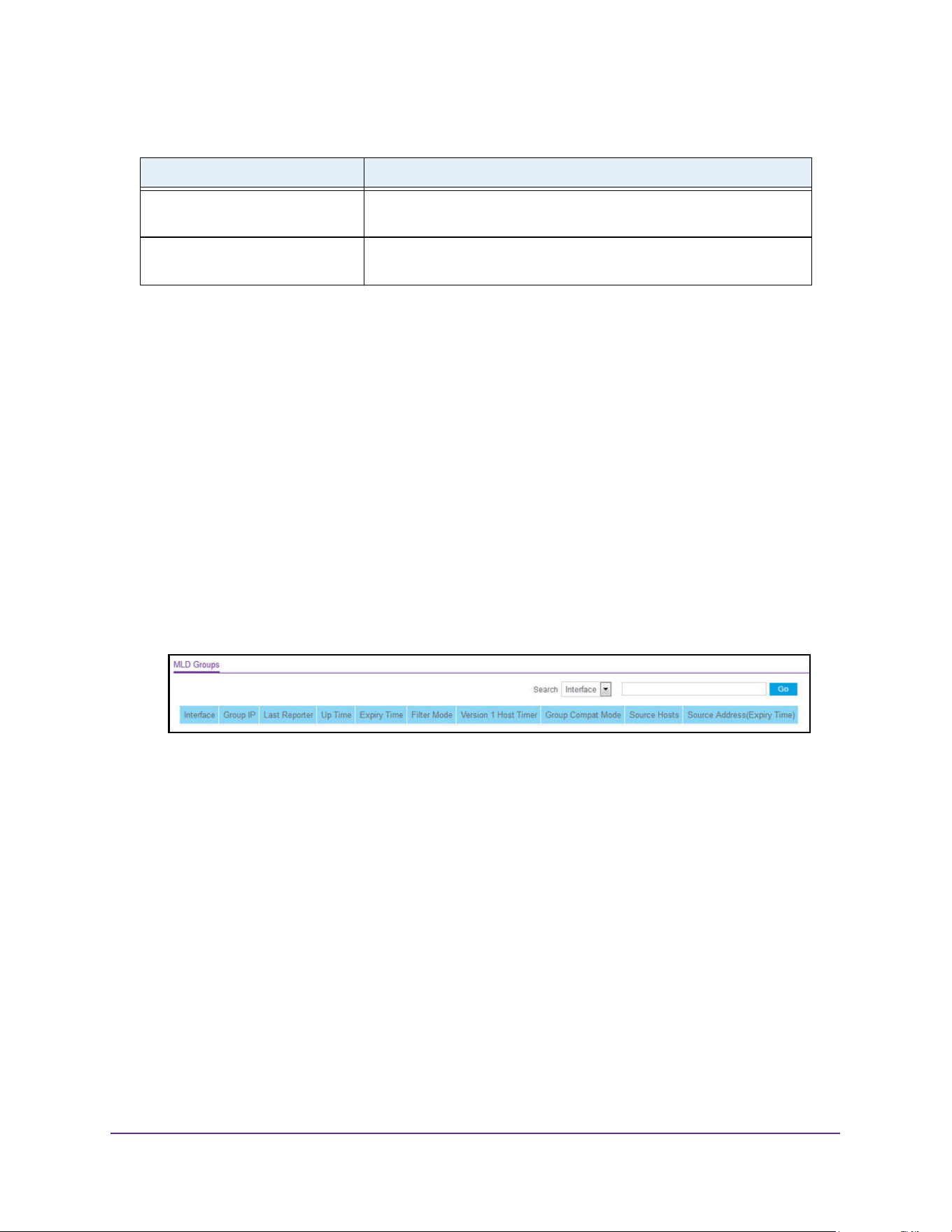
Multicast Routing
444
M4200 and M4300 Series ProSAFE Managed Switches Web Management User Manual
View the IPv6 MLD Groups
To view the IPv6 MLD groups:
1. Launch a web browser.
2. Enter http://<ipaddress> in the web browser address field.
The login window opens.
3. Enter the user name and password.
The default admin user name is admin and the default admin password is blank, that is,
do not enter a password.
4. Click the Login button.
The System Information page displays.
5. Select Routing> IPv6 Multicast > MLD > MLD Groups.
6. Use the Search menu to search for multicast entries by interface or group:
• Select Interface from menu, enter the interface in unit/slot/port format (for example
1/0/13), and click the Go button.
If the entry exists, it is displayed as the first entry, followed by the remaining entries.
• Select Group from the menu, enter the MLD group IP address, and click the Go
button.
If the entry exists, it is displayed as the first entry, followed by the remaining entries.
An exact match is required.
7. To refresh the page with the latest information on the switch, click the Update button.
Number of Joins Received The number of times a group membership was added on the selected
interface.
Number of Groups The current number of membership entries for the selected interface in
the cache table.
Table 174. IPv6 MLD Routing Interface Statistics (continued)
Field Description

Multicast Routing
445
M4200 and M4300 Series ProSAFE Managed Switches Web Management User Manual
The following table describes the nonconfigurable data that is displayed.
View and Clear IPv6 MLD Traffic
To view and clear IPv6 MLD traffic:
1. Launch a web browser.
2. Enter http://<ipaddress> in the web browser address field.
The login window opens.
3. Enter the user name and password.
The default admin user name is admin and the default admin password is blank, that is,
do not enter a password.
4. Click the Login button.
The System Information page displays.
5. Select Routing> IPv6 Multicast > MLD > MLD Traffic.
Table 175. IPv6 Multicast MLD Groups
Field Description
Interface The interface for which data is to be displayed.
Group IP The address of the MLD members.
Last Reporter The IP address of the source of the last membership report received for
this multicast group address on the selected interface.
Up Time The time elapsed in seconds since the multicast group was known.
Expiry Time Time left in seconds before the entry is removed from the MLD
membership table of this interface.
Filter Mode The filter mode of the multicast group on this interface. Possible values
are Include and Exclude.
Version 1 Host Timer The time remaining until the router assumes that there are no longer
any MLD version 1 hosts on the specified interface.
Group Compat Mode The compatibility mode of the multicast group on the interface. The
values it can take are MLDv1 and MLDv2.
Source Hosts This parameter shows source addresses that are members of this
multicast address.
Source Address (Expiry Time) This parameter shows expiry time interval against each source address
that is a member of this multicast group. This is the amount of time after
which the specified source entry is aged out.
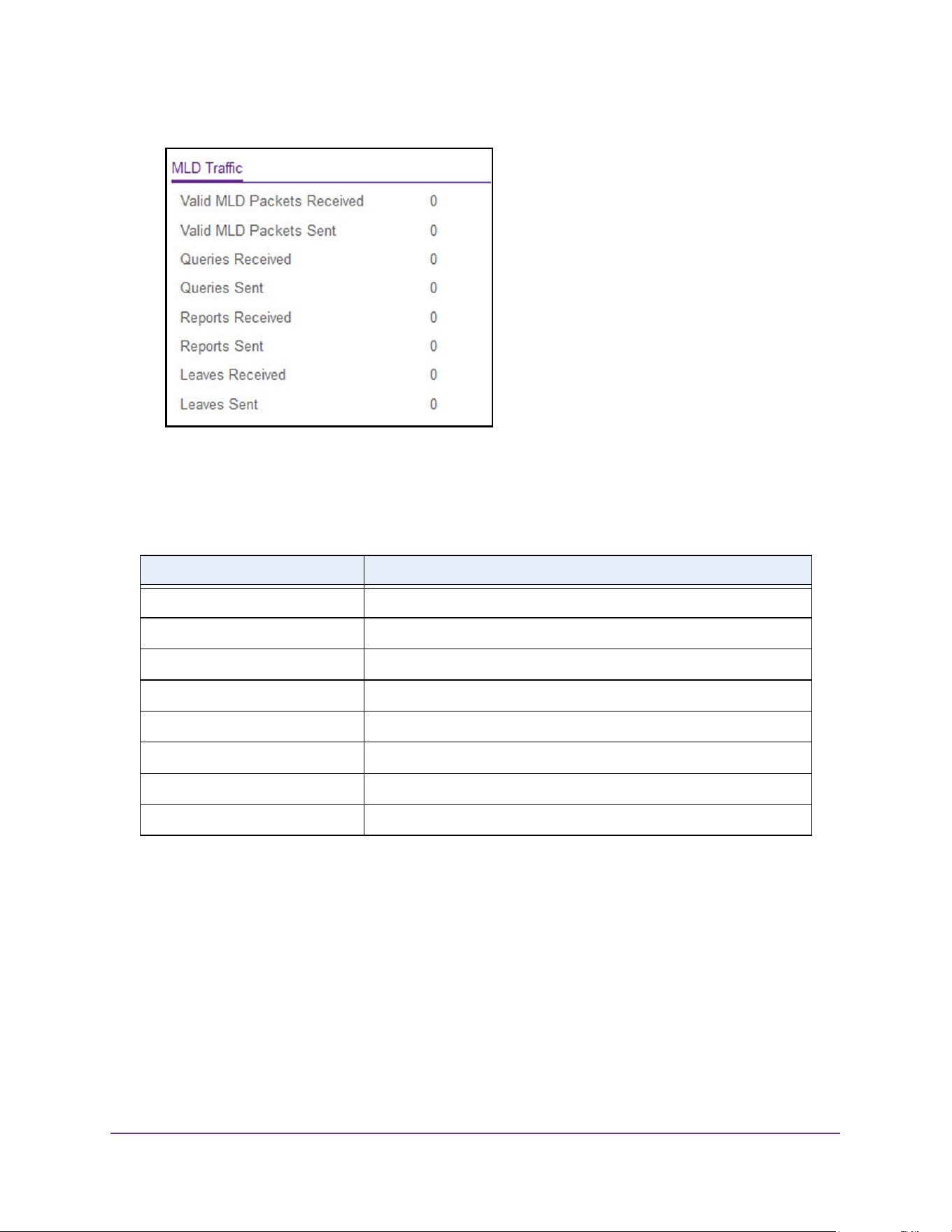
Multicast Routing
446
M4200 and M4300 Series ProSAFE Managed Switches Web Management User Manual
6. To refresh the page with the latest information on the switch, click the Update button.
7. To clear all IPv6 MLD traffic, click the Clear button.
The following table describes the nonconfigurable data that is displayed.
Configure the IPv6 MLD Proxy Interface
To configure the IPv6 multicast MLD proxy interface:
1. Launch a web browser.
2. Enter http://<ipaddress> in the web browser address field.
The login window opens.
3. Enter the user name and password.
The default admin user name is admin and the default admin password is blank, that is,
do not enter a password.
Table 176. IPv6 Multicast MLD Traffic
Field Description
Valid MLD Packets Received The number of valid MLD packets received by the router.
Valid MLD Packets Sent The number of valid MLD packets sent by the router.
Queries Received The number of valid MLD queries received by the router.
Queries Sent The number of valid MLD queries sent by the router.
Reports Received The number of valid MLD reports received by the router.
Reports Sent The number of valid MLD reports sent by the router.
Leaves Received The number of valid MLD leaves received by the router.
Leaves Sent The number of valid MLD leaves sent by the router.
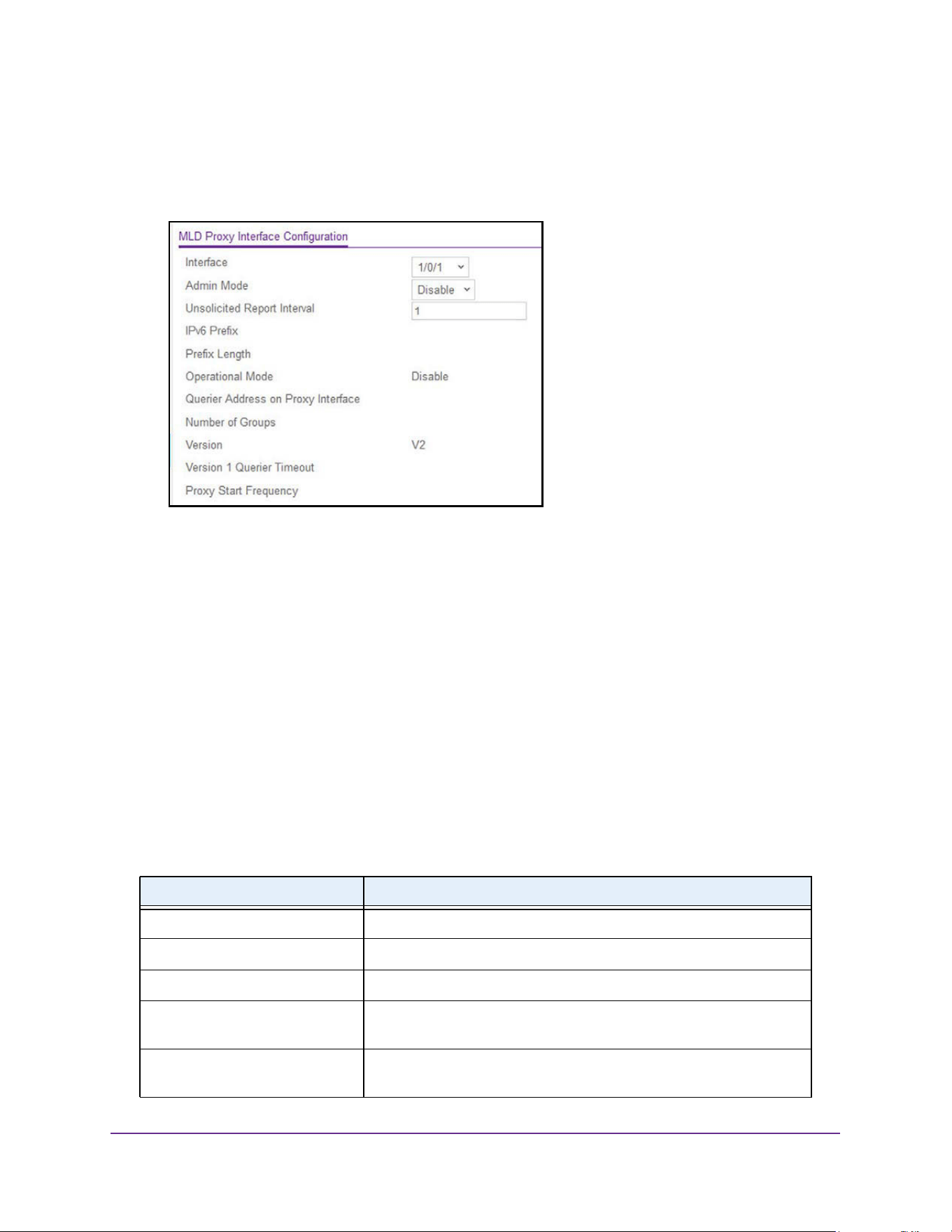
Multicast Routing
447
M4200 and M4300 Series ProSAFE Managed Switches Web Management User Manual
4. Click the Login button.
The System Information page displays.
5. Select Routing> IPv6 Multicast > MLD > Proxy Interface Configuration.
6. In the Interface list, select the interface.
7. In the Admin Mode list, select Enable or Disable.
This sets the administrative status of MLD proxy on the selected interface. The default is
Disable. Routing, MLD, and Multicast global admin modes must be enabled to enable
MLD proxy interface mode.
8. In the Unsolicited Report Interval field, enter the unsolicited time interval value in seconds.
The unsolicited report interval is the time between repetitions of a host's initial report of
membership in a group. Valid values are 1 to 260. The default value is 1.
9. Click the Apply button.
The updated configuration is sent to the switch. Configuration changes take effect
immediately.
The following table describes the nonconfigurable data that is displayed.
Table 177. IPv6 Multicast MLD Proxy Interface Configuration
Field Description
IPv6 Prefix The IPv6 address of the MLD proxy interface.
Prefix Length The prefix length for the IPv6 address of the MLD proxy interface.
Operational Mode The operational state of MLD proxy interface.
Querier Address on Proxy
Interface
The querier address on the proxy interface.
Number of Groups The current number of multicast group entries for the MLD proxy
interface in the cache table.
Multicast Routing
448
M4200 and M4300 Series ProSAFE Managed Switches Web Management User Manual
View IPv6 MLD Proxy Interface Statistics
To view the IPv6 multicast MLD proxy interface statistics:
1. Launch a web browser.
2. Enter http://<ipaddress> in the web browser address field.
The login window opens.
3. Enter the user name and password.
The default admin user name is admin and the default admin password is blank, that is,
do not enter a password.
4. Click the Login button.
The System Information page displays.
5. Select Routing> IPv6 Multicast > MLD > Proxy Interface Statistics.
6. To refresh the page with the latest information on the switch, click the Update button.
Version This field is configurable only when MLD proxy interface mode is
enabled. Enter the version of MLD to configure on the selected
interface. Valid values are 1 to 2. The default version is 3.
Version 1 Querier Timeout The older MLD version 1 querier time-out value in seconds. The older
version querier Interval is the time-out for transitioning a host back to
MLDv2 mode once an older version query is heard. When an older
version query is received, hosts set their older version querier present
timer to Older Version querier Interval.
Proxy Start Frequency The number of times the proxy was brought up.
Table 177. IPv6 Multicast MLD Proxy Interface Configuration (continued)
Field Description
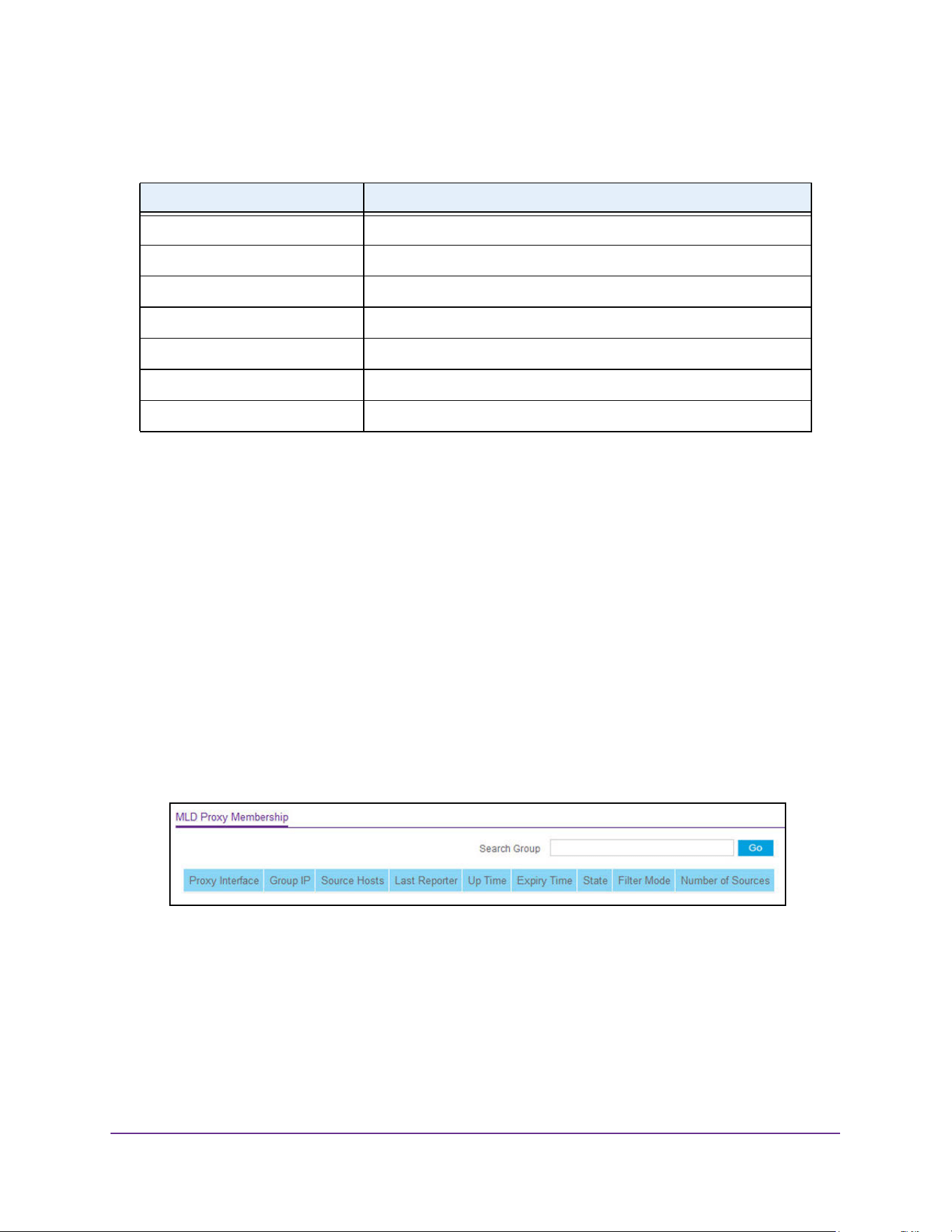
Multicast Routing
449
M4200 and M4300 Series ProSAFE Managed Switches Web Management User Manual
The following table describes the nonconfigurable data that is displayed.
View the IPv6 MLD Proxy Membership
To view the IPv6 multicast MLD proxy membership:
1. Launch a web browser.
2. Enter http://<ipaddress> in the web browser address field.
The login window opens.
3. Enter the user name and password.
The default admin user name is admin and the default admin password is blank, that is,
do not enter a password.
4. Click the Login button.
The System Information page displays.
5. Select Routing> IPv6 Multicast > MLD > Proxy Membership.
6. To refresh the page with the latest information on the switch, click the Update button.
Table 178. IPv6 Multicast MLD Proxy Interface Statistics
Field Description
Proxy Interface The interface on which MLD proxy packets received.
Version The version of MLD proxy packets received.
Queries Received The number of MLD proxy queries received.
Reports Received The number of MLD proxy reports received.
Reports Sent The number of MLD proxy reports sent.
Leaves Received The number of MLD proxy leaves received.
Leaves Sent The number of MLD proxy leaves sent.

Multicast Routing
450
M4200 and M4300 Series ProSAFE Managed Switches Web Management User Manual
The following table describes the nonconfigurable data that is displayed.
Configure IPv6 Multicast Static Routes
To configure IPv6 multicast static routes settings:
1. Launch a web browser.
2. Enter http://<ipaddress> in the web browser address field.
The login window opens.
3. Enter the user name and password.
The default admin user name is admin and the default admin password is blank, that is,
do not enter a password.
4. Click the Login button.
The System Information page displays.
5. Select Routing> IPv6 Multicast > Static Routes Configuration.
Table 179. IPv6 Multicast MLD Proxy Membership
Field Description
Proxy Interface The interface on which the MLD proxy is enabled.
Group IP The IPv6 multicast group address.
Source Hosts Source addresses that are members of this multicast address.
Last Reporter The IPv6 address of the source of the last membership report received
for the IPv6 multicast group address on the MLD proxy interface.
Up Time The time elapsed since this entry was created.
Expiry Time The expiry time interval against each source address that is a member
of this multicast group. This is the amount of time after which the
specified source entry is aged out.
State The state of the host entry. A host can be in one of the following states:
• Non-member state. Does not belong to the group on the interface.
• Delaying member state. Host belongs to the group on the interface
and report timer running. The report timer is used to send out the
reports.
• Idle member state. Host belongs to the group on the interface and
no report timer is running.
Filter Mode The group filter mode (Include/Exclude/None) for the specified group
on the MLD proxy interface. Possible modes are as follows:
• Include
• Exclude
• None
Number of Sources The number of source hosts present in the selected multicast group.
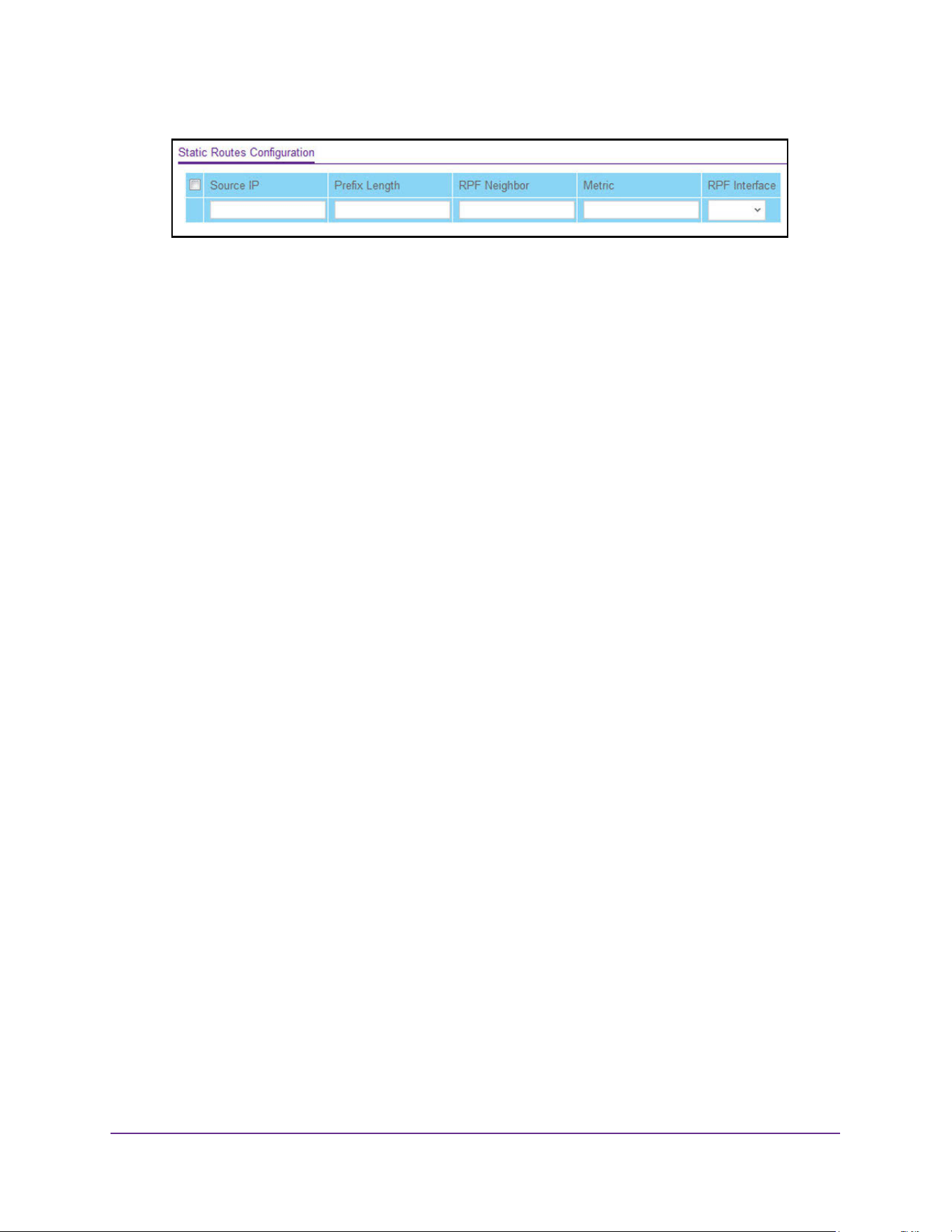
Multicast Routing
451
M4200 and M4300 Series ProSAFE Managed Switches Web Management User Manual
6. In the Source IP field, enter the IP address that identifies the multicast packet source for the
entry you are creating.
7. In the Prefix Length field, enter the prefix length to be applied to the Source IPv6 address.
8. In the RPF Neighbor field, enter the IP address of the neighbor router on the path to the
source.
9. In the Metric field, enter the link state cost of the path to the multicast source.
The range is 0 to 255; the default is 1. You can change the metric for a configured route
by selecting the static route and editing this field.
10. Select the interface number from the RPF Interface list.
This is the interface that connects to the neighbor router for the given source IP address.
11. Click the Add button.
The static route is added to the switch.
12. Click the Apply button.
The updated configuration is sent to the switch. Configuration changes take effect
immediately.


Configure Quality of Service
453
M4200 and M4300 Series ProSAFE Managed Switches Web Management User Manual
QoS Overview
In a typical switch, each physical port consists of one or more queues for transmitting packets
on the attached network. Multiple queues per port are often provided to give preference to
certain packets over others based on user-defined criteria. When a packet is queued for
transmission in a port, the rate at which it is serviced depends on how the queue is
configured and possibly the amount of traffic present in the other queues of the port. If a
delay is necessary, packets get held in the queue until the scheduler authorizes the queue for
transmission. As queues become full, packets cannot be held for transmission and get
dropped by the switch.
QoS is a means of providing consistent, predictable data delivery by distinguishing between
packets with strict timing requirements from those that are more tolerant of delay. Packets
with strict timing requirements are given special treatment in a QoS-capable network. With
this in mind, all elements of the network must be QoS capable. The presence of at least one
node that is not QoS capable creates a deficiency in the network path and the performance
of the entire packet flow is compromised.
Class of Service
The Class of Service (CoS) queueing feature lets you directly configure certain aspects of
switch queueing. This provides the desired QoS behavior for different types of network traffic
when the complexities of DiffServ are not required. The priority of a packet arriving at an
interface can be used to steer the packet to the appropriate outbound CoS queue through a
mapping table. CoS queue characteristics that affect queue mapping, such as minimum
guaranteed bandwidth or transmission rate shaping, are user-configurable at the queue (or
port) level.
Eight queues per port are supported.
Use CoS to set the Class of Service trust mode of an interface. Each port in the switch can be
configured to trust one of the packet fields (802.1p or IP DSCP), or to not trust any packet’s
priority designation (untrusted mode). If the port is set to a trusted mode, it uses a mapping
table appropriate for the trusted field being used. This mapping table indicates the CoS
queue to which the packet is forwarded on the appropriate egress ports. Of course, the
trusted field must exist in the packet for the mapping table to be of any use, so there are
default actions performed when this is not the case. These actions involve directing the
packet to a specific CoS level configured for the ingress port as a whole, based on the
existing port default priority as mapped to a traffic class by the current 802.1p mapping table.
Alternatively, when a port is configured as untrusted, it does not trust any incoming packet
priority designation and uses the port default priority value instead. All packets arriving at the
ingress of an untrusted port are directed to a specific CoS queue on the appropriate egress
port(s), in accordance with the configured default priority of the ingress port. This process is
also used for cases where a trusted port mapping cannot be honored, such as when a non-IP
packet arrives at a port configured to trust the IP DSCP value.
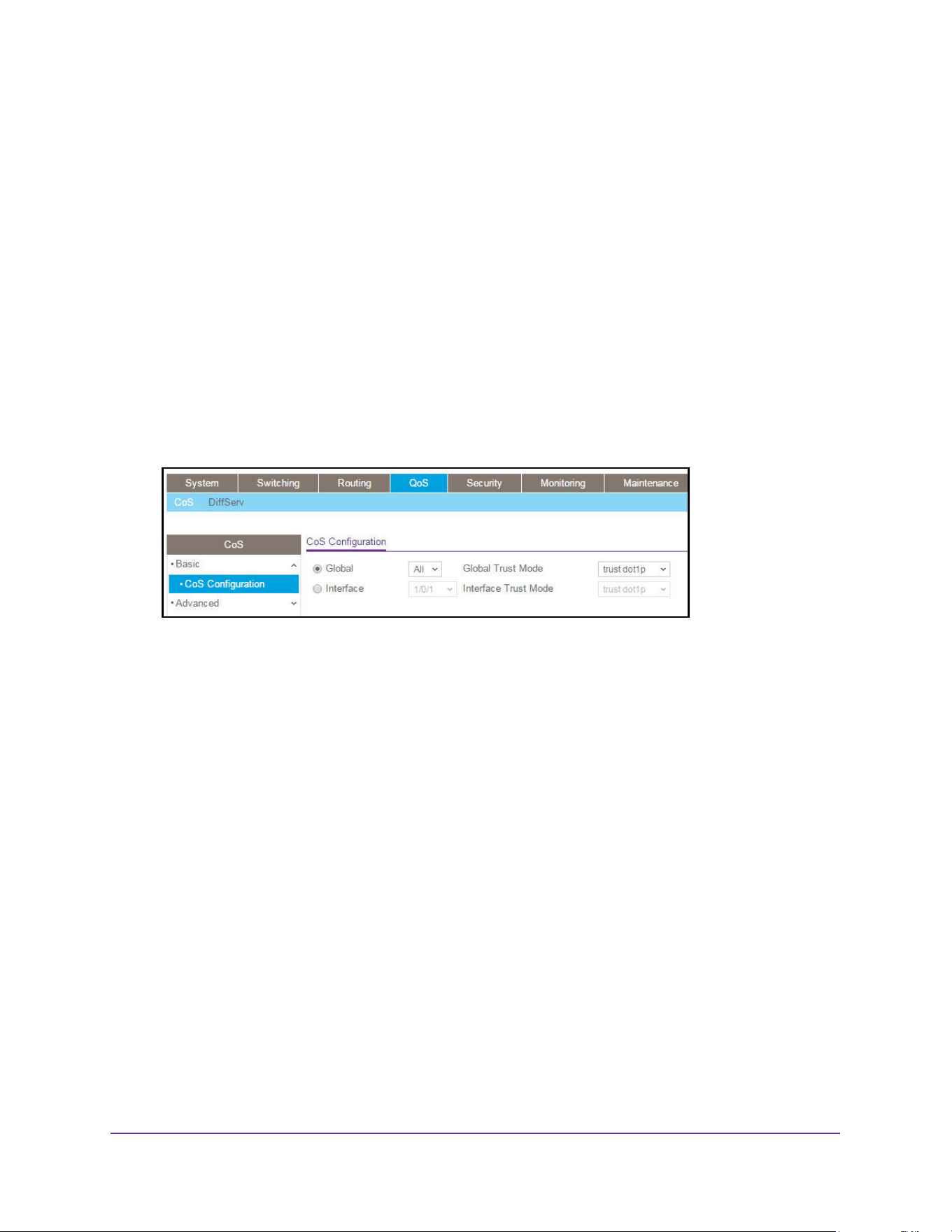
Configure Quality of Service
454
M4200 and M4300 Series ProSAFE Managed Switches Web Management User Manual
Configure Global CoS Settings
To configure global CoS settings:
1. Launch a web browser.
2. Enter http://<ipaddress> in the web browser address field.
The login window opens.
3. Enter the user name and password.
The default admin user name is admin and the default admin password is blank, that is,
do not enter a password.
4. Click the Login button.
The System Information page displays.
5. Select QoS> CoS > Basic > CoS Configuration.
Note: You can also navigate to this page by selecting QoS > CoS >
Advanced > CoS Configuration.
6. Use Global to specify all CoS configurable interfaces.
The option Global represents the most recent global configuration settings.
7. Use Interface to specify CoS configuration settings based per-interface.
8. Use Global Trust Mode to specify whether to trust a particular packet marking at ingress.
Global Trust Mode can be one of the following:
• untrusted
• trust dot1p
• trust ip-dscp
The default value is trust dot1p.
9. Use Interface Trust Mode to specify whether to trust a particular packet marking at ingress.
Interface Trust mode can be one of the following:
• untrusted
• trust dot1p
• trust ip-dscp
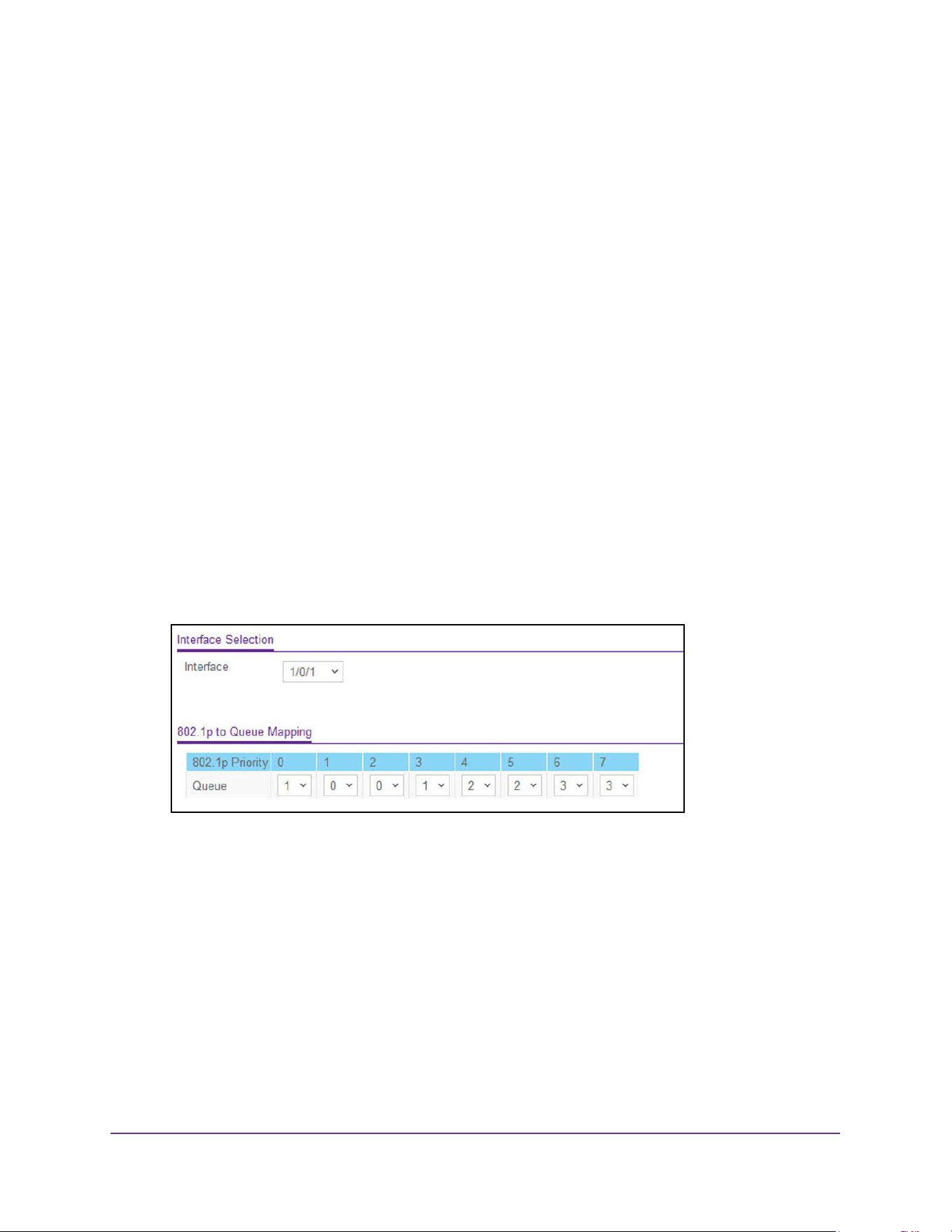
Configure Quality of Service
455
M4200 and M4300 Series ProSAFE Managed Switches Web Management User Manual
The default value is untrusted.
10. Click the Apply button.
The updated configuration is sent to the switch. Configuration changes take effect
immediately.
Map 802.1p Priorities to Queues
The 802.1p to Queue Mapping page also displays the Current 802.1p Priority Mapping table.
To map 802.1p priorities to queues:
1. Launch a web browser.
2. Enter http://<ipaddress> in the web browser address field.
The login window opens.
3. Enter the user name and password.
The default admin user name is admin and the default admin password is blank, that is,
do not enter a password.
4. Click the Login button.
The System Information page displays.
5. Select QoS > CoS > Advanced > 802.1p to Queue Mapping.
6. Use Interface to select interfaces.
You can specify CoS configuration settings per-interface or for all CoS configurable
interfaces.
7. Specify which internal traffic class to map the corresponding 802.1p value.
The queue number depends on the specific hardware. The 802.1p Priority row contains
traffic class selectors for each of the eight 802.1p priorities to be mapped. The priority
goes from low (0) to high (3). For example, traffic with a priority of 0 is for most data traffic
and is sent using best effort. Traffic with a higher priority, such as 3, might be
time-sensitive traffic, such as voice or video.
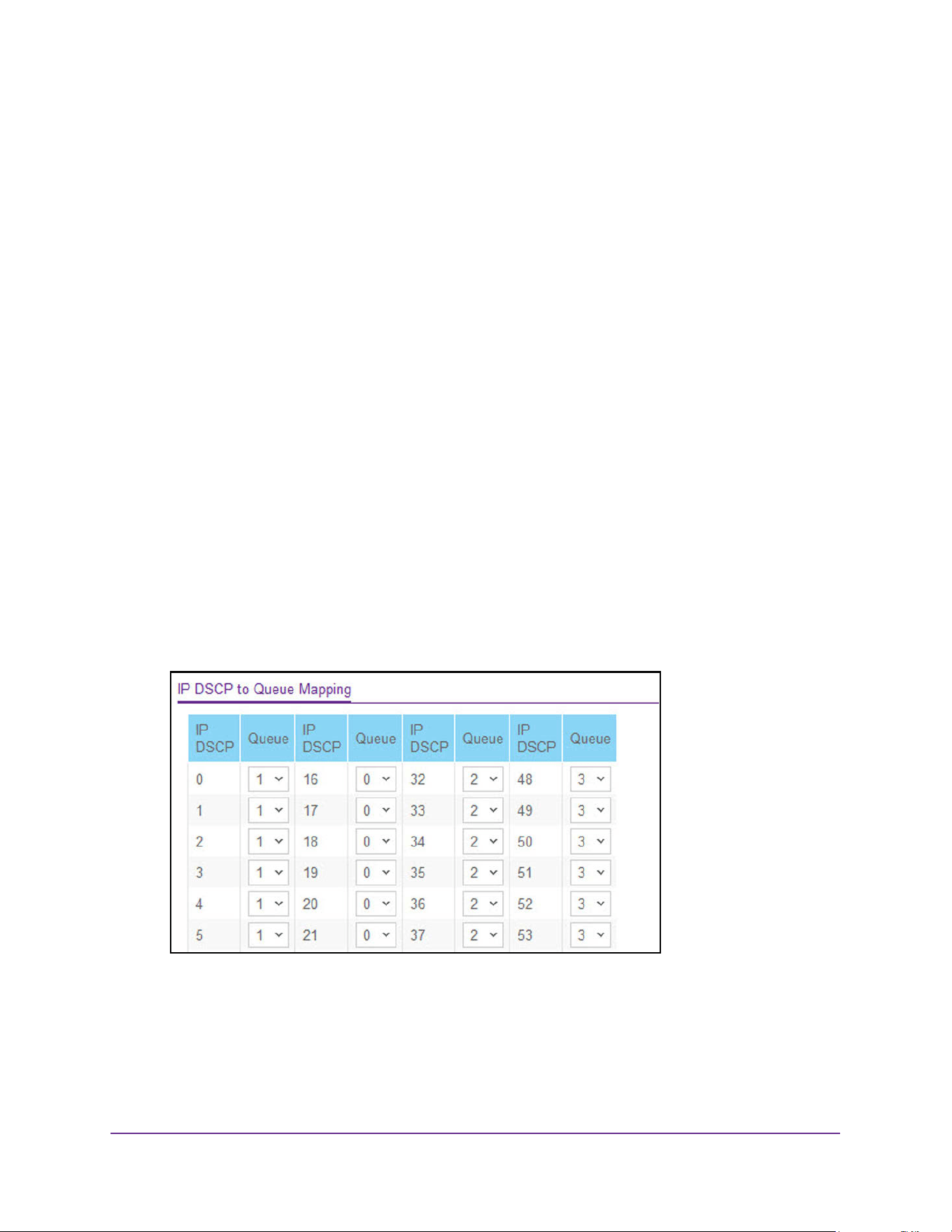
Configure Quality of Service
456
M4200 and M4300 Series ProSAFE Managed Switches Web Management User Manual
The values in each list represent the traffic class. The traffic class is the hardware queue
for a port. Higher traffic class values indicate a higher queue position. Before traffic in a
lower queue is sent, it must wait for traffic in higher queues to be sent.
8. Click the Apply button.
The updated configuration is sent to the switch. Configuration changes take effect
immediately.
Map DSCP Values to Queues
You can specify which internal traffic class to map the corresponding DSCP value.
To map DSCP values to queues:
1. Launch a web browser.
2. Enter http://<ipaddress> in the web browser address field.
The login window opens.
3. Enter the user name and password.
The default admin user name is admin and the default admin password is blank, that is,
do not enter a password.
4. Click the Login button.
The System Information page displays.
5. Select QoS > CoS > Advanced > IP DSCP to Queue Mapping.
The IP DSCP field displays an IP DSCP value from 0 to 63.
6. For each DSCP value, specify which internal traffic class to map the corresponding IP DSCP
value.
The queue number depends on specific hardware.
7. Click the Apply button.
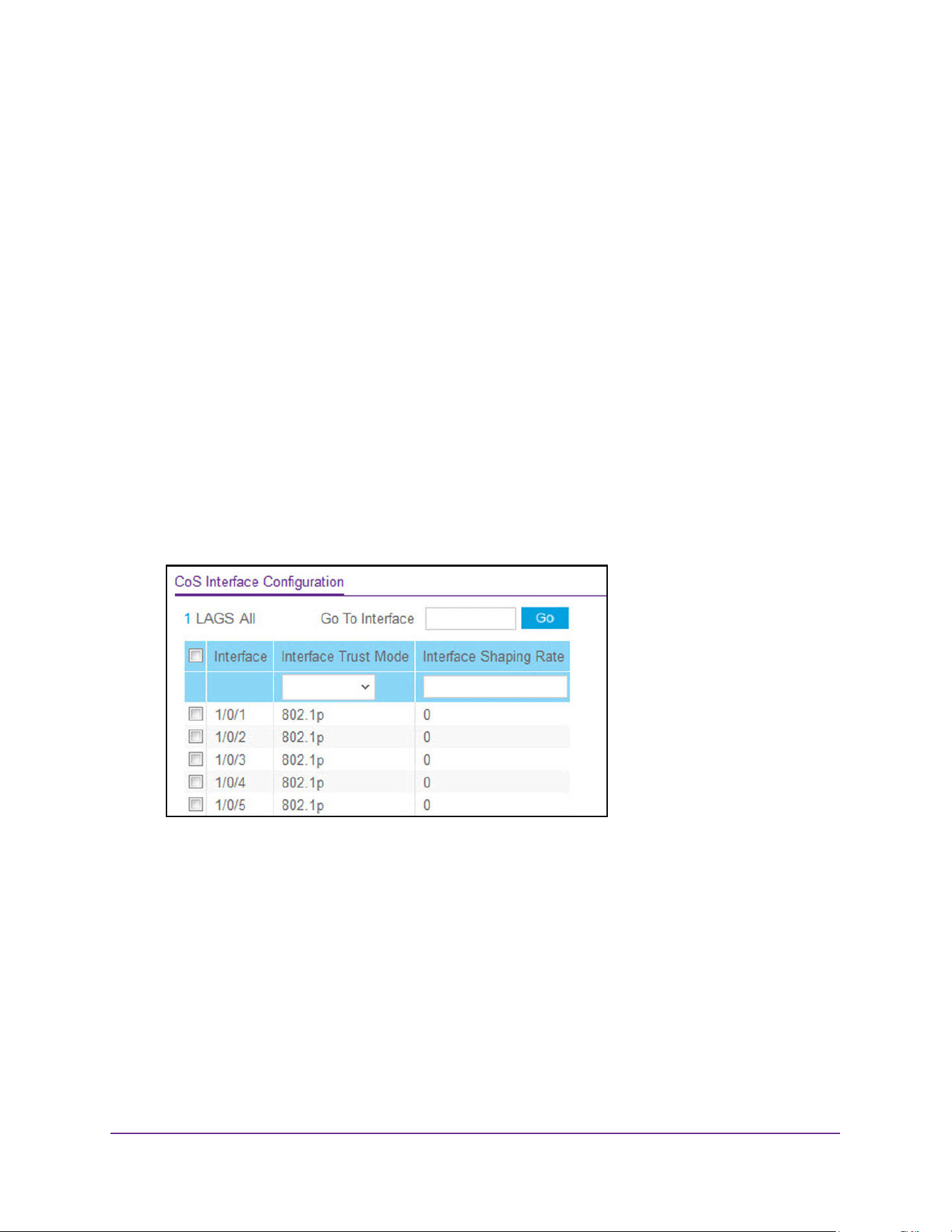
Configure Quality of Service
457
M4200 and M4300 Series ProSAFE Managed Switches Web Management User Manual
The updated configuration is sent to the switch. Configuration changes take effect
immediately.
Configure CoS Interface Settings for an Interface
You can apply an interface shaping rate to all interfaces or to a specific interface.
To configure CoS settings for an interface:
1. Launch a web browser.
2. Enter http://<ipaddress> in the web browser address field.
The login window opens.
3. Enter the user name and password.
The default admin user name is admin and the default admin password is blank, that is,
do not enter a password.
4. Click the Login button.
The System Information page displays.
5. Select QoS > CoS> Advanced > CoS Interface Configuration.
6. Select one of the following options to specify which interfaces are displayed on the page:
• Select LAG to show the list of all LAG interfaces.
• Select All to show the list of all physical as well as LAG interfaces.
7. Use one of the following methods to select an interface:
• Use the Go To Interface field to enter the interface in unit/slot/port format and click
the Go button.
The entry corresponding the specified interface is selected.
• Select an interface from the Interface list of all CoS configurable interfaces.
8. Use Interface Trust Mode to specify whether or not to trust a particular packet marking at
ingress.

Configure Quality of Service
458
M4200 and M4300 Series ProSAFE Managed Switches Web Management User Manual
Interface Trust Mode can be one of the following:
• Untrusted
• 802.1p
• IP DSCP
The default value is 802.1p.
9. Use Interface Shaping Rate to specify the maximum bandwidth allowed.
This is typically used to shape the outbound transmission rate.This value is controlled
independently of any per-queue maximum bandwidth configuration. It is effectively a
second-level shaping mechanism. The default value is 0. Valid Range is 0 to 100 in
increments of 1. The value 0 means that the maximum is unlimited.
10. Click the Apply button.
The updated configuration is sent to the switch. Configuration changes take effect
immediately.
Configure CoS Queue Settings for an Interface
You can define what a particular queue does by configuring switch egress queues.
User-configurable parameters control the amount of bandwidth used by the queue, the queue
depth during times of congestion, and the scheduling of packet transmission from the set of
all queues on a port. Each port has its own CoS queue-related configuration.
The configuration process is simplified by allowing each CoS queue parameter to be
configured globally or per port. A global configuration change is automatically applied to all
ports in the system.
To configure CoS queue settings for an interface:
1. Launch a web browser.
2. Enter http://<ipaddress> in the web browser address field.
The login window opens.
3. Enter the user name and password.
The default admin user name is admin and the default admin password is blank, that is,
do not enter a password.
4. Click the Login button.
The System Information page displays.
5. Select QoS > CoS >Advanced > Interface Queue Configuration.
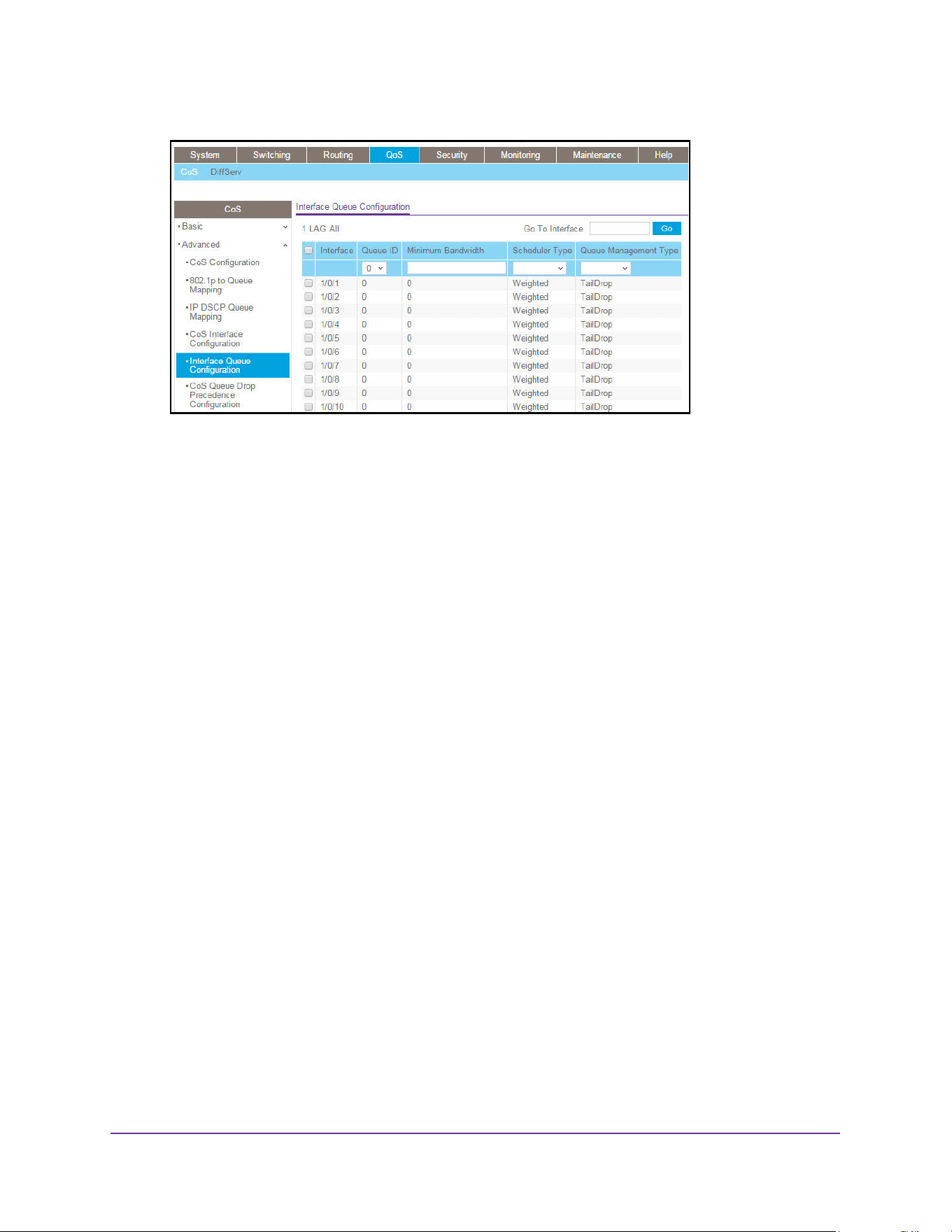
Configure Quality of Service
459
M4200 and M4300 Series ProSAFE Managed Switches Web Management User Manual
6. Select the check box next to the port or LAG to configure.
You can select multiple ports and LAGs to apply the same setting to the selected
interfaces. Select the check box in the heading row to apply a trust mode or rate to all
interfaces.
7. Use the Queue ID menu to select the queue to be configured (platform based).
8. Use Minimum Bandwidth to specify the minimum guaranteed bandwidth allotted to this
queue.
Setting this value higher than its corresponding maximum bandwidth automatically
increases the maximum to the same value. The default value is 0. Valid Range is 0 to 100
in increments of 1. The value 0 means no guaranteed minimum. Sum of individual
Minimum Bandwidth values for all queues in the selected interface cannot exceed
defined maximum (100).
9. Queue Management Type displays the queue depth management technique used for
queues on this interface.
This is used only if the device supports independent settings per queue. From the Queue
Management Type menu, select either TailDrop or WRED. The default value is
TailDrop.
10. Click the Apply button.
The updated configuration is sent to the switch. Configuration changes take effect
immediately.
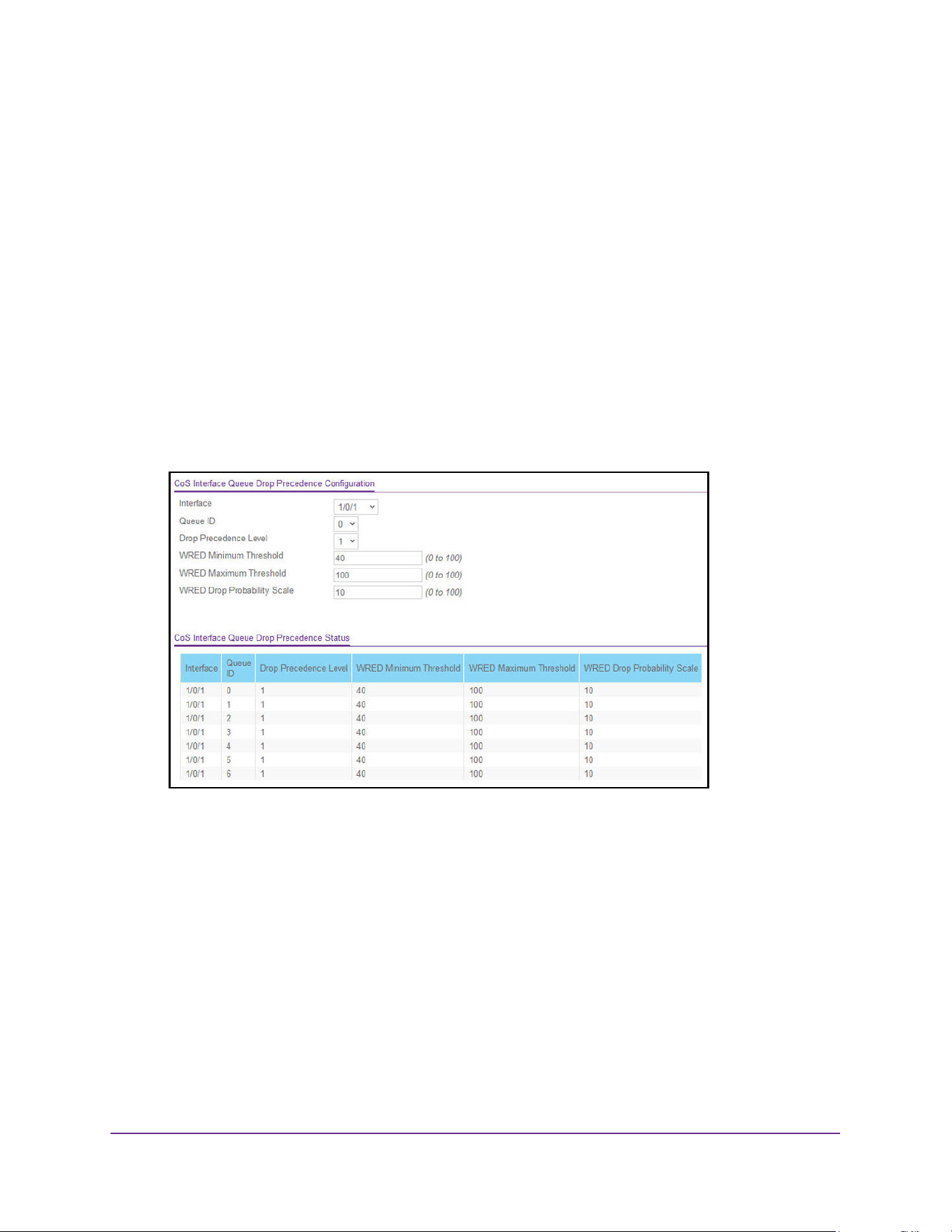
Configure Quality of Service
460
M4200 and M4300 Series ProSAFE Managed Switches Web Management User Manual
Configure CoS Drop Precedence Settings
To configure CoS Drop Precedence settings:
1. Launch a web browser.
2. Enter http://<ipaddress> in the web browser address field.
The login window opens.
3. Enter the user name and password.
The default admin user name is admin and the default admin password is blank, that is,
do not enter a password.
4. Click the Login button.
The System Information page displays.
5. Select QoS > CoS> Advanced > CoS Queue Drop Precedence Configuration.
6. Use Interface to specify all CoS configurable interfaces.
7. Use Queue ID to specify all the available queues.
Valid values are 0 to 6. The default is 0.
8. Use Drop Precedence Level to specify all the available drop precedence levels.
Valid values are 1 to 4. The default is 1.
9. Use WRED Minimum Threshold to specify the weighted RED minimum queue threshold
below which no packets are dropped for the current drop precedence level.
The range is 0 to 100. The default is 40.
10. Use WRED Maximum Threshold to specify the weighted RED maximum queue threshold
above which all packets are dropped for the current drop precedence level.
The range is 0 to 100. The default is 100.

Configure Quality of Service
461
M4200 and M4300 Series ProSAFE Managed Switches Web Management User Manual
11. Use WRED Drop Probability Scale to determine the packet drop probability for the current
drop precedence level.
The range is 0 to 100. The default is 10.
12. Click the Apply button.
The updated configuration is sent to the switch. Configuration changes take effect
immediately.
The following table describes the nonconfigurable data that is displayed.
Differentiated Services Overview
The QoS feature contains Differentiated Services (DiffServ) support that allows traffic to be
classified into streams and given certain QoS treatment in accordance with defined per-hop
behaviors.
Standard IP-based networks are designed to provide best effort data delivery service. Best
effort service implies that the network delivers the data in a timely fashion, although there is
no guarantee. During times of congestion, packets might be delayed, sent sporadically, or
dropped. For typical Internet applications, such as e-mail and file transfer, a slight
degradation in service is acceptable and in many cases unnoticeable. Conversely, any
degradation of service has undesirable effects on applications with strict timing requirements,
such as voice or multimedia.
To use DiffServ for QoS, you must first define the following categories and their criteria:
1. Class - Create classes and define class criteria.
2. Policy - Create policies, associate classes with policies, and define policy statements.
3. Service - Add a policy to an inbound interface.
Packets are classified and processed based on defined criteria. The classification criteria are
defined by a class. The processing is defined by a policy's attributes. Policy attributes can be
defined on a per–class instance basis, and it is these attributes that are applied when a
match occurs. A policy can contain multiples classes. When the policy is active, the actions
taken depend on which class matches the packet.
Table 180. CoS Interface Queue Drop Precedence Status
Field Description
Interface The CoS configurable interface.
Queue ID The queue ID.
Drop Precedence Level The drop precedence level.
WRED Minimum Threshold The weighted RED minimum queue threshold value.
WRED Maximum Threshold The weighted RED maximum queue threshold value.
WRED Drop Probability Scale The packet drop probability value.

Configure Quality of Service
462
M4200 and M4300 Series ProSAFE Managed Switches Web Management User Manual
Packet processing begins by testing the class match criteria for a packet. A policy is applied
to a packet when a class match within that policy is found.
DiffServ Wizard Overview
The DiffServ wizard enables DiffServ on the switch by creating a traffic class, adding the
traffic class to a policy, and then adding the policy to the ports that you select. The DiffServ
wizard does the following:
• Creates a DiffServ class and defines match criteria used as a filter to determine if
incoming traffic meets the requirements to be a member of the class.
• Sets the DiffServ class match criteria based on traffic type selection as follows:
• VOIP. Sets the match criteria to UDP protocol.
• HTTP. Sets the match criteria to HTTP destination port.
• FTP. Sets match criteria to FTP destination port.
• Telnet. Sets the match criteria to Telnet destination port.
• Every. Sets the match criteria for all traffic.
• Create a Diffserv policy and add it to the DiffServ class created.
• If policing is enabled (that is, it is set to YES), the DiffServ policy style is set to simple.
Traffic that conforms to the class match criteria is processed according to the outbound
priority selection. The outbound priority configures the handling of conforming traffic as
follows:
• High. Sets the policing action to markdscp ef.
• Med. Sets the policing action to markdscp af31.
• Low. Sets the policing action to send.
• If policing is disabled (that is, it is set to NO), all traffic is marked as follows:
• High. Sets the policy mark to ipdscp ef.
• Med. Sets the policy mark to ipdscp af31.
• Low. Sets the policy mark to ipdscp be.
• Each port selected is added to the policy created.
Use the DiffServ Wizard
To use the DiffServ Wizard:
1. Launch a web browser.
2. Enter http://<ipaddress> in the web browser address field.
The login window opens.
3. Enter the user name and password.
The default admin user name is admin and the default admin password is blank, that is,
do not enter a password.
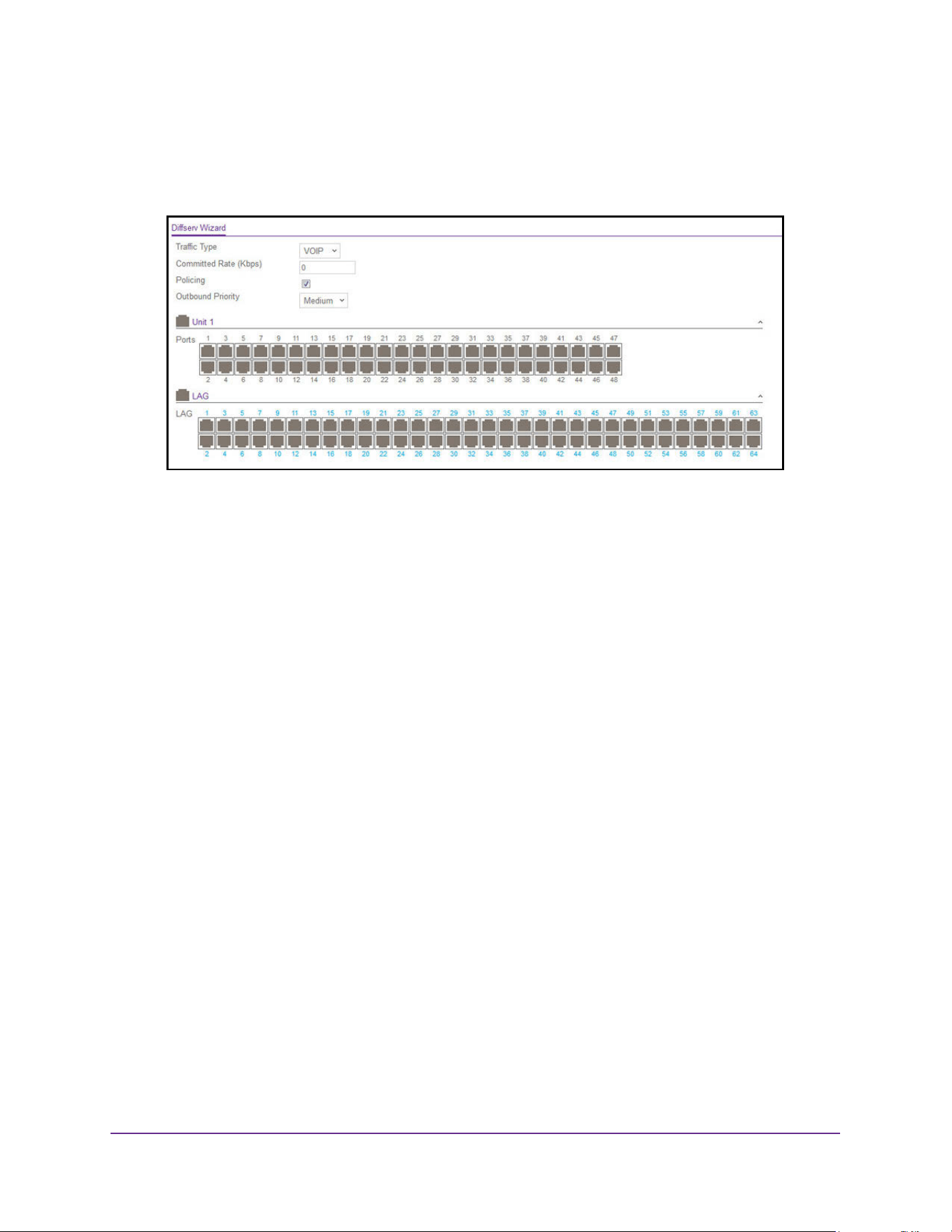
Configure Quality of Service
463
M4200 and M4300 Series ProSAFE Managed Switches Web Management User Manual
4. Click the Login button.
The System Information page displays.
5. Select QoS> DiffServ > DiffServ Wizard.
6. Use Traffic Type to define the DiffServ Class.
Traffic type options are: VOIP, HTTP, FTP, Telnet, and Every.
7. Ports displays the ports which can be configured to support a DiffServ policy.
The DiffServ policy is added to selected ports.
8. Use Enable Policing to add policing to the DiffServ policy.
The policing rate to be applied.
9. Specify the Committed Rate:
• When Policing is enabled, the committed rate is applied to the policy and the policing
action is set to conform.
• When Policing is disabled, the committed rate is not applied and the policy is set to
markdscp.
10. Specify the Outbound Priority:
• When Policing is enabled, Outbound Priority defines the type of policing conform
action where: High sets action to markdscp ef, Med sets the action to markdscp af31,
and Low sets the action to send.
• When Policing is disabled, Outbound Priority defines the policy where: High sets the
policy to mark ipdscp ef, Med sets policy to mark ipdscp af31, and Low sets the policy
to mark ipdscp be.
11. Click the Apply button.
The updated configuration is sent to the switch. Configuration changes take effect
immediately.
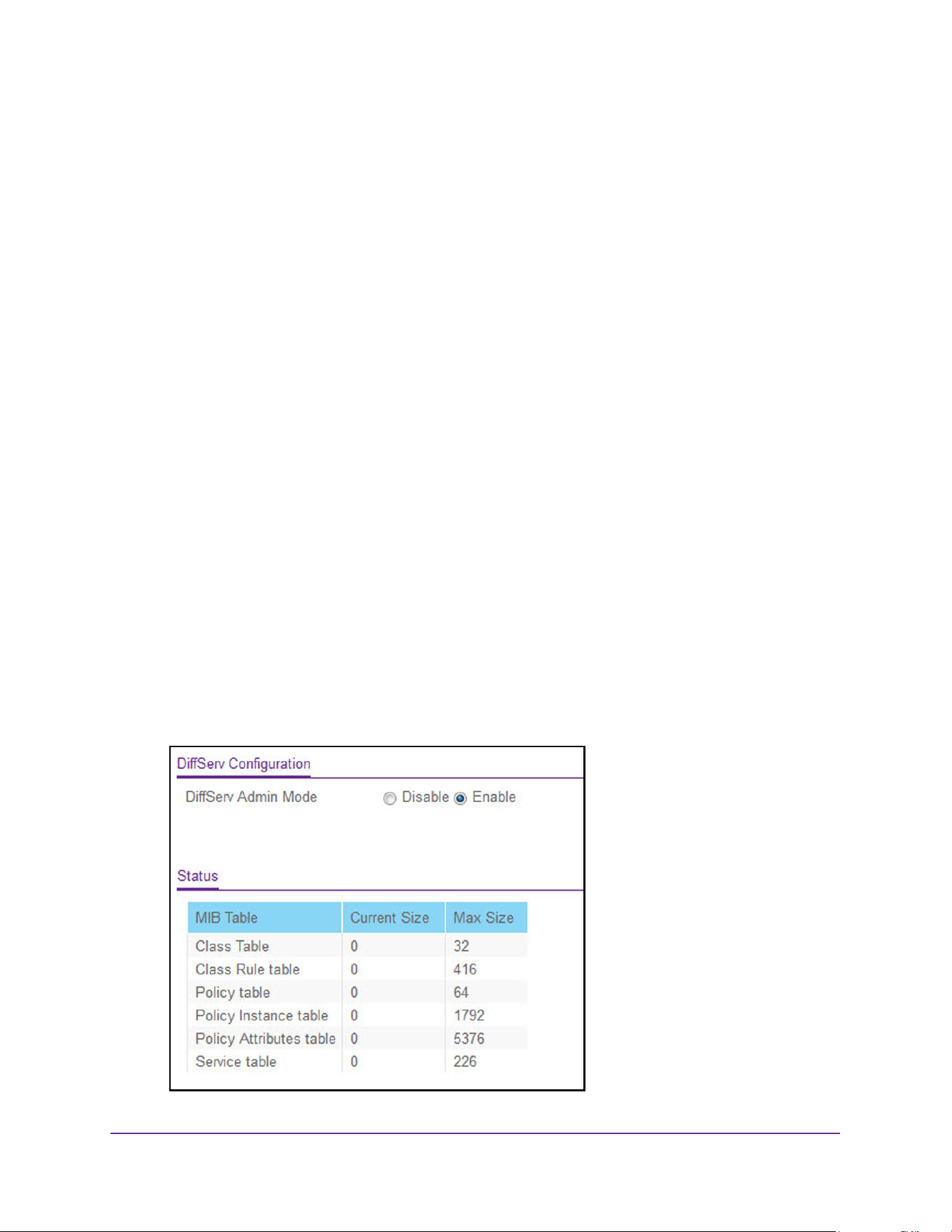
Configure Quality of Service
464
M4200 and M4300 Series ProSAFE Managed Switches Web Management User Manual
Configure Basic DiffServ Settings
Packets are filtered and processed based on defined criteria. The filtering criteria is defined
by a class. The processing is defined by a policy's attributes. Policy attributes can be defined
on a per–class instance basis, and it is these attributes that are applied when a match
occurs.
The configuration process begins with defining one or more match criteria for a class. Then
one or more classes are added to a policy. Policies are then added to interfaces.
Packet processing begins by testing the match criteria for a packet. The all class type option
specifies that each match criteria within a class must evaluate to true for a packet to match
that class. The any class type option specifies that at least one match criteria must evaluate
to true for a packet to match that class. Classes are tested in the order in which they were
added to the policy. A policy is applied to a packet when a class match within that policy is
found.
To configure the basic DiffServ settings:
1. Launch a web browser.
2. Enter http://<ipaddress> in the web browser address field.
The login window opens.
3. Enter the user name and password.
The default admin user name is admin and the default admin password is blank, that is,
do not enter a password.
4. Click the Login button.
The System Information page displays.
5. Select QoS> DiffServ > Basic > DiffServ Configuration.
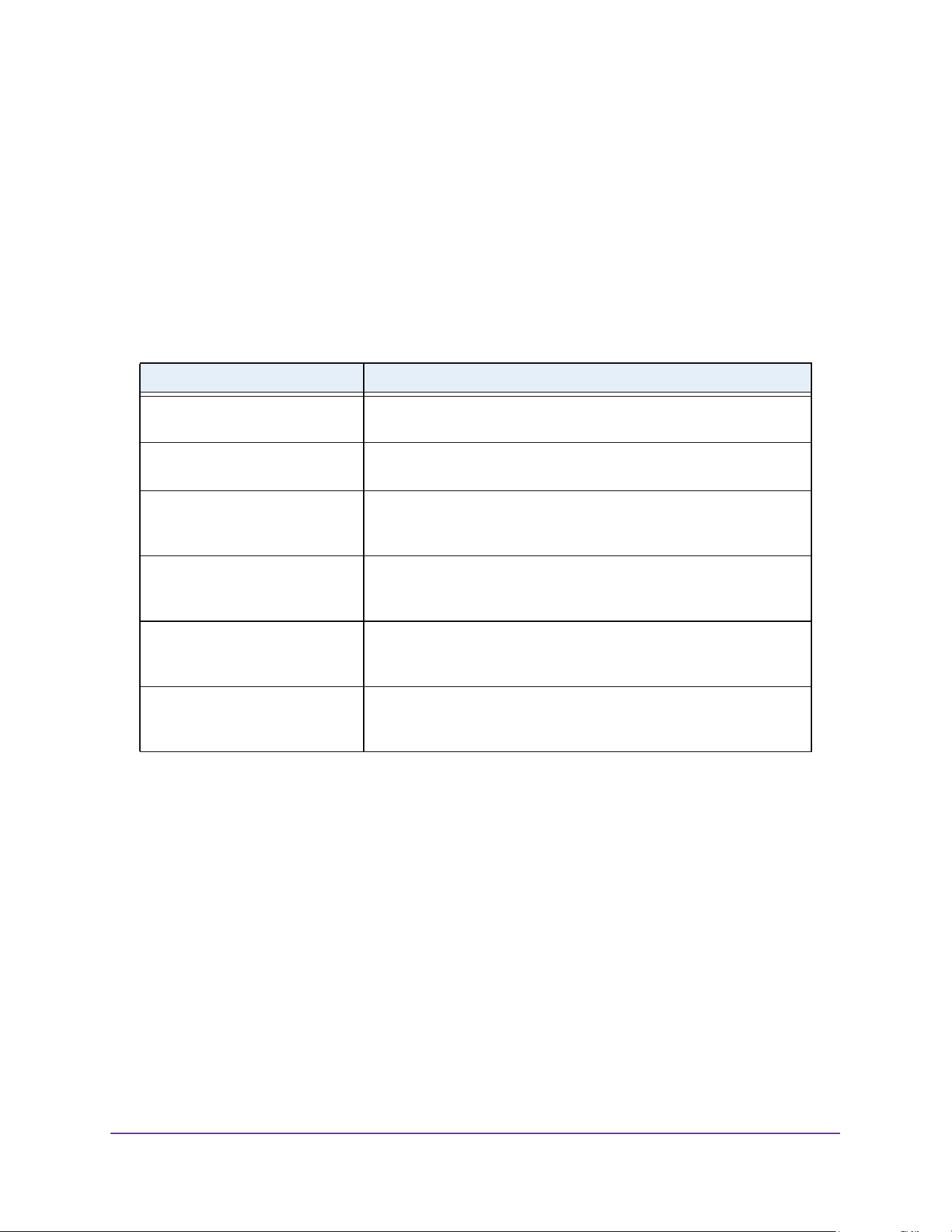
Configure Quality of Service
465
M4200 and M4300 Series ProSAFE Managed Switches Web Management User Manual
6. Select the administrative mode for DiffServ:
• Enable. Differentiated Services are active. This the default mode.
• Disable. The DiffServ configuration is retained and can be changed but it is not
active.
7. Click the Apply button.
The updated configuration is sent to the switch. Configuration changes take effect
immediately.
The following table describes the nonconfigurable data that is displayed.
Configure the Global DiffServ Settings
Packets are filtered and processed based on defined criteria. The filtering criteria are defined
by a class. The processing is defined by a policy's attributes. Policy attributes can be defined
on a per-class instance basis, and it is these attributes that are applied when a match occurs.
The configuration process begins with defining one or more match criteria for a class. Then
one or more classes are added to a policy. Policies are then added to interfaces.
Packet processing begins by testing the match criteria for a packet. The all class type option
specifies that each match criteria within a class must evaluate to true for a packet to match
that class. The any class type option specifies that at least one match criteria must evaluate
to true for a packet to match that class. Classes are tested in the order in which they were
added to the policy. A policy is applied to a packet when a class match within that policy is
found.
Table 181. DiffServ Configuration
Field Description
Class Table The current and maximum number of classifier entries in the table.
DiffServ classifiers differentiate among traffic types.
Class Rule Table The current and maximum number of class rule entries in the table.
Class rules specify the match criteria that belong to a class definition.
Policy Table The current and maximum number of policy entries in the table. The
policy determines the traffic conditioning or service provisioning actions
applied to a traffic class.
Policy Instance Table The current and maximum number of policy-class instance entries in
the table. A policy-class instance is a policy that is associated with an
existing DiffServ class.
Policy Attributes Table The current and maximum number of policy attribute entries in the
table. A policy attribute entry attaches various policy attributes to a
policy-class instance.
Service Table The current and maximum number of service entries in the table. A
service entry associates a DiffServ policy with an interface and inbound
or outbound direction.
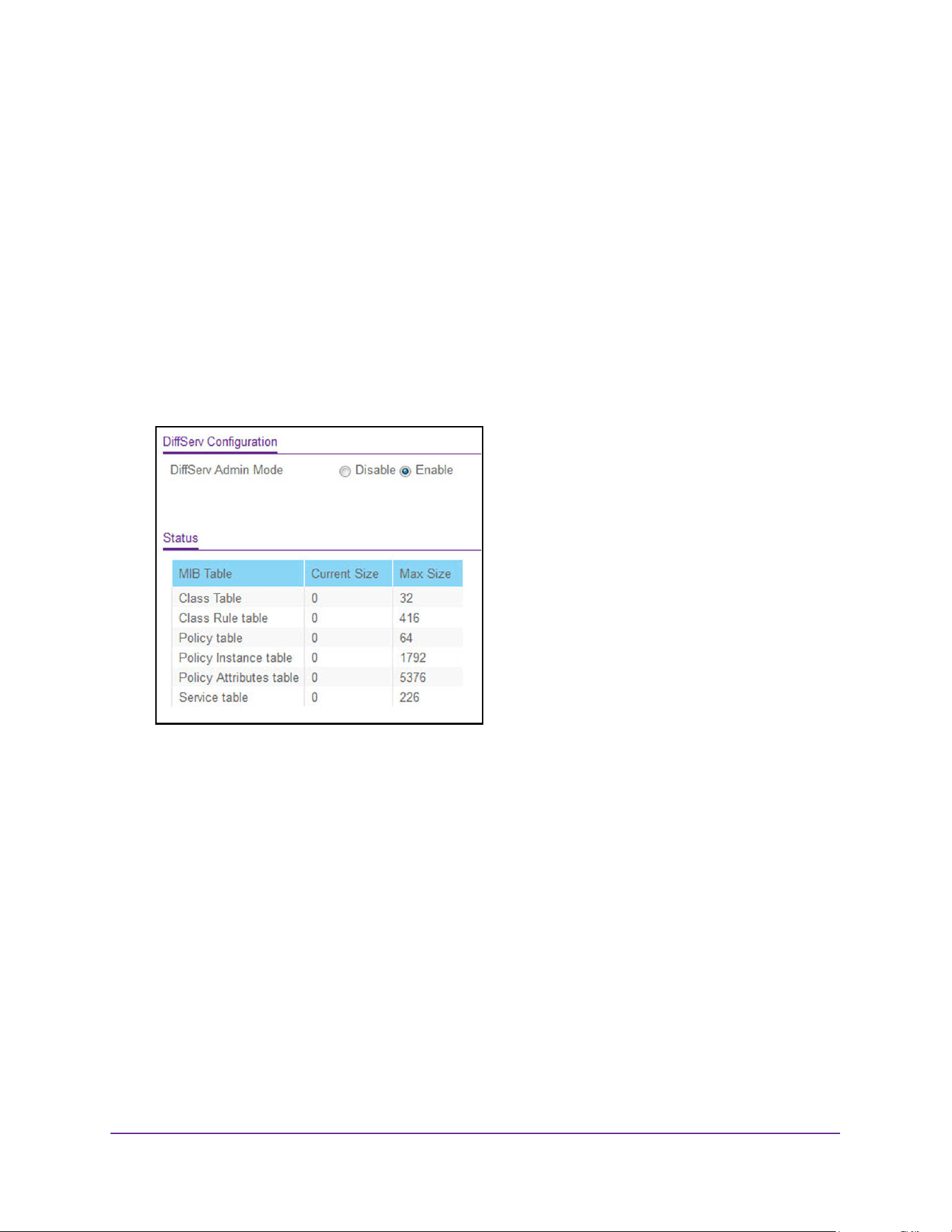
Configure Quality of Service
466
M4200 and M4300 Series ProSAFE Managed Switches Web Management User Manual
To configure the global DiffServ mode:
1. Launch a web browser.
2. Enter http://<ipaddress> in the web browser address field.
The login window opens.
3. Enter the user name and password.
The default admin user name is admin and the default admin password is blank, that is,
do not enter a password.
4. Click the Login button.
The System Information page displays.
5. Select QoS > DiffServ > Advanced > Diffserv Configuration.
6. Select the administrative mode for DiffServ:
• Enable. Differentiated Services are active.
• Disable. The DiffServ configuration is retained and can be changed, but it is not
active.
7. Click the Apply button.
The updated configuration is sent to the switch. Configuration changes take effect
immediately.
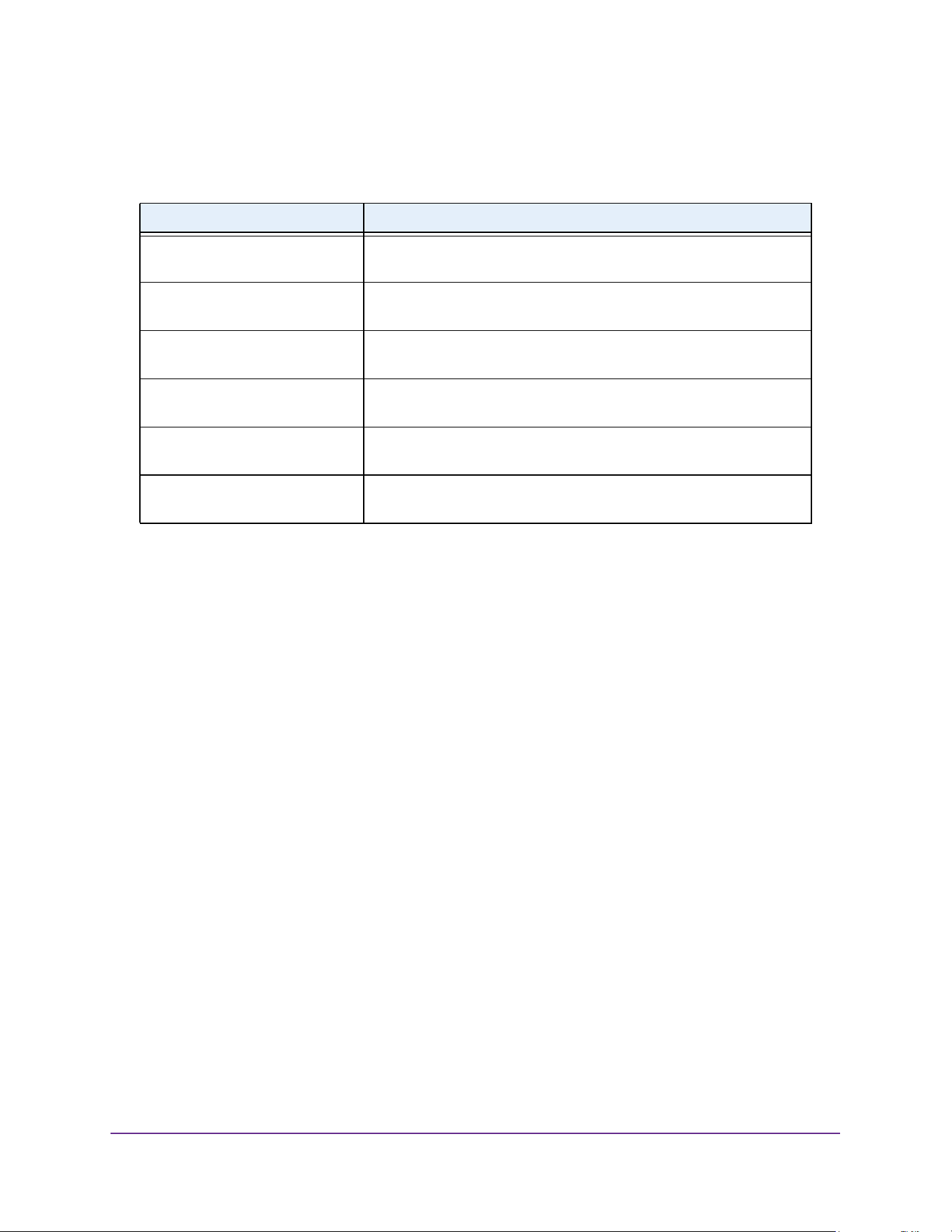
Configure Quality of Service
467
M4200 and M4300 Series ProSAFE Managed Switches Web Management User Manual
The following table describes the information displayed in the Status table on the DiffServ
Configuration page.
Configure a DiffServ Class
You can add a new DiffServ class name or rename or delete an existing class. You can also
define the criteria to associate with a DiffServ class. As packets are received, these DiffServ
classes are used to prioritize packets. You can use multiple match criteria in a class. The
logic is a Boolean logical-AND for this criteria. After creating a class, click the class link to the
Class page.
To configure a DiffServ class:
1. Launch a web browser.
2. Enter http://<ipaddress> in the web browser address field.
The login window opens.
3. Enter the user name and password.
The default admin user name is admin and the default admin password is blank, that is,
do not enter a password.
4. Click the Login button.
The System Information page displays.
5. Select QoS > DiffServ > Advanced > Class Configuration.
Table 182. DiffServ Status
Field Description
Class Table The number of configured DiffServ classes out of the total allowed on
the switch.
Class Rule table The number of configured class rules out of the total allowed on the
switch.
Policy table The number of configured policies out of the total allowed on the
switch.
Policy Instance table The number of configured policy class instances out of the total allowed
on the switch.
Policy Attributes table The number of configured policy attributes (attached to the policy class
instances) out of the total allowed on the switch.
Service table The number of configured services (attached to the policies on
specified interfaces) out of the total allowed on the switch.
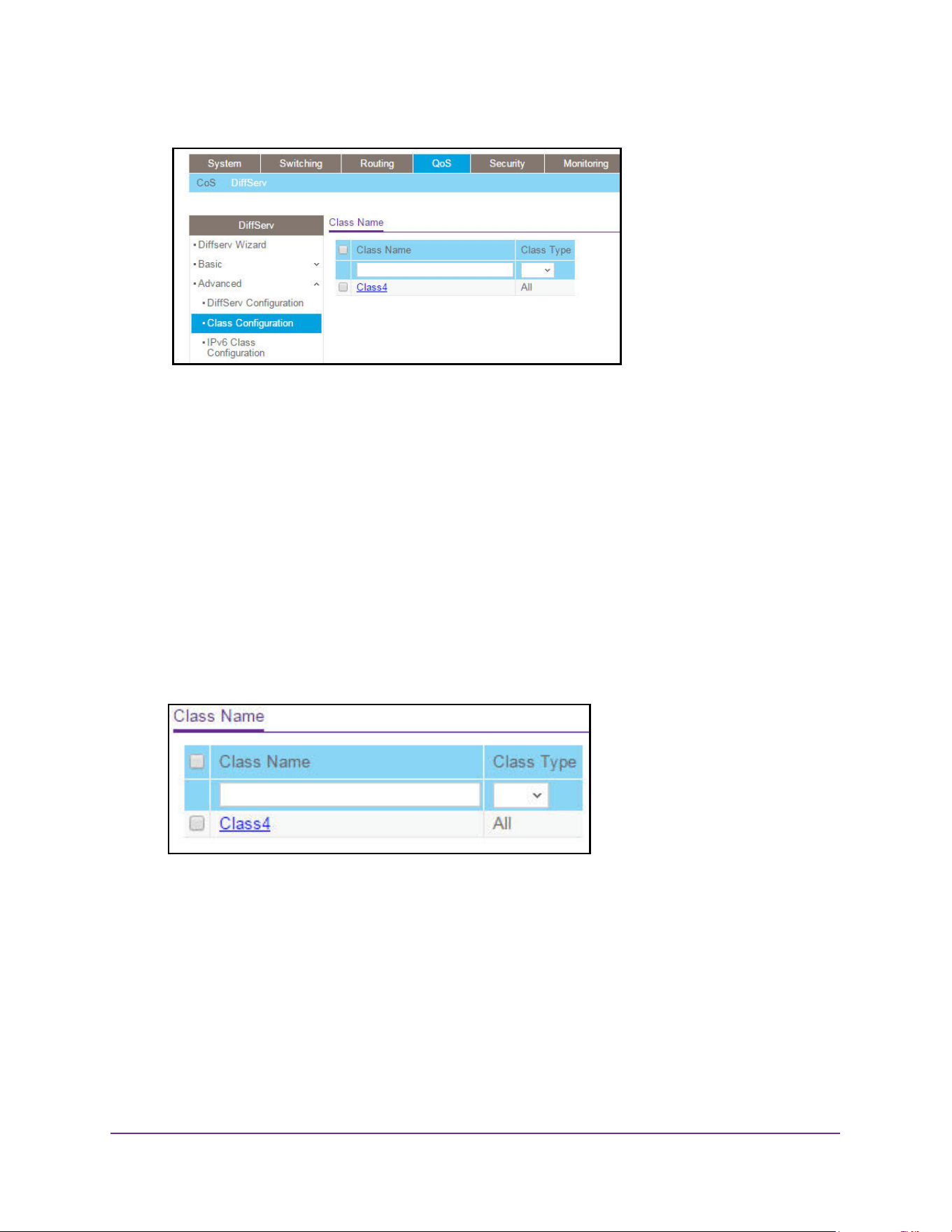
Configure Quality of Service
468
M4200 and M4300 Series ProSAFE Managed Switches Web Management User Manual
6. To create a new class, enter a class name, select the class type, and click the Add button.
This field also lists all the existing DiffServ class names, from which one can be selected.
The switch supports only the Class Type value All, which means all the various match
criteria defined for the class is satisfied for a packet match. All signifies the logical AND of
all the match criteria. You can select the class type only when you are creating a new
class. After the class is created, the Class Type field becomes nonconfigurable.
7. To rename an existing class, select the check box next to the configured class, update the
name.
8. Click the Apply button.
The updated configuration is sent to the switch. Configuration changes take effect
immediately.
9. After creating a class, click the class name for an existing class.
The class name is a hyperlink.
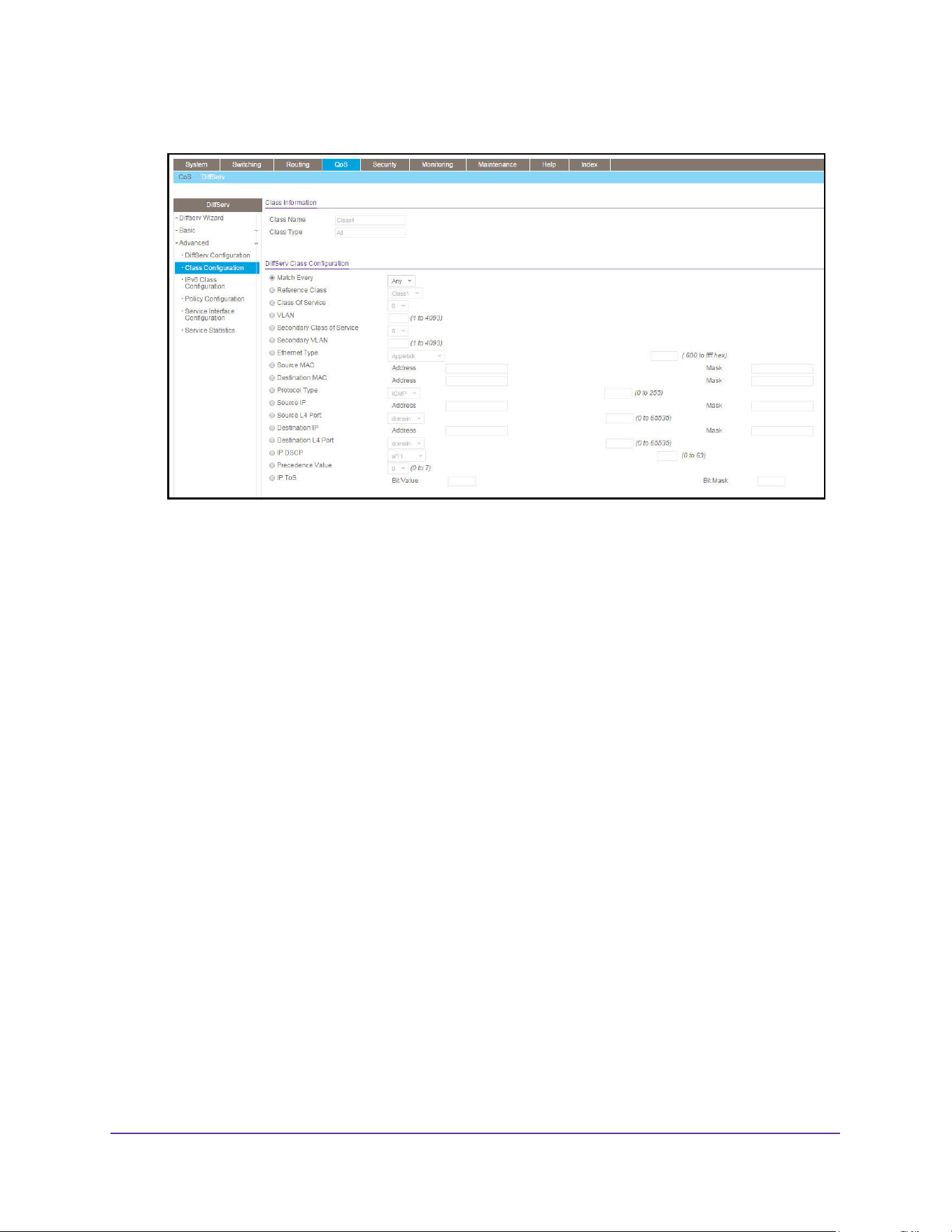
Configure Quality of Service
469
M4200 and M4300 Series ProSAFE Managed Switches Web Management User Manual
The Class Configuration page displays, showing the configuration fields for the class.
10. To configure the class details, complete the fields:
• Class Name - The name for the configured DiffServ class.
• Class Type - The DiffServ class type.
You can select the class type only when you are creating a new class. After you
create the class, this field displays the class type, but you cannot change it.
11. Define the criteria to associate with a DiffServ class:
• Match Every. This adds to the specified class definition a match condition whereby all
packets are considered to belong to the class.
• Reference Class. Select this option to reference another class for criteria. The match
criteria defined in the reference class is as match criteria in addition to the match
criteria you define for the selected class. After selecting this option, the classes that
can be referenced are displayed. Select the class to reference. A class can reference
at most one other class of the same type.
• Class of Service. Select this option to require the Class of Service (CoS) value in an
Ethernet frame header to match the specified CoS value. This option lists all the
values for the Class of Service match criterion in the range 0 to 7 from which one can
be selected.
• VLAN. Select this option to require a packet’s VLAN ID to match a VLAN ID or a
VLAN ID within a continuous range. If you configure a range, a match occurs if a
packet’s VLAN ID is the same as any VLAN ID within the range. The VLAN value is in
the range of 0–4093.
• Secondary Class of Service. Select this option to require the secondary Class of
Service (CoS) value in an Ethernet frame header to match the specified secondary
CoS value.

Configure Quality of Service
470
M4200 and M4300 Series ProSAFE Managed Switches Web Management User Manual
• Secondary VLAN. Select this option to require a packet’s VLAN ID to match a
secondary VLAN ID or a secondary VLAN ID within a continuous range. If you
configure a range, a match occurs if a packet’s secondary VLAN ID is the same as
any secondary VLAN ID within the range. After you select this option, use the
following fields to configure the secondary VLAN match criteria:
- Secondary VLAN ID Start. The secondary VLAN ID to match or the secondary
VLAN ID with the lowest value within a range of VLANs.
- Secondary VLAN ID End. The secondary VLAN ID with the highest value within
the range of VLANs. This field is not required if the match criteria is a single VLAN
ID.
• Ethernet Type. Select this option to require the EtherType value in the Ethernet frame
header to match the specified EtherType value. After you select this option, specify
the EtherType Keyword from the list of common protocols that are mapped to their
Ethertype value.
• Source MAC Address. Select this option to required a packet’s source MAC address
to match the specified MAC address. After you select this option, use the following
fields to configure the source MAC address match criteria:
- MAC Address - The source MAC address to match.
- MAC Mask - The MAC mask, which specifies the bits in the source MAC address
to compare against the Ethernet frame. Use F’s and zeros to configure the MAC
mask. An F means that the bit is checked, and a zero in a bit position means that
the data is not significant. For example, if the MAC address is aa:bb:cc:dd:ee:ff,
and the mask is ff:ff:00:00:00:00, all MAC addresses with aa:bb:xx:xx:xx:xx result
in a match (where x is any hexadecimal number). Note that this is not a wildcard
mask, which ACLs use.
• Source MAC Mask. This is a bit mask in the same format as a MAC address
indicating which part(s) of the source MAC address to use for matching against
packet content.
• Destination MAC Address. Select this option to require a packet’s destination MAC
address to match the specified MAC address. After you select this option, use the
following fields to configure the destination MAC address match criteria:
- MAC Address - The destination MAC address to match.
- MAC Mask - The MAC mask, which specifies the bits in the destination MAC
address to compare against an Ethernet frame. Use F’s and zeros to configure
the MAC mask. An F means that the bit is checked, and a zero in a bit position
means that the data is not significant. For example, if the MAC address is
aa:bb:cc:dd:ee:ff, and the mask is ff:ff:00:00:00:00, all MAC addresses with
aa:bb:xx:xx:xx:xx result in a match (where x is any hexidecimal number). Note
that this is not a wildcard mask, which ACLs use.
• Destination MAC Mask. This is a bit mask in the same format as a MAC address
indicating which part(s) of the destination MAC address to use for matching against
packet content.
• Protocol Type. This lists the keywords for the Layer 4 protocols from which one can
be selected. The list includes 'other' as an option for the remaining values.

Configure Quality of Service
471
M4200 and M4300 Series ProSAFE Managed Switches Web Management User Manual
• Source IP Address. This is a valid source IP address in the dotted-decimal format.
• Source Mask. This is a bit mask in IP dotted-decimal format indicating which part(s)
of the source IP address to use for matching against packet content.
• Source L4 Port. Select this option to require a packet's TCP/UDP source port to
match the specified port or the port number within a range of port numbers. If you
configure a range, a match occurs if a packet's source port number is the same as
any source port number within the range. After you select this option, use the
following fields to configure a source port keyword, source port number, or source
port range for the match criteria:
- Protocol – Select the desired L4 keyword from the list on which the match is
based. If you select a keyword, the other source port configuration fields are
not available.
- Port End – A user-defined L4 source port number to match or the source port
number with the lowest value within a range of ports.
- Port Start – The source port with the highest value within the range of ports.
This field is not required if the match criteria is a single port.
• Destination IP Address. This is a valid destination IP address in the dotted-decimal
format.
• DestinationMask. This is a bit mask in IP dotted-decimal format indicating which
part(s) of the destination IP address to use for matching against packet content.
• Destination L4 Port. Select this option to require a packet's TCP/UDP destination
port to match the specified port or the port number within a range of port numbers. If
you configure a range, a match occurs if a packet's destination port number is the
same as any destination port number within the range. After you select this option,
use the following fields to configure a destination port keyword, destination port
number, or destination port range for the match criteria:
- Protocol – Select the desired L4 keyword from the list on which the match is
based. If you select a keyword, the other destination port configuration fields
are not available.
- Port End – A user-defined L4 destination port number to match or the
destination port number with the lowest value within a range of ports.
- Port Start – The destination port with the highest value within the range of
ports. This field is not required if the match criteria is a single port.
• IP DSCP. Select this option to require the packet's IP DiffServ Code Point (DSCP)
value to match the specified value. The DSCP value is defined as the high-order six
bits of the Service Type octet in the IP header. After you select this option, use one of
the following fields to configure the IP DSCP match criteria.
- IP DSCP Keyword - The IP DSCP keyword code that corresponds to the IP
DSCP value to match. If you select a keyword, you cannot configure an IP
DSCP value.
- IP DSCP Value - The IP DSCP value to match.
• Precedence Value. Select this option to require the packet's IP Precedence value to
match the number configured in the IP Precedence Value field. The IP Precedence
Configure Quality of Service
472
M4200 and M4300 Series ProSAFE Managed Switches Web Management User Manual
field in a packet is defined as the high-order three bits of the Service Type octet in the
IP header.
• IP ToS. Select this option to require the packet's Type of Service (ToS) bits in the IP
header to match the specified value. The IP ToS field in a packet is defined as all
eight bits of the Service Type octet in the IP header. After you select this option, use
the following fields to configure the ToS match criteria:
• ToS Bits. Enter a two-digit hexadecimal number octet value in the range 00 to ff to
match the bits in a packet’s ToS field.
• ToS Mask. Specify the bit positions that are used for comparison against the IP
ToS field in a packet.
12. Click the Apply button.
The updated configuration is sent to the switch. Configuration changes take effect
immediately.
The following table describes the nonconfigurable information displayed in the Class
Summary at the bottom of the DiffServ Advanced Class Configuration page.
Configure DiffServ IPv6 Class Settings
You can add a new IPv6 DiffServ class name, or to rename or delete an existing class. You
can also define the criteria to associate with a DiffServ class. As packets are received, these
DiffServ classes are used to prioritize packets. You can use multiple match criteria in a class.
The logic is a Boolean logical-AND for this criteria. After creating a class, click the class link
to the Class page.
To configure DiffServ IPv6 class settings:
1. Launch a web browser.
2. Enter http://<ipaddress> in the web browser address field.
The login window opens.
3. Enter the user name and password.
The default admin user name is admin and the default admin password is blank, that is,
do not enter a password.
4. Click the Login button.
The System Information page displays.
5. Select QoS > DiffServ > Advanced > IPv6 Class Configuration.
Table 183. DiffServ Class Configuration - Class Summary
Field Description
Match Criteria The configured match criteria for the specified class.
Values The values of the configured match criteria.
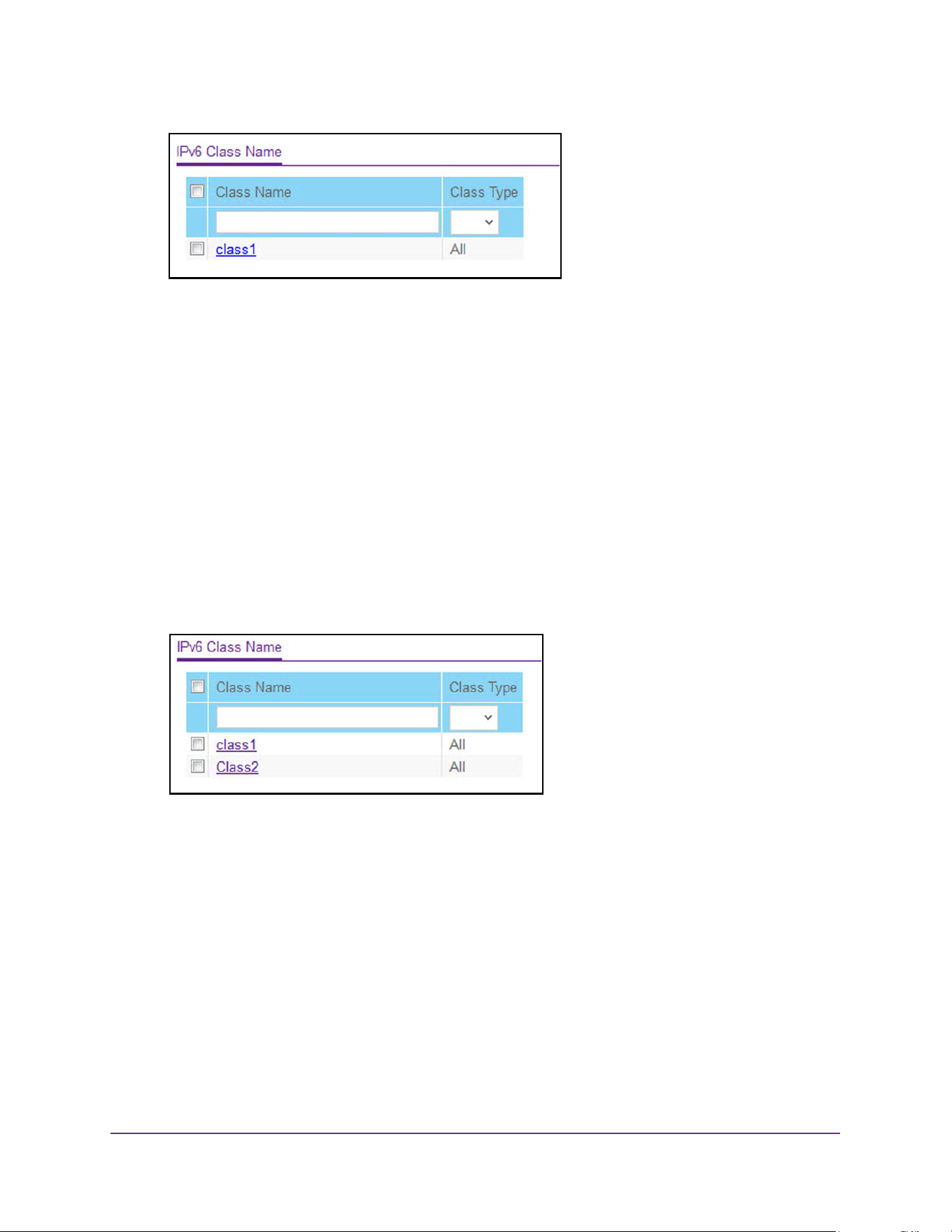
Configure Quality of Service
473
M4200 and M4300 Series ProSAFE Managed Switches Web Management User Manual
6. To create a new class, enter a class name, select the class type, and click the Add button.
This field also lists all the existing DiffServ class names, from which one can be selected.
The switch supports only the Class Type value All, which means all the various match
criteria defined for the class is satisfied for a packet match. All signifies the logical AND of
all the match criteria. Only when a new class is created, this field is a selector field. After
class creation this becomes a nonconfigurable field displaying the configured class type.
7. To rename an existing class, select the check box next to the configured class, and update
the name
8. Click the Apply button.
The updated configuration is sent to the switch. Configuration changes take effect
immediately.
9. After creating a class, click the class name for an existing class.
The class name is a hyperlink.
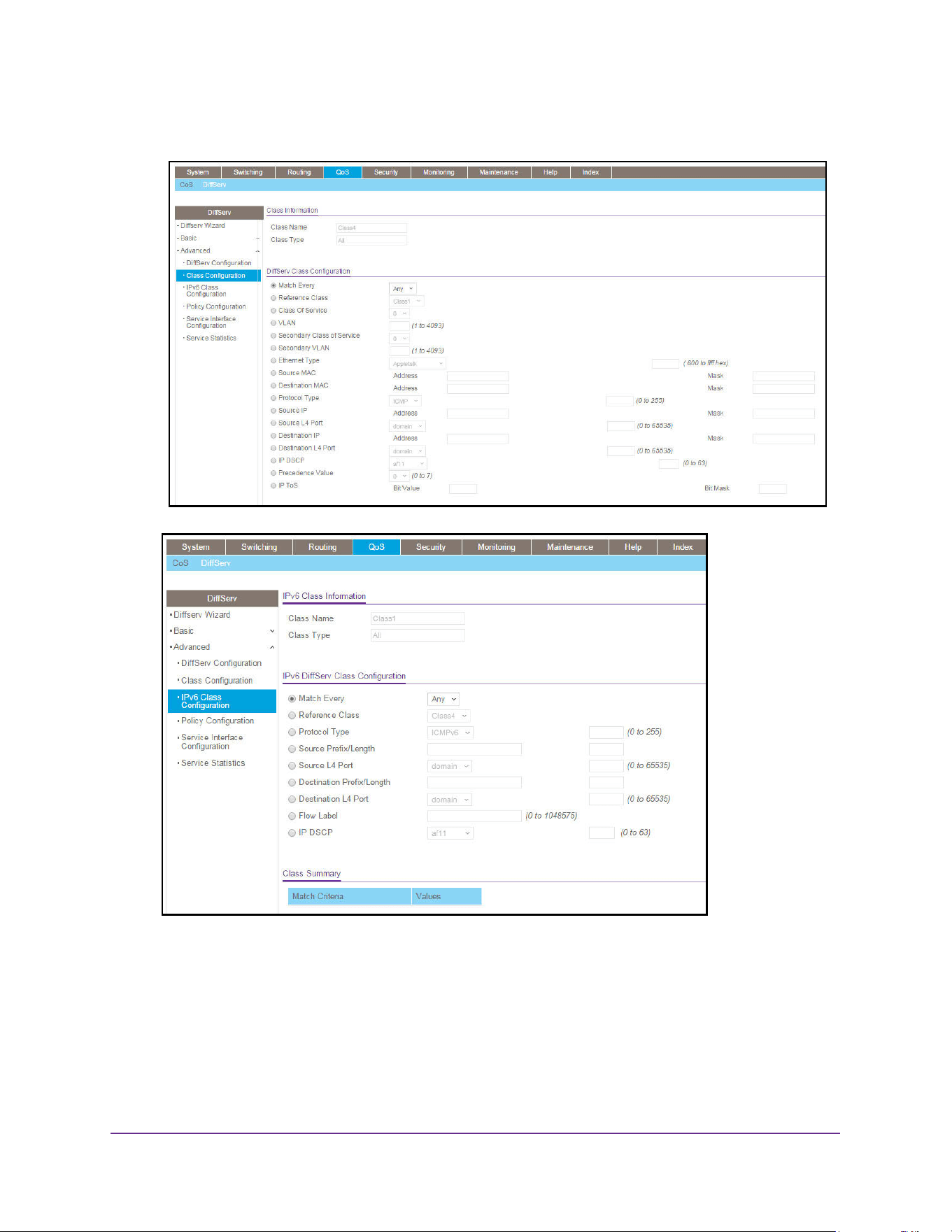
Configure Quality of Service
474
M4200 and M4300 Series ProSAFE Managed Switches Web Management User Manual
The Class Configuration page displays, showing the configuration fields for the class.
10. To configure the IPv6 class, complete the fields:
• Class Name - The name for the configured DiffServ class.
• Class Type - The DiffServ class type.
You can specify the class type only when you are creating a new class. After the class is
created, this field displays the class type, but you cannot change it.
11. Define the criteria to associate with a DiffServ class:
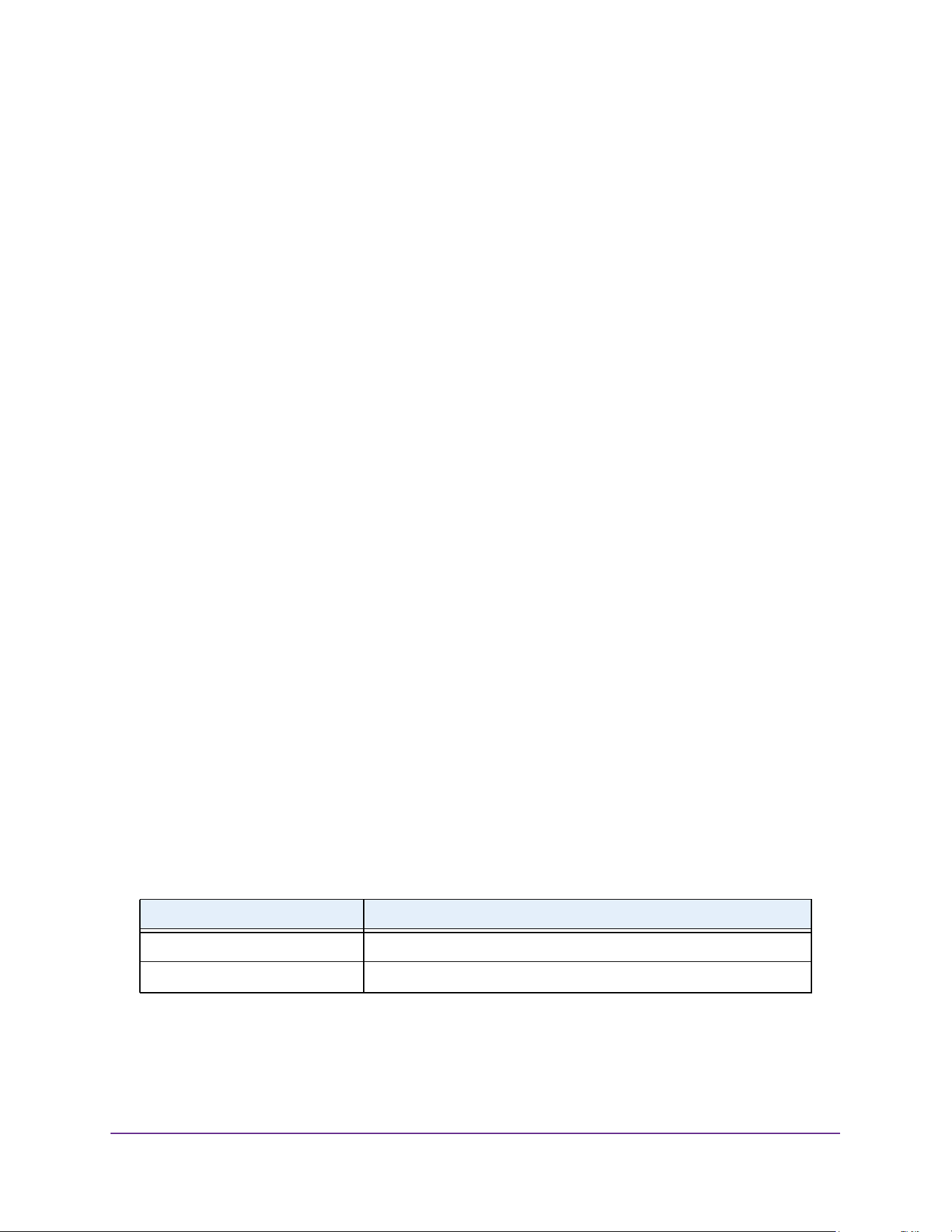
Configure Quality of Service
475
M4200 and M4300 Series ProSAFE Managed Switches Web Management User Manual
• Match Every - This adds to the specified class definition a match condition whereby
all packets are considered to belong to the class.
• Reference Class - This lists the class(es) that can be assigned as reference class(es)
to the current class.
• Protocol Type - This lists the keywords for the Layer 4 protocols from which one can
be selected. The list includes 'other' as an option for the remaining values.
• Source Prefix Length - This is a valid source IPv6 prefix to compare against an IPv6
Packet. Prefix is always specified with the prefix length. The prefix can be entered in
the range of 0 to FFFF:FFFF:FFFF:FFFF:FFFF:FFFF:FFFF:FFFF and the prefix
length can be entered in the range of 0 to 128.
• Source L4 Port - This lists the keywords for the known source Layer 4 ports from
which one can be selected. The list includes 'other' as an option for the unnamed
ports.
• Destination Prefix/Length - This is a valid destination IPv6 prefix to compare against
an IPv6 packet. The prefix is always specified with the prefix length. The prefix can be
entered in the range of 0 to FFFF:FFFF:FFFF:FFFF:FFFF:FFFF:FFFF:FFFF and the
prefix length can be entered in the range of 0 to 128.
• Destination L4 Port - This lists the keywords for the known destination Layer 4 ports
from which one can be selected. The list includes 'other' as an option for the unnamed
ports.
• Flow Label - This is a 20-bit number that is unique to an IPv6 packet, used by end
stations to signify Quality of Service handling in routers. The flow label can be
specified in the range of 0 to 1048575.
• IP DSCP - You can select a keyword for the known DSCP values. The list includes
Other as an option for the remaining values.
12. Match Criteria - Displays the configured match criteria for the specified class.
13. Values - Displays the values of the configured match criteria.
14. Click the Apply button.
The updated configuration is sent to the switch. Configuration changes take effect
immediately.
The following table describes the nonconfigurable information displayed in the Class
Summary at the bottom of the DiffServ Advanced IPv6 Class Configuration page.
Table 184. DiffServ IPv6 Class Configuration - Class Summary
Field Description
Match Criteria The configured match criteria for the specified class.
Values The values of the configured match criteria.
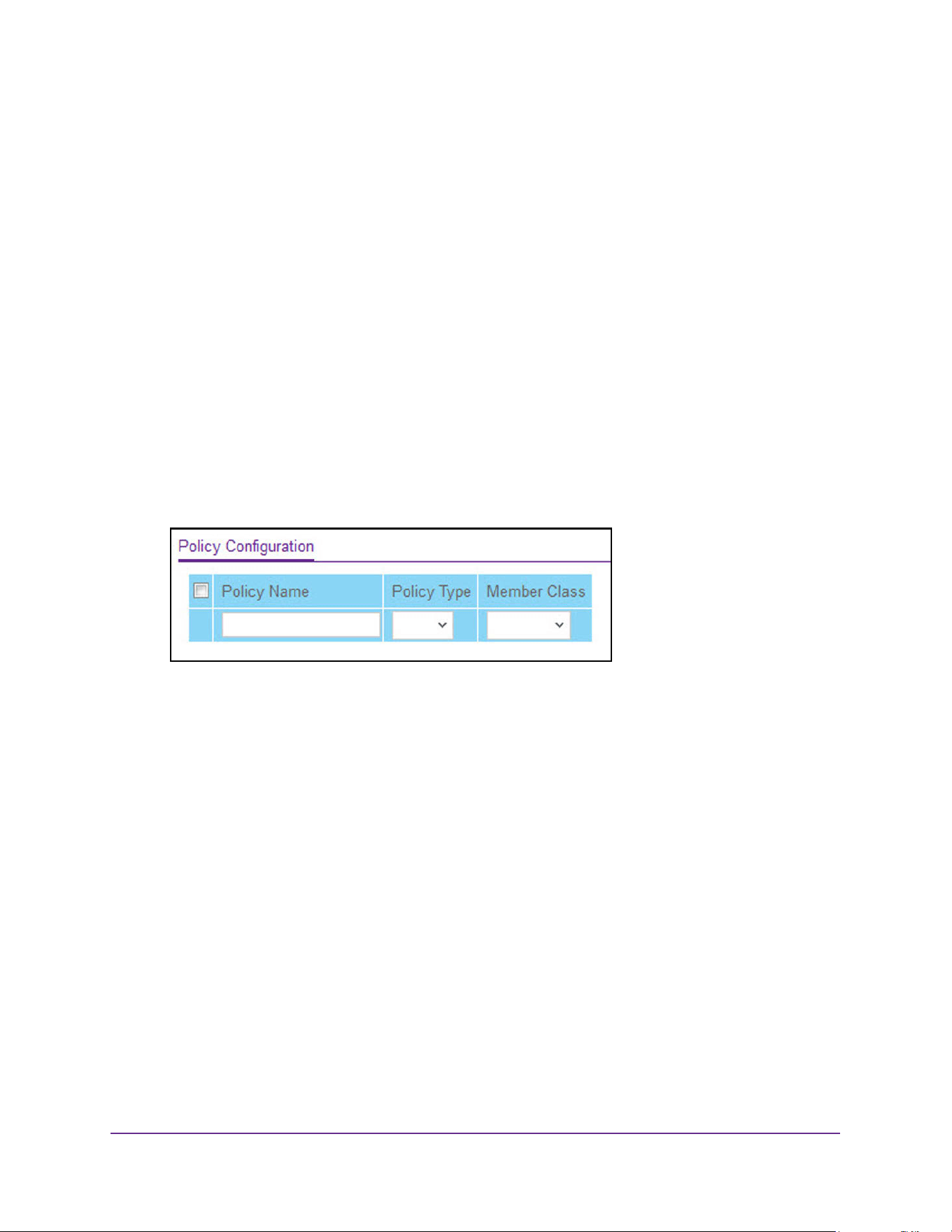
Configure Quality of Service
476
M4200 and M4300 Series ProSAFE Managed Switches Web Management User Manual
Configure DiffServ Policy
You can associate a collection of classes with one or more policy statements. After creating a
policy, click the policy link to the Policy page.
To configure DiffServ policy:
1. Launch a web browser.
2. Enter http://<ipaddress> in the web browser address field.
The login window opens.
3. Enter the user name and password.
The default admin user name is admin and the default admin password is blank, that is,
do not enter a password.
4. Click the Login button.
The System Information page displays.
5. Select QoS > DiffServ > Advanced > Policy Configuration.
6. Use Policy Name to uniquely identify a DiffServ policy using a case-sensitive alphanumeric
string from 1 to 31 characters.
7. In the Member Class list, select a DiffServ class.
This lists all existing DiffServ classes currently defined as members of the specified
policy. This list is automatically updated as a new class is added to or removed from the
policy. This field is a selector field only when an existing policy class instance is to be
removed. After removal of the policy class instance this becomes a nonconfigurable field.
8. Policy Type - The traffic flow direction to which the policy is applied.
• In indicates the type is specific to inbound traffic direction.
• Out indicates the type is specific to outbound traffic direction.
9. Click the Add button.
The new policy is added to the switch.
10. To configure the policy attributes, click the name of the policy.
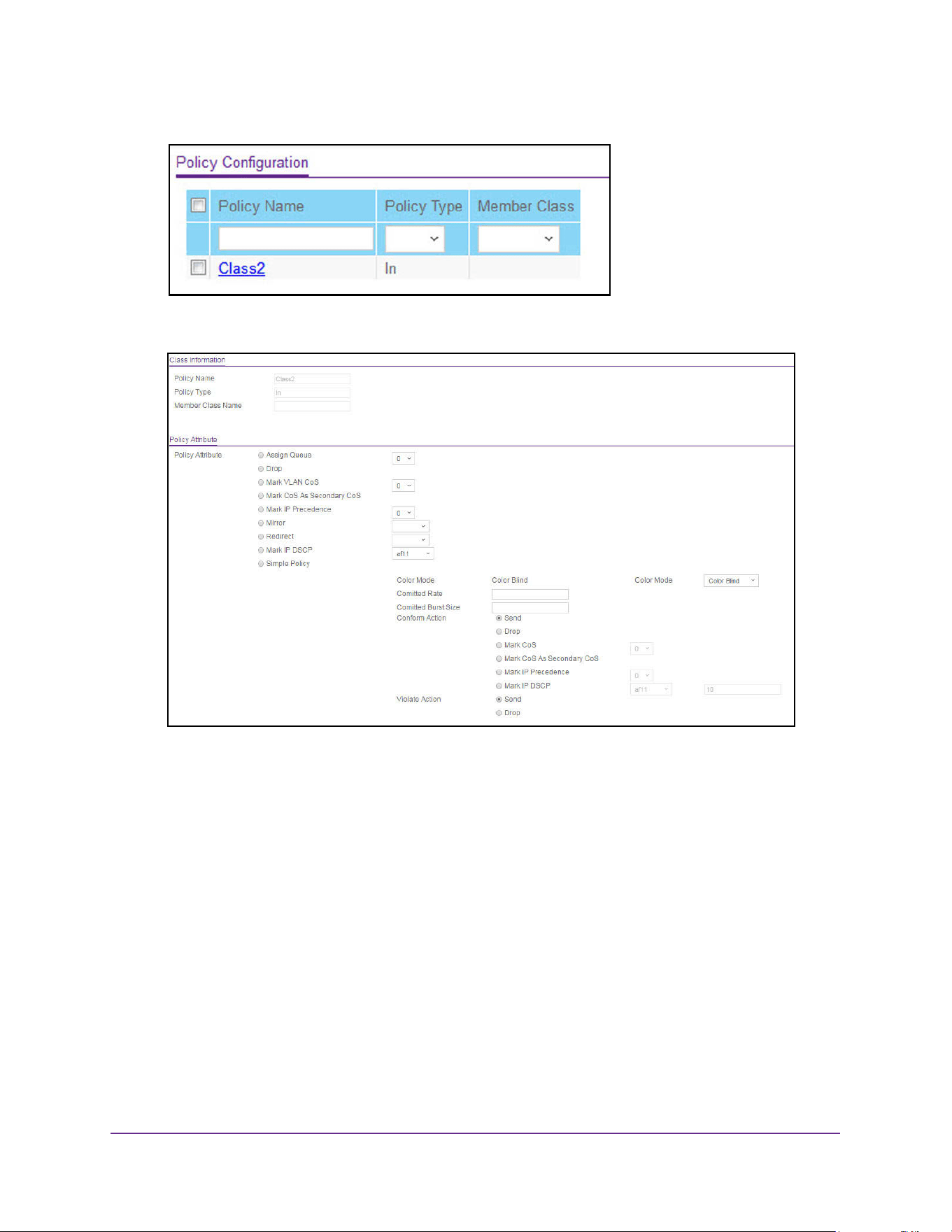
Configure Quality of Service
477
M4200 and M4300 Series ProSAFE Managed Switches Web Management User Manual
The policy name is a hyperlink.
The Policy Configuration page displays, showing the configuration fields for the policy.
11. Select the Assign Queue to which packets of this policy-class are assigned.
This is an integer value in the range 0 to 6.
12. Configure the policy attributes:
• Drop - Select the drop radio button. This flag indicates that the policy attribute is
defined to drop every inbound packet.
• Mark VLAN CoS - This is an integer value in the range from 0 to 7 for setting the
VLAN priority.
• Mark CoS as Secondary Cos - This option marks outer VLAN tag priority bits of all
packets as the inner VLAN tag priority. This essentially means that the inner VLAN
tag CoS is copied to the outer VLAN tag CoS.
• Mark IP Precedence - This is an IP precedence value in the range from 0 to 7.
• Mirror
• Redirect
• Two Rate Policy - With the two-rate policer, you can enforce traffic policing according
to two separate rates: Committed Rate and Peak Rate.

Configure Quality of Service
478
M4200 and M4300 Series ProSAFE Managed Switches Web Management User Manual
• Mark IP DSCP - This lists the keywords for the known DSCP values from which one
can be selected. The list includes 'other' as an option for the remaining values.
• Simple Policy - Use this attribute to establish the traffic policing style for the specified
class. This command uses single data rate and burst size resulting in two outcomes
(conform and violate).
13. If you select the Simple Policy attribute, you can configure the following fields:
• Color Mode - This lists the color mode. The default is Color Blind.
- Color Blind
- Color Aware
Color Aware mode requires the existence of one or more color classes that are
valid for use with this policy instance. A valid color class contains a single,
non-excluded match criterion for one of the following fields (provided the field
does not conflict with the classifier of the policy instance itself):
- CoS
- IP DSCP
- IP Precedence
• Committed Rate - This value is specified in the range 1 to 4294967295
kilobits-per-second (Kbps).
• Committed Burst Size - This value is specified in the range 1 to 128 KBytes. The
committed burst size is used to determine the amount of conforming traffic allowed.
• Conform Action - This lists the actions to be taken on conforming packets according
to the policing metrics, from which one can be selected. The default is send.
• Violate Action - This lists the actions to be taken on violating packets according to the
policing metrics, from which one can be selected. The default is send.
• For each of the action selectors one of the following actions can be taken:
• Drop - These packets are immediately dropped.
• Mark IP DSCP - These packets are marked by DiffServ with the specified DSCP
value before being presented to the system forwarding element. This selection
requires that the DSCP field be set.
• Mark CoS - These packets are marked by DiffServ with the specified CoS value
before being presented to the system forwarding element. This selection requires
that the Mark CoS field be set.
• Mark CoS As Secondary CoS - Select this option to mark all packets in a traffic
stream with the specified secondary CoS queue number. Use the Class of Service
field to select the CoS value to mark in the priority field of the 802.1p header in the
secondary (inner) 802.1Q tag of a double VLAN tagged packet. If the packet does
not already contain this header, one is inserted.
• Send - These packets are presented unmodified by DiffServ to the system
forwarding element.
• Mark IP Precedence - These packets are marked by DiffServ with the specified IP
Precedence value before being presented to the system forwarding element. This
selection requires that the Mark IP Precedence field be set.
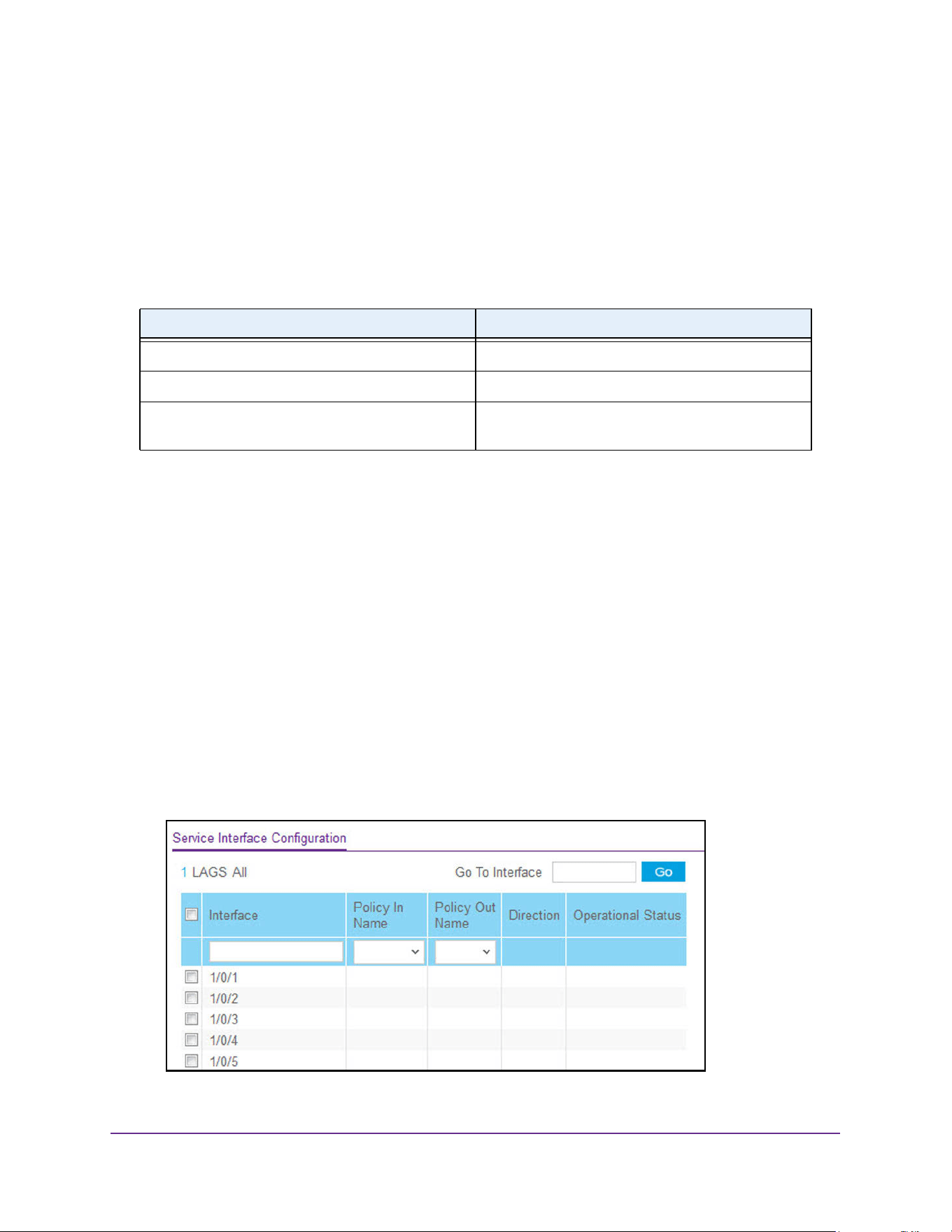
Configure Quality of Service
479
M4200 and M4300 Series ProSAFE Managed Switches Web Management User Manual
14. If you select Two Rate, you can configure additional fields (same fields as for a simple
policy).
15. Click the Apply button.
The updated configuration is sent to the switch. Configuration changes take effect
immediately.
The following table describes the nonconfigurable information displayed on the page.
Configure the DiffServ Service Interface
To configure the DiffServ service interface:
1. Launch a web browser.
2. Enter http://<ipaddress> in the web browser address field.
The login window opens.
3. Enter the user name and password.
The default admin user name is admin and the default admin password is blank, that is,
do not enter a password.
4. Click the Login button.
The System Information page displays.
5. Select QoS > DiffServ > Advanced > Service Interface Configuration.
Table 185. DiffServ Policy Configuration - Policy Attribute
Field Description
Policy Name Displays name of the DiffServ policy.
Policy Type Displays type of the policy as In.
Member Class Name Displays name of each class instance within the
policy.
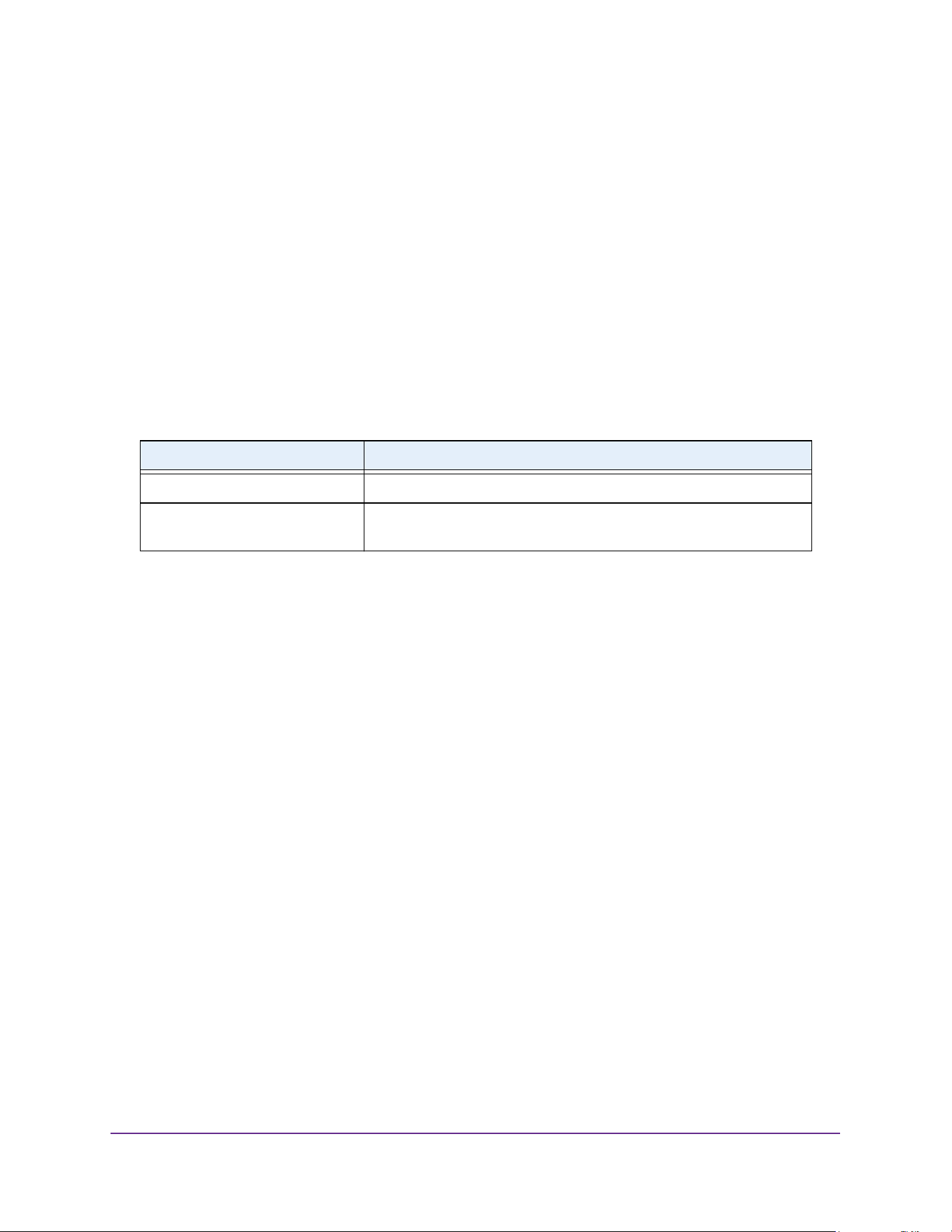
Configure Quality of Service
480
M4200 and M4300 Series ProSAFE Managed Switches Web Management User Manual
6. Use one of the following methods to select an interface:
• In the Go To Interface field, enter the interface in the unit/slot/port format and click on
the Go button.
• Next to the Interface column, select the check box for the interface that you want to
configure.
7. Policy Name - Lists all the policy names from which one can be selected.
This field is not shown for read/write users where the inbound service policy attachment is
not supported by the platform.
8. Click the Apply button.
The updated configuration is sent to the switch. Configuration changes take effect
immediately.
View DiffServ Service Statistics
This page displays class-oriented statistical information for the policy, which is specified by
the interface and direction. The Member Class list is populated on the basis of the specified
interface and direction and hence the attached policy (if any). Highlighting a member class
name displays the statistical information for the policy-class instance for the specified
interface and direction.
To view the DiffServ service statistics:
1. Launch a web browser.
2. Enter http://<ipaddress> in the web browser address field.
The login window opens.
3. Enter the user name and password.
The default admin user name is admin and the default admin password is blank, that is,
do not enter a password.
4. Click the Login button.
The System Information page displays.
5. Select QoS > DiffServ > Advanced > Service Statistics.
Table 186. Service Interface Configuration
Field Description
Direction Shows that the traffic direction of this service interface is In.
Operational Status Shows the operational status of this service interface, either Up or
Down.
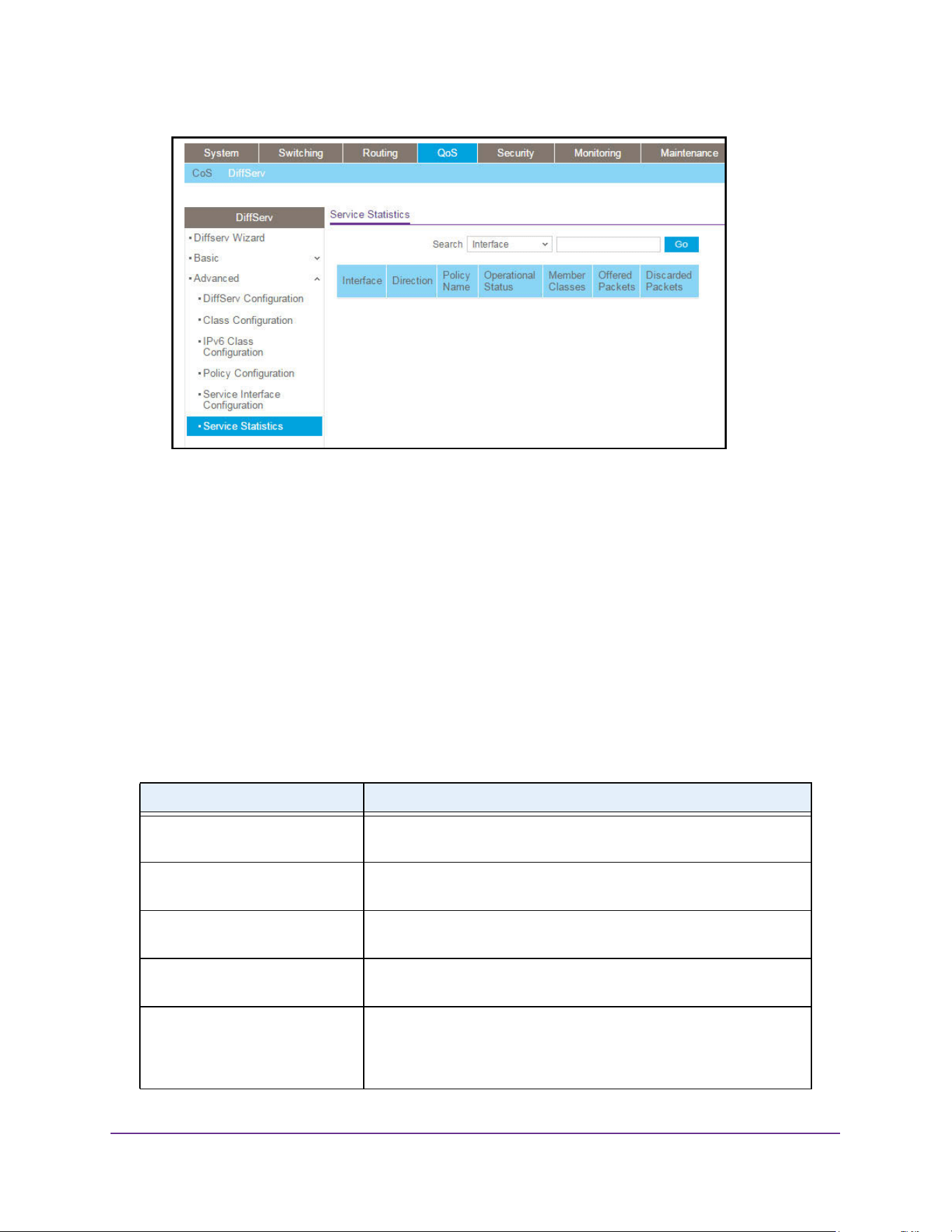
Configure Quality of Service
481
M4200 and M4300 Series ProSAFE Managed Switches Web Management User Manual
6. Use the Search menu to search for DiffServ statistics by interface or member class:
• To search by interface, select Interface, enter the interface in unit/slot/port format (for
example, 1/0/13), and click the Go button.
If the entry exists, the entry is displayed as the first entry, followed by the remaining
entries.
• To search by member class, select Member Class, enter the member class, and click
the Go button.
If an entry with a matching member class exists, the entry is displayed as the first
entry, followed by the remaining entries. An exact match is required.
7. To refresh the page with the latest information on the switch, click the Update button.
The following table describes the information available on the Service Statistics page.
Table 187. DiffServ Service Statistics
Field Description
Interface List of all valid slot number and port number combinations in the
system with a DiffServ policy currently attached in In direction.
Direction List of the traffic direction of interface as In. Shows only the direction(s)
for which a DiffServ policy is currently attached.
Policy Name Name of the policy currently attached to the specified interface and
direction.
Operational Status Operational status of the policy currently attached to the specified
interface and direction. The value is either Up or Down.
Member Classes List of all DiffServ classes currently defined as members of the selected
policy name. Select a member class name to display its statistics. If no
class is associated with the selected policy, then nothing is populated in
the list.
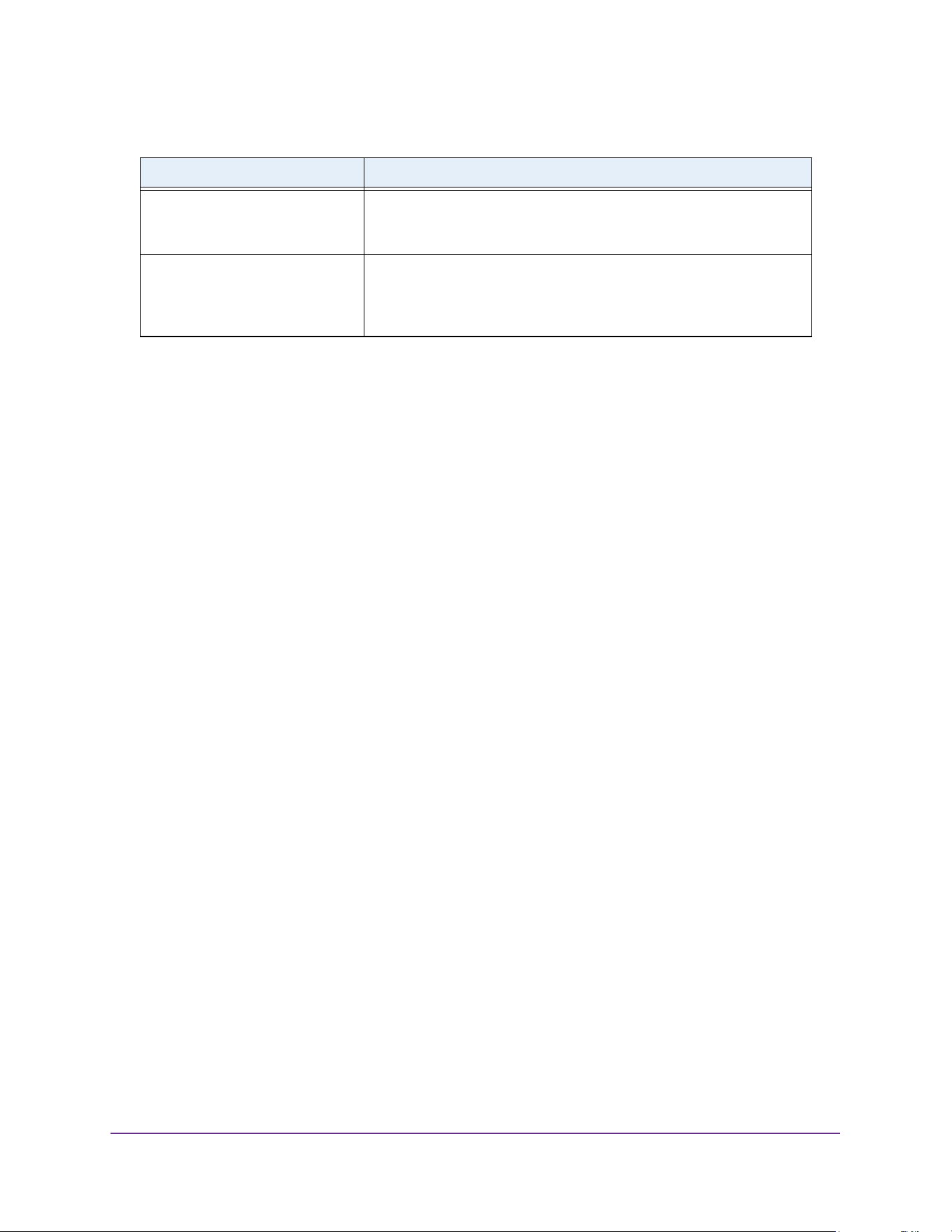
Configure Quality of Service
482
M4200 and M4300 Series ProSAFE Managed Switches Web Management User Manual
Offered Packets A count of the total number of packets offered to all class instances in
this service policy before their defined DiffServ treatment is applied.
This is the overall count per interface, per direction.
Discarded Packets A count of the total number of packets discarded for all class instances
in this service policy for any reason due to DiffServ treatment. This is
the overall count per interface, per direction. The discarded packets are
supported in the inbound direction but not in the outbound direction.
Table 187. DiffServ Service Statistics (continued)
Field Description

483
9
9. Manage Device Security
You can configure the login password, Remote Authorization Dial-In User Service (RADIUS)
settings, Terminal Access Controller Access Control System (TACACS) settings, and
authentication lists.
The chapter covers the following topics:
• Manage User Accounts and Passwords
• Manage the RADIUS Server Settings
• Manage the TACACS Settings
• Configure Authentication Lists
• View Login Sessions
• Manage HHTP, HTTPS, and SSH Access
• Configure Telnet Access
• Configure Console Port Access
• Configure Denial of Service Settings
• Configure Access Control Settings
• Manage Port Authentication
• Control Traffic With MAC Filtering
• Configure Port Security and Private Groups
• Protect Ports
• Set Up Private VLANs
• Manage the Storm Control Settings
• Configure DHCP Snooping
• Configure IP Source Guard Interfaces
• Configure Dynamic ARP Inspection
• Set Up Captive Portals
• Set Up and Manage Access Control Lists
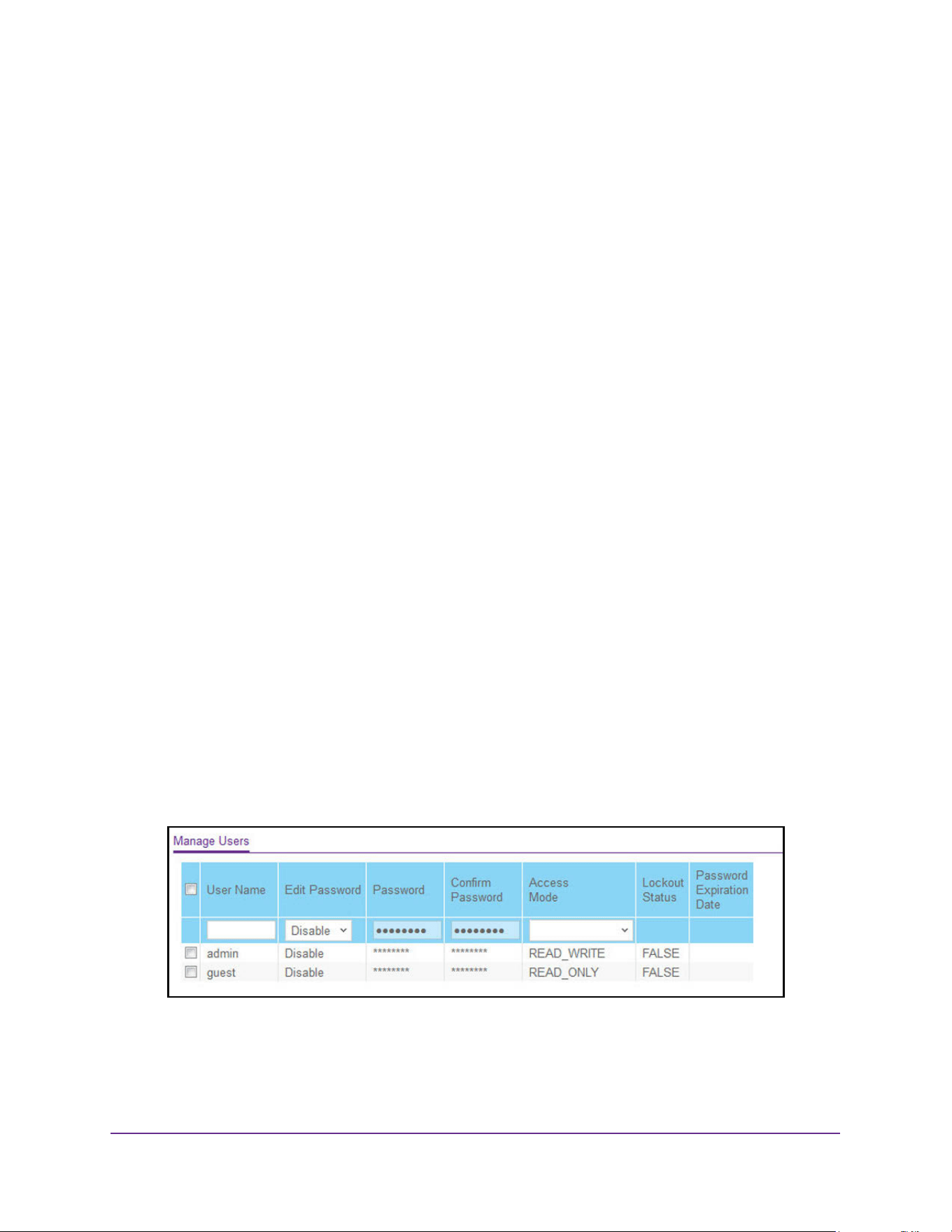
Manage Device Security
484
M4200 and M4300 Series ProSAFE Managed Switches Web Management User Manual
Manage User Accounts and Passwords
You can configure user accounts and login passwords.
Configure User Accounts
By default, two user accounts exist:
• admin, with read/write privileges
• guest, with read-only privileges
By default, the password is blank for both of these accounts. The names are not
case-sensitive.
If you log on to a user account with read/write privileges (as admin), you can assign
passwords and set security parameters for the default accounts and add and delete accounts
(other than admin), up to a maximum of six. Only a user with read/write privileges can modify
data on the web interface pages, and only one account can be created with read/write
privileges.
To add a user account:
1. Launch a web browser.
2. Enter http://<ipaddress> in the web browser address field.
The login window opens.
3. Enter the user name and password.
The default admin user name is admin and the default admin password is blank, that is,
do not enter a password.
4. Click the Login button.
The System Information page displays.
5. Select Security> Management Security > Local User > User Management.
6. In the User Name field, enter the name for the new account.
You can enter a new user name only when you are creating an account. User names are
up to 64 characters in length and are not case-sensitive. Valid characters include all the

Manage Device Security
485
M4200 and M4300 Series ProSAFE Managed Switches Web Management User Manual
alphanumeric characters as well as the hyphen (-) and underscore (_) characters. The
user name default is not valid. User names once created cannot be changed or modified.
7. Set the Edit Password field to Enable only when you are changing the password.
The default value is Disable.
8. In the Password field, enter the password for the account.
The characters do not display as they are typed; only asterisks (*) show. Passwords are
up to eight alphanumeric characters in length, and are case-sensitive.
9. In the Confirm Password field, enter the password again, to confirm that you entered it
correctly.
This field does not display the password as it is typed, but shows asterisks (*).
The Access Mode field displays the user's access mode. The admin account always has
read/write access, and all other accounts are assigned read-only access. The default
value is read-only.
The Lockout Status field indicates whether the user account is locked out (TRUE or
FALSE).
The Password Expiration Date field indicates the current password expiration date.
10. Click the Add button.
The user account is added.
Configure a User Password
To configure a user password:
1. Launch a web browser.
2. Enter http://<ipaddress> in the web browser address field.
The login window opens.
3. Enter the user name and password.
The default admin user name is admin and the default admin password is blank, that is,
do not enter a password.
4. Click the Login button.
The System Information page displays.
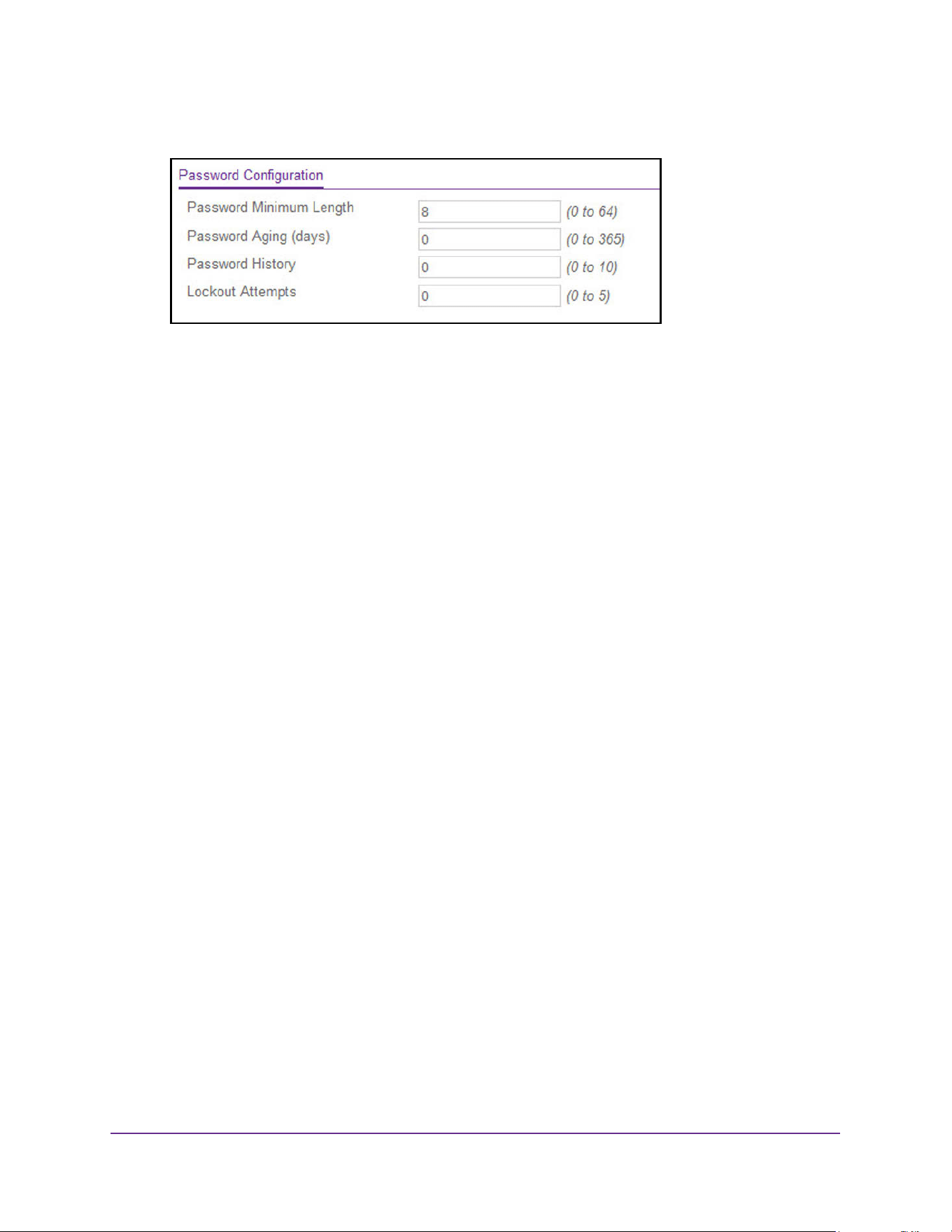
Manage Device Security
486
M4200 and M4300 Series ProSAFE Managed Switches Web Management User Manual
5. Select Security> Management Security > Local User > User Password Configuration.
6. In the Password Minimum Length field, type the minimum character length of all new local
user passwords.
7. In the Password Aging (days) field, type the maximum time for which the user passwords
are valid in days, from the time the password is set.
Once a password expires, the user must enter a new password following the first login
after password expiration. A value of 0 indicates that passwords never expire.
8. In the Password History field, type the number of previous passwords to store for
prevention of password reuse.
This ensures that each user does not reuse passwords often.
A value of 0 indicates that no previous passwords are stored.
9. In the Lockout Attempts field, specify the number of allowable failed local authentication
attempts before the user's account is locked.
A value of 0 indicates that user accounts are never locked.
10. Click the Apply button.
The updated configuration is sent to the switch. Configuration changes take effect
immediately.
Enable Password Configuration
You can change the privileged EXEC password. Passwords are a maximum of 64
alphanumeric characters. The password is case-sensitive.
To enable password configuration:
1. Launch a web browser.
2. Enter http://<ipaddress> in the web browser address field.
The login window opens.
3. Enter the user name and password.
The default admin user name is admin and the default admin password is blank, that is,
do not enter a password.
4. Click the Login button.
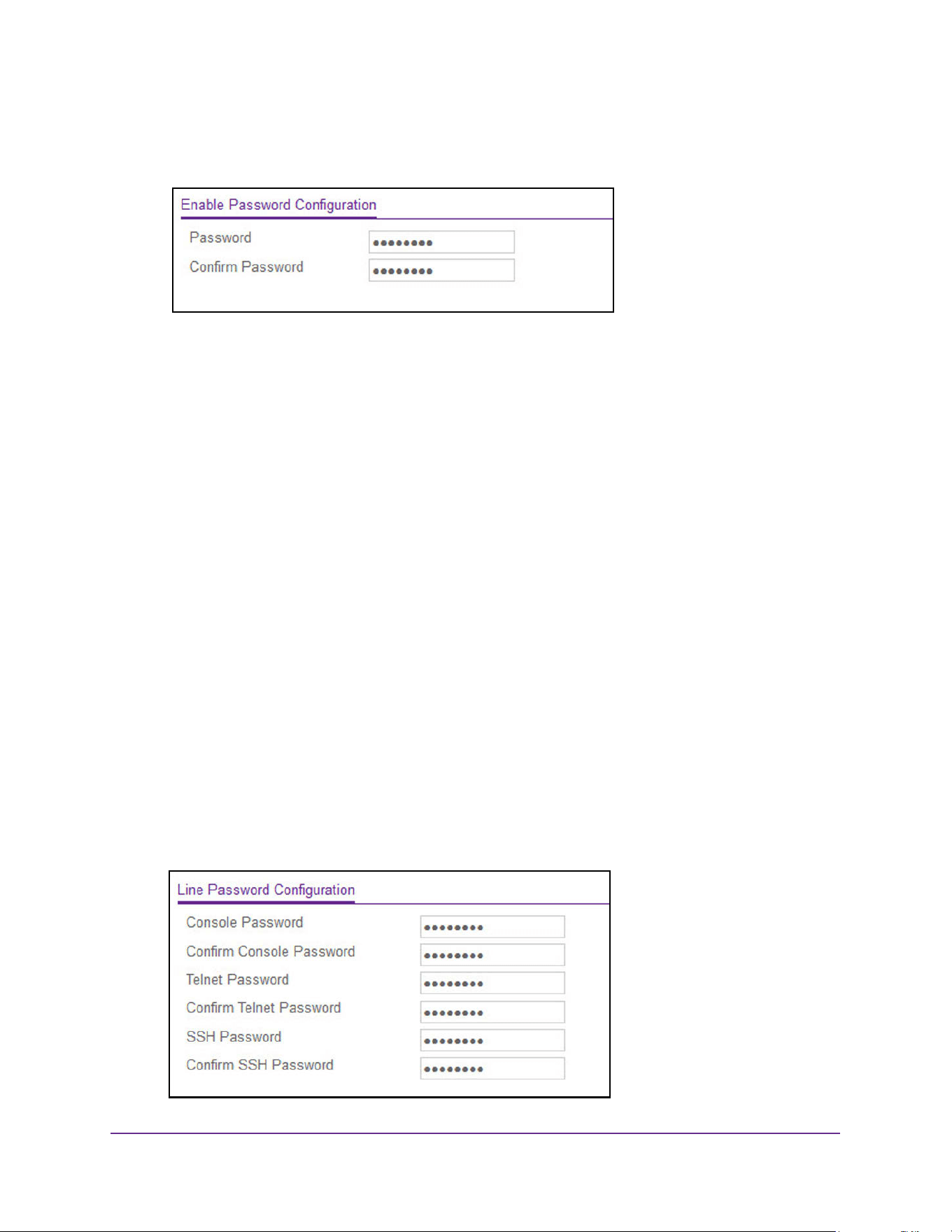
Manage Device Security
487
M4200 and M4300 Series ProSAFE Managed Switches Web Management User Manual
The System Information page displays.
5. Select Security> Management Security > Enable Password.
6. In the Password field, type the password.
Passwords are a maximum of 64 alphanumeric characters.
7. In the Confirm Password field, type the password again, to confirm that you entered it
correctly.
8. Click the Apply button.
The updated configuration is sent to the switch. Configuration changes take effect
immediately.
Configure a Line Password
To configure a line password:
1. Launch a web browser.
2. Enter http://<ipaddress> in the web browser address field.
The login window opens.
3. Enter the user name and password.
The default admin user name is admin and the default admin password is blank, that is,
do not enter a password.
4. Click the Login button.
The System Information page displays.
5. Select Security> Management Security > Line Password.

Manage Device Security
488
M4200 and M4300 Series ProSAFE Managed Switches Web Management User Manual
6. In the Console Password field, enter the console password.
Passwords are a maximum of 64 alphanumeric characters.
7. In the Confirm Console Password field, type the password again to confirm that you typed
it correctly.
8. In the Telnet Password field, type the Telnet password.
Passwords are a maximum of 64 alphanumeric characters.
9. In the Confirm Telnet Password field, type the password again to confirm that you entered
it correctly.
10. In the SSH Password field, type the SSH password.
Passwords are a maximum of 64 alphanumeric characters.
11. In the Confirm SSH Password field, type the password again, to confirm that you entered it
correctly.
12. Click the Apply button.
The updated configuration is sent to the switch. Configuration changes take effect
immediately.
Manage the RADIUS Server Settings
RADIUS servers provide additional security for networks. The RADIUS server maintains a
user database, which contains per-user authentication information. The switch passes
information to the configured RADIUS server, which can authenticate a user name and
password before authorizing use of the network. RADIUS servers provide a centralized
authentication method for the following:
• Web access
• Access control port (802.1X)
Configure Global RADIUS Server Settings
You can add information about one or more RADIUS servers on the network.
To configure global RADIUS server settings:
1. Launch a web browser.
2. Enter http://<ipaddress> in the web browser address field.
The login window opens.
3. Enter the user name and password.
The default admin user name is admin and the default admin password is blank, that is,
do not enter a password.
4. Click the Login button.
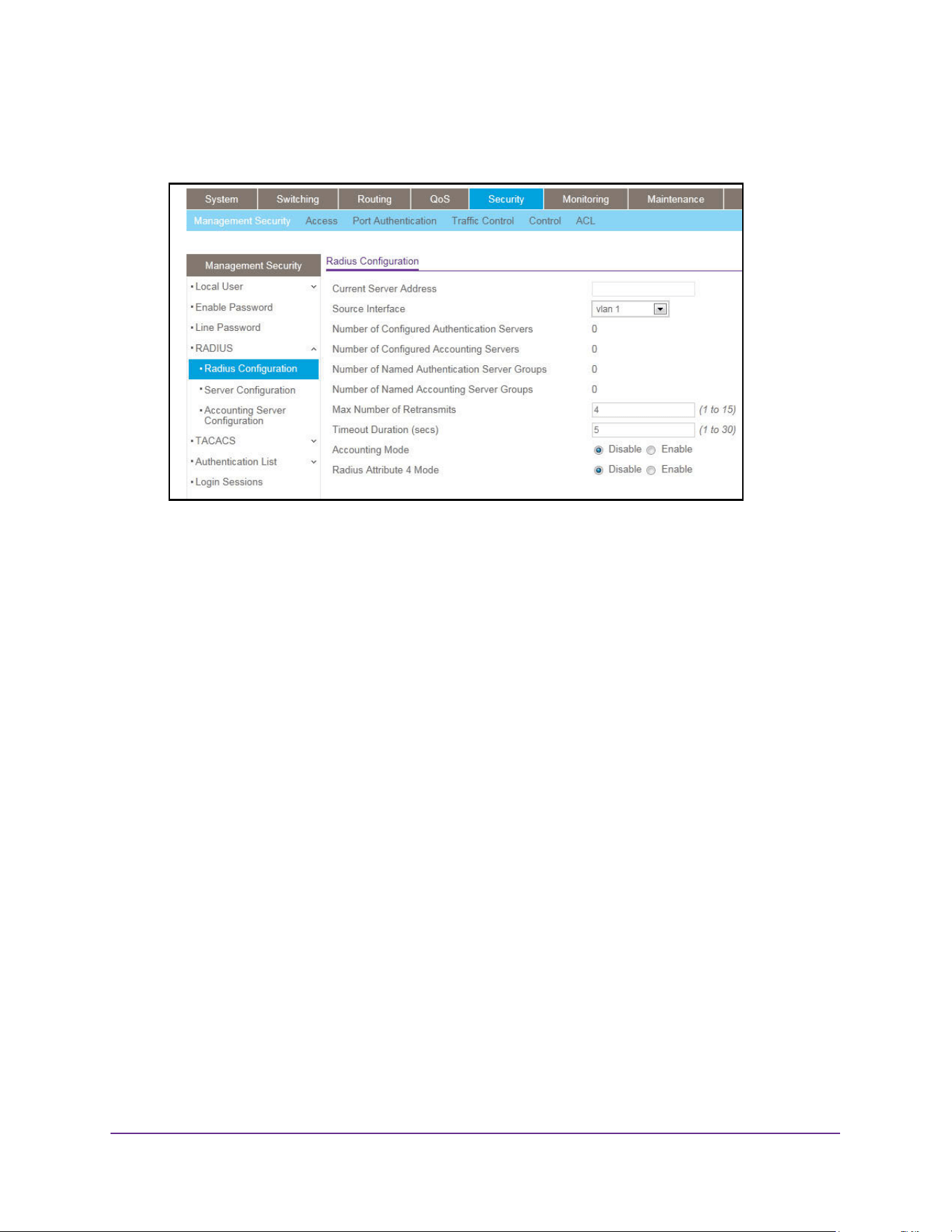
Manage Device Security
489
M4200 and M4300 Series ProSAFE Managed Switches Web Management User Manual
The System Information page displays.
5. Select Security > Management Security > RADIUS > Radius Configuration.
The Current Server IP Address field is blank if no servers are configured (see Configure
a RADIUS Server on page 491). The switch supports up to three configured RADIUS
servers. If more than one RADIUS servers is configured, the current server is the primary
server. If no servers are configured as the primary server, the current server is the most
recently added RADIUS server.
6. In the Source Interface list, select the interface to use for RADIUS.
Possible values are as follows:
• None
• Routing interface
• Routing VLAN
• Routing loopback interface
• Service Port
By default, VLAN 1 is used as source interface.
7. In the Max Number of Retransmits field, specify the maximum number of times a request
packet is retransmitted to the RADIUS server.
The valid range is 1– 15. The default value is 4.
Consider the maximum delay time when you configure the RADIUS maximum retransmit
and RADIUS time-out. If multiple RADIUS servers are configured, the maximum
retransmit value on each is exhausted before the next server is attempted. A retransmit
does not occur until the configured time-out value on that server passed without a
response from the RADIUS server. Therefore, the maximum delay in receiving a
response from the RADIUS application equals the retransmit times the time-out for all
configured servers. If the RADIUS request was generated by a user login attempt, all
user interfaces are blocked until the RADIUS application returns a response.
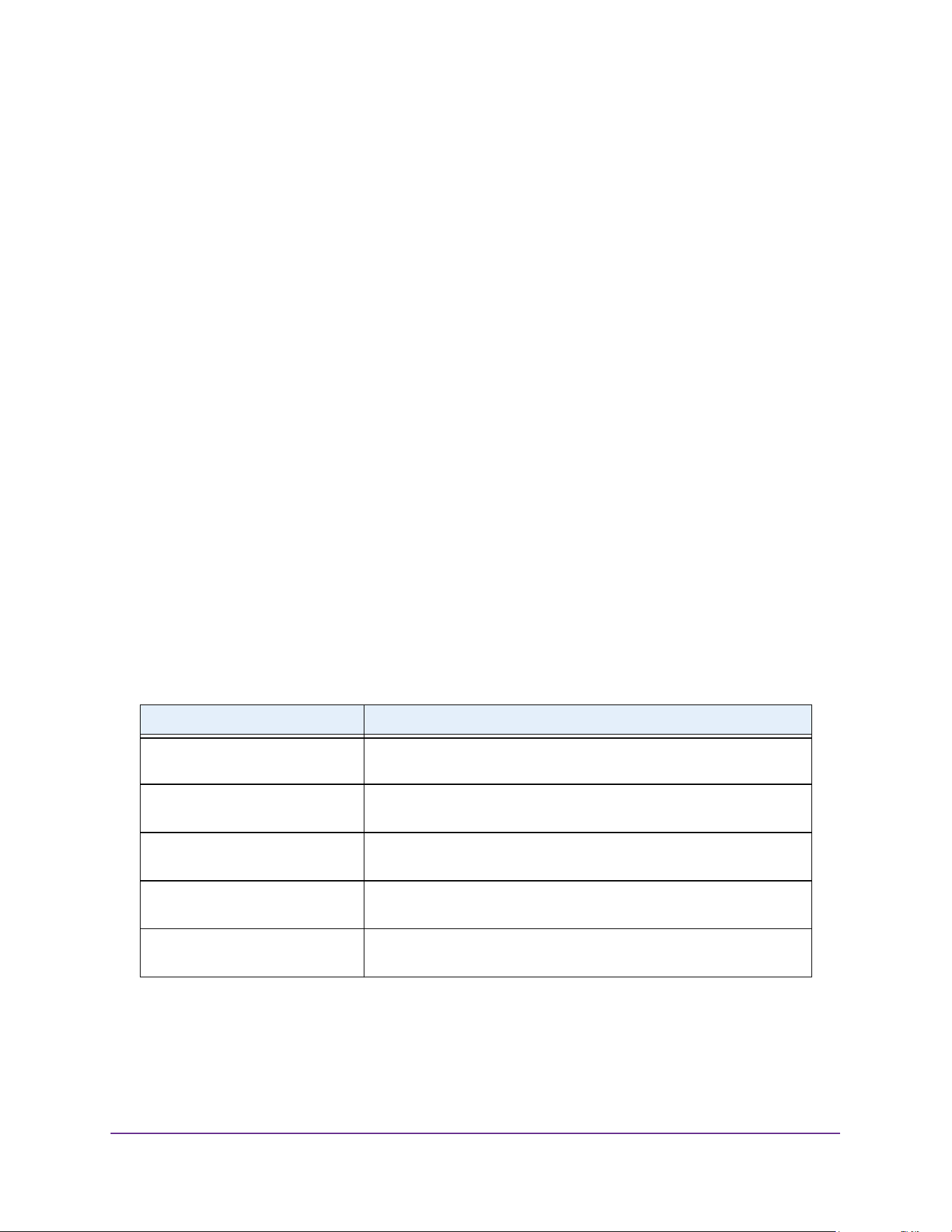
Manage Device Security
490
M4200 and M4300 Series ProSAFE Managed Switches Web Management User Manual
8. In the Timeout Duration field, specify the time-out value, in seconds, for request
retransmissions.
The valid range is 1–30. The default value is 5.
Consider the maximum delay time when you configure RADIUS maximum retransmit and
RADIUS time-out. If multiple RADIUS servers are configured, the maximum retransmit
value on each is exhausted before the next server is attempted. A retransmit does not
occur until the configured time-out value on that server passed without a response from
the RADIUS server. Therefore, the maximum delay in receiving a response from the
RADIUS application equals the retransmit times the time-out for all configured servers. If
the RADIUS request was generated by a user login attempt, all user interfaces are
blocked until the RADIUS application returns a response.
9. Select the Accounting Mode Disable or Enable radio button.
This specifies whether the RADIUS accounting mode is enabled or disabled on the
current server.
10. Select the RADIUS Attribute 4 Disable or Enable radio button.
This enables or disables RADIUS attribute 4. The default value is Disable. The Radius
Attribute 4 Value is an optional field and can be seen only when RADIUS attribute 4
mode is enabled. It takes an IP address value in the format xx.xx.xx.xx.
11. Click the Apply button.
The updated configuration is sent to the switch. Configuration changes take effect
immediately.
The following table describes the nonconfigurable RADIUS fields that display on the page.
Table 188. Radius Configuration
Field Description
Current Server Address The address of the current server. This field is blank if no servers are
configured.
Number of Configured
Authentication Servers
The number of configured authentication RADIUS servers. The value
can range from 0 to 32.
Number of Configured Accounting
Servers
The number of RADIUS accounting servers configured. The value can
range from 0 to 32.
Number of Named Authentication
Server Groups
The number of Named RADIUS server authentication groups
configured.
Number of Named Accounting
Server Groups
The number of named RADIUS server accounting groups configured.
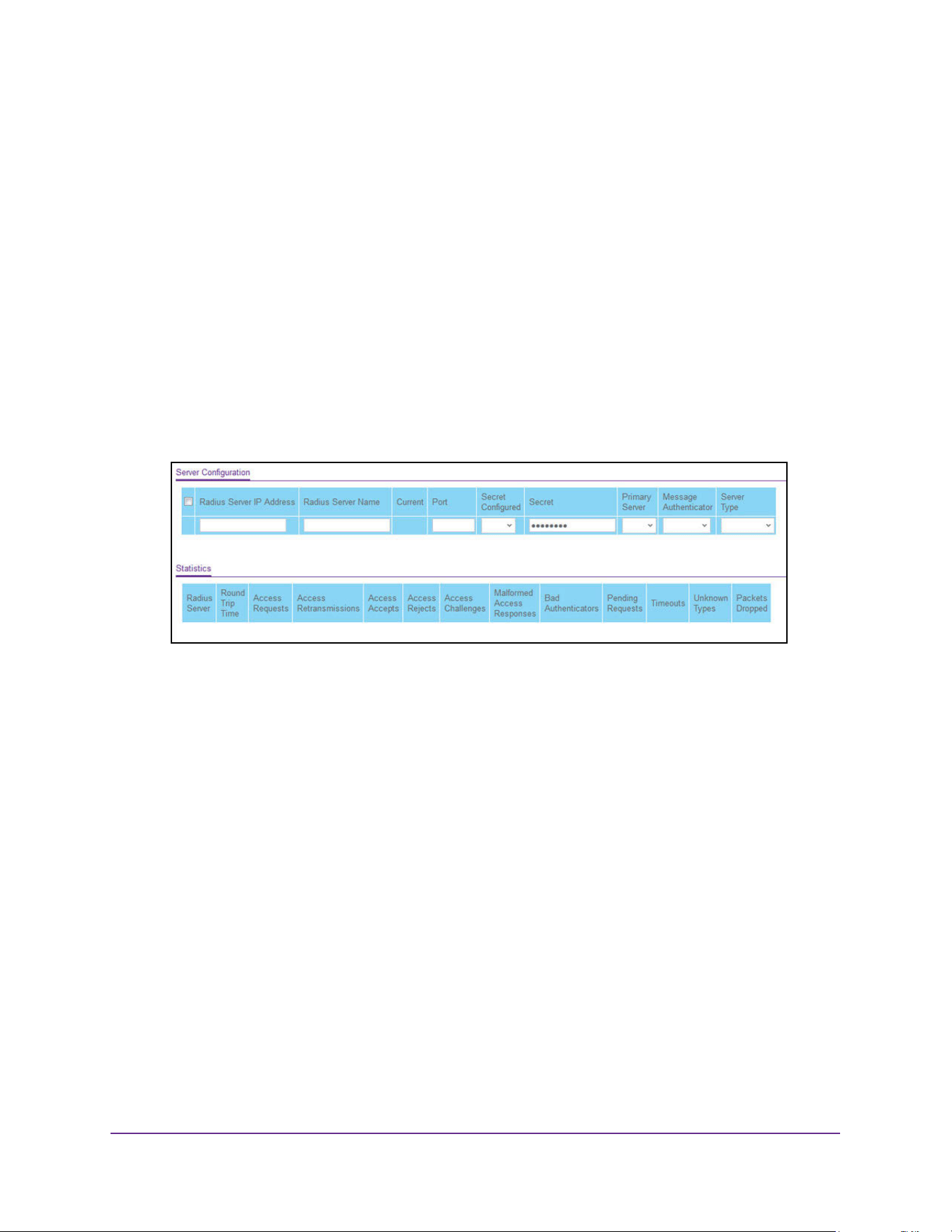
Manage Device Security
491
M4200 and M4300 Series ProSAFE Managed Switches Web Management User Manual
Configure a RADIUS Server
To configure a RADIUS server:
1. Launch a web browser.
2. Enter http://<ipaddress> in the web browser address field.
The login window opens.
3. Enter the user name and password.
The default admin user name is admin and the default admin password is blank, that is,
do not enter a password.
4. Click the Login button.
The System Information page displays.
5. Select Security > Management Security> RADIUS > Server Configuration.
6. To add a RADIUS server, specify the following settings:
• In the Radius Server IP Address field, specify the IP address of the RADIUS server.
• In the Radius Server Name field, specify the name of the server.
• Use Port to specify the UDP port used by this server. The valid range is 0–65535.
• Secret Configured. The secret is applied only if this option is Yes. If the option is No,
anything entered in the secret field has no effect and is not retained.
• Use Secret to specify the shared secret for this server.
• Use Primary Server to set the selected server as a primary or secondary server.
• Use Message Authenticator to enable or disable the message authenticator attribute
for the selected server.
7. Click the Add button.
The server is added to the switch.
The Current field indicates if the server is currently in use as the authentication server.

Manage Device Security
492
M4200 and M4300 Series ProSAFE Managed Switches Web Management User Manual
The following table describes the RADIUS server statistics displayed on the page.
Table 189. RADIUS statistics
Field Description
Radius Server The address of the RADIUS server or the name of the RADIUS server
for which the statistics are displayed.
Round Trip Time The time interval, in hundredths of a second, between the most recent
access-reply/access-challenge and the access-request that matched it
from this RADIUS authentication server.
Access Requests The number of RADIUS access-request packets sent to this server.
This number does not include retransmissions.
Access Retransmissions The number of RADIUS access-request packets retransmitted to this
server.
Access Accepts The number of RADIUS access-accept packets, including both valid
and invalid packets, that were received from this server.
Access Rejects The number of RADIUS access-reject packets, including both valid and
invalid packets, that were received from this server.
Access Challenges The number of RADIUS access-challenge packets, including both valid
and invalid packets, that were received from this server.
Malformed Access Responses The number of malformed RADIUS access-response packets received
from this server. Malformed packets include packets with an invalid
length. Bad authenticators or signature attributes or unknown types are
not included in malformed access-responses.
Bad Authenticators The number of RADIUS access-response packets containing invalid
authenticators or signature attributes received from this server.
Pending Requests The number of RADIUS access-request packets destined for this
server that did not yet time out or receive a response.
Timeouts The number of authentication time-outs to this server.
Unknown Types The number of RADIUS packets of unknown type that were received
from this server on the authentication port.
Packets Dropped The number of RADIUS packets received from this server on the
authentication port and dropped for some other reason.
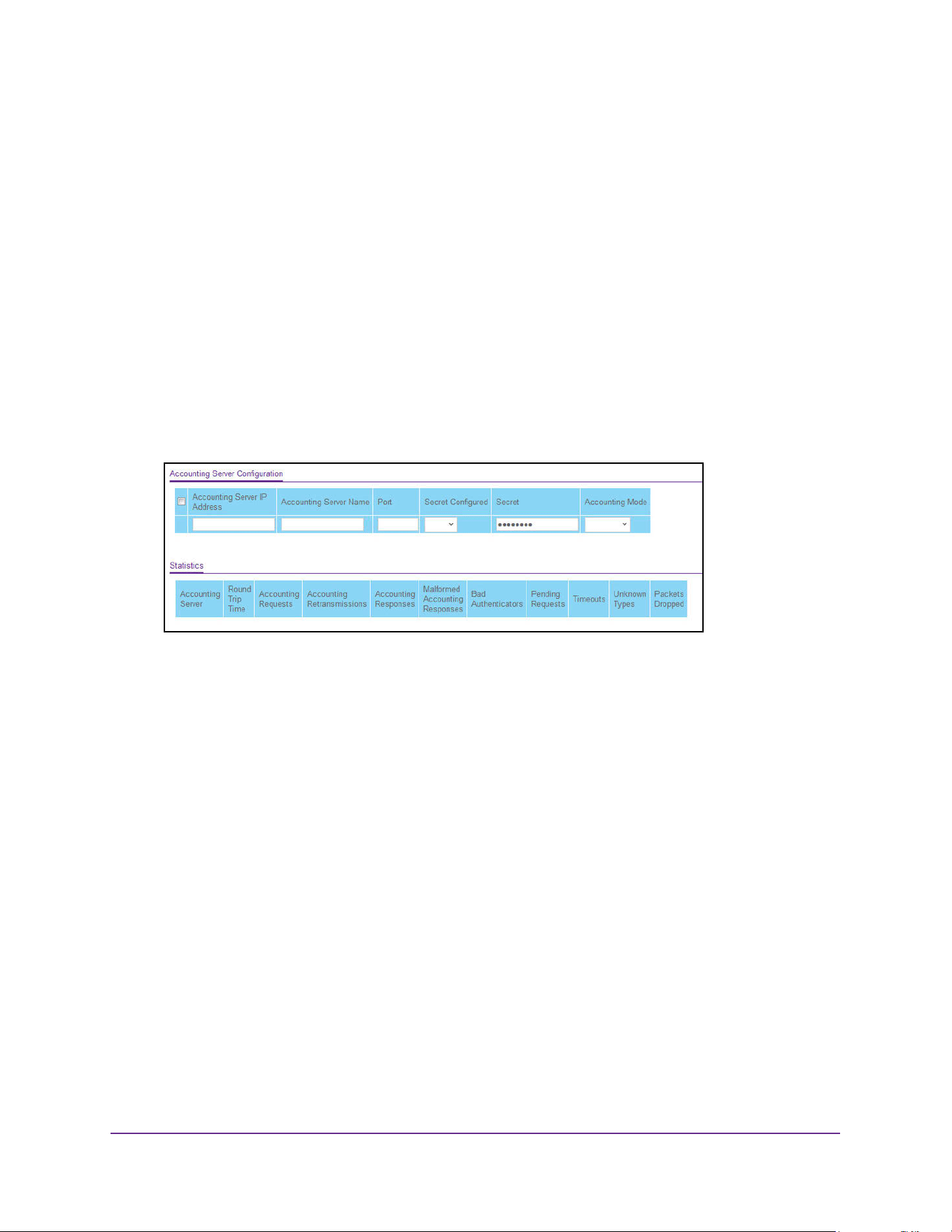
Manage Device Security
493
M4200 and M4300 Series ProSAFE Managed Switches Web Management User Manual
Configure RADIUS Accounting Servers
To configure a RADIUS accounting server:
1. Launch a web browser.
2. Enter http://<ipaddress> in the web browser address field.
The login window opens.
3. Enter the user name and password.
The default admin user name is admin and the default admin password is blank, that is,
do not enter a password.
4. Click the Login button.
The System Information page displays.
5. Select Security > Management Security > RADIUS > Accounting Server Configuration.
6. In the Accounting Server IP Address field, specify the IP address of the RADIUS
accounting server.
7. In the Accounting Server Name field, enter the name of the accounting server.
8. In the Port field, specify the UDP port number the server uses to verify the RADIUS
accounting server.
The valid range is 0–65535. If the user has read-only access, the value is displayed but
cannot be changed.
9. From the Secret Configured list, select Yes to add a RADIUS secret in the next field.
After you add the RADIUS accounting server, this field indicates whether the shared
secret for this server is configured.
10. In the Secret field, type the shared secret to use with the specified accounting server.
11. From the Accounting Mode list, enable or disable the RADIUS accounting mode.
12. Click the Apply button.
The updated configuration is sent to the switch. Configuration changes take effect
immediately.

Manage Device Security
494
M4200 and M4300 Series ProSAFE Managed Switches Web Management User Manual
The following table describes RADIUS accounting server statistics available on the page.
Manage the TACACS Settings
TACACS provides a centralized user management system, while still retaining consistency
with RADIUS and other authentication processes. TACACS provides the following services:
• Authentication. Provides authentication during login and through user names and
user-defined passwords.
• Authorization. Performed at login. When the authentication session is completed, an
authorization session starts using the authenticated user name. The TACACS server
checks the user privileges.
The TACACS protocol ensures network security through encrypted protocol exchanges
between the device and TACACS server.
Table 190. RADIUS Accounting Server Statistics
Field Description
Accounting Server Address The accounting server associated with the statistics.
Round Trip Time(secs) The time interval, in hundredths of a second, between the most recent
accounting-response and the accounting-request that matched it from
this RADIUS accounting server.
Accounting Requests The number of RADIUS accounting-request packets sent not including
retransmissions.
Accounting Retransmissions The number of RADIUS accounting-request packets retransmitted to
this RADIUS accounting server.
Accounting Responses The number of RADIUS packets received on the accounting port from
this server.
Malformed Accounting Responses The number of malformed RADIUS accounting-response packets
received from this server. Malformed packets include packets with an
invalid length. Bad authenticators and unknown types are not included
as malformed accounting responses.
Bad Authenticators The number of RADIUS accounting-response packets that contained
invalid authenticators received from this accounting server.
Pending Requests The number of RADIUS accounting-request packets sent to this server
that did not yet time out or receive a response.
Timeouts The number of accounting time-outs to this server.
Unknown Types The number of RADIUS packets of unknown type that were received
from this server on the accounting port.
Packets Dropped The number of RADIUS packets that were received from this server on
the accounting port and dropped for some other reason.
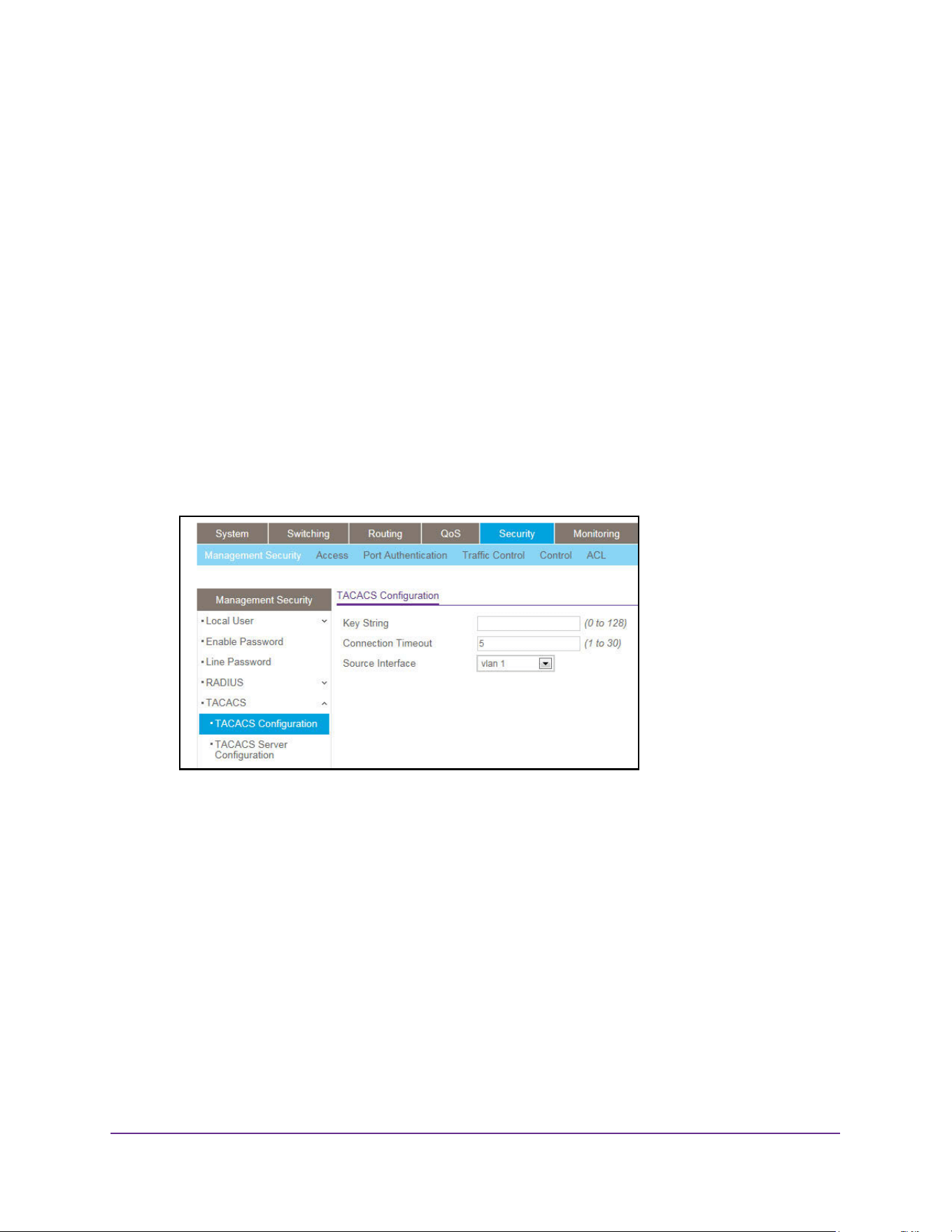
Manage Device Security
495
M4200 and M4300 Series ProSAFE Managed Switches Web Management User Manual
Configure Global TACACS Settings
You can configure the TACACS settings for communication between the switch and the
TACACS server you configure through the inband management port.
To configure global TACACS settings:
1. Launch a web browser.
2. Enter http://<ipaddress> in the web browser address field.
The login window opens.
3. Enter the user name and password.
The default admin user name is admin and the default admin password is blank, that is,
do not enter a password.
4. Click the Login button.
The System Information page displays.
5. Select Security > Management Security > TACACS > TACACS Configuration.
6. In the Key String field, specify the authentication and encryption key for TACACS
communications between the switch and the TACACS server.
The valid range is 0–128. The key must match the key configured on the TACACS server.
7. In the Connection Timeout field, specify the maximum number of seconds allowed to
establish a TCP connection between the switch and the TACACS server.
8. In the Source Interface list, select the source interface which will be used for TACACS.
Possible values are as follows:
• None. The primary IP address of the originating (outbound) interface is used as the
source address.
• Routing interface. The primary IP address of a physical port is used as the source
address.
• Routing VLAN. The primary IP address of a VLAN routing interface is used as the
source address.
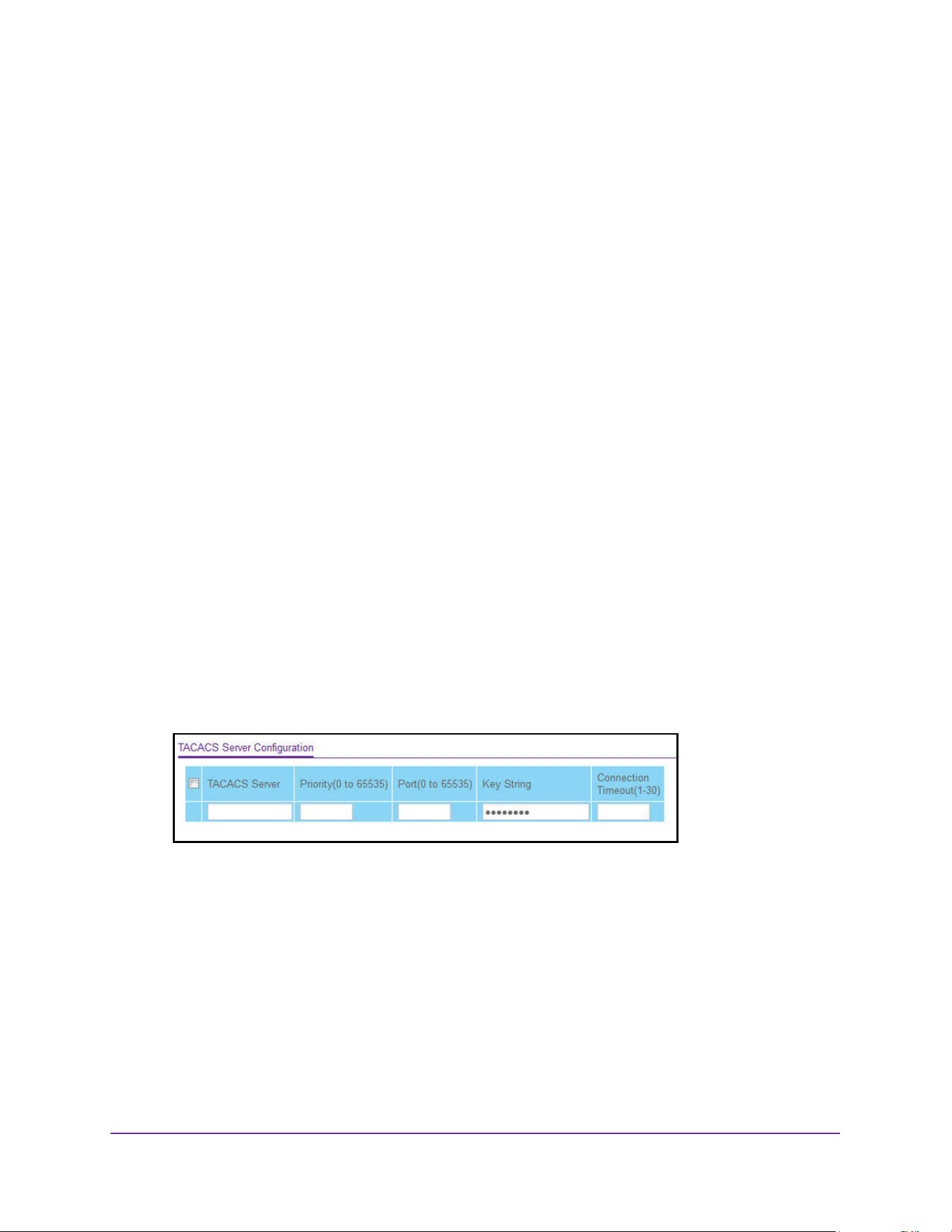
Manage Device Security
496
M4200 and M4300 Series ProSAFE Managed Switches Web Management User Manual
• Routing loopback interface. The primary IP address of a routing loopback interface is
used as the source address.
• Service port. The management port source IP is used as the source address.
By default VLAN 1 is used as source interface. When the None value is displayed, it
means that the configured routing interface has become nonrouting.
9. Click the Apply button.
The updated configuration is sent to the switch. Configuration changes take effect
immediately.
Configure TACACS Server Settings
You can configure up to five TACACS servers with which the switch can communicate.
To configure TACACS server settings:
1. Launch a web browser.
2. Enter http://<ipaddress> in the web browser address field.
The login window opens.
3. Enter the user name and password.
The default admin user name is admin and the default admin password is blank, that is,
do not enter a password.
4. Click the Login button.
The System Information page displays.
5. Select Security > Management Security> TACACS > TACACS Server Configuration.
6. Use TACACS Server to configure the TACACS server IP address.
7. Use Priority to specify the order in which the TACACS servers are used.
The valid range is 0–65535.
8. Use Port to specify the authentication port. It must be within the range 0–65535.
9. Use Key String to specify the authentication and encryption key for TACACS
communications between the device and the TACACS server.
The valid range is 0–128. The key must match the key used on the TACACS server.
10. Use Connection Timeout to specify the amount of time that passes before the connection
between the device and the TACACS server time-out.
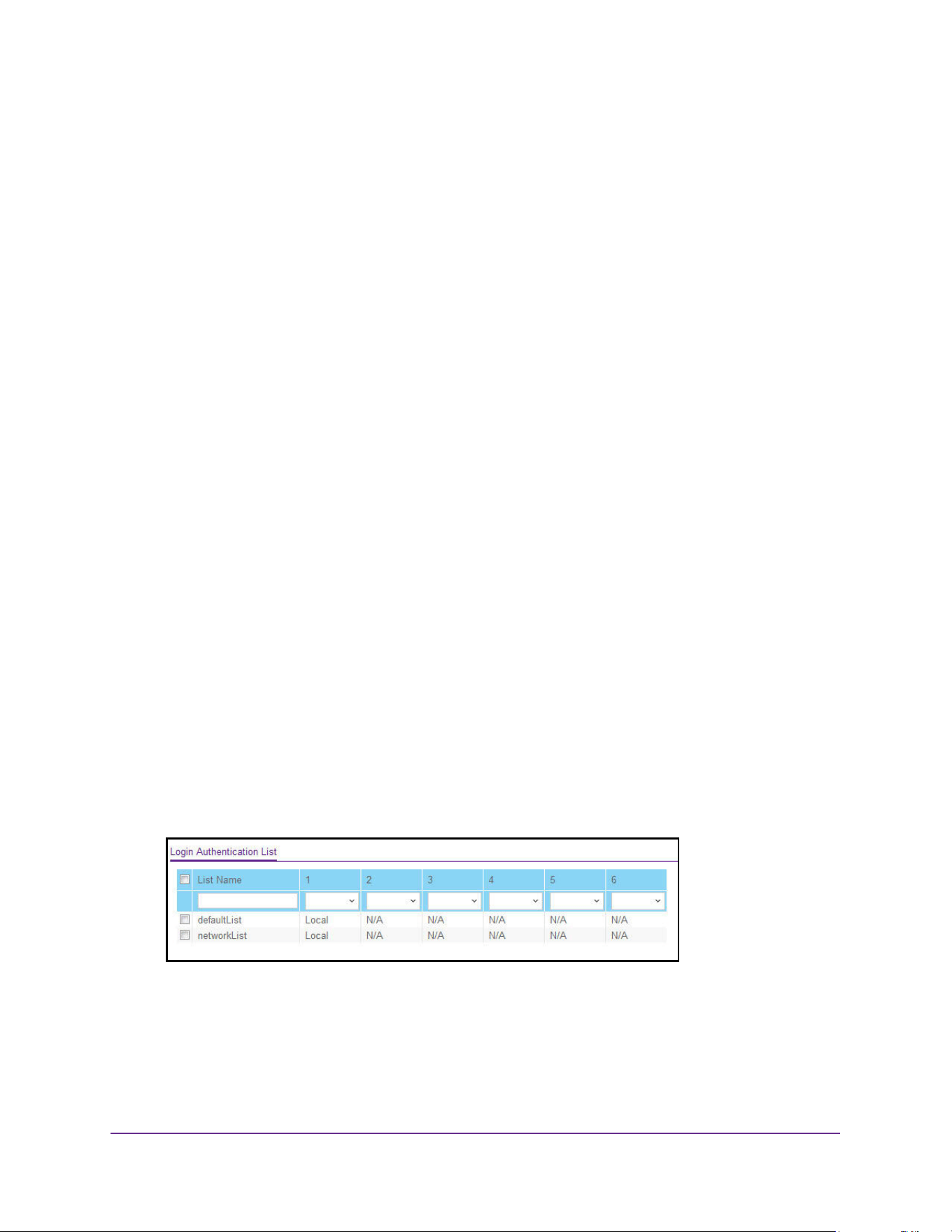
Manage Device Security
497
M4200 and M4300 Series ProSAFE Managed Switches Web Management User Manual
The range is 1–30.
11. Click the Add button.
The server is added to the switch.
Configure Authentication Lists
The switch supports various authentication lists.
Configure a Login Authentication List
A login list specifies the authentication methods to be used to validate switch or port access
for the users associated with the list. The preconfigured users, admin and guest, are
assigned to a preconfigured list named defaultList, which you cannot delete. All newly
created users are also assigned to the defaultList until you specifically assign them to a
different list.
Two default lists are present: DefaultList and networkList.
To configure a login authentication list:
1. Launch a web browser.
2. Enter http://<ipaddress> in the web browser address field.
The login window opens.
3. Enter the user name and password.
The default admin user name is admin and the default admin password is blank, that is,
do not enter a password.
4. Click the Login button.
The System Information page displays.
5. Select Security > Management Security > Authentication List > Login Authentication
List.
6. To create a new login list, enter the name in the List Name field.
The name can be up to 15 alphanumeric characters long and is not case-sensitive.
7. In the columns in table header (1, 2, 3, 4, 5, 6), select the method to appear first in the
selected authentication enable list.
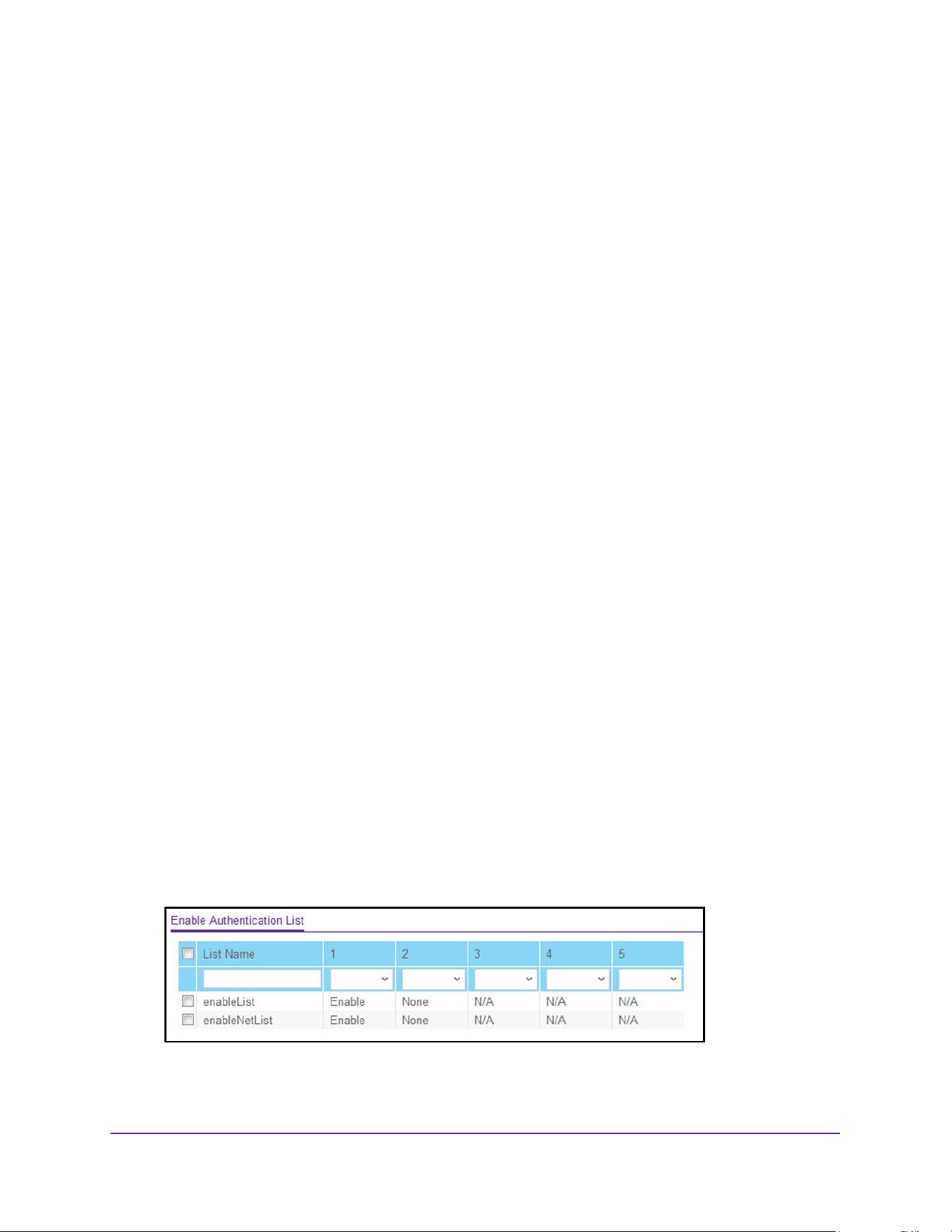
Manage Device Security
498
M4200 and M4300 Series ProSAFE Managed Switches Web Management User Manual
The options are as follows:
- Enable. The privileged EXEC password is used for authentication.
- Line. The line password is used for authentication.
- None. The user cannot be authenticated.
- RADIUS. The user's name and password are authenticated using the RADIUS server
instead of local server.
- TACACS. The user's name and password are authenticated using the TACACS
server.
- Deny. Authentication always fails.
8. Click the Add button.
The login list is added to the switch.
Configure an Enable Authentication List
An enable list specifies the authentication methods to validate privileged EXEC access for
the users associated with the list. The preconfigured users, admin and guest, are assigned to
a preconfigured list named defaultList, which you cannot delete. All newly created users are
also assigned to the defaultList until you specifically assign them to a different list. Two
default lists are present: enableList and enableNetList.
To configure an enable authentication list:
1. Launch a web browser.
2. Enter http://<ipaddress> in the web browser address field.
The login window opens.
3. Enter the user name and password.
The default admin user name is admin and the default admin password is blank, that is,
do not enter a password.
4. Click the Login button.
The System Information page displays.
5. Select Security > Management Security > Authentication List > Enable Authentication
List.
6. To create a new enable list, enter the name in the List Name field.
It can be up to 15 alphanumeric characters long and is not case-sensitive.

Manage Device Security
499
M4200 and M4300 Series ProSAFE Managed Switches Web Management User Manual
7. In the columns in table header (1, 2, 3, 4, 5, 6), select the method to appear first in the
selected authentication enable list.
The options are as follows:
- Enable. The privileged EXEC password is used for authentication.
- Line. The line password is used for authentication.
- None. The user cannot be authenticated.
- RADIUS. The user's name and password are authenticated using the RADIUS server
instead of local server.
- TACACS. The user's name and password are authenticated using the TACACS
server.
- Deny. Authentication always fails.
8. Click the Add button.
The login list is added to the switch.
Configure the Dot1x Authentication List
You can configure a dot1x list. A dot1x list specifies the authentication methods to validate
port access for the users associated with the list. Only one dot1x method can be supported.
The default list is dot1xList.
To configure the dot1x authentication list:
1. Launch a web browser.
2. Enter http://<ipaddress> in the web browser address field.
The login window opens.
3. Enter the user name and password.
The default admin user name is admin and the default admin password is blank, that is,
do not enter a password.
4. Click the Login button.
The System Information page displays.
5. Select Security > Management Security > Authentication List > Dot1x Authentication
List.
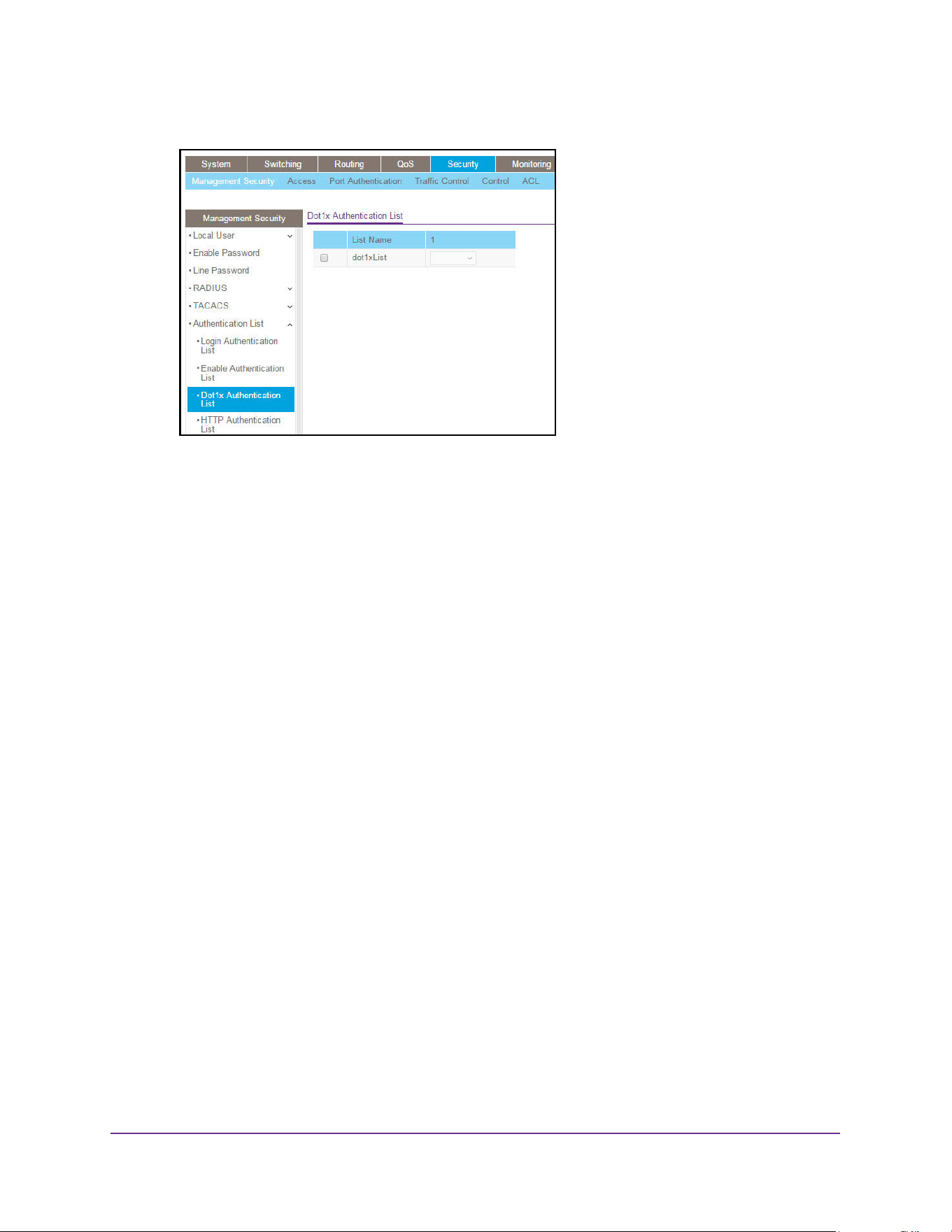
Manage Device Security
500
M4200 and M4300 Series ProSAFE Managed Switches Web Management User Manual
6. Select the check box for the dot1x list name.
7. Select the method to appear first in the selected authentication login list.
The options are as follows:
• IAS. The user’s ID and password in internal authentication server database is used
for authentication.
• Local. The user’s locally stored ID and password are used for authentication.
• RADIUS. The user’s ID and password are authenticated using the RADIUS server
instead of locally.
• None. The user authenticated without a user name and password.
8. Click the Apply button.
The updated configuration is sent to the switch. Configuration changes take effect
immediately.
Configure an HTTP Authentication List
You can configure an HTTP list. An HTTP list specifies the authentication methods to validate
the switch or port access through HTTP.
To configure an HTTP authentication list:
1. Launch a web browser.
2. Enter http://<ipaddress> in the web browser address field.
The login window opens.
3. Enter the user name and password.
The default admin user name is admin and the default admin password is blank, that is,
do not enter a password.
4. Click the Login button.
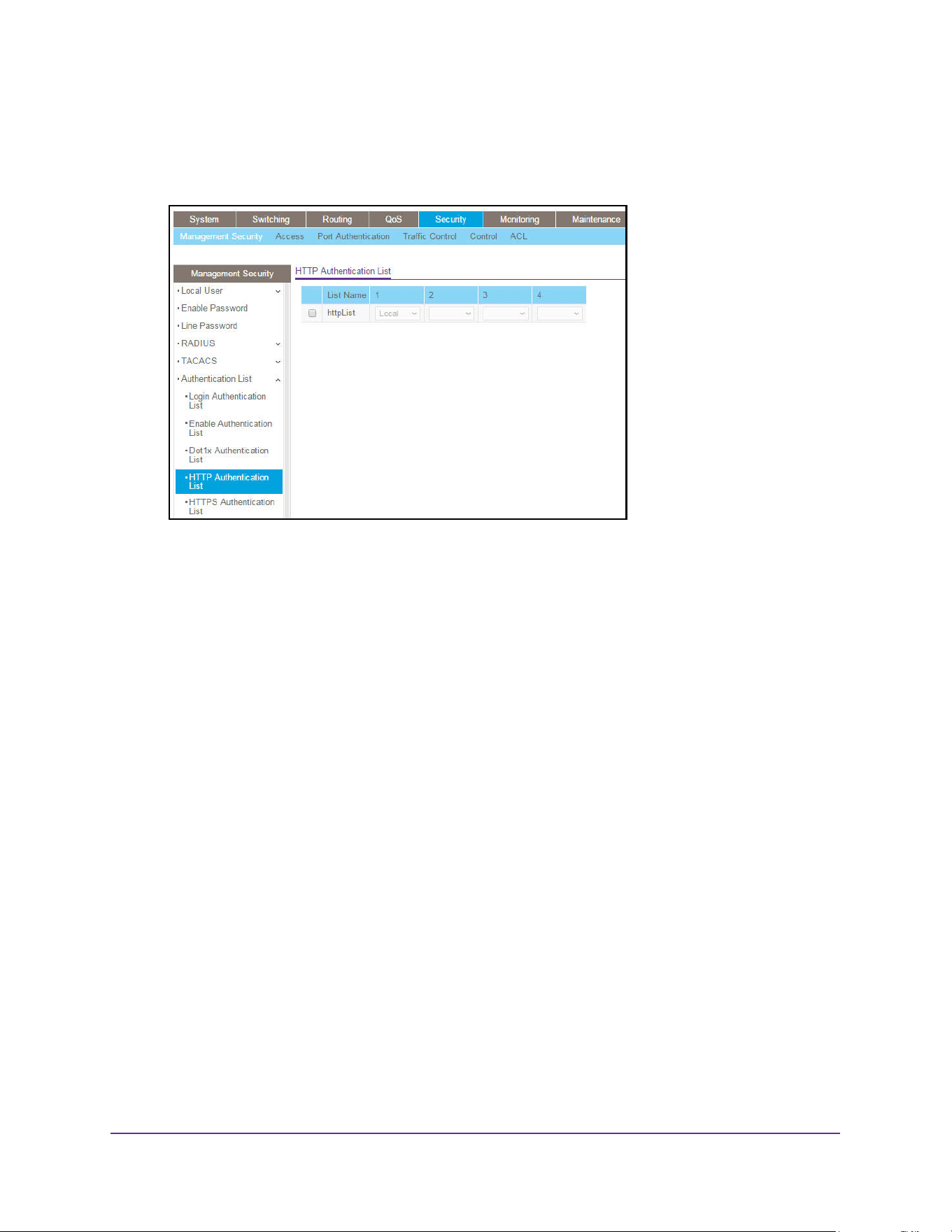
Manage Device Security
501
M4200 and M4300 Series ProSAFE Managed Switches Web Management User Manual
The System Information page displays.
5. Select Security > Management Security > Authentication List > HTTP Authentication
List.
6. Select the check box for the HTTP list name.
7. In the columns in table header (1, 2, 3, 4, 5, 6), select the method to appear first in the
selected authentication enable list.
The options are as follows:
- Enable. The privileged EXEC password is used for authentication.
- None. The user cannot be authenticated.
- RADIUS. The user's name and password are authenticated using the RADIUS server
instead of local server.
- TACACS. The user's name and password are authenticated using the TACACS
server.
8. Click the Apply button.
The updated configuration is sent to the switch. Configuration changes take effect
immediately.
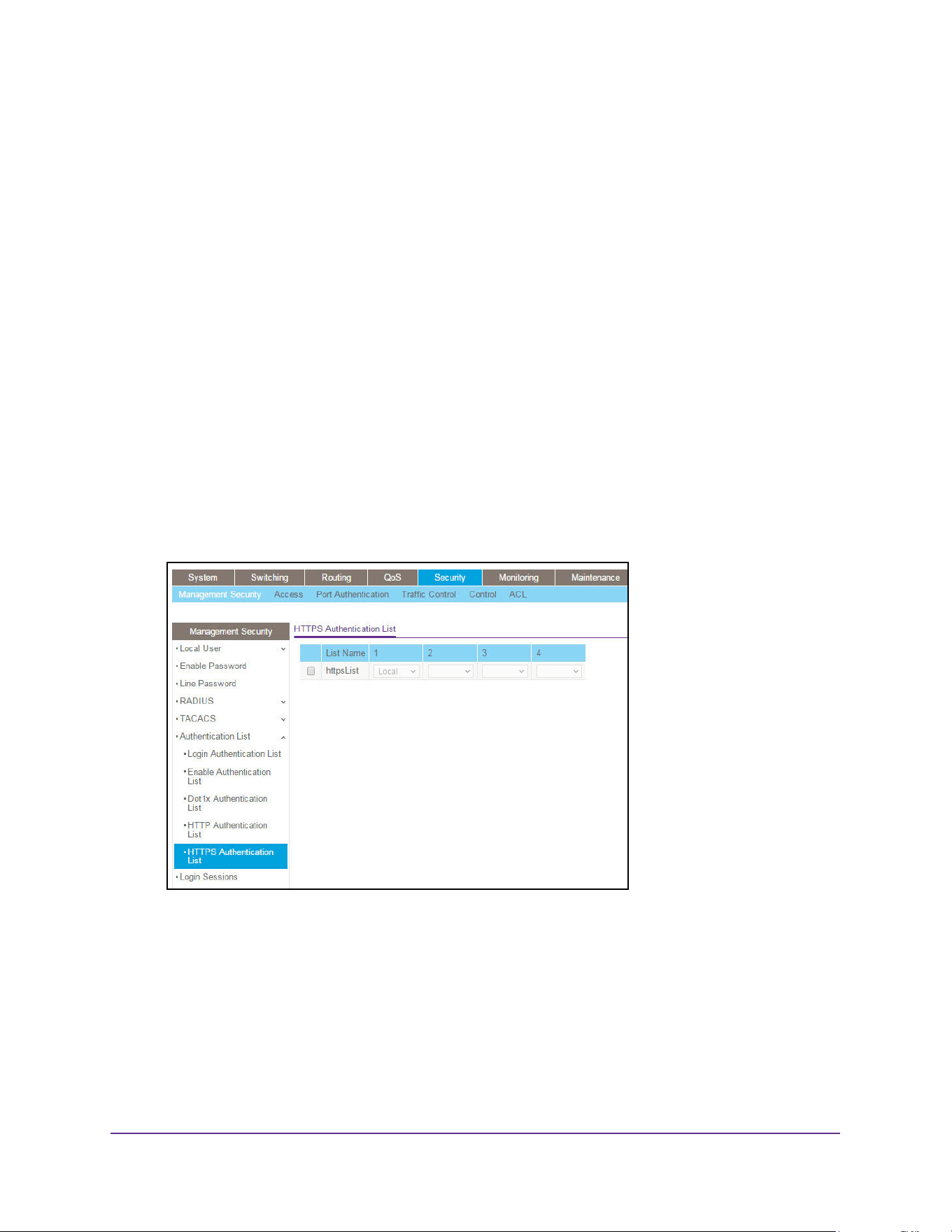
Manage Device Security
502
M4200 and M4300 Series ProSAFE Managed Switches Web Management User Manual
Configure an HTTPS Authentication List
You can configure an HTTPS list. A login list specifies the authentication methods to validate
the switch or port access through HTTPS for the users associated with the list. The default
list is httpsList.
To configure an HTTPS authentication list:
1. Launch a web browser.
2. Enter http://<ipaddress> in the web browser address field.
The login window opens.
3. Enter the user name and password.
The default admin user name is admin and the default admin password is blank, that is,
do not enter a password.
4. Click the Login button.
The System Information page displays.
5. Select Security > Management Security > Authentication List > HTTPS Authentication
List.
6. Select the check box for the HTTPS list name.
7. In the columns in table header (1, 2, 3, 4, 5, 6), select the method to appear first in the
selected authentication enable list.
The options are as follows:
- Enable. The privileged EXEC password is used for authentication.
- None. The user cannot be authenticated.
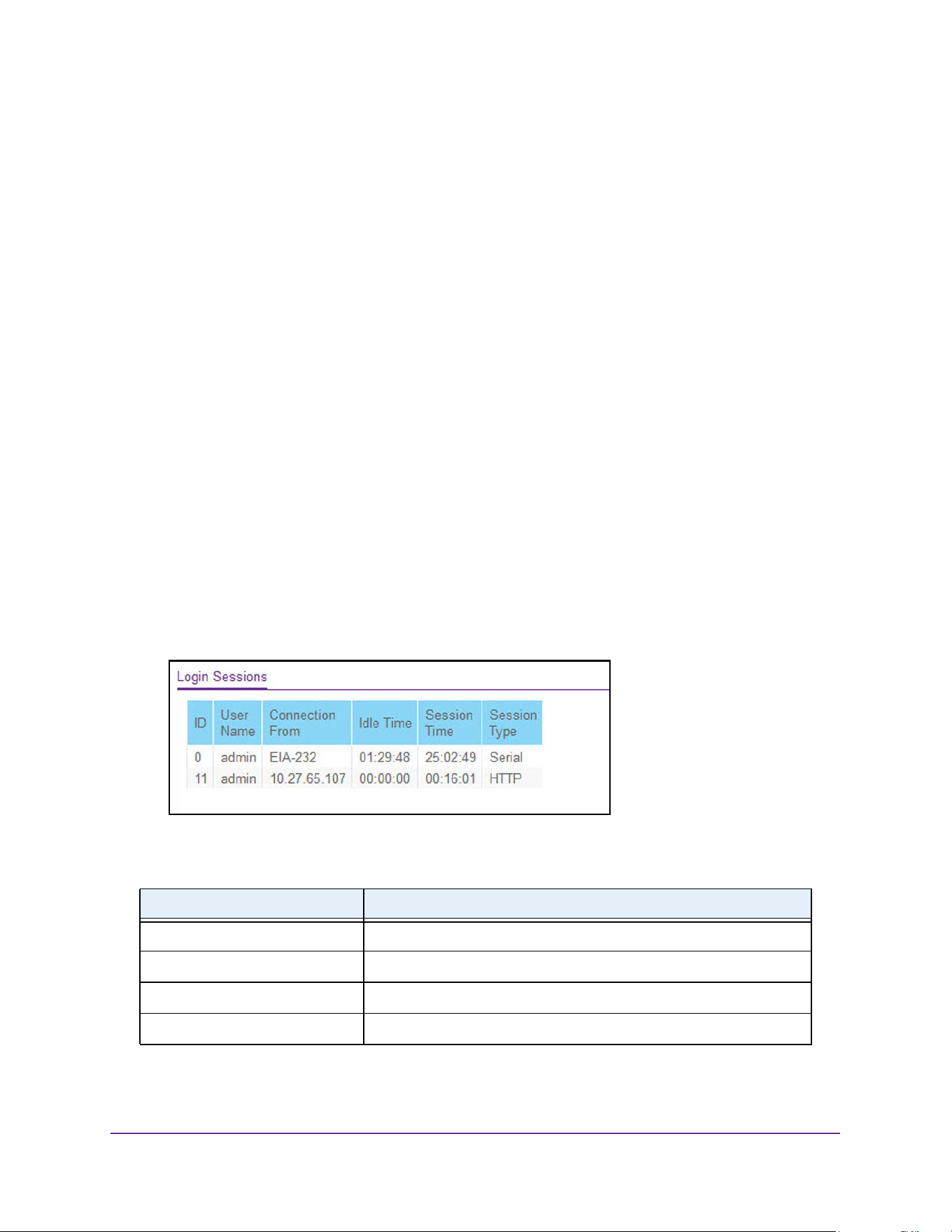
Manage Device Security
503
M4200 and M4300 Series ProSAFE Managed Switches Web Management User Manual
- RADIUS. The user's name and password are authenticated using the RADIUS server
instead of local server.
- TACACS. The user's name and password are authenticated using the TACACS
server.
8. Click the Apply button.
The updated configuration is sent to the switch. Configuration changes take effect
immediately.
View Login Sessions
To view login sessions:
1. Launch a web browser.
2. Enter http://<ipaddress> in the web browser address field.
The login window opens.
3. Enter the user name and password.
The default admin user name is admin and the default admin password is blank, that is,
do not enter a password.
4. Click the Login button.
The System Information page displays.
5. Select Security > Management Security > Login Sessions.
The following table describes the fields that are shown in the table.
Table 191. Login Sessions
Field Description
ID Identifies the ID of this row.
User Name The user's name whose session is open.
Connection From The machine from which the user is connected.
Idle Time The idle session time.
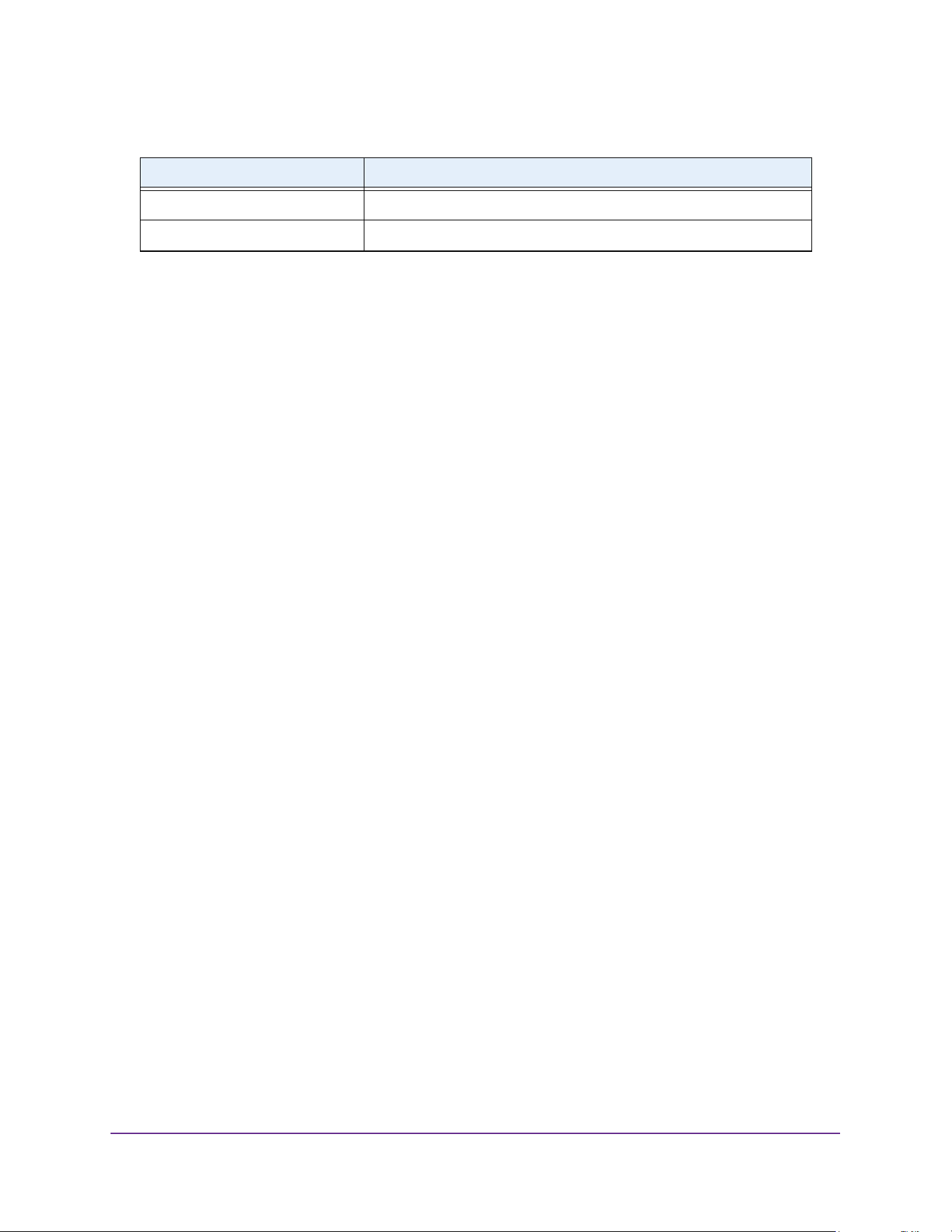
Manage Device Security
504
M4200 and M4300 Series ProSAFE Managed Switches Web Management User Manual
Manage HHTP, HTTPS, and SSH Access
You can configure HTTP and Secure HTTP access to the switch’s management interface.
Configure HTTP Server Settings
To access the switch using a web browser, you must first configure it with IP information (IP
address, subnet mask, and default gateway). You can configure the IP information using any
of the following:
• BOOTP
• DHCP
• Terminal interface through the EIA-232 port
Once you establish in-band connectivity, you can change the IP information using a
web-based management.
To configure the HTTP server settings:
1. Launch a web browser.
2. Enter http://<ipaddress> in the web browser address field.
The login window opens.
3. Enter the user name and password.
The default admin user name is admin and the default admin password is blank, that is,
do not enter a password.
4. Click the Login button.
The System Information page displays.
5. Select Security > Access> HTTP > HTTP Configuration.
Session Time The total session time.
Session Type The type of session: Telnet, Serial, or SSH
Table 191. Login Sessions
Field Description
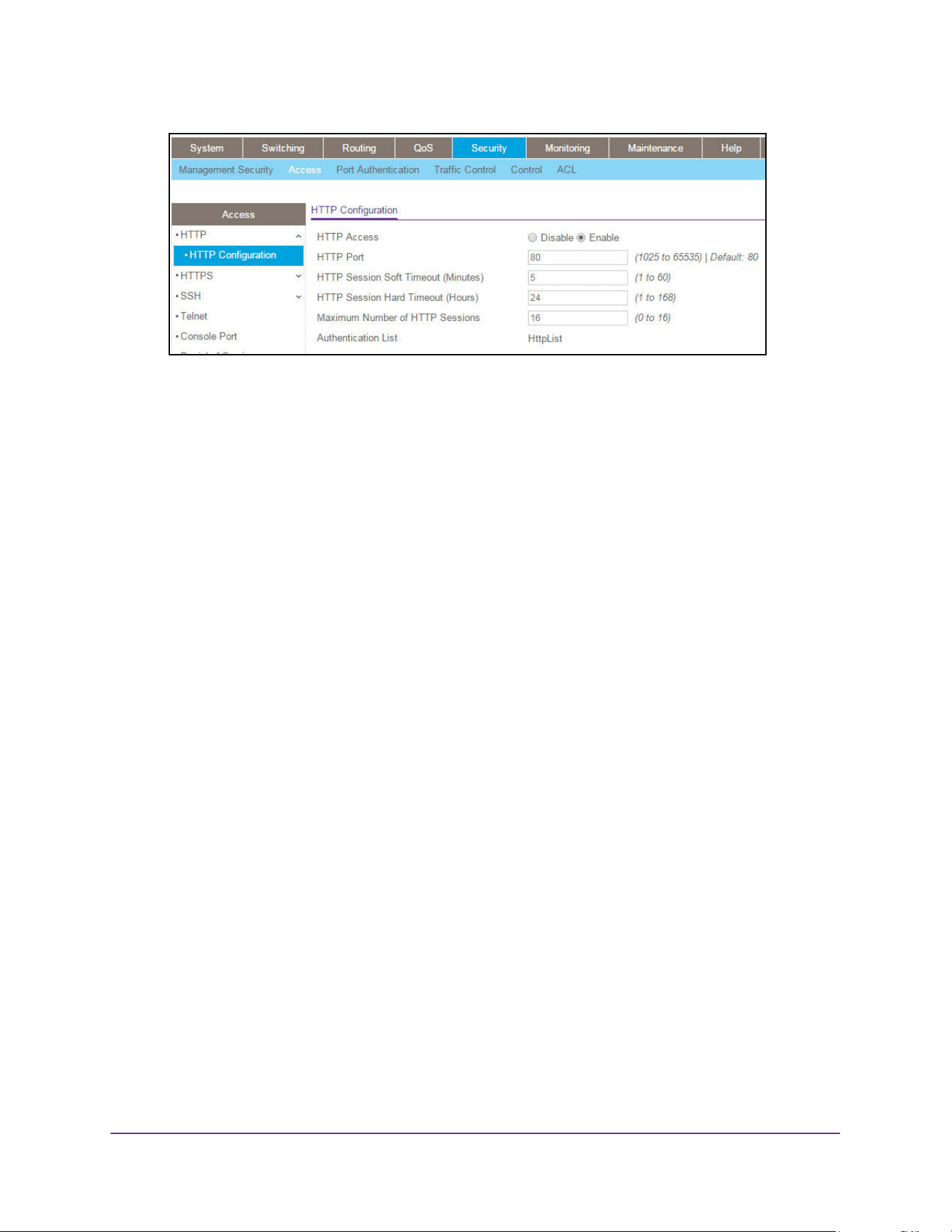
Manage Device Security
505
M4200 and M4300 Series ProSAFE Managed Switches Web Management User Manual
6. Select the HTTP Access Disable or Enable radio button.
This specifies whether the switch can be accessed from a web browser. If you enable
web mode, you can manage the switch from a web browser. The factory default is
Enable.
7. In the HTTP Port field, enter the HTTP port number.
The valid range is 80 and 1025 to 65535. The default value is 80.
8. In the HTTP Session Soft Timeout (Minutes) field, set the inactivity time-out for HTTP
sessions.
The value must be in the range of 1 to 60 minutes. The default value is 5 minutes. The
currently configured value displays.
9. In the HTTP Session Hard Timeout (Hours) field, set the hard time-out for HTTP sessions.
This time-out is unaffected by the activity level of the session. The value must be in the
range of 1 to 168 hours. The default value is 24 hours. The currently configured value is
displayed.
10. In the Maximum Number of HTTP Sessions field, set the maximum allowable number of
HTTP sessions.
The value must be in the range of 0 to 16. The default value is 16. The currently
configured value is displayed.
11. Click the Apply button.
The updated configuration is sent to the switch. Configuration changes take effect
immediately.
The Authentication List field displays the list that HTTP is using.
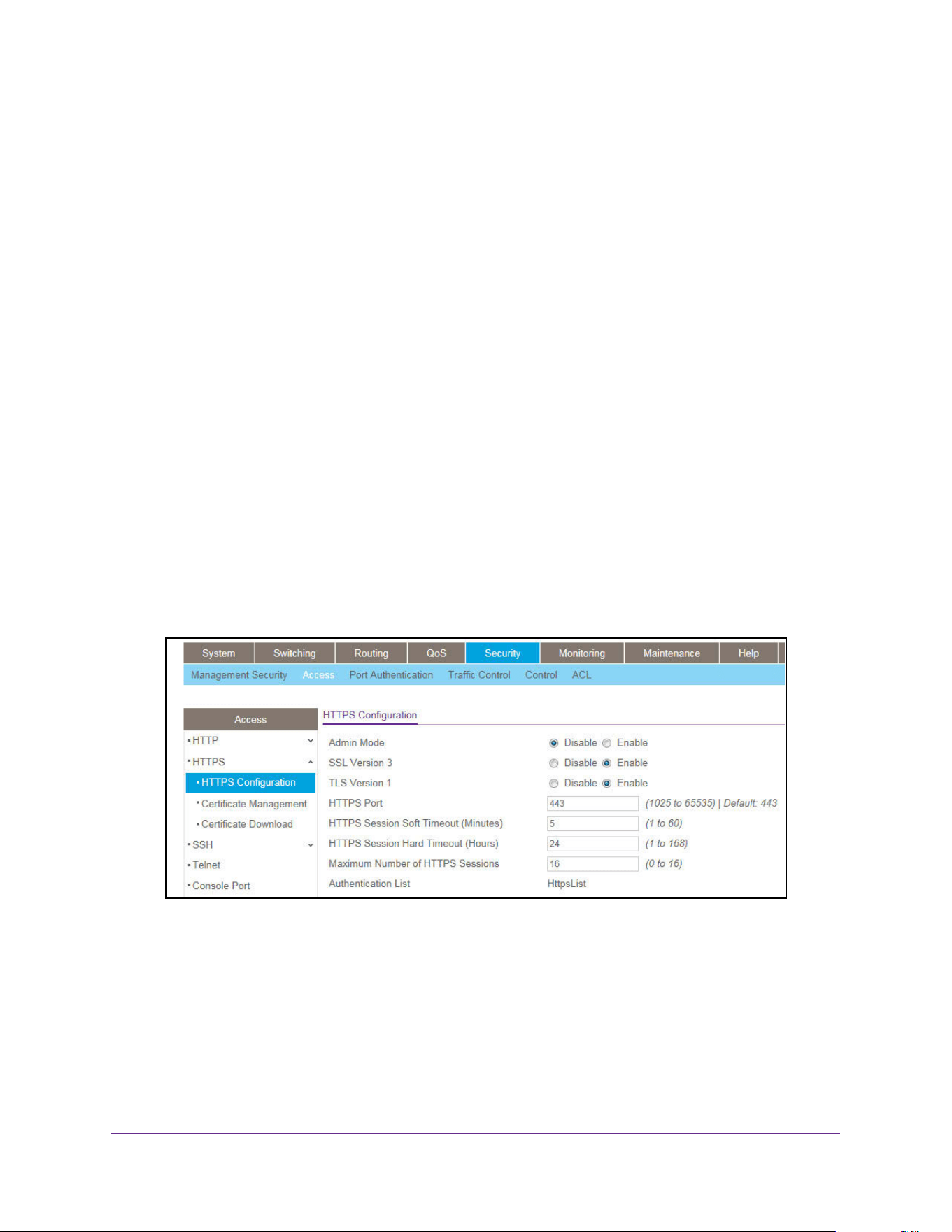
Manage Device Security
506
M4200 and M4300 Series ProSAFE Managed Switches Web Management User Manual
HTTPS Configuration
Secure HTTP enables the transmission of HTTP over an encrypted Secure Sockets Layer
(SSL) or Transport Layer Security (TLS) connection. When you manage the switch by using
a web interface, Secure HTTP can help ensure that communication between the
management system and the switch is protected from eavesdroppers and man-in-the-middle
attacks.
You can to configure the settings for HTTPS communication between the management
station and the switch.
To configure HTTPS settings:
1. Launch a web browser.
2. Enter http://<ipaddress> in the web browser address field.
The login window opens.
3. Enter the user name and password.
The default admin user name is admin and the default admin password is blank, that is,
do not enter a password.
4. Click the Login button.
The System Information page displays.
5. Select Security > Access > HTTPS > HTTPS Configuration.
6. Select the Admin Mode Disable or Enable radio button.
This enables or disables the administrative mode of Secure HTTPS. The currently
configured value is displayed. The default value is Disable. You can download SSL
certificates only when the HTTPS admin mode is disabled. HTTPS admin mode can be
enabled only if a certificate is present on the device.
7. Select the SSL Version 3 Disable or Enable radio button.
This enables or disables Secure Sockets Layer version 3.0. The currently configured
value is displayed. The default value is Enable.

Manage Device Security
507
M4200 and M4300 Series ProSAFE Managed Switches Web Management User Manual
8. Select the TLS Version 1 Disable or Enable radio button
This enables or disables Transport Layer Security version 1.0. The currently configured
value is displayed. The default value is Enable.
9. In the HTTPS Port field, type the HTTPS port number.
The value must be in the range of 1025 to 65535. Port 443 is the default value. The
currently configured value is displayed.
10. In the HTTPS Session Soft Timeout (Minutes) field, enter the inactivity time-out for
HTTPS sessions.
The value must be in the range of 1 to 60 minutes. The default value is 5 minutes. The
currently configured value is displayed.
11. In the HTTPS Session Hard Timeout (Hours) field, set the hard time-out for HTTPS
sessions.
This time-out is unaffected by the activity level of the session. The value must be in the
range of 1 to 168 hours. The default value is 24 hours. The currently configured value is
displayed.
12. In the Maximum Number of HTTPS Sessions field, enter the maximum allowable number
of HTTPS sessions.
The value must be in the range of 0 to 16. The default value is 16. The currently
configured value is displayed.
13. Click the Apply button.
The updated configuration is sent to the switch. Configuration changes take effect
immediately.
The Authentication List field displays the authentication list for HTTPS.
Manage Certificates
You can generate or delete certificates.
To manage certificates:
1. Launch a web browser.
2. Enter http://<ipaddress> in the web browser address field.
The login window opens.
3. Enter the user name and password.
The default admin user name is admin and the default admin password is blank, that is,
do not enter a password.
4. Click the Login button.
The System Information page displays.
5. Select Security > Access > HTTPS > Certificate Management.
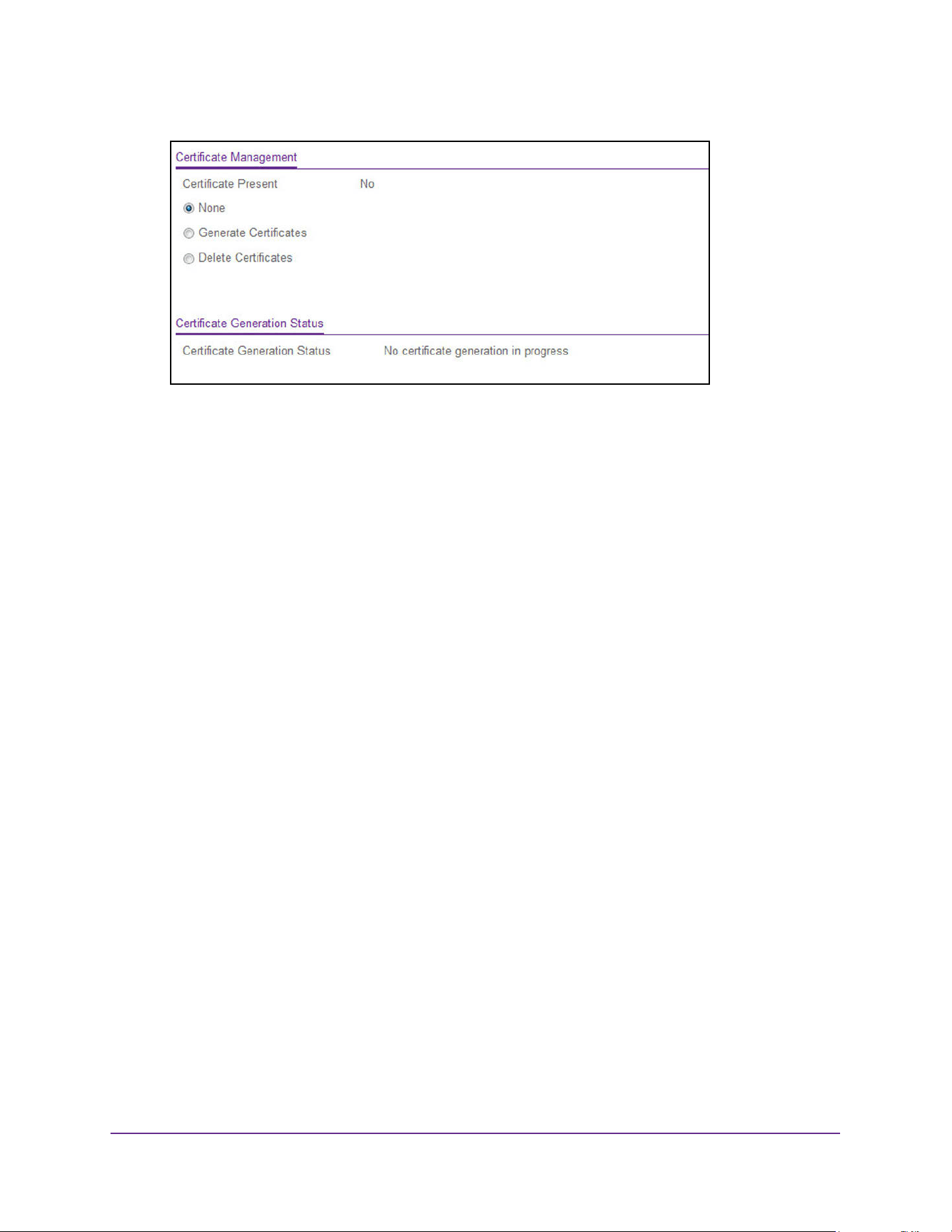
Manage Device Security
508
M4200 and M4300 Series ProSAFE Managed Switches Web Management User Manual
The Certificate Present field displays whether there is a certificate present on the
device.
6. Select one of the following radio buttons:
• None. There is nothing to be done with respect to certificate management. This is the
default selection.
• Generate Certificates. Begin generating the certificate files.
• Delete Certificates. Delete the corresponding certificate files, if present.
7. Click the Apply button.
The updated configuration is sent to the switch. Configuration changes take effect
immediately.
The Certificate Generation Status field displays the SSL certificate generation status.
Download Certificates
You can transfer a certificate file to the switch.
For the web server on the switch to accept HTTPS connections from a management station,
the web server needs a public key certificate. You can generate a certificate externally (for
example, offline) and download it to the switch.
Before you download a file to the switch, the following conditions must be true:
• The file to download from the TFTP server is on the server in the appropriate directory.
• The file is in the correct format.
• The switch has a path to the TFTP server.
To download certificates:
1. Launch a web browser.
2. Enter http://<ipaddress> in the web browser address field.
The login window opens.
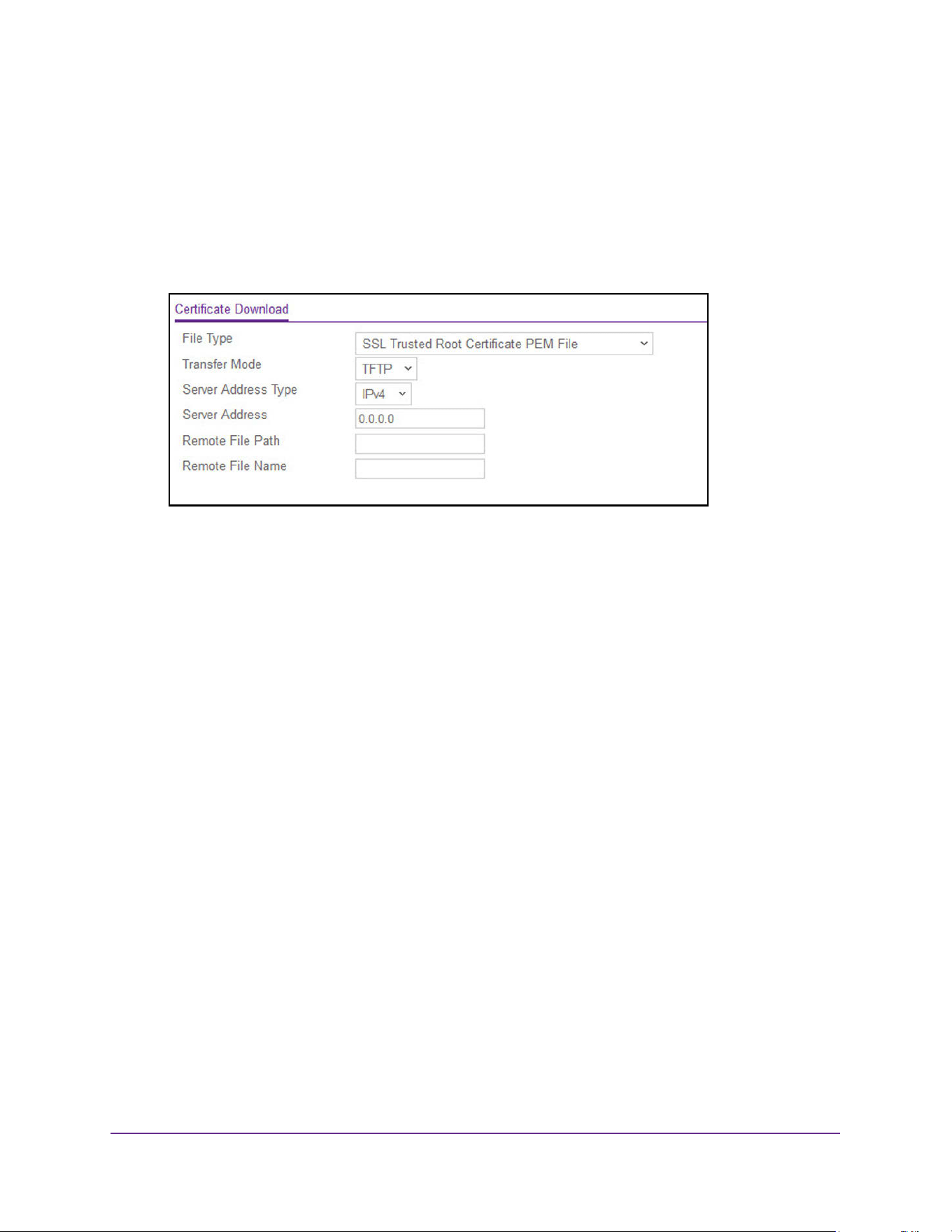
Manage Device Security
509
M4200 and M4300 Series ProSAFE Managed Switches Web Management User Manual
3. Enter the user name and password.
The default admin user name is admin and the default admin password is blank, that is,
do not enter a password.
4. Click the Login button.
The System Information page displays.
5. Select Security > Access > HTTPS > Certificate Download.
6. In the File Type list, specify the type of file to transfer:
• SSL Trusted Root Certificate PEM File. SSL Trusted Root Certificate file (PEM
Encoded)
• SSL Server Certificate PEM File. SSL Server Certificate File (PEM Encoded)
• SSL DH Weak Encryption Parameter PEM File. SSL Diffie-Hellman Weak Encryption
Parameter file (PEM Encoded)
• SSL DH Strong Encryption Parameter PEM File. SSL Diffie-Hellman Strong
Encryption Parameter File (PEM Encoded)
7. In the Transfer Mode list, specify the protocol to use to transfer the file:
• TFTP. Trivial File Transfer Protocol
• SFTP. Secure File Transfer Protocol
• SCP. Secure Copy Protocol
8. In the Server Address Type list, specify either IPv4, IPv6, or DNS to indicate the format of
the TFTP/SFTP/SCP Server Address field.
The factory default is IPv4.
9. In the Server Address field, type the IP address or DNS host name of the server in
accordance with the format indicated by the server address type.
The factory default is the IPv4 address 0.0.0.0.
10. In the Remote File Path field, enter the path of the file to download.
You can enter up to 96 characters. The factory default is blank.
11. In the Remote File Name field, enter the name of the file on the TFTP server to download.
You can enter up to 32 characters. The factory default is blank.
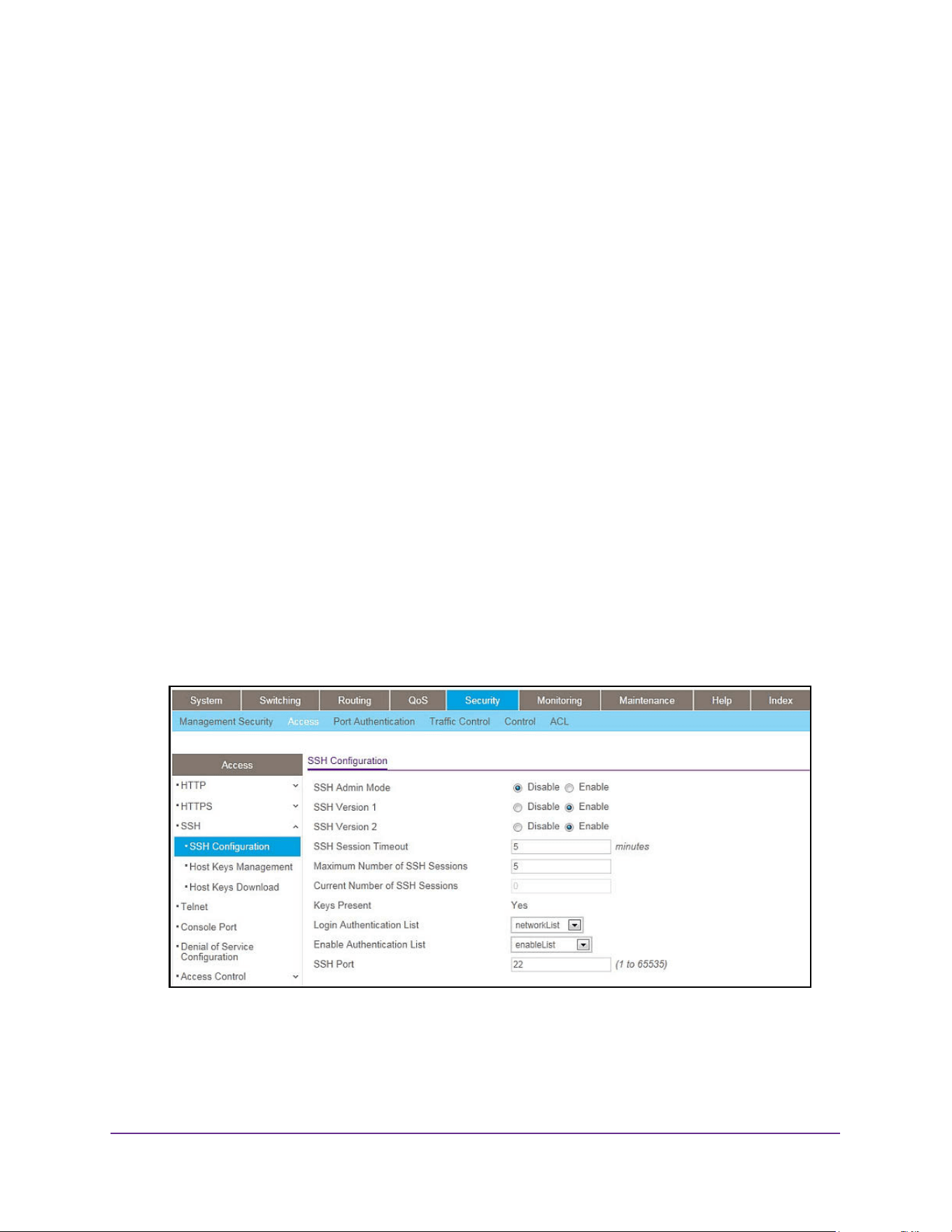
Manage Device Security
510
M4200 and M4300 Series ProSAFE Managed Switches Web Management User Manual
12. Click the Apply button.
The updated configuration is sent to the switch. Configuration changes take effect
immediately.
Configure SSH Settings
You can view and modify the Secure Shell (SSH) server settings on the device. SSH is a
network protocol that enables access to the CLI management interface by using an SSH
client on a remote administrative system. SSH is a more secure access method than Telnet
because it encrypts communication between the administrative system and the device. You
can download or generate SSH host keys for secure CLI-based management.
To configure SSH settings:
1. Launch a web browser.
2. Enter http://<ipaddress> in the web browser address field.
The login window opens.
3. Enter the user name and password.
The default admin user name is admin and the default admin password is blank, that is,
do not enter a password.
4. Click the Login button.
The System Information page displays.
5. Select Security > Access > SSH > SSH Configuration.
6. Select the SSH Admin Mode Disable or Enable radio button.
This enables or disables the SSH server administrative mode. When this mode is
enabled, the device can be accessed by using an SSH client on a remote system. The
currently configured value is displayed. The default value is Disable.

Manage Device Security
511
M4200 and M4300 Series ProSAFE Managed Switches Web Management User Manual
7. Select the SSH Version 1 Disable or Enable radio button.
This enables or disables Protocol Level 1 for SSH. When Enable is selected, the SSH
server on the device can accept connections from an SSH client using Protocol Level 1
for SSH (SSH-1). When Disable is selected, the device does not allow connections from
clients using the SSH-1 protocol. The currently configured value is displayed. The default
value is Enable.
8. Select the SSH Version 2 Disable or Enable radio button.
This enables or disables Protocol Level 2 for SSH. When Enable is selected, the SSH
server on the device can accept connections from an SSH client using Protocol Level 2
for SSH (SSH-2). When Disable is selected, the device does not allow connections from
clients using the SSH-2 protocol.The currently configured value is displayed. The default
value is Enable.
9. Use SSH Session Timeout to configure the SSH session inactivity time-out value for
incoming SSH sessions to the switch.
A connected user that does not exhibit any SSH activity for this amount of time is
automatically disconnected from the device. The acceptable range for this field is 1-5
minutes.
10. Use Maximum Number of SSH Sessions to configure the maximum number of inbound
SSH sessions that can be connected to the device simultaneously.
The currently configured value is displayed. The acceptable range for this field is 0–5.
11. Use Login Authentication List to select an authentication list.
This list is used to authenticate users who try to login to the switch.
12. Use Enable Authentication List to select an authentication list.
This list is used to authenticate users who try to get enable level privilege.
13. Use SSH Port to enter the port range from 1 to 65535.
The default value is 22.
14. Click the Apply button.
The updated configuration is sent to the switch. Configuration changes take effect
immediately.
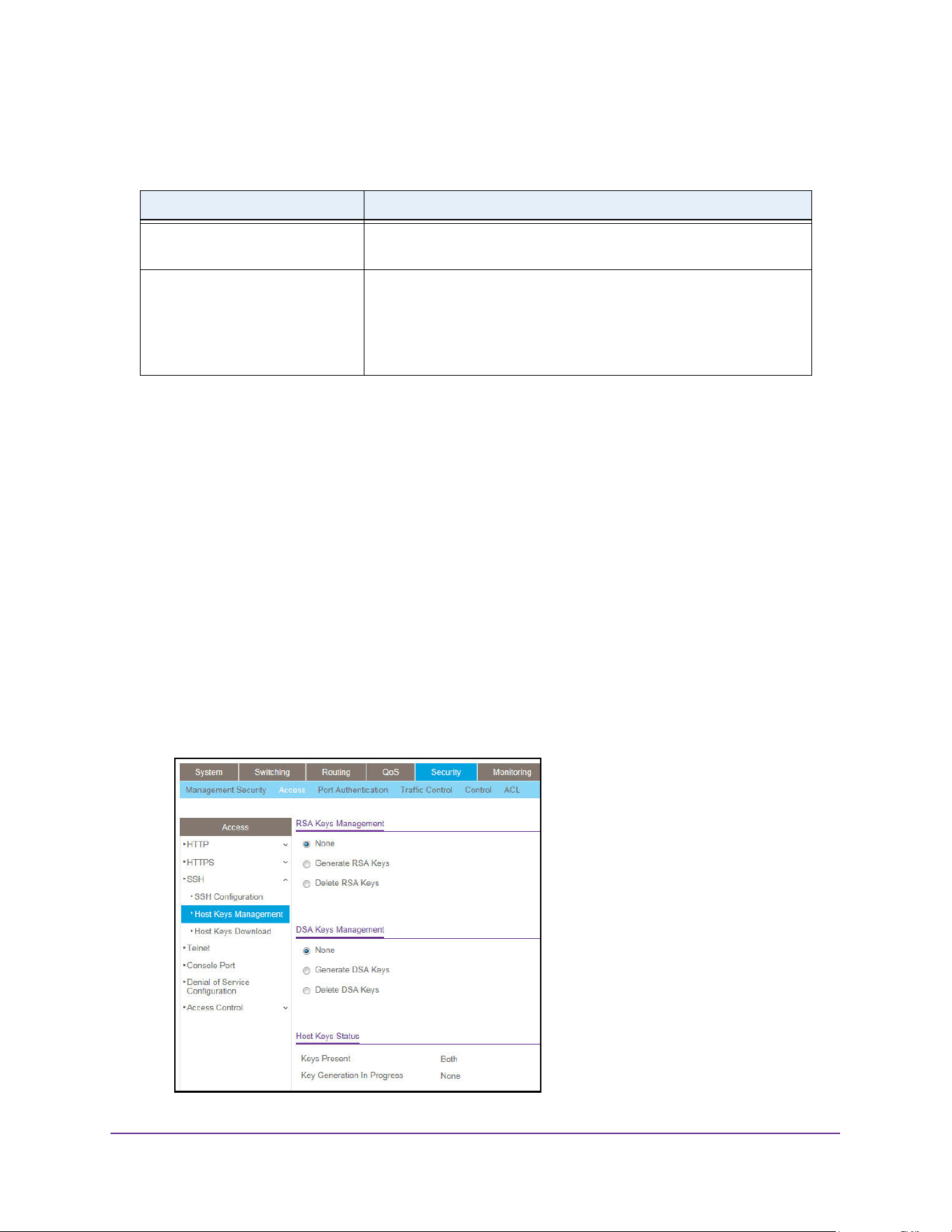
Manage Device Security
512
M4200 and M4300 Series ProSAFE Managed Switches Web Management User Manual
The following table describes the nonconfigurable fields that display on the page.
Manage Host Keys
You can generate or delete RSA and DSA keys.
To manage host keys:
1. Launch a web browser.
2. Enter http://<ipaddress> in the web browser address field.
The login window opens.
3. Enter the user name and password.
The default admin user name is admin and the default admin password is blank, that is,
do not enter a password.
4. Click the Login button.
The System Information page displays.
5. Select Security > Access > SSH > Host Keys Management.
Table 192. SSH Configuration
Field Description
Current Number of SSH Sessions The number of active SSH sessions between remote SSH clients and the
SSH server on the device.
Keys Present Displays Yes or No whether one or both (if any) of the following keys
are present on the device:
• SSH-1 Rivest-Shamir-Adelman (RSA) key file or SSH-2 RSA key
file (PEM encoded)
• SSH-2 Digital Signature Algorithm (DSA) key file (PEM encoded)
Manage Device Security
513
M4200 and M4300 Series ProSAFE Managed Switches Web Management User Manual
6. Select an RSA Keys Management radio button:
• None. This is the default selection.
• Generate RSA Keys. Begin generating the RSA host keys. To generate SSH key
files SSH must be administratively disabled and there can be no active SSH sessions.
• Delete RSA Keys. Delete the corresponding RSA key file, if it is present.
7. Select a DSA Keys Management radio button:
• None. This is the default selection.
• Generate DSA Keys. Begin generating the DSA host keys.
To generate SSH key files SSH must be administratively disabled and there can be
no active SSH sessions.
• Delete DSA Keys. Delete the corresponding DSA key file, if it is present.
8. Click the Apply button.
The host key file starts downloading.
Note: To download SSH key files, SSH must be administratively disabled
and there can be no active SSH sessions.
The following table describes the nonconfigurable fields that display on the page.
Download Host Keys
You can download an SSH-1 RSA, SSH-2 RSA, or SSH-2 DSA key file from a remote system
to the device.
To download host keys:
1. Launch a web browser.
2. Enter http://<ipaddress> in the web browser address field.
The login window opens.
3. Enter the user name and password.
The default admin user name is admin and the default admin password is blank, that is,
do not enter a password.
Table 193. RSA Key Management
Field Description
Keys Present Displays which of the following keys or both (if any) are present on the
device:
• SSH-1 Rivest-Shamir-Adelman (RSA) key file or SSH-2 RSA key
file (PEM Encoded)
• SSH-2 Digital Signature Algorithm (DSA) key file (PEM Encoded)
Key Generation In Progress Displays which key is being generated (if any), RSA, DSA, or None.
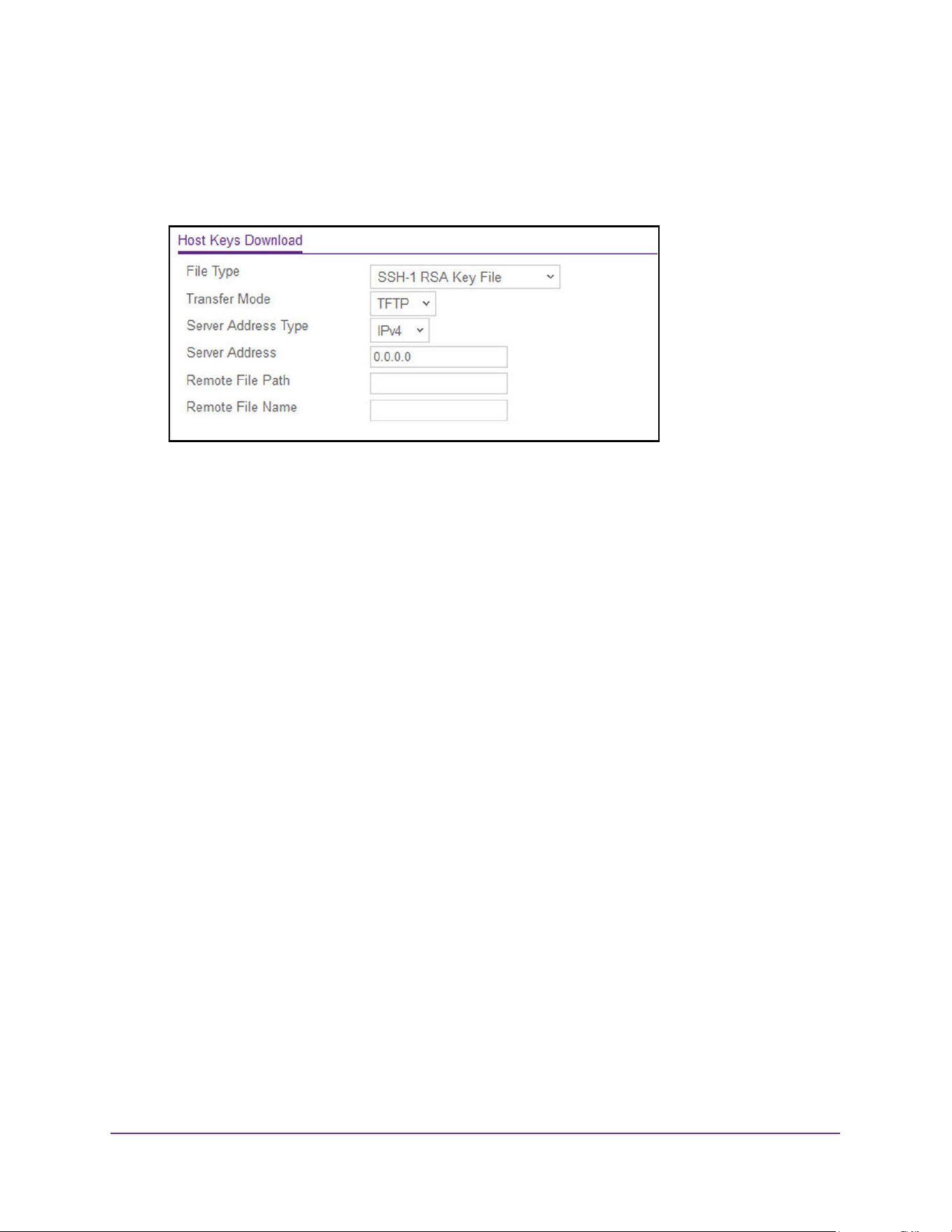
Manage Device Security
514
M4200 and M4300 Series ProSAFE Managed Switches Web Management User Manual
4. Click the Login button.
The System Information page displays.
5. Select Security > Access > SSH > Host Keys Download.
6. In the File Type list, select the type of file to transfer:
• SSH-1 RSA Key File. SSH-1 Rivest-Shamir-Adelman (RSA) key file
• SSH-2 RSA Key PEM File. SSH-2 Rivest-Shamir-Adelman (RSA) key file (PEM
Encoded)
• SSH-2 DSA Key PEM File. SSH-2 Digital Signature Algorithm (DSA) key file (PEM
Encoded)
7. In the Transfer Mode list, select the protocol to use to transfer the file:
• TFTP. Trivial File Transfer Protocol
• SFTP. Secure File Transfer Protocol
• SCP. Secure Copy Protocol
8. In the Server Address Type field, specify either IPv4, IPv6, or DNS.
This specifies the format of the TFTP/SFTP/SCP Server Address field. The factory
default is IPv4.
9. In the Server Address field, enter the IP address or DNS host name of the server in
accordance with the format indicated by the server address type.
The factory default is the IPv4 address 0.0.0.0.
10. In the Remote File Path field, enter the path of the file to download.
You can enter up to 96 characters. The factory default is blank.
11. In the Remote File Name field, enter the name of the file on the TFTP server to download.
You can enter up to 32 characters. The factory default is blank.
12. Click the Apply button.
The host key file starts downloading.

Manage Device Security
515
M4200 and M4300 Series ProSAFE Managed Switches Web Management User Manual
Note: To download SSH key files SSH must be administratively disabled
and there can be no active SSH sessions.
Configure Telnet Access
You can configure a Telnet authentication list and manage outbound and inbound Telnet.
Configure a Telnet Authentication List
You can select the Login Authentication List and the Enable Authentication List:
• Login Authentication List. The login list specifies the authentication methods used to
validate switch or port access for the users associated with the list.
For information about creating a login authentication list, see Configure a Login
Authentication List on page 497.
• Enable Authentication List. The enable list specifies the authentication methods used
to validate privileged EXEC access for the users associated with the list.
For information about creating an enable authentication list, see Configure a Login
Authentication List on page 497.
To configure the Telnet authentication list:
1. Launch a web browser.
2. Enter http://<ipaddress> in the web browser address field.
The login window opens.
3. Enter the user name and password.
The default admin user name is admin and the default admin password is blank, that is,
do not enter a password.
4. Click the Login button.
The System Information page displays.
5. Select Security > Access > Telnet.
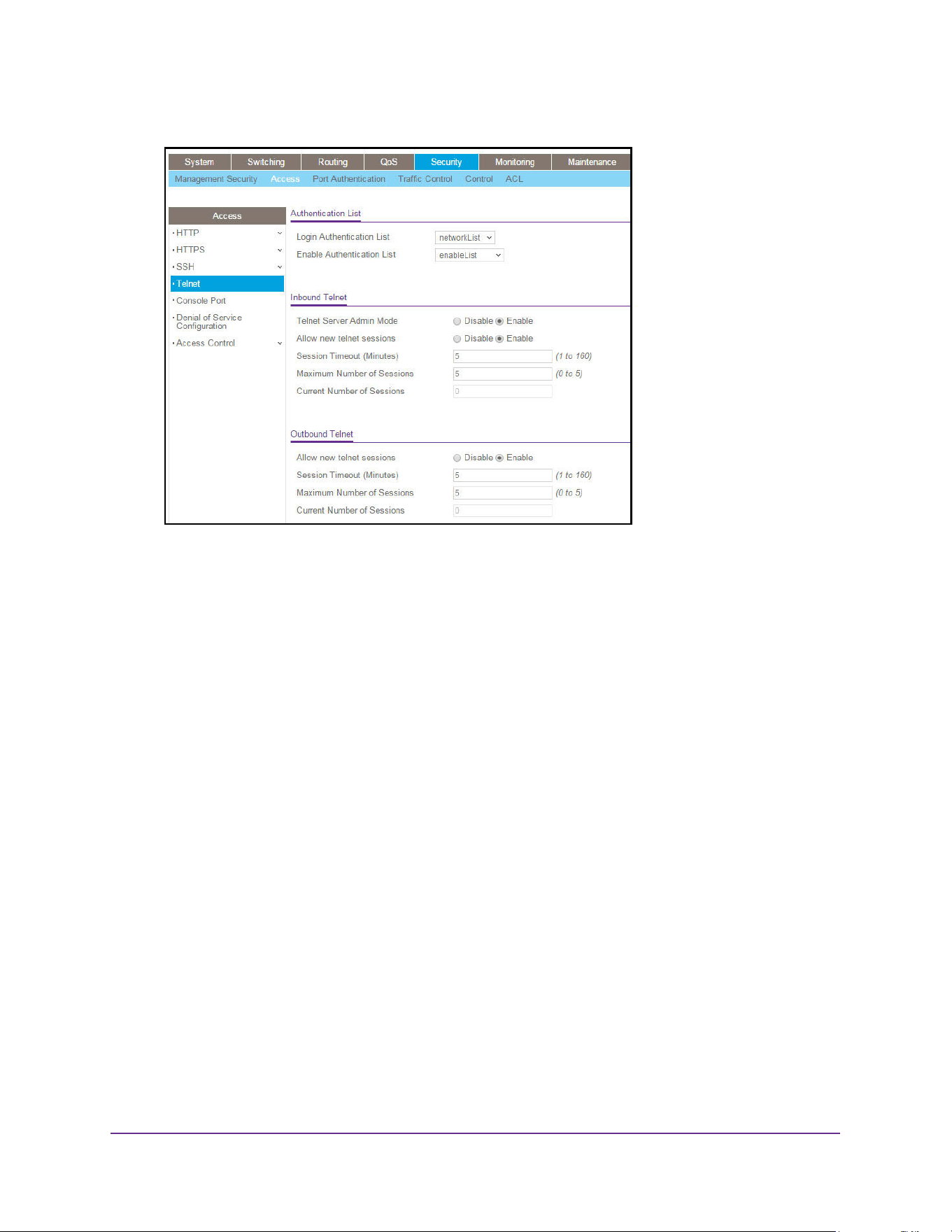
Manage Device Security
516
M4200 and M4300 Series ProSAFE Managed Switches Web Management User Manual
6. From the Login Authentication List menu, select which authentication list must be used to
log in through Telnet.
The default value is networkList.
7. From the Enable Authentication List menu, select which authentication list must be used
to log in through Telnet for the privileged EXEC mode.
The default value is enableList.
8. Click the Apply button.
The updated configuration is sent to the switch. Configuration changes take effect
immediately.
Configure Inbound Telnet
You can regulate new inbound Telnet sessions. If Allow New Telnet Sessions is enabled,
new inbound Telnet sessions can be established until there are no more sessions available.
If Allow New Telnet Sessions is disabled, no new inbound Telnet sessions are established.
An established session remains active until the session is ended or an abnormal network
error ends the session.
To configure inbound Telnet:
1. Launch a web browser.
2. Enter http://<ipaddress> in the web browser address field.
The login window opens.
3. Enter the user name and password.
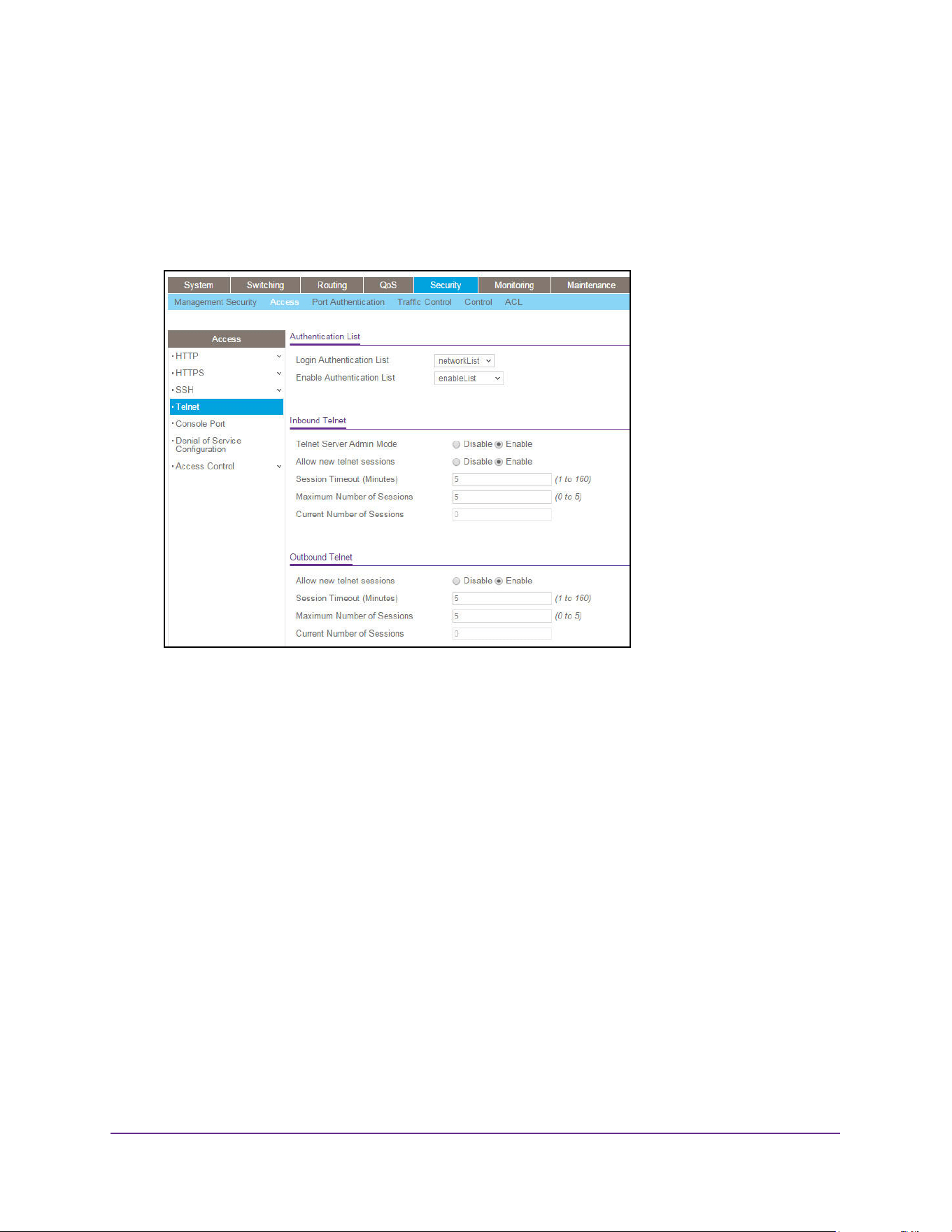
Manage Device Security
517
M4200 and M4300 Series ProSAFE Managed Switches Web Management User Manual
The default admin user name is admin and the default admin password is blank, that is,
do not enter a password.
4. Click the Login button.
The System Information page displays.
5. Select Security > Access > Telnet.
6. Next to Allow new telnet sessions, select the Disable or Enable radio button.
This specifies whether the new inbound Telnet session is enabled or disabled. The
default value is Enabled so that new inbound Telnet sessions can be established until
there are no more sessions available. If it is disabled, no new inbound Telnet sessions
are established. An established session remains active until the session is ended or an
abnormal network error ends the session.
7. In the Session Timeout field, specify how many minutes of inactivity occur on an inbound
Telnet session before the session is logged off.
You can enter any number from 1 to 160. The factory default is 5 minutes.
8. In the Maximum Number of Sessions field, specify how many simultaneous inbound
Telnet sessions are allowed.
The maximum is 5, which is also the factory default.
9. Click the Apply button.
The updated configuration is sent to the switch. Configuration changes take effect
immediately.
The Current Number of Sessions field displays the number of current inbound Telnet
sessions.
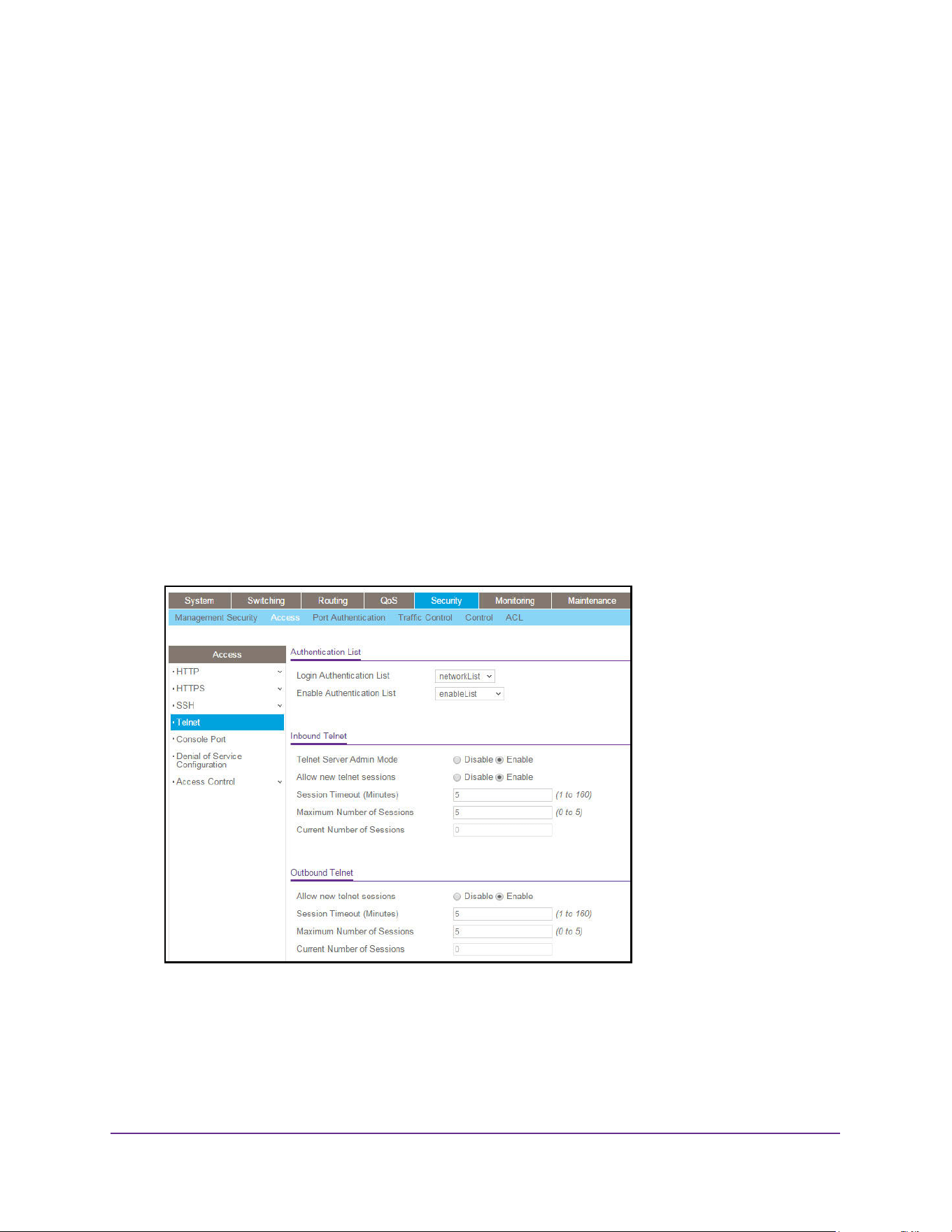
Manage Device Security
518
M4200 and M4300 Series ProSAFE Managed Switches Web Management User Manual
Configure Outbound Telnet
You can regulate new outbound Telnet sessions. If Allow New Telnet Sessions is enabled,
new outbound Telnet sessions can be established until there are no more sessions available.
If Allow New Telnet Sessions is disabled, no new outbound Telnet sessions are established.
An established session remains active until the session is ended or an abnormal network
error ends the session.
To configure outbound Telnet:
1. Launch a web browser.
2. Enter http://<ipaddress> in the web browser address field.
The login window opens.
3. Enter the user name and password.
The default admin user name is admin and the default admin password is blank, that is,
do not enter a password.
4. Click the Login button.
The System Information page displays.
5. Select Security > Access > Telnet.
6. Next to Allow new telnet sessions, select the Disable or Enable radio button.
This specifies whether the new outbound Telnet session is enabled or disabled. The
default value is Enabled so that new outbound Telnet sessions can be established until
there are no more sessions available. If it is disabled, no new outbound Telnet sessions
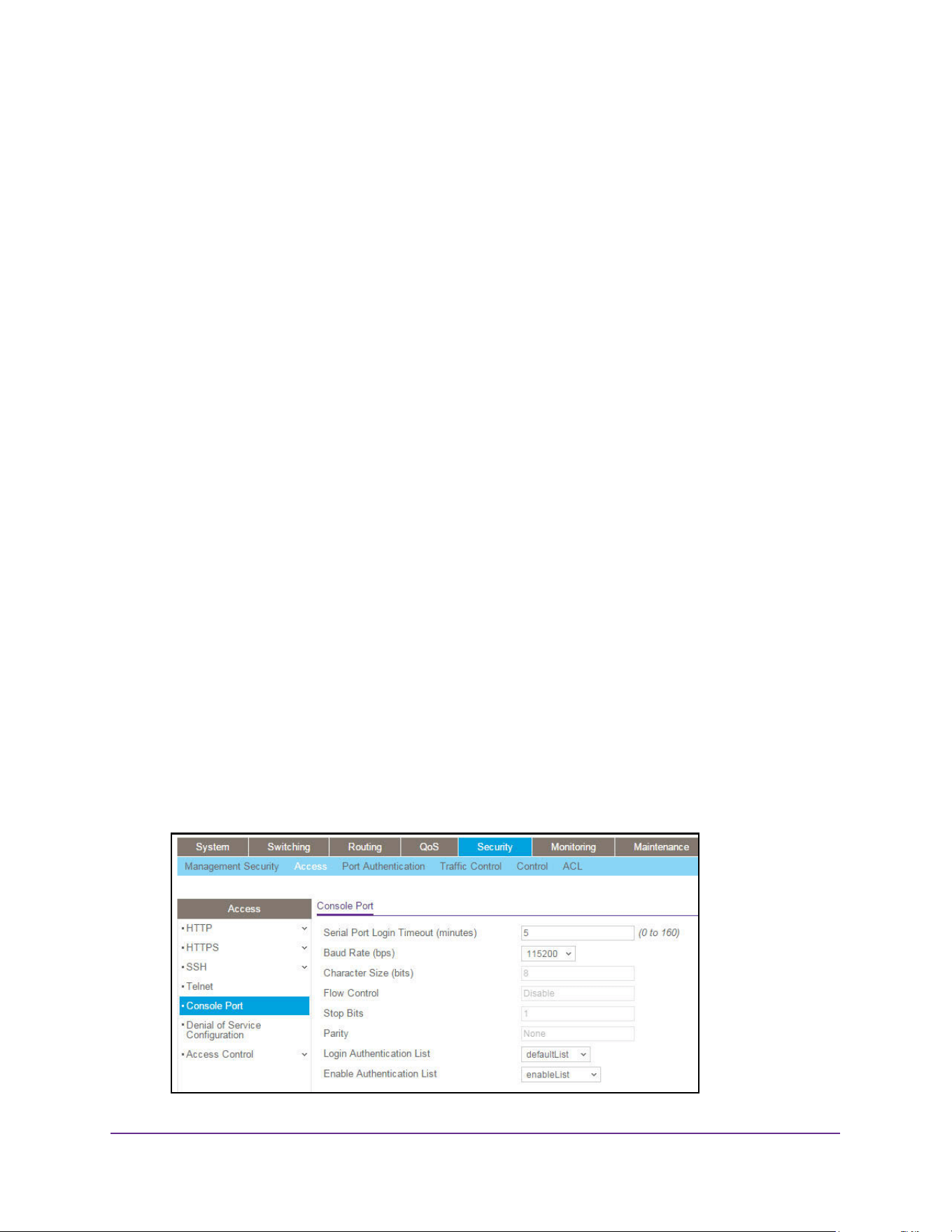
Manage Device Security
519
M4200 and M4300 Series ProSAFE Managed Switches Web Management User Manual
are established. An established session remains active until the session is ended or an
abnormal network error ends the session.
7. In the Session Timeout field, specify how many minutes of inactivity occur on an inbound
Telnet session before the session is logged off.
You can enter any number from 1 to 160. The factory default is 5 minutes.
8. In the Maximum Number of Sessions field, specify how many simultaneous inbound
Telnet sessions are allowed.
The maximum is 5, which is also the factory default.
9. Click the Apply button.
The updated configuration is sent to the switch. Configuration changes take effect
immediately.
The Current Number of Sessions field displays the number of current outbound Telnet
sessions.
Configure Console Port Access
To configure the console port:
1. Launch a web browser.
2. Enter http://<ipaddress> in the web browser address field.
The login window opens.
3. Enter the user name and password.
The default admin user name is admin and the default admin password is blank, that is,
do not enter a password.
4. Click the Login button.
The System Information page displays.
5. Select Security > Access > Console Port.
Manage Device Security
520
M4200 and M4300 Series ProSAFE Managed Switches Web Management User Manual
6. In the Serial Port Login Timeout (minutes) field, specify how many minutes of inactivity
occur on a serial port connection before the switch closes the connection.
Enter a number between 0 and 160. The factory default is 5. Entering 0 disables the
time-out.
7. In the Baud Rate (bps) list, select the default baud rate for the serial port connection.
You can choose from 1200, 2400, 4800, 9600, 19200, 38400, 57600, and 115200 baud.
The factory default is 115200 baud.
8. In the Login Authentication List list, select which authentication list to use when you log in
through Telnet.
The default value is defaultList.
9. In the Enable Authentication List list, select which authentication list to use when going
into the privileged EXEC mode.
The default value is enableList.
10. Click the Apply button.
The updated configuration is sent to the switch. Configuration changes take effect
immediately.
The following table describes the nonconfigurable data that is displayed.
Configure Denial of Service Settings
To configure Denial of Service settings:
1. Launch a web browser.
2. Enter http://<ipaddress> in the web browser address field.
The login window opens.
3. Enter the user name and password.
The default admin user name is admin and the default admin password is blank, that is,
do not enter a password.
4. Click the Login button.
Table 194. Console Port
Field Description
Character Size (bits) The number of bits in a character. This is always 8.
Flow Control Whether hardware flow control is enabled or disabled. It is always
disabled.
Stop Bits The number of stop bits per character. It is always 1.
Parity The parity method used on the serial port. It is always None.
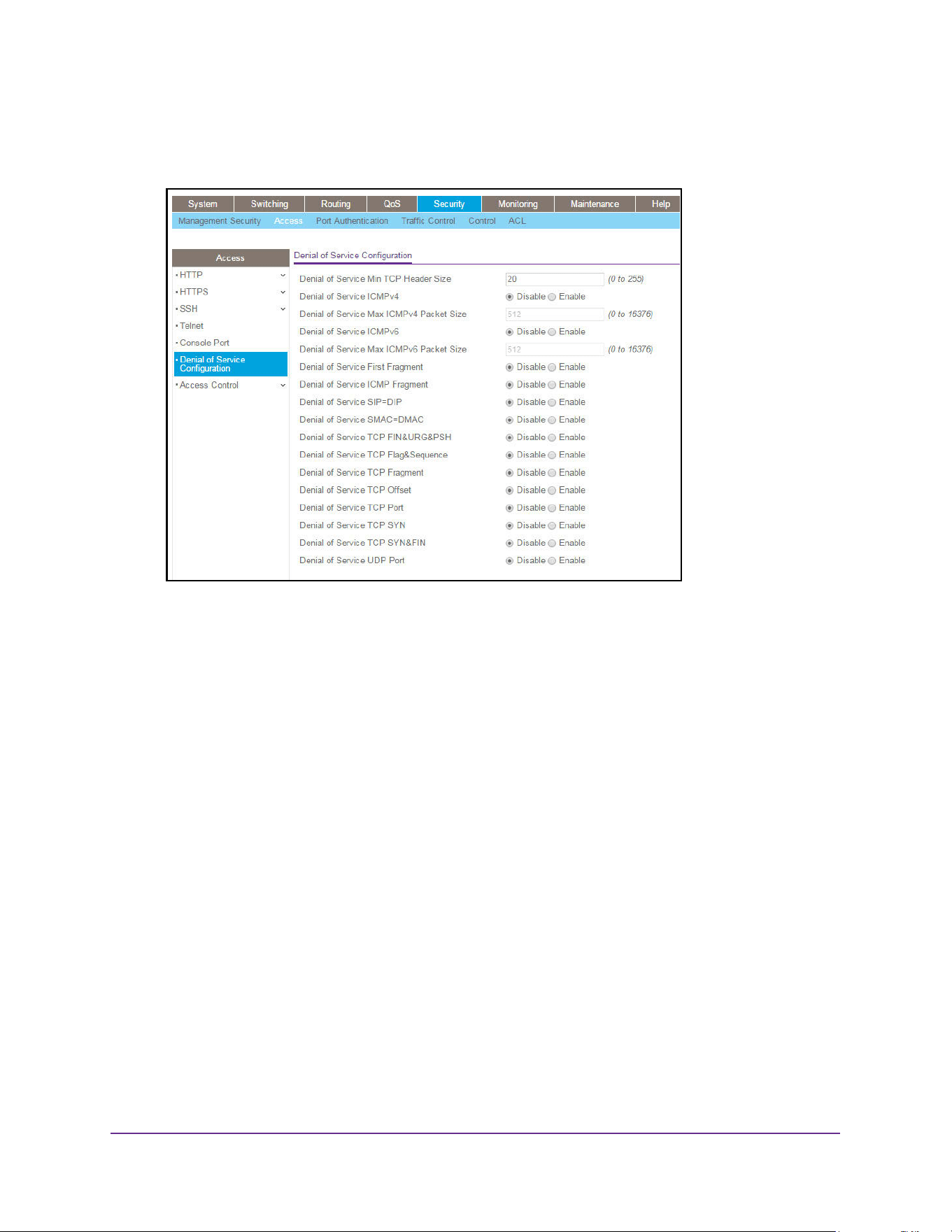
Manage Device Security
521
M4200 and M4300 Series ProSAFE Managed Switches Web Management User Manual
The System Information page displays.
5. Select Security > Access > Denial of Service Configuration.
6. In the Denial of Service Min TCP Header Size field, specify the minimum TCP header size
allowed.
If DoS TCP Fragment is enabled, the switch drops these packets:
• First TCP fragments with a TCP payload: IP_Payload_Length - IP_Header_Size <
Min_TCP_Header_Size.
• Its range is 0 to 255. The default value is 20.
7. Select the Denial of Service ICMPv4 Disable or Enable radio button.
Enabling ICMPv4 DoS prevention causes the switch to drop ICMPv4 packets with a type
set to ECHO_REQ (ping) and a size greater than the configured ICMPv4 packet size.
The factory default is Disable.
8. Specify the Denial of Service Max ICMPv4 Packet Size.
This is the maximum ICMPv4 Pkt Size allowed. If ICMPv4 DoS prevention is enabled, the
switch drops IPv4 ICMP ping packets with a size greater than the configured Max
ICMPv4 packet size. Its range is 0 to 16376. The default value is 512.
9. Use Denial of Service ICMPv6 to enable ICMPv6 DoS prevention.
This causes the switch to drop ICMPv6 packets with a type set to ECHO_REQ (ping) and
a size greater than the configured ICMPv6 Pkt Size. The factory default is Disable.
10. Use Denial of Service Max ICMPv6 Packet Size to specify the maximum IPv6 ICMP
packet size allowed.

Manage Device Security
522
M4200 and M4300 Series ProSAFE Managed Switches Web Management User Manual
If ICMPv6 DoS prevention is enabled, the switch drops IPv6 ICMP ping packets with a
size greater than the configured maximum ICMPv6 packet size. Its range is 0 to 16376.
The default value is 512.
11. Select the Denial of Service First Fragment Disable or Enable radio button.
This enables First Fragment DoS prevention, which causes the switch to check DoS
options on first fragment IP packets when switch are receiving fragmented IP packets.
Otherwise, switch ignores the first fragment IP packages.The factory default is Disable.
12. Select the Denial of Service ICMP Fragment Disable or Enable radio button.
Enabling ICMP Fragment DoS prevention causes the switch to drop ICMP Fragmented
packets. The factory default is Disable.
13. Select the Denial of Service SIP=DIP Disable or Enable radio button.
Enable SIP=DIP DoS prevention causes the switch to drop packets with a source IP
address equal to the destination IP address. The factory default is Disable.
14. Select the Denial of Service SMAC=DMAC Disable or Enable radio button.
Enabling SMAC=DMAC DoS prevention causes the switch to drop packets with a source
MAC address equal to the destination MAC address. The factory default is Disable.
15. Select the Denial of Service TCP FIN&URG&PSH Disable or Enable radio button.
Enabling TCP FIN & URG & PSH DoS prevention causes the switch to drop packets with
TCP Flags FIN, URG, and PSH set and TCP Sequence Number=0. The factory default is
Disable.
16. Select the Denial of Service TCP Flag&Sequence Disable or Enable radio button.
Enabling TCP Flag DoS prevention causes the switch to drop packets with TCP control
flags set to 0 and TCP sequence number set to 0. The factory default is Disable.
17. Select the Denial of Service TCP Fragment Disable or Enable radio button.
Enabling TCP Fragment DoS prevention causes the switch to drop packets as follows:
First TCP fragments with a TCP payload: IP_Payload_Length - IP_Header_Size <
Min_TCP_Header_Size.
The factory default is Disable.
18. Select the Denial of Service TCP Offset Disable or Enable radio button.
Enabling TCP Offset DoS prevention causes the switch to drop packets with a TCP
header Offset=1. The factory default is Disable.
19. Select the Denial of Service TCP Port Disable or Enable radio button.
Enabling TCP Port DoS prevention causes the switch to drop packets with TCP source
port equal to TCP destination port. The factory default is Disable.
20. Select the Denial of Service TCP SYN Disable or Enable radio button.
Enabling
TCP SYN DoS prevention causes the switch to drop packets with
TCP flags
SYN set. The factory default is Disable.

Manage Device Security
523
M4200 and M4300 Series ProSAFE Managed Switches Web Management User Manual
21. Select the Denial of Service TCP SYN & FIN Disable or Enable radio button.
Enabling TCP SYN & FIN DoS prevention causes the switch to drop packets with TCP
flags SYN and FIN set. The factory default is Disable.
22. Select the Denial of Service UDP Port Disable or Enable radio button.
Enabling UDP Port DoS prevention causes the switch to drop packets with UDP source
port equal to UDP destination port. The factory default is Disable.
23. Click the Apply button.
The updated configuration is sent to the switch. Configuration changes take effect
immediately.
Configure Access Control Settings
You can configure an access control profile and associate an access control rule with the
profile. The switch supports one access control profile only.
To complete set up a profile with a rule, follow the procedures that are described in the
following sections:
1. Configure an Access Control Profile on page 523
2. Configure Access Rule Settings for the Access Control Profile on page 525
Configure an Access Control Profile
To configure the access profile settings:
1. Launch a web browser.
2. Enter http://<ipaddress> in the web browser address field.
The login window opens.
3. Enter the user name and password.
The default admin user name is admin and the default admin password is blank, that is,
do not enter a password.
4. Click the Login button.
The System Information page displays.
5. Select Security > Access > Access Control > Access Profile Configuration.
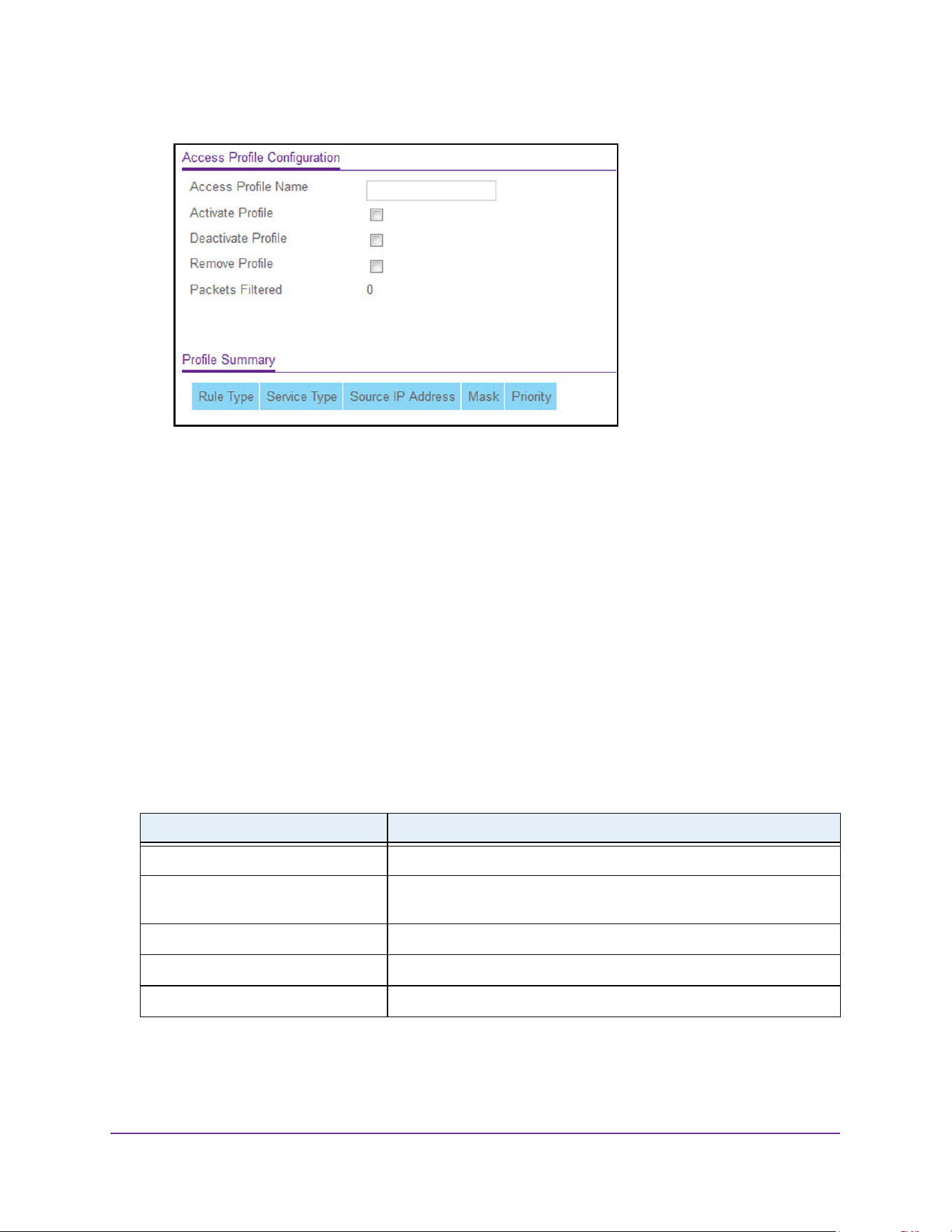
Manage Device Security
524
M4200 and M4300 Series ProSAFE Managed Switches Web Management User Manual
6. In the Access Profile Name field, enter the name of the access profile to be added.
The maximum length is 32 characters.
7. Take one of the following actions:
• To activate an access profile, select the Activate Profile check box.
• To deactivate an access profile, select the Deactivate Profile check box.
• To remove an access profile, select the Remove Profile check box.
We recommend that you deactivate the access profile before removing it.
8. Click the Apply button.
The updated configuration is sent to the switch. Configuration changes take effect
immediately.
The Packets Filtered field displays the number of packets filtered.
The following table describes the nonconfigurable data that is displayed.
Table 195. Access Profile Configuration Profile Summary
Field Description
Rule Type The action performed when the rules are matched.
Service Type The service type chosen. The policy is restricted by the service type
chosen.
Source IP Address Source IP address of the client originating the management traffic.
Mask The subnet mask of the IP Address.
Priority The priority of the rule.
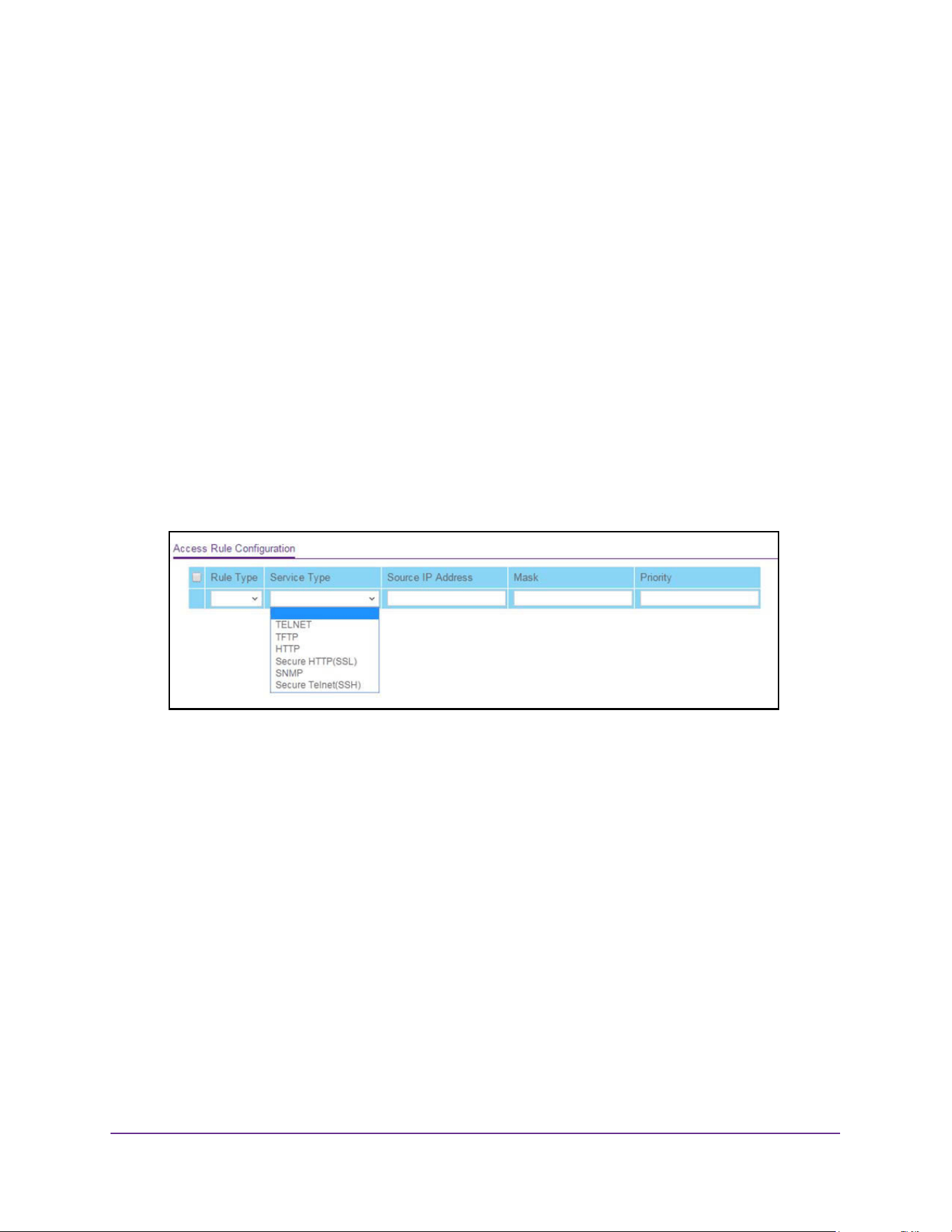
Manage Device Security
525
M4200 and M4300 Series ProSAFE Managed Switches Web Management User Manual
Configure Access Rule Settings for the Access Control Profile
After you set up an access control profile, you can configure and apply an access control
rules. However, to do this, the access control profile must be in a deactivated state. AFter you
added the access control rule, you can reactivate the access control profile.
To configure the access rule settings:
1. Launch a web browser.
2. Enter http://<ipaddress> in the web browser address field.
The login window opens.
3. Enter the user name and password.
The default admin user name is admin and the default admin password is blank, that is,
do not enter a password.
4. Click the Login button.
The System Information page displays.
5. Select Security > Access > Access Control > Access Rule Configuration.
6. From the Rule Type menu, select whether the traffic is permitted (Permit) or denied (Deny)
when the a rule match occurs.
7. From the Service Type menu, select the management method to which the policy is
restricted:
• TELNET
• TFTP
• HTTP
• Secure HTTP (SSL)
• SNMP
• Secure Telnet (SSH)
8. In the Source IP Address field, enter the source IP address, that is, the IP address from
which management traffic originates.
9. In Mask field, enter the mask for the source IP address.
10. From the Priority menu, select the priority for the rule.

Manage Device Security
526
M4200 and M4300 Series ProSAFE Managed Switches Web Management User Manual
The rules are validated against the incoming management request in ascending order of
their priorities. If a rule matches, the action is performed and subsequent rules below that
are ignored. For example, if a source IP 10.10.10.10 is configured with priority 1 to permit,
and source IP 10.10.10.10 is configured with priority 2 to deny, then access is permitted if
the profile is active, and the second rule is ignored.
11. Click the Add button.
The access rule is added.
12. To add another rule, repeat Step 6 through Step 11.
13. Click the Apply button.
The updated configuration is sent to the switch. Configuration changes take effect
immediately.
Manage Port Authentication
In port-based authentication, when 802.1X is enabled globally and on the port, successful
authentication of any one supplicant attached to the port results in all users being able to use
the port without restrictions. At any given time, only one supplicant is allowed to attempt
authentication on a port in this mode. Ports in this mode are under bidirectional control. This
is the default authentication mode.
The 802.1X network has three components:
• Authenticators. The port that is authenticated before permitting system access.
• Supplicants. The host connected to the authenticated port requesting access to the
system services.
• Authentication Server. The external server, for example, the RADIUS server that
performs the authentication on behalf of the authenticator, and indicates whether the user
is authorized to access system services.
Configure Global 802.1X Settings
To configure global 802.1X settings:
1. Launch a web browser.
2. Enter http://<ipaddress> in the web browser address field.
The login window opens.
3. Enter the user name and password.
The default admin user name is admin and the default admin password is blank, that is,
do not enter a password.
4. Click the Login button.
The System Information page displays.
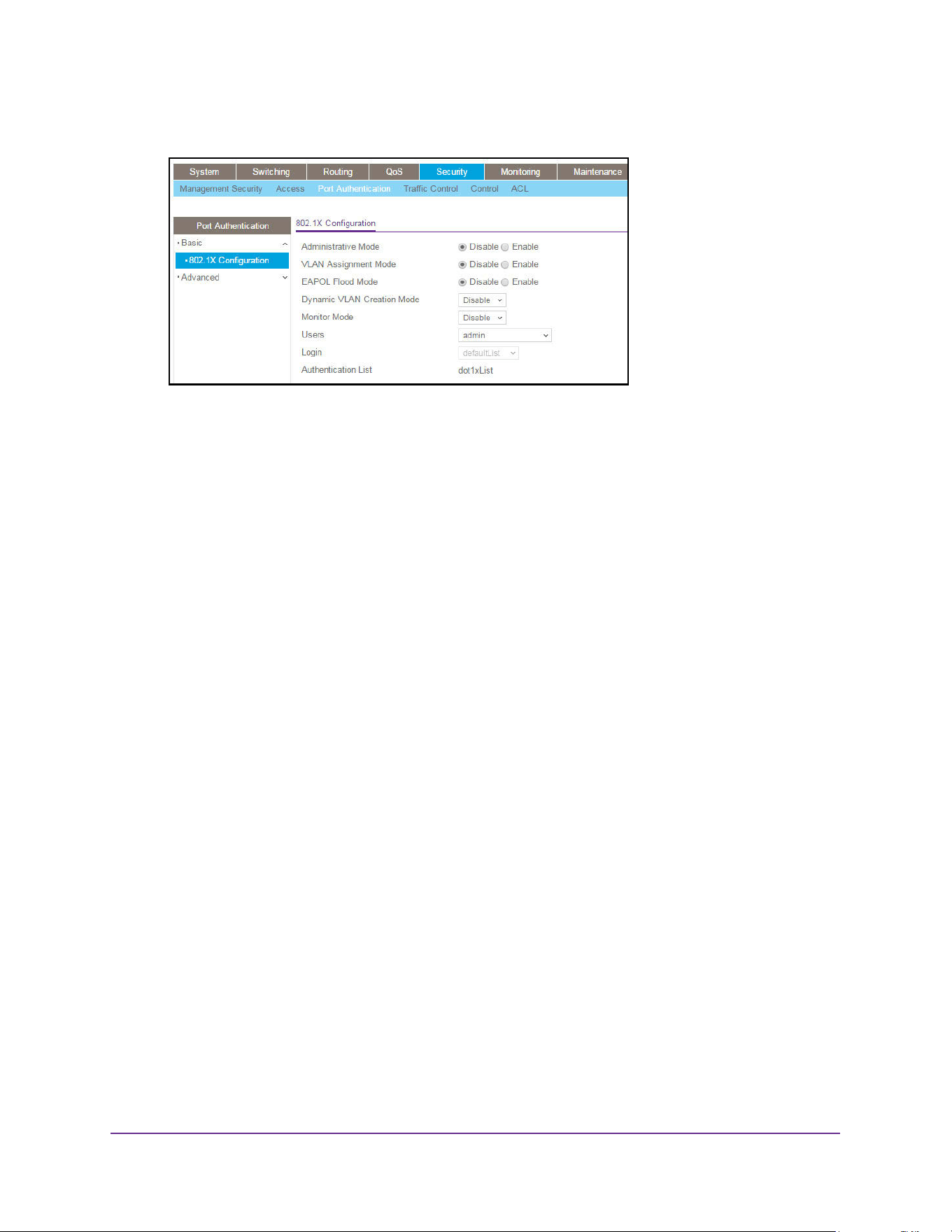
Manage Device Security
527
M4200 and M4300 Series ProSAFE Managed Switches Web Management User Manual
5. Select Security > Port Authentication > Basic > 802.1X Configuration.
6. Select the Administrative Mode Disable or Enable radio button.
This enables or disables 802.1X administrative mode on the switch.
• Enable. Port-based authentication is permitted on the switch.
If 802.1X is enabled, authentication is performed by a RADIUS server. This means
the primary authentication method must be RADIUS. To set the method, select
Security > Management Security > Authentication List and select RADIUS as
method 1 for defaultList. For more information, see Configure a Login Authentication
List on page 497.
• Disable. The switch does not check for 802.1X authentication before allowing traffic
on any ports, even if the ports are configured to allow only authenticated users.
Default value.
7. Select the VLAN Assignment Mode Disable or Enable radio button.
The default value is Disable.
8. Select the EAPOL Flood Mode Disable or Enable radio button.
The default value is Disable.
9. Use Dynamic VLAN Creation Mode to select Disable or Enable.
The default value is Disable.
10. Use Monitor Mode to select Disable or Enable.
The default value is Disable. The feature monitors the dot1x authentication process and
helps in diagnosis of the authentication failure cases.
11. Use Users to select the user name for the selected login list for 802.1x port security.
12. Use Login to select the login list to apply to the specified user.
All configured login lists are displayed. The Authentication List field displays the
authentication list that is used by 802.1X.
13. Click the Apply button.
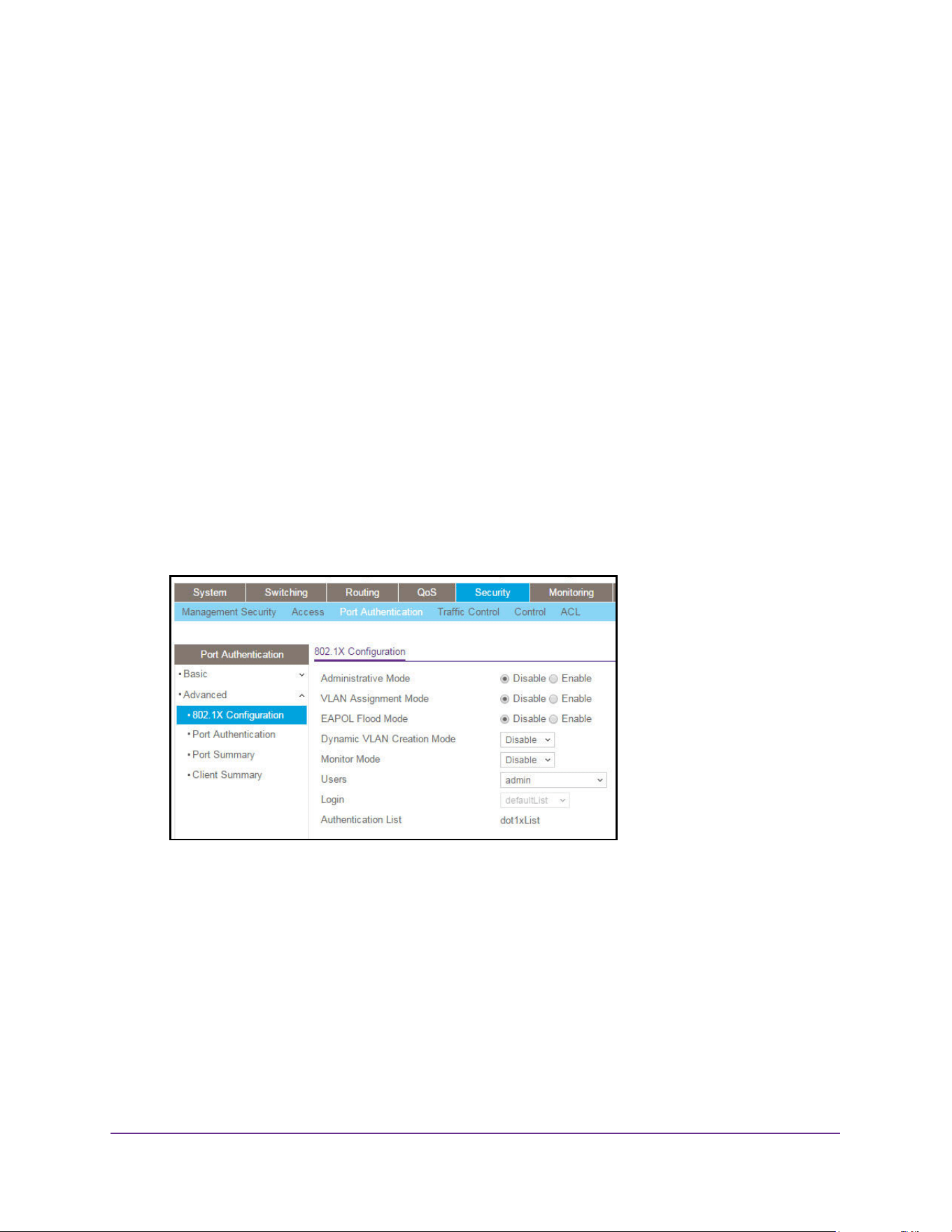
Manage Device Security
528
M4200 and M4300 Series ProSAFE Managed Switches Web Management User Manual
The updated configuration is sent to the switch. Configuration changes take effect
immediately.
Configure 802.1X Settings
You can enable or disable 802.1X access control on the system.
To configure 802.1X settings:
1. Launch a web browser.
2. Enter http://<ipaddress> in the web browser address field.
The login window opens.
3. Enter the user name and password.
The default admin user name is admin and the default admin password is blank, that is,
do not enter a password.
4. Click the Login button.
The System Information page displays.
5. Select Security > Port Authentication > Advanced > 802.1X Configuration.
6. Select the Administrative Mode Disable or Enable radio button.
The default value is Disable.
7. Select the VLAN Assignment Mode Disable or Enable radio button.
The default value is Disable.
8. Select the EAPOL Flood Mode Disable or Enable radio button.
The default value is Disable.
9. Use Dynamic VLAN Creation Mode to select Disable or Enable.
The default value is Disable.
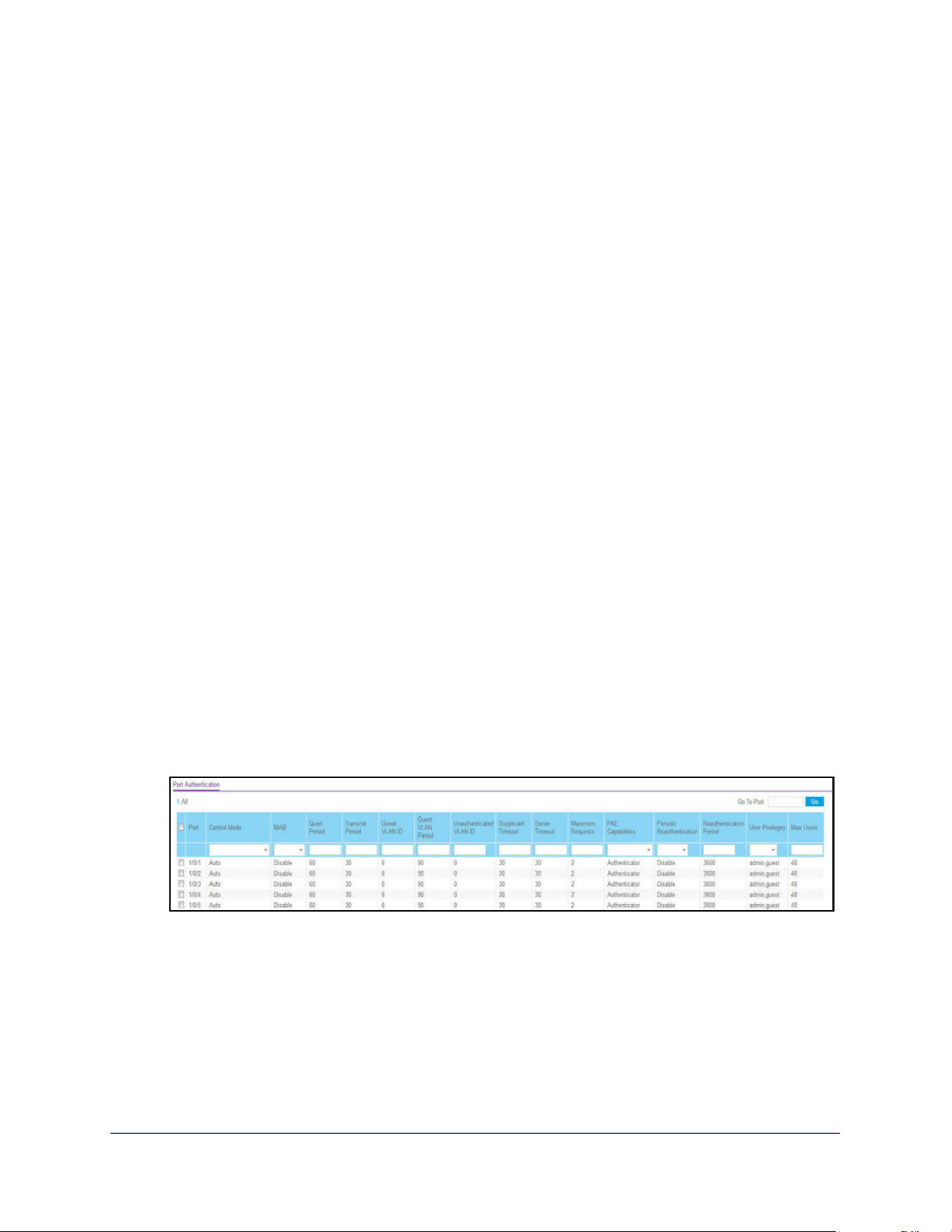
Manage Device Security
529
M4200 and M4300 Series ProSAFE Managed Switches Web Management User Manual
10. Use Monitor Mode to select Disable or Enable.
The default value is Disable. The feature monitors the dot1x authentication process and
helps in diagnosis of the authentication failure cases.
11. Use Users to select the user name for the selected login list for 802.1x port security.
12. Use Login to select the login list to apply to the specified user.
All configured login lists are displayed. The Authentication List field displays the list that
is used by 802.1X.
13. Click the Apply button.
The updated configuration is sent to the switch. Configuration changes take effect
immediately.
Configure Port Authentication
You can enable and configure port access control on one or more ports.
To configure 802.1X settings for the port:
1. Launch a web browser.
2. Enter http://<ipaddress> in the web browser address field.
The login window opens.
3. Enter the user name and password.
The default admin user name is admin and the default admin password is blank, that is,
do not enter a password.
4. Click the Login button.
The System Information page displays.
5. Select Security > Port Authentication > Advanced > Port Authentication.
Note: Move the horizontal scroll bar at the bottom of the page to view more fields.
6. Select the check box next to the port to configure.
You can also select multiple check boxes to apply the same settings to the selected
ports, or select the check box in the heading row to apply the same settings to all ports.

Manage Device Security
530
M4200 and M4300 Series ProSAFE Managed Switches Web Management User Manual
7. For the selected ports, specify the following settings:
• Control Mode. Select an option for the control mode. The control mode is set only if
the link status of the port is Link Up. The options are as follows:
- Force unauthorized. The authenticator port access entity (PAE) unconditionally
sets the controlled port to unauthorized.
- Force authorized. The authenticator PAE unconditionally sets the controlled port
to authorized.
- Auto. The authenticator PAE sets the controlled port mode to reflect the outcome
of the authentication exchanges between the supplicant, authenticator, and the
authentication server.
- MAC Based. The authenticator PAE sets the controlled port mode to reflect the
outcome of the authentication exchanges between the supplicant, authenticator,
and the authentication server on a per supplicant basis.
- N/A. The control mode is not applicable.
• Use MAB to enable or disable MAC-based. The default selection is Disable. The
authenticator PAE sets the controlled port mode to reflect the outcome of the
authentication exchanges between the supplicant, authenticator, and the
authentication server on a per-supplicant basis.
• Quiet Period. This input field allows you to configure the quiet period for the selected
port. This command sets the value in seconds of the timer used by the authenticator
state machine on this port to define periods of time in which it does not attempt to
acquire a supplicant. The quiet period is the period for which the authenticator does
not attempt to acquire a supplicant after a failed authentication exchange with the
supplicant. The quiet period must be a number in the range of 0 and 65535. A quiet
period value of 0 means that the authenticator state machine never acquires a
supplicant. The default value is 60. Changing the value does not change the
configuration until you click the Apply button.
• Transmit Period. This input field allows you to configure the transmit period for the
selected port. The transmit period is the value, in seconds, of the timer used by the
authenticator state machine on the specified port to determine when to send an
EAPOL EAP request/identity frame to the supplicant. The transmit period must be a
number in the range of 1 and 65535. The default value is 30. Changing the value
does not change the configuration until the Apply button is clicked.
• GuestVLAN ID. This field allows you to configure guest VLAN ID on the interface. The
valid range is 0–4093.The default value is 0. Changing the value does not change the
configuration until the Apply button is clicked. Enter 0 to clear the guest VLAN ID on
the interface.
• Guest VLAN Period. This input field allows the user to enter the guest VLAN period
for the selected port. The guest VLAN period is the value, in seconds, of the timer for
guest VLAN authentication. The guest VLAN time-out must be a value from 1 to 300.
The default value is 90. Changing the value does not change the configuration until
the Apply button is clicked.
• Unauthenticated VLAN ID. Enter the unauthenticated VLAN ID for the selected port.
The valid range is 0–4093.The default value is 0. Changing the value does not

Manage Device Security
531
M4200 and M4300 Series ProSAFE Managed Switches Web Management User Manual
change the configuration until the Apply button is clicked. Enter 0 to clear the
unauthenticated VLAN ID on the interface.
• Supplicant Timeout. Enter the supplicant time-out for the selected port. The
supplicant time-out is the value, in seconds, of the timer used by the authenticator
state machine on this port to time-out the supplicant. The supplicant time-out must be
in the range of 1 to 65535. The default value is 30. Changing the value does not
change the configuration until the Apply button is clicked.
• Server Timeout. Enter the server time-out for the selected port. The server time-out is
the value, in seconds, of the timer used by the authenticator on this port to time-out
the authentication server. The server time-out must be in the range of 1 to 65535. The
default value is 30. Changing the value does not change the configuration until the
Apply button is clicked.
• Maximum Requests. Enter the maximum requests for the selected port. The
maximum requests value is the maximum number of times the authenticator state
machine on this port retransmits an EAPOL EAP request/identity before timing out
the supplicant. The maximum requests value must be in the range of 1 to 10. The
default value is 2. Changing the value does not change the configuration until the
Apply button is clicked.
• PAE Capabilities. Select the port access entity (PAE) functionality of the selected
port. Possible values are Authenticator or Supplicant.
• Periodic Reauthentication. Enable or disable reauthentication of the supplicant for
the specified port. The selectable values are Enable or Disable. If the value is Enable,
reauthentication occurs. Otherwise, reauthentication is not allowed. The default value
is Disable. Changing the selection does not change the configuration until the Apply
button is clicked.
• Reauthentication Period. Enter the reauthentication period for the selected port. The
reauthentication period is the value, in seconds, of the timer for the authenticator
state machine on this port to determine when reauthentication of the supplicant takes
place. The reauthentication period must be a value in the range of 1 to 65535. The
default value is 3600. Changing the value does not change the configuration until the
Apply button is clicked.
• User Privileges. Add the specified user to the list of users with access to the specified
port or all ports.
• Max Users. Enter the limit to the number of supplicants on the specified interface.
8. To begin the initialization sequence on the selected port, click the Initialize button.
The initialization sequence begins.
You can click this button only if the control mode is auto. If the button is not available, it is
grayed out. Once this button is clicked, the action is immediate. You do not need to click
the Apply button for the action to occur.
9. Click the Reauthentication button.
The reauthentication sequence begins on the selected port.
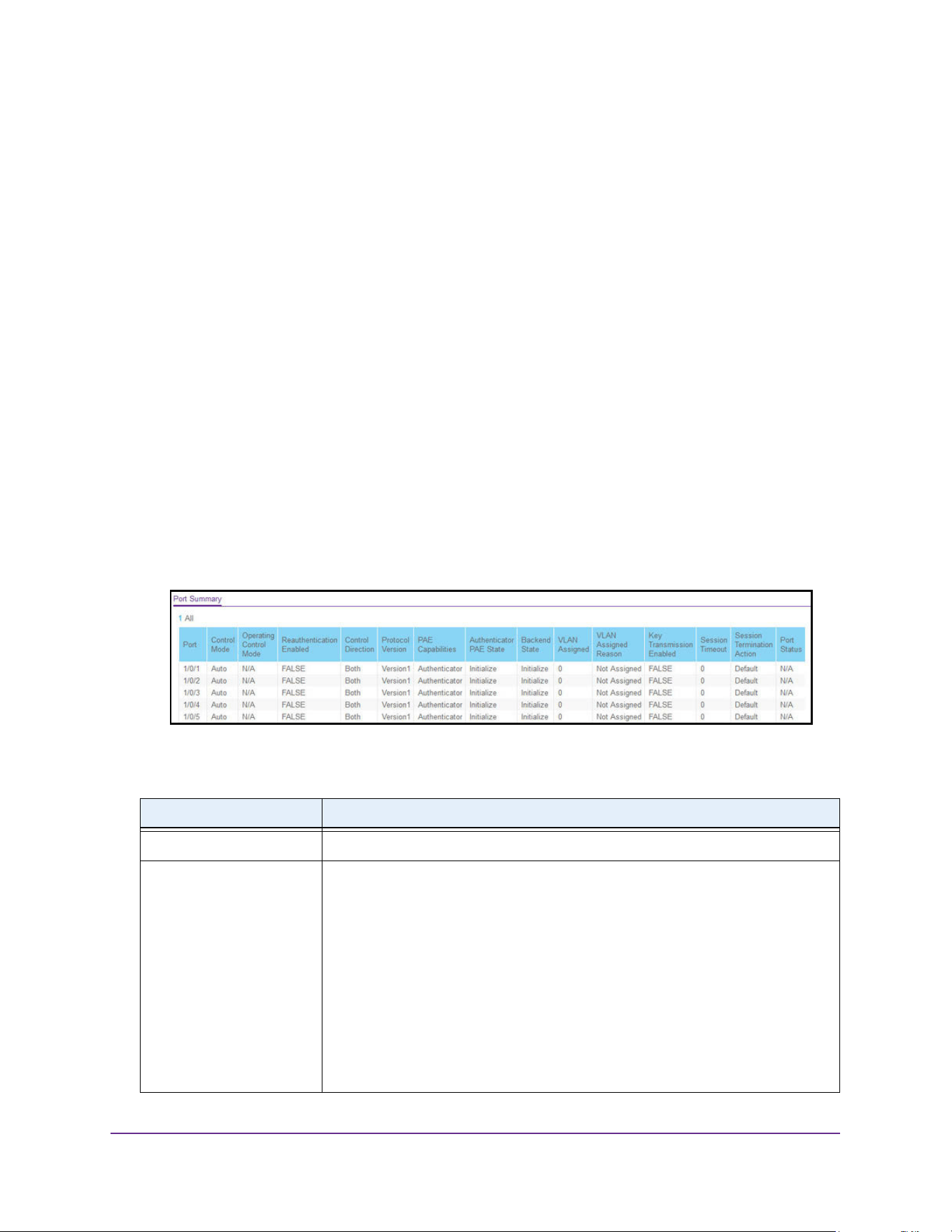
Manage Device Security
532
M4200 and M4300 Series ProSAFE Managed Switches Web Management User Manual
You can click this button only if the control mode is auto. If the button is not available, it is
grayed out. Once you click this button, the action is immediate. You do not need to click
the Apply button for the action to occur.
View the Port Summary
You can view information about the port access control settings on a specific port.
To view the port summary:
1. Launch a web browser.
2. Enter http://<ipaddress> in the web browser address field.
The login window opens.
3. Enter the user name and password.
The default admin user name is admin and the default admin password is blank, that is,
do not enter a password.
4. Click the Login button.
The System Information page displays.
5. Select Security > Port Authentication > Advanced > Port Summary.
The following table describes the fields on the Port Summary page.
Table 196. Port Summary
Field Description
Port The port whose settings are displayed in the current table row.
Control Mode This field indicates the configured control mode for the port. Possible values are as
follows:
• Force Unauthorized. The authenticator port access entity (PAE)
unconditionally sets the controlled port to unauthorized.
• Force Authorized. The authenticator PAE unconditionally sets the controlled
port to authorized.
• Auto. The authenticator PAE sets the controlled port mode to reflect the
outcome of the authentication exchanges between the supplicant,
authenticator, and the authentication server.
• MAC Based. The authenticator PAE sets the controlled port mode to reflect
the outcome of authentication exchanges between a supplicant, an
authenticator, and an authentication server on a per supplicant basis.

Manage Device Security
533
M4200 and M4300 Series ProSAFE Managed Switches Web Management User Manual
Operating Control Mode The control mode under which the port is actually operating. Possible values are
as follows:
• ForceUnauthorized
• ForceAuthorized
• Auto
• MAC Based
• N/A: If the port is in detached state, it cannot participate in port access control.
Reauthentication Enabled This field shows whether reauthentication of the supplicant for the specified port is
allowed. The possible values are True and False. If the value is True,
reauthentication occurs. Otherwise, reauthentication is not allowed.
Control Direction The control direction for the specified port. The control direction dictates the
degree to which protocol exchanges take place between supplicant and
authenticator. This affects whether the unauthorized controlled port exerts control
over communication in both directions (disabling both incoming and outgoing
frames) or just in the incoming direction (disabling only the reception of incoming
frames). This field is not configurable on some platforms.
Protocol Version The protocol version associated with the selected port. The only possible value is
1, corresponding to the first version of the 802.1x specification. This field is not
configurable.
PAE Capabilities The port access entity (PAE) functionality of the selected port. Possible values are
Authenticator or Supplicant. This field is not configurable.
Authenticator PAE State The current state of the authenticator PAE state machine. Possible values are as
follows:
• Initialize
• Disconnected
• Connecting
• Authenticating
• Authenticated
• Aborting
• Held
• ForceAuthorized
• ForceUnauthorized
Backend State The current state of the backend authentication state machine. Possible values are
as follows:
• Request
• Response
• Success
• Fail
• Timeout
• Initialize
• Idle
Table 196. Port Summary (continued)
Field Description

Manage Device Security
534
M4200 and M4300 Series ProSAFE Managed Switches Web Management User Manual
View the Client Summary
To view the client summary:
1. Launch a web browser.
2. Enter http://<ipaddress> in the web browser address field.
The login window opens.
3. Enter the user name and password.
The default admin user name is admin and the default admin password is blank, that is,
do not enter a password.
4. Click the Login button.
The System Information page displays.
VLAN Assigned The VLAN ID assigned to the selected interface by the authenticator. This field is
displayed only when the port control mode of the selected interface is not
MAC-based. This field is not configurable.
VLAN Assigned Reason The reason for the VLAN ID assigned by the authenticator to the selected
interface. This field is displayed only when the port control mode of the selected
interface is not MAC-based. This field is not configurable. Possible values are as
follows:
• Radius
• Unauth
• Default
• Not Assigned
Key Transmission Enabled This field displays if key transmission is enabled on the selected port. This is not a
configurable field. The possible values are True and False. If the value is False,
key transmission does not occur. Otherwise, key transmission is supported on the
selected port.
Session Timeout The session timeout set by the RADIUS server for the selected port. This field is
displayed only when the port control mode of the selected port is not MAC-based.
Session Termination Action The termination action set by the RADIUS server for the selected port. This field is
displayed only when the port control mode of the selected port is not MAC-based.
Possible values are as follows:
• Default
• Reauthenticate
If the termination action is set to default, then at the end of the session, the client
details are initialized. Otherwise re-authentication is attempted.
Port Status The authorization status of the specified port. The possible values are Authorized,
Unauthorized, and N/A. If the port is in detached state, the value is N/A because
the port cannot participate in port access control.
Table 196. Port Summary (continued)
Field Description
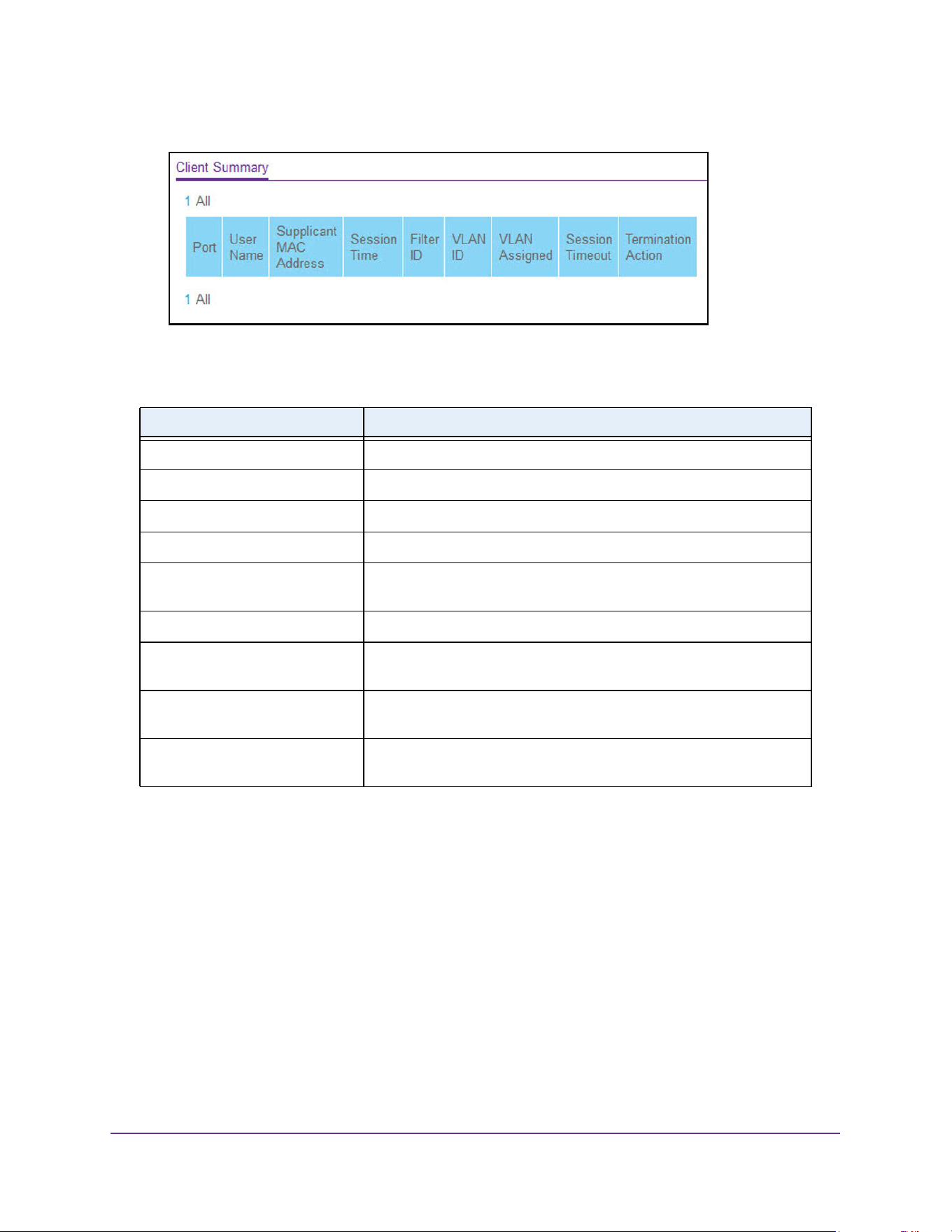
Manage Device Security
535
M4200 and M4300 Series ProSAFE Managed Switches Web Management User Manual
5. Select Security > Port Authentication > Advanced > Client Summary.
The following table describes the fields on the Client Summary page.
Control Traffic With MAC Filtering
You can configure MAC filters
Configure MAC Filtering
You can create MAC filters that limit the traffic allowed into and out of specified ports on the
system.
To configure MAC filter settings:
1. Launch a web browser.
2. Enter http://<ipaddress> in the web browser address field.
Table 197. Client Summary
Field Description
Port The port to be displayed.
User Name The user name representing the identity of the supplicant device.
Supplicant Mac Address The supplicant's device MAC address.
Session Time The time since the supplicant as logged in seconds.
Filter ID The policy filter ID assigned by the authenticator to the supplicant
device.
VLAN ID The VLAN ID assigned by the authenticator to the supplicant device.
VLAN Assigned The reason for the VLAN ID assigned by the authenticator to the
supplicant device.
Session Timeout The session time-out set by the RADIUS server to the supplicant
device.
Termination Action The termination action set by the RADIUS server to the supplicant
device.
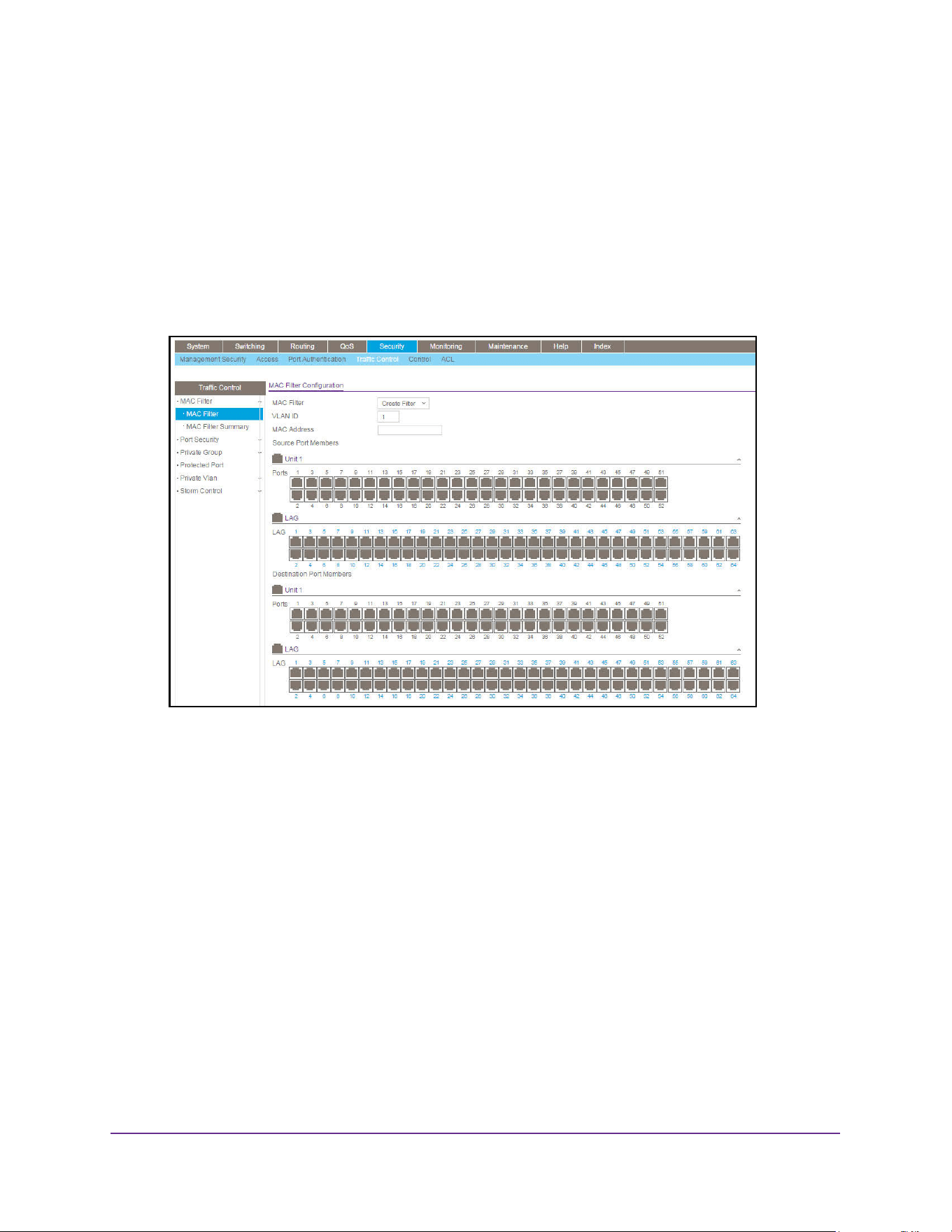
Manage Device Security
536
M4200 and M4300 Series ProSAFE Managed Switches Web Management User Manual
The login window opens.
3. Enter the user name and password.
The default admin user name is admin and the default admin password is blank, that is,
do not enter a password.
4. Click the Login button.
The System Information page displays.
5. Select Security > Traffic Control > MAC Filter.
This is the list of MAC address and VLAN ID pairings for all configured filters.
6. To change the port masks for an existing filter, select the entry.
7. To add a new filter, select Create Filter from the MAC Filter list.
8. From the VLAN ID list, select the VLAN to use with the MAC address to fully identify packets
to be filtered.
You can change this field only when Create Filter is selected from the MAC Filter list.
9. In the MAC Address field, specify the MAC address of the filter in the format
00:01:1A:B2:53:4D.
You can change this field when you select the Create Filter option.
You cannot define filters for the following MAC addresses:
• 00:00:00:00:00:00
• 01:80:C2:00:00:00 to 01:80:C2:00:00:0F
• 01:80:C2:00:00:20 to 01:80:C2:00:00:21
• FF:FF:FF:FF:FF:FF
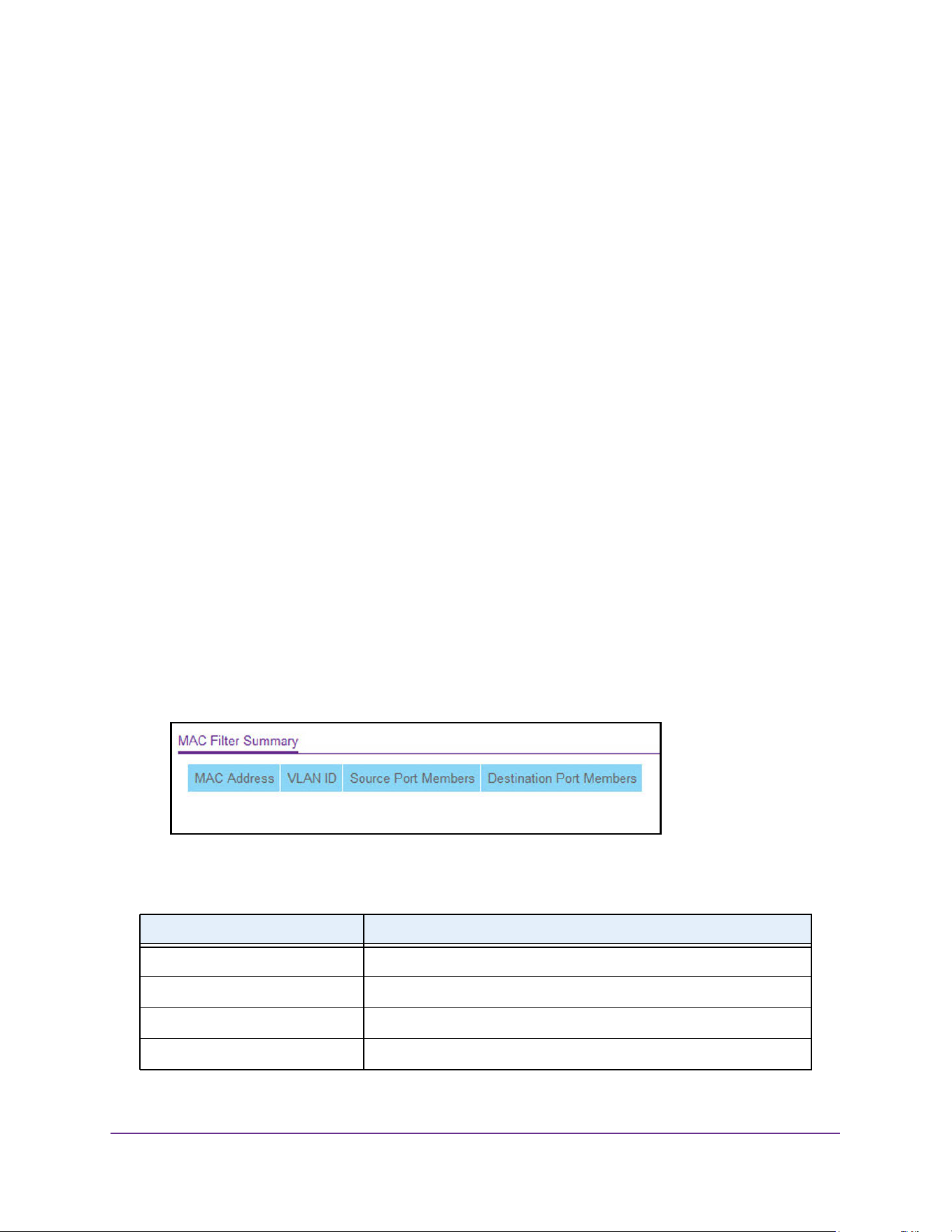
Manage Device Security
537
M4200 and M4300 Series ProSAFE Managed Switches Web Management User Manual
10. Use Source Port Members to list the ports to be included in the inbound filter.
If a packet with the MAC address and VLAN ID you selected is received on a port that is
not in the list, it is dropped.
11. Use Destination Port Members to list the ports to be included in the outbound filter.
Packets with the MAC address and VLAN ID you selected are transmitted only from ports
that are in the list. Destination ports can be included only in the multicast filter.
12. Click the Apply button.
The updated configuration is sent to the switch. Configuration changes take effect
immediately.
MAC Filter Summary
To view the MAC filter summary:
1. Launch a web browser.
2. Enter http://<ipaddress> in the web browser address field.
The login window opens.
3. Enter the user name and password.
The default admin user name is admin and the default admin password is blank, that is,
do not enter a password.
4. Click the Login button.
The System Information page displays.
5. Select Security > Traffic Control > MAC Filter > MAC Filter Summary.
The following table describes the information displayed on the page.
Table 198. MAC Filter Summary
Field Description
MAC Address The MAC address of the filter in the format 00:01:1A:B2:53:4D.
VLAN ID The VLAN ID associated with the filter.
Source Port Members A list of ports to be used for filtering inbound packets.
Destination Port Members A list of ports to be used for filtering outbound packets.
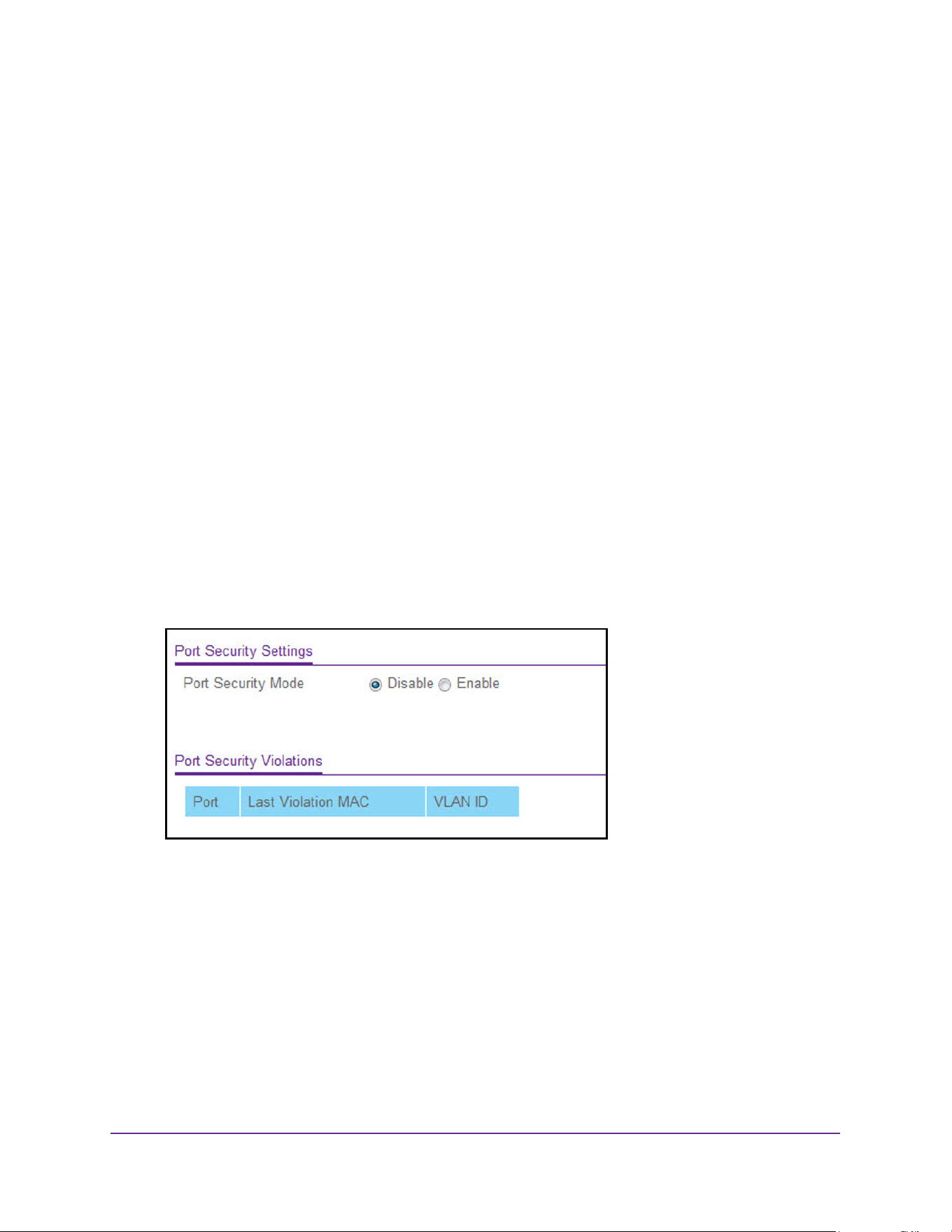
Manage Device Security
538
M4200 and M4300 Series ProSAFE Managed Switches Web Management User Manual
Configure Port Security and Private Groups
You can configure port security settings and set up port private groups.
Configure the Global Port Security Mode
You can lock one or more ports on the system. When a port is locked, only packets with an
allowable source MAC addresses can be forwarded. All other packets are discarded.
To configure the global port security mode:
1. Launch a web browser.
2. Enter http://<ipaddress> in the web browser address field.
The login window opens.
3. Enter the user name and password.
The default admin user name is admin and the default admin password is blank, that is,
do not enter a password.
4. Click the Login button.
The System Information page displays.
5. Select Security > Traffic Control > Port Security > Port Administration.
6. Select the Port Security Mode Disable or Enable radio button.
The Port Security Violations table shows information about violations that occurred on ports
that are enabled for port security. The following table describes the fields in the Port Security
Violations table.
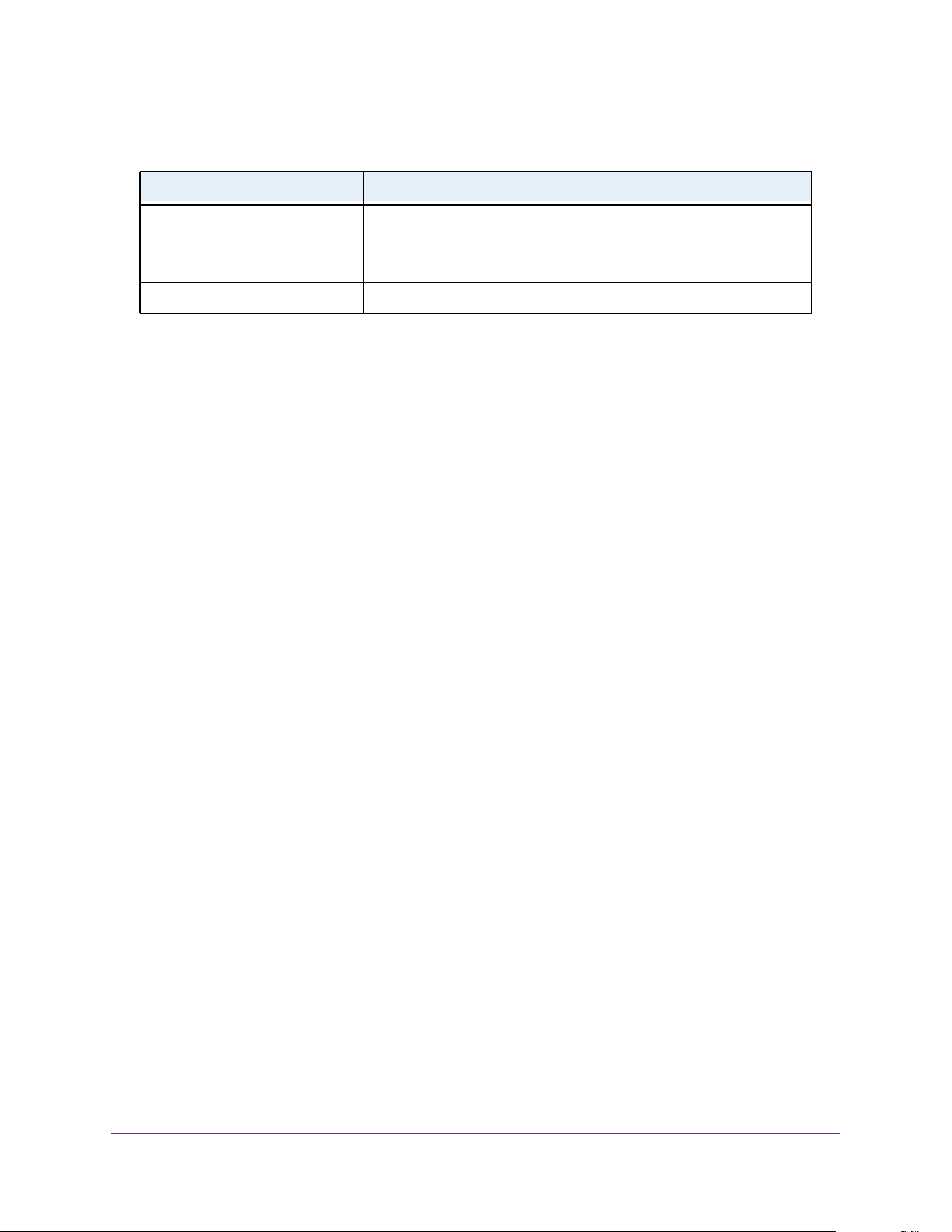
Manage Device Security
539
M4200 and M4300 Series ProSAFE Managed Switches Web Management User Manual
Configure a Port Security Interface
A MAC address can be defined as allowable by one of two methods: dynamically or statically.
Both methods are used concurrently when a port is locked.
Dynamic locking implements a first arrival mechanism for port security. You specify how
many addresses can be learned on the locked port. If the limit was not reached, then a
packet with an unknown source MAC address is learned and forwarded normally. When the
limit is reached, no more addresses are learned on the port. Any packets with source MAC
addresses that were not already learned are discarded. You can effectively disable dynamic
locking by setting the number of allowable dynamic entries to zero.
Static locking allows you to specify a list of MAC addresses that are allowed on a port. The
behavior of packets is the same as for dynamic locking: only packets with an allowable
source MAC address can be forwarded.
To configure port security settings:
1. Launch a web browser.
2. Enter http://<ipaddress> in the web browser address field.
The login window opens.
3. Enter the user name and password.
The default admin user name is admin and the default admin password is blank, that is,
do not enter a password.
4. Click the Login button.
The System Information page displays.
5. Select Security > Traffic Control > Port Security > Interface Configuration.
Table 199. Port Security Violations
Field Description
Port The physical interface.
Last Violation MAC The source MAC address of the last packet that was discarded at a
locked port.
VLAN ID The VLAN ID corresponding to the last violation MAC address.
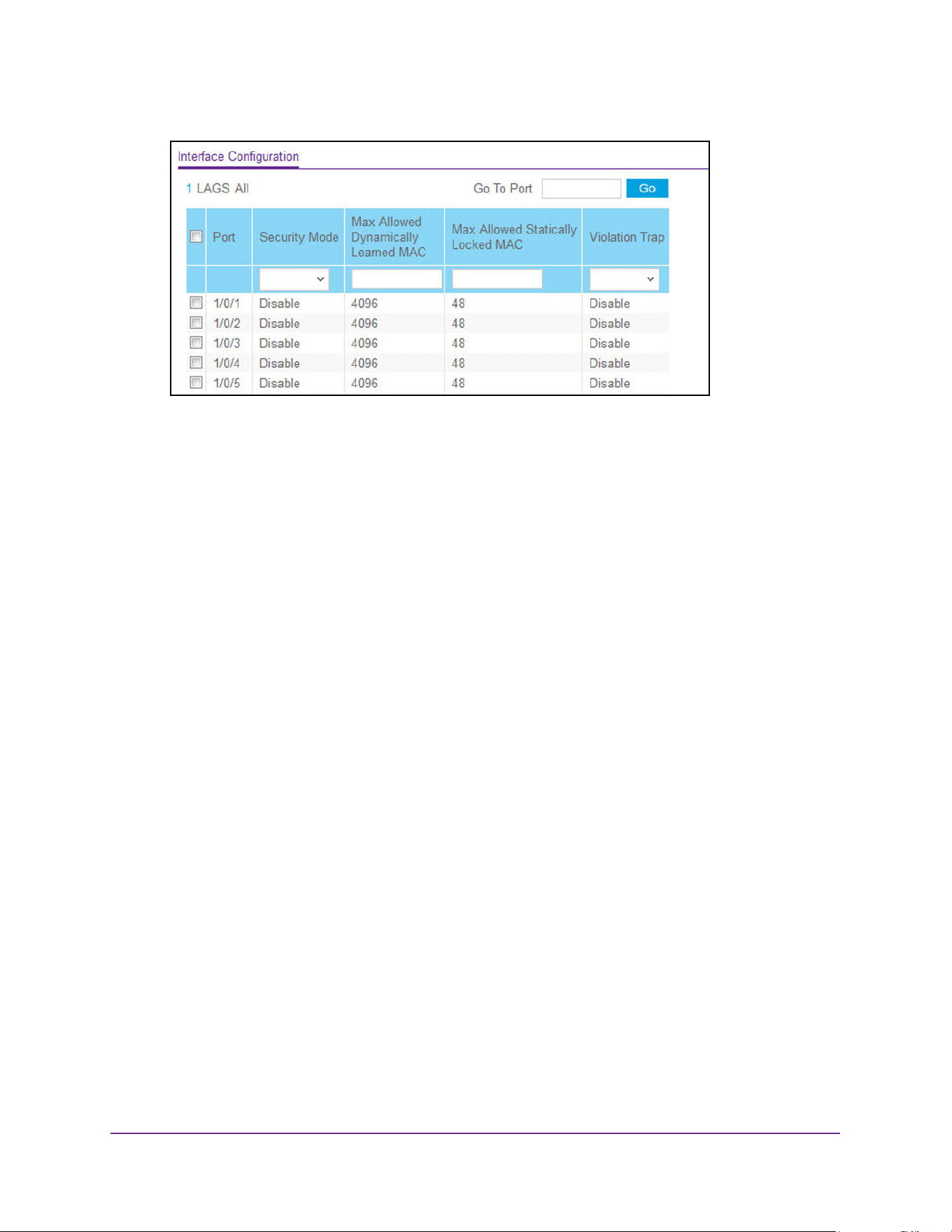
Manage Device Security
540
M4200 and M4300 Series ProSAFE Managed Switches Web Management User Manual
6. Use one of the following methods to select a port:
• In the Go To Port field, enter the interface in the unit/slot/port format and click on the
Go button.
• Next to the Port column, select the check box for the port that you want to configure,
select multiple check boxes to apply the same setting to all selected ports, or select
the check box in the table heading to apply the same settings to all ports.
7. Specify the following settings:
• Security Mode. Enables or disables the port security feature for the selected
interface.
• Max Allowed Dynamically Learned MAC. Sets the maximum number of dynamically
learned MAC addresses on the selected interface.
• Max Allowed Statically Locked MAC. Sets the maximum number of statically locked
MAC addresses on the selected interface.
• Violation Traps. Enables or disables the sending of new violation traps designating
when a packet with a disallowed MAC address is received on a locked port.
8. Click the Apply button.
The updated configuration is sent to the switch. Configuration changes take effect
immediately.
Convert Learned MAC Addresses to Static Addresses
You can convert a dynamically learned MAC address to a statically locked address.
To convert learned MAC addresses and view the learned MAC addresses for an
interface:
1. Launch a web browser.
2. Enter http://<ipaddress> in the web browser address field.
The login window opens.
3. Enter the user name and password.
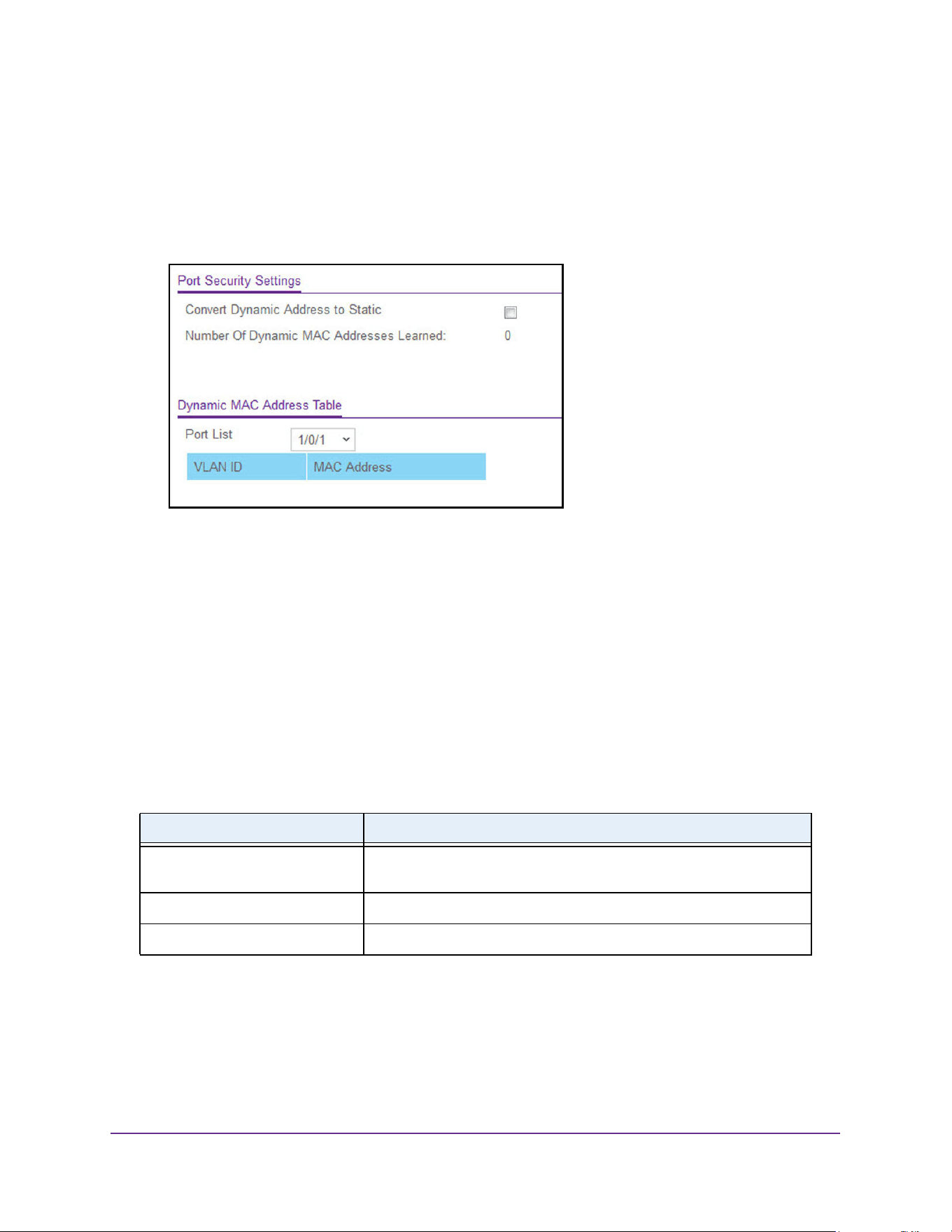
Manage Device Security
541
M4200 and M4300 Series ProSAFE Managed Switches Web Management User Manual
The default admin user name is admin and the default admin password is blank, that is,
do not enter a password.
4. Click the Login button.
The System Information page displays.
5. Select Security > Traffic Control > Port Security > Dynamic MAC Address.
6. Select the Convert Dynamic Address to Static check box to convert a dynamically
learned MAC address to a statically locked address.
The dynamic MAC address entries are converted to static MAC address entries in a
numerically ascending order until the static limit is reached.
7. Click the Apply button.
The updated configuration is sent to the switch. Configuration changes take effect
immediately.
8. From the Port List menu, select the physical interface.
The following table shows the MAC addresses and their associated VLANs learned on the
selected interface.
Table 200. Dynamic MAC Address
Field Description
Number of Dynamic MAC
Addresses Learned
The number of dynamically learned MAC addresses on the interface.
VLAN ID The VLAN ID corresponding to the MAC address.
MAC Address The MAC addresses learned on a specific port.
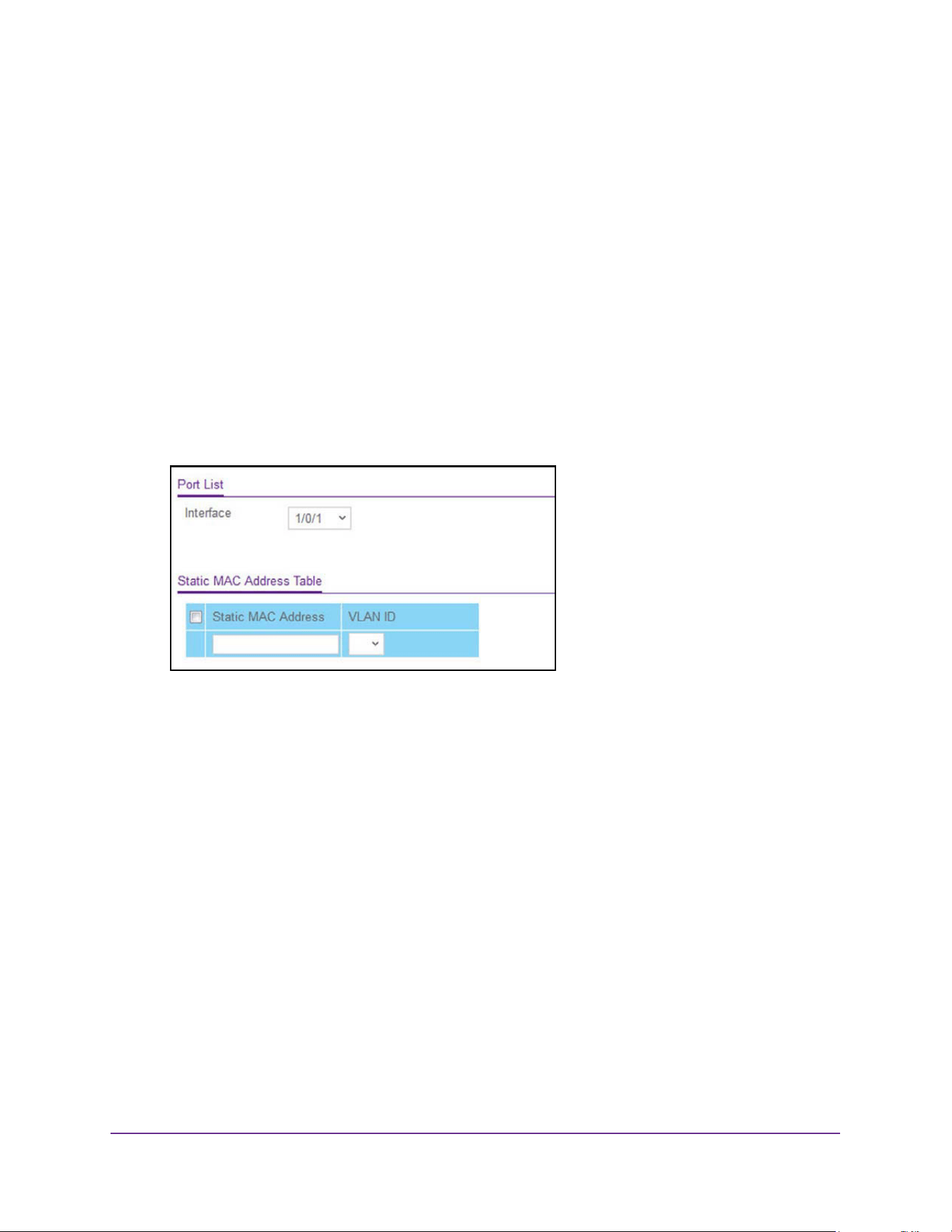
Manage Device Security
542
M4200 and M4300 Series ProSAFE Managed Switches Web Management User Manual
Configure Static MAC Addresses
To configure a static MAC address:
1. Launch a web browser.
2. Enter http://<ipaddress> in the web browser address field.
The login window opens.
3. Enter the user name and password.
The default admin user name is admin and the default admin password is blank, that is,
do not enter a password.
4. Click the Login button.
The System Information page displays.
5. Select Security > Traffic Control > Port Security > Static MAC Address.
6. From the Interface menu, select the physical interface.
7. In the Static MAC Address field, enter the MAC address that you want to add.
8. In the VLAN ID field, select the VLAN ID that corresponds to the MAC address that is being
added.
9. Click the Add button.
The static MAC address is added to the switch.
Configure Private Groups
To configure a traffic control private group:
1. Launch a web browser.
2. Enter http://<ipaddress> in the web browser address field.
The login window opens.
3. Enter the user name and password.
The default admin user name is admin and the default admin password is blank, that is,
do not enter a password.
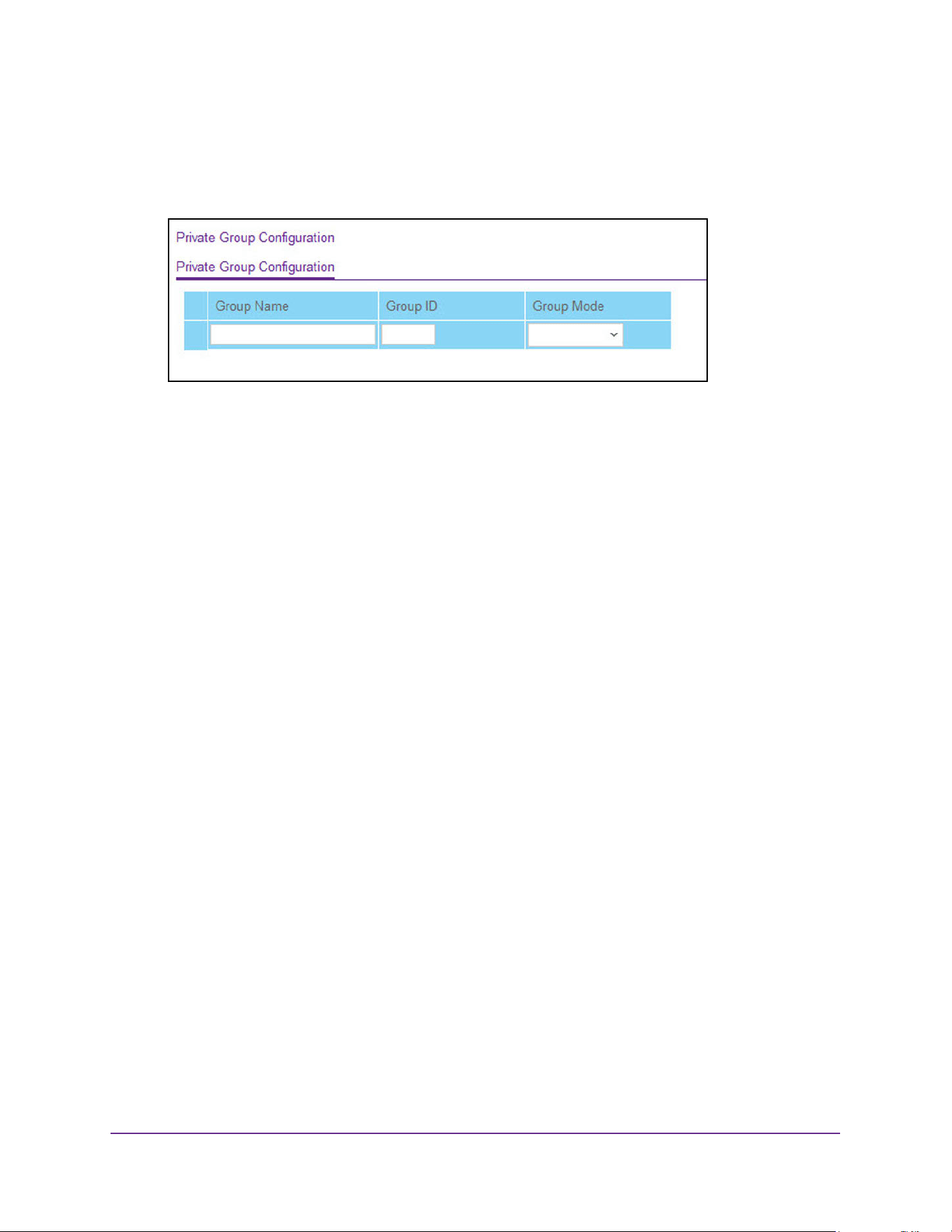
Manage Device Security
543
M4200 and M4300 Series ProSAFE Managed Switches Web Management User Manual
4. Click the Login button.
The System Information page displays.
5. Select Security > Traffic Control > Private Group > Private Group Configuration.
6. In the Group Name field, enter the private group name.
The name can be up to 24 bytes of non-blank characters.
7. In the optional Group ID field, specify the private group identifier.
The range of group ID is 1 to 192.
8. In the Group Mode list, select the mode of private group.
The group mode can be either isolated or community. When in isolated mode, the
member port in the group cannot forward its egress traffic to any other members in the
same group. By default, the mode is community mode that each member port can
forward traffic to other members in the same group, but not to members in other groups.
9. Click the Add button.
The private group is created in the switch.
Configure Private Group Membership
To configure private group membership:
1. Launch a web browser.
2. Enter http://<ipaddress> in the web browser address field.
The login window opens.
3. Enter the user name and password.
The default admin user name is admin and the default admin password is blank, that is,
do not enter a password.
4. Click the Login button.
The System Information page displays.
5. Select Security > Traffic Control > Private Group > Private Group Membership.
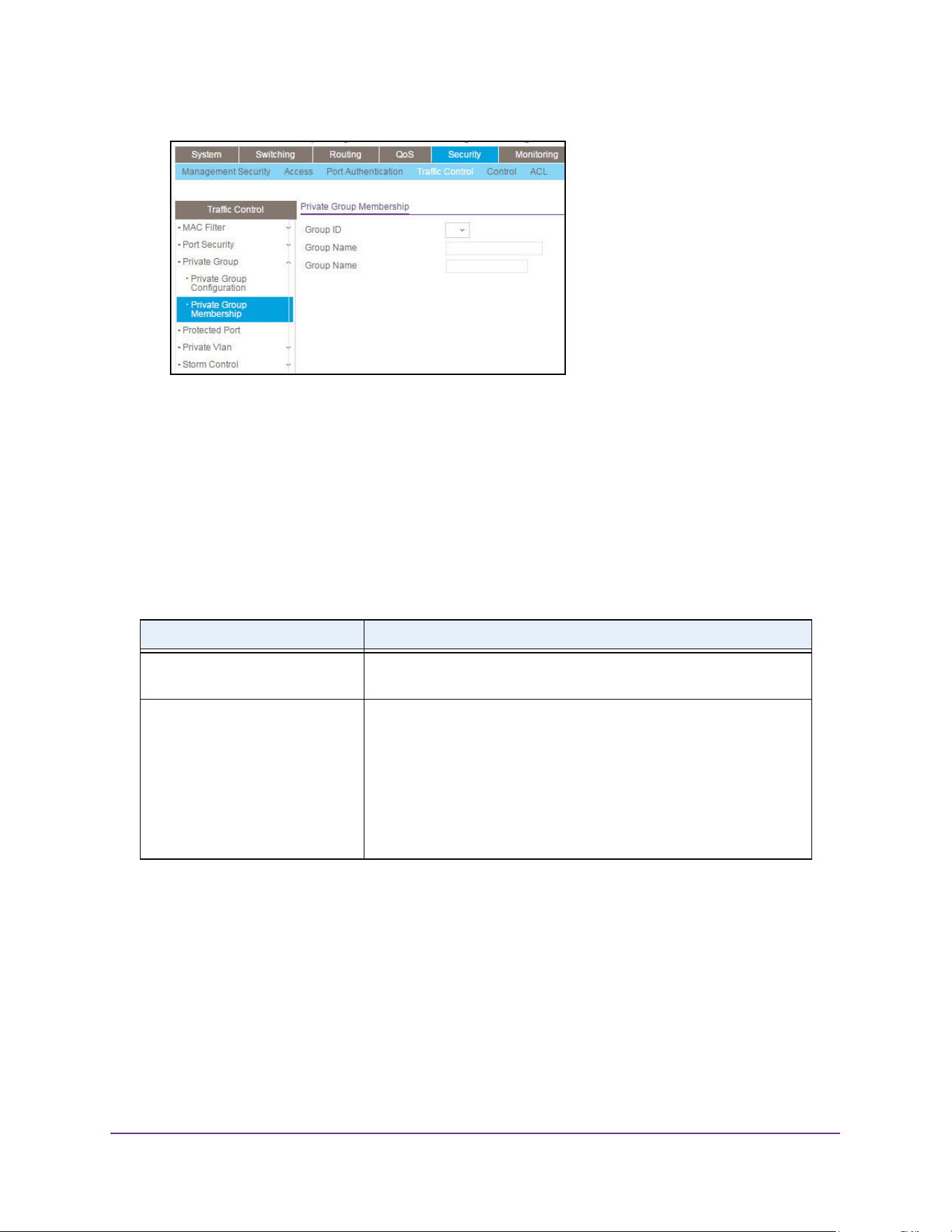
Manage Device Security
544
M4200 and M4300 Series ProSAFE Managed Switches Web Management User Manual
6. In the Group ID list, select the group ID.
7. Use Port List to add the ports you selected to this private group.
The port list displays when at least one group is configured.
8. Click the Apply button.
The updated configuration is sent to the switch. Configuration changes take effect
immediately.
The following table describes the nonconfigurable information displayed on the page.
Table 201. Private Group Membership
Field Description
Group Name The name for the private group that you selected. It can be up to 24
non-blank characters long.
Group Mode The mode of the private group that you selected. The modes are as
follows:
• community
• isolated
When in isolated mode, the member port in the group cannot forward
its egress traffic to any other members in the same group. By default,
the mode is community mode. Each member port can forward traffic to
other members in the same group, but not to members in other groups.
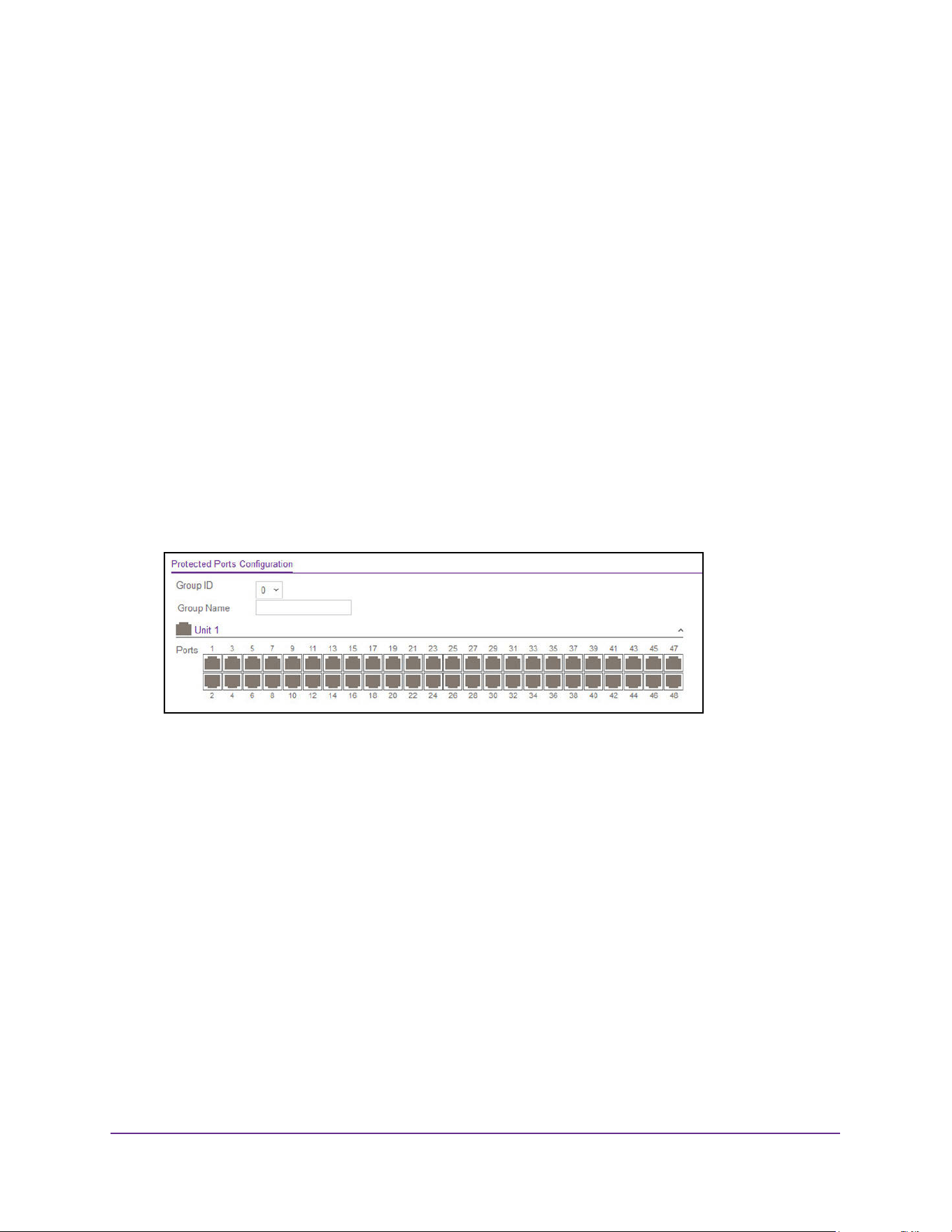
Manage Device Security
545
M4200 and M4300 Series ProSAFE Managed Switches Web Management User Manual
Protect Ports
If a port is configured as protected, it does not forward traffic to any other protected port on
the switch, but it does forward traffic to unprotected ports. You can configure the ports as
protected or unprotected. You need read-write access privileges to modify the configuration.
To configure protected ports:
1. Launch a web browser.
2. Enter http://<ipaddress> in the web browser address field.
The login window opens.
3. Enter the user name and password.
The default admin user name is admin and the default admin password is blank, that is,
do not enter a password.
4. Click the Login button.
The System Information page displays.
5. Select Security > Traffic Control > Protected Ports.
6. In the Group ID list, select a group of protected ports that can be combined into a logical
group.
Traffic can flow between protected ports belonging to different groups, but not within the
same group. The list includes all the possible protected port group IDs supported for the
current platform. The valid range of the gGroup ID is 0 to 2.
7. Use the optional Group Name field to associate a name with the protected ports group
(used for identification purposes).
It can be up to 32 alphanumeric characters long, including blanks. The default is blank.
This field is optional.
8. Click the orange bar to display the available ports.
9. Select the check box below each port to configure as a protected port.
The selection list consists of physical ports, protected as well as unprotected. The
protected ports are tick-marked to differentiate between them. No traffic forwarding is
possible between two protected ports. If left unconfigured, the default state is
unprotected.
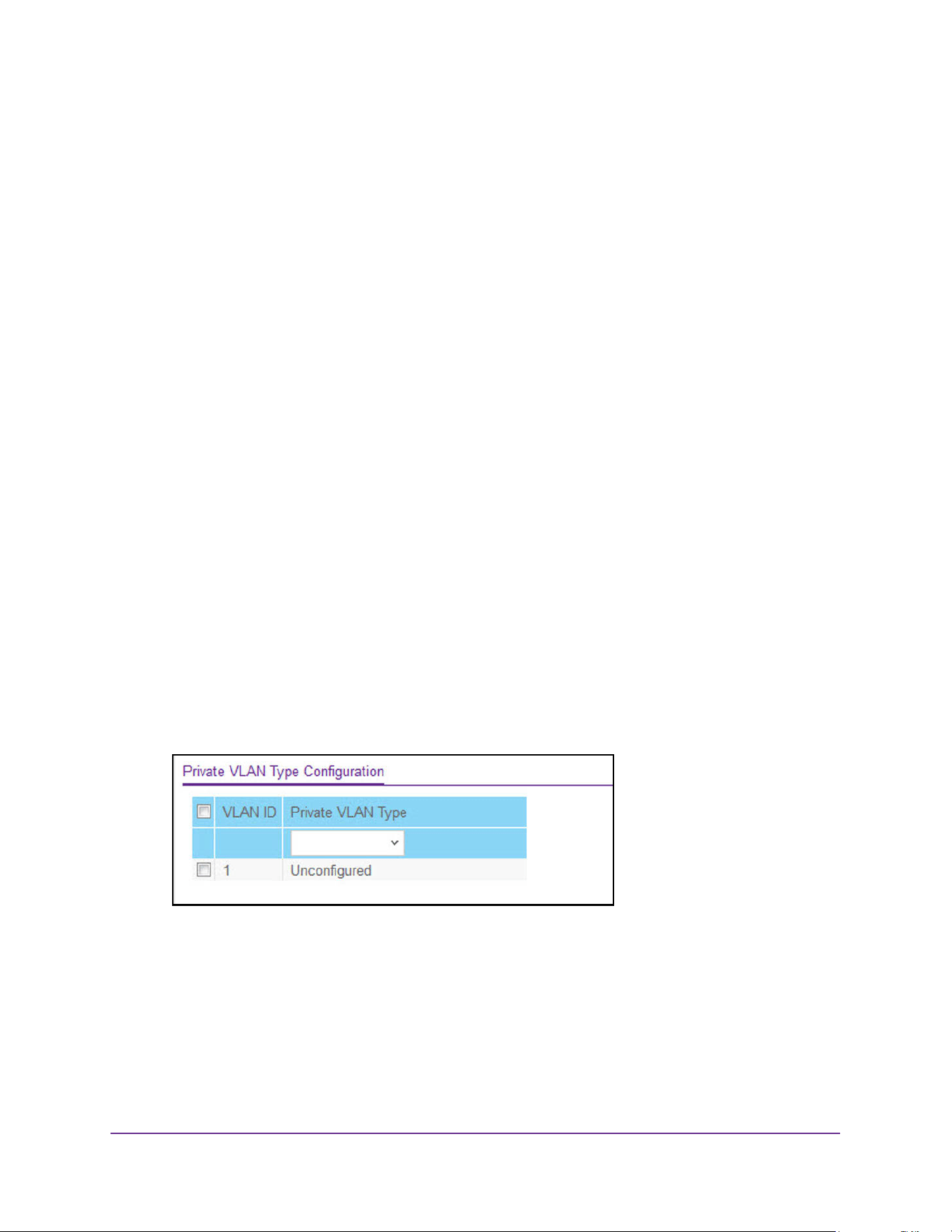
Manage Device Security
546
M4200 and M4300 Series ProSAFE Managed Switches Web Management User Manual
10. Click the Apply button.
The updated configuration is sent to the switch. Configuration changes take effect
immediately.
Set Up Private VLANs
A private VLAN contains switch ports that cannot communicate with each other, but can
access another network. These ports are called private ports. Each private VLAN contains
one or more private ports and a single uplink port or uplink aggregation group. Note that all
traffic between private ports is blocked at all Layers, not just Layer 2 traffic, but also traffic
such as FTP, HTTP, and Telnet.
Configure a Private VLAN Type
To configure a private VLAN type:
1. Launch a web browser.
2. Enter http://<ipaddress> in the web browser address field.
The login window opens.
3. Enter the user name and password.
The default admin user name is admin and the default admin password is blank, that is,
do not enter a password.
4. Click the Login button.
The System Information page displays.
5. Select Security > Traffic Control > Private VLAN > Private VLAN Type Configuration.
6. Use Private VLAN Type to select the type of private VLAN.
The factory default is Unconfigured.
7. Click the Apply button.
The updated configuration is sent to the switch. Configuration changes take effect
immediately.
The VLAN ID field specifies the VLAN ID for which the private VLAN type is being set.
The factory default is Unconfigured.
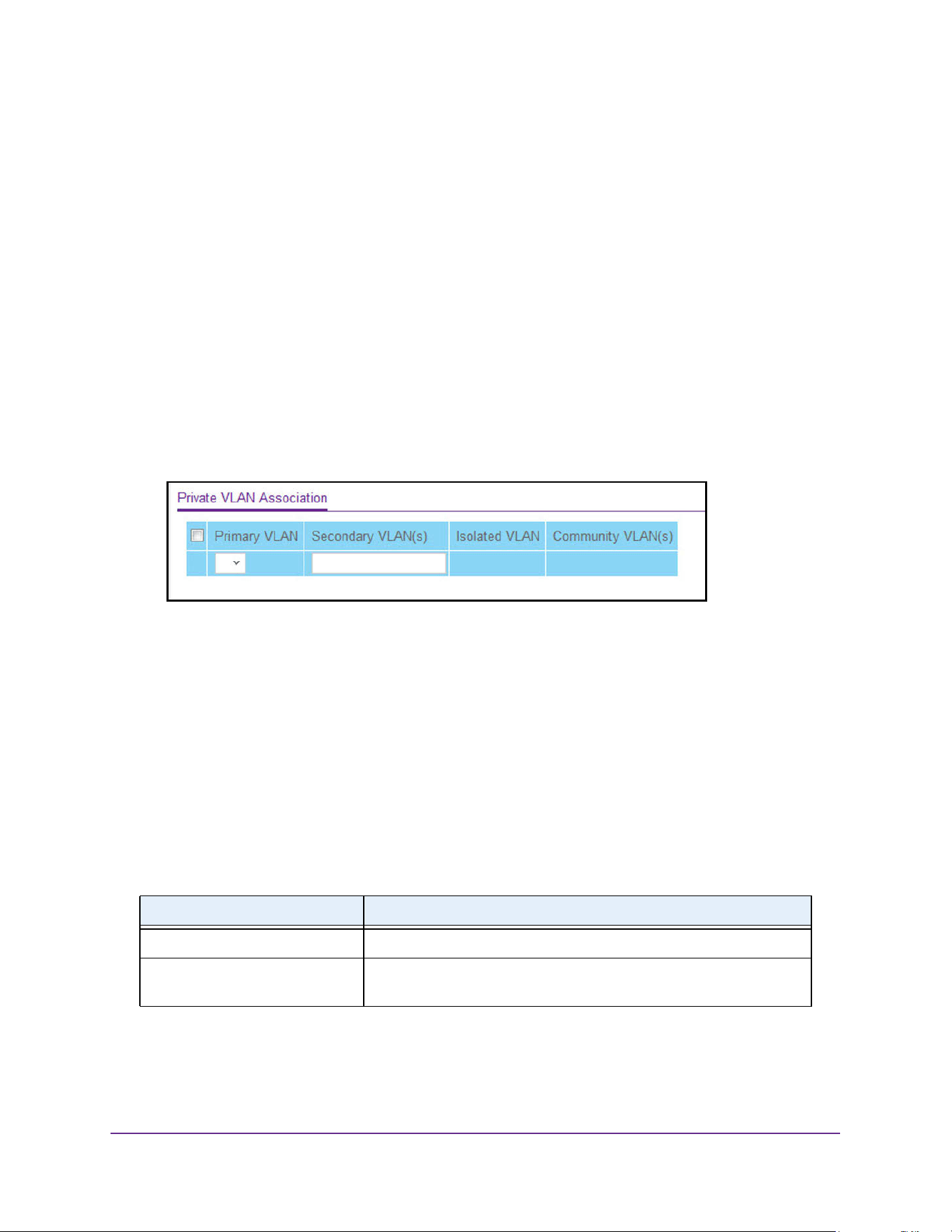
Manage Device Security
547
M4200 and M4300 Series ProSAFE Managed Switches Web Management User Manual
Configure Private VLAN Association Settings
To configure private VLAN association:
1. Launch a web browser.
2. Enter http://<ipaddress> in the web browser address field.
The login window opens.
3. Enter the user name and password.
The default admin user name is admin and the default admin password is blank, that is,
do not enter a password.
4. Click the Login button.
The System Information page displays.
5. Select Security > Traffic Control > Private VLAN > Private VLAN Association
Configuration.
6. Use Primary VLAN to select the primary VLAN ID of the domain.
This is used to associate secondary VLANs with the domain.
7. Use Secondary VLAN(s) to display all the statically created VLANs (excluding the primary
and default VLANs).
This control is used to associate VLANs with the selected primary VLAN.
8. Click the Apply button.
The updated configuration is sent to the switch. Configuration changes take effect
immediately.
The following table describes the nonconfigurable information displayed on the page.
Table 202. Private VLAN Association
Field Description
Isolated VLAN The isolated VLAN associated with the selected primary VLAN.
Community VLAN(s) The list of community VLANs associated with the selected primary
VLAN.
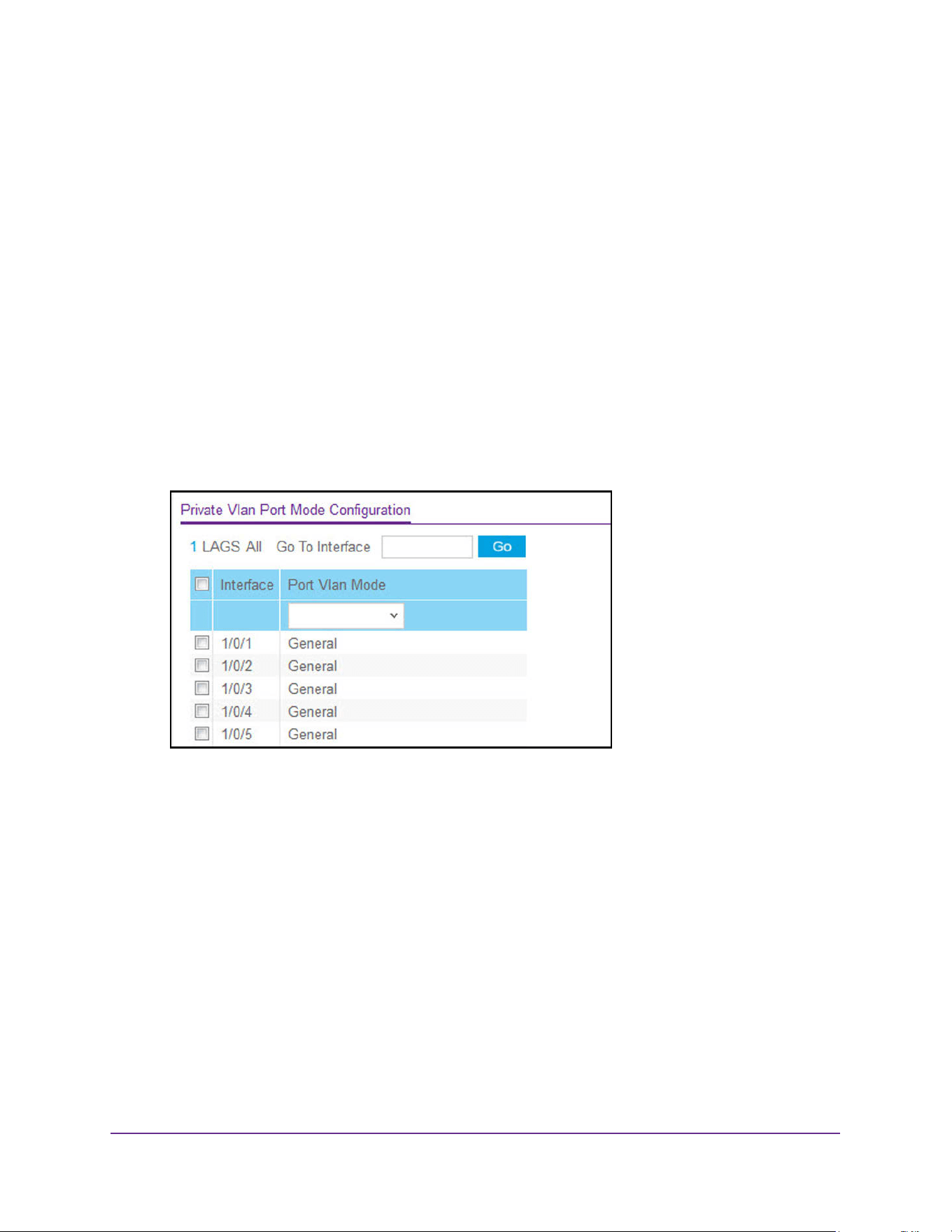
Manage Device Security
548
M4200 and M4300 Series ProSAFE Managed Switches Web Management User Manual
Configure the Private VLAN Port Mode
To configure the private VLAN port mode:
1. Launch a web browser.
2. Enter http://<ipaddress> in the web browser address field.
The login window opens.
3. Enter the user name and password.
The default admin user name is admin and the default admin password is blank, that is,
do not enter a password.
4. Click the Login button.
The System Information page displays.
5. Select Security > Traffic Control > Private VLAN > Private VLAN Port Mode
Configuration.
6. From the Port Vlan Mode menu, select the private VLAN port mode:
• General. Sets port in General mode.
• Host. Sets port in Host mode. Used for private VLAN configuration.
• Promiscuous. Sets port in Promiscuous mode. Used for private VLAN configuration.
The factory default is General.
7. Click the Apply button.
The updated configuration is sent to the switch. Configuration changes take effect
immediately.
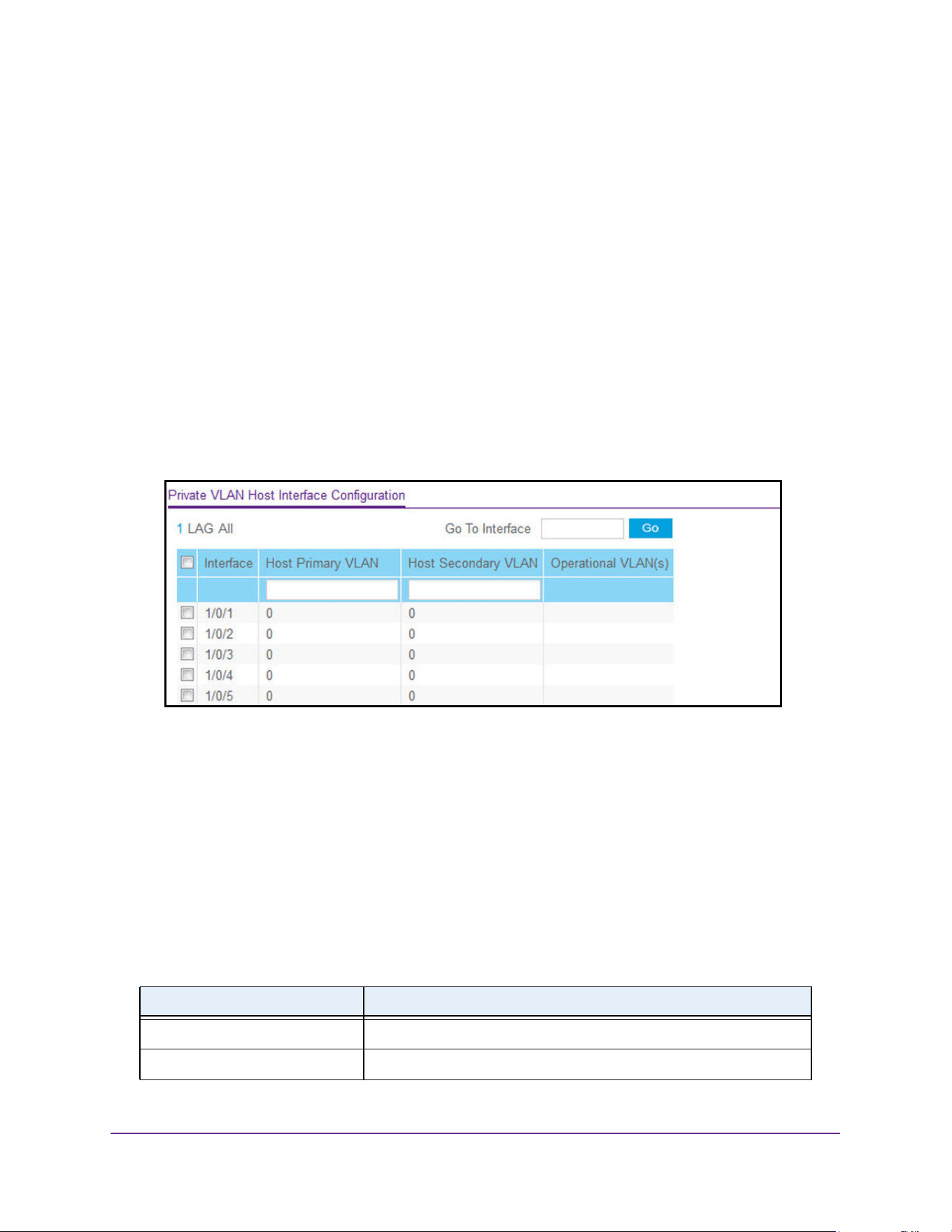
Manage Device Security
549
M4200 and M4300 Series ProSAFE Managed Switches Web Management User Manual
Configure a Private VLAN Host Interface
To configure a private VLAN host interface:
1. Launch a web browser.
2. Enter http://<ipaddress> in the web browser address field.
The login window opens.
3. Enter the user name and password.
The default admin user name is admin and the default admin password is blank, that is,
do not enter a password.
4. Click the Login button.
The System Information page displays.
5. Select Security > Traffic Control > Private VLAN > Private VLAN Host Interface
Configuration.
6. In the Host Primary VLAN field, set the primary VLAN ID for Host Association mode.
The range of the VLAN ID is 2–4093.
7. Use Host Secondary VLAN to set the secondary VLAN ID for Host Association mode.
The range of the VLAN ID is 2–4093.
8. Click the Apply button.
The updated configuration is sent to the switch. Configuration changes take effect
immediately.
The following table describes the nonconfigurable information displayed on the page.
Table 203. Private VLAN Host Interface Configuration
Field Description
Interface Select the physical or LAG interface.
Operational VLAN(s) The operational VLANs.
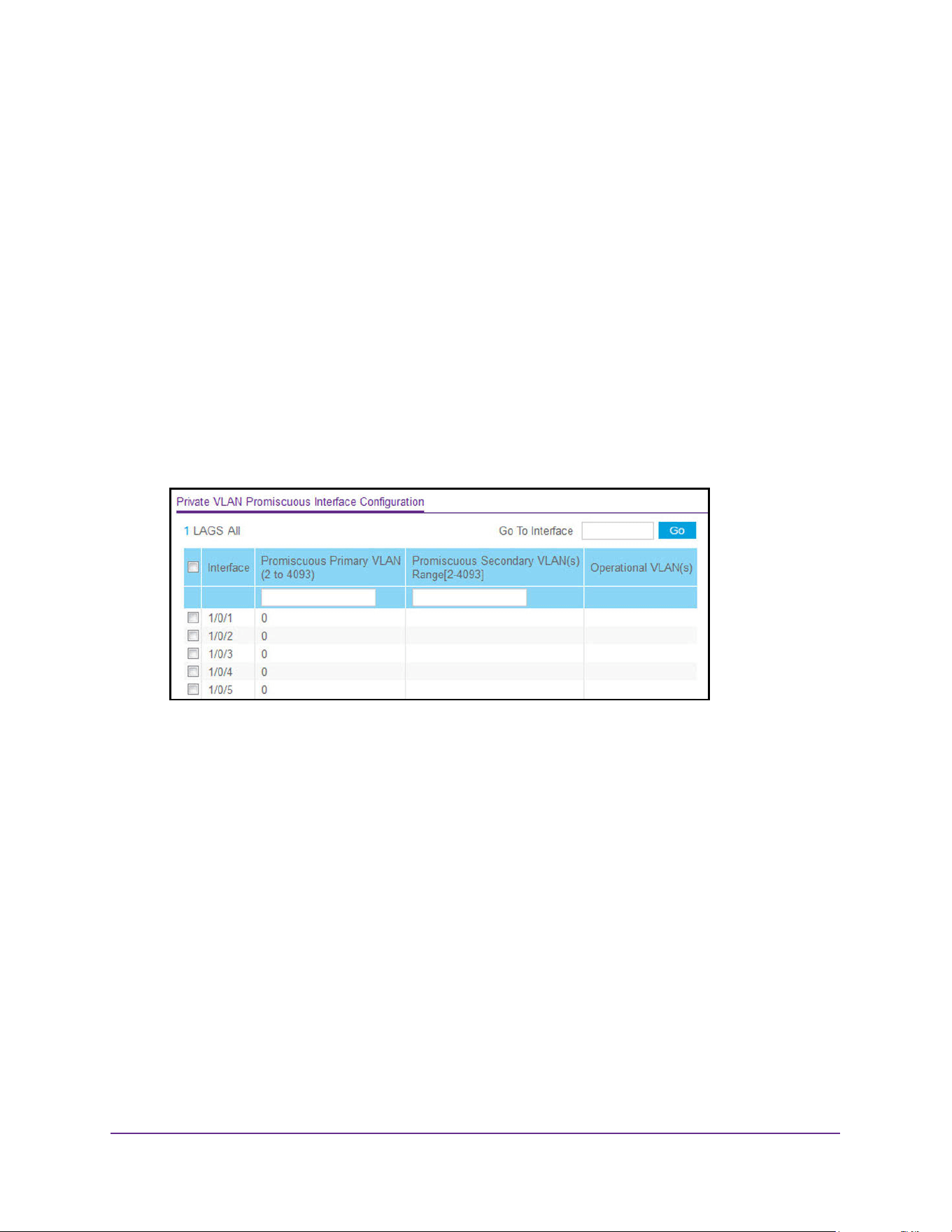
Manage Device Security
550
M4200 and M4300 Series ProSAFE Managed Switches Web Management User Manual
Configure a Private VLAN Promiscuous Interface
To configure a private VLAN promiscuous interface:
1. Launch a web browser.
2. Enter http://<ipaddress> in the web browser address field.
The login window opens.
3. Enter the user name and password.
The default admin user name is admin and the default admin password is blank, that is,
do not enter a password.
4. Click the Login button.
The System Information page displays.
5. Select Security > Traffic Control > Private VLAN > Private VLAN Promiscuous
Interface Configuration.
6. Use Promiscuous Primary VLAN to set the primary VLAN ID for Promiscuous Association
mode.
The range of the VLAN ID is 2–4093.
7. Use Promiscuous Secondary VLAN ID(s) to set the secondary VLAN ID list for
Promiscuous Association mode.
This field can accept single VLAN ID or range of VLAN IDs or a combination of both in
sequence separated by ','. You can specify individual VLAN ID, such as 10. You can
specify the VLAN range values separated by a hyphen, for example, 10-13. You can
specify the combination of both separated by commas, for example:
12,15,40–43,1000–1005, 2000. The range of the VLAN ID is 2–4093.
Note: The VLAN ID List given in this control replaces the configured
secondary VLAN list in the association.
8. Click the Apply button.
The updated configuration is sent to the switch. Configuration changes take effect
immediately.
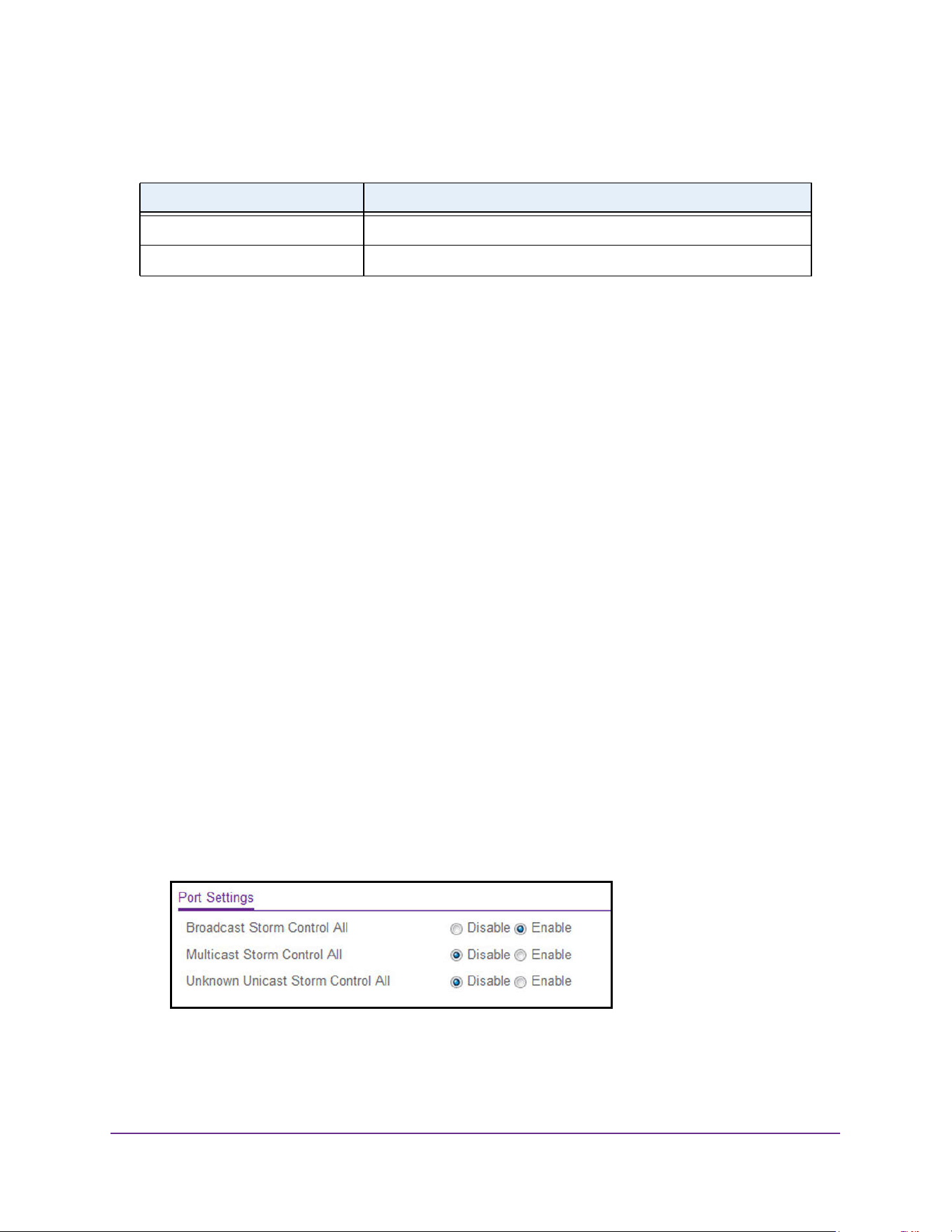
Manage Device Security
551
M4200 and M4300 Series ProSAFE Managed Switches Web Management User Manual
The following table describes the nonconfigurable information displayed on the page.
Manage the Storm Control Settings
A broadcast storm is the result of an excessive number of broadcast messages
simultaneously transmitted across a network by a single port. Forwarded message
responses can overload network resources and/or cause the network to time out.
The switch measures the incoming broadcast/multicast/unknown unicast packet rate per port
and discards packets when the rate exceeds the defined value. Storm control is enabled per
interface, by defining the packet type and the rate at which the packets are transmitted.
Configure Global Storm Control Settings
To configure global storm control settings:
1. Launch a web browser.
2. Enter http://<ipaddress> in the web browser address field.
The login window opens.
3. Enter the user name and password.
The default admin user name is admin and the default admin password is blank, that is,
do not enter a password.
4. Click the Login button.
The System Information page displays.
5. Select Security > Traffic Control > Storm Control > Storm Control Global
Configuration.
The following three controls provide an easy way to enable or disable each type of
packets to be rate-limited on every port in a global fashion. The effective storm control
state of each port can be viewed by going to the port configuration page.
Table 204. Private VLAN Promiscuous Interface Configuration
Field Description
Interface Select the physical or LAG interface
Operational VLAN(s) The operational VLANs.
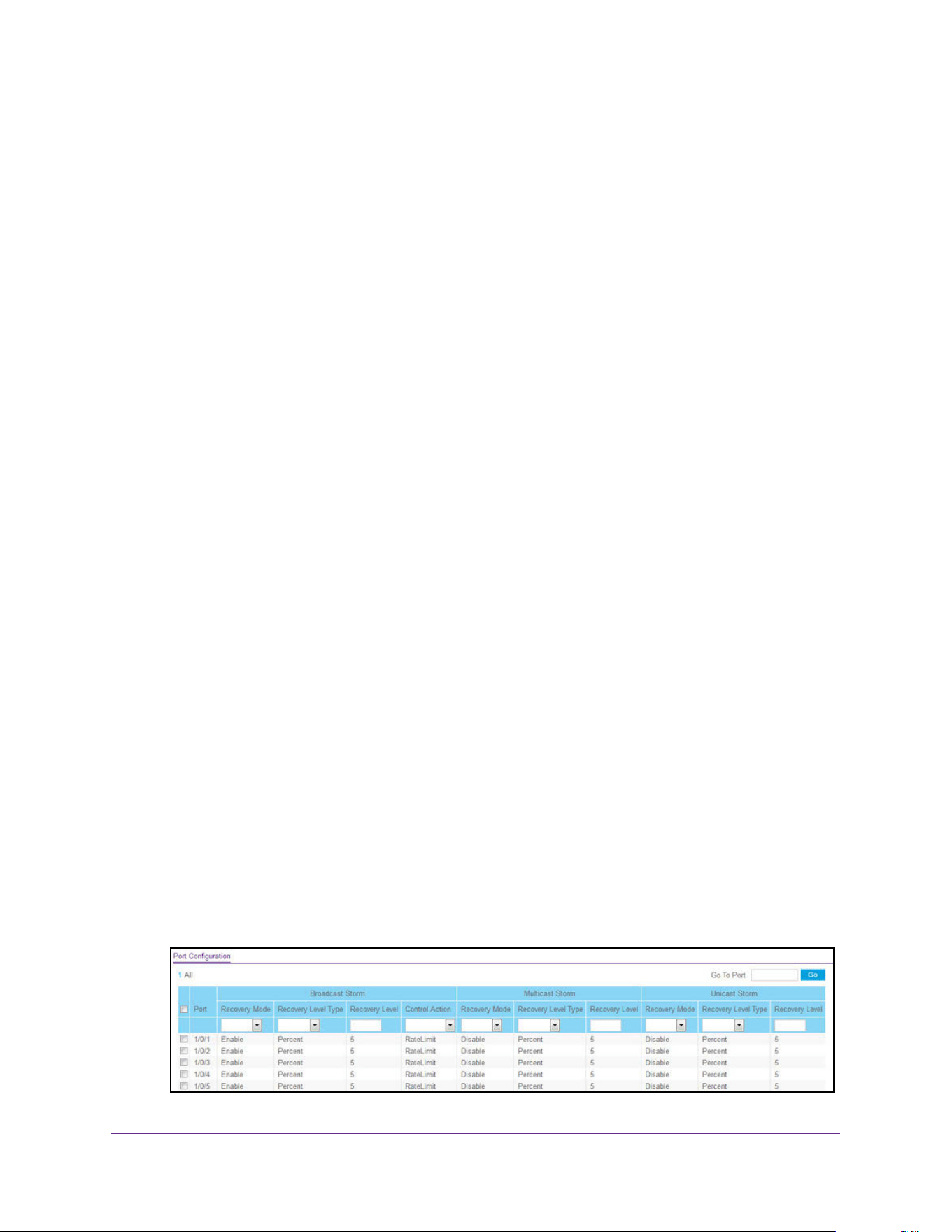
Manage Device Security
552
M4200 and M4300 Series ProSAFE Managed Switches Web Management User Manual
6. Select the storm control settings:
• Select the Broadcast Storm Control All Disable or Enable radio button.
This enables or disables Broadcast Storm Recovery mode on all ports. When you
specify Enable and the broadcast traffic on any Ethernet port exceeds the configured
threshold, the switch blocks (discards) the broadcast traffic. The factory default is
Enable.
• Select the Multicast Storm Control All Disable or Enable radio button.
This enables or disables Multicast Storm Recovery mode on all ports. When you
specify Enable, and the multicast traffic on any Ethernet port exceeds the configured
threshold, the switch blocks (discards) the multicast traffic. The factory default is
Disable.
• Select the Unknown Unicast Storm Control All Disable or Enable radio button.
This enables or disables Unicast Storm Recovery mode on all ports. When you
specify Enable, and the unicast traffic on any Ethernet port exceeds the configured
threshold, the switch blocks (discards) the unicast traffic. The factory default is
Disable.
7. Click the Apply button.
The updated configuration is sent to the switch. Configuration changes take effect
immediately.
Configure Storm Control for a Port
To configure storm control for a port:
1. Launch a web browser.
2. Enter http://<ipaddress> in the web browser address field.
The login window opens.
3. Enter the user name and password.
The default admin user name is admin and the default admin password is blank, that is,
do not enter a password.
4. Click the Login button.
The System Information page displays.
5. Select Security > Traffic Control > Storm Control > Storm Control Interface
Configuration.

Manage Device Security
553
M4200 and M4300 Series ProSAFE Managed Switches Web Management User Manual
6. Use one of the following methods to select a port:
• In the Go To Port field, enter the interface in the unit/slot/port format and click on the
Go button.
• Next to the Port column, select the check box for the port that you want to configure,
select multiple check boxes to apply the same setting to all selected ports, or select
the check box in the table heading to apply the same settings to all ports.
7. Configure broadcast storm control:
• Recovery Mode. Enable or disable this option. When you specify Enable and the
broadcast traffic on the specified port exceeds the configured threshold, the switch
blocks (discards) the broadcast traffic. The factory default is Enable.
• Recovery Level Type. Specify the recovery level as a percentage of link speed or as
packets per second.
• Recovery Level. Specify the threshold at which storm control activates. The factory
default is 5 percent of port speed for pps type.
• Control Action. Specify the action that occurs when the configured threshold for the
broadcast storm is exceeded. You can select the port to be shut down or traffic on the
port to be rate-limited. The default is RateLimit.
8. Configure broadcast storm control:
• Recovery Mode. Enable or disable this option. When you specify Enable and the
multicast traffic on the specified port exceeds the configured threshold, the switch
blocks (discards) the multicast traffic. The factory default is Enable.
• Recovery Level Type. Specify the recovery level as a percentage of link speed or as
packets per second.
• Recovery Level. Specify the threshold at which storm control activates. The factory
default is 5 percent of port speed for pps type.
9. Configure broadcast storm control:
• Recovery Mode. Enable or disable this option. When you specify Enable and the
unicast traffic on the specified port exceeds the configured threshold, the switch
blocks (discards) the unicast traffic. The factory default is Enable.
• Recovery Level Type. Specify the recovery level as a percentage of link speed or as
packets per second.
• Recovery Level. Specify the threshold at which storm control activates. The factory
default is 5 percent of port speed for pps type.
10. Click the Apply button.
The updated configuration is sent to the switch. Configuration changes take effect
immediately.
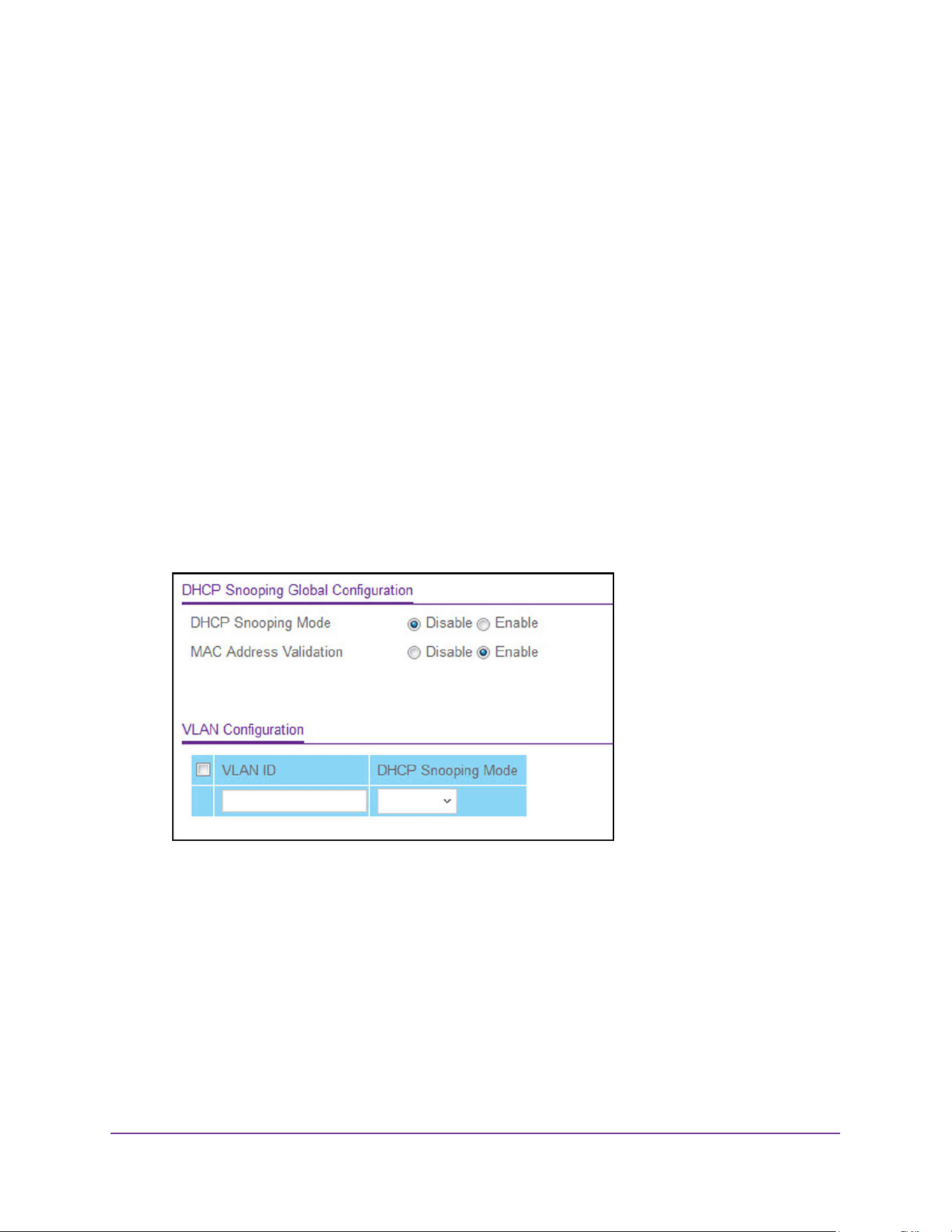
Manage Device Security
554
M4200 and M4300 Series ProSAFE Managed Switches Web Management User Manual
Configure DHCP Snooping
You can configure DHCP snooping global and interface settings.
Configure DHCP Snooping Global Settings
To configure DHCP snooping global settings:
1. Launch a web browser.
2. Enter http://<ipaddress> in the web browser address field.
The login window opens.
3. Enter the user name and password.
The default admin user name is admin and the default admin password is blank, that is,
do not enter a password.
4. Click the Login button.
The System Information page displays.
5. Select Security > Control > DHCP Snooping > Global Configuration.
6. Select the DHCP Snooping Mode Disable or Enable radio button.
The factory default is Disable.
7. Select the MAC Address Validation Disable or Enable radio button.
This enables or disables the validation of sender MAC address for DHCP snooping. The
factory default is Enable.
8. Use VLAN ID to enter the VLAN for which the DHCP snooping mode is to be enabled.
9. Use DHCP Snooping Mode to enable or disable the DHCP snooping feature for the
entered VLAN.
The factory default is Disable.
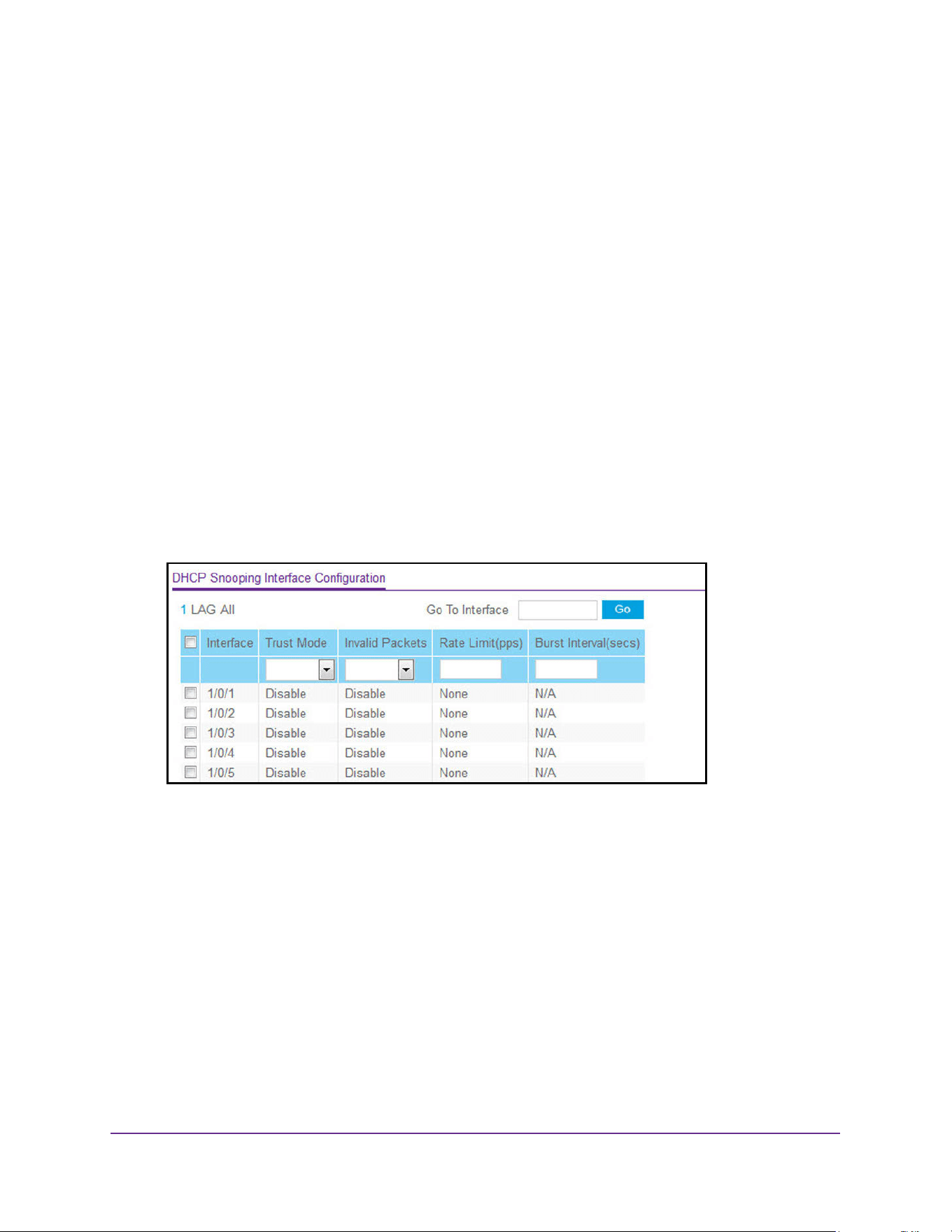
Manage Device Security
555
M4200 and M4300 Series ProSAFE Managed Switches Web Management User Manual
10. Click the Apply button.
The updated configuration is sent to the switch. Configuration changes take effect
immediately.
Configure a DHCP Snooping Interface
To configure a DHCP snooping interface:
1. Launch a web browser.
2. Enter http://<ipaddress> in the web browser address field.
The login window opens.
3. Enter the user name and password.
The default admin user name is admin and the default admin password is blank, that is,
do not enter a password.
4. Click the Login button.
The System Information page displays.
5. Select Security > Control > DHCP Snooping > Interface Configuration.
6. Use one of the following methods to select an interface:
• In the Go To Interface field, enter the interface in the unit/slot/port format and click on
the Go button.
• Next to the Interface column, select the check box for the port that you want to
configure, select multiple check boxes to apply the same setting to all selected
interfaces, or select the check box in the table heading to apply the same settings to
all interfaces.
7. If Trust Mode is enabled, DHCP snooping application considers the port as trusted.
The factory default is Disable.
8. If Invalid Packets is enabled, DHCP snooping application logs invalid packets on this
interface.
The factory default is Disable.
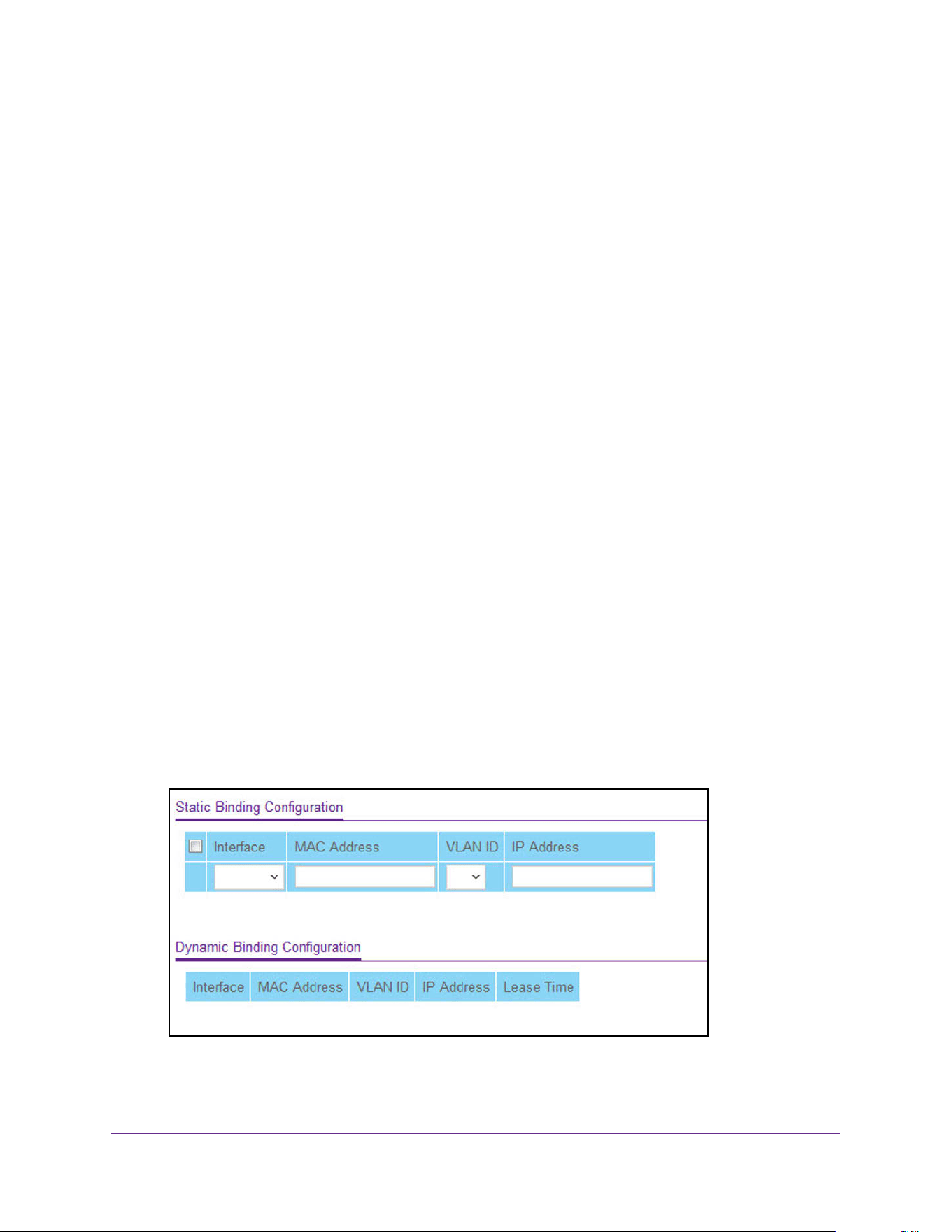
Manage Device Security
556
M4200 and M4300 Series ProSAFE Managed Switches Web Management User Manual
9. Use Rate Limit (pps) to specify rate limit value for DHCP snooping purposes.
If the incoming rate of DHCP packets exceeds the value of this for consecutive burst
interval seconds, the port is shut down. If this value is N/A, then burst interval has no
meaning, hence it is disabled. The default value is N/A. It can be set to value –1, which
means N/A. The range of rate limit is 0 to 300.
10. Use Burst Interval (secs) to specify the burst interval value for rate limiting purpose on this
interface.
If the rate limit is N/A, burst interval has no meaning and it is N/A. The default value is
N/A. It can be set to –1, which means N/A. The range of Burst Interval is 1 to 15.
11. Click the Apply button.
The updated configuration is sent to the switch. Configuration changes take effect
immediately.
Configure a Static DHCP Snooping Binding
To configure a static snooping binding:
1. Launch a web browser.
2. Enter http://<ipaddress> in the web browser address field.
The login window opens.
3. Enter the user name and password.
The default admin user name is admin and the default admin password is blank, that is,
do not enter a password.
4. Click the Login button.
The System Information page displays.
5. Select Security > Control > DHCP Snooping > Binding Configuration.
6. To configure a static binding, specify the following:
a. From the Interface menu, select the interface.
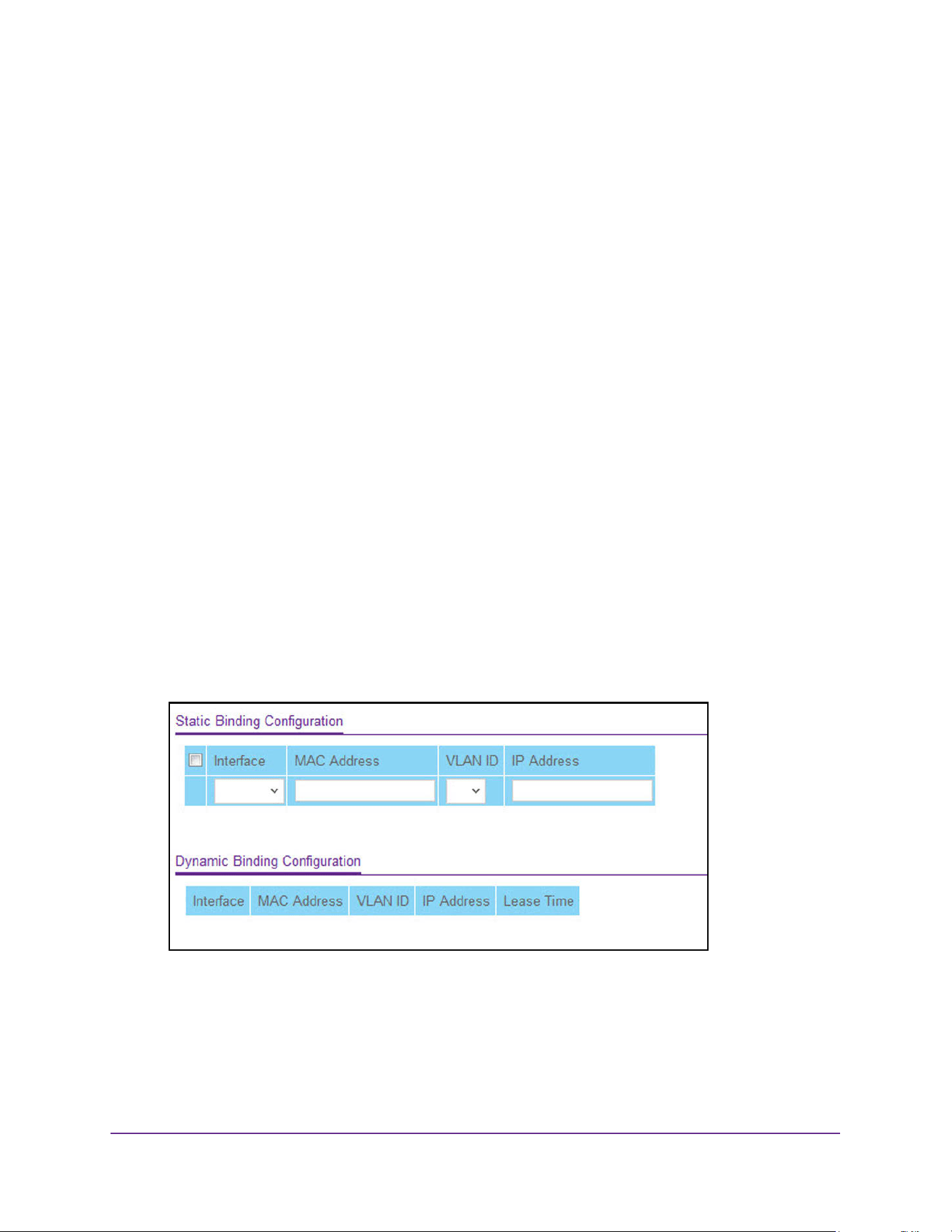
Manage Device Security
557
M4200 and M4300 Series ProSAFE Managed Switches Web Management User Manual
b. In the MAC Address field, specify the MAC address that must be added for the
binding entry.
This is the key to the binding database.
c. From the VLAN ID menu, select the VLAN for the binding rule.
The range of the VLAN ID is 1 to 4093.
d. In the IP Address field, specify a valid IP address for the binding rule.
e. Click the Add button.
The DHCP snooping binding entry is added into the database.
View the Dynamic DHCP Snooping Bindings
To view the dynamic DHCP snooping bindings:
1. Launch a web browser.
2. Enter http://<ipaddress> in the web browser address field.
The login window opens.
3. Enter the user name and password.
The default admin user name is admin and the default admin password is blank, that is,
do not enter a password.
4. Click the Login button.
The System Information page displays.
5. Select Security > Control > DHCP Snooping > Binding Configuration.
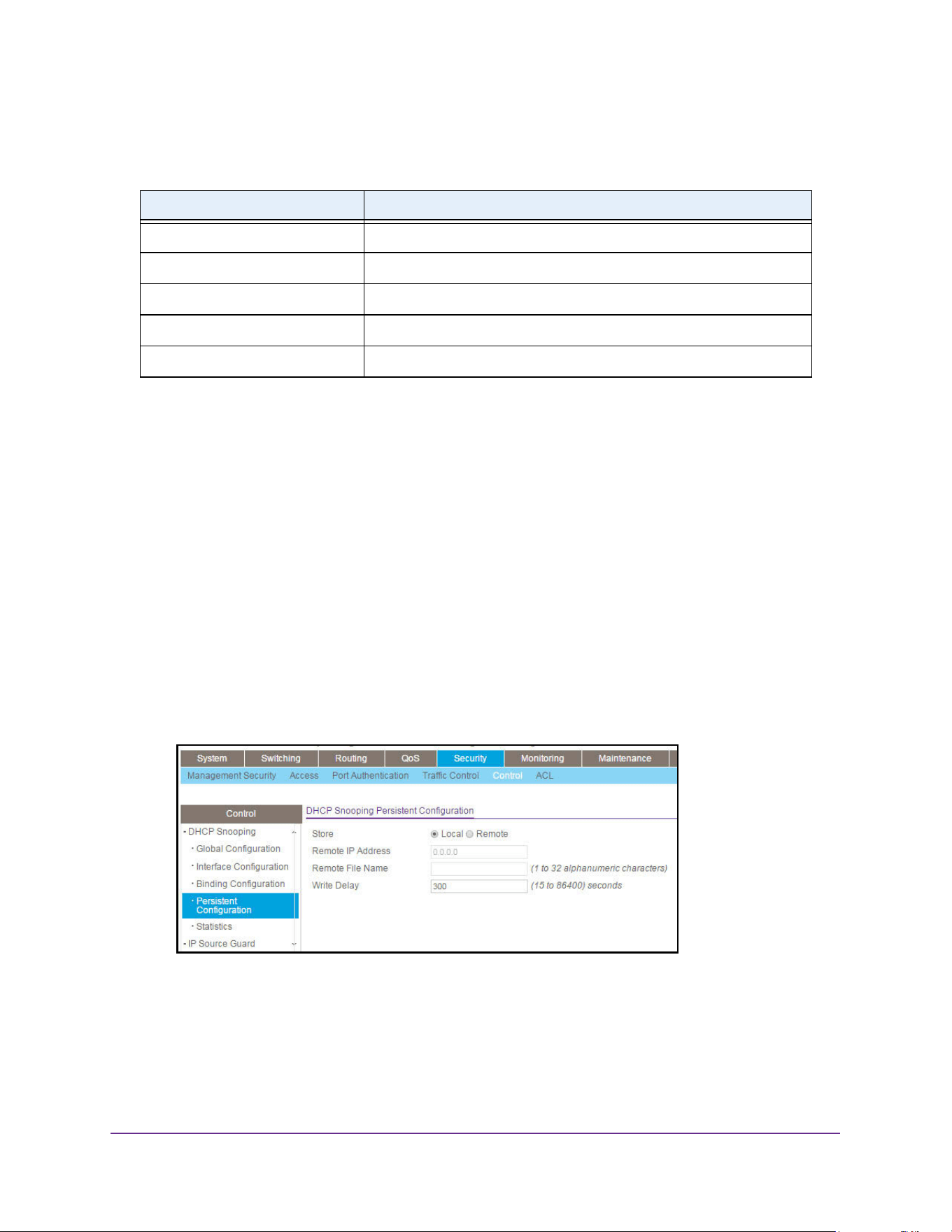
Manage Device Security
558
M4200 and M4300 Series ProSAFE Managed Switches Web Management User Manual
The following table describes the fields of the Dynamic Binding Configuration table.
Configure Snooping Persistent Settings
To configure snooping persistent settings:
1. Launch a web browser.
2. Enter http://<ipaddress> in the web browser address field.
The login window opens.
3. Enter the user name and password.
The default admin user name is admin and the default admin password is blank, that is,
do not enter a password.
4. Click the Login button.
The System Information page displays.
5. Select Security > Control > DHCP Snooping > Persistent Configuration.
6. Select the Store Local or Remote radio button.
Selecting Local disables the remote fields Remote File Name and Remote IP Address.
7. If you select the Remote radio button, do the following:
a. In the Remote IP Address field, type the remote IP address on which the snooping
database is stored.
Table 205. Dynamic DHCP Bindings
Field Description
Interface The interface on which the dynamic binding was learned.
MAC Address The learned MAC address for the binding.
VLAN ID The VLAN ID that corresponds to the binding.
IP Address The IP address that corresponds to the binding.
Lease Time The remaining lease time for the binding.
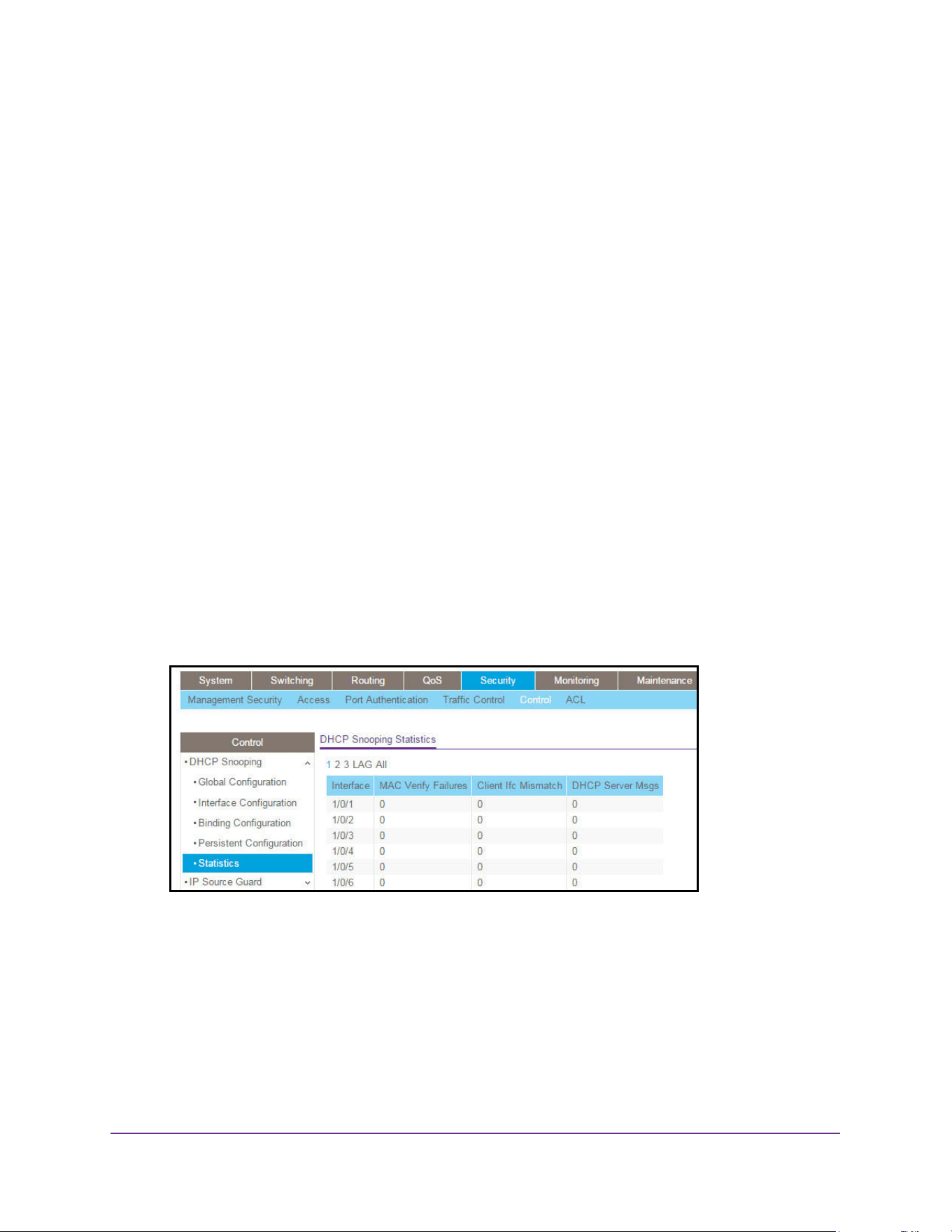
Manage Device Security
559
M4200 and M4300 Series ProSAFE Managed Switches Web Management User Manual
b. In the Remote File Name field, enter the remote file name to store the database.
8. In the Write Delay field, enter the maximum write time to write the database into local or
remote.
The range is 15 to 86400.
9. Click the Apply button.
The updated configuration is sent to the switch. Configuration changes take effect
immediately.
View and Clear the DHCP Snooping Statistics
To view and clear the DHCP snooping statistics:
1. Launch a web browser.
2. Enter http://<ipaddress> in the web browser address field.
The login window opens.
3. Enter the user name and password.
The default admin user name is admin and the default admin password is blank, that is,
do not enter a password.
4. Click the Login button.
The System Information page displays.
5. Select Security > Control > DHCP Snooping > Statistics.
6. To refresh the page with the latest information on the switch, click the Update button.
7. To clear all interfaces statistics, click the Clear button.
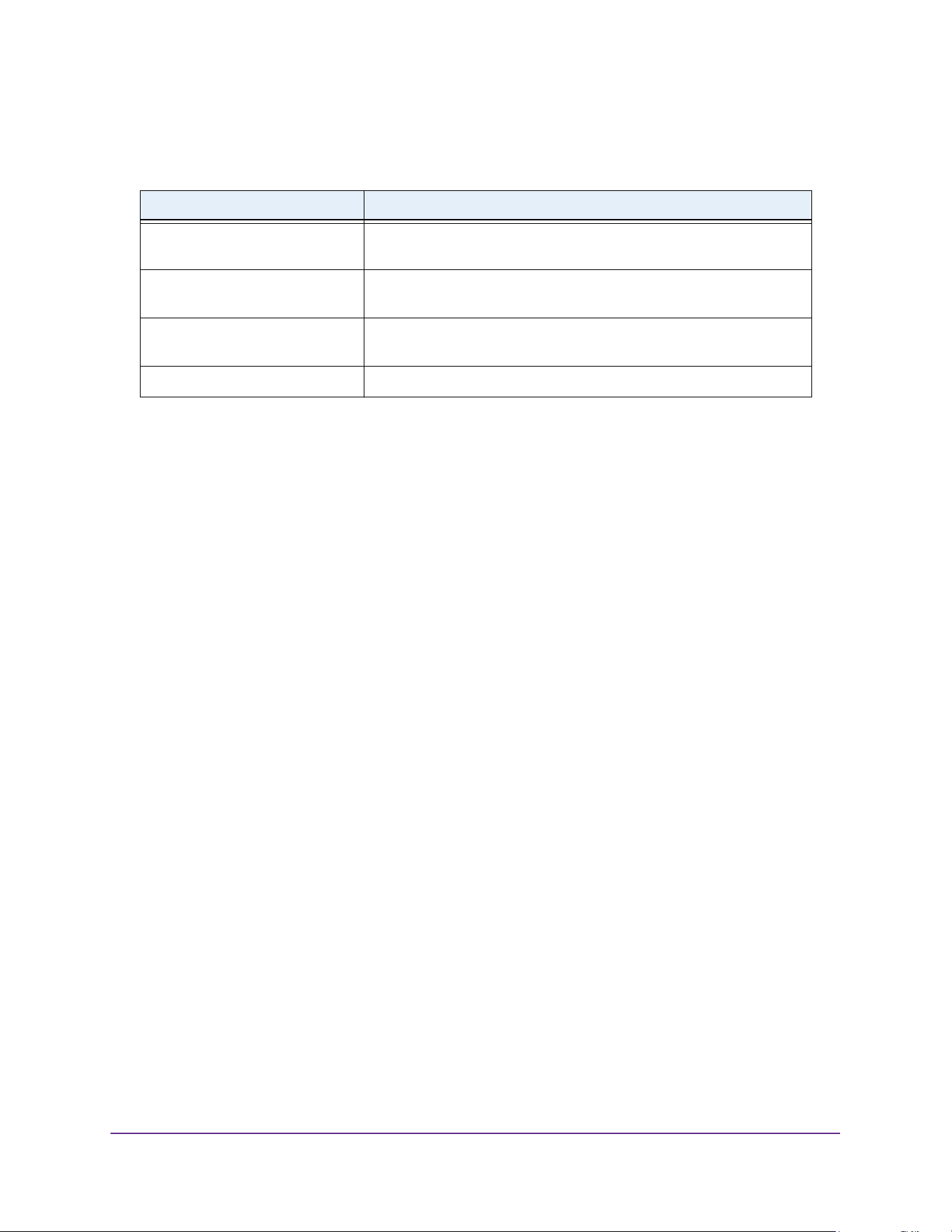
Manage Device Security
560
M4200 and M4300 Series ProSAFE Managed Switches Web Management User Manual
The following table describes the DHCP snooping statistics.
Configure IP Source Guard Interfaces
You can configure IP source guard (IPSG) on each interface. IPSG is a security feature that
filters IP packets based on source ID. This feature helps protect the network from attacks that
use IP address spoofing to compromise or overwhelm the network. The source ID can be
either the source IP address or a source IP address and source MAC address pair. The
DHCP snooping bindings database, along with IPSG entries in the database, identify
authorized source IDs. If you enable IPSG on a port where DHCP snooping is disabled or
where DHCP snooping is enabled but the port is trusted, all IP traffic received on that port is
dropped depending on the admin-configured IPSG entries. Additionally, IPSG interacts with
port security, also known as port MAC locking, to enforce the source MAC address in
received packets. Port security controls source MAC address learning in the Layer 2
forwarding database (the MAC address table). When a frame is received with a previously
unlearned source MAC address, port security queries the IPSG feature to determine whether
the MAC address belongs to a valid binding.
To configure IP Source Guard Interface settings:
1. Launch a web browser.
2. Enter http://<ipaddress> in the web browser address field.
The login window opens.
3. Enter the user name and password.
The default admin user name is admin and the default admin password is blank, that is,
do not enter a password.
4. Click the Login button.
The System Information page displays.
5. Select Security > Control > IP Source Guard > Interface Configuration.
Table 206. DHCP Snooping Statistics
Field Description
Interface The untrusted and snooping-enabled interface for which statistics are
to be displayed.
MAC Verify Failures Number of packets that were dropped by DHCP snooping because
there is no matching DHCP snooping binding entry found.
Client Ifc Mismatch The number of DHCP messages that are dropped based on source
MAC address and client HW address verification.
DHCP Server Msgs The number of server messages that are dropped on an untrusted port.
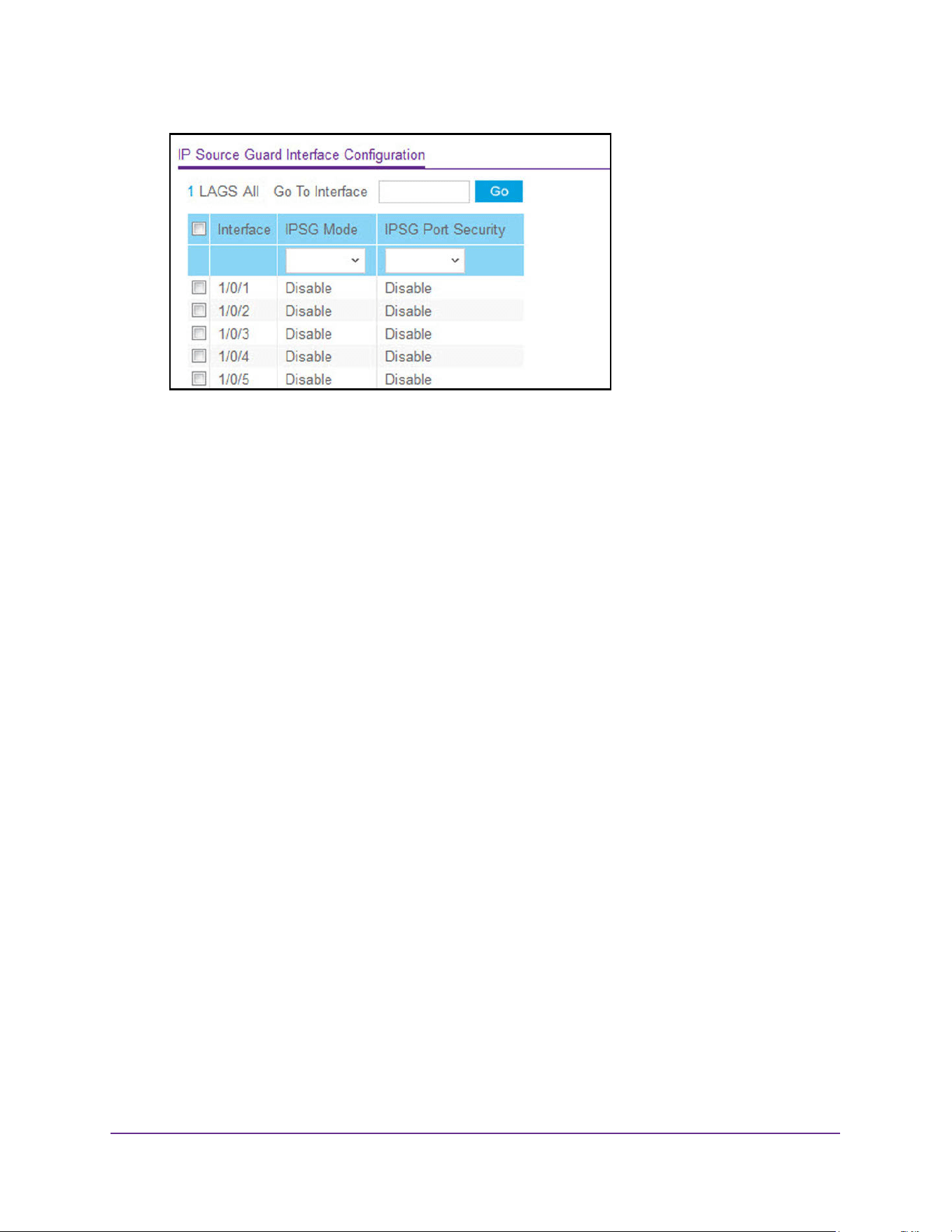
Manage Device Security
561
M4200 and M4300 Series ProSAFE Managed Switches Web Management User Manual
6. Use one of the following methods to select an interface:
• In the Go To Interface field, enter the interface in the unit/slot/port format and click on
the Go button.
• Next to the Interface column, select the check box for the port that you want to
configure, select multiple check boxes to apply the same setting to all selected
interfaces, or select the check box in the table heading to apply the same settings to
all interfaces.
7. In the IPSG Mode list, select Disable or Enable.
This sets the administrative mode of IPSG on the interface. When IPSG mode is
enabled, the sender IP address on this interface is validated against the DHCP snooping
binding database. If IPSG is enabled, packets are not forwarded if the sender IP address
is not in DHCP snooping binding database. The factory default is Disable.
8. In the IPSG Port Security list, select Disable or Enable.
This enables or disables the administrative mode of IPSG port security on the selected
interface. When this is enabled, the packets are not forwarded if the sender MAC address
is not in forwarding database (FDB) table or the DHCP snooping binding database. To
enforce filtering based on MAC address other required configurations are as follows:
• Enable port-security globally.
• Enable port-security on the interface level.
IPSG port security cannot be enabled if IPSG is disabled. The factory default is Disable.
Also, you cannot turn off IPv6SG port security while IPv6SG is enabled.
9. Click the Apply button.
The updated configuration is sent to the switch. Configuration changes take effect
immediately.
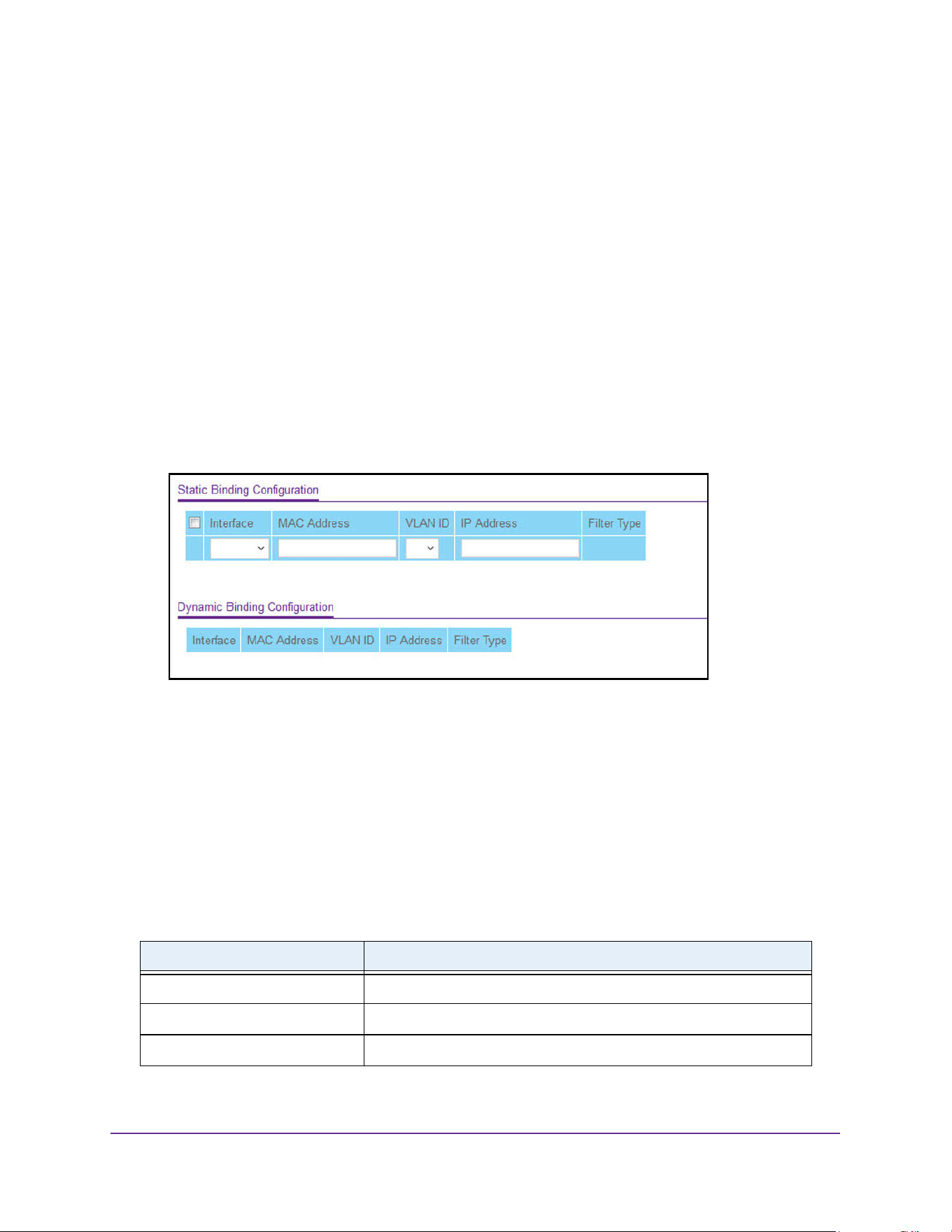
Manage Device Security
562
M4200 and M4300 Series ProSAFE Managed Switches Web Management User Manual
Configure IP Source Guard Binding Settings
To configure IP source guard static binding settings:
1. Launch a web browser.
2. Enter http://<ipaddress> in the web browser address field.
The login window opens.
3. Enter the user name and password.
The default admin user name is admin and the default admin password is blank, that is,
do not enter a password.
4. Click the Login button.
The System Information page displays.
5. Select Security > Control > IP Source Guard > Binding Configuration.
6. From the Interface menu, select the interface.
7. In the MAC Address field, type the MAC address for the binding.
8. From the VLAN ID menu, select the VLAN for the binding rule.
9. In the IP Address field, specify valid IP address for the binding rule.
10. Click the Add button.
The IPSG static binding entry is added into the database.
The following table describes the nonconfigurable IP Source Guard dynamic binding
configuration information that is displayed.
Table 207. IP Source Guard Dynamic Binding Configuration
Field Description
Interface The interface for which to add a binding into the IPSG database.
MAC Address The MAC address for the binding entry.
VLAN ID The VLAN for the binding entry.
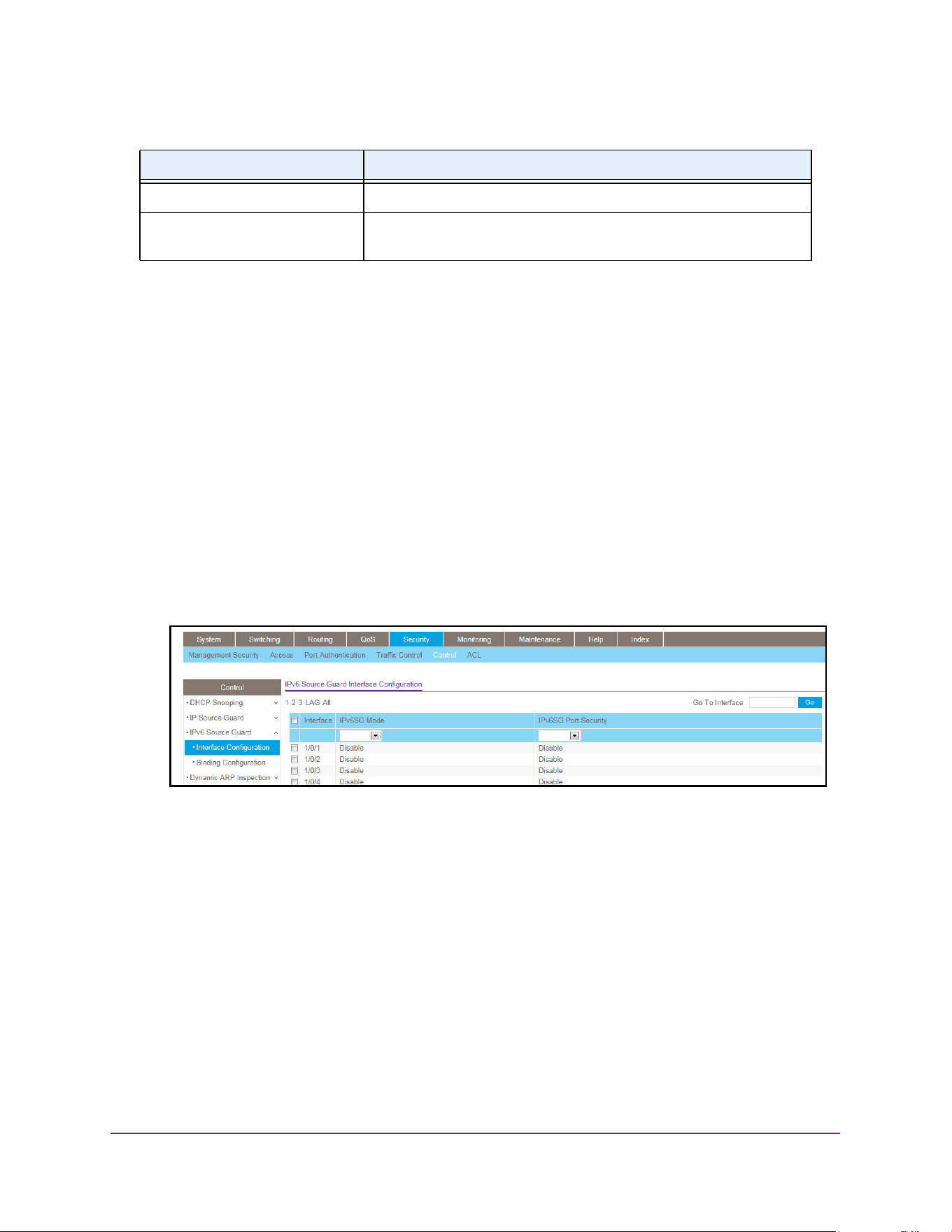
Manage Device Security
563
M4200 and M4300 Series ProSAFE Managed Switches Web Management User Manual
Configure IPv6 Source Guard Interface Settings
To configure IPv6 source guard Interface settings:
1. Launch a web browser.
2. Enter http://<ipaddress> in the web browser address field.
The login window opens.
3. Enter the user name and password.
The default admin user name is admin and the default admin password is blank, that is,
do not enter a password.
4. Click the Login button.
The System Information page displays.
5. Select Security > Control > IPv6 Source Guard > Interface Configuration.
6. Use one of the following methods to select an interface:
• In the Go To Interface field, enter the interface in the unit/slot/port format and click on
the Go button.
• Next to the Interface column, select the check box for the port that you want to
configure, select multiple check boxes to apply the same setting to all selected
interfaces, or select the check box in the table heading to apply the same settings to
all interfaces.
7. Use the IPv6SG Mode menu to enable or disable validation of sender IPv6 address on this
interface.
If IPv6SG is enabled, packets are not forwarded if the sender IPv6 address is not in the
DHCP snooping binding database. The factory default is Disable.
8. Use the IPv6SG Port Security menu to enable or disable the IPv6SG port security on the
selected interface.
IP Address Displays valid IP address for the binding entry.
Filter Type Filter type used on the interface. One is source IP address filter type,
and the other is source IP address and MAC address filter type.
Table 207. IP Source Guard Dynamic Binding Configuration (continued)
Field Description
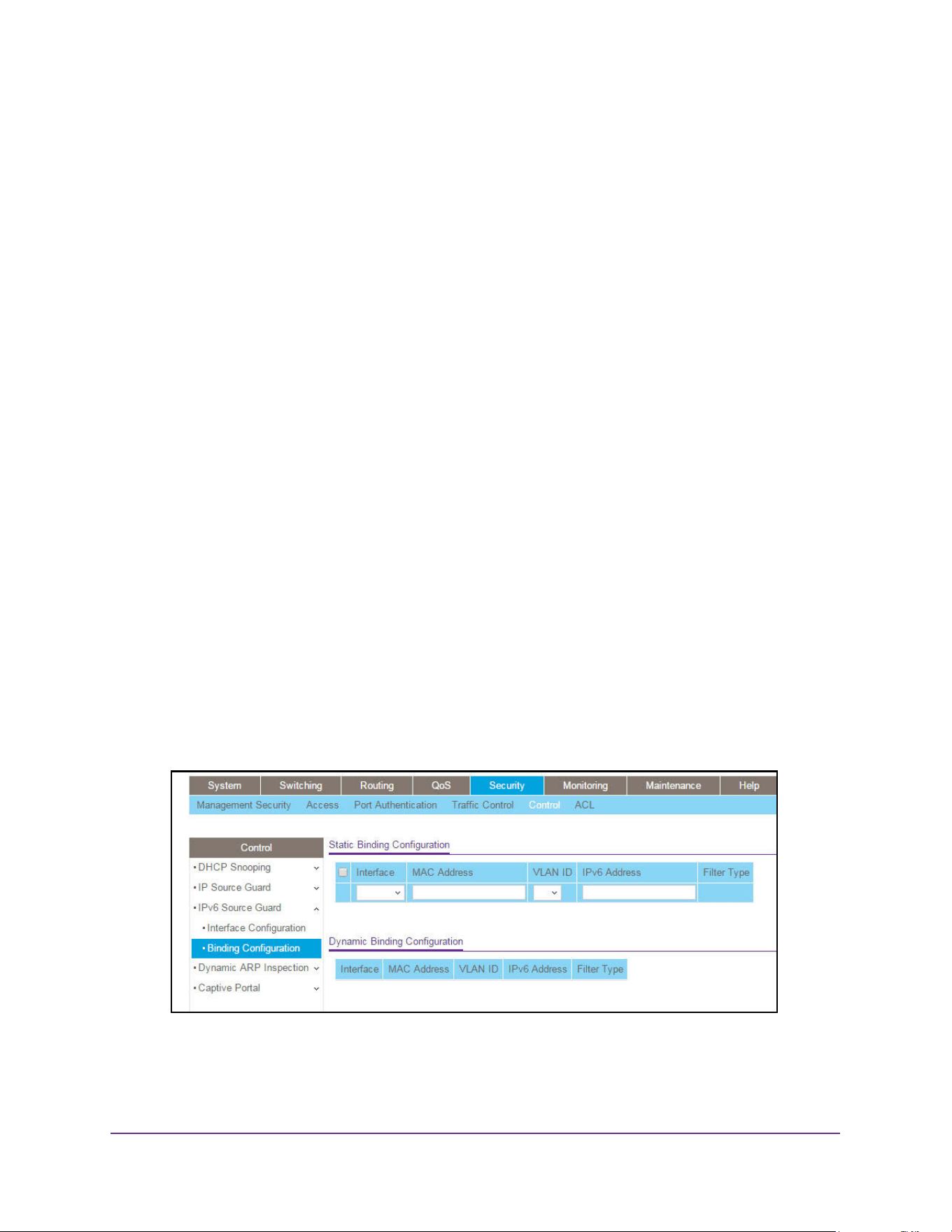
Manage Device Security
564
M4200 and M4300 Series ProSAFE Managed Switches Web Management User Manual
If IPv6SG port security is enabled, then the packets are not forwarded if the sender MAC
address is not in FDB table and it is not in the DHCP snooping binding database. To
enforce filtering based on MAC address other required configurations are as follows:
• Enable port-security globally.
• Enable port-security on the interface level.
IPv6SG port security cannot be enabled if IPv6SG is disabled. The factory default is
Disable. Also, you are not allowed to turn off IPv6SG port security while IPv6SG is
enabled.
9. Click the Apply button.
The updated configuration is sent to the switch. Configuration changes take effect
immediately.
Configure an IPv6 Source Guard Binding
To configure an IPv6 source guard static binding:
1. Launch a web browser.
2. Enter http://<ipaddress> in the web browser address field.
The login window opens.
3. Enter the user name and password.
The default admin user name is admin and the default admin password is blank, that is,
do not enter a password.
4. Click the Login button.
The System Information page displays.
5. Select Security > Control > IPv6 Source Guard > Binding Configuration.
6. From the Interface menu, select the interface to add a binding into the IPv6SG database.
7. In the MAC Address field, specify the MAC address for the binding.
8. From the VLAN ID menu, select the VLAN from the list for the binding rule.
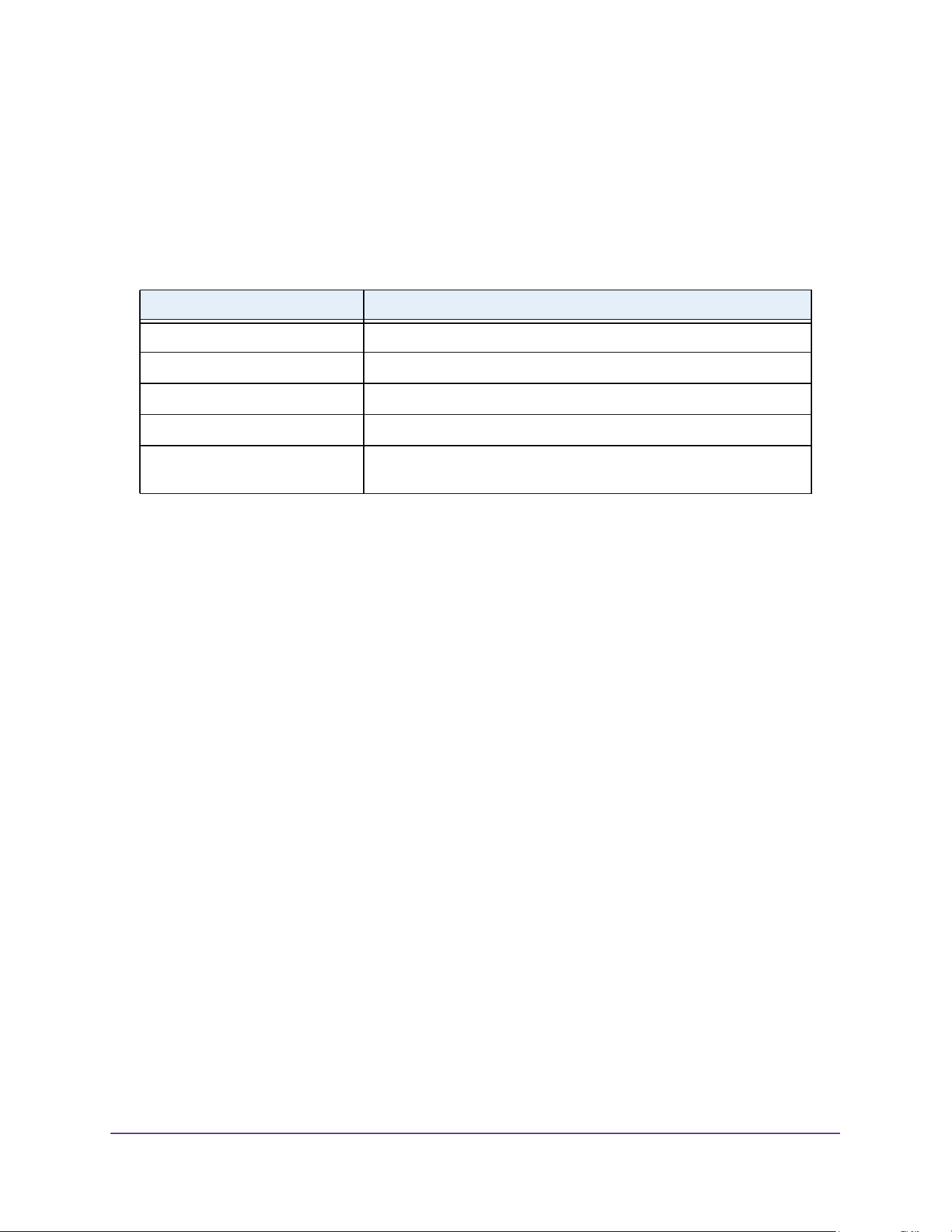
Manage Device Security
565
M4200 and M4300 Series ProSAFE Managed Switches Web Management User Manual
9. In the IPv6 Address field, specify valid IP address for the binding rule.
10. Click the Add button.
The IPv6SG static binding entry is added to the database.
The following table describes the nonconfigurable IPv6 Source Guard dynamic binding
configuration information that is displayed.
Configure Dynamic ARP Inspection
You can configure dynamic ARP inspection (DAI) VLANs, interfaces, and ACL with
associated rules.
Configure the Global Dynamic ARP inspection Settings
You can configure the global dynamic ARP inspection (DAI) settings.
To configure the global DAI settings:
1. Launch a web browser.
2. Enter http://<ipaddress> in the web browser address field.
The login window opens.
3. Enter the user name and password.
The default admin user name is admin and the default admin password is blank, that is,
do not enter a password.
4. Click the Login button.
The System Information page displays.
5. Select Security > Control > Dynamic ARP Inspection > DAI Configuration.
Table 208. IPv6 Source Guard Dynamic Binding Configuration
Field Description
Interface The interface to add a binding into the IPSG database.
MAC Address The MAC address for the binding entry.
VLAN ID The VLAN for the binding entry.
IPv6 Address Displays valid IPv6 address for the binding entry.
Filter Type Filter type used on the interface. One is source IPv6 address filter type,
and the other is source IPv6 address and MAC address filter type.
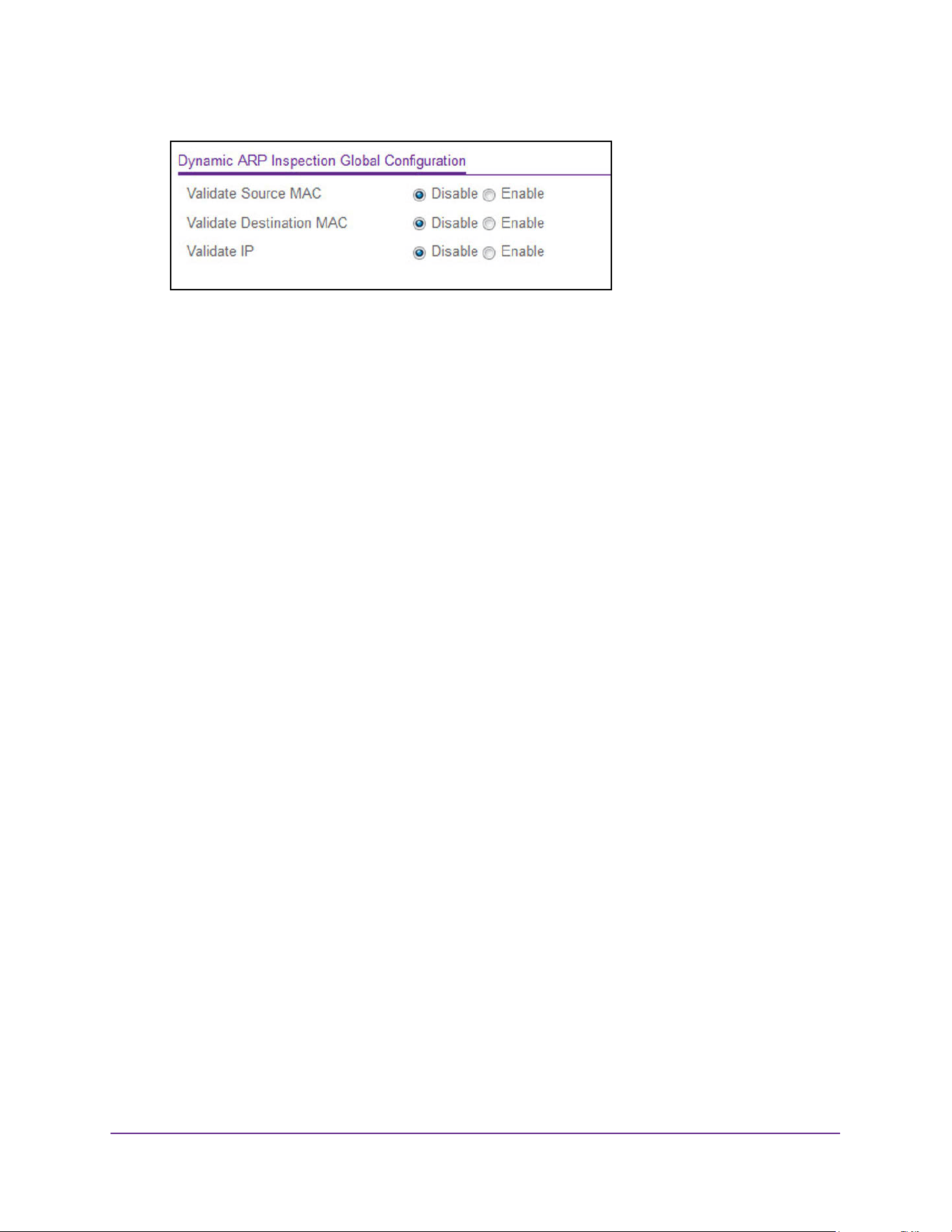
Manage Device Security
566
M4200 and M4300 Series ProSAFE Managed Switches Web Management User Manual
6. Select the Validate Source MAC Disable or Enable radio button.
This specifies the DAI source MAC validation mode for the switch. If you select Enable,
sender MAC validation for the ARP packets is enabled. The factory default is Disable.
7. Select the Validate Destination MAC Disable or Enable radio button
This specifies the DAI destination MAC validation mode for the switch. If you select
Enable, destination MAC validation for the ARP response packets is enabled. The factory
default is Disable.
8. Select the Validate IP Disable or Enable radio button.
This specifies the DAI IP validation mode for the switch. If you select Enable, IP address
validation for the ARP packets is enabled. The factory default is Disable.
9. Click the Apply button.
The updated configuration is sent to the switch. Configuration changes take effect
immediately.
Configure DAI VLANs
You can configure one or more dynamic ARP inspection (DAI) VLANs.
To configure one ore more DAI VLANs:
1. Launch a web browser.
2. Enter http://<ipaddress> in the web browser address field.
The login window opens.
3. Enter the user name and password.
The default admin user name is admin and the default admin password is blank, that is,
do not enter a password.
4. Click the Login button.
The System Information page displays.
5. Select Security > Control > Dynamic ARP Inspection > DAI VLAN Configuration.
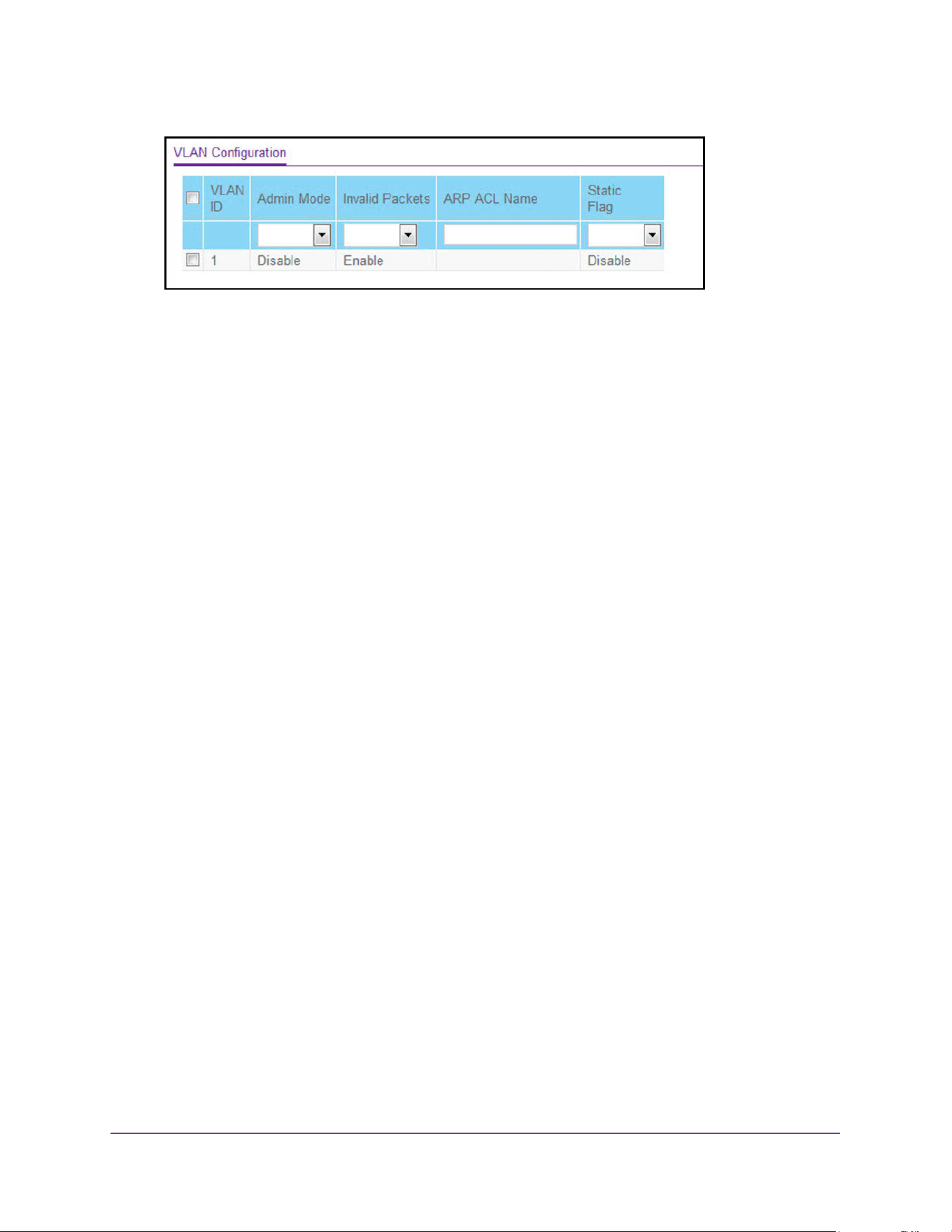
Manage Device Security
567
M4200 and M4300 Series ProSAFE Managed Switches Web Management User Manual
6. Use the VLAN ID check box or boxes to select one ore more DAI-capable VLANs.
7. In the Admin Mode list, select Enable or Disable.
This indicates whether the dynamic ARP inspection is enabled on this VLAN. If this is set
to Enable, then dynamic ARP inspection is enabled. If this is set to Disable, then
dynamic ARP inspection is disabled. The default is Disable.
8. Use Invalid Packets to indicate whether the dynamic ARP inspection logging is enabled on
this VLAN.
If this is set to Enable, invalid ARP packets information is logged. If it is set to Disable,
dynamic ARP inspection logging is disabled. The default is Enable.
9. Use ARP ACL Name to specify a name for the ARP access list.
A VLAN can be configured to use this ARP ACL containing rules as the filter for ARP
packet validation. The name can contain up to 31 alphanumeric characters. The ARP
ACL name is deleted if you specify N/A.
10. Use Static Flag to determine whether the ARP packet needs validation using the DHCP
snooping database in case ARP ACL rules do not match.
If the flag is enabled then the ARP packet is validated by the ARP ACL rules only. If the
flag is disabled then the ARP packet needs further validation by using the DHCP
snooping entries. The factory default is Disable.
11. Click the Apply button.
The updated configuration is sent to the switch. Configuration changes take effect
immediately.
Configure DAI Interfaces
You can configure one or more dynamic ARP inspection (DAI) interfaces.
To configure one ore more DAI interfaces:
1. Launch a web browser.
2. Enter http://<ipaddress> in the web browser address field.
The login window opens.
3. Enter the user name and password.
The default admin user name is admin and the default admin password is blank, that is,
do not enter a password.
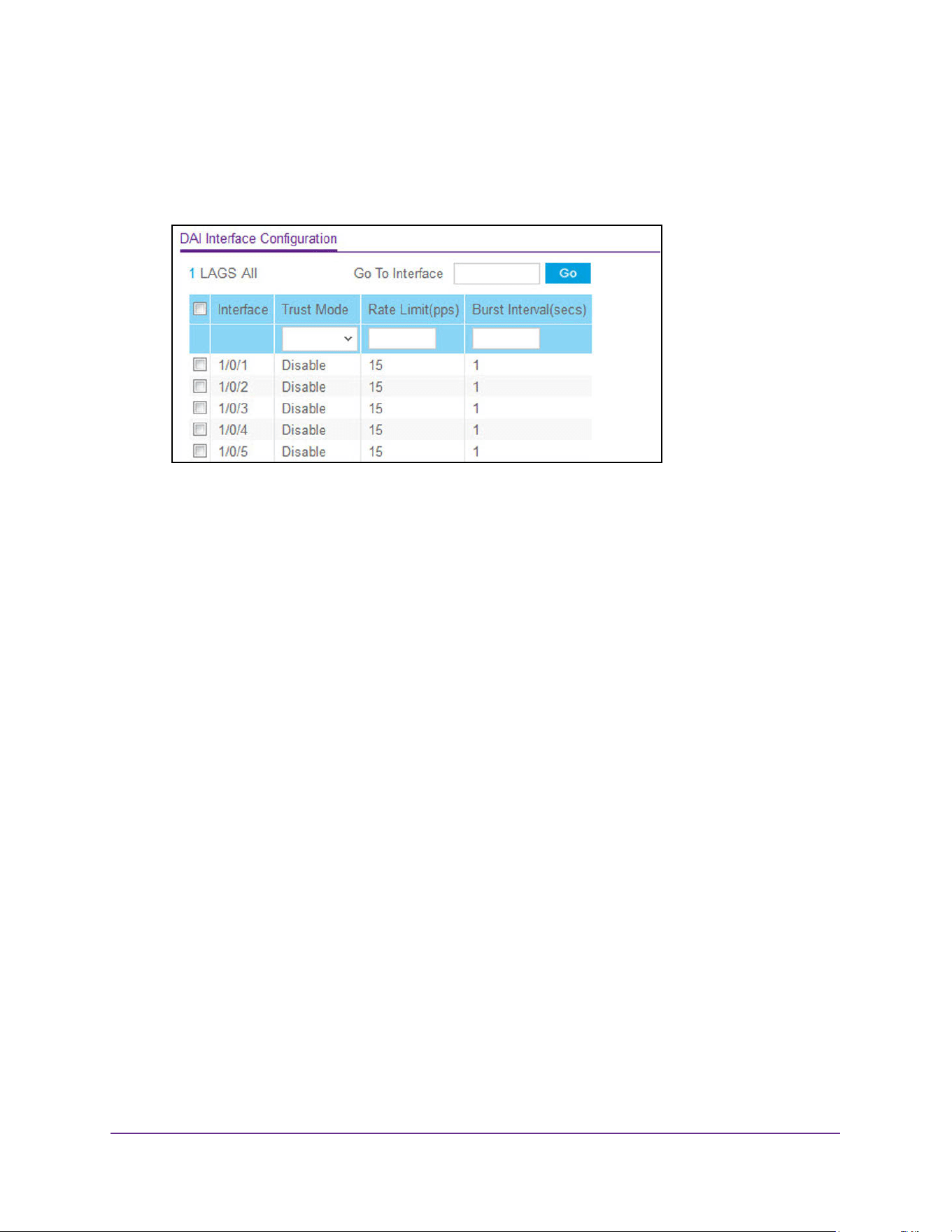
Manage Device Security
568
M4200 and M4300 Series ProSAFE Managed Switches Web Management User Manual
4. Click the Login button.
The System Information page displays.
5. Select Security > Control > Dynamic ARP Inspection > DAI Interface Configuration.
6. Use one of the following methods to select an interface:
• In the Go To Interface field, enter the interface in the unit/slot/port format and click on
the Go button.
• Next to the Interface column, select the check box for the port that you want to
configure, select multiple check boxes to apply the same setting to all selected
interfaces, or select the check box in the table heading to apply the same settings to
all interfaces.
7. Use Trust Mode to indicate whether the interface is trusted for dynamic ARP inspection
purposes.
If this is set to Enable, the interface is trusted. ARP packets coming to this interface are
forwarded without checking. If this is set to Disable, the interface is not trusted. ARP
packets coming to this interface are subjected to ARP inspection. The factory default is
Disable.
8. Use Rate Limit (pps) to specify rate limit value for dynamic ARP inspection purpose.
If the incoming rate of ARP packets exceeds the value of this for consecutive burst
interval seconds, ARP packets are dropped. If this value is N/A, there is no limit. The
value can be set to –1, which means N/A. The range is 0– 300. The factory default is 15
pps (packets per second).
9. Use Burst Interval (secs) to specify the burst interval value for rate limiting purposes on this
interface. If the rate limit is None, burst interval has no meaning and is displayed as N/A. The
Rate Limit range is 1 to 15. The factory default is 1 second.
10. Click the Apply button.
The updated configuration is sent to the switch. Configuration changes take effect
immediately.
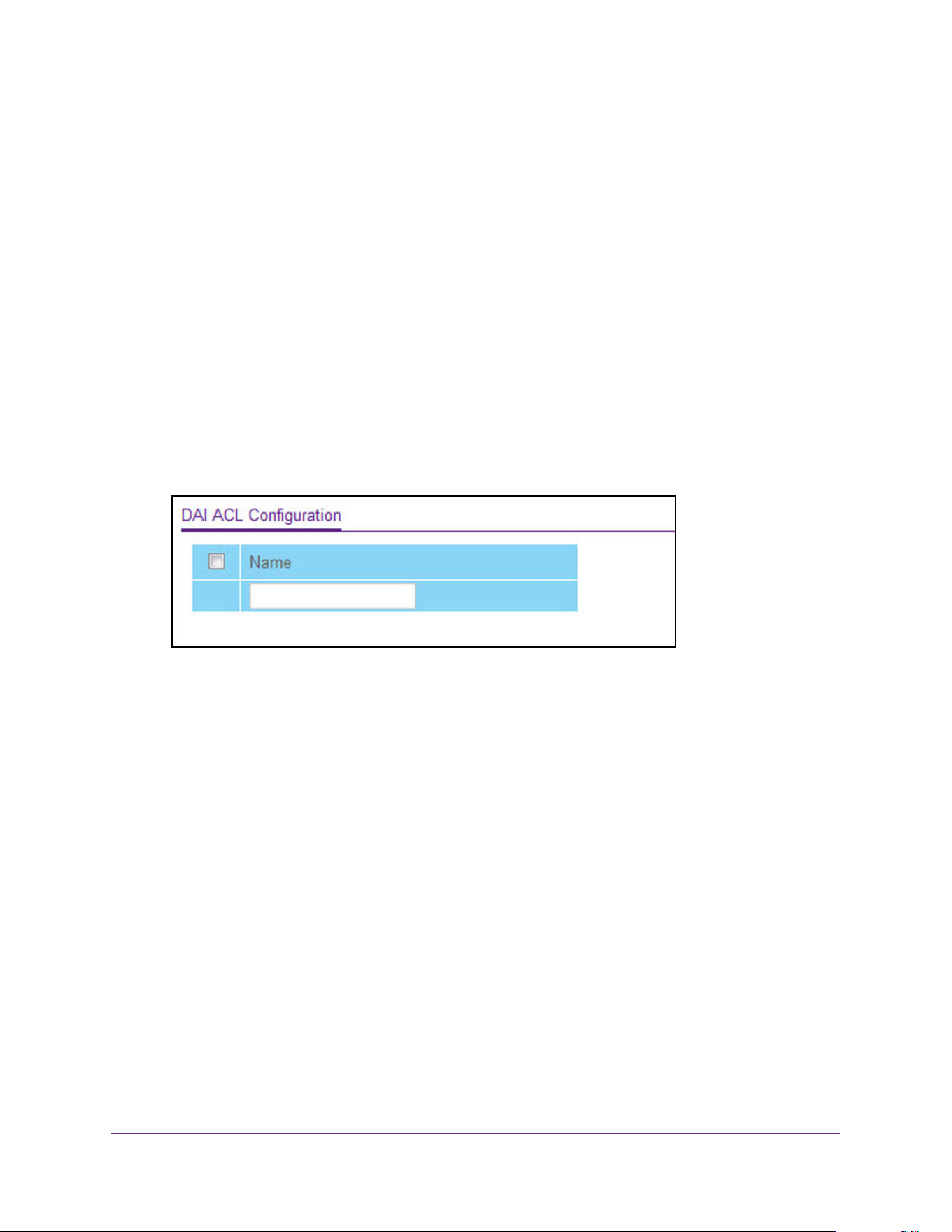
Manage Device Security
569
M4200 and M4300 Series ProSAFE Managed Switches Web Management User Manual
Configure a DAI ACL
You can configure a dynamic ARP inspection (DAI) ACL.
To configure a DAI ACL:
1. Launch a web browser.
2. Enter http://<ipaddress> in the web browser address field.
The login window opens.
3. Enter the user name and password.
The default admin user name is admin and the default admin password is blank, that is,
do not enter a password.
4. Click the Login button.
The System Information page displays.
5. Select Security > Control > Dynamic ARP Inspection > DAI ACL Configuration.
6. Use Name to create an ARP ACL for DAI.
7. Click the Add button.
The DAI ACL is added to the switch configuration.
8. To remove the currently selected DAI ACL from the switch configuration, click the Delete
button.
Configure a DAI ACL Rule
You can configure a dynamic ARP inspection (DAI) ACL rule.
To configure a DAI ACL rule:
1. Launch a web browser.
2. Enter http://<ipaddress> in the web browser address field.
The login window opens.
3. Enter the user name and password.
The default admin user name is admin and the default admin password is blank, that is,
do not enter a password.
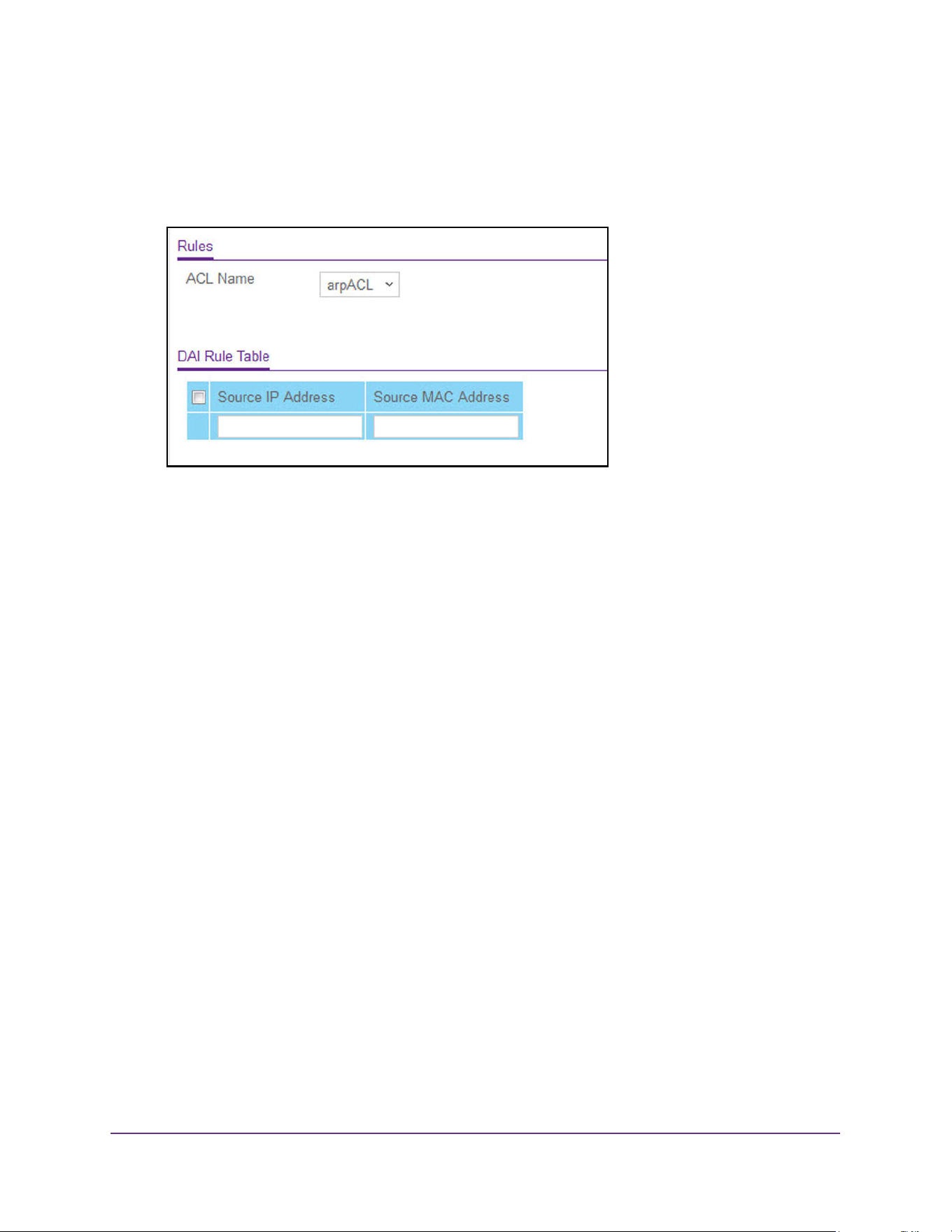
Manage Device Security
570
M4200 and M4300 Series ProSAFE Managed Switches Web Management User Manual
4. Click the Login button.
The System Information page displays.
5. Select Security > Control > Dynamic ARP Inspection > DAI ACL Rule Configuration.
6. From the ACL Name menu, select the DAI ARP ACL for which you want to configure the
rule.
7. In the Source IP Address field, enter the source IP address that must be used as a match
for the rule.
8. In the Source MAC Address field, enter the source MAC address that must be used as a
match for the rule.
9. Click the Add button.
The rule is added to the selected ACL.
View DAI Statistics
To view the DAI statistics:
1. Launch a web browser.
2. Enter http://<ipaddress> in the web browser address field.
The login window opens.
3. Enter the user name and password.
The default admin user name is admin and the default admin password is blank, that is,
do not enter a password.
4. Click the Login button.
The System Information page displays.
5. Select Security > Control > Dynamic ARP Inspection > DAI Statistics.
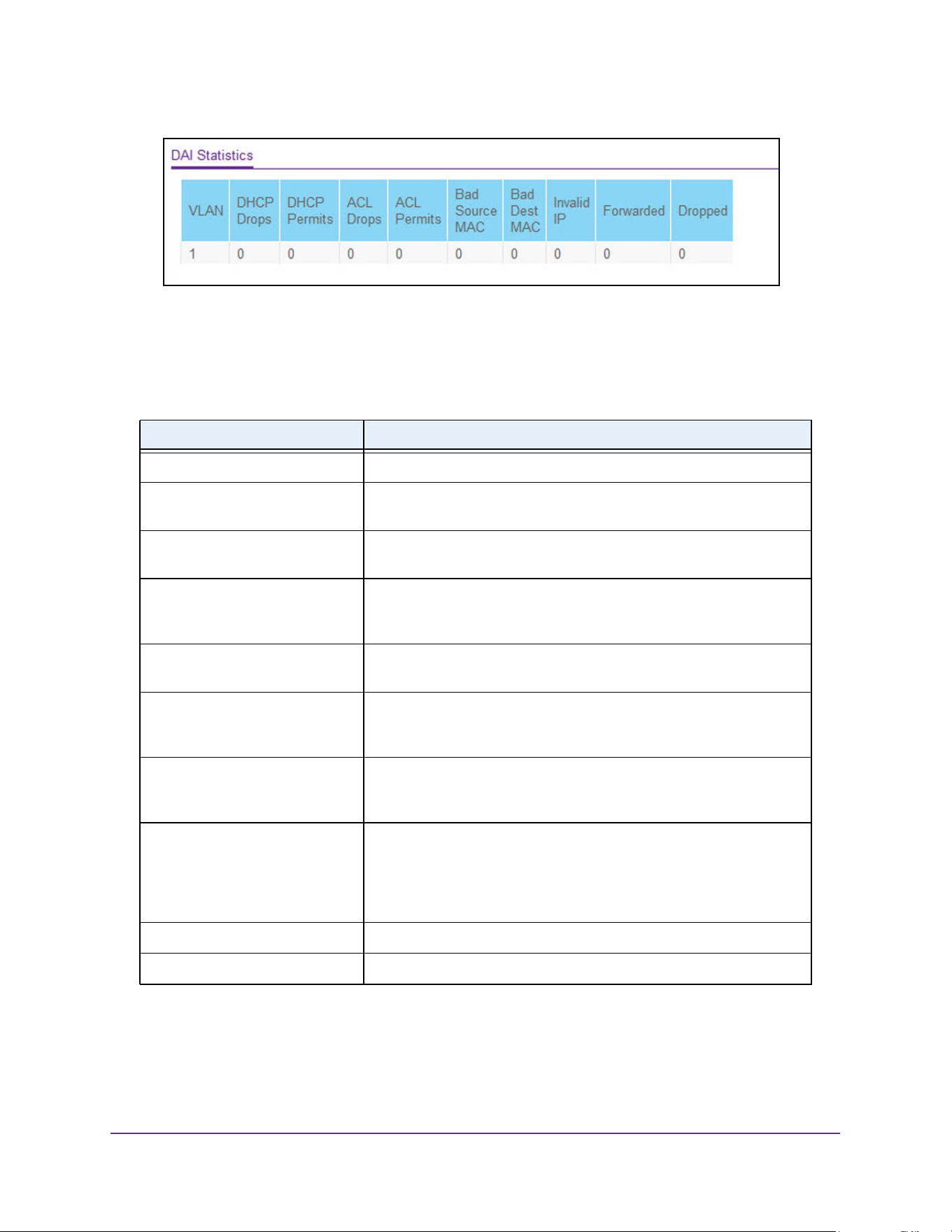
Manage Device Security
571
M4200 and M4300 Series ProSAFE Managed Switches Web Management User Manual
6. To refresh the page with the latest information on the switch, click the Update button.
7. To clear the DAI statistics, click the Clear button.
The following table describes the nonconfigurable information displayed on the page.
Table 209. DAI Statistics
Field Description
VLAN The enabled VLAN ID for which statistics are to be displayed.
DHCP Drops Number of ARP packets that were dropped by DAI because there is no
matching DHCP snooping binding entry found.
DHCP Permits Number of ARP packets that were forwarded by DAI because there is a
matching DHCP snooping binding entry found.
ACL Drops Number of ARP packets that were dropped by DAI because there is no
matching ARP ACL rule found for this VLAN and the static flag is set on
this VLAN.
ACL Permits Number of ARP packets that were permitted by DAI because there is a
matching ARP ACL rule found for this VLAN.
Bad Source MAC Number of ARP packets that were dropped by DAI because the sender
MAC address in ARP packets didn't match the source MAC in Ethernet
header.
Bad Dest MAC Number of ARP packets that were dropped by DAI because the target
MAC address in ARP reply packets didn't match the destination MAC in
Ethernet header.
Invalid IP Number of ARP packets that were dropped by DAI because the sender
IP address in ARP packets or the target IP address in ARP reply
packets is invalid. Invalid addresses include 0.0.0.0, 255.255.255.255,
IP multicast addresses, class E addresses (240.0.0.0/4), loopback
addresses (127.0.0.0/8).
Forwarded Number of valid ARP packets forwarded by DAI.
Dropped Number of invalid ARP packets dropped by DAI.
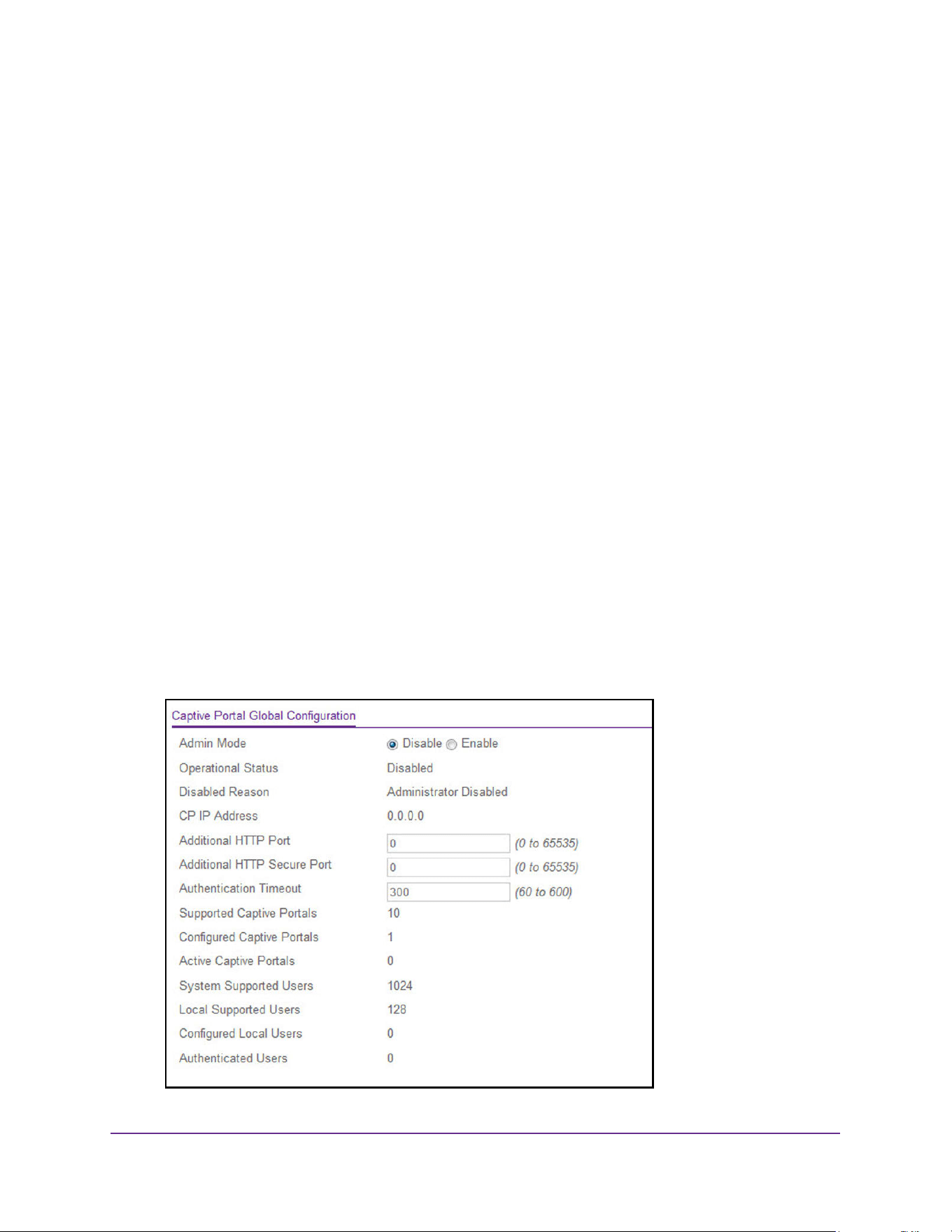
Manage Device Security
572
M4200 and M4300 Series ProSAFE Managed Switches Web Management User Manual
Set Up Captive Portals
The captive portal feature allows you to prevent clients from accessing the network until user
verification is established. You can configure captive portal verification to allow access for
both guest and authenticated users. Authenticated users must be validated against a
database of authorized captive portal users before access is granted. The database can be
stored locally on the device or on a RADIUS server.
Configure Captive Portal Global Settings
You can control the administrative state of the captive portal feature, and configure global
settings that affect all captive portals configured on the switch.
To configure captive portal global settings:
1. Launch a web browser.
2. Enter http://<ipaddress> in the web browser address field.
The login window opens.
3. Enter the user name and password.
The default admin user name is admin and the default admin password is blank, that is,
do not enter a password.
4. Click the Login button.
The System Information page displays.
5. Select Security > Control > Captive Portal > CP Global Configuration.
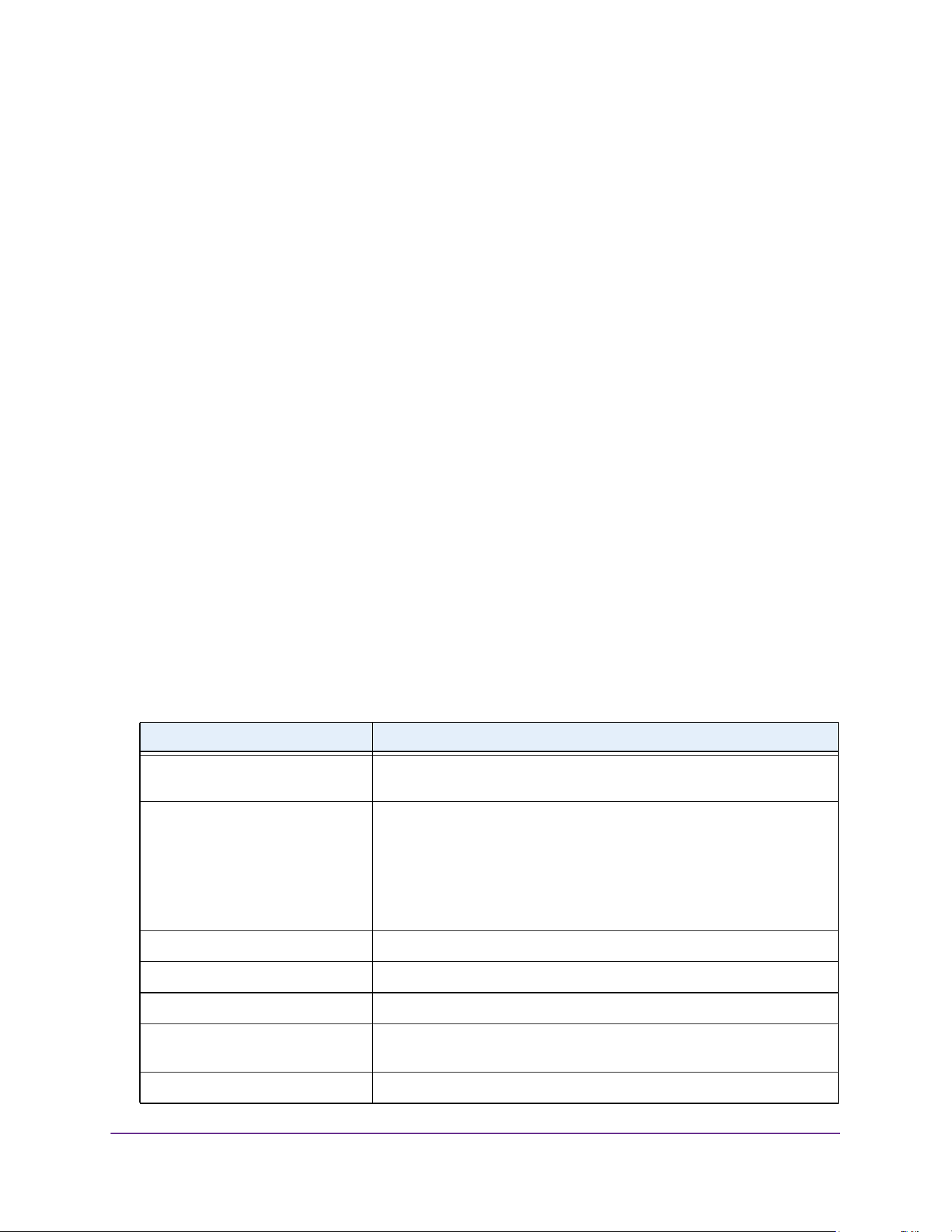
Manage Device Security
573
M4200 and M4300 Series ProSAFE Managed Switches Web Management User Manual
6. Select the Admin Mode Disable or Enable radio button.
This sets the administrative mode of the captive portal feature. By default CP is disabled.
7. In the Additional HTTP Port field, enter a port number between 0–65535 (excluding port
80).
HTTP traffic uses standard port 80, but you can use the Additional HTTP Port field to
configure an additional port for HTTP traffic. Enter 0 to unconfigure the additional HTTP
port. The default is 0.
8. In the Additional HTTP Secure Port field, enter a port number between 0–65535
(excluding port 443).
HTTP Secure traffic uses standard port 443, but you can configure an additional port for
HTTP Secure traffic using the Additional HTTP Secure Port field. Enter 0 to unconfigure
the additional HTTP Secure port. The default is 0.
9. Use the Authentication Timeout field to enter the number of seconds that captive portal
keeps the authentication session open with a client that is attempting to access the network
through a portal.
To access the network through a portal, the client must first enter authentication
information on an authentication web page. When the time-out expires, the switch
disconnects any active TCP or SSL connection with the client. The valid range is 60 to
600 seconds. The default authentication time-out is 300 seconds.
10. Click the Apply button.
The updated configuration is sent to the switch. Configuration changes take effect
immediately.
The following table describes the nonconfigurable data that is displayed.
Table 210. Captive Portal Global Configuration
Field Description
Operational Status The operational status of the captive portal feature, which is either
Enabled or Disabled. The default is Disabled.
Disabled Reason If CP is disabled, this field displays the reason, which can be one of the
following:
• Administratively disabled
• IP address not configured
• No IP routing interface
• Routing disabled
CP IP Address The IP address that the captive portal uses.
Supported Captive Portals The number of supported captive portals in the system.
Configured Captive Portals Shows the number of captive portals configured on the switch.
Active Captive Portals Shows the number of captive portal instances that are operationally
enabled.
System Supported Users Shows the number of authenticated users that the system can support.
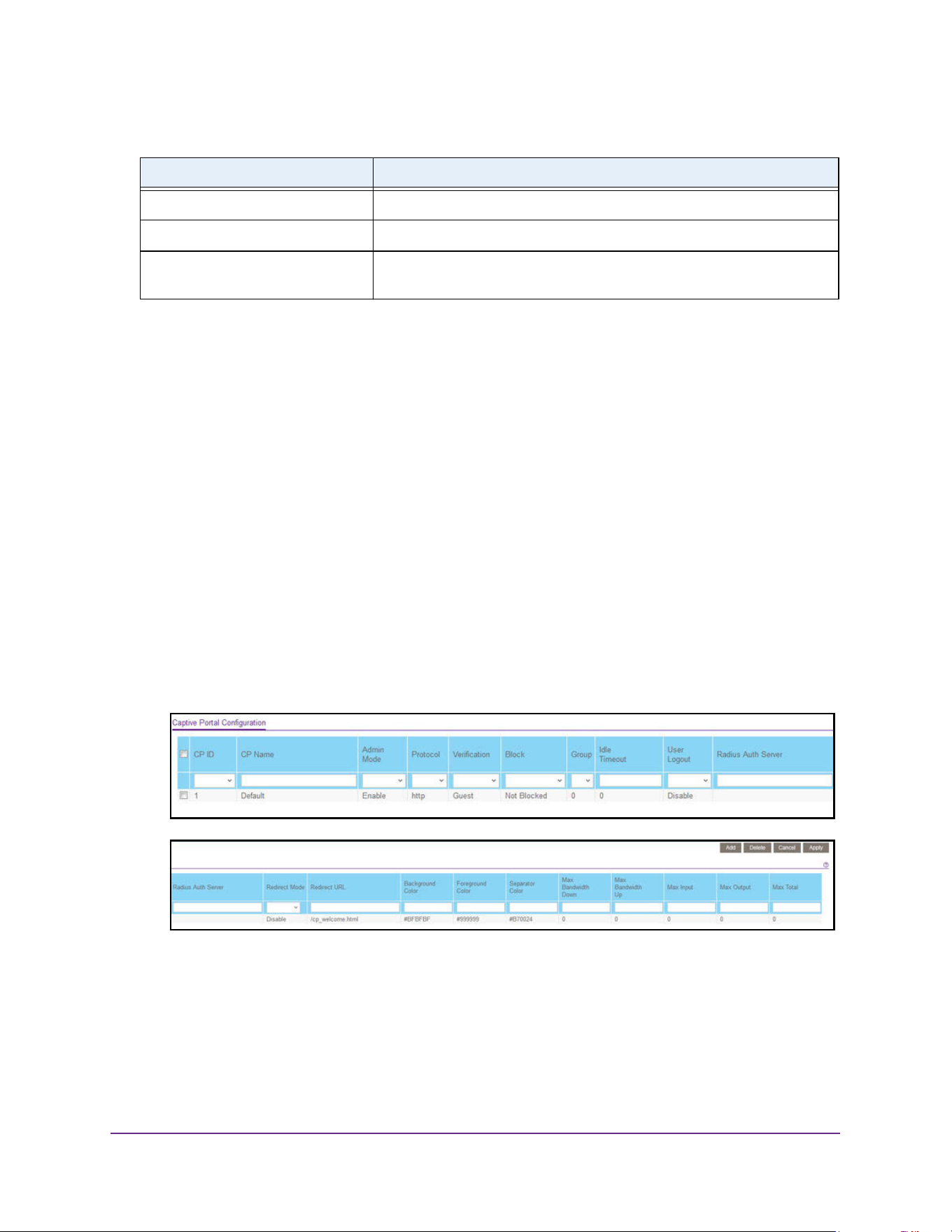
Manage Device Security
574
M4200 and M4300 Series ProSAFE Managed Switches Web Management User Manual
Add a Captive Portal Instance
By default, the switch has one captive portal. You can change the settings for that captive
portal, and you can also create and configure up to nine additional portals.
To add a captive portal instance:
1. Launch a web browser.
2. Enter http://<ipaddress> in the web browser address field.
The login window opens.
3. Enter the user name and password.
The default admin user name is admin and the default admin password is blank, that is,
do not enter a password.
4. Click the Login button.
The System Information page displays.
5. Select Security > Control > Captive Portal > CP Configuration.
6. In the CP Name field, enter the name of the configuration.
The name can contain 1 to 31 alphanumeric characters.
7. In the Admin Mode list, select Enable or Disable.
This sets the administrative mode of the captive portal feature. By default captive portal is
disabled.
Local Supported Users Shows the number of entries that the local user database supports.
Configured Local Users The number of local users configured.
Authenticated Users Shows the number of users currently authenticated to all captive portal
instances on this switch.
Table 210. Captive Portal Global Configuration (continued)
Field Description

Manage Device Security
575
M4200 and M4300 Series ProSAFE Managed Switches Web Management User Manual
8. In the Protocol field, select either HTTP or HTTPS as the captive portal instances used for
communication with clients during the verification process:
• HTTP does not use encryption during verification.
• HTTPS uses the Secure Sockets Layer (SSL), which requires a certificate to provide
encryption. The certificate is presented to the user at connection time.
9. Select the type of user Verification that the captive portal instance performs with clients that
attempt to connect:
• Guest. The user does not need to be authenticated by a database.
• Local. The device uses a local database to authenticate users.
• RADIUS. The device uses a database on a remote RADIUS server to authenticate
users.
10. Select the Block status.
If the CP is blocked, users cannot gain access to the network through the CP. Use this
function to temporarily protect the network during unexpected events, such as denial of
service attacks.
11. If the verification mode is Local or RADIUS, use the Group field to assign an existing user
group to the captive portal.
All users who belong to the group are permitted to access the network through this portal.
The User Group list is the same for all CP configurations on the switch.
12. In the Idle Timeout field, enter the number of seconds to wait before terminating a session.
A user is logged out once the session idle time-out is reached. If you set the value to 0,
then the time-out is not enforced. The valid range is 0 to 900 seconds. The default value
is 0.
13. In the User Logout list, select the Enable or Disable option to allow an authenticated client
to deauthenticate from the network.
If this option is clear or the user does not specifically request logout, the client connection
status remains authenticated until the captive portal deauthenticates the user, for
example by reaching the idle time-out or session time-out values.
14. If the verification mode is RADIUS, use the Radius Auth Server field to enter the IP
address of the RADIUS server to use for client authentication.
The device acts as the RADIUS client and performs all RADIUS transactions on behalf of
the clients.
15. Select the Redirect Mode to specify whether the CP redirects the newly authenticated client
to the configured URL (enabled).
If this mode is disabled, the default locale specific welcome is used.
16. Specify the Redirect URL to which the newly authenticated client is redirected.
The maximum length for the URL is 512 alphanumeric characters.
17. In the Background Color field, specify the value of the background color.
For example, #BFBFBF.

Manage Device Security
576
M4200 and M4300 Series ProSAFE Managed Switches Web Management User Manual
18. In the Foreground Color field, specify the value of the foreground color.
For example, #999999.
19. In the Separator Color field, specify the value of the separator color.
For example, #46008F.
20. In the Max Bandwidth Down field, specify the maximum rate at which a client can receive
data from the network.
The rate is in bytes per seconds. 0 indicates the limit is not enforced. The range is 0 to
536870911.
21. In the Max Bandwidth Up field, specify the maximum rate in bytes per second at which a
client can send data into the network.
A value of 0 indicates the limit is not enforced. The range is 0 to 536870911.
22. In the Max Input field, specify the maximum number of octets that the user is allowed to
transmit.
After this limit is reached, the user is disconnected. 0 indicates that the limit is not
enforced. The range is 0 to 4294967295.
23. In the Max Output field, specify the maximum number of octets that the user is allowed to
receive.
After this limit is reached, the user is disconnected. 0 indicates the limit is not enforced.
The range is 0 to 4294967295.
24. In the Max Total field, specify the maximum number of octets that the user is allowed to
transfer, meaning the sum of octets transmitted and received.
After this limit is reached, the user is disconnected. 0 indicates the limit is not enforced.
The range is 0 to 4294967295.
25. Click the Add button.
The captive portal instance is added.
Configure Captive Portals Bindings
You can associate a configured captive portal with a specific network (SSID). The CP feature
runs only on the interfaces you specify. Multiple interfaces can be associated with a CP, but
an interface can be associated to only one CP at a time.
To configure captive portal bindings:
1. Launch a web browser.
2. Enter http://<ipaddress> in the web browser address field.
The login window opens.
3. Enter the user name and password.
The default admin user name is admin and the default admin password is blank, that is,
do not enter a password.
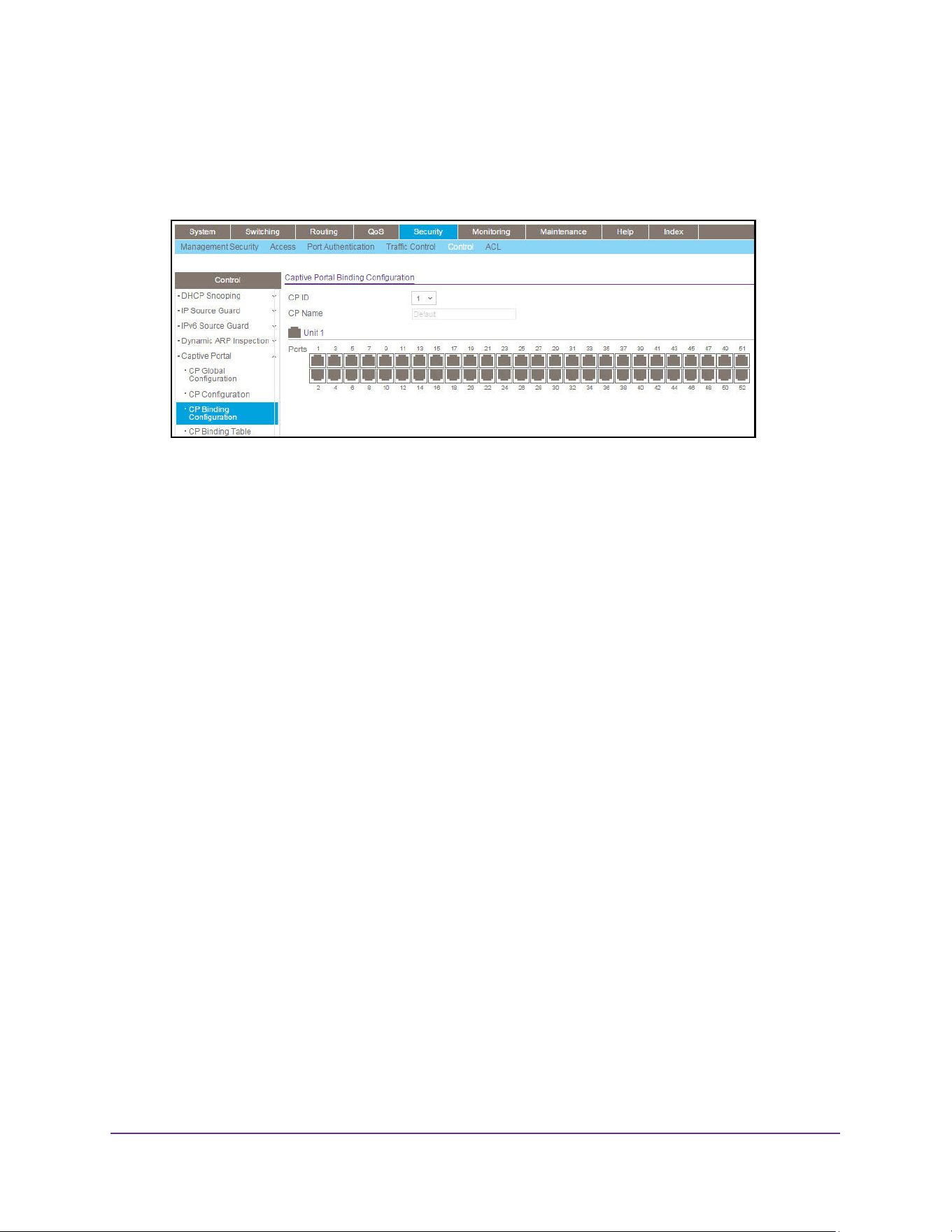
Manage Device Security
577
M4200 and M4300 Series ProSAFE Managed Switches Web Management User Manual
4. Click the Login button.
The System Information page displays.
5. Select Security > Control > Captive Portal > CP Binding Configuration.
6. Select the CP ID from the list.
The ID is a unique value that identifies the captive portal instance. This value is
automatically assigned to the instance when it is created and cannot be changed.
7. In the CP Name field, specify the name of the configuration.
The name can contain from 1 to 31 alphanumeric characters.
8. Click one or more interfaces.
The interfaces are selected.
9. Click the Apply button.
The updated configuration is sent to the switch. Configuration changes take effect
immediately.
View the Captive Portal Binding Table
To view the captive portal binding table:
1. Launch a web browser.
2. Enter http://<ipaddress> in the web browser address field.
The login window opens.
3. Enter the user name and password.
The default admin user name is admin and the default admin password is blank, that is,
do not enter a password.
4. Click the Login button.
The System Information page displays.
5. Select Security > Control > Captive Portal > CP Binding Table.
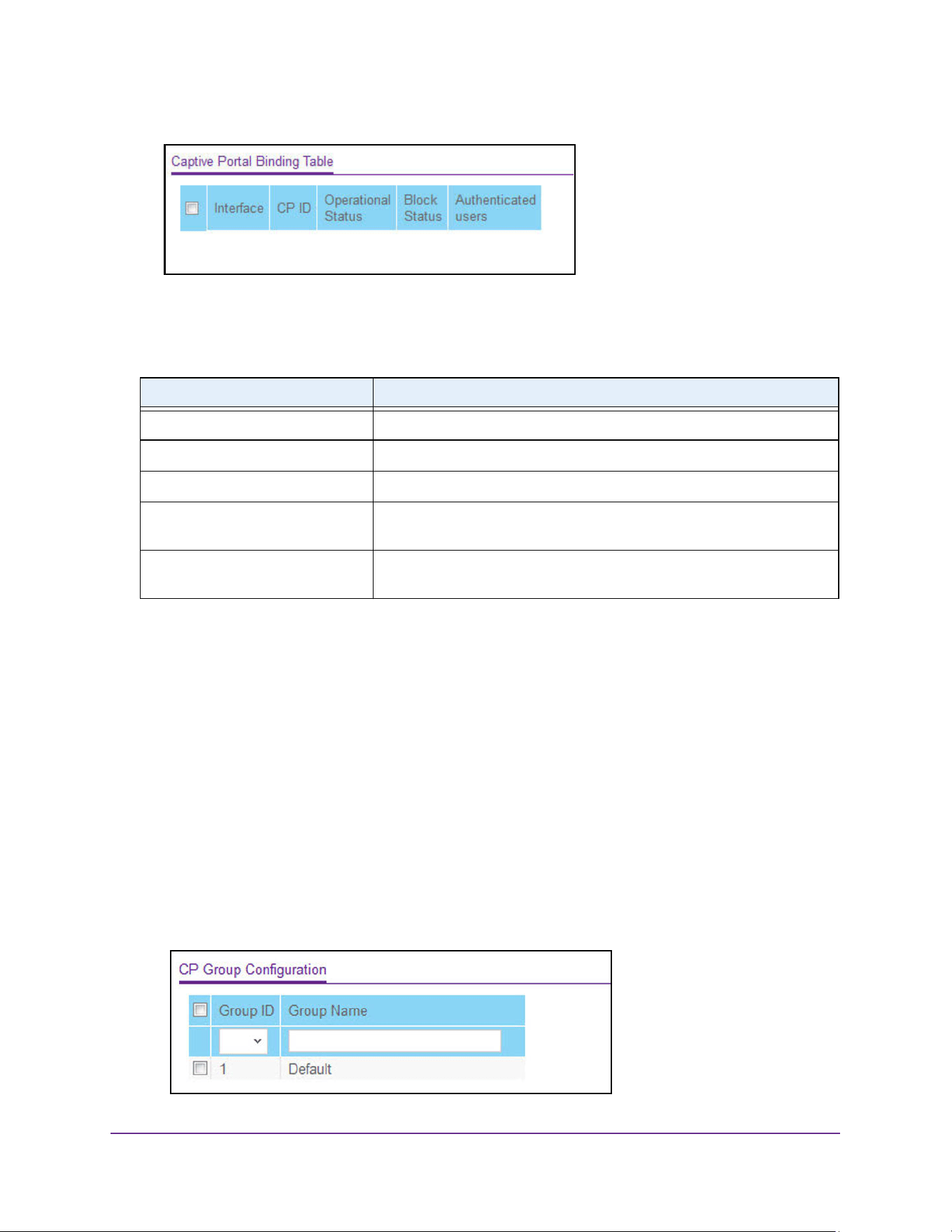
Manage Device Security
578
M4200 and M4300 Series ProSAFE Managed Switches Web Management User Manual
6. To refresh the page with the latest information on the switch, click the Update button.
The following table describes the nonconfigurable data that is displayed.
Configure a Captive Portal Group
To configure a captive portal group:
1. Launch a web browser.
2. Enter http://<ipaddress> in the web browser address field.
The login window opens.
3. Enter the user name and password.
The default admin user name is admin and the default admin password is blank, that is,
do not enter a password.
4. Click the Login button.
The System Information page displays.
5. Select Security > Control > Captive Portal > CP Group Configuration.
Table 211. Captive Portal Binding Table
Field Description
Interface The interface.
CP ID The ID of the captive portal instance.
Operational Status Indicates whether the portal is active on the specified interface.
Block Status Indicates whether the captive portal is temporarily blocked for
authentication.
Authenticated Users Shows the number of authenticated users using the captive portal
instance on this interface.
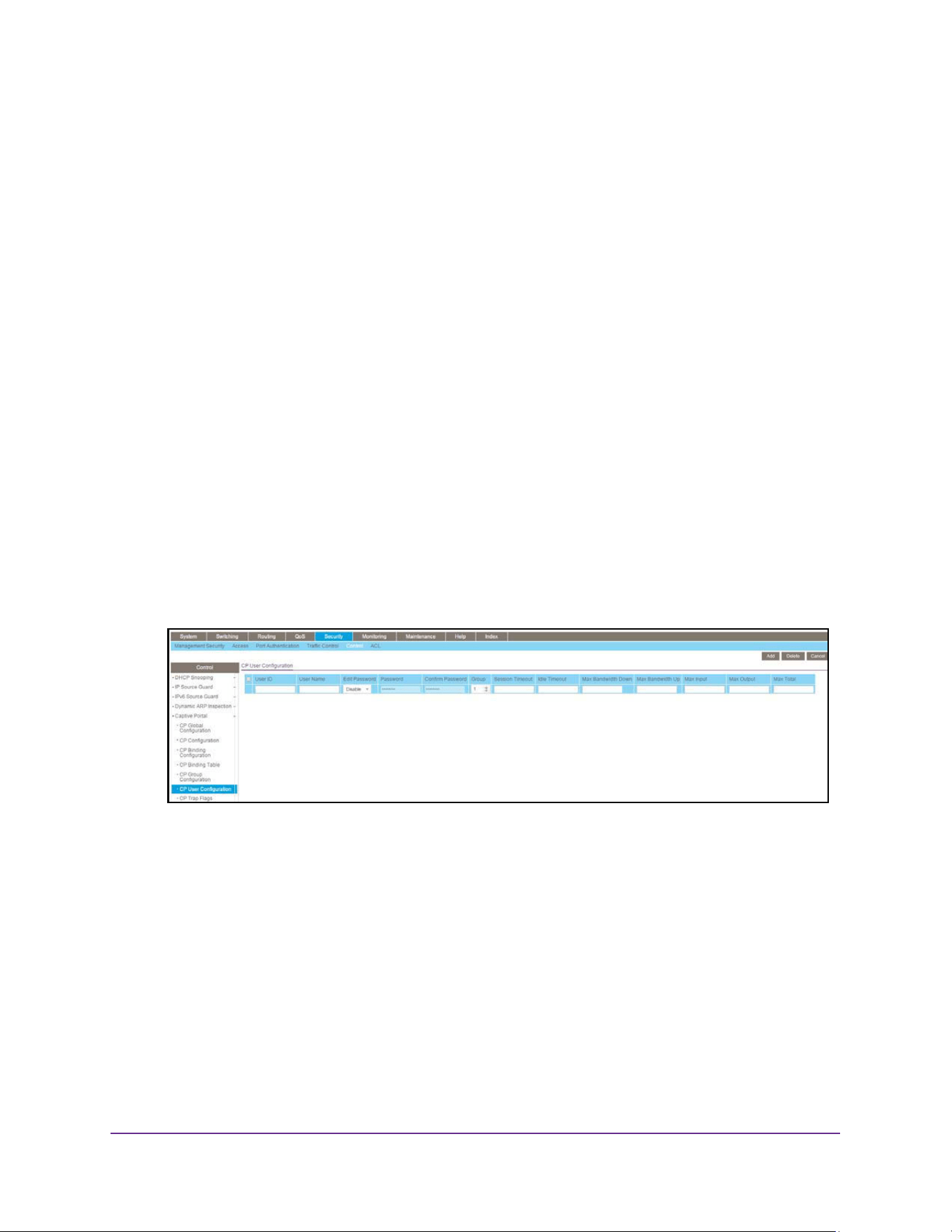
Manage Device Security
579
M4200 and M4300 Series ProSAFE Managed Switches Web Management User Manual
6. Select the Group ID from the list.
7. In the Group Name field, specify the name of the user group.
The name can contain from 1 to 31 alphanumeric characters.
8. Click the Add button.
The group is added.
Configure Captive Portal User Settings
To configure captive portal user settings:
1. Launch a web browser.
2. Enter http://<ipaddress> in the web browser address field.
The login window opens.
3. Enter the user name and password.
The default admin user name is admin and the default admin password is blank, that is,
do not enter a password.
4. Click the Login button.
The System Information page displays.
5. Select Security > Control > Captive Portal > CP User Configuration.
6. Enter the local User ID to identify the name of the user.
7. In the User Name field, enter the name of the user.
The name can contain 1 to 31 alphanumeric characters. Once created, user names
cannot be changed or modified.
8. In the Edit Password list, select Enable only when you are changing the password.
The default value is Disable.
9. In the Password field, enter a password for the user.
The password length can be from 8 to 64 characters.
10. In the Confirm Password field, enter the password for the user again.
11. Use the Group field to assign the user to a least one user group.

Manage Device Security
580
M4200 and M4300 Series ProSAFE Managed Switches Web Management User Manual
To assign a user to more than one group, press the Ctrl key and click each group. New
users are assigned to the 1-Default user group by default.
12. In the Session Timeout field, enter the number of seconds a user is permitted to remain
connected to the network.
Once the Session Timeout value is reached, the user is logged out automatically.
13. In the Idle Timeout field, enter the number of seconds to wait before terminating a session.
A user is logged out once the session idle time-out is reached. If the attribute is 0 or not
present, then use the value configured for the captive portal.
14. In the Max Bandwidth Down field, enter the maximum rate, in bits per second, at which a
client can receive data from the network.
A value of 0 indicates use global configuration. The range is 0 to 536870911 bps.
15. In the Max Bandwidth Up field, enter the maximum rate, in bits per second, at which a
client can send data into the network.
A value of 0 indicates use the global limit. The range is 0 to 536870911 bps.
16. In the Max Input field, enter the number of octets the user is allowed to receive.
After this limit is reached, the user is disconnected. 0 means use the global limit. The
range is 0 to 4294967295.
17. In the Max Output field, enter the number of octets the user is allowed to transmit.
After this limit is reached, the user is disconnected. 0 means use the global limit. The
range is 0 to 4294967295.
18. In the Max Total field, enter the number of bytes the user is allowed to transmit and receive.
The maximum number of octets is the sum of octets transmitted and received. After this
limit is reached, the user is disconnected. 0 means use the global limit. The range is 0 to
4294967295.
19. Click the Add button.
The user is added to the Local User database.
Configure the Captive Portal Trap Flag Settings
You can specify whether or not SNMP traps are sent from the captive portal and to specify
captive portal events that generate a trap. All CP SNMP traps are disabled be default.
To configure the captive portal trap flag settings:
1. Launch a web browser.
2. Enter http://<ipaddress> in the web browser address field.
The login window opens.
3. Enter the user name and password.
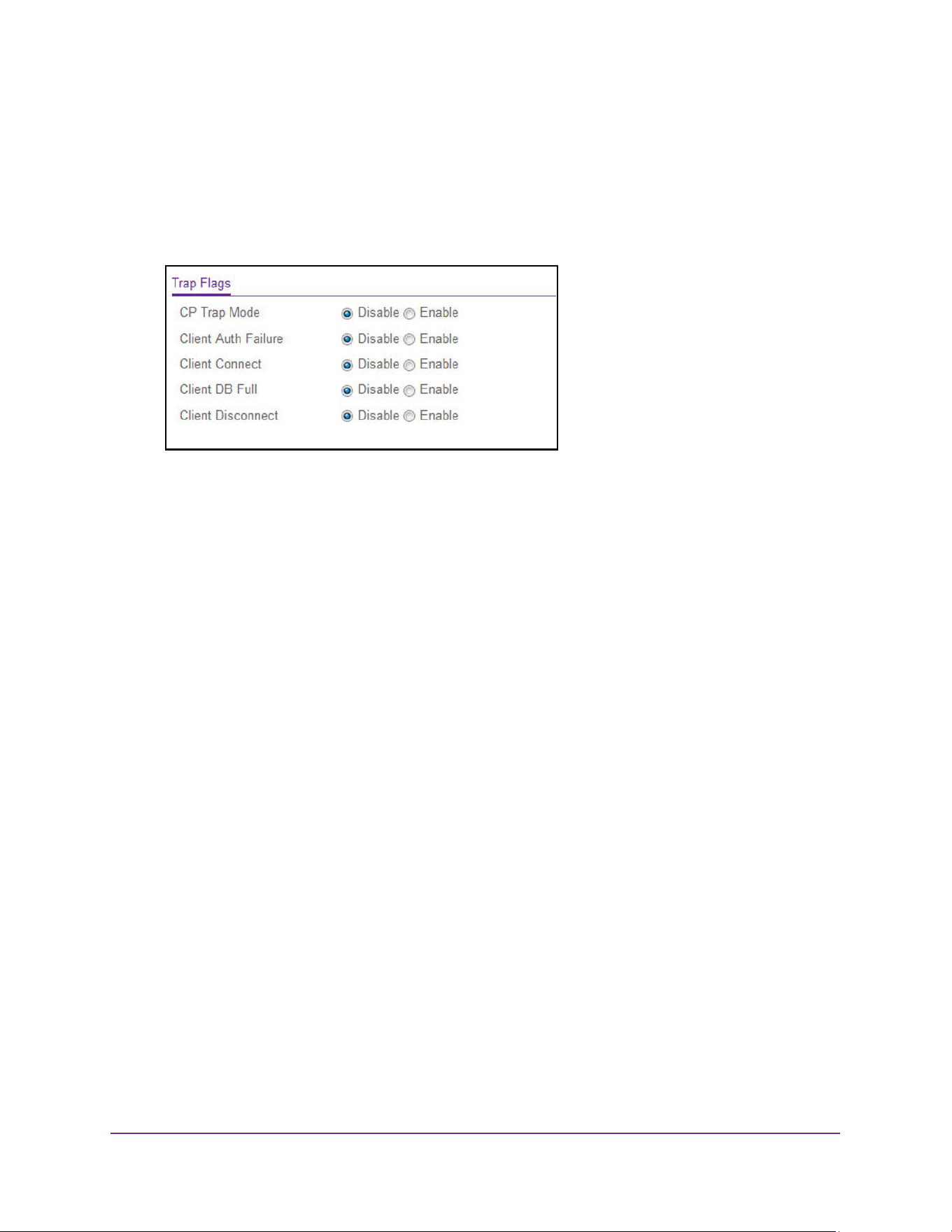
Manage Device Security
581
M4200 and M4300 Series ProSAFE Managed Switches Web Management User Manual
The default admin user name is admin and the default admin password is blank, that is,
do not enter a password.
4. Click the Login button.
The System Information page displays.
5. Select Security > Control > Captive Portal > CP Trap Flags.
6. Select the CP Trap Mode Disable or Enable radio button.
This sets the option to enable or disable the captive portal trap mode.
7. Select the Client Authentication Failure Disable or Enable radio button.
If you enable this, the SNMP agent sends a trap when a client attempts to authenticate
with a captive portal but is unsuccessful.
8. Select the Client Connect Disable or Enable radio button.
If you enable this, the SNMP agent sends a trap when a client authenticates with, and
connects to, a captive portal.
9. Select the Client Database Full Disable or Enable radio button.
If you enable this, the SNMP agent sends a trap each time an entry cannot be added to
the client database because it is full.
10. Select the Client Disconnect Disable or Enable radio button.
If you enable this, the SNMP agent sends a trap when a client disconnects from a captive
portal.
11. Click the Apply button.
The updated configuration is sent to the switch. Configuration changes take effect
immediately.
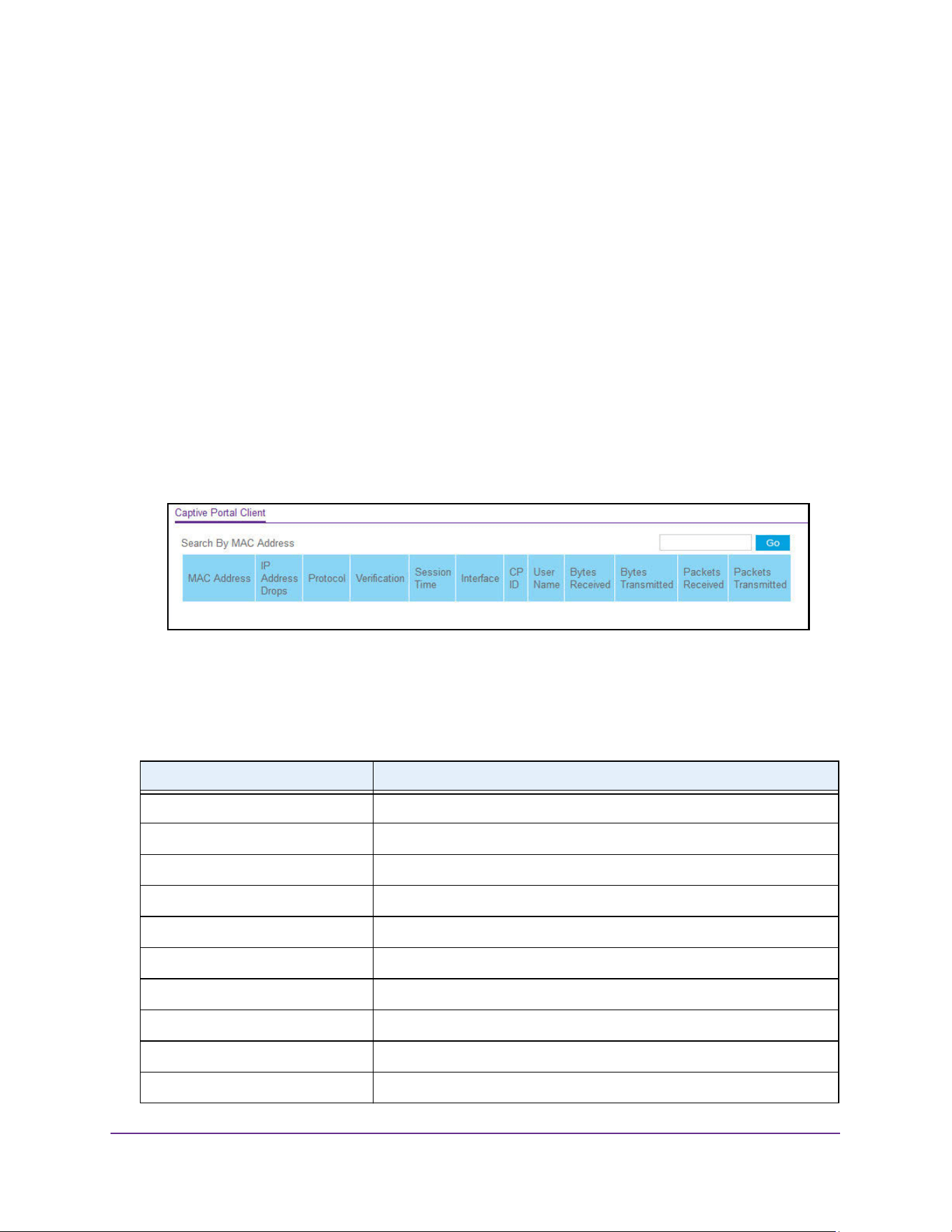
Manage Device Security
582
M4200 and M4300 Series ProSAFE Managed Switches Web Management User Manual
View and Clear the Captive Portal Client
You can view and clear information about the traffic a client sent or received.
To view and clear the captive portal client:
1. Launch a web browser.
2. Enter http://<ipaddress> in the web browser address field.
The login window opens.
3. Enter the user name and password.
The default admin user name is admin and the default admin password is blank, that is,
do not enter a password.
4. Click the Login button.
The System Information page displays.
5. Select Security > Control > Captive Portal > CP Client.
6. To refresh the page with the latest information on the switch, click the Update button.
7. To clear the information in the client table, click the Clear button.
The following table describes the nonconfigurable information displayed on the page.t
Table 212. Captive Portal Client
Field Description
MAC Address Shows the client MAC address.
IP Address Drops Identifies the IP address of the client (if applicable).
Protocol Shows the current connection protocol, which is either HTTP or HTTPS.
Verification Shows the current account type, which is Guest, Local, or RADIUS.
Session Time Shows the amount of time that passed since the client was authorized.
Interface Identifies the interface the client is using.
CP ID The ID of the captive portal instance.
User Name The user name (or guest ID) of the connected client.
Bytes Received Total bytes the client received.
Bytes Transmitted Total bytes the client transmitted.

Manage Device Security
583
M4200 and M4300 Series ProSAFE Managed Switches Web Management User Manual
Set Up and Manage Access Control Lists
Access control lists (ACLs) ensure that only authorized users can access specific resources
while blocking off any unwarranted attempts to reach network resources. ACLs are used to
provide traffic flow control, restrict contents of routing updates, decide which types of traffic
are forwarded or blocked, and above all provide security for the network. ProSafe Managed
switch software supports IPv4, IPv6, and MAC ACLs.
You first create an IPv4 based or IPv6 based or MAC-based ACL ID. Then, you create a rule
and assign it to a unique ACL ID. Next, you define the rules, which can identify protocols,
source, and destination IP and MAC addresses, and other packet-matching criteria. Finally,
use the ID number to assign the ACL to a port or to a LAG.
Use the ACL Wizard to Create a Simple ACL
The ACL Wizard helps you create a simple ACL and apply it to the selected ports easily and
quickly. You must select an ACL type to use when you create an ACL. Then add an ACL rule
to this ACL and apply this ACL on the selected ports. The ACL Wizard allows you to create
the ACL, but does not allow you to modify it. To modify the ACL, go to the ACL Configuration
page. See Configure an IP ACL on page 594.
To use the ACL Wizard to create a simple ACL:
1. Launch a web browser.
2. Enter http://<ipaddress> in the web browser address field.
The login window opens.
3. Enter the user name and password.
The default admin user name is admin and the default admin password is blank, that is,
do not enter a password.
4. Click the Login button.
The System Information page displays.
5. Select Security > ACL > ACL Wizard.
Packets Received Total packets the client received.
Packets Transmitted Total packets the client transmitted.
Table 212. Captive Portal Client (continued)
Field Description
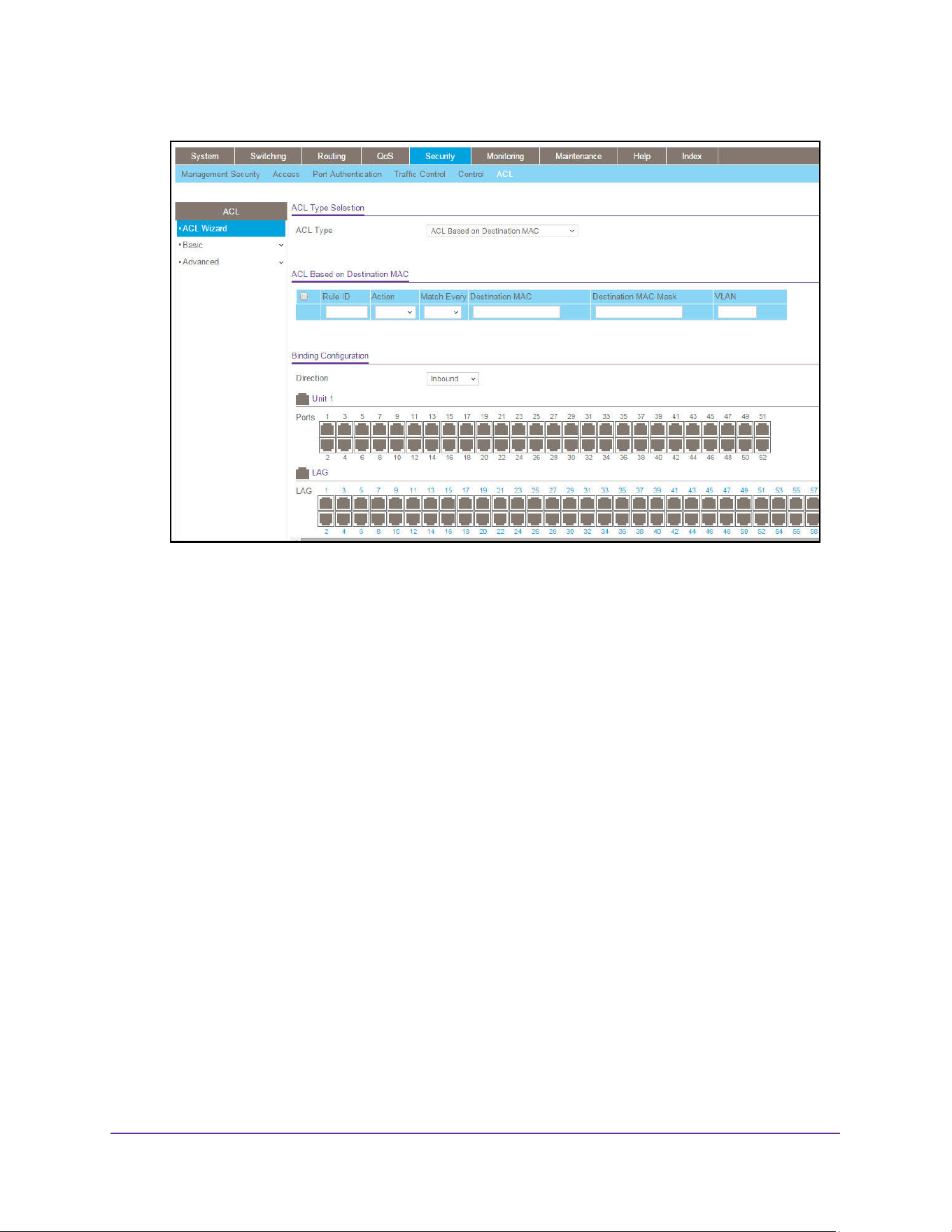
Manage Device Security
584
M4200 and M4300 Series ProSAFE Managed Switches Web Management User Manual
Note: The steps in this procedure describe creating an ACL based on the
destination MAC address. If you select a different ACL type, for
example, ACL based on a source IPv4, then what is shown on this
page varies, depending on the current step in the rule configuration
process.
6. Use ACL Type to specify the ACL type you are using to create the ACL.
You can select one type from 10 optional types:
• ACL Based on Destination MAC. To create an ACL based on the destination MAC
address, destination MAC mask, and VLAN.
• ACL Based on Source MAC. To create an ACL based on the source MAC address,
source MAC mask, and VLAN.
• ACL Based on Destination IPv4. To create an ACL based on the destination IPv4
address and IPv4 address mask.
• ACL Based on Source IPv4. To create an ACL based on the source IPv4 address
and IPv4 address mask.
• ACL Based on Destination IPv6. To create an ACL based on the destination IPv6
prefix and IPv6 prefix length.
• ACL Based on Source IPv6. To create an ACL based on the source IPv6 prefix and
IPv6 prefix length.
• ACL Based on Destination IPv4 L4 Port. To create an ACL based on the
destination IPv4 Layer 4 port number.

Manage Device Security
585
M4200 and M4300 Series ProSAFE Managed Switches Web Management User Manual
• ACL Based on Source IPv4 L4 Port. To create an ACL based on the source IPv4
Layer 4 port number.
• ACL Based on Destination IPv6 L4 Port. To create an ACL based on the
destination IPv6 Layer 4 port number.
• ACL Based on Source IPv6 L4 Port. To create an ACL based on the source IPv6
Layer 4 port number.
Note: For L4 port options, two rules are created: one for TCP and one for UDP.
7. From the Direction menu, select Inbound or Outbound.
Traffic rule applies either to inbound traffic only or to outbound traffic only.
8. From the Unit 1 and LAG switch figures onscreen, select the ports and LAGs to which the
rule must apply.
If a port or LAG is not selected, click the port or LAG to select it. If a port or LAG is
selected, click the port or LAG to clear it again.
9. Click the Apply button.
The updated configuration is sent to the switch. Configuration changes take effect
immediately.
Configure an ACL Based on Destination MAC Address
Note: Binding ACLs to an interface fails if the system has no resources to
bind a new ACL.
To configure a rule based on destination MAC address:
1. Launch a web browser.
2. Enter http://<ipaddress> in the web browser address field.
The login window opens.
3. Enter the user name and password.
The default admin user name is admin and the default admin password is blank, that is,
do not enter a password.
4. Click the Login button.
The System Information page displays.
5. Select Security > ACL > ACL Wizard.
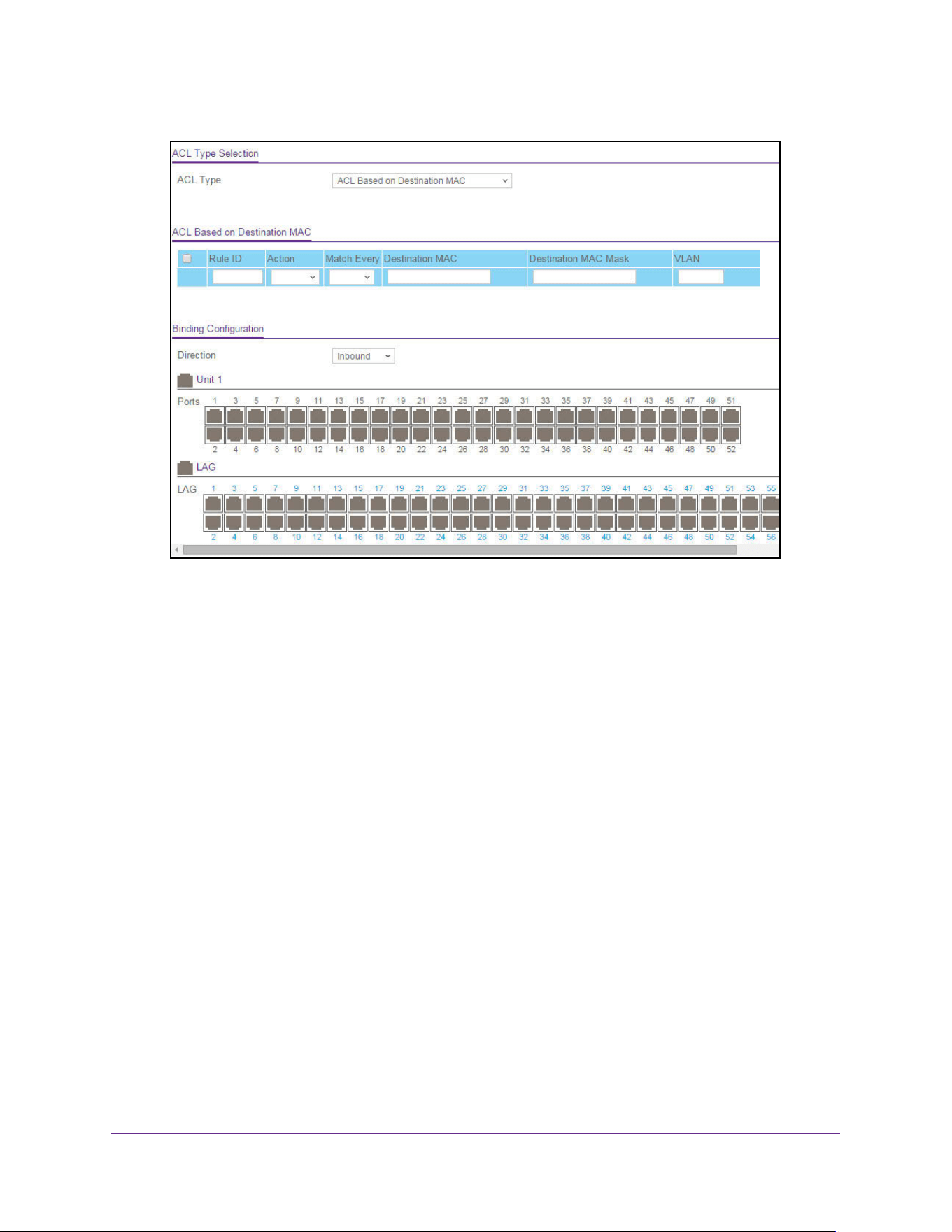
Manage Device Security
586
M4200 and M4300 Series ProSAFE Managed Switches Web Management User Manual
6. Use Rule ID to enter a whole number in the range of 1 to 1023 that is used to identify the
rule.
7. Use Action to specify what action is taken if a packet matches the rule's criteria. The
choices are Permit or Deny.
8. In the Match Every list, select either True or False:
• True signifies that all packets must match the selected ACL and rule and are either
permitted or denied. In this case, since all packets match the rule, the option of
configuring other match criteria is not offered.
• To configure specific match criteria for the rule, remove the rule and re-create it, or
re-configure Match Every to False for the other match criteria to be visible.
9. Use Destination MAC to specify the destination MAC address to compare against an
Ethernet frame.
Valid format is xx:xx:xx:xx:xx:xx. The BPDU keyword can be specified using a destination
MAC address of 01:80:C2:xx:xx:xx.
10. Use Destination MAC Mask to specify the destination MAC address mask specifying which
bits in the destination MAC to compare against an Ethernet frame.
The valid format is xx:xx:xx:xx:xx:xx. The BPDU keyword can be specified using a
destination MAC mask of 00:00:00:ff:ff:ff.
11. Specify the VLAN ID to compare against an Ethernet frame.
Valid range of values is 1 to 4093. Either a VLAN range or VLAN can be configured.
12. From the Direction menu, select Inbound or Outbound.

Manage Device Security
587
M4200 and M4300 Series ProSAFE Managed Switches Web Management User Manual
Traffic rule applies either to inbound traffic only or to outbound traffic only.
13. From the Unit 1 and LAG switch figures onscreen, select the ports and LAGs to which the
rule must apply.
If a port or LAG is not selected, click the port or LAG to select it. If a port or LAG is
selected, click the port or LAG to clear it again.
14. Click the Add button.
The rule is added to the ACL based on the destination MAC address.
15. Click the Apply button.
The updated configuration is sent to the switch. Configuration changes take effect
immediately.
Use the ACL Wizard to Complete the Destination MAC ACL
For information about the ACL Wizard, see Use the ACL Wizard to Create a Simple ACL on
page 583.
To complete the destination MAC ACL using ACL wizard, you must do the following:
1. Select the destination MAC ACL as ACL type.
2. Enter the DMAC VLAN as the ACL Rule.
3. To select the direction and ports to bind the ACL, in the Directions field, select the packet
filtering direction for an ACL.
The options are Inbound or Outbound.
The Port Selection Table specifies the list of all available valid interfaces for ACL
mapping.
All non-routing physical interfaces and interfaces participating in LAG are listed.
Configure a Basic MAC ACL
A MAC ACL consists of a set of rules which are matched sequentially against a packet.
When a packet meets the match criteria of a rule, the specified rule action (Permit/Deny) is
taken, and the additional rules are not checked for a match. Rules for the MAC ACL are
specified/created using the MAC ACL Rule Configuration page.
Multiple steps are involved in defining a MAC ACL and applying it to the switch:
1. Create the ACL Name.
2. Create rules for the ACL.
3. Assign the ACL by its name to a port.
For information about how to view the configurations, see View and Delete MAC ACL
Bindings in the MAC Binding Table on page 593.
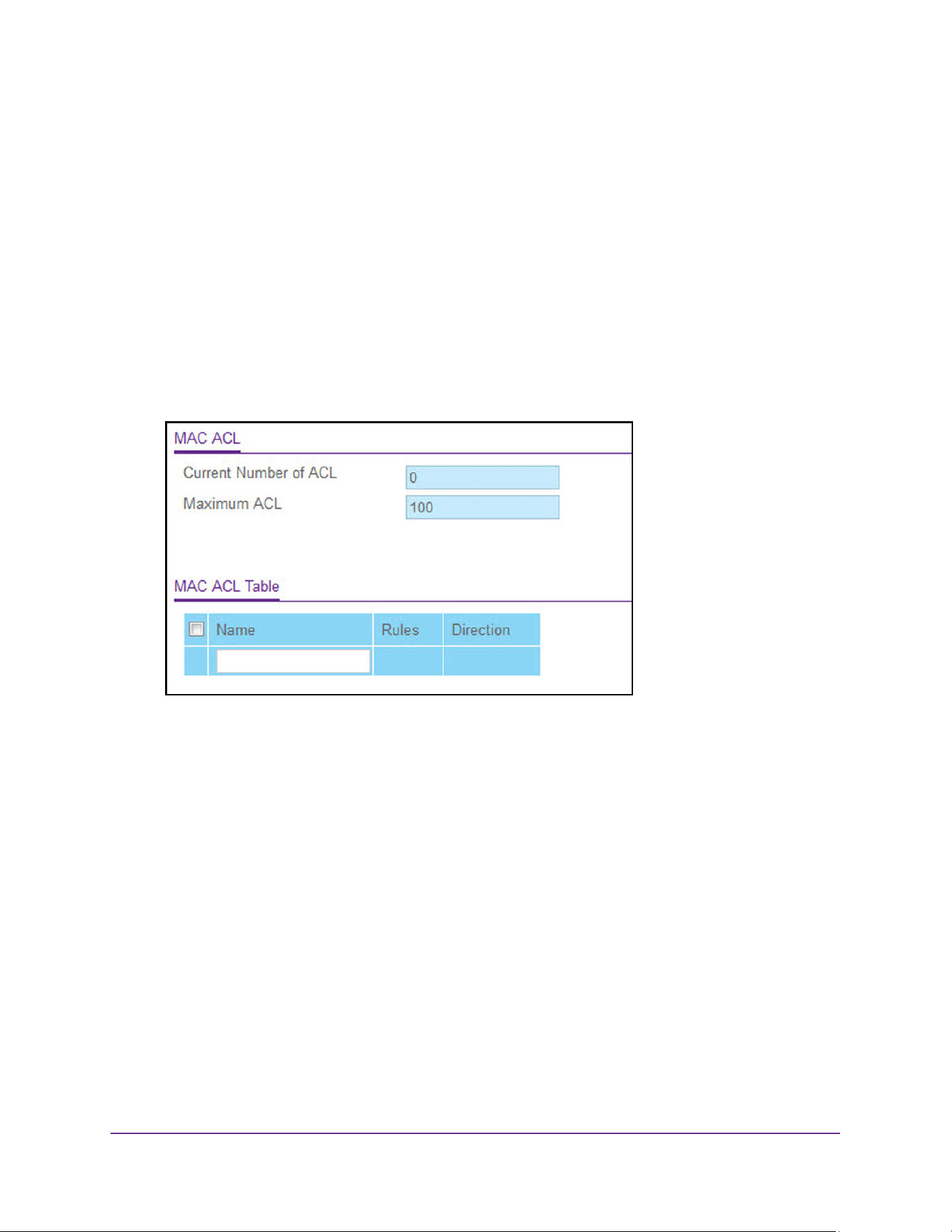
Manage Device Security
588
M4200 and M4300 Series ProSAFE Managed Switches Web Management User Manual
To configure a MAC ACL:
1. Launch a web browser.
2. Enter http://<ipaddress> in the web browser address field.
The login window opens.
3. Enter the user name and password.
The default admin user name is admin and the default admin password is blank, that is,
do not enter a password.
4. Click the Login button.
The System Information page displays.
5. Select Security > ACL > Basic > MAC ACL.
The MAC ACL page displays the number of ACLs currently configured in the switch and
the maximum number of ACLs that can be configured. The current number is equal to the
number of configured IPv4 and IPv6 ACLs plus the number of configured MAC ACLs.
6. In the Name field, specify a name for the MAC ACL.
The name string can include alphabetic, numeric, hyphen, underscore, or space
characters only. The name must start with an alphabetic character.
Each configured ACL displays the following information:
• Rules. The number of rules currently configured for the MAC ACL.
• Direction. The direction of packet traffic affected by the MAC ACL, which can be
Inbound or blank.
7. Click the Add button.
The MAC ACL is added to the switch configuration.
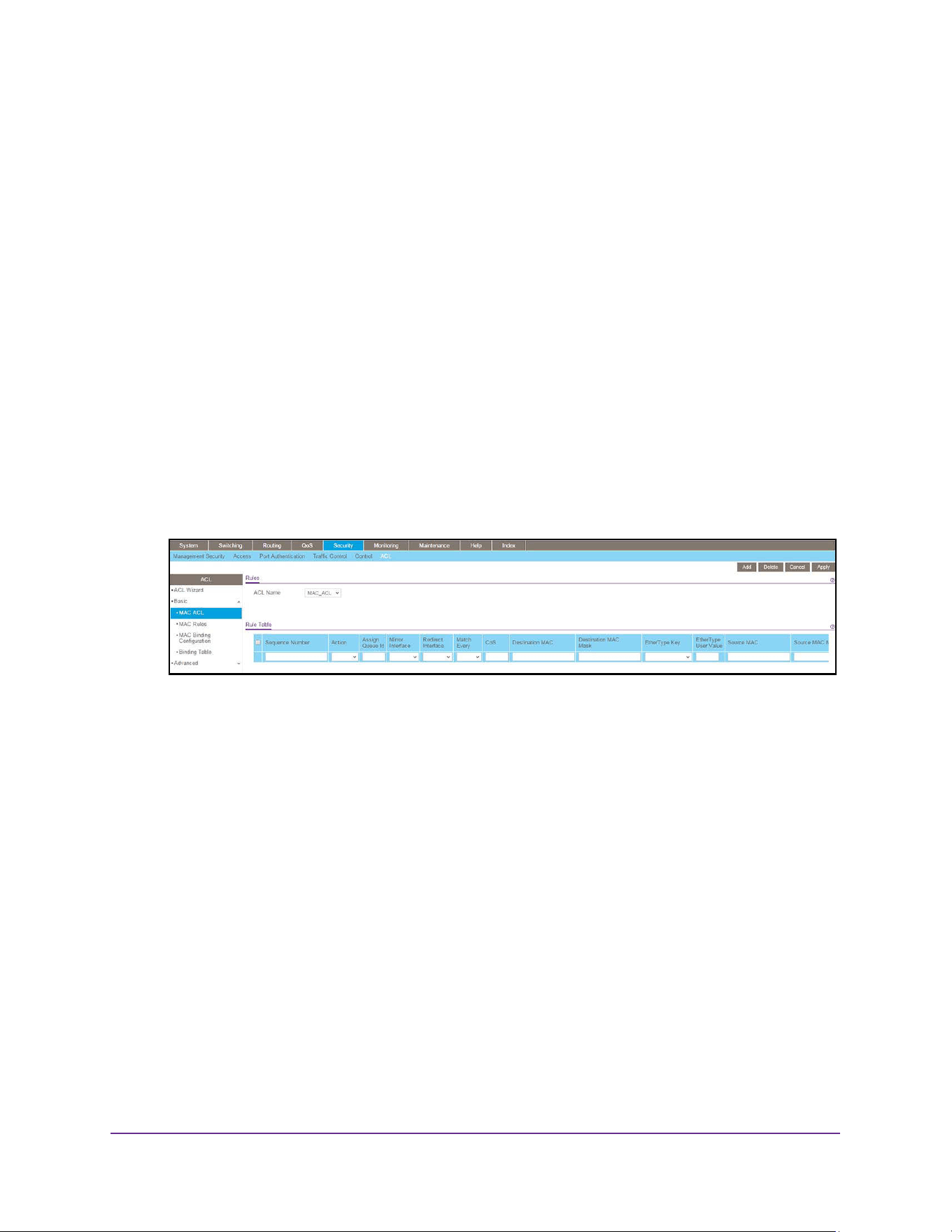
Manage Device Security
589
M4200 and M4300 Series ProSAFE Managed Switches Web Management User Manual
Configure MAC ACL Rules
You can define rules for MAC-based ACLs. The access list definition includes rules that
specify whether traffic matching the criteria is forwarded normally or discarded. A default
deny all rule is the last rule of every list.
To configure MAC ACL rules:
1. Launch a web browser.
2. Enter http://<ipaddress> in the web browser address field.
The login window opens.
3. Enter the user name and password.
The default admin user name is admin and the default admin password is blank, that is,
do not enter a password.
4. Click the Login button.
The System Information page displays.
5. Select Security > ACL > Basic > MAC Rules.
6. From the ACL Name menu, select the MAC ACL for which you want to add or a change a
rule.
7. Use Sequence Number to enter a whole number in the range of 1 to 2147483647.
This number is used to identify the rule. A MAC ACL can contain up to 1023 rules.
8. Use Action to specify what action is taken if a packet matches the rule's criteria.
The choices are Permit or Deny.
9. Use Assign Queue ID to specify the hardware egress queue identifier used to handle all
packets matching this ACL rule.
Valid range of queue IDs is 0 to 7.
10. Mirror Interface to specify the specific egress interface where the matching traffic stream is
copied in addition to being forwarded normally by the device.
This field cannot be set if a redirect interface is already configured for the ACL rule. This
field is visible for a Permit action.
11. Use Redirect Interface to specify the specific egress interface where the matching traffic
stream is forced, bypassing any forwarding decision normally performed by the device.
This field cannot be set if a mirror interface is already configured for the ACL rule.

Manage Device Security
590
M4200 and M4300 Series ProSAFE Managed Switches Web Management User Manual
12. Use Match Every to specify an indication to match every Layer 2 MAC packet.
Valid values are as follows:
• True. Signifies that every packet is considered to match the selected ACL rule.
• False. Signifies that it is not mandatory for every packet to match the selected ACL
rule.
13. Use CoS to specify the 802.1p user priority to compare against an Ethernet frame.
Valid range of values is 0 to 7.
14. Use Destination MAC to specify the destination MAC address to compare against an
Ethernet frame. Valid format is xx:xx:xx:xx:xx:xx.
The BPDU keyword can be specified using a destination MAC address of
01:80:C2:xx:xx:xx.
15. Use Destination MAC Mask to specify the destination MAC address mask specifying which
bits in the destination MAC to compare against an Ethernet frame.
Valid format is xx:xx:xx:xx:xx:xx. The BPDU keyword can be specified using a destination
MAC mask of 00:00:00:ff:ff:ff.
16. Use EtherType Key to specify the EtherType value to compare against an Ethernet frame.
Valid values are as follows:
• Appletalk
• ARP
• IBM SNA
• IPv4
• IPv6
• IPX
• MPLS multicast
• MPLS unicast
• NetBIOS
• Novell
• PPPoE
• Reverse ARP
• User Value
17. Use EtherType User Value to specify the user defined customized EtherType value to be
used when you selected User Value as EtherType key, to compare against an Ethernet
frame.
Valid range of values is 0x0600 to 0xFFFF.
18. Use Source MAC to specify the source MAC address to compare against an Ethernet
frame.
Valid format is xx:xx:xx:xx:xx:xx.

Manage Device Security
591
M4200 and M4300 Series ProSAFE Managed Switches Web Management User Manual
19. Use Source MAC Mask to specify the Source MAC address mask specifying which bits in
the Source MAC to compare against an Ethernet frame.
Valid format is xx:xx:xx:xx:xx:xx.
20. Use VLAN to specify the VLAN ID to compare against an Ethernet frame.
Valid range of values is 1 to 4095. Either VLAN range or VLAN can be configured.
21. Use Logging to enable or disable logging.
When set to Enable, logging is enabled for this ACL rule (subject to resource availability
in the device). If the access list trap flag is also enabled, this causes periodic traps to be
generated indicating the number of times this rule was hit during the current report
interval. A fixed 5 minute report interval is used for the entire system. A trap is not issued
if the ACL rule hit count is zero for the current interval. This field is only supported for a
Deny action.
22. Use Rate Limit Conform Data Rate to specify the value of the conforming data rate of
MAC ACL rule.
Valid values are 1 to 4294967295 in Kbps.
23. Use Rate Limit Burst Size to specify the burst size of MAC ACL rule.
Valid values are 1 to 128 in Kbytes.
24. Use Time Range to enter the name of the time range associated with the MAC ACL rule.
The Rule Status displays if the ACL rule is active or inactive. If this field is blank, no timer
schedules are assigned to the rule.
25. Click the Apply button.
The updated configuration is sent to the switch. Configuration changes take effect
immediately.
Configure MAC Binding
When an ACL is bound to an interface, all the rules that are defined are applied to the
selected interface. Use the MAC Binding Configuration page to assign MAC ACL lists to ACL
priorities and interfaces.
To configure MAC binding:
1. Launch a web browser.
2. Enter http://<ipaddress> in the web browser address field.
The login window opens.
3. Enter the user name and password.
The default admin user name is admin and the default admin password is blank, that is,
do not enter a password.
4. Click the Login button.
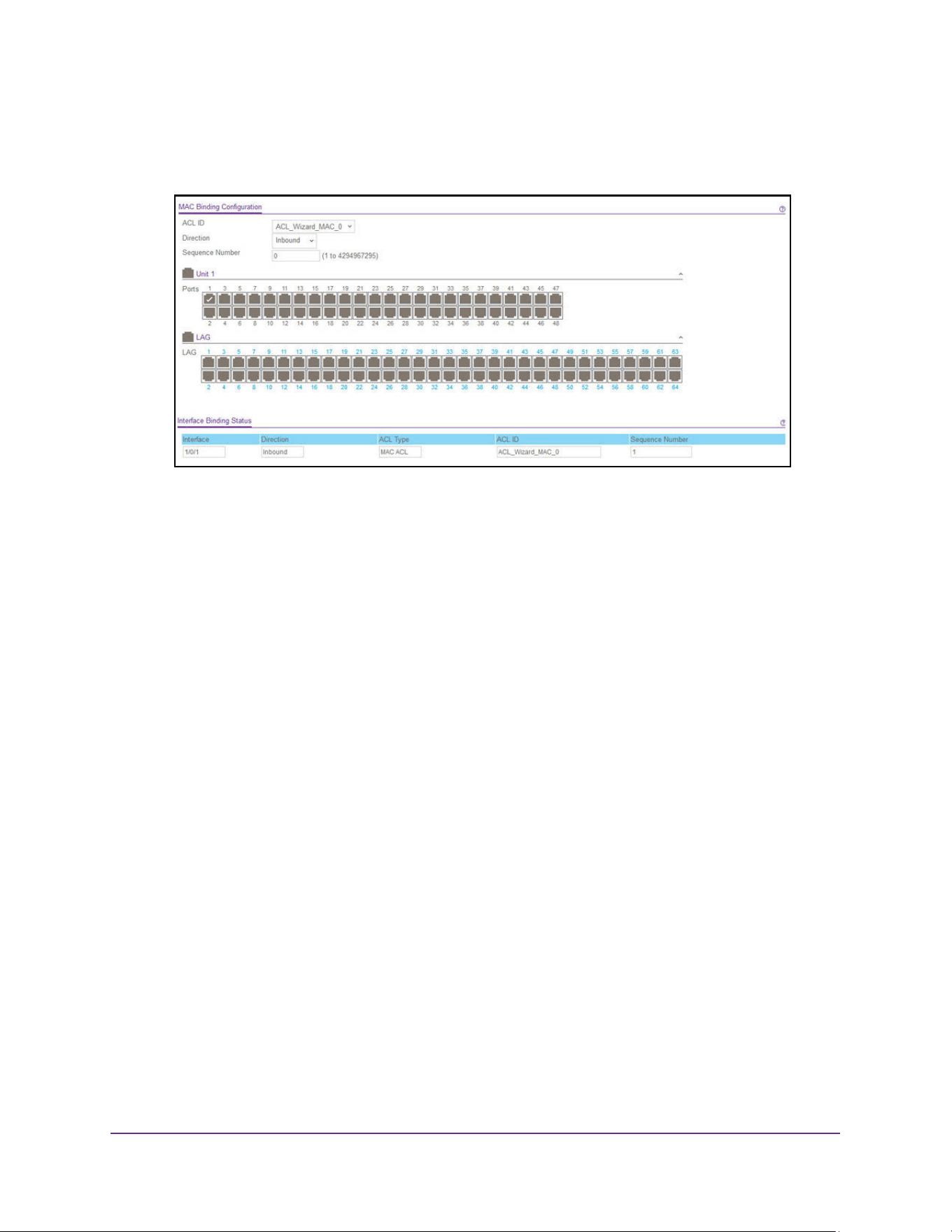
Manage Device Security
592
M4200 and M4300 Series ProSAFE Managed Switches Web Management User Manual
The System Information page displays.
5. Select Security > ACL > Basic > MAC Binding Configuration.
6. Select a MAC ACL from the ACL ID list.
You can select one and bind it to the interfaces.
The packet filtering Direction for ACL is Inbound, which means the MAC ACL rules are
applied to traffic entering the port.
7. Specify an optional Sequence Number to indicate the order of this access list relative to
other access lists already assigned to this interface and direction.
A low number indicates high precedence order. If a sequence number is already in use
for this interface and direction, the specified access list replaces the currently attached
access list using that sequence number. If you do not specify the sequence number, a
sequence number that is one greater than the highest sequence number currently in use
for this interface and direction is used. The valid range is 1–4294967295.
8. The Port Selection Table provides a list of all available valid interfaces for ACL binding. All
nonrouting physical interfaces VLAN interface and interfaces participating in LAGs are listed.
• To add the selected ACL to a port or LAG, click the box directly below the port or LAG
number so that an X appears in the box.
• To remove the selected ACL from a port or LAG, click the box directly below the port
or LAG number to clear the selection. An X in the box indicates that the ACL is
applied to the interface.
9. Click the Apply button.
The updated configuration is sent to the switch. Configuration changes take effect
immediately.
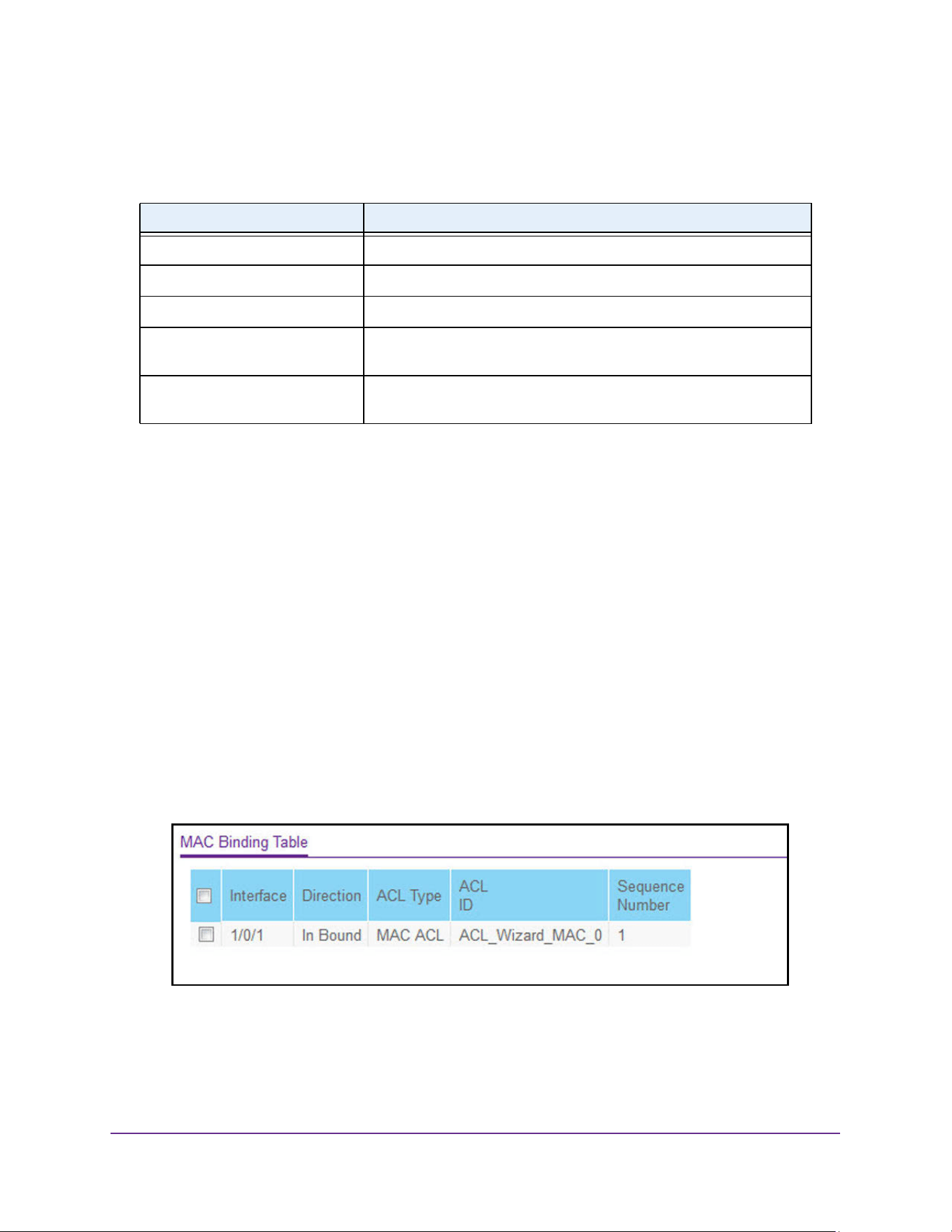
Manage Device Security
593
M4200 and M4300 Series ProSAFE Managed Switches Web Management User Manual
The following table describes the information that is displayed in the Interface Binding
Status section.
View and Delete MAC ACL Bindings in the MAC Binding Table
You can view and delete the MAC ACL bindings in the MAC Binding Table.
To view and delete MAC ACL bindings:
1. Launch a web browser.
2. Enter http://<ipaddress> in the web browser address field.
The login window opens.
3. Enter the user name and password.
The default admin user name is admin and the default admin password is blank, that is,
do not enter a password.
4. Click the Login button.
The System Information page displays.
5. Select Security > ACL > Basic > MAC Binding Table.
6. To delete a MAC ACL-to-interface binding, select the check box next to the interface and
click the Delete button.
Table 213. Interface Binding Status
Field Description
Interface The interface of the ACL assigned.
Direction Displays selected packet filtering direction for ACL.
ACL Type The type of ACL assigned to selected interface and direction.
ACL ID The ACL number (in case of IP ACL) or ACL name (in case of MAC
ACL) identifying the ACL assigned to selected interface and direction.
Sequence Number The sequence number signifying the order of the specified ACL relative
to other ACLs assigned to selected interface and direction.
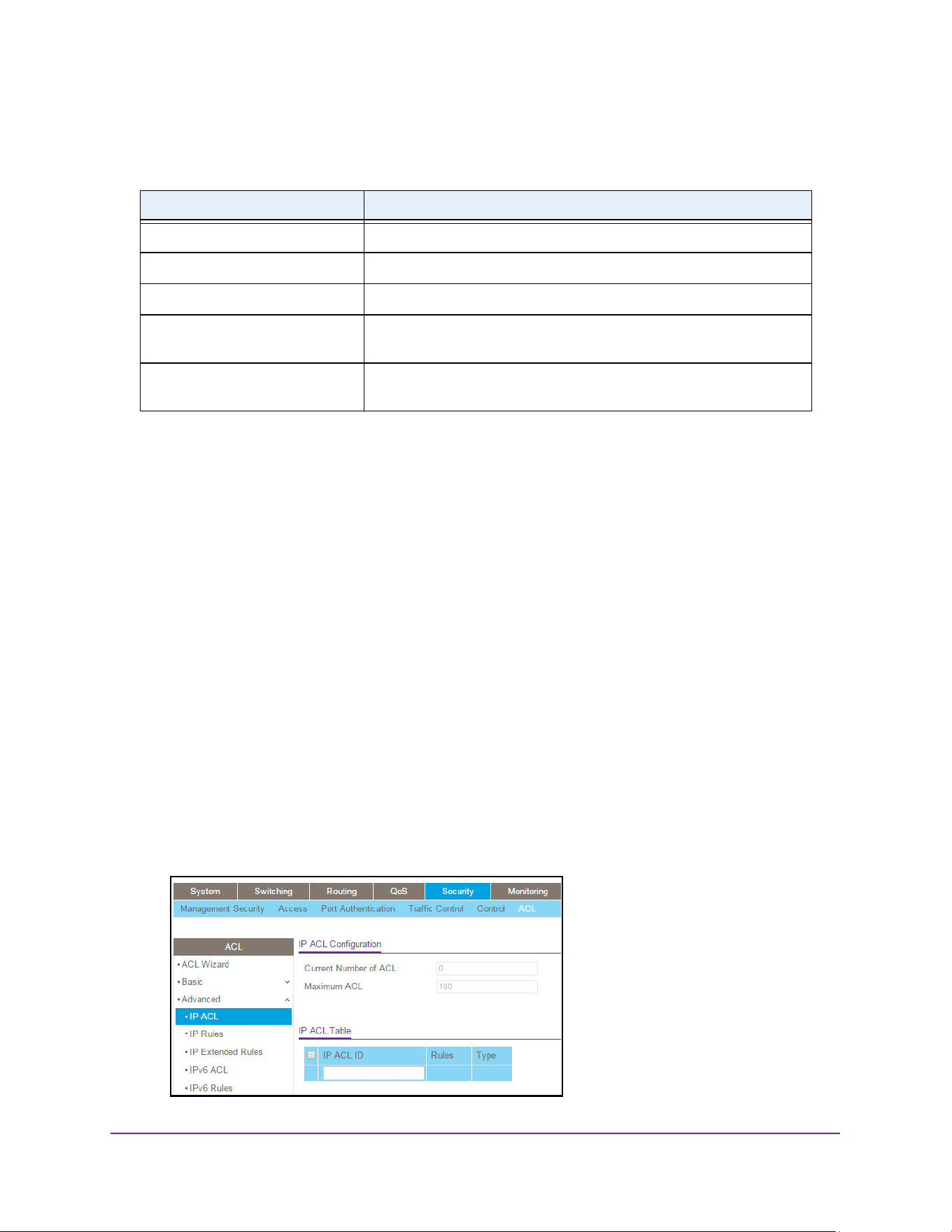
Manage Device Security
594
M4200 and M4300 Series ProSAFE Managed Switches Web Management User Manual
The following table describes the information displayed in the MAC Binding Table.
Configure an IP ACL
An IP or IPv6 ACL consists of a set of rules that are matched sequentially against a packet.
When a packet meets the match criteria of a rule, the specified rule action (Permit/Deny) is
taken, and the additional rules are not checked for a match. You must specify the interfaces
to which an IP ACL applies, as well as whether it applies to inbound or outbound traffic. Rules
for the IP ACL are specified or created using the IPv6 ACL Rule Configuration page.
To configure an IP ACL:
1. Launch a web browser.
2. Enter http://<ipaddress> in the web browser address field.
The login window opens.
3. Enter the user name and password.
The default admin user name is admin and the default admin password is blank, that is,
do not enter a password.
4. Click the Login button.
The System Information page displays.
5. Select Security > ACL > Advanced > IP ACL.
Table 214. MAC Binding Table
Field Description
Interface The interface of the ACL assigned.
Direction The selected packet filtering direction for the ACL.
ACL Type The type of ACL assigned to selected interface and direction.
ACL ID The ACL name identifying the ACL assigned to selected interface and
direction.
Sequence Number The sequence number signifying the order of the specified ACL relative
to other ACLs assigned to selected interface and direction.

Manage Device Security
595
M4200 and M4300 Series ProSAFE Managed Switches Web Management User Manual
The IP ACL page shows the current size of the ACL table and the maximum size of the
ACL table. The current size is equal to the number of configured IPv4 and IPv6 ACLs plus
the number of configured MAC ACLs. The maximum size is 100.
The Current Number of ACL field displays the current number of the all ACLs
configured on the switch.
The Maximum ACL displays the maximum number of IP ACL can be configured on the
switch, depending on the hardware.
6. In the IP ACL field, specify the ACL ID or IP ACL name, which depends on the IP ACL type.
The IP ACL ID is an integer in the following range:
• 1–99: Creates an IP basic ACL, which allows you to permit or deny traffic from a
source IP address.
• 100–199: Creates an IP extended ACL, which allows you to permit or deny specific
types of Layer 3 or Layer 4 traffic from a source IP address to a destination IP
address. This type of ACL provides more granularity and filtering capabilities than the
standard IP ACL.
• IP ACL Name: Create an IPv4 ACL name string that includes up to 31 alphanumeric
characters in length. The name must start with an alphabetic character.
Each configured ACL displays the following information:
• Rules. The number of rules currently configured for the IP ACL.
• Type. Identifies the ACL as a basic IP ACL (with ID from 1 to 99), extended IP ACL
(with ID from 100 to 199), or for named IP ACL.
7. Click the Add button.
The IP ACL is added to the switch configuration.
Configure Rules for an IP ACL
You can display the rules for the IP access control lists (ACL) that you created.
Note: An implicit deny all default rule exists as the last rule of an ACL list.
This means that if an ACL is applied to a packet and if none of the
explicit rules match, the final implicit deny all rule applies and the
packet is dropped.
To configure rules for an IP ACL:
1. Launch a web browser.
2. Enter http://<ipaddress> in the web browser address field.
The login window opens.
3. Enter the user name and password.
The default admin user name is admin and the default admin password is blank, that is,
do not enter a password.
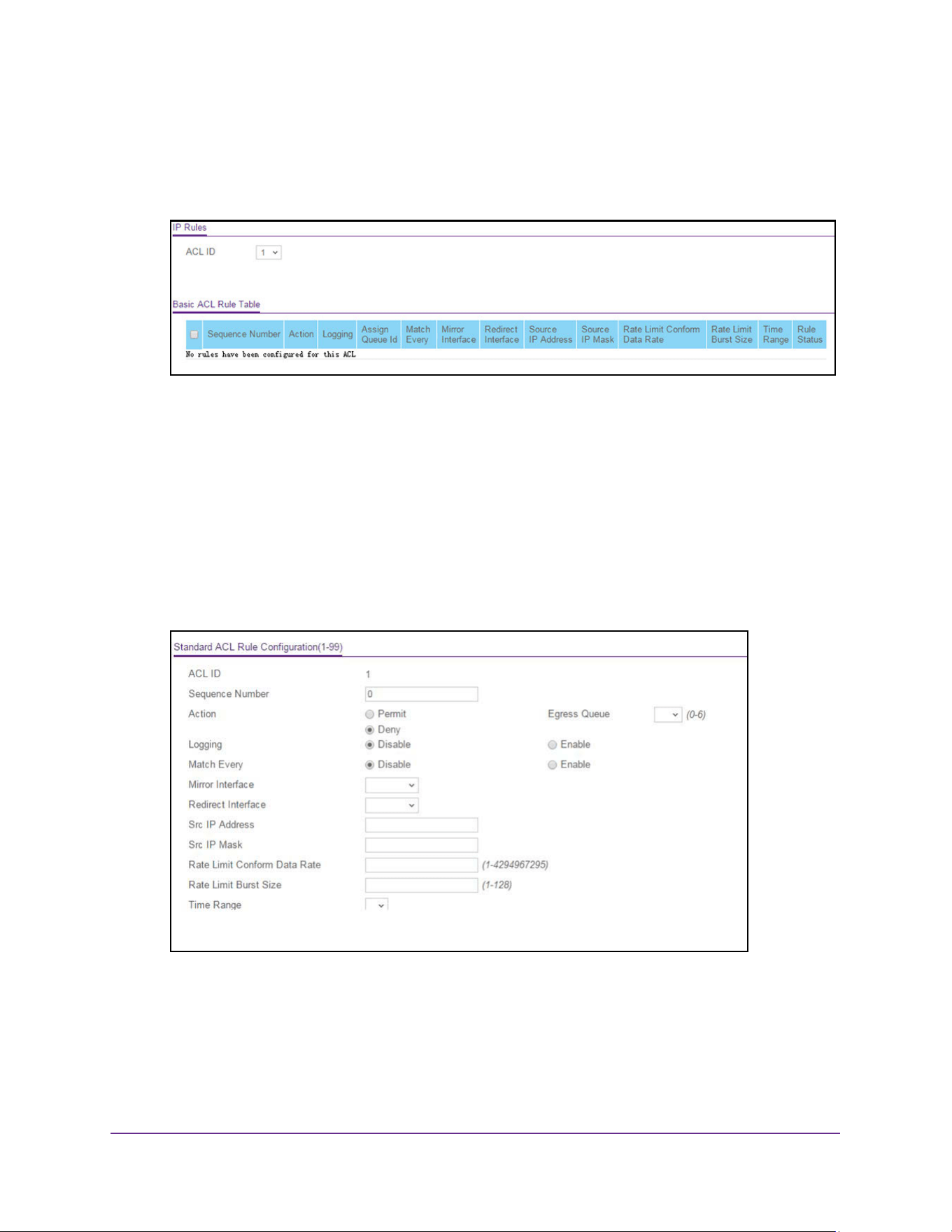
Manage Device Security
596
M4200 and M4300 Series ProSAFE Managed Switches Web Management User Manual
4. Click the Login button.
The System Information page displays.
5. Select Security > ACL > Advanced > IP Rules.
If no rules exists, the Basic ACL Rule Table shows the message No rules have been
configured for this ACL. If one or more rule exists for the ACL, the rules display in the
Basic ACL Rule Table.
6. From the ACL ID menu, select the IP ACL for which you want to add or a change a rule.
For basic IP ACLs, this must be an ID in the range from 1 to 99.
7. Take one of the following actions:
• To add an IP ACL rule, click the Add button.
• To change an existing rule, click the rule hyperlink in the Sequence Number column
of the Basic ACL Rule Table.
8. Configure the following options for the rule:
• Sequence Number. Enter a whole number in the range of 1 to 2147483647. This
number is used to identify the rule. An IP ACL can contain up to 1023 rules.
• Action. Specify what action is taken if a packet matches the rule’s criteria. The choice
is Permit or Deny.

Manage Device Security
597
M4200 and M4300 Series ProSAFE Managed Switches Web Management User Manual
• Logging. When set to Enable, logging is enabled for this ACL rule (subject to
resource availability in the device). If the access list trap flag is also enabled, this
causes periodic traps to be generated indicating the number of times this rule was hit
during the current report interval. A fixed 5-minute report interval is used for the entire
system. A trap is not issued if the ACL rule hit count is zero for the current interval.
This field is visible for a Deny action.
• Egress Queue. The hardware egress queue identifier used to handle all packets
matching this IP ACL rule. Valid range of queue IDs is 0 to 6. This field is visible when
Permit is chosen as the action.
• Match Every. Select True or False. True signifies that all packets must match the
selected IP ACL and rule and are either permitted or denied. In this case, since all
packets match the rule, the option of configuring other match criteria is not offered. To
configure specific match criteria for the rule, remove the rule and recreate it, or
reconfigure Match Every to False for the other match criteria to be visible.
• Mirror Interface. The specific egress interface where the matching traffic stream is
copied in addition to being forwarded normally by the device. This field cannot be set
if a redirect interface is already configured for the ACL rule. This field is visible for a
Permit action.
• Redirect Interface. The specific egress interface where the matching traffic stream is
forced, bypassing any forwarding decision normally performed by the device. This
field cannot be set if a mirror interface is already configured for the ACL rule. This field
is enabled for a Permit action.
• Src IP Address. Enter an IP address using dotted-decimal notation to be compared
to a packet’s source IP address as a match criteria for the selected IP ACL rule.
• Src IP Mask. Specify the IP mask in dotted-decimal notation to be used with the
source IP address.
• Rate Limit Conform Data Rate. Value of Rate Limit Conform Data Rate specifies the
conforming data rate of IP ACL Rule. Valid values are 1 to 4294967295 in Kbps.
• Rate Limit Burst Size. Value of Rate Limit Burst Size specifies burst size of the IP
ACL rule. Valid values are 1 to 128 in Kbytes.
• Time Range. Name of time range associated with the IP ACL rule.
9. Click the Apply button.
The updated configuration is sent to the switch. Configuration changes take effect
immediately.
The Rule Status field on IP Rules page displays whether the ACL rule is active or
inactive. Blank means that no timer schedules are assigned to the rule.
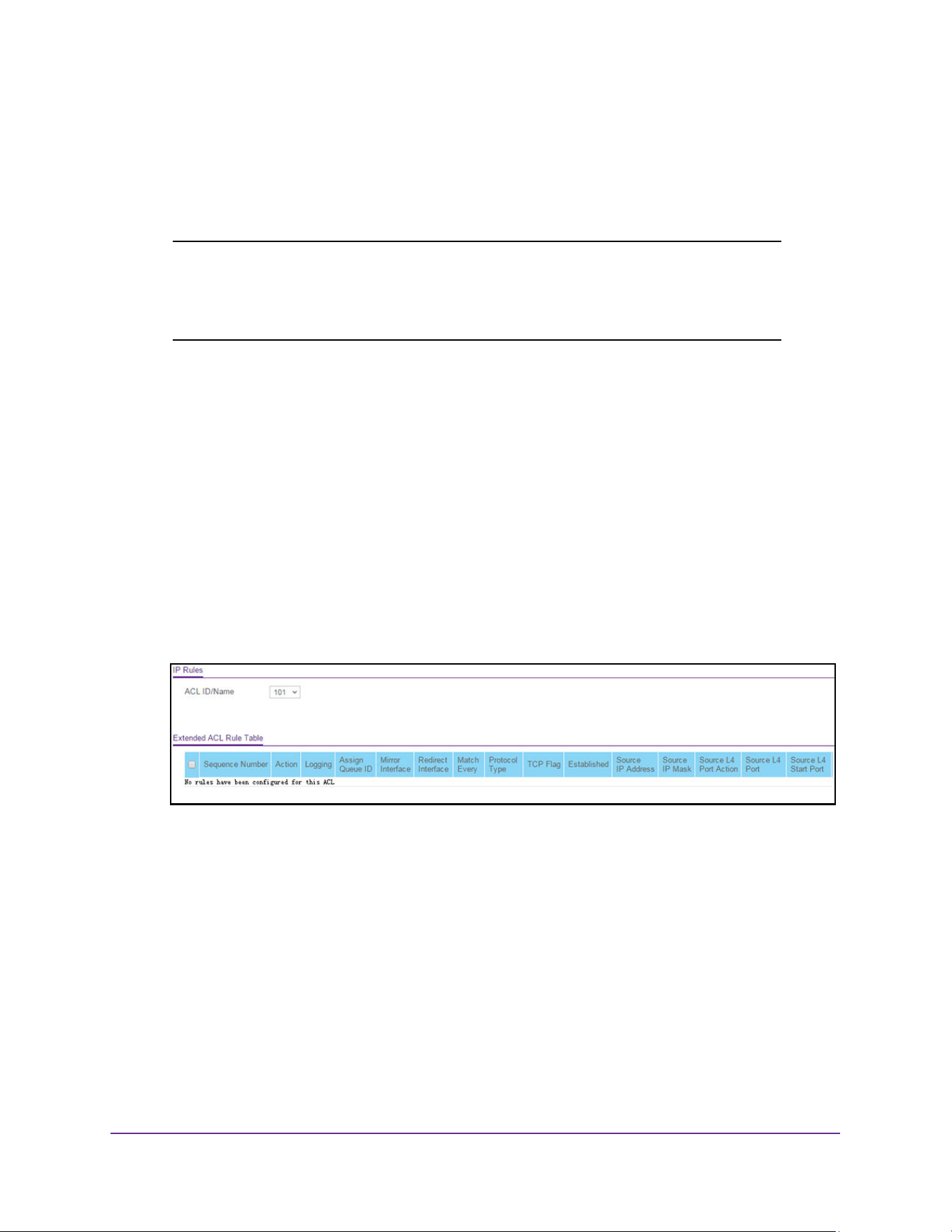
Manage Device Security
598
M4200 and M4300 Series ProSAFE Managed Switches Web Management User Manual
Configure Rules for an Extended IP ACL
You can view the rules for the IP access control lists that you created. What is shown on this
page varies depending on the step in the rule configuration process.
Note: An implicit deny all default rule exists as the last rule of an ACL list.
This means that if an ACL is applied to a packet and if none of the
explicit rules match, the final implicit deny all rule applies and the
packet is dropped.
To configure rules for an extended IP ACL:
1. Launch a web browser.
2. Enter http://<ipaddress> in the web browser address field.
The login window opens.
3. Enter the user name and password.
The default admin user name is admin and the default admin password is blank, that is,
do not enter a password.
4. Click the Login button.
The System Information page displays.
5. Select Security > ACL > Advanced > IP Extended Rules.
If no rules exists, the Extended ACL Rule Table shows the message No rules have been
configured for this ACL. If one or more rule exists for the ACL, the rules display in the
Extended ACL Rule Table.
6. From the ACL ID/Name menu, select the IP ACL for which you want to add or a change a
rule.
For extended IP ACLs, this must be an ID in the range from 101 to 199 or a name.
7. Take one of the following actions:
• To add an IP ACL rule, click the Add button.
• To change an existing rule, click the rule hyperlink in the Sequence Number column
of the Extended ACL Rule Table.
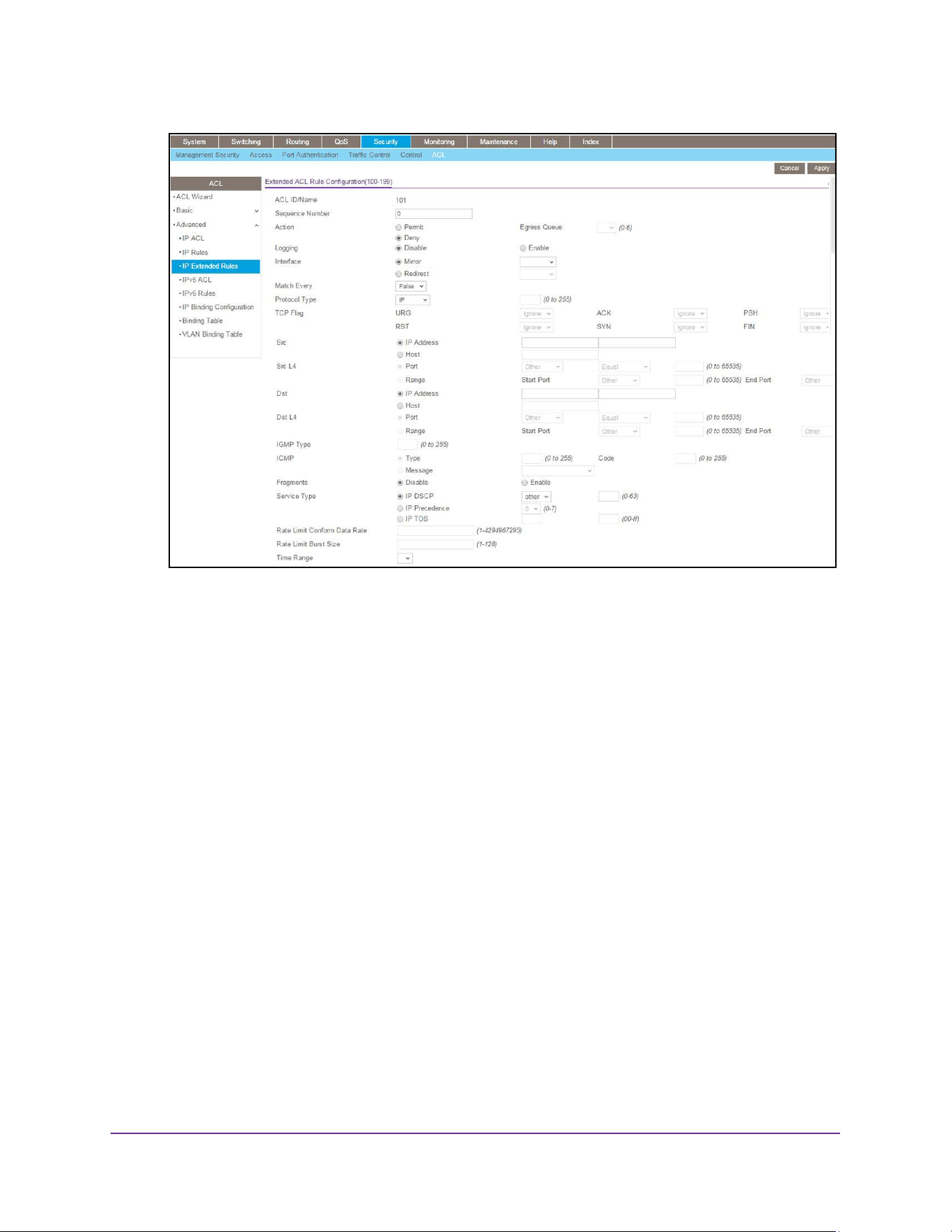
Manage Device Security
599
M4200 and M4300 Series ProSAFE Managed Switches Web Management User Manual
8. Configure the following options for the rule:
• Sequence Number. Enter a whole number in the range of 1 to 2147483647. This
number is used to identify the rule. An extended IP ACL can contain up to 1023 rules.
• Action. Specify what action is taken if a packet matches the rule’s criteria. The choice
is Permit or Deny.
• Logging. When set to Enable, logging is enabled for this ACL rule (subject to
resource availability in the device). If the access list trap flag is also enabled, this
causes periodic traps to be generated indicating the number of times this rule was hit
during the current report interval. A fixed 5-minute report interval is used for the entire
system. A trap is not issued if the ACL rule hit count is zero for the current interval.
This field is visible for a Deny action.
• Egress Queue. The hardware egress queue identifier used to handle all packets
matching this IP ACL rule. Valid range of queue IDs is 0 to 6. This field is visible when
Permit is chosen as the action.
• Interface. For a Permit action, use either a mirror interface or a redirect interface:
- Select the Mirror Interface radio button and use the menu to specify the egress
interface to which the matching traffic stream is copied, in addition to being
forwarded normally by the device.
- Select the Redirect Interface radio button and use the menu to specify the
egress interface to which the matching traffic stream is forced, bypassing any
forwarding decision normally performed by the device.
• Match Every. From the menu, select True or False.

Manage Device Security
600
M4200 and M4300 Series ProSAFE Managed Switches Web Management User Manual
True signifies that all packets must match the selected IP ACL and rule and are either
permitted or denied. In this case, because all packets match the rule, the option of
configuring other match criteria is not available. To configure specific match criteria
for the rule, remove the rule and recreate it, or select False from the Match Every
menu.
• Protocol Type. From the menu, select a protocol that a packet’s IP protocol must be
matched against: ICMP, IGMP, IP, TCP, UDP, EIGRP, GRE, IPINIP, OSPF, or PIM.
• TCP Flag. For each TCP flag, specify whether or not a packet’s TCP flag must be
matched. The TCP flag values are URG, ACK, PSH, RST, SYN, and FIN. You can set
each TCP flag separately to one of the following options:
- Ignore. The packet’s TCP flag is ignored. This is the default setting.
- Set (+). A packet matches this ACL rule if the TCP flag in this packet is set.
- Clear (-). A packet matches this ACL rule if the TCP flag in this packet is not set.
Note: If the RST and ACK flags are set, the option Established is available,
indicating that a match occurs if either the RST- or ACK-specified bits
are set in the packet’s header.
• Src. In the Src field, enter a source IP address, using dotted-decimal notation, to be
compared to a packet’s source IP address as a match criteria for the selected IP ACL
rule:
- If you select the IP Address radio button, enter an IP address with a relevant
wildcard mask to apply this criteria. If this field is left empty, it means any.
- If you select the Host radio button, the wildcard mask is configured as 0.0.0.0. If
this field is left empty, it means any.
The wildcard mask determines which bits are used and which bits are ignored. A
wildcard mask of 0.0.0.0 indicates that none of the bits are important. A wildcard
of 255.255.255.255 indicates that all of the bits are important.
• Src L4. The options are available only when protocol is set to TCP or UDP. Use the
source L4 port option to specify relevant matching conditions for L4 port numbers in
the extended ACL rule.
You can select either the Port radio button or the Range radio button:
- If you select the Port radio button, you can either select port key from the menu
or enter the port number yourself.
• The source IP TCP port names are bgp, domain, echo, ftp, ftpdata, http, smtp,
snmp, Telnet, www, pop2, pop3.
• The source IP UDP port names are domain, echo, ntp, rip, snmp, tftp, time,
who.
Each of these values translates into its equivalent port number
, which is used as
both the start and end of the port range.
Select
Other from the menu to enter a port number. If you select Other from the
menu but leave the field blank, it means any.

Manage Device Security
601
M4200 and M4300 Series ProSAFE Managed Switches Web Management User Manual
The relevant matching conditions for L4 port numbers are as follows:
• Equal. IP ACL rule matches only if the Layer 4 source port number is equal to
the specified port number or port key.
• Less Than. IP ACL rule matches if the Layer 4 source port number is less
than the specified port number or port key.
• Greater Than. IP ACL rule matches if the Layer 4 source port number is
greater than the specified port number or port key.
• Not Equal. IP ACL rule matches only if the Layer 4 source port number is not
equal to the specified port number or port key.
- If you select the Range radio button, the IP ACL rule matches only if the Layer 4
source port number is within the specified port range. The starting port, ending
port, and all ports in between are a part of the Layer 4 port range.
The Start Port and End Port fields identify the first and last ports that are part of
the port range. They values can range from 0 to 65535.
Select Other from the menu to enter port numbers. If you select Other from the
menu but leave the fields blank, it means any.
The wildcard mask determines which bits are used and which bits are ignored. A
wildcard mask of 0.0.0.0 indicates that none of the bits are important. A wildcard
of 255.255.255.255 indicates that all of the bits are important.
• Dst. In the Dst field, enter a destination IP address, using dotted-decimal notation, to
be compared to a packet’s destination IP address as a match criteria for the selected
IP ACL rule:
- If you select the IP Address radio button, enter an IP address with a relevant
wildcard mask to apply this criteria. If this field is left empty, it means any.
- If you select the Host radio button, the wildcard mask is configured as 0.0.0.0. If
this field is left empty, it means any.
The wildcard mask determines which bits are used and which bits are ignored. A
wildcard mask of 0.0.0.0 indicates that none of the bits are important. A wildcard
of 255.255.255.255 indicates that all of the bits are important.
• Dst L4. The options are available only when protocol is set to TCP or UDP. Use the
destination L4 port option to specify relevant matching conditions for L4 port numbers
in the extended ACL rule.
You can select either the Port radio button or the Range radio button:
- If you select the Port radio button, you can either select port key from the menu
or enter the port number yourself.
• The destination IP TCP port names are bgp, domain, echo, ftp, ftpdata, http,
smtp, snmp, Telnet, www, pop2, pop3.
• The destination IP UDP port names are domain, echo, ntp, rip, snmp, tftp,
time, who.

Manage Device Security
602
M4200 and M4300 Series ProSAFE Managed Switches Web Management User Manual
Each of these values translates into its equivalent port number, which is used as
both the start and end of the port range.
Select Other from the menu to enter a port number. If you select Other from the
menu but leave the field blank, it means any.
The relevant matching conditions for L4 port numbers are as follows:
• Equal. The IP ACL rule matches only if the Layer 4 destination port number is
equal to the specified port number or port key.
• Less Than. The IP ACL rule matches if the Layer 4 destination port number is
less than the specified port number or port key.
• Greater Than. The IP ACL rule matches if the Layer 4 destination port
number is greater than the specified port number or port key.
• Not Equal. The IP ACL rule matches only if the Layer 4 destination port
number is not equal to the specified port number or port key.
- If you select the Range radio button, the IP ACL rule matches only if the Layer 4
destination port number is within the specified port range. The starting port,
ending port, and all ports in between are a part of the Layer 4 port range.
The Start Port and End Port fields identify the first and last ports that are part of
the port range. They values can range from 0 to 65535.
Select Other from the menu to enter port numbers. If you select Other from the
menu but leave the fields blank, it means any.
The wildcard mask determines which bits are used and which bits are ignored. A
wildcard mask of 0.0.0.0 indicates that none of the bits are important. A wildcard
of 255.255.255.255 indicates that all of the bits are important.
• IGMP Type. If you specify the IGMP type, the IP ACL rule matches the specified
IGMP message type. Possible values are in the range 0 to 255. If this field is left
empty, it means any.
• ICMP. Select either the ICMP Type or ICMP Message radio button:
- If you select the ICMP Type radio button, note the following:
• The ICMP Type and ICMP Code fields are enabled only if the protocol is
ICMP. Use these fields to specify a match condition for ICMP packets:
• The IP ACL rule matches the specified ICMP message type. Possible type
numbers are in the range from 0 to 255.
• If you specify information in the ICMP Code field, the IP ACL rule matches the
specified ICMP message code. Possible values for the code can be in the
range from 0 to 255.
• If these fields are left empty, it means any.
- If you select the ICMP Message radio button, select the type of the ICMP
message to match with the selected IP ACL rule. Specifying a type of message
implies that both the ICMP type and ICMP code are specified. The ICMP
message is decoded into the corresponding ICMP type and ICMP code within the
ICMP type.

Manage Device Security
603
M4200 and M4300 Series ProSAFE Managed Switches Web Management User Manual
The IPv4 ICMP message types are: echo, echo-reply, host-redirect,
mobile-redirect, net-redirect, net-unreachable, redirect, packet-too-big,
port-unreachable, source-quench, router-solicitation, router-advertisement,
time-exceeded, ttl-exceeded, and unreachable.
• Fragments. Either select Enable to allow initial fragments (that is, the fragment bit is
asserted) or leave the default setting at Disable to prevent initial fragments from
being used.
This option is not valid for rules that match L4 information such as TCP port number,
because that information is carried in the initial packet.
• Service Type. Select a service type match condition for the extended IP ACL rule.
The possible values are IP DSCP, IP precedence, and IP TOS, which are alternative
methods to specify a match criterion for the same service type field in the IP header.
Each method uses a different user notation. After you make a selection is made, you
can specify the appropriate values.
- IP DSCP. This is an optional configuration. Specify the IP DiffServ Code Point
(DSCP) field. The DSCP is defined as the high-order 6 bits of the service type
octet in the IP header. Enter an integer from 0 to 63. To select the IP DSCP, select
one of the DSCP keywords from the menu. To specify a numeric value, select
Other and a field displays in which you can enter numeric value of the DSCP.
- IP Precedence. This is an optional configuration. The IP precedence field in a
packet is defined as the high-order three bits of the service type octet in the IP
header. Enter an integer from 0 to 7.
- IP TOS. This is an optional configuration. The IP ToS field in a packet is defined
as all 8 bits of the service type octet in the IP header. The ToS bits value is a
hexadecimal number from 00 to 09 and to aa to ff. The ToS mask value is a
hexadecimal number from 00 to FF. The ToS mask denotes the bit positions in the
ToS bits value that are used for comparison against the IP ToS field in a packet.
For example, to check for an IP ToS value for which bit 7 is set and is the most
significant value, for which bit 5 is set, and for which bit 1 is cleared, use a ToS
bits value of 0xA0 and a ToS mask of 0xFF.
• Rate Limit Conform Data Rate. Specify the conforming data rate of IP ACL rule.
Valid values are 1 to 4294967295 in Kbps.
• Rate Limit Burst Size. Specify the burst size of the IP ACL rule. Valid values are 1 to
128 in Kbytes.
• Time Range. Specify the name of the time range that you want to associate with the
IP ACL rule.
9. Click the Apply button.
The updated configuration is sent to the switch. Configuration changes take effect
immediately.
The Rule Status field displays whether the ACL rule is active or inactive. Blank means
that no timer schedules are assigned to the rule.
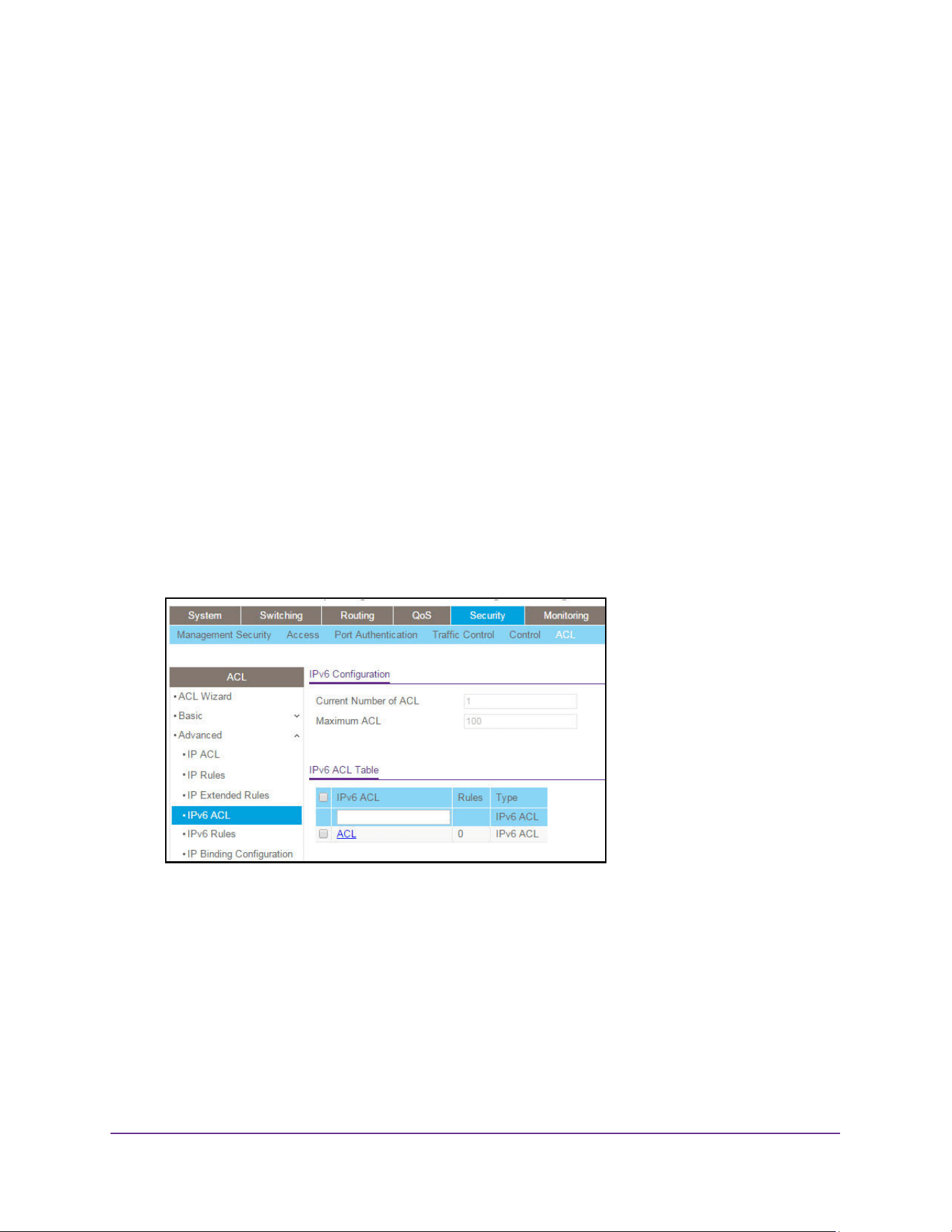
Manage Device Security
604
M4200 and M4300 Series ProSAFE Managed Switches Web Management User Manual
Configure an IPv6 ACL
An IPv6 ACL consists of a set of rules that are matched sequentially against a packet. When
a packet meets the match criteria of a rule, the specified rule action (permitted or denied) is
taken, and the additional rules are not checked for a match.
You must specify the interfaces to which an IP ACL applies and select whether the IP ACL
applies to inbound or outbound traffic.
To configure an IPv6 ACL:
1. Launch a web browser.
2. Enter http://<ipaddress> in the web browser address field.
The login window opens.
3. Enter the user name and password.
The default admin user name is admin and the default admin password is blank, that is,
do not enter a password.
4. Click the Login button.
The System Information page displays.
5. Select Security > ACL > Advanced > IPv6 ACL.
6. In the IPv6 ACL field in the IPv6 ACL Table, specify the name for the IPv6 ACL.
This is the IPv6 ACL name string, which includes up to 31 alphanumeric characters only.
The name must start with an alphabetic character.
7. Click the Add button.
The IPv6 ACL is added to the switch configuration.
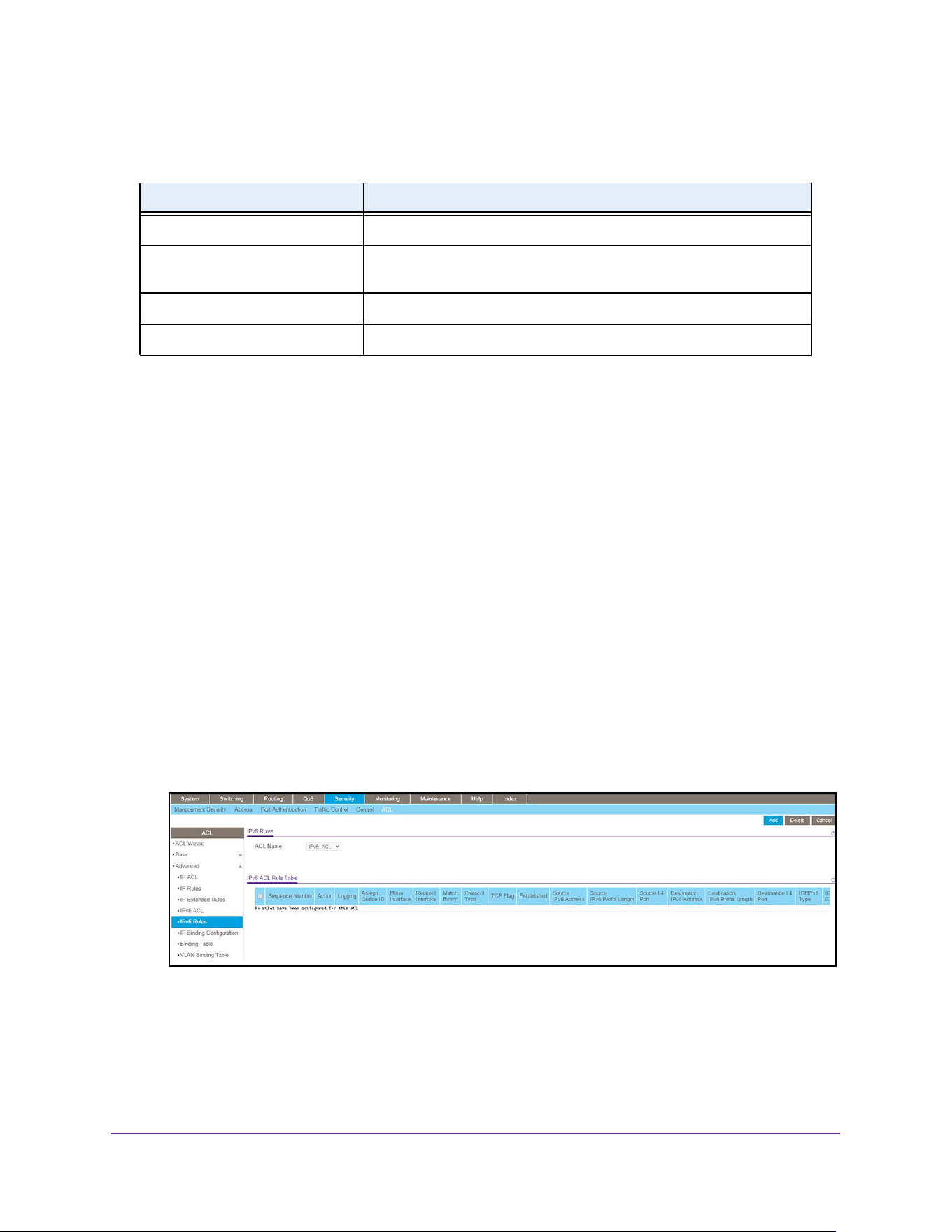
Manage Device Security
605
M4200 and M4300 Series ProSAFE Managed Switches Web Management User Manual
The following table describes the nonconfigurable information displayed on the page.
Configure IPv6 Rules
Use these pages to display the rules for the IPv6 access control lists, which are created using
the IPv6 Access Control List Configuration page. By default, no specific value is in effect for
any of the IPv6 ACL rules.
Configure ACL IPv6 rules:
1. Launch a web browser.
2. Enter http://<ipaddress> in the web browser address field.
The login window opens.
3. Enter the user name and password.
The default admin user name is admin and the default admin password is blank, that is,
do not enter a password.
4. Click the Login button.
The System Information page displays.
5. Select Security > ACL > Advanced > IPv6 Rules.
If no rules exists, the IPv6 ACL Rule Table shows the message No rules have been
configured for this ACL. If one or more rule exists for the ACL, the rules display in the
IPv6 ACL Rule Table.
6. From the ACL Name menu, select the IPv6 ACL for which you want to add or a change a
rule.
Table 215. IPv6 ACL
Field Description
Current Number of ACL The current number of the IP ACLs configured on the switch.
Maximum ACL The maximum number of IP ACLs that can be configured on the switch,
depending on the hardware.
Rules The number of the rules associated with the IP ACL.
Type The type is IPv6 ACL.
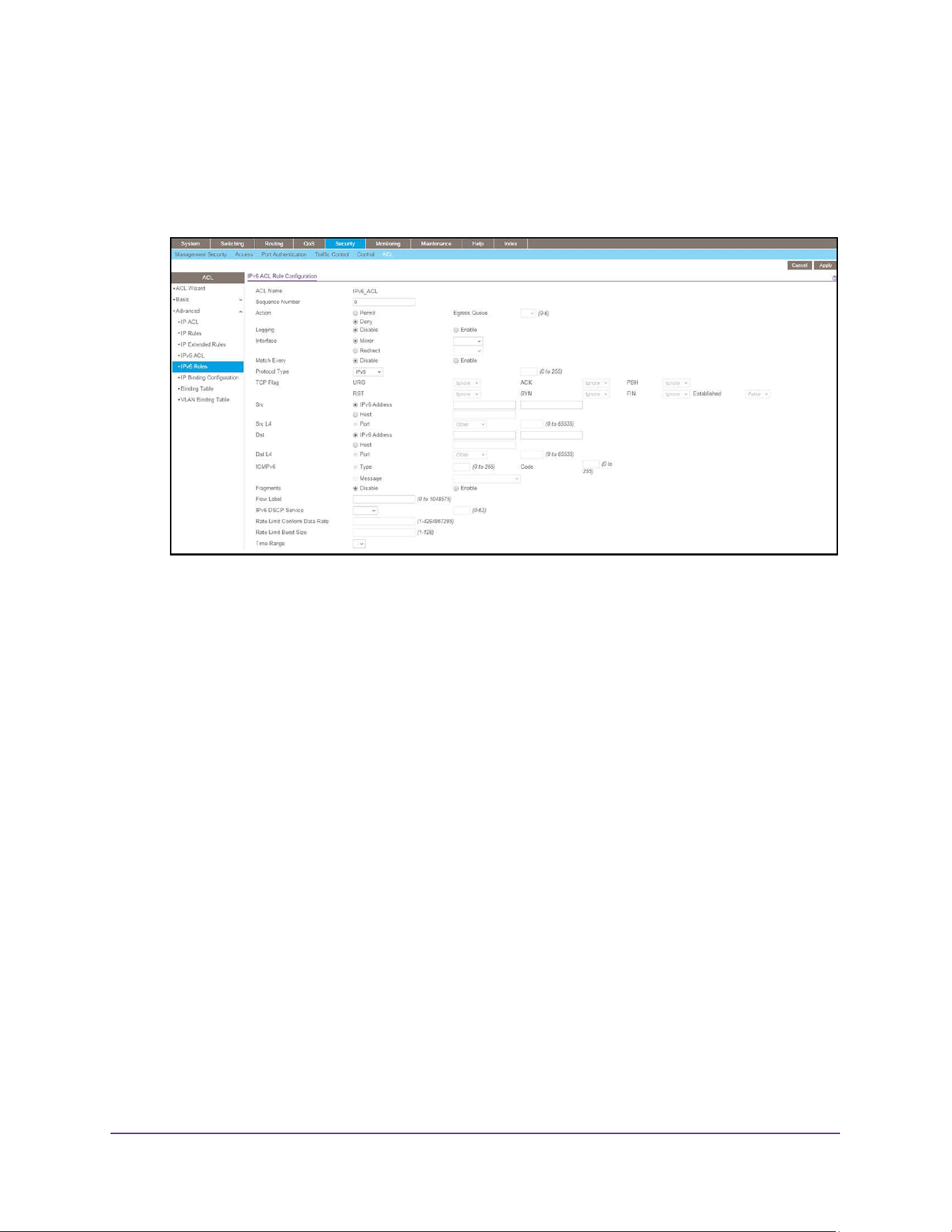
Manage Device Security
606
M4200 and M4300 Series ProSAFE Managed Switches Web Management User Manual
7. Take one of the following actions:
• To add an IPv6 ACL rule, click the Add button.
• To change an existing rule, click the rule hyperlink in the Sequence Number column
of the IPv6 ACL Rule Table.
8. Configure the following options for the rule:
• Sequence Number. Enter a whole number in the range of 1 to 2147483647. This
number is used to identify the rule. An IPv6 ACL can contain up to 1023 rules.
• Action. Specify what action is taken if a packet matches the rule’s criteria. The choice
is Permit or Deny.
• Logging. When set to Enable, logging is enabled for this ACL rule (subject to
resource availability in the device). If the access list trap flag is also enabled, this
causes periodic traps to be generated indicating the number of times this rule was hit
during the current report interval. A fixed 5-minute report interval is used for the entire
system. A trap is not issued if the ACL rule hit count is zero for the current interval.
This field is visible for a Deny action.
• Egress Queue. The hardware egress queue identifier used to handle all packets
matching this IPv6 ACL rule. Valid range of queue IDs is 0 to 7. This field is visible
when Permit is chosen as the action.
• Interface. For a Permit action, use either a mirror interface or a redirect interface:
- Select the Mirror Interface radio button and use the menu to specify the egress
interface to which the matching traffic stream is copied, in addition to being
forwarded normally by the device.
- Select the Redirect Interface radio button and use the menu to specify the
egress interface to which the matching traffic stream is forced, bypassing any
forwarding decision normally performed by the device.
• Match Every. From the menu, select True or False.

Manage Device Security
607
M4200 and M4300 Series ProSAFE Managed Switches Web Management User Manual
True signifies that all packets must match the selected IPv6 ACL and rule and are
either permitted or denied. In this case, because all packets match the rule, the option
of configuring other match criteria is not available. To configure specific match criteria
for the rule, remove the rule and recreate it, or select False from the Match Every
menu.
• Protocol Type. Specify the IPv6 protocol Type in one of the following ways:
- From the Protocol Type menu, select IPv6, TCP, UDP, or ICMPv6.
- From the Protocol Type menu, select Other, and in the associated field, specify
an integer ranging from 1 to 255. This number represents the IPv6 protocol.
• TCP Flag. For each TCP flag, specify whether or not a packet’s TCP flag must be
matched. The TCP flag values are URG, ACK, PSH, RST, SYN, and FIN. You can set
each TCP flag separately to one of the following options:
- Ignore. The packet’s TCP flag is ignored. This is the default setting.
- Set (+). A packet matches this ACL rule if the TCP flag in this packet is set.
- Clear (-). A packet matches this ACL rule if the TCP flag in this packet is not set.
Note: If the RST and ACK flags are set, the option Established is available,
indicating that a match occurs if either the RST- or ACK-specified bits
are set in the packet’s header.
• Src. In the Src field, enter a source IPv6 address to be compared to a packet’s
source IPv6 address as a match criteria for the selected IPv6 ACL rule:
- If you select the IPv6 Address radio button, enter an IPv6 address to apply this
criteria. If this field is left empty, it means any.
- If you select the Host radio button, enter a host source IPv6 address to match the
specified IPv6 address. If this field is left empty, it means any.
The source IPv6 address argument must be in the form documented in RFC 2373
where the address is specified in hexadecimal using 16-bit values between colons.
• Src L4. The options are available only when protocol is set to TCP or UDP. Use the
source L4 port option to specify relevant matching conditions for L4 port numbers in
the extended ACL rule.
You can select either the Port radio button or the Range radio button:
- If you select the Port radio button, you can either select port key from the menu
or enter the port number yourself.
• The source IP TCP port names are bgp, domain, echo, ftp, ftpdata, http, smtp,
snmp, Telnet, www, pop2, pop3.
• The source IP UDP port names are domain, echo, ntp, rip, snmp, tftp, time,
who.
Each of these values translates into its equivalent port number, which is used as
both the start and end of the port range.

Manage Device Security
608
M4200 and M4300 Series ProSAFE Managed Switches Web Management User Manual
Select Other from the menu to enter a port number. If you select Other from the
menu but leave the field blank, it means any.
The relevant matching conditions for L4 port numbers are as follows:\
• Equal. The IPv6 ACL rule matches only if the Layer 4 source port number is
equal to the specified port number or port key.
• Less Than. The IPv6 ACL rule matches if the Layer 4 source port number is
less than the specified port number or port key.
• Greater Than. The IPv6 ACL rule matches if the Layer 4 source port number
is greater than the specified port number or port key.
• Not Equal. The IPv6 ACL rule matches only if the Layer 4 source port number
is not equal to the specified port number or port key.
- If you select the Range radio button, the IPv6 ACL rule matches only if the Layer
4 source port number is within the specified port range. The starting port, ending
port, and all ports in between are a part of the Layer 4 port range.
The Start Port and End Port fields identify the first and last ports that are part of
the port range. They values can range from 0 to 65535.
Select Other from the menu to enter port numbers. If you select Other from the
menu but leave the fields blank, it means any.
• Dst. In the Dst field, enter a destination IPv6 address to be compared to a packet’s
destination IPv6 address as a match criteria for the selected IPv6 ACL rule:
- If you select the IPv6 Address radio button, enter an IPv6 address to apply this
criteria. If this field is left empty, it means any.
- If you select the Host radio button, enter a host source IPv6 address to match the
specified IPv6 address. If this field is left empty, it means any.
The source IPv6 address argument must be in the form documented in RFC 2373
where the address is specified in hexadecimal using 16-bit values between colons.
• Dst L4. The options are available only when protocol is set to TCP or UDP. Use the
destination L4 port option to specify relevant matching conditions for L4 port numbers
in the extended ACL rule.
You can select either the Port radio button or the Range radio button:
- If you select the Port radio button, you can either select port key from the menu
or enter the port number yourself.
• The destination IP TCP port names are bgp, domain, echo, ftp, ftpdata, http,
smtp, snmp, Telnet, www, pop2, pop3.
• The destination IP UDP port names are domain, echo, ntp, rip, snmp, tftp,
time, who.
Each of these values translates into its equivalent port number, which is used as
both the start and end of the port range.

Manage Device Security
609
M4200 and M4300 Series ProSAFE Managed Switches Web Management User Manual
Select Other from the menu to enter a port number. If you select Other from the
menu but leave the field blank, it means any.
The relevant matching conditions for L4 port numbers are as follows:
• Equal. The IPv6 ACL rule matches only if the Layer 4 destination port number
is equal to the specified port number or port key.
• Less Than. The IPv6 ACL rule matches if the Layer 4 destination port number
is less than the specified port number or port key.
• Greater Than. The IPv6 ACL rule matches if the Layer 4 destination port
number is greater than the specified port number or port key.
• Not Equal. The IPv6 ACL rule matches only if the Layer 4 destination port
number is not equal to the specified port number or port key.
- If you select the Range radio button, the IPv6 ACL rule matches only if the Layer
4 destination port number is within the specified port range. The starting port,
ending port, and all ports in between are a part of the Layer 4 port range.
The Start Port and End Port fields identify the first and last ports that are part of
the port range. They values can range from 0 to 65535.
Select Other from the menu to enter port numbers. If you select Other from the
menu but leave the fields blank, it means any.
• IGMPv6 Type. If you specify the IGMPv6 type, the IPv6 ACL rule matches the
specified IGMPv6 message type. Possible values are in the range 0 to 255. If this
field is left empty, it means any.
• ICMPv6. Select either the ICMP Type or ICMP Message radio button:
- If you select the ICMP Type radio button, note the following:
• The ICMP Type and ICMP Code fields are enabled only if the protocol is
ICMPv6. Use these fields to specify a match condition for ICMPv6 packets:
• The IPv6 ACL rule matches the specified ICMPv6 message type. Possible
type numbers are in the range from 0 to 255.
• If you specify information in the ICMP Code field, the IPv6 ACL rule matches
the specified ICMPv6 message code. Possible values for code can be in the
range from 0 to 255.
• If these fields are left empty, it means any.
- If you select the ICMP Message radio button, select the type of the ICMPv6
message to match with the selected IPv6 ACL rule. Specifying a type of message
implies that both the ICMPv6 type and ICMPv6 code are specified. The ICMPv6
message is decoded into the corresponding ICMPv6 type and ICMPv6 code
within the ICMP type.
The ICMPv6 message types are: destination-unreachable, echo-reply,
echo-request, header, hop-limit, mld-query, mld-reduction, mld-report, nd-na,
nd-ns, next-header, no-admin, no-route, packet-too-big, port-unreachable,
router-solicitation, router-advertisement, router-renumbering, time-exceeded, and
unreachable.

Manage Device Security
610
M4200 and M4300 Series ProSAFE Managed Switches Web Management User Manual
• Fragments. Either select Enable to allow initial fragments (that is, the fragment bit is
asserted) or leave the default setting at Disable to prevent initial fragments from
being used.
This option is not valid for rules that match L4 information such as TCP port number,
because that information is carried in the initial packet.
• Flow Label. The Flow Label field is enabled only if selection from the Protocol Type
menu is ICMPv6. The flow label is 20-bit number that is unique to an IPv6 packet and
that is used by end stations to signify quality-of-service handling in routers. The flow
label can specified within the range 0 to 1048575.
• IPv6 DSCP Service. Specify the IP DiffServ Code Point (DSCP) field. This is an
optional configuration.
The DSCP is defined as the high-order six bits of the service type octet in the IPv6
header. Enter an integer from 0 to 63. To select the IPv6 DSCP, select one of the
DSCP keywords. To specify a numeric value, select Other and enter the numeric
value of the DSCP.
• Rate Limit Conform Data Rate. Specify the conforming data rate of IPv6 ACL rule.
Valid values are 1 to 4294967295 in Kbps.
• Rate Limit Burst Size. Specify the burst size of the IPv6 ACL rule. Valid values are 1
to 128 in Kbytes.
• Time Range. Specify the name of the time range that you want to associate with the
IPv6 ACL rule.
9. Click the Apply button.
The updated configuration is sent to the switch. Configuration changes take effect
immediately.
The Rule Status field displays whether the ACL rule is active or inactive. Blank means
that no timer schedules are assigned to the rule.
Configure IP ACL Interface Bindings
When an ACL is bound to an interface, all the rules that are defined are applied to the
selected interface. You can assign ACL lists to ACL priorities and interfaces.
To configure IP ACL interface bindings:
1. Launch a web browser.
2. Enter http://<ipaddress> in the web browser address field.
The login window opens.
3. Enter the user name and password.
The default admin user name is admin and the default admin password is blank, that is,
do not enter a password.
4. Click the Login button.
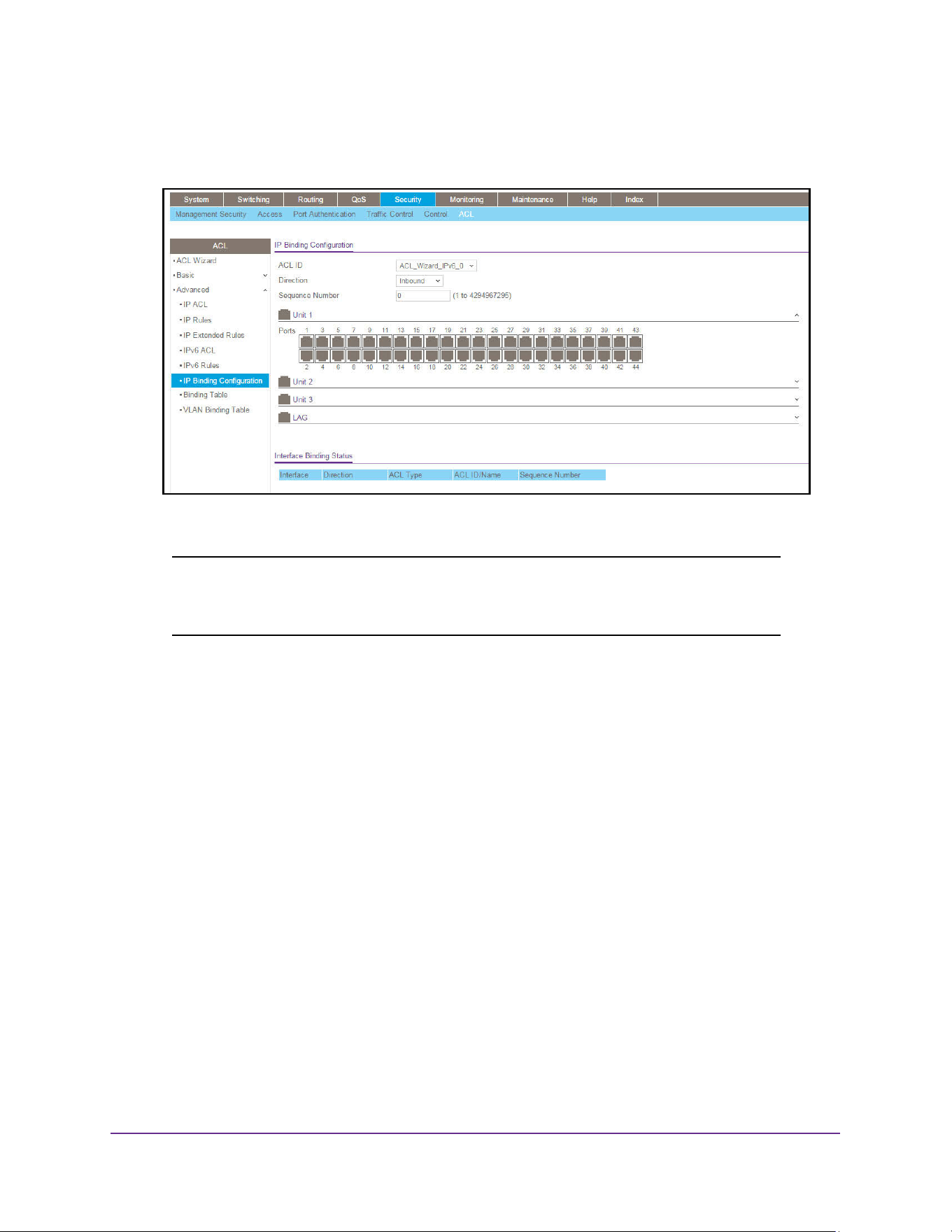
Manage Device Security
611
M4200 and M4300 Series ProSAFE Managed Switches Web Management User Manual
The System Information page displays.
5. Select Security > ACL > Advanced > IP Binding Configuration.
6. From the ACL ID menu, select an IP ACL.
Note: Binding ACLs to interface fails when the system has no resources to
bind a new ACL. IPv4 ACLs and IPv6 ACLs cannot be bound at the
same time to an interface.
7. Select the packet filtering Direction for ACL.
Valid directions are Inbound or Outbound. The packet filtering direction for ACL is
Inbound, which means the IP ACL rules are applied to traffic entering the port.
8. Specify an optional Sequence Number to indicate the order of this access list relative to
other access lists already assigned to this interface and direction.
A low number indicates high precedence order. If a sequence number is already in use
for this interface and direction, the specified access list replaces the currently attached
access list using that sequence number. If you do not specify the sequence number
(meaning that the value is 0), a sequence number that is one greater than the highest
sequence number currently in use for this interface and direction is used. The valid range
is 1–4294967295.
9. From the Unit 1, Unit 2, Unit 3, and LAG switch figures onscreen, select the ports and
LAGs to which the rule must apply.
If a port or LAG is not selected, click the port or LAG to select it. If a port or LAG is
selected, click the port or LAG to clear it again.
10. Click the Apply button.
The updated configuration is sent to the switch. Configuration changes take effect
immediately.
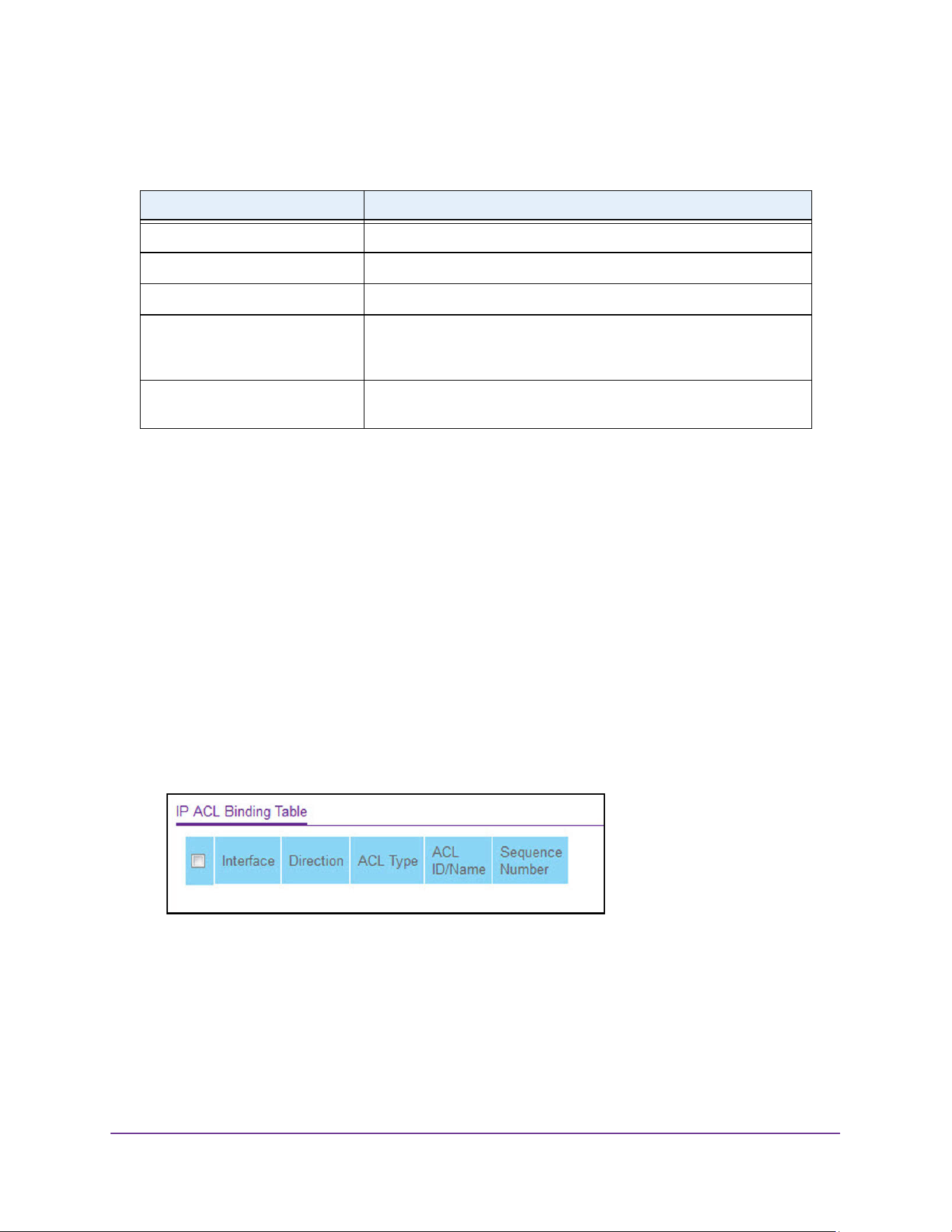
Manage Device Security
612
M4200 and M4300 Series ProSAFE Managed Switches Web Management User Manual
The following table describes the nonconfigurable information displayed on the page.
View and Delete IP ACL Bindings in the IP ACL Binding Table
To view and delete IP ACL bindings:
1. Launch a web browser.
2. Enter http://<ipaddress> in the web browser address field.
The login window opens.
3. Enter the user name and password.
The default admin user name is admin and the default admin password is blank, that is,
do not enter a password.
4. Click the Login button.
The System Information page displays.
5. Select Security > ACL > Advanced > Binding Table.
6. To delete an IP ACL-to-interface binding, select the check box next to the interface and click
the Delete button.
Table 216. IP Binding Configuration
Field Description
Interface Displays the selected interface.
Direction Displays the selected packet filtering direction for the ACL.
ACL Type The type of ACL assigned to the selected interface and direction.
ACL ID/Name The ACL number (in the case of IP ACL) or ACL name (in the case of
named IP ACL and IPv6 ACL) identifying the ACL assigned to selected
interface and direction.
Sequence Number The sequence number signifying the order of specified ACL relative to
other ACLs assigned to selected interface and direction.
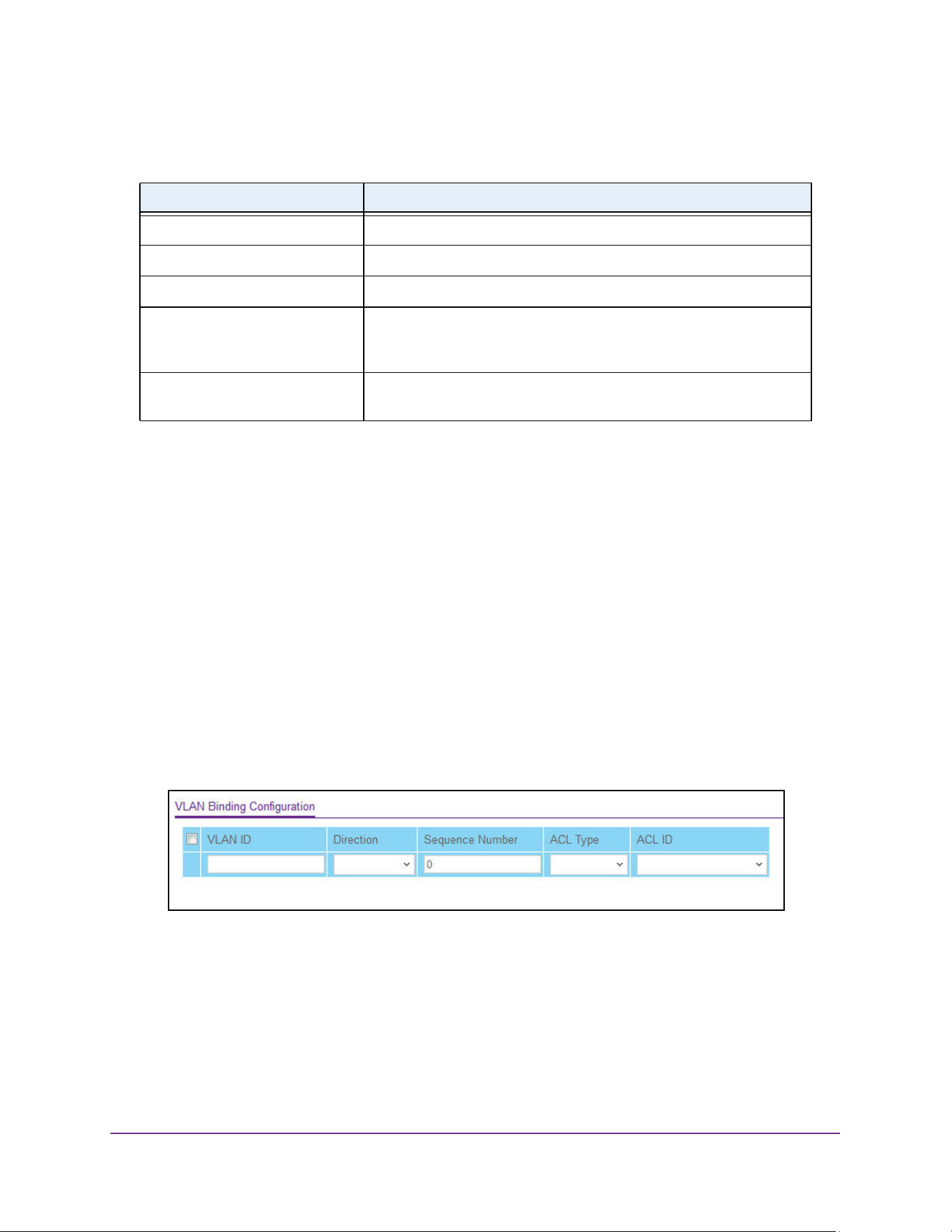
Manage Device Security
613
M4200 and M4300 Series ProSAFE Managed Switches Web Management User Manual
The following table describes the information displayed in the IP ACL Binding Table.
Configure VLAN ACL Bindings
To configure VLAN ACL bindings:
1. Launch a web browser.
2. Enter http://<ipaddress> in the web browser address field.
The login window opens.
3. Enter the user name and password.
The default admin user name is admin and the default admin password is blank, that is,
do not enter a password.
4. Click the Login button.
The System Information page displays.
5. Select Security > ACL> Advanced > VLAN Binding Table.
6. In the VLAN ID field, enter the VLAN ID to which the binding must apply.
7. From the Direction menu, select the packet filtering direction.
8. In the Sequence Number field, enter an optional sequence number.
You can specify an optional sequence number to indicate the order of this access list
relative to other access lists that are already assigned to the VLAN ID and selected
direction. A lower number indicates a higher precedence order. If a sequence number is
already in use for the VLAN ID and selected direction, the specified access list replaces
Table 217. IP ACL Binding Table
Field Description
Interface Displays the selected interface.
Direction Displays the selected packet filtering direction for the ACL.
ACL Type The type of ACL assigned to the selected interface and direction.
ACL ID/Name The ACL number (in the case of the IP ACL) or ACL name (in the case
of Named IP ACL and IPv6 ACL) identifying the ACL assigned to
selected interface and direction.
Sequence Number The sequence number signifying the order of the specified ACL relative
to other ACLs assigned to selected interface and direction.

Manage Device Security
614
M4200 and M4300 Series ProSAFE Managed Switches Web Management User Manual
the currently attached ACL using that sequence number. If you do not specify a sequence
number (the value is 0), a sequence number that is one greater than the highest
sequence number currently in use for the VLAN ID and selected direction is used. The
valid range is 1 to 4294967295.
9. From the ACL Type menu, select the type of ACL.
Valid ACL types include IP ACL, MAC ACL, and IPv6 ACL.
10. From the ACL ID menu, select to display all the ACLs configured, depending on the ACL
type selected.
11. Click the Add button.
The VLAN ACL binding is added to the ACL VLAN Binding Table.

615
10
10. Monitor the System
This chapter covers the following topics:
• View Port and EAP Packet Statistics
• Manage the Buffered, Command, and Console Logs
• Configure the Syslog and Syslog Host Settings
• View and Clear the Trap Logs
• View and Clear the Event Log
• Configure Multiple Port Mirroring
• Manage an RSPAN VLAN
• Configure sFlow
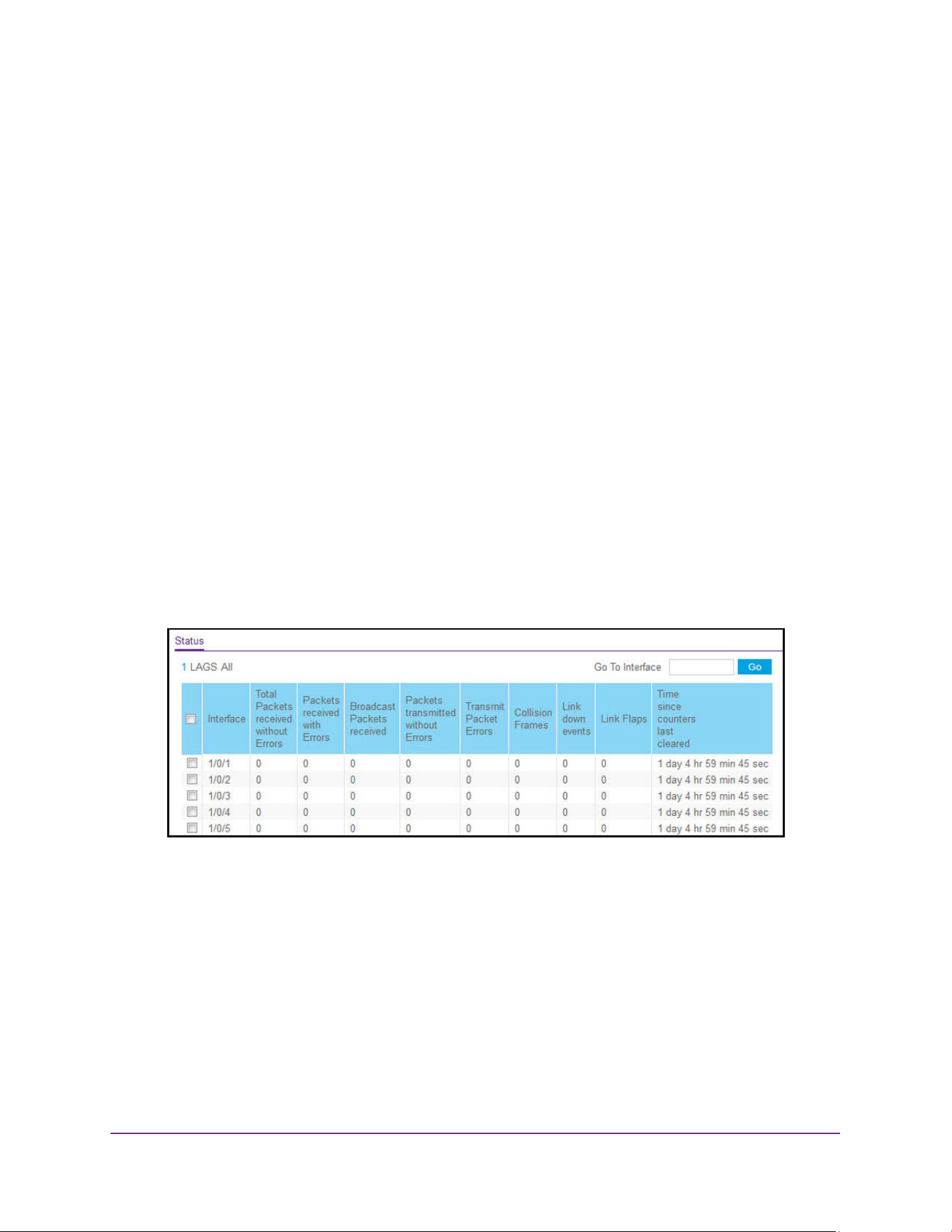
Monitor the System
616
M4200 and M4300 Series ProSAFE Managed Switches Web Management User Manual
View Port and EAP Packet Statistics
You can view port statistics, including detailed statistics, and Extensible Authentication
Protocol (EAP) packets statistics.
View and Clear Port Statistics
You can view a summary of per-port traffic statistics on the switch and clear the statistics.
To view and clear port statistics:
1. Launch a web browser.
2. Enter http://<ipaddress> in the web browser address field.
The login window opens.
3. Enter the user name and password.
The default admin user name is admin and the default admin password is blank, that is,
do not enter a password.
4. Click the Login button.
The System Information page displays.
5. Select Monitoring
Ports > Port Statistics.
6. Use a button at the bottom of the page to perform one of the following actions:
• To clear all the counters for all ports on the switch, select the check box in the row
heading and click the Clear button.
• To clear the counters for a specific port, select the check box for the port and click the
Clear button.
• To refresh the page with the latest information on the switch, click the Update button.

Monitor the System
617
M4200 and M4300 Series ProSAFE Managed Switches Web Management User Manual
The following table describes the per-port statistics displayed on the page.
View and Clear the Detailed Port Statistics
You can view a variety of per-port traffic statistics and clear the statistics.
To view and clear the detailed port statistics:
1. Launch a web browser.
2. Enter http://<ipaddress> in the web browser address field.
The login window opens.
3. Enter the user name and password.
The default admin user name is admin and the default admin password is blank, that is,
do not enter a password.
4. Click the Login button.
The System Information page displays.
5. Select Monitoring > Ports > Port Detailed Statistics.
The following figure shows some, but not all, of the fields on the Port Detailed Statistics
page.
Table 218. Port Statistics
Field Description
Interface This object indicates the interface of the interface table entry associated with
this port on an adapter.
Total Packets Received
Without Errors
The total number of packets received that were without errors.
Packets Received With Error The number of inbound packets that contained errors preventing them from
being deliverable to a higher-Layer protocol.
Broadcast Packets Received The total number of good packets received that were directed to the
broadcast address. This does not include multicast packets.
Packets Transmitted Without
Errors
The number of frames that were transmitted by this port to its segment.
Transmit Packet Errors The number of outbound packets that could not be transmitted because of
errors.
Collision Frames The best estimate of the total number of collisions on this Ethernet segment.
Number of Link Down Events The total number of link down events on a physical port.
Link Flaps The total number of occurrences of link down to link up events (makes one
link flap) during debouncing time.
Time Since Counters Last
Cleared
The elapsed time in days, hours, minutes, and seconds since the statistics
for this port were last cleared.
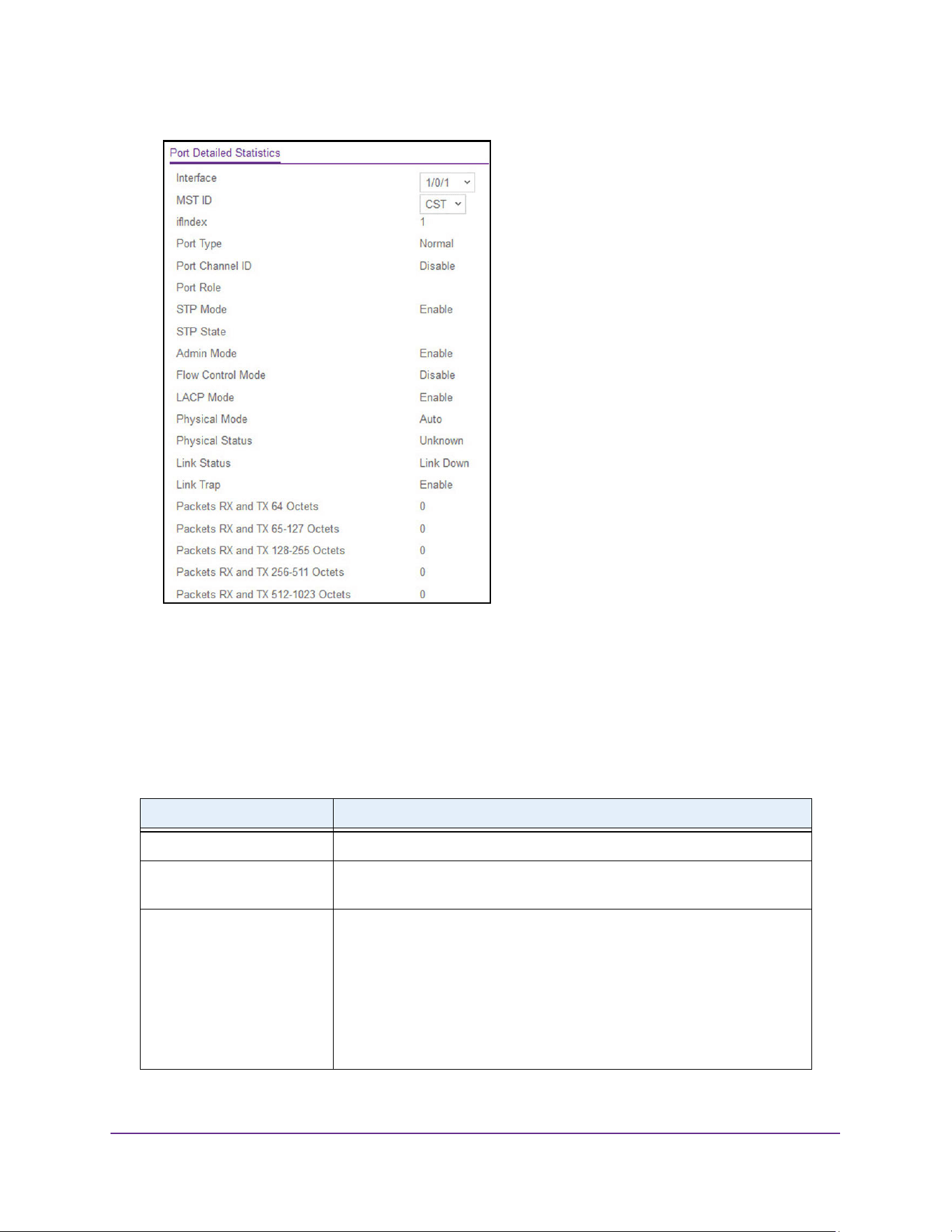
Monitor the System
618
M4200 and M4300 Series ProSAFE Managed Switches Web Management User Manual
6. Use a button at the bottom of the page to perform one of the following actions:
• To clear all the counters, click the Clear button. This resets all statistics for this port to
the default values.
• To refresh the page with the latest information on the switch, click the Update button.
The following table describes the detailed port information displayed on the page. To view
information about a different port, select the port number from the Interface menu.
Table 219. Port Detailed Statistics
Field Description
MST ID Display the MST instances associated with the interface.
ifIndex This object indicates the ifIndex of the interface table entry associated with
this port on an adapter.
Port Type For normal ports this field is normal. Otherwise the possible values are as
follows:
• Mirrored. This port is a participating in port mirroring as a mirrored port.
Look at the Port Mirroring pages for more information.
• Probe. This port is a participating in port mirroring as the probe port.
Look at the Port Mirroring pages for more information.
• Trunk Member. The port is a member of a link aggregation trunk. Look
at the Port Channel pages for more information.

Monitor the System
619
M4200 and M4300 Series ProSAFE Managed Switches Web Management User Manual
Port Channel ID If the port is a member of a port channel, the port channel's interface ID and
name are shown. Otherwise, Disable is shown.
Port Role Each MST bridge port that is enabled is assigned a port tole for each
spanning tree. The port role is one of the following values: Root, Designated,
Alternate, Backup, Master, or Disabled.
STP Mode The Spanning Tree Protocol administrative mode associated with the port or
port channel. The possible values are as follows:
• Enable. Spanning tree is enabled for this port.
• Disable. Spanning tree is disabled for this port.
STP State The port's current Spanning Tree state. This state controls what action a
port takes on receipt of a frame. If the bridge detects a malfunctioning port it
places that port into the broken state. The states are defined in IEEE
802.1D:
• Disabled
• Blocking
• Listening
• Learning
• Forwarding
• Broken
Admin Mode The port control administration state. The port must be enabled in order for it
to be allowed into the network. The factory default is enabled.
Flow Control Mode Indicates whether flow control is enabled or disabled for the port. This field is
not valid for LAG interfaces.
LACP Mode Indicates the Link Aggregation Control Protocol administrative state. The
mode must be enabled in order for the port to participate in link aggregation.
Physical Mode Indicates the port speed and duplex mode. In autonegotiation mode the
duplex mode and speed are set from the autonegotiation process.
Physical Status Indicates the port speed and duplex mode.
Link Status Indicates whether the link is up or down.
Link Trap Indicates whether or not the port sends a trap when link status changes.
Packets RX and TX 64
Octets
The total number of packets (including bad packets) received or transmitted
that were 64 octets in length (excluding framing bits but including FCS
octets).
Packets RX and TX 65-127
Octets
The total number of packets (including bad packets) received or transmitted
that were between 65 and 127 octets in length inclusive (excluding framing
bits but including FCS octets).
Packets RX and TX 128-255
Octets
The total number of packets (including bad packets) received or transmitted
that were between 128 and 255 octets in length inclusive (excluding framing
bits but including FCS octets).
Table 219. Port Detailed Statistics (continued)
Field Description

Monitor the System
620
M4200 and M4300 Series ProSAFE Managed Switches Web Management User Manual
Packets RX and TX 256-511
Octets
The total number of packets (including bad packets) received or transmitted
that were between 256 and 511 octets in length inclusive (excluding framing
bits but including FCS octets).
Packets RX and TX 512-1023
Octets
The total number of packets (including bad packets) received or transmitted
that were between 512 and 1023 octets in length inclusive (excluding
framing bits but including FCS octets).
Packets RX and TX
1024-1518 Octets
The total number of packets (including bad packets) received or transmitted
that were between 1024 and 1518 octets in length inclusive (excluding
framing bits but including FCS octets).
Packets RX and TX
1519-2047 Octets
The total number of packets (including bad packets) received or transmitted
that were between 1519 and 2047 octets in length inclusive (excluding
framing bits but including FCS octets).
Packets RX and TX
2048-4095 Octets
The total number of packets (including bad packets) received or transmitted
that were between 2048 and 4095 octets in length inclusive (excluding
framing bits but including FCS octets).
Packets RX and TX
4096-9216 Octets
The total number of packets (including bad packets) received or transmitted
that were between 4096 and 9216 octets in length inclusive (excluding
framing bits but including FCS octets).
Octets Received The total number of octets of data (including those in bad packets) received
on the network (excluding framing bits but including FCS octets). This object
can be used as a reasonable estimate of Ethernet utilization. If greater
precision is desired, the etherStatsPkts and etherStatsOctets objects must
be sampled before and after a common interval.
Packets Received 64 Octets The total number of packets (including bad packets) received that were 64
octets in length (excluding framing bits but including FCS octets).
Packets Received 65-127
Octets
The total number of packets (including bad packets) received that were
between 65 and 127 octets in length inclusive (excluding framing bits but
including FCS octets).
Packets Received 128-255
Octets
The total number of packets (including bad packets) received that were
between 128 and 255 octets in length inclusive (excluding framing bits but
including FCS octets).
Packets Received 256-511
Octets
The total number of packets (including bad packets) received that were
between 256 and 511 octets in length inclusive (excluding framing bits but
including FCS octets).
Packets Received 512-1023
Octets
The total number of packets (including bad packets) received that were
between 512 and 1023 octets in length inclusive (excluding framing bits but
including FCS octets).
Packets Received 1024-1518
Octets
The total number of packets (including bad packets) received that were
between 1024 and 1518 octets in length inclusive (excluding framing bits but
including FCS octets).
Table 219. Port Detailed Statistics (continued)
Field Description

Monitor the System
621
M4200 and M4300 Series ProSAFE Managed Switches Web Management User Manual
Packets Received > 1518
Octets
The total number of packets received that were longer than 1518 octets
(excluding framing bits, but including FCS octets) and were otherwise well
formed.
Total Packets Received
Without Errors
The total number of packets received that were without errors.
Unicast Packets Received The number of subnetwork-unicast packets delivered to a higher-Layer
protocol.
Multicast Packets Received The total number of good packets received that were directed to a multicast
address. This number does not include packets directed to the broadcast
address.
Broadcast Packets Received The total number of good packets received that were directed to the
broadcast address. This does not include multicast packets.
Receive Packets Discarded The number of inbound packets that were discarded even though no errors
were detected to prevent their being delivered to a higher-layer protocol. A
possible reason for discarding a packet could be to free up buffer space.
Total Packets Received with
MAC Errors
The total number of inbound packets that contained errors preventing them
from being deliverable to a higher-Layer protocol.
Jabbers Received The total number of packets received that were longer than 1518 octets
(excluding framing bits, but including FCS octets), and had either a bad
frame check sequence (FCS) with an integral number of octets (FCS Error)
or a bad FCS with a nonintegral number of octets (alignment error). This
definition of jabber is different from the definition in IEEE-802.3 section
8.2.1.5 (10BASE5) and section 10.3.1.4 (10BASE2). These documents
define jabber as the condition where any packet exceeds 20 ms. The
allowed range to detect jabber is between 20 ms and 150 ms.
Fragments Received The total number of packets received that were less than 64 octets in length
with ERROR CRC (excluding framing bits but including FCS octets).
Undersize Received The total number of packets received that were less than 64 octets in length
with GOOD CRC (excluding framing bits but including FCS octets).
Alignment Errors The total number of packets received with a length (excluding framing bits,
but including FCS octets) of between 64 and 1518 octets, inclusive, but had
a bad frame check sequence (FCS) with a nonintegral number of octets.
Rx FCS Errors The total number of packets received with a length (excluding framing bits,
but including FCS octets) of between 64 and 1518 octets, inclusive, but had
a bad frame check sequence (FCS) with an integral number of octets
Overruns The total number of frames discarded because this port was overloaded with
incoming packets, and could not keep up with the inflow.
Total Received Packets Not
Forwarded
A count of valid frames received that were discarded (that is, filtered) by the
forwarding process.
Table 219. Port Detailed Statistics (continued)
Field Description

Monitor the System
622
M4200 and M4300 Series ProSAFE Managed Switches Web Management User Manual
802.3x Pause Frames
Received
A count of MAC control frames received on this interface with an opcode
indicating the PAUSE operation. This counter does not increment when the
interface is operating in half-duplex mode.
Unacceptable Frame Type The number of frames discarded from this port due to being an
unacceptable frame type.
Total Packets Transmitted
(Octets)
The total number of octets of data (including those in bad packets)
transmitted on the network (excluding framing bits but including FCS octets).
This object can be used as a reasonable estimate of Ethernet utilization. If
greater precision is desired, the etherStatsPkts and etherStatsOctets
objects must be sampled before and after a common interval.
Packets Transmitted 64
Octets
The total number of packets (including bad packets) received that were 64
octets in length (excluding framing bits but including FCS octets).
Packets Transmitted 65-127
Octets
The total number of packets (including bad packets) received that were
between 65 and 127 octets in length inclusive (excluding framing bits but
including FCS octets).
Packets Transmitted 128-255
Octets
The total number of packets (including bad packets) received that were
between 128 and 255 octets in length inclusive (excluding framing bits but
including FCS octets).
Packets Transmitted 256-511
Octets
The total number of packets (including bad packets) received that were
between 256 and 511 octets in length inclusive (excluding framing bits but
including FCS octets).
Packets Transmitted
512-1023 Octets
The total number of packets (including bad packets) received that were
between 512 and 1023 octets in length inclusive (excluding framing bits but
including FCS octets).
Packets Transmitted
1024-1518 Octets
The total number of packets (including bad packets) received that were
between 1024 and 1518 octets in length inclusive (excluding framing bits but
including FCS octets).
Packets Transmitted
> 1518
Octets
The total number of packets transmitted that were longer than 1518 octets
(excluding framing bits, but including FCS octets) and were otherwise well
formed. This counter has a max increment rate of 815 counts per sec at 10
Mb/s.
Maximum Frame Size The maximum Ethernet frame size the interface supports or is configured to
use, including Ethernet header, CRC, and payload. (1518 to 9216). The
default maximum frame size is 1518.
Total Packets Transmitted
Successfully
The number of frames that were transmitted by this port to its segment.
Unicast Packets Transmitted The total number of packets that higher-level protocols requested be
transmitted to a subnetwork-unicast address, including those that were
discarded or not sent.
Multicast Packets
Transmitted
The total number of packets that higher-level protocols requested be
transmitted to a multicast address, including those that were discarded or
not sent.
Table 219. Port Detailed Statistics (continued)
Field Description

Monitor the System
623
M4200 and M4300 Series ProSAFE Managed Switches Web Management User Manual
Broadcast Packets
Transmitted
The total number of packets that higher-level protocols requested be
transmitted to the broadcast address, including those that were discarded or
not sent.
Total Transmit Errors The sum of single, multiple, and excessive collisions.
Total Transmit Packets
Discarded
The sum of single collision frames discarded, multiple collision frames
discarded, and excessive frames discarded.
Single Collision Frames A count of the number of successfully transmitted frames on a particular
interface for which transmission is inhibited by exactly one collision.
Multiple Collision Frames A count of the number of successfully transmitted frames on a particular
interface for which transmission is inhibited by more than one collision.
Excessive Collision Frames A count of frames for which transmission on a particular interface fails due to
excessive collisions.
STP BPDUs Received Number of STP BPDUs received at the selected port.
STP BPDUs Transmitted Number of STP BPDUs transmitted from the selected port.
RSTP BPDUs Received Number of RSTP BPDUs received at the selected port.
RSTP BPDUs Transmitted Number of RSTP BPDUs transmitted from the selected port.
MSTP BPDUs Received Number of MSTP BPDUs received at the selected port.
MSTP BPDUs Transmitted Number of MSTP BPDUs transmitted from the selected port.
802.3x Pause Frames
Transmitted
A count of MAC control frames transmitted on this interface with an opcode
indicating the PAUSE operation. This counter does not increment when the
interface is operating in half-duplex mode.
GVRP PDUs Received The count of GVRP PDUs received in the GARP Layer.
GVRP PDUs Transmitted The count of GVRP PDUs transmitted from the GARP Layer.
GVRP Failed Registrations The number of times attempted GVRP registrations could not be completed.
GMRP PDUs Received The count of GMRP PDUs received from the GARP Layer.
GMRP PDUs Transmitted The count of GMRP PDUs transmitted from the GARP Layer.
GMRP Failed Registrations The number of times attempted GMRP registrations could not be completed.
EAPOL Frames Received The number of valid EAPOL frames of any type that were received by this
authenticator.
EAPOL Frames Transmitted The number of EAPOL frames of any type that were transmitted by this
authenticator.
Time Since Counters Last
Cleared
The elapsed time in days, hours, minutes, and seconds since the statistics
for this port were last cleared.
Table 219. Port Detailed Statistics (continued)
Field Description
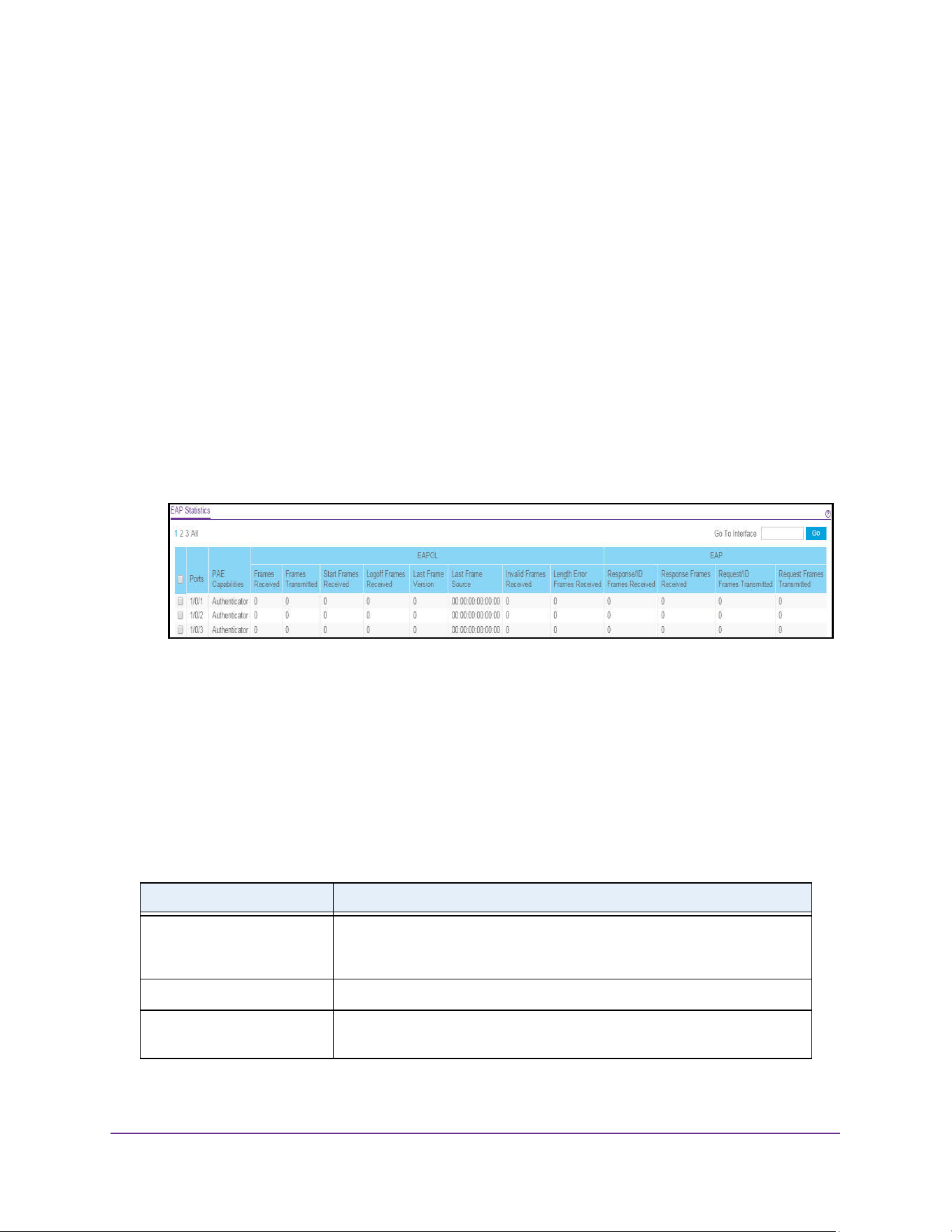
Monitor the System
624
M4200 and M4300 Series ProSAFE Managed Switches Web Management User Manual
View EAP Statistics
You can display information about EAP packets received on a specific port.
To view EAP statistics:
1. Launch a web browser.
2. Enter http://<ipaddress> in the web browser address field.
The login window opens.
3. Enter the user name and password.
The default admin user name is admin and the default admin password is blank, that is,
do not enter a password.
4. Click the Login button.
The System Information page displays.
5. Select Monitoring > Ports > EAP Statistics.
6. Use a button at the bottom of the page to perform one of the following actions:
• To clear all the EAP counters for all ports on the switch, select the check box in the
row heading and click the Clear button. Clicking the button resets all statistics for all
ports to default values.
• To clear the counters for a specific port, select the check box associated with the port
and click the Clear button.
• To refresh the page with the latest information on the switch, click the Update button.
The following table describes the EAP statistics displayed on the page.
Table 220. EAP Statistics
Field Description
Port Selects the port to be displayed. When the selection is changed, a page
update occurs causing all fields to be updated for the newly selected port. All
physical interfaces are valid.
PAE Capabilities This displays the PAE capabilities of the selected port.
EAPOL Frames Received This displays the number of valid EAPOL frames of any type that were
received by this authenticator.

Monitor the System
625
M4200 and M4300 Series ProSAFE Managed Switches Web Management User Manual
Perform a Cable Test
To perform a cable test:
1. Launch a web browser.
2. Enter http://<ipaddress> in the web browser address field.
The login window opens.
3. Enter the user name and password.
The default admin user name is admin and the default admin password is blank, that is,
do not enter a password.
4. Click the Login button.
The System Information page displays.
EAPOL Frames Transmitted This displays the number of EAPOL frames of any type that were
transmitted by this authenticator.
EAPOL Start Frames
Received
This displays the number of EAPOL start frames that were received by this
authenticator.
EAPOL Logoff Frames
Received
This displays the number of EAPOL logoff frames that were received by this
authenticator.
EAPOL Last Frame Version This displays the protocol version number carried in the most recently
received EAPOL frame.
EAPOL Last Frame Source This displays the source MAC address carried in the most recently received
EAPOL frame.
EAPOL Invalid Frames
Received
This displays the number of EAPOL frames that were received by this
authenticator in which the frame type is not recognized.
EAPOL Length Error Frames
Received
This displays the number of EAPOL frames that were received by this
authenticator in which the frame type is not recognized.
EAP Response/ID Frames
Received
This displays the number of EAP response/identity frames that were
received by this authenticator.
EAP Response Frames
Received
This displays the number of valid EAP response frames (other than resp/ID
frames) that were received by this authenticator.
EAP Request/ID Frames
Transmitted
This displays the number of EAP request/identity frames that were
transmitted by this authenticator.
EAP Request Frames
Transmitted
This displays the number of EAP request frames (other than request/identity
frames) that were transmitted by this authenticator.
Table 220. EAP Statistics
Field Description
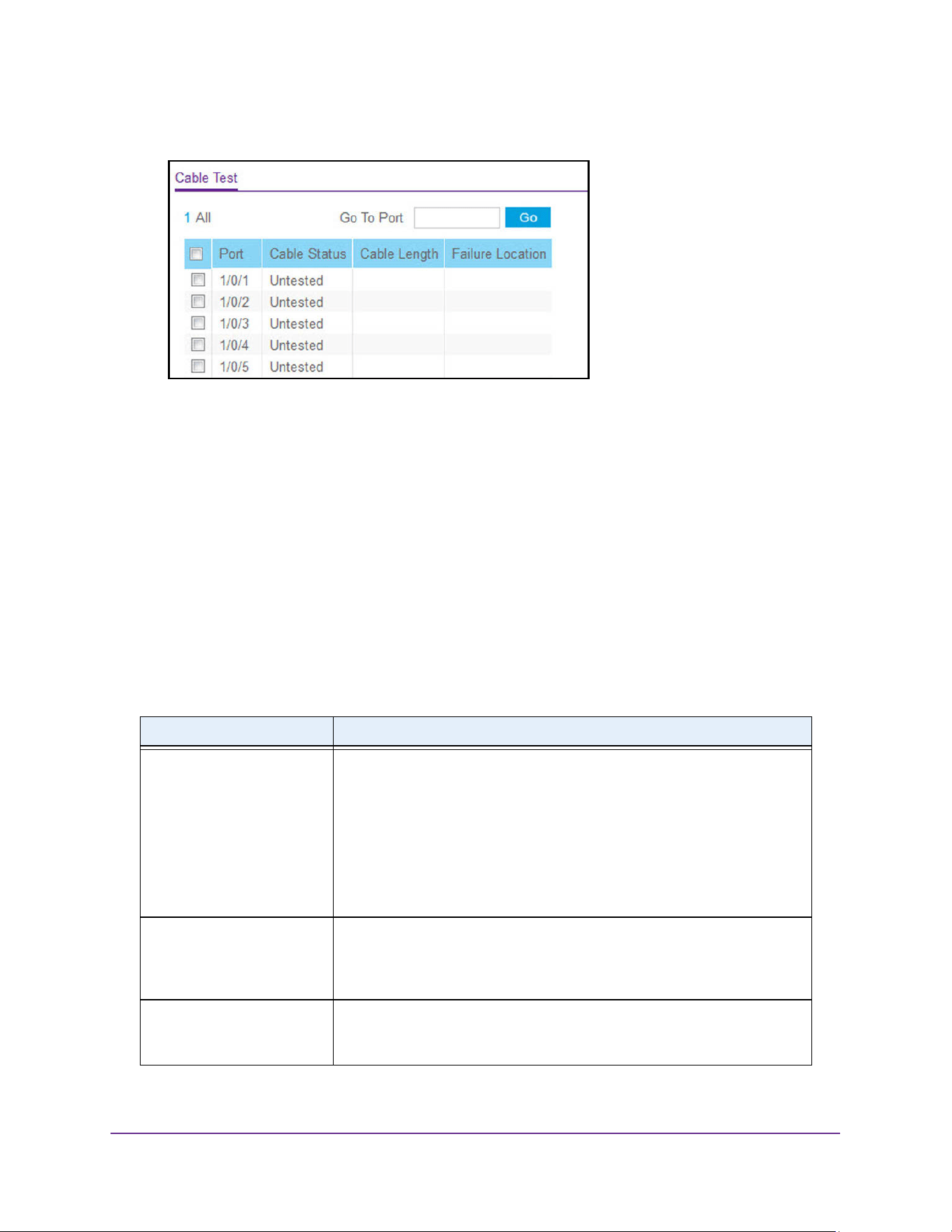
Monitor the System
626
M4200 and M4300 Series ProSAFE Managed Switches Web Management User Manual
5. Select Monitoring > Ports > Cable Test.
6. Use one of the following methods to select a port:
• In the Go To Port field, enter the interface in the unit/slot/port format and click on the
Go button.
• Next to the Port column, select the check box for the port that you want to test.
7. Click the Apply button.
A cable test is performed on the selected interface. The cable test might take up to two
seconds to complete. If the port has an active link, the cable status is always Normal. The
command returns a cable length estimate if this feature is supported by the PHY for the
current link speed. Note that if the link is down and a cable is attached to a 10/100
Ethernet adapter then the cable status might be Open or Short because some Ethernet
adapters leave unused wire pairs unterminated or grounded.
The following table describes the nonconfigurable information displayed on the page.
Table 221. Cable Test
Field Description
Cable Status This displays the cable status as Normal, Open or Short.
• Normal: the cable is working correctly.
• Open: the cable is disconnected or there is a faulty connector.
• Short: there is an electrical short in the cable.
• Cable Test Failed: The cable status could not be determined. The cable
might in fact be working.
• Untested: The cable is not yet tested.
• Invalid cable type: The cable type is unsupported.
Cable Length The estimated length of the cable in meters. The length is displayed as a
range between the shortest estimated length and the longest estimated
length. Unknown is displayed if the cable length could not be determined.
The Cable Length is only displayed if the cable status is Normal.
Failure Location The estimated distance in meters from the end of the cable to the failure
location. The failure location is only displayed if the cable status is Open or
Short.
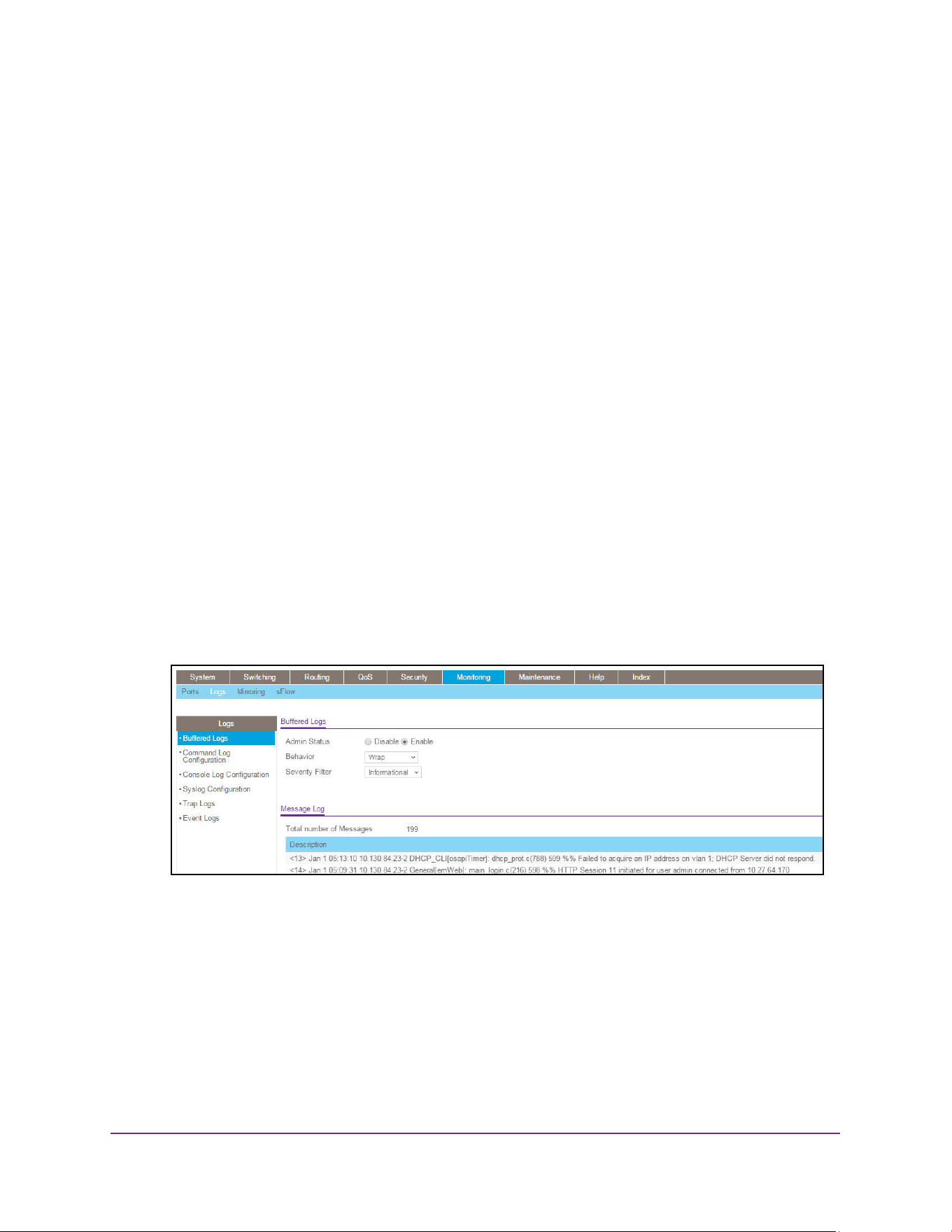
Monitor the System
627
M4200 and M4300 Series ProSAFE Managed Switches Web Management User Manual
Manage the Buffered, Command, and Console Logs
The switch generates messages in response to events, faults, or errors occurring on the
platform as well as changes in configuration or other occurrences. These messages are
stored locally and can be forwarded to one or more centralized points of collection for
monitoring purposes or long-term archival storage (see Configure the Syslog and Syslog
Host Settings on page 631). Local and remote configuration of the logging capability includes
filtering of messages logged or forwarded based on severity and generating component.
View and Clear the Buffered Logs
To view and clear the buffered logs:
1. Launch a web browser.
2. Enter http://<ipaddress> in the web browser address field.
The login window opens.
3. Enter the user name and password.
The default admin user name is admin and the default admin password is blank, that is,
do not enter a password.
4. Click the Login button.
The System Information page displays.
5. Select Monitoring > Logs > Buffered Logs.
6. To clear the buffered log from the memory, click the Clear button.
Configure the Buffered Log Settings
This log stores messages in memory based upon the settings for message component and
severity. On switch systems, this log exists only on the top of switch platform. Other platforms
in the switch forward their messages to the top of switch log.
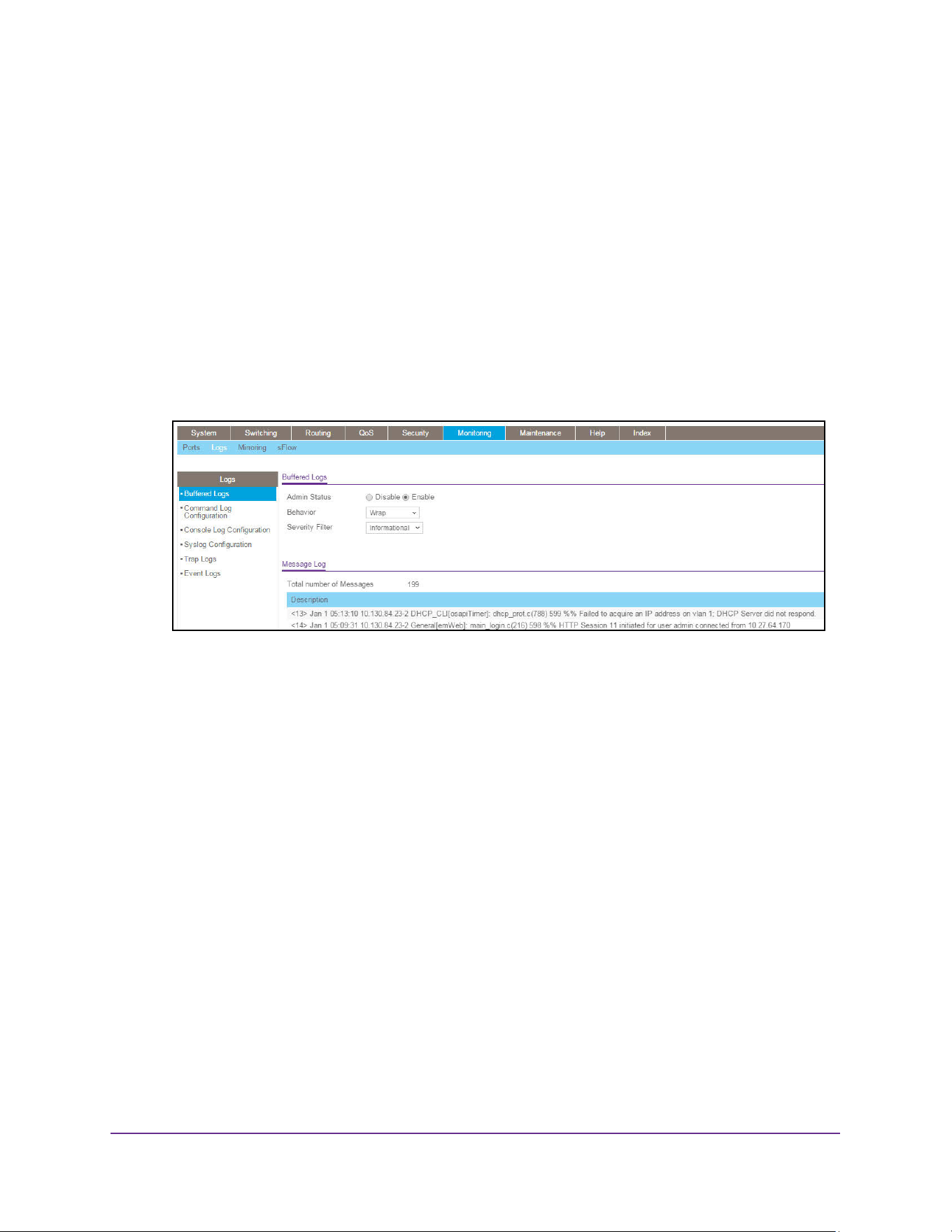
Monitor the System
628
M4200 and M4300 Series ProSAFE Managed Switches Web Management User Manual
To configure the buffered logs settings:
1. Launch a web browser.
2. Enter http://<ipaddress> in the web browser address field.
The login window opens.
3. Enter the user name and password.
The default admin user name is admin and the default admin password is blank, that is,
do not enter a password.
4. Click the Login button.
The System Information page displays.
5. Select Monitoring > Logs > Buffered Logs.
6. Select the Admin Status Enable or Disable radio button.
A log that is disabled does not log messages.
7. Use Behavior to specify the behavior of the log when it is full.
It can either wrap around or stop when the log space is filled.
8. Select the severity option in the Severity Filter list.
A log records messages equal to or above a configured severity threshold. The severity
levels are as follows:
• Emergency (0). The system is unusable.
• Alert (1). Action must be taken immediately.
• Critical (2). Critical conditions.
• Error (3). Error conditions.
• Warning (4). Warning conditions.
• Notice (5). Normal but significant conditions.
• Informational (6). Informational messages.
• Debug (7). Debug-level messages.
9. Click the Apply button.
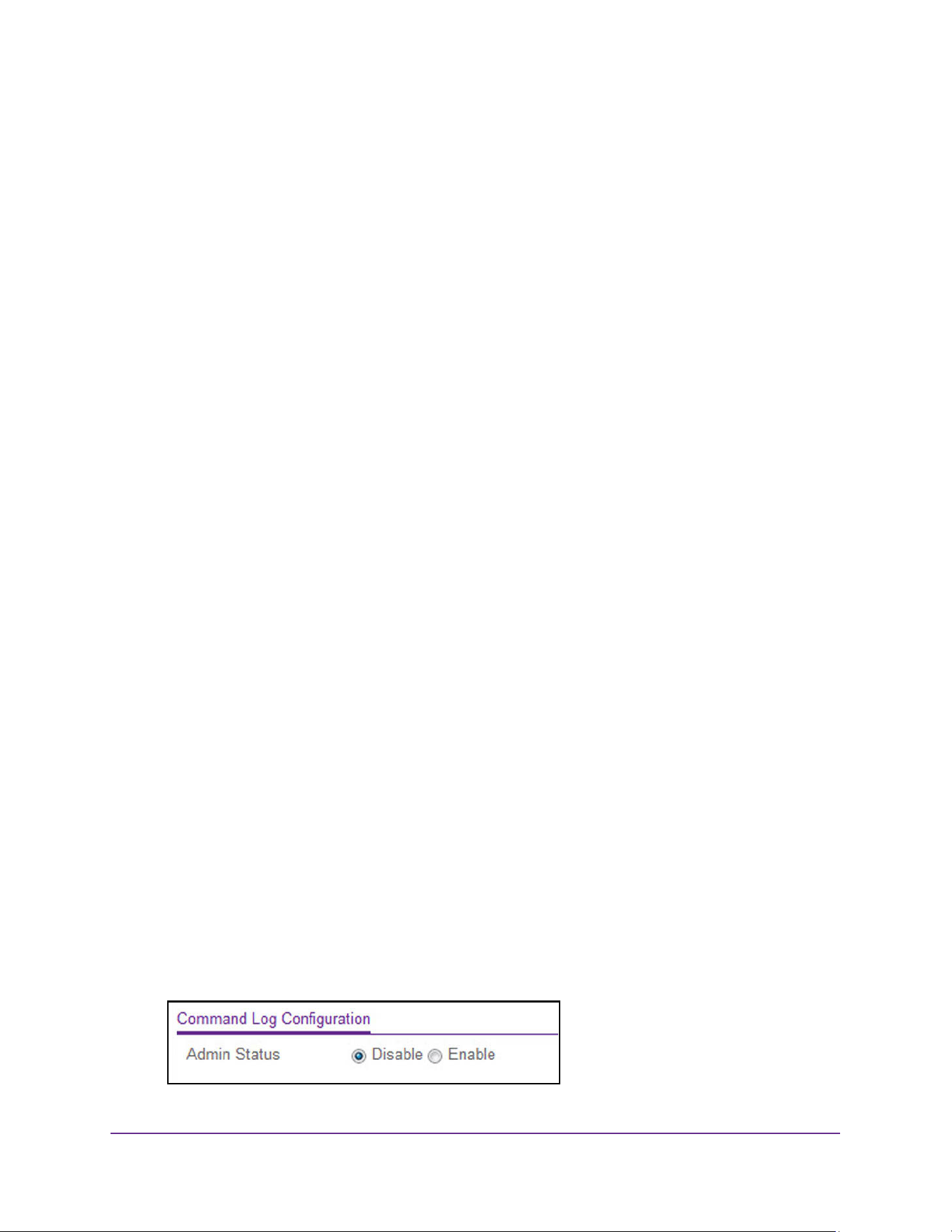
Monitor the System
629
M4200 and M4300 Series ProSAFE Managed Switches Web Management User Manual
The updated configuration is sent to the switch. Configuration changes take effect
immediately.
Message Log Format
This topic applies to the format of all logged messages that are displayed for the message
log, persistent log, or console log.
Messages logged to a collector or relay through syslog use an identical format:
• <15>Aug 24 05:34:05 0.0.0.0-1 MSTP[2110]: mspt_api.c(318) 237%% Interface 12
transitioned to root state on message age timer expiry.
This example indicates a message with severity 7 (15 mod 8) (debug) on a switch and
generated by component MSTP running in thread ID 2110 on Aug 24 05:34:05 by line
318 of file mstp_api.c. This is the 237th message logged with system IP 0.0.0.0 and
task-ID 1.
• <15>Aug 24 05:34:05 STK0 MSTP[2110]: mspt_api.c(318) 237%% Interface 12
transitioned to root state on message age timer expiry.
This example indicates a user-level message (1) with severity 7 (debug) on a system that
is not a switch and generated by component MSTP running in thread ID 2110 on Aug 24
05:34:05 by line 318 of file mstp_api.c. This is the 237th message logged. Messages
logged to a collector or relay through syslog use a format identical to the previous
message.
• Total number of Messages: For the message log, only the latest 200 entries are
displayed on the page.
Enable or Disable the Command Log
To enable or disable the command log:
1. Launch a web browser.
2. Enter http://<ipaddress> in the web browser address field.
The login window opens.
3. Enter the user name and password.
The default admin user name is admin and the default admin password is blank, that is,
do not enter a password.
4. Click the Login button.
The System Information page displays.
5. Select Monitoring > Logs > Command Log Configuration.
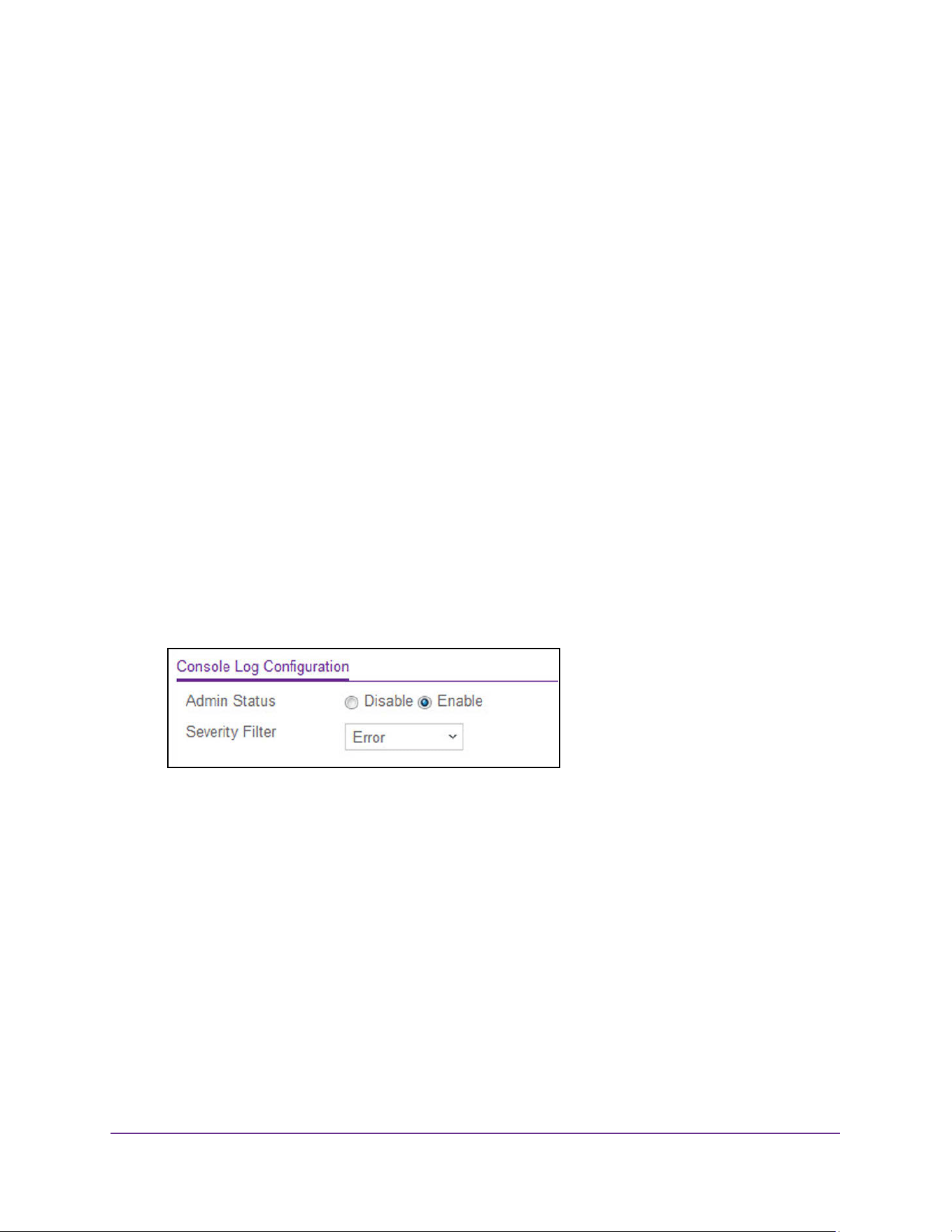
Monitor the System
630
M4200 and M4300 Series ProSAFE Managed Switches Web Management User Manual
6. Use Admin Mode to enable/disable the operation of the CLI command logging by selecting
the corresponding radio button.
7. Click the Apply button.
The updated configuration is sent to the switch. Configuration changes take effect
immediately.
Enable or Disable Console Logging
This allows logging to any serial device attached to the host.
To enable or disable console logging:
1. Launch a web browser.
2. Enter http://<ipaddress> in the web browser address field.
The login window opens.
3. Enter the user name and password.
The default admin user name is admin and the default admin password is blank, that is,
do not enter a password.
4. Click the Login button.
The System Information page displays.
5. Select Monitoring > Logs > Console Log Configuration.
6. Select the Admin Status Disable or Enable radio button.
A log that is disabled does not log messages.
7. Severity Filter. A log records messages equal to or above a configured severity threshold.
Select the severity option by selecting the corresponding line on the drop-down entry field.
These severity levels are available:
• Emergency (0). The system is unusable.
• Alert (1). Action must be taken immediately.
• Critical (2). Critical conditions.
• Error (3). Error conditions.
• Warning (4). Warning conditions.
• Notice (5). Normal but significant conditions.
• Informational (6). Informational messages.
• Debug (7). Debug-level messages.
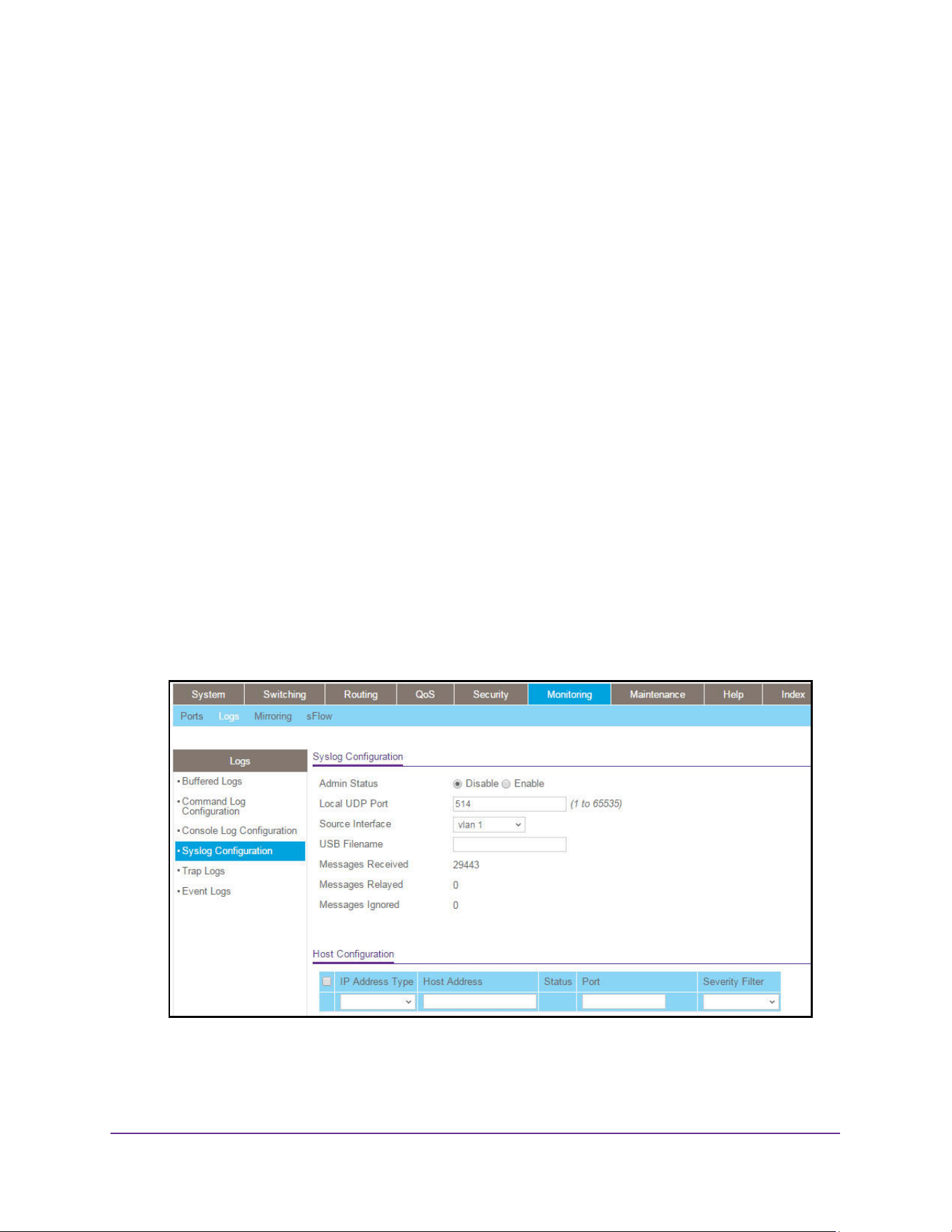
Monitor the System
631
M4200 and M4300 Series ProSAFE Managed Switches Web Management User Manual
8. Click the Apply button.
The updated configuration is sent to the switch. Configuration changes take effect
immediately.
Configure the Syslog and Syslog Host Settings
You can let the switch filter the messages that are forwarded, based on severity and
generating component. You can also configure the syslog host settings.
Configure the Syslog Settings
To configure the syslog settings:
1. Launch a web browser.
2. Enter http://<ipaddress> in the web browser address field.
The login window opens.
3. Enter the user name and password.
The default admin user name is admin and the default admin password is blank, that is,
do not enter a password.
4. Click the Login button.
The System Information page displays.
5. Select Monitoring > Logs > Syslog Configuration.
The Status field displays whether the host was configure to be actively logging or not.
6. Select the Admin Status Disable or Enable radio button.

Monitor the System
632
M4200 and M4300 Series ProSAFE Managed Switches Web Management User Manual
This enables or disables logging to configured syslog hosts. When the Admin Status is
disabled, the device does not relay logs to syslog hosts, and no messages are sent to any
collectors or relays. When the syslog Admin Status is enabled, messages are sent to
configured collectors or relays using the values configured for each collector or relay.
7. Use Local UDP Port to specify the port on the local host from which syslog messages are
sent. The range is 1 to 65535. The default port is 514.
8. Specify the Source Interface to use for syslog.
Possible values are as follows:
• None. When the None value is displayed, it means that the configured routing
interface has become nonrouting.
• Routing interface
• Routing VLAN
• Routing loopback interface
• Tunnel interface
• Service port
By default, VLAN 1 is used as source interface.
9. Use the USB Filename field to specify the name of the USB file. The filename cannot
include the following symbols: V:*?”<>!. Up to 64 characters can be entered. The 64
characters are only the filename length, the extension is automatically added. The default
value is blank.
10. Click the Apply button.
The updated configuration is sent to the switch. Configuration changes take effect
immediately.
Note: Syslog can write the log messages simultaneously to a remote server
and the USB storage device.
Configure the Syslog Host Settings
To configure the syslog host settings:
1. Launch a web browser.
2. Enter http://<ipaddress> in the web browser address field.
The login window opens.
3. Enter the user name and password.
The default admin user name is admin and the default admin password is blank, that is,
do not enter a password.
4. Click the Login button.
The System Information page displays.
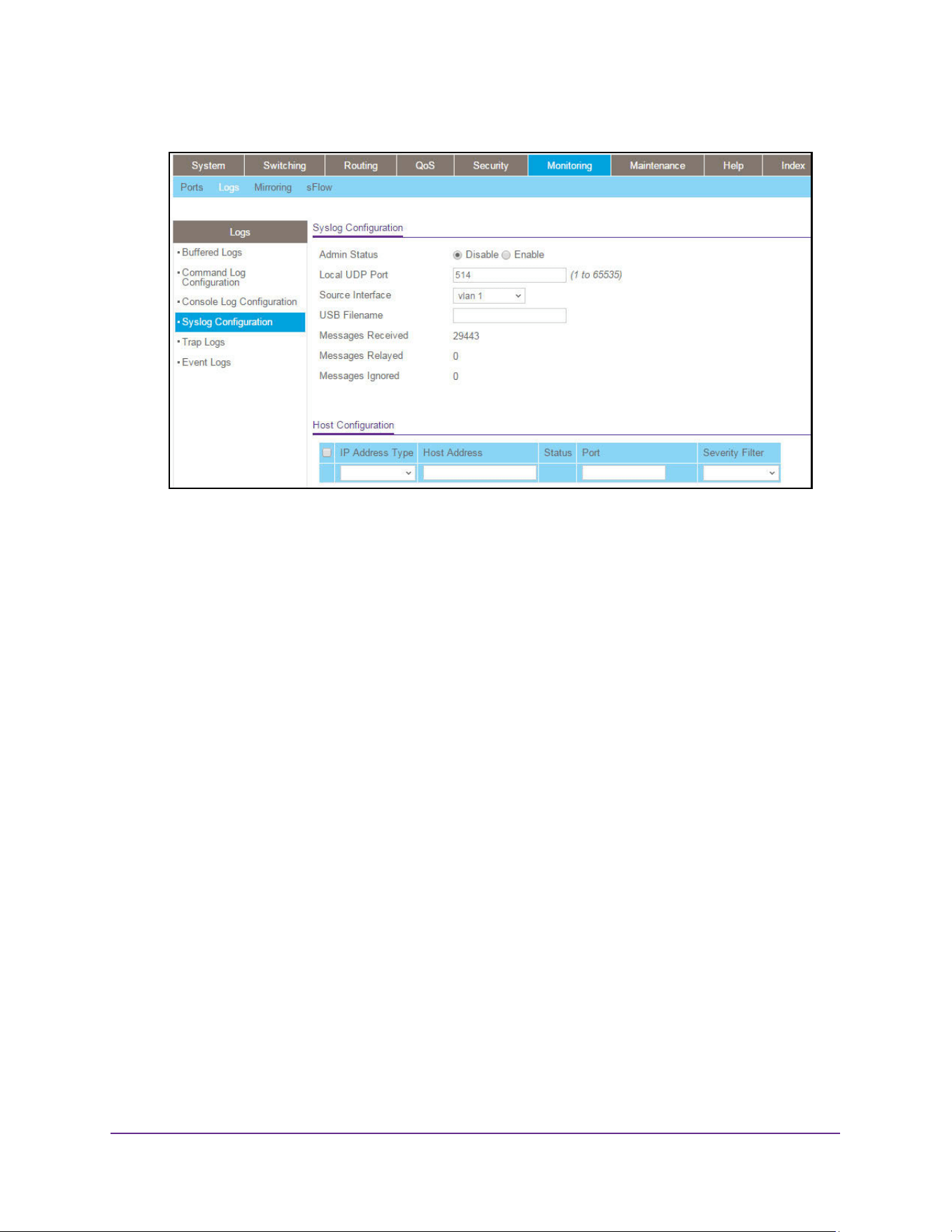
Monitor the System
633
M4200 and M4300 Series ProSAFE Managed Switches Web Management User Manual
5. Select Monitoring > Logs > Syslog Configuration.
6. In the Host Configuration section, configure the following settings:
• From the IP Address Type menu, select the address type of host.
- IPv4
- IPv6
- DNS
• In the Host Address field, specify the address of the host configured for the syslog.
• In the Port field, specify the port on the host to which syslog messages are sent.
The default port is 514.
• Select the severity option in the Severity Filter list.
A log records messages equal to or above a configured severity threshold. These
severity levels are available:
- Emergency (0). The system is unusable
- Alert (1). Action must be taken immediately
- Critical (2). Critical conditions
- Error (3). Error conditions
- Warning (4). Warning conditions
- Notice (5). Normal but significant conditions
- Informational (6). Informational messages
- Debug (7). Debug-level messages
7. Click the Apply button.
The updated configuration is sent to the switch. Configuration changes take effect
immediately.
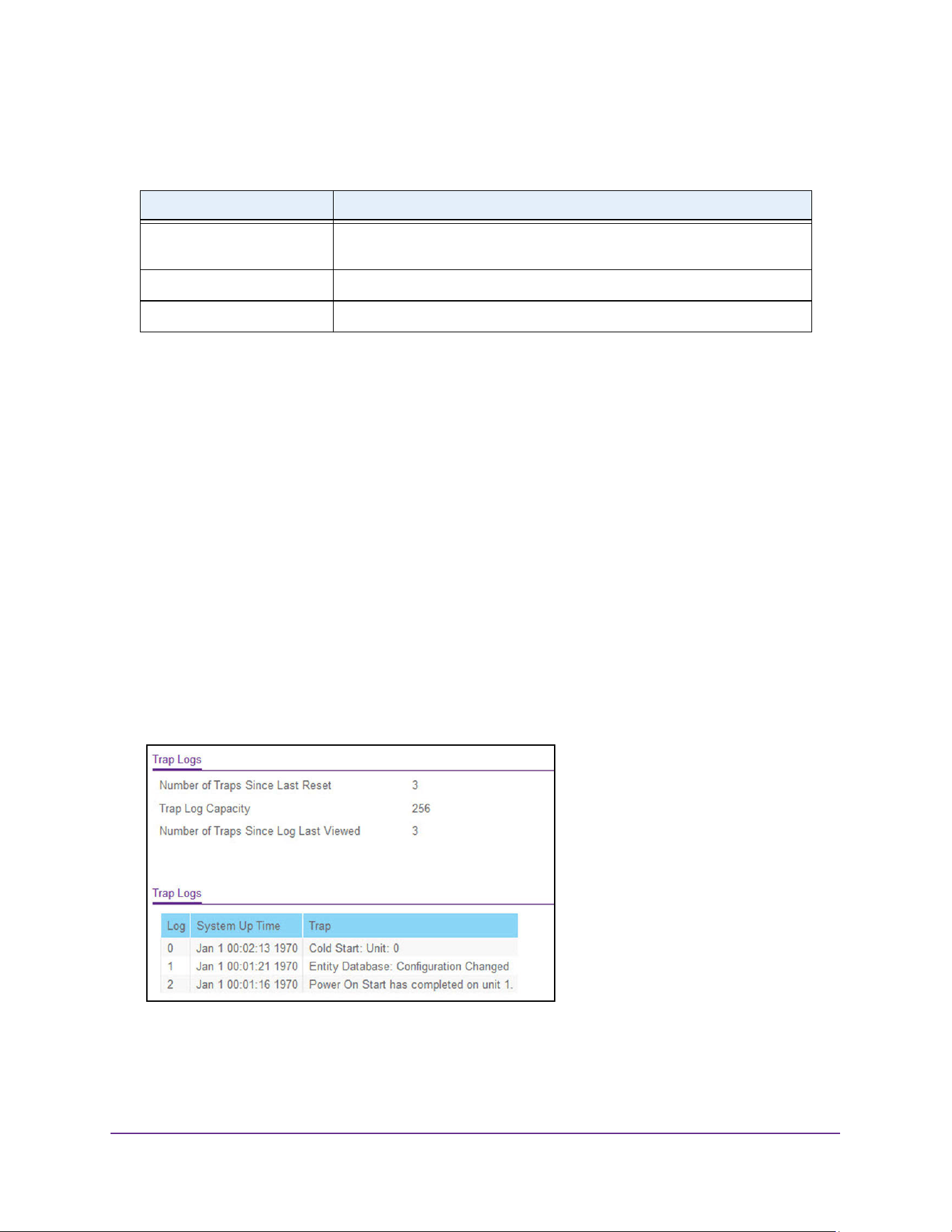
Monitor the System
634
M4200 and M4300 Series ProSAFE Managed Switches Web Management User Manual
The following table describes the nonconfigurable data.
View and Clear the Trap Logs
You can view and clear the entries in the trap log. The information can be retrieved as a file.
View and clear the trap logs:
1. Launch a web browser.
2. Enter http://<ipaddress> in the web browser address field.
The login window opens.
3. Enter the user name and password.
The default admin user name is admin and the default admin password is blank, that is,
do not enter a password.
4. Click the Login button.
The System Information page displays.
5. Select Monitoring > Logs > Trap Logs.
The page also displays information about the traps that were sent.
6. To clear all the counters, click the Clear button.
This resets all statistics for the trap logs to the default values.
Table 222. Syslog Configuration
Field Description
Messages Received The number of messages received by the log process. This includes
messages that are dropped or ignored.
Messages Relayed The count of syslog messages relayed.
Messages Ignored The count of syslog messages ignored.
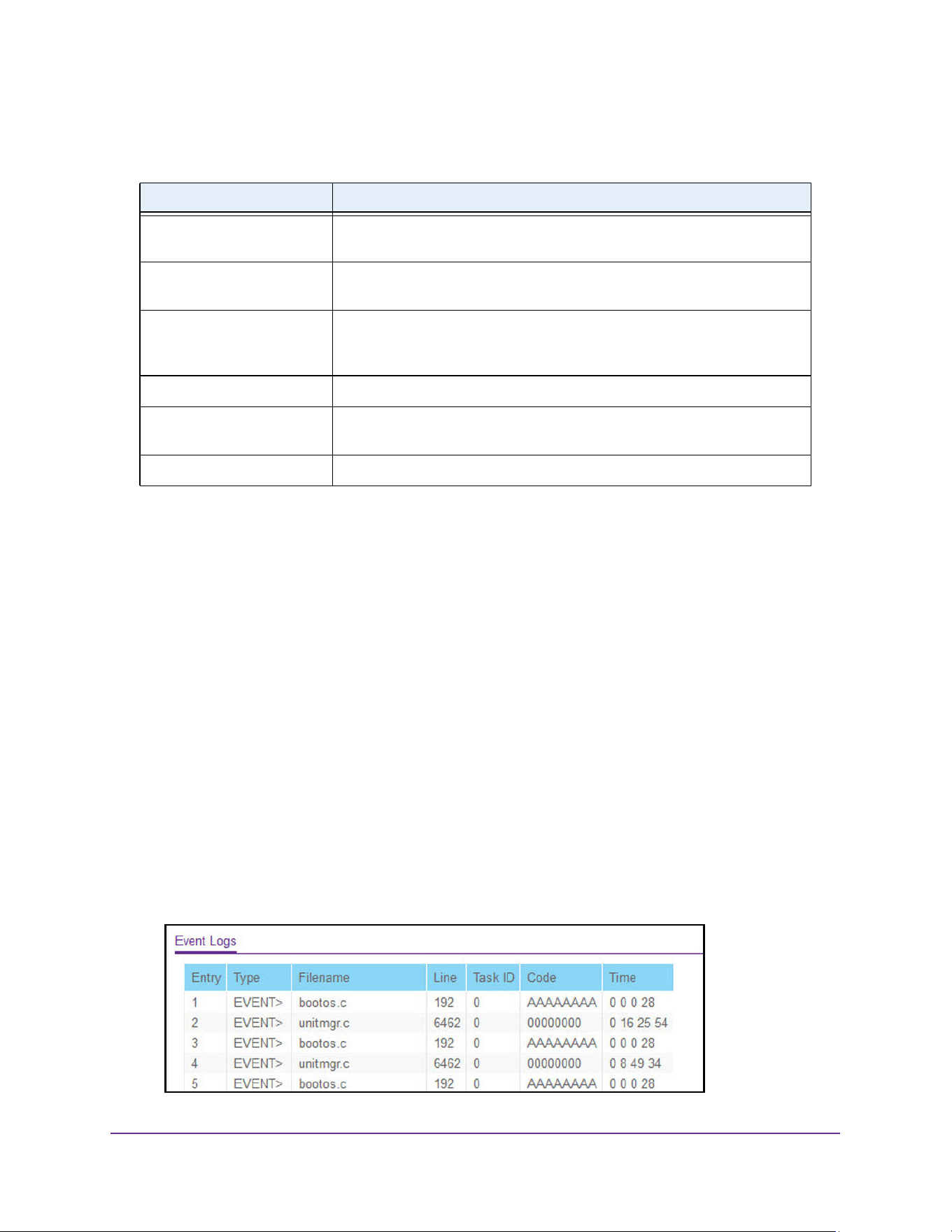
Monitor the System
635
M4200 and M4300 Series ProSAFE Managed Switches Web Management User Manual
The following table describes the Trap Log information displayed on the page.
View and Clear the Event Log
You can view and clear the event log, which contains error messages from the system. The
event log is not cleared on a system reset.
To view and clear the event log:
1. Launch a web browser.
2. Enter http://<ipaddress> in the web browser address field.
The login window opens.
3. Enter the user name and password.
The default admin user name is admin and the default admin password is blank, that is,
do not enter a password.
4. Click the Login button.
The System Information page displays.
5. Select Monitoring > Logs > Event Logs.
Table 223. Trap Logs
Field Description
Number of Traps Since Last
Reset
The number of traps that occurred since the switch last rebooted.
Trap Log Capacity The maximum number of traps stored in the log. If the number of traps
exceeds the capacity, the entries overwrite the oldest entries.
Number of Traps since log
last viewed
The number of traps that occurred since the traps were last displayed.
Displaying the traps by any method (terminal interface display, web display,
upload file from switch, and so on) causes this counter to be cleared to 0.
Log The sequence number of this trap.
System Up Time The time when this trap occurred, expressed in days, hours, minutes and
seconds, since the last reboot of the switch.
Trap Information identifying the trap.
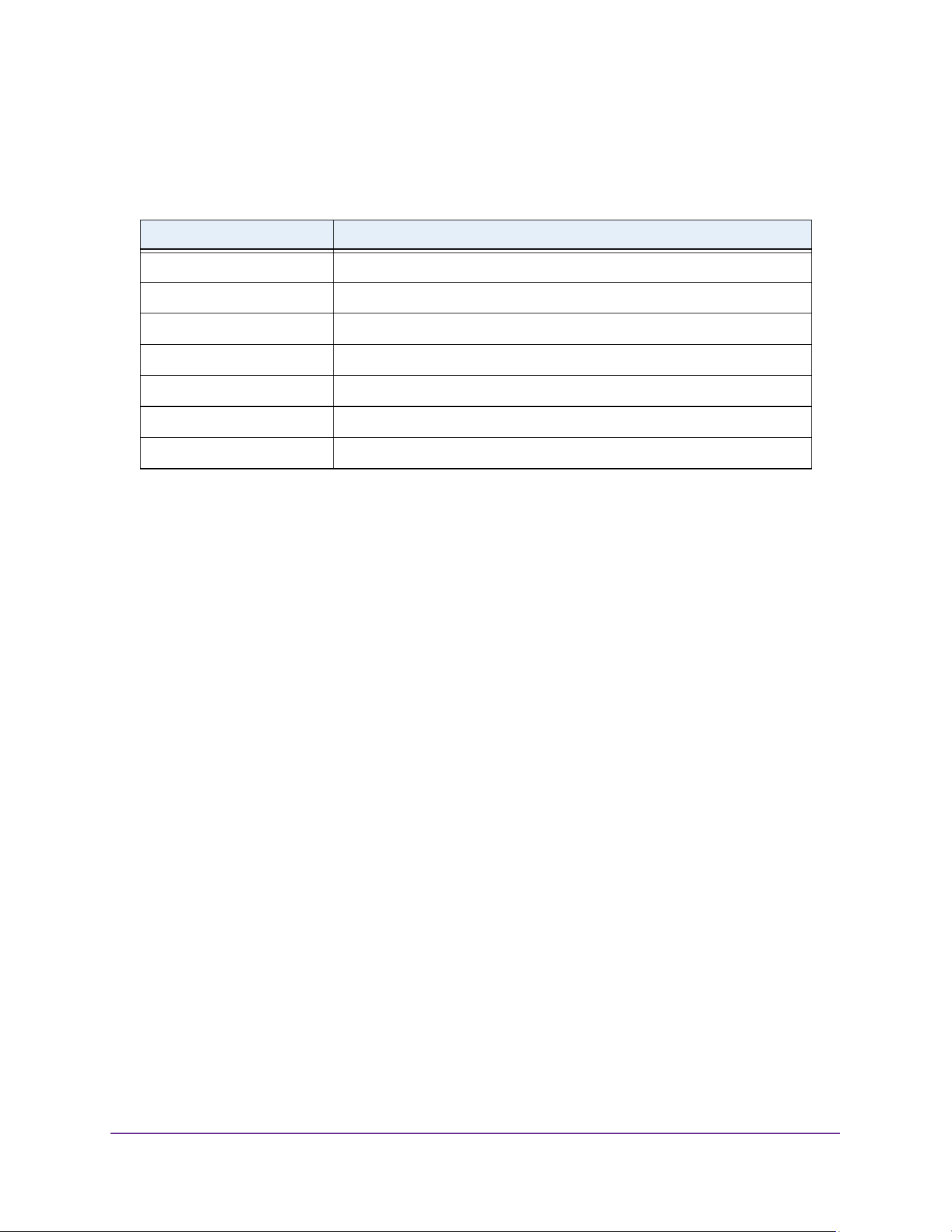
Monitor the System
636
M4200 and M4300 Series ProSAFE Managed Switches Web Management User Manual
6. To clear the messages from the Event Log, click the Clear button.
The following table describes the event log information displayed on the page.
Configure Multiple Port Mirroring
Port mirroring selects the network traffic for analysis by a network analyzer. This is done for
specific ports of the switch. As such, many switch ports are configured as source ports and
one switch port is configured as a destination port. You can configure how traffic is mirrored
on a source port. Packets that are received on the source port, that are transmitted on a port,
or are both received and transmitted can be mirrored to the destination port.
The packet that is copied to the destination port is in the same format as the original packet
on the wire. This means that if the mirror is copying a received packet, the copied packet is
VLAN tagged or untagged as it was received on the source port. If the mirror is copying a
transmitted packet, the copied packet is VLAN tagged or untagged as it is being transmitted
on the source port.
Globally Configure Multiple Port Mirroring
To globally configure multiple port mirroring:
1. Launch a web browser.
2. Enter http://<ipaddress> in the web browser address field.
The login window opens.
3. Enter the user name and password.
The default admin user name is admin and the default admin password is blank, that is,
do not enter a password.
4. Click the Login button.
The System Information page displays.
Table 224. Event Logs
Field Description
Entry The sequence number of the event.
Type The type of the event.
File Name The file in which the event originated.
Line The line number of the event.
Task Id The task ID of the event.
Code The event code.
Time The time this event occurred.
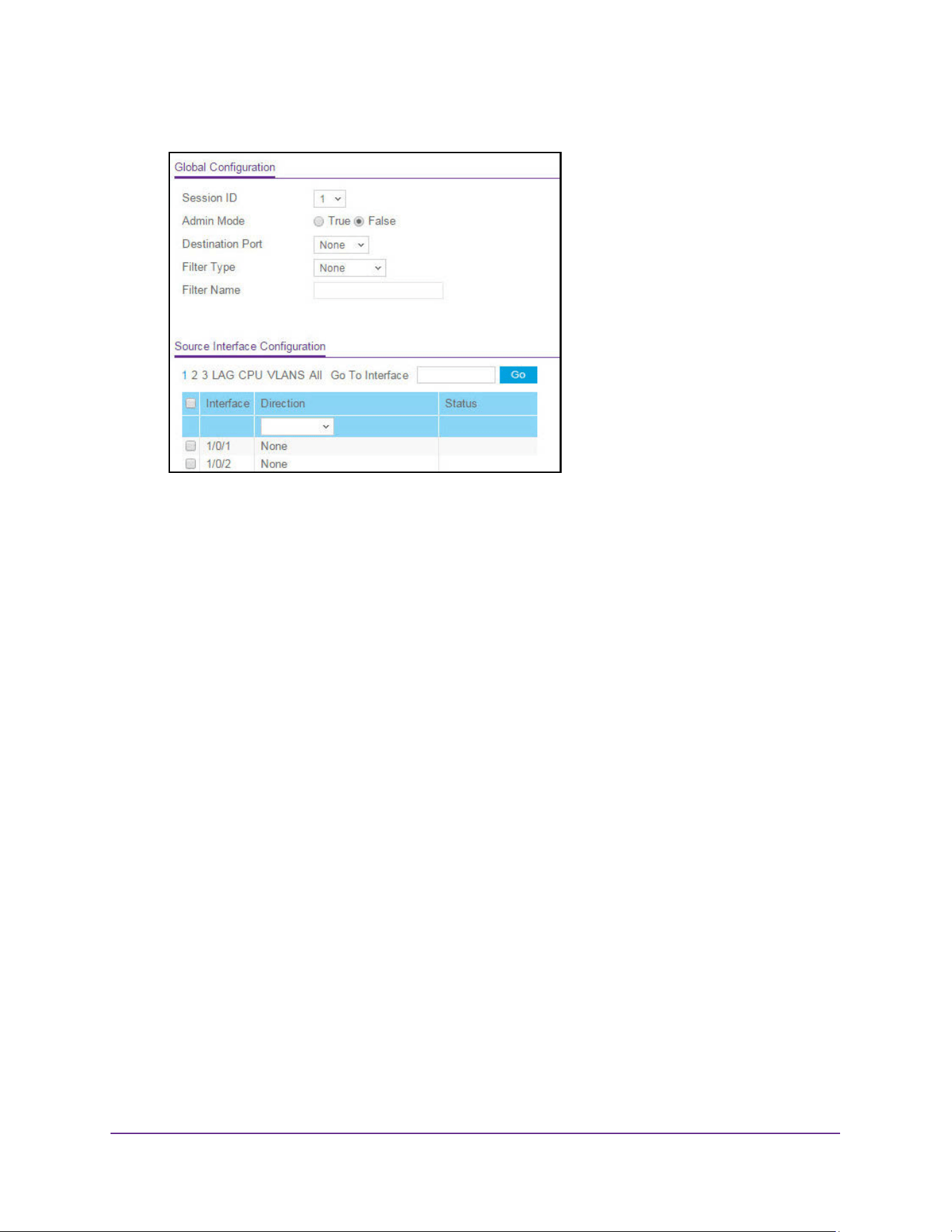
Monitor the System
637
M4200 and M4300 Series ProSAFE Managed Switches Web Management User Manual
5. Select Monitoring > Mirroring > Multiple Port Mirroring.
6. Select the number of the port mirroring session ID from the Session ID list. The number of
sessions allowed is platform specific.
7. Select the Administrative Mode for the selected port mirroring session using the True
(enabled) or False (disabled) radio button.
Select the True option to enable Admin mode for the selected session. When a particular
session is enabled, any traffic entering or leaving the source ports of the session is
copied (mirrored) onto the corresponding destination port or a remote switched port
analyzer (RSPAN) VLAN. By default, Admin mode is disabled (False). If the mode is
False (disabled), the configured source is not mirroring traffic to the destination.
8. From the Destination Port list, select the destination interface to which port traffic is to be
copied.
You can configure only one destination port on the system. It acts as a probe port and
receives traffic from all configured source ports. If the value is not configured, it is shown
as None. The default value is None.
9. From the Filter Type list, select the IP or MAC ACL that can mirror traffic that matches a
permit rule.
Possible values are as follows:
• None. No filter is configured for the session.
• IP ACL. Configure the IP access-list ID or name ACL. The ID of the IP ACL to apply
to traffic from the source. Only traffic that matches the rules in the ACL is mirrored to
the destination.
• MAC ACL. Configure MAC ACL.The ID of the MAC ACL to apply to traffic from the
source. Only traffic that matches the rules in the ACL is mirrored to the destination.
The default value is None.
10. In the Filter Name field, enter the name of the filter, if it is configured for the session.
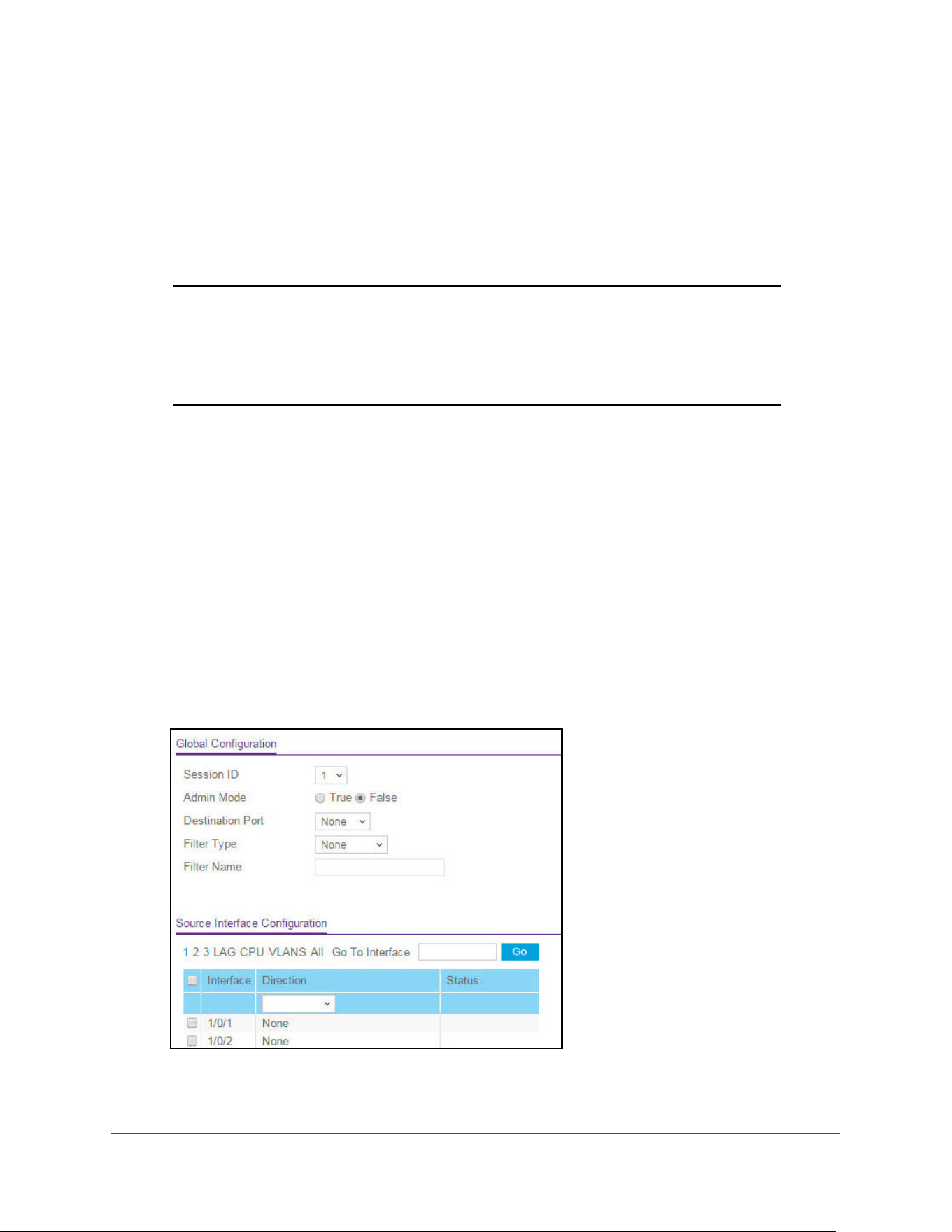
Monitor the System
638
M4200 and M4300 Series ProSAFE Managed Switches Web Management User Manual
11. Click the Apply button.
The updated configuration is sent to the switch. Configuration changes take effect
immediately.
Configure The Port Mirroring Source Interface
Note: If an interface participates in a VLAN and is a LAG member, the VLAN
cannot be assigned as a source VLAN for a monitor session. At the
same time, if an interface participates in a VLAN and this VLAN is
assigned as a source VLAN for a monitor session, the interface can
be assigned as a LAG member.
To configure port mirroring source interface:
1. Launch a web browser.
2. Enter http://<ipaddress> in the web browser address field.
The login window opens.
3. Enter the user name and password.
The default admin user name is admin and the default admin password is blank, that is,
do not enter a password.
4. Click the Login button.
The System Information page displays.
5. Select Monitoring > Mirroring > Multiple Port Mirroring.

Monitor the System
639
M4200 and M4300 Series ProSAFE Managed Switches Web Management User Manual
6. In the Source Interface Configuration section, select which interfaces are displayed on the
page:
• Select Unit ID to display the physical ports of the selected unit.
• Select LAG to display a list of LAGs only.
• Select CPU to display a list of CPUs only.
• Select VLANs to display a list of available VLANs.
• Select All to display a list of all physical ports, LAG, CPU, and VLANs.
7. Use one of the following methods to select an interface:
• In the Go To Interface field, enter the interface in the unit/slot/port format and click on
the Go button.
• Next to the Interface column, select the check box for the interface or interfaces that
you want to include.
8. In the Direction field, specify the direction of the traffic to be mirrored from the configured
mirrored ports.
If the value is not configured, it is shown as None. The default value is None. Direction
options are as follows:
• None. The value is not configured.
• Tx and Rx. Monitors transmitted and received packets.
• Rx. Monitors received (ingress) packets only.
• Tx. Monitors transmitted (egress) packets only.
Note: For VLANs only, the Tx and Rx and None options are applicable.
• Tx and Rx. Specify VLAN as the source VLAN.
• None. Remove the specified source VLAN.
If the VLAN is configured as the source VLAN, its direction is displayed as a blank
field.
9. Click the Apply button.
The updated configuration is sent to the switch. Configuration changes take effect
immediately.
The settings are applied to the system. If the port is configured as a source port, the
Mirroring Port field value is Mirrored.
The Status field indicates the interface status.
Note: If an error dialog includes multiple error messages, resolve the first
error messages to be able to view the remaining errors messages.
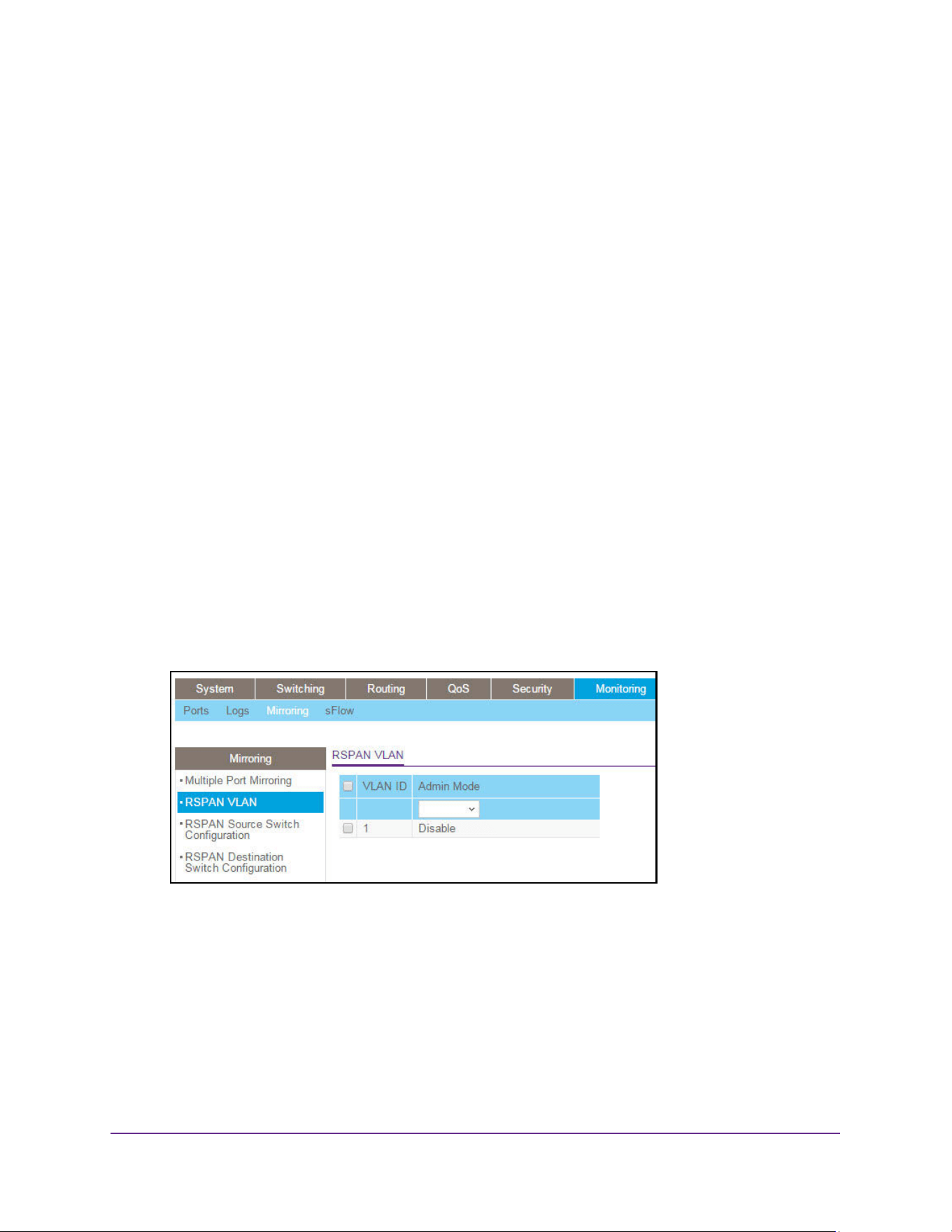
Monitor the System
640
M4200 and M4300 Series ProSAFE Managed Switches Web Management User Manual
Manage an RSPAN VLAN
You can configure the VLAN to use the remote switched port analyzer (RSPAN) VLAN.
RSPAN allows you to mirror traffic from multiple source ports (or from all ports that are
members of a VLAN) from different network devices and send the mirrored traffic to a
destination port (a probe port connected to a network analyzer) on a remote device. The
mirrored traffic is tagged with the RSPAN VLAN ID and transmitted over trunk ports in the
RSPAN VLAN.
Configure an RSPAN VLAN
To configure an RSPAN VLAN:
1. Launch a web browser.
2. Enter http://<ipaddress> in the web browser address field.
The login window opens.
3. Enter the user name and password.
The default admin user name is admin and the default admin password is blank, that is,
do not enter a password.
4. Click the Login button.
The System Information page displays.
5. Select Monitoring > Mirroring > RSPAN VLAN.
The VLAN ID column lists all VLANs on the device.
6. Select the VLAN to use as the RSPAN VLAN.
7. In the Admin Mode list, select to Enable or Disable RSPAN support on the corresponding
VLAN.
The default value is Disable.
8. Click the Apply button.
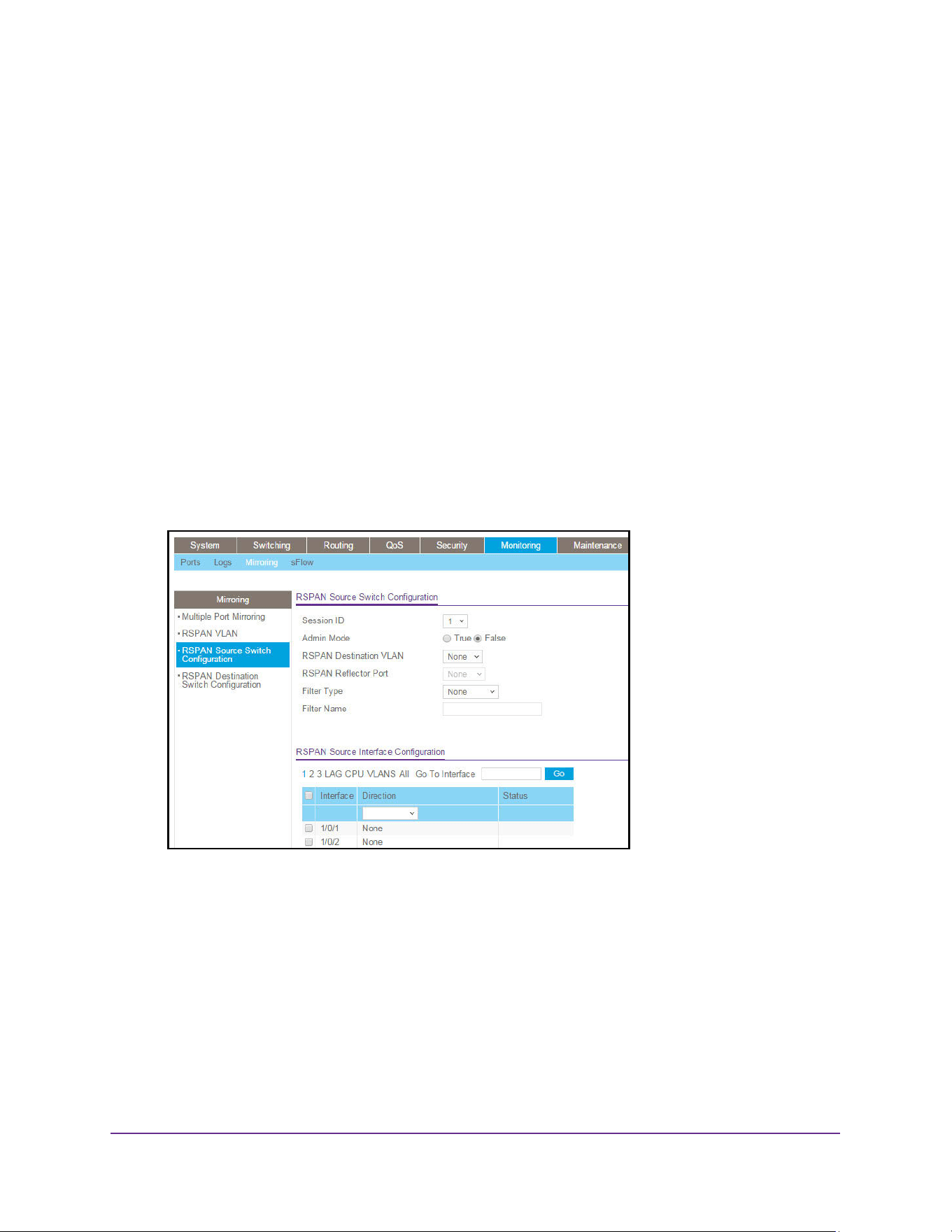
Monitor the System
641
M4200 and M4300 Series ProSAFE Managed Switches Web Management User Manual
The updated configuration is sent to the switch. Configuration changes take effect
immediately.
Configure an RSPAN Source Switch
To configure an RSPAN source switch:
1. Launch a web browser.
2. Enter http://<ipaddress> in the web browser address field.
The login window opens.
3. Enter the user name and password.
The default admin user name is admin and the default admin password is blank, that is,
do not enter a password.
4. Click the Login button.
The System Information page displays.
5. Select Monitoring > Mirroring > RSPAN Source Switch Configuration.
6. Select the Session ID number from the list.
7. Select the Admin Mode True (enabled) or False (disabled) radio button for the selected
session.
When a particular session is enabled, any traffic entering or leaving the source ports of
the session is copied (mirrored) onto the corresponding destination port or a remote
switched port analyzer (RSPAN) VLAN. By default, Admin mode is False (disabled).
8. Select the RSPAN Destination VLAN from the list of available VLAN IDs.
9. Select the RSPAN Reflector Port from the list of reflector port interfaces.
10. Select from the Filter Type list to configure IP or MAC ACLs that can mirror traffic that
matches a permit rule.
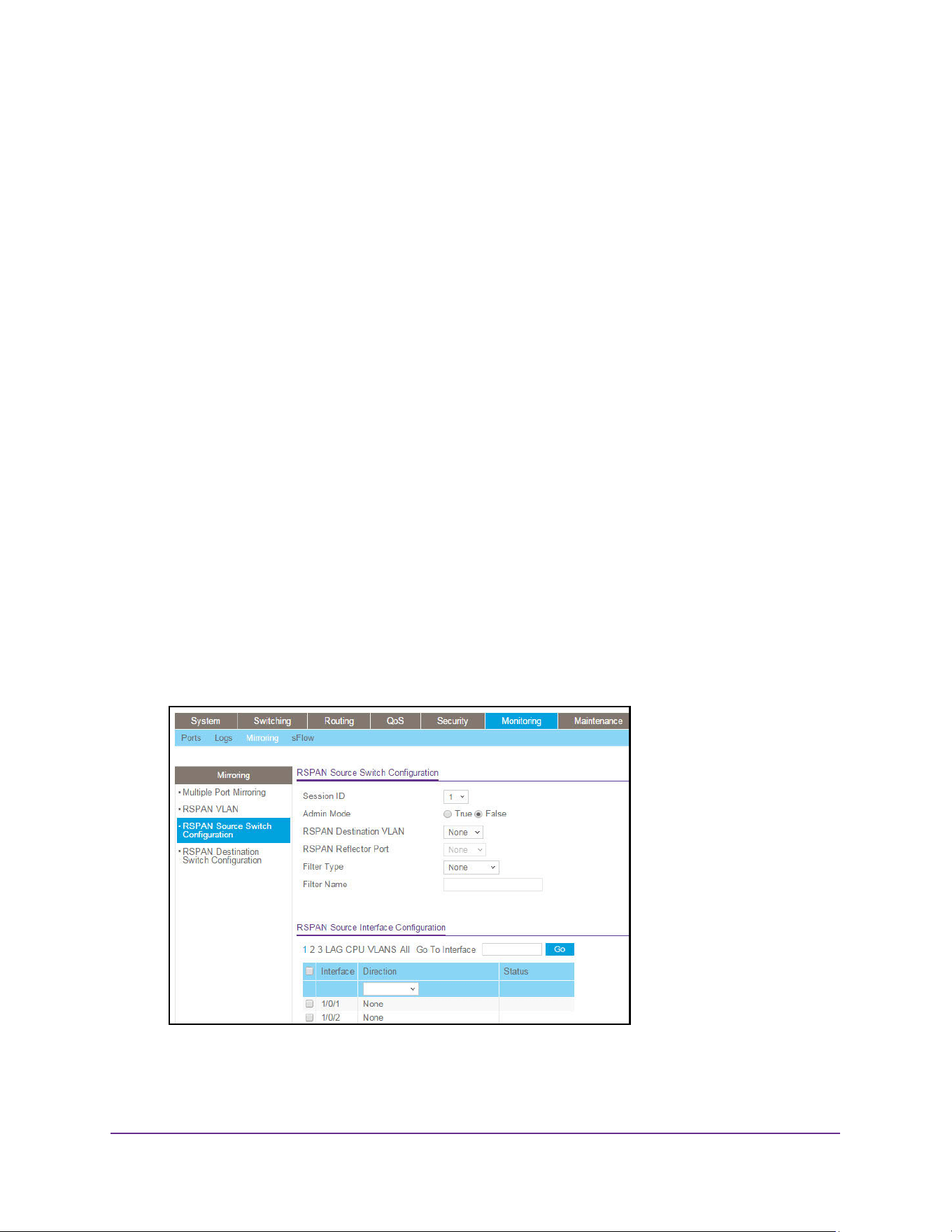
Monitor the System
642
M4200 and M4300 Series ProSAFE Managed Switches Web Management User Manual
Possible values are as follows:
• None.
• IP ACL. Configure IP ACL.
• MAC ACL. Configure MAC ACL.
11. Enter the Filter Name, if a filter is configured for the session.
12. Click the Apply button.
The updated configuration is sent to the switch. Configuration changes take effect
immediately.
Configure an RSPAN Source Interface
To configure an RSPAN source interface:
1. Launch a web browser.
2. Enter http://<ipaddress> in the web browser address field.
The login window opens.
3. Enter the user name and password.
The default admin user name is admin and the default admin password is blank, that is,
do not enter a password.
4. Click the Login button.
The System Information page displays.
5. Select Monitoring > Mirroring > RSPAN Source Switch Configuration.

Monitor the System
643
M4200 and M4300 Series ProSAFE Managed Switches Web Management User Manual
6. Use one of the following methods to display available interfaces on the page:
• Select a Unit ID (1, 2, 3) to display a list of physical ports for the selected unit.
• Select LAG to display LAGs only.
• Select CPU to display CPUs only.
• Select VLAN to display a list of available VLAN IDs.
• Select All to display all physical ports, LAGs, CPUs, and VLANs.
7. Use one of the following methods to select an interface:
• In the Go To Interface field, enter the interface in the unit/slot/port format and click on
the Go button.
• Next to the Interface column, select the check box for the interface that you want to
use as the source, or select multiple check boxes to use all selected interfaces as
sources.
8. Select from the Direction list to specify the direction of the traffic to be mirrored from the
configured mirrored ports.
If the value is not configured, None is displayed. The default value is None.
• None. The value is not configured.
• Tx and Rx. Monitor transmitted and received packets.
• Tx. Monitor transmitted packets only.
• Rx. Monitor received packets only.
9. Click the Apply button.
The updated configuration is sent to the switch. Configuration changes take effect
immediately.
Traffic of the selected interfaces is sent to the probe port.
The Status field indicates the interface status.
Configure the RSPAN Destination Switch
To configure the RSPAN destination switch:
1. Launch a web browser.
2. Enter http://<ipaddress> in the web browser address field.
The login window opens.
3. Enter the user name and password.
The default admin user name is admin and the default admin password is blank, that is,
do not enter a password.
4. Click the Login button.
The System Information page displays.
5. Select Monitoring > Mirroring > RSPAN Destination Switch Configuration.
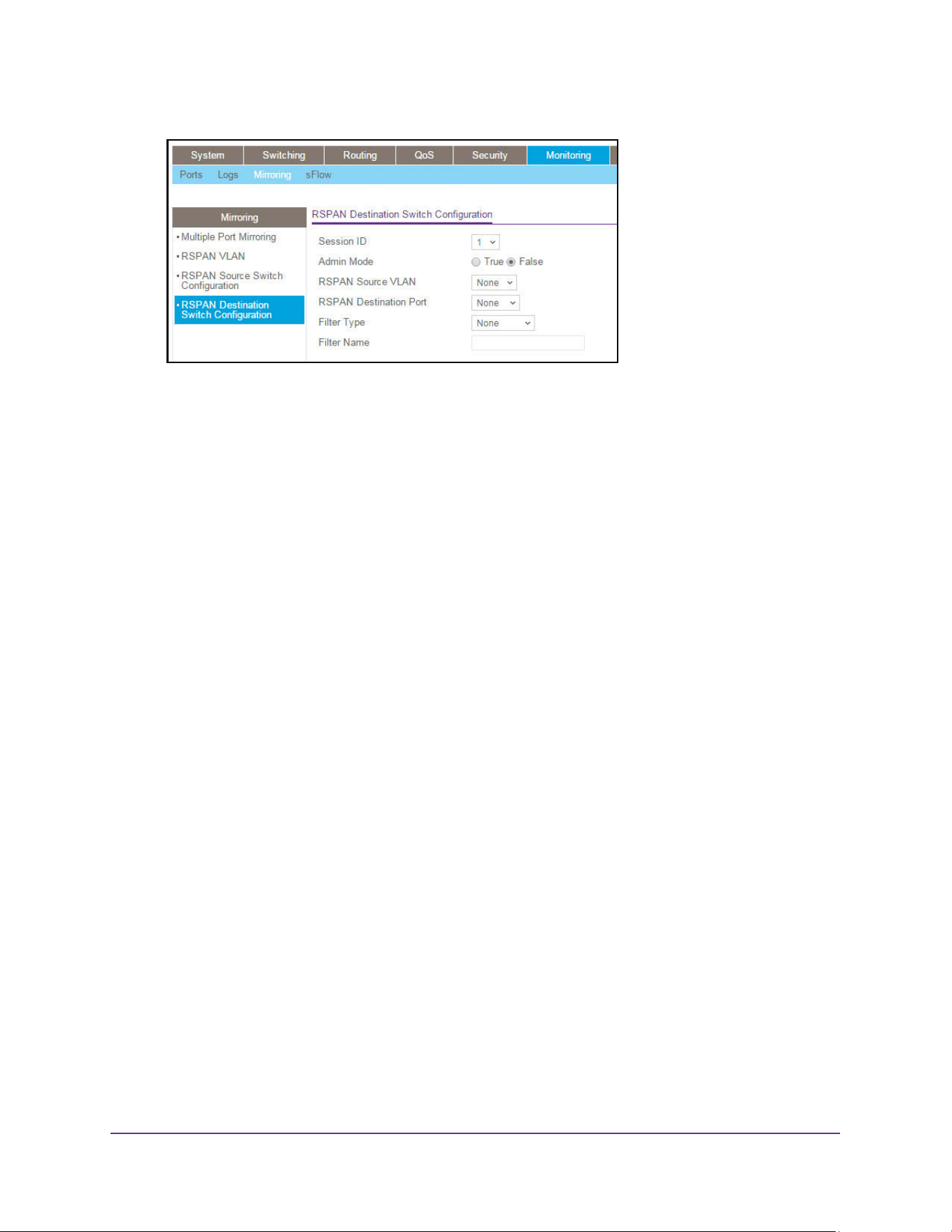
Monitor the System
644
M4200 and M4300 Series ProSAFE Managed Switches Web Management User Manual
6. From the Session ID list, select the session ID.
7. Select the Admin Mode True (enabled) or False (disabled) radio button for the selected
session.
When a particular session is enabled, any traffic entering or leaving the source ports of
the session is copied (mirrored) onto the corresponding destination port or a remote
switched port analyzer (RSPAN) VLAN. By default, the Admin mode is disabled.
8. Select the RSPAN Source VLAN from the list of available VLAN IDs.
9. Select the RSPAN Destination VLAN from the list of destination interfaces.
10. Configure the Filter Type.
IP or MAC ACLscan mirror traffic that matches a permit rule. Possible values are as
follows:
• None. No filter is configured for the session.
• IP ACL. Configure IP ACL.
• MAC ACL. Configure MAC ACL.
11. Enter the Filter Name, if it is configured for the session.
12. Click the Apply button.
The updated configuration is sent to the switch. Configuration changes take effect
immediately.
Configure sFlow
sFlow is the standard for monitoring high-speed switched and routed networks. sFlow
technology is built into network equipment and gives complete visibility into network activity,
enabling effective management and control of network resources.
The sFlow monitoring system consists of an sFlow Agent (embedded in a switch or router or
in a standalone probe) and a central sFlow Collector. The sFlow Agent uses sampling
technology to capture traffic statistics from the device it is monitoring. sFlow datagrams are
used to immediately forward the sampled traffic statistics to an sFlow Collector for analysis.
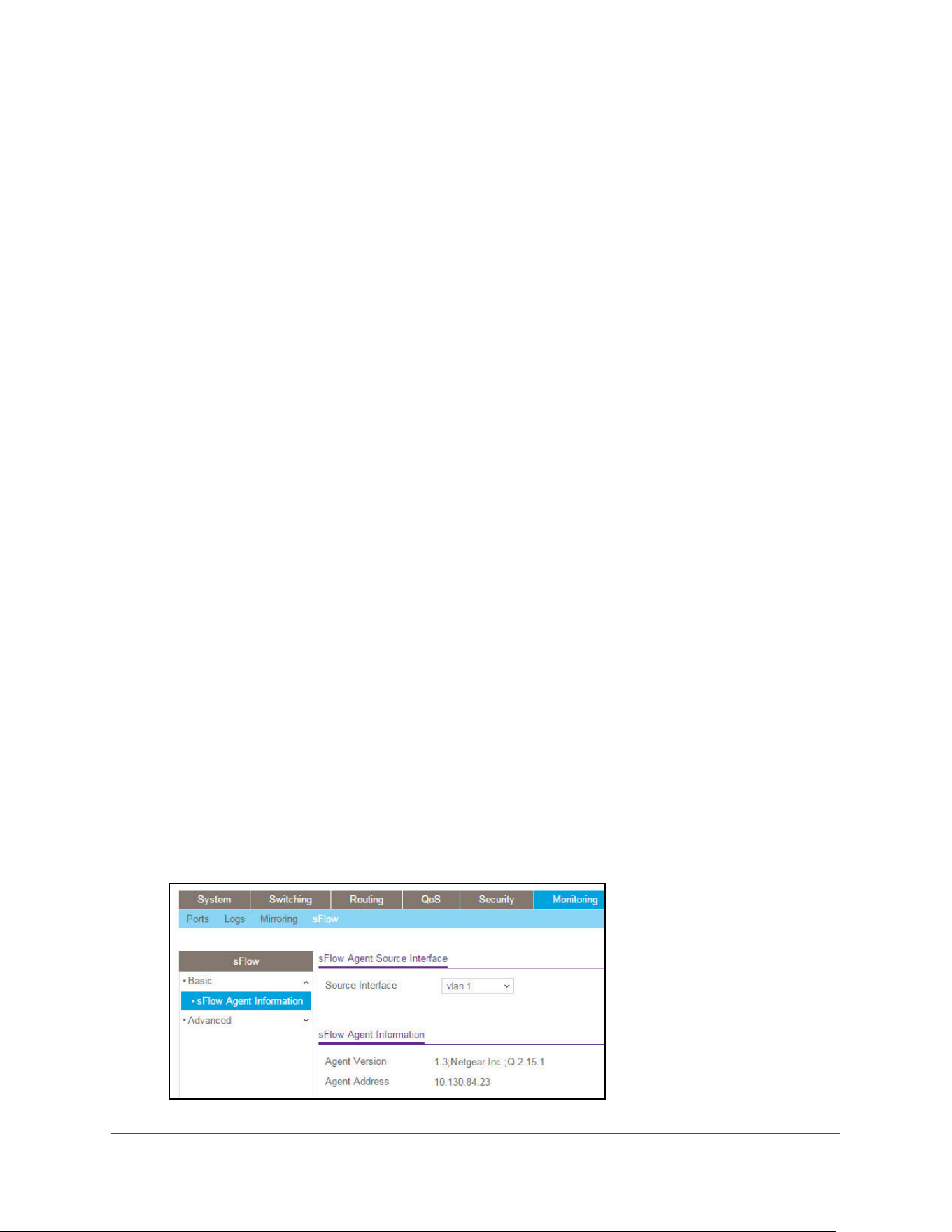
Monitor the System
645
M4200 and M4300 Series ProSAFE Managed Switches Web Management User Manual
The sFlow Agent uses two forms of sampling: statistical packet-based sampling of switched
or routed Packet Flows, and time-based sampling of counters.
sFlow Agent Summary
Packet Flow Sampling and Counter Sampling are performed by sFlow Instances associated
with individual Data Sources within the sFlow Agent. Packet Flow Sampling and Counter
Sampling are designed as part of an integrated system. Both types of samples are combined
in sFlow datagrams. Packet Flow Sampling will cause a steady, but random, stream of sFlow
datagrams to be sent to the sFlow Collector. Counter samples may be taken opportunistically
in order to fill these datagrams.
In order to perform Packet Flow Sampling, an sFlow Sampler Instance is configured with a
Sampling Rate. The Packet Flow sampling process results in the generation of Packet Flow
Records. In order to perform Counter Sampling, the sFlow Poller Instance is configured with
a Polling Interval, The Counter Sampling process results in the generation of Counter
Records. The sFlow Agent collects Counter Records and Packet Flow Records and sends
them in the form of sFlow datagrams to sFlow Collectors.
You can configure basic or advanced sFlow settings.
Configure Basic sFlow Agent Information
To configure basic sFlow agent information:
1. Launch a web browser.
2. Enter http://<ipaddress> in the web browser address field.
The login window opens.
3. Enter the user name and password.
The default admin user name is admin and the default admin password is blank, that is,
do not enter a password.
4. Click the Login button.
The System Information page displays.
5. Select Monitoring> sFlow > Basic > sFlow Agent Information.
Monitor the System
646
M4200 and M4300 Series ProSAFE Managed Switches Web Management User Manual
6. In the Source Interface list, select the management interface that is used for sFlow Agent.
Possible values are as follows:
• None
• Routing interface
• Routing VLAN
• Routing loopback interface
• Tunnel interface
• Service port
By default, VLAN 1 is used as the source interface.
7. Click the Apply button.
The updated configuration is sent to the switch. Configuration changes take effect
immediately.
The following table describes the nonconfigurable information.
Configure sFlow Agent Advanced Settings
To configure sFlow agent advanced settings:
1. Launch a web browser.
2. Enter http://<ipaddress> in the web browser address field.
The login window opens.
3. Enter the user name and password.
The default admin user name is admin and the default admin password is blank, that is,
do not enter a password.
4. Click the Login button.
The System Information page displays.
5. Select Monitoring> sFlow > Advanced > sFlow Agent Information.
Table 225. sFlow Basic Agent Information
Field Description
Agent Version Uniquely identifies the version and implementation of this MIB. The version
string must use the following structure: MIB Version;Organization;Software
Revision where:
• MIB Version: For example, 1.3, the version of this MIB
• Organization: NETGEAR, Inc.
• Revision: 1.0
Agent Address The IP address associated with this agent.
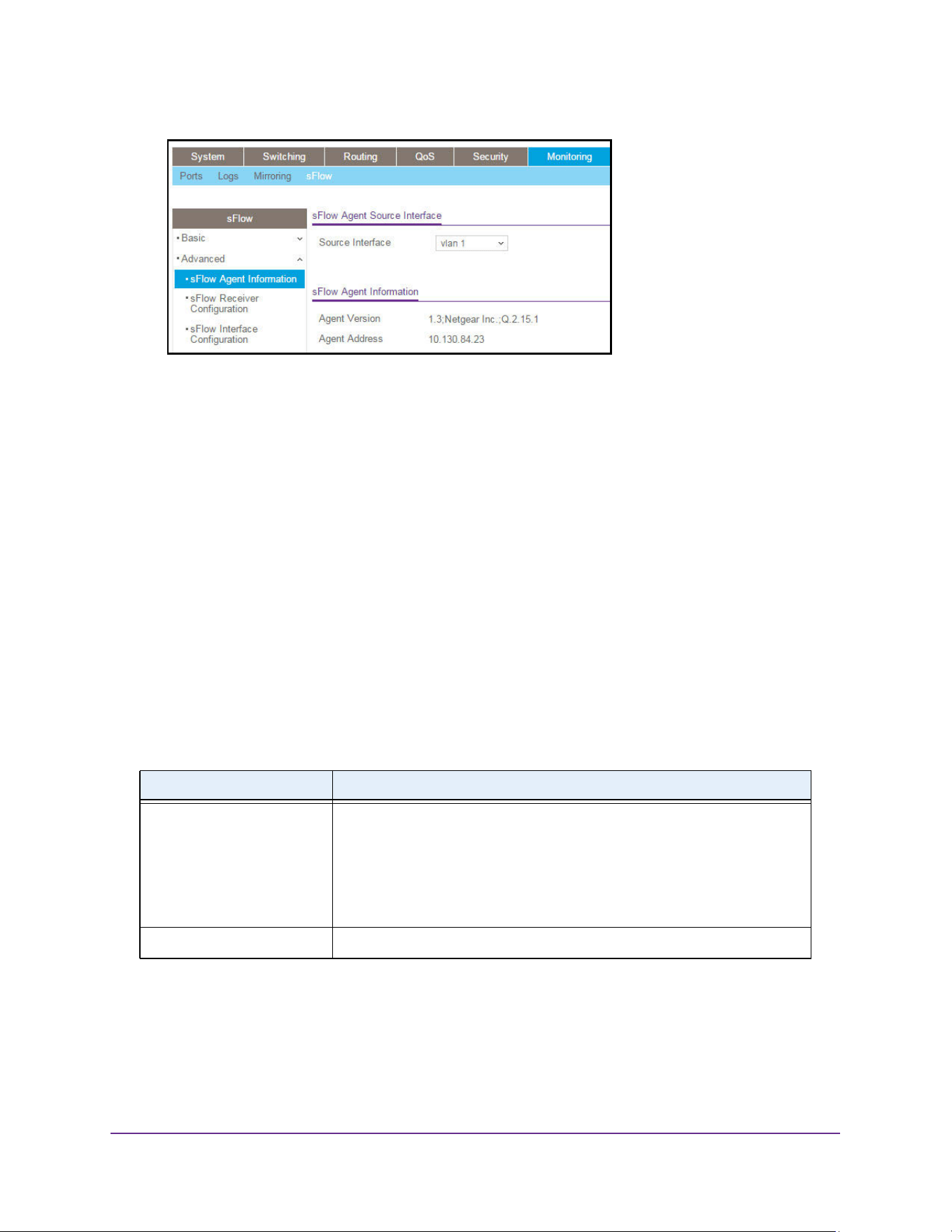
Monitor the System
647
M4200 and M4300 Series ProSAFE Managed Switches Web Management User Manual
6. In the Source Interface list, select the management interface to be used for sFlow Agent.
Possible values are as follows:
• None
• Routing interface
• Routing VLAN
• Routing loopback interface
• Tunnel interface
• Service port
By default, VLAN 1 is used as the source interface.
7. Click the Apply button.
The updated configuration is sent to the switch. Configuration changes take effect
immediately.
The following table describes the nonconfigurable information.
Table 226. sFlow Advanced Agent Information
Field Description
Agent Version Uniquely identifies the version and implementation of this MIB. The version
string must use the following structure: MIB Version;Organization;Software
Revision where:
• MIB Version: '1.3', the version of this MIB
• Organization: NETGEAR, Inc.
• Revision: 1.0
Agent Address The IP address associated with this agent.
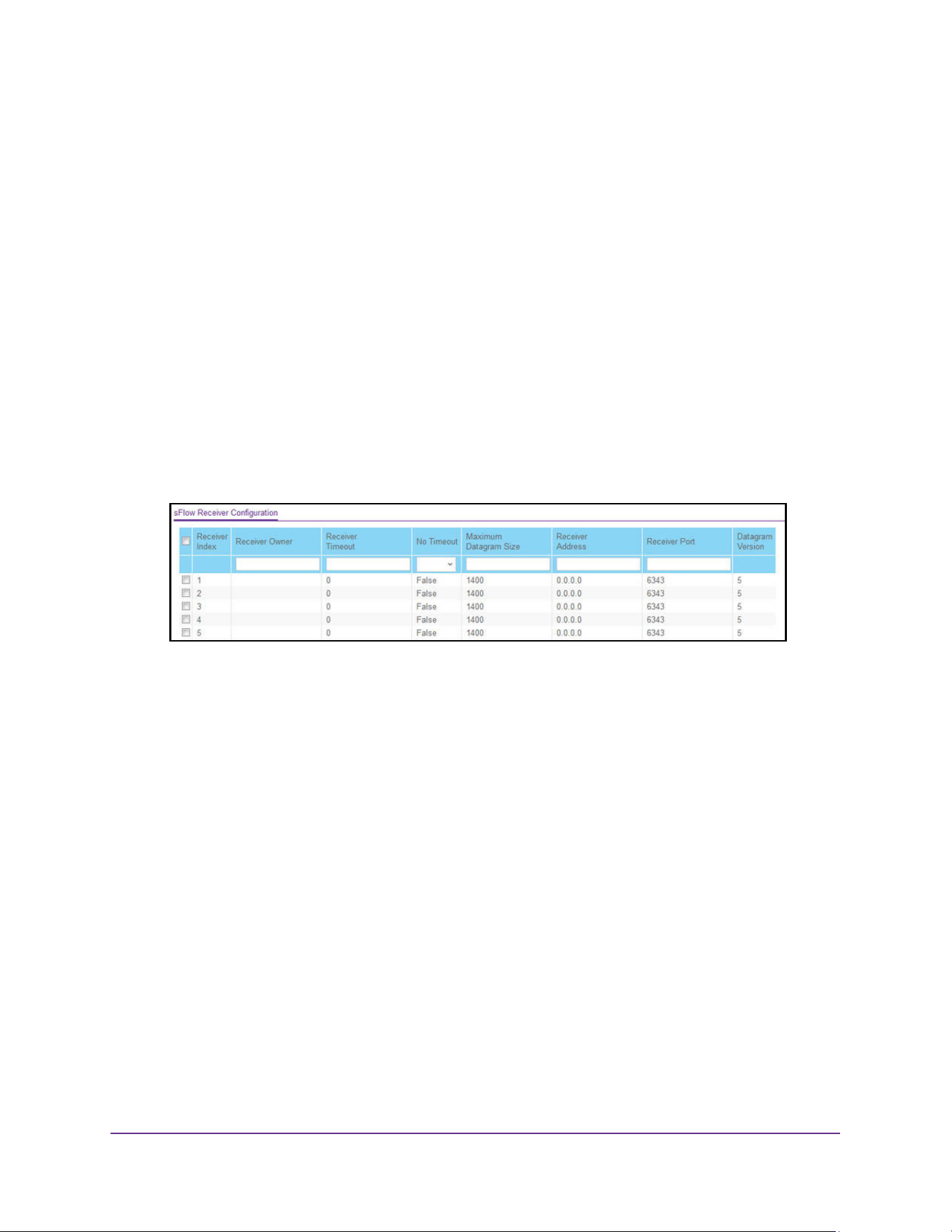
Monitor the System
648
M4200 and M4300 Series ProSAFE Managed Switches Web Management User Manual
Configure an sFlow Receiver
Use the sFlow Receiver Configuration page to configure the sFlow Receiver.
To configure an sFlow receiver:
1. Launch a web browser.
2. Enter http://<ipaddress> in the web browser address field.
The login window opens.
3. Enter the user name and password.
The default admin user name is admin and the default admin password is blank, that is,
do not enter a password.
4. Click the Login button.
The System Information page displays.
5. Select Monitoring> sFlow > Advanced > sFlow Receiver Configuration.
6. Next to the Receiver Index columns, select the check box for the receiver for which data
must be displayed or configured.
The allowed range to 1 to 8.
7. In the Receiver Owner field, specify the receiver owner.
This is the entity making use of this sFlowRcvrTable entry. The empty string indicates that
the entry is currently unclaimed and the receiver configuration is reset to the default
values. An entity wishing to claim an sFlowRcvrTable entry must ensure that the entry is
unclaimed before trying to claim it. The entry is claimed by setting the owner string. The
entry must be claimed before any changes can be made to other sampler objects.
8. In the Receiver Timeout field, specify the time (in seconds) remaining before the sampler is
released and stops sampling.
A management entity wanting to maintain control of the sampler is responsible for setting
a new value before the old one expires. The valid range is 0 to 2147483647. A value of
zero essentially means the receiver is not configured and sets the selected receiver
configuration to its default values. When configuring the sFlow receiver settings, you must
select the Timeout Mode option before you can configure a Timeout Value.
9. From the No Timeout menu, select True or False to set the no time-out sampling for the
receiver.

Monitor the System
649
M4200 and M4300 Series ProSAFE Managed Switches Web Management User Manual
Sampling is not stopped until the No Timeout selected entry is True. The default value is
False.
10. In the Maximum Datagram Size field, specify the maximum number of data bytes that can
be sent in a single sample datagram.
Set this value to avoid fragmentation of the sFlow datagrams. The default value is 1400.
The allowed range is 200 to 12188.
11. In the Receiver Address field, specify the IP address of the sFlow collector.
If set to 0.0.0.0, no sFlow datagrams are sent.
12. In the Receiver Port field, specify the destination port for sFlow datagrams.
The allowed range is 1 to 65535.
13. The Receiver Datagram Version field displays the version of sFlow datagrams to be sent.
14. Click the Apply button.
The updated configuration is sent to the switch. Configuration changes take effect
immediately.
Configure the sFlow Interface
sFlow agent collects statistical packet-based sampling of switched flows and sends them to
the configured receivers. A data source configured to collect flow samples is called a
sampler. sFlow agent also collects time-based sampling of network interface statistics and
sends them to the configured sFlow receivers. A data source configured to collect counter
samples is called a poller.
To configure the sFlow Interface:
1. Launch a web browser.
2. Enter http://<ipaddress> in the web browser address field.
The login window opens.
3. Enter the user name and password.
The default admin user name is admin and the default admin password is blank, that is,
do not enter a password.
4. Click the Login button.
The System Information page displays.
5. Select Monitoring> sFlow > Advanced > sFlow Interface Configuration.
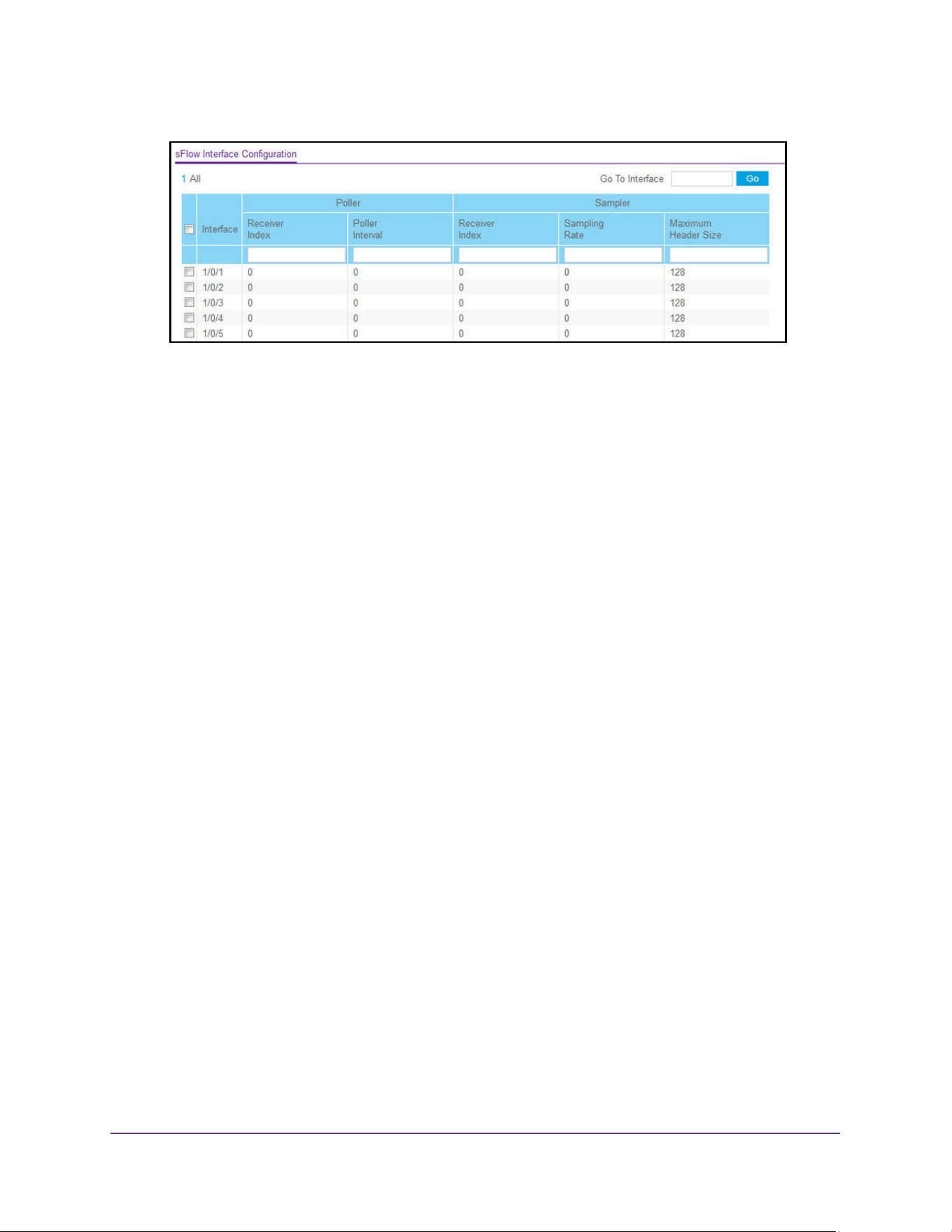
Monitor the System
650
M4200 and M4300 Series ProSAFE Managed Switches Web Management User Manual
6. Use one of the following methods to select an interface for the flow poller and sampler:
• In the Go To Interface field, enter the interface in the unit/slot/port format and click on
the Go button.
• Next to the Interface column, select the check box for the interface that you want to
use.
This agent supports physical ports only.
7. The Poller Receiver Index is the sFlow Receiver associated with this counter poller.
Use Poller Receiver Index to specify the allowed range for the sFlow receiver. The
allowed range is 1 to 8. If set to 0, the poller configuration is set to the default and the
poller is deleted.
8. Use Poller Interval to specify the maximum number of seconds between successive
samples of the counters associated with this data source.
A sampling interval of 0 disables counter sampling. The Allowed range is 0 to 86400
seconds.
9. Use Sampler Receiver Index to specify the sFlow receiver for this flow sampler.
If set to 0, the sampler configuration is set to default and the sampler is deleted. Only
active receivers can be set. If a receiver expires, then all samplers associated with the
receiver also expires. The allowed range is 1 to 8.
10. Use Sampling Rate to specify the statistical sampling rate for packet sampling from this
source.
A sampling rate of 1 counts all packets. A sampling rate of 0 disables sampling. The
allowed range is 1024 to 65536.
11. Use Maximum Header Size to specify the maximum number of bytes to be copied from a
sampled packet.
The allowed range is 20 to 256.
12. Click the Apply button.
The updated configuration is sent to the switch. Configuration changes take effect
immediately.

651
11
11. Maintenance and Troubleshooting
This chapter covers the following topics:
• Save the Configuration
• Configure Auto Save Mode
• Reset the Switch to Its Factory Default Settings
• Reset All User Passwords to Their Default Settings
• Upload or Export a File From the Switch
• Download or Import a File to the Switch
• File Management
• Troubleshooting
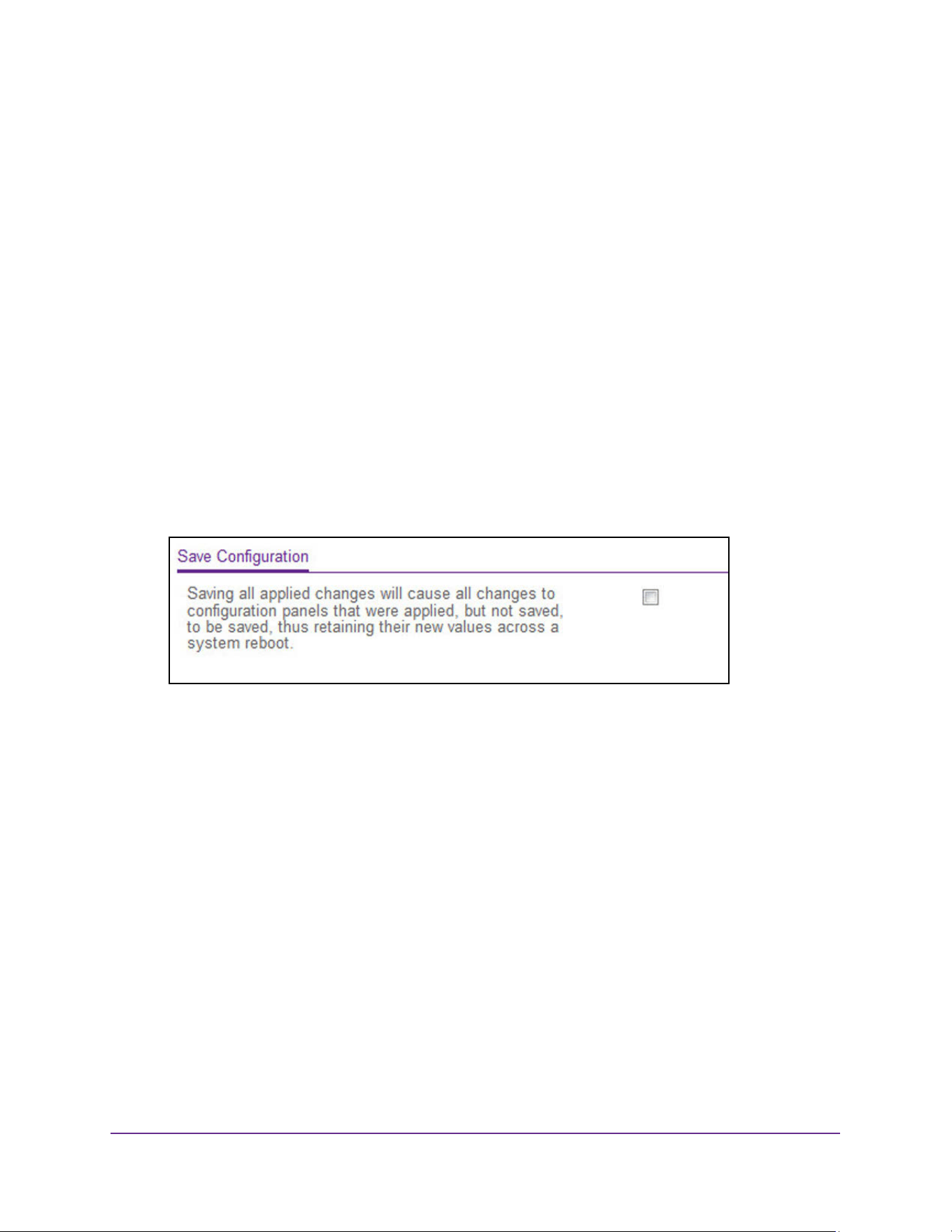
Maintenance and Troubleshooting
652
M4200 and M4300 Series ProSAFE Managed Switches Web Management User Manual
Save the Configuration
When you save the configuration, changes that you made are retained by the switch when it
is rebooted. You can manually save the configuration or you can set up autosave.
To save the configuration:
1. Launch a web browser.
2. Enter http://<ipaddress> in the web browser address field.
The login window opens.
3. Enter the user name and password.
The default admin user name is admin and the default admin password is blank, that is,
do not enter a password.
4. Click the Login button.
The System Information page displays.
5. Select Maintenance > Save Config > Save Configuration.
6. Select the check box.
7. Click the Apply button.
The configuration changes you made are saved across a system reboot. All changes
submitted since the previous save or system reboot are retained by the switch.
Configure Auto Save Mode
To configure auto save mode:
1. Launch a web browser.
2. Enter http://<ipaddress> in the web browser address field.
The login window opens.
3. Enter the user name and password.
The default admin user name is admin and the default admin password is blank, that is,
do not enter a password.
4. Click the Login button.
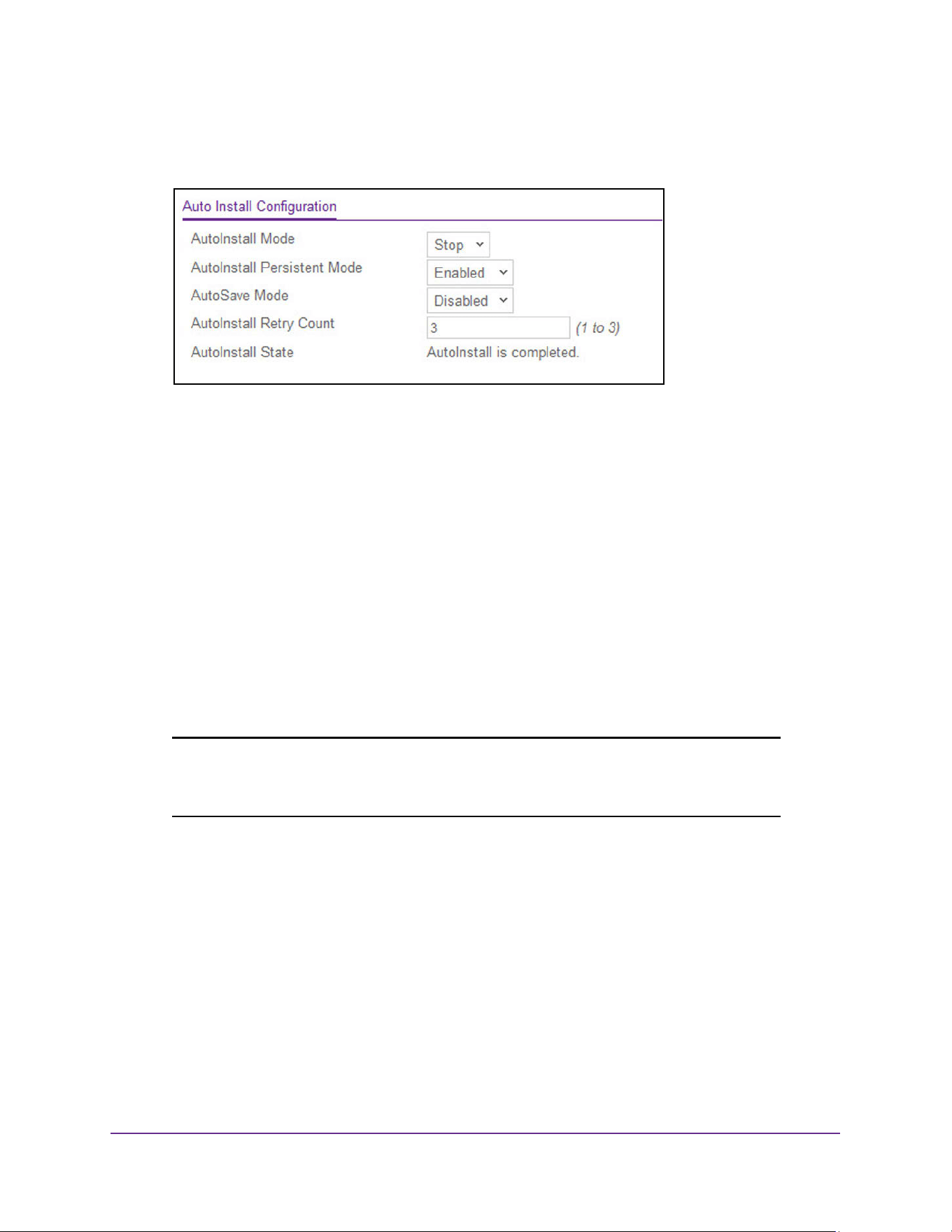
Maintenance and Troubleshooting
653
M4200 and M4300 Series ProSAFE Managed Switches Web Management User Manual
The System Information page displays.
5. Select Maintenance > Save Config > Auto Install Configuration.
The Autoinstall State field displays the current status of the Autoinstall process.
6. From the AutoInstall Mode menu, select the start/stop auto install mode on the switch.
7. From the AutoInstall Persistent Mode menu, enable or disable the AutoInstall persistent
mode.
8. From the AutoSave Mode menu, select Enabled or Disabled.
9. From the AutoInstall Retry Count menu, specify the number of times the unicast TFTP
tries are made for the DHCP specified file before falling back for broadcast TFTP tries.
10. Click the Apply button.
The configuration changes that you made are saved across a system reboot. All changes
submitted since the previous save or system reboot are retained by the switch.
Reset the Switch to Its Factory Default Settings
Note: If you reset the switch to the default configuration, the IP address is
reset to 169.254.100.100, and the DHCP client is enabled. The IP
address of the OOB port is set to 192.168.0.239.
To reset the switch to the factory default settings:
1. Launch a web browser.
2. Enter http://<ipaddress> in the web browser address field.
The login window opens.
3. Enter the user name and password.
The default admin user name is admin and the default admin password is blank, that is,
do not enter a password.
4. Click the Login button.
The System Information page displays.
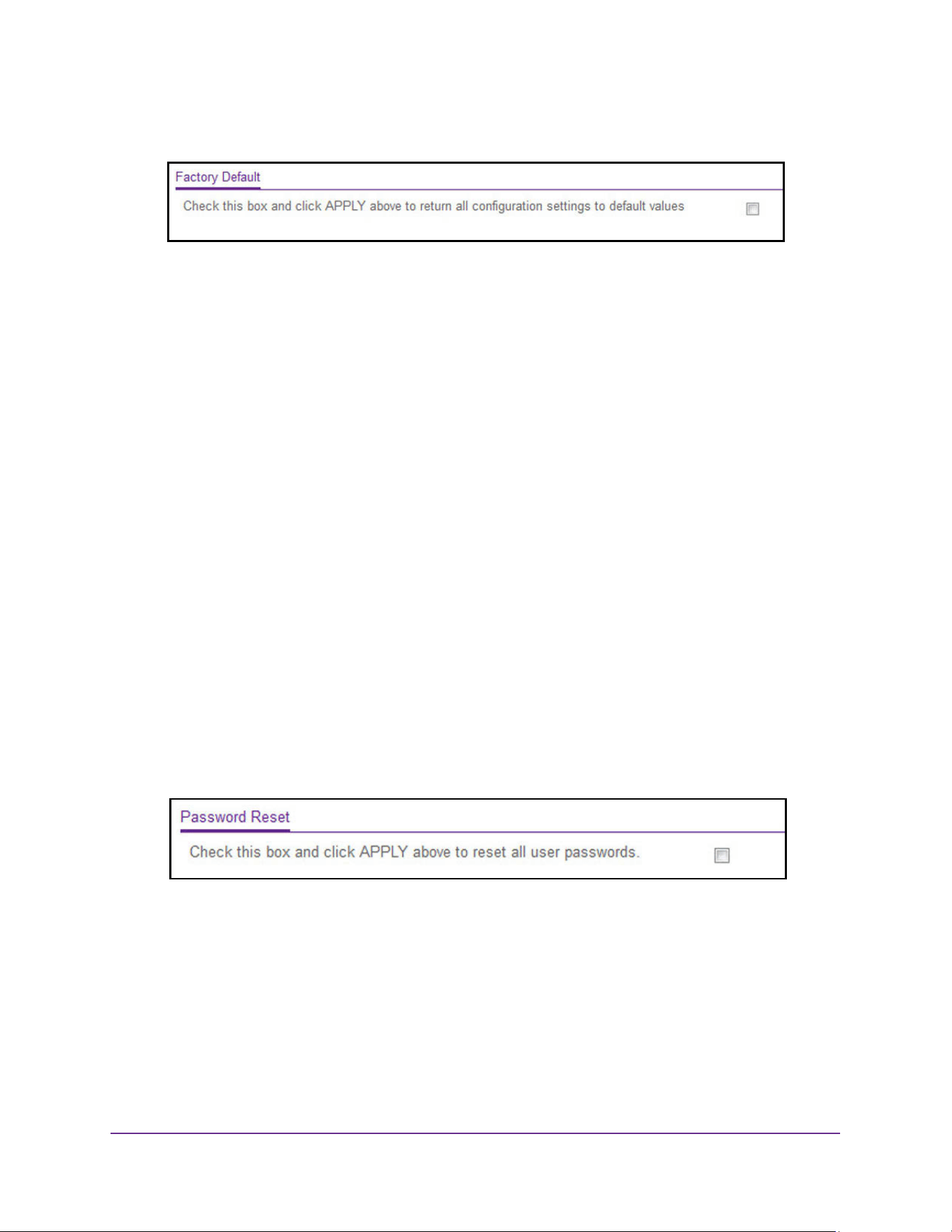
Maintenance and Troubleshooting
654
M4200 and M4300 Series ProSAFE Managed Switches Web Management User Manual
5. Select Maintenance > Reset > Factory Default.
6. Select the check box.
7. Click the Apply button.
A confirmation pop-up window opens.
8. Click Yes to confirm.
All configuration parameters are reset to their factory default values. All changes you
made are, even if you issued a save.
Reset All User Passwords to Their Default Settings
To reset all user passwords to their default settings:
1. Launch a web browser.
2. Enter http://<ipaddress> in the web browser address field.
The login window opens.
3. Enter the user name and password.
The default admin user name is admin and the default admin password is blank, that is,
do not enter a password.
4. Click the Login button.
The System Information page displays.
5. Select Maintenance > Reset > Password Reset.
6. Select the check box.
7. Click the Apply button.
All user passwords are reset to their factory default values.
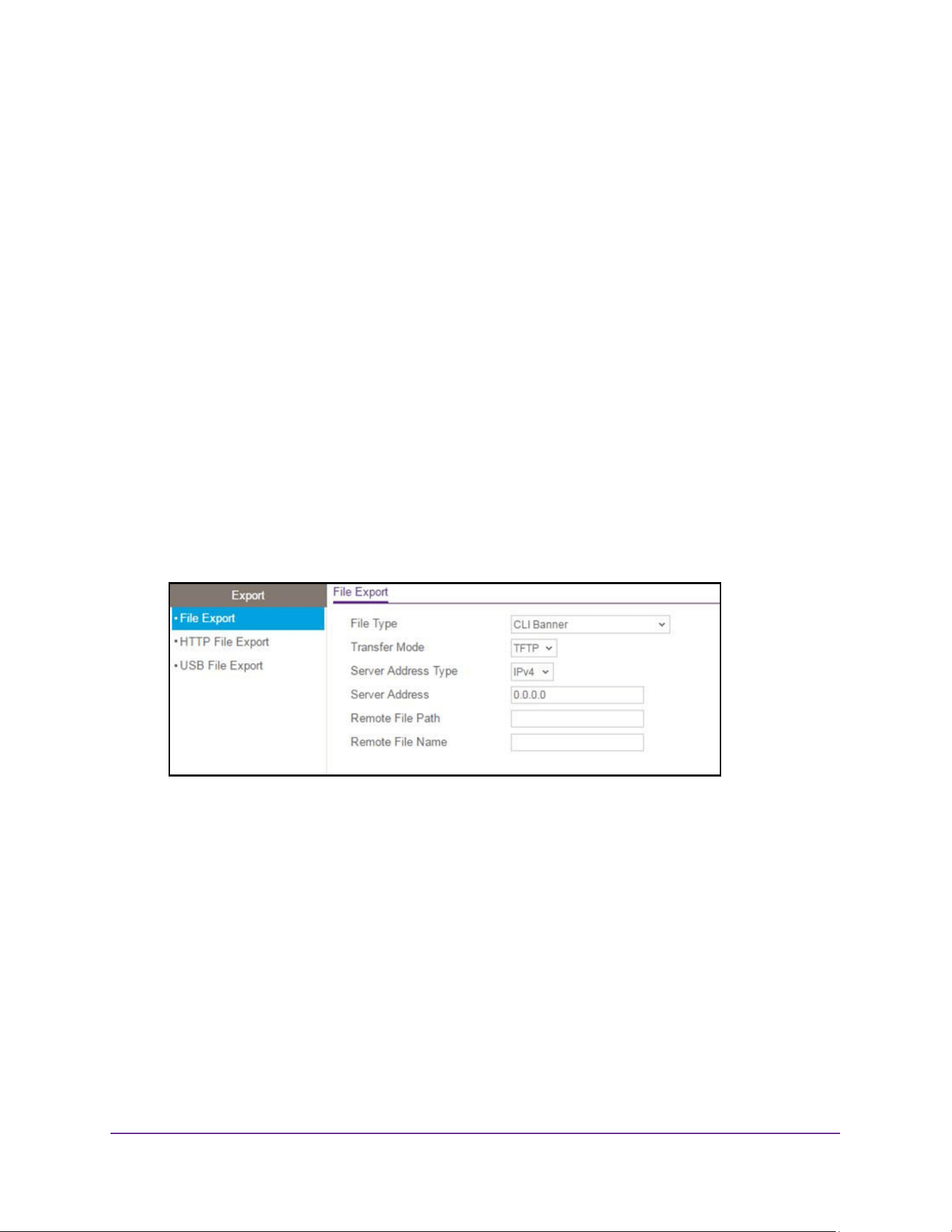
Maintenance and Troubleshooting
655
M4200 and M4300 Series ProSAFE Managed Switches Web Management User Manual
Upload or Export a File From the Switch
You can upload configuration (ASCII), log (ASCII), and image (binary) files from the switch to
the TFTP server.
Upload a File to the TFTP Server
To upload a file from the switch to the TFTP server:
1. Launch a web browser.
2. Enter http://<ipaddress> in the web browser address field.
The login window opens.
3. Enter the user name and password.
The default admin user name is admin and the default admin password is blank, that is,
do not enter a password.
4. Click the Login button.
The System Information page displays.
5. Select Maintenance > Export > File Export.
6. Use File Type to specify what type of file to upload:
• CLI Banner. Specify CLI Banner to retrieve the CLI banner file.
• Text Configuration. Specify configuration in text mode to retrieve the stored
configuration.
• Script File. Specify Script file to retrieve the stored configuration.
• Error Log. Specify Error log to retrieve the system error (persistent) log, sometimes
referred to as the event log.
• Trap Log. Specify Trap log to retrieve the system trap records.
• Buffered Log. Specify Buffered Log to retrieve the system buffered (in-memory) log.
• Tech Support. Specify Tech Support to retrieve the switch information needed for
trouble-shooting.
• Crash Logs. Specify Crash Log to retrieve the crash logs.

Maintenance and Troubleshooting
656
M4200 and M4300 Series ProSAFE Managed Switches Web Management User Manual
• Backup Configuration. Specify Backup Configuration in text mode to retrieve the
stored backup configuration.
• CPU Packets Capture File. Specify CPU Packets Capture File to retrieve the stored
captured CPU packets.
• Factory Default Configuration. Specify Factory Default Configuration in text mode
to retrieve the stored factory default configuration.
The factory default is CLI Banner.
7. Use Transfer Mode to specify what protocol to use to transfer the file:
• TFTP. Trivial File Transfer Protocol
• SFTP. Secure File Transfer Protocol
• SCP. Secure Copy Protocol
• FTP. File Transfer Protocol
8. Use Server Address Type to specify either IPv4, IPv6, or DNS to indicate the format of the
Server Address field. The factory default is IPv4.
9. Use Server Address to enter the IP address of the server in accordance with the format
indicated by the seer address type.
The factory default is the IPv4 address 0.0.0.0.
10. Use Remote File Path to enter the path to upload the file.
File path can include alphabetic, numeric, forward slash, dot or underscore characters
only. You can enter up to 160 characters. The factory default is blank.
11. Use Remote File Name to enter the name of the file to download from the server. You can
enter up to 32 characters.
The factory default is blank.
12. Use Local File Name to specify the local script file name to upload.
Note: This field is visible only when File Type is Script File.
13. Use User Name to enter the user name for remote login to the SFTP/SCP server where the
file is sent.
Note: This field is visible only when the SFTP or SCP transfer mode is
selected.
14. Use Password to enter the password for remote login to SFTP/SCP server where the file is
sent.
Note: This field is visible only when the SFTP or SCP transfer mode is selected.
15. Click the Apply button.
The file is uploaded. The last row of the table displays information about the progress of
the file transfer.
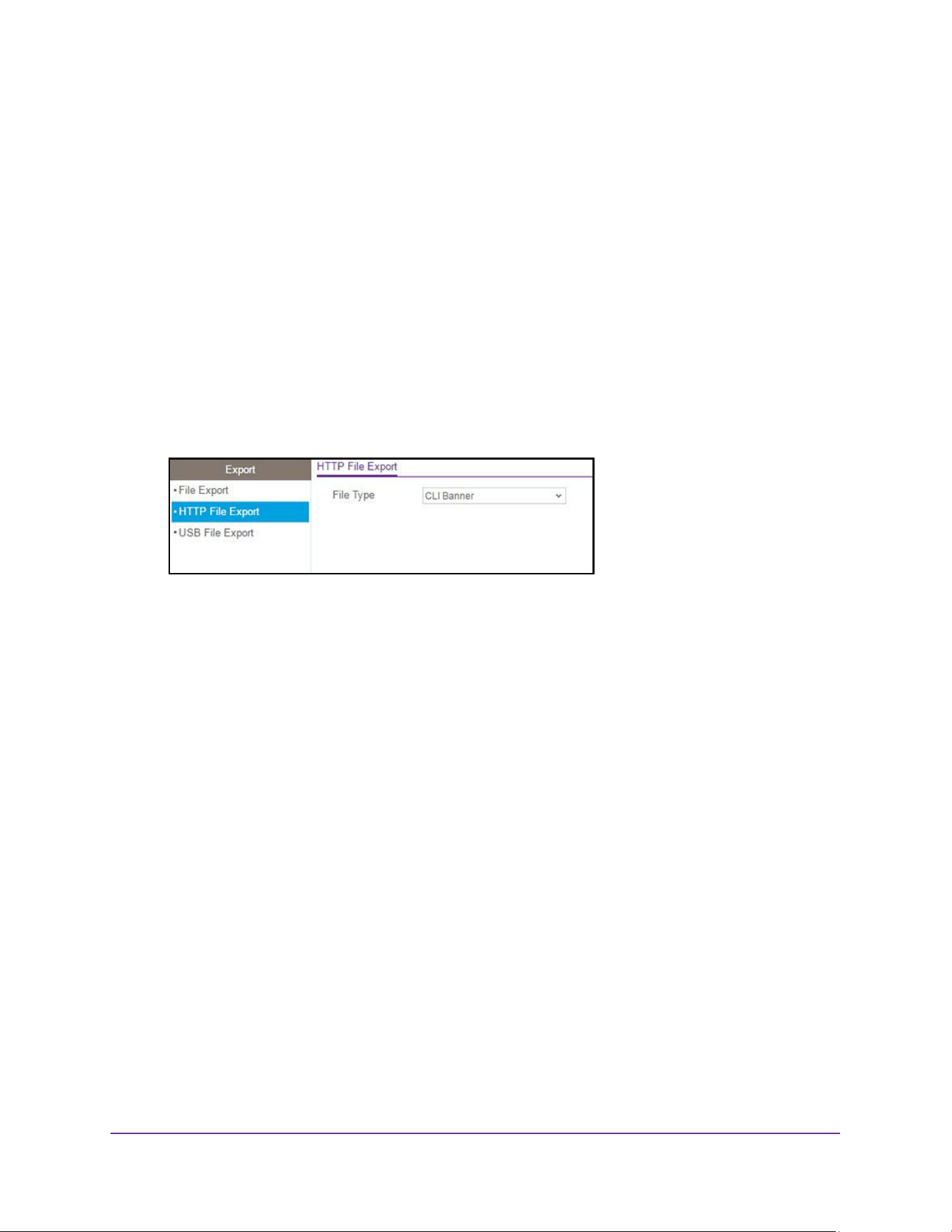
Maintenance and Troubleshooting
657
M4200 and M4300 Series ProSAFE Managed Switches Web Management User Manual
HTTP File Upload
To use HTTP file upload:
1. Launch a web browser.
2. Enter http://<ipaddress> in the web browser address field.
The login window opens.
3. Enter the user name and password.
The default admin user name is admin and the default admin password is blank, that is,
do not enter a password.
4. Click the Login button.
The System Information page displays.
5. Select Maintenance > Export > HTTP File Export.
6. Use File Type to specify what type of file to upload:
• CLI Banner. Specify CLI Banner to retrieve the CLI banner file.
• Text Configuration. Specify configuration in text mode to retrieve the stored
configuration.
• Script File. Specify Script file to retrieve the stored configuration.
• Error Log. Specify Error log to retrieve the system error (persistent) log, sometimes
referred to as the event log.
• Trap Log. Specify Trap log to retrieve the system trap records.
• Buffered Log. Specify buffered log to retrieve the system buffered (in-memory) log.
• Tech Support. Specify Tech Support to retrieve the switch information needed for
troubleshooting.
• Crash Logs. Specify Crash Logs to retrieve the system crash logs.
• Backup Configuration. Specify Backup Configuration in text mode to retrieve the
stored backup configuration.
• CPU Packets Capture File. Specify CPU Packets Capture File to retrieve the stored
captured CPU packets.
• Factory Default Configuration. Specify Factory Default Configuration in text mode
to retrieve the stored factory default configuration.
The factory default is CLI Banner.
7. Click the Apply button.
The file is uploaded.
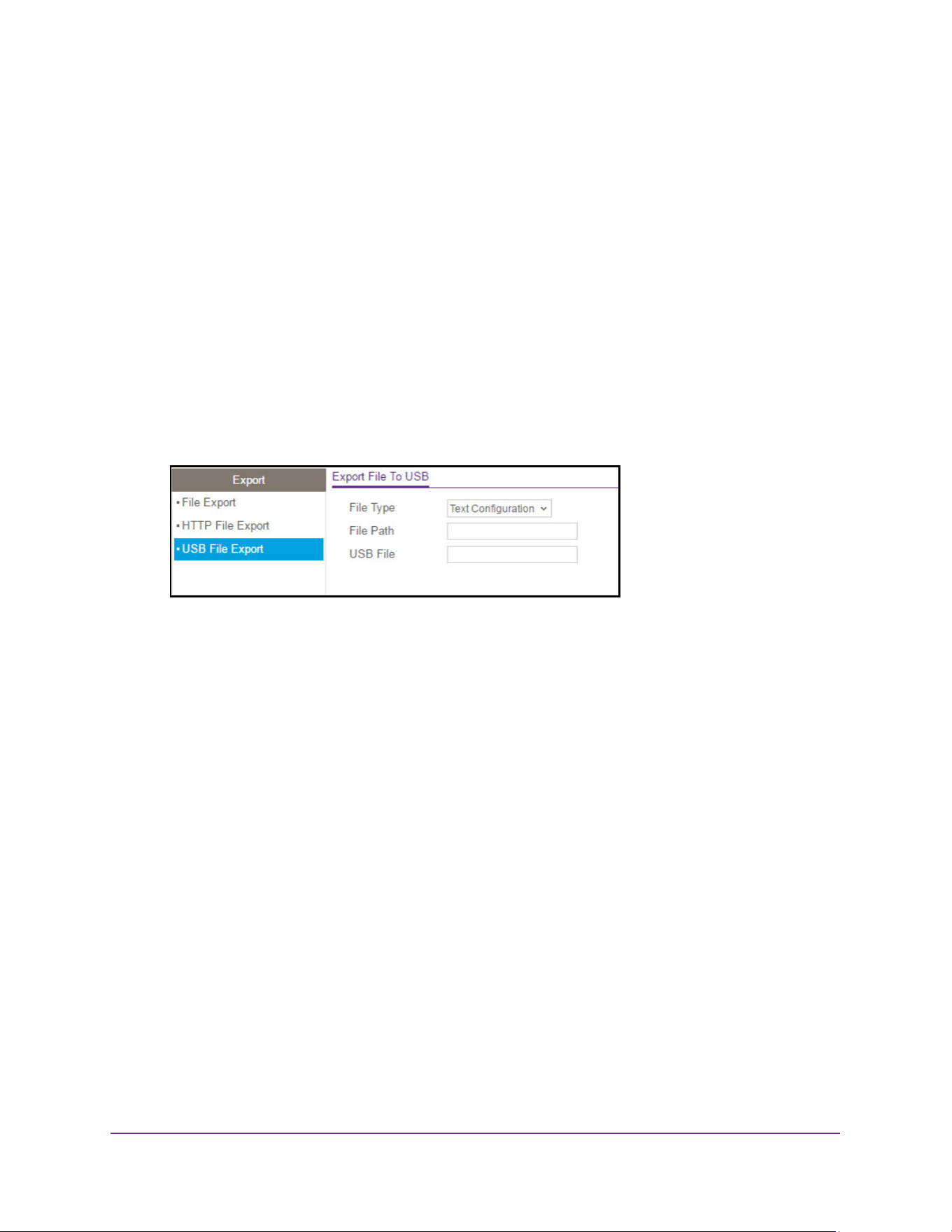
Maintenance and Troubleshooting
658
M4200 and M4300 Series ProSAFE Managed Switches Web Management User Manual
Upload a File from the Switch to a USB Device
To use upload a file from the switch to a USB device:
1. Launch a web browser.
2. Enter http://<ipaddress> in the web browser address field.
The login window opens.
3. Enter the user name and password.
The default admin user name is admin and the default admin password is blank, that is,
do not enter a password.
4. Click the Login button.
The System Information page displays.
5. Select Maintenance > Export > USB File Export.
By default, the selection from the File Type menu is Text Configuration. The stored
configuration that must be retrieved is in text mode.
6. In the File Path field, enter the path for the file to upload.
You can use up to 146 characters. The default is blank.
7. Use USB File to give a name along with path for the file to upload.
You can enter up to 32 characters. The factory default is blank.
8. Click the Apply button.
The file is uploaded.
Download or Import a File to the Switch
The switch supports system file downloads from a remote system to the switch by using
either TFTP or HTTP.
Download a File
For you to be able top download SSH key files, SSH must be administratively disabled and
no active SSH sessions must occur.
For you to be able to download SSL-related files, HTTPS must be administratively disabled.
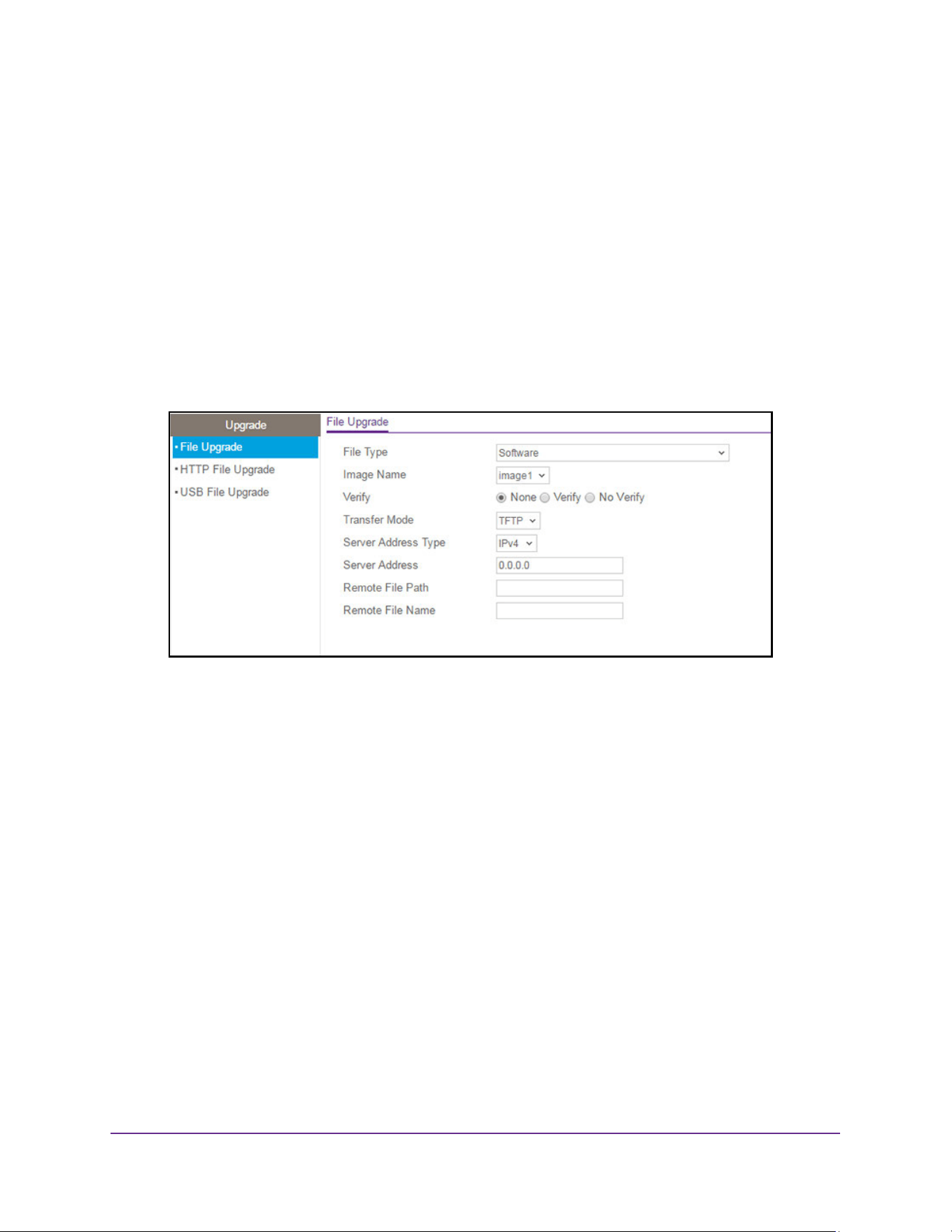
Maintenance and Troubleshooting
659
M4200 and M4300 Series ProSAFE Managed Switches Web Management User Manual
To download a file:
1. Launch a web browser.
2. Enter http://<ipaddress> in the web browser address field.
The login window opens.
3. Enter the user name and password.
The default admin user name is admin and the default admin password is blank, that is,
do not enter a password.
4. Click the Login button.
The System Information page displays.
5. Select Maintenance > Upgrade > File Upgrade.
6. Use File Type to specify what type of file to transfer to the device.
• Software. Select this option to transfer in the device software code in order to
upgrade the operational flash.
• Text Configuration. Select this option to transfer to the device configuration in text
mode in order to update the switch’s configuration. If the file has errors, the update is
stopped.
• SSH-1 RSA Key File. Select this option to transfer an SSH-1 Rivest-Shamir-Adelman
(RSA) key file to the device. SSH key files contain information to authenticate SSH
sessions for remote CLI-based access to the device.
• SSH-2 RSA Key PEM File. Select this option to transfer an SSH-2
Rivest-Shamir-Adelman (RSA) key file (PEM Encoded) to the device.
• SSH-2 DSA Key PEM File. Select this option to transfer an SSH-2 Digital Signature
Algorithm (DSA) key file (PEM Encoded) to the device.
• SSL Trusted Root Certificate PEM File. Select this option to transfer an SSL Trusted
Root Certificate file (PEM Encoded) to the device. SSL files contain information to
encrypt, authenticate, and validate HTTPS sessions.
• Use SSL Server Certificate PEM File. Select this option to transfer an SSL Server
Certificate file (PEM Encoded) to the device.

Maintenance and Troubleshooting
660
M4200 and M4300 Series ProSAFE Managed Switches Web Management User Manual
• Use SSL DH Weak Encryption Parameter PEM File. Select this option to transfer an
SSL Diffie-Hellman Weak Encryption Parameter File (PEM Encoded) to the device.
• Use SSL DH Strong Encryption Parameter PEM File. Select this option to transfer an
SSL Diffie-Hellman Strong Encryption Parameter File (PEM Encoded) to the device.
• Script File. Select this option to transfer a text-based configuration script file to the
device. You must use the command-line interface (CLI) to validate and activate the
script.
• CLI Banner. Select this option to transfer the CLI Banner to the device. This file
contains the text to be displayed on the CLI before the login prompt.
• IAS Users. Select this option to transfer an Internal Authentication Server (IAS) users
database file to the device. The IAS user database stores a list of user name and
(optional) password values for local port-based user authentication.
• Factory Default Configuration. Select this option to transfer the factory default
configuration file to a remote system.
• Public Key Configuration. Select this option to transfer the public key file used for
configuration script validation to the device.
• Public Key Image. Select this option to transfer the public key file used for code
image validation to the device.
• Application. Select this option to transfer an application to the device.
• Tech Support Commands File. Select this option to transfer a Tech Support
Commands file to the device.
The factory default is Software.
7. The Image Name field is visible only when File Type Software is selected. Use Image
Name to select one of the images from the list:
• Image1. Specify the code image1 to retrieve.
• Image2. Specify the code image2 to retrieve.
8. The Verify field is visible when File Type Software and Script File are selected. Select one
of the Verify options: None, Verify, No Verify regarding the transfer in the device software
code.
9. The Application File Name field is visible when File Type Application is selected. Enter
the application file name to download to the device.
10. Use Transfer Mode to specify what protocol to use to transfer the file:
• TFTP. Trivial File Transfer Protocol
• SFTP. Secure File Transfer Protocol
• SCP. Secure Copy Protocol
• FTP. File Transfer Protocol
11. Use Server Address
T
ype to specify either IPv4, IPv6, or DNS to indicate the format of the
TFTP/SFTP/SCP Server Address field.
The factory default is IPv4.

Maintenance and Troubleshooting
661
M4200 and M4300 Series ProSAFE Managed Switches Web Management User Manual
12. Use Server Address to enter the IP address of the TFTP server in accordance with the
format indicated by the server address type, for example an IP address in the x.x.x.x format.
The factory default is the IPv4 address 0.0.0.0.
13. Use Remote File Path to enter the path of the file to download.
The file path cannot include the following symbols: ' \:*?”<>| '. Up to 160 characters can
be entered. The factory default is blank.
14. Use Remote File Name to enter the name of the file to download from the server.
The file path cannot include the following symbols: ' \:*?”<>| '. You can enter up to 32
characters. The factory default is blank.
15. Use User Name to enter the user name for remote login to SFTP/SCP server where the file
resides.
Note: This field is visible only when the SFTP or SCP transfer mode is
selected.
16. Use Password to enter the password for remote login to SFTP/SCP server where the file
resides.
Note: This field is visible only when the\ SFTP or SCP transfer mode is
selected.
17. Click the Apply button.
The file is downloaded. The last row of the table displays information about the progress
of the file transfer. It is displayed only after the process starts. The page refreshes
automatically until the file transfer completes.
Download a File to the Switch Using HTTP
You can download files of various types to the switch using an HTTP session (for example,
through your web browser).
For you to able to download SSH key files, SSH must be administratively disabled and no
active SSH sessions must occur.
For you to be able to download SSL PEM files, SSL must be administratively disabled and no
active SSH sessions must occur.
To download a file to the switch using HTTP:
1. Launch a web browser.
2. Enter http://<ipaddress> in the web browser address field.
The login window opens.
3. Enter the user name and password.
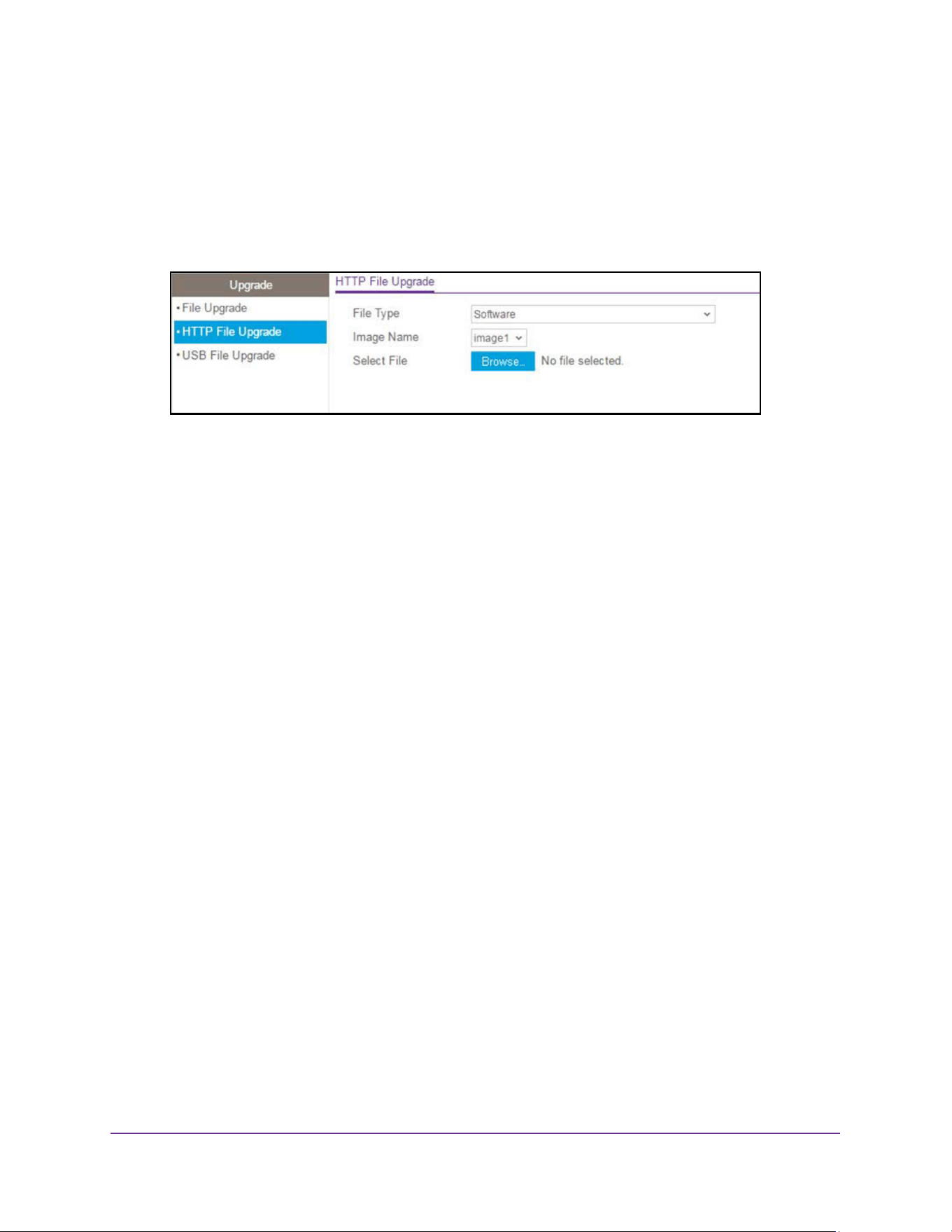
Maintenance and Troubleshooting
662
M4200 and M4300 Series ProSAFE Managed Switches Web Management User Manual
The default admin user name is admin and the default admin password is blank, that is,
do not enter a password.
4. Click the Login button.
The System Information page displays.
5. Select Maintenance > Upgrade > HTTP File Upgrade.
6. Use File Type to specify what type of file to transfer:
• Software. Software code to upgrade the operational flash.
• Text Configuration. Configuration is in text mode to update the switch's
configuration. If the file has errors, the update is stopped.
• Use SSH-1 RSA Key File to specify SSH-1 Rivest-Shamir-Adelman (RSA) Key File.
• Use SSH-2 RSA Key PEM File to specify SSH-2 Rivest-Shamir-Adelman (RSA) Key
File (PEM Encoded).
• Use SSH-2 DSA Key PEM File to specify SSH-2 Digital Signature Algorithm (DSA)
Key File (PEM Encoded).
• Use SSL Trusted Root Certificate PEM File to specify SSL Trusted Root Certificate
File (PEM Encoded).
• Use SSL Server Certificate PEM File to specify SSL Server Certificate File (PEM
Encoded).
• Use SSL DH Weak Encryption Parameter PEM File to specify SSL Diffie-Hellman
Weak Encryption Parameter File (PEM Encoded).
• Use SSL DH Strong Encryption Parameter PEM File to specify SSL Diffie-Hellman
Strong Encryption Parameter File (PEM Encoded).
• Use Config Script to specify script configuration file.
• CLI Banner. Specify CLI Banner if a banner will be displayed before the login prompt.
• Use IAS Users to specify the Internal Authentication Server Users Database File.
The factory default is Software.
7. The Image Name field is visible only when File Type Software is selected. Use Image
Name to select one of the images from the list:
• Image1. Specify the code image1 to download.
• Image2. Specify the code image2 to download.
8. Next to Select File, click the Browse button and navigate to the file to download.
You can select a file of up to 80 characters.
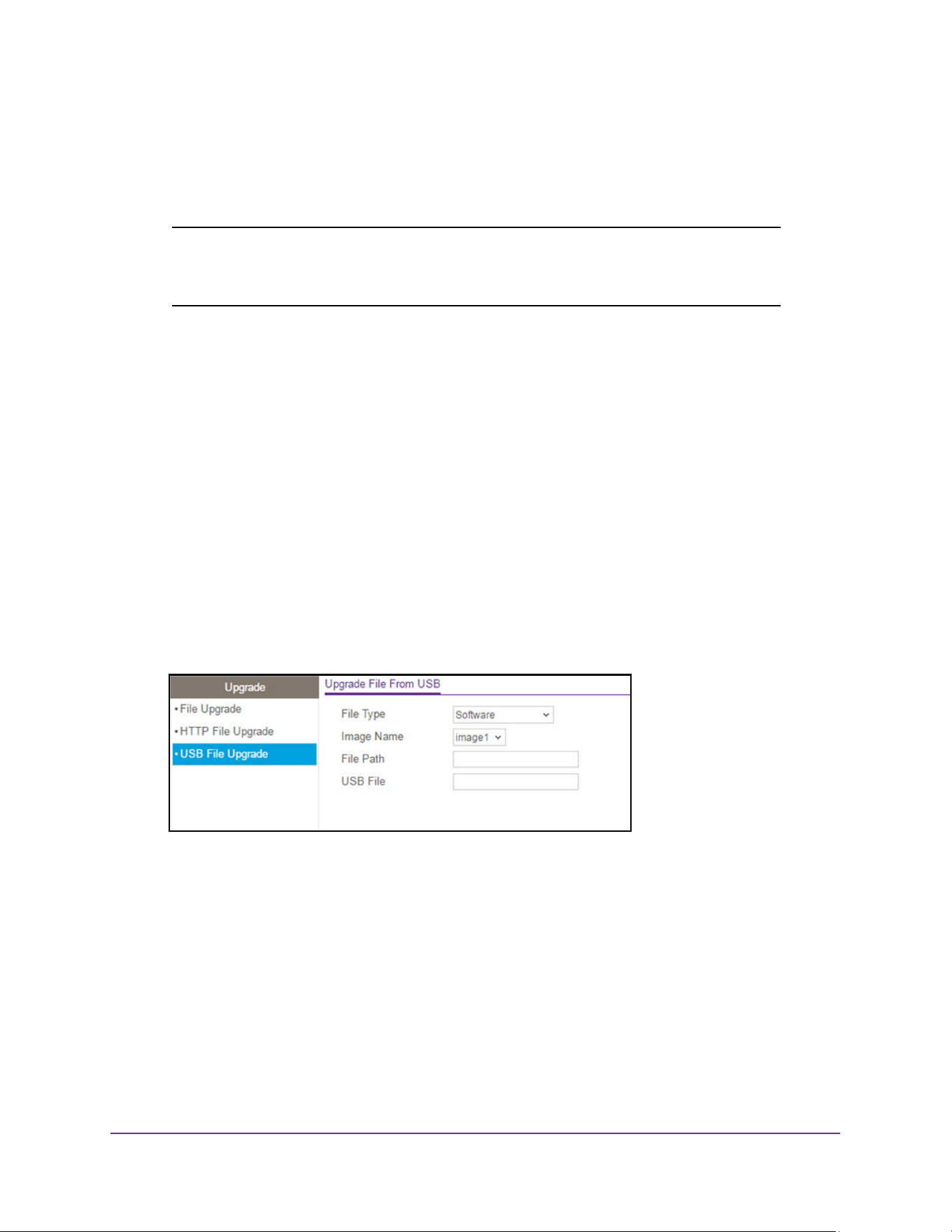
Maintenance and Troubleshooting
663
M4200 and M4300 Series ProSAFE Managed Switches Web Management User Manual
9. Click the Apply button.
The download begins.
The Download Status field displays the status during transfer file to the switch.
Note: After a file transfer is started, wait until the page refreshes. When the
page refreshes, the Select File option is blanked out. This indicates
that the file transfer is done.
Download a File from a USB Device
To download a file from a USB device:
1. Launch a web browser.
2. Enter http://<ipaddress> in the web browser address field.
The login window opens.
3. Enter the user name and password.
The default admin user name is admin and the default admin password is blank, that is,
do not enter a password.
4. Click the Login button.
The System Information page displays.
5. Select Maintenance > Upgrade> USB File Upgrade.
6. Use File Type to specify what type of file to download:
• Software. Software code to download to the operational flash.
• Text Configuration. Configuration s in text mode to update the switch’s configuration
(Startup-config).
If the file has errors, the update is stopped. The factory default is Software.
7. Use Image Name to select one of the images from the list:
• Image1. Select image1 to download to image1.
• Image2. Select image2 to download to image2.
Only when File Type Software is selected is the Image Name field visible.
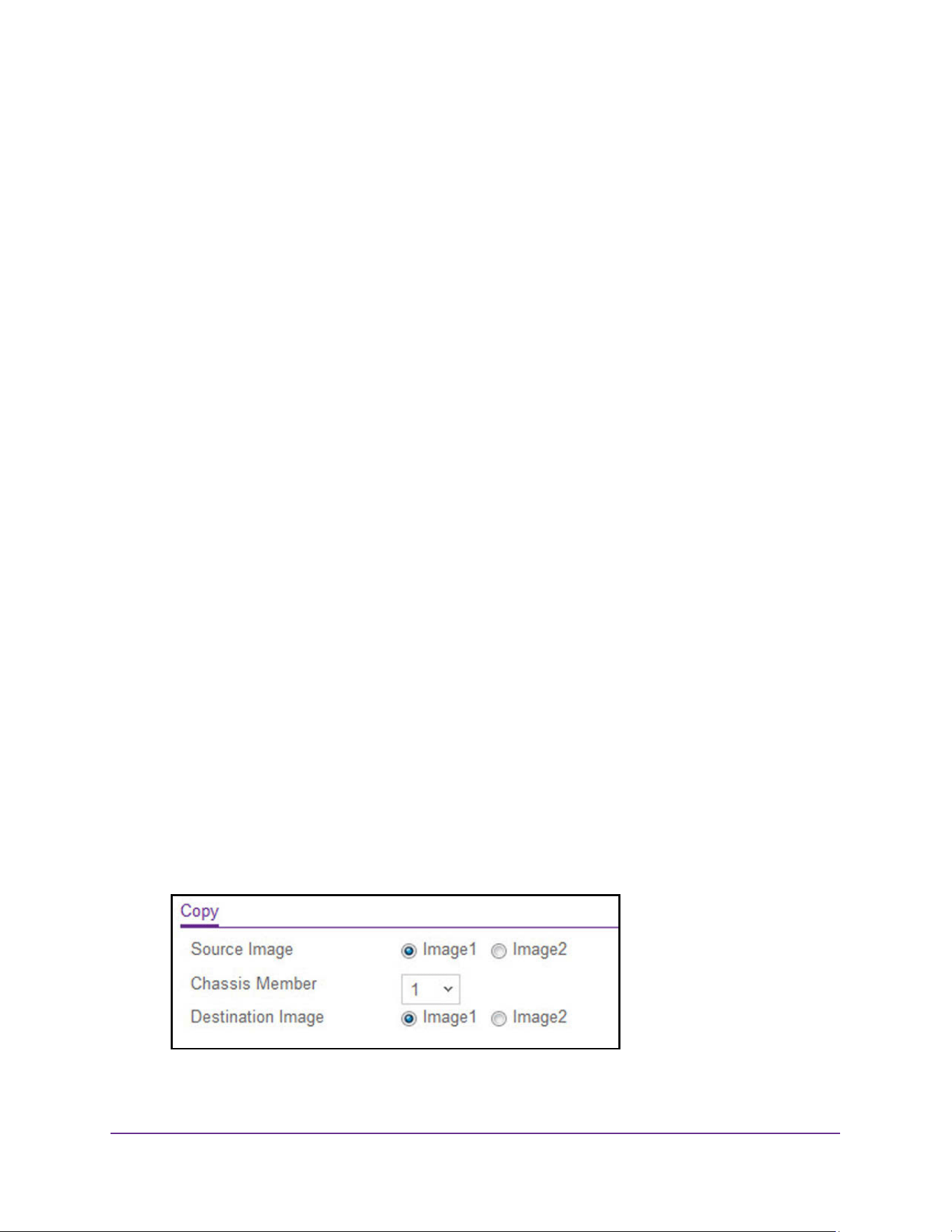
Maintenance and Troubleshooting
664
M4200 and M4300 Series ProSAFE Managed Switches Web Management User Manual
8. Use the File Path field to give a path for the file to download.
You can enter up to 146 characters. The default is blank.
9. Use USB File to give a name along with path for the file to download.
You can enter up to 32 characters. The factory default is blank.
10. Click the Apply button.
The download begins. The Download Status field displays the status of the file transfer to
the switch. The last row of the table is used to display information about the progress of
the file transfer. It is displayed only after the process starts. The page refreshes
automatically until the file transfer completes.
File Management
The system maintains two versions of the switch software in permanent storage. One image
is the active image, and the second image is the backup image. The active image is loaded
during subsequent switch restarts. This feature reduces switch down time when you are
upgrading or downgrading the switch software.
Copy an Image
To copy an image:
1. Launch a web browser.
2. Enter http://<ipaddress> in the web browser address field.
The login window opens.
3. Enter the user name and password.
The default admin user name is admin and the default admin password is blank, that is,
do not enter a password.
4. Click the Login button.
The System Information page displays.
5. Select Maintenance > File Management > Copy.
6. Use Source Image to select the image1 or image2 as the source image (the image to be
copied).
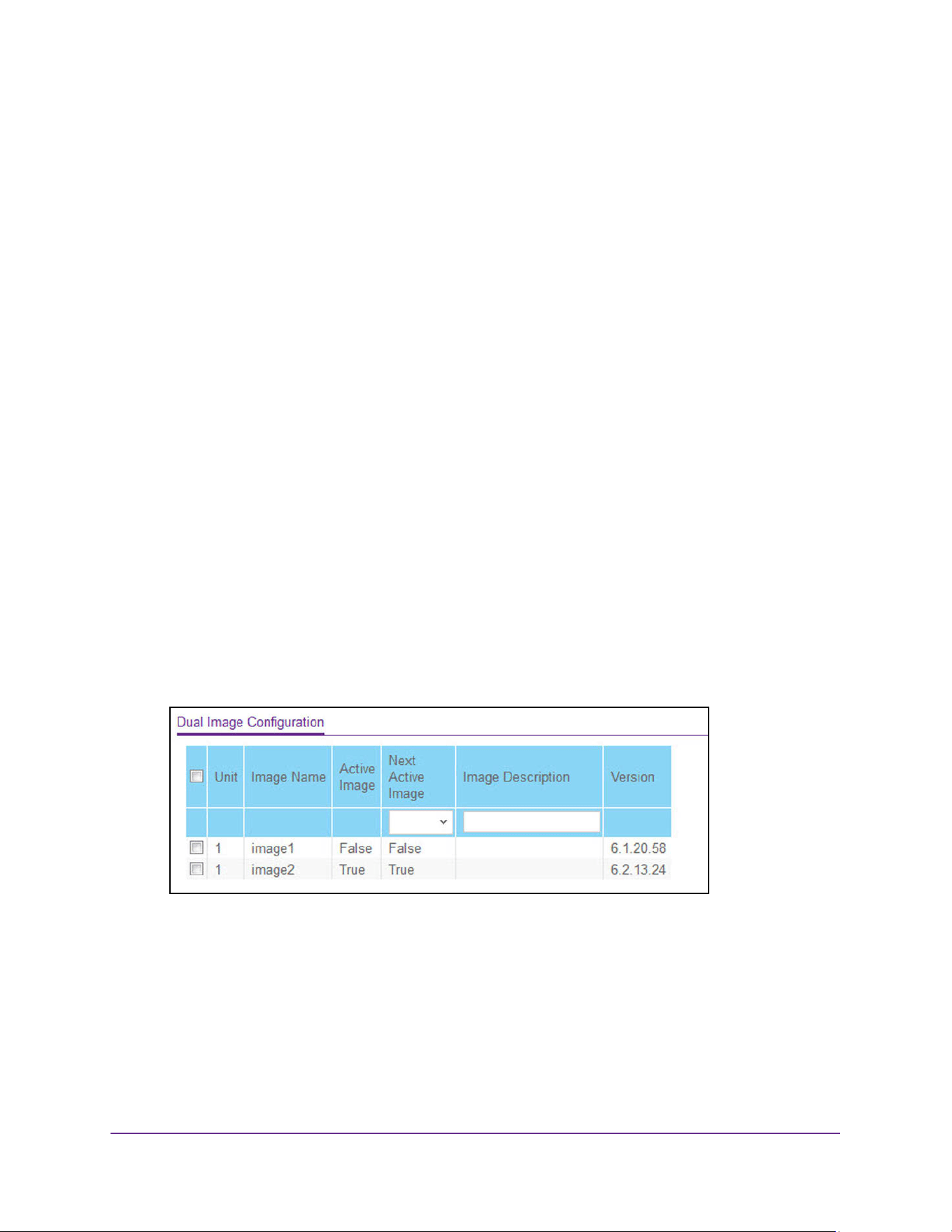
Maintenance and Troubleshooting
665
M4200 and M4300 Series ProSAFE Managed Switches Web Management User Manual
7. Use Switch Member to select the destination unit to which you are going to copy from the
supervisor.
8. Use Destination Image to select the image1 or image2 as the destination image.
9. Click the Apply button.
The image is copied.
Configure Dual Image Settings
The Dual Image feature allows the switch to retain two images in permanent storage. The
administrator can designate image1 or image2 as the active image to be loaded during
subsequent switch restarts. This feature reduces switch down time when you are upgrading
or downgrading the software image.
To configure dual image settings:
1. Launch a web browser.
2. Enter http://<ipaddress> in the web browser address field.
The login window opens.
3. Enter the user name and password.
The default admin user name is admin and the default admin password is blank, that is,
do not enter a password.
4. Click the Login button.
The System Information page displays.
5. Select Maintenance > File Management > Dual Image Configuration.
6. Use Unit to select the unit ID whose code image to activate, update, or delete.
7. Use Next Active Image to make the selected image the next active image for subsequent
reboots of this unit.
8. Use Image Description to specify the description for the image that you selected.
9. Click the Apply button.
The updated configuration is sent to the switch. Configuration changes take effect
immediately.
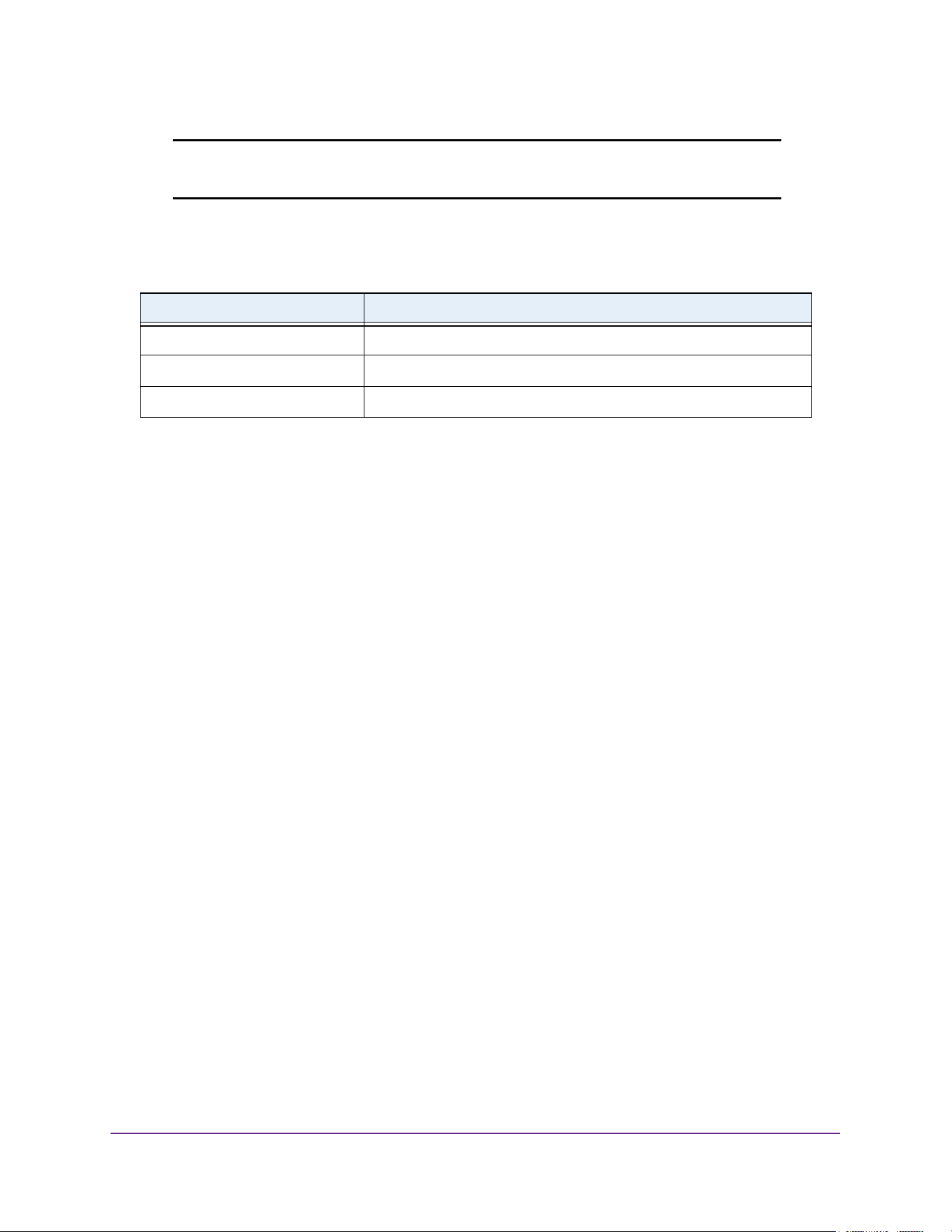
Maintenance and Troubleshooting
666
M4200 and M4300 Series ProSAFE Managed Switches Web Management User Manual
Note: After activating an image, you must perform a system reset of the
switch to run the new image.
The following table describes the nonconfigurable information displayed on the page.
Troubleshooting
You can send a ping, trace a route, and perform a memory dump.
Ping IPv4
You can tell the switch to send a ping request to a specified IP address. You can check
whether the switch can communicate with a particular IP station. When you click the Apply
button, the switch sends a specified number of ping requests and the results are displayed.
If a reply to the ping is not received, the following message displays:
Tx = Count, Rx = 0 Min/Max/Avg RTT = 0/0/0 msec
If a reply to the ping is received, the following message displays:
Reply From a.b.c.d: icmp_seq = 0. time= xyz usec.
Reply From a.b.c.d: icmp_seq = 1. time= abc usec.
Reply From a.b.c.d: icmp_seq = 2. time= def usec.
Tx = count, Rx = count Min/Max/Avg RTT = xyz/abc/def msec
To configure the settings and ping a host on the network:
1. Launch a web browser.
2. Enter http://<ipaddress> in the web browser address field.
The login window opens.
3. Enter the user name and password.
The default admin user name is admin and the default admin password is blank, that is,
do not enter a password.
4. Click the Login button.
The System Information page displays.
Table 227. Dual Image Configuration
Field Description
Image Name This displays the image name for the selected unit.
Active Image The current active image of the selected unit.
Version The version of the image1 code file.
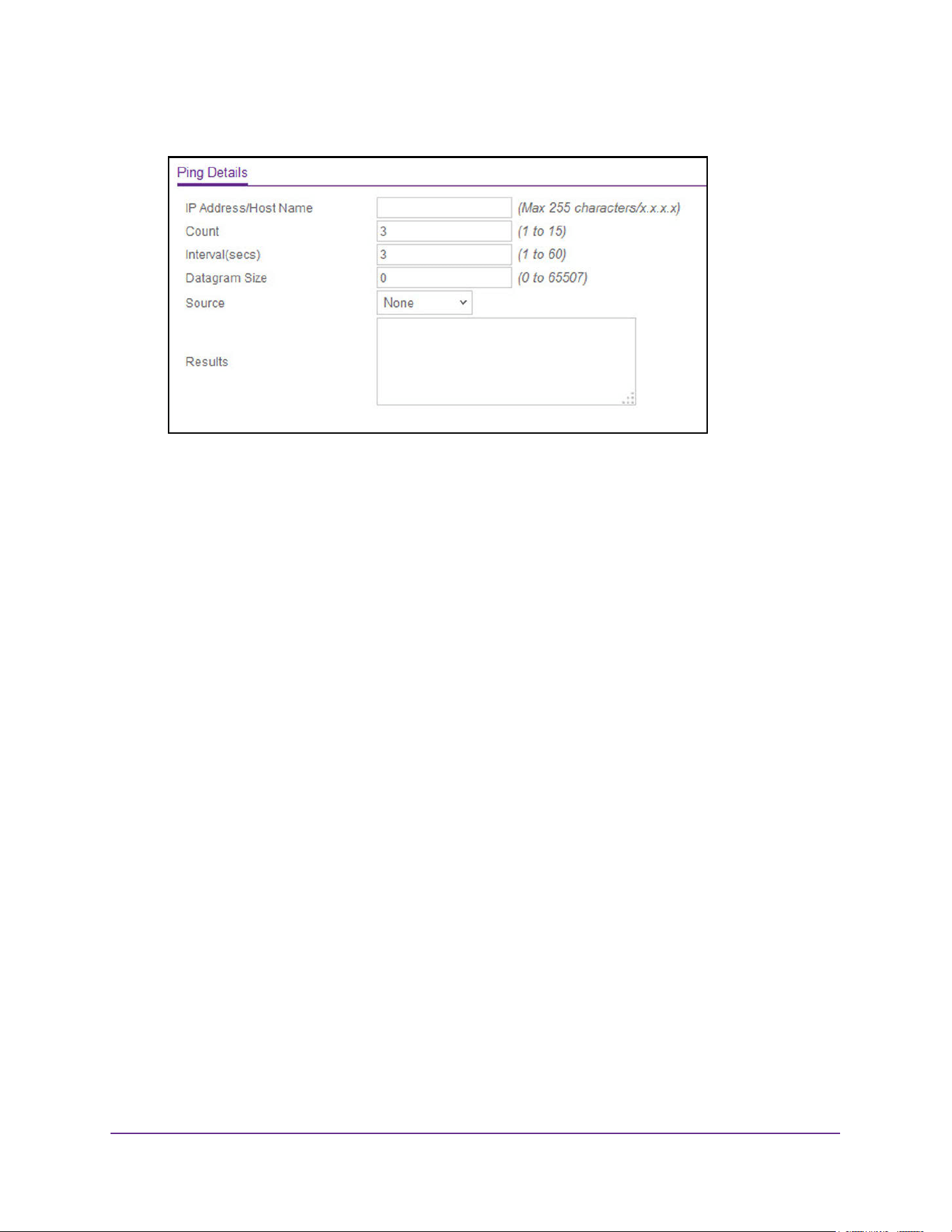
Maintenance and Troubleshooting
667
M4200 and M4300 Series ProSAFE Managed Switches Web Management User Manual
5. Select Maintenance > Troubleshooting > Ping IPv4.
6. Use IP Address/Host Name to enter the IP address or host name of the station for the
switch to ping.
The initial value is blank.
7. In the Count field, enter the number of echo requests to send.
The default value is 3. The range is 1 to 15.
8. Enter the Interval between ping packets in seconds.
The default value is 3 seconds. The range is 1 to 60.
9. Enter the Datagram Size of ping packet.
The default value is 0 bytes. The range is 0 to 65507.
10. Enter the Source IP address or interface to use when sending the echo request packets.
If source is not required, select None as the source option. Possible values are as
follows:
• None. The source address of the ping packet would be the address of the default
outgoing interface.
• IP Address. The source IP address to use when sending the echo request packets.
This field is shown when IP Address is selected as the source option.
• Interface. The interface to use when sending the echo request packets. This field is
shown when Interface is selected as the source option.
Note: Values configured in the fields on this page are not saved to the switch.
As a result, refreshing the page sets these fields to the default values.
11. Click the Apply button.
The pings are sent to the specified address. The switch sends the number of pings
specified in the Count field, and the results are displayed below the configurable data in
the Results area.
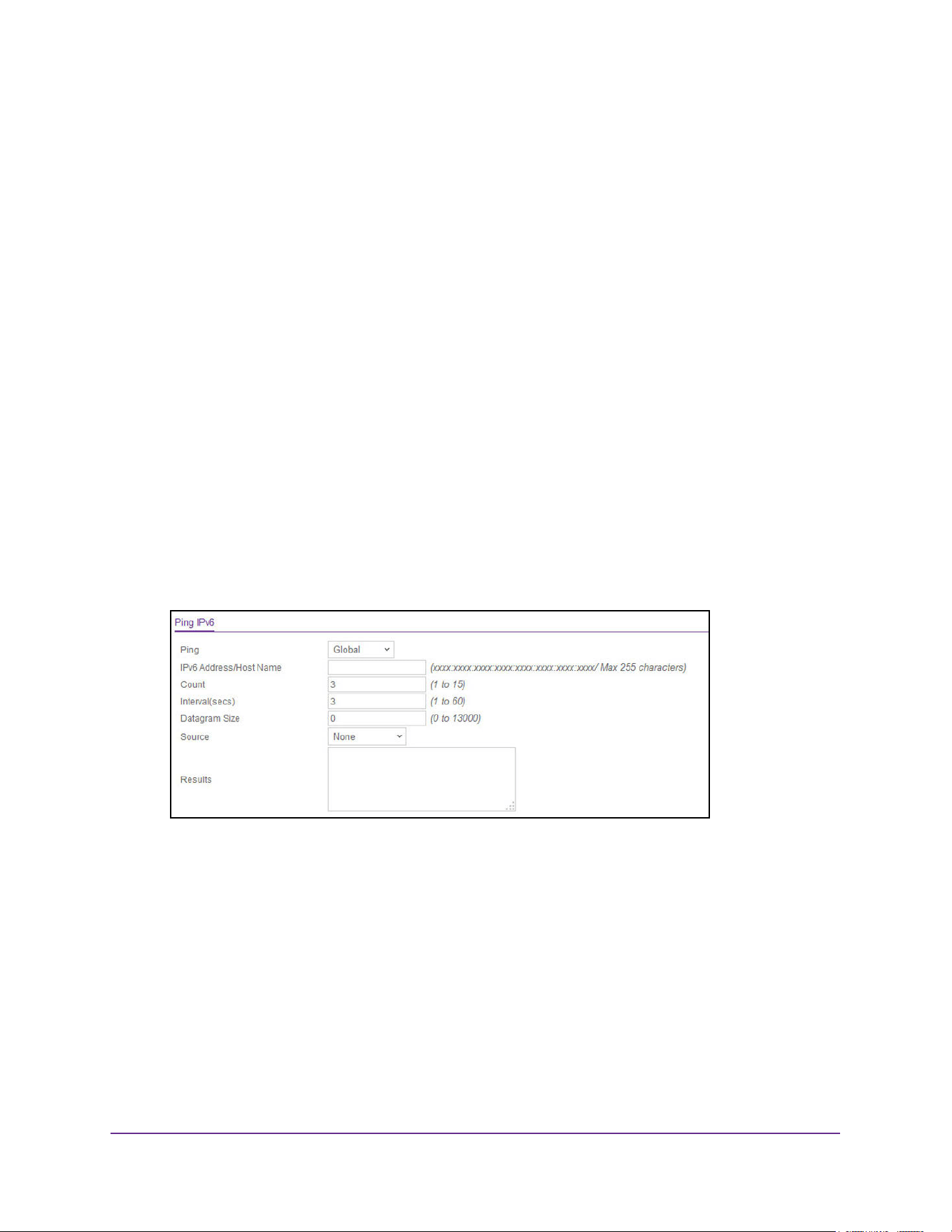
Maintenance and Troubleshooting
668
M4200 and M4300 Series ProSAFE Managed Switches Web Management User Manual
Ping IPv6
This page is used to send a ping request to a specified host name or IPv6 address. You can
use this to check whether the switch can communicate with a particular IPv6 station. When
you click the Apply button, the switch sends a specified number of ping requests and the
results are displayed below the configurable data. The output displays the following:
Send count=n, Receive count=n from (IPv6 Address). Average round trip
time = n ms.
To use Ping IPv6:
1. Launch a web browser.
2. Enter http://<ipaddress> in the web browser address field.
The login window opens.
3. Enter the user name and password.
The default admin user name is admin and the default admin password is blank, that is,
do not enter a password.
4. Click the Login button.
The System Information page displays.
5. Select Maintenance > Troubleshooting > Ping IPv6.
6. Select the Ping type from the list.
Possible values are as follows:
• Global. Ping a global IPv6 address.
• Link Local. Ping a link-local IPv6 address over the specified interface. This field is
shown when Interface is selected as the ping option.
7. Use IPv6 Address/Hostname to enter the IPv6 address or host name of the station for the
switch to ping.
The initial value is blank. The format is xxxx:xxxx:xxxx:xxxx:xxxx:xxxx:xxxx:xxxx. The
maximum number of characters is 255.
8. Use Count to enter the number of echo requests send.

Maintenance and Troubleshooting
669
M4200 and M4300 Series ProSAFE Managed Switches Web Management User Manual
The range is 1 to 15. The default value is 3.
9. Enter the Interval in seconds between ping packets.
The range is 1 to 60. The default value is 3.
10. Use Datagram Size to enter the datagram size.
The valid range is 0 to 13000. The default value is 0 bytes.
11. Enter the Source IP address or interface to use when sending the echo request packets.
If the source is not required, select None as the source option. Possible values are as
follows:
• None. The source address of the ping packet would be the address of the default
outgoing interface.
• IPv6 Address. The source IPv6 address to use when sending the echo request
packets. This field is shown when IPv6 Address is selected as the source option.
• Interface. The interface to use when sending the echo request packets. This field is
shown when Interface is selected as the source option.
Note: Values configured in the fields on this page are not saved to the switch.
As a result, refreshing the page sets these fields to the default values.
12. Click the Apply button.
Pings are sent to the specified IPv6 address or host name. The switch sends the number
of pings specified in the Count field, and the results are displayed below the configurable
data in the Results area.
Traceroute IPv4
Use this page to tell the switch to send a traceroute request to a specified IP address or host
name. You can use this to discover the paths packets take to a remote destination. Once you
click the Apply button, the switch sends traceroute and the results are displayed below the
configurable data.
If a reply to the traceroute is received, the following message displays:
1 e.f.g.h 9869 usec 9775 usec 10584 usec
2 0.0.0.0 0 usec * 0 usec * 0 usec *
3 0.0.0.0 0 usec * 0 usec * 0 usec *
Hop Count = j Last TTL = k Test attempt = m Test Success = n.
To configure the traceroute settings and send probe packets to discover the route to a
host on the network:
1. Launch a web browser.
2. Enter http://<ipaddress> in the web browser address field.
The login window opens.
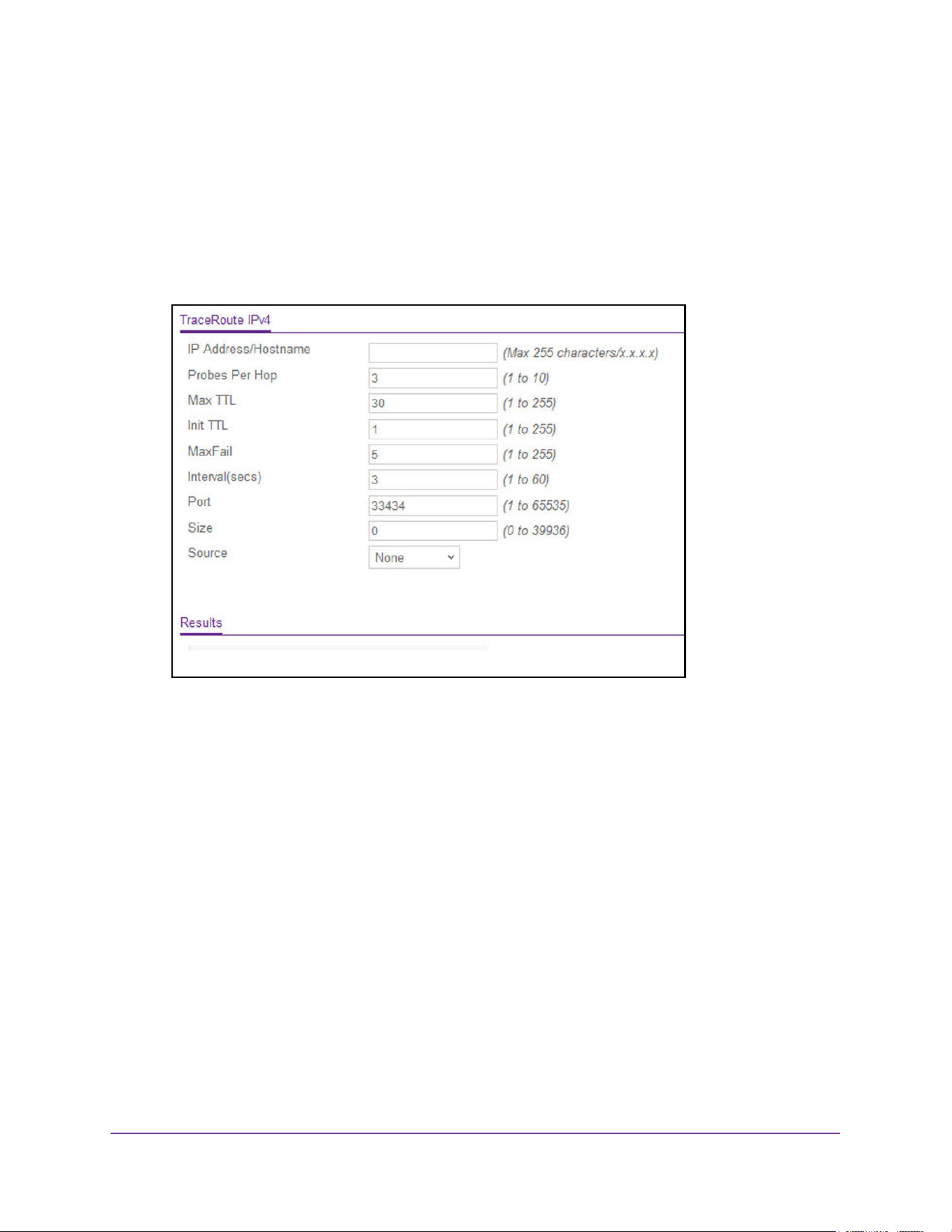
Maintenance and Troubleshooting
670
M4200 and M4300 Series ProSAFE Managed Switches Web Management User Manual
3. Enter the user name and password.
The default admin user name is admin and the default admin password is blank, that is,
do not enter a password.
4. Click the Login button.
The System Information page displays.
5. Select Maintenance > Troubleshooting > Traceroute IPv4.
6. Use IP Address/Hostname to enter the IP address or host name of the station to which you
want to discover a path.
The default value is blank.
7. Enter the number of Probes Per Hop.
The default value is 3. The range is 1 to 10.
8. Enter the Maximum TTL for the destination.
The default value is 30. The range is 1 to 255.
9. Enter the Initial TTL to be used.
The default value is 1. The range is 1 to 255.
10. Enter the Maximum Failures allowed in the session.
The default value is 5. The range is 1 to 255.
11. Interval (secs). Enter the time between probes in seconds.
The default value is 3. The range is 1 to 60.
12. Enter the UDP Destination Port in probe packets.

Maintenance and Troubleshooting
671
M4200 and M4300 Series ProSAFE Managed Switches Web Management User Manual
The default value is 33434. The range is 1- 65535.
13. Enter the Size of the probe packets.
The default value is 0. The range is 0 to 39936.
14. Enter the Source IP address or interface to use when sending the echo request packets.
If source is not required, select None as the source option. Possible values are as
follows:
• None. The source address of the ping packet would be the address of the default
outgoing interface.
• IP Address. The source IP address to use when sending the echo request packets.
This field is shown when IP Address is selected as the source option.
• Interface. The interface to use when sending the echo request packets. This field is
shown when Interface is selected as the source option.
Note: Values configured in the fields on this page are not saved to the switch.
As a result, refreshing the page sets these fields to the default values.
15. Click the Apply button.
A traceroute request is sent to the specified IP address or host name. The results are
displayed below the configurable data in the TraceRoute Results area.
The Results field displays the traceroute IPv4 result after the switch sends a traceroute
request to the specified IP address or host name.
Traceroute IPv6
Use this page to tell the switch to send a traceroute request to a specified IPv6 address or
host name. You can use this to discover the paths packets take to a remote destination.
Once you click the Apply button, the switch sends a traceroute and the results are displayed
below the configurable data.
If a reply to the traceroute is received, the following message displays:
1 a:b:c:d:e:f:g 9869 usec 9775 usec 10584 usec
2 0:0:0:0:0:0:0:0 0 usec * 0 usec * 0 usec *
Hop Count = p Last TTL = q Test attempt = r Test Success = s.
To use traceroute IPv6:
1. Launch a web browser.
2. Enter http://<ipaddress> in the web browser address field.
The login window opens.
3. Enter the user name and password.
The default admin user name is admin and the default admin password is blank, that is,
do not enter a password.
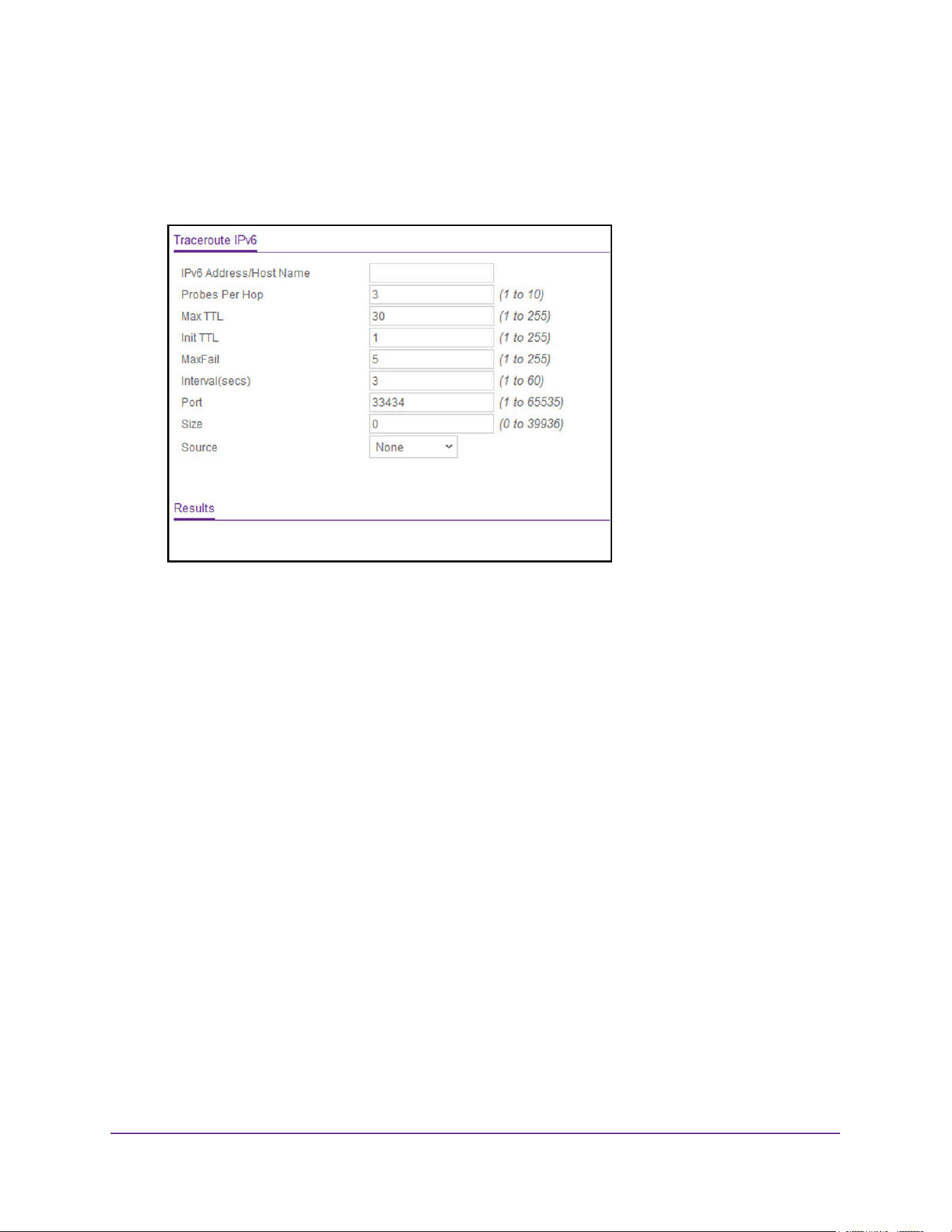
Maintenance and Troubleshooting
672
M4200 and M4300 Series ProSAFE Managed Switches Web Management User Manual
4. Click the Login button.
The System Information page displays.
5. Select Maintenance > Troubleshooting > Traceroute IPv6.
6. In the IPv6 Address/Hostname field, enter the IPv6 address or host name of the station to
which you want the switch to discover a path.
The initial value is blank. The IPv6 address or host name you enter is not retained across
a power cycle.
7. Enter the Probes Per Hop.
The default value is 3. The range is 1 to 10.
8. Enter the Maximum TTL for the destination.
The default value is 30. The range is 1 to 255. The MaxTTL you enter is not retained
across a power cycle.
9. Enter the Initial TTL to be used.
The default value is 1. The range is 1 to 255. The InitTTL you enter is not retained across
a power cycle.
10. Enter the Maximum Failures allowed in the session.
The default value is 5. The range is 1 to 255. The MaxFail you enter is not retained across
a power cycle.
11. Interval (secs) - Enter the time between probes in seconds.
The default value is 3. The range is 1 to 60. The interval that you enter is not retained
across a power cycle.
12. Enter the UDP Destination Port in probe packets.

Maintenance and Troubleshooting
673
M4200 and M4300 Series ProSAFE Managed Switches Web Management User Manual
The default value is 33434. The range is 1- 65535. The port you enter is not retained
across a power cycle.
13. Enter the Size of the probe packets.
The default value is 0. The range is 0 to 39936. The size you enter is not retained across
a power cycle.
14. Enter the Source IP address or interface to use when sending the echo request packets.
If source is not required, select None as the source option. Possible values are as
follows:
• None. The source address of the ping packet would be the address of the default
outgoing interface.
• IP Address. The source IP address to use when sending the echo request packets.
This field is shown when IP Address is selected as the source option.
• Interface. The interface to use when sending the echo request packets. This field is
shown when Interface is selected as the source option.
Note: Values configured in the fields on this page are not saved to the switch.
As a result, refreshing the page sets these fields to the default values.
15. Click the Apply button.
The traceroute begins. The results display in the TraceRoute area.
The Results field displays the traceroute IPv6 result after the switch sends a traceroute
request to the specified IP address or host name.
Packet Capturing
You can capture and store packets on a USB flash storage device.
To initiate packet capturing:
1. Launch a web browser.
2. Enter http://<ipaddress> in the web browser address field.
The login window opens.
3. Enter the user name and password.
The default admin user name is admin and the default admin password is blank, that is,
do not enter a password.
4. Click the Login button.
The System Information page displays.
5. Select Maintenance > Troubleshooting > Packet Capturing.
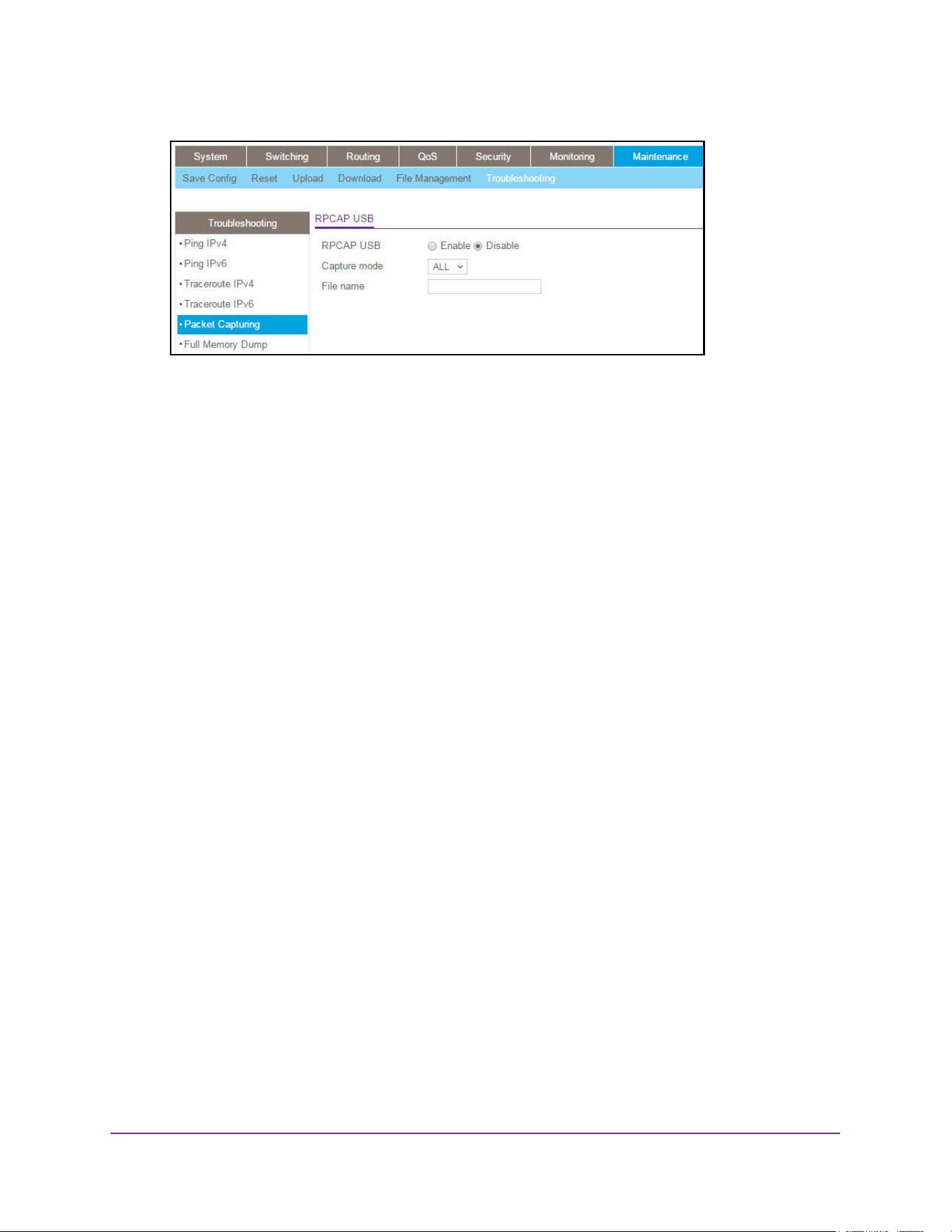
Maintenance and Troubleshooting
674
M4200 and M4300 Series ProSAFE Managed Switches Web Management User Manual
6. Next to RPCAP USB, select the Enable radio button.
7. From the Capture Mode menu, select the CPU traffic type:
• All. Capture all traffic. This option is the default setting.
• TX. Capture transmitted traffic only.
• RX. Capture received traffic only.
8. In the File Name field, enter the name of the USB file.
The file name cannot include the following symbols: '\/:*?”<>|'. You can enter up to
64 characters can be entered, which refers only to the filename length. That is, the
extension is added automatically. The factory default is blank.
9. To start the packet capture process, click the Apply button.
Packets are captured until you stop the process.
10. The stop the packet capture process, do the following:
a. Next to RPCAP USB, select the Disable radio button.
b. Click the Apply button.
The packet capture process stops.
Perform a Full Memory Dump
You can perform a full memory dump to retrieve the core dump for troubleshooting.
To perform a full memory dump:
1. Launch a web browser.
2. Enter http://<ipaddress> in the web browser address field.
The login window opens.
3. Enter the user name and password.
The default admin user name is admin and the default admin password is blank, that is,
do not enter a password.
4. Click the Login button.
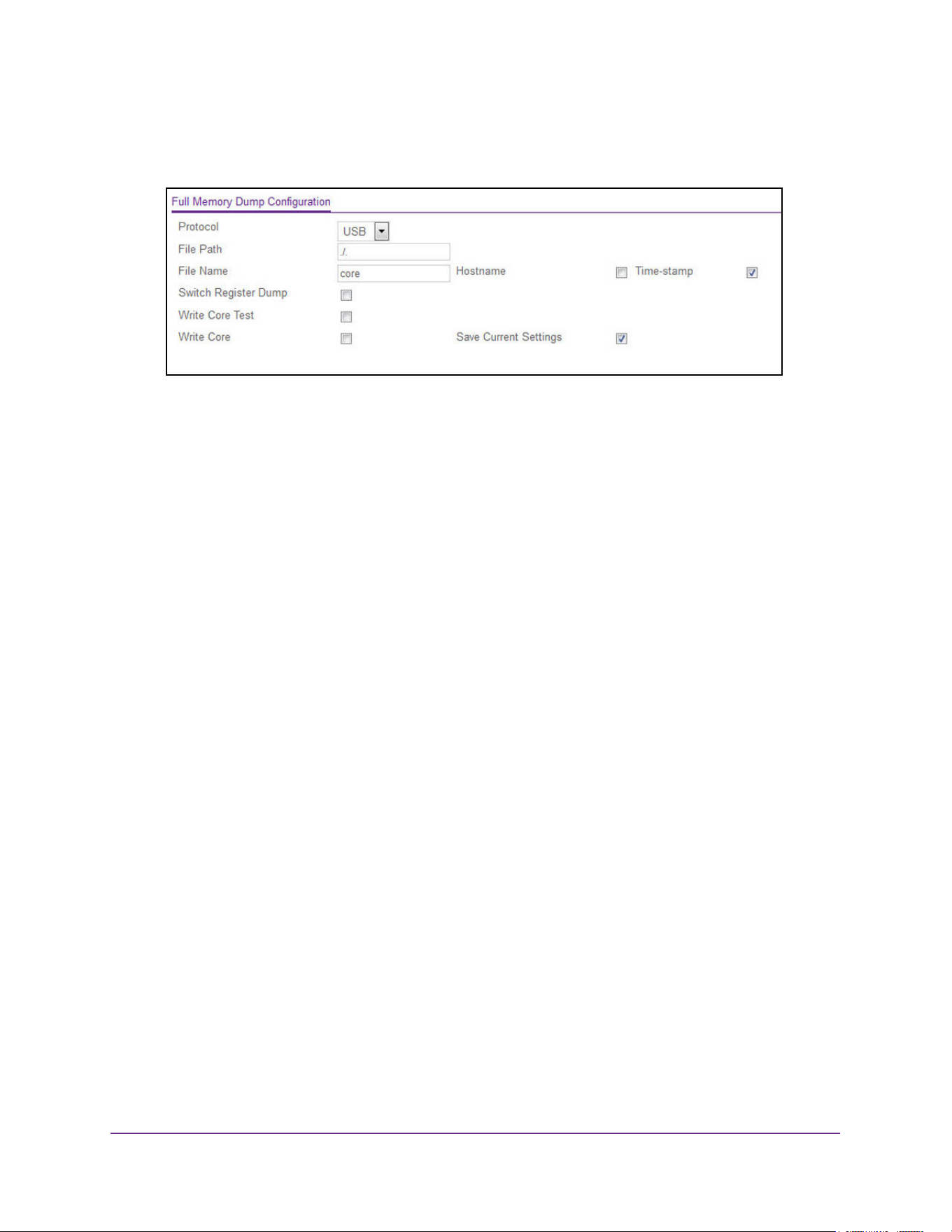
Maintenance and Troubleshooting
675
M4200 and M4300 Series ProSAFE Managed Switches Web Management User Manual
The System Information page displays.
5. Select Maintenance > Troubleshooting > Full Memory Dump.
6. From the Protocol menu, select the protocol used to store the core dump file.
Possible values are as follows:
• None. Disable core dump.
• TFTP. Set TFTP protocol.
• NFS. Set NFS protocol.
• USB. Set USB protocol.
7. In the File Path field, enter the path to the location to store the core dump file.
8. In the File Name field, enter the core dump file name.
9. Select the Hostname option to append the host name to the core dump file name.
10. Select the Time-stamp option to append a time-stamp to the core dump file name.
11. Select the Switch Register Dump option to dump the switch chip register in case of an
exception.
12. Select the Write Core Test option to test the core dump setup.
13. Select the Write Core option to create a core dump and store it to the previously configured
external server.
Executing this procedure causes a reload of the device.
14. Select the Save Current Settings option to save the current settings of the system.
15. Click the Apply button.
The memory dump is sent to the specified location.

676
A
A. Default Settings
This appendix describes the default settings for many of the NETGEAR switch software
features.
Table 228. Default Settings
Feature Default
IP address for management VLAN 169.254.100.100
Service port IP address 192.168.0.239
Subnet mask 255.255.0.0
Default gateway 0.0.0.0
Protocol DHCP
Management VLAN ID 1
Minimum password length Eight characters
IPv6 management Mode None
SNTP client Enabled
SNTP server Not configured
Global logging Enabled
CLI command logging Disabled
Console logging Enabled (Severity level: debug and above)
RAM logging Enabled (Severity level: debug and above)
Persistent (FLASH) logging Disabled
DNS Enabled (No servers configured)
SNMP Enabled (SNMPv1/SNMPv2, SNMPv3)
SNMP Traps Enabled
Auto Install Enabled
Default Settings
677
M4200 and M4300 Series ProSAFE Managed Switches Web Management User Manual
Auto Save Disabled
sFlow Enabled
ISDP Enabled (Versions 1 and 2)
RMON Enabled
TACACS Not configured
RADIUS Not configured
SSH/SSL Disabled
Telnet Enabled
Denial of Service Protection Disabled
Captive Portal Disabled
Dot1x Authentication
(IEEE 802.1X)
Disabled
MAC-based port security All ports are unlocked
Access control lists (ACL) None configured
IP source guard (IPSG) Disabled
DHCP snooping Disabled
Dynamic ARP inspection Disabled
Protected ports None
Private groups None
Flow control support
(IEEE 802.3x)
Disabled
Head of line blocking prevention Disabled
Maximum frame size 1518 bytes
Auto-MDI/MDIX support Enabled
Auto-negotiation Enabled
Advertised port speed Maximum Capacity
Broadcast storm control Enabled
Port mirroring Disabled
LLDP Enabled
LLDP-MED Enabled
Table 228. Default Settings (continued)
Feature Default

Default Settings
678
M4200 and M4300 Series ProSAFE Managed Switches Web Management User Manual
MAC table address aging 300 seconds (dynamic addresses)
DHCP Layer 2 relay Disabled
Default VLAN ID 1
Default VLAN name Default
GVRP Disabled
GARP timers Leave: 60 centiseconds
Leave All: 1000 centiseconds
Join: 20 centiseconds
Voice VLAN Disabled
Guest VLAN Disabled
RADIUS-assigned VLANs Disabled
Double VLANs Disabled
Spanning Tree Protocol (STP) Enabled
STP operation mode IEEE 802.1s RSTP
Optional STP features Disabled
STP bridge priority 32768
Multiple Spanning Tree Disabled
Link aggregation No Link Aggregation Groups (LAGs) configured
LACP system priority 1
Routing mode Disabled
IP helper and UDP relay Disabled
Tunnel and loopback interfaces None
DiffServ Enabled
Auto VoIP Disabled
Auto VoIP traffic class 6
MLD snooping Disabled
IGMP snooping Enabled
IGMP snooping querier Enabled
GMRP Disabled
Table 228. Default Settings (continued)
Feature Default


Configuration Examples
680
M4200 and M4300 Series ProSAFE Managed Switches Web Management User Manual
Virtual Local Area Networks (VLANs)
A local area network (LAN) can generally be defined as a broadcast domain. Hubs, bridges,
or switches in the same physical segment or segments connect all end node devices. End
nodes can communicate with each other without the need for a router. Routers connect LANs
together, routing the traffic to the appropriate port.
A virtual LAN (VLAN) is a local area network with a definition that maps workstations on
some basis other than geographic location (for example, by department, type of user, or
primary application). To enable traffic to flow between VLANs, traffic must go through a
router, just as if the VLANs were on two separate LANs.
A VLAN is a group of PCs, servers, and other network resources that behave as if they were
connected to a single network segment—even though they might not be. For example, all
marketing personnel might be spread throughout a building. Yet if they are all assigned to a
single VLAN, they can share resources and bandwidth as if they were connected to the same
segment. The resources of other departments can be invisible to the marketing VLAN
members, accessible to all, or accessible only to specified individuals, depending on how the
IT manager has set up the VLANs.
VLANs present a number of advantages:
• It is easy to do network segmentation. Users that communicate most frequently with each
other can be grouped into common VLANs, regardless of physical location. Each group’s
traffic is contained largely within the VLAN, reducing extraneous traffic and improving the
efficiency of the whole network.
• They are easy to manage. The addition of nodes, as well as moves and other changes,
can be dealt with quickly and conveniently from a management interface rather than from
the wiring closet.
• They provide increased performance. VLANs free up bandwidth by limiting node-to-node
and broadcast traffic throughout the network.
• They ensure enhanced network security. VLANs create virtual boundaries that can be
crossed only through a router. So standard, router-based security measures can be used
to restrict access to each VLAN.
Packets received by the switch are treated in the following way:
• When an untagged packet enters a port, it is automatically tagged with the port’s default
VLAN ID tag number. Each port has a default VLAN ID setting that is user configurable
(the default setting is 1). The default VLAN ID setting for each port can be changed in the
Port PVID Configuration page. See Configure Port PVID Settings on page 178.
• When a tagged packet enters a port, the tag for that packet is unaffected by the default
VLAN ID setting. The packet proceeds to the VLAN specified by its VLAN ID tag number.
• If the port through which the packet entered does not is not a member of the VLAN as
specified by the VLAN ID tag, the packet is dropped.
• If the port is a member of the VLAN specified by the packet’s VLAN ID, the packet can be
sent to other ports with the same VLAN ID.

Configuration Examples
681
M4200 and M4300 Series ProSAFE Managed Switches Web Management User Manual
• Packets leaving the switch are either tagged or untagged, depending on the setting for
that port’s VLAN membership properties. A U for a given port means that packets leaving
the switch from that port are untagged. Inversely, a T for a given port means that packets
leaving the switch from that port are tagged with the VLAN ID that is associated with the
port.
The example given in this section comprises numerous steps to illustrate a wide range of
configurations to help provide an understanding of tagged VLANs.
VLAN Configuration Examples
This example demonstrates several scenarios of VLAN use and describes how the switch
handles tagged and untagged traffic.
In this example, you create two new VLANs, change the port membership for default
VLAN 1, and assign port members to the two new VLANs:
1. In the Basic VLAN Configuration page (see Configure VLANs on page 169), create the
following VLANs:
• A VLAN with VLAN ID 10.
• A VLAN with VLAN ID 20.
2. In the VLAN Membership page (see Configure VLAN Membership on page 175) specify the
VLAN membership as follows:
• For the default VLAN with VLAN ID 1, specify the following members: port 7 (U) and
port 8 (U).
• For the VLAN with VLAN ID 10, specify the following members: port 1 (U), port 2 (U),
and port 3 (T).
• For the VLAN with VLAN ID 20, specify the following members: port 4 (U), port 5 (T),
and port 6 (U).
3. In the Port PVID Configuration page (see Configure Port PVID Settings on page 178),
specify the PVID for ports g1 and g4 so that packets entering these ports are tagged with
the port VLAN ID:
• Port g1: PVID 10
• Port g4: PVID 20
4. With the VLAN configuration that you set up, the following situations produce results as
described:
• If an untagged packet enters port 1, the switch tags it with VLAN ID 10. The packet
has access to port 2 and port 3. The outgoing packet is stripped of its tag to leave port
2 as an untagged packet. For port 3, the outgoing packet leaves as a tagged packet
with VLAN ID 10.
• If a tagged packet with VLAN ID 10 enters port 3, the packet has access to port 1 and
port 2. If the packet leaves port 1 or port 2, it is stripped of its tag to leave the switch
as an untagged packet.
• If an untagged packet enters port 4, the switch tags it with VLAN ID 20. The packet
has access to port 5 and port 6. The outgoing packet is stripped of its tag to become
an untagged packet as it leaves port 6. For port 5, the outgoing packet leaves as a
tagged packet with VLAN ID 20.

Configuration Examples
682
M4200 and M4300 Series ProSAFE Managed Switches Web Management User Manual
Access Control Lists (ACLs)
ACLs ensure that only authorized users can access specific resources while blocking off any
unwarranted attempts to reach network resources.
ACLs are used to provide traffic flow control, restrict contents of routing updates, decide
which types of traffic are forwarded or blocked, and provide security for the network. ACLs
are normally used in firewall routers that are positioned between the internal network and an
external network, such as the Internet. They can also be used on a router positioned between
two parts of the network to control the traffic entering or exiting a specific part of the internal
network. The added packet processing required by the ACL feature does not affect switch
performance. That is, ACL processing occurs at wire speed.
Access lists are a sequential collection of permit and deny conditions. This collection of
conditions, known as the filtering criteria, is applied to each packet that is processed by the
switch or the router. The forwarding or dropping of a packet is based on whether or not the
packet matches the specified criteria.
Traffic filtering requires the following two basic steps:
1. Create an access list definition.
The access list definition includes rules that specify whether traffic matching the criteria is
forwarded normally or discarded. Additionally, you can assign traffic that matches the
criteria to a particular queue or redirect the traffic to a particular port. A default deny all
rule is the last rule of every list.
2. Apply the access list to an interface in the inbound direction.
The switch software allow ACLs to be bound to physical ports and LAGs. The switch software
supports MAC ACLs and IP ACLs.
MAC ACL Sample Configuration
The following example shows how to create a MAC-based ACL that permits Ethernet traffic
from the Sales department on specified ports and denies all other traffic on those ports.
1. From the MAC ACL page, create an ACL with the name Sales_ACL for the Sales
department of your network (See Configure a Basic MAC ACL on page 587).
By default, this ACL is bound on the inbound direction, which means the switch will
examine traffic as it enters the port.
2. From the MAC Rules page, create a rule for the Sales_ACL with the following settings:
• ID: 1
• Action: Permit
• Assign Queue ID: 0
• Match Every: False
• CoS: 0
• Destination MAC: 01:02:1A:BC:DE:EF

Configuration Examples
683
M4200 and M4300 Series ProSAFE Managed Switches Web Management User Manual
• Destination MAC Mask: 00:00:00:00:FF:FF
• EtherType User Value:
• Source MAC: 02:02:1A:BC:DE:EF
• Source MAC Mask: 00:00:00:00:FF:FF
• VLAN ID: 2
For more information about MAC ACL rules, see Configure MAC ACL Rules on
page 589.
3. From the MAC Binding Configuration page, assign the Sales_ACL to the interface gigabit
ports 6, 7, and 8, and then click the Apply button. (See Configure MAC Binding on
page 591.)
You can assign an optional sequence number to indicate the order of this access list
relative to other access lists if any are already assigned to this interface and direction.
4. The MAC Binding Table displays the interface and MAC ACL binding information (See View
and Delete MAC ACL Bindings in the MAC Binding Table on page 593).
The ACL named Sales_ACL looks for Ethernet frames with destination and source MAC
addresses and MAC masks defined in the rule. Also, the frame must be tagged with VLAN ID
2, which is the Sales department VLAN. The CoS value of the frame must be 0, which is the
default value for Ethernet frames. Frames that match this criteria are permitted on interfaces
6, 7, and 8 and are assigned to the hardware egress queue 0, which is the default queue. All
other traffic is explicitly denied on these interfaces. To allow additional traffic to enter these
ports, you must add a new permit rule with the desired match criteria and bind the rule to
interfaces 6, 7, and 8.
Standard IP ACL Sample Configuration
The following example shows how to create an IP-based ACL that prevents any IP traffic
from the Finance department from being allowed on the ports that are associated with other
departments. Traffic from the Finance department is identified by each packet’s network IP
address.
1. From the IP ACL page, create a new IP ACL with an IP ACL ID of 1 (See Configure an
IP ACL on page 594).
2. From the IP Rules page, create a rule for IP ACL 1 with the following settings:
• Rule ID: 1
• Action: Deny
• Assign Queue ID: 0 (optional: 0 is the default value)
• Match Every: False
• Source IP Address: 192.168.187.0
• Source IP Mask: 255.255.255.0
For additional information about IP ACL rules, see Configure Rules for an IP ACL on
page 595.
3. Click the Add button.

Configuration Examples
684
M4200 and M4300 Series ProSAFE Managed Switches Web Management User Manual
4. From the IP Rules page, create a second rule for IP ACL 1 with the following settings:
• Rule ID: 2
• Action: Permit
• Match Every: True
5. Click the Add button.
6. From the IP Binding Configuration page, assign ACL ID 1 to the interface gigabit ports 2, 3,
and 4, and assign a sequence number of 1 (See Configure IP ACL Interface Bindings on
page 610).
By default, this IP ACL is bound on the inbound direction, so it examines traffic as it
enters the switch.
7. Click the Apply button.
8. Use the IP Binding Table page to view the interfaces and IP ACL binding information (See
View and Delete IP ACL Bindings in the IP ACL Binding Table on page 612).
The IP ACL in this example matches all packets with the source IP address and subnet mask
of the Finance department's network and deny it on the Ethernet interfaces 2, 3, and 4 of the
switch. The second rule permits all non-Finance traffic on the ports. The second rule is
required because there is an explicit deny all rule as the lowest priority rule.
Differentiated Services (DiffServ)
Standard IP-based networks are designed to provide best effort data delivery service. Best
effort service implies that the network deliver the data in a timely fashion, although there is no
guarantee that it will. During times of congestion, packets might be delayed, sent
sporadically, or dropped. For typical Internet applications, such as e-mail and file transfer, a
slight degradation in service is acceptable and in many cases unnoticeable. However, any
degradation of service has undesirable effects on applications with strict timing requirements,
such as voice or multimedia.
Quality of Service (QoS) can provide consistent, predictable data delivery by distinguishing
between packets with strict timing requirements from those that are more tolerant of delay.
Packets with strict timing requirements are given special treatment in a QoS-capable
network. With this in mind, all elements of the network must be QoS-capable. If one node
cannot meet the necessary timing requirements, this creates a deficiency in the network path
and the performance of the entire packet flow is compromised.
There are two basic types of QoS:
• Integrated Services: network resources are apportioned based on request and are
reserved (resource reservation) according to network management policy (RSVP, for
example).
• Differentiated Services: network resources are apportioned based on traffic classification
and priority, giving preferential treatment to data with strict timing requirements.

Configuration Examples
685
M4200 and M4300 Series ProSAFE Managed Switches Web Management User Manual
The DiffServ feature contains a number of conceptual QoS building blocks you can use to
construct a differentiated service network. Use these same blocks in different ways to build
other types of QoS architectures.
There are 3 key QoS building blocks needed to configure DiffServ:
• Class
• Policy
• Service (the assignment of a policy to a directional interface)
Class
You can classify incoming packets at Layers 2, 3 and 4 by inspecting the following
information for a packet:
• Source/destination MAC address
• EtherType
• Class of Service (802.1p priority) value (first/only VLAN tag)
• VLAN ID range (first/only VLAN tag)
• Secondary 802.1p priority value (second/inner VLAN tag)
• Secondary VLAN ID range (second/inner VLAN tag)
• IP Service Type octet (also known as: ToS bits, Precedence value, DSCP value)
• Layer 4 protocol (TCP, UDP and so on)
• Layer 4 source/destination ports
• Source/destination IP address
From a DiffServ point of view, there are two types of classes:
• DiffServ traffic classes
• DiffServ service levels/forwarding classes
DiffServ Traffic Classes
With DiffServ, you define which traffic classes to track on an ingress interface. You can define
simple BA classifiers (DSCP) and a wide variety of multi-field (MF) classifiers:
• Layer 2; Layers 3, 4 (IP only)
• Protocol-based
• Address-based
You can combine these classifiers with logical AND or OR operations to build complex
MF-classifiers (by specifying a class type of all or any, respectively). That is, within a single
class, multiple match criteria are grouped together as an AND expression or a sequential OR
expression, depending on the defined class type. Only classes of the same type can be
nested; class nesting does not allow for the negation (exclude option) of the referenced
class.

Configuration Examples
686
M4200 and M4300 Series ProSAFE Managed Switches Web Management User Manual
To configure DiffServ, you must define service levels, namely the forwarding classes/PHBs
identified by a given DSCP value, on the egress interface. These service levels are defined
by configuring BA classes for each.
Creating Policies
Use DiffServ policies to associate a collection of classes that you configure with one or more
QoS policy statements. The result of this association is referred to as a policy.
From a DiffServ perspective, there are two types of policies:
• Traffic Conditioning Policy: a policy applied to a DiffServ traffic class
• Service Provisioning Policy: a policy applied to a DiffServ service level
You must manually configure the various statements and rules used in the traffic conditioning
and service provisioning policies to achieve the desired Traffic Conditioning Specification
(TCS) and the Service Level Specification (SLS) operation, respectively.
Traffic Conditioning Policy
Traffic conditioning pertains to actions performed on incoming traffic. There are several
distinct QoS actions associated with traffic conditioning:
• Dropping. Drop a packet upon arrival. This is useful for emulating access control list
operation using DiffServ, especially when DiffServ and ACL cannot co-exist on the same
interface.
• Marking IP DSCP or IP Precedence. Marking/re-marking the DiffServ code point in a
packet with the DSCP value representing the service level associated with a particular
DiffServ traffic class. Alternatively, the IP Precedence value of the packet can be
marked/re-marked.
• Marking CoS (802.1p). Sets the three-bit priority field in the first/only 802.1p header to a
specified value when packets are transmitted for the traffic class. An 802.1p header is
inserted if it does not already exist. This is useful for assigning a Layer 2 priority level
based on a DiffServ forwarding class (such as the DSCP or IP precedence value)
definition to convey some QoS characteristics to downstream switches which do not
routinely look at the DSCP value in the IP header.
• Policing. A method of constraining incoming traffic associated with a particular class so
that it conforms to the terms of the TCS. Special treatment can be applied to out-of-profile
packets that are either in excess of the conformance specification or are non-conformant.
The DiffServ feature supports the following types of traffic policing treatments (actions):
• drop. The packet is dropped
• mark cos. The 802.1p user priority bits are (re)marked and forwarded
• mark dscp. The packet DSCP is (re)marked and forwarded
• mark prec. The packet IP Precedence is (re)marked and forwarded
• send: the packet is forwarded without DiffServ modification
Color Mode Awareness. Policing in the DiffServ feature uses either color blind or color
aware mode. Color blind mode ignores the coloration (marking) of the incoming packet.

Configuration Examples
687
M4200 and M4300 Series ProSAFE Managed Switches Web Management User Manual
Color aware mode takes into consideration the current packet marking when determining
the policing outcome. An auxiliary traffic class is used in conjunction with the policing
definition to specify a value for one of the 802.1p, secondary 802.1p, IP DSCP, or IP
Precedence fields designating the incoming color value to be used as the conforming
color. The color of exceeding traffic can be optionally specified as well.
• Counting. Updating octet and packet statistics to keep track of data handling along traffic
paths within DiffServ. In this DiffServ feature, counters are not explicitly configured by the
user, but are designed into the system based on the DiffServ policy being created. See
the Statistics section of this document for more details.
• Assigning QoS Queue. Directs traffic stream to the specified QoS queue. This allows a
traffic classifier to specify which one of the supported hardware queues are used for
handling packets belonging to the class.
• Redirecting. Forces classified traffic stream to a specified egress port (physical or LAG).
This can occur in addition to any marking or policing action. It can also be specified along
with a QoS queue assignment.
DiffServ Example Configuration
To create a DiffServ Class/Policy and attach it to a switch interface, follow these steps:
1. From the QoS Class Configuration page, create a new class with the following settings:
• Class Name: Class1
• Class Type: All
For more information about this page, see Configure a DiffServ Class on page 467.
2. Click the Class1 hyperlink to view the DiffServ Class Configuration page for this class.
3. Configure the following settings for Class1:
• Protocol Type: UDP
• Source IP Address: 192.12.1.0
• Source Mask: 255.255.255.0
• Source L4 Port: Other, and enter 4567 as the source port value
• Destination IP Address: 192.12.2.0
• Destination Mask: 255.255.255.0
• Destination L4 Port: Other, and enter 4568 as the destination port value
For more information about this page, see Configure a DiffServ Class on page 467.
4. Click the Apply button.
5. From the Policy Configuration page, create a new policy with the following settings:
• Policy Selector: Policy1
• Member Class: Class1
For more information about this page, see Configure DiffServ Policy on page 476.
6. Click the Add button.

Configuration Examples
688
M4200 and M4300 Series ProSAFE Managed Switches Web Management User Manual
The policy is added.
7. Click the Policy1 hyperlink to view the Policy Class Configuration page for this policy.
8. Configure the Policy attributes as follows:
• Assign Queue: 3
• Policy Attribute: Simple Policy
• Color Mode: Color Blind
• Committed Rate: 1000000 Kbps
• Committed Burst Size: 128 KB
• Confirm Action: Send
• Violate Action: Drop
For more information about this page, see Configure DiffServ Policy on page 476.
9. From the Service Configuration page, select the check box next to interfaces g7 and g8 to
attach the policy to these interfaces, and then click the Apply button. (See Configure the
DiffServ Service Interface on page 479.)
All UDP packet flows destined to the 192.12.2.0 network with an IP source address from the
192.12.1.0 network that include a Layer 4 Source port of 4567 and Destination port of 4568
from this switch on ports 7 and 8 are assigned to hardware queue 3.
On this network, traffic from streaming applications uses UDP port 4567 as the source and
4568 as the destination. This real-time traffic is time sensitive, so it is assigned to a
high-priority hardware queue. By default, data traffic uses hardware queue 0, which is
designated as a best-effort queue.
Also the confirmed action on this flow is to send the packets with a committed rate of
1000000 Kbps and burst size of 128 KB. Packets that violate the committed rate and burst
size are dropped.
802.1X
Local Area Networks (LANs) are often deployed in environments that permit unauthorized
devices to be physically attached to the LAN infrastructure, or permit unauthorized users to
attempt to access the LAN through equipment already attached. In such environments you
might want to restrict access to the services offered by the LAN to those users and devices
that are permitted to use those services.
Port-based network access control makes use of the physical characteristics of LAN
infrastructures to provide a means of authenticating and authorizing devices attached to a
LAN port that has point-to-point connection characteristics and of preventing access to that
port in cases in which the authentication and authorization process fails. In this context, a port
is a single point of attachment to the LAN, such as ports of MAC bridges and associations
between stations or access points in IEEE 802.11 Wireless LANs.
The IEEE 802.11 standard describes an architectural framework within which authentication
and consequent actions take place. It also establishes the requirements for a protocol

Configuration Examples
689
M4200 and M4300 Series ProSAFE Managed Switches Web Management User Manual
between the authenticator (the system that passes an authentication request to the
authentication server) and the supplicant (the system that requests authentication), as well
as between the authenticator and the authentication server.
The switch support a guest VLAN, which allows unauthenticated users limited access to the
network resources.
Note: You can use QoS features to provide rate limiting on the guest VLAN
to limit the network resources the guest VLAN provides.
Another 802.1X feature is the ability to configure a port to Enable/Disable EAPoL packet
forwarding support. You can disable or enable the forwarding of EAPoL when 802.1X is
disabled on the device.
The ports of an 802.1X authenticator switch provide the means in which it can offer services
to other systems reachable through the LAN. Port-based network access control allows the
operation of a switch’s ports to be controlled to ensure that access to its services is only
permitted by systems that are authorized to do so.
Port access control provides a means of preventing unauthorized access by supplicants to
the services offered by a system. Control over the access to a switch and the LAN to which it
is connected can be desirable when you restrict access to publicly accessible bridge ports or
to restrict access to departmental LANs.
Access control is achieved by enforcing authentication of supplicants that are attached to an
authenticator's controlled ports. The result of the authentication process determines whether
the supplicant is authorized to access services on that controlled port.
A Port Access Entity (PAE) is able to adopt one of two distinct roles within an access control
interaction:
1. Authenticator: A Port that enforces authentication before allowing access to services
available through that Port.
2. Supplicant: A Port that attempts to access services offered by the Authenticator.
Additionally, there exists a third role:
3. Authentication server: Performs the authentication function necessary to check the
credentials of the Supplicant on behalf of the Authenticator.
All three roles are required for you to complete an authentication exchange.
The switch support the Authenticator role only, in which the PAE is responsible for
communicating with the Supplicant. The Authenticator PAE is also responsible for submitting
the information received from the Supplicant to the Authentication Server in order for the
credentials to be checked, which will determine the authorization state of the Port. The
Authenticator PAE controls the authorized/unauthorized state of the controlled Port
depending on the outcome of the RADIUS-based authentication process.
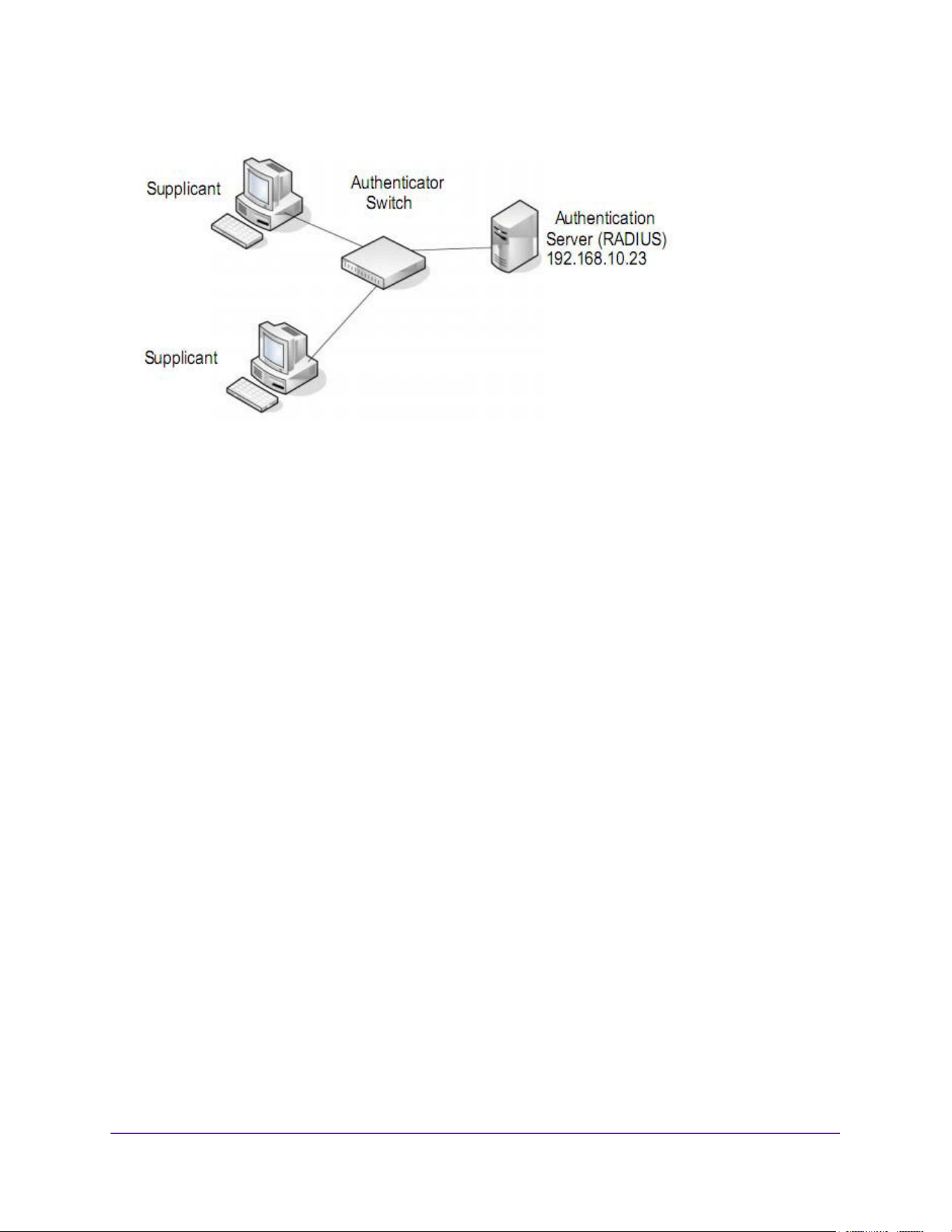
Configuration Examples
690
M4200 and M4300 Series ProSAFE Managed Switches Web Management User Manual
Figure 1. 802.1X Authentication Roles
802.1X Example Configuration
This example shows how to configure the switch so that 802.1X-based authentication is
required on the ports in a corporate conference room (1/0/5– 1/0/8). These ports are
available to visitors and must be authenticated before granting access to the network. The
authentication is handled by an external RADIUS server. When the visitor is successfully
authenticated, traffic is automatically assigned to the guest VLAN. This example assumes
that a VLAN has been configured with a VLAN ID of 150 and VLAN Name of Guest.
1. From the Port Authentication page, select ports 1/0/5, 1/0/6, 1/0/7 and 1/0/8.
2. From the Port Control menu, select Unauthorized.
The Port Control setting for all other ports where authentication is not needed should be
Authorized. When the Port Control setting is Authorized, the port is unconditionally put in
a force-Authorized state and does not require any authentication. When the Port Control
setting is Auto, the authenticator PAE sets the controlled port mode
3. In the Guest VLAN field for ports 1/0/5– 1/0/8, enter 150 to assign these ports to the guest
VLAN.
You can configure additional settings to control access to the network through the ports.
See Configure a Port Security Interface on page 539 for information about the settings.
4. Click the Apply button.
5. From the 802.1X Configuration page, set the Port Based Authentication State and Guest
VLAN mode to Enable, and then the Apply button (See Configure the Global Port Security
Mode on page 538).
This example uses the default values for the port authentication settings, but there are
several additional settings that you can configure. For example, the EAPOL Flood Mode
field allows you to enable the forwarding of EAPoL frames when 802.1X is disabled on
the device.

Configuration Examples
691
M4200 and M4300 Series ProSAFE Managed Switches Web Management User Manual
6. From the RADIUS Server Configuration page, configure a RADIUS server with the following
settings:
• Server Address: 192.168.10.23
• Secret Configured: Yes
• Secret: secret123
• Active: Primary
For more information, see Manage the RADIUS Server Settings on page 488.
7. Click the Add button.
8. From the Authentication List page, configure the default List to use RADIUS as the first
authentication method (See Configure a Login Authentication List on page 497).
This example enables 802.1X-based port security on the switch and prompts the hosts
connected on ports g5-g8 for an 802.1X-based authentication. The switch passes the
authentication information to the configured RADIUS server.
MSTP
Spanning Tree Protocol (STP) runs on bridged networks to help eliminate loops. If a bridge
loop occurs, the network can become flooded with traffic. IEEE 802.1s Multiple Spanning
Tree Protocol (MSTP) supports multiple instances of Spanning Tree to efficiently channel
VLAN traffic over different interfaces. Each instance of the Spanning Tree behaves in the
manner specified in IEEE 802.1w, Rapid Spanning Tree, with slight modifications in the
working but not the end effect (chief among the effects is the rapid transitioning of the port to
the Forwarding state).
The difference between the RSTP and the traditional STP (IEEE 802.1D) is the ability to
configure and recognize full duplex connectivity and ports that are connected to end stations,
resulting in rapid transitioning of the port to the Forwarding state and the suppression of
Topology Change Notification. These features are represented by the parameters
pointtopoint and edgeport. MSTP is compatible to both RSTP and STP. It behaves
appropriately to STP and RSTP bridges.
A MSTP bridge can be configured to behave entirely as a RSTP bridge or a STP bridge. So,
an IEEE 802.1s bridge inherently also supports IEEE 802.1w and IEEE 802.1D.
The MSTP algorithm and protocol provides simple and full connectivity for frames assigned
to any given VLAN throughout a Bridged LAN comprising arbitrarily interconnected
networking devices, each operating MSTP, STP or RSTP. MSTP allows frames assigned to
different VLANs to follow separate paths, each based on an independent Multiple Spanning
Tree Instance (MSTI), within Multiple Spanning Tree (MST) Regions composed of LANs and
or MSTP Bridges. These Regions and the other Bridges and LANs are connected into a
single Common Spanning Tree (CST). [IEEE DRAFT P802.1s/D13]
MSTP connects all Bridges and LANs with a single Common and Internal Spanning Tree
(CIST). The CIST supports the automatic determination of each MST region, choosing its
maximum possible extent. The connectivity calculated for the CIST provides the CST for
interconnecting these Regions, and an Internal Spanning Tree (IST) within each Region.

Configuration Examples
692
M4200 and M4300 Series ProSAFE Managed Switches Web Management User Manual
MSTP ensures that frames with a given VLAN ID are assigned to one and only one of the
MSTIs or the IST within the Region, that the assignment is consistent among all the
networking devices in the Region and that the stable connectivity of each MSTI and IST at
the boundary of the Region matches that of the CST. The stable active topology of the
Bridged LAN with respect to frames consistently classified as belonging to any given VLAN
thus simply and fully connects all LANs and networking devices throughout the network,
though frames belonging to different VLANs can take different paths within any Region, per
IEEE DRAFT P802.1s/D13.
All bridges, whether they use STP, RSTP or MSTP, send information in configuration
messages through Bridge Protocol Data Units (BPDUs) to assign port roles that determine
each port’s participation in a fully and simply connected active topology based on one or
more spanning trees. The information communicated is known as the spanning tree priority
vector. The BPDU structure for each of these different protocols is different. A MSTP bridge
will transmit the appropriate BPDU depending on the received type of BPDU from a particular
port.
An MST Region comprises of one or more MSTP Bridges with the same MST Configuration
Identifier, using the same MSTIs, and without any bridges attached that cannot receive and
transmit MSTP BPDUs. The MST Configuration Identifier has the following components:
1. Configuration Identifier Format Selector
2. Configuration Name
3. Configuration Revision Level
4. Configuration Digest: 16-byte signature of type HMAC-MD5 created from the MST
Configuration Table (a VLAN ID to MSTID mapping)
As there are Multiple Instances of Spanning Tree, there is a MSTP state maintained on a
per-port, per-instance basis (or on a per port per VLAN basis: as any VLAN can be in one
and only one MSTI or CIST). For example, port A can be forwarding for instance 1 while
discarding for instance 2. The port states changed since IEEE 802.1D specification.
To support multiple spanning trees, a MSTP bridge must be configured with an unambiguous
assignment of VLAN IDs (VIDs) to spanning trees. This is achieved by:
1. Ensuring that the allocation of VIDs to FIDs is unambiguous.
2. Ensuring that each FID supported by the Bridge is allocated to exactly one Spanning Tree
Instance.
The combination of VID to FID and then FID to MSTI allocation defines a mapping of VIDs to
spanning tree instances, represented by the MST Configuration Table.
With this allocation we ensure that every VLAN is assigned to one and only one MSTI. The
CIST is also an instance of spanning tree with a MSTID of 0.
An instance might occur that has no VIDs allocated to it, but every VLAN must be allocated to
one of the other instances of spanning tree.
The portion of the active topology of the network that connects any two bridges in the same
MST Region traverses only MST bridges and LANs in that region, and never Bridges of any
kind outside the Region, in other words connectivity within the region is independent of
external connectivity.
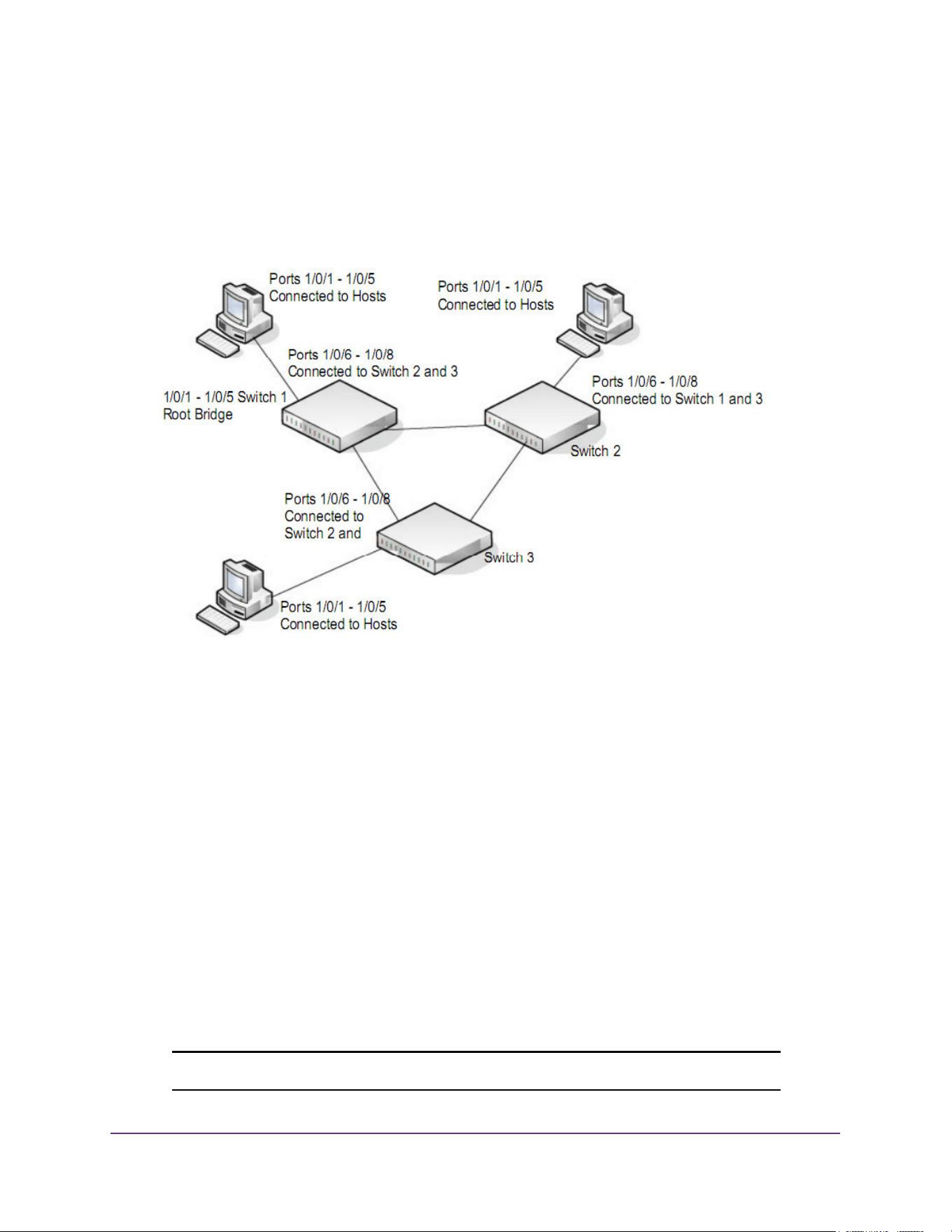
Configuration Examples
693
M4200 and M4300 Series ProSAFE Managed Switches Web Management User Manual
MSTP Example Configuration
This example shows how to create an MSTP instance on the switch. The example network
includes three different switches that serve different locations in the network. In this example,
ports 1/0/1-1/0/5 are connected to host stations, so those links are not subject to network
loops. Ports 1/0/6–1/0/8 are connected across switches 1, 2 and 3.
Figure 2. MSTP sample configuration
Perform the following procedures on each switch to configure MSTP:
1. Use the VLAN Configuration page to create VLANs 300 and 500 (see Configure Basic
VLAN Settings on page 169).
2. Use the VLAN Membership page to include ports 1/0/1–1/0/8 as tagged (T) or untagged (U)
members of VLAN 300 and VLAN 500 (see Configure Basic VLAN Settings on page 169).
3. From the STP Configuration page, enable the Spanning Tree State option (see Configure
Advanced STP Settings on page 204).
Use the default values for the rest of the STP configuration settings. By default, the STP
Operation mode is MSTP and the Configuration Name is the switch MAC address.
4. From the CST Configuration page, set the Bridge Priority value for each of the three
switches to force Switch 1 to be the root bridge:
• Switch 1: 4096
• Switch 2: 12288
• Switch 3: 20480
Note: Bridge priority values are multiples of 4096.

Configuration Examples
694
M4200 and M4300 Series ProSAFE Managed Switches Web Management User Manual
If you do not specify a root bridge and all switches are assigned the same bridge priority
value, the switch with the lowest MAC address is elected as the root bridge (see
Configure CST Settings on page 206).
5. From the CST Port Configuration page, select ports 1/0/1–1/0/8 and select Enable from the
STP Status menu (see Configure CST Port Settings on page 208).
6. Click the Apply button.
7. Select ports 1/0/1–1/0/5 (edge ports), and select Enable from the Fast Link menu.
Since the edge ports are not at risk for network loops, ports with Fast Link enabled
transition directly to the Forwarding state.
8. Click the Apply button.
You can use the CST Port Status page to view spanning tree information about each port.
9. From the MST Configuration page, create a MST instances with the following settings:
• MST ID: 1
• Priority: Use the default (32768)
• VLAN ID: 300
For more information, see Configure MST Settings on page 213.
10. Click the Add button.
11. Create a second MST instance with the following settings
• MST ID: 2
• Priority: 49152
• VLAN ID: 500
12. Click the Add button.
In this example, assume that Switch 1 has become the Root bridge for the MST instance 1,
and Switch 2 has become the Root bridge for MST instance 2. Switch 3 has hosts in the
Sales department (ports 1/0/1, 1/0/2, and 1/0/3) and in the HR department (ports 1/0/4 and
1/0/5). Switches 1 and 2 also include hosts in the Sales and Human Resources departments.
The hosts connected from Switch 2 use VLAN 500, MST instance 2 to communicate with the
hosts on Switch 3 directly. Likewise, hosts of Switch 1 use VLAN 300, MST instance 1 to
communicate with the hosts on Switch 3 directly.
The hosts use different instances of MSTP to effectively use the links across the switch. The
same concept can be extended to other switches and more instances of MSTP.

695
C
C. Acronyms and Abbreviations
In most cases, acronyms and abbreviations are defined on first use in this document. Acronyms
and abbreviations are also defined in the following table.
Table 229. Acronyms and Abbreviations
Acronym Definition
100BASE-TX Fast Ethernet at 100 Mbps (12.5 MBps) with auto-negotiation
1000BASE-T Gbps Ethernet over twisted pair a 1 Gbps (125 Mbps)
10GBASE-T Or IEEE 802.3an. A standard by the IEEE 802.3 committee to provide 10 Gigabits per
second (Gbps) (1,250 Megabit per Second (Mbps)) Ethernet connections over
conventional shielded or unshielded twisted pair (UTP) cables.
802.1x IEEE 802.1x Authentication Protocol Standard
ACE Access Control Entry
ACL Access Control List
API Application Programming Interface
ARP Address Resolution Protocol
AVB Audio Video Broadcast, Audio Video Bridging
BFD Bidirectional Forwarding Detection
BGP Border Gateway Protocol
Boot file The software image (typically a .stk file), which is intended to download and run on the
target NETGEAR ProSafe Managed device.
BSP Board Support Package
CDP Cisco Discovery Protocol
CE Control Element
CLI Command Line Interface
CoS Class of Service. An indication of how an upper-layer protocol requires a lower-layer
protocol to treat its messages. A CoS definition comprises a virtual route number and a
transmission priority field (ToS)

Acronyms and Abbreviations
696
M4200 and M4300 Series ProSAFE Managed Switches Web Management User Manual
DAPI Destination Access Point Identifier
DCVPN Data Center Virtual Private Network
Default Gateway The IP address of a router that a host can use as its first hop when the host does not
know a more specific route to a given destination.
Default Route A manually configured (static) route whose destination is 0.0.0.0/0.0.0.0 and therefore
matches every packet’s destination. A router uses a default route to forward packets that
do not match a more specific route.
DHCP Dynamic Host Configuration Protocol (RFC 2131, RFC3315). A mechanism for
allocating IP addresses dynamically so that addresses can be reused when hosts no
longer need them.
DHCP Server Dynamic Host Configuration Protocol Servers are servers that grant the address and do
parameter assignment to requested clients in the network. Current interest is that these
servers provide TFTP server and boot file information.
DLL Data Link Layer
DNS Server Domain Name System servers that provide the IP address mapping to the name of the
hosts.
DSCP Differentiated Services Code Point
DTL Device Transformation Layer
DTP Dynamic Trunking Protocol
EAP Extensible Authentication Protocol
EAPOL Extensible Authentication Protocol over LAN
ECMP Equal Cost Multiple Paths
EEE Energy Efficient Ethernet (from the IEEE 802.3az Energy Efficient Ethernet Task Force
and IEEE 802.3az Energy Efficient Ethernet Study Group).
EFP Egress Filter Processor
FDB Forwarding Database
HAPI Hardware Application Programming Interface
Host Interface An IP interface that is not a routing interface. Only locally-originated packets are sent on
a host interface. Only packets with a local destination are received. Host interfaces do
not participate in dynamic routing protocols.
HTTP Hypertext Transfer Protocol
HTTPS Hypertext Transfer Protocol Secure
IAS Internal Authentication Server
IFP Ingress Filter Processor
Table 229. Acronyms and Abbreviations (continued)
Acronym Definition

Acronyms and Abbreviations
697
M4200 and M4300 Series ProSAFE Managed Switches Web Management User Manual
IGMP Internet Group Management Protocol
In-band Interface An IP interface that could be used for in-band management. Any IP interface other than
the Out-of-Band port.
IP Internet Protocol
IP Address Owner The VRRP router that has the virtual router’s IP address(es) as real interface
address(es). This is the router that, when up, will respond to packets addressed to one
of these IP addresses for ICMP pings, TCP connections, and so on
IP Interface An interface configured as an IP interface rather than a Layer 2 switching interface. An
IP interface must be assigned one or more IP addresses. Also called a Layer 3 interface.
IP MAP The NETGEAR ProSafe Managed component that manages global and per-interface
IPv4 configuration. IP MAP manages the configuration of static and default routes. IP
MAP adds and removes local, static, and default routes from RTO.
IP6MAP The IPv6 equivalent of IP MAP.
IPv4 Internet Protocol Version 4
IPv6 Internet Protocol Version 6
ISDP Industry Standard Discovery Protocol
ISID Initiator-defined session identifier
L2 Layer 2 (networking)
L3 Layer 3 (networking)
LAG Link Aggregation Group (IEEE standard)
LLDP Link Layer Discovery Protocol
LLPF Link Local Protocol Filtering
Local Route A route to an attached subnet. A router creates a local route for each active,
locally-configured IP address and uses the local route to reach other stations on the
attached subnet.
LPI Low-power Idle
MAB MAC Authentication Bypass
MAC Media Access Control
Management
Interface
An external IP interface used to send and receive IP packets to configure and monitor
the device.
Management VLAN A VLAN configured to be used for management rather than control or data traffic.
MFDB Multicast Forwarding Database
MIB Management Information Base
Table 229. Acronyms and Abbreviations (continued)
Acronym Definition

Acronyms and Abbreviations
698
M4200 and M4300 Series ProSAFE Managed Switches Web Management User Manual
MLAG Multi-switch Link Aggregation
MMU Memory Management Unit
MPLS Multiprotocol Label Switching: A standard involving IP quality.
MUA Message User Agent
MVR Multicast VLAN Registration
N/A not applicable
N_IDLE Normal IDLE
NAS Network Access Server, Network Application Support
NMS Network Management System
NSF Nonstop Forwarding
OTP One-Time Password
PA Policy Assisted
PAE Port Access Entity
PD Powered Device
PDU Protocol Data Unit
PIM-DM Protocol-Independent Multicast Dense mode
PIM-SM Protocol-Independent Multicast Sparse mode
Primary IP Address An IP address selected from the set of real interface addresses. One possible selection
algorithm is to always select the first address. VRRP advertisements are always sent
using the primary IP address as the source of the IP packet.
PoE Power over Ethernet. Corresponds to the IEEE 802.3AF standard which supports power
delivery of up to 15.4W per port.
PoE+ Power over Ethernet Plus. Corresponds to the IEEE 802.3AT standard which supports
power delivery of up to 34.2W per port.
PSE Power Sourcing Equipment
PVST+ Per VLAN Spanning Tree Plus
PVSTP Per VLAN Rapid Spanning Tree Protocol
QoS Quality of Service
RADIUS Remote Authentication Dial-in User Service
RED Random Early Discard
Table 229. Acronyms and Abbreviations (continued)
Acronym Definition

Acronyms and Abbreviations
699
M4200 and M4300 Series ProSAFE Managed Switches Web Management User Manual
Routing Interface An IP interface whose physical ports are front panel ports and associated with a VLAN.
Packets received on a routing interface can be transmitted on a different VLAN than they
were received on.
RTC Real-time Clock
RTO NETGEAR ProSafe Managed routing table manager
SDM Switch Database Management
Service Port An IP interface on an Ethernet interface that is separate from the front panel ports. The
service port is dedicated to management. The service port has its own independent
interface to the IP stack. The service port is a host interface.
SM state machine
SMTP Simple Mail Transfer Protocol
SNTP Simple Network Time Protocol
SP Strict Priority
SSTP Shared Spanning Tree Protocol
TFTP Trivial File Transfer Protocol
TFTP Server Trivial File Transfer Protocol Servers are servers that hold the requested configuration
and/or image files for requested clients.
TLV Type-Length-Value
UDLD Uni-Directional Link Detection
UI User Interface
UPoE Universal Power over Ethernet. No IEEE standard exists yet for UPoE. NETGEAR UPoE
supports power delivery of up to 60W per port.
USB Universal Serial Bus
Virtual Router An abstract object managed by VRRP that acts as a default router for hosts on a shared
LAN. It consists of a virtual router identifier and a set of associated IP address(es)
across a common LAN. A VRRP router can backup one or more virtual routers
Virtual Router
Backup
The set of VRRP routers available to assume forwarding responsibility for a virtual router
if the current Master fails.
Virtual Router Master The VRRP router that is assuming the responsibility of forwarding packets sent to the IP
address(es) associated with the virtual router, and answering ARP requests for these IP
addresses. Note that if the IP address owner is available, then it will always become the
Master.
VLAN Virtual Local Area Network
Table 229. Acronyms and Abbreviations (continued)
Acronym Definition
Acronyms and Abbreviations
700
M4200 and M4300 Series ProSAFE Managed Switches Web Management User Manual
VRRP Router A router running the Virtual Router Redundancy Protocol. It can participate in one or
more virtual routers.
VTP VLAN Trunking Protocol
Table 229. Acronyms and Abbreviations (continued)
Acronym Definition