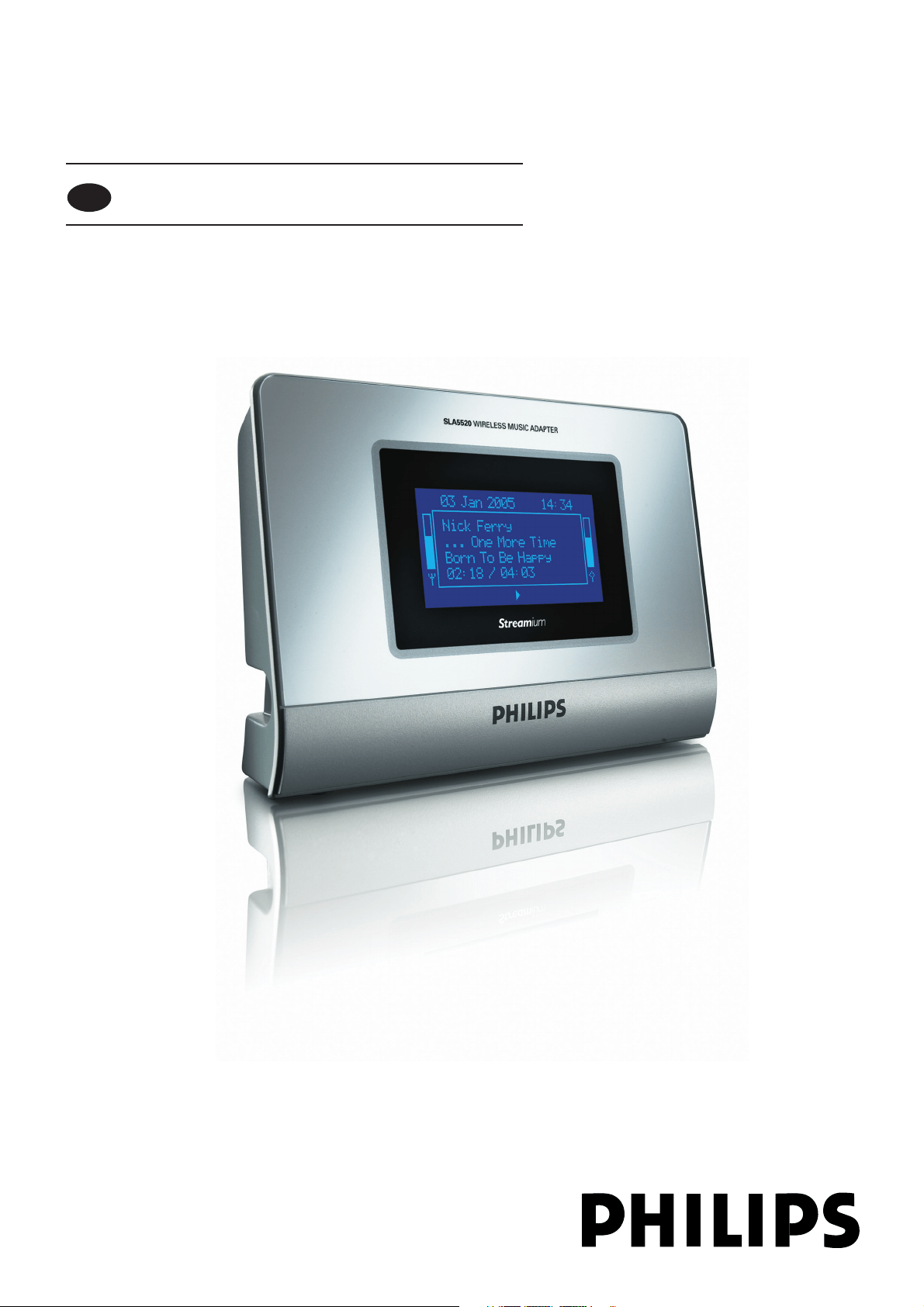
Wireless Music Adapter SLA5520
User manual 3
EN

2
Need help?
For the latest support information, see on-line help: www.philips.com/support
1 Start your internet browser.
2 Enter www.philips.com/support
3 Select Go.
4 Search for product information.
The type number of this product is: SLA5520.
Troubleshooting, see page 26-27.
Contact lineCountryTelephone number
Country Telephone number
Austria...........................................................0820 901115 € 0,20
Belgium
.........................................................070 253 010 € 0,17
Canada - English / Español............1-888-PHILIPS (744-5477)
Canada - Français............................1-800-661-6162
Denmark
......................................................3625 8761
Finland
...........................................................09 2290 1908
France
............................................................08 9165 0006 € 0,23
Germany
......................................................0180 5 007 532 € 0,12
Greece
.........................................................0 0800 3122 1223
Ireland
..........................................................01 601 1161
Italy .....................................................199 404 042
€ 0,25
Luxemburg
..................................................26 84 30 00
Netherlands
...............................................0900 0400 063 € 0,20
Norway
.........................................................2270 8250
Portugal
........................................................2 1359 1440
Spain
................................................................902 888 785 € 0,15
Sweden
..........................................................08 632 00 16
Switzerland
.................................................02 2310 2116
UK
....................................................................0906 1010 017 £ 0.15
USA
.................................................................1-888-PHILIPS (744-5477)
The making of unauthorized copies of copy-protected material, including computer
programmes, files, broadcasts and sound recordings, may be an infringement of
copyrights and constitute a criminal offence. This equipment should not be used for
such purposes.

EN
3
Contents
Page
Important information.......................................................4-5
Important safety information....................................................................................................4
European regulations ..................................................................................................................5
U.S. statements.............................................................................................................................5
What’s in the box ..................................................................6
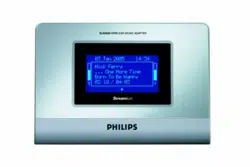
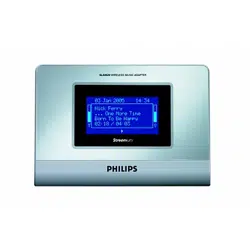
Your Wireless Music Adapter ..............................................7
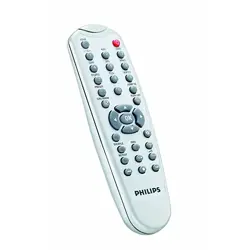
Your Remote Control ...........................................................8
Install..................................................................................9-12
Install the software on the computer.....................................................................................9
Install the SLA5520 ...................................................................................................................11
Connect ...........................................................................13-14
Enjoy.................................................................................15-20
Basic navigation..........................................................................................................................15
Local services .............................................................................................................................17
Internet services........................................................................................................................20
Settings menu .................................................................21-25
Troubleshooting .............................................................26-27
Additional network information ........................................28
Security ........................................................................................................................................28
Additional information........................................................29
Technical information .........................................................30
Microsoft disclaimer regarding Protected Content ........31
Glossary ...........................................................................32-37
Guarantee.............................................................................38
EC declaration of conformity.............................................39
EN
4
• Keep this user manual for future reference.
•Make sure to follow the set-up procedure described in this user manual. This assures
best installation results with the least technical hassles.
• During set-up and installation, it may be helpful to have the instructions for your audio
system, wireless base station or other wireless network components at hand.
•Make sure the wireless network operates in 802.11b and/or 802.11g mode.
• The most recent downloads and information on the SLA5520 will be available through
our website: www.philips.com/support.
• Broadband internet access (minimum 256 kbit/s) is required if you want to use the
internet functions of the SLA5520.
• Please check whether your Internet Service Provider charges extra fees for exceeding a
certain limit of transferred data. When using Internet media services on a daily basis, you
may exceed such a limit.
Example - When you listen to Internet radio (64 kbit/s) for about 36 hours,
1 GB (gigabyte) of data will be transferred to your SLA5520.
Important safety information
• NEVER MAKE OR CHANGE CONNECTIONS WITH THE POWER SWITCHED ON.
• Before operating the system, check that the operating voltage indicated on the
nameplate of your system is identical with the voltage of your local power supply.
If not, consult your dealer.
• Radio equipment for wireless applications is not protected against disturbance from
other radio services.
• When the system is switched to standby mode, it is still consuming some power.
To disconnect the system from the power supply completely, remove the adapter from
the power outlet.
• The product should not be exposed to liquids.
No object filled with liquids, such as vases or beverage containers, should be placed near
the product.
•Do not expose the system to excessive moisture, rain, sand or
heat sources caused by heating equipment or direct sunlight.
• Allow a sufficient amount of free space all around the SLA5520 for adequate ventilation.
• Do not open the product.
Contact your Philips dealer if you experience technical difficulties.
Important information

EN
5
European regulations
This product has been designed, tested and manufactured according to the European
R&TTE directive 1999/5/EC.
Under this directive, this product can be put into service in the following states:
SLA5520/00 SLA5520/05
R&TTE Directive 1995/5 R&TTE Directive 1995/5
U.S. Statements
• This equipment has been tested and found to comply with the limits for a Class B digital
device, pursuant to Part 15 of the FCC Rules. These limits are designed to provide
reasonable protection against harmful interference in a residential installation.
This equipment generates, uses and can radiate radio frequency energy and, if not
installed and used in accordance with the instructions, may cause harmful interference to
radio communications. However, there is no guarantee that interference will not occur in
a particular installation. If this equipment does cause harmful interference to radio or
television reception, which can be determined by turning the equipment off and on, the
user is encouraged to try to correct the interference by one or more of the following
measures:
- Reorient or relocate the SLA5520.
- Increase the separation between the equipment and receiver.
- Connect the equipment into an outlet on a circuit different from that to which the
receiver is connected.
- Consult the dealer or an experienced radio/TV technician for help.
• This device complies with Part 15 of the FCC Rules and with RSS-210 of Industry
Canada. Operation is subject to the following two conditions:
1) this device my not cause harmful interference, and
2) this device must accept any interference received, including interference that may
cause undesired operation.
• The users manual or instruction manual for an intentional or unintentional radiator shall
caution the user that changes or modifications not expressly approved by the party
responsible for compliance could void the user's authority to operate the equipment.
Example:
Warning: Changes or modifications made to this equipment not expressly approved by
Philips may void the FCC authorization to operate this equipment.
IMPORTANT NOTE: FCC Radiation Exposure Statement:
This equipment complies with FCC radiation exposure limits set forth for an
uncontrolled environment. This equipment should be installed and operated with
minimum distance 20 cm between the radiator and your body.This transmitter must not
be co-located or operating in conjunction with any other antenna or transmitter.
– The FCC ID of the equipment is: OYMSLA5520;
– The IC of the equipment is: 135M-SLA5520
CAUTION
Risk of explosion if battery is replaced by an incorrect type.
Dispose of used batteries according to the instructions.
BE ✔
IRE
PT
✔
DE ✔
DK ✔
IT ✔
FI ✔
CH ✔
GR ✔
LU ✔
SE ✔
ES ✔
NL ✔
UK
FR
✔
AT ✔
NO ✔
BE
IRE
✔
PT
DE
DK
IT
FI
CH
GR
LU
SE
ES
NL
UK
✔
FR
AT
NO
What else you’ll need
EN
6
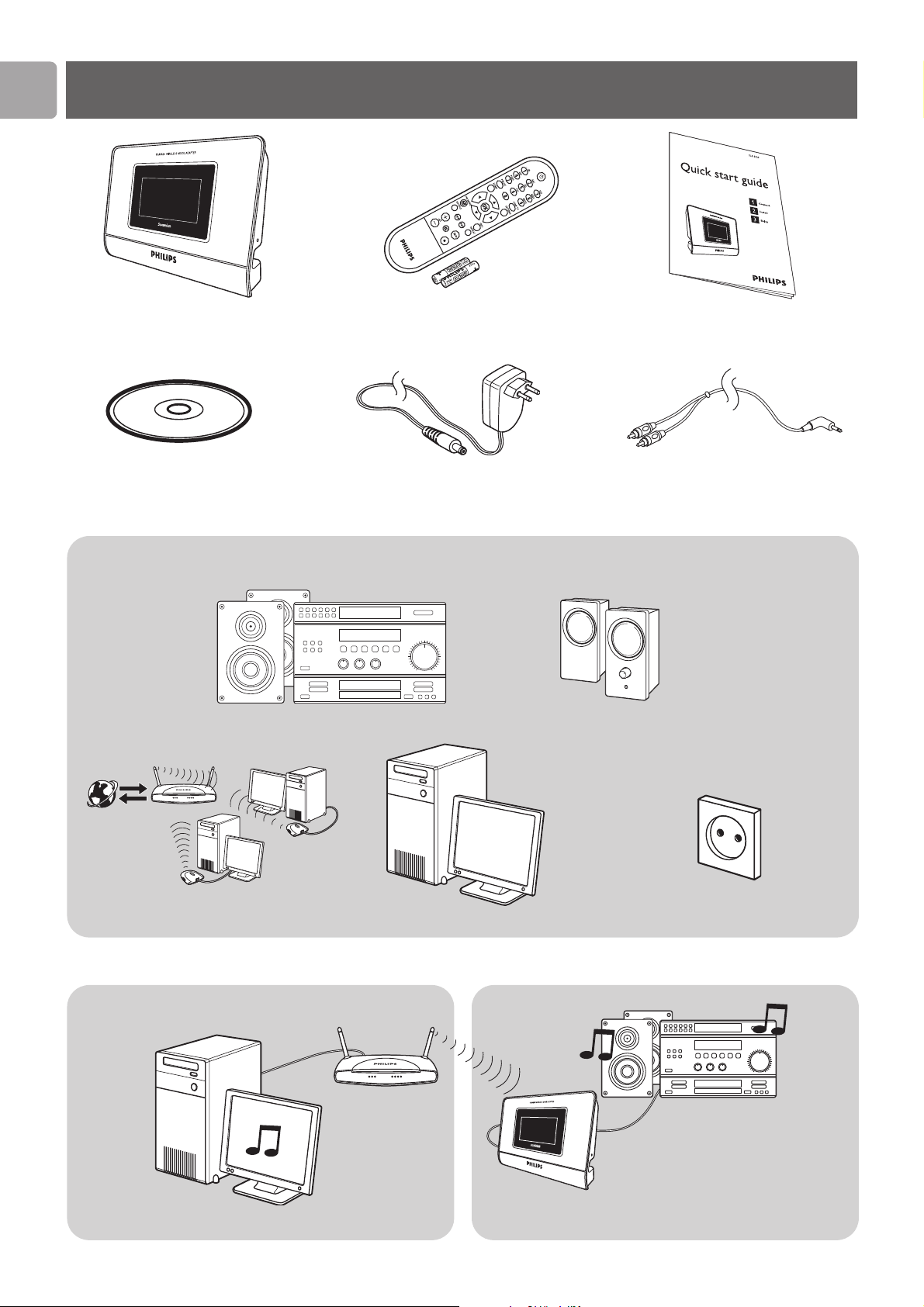
What’s in the box
a. Wireless Music Adapter
SLA5520
b1. Remote control,
b2. 2x AAA Batteries
c. Quick start guide
d. Installation CD
I
n
s
t
a
l
l
a
t
i
o
n
C
D
e. Power cable
f. Audio cable
Stereo RCA to 1/8˝ mini-jack
Either - Audio system (with RCA inputs) –––– Or - Separate active speakers
TE
N
R
E
TNI
Result after installation
Wireless network Personal computer Power outlet
EN
7
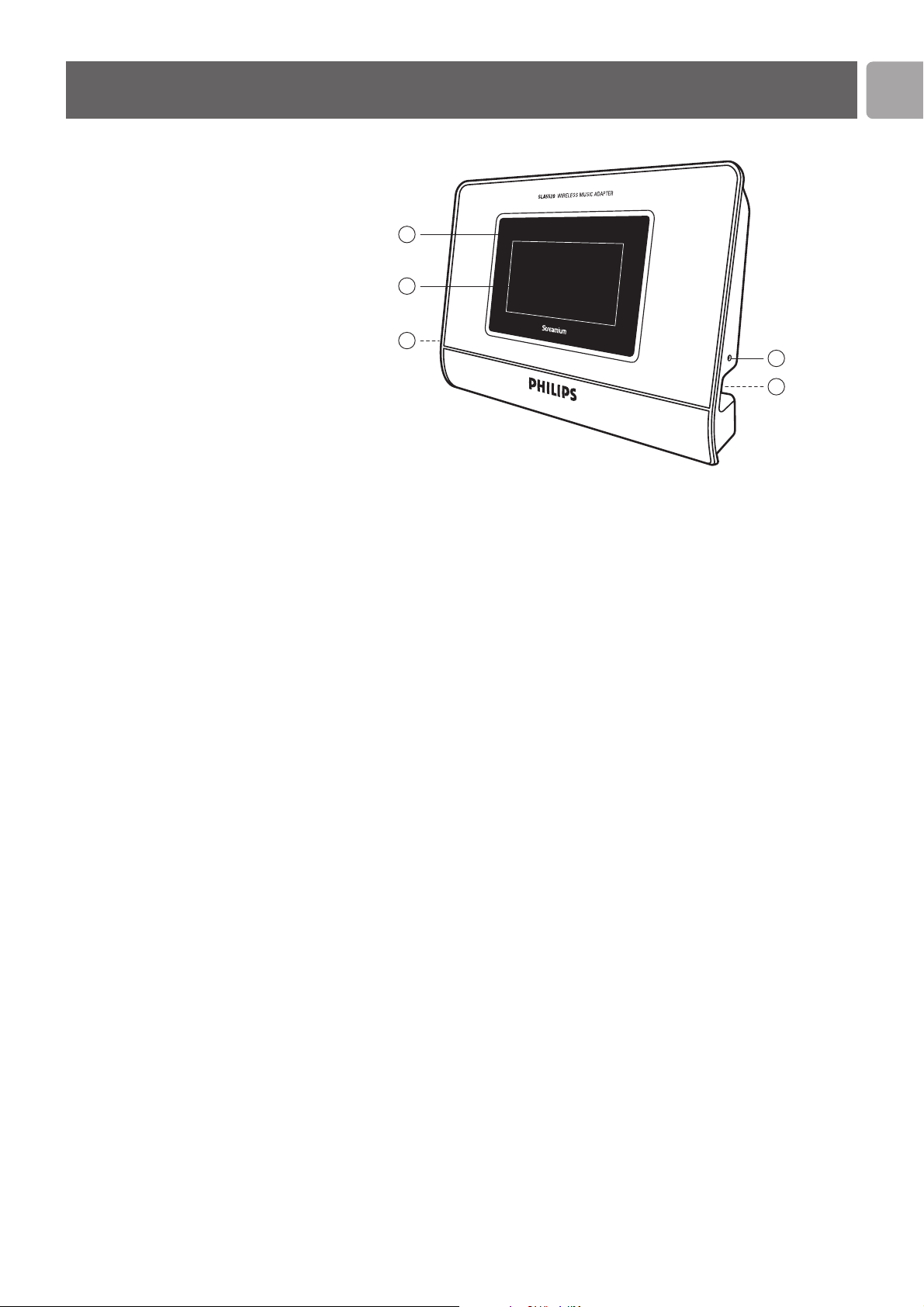
Your Wireless Music Adapter
1 Infrared sensor
Receives the signal from the remote control.
2 LCD screen
Displays menu status for easy navigation through music library and system settings.
3 Stereo 1/8” mini-jack socket
4 Power cable connector socket
5 Reset hole
Insert paperclip gently and press briefly:
< 2 seconds – restart;
> 8 seconds – reset settings to the factory default values.
2
3
1
5
4
EN
8
Your Remote Control
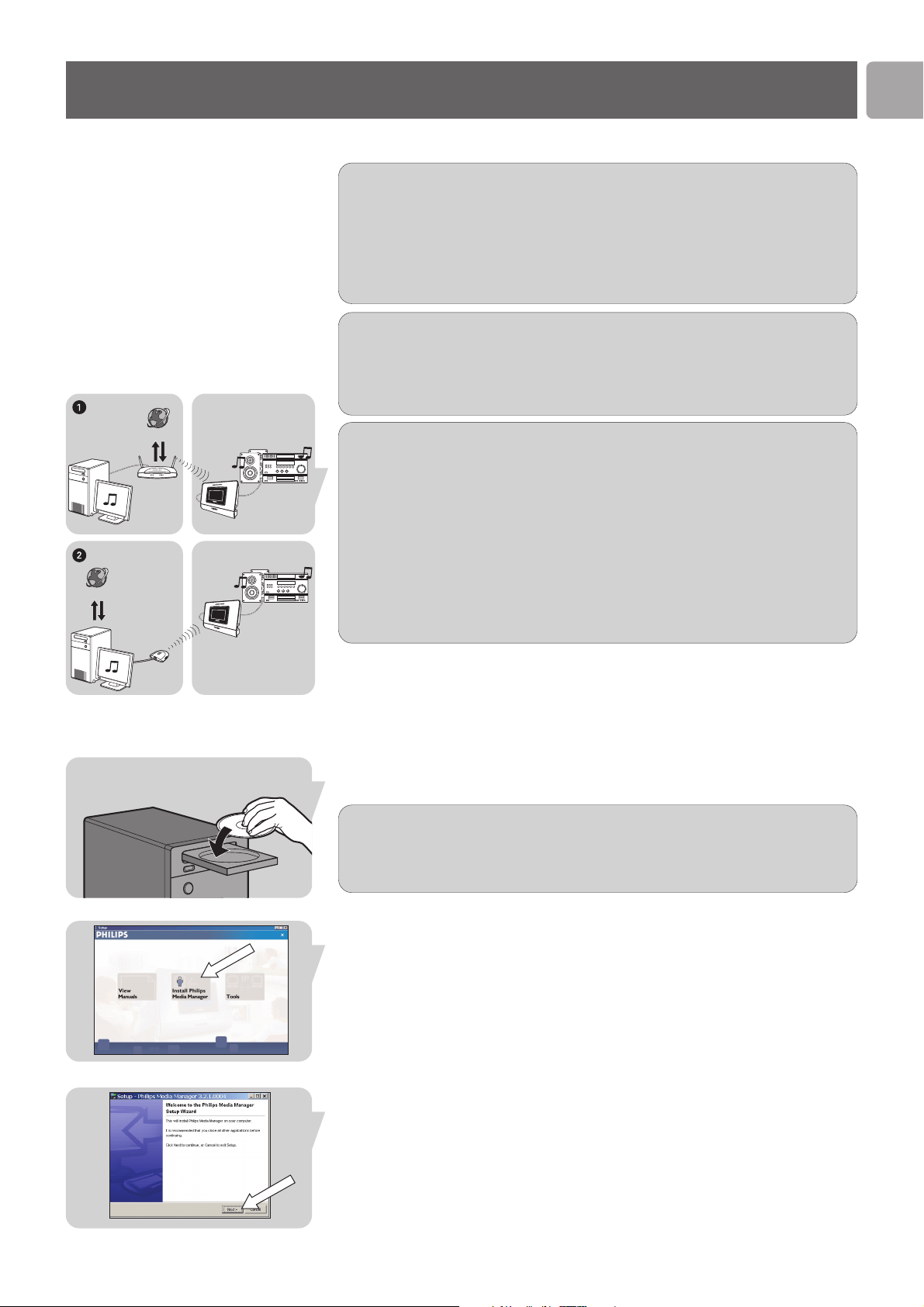
1 On/Standby (y)
2 0-9 digit keys
– During navigation: starts playback of stored preset items.
– During text entry: SMS style text entry.
3 PRESET
Press PRESET, press digit key: save a file or folder to preset.
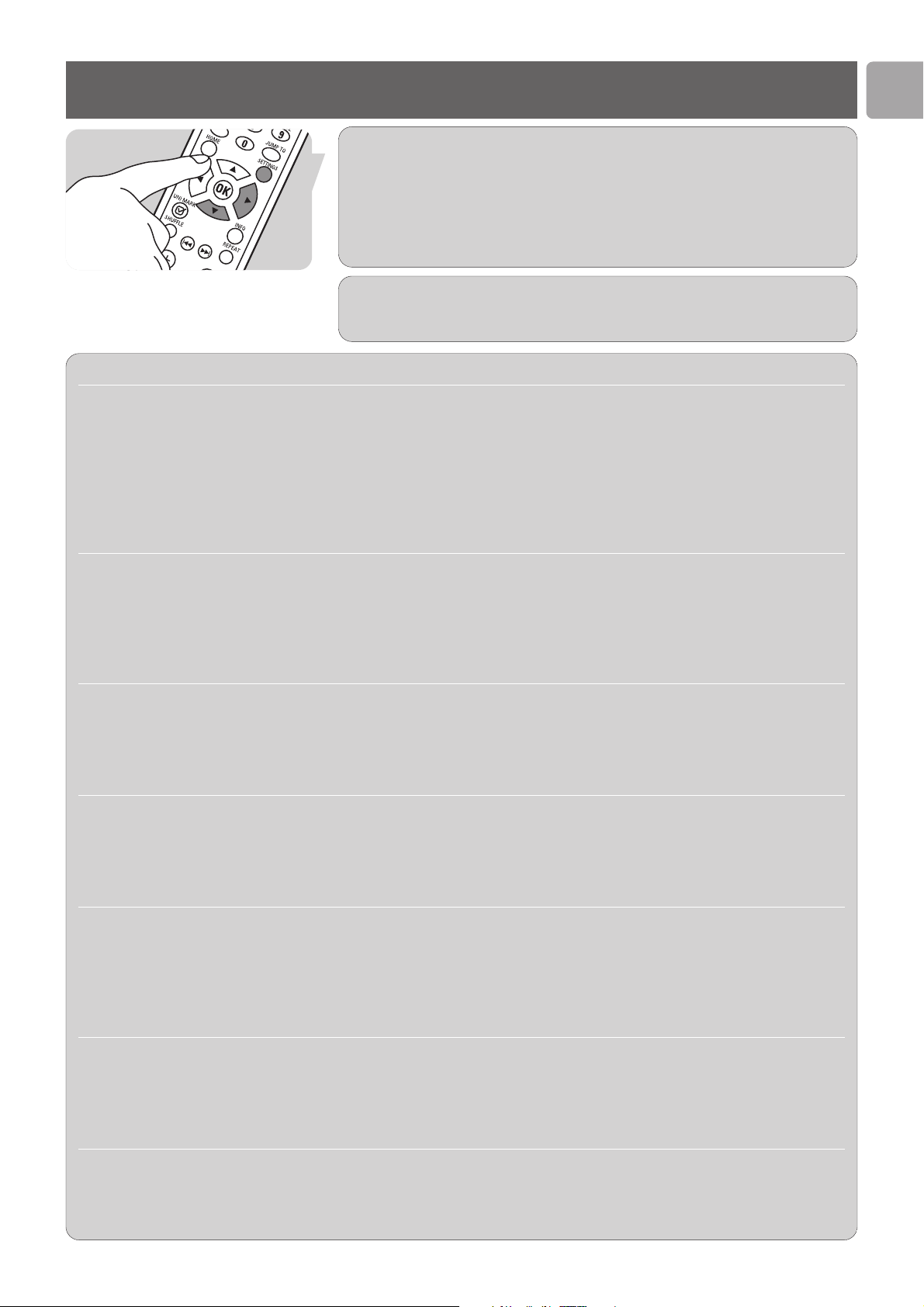
4 HOME
Displays the HOME menu and switches on the SLA5520.
5 3 (Up), 4 (Down), 1 (Left), 2 (Right)
Navigation keys.
6 (UN)MARK
– During navigation in the media manager: adds item to favorites playlist.
– During navigation in the favorites playlist: removes item.
7 SHUFFLE
Toggles shuffle and sequential playback.
8 ∞ (Previous/ Rewind)
– Jumps to the beginning of a song (press once).
– Jumps to the previous song (press twice).
9– E + (Volume Up/ Down)
Increases (+) and decreases (–) the volume.
10 s (Mute)
Mutes the sound.
11 9 (Stop)
Stops playback.
12 ;/2 (Pause/ Play)
– Pauses playback.
– Starts playback.
13 § (Next/ Fast forward)
– Jumps to the next song (press once).
– Plays fast forward in the current song (keep pressed).
14 REPEAT
Toggles between repeat of current song, repeat of all songs and normal playback.
15 INFO
– During navigation: returns to play view.
– During play view: displays additional information.
16 OK
Confirms selection.
17 SETTINGS
Displays the Settings menu.
18 JUMP TO
Press JUMP TO, press digit key: jump to an item in the list.
See Enjoy for details on advanced features.
2
3
4
5
6
7
9
11
13
15
8
14
16
17
18
12
10
1
EN
9
Install the software on the computer
Install
Requirements for the computer
Processor 500 MHz
Memory 128 Mb
Free Hard disk space 150 Mb
Operating system Windows 2000 or Windows XP
CD-rom or DVD player
Wired or wireless connection to the network
Additional requirements for streaming of protected music
Processor 1 GHz / 1000 MHz
Memory 256 Mb
Free Hard disk space 200 Mb
Operating system Windows XP with service pack 2 or higher
If you do not own a wireless network: create a wireless network.
Either (1), preferred – Install a Base Station (router).
Or (2), to create a direct link between the PC and the SLA5520
– Install a Wireless Adapter in Point to point (Ad-Hoc) mode.
See it’s user manual for details.
For best performance, use Philips Wireless Base Station for preferred scenario.
For best point to point performance, use Philips Wireless USB adapter for PC’s.
For best point to point performance, use Philips Wireless Notebook adapter for
notebooks.
See www.philips.com for details.
If the installation screen does not appear, start the CD manually:
1 Open My computer.
2 Open CD drive.
3 Open Setup.exe.
Start installation CD
1 Place installation CD (d) in CD-drive.
Install Philips Media Manager
1 Click on Install Philips Media Manager.
2 Select Next.
INTERNET
INTERNET
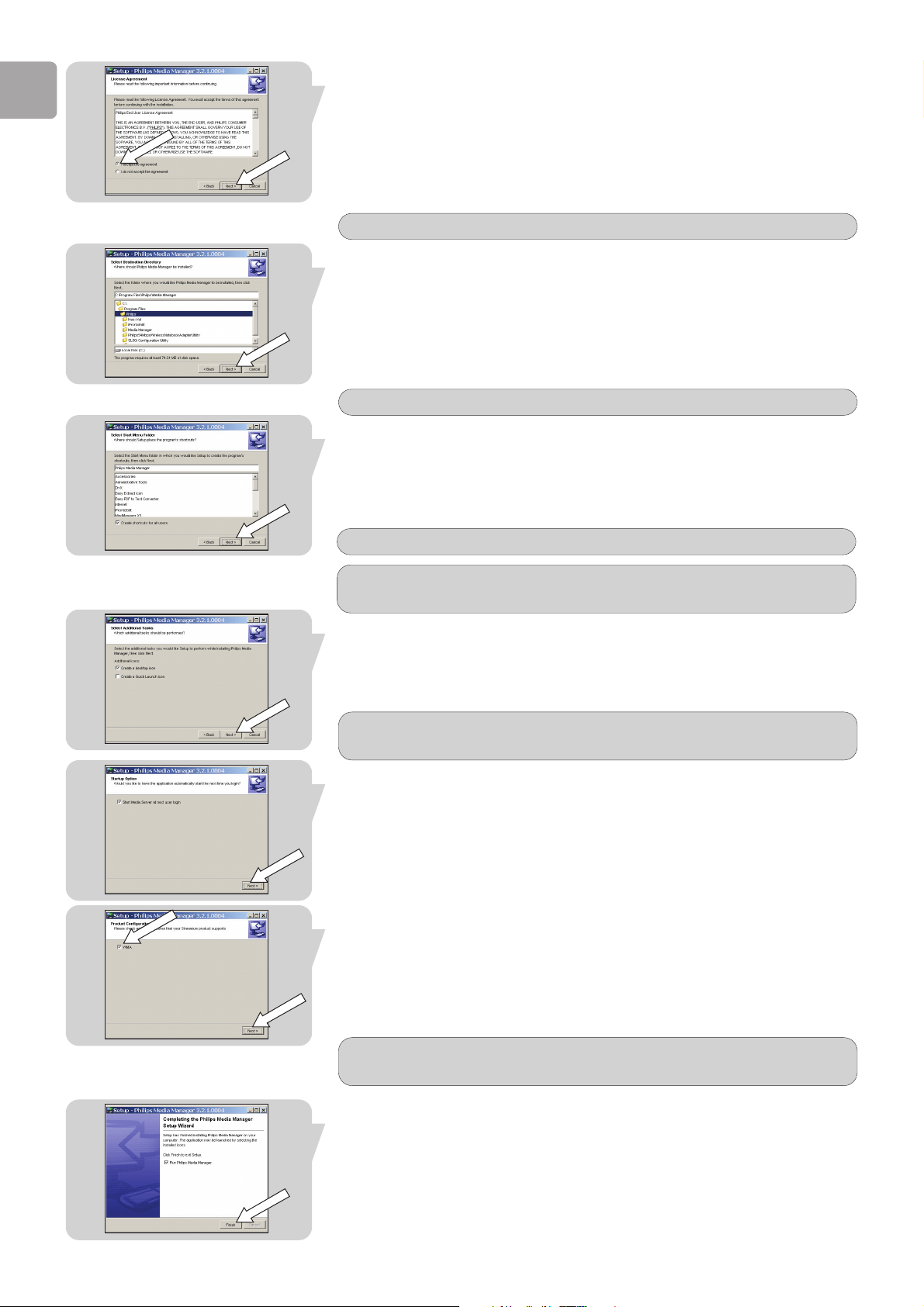
3 Select I accept the agreement.
4 Select Next.
5 Select Next.
6 Select Next.
7 Select Next.
8 Select Next.
9 Enable WMA.
10Select Next.
11Select Finish.
EN
10
Select the folder where you would like Philips media manager to be installed.
Select the Start Menu folder to create the Philips media manager short cuts in.
To automatically start Philips media manager when you log-in - enable Start
Media Server at next user log-in
.
To start Philips media manager after installation - enable Run Philips media
manager
.
To create an icon in the Quick Launch bar - enable Create a Quick Launch
icon
.
To create an icon on the desktop - enable Create a desktop icon.
EN
11
Install the SLA5520
Connect audio cable
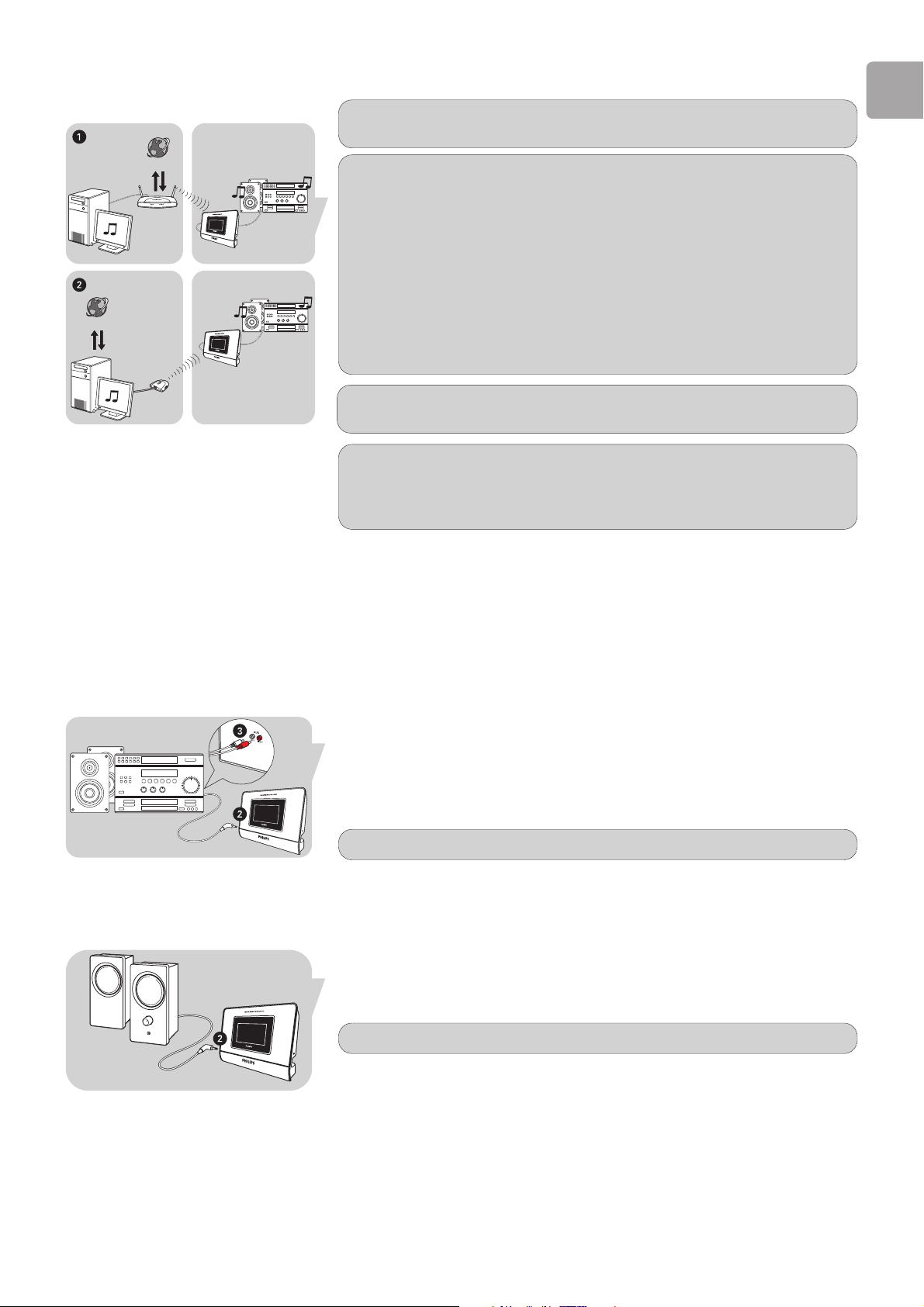
Either - to audio system
1 Take the supplied audio cable (f).
2 Plug the 1/8˝ mini-jack to the Audio port of the SLA5520.
3 Plug the stereo RCA connectors to the left and right inputs
of the audio system.
4 Switch on the audio system.
5
Select correct input on the audio system.
Or - to separate active speakers
1 Take the audio cable that is connected to the speakers.
2 Plug the 1/8˝ mini-jack to the Audio port of the SLA5520.
3 Switch on the speakers.
Make sure to use a convertor if the 1/8˝ mini-jack is not available.
Make sure the security settings do not prohibit the SLA5520 to connect to the
network.
The security type (WPA, WEP or none) and the security code (several characters)
can be entered during the configuration of the SLA5520.
Make sure the computer is connected to your wireless network. The computer
may be connected via cable or wirelessly to the base station (router).
If you do not own a wireless network: create a wireless network.
Either (1), preferred – Install a Base Station (router).
Or (2), to create a direct link between the PC and the SLA5520
– Install a Wireless Adapter in Point to point (Ad-Hoc) mode. See it’s user manual
for details.
For best performance, use Philips Wireless Base Station for preferred scenario.
For best point to point performance, use Philips Wireless USB adapter for PC’s.
For best point to point performance, use Philips Wireless Notebook adapter for
notebooks.
See www.philips.com for details.
Make sure the wireless network is active.
Make sure the wireless network operates in 802.11b and/or 802.11g mode.
Make sure to use an input on the audio system. See it’s user manual for details.
INTERNET
INTERNET
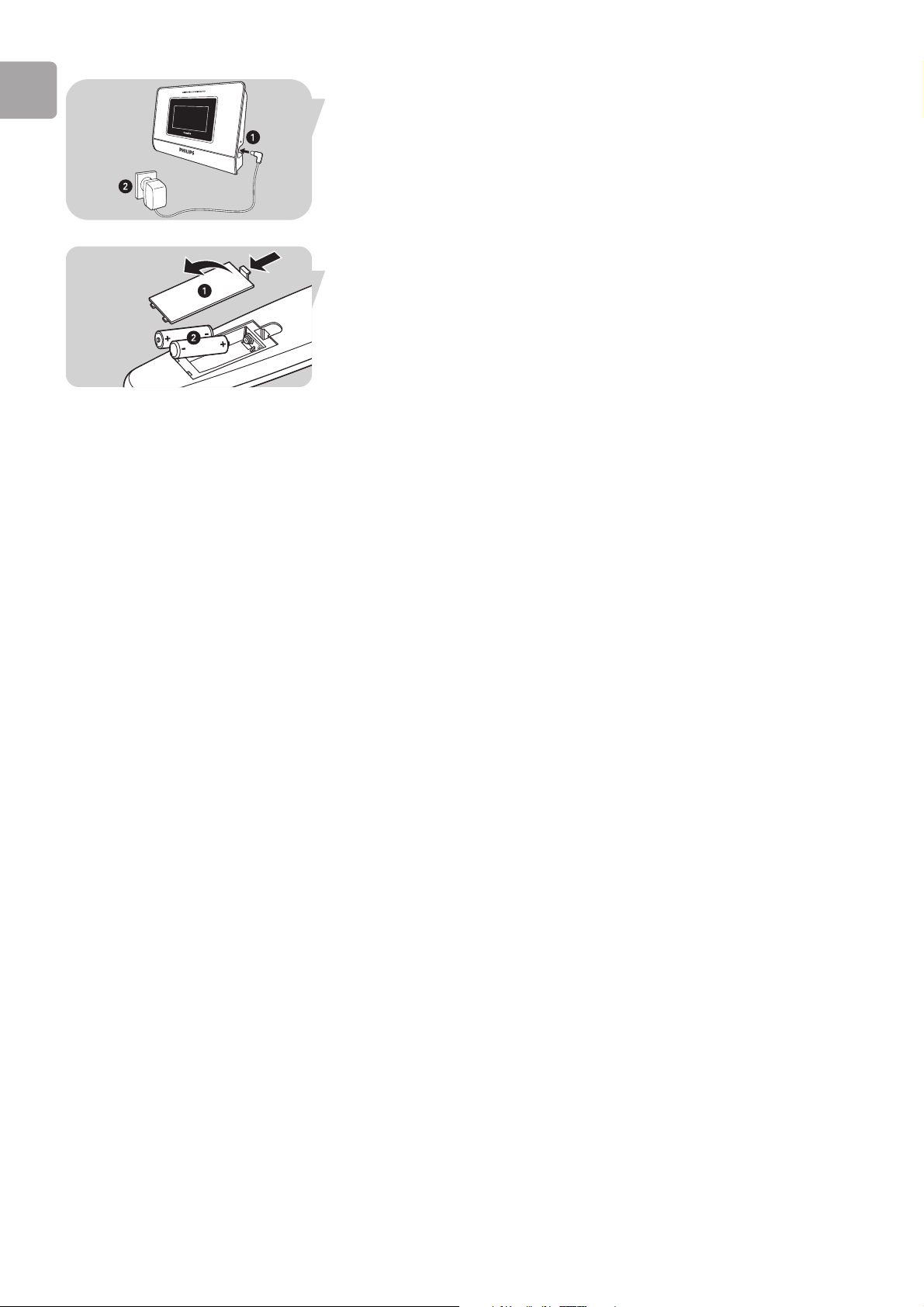
Connect power cable
1 Plug the connector of the power cable (e) into the Power cable connector
socket
(4) of the SLA5520.
2 Plug the power adapter into the power outlet.
Insert batteries in remote control
1 Open battery compartment.
2 Insert batteries (b2) into battery compartment of remote
control
(b1).
3
Close the battery compartment.
EN
12
EN
13
Connect
Prompt Possible options Action
Select language
English 1 Select your preferred language (4 or 3).
Francais
2 Press 2 or OK.
Italiano
Deutsch
Espanol
Nederlands
The configuration wizard and the settings menu will be displayed in your preferred language.
Load profile Profile 1 1 Select the profile you wish to alter.
Profile 2
2 Press 2 or OK.
Profile 3
Different profiles can be used to easily connect to different wireless networks
See Settings menu – Advanced settings – Profile management for details.
Select network Network 1 (SSID) 1 Either - Select the network to which the SLA5520
Network 2 (SSID) should connect.
Other (Advanced)
Or - Select Other (Advanced) to enter the network
name (SSID) manually.
2 Press 2 or OK.
Select wireless mode Network (Infrastructure) 1 Either, preferred - Select Network (Infrastructure)
Point to point (Ad-Hoc) Or
-
Select Point to point (Ad-Hoc). Only if none
of the following devices is available: base station,
router, gateway or access point.
2 Press 2 or OK.
Select security type WPA
1 Either - select
WPA.
WEP
Or - select WEP.
None
Or - select None.
2 Press 2 or OK.
Make sure to select the security type that is configured on the network.
Select WPA mode TKIP
1 Either, used most often - Select TKIP.
AES Or - select AES.
2 Press 2 or OK.
Make sure to select the WPA security type that is configured on the network.
The configuration wizard may prompt for the following information.
Depending on the network configuration, the SLA5520 determines some settings
automatically.
When switching on the SLA5520 for the first time, the Configuration wizard will
appear automatically.
If you wish to change network settings afterwards, you have to restart the
Configuration wizard.
1 Press Settings (17).
2 Select Configuration wizard (4 or 3).
3 Press 2 or OK (16).
EN
14
Prompt Possible options Your action
Select code index
Code 1 1 Select the security code index (WEP key index).
Code 2
2 Press 2 or OK.
Code 3
Code 4
Exit code editing
Make sure to select the code index (WEP key index) that is used by the network.
See Settings menu – Advanced settings – Code management for details.
Enter security code (WEP) **********
1 Either - select
<Change> to enter the security code
<Change> (
WEP key).
Or - select ******** to confirm the stored security
code (
WEP key).
2 Press 2 or OK.
Make sure to enter the security code (WEP key) that is used by the network.
Enter security code (WPA) **********
1 Either - select
<Change> to enter the security code
<Change> (
WPA key).
Or - select ******** to confirm the stored security
code (
WPA key).
2 Press 2 or OK.
Make sure to enter the security code (WPA key) that is used by the network.
Select network settings Automatic (DHCP) 1 Either, used most often - Select Automatic (DHCP)
Manual (Static IP) Or - Select Manual (Static IP). For experienced
users. The product identification number
(IP address), Netmask, Gateway and preferred
DNS server must be entered manually.
2 Press 2 or OK.
Apply settings? Yes
1
Either - Select Yes.
No
Or – discard settings - Select No.
2 Press 2 or OK.
Save to profile Profile 1
1
Select the profile you wish to alter.
Profile 2
2 Press 2 or OK.
Profile 3
Different profiles can be used to easily connect to different wireless networks
See
Settings menu - Advanced - Profile management for details.
EN
15
Basic navigation
The instructions below give an example on how to start playback of music files.
The exact menu structure will depend on your network environment (i.e. whether you
have Internet access or not) and how your music library is organized on your personal
computer.
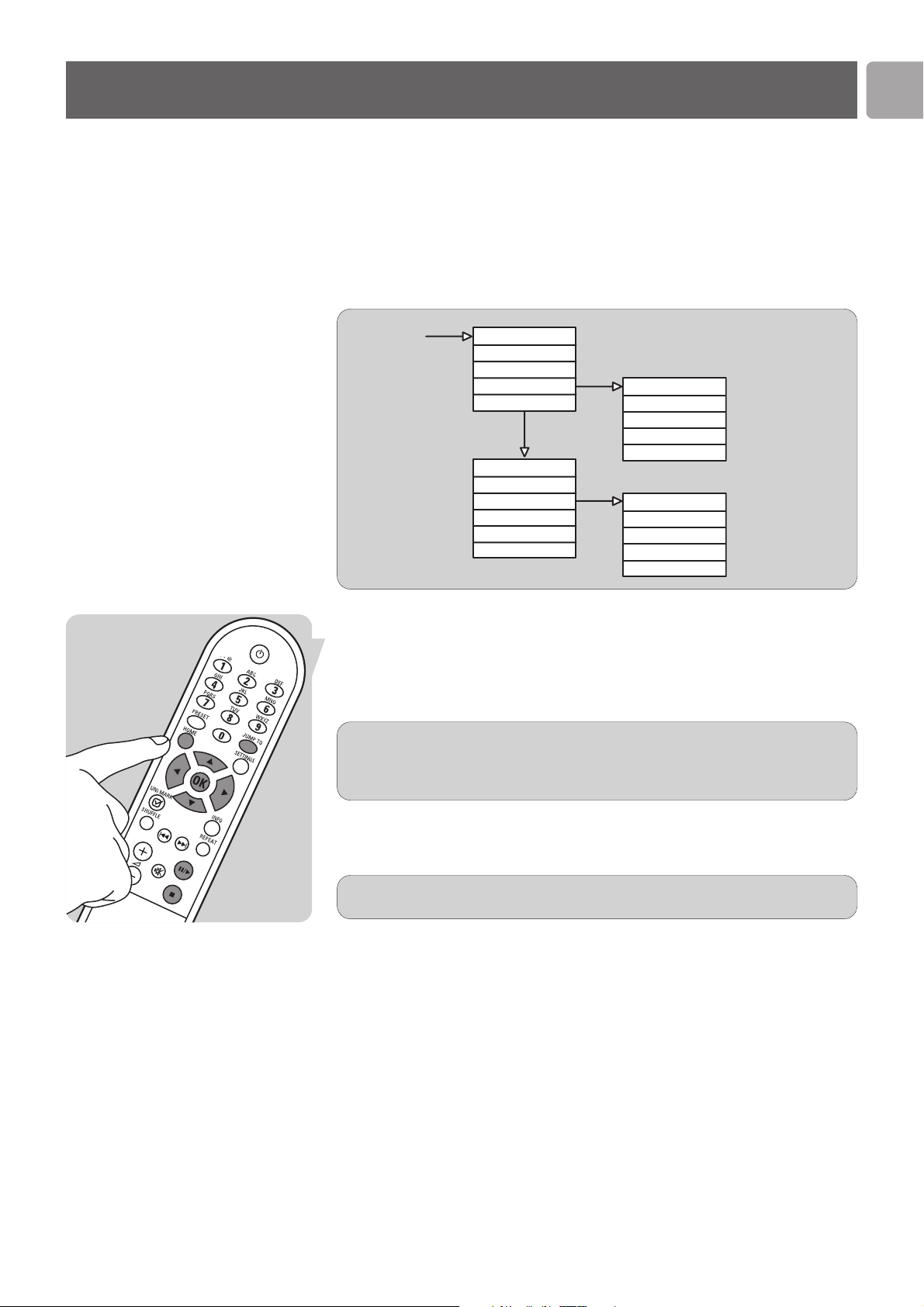
The
HOME menu could look like this
Switch on the SLA5520
1
Press
yy
(1) or HOME (4).
Highlight an item
2
Press
33
or
44
(5).
Keep the key pressed down to scroll faster.
Enjoy
Home
Music server 1
Music server 2
Favorites
Internet Radio
Favorites
Nick Ferry
Nicole Ferry
.....................................
.....................................
Internet Radio
Yahoo
Live365
.....................................
.....................................
.....................................
Live365
Genre
Country
Bitrate
All
4 Repeat step 2 and 3 until you see the item you want to play.
The items that can be played include folders and files.
Start playback
5
Press OK (16) or ;/2 (12).
Stop playback
•
Press 9 (16).
Select other content files
Either -
Press
11
(5) to browse back in the menu structure.
Or - Press HOME (4).
Jump to an item in the list
1
Press JUMP TO (18),
2 Press digit key (2). See Digit key options for details.
Select the item
3
Press
22
(5) or OK (16).
The LCD screen now shows the new menu items.
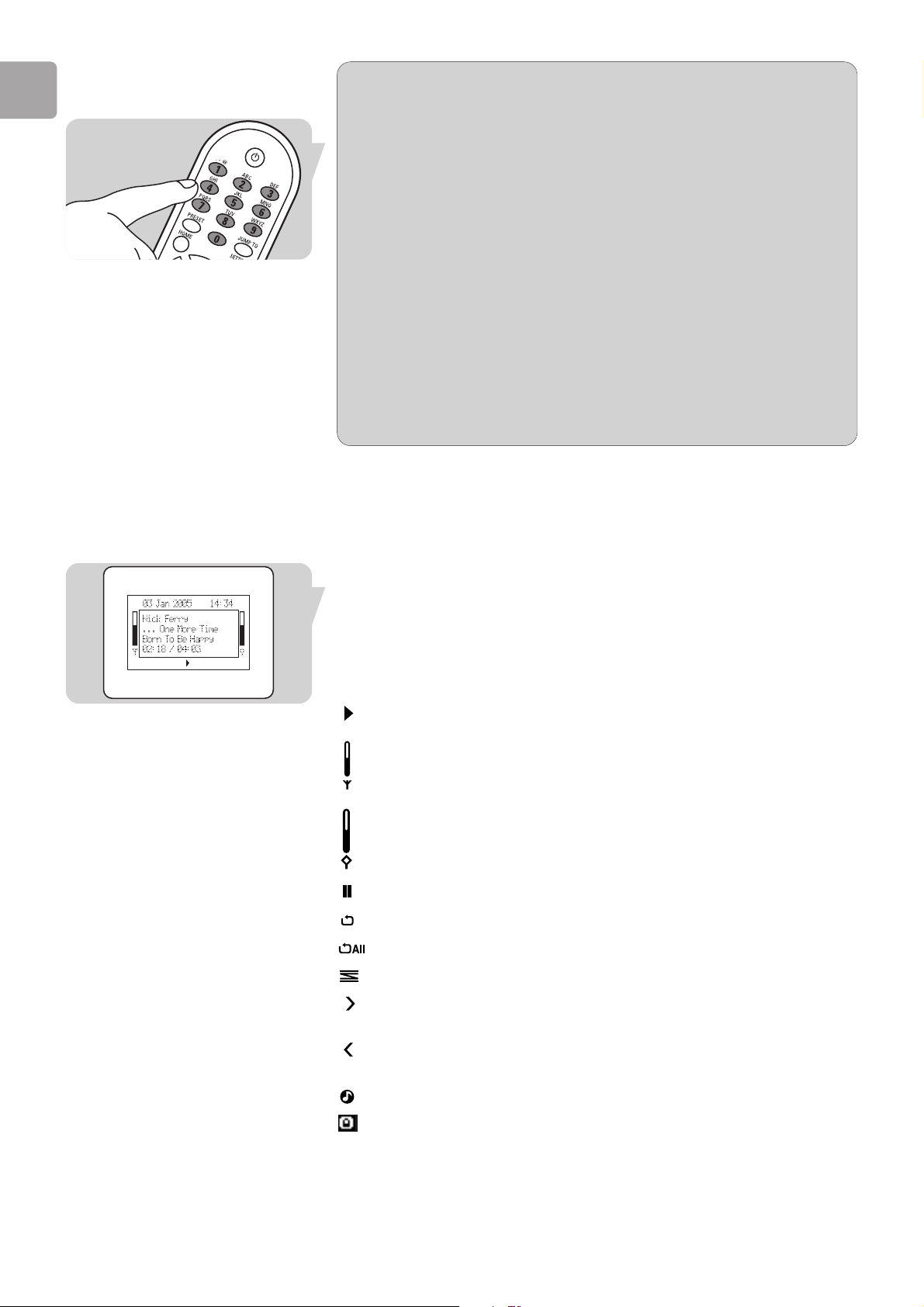
Wireless Music Adapter LCD Screen Icons
The following table describes the icons that may be displayed on the
Wireless Music Adapter LCD screen.
Example Display Text Explanation
Nick Ferry Artist name.
. . . One More Time Name of the album.
Born To Be Happy Name of the song.
02:18/04:03 (default) Elapsed time/total time of current track.
Icons Explanation
Now playing.
Wireless signal strength indicator.
Streaming buffer fill informatory:
indicates that the station signal is being buffered
to the device and will begin to play in a few
seconds.
Playback is paused.
Repeat current song.
Repeat all songs in folder.
Random playback of all songs in folder.
Possible to step forward in the menu
structure.
Possible to step backward in the menu
structure.
Playback of the file is possible.
Playback of the file is NOT possible.
See
Listen to protected music on how to
make playback possible, page 18.
9/54 Item number / total of items in folder.
EN
16
Digit key options
Key Sequence
1
1 . - @ <space> ! ~ & : (etc.)
2 2 a b c A B C 2 a b c (etc.)
3 3d e f D E F 3 d e f (etc.)
4 4 g h i G H I 4 g h i (etc.)
5 5 j k l J K L 5 j k l (etc.)
6 6 m n o M N O 6 m n o (etc.)
7 7 p q r s P Q R S 7 p q r s (etc.)
8 8 t u v T U V 8 t u v (etc.)
9 9 w x y z W X Y Z 9 w x y z (etc.)
0 0
∞ Deletes previous character.
1 Selects the previous character.
2 Selects the next character.
34 a A b B c C d D e E f F g G h H i I j J k K l L m M n N
o O p P q Q r R s S t T u U v V w W x X y Y z Z
[ \ ] ^ _ ` { | } ~ <space> ! " # $ % & ’ ( )
* + , - . / 0 1 2 3 4 5 6 7 8 9 : ; < = > ? @
EN
17
Processing (please wait).
Wireless network is disconnected.
Wireless point to point (Ad-Hoc).
Internet Radio is available.
Storing current item.
Cursor.
Local services
Share music
Only the files that you see in Philips Media Manager will be accessible from your
SLA5520.
Only the files that are supported by your SLA5520 will be available for your
audio system.
For products that can playback picture and movie files,
see www.philips.com.
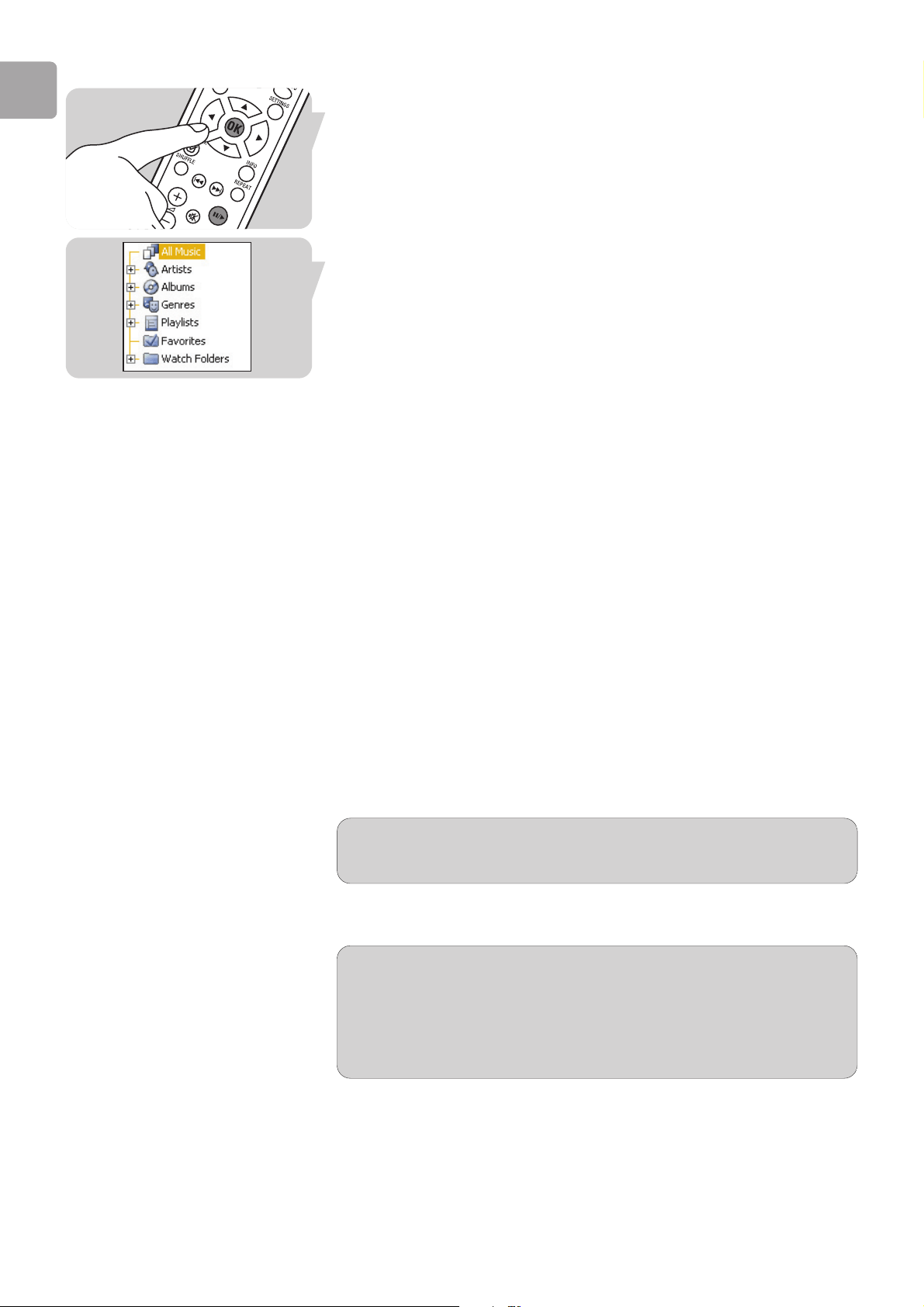
Open Philips Media Manager
1
Select Start.
2 Either - Select Programs.
Or - Select All programs.
3 Select Philips Media Manager.
4 Select Philips Media Manager.
Select content type
•
Select Music.
Add music files to the library
1
Select Add music.
2 Select Add files or Folders.
3 Select the files or folders you wish to add.
4 Select Open.
From now on, the audio files you added can be accessed from the SLA5520.
EN
18
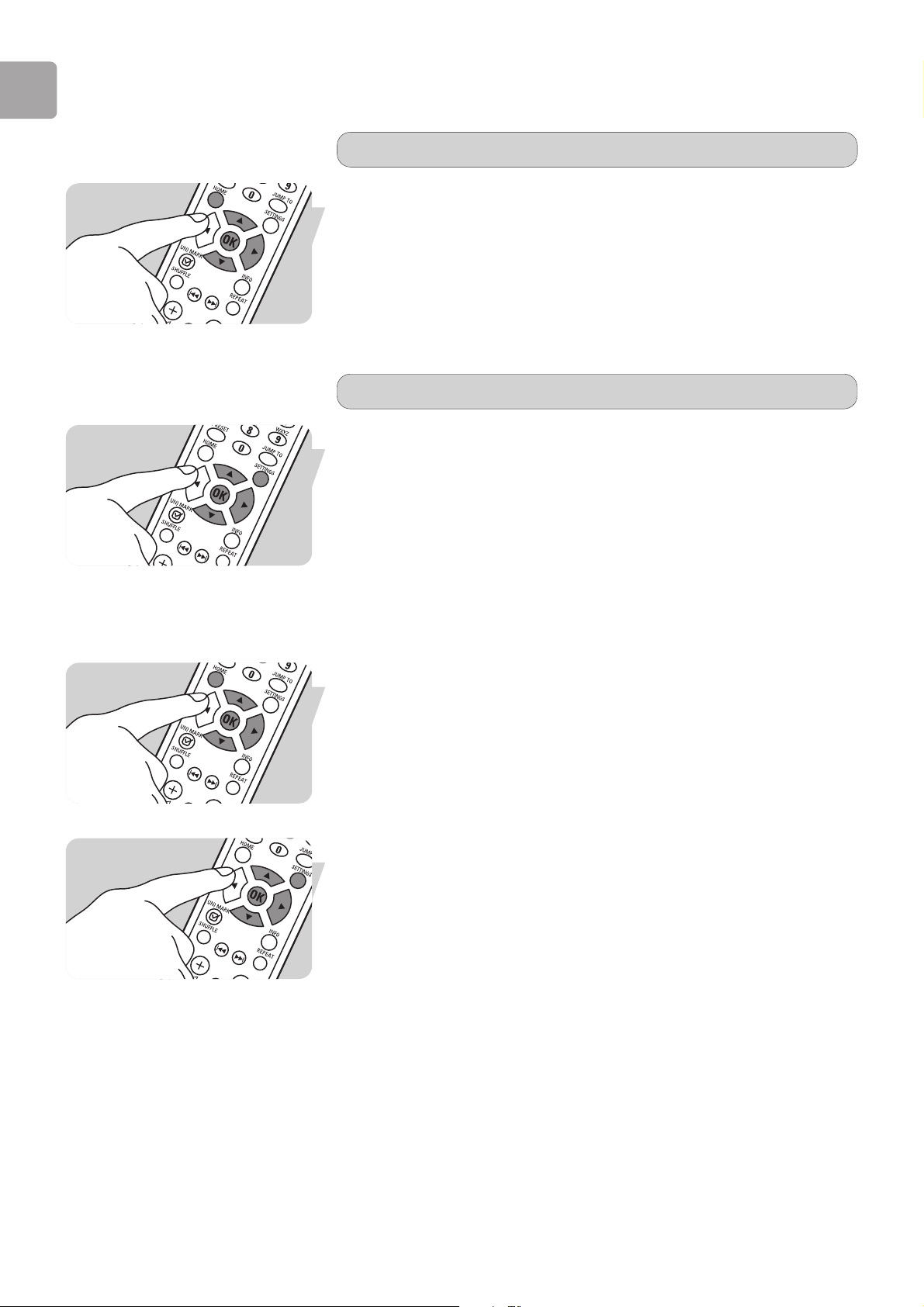
Listen to music
1 Follow the instructions given in Basic navigation to navigate to the music file.
2 Press OK (16) or ;/2 (12) to start playing the music file.
The song will now be played.
All Music Show all shared music files.
Artists Show All Music sorted by artist.
Albums Show All Music sorted by album.
Genres Show All Music sorted by genre.
Playlists Show the playlists that are created in the Philips media manager
application.
Favorites Show the favorites that are created in the Philips media manager
application.
Watch Folders Show the directory structure of the Watch Folders. See Help in
Philips media manager for details.
During audio playback, these options are available on the remote control:
;/2 – Pauses the current song.
– (Re-)starts playback of the current song.
9 Stops playback of the current song.
§ – Jumps to the next song (press once).
– Searches fast forward in the current song (keep pressed).
∞ – Jumps to the beginning of a song (press once).
– Jumps to the previous song (press twice).
s Mutes the sound.
REPEAT Toggles between repeat of current song, repeat of all songs and normal
playback.
INFO Displays song information.
SHUFFLE Toggles between shuffle and sequential playback.
Listen to protected music
Requirements for the computer
1GHz / 1000 MHz processor, 256 MB RAM memory, 200 MB free hard disk
space, Windows XP with Service pack 2 or higher.
Media manager (UPnP server)
Either - A future version of Philips Media Manager might include the option
to stream WMA-DRM protected music.
Or - Windows Media Connect can be used to stream WMA-DRM protected
music. The Philips SLA5520 must be added to the safe list of Windows
Media Connect.
1 Start the media manager on the computer.
2 Make sure the media manager shares protected content.
3 Press Home on the remote control.
4 Select the media manager on the SLA5520.
5 See Listen to music for details on how to start playback.

EN
19
Playing favorite music items
Save an item to a preset number
1
Navigate to an item (file or folder).
2 Press PRESET (3).
3 Press one of the 0-9 digit keys (2) to save the item under that number.
Play an item from a preset number
• Select the preset number by pressing the relevant 0-9 digit key (2).
Favorites playlist generation
You can save up to 20 of your favorite items (songs or folders) to a playlist stored
locally on the SLA5520.
Add a song or folder to the favorites playlist
• Press (UN)MARK (6) during navigation or playback.
Remove an item from the favorites playlist
1 Press HOME (4).
2 Select Favorites (3 or 4).
3 Press 2 or OK (16).
4 Navigate to the item to remove.
5 Press (UN)MARK (6).
Playback from the favorites playlist
1 Press HOME (4).
2 Select Favorites (3 or 4).
3 Press 2 or OK (16).
4 Navigate to the item to play.
5 Press ;/2 (12).
A user profile is required to access Internet radio stations.
A maximum of 3 users are allowed per SLA5520.
EN
20
Internet services
Create user
Browse to the internet
1
Press HOME (4).
2 Select Internet radio (3 or 4).
3 Press 2 or OK (16).
Register for free
4
Enter your e-mail address.
5 Press OK.
6 Follow the instructions in the e-mail send to your e-mail address.
Create more users
1 Press Settings (17).
2 Select User settings.
3 Press 2 or OK (16).
4 Select the Primary user.
5 Press 2 or OK (16).
6 Select Add user.
7 Press 2 or OK (16).
8 Either – See Create user – Register for free.
Or – 1 Enter your e-mail address.
2 Press OK (16).
3 Enter your password.
4 Press OK (16).
Listen to Internet radio
1 Press HOME (4).
2 Select Internet radio (3 or 4).
3 Press 2 or OK (16).
4 Select your user profile.
5 Press 2 or OK (16).
6 Follow instructions in Basic Navigation for details on how to start playback.
Internet update
1 Press Settings (17).
2 Select Software update (3 or 4).
3 Press 2 or OK (16).
4 Either - 1 Press 2 or OK if Do you want to update your product? is
displayed on the LCD screen.
2 Wait for the SLA5520 to restart.
Or - Press 1 if no update is available.

New features can be included in software updates.
• Press SETTINGS (17) to start navigating through the SLA5520’s settings.
Settings menu
Group Details Explanation
Device status
Device name Name of the SLA5520.
Software version Software version in the SLA5520.
Bootloader version Bootloader version in the SLA5520.The bootloader helps
to upgrade the SLA5520, in case of failure.
Hardware version Hardware version of the SLA5520.
Network name (SSID) The network name (SSID) identifies the wireless
network. It can be changed by the owner.
SSID - Service Set IDentifier.
Wireless mode The wireless mode of the network defines how devices
communicate.
Infrastructure, preferred - when a base station, router,
gateway or access point is used. Devices communicate
via the base station, router, gateway or access point.
Example - Philips base station (with Internet access),
PC with wireless built-in and Philips SLA5520.
Point to point (Ad-Hoc) - Devices communicate directly
to each other.
Example - PC with wireless built-in and Philips SLA5520
Security (Encryption) Indicates whether security (encryption) is enabled on the
wireless network: 'WPA', 'WEP or 'None'.
WPA, best - Wireless Protected Access
WEP, good - Wired Equivalent Protocol
None
WiFi signal strength Signal strength received from the wireless network.
WiFi channel Indicates the WiFi channel used by the network.
Unique product ID (MAC) Unique product identification number of the SLA5520.
MAC - Media Access Control
Automatic address (DHCP) A product identification number (IP address) is assigned
to the SLA5520. It is used for communication on the
network.It is assigned by a DHCP server.
DHCP - Dynamic Host Configuration Protocol
Product ID (IP) Product identification number (IP address) assigned to
the SLA5520 for communication on the network.
Example - 192.168.0.1 (192.168.000.001)
IP address - Internet Protocol address.
Subnet mask The subnet mask defines the possible product
identification numbers (IP addresses) on the network.
The subnet mask must be the same for all devices.
Example - 255.255.255.0 (255.255.255.000)
EN
21

EN
22
Group Details Explanation
Device status
Gateway ID (IP) A piece of software running on a base station (router) or
PC that translates local network communication to
internet communication.
DNS server preferred The DNS server preferred is the product identification
number (IP address) of the preferred DNS server.
DNS server - A piece of software running on a base
station (router). It translates requests for internet pages
for the Internet Service Provider.
DNS server alternate The DNS serveralternate is the product identification
number (IP address) of the alternate DNS server.
Proxy server Defines whether a proxy server is required.
Proxy hostname
Either - The proxy hostname defines the product
identification number (IP address) of the proxy
server.
Or - The proxy hostname defines the web-address
(URL) of the proxy server.
Proxy port The proxy port defines the entrance to send requests to
the proxy server.
Range - 0 to 65535
Configuration wizard Load profile Profile 1 1 Select the profile you wish to load.
Profile 2
2 Press 2 or OK.
Profile 3
The values in the profile are activated.
Only available when Advanced settings - Profile management is enabled.
Select network Network 1 (SSID) 1 Either - Select the network to which
Network 2 (SSID) the SLA5520 should connect.
Other (Advanced)
Or - Select Other (Advanced) to enter the
network name (SSID) manually.
2 Press 2 or OK.
Select wireless mode Network (Infrastructure)
Preferred - devices communicate via the base
station, router, gateway or access point.
Example - Philips base station (with Internet
access), PC with wireless built-in and Philips
SLA5520.
Point to point (Ad-Hoc) Only if none of the following devices is
available: base station, router, gateway or
access point.
Devices communicate directly to each other.
Example - PC with wireless built-in and
Philips SLA5520

EN
23
Group Details Explanation
Configuration wizard
Select security type WPA The wireless network is secured (encrypted)
with WPA.
See the user manual of the wireless network
devices for information on how to identify the
security type (encryption type).
WPA, best - WiFi Protected Access
WEP The wireless network is secured (encrypted)
with WEP.
See the user manual of the wireless network
devices for information on how to identify the
security type (encryption type).
WEP, good - Wired Equivalent Privacy.
None The wireless network is not secured
(encrypted).
See the user manual of the wireless network
devices for information on how to identify the
security type (encryption type).
Select WPA mode TKIP The WPA security type is TKIP.
This option is the default for WPA security.
TKIP - Temporal Key Integrity Protocol
AES The WPA security type is AES.
See the user manual of the wireless network
devices for information on how to identify the
WPA security type (WPA encryption type).
AES - Advanced Encryption Standard
Select code index Code 1 1 Select the security code index (WEP key index)
Code 2 2 Press 2 or OK.
Code 3
Code 4
Exit code editing
Only available when Advanced settings - Code management is enabled.
Enter security code ************ Confirm the stored security code (WEP).
(WEP) When in doubt - Change the security code
(WEP).
<Change> Enter the security code (WEP key).
It can be found in the base station (router).
See it's user manual for details.
Enter security code ************ Confirm the stored security code (WPA).
(WPA) When in doubt - Change the security code
(WPA)
<Change> Enter the WPA security code.
It can be found in the base station (router).
See it's user manual for details.
Select active code Code 1 Select the WEP security code identifier (WEP
Code 2 key index). Range - 1 to 4. It can be found in
Code 3 the base station (router). See it's user manual
Code 4 for details.
WEP security code identifier - If more than one
WEP security code identifier (WEP key) is
entered, the code that is currently active must be
selected (key index)

Group Details Explanation
Configuration wizard
Select network settings Automatic (DHCP) Preferred - A product identification number
(IP address) can be assigned to the SLA5520.
It is used for communication on the network.
It can be assigned by a DHCP server.
DHCP - Dynamic Host Configuration Protocol
Manual (Static IP) Only for experienced users - The product
identification number (IP address), Netmask,
gateway and preferred DNS server must be
entered manually.
Product ID (IP)
***.***.***.***
Confirm the product identification number
(IP address) assigned to the SLA5520.
<Change> Enter the product identification number.
Subnet mask
***.***.***.***
Confirm the subnet mask. Is must be the same
on all devices in the network.
<Change> Enter the subnet mask.
Gateway ID (IP)
***.***.***.***
Confirm the product identification number
(IP address) of the gateway. The gateway
address is most often the same as the address
of the base station, router or access point.
<Change> Enter the product identification number
(IP address) of the gateway.
DNS server preferred
***.***.***.***
Confirm the product idenfication number
(IP address) of the preferred DNS server.
The preferred DNS server address is most
often the same as the address of the base
station, router or access point.
<Change> Enter the product idenfication number
(IP address) of the preferred DNS server.
DNS server alternate
***.***.***.***
Confirm the product idenfication number
(IP address) of the alternate DNS server.
<Change> Enter the product idenfication number
(IP address) of the alternate DNS server.
Apply settings Yes Save the configuration settings.
No Discard the configuration settings.
Save to profile Profile 1
1 Select the security code index (WEP key
Profile 2 index)
Profile 3 2 Press 2 or OK.
User settings Primary user Add user Add a guest user. The e-mail address and
(optional) a password must be entered.
Remove user Select the user to remove. Confirm with the
password of the primary user.
Guest user 1 Load the preferred settings of the first
guest user.
Guest user 2 Load the preferred settings of the second
guest user.
EN
24

Group Details Explanation
Software update
Cancel New features can be included in software
OK updates.
Select language English Switch to English language.
Francais Switch to French language.
Italiano Switch to Italian language.
Deutsch Switch to German language.
Espanol Switch to Spanish language.
Nederlands Switch to Dutch language.
Advanced settings Profile management Enable Profile management can be used to easily
connect the SLA5520 to seperate networks.
Example - Profile 1, network settings @ home.
Example - Profile 2, network settings @ work.
Profile 1, 2 and 3 are enabled. Before saving
settings, the profile must be selected.
Disable Disable profile 2 and 3. All settings are only
applied to profile 1.
Code management Enable Only, for experienced users - Up to 4 security
codes (WEP) can be stored.
Only one is active at any one time.
Storing 4 security codes (WEP) makes it easy
to cycle security codes (WEP) for better
security.
Disable Preferred - Only one security code (WEP) is
needed to connect to the network. Only
one security code (WEP) can be entered.
Edit device name Enter the network name (SSID) of the
network.
Proxy server Enable Only for experenced users or for networks
on professional sites - Requests for internet
content are directed via the proxy server.
Disable Preferred - Requests for internet content are
send directly to the main highway of the
Internet.
Configure date Select time zone Change the time zone to comply to the region
and time where the SLA5520 is used.
Daylight savings Disable No automatic adjustment for winter/summer
time.
Enable Automatic adjustment for winter/summer
time.
Select time format Change the time format to comply with your
preferred time format.
Select profile Select profile Profile 1 Only available when Advanced settings -
Profile 2 Profile management is enabled.
Profile 3 Load settings from the profile.
EN
25

Troubleshooting
Problem
No reaction to remote control (b1).
Cannot find network.
Cannot connect to network
or
Connection down
It takes more than 30 seconds to
find the media manager.
No media manager displayed in
HOME menu of SLA5520.
Unable to browse media manager
from SLA5520.
Unable to start playback of music
file.
Unable to start playback of an
Internet Radio station.
No sound from speakers.
Favorite list full
Server or network
connection problem
No more users allowed
Date/time is not displayed
correctly
Presets do not work anymore
EN
26
Tip
• Make sure the batteries (b2) are inserted correctly.
•Make sure to point the remote control
(b1) at the SLA5520 (a).
• Make sure the SLA5520 is connected to the power outlet.
• Replace the batteries with new ones. Make sure to insert batteries as indicated.
• Make sure your other wireless network devices are switched on.
• Either - Make sure the broadcast network name (SSID Broadcast) is enabled on
your base station (router).
Or - Enter the network name (SSID) manually. See the user manual of the base
station (router) for details.
• Make sure you entered the security code (WPA or WEP) correctly.
• Copy the security code (WPA or WEP) exactly as entered in the base station
(router).
• Make sure the firewall on the base station (router) and/or the firewall on the
computer do not filter the SLA5520 MAC address from the network.
See the user manual of the base station (router) for details.
• See
Reducing time required to search for media manager on next page.
• Make sure the firewall on the basestion (router) and/or the firewall on the
computer do not block the media manager from the network.
See the help file of the media manager for details.
• Make sure the SLA5520 is connected to the correct network.
• Make sure music files are shared by the media manager
• Make sure the media manager allows the SLA5520 to browse the library.
• Make sure the file format extension (WMA, MP3, WAV) is supported by the
SLA5520 (WMA-DRM, WMA, MP3, WAV).
• Make sure the library of the media manager is up-to-date.
• When playing protected songs - Make sure the internet connection is available
when playing protected songs for the first time.
• Make sure the firewall on the base station (router) does not block Internet Radio
services.
• Try again later. The service may be down temporarily.
• Make sure the volume of the SLA5520 is not muted.
•Make sure the audio system is switched on.
•Make sure the volume of the audio system is not muted.
• Make sure the correct input is selected on the audio system.
• Make sure the SLA5520 and the audio system are connected correctly.
• The favorite playlist is limited to 20 items. Before adding new items, remove old
items first.
• The media manager did not respond. Make sure other Wireless network devices
are switched on.
• The number of users is limited to 3 users. Before adding a new user, remove an
old user first.
• Make sure an Internet connection is available for the SLA5520.
Make sure to configure date/time in the Settings menu.
• Make sure to use a compatible media manager (Philips media manager).

EN
27
Reducing time required to search for media manager
Enabling Internet Connection Sharing on Your PC
1
Log on to the PC as Administrator.
2 Select Start.
3 Select Control Panel.
4 Open Network Connections.
5 Right-click on the connection that you use to connect to the Internet.
Example – Dial Up connection.
Example – Local Area Connection.
6 Select Properties.
7 Select Advanced.
8 Enable Allow other network users to connect through this computer’s
Internet connection
.
9 Disable Allow other network users to control or disable the shared
Internet connection
.
10Select OK.
11Restart the PC.
12Restart the SLA5520.
Lock product identification number of the PC
1
Wait for the SLA5520 to find the media manager.
2 Place the installation CD (d) in the CD-Drive.
3 Select TOOLS.
4 Select Auto IP Network Utility.
5 Select the connection that you use to connect to the SLA5520.
Example – Wireless network connection.
6 Select Lock AutoIP.
7 Select Exit.
Locking the product identification number (IP address) of the PC is only allowed
when a Point to point (Ad-Hoc) network is used.
Internet Connection Sharing is only available on a PC with 2 network
connections.
Example – PC with Internet connection (wired) and a wireless connection to the
SLA5520.
Searching for media managers can be reduced to less than 20 seconds.
Either - if your connection to the Internet is made available via a single PC – see
Enabling Internet connection sharing on your PC.
Or - if no base station, router, gateway or access points is available – see Lock
product identification number (IP address) on PC
.

Additional network information
Security
Firewall
The first time Philips Media Manager needs access to the network, the firewall will
warn you.
• Select
Unblock, Allow or a similar phrase.
Philips Media Manager is now able to download updates, and stream Music to your
Wireless Music Adapter.
EN
28
If your are using a wireless gateway of base station and there is a firewall in
place, multicast messages must be enabled for the media server program in order
to allow traffic to/from the SLA5520 (239.255.255.xxx).
MAC address control / filter
If you are using MAC Address Control on your wireless network, you will need to
know the MAC address of your Wireless Music Adapter. The MAC address is a
unique number that identifies your device on the network. It consists of a series of
numbers and letters in the following format: xx.xx.xx.xx.xx.xx.
The MAC address for your Wireless Music Adapter can be displayed on the LCD
screen. To display the MAC address:
1 Press SETTINGS (17).
2 Select Device status (3 or 4).
3 Press 2 or OK (16).
4 Select Unique product ID (MAC) (3 or 4).
You must change your wireless network settings to exclude the Wireless Music
Adapter’s MAC address from filtering. Please refer to your wireless network’s
documentation for details on how to do this.
Health and safety
The product transmits and receives radio waves when it is switched on. The product
complies with the standards that are defined for it. The quality of the transmission
can be influenced by the use of microwave ovens. Other wireless systems (Bluetooth,
wireless networks etc.) can also have influence on the quality of the transmission. The
product is based on RF technology. Therefore the product can suffer from the same
kinds of interference as GSMs, portable radios and other RF-based products.
Maintenance and service
If your product is defective and needs repair, but your warranty period has expired,
you can consult our specialists (see page 2).
Recycling and disposal
All redundant packaging material has been omitted. Your set consists of materials that
can be recycled if disassembled by a specialized company. Please observe the local
regulations regarding the disposal of packaging materials, batteries and old equipment.
Information to the Consumer
Disposal of your old product
Your product is designed and manufactured with high quality materials and
components, which can be recycled and reused.
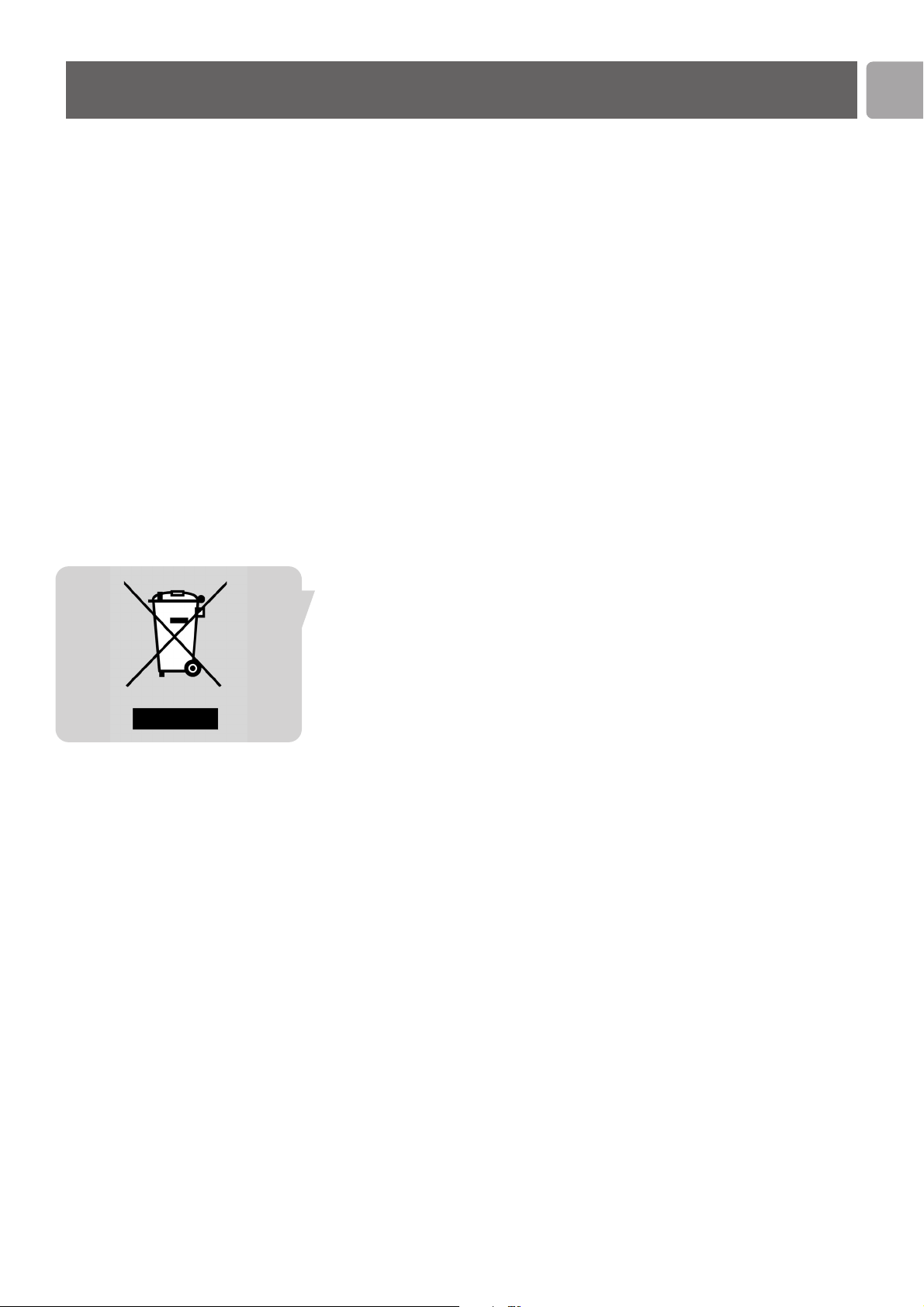
When this crossed-out wheeled bin symbol is attached to a product it means the
product is covered by the European Directive 2002/96/EC
Please inform yourself about the local separate collection system for electrical and
electronic products.
Please act according to your local rules and do not dispose of your old products with
your normal household waste. The correct disposal of your old product will help
prevent potential negative consequences for the environment and human health.
EN
29
Additional information

Technical information
USA
FCC CFR47 Part 15B, Class II
Europe
89/336/EEC,
ETC 301 489-1&17(2.4GHz)
EN61000-3-2
(Harmonic AC current emissions)
EN55022 Class II, EN50082-1 (Immunity)
Japan
VCCI Class II
CB (IEC60950)
USA
FCC CFR47 Part 15C,
Para15.247, 205, 209
Canada
IC RSS 210
Europe
EN 300 328
Japan
ARIB STD-T66 (Chan1-13),
T-33 (Chan14)
H x W x D
110 x 160 x 44 (mm)
3.5 Watt
1.7 Watt
240 grams
Audio
WMA-DRM, WMA, MP3, WAV
DC 9V / 0.5 A
1/8˝ connector stereo audio
802.11g
Universal Plug & Play
EN
30
Electromagnetic compatibility
Product safety
Radio regulations
Dimensions
Power consumption
Standby power consumption
Weight
Supported codecs
Input connector
Output connector
Wireless
Networking

This product is protected by certain intellectual property rights of Microsoft
Corporation.
Use or distribution of such technology outside of this product is prohibited without a
license from Microsoft or an authorized Microsoft subsidiary.’
‘Content providers are using the digital rights management technology for Windows
Media contained in this device (‘WM-DRM’) to protect the integrity of their content
(‘Secure Content’) so that their intellectual property, including copyright, in such
content is not misappropriated. This device uses WM-DRM software to play Secure
Content (‘WM-DRM Software’). If the security of the WM-DRM Software in this
device has been compromised, owners of Secure Content (‘Secure Content Owners’)
may request that Microsoft revoke the WM-DRM Software's right to acquire new
licenses to copy, display and/or play Secure Content. Revocation does not alter the
WM-DRM Software's ability to play unprotected content. A list of revoked WM-DRM
Software is sent to your device whenever you download a license for Secure Content
from the Internet or from a PC. Microsoft may, in conjunction with such license, also
download revocation lists onto your device on behalf of Secure Content Owners.’
EN
31
Microsoft disclaimer regarding Protected Content

Glossary
See Base station.
See
Point to point network.
AES is a type of the security type WPA.
See
security type.
See
WPA.
Abbreviation – Advanced Encryption Standard
An annotation of speed, most often ~bit per second.
Example – The Internet subscription offers a bandwidth of 4 megabit per second.
Example – The audio file has a bandwidth of 128 kilobit per second.
Example – See General overview of bandwidths.
Device with the following functionality:
• Create the wireless network
• Share Internet subscription
• Control communication between wireless and wired (Ethernet) devices.
Example – Philips base station, see www.philips.com for details.
Minimum amount of data stored or transmitted by electronic equipment.
Example – See General overview of bandwidths.
The
bandwidth required to transport content.
Part of the
software inside the SLA5520. It helps to repair other parts of the
software if an error occurs.
A subscription to the Internet that is on-line 24 hours a day,
7 days a week. And supports a minimum download
bitrate of 256 kbit/s.
Example – ADSL
Example – Cable
A group of 8
bits. Bytes are most often used to communicate file-sizes. To prevent
using very large numbers, groups of bytes are defined.
Kilobyte (kb) – 1024 byte
Example – The picture is 450 kilobyte.
Megabyte (Mb) – 1024 kilobyte
Example – The movie is 700 megabyte.
Gigabyte (Gb) – 1024 megabyte
Example – The hard disk can store 120 gigabyte.
Example – See General overview of bandwidths.
A piece of
software used to create digital files of audio, picture and video content.
Consists of two parts, a coder (creates files) and a decoder (plays the files).
The group of Music, Pictures and Movies is called
content.
A piece of
software running on a base station or on a server. A method of
assigning
product identification numbers to devices. The DHCP server identifies
devices in the network; it then assigns product identification numbers to the devices.
Abbreviation - Dynamic Host Configuration Protocol.
A piece of
software running on a base station. It arranges communication between
Internet requests and the internet provider.
Example – (E.g. translates the url www.philips.com to the IP address xxx.xxx.xxx.xxx)
Abbreviation – Domain Name Server
EN
32
Access point
Ad-Hoc network
AES
Bandwidth
Base station
Bit
Bitrate
Bootloader
Broadband Internet
Byte
Codec
Content
DHCP
DNS

DRM
Encryption key
Encryption type
Ethernet
Firewall
Firmware
Gateway
Hard disk
Hardware
IEEE
IEEE 802.11
Infrastructure network
IP address
ISP
EN
33
A method of protecting files, most often content from being used illegally.
Abbreviation – Digital Rights Management
See
security code.
See
security type.
In relation to the usage of today.
See
wired networks.
Example – Cable
Example – Connector
Example – Port
Example – Network
A piece of software running on a
base station and/or on a PC that controls
communication on the
network.
The firewall defines rules for all devices and applications (e.g.
software). The rules
must be followed when communicating with other devices and/or the Internet. The
rules can define that a device (example – SLA5520) can or cannot access the
network.
Example – Windows Firewall
Example – Norton Firewall
Example – McAfee Firewall
Example – Zone Alarm
See
software.
Example – Software in the SLA5520
A piece of software running on a
base station or on a server. It translates local
communication to Internet communication.
Example – Philips base station.
A piece of
hardware inside a PC. It is often used to store content and software.
Example – The C-drive in Windows Explorer.
The physical case and internals of devices.
In relation to
wireless adapters – The IEEE promotes the engineering process of
technologies like
802.11.
Abbreviation – Institute of Electrical and Electronics Engineers, Inc
Web – www.ieee.org
802.11 is a group of wireless transmission technologies defined by
IEEE:
802.11b – low speed (up to 11 mbit/s) wireless transmission.
802.11g – high speed (up to 54 mbit/s) wireless transmission.
Infrastructure networks are created by one of the following devices: base station,
router, gateway or access point.
Client devices - like
PC’s, Wireless Music Adapters and other networked devices -
can connect to the infrastructure network.
Broadband Internet access is often shared by the base station.
Example – Philips Base station with Internet access, PC with wireless built-in and
Philips SLA5520.
See
product identification number.
A company that offers Internet services.
Comparison – Telephone Provider.
Abbreviation – Internet Service Provider.

Library
MAC address
Media manager
MP3
NAT
Navigation
Netmask
Network
Network name
PC
Point to point network
Product identification number
EN
34
In relation to the media manager.
The collection of the names, artist, genres and other information about the
content
available to the media manager.
Comparison – The index in a book.
Example – Contents of the Philips Media Manager application.
The unique identifier for each device in a
network.
It is assigned to the device in a factory.
Abbreviation – Media Access Control address.
A piece of
software running on a PC or a base station (router).
It shares content from that
PC with other devices in the network.
Example – Philips Media Manager
Example – Windows Media Connect
A popular
codec for audio files.
Most often not needed for home use.
A piece of
software running on a base station (router).
Part 1 - It creates a link between two different local networks over the Internet.
Thus, the two networks appear to be only one network.
Often used by professional companies to link networks of employees to the
corporate network.
Part 2 – Direct communication from internal networks to the correct highway on the
Internet. Some special applications need NAT to work correctly.
Sometimes experienced users use the second part to link their devices to the
internet.
Abbreviation – Network Address Translation.
The method used to select
content on a display like that of the SLA5520.
Example – The up and down, left and right, OK and play keys on the remote control
of the SLA5520.
See
Subnet mask.
A collection of 2 or more devices that are able to communicate with each other.
Example – Base station (with Internet access), SLA5520 and a PC.
The network name is the identifier of the wireless
network.
Example – philips
Example – Paul’s home
Example – youcannothackme
In relation to this user manual.
The PC can be either a full-size computer or a notebook.
Abbreviation – Personal Computer.
Only used when none of the following devices is available:
base station, router,
gateway or access point. Devices communicate directly to each other.
Example – PC to SLA5520.
The identification of a device using the Internet Protocal (IP). It consists of 4 series of
numbers (0 to 255) and dots: xxx.xxx.xxx.xxx.
It can be assigned by a
DHCP server, or assigned manually.
The product identification numbers are used by the devices to communicate to other
devices.
Comparison – Names used by people.
Example – 192.168.0.1 (192.168.000.001)

The proxy port is the highway on the network which must be used to connect to the
proxy server.
Range – 0 to 65535
A piece of software running on a
base station or on a server. The devices on the
network ask the proxy server (host) to allow access to certain parts on the Internet.
The request is given via the defined highway (port).
A type of connector used to connect audio and video cables with a device.
See
base station.
A type of connector used to connect video cables with a device.
The security code (often called encryption key) defines the code that protects a
wireless
network. For maximum security, a random string of characters, numbers
and symbols should be used. No examples are given, define your personal string for
maximum security. Change it often.
The security type (often called encryption type) is the type of security applied to the
wireless
network.
From best to no security:
WPA AES
WPA TKIP
WEP (Either 64 bit, or 128 bit)
None.
On the
base station (router) subtypes (length, number of bits used) can be defined.
Example – WPA AES
Example – WEP 64 bit.
A server is similar to a
PC. Except that it is used for professional purposes.
Example – Web server (e.g. www.philips.com
)
Example – DNS server
A method used to input text with the remote control.
Similar text entry methods are most often possible on mobile phones.
Example – The digit key 2 cycles through 2abcABC.
Application running on a device or on a
PC.
Software can often be upgraded to provide new functionality.
Example – Philips Media Manager.
Example – Windows.
See
network name.
Abbreviation – Service Set Identifier
Sometimes used by experienced users.
A method of assigning
product identification numbers to devices. If static IP is
enabled, the
product identification numbers must be assigned manually.
The group of actions needed by devices to transport content from one location to
the other.
Example – Reading music from a hard disk, sharing it on the network, decoding (see
codec) it on the SLA5520 and listening to the music via the audio system.
The identification of the possible product identification number (IP addresses) that
can be used in a network.
It consists of a series of numbers (0 to 255) and dots: xxx.xxx.xxx.xxx.
Example – 255.255.255.0
EN
35
Proxy port
Proxy server
RCA
Router
SCART
Security code
Security type
Server
SMS text style entry
Software
SSID
Static IP
Streaming
Subnet mask

TKIP is the most commonly used sub-type of the security type WPA.
See
security type.
See
WPA.
Abbreviation – Temporal Key Integrity Protocol
The language that devices use to communicate. The
PC is often the UPnP server.
The SLA5520 is the
UPnP client and the UPnP control point.
Comparison – Your local language.
Abbreviation – Universal Plug and Play.
A UPnP client device connects to a
UPnP server.
It is able to playback music, pictures and/or movies.
Example – See www.philips.com for UPnP compatible products.
A UPnP Control point is able to connect a
UPnP server to a UPnP client.
It can start, pause and stop playback on UPnP client devices.
UPnP control points are most often embedded in
UPnP clients.
Example – The user interface of the device.
A UPnP server is able to s
tream content to a UPnP Client.
A UPnP server is not necessarily a
PC.
Example – Hard disk with a direct connection to the network, that acts as a UPnP
server
.
Example – Philips Media Manager.
A web-address.
Example – http://www.philips.com
.
Abbreviation – Uniform Resource Locator
See
ethernet.
Abbreviation – Unshielded Twisted Pair.
A popular
codec for audio files.
Abbreviation - Wave.
WEP is a kind of
security type.
Abbreviation – Wired Equivalent Privacy.
WiFi is short for WiFi certified. Before a device is officially certified with WiFii, it
must pass the WiFi alliance test program. The WiFi alliance tests the device for
compatibility with the
IEEE 802.11 technologies.
Abbreviation – Wireless Fidelity
Example – WiFi bg.
In wired networks, devices are connected with cables (ethernet) to other devices.
One of the devices is often a
DHCP server.
Example – Router with connections to several PC’s.
The Philips Wireless Multimedia Adapter is a
UPnP client.
They are able to playback music, picture and movie files.
Example – see www.philips.com for details.
The Philips Wireless Music Adapter is a UPnP client.
The SLA5520 is able to playback
MP3, WMA, and WMA-DRM music files.
EN
36
TKIP
UPnP
UPnP Client
UPnP Control point
UPnP Server
URL
UTP
WAV
WEP
WiFi
Wired network
Wireless Multimedia Adapter
Wireless Music Adapter
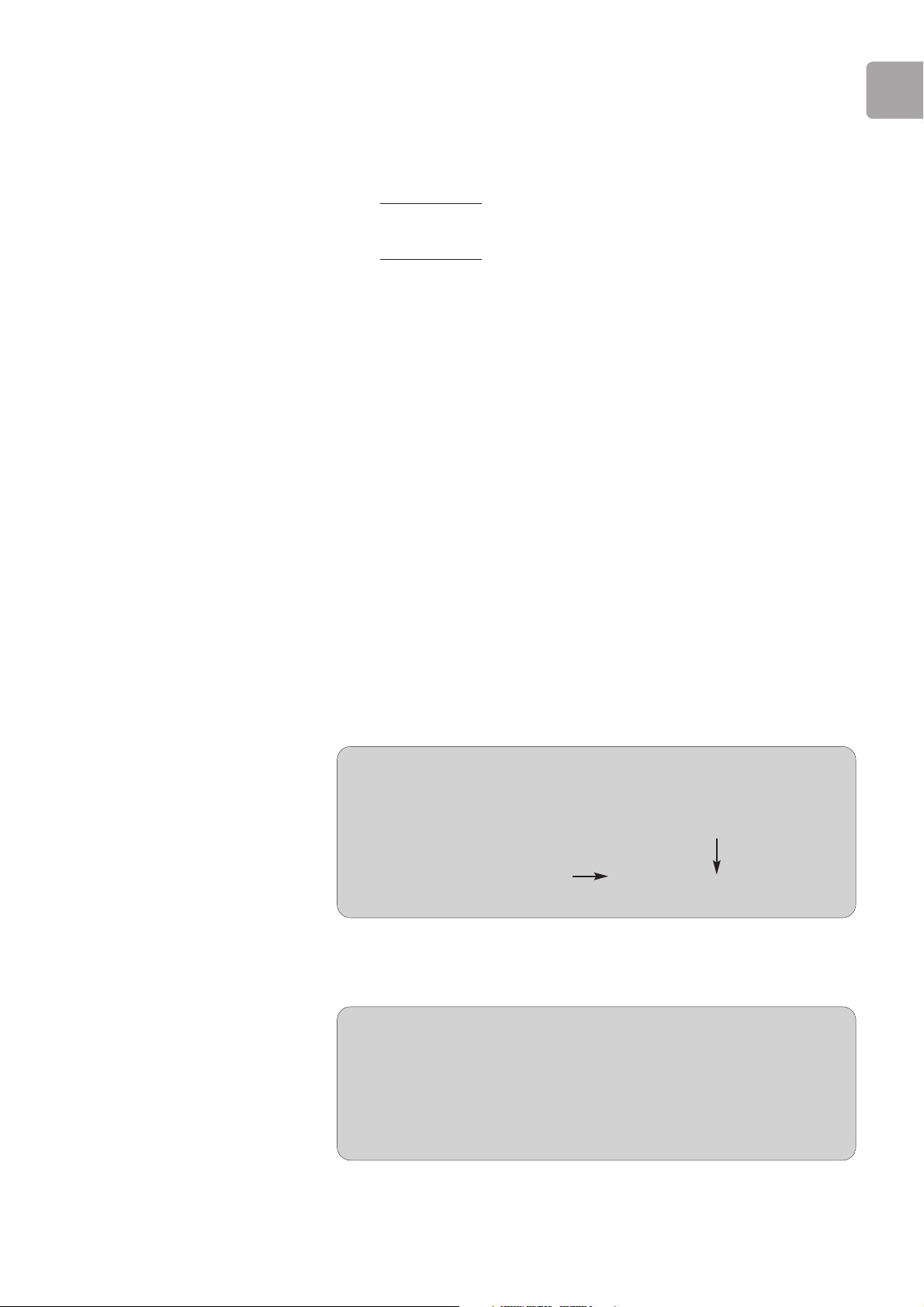
Group Bits Bytes
Giga~ 8 1 Multiply by 1024
Mega~ 8192 1024
Kilo~ 8388608 1048576
~ 8589934592 1073741824
Divide by 8
Example - 5 Mega Bytes = 5,120 Kilo Bytes = 40,960 Kilo Bits.
In wireless networks, devices are connected to other devices.
The connection is either with cables (ethernet) or wireless (802.11).
One of the devices is often a
DHCP server.
Example – Philips Base station (router) with connections to several PC’s.
The Philips wireless notebook adapter can connect your notebook to the wireless
network.
Web – www.philips.com
The Philips wireless USB adapter can connect your PC to the wireless network.
Web – www.philips.com.
A popular
codec for audio files.
Abbreviation – Windows Media Audio.
WPA is a kind of
security type.
Abbreviation – WiFi Protected Access.
General overview of bandwidths
All numbers in the table hold the same value.
EN
37
Wireless network
Wireless Notebook adapter
Wireless USB adapter
WMA
WPA
Group Mega Bits per second
Wireless network IEEE 802.11g 54– 108+
Wired network 100
Audio 0.128
Movies, DivX 1
Movies, DVD 6
Movies, HDTV 12
Bandwidth requirement for common usage
The numbers given are examples; variations to these numbers are very well possible.
Guarantee certificate
Certificat de garantie
Garantieschein
Garantiebewijs
Certificado de garantia
Certificato di garanzia
Certificado de garantia
Ǽ
Garantibevis
Garanticertifikat
Garantibevis
Takuutodistus
11
Type:
Serial nr: _____________________________________________________________________
Date of purchase - Date de la vente - Verkaufsdatum - Aankoopdatum - Fecha de compra - Date d’acquisito -
Data da adquirição - Gª¹µªía aµ¹º - Inköpsdatum - Anskaffelsesdato - Kjøpedato - Oatopäivä -
year warranty
année garantie
Jahr Garantie
jaar garantie
año garantia
anno garanzia
Á¹Æ¼º Ǽ
år garanti
år garanti
år garanti
vuosi takuu
año garantia
Dealer’s name, address and signature
Nom, adresse et signature du revendeur
Name, Anschrift und Unterschrift des Händlers
Naam, adres en handtekening v.d. handelaar
Nombre, direccion y firma del distribudor
Nome, indirizzo e firma del fornitore
µªa¾¸Èªµ, Ç¿¼ ¡a ¿¸µ¹aÀ ¾µ¿ ª¸. ¸¹µª¿¾
Återförsäljarens namn, adress och signatur
Forhandlerens navn, adresse og unterskrift
Forhandlerens navn, adresse og unterskrift
Jälleenmyyjän nimi, osoite ja allekirjoitus
Nome, morada e assinature da loja
SLA5520

Specifications are subject to change without notice.
Trademarks are the property of Koninklijke Philips Electronics N.V. or their respective owners.
2005 © Koninklijke Philips Electronics N.V. All rights reserved.
www.philips.com
0682