G:\_12STR\STR-DA2800ES\4429113711\4429113711STRDA2800ESUC\00COV-
STRDA2800ESUC\010COVBCO.fm
masterpage: Left
STR-DA2800ES
4-429-113-71(1)
©2014 Sony Corporation Printed in Malaysia
010COVBCO.fm Page 2 Friday, November 29, 2013 7:20 PM
G:\_12STR\STR-DA2800ES\4429114711\4429114711STRDA2800ESUC\00COV-
STRDA2800ESUC\010COVBCO.fm
masterpage: Right
STR-DA2800ES
4-429-113-71(1)
STR-DA2800ES
4-429-113-71(1)
Multi Channel
AV Receiver
Please read the Quick Setup Guide supplied with the receiver first. This allows
you to understand the connections and operations flow of the receiver more
easily.
Operating Instructions
010COVBCO.fm Page 1 Thursday, November 7, 2013 5:03 PM
2
US
To reduce the risk of fire or electric
shock, do not expose this apparatus to
rain or moisture.
To reduce the risk of fire, do not cover the ventilation
opening of the appliance with newspapers,
tablecloths, curtains, etc.
Do not expose the appliance to naked flame sources
(for example, lighted candles).
Do not install the appliance in a confined space, such
as a bookcase or built-in cabinet.
To reduce the risk of fire or electric shock, do not
expose this appliance to dripping or splashing, and
do not place objects filled with liquids, such as
vases, on the appliance.
As the main plug is used to disconnect the unit from
the mains, connect the unit to an easily accessible
AC outlet. Should you notice an abnormality in the
unit, disconnect the main plug from the AC outlet
immediately.
Do not expose batteries or appliances with battery-
installed to excessive heat, such as sunshine and fire.
The unit is not disconnected from the mains as long
as it is connected to the AC outlet, even if the unit
itself has been turned off.
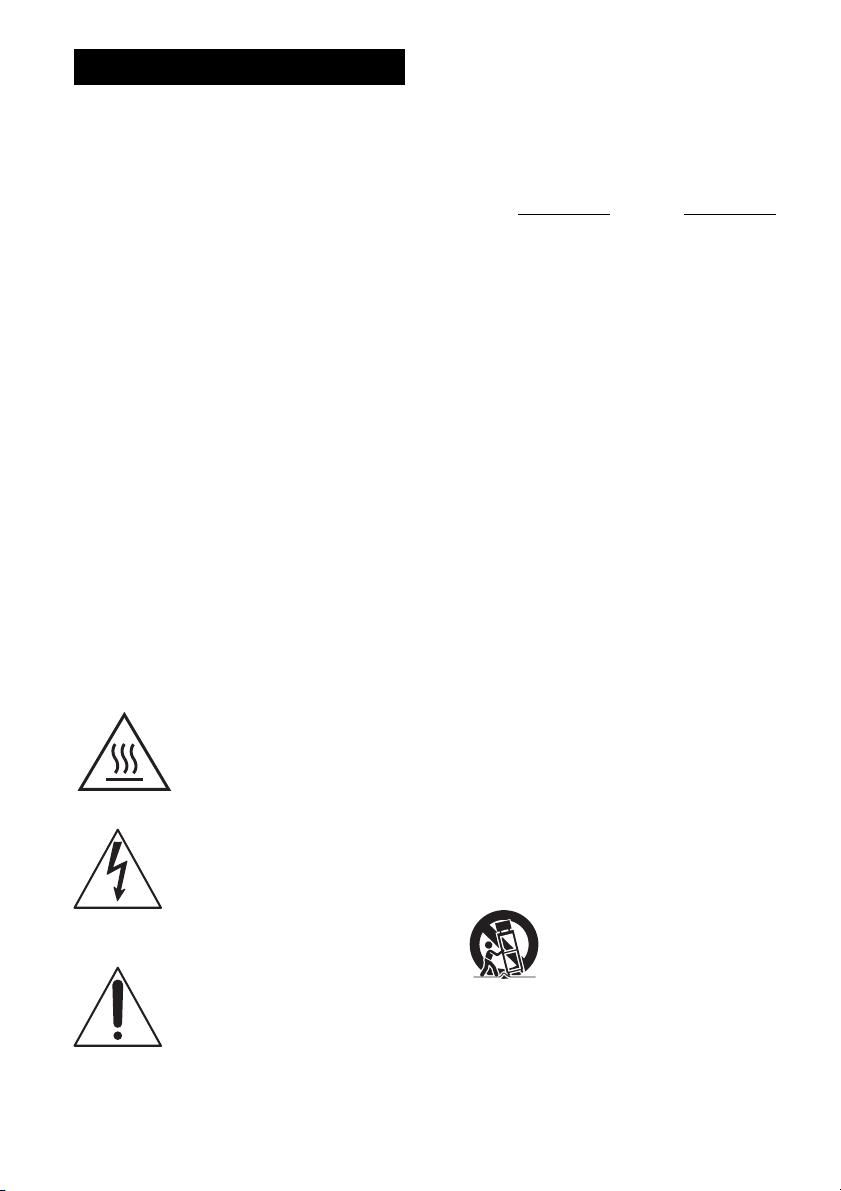
This symbol is intended to alert
the user to the presence of the Hot
Surface that may be hot if it is
touched during the normal
operation.
This symbol is intended to alert the
user to the presence of uninsulated
“dangerous voltage” within the
product’s enclosure that may be of
sufficient magnitude to constitute a
risk of electric shock to persons.
This symbol is intended to alert the
user to the presence of important
operating and maintenance
(servicing) instructions in the
literature accompanying the
appliance.
For customers in the United
States
Owner’s Record
The model and serial numbers are located on the rear
of the unit. Record these numbers in the space
provided below. Refer to them whenever you call
upon your Sony dealer regarding this product.
Model No.
Serial No.
Important Safety Instructions
1) Read these instructions.
2) Keep these instructions.
3) Heed all warnings.
4) Follow all instructions.
5) Do not use this apparatus near water.
6) Clean only with dry cloth.
7) Do not block any ventilation openings. Install in
accordance with the manufacturer’s instructions.
8) Do not install near any heat sources such as
radiators, heat registers, stoves, or other
apparatus (including amplifiers) that produce
heat.
9) Do not defeat the safety purpose of the polarized
or grounding-type plug. A polarized plug has
two blades with one wider than the other. A
grounding type plug has two blades and a third
grounding prong. The wide blade or the third
prong are provided for your safety. If the
provided plug does not fit into your outlet,
consult an electrician for replacement of the
obsolete outlet.
10)Protect the power cord from being walked on or
pinched particularly at plugs, convenience
receptacles, and the point where they exit from
the apparatus.
11)Only use attachments/accessories specified by
the manufacturer.
12)Use only with the cart, stand, tripod, bracket, or
table specified by the manufacturer, or sold with
the apparatus. When a cart is used, use caution
when moving the cart/apparatus combination to
avoid injury from tip-over.
13)Unplug this apparatus during lightning storms or
when unused for long periods of time.
WARNING

3
US
14)Refer all servicing to qualified service personnel.
Servicing is required when the apparatus has
been damaged in any way, such as power-supply
cord or plug is damaged, liquid has been spilled
or objects have fallen into the apparatus, the
apparatus has been exposed to rain or moisture,
does not operate normally, or has been dropped.
To reduce the risk of electric shock, the speaker cord
should be connected to the apparatus and the
speakers in accordance with the following
instructions.
1) Disconnect the AC power cord from the MAINS.
2) Strip 10 to 15 mm of the wire insulation of the
speaker cord.
3) Connect the speaker cord to the apparatus and
the speakers carefully so as not to touch the core
of speaker cord by hand.
Also disconnect the AC power cord from the
MAINS before disconnecting the speaker cord from
the apparatus and the speakers.
The following FCC statement
applies only to the version of
this model manufactured for
sale in the U.S.A. Other
versions may not comply with
FCC technical regulations.
NOTE:
This equipment has been tested and found to comply
with the limits for a Class B digital device, pursuant
to Part 15 of the FCC Rules. These limits are
designed to provide reasonable protection against
harmful interference in a residential installation.
This equipment generates, uses and can radiate radio
frequency energy and, if not installed and used in
accordance with the instructions, may cause harmful
interference to radio communications. However,
there is no guarantee that interference will not occur
in a particular installation. If this equipment does
cause harmful interference to radio or television
reception, which can be determined by turning the
equipment off and on, the user is encouraged to try
to correct the interference by one or more of the
following measures:
– Reorient or relocate the receiving antenna.
– Increase the separation between the equipment
and receiver.
– Connect the equipment into an outlet on a circuit
different from that to which the receiver is
connected.
– Consult the dealer or an experienced radio/TV
technician for help.
CAUTION
You are cautioned that any changes or modifications
not expressly approved in this manual could void
your authority to operate this equipment.
Properly shielded and grounded cables and
connectors must be used for connection to host
computers and / or peripherals in order to meet FCC
emission limits.
For the customers in Canada
Properly shielded and grounded cables and
connectors must be used for connection to host
computers and / or peripherals.
About the Lighting Control
Adapter (UWA-C4Z)
This Class B digital apparatus complies with
Canadian ICES-003.
This device complies with Part 15 of the FCC Rules.
Operation is subject to the following two conditions:
(1) this device may not cause harmful interference,
and (2) this device must accept any interference
received, including interference that may cause
undesired operation.
This equipment must not be co-located or operated
in conjunction with any other antenna or transmitter.
This equipment complies with FCC radiation
exposure limits set forth for an uncontrolled
environment and meets the FCC radio frequency
(RF) Exposure Guidelines in Supplement C to
OET65. This equipment should be installed and
operated keeping the radiator at least 20cm or more
away from person’s body (excluding extremities:
hands, wrists, feet and ankles).
Operation is subject to the following two conditions:
(1) this device may not cause harmful interference,
and (2) this device must accept any interference,
including interference that may cause undesired
operation of this device.
continued
4
US
This equipment complies with IC radiation exposure
limits set forth for an uncontrolled environment and
meets RSS-102 of the IC radio frequency (RF)
Exposure rules. This equipment should be installed
and operated keeping the radiator at least 20cm or
more away from person’s body (excluding
extremities: hands, wrists, feet and ankles).
About This Manual
• The instructions in this manual are for model
STR-DA2800ES (the receiver). Check your model
number by looking at the lower right corner of the
front panel.
• The instructions in this manual describe mostly the
operation of the receiver with the supplied remote
control. You can also use the buttons or knobs on
the receiver if they have the same or similar names
as those on the remote control.
This receiver incorporates Dolby* Digital and Pro
Logic Surround and the DTS** Digital Surround
System.
* Manufactured under license from Dolby
Laboratories.
Dolby, Pro Logic, Surround EX, and the double-
D symbol are trademarks of Dolby Laboratories.
** Manufactured under license under U.S. Patent
No’s: 5,956,674, 5,974,380, 5,978,762,
6,487,535, 6,226,616, 7,212,872, 7,003,467,
7,272,567, 7,668,723, 7,392,195, 7,333,929,
7,548,853 & other U.S. and worldwide patents
issued and pending. DTS-HD, the Symbol, &
DTS-HD and the Symbol together are registered
trademarks & DTS-HD Master Audio is a
trademark of DTS, Inc. Product includes
software. © DTS, Inc. All Rights Reserved.
This receiver incorporates High-Definition
Multimedia Interface (HDMI™) technology.
The terms HDMI and HDMI High-Definition
Multimedia Interface, and the HDMI Logo are
trademarks or registered trademarks of HDMI
Licensing LLC in the United States and other
countries.
The font type (Shin Go R) installed in this receiver
is provided by MORISAWA & COMPANY LTD.
These names are the trademarks of MORISAWA &
COMPANY LTD., and the copyright of the font also
belongs to MORISAWA & COMPANY LTD.
On Copyrights
5
US
iPhone, iPod, iPod classic, iPod nano, and iPod
touch are trademarks of Apple Inc., registered in the
U.S. and other countries.
All other trademarks and registered trademarks are
of their respective holders. In this manual, ™ and ®
marks are not specified.
“Made for iPod,” and “Made for iPhone” mean that
an electronic accessory has been designed to
connect specifically to iPod or iPhone, respectively,
and has been certified by the developer to meet
Apple performance standards. Apple is not
responsible for the operation of this device or its
compliance with safety and regulatory standards.
Please note that the use of this accessory with iPod
or iPhone may affect wireless performance.
DLNA™, the DLNA Logo and DLNA
CERTIFIED™ are trademarks, service marks, or
certification marks of the Digital Living Network
Alliance.
MPEG Layer-3 audio coding technology and patents
licensed from Fraunhofer IIS and Thomson.
“BRAVIA” Sync is a trademark of Sony
Corporation.
“x.v.Color” and “x.v.Color” logo are trademarks of
Sony Corporation.
“PlayStation
®
” is a registered trademark of Sony
Computer Entertainment Inc.
“AVCHD” and the “AVCHD” logo are trademarks
of Panasonic Corporation and Sony Corporation.
Windows Media is either a registered trademark or
trademark of Microsoft Corporation in the United
States and/or other countries.
This product contains technology subject to certain
intellectual property rights of Microsoft. Use or
distribution of this technology outside of this
product is prohibited without the appropriate
license(s) from Microsoft.
Content owners use Microsoft PlayReady™ content
access technology to protect their intellectual
property, including copyrighted content. This device
uses PlayReady technology to access PlayReady-
protected content and/or WMDRM-protected
content. If the device fails to properly enforce
restrictions on content usage, content owners may
require Microsoft to revoke the device’s ability to
consume PlayReady-protected content. Revocation
should not affect unprotected content or content
protected by other content access technologies.
Content owners may require you to upgrade
PlayReady to access their content. If you decline an
upgrade, you will not be able to access content that
requires the upgrade.
“WALKMAN” and “WALKMAN” logo are
registered trademarks of Sony Corporation.
“Android” is a registered trademark or a trademark
of Google Inc.
InstaPrevue™ is a trademark or registered
trademark of Silicon Image, Inc. in the United States
and other countries.
The Control4 and the 4ball logos are registered
trademarks of Control4 Corporation. All rights
reserved.
This product contains software that is subject to the
GNU General Public License (“GPL”) or GNU
Lesser General Public License (“LGPL”). These
establish that customers have the right to acquire,
modify, and redistribute the source code of said
software in accordance with the terms of the GPL or
the LGPL.
For details of the GPL, LGPL and other software
licenses, please refer to “System Settings” t
“Software License” on the “Settings” menu on the
receiver.
The source code for the software used in this product
is subject to the GPL and LGPL, and is available on
the Web. To download, please access the following:
URL: http://www.sony.net/Products/Linux
Please note that Sony cannot answer or respond to
any inquiries regarding the content of this source
code.
6
US
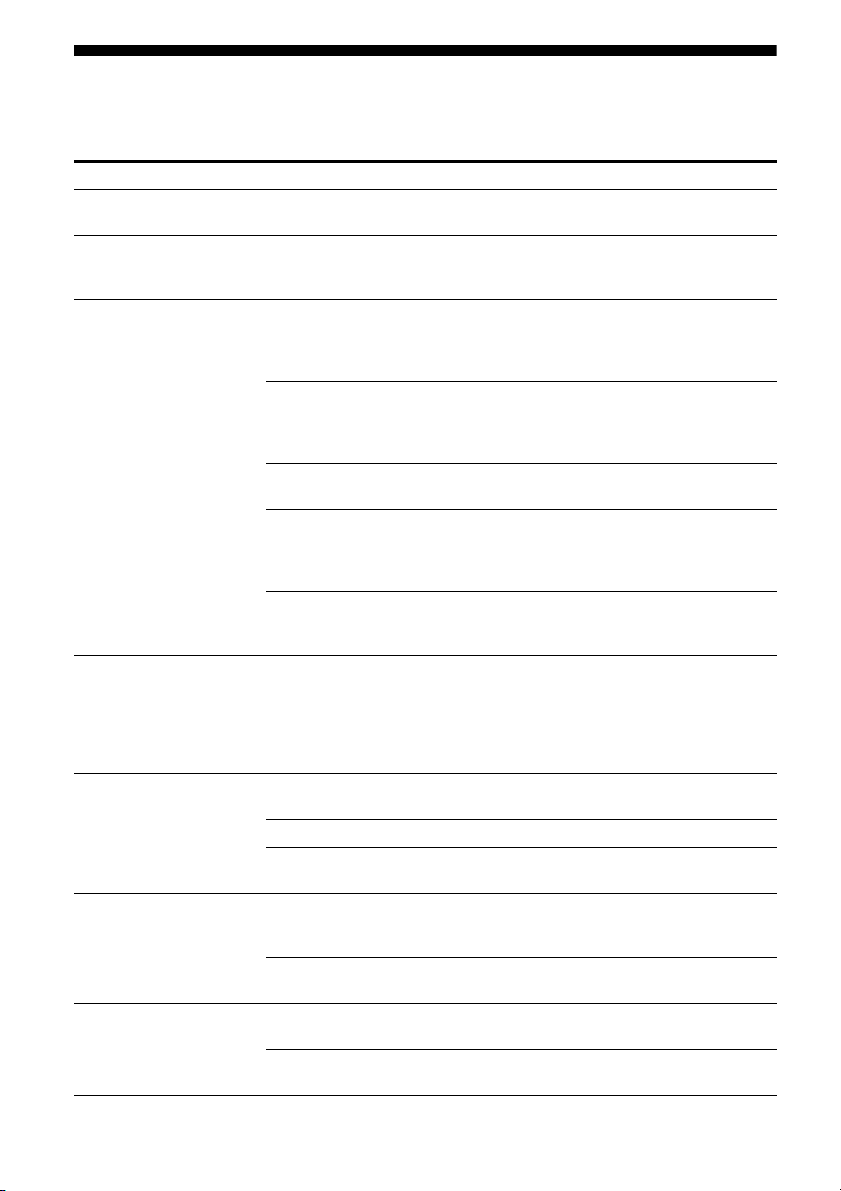
Main features of the receiver
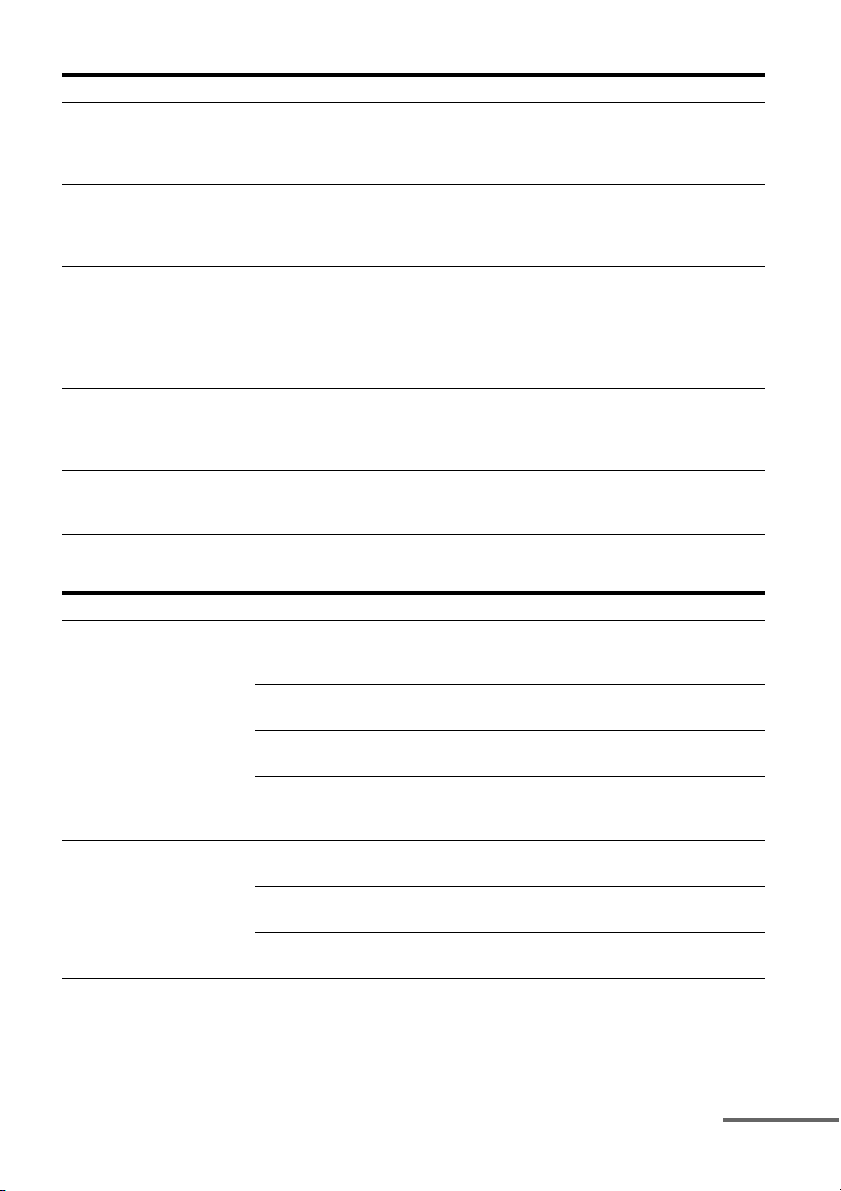
Compatible with a variety of connections and formats
Feature Description Page
7.2 channels The receiver can output up to 7.2 channels.
The receiver supports a bi-amplifier connection of a front speaker.
22, 24
Compatible with various
standards
The receiver is compatible with various audio formats, such as
Dolby TrueHD, DTS-HD Master Audio, DSD, multi-channel
Linear PCM, FLAC, etc.
20
HDMI (8 in 2 out + 1 zone
out)
The receiver is equipped with 8 HDMI input jacks (of which two,
HDMI IN 2 and IN 3, are the “for AUDIO” jacks which take sound
quality into account) on the back panel. You can connect various
equipment using an HDMI connection.
26, 28, 30,
31, 35
The receiver is compatible with various HDMI standards, such as
Deep Color, “x.v.Color,” or 4K* and 3D transmission, Audio
Return Channel (ARC), etc.
* The HDMI IN 1 and IN 2 jacks support 4K transmission.
34, 81
4K
The receiver can output 4K signals through its HDMI output jacks.
19, 34
Fast View
You can select an HDMI Input method that is faster than the
normal selection (Fast View). HDMI IN 1, IN 2, IN 3, and IN 4
jacks support the Fast View function.
103
Control for HDMI
You can operate the receiver and other equipment in conjunction
with each other using the Control for HDMI function.
77, 103
Preview for HDMI The receiver allows you to display a live picture-in-picture preview
of an HDMI input connected to this receiver. Preview windows
will be displayed only for HDMI IN 1/IN 2/IN 3/IN 4 Input.
You can select each preview HDMI input using the remote control.
(This function is made possible by Silicon Image InstaPrevue™
technology.)
84
Network The receiver is equipped with four LAN ports that have switching
hub functions.
41
The receiver is compatible with Internet content streaming. 53
The receiver allows you to play back content on a home network
via the DLNA-compliant home network function.
51
USB iPod/iPhone applicable USB port
You can easily play back iPod/iPhone content via the receiver
using a USB connection.
50
You can easily play back content on a USB device/WALKMAN
via the receiver using a USB connection.
49
Multi-zone In addition to the main room, you can enjoy music and video in
another room, different from the content in the main room.
71
You can output HDMI signals from HDMI IN jacks to the HDMI
ZONE 2 OUT jack.
19, 71, 74
7
US
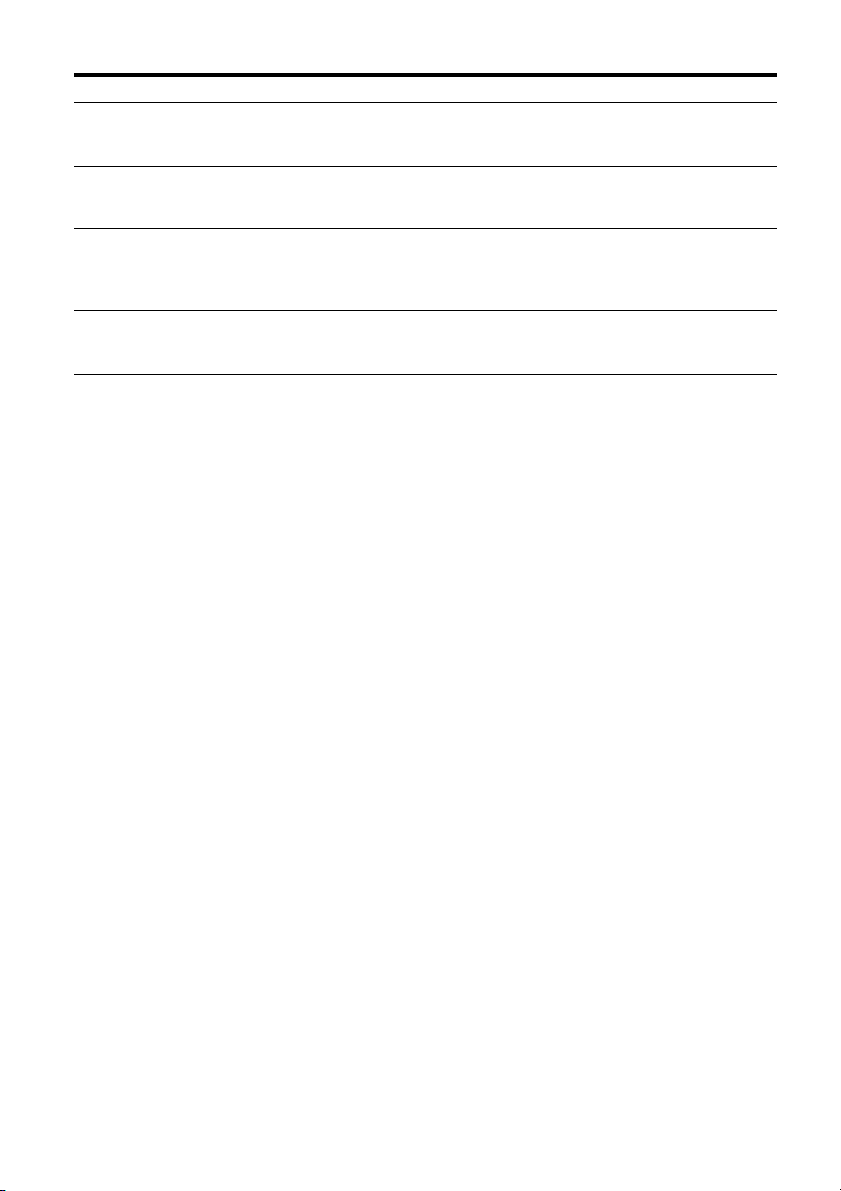
Better image and sound quality
Useful functions
Feature Description Page
Image up-conversion The receiver upscales or downscales analog video signals. The
signals can be upscaled to 4k using an HDMI output jack. The
receiver also upscales or downscales analog video signals for
zone 2.
19
Digital Cinema Auto
Calibration (D.C.A.C.)
function
The receiver is equipped with the Digital Cinema Auto Calibration
(D.C.A.C.) function. This function allows you to perform
automatic calibration and settings of audio parameters to produce
optimum sound.
92, 93
Sound fields You can select from a variety of sound field modes according to
speaker connections or input sources.
The receiver is also provided with the following sound option:
– Three modes to reproduce the sound characteristics of famous
music halls: “Berlin Philharmonic Hall,” “Concertgebouw
Amsterdam,” or “Musikverein Vienna.”
59, 61
Raising the center
speaker sounds to an
appropriate height
(Center Speaker Lift Up)
By using the front high speakers, you can lift up the sounds of the
center speaker to an appropriate height on the screen. This function
(Center Speaker Lift Up) allows you to enjoy natural
representation without discomfort.
94
High quality
reproduction of
compressed audio files
You can play back compressed audio files with high quality using
the D.L.L. (Digital Legato Linear) function.
96
Feature Description Page
Easy and accessible
operations
The receiver is equipped with a GUI (Graphical User Interface).
You can operate the receiver intuitively using a menu displayed on
the TV screen.
46
You can set the basic settings of the receiver easily using Easy
Setup.
43
A remote control for operating connected equipment and the
Multi-zone function is supplied with the receiver.
16
You can recall various settings of the receiver, including lighting
scenes, all at one time with the press of the EASY AUTOMATION
button.
67
Flexible functions The Sound Optimizer function optimizes audio output in
accordance with the volume level.
62
The A/V Sync function adjusts the time gap between audio output
and the visual display.
98
The Pass Through function outputs HDMI signals to the TV, even
when the receiver is in standby mode.
80
continued
8
US
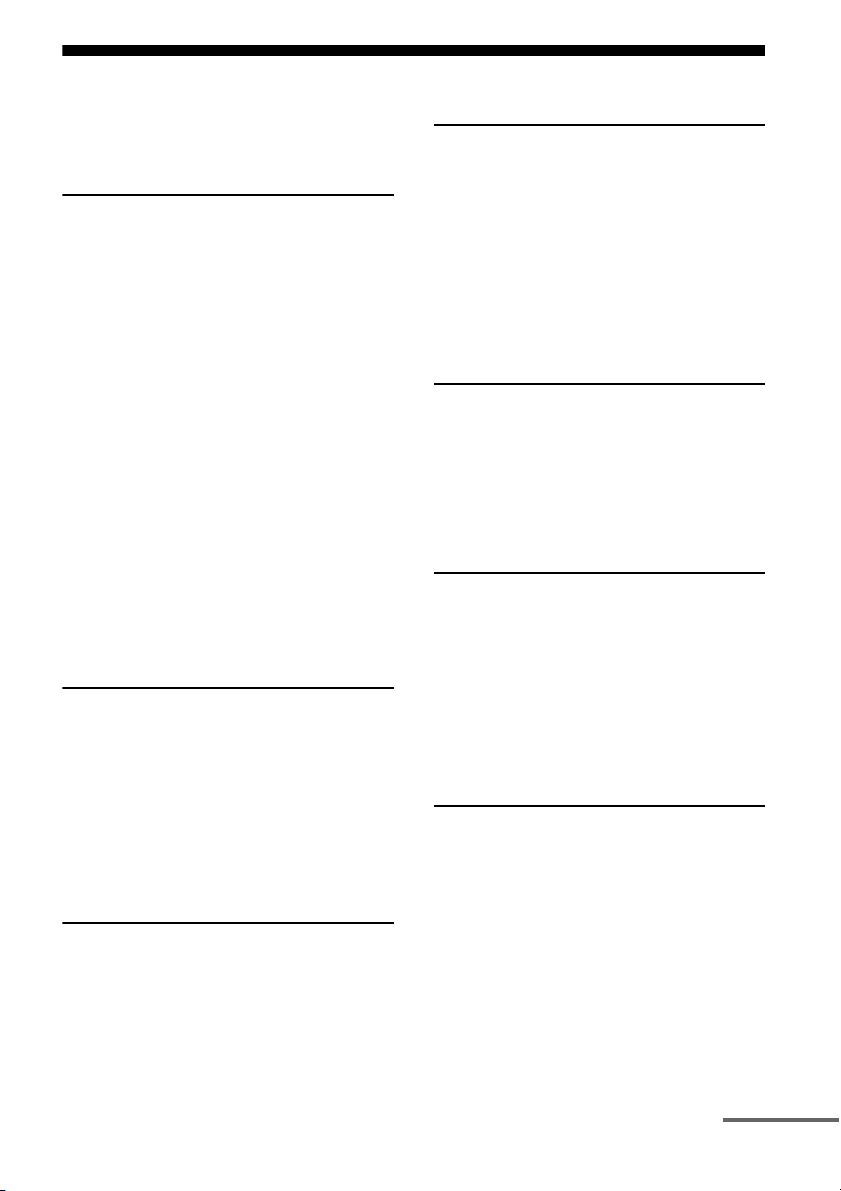
Others
Feature Description Page
Environment-friendly
function
The Auto Standby function switches the receiver to standby mode
automatically if you do not operate the receiver for a specific
period of time or when there is no signal input to the receiver.
108
More useful You can operate the receiver using a smartphone equipped with
“ES Remote” application software.*
* Compatible with an iPod touch/iPhone and Android phones
85
Lighting Control The receiver allows you to operate Control4-compatible lighting
devices. You can turn them on or off, and adjust the lighting level.
You can also register settings combining multiple lighting devices
as a lighting scene.
69
Universal Remote
Control
The receiver allows you to operate your equipment such as a BD/
DVD player with the supplied remote control by registering the
player in advance.
64
9
US
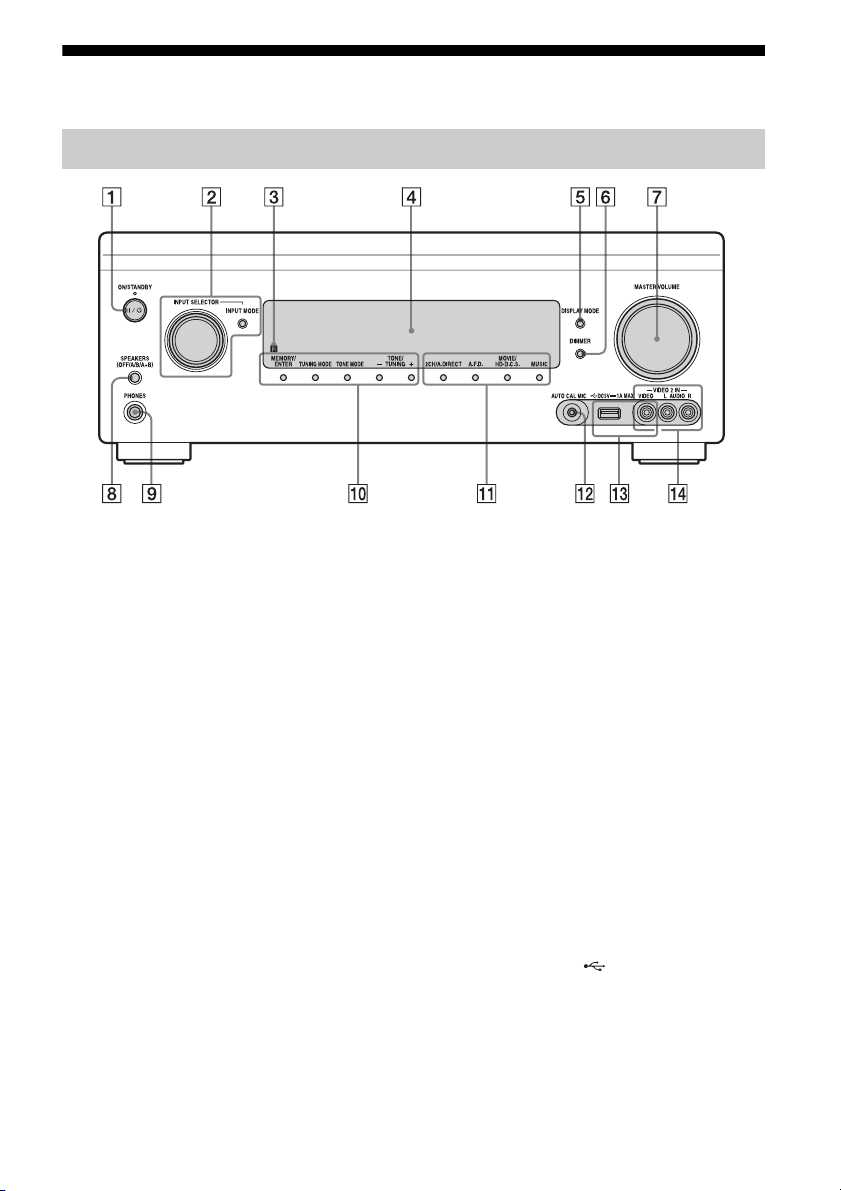
Table of Contents
Main features of the receiver ........................ 6
Description and location of parts ............... 11
Getting Started
Read the following before you connect any
equipment .............................................. 18
1: Installing speakers .................................. 22
2: Connecting the monitor .......................... 26
3: Connecting the video equipment ........... 28
4: Connecting the audio equipment ........... 35
5: Connecting the IR blaster ....................... 39
6: Making connections for using Lighting
Control .................................................. 40
7: Connecting to the network ..................... 41
8: Preparing the receiver and the remote
control ................................................... 42
9: Setting up the receiver using the Easy
Setup ..................................................... 43
10: Setting up connected equipment .......... 45
11: Preparing a computer to use as
a server .................................................. 46
Guide to on-screen display operation ......... 46
Enjoying images/sound
Enjoying images/sound from connected
equipment .............................................. 48
USB Device/WALKMAN .......................... 49
iPod/iPhone ................................................ 50
Home Network (DLNA) ............................ 51
Internet content .......................................... 53
FM/AM ...................................................... 54
Enjoying Sound Effects
Selecting the sound field ............................ 58
Using the Sound Optimizer function ......... 62
Adjusting the equalizer .............................. 63
Using the Universal Remote
Control Function
Selecting the equipment you want to
operate ...................................................64
Operating the AV equipment ......................64
Turning off all connected equipment
(ROOM OFF) ........................................66
Making Universal Remote Control
settings ...................................................66
Using the Home Automation
Function
Saving various settings for the receiver and
recalling those settings all at one time
(Easy Automation) ................................67
Lighting Control .........................................69
Using Multi-zone Features
What you can do with the Multi-zone
function ..................................................71
Making a multi-zone connection ................71
Setting the speakers in zone 2 ....................74
Setting the HDMI output in zone 2 ............74
Operating the receiver from another zone
(ZONE 2 operations) .............................75
Using Other Features
Using “BRAVIA” Sync features ................77
Switching the monitors that output the HDMI
video signals ..........................................80
Outputting the HDMI signals even when the
receiver is in standby mode
(Pass Through) ......................................80
Switching between digital and analog
audio ......................................................81
Using other video/audio input jacks ...........82
Preview for HDMI ......................................84
continued

10
US
Operating the receiver using
a smartphone ..........................................85
Using the sleep timer ..................................85
Recording using the receiver ......................86
Switching the command mode of the receiver
and the remote control ...........................86
Using a bi-amplifier connection .................87
Reverting back to the factory default
settings ...................................................88
Adjusting Settings
Using the setting menu ...............................89
Easy Setup ..................................................92
Speaker Settings .........................................92
Audio Settings ............................................96
Video Settings .............................................99
HDMI Settings ..........................................102
Input Settings ............................................104
Network Settings ......................................105
Home Control Settings .............................106
Zone Settings ............................................107
System Settings ........................................108
Network Update ........................................109
Operating without using the GUI .............110
Additional Information
Precautions ...............................................117
Troubleshooting ........................................118
Specifications ............................................130
Index .........................................................134
11
US
Description and location of parts
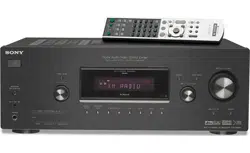
A ?/1 ON/STANDBY
Turns the receiver on or off.
The lamp above the button lights up as
follows:
Green: The receiver is turned on.
Amber: The receiver is in standby mode,
and
– “Control for HDMI” (page 103) or
“Network Standby” (page 105) is set to
“On.”
– “Pass Through” (page 103) is set to
“On” or “Auto.”
– The receiver in zone 2 is turned on.
The lamp turns off when the receiver is in
standby mode and the above settings are
off.
B INPUT SELECTOR (page 48)
INPUT MODE (page 81)
C Remote sensor
Receives signals from remote control.
D Display window (page 12)
E DISPLAY MODE (page 116)
F DIMMER
Press DIMMER repeatedly to adjust the
brightness of the display window.
G MASTER VOLUME (page 48)
H SPEAKERS (OFF/A/B/A+B)
(page 44)
I PHONES jack
Connects to headphones.
J MEMORY/ENTER, TUNING MODE,
TONE MODE, TONE/TUNING +/–
(page 57)
Press TONE MODE repeatedly to select
the speaker and range. Then press TONE/
TUNING +/– to adjust the bass/treble
level of the speaker.
K 2CH/A.DIRECT, A.F.D., MOVIE/
HD-D.C.S., MUSIC (page 58, 59)
L AUTO CAL MIC jack (page 92)
Connect the supplied optimizer
microphone for “Auto Calibration” to this
jack.
M iPod/iPhone ( (USB) port and
VIDEO IN jack) (page 33, 49, 50)
N VIDEO 2 IN jacks (page 33)
Front panel
12
US
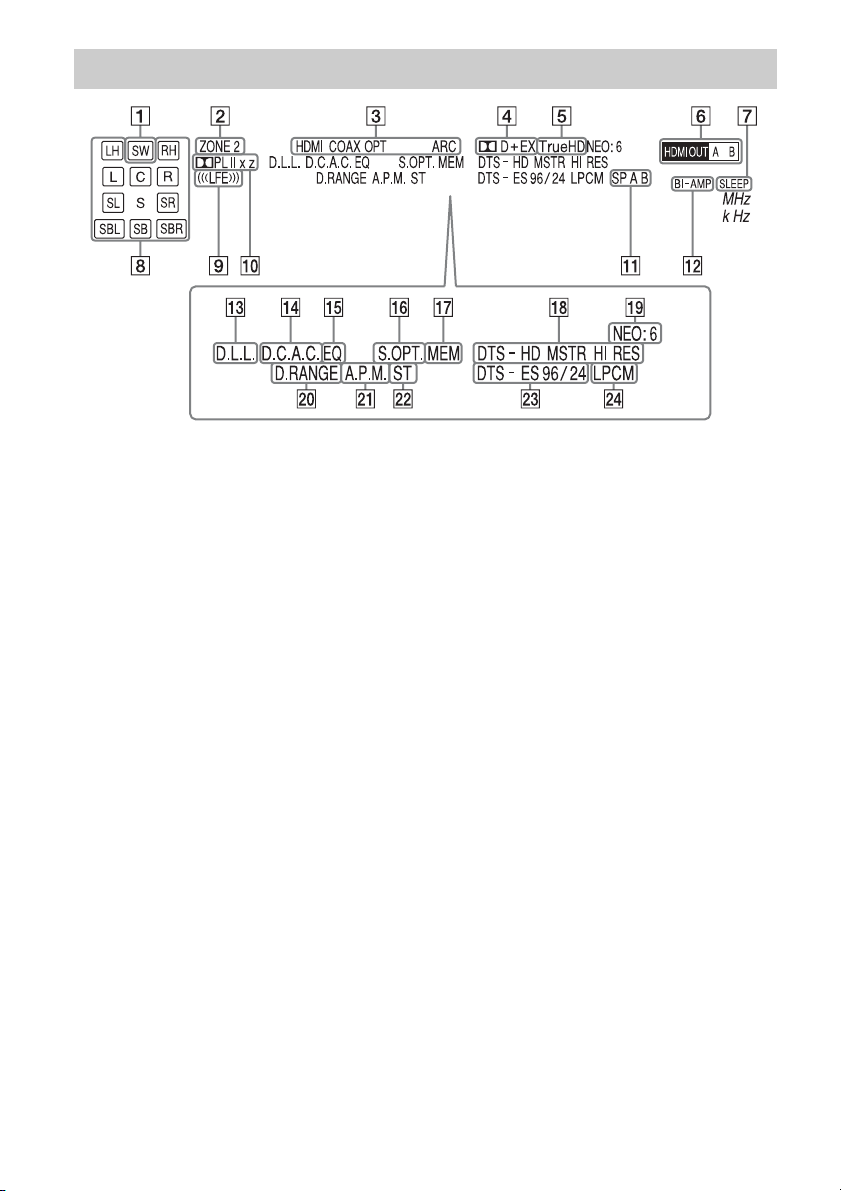
A SW
Lights up when subwoofer(s) is (are)
connected and the audio signal is output
from the SUBWOOFER jack(s).
B ZONE 2 (page 71)
C INPUT indicator
Lights up to indicate the current input.
HDMI
COAX
OPT
ARC (page 81)
D Dolby Digital Surround indicator
Lights up with one of the respective
indicators when the receiver is decoding
the corresponding Dolby Digital format
signals.
;D
Dolby Digital
;D+
Dolby Digital Plus
;D EX
Dolby Digital Surround EX
E ;TrueHD
Lights up when the receiver is decoding
Dolby TrueHD.
F HDMI OUT A/B (page 80)
G SLEEP (page 85)
H Playback channel indicator
Indicates the speaker that is designated to
output sound. Shows how the receiver
down-mixes or up-mixes the source
sound, based on the speaker settings.
L
Front Left
R
Front Right
C
Center
LH
Left High
RH
Right High
SL
Surround Left
SR
Surround Right
SBL
Surround Back Left
SBR
Surround Back Right
Indicators on the display

13
US
SB
Surround Back
Example:
Recording format: 5.1
Speaker pattern: 3/0.1
Sound Field: A.F.D. Auto
I LFE
Lights up when input signals being
played back contain an LFE (Low
Frequency Effects) channel.
J Dolby Pro Logic indicator
Lights up with one of the respective
indicators when the receiver performs
Dolby Pro Logic processing. This matrix
surround decoding technology can
enhance input signals.
;PL
Dolby Pro Logic
;PLII
Dolby Pro Logic II
;PLIIx
Dolby Pro Logic IIx
;PLIIz
Dolby Pro Logic IIz
K Speaker system indicator
(page 44)
L BI-AMP (page 87)
M D.L.L. (page 96)
N D.C.A.C. (page 92)
Lights up when the measurement results
of the “Auto Calibration” function are
applied.
O EQ
Lights up when the equalizer is activated.
P S.OPT.
Lights up when the sound optimizer
function is activated (page 62).
Q MEM
Lights up when the preset memory
function is activated.
R DTS-HD indicator
Lights up when the receiver is decoding
DTS-HD.
DTS-HD
Lights up constantly with the one of the
following indicators.
MSTR
DTS-HD Master Audio
HI RES
DTS-HD High Resolution Audio
S NEO:6
Lights up when DTS Neo:6 Cinema/
Music decoding is activated.
T D.RANGE
Lights up when dynamic range
compression is activated.
U A.P.M. (page 93)
Lights up when the A.P.M. (Automatic
Phase Matching) function is activated.
V Tuning indicator
Lights up when the receiver tunes to a
radio station.
ST
Stereo reception
W DTS(-ES) indicator
Lights up when DTS or DTS-ES signals
are input.
DTS
Lights up when the receiver is decoding
DTS signals.
DTS-ES
Lights up with one of the following
indicators, depending on the input signal
decoding format.
96/24
DTS 96/24 (96 kHz/24 bit) decoding
X LPCM
Lights up when Linear PCM (Pulse Code
Modulation) signals are input.
14
US
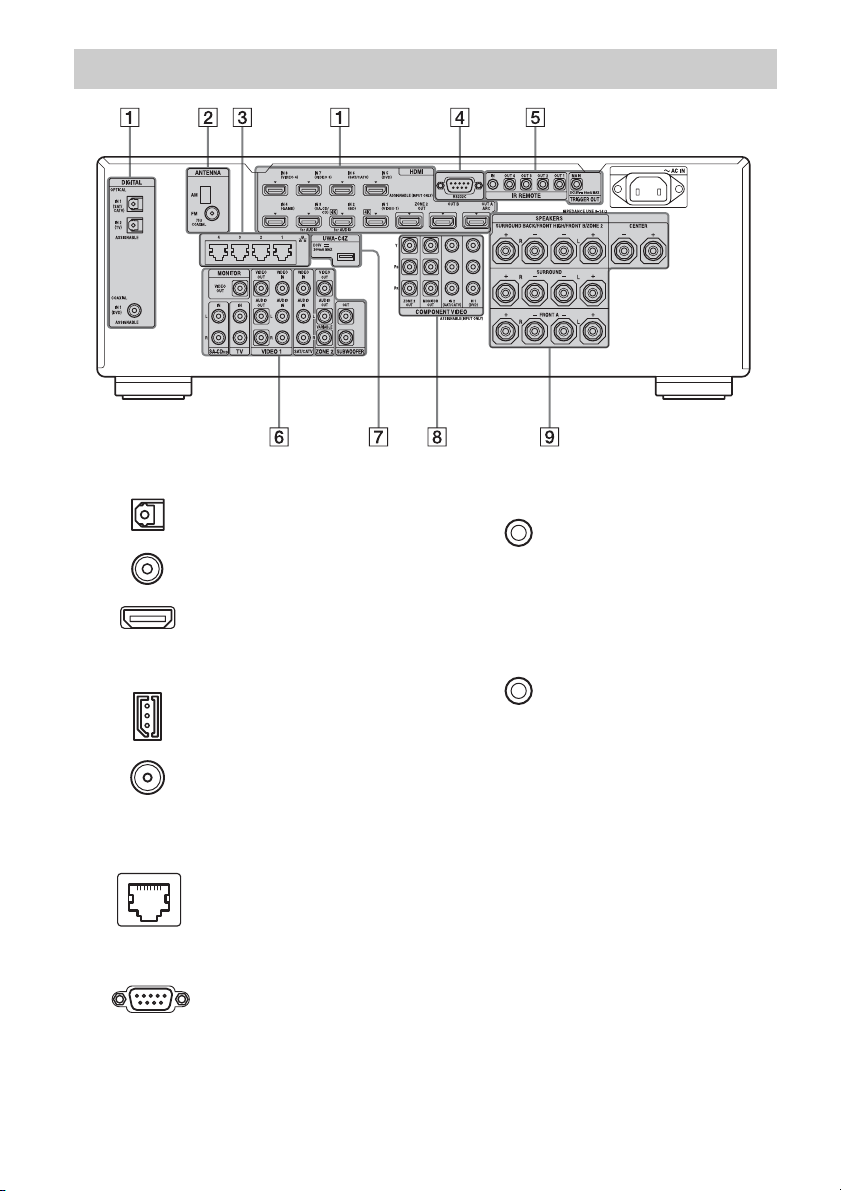
Rear panel
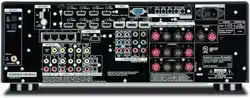
A DIGITAL INPUT/OUTPUT section
OPTICAL IN jacks
(page 26, 30, 31)
COAXIAL IN jacks
(page 29, 36)
HDMI IN/OUT* jacks
(page 26, 28, 30, 31)
B ANTENNA section
AM ANTENNA jack
(page 38)
FM ANTENNA jack
(page 38)
C LAN ports (switching hubs)
(page 41)
D RS232C port
Used for maintenance and service.
E Control jacks for Sony and other
external equipment
IR REMOTE IN/OUT
jacks (page 71)
Connect an IR repeater (not supplied) to
IN to use the Multi-zone function.
Connect an IR blaster (supplied) to OUT
to use the Universal Remote Control
function.
TRIGGER OUT jacks
(page 107)
Connect to interlock on/off of the power
supply of other 12V TRIGGER compliant
equipment.
15
US
* You must connect the HDMI OUT or MONITOR
OUT jack to your TV to watch the selected input
image (page 26).
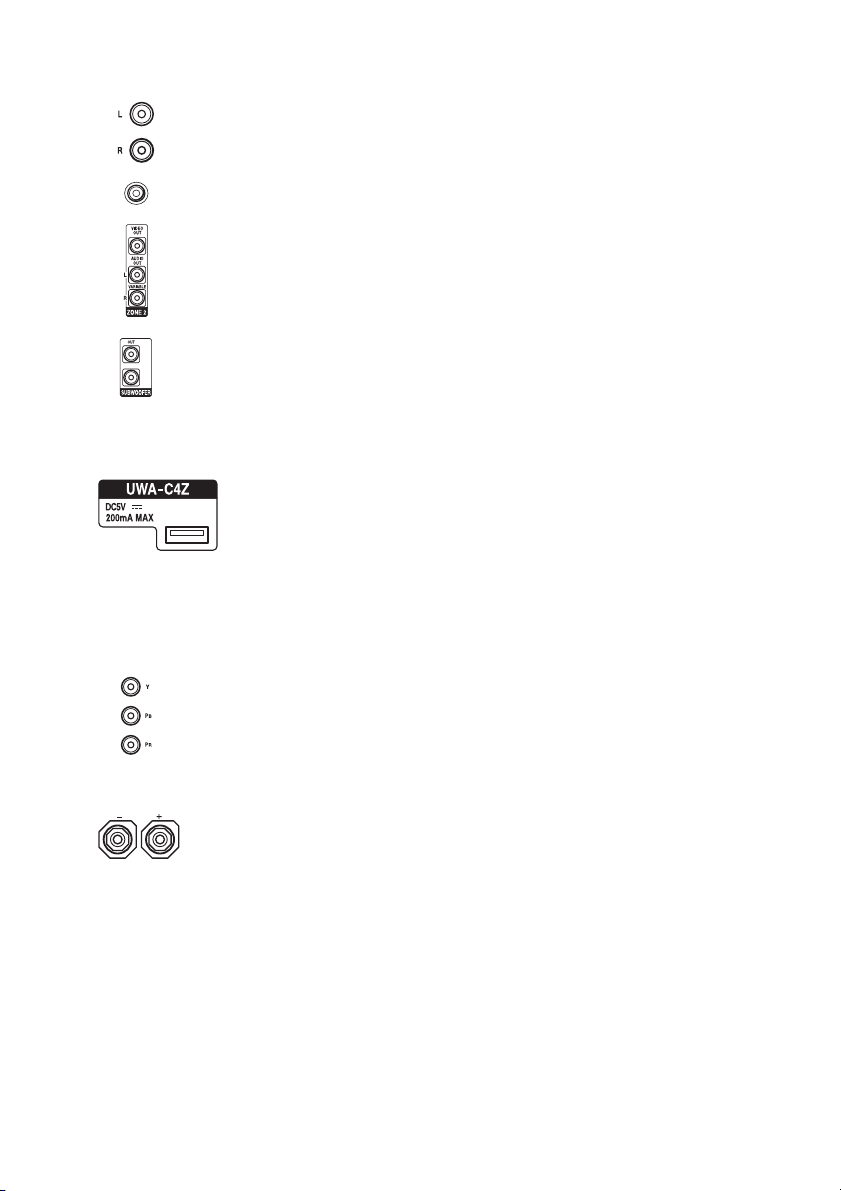
F VIDEO/AUDIO INPUT/OUTPUT
section (page 26, 29, 30, 31, 32, 36)
AUDIO IN/OUT jacks
VIDEO IN/OUT* jacks
AUDIO OUT jacks
VIDEO OUT jack
(page 71)
SUBWOOFER jacks
Connect to an external subwoofer(s).
G UWA-C4Z
Connect the supplied Lighting Control
Adapter (UWA-C4Z) to this port.
H COMPONENT VIDEO INPUT/
OUTPUT section (page 26, 29, 31)
Y, P
B
, P
R
IN/OUT* jacks
I SPEAKERS section (page 24)
16
US
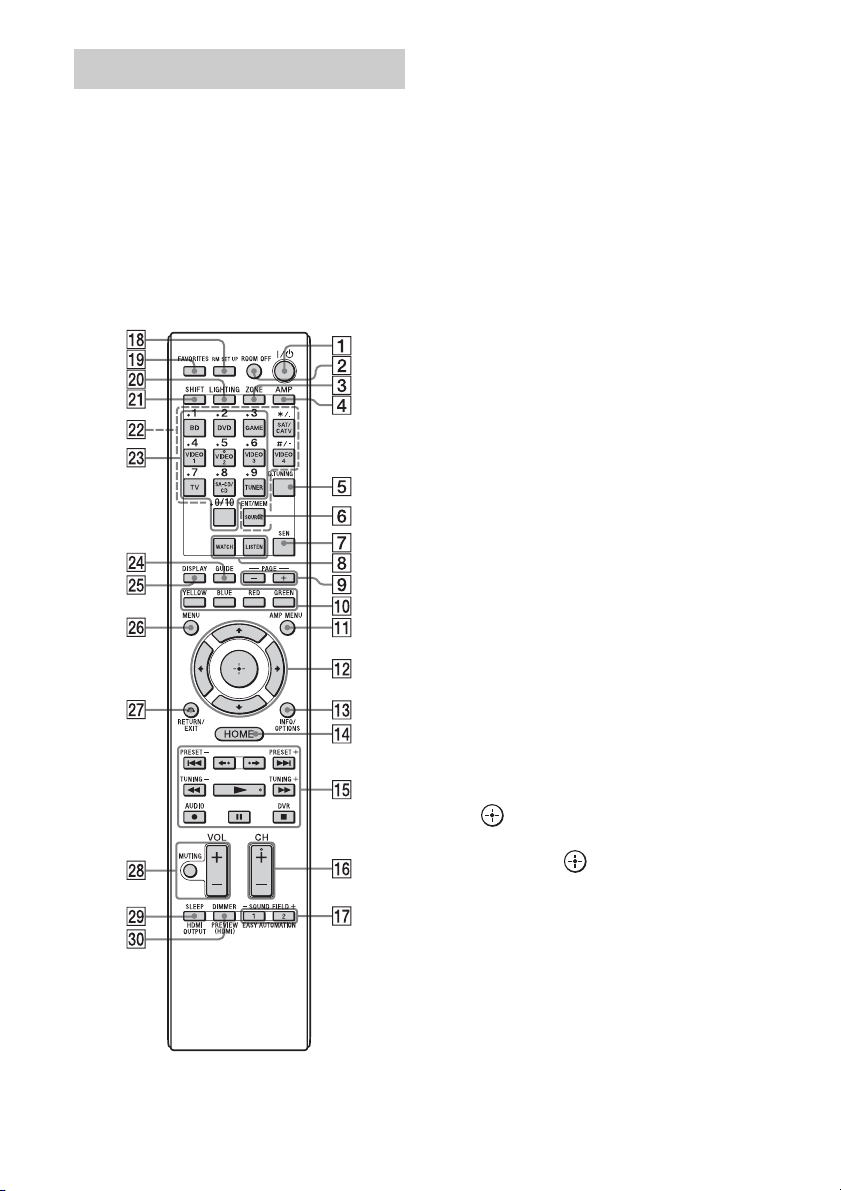
Use the supplied remote control to operate this
receiver and other equipment.
Note
Do not expose the remote sensor to direct sunlight or
lighting apparatuses. Doing so may cause a
malfunction.
Tip
When the receiver no longer responds to the remote
control, replace all the batteries with new ones.
A ?/1 (on/standby)
Turns the receiver on or off.
B ROOM OFF
Turns all the connected devices in the
room on or off.
C ZONE (page 71)
D AMP
Activates the receiver operation for the
main zone.
E D.TUNING (page 55)
Press SHIFT (wa), then press D.TUNING
to enter direct tuning mode.
F ENT/MEM
Press SHIFT (wa), then press ENT/MEM
to enter the value or track using the
numeric buttons (wd), or press ENT/
MEM, then press the numeric buttons
(wd) to select a preset number to which a
station is stored during tuner operation.
G SEN
Accesses the home page of the Sony
Entertainment Network (SEN), a network
service provided by Sony.
H WATCH, LISTEN (page 48)
I PAGE +/– (page 64)
Allows you to scroll quickly through lists
of media.
J Color buttons
Works according to the guide on the TV
screen.
K AMP MENU (page 110)
L V/v/B/b
Press V/v/B/b to select the menu items.
Then press to enter the selection.
M INFO/OPTIONS (page 47, 54, 57)
Displays and selects items from the
options menu.
The INFO button is mapped to an info
function for certain devices.
N HOME (page 47)
Displays the home menu on the TV
screen.
Remote control (RM-AAU195)

17
US
O m/M
1)
, x
1)
, X
1)
, N
1) 2)
,
./>
1)
, z
1)
Press the buttons to operate the DVD
player, Blu-ray Disc Player, CD player,
MD deck, tape deck, equipment
connected to the (USB) port or to the
network, or Internet, etc.
TUNING +/–
Press SHIFT (wa), then press TUNING
+/– to select a station.
PRESET +/–
Press SHIFT (wa), then press PRESET +/
– to select preset stations.
AUDIO
3)
Press SHIFT (wa), then press AUDIO to
select audio format/track.
DVR
Press SHIFT (wa), then press DVR to
jump to the DVR capabilities of DVR
capable devices.
B·/·b
3)
Press B·/·b to
– replay the previous scene or fast
forward the current scene.
– skip to the previous or next album when
using an iPod/iPhone.
P CH +
2)
/–
Scans channels on the selected device.
Q SOUND FIELD +/– (page 58, 59, 61),
EASY AUTOMATION 1, 2 (page 67)
R RM SET UP (page 86)
S FAVORITES (page 53)
T LIGHTING (page 69)
U SHIFT
Changes the remote control button
function to activate the buttons printed in
pink.
V Input buttons
Press one of the buttons to select the
equipment you want to use. When you
press any of the input buttons, the receiver
turns on.
*/., #/-
Press SHIFT (wa), then press the buttons.
The special #, -, ., and * keys are used
mostly for HD channel selection.
W Numeric buttons
Press SHIFT (wa), then press numeric
buttons to input numbers.
Press numeric buttons to select channel
numbers of the TV.
X GUIDE
Press SHIFT (wa), then press GUIDE to
display the on-screen program guide.
Y DISPLAY
Displays the control panel on the TV
screen when playing back content via
Internet or a home network.
Z MENU
Brings up a device specific menu on most
devices. For DVD players, the MENU
button takes the user to the DVD menu.
wj RETURN/EXIT O
Returns to the previous menu or exit the
menu.
wk VOL +/– (page 48)
Adjusts the volume of the selected
equipment.
MUTING (page 48)
Turns off the sound of the selected
equipment temporarily.
wl SLEEP (page 85), HDMI OUTPUT
(page 80)
e; DIMMER
Press SHIFT (wa), then press DIMMER
repeatedly to adjust the brightness of the
display window.
PREVIEW (HDMI) (page 84)
Press PREVIEW (HDMI) to open
picture-in-picture screens to preview
input from four HDMI IN jacks.
1)
See the table on page 65 for information on the
buttons that you can use to control each types of
equipment.
2)
A tactile dot is attached to these buttons (5/VIDEO
2, N, CH +). Use it as a mark of operation.
3)
Functions are available only for a USB input or a
Sony Entertainment Network (SEN).
Note
The above explanations are intended to serve as
examples.
18
US
Read the following before you connect any equipment
Before connecting cords, make sure to disconnect the AC power cord (mains lead).
For details on a multi-zone connection, see page 71.
For details on a bi-amplifier connection, see page 87.
Getting Started
Installing Speakers
See “1: Installing speakers” (page 22).
Connecting the monitor
See “2: Connecting the monitor” (page 26).
Connecting the video equipment
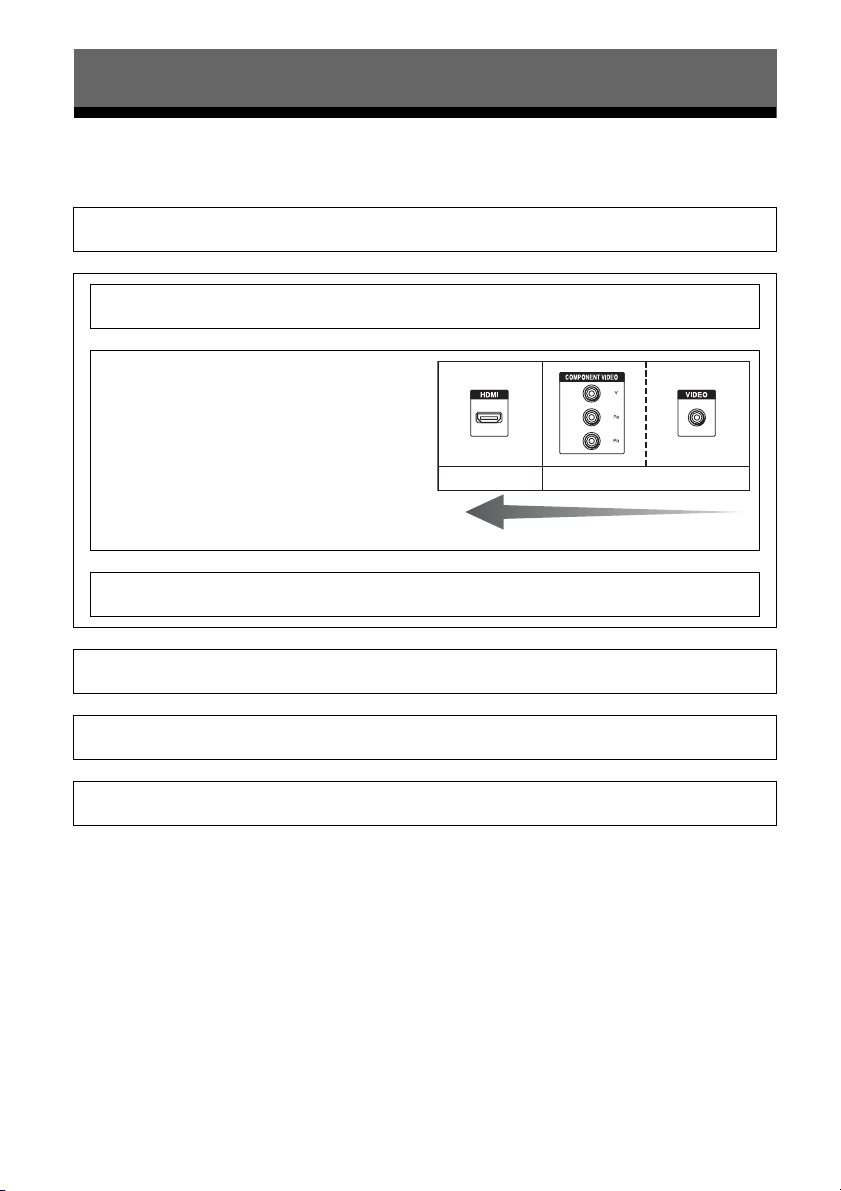
The image quality depends on the connecting jack. See the
illustration on the right. Select the connection according
to the jacks on your equipment.
The receiver has a video conversion function. For details,
see “Function for conversion of video signals” (page 19).
See “3: Connecting the video equipment” (page 28).
Connecting the audio equipment
See “4: Connecting the audio equipment” (page 35).
Preparing the receiver and the remote control
See “8: Preparing the receiver and the remote control” (page 42).
Setting the receiver
See “9: Setting up the receiver using the Easy Setup” (page 43).
Setting the audio output settings on the connected equipment
See “10: Setting up connected equipment” (page 45).
v
v
High quality image
Digital Analog
v
v
v
v
19
US
Getting Started
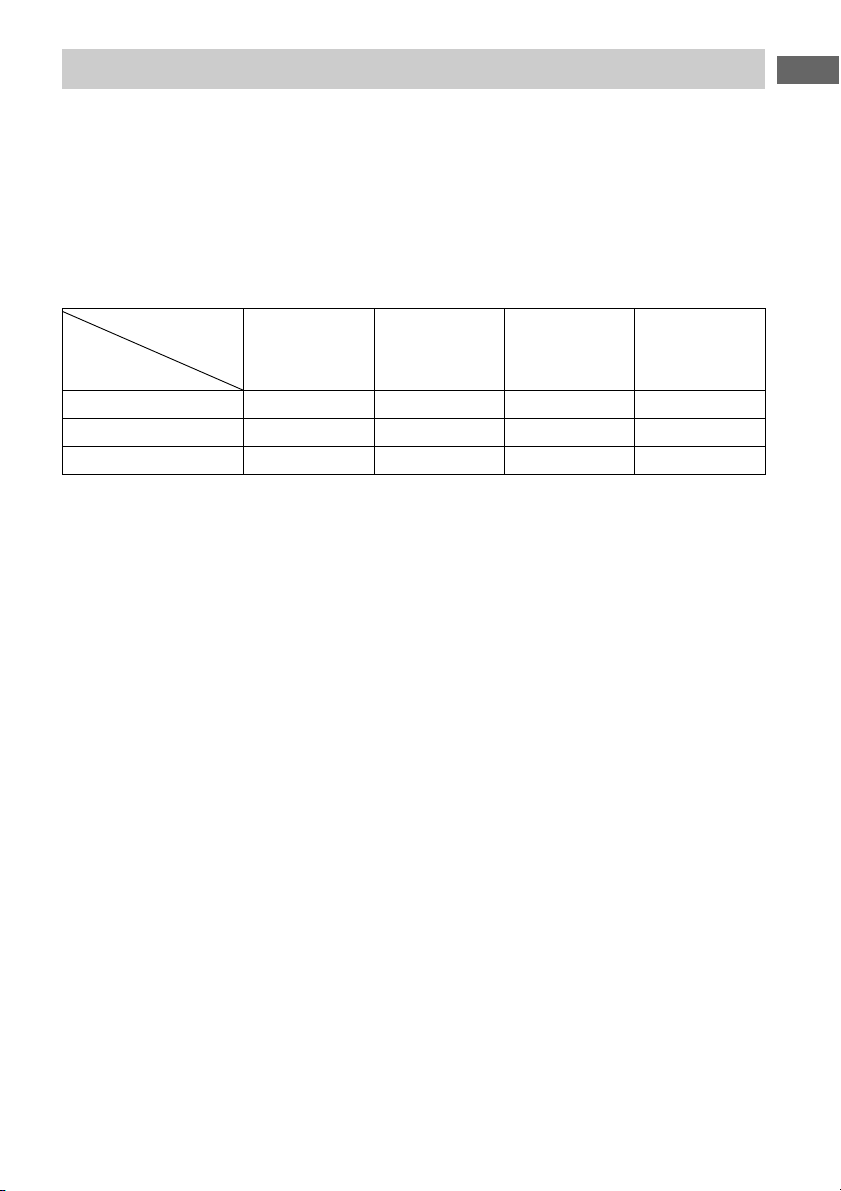
This receiver is equipped with a function for converting video signals.
• Composite video signals can be output as HDMI video and component video signals.
• Component video signals can be output as HDMI video and video signals.
As the factory default setting, video signals input from the connected equipment are output to the
HDMI OUT or MONITOR OUT jacks as shown in the table below.
We recommend you set the video conversion function to match the resolution of the monitor you
are using.
For details on the video converting function, see “Video Settings” (page 99).
a : Video signals are output.
– : Video signals are not output.
* When “Auto” is selected in “Resolution,” up to 4K up-scaling is enabled.
To enjoy 4K signals, a 4K-compatible monitor must be connected.
** Video signals may not be output, depending on the setting in “Resolution” (page 99).
Note on converting video
signals
Video signals for which the resolution has
been converted may not be output from the
COMPONENT VIDEO MONITOR OUT
jacks or the HDMI OUT jacks simultaneously.
If you connect equipment to both the
COMPONENT VIDEO MONITOR OUT
jacks and the HDMI OUT jacks, priority is
given to the output from the HDMI OUT jacks.
Note on Zone 2 HDMI video
output
Only HDMI IN input signals can be output
through the HDMI ZONE 2 OUT jack.
To display Closed Caption
Set “Resolution” to “Direct” in the Video
Settings menu when receiving a signal that
supports Closed Captions.
Use the same kind of cords for the input/output
signals.
To connect a recording device
When recording, connect the recording device
to the VIDEO OUT jacks of the receiver.
Connect cords for input and output signals to
the same type of jack, as VIDEO OUT jacks
do not have an up-conversion function.
The HDMI OUT and the MONITOR OUT
jacks cannot be used for recording.
Function for conversion of video signals
HDMI OUT A/B
(up to 4K)
COMPONENT
VIDEO MONITOR
OUT
(up to 1080i)
MONITOR VIDEO
OUT
VIDEO 1 OUT
HDMI IN a –––
VIDEO IN a* a** a** a
COMPONENT VIDEO IN a* a** a** –
INPUT jack
OUTPUT jack
20
US
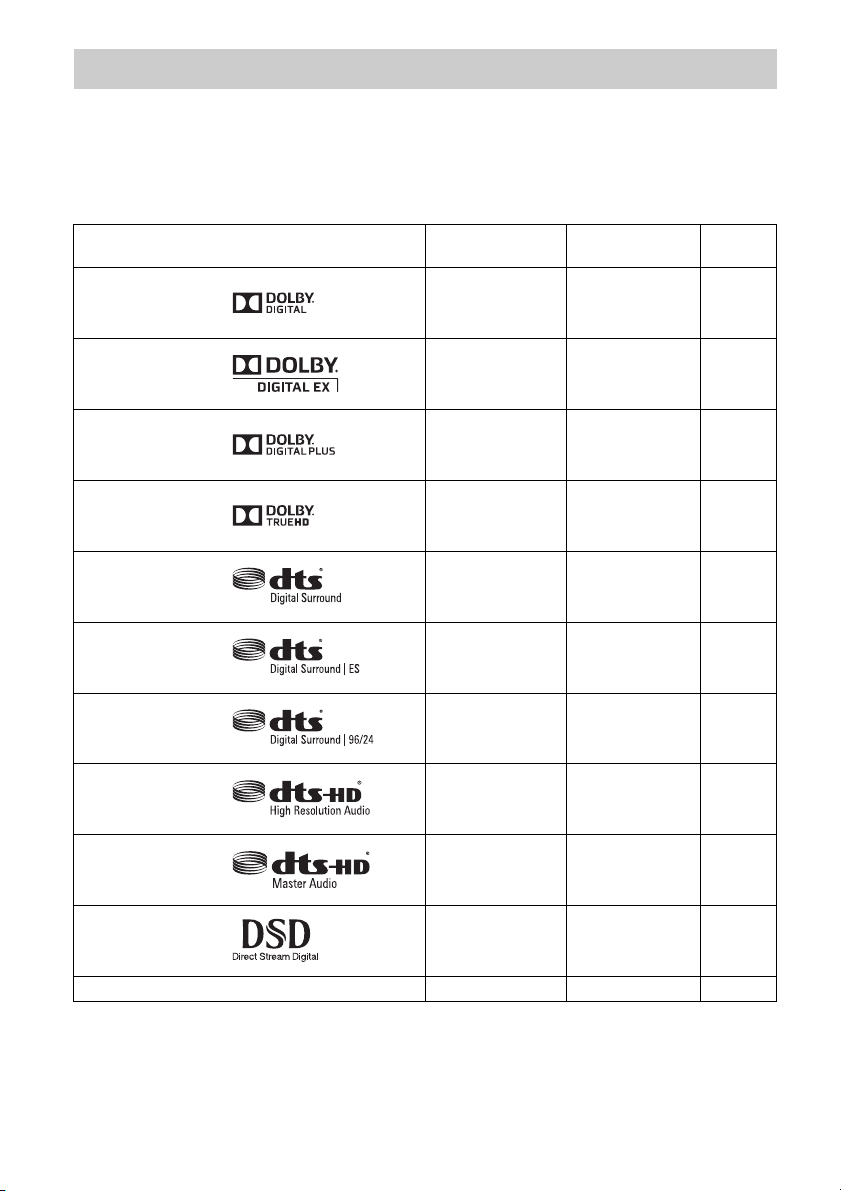
Digital audio formats that this receiver can decode depend on digital audio input jacks of the
equipment connected.
This receiver supports the following audio formats.
Connection between the playback equipment and the receiver
* Audio signals are output in another format if the playback equipment does not correspond to the format. For
details, refer to the operating instructions of the playback equipment.
Digital audio formats supported by the receiver
Audio format
Maximum number
of channels
COAXIAL/
OPTICAL
HDMI
Dolby Digital
5.1ch
aa
Dolby Digital EX
6.1ch
aa
Dolby Digital Plus*
7.1ch
– a
Dolby TrueHD*
7.1ch
– a
DTS
5.1ch
aa
DTS-ES
6.1ch
aa
DTS 96/24
5.1ch
aa
DTS-HD
High Resolution
Audio*
7.1ch
– a
DTS-HD
Master Audio*
7.1ch
– a
DSD*
5.1ch
– a
Multi-Channel Linear PCM*
7.1ch
– a
21
US
Getting Started
Network/USB
1)
The receiver does not play coded files such as DRM.
2)
The receiver may not play a file of this format placed on a DLNA server.
3)
The receiver plays AVCHD format files that are recorded on a digital video camera, etc.
4)
The receiver cannot play an encrypted file such as a lossless file.
5)
Compatible sampling frequency/bit depth: Maximum 192 kHz/24 bit
6)
For USB devices only
Notes
• Some files may not play depending on the file
format, file encoding, recording condition, or
DLNA server condition.
• Some files edited on a computer may not play.
• The receiver can recognize the following files or
folders in USB devices:
– up to folders in the 3rd tree
– up to 500 files in a single tree
• The receiver can recognize the following files or
folders stored in the DLNA server:
– up to folders in the 18th tree
– up to 999 files in a single tree
• Concerning the formats defined in the DLNA
guidelines, the server is required to offer the
content to which the format information defined in
the DLNA guidelines has been added properly.
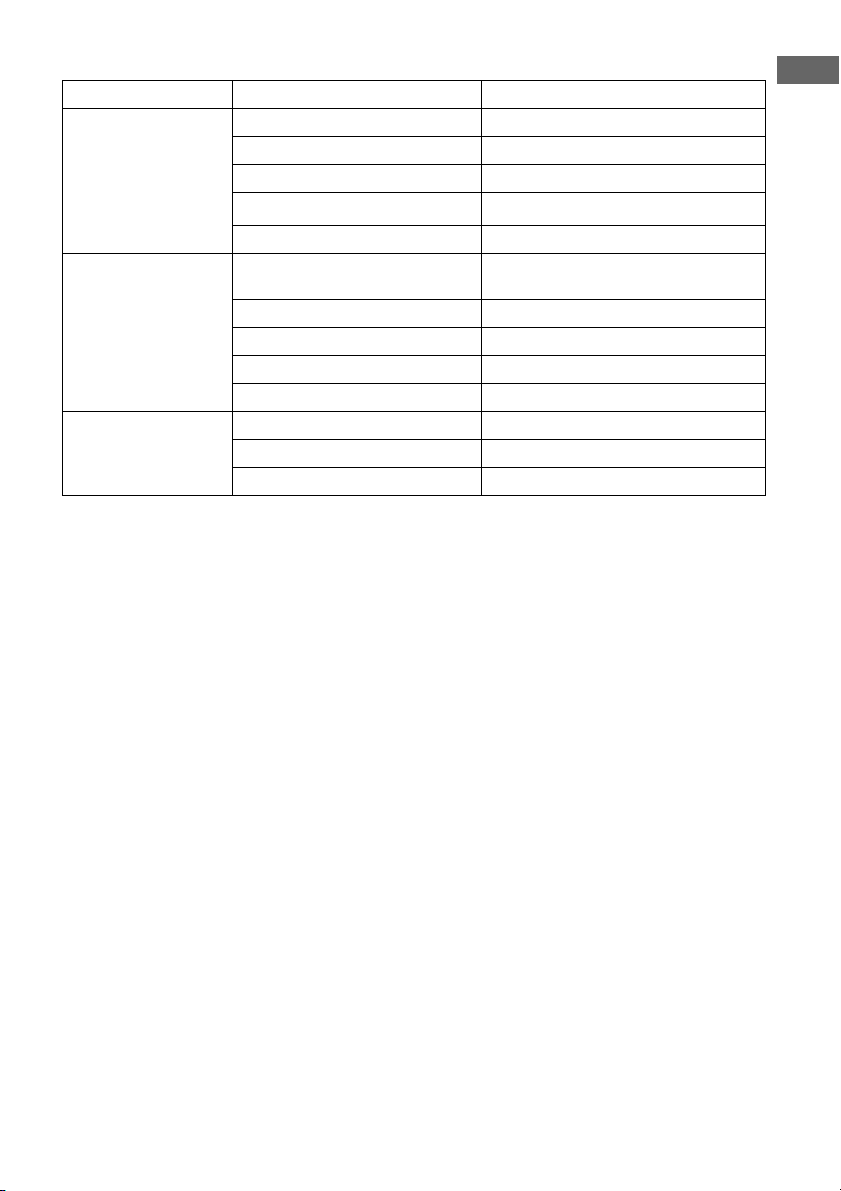
Type of content File format Extensions
Music WAV
5)
“.wav”
WMA
1) 2) 4)
“.wma”
MP3
“.mp3”
AAC
1) 2) 4)
“.m4a”
FLAC
5)
“.flac”
Video
6)
MPEG-1 Video/PS
1)
MPEG-2 Video/PS, TS
1)
“.mpg,” “.mpeg,” “.m2ts,” “.mts”
MPEG-4 AVC
1)
“.mkv,” “.mp4,” “.m4v,” “.m2ts,” “.mts”
WMV9
1)
“.wmv,” “.asf”
AV C H D
3)
Xvid “.avi”
Photo JPEG “.jpg,” “.jpeg,” “.mpo”
PNG “.png”
GIF “.gif”
22
US
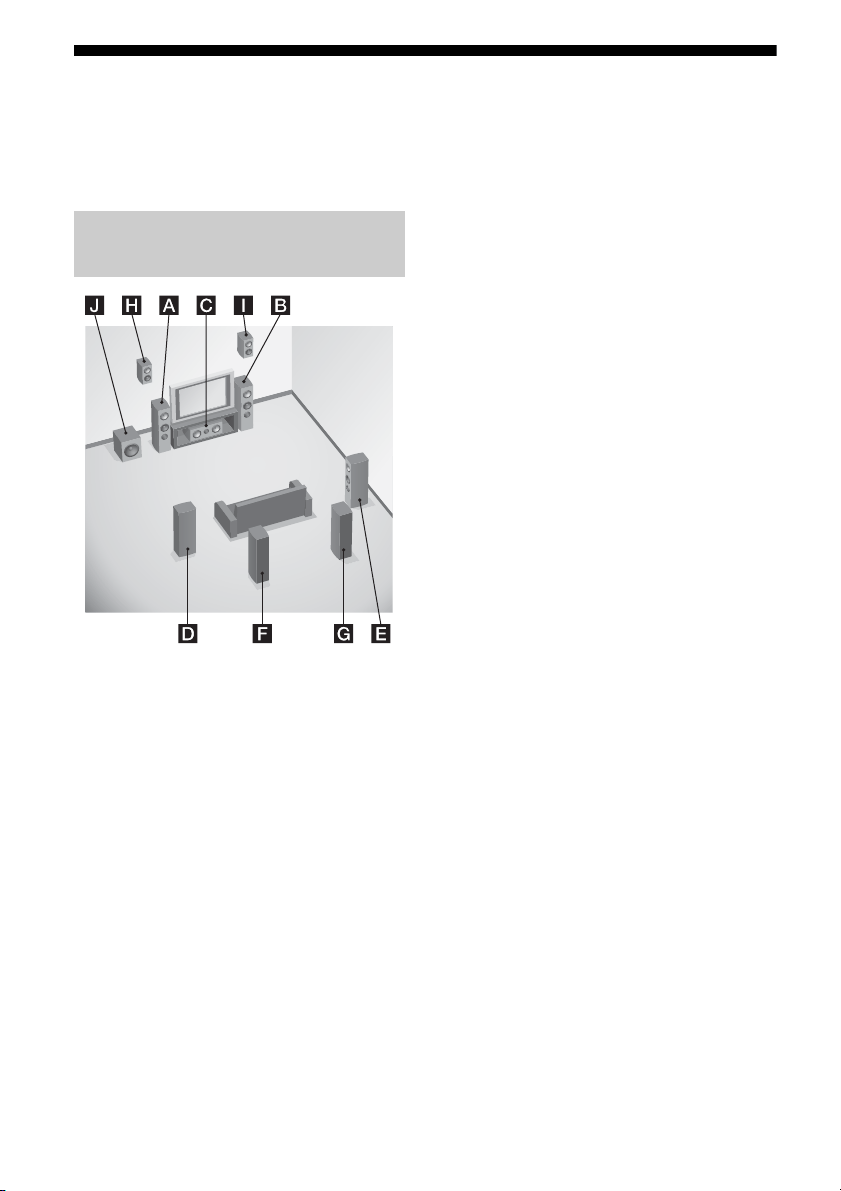
1: Installing speakers
This receiver allows you to use up to a 7.2
channel system (7 speakers and two
subwoofers).
7.1 channel speaker system
using surround back speakers
You can enjoy high fidelity reproduction of
DVD or Blu-ray Disc software recorded sound
in 6.1 channel or 7.1 channel format.
AFront left speaker
BFront right speaker
CCenter speaker
DSurround left speaker
ESurround right speaker
FSurround back left speaker
GSurround back right speaker
JSubwoofer
7.1 channel speaker system
using front high speakers
You can enjoy vertical sound effects (e.g., Pro
Logic IIz mode).
AFront left speaker
BFront right speaker
CCenter speaker
DSurround left speaker
ESurround right speaker
HLeft high speaker
IRight high speaker
JSubwoofer
5.1 channel speaker system
To fully enjoy theater-like multi-channel
surround sound requires five speakers (two
front speakers, a center speaker, and two
surround speakers) and a subwoofer (5.1
channel system).
AFront left speaker
BFront right speaker
CCenter speaker
DSurround left speaker
ESurround right speaker
JSubwoofer
Examples of speaker system
configuration
23
US
Getting Started
7 channel speaker system
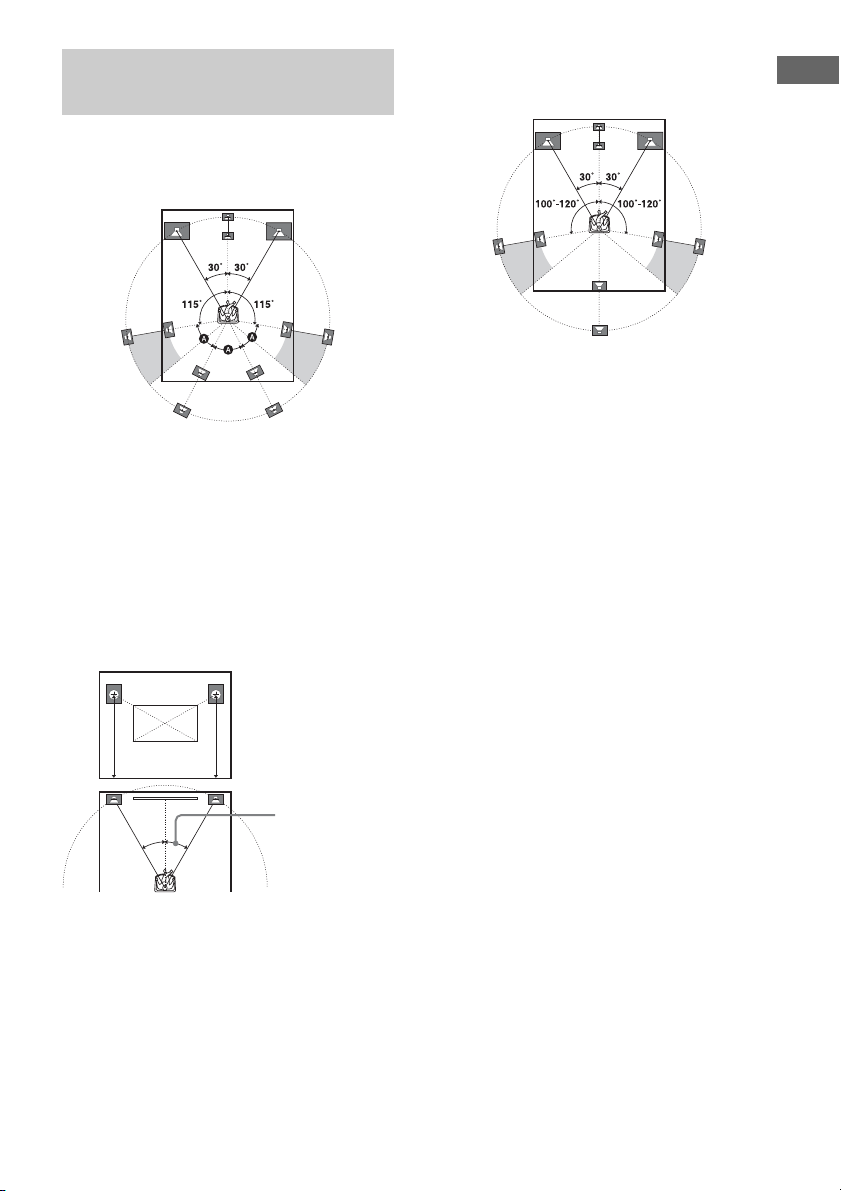
• The angle A shown in the illustration
should be the same.
• If you cannot place the speakers at the
optimum angle, separate the surround
speakers and the surround back speakers
adequately and arrange them as
symmetrically as possible.
• Install the front high speakers at the same
angle as that of the front speakers. The
position should be at a height on or above an
extended diagonal line across the screen of a
TV or monitor.
6 channel speaker system
• Place the surround back speaker behind the
seating position.
Tip
Since the subwoofer does not emit highly directional
signals, you can place it wherever you want.
Recommended speaker
placement
the same angle
as that of a front
speaker
24
US
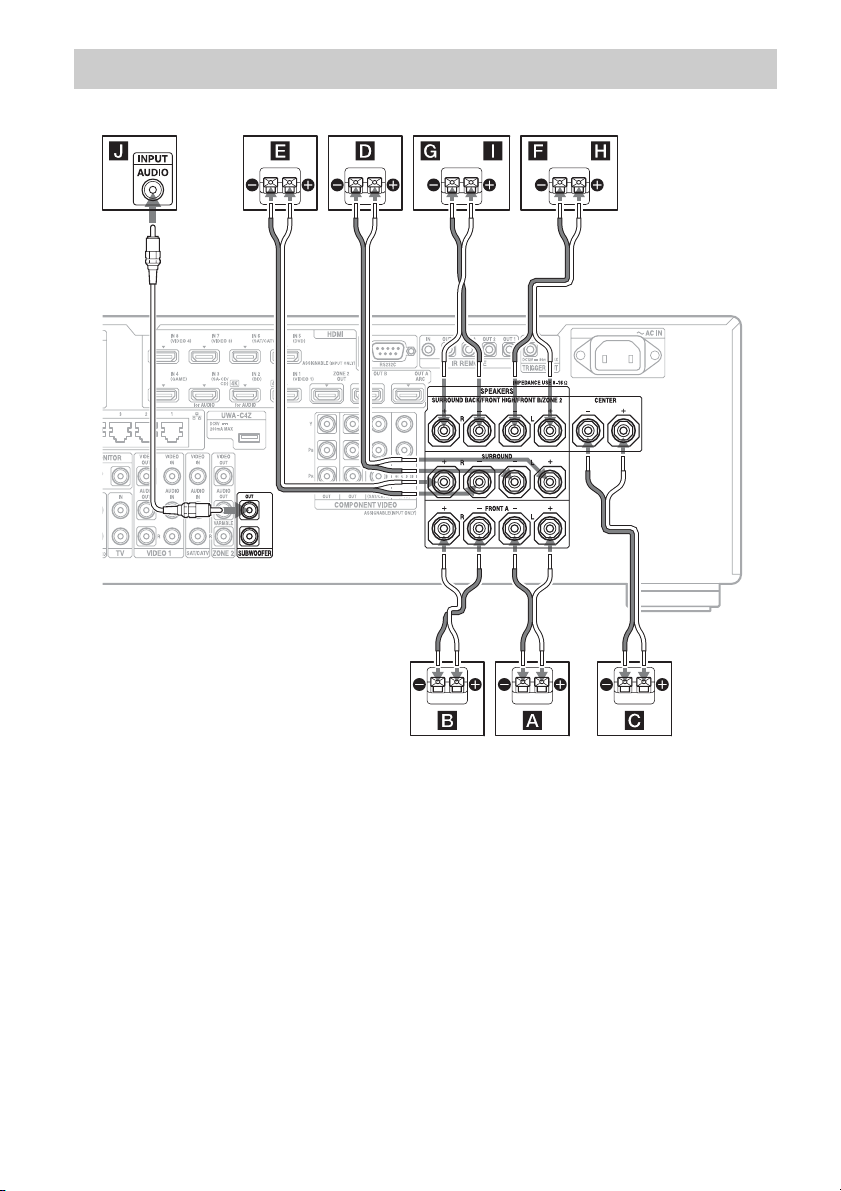
Before connecting cords, make sure to disconnect the AC power cord (mains lead).
A Monaural audio cord (not supplied)
B Speaker cords (not supplied)
AFront speaker A (L)
BFront speaker A (R)
CCenter speaker
DSurround speaker (L)
ESurround speaker (R)
FSurround back speaker (L)
2)
GSurround back speaker (R)
2)
HFront high speaker (L)
3)
IFront high speaker (R)
3)
JSubwoofer
4)
1)
If you have an additional front speaker
system, connect it to the SURROUND
BACK/FRONT HIGH/FRONT B/ZONE 2
terminals. You can select the front speaker
system you are using with SPEAKERS on
the front panel (page 11).
2)
If you connect only one surround back
speaker, connect it to the SURROUND
BACK/FRONT HIGH/FRONT B/
ZONE 2 L terminals.
3)
If you use front high speakers, connect them
to the SURROUND BACK/FRONT HIGH/
FRONT B/ZONE 2 terminals.
Connecting speakers
AB
B
B
B

25
US
Getting Started
4)
When you connect a subwoofer with an auto
standby function, turn off the function when
watching movies. If the auto standby
function of the subwoofer is set to on, it goes
into standby automatically based on the level
of the input signal to the subwoofer, and the
sound may not be output.
You can connect two subwoofers to the
receiver. The same signals are output from
each of the SUBWOOFER jacks.
ZONE 2 connection
Only if you do not use surround back speakers
and front high speakers, you can assign the
SURROUND BACK/FRONT HIGH/
FRONT B/ZONE 2 terminals F and G to
the speakers of zone 2. Set the SURROUND
BACK/FRONT HIGH/FRONT B/ZONE 2
terminals to “Zone2 Speakers” in “Speaker
Connection” in the Speaker Settings menu
(page 93).
See “Using Multi-zone Features” (page 71)
for details on connection and operation in
zone 2.
Front speaker B connection
When you are not using surround back
speakers and front high speakers, you can
assign the SURROUND BACK/FRONT
HIGH/FRONT B/ZONE 2 terminals L and R
to the front speaker B.
Set the SURROUND BACK/FRONT HIGH/
FRONT B/ZONE 2 terminals to “Front B” in
“Speaker Connection” in the Speaker Settings
menu (page 93).
You can select the front speakers with
SPEAKERS (OFF/A/B/A+B) on the front of
the receiver.
26
US
2: Connecting the monitor
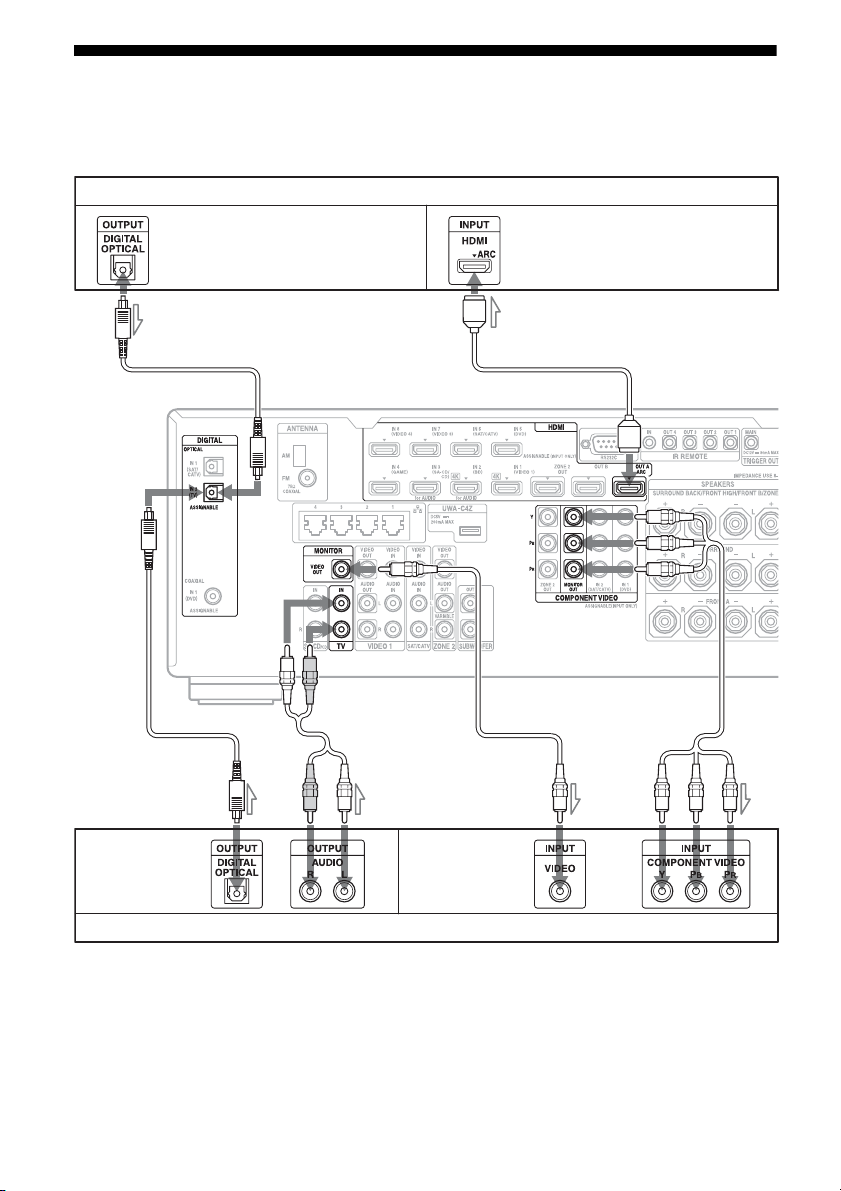
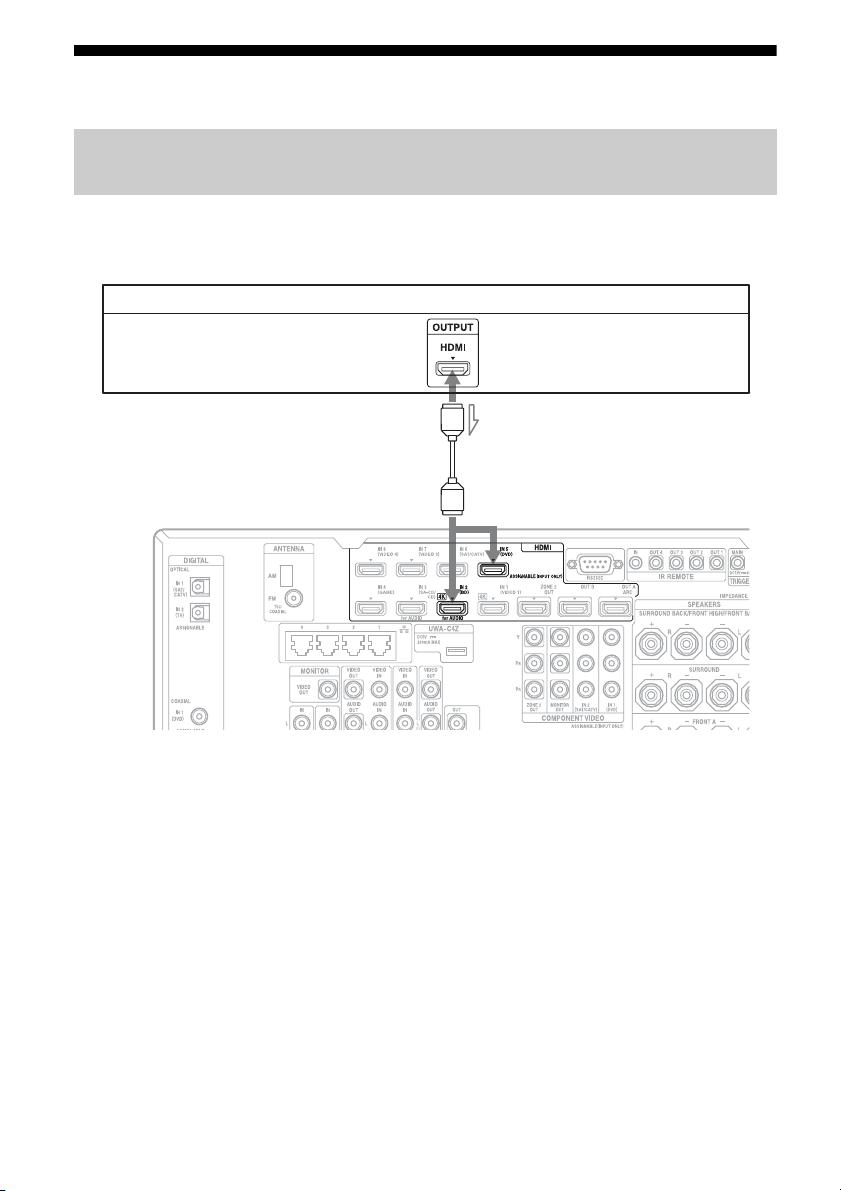
You can watch the selected input image when you connect the HDMI OUT or MONITOR OUT
jacks to a TV. You can operate this receiver using the on-screen GUI (Graphical User Interface).
It is not necessary to connect all the cords. Connect cords according to the jacks of your equipment.
A Optical digital cord (not supplied)
B Audio cord (not supplied)
C Video cord (not supplied)
D Component video cord (not supplied)
E HDMI cable (not supplied)
We recommend that you use a Sony HDMI
cable.
* If you connect the receiver to an Audio Return
Channel (ARC)-compatible TV’s HDMI jack
via an HDMI cable, this connection is not
necessary.
** If you connect the receiver to an Audio
Return Channel (ARC)-compatible TV,
connect it to an HDMI jack designated by
“ARC” on the TV.
TV monitor with an HDMI jack
AB
Audio signals*
CD
E
Video signals**
TV monitor without an HDMI jack
Audio signals Video signals
or or
A
27
US
Getting Started
* You can output the TV’s sound (multi-channel surround sound) from the receiver only by connecting the
TV with an HDMI cable.
** If you want to output multi-channel surround sound from the receiver, use A for the audio connection.
Notes
• If you connect the TV to the receiver using video
cord, set “Playback Resolution” to “480i/576i”
(page 101).
• When connecting optical digital cords, insert the
plugs straight until they click into place.
• Do not bend or tie optical digital cords.
Tip
The sound of the TV is output from the speakers
connected to the receiver if you connect the audio
output jack of the TV and the TV IN jacks of the
receiver. In this configuration, set the sound output
jack of the TV to “Fixed” if it can be switched
between either “Fixed” or “Variable.”
TV type Audio Return Channel
(ARC)
Required cable (cord)
Video Audio
HDMI equipped Compatible* E –
Incompatible EA or B**
Non-HDMI equipped – D or CA or B**
28
US
3: Connecting the video equipment
To connect equipment with HDMI jacks
If your equipment does not have an HDMI jack, see page 29.
A HDMI cable (not supplied)
We recommend that you use a Sony HDMI
cable.
* You can connect any equipment with HDMI
output jacks to the HDMI IN jacks of the receiver.
Connections required for watching content recorded on Blu-ray Discs
or DVDs
DVD player, Blu-ray Disc Player
Video/audio signals
A
*
29
US
Getting Started
To connect equipment with jacks other than HDMI jacks
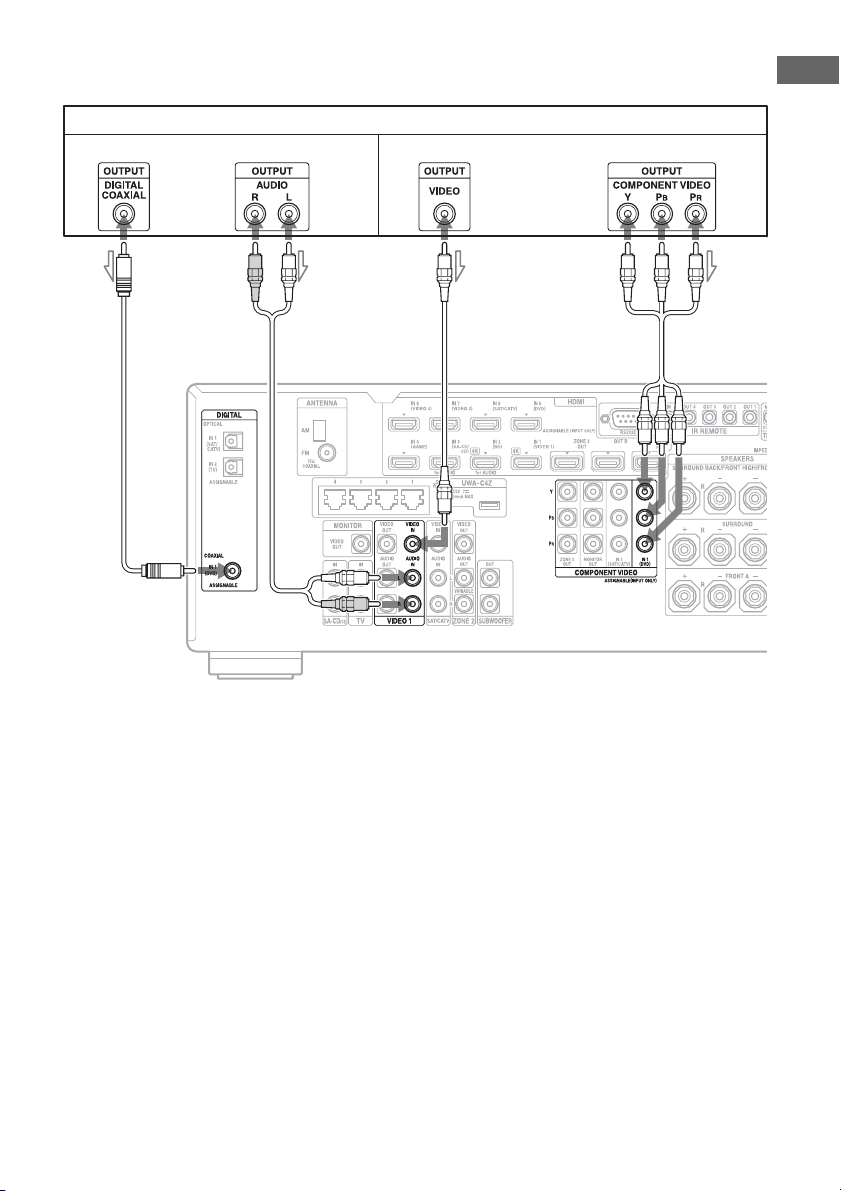
It is not necessary to connect all the cords. Connect cords according to the jacks of your equipment.
A Coaxial digital cord (not supplied)
B Audio cord (not supplied)
C Video cord (not supplied)
D Component video cord (not supplied)
* When you connect equipment with an analog audio jack and analog video jack, set “Audio Input Assign” and
“Video Input Assign” in the Input Settings menu (page 82).
DVD player, Blu-ray Disc Player
Audio signals Video signals
or or
ADBC
**
30
US
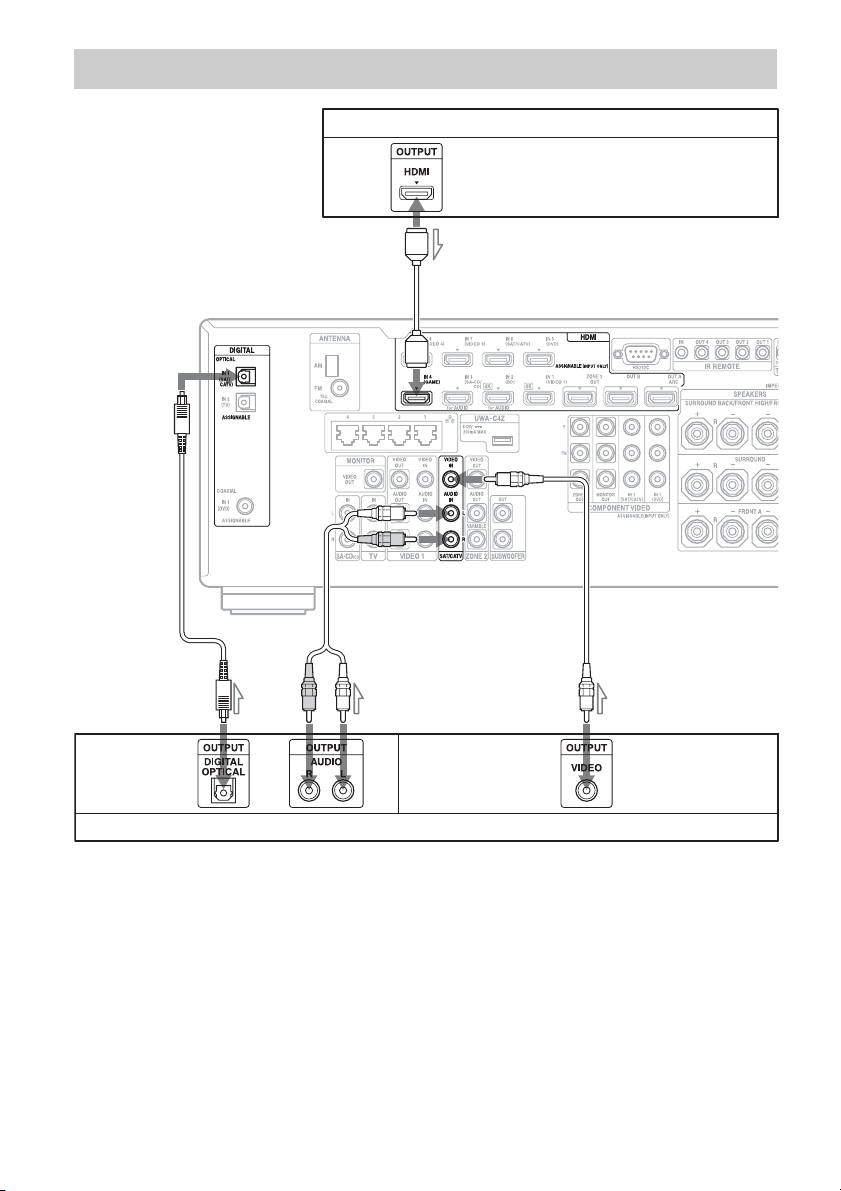
It is not necessary to connect all the cords. Connect cords according to the jacks of your equipment.
A HDMI cable (not supplied)
B Optical digital cord (not supplied)
C Audio cord (not supplied)
D Video cord (not supplied)
* When you connect equipment with an optical digital jack, analog audio jacks, or composite video jack, set
“Audio Input Assign” and “Video Input Assign” in the Input Settings menu (page 82).
Connections required for playing video games
PlayStation 3 (video game with an HDMI jack)
A
Video/audio signals
or
BC D
Audio signals Video signals
Video game without an HDMI jack
*
**
31
US
Getting Started
* You can output the video game’s sound (multi-channel surround sound) from the receiver only by
connecting the video game with an HDMI cable.
** If you want to output multi-channel surround sound from the receiver, use B for the audio connection.
Notes
• When connecting optical digital cords, insert the plugs straight until they click into place.
• Do not bend or tie optical digital cords.
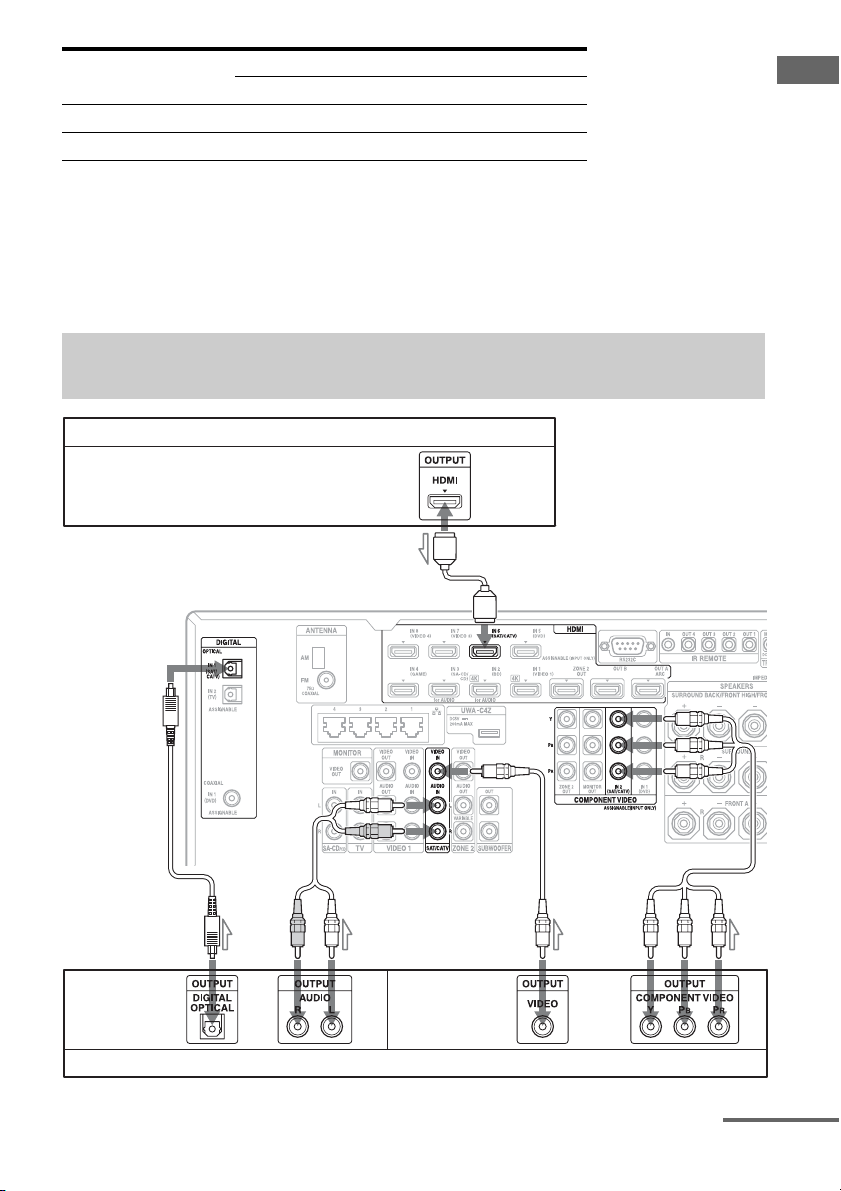
It is not necessary to connect all the cords. Connect cords according to the jacks of your equipment.
Video game type Required cable (cord)
Video Audio
HDMI equipped* A –
Non-HDMI equipped DB or C**
Connections required for watching programs via satellite
broadcasting or via a cable TV
Satellite tuner, Cable box with an HDMI jack
Video/audio signals
or or
Audio signals Video signals
A
BC D E
Satellite tuner, Cable box without an HDMI jack
continued
32
US
A HDMI cable (not supplied)
B Optical digital cord (not supplied)
C Audio cord (not supplied)
D Video cord (not supplied)
E Component video (not supplied)
* You can output the satellite tuner/cable box’s sound (multi-channel surround sound) from the receiver only
by connecting the satellite tuner/cable box with an HDMI cable.
** If you want to output multi-channel surround sound from the receiver, use B for the audio connection.
Notes
• When connecting optical digital cords, insert the plugs straight until they click into place.
• Do not bend or tie optical digital cords.
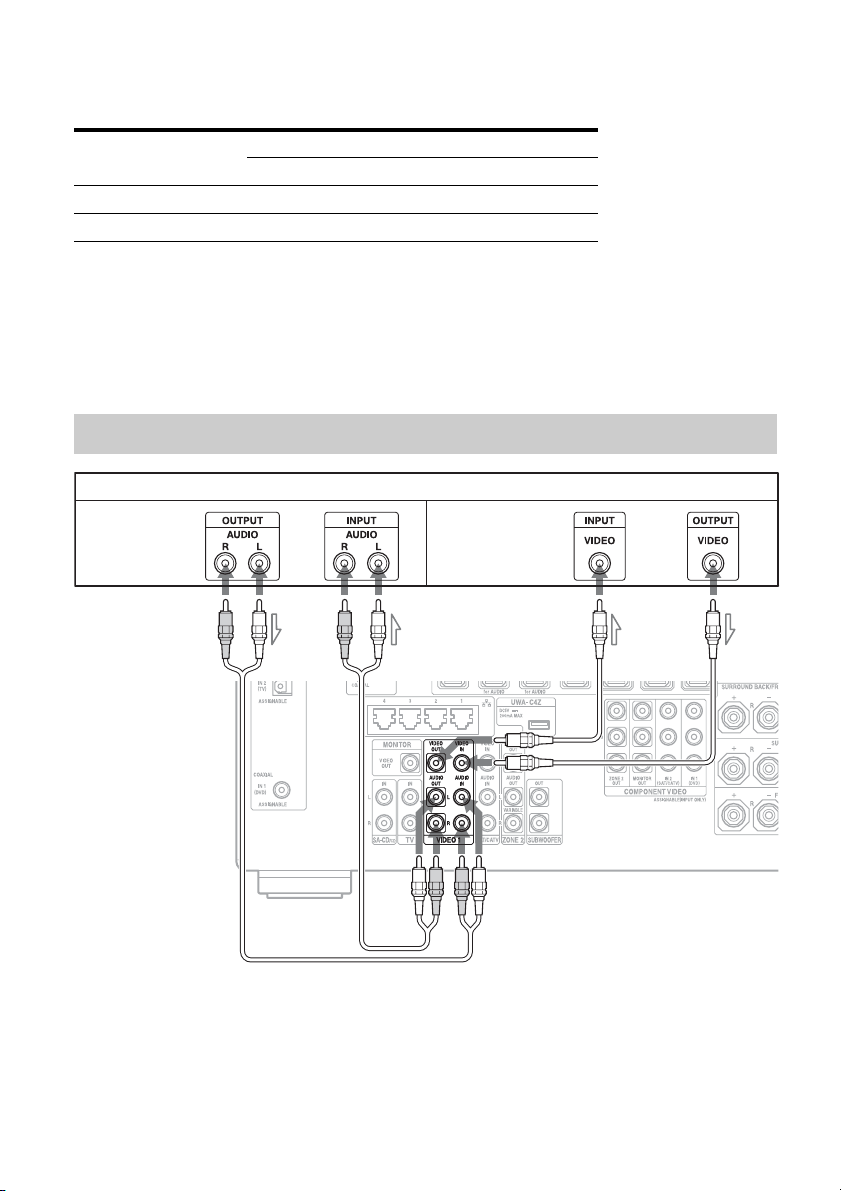
A Audio cord (not supplied)
B Video cord (not supplied)
Satellite tuner/Cable
box type
Required cable (cord)
Video Audio
HDMI equipped* A –
Non-HDMI equipped E or DB or C**
Connections required for watching content recorded on video tapes
VCR
AB
Audio signals Video signals
33
US
Getting Started
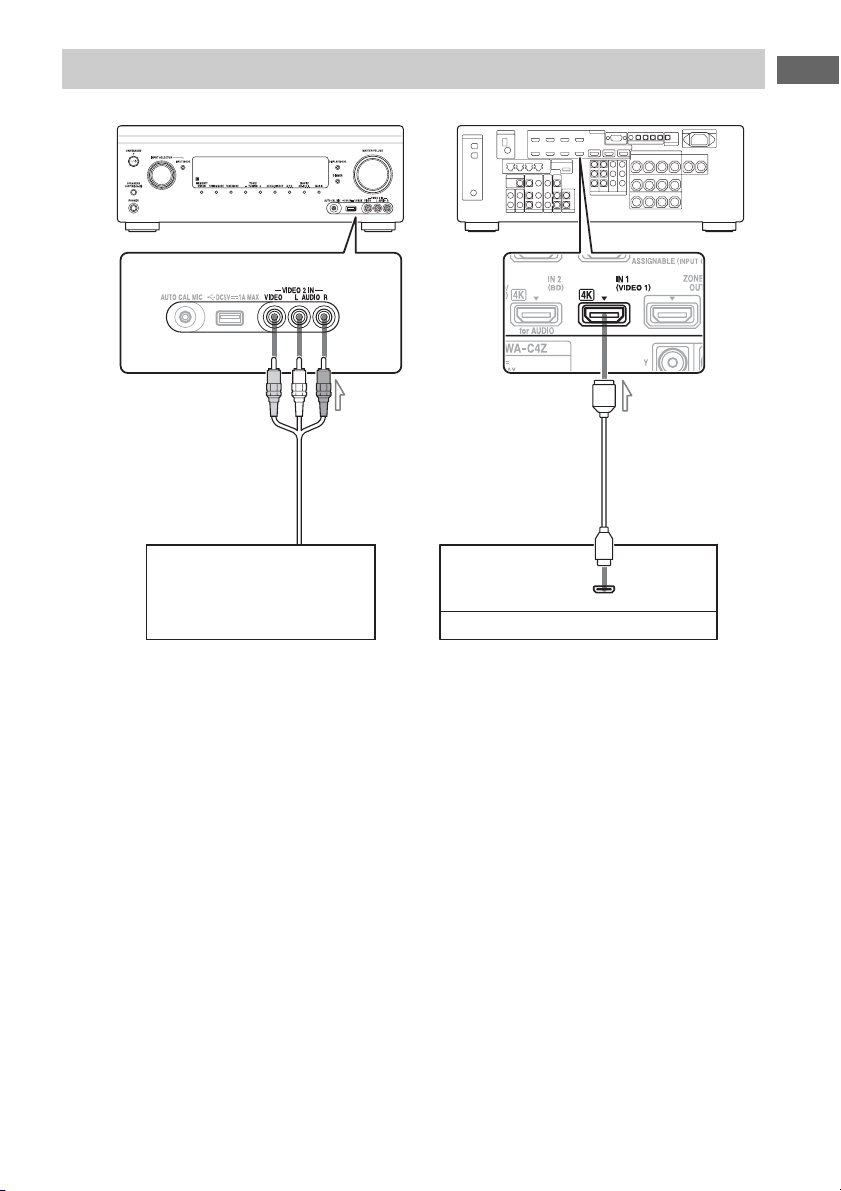
A Video/audio cord (not supplied)
B HDMI cable (not supplied)
Connections required for watching content via a camcorder
To the VIDEO 2 IN jacks
Camcorder without an
HDMI jack
AB
Video/audio signals
Camcorder with an HDMI jack

34
US
• Digital audio signals transmitted by HDMI
can be output from the speakers. This signal
supports Dolby Digital, DTS, DSD, and
Linear PCM. For details, see “Digital audio
formats supported by the receiver”
(page 20).
• Analog video signals input to the VIDEO
jack, or COMPONENT VIDEO jacks can be
output as HDMI signals. Audio signals are
not output from the HDMI OUT jacks while
the image is being converted.
• Analog video input, however, cannot be
output via the HDMI OUT jacks in zone 2.
• This receiver supports High Bitrate Audio
(DTS-HD Master Audio, Dolby TrueHD),
Deep Color, “x.v.Color,” and 3D or 4K
transmissions.
• The HDMI jacks of this receiver support the
Control for HDMI function. The HDMI
OUT B jack and the HDMI ZONE 2 OUT
jacks, however, do not support the Control
for HDMI function.
• To enjoy 3D images, connect 3D-compatible
TV and video equipment (Blu-ray Disc
Player, Blu-ray Disc recorder, PlayStation 3,
etc.) to the receiver using High Speed HDMI
cables, put on 3D glasses, and then play back
3D-compatible content.
• The receiver is compatible with 4K signals
output through its HDMI output jacks.
Analog input video signals can be up-scaled
to 4K. The 4K input signals via HDMI IN 1/
IN 2 on the rear from a 4K-compatible
player are output as they are as 4K signals.
To enjoy 4K images, connect 4K-compatible
TV or projector to the HDMI output jacks.
• You can view HDMI IN 1/IN 2/IN 3/IN 4
input on picture-in-picture preview
windows.
Notes on connecting cables
• Use a High Speed HDMI cable. If you use a
Standard HDMI cable, 4K, 1080p, Deep
Color, or 3D images may not be displayed
properly.
• Sony recommends that you use an HDMI-
authorized cable or Sony HDMI cable.
Note on using an HDMI-DVI
conversion cable
We do not recommend using an HDMI-DVI
conversion cable. When you connect an
HDMI-DVI conversion cable to a DVI-D
device, the sound and/or the image may be
lost. Connect separate audio cords or digital
connecting cords, then set “Video Input
Assign” and “Audio Input Assign” in the Input
Settings menu if the sound is not output
correctly.
HDMI features
35
US
Getting Started
4: Connecting the audio equipment
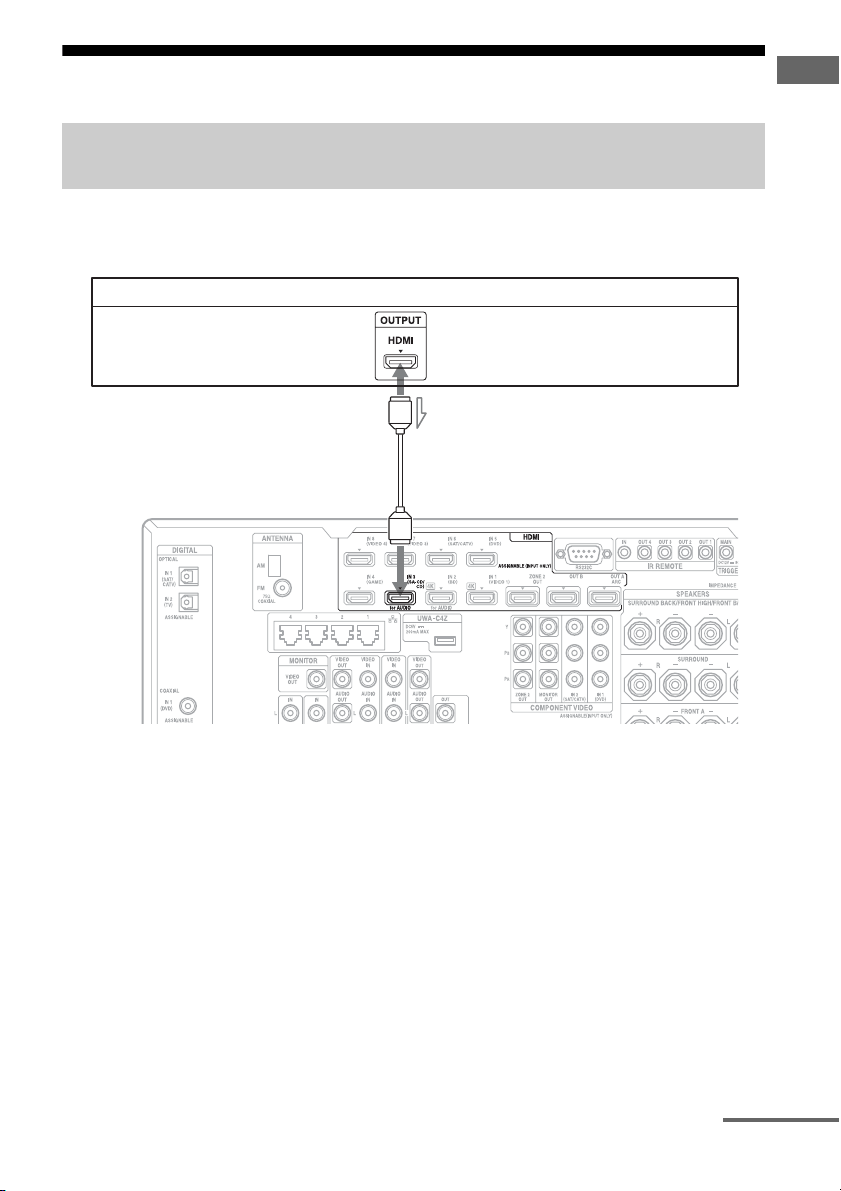
To connect equipment with HDMI jacks
If your equipment does not have an HDMI jack, see page 36.
A HDMI cable (not supplied)
We recommend that you use a Sony HDMI
cable.
* You can connect any equipment with HDMI
output jacks to the HDMI IN jacks of the receiver.
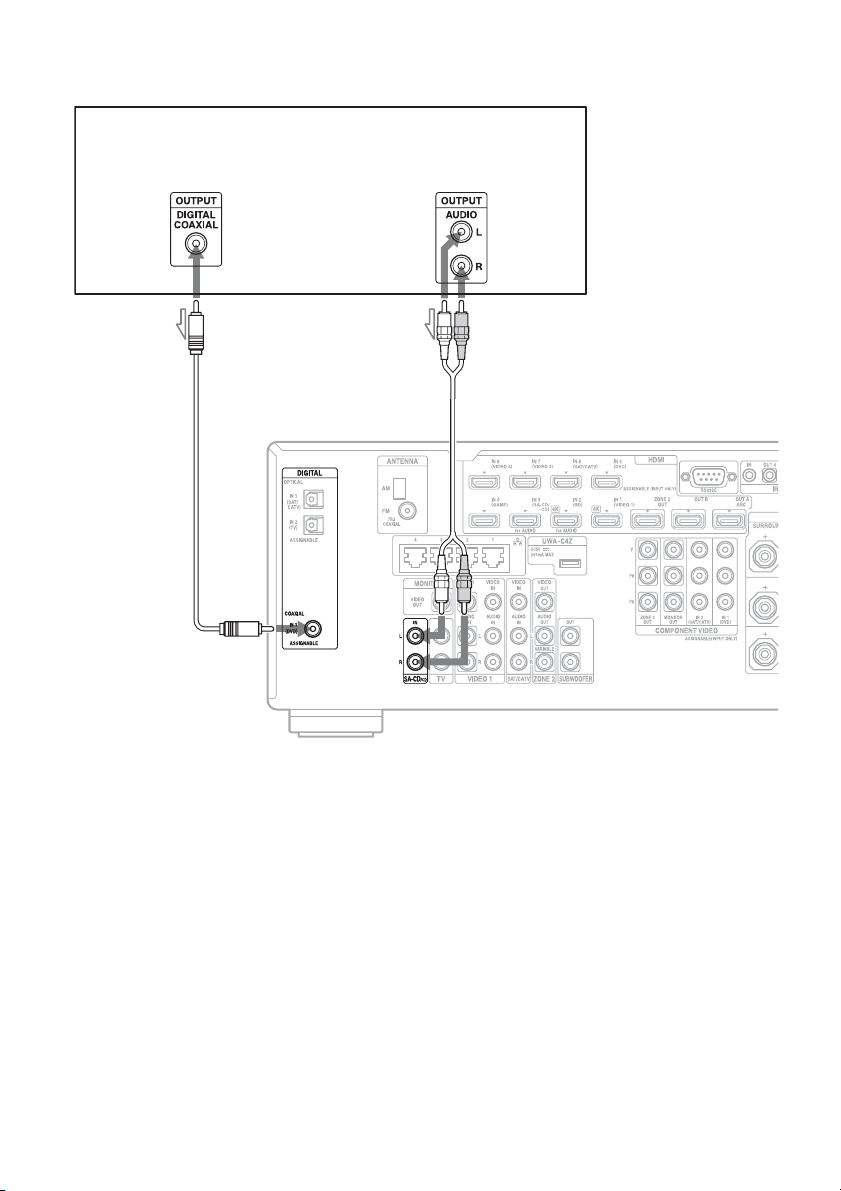
Connections required for listening content recorded on Super Audio
CDs or ordinary CDs
CD player, Super Audio CD player
A
Video/audio signals
*
continued
36
US
To connect equipment with jacks other than HDMI jacks
It is not necessary to connect all the cords. Connect cords according to the jacks of your equipment.
A Coaxial digital cord (not supplied)
B Audio cord (not supplied)
* When you connect equipment with a coaxial
digital jack, set “Audio Input Assign” in the Input
Settings menu (page 82).
Tip
All the digital audio jacks are compatible with
32 kHz, 44.1 kHz, 48 kHz, 88.2 kHz and 96 kHz
sampling frequencies. The COAXIAL IN jacks are
also compatible with 192 kHz sampling frequency.
CD player, Super Audio CD player
AB
or
*

37
US
Getting Started
Note on playing a Super Audio
CD on a Super Audio CD player
No sound is output when playing a Super
Audio CD on a Super Audio CD player
connected to only the COAXIAL jack on this
receiver. When you play a Super Audio CD,
connect the player to the SA-CD/CD IN jacks,
or connect a player which can output DSD
signals from the HDMI jack to the receiver
using an HDMI cable. Refer to the operating
instructions supplied with the Super Audio CD
player.
If you want to connect several
digital devices, but cannot find
an unused input
See “Using other video/audio input jacks”
(page 82).
38
US
Notes
• To prevent noise pickup, keep the AM loop antenna
(aerial) away from the receiver and other
equipment.
• Be sure to fully extend the FM wire antenna
(aerial).
• After connecting the FM wire antenna (aerial),
keep it as horizontal as possible.
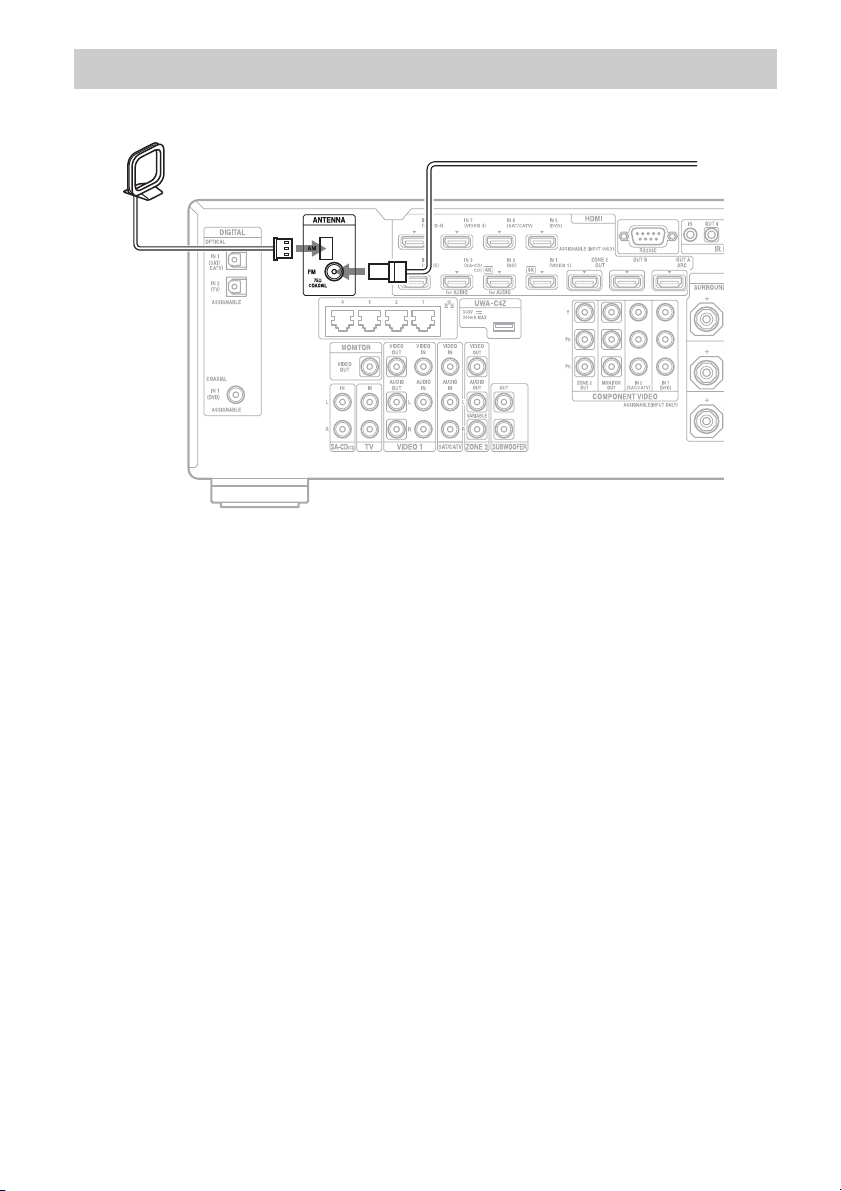
Connections required for listening to the radio
FM wire antenna (aerial) (supplied)
AM loop antenna (aerial)
(supplied)
39
US
Getting Started
5: Connecting the IR blaster
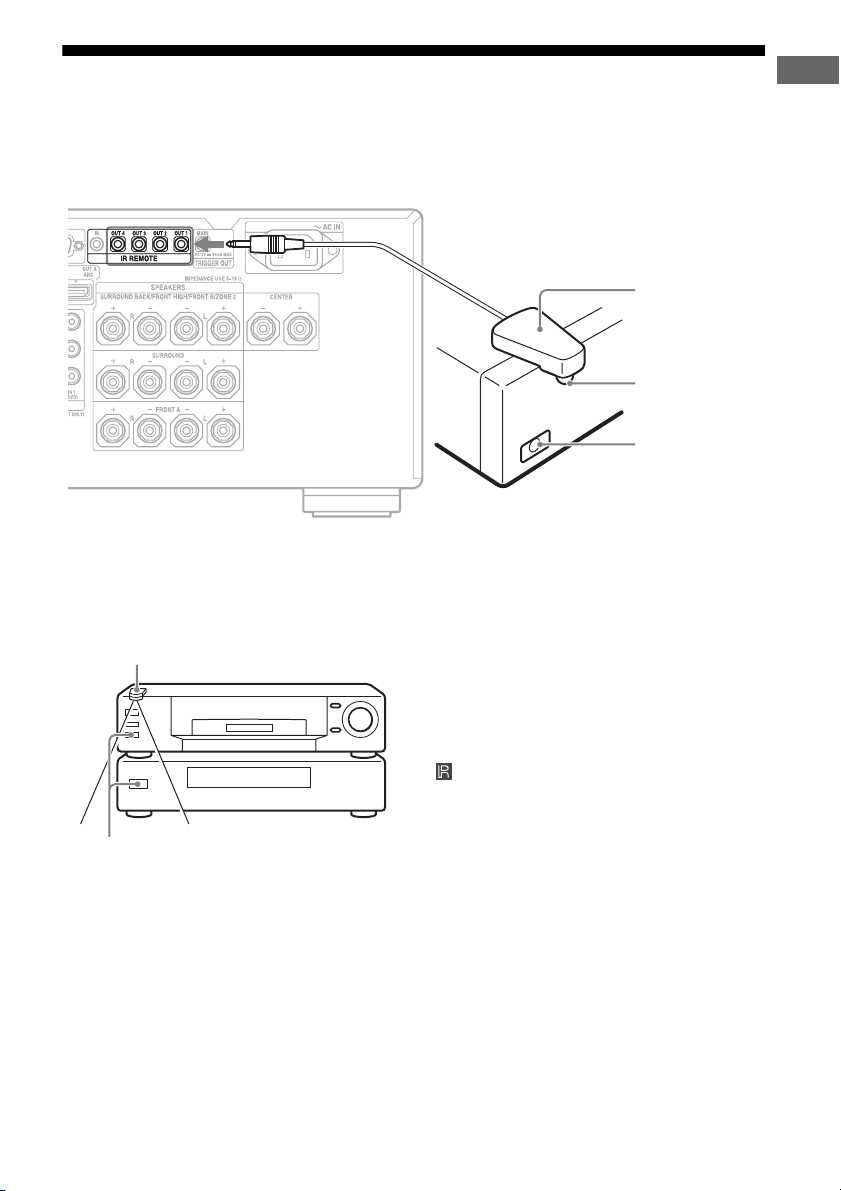
To operate the equipment connected to the receiver with the supplied remote control, attach one of
the supplied IR blasters to the connected equipment.
Place the equipment and the IR blaster as
follows when you want to operate more than
one device with the IR blaster.
If the remote sensors on more than one device
do not line up as shown in the illustration
above, use another IR blaster (supplied) and
another IR REMOTE OUT jack.
Tips
• If the IR blaster cable is too short, use a 3.5 mm
jack extension cable (not supplied).
• You can set up a configuration such that you can
operate multiple devices using one IR REMOTE
OUT jack.
Refer to the operating instructions of the
equipment you want to control with the
supplied remote control. Then connect the IR
blaster to an IR REMOTE OUT jack of the
receiver, and place it above or below the
remote sensor of the equipment so that the
transmitter of the IR blaster is placed just
above or below the remote sensor. Remote
sensors on Sony products are identified by the
symbol.
Note
The IR blaster is equipped with double-sided sticker
tape so that you can attach it to the connected
equipment. Be sure to stick the IR blaster on in the
proper place, because it is difficult to be removed.
IR blaster
(supplied)
Infrared transmitter
Remote sensor of
the connected
equipment
IR blaster
Remote sensors
40
US
6: Making connections for using Lighting Control
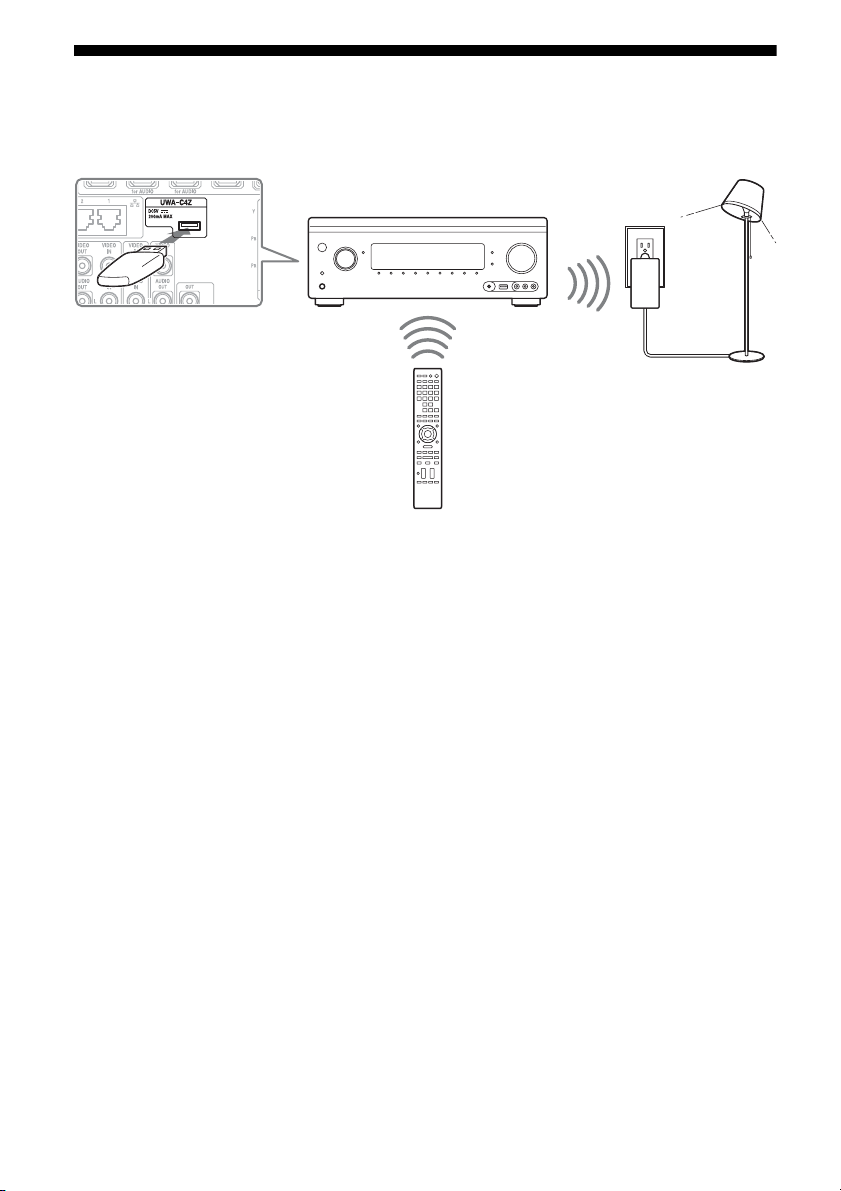
To operate Control4-compatible equipment with the supplied remote control, plug the supplied
Lighting Control Adapter (UWA-C4Z) into the receiver.
A Lighting Control Adapter (UWA-C4Z)
(supplied)
Note
Do not remove the Lighting Control Adapter while
the receiver is turned on. Data may be damaged and
the receiver may become inoperative. When you
remove the Lighting Control Adapter, make sure
that the receiver is turned off (not in the Network
Standby mode, but in the mode where the power of
the receiver is turned completely off).
A
41
US
Getting Started
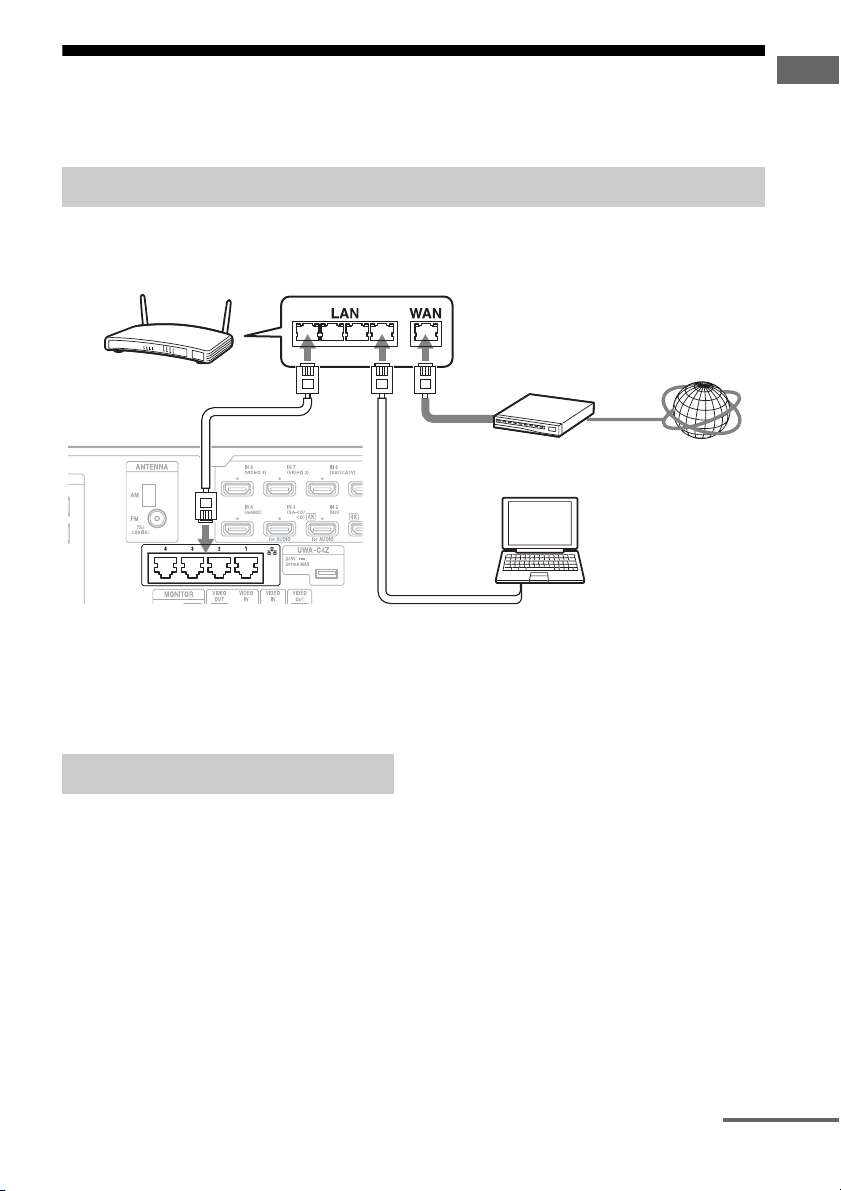
7: Connecting to the network
If you have an Internet connection, you can connect this receiver to the Internet.
The following illustration is a configuration example of a home network with the receiver, a
computer. We recommend that you use a wired connection.
Note
Connect a router to one among ports 1 to 4 of the
receiver using only one LAN cable. Do not connect
the same router to the receiver using more than one
LAN cable. It may cause a malfunction.
The following system environment is required
to use the network function of the receiver.
A Broadband line connection
A Broadband line connection to the Internet is
required in order to enjoy Internet content or to
use the software update function of the
receiver.
Modem
This is the device that is connected to the
broadband line to communicate with the
Internet. Some of these devices are integrated
with the router.
Router
• Use a router compatible with 100 Mbps to
enjoy content on your home network.
• We recommend that you use a router
equipped with the built-in DHCP (Dynamic
Host Configuration Protocol) server.
This function automatically assigns IP
addresses on the LAN.
• The receiver does not support a network
connection with transmission speeds of
1 Gbps or greater.
LAN cable (CAT5)
• We recommend that you use this type of
cable for a wired LAN.
Some flat-type LAN cables are easily
affected by noise. We recommend that you
use normal-type cables.
Configuration example
Modem Internet
Computer
Router
LAN cable
(not supplied)
LAN cable
(not supplied)
System requirements
continued
42
US
• If the receiver is used in an environment in
which there is power supply noise from
electric products or in a noisy network
environment, use a shielded-type LAN
cable.
8: Preparing the receiver
and the remote control
Connect the supplied AC power cord (mains
lead) to the AC IN terminal on the receiver
firmly, then connect the AC power cord (mains
lead) to a wall outlet.
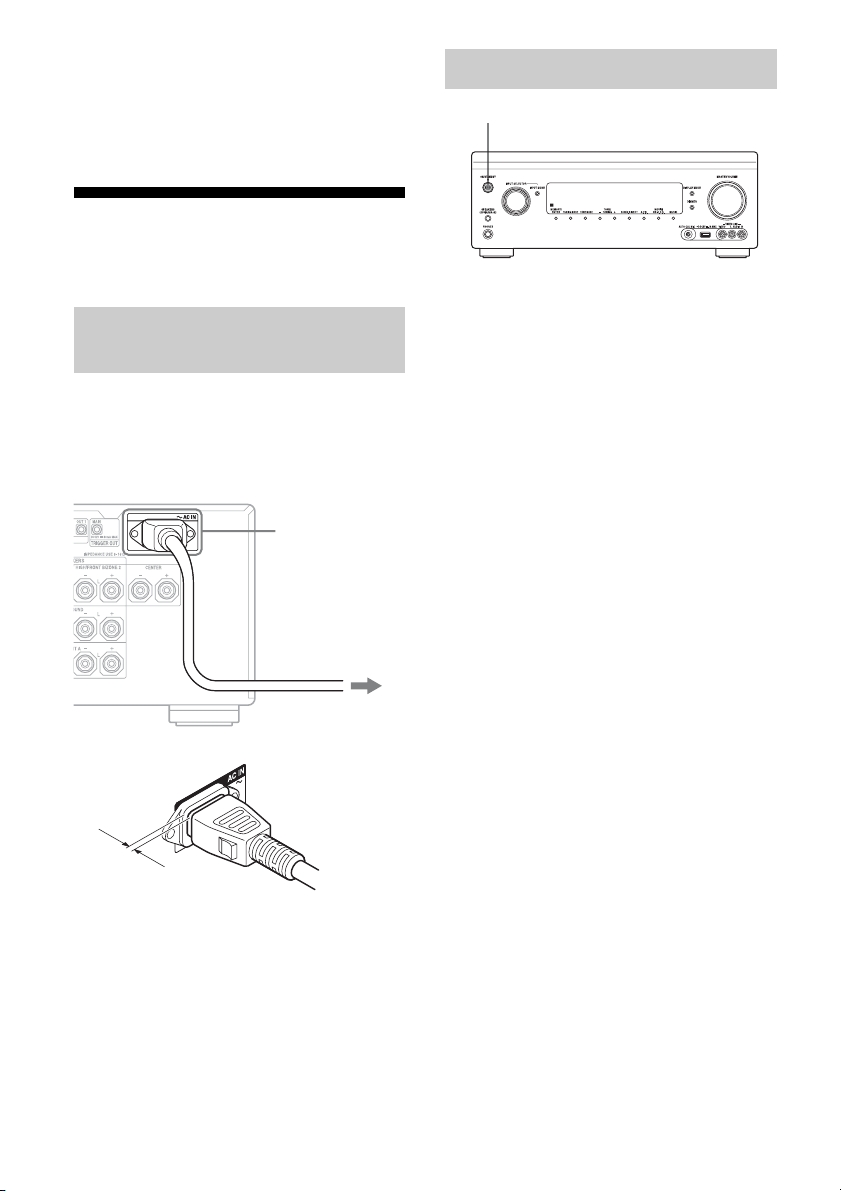
A several space is left between the plug and the
rear panel even when the power cord (mains
lead) is inserted firmly. The cord is supposed
be connected this way. This is not malfunction.
Press ?/1 to turn on the receiver.
You can also turn on the receiver using ?/1 on
the remote control.
When you turn off the receiver, press ?/1
again. “STANDBY” flashes on the display
window. Do not disconnect the AC power cord
(mains lead) while “STANDBY” is flashing.
This may cause a malfunction.
To save the power in standby
mode
Set “Control for HDMI” (page 103), “Pass
Through” (page 103), “Network Standby”
(page 105), and “RS232C Control” (page 109)
to “Off” or “Auto” (for “Pass Through” only),
and turn off the power for zone 2.
If “Control for HDMI” (page 103), “Pass
Through” (page 103), or “Network Standby”
(page 105) is set to “On,” or the power for
zone 2 is turned on, the lamp above ?/1 lights
up in amber.
Note
The top of the receiver may become hot while the
receiver is in standby mode. This condition occurs
because current is flowing in the internal circuits of
the receiver. This is not a malfunction.
Connecting the AC power cord
(mains lead)
AC IN terminal
To the wall outlet
AC power cord
(mains lead)
(supplied)
Turning on the receiver
?/1
43
US
Getting Started
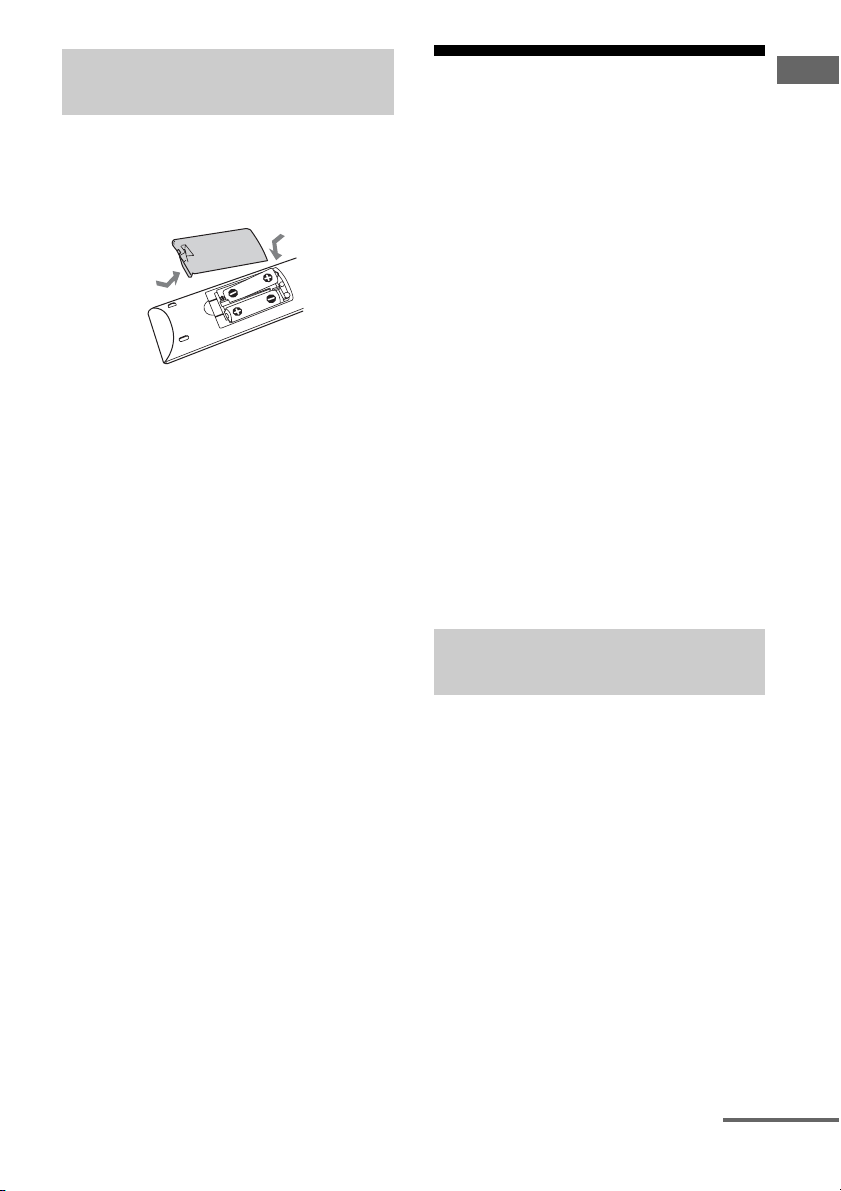
Insert two R6 (size-AA) batteries in the
RM-AAU195 remote control.
Observe the correct polarity when installing
batteries.
Notes
• Do not leave the remote control in an extremely hot
or humid place.
• Do not use a new battery with old ones.
• Do not mix manganese batteries and other kinds of
batteries.
• If you do not intend to use the remote control for an
extended period of time, remove the batteries to
avoid possible damage from battery leakage and
corrosion.
9: Setting up the receiver
using the Easy Setup
You can set the basic settings of the receiver
easily by operating the receiver in accordance
with the instructions on the TV screen.
Switch the input of the TV to the input to
which the receiver is connected.
When you turn on the receiver for the first
time, the EULA screen appears on the TV
screen. Agree to the EULA to proceed to the
Easy Setup screen, then set up the receiver in
accordance with the instructions on the Easy
Setup screen.
You can set up the following functions using
the Easy Setup.
– Network Settings
– Input Settings
– Home Control Settings
– Speaker Settings
Tip
A check mark will be displayed to the right of any
function items that you have set up.
Insert the plug of the optimizer microphone all
the way inside the AUTO CAL MIC jack.
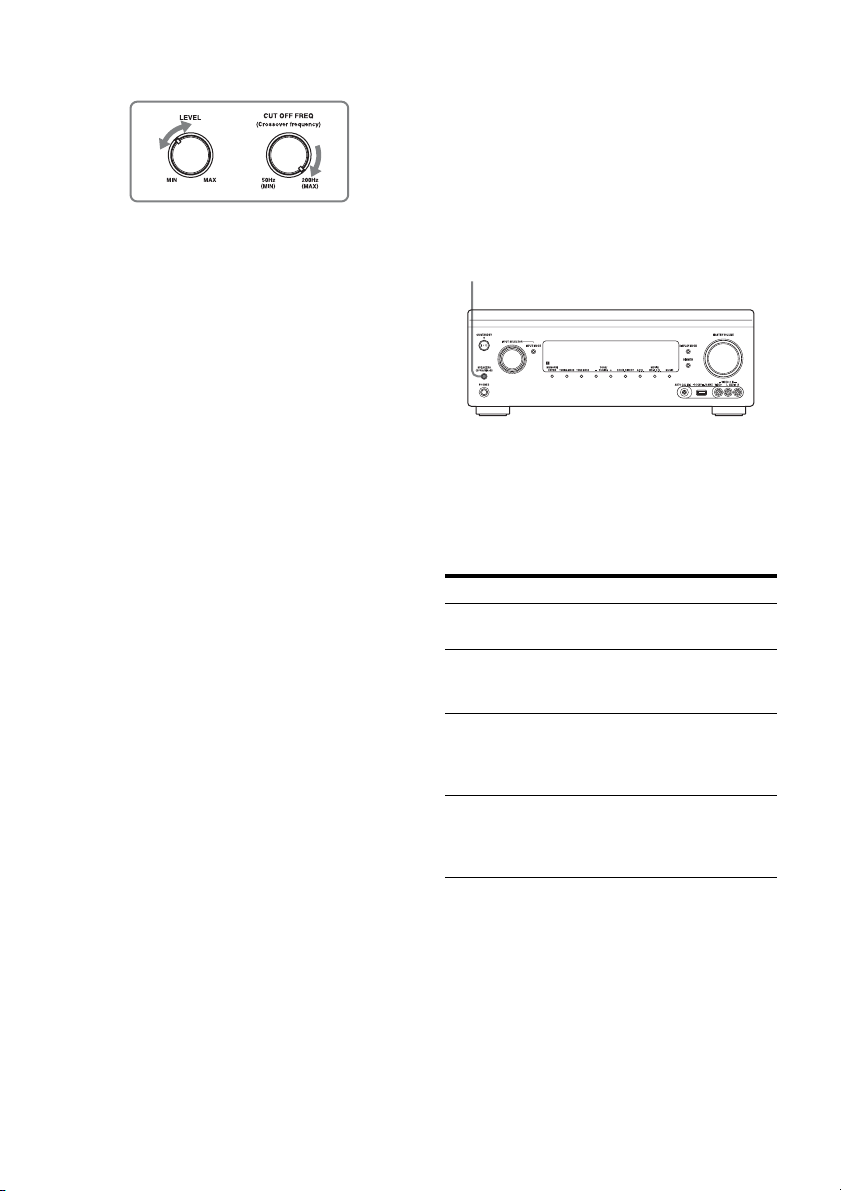
Confirm active subwoofer setup
• When a subwoofer is connected, turn on the
subwoofer and turn up the volume prior to
activating the subwoofer. Turn the LEVEL
knob to just before the mid-point.
• If you connect a subwoofer with the
crossover frequency function, set the value
to maximum.
Inserting batteries into the
remote control
RM-AAU195
Notes on Speaker Settings (Auto
Calibration)
continued
44
US
• If you connect a subwoofer with an auto
standby function, set it to off (deactivated).
Notes
• Depending on the characteristics of the subwoofer
you are using, the setup distance value may be
different from the actual position.
• If you perform “Speaker Settings (Auto
Calibration)” using the Easy Setup, the
measurement results will be overwritten and saved
on the currently selected position (“Pos.1” is
selected as the factory default setting).
Tips
• Depending on the position of the subwoofer, the
measurement results for polarity may vary.
However, there will be no problems even if you
continue to use the receiver with that value.
• Depending on the speakers, “Out Phase” may
appear even if there is no problem with the speaker
connection. This is caused by the speaker
specifications, and there will no problems even if
you continue to use the speakers.
When you connect two
subwoofers to the receiver
If you cannot obtain measurement results of
the “Auto Calibration” function correctly,
depending on the environment, or you want to
make fine adjustments, you can set up the
subwoofers manually. For details, see
“Speaker Setup” in the Speaker Settings menu
(page 94).
Notes on the speaker
impedance
• If you are not sure of the impedances of the
speakers, refer to the operating instructions
supplied with your speakers. (This
information is often on the back of the
speaker.)
• When you connect front speakers to both the
FRONT A and SURROUND BACK/
FRONT HIGH/FRONT B/ZONE 2
terminals, connect the speakers with a
nominal impedance of 8 ohms or higher.
To select the front speakers
You can select the front speakers you want to
drive.
Press SPEAKERS (OFF/A/B/A+B)
repeatedly to select the front speaker
system you want to drive.
You can confirm which set of terminals (A or
B) are selected by checking the indicators in
the display window.
Note
To select a front B speakers, you should set the
assignment for the SURROUND BACK/
FRONT HIGH/FRONT B/ZONE 2 terminals
by using the “Speaker Connection” of the
Speaker Settings menu.
Indicators Selected speakers
SP A The speakers connected to the
FRONT A terminals.
SP B The speakers connected to the
SURROUND BACK/FRONT
HIGH/FRONT B/ZONE 2 terminals.
SP AB The speakers connected to both the
FRONT A and SURROUND BACK/
FRONT HIGH/FRONT B/ZONE 2
terminals (parallel connection).
“SPEAKERS OFF” appears in the
display window.
No audio signals are output from any
speaker terminals.
SPEAKERS (OFF/A/B/A+B)
45
US
Getting Started
To cancel the measurement
process
The measurement process is cancelled by the
following operations.
– Turning the power off
– Changing the volume
– Switching inputs
– Changing the setting of SPEAKERS (OFF/
A/B/A+B)
– Connecting headphones
Operations other than the above are not
allowed during the measurement process.
To set up the receiver manually
See “Adjusting Settings” (page 89).
10: Setting up connected
equipment
To output multi-channel digital audio, check
the digital audio output setting on the
connected equipment.
For a Sony Blu-ray Disc Player, check that
“Audio (HDMI),” “DSD Output Mode,”
“Dolby Digital/DTS,” “Dolby Digital,” and
“DTS” are set to “Auto,” “On,” “Bitstream,”
“Dolby Digital,” and “DTS,” respectively (as
of August 1, 2012).
For a PlayStation 3, after having connected the
receiver with an HDMI cable, select the
“Audio Output Settings” in “Sound Settings,”
and select “HDMI” and “Automatic” (with
system software version 4.21).
For details, refer to the operating instructions
supplied with the connected equipment.
46
US
11: Preparing a computer
to use as a server
A server is a device which delivers content
(music and photos) to a DLNA device on a
home network.
You can play back content stored on a
computer on a home network with this receiver
via that network after you have installed
application software* which has a DLNA
compliant server function.
* If you use a Windows 7-based computer, use
Windows Media
®
Player 12 bundled with
Windows 7.
If you use a Windows 8-based computer, the new
UI system may not be able to recognize the
receiver. If this occurs, switch the setting to
“Desktop UI.”
Guide to on-screen
display operation
You can display the menu of the receiver on
the TV screen and select the function you want
to use on the TV screen by pressing V/v/B/b
and on the remote control.
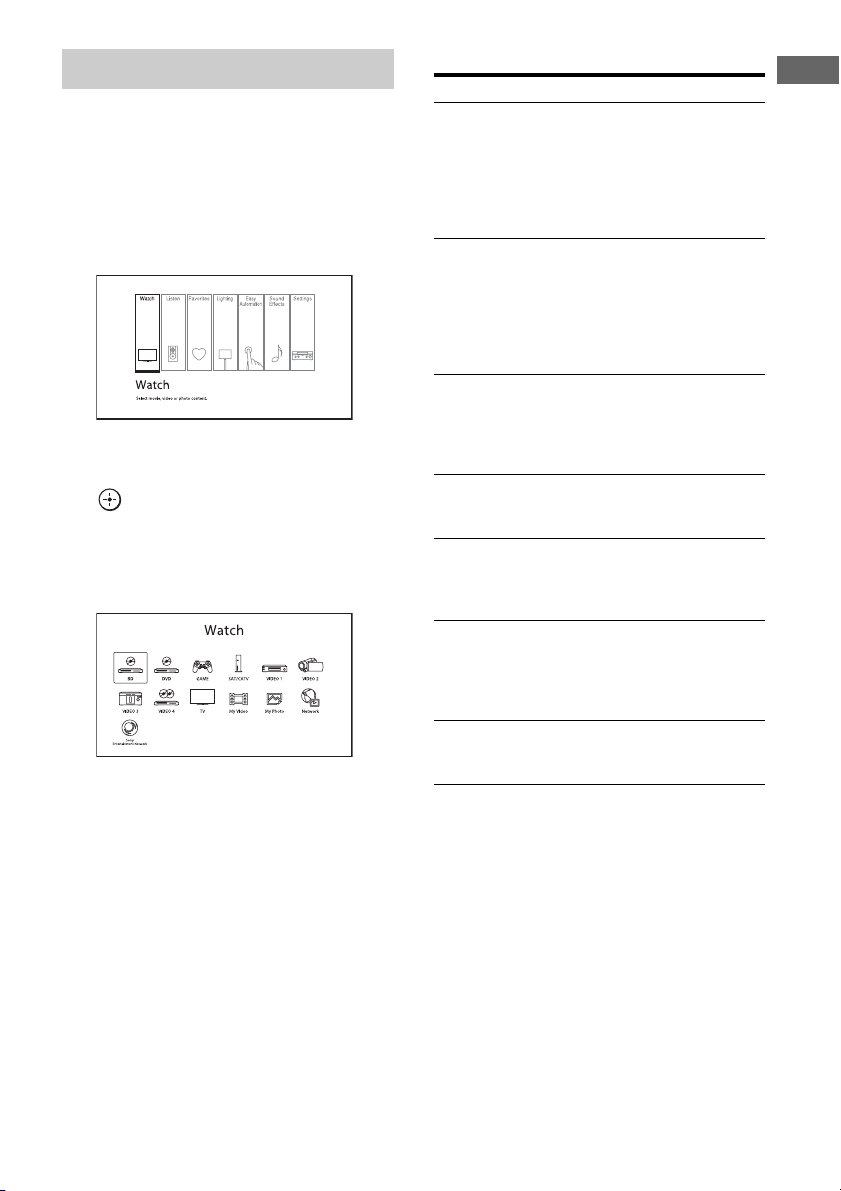
When you start operating the receiver, make
sure to press AMP on the remote control first.
Otherwise, operations that follow may not be
aimed at the receiver.
V/v/B/b,
HOME
RETURN/
EXIT O
INFO/
OPTIONS
Input
buttons
AMP
47
US
Getting Started
1 Switch the input of the TV to the
input to which the receiver is
connected.
2 Press HOME.
The home menu is displayed on the TV
screen.
3 Press B/b repeatedly to select
the menu you want, then press
to enter the menu mode.
The menu item list appears on the TV
screen.
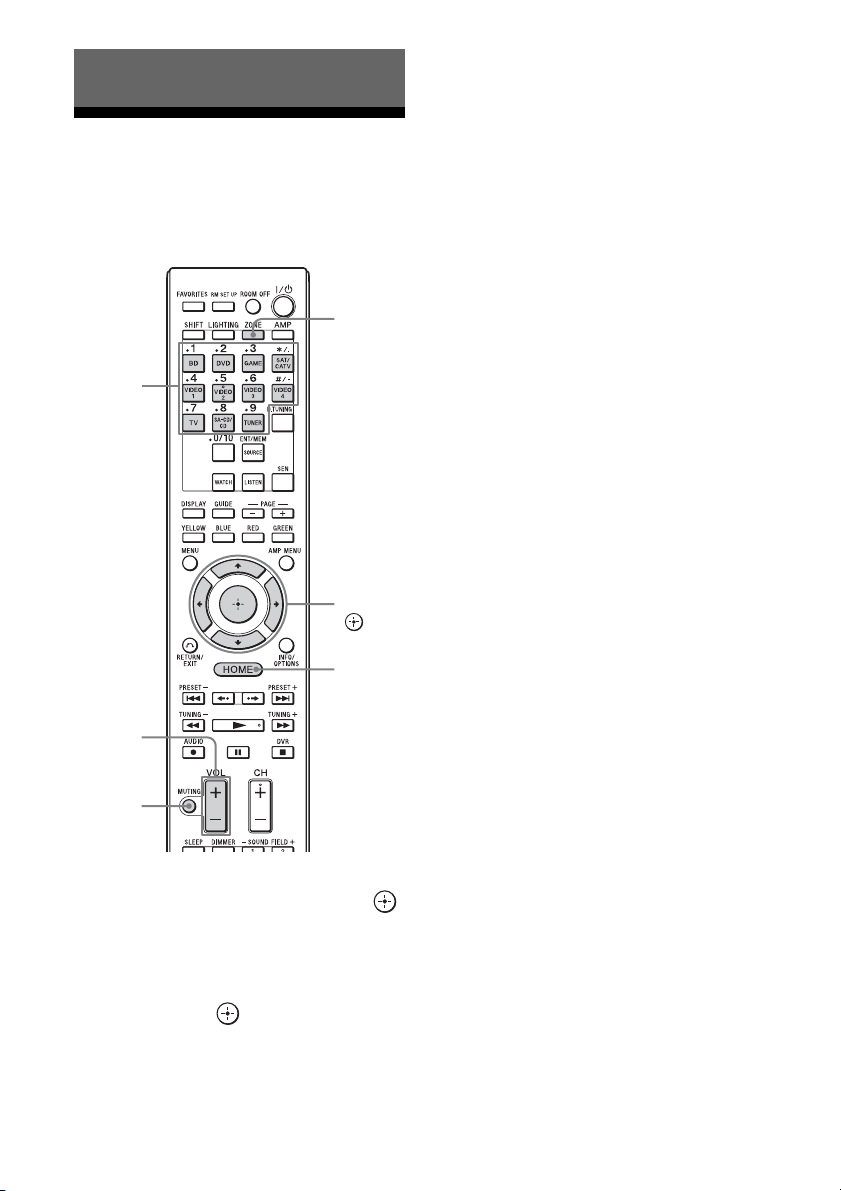
Example: When you select “Watch.”
Tip
When “OPTIONS” appears in the lower right
portion of the screen, you can display the function
list by pressing INFO/OPTIONS and selecting a
related function.
To return to the previous screen
Press RETURN/EXIT O.
To exit the menu
Press HOME to display the home menu,
then press HOME again.
Overview of the home menu
Using the menu
Menu Description
Watch Selects the video or photo
source to be input to the
receiver, or video or photo
content to be delivered via
USB jack, or photo content
to be delivered via a home
network (page 48).
Listen Selects the music source to
be input to the receiver, or the
music content to be delivered
via Internet or a home
network (page 48). You can
also enjoy FM/AM radio of
the built-in receiver.
Favorites Displays the Internet content
added to the Favorites List.
You can save up to 18
favorite Internet content
items (page 53).
Lighting Enables you to control and
operate registered lighting
devices (page 69).
Easy Automation Enables you to save various
settings with the receiver and
recalling the settings all at
one time (page 67).
Sound Effects Enables you to enjoy sound
development provided by
various Sony proprietary
technologies or functions
(page 58).
Settings Enables you to adjust the
settings of the receiver
(page 89).
48
US
Enjoying images/sound
from connected
equipment
1
Select “Watch” or “Listen” from
the home menu, then press .
The menu item list appears on the TV
screen.
2 Select the equipment you want,
then press .
3 Turn on the equipment and
start playback.
When a Sony BD/DVD player or other
device is equipped with the IR blaster,
you can turn them on or off. (Operation of
all the devices is not guaranteed.)
4 Press VOL +/– to adjust the
volume.
To select the input source
You can turn the INPUT SELECTOR dial on
the receiver or press the input buttons on the
remote control to select the equipment you
want.
To select the input source for zone 2, press
ZONE on the remote control to select zone 2
first (“ZONE 2 [input name]” appears on the
display window).
Tips
You can adjust the volume differently using the
MASTER VOLUME knob on the receiver or the
VOL +/– button on the remote control.
• To turn the volume up or down quickly
– Turn the MASTER VOLUME knob quickly.
– Press and hold the VOL +/– button.
• To make fine adjustment
– Turn the MASTER VOLUME knob slowly.
– Press the VOL +/– button and release it
immediately.
To activate the muting function
Press MUTING on the remote control. To
cancel, press MUTING on the remote control
again or press VOL + to raise the volume. If
you turn the receiver off while the sound is
muted, the muting selection is cancelled.
To avoid damaging your
speakers
Before you turn off the receiver, be sure to turn
down the volume level.
Enjoying images/sound
VOL
MUTING
ZONE
HOME
V/v/B/b,
Input
buttons
49
US
Enjoying images/sound
USB Device/WALKMAN
You can play video/music/photo files on the
connected USB device.
For playable types of files, see “Network/
USB” (page 21).
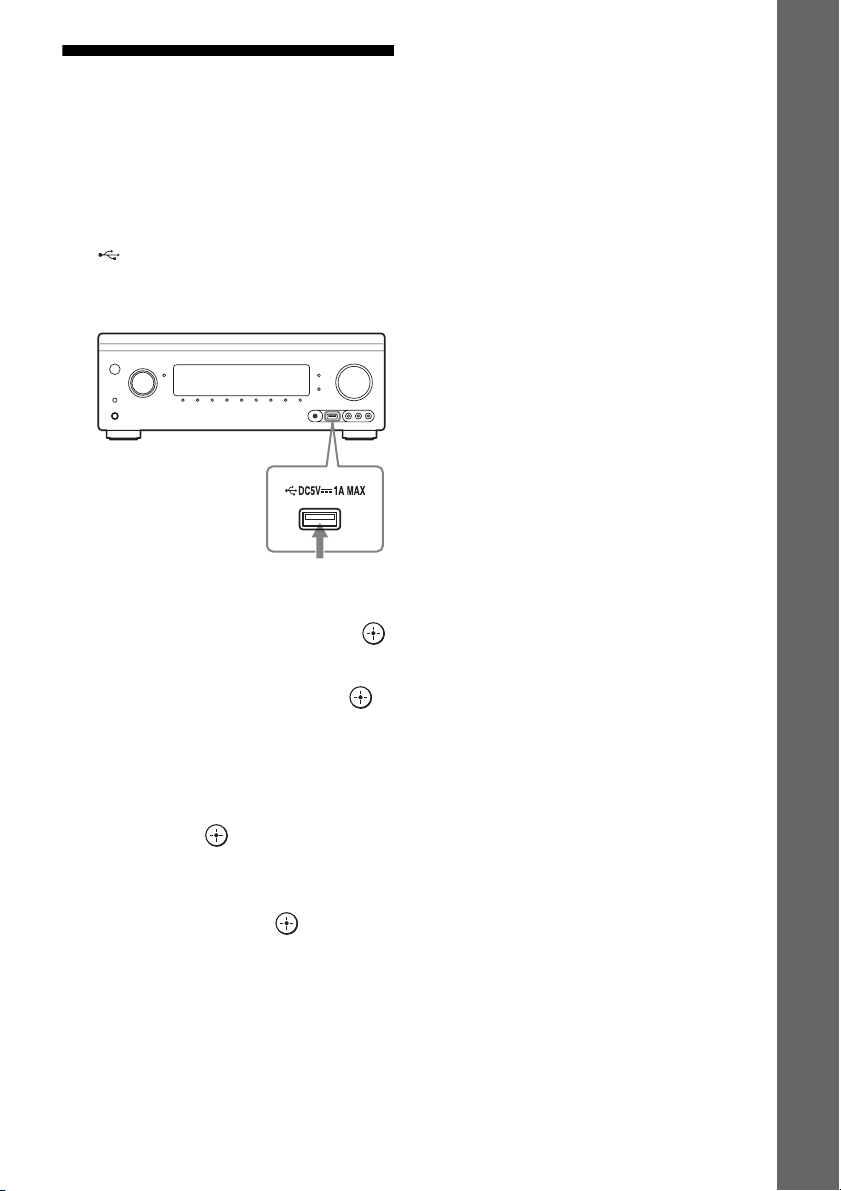
1 Connect the USB device to the
(USB) port on the receiver.
Refer to the operating instructions of the
USB device before connecting.
2 Select “Watch” or “Listen” from
the home menu, then press .
3 Select “My Video,” “My Music,”
or “My Photo,” then press .
Note
If no picture is output, change the setting for
“Playback Resolution” (page 101).
4 Select “USB device (front),”
then press .
The folders and video/music/photo files
are listed on the TV screen.
5 Press V/v/B/b and to select
the file that you want to play.
The image or sound from the USB device
is played on the receiver.
Notes
• Do not remove the USB device during operation.
To avoid data corruption or damage to the USB
device, turn the receiver off when removing the
USB device.
• If you connect a WALKMAN to the receiver,
operate the WALKMAN using the remote control
of the receiver the same way you do when you
connect other USB devices to the receiver. You
cannot use the controls on the WALKMAN.
• Some USB devices may not work with this
receiver.
• The receiver can recognize Mass Storage Class
(MSC) devices (such as flash memory or an HDD)
(front USB jack only).
USB device
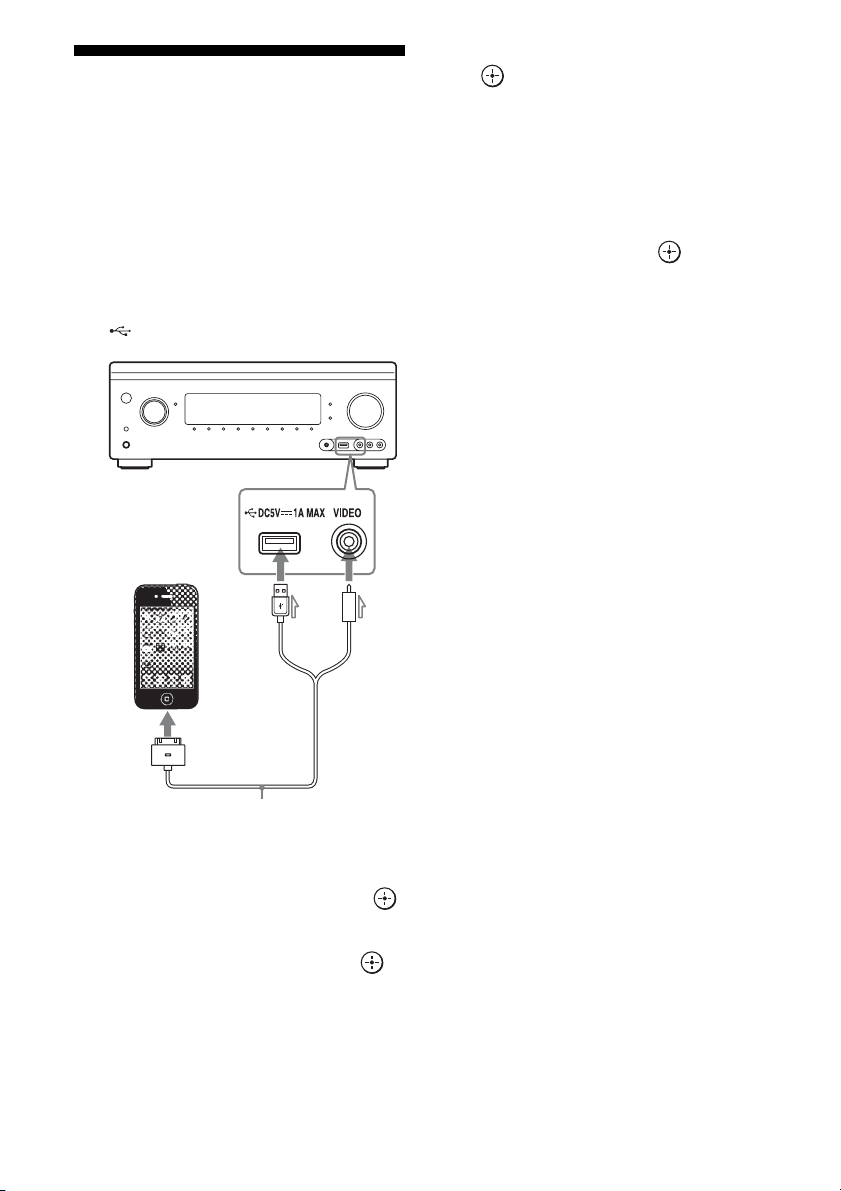
50
US
iPod/iPhone
You can enjoy the music/video/photo and
charge the battery of an iPod/iPhone via the
receiver.
For details on the compatible iPod/iPhone
models with this function, see page 50.
Note
You cannot use headphones during playback.
1 Connect the iPod/iPhone to the
(USB) port on the receiver.
2 Select “Watch” or “Listen” from
the home menu, then press .
3 Select “My Video,” “My Music,”
or “My Photo,” then press .
Note
If no picture is output, change the setting for
“Playback Resolution” (page 101).
4 Select “iPod (front),” then press
.
The video/music files are listed on the TV
screen.
If you select “iPod (front)” on “My
Photo,” select a photo file using the
controls on the iPod/iPhone (you do not
need to proceed to step 5).
5 Press V/v/B/b and to select
the file that you want to play.
The image or sound from the iPod/iPhone
is played back on the receiver.
You can operate the iPod/iPhone using
the buttons on the remote control.
For operation details of the iPod/iPhone,
also refer to the operating instructions of
the iPod/iPhone.
Made for iPod/iPhone models
The compatible iPod/iPhone models are as
follows. Update your iPod/iPhone with the
latest software before using with the receiver.
Compatible models are as follows:
• iPod touch
iPod touch (4th generation)/iPod touch (3rd
generation)/iPod touch (2nd generation)
• iPod nano
iPod nano (6th generation)/iPod nano (5th
generation) (video camera)/iPod nano (4th
generation) (video)/iPod nano (3rd
generation) (video)
•iPod
iPod classic
• iPhone
iPhone 4S/iPhone 4/iPhone 3GS/iPhone 3G
To operate the iPod/iPhone
using the remote control
You can operate the iPod/iPhone using the
buttons on the remote control. The following
table shows an example of buttons that can be
used. (Depending on the iPod/iPhone model,
the operation may be different.)
iPod/iPhone
(not supplied)
Apple Composite AV Cable
(not supplied)
51
US
Enjoying images/sound
For “My Video”/“My Music”
For “My Photo”
Notes
• You cannot transfer songs onto the iPod/iPhone
from this receiver.
• Sony cannot accept responsibility in the event that
data recorded to iPod/iPhone is lost or damaged
when using an iPod/iPhone connected to this
receiver.
• This product has been designed specifically to
work with iPod/iPhone and has been certified to
meet Apple performance standards.
• Do not remove the iPod/iPhone during operation.
To avoid data corruption or damage to the iPod/
iPhone, turn the receiver off when connecting or
removing the iPod/iPhone.
• When you connect an iPod that is not compatible
with the video output function and select “iPod
(front)” in “My Video” or “My Photo,” an alert
message appears on the TV screen.
Tips
• The iPod/iPhone is charged when connected to the
receiver while the receiver is turned on.
• The receiver can recognize up to 3,000 files
(including folders).
Home Network (DLNA)
You can play music/photo files on other
DLNA-certified devices by connecting them to
your home network.
This receiver can be used as a player and
renderer.
• Server: Stores and sends files.
• Player: Receives and plays files from the
server.
• Renderer: Receives and plays files from the
server, and can be operated by another
device (controller).
• Controller: Operates the renderer
component.
Preparations for using the
DLNA function
• Connect the receiver to your home network
(page 41).
• Prepare other DLNA-certified equipment.
For details, refer to the operating
instructions of the equipment.
1 Select “Watch” or “Listen” from
the home menu, then press .
2 Select “My Music” or “My
Photo,” then press .
Note
If no picture is output, change the setting for
“Playback Resolution” (page 101).
3 Select the DLNA server icon,
then press .
The folders and music/photo files are
listed on the TV screen.
4 Press V/v/B/b and to select
the file that you want to play.
The image or sound from the DLNA
server is played back on the receiver.
Press Operation
N Starts play.
X Pauses play.
x Stops play.
m or M Fast reverses or forwards.
. or > Goes to the previous/next file or
chapter (if any).
Press Operation
N, X Starts/pauses play.
x Pauses play.
m or M Fast reverses or forwards.
. or > Goes to the previous/next file.
continued
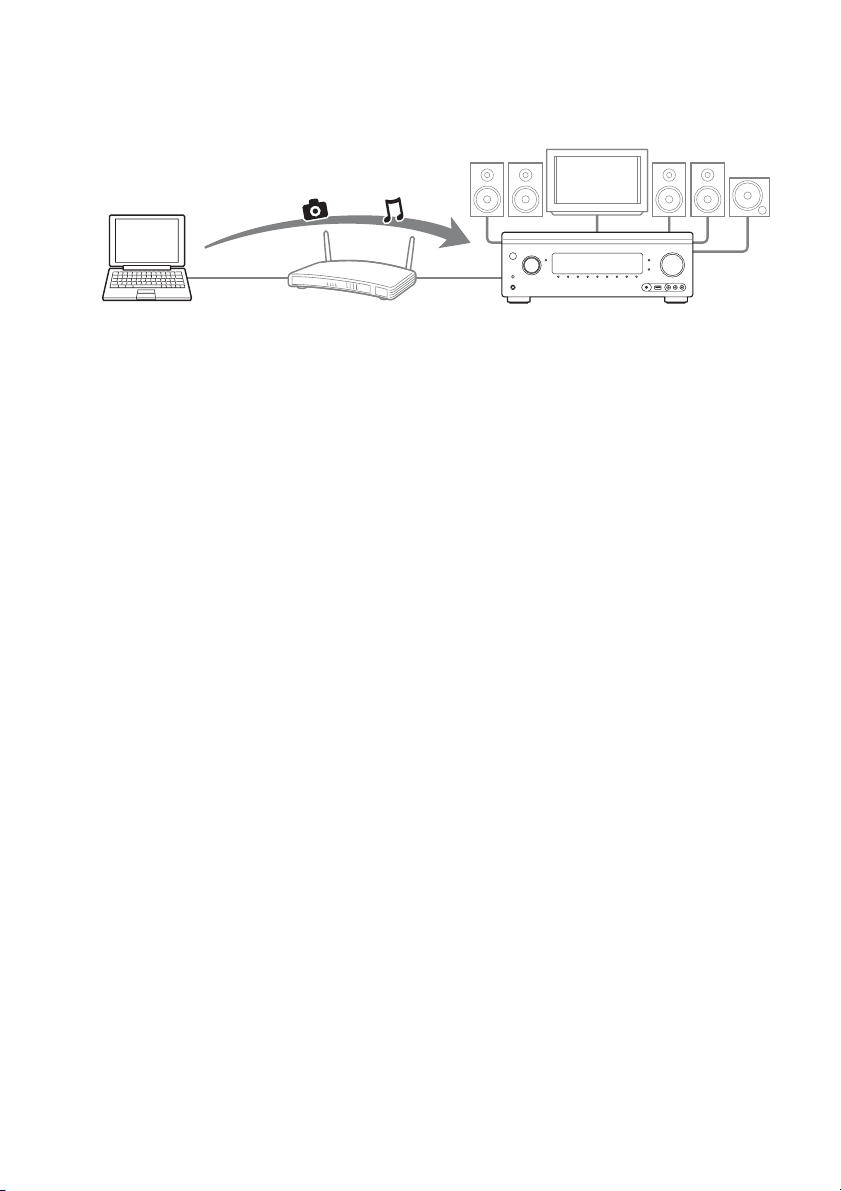
52
US
To play remote files by operating the receiver (Renderer) via a DLNA
controller
You can operate the receiver with a DLNA-certified controller, such as Windows Media
®
Player 12, when playing files stored on a DLNA server.
Control this receiver using a DLNA controller.
For details of operation, see the operating
instructions of the DLNA controller.
Note
Do not operate the receiver with the supplied remote
control and a DLNA controller at the same time.
Tip
The receiver is compatible with the “Play To”
function of Windows Media
®
Player 12 that comes
standard with Windows 7.
This receiver
(renderer)
Computer
(server, controller)
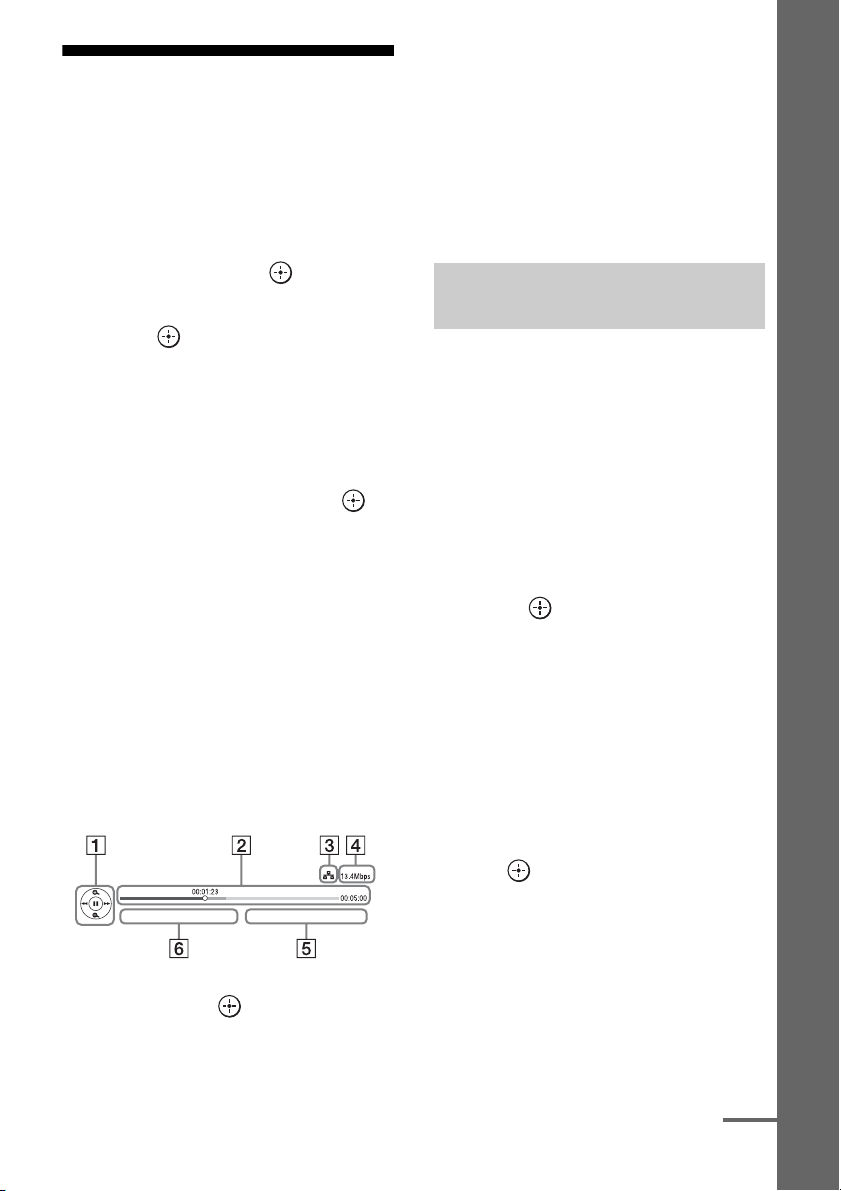
53
US
Enjoying images/sound
Internet content
You can play back a variety of Internet content
using the receiver.
1 Connect the receiver to a
network (page 41).
2 Select “Listen” from the home
menu, then press .
3 Select “Internet Music,” then
press .
The Internet content screen appears.
Note
If no picture is output, change the setting for
“Playback Resolution” (page 101).
4 Select an Internet content
provider icon, then press .
If the Internet content list has not been
retrieved, it will be represented by an
unacquired icon or a new icon.
Note
The Internet content is subject to being suspended or
changed without notice.
To use the control panel
The control panel appears when the Internet
content file starts playing. The displayed items
may differ, depending on Internet content
providers.
To display again, press DISPLAY.
A Control display
Press V/v/B/b or for playback
operations.
B Playing status bar
Status bar, cursor indicating the current
position, playing time, duration of the
content file
C Network condition indicator
D Network transmission speed
E The next content file name
F The currently selected content file name
You can register your favorite Internet content
in “Favorites List.”
1 Display the Internet content
screen.
2 Select an Internet content
provider icon you want to
register in Favorites List, then
press INFO/OPTIONS.
3 Select “Add to Favorites,” then
press .
To remove content from
Favorites List
1
Press FAVORITES.
The Favorites List appears.
2 Select an Internet content provider icon
you want to remove from Favorites List,
then press INFO/OPTIONS.
3 Select “Remove from Favorites,” then
press .
Registering your favorite
content
continued
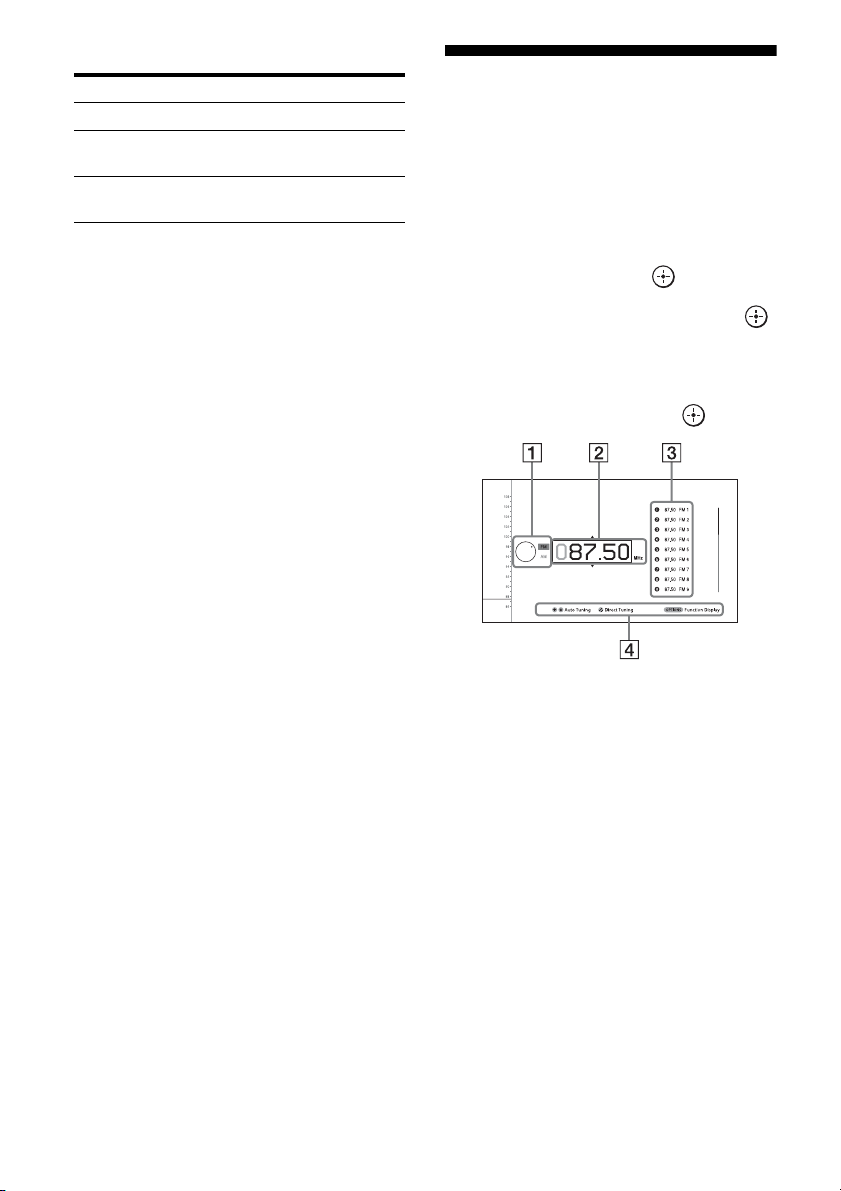
54
US
Available options
FM/AM
You can listen to FM and AM broadcasts
through the built-in tuner. Before operation,
make sure you have connected the FM and
AM antennas (aerials) to the receiver
(page 38).
1 Select “Listen” from the home
menu, then press .
2 Select “FM/AM,” then press .
FM/AM screen
You can select and operate each item on the
screen by pressing V/v/B/b and .
A Band switch (page 55)
B Frequency indication (page 55)
C Preset station list (page 56)
D Preset station name (page 56)
Item Details
Favorites List Displays the Favorites List.
Add to Favorites Adds Internet content to the
Favorites List.
Remove from
Favorites
Removes Internet content
from the Favorites List.
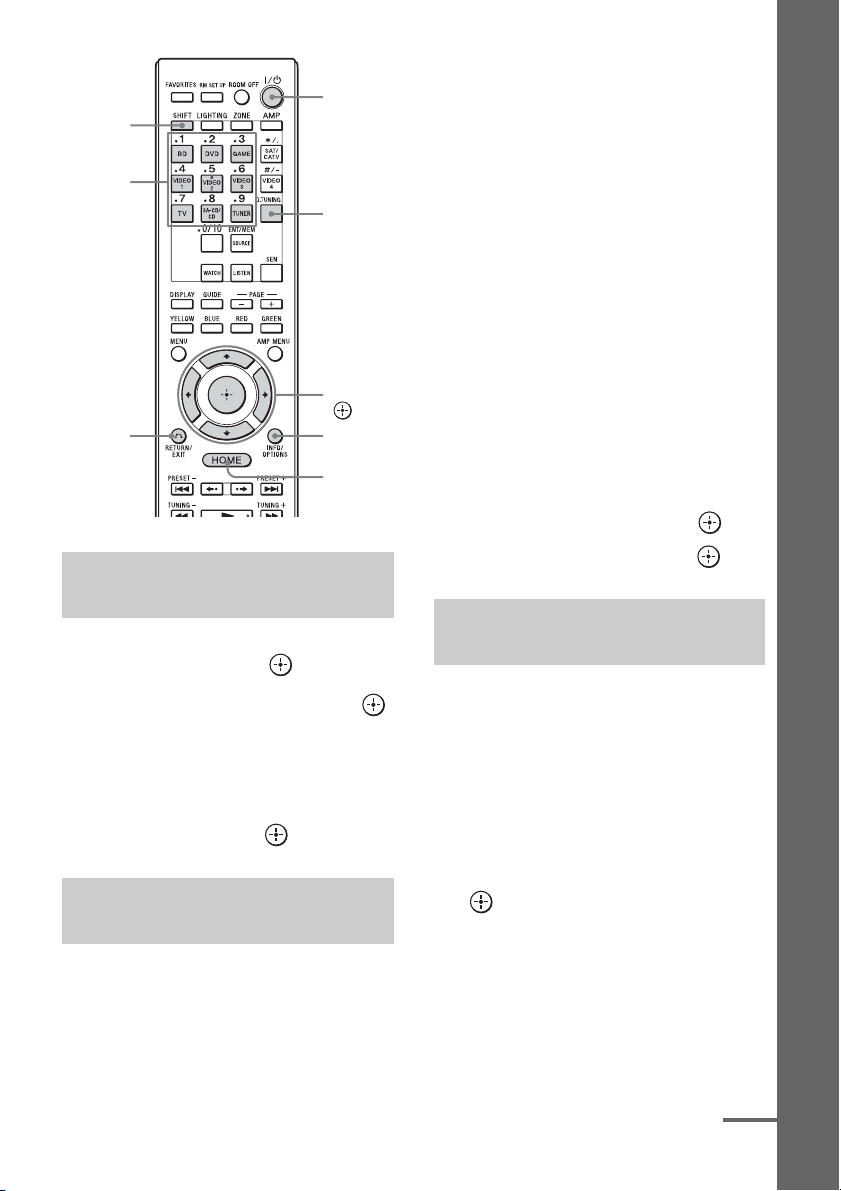
55
US
Enjoying images/sound
1 Select “Listen” from the home
menu, then press .
2 Select “FM/AM,” then press .
The FM/AM screen appears.
3 Select the band switch.
4 Press V/v to select “FM” or
“AM,” then press .
1 Select the frequency indication
on the FM/AM screen.
2 Press V/v.
V scans from lower to higher frequency
stations and v for scanning higher to
lower.
The receiver stops scanning whenever a
station is received.
In case of poor FM stereo
reception
1
Tune in the station you want to listen to
using Auto Tuning, Direct Tuning, or
select the preset station you want
(page 56).
2 Press INFO/OPTIONS.
The options menu appears.
Note
You can set “FM Mode” in the options menu
when the frequency indication is selected, or
when called for in another situation.
3 Select “FM Mode,” then press .
4 Select “Monaural,” then press .
Enter the frequency of a station directly by
using the numeric buttons on the remote
control.
1 Press SHIFT, then press
D.TUNING on the FM/AM
screen.
2 Press the numeric buttons to
enter the frequency, then press
.
Example 1: FM 102.50 MHz
Select 1 b 0 b 2 b 5
Example 2: AM 1,350 kHz
Select 1 b 3 b 5 b 0
Tips
• Adjust the direction of the AM loop antenna
(aerial) for optimum reception upon tuning to an
AM station.
Toggling between FM and AM
radio
Tuning to a station
automatically (Auto Tuning)
V/v/B/b,
HOME
INFO/
OPTIONS
D.TUNING
Numeric
buttons
SHIFT
?/1
RETURN/
EXIT O
Tuning into a station directly
(Direct Tuning)
continued
56
US
• The tuning scale for direct tuning is shown below.
– FM band 100 kHz
– AM band 10 kHz*
* The AM tuning scale can be changed (page 57).
If you cannot tune to a station
“– – – .– – MHz” or “– – – – kHz” appears and
then the display returns to the current
frequency.
Make sure you have entered the right
frequency. If not, repeat step 2. If you still
cannot tune to a station, the frequency may not
be in use in your area.
You can program up to 30 FM and 30 AM
stations as your favorite stations as preset
stations.
1 Tune to the station that you
want to program using Auto
Tuning (page 55) or Direct
Tuning (page 55).
In case of poor FM stereo reception,
switch the FM reception mode (page 55).
2 Press INFO/OPTIONS.
The options menu appears.
Note
You can set “Preset Memory” in the options
menu when the frequency indication is
selected, or when called for in another
situation.
3 Select “Preset Memory,” then
press .
4 Select a preset number, then
press .
The station is stored as the selected preset
number.
5 Repeat steps 1 to 4 to program
another station.
You can store stations as follows:
• FM band: FM1 to FM30
• AM band: AM1 to AM30
1 Select “Listen” from the home
menu, then press .
2 Select “FM/AM,” then press .
3 Select the preset number from
the list, then press .
Preset numbers from 1 to 30 are available.
To name preset stations (Name
Input)
1
Select the preset number on which you
want to name.
2 Press INFO/OPTIONS.
The options menu appears.
3 Select “Name Input,” then press .
The soft keyboard appears on the screen.
4 Press V/v/B/b and to select a
character one by one to enter the
name.
5 Select “Enter,” then press .
The name you entered is registered.
To cancel naming input
Press RETURN/EXIT O or HOME.
Programming FM/AM radio
stations
Tuning to preset stations
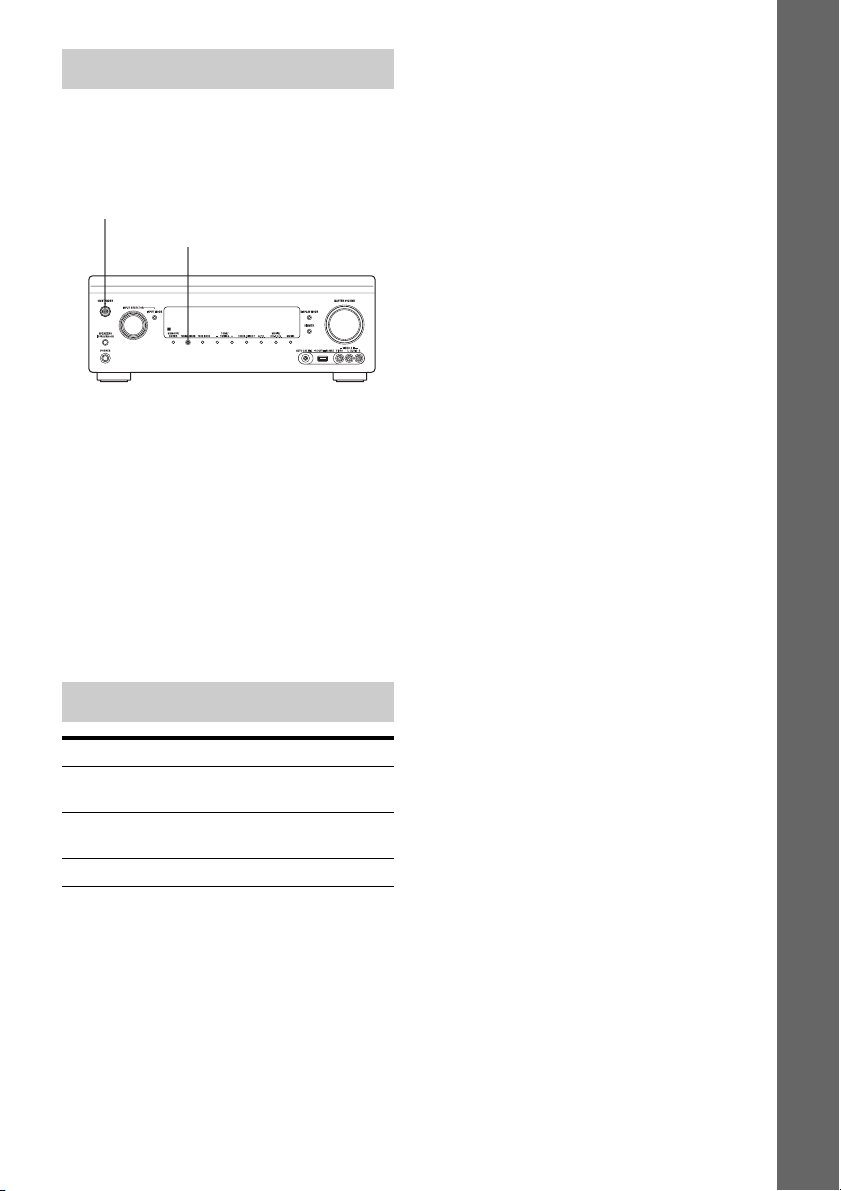
57
US
Enjoying images/sound
You can change the AM tuning scale to either
9 kHz or 10 kHz on the receiver.
All preset stations will be erased when you
change the tuning scale.
1 Press ?/1 to turn off the
receiver.
2 While holding down TUNING
MODE, press ?/1 on the
receiver.
3 Change the current AM tuning
scale to 9 kHz (or 10 kHz).
To reset the scale to 10 kHz (or 9 kHz),
repeat the procedure above.
Changing the AM tuning scale
Available options
Item Details
FM Mode Switches the FM reception
mode to stereo or monaural.
Preset Memory Stores a radio station on a
specific preset number.
Name Input Names a preset station.
?/1
TUNING MODE
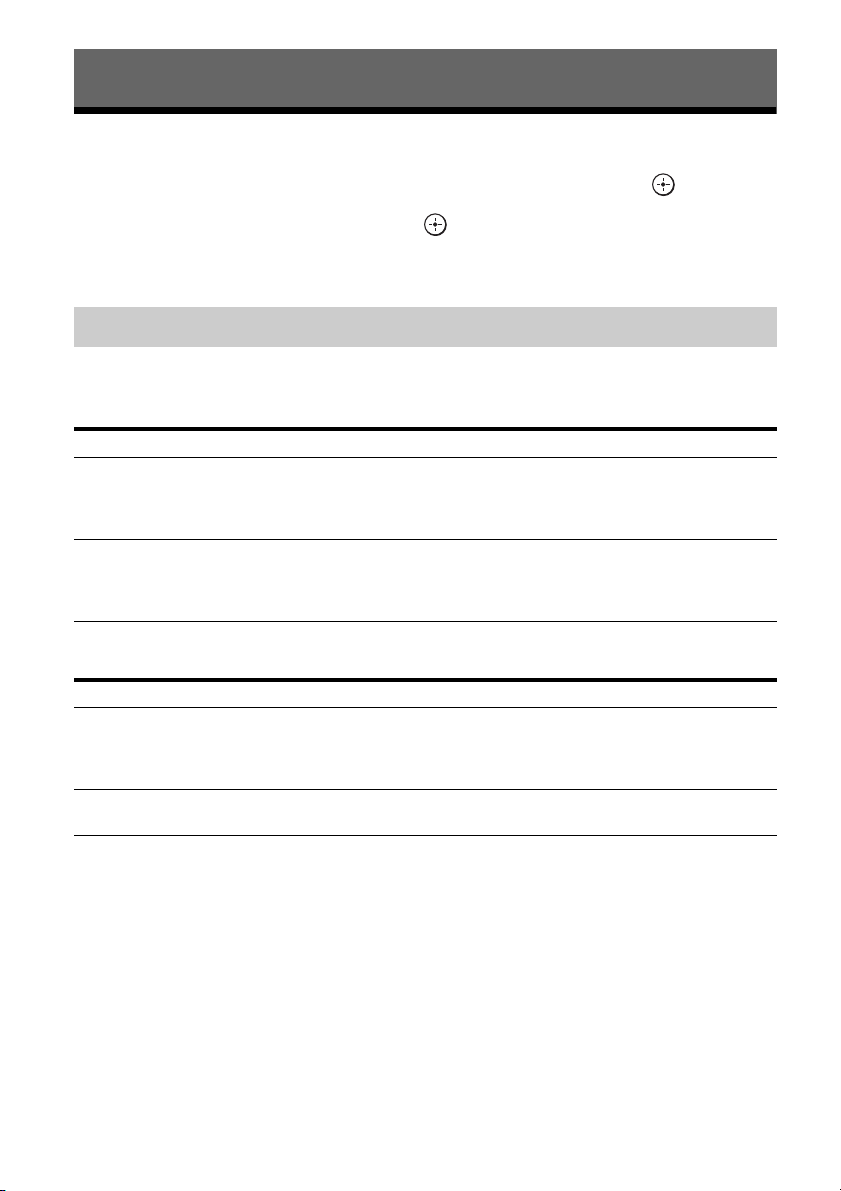
58
US
Selecting the sound field
1
Select “Sound Effects,” from the home menu, then press .
2 Select “Sound Field,” then press .
3 Select the sound field you want.
You can switch the output sound to 2-channel sound regardless of the recording formats of the
software you are using, the playback equipment connected, or the sound field settings of the
receiver.
To listen to music through headphones connected to the receiver
Enjoying Sound Effects
Playing back with 2-channel sound
2CH mode Effect
2ch Stereo The receiver outputs the sound from the front left/right speakers only. There is
no sound from the subwoofer.
Standard 2 channel stereo sources completely bypass the sound field processing
and multi-channel surround formats are downmixed to 2 channels.
2ch Analog Direct You can switch the audio of the selected input to 2 channel analog input. This
function enables you to enjoy high quality analog sources.
When using this function, only the volume and front speaker level can be
adjusted.
Sound field Effect
Headphone (2ch) This mode is selected automatically if you use headphones and when the mode
other than “2ch Analog Direct” is selected. Standard 2 channel stereo sources
completely bypass the sound field processing and multi-channel surround
formats are downmixed to 2 channels.
Headphone (Direct) Outputs analog signals without processing by tone, sound field, etc. This mode
is selected automatically if the “2ch Analog Direct” option is selected.
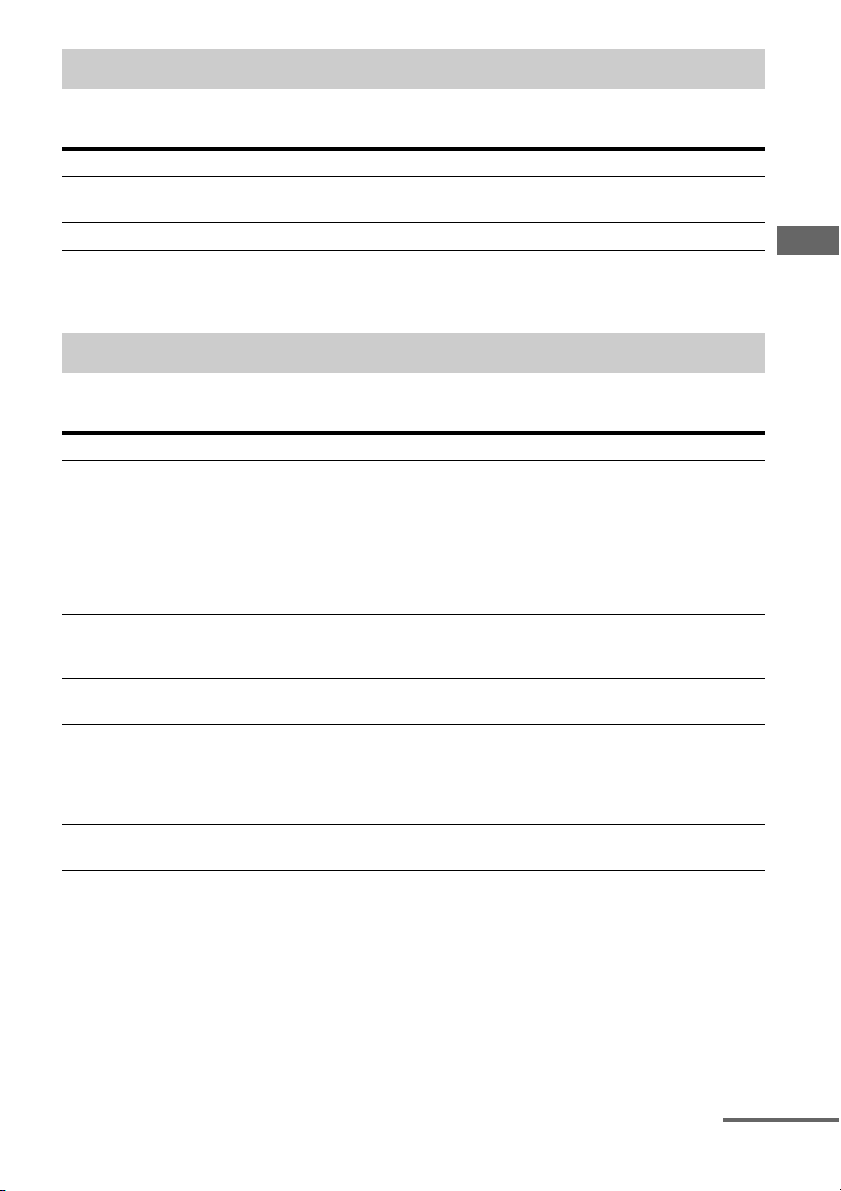
59
US
Enjoying Sound Effects
The Auto Format Direct (A.F.D.) mode allows you to listen to higher fidelity sound and select the
decoding mode for listening to a 2 channel stereo or monaural sound as multi-channel sound.
Tip
We recommend “A.F.D. Auto.”
You can take advantage of surround sound simply by selecting one of the receiver’s preprogrammed
sound fields. They bring the exciting and powerful sound of movie theaters into your home.
Playing back with multi-channel surround
A.F.D. mode Effect
A.F.D. Auto Presets the sound as it was recorded/encoded without adding any surround
effects.
Multi Stereo Outputs 2 channel left/right or monaural signals from all speakers.
Enjoying a surround effect for movies
Sound field Effect
HD-D.C.S. HD Digital Cinema Sound (HD-D.C.S.) is Sony’s new innovative home theater
technology using the latest acoustic and digital signal processing technologies.
It is based on the precise response measurement data of a mastering studio.
With HD-D.C.S., you are able to enjoy Blu-ray and DVD movies at home with
not only the high quality of sound, but also the best sound ambience, just as the
movie’s sound engineer intended in the mastering process.
You can select the effect type for HD-D.C.S. For details, see “About the effect
type for HD-D.C.S.” (page 60).
PLII Movie Performs Dolby Pro Logic II Movie mode decoding. This setting is ideal for
movies encoded in Dolby Surround. In addition, this mode can reproduce
sound in 5.1 channel for watching videos of overdubbed or old movies.
PLIIx Movie Performs Dolby Pro Logic IIx Movie mode decoding. This setting expands
Dolby Pro Logic II Movie or Dolby Digital 5.1 to discrete 7.1 movie channels.
PLIIz Height Performs Dolby Pro Logic IIz mode decoding. This setting can expand a source
sound into up to 7.1 channels to which a vertical component is applied, and
gives a dimension of presence and depth. “PLIIz Height” is the same sound
field as that is described on page 61. You can adjust the gain level for “PLIIz
Height.” For details, see “About the gain level for PLIIz Height” (page 62).
Neo:6 Cinema Performs DTS Neo:6 Cinema mode decoding. A source recorded in 2 channel
format is enhanced up to 7 channels.
continued

60
US
About the effect type for HD-
D.C.S.
HD-D.C.S. has three different types:
Dynamic, Theater, and Studio. Each type has
different reflection and reverberation sound
mixture levels and is optimized to match a
listener’s room uniqueness, taste and mood.
x Dynamic
The “Dynamic” setting is suitable for an
environment which is reverberant but lacks a
spacious feeling (where sound absorption is
not sufficient). This setting emphasizes the
reflection of sound and reproduces the sound
of a large, classical movie theater. Thus, the
spacious feeling of a dubbing theater is
emphasized and a unique acoustic field is
created.
x Theater
Factory default setting. The “Theater” setting
is suitable for a general living room. This
setting reproduces the reverberation of sound
just like in a movie theater (dubbing theater).
It is most appropriate for watching content
recorded on a Blu-ray Disc when you want the
atmosphere of a movie theater.
x Studio
The “Studio” setting is suitable for a living
room with the appropriate sound equipment.
This setting reproduces the reverberation of
sound provided when a theatrical sound source
is remixed for a Blu-ray Disc to a volume level
suitable for home use. The level of reflection
and reverberation of sound is kept to the
minimum. However, dialogues and surround
effects are reproduced vividly.
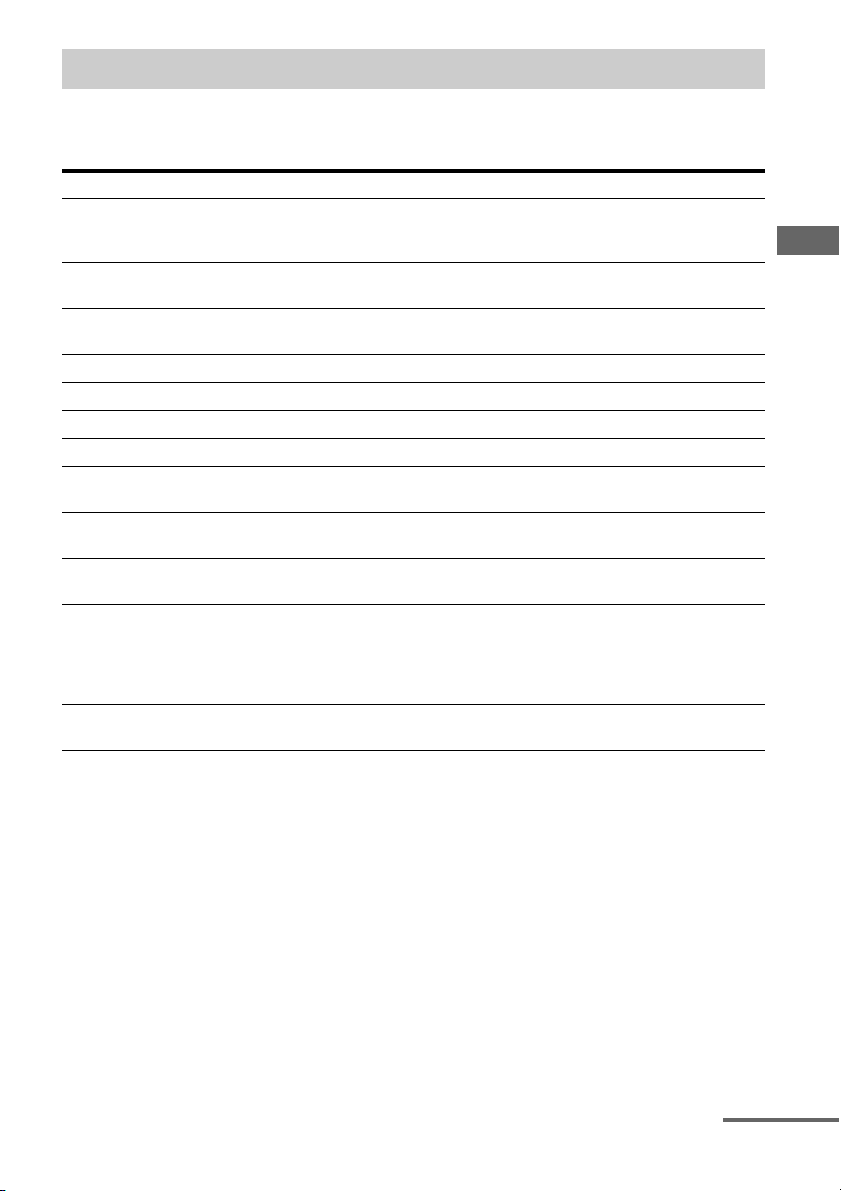
61
US
Enjoying Sound Effects
You can take advantage of surround sound simply by selecting one of the receiver’s pre-
programmed sound fields. They bring the exciting and powerful sound of concert halls into your
home.
Enjoying a surround effect for music
Sound field Effect
Berlin Philharmonic Hall Reproduces the sound characteristics of the Berlin Philharmonic Hall. Also
works automatically in conjunction with reception of the “The Berliner
Philharmoniker’s Digital Concert Hall” Internet service.
Concertgebouw Amsterdam Reproduces the sound characteristics produced by reflectivity of a concert hall
in Amsterdam, Netherlands, which features a large sound stage.
Musikverein Vienna Reproduces the sound characteristics of a concert hall in Vienna, Austria,
which features a resonant and unique reverberation sound.
Jazz Club Reproduces the acoustics of a jazz club.
Live Concert Reproduces the acoustics of a 300-seat live house.
Stadium Reproduces the feeling of a large open-air stadium.
Sports Reproduces the feeling of sports broadcasting.
Portable Audio Reproduces a clear enhanced sound image from your portable audio device.
This mode is ideal for MP3 and other compressed music.
PLII Music Perform Dolby Pro Logic II Music mode decoding. This setting is ideal for
normal stereo sources such as CDs.
PLIIx Music Performs Dolby Pro Logic IIx Music mode decoding. This setting is ideal for
normal stereo sources such as CDs.
PLIIz Height Performs Dolby Pro Logic IIz mode decoding. This setting can expand a source
sound into up to 7.1 channels to which a vertical component is applied, and
gives a dimension of presence and depth. “PLIIz Height” is the same sound
field as that is described on page 59. You can adjust the gain level for “PLIIz
Height.” For details, see “About the gain level for PLIIz Height” (page 62).
Neo:6 Music Performs DTS Neo:6 Music mode decoding. A source recorded in 2 channel
format is enhanced up to 7 channels.
continued
62
US
About the gain level for PLIIz
Height
You can adjust the gain level of the front height
channels for Pro Logic IIz mode (common for
movie and music).
x Low
No gain will be applied.
x Mid
+3 dB will be applied (factory default setting).
x High
+5 dB will be applied.
• Depending on the country or region, the
“Berlin Philharmonic Hall” Internet service
may not be available.
• You cannot select “2ch Analog Direct” when
you play back content via a USB device, a
home network, or Internet content.
• “Multi Stereo” does not work when multi-
channel audio signals are being received.
• The sound fields for movie and music may
not work, depending on the input or the
speaker pattern you select, or with audio
formats.
• The receiver may play back signals at a
lower sampling frequency than the actual
sampling frequency of the input signals,
depending on the audio format.
• “PLIIx Movie/Music” and “PLIIz Height”
may not appear, depending on the speaker
pattern you select.
• Some speakers or the subwoofer may not
output sound, depending on the sound field
setting.
• If there is any noise present, the noise may
be different, depending on the sound field
you select.
Using the Sound
Optimizer function
The Sound Optimizer function imparts a sense
of presence and intensity of sound to playback
of high volume sound, regardless of the
volume level of the receiver.
You can enjoy clear and dynamic sound even
at low volumes late at night.
The optimum effect to suit your environment
is obtained by taking advantage of the “Auto
Calibration” function.
1 Select “Settings” from the
home menu, then press .
2 Select “Audio Settings,” then
press .
3 Select “Sound Optimizer,” then
press .
4 Select “Normal” or “Low,” then
press .
The Sound Optimizer function is activated. To
adjust for the reference level of a movie, select
“Normal.” To adjust for a CD or other software
whose average sound pressure level is
processed highly, select “Low.”
Notes
• This function does not work in the following cases.
– “2ch Analog Direct” is being used.
– Headphones are being used.
• The receiver may play back signals at a lower
sampling frequency than the actual sampling
frequency of the input signals, depending on the
audio format.
Tip
By using the equalizer function and adjusting all the
speakers at one time, you can make fine adjustments
with the Sound Optimizer.
Notes on the sound fields
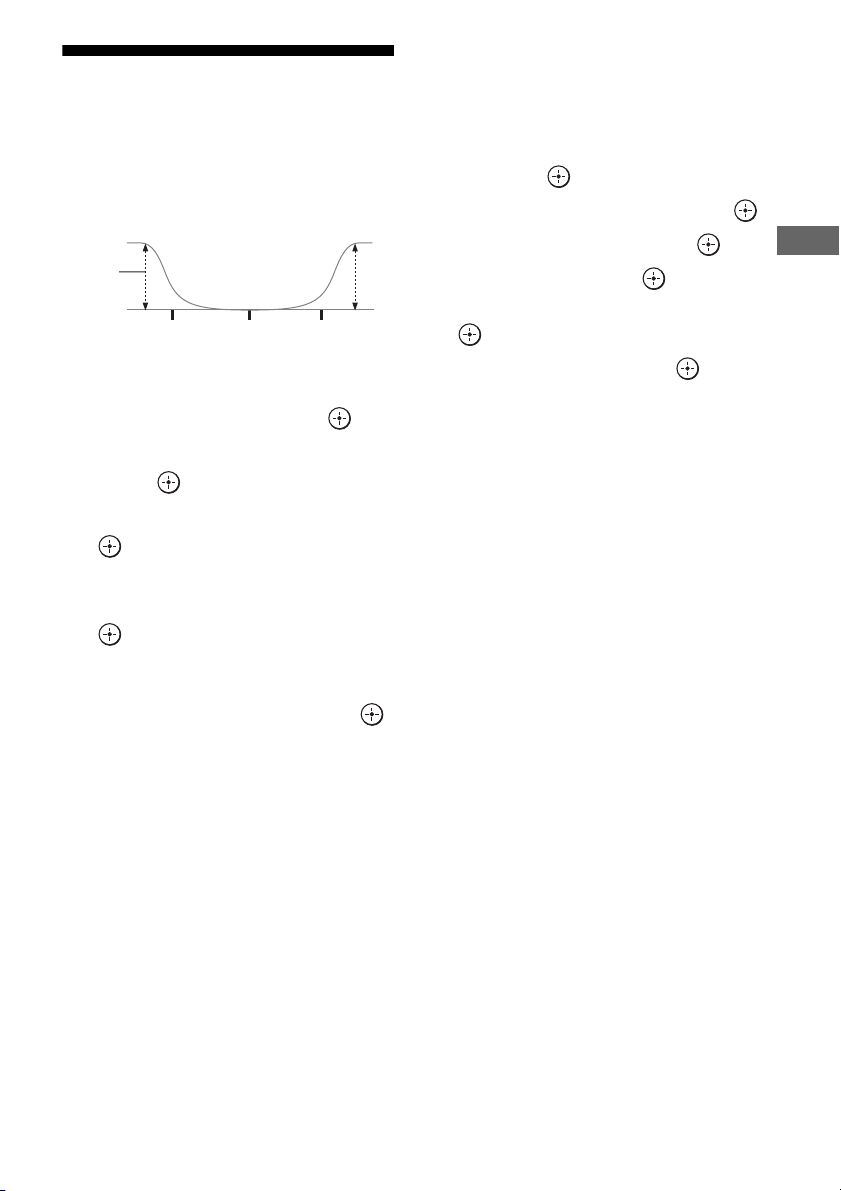
63
US
Enjoying Sound Effects
Adjusting the equalizer
You can use following parameters to adjust the
tonal quality (bass/treble level) of front,
surround/surround back and front high
speakers.
1 Select “Settings” from the
home menu, then press .
2 Select “Audio Settings,” then
press .
3 Select “Equalizer,” then press
.
4 Select “Front,” “Center,” “SUR/
SB,” or “Front High,” then press
.
5 Select “Bass” or “Treble.”
6 Adjust the gain, then press .
Notes
• This function does not work in the following case.
– “2ch Analog Direct” is being used.
• Frequencies for Bass and Treble are fixed.
• Depending on the audio format, the receiver may
play back signals at a lower sampling frequency
than the original sampling frequency of the input
signals.
To adjust all the speakers at one
time (All EQ Adjustment)
You can adjust the tonal quality (bass/treble)
of all the speakers at one time.
1 Select “Settings” from the home menu,
then press .
2 Select “Audio Settings,” then press .
3 Select “Equalizer,” then press .
4 Select “All,” then press .
5 Select “Bass” or “Treble,” then press
.
6 Adjust the gain, then press .
Note
Depending on the equalizer setting for each channel,
the actual levels set with the All EQ Adjustment may
be lower or higher than the specified values.
Level
(dB)
Bass Treble
Frequency
(Hz)
64
US
Selecting the equipment
you want to operate
By using the remote control supplied with the
receiver, you can control AV equipment, such
as a Blu-ray Disc player. You should make
connections and settings in advance. For
details, see “5: Connecting the IR blaster”
(page 39) and “Making Universal Remote
Control settings” (page 66).
1 Select “Watch” or “Listen” on
the home menu, then press .
2 Select the equipment you want
to operate, then press .
The selected equipment is turned on, and
the receiver is switched to the input from
that equipment. Depending on the
equipment and settings, the monitor is
also turned on.
Tips
• You can turn the INPUT SELECTOR dial on the
receiver to select the equipment you want to
operate.
• You can also press the input buttons on the remote
control to select the equipment you want to
operate. To select equipment in zone 2, press
ZONE on the remote control first. (“ZONE 2 [input
name]” appears on the display window of the front
panel.)
Operating the AV
equipment
Press the appropriate button on the
remote control to operate the
equipment.
The receiver will transmit infrared commands
to operate the selected AV equipment via the
IR blaster connected to the IR REMOTE OUT
jack.
1) 2)
1)
You should make necessary connections and
settings in advance.
2)
Depending on the equipment and settings, some
buttons or functions may not work.
Refer to the next table for the available buttons
to operate the equipment.
Using the Universal Remote
Control Function
65
US
Using the Universal Remote Control Function
Table of buttons available to operate the equipment
Note
The above buttons are typically set so they are available to operate the equipment. Depending on the equipment
and/or settings, some of the buttons may not work.
Equipment Category
Button
TV Projector Blu-ray Disc
Player/DVD
player/Game
Cable box Disc Changer Satellite
Receiver
VCR/MD/
Camcorder
CD
Numeric buttons
z z zzzzz
GUIDE
z z zzzzz
Color buttons
zz z
INFO/OPTIONS
z z zzzzz
RETURN/EXIT
zz z zzzz
V
/
v
/
B
/
b
,
zz z zzzzz
.
/
>
z zzzzz
m
/
M
z zzzzz
N
,
X
,
x
z zzzzz
CH +/–
z z zzzz
MENU
zz z zzzzz
PAGE + /–
zz
z
zzz
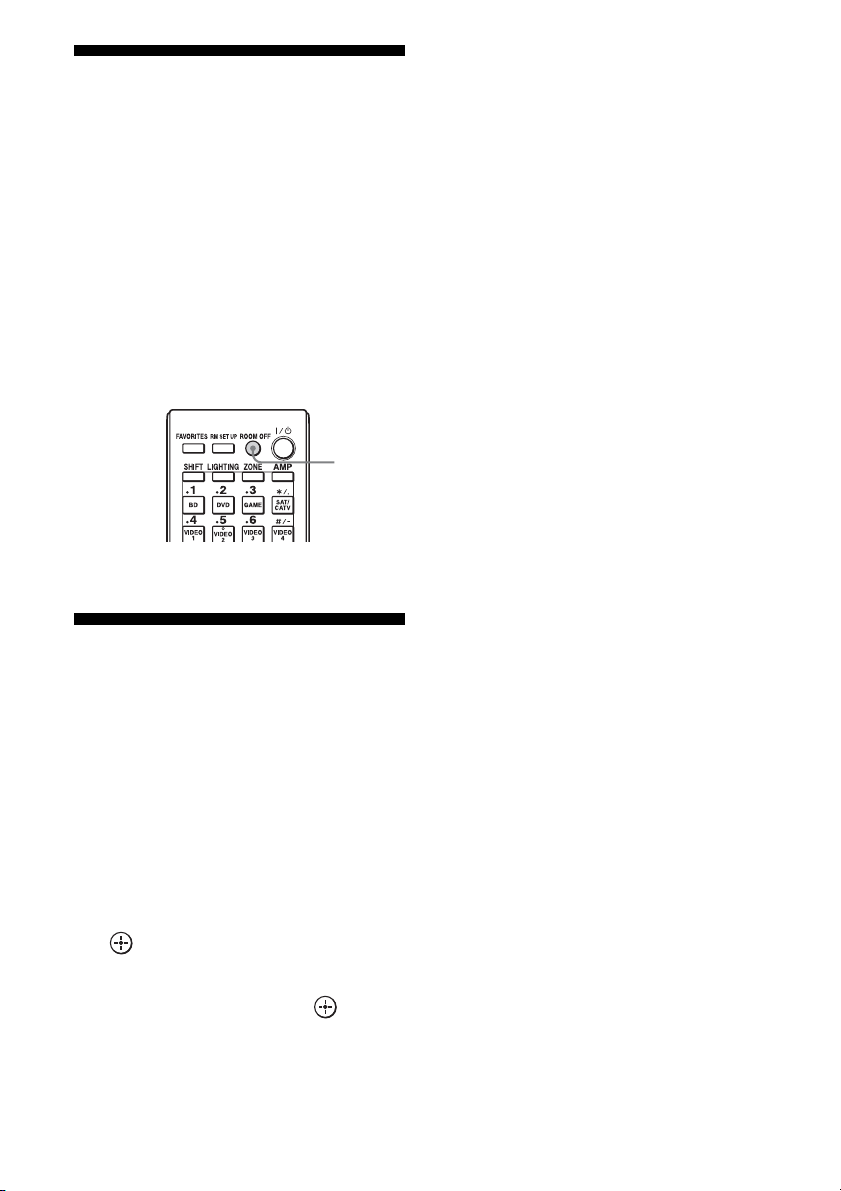
66
US
Turning off all connected
equipment
(ROOM OFF)
By pressing just one button, you can turn off
the zone and the equipment in that zone all at
once.
The receiver remembers which pieces of
equipment it has turned on. When ROOM OFF
is pressed, the receiver turns them all off.
Pieces of equipment that you have turned on
manually without using the receiver will
remain on.
Press ROOM OFF.
Making Universal
Remote Control settings
With the TV Control or AV Equipment
Control wizard, you can make settings
required for Universal Remote Control of the
AV equipment you want to use.
The remote control is initially set to operate
Sony products.
1 Press HOME.
2 Select “Settings,” then press
.
3 Select “Home Control
Settings,” then press .
4 Select “TV Control” to set up a
TV or projector. Select “AV
Equipment Control” to set up a
player.
5 Follow the on-screen
instructions to set up the
equipment.
Note
This function downloads settings for each piece of
equipment from a server on the Internet. To perform
these operations, the receiver should be connected to
the Internet.
ROOM
OFF
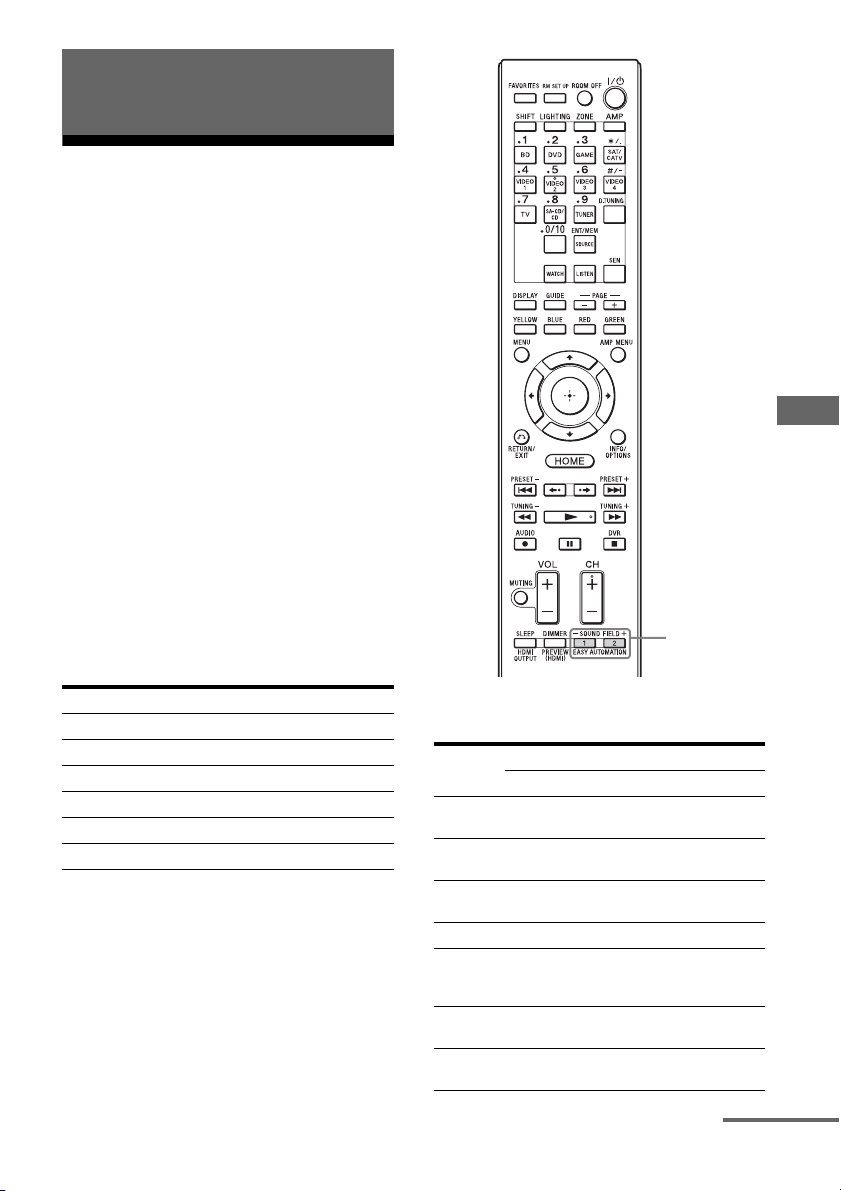
67
US
Using the Home Automation Function
Saving various settings
for the receiver and
recalling those settings
all at one time
(Easy Automation)
As well as the settings for the receiver
operations, you can save various settings with
the player, monitor, lighting, or curtain
conditions at home, according to your
listening and viewing style. You can register
those settings for “one-touch” operation, and
then recall the environment created with the
settings easily, so you can enjoy listening and
viewing at home.
For example, by saving the settings in the
“1: Movie” scene as follows, you can switch
the settings of the receiver all at one time by a
simple, one-touch operation without switching
each setting for “Input,” “Calibration Type,”
“Sound Field,” and “HDMI Out,” individually.
The items for which you can save settings and
the default values for each item are as follows.
Using the Home Automation
Function
Setting item Value set for “1: Movie”
Input BD
Calibration Type No Change
Sound Field HD-D.C.S.
HDMI Out HDMI OUT B
Party Mode ON
Lighting Scenes Scene 5
Setting
item
Default value
1: Movie 2: Music 3: Party 4: Night
Input
BD SA-CD/
CD
No
Change
No
Change
Tuner
Preset
––––
Player
Operation
Play Play Play –
Interval 30s 10s 10s –
Sound
Field
HD-
D.C.S.
Berlin
Philharmonic
Hall
Multi
Stereo
No
Change
Sleep No
Change
No
Change
Off 30 min.
Vo l u m e N o
Change
No
Change
–10 dB –30 dB
EASY
AUTOMATION
continued
68
US
1 Select “Easy Automation” from
the home menu, then press .
2 Select a Scene you want, then
press .
1 Select “Easy Automation” from
the home menu, then press .
2 Select a Scene for which you
want to save settings among
from “1: Movie,” “2: Music,”
“3: Party,” or “4: Night,” then
press INFO/OPTIONS.
3 Select the menu you want, then
press .
Notes
• Settings items saved as “No Change” are not
changed from the present settings even when you
recall the Scene. Select “Edit a saved Scene,” then
uncheck the box for a setting item on the edit
screen to set “No Change.”
• When you recall the Scene, the settings that cannot
be applied are ignored.
• When “Main Zone 12V Trigger” is set to either
“ON” or “OFF” rather than “No Change,” the
“12V Trigger” of Zone Setup will be changed to
“Ctrl” automatically.
Tip
You can recall the setting(s) saved for “1: Movie” or
“2: Music” directly by pressing EASY
AUTOMATION 1 or EASY AUTOMATION 2 on
the remote control. You can also overwrite
“1: Movie” or “2: Music” with the present settings
by holding down EASY AUTOMATION 1 or
EASY AUTOMATION 2 for 3 seconds in the same
way as you do when you select “Import Current
Settings” from the menu.
HDMI Out No
Change
No
Change
No
Change
No
Change
Party Mode No
Change
No
Change
On No
Change
Calibration
Type
No
Change
No
Change
No
Change
No
Change
Sound
Optimizer
No
Change
No
Change
Off Normal
Equalizer
(All)
No
Change
No
Change
No
Change
No
Change
Equalizer
(Front)
No
Change
No
Change
No
Change
No
Change
Equalizer
(Center)
No
Change
No
Change
No
Change
No
Change
Equalizer
(SUR/SB)
No
Change
No
Change
No
Change
No
Change
Equalizer
(Front
High)
No
Change
No
Change
No
Change
No
Change
Main Zone
12V
Trigger
No
Change
No
Change
No
Change
No
Change
Lighting
Scenes
Scene2
All Off
Scene3
50% On
Scene1
All On
Scene2
All Off
Recalling the settings saved to
the Scene
Saving the settings to a Scene
Setting
item
Default value
1: Movie 2: Music 3: Party 4: Night
Menu Explanation
Edit a saved
Scene
Allows you to customize and save
the settings to suit your
preferences.
Import Current
Settings
Loads the present settings of the
receiver and saves those settings
with the Scene. “Input” and
“Volume” are set to “No Change.”
69
US
Using the Home Automation Function
Lighting Control
You can operate Control4-compatible lighting
devices in your home via the on-screen GUI
with the supplied remote control, or via “ES
Remote” on your iPod touch/iPhone/Android
smart phone. You can turn those devices on or
off, or adjust their lighting level. You can also
save your favorite settings as scenes and call
up them quickly.
To enjoy Lighting Control, connect the
supplied Lighting Control Adapter
(UWA-C4Z) to the UWA-C4Z port on the rear
of the receiver. Then prepare the Control4-
compatible lighting devices, and set them up in
advance.
You can operate a lighting device from the
Lighting page on the on-screen GUI or from
the remote control.
1 Select “Lighting” on the home
menu.
The lighting devices available are
displayed.
2 Select the desired lighting
device with V/v.
3 Turn the selected lighting
device on/off or adjust the
lighting level.
Turn the lighting device on or off:
Press to turn on the lighting device so
that “ON” is displayed. To turn it off,
press again so that “OFF” is
displayed.
Adjust the lighting level:
Press B/b to move the cursor (b B) to
adjust the level. (for equipment that has a
“Dimmer” function.)
1 Select “Lighting” on the home
menu.
The lighting devices available are
displayed.
2 Press INFO/OPTIONS.
The Lighting Scenes list appears.
3 Select the desired lighting
scene with V/v then press .
Tip
To select a Lighting Scenes using the remote control,
press LIGHTING on the remote control. (The
LIGHTING and SHIFT buttons light.) Then press
the appropriate numeric buttons, so that the receiver
switches to the Lighting Scenes of the selected
number.
The Lighting Control wizard allows you to set
up lighting devices.
1 Select “Settings” from the
home menu, then press .
2 Select “Home Control
Settings,” then press .
3 Select “Lighting Control,” then
press .
The Lighting Control wizard starts.
4 Follow the on-screen
instructions to set up the
lighting device.
The Lighting Scenes wizard allows you to set
up a lighting scene. There are 10 preset
lighting scenes. You can set up a lighting scene
by overwriting a preset scene.
Operating a lighting device
Selecting a lighting scene
Setting up a lighting device
Setting up a lighting scene
continued

70
US
1 Select “Settings” from the
home menu, then press .
2 Select “Home Control
Settings,” then press .
3 Select “Lighting Scenes,” then
press .
The Lighting Scenes wizard starts and the
current lighting scenes list appears.
4 Select the lighting scene you
want to edit with V/v then press
.
5 Follow the on-screen
instructions to set each lighting
device.
Note
Do not remove the Lighting Control Adapter
while the receiver is turned on. Data may be
damaged and the receiver may become
inoperative. When you remove the receiver,
make sure that all the Lighting Control
Adapters have been removed using the Wizard
and then turn the receiver off (not in the
Network Standby mode, but in the mode
where the power of the receiver is turned
completely off).
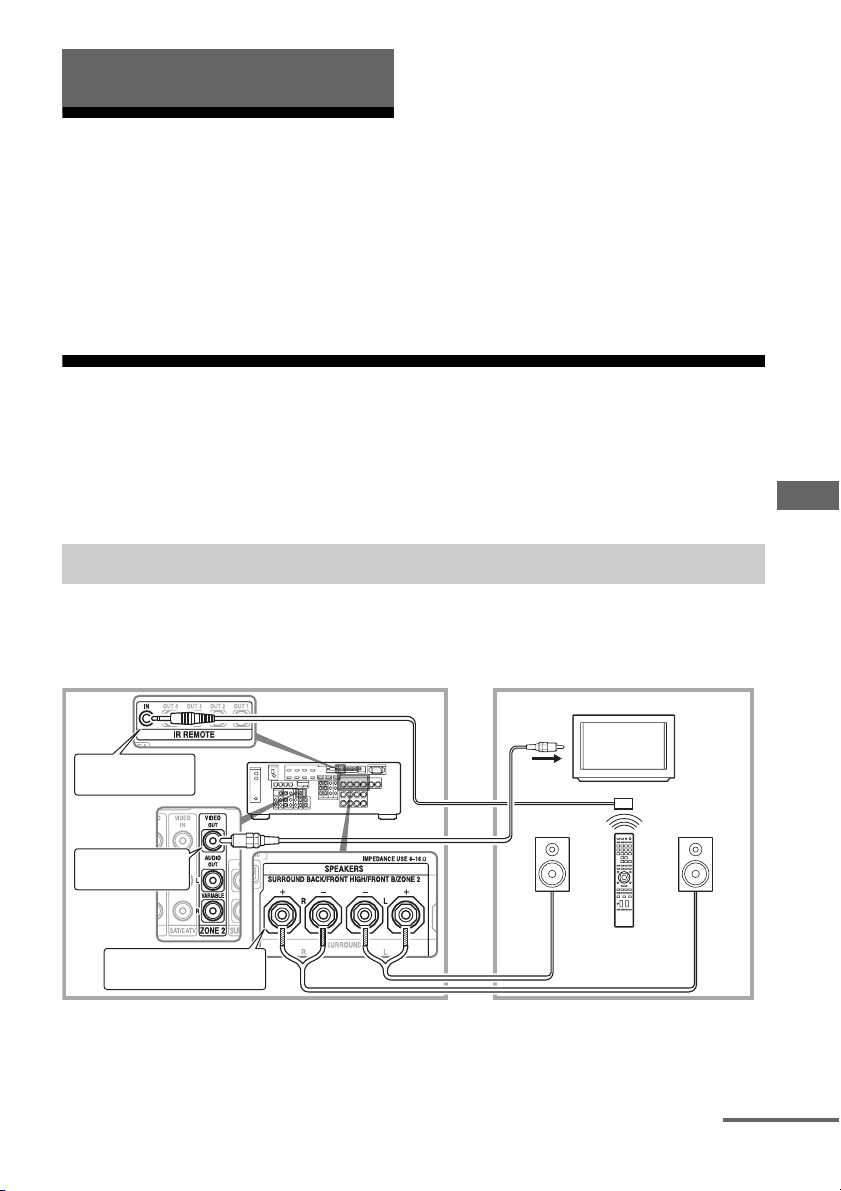
71
US
Using Multi-zone Features
What you can do with the
Multi-zone function
You can enjoy images and sounds from a
device connected to the receiver in a zone
other than the main zone. For example, you
can watch the DVD in the main zone and listen
to the CD in zone 2.
When using an IR repeater (not supplied), you
can operate both a device in the main zone and
Sony receiver in zone 2 from zone 2 using the
remote control.
Use an IR repeater when you install the
receiver in a place where signals from the
remote control cannot reach.
Making a multi-zone connection
Signals from equipment connected to analog input jacks are output through the ZONE 2 VIDEO/
AUDIO OUT or ZONE 2 OUT component jacks. The ZONE 2 VIDEO/AUDIO OUT or ZONE 2
OUT component jacks cannot output the signals from HDMI IN jacks. To output the HDMI signals,
use HDMI ZONE 2 OUT jacks.
1 Outputs sound from speakers in zone 2 using the SURROUND
BACK/FRONT HIGH/FRONT B/ZONE 2 terminals of the receiver.
Using Multi-zone Features
Zone 2 connections
Main zone Zone 2
TV
monitor
ZONE 2 VIDEO
OUT*
B
STR-DA2800ES
B
SURROUND BACK/FRONT
HIGH/FRONT B/ZONE 2
A
Remote control
IR REMOTE IN
continued
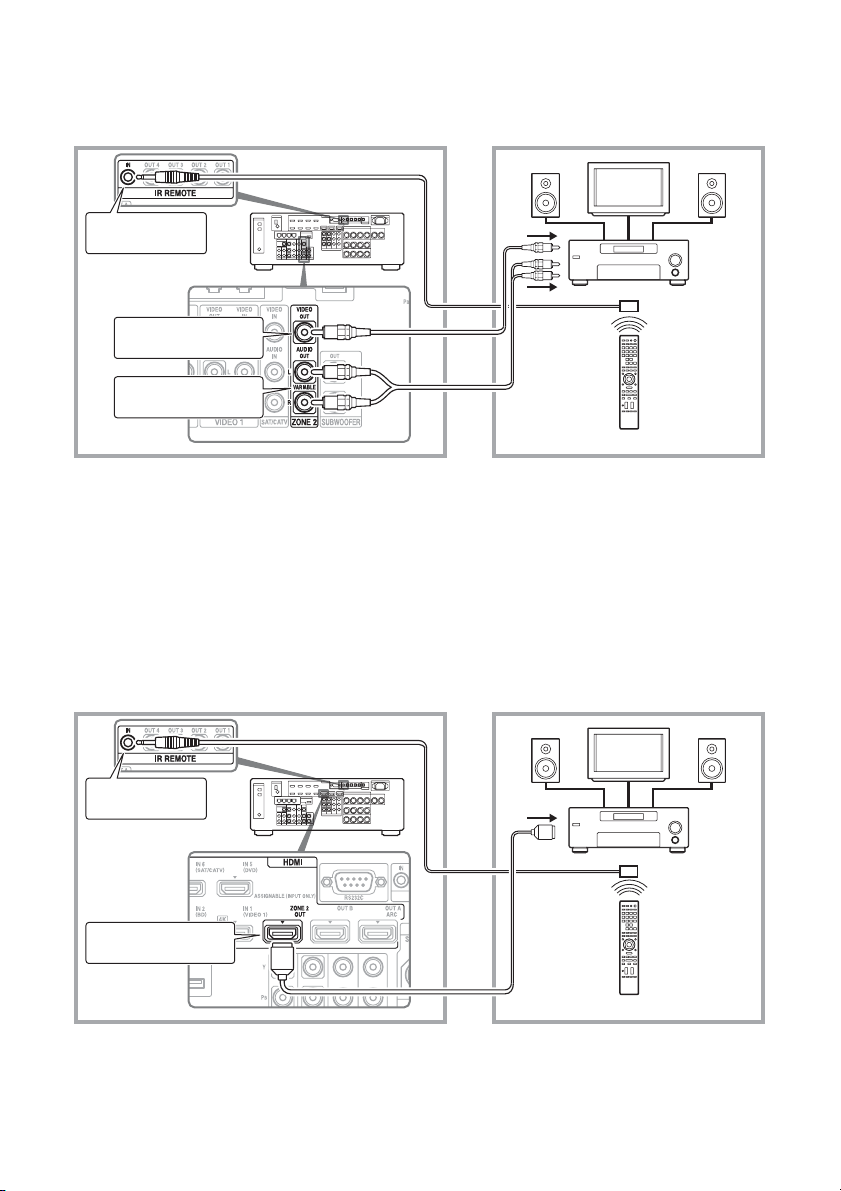
72
US
2 Outputs sound from speakers in zone 2 using the receiver and
another amplifier.
Setting the speakers in zone 2 is required (page 74).
A IR repeater (not supplied)
B Speakers
C Other amplifier/receiver
* You can also connect to the ZONE 2 COMPONENT VIDEO OUT jack.
3 Making a zone 2 connection using HDMI
Outputs HDMI input video/audio signals in zone 2 using the HDMI ZONE 2 OUT jack of the
receiver.
Setting the HDMI output in zone 2 may be required (page 74).
A IR repeater (not supplied)
B Speakers
C Other amplifier/receiver
Main zone Zone 2
TV
monitor
ZONE 2 AUDIO OUT
A
BB
C
STR-DA2800ES
Remote control
IR REMOTE IN
ZONE 2 VIDEO OUT*
Main zone Zone 2
TV
monitor
HDMI ZONE 2 OUT
A
STR-DA2800ES
Remote control
IR REMOTE IN
BB
C
73
US
Using Multi-zone Features
Note
You can connect the HDMI ZONE 2 OUT jack directly to a TV in zone 2 (without any amplifier/receiver). It
is recommended, however, that you connect a TV via an amplifier/receiver for higher audio/video capabilities,
reducing possible effects on the main zone. When you select the same HDMI input for both the main zone and
zone 2, the audio/video capabilities in the main zone will be limited in accordance with those in zone 2.
74
US
Setting the speakers in
zone 2
When the speakers in zone 2 are connected to
the SURROUND BACK/FRONT HIGH/
FRONT B/ZONE 2 terminals of the receiver
(page 71), make the setting so that the sound
selected in zone 2 is output from the speakers
connected to the SURROUND BACK/
FRONT HIGH/FRONT B/ZONE 2 terminals.
For details, see “Speaker Connection” in the
Speaker Settings menu (page 93).
You can set the volume control for the ZONE
2 AUDIO OUT jacks variable or fixed.
1 Select “Settings” from the
home menu, then press .
2 Select “Zone Settings,” then
press .
3 Select “Zone Setup,” then press
.
4 Select “Line Out” for “Zone2,”
then press .
5 Select the parameter you want,
then press .
Setting the HDMI output
in zone 2
When equipment such as a TV or A/V
amplifier is connected to the HDMI ZONE 2
OUT jack, you can output HDMI signals from
the equipment in zone 2.
For details, see “3 Making a zone 2
connection using HDMI” (page 72).
You can output the signals from HDMI IN
jacks to Zone2 equipment via the HDMI
ZONE 2 OUT jacks as follows:
1 Select “Settings” from the
home menu, then press .
2 Select “HDMI Settings,” then
press .
3 Select “Zone2 Out,” then press
.
4 Select “On,” then press .
Note
• When the Zone2 Out function is enabled, the
following functions are disabled:
– Control for HDMI (“BRAVIA” Sync)
– Fast View (Including Preview for HDMI: On)
Set the volume control for
zone 2
Parameter Explanation
Variable The volume control is set to
–40 dB initially.
When you select this
parameter, the volume for
the ZONE 2 AUDIO OUT
and the SURROUND
BACK/FRONT HIGH/
FRONT B/ZONE 2
terminals can be changed in
conjunction with each other.
Recommended when using
a power amplifier.
Fixed The volume control is fixed
to ±0 dB. Recommended
when using a device with
the variable volume control.
Setting the Zone2 HDMI output
Parameter Explanation
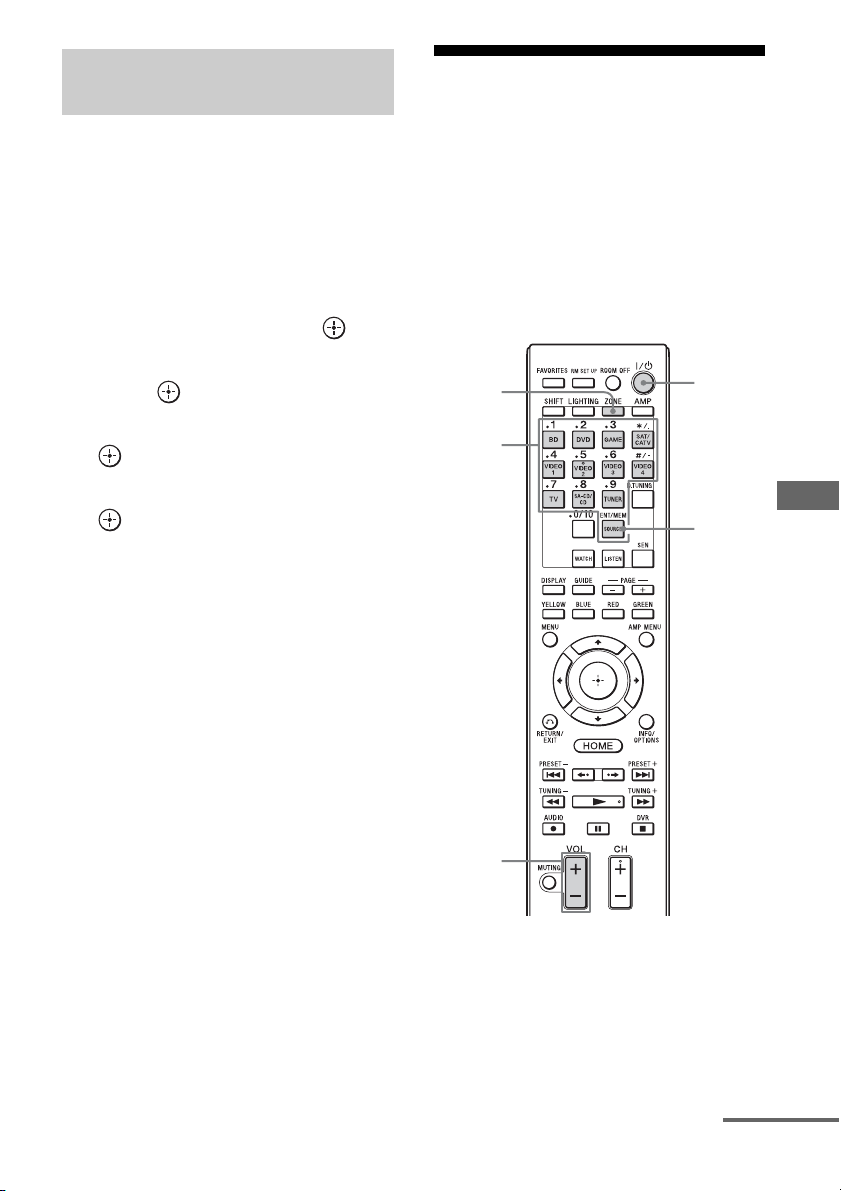
75
US
Using Multi-zone Features
When the Zone2 Out function is enabled and
you select the same HDMI input for both the
main zone and zone 2, there may be some
interference on the audio and video signals in
the main zone. To avoid possible interference,
you can place priority on the main zone for
HDMI input selection.
1 Select “Settings” from the
home menu, then press .
2 Select “HDMI Settings,” then
press .
3 Select “Priority,” then press
.
4 Select “Main Only,” then press
.
Operating the receiver
from another zone
(ZONE 2 operations)
You can operate the receiver from zone 2. The
procedures in this section describe the
operations when an IR repeater, useful for
multi-zone features, is connected. When an IR
repeater is not connected, use this receiver in
the main zone.
1 Turn on the amplifier in zone 2.
In the case of illustration “Zone 2
connections”-1 (page 71), skip this step.
2 Press ZONE.
The remote control switches to zone 2.
Setting the priority for the main
zone and zone 2
ZONE
?/1
VOL
Input
buttons
SOURCE
continued

76
US
3 Press ?/1.
The zone function is activated.
4 Press one of the input buttons
on the remote control to select
the source signals you want to
output.
5 Adjust to a suitable volume.
• In the case of illustration “Zone 2
connections”-1 (page 71), adjust the
volume using VOL +/– on the remote
control.
• In the case of illustration “Zone 2
connections”-2 (page 72), adjust the
volume using the receiver in zone 2. If
you set “Line Out” for “Zone2” to
“Variable,” you can also adjust the
volume in zone 2 using VOL +/– on the
remote control (page 74).
Available zone 2 operations
1)
For zone 2, HDMI signals, component video
signals, analog video and audio signals are output.
When you select SOURCE, the signals of the
current input in the main zone are output.
2)
“TV” can be selected in the main zone only.
3)
You can select either “FM” or “AM” from the
main zone or zone 2. When different programs are
selected in multiple zones, the input you have
selected most recently is given preference.
4)
Only when SOURCE is selected in zone 2, you
can enjoy the content, being viewed in the main
zone, in zone 2.
To finish the zone 2 operation
Press ZONE, then press ?/1.
INPUT ZONE 2
1)
SOURCE a
BD a
DVD a
GAME a
SAT/CATV a
VIDEO 1 a
VIDEO 2 a
VIDEO 3 a
VIDEO 4 a
TV
2)
SA-CD/CD a
FM
3)
a
AM
3)
a
My Music
4)
a
My Video
4)
a
My Photo
4)
a
Internet Content
4)
a
77
US
Using Other Features
Using “BRAVIA” Sync
features
“BRAVIA” Sync is the name of a function on
Sony products that enables compatible
equipment connected via HDMI cables to be
operated mutually using the “BRAVIA”
remote control.
This mutual operation is enabled by the
Control for HDMI function using HDMI CEC
(Consumer Electronics Control) standardized
for HDMI (High-Definition Multimedia
Interface).
By connecting Sony equipment that are
compatible with the “BRAVIA” Sync with an
HDMI cable (not supplied), operation is
simplified as below:
• System Power-Off (page 78)
• One-Touch Play (page 78)
• System Audio Control (page 78)
• Audio Return Channel (ARC) (page 79)
• Scene Select (page 79)
• Home Theater Control (page 79)
• Remote Easy Control (page 79)
The Control for HDMI function
does not work in the following
cases:
• When you connect the receiver to a device
which does not correspond to the Sony
Control for HDMI function.
• When you connect the receiver and
equipment using other than an HDMI
connection.
• The Control for HDMI function does not
work on a device connected to the HDMI
OUT B jack of the receiver.
• When you set “Zone2 Out” in the “HDMI
Settings” menu to “On,” you cannot use the
“Control for HDMI” function.
We recommend that you connect the receiver
to products featuring “BRAVIA” Sync.
Notes
• The following features may operate with non-Sony
equipment. However, compatibility with all non-
Sony equipment is not guaranteed.
–System Power-Off
–One-Touch Play
– System Audio Control
• The following features are Sony proprietary
functions. They cannot operate with non-Sony
equipment.
– Scene Select
– Home Theater Control
• Equipment not compatible with “BRAVIA” Sync
cannot activate these features.
To use the “BRAVIA” Sync, turn the Control
for HDMI function on for both the receiver
and the connected equipment.
Turn the Control for HDMI function of the
receiver and the connected equipment on
individually.
1 Select “Settings” from the
home menu, then press .
2 Select “HDMI Settings,” then
press .
3 Select “Control for HDMI,” then
press .
4 Select “On,” then press .
The Control for HDMI function of the
receiver is activated.
Using Other Features
What is “BRAVIA” Sync?
Preparing for the “BRAVIA”
Sync
continued

78
US
5 Turn the Control for HDMI
function of the connected
equipment on.
For details on setting the connected
equipment, refer to its operating
instructions.
6 Repeat step 5 to set the Control
for HDMI function and to
display the image of all the
playback equipment you want
to use.
Note
When you pull out the HDMI cable or change the
connection, perform the steps above.
However, you do not need to perform these steps
when you use an HDMI IN 1, IN 2, or IN 3 jack.
When you turn the TV off, using the power
button on the TV’s remote control, the receiver
and the connected equipment turn off
automatically.
Notes
• Set the TV power supply interlock function to on
before using the System Power-Off function. For
details, refer to the operating instructions of the
TV.
• Depending on the condition of the connected
equipment, the connected equipment may not be
turned off. For details, refer to the operating
instructions of the connected equipment.
• If you use the System Power-Off function with a
non-Sony TV, program the remote control
according to the maker of the TV.
When you play back content on the equipment
connected to the receiver via an HDMI
connection, the receiver is also turned on
automatically and is switched to the
appropriate HDMI input.
When you set “Pass Through” to “On,” or
“Auto,” sound and image can be output only
from the TV while the receiver remains in
standby mode.
Start playback on the playback
equipment.
To use the One-Touch Play
function of the camcorder
1
Turn the Control for HDMI function on
for both the receiver and your
camcorder.
2 Connect your camcorder to one of the
HDMI IN 1, IN 2, and IN 3 jacks
(page 33).
If you use a Sony camcorder, the TV is
turned on in conjunction with the receiver,
then the camcorder starts playback
automatically. If you use a non-Sony
camcorder, play back the camcorder
continuously.
Notes
• Depending on the TV, the start of the content may
not appear.
• Connect equipment such as a Sony camcorder
equipped with the One-Touch Play function simply
by making an HDMI connection to the HDMI IN 1,
IN 2, and IN 3 jacks. If you use other HDMI IN
jacks, the receiver may not be switched to an
appropriate input. In this case, manually select the
input to which the camcorder is connected.
You can enjoy the TV sound from the speakers
connected to the receiver by a simple
operation. You can also adjust the volume and
turn off the sound of the receiver using the
TV’s remote control.
You can use the System Audio Control
function as follows.
• The sound of the TV is output from the
speakers connected to the receiver when you
turn the receiver on while the sound is being
output from the TV speaker. If you turn off
System Power-Off
One-Touch Play
System Audio Control
79
US
Using Other Features
the receiver, the sound is output from the TV
speaker.
• When you adjust the TV volume, the System
Audio Control function adjusts the
receiver’s volume simultaneously.
You can also operate this function using the
TV menu. For details, refer to the operating
instructions of the TV.
Note
When “Control for HDMI” is set to “On,” the
“Audio Out” settings in the HDMI Settings menu
will set automatically based on the System Audio
Control settings.
If the TV is compatible with the Audio Return
Channel (ARC), an HDMI cable connection
also sends a digital audio signal from the TV to
the receiver. You do not need to make a
separate audio connection for listening to TV
sound from the receiver.
For details, see “Switching between digital
and analog audio” (page 81).
The optimum picture quality and sound field
are selected automatically according to the
scene selected on your TV.
For details on the operation, refer to the
operating instructions of the TV.
Note
The sound field may not switch depending on the
TV.
Correspondence table
If a “Home Theater Control”-compatible TV
is connected to the receiver, an icon for
Internet based applications appears on the
connected TV.
You can switch an input of the receiver or
switch sound fields by using your TV’s remote
control. You can also adjust the level of the
center speaker or the subwoofer, or adjust the
settings of “Sound Optimizer” (page 62),
“Dual Mono” (page 97), or “A/V Sync”
(page 98).
To use the Home Theater Control function,
your TV must be able to access a broadband
service.
You can use the TV remote control to operate
the menu of the receiver.
Select the receiver (AV AMP)
recognized by the TV.
Notes
• The receiver is recognized as “Tuner (AV AMP)”
by the TV.
• Your TV must be compatible with the link menu.
• Depending on the type of TV, some of operations
may not be available.
Audio Return Channel (ARC)
Scene Select
Scene setting on the TV Sound field
Cinema HD-D.C.S.
Sports SPORTS
Music Live Concert
Animation A.F.D. Auto
Photo A.F.D. Auto
Game A.F.D. Auto
Graphics A.F.D. Auto
Home Theater Control
Remote Easy Control
Scene setting on the TV Sound field
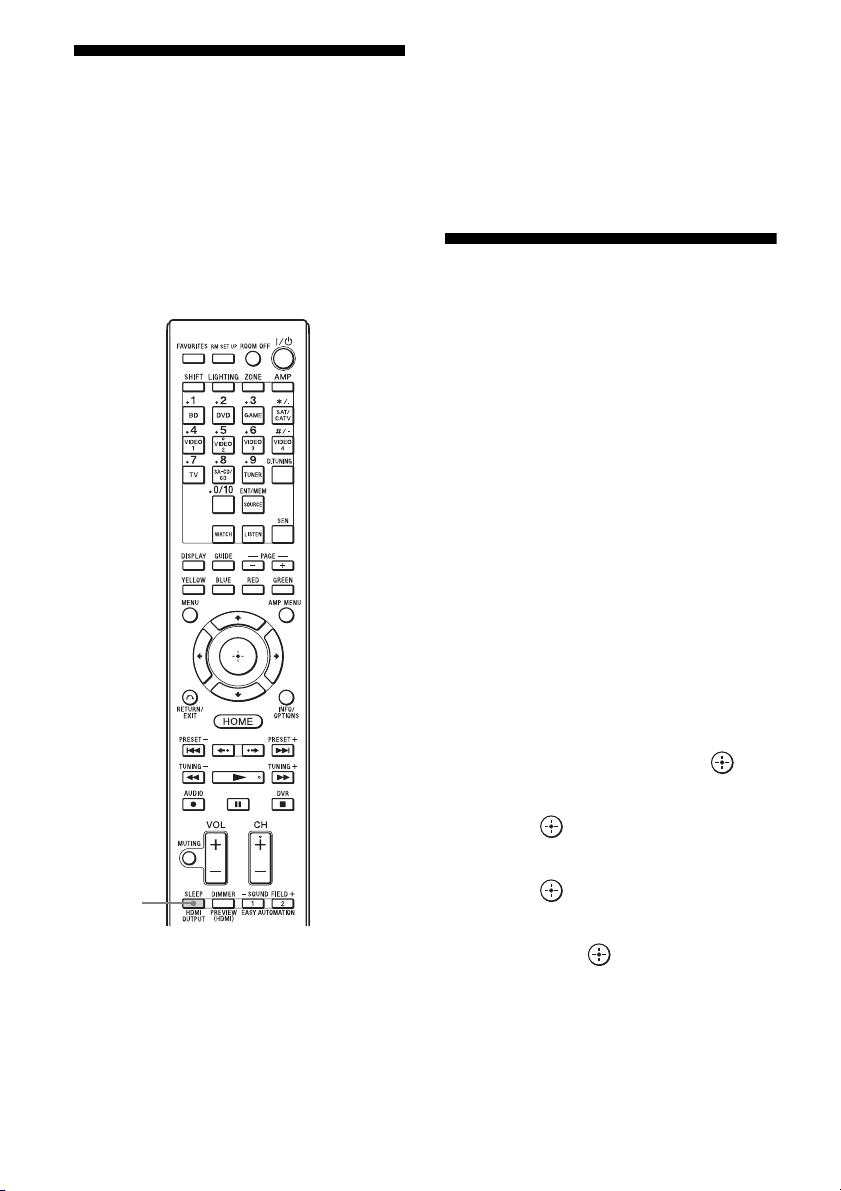
80
US
Switching the monitors
that output the HDMI
video signals
When you have two monitors connected to the
HDMI OUT A and HDMI OUT B jacks, you
can switch the output for these two monitors
using the HDMI OUTPUT button on the
remote control.
1 Turn on the receiver and the
two monitors.
2 Press HDMI OUTPUT.
Each time you press the button, the output
will be switched as follows:
HDMI A t HDMI B t OFF t
HDMI A…
You can also use the HDMI OUT button
on the receiver.
Outputting the HDMI
signals even when the
receiver is in standby
mode
(Pass Through)
You can output the video and audio signals
from the HDMI IN jack to the TV connected to
the HDMI OUT A jack even when the receiver
is in standby mode.
If you use this function while “Control for
HDMI” is set to “On,” the input of the receiver
is switched in accordance with the operation of
the connected equipment, even when the
receiver is in standby mode.
When you activate this function, make the
settings for “Pass Through” following the
steps below.
1 Select “Settings” from the
home menu, then press .
2 Select “HDMI Settings,” then
press .
3 Select “Pass Through,” then
press .
4 Select the parameter you want,
then press .
HDMI
OUTPUT
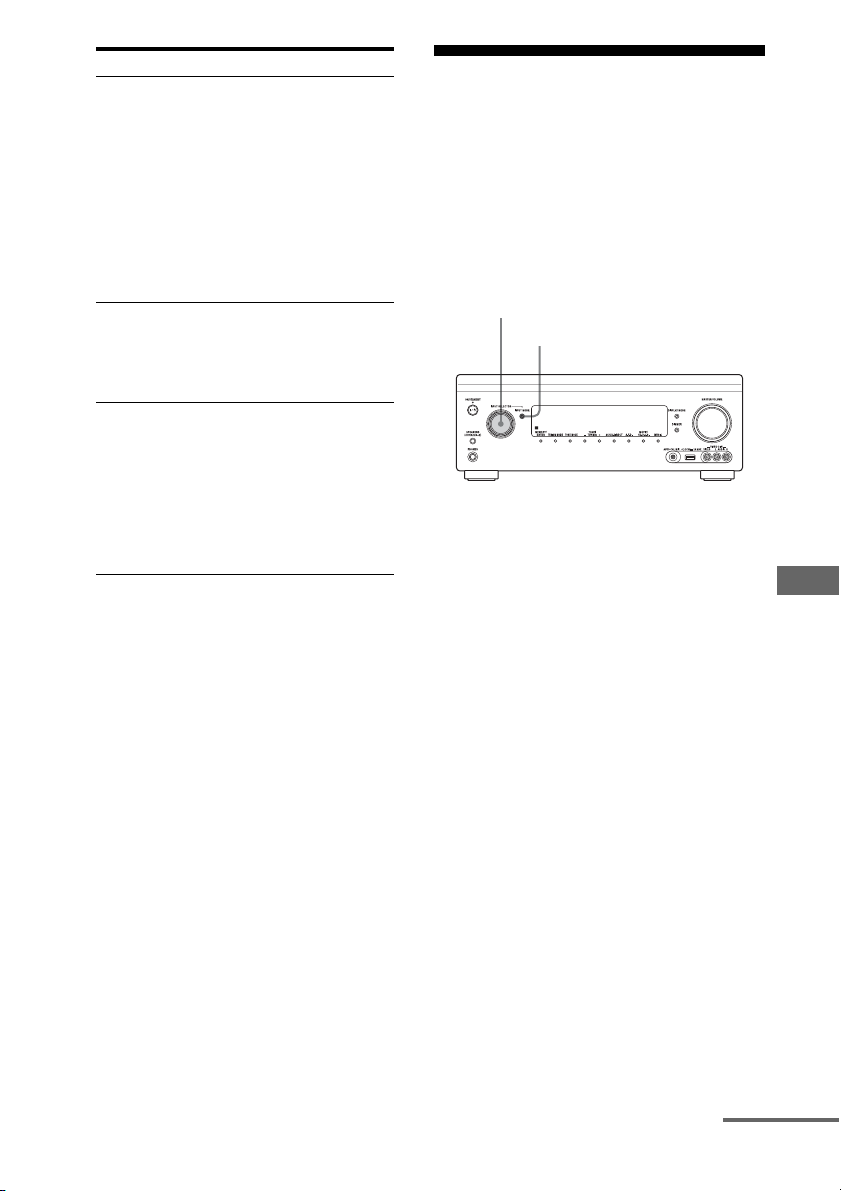
81
US
Using Other Features
Notes
• The “Auto” setting is effective only when “Control
for HDMI” is set to “On.” If “Control for HDMI”
is set to “Off,” the receiver performs the same
operations in “Auto” as in “On.”
• In the standby status where other function such as
Network Standby works, the power consumption is
not reduced, even when “Pass Through” is set to
“Auto.”
Switching between
digital and analog audio
When you connect equipment to both digital
and analog audio input jacks on the receiver,
you can fix the audio input mode to either of
them, or switch from one to the other,
depending on the type of material you intend
to watch.
1 Select the input source using
INPUT SELECTOR on the
receiver.
2 Press INPUT MODE on the
receiver.
The selected audio input mode appears in
the display window.
•AUTO
Gives priority to digital audio signals
when there are both digital and analog
connections.
If there are no digital audio signals,
analog audio signals are selected.
When TV input is selected, priority is
given to the Audio Return Channel
(ARC) signals. If your TV is not
compatible with Audio Return Channel
(ARC), the digital optical audio signals
are selected.
If the Control for HDMI functions of
both the receiver and the TV are not
activated, the Audio Return Channel
(ARC) function does not work.
Parameter Explanation
Auto When the TV is turned on
while the receiver is in
standby mode, the receiver
outputs HDMI signals from
the receiver’s HDMI OUT A
jack. Sony recommends this
setting if you use a TV that
is compatible with
“BRAVIA” Sync. This
setting saves power in
standby mode compared
with the “On” setting.
On When the receiver is in
standby mode, the receiver
outputs HDMI signals from
the receiver’s HDMI OUT A
jack.
Off The receiver does not output
HDMI signals when in
standby mode. Turn on the
receiver to enjoy the
connected equipment’s
source on the TV. This
setting saves power in
standby mode, compared
with the “On” setting.
INPUT MODE
INPUT SELECTOR
continued
82
US
•OPT
Appears only when an optical jack is
assigned to the input and selects the
optical input jack automatically.
•COAX
Appears only when a coaxial jack is
assigned to the input and selects the
coaxial input jack automatically.
•ANALOG
Specifies the analog audio signals input
to the AUDIO IN (L/R) jacks.
Notes
• Based on the input, “------” appears on the display
window, and other modes cannot be selected.
• When “2ch Analog Direct” is being used, audio
input is set to “Analog.” You cannot select other
modes.
Using other video/audio
input jacks
You can reassign video and/or audio signals to
another input jacks.
Example) Connect the OPTICAL OUT jack of
the DVD player to the OPTICAL IN 1 jack of
this receiver when you want to input the only
digital optical audio signals from the DVD
player.
Connect the component video jack of the DVD
player to the COMPONENT VIDEO IN 1 or
COMPONENT VIDEO IN 2 jacks of this
receiver when you want to input the video
signals from the DVD player.
1 Select “Settings” from the
home menu, then press .
2 Select “Input Settings,” then
press .
3 Select “Video Input Assign” or
“Audio Input Assign,” then
press .
4 Select the audio and/or video
signals you want to assign to
each input.
Notes
• If you assign an input to any of the HDMI IN 1 to
IN 8 jacks in “Video Input Assign” or “Audio Input
Assign,” the same HDMI input jack is assigned to
both the video input and audio input. If you want to
assign an HDMI IN jack to either the video input or
audio input, first assign an input to any of the
HDMI IN 1 to IN 8 jacks in “Video Input Assign”
or “Audio Input Assign.” Then, set the assignment
of an HDMI IN jack to “None” in either “Video
Input Assign” or “Audio Input Assign,” for
whichever one you do not want to assign an HDMI
IN jack to.
• When you operate the receiver without using the
GUI, you can change the assignment of an HDMI
IN jack using “H.V. ASSIGN” or “H.A. ASSIGN”
in “INPUT” (page 114).
• If you change the assignment of an HDMI IN jack
while the Control for HDMI function is being used,
switch the input of the receiver to the input to
which the HDMI equipment is connected.
Otherwise the Control for HDMI function may not
work properly.
• If you set the assignment of an HDMI IN jack to
“None” in both “Video Input Assign” and “Audio
Input Assign,” you cannot select the input signals
via the HDMI input. In this case, the Control for
HDMI function works only on equipment other
than the receiver. However, this is not malfunction.
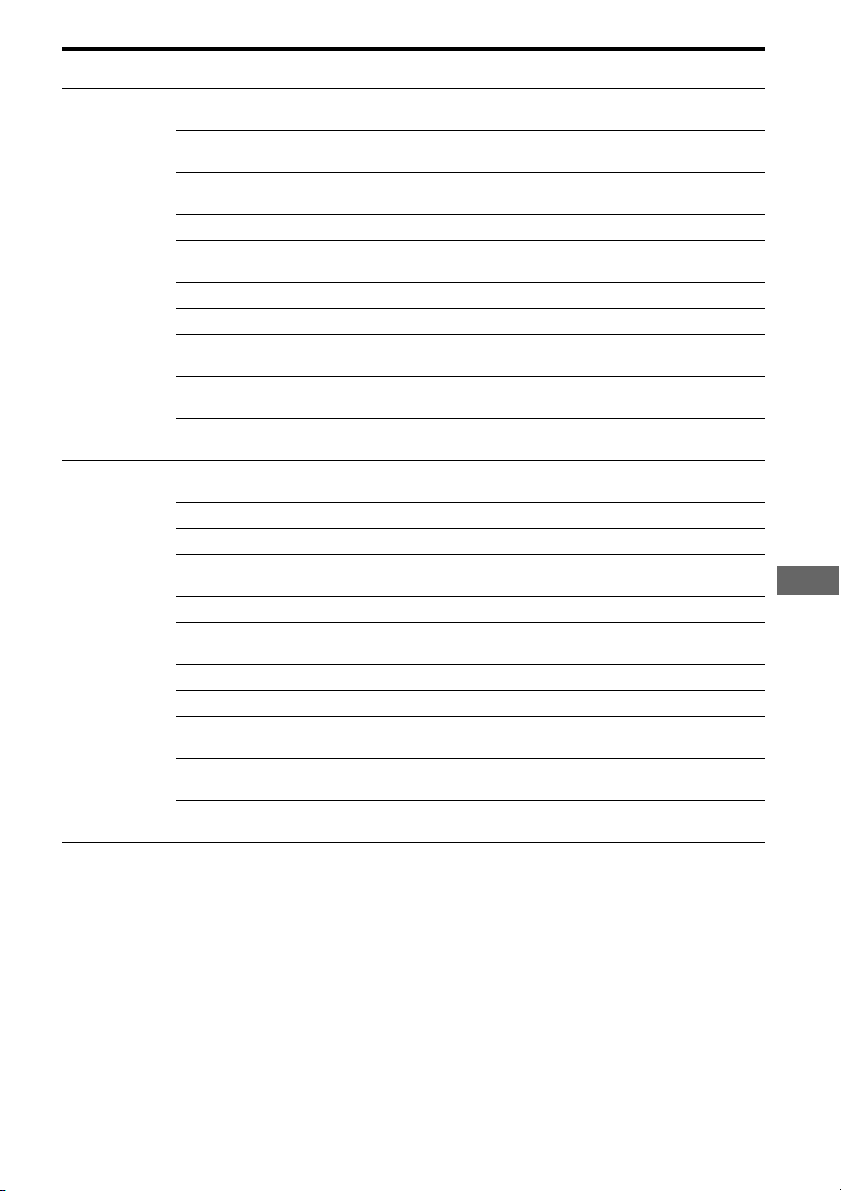
83
US
Using Other Features
* factory default setting
Notes
• When you assign the digital audio input, the
INPUT MODE setting may change automatically.
• When you assign a video input to the component or
composite input, and an audio input to the HDMI
input, component or composite video signals are
not output from the HDMI OUT jacks. Component
or composite video signals are output from the
COMPONENT VIDEO MONITOR OUT jacks or
the MONITOR VIDEO OUT jack.
• You cannot assign different HDMI jacks to
separate video and audio input jacks of an input.
• You can assign multiple inputs to the same HDMI
IN jack. However, if you use the One-Touch Play
function on the equipment connected to the HDMI
IN jack, the input which has most recently been
assigned is preferentially selected.
Input name BD DVD GAME SAT/
CATV
VIDEO 1 VIDEO 2 VIDEO 3 VIDEO 4 SA-CD/
CD
Assignable video
input jacks
COMPONENT IN 1
(DVD)
aa* aaaaaaa
COMPONENT IN 2
( SAT/CATV)
aaaa* aaaaa
HDMI IN 1
(VIDEO 1)
aaaa a* aaaa
HDMI IN 2 (BD) a* aaa a a a a a
HDMI IN 3
(SA-CD/CD)
aaaa a a a a a*
HDMI IN 4 (GAME) aaa* aa a a a a
HDMI IN 5 (DVD) aa* aaaaaaa
HDMI IN 6
( SAT/CATV)
aaaa* aaaaa
HDMI IN 7
(VIDEO 3)
aaaa a a a* aa
HDMI IN 8
(VIDEO 4)
aaaa a a a a* a
Assignable audio
input jacks
OPTICAL IN 1
( SAT/CATV)
aaaa* aaaaa
OPTICAL IN 2 (TV) aaaa a a a a a
COAXIAL (DVD) aa* aaaaaaa
HDMI IN 1
(VIDEO 1)
aaaa a* aaaa
HDMI IN 2 (BD) a* aaa a a a a a
HDMI IN 3
(SA-CD/CD)
aaaa a a a a a
HDMI IN 4 (GAME) aaa* aa a a a a
HDMI IN 5 (DVD) aa* aaaaaaa
HDMI IN 6
( SAT/CATV)
aaaa* aaaaa
HDMI IN 7
(VIDEO 3)
aaaa a a a* aa
HDMI IN 8
(VIDEO 4)
aaaa a a a a* a
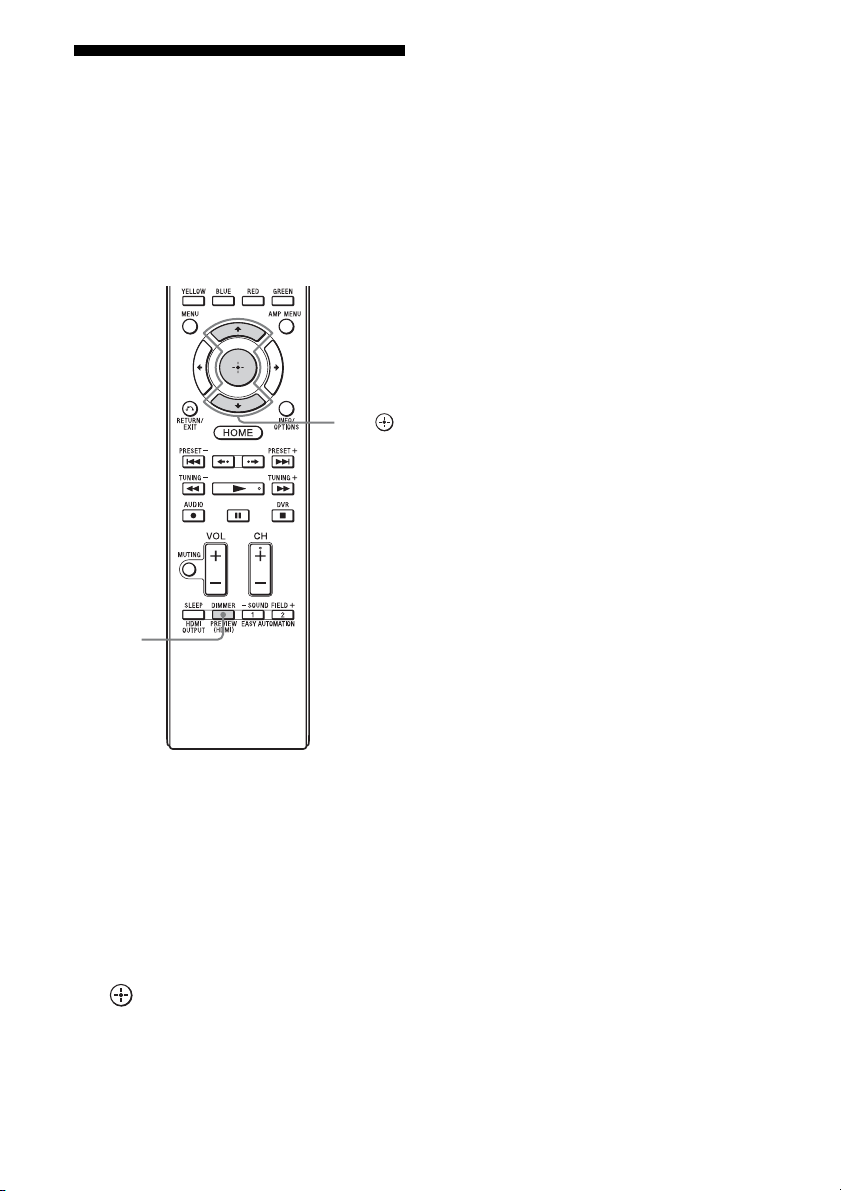
84
US
Preview for HDMI
You can turn on a live picture-in-picture
preview of HDMI inputs connected to this
receiver. Up to four preview windows are
displayed for HDMI IN 1/IN 2/IN 3/IN 4
Input.
You can select each preview HDMI input by
using the remote.
1 Press PREVIEW (HDMI).
Up to 4 PIP windows appear, each of
them showing input pictures from HDMI
IN jacks.
2 To switch the pictures in a PIP
window with those on the main
screen, press V/v to select the
desired PIP window, then press
.
The HDMI input of the selected PIP
window is displayed in the main window.
Tips
• This function does not work under the following
conditions:
– An HDMI device is not connected.
– A specific HDMI device is connected while its
power is off.
– An unsupported HDMI video format is input
(e.g., VGA, 480i, 576i, 4K, specific types of 3D
signals, or signals from a camcorder, etc.).
– The current input is not HDMI input.
– When the GUI menu is displayed
– When “Zone2 Out” is set to “On”
– When “Fast View” is set to “Off”
• A live picture-in-picture preview window of an
HDMI input will show a black screen under the
following condition:
– An unsupported HDMI signal is input (e.g., 4K,
specific types of 3D signals, etc.)
• This function is made possible by Silicon Image
InstaPrevue™ technology.
PREVIEW
(HDMI)
V/v,
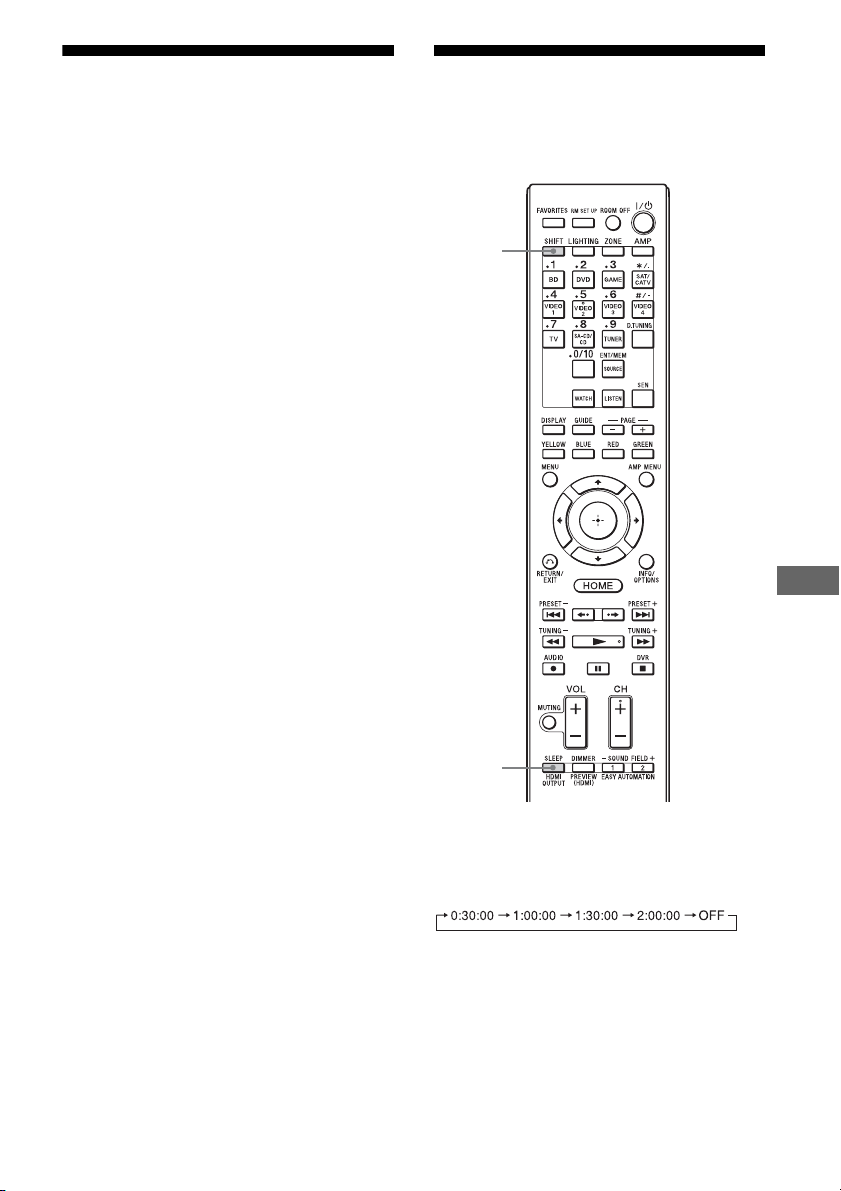
85
US
Using Other Features
Operating the receiver
using a smartphone
You can operate the receiver using a
smartphone equipped with the “ES Remote”
application software. The “ES Remote”
application software can be downloaded from
the App Store (for iPod touch/iPhone) or the
Google Play (for Android phone) for free.
Using the sleep timer
You can set the receiver to turn off
automatically at a specified time.
Press SHIFT, then press SLEEP.
Each time you press SLEEP, the display
changes cyclically as follows:
When sleep timer is being used, “SLEEP”
lights up in the display window of the receiver.
To check the remaining time before the
receiver turns off, press SLEEP. The
remaining time appears on the display
window. If you press SLEEP again, the sleep
timer is set to “OFF.”
SLEEP
SHIFT
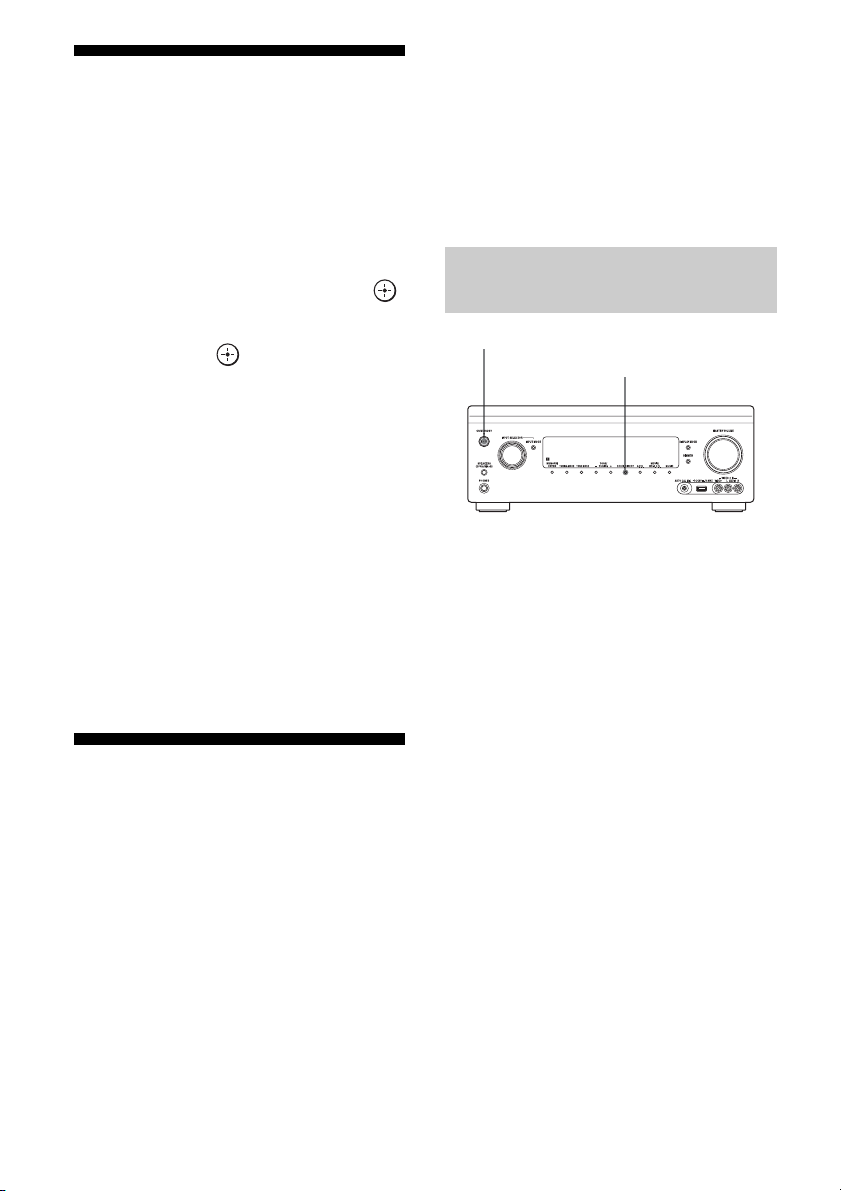
86
US
Recording using the
receiver
You can record from a video/audio device
using the receiver. Refer to the operating
instructions supplied with your recording
equipment.
1 Select “Watch” or “Listen” from
the home menu, then press .
2 Select the playback equipment,
then press .
3 Prepare the equipment for
playing.
For example, insert the video tape you
want to copy into the VCR.
4 Prepare the recording
equipment.
Insert a blank video tape, etc., into the
recording equipment (VIDEO 1) for
recording.
5 Start recording on the
recording equipment, then start
the playback equipment.
Switching the command
mode of the receiver and
the remote control
You can switch the command mode
(COMMAND MODE AV1 or COMMAND
MODE AV2) of the receiver and the remote
control.
Switch the command mode from the factory
default setting to the appropriate setting, if
other Sony equipment is operated accidentally
by the same remote control, when you are
operating the receiver using the remote control
supplied with the receiver.
The command modes of both the receiver and
the remote control are those of the factory
default setting (COMMAND MODE AV2).
The receiver and the remote control, on the
contrary, should use the same command mode.
If the command modes of the receiver and the
remote control are different, you cannot use
the remote control to operate the receiver.
1 Press ?/1 to turn off the
receiver.
2 While holding down 2CH/
A.DIRECT, press ?/1 to turn on
the receiver.
When the command mode is set to “AV2,”
“C. MODE AV2” appears on the display.
When the command mode is set to “AV1,”
“C. MODE AV1” appears on the display.
Switching the command mode of
the receiver
2CH/A.DIRECT
?/1
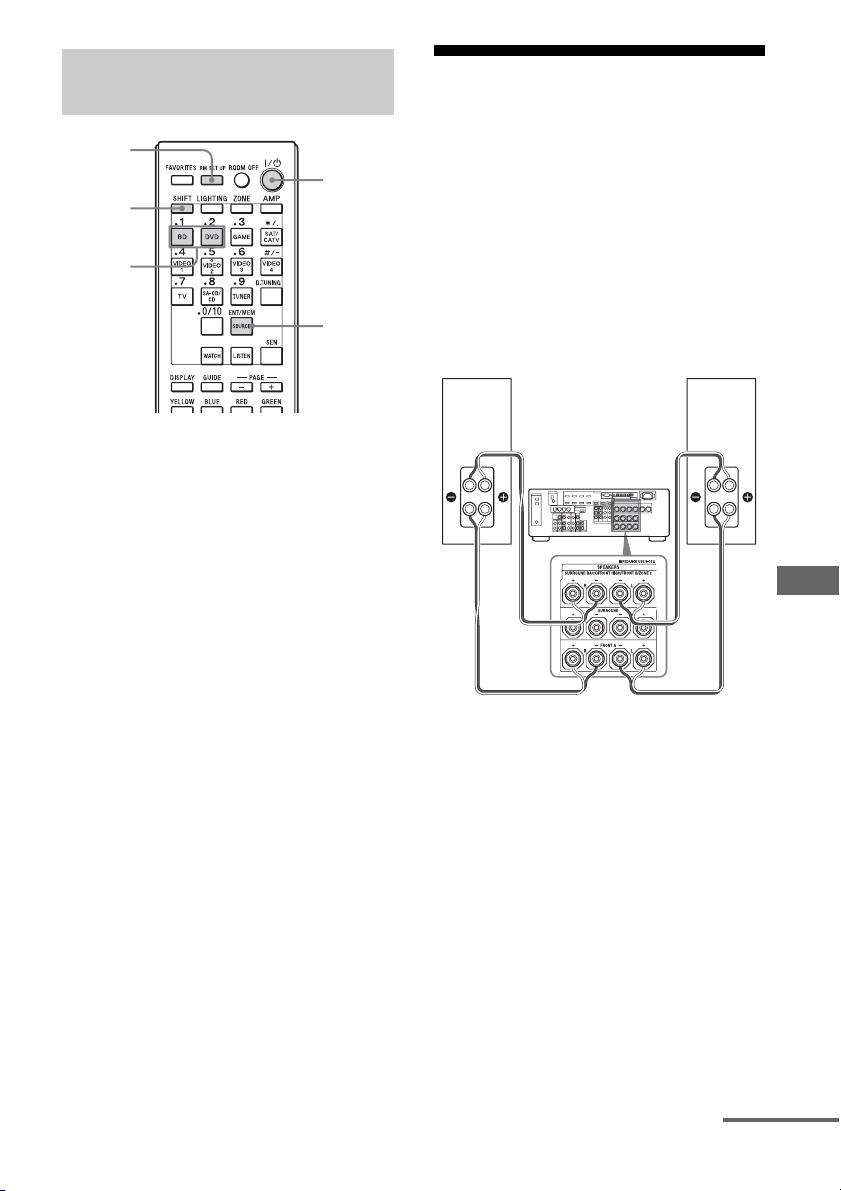
87
US
Using Other Features
1 Press ?/1 while pressing RM
SET UP.
The SHIFT button lights,and the RM SET
UP button flashes.
2 Press the numeric button 1 or 2
while the RM SET UP button is
flashing.
When you press 1, the command mode is
set to COMMAND MODE AV1. When
you press 2, the command mode is set to
COMMAND MODE AV2.
The RM SET UP button lights up.
3 Press ENT/MEM.
The RM SET UP button flashes twice,
then the command mode setting process
is completed.
Using a bi-amplifier
connection
If you are not using surround back speakers
and front high speakers you can use the
SURROUND BACK/FRONT HIGH/
FRONT B/ZONE 2 terminals for the front
speakers for use with a bi-amplifier
connection.
To connect speakers
Connect the jacks on the Lo (or Hi) side of the
front speakers to the FRONT A terminals, and
connect the jacks on the Hi (or Lo) side of the
front speakers to the SURROUND BACK/
FRONT HIGH/FRONT B/ZONE 2 terminals.
Make sure that metal fittings of Hi/Lo attached
to the speakers have been removed from the
speakers to avoid receiver malfunction.
Switching the command mode of
the remote control
?/1
ENT/
MEM
1, 2
RM SET
UP
SHIFT
Front speaker
(R)
Front speaker
(L)
Hi
Lo
Hi
Lo
continued
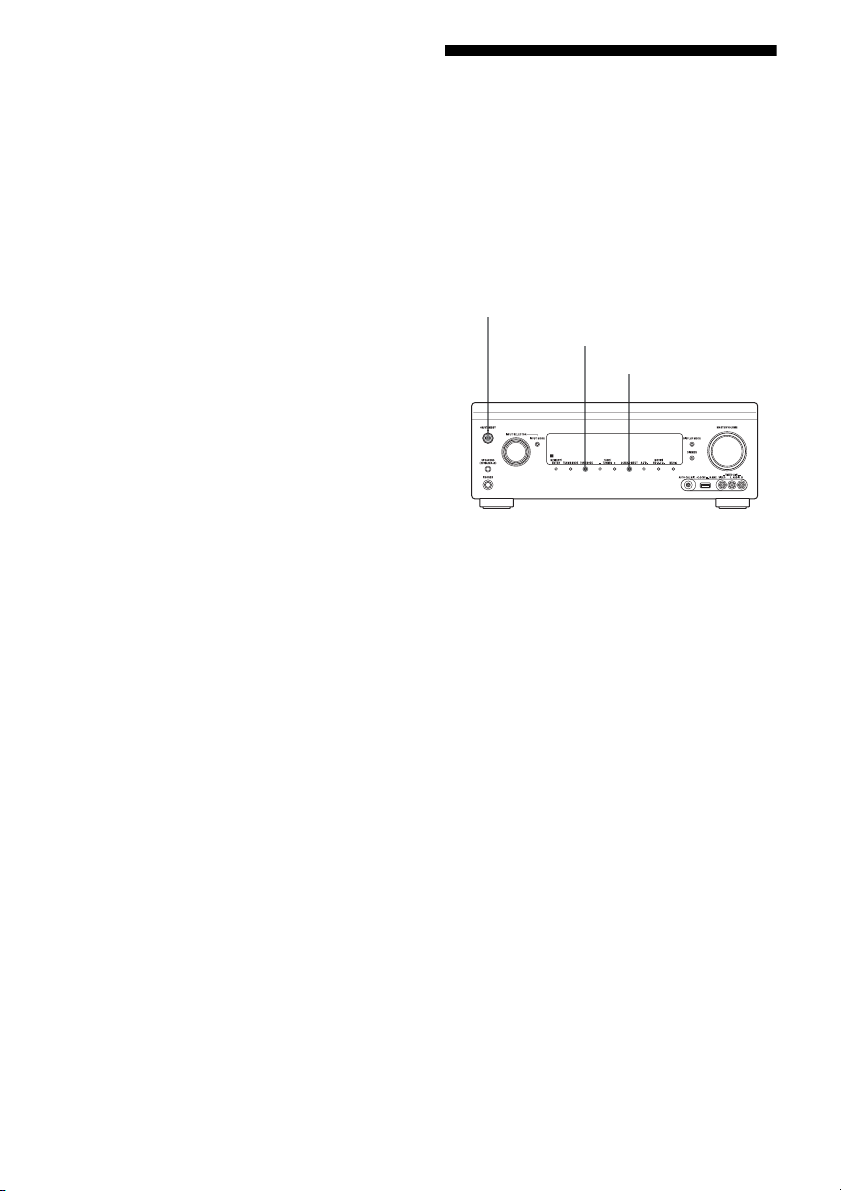
88
US
To set up speakers
For details, see “Speaker Connection” in the
Speaker Settings menu (page 93).
Notes
• Make the bi-amplifier settings before you perform
the Auto Calibration function.
• If you make the bi-amplifier settings, the speaker
level, balance, and equalizer settings of the
surround back speakers and front high speakers
become invalid, and those of the front speakers are
used.
• If the speaker pattern is set so that there are
surround back speakers and front high speakers,
you cannot set the SURROUND BACK/FRONT
HIGH/FRONT B/ZONE 2 terminals for a bi-
amplifier connection.
• When you operate the receiver without using the
GUI, set “SB ASSIGN” to “BI-AMP” in
“SPEAKER” (page 113).
Reverting back to the
factory default settings
You can clear all memorized settings and
revert the receiver back to the factory default
settings by performing the following
procedure. This procedure can also be used to
initialize the receiver before you use it for the
first time.
1 Press ?/1 to turn off the
receiver.
2 While holding down the TONE
MODE and 2CH/A.DIRECT,
press ?/1 to turn on the
receiver.
3 Release the TONE MODE and
2CH/A.DIRECT after a few
seconds.
The “CLEARING...” appears on the
display window for a while, then changes
to “CLEARED!”
Changes or adjustments made to the
settings are now reset to the defaults.
Note
It takes about a few minutes for the memory to be
cleared completely. Do not turn the receiver off until
“CLEARED!” appears on the display.
?/1
TONE MODE
2CH/A.DIRECT
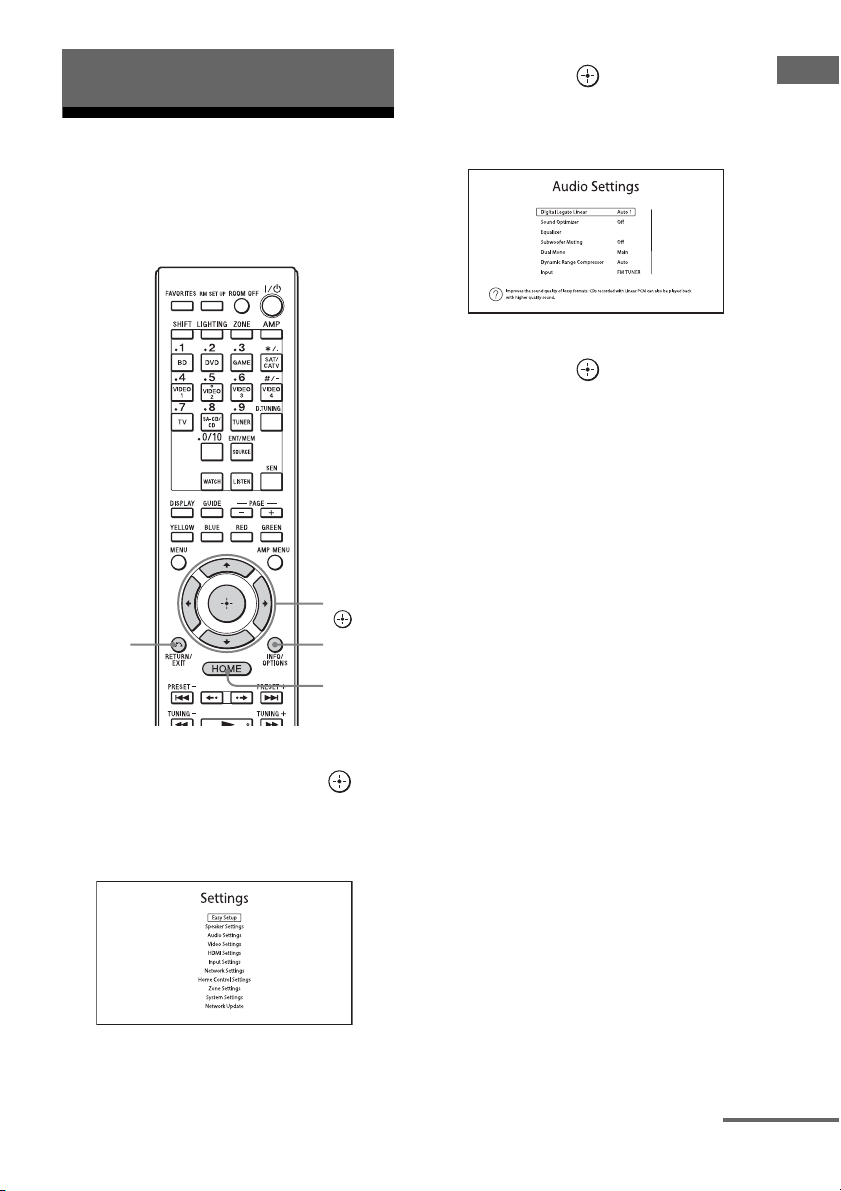
89
US
Adjusting Settings
Using the setting menu
You can adjust the various settings for
speakers, surround effects, multi-zone, etc.,
using the setting menu.
1 Select “Settings” from the
home menu, then press to
enter the menu mode.
The setting menu list appears on the TV
screen.
2 Select the menu item you want,
then press to access the
menu item.
Example: When you select “Audio Settings.”
3 Select the parameter you want,
then press to enter.
To return to the previous screen
Press RETURN/EXIT O.
To exit the menu
Press HOME to display the home menu,
then press HOME again.
Adjusting Settings
V/v/B/b,
HOME
RETURN/
EXIT O
INFO/
OPTIONS
continued
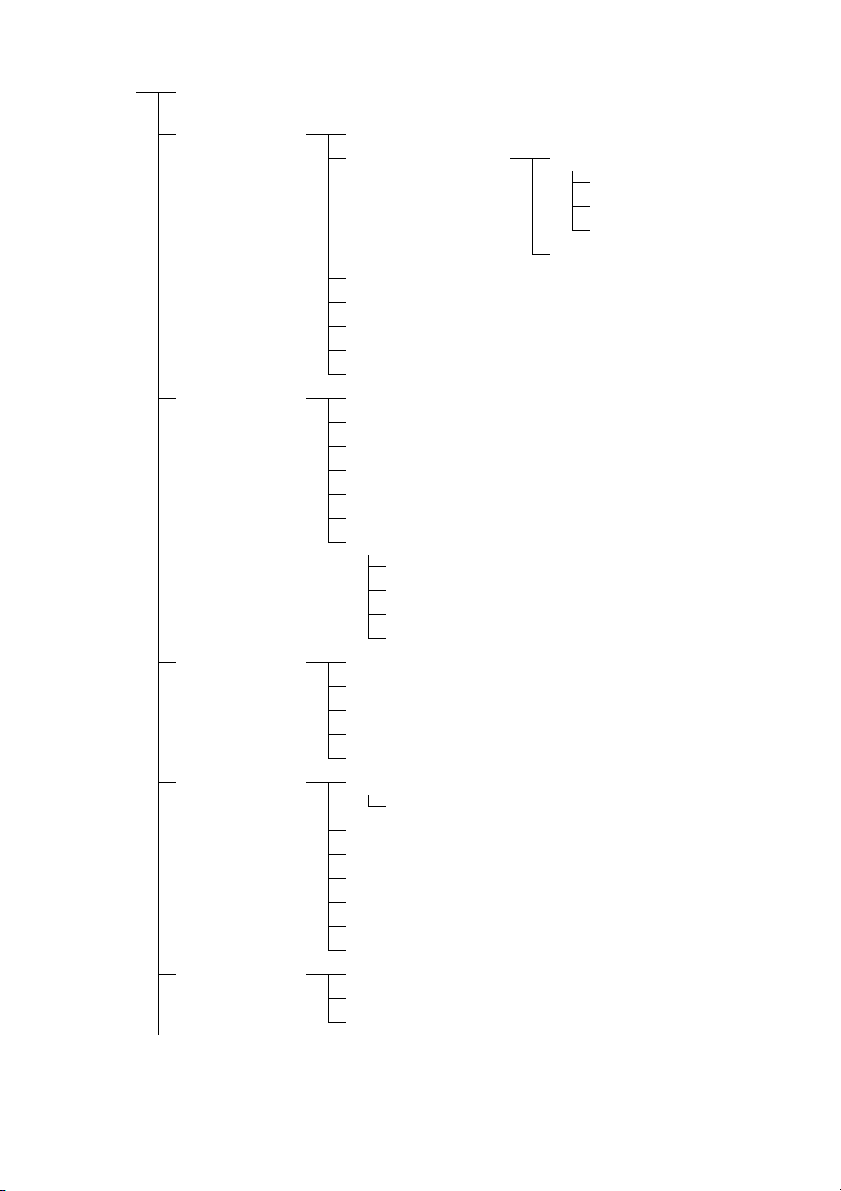
90
US
Setting menu list
Settings Easy Setup
(page 92)
Speaker Settings
(page 92)
Auto Calibration
Auto Calibration Setup Position
Calibration Type
Front Reference Type
Name In
Automatic Phase Matching
Speaker Connection
Center Speaker Lift Up
Speaker Setup
Test Tone
Distance Unit
Audio Settings
(page 96)
Digital Legato Linear
Sound Optimizer
Equalizer
Subwoofer Muting
Dual Mono
Dynamic Range Compressor
(Input name)
Subwoofer Low Pass Filter
A/V Sync
Decode Priority
Sound Field
Video Settings
(page 99)
Resolution
Playback Resolution
3D Output Settings
TV Type
Screen Format
HDMI Settings
(page 102)
(Input name)
Subwoofer Level
Audio Out
Control for HDMI
Pass Through
Zone2 Out
Priority
Fast View
Input Settings
(page 104)
Input Edit
Audio Input Assign
Video Input Assign
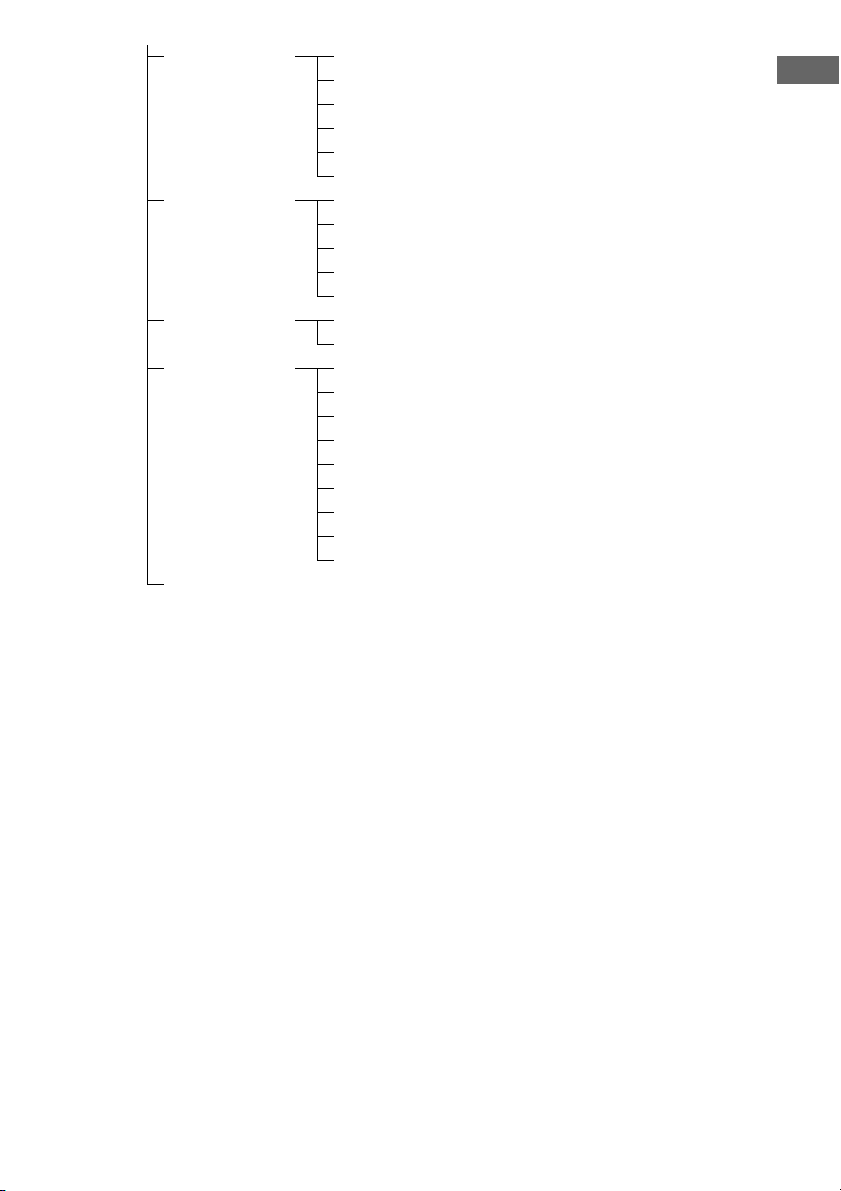
91
US
Adjusting Settings
Network Settings
(page 105)
Internet Settings
Connection Server Settings
Renderer Options
Renderer Access Control
External Control
Network Standby
Home Control
Settings (page 66)
TV Control
AV Equipment Control
Lighting Control
Lighting Scenes
Registration
Zone Settings
(page 107)
Zone Control
Zone Setup
System Settings
(page 108)
Language
Auto Standby
Settings Lock
RS232C Control
Software Update Notification
Initialize Personal Information
System Information
EULA
Software License
Network Update
(page 109)

92
US
Easy Setup
Re-runs the Easy Setup to make the basic
settings. Follow the on-screen instructions
(page 43).
Speaker Settings
You can set up your viewing environment
(with the speaker system you are using) either
automatically or manually.
Performs the D.C.A.C. (Digital Cinema Auto
Calibration) function. This function allows
you to perform automatic calibration, such as
checking the connection between each speaker
and the receiver, adjusting the speaker level,
and measuring the distance of each speaker
from your seating position automatically.
Calibration Matching
When Auto Calibration is executed, this
function works automatically, matching the
distance and level of the right and left
speakers. You can set this function only after
the DCAC measurement process has been
completed and the results of the DCAC
measurement are saved. The setting is valid
until you change it.
Note
The previous measurement results will be
overwritten and the current results are saved for the
currently selected position.
Please read “Notes on Speaker Settings (Auto
Calibration)” in “9: Setting up the receiver using the
Easy Setup” (page 43).
Lets you register three patterns for “Position,”
depending on the seating positions, listening
environment, and measurement conditions.
You can also select a calibration type to
compensate the each speaker.
Position
You can register more than one set of settings
for the listening environment or recall a set of
settings.
Auto Calibration
Auto Calibration Setup
93
US
Adjusting Settings
Select the “Position” for which you want to
register the measurement results on the
Auto Calibration Setup screen.
•Pos.1
•Pos.2
•Pos.3
To set a compensation type for the
speakers
You can select the compensation type to be
used for the speakers for each Position.
1 Select the “Position” for which you want
to set the speaker compensation type,
then press .
2 Select the “Calibration Type” you want,
then press .
•Full Flat
Makes the measurement of frequency
from each speaker flat.
• Engineer
Sets the frequency to match that of the
Sony listening room standard.
• Front Reference
Adjusts the characteristics of all the
speakers to match the characteristics of
the front speakers.
•Off
Sets the Auto Calibration EQ to off.
Note
You cannot set the “Calibration Type” for “Position”
for which the measurement results have not been
registered.
To name the Position
1 Select the “Position” for which you want
to name, then press .
2 Select “Name In,” then press .
The soft keyboard appears on the screen.
3 Press V/v/B/b and to select a
character one by one.
Automatic Phase Matching
Lets you set the A.P.M. (Automatic Phase
Matching) function in the D.C.A.C. (Digital
Cinema Auto Calibration) function (page 92).
Calibrates the phase characteristics of the
speakers and ensures a well-coordinated
surround space.
x Off
Does not activate the A.P.M. function.
x Auto
Switches the A.P.M. function on or off
automatically.
Notes
• This function does not work in the following cases.
– “2ch Analog Direct” is being used.
– Headphones are connected.
– “Auto Calibration” has not been performed.
• The receiver may play back signals at a lower
sampling frequency than the actual sampling
frequency of the input signals, depending on the
audio format.
Lets you adjust each speaker manually. You
can also adjust the speaker levels after Easy
Setup is completed.
The Speaker Settings are only for the current
“Position.”
You can make the following settings using the
wizard.
Speaker Pattern
Lets you select the speaker pattern for the
speaker systems you are using.
Surround Back Assign
Lets you set the SURROUND BACK/FRONT
HIGH/FRONT B/ZONE 2 terminals for a bi-
amplifier or a zone 2 connection.
x Zone2 Speakers
x Bi-Amplifier
Speaker Connection
continued
94
US
x Front B
x No Assign
Note
If the speaker pattern is set so that there are surround
back speakers or front high speakers, you cannot set
the SURROUND BACK/FRONT HIGH/FRONT B/
ZONE 2 terminals for a bi-amplifier connection or a
zone 2 connection.
By using the front high speakers, you can lift
up the sounds of the center speaker to an
appropriate height on the screen, allowing you
to enjoy natural representation without
discomfort.
x 1~10
x Off
Note
• This function does not work in the following cases.
– Headphones are connected.
– There is no center speaker.
– There are no front high speakers.
– The 2CH mode sound field is being used.
– The sound filed for music is being used.
– The “Multi Stereo” sound filed is being used.
Lets you adjust each speaker manually on the
Manual Setup screen. You can also adjust the
speaker levels after “Auto Calibration” is
completed.
Select “Level/Distance/Size,” then
press .
To adjust the speaker level
You can adjust each speaker’s level (center,
surround left/right, surround back left/right,
front high left/right, subwoofer).
1 Select the speaker on the screen for
which you want to adjust the level, then
press .
2 Select “Level,” then press .
You can adjust the level from –20 dB to
+10dB in 0.5dB intervals.
You can adjust the front left level from
FL–10.0 dB to FL+10.0 dB in 0.5 dB
intervals. You can also adjust the front right
level from FR–10.0 dB to FR+10.0 dB in
0.5 dB intervals.
To adjust the distance from the
seating position to each
speaker
You can adjust the distance from the seating
position to each speaker (front left/right,
center, surround left/right, surround back left/
right, front high left/right, subwoofer).
1 Select the speaker on the screen for
which you want to adjust the distance,
then press .
2 Select a “Distance,” then press .
You can adjust the distance from 1.0 meter
to 10.0 meters (3 feet 3 inches to 32 feet
9 inches) in 1 cm (1 inch) intervals.
To adjust the size of each
speaker
You can adjust each speaker’s (front left/right,
center, surround left/right, surround back left/
right, front high left/right) size.
1 Select the speaker on the screen for
which you want to adjust the size, then
press .
2 Select a “Size,” then press .
•Large
If you connect large speakers that will
effectively reproduce bass frequencies,
select “Large.” Normally, select “Large.”
• Small
If the sound is distorted, or you feel a lack
of surround effects when using multi-
channel surround sound, select “Small” to
activate the bass redirection circuitry and
output the bass frequencies of each
channel from the subwoofer or other
“Large” speakers.
Center Speaker Lift Up
Speaker Setup
95
US
Adjusting Settings
Notes
• When headphones are connected, Size and
Distance cannot be set.
• The surround back speakers will be set to the same
setting as that of the surround speakers.
• When the front speakers are set to “Small,” the
center, surround, surround back, and front high
speakers are also automatically set to “Small.”
• If you do not use the subwoofer, the front speakers
are automatically set to “Large.”
To adjust the crossover
frequency of each speaker
Lets you set the bass crossover frequency of
speakers that has been set to “Small” in the
Size menu. Measured speaker crossover
frequency is set for each speaker after “Auto
Calibration.”
1 Select “Crossover Frequency,” then
press .
2 Select the speaker on the screen for
which you want to adjust the crossover
frequency.
3 Set the crossover frequency of the
selected speaker.
Notes
• When headphones are connected, this function
does not work.
• The surround back speakers will be set to the same
setting as that of the surround speakers.
Lets you select the test tone type on the Test
Tone screen.
To output a test tone from each
speaker
You can output a test tone from the speakers in
sequence.
1 Select “Test Tone,” then press .
The Test Tone screen appears.
2 Adjust the parameter, then press .
•Off
• Auto
The test tone is output from each speaker
in sequence.
• L, C, R, SR, SL, SB*, SBL, SBR, LH,
RH, SW
* “SB” appears when only one surround back
speaker is connected.
You can select which speakers will output
the test tone.
3 Adjust “Level,” then press .
To output a test tone from
adjacent speakers
You can output a test tone from adjacent
speakers so that you can adjust the balance
between the speakers.
1 Select “Phase Noise,” then press .
The Phase Noise screen appears.
2 Adjust the parameter, then press .
•Off
• FL/FR, FL/CNT, CNT/FR, FR/SR,
SR/SBR, SR/SB*, SBR/SBL, SR/SL,
SB/SL*, SBL/SL, SL/FL, LH/RH,
FL/SR, SL/FR, FL/RH, LH/FR
*“SR/SB” and “SB/SL” appear when only one
surround back speaker is connected.
Lets you output the test tone sequentially
from adjacent speakers.
Some items may not be displayed,
depending on the setting of the speaker
pattern.
3 Adjust “Level,” then press .
To output the source sound
from adjacent speakers
You can output the source sound from adjacent
speakers so that you can adjust the balance
between the speakers.
1 Select “Phase Audio,” then press .
The Phase Audio screen appears.
2 Adjust the parameter, then press .
•Off
Test Tone
continued
96
US
• FL/FR, FL/CNT, CNT/FR, FR/SR,
SR/SBR, SR/SB*, SBR/SBL, SR/SL,
SB/SL*, SBL/SL, SL/FL, LH/RH,
FL/SR, SL/FR, FL/RH, LH/FR
*“SR/SB” and “SB/SL” appear when only one
surround back speaker is connected.
Lets you output front 2 channel source
sound (instead of the test tone)
sequentially from adjacent speakers.
Some items may not be displayed,
depending on the setting of the speaker
pattern.
3 Adjust “Level,” then press .
Lets you select the unit of measurement for
setting distances.
x meter
The distance is displayed in meters.
x feet
The distance is displayed in feet.
Audio Settings
You can adjust settings for the audio to suit
your preference.
The D.L.L. function is Sony proprietary
technology that allows low quality digital
audio signals and analog audio signals to be
played back with high quality sound.
x Off
x Auto 1
This function is available for lossy
compression audio formats and analog audio
signals.
x Auto 2
This function is available for Linear PCM
signals, as well as lossy compression audio
formats and analog audio signals.
Notes
• This function may not work, depending on the
content via a USB device, or a home network.
• This function works when “A.F.D. Auto” is
selected. However, this function does not work in
the following cases.
– Linear PCM signals with a sampling frequency
of other than 44.1 kHz are being received.
– Dolby Digital Plus, Dolby Digital EX, Dolby
TrueHD, DTS 96/24, DTS-ES Matrix 6.1, DTS-
HD Master Audio, or DTS-HD High Resolution
Audio signals are being received.
Lets you set the sound optimizer function
(page 62).
x Off
x Low
x Normal
Distance Unit
Digital Legato Linear (D.L.L.)
Sound Optimizer

97
US
Adjusting Settings
Lets you adjust the bass and treble level for
each speaker (page 63).
Lets you prevent signals from being output via
the SUBWOOFER jacks.
x Off
The SUBWOOFER jacks output signals.
x On
The SUBWOOFER jacks do not output
signals.
Note
• This function does not work in the following cases.
– Headphones are connected.
– “2ch Analog Direct” is selected.
– “2ch Stereo” is selected.
– A speaker pattern without a subwoofer is
selected.
Lets you select the language you want when
you listen to the dual audio of a digital
broadcast when available. This feature only
functions for Dolby Digital sources.
x Main/Sub
Sound of the main language will be output
through the front left speaker, and sound of the
sub language will be output through the front
right speaker simultaneously.
x Main
Sound of the main language will be output.
x Sub
Sound of the sub language will be output.
Lets you compress the dynamic range of the
soundtrack. This may be useful when you want
to watch movies at low volumes late at night.
Dynamic range compression is possible with
Dolby Digital and Dolby TrueHD sources
only.
x Off
The dynamic range is not compressed.
x Auto
The dynamic range is compressed
automatically when there is a flag in the sound
source that recommends the Dynamic Range
Compressor.
x On
The dynamic range is compressed as intended
by the recording engineer.
Lets you turn the low-pass filter for the
subwoofer output on or off. You can set the
function for each input to which an audio input
jack is assigned independently. Turn the
function on if you connect a subwoofer
without the crossover frequency function.
x Off
Does not activate the low-pass filter.
x On
Always activates the low-pass filter with a
cutoff frequency of 120 Hz.
Note
• This function does not work in the following case.
– “2ch Analog Direct” is being used.
Equalizer
Subwoofer Muting
Dual Mono
Dynamic Range Compressor
Subwoofer Low Pass Filter

98
US
Lets you delay the output of audio to minimize
the time gap between audio output and visual
display.
This function is useful when you use a large
LCD or plasma monitor or a projector.
You can set the function for each input
independently.
x HDMI Auto
The time gap between audio output and visual
display for the monitor connected via an
HDMI connection will be adjusted
automatically based on the information for the
TV. This feature is available only when the
monitor supports the A/V Sync function.
x 0 ms – 300 ms
You can adjust the delay from 0 ms to 300 ms
in 10 ms intervals.
Note
Depending on the audio format, the receiver may
play back signals at a lower sampling frequency than
the actual sampling frequency of the input signals.
Lets you specify the input mode for the digital
signal input to the DIGITAL IN jacks or
HDMI IN jacks.
You can set the function for each input
independently.
x PCM
When signals from the DIGITAL IN jack are
selected, PCM signals are given priority (to
prevent interruption when playback starts).
However, when other signals are input, there
may be no sound, depending on the format. In
this case, set this item to “Auto.”
When signals from the HDMI IN jack are
selected, only PCM signals are output from the
connected player. When signals in any other
format are received, set this item to “Auto.”
x Auto
Automatically switches the input mode
between Dolby Digital, DTS, or PCM.
Notes
• This function does not work in the following cases.
– Analog input mode is selected.
– “2ch Analog Direct” is being used.
• Even when “Decode Priority” is set to “PCM,” the
start of the sound may not be output due to signals
on the CD being played back.
Lets you select a sound effect applied to input
signals. For details, see “Enjoying Sound
Effects” (page 58).
You can set the function for each input
independently.
A/V Sync (Synchronizes audio
and video output)
Decode Priority (Digital audio
input decoding priority)
Sound Field
99
US
Adjusting Settings
Video Settings
You can adjust settings for video.
Lets you convert the resolution of analog video input signals and output the converted signals.
x Direct
Lets you output analog video input signals
directly.
x Auto
x 480i/576i
x 480p/576p
x 720p
x 1080i
x 1080p
When an HDMI monitor is being connected with HDMI OUT ON
When an HDMI monitor is not connected with HDMI OUT OFF
Resolution (Converting video signals)
“Resolution”
menu setting
HDMI OUT
jacks
MONITOR
COMPONENT
VIDEO OUT jacks
MONITOR VIDEO
OUT jack
Direct, Auto HDMI IN jacks z ––
COMPONENT VIDEO IN
jacks
a
a)
z –
VIDEO IN jacks a
a)
– z
480i/576i, 480p/
576p, 720p, 1080i,
1080p
HDMI IN jacks z ––
COMPONENT VIDEO IN
jacks
a
b)
z –
VIDEO IN jacks a
b)
– z
“Resolution”
menu setting
HDMI OUT
jacks
MONITOR
COMPONENT
VIDEO OUT jacks
MONITOR VIDEO
OUT jack
Direct HDMI IN jacks – – –
COMPONENT VIDEO IN
jacks
– z –
VIDEO IN jacks – – z
Auto HDMI IN jacks – – –
COMPONENT VIDEO IN
jacks
– 480i/576i a
VIDEO IN jacks – 480i/576i z
Input from
Output from
Input from
Output from
continued
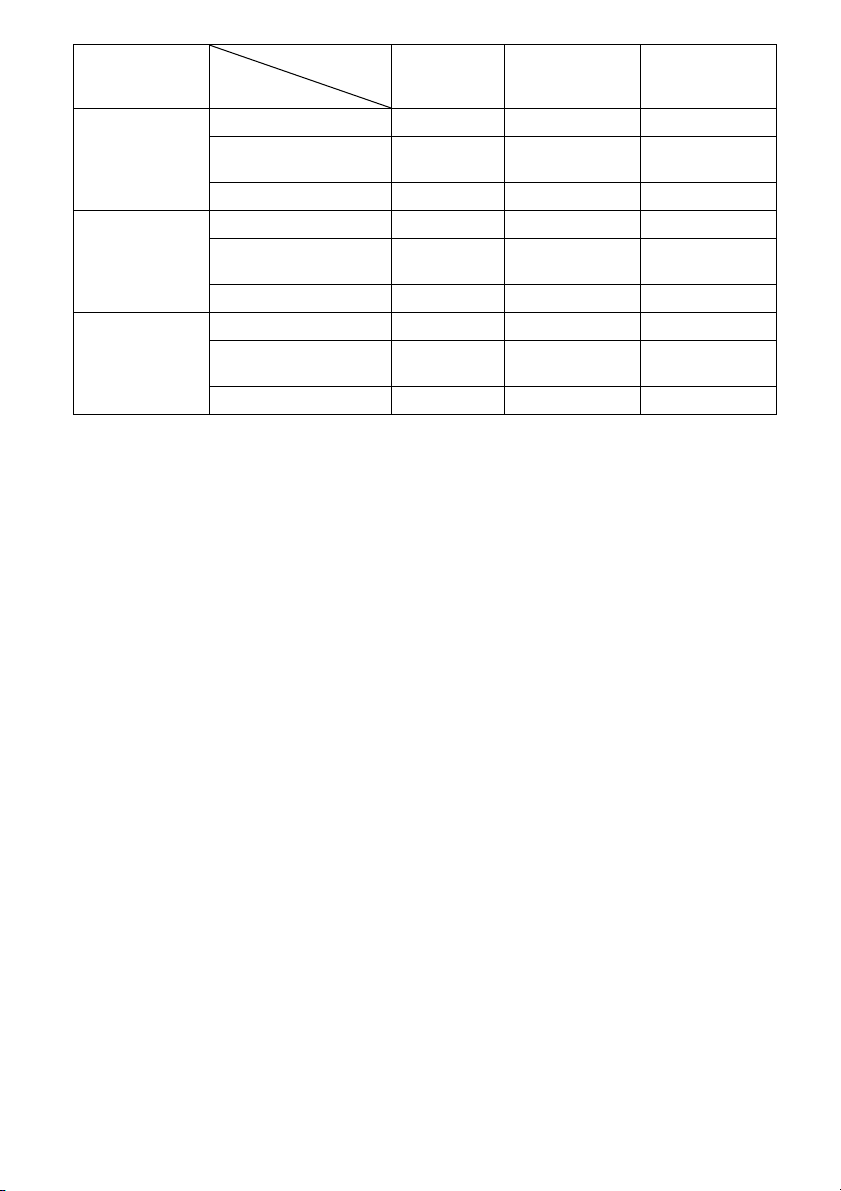
100
US
z : Video signals are output without a video conversion or processing.
a : Video signals are output. (Values for the resolution are shown when video signals are output at the specified
resolution.)
a
a)
:Video signals are converted automatically to an optimum resolution that the monitor connected supports,
and then they are output.
a
b)
:Video signals are output at the resolution specified in the “Resolution” menu.
a
c)
:Video signals are output at the resolution specified in the “Resolution” menu. Video signals protected by
Macrovision are output at the 480p/576p resolution.
– : Video signals are not output.
Notes
• If you select a resolution which the connected TV
does not support in the “Resolution” menu, the
images from the TV cannot be output correctly.
• Converted HDMI image output does not support
“x.v.Color,” Deep Color, and 3D.
480i/576i, 480p/
576p
HDMI IN jacks – – –
COMPONENT VIDEO IN
jacks
– a
b)
a
VIDEO IN jacks – a
b)
z
720p, 1080i HDMI IN jacks – – –
COMPONENT VIDEO IN
jacks
– a
c)
–
VIDEO IN jacks – a
c)
z
1080p HDMI IN jacks – – –
COMPONENT VIDEO IN
jacks
– z –
VIDEO IN jacks – – z
“Resolution”
menu setting
HDMI OUT
jacks
MONITOR
COMPONENT
VIDEO OUT jacks
MONITOR VIDEO
OUT jack
Input from
Output from
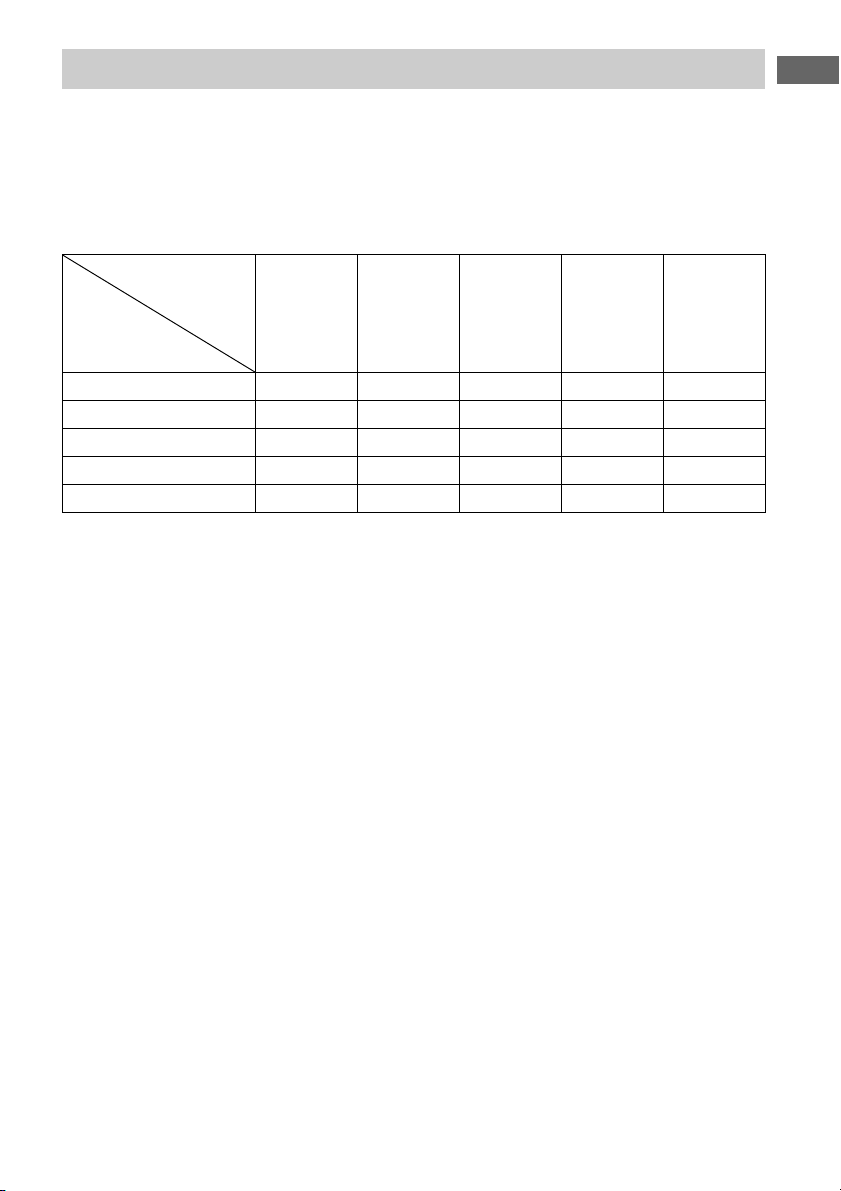
101
US
Adjusting Settings
This function targets content via a USB device, a home network, and Internet content.
x 480i/576i
x 480p/576p
x 720p
x 1080i
x 1080p
* If you play back content that is protected by Macrovision, the receiver may output the image at low resolution,
or a warning message which informs that the video signals cannot be output may appear.
Notes
• If the warning message “Video cannot be output
from this jack.” appears, perform the following
procedure.
1Select “BD” as the input for the main zone.
2Set “Playback Resolution” to “480i/576i” or
“480p/576p.”
• If no picture is output when you play back content
via a USB device, a home network, or Internet
content from the Watch/Listen menu, perform the
following procedure.
1Select “BD” as the input for the main zone.
2Set “Playback Resolution” to a lower resolution.
Playback Resolution
HDMI OUT
jacks
MONITOR
COMPONENT
VIDEO OUT
jacks
MONITOR
VIDEO OUT
jack
ZONE 2
COMPONENT
VIDEO OUT
OUT jacks
ZONE 2
VIDEO OUT
jack
480i/576i 480i/576i 480i/576i* 480i/576i* 480i/576i* 480i/576i*
480p/576p 480p/576p 480p/576p* 480i/576i* 480p/576p* 480i/576i*
720p (factory default setting) 720p 720p* – 720p* –
1080i 1080i 1080i* – 1080i* –
1080p 1080p 1080i* – 1080i* –
“Playback
Resolution”
menu setting
Output
video
resolution
102
US
This function targets content via a USB device
and a home network.
x Auto
Select this to display 3D compatible content in
3D.
x Off
Select this to display all content in 2D.
This function targets content via a USB
device, a home network, and Internet content.
x 16:9
Select this when connecting to a wide-screen
TV or a TV with a wide-mode function.
x 4:3
Select this when connecting to a 4:3 screen TV
without a wide-mode function.
This function targets content via a USB
device, a home network, and Internet content.
x Original
Select this when connecting to a TV with a
wide-mode function. Displays a 4:3 screen
picture in 16:9 aspect ratio even on a wide-
screen TV.
x Fixed Aspect Ratio
Changes the picture size to fit the screen size
with the original picture aspect ratio.
HDMI Settings
You can adjust the required settings for
equipment connected to the HDMI jacks.
Lets you set the level of the subwoofer to 0 dB
or +10 dB when PCM signals are input via an
HDMI connection. You can set the level for
each input to which an HDMI input jack is
assigned independently.
x 0 dB
x Auto
Automatically sets the level to 0 dB or +10 dB,
depending on the audio stream.
x +10 dB
Lets you set the HDMI audio signals output
from the playback equipment connected to the
receiver via an HDMI connection.
x TV+AMP
The sound is output from the TV speaker and
the speakers connected to the receiver.
Notes
• The sound quality of the playback equipment
depends on the TV’s sound quality, such as the
number of channels, and the sampling frequency,
etc. If the TV has stereo speakers, the sound output
from the receiver is also in stereo as that of the TV,
even if you play multi-channel source.
• When you connect the receiver to a video device
(projector, etc.), sound may not be output from the
receiver. In this case, select “AMP.”
• When you do not select an HDMI input jack as an
audio input in “Audio Input Assign” in the Input
Settings menu, sound is not output from the TV.
3D Output Settings
TV Type
Screen Format
Subwoofer Level
Audio Out

103
US
Adjusting Settings
x AMP
The HDMI audio signals from the playback
equipment is only output to speakers
connected to the receiver. The multi-channel
sound can be played back as it is.
Note
When “Control for HDMI” is set to “On,” “Audio
Out” may be changed automatically.
Lets you turn the function which controls
equipment connected to the HDMI jack using
an HDMI cable on or off.
x Off
x On
Note
This function is enabled only when “Zone2 Out” is
set to “Off.”
Lets you output HDMI signals to the TV even
when the receiver is in standby mode. For
details, see “Outputting the HDMI signals
even when the receiver is in standby mode
(Pass Through)” (page 80).
x Off
x On
x Auto
Lets you enable or disable the HDMI ZONE 2
OUT jacks.
x Off
x On
Lets you set the priority when you select the
same input for both the main zone and zone 2.
x Main & Zone 2
You can enjoy the same input in the main zone
and zone 2. However, there may be some
interference in the audio and video signals in
the main zone and zone 2.
x Main Only
You can enjoy good audio and video quality in
the main zone. There is no output in zone 2.
Note
This function is enabled only when “Zone2 Out” is
set to “On.”
Lets you set the operation of Fast View.
HDMI IN 1, IN 2, IN 3, and IN 4 support the
Fast View function.
x Auto
You can select HDMI Input faster than with
the normal selection.
x Off
This function and the Preview for HDMI
function are not available.
Note
This function is enabled only when “Zone2 Out” is
set to “Off.”
Control for HDMI
Pass Through
Zone2 Out
Priority
Fast View (Fast HDMI Switching)

104
US
Input Settings
You can adjust the settings for the connections
of the receiver and other equipment.
Lets you set the following items for each input.
x Watch/Listen
Sets whether an input is displayed on the
Watch menu or the Listen menu.
– Watch: Displays an input to the Watch menu.
– Listen: Displays an input to the Listen menu.
– Watch/Listen: Displays an input to both the
Watch and Listen menus.
– Hidden: Does not display an input to both
the Watch and Listen menus. When you
select an input, you can skip an input which
is set to “Hidden.”
x Icon
Sets the icon displayed on the Watch/Listen
menu.
x Name
Sets the name displayed on the Watch/Listen
menu.
Note
You cannot select an input which is set to “Hidden,”
or “HIDDEN” in “INPUT SKIP ?” in “INPUT”
(page 114) without using the GUI, even if you use
INPUT SELECTOR on the receiver.
Lets you set the audio input jack(s) assigned to
each input.
For details, see “Using other video/audio input
jacks” (page 82).
x HDMI
HDMI IN 1/2/3/4/5/6/7/8, None
x Digital
OPT IN 1/2, COAX IN, None
x Analog
Factory default setting
Lets you set the video input jack(s) assigned to
each input.
For details, see “Using other video/audio input
jacks” (page 82).
x HDMI
HDMI IN 1/2/3/4/5/6/7/8, None
x Component
COMPONENT IN 1/2, None
x Analog
Factory default setting
Input Edit
Audio Input Assign
Video Input Assign
105
US
Adjusting Settings
Network Settings
You can adjust the settings for the network.
Lets you check or change the network settings.
You can change the settings for the following
items either manually or automatically.
– IP Address
– DNS
– Proxy Server
Connect the receiver to the network
beforehand. For details, see “7: Connecting to
the network” (page 41).
LAN Port Activation
Lets you set whether or not to activate each
LAN port on the rear panel.
Among the four LAN ports on the rear panel,
check the ports that you want to activate. The
receiver will use the activated ports to access a
network.
By disabling unused ports, you can save power
consumption. The ports not connected to a
router or a hub will be grayed out.
Lets you set whether or not to display the
connected DLNA server.
x Renderer Name
Shows the renderer name of the receiver.
x Auto Access Permission
Sets whether or not to allow automatic access
from newly detected DLNA controller.
Lets you set whether or not to accept
commands from DLNA controllers.
Lets you turn the function which controls the
receiver from “ES Remote” on the home
network on or off.
x Off
x On
Lets you turn on or off the function that
activates the switching hubs on the rear of the
receiver and allows a network controller, “ES
Remote,” etc., to control the receiver even
when it is in standby mode. In the network
standby mode, the start-up time of the GUI and
the network function will be reduced after the
receiver is turned on.
x Off
The Network Standby mode is disabled and
the receiver enters the normal standby mode
when it is in standby mode.
x On
The Network Standby mode is enabled and the
receiver enters the Network Standby mode
when it is in standby mode.
Internet Settings
Connection Server Settings
Renderer Options
Renderer Access Control
External Control
Network Standby
106
US
Home Control Settings
You can make settings for Universal Remote
Control and Lighting Control features.
Lets you set up a connection between a display
device and the receiver via an IR blaster, so
that the remote control of the receiver can
operate the device. You can also carry out a
connection test.
Lets you set up a connection between a player
and the receiver via an IR blaster, and a BD,
DVD, SAT, or another type of AV equipment
so that the remote control of the receiver can
operate the device. You can also carry out a
connection test.
Lets you set up a Control4-compatible lighting
device via the Lighting Control Adapter
(UWA-C4Z) so that you can operate the
lighting device with the receiver.
Lets you set up lighting scene control. Initially,
there are 10 preset lighting scenes. You can
edit and overwrite a preset scene to make a
new scene. You can set the level of a dimmer
of a lighting device for each scene or turn the
lighting on or off.
For assistance, please access
http://www.sony.com/essupport.
To find a local Control4 dealer and upgrade
your receiver to full Control4 Automation, go
to http://www.control4.com/sony.
TV Control
AV Equipment Control
Lighting Control
Lighting Scenes
Registration
107
US
Adjusting Settings
Zone Settings
You can adjust settings for the main zone,
zone 2.
To turn the power on or off for
zone 2
You can turn zone 2 operation on or off.
1 Select the zone you want to turn on or
off, then press .
2 Select “On” or “Off,” then press .
•On
•Off
To select the output source for
each zone
You can select the source that is output to the
zone. Audio and video signals are output to
zone 2.
1 Select the zone to which you want to
output video/audio signals, then press
.
2 Select “Input,” then press .
3 Select the input, then press .
To adjust the volume for zone 2
If the SURROUND BACK/FRONT HIGH/
FRONT B/ZONE 2 terminals are used with a
zone 2 connection, you can also adjust the
volume of zone 2.
If you set “Line Out” to “Variable,” you can
also adjust the volume using “Zone Control.”
If you want to adjust the volume of zone 2 in
zone 2 using the remote control, see
“Operating the receiver from another zone
(ZONE 2 operations)” (page 75).
1 Select the zone for which you want to
adjust the volume, then press .
2 Select “Volume,” then press .
3 Adjust the volume, then press .
To preset the volume for main
zone/zone 2
You can preset the volume of turning the
power on for each zone.
1 Select the zone for which you want to
preset the volume, then press .
2 Select “Preset Volume,” then press .
3 Adjust the volume, then press .
During the adjustment, the sound is output
at the volume level to which you have
adjusted it, regardless of the value of
MASTER VOLUME control.
If you select “Off,” each zone is activated at
the same volume as that in effect when you
turned the power off last time.
Note
• You cannot preset the volume in the following
cases.
– The SURROUND BACK/FRONT HIGH/
FRONT B/ZONE 2 terminals are used for the
surround back speakers or the front high
speakers, or are used with a bi-amplifier
connection.
– “Line Out” is set to “Fixed.”
Line Out
You can set the volume control for the ZONE
2 AUDIO OUT jacks to “Variable” or “Fixed.”
For details, see “Set the volume control for
zone 2” (page 74)
x Fixed
x Variable
12V Trigger
Lets you select various options for use of the
12V Trigger function.
Zone Control
Zone Setup
continued
108
US
x Off
Lets you turn off output of 12V triggers even
when the main receiver is turned on.
x Ctrl
Lets you turn the output of 12V triggers on or
off manually using the control command of an
external control device.
x Zone
Lets you turn the output of 12V triggers on or
off based on whether the selected zone is
turned on or off.
x Input (for “Main” only)
Lets you turn on the output of 12V triggers
when the preset input is selected.
When you select “Input,” the setting display
which sets each input trigger to on/off appears.
Press V/v to select the input, then press to
check the box.
x HDMI A (for “Main” only)
Lets you turn the output of 12V triggers on or
off based on the output setting of the HDMI
OUT A jack.
x HDMI B (for “Main” only)
Lets you turn the output of 12V triggers on or
off based on the output setting of the HDMI
OUT B jack.
x Main (for “Zone2” only)
Lets you link operation of trigger in zone 2 to
the TRIGGER OUT MAIN jack.
System Settings
You can customize the settings of the receiver.
Lets you select the language for the messages
on the screen.
x English
x Español
x Français
x Deutsch
Lets you turn the function that switches the
main zone to standby mode automatically if
you do not operate the receiver for a specific
period of time or when there is no signal input
to the receiver on or off.
x Off
Does not switch to standby mode.
x On
Switches to standby mode after approximately
30 minutes.
Note
• This function does not work in the following cases.
– When you play back via a USB device, an iPod/
iPhone, a home network, or Internet content.
– When the receiver is in the sleep mode.
Lets you lock the settings of the receiver.
x On
You can only turn this function on using the
setting menu. When you turn this function off,
perform the following procedure.
Language
Auto Standby
Settings Lock
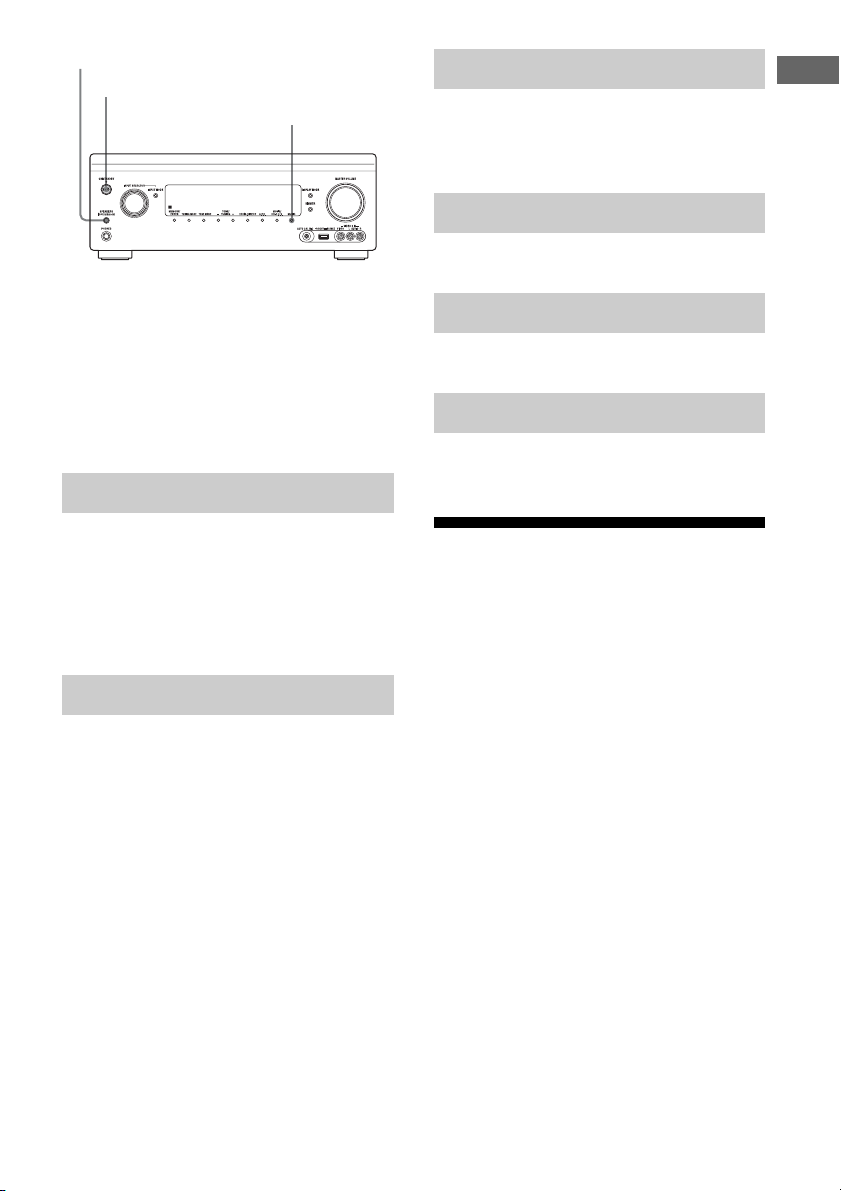
109
US
Adjusting Settings
1 Press ?/1 to turn off the
receiver.
2 While holding down MUSIC and
SPEAKERS (OFF/A/B/A+B),
press ?/1 to turn on the
receiver.
Let you turn the control mode for maintenance
and service on or off.
x Off
x On
Lets you set whether or not to inform you of
newer software version information on the TV
screen.
x On
x Off
To update the receiver
See “Network Update” (page 109) to update
the software of the receiver.
Note
• New software version information does not appear
in the following cases.
– The latest version is already being used.
– The receiver cannot obtain data via a network.
Lets you erase personal information related to
Internet, such as the Internet content list,
“Favorites List,” etc.
Displays the software version of the receiver.
Displays the EULA screen on the TV screen.
Displays the Software License information on
the TV screen.
Network Update
You can update and improve the functions of
the receiver.
For information about update functions, refer
to the following web site:
http://www.sony.com/essupport
The GUI and display window of the receiver
are turned off, and the lamp above the ?/1 ON/
STANDBY button flashes in green during the
update.
When the update is completed, the receiver
will restart automatically.
It may take about 50 minutes for the update to
complete. The time required for the update to
complete varies, depending on the speed of the
Internet connection.
Note
Do not turn the receiver off or disconnect the
network cable during software updating. It may
cause a malfunction.
RS232C Control
Software Update Notification
?/1
MUSIC
SPEAKERS (OFF/A/B/A+B)
Initialize Personal Information
System Information
EULA
Software License
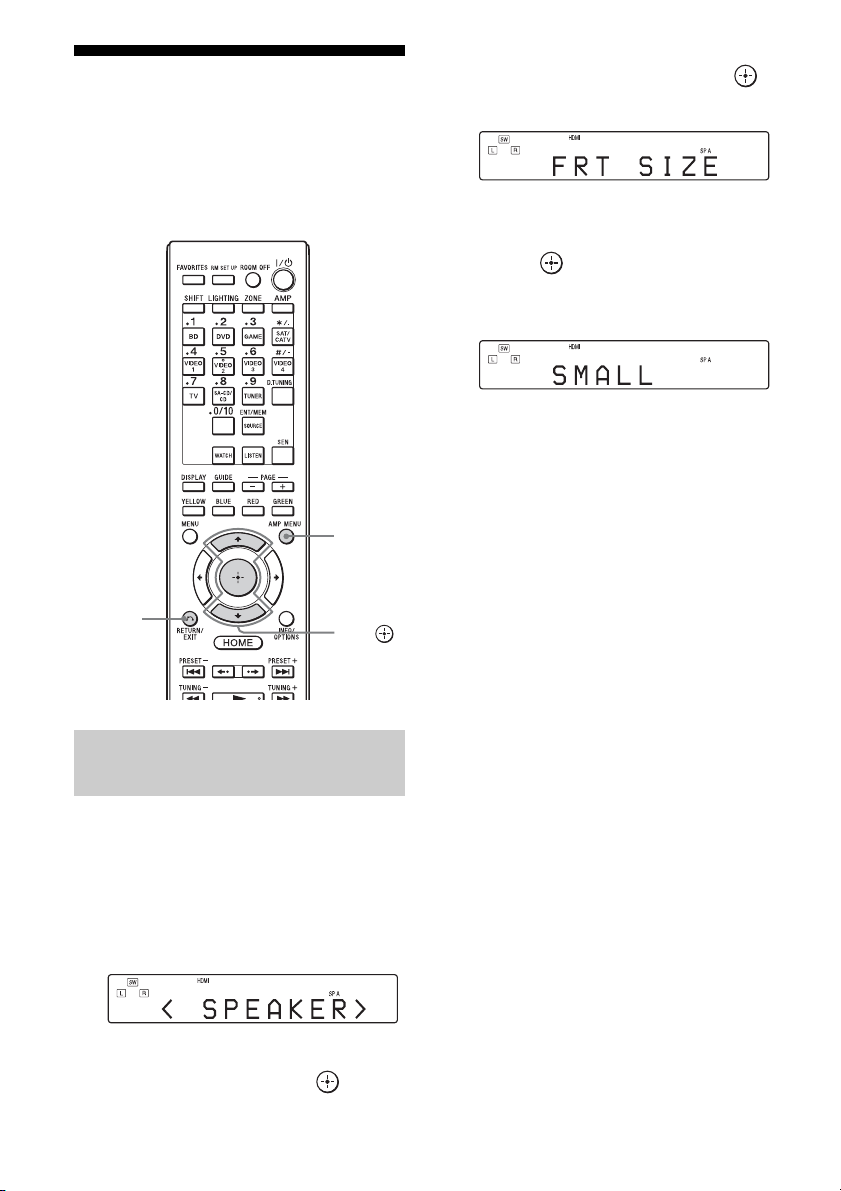
110
US
Operating without using
the GUI
You can operate the receiver using the display
window of the receiver even if the TV is not
connected to the receiver.
1 Turn on the receiver.
2 Press AMP MENU.
The menu is displayed in the display
window of the receiver.
Example: When you select “SPEAKER.”
3 Press V/v repeatedly to select
the menu, then press .
4 Press V/v repeatedly to select
the menu item, then press .
The parameter appears.
5 Press V/v repeatedly to select
the parameter you want, then
press .
The parameter is entered and the brackets
disappear from the display.
To return to the previous step
Press RETURN/EXIT O.
Using the menu in the display
window
V/v,
RETURN/
EXIT O
AMP
MENU
111
US
Adjusting Settings
The following options are available in each menu.
“xx…” in the table signifies the parameter for each item.
Menu list (in the display window)
Menu Item Parameter
<AUTO CAL>
(Auto
Calibration)
A.CAL START
(Auto Calibration Start)
FH USE: x? Y, N
5 4 3 2 1
TONE
T.S.P.
WOOFER
COMPLETE RETRY, SAVE EXIT, WRN CHECK,
PHASE INFO., DIST. INFO., LEVEL
INFO., EXIT
C.MATCH? xxx Yes, No
W-xxx:4x
(Warnig code)
FL, FR, CNT, SL, SR, SBR, SBL, SW, LH,
RH : 0, 1, 2, 3, 4
NO WARN
(No Warning)
xxx: xxx
(Phase Information)
FL, FR, CNT, SL, SR, SBR, SBL, SW, LH,
RH : OUT, IN
xxx: xxxxxx
(Distance Information)
FL, FR, CNT, SL, SR, SBR, SBL, SW, LH,
RH
xxx: xxxx dB
(Level Information)
FL, FR, CNT, SL, SR, SBR, SBL, SW LH,
RH
E-xx :3x
(Error code)
F, SR, SB : 0, 1, 2, 3, 4
RETRY? xxx YES, NO
CANCEL
CAL TYPE
(Calibration Type)
FULL FLAT, ENGINEER,
FRONT REF, OFF
A.P.M. A.P.M. AUTO, A.P.M. OFF
POSITION POS.1, POS.2, POS.3
NAME IN
(Naming Input)
For reference on this function, see “To
name the Position” (page 93).
continued
112
US
<LEVEL>
(Level settings)
TEST TONE OFF, FL to RH (AUTO), FL to RH (FIX)
P. N O ISE
(Phase noise)
OFF, FL/FR, FL/CNT, CNT/FR, FR/SR,
SR/SBR, SR/SB, SBR/SBL, SR/SL,
SB/SL, SBL/SL, SL/FL, LH/RH, FL/SR,
SL/FR, FL/RH, LH/FR
P. AU DI O
(Phase audio)
OFF, FL/FR, FL/CNT, CNT/FR, FR/SR,
SR/SBR, SR/SB, SBR/SBL, SR/SL,
SB/SL, SBL/SL, SL/FL, LH/RH, FL/SR,
SL/FR, FL/RH, LH/FR
FL LEVEL
(Front left speaker level)
FL–10.0 dB to FL+10.0 dB (0.5 dB step)
FR LEVEL
(Front right speaker level)
FR–10.0 dB to FR+10.0 dB (0.5 dB step)
CNT LEVEL
(Center speaker level)
CNT–20.0 dB to CNT+10.0 dB (0.5 dB
step)
SL LEVEL
(Surround left speaker level)
SL–20.0 dB to SL+10.0 dB (0.5 dB step)
SR LEVEL
(Surround right speaker level)
SR–20.0 dB to SR+10.0 dB (0.5 dB step)
SB LEVEL
(Surround back speaker level)
SB–20.0 dB to SB+10.0 dB (0.5 dB step)
SBL LEVEL
(Surround back left speaker level)
SBL–20.0 dB to SBL+10.0 dB (0.5 dB
step)
SBR LEVEL
(Surround back right speaker level)
SBR–20.0 dB to SBR+10.0 dB (0.5 dB
step)
LH LEVEL
(Left high speaker level)
LH–20.0 dB to LH+10.0 dB (0.5 dB step)
RH LEVEL
(Right high speaker level)
RH–20.0 dB to RH+10.0 dB (0.5 dB step)
SW LEVEL
(Subwoofer speaker level)
SW–20.0 dB to SW+10.0 dB (0.5 dB step)
Menu Item Parameter
113
US
Adjusting Settings
<SPEAKER>
(Speaker settings)
SP PATTERN
(Speaker pattern)
5/2.1 to 2/0 (20 patterns)
CNT LIFT
(Center Speaker Lift Up)
OFF, 1 to 10
FRT SIZE
(Front speakers size)
LARGE, SMALL
CNT SIZE
(Center speaker size)
LARGE, SMALL
SUR SIZE
(Surround speakers size)
LARGE, SMALL
FH SIZE
(Front high speakers size)
LARGE, SMALL
SB ASSIGN
(Surround Back Speaker Assign)
OFF, BI-AMP, ZONE2, SPK B
FL DIST.
(Front left speaker distance)
FL 3’ 3” to FL 32’ 9” (1 inch step)
FL 1.0 to FL 10.0 (m) (1 cm step)
FR DIST.
(Front right speaker distance)
FR 3’ 3” to FR 32’ 9” (1 inch step)
FR 1.0 to FR 10.0 (m) (1 cm step)
CNT DIST.
(Center speaker distance)
CNT 3’ 3” to CNT 32’ 9” (1 inch step)
CNT 1.0 to CNT 10.0 (m) (1 cm step)
SL DIST.
(Surround left speaker distance)
SL 3’ 3” to SL 32’ 9” (1 inch step)
SL 1.0 to SL 10.0 (m) (1 cm step)
SR DIST.
(Surround right speaker distance)
SR 3’ 3” to SR 32’ 9” (1 inch step)
SR 1.0 to SR 10.0 (m) (1 cm step)
SB DIST.
(Surround back speaker distance)
SB 3’ 3” to SB 32’ 9” (1 inch step)
SB 1.0 to SB 10.0 (m) (1 cm step)
SBL DIST.
(Surround back left speaker distance)
SBL 3’ 3” to SBL 32’ 9” (1 inch step)
SBL 1.0 to SBL 10.0 (m) (1 cm step)
SBR DIST.
(Surround back right speaker distance)
SBR 3’ 3” to SBR 32’ 9” (1 inch step)
SBR 1.0 to SBR 10.0 (m) (1 cm step)
LH DIST.
(Left high speaker distance)
LH 3’ 3” to LH 32’ 9” (1 inch step)
LH 1.0 to LH 10.0 (m) (1 cm step)
RH DIST.
(Right high speaker distance)
RH 3’ 3” to RH 32’ 9” (1 inch step)
RH 1.0 to RH 10.0 (m) (1 cm step)
SW DIST.
(Subwoofer distance)
SW 3’ 3” to SW 32’ 9” (1 inch step)
SW 1.0 to SW 10.0 (m) (1 cm step)
DIST. UNIT
(Distance unit)
METER, FEET
FRT CROSS
(Front speakers crossover frequency)
CROSS 40 Hz to CROSS 200 Hz (10 Hz
step)
CNT CROSS
(Center speaker crossover frequency)
CROSS 40 Hz to CROSS 200 Hz (10 Hz
step)
SUR CROSS
(Surround speakers crossover frequency)
CROSS 40 Hz to CROSS 200 Hz (10 Hz
step)
Menu Item Parameter
continued
114
US
<SPEAKER>
(Speaker settings)
FH CROSS
(Front high speakers crossover frequency)
CROSS 40 Hz to CROSS 200 Hz (10 Hz
step)
<INPUT>
(Input settings)
NAME IN (Naming inputs) For reference on this function, see“Input
Edit” in Input Settings menu (page 104).
INPUT SKIP (Input skip) SHOWN, HIDDEN
H.A. ASSIGN (HDMI audio assign) For reference on this function, see“Using
other video/audio input jacks” (page 82).
H.V. ASSIGN (HDMI video assign) For reference on this function, see “Using
other video/audio input jacks” (page 82).
A. ASSIGN (Digital audio assign) For reference on this function, see “Using
other video/audio input jacks” (page 82).
V. ASSIGN (Component video assign) For reference on this function, see “Using
other video/audio input jacks” (page 82).
<SURROUND>
(Surround
settings)
HD-D.C.S. TYP
(HD-D.C.S. effect type)
DYNAMIC, THEATER, STUDIO
H. GAIN
(PLIIz Height Gain Control)
HIGH, MID, LOW
<EQ>
(EQ settings)
ALL BASS
(All speaker bass level)
ALL B. –10.0 dB to ALL B. +10.0 dB
(0.5 dB step)
ALL TREBLE
(All speaker treble level)
ALL T. –10.0 dB to ALL T. +10.0 dB
(0.5 dB step)
FRT BASS
(Front speakers bass level)
FRT B. –10 dB to FRT B. +10 dB
(0.5 dB step)
FRT TREBLE
(Front speakers treble level)
FRT T. –10 dB to FRT T. +10 dB
(0.5 dB step)
CNT BASS
(Center speaker bass level)
CNT B. –10 dB to CNT B. +10 dB
(0.5 dB step)
CNT TREBLE
(Center speaker treble level)
CNT T. –10 dB to CNT T. +10 dB
(0.5 dB step)
SUR BASS
(Surround speakers bass level)
SUR B. –10 dB to SUR B. +10 dB
(0.5 dB step)
SUR TREBLE
(Surround speakers treble level)
SUR T. –10 dB to SUR T. +10 dB
(0.5 dB step)
FH BASS
(Front high speakers bass level)
FH B. –10 dB to FH B. +10 dB
(0.5 dB step)
FH TREBLE
(Front high speakers treble level)
FH T. –10 dB to FH T. +10 dB
(0.5 dB step)
Menu Item Parameter
115
US
Adjusting Settings
<ZONE>
(Multi-zone
settings)
P. VO L M A IN
(Preset Volume (MAIN))
OFF, –∞,–92.0 dB to +23.0 dB (0.5 dB
step)
P.VOL ZONE2
(Preset Volume (Zone2))
OFF, –∞,–92 dB to +23 dB (1 dB step)
Z2 LINEOUT
(Zone2 Line Out Level Type)
FIXED, VARIABLE
12V TRIG.
(12V Trigger)
OFF, CTRL, ZONE, INPUT, HDMIA,
HDMIB
<TUNER>
(Tuner settings)
FM MODE STEREO, MONO
NAME IN
(Naming preset stations)
For reference on this function, see “To
name preset stations (Name Input)”
(page 56).
<AUDIO>
(Audio settings)
D.L.L. D.L.L. AUTO2, D.L.L. AUTO1, D.L.L.
OFF
OPTIMIZER (Sound Optimizer) NORMAL, LOW, OFF
SW L.P.F.
(Subwoofer L.P.F. for HDMI)
L.P.F. ON, L.P.F. OFF
SW MUTING (Subwoofer Muting) ON, OFF
A/V SYNC
(Synchronizes audio with video output)
HDMI AUTO, 0 ms to 300 ms (10 ms
step)
DUAL MONO
(Digital broadcast language selection)
MAIN/SUB, MAIN, SUB
DEC. PRIO
(Digital audio input decoding priority)
DEC. AUTO, DEC. PCM
D. RANGE
(Dynamic range compressor)
COMP. ON, COMP. AUTO, COMP. OFF
<VIDEO>
(Video settings)
RESOLUTION DIRECT, AUTO, 480/576i, 480/576p,
720p, 1080i, 1080p
<HDMI>
(HDMI settings)
CTRL: HDMI
(Control for HDMI)
CTRL ON, CTRL OFF
PASS THRU
(Pass Through)
ON, AUTO, OFF
ZONE2 OUT ON, OFF
PRIORITY MAIN&ZONE2, MAIN ONLY
AUDIO OUT AMP, TV+AMP
SW LEVEL
(Subwoofer level for HDMI)
SW AUTO, SW +10 dB, SW 0 dB
FAST VIEW AUTO, OFF
Menu Item Parameter
continued

116
US
To change the display
The display panel provides various
information of the receiver status such as
sound field.
1 Select the input for which you want to
check the information.
2 Press DISPLAY MODE on the receiver
repeatedly.
Each time you press DISPLAY MODE, the
display will change as follows.
Input you selected t Sound field type t
Volume level t Stream information* t
Input name you entered ...
* Stream information may not be displayed.
When listening to FM and AM radio
Station name t Frequency t Sound field
type t Volume level ...
Index name appears only when you have
assigned one to the input or preset station.
Index name does not appear when only
blank spaces have been entered.
<SYSTEM>
(System settings)
RS232C
(RS232C Control Mode)
RS232C ON, RS232C OFF
NET STBY
(Network Standby)
STBY ON, STBY OFF
AUTO STBY
(Auto Standby)
STBY ON, STBY OFF
VER xxxx
(Version)
Menu Item Parameter
117
US
Additional Information
Precautions
On safety
Should any solid object or liquid fall into the
cabinet, unplug the receiver and have it
checked by qualified personnel before
operating it any further.
On power sources
• Before operating the receiver, check that the
operating voltage is identical with your local
power supply.
The operating voltage is indicated on the
nameplate on the back of the receiver.
• If you are not going to use the receiver for a
long time, be sure to disconnect the receiver
from the wall outlet. To disconnect the AC
power cord (mains lead), grasp the plug
itself; never pull the cord.
• One blade of the plug is wider than the other
for the purpose of safety and will fit into the
wall outlet only one way. If you are unable to
insert the plug fully into the outlet, contact
your dealer.
• AC power cord (mains lead) must be
changed only at a qualified service shop.
On heat buildup
Although the receiver heats up during
operation, this is not a malfunction. If you
continuously use this receiver at a large
volume, the cabinet temperature of the top,
side and bottom rises considerably*. To avoid
burning yourself, do not touch the cabinet.
* The top of the cabinet may become too hot to touch.
On placement
• Place the receiver in a location with adequate
ventilation to prevent heat buildup and
prolong the life of the receiver.
• Do not place the receiver near heat sources,
or in a place subject to direct sunlight,
excessive dust, or mechanical shock.
• Do not place anything on top of the cabinet
that might block the ventilation holes and
cause malfunctions.
On cleaning
Clean the cabinet, panel, and controls with soft
dry cloth. Do not use any type of abrasive pad,
scouring powder, or solvent, such as alcohol or
benzine.
If you have any questions or problems
concerning your receiver, please consult your
nearest Sony dealer.
Additional Information
118
US
Troubleshooting
If you experience any of the following
difficulties while using the receiver, use this
troubleshooting guide to help you remedy the
problem. Should any problem persist, consult
your nearest Sony dealer.
The receiver is turned off
automatically.
• “Auto Standby” is set to “On” (page 108).
• The sleep timer function is working
(page 85).
• “PROTECTOR” is working (page 128).
The receiver is turned on automatically.
• “Control for HDMI” is set to “On” or
“Pass Through” is set to “Off.” In this case,
the receiver may be turned on by operating
other equipment connected to it.
No picture and no sound are output, or
the picture and sound are corrupted.
• The receiver is placed near equipment
such as a television, VCR, or tape deck.
If the receiver is being used in
combination with a television, VCR, or
tape deck, and is placed too close to that
equipment, noise may result, and picture
quality may suffer. This is especially likely
when using an indoor antenna (aerial).
Therefore, we recommend using an
outdoor antenna (aerial).
The top of the receiver is hot.
• Phenomenon is specific to this amplifier.
This is not a malfunction. If “Control for
HDMI” or “Network Standby” is set to
“On,” or “Pass Through” is set to “On,” or
“Auto,” the power for zone 2 is turned on,
the top of the receiver may become hot
even while the receiver is in standby mode.
This condition occurs because current is
flowing in the internal circuits of the
receiver, and this is normal.
There is no picture or an unclear
picture appears on the TV screen or
monitor, regardless of type of picture.
• Select the appropriate input on the receiver
(page 48).
• Set your TV to the appropriate input mode.
• Move your TV away from the audio
equipment.
• Assign the component video input
correctly (page 82).
• The input signal should be same as input
when you are up-converting an input
signal with this receiver (page 19).
• Make sure that cables are correctly and
securely connected to equipment.
• Depending on the playback equipment,
equipment may need to be set up. Refer to
the operating instructions supplied with
the equipment.
Images appear later than the
associated sound is played.
• Depending on the equipment connected to
the HDMI jack, or the source played back,
images may appear later than the
associated sound. In this case, change the
setting of “A/V Sync” in the Audio
Settings menu (page 98).
Recording cannot be carried out.
• Check that the equipment is connected
correctly (page 28).
• Select the source equipment (page 48).
• Check the connection of the recording
deck according to the video signals you
want to record. Analog input signals
(composite video) can be output only from
the analog output jacks.
• Video input signals via the HDMI IN jacks
cannot be recorded.
• Copyright protection to prevent recording
is contained in the sources. In this case,
General
Video
119
US
Additional Information
you may not be able to record from the
sources.
• Set “Auto Standby” to “Off” (page 108).
While only composite video signals are
being recorded, the auto standby function
of the receiver may start up and interrupt
the recording.
Specific type of image is not output or
corrupted.
Component video output
• The resolution of output signals from the
COMPONENT VIDEO OUT jacks may
not be supported by your TV. In this case,
select the appropriate resolution on the
receiver (page 99).
• COMPONENT VIDEO MONITOR OUT
jacks have restrictions on resolution when
the resolution of video signals protected
by copyright technology is converted. The
resolution of the signals output to the
COMPONENT VIDEO MONITOR OUT
jacks is converted up to 480p/576p.
HDMI output
• The output of the HDMI video signals of
the receiver may be set to “OFF.” In this
case, select “HDMI A” or “HDMI B”
using the HDMI OUTPUT button
(page 80).
• When “Zone2 Out” is set to “Off,” no
signals from HDMI ZONE 2 will be
output.
• GUI and upconverted video signals will
not be output from the HDMI ZONE 2
OUT jack.
• The audio and video signals of the HDMI
IN jacks will not be output from the HDMI
ZONE 2 OUT jack when the same input is
selected for both the main zone and zone 2
and the GUI menu is displayed on the TV
in the main zone.
• When the Zone2 Out function is enabled
and you select the same HDMI input for
both the main zone and zone 2, there may
be some interference on the audio and
video signals in the main zone and zone 2.
To avoid possible interference in the main
zone, you can place priority on the main
zone for HDMI input selection (page 75).
• Be sure to use a connecting cable for the
HDMI jack corresponding to a High Speed
HDMI cable when you want to view
images or listen to sound, especially for
1080p, Deep Color, or 3D or 4K
transmissions.
4K image
• Depending on the TV or video equipment,
4K images may not be displayed. Check
the video capability and setting of your TV
or video device. Also, make sure to
connect the video equipment to an
available 4K HDMI IN jack of the
receiver.
3D image
• Depending on the TV or the video
equipment, 3D images may not be
displayed. Check the 3D image formats
supported by the receiver (page 132).
VCR
• If you use a VCR without an image
improvement circuit, such as TBC, the
images may be distorted.
When you select “My Video,” “My
Music,” “My Photo,” “Internet Music,”
“Network,” or “Sony Entertainment
Network” from the Watch/Listen menu,
no picture is output.
• Select “BD” or “DVD” using INPUT
SELECTOR on the receiver once, then set
“Playback Resolution” to “480i/576i” or
“480p/576p”in the Video Settings menu
using the GUI (page 101), and select the
content again.
continued
120
US
The Pass Through function does not
work.
• “HDMI B” or “Off” is selected. Select
“HDMI A” using the HDMI OUTPUT
button.
• When “Control for HDMI” is set to “On”
and “Pass Through” is set to “Auto,” the
receiver saves power consumption in
standby mode according to the TV status.
To enable the power saving, the “Control
for HDMI” on the TV should be set
effective. If it is not effective, set “Pass
Through” on the receiver to “On.”
There is no sound, no matter which
equipment is selected, or only a very
low-level sound is heard.
• Check that the speakers and equipment are
connected correctly.
• Check that both the receiver and all
equipment are turned on.
• Check that MASTER VOLUME control is
not set at –∞ dB. Try to set it at about
–40 dB.
• Check that SPEAKERS (OFF/A/B/A+B)
is not set to OFF (page 44).
• Press MUTING on the remote control to
cancel the muting function.
• Try pressing the input button on the remote
control or INPUT SELECTOR on the
receiver to select the equipment of your
choice.
• Check that headphones are not connected.
• When you want to listen to the sound from
the TV speaker, set “Audio Out” to
“TV+AMP” in the HDMI Settings menu.
If set to “AMP,” the sound is not output
through the TV speaker. If you output the
multi-channel sound from the receiver, set
to “AMP.”
• When the Zone2 Out function is enabled
and you select the same HDMI input for
both the main zone and zone 2, there may
be some interference on the audio and
video signals in the main zone and zone 2.
To avoid possible interference in the main
zone, you can place priority on the main
zone for HDMI input selection (page 75).
• Sound may be interrupted when the
sampling frequency, the number of
channels or audio format of audio output
signals from the playback equipment is
switched.
• Set the “EQ” setting of the iPod/iPhone to
“Off” or “Flat.”
There is severe hum or noise.
• Check that the speakers and equipment are
connected correctly.
• Check that the connecting cords are away
from a transformer or motor, and at least
3 meters away from a TV set or
fluorescent light.
• Move your TV away from the audio
equipment.
• The plugs and jacks are dirty. Wipe them
with a cloth slightly moistened with
alcohol.
There is no sound from specific
speaker(s).
Front
• Connect headphones to the PHONES jack
to verify that sound is output to the
headphones.
If only one channel is output to the
headphones, check that all the cords are
fully inserted into the jacks on both the
receiver and the equipment.
If both channels are output to the
headphones, check the connection of the
front speaker which is not outputting any
sound.
Audio
121
US
Additional Information
• Make sure you have connected both the L
and R jacks to a monaural device, analog
device requires both L and R jack
connections. Use a monaural-stereo cable
(not supplied). However, there will be no
sound from the center speaker when a
sound field (Pro Logic, etc.) is selected.
Center/surround/surround back/front
high/front B speaker(s)
• Check that the speaker settings are
appropriate for the setup using “Auto
Calibration” or “Speaker Connection” in
the Speaker Settings menu. And then
check that sound is output from each
speaker correctly, using “Test Tone” in the
Speaker Settings menu.
• Select the “HD-D.C.S.” sound field
(page 59).
• Adjust the speaker level (page 94).
• Make sure the center/surround/front high
speaker(s) is (are) set to either “Small” or
“Large.”
• To use the front B speakers, connect the
front B speakers to SURROUND BACK/
FRONT HIGH/FRONT B/ZONE 2
terminals and set “Front B” in the
“Speaker Connection” menu.
Surround back
• Some discs have no Dolby Digital
Surround EX information.
Subwoofer
• Check that the subwoofer is connected
correctly and securely.
• Make sure you have turned on your
subwoofer.
There is no sound from a specific
device.
• Check that the device is connected
correctly to the audio input jacks for that
device.
• Check that the cord(s) used for the
connection is (are) fully inserted into the
jacks on both the receiver and the device.
• Set the INPUT MODE to “AUTO”
(page 81).
HDMI input
• When “2ch Analog Direct” is being used,
the sound is not output. Use other sound
field (page 58).
• Check the HDMI connection (page 28, 30,
31, 33).
• Check that you use an HDMI cable that
have an HDMI logo authorized by HDMI
Licensing LLC.
• Depending on the playback equipment,
equipment may need to be set up. Refer to
the operating instructions supplied with
the equipment.
• Be sure to use a connecting cable for the
HDMI jack corresponding to High Speed
HDMI cable when you view images or
listen to sound during a 1080p, Deep
Color, or 3D or 4K transmissions.
• Sound may not be output from the receiver
while the GUI appears on the TV screen.
Press HOME to turn the GUI off.
• Audio signals (format, sampling
frequency, bit length, etc.) transmitted
from an HDMI jack may be suppressed by
the connected equipment. Check the setup
of the connected equipment if an image is
poor or the sound does not come out of a
device connected via the HDMI cable.
• When the connected equipment is not
compatible with copyright protection
technology (HDCP), the image and/or the
sound from the HDMI OUT jack may be
distorted or may not be output. In this case,
check the specification of the connected
equipment.
• Set the image resolution of the player to
more than 720p/1080i to enjoy High
Bitrate Audio (DTS-HD Master Audio,
Dolby TrueHD).
• The image resolution of player may need
certain settings be made before you can
enjoy DSD and multi-channel Linear
PCM. Refer to the operating instructions
of the player.
• Make sure the TV is compatible with the
System Audio Control function.
continued
122
US
• If the TV does not have System Audio
Control function, set the “Audio Out”
settings in the HDMI Settings menu to
– “TV+AMP” if you want to listen to the
sound from the TV speaker and
receiver.
– “AMP” if you want to listen to the
sound from the receiver. When you
connect the receiver to a video device
(projector, etc.), sound may not be
output from the receiver. In this case,
select “AMP.”
• You cannot listen to the sound of a device
connected to the receiver while a TV is
selected as the input on the receiver.
– Be sure to change the input of the
receiver to HDMI when you want to
watch a program on a device connected
to the receiver.
– Change the TV channel when you want
to watch a TV broadcast.
– Be sure to select the correct equipment
or input you want when you watch a
program from the equipment connected
to the TV.
• When using the Control for HDMI
function, you cannot control the connected
equipment using TV’s remote control.
– Depending on the connected equipment
and TV, you may need to set up the
HDMI setting of the equipment and TV.
Refer to the operation instructions
supplied with the equipment and TV.
– Change the input of the receiver to the
HDMI input connected to the
equipment.
Coaxial/optical input
• When “2ch Analog Direct” is being used,
the sound is not output. Use other sound
field (page 58).
• Check the INPUT MODE (page 81).
• Check to make sure the selected audio
(digital) input jack is not assigned to other
inputs in “Audio Input Assign” in the
Input Settings menu (page 82).
Analog 2 channel input
• Check to make sure the selected audio
(analog) input jack is not assigned to other
inputs in “Audio Input Assign” in the
Input Settings menu (page 82).
The left and right sounds are
unbalanced or reversed.
• Check that the speakers and equipment are
connected correctly.
• Adjust the balance parameters using the
“Speaker Setup” in the Speaker Settings
menu.
• Adjust the level of the speakers.
Dolby Digital or DTS multi-channel
sound is not reproduced.
• Check that the DVD, etc., you are playing
is recorded in Dolby Digital or DTS
format.
• When connecting the DVD player, etc., to
the digital input jacks of this receiver,
make sure the digital audio output setting
on the connected equipment.
• You can enjoy High Bitrate Audio (DTS-
HD Master Audio, Dolby TrueHD), DSD,
and multi-channel Linear PCM with an
HDMI connection only.
Multi-channel sound cannot be output.
• When “Control for HDMI” is set to “On,”
“Audio Out” may be automatically set to
“AMP.” In this case, set “Audio Out” to
“AMP.”
The surround effect cannot be
obtained.
• Make sure the sound field function is on
(press MOVIE/HD-D.C.S. or MUSIC).
• “PLII (Movie/Music),” “PLIIx (Movie/
Music),” “PLIIz Height,” and “Neo:6
(Cinema/Music)” do not work when the
speaker pattern is set to 2/0 or 2/0.1.
Recording cannot be carried out.
• Check that the equipment is connected
correctly (page 35).
• Select the source equipment (page 48).
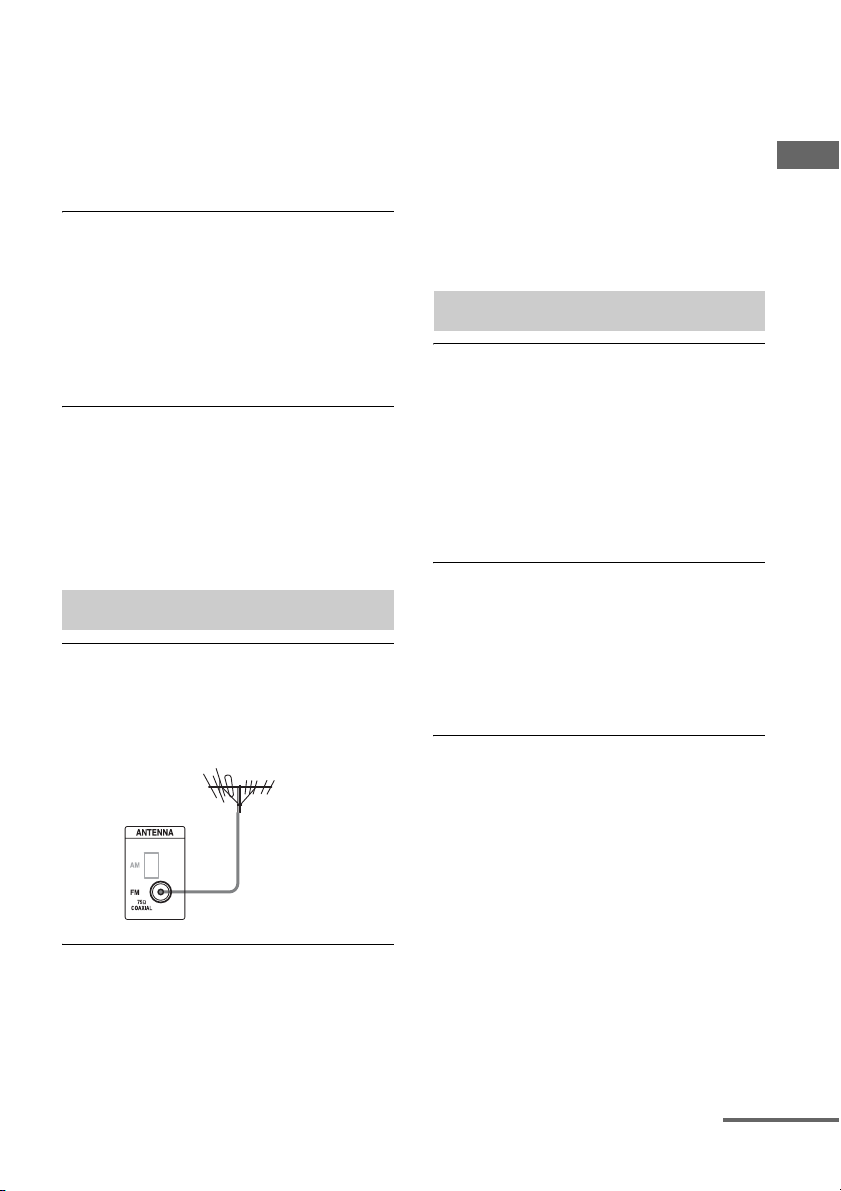
123
US
Additional Information
• Audio input signals via the HDMI IN jacks
cannot be recorded.
• Check the connection of the recording
deck according to the audio signals you
want to record. Analog input signals can
be output only from the analog output
jacks.
A test tone is not output from the
speakers.
• The speaker cords may not be connected
securely. Check to see if they are
connected securely and cannot be
disconnected by pulling on them slightly.
• The speaker cords may have the short-
circuit problem.
A test tone is output from a different
speaker than the speaker displayed on
the screen.
• The speaker configuration set up is
incorrect. Make sure that the speaker
connections and the configuration match
correctly.
The FM reception is poor.
• Use a 75-ohm coaxial cable (not supplied)
to connect the receiver to an outdoor FM
antenna (aerial) as shown below.
Radio stations cannot be tuned in.
• Check that the antennas (aerials) are
connected securely. Adjust the antennas
(aerials) and connect an external antenna
(aerial), if necessary.
• The signal strength of the stations is too
weak with automatic tuning. Use direct
tuning.
• No stations have been preset or the preset
stations have been cleared (when tuning by
scanning preset stations is used). Preset the
stations (page 56).
• Press DISPLAY MODE on the receiver so
that the frequency appears on the display
window.
The USB device is not recognized.
• Turn off the receiver, then disconnect the
USB device. Turn on the receiver again
and reconnect the USB device.
• Connect the supported USB device.
• The USB device does not work properly.
Refer to the USB device operating
instruction on how to deal with this
problem.
Content on the USB device is not
displayed.
• The hierarchy of folders has exceeded 4
levels. The receiver can display content in
only up to 4 levels (including the “ROOT”
folder). However, folders in a 4th level
folder are not displayed.
No sound is output.
• Turn off the receiver, then disconnect the
USB device. Turn on the receiver again
and reconnect the USB device.
• Connect the supported USB device.
•Press N to start playback.
• When “2ch Analog Direct” is being used,
the sound is not output. Use other sound
field (page 58).
• The music data itself contains noise, or the
sound is distorted.
• Depending on the file format, there may be
files that sometimes cannot be played
back. For details, see “Network/USB”
(page 21).
Tuner
Receiver
Outdoor FM antenna (aerial)
USB device
continued
124
US
• USB device formatted with file systems
other than FAT12/16/32, VFAT, or NTFS
are unsupported.*
• If you use partitioned USB device, only
audio files on the first partition can be
played back.
• Playback is possible up to 4 levels
(including the “ROOT” folder).
• The number of files in a folder has
exceeded 500 (including folders).
• Files that are encrypted or protected by
passwords, etc. cannot be played back.
• If you play back music files stored on a
WALKMAN using the receiver, move the
files to the WALKMAN from a computer
by drag & drop, then save them on the
WALKMAN in a format supported by the
receiver (e.g., MP3).
* This receiver supports FAT12/16/32, VFAT, or
NTFS, but some USB device may not support all
of these file systems.
For details, refer to the operating instruction of
each USB device or contact the manufacturer.
The USB device cannot be connected
into the (USB) port.
• The USB device is being connected upside
down. Connect the USB device in the
correct orientation.
Erroneous display.
• The data stored in the USB device may
have been corrupted.
• The character codes that can be displayed
by this receiver are as follows:
– Upper case (A to Z)
– Lower case (a to z)
– Numbers (0 to 9)
– Symbols (’ < > * + , – . / @ [ \ ] _ ‘)
Other characters may not be displayed
correctly.
It takes a long time before playback
starts.
• The reading process can take a long time
in the following cases.
– There are many folders or files on the
USB device.
– The file structure is extremely complex.
– The memory capacity is excessive.
– The internal memory is fragmented.
Thus, we recommend following the
guideline.
– Total files per folder: 500 or less
The iPod/iPhone cannot be charged.
• Check that the receiver is turned on.
• Make sure the iPod/iPhone is connected
firmly.
The iPod/iPhone cannot be operated.
• Check that you have removed the protect
case of the iPod/iPhone.
• Depending on the contents of the iPod/
iPhone, it may take time to start playback.
• Turn off the receiver, then disconnect the
iPod/iPhone. Turn on the receiver again
and reconnect the iPod/iPhone.
• You are using an unsupported iPod/
iPhone. See “Made for iPod/iPhone
models” (page 50) for the supported
device types.
The ringtones volume of the iPhone
does not change.
• Adjust the ringtones volume using the
controls on the iPhone.
Cannot connect to the network.
• Check the network connection (page 41)
and the Network Settings menu
(page 105).
• Check to see if the port you want to use to
connect the system to a network is
activated.
Cannot find the server.
• Search the server using “Connection
Server Settings” in the Network Settings
menu (page 105).
iPod/iPhone
Network
125
US
Additional Information
• Check the following:
– Is the router turned on?
– If there is another device between the
receiver and the router, check that
device is turned on.
– Are all of the cables connected correctly
and securely?
– Is the settings to make sure that they
match the router’s settings (DHCP or
fixed IP address)?
• When using a computer, check the
following:
– The built-in firewall settings for the
computer’s operating system.
– The firewall settings of your security
software. To check the firewall settings
of your security software, refer to your
security software’s Help section.
• Register the receiver with the server. For
details, refer to the instructions supplied
with the server.
• Wait for a few moments, and then try
connecting to the server again.
Cannot find or play back the content on
the server.
• On the “My Music” and “My Photo”
screens, the receiver displays only the
content that can be played back with the
receiver from among the content offered
by the server within the DLNA guidelines.
• There may be content that is not played
back or displayed even if that content is
defined in the DLNA guidelines.
Cannot access the receiver from “ES
Remote” or the DLNA controller.
• Make sure the controller you want to use is
set to “Allow” in “Renderer Access
Control” (page 105).
• If you set “Auto Access Permission” to
“On” in “Renderer Options” (page 105),
any controller detected can be available
automatically.
• Is the network controller listed on
“Renderer Options,” and is it set to
“Allow”?
If the box is not checked, check the box for
“Auto Access Permission,” and return to
the home menu. Then, operate the receiver
using the network controller once, and
then uncheck the box for “Auto Access
Permission,” if necessary.
• If the network controller is a computer
software controller, is the software filtered
by antivirus software or firewall software?
Permit UPnP communications between
the software and the receiver. For details,
refer to the operating instructions of the
antivirus software, firewall software, or
network controller software.
The picture/sound is poor/certain
programs display with a loss of detail,
especially during fast motion or dark
scenes.
• Picture/sound quality may be poor,
depending on Internet content providers.
• Picture/sound quality may be improved by
changing the connection speed.
• Not all content contain sound.
The picture is small.
•Press V to zoom in.
Cannot play back content.
• Some Internet content requires registration
via a computer before it can be played.
Internet content
126
US
“Control for HDMI” cannot be set to
“On.”
• Set “Zone2 Out” in the “HDMI Settings”
to “Off.”
The Control for HDMI function does not
work.
• Check the HDMI connection (page 26, 28,
30, 31).
• Make sure “Control for HDMI” is set to
“On” in the HDMI Settings menu.
• When “Zone2 Out” is set to “On,” the
Control for HDMI function does not work.
• Make sure the connected equipment is
compatible with the Control for HDMI
function.
• Check the Control for HDMI settings on
the connected equipment. Refer to the
operating instructions of the connected
equipment.
• If you change the HDMI connection,
connect/disconnect the AC power cord
(mains lead), or there is a power failure,
repeat the procedures of “Preparing for the
“BRAVIA” Sync” (page 77).
• When you select “HDMI OUT B” or
“OFF,” the Control for HDMI function
does not work properly.
• If you select “HDMI OUT A” after you
have selected “HDMI OUT B” or “OFF,”
the Control for HDMI function may not
work properly for a while. This is because
the equipment connected to the HDMI
OUT A jack must re-recognize the
receiver that is equipped with the Control
for HDMI function. If the Control for
HDMI function does not work properly for
a long time, perform the steps given in
“Preparing for the “BRAVIA” Sync”
(page 77).
• The types and the number of devices
which can be controlled by the “BRAVIA”
Sync feature are restricted in the HDMI
CEC standard as follows.
– Recording equipment (Blu-ray Disc
recorder, DVD recorder, etc.): up to 3
devices
– Playback equipment (Blu-ray Disc
Player, DVD player, etc.): up to 3
devices
– Tuner-related equipment: up to 4
devices (The receiver uses one of them
for its GUI operations.)
– Audio System (AV Receiver): up to 1
devices
When you try to use the One-Touch
Play function, input is not switched as
intended.
• Check to see if “Zone2 Out” is set to “Off.”
• Check the assignment of the HDMI input
(page 82). When you assign multiple
inputs to the same HDMI input jack, if you
use the One-Touch Play function on the
equipment connected to the HDMI input,
the input you have assigned last is
preferentially selected.
The Audio Return Channel (ARC) does
not work.
• Make sure “Control for HDMI” is set to
“On” in the HDMI Settings menu.
• Make sure that the INPUT MODE for
“TV” is set to “AUTO” (page 81).
The remote control does not function.
• Point the remote control at the remote
sensor on the receiver (page 11).
• Remove any obstacles in the path between
the remote control and the receiver.
• Replace all the batteries in the remote
control with new ones, if they are weak.
• When you start operating the receiver,
make sure to press AMP on the remote
control first. Otherwise, operations that
follow may not be aimed at the receiver.
Then select the devices you want to use by
pressing one of the input buttons.
“BRAVIA” Sync (Control for
HDMI)
Remote control
127
US
Additional Information
• Make sure that the command modes of the
receiver and the remote control are the
same. If the command mode of the
receiver and the remote control are
different, you cannot operate the receiver
with the remote control (page 86).
• Make sure you select the correct input on
the remote control.
If the trouble is other than one of the cases
described above and the trouble is not solved
even if you wait for a while, perform either of
the operations below.
•Press ?/1 on the remote control to turn the
receiver off and then on again.
• Hold down ?/1 on the receiver until the
lamp above the button flashes in green to
reboot the receiver.
The Universal Remote Control function
does not work.
• Make sure the connections required are
made.
If the trouble is other than one of the cases
described above and the trouble is not
solved even if you wait for a while,
perform either of the operations below.
•Press ?/1 on the remote control to turn the
receiver off and then on again.
• Hold down ?/1 on the receiver until the
lamp above the button flashes in green to
reboot the receiver.
• If the remote sensor of the receiver and
that of another Sony product face the same
direction, interference may occur. In this
case, set the remote sensors so that they
face different directions or use an IR shield
on the other Sony product to shield the IR
from interference from the receiver IR
remote.
• Make sure the receiver is connected to the
Internet.
• Press ROOM OFF on the remote control to
turn off the receiver and the AV
equipment.
The lighting device cannot be
identified.
• Try pressing the button on the top of the
lighting device 4 times. Then repeat this
procedure more than once.
• If the LED continues blinking weakly,
press and hold the button on the lighting
device for 5 seconds then tap four times on
the button on the wizard.
• To reset the lighting device, press the
button on the top of the lighting device 13
times. the LED will turn to red and then
back to green or emit an orange-yellow
strobe.
The lighting device cannot be
operated.
• The device may be updating its software.
Wait for about half an hour until the update
is completed.
• It may be off-line. Wait for half an hour
until the device returns online.
• Reset the lighting device and delete the
identified device on the receiver. Reboot
the receiver and then set up the Lighting
Control function again. Also perform the
procedures necessary to reset the lighting
device described above.
The Lighting Control function doesn’t
work.
• The Lighting Control Adapter may have
been unplugged while the power was on
and the system data may be corrupted.
Reset the lighting device and delete the
identified devices on the receiver. Then
reboot the receiver and set up the Lighting
Control function again.
• Hold down ?/1 on the receiver until the
lamp above ?/1 flashes in green to reboot
the receiver.
Universal Remote Control
Lighting Control
128
US
You can check the status of the receiver by the
message. See the following to solve the
problem. If any problem persists, consult your
nearest Sony dealer.
PROTECTOR
The receiver is covered and ventilation holes
are blocked. The receiver will automatically
turn off after a few seconds. Remove the
object covering the upper panel of the
receiver and turn on the power again.
FAN STOPPED
Check that the ventilation hole on the top of
the receiver is not blocked.
“A new software version is available.
Please go to the “Setup” section of the
menu and select “Network Update” to
perform the update.” appears on the TV
screen.
See “Network Update” (page 109) to update
the receiver to a newer software version.
Video cannot be output from this jack.
• If you use the receiver in the main zone,
connect the receiver to a TV via an HDMI
cable.
• If you connect the receiver to a TV via a
video cord, set “Playback Resolution” to
“480i/576i” (page 101).
• If you connect the receiver to a TV via a
component video cord, set “Playback
Resolution” to a parameter appropriate to
your TV (page 101).
Error messages
129
US
Additional Information
Message list after Auto Calibration measurement
Display Explanation
Code 30 Headphones are connected. Remove the headphones and perform auto calibration again.
Code 31 SPEAKERS (OFF/A/B/A+B) is set to OFF. Set to other speaker settings and reperform the
measurement.
Code 32 None of the speakers were detected. Make sure that the plug of the optimizer microphone is
inserted all the way inside the AUTO CAL MIC jack, then reperform the Auto Calibration
function.
Code 33 • None of the front speakers are connected or only one front speaker is connected.
• The optimizer microphone is not connected. Make sure that the plug of the optimizer
microphone is inserted all the way inside the AUTO CAL MIC jack, then reperform the
Auto Calibration function.
• Either the left or right surround speaker is not connected.
• Surround back speakers are connected even though surround speakers are not meant to be
connected. Connect the surround speaker(s) to the SURROUND terminals.
• The surround back speaker is connected only to the SURROUND BACK/FRONT HIGH/
FRONT B/ZONE 2 R terminals. When you connect only one surround back speaker,
connect it to the SURROUND BACK/FRONT HIGH/FRONT B/ZONE 2 L terminals.
• Only one front high speaker is connected. Connect the front high speaker to each of the
SURROUND BACK/FRONT HIGH/FRONT B/ZONE 2 terminals.
• Front high speakers are connected even though surround speakers are not connected.
Connect the surround speaker(s) to the SURROUND terminals.
Warning 40 The measurement process has completed with high noise level detection. You may be able to
achieve better results if you try in a quite environment again.
Warning 41
Warning 42
The input from the microphone is too big.
• It may be too close the distance between the speaker and the microphone.
Retry the measurement after setting apart from each other.
• When you use the receiver as a pre-amplifier, either messages may appear, depending on
the power amplifier you connect. However, there will be no problems, even if you continue
to use the receiver without changes.
Warning 43 The distance and position of a subwoofer cannot be detected. Or the angle of the speaker
position cannot be detected. This may be caused by noise. Try to perform the measurement
in a quiet environment.
NO WARNING There is no warning information.
130
US
Reference sections
If the buttons on the receiver or the remote
control do not work due to a malfunction of the
receiver, reboot the receiver.
Hold down ?/1 for 10 seconds.
When the lamp above ?/1 flashes in green, the
reboot starts.
Refer to the following web site for details of
the latest information on the receiver.
http://www.sony.com/essupport
Specifications
AUDIO POWER
SPECIFICATIONS
POWER OUTPUT AND TOTAL
HARMONIC DISTORTION:
With 8 ohm loads, both channels driven, from
20 – 20,000 Hz; rated 100 watts per channel
minimum RMS power, with no more than
0.09% total harmonic distortion from 250
milliwatts to rated output.
Amplifier section
POWER OUTPUT
1) 2)
Rated Power Output at Stereo Mode
(8 ohms 20 Hz – 20 kHz,
THD 0.09%):
100 W + 100 W
Reference Power Output
(8 ohms 1 kHz, THD 0.7%)
FRONT:
110 W + 110 W
CENTER: 110 W
SURROUND:
110 W + 110 W
SURROUND BACK:
110 W + 110 W
1)
Measured under the following conditions:
Power requirements: 120 V AC, 60 Hz
2)
Depending on the sound field settings and the
source, there may be no sound output.
Frequency response
3)
Inputs (Analog)
3)
When “2ch Analog Direct” is being used.
Clearing the memory
To clear See
All memorized settings page 88
Rebooting the receiver
About support information
SA-CD/CD, TV,
VIDEO 1/2, SAT/CATV
10 Hz – 100 kHz
± 3 dB
SA-CD/CD, TV,
VIDEO 1/2, SAT/CATV
Sensitivity: 150 mV
Impedance: 50 kohms
S/N
3)
: 105 dB (A,
20 kHz LPF. 500 mV)
131
US
Additional Information
Inputs (Digital)
Outputs
FM tuner section
Tuning range 87.5 MHz – 108.0 MHz
Antenna (aerial) FM wire antenna (aerial)
Antenna (aerial) terminals
75 ohms, unbalanced
AM tuner section
Antenna (aerial) Loop antenna (aerial)
Video section
Inputs/Outputs
Video: 1 Vp-p, 75 ohms
COMPONENT VIDEO:
Y: 1 Vp-p, 75 ohms
P
B
: 0.7 Vp-p, 75 ohms
P
R
: 0.7 Vp-p, 75 ohms
80 MHz HD Pass Through
IN 1 (DVD) (Coaxial) Impedance: 75 ohms
S/N: 96 dB (A, 20 kHz
LPF)
IN 1 (SAT/CATV), IN 2
(TV) (Optical)
S/N: 96 dB
(A, 20 kHz LPF)
VIDEO 1, ZONE 2,
(AUDIO OUT)
Voltage:150 mV
Impedance: 1 kohm
SUBWOOFER Voltage: 2 V
Impedance: 1 kohm
Tuning scale Tuning range
10 kHz step 530 kHz – 1,710 kHz
9 kHz step 531 kHz – 1,710 kHz
continued
132
US
HDMI Video
Input/Output (HDMI Repeater block)
Format 2D
3D
Frame packing Side-by-Side
(Half)
Over-Under
(Top-and-Bottom)
4096 × 2160p @ 23.98/24 Hz a –– –
3840 × 2160p @ 29.97/30 Hz a –– –
3840 × 2160p @ 25 Hz a –– –
3840 × 2160p @ 23.98/24 Hz a –– –
1920 × 1080p @ 59.94/60 Hz a – aa
1920 × 1080p @ 50 Hz a – aa
1920 × 1080p @ 29.97/30 Hz aa a a
1920 × 1080p @ 25 Hz aa a a
1920 × 1080p @ 23.98/24 Hz aa a a
1920 × 1080i @ 59.94/60 Hz aa a a
1920 × 1080i @ 50 Hz aa a a
1280 × 720p @ 59.94/60 Hz aa a a
1280 × 720p @ 50 Hz aa a a
1280 × 720p @ 29.97/30 Hz aa a a
1280 × 720p @ 23.98/24 Hz aa a a
720 × 480p @ 59.94/60 Hz a –– –
720 × 576p @ 50 Hz a –– –
640 × 480p @ 59.94/60 Hz a –– –

133
US
Additional Information
General
Power requirements 120 V AC, 60 Hz
Power consumption
290 W
Power consumption (during standby mode)
0.5 W (When “Control for
HDMI” (page 103), “Pass
Through” (page 103),
“Network Standby”
(page 105), and “RS232C
Control” (page 109) are set
to “Off,” and the power for
zone 2 is turned off.)
Dimensions 430 mm × 162 mm ×
383 mm
(17in × 6in × 15
1
/
8
in)
(width/height/depth)
including projecting parts
and controls
Mass (Approx.) 12.4 kg (27 lb 6 oz)
Supplied accessories
Operating Instructions (this manual)
Quick Setup Guide (1)
Optimizer microphone ECM-AC2 (1)
FM wire antenna (aerial) (1)
AM loop antenna (aerial) (1)
AC power cord (mains lead) (1)
Remote control (1)
R6 (size-AA) batteries (2)
Lighting Control Adapter (USB Wireless
Adapter UWA-C4Z) (1)
IR blaster (4)
Design and specifications are subject to
change without notice.

134
US
Index
Numerics
12V Trigger 107
2 channel 58
2ch Analog Direct
58
2ch Stereo (mode) 58
3D Output Settings 102
5.1 channel
22
7.1 channel 22
A
A.F.D. (mode) 59
A/V Sync 98
AC power cord (mains lead) 42
AM
54
Antenna (aerial) 38
Audio Input Assign 82, 104
Audio Out
102
Audio Return Channel (ARC) 79, 81
Audio Settings 96
Auto Calibration
92
Auto Calibration Setup 92
Auto Standby 108
Auto Tuning
55
Automatic Phase Matching 93
AV Equipment Control 106
B
Bass 63
Berlin Philharmonic Hall
61
Bi-amplifier connection 87
Blu-ray Disc Player 28
C
Cable box 31
Calibration Type 93
Camcorder
33
CD player 35
Center Speaker Lift Up 94
Changing the display
116
Clear
receiver 88
Concertgebouw Amsterdam
61
Connection Server Settings 105
Connections
antenna (aerial) 38
audio equipment 35
monitor
26
Network 41
speakers 24
video equipment
28
Control for HDMI 103
Crossover Frequency 95
D
D.C.A.C. (Digital Cinema Auto Calibration)
92
Decode Priority
98
Digital Legato Linear (D.L.L.) 96
Direct Tuning 55
Display
12, 111
Distance Unit 96
DLNA 51
Dual Mono
97
DVD player 28
Dynamic Range Compressor 97
E
Easy Automation 67
Easy Setup
43, 92
Effect type 60
Equalizer 63, 97
ES Remote
85
External Control 105
F
Fast View 103
Favorites 47
FM 54
FM Mode
55
G
GUI (Graphical User Interface) 26, 46
H
HD-D.C.S. 59
HD-D.C.S. (Effect type) 60
135
US
Additional Information
HDMI Settings 102
Home Control Settings 106
Home Theater Control 79
I
Initialize Personal Information 109
Input Edit 104
INPUT MODE
81
Input Settings 104
Internet content 53
Internet Settings
105
iPod/iPhone 50
J
Jazz Club 61
L
Language 108
Large
94
LFE (Low Frequency Effect) 13
Lighting Control 69, 106
Lighting Scenes
69, 106
Line Out 74, 107
Listen 48
Live Concert
61
M
MASTER VOLUME 11, 48
Menu 47, 89
Messages
Auto Calibration
129
Error 128
Movie 59
Multi Zone
71
Music 61
Musikverein Vienna 61
Muting
48
N
Name In 93
Name Input
56
Neo:6 (Cinema) 59
Neo:6 (Music) 61
Network Settings
105
Network Standby 105
Network Update 109
O
One-Touch Play 78
P
Pass Through 80, 103
Phase Audio 95
Phase Noise 95
PHONES
11
Playback Resolution 101
PlayStation 3 30
PLII (Movie)
59
PLII (Music) 61
PLIIx (Movie) 59
PLIIx (Music)
61
PLIIz Height 59, 61, 62
Portable Audio 61
Position
92
Preset stations 56
Priority 103
PROTECTOR
128
R
Recording 86
Registration
106
Remote control 16–17, 43, 64–66
Renderer Access Control
105
Renderer Options 105
Resetting
receiver
88
Resolution 99
ROOM OFF 66
RS232C Control
109
S
Satellite tuner 31
Scene Select
79
Screen Format 102
Server
Preparing
46
Setting menu 89
Settings 89
Settings Lock
108
Sleep timer 85
Small 94
Software License
109
Software Update Notification 109
Sound Effects 58
continued

136
US
Sound Field 58, 98
Sound Optimizer 62, 96
Speaker Connection 93
Speaker pattern
93
Speaker Settings 92
Speaker Setup 94
SPEAKERS (OFF/A/B/A+B)
11, 44
Sports 61
Stadium 61
Subwoofer Level
102
Subwoofer Low Pass Filter 97
Subwoofer Muting 97
Super Audio CD player
35
Surround Back Assign 93
System Audio Control 78
System Information
109
System Power-Off 78
System Settings 108
T
Test Tone 95
TONE MODE 11, 88
Treble
63
Tuning 55, 56
TV Control 106
TV Type
102
U
Up converting 19
USB 49
V
VCR 32
VIDEO 2 IN jacks 33
Video Input Assign 82, 104
Video Settings
99
W
WA L K M A N 49
Watch
48
Z
Zone Control 107
Zone Settings
107
Zone Setup 107
Zone2 Out 103

137
US
Additional Information

138
US