담 당 관리자
Model Description
MODEL
BRAND
Printing Specification
1. Trim Size (Format) : 185mm x 260 mm
2. Printing Colors
• Cover : 1 COLOR (BLACK)
• Inside : 1 COLOR (BLACK)
3. Stock (Paper)
• Cover : Coated paper , S/White 150 g/㎡
• Inside : Uncoated paper , 백상지 60 g/㎡
4. Printing Method : Off set
5. Bindery : Saddle stitch
6. Language : English (1)
7. Number of pages : 40
Part No.
1.
2.
User’s Guide Specification
User’s Guide Specification
Changes
4.
REV.
NO.
MM/DD/YY
SIGNATURE
CHANGE NO.
CHANGE CONTENTS
1
2
3
4
5
7
6
SUFFIX
LG/30/50/60/70-UA
PG60/60F-UA
LG
MFL34797048
(0809-REV08)
KANG
KWANG SUK
07.11.22
8
9
Special Instructions3.
Product Name
USA
Park SY
07.11.22
LG30/50/60/70
PG25/60
“This part contain Eco-hazardous substances (Pb, Cd, Hg, Cr6+, PBB, PBDE, etc.) within LG standard level,
Details should be followed Eco-SCM management standard[LG(56)-A-2524].
Especially, Part should be followed and controlled the following specification.
(1)Eco-hazardous substances test report should be submitted
when Part certification test and First Mass Production.
(2) Especially, Don’t use or contain lead(Pb) and cadmium(Cd) in ink.
N
O
T
E
S
(1) Origin Notification
* LGEMX : Printed in Mexico
* LGERS : Printed in Mexico
* LGEAZ : Printed in Brazil
* LGESP : Printed in Brazil
* LGESY : Printed in China
* LGENT : Printed in China
* LGENP : Printed in China
* LGEIL : Printed in India
* LGEDI : Printed in Indonesia
* LGEIN : Printed in Indonesia
* LGETH : Printed in Thailand
* LGEVN : Printed in Vietnam
* LGEMA : Printed in Poland
* LGEWA : Printed in U.K.
* LGEEG : Printed in Egypt
* LGERA : Printed in Russia
* LGEAK : Printed in Kazakhstan
Jan./21/07 Park sun young S8-06718
Applied PQ test results for LG30/50-UA.
Feb./13/07 Park sun young
S8-09351
Deleted RF cable.
Mar./12/08 Park sun young S8-11223
Applied LG60/70, 60/60F PQ test results.
Mar./18/08 Park sun young S8-14016
Changed GNU License contents for LG30-UD,LG50-UG.
Apr./18/08 Park sun young S8-16712 Added the screw for 42LG30/50.
May./16/08 Park sun young S8-20239
Applied PQ test results of 47LG90.
July/23/08 Park sun young S8-26219 Added 47LG61 model, Ferrite core, ISFccc logo.
Sep./08/08 Park sun young S8-29785
Added the screw (1EA) to meet vertical force stability for
37LG30/50.
Pagination sheet
Pagination sheet
P/NO.MFL34797048
Total pages : 40 pages
2….
Front cover
…. ….
LG(EN)
…
39
P/NO.
Rear cover
Child
Safety
Please read this manual carefully before operating
your set.
Retain it for future reference.
Record model number and serial number of the set.
See the label attached on the back cover and quote
this information to your dealer
when you require service.
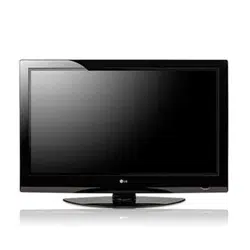
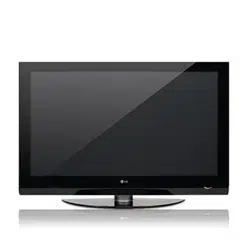
LCD TV PLASMA TV
OWNER’S MANUAL
LCD TV MODELS
32LG30 37LG50
37LG30 42LG50
42LG30 47LG50
42LGX 52LG50
47 LGX
32LG60 32LG70
37LG60 42LG70
42LG60 47LG70
47LG60 52LG70
52LG60
47LG90
PLASMA TV MODELS
42PG25
50PG25
50PG60
60PG60
50PG70
60PG70
P/NO : MFL34797048 (0809-REV08)
Printed in Korea
www.lgusa.com
As an ENERGY STAR Partner
LG Electronics USA, Inc.
has determined that this
product meets the ENERGY
STAR guidelines for energy
efficiency.
ENERGY STAR is a set of power-saving
guidelines issued by the U.S.
Environmental Protection Agency (EPA).
An extended owner’s manual that contains information
on the advanced features of these LG TV sets is located
on the CD-ROM provided in an electronic version.
To read these files, you will need to use personal computer
(PC) equipped with a CD-ROM drive.
MFL34797048-en-8-ING 9/8/2008 3:53 PM Page 1
2
WARNING / CAUTION
WARNING / CAUTION
To prevent fire or shock hazards, do not expose
this product to rain or moisture.
FCC NOTICE
Class B digital device
This equipment has been tested and found to com-
ply with the limits for a Class B digital device, pur-
suant to Part 15 of the FCC Rules. These limits are
designed to provide reasonable protection against
harmful interference in a residential installation. This
equipment generates, uses and can radiate radio fre-
quency energy and, if not installed and used in
accordance with the instructions, may cause harmful
interference to radio communications. However,
there is no guarantee that interference will not
occur in a particular installation. If this equipment
does cause harmful interference to radio or televi-
sion reception, which can be determined by turning
the equipment off and on, the user is encouraged to
try to correct the interference by one or more of
the following measures:
- Reorient or relocate the receiving antenna.
- Increase the separation between the equipment
and receiver.
- Connect the equipment to an outlet on a circuit
different from that to which the receiver is con-
nected.
- Consult the dealer or an experienced radio/TV
technician for help.
Any changes or modifications not expressly
approved by the party responsible for compliance
could void the user’s authority to operate the
equipment.
CAUTION
Do not attempt to modify this product in any way
without written authorization from LG Electronics.
Unauthorized modification could void the user’s
authority to operate this product
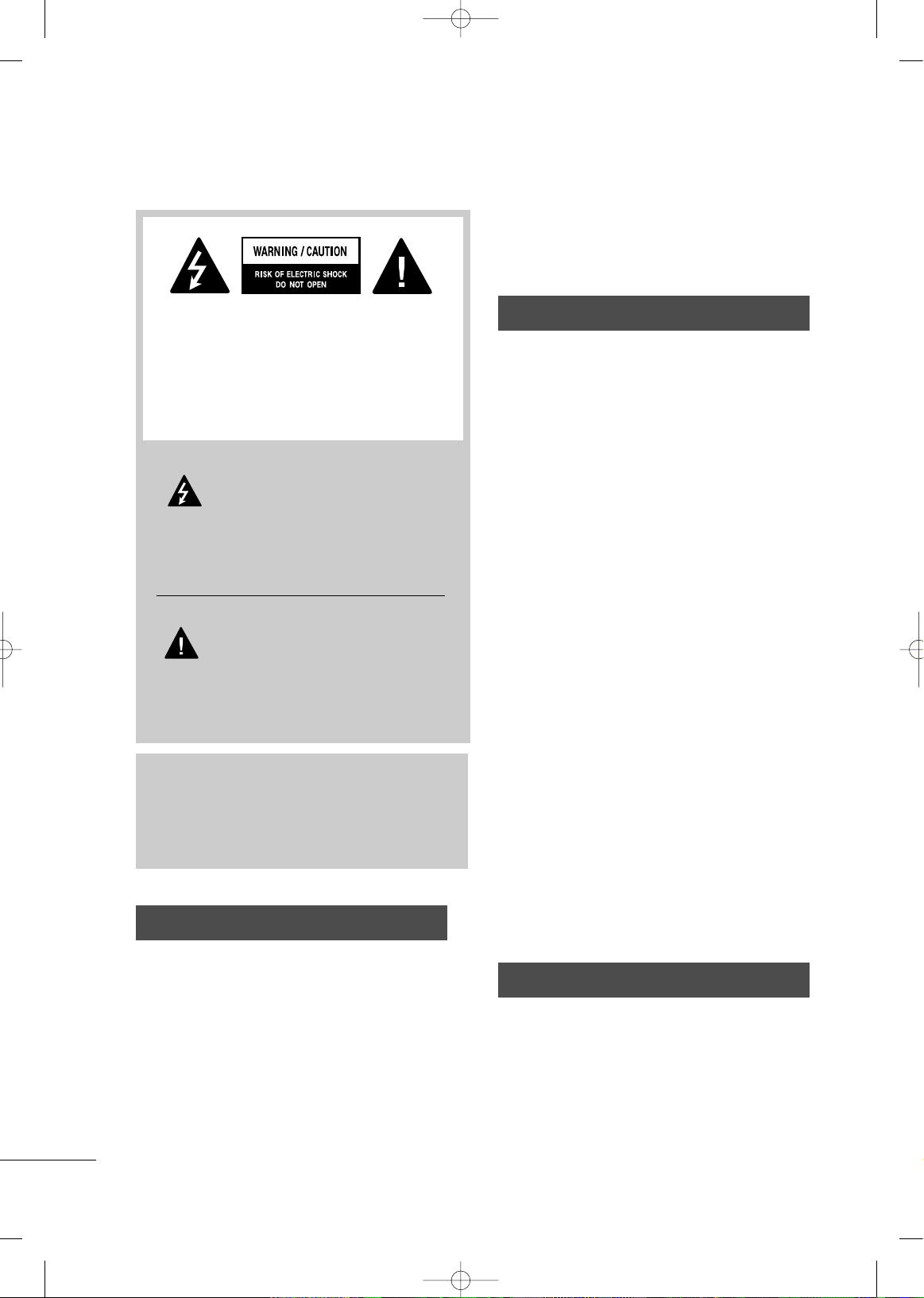
The lightning flash with arrowhead
symbol, within an equilateral triangle,
is intended to alert the user to the
presence of uninsulated “dangerous voltage”
within the product’s enclosure that may be of
sufficient magnitude to constitute a risk of electric
shock to persons.
The exclamation point within an equilateral
triangle is intended to alert the user to
the presence of important operating and main-
tenance (servicing) instructions in the literature
accompanying the appliance.
TO REDUCE THE RISK OF ELECTRIC SHOCK
DO NOT REMOVE COVER (OR BACK). NO
USER SERVICEABLE PARTS INSIDE. REFER TO
QUALIFIED SERVICE PERSONNEL.
WARNING/CAUTION
TO REDUCE THE RISK OF FIRE AND ELECTRIC
SHOCK, DO NOT EXPOSE THIS PRODUCT TO
RAIN OR MOISTURE.
NOTE TO CABLE/TV INSTALLER
This reminder is provided to call the CATV system
installer’s attention to Article 820-40 of the National
Electric Code (U.S.A.). The code provides guidelines for
proper grounding and, in particular, specifies that the
cable ground shall be connected to the grounding sys-
tem of the building, as close to the point of the cable
entry as practical.
MFL34797048-en-8-ING 9/8/2008 3:53 PM Page 2
3
IMPORTANT SAFETY INSTRUCTIONS
SAFETY INSTRUCTIONS
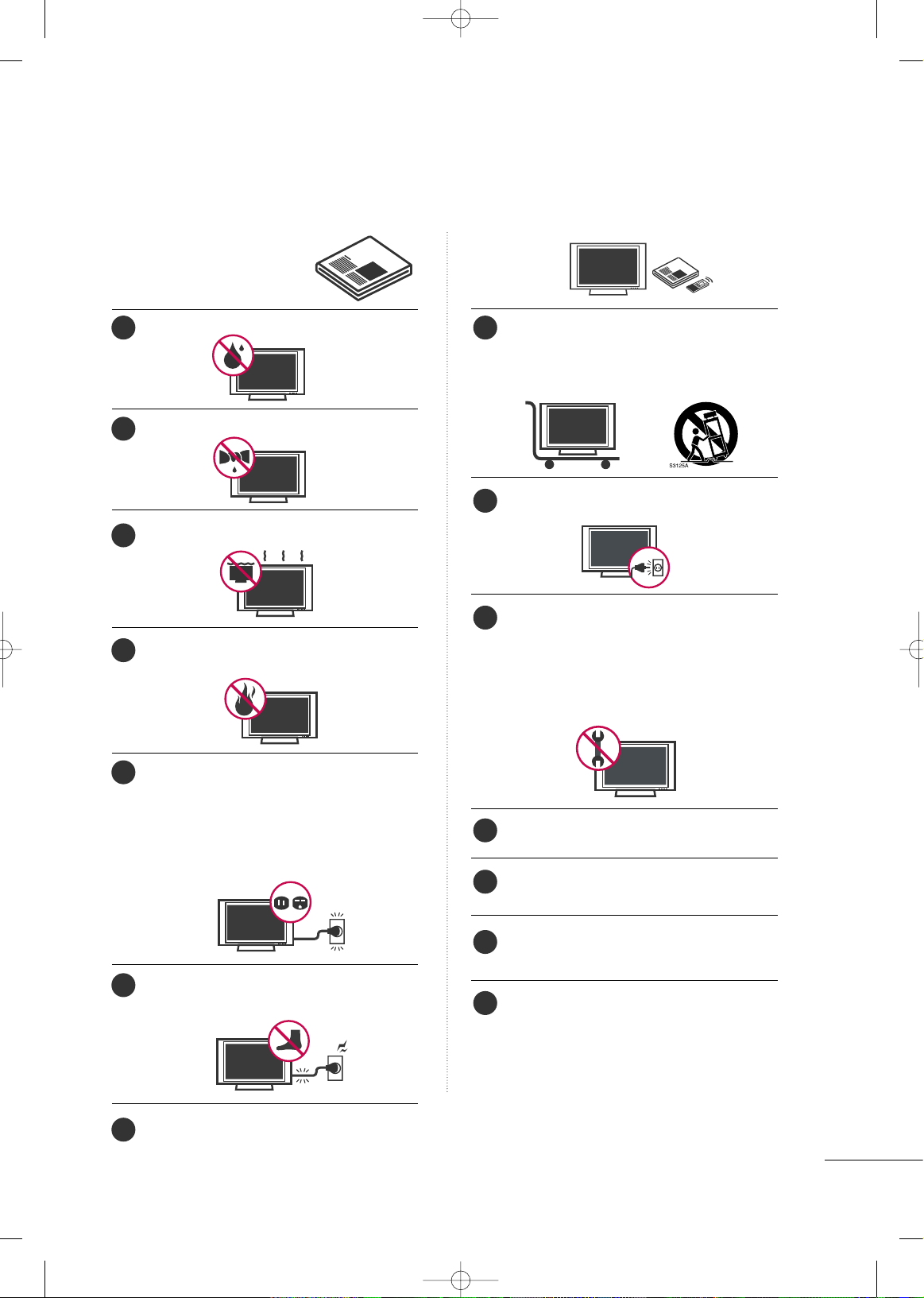
Read these instructions.
Keep these instructions.
Heed all warnings.
Follow all instructions.
Do not use this apparatus near water.
Clean only with dry cloth.
Do not block any ventilation openings. Install in
accordance with the manufacturer’s instructions.
Do not install near any heat sources such as
radiators, heat registers, stoves, or other apparatus
(including amplifiers)that produce heat.
Do not defeat the safety purpose of the polarized
or grounding-type plug. A polarized plug has
two blades with one wider than the other. A
grounding type plug has two blades and a
third grounding prong, The wide blade or the
third prong are provided for your safety. If the
provided plug does not fit into your outlet,
consult an electrician for replacement of the
obsolete outlet.
Protect the power cord from being walked on
or pinched particularly at plugs, convenience
receptacles, and the point where they exit from
the apparatus.
Only use attachments/accessories specified by
the manufacturer.
Use only with the cart, stand, tripod, bracket,
or table specified by the manufacturer, or sold
with the apparatus. When a cart is used, use
caution when moving the cart/apparatus com-
bination to avoid injury from tip-over.
Unplug this apparatus during lighting storms
or when unused for long periods of time.
Refer all servicing to qualified service personnel.
Servicing is required when the apparatus has
been damaged in any way, such as power-
supply cord or plug is damaged, liquid has
been spilled or objects have fallen into the
apparatus, the apparatus has been exposed to
rain or moisture, does not operate normally, or
has been dropped.
Never touch this apparatus or antenna during
a thunder or lighting storm.
When mounting a TV on the wall, make sure
not to install the TV by the hanging power and
signal cables on the back of the TV.
Do not allow an impact shock or any objects to
fall into the product, and do not drop onto the
screen with something.
CAUTION concerning the Power Cord:
It is recommend that appliances be placed
upon a dedicated circuit; that is, a single
outlet circuit which powers only that appliance
and has no additional outlets or branch
circuits. Check the specification page of this
owner's manual to be certain.
Do not connect too many appliances to the
same AC power outlet as this could result in
fire or electric shock.
1
8
9
10
11
12
13
14
2
3
4
5
6
7
MFL34797048-en-8-ING 9/8/2008 3:53 PM Page 3
4
SAFETY INSTRUCTIONS
Do not overload wall outlets. Overloaded wall
outlets, loose or damaged wall outlets, extension
cords, frayed power cords, or damaged or
cracked wire insulation are dangerous. Any of
these conditions could result in electric shock
or fire. Periodically examine the cord of your
appliance, and if its appearance indicates damage
or deterioration, unplug it, discontinue use of
the appliance, and have the cord replaced with
an exact replacement part by an authorized
servicer. Protect the power cord from physical
or mechanical abuse, such as being twisted,
kinked, pinched, closed in a door, or walked
upon. Pay particular attention to plugs, wall
outlets, and the point where the cord exits the
appliance.
Do not make the TV with the power cord
plugged in. Do not use a damaged or loose
power cord. Be sure do grasp the plug when
unplugging the power cord. Do not pull on the
power cord to unplug the TV.
WARNING - To reduce the risk of fire or elec-
trical shock, do not expose this product to rain,
moisture or other liquids. Do not touch the TV
with wet hands. Do not install this product near
flammable objects such as gasoline or candles
or expose the TV to direct air conditioning.
Do not expose to dripping or splashing and do
not place objects filled with liquids, such as
vases, cups, etc. on or over the apparatus (e.g.
on shelves above the unit).
GGRROOUUNNDDIINNGG
Ensure that you connect the earth ground wire
to prevent possible electric shock (i.e. a TV
with a three-prong grounded AC plug must be
connected to a three-prong grounded AC out-
let). If grounding methods are not possible,
have a qualified electrician install a separate
circuit breaker.
Do not try to ground the unit by connecting it
to telephone wires, lightening rods, or gas pipes.
DDIISSCCOONNNNEECCTTIINNGG DDEEVVIICCEE FFRROOMM MMAAIINNSS
Mains plug is the disconnecting device. The
plug must remain readily operable.
Keep the product away from direct sunlight.
AANNTTEENNNNAASS
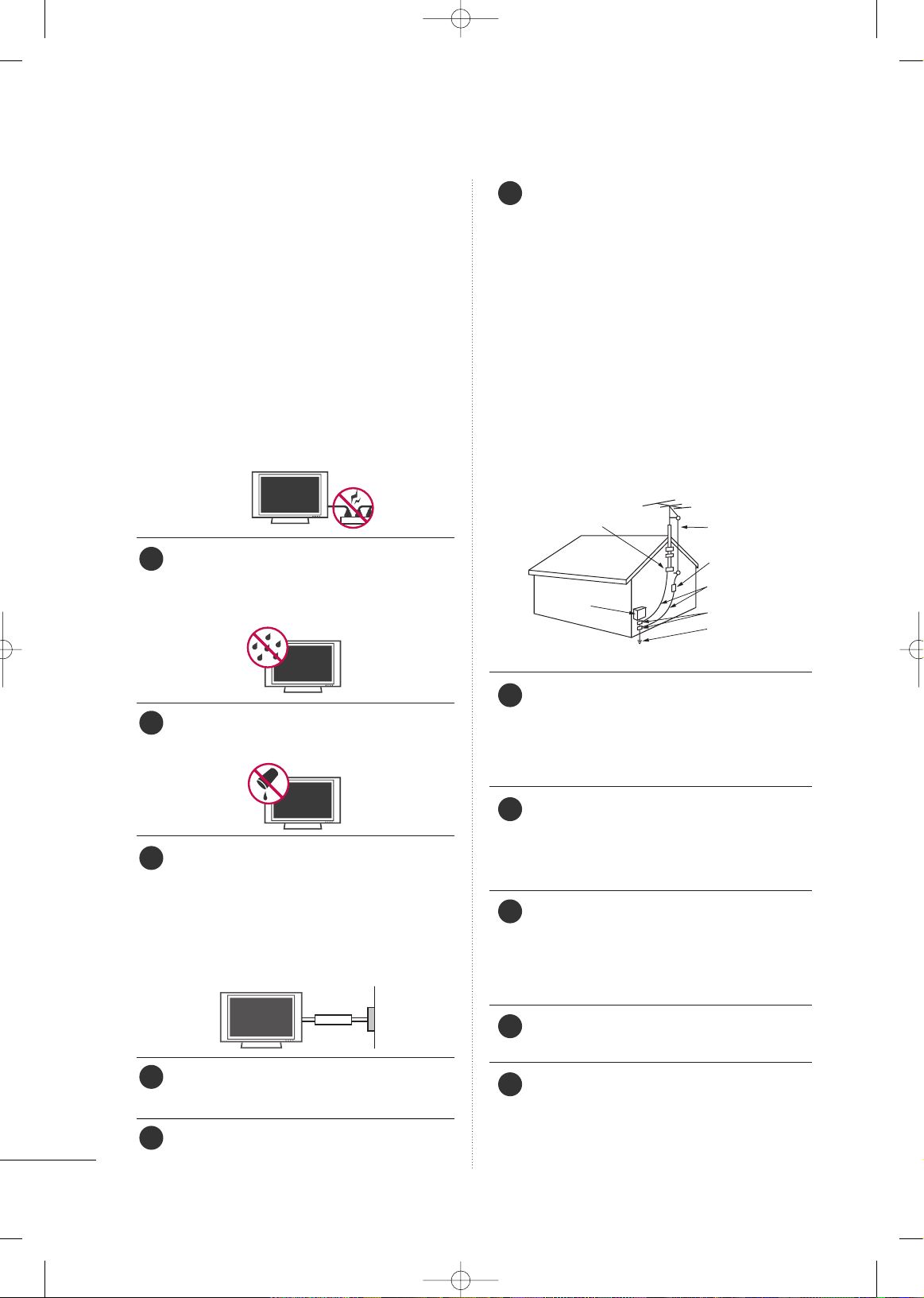
OOuuttddoooorr aanntteennnnaa ggrroouunnddiinngg
If an outdoor antenna is installed, follow the
precautions below. An outdoor antenna system
should not be located in the vicinity of over-
head power lines or other electric light or
power circuits, or where it can come in contact
with such power lines or circuits as death or
serious injury can occur.
Be sure the antenna system is grounded so as
to provide some protection against voltage
surges and built-up static charges.
Section 810 of the National Electrical Code
(NEC) in the U.S.A. provides information with
respect to proper grounding of the mast and
supporting structure, grounding of the lead-in
wire to an antenna discharge unit, size of
grounding conductors, location of antenna dis-
charge unit, connection to grounding electrodes
and requirements for the grounding electrode.
AAnntteennnnaa ggrroouunnddiinngg aaccccoorrddiinngg ttoo tthhee
NNaattiioonnaall EElleeccttrriiccaall CCooddee,, AANNSSII//NNFFPPAA 7700
CClleeaanniinngg
When cleaning, unplug the power cord and
scrub gently with a soft cloth to prevent
scratching. Do not spray water or other liquids
directly on the TV as electric shock may occur.
Do not clean with chemicals such as alcohol,
thinners or benzene.
MMoovviinngg
Make sure the product is turned off,
unplugged and all cables have been removed. It
may take 2 or more people to carry larger TVs.
Do not press against or put stress on the front
panel of the TV.
VVeennttiillaattiioonn
Install your TV where there is proper ventila-
tion. Do not install in a confined space such as
a bookcase. Do not cover the product with
cloth or other materials (e.g.) plastic while
plugged in. Do not install in excessively dusty
places.
If you smell smoke or other odors coming from
the TV or hear strange sounds, unplug the
power cord contact an authorized service center.
Do not press strongly upon the panel with
hand or sharp object such as nail, pencil or
pen, or make a scratch on it.
Power
Supply
Short-circuit
Breaker
Antenna Lead in Wire
Antenna Discharge Unit
(NEC Section 810-20)
Grounding Conductor
(NEC Section 810-21)
Ground Clamps
Power Service Grounding
Electrode System (NEC
Art 250, Part H)
Ground Clamp
Electric Service
Equipment
NEC: National Electrical Code
15
20
21
22
23
24
25
16
17
18
19
MFL34797048-en-8-ING 9/8/2008 3:53 PM Page 4
5
CONTENTS
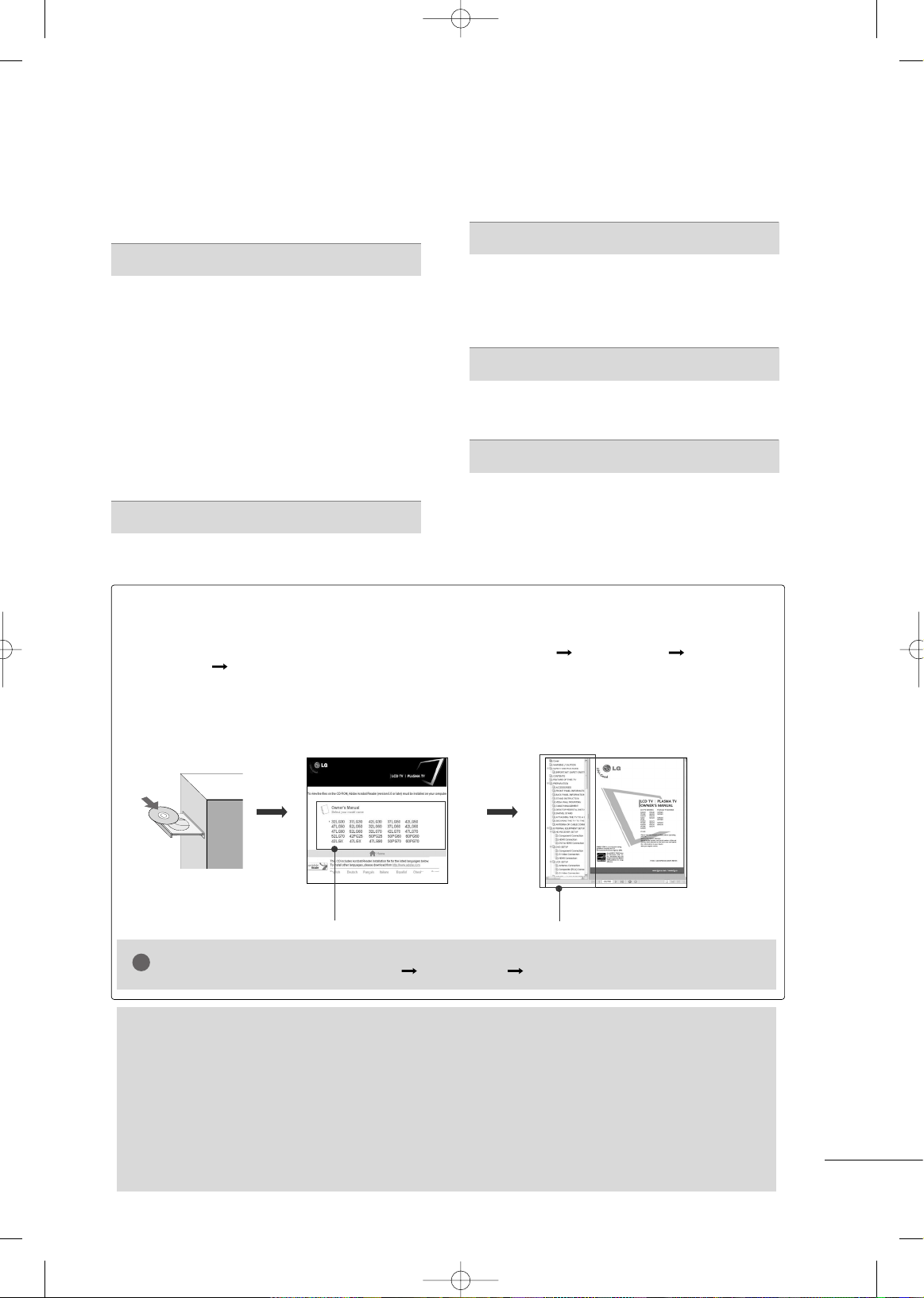
HOW TO USE THE OWNER'S MANUAL ON THE CD-ROM
To view the Owner's Manual on the CD-ROM, Adobe Acrobat Reader must be installed on your PC.
The “ACRORD" folder on the CD-ROM contains the installation programs for them.
If you want to install those programs, Open the “My Computer” Open the “LG” Open the
“ACRORD” double-click your language.
TO VIEW THE OWNER'S MANUAL ON THE CD-ROM
The Owner's Manual files are included in the supplied CD-ROM.
Load the supplied CD-ROM into the CD-ROM drive of your PC.
After a while, the web page of the CD-ROM will open automatically. (for Window only)
GG
If the web page does not appear automatically, open the Owner's Manual file directly.
Open the “My computer” Open the “LG” Open the “index.htm” file.
NOTE
!
FOR LCD TV
■
If the TV feels cold to the touch, there may be a small “flicker” when it is turned on. This is normal, there
is nothing wrong with TV.
■
Some minute dot defects may be visible on the screen, appearing as tiny red, green, or blue spots. However, they
have no adverse effect on the monitor's performance.
■
Avoid touching the LCD screen or holding your finger(s) against it for long periods of time. Doing so may
produce some temporary distortion effects on the screen.
On Disposal (Only Hg lamp used LCD TV)
The fluorescent lamp used in this product contains a small amount of mercury. Do not dispose of this
product with general household waste. Disposal of this product must be carried out in accordance to the
regulations of your local authority.
When you select your product,
display the PDF file.
You can find the desired contents
easily using the bookmark.
WARNING / CAUTION
. . . . . . . . . . . . . . . . . . . . . . . . . . . . 2
SAFETY INSTRUCTIONS
. . . . . . . . . . . . . . . . . . . . . . . . . . 3
PREPARATION
Accessories . . . . . . . . . . . . . . . . . . . . . . . . . . . . . . . . . . . . . . . . . . . . . . . . . . . . . . 6
Front Panel Information
. . . . . . . . . . . . . . . . . . . . . . . . . . . . . . . . . . . . . .7
Back Panel Information
. . . . . . . . . . . . . . . . . . . . . . . . . . . . . . . . . . . . . . 8
Remote Control Functions
. . . . . . . . . . . . . . . . . . . . . . . . . . . . . . . 10
Stand Instruction
. . . . . . . . . . . . . . . . . . . . . . . . . . . . . . . . . . . . . . . . . . . . . 11
VESA Wall Mounting
. . . . . . . . . . . . . . . . . . . . . . . . . . . . . . . . . . . . . . . . 15
Cable Management
. . . . . . . . . . . . . . . . . . . . . . . . . . . . . . . . . . . . . . . . . 16
Desktop Pedestal Installation
. . . . . . . . . . . . . . . . . . . . . . . . . . . . 18
Swivel Stand
. . . . . . . . . . . . . . . . . . . . . . . . . . . . . . . . . . . . . . . . . . . . . . . . . . . . 18
Attaching the TV to a Desk
. . . . . . . . . . . . . . . . . . . . . . . . . . . . . . 18
Securing the TV to the wall to prevent falling when
the tv is used on a stand
. . . . . . . . . . . . . . . . . . . . . . . . . . . . . . . . 19
Antenna or Cable Connection
. . . . . . . . . . . . . . . . . . . . . . . . . . 20
EXTERNAL EQUIPMENT SETUP
HD Receiver Setup . . . . . . . . . . . . . . . . . . . . . . . . . . . . . . . . . . . . . . . . . 21
DVD Setup
. . . . . . . . . . . . . . . . . . . . . . . . . . . . . . . . . . . . . . . . . . . . . . . . . . . . . 22
VCR Setup
. . . . . . . . . . . . . . . . . . . . . . . . . . . . . . . . . . . . . . . . . . . . . . . . . . . . . 23
PC Setup
. . . . . . . . . . . . . . . . . . . . . . . . . . . . . . . . . . . . . . . . . . . . . . . . . . . . . . . . 24
WATCHING TV
Turning On TV . . . . . . . . . . . . . . . . . . . . . . . . . . . . . . . . . . . . . . . . . . . . . . . . 25
Channel Setup
. . . . . . . . . . . . . . . . . . . . . . . . . . . . . . . . . . . . . . . . . . . . . . . . 25
Initial Setting
. . . . . . . . . . . . . . . . . . . . . . . . . . . . . . . . . . . . . . . . . . . . . . . . . . 26
Quick Menu
. . . . . . . . . . . . . . . . . . . . . . . . . . . . . . . . . . . . . . . . . . . . . . . . . . . . 27
On-Screen Menus Selection
. . . . . . . . . . . . . . . . . . . . . . . . . . . . . 27
USB
Entry Modes . . . . . . . . . . . . . . . . . . . . . . . . . . . . . . . . . . . . . . . . . . . . . . . . . . . 30
Photo List
. . . . . . . . . . . . . . . . . . . . . . . . . . . . . . . . . . . . . . . . . . . . . . . . . . . . . . . 31
Music List
. . . . . . . . . . . . . . . . . . . . . . . . . . . . . . . . . . . . . . . . . . . . . . . . . . . . . . . 33
APPENDIX
Troubleshooting . . . . . . . . . . . . . . . . . . . . . . . . . . . . . . . . . . . . . . . . . . . . . . 35
Maintenance
. . . . . . . . . . . . . . . . . . . . . . . . . . . . . . . . . . . . . . . . . . . . . . . . . . . 36
Product Specifications
. . . . . . . . . . . . . . . . . . . . . . . . . . . . . . . . . . . . . 37
Open Source Software Notice
. . . . . . . . . . . . . . . . . . . . . . . . . . 39
MFL34797048-en-8-ING 9/8/2008 3:53 PM Page 5
PREPARATION
6
PREPARATION
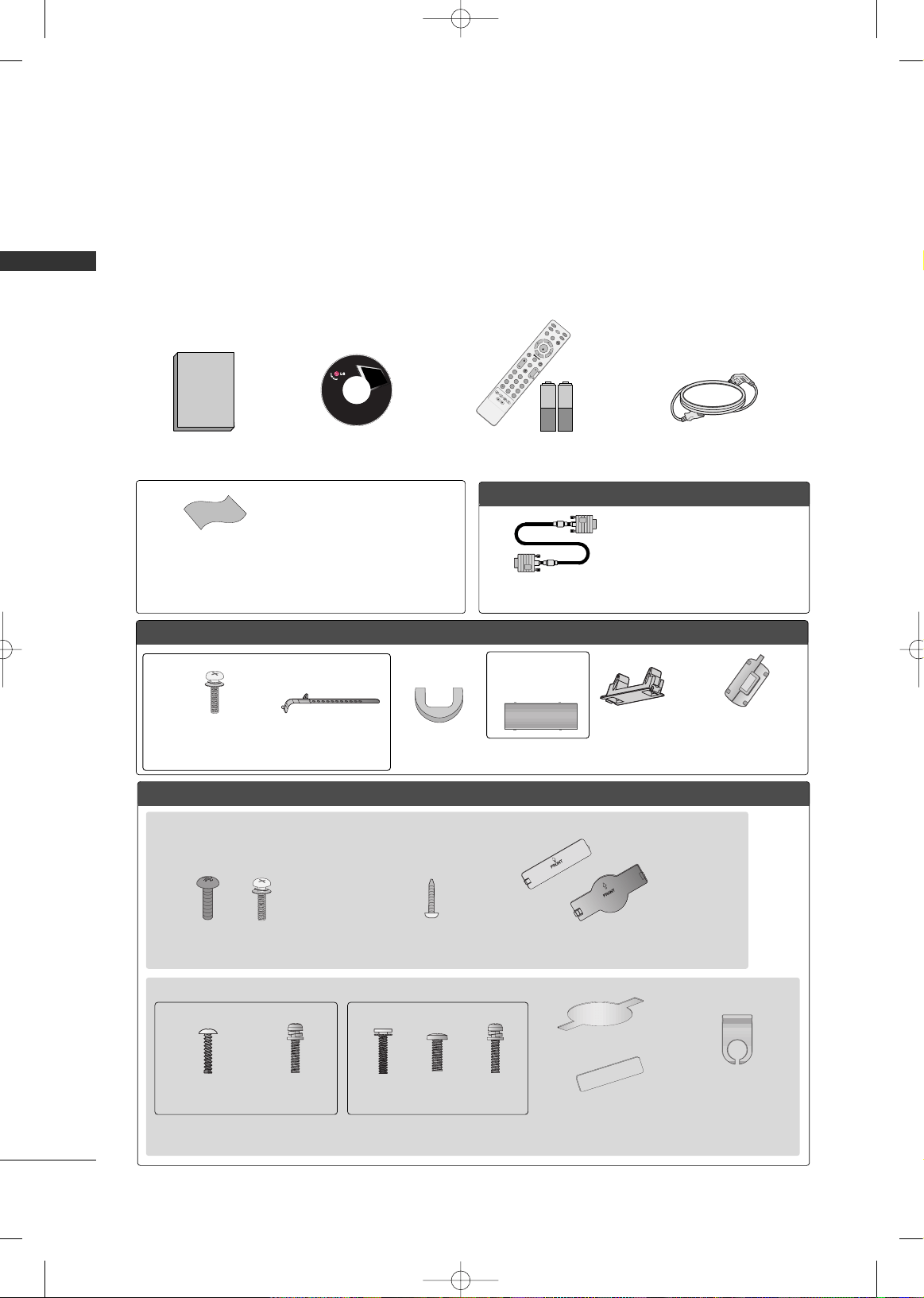
ACCESSORIES
Ensure that the following accessories are included with your TV. If an accessory is missing, please contact the
dealer where you purchased the product.
The accessories included may differ from the images below.
For further information, see the the Owner's Manual files supplied CD-ROM.
OOppttiioonn EExxttrraass
FFoorr LLCCDD TTVV mmooddeellss
FFoorr PPllaassmmaa TTVV mmooddeellss
* Wipe spots on the exterior only with
the polishing cloth.
* Do not wipe roughly when removing
stain. Excessive pressure may cause
scratch or discoloration.
Polishing Cloth
(This feature is not available
for all models.)
Copyright© 2007 LGE,
All Rights Reserved.
D-sub 15 pin Cable
1.5V 1.5V
Owner’s Manual Power Cord
Remote Control,
Batteries
IN
P
U
T
F
A
V
M
U
T
E
T
V
S
T
B
P
O
W
E
R
Q
.
M
E
N
U
M
E
N
U
AV MO DERETURN
E
N
T
E
R
V
OL
CH
123
456
78
0
9
FLASHBK
P
A
G
E
D
V
D
V
C
R
CD Manual
(Refer to p.5)
When using the VGA (D-sub 15 pin
cable) PC connection, the user
must use shielded signal interface
cables with ferrite cores to maintain
standards compliance.
32/37/42LG30, 37/42/47/52LG50, 32/42/47/52LG70, 47LG90
Bolts for stand assembly
(Refer to P.14)
(Only 32/37/42LG30, 37/42LG50,
32/42LG70)
Protection Cover
Screw for stand fixing
(Refer to P.18)
(Only 32LG30/70,
37LG30/50, 42LG30/50)
x 4 x 4
32/37/42/47/52LG60, 42/47LGX
Protection Cover Cable Management
Clip
2EA 4EA 1EA 4EA 32LG60: 3EA
37LG60: 4EA
Bolts for stand assembly
(Refer to P.12)
(Only 32/37LG60)
(Only 42LG60, 42LGX)
Cable Management Clip
Protection
Cover
(Only 50PG25,
50/60PG60,
50/60PG70)
(Only 42PG25)
or
or
Cable Holder
Bolts for stand
assembly
(Refer to P.11)
x 4
Ferrite core
(Refer to P.19)
(This feature is not available
for all models.)
MFL34797048-en-8-ING 9/8/2008 3:54 PM Page 6
PREPARATION
7
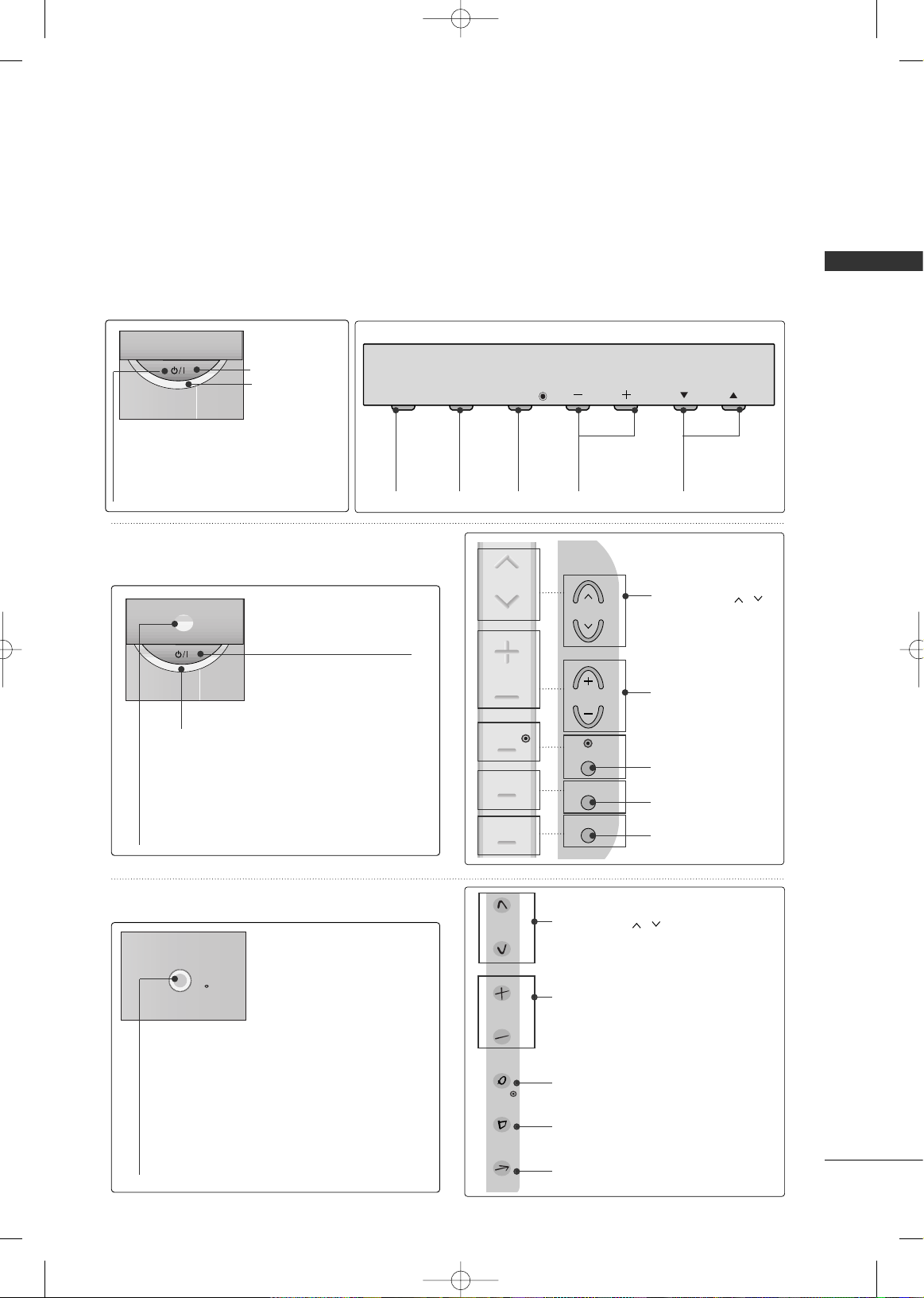
FRONT PANEL INFORMATION
■
Image shown may differ from your TV.
■
NOTE: If your TV has a protection tape attached, remove the tape.
And then wipe the TV with a cloth (If a polishing cloth is included with your TV, use it).
CH
VOL
MENU
INPUT
ENTER
INPUT
Button
MENU
Button
ENTER
Button
VOLUME
(-, +) Buttons
CHANNEL
(
EE
,
DD
)Buttons
CH
VOL
MENU
INPUT
ENTER
Remote Control
Sensor
POWER Button
Power/Standby Indicator
Illuminates red in standby mode.
Illuminates blue when the TV is
switched on.
ENTER
CH
VOL
MENU
INPUT
CHANNEL ( , ) Buttons
VOLUME (+, -) Buttons
ENTER Button
MENU Button
INPUT Button
CH
VOL
MENU
INPUT
ENTER
CHANNEL ( , )
Buttons
VOLUME (+, -)
Buttons
ENTER Button
MENU Button
INPUT Button
CH
VOL
MENU
INPUT
ENTER
POWER Button
Power/Standby Indicator
Illuminates red in standby mode.
Illuminates blue when the TV is switched on.
(Can be adjusted using
PPoowweerr IInnddiiccaattoorr
in
the OPTION menu.)
Remote Control Sensor
POWER Button
Remote Control Sensor
Power/Standby Indicator
Illuminates red in standby mode.
Illuminates white when the TV is switched on.
(Can be adjusted using
PPoowweerr IInnddiiccaattoorr
in
the OPTION menu.)
Plasma TV Models
32/37/42LG30, 37/42/47/52LG50,
32/42/47/52LG70, 47LG90
32/37/42/47/52LG60, 42/47LGX
MFL34797048-en-8-ING 9/8/2008 3:54 PM Page 7

PREPARATION
8
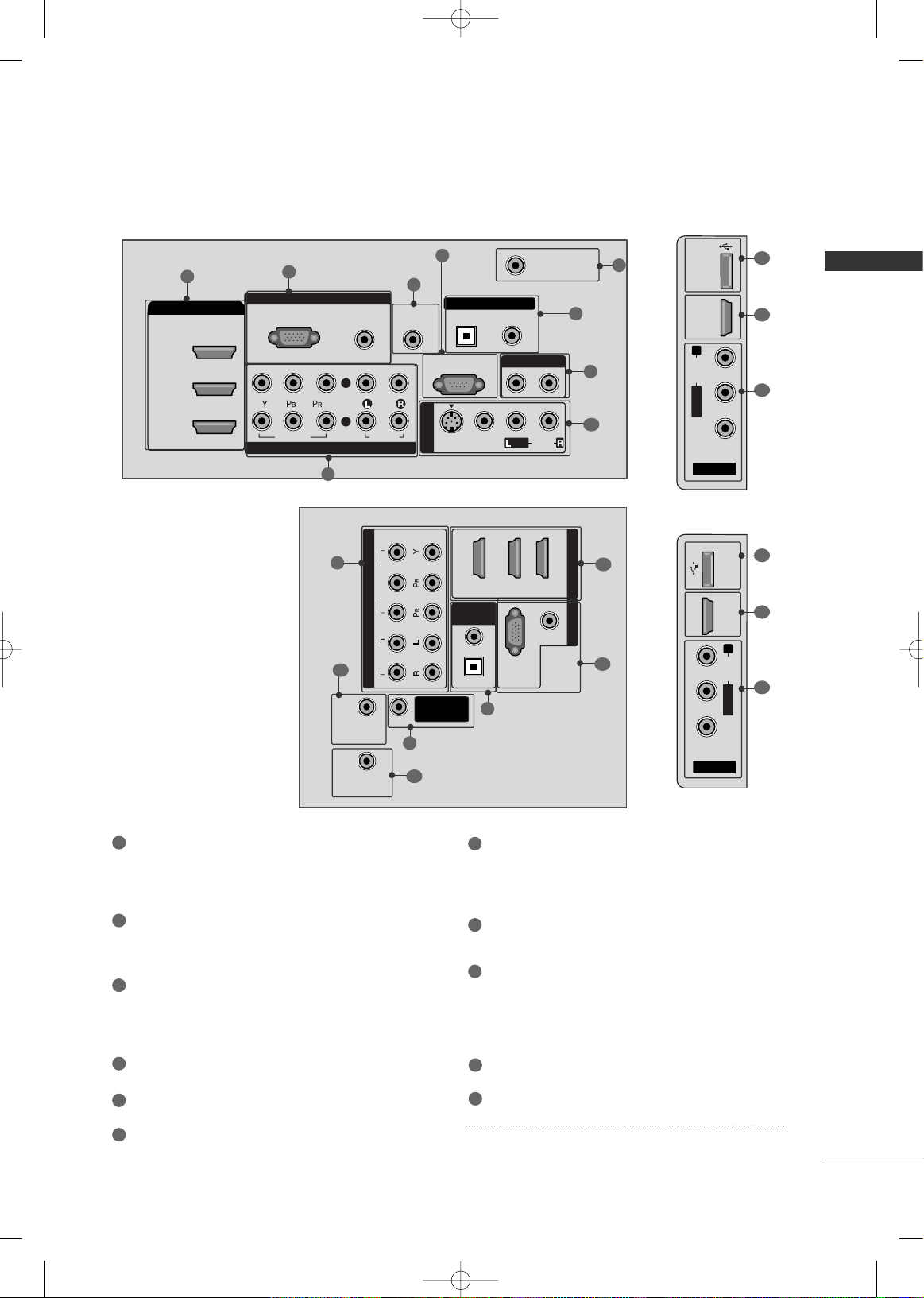
BACK PANEL INFORMATION
PREPARATION
■
Image shown may differ from your TV
R
RGB IN
COMPONENT IN
AUDIO
(RGB/DVI)
RGB(PC)
ANTENNA/
CABLE IN
1
2
RS-232C IN
(CONTROL & SERVICE)
VIDEO
AUDIO
VIDEO
AUDIO OUT
OPTICAL COAXIAL
MONO
( )
AUDIO
S-VIDEO
DIGITAL AUDIO OUT
AV IN 1
HDMI/DVI IN
3
2
1
REMOTE
CONTROL IN
1
3
4
6
7
8
2
9
5
AV IN 2
L/MONO
R
AUDIO
VIDEO
USB IN
HDMI IN 4
( )
9
10
1
Plasma TV Models
LCD TV Models
AV IN 2
L/MONO
R
AUDIO
VIDEO
HDMI IN 3 USB IN
( )
RGB IN
COMPONENT IN
AUDIO
(RGB/DVI)
RGB(PC)
REMOTE
CONTROL IN
ANTENNA/
CABLE IN
1
2
RS-232C IN
(CONTROL & SERVICE)
VIDEO
AUDIO
OPTICAL COAXIAL
DIGITAL AUDIO OUT
AUDIO OUT
AV IN 1
R
HDMI/DVI IN
2
1
VIDEO
MONO
( )
AUDIO
S-VIDEO
1
3
4
6
7
8
2
9
9
5
RGB IN
COMPONENT IN
AUDIO
(RGB/DVI)
RGB(PC)
REMOTE
CONTROL IN
ANTENNA/
CABLE IN
1
2
RS-232C IN
(CONTROL & SERVICE)
VIDEO
AUDIO
DIGITAL
AUDIO OUT
OPTICAL
AUDIO OUT
AV IN 1
R
VIDEO
MONO
( )
AUDIO
S-VIDEO
2
1
HDMI/DVI IN
1
3
4
6
7
8
2
9
5
10
1
AV IN 2
L/MONO
R
AUDIO
VIDEO
USB
SERVICE ONLY
HDMI IN 3
( )
9
11
1
37/42/47/52LG50, 32LG70
32/37/42LG30
MFL34797048-en-8-ING 9/8/2008 3:54 PM Page 8
PREPARATION
9
HDMI/DVI IN, HDMI IN
Digital Connection. Supports HD video and Digital
audio. Doesn’t support 480i.
Accepts DVI video using an adapter or HDMI to
DVI cable (not included)
COMPONENT IN
Analog Connection. Supports HD.
Uses a red, green, and blue cable for video & red
and white for audio.
RGB (PC)
Analog PC Connection. Uses a D-sub 15 pin cable
(VGA cable).
AUDIO (RGB/DVI)
1/8” headphone jack for analog PC audio input.
REMOTE CONTROL PORT
For a wired remote control.
RS-232C IN (CONTROL & SERVICE) PORT
Used by third party devices.
ANTENNA/CABLE IN
Connect over-the air signals to this jack.
Connect cable signals to this jack.
DIGITAL AUDIO OUT
Digital audio output for use with amps and home
theater systems.
Includes an optical and/or coaxial connection.
Note: In standby mode, these ports do not work.
AUDIO OUT
Analog audio output for use with amps and home
theater systems.
AV (Audio/Video) IN
Analog composite connection. Supports standard
definition video only (480i).
S-VIDEO
Better quality than standard composition.
Supports standard definition video only (480i).
USB INPUT
Used for viewing photos and listening to MP3s.
USB SERVICE ONLY or RS-232C IN (SERVICE ONLY)
Used for software updates.
Power Cord Socket
For operation with AC power.
Caution: Never attempt to operate the TV on DC
power.
1
7
8
9
2
3
4
5
6
10
11
AV IN 2
L/MONO
R
AUDIO
VIDEO
HDMI IN 4 USB IN
( )
9
10
1
42/47/52LG70, 47LG90
RGB IN
COMPONENT IN
AUDIO
(RGB/DVI)
RGB(PC)
REMOTE
CONTROL IN
ANTENNA/
CABLE IN
RS-232C IN
(CONTROL & SERVICE)
VIDEO
AUDIO
OPTICAL COAXIAL
DIGITAL AUDIO OUT
AUDIO OUT
AV IN 1
R
HDMI/DVI IN
2
3
1
VIDEO
MONO
( )
AUDIO
S-VIDEO
2
1
1
3
4
6
7
8
2
9
5
32/37/42/47/52LG60,
42/47LGX
AV IN
L/MONO
R
AUDIO
VIDEO
HDMI IN 4 USB IN
9
10
1
(RGB/DVI)
AUDIO
RGB(PC)
REMOTE
CONTROL IN
RS-232C IN
(SERVICE ONLY)
OPTICAL
COAXIAL
DIGITAL
AUDIO OUT
R
123
COMPONENT IN
2
1
VIDEO
AUDIO
HDMI/DVI IN RGB IN
ANTENNA/
CABLE IN
2
7
4
1
6
3
11
MFL34797048-en-8-ING 9/8/2008 3:54 PM Page 9
PREPARATION
10
REMOTE CONTROL FUNCTIONS
PREPARATION
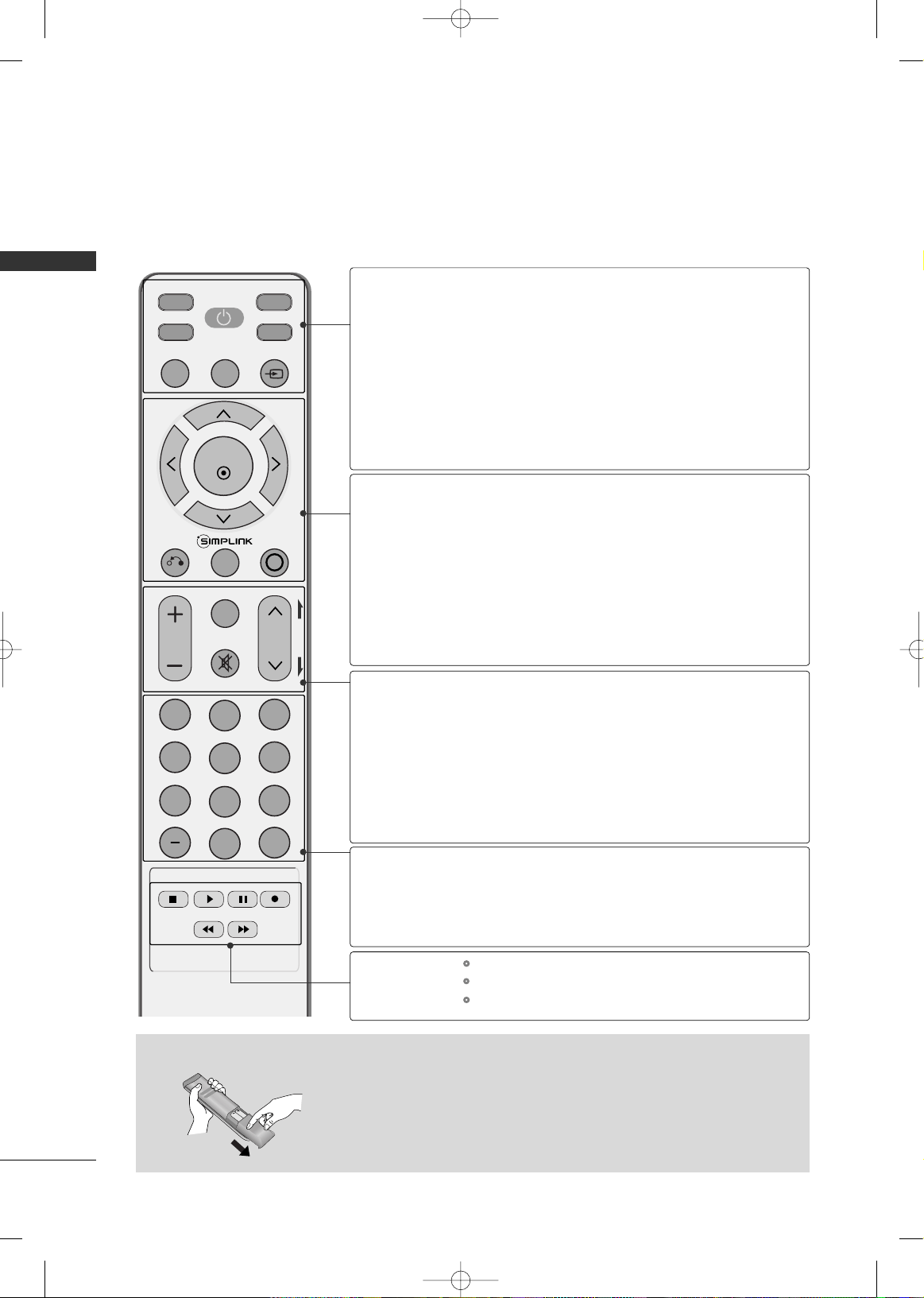
When using the remote control, aim it at the remote control sensor on the TV.
INPUT
FAV
MUTE
TV
STB
POWER
Q. MENU MENU
AV MODERETURN
ENTER
VOL
CH
123
456
78
0
9
FLASHBK
P
A
G
E
DVD
VCR
Installing Batteries
■
Open the battery compartment cover on the back side and install the batteries
matching correct polarity
(
+with +,-with -
)
.
■
Install two 1.5V AAA batteries. Don’t mix old or used batteries with new ones.
■
Close cover.
TV/STB/DVD/VCR
POWER
Q.MENU
MENU
INPUT
THUMBSTICK
(Up/Down/Left
Right/ENTER)
RETURN
SIMPLINK
AV MODE
VOLUME UP
/DOWN
FAV
MUTE
CHANNEL
UP/DOWN
PAGE
UP/DOWN
— (DASH)
FLASHBK
Select the remote operating mode: TV, STB, DVD, or VCR.
Turns your TV or any other programmed equipment on or
off, depending on the mode.
Select the desired quick menu source.
Displays the main menu.
Clear all on-screen displays and return to TV viewing from
any menu.
External input modes rotate in regular sequence.
Navigate the on-screen menus and adjust the system set-
tings to your preference.
Allows the user to move return one step in an interactive
application or other user interaction function.
See a list of AV devices connected to TV.
When you toggle this button, the SIMPLINK menu appears
at the screen.
It helps you select and set images and sounds.
Increase/decrease the sound level.
Scroll through the programmed Favorite channels.
Switch the sound on or off.
Select available channels.
Move from one full set of screen information to the next one.
Used to enter a program number for multiple program
channels such as 2-1, 2-2, etc.
Tune to the last channel viewed.
Control video cassette recorders or DVD players.
Control USB menu (PHOTO LIST and MUSIC LIST.)
Control the SIMPLINK compatible devices.
NUMBER button
VCR/DVD, USB,
SIMPLINK
Control buttons
MFL34797048-en-8-ING 9/8/2008 3:54 PM Page 10
PREPARATION
11
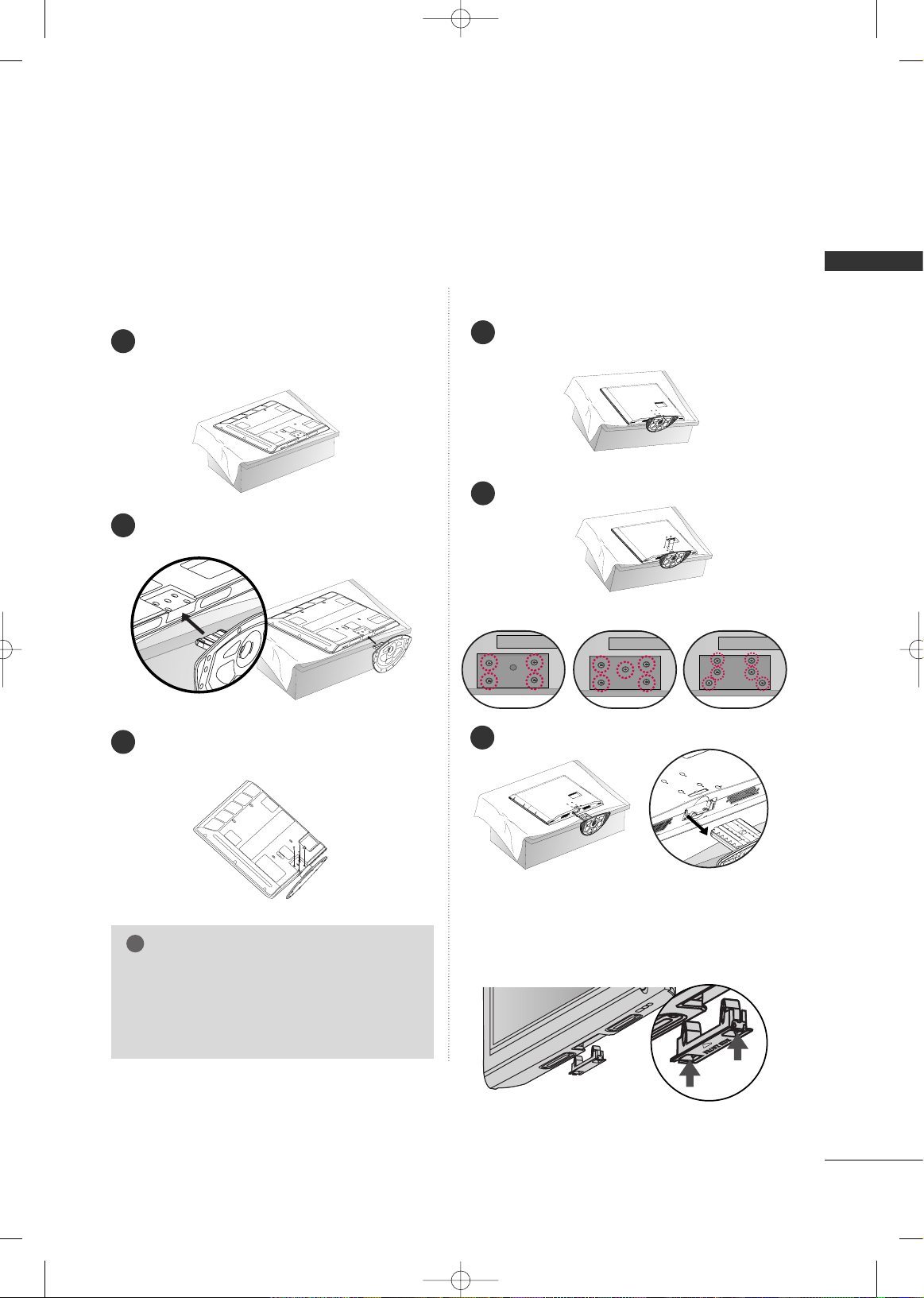
STAND INSTRUCTION
■
Image shown may differ from your TV.
Carefully place the TV screen side down on a
cushioned surface to protect the screen from
damage.
Assemble the TV as shown.
Fix the 4 bolts securely using the holes in the
back of the TV.
1
2
3
INSTALLATION (
Only 42PG25)
Plasma TV models
DETACHMENT
Carefully place the TV screen side down on a
cushioned surface to protect the screen from
damage.
1
Loose the bolts from TV.
2
42PG25 50PG25/60/70 60PG60/70
Detach the stand from TV.
3
After removing the stand, install the included
pprrootteeccttiioonn ccoovveerr
over the hole for the stand.
Press the
PPRROOTTEECCTTIIOONN CCOOVVEERR
into the TV
until you hear it click.
PROTECTION COVER
GG
When assembling the desk type stand, make sure
the bolt is fully tightened. (If not tightened fully,
the TV can tilt forward after the product installa-
tion). Do not over tighten.
NOTE
!
MFL34797048-en-8-ING 9/8/2008 3:54 PM Page 11
PREPARATION
12
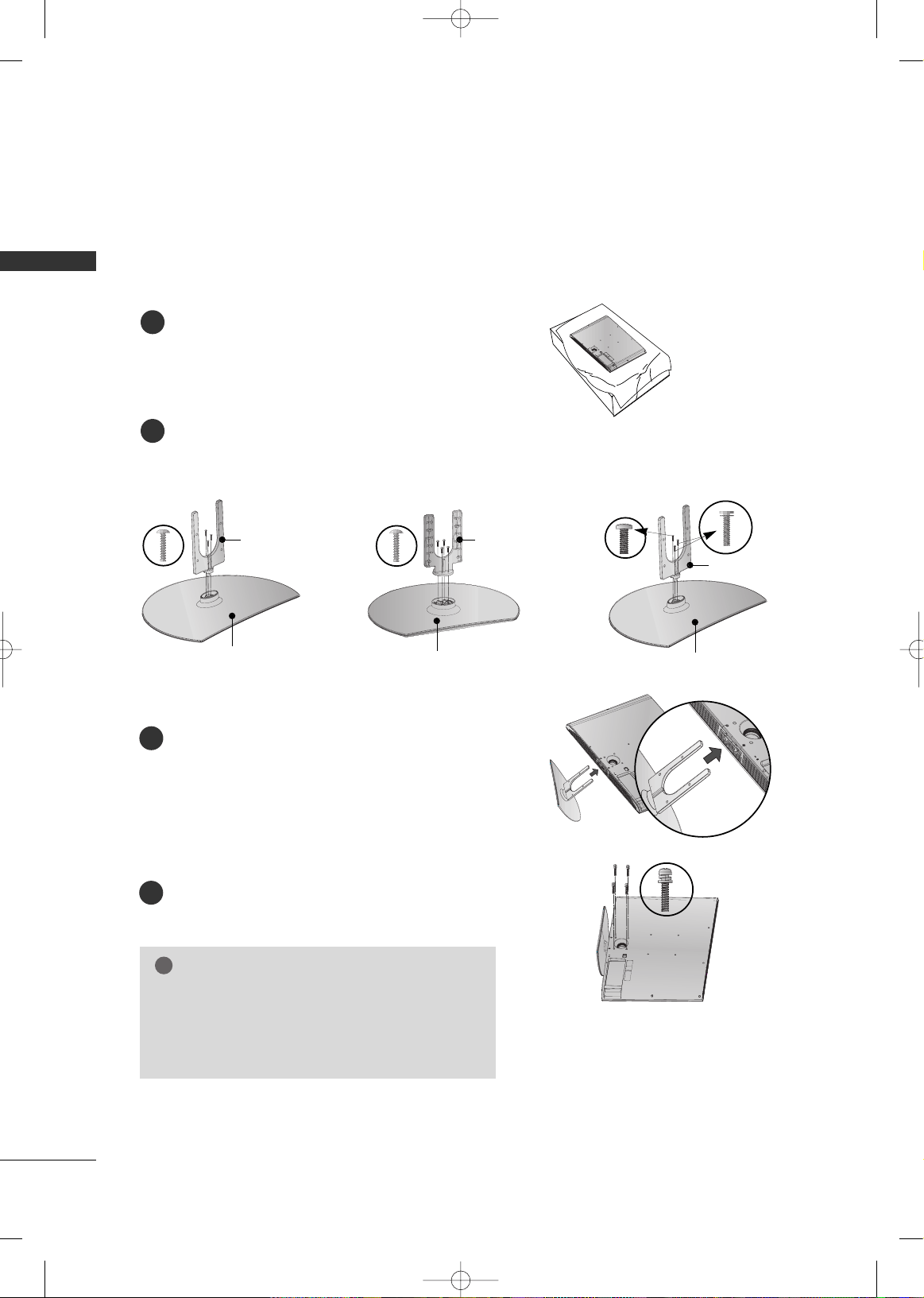
32/37/42/47/52LG60, 42/47LGX
PREPARATION
Assemble the parts of the
SSTTAANNDD BBOODDYY
with
CCOOVVEERR BBAASSEE
of the TV.
2
Assemble the TV as shown.
3
Fix the 4 bolts securely using the holes in the
back of the TV.
4
Carefully place the TV screen side down on a
cushioned surface to protect the screen from
damage.
1
32LG60 37LG60 42LG60, 42LGX
SSTTAANNDD BBOODDYY SSTTAANNDD BBOODDYY
CCOOVVEERR BBAASSEE
SSTTAANNDD BBOODDYY
CCOOVVEERR BBAASSEE
CCOOVVEERR BBAASSEE
INSTALLATION (
Only 32/37/42LG60, 42LGX)
■
Image shown may differ from your TV.
GG
When assembling the desk type stand, make sure the
bolt is fully tightened. (If not tightened fully, the TV
can tilt forward after the product installation). Do not
over tighten.
NOTE
!
MFL34797048-en-8-ING 9/8/2008 3:54 PM Page 12
PREPARATION
13
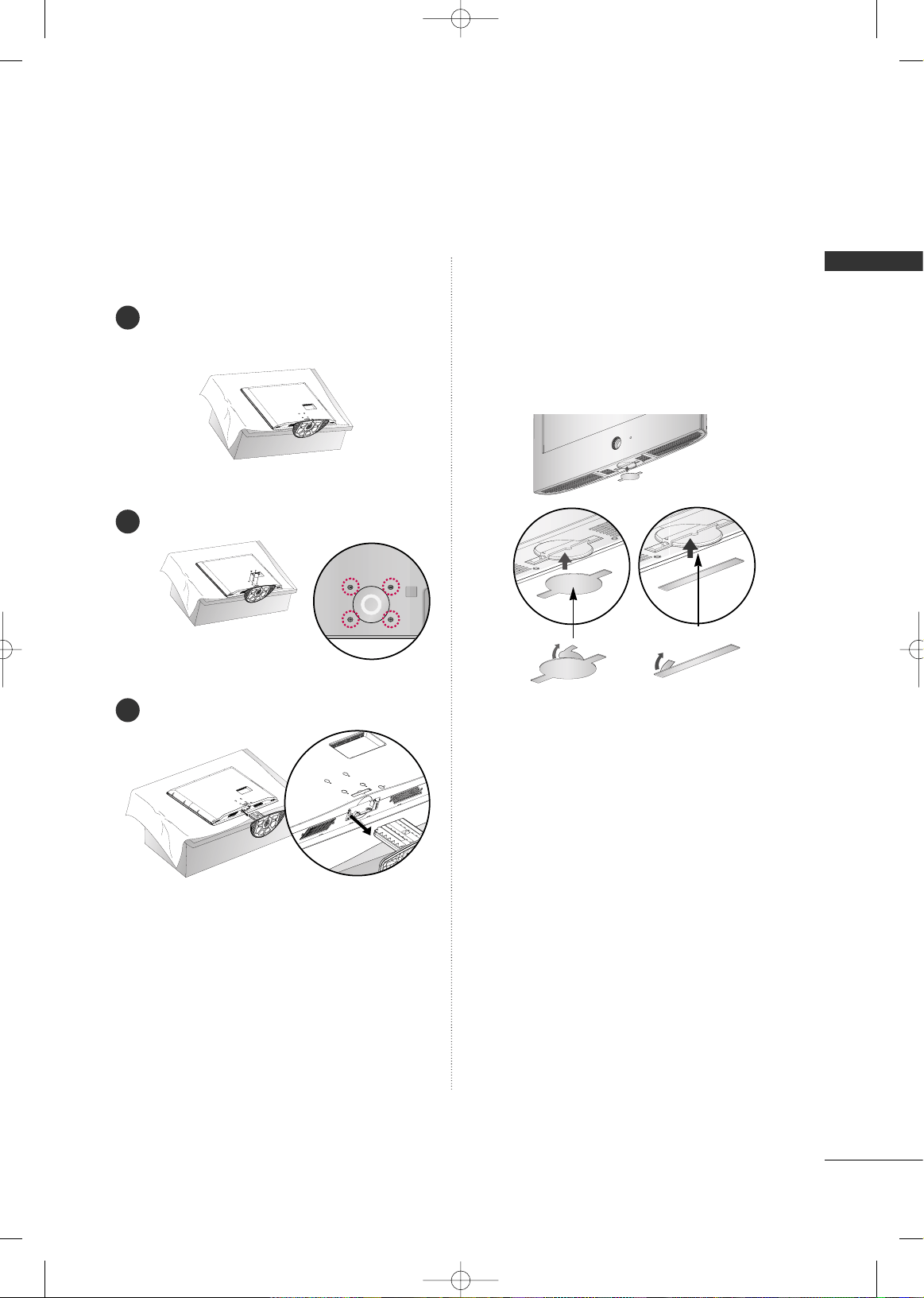
DETACHMENT
Carefully place the TV screen side down on a
cushioned surface to protect the screen from
damage.
1
Loose the bolts from TV.
2
Detach the stand from TV.
3
After removing the stand, install the included
pprroo--
tteeccttiioonn ccoovveerr
over the hole for the stand.
After removing the protection paper from the
protection cover, adhere it to the TV as shown.
PROTECTION COVER
MFL34797048-en-8-ING 9/8/2008 3:54 PM Page 13
PREPARATION
14
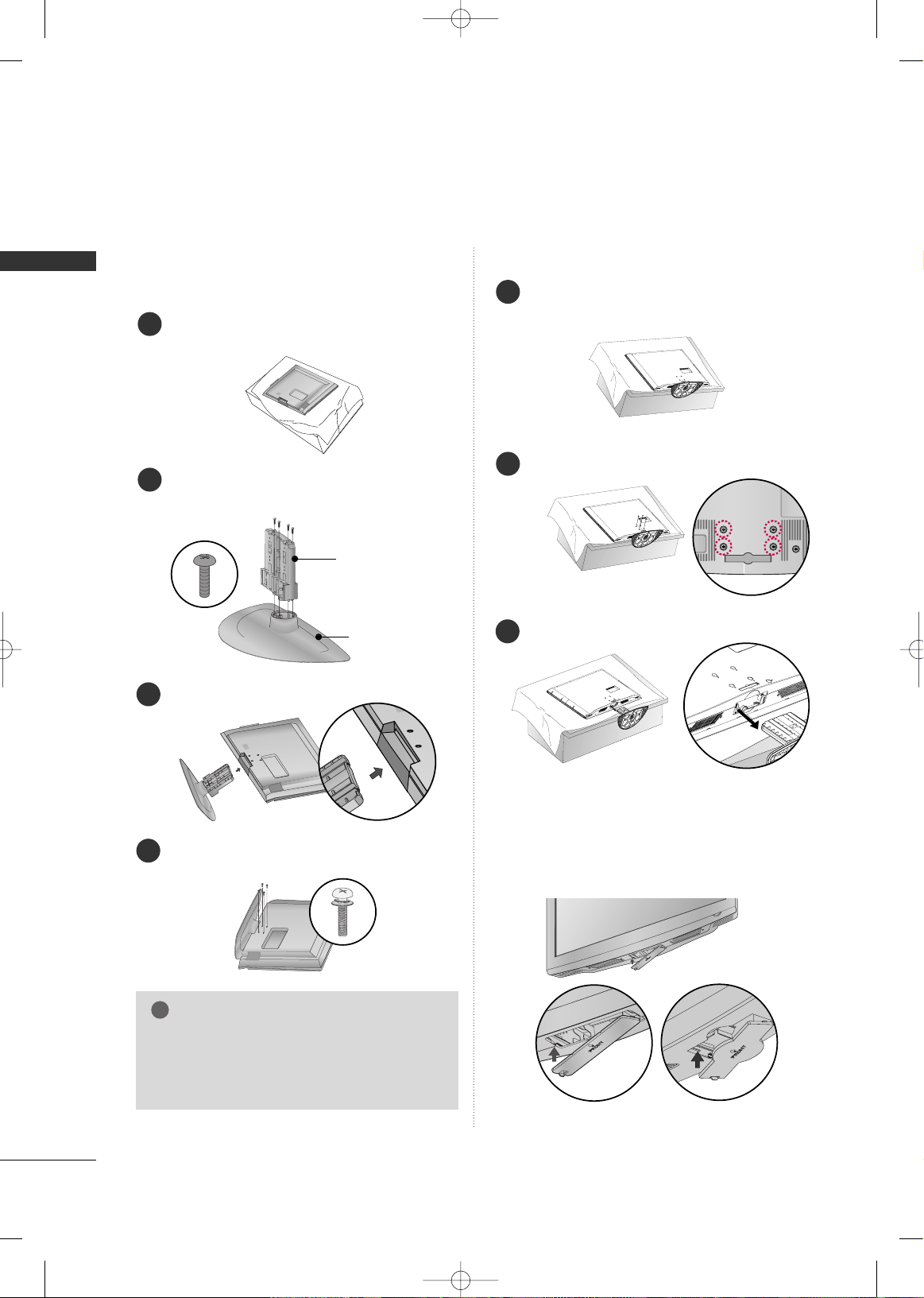
32/37/42LG30, 37/42/47/52LG50, 32/42/47/52LG70, 47LG90
PREPARATION
■
Image shown may differ from your TV.
Assemble the parts of the
SSTTAANNDD BBOODDYY
with
CCOOVVEERR BBAASSEE
of the TV.
2
Assemble the TV as shown.
3
Fix the 4 bolts securely using the holes in the
back of the TV.
4
SSTTAANNDD BBOODDYY
CCOOVVEERR BBAASSEE
Carefully place the TV screen side down on a cush-
ioned surface to protect the screen from damage.
1
INSTALLATION
(
Only 32/37/42LG30, 37/42LG50, 32/42LG70)
DETACHMENT
Carefully place the TV screen side down on a
cushioned surface to protect the screen from
damage.
1
Loose the bolts from TV.
2
Detach the stand from TV.
3
After removing the stand, install the included
pprrootteeccttiioonn ccoovveerr
over the hole for the stand.
Press the
PPRROOTTEECCTTIIOONN CCOOVVEERR
into the TV
until you hear it click.
PROTECTION COVER
GG
When assembling the desk type stand, make sure
the bolt is fully tightened. (If not tightened fully,
the TV can tilt forward after the product installa-
tion). Do not over tighten.
NOTE
!
MFL34797048-en-8-ING 9/8/2008 3:54 PM Page 14
PREPARATION
15
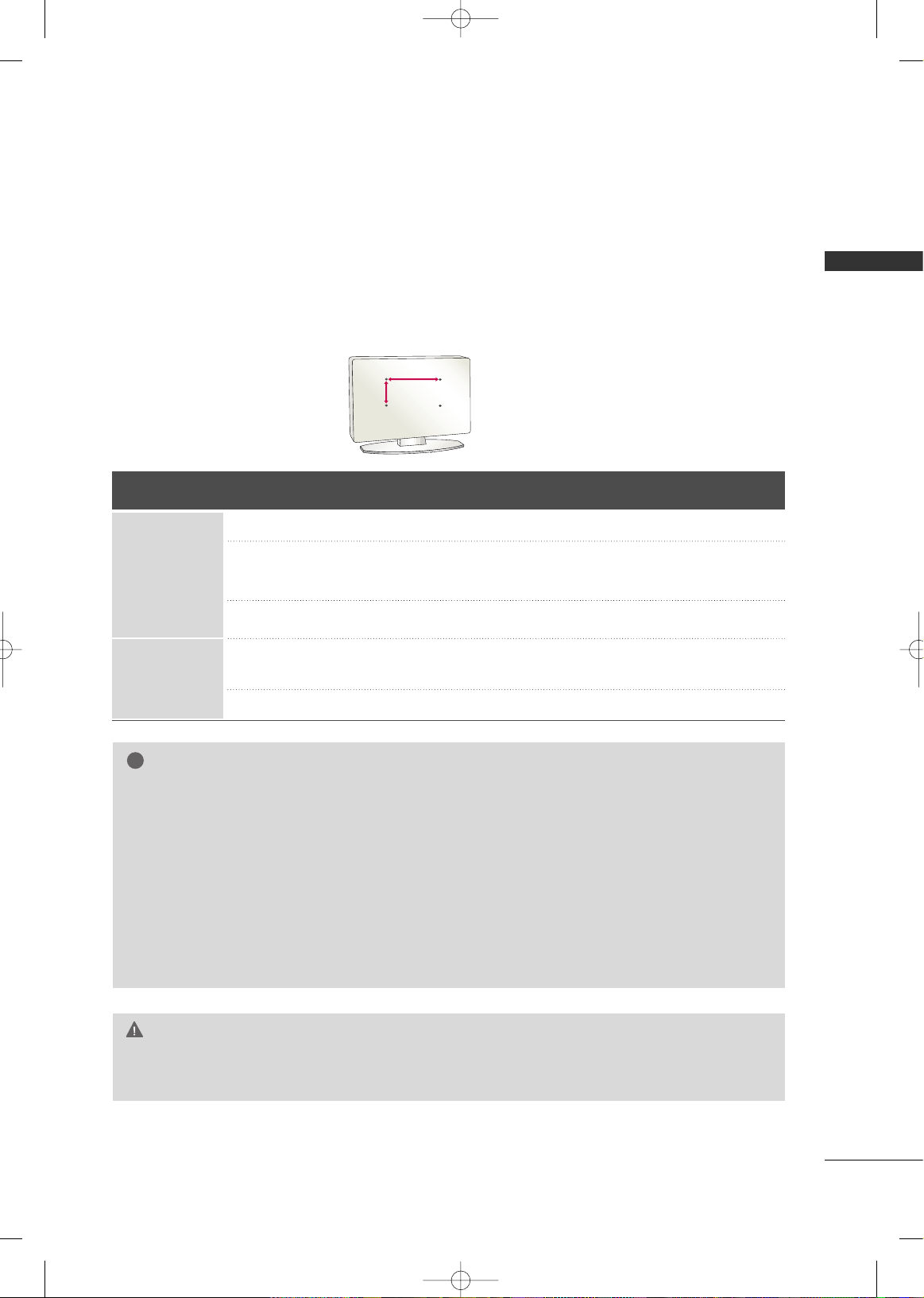
VESA WALL MOUNTING
Install your wall mount on a solid wall perpendicular to the floor. When attaching to other building materials, please
contact your nearest dealer.
If installed on a ceiling or slanted wall, it may fall and result in severe personal injury.
We recommend that you use an LG brand wall mount when mounting the TV to a wall.
LG recommends that wall mounting be performed by a qualified professional installer.
GG
Do not install your wall mount kit while your TV is turned on. It may result in personal injury due to electric
shock.
CAUTION
GG
Screw length needed depends on the wall mount
used. For further information, refer to the instruc-
tions included with the mount.
GG
Standard dimensions for wall mount kits are shown
in the table.
GG
When purchasing our wall mount kit, a detailed
installation manual and all parts necessary for
assembly are provided.
GG
Do not use screws longer then the standard dimen-
sion, as they may cause damage to the inside to
the TV.
GG
For wall mounts that do not comply with the VESA
standard screw specifications, the length of the
screws may differ depending on their specifica-
tions.
GG
Do not use screws that do not comply with the
VESA standard screw specifications.
Do not use fasten the screws too strongly, this may
damage the TV or cause the TV to a fall, leading to
personal injury. LG is not liable for these kinds of
accidents.
GG
LG is not liable for TV damage or personal injury
when a non-VESA or non specified wall mount is
used or the consumer fails to follow the TV installa-
tion instructions.
NOTE
!
AA
BB
Product Model
VESA
(A
*
B)
Standard Screw Quantity
32LG30, 32LG60, 32LG70
37LG30, 37LG60, 37LG50
42LG30, 42LG50, 42LG60, 42LG70, 42LGX
47LG50, 47LG60, 47LG70, 47LG90, 47LGX
52LG50, 52LG60, 52LG70
42PG25
50PG25, 50PG60, 50PG70
60PG60, 60PG70
200
*
10 0
200
*
200
800
*
400
400
*
400
600
*
400
M4
M6
M6
M6
M8
4
4
4
4
4
LCD TV
PLASMA TV
MFL34797048-en-8-ING 9/8/2008 3:54 PM Page 15
PREPARATION
16
PREPARATIONPREPARATION
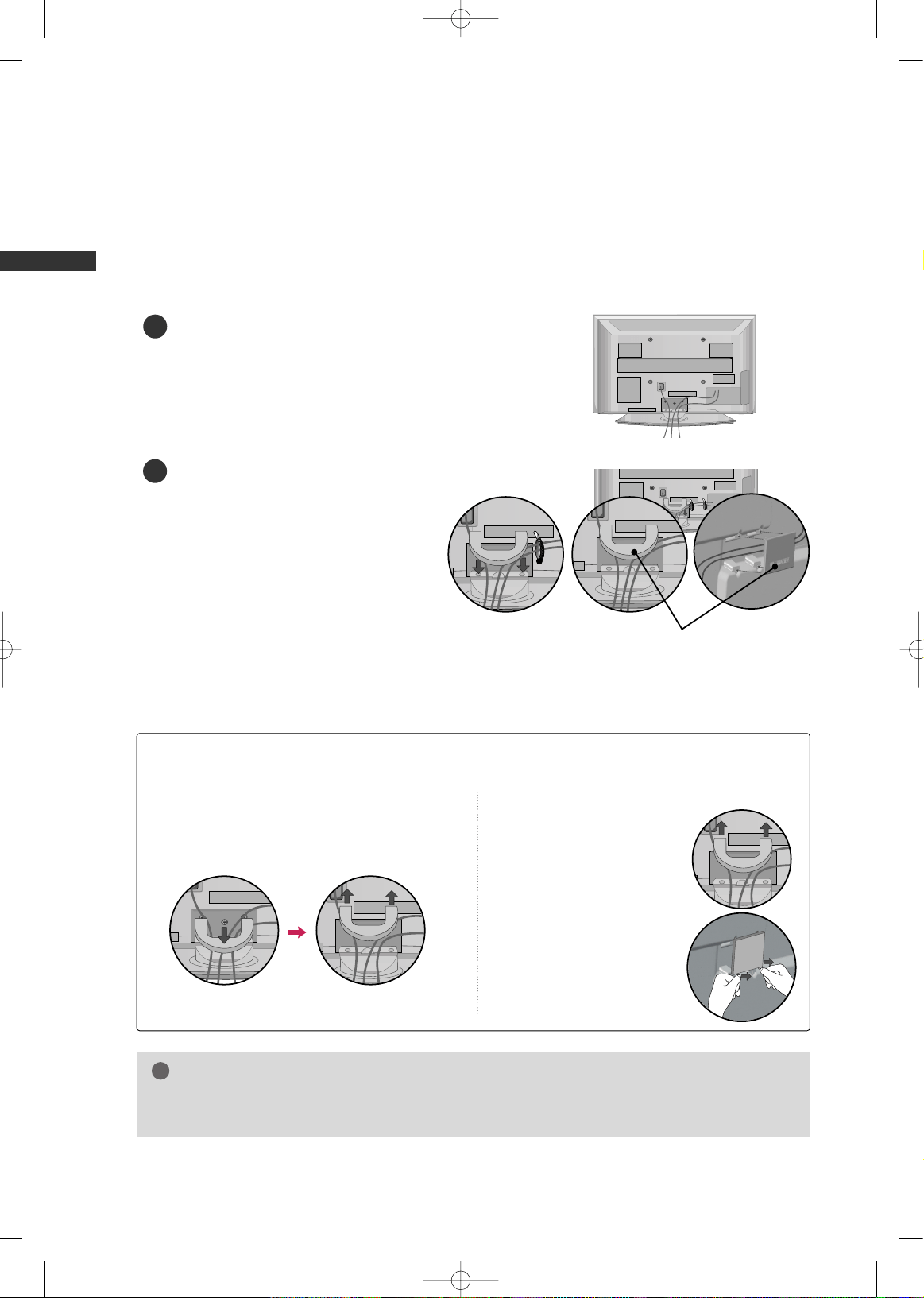
CABLE MANAGEMENT
Plasma TV Model
Connect the cables as necessary.
To connect additional equipment, see the
EXTERNAL EQUIPMENT SETUP section.
Install the CABLE MANAGEMENT CLIP as
shown.
If your TV has the CABLE HOLDER, install it
as shown and bundle the cables.
1
2
■
Here shown may be somewhat different from your TV.
GG
Do not hold the CABLE MANAGEMENT CLIP when moving the TV.
- If the TV is dropped, you may be injured or the product may be broken.
NOTE
!
How to remove the CABLE MANAGEMENT CLIP
GG
First, press the cable management. Hold the
CCAABBLLEE MMAANNAAGGEEMMEENNTT CCLLIIPP
with both
hands and pull it upward.
GG
Separate
CCAABBLLEE MMAANN--
AAGGEEMMEENNTT CCLLIIPP
from TV
by pressing two latches.
GG
Hold the CABLE MAN-
AGEMENT CLIP with both
hands and pull it upward.
42PG25
50PG25, 50/60PG60, 50/60PG70
CABLE MANAGEMENT CLIP
CABLE HOLDER
MFL34797048-en-8-ING 9/8/2008 3:54 PM Page 16
PREPARATION
17
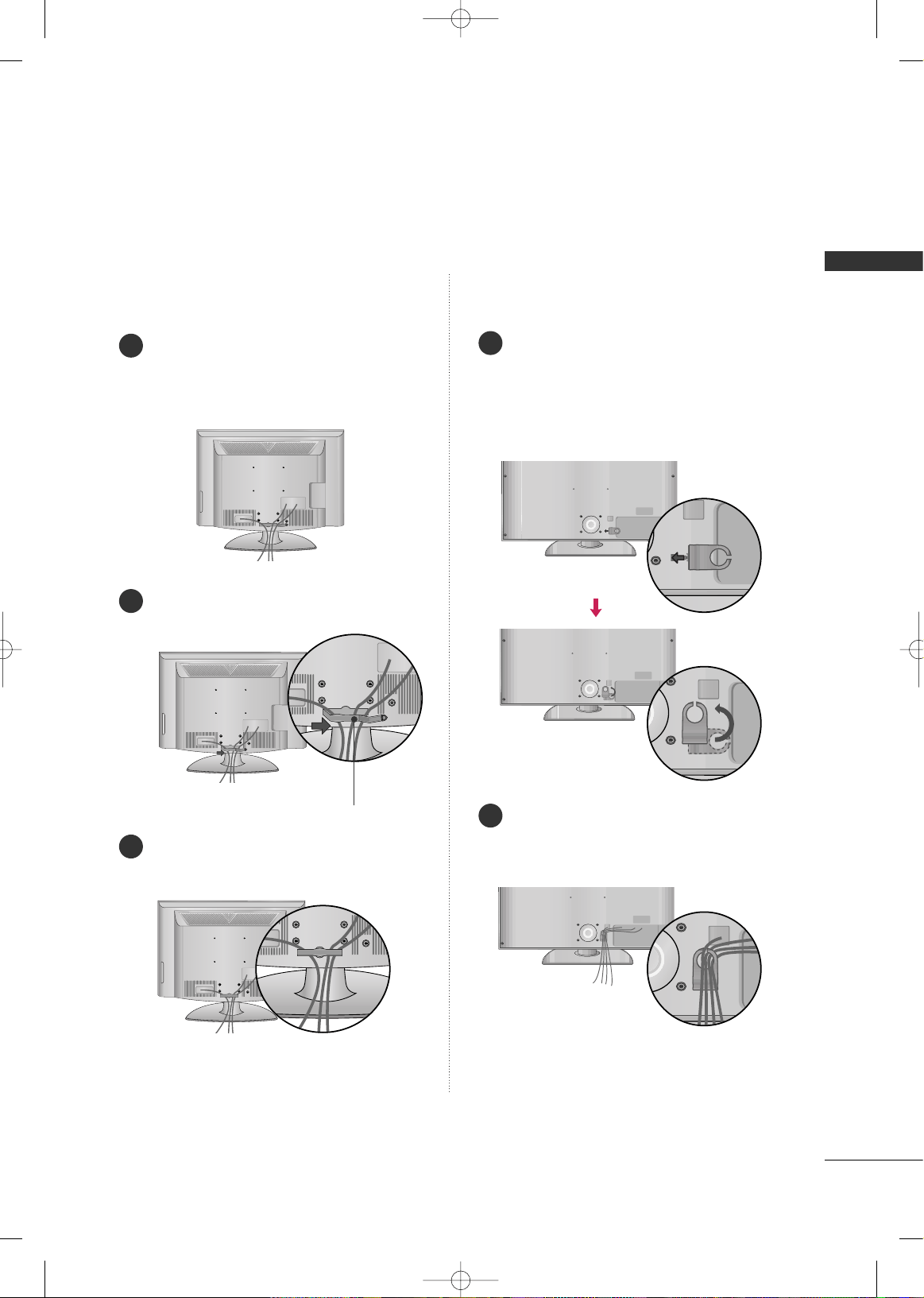
LCD TV Model
Connect the cables as necessary.
To connect additional equipment, see the
EXTERNAL EQUIPMENT SETUP section.
Install the CABLE MANAGEMENT CLIP as
shown.
CABLE MANAGEMENT CLIP
Align the hole with the tab on the
CCAABBLLEE
MMAANNAAGGEEMMEENNTT CCLLIIPP
.
Turn the
CCAABBLLEE MMAANNAAGGEEMMEENNTT CCLLIIPP
as
shown.
Note: This cable management can be broken
by excessive pressure.
Connect the cables as necessary.
To connect additional equipment, see the
EXTERNAL EQUIPMENT SETUP section.
Put the cables inside the CABLE MANAGEMENT
CLIP and snap it closed.
32/37/42/47/52LG60, 42/47LGX32/37/42LG30, 37/42/47/52LG50,
32/42/47/52LG70, 47LG90
1
2
3
1
2
MFL34797048-en-8-ING 9/8/2008 3:54 PM Page 17
PREPARATION
18
DESKTOP PEDESTAL INSTALLATION
PREPARATION
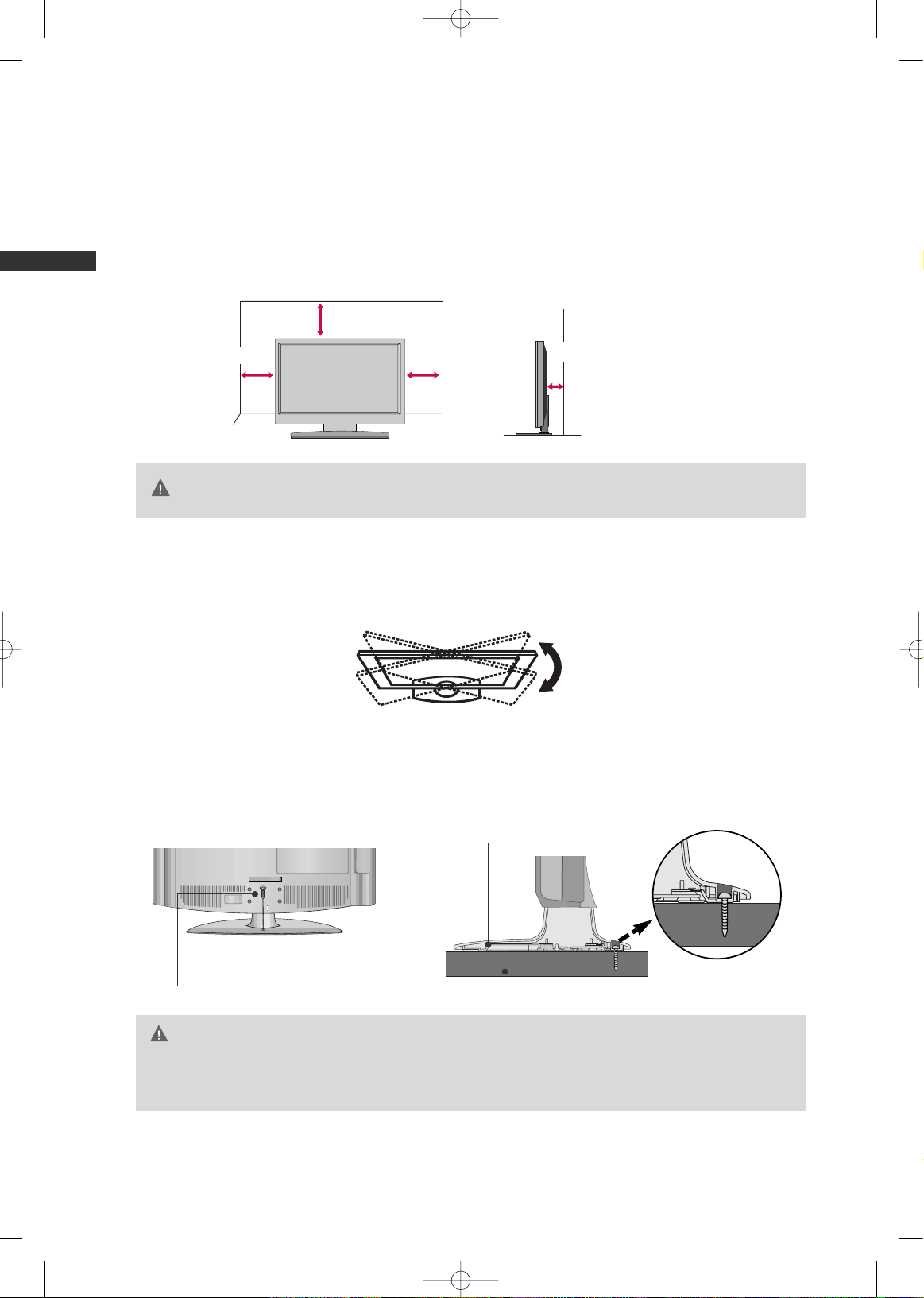
For proper ventilation, allow a clearance of 4 inches on all four sides from the wall.
■
Image shown may differ from your TV.
4 inches
4 inches
4 inches
4 inches
SWIVEL STAND
After installing the TV, you can adjust the TV set manually to the left or right direction by 20 degrees to suit
your viewing position.
GG
Ensure adequate ventilation by following the clearance recommendations.
GG
Do not mount near or above any type of heat source.
CAUTION
ATTACHING THE TV TO A DESK (Only 32LG30/70, 37LG30/50, 42LG30/50)
The TV must be attached to a desk so it cannot be pulled in a forward/backward direction, potentially causing
injury or damaging the product.
GG
To prevent TV from falling over, the TV should be securely attached to the floor/wall per installation
instructions. Tipping, shaking, or rocking the machine may cause injury.
WARNING
1-Screw
(provided as parts of the product)
Desk
Stand
MFL34797048-en-8-ING 9/8/2008 3:54 PM Page 18
PREPARATION
19
SECURING THE TV TO THE WALL TO PREVENT FALLING
WHEN THE TV IS USED ON A STAND
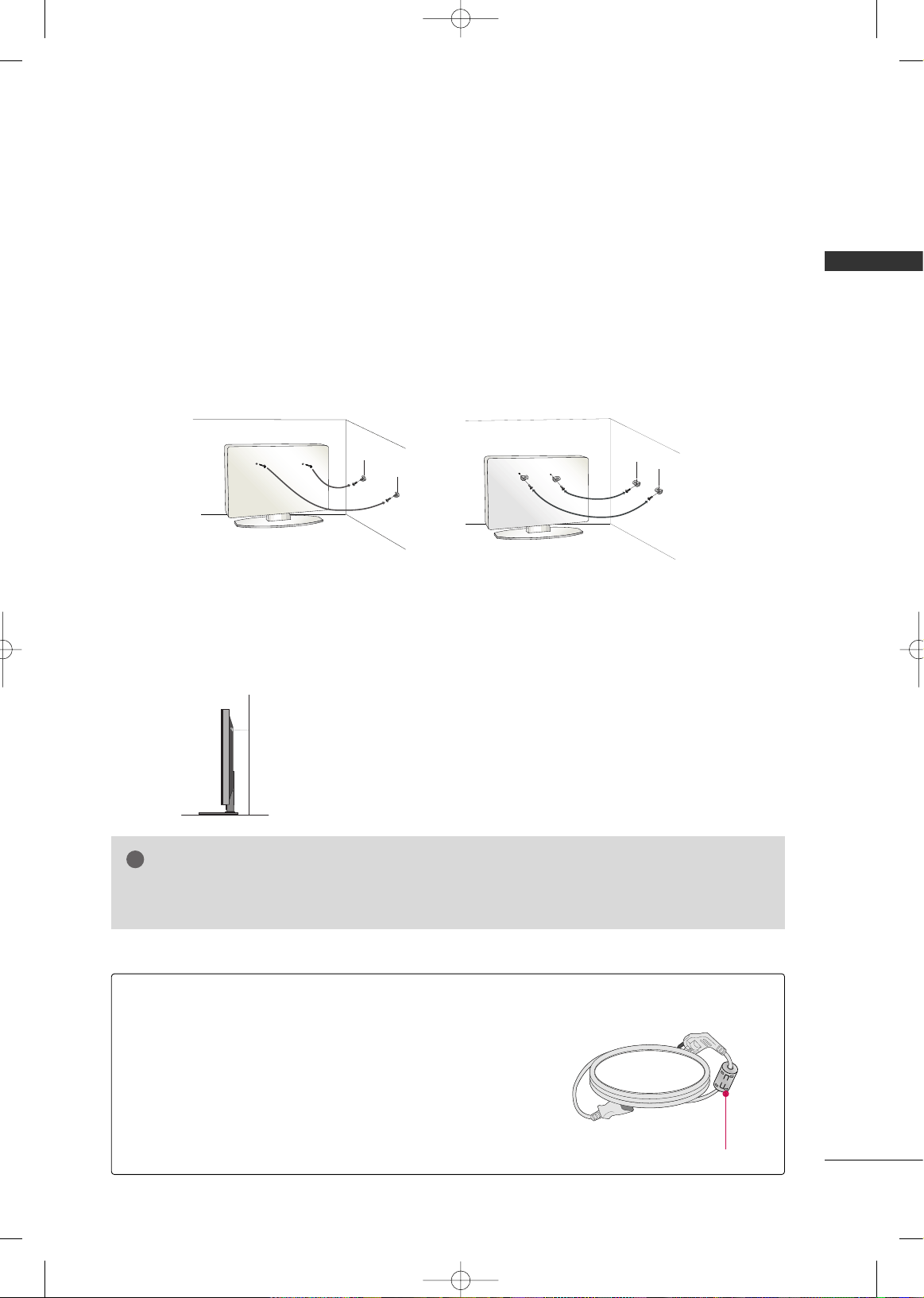
We recommend that you set up the TV close to a wall so it cannot fall over if pushed backwards.
Additionally, we recommend that the TV be attached to a wall so it cannot be pulled in a forward direction,
potentially causing injury or damaging the product.
Caution: Please make sure that children don’t climb on or hang from the TV.
■
Insert the eye-bolts (or TV brackets and bolts) to tighten the product to the wall as shown in the picture.
*If your product has the bolts in the eye-bolts position before inserting the eye-bolts, loosen the bolts.
* Insert the eye-bolts or TV brackets/bolts and tighten them securely in the upper holes.
Secure the wall brackets with the bolts (sold separately) to the wall. Match the height of the bracket that is
mounted on the wall to the holes in the product.
Ensure the eye-bolts or brackets are tightened securely.
■
Use a sturdy rope (sold separately) to tie the product. It is safer to tie
the rope so it becomes horizontal between the wall and the product.
■
You should purchase necessary components to prevent TV from falling off of the stand.
■
Image shown may differ from your TV.
GG
Use a platform or cabinet strong enough and large enough to support the size and weight of the TV.
GG
To use the TV safely make sure that the height of the bracket on the wall and the one on the TV are the same.
NOTE
!
Install the power plug closely.
Use of ferrite core
(This feature is not available for all models.)
Ferrite core can be used to reduce the electromagnetic wave
when connecting the power cord.
The closer the location of the ferrite core to the power plug,
the better it is.
MFL34797048-en-8-ING 9/8/2008 3:54 PM Page 19
PREPARATION
20
ANTENNA OR CABLE CONNECTION
PREPARATION
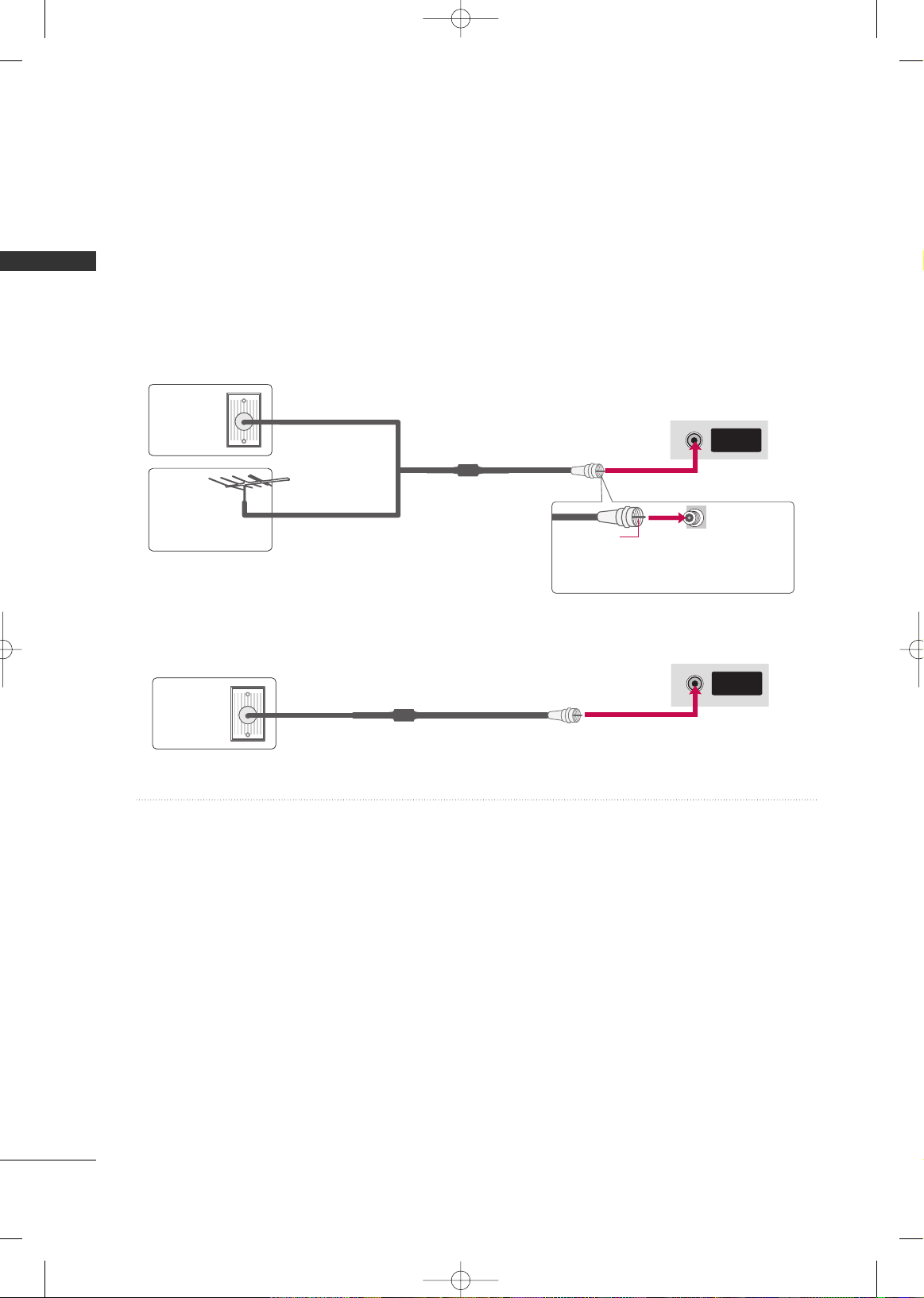
1. Antenna (Analog or Digital)
Wall Antenna Socket or Outdoor Antenna without a Cable Box
Connection.
For optimum picture quality, adjust antenna direction if needed.
2. Cable
Wall
Antenna
Socket
Outdoor
Antenna
(VHF, UHF)
Cable TV
Wall Jack
Multi-family Dwellings/Apartments
(Connect to wall antenna socket)
RF Coaxial Wire (75 ohm)
RF Coaxial Wire (75 ohm)
Single-family Dwellings /Houses
(Connect to wall jack for outdoor antenna)
Be careful not to bend the copper wire
when connecting the antenna.
Copper Wire
■
To improve the picture quality in a poor signal area, please purchase a signal amplifier and install properly.
■
If the antenna needs to be split for two TV’s, install a 2-Way Signal Splitter.
■
If the antenna is not installed properly, contact your dealer for assistance.
ANTENNA/
CABLE IN
( )
R
ANTENNA/
CABLE IN
( )
R
■
To prevent damage do not connect to the power outlet until all connections are made between the devices.
MFL34797048-en-8-ING 9/8/2008 3:54 PM Page 20
EXTERNAL EQUIPMENT SETUP
21
EXTERNAL EQUIPMENT SETUP
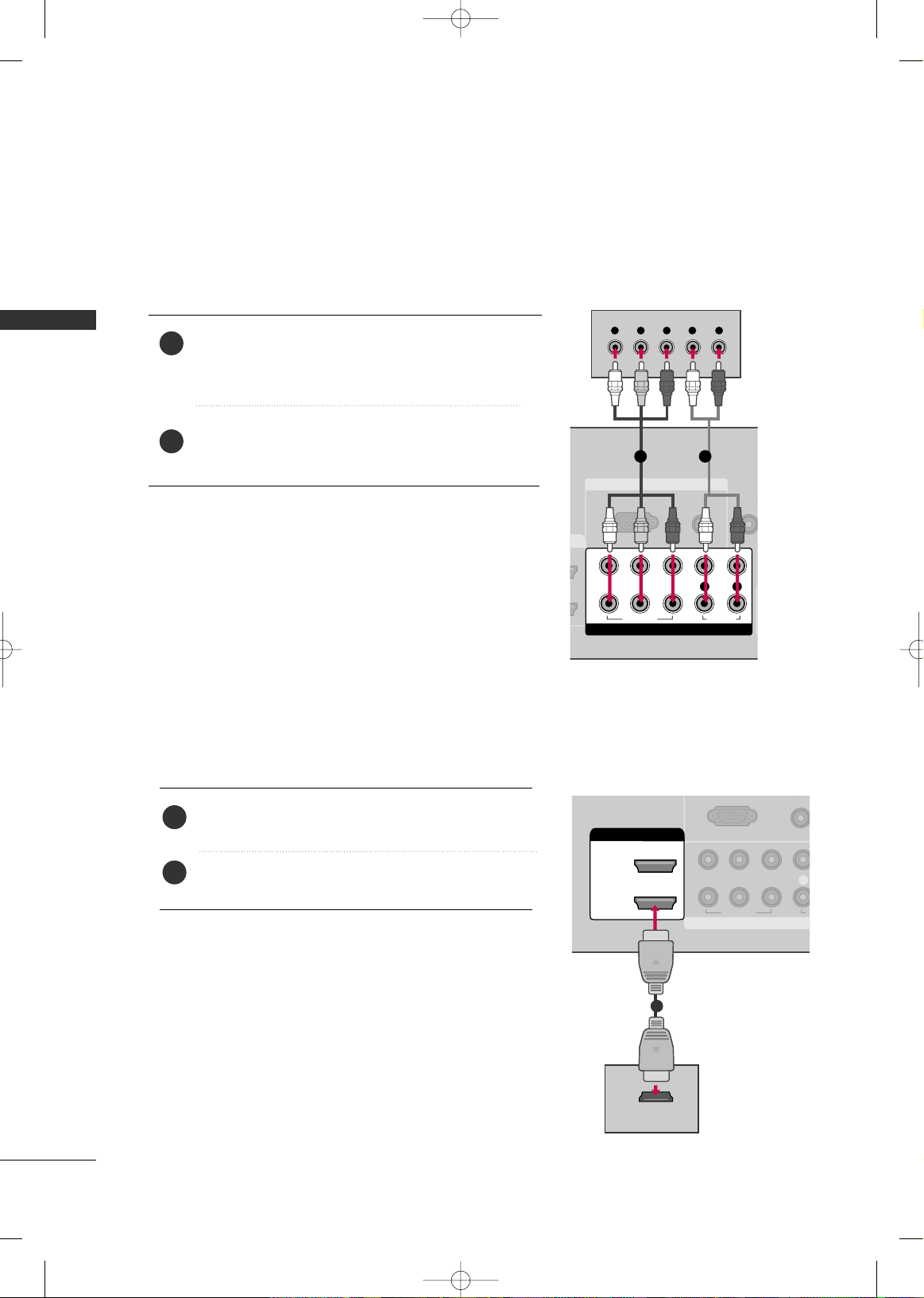
HD RECEIVER SETUP
This TV can receive Digital Over-the-air/Cable signals without an external digital set-top box. However, if you do
receive digital signals from a digital set-top box or other digital external device, refer to the figure as shown below.
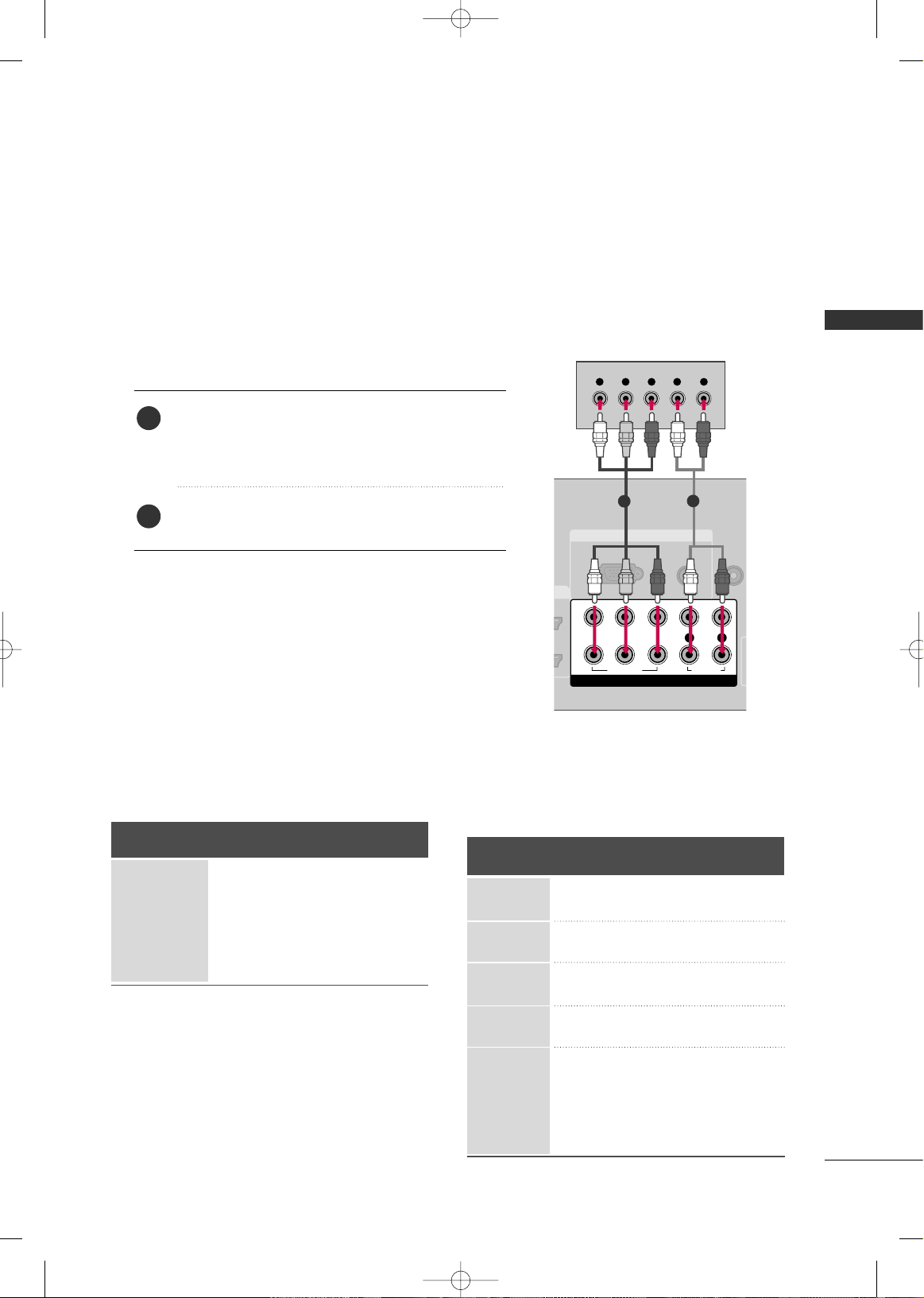
Component Connection
1. How to connect
Connect the video outputs
(
Y, PB, PR
)
of the digital set-
top box to the
CCOOMMPPOONNEENNTT IINN VVIIDDEEOO 11
jacks on
the TV. Match the jack colors (Y = green, P
B = blue, and
P
R = red).
Connect the audio output of the digital set-top box to
the
CCOOMMPPOONNEENNTT IINN AAUUDDIIOO 11
jacks on the TV.
2. How to use
■
Turn on the digital set-top box.
(
Refer to the owner’s manual for the digital set-top box. operation
)
■
Select the
CCoommppoonneenntt 11
input source on the TV using
the
IINNPPUUTT
button on the remote control.
■
If connected to
CCOOMMPPOONNEENNTT IINN22
input, select the
CCoommppoonneenntt 22
input source on the TV.
■
To prevent the equipment damage, never plug in any power cords until you have finished connecting all equipment.
■
This part of EXTERNAL EQUIPMENT SETUP mainly use picture for 37/42/47/52LG50.
Y, CB/PB, CR/PR
Supported Resolutions
Horizontal Vertical
Frequency
(
KHz
)
Frequency
(
Hz
)
15.73 59.94
15.73 60.00
31.47 59.94
31.50 60.00
44.96 59.94
45.00 60.00
33.72 59.94
33.75 60.00
26.97 23.976
27.00 24.00
33.71 29.97
33.75 30.00
67.432 59.94
67.50 60.00
Resolution
720x480i
720x480p
1280x720p
1920x1080i
1920x1080p
Signal
480i
480p
720p
1080 i
1080 p
Component
Yes
Yes
Yes
Yes
Yes
HDMI
No
Yes
Yes
Yes
Yes
2
1
RGB IN
AUDIO
(RGB/DVI)
RGB(PC)
REMOT
CONTROL
(
COMPONENT IN
1
2
VIDEO
LYP
B
P
R
R
AUDIO
Y L RPB PR
1
2
i.e) 37/42/47/52LG50
MFL34797048-en-8-ING 9/8/2008 3:54 PM Page 21
EXTERNAL EQUIPMENT SETUP
22
EXTERNAL EQUIPMENT SETUP
DVD SETUP
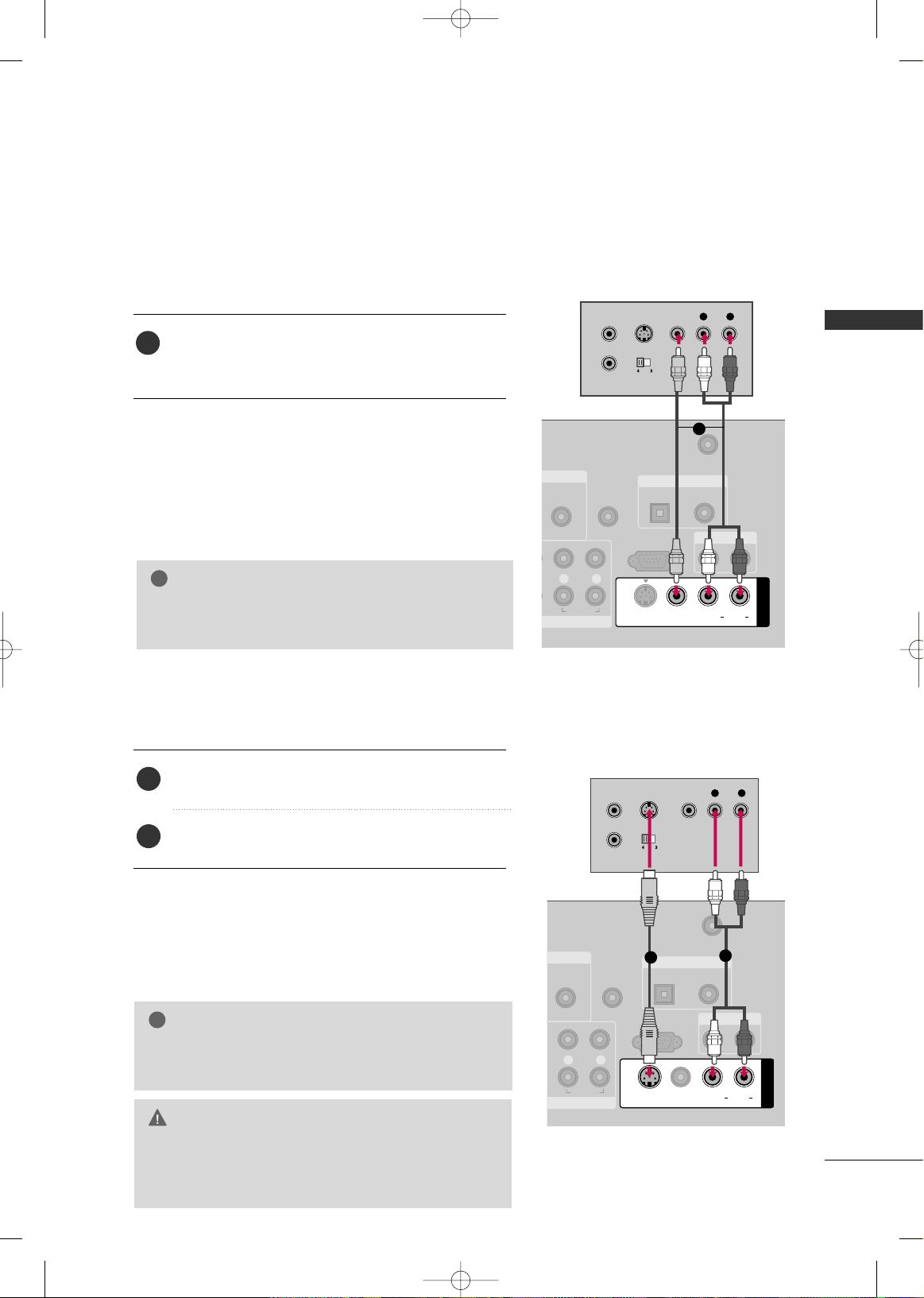
HDMI Connection
Connect the HDMI output of the DVD to the
HHDDMMII//DDVVII IINN11
,
22
,
33
or
44
jack on the TV.
No separate audio connection is necessary.
HDMI supports both audio and video.
1. How to connect
2. How to use
■
Select the
HHDDMMII11
,
HHDDMMII22
,
HHDDMMII33
, or
HHDDMMII44
input
source on the TV using the
IINNPPUUTT
button on the remote
control.
■
Refer to the DVD player's manual for operating instructions.
2
1
Component Connection
Connect the video outputs
(
Y, PB, PR
)
of the DVD to the
CCOOMMPPOONNEENNTT IINN VVIIDDEEOO11
jacks on the TV.
Match the jack colors
(
Y = green, P
B = blue, and PR = red
)
.
Connect the audio outputs of the DVD to the
CCOOMMPPOONNEENNTT IINN AAUUDDIIOO11
jacks on the TV.
1. How to connect
2. How to use
■
Turn on the DVD player, insert a DVD.
■
Select the
CCoommppoonneenntt 11
input source on the TV using
the
IINNPPUUTT
button on the remote control.
■
If connected to
CCOOMMPPOONNEENNTT IINN 22
input, select the
CCoommppoonneenntt 22
input source on the TV.
■
Refer to the DVD player's manual for operating instructions.
2
1
RGB IN
AUDIO
(RGB/DVI)
RGB(PC)
REMOT
CONTRO
COMPONENT IN
1
2
VIDEO
LYP
B
P
R
R
AUDIO
Y L RPB PR
1 2
COMPONENT IN
UO
(RGB/D
RGB(PC)
1
2
VIDEO
LYP
B
P
R
A
HDMI/DVI IN
2
1
HDMI-DVD OUTPUT
1
i.e) 37/42/47/52LG50
i.e) 37/42/47/52LG50
MFL34797048-en-8-ING 9/8/2008 3:54 PM Page 22
EXTERNAL EQUIPMENT SETUP
23
VCR SETUP
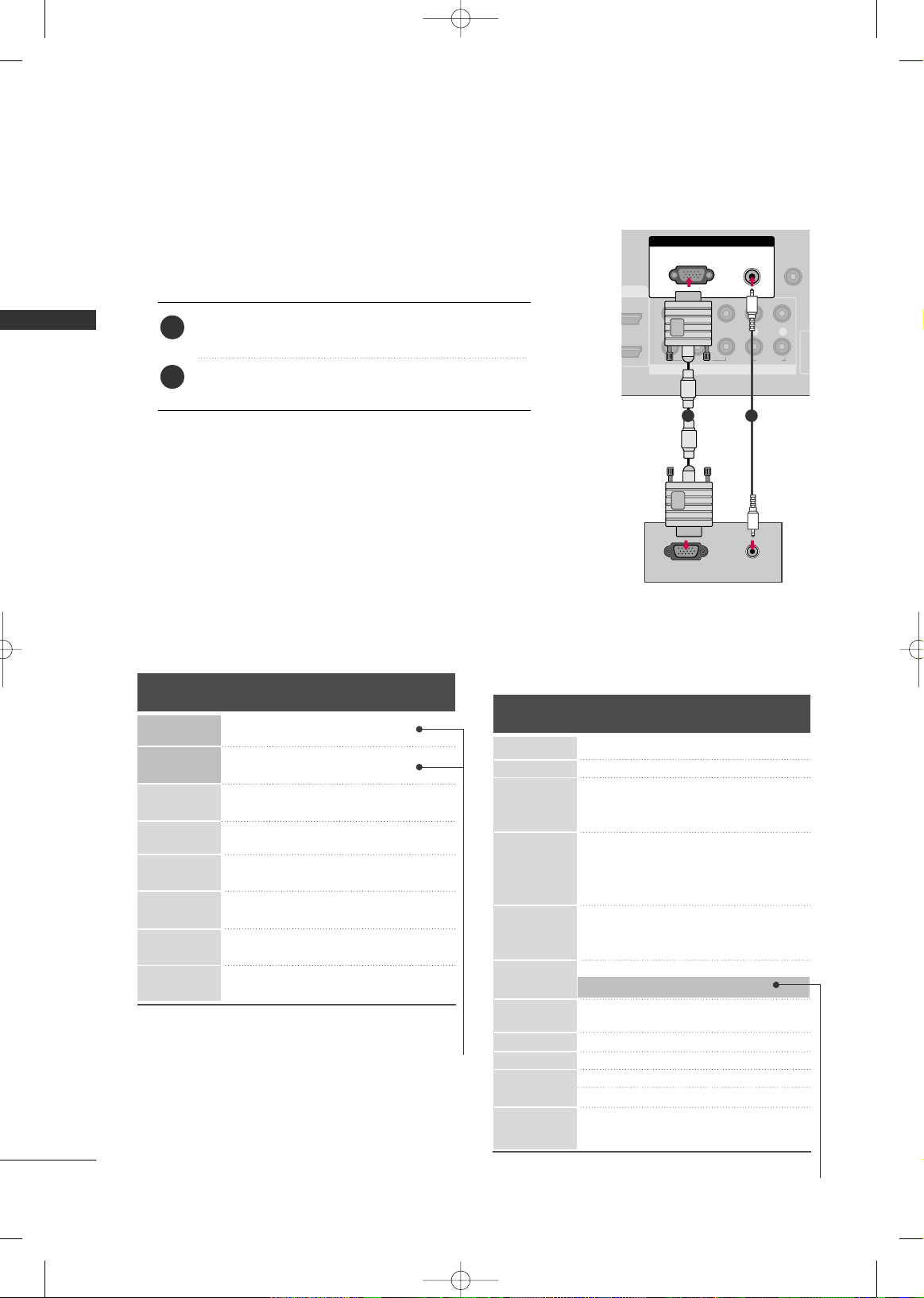
Composite (RCA) Connection
GG
If you have a mono VCR, connect the audio cable from
the VCR to the
AAUUDDIIOO LL//MMOONNOO
jack of the TV.
NOTE
!
NT IN
AUDIO
(RGB/DVI)
REMOTE
CONTROL IN
ANTENNA/
CABLE IN
RS-232C IN
(CONTROL & SERVICE)
L R
AUDIO
OPTICAL COAXIAL
DIGITAL AUDIO OUT
AUDIO OUT
AV IN 1
VIDEO L R
(MONO)
AUDIO
S-VIDEO
L R
S-VIDEO VIDEO
OUTPUT
SWITCH
ANT IN
ANT OUT
1
Connect the
AAUUDDIIOO
/
VVIIDDEEOO
jacks between TV and
VCR. Match the jack colors (Video = yellow, Audio Left
= white, and Audio Right = red)
1. How to connect
2. How to use
■
Insert a video tape into the VCR and press PLAY on the VCR.
(
Refer to the VCR owner’s manual.
)
■
Select the
AAVV11
input source on the TV using the
IINNPPUUTT
button on the remote control.
■
If connected to
AAVV IINN22
, select
AAVV22
input source on the TV.
GG
Do not connect to both Video and S-Video at the same
time. In the event that you connect both Video and the
S-Video cables, only the S-Video will work.
CAUTION
GG
S-Video provides better quality than composite. Use it
when available.
NOTE
!
S-Video Connection
(Except 32/37/42/47/52LG60, 42/47LGX)
NT IN
AUDIO
(RGB/DVI)
REMOTE
CONTROL IN
ANTENNA/
CABLE IN
RS-232C IN
(CONTROL & SERVICE)
L R
AUDIO
OPTICAL COAXIAL
DIGITAL AUDIO OUT
AUDIO OUT
AV IN 1
VIDEO LR
(MONO)
AUDIO
S-VIDEO
L R
S-VIDEO VIDEO
OUTPUT
SWITCH
ANT IN
ANT OUT
1
2
Connect the S-VIDEO output of the VCR to the
SS --VVIIDDEEOO
input on the TV.
Connect the audio outputs of the VCR to the
AAUUDDIIOO
input jacks on the TV.
1. How to connect
2. How to use
■
Insert a video tape into the VCR and press PLAY on the VCR.
(
Refer to the VCR owner’s manual.
)
■
Select the
AAVV11
input source on the TV using the
IINNPPUUTT
button on the remote control.
i.e)
i.e)
1
1
2
MFL34797048-en-8-ING 9/8/2008 3:54 PM Page 23
EXTERNAL EQUIPMENT SETUP
24
EXTERNAL EQUIPMENT SETUP
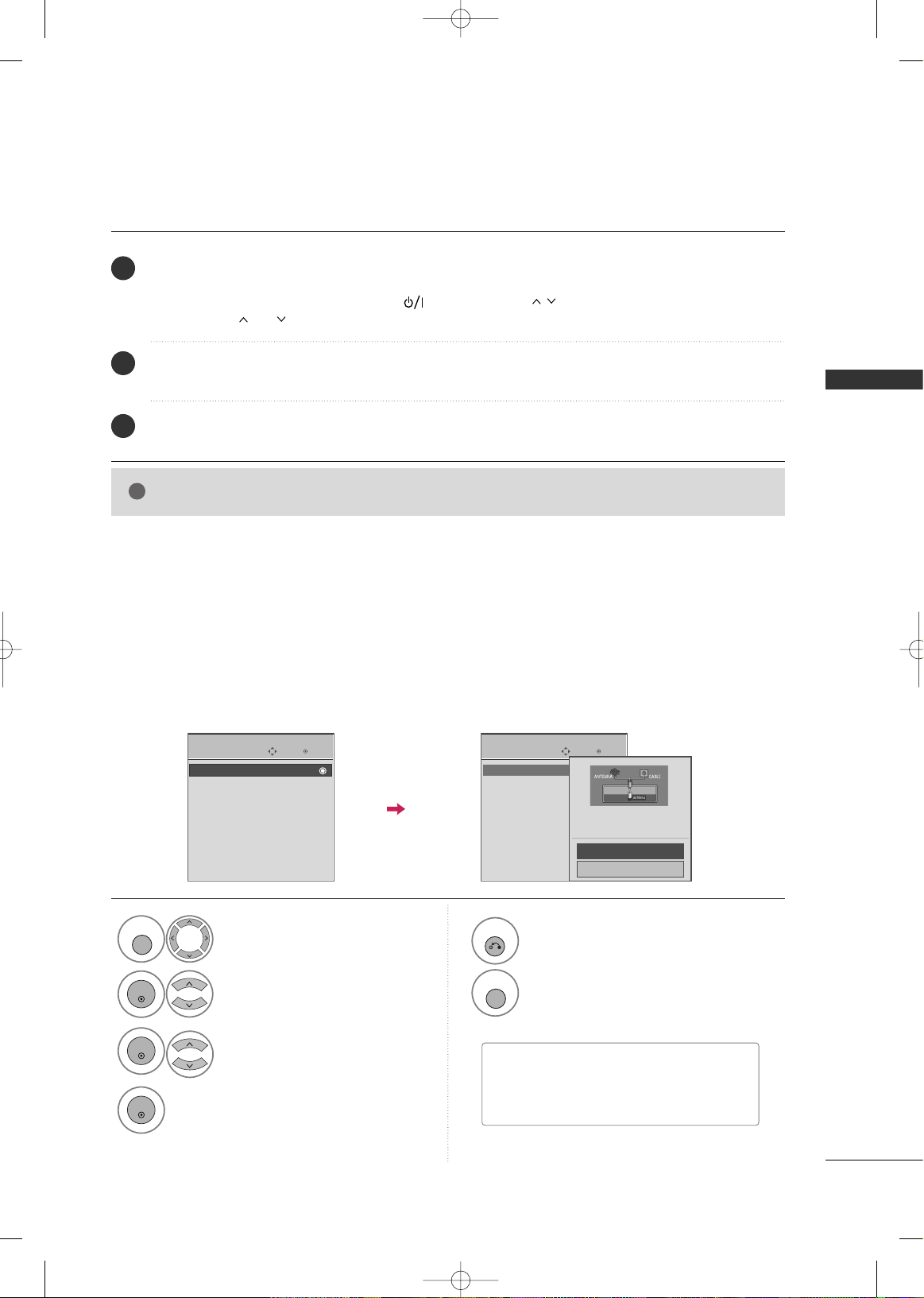
PC SETUP
Connect the VGA output of the PC to the
RRGGBB
((
PP CC
))
jack on the TV.
Connect the PC audio output to the
AAUUDDIIOO
((
RRGGBB//DDVVII
))
jack on the TV.
1. How to connect
2. How to use
■
Turn on the PC and the TV.
■
Select the
RRGGBB--PPCC
input source on the TV using the
IINNPPUUTT
button on the remote control.
2
1
VGA (D-Sub 15 pin) Connection
COMPONENT IN
REMOTE
CONTROL IN
1
2
(CO
VIDEO
LYP
B
P
R
R
AUDIO
I IN
RGB IN
AUDIO
(RGB/DVI)
RGB(PC)
RGB OUTPUT
AUDIO
1 2
Horizontal Vertical
Frequency
(
KHz
)
Frequency
(
Hz
)
31.469 70.08
31.469 70.08
31.469 59.94
37.879 60.31
48.363 60.00
47.776 59.87
47.720 59.799
47.130 59.65
Resolution
720x400
1360x768
640x350
640x480
800x600
1024x768
1280x768
1366x768
Supported Display Specifications (RGB-PC, HDMI-PC)
For 32/37/42LG30
For 37/42/47/52LG50, 32/37/42/47/52LG60,
32/42/47/52LG70, 42/47LGX, 47LG90,
42/50PG25, 50/60PG60, 50/60PG70
* Only RGB-PC mode
Resolution
640x350
Horizontal Vertical
Frequency
(
KHz
)
Frequency
(
Hz
)
31.468 70.09
31.469 70.08
31.469 59.94
37.500 75.00
37.861 72.80
35.156 56.25
37.879 60.31
46.875 75.00
48.077 72.18
48.363 60.00
56.476 70.06
60.023 75.02
47.776 59.87
60.289 74.893
63.981 60.02
79.976 75.025
47. 7 12 6 0 . 0 15
75.00 60.00
66.587 59.934
67.5 60.00
66.587 59.934
* Only RGB-PC mode
720x400
1360x768
640x480
800x600
1024x768
1280x1024
1600x1200
LCD TV
1920x1080
Plasma TV
1920x1080
RGB-PC
HDMI-PC
1280x768
i.e) 37/42/47/52LG50
MFL34797048-en-8-ING 9/8/2008 3:54 PM Page 24
WATCHING TV
25
WATCHING TV
TURNING ON TV
CHANNEL SETUP
NOTE
!
GG
If you intend to be away on vacation, disconnect the power plug from the wall power outlet.
First, connect power cord correctly.
At this moment, the TV switches to standby mode.
■
In standby mode to turn TV on, press the ,
IINNPPUUTT
,
((
DDEE
or
))
button on the TV or press the
PPOOWWEERR
,
IINNPPUUTT
,
CCHH((
or
))
,
NNuummbbeerr ((00
~
99))
button on the remote control.
Select the viewing source by using the
IINNPPUUTT
button on the remote control.
■
This TV is programmed to remember which power state it was last set to, even if the power cord is out.
When finished using the TV, press the
PPOOWWEERR
button on the remote control. The TV reverts to standby mode.
1
2
3
Auto Scan (Auto Tuning)
Automatically finds all channels available through antenna or cable inputs, and stores them in memory on the
channel list.
Run Auto Tuning again after any Antenna/Cable connection changes.
Select
CCHHAANNNNEELL
.
Select
AAuuttoo TTuunniinngg
.
Select
YYeess
.
Run
AAuuttoo ttuunniinngg
.
1
MENU
3
2
ENTER
ENTER
4
ENTER
■
A password is required to gain access to
Auto Tuning menu if the Lock System is
turned on.
5
RETURN
Return to the previous menu.
MENU
Return to TV viewing.
Enter
Move
CHANNEL
Enter
Move
CHANNEL
Auto Tuning
Manual Tuning
Channel Edit
Auto Tuning
Manual Tuning
Channel Edit
Press ‘Yes’ button to begin
auto tuning.
Yes
No
MFL34797048-en-8-ING 9/8/2008 3:54 PM Page 25
WATCHING TV
26
WATCHING TV
INITIAL SETTING
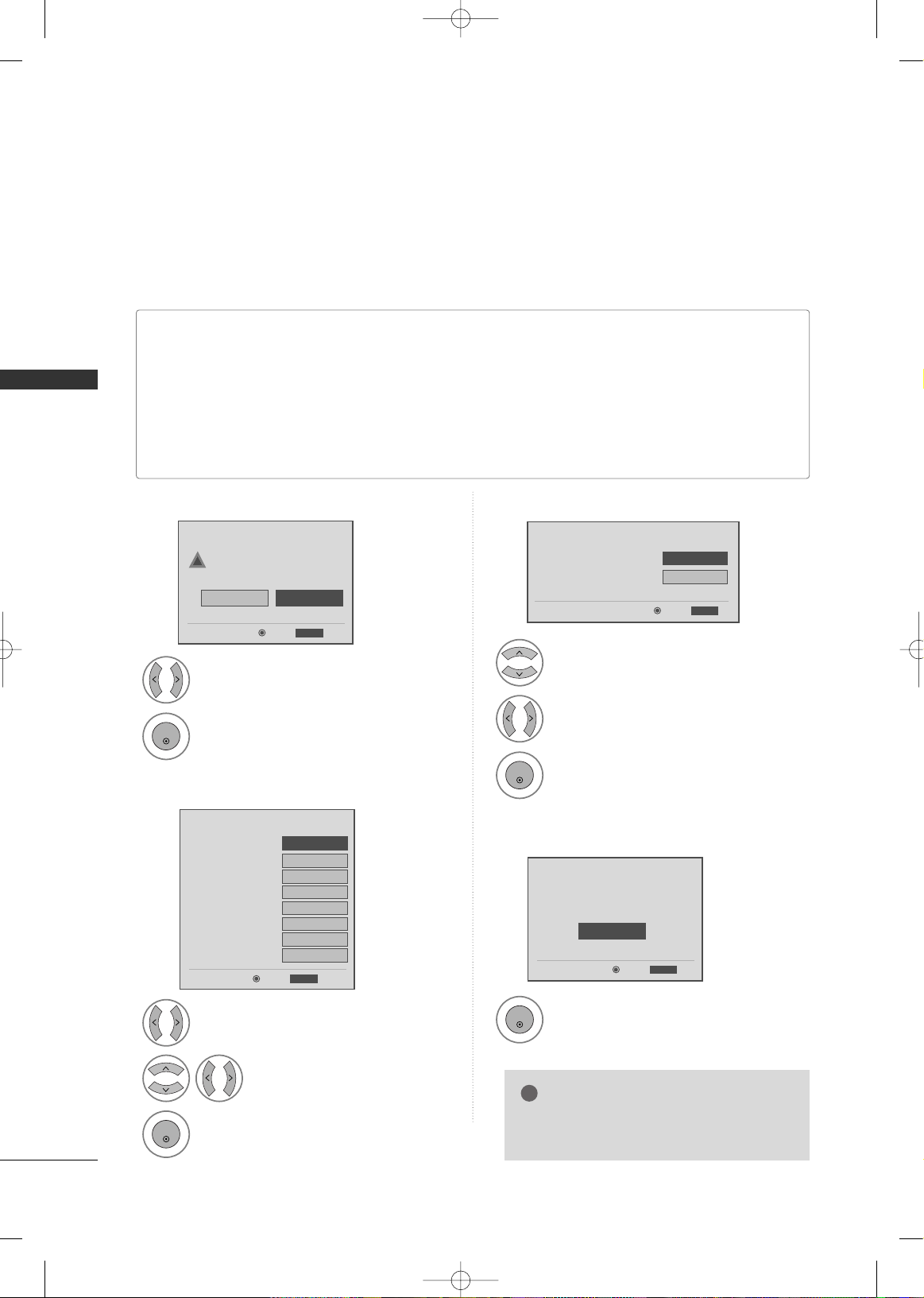
This Function guides the user to easily set the essential items for viewing the TV for the first time when
purchasing the TV. It will be displayed on the screen when turning the TV on for the first time. It can also be
activated from the user menus.
Select
HHoommee
Mode.
1
2
ENTER
Select
AAuuttoo
or
MMaannuuaall
.
Select desired time option.
1
3
ENTER
2
Year
Current Time Setting
2007
Month
11
Date
15
Hour
5 PM
Minute
52
Time Zone
Eastern
Daylight Saving
Off
FF
Auto
GG
ExitEnter
RETURN
Step2. Time Setting
Selecting the environment.
Choose the setting mode you want.
In Store
Home
ExitEnter
RETURN
Step1. Mode Setting
Step1. Mode Setting
Step2. Time Setting
■
Default selection is “
HHoommee
”. We recommend setting the TV to “
HHoommee
” mode for the best picture in your
home environment.
■
“
IInn--ssttoorree
” Mode is only intended for use in retail environments. Customers can adjust the “
PPiiccttuurree
menu
-
PPiiccttuurree mmooddee
” manually while inspecting the TV, but the TV will automatically return to preset in-store
mode after 5 minutes.
■
“
IInn--ssttoorree
” Mode is an optimal setting for displaying at stores. “In-Store” mode initializes the TV to set the
image quality and operates “
TTrruuMMoottiioonn DDeemmoo
(For 37/42/47/52LG60, 42/47/52LG70, 42/47LGX)”
or “
LLooccaall DDiimmmmiinngg DDeemmoo
(For 47LG90)” after a certain period of time.
!
Select
OOSSDD LLaanngguuaaggee SSeettttiinngg
or
AAuuddiioo LLaanngguuaaggee SSeettttiinngg
.
Start
AAuuttoo TTuunniinngg
.
Select your desired language.
1
3
ENTER
1
ENTER
2
Auto Tuning can change channel map.
Do you want to start Auto Tuning?
Enter
Exit
Enter
RETURN
Step4. Auto Tuning
ExitEnter
RETURN
Step3. Option Setting
1. OSD Language Setting
FF
English
GG
2. Audio Language Setting
French
Step3. Option Setting
Step4. Auto Tuning
■
You can also adjust
IInniittiiaall SSeettttiinngg
in the
OOPPTTIIOONN
menu
.
NOTE
!
MFL34797048-en-8-ING 9/8/2008 3:54 PM Page 26
WATCHING TV
27
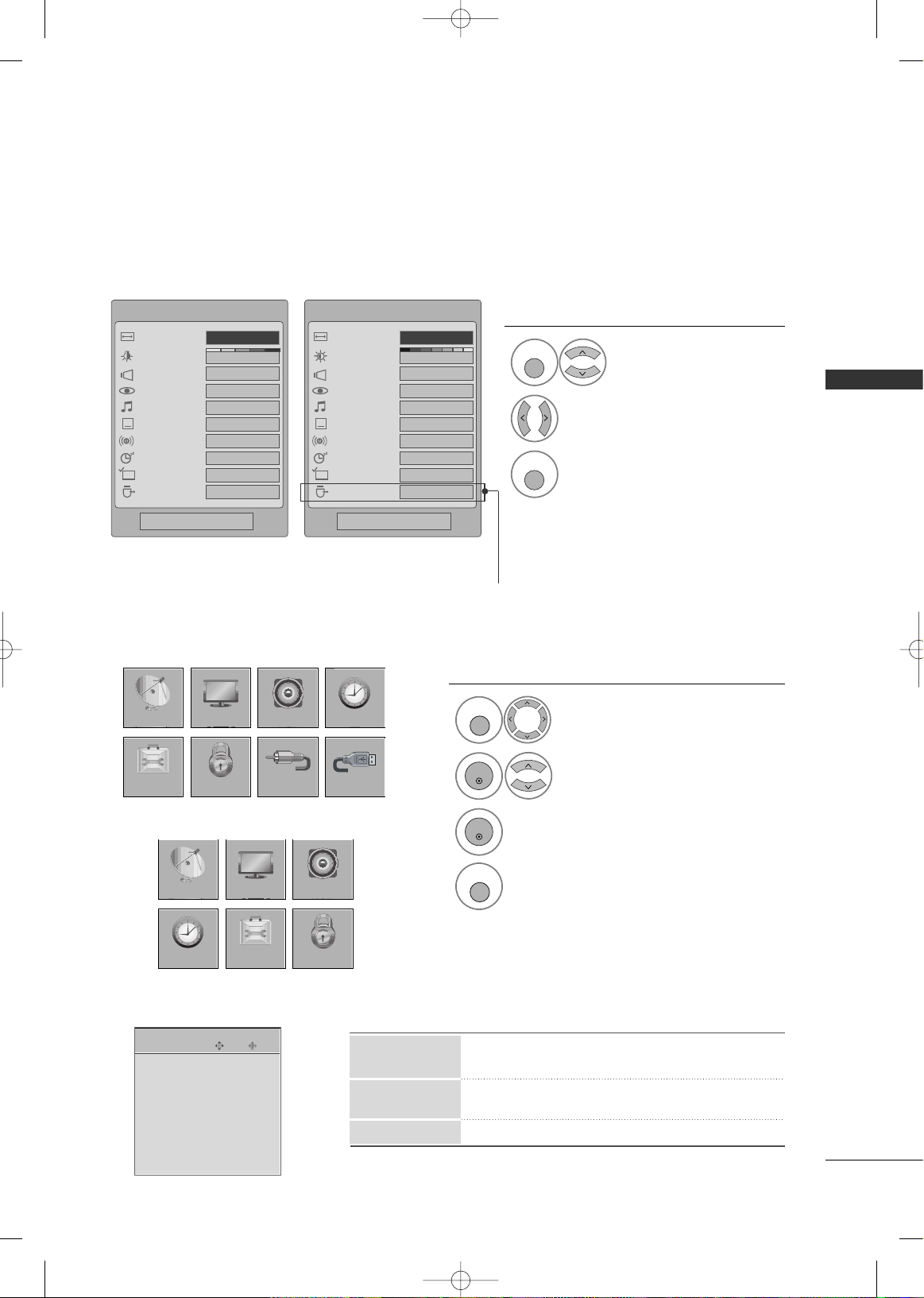
QUICK MENU
ON-SCREEN MENUS SELECTION
Q.Menu (Quick Menu) is a menu of features which users might use frequently.
Display each menu.
Select a menu item.
Enter to the pop up menu.
1
MENU
3
2
ENTER
ENTER
Return to TV viewing.
4
MENU
Your TV's OSD (On Screen Display) may differ slightly from that shown in this manual.
■
All available TV channels are searched and stored
automatically.
■
User can do manual channel selection and add or
delete individual channels.
■
You can add or delete in the channel list.
Channel Edit
Manual Tuning
Auto Tuning
LCD TV
Q.Menu
3
FF
16:9
GG
Vivid
Off
Standard
Off
English
Off
Add
Eject
Aspect Ratio
Backlight
Clear Voice
Picture Mode
Sound Mode
Caption
Multi Audio
Sleep Timer
Del/Add/Fav
USB Eject
CH
Plasma TV
Q.Menu
Close Close
3
FF
16:9
GG
Vivid
Off
Standard
Off
English
Off
Add
Eject
Aspect Ratio
Power Saving
Clear Voice
Picture Mode
Sound Mode
Caption
Multi Audio
Sleep Timer
Del/Add/Fav
USB Eject
CH
Except 32/37/42LG30
Display each menu.
Make appropriate adjustments.
Return to TV viewing.
1
Q. MENU
3
2
Q. MENU
CHANNEL
ENTER
Move
Auto Tuning
Manual Tuning
Channel Edit
CHANNEL
CHANNEL
OPTION
PICTURE
LOCK
AUDIO
INPUT
TIME
USB
CHANNEL
TIME
PICTURE
OPTION
AUDIO
LOCK
or
MFL34797048-en-8-ING 9/8/2008 3:54 PM Page 27

WATCHING TV
28
WATCHING TV
PICTURE
AUDIO
■
Select the desired picture format: Set by program,
4:3, 16:9, Zoom1, Zoom2, Just Scan.
■
Select the Intelligent Sensor
(Except 32/37/42LG30,
Plasma TV)
, Vivid, Standard, Cinema/ Cinema
(Only for 50/60PG60/70), Sport, Game, Expert1, Expert2.
■
Adjust the Backlight
(Only LCD TV)
, Contrast,
Brightness, Sharpness, Color, Tint.
■
Advanced Control: Adjust the Color Temperature, Fresh
Contrast, Fresh Color, Noise Rreduction, Gamma, Color
Gamut
(Only 47LG90)
, Black Level, Eye Care
(Only LCD
TV)
, Real Cinema
(For LCD TV)
/ Film Mode
(For Plasma
TV)
, TruMotion
(Only 37/42/47/52LG60, 42/47LGX,
47LG90, 42/47/52LG70)
.
■
Reset: Settings of the selected picture modes return
to the default factory settings.
■
Adjust the screen Resolution, Auto config, Position,
Size, Phase, Reset.
■
Use this feature to see the difference TruMotion makes.
(37/42/47/52LG60, 42/47/52LG70, 42/47LGX, 47LG90 Only)
■
After analyzing the signal of the input video by areas
of the screen, it adjusts the brightness to improve
the contrast ratio.
■
Use this feature to see Local Dimming Demo.
Picture Mode
Aspect Ratio
Screen (RGB-PC)
TruMotion Demo
Local Dimming
(47LG90 only)
Local Dimming Demo
(47LG90 only)
■
Auto Volume makes sure that the volume level
remains consistent whether you are watching a
commercial or a regular TV program.
■
By differentiating the human sound range from others,
it helps users listen to human voices better.
■
Adjust the left/right sound of speaker.
■
Select the Standard, Music, Cinema, Sport, and Game.
■
SRS TruSurround XT, Treble, Bass: Adjust the sound
to suit your taste and room situations.
■
Reset: Settings of the selected Sound Mode return
to the default factory settings.
■
Turn the TV speaker On or off.
Balance
TV Speaker
Auto Volume
Sound Mode
Clear Voice
■
Auto: The time is set automatically from a digital
channel signal.
Select your viewing area time zone.
Select Auto, Off, On depending on whether or
not your viewing area observes Daylight Saving
time.
■
Manual: Set the clock manually.
■
Select On or Off.
■
Select On or Off.
■
Select the amount of time before your TV turns off
automatically: Off, 10, 20, 30, 60, 90, 120, 180, 240.
■
TV will be automatically turned off, in case of no
signal for 10 minutes.
Off Time
On Time
Sleep Timer
Clock
Auto Sleep
TIME
Enter
Move
PICTURE
E
Aspect Ratio : 16:9
Picture Mode : Standard
• Backlight 80
• Contrast 90
• Brightness 50
• Sharpness 60
• Color 60
• Tint 0
RG
Enter
Move
AUDIO
E
LR
Auto Volume : Off
Clear Voice : On
Balance 0
Sound Mode : Standard
•
SRS TruSurround XT:
Off
• Treble 50
• Bass 50
• Reset
Enter
Move
TIME
Clock :
Feb/21/2008 2:10 AM
Off Time : Off
On Time : Off
Sleep Timer : Off
Auto Sleep : Off
MFL34797048-en-8-ING 9/8/2008 3:54 PM Page 28
WATCHING TV
29
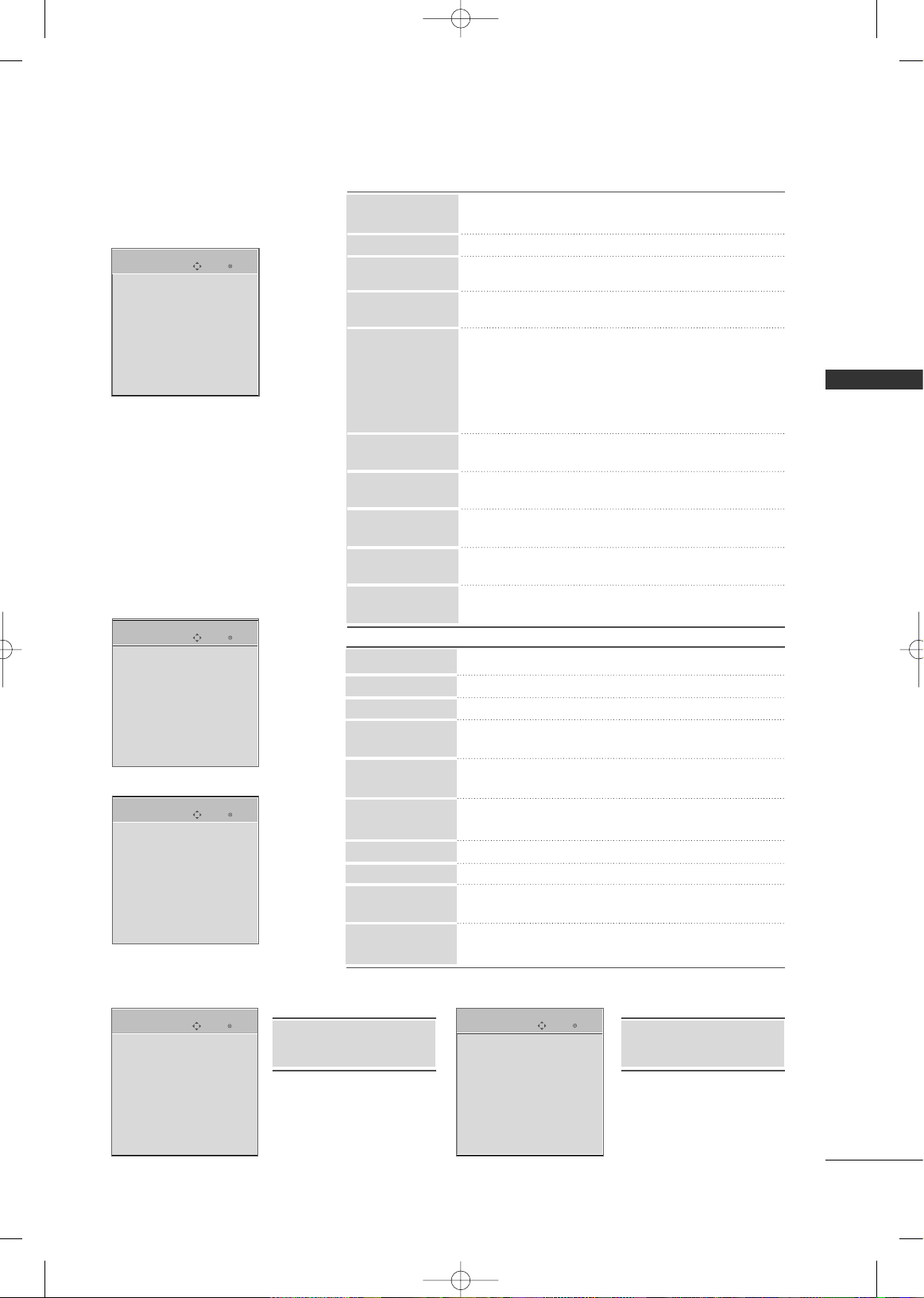
OPTION
■
Select your desired language for on screen menus
: English, Spanish, French.
■
Set a label to each input source.
■
Control and play other AV devices connected to the TV
through HDMI cable without additional cables and settings.
■
This feature can be used to prevent unauthorized
viewing by locking out the front panel controls.
■
When selecting Off, Submenus for Analog, DTV, and
Digital Option become disabled.
■
Analog: CC1~ CC4 , Text1~ Text4.
■
Digital: CC1~ CC4 , Text1~ Text4, Service1~ Service6.
■
Digital Option: Customize the DTV/CADTV captions
that appear on your screen.
■
Use it to minimize any fixed image on the screen.
: Normal, Orbiter, Inversion, White Wash.
■
Reduces the plasma display power consumption.
■
Choose the desired TV ID number.
■
Adjust Power Indicator menu options.
■
After turning on the TV, adjust Mode, Time, Language,
Auto Tuning.
SIMPLINK
key Lock
ISM Method
(Plasma TV only)
Power Saving
(Plasma TV only)
Caption
Input Label
Language
■
Select On or Off.
■
Change the password.
■
Select a channel number that you wish to block.
■
Blocks movies according to the movie ratings limits
specified.
■
Prevents children from watching certain children's
TV programs, according to the ratings limit set.
■
Based on the ratings, blocks certain TV programs
that you and your family do not want to view.
■
Selecting canadian english language rating system.
■
Selecting canadian french language rating system.
■
This function may become available in the future and
will be available only for digital channel signal.
■
Enables you to select a source to block from the
external source devices you have hooked up.
Block Channel
Movie Rating
TV Rating-Children
TV Rating-General
TV Rating-English
TV Rating-French
Downloadable
Rating
Input Block
Set Password
Lock System
For USA
LOCK
Initial Setting
Power Indicator
(LCD TV only)
Set ID
(Except 42/47LGX,
32/37/42/47/52LG60)
For Canada
Enter
Move
Lock System : Off
Set Password
Block Channel
TV Rating-English
TV Rating-French
Downloadable Rating
Input Block
LOCK
Enter
Move
Lock System : Off
Set Password
Block Channel
Movie Rating
TV Rating-Children
TV Rating-General
Downloadable Rating
Input Block
LOCK
Enter
Move
Antenna
Cable
AV1
AV2
Component1
Component2
RGB-PC
HDMI1
INPUT
E
INPUT USB
■
Select desired input
sources.
■
Your TV's OSD (On
Screen Display) may
differ slightly from that
shown in this manual.
Input
(Except 32/37/42LG30)
■
Use PHOTO LIST or
MUSIC LIST.
USB
(Except 32/37/42LG30)
Enter
Move
PHOTO LIST
MUSIC LIST
USB
Enter
Move
OPTION
E
Language : English
Input Label
SIMPLINK : On
Key Lock : Off
Caption : Off
ISM Method : Normal
Power Saving : Level 0
Set ID : 1
MFL34797048-en-8-ING 9/8/2008 3:54 PM Page 29
USB
30
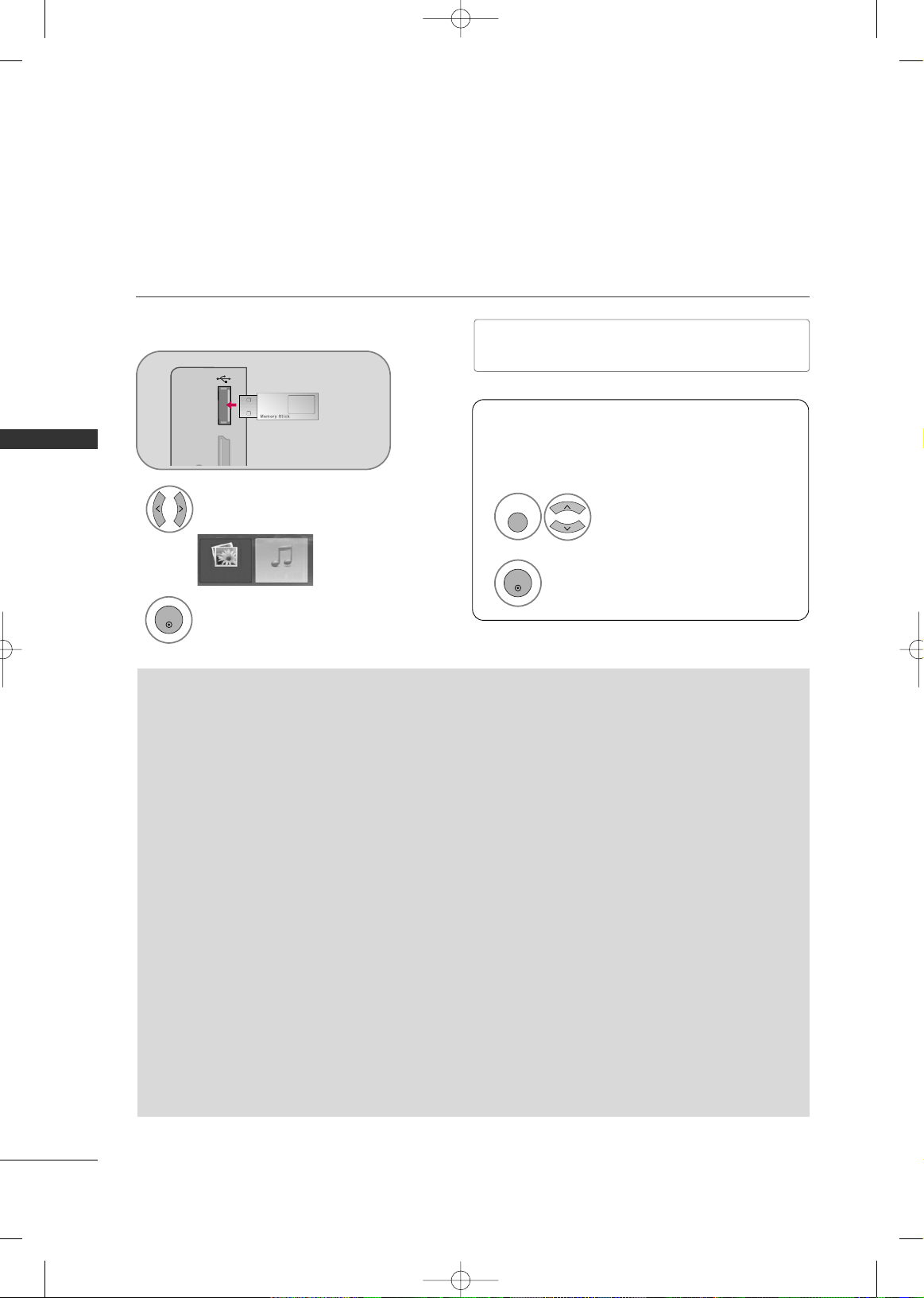
ENTRY MODES
USB
When you connect a USB device, this screen is displayed automatically.
In USB device, you can not add a new folder or delete the existing folder.
Precautions when using the USB device
GG
Only a USB storage device is recognizable.
GG
If the USB storage device is connected through a
USB hub, the device is not recognizable.
GG
A USB storage device using an automatic recogni-
tion program may not be recognized.
GG
A USB storage device which uses its own driver
may not be recognized.
GG
In case of a card reader, up to four memory cards
are concurrently recognizable.
GG
The recognition speed of a USB storage device
may depend on each device.
GG
Please do not turn off the TV or unplug the USB
device when the connected USB storage device is
working. When such device is suddenly separated
or unplugged, the stored files or the USB storage
device may be damaged.
GG
Please do not connect the USB storage device
which was artificially maneuvered on the PC. The
device may cause the product to malfunction or
fail to be played. Never forget to use only a USB
storage device which has normal music files or
image files.
GG
Please use only a USB storage device which was
formatted as a FAT or NTFS file system provided
with the Windows operating system. In case of a
storage device formatted as a different utility pro-
gram which is not supported by Windows, it may
not be recognized.
GG
Please connect power to a USB storage device
which requires an external power supply. If not,
the device may not be recognized.
GG
Please connect a USB storage device with cable is
offered by USB maker. If connected with cable is
not offered by USB maker or an excessively long
cable, the device may not be recognized.
GG
Some USB storage devices may not be supported
or operated smoothly.
GG
File alignment method of USB storage device is
similar to Window XP and filename can recognize
up to 100 English characters.
GG
Please backup important files because data on
USB device may be damaged. Data management is
consumer's responsibility and as a result, the man-
ufacturer does not cover data damage.
Connect the USB device to the
UUSSBB IINN
jacks on the side of TV.
3
Select
PPHHOOTTOO LLIISSTT
or
MMUUSSIICC LLIISSTT
.
1
DMI IN 3 USB IN
PHOTO LIST MUSIC LIST
2
ENTER
* Except 32/37/42LG30
When removing the USB device
Select
UUSSBB EEjjeecctt
.
Select the
UUSSBB EEjjeecctt
menu before removing the
USB device.
1
Q. MENU
2
ENTER
■
It doesn’t support USB HDD
■
This TV supports JPG and MP3.
MFL34797048-en-8-ING 9/8/2008 3:54 PM Page 30
USB
31
PHOTO LIST
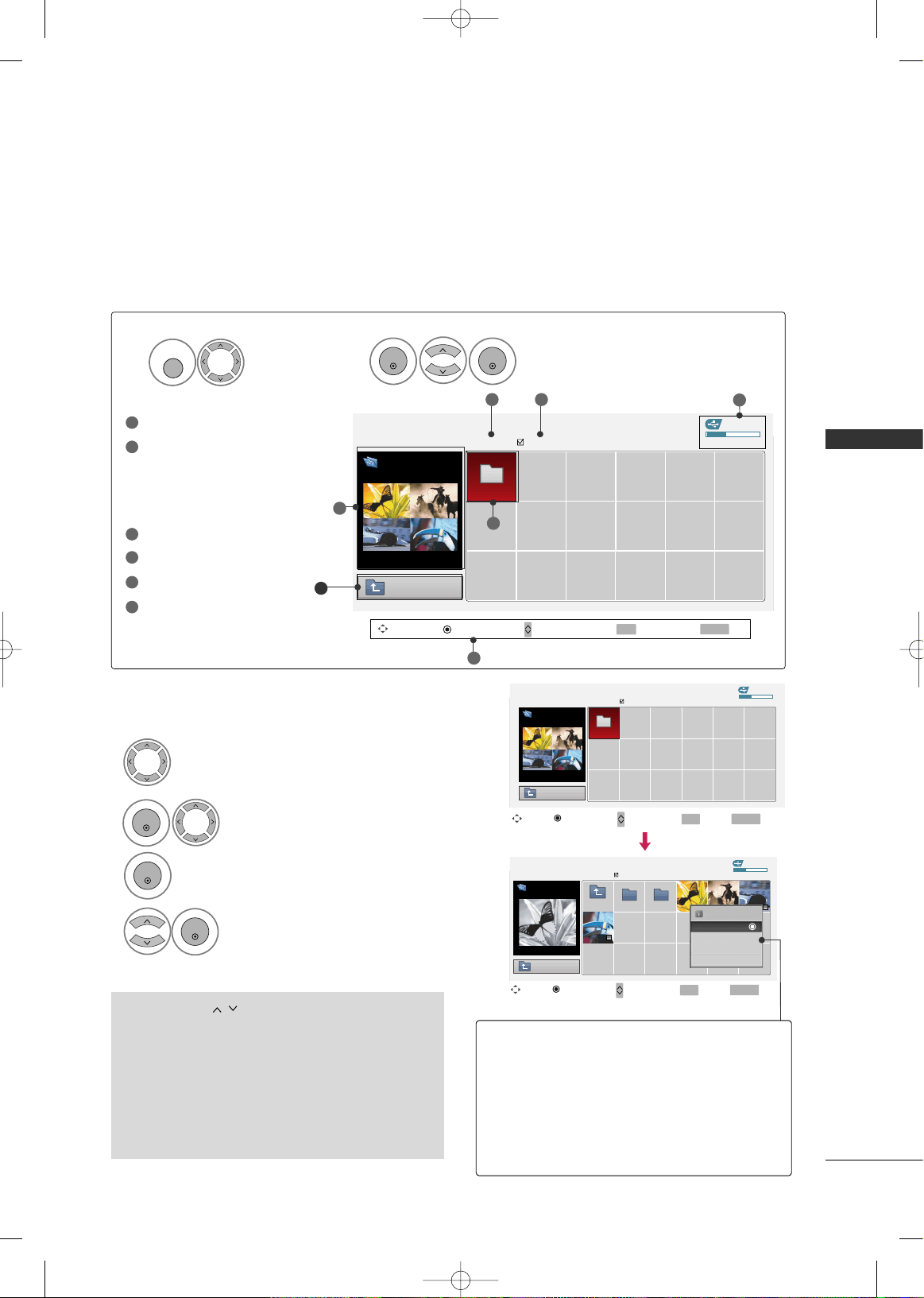
You can view .JPG files from USB storage devices.
The On Screen Display on your model may be slightly different.
Photo Selection and Popup Menu
■
Use the
CCHH
button to navigation in the
photo page.
■
Use the
FFAAVV
button to mark or unmark a photo.
When one or more photos are marked, you can
view individual photos or a slide show of the
marked photos. If no photos are marked, you can
view all photos individually or all photos in the
folder in a slide show.
Screen Components
Moves to upper level file
Preview: Display the
thumbnail/folder name of
the photo in the selected
folder
Current page/Total pages
Total number of marked photos
Usable USB memory
Corresponding buttons on
the remote control
USB Device
Page 1/1
No Marked
PHOTO LIST
Upper
Free Space 150MB
Navigate PopUp Menu Move Page Mark Exit
2Folders, 4Files
3 4
5
1
2
Select
UUSSBB
.
Select
PPHHOOTTOO LLIISSTT
.
2
TOP FOLDER
Drive1
1
MENU
ENTER
ENTER
1
2
3
4
5
6
Drive1
CH
FAV
RETURN
6
1
Select the target folder or drive.
Select the desired photos.
2
Show the Popup menu.
3
1
4
Select the desired Popup menu.
ENTER
ENTER
ENTER
USB Device
Page 1/1
No Marked
PHOTO LIST
Upper
Free Space 150MB
2Folders, 4Files
USB Device
Page 1/1
No Marked
PHOTO LIST
Upper
Free Space 150MB
1366
x
768 125KB
TOP FOLDER
Drive1
Navigate Move Page Mark Exit
CH
FAV
RETURN
PopUp Menu
Navigate Move Page Mark Exit
CH
FAV
RETURN
PopUp Menu
Drive1
Drive1
Butterfly
Upper Photo X.Box
1366x768
125KB
View
Mark All
Delete
Cancel
When you select a file (not folder), this PopUp
menu is displayed.
GG
VViieeww
: Display the selected item.
GG
MMaarrkk AAllll
: Mark all photos on the screen.
GG
UUnnmmaarrkk AAllll
: Deselect all marked photos.
GG
DDeelleettee
: Delete the selected photo item.
GG
CCaanncceell
: Close the pop-up menu.
MFL34797048-en-8-ING 9/8/2008 3:54 PM Page 31
USB
32
USB
Full Screen Menu
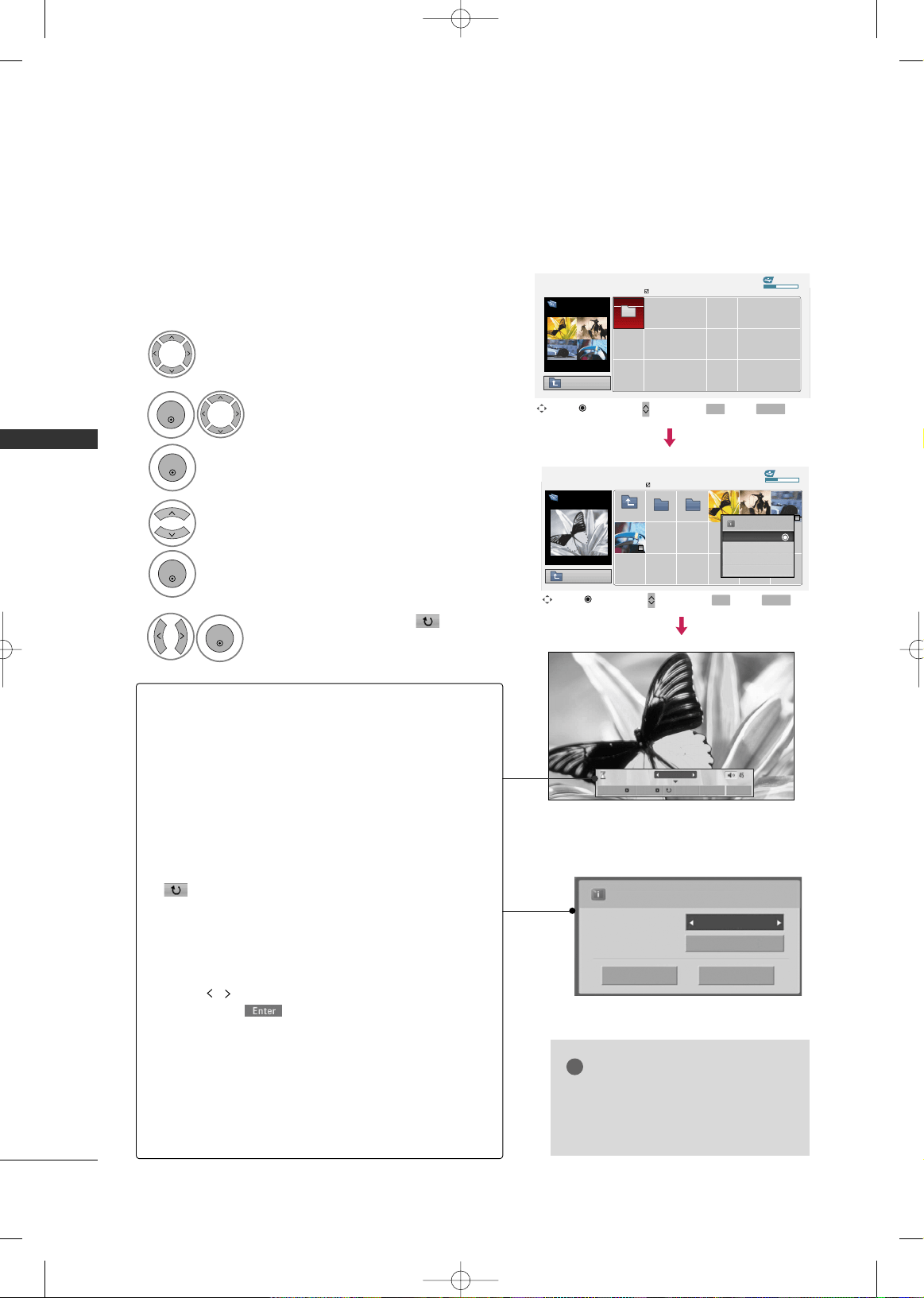
You can change the Photo List view so that it fills the
screen. More operations are available in full screen mode.
Select the target folder or drive.
Select the desired photos.
Show the Popup menu.
5
Select
VViieeww
.
The selected photo is displayed in
full size.
2
3
1
4
ENTER
ENTER
ENTER
Select the
SSiiddeesshhooww
,
BBGGMM
,
((RRoottaattee))
,
DDeelleettee
,
OOppttiioonn
, or
HHiiddee..
Press
FF GG
to set the time interval between slides.
Slide Speed
Fast
Cancel
...
Music Folder
ENTER
ENTER
6
USB Device
Page 1/1
No Marked
PHOTO LIST
Upper
Free Space 150MB
2Folders, 4Files
USB Device
Page 1/1
No Marked
PHOTO LIST
Upper
Free Space 150MB
1366
x
768 125KB
TOP FOLDER
Drive1
Navigate Move Page Mark Exit
CH
FAV
RETURN
PopUp Menu
Navigate Move Page Mark Exit
CH
FAV
RETURN
PopUp Menu
Drive1
Drive1
Butterfly
Upper Photo X.Box
1366x768
125KB
View
Mark All
Delete
Cancel
The aspect ratio of a photo may change the size of
the photo displayed on the screen in full size.
1/17
Sideshow BGM Delete Option Hide
GG
SSiiddeesshhooww
: Selected photos are displayed during the
slide show. If no photo is selected, all photos in the cur-
rent folder are displayed during slide show.
■
Set the time interval of the slide show in
OOppttiioonn
.
■
A slide show continues for a maximum of 4 hours.
After 4 hours, the slide show will end and go to TV
mode or external input mode.
GG
BBGGMM
: Listen to music while viewing photos in full size.
■
Set the BGM device and album in
OOppttiioonn
.
GG
((RRoottaattee))
: Rotate photos.
■
Rotates the photo 90°, 18 0 °, 270°, 360° clockwise.
GG
DDeelleettee
: Delete photos.
GG
OOppttiioonn
: Set values for
SSlliiddee SSppeeeedd
and
MMuussiicc
FFoollddeerr
.
■
Use button and
EENNTTEERR
button to set values.
Then go to and press
EENNTTEERR
to save the set-
tings.
■
You cannot change
MMuussiicc FFoollddeerr
while BGM is
playing.
GG
HHiiddee
: Hide the menu on the full-sized screen.
■
To see the menu again on the full-sized screen, press
EENNTTEERR
button to display.
NOTE
!
GG
This TV will not be able to decode
most JPG images saved using the
Progressive option.
MFL34797048-en-8-ING 9/8/2008 3:54 PM Page 32
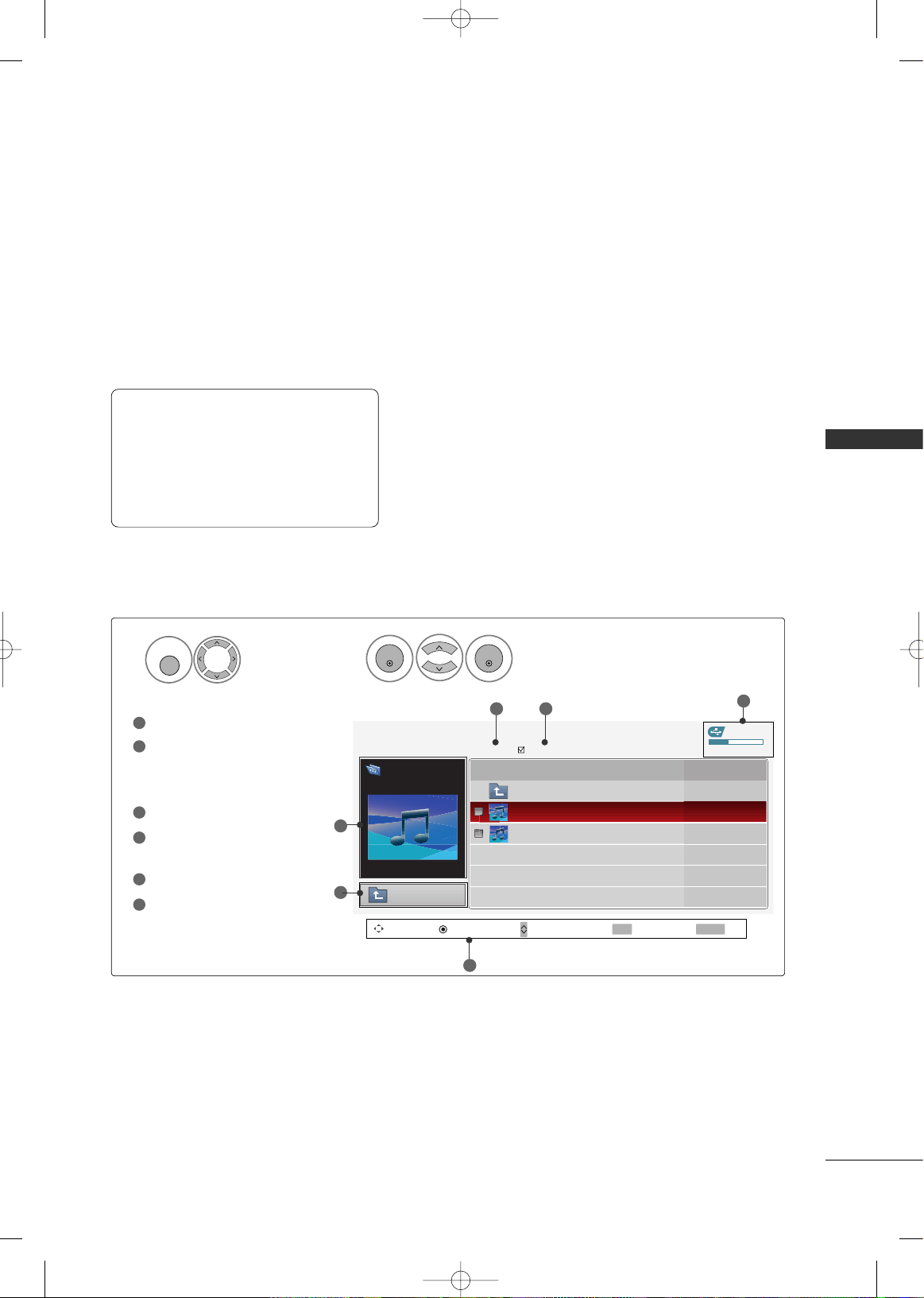
USB
33
MUSIC LIST
You can use the Music List menu to play MP3 files form a USB storage device.
This TV cannot play back copy-protected files.
The On Screen Display on your model may be slightly different.
Screen Components
Supported music file:
*
.MP3
Bit rate range 40Kbps ~ 320Kbps
• Sampling rate (Sampling Frequency)
MPEG1 : 32000, 44100, 48000Hz
MPEG2 : 16000, 24000, 22050Hz
MPEG2.5 : 16 ~ 48KHz
Moves to upper level file
Preview: If any album jacket
for the file exists, this jack-
et is displayed.
Current page/Total pages
Total number of marked
musics
Usable USB memory
Corresponding buttons on
the remote control
1
3
4
5
6
2
Select
UUSSBB
.
Select
MMUUSSIICC LLIISSTT
.
1
2
MENU
ENTER
ENTER
USB Device
MUSIC LIST
Upper
Free Space 150MB
3945 KB, 128 Kbps
Title Play Time
Upper
Good Bye
Arirang 04:12
05:30
3
5
1
2
Navigate PopUp Menu Move Page Mark Exit
CH
FAV
RETURN
6
Page 1/1
No Marked
Drive1
Arirang
4
MFL34797048-en-8-ING 9/8/2008 3:54 PM Page 33
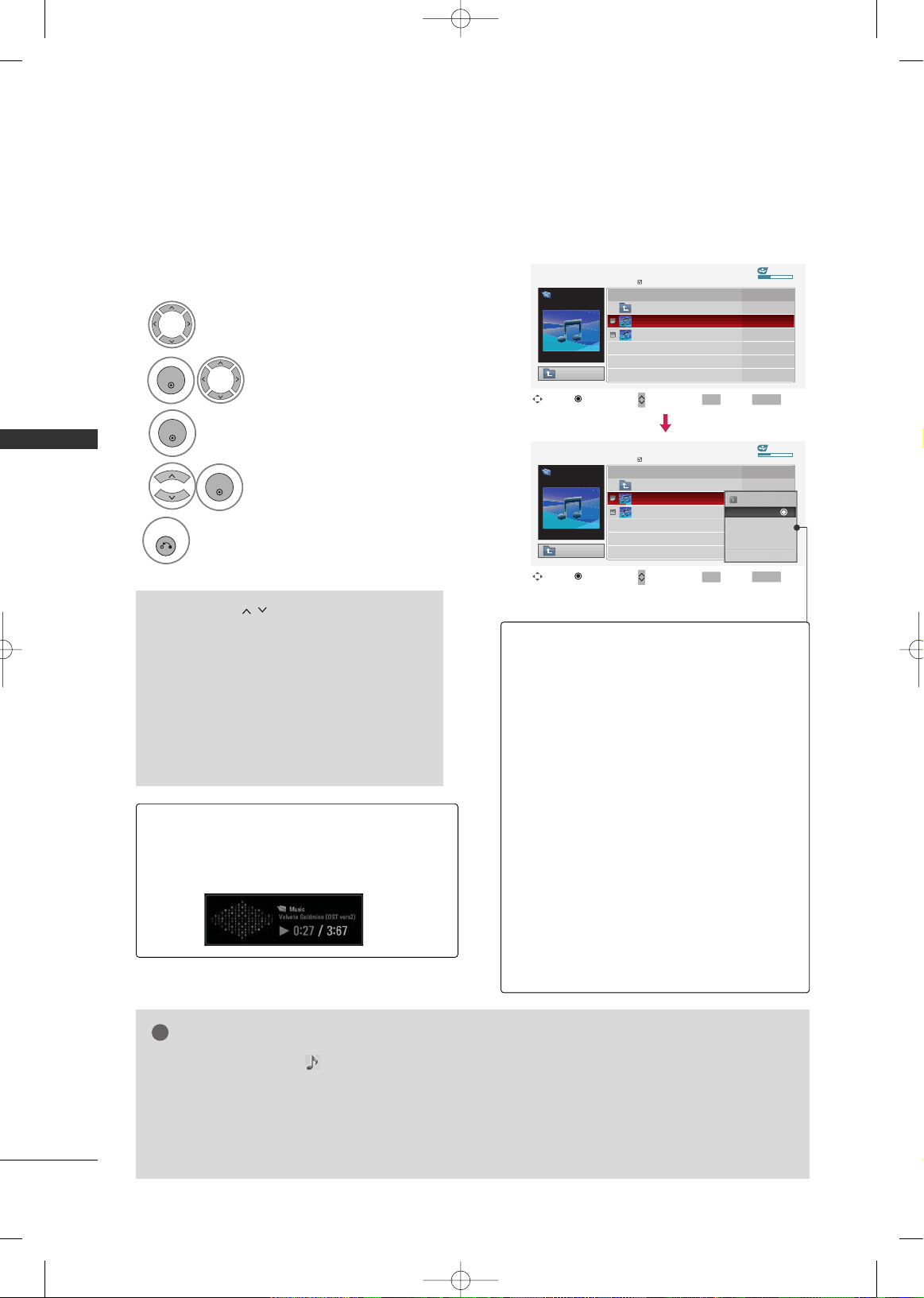
USB
34
USB
Music Selection and Popup Menu
GG
PPllaayy
(During stop): Play the selected music.
Once a song finishes playing, the next selected
one will be played. When there are no selected
musics to play, the next one in the current fold-
er will be played. If you go to a different folder
and press the
EENNTTEERR
button, the current
music in playback will stop.
GG
PPllaayy MMaarrkkeedd
: Play the selected musics. Once
a music finishes playing, the next selected one
will be played automatically.
GG
SSttoopp PPllaayy
(During playback): Stop the play-
ing musics.
GG
PPllaayy wwiitthh PPhhoottoo
: Start playing the selected
musics and then move to the Photo List.
GG
MMaarrkk AAllll
: Mark all musics in the folder.
GG
UUnnmmaarrkk AAllll
: Deselect all marked music.
GG
DDeelleettee
: Delete the selected music.
GG
CCaanncceell
: Close the pop-up menu.
■
Use the
CCHH
button to navigation in
the music page.
■
Use
FFAAVV
button to mark or unmark a music
file. If no music is marked, all the music in the
folder will be played in sequence. When one or
more music files are marked, the marked music
files will be played in sequence. If you want to
listen to only one song repeatedly, just mark
that one file and play.
Select the target folder or drive.
Select the desired musics.
show the PopUp menu.
Select the desired PopUp menu.
2
3
1
4
ENTER
ENTER
ENTER
Up to 6 music titles are listed per page.
5
RETURN
Return to TV viewing.
■
The play information box (as shown below) will
automatically move across the screen when there
is no user input to prevent a fixed image remain-
ing on the screen for a extended period of time.
NOTE
!
GG
When music is playing, is displayed in front of the music play time.
GG
A damaged or corrupted music file that does not play displays 00:00 as the play time.
GG
Music files with copy-protection will not play.
GG
Press
EENNTTEERR
,
AA
, or
RREETTUURRNN
button to stop the screen saver.
GG
This TV can not play music files less than 16 Kbytes.
USB Device
Page 1/1
No Marked
MUSIC LIST
Upper
Free Space 150MB
3945 KB, 128 Kbps
Drive1
Arirang
Navigate Move Page Mark Exit
CH
FAV
RETURN
PopUp Menu
Play TimeTitle
Upper
Good Bye
Arirang
USB Device
Page 1/1
No Marked
MUSIC LIST
Upper
Free Space 150MB
3945 KB, 128 Kbps
Drive1
Arirang
Navigate Move Page Mark Exit
CH
FAV
RETURN
PopUp Menu
Play TimeTitle
Upper
Good Bye
Arirang
05:30
04:12
3945 KB
128 Kbps
Play
Play with Photo
Mark All
Delete
Cancel
MFL34797048-en-8-ING 9/8/2008 3:54 PM Page 34
APPENDIX
35
TROUBLESHOOTING
APPENDIX
TThhee ooppeerraattiioonn ddooeess nnoott wwoorrkk nnoorrmmaallllyy..
TThhee vviiddeeoo ffuunnccttiioonn ddooeess nnoott wwoorrkk..
No picture &No sound
No or poor color
or poor picture
Poor reception on
some channels
Lines or streaks
in pictures
No picture
when connecting HDMI
Horizontal/vertical bars
or picture shaking
Picture appears slowly
after switching on
The remote control
doesn’t work
Power is suddenly
turned off
■
Check to see if there is any object between the product and the remote control
causing obstruction. Ensure you are pointing the remote control directly at the TV.
■
Ensure that the batteries are installed with correct polarity (+ to +, - to -).
■
Ensure that the correct remote operating mode is set: TV, VCR etc.
■
Install new batteries.
■
Is the sleep timer set?
■
Check the power control settings. Power interrupted.
■
Check whether the product is turned on.
■
Try another channel. The problem may be with the broadcast.
■
Is the power cord inserted into wall power outlet?
■
Check your antenna direction and/or location.
■
Test the wall power outlet, plug another product’s power cord into the outlet
where the product’s power cord was plugged in.
■
This is normal, the image is muted during the product startup process. Please
contact your service center, if the picture has not appeared after five minutes.
■
Adjust Color in menu option.
■
Keep a sufficient distance between the product and the VCR.
■
Try another channel. The problem may be with the broadcast.
■
Are the video cables installed properly?
■
Activate any function to restore the brightness of the picture.
■
Check for local interference such as an electrical appliance or power tool.
■
Station or cable product experiencing problems, tune to another station.
■
Station signal is weak, reorient antenna to receive weaker station.
■
Check for sources of possible interference.
■
Check antenna (Change the direction of the antenna).
■
Check HDMI cable over version 1.3.
The HDMI cables don’t support HDMI version 1.3, it cause flickers or no screen
display. In this case use the latest cables that support HDMI version 1.3.
MFL34797048-en-8-ING 9/8/2008 3:54 PM Page 35
APPENDIX
36
APPENDIX
TThheerree iiss aa pprroobblleemm iinn PPCC mmooddee.. ((OOnnllyy PPCC mmooddee aapppplliieedd))
■
Adjust resolution, horizontal frequency, or vertical frequency.
■
Check the input source.
■
Work the Auto configure or adjust clock, phase, or H/V position. (Option)
■
Check the signal cable.
■
Reinstall the PC video card.
The signal is out of range
Screen color is unstable
or single color
Vertical bar or stripe on
background &
Horizontal Noise &
Incorrect position
■
Press the VOL or VOLUME button.
■
Sound muted? Press MUTE button.
■
Try another channel. The problem may be with the broadcast.
■
Are the audio cables installed properly?
■
Adjust Balance in menu option.
■
A change in ambient humidity or temperature may result in an unusual noise
when the product is turned on or off and does not indicate a fault with the
product.
■
Check HDMI cable over version 1.3.
■
Check USB cable over version 2.0.
■
Use normal MP3 file.
Picture OK & No sound
Unusual sound from
inside
the product
No sound
when connecting HDMI
or USB
No output from one
of the speakers
TThhee aauuddiioo ffuunnccttiioonn ddooeess nnoott wwoorrkk..
Early malfunctions can be prevented. Careful and regular cleaning can extend the amount of time you can
enjoy your new TV.
Caution: Be sure to turn the power off and unplug the power cord before you begin any cleaning.
Cleaning the Screen
Here’s a great way to keep the dust off your screen for a while. Wet a soft cloth in a mixture of lukewarm
water and a little fabric softener or dish washing detergent. Wring the cloth until it’s almost dry, and then
use it to wipe the screen.
Make sure the excess water is off the screen, and then let it air-dry before you turn on your TV.
Cleaning the Cabinet
■
To remove dirt or dust, wipe the cabinet with a soft, dry, lint-free cloth.
■
Please be sure not to use a wet cloth.
Extended Absence
GG
If you expect to leave your TV dormant for a long time (such as a vacation), it’s a good idea to unplug
the power cord to protect against possible damage from lightning or power surges.
CAUTION
2
1
MAINTENANCE
MFL34797048-en-8-ING 9/8/2008 3:54 PM Page 36
APPENDIX
37
PRODUCT SPECIFICATIONS
■
The specifications shown above may be changed without prior notice for quality improvement.
MODELS
AC100-240V ~ 50/60Hz
NTSC-M, ATSC, 64 & 256 QAM
VHF 2-13, UHF 14-69, CATV 1-135, DTV 2-69, CADTV 1-135
75 ohm
32 ~ 104°F (0 ~ 40°C)
Less than 80%
-4 ~ 140°F (-20 ~ 60°C)
Less than 85%
Dimensions
(Width x Height
x Depth)
Weight
Power requirement
Television System
Program Coverage
External Antenna Impedance
Environment
condition
With stand
Without stand
With stand
Without stand
Operating Temperature
Operating Humidity
Storage Temperature
Storage Humidity
32LG30
(32LG30-UA)
(32LG30-UD)
37LG 30
(37LG30-UA)
(37LG30-UD)
42LG30
(42LG30-UA)
(42LG30-UD)
MODELS
37LG50
(37LG50-UA)
42LG50
(42LG50-UA)
31.5 x 23.7 x 8.9 inches
801.8 x 604.2 x 227.3 mm
31.5 x 21.4 x 3.1 inches
801.8 x 544.1 x 79.0 mm
29.5 pounds / 13.4 kg
26.2 pounds / 11.9 kg
36.2 x 26.8 x 11.5 inches
919.6 x 682.3 x 293.8 mm
36.2 x 24.0 x 3.5 inches
919.6 x 610.3 x 89.0 mm
41.4 pounds / 18.8 kg
35.7 pounds / 16.2 kg
40.6 x 29.2 x 11.5 inches
1032.8 x 742.3 x 293.8 mm
40.6 x 26.3 x 3.6 inches
1032.8 x 670.1 x 92.0 mm
52.0 pounds / 23.6 kg
46.2 pounds / 21.0 kg
Dimensions
(Width x Height
x Depth)
Weight
With stand
Without stand
With stand
Without stand
36.8 x 26.9 x 11.5 inches
936.4 x 685.4 x 293.4 mm
36.8 x 24.1 x 3.4 inches
936.4 x 612.8 x 88.0 mm
40.3 pounds / 18.3 kg
34.3 pounds / 15.6 kg
40.7 x 28.9 x 11.5 inches
1034.0 x 735.0 x 294.0 mm
40.7 x 26.1 x 3.5 inches
1034.0 x 663.0 x 91.0 mm
54.0 pounds / 24.5 kg
48.5 pounds / 22.0 kg
MODELS
47LG50
(47LG50-UA)
52LG50
(52LG50-UA)
Dimensions
(Width x Height
x Depth)
Weight
With stand
Without stand
With stand
Without stand
45.5 x 32.0 x 13.5 inches
1156.2 x 813.1 x 342.9 mm
45.5 x 29.1 x 4.0 inches
1156.2 x 739.2 x 103.0 mm
64.3 pounds / 29.2 kg
54.2 pounds / 24.6 kg
50.8 x 35.1 x 13.5 inches
1291.7 x 892.2 x 342.9 mm
50.8 x 32.1 x 4.5 inches
1291.7 x 817.0 x 115.3 mm
87.0 pounds / 39.5 kg
76.9 pounds / 34.9 kg
MFL34797048-en-8-ING 9/8/2008 3:54 PM Page 37
APPENDIX
38
APPENDIX
■
The specifications shown above may be changed without prior notice for quality improvement.
MODELS
AC100-240V ~ 50/60Hz
NTSC-M, ATSC, 64 & 256 QAM
VHF 2-13, UHF 14-69, CATV 1-135, DTV 2-69, CADTV 1-135
75 ohm
32 ~ 104°F (0 ~ 40°C)
Less than 80%
-4 ~ 140°F (-20 ~ 60°C)
Less than 85%
Dimensions
(Width x Height
x Depth)
Weight
Power requirement
Television System
Program Coverage
External Antenna Impedance
Environment
condition
With stand
Without stand
With stand
Without stand
Operating Temperature
Operating Humidity
Storage Temperature
Storage Humidity
32LG60
(32LG60-UA)
(32LG60-UG)
37LG60
(37LG60-UA)
(37LG60-UG)
42LG60
(42LG60-UA)
(42LG60-UG)
MODELS
42LGX
(42LG61-UA)
52LG60
(52LG60-UA)
(52LG60-UG)
31.7 x 24.6 x 13.1 inches
805.6 x 626.0 x 333.0mm
31.7 x 23.1 x 3.7 inches
805.6 x 587.4 x 96.2 mm
31.7 pounds / 14.4 kg
26.8 pounds / 12.2 kg
36.5 x 27.8 x 14.7 inches
929.0 x 706.9 x 374.7 mm
36.5 x26.1 x 3.8 inches
929.0 x 665.0 x 98.7 mm
46.7 pounds / 21.2 kg
39.9 pounds / 18.1 kg
40.8 x 31.3 x 14.9 inches
1037.8 x 796.4 x 379.5 mm
40.8 x 29.4 x 3.1 inches
1037.8 x 747.0 x 80.8 mm
53.1 pounds / 24.1 kg
44.9 pounds / 20.4 kg
Dimensions
(Width x Height
x Depth)
Weight
With stand
Without stand
With stand
Without stand
40.8 x 31.4 x 14.8 inches
1037.8 x 798.0 x 378.0 mm
40.8 x 29.3 x 1.7 inches
1037.8 x 746.2 x 45.0 mm
46.9 pounds / 21.3 kg
39.6 pounds / 18.0 kg
47LG60
(47LG60-UA)
(47LG60-UG)
45.3 x 34.1 x 17.1 inches
1152.8 x 868.6 x 434.5 mm
45.3 x 32.3 x 3.1 inches
1152.8 x 820.8 x 79.0 mm
71.8 pounds / 32.6 kg
59.3 pounds / 26.9 kg
50.3 x 37.1 x 16.9 inches
1280.1 x 944.7 x 430.0 mm
50.3 x 35.2 x 3.5 inches
1280.1 x 896.0 x 89.0 mm
99.2 pounds / 45.0 kg
83.9 pounds / 38.1 kg
MODELS
47LGX
(47LG61-UA)
42LG70
(42LG70-UA)
(42LG70-UG)
Dimensions
(Width x Height
x Depth)
Weight
With stand
Without stand
With stand
Without stand
44.5 x 33.6 x 16.2 inches
1132.0 x 853.8 x 413.5 mm
44.5 x 31.8 x 1.7 inches
1132.0 x 807.8 x 44.7 mm
61.7 pounds / 28.0 kg
52.9 pounds / 24.0 kg
32LG70
(32LG70-UA)
(32LG70-UG)
31.3 x 23.5 x 8.9 inches
797.0 x 597.0 x 227.3 mm
31.3 x 21.9 x 3.9 inches
797.0 x 558.6 x 100.4 mm
29.1 pounds / 13.2 kg
25.7 pounds / 11.7 kg
40.4 x 28.8 x 11.5 inches
1026.2 x 734.0 x 293.4 mm
40.4 x 27.0 x 4.4 inches
1026.2 x 687.9 x 111.8 mm
49.3 pounds / 22.4 kg
43.4 pounds / 19.7 kg
MODELS
47LG70
(47LG70-UA)
(47LG70-UG)
52LG70
(52LG70-UA)
(52LG70-UG)
47LG90
(47LG90-UA)
Dimensions
(Width x Height
x Depth)
Weight
With stand
Without stand
With stand
Without stand
44.8 x 32.2 x 13.5 inches
1140.4 x 820.1 x 342.9 mm
44.8 x 30.1 x 5.0 inches
1140.4 x 764.8 x 129.0 mm
66.3 pounds / 30.1 kg
55.9 pounds / 25.4 kg
50.5 x 35.3 x 13.5 inches
1284.4 x 898.6 x 342.9 mm
50.5 x 33.2 x 5.0 inches
1284.4 x 844.6 x 129.5 mm
87.9 pounds / 39.9 kg
77.6 pounds / 35.2 kg
44.8 x 32.2 x 13.5 inches
1140.4 x 820.1 x 342.9 mm
44.8 x 30.1 x 5.0 inches
1140.4 x 764.8 x 129.0 mm
66.5 pounds / 30.2 kg
56.2 pounds / 25.5 kg
MFL34797048-en-8-ING 9/8/2008 3:54 PM Page 38
APPENDIX
39
OPEN SOURCE SOFTWARE NOTICE
-
This feature is not available for all models.
The following GPL executables and LGPL/MPL
libraries used in this product are subject to the
GPL/LGPL/MPL License Agreements:
GPL EXECUTABLES:
■
Linux kernel 2.6.12
■
busybox
LGPL LIBRARIES:
■
uclibc
MPL LIBRARIES:
■
Nanox
LG Electronics offers to provide source code to you
on CD-ROM for a charge covering the cost of
performing such distribution, such as the cost of
media, shipping and handling upon e-mail request
to LG Electronics at: [email protected]
This offer is valid for a period of three(3) years from
the date of the distribution of this product by LG
Electronics.
You can obtain a copy of the GPL, LGPL and MPL
licenses on the CD-ROM provided with this product.
■
This software is based in part on the work of the
Independent JPEG Group.
■
This software includes the Zlib compression
library, developed by Jean-loup Gailly and Mark
Adler. Copyright (C) 1995-2005 Jean-loup Gailly
and Mark Adler
■
The specifications shown above may be changed without prior notice for quality improvement.
MODÈLES
AC100-240V ~ 50/60Hz
NTSC-M, ATSC, 64 & 256 QAM
VHF 2-13, UHF 14-69, CATV 1-135, DTV 2-69, CADTV 1-135
75 ohm
32 ~ 104°F (0 ~ 40°C)
Less than 80%
-4 ~ 140°F (-20 ~ 60°C)
Less than 85%
Dimensions
(Width x Height
x Depth)
Weight
Power requirement
Television System
Program Coverage
External Antenna Impedance
Environment
condition
With stand
Without stand
With stand
Without stand
Operating Temperature
Operating Humidity
Storage Temperature
Storage Humidity
42PG25
(42PG60-UA)
50PG25
(50PG60-UA)
41.1 x 28.9 x 12.1 inches
1044.4 x 735.4 x 308.0 mm
41.1 x 26.7 x 3.1 inches
1044.4 x 680.6 x 79.6 mm
61.7 pounds / 28.0 kg
55.1 pounds / 25.0 kg
48.6 x 33.4 x 14.3 inches
1235.6 x 849.3 x 364.1 mm
48.6 x 31.2 x 3.1 inches
1235.6 x 792.8 x 79.6 mm
96.3 pounds / 43.7 kg
87.5 pounds / 39.7 kg
MODÈLES
50PG60 (50PG60F-UA)
50PG70 (50PG70F-UB)
60PG60 (60PG60F-UA)
60PG70 (60PG70F-UB)
Dimensions
(Width x Height
x Depth)
Weight
With stand
Without stand
With stand
Without stand
48.6 x 33.4 x 14.3 inches
1235.6 x 849.3 x 364.1 mm
48.6 x 31.2 x 3.1 inches
1235.6 x 792.8 x 79.6 mm
100.7 pounds / 45.7 kg
91.9 pounds / 41.7 kg
57.3 x 38.8 x 16.3 inches
1455.0 x 985.0 x 414.0 mm
57.3 x 36.4 x 3.3 inches
1455.0 x 924.8 x 84.1 mm
137.5 pounds / 62.4 kg
121.0 pounds / 54.9 kg
MFL34797048-en-8-ING 9/8/2008 3:54 PM Page 39

MFL34797048-en-8-ING 9/8/2008 3:54 PM Page 40