©2019 Sony Corporation
ILCE-9
d-830-100-11(1)
C:\d830100111\d830100111ILCE9UC2\00COV-ILCE9UC2\000COV.indd
2019/02/19 09:54
C:\d830100111\d830100111ILCE9UC2\00COV-ILCE9UC2\000COV.indd
2019/02/19 09:54
ILCE-9
d-830-100-11 (1)
ILCE-9
d-830-100-11 (1)
Interchangeable Lens
Digital Camera
Instruction Manual
E-mount
If your camera’s system software version is earlier than Ver.5.0,
refer to the Instruction Manual at the following URL.
http://helpguide.sony.net/ilc/ilce9/d832100111.pdf
ILCE-9
d-830-100-11 (1)
C:\d830100111\d830100111ILCE9UC2\01GB-ILCE9UC2\010BEF.indd
2019/02/19 10:01
GB
2
English
Check out the
Help Guide!
The “Help Guide” is an on-line manual that you can read on your
computer or smartphone. Refer to it for details on menu items,
advanced usage, and the latest information on the camera.
Scan
here
http://rd1.sony.net/help/ilc/1830/h_zz/
Instruction Manual
(this book)
In-Camera Guide
This manual introduces some
basic functions.
For the quick start guide, see
“Startup guide” (page35). The
“Startup guide” introduces the
initial procedures from when you
open the package until you release
the shutter for the first shot.
The [In-Camera Guide] shows
explanations of the menu
items on the monitor of the
camera.
You can quickly pull up information
during shooting.
Select an item for which you want
to view a description, and then
press the
(Delete) button.
ILCE-9 Help Guide

C:\d830100111\d830100111ILCE9UC2\01GB-ILCE9UC2\010BEF.indd
2019/02/19 10:01
ILCE-9
d-830-100-11 (1)
GB
3
Table of contents
Check out the Help Guide! ....................................................... 2
Notes on using your camera................................................... 11
Preparations for shooting
Checking the camera and the supplied items .......................15
Identifying parts ...................................................................... 16
Front side .......................................................................16
Rear side ........................................................................18
Top side/Side view ....................................................... 20
Bottom .......................................................................... 23
Basic operations ..................................................................... 24
Using the control wheel ............................................... 24
Using the multi-selector ............................................... 24
Assigning frequently used functions to buttons
(Custom Key) ............................................................ 25
Using the Fn (Function) button (Function menu) ........ 26
How to use the Quick Navi screen ............................... 28
Changing the screen display ..................................................31
Switching the screen display
(while shooting/during playback) ............................31
DISP Button (Monitor/Finder) ...................................... 33
Startup guide ......................................................................... 35
Step 1: Charging the battery pack ................................ 35
Step 2: Inserting the battery pack into the camera ..... 36
Step 3: Inserting a memory card ...................................37
Step 4: Attaching a lens ............................................... 39
Step 5: Setting the language and the clock ................. 42
Step 6: Shooting images in auto mode ....................... 43

ILCE-9
d-830-100-11 (1)
C:\d830100111\d830100111ILCE9UC2\01GB-ILCE9UC2\010BEF.indd
2019/02/19 10:01
GB
4
Shooting
Shooting still images ............................................................. 45
Focusing ................................................................................. 47
Focus Mode .................................................................. 47
Auto focus .............................................................................. 49
Focus Area .................................................................... 49
Adjusting the focus area settings to the camera’s
orientation (horizontal/vertical)
(
Switch V/H AF Area) .......................................... 54
AF/MF control ............................................................... 55
AF On ............................................................................ 56
Face/Eye AF Set. ........................................................... 56
AF in Focus Mag. ..................................................... 59
Tracking subject (Tracking function) ............................60
Registering the current focus area
(
AF Area Registration)..........................................61
Pre-AF ...................................................................... 63
Priority Set in AF-S ........................................................ 63
Priority Set in AF-C ........................................................64
AF Illuminator ......................................................... 64
Circ. of Focus Point ....................................................... 65
AF Micro Adj. ................................................................. 66
Aperture Drive in AF ..................................................... 67
Manual Focus .........................................................................68
Direct manual focus (DMF) ........................................... 69
Focus Magnifier ............................................................ 70
MF Assist ..................................................................71
Peaking Setting ..............................................................72
Shutter setting ........................................................................73
Shutter Type .............................................................73
Using the electronic shutter ......................................... 74
Displaying the release timing (Shoot. Timing Disp.) ....77
Shoot. Start Disp. ...........................................................77
e-Front Curtain Shutter ................................................. 78
C:\d830100111\d830100111ILCE9UC2\01GB-ILCE9UC2\010BEF.indd
2019/02/19 10:01
ILCE-9
d-830-100-11 (1)
GB
5
Shooting with drive modes
(continuous shooting/self-timer) .......................................... 79
Continuous shooting .................................................... 79
Self-timer ...................................................................... 82
Self-timer (Cont) ........................................................... 83
Cont. Bracket .................................................................84
Single Bracket ............................................................... 85
Indicator during bracket shooting ............................... 86
WB bracket .................................................................... 87
DRO Bracket .................................................................. 88
Using touch function .............................................................90
Touch Operation ...........................................................90
Touch Panel/Pad ........................................................... 90
Touch Focus ...................................................................91
Touch Tracking .............................................................. 92
Selecting a still image size/image quality ............................94
File Format ..............................................................94
JPEG Quality ............................................................ 95
JPEG Image Size ..................................................... 95
Aspect Ratio ...........................................................96
APS-C/Super 35mm ...................................................... 97
Selecting a shooting mode ....................................................99
List of mode dial function ............................................ 99
( Intelligent Auto)....................................... 100
Program Auto ........................................................... 101
Aperture Priority ......................................................102
Shutter Priority .........................................................103
Manual Exposure ................................................... 104
Bulb shooting..........................................................105
/ Recall ..................................................... 106
Movie: Exposure Mode ....................................107
S&Q Motion: Exposure Mode ........................ 108
Controlling the exposure/metering modes ........................ 109
Exposure Comp. .......................................................... 109
Metering Mode .............................................................111
Spot Metering Point ..................................................... 112
AE lock ......................................................................... 113
Zebra Setting ............................................................... 114

ILCE-9
d-830-100-11 (1)
C:\d830100111\d830100111ILCE9UC2\01GB-ILCE9UC2\010BEF.indd
2019/02/19 10:01
GB
6
Correcting brightness and contrast automatically ............... 115
D-Range Optimiser (DRO) ........................................... 115
Auto HDR ..................................................................... 116
Selecting the ISO sensitivity ................................................. 118
ISO Range Limit ........................................................... 119
ISO AUTO Min. SS ......................................................... 119
Using the zoom ..................................................................... 121
The zoom features available with this product .......... 121
Clear Image Zoom/Digital Zoom (Zoom) ...................122
About zoom scale ........................................................ 123
White Balance .......................................................................124
Capturing a standard white color to set the white
balance (custom white balance) .............................125
Shutter AWB Lock .................................................. 126
Setting how to process images ............................................128
Creative Style ...............................................................128
Color Space ............................................................ 131
Reducing blur ........................................................................132
SteadyShot Settings .................................................... 132
Noise reduction .....................................................................134
Long Exposure NR .................................................134
High ISO NR ...........................................................135
Using flash (sold separately) .................................................136
Flash Mode .................................................................. 137
Flash Comp. .................................................................138
FEL lock ........................................................................139
Wireless Flash ..............................................................140
Using a flash with a sync terminal cord ...................... 141
C:\d830100111\d830100111ILCE9UC2\01GB-ILCE9UC2\010BEF.indd
2019/02/19 10:01
ILCE-9
d-830-100-11 (1)
GB
7
Shooting movies
Shooting movies ...................................................................143
Changing settings for movie recording ................................146
File Format..............................................................146
Record Setting ........................................................ 147
S&Q Settings ..........................................................149
Audio Recording .......................................................... 151
Audio Rec Level ...........................................................152
Marker Settings ...................................................... 153
4K Output Select ....................................................154
Proxy Recording ....................................................155
Viewing
Viewing images ....................................................................156
Playing back still images .............................................156
Enlarging an image being played back
(
Enlarge Image) ................................................... 157
Rotating recorded images automatically
(Display Rotation) ....................................................158
Playing back movies .................................................... 158
Photo Capture ..............................................................159
Playing back images on the image index screen
(Image Index) ......................................................... 160
Setting the method for jumping between images
(Image Jump Setting) .............................................. 161
Switching between still images and movies
(View Mode) ............................................................ 161
Selecting which memory card to play back
(Select Playback Media) ..........................................162
Copying images from one memory card to another
(Copy) ......................................................................162
Playing back images using slideshow (Slide Show) ... 163
Protecting images (Protect) ..................................................164
Setting rating function ..........................................................166
Rating ...........................................................................166

ILCE-9
d-830-100-11 (1)
C:\d830100111\d830100111ILCE9UC2\01GB-ILCE9UC2\010BEF.indd
2019/02/19 10:01
GB
8
Deleting images ....................................................................168
Deleting a displayed image ........................................168
Deleting multiple selected images (Delete) ...............168
Customizing the camera
Registering frequently used functions ................................. 170
/ Memory .................................................. 170
Registering shooting settings to a custom key
(Reg. Custom Shoot Set) ..........................................171
Customizing the MENU (My Menu) ...................................... 173
Add Item ...................................................................... 173
Sort Item ...................................................................... 173
Delete Item ..................................................................174
Checking images before/after recording ............................. 175
Auto Review ................................................................. 175
Aperture Preview ......................................................... 175
Shot. Result Preview .................................................... 176
Monitor/viewfinder settings ................................................. 177
FINDER/MONITOR ........................................................ 177
Finder Frame Rate .................................................. 178
Memory card settings ........................................................... 179
Format .......................................................................... 179
File Number .................................................................179
Set File Name .............................................................. 180
Rec. Media Settings .................................................... 180
Select REC Folder .........................................................183
Camera settings ....................................................................184
Power Save Start Time.................................................184
Remote Ctrl ..................................................................184
HDMI Settings ..............................................................185
USB Power Supply .......................................................189
PC Remote Settings .................................................... 190
Initializing the camera ..........................................................192
Setting Reset ...............................................................192

C:\d830100111\d830100111ILCE9UC2\01GB-ILCE9UC2\010BEF.indd
2019/02/19 10:01
ILCE-9
d-830-100-11 (1)
GB
9
Using network functions
Using the Wi-Fi/One-touch (NFC)/Bluetooth/wired LAN
functions ...............................................................................193
Installing Imaging Edge Mobile ..................................193
Recording location information to
captured images .....................................................194
Transferring images to the FTP server ........................194
Connecting the camera and a smartphone .........................195
Using a smartphone as a remote control
for the camera .........................................................195
Transferring images from the camera to
a smartphone .......................................................... 197
Connecting the camera to a wireless access point ..............198
Using a computer
Connecting the camera to a computer ................................199
Selecting the appropriate
USB connection method .........................................199
Connecting to a computer .........................................200
Disconnecting the camera from the computer ..........201
Introduction to computer software ..................................... 202
PlayMemories Home .................................................. 202
Imaging Edge ............................................................. 202

ILCE-9
d-830-100-11 (1)
C:\d830100111\d830100111ILCE9UC2\01GB-ILCE9UC2\010BEF.indd
2019/02/19 10:01
GB
10
MENU items/List of icons
Using MENU items ............................................................... 203
List of MENU items ............................................................... 204
(Camera Settings 1) ..............................................204
(Camera Settings 2) .............................................209
(Network) ................................................................214
(Playback) ..............................................................215
(Setup) ...................................................................216
(My Menu) ..............................................................219
List of icons on the monitor ................................................. 220
Icons on the shooting screen ..................................... 220
Icons on the playback screen ..................................... 225
About this product
Troubleshooting ....................................................................227
Cleaning the image sensor .................................................. 228
Mount Adaptor ..................................................................... 230
LA-EA1/LA-EA3 Mount Adaptor .................................231
LA-EA2/LA-EA4 Mount Adaptor ................................ 232
Vertical grip .......................................................................... 234
Specifications ....................................................................... 235
Battery life and number of recordable images.......... 235
Memory cards that can be used ................................ 236
Number of recordable images ....................................237
Recordable movie times............................................. 239
Specifications .............................................................. 242
Index ................................................................... 246

C:\d830100111\d830100111ILCE9UC2\01GB-ILCE9UC2\010BEF.indd
2019/02/19 10:01
ILCE-9
d-830-100-11 (1)
GB
11
Notes on using your camera
Along with this section, also see
“Precautions” in the Help Guide.
Notes on handling the product
• This camera is designed to be dust
resistant and splash resistant, but
it is not guaranteed to completely
prevent the ingress of dust or water
droplets.
• Do not leave the lens or the
viewfinder exposed to a strong light
source such as sunlight. Because
of the lens’s condensing function,
doing so may cause smoke, fire, or
a malfunction inside the camera
body or the lens. If you have to
leave the camera exposed to a light
source such as sunlight, attach the
lens cap to the lens.
• When you shoot with backlighting,
keep the sun sufficiently far away
from the angle of view. Otherwise,
the sunlight may enter the focus
inside the camera and cause smoke
or fire. Even if the sun is slightly
away from the angle of view, it may
still cause smoke or fire.
• Do not directly expose the lens to
beams such as laser beams. That
may damage the image sensor and
cause the camera to malfunction.
• Do not look at sunlight or a strong
light source through the lens when
it is detached. This may result in
unrecoverable damage to the eyes.
• Do not leave the camera, the
supplied accessories, or memory
cards within the reach of infants.
They may be accidentally
swallowed. If this occurs, consult a
doctor immediately.
Notes on the monitor and
electronic viewfinder
• The monitor and electronic
viewfinder are manufactured
using extremely high-precision
technology, and over 99.99% of the
pixels are operational for effective
use. However, there may be some
small black dots and/or bright
dots (white, red, blue or green in
color) that constantly appear on the
monitor and electronic viewfinder.
These dots are normal due to the
manufacturing process and do not
affect the images in any way.
• When shooting with the viewfinder,
you may experience symptoms
such as eyestrain, fatigue,
travel sickness, or nausea. We
recommend that you take a break
at regular intervals when you are
shooting with the viewfinder.
• If the monitor or electronic
viewfinder is damaged, stop using
the camera immediately. The
damaged parts may harm your
hands, face, etc.
Notes on continuous shooting
During continuous shooting, the
monitor or viewfinder may flash
between the shooting screen and a
black screen. If you keep watching
the screen in this situation, you may
experience uncomfortable symptoms
such as feeling of unwellness. If you
experience uncomfortable symptoms,
stop using the camera, and consult
your doctor as necessary.

ILCE-9
d-830-100-11 (1)
C:\d830100111\d830100111ILCE9UC2\01GB-ILCE9UC2\010BEF.indd
2019/02/19 10:01
GB
12
Notes on recording for long
periods of time or recording 4K
movies
• The camera body and battery may
become warm with use – this is
normal.
• If the same part of your skin
touches the camera for a long
period of time while using the
camera, even if the camera does
not feel hot to you, it may cause
symptoms of a low-temperature
burn such as redness or blistering.
Pay special attention in the following
situations and use a tripod, etc.
–When using the camera in a high-
temperature environment
–When someone with poor
circulation or impaired skin
sensation uses the camera
–When using the camera with the
[Auto Power OFF Temp.] set to
[High].
Notes on shooting with an external
flash
When shooting with an external flash,
light and dark stripes may appear on
the image if the shutter speed is set
to faster than 1/4000seconds.
Sony lenses/accessories
Using this unit with products from
other manufacturers may affect its
performance, leading to accidents or
malfunction.
On the data specifications
described in this manual
The data on performance and
specifications are defined under
the following conditions, except
as described in this manual: at an
ordinary ambient temperature of
25ºC (77°F), and using a battery pack
that has been fully charged until the
charge lamp has turned off.
Warning on copyright
Television programs, films,
videotapes, and other materials
may be copyrighted. Unauthorized
recording of such materials may
be contrary to the provisions of the
copyright laws.
Notes on location information
If you upload and share an image
tagged with a location, you may
accidentally reveal the information
to a third party. To prevent third
parties from obtaining your location
information, set
[
Location Info. Link Set.] to [Off]
before shooting images.
Notes on discarding or transferring
this product to others
When discarding or transferring
this product to others, make sure to
perform the following operation to
protect private information.
• Select [Setting Reset] [Initialize].
C:\d830100111\d830100111ILCE9UC2\01GB-ILCE9UC2\010BEF.indd
2019/02/19 10:01
ILCE-9
d-830-100-11 (1)
GB
13
Notes on discarding or transferring
a memory card to others
Executing [Format] or [Delete] on
the camera or a computer may not
completely delete the data on the
memory card. When transferring
a memory card to others, we
recommend that you delete the
data completely using data deletion
software. When discarding a memory
card, we recommend that you
physically destroy it.
Note on network functions
When you use network functions,
unintended third parties on
the network may access the
camera, depending on the usage
environment.
For example, unauthorized access
to the camera may occur in network
environments to which another
network device is connected or can
connect without permission. Sony
bears no responsibility for any loss
or damage caused by connecting to
such network environments.
How to turn off wireless network
functions (Wi-Fi, etc.) temporarily
When you board an airplane,
etc., you can turn off all wireless
network functions temporarily using
[Airplane Mode].
CAUTION
For safety, do not connect the
connector for peripheral device wiring
that might have excessive voltage to
LAN terminal. Follow the instructions
for LAN terminal.
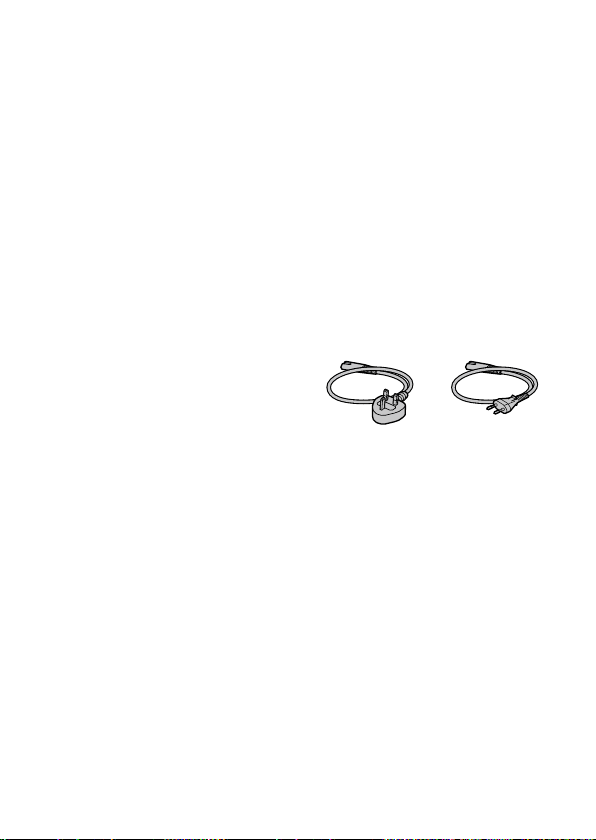
Power Cord
For the customers in the UK, Ireland,
Malta, Cyprus and Saudi Arabia
Use the power cord (A). For safety
reasons, the power cord (B) is not
intended for above countries/regions
and shall therefore not be used there.
For the customers in other EU
countries/regions
Use the power cord (B).
(A) (B)
LAN cable
Use a Category 5e or higher Shielded
Twisted Pair (STP) cable with high
shielding performance.

ILCE-9
d-830-100-11 (1)
C:\d830100111\d830100111ILCE9UC2\01GB-ILCE9UC2\010BEF.indd
2019/02/19 10:01
GB
14
For Customers in the U.S.A.
For question regarding your product
or for the Sony Service Center nearest
you, call 1-800-222-SONY (7669).
Declaration of Conformity
Trade Name: SONY
Model No.: WW361847
Responsible Party: Sony Electronics
Inc.
Address: 16535 Via Esprillo, San
Diego, CA 92127 U.S.A.
Telephone Number: 858-942-2230
This device complies with part 15 of
the FCC rules. Operation is subject
to the following two conditions:
(1)This device may not cause harmful
interference, and (2)this device must
accept any interference received,
including interference that may cause
undesired operation.
The supplied interface cable must be
used with the equipment in order to
comply with the limits for a digital
device pursuant to Subpart B of Part
15 of FCC Rules.
C:\d830100111\d830100111ILCE9UC2\01GB-ILCE9UC2\020PRE.indd
2019/02/19 10:01
ILCE-9
d-830-100-11 (1)
Preparations for shooting
GB
15
Preparations for shooting
Preparations for shooting
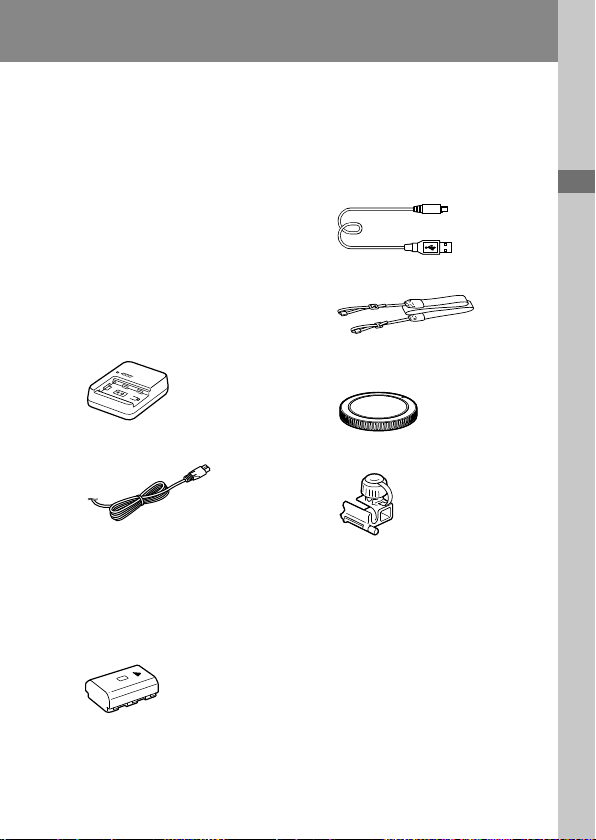
Checking the camera and the supplied
items
The number in parentheses
indicates the number of pieces.
• Camera (1)
• AC Adaptor (1)
The type of the AC Adaptor
may differ depending on the
country/region.
• Battery Charger (1)
• Power cord (mains lead) (1)*
* Multiple power cords may be
supplied with this equipment.
Use the appropriate one that
matches your country/region.
See page 13.
• Rechargeable Battery Pack
NP-FZ100 (1)
• Micro USB cable (1)
• Shoulder Strap (1)
• Body Cap (1) (Attached to the
camera)
• Cable Protector (1)
• Shoe Cap (1) (Attached to the
camera)
• Eyepiece Cup (1) (Attached to
the camera)
• Instruction Manual (1) (this
manual)
• Reference Guide (1)
ILCE-9
d-830-100-11 (1)
C:\d830100111\d830100111ILCE9UC2\01GB-ILCE9UC2\020PRE.indd
2019/02/19 10:01
GB
16
Identifying parts
See the pages in parentheses for details.
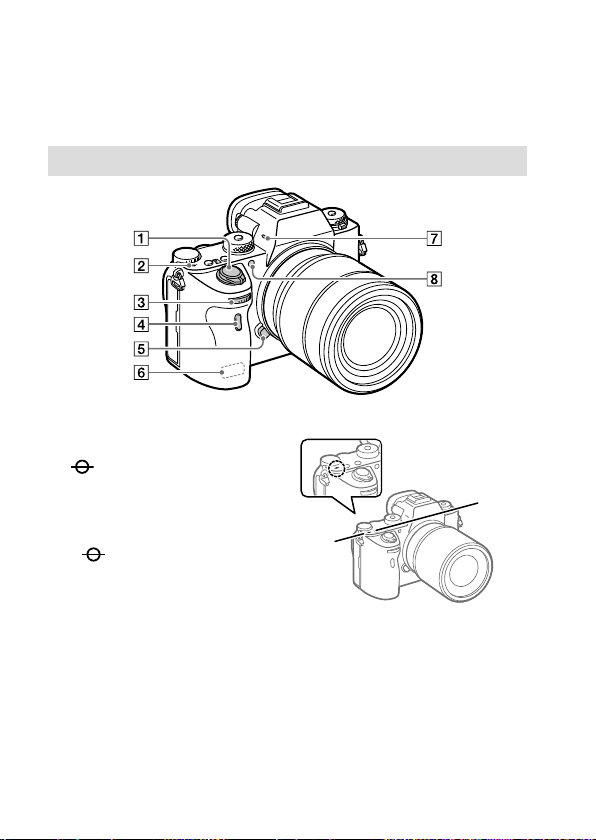
Front side
ON/OFF (Power) switch
(42)/Shutter button (45)
Image sensor position
mark
• The image sensor is the
sensor that converts light
into an electric signal. The
mark shows the location
of the image sensor. When
you measure the exact
distance between the camera
and the subject, refer to the
position of the horizontal line.
• If the subject is closer than
the minimum shooting
distance of the lens, the focus
cannot be confirmed. Make
sure you put enough distance
between the subject and the
camera.
C:\d830100111\d830100111ILCE9UC2\01GB-ILCE9UC2\020PRE.indd
2019/02/19 10:01
ILCE-9
d-830-100-11 (1)
GB
17
Preparations for shooting
Front dial
You can quickly adjust the
settings for each shooting
mode.
Infrared remote sensor
Lens release button (41)
Wi-Fi/Bluetooth antenna
(built-in)
Microphone*
AF illuminator (64)/Self-
timer lamp (82)
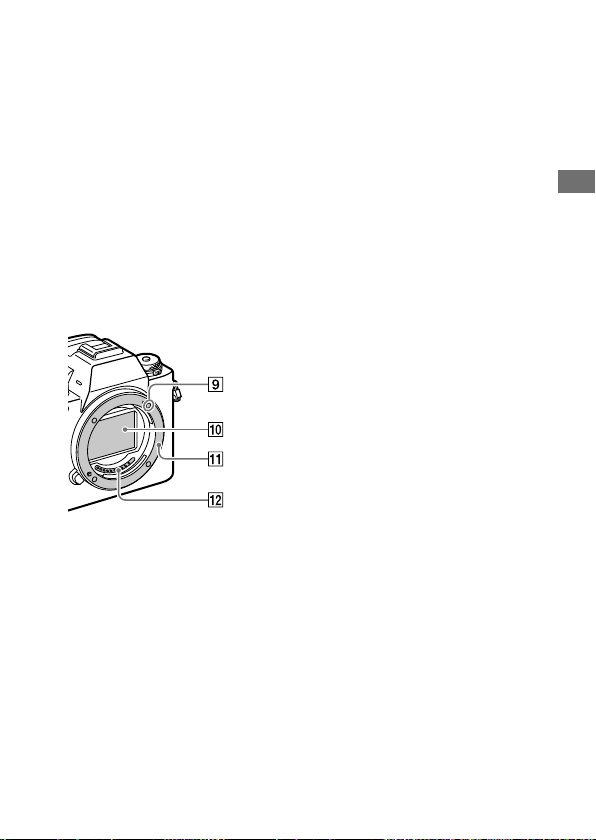
When the lens is removed
Mounting index (40)
Image sensor**
Mount
Lens contacts**
* Do not cover this part during
movie recording. Doing so may
cause noise or lower the volume.
** Do not directly touch these parts.
ILCE-9
d-830-100-11 (1)
C:\d830100111\d830100111ILCE9UC2\01GB-ILCE9UC2\020PRE.indd
2019/02/19 10:01
GB
18
Rear side
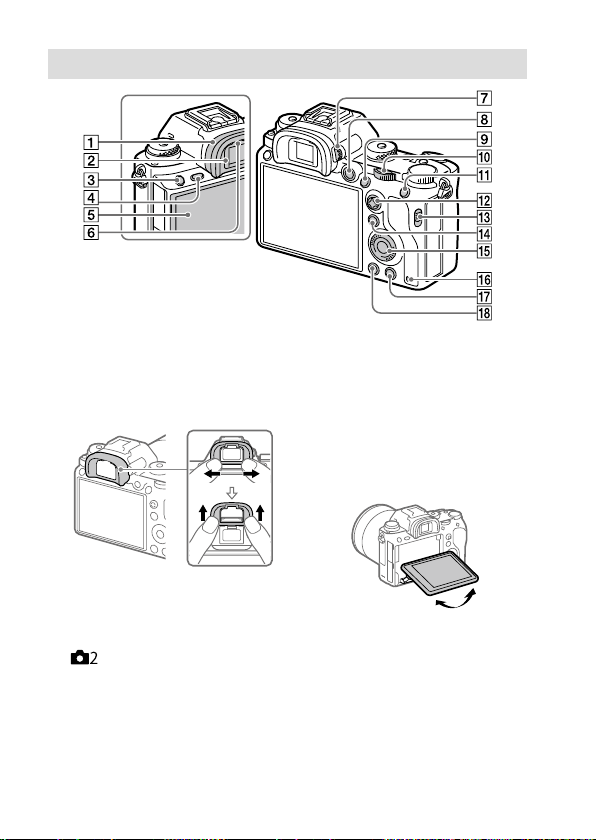
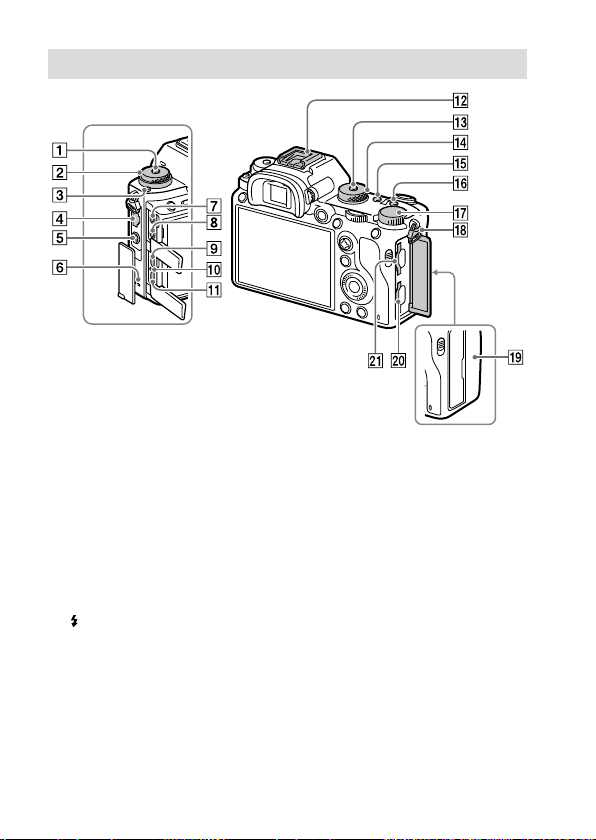
Eyepiece cup
To remove the eyepiece cup
Push the grips at the bottom
of the eyepiece cup to the left
and right and lift up the cup.
Remove the eyepiece cup
when attaching an angle
viewfinder (sold separately).
Also, select MENU
(Camera Settings 2)
[FINDER/MONITOR], and then
switch [Viewfinder (Manual)]
and [Monitor (Manual)].
Viewfinder
C3 button (Custom button 3)
(25)
MENU button (203)
Monitor/Touch panel (31,
90)
You can adjust the monitor to
an easily viewable angle and
shoot from any position.
Eye sensor (177)
C:\d830100111\d830100111ILCE9UC2\01GB-ILCE9UC2\020PRE.indd
2019/02/19 10:01
ILCE-9
d-830-100-11 (1)
GB
19
Preparations for shooting
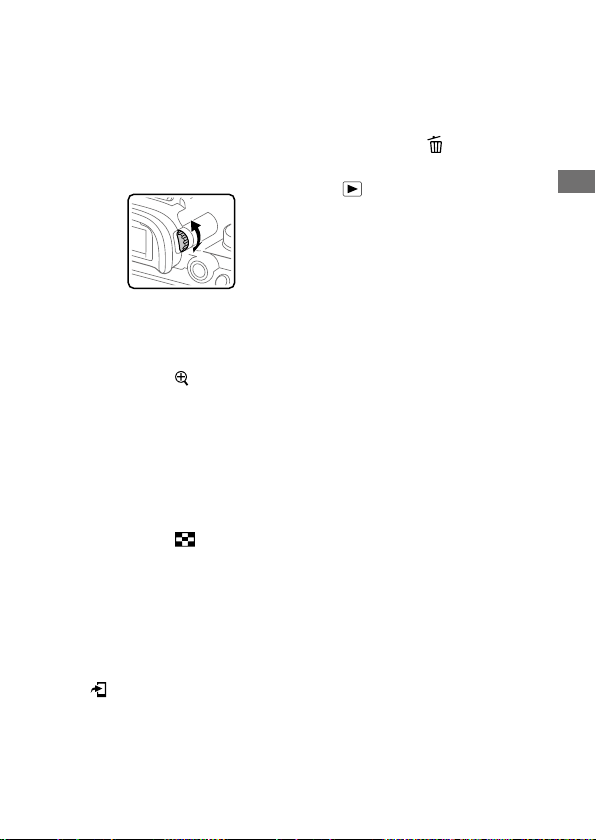
Diopter-adjustment dial
Adjust the diopter-adjustment
dial according to your eyesight
until the display appears clearly
in the viewfinder. If it is hard to
operate the diopter-adjustment
dial, remove the eyepiece cup
before operating the dial.
MOVIE (Movie) button (143)
For shooting: AF-ON (AF On)
button (56)
For viewing:
(Enlarge)
button (157)
Rear dial
You can quickly adjust the
settings for each shooting
mode.
For shooting: AEL button
(113)
For viewing:
(Image Index)
button (160)
Multi-selector (24)
Media slot cover switch
For shooting: Fn (Function)
button (26)
For viewing:
(Send to Smartphone)
button
You can display the screen
for [Send to Smartphone] by
pressing this button.
Control wheel (24)
Access lamp
For shooting: C4 button
(Custom button 4) (25)
For viewing:
(Delete) button
(168)
(Playback) button (156)
ILCE-9
d-830-100-11 (1)
C:\d830100111\d830100111ILCE9UC2\01GB-ILCE9UC2\020PRE.indd
2019/02/19 10:01
GB
20
Top side/Side view
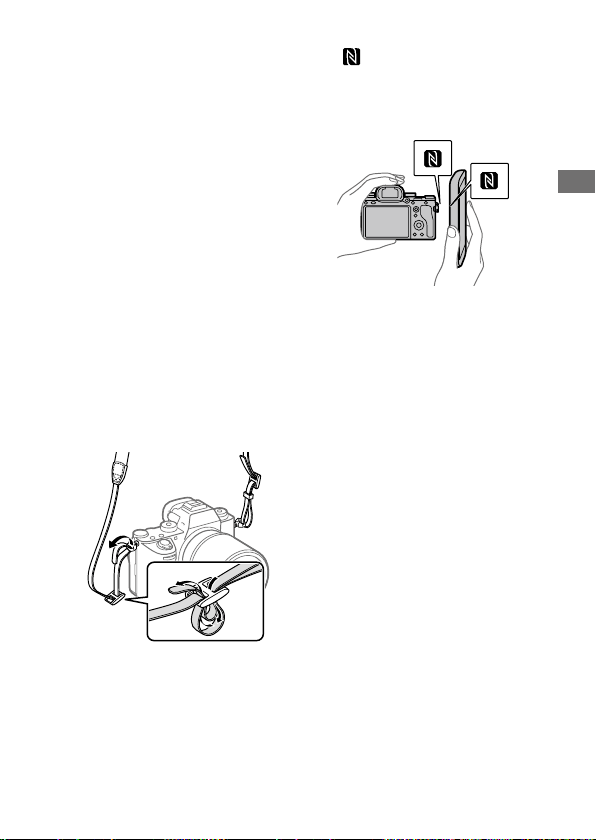
Drive mode dial lock release
button
Upper: Drive mode dial (79)
Lower: Focus mode dial (47)
Focus mode dial lock release
button
LAN terminal
(Flash sync) terminal (141)
Speaker
(Microphone) jack
When an external microphone
is connected, the built-
in microphone turns off
automatically. When the
external microphone is a
plugin-power type, the power
of the microphone is supplied
by the camera.
(Headphones) jack
HDMI micro jack
Charge lamp
Multi/Micro USB Terminal*
(200)
This terminal supports Micro
USB-compatible devices.
C:\d830100111\d830100111ILCE9UC2\01GB-ILCE9UC2\020PRE.indd
2019/02/19 10:01
ILCE-9
d-830-100-11 (1)
GB
21
Preparations for shooting
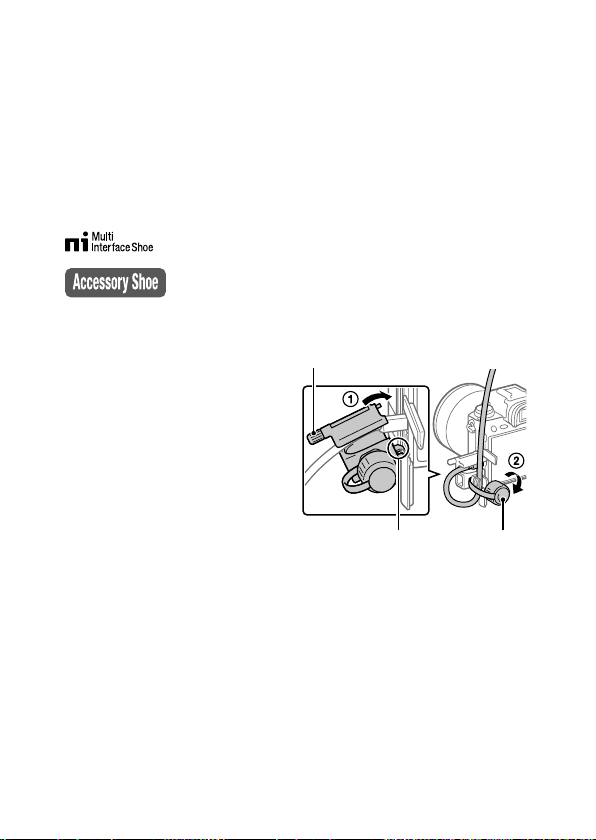
Multi Interface Shoe* (136)
Some accessories may not go
in all the way and protrude
backward from the Multi
interface shoe. However,
when the accessory reaches
the front end of the shoe, the
connection is completed.
Mode dial lock release button
Mode dial (99)
C2 button (Custom button 2)
(25)
C1 button (Custom button 1)
(25)
Exposure compensation dial
(109)
Hooks for shoulder strap
Attach both ends of the strap
onto the camera.
(N mark) (193)
• This mark indicates the touch
point for connecting the
camera and an NFC-enabled
Smartphone.
• NFC (Near Field
Communication) is an
international standard
of short-range wireless
communication technology.
SLOT 1 (Memory card slot 1)
(37)
Supports SD cards only
(compatible with UHS-I and
UHS-II)
SLOT 2 (Memory card slot 2)
(39)
Supports SD cards
(compatible with UHS-I) and
Memory Stick PRO Duo media
ILCE-9
d-830-100-11 (1)
C:\d830100111\d830100111ILCE9UC2\01GB-ILCE9UC2\020PRE.indd
2019/02/19 10:01
GB
22
* For details on compatible
accessories for the multi interface
shoe and the Multi/Micro USB
Terminal, visit the Sony website, or
consult your Sony dealer or local
authorized Sony service facility.
Accessories for the Accessory Shoe
can also be used. Operations with
other manufactures’ accessories
are not guaranteed.
To attach the cable protector
Use the cable protector to prevent
the HDMI cable from being
disconnected when shooting
images with the HDMI cable
connected. Open both of the jack
covers and insert an HDMI cable
into the camera. Swing the HDMI
micro jack cover downward and
attach the cable protector as
illustrated so that the end of the
cable protector fits in the slit under
the Multi/Micro USB Terminal.
Secure the cable protector with the
attachment screw. Then secure the
HDMI cable with the fixing dial.
Fit the end in the slit Fixing dial
Attachment screw
C:\d830100111\d830100111ILCE9UC2\01GB-ILCE9UC2\020PRE.indd
2019/02/19 10:01
ILCE-9
d-830-100-11 (1)
GB
23
Preparations for shooting
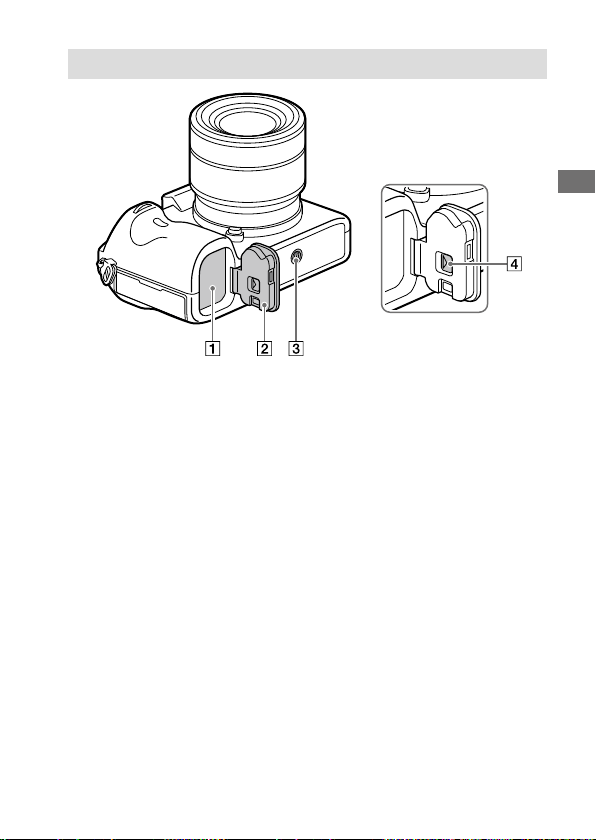
Bottom
Battery insertion slot (36)
Battery cover (36)
Tripod socket hole
Use a tripod with a screw less
than 5.5mm (7/32inches)
long. Otherwise, you cannot
firmly secure the camera, and
damage to the camera may
occur.
Battery cover release lever
ILCE-9
d-830-100-11 (1)
C:\d830100111\d830100111ILCE9UC2\01GB-ILCE9UC2\020PRE.indd
2019/02/19 10:01
GB
24
Basic operations
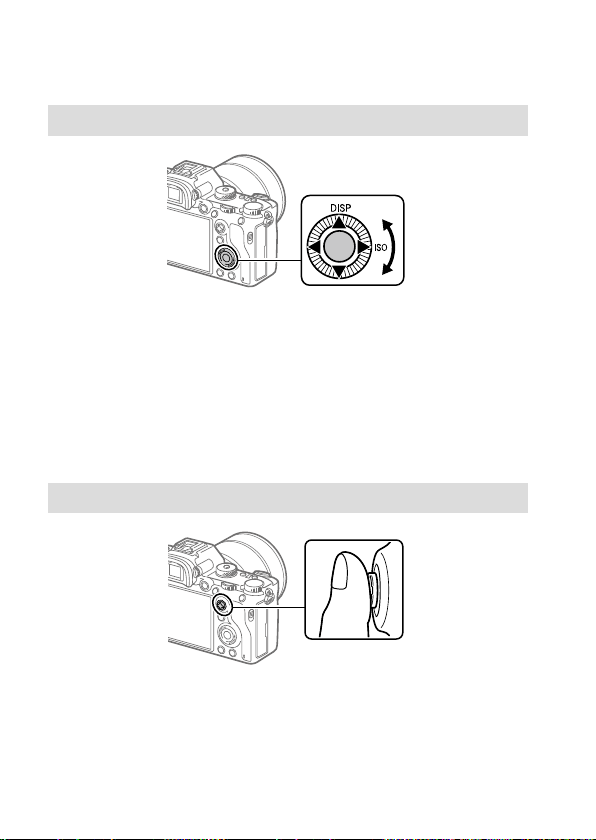
Using the control wheel
• You can select setting items by turning or pressing the top/bottom/left/
right side of the control wheel. Your selection is determined when you
press the center of the control wheel.
• The DISP (Display Setting) and ISO (ISO) functions are assigned to the
top/right side of the control wheel. In addition, you can assign selected
functions to the left/right/bottom side and the center of the control
wheel, and to the rotation of the control wheel.
• During playback, you can display the next/previous image by pressing
the right/left side of the control wheel or by turning the control wheel.
Using the multi-selector
• Put your finger right on top of the multi-selector to manipulate it more
precisely.
• When [Focus Area] is set to [Zone], [Flexible Spot], or
[Expand Flexible Spot], you can move the focus area by pressing the
multi-selector up/down/left/right.
• The [Focus Standard] function is assigned to the center of the multi-
selector in the default settings.
C:\d830100111\d830100111ILCE9UC2\01GB-ILCE9UC2\020PRE.indd
2019/02/19 10:01
ILCE-9
d-830-100-11 (1)
GB
25
Preparations for shooting
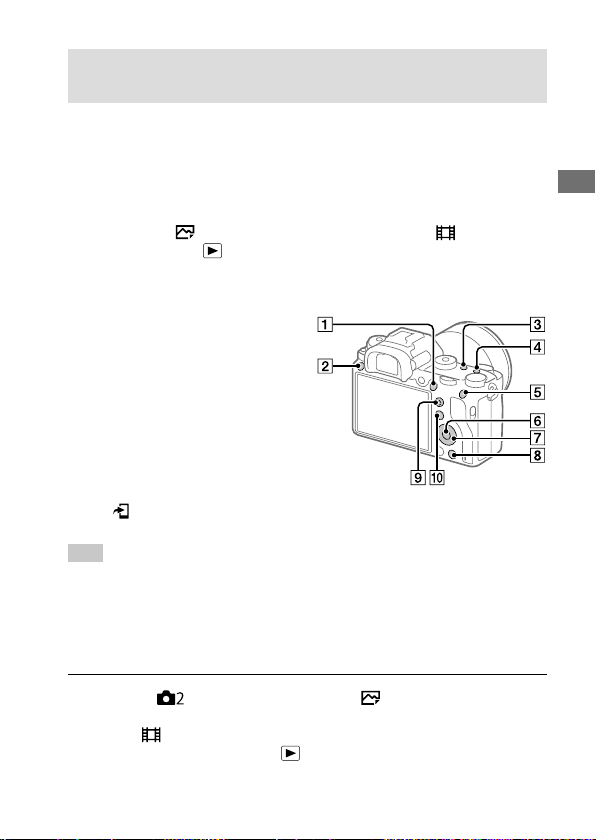
Assigning frequently used functions to buttons
(Custom Key)
You can use the custom key function to assign the functions you use
most frequently to easily operable keys. This lets you skip the process of
selecting items from MENU, so you can recall the functions more quickly.
You can also assign [Not set] to easily operable keys to prevent accidental
operation.
You can separately assign functions to custom keys for the still image
shooting mode (
Custom Key), movie shooting mode ( Custom Key),
and playback mode (
Custom Key).
• Assignable functions vary depending on the keys.
You can assign functions to the following keys.
AF-ON Button
Custom Button 3
Custom Button 2
Custom Button 1
AEL Button
Center Button
Control Wheel / Left Button /
Right Button / Down Button
Custom Button 4
Multi-Slc Center Btn
Fn/ Button
Hint
• You can recall functions more quickly by using the Function menu
(page26) to configure each setting directly from the Fn button, along with
the custom keys.
The following is the procedure for assigning the [Eye AF] function to the
AEL button.
1
MENU (Camera Settings 2) [ Custom Key].
• If you want to assign a function to recall while shooting movies,
select [
Custom Key]. If you want to assign a function to recall while
playing back images, select [
Custom Key].

ILCE-9
d-830-100-11 (1)
C:\d830100111\d830100111ILCE9UC2\01GB-ILCE9UC2\020PRE.indd
2019/02/19 10:01
GB
26
2
Move to the [Rear1] screen using the left/right side of the
control wheel. Then, select [AEL Button] and press the center of
the control wheel.
3
Press the left/right side of the control wheel until [Eye AF] is
displayed. Select [Eye AF], and then press the center.
• If you press the AEL button in the still image shooting mode and eyes
are detected, [Eye AF] will activate, and the camera will focus on the
eyes. Shoot images while holding down the AEL button.
Note
• You can also assign shooting functions to the focus hold button on the lens.
However, some lenses do not have a focus hold button.
• If you assign [Follow Custom (
)] to a custom key using [ Custom Key],
but the function is one that is unavailable in the movie shooting mode such
as [
JPEG Quality] or [Flash Mode], the function will not be recalled when
you press the key in the movie shooting mode.
• If you assign [Follow Custom (
/ )] to a custom key using
[
Custom Key], the camera will switch to the shooting mode and recall the
assigned function when you press the key in the playback mode.
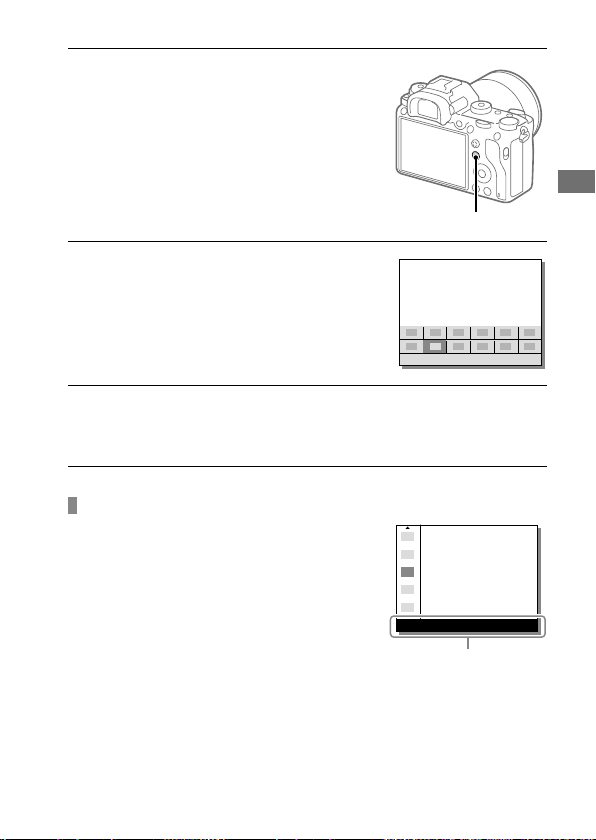
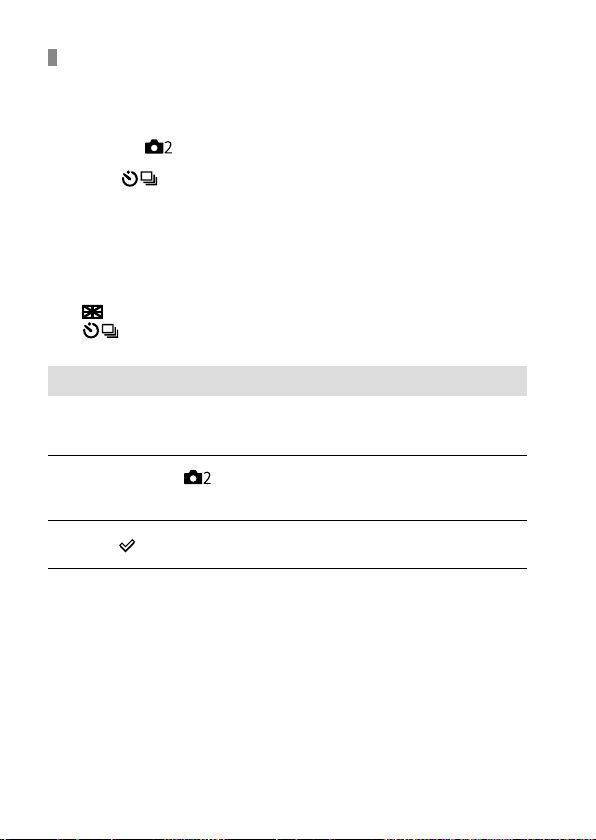
Using the Fn (Function) button (Function menu)
The Function menu is a menu of 12 functions
that is displayed at the bottom of the screen
when you press the Fn (Function) button in
the shooting mode. You can access frequently
used functions more quickly by registering
them to the function menu.
Hint
• You can recall functions more quickly by using the custom key function
(page25) to assign frequently used functions to desired keys, along with
the function menu.
C:\d830100111\d830100111ILCE9UC2\01GB-ILCE9UC2\020PRE.indd
2019/02/19 10:01
ILCE-9
d-830-100-11 (1)
GB
27
Preparations for shooting
1
Press the DISP on the control
wheel repeatedly to display
a screen mode other than
[For viewfinder], and then
press the Fn (Function) button.
Fn button
2
Select the desired function by
pressing the top/bottom/left/
right side of the control wheel.
3
Select the desired setting by turning the front dial, and press
the center of the control wheel.
• Some functions can be fine-tuned using the rear dial.
To adjust settings from the dedicated setting screens
Select the desired function in step 2, then
press the center of the control wheel. The
dedicated setting screen for the function
will appear. Follow the operating guide
to adjust settings.
Operation guide
ILCE-9
d-830-100-11 (1)
C:\d830100111\d830100111ILCE9UC2\01GB-ILCE9UC2\020PRE.indd
2019/02/19 10:01
GB
28
To change the functions in the function menu
(Function Menu Set.)
The following is the procedure for changing [Drive Mode] in the function
menu to [Grid Line].
MENU (Camera Settings 2) [Function Menu Set.].
Select
(Drive Mode) from among the twelve functions
in the function menu using the top/bottom/left/right side
of the control wheel, and then press the center.
Press the left/right side of the control wheel until
[Grid Line] is displayed. Select [Grid Line], and then press
the center.
• (Grid Line) will be displayed in the former location of
(Drive Mode) in the function menu.
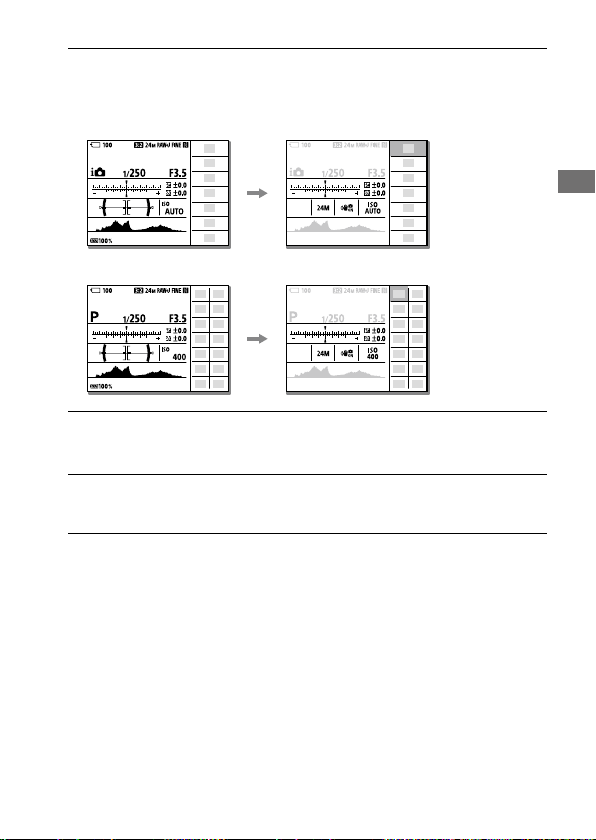
How to use the Quick Navi screen
The Quick Navi screen is a function optimized for shooting with the
viewfinder, that lets you control settings directly.
1
Select MENU (Camera Settings 2) [DISP Button]
[Monitor].
2
Place a mark on [For viewfinder] and then select [Enter].
3
Press the DISP on the control wheel to set the screen mode to
[For viewfinder] (page 34).
C:\d830100111\d830100111ILCE9UC2\01GB-ILCE9UC2\020PRE.indd
2019/02/19 10:01
ILCE-9
d-830-100-11 (1)
GB
29
Preparations for shooting
4
Press the Fn button to switch to the Quick Navi screen.
• The displayed contents and their positions in the illustrations are just
guidelines, and may differ from the actual displays.
Auto mode
P/A/S/M mode
5
Select a function to set by pressing the top/bottom/left/right
side of the control wheel.
6
Select the desired setting by turning the front dial.
• Some functions can be fine-tuned using the rear dial.

ILCE-9
d-830-100-11 (1)
C:\d830100111\d830100111ILCE9UC2\01GB-ILCE9UC2\020PRE.indd
2019/02/19 10:01
GB
30
To adjust settings from the dedicated setting screens
Select the desired function in step 5, then
press the center of the control wheel. The
dedicated setting screen for the function
will appear. Follow the operating guide
to adjust settings.
Operation guide
Note
• Items that are gray on the Quick Navi screen are not adjustable.
• When using [Creative Style], etc., some settings can only be controlled from
the dedicated screen.
C:\d830100111\d830100111ILCE9UC2\01GB-ILCE9UC2\020PRE.indd
2019/02/19 10:01
ILCE-9
d-830-100-11 (1)
GB
31
Preparations for shooting
Changing the screen display
Switching the screen display (while shooting/during
playback)
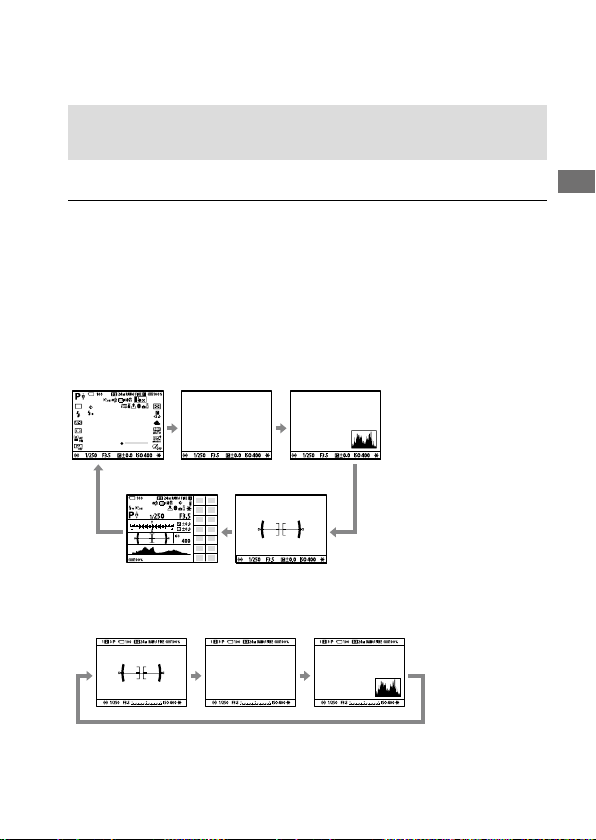
You can change the display contents on the screen.
Press the DISP(Display Setting) button.
• To switch the information displayed on the viewfinder, press the DISP
button while looking into the viewfinder.
• Each time you press the DISP button, the screen display changes.
• The displayed contents and their position are just a guideline, and may
differ from the actual display.
During shooting (Monitor)
Display All Info. No Disp. Info. Histogram
For viewfinder Level
During shooting (Viewfinder)
No Disp. Info. HistogramLevel
ILCE-9
d-830-100-11 (1)
C:\d830100111\d830100111ILCE9UC2\01GB-ILCE9UC2\020PRE.indd
2019/02/19 10:01
GB
32
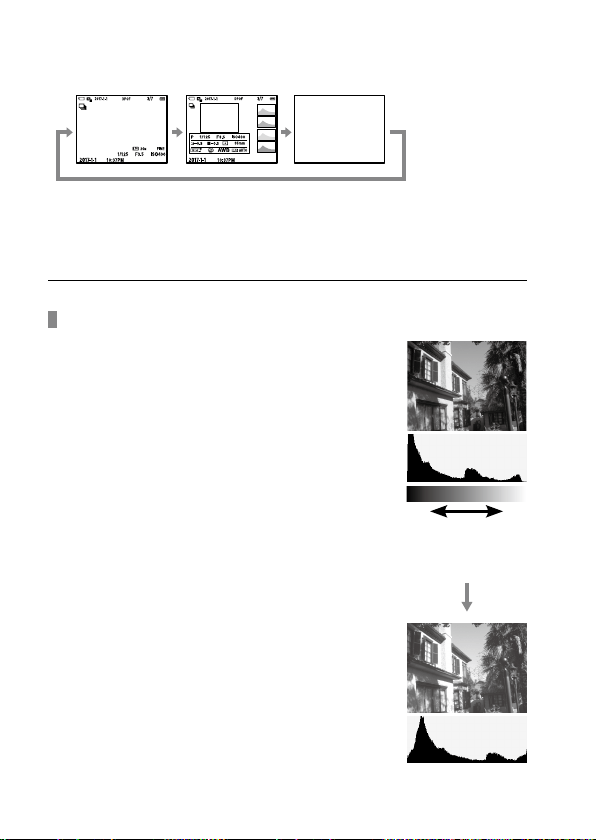
During playback (Monitor/Viewfinder)
Display Info. No Disp. Info.Histogram
• If the image has an overexposed or underexposed area, the
corresponding section will blink on the histogram display (overexposed/
underexposed warning).
• The settings for playback are also applied in [Auto Review].
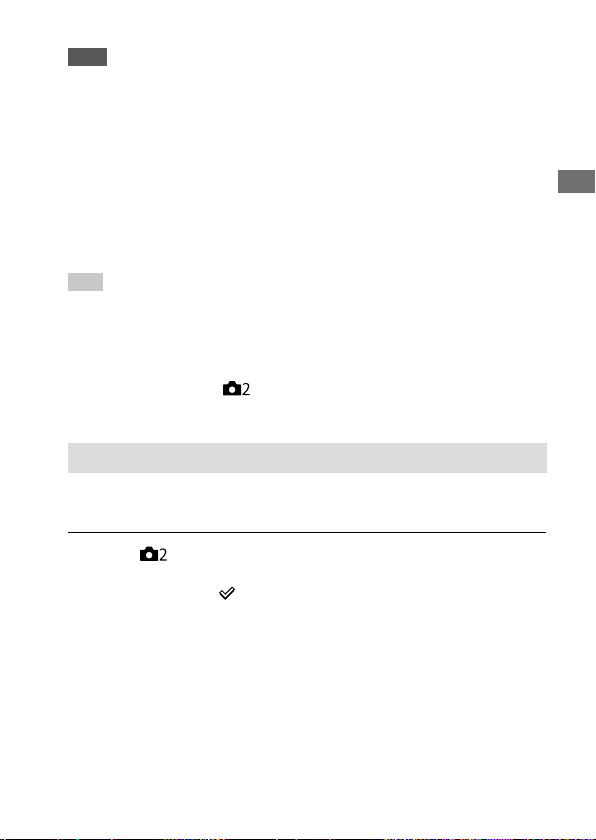
Histogram display
A histogram shows the luminance distribution,
displaying how many pixels there are by
luminance. It shows darker toward the left and
brighter toward the right.
The histogram changes depending on the
exposure compensation.
A peak at the right or left end of the histogram
indicates that the image has an overexposed
or underexposed area, respectively. You cannot
correct such defects using a computer after
shooting. Perform exposure compensation
before shooting as necessary.
(B)
(A)
(A): Pixel count
(B): Brightness
C:\d830100111\d830100111ILCE9UC2\01GB-ILCE9UC2\020PRE.indd
2019/02/19 10:01
ILCE-9
d-830-100-11 (1)
GB
33
Preparations for shooting
Note
• The viewfinder display and the monitor display for shooting can be set
separately. Look through the viewfinder to set the display settings for the
viewfinder.
• The information in the histogram display does not indicate the final
photograph. It is information about image displayed on the screen. The final
result depends on the aperture value, etc.
• The histogram display is extremely different between shooting and playback
in the following cases:
– When the flash is used
– When shooting a low luminance subject such as a night scene
• In movie mode, [For viewfinder] cannot be displayed.
Hint
• The following are not displayed in the default settings.
– Graphic Display
– Monitor Off
– Display All Info. (when using the viewfinder)
To change the display modes that are switched when you press the DISP
button, select MENU
(Camera Settings 2) [DISP Button] and change
the setting.
DISP Button (Monitor/Finder)
Allows you to set the screen display modes that can be selected using
DISP (Display Setting) in shooting mode.
MENU (Camera Settings 2) [DISP Button] [Monitor]
or [Finder] desired setting [Enter].
The items marked with are available.
Graphic Display: Shows basic shooting information. Graphically shows
the shutter speed and aperture value.
Display All Info.: Shows recording information.
No Disp. Info.: Does not show recording information.
Histogram: Displays the luminance distribution graphically.
ILCE-9
d-830-100-11 (1)
C:\d830100111\d830100111ILCE9UC2\01GB-ILCE9UC2\020PRE.indd
2019/02/19 10:01
GB
34
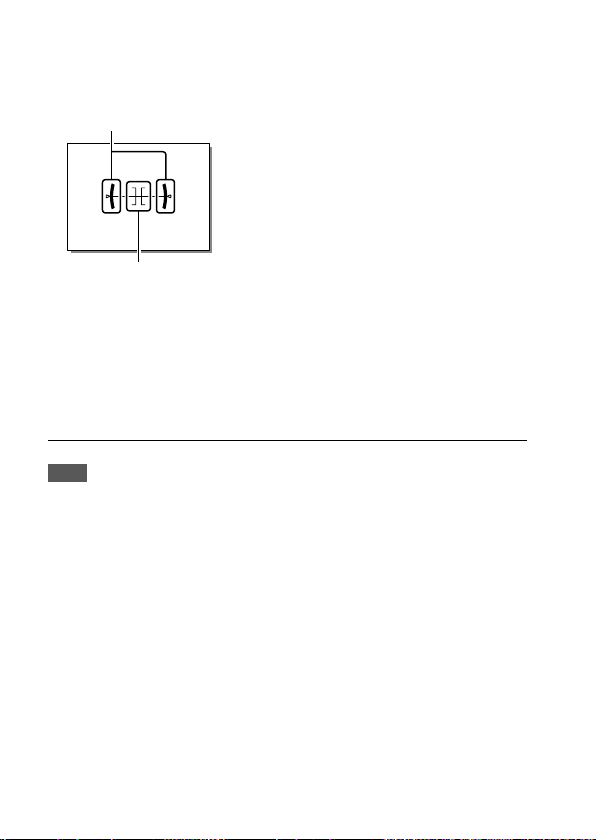
Level: Indicates whether the product is level in both the front-back and
horizontal directions. When the product is level in both directions, the
indicator turns to green.
Horizontal direction
Front-back direction
For viewfinder*: Displays only shooting information on the monitor,
not the subject. This setting is a display setting for shooting with the
viewfinder.
Monitor Off*: Always turns the monitor off when shooting images. You
can use the monitor when playing back images or operating MENU.
This setting is a display setting for shooting with the viewfinder.
* This screen mode is available only in the setting for [Monitor].
Note
• If you tilt the product forward or backward by a large degree, the level error
will be great.
• The product may have a margin of error of almost ±1° even when the
inclination is corrected by the level.
C:\d830100111\d830100111ILCE9UC2\01GB-ILCE9UC2\020PRE.indd
2019/02/19 10:01
ILCE-9
d-830-100-11 (1)
GB
35
Preparations for shooting
Startup guide
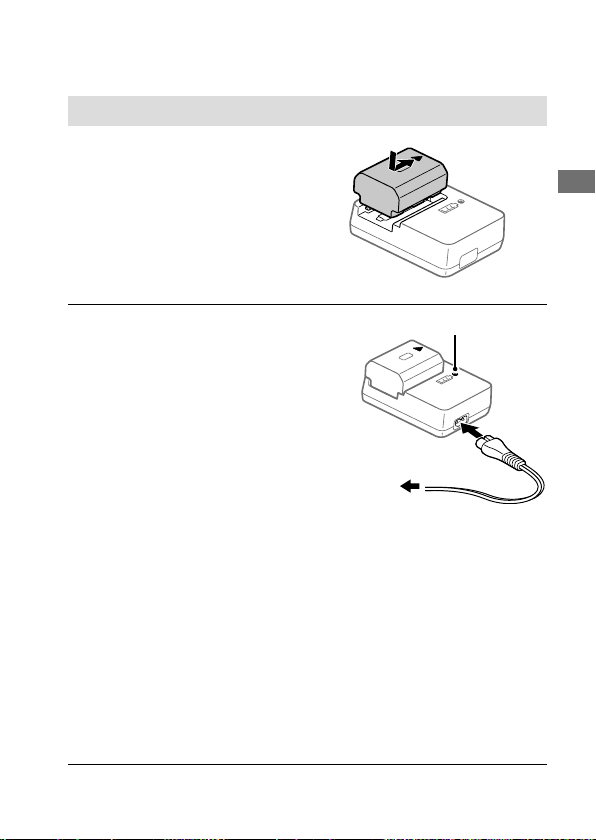
Step 1: Charging the battery pack
1
Insert the battery pack into
the battery charger.
• Place the battery pack on the
battery charger in the direction
of the .
• Slide the battery pack in the
direction of the arrow as far as
it will go.
2
Connect the power cord
(supplied) to the battery
charger, and connect the
battery charger to the wall
outlet (wall socket).
The CHARGE lamp on the battery
charger will light up in orange and
charging will start.
CHARGE lamp (orange)
Lit: Charging
Flashing: Charging error or
charging paused temporarily
because the camera is not within
the proper temperature range
CHARGE lamp
To a wall outlet
(wall socket)
• When charging is finished, the CHARGE lamp and all indicators turn
off.
• Charging time (full charge): approximately 150
min. (when charging a
fully depleted battery pack at a temperature of 25°C (77°F))
• When you use a completely new battery pack or a battery pack
that has not been used for a long time, the CHARGE lamp may flash
quickly when the battery is charged for the first time. If this happens,
remove the battery pack and then re-insert it to recharge.
• Be sure to use only genuine Sony brand battery packs.
ILCE-9
d-830-100-11 (1)
C:\d830100111\d830100111ILCE9UC2\01GB-ILCE9UC2\020PRE.indd
2019/02/19 10:01
GB
36
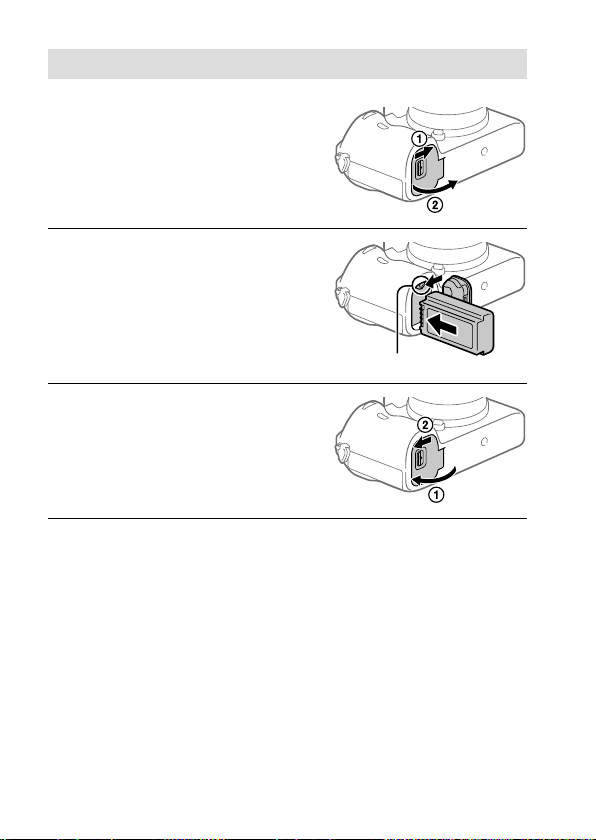
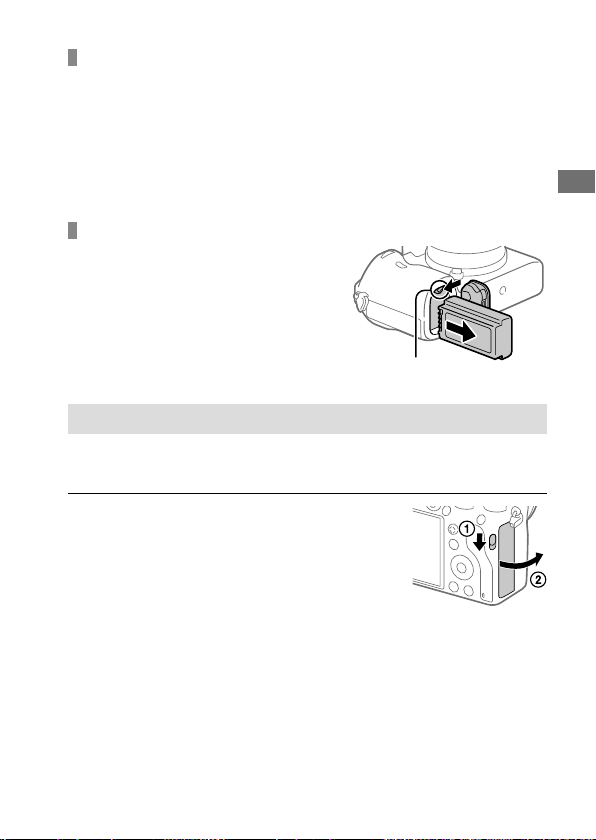
Step 2: Inserting the battery pack into the camera
1
Open the battery cover.
2
Insert the battery pack while
pressing the lock lever with
the tip of the battery until the
battery locks into place.
Lock lever
3
Close the cover.
C:\d830100111\d830100111ILCE9UC2\01GB-ILCE9UC2\020PRE.indd
2019/02/19 10:01
ILCE-9
d-830-100-11 (1)
GB
37
Preparations for shooting
To charge the battery pack while it is inserted in the
camera
Turn the camera off and connect it to the AC Adaptor (supplied) using the
micro USB cable (supplied), then connect the AC Adaptor to the wall outlet
(wall socket).
If you turn on the camera, power will be supplied from the wall outlet
(wall socket) and you will be able to operate the camera. However, the
battery pack will not be charged.
To remove the battery pack
Make sure that the access lamp
(page 19) is not lit, and turn off
the camera. Then, slide the lock lever
and remove the battery pack. Be
careful not to drop the battery pack.
Lock lever
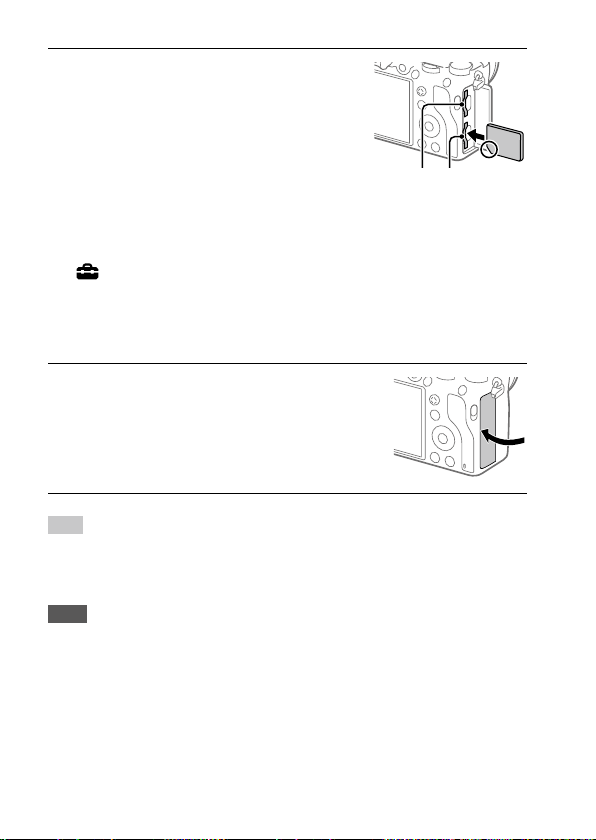
Step 3: Inserting a memory card
For details on memory cards that can be used with this camera, refer to
page 236.
1
Open the memory card cover.
ILCE-9
d-830-100-11 (1)
C:\d830100111\d830100111ILCE9UC2\01GB-ILCE9UC2\020PRE.indd
2019/02/19 10:01
GB
38
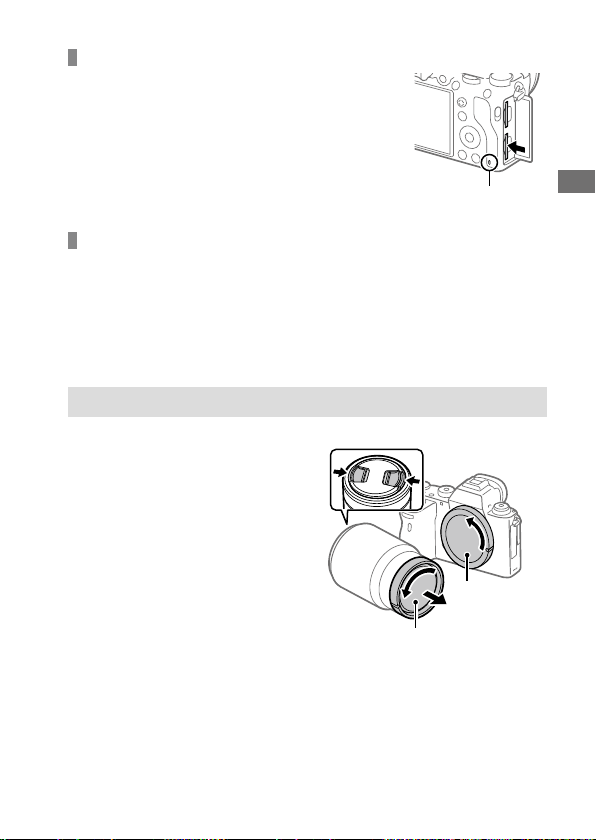
2
Insert the SD card into the
slot 1.
Slot 1 (lower): Supports SD cards
(compatible with UHS-I and
UHS-II)
Slot 2 (upper): Supports SD cards
(compatible with UHS-I) and
Memory Stick PRO Duo media
Slot 2 Slot 1
• With the notched corner facing in the direction illustrated, insert the
memory card until it clicks into place.
• You can change which memory card slot to use by selecting MENU
(Setup) [Rec. Media Settings] [Prioritize Rec. Media].
The slot 1 is used in the default settings.
• Use the slot 1 when you are only using one SD card.
• Use the slot 2 when you are using Memory Stick media. In this case,
set [Prioritize Rec. Media] to [Slot 2].
3
Close the cover.
Hint
• When you use a memory card with the camera for the first time, it is
recommended that you format the card on the camera for more stable
performance of the memory card (page 179).
Note
• Do not insert a Memory Stick media into the slot 1. It may cause a malfunction.
C:\d830100111\d830100111ILCE9UC2\01GB-ILCE9UC2\020PRE.indd
2019/02/19 10:01
ILCE-9
d-830-100-11 (1)
GB
39
Preparations for shooting
To remove the memory card
Make sure that the access lamp
(page19) is not lit, and then push
in the memory card once to remove
it.
Access lamp
To record to memory cards in two slots
The slot 1 is used in the default settings. If you do not intend to change
the settings and will only use one memory card, use the slot 1.
By inserting another memory card into the slot 2, you can record the same
images to two memory cards simultaneously or record a different type
of image (still images/movies) to each memory card ([Recording Mode]
under [Rec. Media Settings]) (page
181).
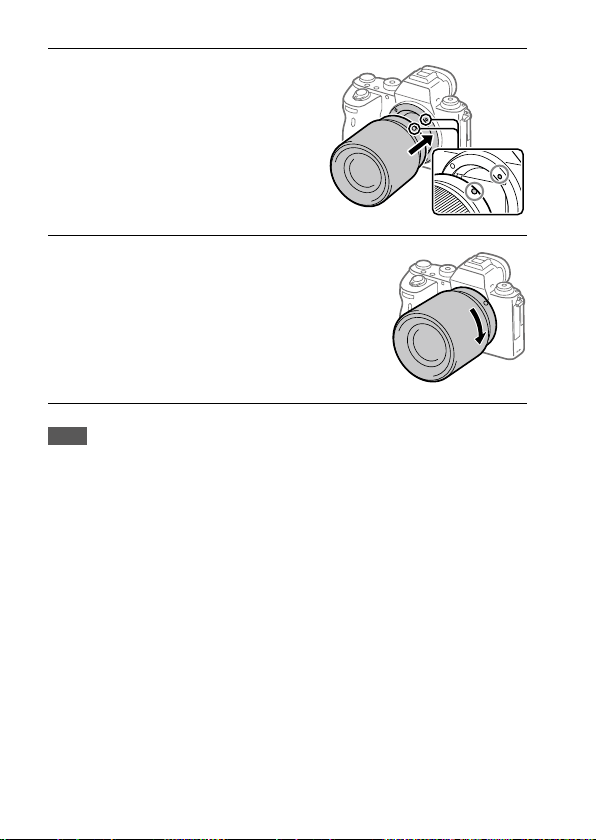
Step 4: Attaching a lens
1
Remove the body cap from the
camera and the rear lens cap
from the rear of the lens.
• When changing the lens,
work quickly in a dust-free
environment to keep dust or
debris from getting inside the
camera.
• It is recommended that you
attach the front lens cap when
you have done shooting.
Rear lens cap
Body cap
ILCE-9
d-830-100-11 (1)
C:\d830100111\d830100111ILCE9UC2\01GB-ILCE9UC2\020PRE.indd
2019/02/19 10:01
GB
40
2
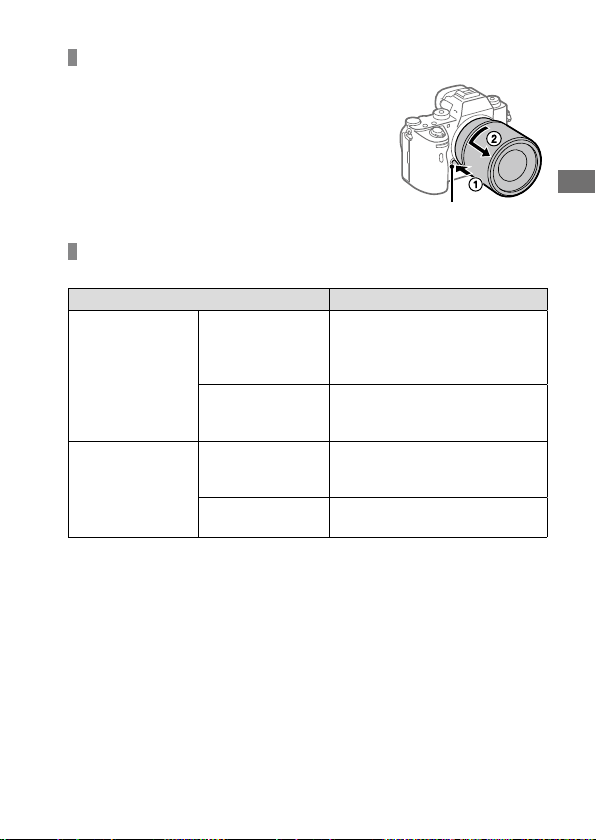
Mount the lens by aligning
the two white index marks
(mounting indexes) on the
lens and camera.
• Hold the camera with the lens
facing down to prevent dust or
debris from entering the camera.
3
While pushing the lens lightly
toward the camera, turn the
lens slowly in the direction of
the arrow until it clicks into
the locked position.
Note
• Be sure to hold the lens straight and do not use force when attaching a lens.
• Do not press the lens release button when attaching a lens.
• The Mount Adaptor (sold separately) is required to use an A-mount lens
(sold separately). For details, refer to the operating manual supplied with the
Mount Adaptor.
• If you want to shoot full-frame images, use a full-frame size compatible lens.
• When carrying the camera with a lens attached, hold both the camera and the
lens firmly.
• Do not hold the part of the lens that is extended for zoom or focus
adjustment.
C:\d830100111\d830100111ILCE9UC2\01GB-ILCE9UC2\020PRE.indd
2019/02/19 10:01
ILCE-9
d-830-100-11 (1)
GB
41
Preparations for shooting
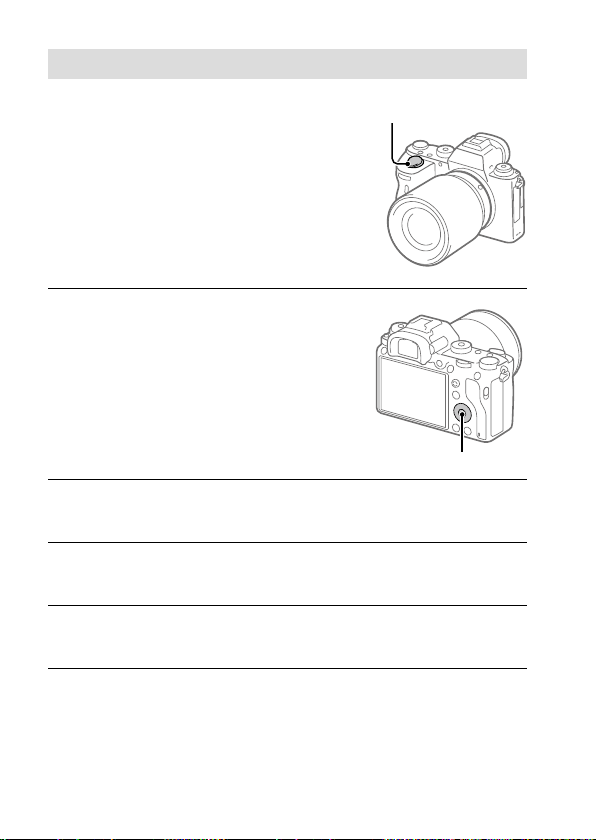
To remove the lens
Keep pressing the lens release
button and turn the lens in the
direction of the arrow until it stops.
Lens release button
Compatible lenses
Lenses compatible with this camera are as follows:
Lens Compatibility with the camera
A-mount lens
Lens compatible
with 35mm full-
frame format
(An optional Mount Adaptor
(sold separately) compatible with
full-frame format is required)
APS-C size
dedicated lens
*
(An optional Mount Adaptor
(sold separately) is required)
E-mount lens
Lens compatible
with 35mm full-
frame format
APS-C size
dedicated lens
*
* Images will be recorded in APS-C size. The angle of view will correspond to
approximately 1.5 times the focal length indicated on the lens. (For example,
the angle of view will correspond to 75mm when a 50mm-lens is attached.)
ILCE-9
d-830-100-11 (1)
C:\d830100111\d830100111ILCE9UC2\01GB-ILCE9UC2\020PRE.indd
2019/02/19 10:01
GB
42
Step 5: Setting the language and the clock
1
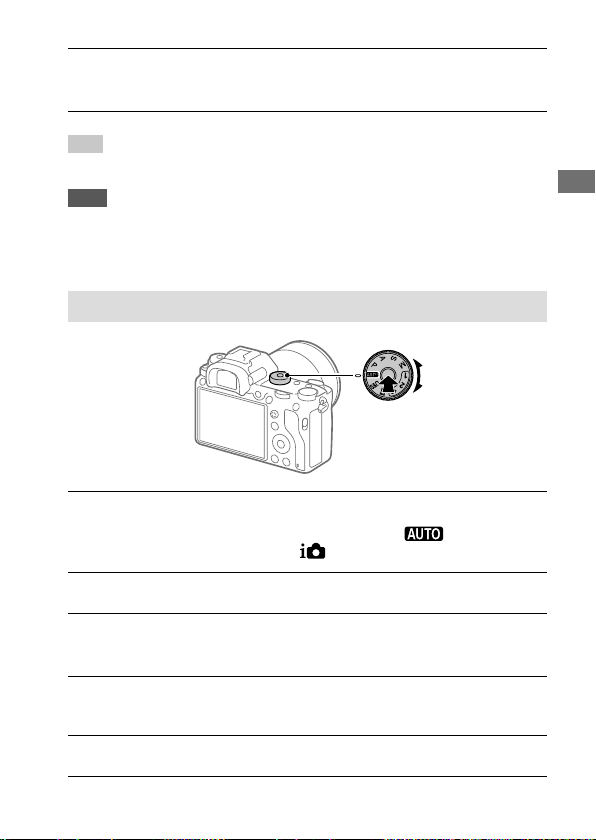
Set the ON/OFF (Power) switch
to “ON” to turn on the camera.
ON/OFF (Power) switch
2
Select the desired language
and then press the center of
the control wheel.
Control wheel
3
Make sure that [Enter] is selected on the screen and then press
the center.
4
Select the desired geographic location and then press the
center.
5
Select [Date/Time] using the top/bottom of the control wheel or
by turning the control wheel, and then press the center.
6
Select the desired item by pressing the top/bottom/left/right
side of the control wheel, and then press the center.
C:\d830100111\d830100111ILCE9UC2\01GB-ILCE9UC2\020PRE.indd
2019/02/19 10:01
ILCE-9
d-830-100-11 (1)
GB
43
Preparations for shooting
7
Repeat steps 5 and 6 to set other items, then select [Enter] and
press the center.
Hint
• To reset the date and time setting, use MENU (page 218).
Note
• This camera does not have a function for inserting the date into images.
You can insert the date into images and then save and print them using
PlayMemories Home (for Windows only).
Step 6: Shooting images in auto mode
1
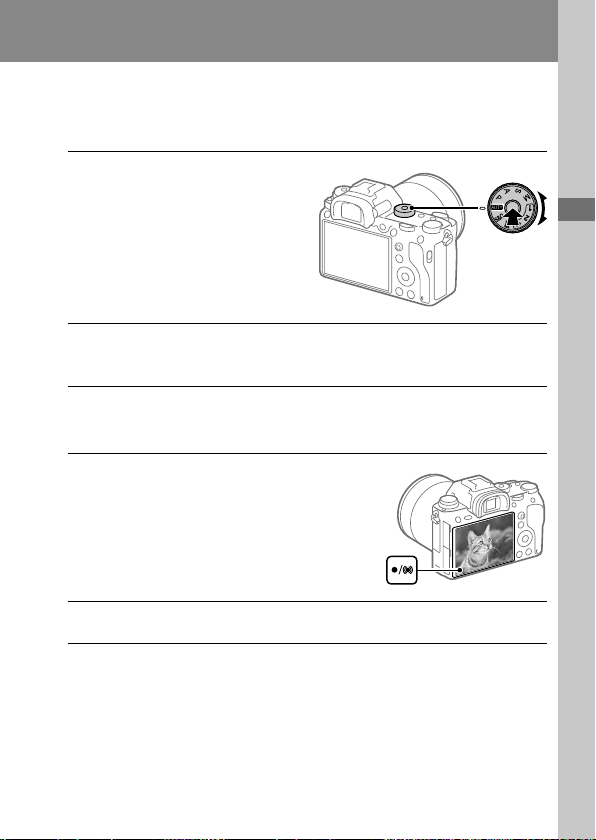
Press and hold the lock release button in the center of the
mode dial, then turn the mode dial to set to
.
The shooting mode will be set to (Intelligent Auto).
2
Look into the viewfinder or the monitor and hold the camera.
3
Set the size of the subject by rotating the zoom ring of the lens
when a zoom lens is attached.
4
Press the shutter button halfway down to focus.
• When the image is in focus, an indicator (such as ) will light up.
5
Press the shutter button all the way down.

ILCE-9
d-830-100-11 (1)
C:\d830100111\d830100111ILCE9UC2\01GB-ILCE9UC2\020PRE.indd
2019/02/19 10:01
GB
44
To shoot movies
Press the MOVIE button to start/stop recording.
To play back images
Press the (Playback) button to play back images. You can select the
desired image using the control wheel.
To delete displayed image
Press the (Delete) button while an image is displayed to delete it. Select
[Delete] using the control wheel on the confirmation screen, and then
press the center of the control wheel to delete the image.
To shoot images in various shooting modes
Set the mode dial to the desired mode depending on the subject or the
functions you want to use (page 99).
C:\d830100111\d830100111ILCE9UC2\01GB-ILCE9UC2\030BAS.indd
2019/02/19 10:01
ILCE-9
d-830-100-11 (1)
Shooting
GB
45
Shooting
Shooting
Shooting still images
1
Select the desired shooting
mode by turning the mode
dial.
• Turn the mode dial while
pressing the mode dial lock
release button in the center of
the mode dial.
2
Adjust the monitor angle, and hold the camera. Or look through
the viewfinder and hold the camera.
3
When a zoom lens is mounted, enlarge images by rotating the
zoom ring.
4
Press the shutter button
halfway down to focus.
When the image is in focus, a
beep sounds and the indicator
(such as ) lights up.
5
Press the shutter button fully down.
ILCE-9
d-830-100-11 (1)
C:\d830100111\d830100111ILCE9UC2\01GB-ILCE9UC2\030BAS.indd
2019/02/19 10:01
GB
46
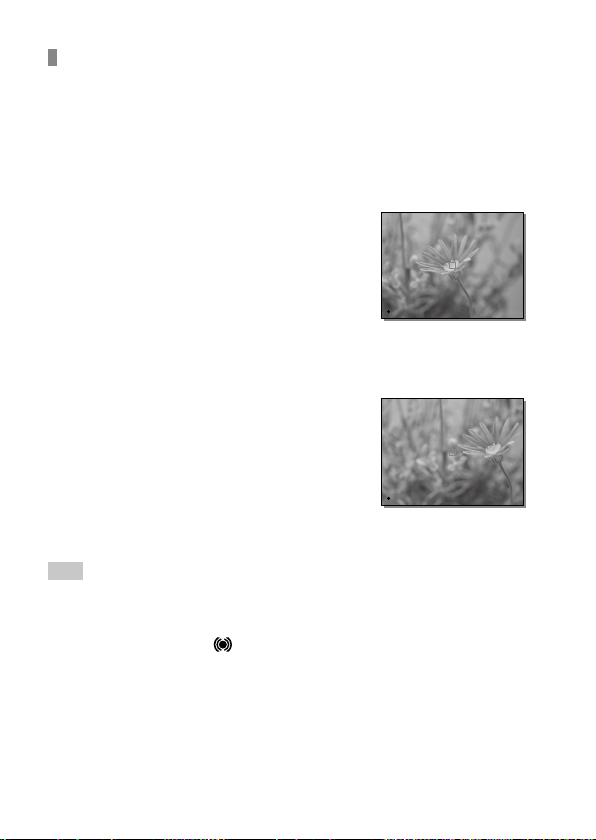
To shoot images with the focus locked on the desired
subject (Focus-lock)
Shoots images with the focus locked on the desired subject in auto focus
mode.
Turn the focus mode dial to select AF-S (Single-shot AF).
• Turn the focus mode dial while holding down the focus mode dial
lock release button.
Place the subject within
the AF area and press the
shutter button halfway
down.
The focus is locked.
• If it is difficult to focus on
the desired subject, set
[Focus Area] to [Center] or
[Flexible Spot].
Keep pressing the shutter
button halfway down, and
place the subject back in
the original position to re-
compose the shot.
Press the shutter button down fully to take the picture.
Hint
• When the product cannot focus automatically, the focus indicator flashes and
the beep does not sound. Either recompose the shot or change the focus
setting.
In [Continuous AF] mode,
lights up and the beep indicating that the focus
has been achieved does not sound.
• An icon indicating that data is being written is displayed after shooting. Do
not remove the memory card while the icon is displayed.
C:\d830100111\d830100111ILCE9UC2\01GB-ILCE9UC2\030BAS.indd
2019/02/19 10:01
ILCE-9
d-830-100-11 (1)
GB
47
Shooting
Focusing
Focus Mode
Selects the focus method to suit the movement of the subject.
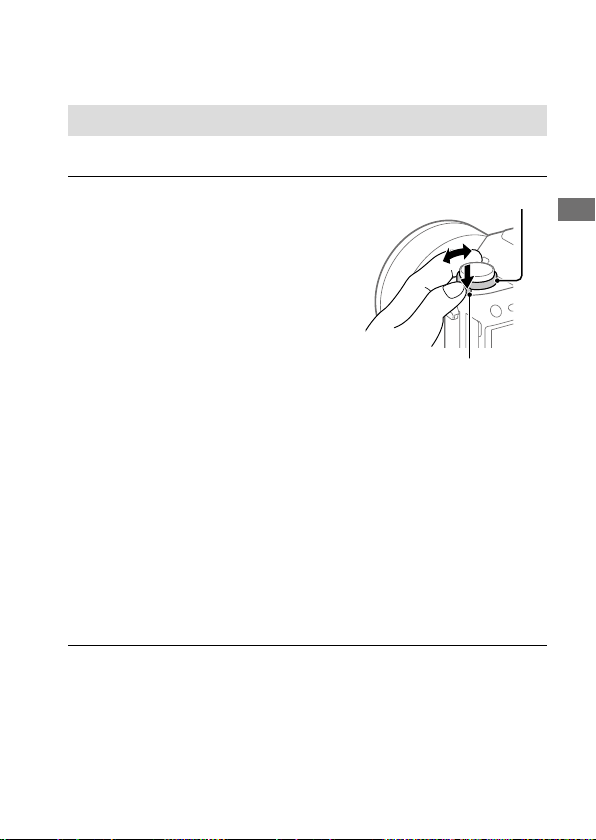
Turn the focus mode dial while
pressing the focus mode dial
lock release button and select
the desired mode.
Focus mode dial lock release
button
Focus mode dial
AF-S (Single-shot AF): The product locks the focus once focusing is
complete. Use this when the subject is motionless.
AF-C (Continuous AF): The product continues to focus while the shutter
button is pressed and held halfway down. Use this when the subject is
in motion. In [Continuous AF] mode, there is no beep when the camera
focuses.
DMF (DMF): You can make fine adjustments manually after performing
auto focusing, letting you focus on a subject more quickly than when
using the manual focus from the beginning. This is convenient in
situations such as macro shooting.
MF (Manual Focus): Adjusts the focus manually. If you cannot focus on
the intended subject using auto focus, use manual focus.
ILCE-9
d-830-100-11 (1)
C:\d830100111\d830100111ILCE9UC2\01GB-ILCE9UC2\030BAS.indd
2019/02/19 10:01
GB
48
Focus indicator
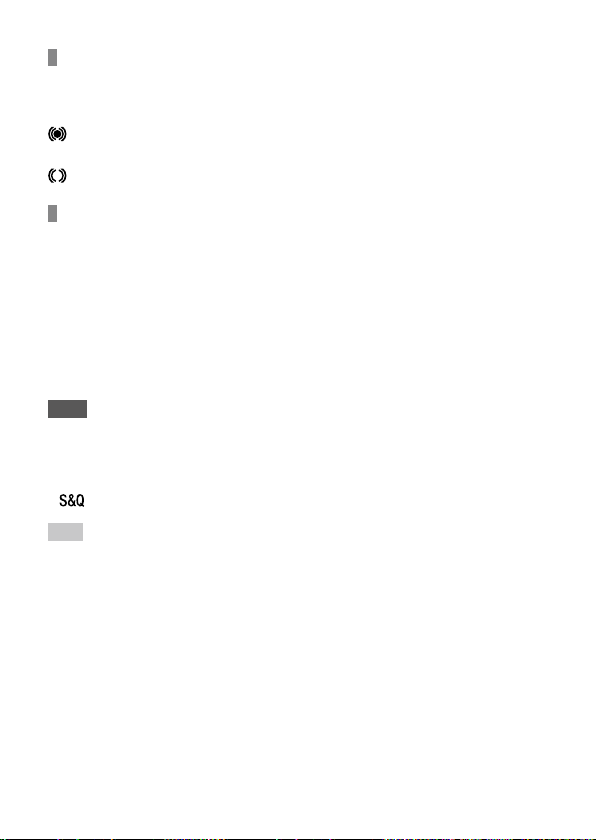
(lit): The subject is in focus and the focus is locked.
(flashing): The subject is not in focus.
(lit): The subject is in focus. The focus will be adjusted continuously
according to the movements of the subject.
(lit): Focusing is in progress.
Subjects on which it is difficult to focus using auto focus
• Dark and distant subjects
• Subjects with poor contrast
• Subjects seen through glass
• Fast-moving subjects
• Reflective light or shiny surfaces
• Flashing light
• Back-lit subjects
• Continuously repetitive patterns, such as the facades of buildings
• Subjects in the focusing area with different focal distances
Note
• When [Continuous AF] is set, the angle of view may change little by little while
focusing. This does not affect the actual recorded images.
• Even if the focus mode dial is set to AF-S or DMF, the focus mode will switch
to [Continuous AF] when shooting movies or when the mode dial is set to
.
Hint
• In [Continuous AF] mode, you can lock the focus by pressing and holding the
button that has been assigned the [Focus Hold] function (page25).
• When you set the focus to infinity in the manual focus mode or the direct
manual focus mode, make sure that the focus is on a sufficiently distant
subject by checking the monitor or the viewfinder.
C:\d830100111\d830100111ILCE9UC2\01GB-ILCE9UC2\030BAS.indd
2019/02/19 10:01
ILCE-9
d-830-100-11 (1)
GB
49
Shooting
Auto focus
Focus Area
Selects the focusing area. Use this function when it is difficult to focus
properly in the auto focus mode.
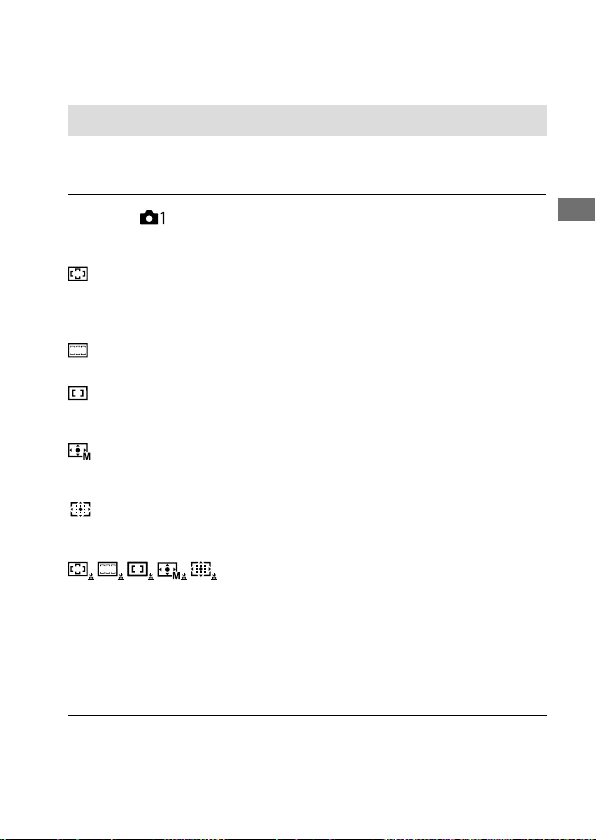
MENU (Camera Settings 1) [Focus Area] desired
setting.
Wide: Focuses on a subject covering the whole range of the screen
automatically. When you press the shutter button halfway down in the
still image shooting mode, a green frame is displayed around the area
that is in focus.
Zone: Select a zone on the monitor on which to focus, and the product
will automatically select a focus area.
Center: Focuses automatically on a subject in the center of the image.
Use together with the focus-lock function to create the composition
you want.
Flexible Spot: Allows you to move the focusing frame to a desired
point on the screen and focus on an extremely small subject in a
narrow area.
Expand Flexible Spot: If the product cannot focus on a single
selected point, it uses focus points around the flexible spot as a
secondary priority area for focusing.
Tracking: When the shutter button is pressed and
held halfway down, the product tracks the subject within the selected
autofocus area. This setting is available only when the [Focus Mode] is
set to [Continuous AF]. Point the cursor at [Tracking] on the [Focus Area]
setting screen, and then adjust the desired area to start tracking using
the left/right sides of the control wheel. You can also move the tracking
start area to the desired point by designating the area as a zone,
flexible spot or expand flexible spot.
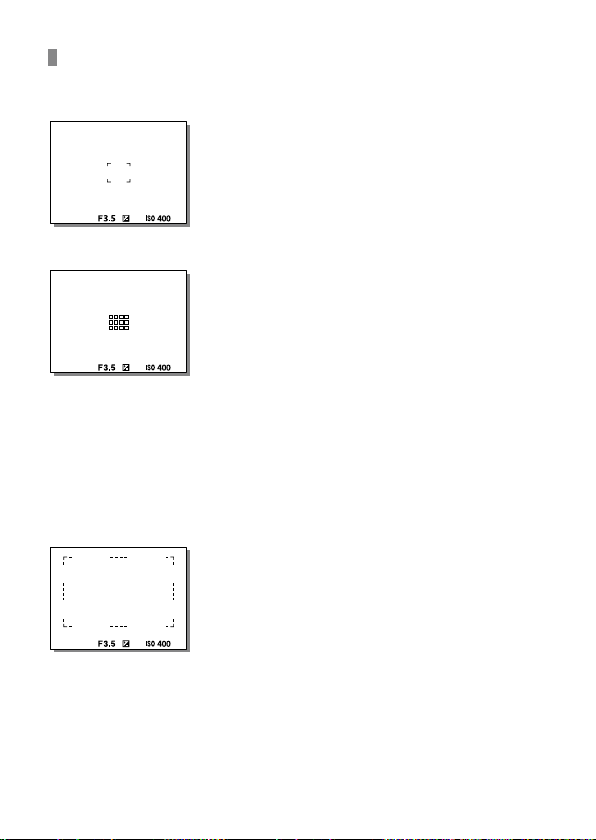
ILCE-9
d-830-100-11 (1)
C:\d830100111\d830100111ILCE9UC2\01GB-ILCE9UC2\030BAS.indd
2019/02/19 10:01
GB
50
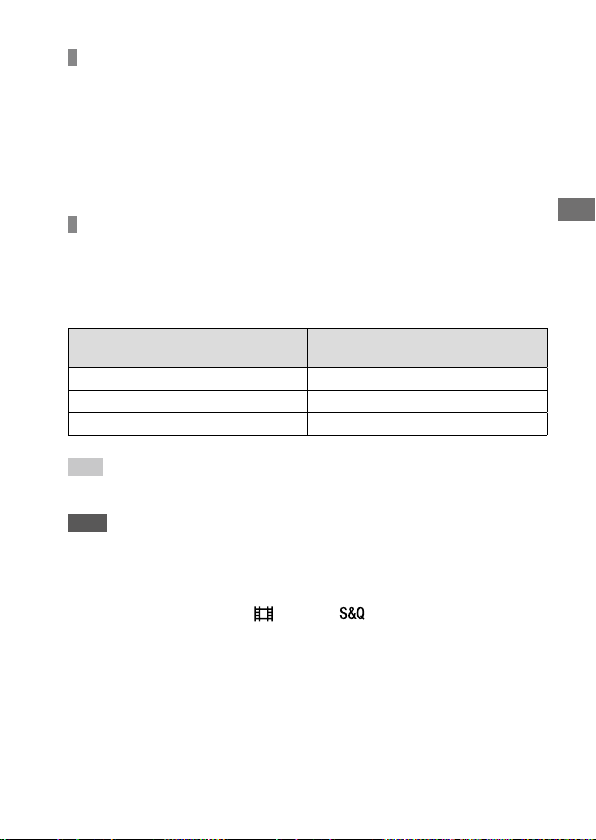
Examples of the focusing frame display
The focusing frame differs as follows.
When focusing on a larger area
When focusing on a smaller area
• When [Focus Area] is set to [Wide] or [Zone], the focusing frame may
switch between “When focusing on a larger area” and “When focusing
on a smaller area” depending on the subject or situation.
• When you attach an A-mount lens with a Mount Adaptor (LA-EA1 or
LA-EA3) (sold separately), the focusing frame for “When focusing on a
smaller area” may be displayed.
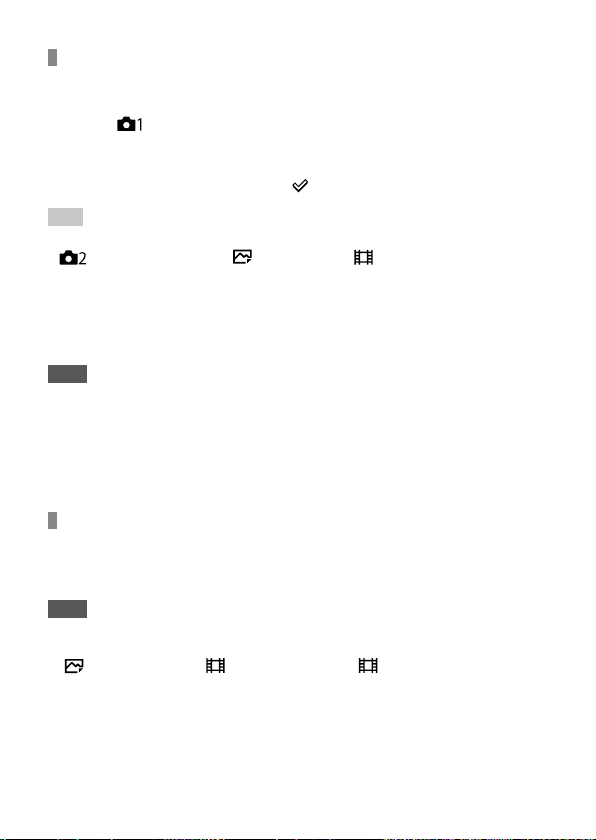
When focus is achieved automatically based on the whole range of the
monitor
• When you use a zoom function other than the optical zoom, the
[Focus Area] setting is disabled and the focusing frame is shown by the
dotted line. The AF operates with priority on and around the center area.
C:\d830100111\d830100111ILCE9UC2\01GB-ILCE9UC2\030BAS.indd
2019/02/19 10:01
ILCE-9
d-830-100-11 (1)
GB
51
Shooting
To move the focus area
• You can move the focus area in [Flexible Spot], [Expand Flexible Spot], or
[Zone] by operating the multi-selector. If you assign [Focus Standard] to
the center of the multi-selector beforehand, you can move the focusing
frame back to the center of the monitor by pressing the center of the
multi-selector.
• You can move the focusing frame quickly by touching and dragging it
on the monitor. Set [Touch Operation] to [On] beforehand (page 90).
To track the subject temporarily (Tracking On)
You can temporarily change the setting for [Focus Area] to [Tracking] while
you press and hold down the custom key to which you have assigned
[Tracking On] in advance. The [Focus Area] setting before you activated
[Tracking On] will switch to the equivalent [Tracking] setting.
For example:
[Focus Area] before you activate
[Tracking On]
[Focus Area] while [Tracking On] is active
[Wide] [Tracking: Wide]
[Flexible Spot: S] [Tracking: Flexible Spot S]
[Expand Flexible Spot] [Tracking: Expand Flexible Spot]
Hint
• In the default settings, [Focus Area] is assigned to the C2 button.
Note
• [Focus Area] is locked to [Wide] in the following situations:
– [Intelligent Auto]
• The focus area may not light up during continuous shooting or when the
shutter button is pressed all the way down at once.
• When the mode dial is set to
(Movie) or , or during movie shooting,
[Tracking] cannot be selected as the [Focus Area].
ILCE-9
d-830-100-11 (1)
C:\d830100111\d830100111ILCE9UC2\01GB-ILCE9UC2\030BAS.indd
2019/02/19 10:01
GB
52
Focus Area Limit
By limiting the types of available focus area settings in advance, you can
more quickly select settings for [Focus Area].
MENU (Camera Settings 1) [Focus Area Limit] Add
check marks to the focus areas that you want to use, and then
select [OK].
The types of focus areas marked with will be available as settings.
Hint
• When you assign [Switch Focus Area] to a desired key by selecting MENU
(Camera Settings 2) [ Custom Key] or [ Custom Key], the focus
area changes every time you press the assigned key. By limiting the types
of selectable focus areas with [Focus Area Limit] in advance, you can more
quickly select the focus area setting you want.
If you assign [Switch Focus Area] to a custom key, it is recommended that you
limit the types of focus areas with [Focus Area Limit].
Note
• Types of focus areas that do not have a check mark cannot be selected using
MENU or the Fn (function) menu. To select one, add a check mark using
[Focus Area Limit].
• If you remove the check mark for a focus area registered with
[Switch V/H AF Area] or [AF Area Registration], the registered settings will
change.
Phase detection AF
When there are phase detection AF points within the auto focus area,
the product uses the combined autofocus of the phase detection AF and
contrast AF.
Note
• Phase detection AF is available only when an applicable lens is attached. If
you use a lens that does not support phase detection AF, you cannot use
[
AF Tracking Sens.], [ AF Tracking Sens.] or [ AF drive speed]. Also,
even if you use a previously purchased applicable lens, the phase detection
AF might not function unless you update the lens.

C:\d830100111\d830100111ILCE9UC2\01GB-ILCE9UC2\030BAS.indd
2019/02/19 10:01
ILCE-9
d-830-100-11 (1)
GB
53
Shooting
Focus Standard
If you assign [Focus Standard] to the desired custom key, you can recall
useful functions such as focusing on a subject in the center of the screen
automatically in accordance with the focus area settings.
MENU (Camera Settings 2) [ Custom Key]
desired button, then assign the [Focus Standard] function
to the button.
• To use the [Focus Standard] function while shooting movies, select
MENU
(Camera Settings 2) [ Custom Key] the
desired button, and then assign [Focus Standard] to the key.
Press the key to which [Focus Standard] is assigned.
• What you can do by pressing the key varies depending on the
setting for [Focus Area].
When [Focus Area] is set to [Zone], [Flexible Spot] or
[Expand Flexible Spot]:
Pressing the key moves the focusing frame back to the center.
When [Focus Area] is set to [Wide] or [Center]:
The camera focuses on the center of the screen when you press the key.
Note
• You cannot set the [Focus Standard] function to [Left Button], [Right Button] or
[Down Button].
ILCE-9
d-830-100-11 (1)
C:\d830100111\d830100111ILCE9UC2\01GB-ILCE9UC2\030BAS.indd
2019/02/19 10:01
GB
54
Adjusting the focus area settings to the camera’s
orientation (horizontal/vertical) ( Switch V/H AF Area)
You can set whether to switch the [Focus Area] and the position of the
focusing frame according to the orientation of the camera (horizontal/
vertical).
This function is useful when shooting scenes for which you have to
change the camera position frequently, such as portraits or sports scene.
MENU (Camera Settings 1) [ Switch V/H AF Area]
desired setting.
Off: Does not switch the [Focus Area] and the position of the focusing
frame according to the orientation of the camera (horizontal/vertical).
AF Point Only: Switches the position of the focusing frame according to
the orientation of the camera (horizontal/vertical). The [Focus Area] is
fixed.
AF Point + AF Area: Switches both the [Focus Area] and the position
of the focusing frame according to the orientation of the camera
(horizontal/vertical).
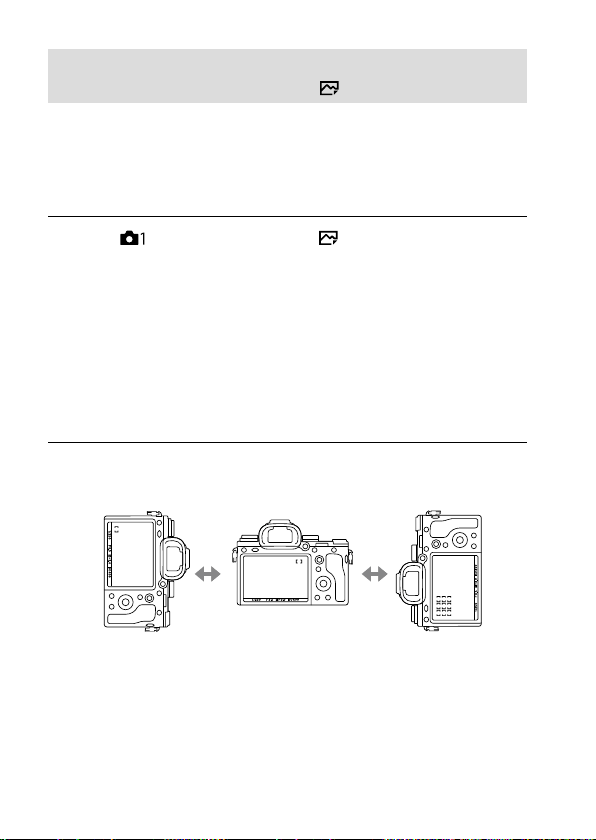
An example when [AF Point + AF Area] is selected
[Flexible Spot]
(Upper left corner)
Vertical Horizontal Vertical
[Zone]
(Lower left corner)
[Flexible Spot]
(Upper right corner)
• Three camera orientations are detected: horizontal, vertical with the
side of the shutter button facing up, and vertical with the side of the
shutter button facing down.
C:\d830100111\d830100111ILCE9UC2\01GB-ILCE9UC2\030BAS.indd
2019/02/19 10:01
ILCE-9
d-830-100-11 (1)
GB
55
Shooting
Note
• If the setting for [ Switch V/H AF Area] is changed, the focus settings for
each camera orientation will not be retained.
• The [Focus Area] and the position of the focusing frame will not change even
when [
Switch V/H AF Area] is set to [AF Point + AF Area] or [AF Point Only]
in the following situations:
– When the shooting mode is set to [Intelligent Auto], [Movie], or
[S&Q Motion]
– While the shutter button is pressed halfway down
– During movie shooting
– While using the digital zoom function
– While the auto-focusing is activated
– When [Focus Settings] are activated
– During continuous shooting
– During the countdown for the self-timer
– When [Focus Magnifier] is activated
• When you shoot images right after the power is turned on and the camera is
vertical, the first shot is taken with the horizontal focus setting or with the last
focus setting.
• The orientation of the camera cannot be detected when the lens is facing up
or down.
AF/MF control
You can easily switch the focusing mode from auto to manual and vice
versa while shooting without changing your holding position.
MENU (Camera Settings 2) [ Custom Key] or
[
Custom Key] desired button [AF/MF Control Hold] or
[AF/MF Ctrl Toggle].
AF/MF Control Hold: Switches the focusing mode while the button is held
down.
AF/MF Ctrl Toggle: Switches the focusing mode until the button is
pressed again.
Note
• You cannot set the [AF/MF Control Hold] function to [Left Button],
[Right Button] or [Down Button] of the control wheel.
ILCE-9
d-830-100-11 (1)
C:\d830100111\d830100111ILCE9UC2\01GB-ILCE9UC2\030BAS.indd
2019/02/19 10:01
GB
56
AF On
You can focus without pressing the shutter button halfway down. The
settings for the focus mode dial will be applied.
Press the AF-ON(AF On) button while shooting in autofocus
mode.
Hint
• Set [ AF w/ shutter] to [Off] when you do not want to perform auto
focusing using the shutter button.
• Set [
AF w/ shutter], [ Pre-AF], and [ Eye-Start AF] to [Off] to focus at
a specific shooting distance predicting the position of the subject.
Face/Eye AF Set.
This function is used to determine whether or not the camera will focus
with priority on human faces or eyes.
MENU (Camera Settings 1) [Face/Eye AF Set.] desired
setting item.
Face Priority in AF: Sets whether or not to detect faces inside the
focusing area and focus on the eyes (Eye AF) when autofocus is
activated. ([On]/[Off])
Right/Left Eye Select: Specifies the eye to be detected. If [Right Eye] or
[Left Eye] is selected, only the selected eye is detected.
[Auto]: The camera detects eyes automatically.
[Right Eye]: The right eye of the subject (the eye on the left side from
the photographer’s perspective) is detected.
[Left Eye]: The left eye of the subject (the eye on the right side from the
photographer’s perspective) is detected.
Face Detect. Frame Disp.: Sets whether or not to display the face
detection frame when [Face Priority in AF] is set to [On]. ([On]/[Off])
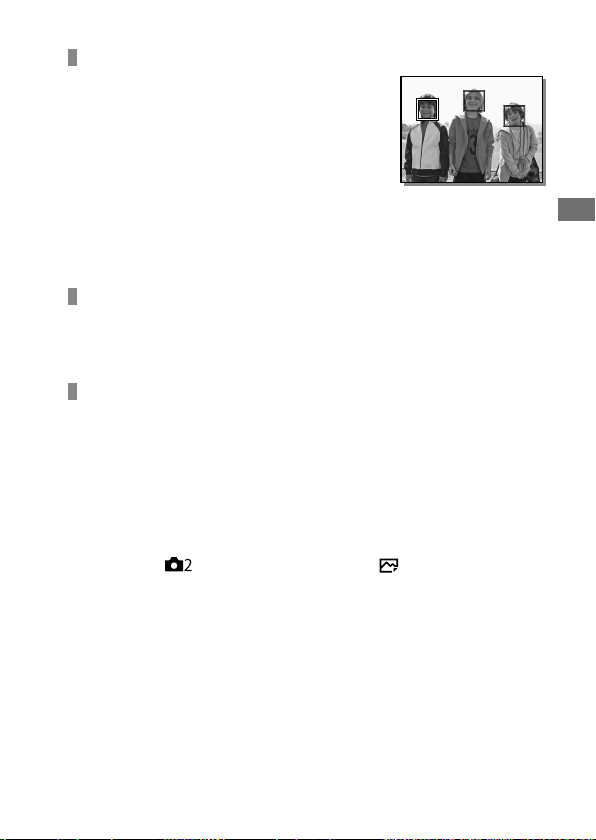
C:\d830100111\d830100111ILCE9UC2\01GB-ILCE9UC2\030BAS.indd
2019/02/19 10:01
ILCE-9
d-830-100-11 (1)
GB
57
Shooting
Face detection frame
• When the product detects a face, the gray face
detection frame appears. When the product
determines that autofocus is enabled, the face
detection frame turns white.
• In case you have registered the priority
order for each face using [Face Registration],
the product automatically selects the first
prioritized face and the face detection frame
over that face turns white. The face detection
frames of other registered faces turn reddish-
purple.
Eye detection frame
A white eye detection frame appears when an eye is detected and the
camera determines that autofocusing is possible, depending on the
settings.
[Eye AF] by custom key
The Eye AF function can also be used by assigning [Eye AF] to a custom
key. The camera can focus on human eyes as long as you are pressing the
key. This is useful when you want to temporarily apply the Eye AF function
to the entire screen regardless of the setting for [Focus Area].
For instance, if [Focus Area] is set to [Flexible Spot] and you want the
camera to focus on an eye outside of the focusing frame, you can apply
the Eye AF function by pressing the custom key to which [Eye AF] has
been assigned, without changing [Focus Area].
MENU (Camera Settings 2) [ Custom Key]
desired key, then assign the [Eye AF] function to the key.
Point the camera at a person’s face, and press the key to
which you have assigned the [Eye AF] function.
Press the shutter button while pressing the key.
ILCE-9
d-830-100-11 (1)
C:\d830100111\d830100111ILCE9UC2\01GB-ILCE9UC2\030BAS.indd
2019/02/19 10:01
GB
58
[Switch Right/Left Eye] by custom key
When [Right/Left Eye Select] is set to [Right Eye] or [Left Eye], you can
switch the eye to be detected by pressing the custom key to which you
have assigned the [Switch Right/Left Eye] function.
When [Right/Left Eye Select] is set to [Auto], you can temporarily switch
the eye to be detected by pressing the custom key to which you have
assigned the [Switch Right/Left Eye] function.
The temporary left/right selection is cancelled when you perform the
following operations, etc. The camera returns to automatic eye detection.
• Stopping pressing the shutter button halfway down.
• Stopping pressing the custom key to which [AF On] or [Eye AF] is
assigned.
• Pressing the Fn button or the MENU button.
Hint
• When [Right/Left Eye Select] is not set to [Auto], or you execute
[Switch Right/Left Eye] using the custom key, the eye detection frame
appears.
• If you want the face or eye detection frame to disappear within a certain
period of time after the camera has focused on the face or eye, set
[AF Area Auto Clear] to [On].
Note
• The [Eye AF] function may not function very well in the following situations:
– When the person is wearing sunglasses.
– When the front hair covers the person’s eyes.
– In low-light or back-lit conditions.
– When the eyes are closed.
– When the person is in the shade.
– When the person is out of focus.
– When the person is moving too much.
• If the person is moving too much, the detection frame may not display
correctly over their eyes.
• Depending on the circumstances, the eyes cannot be focused. When this
occurs, the camera will detect and focus on the face. The camera cannot focus
on eyes when no faces are detected.
• The product may not detect faces at all or may accidentally detect other
objects as faces in some conditions.
• The Eye AF function is unavailable when the mode dial is set to
(Movie) or
, or during movie shooting.
C:\d830100111\d830100111ILCE9UC2\01GB-ILCE9UC2\030BAS.indd
2019/02/19 10:01
ILCE-9
d-830-100-11 (1)
GB
59
Shooting
• You cannot use the face/eye detection function with the following functions:
– Zoom functions other than the optical zoom.
– [Posterization] under [Picture Effect]
– Focus Magnifier
– Movie shooting with [
Record Setting] set to [120p]/[100p]
– When [
Frame Rate] is set to [120fps]/[100fps] during slow-motion/
quick-motion shooting.
• Up to 8 faces of your subjects can be detected.
• Even if [Face Detect. Frame Disp.] is set to [Off], a green focusing frame will be
displayed over faces that are in focus.
• When the shooting mode is set to [Intelligent Auto], [Face Priority in AF] is
locked to [On].
AF in Focus Mag.
You can focus on the subject more accurately using auto-focus by
magnifying the area where you want to focus. While the magnified image
is displayed, you can focus on a smaller area than the flexible spot.
1
MENU (Camera Settings 1) [ AF in Focus Mag.]
[On].
2
MENU (Camera Settings 1) [Focus Magnifier].
3
Magnify the image by pressing the center of the multi-selector,
and then adjust the position by pressing the multi-selector up/
down/left/right.
• The magnification scale changes each time you press the center.
4
Press the shutter button halfway down to focus.
• The focus will be achieved at point of + in the center of the screen.
5
Press the shutter button all the way down to shoot.
• The camera exits the magnified display after shooting.
ILCE-9
d-830-100-11 (1)
C:\d830100111\d830100111ILCE9UC2\01GB-ILCE9UC2\030BAS.indd
2019/02/19 10:01
GB
60
Hint
• Use of a tripod is recommended to accurately identify the location you want
to magnify.
• You can check the auto-focusing result by magnifying the displayed image.
If you want to readjust the focus position, adjust the focus area on the
magnified screen and then press the shutter button halfway down.
Note
• If you enlarge an area at the edge of the screen, the camera may not be able
to focus.
• The exposure and white balance cannot be adjusted while the displayed
image is being magnified.
• [
AF in Focus Mag.] is unavailable in the following situations:
– During movie shooting
– When [Focus Mode] is set to [Continuous AF].
– When using a Mount Adaptor (sold separately).
• While the displayed image is being magnified, the following functions are
unavailable:
– [Eye AF]
– [
Eye-Start AF]
– [
Pre-AF]
– [Face Priority in AF]
Tracking subject (Tracking function)
This camera has the function of tracking which tracks the subject, and
keeps marking it with the focusing frame.
You can set the start position to track by selecting from focusing areas, or
by specifying by touch operation. The required function varies depending
on the setting method.
Setting the start position to track by focusing area
([Tracking] under [Focus Area])
The selected focusing frame is set as the start position to track, and the
tracking starts by pressing the shutter button halfway down (page49).
• This function is available in still image shooting mode.
• This function is available when [Focus Mode] is set to [Continuous AF].
C:\d830100111\d830100111ILCE9UC2\01GB-ILCE9UC2\030BAS.indd
2019/02/19 10:01
ILCE-9
d-830-100-11 (1)
GB
61
Shooting
Setting the start position to track by touch operation
([Touch Tracking] under [Func. of Touch Operation])
You can set the subject to track by touching it on the monitor (page92).
• This function is available in still image shooting mode and movie
shooting mode.
• This function is available when [Focus Mode] is set to [Single-shot AF],
[Continuous AF], or [DMF].
Changing the setting for [Focus Area] to [Tracking]
temporarily ([Tracking On] under [ Custom Key])
Even [Focus Area] is set to other than [Tracking], you can temporarily
change the setting for [Focus Area] to [Tracking] while pressing and
holding the key to which you have assigned [Tracking On] function.
• Assign the [Tracking On] function to a desired key using
[
Custom Key] in advance (page25).
• This function is available in still image shooting mode.
• This function is available when [Focus Mode] is set to [Continuous AF].
Registering the current focus area ( AF Area Registration)
You can move the focusing frame to a preassigned position temporarily
using a custom key. This function is useful when shooting scenes in which
the subject’s movements are predictable; for example, sports scenes.
With this function, you can switch the focus area quickly according to the
situation.
How to register a focus area
MENU (Camera Settings 1) [ AF Area Registration]
[On].
Set the focus area to the desired position and then hold
down the Fn(Function) button.
ILCE-9
d-830-100-11 (1)
C:\d830100111\d830100111ILCE9UC2\01GB-ILCE9UC2\030BAS.indd
2019/02/19 10:01
GB
62
How to call up the registered focus area
MENU (Camera Settings 2) [ Custom Key]
desired key, then select [Regist. AF Area hold].
Set the camera to the shooting mode, hold down the key
to which [Regist. AF Area hold] has been assigned and
then press the shutter button to shoot images.
Hint
• When a focusing frame is registered using [ AF Area Registration], the
registered focusing frame flashes on the monitor.
• If you assign [Regist AF Area tggle] to a custom key, you can use the
registered focusing frame without holding down the key.
• If [Reg. AF Area + AF On] is assigned to a custom key, auto focusing using the
registered focusing frame is performed when the key is pressed.
Note
• A focus area cannot be registered in the following situations:
– The mode dial is set to either
(Movie) or
– While [Touch Focus] is being performed
– While using the digital zoom function
– While [Touch Tracking] is being performed
– While focusing
– While performing focus lock
• You cannot call up the registered focus area in the following situations:
– The mode dial is set to either
(Auto Mode), (Movie) or
• When [ AF Area Registration] is set to [On], the [Lock Operation Parts]
setting is locked to [Unlock].
C:\d830100111\d830100111ILCE9UC2\01GB-ILCE9UC2\030BAS.indd
2019/02/19 10:01
ILCE-9
d-830-100-11 (1)
GB
63
Shooting
Pre-AF
The product automatically adjusts focus before you press the shutter
button halfway down. During focusing operations, the screen may shake.
MENU (Camera Settings 1) [ Pre-AF] desired
setting.
On: Adjusts focus before you press the shutter button halfway down.
Off: Does not adjust focus before you press the shutter button halfway
down.
Note
• [ Pre-AF] is available only when an E-mount lens is mounted.
Priority Set in AF-S
Sets whether to release the shutter even if the subject is not in focus
when [Focus Mode] is set to [Single-shot AF] or [DMF] and the subject is
remaining still.
MENU (Camera Settings 1) [Priority Set in AF-S]
desired setting.
AF: Prioritizes focusing. The shutter will not be released until the subject
is in focus.
Release: Prioritizes the shutter’s release. The shutter will be released even
if the subject is out of focus.
Balanced Emphasis: Shoots with a balanced emphasis on both focusing
and shutter release.
ILCE-9
d-830-100-11 (1)
C:\d830100111\d830100111ILCE9UC2\01GB-ILCE9UC2\030BAS.indd
2019/02/19 10:01
GB
64
Priority Set in AF-C
Sets whether to release the shutter even if the subject is not in focus
when the continuous AF is activated and the subject is in motion.
MENU (Camera Settings 1) [Priority Set in AF-C]
desired setting.
AF: Prioritizes focusing. The shutter will not be released until the subject
is in focus.
Release: Prioritizes the shutter’s release. The shutter will be released even
if the subject is out of focus.
Balanced Emphasis: Shoots with a balanced emphasis on both focusing
and shutter release.
AF Illuminator
The AF illuminator supplies fill light to focus more easily on a subject
in dark surroundings. In the time between pressing the shutter button
halfway down and locking the focus, the AF illuminator lights up to allow
the camera to focus easily.
MENU (Camera Settings 1) [ AF Illuminator]
desired setting.
Auto: The AF illuminator lights up automatically in dark surroundings.
Off: Does not use the AF illuminator.
Note
• You cannot use [ AF Illuminator] in the following situations:
– When the shooting mode is set to either [Movie] or [S&Q Motion].
– When the focus mode is set to [Continuous AF].
– When [Focus Magnifier] is activated (page70).
– When a Mount Adaptor is attached.
• If the Multi Interface Shoe is equipped with a flash with an AF illuminator
function, when the flash is turned on, the AF illuminator will turn on as well.
• The AF illuminator emits a very bright light. Although there is no health
hazard, do not look directly into the AF illuminator at close range.
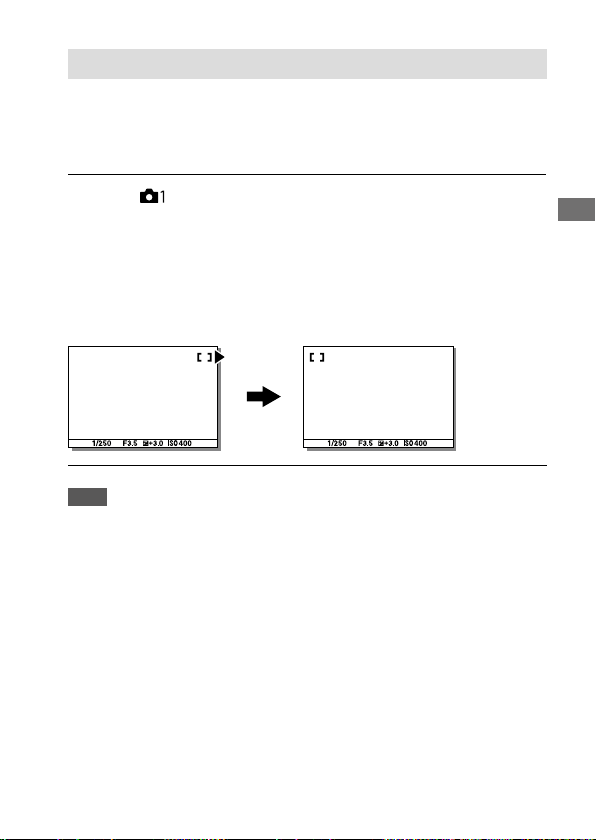
C:\d830100111\d830100111ILCE9UC2\01GB-ILCE9UC2\030BAS.indd
2019/02/19 10:01
ILCE-9
d-830-100-11 (1)
GB
65
Shooting
Circ. of Focus Point
Sets whether to allow the focusing frame to jump from one end to the
other when you move the focusing frame with [Focus Area] set to [Zone],
[Flexible Spot], or [Expand Flexible Spot]. This function is useful when you
want to move the focusing frame from one end to the other quickly.
MENU (Camera Settings 1) [Circ. of Focus Point]
desired setting.
Does Not Circulate: The cursor does not move when you try to move the
focusing frame past the end.
Circulate: The cursor jumps to the opposite end when you try to move
the focusing frame past the end.
When [Circulate] is selected:
Note
• Even if you set [Circ. of Focus Point] to [Circulate], the focusing frame will not
circulate diagonally.
ILCE-9
d-830-100-11 (1)
C:\d830100111\d830100111ILCE9UC2\01GB-ILCE9UC2\030BAS.indd
2019/02/19 10:01
GB
66
AF Micro Adj.
Allows you to adjust the auto-focusing position and register an adjusted
value for each lens when using A-mount lenses with an LA-EA2 or LA-EA4
Mount Adaptor (sold separately).
Use this function only when adjustments are needed. Note that the auto
focus function may not be performed at a proper position when using this
adjustment.
1
MENU (Camera Settings 1) [AF Micro Adj.].
2
Select [AF Adjustment Set.] [On].
3
[amount] desired value.
• The larger the value you select, the farther the autofocused position
will be from the product. The smaller the value you select, the closer
the autofocused position will be to the product.
Hint
• It is recommended that you adjust the position under actual shooting
conditions. Set [Focus Area] to [Flexible Spot] and use a bright subject with
high contrast when you adjust.
Note
• When you attach a lens for which you have already registered a value, the
registered value appears on the screen. [±0] appears for lenses for which a
value has not yet been registered.
• If [–] is displayed as the value, then a total of 30 lenses have been registered
and no new lens can be registered. To register a new lens, attach a lens for
which the registration can be erased, and set its value to [±0], or reset the
values of all the lenses using [Clear].
• The [AF Micro Adj.] supports Sony, Minolta, or Konica-Minolta lenses. If you
perform [AF Micro Adj.] with lenses other than the supported lenses, the
registered settings for the supported lenses may be affected. Do not perform
[AF Micro Adj.] with an unsupported lens.
• You cannot set [AF Micro Adj.] individually for a Sony, Minolta, and
Konica-Minolta lens of the same specification.
C:\d830100111\d830100111ILCE9UC2\01GB-ILCE9UC2\030BAS.indd
2019/02/19 10:01
ILCE-9
d-830-100-11 (1)
GB
67
Shooting
Aperture Drive in AF
Changes the aperture drive system to prioritize the auto-focusing tracking
performance or to prioritize silence (only when using a compatible lens).
MENU (Camera Settings 1) [Aperture Drive in AF]
desired setting.
Standard: Uses the standard aperture drive system.
Focus Priority: Changes the aperture drive system to prioritize auto-
focusing performance. During continuous shooting using the electronic
shutter, the [Focus Priority] setting allows you to continuously adjust
the focus with an F-value greater than F16.
Silent Priority: Changes the aperture drive system to prioritize silence so
that the sound from the aperture drive is quieter than in [Standard].
Note
• When [Focus Priority] is selected during continuous shooting, sound from the
aperture drive may be audible, shooting may become slower, or the display
may flicker. To avoid these phenomena, change the setting to [Standard].
• When [Silent Priority] is selected, the focusing speed may become slower, and
it may be more difficult to focus on a subject.
• The focus is locked to the setting in the first shot when [Aperture Drive in AF]
is set to [Standard] or [Silent Priority], and the F-value is greater than F16.
• If [
Shutter Type] is set to [Mechanical Shutter], [Focus Priority] cannot be
selected.
• During single-shot shooting with [
Shutter Type] set to [Auto], the aperture
is driven by the [Standard] system even when [Focus Priority] is selected.
• [Aperture Drive in AF] is unavailable when using a lens incompatible with this
function.
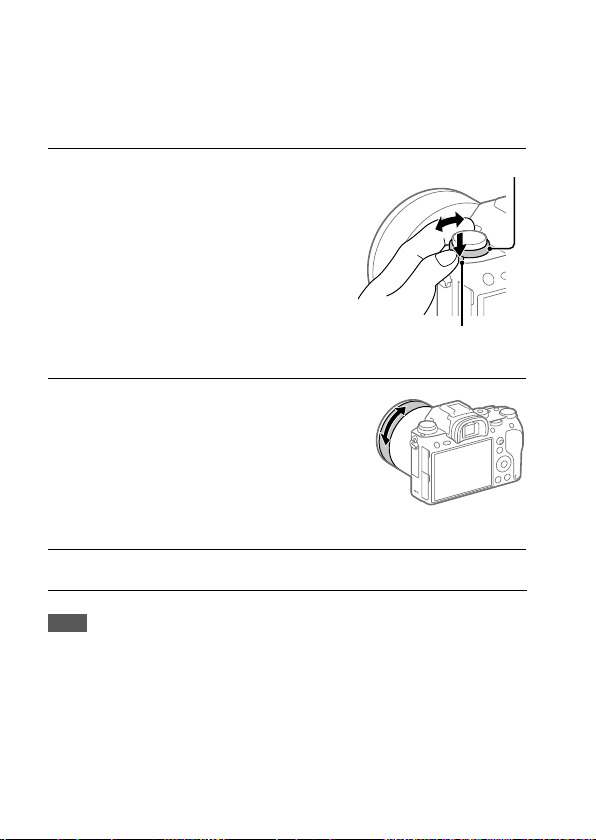
ILCE-9
d-830-100-11 (1)
C:\d830100111\d830100111ILCE9UC2\01GB-ILCE9UC2\030BAS.indd
2019/02/19 10:01
GB
68
Manual Focus
When it is difficult to focus properly in the autofocus mode, you can adjust
the focus manually.
1
Turn the focus mode dial
while pressing the focus mode
dial lock release button and
select MF.
Focus mode dial
Focus mode dial lock
release button
2
Rotate the focusing ring to
achieve sharp focus.
• When you rotate the focusing
ring, the focus distance is
displayed on the screen. The
focus distance is not displayed
when the Mount Adaptor
(sold separately) is attached.
3
Press the shutter button fully down to shoot an image.
Note
• When you use the viewfinder, adjust the diopter level to obtain the correct
focus on the viewfinder (page19).
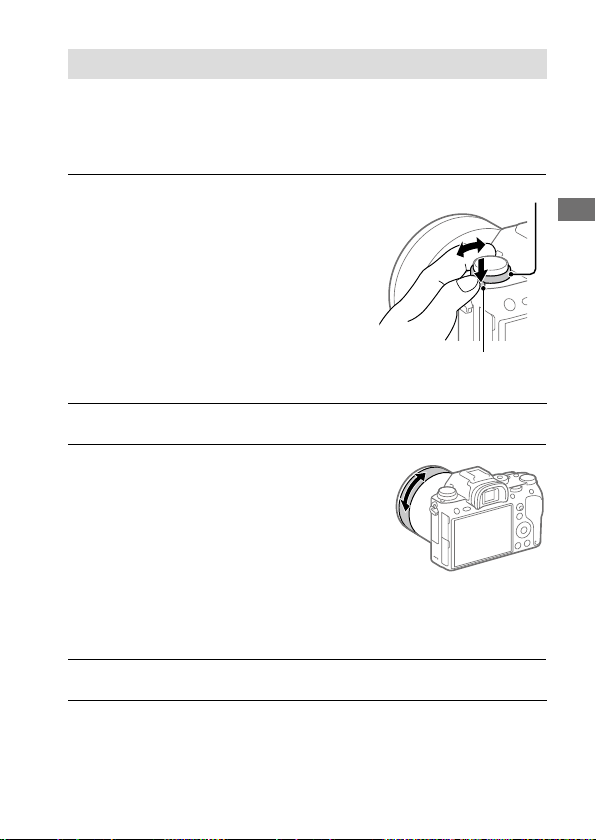
C:\d830100111\d830100111ILCE9UC2\01GB-ILCE9UC2\030BAS.indd
2019/02/19 10:01
ILCE-9
d-830-100-11 (1)
GB
69
Shooting
Direct manual focus (DMF)
You can make fine adjustments manually after performing auto focusing,
letting you focus on a subject more quickly than when using the manual
focus from the beginning. This is convenient in situations such as macro
shooting.
1
Turn the focus mode dial
while pressing the focus mode
dial lock release button and
select DMF.
Focus mode dial
Focus mode dial lock
release button
2
Press the shutter button halfway down to focus automatically.
3
Keep the shutter button
pressed halfway down, and
then rotate the focusing ring
to achieve a sharper focus.
• When you rotate the focusing
ring, the focus distance is
displayed on the screen. The
focus distance is not displayed
when the Mount Adaptor
(sold separately) is attached.
4
Press the shutter button fully down to shoot an image.
ILCE-9
d-830-100-11 (1)
C:\d830100111\d830100111ILCE9UC2\01GB-ILCE9UC2\030BAS.indd
2019/02/19 10:01
GB
70
Focus Magnifier
You can check the focus by enlarging the image before shooting. Unlike
with [
MF Assist], you can magnify the image without operating the
focus ring.
1
MENU (Camera Settings 1) [Focus Magnifier].
2
Press the center of the multi-selector to enlarge the image and
select the area you want to enlarge by pressing the multi-
selector up/down/left/right.
• Each time you press the center, the magnification scale will change.
• You can set the initial magnification by selecting MENU
(Camera Settings 1) [ Initial Focus Mag.].
3
Confirm the focus.
• Press the (Delete) button to bring the magnified position into the
center of an image.
• When the focus mode is [Manual Focus], you can adjust the focus
while an image is magnified. If [
AF in Focus Mag.] is set to [Off],
the [Focus Magnifier] function is canceled when the shutter button is
pressed halfway down.
• When the shutter button is pressed halfway down while an image
is magnified during the auto-focusing, different functions are
performed depending on the [
AF in Focus Mag.] setting.
– When [
AF in Focus Mag.] is set to [On]:
Auto-focusing is performed again.
– When [
AF in Focus Mag.] is set to [Off]:
The [Focus Magnifier] function is canceled.
• You can set how long the image is to be shown magnified by
selecting MENU
(Camera Settings 1) [Focus Magnif. Time].
4
Press the shutter button fully down to shoot the image.
C:\d830100111\d830100111ILCE9UC2\01GB-ILCE9UC2\030BAS.indd
2019/02/19 10:01
ILCE-9
d-830-100-11 (1)
GB
71
Shooting
To use the focus magnifier function by touch operation
You can magnify the image and adjust the focus by touching the
monitor. Set [Touch Operation] to [On] beforehand. Then, select the
appropriate settings under [Touch Panel/Pad]. When the focus mode is
[Manual Focus], you can perform [Focus Magnifier] by double-tapping the
area to focus on while shooting with the monitor.
While shooting with the viewfinder, a frame is displayed in the center of
the monitor by double-tapping and you can move the frame by dragging
it. The image is magnified by pressing the center of the multi-selector.
Hint
• While using the focus magnifier function, you can move the magnified area
by dragging it on the touch panel.
• To exit the focus magnifier function, double-tap the monitor again. When
[
AF in Focus Mag.] is set to [Off], the focus magnifier function is ended by
pressing the shutter button halfway down.
MF Assist
Enlarges the image on the screen automatically to make manual focusing
easier. This works in Manual Focus or Direct Manual Focus shooting.
1
MENU (Camera Settings 1) [ MF Assist] [On].
2
Turn the focus ring to adjust the focus.
• The image is enlarged. You can magnify images further by pressing
the center of the control wheel.
Hint
• You can set how long the image is to be shown magnified by selecting MENU
(Camera Settings 1) [Focus Magnif. Time].
Note
• You cannot use [ MF Assist] when shooting movies. Use the
[Focus Magnifier] function instead.
• [
MF Assist] is not available when a Mount Adaptor is attached. Use the
[Focus Magnifier] function instead.
ILCE-9
d-830-100-11 (1)
C:\d830100111\d830100111ILCE9UC2\01GB-ILCE9UC2\030BAS.indd
2019/02/19 10:01
GB
72
Peaking Setting
Sets the peaking function, which enhances the outline of in-focus areas
during shooting with Manual Focus or Direct Manual Focus.
MENU (Camera Settings 1) [Peaking Setting] desired
setting item.
Peaking Display: Sets whether to display peaking.
Peaking Level: Sets the level of enhancement of in-focus areas.
Peaking Color: Sets the color used to enhance in-focus areas.
Note
• Since the product recognizes sharp areas as in focus, the effect of peaking
differs, depending on the subject and lens.
• The outline of in-focus ranges is not enhanced on devices connected via
HDMI.
C:\d830100111\d830100111ILCE9UC2\01GB-ILCE9UC2\030BAS.indd
2019/02/19 10:01
ILCE-9
d-830-100-11 (1)
GB
73
Shooting
Shutter setting
Shutter Type
You can set whether to shoot with a mechanical shutter or an electronic
shutter.
MENU (Camera Settings 2) [ Shutter Type] desired
setting.
Auto: The shutter type is automatically switched based on the shooting
conditions and shutter speed.
Mechanical Shutter: Shoot with the mechanical shutter only.
Electronic Shutter: Shoot with the electronic shutter only.
Hint
• In the following situations, set the [ Shutter Type] to [Auto] or
[Electronic Shutter].
– When shooting with a high-speed shutter in a bright environment such as
outside in bright sunlight, the beach, or snowy mountains.
– When you want to increase the speed of continuous shooting.
Note
• In rare cases, the shutter sound may be produced when the power is turned
off even if the [
Shutter Type] is set to [Electronic Shutter]. However, this is
not a malfunction.
• In the following situations, the mechanical shutter will be activated even if the
[
Shutter Type] is set to [Electronic Shutter].
– When capturing a standard white color for the custom white balance
– [Face Registration]
• The following functions are unavailable when the [
Shutter Type] is set to
[Electronic Shutter].
– Flash shooting
–
Long Exposure NR
– Bulb shooting
ILCE-9
d-830-100-11 (1)
C:\d830100111\d830100111ILCE9UC2\01GB-ILCE9UC2\030BAS.indd
2019/02/19 10:01
GB
74
Using the electronic shutter
Using the electronic shutter lets you perform various kinds of shooting
that are difficult to achieve using the mechanical shutter, such as shooting
without sounds or shaking, shooting with a super-fast shutter, and
blackout-free shooting*.
* During blackout-free shooting, the screen does not black out or drop frames
and you can keep looking at the subject through the viewfinder or monitor
while shooting images.
Shutter types and camera performance
The camera’s shutter speed range, shutter sound, occurrence of blackout,
and availability of the flash for each setting are as follows:
Shutter Type
Auto
Mechanical Shutter
Electronic Shutter
Shutter speed
Single shooting:
BULB – 1/32000
*
1
*
2
Continuous
shooting:
1/8 – 1/32000
*
1
*
2
Single shooting:
BULB – 1/8000
Continuous
shooting:
30 – 1/8000
Single shooting:
30 – 1/32000
*
1
*
2
Continuous
shooting:
1/8 – 1/32000
*
1
*
2
Shutter sound
Single shooting:
Mechanical shutter
sound
Continuous
shooting:
Electronic shutter
sound
Mechanical shutter
sound
Electronic shutter
sound
Blackout
Single shooting:
Occurs
Continuous
shooting: Blackout-
free
*
3
Occurs
Blackout-free
*
3
Flash
Available
*
4
Available Unavailable
C:\d830100111\d830100111ILCE9UC2\01GB-ILCE9UC2\030BAS.indd
2019/02/19 10:01
ILCE-9
d-830-100-11 (1)
GB
75
Shooting
*
1
The maximum shutter speed is 1/16000 second when the shooting mode
is not set to S (Shutter Priority) or M (Manual Exposure), or during bracket
shooting with a setting other than [WB bracket] or [DRO Bracket].
*
2
The next value after 1/16000 second is 1/32000 second when the shooting
mode is set to S (Shutter Priority) or M (Manual Exposure).
*
3
When [Shoot. Start Disp.] is set to [On], blackout occurs only when the first
image is shot (page 77).
*
4
The maximum shutter speed is 1/8000 second when performing continuous
shooting with the flash.
Advanced shooting using the electronic shutter: Shooting
without shutter sound
You can use the electronic shutter to shoot without shutter sound.
MENU (Camera Settings 2) [ Shutter Type]
[Electronic Shutter].
• Select [Electronic Shutter] or [Auto] for continuous shooting.
MENU (Camera Settings 2) [Audio signals]
[Off] or [On: other than e-shut].
Advanced shooting using the electronic shutter: Blackout-
free continuous shooting
You can use the electronic shutter to perform continuous shooting with
focus and exposure tracking, without the screen blacking out.
MENU (Camera Settings 2) [ Shutter Type]
[Auto] or [Electronic Shutter].
Turn the mode dial and select
(Program Auto),
(Aperture Priority), (Shutter Priority), or
(Manual Exposure), then set the shutter speed
and aperture value. (For example: shutter speed of
1/250second and aperture value of F2.8)
• The product will not adjust the exposure in manual exposure mode
when [ISO] is set to other than [ISO AUTO].
Turn the drive mode dial and select
(Continuous Shooting: Hi),
(Continuous Shooting: Mid), or
(Continuous Shooting: Lo).

ILCE-9
d-830-100-11 (1)
C:\d830100111\d830100111ILCE9UC2\01GB-ILCE9UC2\030BAS.indd
2019/02/19 10:01
GB
76
Turn the focus mode dial and select AF-C (Continuous AF),
then start shooting images.
Hint
• If you want to display the timing of shooting on the screen during blackout-
free shooting, adjust the setting using MENU
(Camera Settings 2)
[Shoot. Timing Disp.].
• To take advantage of the performance of the camera, we recommend that
you use a UHS-II memory card. When using a UHS-II memory card, insert it
into the memory card slot 1.
Note
• When shooting without the shutter sound, do so on your own responsibility,
with sufficient consideration to the privacy and portrait rights of the subject.
• Even if you set the camera to shoot without the shutter sound, it will not be
completely silent.
• Even if you set the camera to shoot without the shutter sound, the aperture
and focus will make sounds.
• When using a lens compatible with Aperture Drive in AF, sound from
the aperture drive may be audible during continuous shooting if
[Aperture Drive in AF] is set to [Focus Priority].
• If you set [Audio signals] to [Off], the camera will not beep when the subject
comes into focus or when the self-timer is in operation.
• During blackout-free shooting, the slower the shutter speed, the lower the
refresh rate of the screen. If you want the screen display to be smooth in order
to track the subject, set a shutter speed faster than 1/125 second.
• The electronic shutter operates differently when a Mount Adaptor is attached
to the camera.
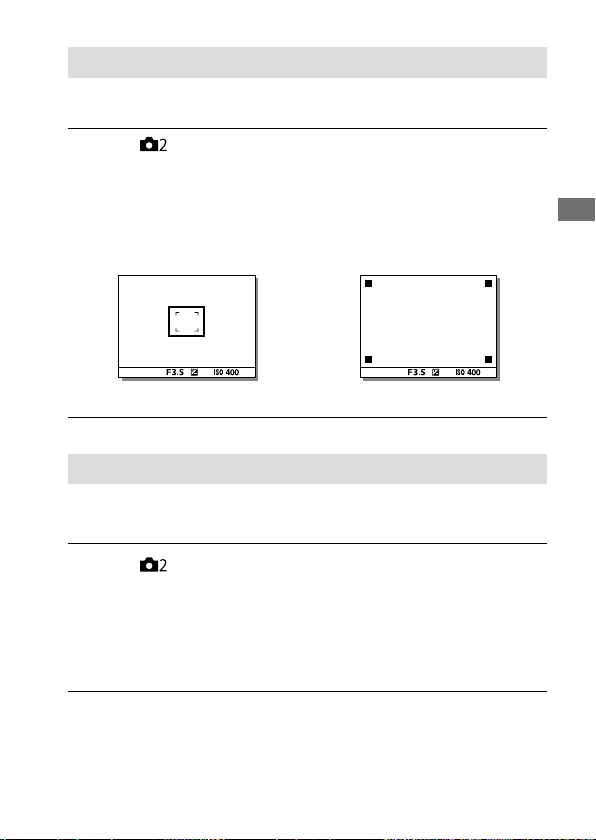
C:\d830100111\d830100111ILCE9UC2\01GB-ILCE9UC2\030BAS.indd
2019/02/19 10:01
ILCE-9
d-830-100-11 (1)
GB
77
Shooting
Displaying the release timing (Shoot. Timing Disp.)
Sets the method for displaying the shutter release timing on the screen
during blackout-free shooting.
MENU (Camera Settings 2) [Shoot. Timing Disp.]
desired setting.
On: Type 1/On: Type 2: Displays a frame around the focusing frame.
On: Type 3/On: Type 4: Displays in the four corners of the screen.
Off: Does not display the shutter release timing during blackout-free
shooting.
[On: Type 1]/[On: Type 2] (Example) [On: Type 3]/[On: Type 4]
Shoot. Start Disp.
Sets whether to let the screen black out when shooting the first image
during blackout-free shooting.
MENU (Camera Settings 2) [Shoot. Start Disp.]
desired setting.
On: The screen blacks out when shooting the first image during blackout-
free shooting.
Off: The screen does not black out when shooting the first image during
blackout-free shooting.
ILCE-9
d-830-100-11 (1)
C:\d830100111\d830100111ILCE9UC2\01GB-ILCE9UC2\030BAS.indd
2019/02/19 10:01
GB
78
e-Front Curtain Shutter
The electronic front curtain shutter function shortens the time lag
between when the shutter button is pressed and the shutter is released.
You can use [e-Front Curtain Shutter] when [
Shutter Type] is set to
[Mechanical Shutter].
MENU (Camera Settings 2) [e-Front Curtain Shutter]
desired setting.
On: Uses the electronic front curtain shutter function.
Off: Does not use the electronic front curtain shutter function.
Note
• When you shoot at high shutter speeds with a large diameter lens attached,
a defocused circle may get cut because of the shutter mechanism. In such
cases, set this function to [Off].
• When a lens made by another manufacturer (including a
Minolta/Konica-Minolta lens) is used, set this function to [Off]. If you set this
function to [On], the correct exposure will not be set or the image brightness
will be uneven.
• When you shoot at high shutter speeds, the image brightness may become
uneven depending on the shooting environment. In such cases, set
[e-Front Curtain Shutter] to [Off].
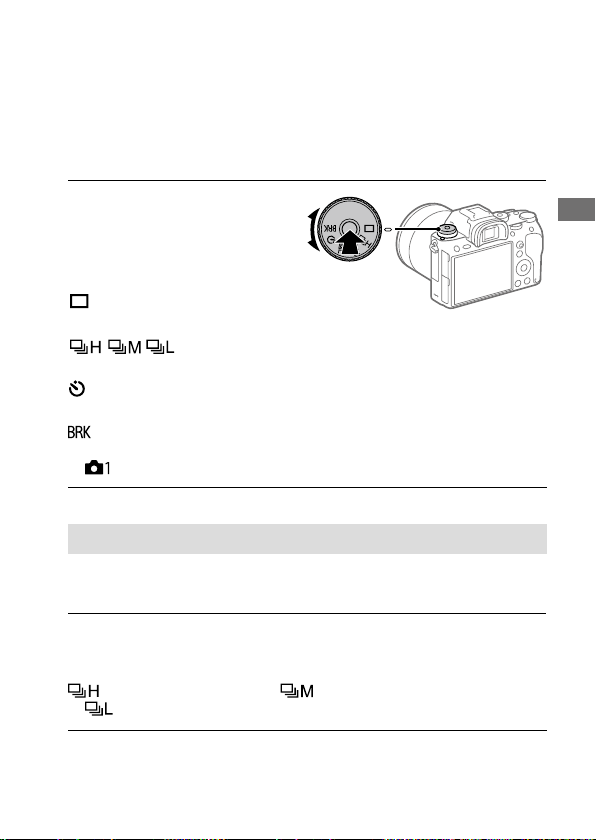
C:\d830100111\d830100111ILCE9UC2\01GB-ILCE9UC2\030BAS.indd
2019/02/19 10:01
ILCE-9
d-830-100-11 (1)
GB
79
Shooting
Shooting with drive modes (continuous
shooting/self-timer)
Select the appropriate mode for the subject, such as single shooting,
continuous shooting or bracketing shooting.
Select the desired drive mode
by turning the drive mode dial.
• Turn the drive mode dial while
holding down the drive mode dial
lock release button.
Single Shooting: Normal
shooting mode.
Cont. Shooting: Shoots images continuously while you
press and hold down the shutter button.
Self-timer: Shoots an image using the self-timer after a designated
number of seconds have elapsed since the shutter button was pressed.
Bracket: Shoots images using the bracketing function. The
type of bracketing function can be set by selecting MENU
(Camera Settings 1) [Bracket Settings] [Bracket Type].
Continuous shooting
Shoots images continuously while you press and hold down the shutter
button.
Turn the drive mode dial and select the desired mode.
• Turn the drive mode dial while pressing the drive mode dial lock release
button.
Continuous Shooting: Hi/ Continuous Shooting: Mid/
Continuous Shooting: Lo
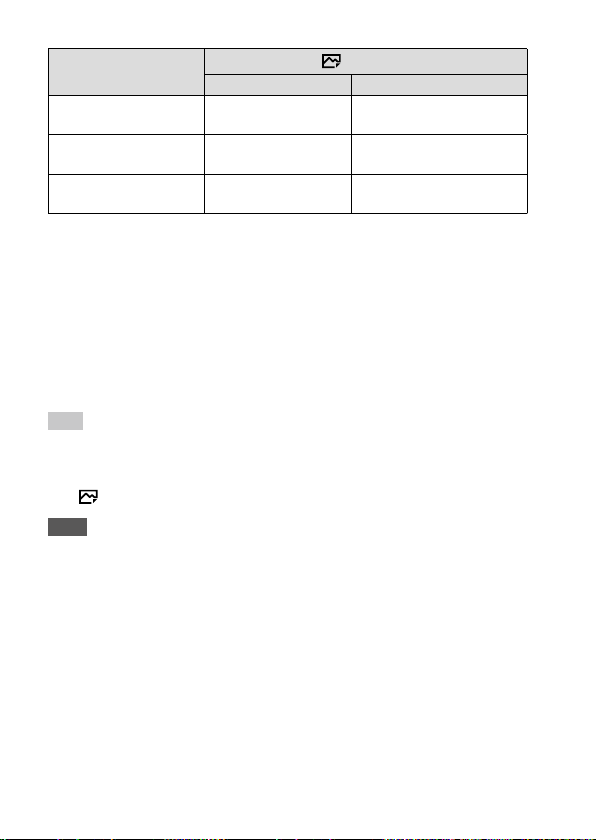
ILCE-9
d-830-100-11 (1)
C:\d830100111\d830100111ILCE9UC2\01GB-ILCE9UC2\030BAS.indd
2019/02/19 10:01
GB
80
Shutter Type
Mechanical Shutter Auto/Electronic Shutter*
1
Continuous Shooting: Hi
5 images per second
at maximum*
2
20 images per second at
maximum *
2
*
3
*
4
Continuous Shooting: Mid
5 images per second
at maximum*
2
10 images per second at
maximum*
2
Continuous Shooting: Lo
2.5 images per second
at maximum
5 images per second at
maximum*
2
*
1
The value shown is the shooting speed when [Aperture Drive in AF] is set to
[Standard]. When [Aperture Drive in AF] is set to [Focus Priority], the speed of
continuous shooting may become slower.
*
2
The focus is locked to the setting in the first shot when [Aperture Drive in AF]
is set to [Standard] or [Silent Priority], and the F-value is greater than F16.
*
3
When the Focus Mode is set to AF-C (Continuous AF), the speed of
continuous shooting varies depending on the attached lens. For details,
check the support page on compatible lenses.
*
4
During uncompressed RAW shooting, 12 images are shot per second at
maximum.
Hint
• To continuously adjust the focus and exposure during continuous shooting,
set as follows:
– [Focus Mode]: [Continuous AF]
– [
AEL w/ shutter]: [Off] or [Auto]
Note
• Continuous shooting is unavailable in the following situations:
– [Picture Effect] is set to [Rich-tone Mono.].
– [DRO/Auto HDR] is set to [Auto HDR].
• The speed of continuous shooting decreases when you shoot with a flash.
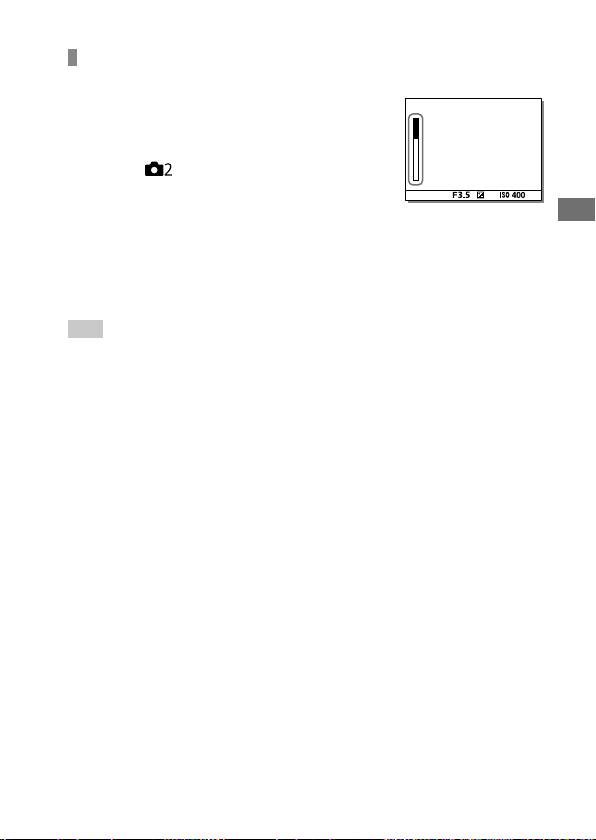
C:\d830100111\d830100111ILCE9UC2\01GB-ILCE9UC2\030BAS.indd
2019/02/19 10:01
ILCE-9
d-830-100-11 (1)
GB
81
Shooting
Displaying continuous shooting remaining time indicator
(Cont. Shoot. Length)
Sets whether to display an indicator of the
remaining time for which continuous shooting
can be performed at the same shooting speed.
MENU (Camera Settings 2)
[Cont. Shoot. Length] desired setting.
Always Display: Always displays the indicator
when the drive mode is set to [Cont. Shooting].
Shoot.-Only Display: Displays the indicator only
while continuous shooting is performed.
Not Displayed: Does not display the indicator.
Hint
• When the internal camera memory for buffering is full, “SLOW” will be
displayed and the continuous shooting speed will decrease.
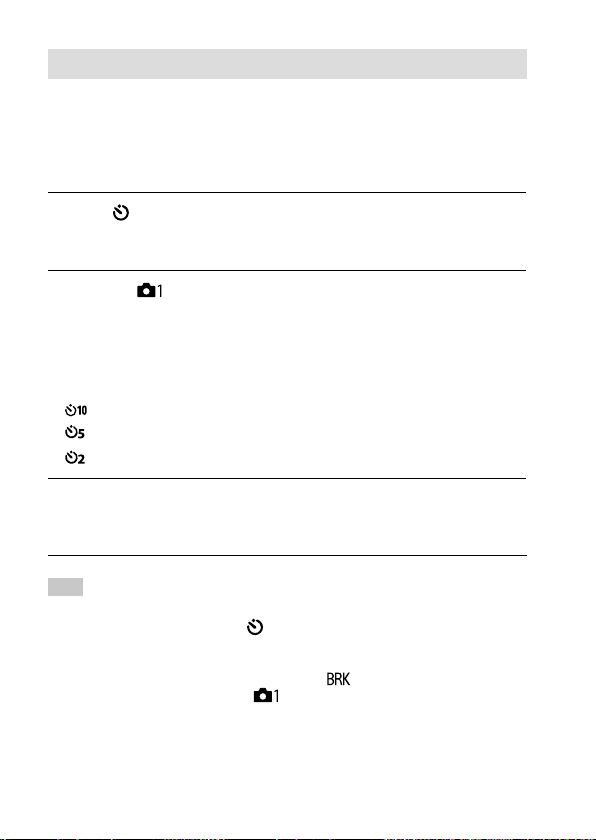
ILCE-9
d-830-100-11 (1)
C:\d830100111\d830100111ILCE9UC2\01GB-ILCE9UC2\030BAS.indd
2019/02/19 10:01
GB
82
Self-timer
Shoots an image using the self-timer after a designated number of
seconds have elapsed since the shutter button was pressed. Use the
5-second/10-second self-timer when you are going to be in the picture,
and use the 2-second self-timer to reduce camera-shake caused by
pressing the shutter button.
1
Select (Self-timer) by turning the drive mode dial.
• Turn the drive mode dial while holding down the drive mode dial lock
release button.
2
MENU (Camera Settings 1) [Self-timer Type]
[Self-timer (Single)] desired mode.
The mode determines the number of seconds until a picture is taken
after the shutter button is pressed.
• The setting screen for [Self-timer Type] can be displayed by pressing
the Fn button.
Self-timer (Single): 10 sec
Self-timer (Single): 5 sec
Self-timer (Single): 2 sec
3
Adjust the focus and shoot the image.
The self-timer lamp flashes, a beep sounds, and a picture is taken after
the designated number of seconds have elapsed.
Hint
• Press the shutter button again to stop the count of the self-timer.
• Select a drive mode other than
(Self-timer) by turning the drive mode dial
to cancel the self-timer.
• Set [Audio signals] to [Off] to mute the beep sound during self-timer counting.
• To use the self-timer in bracket mode, select
(Bracket) by turning the drive
mode dial, then select MENU
(Camera Settings 1) [Bracket Settings]
[Selftimer during Bracket].
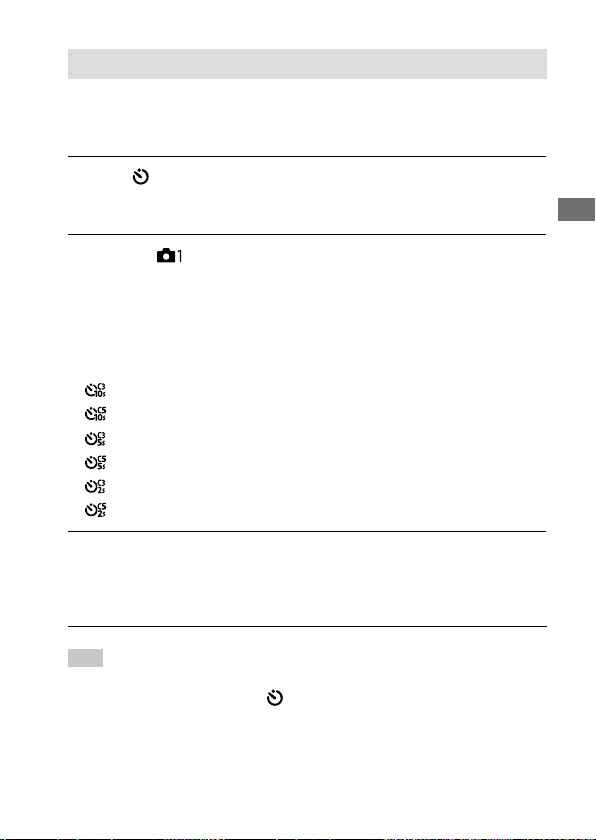
C:\d830100111\d830100111ILCE9UC2\01GB-ILCE9UC2\030BAS.indd
2019/02/19 10:01
ILCE-9
d-830-100-11 (1)
GB
83
Shooting
Self-timer (Cont)
Shoots a designated number of images using the self-timer after a
designated number of seconds have elapsed since the shutter button was
pressed. You can choose the best from multiple shots.
1
Select (Self-timer) by turning the drive mode dial.
• Turn the drive mode dial while holding down the drive mode dial lock
release button.
2
MENU (Camera Settings 1) [Self-timer Type]
[Self-timer (Cont)] desired mode.
For example, three images are shot when 10 seconds
have elapsed after the shutter button is pressed when
[Self-timer (Cont.): 10 Sec. 3 Img.] is selected.
• The setting screen for [Self-timer Type] can be displayed by pressing
the Fn button.
Self-timer (Cont.): 10 Sec. 3 Img.
Self-timer (Cont.): 10 Sec. 5 Img.
Self-timer (Cont.): 5 Sec. 3 Img.
Self-timer (Cont.): 5 Sec. 5 Img.
Self-timer (Cont.): 2 Sec. 3 Img.
Self-timer (Cont.): 2 Sec. 5 Img.
3
Adjust the focus and shoot the image.
The self-timer lamp flashes, a beep sounds, and pictures are taken
after the designated number of seconds has elapsed. The designated
number of pictures are taken continuously.
Hint
• Press the shutter button again to stop the count of the self-timer.
• Select a drive mode other than
(Self-timer) by turning the drive mode dial
to cancel the self-timer.
ILCE-9
d-830-100-11 (1)
C:\d830100111\d830100111ILCE9UC2\01GB-ILCE9UC2\030BAS.indd
2019/02/19 10:01
GB
84
Cont. Bracket
Shoots multiple images while automatically shifting the exposure from
base to darker and then to lighter (bracket shooting). You can select an
image that suits your purpose after recording.
1
Select (Bracket) by turning the drive mode dial.
• Turn the drive mode dial while holding down the drive mode dial lock
release button.
2
MENU (Camera Settings 1) [Bracket Settings]
[Bracket Type] [Cont. Bracket] desired mode.
For example, the camera shoots a total of three images continuously
with an exposure value shifted by plus or minus 0.3EV when
[Cont. Bracket: 0.3EV 3 Image] is selected.
• The setting screen for [Bracket Type] can be displayed by pressing the
Fn button.
3
Adjust the focus and shoot the image.
• The base exposure is set at the first shot.
• Keep pressing and holding the shutter button until bracket shooting
is finished.
Note
• The last shot is shown on the auto review.
• When [ISO AUTO] is selected in [Manual Exposure] mode, the exposure is
changed by adjusting the ISO value. If a setting other than [ISO AUTO] is
selected, the exposure is changed by adjusting the shutter speed.
• When you adjust the exposure, the exposure is shifted based on the
compensated value.
• Bracket shooting is unavailable in the following shooting modes:
– [Intelligent Auto]
• When the flash is used, the product performs flash bracket shooting, which
shifts the amount of flash light even if [Cont. Bracket] is selected. Press the
shutter button for each image.
C:\d830100111\d830100111ILCE9UC2\01GB-ILCE9UC2\030BAS.indd
2019/02/19 10:01
ILCE-9
d-830-100-11 (1)
GB
85
Shooting
Single Bracket
Shoots multiple images while automatically shifting the exposure from
base to darker and then to lighter (bracket shooting). You can select the
image that suits your purpose after recording.
Since a single picture is taken each time you press the shutter button, you
can adjust the focus or the composition for each shot.
1
Select (Bracket) by turning the drive mode dial.
• Turn the drive mode dial while holding down the drive mode dial lock
release button.
2
MENU (Camera Settings 1) [Bracket Settings]
[Bracket Type] [Single Bracket] desired mode.
For example, three images are shot one by one with an exposure value
shifted by plus or minus 0.3EV when [Single Bracket: 0.3EV 3 Image] is
selected.
• The setting screen for [Bracket Type] can be displayed by pressing the
Fn button.
3
Adjust the focus and shoot the image.
• Press the shutter button for each image.
Note
• When [ISO AUTO] is selected in [Manual Exposure] mode, the exposure is
changed by adjusting the ISO value. If a setting other than [ISO AUTO] is
selected, the exposure is changed by adjusting the shutter speed.
• When you adjust the exposure, the exposure is shifted based on the
compensated value.
• Bracket shooting is unavailable in the following situations:
– [Intelligent Auto]
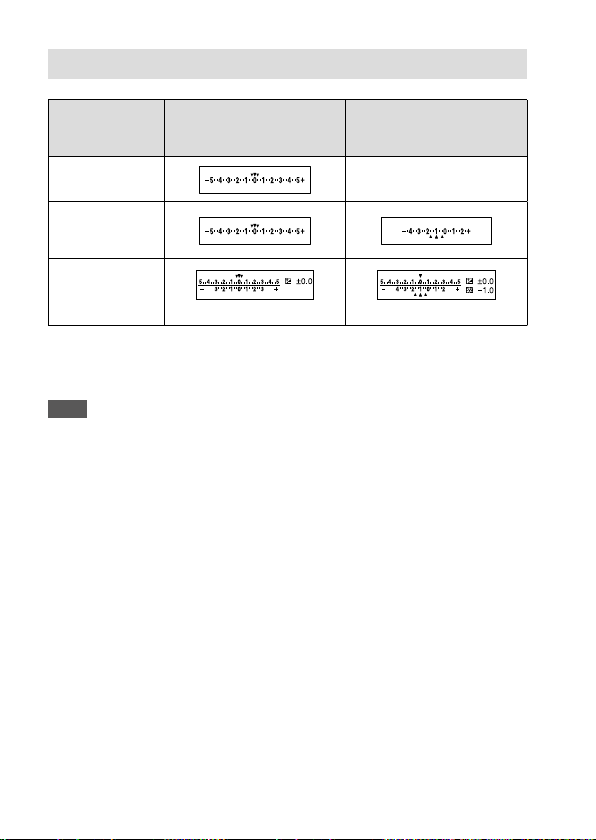
ILCE-9
d-830-100-11 (1)
C:\d830100111\d830100111ILCE9UC2\01GB-ILCE9UC2\030BAS.indd
2019/02/19 10:01
GB
86
Indicator during bracket shooting
Ambient light* bracketing
3 images shifted by 0.3EV steps
Exposure compensation ±0.0EV
Flash bracketing
3 images shifted by 0.7EV steps
Flash compensation -1.0EV
Viewfinder
No indicator is displayed.
Monitor
(Display All Info. or
Histogram)
Monitor
(For viewfinder)
(Upper indicator) (Lower indicator)
* Ambient light: A generic term for non-flash light including natural light, electric
bulb and fluorescent lighting. Whereas the flash light blinks for a moment,
ambient light is constant, so this kind of light is called “ambient light.”
Note
• During bracket shooting, guides equal to the number of images to be shot are
displayed over/under the bracket indicator.
• When you start single bracket shooting, the guides will disappear one by one
as the camera records images.
C:\d830100111\d830100111ILCE9UC2\01GB-ILCE9UC2\030BAS.indd
2019/02/19 10:01
ILCE-9
d-830-100-11 (1)
GB
87
Shooting
WB bracket
Shoots a total of three images, each with different color tones according
to the selected settings for white balance, color temperature and color
filter.
1
Select (Bracket) by turning the drive mode dial.
• Turn the drive mode dial while holding down the drive mode dial lock
release button.
2
MENU (Camera Settings 1) [Bracket Settings]
[Bracket Type] [WB bracket] desired mode.
• The setting screen for [Bracket Type] can be displayed by pressing the
Fn button.
White Balance Bracket: Lo: Records a series of three images with
small changes in the white balance (within the range of 10MK
-1
*).
White Balance Bracket: Hi: Records a series of three images with
large changes in the white balance (within the range of 20MK
-1
*).
* MK
-1
is the unit that indicates the capability of color temperature
conversion filters and indicates the same value as “mired.”
3
Adjust the focus and shoot the image.
Note
• The last shot is shown on the auto review.
ILCE-9
d-830-100-11 (1)
C:\d830100111\d830100111ILCE9UC2\01GB-ILCE9UC2\030BAS.indd
2019/02/19 10:01
GB
88
DRO Bracket
You can record a total of three images, each at a different degree of
D-Range Optimizer value.
1
Select (Bracket) by turning the drive mode dial.
• Turn the drive mode dial while holding down the drive mode dial lock
release button.
2
MENU (Camera Settings 1) [Bracket Settings]
[Bracket Type] [DRO Bracket] desired mode.
• The setting screen for [Bracket Type] can be displayed by pressing the
Fn button.
DRO Bracket: Lo: Records a series of three images with small
changes in the D-Range Optimizer value (Lv 1, Lv 2, and Lv 3).
DRO Bracket: Hi: Records a series of three images with large
changes in the D-Range Optimizer value (Lv 1, Lv 3, and Lv 5).
3
Adjust the focus and shoot the image.
Note
• The last shot is shown on the auto review.

C:\d830100111\d830100111ILCE9UC2\01GB-ILCE9UC2\030BAS.indd
2019/02/19 10:01
ILCE-9
d-830-100-11 (1)
GB
89
Shooting
Bracket Settings
You can set the type of bracket or the self-timer in bracket shooting
mode, and the shooting order for exposure bracketing or white balance
bracketing.
Select (Bracket) by turning the drive mode dial.
• Turn the drive mode dial while holding down the drive mode dial lock
release button.
MENU (Camera Settings 1) [Bracket Settings]
desired setting.
Bracket Type: Sets the type of bracket shooting.
(Cont. Bracket / Single Bracket / WB bracket / DRO Bracket)
Selftimer during Bracket: Sets whether to use the self-timer during
bracket shooting. Also sets the number of seconds until the shutter
is released if using the self-timer.
(OFF/2 Sec/5 Sec/10 Sec)
Bracket order: Sets the order of exposure bracketing and white
balance bracketing.
(0-+/-0+)
ILCE-9
d-830-100-11 (1)
C:\d830100111\d830100111ILCE9UC2\01GB-ILCE9UC2\030BAS.indd
2019/02/19 10:01
GB
90
Using touch function
Touch Operation
Sets whether to activate or not the touch operation of the monitor.
MENU (Setup) [Touch Operation] desired setting.
On: Activates the touch operation.
Off: Deactivates the touch operation.
Touch Panel/Pad
Touch operations when shooting with the monitor are referred to as
“touch panel operations,” and touch operations when shooting with
the viewfinder are referred to as “touch pad operations.” You can select
whether to activate touch panel operations or touch pad operations.
MENU (Setup) [Touch Panel/Pad] desired setting.
Touch Panel+Pad: Activates both the touch panel operations when
shooting with the monitor and touch pad operations when shooting
with the viewfinder.
Touch Panel Only: Activates only the touch panel operations when
shooting with the monitor.
Touch Pad Only: Activates only the touch pad operations when shooting
with the viewfinder.
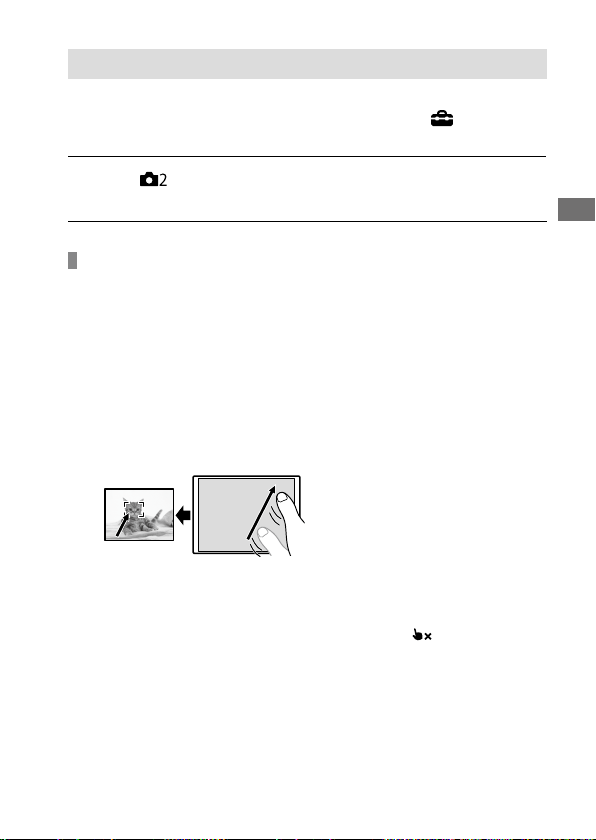
C:\d830100111\d830100111ILCE9UC2\01GB-ILCE9UC2\030BAS.indd
2019/02/19 10:01
ILCE-9
d-830-100-11 (1)
GB
91
Shooting
Touch Focus
You can select a subject on which to focus using touch operations in the
still image and movie recording modes. Select MENU
(Setup)
[Touch Operation] [On] beforehand.
MENU (Camera Settings 2) [Func. of Touch Operation]
[Touch Focus].
Specifying the position where you want to focus in the
still image mode
You can focus on the desired position by touching the monitor.
Select a [Focus Area] other than [Flexible Spot] or
[Expand Flexible Spot].
Touch the monitor.
• When shooting with the monitor, touch the subject to focus.
• When shooting with the viewfinder, you can move the position of
the focus by touching and dragging on the monitor while looking
through the viewfinder.
• When the shutter button is pressed halfway down, the camera
focuses on the focusing frame. Press the shutter button all the way
down to shoot images.
• To cancel focusing with touch operations, touch
or press the
center of the control wheel if shooting with the monitor, and press
the center of the control wheel if shooting with the viewfinder.
ILCE-9
d-830-100-11 (1)
C:\d830100111\d830100111ILCE9UC2\01GB-ILCE9UC2\030BAS.indd
2019/02/19 10:01
GB
92
Specifying the position where you want to focus in the
movie recording mode (spot focus)
The camera will focus on the touched subject. Spot focus is not available
when shooting with the viewfinder.
Select a [Focus Area] other than [Flexible Spot] or
[Expand Flexible Spot].
Touch the subject on which you want to focus before or
during recording.
• When you touch the subject, the focus mode temporarily switches to
manual focus and the focus can be adjusted using the focus ring.
• To cancel spot focus, touch
or press the center of the control
wheel.
Hint
• In addition to the touch focus function, touch operations such as the following
are also available.
– When [Focus Area] is set to [Flexible Spot] or [Expand Flexible Spot], the
focusing frame can be moved using touch operations.
– When the [Focus Mode] is set to [Manual Focus], the focus magnifier can be
used by double-tapping the monitor.
Note
• The touch focus function is not available in the following situations:
– When [Focus Mode] is set to [Manual Focus].
– When using the digital zoom
– When using the LA-EA2 or LA-EA4
Touch Tracking
You can use touch operations to select a subject you want to track in the
still image and movie recording modes. Select MENU
(Setup)
[Touch Operation] [On] beforehand.
1
MENU (Camera Settings 2) [Func. of Touch Operation]
[Touch Tracking].
C:\d830100111\d830100111ILCE9UC2\01GB-ILCE9UC2\030BAS.indd
2019/02/19 10:01
ILCE-9
d-830-100-11 (1)
GB
93
Shooting
2
Touch the subject that you want to track on the monitor.
Tracking will start.
3
Press the shutter button halfway down to focus.
• Press the shutter button all the way down to shoot images.
Hint
• To cancel tracking, touch or press the center of the control wheel.
Note
• [Touch Tracking] is unavailable in the following situations:
– When shooting movies with [
Record Setting] set to [120p]/[100p].
– When [Focus Mode] is set to [Manual Focus].
– When using the Smart Zoom, Clear Image Zoom and Digital Zoom
– When using the LA-EA2 or LA-EA4 Mount Adaptor
ILCE-9
d-830-100-11 (1)
C:\d830100111\d830100111ILCE9UC2\01GB-ILCE9UC2\030BAS.indd
2019/02/19 10:01
GB
94
Selecting a still image size/image quality
File Format
Sets the file format for still images.
MENU (Camera Settings 1) [ File Format] desired
setting.
RAW: Digital processing is not performed on this file format. Select this
format to process images on a computer for professional purposes.
RAW & JPEG: A RAW image and a JPEG image are created at the same
time. This is suitable when you need two image files, a JPEG for
viewing, and a RAW for editing.
JPEG: The image is recorded in the JPEG format.
About RAW images
• To open a RAW image file recorded with this camera, the software
Imaging Edge (page202) is needed. With Imaging Edge, you can open
a RAW image file, then convert it into a popular image format such as
JPEG or TIFF, or readjust the white balance, saturation or contrast of the
image.
• You cannot apply [Auto HDR] or [Picture Effect] functions with RAW
images.
• RAW images recorded with this camera have a resolution of 14 bits per
pixel. However, the resolution may be limited to 12 bits in the following
shooting modes:
– [
Long Exposure NR]
– [BULB]
– Continuous shooting
• You can set whether RAW images are compressed or uncompressed
using [
RAW File Type].
Note
• If you do not intend to edit the images on your computer, we recommend that
you record in JPEG format.
• You cannot add DPOF (print order) registration marks to RAW images.
C:\d830100111\d830100111ILCE9UC2\01GB-ILCE9UC2\030BAS.indd
2019/02/19 10:01
ILCE-9
d-830-100-11 (1)
GB
95
Shooting
JPEG Quality
Selects the JPEG image quality when [ File Format] is set to
[RAW & JPEG] or [JPEG].
MENU (Camera Settings 1) [ JPEG Quality] desired
setting.
Extra fine/Fine/Standard: Since the compression rate increases from
[Extra fine] to [Fine] to [Standard], the file size decreases in the same
order. This allows more files to be recorded on one memory card, but
the image quality is lower.
JPEG Image Size
The larger the image size, the more detail will be reproduced when the
image is printed on large-format paper. The smaller the image size, the
more images can be recorded.
MENU (Camera Settings 1) [ JPEG Image Size]
desired setting.
When [ Aspect Ratio] is set to 3:2 When [ Aspect Ratio] is set to 16:9
L: 24M
6000×4000 pixels
L: 20M
6000×3376 pixels
M: 10M
3936×2624 pixels
M: 8.7M
3936×2216 pixels
S: 6.0M
3008×2000 pixels
S: 5.1M
3008×1688 pixels
When [ Aspect Ratio] is set to 1:1
L: 16M
4000×4000 pixels
M: 6.9M
2624×2624 pixels
S: 4.0M
2000×2000 pixels
ILCE-9
d-830-100-11 (1)
C:\d830100111\d830100111ILCE9UC2\01GB-ILCE9UC2\030BAS.indd
2019/02/19 10:01
GB
96
When recording in the APS-C-equivalent size
When [ Aspect Ratio] is set to 3:2 When [ Aspect Ratio] is set to 16:9
L: 10M
3936×2624 pixels
L: 8.7M
3936×2216 pixels
M: 6.0M
3008×2000 pixels
M: 5.1M
3008×1688 pixels
S: 2.6M
1968×1312 pixels
S: 2.2M
1968×1112 pixels
When [ Aspect Ratio] is set to 1:1
L: 6.9M
2624×2624 pixels
M: 4.0M
2000×2000 pixels
S: 1.7M
1312×1312 pixels
Note
• When [ File Format] is set to [RAW] or [RAW & JPEG], the image size for
RAW images corresponds to “L.”
Aspect Ratio
MENU (Camera Settings 1) [ Aspect Ratio] desired
setting.
3:2: Same aspect ratio as 35 mm film
16:9: An aspect ratio suitable for viewing on a TV that supports high
definition
1:1: The horizontal and vertical ratio is equal.
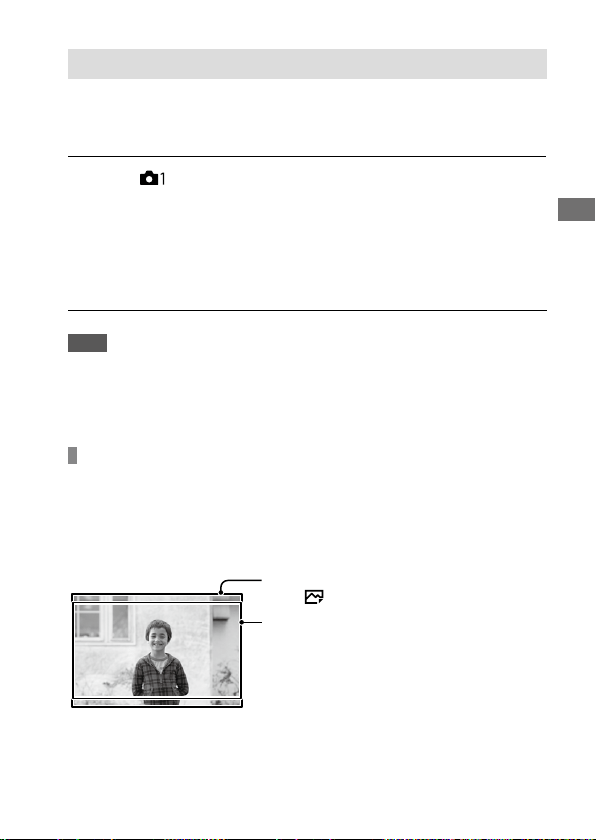
C:\d830100111\d830100111ILCE9UC2\01GB-ILCE9UC2\030BAS.indd
2019/02/19 10:01
ILCE-9
d-830-100-11 (1)
GB
97
Shooting
APS-C/Super 35mm
Sets whether to record in APS-C-equivalent size for still images and in
Super 35mm-equivalent size for movies. If you select [On] or [Auto], you
can use an APS-C size dedicated lens on this product.
MENU (Camera Settings 1) [APS-C/Super 35mm]
desired setting.
On: Records in either APS-C-equivalent size or Super 35mm-equivalent
size.
Auto: Automatically sets the capture range depending on the lens.
Off: Always captures 35mm full-frame image sensor pictures.
Note
• When you attach an APS-C compatible lens and set [APS-C/Super 35mm] to
[Off], shooting may fail.
• When you set [APS-C/Super 35mm] to [On], the angle of view will be the
same as when shooting with an APS-C size image sensor.
Angle of view
The angle of view switches to the equivalent of full frame or APS-C/
Super 35mm, depending on the setting for [APS-C/Super 35mm] and the
attached lens. The angle of view is also different for still image shooting
and movie shooting.
Angle of view equivalent to full frame
When shooting still images
(with [
Aspect Ratio] set to [3:2])
When recording movies
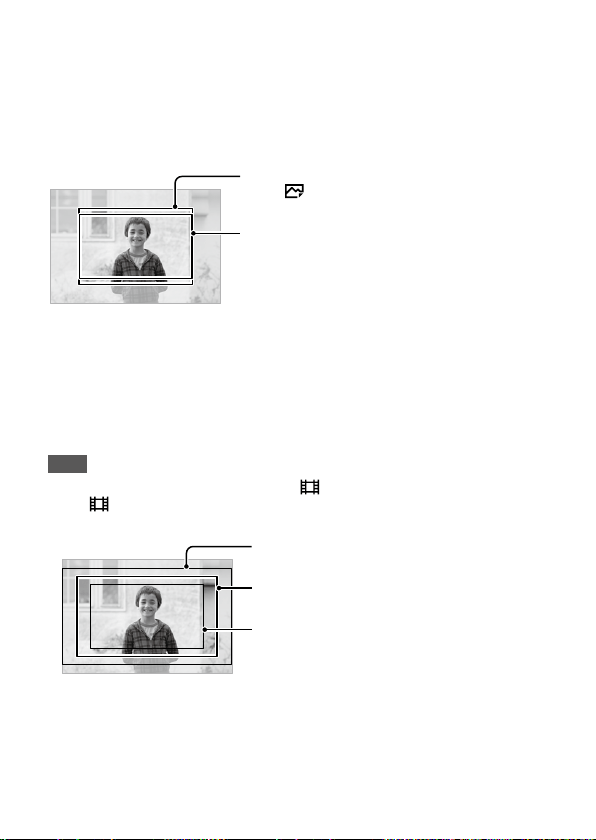
ILCE-9
d-830-100-11 (1)
C:\d830100111\d830100111ILCE9UC2\01GB-ILCE9UC2\030BAS.indd
2019/02/19 10:01
GB
98
The camera shoots with an angle of view equivalent to full frame in the
following situations.
• [APS-C/Super 35mm] is set to [Auto], and a full frame shooting-
compatible lens is attached.
• [APS-C/Super 35mm] is set to [Off].
Angle of view equivalent to APS-C size/Super 35mm
When shooting still images
(with [
Aspect Ratio] set to [3:2])
When recording movies
The camera shoots with an angle of view equivalent to APS-C size or
Super 35mm in the following situations.
The angle of view becomes approx. 1.5 times the focal length indicated on
the lens.
• [APS-C/Super 35mm] is set to [Auto], and an APS-C-format dedicated
lens is attached.
• [APS-C/Super 35mm] is set to [On].
Note
• When recording full-frame movies with [ File Format] set to [XAVC S 4K]
and [
Record Setting] set to [30p 60M] or [30p 100M], the angle of view is
equivalent to approx. 1.2times the focal length indicated on the lens.
Angle of view equivalent to full-frame
Angle of view during XAVC S 4K movie
recording set to [30p 60M]/[30p 100M]
Angle of view equivalent to Super 35mm
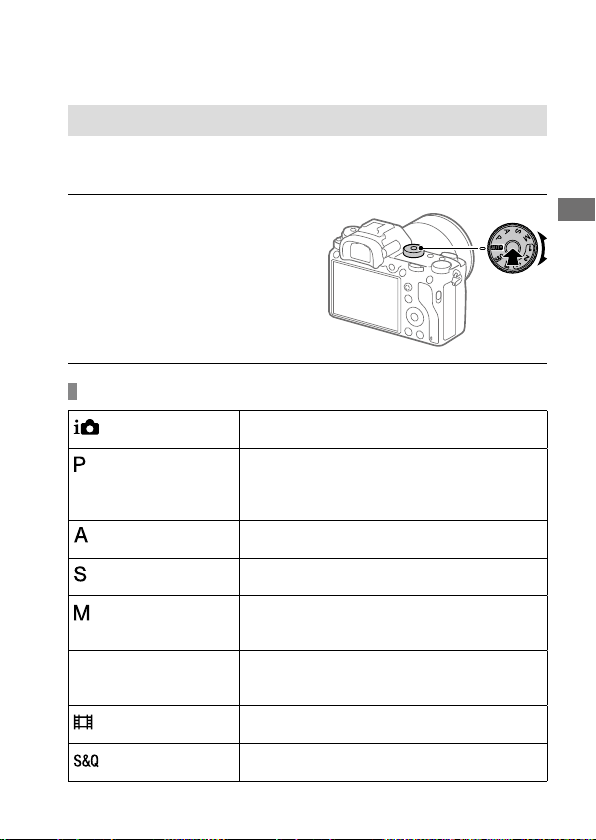
C:\d830100111\d830100111ILCE9UC2\01GB-ILCE9UC2\030BAS.indd
2019/02/19 10:01
ILCE-9
d-830-100-11 (1)
GB
99
Shooting
Selecting a shooting mode
List of mode dial function
You can switch the shooting mode according to the subject or purpose of
shooting.
Turn the mode dial to select
the desired shooting mode.
• Turn the mode dial while
pressing the mode dial lock
release button in the center of
the mode dial.
Available functions
(Intelligent Auto)
Allows you to shoot with automatic scene
recognition.
(Program Auto)
Allows you to shoot with the exposure adjusted
automatically (both the shutter speed and the
aperture value (F value)). Also you can select
various settings using the menu.
(Aperture Priority)
Allows you to adjust the aperture and shoot
when you want to blur the background, etc.
(Shutter Priority)
Allows you to shoot fast-moving subjects etc., by
manually adjusting the shutter speed.
(Manual Exposure)
Allows you to shoot still images with the desired
exposure by adjusting the exposure (both the
shutter speed and the aperture value (F value)).
1/2/3 (Memory recall)
Allows you to shoot an image after recalling
often-used modes or numeric settings registered
in advance.
(Movie)
Allows you to change the exposure mode for
movie recording.
(S&Q Motion)
Allows you to shoot slow-motion and quick-
motion movies.
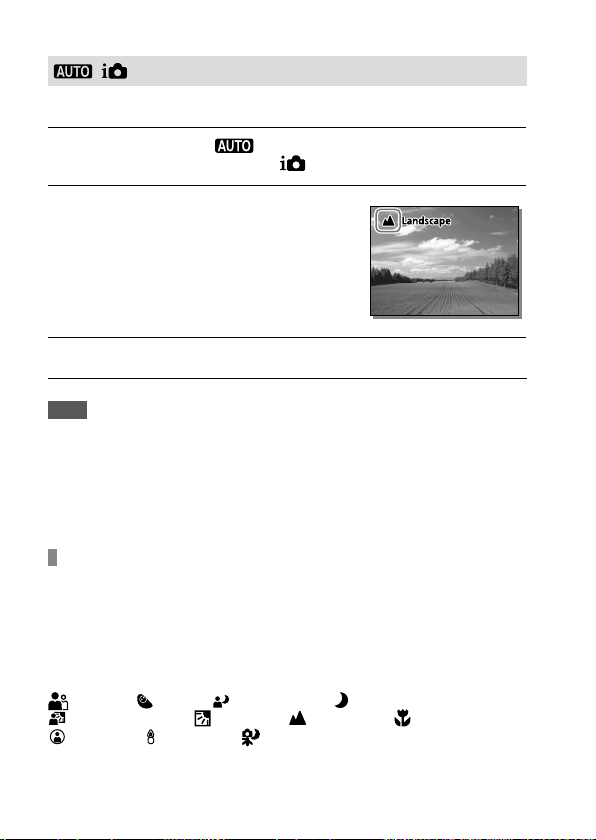
ILCE-9
d-830-100-11 (1)
C:\d830100111\d830100111ILCE9UC2\01GB-ILCE9UC2\030BAS.indd
2019/02/19 10:01
GB
100
( Intelligent Auto)
The camera shoots with automatic scene recognition.
1
Set the mode dial to (Auto Mode).
The shooting mode will be set to (Intelligent Auto).
2
Point the camera at the
subject.
When the camera recognized the
scene, the icon for the recognized
scene appears on the screen.
3
Adjust the focus and shoot the image.
Note
• The product will not recognize the scene when you shoot images with zoom
functions other than optical zoom.
• The product may not properly recognize the scene under certain shooting
conditions.
• For [Intelligent Auto] mode, most of the functions are set automatically, and
you cannot adjust the settings on your own.
About Scene Recognition
Scene Recognition operates in [Intelligent Auto] mode. This function
allows the product to automatically recognize the shooting conditions and
shoot the image.
Scene Recognition
When the product recognizes certain scenes, the following icons and
guides are displayed on the first line:
(Portrait), (Infant), (Night Portrait), (Night Scene),
(Backlight Portrait), (Backlight), (Landscape), (Macro),
(Spotlight), (Low Light), (Night Scene using a tripod)
C:\d830100111\d830100111ILCE9UC2\01GB-ILCE9UC2\030BAS.indd
2019/02/19 10:01
ILCE-9
d-830-100-11 (1)
GB
101
Shooting
Program Auto
Allows you to shoot with the exposure adjusted automatically (both the
shutter speed and the aperture value).
You can set shooting functions such as [ISO].
1
Set the mode dial to (Program Auto).
2
Set the shooting functions to your desired settings.
3
Adjust the focus and shoot the subject.
Program Shift
When you are not using a flash, you can change the shutter speed
and aperture (F-value) combination without changing the appropriate
exposure set by the camera.
Turn the front/rear dial to select the aperture value and shutter speed
combination.
• “P” on the screen changes to “P
” when you turn the front/rear dial.
• To cancel program shift, set the shooting mode to other than
[Program Auto], or turn off the camera.
Note
• According to the brightness of the environment, the program shift may not
be used.
• Set the shooting mode to another one than “P” or turn off the power to cancel
the setting you made.
• When the brightness changes, the aperture (F-value) and shutter speed also
change while maintaining the shift amount.
ILCE-9
d-830-100-11 (1)
C:\d830100111\d830100111ILCE9UC2\01GB-ILCE9UC2\030BAS.indd
2019/02/19 10:01
GB
102
Aperture Priority
You can shoot by adjusting the aperture and changing the range in focus,
or by defocusing the background.
1
Set the mode dial to (Aperture Priority).
2
Select the desired value by turning the front/rear dial.
• Smaller F-value: The subject is in focus, but objects in front of and
beyond the subject are blurred.
Larger F-value: The subject and its foreground and background are
all in focus.
• If the aperture value you have set is not suitable for appropriate
exposure, the shutter speed on the shooting screen will blink. If this
happens, change the aperture value.
3
Adjust the focus and shoot the subject.
The shutter speed is automatically adjusted to obtain proper exposure.
Note
• The brightness of the image on the screen may differ from the actual image
being shot.
C:\d830100111\d830100111ILCE9UC2\01GB-ILCE9UC2\030BAS.indd
2019/02/19 10:01
ILCE-9
d-830-100-11 (1)
GB
103
Shooting
Shutter Priority
You can express the movement of a moving subject in various ways by
adjusting the shutter speed, for example, at the instant of the movement
with high speed shutter, or as a trailing image with low speed shutter.
1
Set the mode dial to (Shutter Priority).
2
Select the desired value by turning the front/rear dial.
• If proper exposure cannot be obtained after setup, the aperture value
on the shooting screen blinks. If this happens, change the shutter
speed.
3
Adjust the focus and shoot the subject.
The aperture is automatically adjusted to obtain proper exposure.
Hint
• Use a tripod to prevent camera-shake when you have selected a slow shutter
speed.
• When you shoot indoor sports scenes, set the ISO sensitivity to a higher value.
Note
• The SteadyShot warning indicator does not appear in shutter speed priority
mode.
• When [
Long Exposure NR] is set to [On] and the shutter speed is 1second
or longer with a [
Shutter Type] other than [Electronic Shutter] is set, noise
reduction after shooting is performed for the same amount of time that the
shutter was open. However, you cannot shoot any more while noise reduction
is in progress.
• The brightness of the image on the screen may differ from the actual image
being shot.
ILCE-9
d-830-100-11 (1)
C:\d830100111\d830100111ILCE9UC2\01GB-ILCE9UC2\030BAS.indd
2019/02/19 10:01
GB
104
Manual Exposure
You can shoot with the desired exposure setting by adjusting both the
shutter speed and aperture.
1
Set the mode dial to (Manual Exposure).
2
Select the desired aperture value by turning the front dial.
Select the desired shutter speed by turning the rear dial.
• You can change the setting of the front/rear dial using MENU
(Camera Settings 2) [Dial Setup].
• You can also set [ISO] to [ISO AUTO] in manual exposure mode. The
ISO value automatically changes to achieve the appropriate exposure
using the aperture value and shutter speed you have set.
• When [ISO] is set to [ISO AUTO], the ISO value indicator will blink if
the value you have set is not suitable for appropriate exposure. If this
happens, change the shutter speed or aperture value.
• When [ISO] is set to other than [ISO AUTO], use MM (Metered
Manual)* to check the exposure value.
Toward +: Images become brighter.
Toward -: Images become darker.
0: Appropriate exposure analyzed by the product.
* Indicates under/over for appropriate exposure. It is displayed using
a numerical value on the monitor and with a metering indicator on
the viewfinder.
3
Adjust the focus and shoot the subject.
Hint
• You can change the shutter speed and aperture (F-value) combination
without changing the set exposure value by rotating the front/rear dial while
pressing the AEL button. (Manual shift)
C:\d830100111\d830100111ILCE9UC2\01GB-ILCE9UC2\030BAS.indd
2019/02/19 10:01
ILCE-9
d-830-100-11 (1)
GB
105
Shooting
Note
• The Metered Manual indicator does not appear when [ISO] is set to
[ISO AUTO].
• When the amount of ambient light exceeds the metering range of the
Metered Manual, the Metered Manual indicator flashes.
• The SteadyShot warning indicator does not appear in manual exposure mode.
• The brightness of the image on the screen may differ from the actual image
being shot.
Bulb shooting
You can shoot a trailing image of the movement of a subject with long
exposure.
Bulb shooting is suitable for shooting trails from stars or fireworks, etc.
1
Set the mode dial to (Manual Exposure).
2
Turn the rear dial clockwise until [BULB] is indicated.
3
Select the aperture value (F-value) using the front dial.
4
Press the shutter button halfway down to focus.
5
Press and hold the shutter button for the duration of the
shooting.
As long as the shutter button is pressed, the shutter remains open.
Hint
• When shooting fireworks, etc., focus at infinity in manual focus mode. If you
use a lens whose infinity point is unclear, adjust the focus on the fireworks in
the area you want to focus on in advance.
• In order to perform bulb shooting without causing the image quality to
deteriorate, we recommend that you start shooting while the camera is cool.
• Images shot in [BULB] mode tend to be blurry. We recommend that you use
a tripod and a remote commander (sold separately) that has a shutter button
lock function. Use a remote commander supporting connection via multi/
micro USB jack.
ILCE-9
d-830-100-11 (1)
C:\d830100111\d830100111ILCE9UC2\01GB-ILCE9UC2\030BAS.indd
2019/02/19 10:01
GB
106
Note
• The longer the exposure time, the more noise will be visible on the image.
• When [
Long Exposure NR] is set to [On], noise reduction is performed
after shooting for the same duration that the shutter was open. You cannot
shoot while noise reduction is in progress.
• You cannot set the shutter speed to [BULB] in the following situations:
– [Auto HDR]
– [Picture Effect] is set to [Rich-tone Mono.]
– When [Drive Mode] is set to the following:
– [Cont. Shooting]
– [Self-timer (Cont)]
– [Cont. Bracket]
– [
Shutter Type] is set to [Electronic Shutter]
If you use the above functions when the shutter speed is set to [BULB], the
shutter speed is temporarily set to 30 seconds.
• If you set [Drive Mode] to [Cont. Shooting] and [
Shutter Type] to [Auto] or
[Electronic Shutter] when the shutter speed is set to [BULB], the shutter speed
will be temporarily set to 1/8 seconds.
/ Recall
Allows you to shoot an image after recalling often-used modes or camera
settings registered with [
/ Memory] in advance (page170).
1
Set the mode dial to 1, 2, or 3 (Memory recall).
2
Press the center of the control wheel to confirm.
• You can also recall registered modes or settings by selecting MENU
(Camera Settings 1) [ / Recall].
C:\d830100111\d830100111ILCE9UC2\01GB-ILCE9UC2\030BAS.indd
2019/02/19 10:01
ILCE-9
d-830-100-11 (1)
GB
107
Shooting
Hint
• To recall settings registered to the memory card, set the mode dial to 1, 2, 3
(Memory recall), then select the desired number by pressing the left/right side
of the control wheel.
• If you recall settings registered to the memory card, the settings are recalled
from the memory card in the slot specified in [
Select Media]. You can
confirm the memory card slot by selecting MENU
(Camera Settings 1)
[
Select Media].
• Settings registered to a memory card using another camera of the same
model name can be recalled with this camera.
Note
• If you set [ / Recall] after completing the shooting settings, the
registered settings are given priority and the original settings may become
invalid. Check the indicators on the screen before shooting.
Movie: Exposure Mode
You can select the exposure mode for movie shooting.
1
Set the mode dial to (Movie).
2
MENU (Camera Settings 2) [ Exposure Mode]
desired setting.
Program Auto: Allows you to shoot with the exposure adjusted
automatically (both the shutter speed and the aperture value).
Aperture Priority: Allows you to shoot after adjusting the aperture
value manually.
Shutter Priority: Allows you to shoot after adjusting the shutter
speed manually.
Manual Exposure: Allows you to shoot after adjusting the
exposure (both the shutter speed and the aperture value) manually.
3
Press the MOVIE (movie) button to start recording.
• Press the MOVIE button again to stop recording.
ILCE-9
d-830-100-11 (1)
C:\d830100111\d830100111ILCE9UC2\01GB-ILCE9UC2\030BAS.indd
2019/02/19 10:01
GB
108
S&Q Motion: Exposure Mode
You can select the exposure mode for slow-motion/quick-motion
shooting. You can change the setting and playback speed for slow-
motion/quick-motion shooting with [
S&Q Settings] (page 149).
1
Set the mode dial to (S&Q Motion).
2
MENU (Camera Settings 2) [ Exposure Mode]
desired setting.
Program Auto: Allows you to shoot with the exposure adjusted
automatically (both the shutter speed and the aperture value).
Aperture Priority: Allows you to shoot after adjusting the
aperture value manually.
Shutter Priority: Allows you to shoot after adjusting the shutter
speed manually.
Manual Exposure: Allows you to shoot after adjusting the
exposure (both the shutter speed and the aperture value) manually.
3
Press the MOVIE (movie) button to start recording.
• Press the MOVIE button again to stop recording.
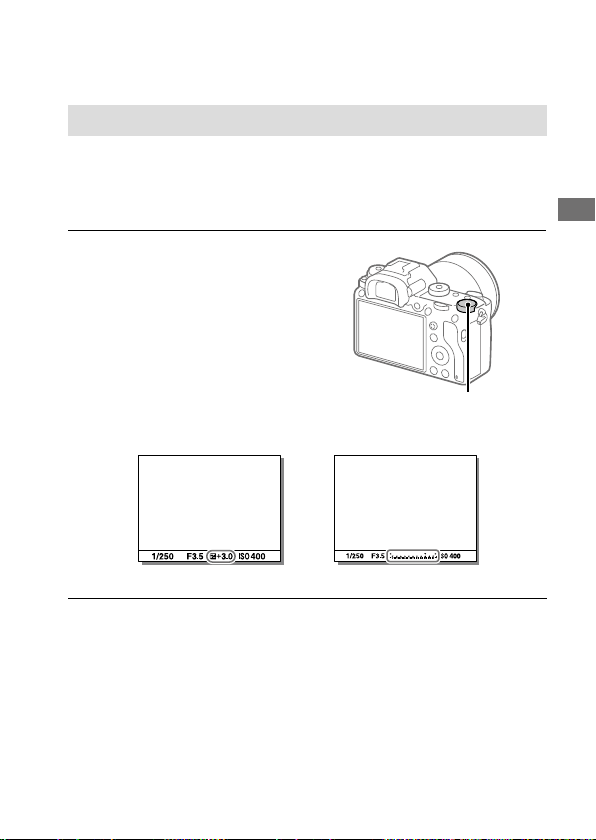
C:\d830100111\d830100111ILCE9UC2\01GB-ILCE9UC2\030BAS.indd
2019/02/19 10:01
ILCE-9
d-830-100-11 (1)
GB
109
Shooting
Controlling the exposure/metering modes
Exposure Comp.
Normally, exposure is set automatically (auto exposure). Based on the
exposure value set by auto exposure, you can make the entire image
brighter or darker if you adjust [Exposure Comp.] to the plus side or minus
side, respectively (exposure compensation).
Turn the exposure
compensation dial.
+ (over) side: Images become brighter.
- (under) side: Images become darker.
• You can adjust the exposure
compensation value within the range
of -3.0EV to +3.0EV.
• You can confirm the exposure
compensation value that you set on
the shooting screen.
Exposure compensation dial
Monitor
Viewfinder

ILCE-9
d-830-100-11 (1)
C:\d830100111\d830100111ILCE9UC2\01GB-ILCE9UC2\030BAS.indd
2019/02/19 10:01
GB
110
To set the exposure compensation using the MENU
You can adjust the exposure compensation within a range of -5.0EV to
+5.0EV when the exposure compensation dial is set to “0.”
MENU (Camera Settings 1) [Exposure Comp.]
desired setting.
Note
• You cannot perform the exposure compensation in the following shooting
modes:
– [Intelligent Auto]
• When using [Manual Exposure], you can perform the exposure compensation
only when [ISO] is set to [ISO AUTO].
• The settings of the exposure compensation dial will be prioritized over
[Exposure Comp.] or [Dial Ev Comp] in MENU.
• Only a value between -3.0EV and +3.0EV with the equivalent image
brightness appears on the screen when shooting. If you set an exposure
compensation value outside this range, the image brightness on the screen
will not be affected, but the value will be reflected in the recorded image.
• You can adjust the exposure compensation value within the range of -2.0EV
to +2.0EV when recording movies.
• If you shoot a subject in extremely bright or dark conditions, or when you use
the flash, you may not be able to get a satisfactory effect.
• When you set the exposure compensation dial to “0” from a setting other
than “0,” the exposure compensation value switches to “0” regardless of the
[Exposure Comp.] setting.
C:\d830100111\d830100111ILCE9UC2\01GB-ILCE9UC2\030BAS.indd
2019/02/19 10:01
ILCE-9
d-830-100-11 (1)
GB
111
Shooting
Metering Mode
Selects the metering mode that sets which part of the screen to measure
for determining the exposure.
MENU (Camera Settings 1) [Metering Mode] desired
setting.
Multi: Measures light on each area after dividing the total area into
multiple areas and determines the proper exposure of the entire screen
(Multi-pattern metering).
Center: Measures the average brightness of the entire screen, while
emphasizing the central area of the screen (Center-weighted metering).
Spot: Measures only the central area (Spot metering). This mode is
suitable for measuring light on a specified part of the entire screen. The
size of the metering circle can be selected from [Spot: Standard] and
[Spot: Large]. The position of the metering circle depends the setting
for [Spot Metering Point].
Entire Screen Avg.: Measures the average brightness of the entire
screen. The exposure will be stable even if the composition or the
position of the subject changes.
Highlight: Measures the brightness while emphasizing the
highlighted area on the screen. This mode is suitable for shooting the
subject while avoiding overexposure.
Hint
• When [Spot] is selected and [Focus Area] is set to either [Flexible Spot] or
[Expand Flexible Spot] while [Spot Metering Point] is set to [Focus Point Link],
the spot metering point can be coordinated with the focus area.
• When [Multi] is selected and [Face Priority in Multi Metering] is set to [On], the
camera measures brightness based on detected faces.
• When [Metering Mode] is set to [Highlight] and the [D-Range Optimiser]
or [Auto HDR] function is activated, the brightness and the contrast will be
corrected automatically by dividing the image into small areas and analyzing
the contrast of light and shadow. Make settings based on the shooting
circumstances.
ILCE-9
d-830-100-11 (1)
C:\d830100111\d830100111ILCE9UC2\01GB-ILCE9UC2\030BAS.indd
2019/02/19 10:01
GB
112
Note
• [Metering Mode] is locked to [Multi] in the following shooting modes:
– [Intelligent Auto]
– Other zoom functions than the optical zoom
• In [Highlight] mode, the subject may be dark if a brighter part exists on the
screen.
Spot Metering Point
Sets whether to coordinate the spot metering position with the focus area
when [Focus Area] is set to [Flexible Spot] or [Expand Flexible Spot].
MENU (Camera Settings 1) [Spot Metering Point]
desired setting.
Center: The spot metering position does not coordinate with the focus
area, but always meters brightness at the center.
Focus Point Link: The spot metering position coordinates with the focus
area.
Note
• When [Focus Area] is set to other than [Flexible Spot] or
[Expand Flexible Spot], the spot metering position is locked to the center.
• When [Focus Area] is set to [Tracking: Flexible Spot] or
[Tracking: Expand Flexible Spot], the spot metering position coordinates to
the tracking start position, but does not coordinate with the tracking of the
subject.
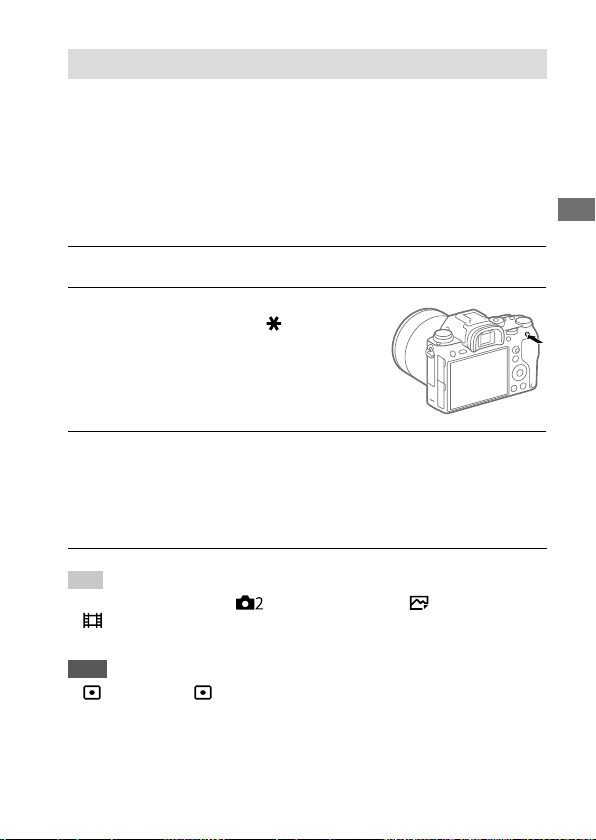
C:\d830100111\d830100111ILCE9UC2\01GB-ILCE9UC2\030BAS.indd
2019/02/19 10:01
ILCE-9
d-830-100-11 (1)
GB
113
Shooting
AE lock
When the contrast between the subject and background is high, such
as when shooting a backlit subject or a subject near a window, meter
the light at a spot where the subject appears to have the appropriate
brightness and lock the exposure before shooting. To reduce the
brightness of the subject, meter the light at a spot brighter than the
subject and lock the exposure of the entire screen. To make the subject
brighter, meter the light at a spot darker than the subject and lock the
exposure of the entire screen.
1
Adjust the focus on the spot at which the exposure is adjusted.
2
Press the AEL button.
The exposure is locked, and (AE
lock) is displayed.
3
Keep pressing the AEL button and focus on the subject again,
then shoot the picture.
• Keep holding the AEL button down while taking a shot if you want
to continue shooting with the fixed exposure. Release the button to
reset the exposure.
Hint
• If you select the MENU (Camera Settings 2) [ Custom Key] or
[
Custom Key] [AEL Button] [AEL toggle], you can lock the exposure
without holding down the button.
Note
• [ AEL hold] and [ AEL toggle] are not available when using zoom
functions other than optical zoom.
ILCE-9
d-830-100-11 (1)
C:\d830100111\d830100111ILCE9UC2\01GB-ILCE9UC2\030BAS.indd
2019/02/19 10:01
GB
114
Zebra Setting
Sets a zebra pattern, which appears over part of an image if the
brightness level of that part meets the IRE level that you have set. Use this
zebra pattern as a guide to adjust the brightness.
MENU (Camera Settings 2) [Zebra Setting] desired
setting item.
Zebra Display: Sets whether to display the zebra pattern.
Zebra Level: Adjusts the brightness level of the zebra pattern.
Hint
• You can register values to check the correct exposure or overexposure as well
as the brightness level for [Zebra Level]. The settings for correct exposure
confirmation and overexposure confirmation are registered to [Custom 1] and
[Custom 2] respectively in the default settings.
• To check the correct exposure, set a standard value and the range for the
brightness level. The zebra pattern will appear on areas that fall within the
range you set.
• To check the overexposure, set a minimum value for the brightness level. The
zebra pattern will appear over areas with a brightness level equal to or higher
than the value you set.
Note
• The zebra pattern is not displayed on devices connected via HDMI.
C:\d830100111\d830100111ILCE9UC2\01GB-ILCE9UC2\030BAS.indd
2019/02/19 10:01
ILCE-9
d-830-100-11 (1)
GB
115
Shooting
Correcting brightness and contrast
automatically
D-Range Optimiser (DRO)
By dividing the image into small areas, the product analyzes the contrast
of light and shadow between the subject and the background, and
creates an image with the optimal brightness and gradation.
1
MENU (Camera Settings 1) [DRO/Auto HDR]
[D-Range Optimiser].
2
Select the desired setting using the left/right sides of the
control wheel.
D-Range Optimizer: Auto: Corrects the brightness automatically.
D-Range Optimizer: Lv1 — D-Range Optimizer: Lv5: Optimizes
the gradation of a recorded image for each divided area. Select the
optimization level from Lv1 (weak) to Lv5 (strong).
Note
• In the following situations, [D-Range Optimiser] is fixed to [Off]:
– When [Picture Effect] is set to other than [Off]
• When [
Record Setting] is set to [120p 100M], [100p 100M], [120p 60M],
or [100p 60M], or when [
Frame Rate] is set to [120fps]/[100fps],
[DRO/Auto HDR] switches to [Off].
• When shooting with [D-Range Optimiser], the image may be noisy. Select the
proper level by checking the recorded image, especially when you enhance
the effect.
ILCE-9
d-830-100-11 (1)
C:\d830100111\d830100111ILCE9UC2\01GB-ILCE9UC2\030BAS.indd
2019/02/19 10:01
GB
116
Auto HDR
Shoots three images using different exposures and combines the images
with correct exposure, the bright parts of an underexposed image, and the
dark parts of an overexposed image to create images with a greater range
of gradation (High Dynamic Range). One image with proper exposure and
one overlaid image are recorded.
1
MENU (Camera Settings 1) [DRO/Auto HDR]
[Auto HDR].
2
Select the desired setting using the left/right sides of the
control wheel.
Auto HDR: Exposure Diff. Auto: Corrects the brightness
automatically.
Auto HDR: Exposure Diff. 1.0EV — Auto HDR: Exposure Diff. 6.0EV:
Sets the exposure difference, based on the contrast of the subject.
Select the optimization level from 1.0EV (weak) to 6.0EV (strong).
For example, if you set the exposure value to 2.0EV, three images
will be composed with the following exposure levels: -1.0EV, correct
exposure and +1.0EV.
Hint
• The shutter is released three times for one shot. Be careful about the
following:
– Use this function when the subject is motionless or does not flash light.
– Do not change the composition before shooting.
C:\d830100111\d830100111ILCE9UC2\01GB-ILCE9UC2\030BAS.indd
2019/02/19 10:01
ILCE-9
d-830-100-11 (1)
GB
117
Shooting
Note
• This function is not available when the [ File Format] is [RAW] or
[RAW & JPEG].
• [Auto HDR] is not available in the following shooting modes:
– [Intelligent Auto]
• [Auto HDR] is not available in the following situations:
– When [Picture Effect] is set to other than [Off].
• You cannot start the next shot until the capture process is completed after
you shoot.
• You may not obtain the desired effect depending on the luminance difference
of a subject and the shooting conditions.
• When the flash is used, this function has little effect.
• When the contrast of the scene is low or when product shake or subject blur
occurs, you may not obtain good HDR images.
will be displayed over
the recorded image to inform you when the camera detects image blurring.
Change the composition or re-shoot the image carefully to avoid image blur,
as needed.
ILCE-9
d-830-100-11 (1)
C:\d830100111\d830100111ILCE9UC2\01GB-ILCE9UC2\030BAS.indd
2019/02/19 10:01
GB
118
Selecting the ISO sensitivity
Sensitivity to light is expressed by the ISO number (recommended
exposure index). The larger the number, the higher the sensitivity.
ISO (ISO) on the control wheel select desired setting.
• You can also select MENU (Camera Settings 1) [ISO Setting]
[ISO].
• You can change the value by 1/3EV steps by turning the front dial as
well as by turning the control wheel. You can change the value by 1EV
steps by turning the rear dial.
ISO AUTO: Sets the ISO sensitivity automatically.
ISO 50 – ISO 204800: Sets the ISO sensitivity manually. Selecting a larger
number increases the ISO sensitivity.
Hint
• You can change the range of ISO sensitivity that is set automatically in [ISO AUTO]
mode. Select [ISO AUTO] and press the right side of the control wheel, and set the
desired values for [ISO AUTO Maximum] and [ISO AUTO Minimum].
Note
• [ISO AUTO] is selected when using the following functions:
– [Intelligent Auto]
• When the ISO sensitivity is set to a value lower than ISO 100, the range for
recordable subject brightness (dynamic range) may decrease.
• The higher the ISO value, the more noise will appear on the images.
• The available ISO settings will differ depending on whether you are shooting
still images, shooting movies, or shooting slow-motion/quick-motion movies.
• ISO values between 50 and 25600 are available in the following situations:
– [
Shutter Type] is set to [Electronic Shutter].
– [
Shutter Type] is set to [Auto] and [Drive Mode] is set to [Cont. Shooting].
• When shooting movies, ISO values between 100 and 102400 are available. If
the ISO value is set to a value larger than 102400, the setting is automatically
switched to 102400. When you finish recording the movie, the ISO value
returns to the original setting.
• When shooting movies, ISO values between 100 and 102400 are available. If
the ISO value is set to a value smaller than 100, the setting is automatically
switched to 100. When you finish recording the movie, the ISO value returns to
the original setting.
• When you select [ISO AUTO] with the shooting mode set to [P], [A], [S] or [M],
the ISO sensitivity will be automatically adjusted within the set range.
C:\d830100111\d830100111ILCE9UC2\01GB-ILCE9UC2\030BAS.indd
2019/02/19 10:01
ILCE-9
d-830-100-11 (1)
GB
119
Shooting
ISO Range Limit
You can limit the range of ISO sensitivity when the ISO sensitivity is set
manually.
MENU (Camera Settings 1) [ISO Setting]
[ISO Range Limit] [Minimum] or [Maximum], and select the
desired values.
Note
• ISO sensitivity values beyond the specified range become unavailable.
To select ISO sensitivity values beyond the specified range, reset
[ISO Range Limit].
To set the range for [ISO AUTO]
If you want to adjust the range of ISO sensitivity that is automatically
set in the [ISO AUTO] mode, select MENU
(Camera Settings 1)
[ISO Setting] [ISO] [ISO AUTO], and then press the right side of the
control wheel to select [ISO AUTO Maximum]/[ISO AUTO Minimum].
ISO AUTO Min. SS
If you select [ISO AUTO] when the shooting mode is (Program Auto)
or
(Aperture Priority), you can set the shutter speed at which the ISO
sensitivity starts changing.
This function is effective for shooting moving subjects. You can minimize
subject blurring while also preventing camera shake.
MENU (Camera Settings 1) [ISO Setting]
[ISO AUTO Min. SS] desired setting.
FASTER (Faster)/FAST (Fast): The ISO sensitivity will start to change at
shutter speeds faster than [Standard], so you can prevent camera shake
and subject blurring.
STD (Standard): The camera automatically sets the shutter speed based
on the focal length of the lens.

ILCE-9
d-830-100-11 (1)
C:\d830100111\d830100111ILCE9UC2\01GB-ILCE9UC2\030BAS.indd
2019/02/19 10:01
GB
120
SLOW (Slow)/SLOWER (Slower): The ISO sensitivity will start to change at
shutter speeds slower than [Standard], so you can shoot images with
less noise.
1/16000 – 30": The ISO sensitivity starts to change at the shutter speed
you have set.
Hint
• The difference in shutter speed at which ISO sensitivity starts to change
between [Faster], [Fast], [Standard], [Slow], and [Slower] is 1EV.
Note
• If the exposure is insufficient even when the ISO sensitivity is set to
[ISO AUTO Maximum] in [ISO AUTO], in order to shoot with an appropriate
exposure, the shutter speed will be slower than the speed set in
[ISO AUTO Min. SS].
• In the following situations, the shutter speed may not function as set:
– When the maximum shutter speed has changed based on the
[
Shutter Type] setting.
– When using the flash to shoot bright scenes. (The maximum shutter speed
is limited to the flash-syncing speed of 1/250seconds.)
– When using the flash to shoot dark scenes with the [Flash Mode] set
to [Fill-flash]. (The minimum shutter speed is limited to the speed
automatically determined by the camera.)
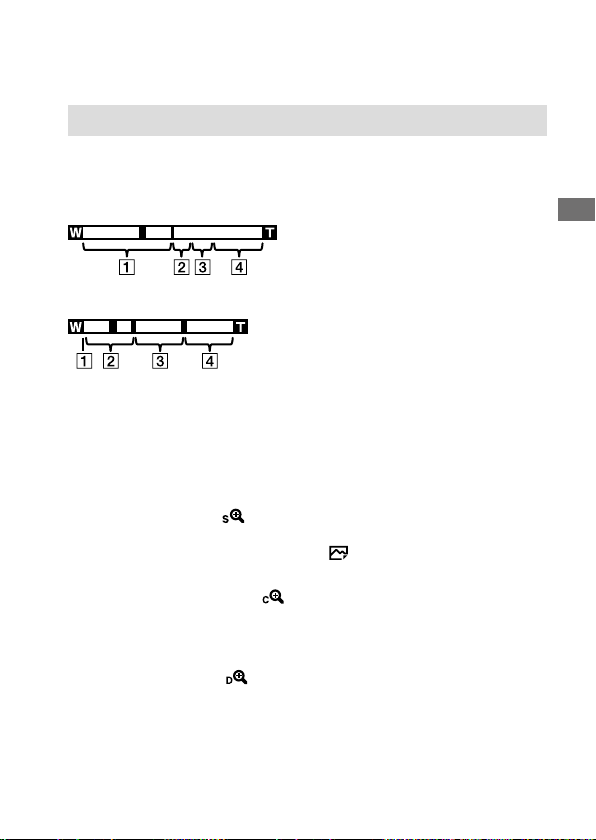
C:\d830100111\d830100111ILCE9UC2\01GB-ILCE9UC2\030BAS.indd
2019/02/19 10:01
ILCE-9
d-830-100-11 (1)
GB
121
Shooting
Using the zoom
The zoom features available with this product
The zoom feature of the product provides a higher magnification zoom
by combining various zoom features. The icon displayed on the screen
changes, according to the selected zoom feature.
When a power zoom lens is mounted:
When a lens other than a power zoom lens is mounted:
Optical zoom range
Zoom images in the zoom range of a lens. When a power zoom lens is
mounted, the zoom bar of the optical zoom range is displayed. When a
lens other than a power zoom lens is mounted, the zoom slider is fixed
at the left end of the zoom bar while the zoom position is in the optical
zoom range (displayed as ×1.0).
Smart Zoom range ( )
Zoom images without causing the original quality to deteriorate by
partially cropping an image (only when [
JPEG Image Size] is set to [M]
or [S]).
Clear Image Zoom range ( )
Zoom images using an image process with less deterioration. When you
set [Zoom Setting] to [ClearImage Zoom] or [Digital Zoom], you can use
this zoom function.
Digital Zoom range ( )
You can magnify images using an image process. When you set
[Zoom Setting] to [Digital Zoom], you can use this zoom function.
ILCE-9
d-830-100-11 (1)
C:\d830100111\d830100111ILCE9UC2\01GB-ILCE9UC2\030BAS.indd
2019/02/19 10:01
GB
122
Note
• The default setting for the [Zoom Setting] is [Optical zoom only].
• The default setting for the [
JPEG Image Size] is [L]. To use the smart zoom,
change [
JPEG Image Size] to [M] or [S].
• The Smart Zoom, Clear Image Zoom and Digital Zoom functions are not
available when shooting in the following situations:
– [
File Format] is set to [RAW] or [RAW & JPEG].
– [
Record Setting] is set to [120p]/[100p].
– During slow-motion/quick-motion shooting with the [
Frame Rate] set
to [120fps]/[100fps]
– During continuous shooting with [
Shutter Type] set to [Auto] or
[Electronic Shutter]
• You cannot use the Smart Zoom function with movies.
• When a power zoom lens is mounted, you cannot use [Zoom] under MENU.
If you enlarge image past the optical zoom range, the product automatically
switches to another [Zoom] function than the optical zoom.
• When you use the Smart Zoom, Clear Image Zoom or Digital Zoom function,
[Metering Mode] is locked to [Multi].
• When using the Smart Zoom, Clear Image Zoom or Digital Zoom function, the
following functions are not available:
– Face Priority in AF
– Face Priority in Multi Metering
– Tracking function
• To use another zoom function than the optical zoom for movies, assign
[Zoom] to the desired key using [
Custom Key] (page25).
Clear Image Zoom/Digital Zoom (Zoom)
When you use a zoom function other than the optical zoom, you can
exceed the zoom range of the optical zoom.
1
MENU (Camera Settings 2) [Zoom Setting]
[ClearImage Zoom] or [Digital Zoom].
2
When a power zoom lens is mounted, move the zoom lever or
the zoom ring of the zoom lens to enlarge subjects.
• When you exceed the zoom range of the optical zoom, the camera
automatically switches to another zoom than the optical zoom.
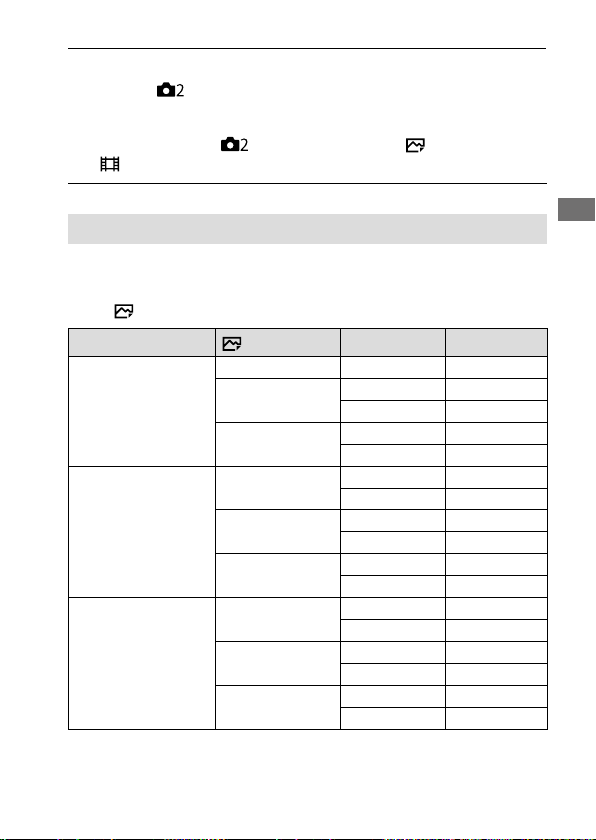
C:\d830100111\d830100111ILCE9UC2\01GB-ILCE9UC2\030BAS.indd
2019/02/19 10:01
ILCE-9
d-830-100-11 (1)
GB
123
Shooting
3
When a lens other than a power zoom lens is mounted, select
MENU
(Camera Settings 2) [Zoom] desired value.
Press the center of the control wheel to exit.
• You can also assign the [Zoom] function to the desired button by
selecting MENU
(Camera Settings 2) [ Custom Key] or
[
Custom Key].
About zoom scale
The zoom scale that is used in combination with the zoom of the lens
changes according to the selected image size.
When [ Aspect Ratio] is [3:2]
Zoom Setting
JPEG Image Size
Full-frame/APS-C Zoom scale
Optical zoom only
(including smart zoom)
L — —
M
Full-frame
Approx. 1.5×
APS-C
Approx. 1.3×
S
Full-frame
Approx. 2×
APS-C
Approx. 2×
ClearImage Zoom
L
Full-frame
Approx. 2×
APS-C
Approx. 2×
M
Full-frame
Approx. 3×
APS-C
Approx. 2.6×
S
Full-frame
Approx. 4×
APS-C
Approx. 4×
Digital Zoom
L
Full-frame
Approx. 4×
APS-C
Approx. 4×
M
Full-frame
Approx. 6.1×
APS-C
Approx. 5.2×
S
Full-frame
Approx. 8×
APS-C
Approx. 8×
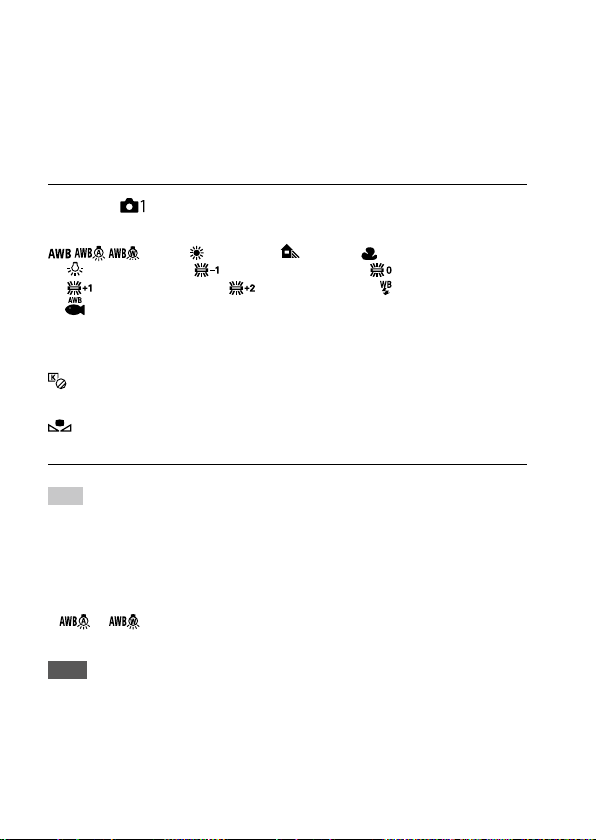
ILCE-9
d-830-100-11 (1)
C:\d830100111\d830100111ILCE9UC2\01GB-ILCE9UC2\030BAS.indd
2019/02/19 10:01
GB
124
White Balance
Corrects the tone effect of the ambient light condition to record a neutral
white subject in white. Use this function when the color tones of the
image did not come out as you expected, or when you want to change
the color tones on purpose for photographic expression.
MENU (Camera Settings 1) [White Balance] desired
setting.
Auto/ Daylight/ Shade/ Cloudy/
Incandescent/ Fluor.: Warm White/ Fluor.: Cool White/
Fluor.: Day White/ Fluor.: Daylight/ Flash/
Underwater Auto: When you select a light source that illuminates
the subject, the product adjusts the color tones to suit to the selected
light source (preset white balance). When you select [Auto], the product
automatically detects the light source and adjusts the color tones.
C.Temp./Filter: Adjusts the color tones depending on the light source.
Achieves the effect of CC (Color Compensation) filters for photography.
Custom 1/Custom 2/Custom 3: Memorizes the basic white color
under the light conditions for the shooting environment.
Hint
• You can display the fine adjustment screen and perform fine adjustments of
the color tones as required by pressing the right side of the control wheel.
When [C.Temp./Filter] is selected, you can change the color temperature by
turning the rear dial instead of pressing the right side of the control wheel.
• If the color tones do not come out as you expected in the selected settings,
perform [WB bracket] shooting.
•
or is displayed only when [Priority Set in AWB] is set to [Ambience]
or [White].
Note
• [White Balance] is fixed to [Auto] in the following shooting modes:
– [Intelligent Auto]
• If you use a mercury lamp or a sodium lamp as a light source, the accurate
white balance will not be obtained because of the characteristics of the light.
It is recommended to shoot images using a flash or select [Custom 1] to
[Custom 3].
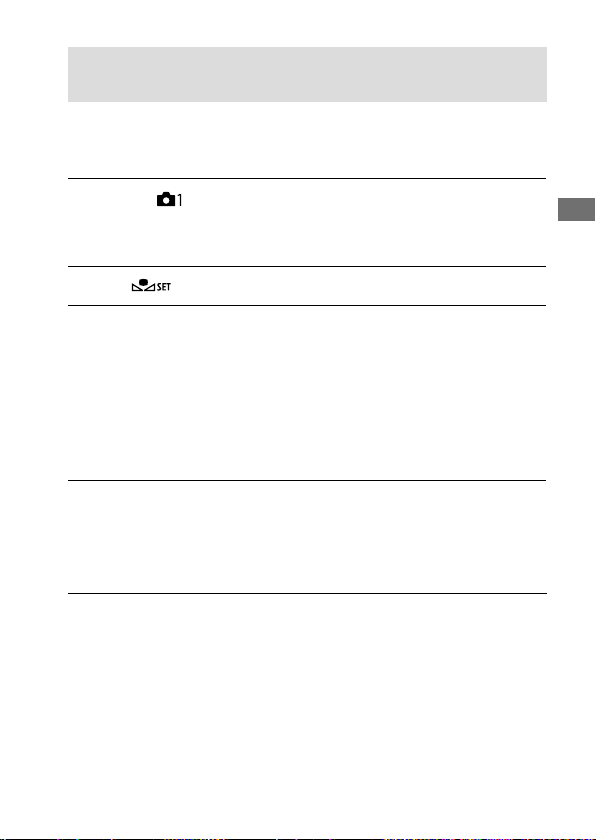
C:\d830100111\d830100111ILCE9UC2\01GB-ILCE9UC2\030BAS.indd
2019/02/19 10:01
ILCE-9
d-830-100-11 (1)
GB
125
Shooting
Capturing a standard white color to set the white balance
(custom white balance)
In a scene where the ambient light consists of multiple types of light
sources, it is recommended to use the custom white balance in order to
accurately reproduce the whiteness. You can register 3 settings.
1
MENU (Camera Settings 1) [White Balance] Select
from among [Custom 1] to [Custom 3], and then press the right
side of the control wheel.
2
Select , and then press the center of the control wheel.
3
Hold the product so that the white area fully covers the circle
located in the center of the screen, and then press the center of
the control wheel.
After the shutter sound beeps, the calibrated values (Color Temperature
and Color Filter) are displayed and registered.
• You can display the fine adjustment screen and perform fine
adjustments of the color tones as required by pressing the right side
of the control wheel.
4
Press the center of the control wheel.
The monitor returns to the recording information display while
retaining the memorized custom white balance setting.
• The registered custom white balance setting will remain memorized
until overwritten by another setting.
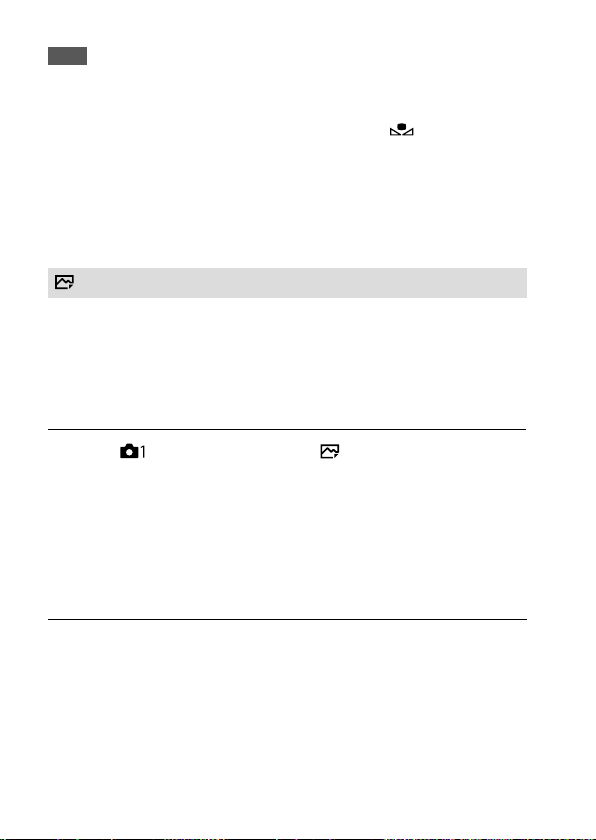
ILCE-9
d-830-100-11 (1)
C:\d830100111\d830100111ILCE9UC2\01GB-ILCE9UC2\030BAS.indd
2019/02/19 10:01
GB
126
Note
• The message [Capturing of the custom WB failed.] indicates that the value is
in the unexpected range, for example when the subject is too vivid. You can
register the setting at this point, but it is recommended that you set the white
balance again. When an error value is set, the indicator
turns orange on
the recording information display. The indicator will be displayed in white
when the set value is in the expected range.
• If you use a flash when capturing a basic white color, the custom white
balance will be registered with the lighting from the flash. Be sure to use a
flash whenever you shoot with recalled settings that were registered with a
flash.
Shutter AWB Lock
You can set whether or not to lock the white balance while the
shutter button is pressed when [White Balance] is set to [Auto] or
[Underwater Auto].
This function prevents unintentional changes to the white balance during
continuous shooting or when shooting with the shutter button pressed
halfway down.
MENU (Camera Settings 1) [ Shutter AWB Lock]
desired setting.
Shut. Halfway Down: Locks the white balance while the shutter button
is pressed halfway down, even in the auto white balance mode. The
white balance is also locked during continuous shooting.
Cont. Shooting: Locks the white balance to the setting in the first shot
during continuous shooting, even in the auto white balance mode.
Off: Operates with the normal auto white balance.
C:\d830100111\d830100111ILCE9UC2\01GB-ILCE9UC2\030BAS.indd
2019/02/19 10:01
ILCE-9
d-830-100-11 (1)
GB
127
Shooting
About [AWB Lock Hold] and [AWB Lock Toggle]
You can also lock the white balance in the auto white balance mode
by assigning [AWB Lock Hold] or [AWB Lock Toggle] to the custom key.
Select MENU
(Camera Settings 2) Assign [AWB Lock Hold] or
[AWB Lock Toggle] using [
Custom Key]. If you press the assigned key
during shooting, the white balance will be locked.
The [AWB Lock Hold] function locks the white balance by stopping the
automatic white balance adjustment while the button is pressed.
The [AWB Lock Toggle] function locks the white balance by stopping the
automatic white balance adjustment after the button is pressed once.
When you press the button again, the AWB lock is released.
• If you want to lock the white balance during movie shooting in the auto
white balance mode, select MENU
(Camera Settings 2) Assign
[AWB Lock Hold] or [AWB Lock Toggle] using [
Custom Key].
Hint
• When you shoot with the flash while the automatic white balance is locked,
the resulting color tones may be unnatural because the white balance was
locked before the flash was emitted. In this case, set [
Shutter AWB Lock]
to [Off] or [Cont. Shooting], and do not use the [AWB Lock Hold] function or
[AWB Lock Toggle] function when shooting. Alternatively, set [White Balance]
to [Flash].
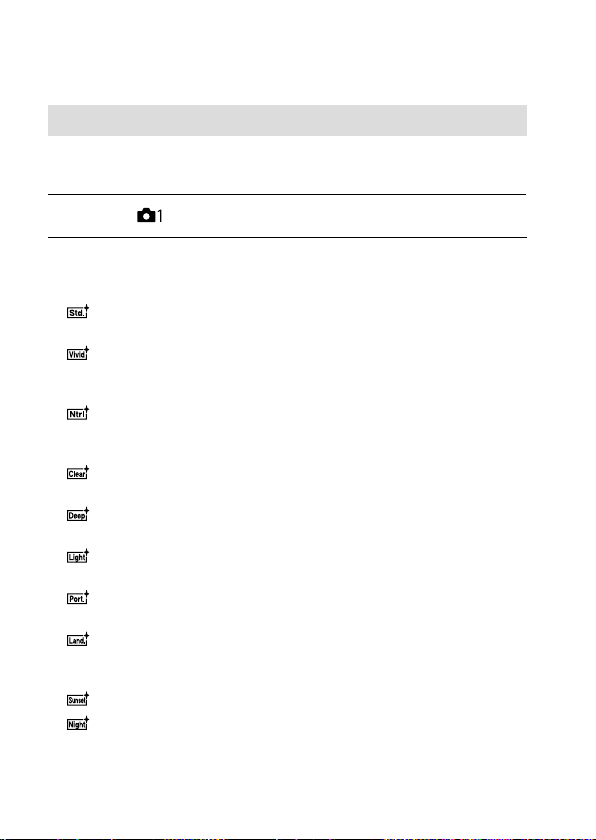
ILCE-9
d-830-100-11 (1)
C:\d830100111\d830100111ILCE9UC2\01GB-ILCE9UC2\030BAS.indd
2019/02/19 10:01
GB
128
Setting how to process images
Creative Style
Allows you to set the desired image processing and finely adjust contrast,
saturation and sharpness for each image style.
1
MENU (Camera Settings 1) [Creative Style].
2
Select the desired style or [Style Box] using the top/bottom
sides of the control wheel.
Standard: For shooting various scenes with rich gradation and
beautiful colors.
Vivid: The saturation and contrast are heightened for shooting
striking images of colorful scenes and subjects such as flowers,
spring greenery, blue sky, or ocean views.
Neutral: The saturation and sharpness are lowered for shooting
images in subdued tones. This is also suitable for capturing image
material to be modified with a computer.
Clear: For shooting images in clear tones with limpid colors in
highlight, suitable for capturing radiant light.
Deep: For shooting images with deep and dense colors, suitable
for capturing the solid presence of the subject.
Light: For shooting images with bright and simple colors, suitable
for capturing a refreshingly light ambience.
Portrait: For capturing skin in a soft tone, ideally suited for
shooting portraits.
Landscape: The saturation, contrast, and sharpness are
heightened for shooting vivid and crisp scenery. Distant landscapes
also stand out more.
Sunset: For shooting the beautiful red of the setting sun.
Night Scene: The contrast is lowered for reproducing night scenes.
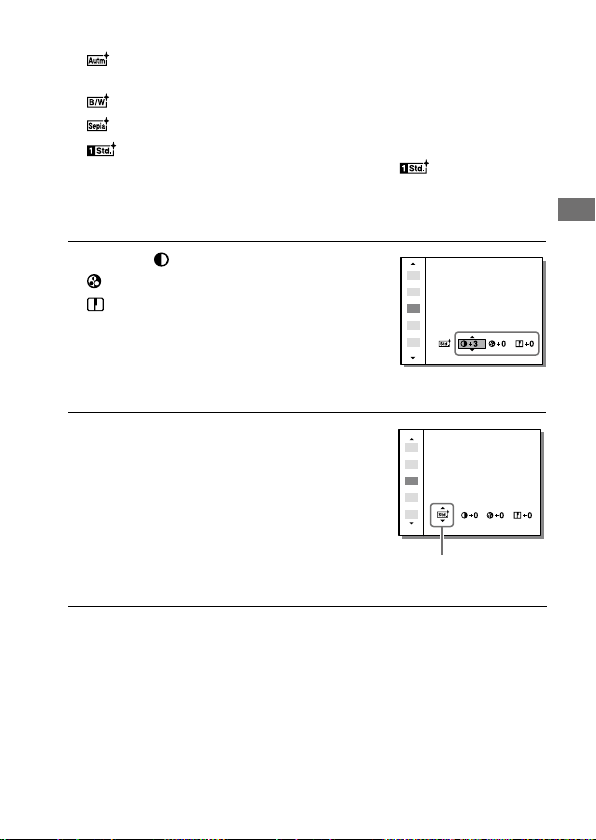
C:\d830100111\d830100111ILCE9UC2\01GB-ILCE9UC2\030BAS.indd
2019/02/19 10:01
ILCE-9
d-830-100-11 (1)
GB
129
Shooting
Autumn leaves: For shooting autumn scenes, vividly highlighting
the reds and yellows of changing leaves.
Black & White: For shooting images in black and white monotone.
Sepia: For shooting images in sepia monotone.
Registering preferred settings (Style Box): Select the six style
box (the boxes with numbers on the left side (
)) to register
preferred settings. Then select the desired settings using the right
button.
You can call up the same style with slightly different settings.
3
To adjust (Contrast),
(Saturation) and
(Sharpness), select the
desired item using the right/
left sides, and then select the
value using the top/bottom
sides.
4
When selecting [Style Box],
move to the right side using
the right side of the control
wheel, and then select the
desired style.
• You can call up the same style
with slightly different settings.
Displayed only when
Style Box is selected

ILCE-9
d-830-100-11 (1)
C:\d830100111\d830100111ILCE9UC2\01GB-ILCE9UC2\030BAS.indd
2019/02/19 10:01
GB
130
To set [Contrast], [Saturation] and [Sharpness]
[Contrast], [Saturation] and [Sharpness] can be adjusted for each image
style preset such as [Standard] and [Landscape], and for each [Style Box]
to which you can register preferred settings.
Select an item to be set by pressing the right/left sides of the control
wheel, then set the value using the top/bottom sides of the control wheel.
Contrast: The higher the value selected, the more the difference of
light and shadow is accentuated, and the bigger the effect on the
image.
Saturation: The higher the value selected, the more vivid the color.
When a lower value is selected, the color of the image is restrained and
subdued.
Sharpness: Adjusts the sharpness. The higher the value selected, the
more the contours are accentuated, and the lower the value selected,
the more the contours are softened.
Note
• [Creative Style] is fixed to [Standard] in the following situations:
– [Intelligent Auto]
– [Picture Effect] is set to other than [Off].
• When this function is set to [Black & White] or [Sepia], [Saturation] cannot be
adjusted.
C:\d830100111\d830100111ILCE9UC2\01GB-ILCE9UC2\030BAS.indd
2019/02/19 10:01
ILCE-9
d-830-100-11 (1)
GB
131
Shooting
Color Space
The way colors are represented using combinations of numbers or the
range of color reproduction is called “color space.” You can change the
color space depending on the purpose of the image.
MENU (Camera Settings 1) [ Color Space] desired
setting.
sRGB: This is the standard color space of the digital camera. Use [sRGB]
in normal shooting, such as when you intend to print out the images
without any modification.
AdobeRGB: This color space has a wide range of color reproduction.
When a large part of the subject is vivid green or red, Adobe RGB is
effective. The file name of the recorded image starts with “_.”
Note
• [AdobeRGB] is for applications or printers that support color management
and DCF2.0 option color space. Images may not be printed or viewed in
the correct colors if you use applications or printers that do not support
Adobe RGB.
• When displaying images that were recorded with [AdobeRGB] on non-
Adobe RGB-compliant devices, the images will be displayed with low
saturation.
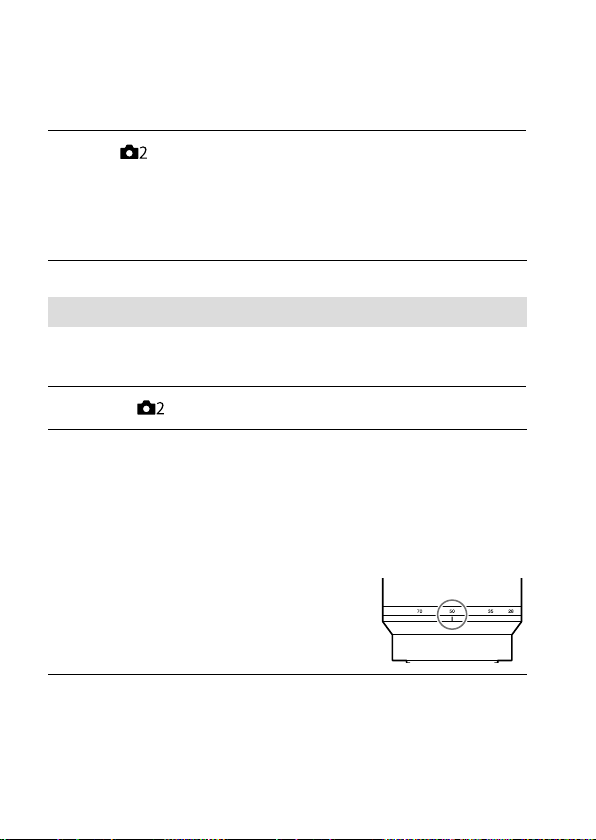
ILCE-9
d-830-100-11 (1)
C:\d830100111\d830100111ILCE9UC2\01GB-ILCE9UC2\030BAS.indd
2019/02/19 10:01
GB
132
Reducing blur
Sets whether or not to use the SteadyShot function.
MENU (Camera Settings 2) [SteadyShot] desired
setting.
On: Uses [SteadyShot].
Off: Does not use [SteadyShot]. We recommend that you set [Off] when
using a tripod.
SteadyShot Settings
You can shoot with an appropriate SteadyShot setting for the attached
lens.
1
MENU (Camera Settings 2) [SteadyShot] [On].
2
[SteadyShot Settings] [SteadyShot Adjust.] desired
setting.
Auto: Performs the SteadyShot function automatically according to the
information obtained from the attached lens.
Manual: Performs the SteadyShot function according to the focal-
length set using [SteadyS. Focal Len.]. (8mm – 1000mm)
• Check the focal-length index and set the
focal-length.

C:\d830100111\d830100111ILCE9UC2\01GB-ILCE9UC2\030BAS.indd
2019/02/19 10:01
ILCE-9
d-830-100-11 (1)
GB
133
Shooting
Note
• The SteadyShot function may not work optimally when the power has just
been turned on, right after you point the camera towards a subject, or when
the shutter button has been pressed all the way down without stopping
halfway.
• When using a tripod, make sure to turn off the SteadyShot function because
this can cause any malfunction when shooting.
• [SteadyShot Settings] will be unavailable when MENU
(Camera Settings 2) [SteadyShot] is set to [Off].
• When the camera cannot obtain focal length information from the lens, the
SteadyShot function does not work correctly. Set [SteadyShot Adjust.] to
[Manual] and set [SteadyS. Focal Len.] to match the lens you are using. The
current set value of the SteadyShot focal length will display to the side of
.
• When using an SEL16F28 lens (sold separately) with a teleconverter, etc., set
[SteadyShot Adjust.] to [Manual] and set the focal length.
• When you set [SteadyShot] to [On]/[Off], the SteadyShot settings of the
camera and lens switch at the same time.
• If a lens equipped with a SteadyShot switch is attached, the settings can only
be changed using that switch on the lens. You cannot switch the settings
using the camera.
ILCE-9
d-830-100-11 (1)
C:\d830100111\d830100111ILCE9UC2\01GB-ILCE9UC2\030BAS.indd
2019/02/19 10:01
GB
134
Noise reduction
Long Exposure NR
When you set the shutter speed to 1 second(s) or longer (long exposure
shooting), noise reduction is turned on for the duration that the shutter
is open. With the function turned on, the grainy noise typical of long
exposures is reduced.
MENU (Camera Settings 1) [ Long Exposure NR]
desired setting.
On: Activates noise reduction for the same duration that the shutter is
open. When noise reduction is in progress, a message appears and you
cannot take another picture. Select this to prioritize the image quality.
Off: Does not activate noise reduction. Select this to prioritize the timing
of shooting.
Note
• [ Long Exposure NR] is not available when [ Shutter Type] is set to
[Electronic Shutter].
• Noise reduction may not be activated even if [
Long Exposure NR] is set to
[On] in the following situations:
– [Drive Mode] is set to [Cont. Shooting] or [Cont. Bracket].
• [
Long Exposure NR] cannot be set to [Off] in the following shooting
modes:
– [Intelligent Auto]
• Depending on the shooting conditions, the camera may not perform noise
reduction, even if the shutter speed is 1 second(s) or longer.
C:\d830100111\d830100111ILCE9UC2\01GB-ILCE9UC2\030BAS.indd
2019/02/19 10:01
ILCE-9
d-830-100-11 (1)
GB
135
Shooting
High ISO NR
When shooting with high ISO sensitivity, the product reduces noise that
becomes more noticeable when the product sensitivity is high.
MENU (Camera Settings 1) [ High ISO NR] desired
setting.
Normal: Activates high ISO noise reduction normally.
Low: Activates high ISO noise reduction moderately.
Off: Does not activate high ISO noise reduction. Select this to prioritize the
timing of shooting.
Note
• [ High ISO NR] is fixed to [Normal] in the following shooting modes:
– [Intelligent Auto]
• When [
File Format] is set to [RAW], this function is not available.
• [
High ISO NR] does not work for RAW images when the [ File Format]
is [RAW & JPEG].
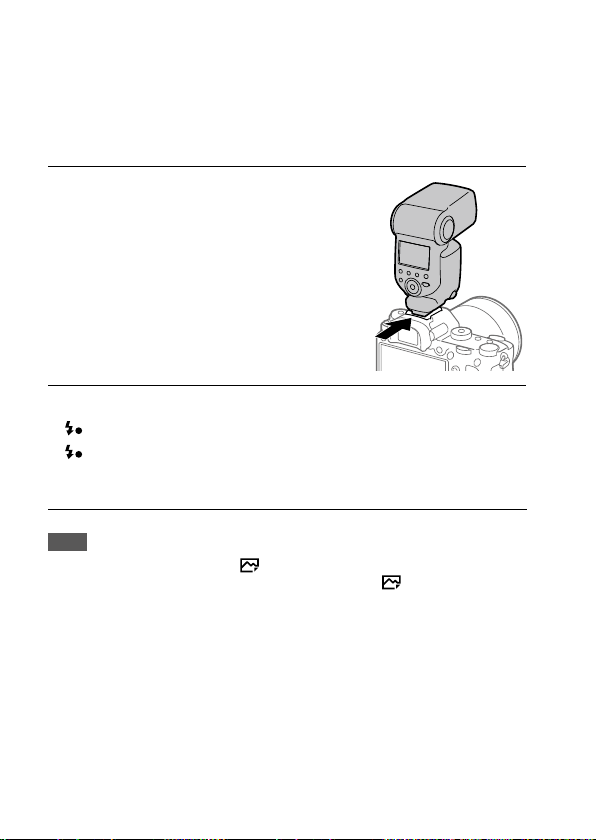
ILCE-9
d-830-100-11 (1)
C:\d830100111\d830100111ILCE9UC2\01GB-ILCE9UC2\030BAS.indd
2019/02/19 10:01
GB
136
Using flash (sold separately)
In dark environments, use the flash to light up the subject while shooting.
Also use the flash to prevent camera-shake.
For details on the flash, refer to the instruction manual for the flash.
1
Attach the flash
(sold separately) to the
product.
2
Shoot after you have turned on the flash and it is fully charged.
blinking: Charging is in progress
lit up: Charging is finished
• The available flash modes depend on the shooting mode and
function.
Note
• A flash cannot be used when [ Shutter Type] is set to [Electronic Shutter].
• A flash can be used during continuous shooting with [
Shutter Type] set to
[Auto]. The mechanical shutter will be used.
• The light of the flash may be blocked if the lens hood is attached and the
lower part of a recorded image may be shaded. Remove the lens hood.
• When using the flash, stand 1 m or more away from the subject.
• You cannot use the flash when recording movies. (You can use an LED light
when using a flash (sold separately) with an LED light.)
• Before attaching/removing an accessory such as a flash to/from the Multi
Interface Shoe, turn off the product first. When attaching an accessory, make
sure that the accessory is fixed securely to the product.
C:\d830100111\d830100111ILCE9UC2\01GB-ILCE9UC2\030BAS.indd
2019/02/19 10:01
ILCE-9
d-830-100-11 (1)
GB
137
Shooting
• Do not use the Multi Interface Shoe with a commercially available flash that
applies voltage of 250V or more or has the reverse polarity of the camera.
Doing so may cause a malfunction.
• You can use a flash of the reverse polarity with the Sync Terminal. Please use
a flash with a sync voltage of 400V or less.
• When shooting with the flash and the zoom is set to W, the shadow of the
lens may appear on the screen, depending on the shooting conditions. If this
happens, shoot away from the subject or set the zoom to T and shoot with
the flash again.
• The corners of a recorded image may be shaded, depending on the lens.
• When shooting with an external flash, light and dark stripes may appear on
the image if the shutter speed is set to faster than 1/4000 seconds. If this
occurs, Sony recommends shooting in the manual flash mode and setting the
flash level to 1/2 or higher.
• For details on compatible accessories for the Multi Interface Shoe, visit the
Sony website, or consult your Sony dealer or local authorized Sony service
facility.
Flash Mode
You can set the flash mode.
MENU (Camera Settings 1) [Flash Mode] desired
setting.
Flash Off: The flash does not operate.
Autoflash: The flash works in dark environments or when shooting
towards bright light.
Fill-flash: The flash works every time you trigger the shutter.
Slow Sync.: The flash works every time you trigger the shutter. Slow
sync shooting allows you to shoot a clear image of both the subject
and the background by slowing the shutter speed.
Rear Sync.: The flash works right before the exposure is completed
every time you trigger the shutter. Rear sync shooting allows you to
shoot a natural image of the trail of a moving subject such as a moving
car or a walking person.
ILCE-9
d-830-100-11 (1)
C:\d830100111\d830100111ILCE9UC2\01GB-ILCE9UC2\030BAS.indd
2019/02/19 10:01
GB
138
Note
• The default setting depends on the shooting mode.
• Some [Flash Mode] settings are not available, depending on the shooting
mode.
Flash Comp.
Adjusts the amount of flash light in a range of –3.0EV to +3.0EV.
Flash compensation changes the amount of flash light only. Exposure
compensation changes the amount of flash light along with the change of
the shutter speed and aperture.
MENU (Camera Settings 1) [Flash Comp.] desired
setting.
• Selecting higher values (+ side) makes the flash level higher, and lower
values (- side) makes the flash level lower.
Note
• [Flash Comp.] does not work when the shooting mode is set to the following
modes:
– [Intelligent Auto]
• The higher flash effect (+ side) may not be visible due to the limited amount
of flash light available, if the subject is outside the maximum range of the
flash. If the subject is very close, the lower flash effect (- side) may not be
visible.
• If you attach an ND filter to the lens or attach a diffuser or a color filter to the
flash, the appropriate exposure may not be achieved and images may turn
out dark. In this case, adjust [Flash Comp.] to the desired value.
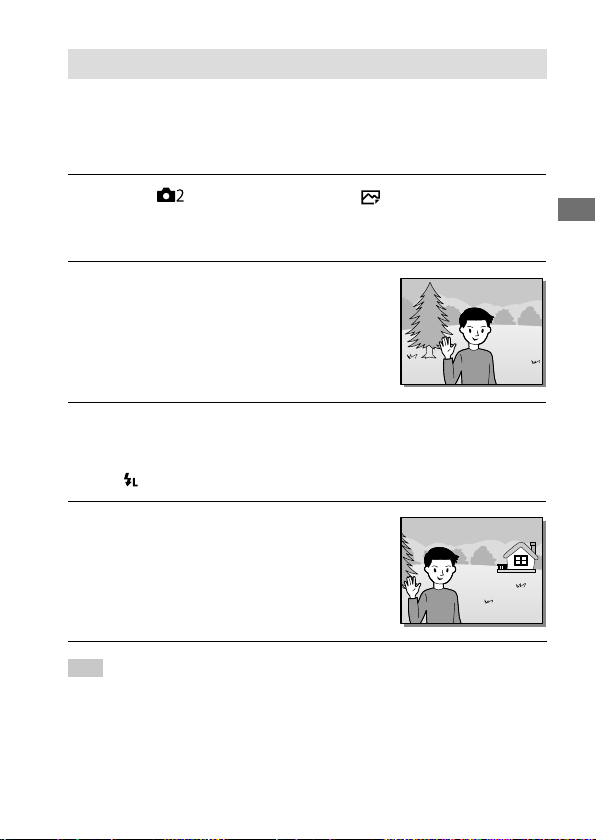
C:\d830100111\d830100111ILCE9UC2\01GB-ILCE9UC2\030BAS.indd
2019/02/19 10:01
ILCE-9
d-830-100-11 (1)
GB
139
Shooting
FEL lock
The flash level is automatically adjusted so that the subject gets the
optimum exposure during normal flash shooting. You can also set the
flash level in advance.
FEL: Flash Exposure Level
1
MENU (Camera Settings 2) [ Custom Key]
desired button, then assign the [FEL Lock toggle] function to
the button.
2
Center the subject on which
FEL is to be locked, and adjust
the focus.
3
Press the button to which [FEL Lock toggle] is registered, and
set the flash amount.
• A pre-flash flashes.
• The
(FEL lock) lights up.
4
Adjust the composition and
shoot the image.
• When you want to release the
FEL lock, press the button to
which the [FEL Lock toggle] is
registered again.
Hint
• By setting [FEL Lock hold], you can hold the setting while the button is
pressed down. Also, by setting [FEL Lock/AEL hold] and [FEL Lock/AEL tggle.],
you can shoot images with the AE locked in the following situations.
– When [Flash Mode] is set to [Flash Off] or [Autoflash].
– When the flash cannot go off.
– When using an external flash that is set to manual flash mode.
ILCE-9
d-830-100-11 (1)
C:\d830100111\d830100111ILCE9UC2\01GB-ILCE9UC2\030BAS.indd
2019/02/19 10:01
GB
140
Note
• The FEL lock cannot be set when a flash is not attached.
• If a flash that does not support the FEL lock is attached, an error message is
displayed.
• When both AE and FEL lock are fixed,
lights up.
Wireless Flash
There are two methods for wireless flash shooting: light-signal flash
shooting that uses the light of the flash attached to the camera as a signal
light, and radio-signal flash shooting that uses wireless communication. To
perform radio-signal flash shooting, use a compatible flash or the Wireless
Radio Commander (sold separately).
For details on how to set each method, refer to the instruction manual of
the flash or the Wireless Radio Commander.
1
MENU (Camera Settings 1) [Wireless Flash] [On].
Off: Does not use the wireless flash function.
On: Uses the wireless flash function to make an external flash or flashes
emit light at a distance from the camera.
2
Remove the shoe cap from the camera, and then attach the
flash or the Wireless Radio Commander.
• When performing light-signal wireless flash shooting, set the
attached flash as the controller.
When performing radio-signal wireless flash shooting with a flash
attached to the camera, set the attached flash as the commander.
3
Set up an off-camera flash that is set to wireless mode, or that
is attached to the Wireless Radio Receiver (sold separately).
• Press the AEL button on the camera to perform a test flashing.

C:\d830100111\d830100111ILCE9UC2\01GB-ILCE9UC2\030BAS.indd
2019/02/19 10:01
ILCE-9
d-830-100-11 (1)
GB
141
Shooting
Setting of the AEL button
We recommend that you set MENU (Camera Settings 2)
[
Custom Key] [AEL Button] to [AEL hold] when performing wireless
flash shooting.
Note
• The off-camera flash may emit light after receiving a light signal from a flash
used as the controller of another camera. If this occurs, change the channel of
your flash. For details on how to change the channel, refer to the instruction
manual for the flash.
• For the flash that is compatible with wireless flash shooting, visit the Sony
website, or consult your Sony dealer or local authorized Sony service facility.
Using a flash with a sync terminal cord
Open the cover of (flash sync)
terminal, and connect the cord.
(flash sync) terminal
Hint
• If the screen is too dark to check the composition, set [Live View Display] to
[Setting Effect OFF] to make it easy to check the composition when shooting
with a flash.
• Flashes that have a sync terminal with reversed polarity can be used with this
product.

ILCE-9
d-830-100-11 (1)
C:\d830100111\d830100111ILCE9UC2\01GB-ILCE9UC2\030BAS.indd
2019/02/19 10:01
GB
142
Note
• Set the exposure mode to manual exposure (other than ISO AUTO is
recommended for ISO sensitivity), and set the shutter speed to the slower of
the following values or slower:
– 1/200seconds
– The shutter speed recommended by the flash.
• Use flashes with a sync voltage of 400V or lower.
• Turn off the flash connected to the sync cord when you connect the sync cord
to the
(flash sync) terminal. Otherwise, the flash may emit light when the
sync cord is connected.
• The flash power level is set to full power. [Flash Comp.] cannot be set.
• Auto white balance function is not recommended. Use the custom white
balance function to achieve a more accurate white balance (page125).
• When a flash is connected to the
(flash sync) terminal, the flash indicator will
not be displayed.
• Flash cannot be used when [
Shutter Type] is set to [Electronic Shutter].
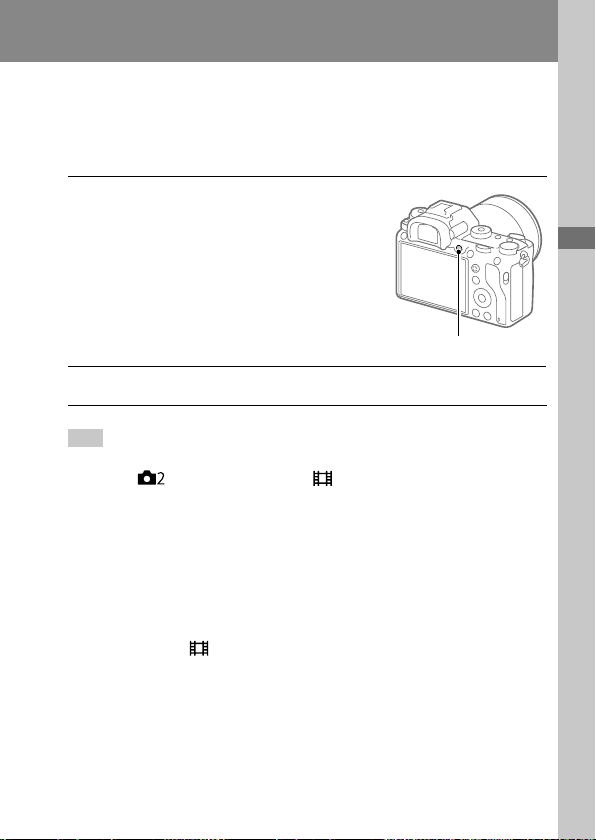
C:\d830100111\d830100111ILCE9UC2\01GB-ILCE9UC2\040MOV.indd
2019/02/19 10:01
ILCE-9
d-830-100-11 (1)
Shooting movies
GB
143
Shooting movies
Shooting movies
Shooting movies
You can record movies by pressing the MOVIE (Movie) button.
1
Press the MOVIE button to
start recording.
• Since the [MOVIE Button] is
set to [Always] in the default
setting, movie recording can
be started from any shooting
mode.
MOVIE button
2
Press the MOVIE button again to stop recording.
Hint
• You can assign the start/stop movie recording function to a preferred key.
MENU
(Camera Settings 2) [ Custom Key] set [MOVIE] to the
preferred key.
• When you want to specify the area to be focused on, set the area using
[Focus Area].
• To keep the focus on a face, arrange the composition so that the focusing
frame and face detection frame overlap, or set the [Focus Area] to [Wide].
• You can focus quickly while shooting movies by pressing the shutter button
halfway down. (The sound of auto focus operation may be recorded in some
cases.)
• To adjust the shutter speed and aperture value to the desired settings, set the
shooting mode to
(Movie) and select the desired exposure mode.
• An icon indicating that data is being written is displayed after shooting. Do
not remove the memory card while the icon is displayed.

ILCE-9
d-830-100-11 (1)
C:\d830100111\d830100111ILCE9UC2\01GB-ILCE9UC2\040MOV.indd
2019/02/19 10:01
GB
144
• The following settings for still image shooting are applied to the movie
shooting:
– White Balance
– Creative Style
– Metering Mode
– Face Priority in AF
– Face Priority in Multi Metering
– D-Range Optimiser
– Lens Comp.
• You can change the settings for ISO sensitivity, exposure compensation, and
focus area while shooting movies.
• While shooting movies, the recorded image can be output without the
shooting information display by setting [HDMI Info. Display] to [Off].
Note
• The sound of the lens and the product in operation may be recorded
during movie recording. You can turn the sound off by selecting MENU
(Camera Settings 2) [Audio Recording] [Off].
• When shooting, the sound of the shoulder strap hooks (triangular hook) could
be recorded, depending on the situation used.
• To prevent the operating sound of the zoom ring from being recorded during
movie recording when a power zoom lens is used, we recommend recording
movies using the zoom lever. When you move the zoom lever, place your
finger lightly on the lever and operate it without flicking.
• The temperature of the camera tends to rise when shooting movies
continuously, and you may feel that the camera is hot. This is not a malfunction.
Also, [Internal temp. high. Allow it to cool.] may appear. In such cases, turn the
camera off and wait until the camera is ready to shoot again.
• When the
icon appears, the temperature of the camera has risen. Turn the
power off and cool the camera and wait until the camera is ready to shoot
again.
• For the continuous shooting time of a movie recording, refer to “Recordable
movie times” (page239). When movie recording is finished, you can record
another movie by pressing the MOVIE button again. Recording may stop to
protect the product, depending on the temperature of the product or the
battery.
• When the mode dial is set to
(Movie) or or when shooting movies,
you cannot select [Tracking] for [Focus Area].
• In [Program Auto] mode when shooting movies, the aperture value and the
shutter speed will be set automatically and cannot be changed. For that
reason, the shutter speed may become fast in a bright environment, and the
motion of the subject may not record smoothly. By changing the exposure
mode and adjusting the aperture value and the shutter speed, the motion of
the subject can be recorded smoothly.

C:\d830100111\d830100111ILCE9UC2\01GB-ILCE9UC2\040MOV.indd
2019/02/19 10:01
ILCE-9
d-830-100-11 (1)
GB
145
Shooting movies
• When shooting movies, ISO values between ISO100 and ISO102400 are
available. If the ISO value is set to a value larger than ISO102400, the setting
is automatically switched to ISO102400. When you finish recording the movie,
the ISO value returns to the original setting.
• In movie shooting mode, ISO sensitivity can be selected from ISO100 to
ISO102400. If the ISO value is set to a value smaller than ISO100, the setting
is automatically switched to ISO100. When you finish recording the movie, the
ISO value returns to the original setting.
• In movie shooting mode, the following settings cannot be set in
[Picture Effect]. When a movie recording starts, [Off] will be set temporarily.
– Rich-tone Mono.
• If you point the camera at an extremely strong light source while shooting
a movie at low ISO sensitivity, the highlighted area in the image may be
recorded as a black area.
• If the display mode of the monitor is set to [For viewfinder], the display mode
will switch to [Display All Info.] when movie shooting starts.
• Use PlayMemories Home when importing XAVC S movies and AVCHD movies
to a computer.
Movie w/ shutter
You can start or stop recording movies by pressing the shutter button,
which is bigger and easier to press than the MOVIE (Movie) button.
MENU (Camera Settings 2) [Movie w/ shutter]
desired setting.
On: Enables movie recording using the shutter button when the shooting
mode is set to [Movie] or [S&Q Motion].
Off: Disables movie recording using the shutter button.
Hint
• When [Movie w/ shutter] is set to [On], you can still start or stop recording
movies using the MOVIE button.
• When [Movie w/ shutter] is set to [On], you can use the shutter button to start
or stop recording movies on an external recording/playback device using
[
REC Control] (page187).
Note
• When [Movie w/ shutter] is set to [On], you cannot focus by pressing the
shutter button halfway down during movie recording.
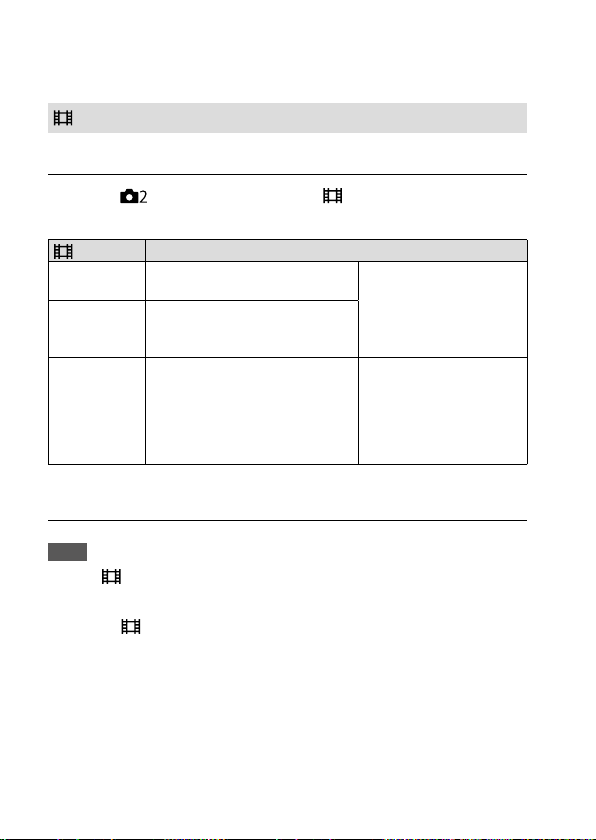
ILCE-9
d-830-100-11 (1)
C:\d830100111\d830100111ILCE9UC2\01GB-ILCE9UC2\040MOV.indd
2019/02/19 10:01
GB
146
Changing settings for movie recording
File Format
Selects the movie file format.
MENU (Camera Settings 2) [ File Format] desired
setting.
File Format Characteristics
XAVC S 4K
Records movies in 4K resolution
(3840×2160).
You can save movies on
a computer using the
PlayMemories Home
software.
XAVC S HD
Records movies in crisper quality
than AVCHD with larger amounts
of data.
AVCHD
The AVCHD format has a high
degree of compatibility with
storage devices other than
computers.
You can save movies on
a computer or create
a disc that supports
this format using the
PlayMemories Home
software.
For details on memory cards that can be used for these formats, refer to
page 236.
Note
• When [ File Format] is set to [AVCHD], the file size of movies is limited to
approx. 2GB. If the movie file size reaches approx. 2GB during recording, a
new movie file will be created automatically.
• If you set [
File Format] to [XAVC S 4K] and shoot movies while the camera
is connected to an HDMI device, images will not be displayed on the monitor
of the camera.
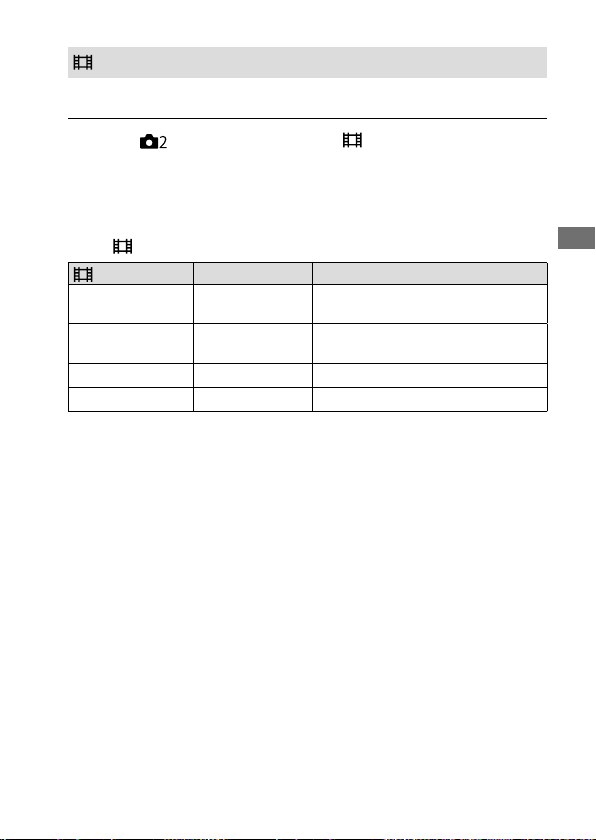
C:\d830100111\d830100111ILCE9UC2\01GB-ILCE9UC2\040MOV.indd
2019/02/19 10:01
ILCE-9
d-830-100-11 (1)
GB
147
Shooting movies
Record Setting
Selects the frame rate and bit-rate for movie recording.
MENU (Camera Settings 2) [ Record Setting]
desired setting.
• The higher the bit-rate, the higher the image quality.
• For estimates of the maximum recordable movie time with each
recording setting, refer to page 239.
When [ File Format] is set to [XAVC S 4K]
Record Setting Bit-rate Description
30p 100M/25p 100M
Approx. 100 Mbps
Records movies in 3840×2160
(30p/25p).
30p 60M/25p 60M
Approx. 60 Mbps
Records movies in 3840×2160
(30p/25p).
24p 100M*
Approx. 100 Mbps Records movies in 3840×2160 (24p).
24p 60M*
Approx. 60 Mbps Records movies in 3840×2160 (24p).
* Only when [NTSC/PAL Selector] is set to NTSC
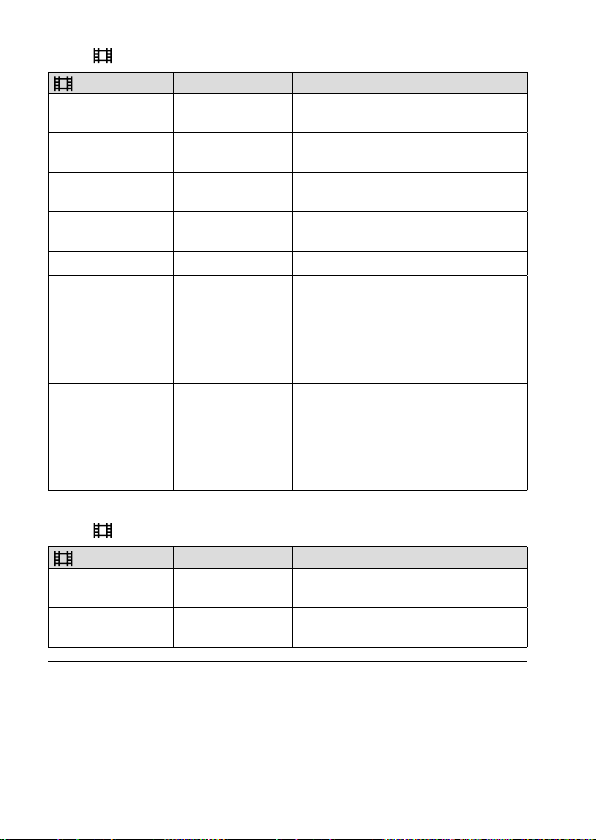
ILCE-9
d-830-100-11 (1)
C:\d830100111\d830100111ILCE9UC2\01GB-ILCE9UC2\040MOV.indd
2019/02/19 10:01
GB
148
When [ File Format] is set to [XAVC S HD]
Record Setting Bit-rate Description
60p 50M/50p 50M
Approx. 50 Mbps Records movies in 1920×1080
(60p/50p).
60p 25M/50p 25M
Approx. 25 Mbps Records movies in 1920×1080
(60p/50p).
30p 50M/25p 50M
Approx. 50 Mbps Records movies in 1920×1080
(30p/25p).
30p 16M/25p 16M
Approx. 16 Mbps Records movies in 1920×1080
(30p/25p).
24p 50M*
Approx. 50 Mbps Records movies in 1920×1080 (24p).
120p 100M/100p 100M
Approx. 100 Mbps Records high-speed movies in
1920×1080 (120p/100p). You can
record movies in 120 fps or 100 fps.
• You can create smoother
slow-motion movies by using
compatible editing devices.
120p 60M/100p 60M
Approx. 60 Mbps Records high-speed movies in
1920×1080 (120p/100p). You can
record movies in 120 fps or 100 fps.
• You can create smoother
slow-motion movies by using
compatible editing devices.
* Only when [NTSC/PAL Selector] is set to NTSC
When [ File Format] is set to [AVCHD]
Record Setting Bit-rate Description
60i 24M (FX)/
50i 24M (FX)
24 Mbps at
maximum
Records movies in 1920×1080
(60i/50i).
60i 17M (FH)/
50i 17M (FH)
Approx. 17 Mbps
on average
Records movies in 1920×1080
(60i/50i).
C:\d830100111\d830100111ILCE9UC2\01GB-ILCE9UC2\040MOV.indd
2019/02/19 10:01
ILCE-9
d-830-100-11 (1)
GB
149
Shooting movies
Note
• Creating an AVCHD recording disc from movies that were recorded with
[60i 24M (FX)]/[50i 24M (FX)] as the [
Record Setting] takes a long time
because the image quality of movies is converted. If you want to store movies
without converting them, use a Blu-ray Disc.
• [120p]/[100p] cannot be selected for the following settings.
– [Intelligent Auto]
• In full-frame shooting, the angle of view will be narrower under the following
conditions:
– When [
File Format] is set to [XAVC S 4K] and [ Record Setting] is set
to [30p]
S&Q Settings
You can record a moment that cannot be captured by the naked eye
(slow-motion recording), or record a long-term phenomenon into a
compressed movie (quick-motion recording). For example, you can record
an intense sports scene, the moment when a bird starts to fly, a blooming
flower, and a changing view of clouds or a starry sky. Sound will not be
recorded.
1
Set the mode dial to (S&Q Motion).
2
Select MENU (Camera Settings 2) [ Exposure Mode]
and select the desired setting of slow-motion/quick-motion
(
Program Auto, Aperture Priority, Shutter Priority, or
Manual Exposure).
3
Select MENU (Camera Settings 2) [ S&Q Settings]
and select the desired settings for [
Record Setting] and
[
Frame Rate].
Record Setting: Selects the frame rate of the movie.
Frame Rate: Selects the shooting frame rate.
4
Press the MOVIE (movie) button to start recording.
• Press the MOVIE button again to stop recording.

ILCE-9
d-830-100-11 (1)
C:\d830100111\d830100111ILCE9UC2\01GB-ILCE9UC2\040MOV.indd
2019/02/19 10:01
GB
150
Playback speed
The playback speed will vary as below depending on the assigned
[
Record Setting] and [ Frame Rate].
When [NTSC/PAL Selector] is set to NTSC
Frame Rate
Record Setting
24p 30p 60p
120fps
5 times slower 4 times slower —
60fps
2.5 times slower 2 times slower
Normal playback
speed
30fps
1.25 times slower
Normal playback
speed
2 times quick
15fps
1.6 times quick 2 times quick 4 times quick
8fps
3 times quick 3.75 times quick 7.5 times quick
4fps
6 times quick 7.5 times quick 15 times quick
2fps
12 times quick 15 times quick 30 times quick
1fps
24 times quick 30 times quick 60 times quick
When [NTSC/PAL Selector] is set to PAL
Frame Rate
Record Setting
25p 50p
100fps
4 times slower —
50fps
2 times slower Normal playback speed
25fps
Normal playback speed 2 times quick
12fps
2.08 times quick 4.16 times quick
6fps
4.16 times quick 8.3 times quick
3fps
8.3 times quick 16.6 times quick
2fps
12.5 times quick 25 times quick
1fps
25 times quick 50 times quick
• When [ Frame Rate] is set to [120fps]/[100fps], you cannot set
[
Record Setting] to [60p]/[50p].
C:\d830100111\d830100111ILCE9UC2\01GB-ILCE9UC2\040MOV.indd
2019/02/19 10:01
ILCE-9
d-830-100-11 (1)
GB
151
Shooting movies
Note
• In slow-motion recording, the shutter speed becomes faster and you may not
be able to obtain the proper exposure. If this happens, decrease the aperture
value or adjust the ISO sensitivity to a higher value.
• For an estimation of recordable time, refer to “Recordable movie times”
(page239).
• The bit-rate of a recorded movie varies depending on the settings for
[
Frame Rate] and [ Record Setting].
• The movie will be recorded in XAVC S HD format.
• During slow-motion/quick-motion recording, the following functions are not
available.
– [TC Run] under [TC/UB Settings]
– [
TC Output] under [HDMI Settings]
– [
4K Output Select]
Audio Recording
Sets whether to record sounds when shooting movies. Select [Off] to
avoid recording the sounds of the lens and the camera operating.
MENU (Camera Settings 2) [Audio Recording]
desired setting.
On: Records sound (stereo).
Off: Does not record sound.
ILCE-9
d-830-100-11 (1)
C:\d830100111\d830100111ILCE9UC2\01GB-ILCE9UC2\040MOV.indd
2019/02/19 10:01
GB
152
Audio Rec Level
You can adjust the audio recording level while checking the level meter.
1
MENU (Camera Settings 2) [Audio Rec Level].
2
Select the desired level using the right/left sides of the control
wheel.
+: Turns up the audio recording level.
-: Turns down the audio recording level.
Reset: Resets the audio recording level to the default setting.
Hint
• When you record audio movies with loud volumes, set [Audio Rec Level] to
a lower sound level. Doing so enables you to record more realistic audio.
When you record audio movies with lower volumes, set [Audio Rec Level] to a
greater sound level to make the sound easier to hear.
Note
• Regardless of the [Audio Rec Level] settings, the limiter always operates.
• [Audio Rec Level] is available only when the shooting mode is set to movie
mode.
• [Audio Rec Level] is unavailable during slow-motion/quick-motion shooting.
• The [Audio Rec Level] settings are applied for both the internal microphone
and the (microphone) terminal input.
C:\d830100111\d830100111ILCE9UC2\01GB-ILCE9UC2\040MOV.indd
2019/02/19 10:01
ILCE-9
d-830-100-11 (1)
GB
153
Shooting movies
Marker Settings
Marker Display
Sets whether or not to display markers set using [ Marker Settings] on
the monitor or the viewfinder while shooting movies.
MENU (Camera Settings 2) [ Marker Display]
desired setting.
On: Markers are displayed. The markers are not recorded.
Off: No marker is displayed.
Note
• The markers are displayed when the mode dial is set to (Movie) or , or
when shooting movies.
• You cannot display markers when using [Focus Magnifier].
• The markers are displayed on the monitor or viewfinder. (You cannot output
the markers.)
Marker Settings
Sets the markers to be displayed while shooting movies.
MENU (Camera Settings 2) [ Marker Settings]
desired setting.
Center: Sets whether or not to display the center marker in the center of
the shooting screen.
[Off]/ [On]
Aspect: Sets the aspect marker display.
[Off]/ [4:3]/ [13:9]/ [14:9]/ [15:9]/ [1.66:1]/ [1.85:1]/ [2.35:1]
Safety Zone: Sets the safety zone display. This becomes the standard
range that can be received by a general household TV.
[Off]/ [80%]/ [90%]
Guideframe: Sets whether or not to display the guide frame. You can
verify whether the subject is level or perpendicular to the ground.
[Off]/ [On]
Hint
• You can display several markers at the same time.
• Place the subject on the cross point of the [Guideframe] to make a balanced
composition.
ILCE-9
d-830-100-11 (1)
C:\d830100111\d830100111ILCE9UC2\01GB-ILCE9UC2\040MOV.indd
2019/02/19 10:01
GB
154
4K Output Select
You can set how to record movies and perform HDMI output when your
camera is connected to 4K-compatible external recording/playback
devices, etc.
1
Turn the mode dial to (Movie).
2
Connect the camera to the desired device via an HDMI cable.
3
MENU (Setup) [ 4K Output Select] desired setting.
Memory Card + HDMI: Simultaneously outputs to the external
recording/playback device and records on the camera’s memory card.
HDMI Only (30p): Outputs a 4K movie in 30p to the external recording/
playback device without recording on the camera’s memory card.
HDMI Only (24p): Outputs a 4K movie in 24p to the external recording/
playback device without recording on the camera’s memory card.
HDMI Only (25p)*: Outputs a 4K movie in 25p to the external
recording/playback device without recording on the camera’s
memory card.
* Only when [NTSC/PAL Selector] is set to PAL.
Note
• This item can be set only when the camera is in movie mode and connected
to a 4K-compatible device.
• When [HDMI Only (30p)], [HDMI Only (24p)] or [HDMI Only (25p)] is set,
[HDMI Info. Display] will temporarily be set to [Off].
• A 4K movie is not output to the connected 4K-compatible device during slow-
motion/quick-motion shooting.
• When [HDMI Only (30p)], [HDMI Only (24p)] or [HDMI Only (25p)] is set, the
counter does not move forward (the actual recording time is not counted)
while the movie is being recorded on an external recording/playback device.
• When [
File Format] is set to [XAVC S 4K] and the camera is connected via
HDMI, the following functions are not available.
– [Face Priority in AF]
– [Face Priority in Multi Metering]
– Tracking function
C:\d830100111\d830100111ILCE9UC2\01GB-ILCE9UC2\040MOV.indd
2019/02/19 10:01
ILCE-9
d-830-100-11 (1)
GB
155
Shooting movies
Proxy Recording
Sets whether to simultaneously record low-bit-rate proxy movies when
recording XAVC S movies.
Since proxy movies are small in file size, they are suitable for transferring
to smartphones or uploading to websites.
MENU (Camera Settings 2) [ Proxy Recording]
desired setting.
On: Proxy movies are simultaneously recorded.
Off: Proxy movies are not recorded.
Hint
• Proxy movies are recorded in the XAVC S HD format (1280×720) at 9 Mbps. The
frame rate of the proxy movie is the same as that of the original movie.
• Proxy movies are not displayed on the playback screen (single-image
playback screen or image index screen).
is displayed over movies for
which a proxy movie was simultaneously recorded.
Note
• Proxy movies cannot be played back on this camera.
• Proxy recording is not available in the following situations.
– When [
File Format] is set to [AVCHD]
– When [
File Format] is set to [XAVC S HD] and [ Record Setting] is set
to [120p]/[100p]
• Deleting/protecting movies that have proxy movies removes/protects both
the original and proxy movies. You cannot delete/protect only original movies
or proxy movies.
• For details on memory cards that can be used, refer to page 236.
• Movies cannot be edited on this camera.
ILCE-9
d-830-100-11 (1)
C:\d830100111\d830100111ILCE9UC2\01GB-ILCE9UC2\050PLY.indd
2019/02/19 10:01
GB
156
Viewing
Viewing images
Playing back still images
Plays back the recorded images.
1
Press the (Playback) button to switch to the playback mode.
2
Select the image with the control wheel.
• Continuously shot images are displayed as one group. To play back
the images in the group, press the center of the control wheel.
Hint
• The product creates an image database file on a memory card to record and
play back images. An image that is not registered in the image database
file may not be played back correctly. To play back images shot using other
devices, register those images to the image database file using MENU
(Setup) [Recover Image DB].
• If you play back the images right after continuous shooting, the monitor may
display an icon indicating that data is being written/the number of images
left to write (page220). During writing, some functions are not available.
• You can also enlarge an image by double-tapping the monitor. In addition,
you can drag and move the magnified position on the monitor. Set
[Touch Operation] to [On] beforehand.
C:\d830100111\d830100111ILCE9UC2\01GB-ILCE9UC2\050PLY.indd
2019/02/19 10:01
ILCE-9
d-830-100-11 (1)
GB
157
Viewing
GB
157
Viewing
Enlarging an image being played back ( Enlarge Image)
Enlarges the image being played back. Use this function to check the
focus of the image, etc.
1
Display the image you want to enlarge, and then press the
button.
• Turn the control wheel to adjust the zoom scale. By rotating the front/
rear dial, you can switch to the previous or next image while keeping
the same zoom scale.
• The view will zoom in on the part of the image where the camera
focused during shooting. If the focus location information cannot be
obtained, the camera will zoom in on the center of the image.
2
Select the portion you want to enlarge by pressing the top/
bottom/right/left sides of the control wheel.
3
Press the MENU button or the center of the control wheel to exit
the playback zoom.
Hint
• You can also enlarge an image being played back using MENU.
• You can change the initial magnification and initial position of enlarged
images by selecting MENU
(Playback) [ Enlarge Initial Mag.] or
[
Enlarge Initial Position].
• You can also enlarge an image by double-tapping the monitor. In addition,
you can drag and move the magnified position on the monitor. Set
[Touch Operation] to [On] beforehand.
Note
• You cannot enlarge movies.
ILCE-9
d-830-100-11 (1)
C:\d830100111\d830100111ILCE9UC2\01GB-ILCE9UC2\050PLY.indd
2019/02/19 10:01
GB
158
Rotating recorded images automatically
(Display Rotation)
Selects the orientation when playing back recorded images.
MENU (Playback) [Display Rotation] desired setting.
Auto: When you rotate the camera, the displayed image rotates
automatically by detecting the orientation of the camera.
Manual: Images shot vertically are displayed vertically. If you have set
the image orientation using the [Rotate] function, the image will be
displayed accordingly.
Off: Images are always displayed horizontally.
Playing back movies
Plays back the recorded movies.
1
Press the (Playback) button to switch to playback mode.
2
Select the movie to be played back using the control wheel and
press the center of the control wheel to start playback.
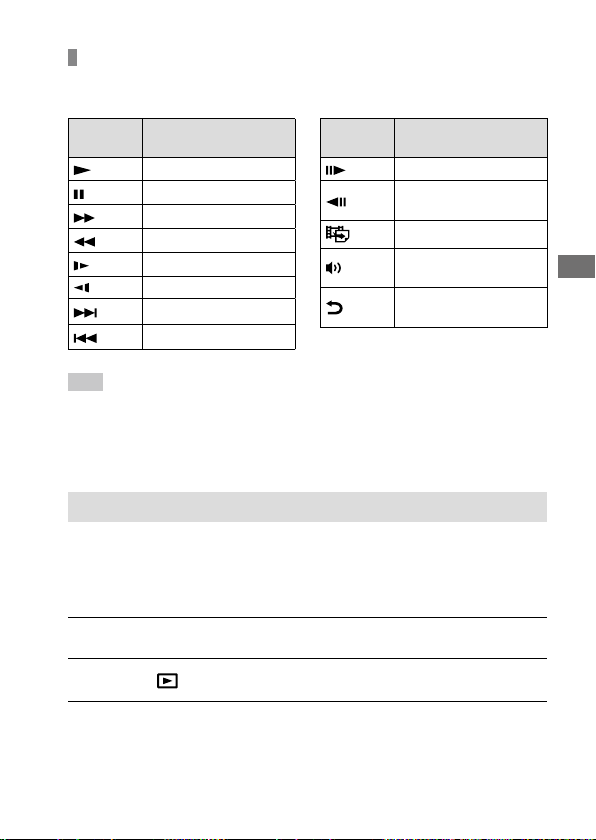
C:\d830100111\d830100111ILCE9UC2\01GB-ILCE9UC2\050PLY.indd
2019/02/19 10:01
ILCE-9
d-830-100-11 (1)
GB
159
Viewing
Available operations during movie playback
You can perform slow playback and sound volume adjustment, etc. by
pressing the down side of the control wheel.
Operation
panel
Available operation
Playback
Pause
Fast-forward
Fast-rewind
Forward slow playback
Reverse slow playback
Next movie file
Previous movie file
Operation
panel
Available operation
Displays the next frame
Displays the previous
frame
Photo Capture
Sound volume
adjustment
Closes the operation
panel
Hint
• “Forward slow playback,” “Reverse slow playback,” “Displays the next frame”
and “Displays the previous frame” are available during pause.
• Movie files recorded using other products may not be able to be playable on
this camera.
Photo Capture
Captures a chosen scene in a movie to save as a still image. First shoot
a movie, then pause the movie during playback to capture decisive
moments that tend to be missed when shooting still images, and save
them as still images.
1
Display the movie that you want to capture as a still image.
2
MENU (Playback) [Photo Capture].
3
Play back the movie and pause it.
ILCE-9
d-830-100-11 (1)
C:\d830100111\d830100111ILCE9UC2\01GB-ILCE9UC2\050PLY.indd
2019/02/19 10:01
GB
160
4
Find the desired scene using forward slow playback, reverse
slow playback, displays the next frame, and displays the
previous frame, and then stop the movie.
5
Press (Photo Capture) to capture the chosen scene.
The scene is saved as a still image.
Playing back images on the image index screen
(Image Index)
You can display multiple images at the same time in playback mode.
1
Press the (Image Index) button while the image is being
played back.
2
Select the image by pressing the top/bottom/right/left sides of
the control wheel or turning the control wheel.
To change the number of images to be displayed
MENU (Playback) [Image Index] desired setting.
9 Images/25 Images
To return to single-image playback
Select the desired image and press the center of the control wheel.
To display a desired image quickly
Select the bar on the left of the image index screen using the control
wheel, then press the top/bottom sides of the control wheel. While
the bar is being selected, you can display the calendar screen or folder
selection screen by pressing the center. In addition, you can switch View
Mode by selecting an icon.
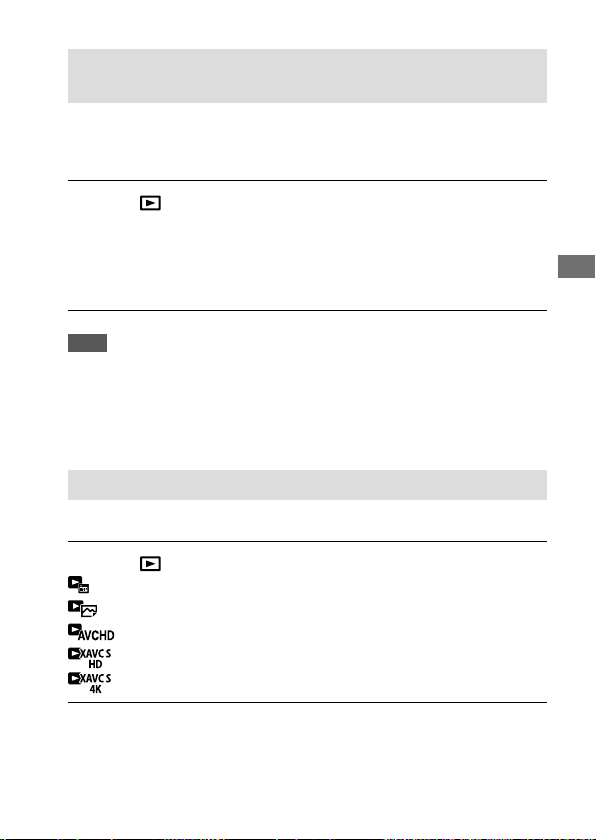
C:\d830100111\d830100111ILCE9UC2\01GB-ILCE9UC2\050PLY.indd
2019/02/19 10:01
ILCE-9
d-830-100-11 (1)
GB
161
Viewing
Setting the method for jumping between images
(Image Jump Setting)
Sets which dial and method to use for jumping between images during
playback. You can quickly find protected images or images set with a
particular rating (page166).
MENU (Playback) [Image Jump Setting] desired
setting.
Select Dial: Selects the dial to use for jumping between images.
Image Jump Method: Sets the type of images to be played back with
Image Jump.
Note
• [Image Jump Setting] is available only when [View Mode] is set to [Date View].
If [View Mode] is not set to [Date View], the camera will always play
back every image without jumping when you use the dial selected with
[Select Dial].
• When you use the Image Jump function, movie files are always skipped.
Switching between still images and movies (View Mode)
Sets the View Mode (image display method).
MENU (Playback) [View Mode] desired setting.
Date View: Displays the images by date.
Folder View (Still): Displays only still images.
AVCHD View: Displays only AVCHD-format movies.
XAVC S HD View: Displays only XAVC S HD-format movies.
XAVC S 4K View: Displays only XAVC S 4K-format movies.
ILCE-9
d-830-100-11 (1)
C:\d830100111\d830100111ILCE9UC2\01GB-ILCE9UC2\050PLY.indd
2019/02/19 10:01
GB
162
Selecting which memory card to play back
(Select Playback Media)
Selects the memory card slot to be played back.
MENU (Playback) [Select Playback Media] desired
slot.
Slot 1: Selects the slot 1.
Slot 2: Selects the slot 2.
Note
• No image is played back when no memory card is inserted in the selected
slot. Select a slot into which a memory card has been inserted.
• When you select [Date View] in [View Mode], the camera only plays back
images from a memory card selected using [Select Playback Media].
Copying images from one memory card to another (Copy)
You can copy images from a memory card in a slot that is selected using
[Select Playback Media] to a memory card in another slot.
MENU (Playback) [Copy].
All of the contents with a date or in a folder currently being played back
will be copied to a memory card in another slot.
Hint
• You can select the type of images to be displayed by selecting MENU
(Playback) [View Mode].
C:\d830100111\d830100111ILCE9UC2\01GB-ILCE9UC2\050PLY.indd
2019/02/19 10:01
ILCE-9
d-830-100-11 (1)
GB
163
Viewing
Note
• If images in a group are copied, the copied images will not be displayed as a
group on the destination memory card.
• If protected images are copied, the protection will be canceled on the
destination memory card.
• It may take a long time when many images are to be copied. Use a sufficiently
charged battery pack.
• XAVC S movies can only be copied to a memory card that supports XAVC S
movies. A message will be displayed on the monitor of the camera when
images cannot be copied.
Playing back images using slideshow (Slide Show)
Automatically plays back images continuously.
1
MENU (Playback) [Slide Show] desired setting.
Repeat: Select [On], in which images are played back in a continuous
loop, or [Off], in which the product exits the slideshow when all the
images are played back once.
Interval: Select the display interval for images from among [1 Sec],
[3 Sec], [5 Sec], [10 Sec] or [30 Sec].
2
Select [Enter].
To quit the slideshow in the middle of playback
Press the MENU button to quit the slideshow. You cannot pause the
slideshow.
Hint
• During playback, you can display the next/previous image by pressing the
right/left side of the control wheel.
• You can activate a slideshow only when [View Mode] is set to [Date View] or
[Folder View (Still)].
ILCE-9
d-830-100-11 (1)
C:\d830100111\d830100111ILCE9UC2\01GB-ILCE9UC2\050PLY.indd
2019/02/19 10:01
GB
164
Protecting images (Protect)
Protects recorded images against accidental erasure. The mark is
displayed on protected images.
MENU (Playback) [Protect] desired setting.
Multiple Img.: Applies or cancels the protection of the selected multiple
images.
All in this Folder: Protects all images in the selected folder.
All with this date: Protects all images in the selected date range.
Cancel All in this Folder: Cancels the protection of all images in the
selected folder.
Cancel All with this date: Cancels the protection of all images in the
selected date range.
All Images in This Group: Protects all the images in the selected group.
Cancel All in This Group: Cancels the protection of all the images in the
selected group.
Hint
• If you assign [Protect] to the key of your choice using MENU
(Camera Settings2) [ Custom Key], you can protect images
or cancel protection by simply pressing the key. The [Protect] function is
assigned to the C3 button in the default settings.
• If you select a group in [Multiple Img.], all the images in the group will be
protected. To select and protect particular images within the group, execute
[Multiple Img.] while displaying the images within the group.
Note
• The menu items that can be selected vary according to the [View Mode]
setting and the selected content.

C:\d830100111\d830100111ILCE9UC2\01GB-ILCE9UC2\050PLY.indd
2019/02/19 10:01
ILCE-9
d-830-100-11 (1)
GB
165
Viewing
Multiple Img.
Select the image to be protected, then press the center of
the control wheel. The mark is displayed in the check
box. To cancel the selection, press the center again to
remove the mark.
To protect other images, repeat step .
MENU [OK].
ILCE-9
d-830-100-11 (1)
C:\d830100111\d830100111ILCE9UC2\01GB-ILCE9UC2\050PLY.indd
2019/02/19 10:01
GB
166
Setting rating function
Rating
You can assign ratings to recorded images on a scale from to
to make it easier to find images. Combining this function with
[Image Jump Setting] (page161) allows you to find a desired image
quickly.
1
MENU (Playback) [Rating].
The image rating selection screen will appear.
2
Press the left/right sides of the control wheel to display an
image to which you want to assign a rating, and then press the
center.
3
Select the number of (Rating) by pressing the left/right sides
of the control wheel, and then press the center.
4
Press the MENU button to exit the rating setting screen.
Hint
• You can also assign ratings when playing back images by using the custom
key. Assign [Rating] to the desired key using [
Custom Key] beforehand,
and then press the custom key while playing back an image to which you
want to assign a rating. The number of
(Rating) changes each time you
press the custom key.
Note
• You can assign ratings to still images only.
C:\d830100111\d830100111ILCE9UC2\01GB-ILCE9UC2\050PLY.indd
2019/02/19 10:01
ILCE-9
d-830-100-11 (1)
GB
167
Viewing
Rating Set (Custom Key)
Sets the available number of when rating images with the key to which
you have assigned [Rating] using [
Custom Key].
MENU (Playback) [Rating Set (Custom Key)].
Add a
mark to the number of that you want to
activate.
You can select the checked number when setting [Rating] using the
custom key.
ILCE-9
d-830-100-11 (1)
C:\d830100111\d830100111ILCE9UC2\01GB-ILCE9UC2\050PLY.indd
2019/02/19 10:01
GB
168
Deleting images
Deleting a displayed image
You can delete an image displayed. Once you have deleted an image, you
cannot restore it. Confirm the image to be deleted beforehand.
1
Display the image you want to delete.
2
Press the (Delete) button.
3
Select [Delete] using the control wheel.
Note
• The protected images cannot be deleted.
Deleting multiple selected images (Delete)
You can delete multiple selected images. Once you have deleted an
image, you cannot restore it. Confirm the image to be deleted beforehand.
MENU (Playback) [Delete] desired setting.
Multiple Img.: Deletes the selected images.
All in this Folder: Deletes all images in the selected folder.
All with this date: Deletes all images in the selected date range.
All Other Than This Img.: Deletes all images in the group except the
selection.
All Images in This Group: Deletes all images in the selected group.

C:\d830100111\d830100111ILCE9UC2\01GB-ILCE9UC2\050PLY.indd
2019/02/19 10:01
ILCE-9
d-830-100-11 (1)
GB
169
Viewing
Hint
• Perform [Format] to delete all images, including protected images.
• To display the desired folder or date, select the desired folder or date during
playback by performing the following procedure:
(Image Index) button select the bar on the left using the control wheel
select the desired folder or date using the top/bottom sides of the control
wheel.
• If you select a group in [Multiple Img.], all the images in the group will be
deleted. To select and delete particular images within the group, execute
[Multiple Img.] while displaying the images within the group.
Note
• The protected images cannot be deleted.
• The menu items that can be selected vary according to the [View Mode]
setting and the selected content.
Multiple Img.
Select the images to be deleted, then press the center of
the control wheel. The mark is displayed in the check
box. To cancel the selection, press the center again to
remove the mark.
To delete other images, repeat step .
MENU [OK].
ILCE-9
d-830-100-11 (1)
C:\d830100111\d830100111ILCE9UC2\01GB-ILCE9UC2\060SET.indd
2019/02/19 10:01
GB
170
Customizing the camera
Registering frequently used functions
/ Memory
Allows you to register up to 3 often-used modes or product settings to the
product and up to 4 (M1 through M4) to the memory card. You can recall
the settings using just the mode dial.
1
Set the product to the setting you want to register.
2
MENU (Camera Settings 1) [ / Memory]
desired number.
3
Press the center of the control wheel to confirm.
Items that can be registered
• You can register various functions for shooting. The items that can
actually be registered are displayed on the menu of the camera.
• Aperture (F number)
• Shutter speed
To change registered settings
Change the setting to the desired one and re-register the setting to the
same mode number.
Note
• M1 through M4 can be selected only when a memory card is inserted into the
product.
• When registering the settings on a memory card, only a memory card that has
been selected using [
Select Media] can be used.
• Program Shift cannot be registered (page 101).
• For some functions, the position of the dial and the setting actually used for
shooting may not match. If this happens, shoot images by referring to the
information displayed on the monitor.

C:\d830100111\d830100111ILCE9UC2\01GB-ILCE9UC2\060SET.indd
2019/02/19 10:01
ILCE-9
d-830-100-11 (1)
Customizing the cameraCustomizing the camera
GB
171
Registering shooting settings to a custom key
(Reg. Custom Shoot Set)
You can register shooting settings (such as exposure, focus setting, drive
mode, etc.) to a custom key in advance and temporarily recall them while
holding down the key. Simply press the custom key to switch the settings
quickly and release the key to go back to the original settings. This
function is useful when recording active scenes such as sports.
1
MENU (Camera Settings 1) [Reg. Custom Shoot Set]
Select a registration number from [Recall Custom hold 1] to
[Recall Custom hold 3].
The setting screen for the selected number will be displayed.
2
Using the top/bottom/left/right side of the control wheel,
select the check boxes for the functions that you want to recall
with one of the registration numbers and press the center to
check each box.
A mark will be displayed in the boxes for the functions.
• To cancel a selection, press the center again.
3
Select the function that you want to adjust using the top/
bottom/left/right side of the control wheel, and press the
center to adjust the function to the desired setting.
• Select [Import Current Setting] to register the current settings of the
camera to the registration number that you chose.
4
Select [Register].

ILCE-9
d-830-100-11 (1)
C:\d830100111\d830100111ILCE9UC2\01GB-ILCE9UC2\060SET.indd
2019/02/19 10:01
GB
172
Items that can be registered
• You can register various functions for shooting. The items that can
actually be registered are displayed on the menu of the camera.
• Exposure
• Focus setting
• Drive mode (other than self-timer)
To recall registered settings
MENU (Camera Settings 2) [ Custom Key]
Select the desired key and then select one of the
registration numbers from [Recall Custom hold 1] to
[Recall Custom hold 3].
On the shooting screen, press the shutter button while
holding down the key to which you assigned one of the
registration numbers.
The registered settings are activated while you are holding down the
custom key.
Hint
• You can change the settings for [Reg. Custom Shoot Set] after assigning one
of the registration numbers to the custom key using [
Custom Key].
Note
• The registration numbers [Recall Custom hold 1] through
[Recall Custom hold 3] are available only when the shooting mode is set to
P/A/S/M.
• Depending on the attached lens and the status of the camera when the
registered setting recall is executed, the registered settings may not take
effect.
C:\d830100111\d830100111ILCE9UC2\01GB-ILCE9UC2\060SET.indd
2019/02/19 10:01
ILCE-9
d-830-100-11 (1)
GB
173
Customizing the camera
Customizing the MENU (My Menu)
Add Item
You can register the desired menu items to (My Menu) under MENU.
1
MENU (My Menu) [Add Item].
2
Select an item that you want to add to (My Menu) using the
top/bottom/left/right sides of the control wheel.
3
Select a destination using the top/bottom/left/right sides of
the control wheel.
Hint
• You can add up to 30 items to (My Menu).
Note
• You cannot add the following items to (My Menu).
– Any item under MENU
(Playback)
– [View on TV]
Sort Item
You can rearrange menu items added to (My Menu) under MENU.
1
MENU (My Menu) [Sort Item].
2
Select an item that you want to move using the top/bottom/
left/right sides of the control wheel.
3
Select a destination using the top/bottom/left/right sides of
the control wheel.
ILCE-9
d-830-100-11 (1)
C:\d830100111\d830100111ILCE9UC2\01GB-ILCE9UC2\060SET.indd
2019/02/19 10:01
GB
174
Delete Item
You can delete menu items added to (My Menu) of MENU.
1
MENU (My Menu) [Delete Item].
2
Select an item that you want to delete using the top/bottom/
left/right sides of the control wheel, and then press the center
to delete the selected item.
Hint
• To delete all the items on a page, select MENU (My Menu)
[Delete Page].
• You can delete all the items added to
(My Menu) by selecting MENU
(My Menu) [Delete All].
C:\d830100111\d830100111ILCE9UC2\01GB-ILCE9UC2\060SET.indd
2019/02/19 10:01
ILCE-9
d-830-100-11 (1)
GB
175
Customizing the camera
Checking images before/after recording
Auto Review
You can check the recorded image on the screen right after the shooting.
You can also set the display time for Auto Review.
MENU (Camera Settings 2) [Auto Review] desired
setting.
10 Sec/5 Sec/2 Sec: Displays the recorded image on the screen right after
shooting for the selected duration of time. If you perform a magnifying
operation during Auto Review, you can check that image using the
magnified scale.
Off: Does not display the Auto Review.
Note
• When you use a function that performs image processing, the image before
processing may be displayed temporarily, followed by the image after
processing.
• The DISP (Display Setting) settings are applied for the Auto Review display
(page31).
Aperture Preview
While you press and hold the key to which you assigned the
[Aperture Preview] function, the aperture is stepped down to the set
aperture value and you can check the blurriness prior to shooting.
1
MENU (Camera Settings 2) [ Custom Key] set
the [Aperture Preview] function to the desired key.
2
Confirm the image by pressing the key to which
[Aperture Preview] was assigned.
ILCE-9
d-830-100-11 (1)
C:\d830100111\d830100111ILCE9UC2\01GB-ILCE9UC2\060SET.indd
2019/02/19 10:01
GB
176
Hint
• Although you can change the aperture value during the preview, the subject
may be defocused if you select a brighter aperture. We recommend that you
adjust the focus again.
Shot. Result Preview
While pressing down the key to which [Shot. Result Preview] is assigned,
you can check the image preview with the DRO, shutter speed, aperture
and ISO sensitivity settings applied. Check the shooting result preview
before shooting.
1
MENU (Camera Settings 2) [ Custom Key] set
the [Shot. Result Preview] function to the desired key.
2
Confirm the image by pressing the key to which
[Shot. Result Preview] was assigned.
Hint
• The DRO settings, shutter speed, aperture and ISO sensitivity settings you
have set are reflected on the image for [Shot. Result Preview], but some
effects cannot be previewed depending on the shooting settings. Even in that
case, the settings you have selected will be applied to the images you shoot.
C:\d830100111\d830100111ILCE9UC2\01GB-ILCE9UC2\060SET.indd
2019/02/19 10:01
ILCE-9
d-830-100-11 (1)
GB
177
Customizing the camera
Monitor/viewfinder settings
FINDER/MONITOR
Sets the method for switching the display between the viewfinder and the
monitor.
MENU (Camera Settings 2) [FINDER/MONITOR]
desired setting.
Auto: When you look into the viewfinder, the eye sensor reacts and the
display is switched to the viewfinder automatically.
Viewfinder (Manual): The monitor is turned off and the image is
displayed only in the viewfinder.
Monitor (Manual): The viewfinder is turned off and the image is always
displayed on the monitor.
Hint
• You can assign the [FINDER/MONITOR] function to your preferred key. MENU
(Camera Settings 2) [ Custom Key], [ Custom Key] or
[
Custom Key] set [Finder/Monitor Sel.] to the preferred key.
• If you want to retain the viewfinder display or the monitor display, set
[FINDER/MONITOR] to [Viewfinder (Manual)] or [Monitor (Manual)]
beforehand.
You can keep the monitor off when you take your eyes off the viewfinder
during recording by setting the monitor display to [Monitor Off] using the
DISP button. Select MENU
(Camera Settings 2) [DISP Button]
[Monitor] and add a check mark to [Monitor Off] beforehand.
Note
• When the monitor is pulled out, the eye sensor of the camera will not detect
you are approaching even if [FINDER/MONITOR] is set to [Auto]. The image
will continue to be displayed on the monitor.
ILCE-9
d-830-100-11 (1)
C:\d830100111\d830100111ILCE9UC2\01GB-ILCE9UC2\060SET.indd
2019/02/19 10:01
GB
178
Finder Frame Rate
Display the subject’s movements more smoothly by adjusting the
frame rate of the viewfinder during still image shooting. This function is
convenient when shooting a fast-moving subject.
MENU (Camera Settings 2) [ Finder Frame Rate]
desired setting.
• This function can be assigned to button of your choice using
[
Custom Key].
Standard: Displays the subject at a normal frame rate on the viewfinder.
High: Displays the movements of the subject more smoothly on the
viewfinder.
Note
• When [ Finder Frame Rate] is set to [High], the resolution of the viewfinder
is lowered.
• Even when [
Finder Frame Rate] is set to [High], the setting may switch
to [Standard] automatically depending on the temperature of the shooting
environment and the shooting conditions.
• [
Finder Frame Rate] is locked to [Standard] in the following situations:
– During playback
– During HDMI connection
– When the temperature inside the camera’s body is high
– During continuous shooting with [
Shutter Type] set to [Auto] or
[Electronic Shutter].
C:\d830100111\d830100111ILCE9UC2\01GB-ILCE9UC2\060SET.indd
2019/02/19 10:01
ILCE-9
d-830-100-11 (1)
GB
179
Customizing the camera
Memory card settings
Format
When you use a memory card with this camera for the first time, we
recommend that you format the card using the camera for stable
performance of the memory card. Note that formatting permanently
erases all data on the memory card, and is unrecoverable. Save valuable
data on a computer, etc.
MENU (Setup) [Format] desired memory card slot.
Note
• Formatting permanently erases all data including protected images and
registered settings (from M1 to M4) (page170).
• The access lamp lights up during formatting. Do not remove the memory card
while the access lamp is lit up.
• Format the memory card on this camera. If you format the memory card on
the computer, the memory card may not be usable depending on the format
type.
• It may take a few minutes to complete formatting, depending on the memory
card.
• You cannot format the memory card if the remaining battery charge is less
than 1%.
File Number
Selects how to assign file numbers to still images.
MENU (Setup) [File Number] desired setting.
Series: The product will assign numbers to files sequentially up to “9999”
without resetting.
Reset: The product resets numbers when a file is recorded in a new folder
and assigns numbers to files starting with “0001”.
(When the recording folder contains a file, a number one higher than
the largest number is assigned.)

ILCE-9
d-830-100-11 (1)
C:\d830100111\d830100111ILCE9UC2\01GB-ILCE9UC2\060SET.indd
2019/02/19 10:01
GB
180
Hint
• The setting for [File Number] will be applied to both slot 1 and slot 2.
• Even if you change the setting of [Prioritize Rec. Media], the file numbers
will be sequential across the two memory cards in each slot by setting
[File Number] to [Series].
Set File Name
You can specify the first three characters of the file name for images you
shoot.
1
MENU (Setup) [Set File Name].
2
Select the entry field for the file name to display a keyboard on
the screen, and then enter three characters of your choice.
• The setting for [Set File Name] will be applied to both slot 1 and slot 2.
Note
• Only capital letters, numbers, and underscores can be entered. However, an
underscore cannot be used as the first character.
• The three characters of the file name you specify using [Set File Name] will
only be applied to images you shoot after changing the setting.
Rec. Media Settings
Prioritize Rec. Media
Selects the memory card slot on which to record.
[Slot 1] is the default setting. If you do not intend to change the settings
and will only use one memory card, use the slot 1.
MENU (Setup) [Rec. Media Settings]
[Prioritize Rec. Media] desired slot.
Slot 1: Selects media in the slot 1.
Slot 2: Selects media in the slot 2.
C:\d830100111\d830100111ILCE9UC2\01GB-ILCE9UC2\060SET.indd
2019/02/19 10:01
ILCE-9
d-830-100-11 (1)
GB
181
Customizing the camera
Hint
• To record the same image on two memory cards at the same time or to sort
recorded images onto two memory card slots by the image type (still image/
movie), use [Recording Mode].
Note
• The slot 2 supports Memory Stick PRO Duo media and SD cards. The slot 1
supports SD cards only.
Recording Mode
You can select the method for recording an image, such as recording the
same image simultaneously to two memory cards or recording different
types of images to two memory cards.
MENU (Setup) [Rec. Media Settings]
[Recording Mode] desired setting.
Standard: Records an image to a memory card in the memory card slot
that you select in [Prioritize Rec. Media].
Simult. (
): Records a still image to both memory cards and records
a movie to a memory card in the memory card slot that you select in
[Prioritize Rec. Media].
Simult. (
): Records a still image to a memory card in the memory card
slot that you select in [Prioritize Rec. Media], and records a movie to
both memory cards.
Simult. (
/ ): Records a still image and a movie to both memory cards.
Sort (RAW/JPEG): Records an image in RAW format to a memory card
in the memory card slot that you select in [Prioritize Rec. Media], and
records an image in JPEG format to the other memory card. Movies are
recorded to the memory card in the memory card slot that you selected
in [Prioritize Rec. Media].
Sort (JPEG/RAW): Records an image in JPEG format to a memory card
in the memory card slot that you select in [Prioritize Rec. Media], and
records an image in RAW format to the other memory card. Movies are
recorded to the memory card in the memory card slot that you selected
in [Prioritize Rec. Media].
Sort (
/ ): Records a still image to a memory card in the memory card
slot that you select in [Prioritize Rec. Media], and records a movie to the
other memory card.

ILCE-9
d-830-100-11 (1)
C:\d830100111\d830100111ILCE9UC2\01GB-ILCE9UC2\060SET.indd
2019/02/19 10:01
GB
182
Hint
• Even when [Recording Mode] is set to [Sort (RAW/JPEG)] or [Sort (JPEG/RAW)],
if [RAW & JPEG] is not selected under [
File Format], only files of the
selected format will be recorded.
Auto Switch Media
If a memory card in use becomes full or you have forgotten to insert a
memory card into a slot, you can record images to the other memory card.
For details on how the memory card slot to which images are recorded
changes, refer to the “Help Guide” (page2).
MENU (Setup) [Rec. Media Settings]
[Auto Switch Media] desired setting.
On: The camera automatically starts recording on the other memory card
when a memory card in use becomes full or if you have forgotten to
insert a memory card.
Off: The camera does not perform [Auto Switch Media].
Hint
• Images are recorded to the memory card in the slot displayed on the
monitor with an arrow symbol. After the camera switches the slot using
[Auto Switch Media], replace the memory card in the former slot with a
recordable memory card.
• If [Recording Mode] is set to [Standard], the setting for [Prioritize Rec. Media]
will switch automatically when the slot switches. If you want to record
on the slot in use before switching, select the desired slot again using
[Prioritize Rec. Media].
• If you want to continually record with the settings selected with
[Recording Mode] and [Prioritize Rec. Media], set [Auto Switch Media] to [Off].
• Even when the camera records a movie on two memory cards using
[Auto Switch Media], the continuous recordable time is approximately
29minutes per recording.
C:\d830100111\d830100111ILCE9UC2\01GB-ILCE9UC2\060SET.indd
2019/02/19 10:01
ILCE-9
d-830-100-11 (1)
GB
183
Customizing the camera
Select REC Folder
If [Folder Name] is set to [Standard Form] and there are 2 folders or more,
you can select the folder on the memory card to which images are to be
recorded.
MENU (Setup) [Select REC Folder] desired folder.
Note
• You cannot select the folder when [Folder Name] is set to [Date Form].
• If [Recording Mode] is set to other than [Standard], you may only select the
common folder on the both memory cards. If there is no common folder, you
can make one using [New Folder] (page218).
ILCE-9
d-830-100-11 (1)
C:\d830100111\d830100111ILCE9UC2\01GB-ILCE9UC2\060SET.indd
2019/02/19 10:01
GB
184
Camera settings
Power Save Start Time
Sets time intervals to automatically switch to power save mode when you
are not performing operations to prevent wearing down the battery pack.
To return to shooting mode, perform an operation such as pressing the
shutter button halfway down.
MENU (Setup) [Power Save Start Time] desired
setting.
30 Min/5 Min/2 Min/1 Min/10 Sec
Note
• Turn off the product when you do not use it for a long time.
• The power save function is not activated when power is being supplied via
USB, when playing back slideshows, when recording movies, during FTP
transfers, when connected to a computer or TV, or when [Remote Ctrl] is set
to [On].
• When [FTP Function] is set to [On], the time until the camera switches to the
power-saving mode will be one minute even if you have selected [10 Sec] for
[Power Save Start Time].
Remote Ctrl
You can operate this product and shoot images using the SHUTTER
button, 2SEC button (2 second delay shutter), and START/STOP button
(or Movie button (RMT-DSLR2 only)) on the Wireless Remote Commander
RMT-DSLR1 (sold separately) and RMT-DSLR2 (sold separately). Refer also
to the operating instructions for the Infrared Remote Commander.
MENU (Setup) [Remote Ctrl] desired setting.
On: Allows infrared remote commander operation.
Off: Does not allow infrared remote commander operation.
C:\d830100111\d830100111ILCE9UC2\01GB-ILCE9UC2\060SET.indd
2019/02/19 10:01
ILCE-9
d-830-100-11 (1)
GB
185
Customizing the camera
Note
• The lens or lens hood may block the infrared remote sensor that receive the
signals. Use the infrared remote commander in the position from which the
signal can reach the product.
• When [Remote Ctrl] is set to [On], the product does not switch to power save
mode. Set [Off] after using an infrared remote commander.
HDMI Settings
HDMI Resolution
When you connect the product to a High Definition (HD) TV with HDMI
terminals using an HDMI cable (sold separately), you can select HDMI
Resolution to output images to the TV.
MENU (Setup) [HDMI Settings] [HDMI Resolution]
desired setting.
Auto: The product automatically recognizes an HD TV and sets the output
resolution.
2160p/1080p: Outputs signals in 2160p/1080p.
1080p: Outputs signals in HD picture quality (1080p).
1080i: Outputs signals in HD picture quality (1080i).
Note
• If the images are not displayed properly using the [Auto] setting, select either
[1080i], [1080p] or [2160p/1080p], based on which TV is to be connected.
24p/60p Output (Only for 1080 60i compatible models)
You can set 1080/24p or 1080/60p as the HDMI output format when
[
Record Setting] is set to [24p 50M], [24p 60M] or [24p 100M].
MENU (Setup) [HDMI Settings]
[HDMI Resolution] [1080p] or [2160p/1080p].
MENU
(Setup) [HDMI Settings]
[ 24p/60p Output] desired setting.
60p: Movies are output as 60p.
24p: Movies are output as 24p.
ILCE-9
d-830-100-11 (1)
C:\d830100111\d830100111ILCE9UC2\01GB-ILCE9UC2\060SET.indd
2019/02/19 10:01
GB
186
Note
• Steps and can be set in either order.
HDMI Info. Display
Selects whether to display the shooting information when this product
and the TV are connected using an HDMI cable (sold separately).
MENU (Setup) [HDMI Settings]
[HDMI Info. Display] desired setting.
On: Displays the shooting information on the TV.
The recorded image and the shooting information are displayed on the
TV, while nothing is displayed on the camera’s monitor.
Off: Does not display the shooting information on the TV.
Only the recorded image is displayed on the TV, while the recorded
image and the shooting information are displayed on the camera’s
monitor.
Note
• When this product is connected to a 4K-compatible TV, [Off] is selected
automatically.
• If you set [
File Format] to [XAVC S 4K] and shoot movies while the camera
is connected to an HDMI device, images will not be displayed on the monitor.
TC Output
Sets whether or not to layer the TC (time code) information on the
output signal via the HDMI terminal when outputting the signal to other
professional-use devices.
This function layers the time code information on the HDMI output signal.
The product sends the time code information as digital data, not as an
image displayed on the screen. The connected device can then refer to
the digital data to recognize the time data.
MENU (Setup) [HDMI Settings] [ TC Output]
desired setting.
On: Time code is output to other devices.
Off: Time code is not output to other devices.
C:\d830100111\d830100111ILCE9UC2\01GB-ILCE9UC2\060SET.indd
2019/02/19 10:01
ILCE-9
d-830-100-11 (1)
GB
187
Customizing the camera
Note
• When [ TC Output] is set to [On], the image may not be output properly to
the TV or recording device. In such cases, set [
TC Output] to [Off].
REC Control
If you connect the camera to an external recorder/player, you can
remotely command the recorder/player to start/stop recording using the
camera.
MENU (Setup) [HDMI Settings] [ REC Control]
desired setting.
On: The camera can send a recording command to an external
recorder/player.
The camera is sending a recording command to an external
recorder/player.
Off: The camera is not able to send a command to an external recorder/
player to start/stop recording.
Note
• Available for external recorders/players compatible with [ REC Control].
• When you use the [
REC Control] function, set the shooting mode to
(Movie).
• When [
TC Output] is set to [Off], you cannot use the [ REC Control]
function.
• Even when
is displayed, the external recorder/player may not work
properly depending on the settings or status of the recorder/player. Check if
the external recorder/player works properly before use.

ILCE-9
d-830-100-11 (1)
C:\d830100111\d830100111ILCE9UC2\01GB-ILCE9UC2\060SET.indd
2019/02/19 10:01
GB
188
CTRL FOR HDMI
When connecting this product to a “BRAVIA” Sync-compatible TV using an
HDMI cable (sold separately), you can operate this product by aiming the
TV remote control at the TV.
MENU (Setup) [HDMI Settings]
[CTRL FOR HDMI] desired setting.
On: You can operate this product with a TV’s remote control.
Off: You cannot operate this product with a TV’s remote control.
Connect this product to a “BRAVIA” Sync-compatible TV.
The input of the TV is switched automatically and images on this
product are displayed on the TV screen.
Press the SYNC MENU button of the TV’s remote control.
Operate this product using the TV’s remote control.
Note
• If you connect this product to a TV using an HDMI cable, available menu items
are limited.
• [CTRL FOR HDMI] is available only with a “BRAVIA” Sync-compatible TV. Also,
the SYNC MENU operation differs depending on the TV you are using. For
details, refer to the operating instructions supplied with the TV.
• If the product performs unwanted operations in response to the TV remote
control when the product is connected to another manufacturer’s TV using
an HDMI connection, select MENU
(Setup) [HDMI Settings]
[CTRL FOR HDMI] [Off].
C:\d830100111\d830100111ILCE9UC2\01GB-ILCE9UC2\060SET.indd
2019/02/19 10:01
ILCE-9
d-830-100-11 (1)
GB
189
Customizing the camera
USB Power Supply
Sets whether to supply power via the micro USB cable when the product is
connected to a computer or an USB device.
MENU (Setup) [USB Power Supply] desired setting.
On: Power is supplied to the product via a micro USB cable when the
product is connected to a computer, etc.
Off: Power is not supplied to the product via a micro USB cable when the
product is connected to a computer, etc. If you use the supplied AC
Adaptor, power will be supplied even when [Off] is selected.
Operations available while supplying power via a USB
cable
The following table shows you which operations are available/unavailable
while supplying power via a USB cable.
A checkmark indicates that the operation is available, and “―” indicates
that the operation is unavailable.
Operation Available/Unavailable
Shooting images
Playing back images
Wi-Fi/NFC/Bluetooth connections
Charging a battery pack ―
Turning the camera on without a battery pack
inserted
―
Note
• Insert the battery pack into the product to supply power via USB cable.

ILCE-9
d-830-100-11 (1)
C:\d830100111\d830100111ILCE9UC2\01GB-ILCE9UC2\060SET.indd
2019/02/19 10:01
GB
190
PC Remote Settings
Still Img. Save Dest.
Sets whether to save still images stored in both the camera and the
computer during PC Remote shooting. This setting is useful when you
want to check recorded images on the camera without leaving the
camera.
* PC Remote: Uses Imaging Edge (page202) to control this product from the
computer, including such functions as shooting and storing images on the
computer.
MENU (Setup) [PC Remote Settings]
[Still Img. Save Dest.] desired setting.
PC Only: Saves still images only on the computer.
PC + Camera: Saves still images on the computer and the camera.
Camera Only: Saves still images only on the camera.
Note
• If you insert a memory card that is not recordable, you cannot shoot still
images even if you select [Camera Only] or [PC + Camera].
• If you select [Camera Only] or [PC + Camera] and you have not inserted
a memory card into the camera, you cannot release the shutter even if
[Release w/o Card] is set to [Enable].
• While you are playing back still images on the camera, you cannot shoot
using PC Remote.
• The settings for [PC Remote Settings] are also applied when performing PC
remote shooting using [PC Remote (Wired LAN)] (page214).

C:\d830100111\d830100111ILCE9UC2\01GB-ILCE9UC2\060SET.indd
2019/02/19 10:01
ILCE-9
d-830-100-11 (1)
GB
191
Customizing the camera
RAW + J PC Save Img
Selects the file type for images to be transferred to the computer in PC
Remote shooting.
When shooting still images using PC Remote, the application on
the computer does not display the image until the image has been
completely transferred. When performing RAW + JPEG shooting, you can
accelerate the display processing speed by transferring only JPEG images
instead of transferring both RAW and JPEG images.
* PC Remote: Uses Imaging Edge (page202) to control this product from the
computer, including such functions as shooting and storing images on the
computer.
MENU (Setup) [PC Remote Settings]
[RAW + J PC Save Img] desired setting.
RAW & JPEG: Transfers both RAW and JPEG files to the computer.
JPEG Only: Transfers only JPEG files to the computer.
RAW Only: Transfers only RAW files to the computer.
Note
• [RAW + J PC Save Img] can be set only when [ File Format] is set to
[RAW & JPEG].
• The settings for [PC Remote Settings] are also applied when performing PC
remote shooting using [PC Remote (Wired LAN)] (page214).
ILCE-9
d-830-100-11 (1)
C:\d830100111\d830100111ILCE9UC2\01GB-ILCE9UC2\060SET.indd
2019/02/19 10:01
GB
192
Initializing the camera
Setting Reset
Resets the product to the default settings. Even if you perform
[Setting Reset], the recorded images are retained.
MENU (Setup) [Setting Reset] desired setting.
Camera Settings Reset: Initializes the main shooting settings to the
default settings.
Initialize: Initializes all the settings to the default settings.
Note
• Be sure not to eject the battery pack while resetting.
• The value set with [AF Micro Adj.] will not be reset even when
[Camera Settings Reset] or [Initialize] is performed.
C:\d830100111\d830100111ILCE9UC2\01GB-ILCE9UC2\070WRL.indd
2019/02/19 10:01
ILCE-9
d-830-100-11 (1)
Using network functions
GB
193
Using network functions
Using network functions
Using the Wi-Fi/One-touch (NFC)/
Bluetooth/wired LAN functions
You can perform the following operations using the camera’s Wi-Fi, NFC
One-touch, and Bluetooth functions.
• Saving images to a computer
• Transferring images from the camera to a smartphone
• Using a smartphone as a remote control for the camera
• Viewing still images on a TV
• Recording location information from a smartphone to images
For details, refer to the “Help Guide” (page 2).
Installing Imaging Edge Mobile
Imaging Edge Mobile is required to connect the camera and a
smartphone. If Imaging Edge Mobile is already installed on your
smartphone, be sure to update it to the latest version.
For details on Imaging Edge Mobile, refer to the support page
(https://www.sony.net/iem/).
Note
• To use the camera’s NFC One-touch function, an NFC-enabled smartphone or
tablet is required.
• The Wi-Fi functions introduced in this manual are not guaranteed to operate
on all smartphones or tablets.
• The Wi-Fi functions of this camera are not available when connected to a
public wireless LAN.
• Depending on future version upgrades, the operational procedures or screen
displays are subject to change without notice.
ILCE-9
d-830-100-11 (1)
C:\d830100111\d830100111ILCE9UC2\01GB-ILCE9UC2\070WRL.indd
2019/02/19 10:01
GB
194
Recording location information to captured images
By using Imaging Edge Mobile, you can obtain location information from
a connected smartphone (via Bluetooth communication) and record it to
captured images.
For details on the operating procedure, refer to the “Help Guide”
(page2) or the following support page.
https://www.sony.net/iem/btg/
Transferring images to the FTP server
You can use the camera’s Wi-Fi function or wired LAN to transfer images
to the FTP server.
For details, refer to the “FTP Help Guide.”
http://rd1.sony.net/help/di/ftp/h_zz/
• Basic knowledge of FTP servers is required.
C:\d830100111\d830100111ILCE9UC2\01GB-ILCE9UC2\070WRL.indd
2019/02/19 10:01
ILCE-9
d-830-100-11 (1)
GB
195
Using network functions
Connecting the camera and a smartphone
Using a smartphone as a remote control for the camera
With Imaging Edge Mobile, you can shoot images while checking the
shooting range of the camera on the monitor of a smartphone.
1
MENU (Network) [Ctrl w/ Smartphone]
[Ctrl w/ Smartphone], then select [On].
2
Set up the camera and smartphone by following the procedure
below.
To establish a one-touch connection with an NFC-enabled
smartphone
Activate the NFC function of the smartphone.
• On an iPhone/iPad, launch Imaging Edge Mobile, and then select
[Scan NFC/QR Code of the Camera] [Scan NFC of the Camera] to
activate the NFC function.
Switch the camera to the shooting mode.
Touch the
(N mark) on the camera to the smartphone for
1-2 seconds.
• If you are using an Android smartphone, touch the (N mark) on
the camera to the
(N mark) on the smartphone.
Note
• If you cannot connect the camera to the smartphone using the NFC
function, follow the procedure under “To establish a Wi-Fi connection with a
smartphone using a QR code.”
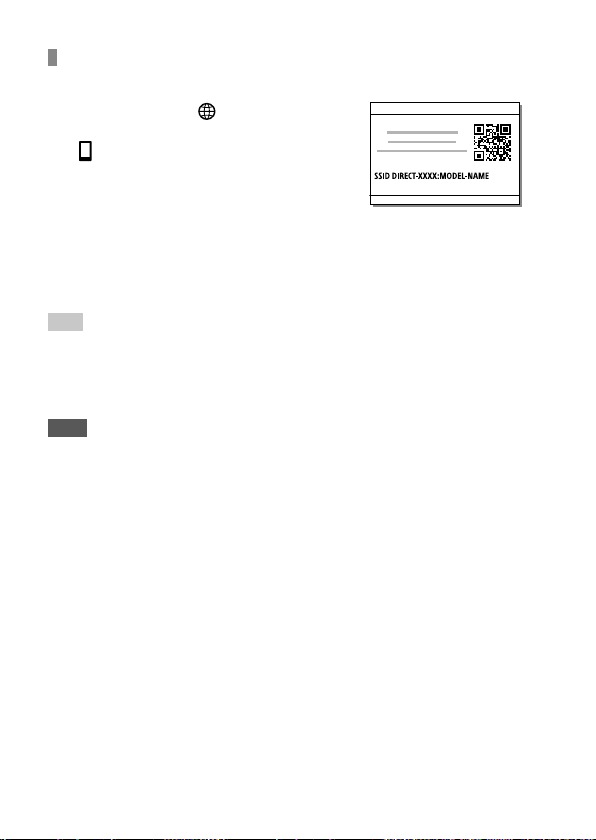
ILCE-9
d-830-100-11 (1)
C:\d830100111\d830100111ILCE9UC2\01GB-ILCE9UC2\070WRL.indd
2019/02/19 10:01
GB
196
To establish a Wi-Fi connection with a smartphone using
a QR code
Select MENU (Network)
[Ctrl w/ Smartphone]
[ Connection], to display the
QR code on the monitor of the
camera.
Launch Imaging Edge Mobile on the smartphone, and
select [Scan QR Code of the Camera].
Scan the QR code.
Hint
• Once the QR code has been read, this product’s SSID (DIRECT-xxxx) and
password are registered to the smartphone. This enables you to easily
connect the smartphone to the product via Wi-Fi at a later date by selecting
the SSID.
Note
• If you cannot connect this product to a smartphone using the NFC function
or QR code, use the SSID and password. For detailed instructions, refer to the
“Help Guide.”
C:\d830100111\d830100111ILCE9UC2\01GB-ILCE9UC2\070WRL.indd
2019/02/19 10:01
ILCE-9
d-830-100-11 (1)
GB
197
Using network functions
Transferring images from the camera to a smartphone
You can transfer still images, XAVC S movies to a smartphone. However,
images that are not saved on the camera’s memory card cannot be
transferred.
1
On the camera, play back an image that you want to transfer to
the smartphone.
2
Connect the camera to the smartphone.
Images shot with the camera are transferred to the smartphone.
• To establish a one-touch connection with an NFC-enabled
smartphone, touch the smartphone to the
(N mark) on the camera
(page195). If you are using an Android smartphone, touch the
(N
mark) on the camera to the
(N mark) on the smartphone.
• To establish a Wi-Fi connection with the smartphone using a QR code,
select MENU
(Network) [Send to Smartphone Func.]
[Send to Smartphone] and display the QR code on the monitor of the
camera, then scan the QR code using Imaging Edge Mobile on the
smartphone.
• The transferred images are saved to a gallery or album on the
Android, or to an album on the iPhone or iPad.
Note
• If you scan the QR code displayed under MENU (Network)
[Ctrl w/ Smartphone] [
Connection], the function for using the
smartphone as a remote control for the camera will be activated (page 196).
To transfer images, select [Send to Smartphone] and display the QR code.
• For details on which file formats of still images and movies are transferable,
refer to the “Help Guide” (page 2).
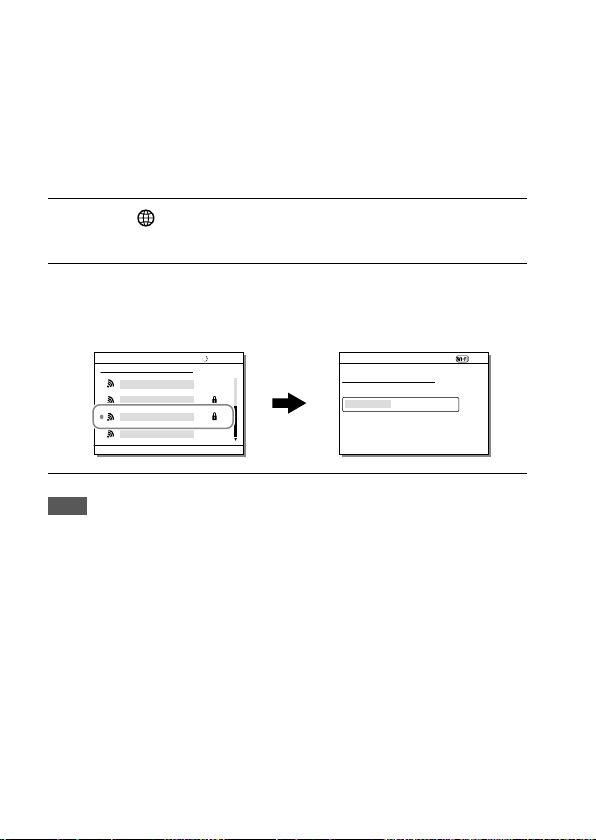
ILCE-9
d-830-100-11 (1)
C:\d830100111\d830100111ILCE9UC2\01GB-ILCE9UC2\070WRL.indd
2019/02/19 10:01
GB
198
Connecting the camera to a wireless
access point
Connect the camera to your wireless access point. Before starting the
procedure, make sure you have the SSID (name of the access point) and
password of your wireless access point with you.
1
MENU (Network) [Wi-Fi Settings]
[Access Point Set.].
2
Use the control wheel to select the access point to which you
want to connect. Press the center of the control wheel and enter
the password for the wireless access point, then select [OK].
Note
• If a connection is not established, see the wireless access point operating
instructions or contact the administrator of the access point.
To save images to a computer, install PlayMemories Home on your computer.
PlayMemories Home
https://www.sony.net/pm/
C:\d830100111\d830100111ILCE9UC2\01GB-ILCE9UC2\090COM.indd
2019/02/19 10:01
ILCE-9
d-830-100-11 (1)
GB
199
Using a computer
Using a computer
Connecting the camera to a computer
Selecting the appropriate USB connection method
Selects the USB connection method when this product is connected to a
computer, etc. Select MENU
(Network) [Ctrl w/ Smartphone]
[Ctrl w/ Smartphone] [Off] beforehand.
MENU (Setup) [USB Connection] desired setting.
Auto: Establishes a Mass Storage or MTP connection automatically,
depending on the computer or other USB devices to be connected.
Windows 7, Windows 8.1, or Windows 10 computers are connected in
MTP, and their unique functions are enabled for use.
Mass Storage: Establishes a Mass Storage connection between this
product, a computer, and other USB devices.
MTP: Establishes an MTP connection between this product, a computer,
and other USB devices. Windows 7, Windows 8.1, or Windows 10
computers are connected in MTP, and their unique functions are
enabled for use.
• The memory card in memory card slot 1 is the connection target.
PC Remote: Uses Imaging Edge to control this product from a computer,
including such functions as shooting and storing images on the
computer.
Note
• It may take some time to make the connection between this product and a
computer when [USB Connection] is set to [Auto].
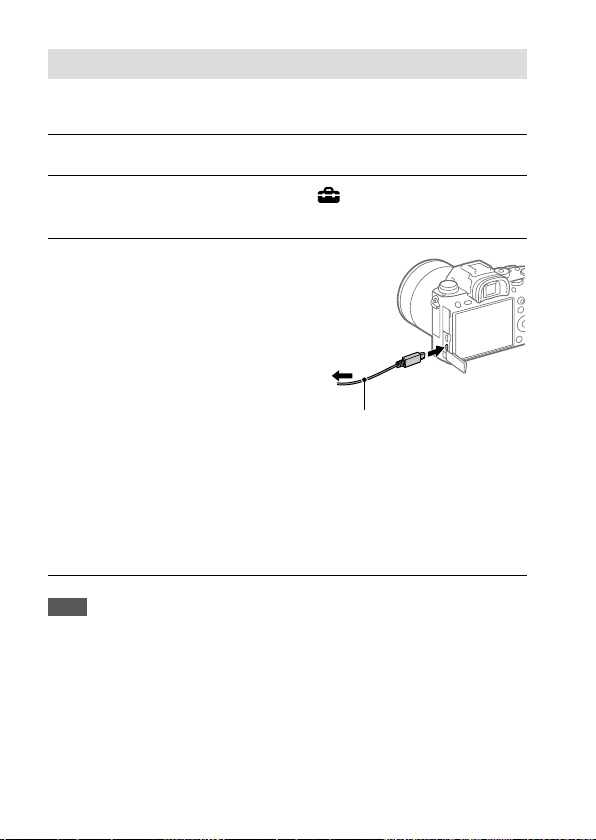
ILCE-9
d-830-100-11 (1)
C:\d830100111\d830100111ILCE9UC2\01GB-ILCE9UC2\090COM.indd
2019/02/19 10:01
GB
200
Connecting to a computer
1
Insert a sufficiently charged battery pack into the camera.
2
Turn on the camera and the computer.
3
Check that [USB Connection] under (Setup) is set to
[Mass Storage].
4
Connect the camera to the
computer using the micro USB
cable (supplied).
• When you connect the
camera to the computer for
the first time, the procedure
for recognizing the camera
may start automatically on
the computer. Wait until the
procedure is finished.
• If you connect the product
to your computer using
the micro USB cable when
[USB Power Supply] is set to
[On], power is supplied from
your computer. (Default setting:
[On])
To the Multi/Micro
USB Terminal
Micro USB cable (supplied)
To a USB
terminal
Note
• Do not turn on/off or restart the computer, or wake the computer from sleep
mode when a USB connection has been established between the computer
and the camera. Doing so may cause a malfunction. Before turning on/
off or restarting the computer, or waking the computer from sleep mode,
disconnect the camera from the computer.
C:\d830100111\d830100111ILCE9UC2\01GB-ILCE9UC2\090COM.indd
2019/02/19 10:01
ILCE-9
d-830-100-11 (1)
GB
201
Using a computer
Disconnecting the camera from the computer
Perform steps 1 and 2 below before performing the following operations:
• Disconnecting the micro USB cable.
• Removing a memory card.
• Turning off the product.
1
Click (Safely Remove Hardware and Eject Media) in the
taskbar.
2
Click the displayed message.
Note
• On Mac computers, drag and drop the memory card icon or the drive icon into
the “Trash” icon. The camera will be disconnected from the computer.
• On Windows 7/Windows 8 computers, the disconnection icon may not
appear. In that case, you can skip the steps above.
• Do not remove the micro USB cable from the camera while the access lamp is
lit. The data may be damaged.

ILCE-9
d-830-100-11 (1)
C:\d830100111\d830100111ILCE9UC2\01GB-ILCE9UC2\090COM.indd
2019/02/19 10:01
GB
202
Introduction to computer software
We offer the following computer software to enhance your enjoyment
of photos/movies. Access one of the following URLs using your Internet
browser and then download the software by following the onscreen
instructions.
If one of these software is already installed on your computer, update it to
the latest version before use.
For details on the software for computers, refer to the following URL:
https://www.sony.net/disoft/
You can check the recommended operating environment for the software from
the following URL:
http://www.sony.net/pcenv/
PlayMemories Home
PlayMemories Home allows you to import still images and movies to your
computer and view or use them.
You need to install PlayMemories Home to import XAVC S movies or
AVCHD movies to your computer.
You can access the download website directly from the following URL:
https://www.sony.net/pm/
• When you connect the camera to your computer, new functions may
be added to PlayMemories Home. Connecting the camera to your
computer is therefore recommended even if PlayMemories Home has
already been installed on the computer.
Imaging Edge
Imaging Edge is a software suite that includes functions such as remote
shooting from a computer, and adjusting or developing RAW images
recorded with the camera.
For details on Imaging Edge, refer to the following URL.
https://www.sony.net/iex/
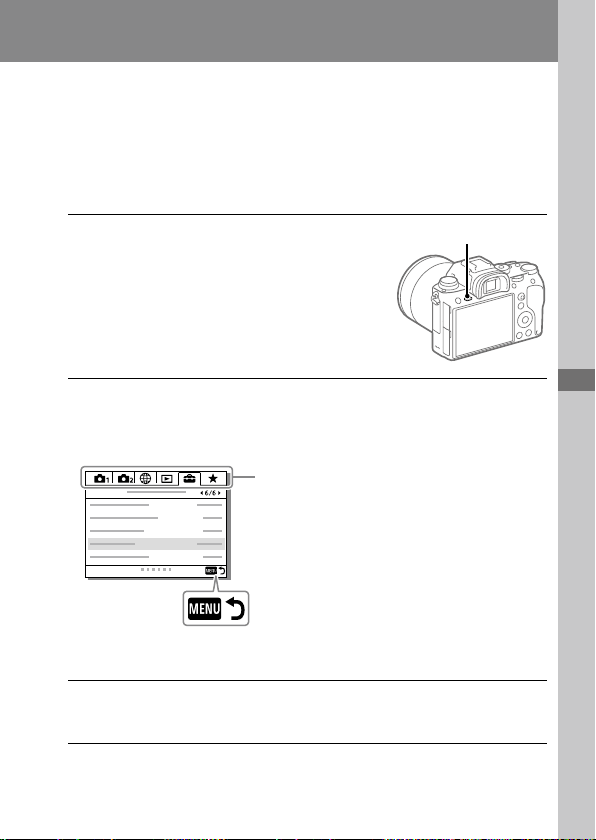
C:\d830100111\d830100111ILCE9UC2\01GB-ILCE9UC2\100MEN.indd
2019/02/19 10:01
ILCE-9
d-830-100-11 (1)
MENU items/List of iconsMENU items/List of icons
GB
203
MENU items/List of icons
Using MENU items
You can change settings related to all the camera operations including
shooting, playback, and operating method. You can also execute camera
functions from the MENU.
1
Press the MENU button to
display the menu screen.
MENU button
2
Select the desired setting you want to adjust using the top/
bottom/left/right sides of the control wheel or by turning the
control wheel, and then press the center of the control wheel.
Select an icon at the top of the screen and
press the left/right side of the control wheel
to move to another MENU tab.
You can move to the next MENU tab by
pressing the Fn button.
Press the MENU button to go back to the previous screen.
3
Select the desired setting value, and press the center to confirm
your selection.
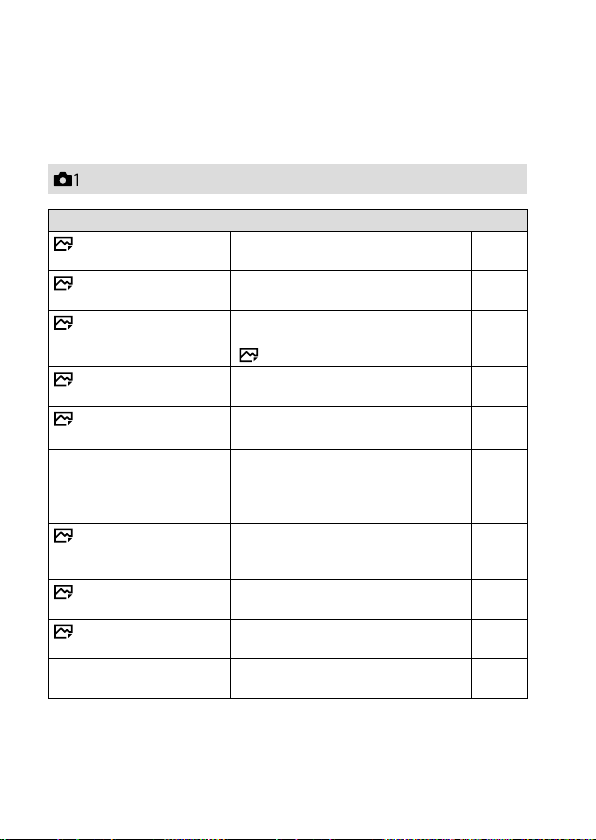
ILCE-9
d-830-100-11 (1)
C:\d830100111\d830100111ILCE9UC2\01GB-ILCE9UC2\100MEN.indd
2019/02/19 10:01
GB
204
List of MENU items
For details on each MENU items, refer to the reference page in the last
column or the Help Guide.
(Camera Settings 1)
Quality/Image Size
File Format
Sets the file format for still images.
([RAW]/ [JPEG], etc.)
94
RAW File Type
Selects the file type for RAW images. Help
Guide
JPEG Quality
Selects the JPEG image quality
for [RAW & JPEG] or [JPEG] under
[
File Format].
95
JPEG Image Size
Selects the size of still images.
(L/ M/ S)
95
Aspect Ratio
Selects the aspect ratio for still
images.
96
APS-C/Super 35mm
Sets whether to record in APS-C-
equivalent size for still images and
Super 35 mm-equivalent size for
movies.
97
Long Exposure NR
Sets noise reduction processing for
shots with a shutter speed of 1 second
or longer.
134
High ISO NR
Sets noise reduction processing for
high-sensitivity shooting.
135
Color Space
Changes the color space (range of
reproducible colors).
131
Lens Comp.
Selects the type of lens
compensation.
Help
Guide
Red tab
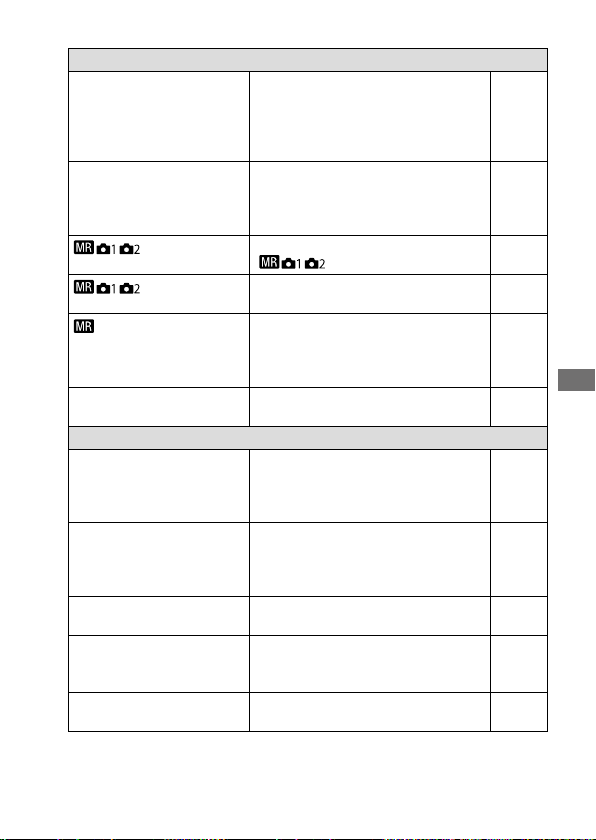
C:\d830100111\d830100111ILCE9UC2\01GB-ILCE9UC2\100MEN.indd
2019/02/19 10:01
ILCE-9
d-830-100-11 (1)
GB
205
MENU items/List of icons
Shoot Mode/Drive
Self-timer Type
When shooting with the self-timer,
sets how many seconds elapse from
when you press the shutter button
until when the image is recorded and
how many images are recorded.
Help
Guide
Bracket Settings
Sets self-timer shooting in bracket
mode, bracket type, shooting order
for exposure bracketing, and white
balance bracketing.
89
/ Recall
Calls up settings pre-registered to
[
/ Memory].
106
/ Memory
Registers the desired modes and
camera settings.
170
Select Media
Selects the memory card slot from
which settings are recalled or to which
settings are registered for M1 through
M4.
Help
Guide
Reg. Custom Shoot Set
Assign functions to the custom key to
recall when shooting.
171
AF
Priority Set in AF-S
Sets the timing of the shutter
release when [Focus Mode] is set to
[Single-shot AF] or [DMF] with a still
subject.
63
Priority Set in AF-C
Sets the timing of the shutter
release when [Focus Mode] is set
to [Continuous AF] with a moving
subject.
64
Focus Area
Selects the area of focus.
([Wide]/ [Flexible Spot], etc.)
49
Focus Settings
Configures settings for focusing using
the front dial, rear dial, or control
wheel.
Help
Guide
Focus Area Limit
Limits the types of available focus
area settings in advance.
52
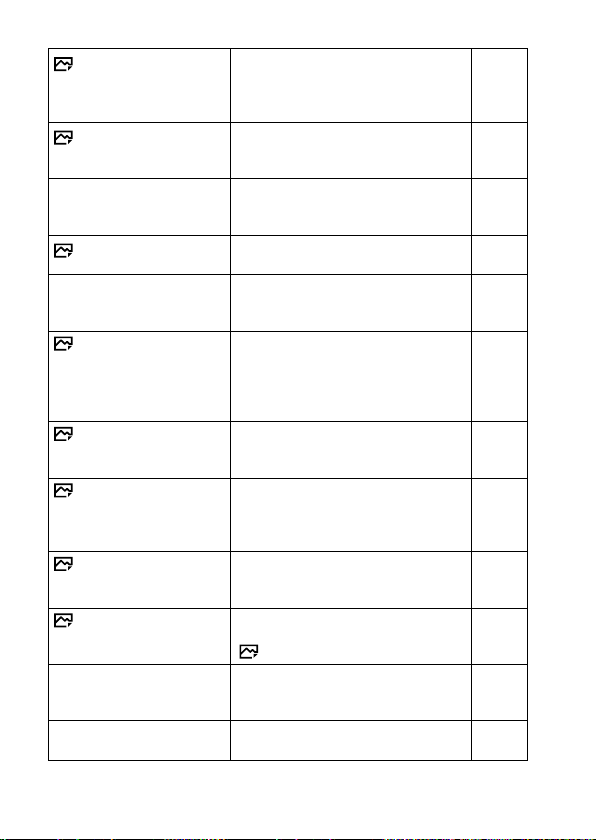
ILCE-9
d-830-100-11 (1)
C:\d830100111\d830100111ILCE9UC2\01GB-ILCE9UC2\100MEN.indd
2019/02/19 10:01
GB
206
Switch V/H AF Area
Sets whether to adjust the
[Focus Area] and the position of the
focusing frame based on the camera’s
position (horizontal or vertical).
54
AF Illuminator
Sets the AF illuminator, which
provides light to aid focusing in dark
scenes.
64
Face/Eye AF Set.
Configures settings such as whether
the camera focuses with priority on
human faces or eyes.
56
AF Tracking Sens.
Sets the AF tracking sensitivity for the
still image mode.
Help
Guide
Aperture Drive in AF
Changes the aperture drive system to
prioritize the auto-focusing tracking
performance or to prioritize silence.
67
AF w/ shutter
Sets whether to perform auto
focusing when the shutter button is
pressed halfway down. This is useful
when you want to adjust the focus
and exposure separately.
Help
Guide
Pre-AF
Sets whether or not to perform auto
focus before the shutter button is half
pressed.
63
Eye-Start AF
Sets whether to use auto focus when
you look through the viewfinder if
an LA-EA2/LA-EA4 Mount Adaptor
(sold separately) is attached.
Help
Guide
AF Area Registration
Sets whether to move the focusing
frame to a preassigned position when
shooting still images.
61
Del. Regist. AF Area
Deletes the focusing frame position
information that was registered using
[
AF Area Registration].
Help
Guide
AF Area Auto Clear
Sets whether the focus area is
displayed all the time or disappears
automatically shortly after focusing.
Help
Guide
Disp. cont. AF area
Sets whether or not to display the
focus area in [Continuous AF] mode.
Help
Guide
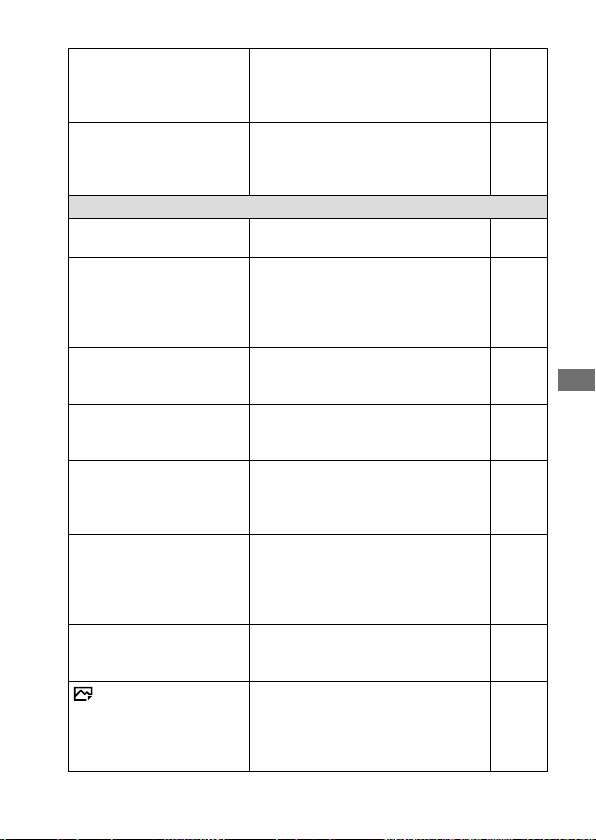
C:\d830100111\d830100111ILCE9UC2\01GB-ILCE9UC2\100MEN.indd
2019/02/19 10:01
ILCE-9
d-830-100-11 (1)
GB
207
MENU items/List of icons
Circ. of Focus Point
Sets whether to allow the focusing
frame to jump from one end to the
other when you move the focusing
frame.
65
AF Micro Adj.
Finely adjusts the autofocused
position, when using the LA-EA2
or LA-EA4 Mount Adaptor
(sold separately).
66
Exposure
Exposure Comp.
Compensates for the brightness of
the entire image.
109
Reset EV Comp.
Sets whether to maintain the exposure
value set using [Exposure Comp.]
when you turn off the power when the
exposure compensation dial position
is set to “0.”
Help
Guide
ISO Setting
Sets functions related to ISO
sensitivity.
([ISO] / [ISO AUTO Min. SS], etc.)
118
Metering Mode
Selects the method for measuring
brightness.
([Multi]/ [Spot], etc.)
111
Face Priority in Multi Metering
Sets whether the camera measures
brightness based on detected faces
when [Metering Mode] is set to
[Multi].
Help
Guide
Spot Metering Point
Sets whether to coordinate the
spot metering point with the
focus area when [Focus Area]
is set to [Flexible Spot] or
[Expand Flexible Spot].
112
Exposure step
Selects the size of the increment
step for shutter speed, aperture, and
exposure compensation values.
Help
Guide
AEL w/ shutter
Sets whether to lock the exposure
when the shutter button is pressed
halfway down. This is useful when you
want to adjust the focus and exposure
separately.
Help
Guide
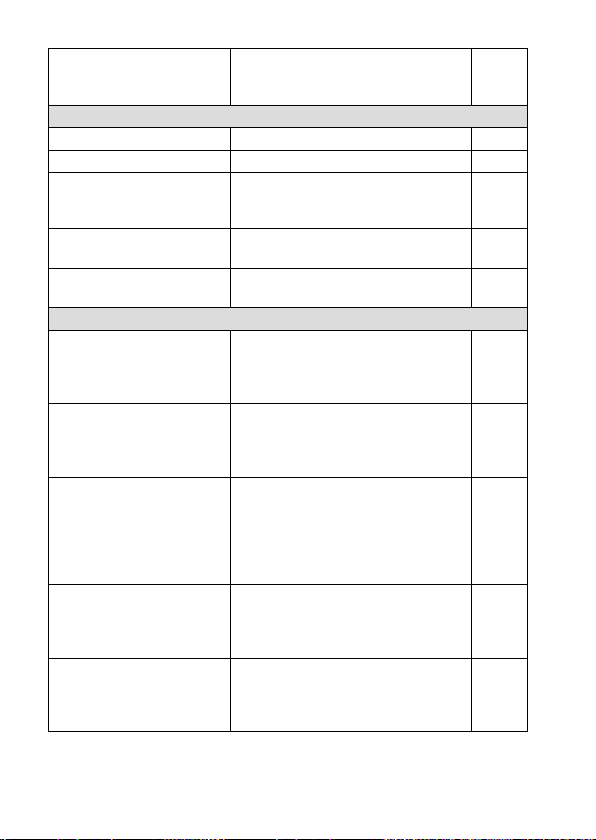
ILCE-9
d-830-100-11 (1)
C:\d830100111\d830100111ILCE9UC2\01GB-ILCE9UC2\100MEN.indd
2019/02/19 10:01
GB
208
Exposure Std. Adjust
Adjusts the standard for the correct
exposure value for each metering
modes.
Help
Guide
Flash
Flash Mode
Sets the flash settings. 137
Flash Comp.
Adjusts the intensity of flash output. 138
Exp. comp. set
Sets whether to reflect exposure
compensation value to flash
compensation.
Help
Guide
Wireless Flash
Sets whether to shoot with the
wireless flash.
140
Red Eye Reduction
Reduces the red-eye phenomenon
when using flash.
Help
Guide
Color/WB/Img. Processing
White Balance
Corrects the tone effect of the
ambient light to shoot whitish objects
in a white tone.
([Auto]/ [Daylight], etc.)
124
Priority Set in AWB
Selects which tone to prioritize when
shooting under lighting conditions
such as incandescent light with
[White Balance] set to [Auto].
Help
Guide
DRO/Auto HDR
Analyzes the contrast of light and
shadow between the subject and the
background by dividing the image
into small areas, and creates an image
with the optimal brightness and
gradation.
115
Creative Style
Selects the desired image processing.
You can also adjust contrast,
saturation, and sharpness.
([Vivid]/ [Portrait], etc.)
128
Picture Effect
Shoots images with a texture unique
to the selected effect.
([Toy Camera]/ [Rich-tone Mono.],
etc.)
Help
Guide
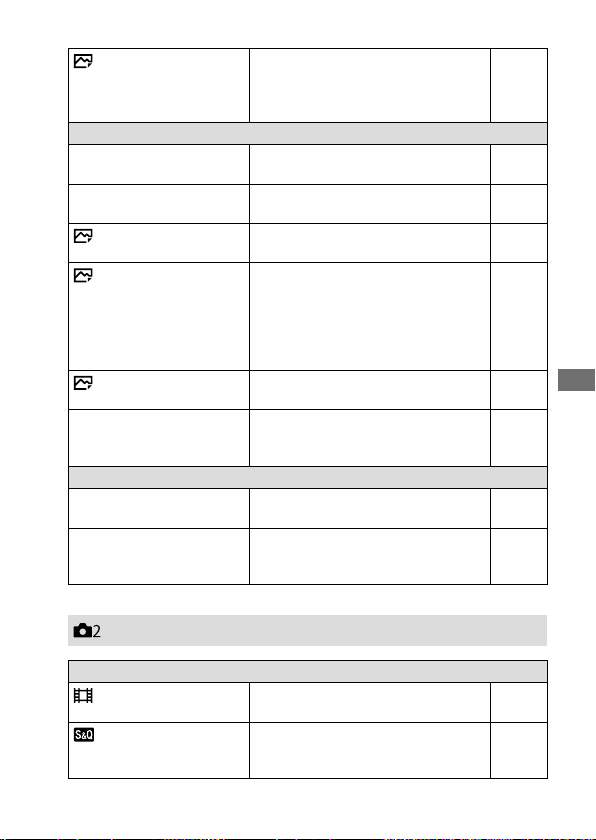
C:\d830100111\d830100111ILCE9UC2\01GB-ILCE9UC2\100MEN.indd
2019/02/19 10:01
ILCE-9
d-830-100-11 (1)
GB
209
MENU items/List of icons
Shutter AWB Lock
Sets whether to lock the white
balance while the shutter button is
pressed in the auto white balance
mode.
126
Focus Assist
Focus Magnifier
Enlarges the image before shooting
so that you can check the focus.
70
Focus Magnif. Time
Sets the length of time the image will
be shown in an enlarged form.
Help
Guide
Initial Focus Mag.
Sets the initial magnification scale
when using [Focus Magnifier].
Help
Guide
AF in Focus Mag.
Sets whether or not to autofocus
when an enlarged image is being
displayed. While the enlarged image
is being displayed, you can focus
within a smaller area than the flexible
spot.
59
MF Assist
Displays an enlarged image when
focusing manually.
71
Peaking Setting
Sets the peaking function, which
enhances the outline of in-focus areas
when focusing manually.
72
Shooting Assist
Face Registration
Registers or changes the person to be
given priority when focusing.
Help
Guide
Regist. Faces Priority
Detects the registered face
with higher priority using
[Face Registration].
Help
Guide
(Camera Settings 2)
Movie
Exposure Mode
Sets the exposure mode when
shooting movies.
107
Exposure Mode
Sets the exposure mode when
shooting slow-motion/quick-motion
movies.
108
Purple tab
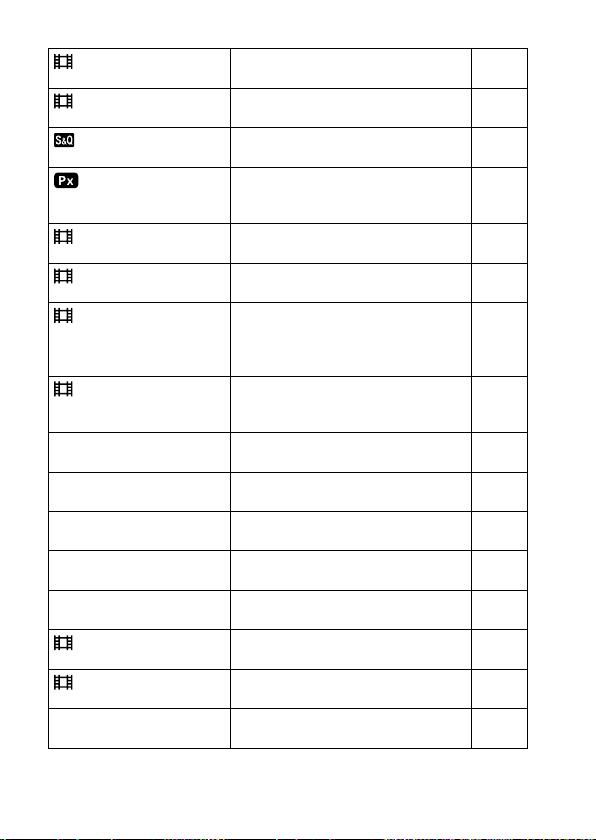
ILCE-9
d-830-100-11 (1)
C:\d830100111\d830100111ILCE9UC2\01GB-ILCE9UC2\100MEN.indd
2019/02/19 10:01
GB
210
File Format
Selects the movie file format.
([XAVC S 4K]/ [AVCHD], etc.)
146
Record Setting
Selects a frame-rate and bit-rate for
the movie.
147
S&Q Settings
Changes the settings for slow-motion
and quick-motion movie shooting.
149
Proxy Recording
Records low-bit-rate proxy files
simultaneously when recording
XAVC S movies.
155
AF drive speed
Switches focusing speed when using
autofocus in movie mode.
Help
Guide
AF Tracking Sens.
Sets the AF tracking sensitivity for the
movie mode.
Help
Guide
Auto Slow Shutter
Sets the function that automatically
adjusts the shutter speed following
the brightness of the environment in
movie mode.
Help
Guide
Initial Focus Mag.
Sets the initial magnification scale
when using [Focus Magnifier] in
movie mode.
Help
Guide
Audio Recording
Sets whether to record audio when
shooting a movie.
151
Audio Rec Level
Adjusts the audio recording level
during movie recording.
152
Audio Level Display
Sets whether to display the audio
level.
Help
Guide
Audio Out Timing
Sets the timing of audio output during
the movie recording.
Help
Guide
Wind Noise Reduct.
Reduces wind noise during movie
recording.
Help
Guide
Marker Display
Sets whether to display markers on
the monitor when recording movies.
153
Marker Settings
Sets which markers to display on the
monitor when recording movies.
153
Video Light Mode
Sets the illumination setting for the
HVL-LBPC LED light (sold separately).
Help
Guide
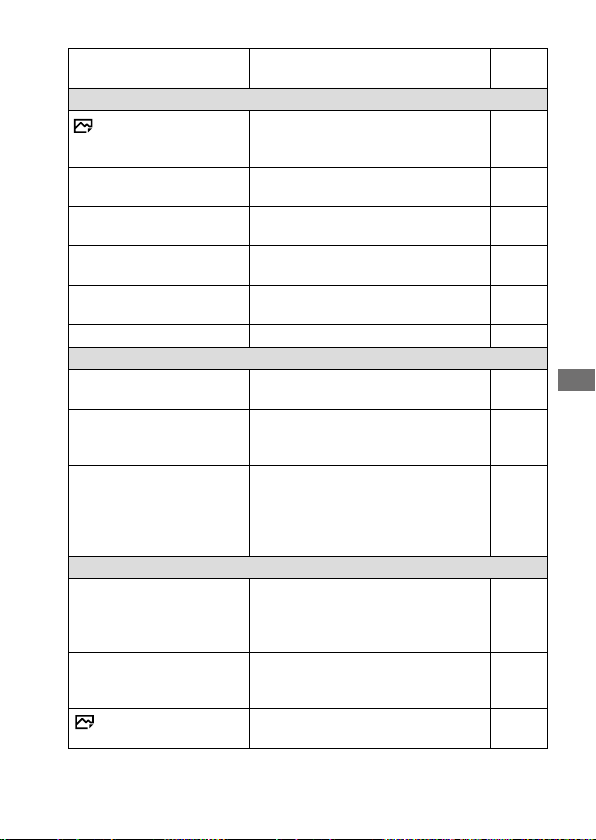
C:\d830100111\d830100111ILCE9UC2\01GB-ILCE9UC2\100MEN.indd
2019/02/19 10:01
ILCE-9
d-830-100-11 (1)
GB
211
MENU items/List of icons
Movie w/ shutter
Records movies using the shutter
button.
145
Shutter/SteadyShot
Shutter Type
Sets whether to shoot with a
mechanical shutter or an electronic
shutter.
73
e-Front Curtain Shutter
Sets whether to use the electronic
front curtain shutter function.
78
Release w/o Lens
Sets whether to release the shutter
when the lens is not attached.
Help
Guide
Release w/o Card
Sets whether to release the shutter
when a memory card is not inserted.
Help
Guide
SteadyShot
Sets whether to activate SteadyShot
for shooting.
132
SteadyShot Settings
Sets SteadyShot settings. 132
Zoom
Zoom
Sets the zoom scale for zoom
functions other than the optical zoom.
122
Zoom Setting
Sets whether to use the Clear Image
Zoom and Digital Zoom when
zooming.
122
Zoom Ring Rotate
Assigns the zoom in/out to the
rotational direction of the zoom lens.
This function is only available with a
power zoom lens that is compatible
with this function.
Help
Guide
Display/Auto Review
DISP Button
Sets the type of information to be
displayed on the monitor or in the
viewfinder when the DISP button is
pressed.
33
FINDER/MONITOR
Sets the method for switching the
display between the viewfinder and
the monitor.
177
Finder Frame Rate
Sets the frame rate for the viewfinder
when shooting still images.
178
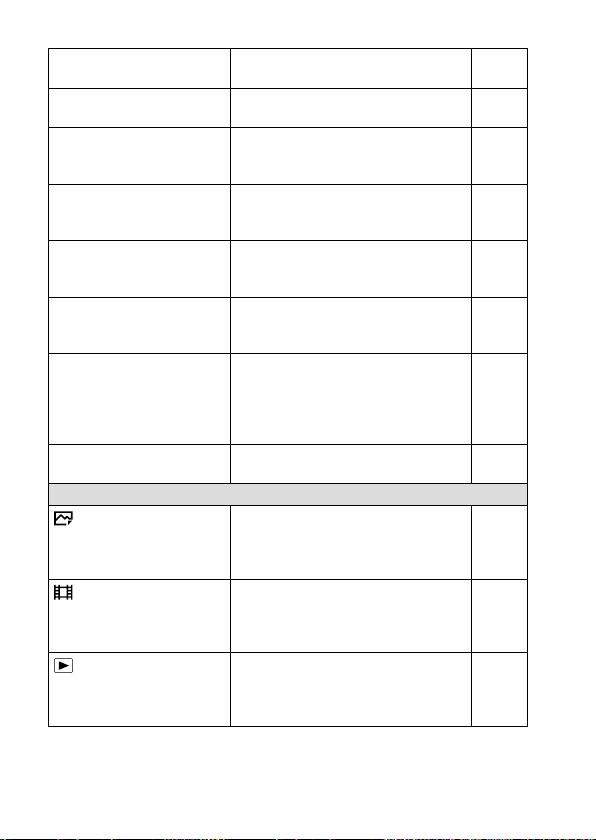
ILCE-9
d-830-100-11 (1)
C:\d830100111\d830100111ILCE9UC2\01GB-ILCE9UC2\100MEN.indd
2019/02/19 10:01
GB
212
Zebra Setting
Sets the stripes displayed to adjust
brightness.
114
Grid Line
Displays grid lines for adjusting the
image composition.
Help
Guide
Exposure Set. Guide
Sets the guide displayed when
exposure settings are changed in the
shooting screen.
Help
Guide
Live View Display
Sets whether to reflect settings such
as exposure compensation in screen
display.
Help
Guide
Shoot. Start Disp.
Sets whether to let the screen black
out when shooting the first image
during blackout-free shooting.
77
Shoot. Timing Disp.
Sets the method for displaying the
shutter release timing on the screen
during blackout-free shooting.
77
Cont. Shoot. Length
Sets whether to display an indicator
of the remaining time for which
continuous shooting can be
performed at the same shooting
speed.
81
Auto Review
Sets auto review to display the
captured image after shooting.
175
Custom Operation
Custom Key
Assigns functions to the various keys
so that you can perform operations
more quickly by pressing the keys
when shooting still images.
25
Custom Key
Assigns functions to the various keys
so that you can perform operations
more quickly by pressing the keys
when shooting movies.
25
Custom Key
Assigns functions to the keys so that
you can perform operations more
quickly by pressing the keys when
playing back images.
25
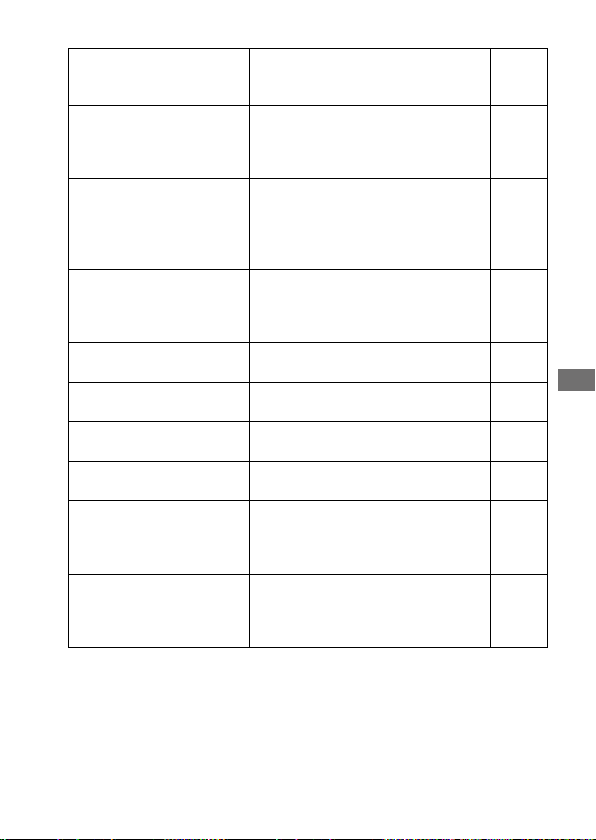
C:\d830100111\d830100111ILCE9UC2\01GB-ILCE9UC2\100MEN.indd
2019/02/19 10:01
ILCE-9
d-830-100-11 (1)
GB
213
MENU items/List of icons
Function Menu Set.
Customizes the functions displayed
when the Fn (Function) button is
pressed.
28
My Dial Settings
Assigns the desired functions to
the dials and the control wheel, and
register up to three combinations of
settings.
Help
Guide
Dial Setup
Sets the functions of the front and
rear control dials when the exposure
mode is set to M. Dials can be used
for adjusting shutter speed and
aperture.
Help
Guide
Av/Tv Rotate
Sets the direction of turning the front
or rear dial or the control wheel to
adjust the aperture value or shutter
speed.
Help
Guide
Dial Ev Comp
Sets whether to compensate the
exposure with the front or rear dial.
Help
Guide
Function Ring (Lens)
Assigns a function to the function ring
on the lens.
Help
Guide
Func. of Touch Operation
Sets which function is activated by
touch operations on the monitor.
91,
92
MOVIE Button
Enables or disables for the MOVIE
button.
Help
Guide
Lock Operation Parts
Sets whether to disable the multi-
selector, control wheel, or front and
rear dials temporarily when the Fn
button is pressed and held down.
Help
Guide
Audio signals
Selects whether the electronic shutter
makes a sound or the camera beeps
during auto focus and self-timer
operations.
Help
Guide
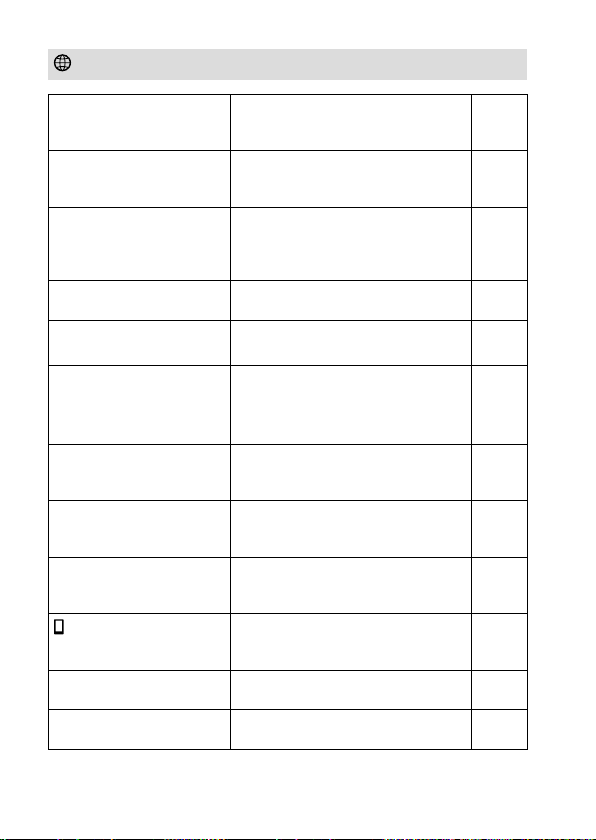
ILCE-9
d-830-100-11 (1)
C:\d830100111\d830100111ILCE9UC2\01GB-ILCE9UC2\100MEN.indd
2019/02/19 10:01
GB
214
(Network)
Send to Smartphone Func.
Sets movies to be transferred to a
smartphone, or transfers images to a
smartphone.
Help
Guide
Send to Computer (Wi-Fi)
Backs up images by transferring
them to a computer connected to a
network.
Help
Guide
FTP Transfer Func.
Sets image transfer using FTP and
executes it.
* Basic knowledge of FTP server is
required.
194
View on TV
Allows you to view images on a
network-enabled TV.
Help
Guide
Ctrl w/ Smartphone
Sets the condition for connecting the
camera to a smartphone.
Help
Guide
PC Remote (Wired LAN)
Operates the camera from a computer
or transfers images to a computer
by connecting the camera to the
computer via a wired LAN.
Help
Guide
Airplane Mode
Disables wireless communications
from the device such as Wi-Fi, NFC,
and Bluetooth function.
Help
Guide
Wi-Fi Settings
Allows you to register your access
point and check or change the Wi-Fi
connection information.
Help
Guide
Bluetooth Settings
Controls the settings for connecting
the camera with a smartphone via a
Bluetooth connection.
Help
Guide
Location Info. Link Set.
Obtains location information from the
paired smartphone and records it to
captured images.
Help
Guide
Wired LAN Setting
Sets the wired LAN. Help
Guide
Edit Device Name
Changes the device name under Wi-Fi
Direct, etc.
Help
Guide
Green tab
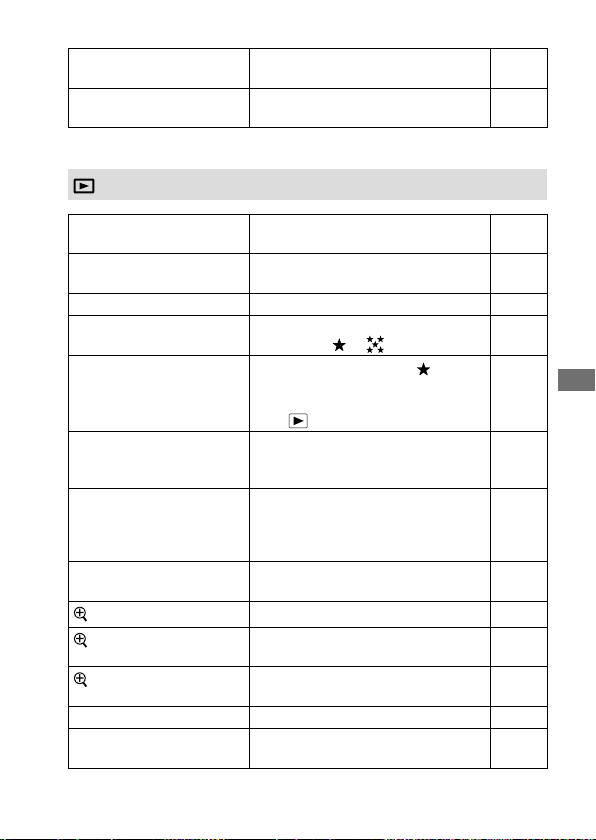
C:\d830100111\d830100111ILCE9UC2\01GB-ILCE9UC2\100MEN.indd
2019/02/19 10:01
ILCE-9
d-830-100-11 (1)
GB
215
MENU items/List of icons
Import Root Certificate
Imports a root certificate to the
camera.
Help
Guide
Reset Network Set.
Resets all the network settings. Help
Guide
(Playback)
Protect
Protects recorded images against
accidental erasure.
164
Rotate
Rotates the image. Help
Guide
Delete
Deletes an image. 168
Rating
Assigns rating to recorded images on
a scale from
to .
166
Rating Set (Custom Key)
Sets the rating (number of
) that
can be selected using the custom key
to which [Rating] has been assigned
with [
Custom Key].
167
Specify Printing
Specifies in advance on the memory
card which still images to print out
later.
Help
Guide
Copy
Allows you to copy images from the
memory card in the memory card slot
designated in [Select Playback Media]
to the memory card in the other slot.
162
Photo Capture
Captures a chosen scene in a movie to
save as a still image.
159
Enlarge Image
Enlarges the playback images. 157
Enlarge Initial Mag.
Sets the initial magnification scale
when playing back enlarged images.
Help
Guide
Enlarge Initial Position
Sets the initial magnification area
when playing back enlarged images.
Help
Guide
Slide Show
Plays a slide show. 163
Select Playback Media
Selects the memory card slot of the
memory card to be played back.
162
Blue tab
ILCE-9
d-830-100-11 (1)
C:\d830100111\d830100111ILCE9UC2\01GB-ILCE9UC2\100MEN.indd
2019/02/19 10:01
GB
216
View Mode
Plays back images from a specified
date or specified folder of still images
and movies.
161
Image Index
Displays multiple images at the same
time.
160
Display as Group
Sets whether to display images as a
group.
Help
Guide
Display Rotation
Sets the playback orientation for
images shot vertically.
158
Image Jump Setting
Sets which dial and method to use
for jumping between images during
playback.
161
(Setup)
Monitor Brightness
Adjusts the brightness of the screen. Help
Guide
Viewfinder Bright.
Sets the brightness of the viewfinder. Help
Guide
Finder Color Temp.
Sets the color temperature of the
viewfinder.
Help
Guide
Volume Settings
Sets the volume for movie playback. Help
Guide
Delete confirm.
Sets whether [Delete] or [Cancel] is
preselected in the delete confirmation
screen.
Help
Guide
Power Save Start Time
Sets the time intervals to
automatically switch to power save
mode.
184
Auto Power OFF Temp.
Sets the camera temperature at which
the camera turns off automatically
during shooting. When shooting in
hand-held mode, set to [Standard].
Help
Guide
NTSC/PAL Selector
*1
Changes the TV format of the device
so that you can shoot in a different
movie format.
Help
Guide
Yellow tab
C:\d830100111\d830100111ILCE9UC2\01GB-ILCE9UC2\100MEN.indd
2019/02/19 10:01
ILCE-9
d-830-100-11 (1)
GB
217
MENU items/List of icons
Cleaning Mode
Starts the cleaning mode to clean the
image sensor.
228
Touch Operation
Sets whether or not to activate the
touch operation of the monitor.
90
Touch Panel/Pad
Selects whether to activate touch
panel operation when shooting with
the monitor, or touch pad operation
when shooting with the viewfinder.
90
Touch Pad Settings
Adjusts settings related to touch pad
operation.
Help
Guide
Demo Mode
Sets demonstration playback of
movies to on or off.
Help
Guide
TC/UB Settings
Sets the time code (TC) and user bit
(UB).
* This function is for skilled movie
creators.
Help
Guide
Remote Ctrl
Sets whether to use the infrared
remote control.
184
HDMI Settings
Sets the HDMI settings.
* Images will not appear on the
monitor of the camera if you
record movies while the camera is
connected to an HDMI device with
[
File Format] set to [XAVC S 4K].
185
4K Output Select
Sets how to record and output 4K
movies via HDMI when the camera is
connected to an external recorder/
player that supports 4K.
154
USB Connection
Sets the USB connection method. 199
USB LUN Setting
Enhances compatibility by limiting
the functions of USB connection. Set
to [Multi] in normal conditions and
to [Single] only when the connection
cannot be established.
Help
Guide
USB Power Supply
Sets whether to supply power via
USB connection when the camera
is connected to a computer or USB
device.
189
ILCE-9
d-830-100-11 (1)
C:\d830100111\d830100111ILCE9UC2\01GB-ILCE9UC2\100MEN.indd
2019/02/19 10:01
GB
218
PC Remote Settings
Controls the PC remote shooting
settings.
190
Language
Selects the language. 42
Date/Time Setup
Sets the date, time, and daylight
savings.
42
Area Setting
Sets the location of use. Help
Guide
IPTC Information
Writes IPTC information when
recording still images.
Help
Guide
Copyright Info
Sets copyright information for still
images.
Help
Guide
Write Serial Number
Writes the camera’s serial number
to the Exif data when recording still
images.
Help
Guide
Format
Formats the memory card. 179
File Number
Sets the method used to assign file
numbers.
179
Set File Name
Changes the first 3 characters of the
file names for still images.
180
Rec. Media Settings
Sets the method for recording images
to two memory card slots.
180
Select REC Folder
Changes the folder selected for
storing still images.
183
New Folder
Creates a new folder for storing still
images.
Help
Guide
Folder Name
Sets the folder format for still images. Help
Guide
Recover Image DB
Recovers the image database file and
enables recording and playback.
Help
Guide
Display Media Info.
Displays the remaining recording time
of movies and the recordable number
of still images on the memory card.
Help
Guide
Version
Displays the camera software version. Help
Guide
Certification Logo
*2
Displays certification information
for the camera (only some of the
certification logos are displayed).
Help
Guide
C:\d830100111\d830100111ILCE9UC2\01GB-ILCE9UC2\100MEN.indd
2019/02/19 10:01
ILCE-9
d-830-100-11 (1)
GB
219
MENU items/List of icons
Setting Reset
Restores settings to their defaults.
Select [Initialize] to restore all settings
to their default values.
192
(My Menu)
Add Item
Adds desired MENU items to
(My Menu).
173
Sort Item
Sorts the MENU items added to
(My Menu).
173
Delete Item
Deletes MENU items added to
(My Menu).
174
Delete Page
Deletes all the MENU items on a page
in
(My Menu).
174
Delete All
Deletes all the MENU items added to
(My Menu).
174
*
1
If you change this item, you will need to format the memory card for
compatibility with the PAL or NTSC system. Also, note that it may not be
possible to play back movies recorded for the NTSC system on PAL system
TVs.
*
2
Overseas models only.
Gray tab
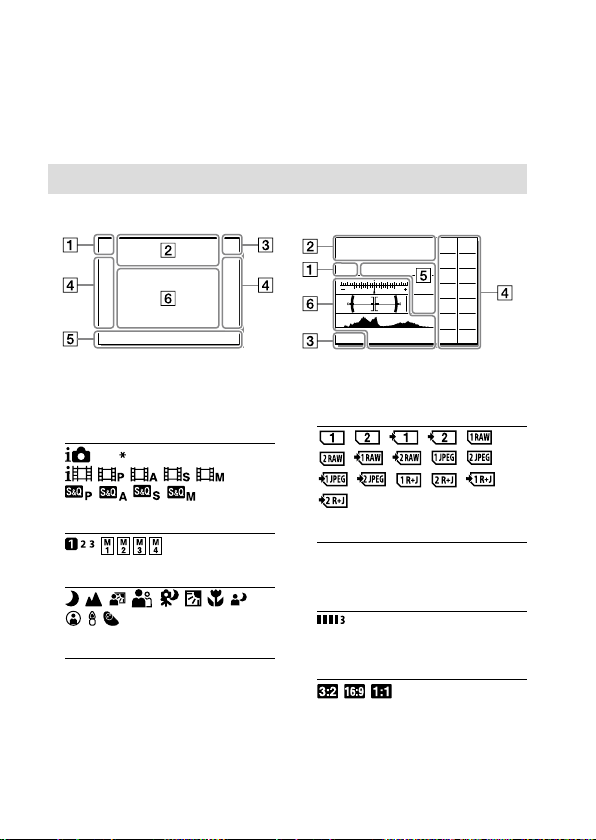
ILCE-9
d-830-100-11 (1)
C:\d830100111\d830100111ILCE9UC2\01GB-ILCE9UC2\100MEN.indd
2019/02/19 10:01
GB
220
List of icons on the monitor
The displayed contents and their positions in the illustrations are just
guidelines, and may differ from the actual displays.
Icons on the shooting screen
Monitor mode Viewfinder mode
Shooting mode/
Scene recognition
P P A S M
Shooting mode (99)
Register number (170)
Scene Recognition icons (100)
Camera settings
NO CARD
Memory card status (37, 236)
100
Remaining number of recordable
images (237)
Writing data / Number of images
left to write (46, 143, 156)
Aspect ratio of still images
(96)
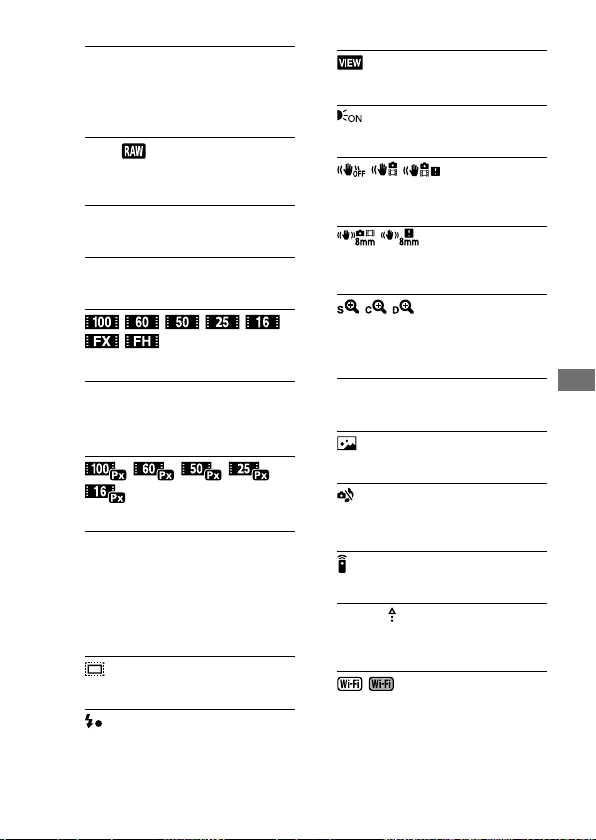
C:\d830100111\d830100111ILCE9UC2\01GB-ILCE9UC2\100MEN.indd
2019/02/19 10:01
ILCE-9
d-830-100-11 (1)
GB
221
MENU items/List of icons
24M 20M 16M 10M 8.7M 6.9M
6.0M 5.1M 4.0M 2.6M 2.2M
1.7M
Image size of still images (95)
RAW
RAW recording (compressed/
uncompressed)
X.FINE FINE STD
JPEG Quality (95)
XAVCS4K XAVCSHD AVCHD
File format of movies (146)
Record setting of movies (147)
120p 60p 60i 30p 24p
100p 50p 50i 25p
Frame rate of movies (147)
Proxy Recording (155)
120fps 60fps 30fps 15fps 8fps
4fps
100fps 50fps 25fps 12fps 6fps
3fps 2fps 1fps
Frame rate for slow/quick
motion shooting (149)
APS-C/Super 35mm (97)
Flash charge in progress (136)
Setting Effect OFF (212)
AF Illuminator (64)
SteadyShot off/on, Camera
shake warning (132)
SteadyS. Focal Len./ Camera
shake warning (132)
Smart Zoom/
Clear Image Zoom/ Digital
Zoom (121)
—PC—
PC remote (190)
Bright Monitoring
Shooting without shutter sound
(75)
Remote control (184)
FTP FTP
Status of FTP connection and FTP
transfer (194)
Connected to Wi-Fi/
Disconnected from Wi-Fi
* These icons are displayed in
Area
when shooting with
the viewfinder.
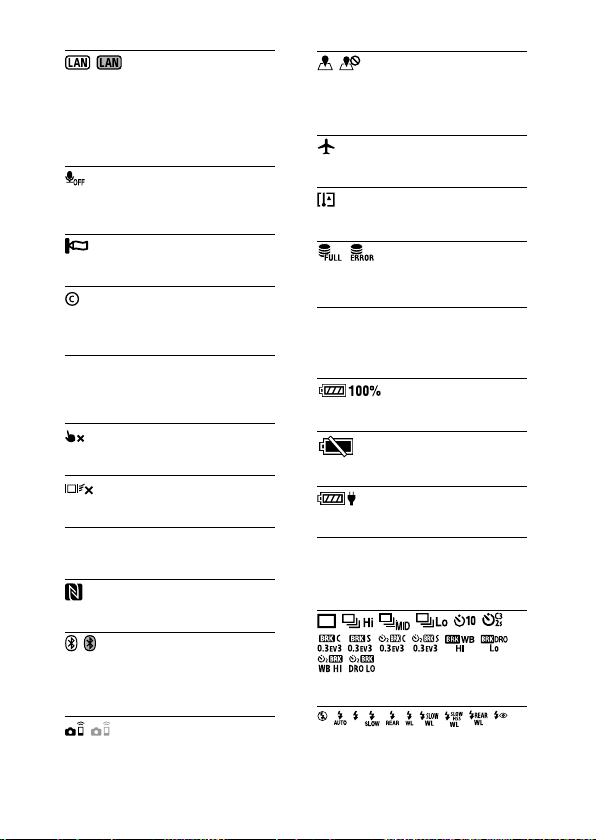
ILCE-9
d-830-100-11 (1)
C:\d830100111\d830100111ILCE9UC2\01GB-ILCE9UC2\100MEN.indd
2019/02/19 10:01
GB
222
Connected to LAN/Disconnected
from LAN
* These icons are displayed in
Area
when shooting with
the viewfinder.
No audio recording of movies
(151)
Wind Noise Reduct. (210)
Copyright information writing
on (218)
IPTC
IPTC information writing on
(218)
Focus Cancel (91)
Tracking Cancel (91)
Spot Focus
Performing [Spot Focus] (92)
NFC active (193)
Bluetooth connection available/
Bluetooth connection
unavailable
Connected to smartphone/ Not
connected to smartphone
Obtaining location information/
Location information cannot be
obtained
Airplane Mode(214)
Overheating warning
Database file full/Database file
error
Battery
Remaining battery (35)
Remaining battery warning
USB power supply (189)
Shooting settings
Drive Mode (79)
Flash Mode (137)/
Wireless Flash (140)/
Red Eye Reduction (208)
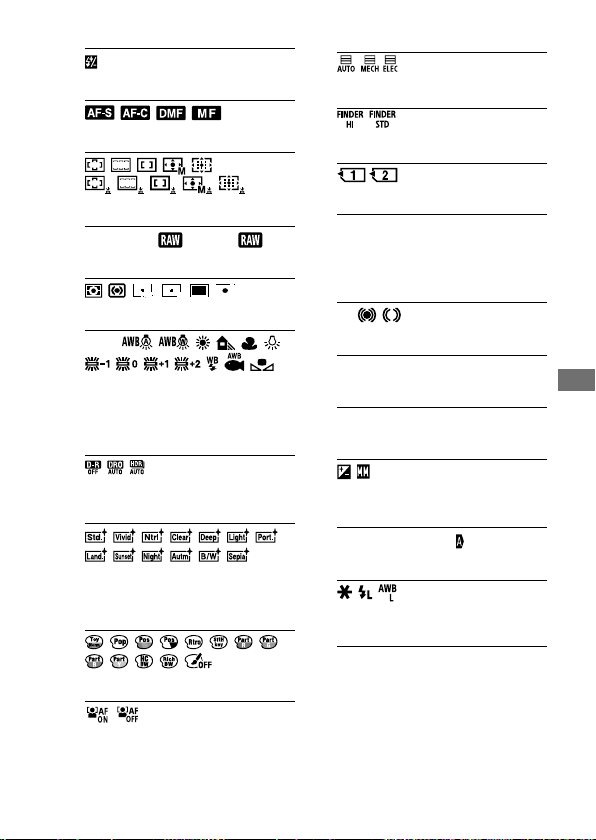
C:\d830100111\d830100111ILCE9UC2\01GB-ILCE9UC2\100MEN.indd
2019/02/19 10:01
ILCE-9
d-830-100-11 (1)
GB
223
MENU items/List of icons
±0.0
Flash Comp. (138)
Focus Mode (47)
Focus Area (49)
JPEG RAW RAW+J +J
File Format (94)
Metering Mode (111)
AWB
7500K A5 G5
White Balance (Auto, Preset,
Underwater Auto, Custom, Color
temperature, Color filter) (124)
D-Range Optimiser
(115)/Auto HDR (116)
+3 +3 +3
Creative Style (128)/Contrast,
saturation, and sharpness
Picture Effect(208)
Face Priority in AF (56)
Shutter Type (73)
Finder Frame Rate (178)
Prioritize Rec. Media (180)
Focus indicator/exposure
settings
Focus indicator (48)
1/250
Shutter speed
F3.5
Aperture value
Exposure compensation (109)/
Metered Manual (104)
ISO400 ISO AUTO ISO400
ISO sensitivity (118)
AE lock (113)/FEL lock (139)/
AWB lock (126)
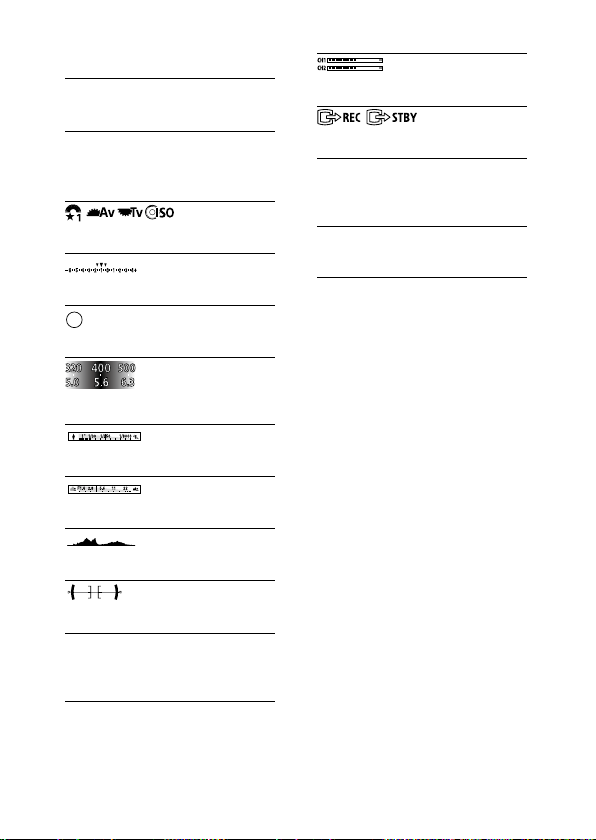
ILCE-9
d-830-100-11 (1)
C:\d830100111\d830100111ILCE9UC2\01GB-ILCE9UC2\100MEN.indd
2019/02/19 10:01
GB
224
Guides/other
Tracking Cancel
Guide display for tracking (92)
Focus Cancel
Guide display for canceling
focusing (91)
Guide display for My Dial
Bracket indicator (86)
Spot metering area (111)
Exposure Setting Guide (212)
Shutter speed indicator (33)
Aperture indicator (33)
Histogram (32)
Digital level gauge (34)
STBY REC
Movie recording standby/Movie
recording in progress
1:00:12
Actual movie recording time
(hours: minutes: seconds)
Audio Level Display (210)
REC Control(187)
00:00:00:00
Time code (hours: minutes:
seconds: frames) (217)
00 00 00 00
User Bit (217)
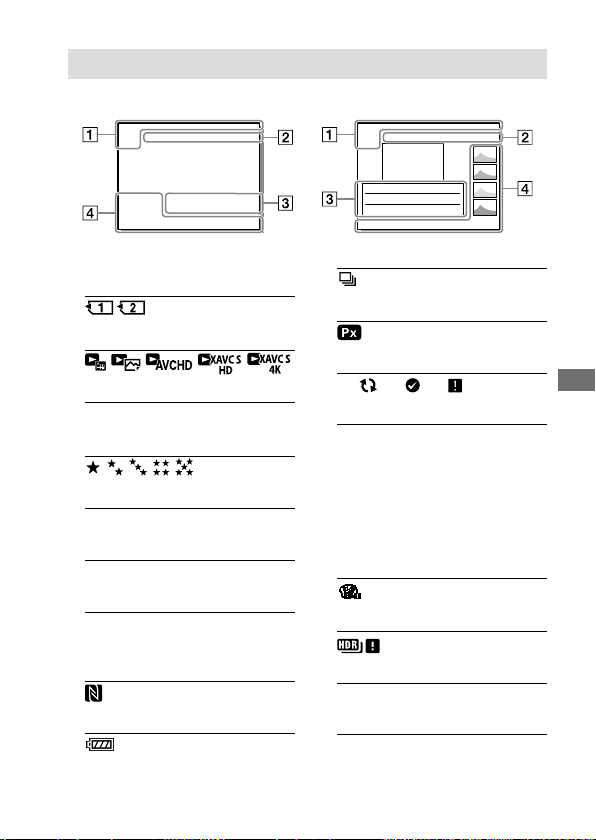
C:\d830100111\d830100111ILCE9UC2\01GB-ILCE9UC2\100MEN.indd
2019/02/19 10:01
ILCE-9
d-830-100-11 (1)
GB
225
MENU items/List of icons
Icons on the playback screen
Single-image playback display Histogram display
Basic information
Playback media (162)
View Mode(161)
IPTC
IPTC Information (218)
Rating (166)
Protect (164)
DPOF
DPOF set (215)
3/7
File number/Number of images
in the view mode
NFC active (193)
Remaining battery (36)
Group (216)
Proxy movie included (155)
FTP FTP FTP
Status of FTP transfer (194)
Camera settings
Refer to “Icons on the shooting
screen” (page220).
Shooting settings
Picture Effect error
Auto HDR error (116)
35mm
Lens focal length
Refer to “Icons on the shooting
screen” (page220) for other icons
displayed in this area.
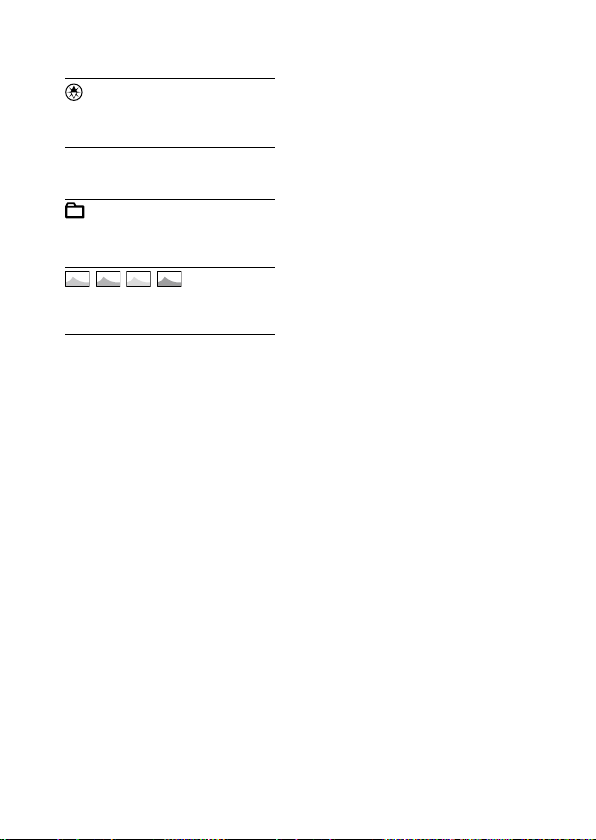
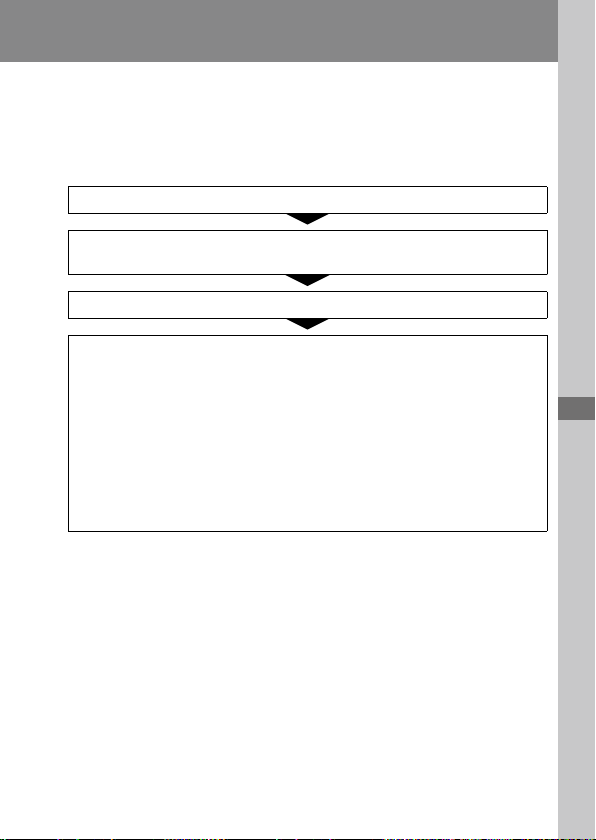
C:\d830100111\d830100111ILCE9UC2\01GB-ILCE9UC2\120OTH.indd
2019/02/19 10:01
ILCE-9
d-830-100-11 (1)
GB
227
About this product
About this product
Troubleshooting
If you experience trouble with the product, try the following solutions.
Refer to the “Help Guide” (page2).
Remove the battery pack, wait for about one minute, re-insert the
battery pack, then turn on the power.
Initialize the settings (page192).
Consult your dealer or local authorized service facility. Additional
information on this product and answers to frequently asked
questions can be found at our Customer Support Website.
Americas
https://www.sony.com/am/support
Europe
https://www.sony.eu/support
Asia-Pacific, Oceania, Middle East and Africa
https://www.sony-asia.com/support
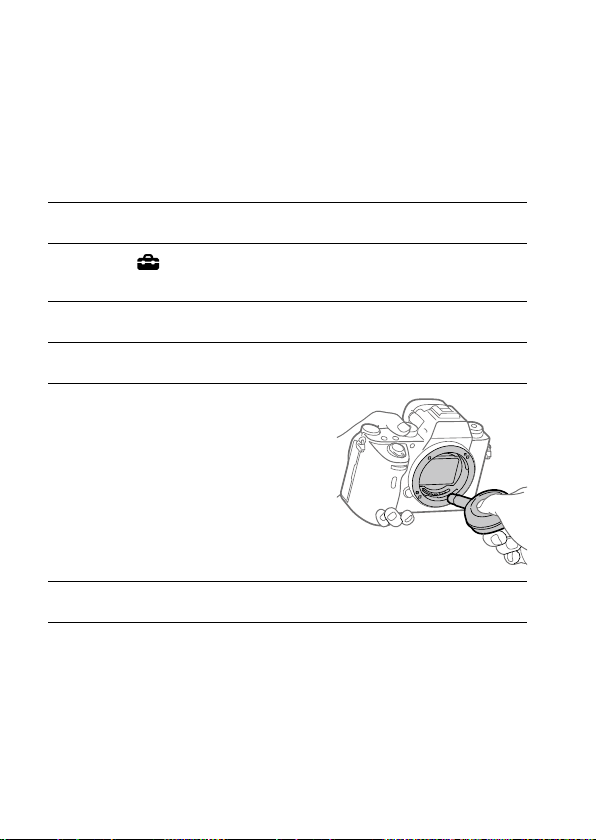
ILCE-9
d-830-100-11 (1)
C:\d830100111\d830100111ILCE9UC2\01GB-ILCE9UC2\120OTH.indd
2019/02/19 10:01
GB
228
Cleaning the image sensor
If dust or debris gets inside the camera and adheres to the surface of
the image sensor (the part that converts the light to an electric signal),
it may appear as dark spots on the image, depending on the shooting
environment. If this happens, follow the steps below to clean the image
sensor.
1
Confirm that the battery has been charged sufficiently.
2
MENU (Setup) [Cleaning Mode] [Enter].
The image sensor vibrates a little to shake off the dust.
3
Turn off the product following the instructions on the screen.
4
Detach the lens.
5
Use the blower to clean the
image sensor surface and the
surrounding area.
6
Attach the lens.
C:\d830100111\d830100111ILCE9UC2\01GB-ILCE9UC2\120OTH.indd
2019/02/19 10:01
ILCE-9
d-830-100-11 (1)
GB
229
About this product
Hint
• For how to check the amount of dust on the image sensor, and for further
details on cleaning methods, please refer to the following URL.
http://support.d-imaging.sony.co.jp/www/support/ilc/sensor/index.php
Note
• Clean the image sensor quickly.
• A blower is not supplied with this product. Use a commercially available
blower.
• Make sure that the remaining battery level is
(3 remaining battery icons)
or more before performing the cleaning. The use of an AC Adaptor (supplied)
is recommended.
• Do not use a spray type blower as it may scatter water droplets inside the
camera body.
• Do not put the tip of a blower into the cavity beyond the lens mount area, so
that the tip of the blower does not touch the image sensor.
• Hold the camera slightly face downward so that the dust falls out.
• Do not subject the product to any shock during cleaning.
• When cleaning the image sensor with a blower, do not blow too hard. If you
blow the sensor too hard, the inside of the product may be damaged.
• If the dust remains even after you cleaned the product as described, consult
the service facility.
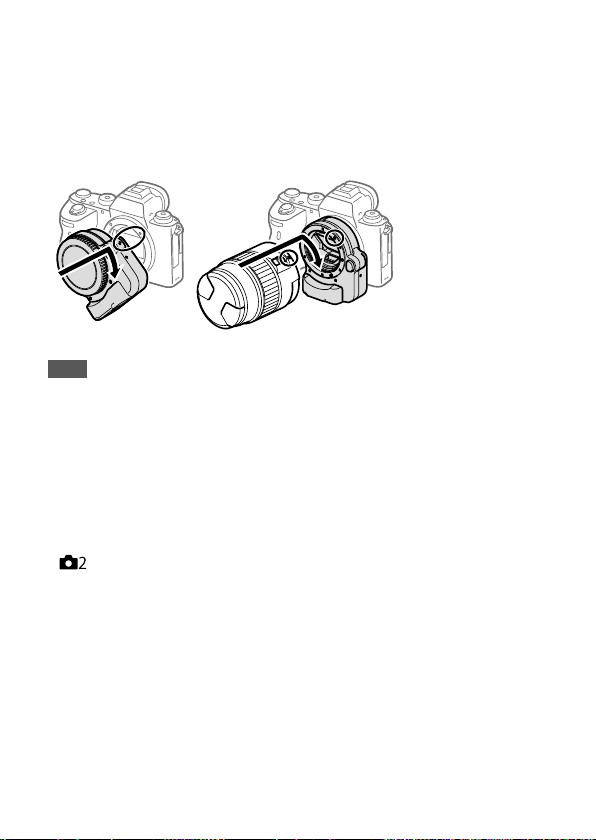
ILCE-9
d-830-100-11 (1)
C:\d830100111\d830100111ILCE9UC2\01GB-ILCE9UC2\120OTH.indd
2019/02/19 10:01
GB
230
Mount Adaptor
Using a Mount Adaptor (sold separately), you can attach an A-mount lens
(sold separately) to this product.
For details, refer to the operating instructions supplied with the Mount
Adaptor.
Note
• You may not be able to use the Mount Adaptor or auto-focus with certain
lenses. Consult your Sony dealer or local authorized Sony service facility on
compatible lenses.
• The LA-EA2 or LA-EA4 Mount Adaptor (both sold separately) and the vertical
grip (sold separately) are not designed to be attached at the same time. If you
attach them at the same time, the space between the Mount Adaptor and the
vertical grip will become narrow, making the camera difficult to hold.
• You cannot use the AF illuminator when using an A-mount lens.
• The sound of the lens and the product in operation may be recorded
during movie recording. You can turn the sound off by selecting MENU
(Camera Settings 2) [Audio Recording] [Off].
• It may take a long time or may be difficult for the product to focus, depending
on the lens used or the subject.

C:\d830100111\d830100111ILCE9UC2\01GB-ILCE9UC2\120OTH.indd
2019/02/19 10:01
ILCE-9
d-830-100-11 (1)
GB
231
About this product
LA-EA1/LA-EA3 Mount Adaptor
If you use the LA-EA1 Mount Adaptor (sold separately) or LA-EA3 Mount
Adaptor (sold separately), the following functions are available.
Full frame shooting:
LA-EA1: Not available
LA-EA3: Available with full frame shooting-compatible lenses only
Autofocus: Available with SAM/SSM lens only
AF system: Phase Detection AF
AF/MF select: Can be changed using the operating switch on the lens.
Focus Mode: Single-shot AF/Continuous AF
• When using a Mount Adaptor in the movie mode, adjust the aperture value
and the focus manually.
Available focus area:
Wide/Zone/Center/Flexible Spot/Expand Flexible Spot/Tracking
SteadyShot: In-body

ILCE-9
d-830-100-11 (1)
C:\d830100111\d830100111ILCE9UC2\01GB-ILCE9UC2\120OTH.indd
2019/02/19 10:01
GB
232
LA-EA2/LA-EA4 Mount Adaptor
If you use the LA-EA2 Mount Adaptor (sold separately) or LA-EA4 Mount
Adaptor (sold separately), the following functions are available.
Full frame shooting:
LA-EA2: Not available
LA-EA4: Available with full frame shooting-compatible lenses only
Autofocus: Available
AF system: Phase Detection AF, which is controlled by the dedicated AF
sensor inside the Mount Adaptor
AF/MF select:
Lenses that do not support DMF (with the focus mode switch): Can be
changed using the focus mode switch on the lens.
Lenses that support DMF (with the focus mode switch): Can be
changed using the focus mode switch on the lens. When the focus
mode switch on the lens is set to AF, you can change the focusing
method by the operation of the camera.
Other lenses (without the focus mode switch): Can be changed by the
operation of the camera.
Focus Mode:
Single-shot AF/Continuous AF/DMF*
* Only available when using lenses that support Direct Manual Focus.
• Even if [Priority Set in AF-S] is set to [Balanced Emphasis], it will temporarily be
switched to [AF].
• Even if [Priority Set in AF-C] is set to [Balanced Emphasis], it will temporarily be
switched to [Release].
Available focus area:
Wide/Center/Flexible Spot/Tracking
SteadyShot: In-body
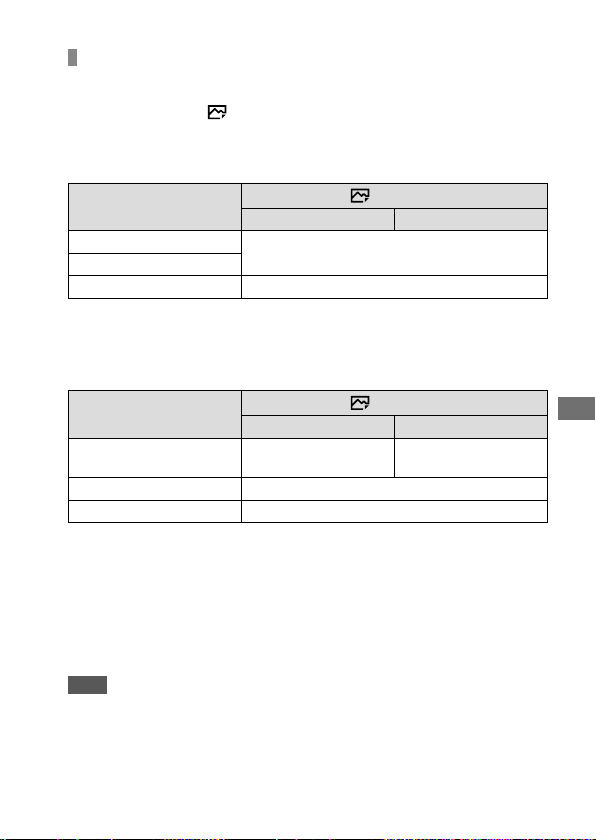
C:\d830100111\d830100111ILCE9UC2\01GB-ILCE9UC2\120OTH.indd
2019/02/19 10:01
ILCE-9
d-830-100-11 (1)
GB
233
About this product
Continuous shooting using a Mount Adaptor
When a Mount Adaptor is attached to the camera, the auto-focusing
method during continuous shooting varies depending on the settings for
[Cont. Shooting] and [
Shutter Type].
When using the LA-EA1 Mount Adaptor (sold separately), LA-EA2 Mount
Adaptor (sold separately) or LA-EA4 Mount Adaptor (sold separately)
Shutter Type
Mechanical Shutter Auto/Electronic Shutter
Continuous Shooting: Hi
The focus is locked to the setting in the first shot.
Continuous Shooting: Mid
Continuous Shooting: Lo
The focus continuously tracks the subjects.
When using the LA-EA3 Mount Adaptor (sold separately)
Update the firmware of the Mount Adaptor to the latest version in
advance.
Shutter Type
Mechanical Shutter Auto/Electronic Shutter
Continuous Shooting: Hi
The focus continuously
tracks the subjects.*
1
The focus continuously
tracks the subjects.*
1
*
2
Continuous Shooting: Mid
The focus continuously tracks the subjects.*
1
Continuous Shooting: Lo
The focus continuously tracks the subjects.
*
1
When the F-value is greater than F16, the focus does not track the subjects.
The focus is locked to the setting in the first shot.
*
2
The continuous shooting speed varies depending on the [Focus Mode]
setting.
– [Single-shot AF]/[DMF]/[Manual Focus]: Maximum of 20 images per second
(the focus is locked to the setting in the first shot).
– [Continuous AF]: Maximum of 10 images per second
Note
• When you are using a Mount Adaptor, you cannot perform blackout-free
continuous shooting in [Continuous Shooting: Lo] mode (page75).
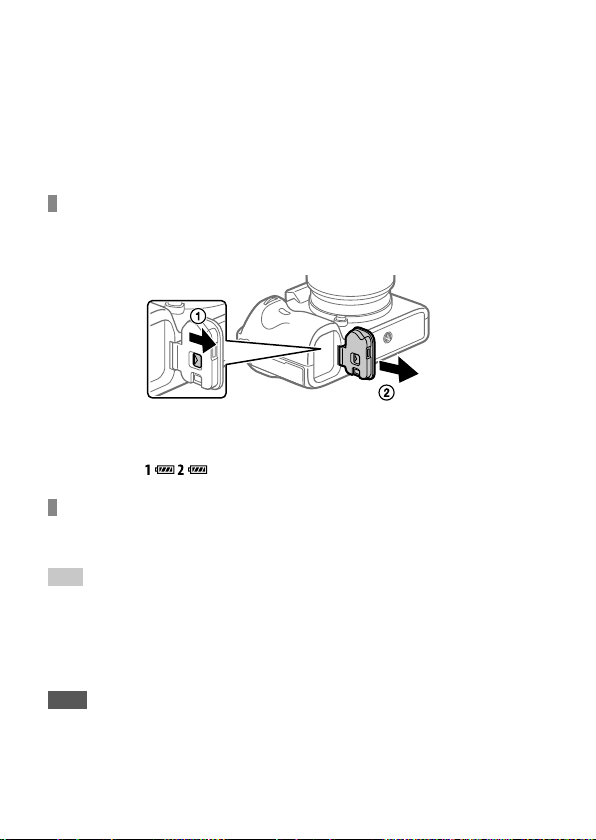
ILCE-9
d-830-100-11 (1)
C:\d830100111\d830100111ILCE9UC2\01GB-ILCE9UC2\120OTH.indd
2019/02/19 10:01
GB
234
Vertical grip
You can attach a vertical grip (sold separately) to this product and record
vertically oriented images. When attaching the vertical grip, remove the
battery cover in advance. For details, refer to the operating instructions for
the vertical grip.
How to remove the battery cover
Slide the battery cover release lever of this product in the direction of the
arrow.
The shaft of the battery cover will be stored inside the battery cover.
• You can attach the removed battery cover to the vertical grip so that
you do not lose it.
• When a vertical grip is attached to this product, the battery remaining is
displayed as
.
How to attach the battery cover
Slide the battery cover release lever and align the battery cover hinge with
the battery cover shaft hole to attach the battery cover.
Hint
• The battery pack inside the vertical grip can be charged while the vertical grip
is attached to the camera.
Turn off the camera and connect the camera to the AC Adaptor (supplied)
using the micro USB cable (supplied), then connect the AC Adaptor to the wall
outlet (wall socket).
Note
• The LA-EA2/LA-EA4 Mount Adaptor (sold separately) and the vertical grip are
not designed to be attached at the same time. If you attach them at the same
time, the space between the Mount Adaptor and the vertical grip will become
narrow, making the camera difficult to hold.

C:\d830100111\d830100111ILCE9UC2\01GB-ILCE9UC2\120OTH.indd
2019/02/19 10:01
ILCE-9
d-830-100-11 (1)
GB
235
About this product
Specifications
Battery life and number of recordable images
Battery life Number of images
Shooting
(still images)
Screen mode
― Approx. 650
Viewfinder mode
― Approx. 480
Actual shooting
(movies)
Screen mode
Approx. 120 min. ―
Viewfinder mode
Approx. 105 min. ―
Continuous shooting
(movies)
Screen mode
Approx. 195 min. ―
Viewfinder mode
Approx. 185 min. ―
• The above estimates for battery life and number of recordable images
apply when the battery pack has been fully charged. The battery life
and number of images may decrease depending on the conditions of
use.
• The battery life and number of recordable images are estimates based
on shooting with the default settings under the following conditions:
– Using the battery pack at an ambient temperature of 25°C (77°F).
– Using a Sony SDXC memory card (U3) (sold separately)
– Using a lens FE 28-70 mm F3.5-5.6 OSS (sold separately)
• The numbers for “Shooting (still images)” are based on the CIPA
standard and shooting under the following conditions:
(CIPA: Camera & Imaging Products Association)
– One picture is taken every 30
seconds.
– The power is turned on and off once every ten times.
• The number of minutes for movie shooting is based on the CIPA
standard and shooting under the following conditions:
– The image quality is set to XAVC S HD 60p 50M / 50p 50M.
– Actual shooting (movies): Battery life based on repeatedly shooting,
zooming, shooting stand-by, turning on/off, etc.
– Continuous shooting (movies): Battery life based on non-stop
shooting until the limit (29
minutes) has been reached, and then
continued by pressing the MOVIE (Movie) button again. Other
functions, such as zooming, are not operated.
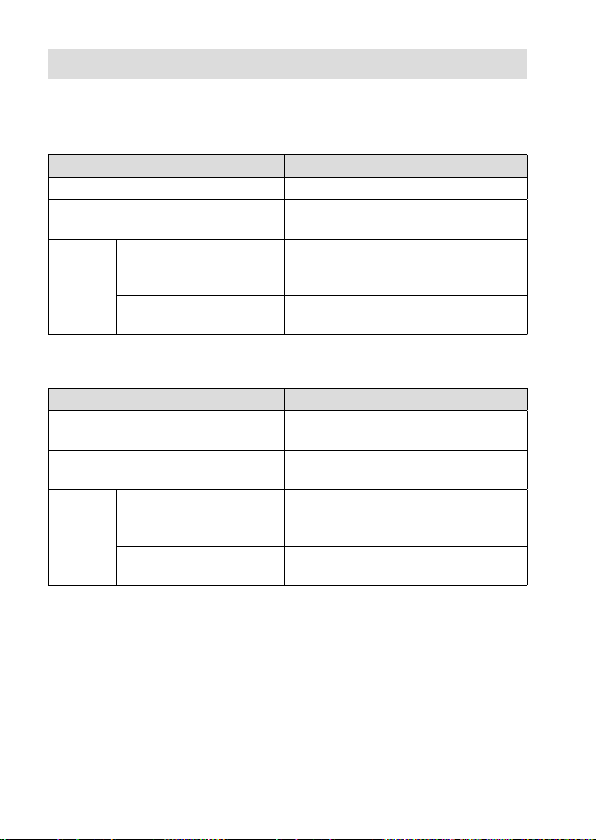
ILCE-9
d-830-100-11 (1)
C:\d830100111\d830100111ILCE9UC2\01GB-ILCE9UC2\120OTH.indd
2019/02/19 10:01
GB
236
Memory cards that can be used
When using microSD memory cards or Memory Stick Micro media with
this camera, be sure to use the appropriate adaptor.
SD memory cards
Recording format Supported memory card
Still image
SD/SDHC/SDXC card
AVCHD
SD/SDHC/SDXC card
(Class 4 or faster, or U1 or faster)
XAVC S
4K 60 Mbps*
HD 50 Mbps or lower*
HD 60 Mbps
SDHC/SDXC card
(Class 10, or U1 or faster)
4K 100 Mbps*
HD 100 Mbps
SDHC/SDXC card (U3)
* Including when recording proxy movies at the same time
Memory Stick media
Recording format Supported memory card
Still image
Memory Stick PRO Duo/
Memory Stick PRO-HG Duo
AVCHD
Memory Stick PRO Duo (Mark 2)/
Memory Stick PRO-HG Duo
XAVC S
4K 60 Mbps*
HD 50 Mbps or lower*
HD 60 Mbps
Memory Stick PRO-HG Duo
4K 100 Mbps*
HD 100 Mbps
—
* Including when recording proxy movies at the same time
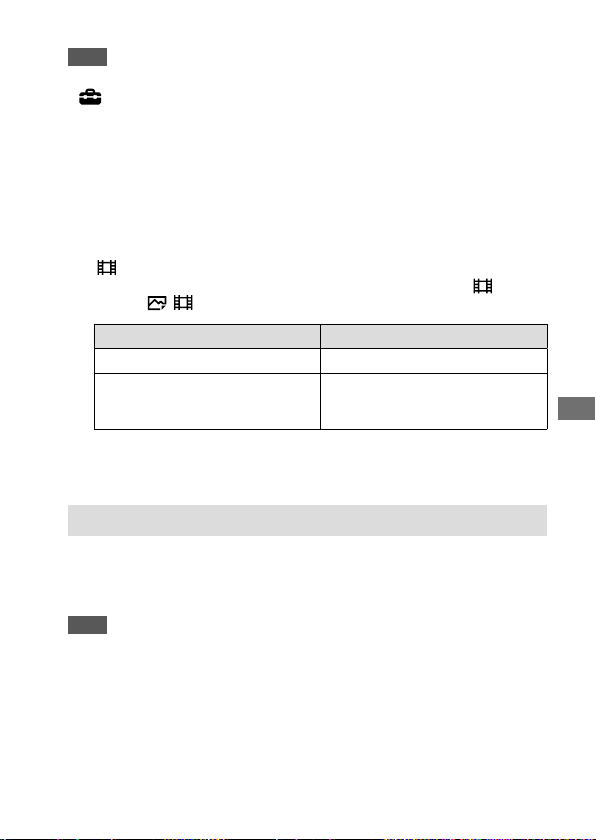
C:\d830100111\d830100111ILCE9UC2\01GB-ILCE9UC2\120OTH.indd
2019/02/19 10:01
ILCE-9
d-830-100-11 (1)
GB
237
About this product
Note
• Use the slot1 when you are using a UHS-II memory card. Also, select MENU
(Setup) [Rec. Media Settings] [Prioritize Rec. Media] [Slot 1].
• Memory Stick PRO Duo media cannot be used in the slot1.
• When an SDHC memory card is used to record an XAVC S movie over
extended periods of time, the recorded movies will be divided into files 4GB
in size. The divided files can be handled as a single file by importing them to a
computer using PlayMemories Home.
• When recording a movie on memory cards in both the slot1 and the slot2
with following camera settings, insert two memory cards with the same file
system. XAVC S movies cannot be recorded simultaneously when using a
combination of the exFAT file system and FAT32 file system.
– [
File Format] is set to [XAVC S 4K] or [XAVC S HD]
– [Recording Mode] under [Rec. Media Settings] is set to [Simult.(
)] or
[Simult.(
/ )]
Memory card File system
SDXC memory card
exFAT
Memory Stick PRO Duo (Mark2)
Memory Stick PRO-HG Duo
SDHC memory card
FAT32
• Charge the battery pack sufficiently before attempting to recover the
database files on the memory card.
Number of recordable images
When you insert a memory card into the camera and turn the camera on,
the number of images that can be recorded (should you continue to shoot
using the current settings) is displayed on the screen.
Note
• When “0” (the number of recordable images) flashes in orange, the memory
card is full. Replace the memory card with another one, or delete images from
the current memory card.
• When “NO CARD” flashes in orange, it means no memory card has been
inserted. Insert a memory card.
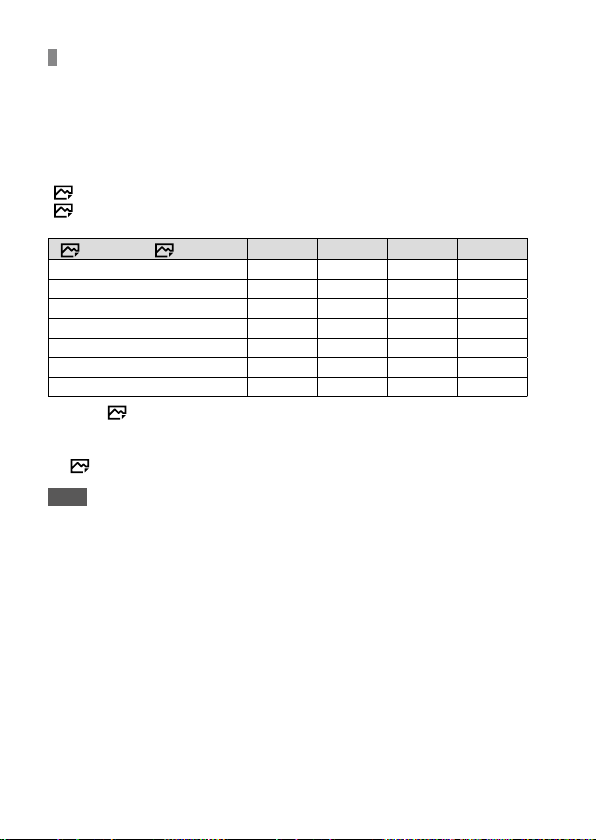
ILCE-9
d-830-100-11 (1)
C:\d830100111\d830100111ILCE9UC2\01GB-ILCE9UC2\120OTH.indd
2019/02/19 10:01
GB
238
The number of images that can be recorded on a memory
card
The table below shows the approximate number of images that can be
recorded on a memory card formatted with this camera. The values are
defined using Sony standard memory cards for testing. The values may
vary depending on the shooting conditions and the type of memory card
used.
[
JPEG Image Size]: [L: 24M]
[
Aspect Ratio]: [3:2]*
1
(Units: Images)
JPEG Quality/ File Format
8 GB 32 GB 64 GB 256 GB
Standard
1100 4550 9000 36000
Fine
790 3200 6300 25000
Extra fine
430 1700 3500 14000
RAW & JPEG (Compressed RAW)*
2
215 870 1700 6900
RAW (Compressed RAW)
295 1200 2400 9600
RAW & JPEG (Uncompressed RAW)*
2
125 510 1000 4100
RAW (Uncompressed RAW)
150 610 1200 4950
*
1
When [ Aspect Ratio] is set to other than [3:2], you can record more
images than the numbers shown in the table (except when [RAW] is
selected).
*
2
[ JPEG Quality] when [RAW & JPEG] is selected: [Fine]
Note
• Even if the number of recordable images is higher than 9999 images, “9999”
will appear.
• The numbers shown are when using a Sony memory card.
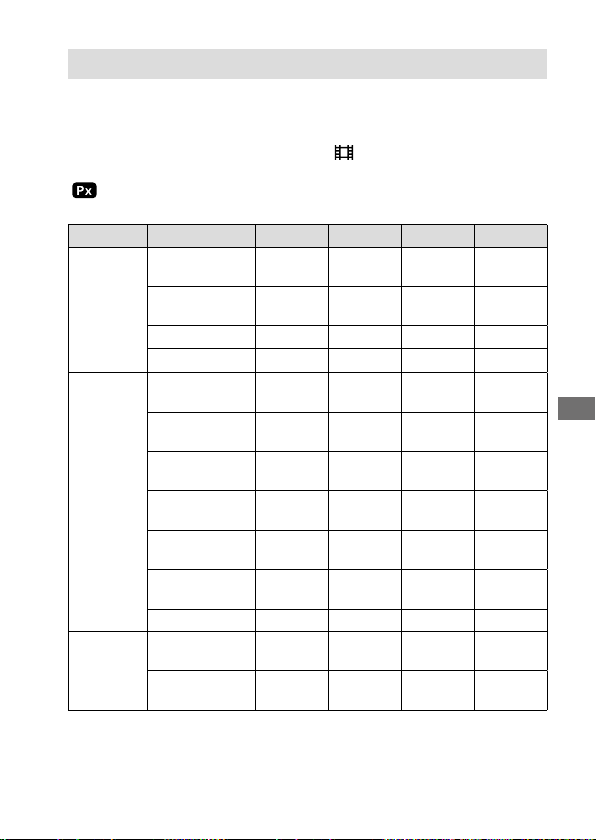
C:\d830100111\d830100111ILCE9UC2\01GB-ILCE9UC2\120OTH.indd
2019/02/19 10:01
ILCE-9
d-830-100-11 (1)
GB
239
About this product
Recordable movie times
The table below shows the approximate total recording times using
a memory card formatted with this camera. The values may vary
depending on the shooting conditions and the type of memory
card used. The recording times for when [
File Format] is set to
[XAVC S 4K] and [XAVC S HD] are recording times when shooting with
[
Proxy Recording] set to [Off].
(h (hour), min (minute))
File Format Record Setting 8 GB 32 GB 64 GB 256 GB
XAVC S 4K 30p 100M/
25p 100M
8min 35min 1h 15min 5h 10min
30p 60M/
25p 60M
10min 1h 2h 5min 8h 25min
24p 100M*
8min 35min 1h 15min 5h 10min
24p 60M*
10min 1h 2h 5min 8h 25min
XAVC S HD 120p 100M/
100p 100M
8min 35min 1h 15min 5h 10min
120p 60M/
100p 60M
10min 1h 2h 5min 8h 25min
60p 50M/
50p 50M
15min 1h 10min 2h 30min 10h 10min
60p 25M/
50p 25M
30min 2h 20min 4h 45min 19h 30min
30p 50M/
25p 50M
15min 1h 10min 2h 30min 10h 10min
30p 16M/
25p 16M
50min 3h 35min 7h 20min 29h 45min
24p 50M*
15min 1h 10min 2h 30min 10h 10min
AVCHD 60i 24M (FX)/
50i 24M (FX)
40min 2h 55min 6h 24h 15min
60i 17M (FH)/
50i 17M (FH)
55min 4h 5min 8h 15min 33h 15min
* Only when [NTSC/PAL Selector] is set to NTSC

ILCE-9
d-830-100-11 (1)
C:\d830100111\d830100111ILCE9UC2\01GB-ILCE9UC2\120OTH.indd
2019/02/19 10:01
GB
240
• Continuous shooting is possible for approximately 29 minutes (a
product specification limit). The continuous recordable time may differ
in the following situations:
– When shooting slow-motion/quick-motion movies: Recording will
automatically stop when the recorded file reaches approximately
29minutes (the played back movie reaches approximately 29
minutes).
(Recording will automatically stop when the recorded file reaches
approximately 15 minutes if [
Record Setting] is set to [60p/50p]
and [
Frame Rate] is set to [30fps/25fps].)
• The times for slow-motion/quick-motion movies are playback times,
not recording times.
Note
• The recordable time of movies varies because the camera is equipped with
VBR (Variable Bit-Rate), which automatically adjusts image quality depending
on the shooting scene. When you record a fast-moving subject, the image is
clearer but the recordable time is shorter because more memory is required
for recording. The recordable time also varies depending on the shooting
conditions, the subject or the image quality/size settings.
• The times shown are recordable times using a Sony memory card.
Notes on continuous movie recording
• High-quality movie recording and high-speed continuous shooting
require large amounts of power. Therefore, if you continue to shoot, the
temperature inside the camera will rise, especially that of the image
sensor. In such cases, the camera will turn off automatically because
the surface of the camera is heated to a high temperature or the high
temperature affects the quality of the images or the internal mechanism
of the camera.
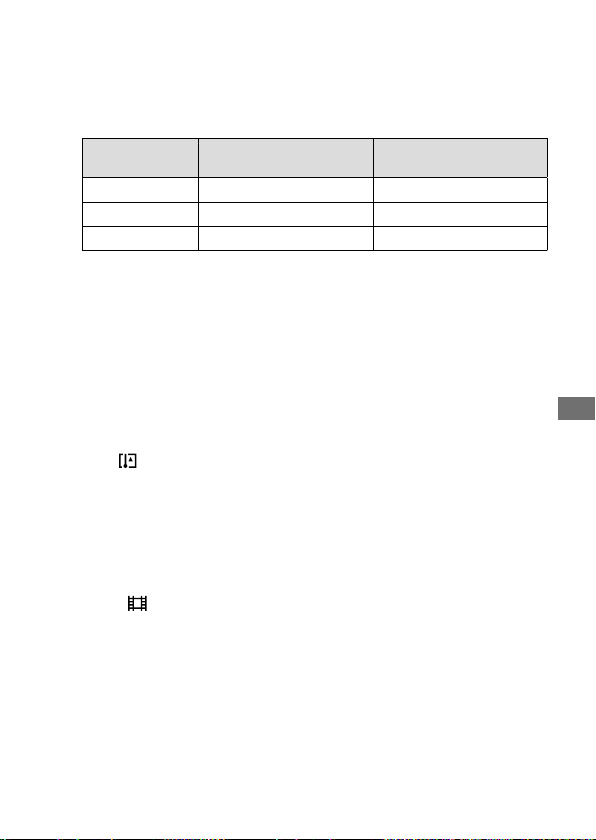
C:\d830100111\d830100111ILCE9UC2\01GB-ILCE9UC2\120OTH.indd
2019/02/19 10:01
ILCE-9
d-830-100-11 (1)
GB
241
About this product
• The duration of time available for continuous movie recording when
the camera records with the default settings after the power has been
turned off for a while is as follows. The values indicate the continuous
time from when the camera starts recording until the camera stops
recording.
Ambient
temperature
Continuous recording time for
movies (HD)
Continuous recording time for
movies (4K)
20°C (68°F)
Approx. 29min. Approx. 29min.
30°C (86°F)
Approx. 29min. Approx. 29min.
40°C (104°F)
Approx. 29min. Approx. 29min.
[Auto Power OFF Temp.]: [Standard]
HD: XAVC S HD (60p 50M/50p 50M, when the camera is not connected
via Wi-Fi)
4K: XAVC S 4K (24p 60M/25p 60M, when the camera is not connected
via Wi-Fi)
• The duration of time available for movie recording varies with the
temperature, file format/record setting for movies, Wi-Fi network
environment, or condition of the camera before you start recording. If
you frequently recompose or shoot images after the power is turned
on, the temperature inside the camera will rise and the recording time
available will be shorter.
• If the
icon appears, the temperature of the camera has risen.
• If the camera stops movie recording due to a high temperature, leave
it for some time with the power turned off. Start recording after the
temperature inside the camera drops fully.
• If you observe the following points, you will be able to record movies for
longer periods of time.
– Keep the camera out of direct sunlight.
– Turn the camera off when it is not being used.
• When [
File Format] is set to [AVCHD], the file size of movies is limited
to approx. 2GB. If the movie file size reaches approx. 2GB during
recording, a new movie file will be created automatically.

ILCE-9
d-830-100-11 (1)
C:\d830100111\d830100111ILCE9UC2\01GB-ILCE9UC2\120OTH.indd
2019/02/19 10:01
GB
242
Specifications
Camera
[System]
Camera Type:
Interchangeable Lens Digital Camera
Lens: Sony E-mount lens
[Image sensor]
Image format: 35mm full frame
(35.6mm × 23.8mm), CMOS image
sensor
Effective pixel number of camera:
Approx. 24200000 pixels
Total pixel number of camera:
Approx. 28300000 pixels
[SteadyShot]
In-camera sensor shift image
stabilization system
[Auto focus system]
Detection system: Phase detection
system/Contrast detection system
Sensitivity Range: –3EV to +20EV (at
ISO 100 equivalent, F2.0)
[Electronic viewfinder]
Total number of dots: 3686400dots
Magnification: Approx. 0.78× with
50mm lens at infinity, –1m
–1
Eye Point: Approx. 23mm from the
eyepiece and approx. 18.5mm
from the eyepiece frame at –1m
–1
Diopter Adjustment:
–4.0m
–1
to +3.0m
–1
[Monitor]
7.5cm (3.0 type) TFT drive, touch
panel
Total number of dots: 1440000 dots
[Exposure control]
Metering method: 1200-zone
evaluative metering
Metering Range: –3EV to +20EV (at
ISO 100 equivalent with F2.0 lens)
ISO sensitivity (Recommended
exposure index):
Still images: ISO 100 to ISO 51200
(Extended ISO: Minimum ISO 50,
maximum ISO 204800)
Movies: ISO 100 to ISO 51200
equivalent (Extended ISO:
Minimum ISO 100, maximum ISO
102400)
[Shutter]
Type: Electronically-controlled,
vertical-traverse, focal-plane type
Speed range:
Still images (when shooting
with the electronic shutter):
1/32000second* to 30seconds
(up to 1/8second in continuous
shooting)
* Available only in the M(Manual
Exposure) and S(Shutter Priority)
modes. For details, refer to the
“Help Guide.”
Still images (when shooting
with the mechanical shutter):
1/8000second to 30seconds,
BULB
Movies: 1/8000second to
1/4second
108060i-compatible devices
(108050i-compatible devices):
up to 1/60 (1/50) second in AUTO
mode (up to 1/30 (1/25) second in
Auto slow shutter mode)
Flash sync speed: 1/250second
(when using a flash manufactured
by Sony)

C:\d830100111\d830100111ILCE9UC2\01GB-ILCE9UC2\120OTH.indd
2019/02/19 10:01
ILCE-9
d-830-100-11 (1)
GB
243
About this product
[Recording format]
File format: JPEG (DCF Ver. 2.0, Exif
Ver. 2.31, MPF Baseline) compliant,
RAW (Sony ARW 2.3 format)
Movie (XAVC S format):
MPEG-4 AVC/H.264 XAVC S ver.1.0
format compliant
Video: MPEG-4 AVC/H.264
Audio: LPCM 2ch (48kHz 16bit)
Movie (AVCHD format):
AVCHD format Ver. 2.0 compatible
Video: MPEG-4 AVC/H.264
Audio: Dolby Digital 2ch, equipped
with Dolby Digital Stereo Creator
• Manufactured under license from
Dolby Laboratories.
[Recording media]
SLOT 1: Slot for SD cards (UHS-I and
UHS-II compatible)
SLOT 2: Multi-slot for
Memory Stick PRO Duo media and
SD cards (UHS-I compatible)
[Input/output terminals]
Multi/Micro USB Terminal*:
Hi-Speed USB (USB 2.0)
* Supports Micro USB compatible
devices.
HDMI: HDMI type D micro jack
(Microphone) terminal:
3.5mm Stereo mini jack
(Headphones) terminal:
3.5mm Stereo mini jack
LAN terminal
(Flash sync) terminal
[General]
Model No. WW361847
Rated input: 7.2V
, 4.1W
Operating temperature:
0 to 40°C (32 to 104°F)
Storage temperature:
–20 to 55°C (–4 to 131°F)
Dimensions (W/H/D) (Approx.):
126.9 × 95.6 × 73.7mm
126.9 × 95.6 × 63.0 mm
(from grip to monitor)
5 × 3 7/8 × 3in.
5 × 3 7/8 × 2 1/2in.
(from grip to monitor)
Mass (Approx.):
673g (1lb 7.7oz) (including battery
pack, SD Card)
[Wireless LAN]
Supported format: IEEE802.11b/g/n
Frequency band: 2.4GHz
Security: WEP/WPA-PSK/WPA2-PSK
Connection method:
Wi-Fi Protected Setup™ (WPS)/
Manual
Access method: Infrastructure mode
[NFC]
Tag type: NFC Forum Type 3 Tag
compliant
[Bluetooth communications]
Bluetooth standard Ver. 4.1
Frequency band: 2.4GHz

ILCE-9
d-830-100-11 (1)
C:\d830100111\d830100111ILCE9UC2\01GB-ILCE9UC2\120OTH.indd
2019/02/19 10:01
GB
244
Battery charger BC-QZ1
Rated input:
100- 240V
, 50/60Hz, 0.38A
Rated output: 8.4V
, 1.6A
AC Adaptor AC-UUD12/AC-UUE12
Rated input:
100- 240V
, 50/60Hz, 0.2A
Rated output: 5V
, 1.5A
Rechargeable battery pack
NP-FZ100
Rated voltage: 7.2V
Design and specifications are subject
to change without notice.
On image data compatibility
• This camera conforms with DCF
(Design rule for Camera File system)
universal standard established
by JEITA (Japan Electronics and
Information Technology Industries
Association).
• Playback of images recorded with
your camera on other equipment
and playback of images recorded
or edited with other equipment on
your camera are not guaranteed.
Trademarks
• Memory Stick and are
trademarks or registered
trademarks of Sony Corporation.
• XAVC S and
are registered
trademarks of Sony Corporation.
• AVCHD and the AVCHD
logotype are trademarks of
Panasonic Corporation and
Sony Corporation.
• Mac is a trademark of Apple Inc.,
registered in the United States and
other countries.
• iPhone and iPad are trademarks
of Apple Inc., registered in the U.S.
and other countries.
• Blu-ray Disc™ and Blu-ray™
are trademarks of the
Blu-ray Disc Association.
• DLNA and DLNA CERTIFIED
are trademarks of
Digital Living Network Alliance.
• Dolby, Dolby Audio and double-D
symbol are trademarks of
Dolby Laboratories.
• The terms HDMI, HDMI High-
Definition Multimedia Interface,
and the HDMI Logo are trademarks
or registered trademarks of HDMI
Licensing Administrator, Inc.
• Microsoft and Windows are
registered trademarks or
trademarks of Microsoft Corporation
in the United States and/or other
countries.
• SDXC logo is a trademark of
SD-3C, LLC.
C:\d830100111\d830100111ILCE9UC2\01GB-ILCE9UC2\120OTH.indd
2019/02/19 10:01
ILCE-9
d-830-100-11 (1)
GB
245
About this product
• Android and Google Play
are trademarks or registered
trademarks of Google LLC.
• Wi-Fi, the Wi-Fi logo and
Wi-Fi Protected Setup are registered
trademarks or trademarks of the
Wi-Fi Alliance.
• The N Mark is a trademark
or registered trademark of
NFC Forum, Inc. in the United States
and in other countries.
• The Bluetooth® word mark and
logos are registered trademarks
owned by the Bluetooth SIG, Inc.
and any use of such marks by
Sony Corporation is under license.
• QR Code is a trademark of
Denso Wave Inc.
• In addition, system and product
names used in this manual are, in
general, trademarks or registered
trademarks of their respective
developers or manufacturers.
However, the
or
marks may
not be used in all cases in this
manual.
On GNU GPL/LGPL applied
software
The software that is eligible for the
following GNU General Public License
(hereinafter referred to as “GPL”) or
GNU Lesser General Public License
(hereinafter referred to as “LGPL”) are
included in the product.
This informs you that you have a
right to have access to, modify,
and redistribute source code for
these software programs under the
conditions of the supplied GPL/LGPL.
Source code is provided on the web.
Use the following URL to download it.
http://oss.sony.net/Products/Linux/
We would prefer you do not contact
us about the contents of source code.
Licenses (in English) are recorded in
the internal memory of your product.
Establish a Mass Storage connection
between the product and a computer
to read licenses in the “PMHOME” -
“LICENSE” folder.
Additional information on this
product and answers to frequently
asked questions can be found at our
Customer Support Website.

ILCE-9
d-830-100-11 (1)
C:\d830100111\d830100111ILCE9UC2\01GB-ILCE9UC2\130IDX.indd
2019/02/19 10:01
GB
246
Index
0-9
4K Output Select .............................154
24p/60p Output..............................185
A
A ...................................................102
Access Point Set. ............................ 198
Add Item .........................................173
AdobeRGB ....................................... 131
AEL .................................................. 113
AEL button ...................................... 141
AE lock ............................................. 113
AEL w/ shutter ............................... 207
AF ....................................................49
AF Area Auto Clear ......................... 206
AF Area Registration .........................61
AF-C .................................................. 47
AF drive speed ................................210
AF Illuminator ...................................64
AF in Focus Mag. .............................. 59
AF/MF control .................................. 55
AF Micro Adj. .................................... 66
AF On ................................................ 56
AF-S .................................................. 47
AF Tracking Sens. ....................206, 210
AF w/ shutter .................................206
Airplane Mode ................................214
Aperture Drive in AF ........................ 67
Aperture Preview ............................ 175
Aperture Priority .............................102
APS-C/Super 35mm ......................... 97
Area Setting ....................................218
Aspect .............................................153
Aspect Ratio ..................................... 96
Audio Level Display ........................210
Audio Out Timing ...........................210
Audio Rec Level ..............................152
Audio Recording ............................. 151
Audio recording of movies ............. 151
Audio signals ..................................213
Autoflash .........................................137
Auto focus ........................................ 49
Auto HDR ........................................ 116
Auto Mode ....................................... 43
Auto Power OFF Temp. ...................216
Auto Review .................................... 175
Auto Slow Shutter ...........................210
Auto Switch Media .......................... 182
Autumn leaves ................................129
AVCHD ............................................ 146
Av/Tv Rotate ...................................213
AWB .................................................124
AWB lock .........................................126
B
Battery pack ..................................... 36
Blackout-free shooting .................... 74
Black & White ..................................129
Bluetooth function ..........................193
Bluetooth Settings ..........................214
Bracket Settings ...............................89
BULB ................................................105
Bulb shooting ..................................105
C
Camera Settings 1 ..........................204
Camera Settings 2 .......................... 209
Center ............................49, 111, 112, 153
Certification Logo............................218

C:\d830100111\d830100111ILCE9UC2\01GB-ILCE9UC2\130IDX.indd
2019/02/19 10:01
ILCE-9
d-830-100-11 (1)
Index
GB
247
Index
Charging ........................................... 35
Circ. of Focus Point ...........................65
Cleaning Mode ............................... 228
Clear ................................................128
Clear Image Zoom ................... 121, 122
Clock setting .................................... 42
Cloudy .............................................124
Color Space ..................................... 131
Compatible lenses ............................41
Computer ................................199, 202
Cont. Bracket .................................... 84
Continuous AF .................................. 47
Continuous shooting ....................... 79
Contrast ...........................................130
Control wheel ................................... 24
Cont. Shooting ................................. 79
Cont. Shoot. Length ..........................81
Copy ................................................162
Copyright Info .................................218
Creative Style ..................................128
C.Temp./Filter .................................. 124
CTRL FOR HDMI .............................. 188
Ctrl w/ Smartphone ........................214
Custom Key ...................................... 25
Custom white balance ....................125
D
Date/Time Setup .............................42
Daylight ........................................... 124
Deep ................................................128
Default values .................................192
Delete ............................................. 168
Delete confirm. ...............................216
Delete Item .....................................174
Del. Regist. AF Area ........................206
Demo Mode ....................................217
Dial Ev Comp ................................... 213
Dial Setup ........................................ 213
Digital zoom ............................. 121, 122
Diopter-adjustment ..........................19
Direct manual focus ....................47, 69
DISP ...................................................31
DISP Button ...................................... 33
Disp. cont. AF area .........................206
Display as Group .............................216
Displaying vertically oriented images
....................................................158
Display Media Info. .........................218
Display Rotation ..............................158
DMF .............................................47, 69
D-Range Optimiser ......................... 115
Drive Mode ....................................... 79
DRO ................................................. 115
DRO/Auto HDR .........................115, 116
DRO Bracket ..................................... 88
E
Edit Device Name ............................214
e-Front Curtain Shutter .................... 78
Electronic Shutter ............................. 74
Enlarge Image ................................. 157
Enlarge Initial Mag. .........................215
Enlarge Initial Position ....................215
Entire Screen Avg. ............................111
Expand Flexible Spot .......................49
Exp. comp. set ................................ 208
Exposure Comp. ............................. 109
Exposure Set. Guide ........................212
Exposure Std. Adjust ...................... 208
Exposure step ................................ 207
Eye AF ..........................................56, 57
Eye sensor .........................................18
Eye-Start AF ....................................206

ILCE-9
d-830-100-11 (1)
C:\d830100111\d830100111ILCE9UC2\01GB-ILCE9UC2\130IDX.indd
2019/02/19 10:01
GB
248
F
Face Detection .................................56
Face/Eye AF Set. ............................... 56
Face Priority in Multi Metering ...... 207
Face Registration ...........................209
FEL lock ...........................................139
File Format ................................94, 146
File Number .....................................179
Fill-flash ........................................... 137
Finder Color Temp. ..........................216
Finder Frame Rate ........................... 178
FINDER/MONITOR ........................... 177
Flash ................................................136
Flash bracket .................................... 84
Flash Comp. ..................................... 138
Flash Mode ...................................... 137
Flash Off .......................................... 137
Flash sync terminal ......................... 141
Flexible Spot .....................................49
Fluor.: Cool White............................124
Fluor.: Daylight ................................ 124
Fluor.: Day White.............................124
Fn ..................................................... 26
Focus ................................................ 47
Focus Area ........................................ 49
Focus Area Limit .............................. 52
Focus indicator .................................48
Focus-lock ........................................46
Focus Magnifier ............................... 70
Focus Magnif. Time ........................ 209
Focus Mode ...................................... 47
Focus Point Link .............................. 112
Focus Settings ................................205
Focus Standard ................................ 53
Folder Name....................................218
Format .............................................179
FTP Transfer Func. .......................... 194
Func. of Touch Operation ...........91, 92
Function button ..........................19, 26
Function Menu Set. .......................... 28
Function Ring (Lens) .......................213
G
Grid Line .......................................... 212
Guideframe .....................................153
H
HDMI Info. Display ......................... 186
HDMI Only (24p) ..............................154
HDMI Only (25p) ..............................154
HDMI Only (30p)..............................154
HDMI Resolution .............................185
HDMI Settings .................................185
HDR ................................................. 116
Help Guide ......................................... 2
High ISO NR .....................................135
Highlight ..........................................111
Histogram ........................................ 32
I
Image Index ................................... 160
Image Jump Setting ........................ 161
Image sensor ................................. 228
Imaging Edge ................................. 202
Imaging Edge Mobile .....................193
Import Root Certificate ...................215
In-Camera Guide ................................ 2
Incandescent ...................................124
Index screen ................................... 160
Initial Focus Mag. ....................209, 210
Intelligent Auto .........................43, 100
IPTC Information .............................218
ISO ................................................... 118
ISO AUTO ......................................... 118

C:\d830100111\d830100111ILCE9UC2\01GB-ILCE9UC2\130IDX.indd
2019/02/19 10:01
ILCE-9
d-830-100-11 (1)
GB
249
Index
ISO AUTO Min. SS ............................ 119
ISO Range Limit .............................. 119
ISO sensitivity .................................. 118
ISO Setting ...................................... 118
J
JPEG .................................................. 94
JPEG Image Size ............................... 95
JPEG Quality .....................................95
L
Landscape .......................................128
Language ........................................218
Lens .................................................. 39
Lens Comp......................................204
Light ................................................128
List of icons .................................... 220
Live View Display ............................212
Location Info. Link Set. ....................214
Location information ..................... 194
Lock Operation Parts ......................213
Long Exposure NR ...........................134
M
M ................................................... 104
Manual Exposure ........................... 104
Manual Focus ..............................47, 68
Marker Display ................................153
Marker Settings ............................... 153
Mass Storage.................................. 199
Memory ........................................... 170
Memory card ...................... 37, 179, 236
Memory Card + HDMI .....................154
Memory recall ................................ 106
MENU .............................................. 203
MENU button ............................18, 203
MENU items....................................204
Metering Mode ................................111
MF ................................................47, 68
MF Assist ...........................................71
Mode dial .........................................99
Monitor ......................................31, 220
Monitor Brightness .........................216
Mount Adaptor .........................41, 230
Movie........................................107, 143
MOVIE Button .................................. 213
Movie file format............................ 146
MOVIE (Movie) button ...............19, 143
Movie w/ shutter ............................145
MTP ................................................ 199
Multi .................................................111
Multi Interface Shoe ..........................21
Multi-selector ................................... 24
My Dial Settings ..............................213
My Menu ..................................173, 219
N
Network ...........................................214
Neutral.............................................128
New Folder ......................................218
NFC ..................................................193
Night Scene .....................................128
Noise reduction ...............................134
NR ....................................................134
NTSC/PAL Selector ..........................216
O
One-touch (NFC) .............................193
Operating sound .............................213
P
P .................................................... 101
PC Remote ..................................... 199
PC Remote Settings ....................... 190

ILCE-9
d-830-100-11 (1)
C:\d830100111\d830100111ILCE9UC2\01GB-ILCE9UC2\130IDX.indd
2019/02/19 10:01
GB
250
PC Remote (Wired LAN) ..................214
Peaking Setting ................................ 72
Phase detection AF .......................... 52
Photo Capture .................................159
Picture Effect .................................. 208
Playback ...................................156, 215
Playback speed .............................. 150
Playback zoom ................................157
Playing back movies .......................158
PlayMemories Home ..................... 202
Portrait ............................................128
Power Save Start Time ................... 184
Pre-AF ............................................... 63
Printing ............................................ 215
Printing the date .............................. 43
Prioritize Rec. Media .................38, 180
Priority Set in AF-C ...........................64
Priority Set in AF-S ........................... 63
Priority Set in AWB ......................... 208
Program Auto ..................................101
Program shift .................................. 101
Protect ............................................ 164
Proxy Recording ..............................155
Q
Quick Navi ........................................ 28
R
Rating ............................................. 166
Rating Set (Custom Key) ................. 167
RAW ..................................................94
RAW File Type ................................204
RAW images .....................................94
RAW + J PC Save Img ...................... 191
RAW & JPEG......................................94
Rear Sync. ........................................ 137
REC Control .....................................187
Rec. Media Settings ....................... 180
Recordable number of images .......237
Recordable time of movies ........... 239
Recording Mode ............................. 181
Record Setting ................................147
Recover Image DB ..........................218
Red Eye Reduction ......................... 208
Reg. Custom Shoot Set ................... 171
Regist. Faces Priority ...................... 209
Release w/o Card ........................... 211
Release w/o Lens ........................... 211
Remote Ctrl .................................... 184
Reset EV Comp. .............................. 207
Reset Network Set...........................215
Rotate .............................................. 215
S
S ....................................................103
Safety Zone .....................................153
Saturation ........................................130
Scene recognition .......................... 100
Screen display ...................................31
Select Media .................................. 205
Select Playback Media ....................162
Select REC Folder ............................183
Self-timer ......................................... 82
Self-timer (Cont) .............................. 83
Self-timer Type ............................... 205
Send to Computer (Wi-Fi) ...............214
Send to Smartphone Func. .............214
Sensitivity ........................................ 118
Sepia ...............................................129
Set File Name ................................. 180
Setting Reset ...................................192
Shade ..............................................124
Sharpness........................................130
Shooting still images ....................... 45

C:\d830100111\d830100111ILCE9UC2\01GB-ILCE9UC2\130IDX.indd
2019/02/19 10:01
ILCE-9
d-830-100-11 (1)
GB
251
Index
Shoot. Start Disp. ..............................77
Shoot. Timing Disp. ...........................77
Shot. Result Preview .......................176
Shutter AWB Lock ...........................126
Shutter Priority ................................103
Shutter Type ..................................... 73
Single Bracket .................................. 85
Single Shooting ................................ 79
Single-shot AF .................................. 47
Slideshow ........................................ 163
Slow Sync. ....................................... 137
Smart zoom ..................................... 121
Software ......................................... 202
Sort Item .........................................173
Specifications ................................. 242
Specify Printing ...............................215
Spot ..................................................111
Spot Focus ........................................92
Spot Metering Point ........................ 112
S&Q .................................................149
S&Q Motion .................................... 108
S&Q Settings ...................................149
sRGB ................................................ 131
SteadyShot ......................................132
SteadyShot Settings ........................132
Still Img. Save Dest. ........................ 190
Style Box ..........................................129
Sunset .............................................128
Switch V/H AF Area .......................... 54
T
TC Output ....................................... 186
TC/UB Settings ................................ 217
Touch Focus ......................................91
Touch function .................................90
Touch Operation ..............................90
Touch Pad Settings .........................217
Touch Panel/Pad .............................. 90
Touch Tracking ................................. 92
Tracking ...................................... 49, 60
U
Underwater Auto ............................124
USB ................................................. 199
USB Connection ............................. 199
USB LUN Setting ..............................217
USB Power Supply.......................... 189
V
Version ............................................218
Vertical grip .................................... 234
Video Light Mode ...........................210
Viewfinder ......................................... 31
Viewfinder Bright. ...........................216
View Mode ...................................... 161
View on TV (Wi-Fi)...........................214
Vivid ................................................128
Volume .....................................159, 216
Volume Settings .......................159, 216
W
WB ...................................................124
WB bracket ....................................... 87
White Balance .................................124
Wide ................................................. 49
Wi-Fi ................................................193
Wi-Fi Settings ..................................214
Wind Noise Reduct. ........................210
Wired LAN Setting...........................214
Wireless Flash ................................ 140
Write Serial Number .......................218

ILCE-9
d-830-100-11 (1)
C:\d830100111\d830100111ILCE9UC2\01GB-ILCE9UC2\130IDX.indd
2019/02/19 10:01
GB
252
X
XAVC S 4K ....................................... 146
XAVC S HD ...................................... 146
Z
Zebra Setting................................... 114
Zone .................................................49
Zoom ............................................... 121
Zoom Ring Rotate ........................... 211
Zoom scale ...................................... 123
Zoom Setting ..................................122

C:\d830100111\d830100111ILCE9UC2\01GB-ILCE9UC2\130IDX.indd
2019/02/19 10:01
ILCE-9
d-830-100-11 (1)
GB
253
Index

ILCE-9
d-830-100-11 (1)
C:\d830100111\d830100111ILCE9UC2\01GB-ILCE9UC2\130IDX.indd
2019/02/19 10:01
GB
254

C:\d830100111\d830100111ILCE9UC2\01GB-ILCE9UC2\130IDX.indd
2019/02/19 10:01
ILCE-9
d-830-100-11 (1)
GB
255
Index

ILCE-9
d-830-100-11 (1)
C:\d830100111\d830100111ILCE9UC2\01GB-ILCE9UC2\130IDX.indd
2019/02/19 10:01
GB
256

C:\d830100111\d830100111ILCE9UC2\01GB-ILCE9UC2\130IDX.indd
2019/02/19 10:01
ILCE-9
d-830-100-11 (1)
GB
257
Index

ILCE-9
d-830-100-11 (1)
C:\d830100111\d830100111ILCE9UC2\01GB-ILCE9UC2\130IDX.indd
2019/02/19 10:01
GB
258

C:\d830100111\d830100111ILCE9UC2\01GB-ILCE9UC2\130IDX.indd
2019/02/19 10:01
ILCE-9
d-830-100-11 (1)
GB
259
Index