
VAIO Digital Studio® dio®
Computer Quick Startck Start
PCV-RZ30 Series

2
Notice
© 2003 Sony Electronics Inc. Reproduction in whole or in part without written permission is prohibited. All rights
reserved. This manual and the software described herein, in whole or in part, may not be reproduced, translated, or
reduced to any machine-readable form without prior written approval.
SONY ELECTRONICS INC. PROVIDES NO WARRANTY WITH REGARD TO THIS MANUAL, THE
SOFTWARE, OR OTHER INFORMATION CONTAINED HEREIN AND HEREBY EXPRESSLY DISCLAIMS
ANY IMPLIED WARRANTIES OF MERCHANTABILITY OR FITNESS FOR ANY PARTICULAR PURPOSE
WITH REGARD TO THIS MANUAL, THE SOFTWARE, OR SUCH OTHER INFORMATION. IN NO EVENT
SHALL SONY ELECTRONICS INC. BE LIABLE FOR ANY INCIDENTAL, CONSEQUENTIAL, OR
SPECIAL DAMAGES, WHETHER BASED ON TORT, CONTRACT, OR OTHERWISE, ARISING OUT OF OR
IN CONNECTION WITH THIS MANUAL, THE SOFTWARE, OR OTHER INFORMATION CONTAINED
HEREIN OR THE USE THEREOF.
SONY CANNOT WARRANT THAT THE FUNCTIONS DESCRIBED IN THIS GUIDE WILL BE
UNINTERRUPTED OR ERROR-FREE. SONY ALSO ASSUMES NO RESPONSIBILITY, AND SHALL NOT
BE LIABLE FOR ANY DAMAGES TO, OR VIRUSES THAT MAY INFECT, YOUR COMPUTER
EQUIPMENT, OR OTHER PROPERTY ON ACCOUNT OF YOUR ACCESS TO, USE OF, OR BROWSING IN
ANY DESCRIBED WEB SITE, OR YOUR DOWNLOADING OF ANY MATERIALS, DATA, TEXT, IMAGES,
VIDEO, OR AUDIO FROM ANY DESCRIBED WEB SITE. WEB SITE INFORMATION IS OBTAINED FROM
VARIOUS SOURCES AND MAY BE INACCURATE. COPIES OF COPYRIGHTED INFORMATION MAY
ONLY BE MADE FOR LEGALLY PERMISSIBLE PURPOSES.
Sony Electronics Inc. reserves the right to make any modification to this manual or the information contained herein
at any time without notice. The software described herein is governed by the terms of a separate user license
agreement.
This product contains software owned by Sony and licensed by third parties. Use of such software is subject to the
terms and conditions of license agreements enclosed with this product. Some of the software may not be transported
or used outside the United States. Software specifications are subject to change without notice and may not
necessarily be identical to current retail versions.
Certain product(s) included with this computer may include features such as copy protection and content
management technology. USE OF THE SOFTWARE PRODUCT(S) REQUIRES AGREEMENT TO
APPLICABLE END USER AGREEMENTS AND FULL COMPLIANCE WITH APPLICABLE PRODUCT
ACTIVATION PROCEDURES. Product activation procedures and privacy policies will be detailed during initial
launch of the software product(s), or upon certain reinstallations of the software product(s), or reconfigurations of
the computer, and may be completed by Internet or telephone (toll charges may apply).
Updates and additions to software may require an additional charge. Subscriptions to online service providers may
require a fee and credit card information. Financial services may require prior arrangements with participating
financial institutions.
3
Important information for Canadian customers: Your new VAIO computer includes certain software versions or
upgrades, and Internet services or offers that are available to U.S. customers only.
Sony, VAIO, the VAIO logo, VAIO Digital Studio, Giga Pocket, MovieShaker, DVgate, Handycam, MagicGate,
Memory Stick, the Memory Stick logo, OpenMG, MICROMV, SonicStage, ImageStation, ATRAC3, and i.LINK are
trademarks or registered trademarks of Sony.
Intel and Pentium are trademarks or registered trademarks of the Intel Corporation. Microsoft, Windows, the
Windows logo and Windows XP are trademarks or registered trademarks of the Microsoft Corporation. PS/2 is a
registered trademark of the IBM Corporation.
All other trademarks are trademarks or registered trademarks of their respective owners.
The International
ENERGY STAR® Office Equipment Program is an international program that promotes energy
saving through the use of computers and other office equipment. The program backs the development and
dissemination of products with functions that effectively reduce energy consumption. It is an open system in which
business proprietors can participate voluntarily. The targeted products are office equipment such as computers,
displays, printers, facsimiles and copiers. Their standards and logos are uniform among participating nations.
ENERGY STAR is a U.S. registered trademark of the Environmental Protection Agency.
Owner’s Record
The model number and serial number are located on the back panel of your Sony VAIO® computer. Record the
model and serial number in the space provided here, and keep in a secure location. Refer to the model and serial
numbers when you call your Sony Service Center.
As an ENERGY STAR® Partner, Sony Corporation has
determined that this product meets the ENERGY STAR®
guidelines for energy efficiency.
Model Number:
Serial Number:
4
Safety Information and Caution
Your computer’s installed optical drives may vary, depending on the system configuration you have purchased. See
the online specifications sheet for details on your installed optical drives. For questions regarding your product or
for the Sony Service Center nearest you, visit the Sony Computing Support Web site at
http://www.sony.com/pcsupport.
❑ To prevent fire or shock hazard, do not expose your desktop to rain or moisture. To avoid electrical shock, do
not open the cabinet. Refer servicing to qualified personnel only.
❑ Never install modem or telephone wiring during a lightning storm.
❑ Never install telephone jacks in wet locations unless the jack is specifically designed for wet locations.
❑ Never touch uninsulated telephone wire or terminals unless the telephone line has been disconnected at the
network interface.
❑ Use caution when installing or modifying telephone lines.
❑ Avoid using the modem during an electrical storm.
❑ Do not use the modem or a telephone to report a gas leak in the vicinity of the leak.
❑ The socket outlet shall be installed near the equipment and shall be easily accessible.
To change the backup battery, please contact your nearest Sony Service
Center.
Caution—The use of optical instruments with this product will increase eye
hazard. As the laser beam used in this product is harmful to the eyes, do not
attempt to disassemble the drive cabinet. Refer servicing to qualified
personnel only.
Danger—Visible and invisible laser radiation when open. Avoid direct
exposure to beam.
For DVD-RW: Danger—Visible and invisible laser radiation when open.
Avoid direct exposure to beam.
For CD-RW: Danger—Invisible laser radiation when open. Avoid direct
exposure to beam.
Caution—For ADSL and V.90 modem models; to reduce the risk of fire, use
only No. 26 AWG or larger telecommunication line cord.
5
❑ Pour prévenir tout risque d’incendie ou d’électrocution, garder cet appareil à l’abri de la pluie et de
l’humidité.
❑ Pour prévenir tout risque d’électrocution, ne pas ouvrir le châssis de cet appareil et ne confier son entretien
qu’à une personne qualifiée.
❑ Ne jamais effectuer l’installation de fil modem ou téléphone durant un orage électrique.
❑ Ne jamais effectuer l’installation d’une prise téléphonique dans un endroit mouillé à moins que la prise soit
conçue à cet effet.
❑ Ne jamais toucher un fil téléphonique à découvert ou un terminal à moins que la ligne téléphonique n’ait été
débranché de l’interface réseau.
❑ Soyez très prudent lorsque vous installez ou modifiez les lignes téléphoniques.
❑ Évitez d’utiliser le modem durant un orage électrique.
❑ N'utilisez pas le modem ni le téléphone pour prévenir d'une fuite de gaz vous êtes près de la fuite.
❑ L’appareil doit être le plus près possible d’une prise murale pour en faciliter l’accès.
Pour changer la pile de rechange, veuillez contacter votre centre de service
Sony le plus près.
Avertissement: L'utilisation d'instruments optiques avec ce produit augmente
les risques pour les yeux. Puisque le faisceau laser utilisé dans ce produit est
dommageable pour les yeux, ne tentez pas de désassembler le boîtier.
Adressez-vous à un agent de service qualifié.
Danger: Radiation laser visible et invisible si ouvert. Évitez l’exposition
directe au faisceau.
Pour les DVD-RW: Danger—Radiation laser visible si ouvert. Évitez
l'exposition directe au faisceau.
Pour les CD-RW: Danger—Radiation laser visible et invisible si ouvert. Évitez
l'exposition directe au faisceau.
Attention: Pour ADSL et V.90 modele modem; afin de réduire les risques
d'incendie, n'utilisez qu'un cordon de communication N0. 26 AWG ou plus
gros.

6
Regulatory Information
Model No.: PCVA-IMB5A
This device complies with Part 15 of the FCC rules. Operation is subject to the following two conditions:
(1) This device may not cause harmful interference, and
(2) this device must accept any interference received, including interference that may cause undesired operation.
This equipment has been tested and found to comply with the limits for a Class B digital device, pursuant to Part 15
of the FCC Rules. These limits are designed to provide reasonable protection against harmful interference in a
residential installation. This equipment generates, uses, and can radiate radio frequency energy and, if not installed
and used in accordance with the instructions, may cause harmful interference to radio communications. However,
there is no guarantee that interference will not occur in a particular installation. If this equipment does cause harmful
interference to radio or television reception, which can be determined by turning the equipment off and on, the user
is encouraged to try to correct the interference by one or more of the following measures:
❑ Reorient or relocate the receiving antenna.
❑ Increase the separation between the equipment and the receiver.
❑ Connect the equipment into an outlet on a circuit different from that to which the receiver is connected.
❑ Consult the dealer or an experienced radio/TV technician for help.
You are cautioned that any changes or modifications not expressly approved in this manual could void your
authority to operate this equipment.
Only peripherals (computer input/output devices, terminals, printers, etc.) that comply with FCC Class B limits may
be attached to this computer product. Operation with noncompliant peripherals is likely to result in interference to
radio and television reception.
All cables used to connect peripherals must be shielded and grounded. Operation with cables, connected to
peripherals, that are not shielded and grounded, may result in interference to radio and television reception.
Declaration of Conformity
Trade Name: SONY
Model No.: PCV-1122
Responsible Party: Sony Electronics Inc.
Address: 680 Kinderkamack Rd. Oradell, NJ 07649
Telephone: 201-930-6972
This phone number is for FCC-related matters only.
This device complies with Part 15 of the FCC rules. Operation is subject to the following two conditions:
(1) This device may not cause harmful interference, and
(2) this device must accept any interference received, including interference that may cause undesired operation.

7
FCC Part 68
This equipment complies with Part 68 of the FCC rules and the requirements adopted by the ACTA. On the modem
card is a label that contains, among other information, a product identifier in the format US:AAAEQ##TXXXX. If
requested, this number must be provided to the telephone company.
This modem uses the USOC RJ-11 telephone jack.
A telephone plug and jack used to connect this equipment to the premises wiring and telephone network must
comply with the applicable FCC Part 68 rules and requirements adopted by the ACTA. The REN is used to
determine the quantity of devices which may be connected to the telephone line.
Excessive RENs on the telephone line may result in the devices not ringing in response to an incoming call. In most,
but not all areas, the sum of the RENs should not exceed five (5.0). To be certain of the number of devices that may
be connected to the line, as determined by the total RENs, contact the telephone company. For products approved
after July 23, 2001, the REN for this product is part of the product identifier that has the format
US:AAEQ##TXXXX. The digits represented by ## are the REN without a decimal point (e.g. 03 is a REN of 0.3).
For earlier products, the REN is separately shown on the label
If this equipment causes harm to the telephone network, the telephone company will notify you in advance that
temporary discontinuance of service may be required. But if advance notice is not practical, the telephone company
will notify the customer as soon as possible. Also, you will be advised of your right to file a complaint with the FCC
if you believe it is necessary.
The telephone company may make changes in its facilities, equipment, operations or procedures that could affect the
operations of the equipment. If this happens, the telephone company will provide advance notice in order for you to
make the necessary modifications in order to maintain uninterrupted service.
If trouble is experienced with this equipment, for repair or warranty information, please contact the Sony Customer
Information Service Center at 1-888-4-SONY-PC (1-888-476-6972), or write to the Sony Customer Information
Center, 12451 Gateway Blvd., Fort Myers, FL 33913, or find Sony Customer Service on the Web at
http://www.sony.com/pcsupport. If this equipment is causing harm to the telephone network, the telephone company
may request that you disconnect the equipment from the network until the problem is resolved.
Repair of this equipment should be made only by a Sony Service Center or Sony authorized agent. For the Sony
Service Center nearest you, call 1-888-4-SONY-PC (1-888-476-6972), or visit the Sony Computing Web site at
http://www.sony.com/pcsupport.
Connection to Party Line Service is subject to state tariffs. Contact the state public utility commission, public service
commission, or corporation commission for information.
If your home has specially wired alarm equipment connected to the telephone line, ensure the installation of this
equipment does not disable your alarm equipment. If you have questions about what will disable alarm equipment,
consult your telephone company or a qualified installer.
Please use a surge arrestor against electrical surges.

8
Telephone Consumer Protection Act of 1991 (United States)
The Telephone Consumer Protection Act of 1991 makes it unlawful for any person to use a computer or other
electronic device, including FAX machines, to send any message unless such message clearly contains, in a margin
at the top or bottom of each transmitted page or on the first page of the transmission, the date and time it is sent and
an identification of the business, other entity, or individual sending the message, and the telephone number of the
sending machine or such business, other entity, or individual. (The telephone number provided may not be a 900
number or any other number for which charges exceed local or long distance transmission charges.)
In order to program this information into your facsimile machine, see your fax software documentation.
Telephone Consumer Guidelines (Canada)
Please refer to your telephone directory under ‘Privacy Issues’ and/or ‘Terms of Service.’ For more detailed
information, please contact:
CRTC
Terrasses de la Chaudiére
Tour centrale 1 promenade du Portage
5 étage Hull PQ K1A 0N2.
This Class B digital apparatus complies with Canadian ICES-003.
Cet àppareil numérique de la classe B est conforme à la norme NMB-003 du Canada.
9
Disposal of Lithium Battery
You can return your unwanted lithium batteries to your nearest Sony Service Center or Factory Service Center.
For the Sony Service Center nearest you, call 1-888-476-6972 in the United States or 1-800-961-7669 in Canada.
✍ In some areas the disposal of lithium batteries in household or business trash may be
prohibited.
Do not handle damaged or leaking lithium batteries. In some areas, the
disposal of lithium batteries in household or business trash may be
prohibited.
Danger of explosion if battery is incorrectly replaced. Replace only with the
same or equivalent type recommended by the manufacturer. Discard used
batteries according to the manufacturer’s instructions.
The battery pack used in this device may present a fire or chemical burn
hazard if mistreated. Do not disassemble, heat above 212°F (100°C), or
incinerate. Dispose of used battery promptly. Keep away from children.
Ne pas manipuler les batteries au lithium qui fuient ou sont endommagées.
Une batterie non conforme présente un danger d'explosion. La remplacer
seulement par une batterie identique ou de type équivalent recommandé par
le fabricant. Évacuer les batteries usées selon les directives du fabricant.
La manutention incorrecte du module de batterie de cet appareil présente un
risque d'incendie ou de brûlures chimiques. Ne pas démonter, incinérer ou
exposer à une température de plus de 100°C. Évacuer promptement la batterie
usée. Garder hors de portée des enfants.

10
Industry Canada Notice
This equipment meets the applicable Industry Canada technical specifications.
The Ringer Equivalence Number (REN) is an indication of the maximum number of devices allowed to be
connected to a telephone interface. The termination on an interface may consist of any combination of devices
subject only to the requirement that the sum of the RENs of all the devices does not exceed 5.
Avis de L’Industrie Canada
Le presént matériel est conforme aux spécifications techniques applicables d’Industrie Canada.
L’indice d’équivalence de la sonnerie (IES) sert à indiquer le nombre maximal de terminaux qui peuvent être
raccordés à une interface téléphonique. La terminaison d’une interface peut consister en une combinaison
quelconque de dispositifs, à la seule condition que la somme d’indices d’équivalence de la sonnerie de tous les
dispositifs n’excède pas 5.
Macrovision License
This product incorporates copyright protection technology that is protected by method claims of certain U.S. patents
and other intellectual property rights owned by Macrovision Corporation and other rights owners. Use of this
copyright protection technology must be authorized by Macrovision Corporation, and is intended for home and
other limited viewing uses only unless otherwise authorized by Macrovision corporation. Reverse engineering or
disassembly is prohibited.
Licence Macrovision
Ce produit intègre une technologie de protection de la loi sur le droit d’auteur, elle-même protégée par des
déclarations de méthode de certains brevets et autres droits de propriété intellectuelle appartenant à Macrovision
Corporation, ainsi qu’à d’autres propriétaires de droits. L’utilisation de cette technologie doit être autorisée par
Macrovision Corporation. Elle est uniquement destinée à un usage privé et à d’autres fins de visualisation limitée,
sauf autorisation contraire de la part de Macrovision Corporation. Tout désossage ou désassemblage est
formellement interdit.

11
Contents
Getting Started ..........................................13
Unpacking your Computer ........................................14
Locating Controls And Ports ...................17
About the Front Panel ...............................................18
About the Back Panel................................................21
About the Remote Control ........................................24
About the Keyboard ..................................................29
Setting Up Your Computer .......................31
Connecting a Display (Monitor) ...............................32
Connecting the Speakers ...........................................34
Connecting the Keyboard and Mouse .......................35
Connecting the Telephone and Modem cables .........36
Connecting the Power Cords.....................................37
Turning On Your Computer......................................38
Registering your Computer .......................................38
Turning Off your Computer ......................................39

VAIO Digital Studio Computer Quick Start
12
Troubleshooting........................................41
VAIO Recovery Options............................43
About Recovery Options .......................................... 44
About the Recovery Media Kit................................. 46
Using the VAIO Recovery Wizard........................... 50
Support Options........................................57
Immediate Help and Support .................................... 57
Help and Support Resources..................................... 58

13
Getting Started
Congratulations on your purchase of the Sony VAIO® computer! Your
new, high-performance, multimedia computer combines state-of-the-art
computer functionality with the latest audio, video and information
technology features.
VAIO Digital Studio Computer Quick Start
14
Unpacking your Computer
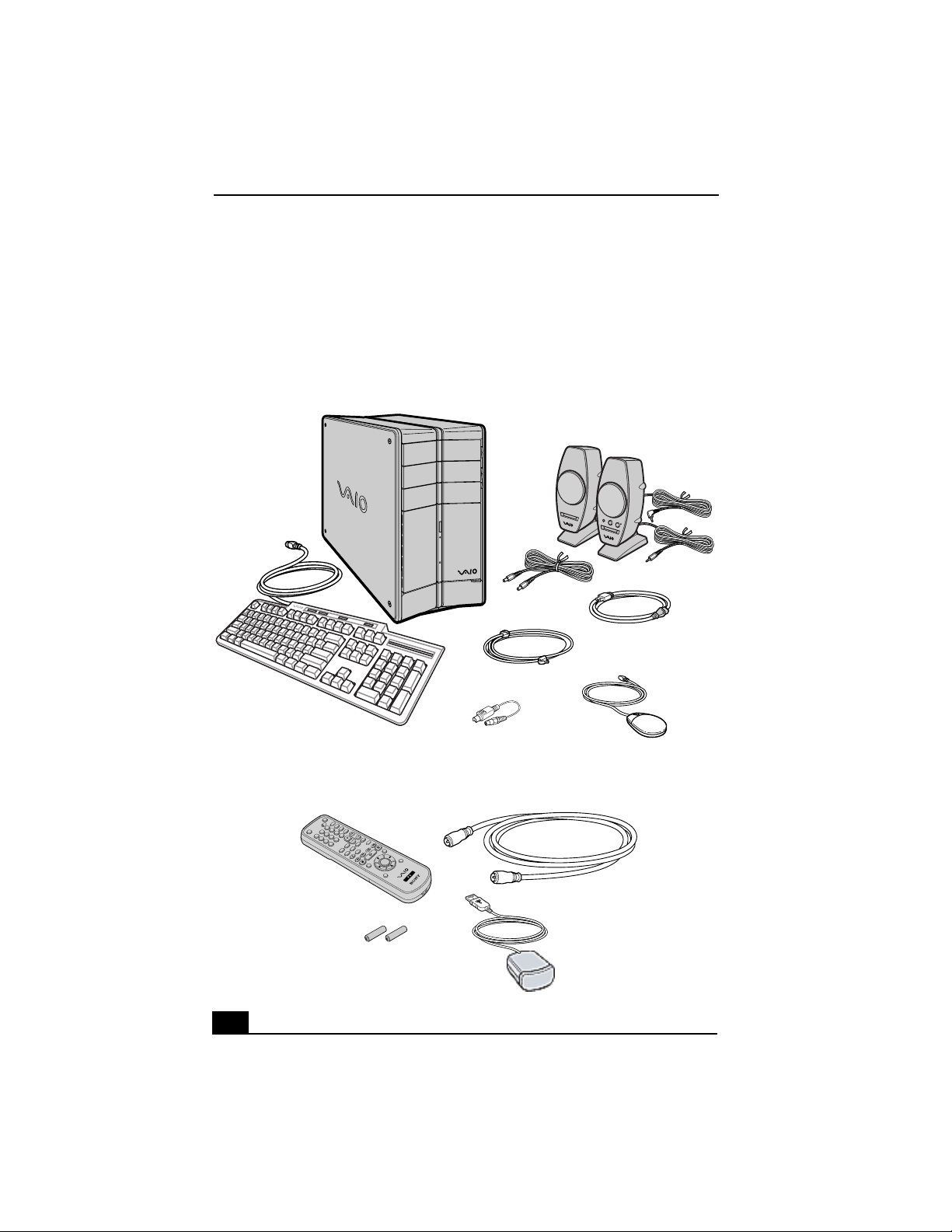
Your computer may not be supplied with all of the accessories shown, depending
on the system configuration you purchased. For details on the accessories
supplied with your computer, see the online Specifications sheet.
Computer and supplied accessories
Giga Pocket Personal Video Recorder accessories
System unit
Speakers* (PCVA-SP4)
with Speaker power cable
Modem cable
Power cord
Mouse
Keyboard
Video Adapter
TV coaxial cable (1)
Infrared receiver (1)
Remote control (1)
AA batteries (2)

Unpacking your Computer
15
Manuals
❑ VAIO® Computer Quick Start—Provides basic information on setting up
and registering your computer. The Quick Start also provides resources for
technical support, safety guidelines and owner’s information.
❑ Microsoft® Windows® XP guide—Explains how to use the basic features of
the latest Windows operating system.
Hard Disk Drive Recovery
Your computer is equipped with a utility program that enables you to recover
your computer’s operating system and preinstalled software.
For more information about hard disk drive recovery:
1 Click Start in the Windows® taskbar, then click Help and Support.
2 From the VAIO Help and Support Center, click VAIO Recovery Options.
Other
Software Library containing the Microsoft software license agreement and Sony
end-user license agreement.
✍ Your VAIO® computer is not supplied with System or Application Recovery CDs. Use
the VAIO Recovery utility to recover your computer's operating system and
preinstalled software.

VAIO Digital Studio Computer Quick Start
16

17
Locating Controls And Ports
This section is intended to familiarize you with the controls, ports and
jacks on your computer.Your computer may not be equipped with all of
these hardware features and the location of the controls, ports, and jacks
may vary from the illustrations shown in this section. To view the specific
connection capabilities for your system, see the online specifications
sheet.
VAIO Digital Studio Computer Quick Start
18
About the Front Panel
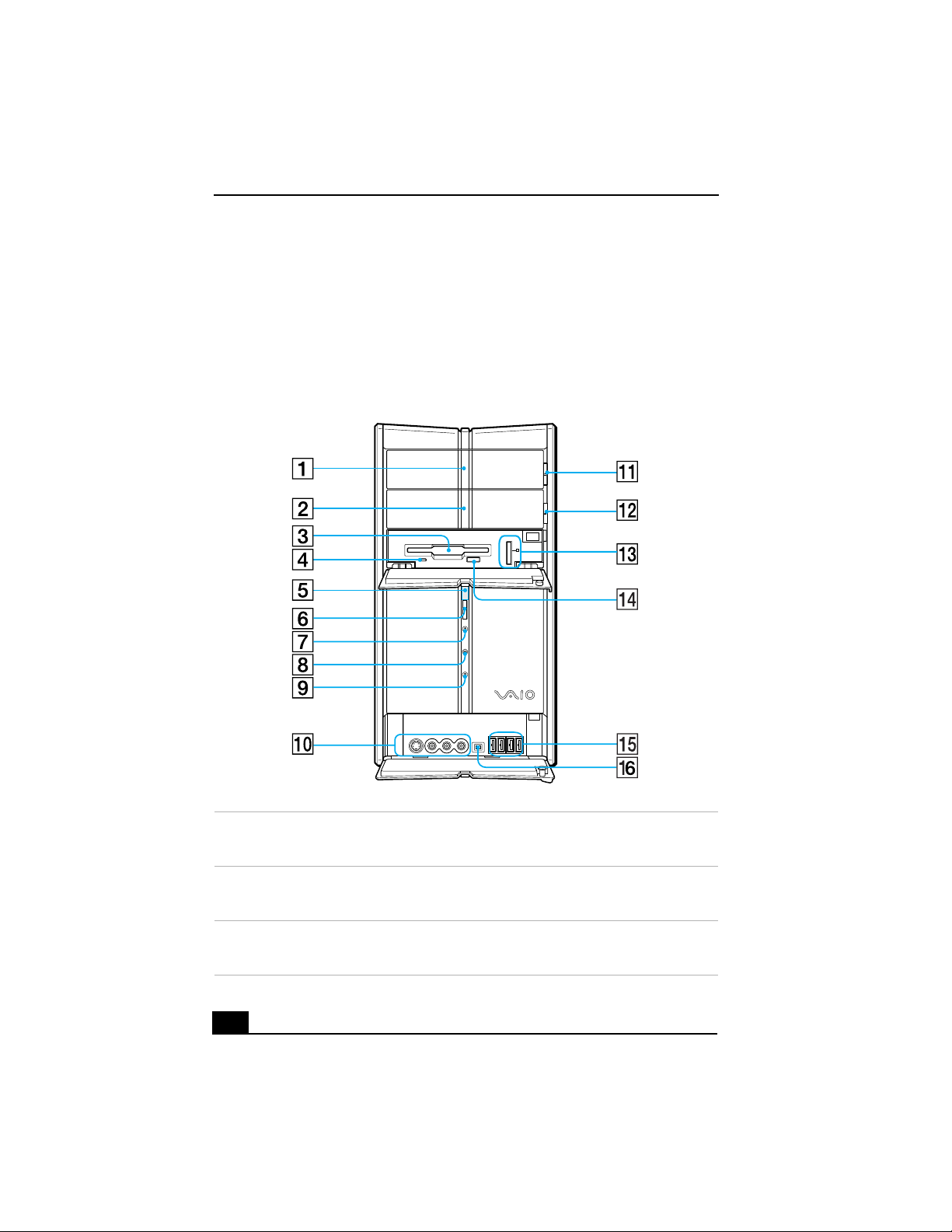
The front panel of your VAIO Computer enables access to the optical and floppy
disk drives. On certain models, the front panel also provides access to Giga
Pocket Personal Video Recorder jacks and ports, a Memory Stick media slot and
the Universal Serial Bus (USB), and i.LINK® ports that enable you to connect
compatible peripheral devices.
Front panel
1 Optical drive 1
See the online specifications sheet for optical drive information.
2 Optical drive 2
See the online specifications sheet for optical drive information.
3 Floppy disk drive
Reads and writes data from and to a 3.5-inch floppy disk.

About the Front Panel
19
4 Floppy disk drive access indicator
Light is green while reading and writing data from and to a floppy disk.
5 Power indicator
Light is blue while the power is on.
6 Power switch
Turns the computer on and off.
7 Stand by indicator
Light is red when the computer is placed in Stand by mode.
8 Optical drive access indicator
Light is amber while reading and writing data from and to the optical
drives.
9 Hard disk drive access indicator
Light is amber while reading and writing data from and to the hard disk.
10 S-video In jack
Connection for an S-video cable (optional).
Composite video In jack
Connection for a video cable (optional).
Composite audio L In jack
Connection for an audio cable (optional).
Composite audio R In jack
Connection for an audio cable (optional).
11 Optical drive 1 eject button
Ejects a disc from Optical drive 1.
12 Optical drive 2 eject button
Ejects a disc from Optical drive 2.
13 Memory Stick media slot and access indicator
Reads and writes data from and to a Memory Stick® media. The access
indicator light is amber when reading or writing data.

VAIO Digital Studio Computer Quick Start
20
14 Floppy disk eject button
Ejects a floppy disk from the floppy disk drive.
15 Universal Serial Bus (USB 2.0) ports (4)
Connections for compatible high/full/low-speed USB devices.
16 i.LINK (4-pin) S400 port (IEEE 1394)
Connection for a compatible digital device.
✍ i.LINK is a trademark of Sony used only to designate that a product contains an
IEEE 1394 connection. The i.LINK connection may vary, depending on the software
applications, operating system, and compatible i.LINK devices. All products with an
i.LINK connection may not communicate with each other.
Please refer to the documentation that came with your compatible i.LINK device for
information on operating conditions and proper connection. Before connecting
compatible i.LINK devices to your system, such as an optical or hard disk drive,
confirm their operating system compatibility and required operating conditions.
About the Back Panel
21
About the Back Panel
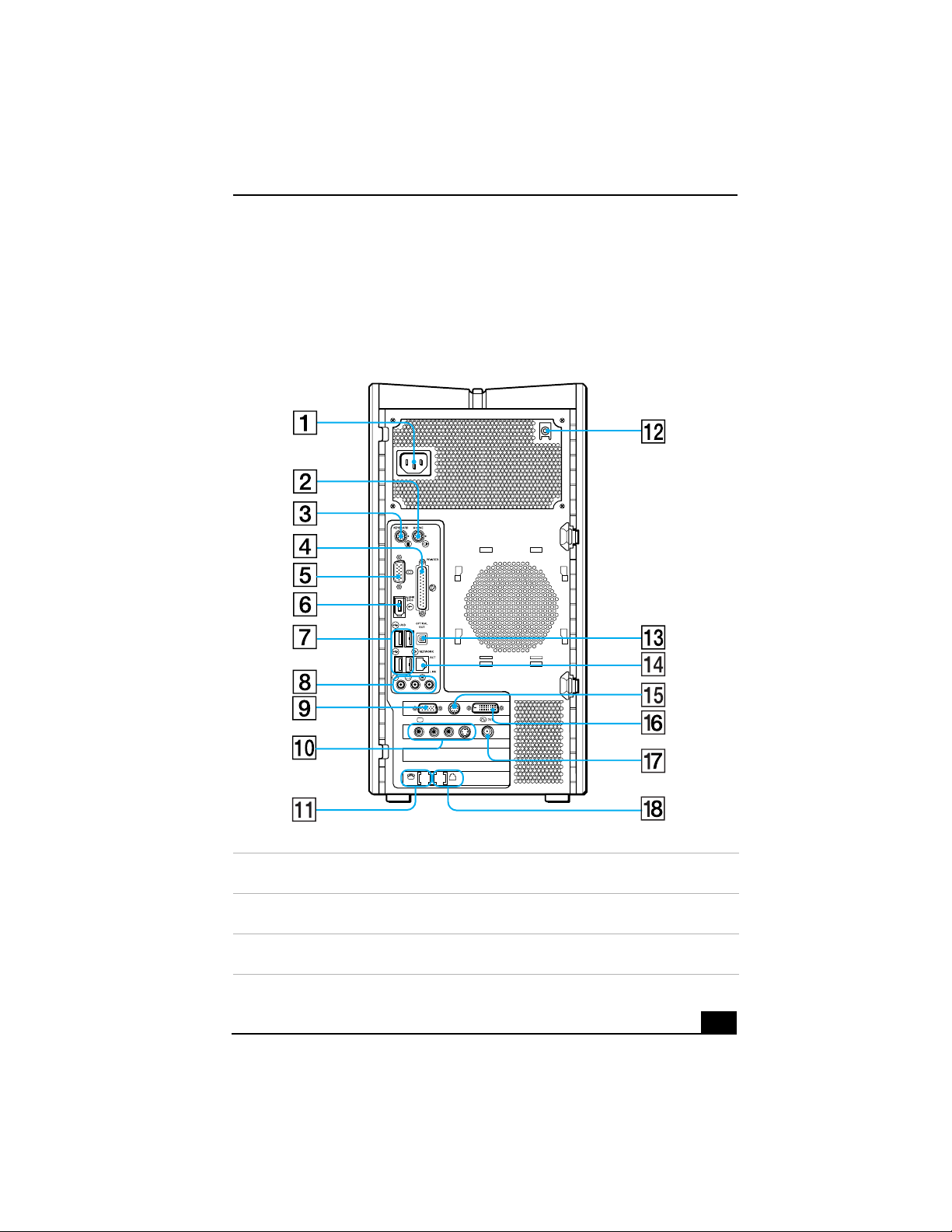
The back panel of your computer contains the ports for supplied and optional
accessories. The icons on the back panel locate and identify the ports on your
computer.
Back panel
1 AC Input port
Connection for the supplied power cord.
2Mouse port
Connection for a PS/2® mouse.
3 Keyboard port
Connection for a PS/2 keyboard.
MONITOR
USB
LINEPHONE
HEADPHONES
MIC
LINE IN
VHF/UHF
AUDIO AUDIO
–
VIDEO1 INPUT
–
S VIDEO
COMPOSITE
S VIDEO/VIDEO-
MONITOR
VAIO Digital Studio Computer Quick Start
22
4 Printer port
Connection for a parallel device, such as a printer or scanner.
5 Monitor port
*
Connection for a standard display.
6 i.LINK 6-pin S400 port (IEEE 1394)
Connection and power for a compatible digital device, such as a Sony
Digital Handycam
®
camcorder.
7 Universal Serial Bus (USB 2.0) ports (4)
Connections for compatible high/full/low-speed USB devices.
8 Microphone jack
Connection for a microphone (optional).
Headphones jack
Connection for the supplied speakers or optional headphones.
Line In jack
Connection for an audio device.
9 Monitor port
†
Connection for a standard display.
10 Composite audio R Out jack
Connection for an audio or stereo dubbing cable (optional).
Composite audio L In jack
Connection for an audio or stereo dubbing cable (optional).
Composite video In jack
Connection for a digital video or stereo A/V dubbing cable (optional).
S-video In jack
Connection for an S-video cable (optional).
11 Telephone jack
Connection for a telephone cable (optional) to the computer.
12 Speaker DC Out jack
Connection for the speaker power cable.
13 S/P DIF optical out port
Connection for a digital audio or optical device.
14 Ethernet port
Connection for a 10BASE-T/100BASE-TX/1000BASE-TX Ethernet.
(The port marked with (Network) is for LAN connections only.)
15 TV Out (S-Video/video) jack
‡
Connection for an S-video cable (optional).

About the Back Panel
23
16 Monitor (DVI) port
Connection for a DVI monitor.
17 VHF/UHF port
Connection for a coaxial cable (supplied).
18 Modem line jack
Connection for the modem (supplied) cable to the wall jack.
* This monitor port may have a cover, indicating that it is not available for use. On some
models, the monitor port location may be in a different location.
† On some locations, the monitor port location may be in a different location.
‡ This feature is available on selected models. See the specifications sheet for information on
your computer’s hardware configuration
VAIO Digital Studio Computer Quick Start
24
About the Remote Control
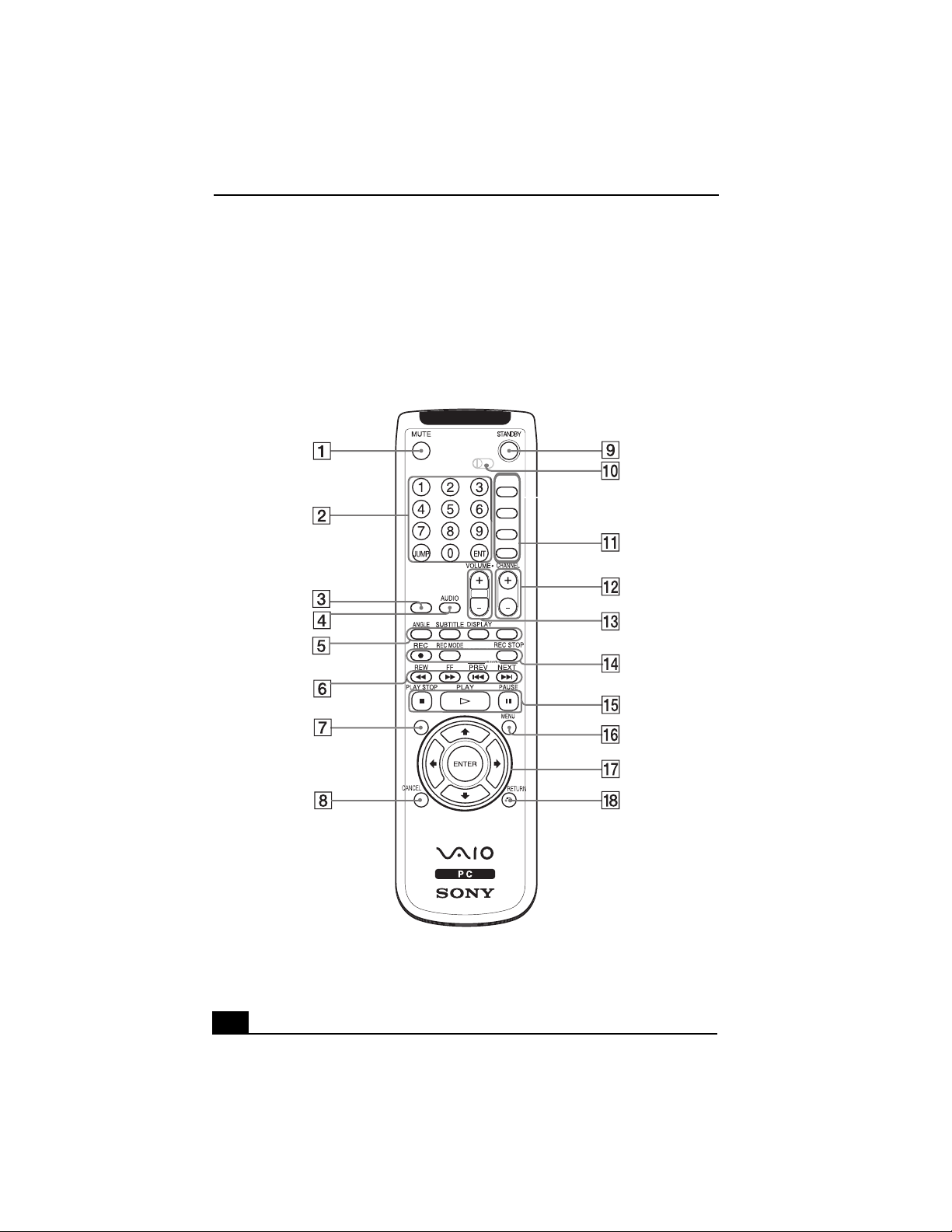
Giga Pocket™ Personal Video Recorder features are controlled with the remote
control. The remote control can start and stop video recording and playback,
select channels, and set viewing preferences. This section describes the basic
functions of your remote control.
Remote control
MENU
START
CLOSE
FUNCTION
SIZE
TOOL/TITLE
TV/VIDEO
MODE
I
II
PC
1
23

About the Remote Control
25
1MUTE button
Press to turn off the sound. Press again to restore the sound.
2 Channel number buttons (1-9)
Press to select specific channels.
(Press the ENT button to activate channel selection.)
JUMP button
Press to go to the previous channel. Press again to return to the current
channel.
ENT button
Press to activate channel selection. See Channel number buttons.
3 SIZE button
Press to view the current software in full-screen size. Press again to return
the view to its original size.
4 AUDIO button
Press to view available sound mode options on the monitor/display.
5 DVD angle button
Press to change the camera angle during DVD playback. See the DVD
player software for details. This function is not available for other software.
DVD Subtitle button
Press to turn on/off subtitles or to change the subtitle language during DVD
playback. See the DVD player software for details. This function is not
available for other software.
DISPLAY button
During DVD playback in full screen mode, press to show the settings
window.
When using Giga Pocket software, press to display the TV/Recording deck
and playback deck screens. Press again to hide these views.
TV/VIDEO button
Press to change the on-screen image from the TV/Recording deck to external
video equipment, such as your VCR.
(Note: You cannot change the input source while recording.)
6 REW and FF buttons
Press to rewind or fast-forward.
PREV and NEXT buttons
Press to move back to the previous screen or forward to the next screen.

VAIO Digital Studio Computer Quick Start
26
7 TITLE button
The function of this button may vary between DVDs. See the DVD player
software instructions for details.
8 CANCEL button
When using Giga Pocket software, press to close an error message dialog
box. The window returns to its original size when displayed in full-screen
mode.
(Note: This function is not available for other software.)
9 STANDBY button
Press to place the system into Stand by mode.
(Note: You cannot place the computer into Stand by mode when certain Giga
Pocket functions are running.)
10 MODE switch
Set the switch from 1 to 3, to change the remote control’s control between
computers. The target computer’s remote control software determines the
assigned number.
(Note: The default setting is 1, if you are using a single computer.)
11 MENU button
Press to view a shortcut menu of available software applications. Press again
to hide this menu.
(Note: For Giga Pocket software, the Select Video Capsules window
displays. Press the button again to hide this window.)
START button
Press to start the selected software.
CLOSE button
Press to close the current software.
FUNCTION button
When Giga Pocket software is selected with the Menu button, press to
switch from the TV/recording deck to the playback deck.
When using SonicStage software, plress to change from the music drive
(hard disk drive) to the CD.
12 CHANNEL button
Press to change channels automatically (no number input required).
(Note: This function is available for Giga Pocket software only.)
13 VOLUME button
Press to raise or lower the volume.

About the Remote Control
27
14 REC button
Press to begin recording.
REC MODE button
Press to select the recording mode.
REC STOP button
Press to stop recording.
(Note: The REC, REC MODE, and REC STOP functions are available for
Giga Pocket software only.)
15 PLAY STOP button
Press to stop playback.
PLAY button
Press to begin playback.
PAUSE button
Press to pause playback.
16 MENU button
Press to display the root menu during DVD playback. Press again to
minimize the window. See the DVD player software for details.
When using Giga Pocket software, press to display Video Capsule listings.
When using SonicStage software, press to display Playlists.
When using VAIO Media software, press to display the main menu.
17 Direction and ENTER buttons
Press a direction arrow to navigate. Press ENTER to select.
18 RETURN button
Press to return to the previous screen.
(Note: This function is not available for Giga Pocket software.)
✍ For more details about the function buttons on your remote control, see the Giga
Pocket Help.
VAIO Digital Studio Computer Quick Start
28
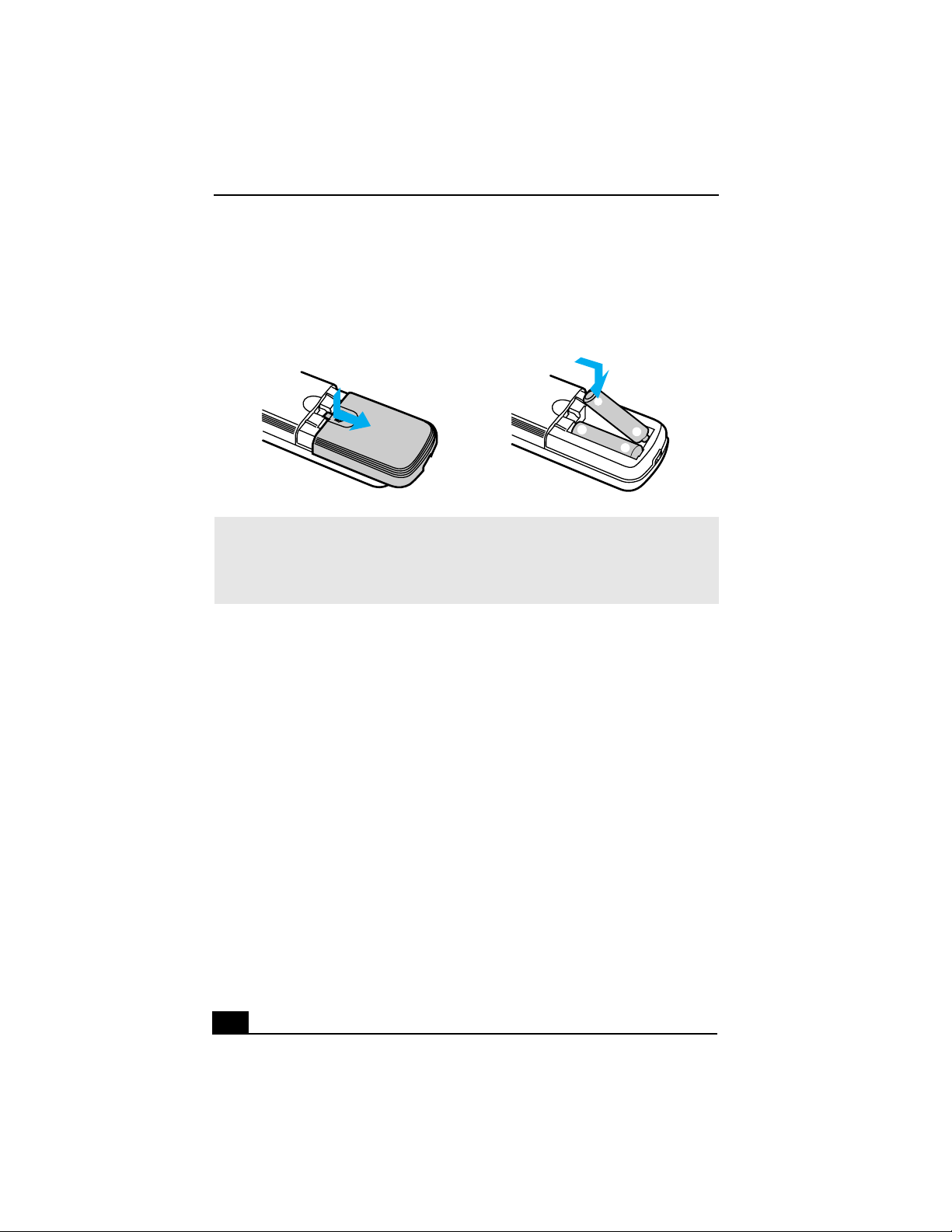
To set up the remote control
Insert two AA batteries (supplied) into the remote control as shown.
Inserting batteries into the remote control
✍ Under normal use, the AA batteries may last up to six months. If your remote control
does not operate properly, the batteries may need to be replaced.
If your remote control is not being used for extended periods of time, remove the
batteries to avoid possible damage from battery leakage.
+
+
_
_
About the Keyboard
29
About the Keyboard
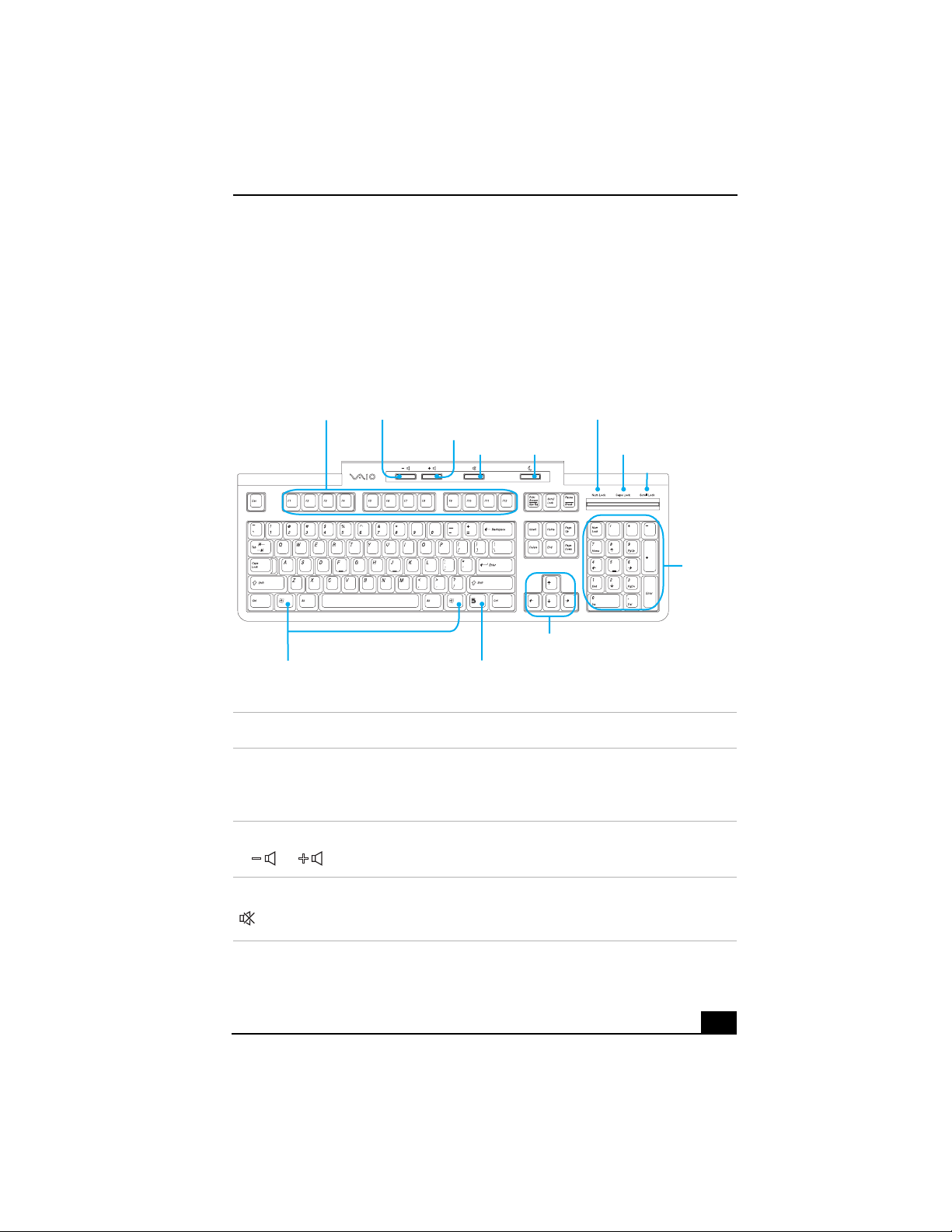
Your VAIO® keyboard uses a standard key arrangement with additional keys that
perform specific functions.
VAIO Keyboard
KEY DESCRIPTION
Function The 12 function keys along the top of the keyboard are used
to perform certain tasks. The task associated with each
function key may vary from one application to the next.
Volume Control Press a button to increase (+) or decrease (-) the volume of
the speakers.
Mute Press the button to turn off the volume of the speaker. Press
the Mute button again to restore sound.
Function
Mute Standby
(-) Volume
(+) Volume
Number
Lock
Capital
Lock
Scroll
Lock
Numeric
Keypad
Directional
arrows
ApplicationsWindows
VAIO Digital Studio Computer Quick Start
30
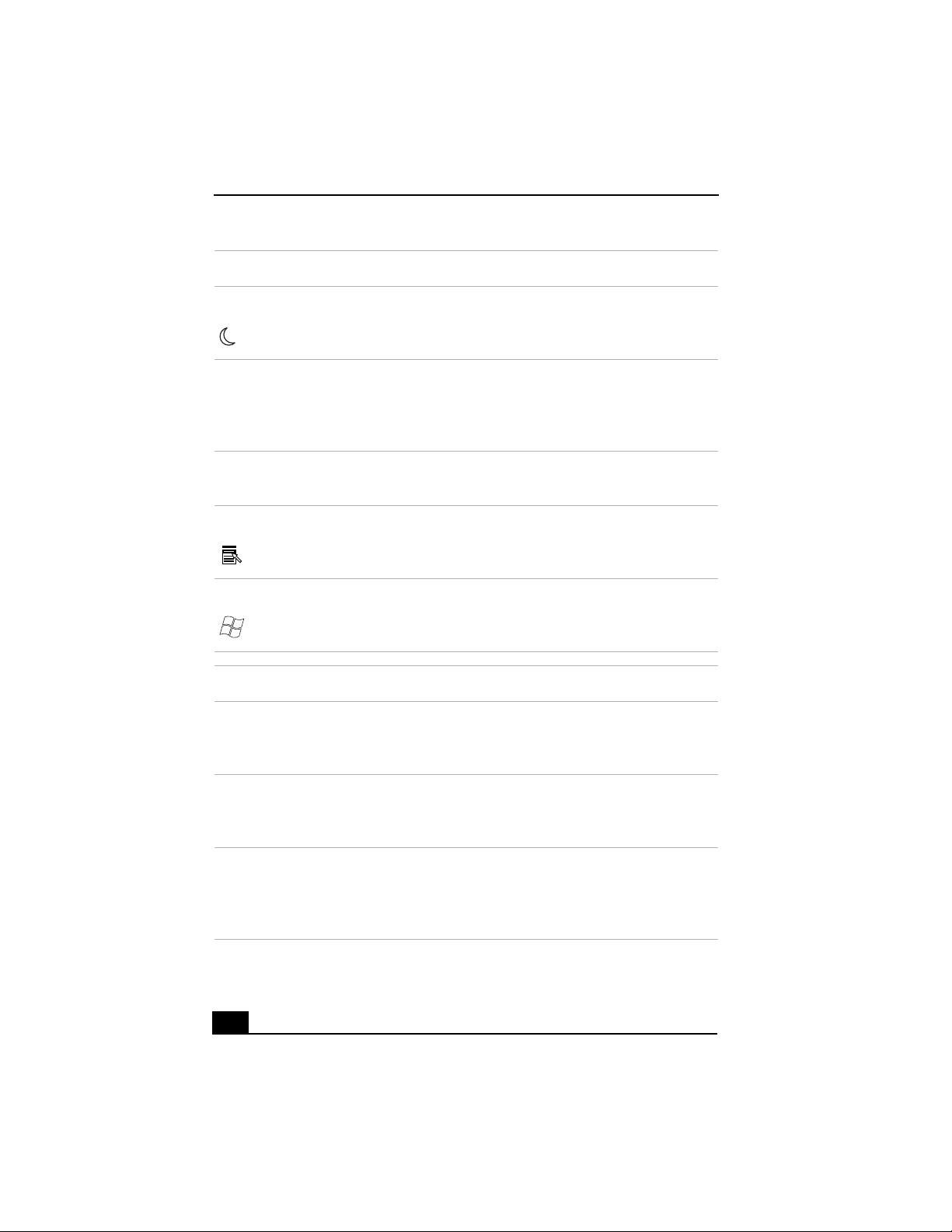
Standby Press the button to place the computer in Standby mode.
Press the Power button or any key briefly, to resume normal
operation.
Numeric keypad Use the numeric keypad area to type numbers or to perform
basic math calculations. Press the Num Lock key to activate
the numeric keypad. (The Num Lock indicator lights.) Press
the Num Lock key again to deactivate the numeric keypad.
Directional
Arrows
The Up, Down, Left, and Right arrow keys move the pointer
on the screen.
Applications The Applications key displays a shortcut menu in certain
software applications. Pressing this key is equivalent to
clicking the right mouse button.
Windows The key with the Microsoft® Windows® logo, displays the
Start menu. Pressing this key is equivalent to clicking Start on
the taskbar.
INDICATORS FUNCTION
Num Lock The Num Lock indicator lights when the numeric keypad is
activated. When the indicator is off, the directional arrow and
correction keys on the numeric keypad area are active.
Caps Lock The Caps Lock indicator lights up to advise you that the
keyboard is set to type letters in uppercase. When the
indicator is off, the letters appear in lower case as you type.
Scroll Lock The Scroll Lock indicator lights up to advise you that your
screen’s scrolling pattern has changed. When the indicator is
off, the screen scrolls normally. This function is not available
with all software applications.
KEY DESCRIPTION

31
Setting Up Your Computer
Your computer may not be equipped with all of the hardware features
described in the section. The location of the controls, ports, and jacks may
vary from the illustrations shown. See the online specifications sheet for
your system's specific hardware configuration.
VAIO Digital Studio Computer Quick Start
32
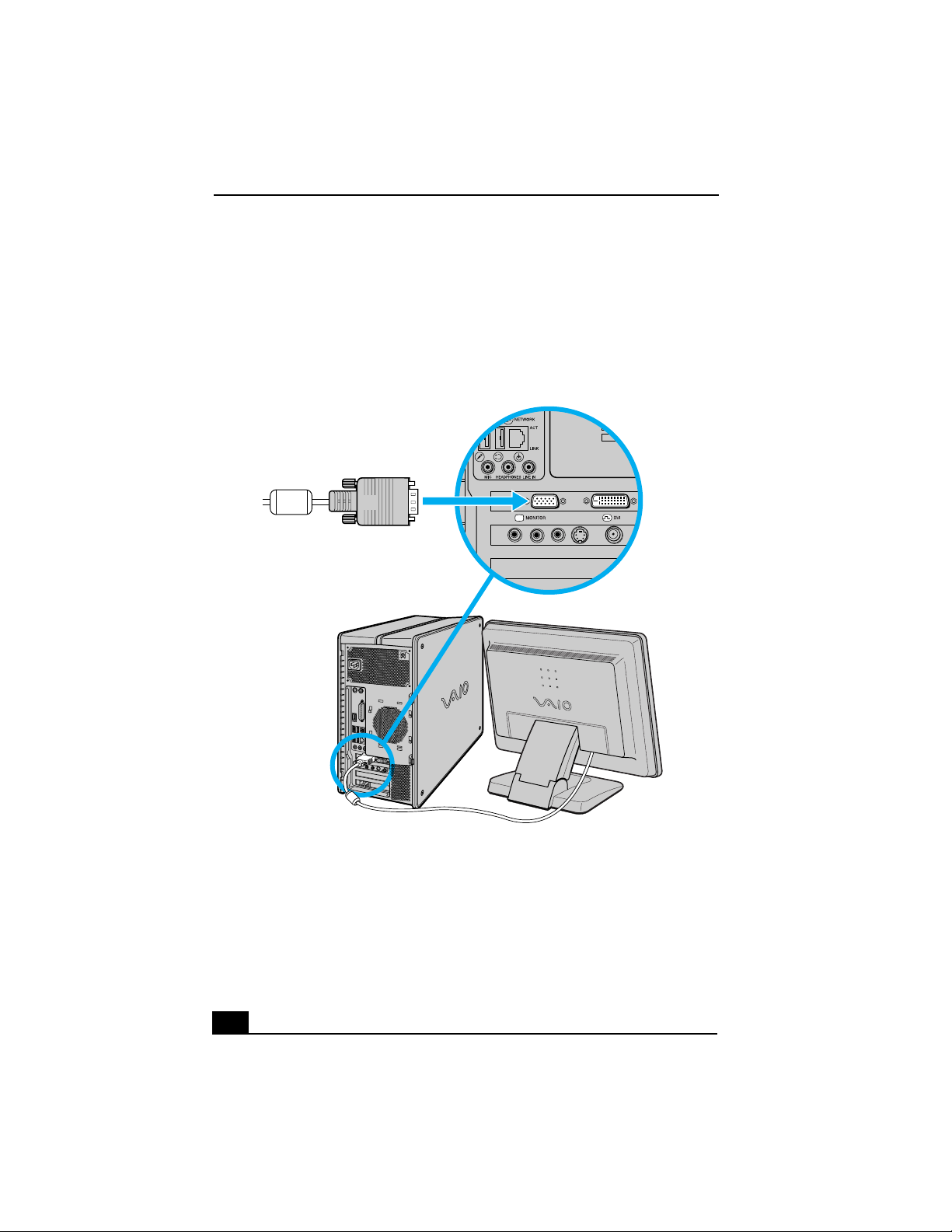
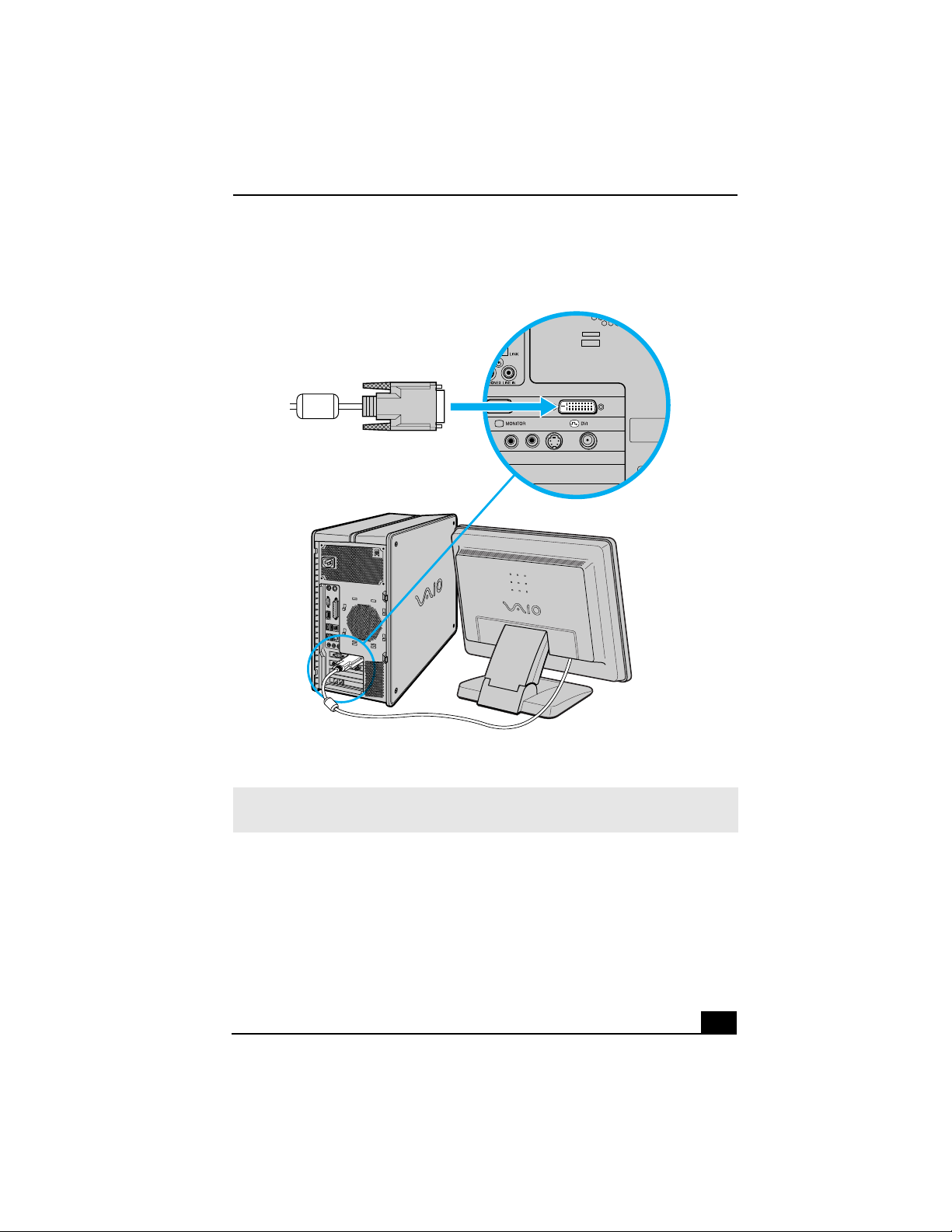
Connecting a Display (Monitor)Monitor)
1 Plug the display’s cable into the monitor port.
2 If necessary, plug the display’s cable into the rear of the display.
To connect a display
Connecting a Display (Monitor)
33
To connect a DVI display
✍ Install your equipment so that you can easily reach the power outlet in the event of an
emergency.
VAIO Digital Studio Computer Quick Start
34
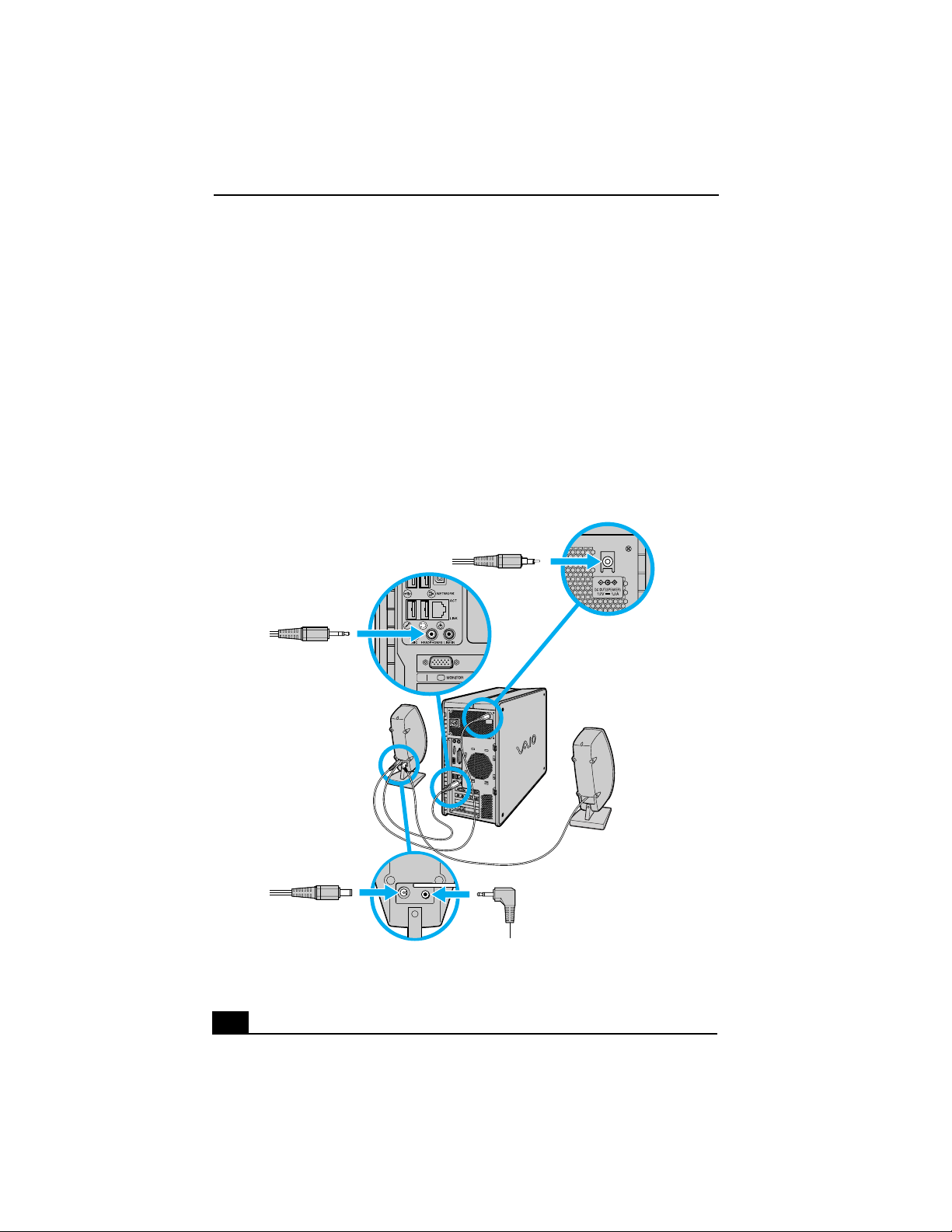
Connecting the Speakers
1 Plug the cable attached to the back of the left speaker into the L Out jack on
the back of the right speaker.
2 Plug the cable attached to the back of the right speaker into the Headphones
jack, located on the back panel of your computer.
3 Plug the jack end (yellow) of the speaker power cable into the DC In jack
(yellow) on the back of the right speaker.
4 Plug the jack end (black) of the speaker power cable into the DC Out jack
located on the back panel of your computer.
To connect the speakers
USB
4
Connecting the Keyboard and Mouse
35
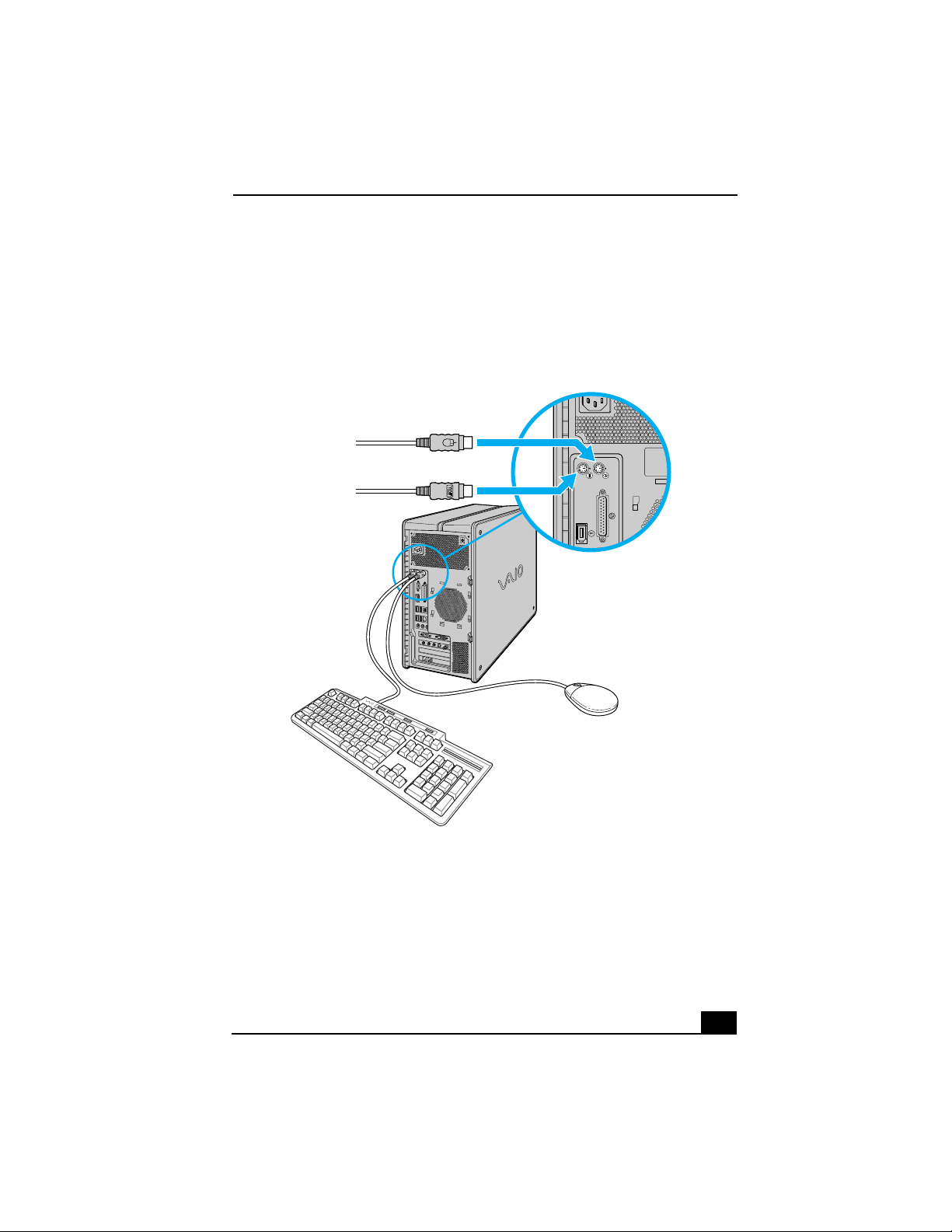
Connecting the Keyboard and Mouse
1 Plug the keyboard cable into the keyboard port on the back of the computer.
2 Plug the mouse cable into the mouse port on the back of the computer.
To use an optical mouse
An optical mouse requires an ideal surface texture in order to provide precision
pointing and tracking.
❑ Use surfaces such as plain paper, card stock, or fabric that have minimal
repetitive patterning.
❑ Avoid surfaces such as mirrors, smooth glass, or magazines that have half-
tone printing.
To connect the keyboard and mouse
KEYBOARD MOUSE
PRINTER
OPTICAL
i.LINK
S400
VAIO Digital Studio Computer Quick Start
36
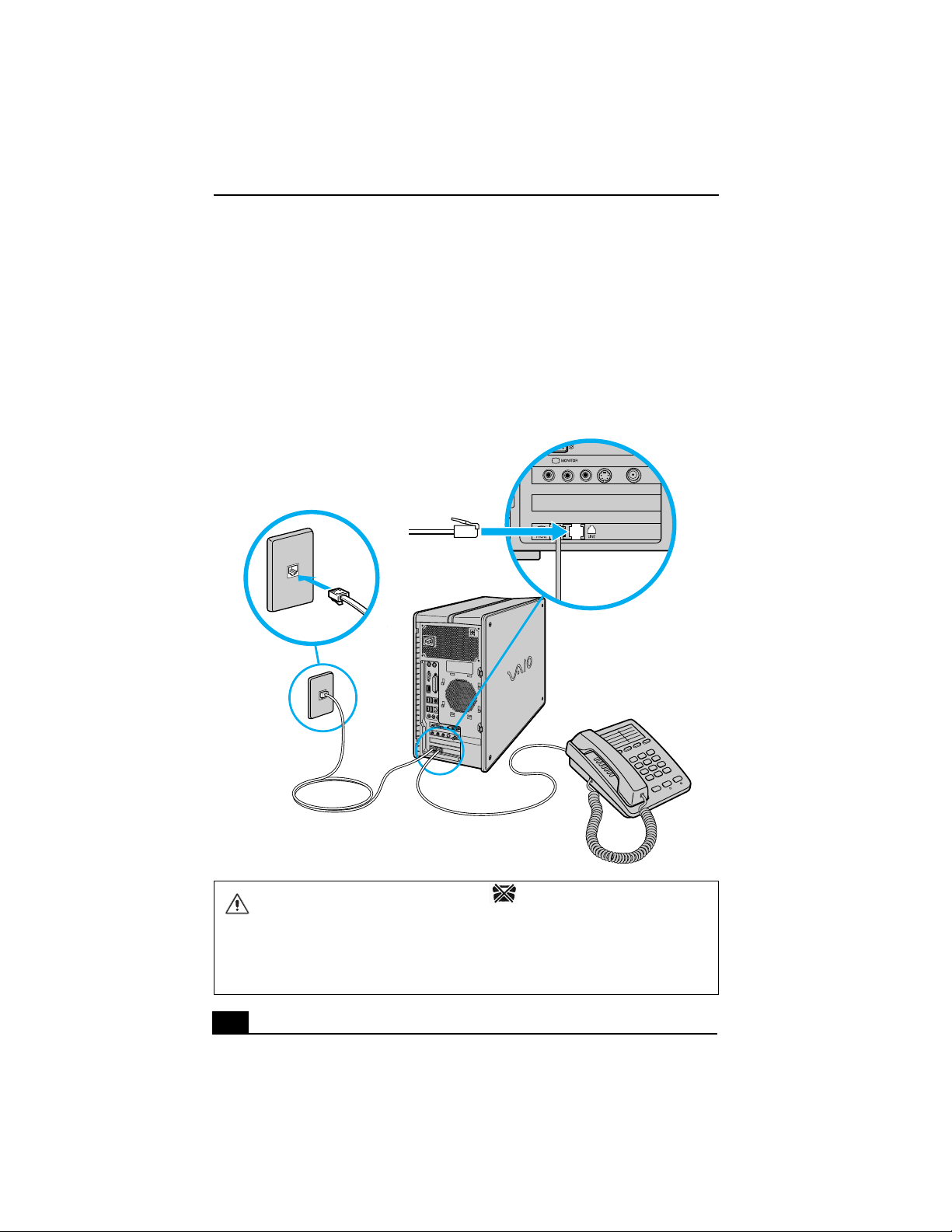
Connecting the Telephone and Modem cables
1 Unplug your telephone from the wall jack.
2 Plug the modem cable (supplied) into the Modem line jack, located on the
back panel of your computer
3 Plug the other end of the cable into the wall jack.
To connect the telephone and modem cables
Your computer has a protective sticker covering the Ethernet port located
on the rear panel. Connect only 10BASE-T and 100BASE-TX cables to the
Ethernet port. Using other cables or a telephone cable may result in an
electric current overload that can cause a malfunction, excessive heat, or fire
in the Ethernet port. For help on connecting to a network, see your network
administrator.
Connecting the Power Cords
37
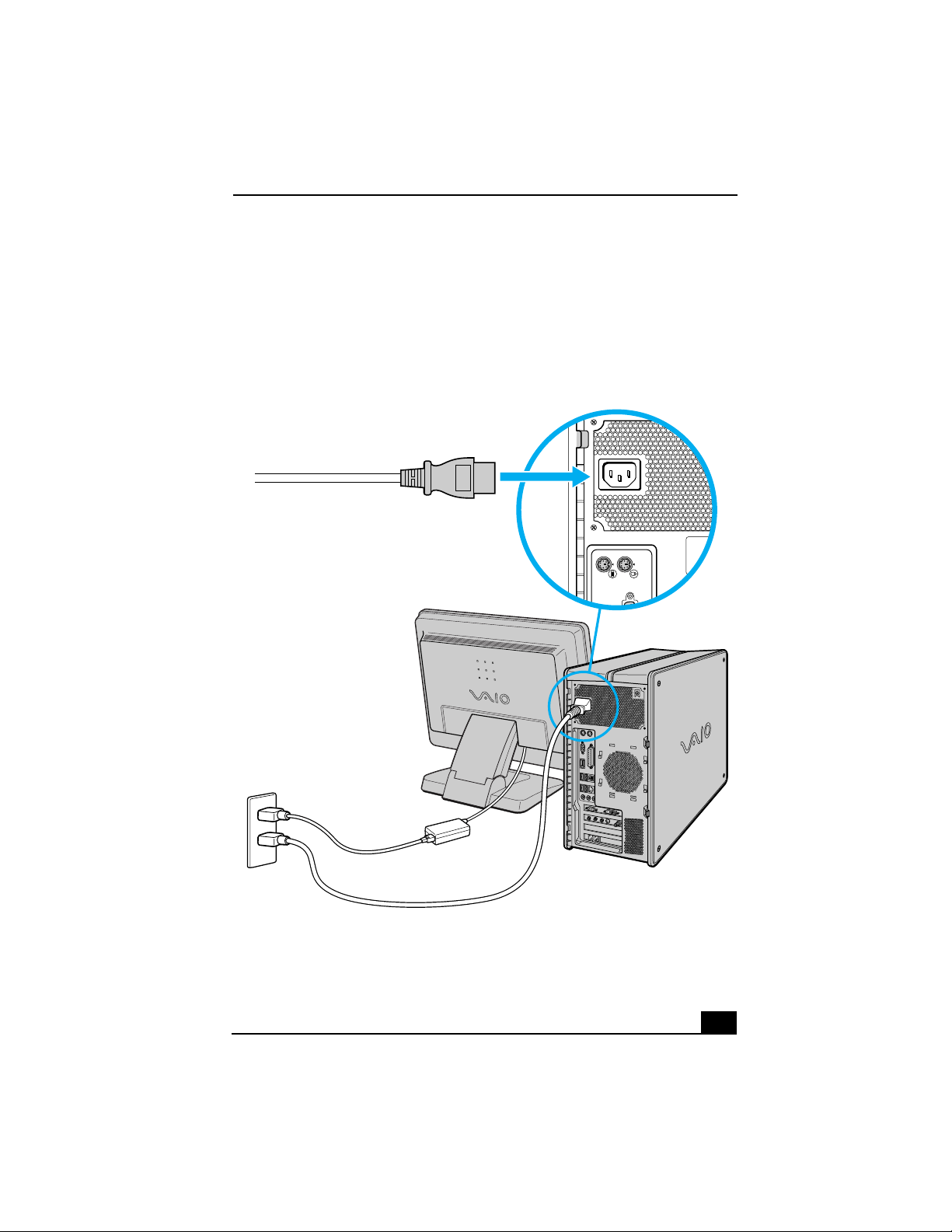
Connecting the Power Cords
1 Plug the power cord into the back of the computer.
2 Plug both the display and power cords into a grounded AC wall outlet or a
power strip.
To connect the power cords
KEYBOARD MOUSE
PRINTER
VAIO Digital Studio Computer Quick Start
38
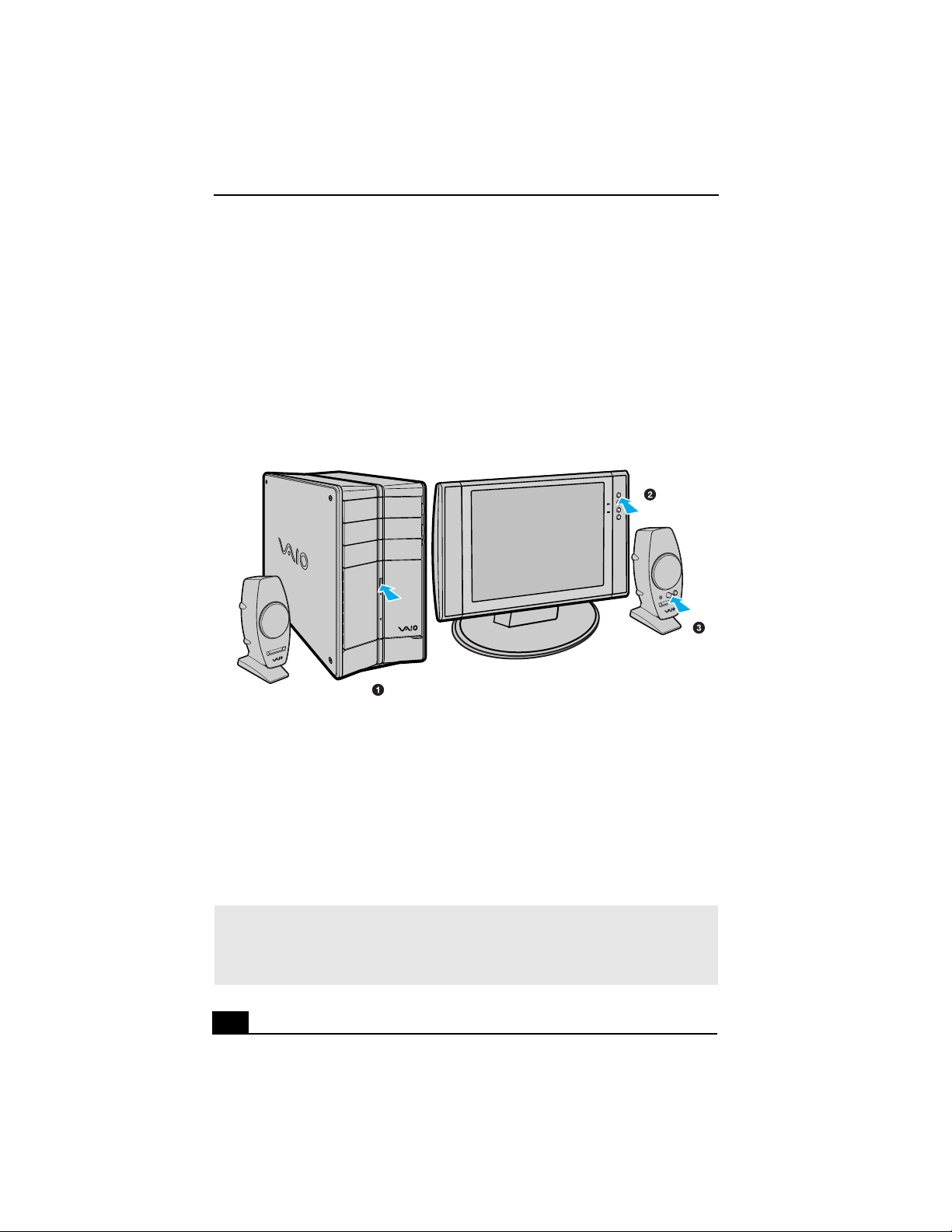
Turning On Your ComputerYour Computer
When you start your system for the first time, your computer may detect new
equipment and display a dialog box that prompts you to restart your computer.
Respond to this prompt immediately.
1 Press the power switch on the computer to turn on the power.
2 Press the power switch on the display to turn on the power.
3 Press the power switch on the right speaker to turn on the power.
Registering your Computer
Take advantage of Sony’s commitment to quality customer support and receive
these benefits by registering your computer:
❑ Sony Customer Support — Communicate with a Support Representative to
troubleshoot problems you may be having with your computer.
❑ Limited warranty — Protect your investment. See the Limited Warranty
Card for more details.
To turn on your computer
✍ You are prompted to register your computer the first time you turn on the unit. Follow
the on-screen instructions to complete the registration process. If you are not able to
register your computer during the first session, you are provided with additional
registration opportunities later.
Turning Off your Computer
39
Turning Off your Computer
Follow these steps when you are ready to turn off your computer for an extended
period of time.
To turn off your computer
1 Click Start in the Windows taskbar, then select Turn Off Computer.
The Turn Off Computer dialog box appears.
2 Select the Turn Off option.
3 Wait for your computer to turn off automatically—the power indicator light
turns off.
4 Turn off any peripheral devices connected to your computer.
About the power button
If your system stops responding, press and hold the Power button for more than
six seconds to force your system to shut down. You may need to repeat this
procedure if your system does not shut down on the first attempt.
To avoid loss of data, do not use the Power button to turn off the computer.
✍ Respond to any prompts about saving your documents.
✍ If you plan to turn off your computer for a short period of time, you may want to use
Stand by mode instead.

VAIO Digital Studio Computer Quick Start
40

41
Troubleshooting
This section describes how to troubleshoot common problems.Your
computer may not be equipped with all of the features in this section,
depending on the system configuration purchased.
My computer does not start.
❑ Verify that the computer is plugged into a power source and that it is turned
on. Check that the power indicator is lit on the front panel of the computer.
❑ Confirm that a disk is not in the floppy disk drive
*
(unless you are using a
bootable floppy disk).
❑ Confirm that a CD is not in an optical drive (unless you are using a bootable
CD).
❑ Confirm that the power cord and all cables are connected firmly.
❑ If you plugged the computer into a power strip or Uninterruptible Power
Supply (UPS), make sure the power strip or UPS is turned on and working.
❑ Verify that the monitor is plugged into a power source and turned on.
If your system has a built-in monitor, confirm that it is plugged into an
appropriate power source and that the system is turned on.
❑ Verify that the brightness or contrast control dials are adjusted correctly. (See
the manual that came with your display for details.)
❑ Confirm that the computer is not in stand by mode by pressing any key on
the keyboard.
* Certain VAIO computers are not equipped with a floppy disk drive. You can purchase this
equipment separately.
VAIO Digital Studio Computer Quick Start
42
Why did my computer or software stop responding?
You can try to locate and close the software application that has stopped
responding.
1 Press the Ctrl+Alt+Delete keys. The Windows Task Manager window
appears.
2 From the Applications tab, locate the application that has the status message,
“Not responding.”
3 Select the application that has a Not Responding status and click End Task.
Windows attempts to close the application.
If your computer does not respond or the application does not close, try the
following steps:
1 Save any open files, if possible.
2 Press the Alt+F4 keys. The Turn Off Computer window appears.
3 Click Restart.
If your computer still does not respond and you cannot restart, shut down your
computer by pressing and holding the power button for more than six seconds.
If the software application continues to stop responding or causes your computer
to stop responding, contact the software publisher or designated technical support
provider.
Pressing and holding the power button for more than six seconds, may result
in the loss of data from files that are currently open.

43
VAIO Recovery Options
The VAIO® Recovery Wizard enables you to recover preinstalled software
programs and the operating system on your computer. You can also use
this utility to create a Recovery Media Kit. The Recovery Media Kit
enables you to reclaim hard drive space and return your computer to
normal operation.
✍ This program repairs or replaces software. For any hardware problems, contact a
Sony authorized repair facility.
VAIO Digital Studio Computer Quick Start
44
About Recovery Options
You have several options when recovering software or your computer’s operating
system.
Accessing the VAIO Recovery Wizard
You can start the VAIO Recovery Wizard utility from the Microsoft® Windows®
XP Start menu, from the Recovery Media Kit, or from using the F10 key
*
on
notebook computers. Depending on how you access the VAIO Recovery Wizard,
you have different system and software recovery options.
System and software recovery options
❑ Create the Recovery Media Kit
You can create a Recovery Media Kit, consisting of CDs and DVDs, which
enable you to recover your computer at a later date if the software stops
working properly. You can start the VAIO Recovery Wizard from the
Windows XP Start menu, and create a Recovery Media Kit.
❑ Windows® System Restore
Return your computer’s operating system to a previous working state by
performing a System Restore. You can access this recovery option by
starting the VAIO Recovery Wizard, or by using the Windows XP System
Restore Wizard.
❑ Recover drive C
Returns the drive C to its original factory-installed settings. All previous data
and settings on drive C are deleted. You can preserve data on other
partitions, such as drive D. To recover drive C, access the VAIO Recovery
Wizard from the Windows XP Start menu, the Recovery Media Kit, or by
using the F10 key on notebook computers.
When you recover drive C, drive D, or perform a complete recovery, the VAIO
Recovery Wizard deletes and replaces all the files on the selected drives.
Sony recommends backing up your personal data to storage media or to
another computer before proceeding with system recovery
* This feature is available for VAIO® notebook computers only.

About Recovery Options
45
❑ Recover drives C and D
Return drives C and D to their original factory-installed settings. With this
option, you lose all data and settings on both drives. To recover drives C and
D, start the VAIO Recovery Wizard from the Windows XP Start menu, the
Recovery Media Kit, or by using the F10 key on notebook computers.
❑ Recover software programs
Recover specific factory-installed software including the BIOS, drivers, and
utilities. To recover the original software programs, start the VAIO Recovery
Wizard from the Windows XP Start menu or from the Recovery Media Kit.
You can access this option by using Disc 1 from your Recovery Media Kit.
❑ Perform a complete hard disk drive recovery
Completely recover your computer’s hard disk drive. This option recovers
drives C and D, and the hidden recovery drive. To perform a complete hard
disk drive recovery, start the VAIO Recovery Wizard from your Recovery
Media Kit.
✍ Recovering drives C and D with the Recovery Media Kit is the only way to restore the
hidden recovery drive.

VAIO Digital Studio Computer Quick Start
46
About the Recovery Media Kit
The Recovery Media Kit is created using your own CDs and/or DVDs. You can
create the Recovery Media Kit, or purchase it from Sony.
Recovery Media Kit overview
Confirm that you have sufficient CD and/or DVD recordable media available
before you begin creating the Recovery Media Kit. You should also have a
permanent marking pen ready, to label each CD and/or DVD media.You can
create your kit using a single type of media or by combining media types
*
, as
follows:
❑ One recordable CD (CD-R) and up to two recordable DVDs (DVD-R or
DVD+R)
(Your VAIO® computer must be equipped with a DVD-RW
†
or DVD±RW
drive.)
❑ Up to 12 recordable CDs (CD-R)
(Your VAIO computer must be equipped with a CD-RW drive.)
Before you begin creating the Recovery Media Kit, prepare your computer for
the process, as follows:
❑ Close all open software.
❑ Disconnect all network connections.
❑ Disconnect all peripheral devices.
❑ Do not interrupt the power.
❑ Disable any virus protection utility.
❑ Disable your screen saver.
* The number of CDs and DVDs actually required to create a Recovery Media Kit may vary,
depending on the computer purchased.
† A DVD-RW drive supports DVD-R media only.
About the Recovery Media Kit
47
Creating the Recovery Media Kit
The Recovery Media Kit can be used to start the VAIO Recovery Wizard, in the
event your system is unable to start normally. You can reclaim the portion of your
hard drive that is allocated to system recovery using the Recovery Media Kit.
To create the Recovery Media Kit
1 Click Start in the Windows® taskbar, point to All Programs, and then click
the VAIO® Recovery Wizard.
The VAIO Recovery Wizard appears.
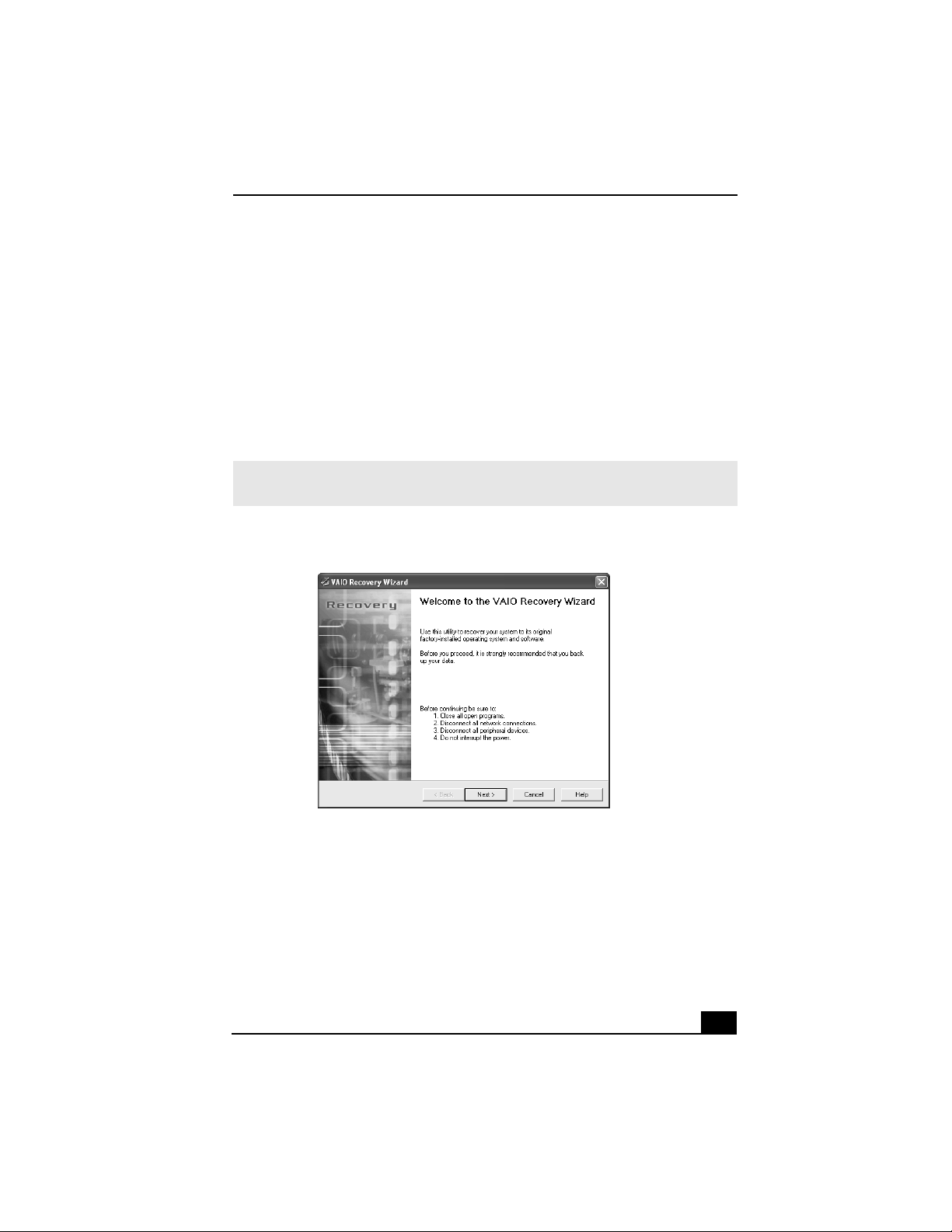
2 Read the on-screen information. Click Next.
✍ You can start the VAIO Recovery Wizard by double-clicking the VAIO Recovery Wizard
icon in the Windows taskbar notification area.
The VAIO Recovery Wizard
VAIO Digital Studio Computer Quick Start
48
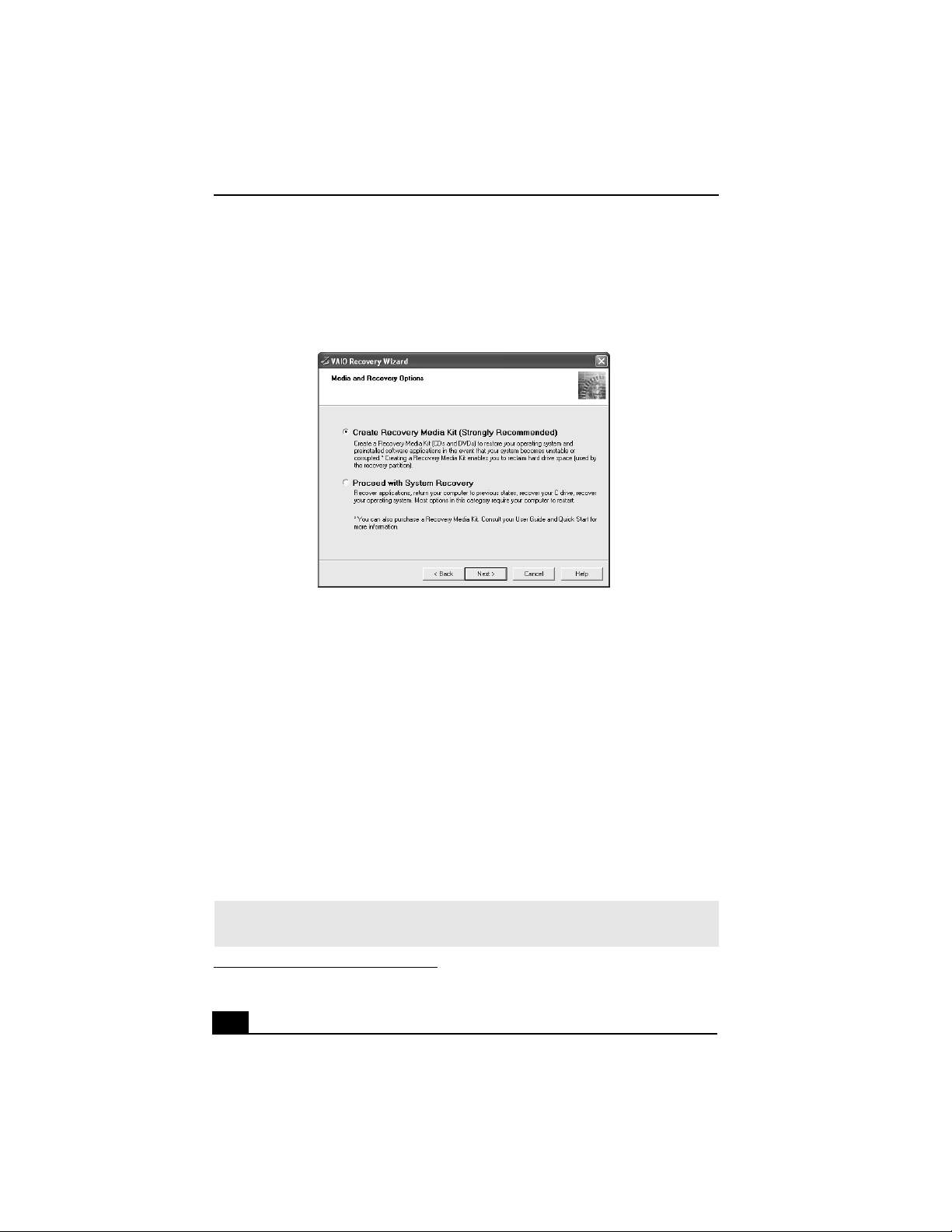
3 Select Create Recovery Media Kit (Strongly Recommended), and click
Next.
4 Select the Recovery Media Kit that you want to create.
You can create your kit using a single type of media or by combining media
types, as follows:
❑ One recordable CD (CD-R) and up to two recordable DVDs (DVD-R or
DVD+R)
(Your VAIO® computer must be equipped with a DVD-RW
*
or
DVD±RW drive.)
❑ Up to 12 recordable CDs (CD-R)
(Your VAIO computer must be equipped with a CD-RW drive.)
5 Click Next. Your computer’s optical drive tray opens automatically.
6 Insert a blank disc into the drive and close the drive. Click Next.
The CD creation process begins. A window with a progress bar appears.
VAIO Recovery Wizard — Media and Recovery Options
* A DVD-RW drive supports DVD-R media only.
✍ The time required to create each CD or DVD may vary, depending on your optical
drive’s recording speed.

About the Recovery Media Kit
49
7 When prompted, eject the disc. Label the top of the disc with a permanent
marker according to the on-screen instructions.
8 Repeat step 6 through step 7 for each CD or DVD.
9 When the text, The Recovery Media Kit is complete appears, click OK.
10 Click Finish. Store the Recovery Media Kit in a safe location.
To order the Recovery Media Kit
1 Go to the Sony Direct Accessories and Parts Center Web site at
http://servicesales.sel.sony.com.
2 Enter your computer’s model number (for example, PCV-XXX), and click
List Parts and accessories.
3 Follow the online instructions to order the Recovery Media Kit.
✍ If you are not able to access the Sony Direct Accessories and Parts Center Web site,
contact a customer service representative at 1-800-488-7669.

VAIO Digital Studio Computer Quick Start
50
Using the VAIO Recovery Wizard
The VAIO® Recovery Wizard provides recovery options for your computer. You
can access this tool from Windows® XP Start menu, your Recovery Media Kit,
or by pressing the F10 key
*
on your notebook computer.
Starting the VAIO Recovery Wizard
To access the VAIO Recovery Wizard from Windows XP
1 Click Start in the Windows® taskbar, point to All Programs, and click
VAIO Recovery Wizard.
2 From the Welcome window, click Next.
3 Choose one of the available menu options.
To access the VAIO Recovery Wizard from the Recovery Media Kit
1 Press the power switch on the computer to turn on the power.
2 Open the optical drive, and place the Startup Recovery Disc in the optical
drive.
3 Close the drive and turn off your computer.
4 Wait for approximately 30 seconds, and then turn on the computer.
5 When prompted, insert the Recovery Disk 1 into the optical drive, and then
click OK.
The VAIO Recovery Wizard appears.
6 Click Next.
7 Choose one of the available menu options.
* This feature is available for VAIO® notebook computers only.
✍ Using the VAIO Recovery Wizard may require you to restart your computer, even if you
cancel and exit the wizard.
Using the VAIO Recovery Wizard
51
To start the VAIO Recovery Wizard using the F10 Key (for notebook computers
only)
1 Turn off your notebook computer.
2 Press the power switch on the computer to turn on the power.
3 When you see the VAIO logo appear on the computer’s screen, briefly press
the F10 key.
4 Click Next.
5 Choose one of the available menu options.
Using the VAIO Recovery Wizard
To use Windows System Restore from the VAIO Recovery Wizard
1 Start the VAIO® Recovery Wizard, and click Next.
2 Select Proceed with System Recovery, and click Next.
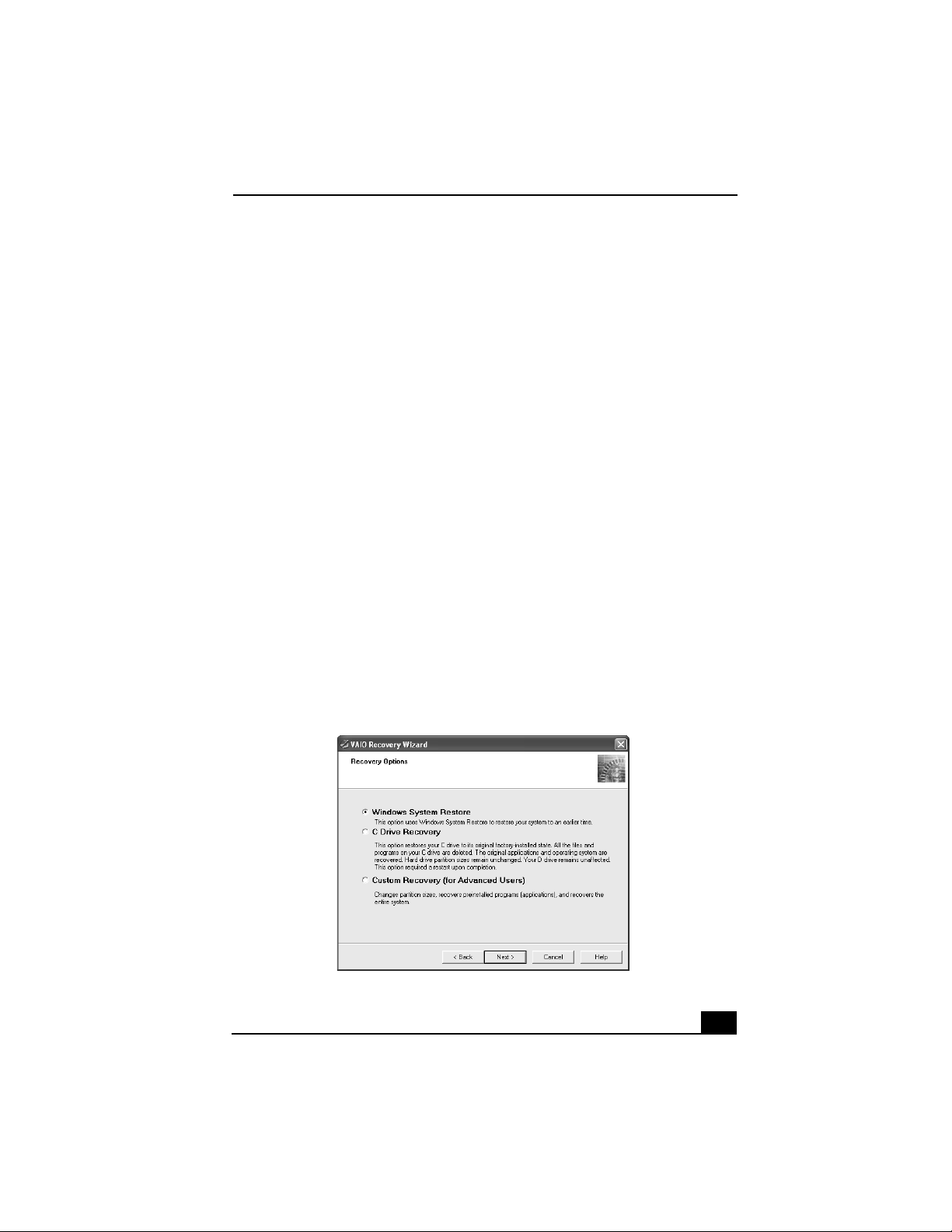
The Recovery Options window appears.
3 Select Windows® System Restore, and click Next.
4 Follow the on-screen instructions.
VAIO Recovery Wizard — Recovery Options

VAIO Digital Studio Computer Quick Start
52
To recover drive C
1 Start the VAIO Recovery Wizard, and click Next.
2 Select Proceed with System Recovery, and click Next.
The Recovery Options window appears.
(If using the Recovery Media Kit, skip step 2.)
3 Select C Drive Recovery, and click Next.
4 Read the on-screen information. Click Next.
5 The wizard begins the drive C recovery. When it is finished, click Next.
6 Click Finish. Your computer restarts.
To recover drives C and D (and reclaim all space on the hard disk drive)
1 Start the VAIO® Recovery Wizard, and click Next.
2 Select Proceed with System Recovery, and click Next.
The Recovery Options window appears.
(If you are using the Recovery Media Kit, skip step 2.)
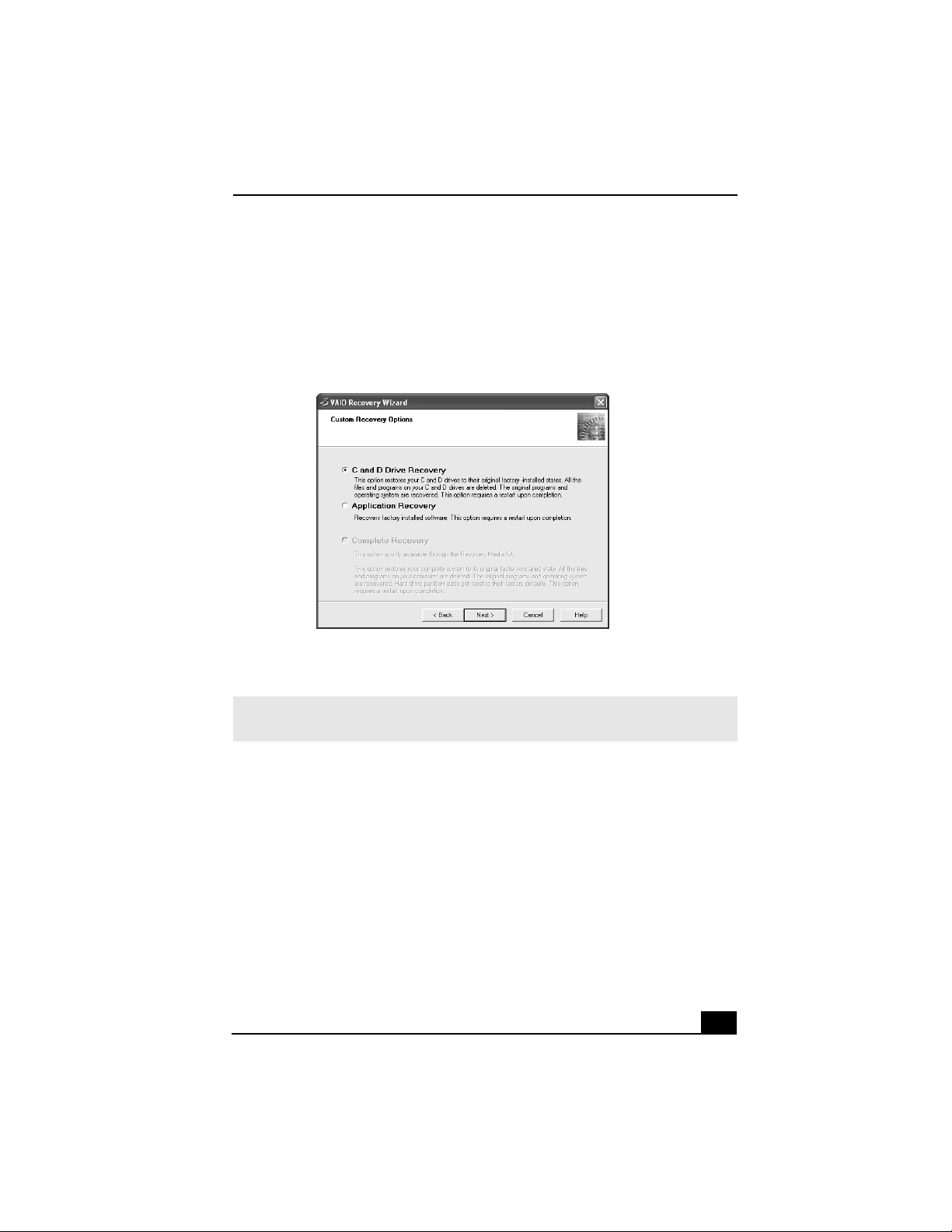
3 Select Custom Recovery (for Advanced Users), and click Next.
The Custom Recovery Options window appears.
4 Select C and D Drive Recovery, and click Next.
Using the VAIO Recovery Wizard
53
If you are using the Recovery Media Kit, you have two choices for this
recovery option:
❑ Keep the Recovery Drive (Recommended)
❑ Remove the Recovery Drive.
5 Choose the size of drive C. Any remaining disk space is allocated to drive D
(minus the space allocated for the recovery drive). Click Next.
6 The wizard starts the recovery process. When it is finished, click Next.
7 Click Finish, and the computer restarts.
VAIO Recovery Wizard — Custom Recovery Options
✍ Computers that come equipped with Giga Pocket software do not allow you to set the
drive D to zero.
VAIO Digital Studio Computer Quick Start
54
To recover software applications
1 Start the VAIO® Recovery Wizard, and click Next.
2 Select Proceed with System Recovery, and click Next.
The Recovery Options window appears.
(If you are using the Recovery Media Kit, skip step 2.)
3 Select Custom Recovery (for Advanced Users), and click Next.
The Custom Recovery Options window appears.
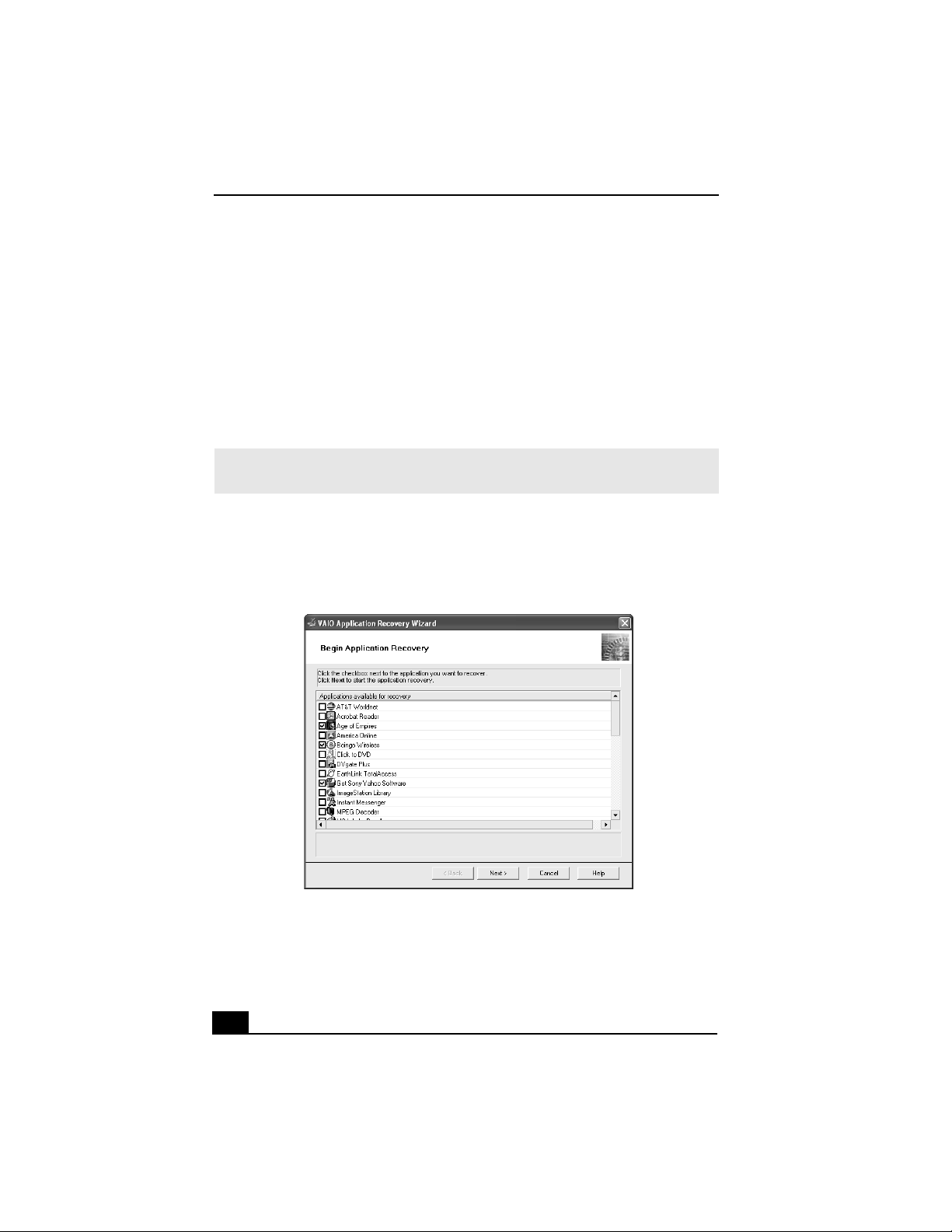
4 Select Application Recovery, and click Next.
The Begin Application Recovery window appears.
5 Click to select the check box for each software program you want to recover.
Click Next.
You may need to use the scrollbar to view all available software programs.
✍ When you select the Application Recovery option, you cannot return to the system
recovery portion of the VAIO® Recovery Wizard without restarting your computer.
VAIO Application Recovery Wizard — Begin Application Recovery

Using the VAIO Recovery Wizard
55
6 As your computer prepares to install each application, a status indicator
appears. You may see installation wizards, messages, and prompts. Follow
the instructions provided in each wizard, and respond to each prompt or
message.
When the selected software has been recovered, the Application Recovery
Complete window appears.
7 If you want to recover additional software, click Back. The Application
Recovery window appears with a listing of the available software titles.
8 Click Finish. Your computer restarts.
To perform a complete hard disk drive recovery
You must use the Recovery Media Kit to perform a complete hard disk drive
recovery.
1 Press the power switch on the computer to turn on the power.
2 Open the optical drive, and place the Startup Recovery Disc in the optical
drive.
3 Close the drive.
4 Turn off your computer.
5 Wait for approximately 30 seconds, and then turn on the computer.
6 When prompted, insert the Recovery Disk 1 into the optical drive, and then
click OK. The VAIO Recovery Wizard appears.
7 Click Next.
8 Select Custom Recovery (for Advanced Users), and click Next.
9 Select Complete Recovery, and click Next.
10 You may see installation wizards, messages, and prompts. Follow the
instructions provided in each wizard, and respond to each prompt or
message. Your computer may restart.
11 When the optical drive ejects, remove the disc. Close the drive, and click
Next. Your computer may restart several times.
✍ If the recovered software does not function properly or you see an installation error
message, try recovering the software again.

VAIO Digital Studio Computer Quick Start
56
Additional Information
❑ Certain software, such as DVgate™ Plus software, automatically saves data
to drive D. If you choose not to have a drive D partition, you must change
the software settings to enable file saving to drive C.
❑ Resizing your hard disk drive partitions can result in the loss of the VAIO®
Recovery Wizard.
❑ Giga Pocket™ software requires a drive D in order to operate. For VAIO®
computers with Giga Pocket software preinstalled, you cannot set the drive
D size to zero.

57
Support Options
Sony provides several options to help solve common problems or to locate
support for your VAIO® computer. This section describes all available
resources and offers suggestions on how to access this information for
maximum results.
Immediate Help and Support
You can locate helpful information immediately by consulting your printed
guides and supplements, or by accessing the online Computer User Guide and the
individual software Help files.
Your computer is supplied with these support options:
❑ VAIO® Computer Quick Start — The Quick Start contains information on
how to set up your computer quickly and easily. You can find instructions on
how to plan an ergonomic work space, connect power cords, cables and
peripheral devices, and register your computer with Sony.
❑ VAIO® Computer User Guide — The online User Guide provides
information about configuring, maintaining, upgrading, and troubleshooting
your computer. To access the online manual:
1 Click Start in the Windows® taskbar, then click Help and Support.
2 From the VAIO Help and Support Center menu, click VAIO User
Guide.
❑ Specifications — The online specifications sheet describes the hardware
and software configuration of your VAIO computer. To view this online
information:
1 Click Start in the Windows taskbar and click Help and Support.
2 From the VAIO Help and Support Center menu, click VAIO User
Guide.
3 Locate the link in the text, “View the VAIO® Computer
Specifications...”

VAIO Digital Studio Computer Quick Start
58
❑ Preinstalled software Help files — Each preinstalled software provides
online Help within the software. In these Help files, you can find tutorials
that teach you to use the software and locate troubleshooting support. To
access software Help files:
1 Click Start in the Windows taskbar and point to All Programs. A
submenu appears, listing all software applications. (Sony software Help
can be located from the submenu.)
2 Click the desired software application. The software’s main window
appears.
3 From the menu bar, click Help. The Help window appears.
Help and Support Resources
If the information provided with your VAIO® computer does not provide an
immediate solution or you would like to get direct support, try these help and
support resources.
Software Help and Support
The contact and support information for the preinstalled software on your system
is located in the online specifications sheet. Software support is free of charge for
90 days after the original date of purchase.
Sony Computing Support Web site
Online help and support are available 24 hours a day, seven days a week, when
you visit the Sony Computing Support Web site. You can access the Web site at
http://www.sony.com/pcsupport. The Sony Computing Support Web site
provides:
❑ Information about your specific model computer, such as
❑ hardware and software specifications.
❑ upgrade and maintenance procedures.
❑ safety and legal information.
❑ quick solutions to common problems.
✍ Your computer may not be supplied with all of the software discussed in this section,
depending on the system configuration you purchased. To view the specific software
preinstalled on your computer, see the online specifications sheet.

Help and Support Resources
59
❑ An automated tutorial library that contains interactive, easy-to-understand
lessons on using your computer’s hardware and software features.
❑ Links that enable you to:
❑ quickly find the nearest Sony service center locations.
❑ arrange for repairs or check repair status.
❑ review warranty information.
❑ e-mail your question or comments to the Sony Customer Information
Services Center.
❑ check pricing and availability for products, accessories and parts, as
well as purchase online.
❑ access the Sony Solutions Knowledge Base, a database that contains
answers to many frequently asked questions.
Sony Customer Information Services Center
If other support options do not resolve your issue, you can contact a Sony
Support representative directly.
Before making a call to the Sony Customer Information Services Center, have
this basic information readily available.
1 VAIO® computer system type
2 Model number
3 Serial number
*
Example:
4 Operating system
5 Hardware feature or software application that has a problem. (See “Help and
Support Resources” for the appropriate software contact information.)
6 Brief description of the issue.
For VAIO® computers purchased in the U.S. and Canada, contact a Sony
Support representative at 1-888-476-6972.
* The serial number is located on the back panel of your computer. The serial number is on a
white barcode label.

4-675-864-11 © 2003 Sony Electronics Inc. Printed in USA