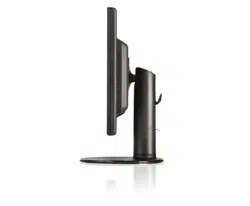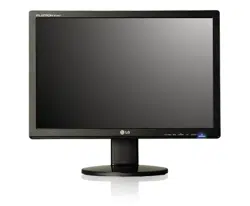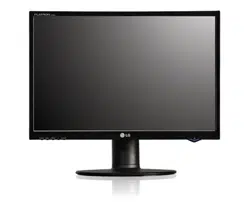
Make sure to read Important Precautions before using the product.
Keep the User's Guide(CD) in an accessible place for furture reference.
See the label attached on the product and give the information to your
dealer when you ask for service.
L246WH
L246WHX
User’s Guide
A1
This unit has been engineered and manufactured to ensure your personal
safety; however, improper use may result in potential electrical shock or fire
hazards. In order to allow the proper operation of all safeguards
incorporated in this display, observe the following basic rules for its
installation, use, and servicing.
On Safety
Use only the power cord supplied with the unit. If you use another power cord,
make sure that it is certified by the applicable national standards if not provided by
the supplier. If the power cable is faulty in any way, please contact the
manufacturer or the nearest authorized repair service provider for a replacement.
The power supply cord is used as the main disconnection device. Ensure that the
socket-outlet is easily accessible after installation.
Operate the display only from a power source indicated in the specifications of
this manual or listed on the display. If you are not sure what type of power supply
you have in your home, consult with your dealer.
Overloaded AC outlets and extension cords are dangerous. So are frayed power
cords and broken plugs. They may result in a shock or fire hazard. Call your service
technician for replacement.
Do not Open the Display.
There are no user serviceable components inside.
There is Dangerous High Voltage inside, even when the power is OFF.
Contact your dealer if the display is not operating properly.
To Avoid Personal Injury.
Do not place the display on a sloping shelf unless properly secured.
Use only a stand recommended by the manufacturer.
Do not drop an object on or apply impact to the product. Do not throw any toys
or objects on the product screen.
It can cause injury to humans, problems to the product and damage to the display.
To Prevent Fire or Hazards :
Always turn the display OFF if you leave the room for more than a short period
of time. Never leave the display ON when leaving the house.
Keep children from dropping or pushing objects into the display's cabinet
openings. Some internal parts carry hazardous voltage.
Do not add accessories that have not been designed for this display.
When the display is to be left unattended for an extended period of time, unplug
it from the wall outlet.
If thunder and lightning are present , do not touch the power cord and signal
cable because it can be very dangerous. It can cause electric shock.
Important Precautions
A2
Important Precautions
On Installation
Do not allow anything to rest upon or roll over the power cord, and do not place
the display where the power cord is subject to damage.
Do not use this display near water such as near a bathtub, washbowl, kitchen
sink, laundry tub, in a wet basement, or near a swimming pool.
Displays are provided with ventilation openings in the cabinet to allow the release
of heat generated during operation. If these openings are blocked, built-up heat
can cause failures which may result in a fire hazard. Therefore, NEVER:
Block the bottom ventilation slots by placing the display on a bed, sofa, rug, etc.
Place the display in a built-in enclosure unless proper ventilation is provided.
Cover the openings with cloth or other material.
Place the display near or over a radiator or heat source.
Do not rub or strike the Active Matrix LCD with anything hard as this may scratch,
mar, or damage the Active Matrix LCD permanently.
Do not press the LCD screen with your finger for a long time as this may cause
some afterimages.
Some dot defects may appear as Red, Green or Blue spots on the screen.
However, this will have no impact or effect on the display performance.
If possible, use the recommended resolution to obtain the best image quality for
your LCD display. If used under any mode except the recommended resolution,
some scaled or processed images may appear on the screen. However, this is
characteristic of the fixed-resolution LCD panel.
Leaving a fixed image on the screen for a long time may cause damage to the
screen and cause image burn-in. Make sure to use a screen saver on the product.
Burn-in and related problems are not covered by the warranty on this product.
On Cleaning
Unplug the display before cleaning the face of the display screen.
Use a slightly damp (not wet) cloth. Do not use an aerosol directly on the display
screen because over-spraying may cause electrical shock.
On Repacking
Do not throw away the carton and packing materials. They make an ideal
container in which to transport the unit. When shipping the unit to another
location, repack it in its original material.
On Disposal
The fluorescent lamp used in this product contains a small amount of mercury.
Do not dispose of this product with general household waste.
Disposal of this product must be carried out in accordance to the regulations of
your local authority.
Connecting the Display
A3
Before setting up the monitor, ensure that the power to the monitor, the computer
system, and other attached devices is turned off.
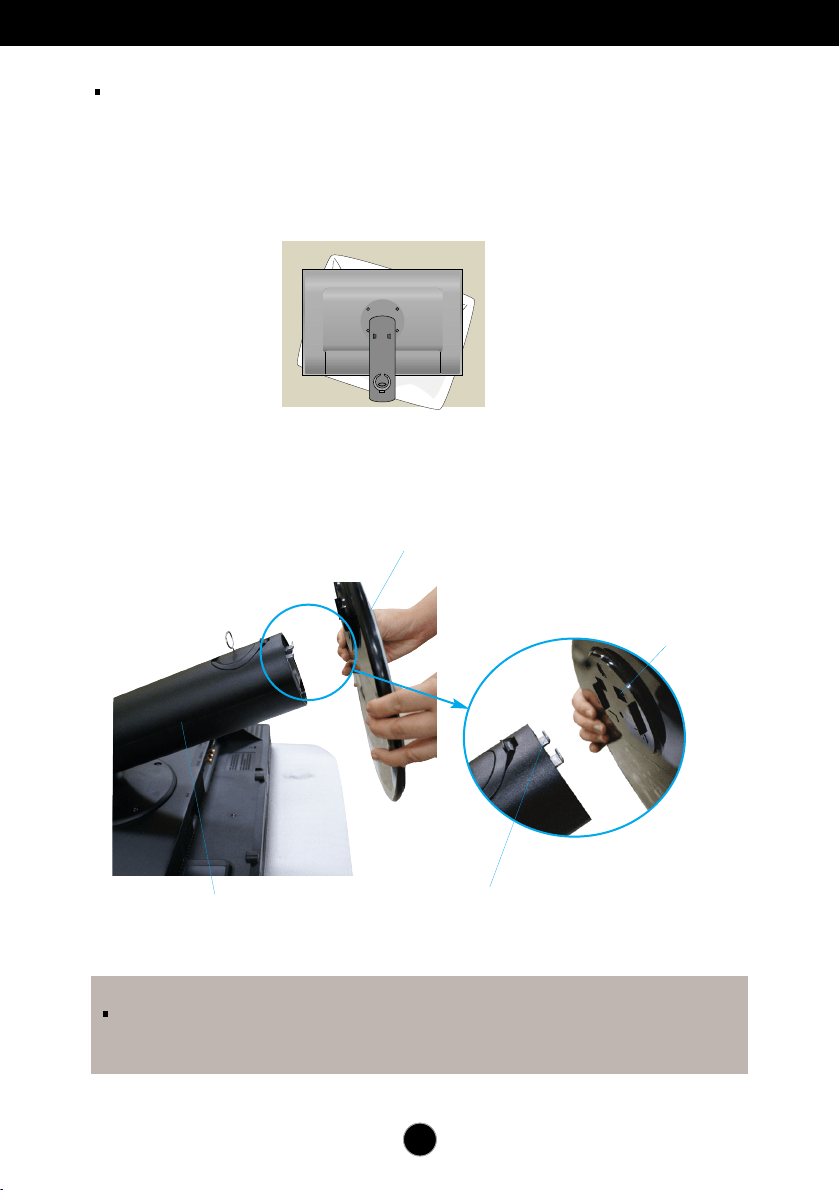
Connecting the stand base or Removing the stand base
1. Place the monitor with its front facing downward on a cushion or soft cloth.
2. Align the hooks on the Stand Body with the matching slots in the Stand Base.
3. Insert the hooks into slots.
Warning
The tape and locking pin may only be removed from those monitors equipped with a
standing base when the base is pulled up.
Otherwise, you may be injured by the protruding sections of the stand.
Slot
Stand Body
Hook
Stand Base
A4
Connecting the Display
Important
This illustration depicts the general model of connection. Your monitor may differ from the items
shown in the picture.
Do not carry the product upside down holding only the stand base. The product may fall and get
damaged or injure your foot.
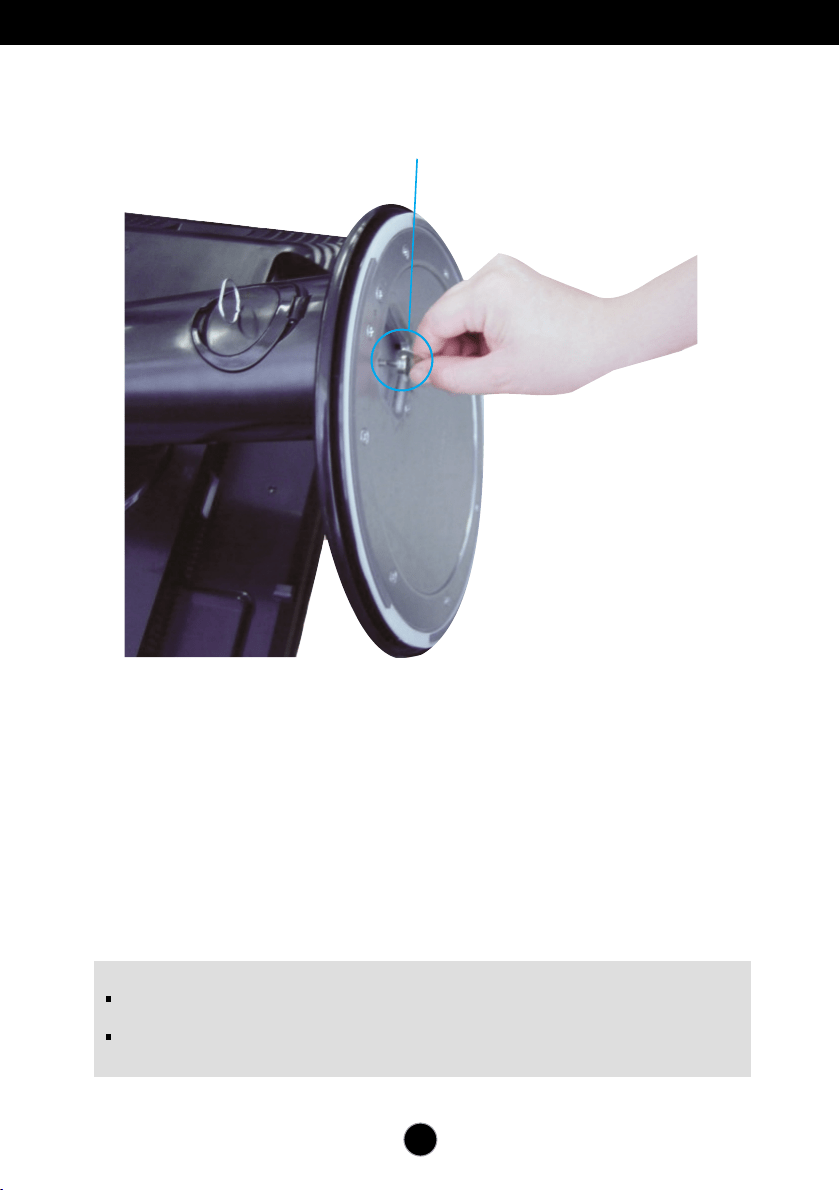
4.
Attach the monitor to the Stand Base by turning the screw to the right.
Screw : Turn the screw by using the screw handle.
5.
Lift and turn the monitor to face towards the front after the connection is
made to the female part of the cable you're attaching.
6.
Take the screw out by turning to the left to separate the monitor and Stand
Base.
A5
Connecting the Display
Before setting up the monitor, ensure that the power to the monitor, the computer
system, and other attached devices is turned off.
Positioning your display
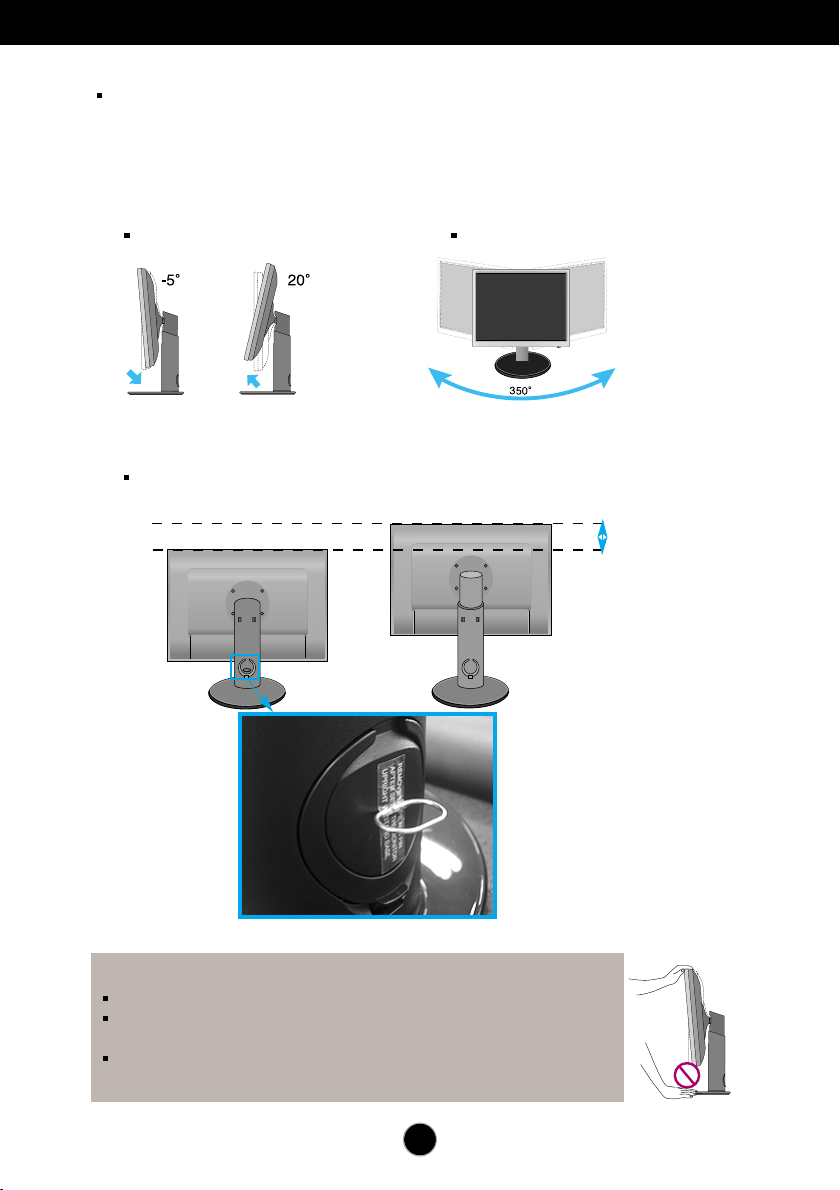
1. Adjust the position of the panel in various ways for maximum comfort.
Tilt Range : -5˚~20˚ Swivel :350˚
100.0mm
* Please be sure to
remove the Locking
pin to adjust the height.
Height Range : maximum 3.94 inches (100.0mm)
Ergonomic
You do not need to replace the Locking pin after it is removed, to adjust its height.
It is recommended that in order to maintain an ergonomic and comfortable viewing
position, the forward tilt angle of the monitor should not exceed 5 degrees.
When adjusting the angle of the screen, do not put your finger(s) in between the head
of the monitor and the stand body. You can hurt your finger(s).
A6
Name and function of the Parts
Rear View
DC-OUT HDMI/DVI
COMPONENT
AUDIO
OUT
D-SUB
Y
P
R
P
B
AC-IN
1 2
6
8
2
9
3
4 5
1
7
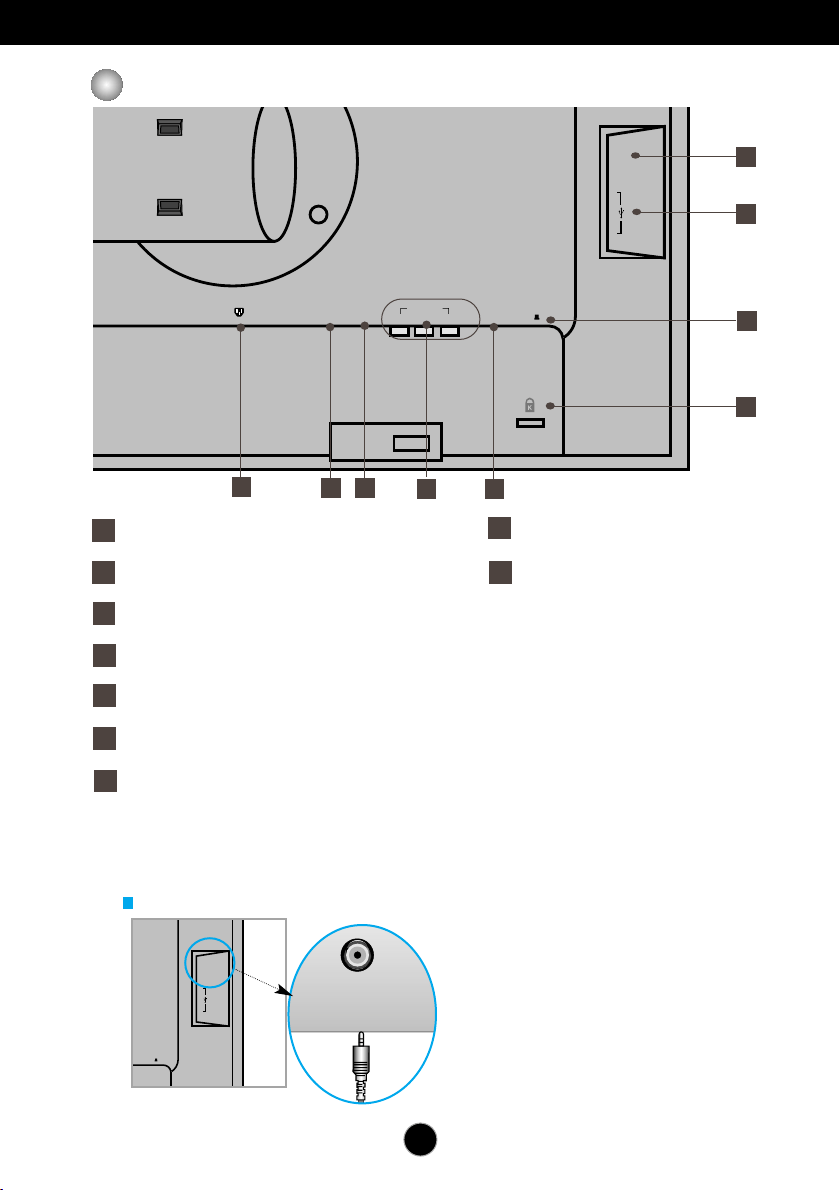
AC-IN Connector : Connect the Power Cord
DC-OUT Jack
HDMI/DVI Signal Connector COMPONENT Input Terminal
D-SUB Analogue Signal Connector
Kensington Security Slot
USB UP stream Port(1EA)
USB DOWN stream Port(2EA)
Audio out Jack(
Headset/Earphone/connecting terminal of the Speaker)
1
2
3
4
5
7
8
6
9
AUDIO
OUT
U
B
1 2
AUDIO
OUT
The Left Rear of the Monitor
:
You can use the AUDIO-OUT Jack by connecting earphones or a headset
when using the HDMI configuration.
.
*AUDIO-OUT is only available with the HDMI input.
(You cannot use it with D-SUB or any other component.)
A7
A
B
Connecting to External Devices
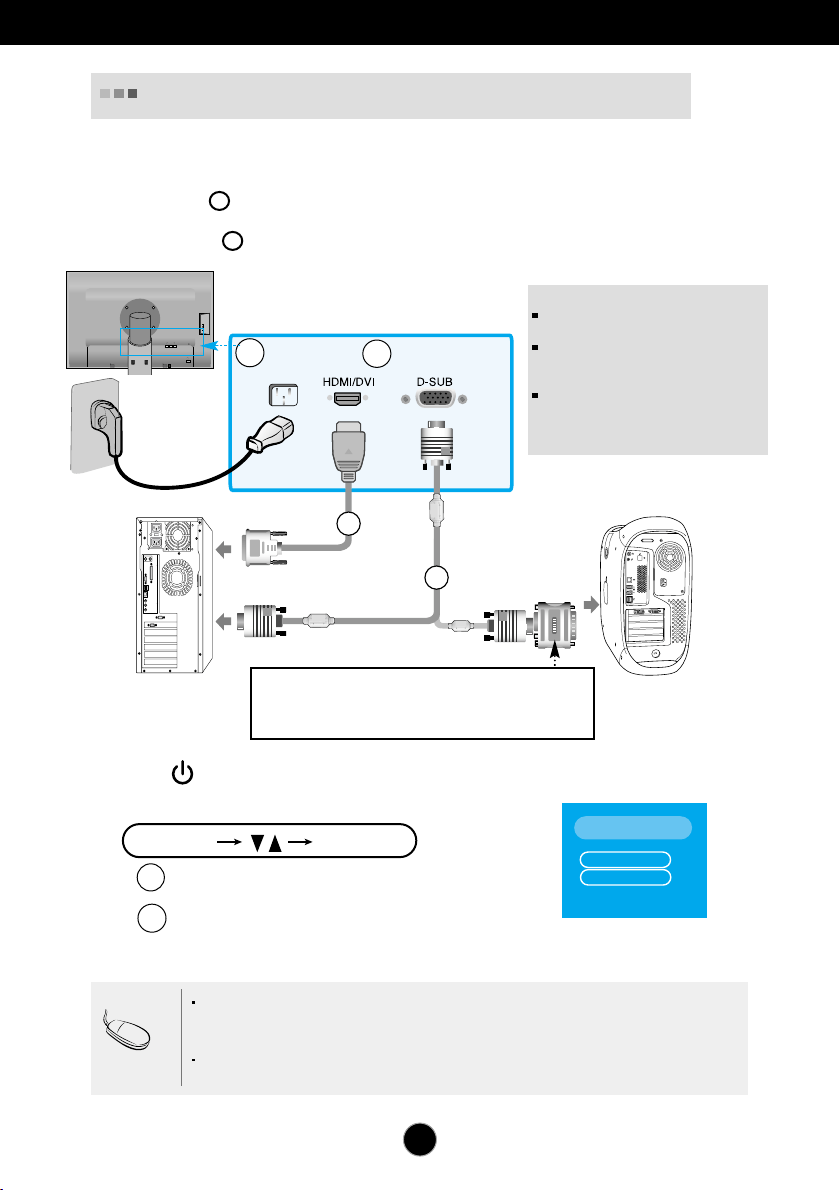
1. Place the monitor in a convenient, well-ventilated location near your computer.
To adjust the height of your monitor, unlock the stand lock on top of the stand.
2. Connect the signal cable. When attached, tighten the thumbscrews to secure the
connection.
3. Connect the power cord into a proper power outlet that is easily accessible and close
to the display.
Wall-outlet type
4. Press button on the front switch panel to turn the power on.
5. Press the
INPUT
button on the front side of the monitor.
1
2
PC
MAC
Mac adapter
For Apple Macintosh use, a separate plug adapter is needed to
change the 15 pin high density (3 row) D-sub VGA connector on the
supplied cable to a 15 pin 2 row connector.
2
DC-OUT HDMI/DVI
COMPONENT
AUDIO
OUT
D
-
S
U
B
Y
P
R
P
B
1 2
Power Cord
Signal Cable
Varies according to model.
INPUT
OK/AUTO
When connecting with a HDMI/DVI signal input cable.
• Select HDMI :
HDMI/DVI
digital signal.
When connecting with a D-Sub signal cable.
• Select RGB : D-Sub analogue signal.
B
A
When Connecting to your PC
Note
How to connect to two computers.
Connect the signal cables (HDMI/DVI and D-Sub) to each computer.
Press the INPUT button on the front side of the monitor.
Directly connect to a grounded power outlet on the wall or a power
strip with a ground wire.
1
INPUT
RGB
HDMI
Component
NOTE
This is a simplified representation of the
rear view.
This rear view represents a general
model; your display may differ from the
view as shown.
User must use shielded signal interface
cables (D-sub 15 pin cable, DVI cable)
with ferrite cores to maintain standard
compliance for the product.
A8
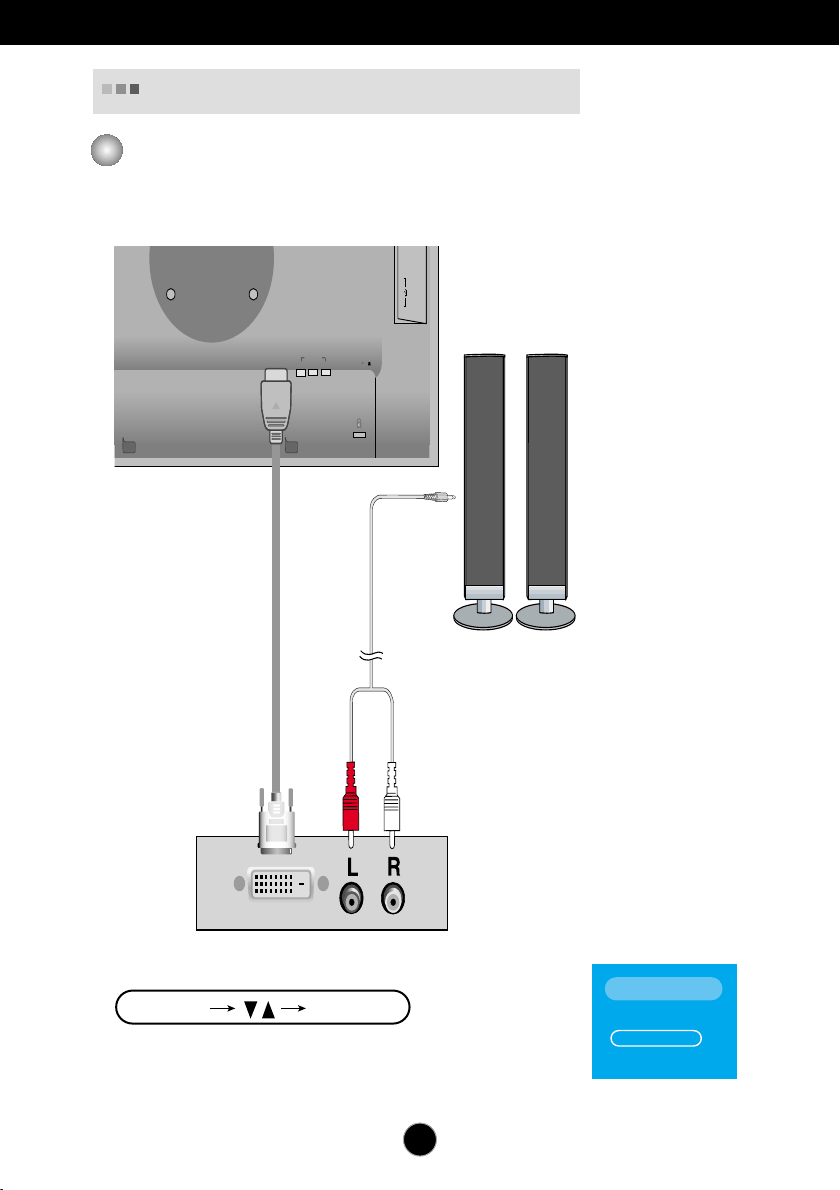
Connecting to External Devices
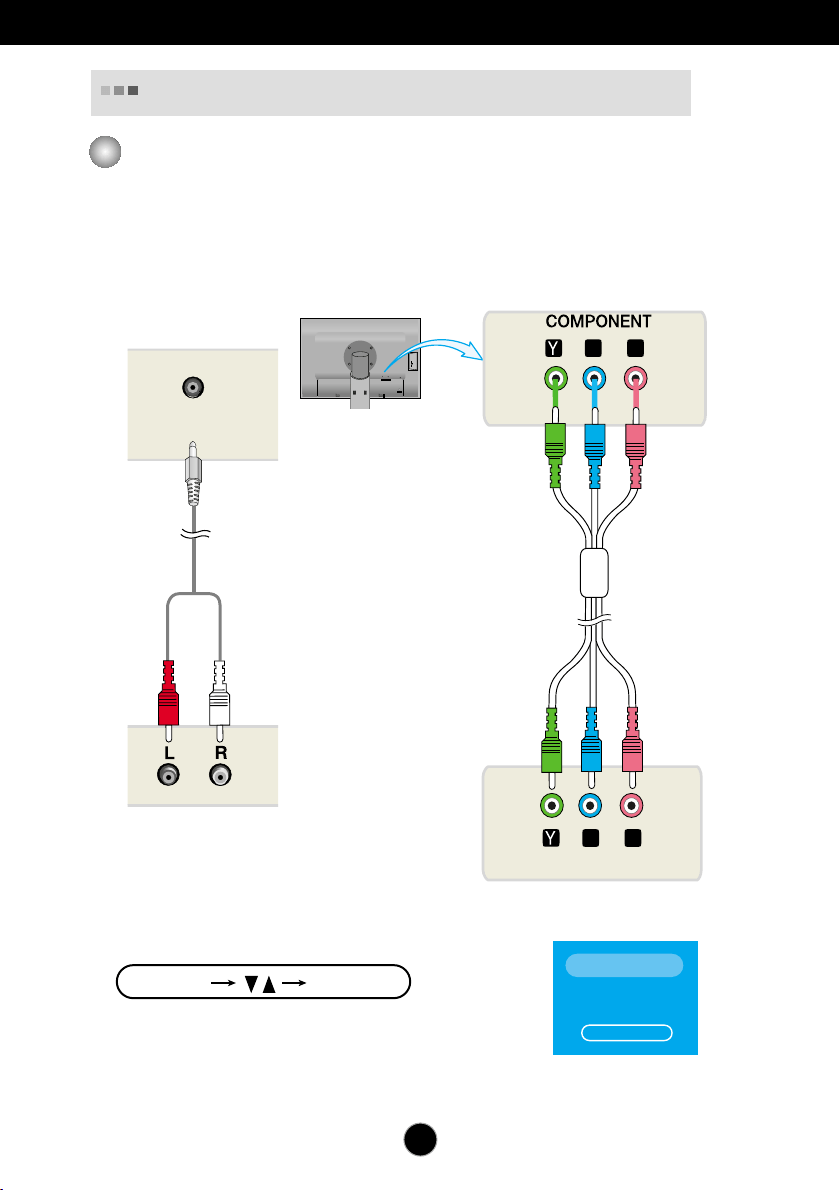
1.
Connect the Component cables and RCA to Stereo cables properly.
Connect the terminals to the sockets of the same color.
2.
Connect the power cord.
3. Press the
INPUT
button on the front side of the monitor.
INPUT
OK/AUTO
When connecting with a Component cable
When Watching DVD/Video/HDTV
When connecting with a Component cable.
• Select Component.
DC-OUT HDMI/DVI
COMPONENT
AUDIO
OUT
D
-
S
U
B
Y
P
R
P
B
1 2
P
B
P
B
P
R
P
R
P
B
P
B
P
R
P
R
Monitor
DVD/VIDEO/HDTV
Component Cable
(not included)
Speaker
P
B
P
R
P
B
P
R
AUDIO
IN
RCA-Stereo
cable
(not included)
DVD/VIDEO/HDTV
INPUT
RGB
HDMI
Component
A9
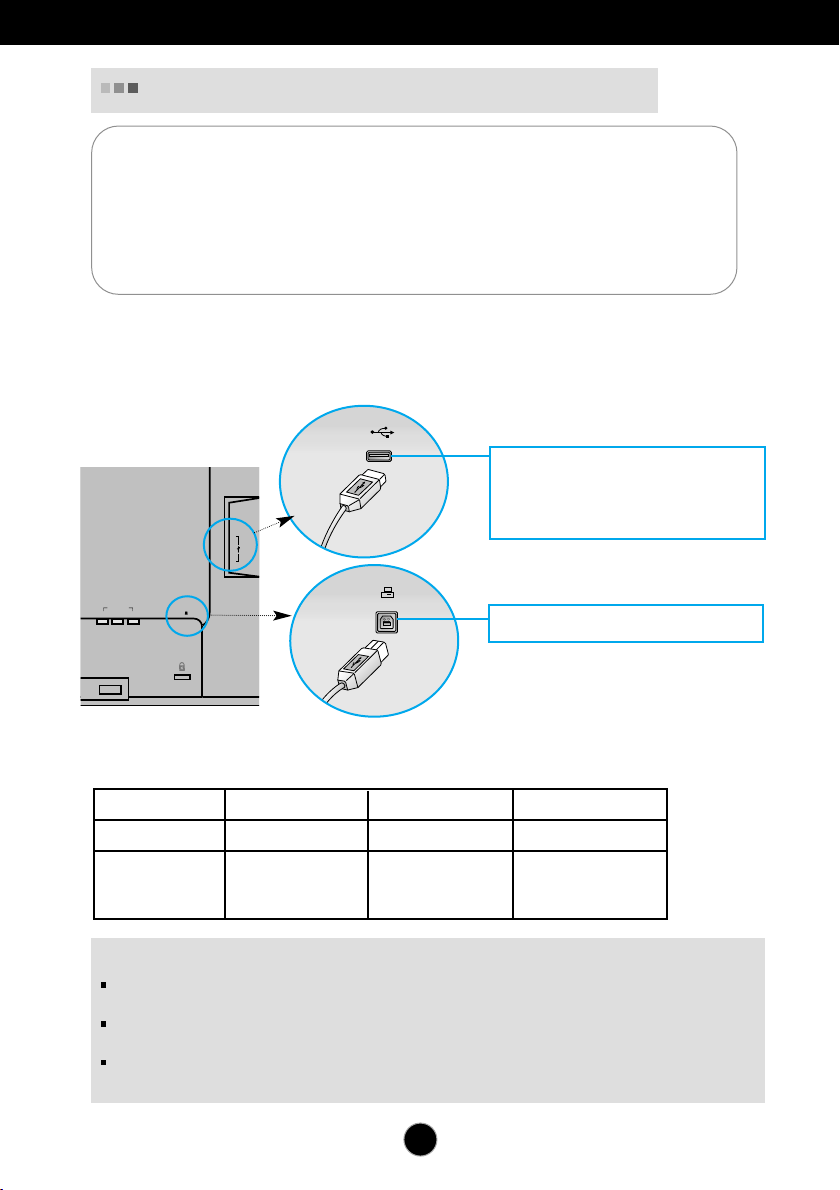
Connecting to External Devices
1.
Connect the HDMI/DVI cables and RCA to Stereo cables properly.
When connecting with a HDMI/DVI cable
When Watching DVD/Video/HDTV
2. Press the
INPUT
button at the front side of the monitor.
INPUT
OK/AUTO
When connecting with a HDMI/DVI cable.
• Select HDMI.
INPUT
RGB
HDMI
Component
HDMI/DVI
COMPONENT
AUDIO
OUT
D
-S
U
B
Y
P
R
P
B
1 2
DC-OUT
DVD/VIDEO/HDTV
RCA-Stereo
cable
(not included)
HDMI/DVI cable
Speaker
(not included)
A10
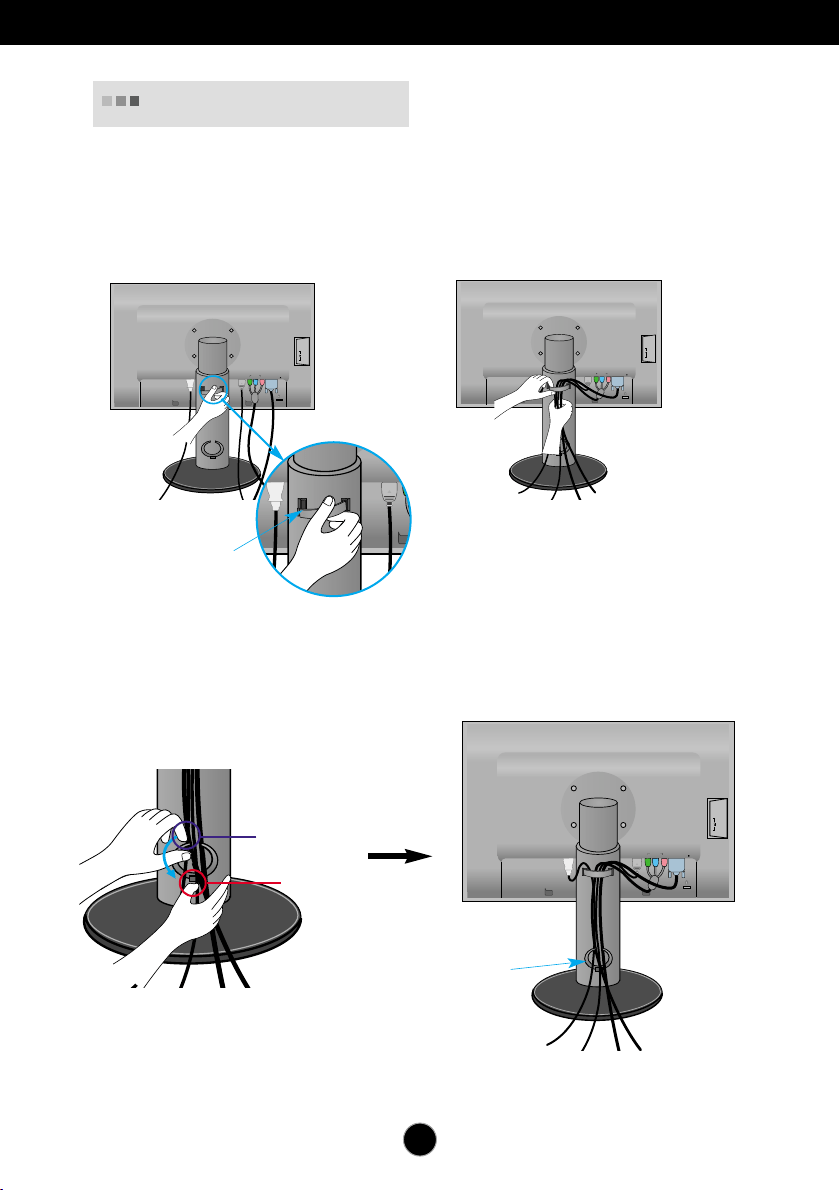
Connecting to External Devices
1. Connect the upstream port of the display to the downstream port of the USB compliant
PC or another hub using the USB cable. (Computer must have a USB port)
2. Connect the USB compliant peripherals to the downstream ports of the display.
Note
To activate the USB hub function, the display must be connected to a USB compliant PC(OS) or
another hub with the USB cable(enclosed).
When connecting the USB cable, check that the shape of the connector at the cable side matches the
shape at the connecting side.
Even if the display is in a power saving mode, USB compliant devices will function when they are
connected the USB ports(both the upstream and downstream) of the display.
"USB (Universal Serial Bus)" is an innovation in connecting your different desktop peripherals
conveniently to your computer. By using the USB, you will be able to connect your mouse, keyboard, and
other peripherals to your display instead of having to connect them to your computer. This will give you
greater flexibility in setting up your system. USB allows you to connect a chain of up to 120 devices on a
single USB port; and you can “hot” plug (attach them while the computer is running) or unplug them while
maintaining the Plug and the Plug auto detection and configuration. This display has an integrated BUS-
powered USB hub, allowing up to 2 other USB devices to be attached to it.
Connecting the USB(Universal Serial Bus) Cable
M
I/DVI
COMPONENT
AUDIO
OUT
D
-
S
U
B
Y
P
R
P
B
1 2
USB downstream Port
connect the cables from USB
compliant peripherals such as
keyboard, mouse, etc
USB upstream Port
To USB downstream port of the USB
compliant PC or another hub cable
High Speed Full Speed Low Speed
Data Rate 480Mbps 12Mbps 1.5Mbps
Power 2.5W 2.5W 2.5W
Consumption
(Max,each Port) (Max,each Port) (Max,each Port)
3.
The monitor’s USB terminal supports USB 2.0 and High Speed cables.
A11
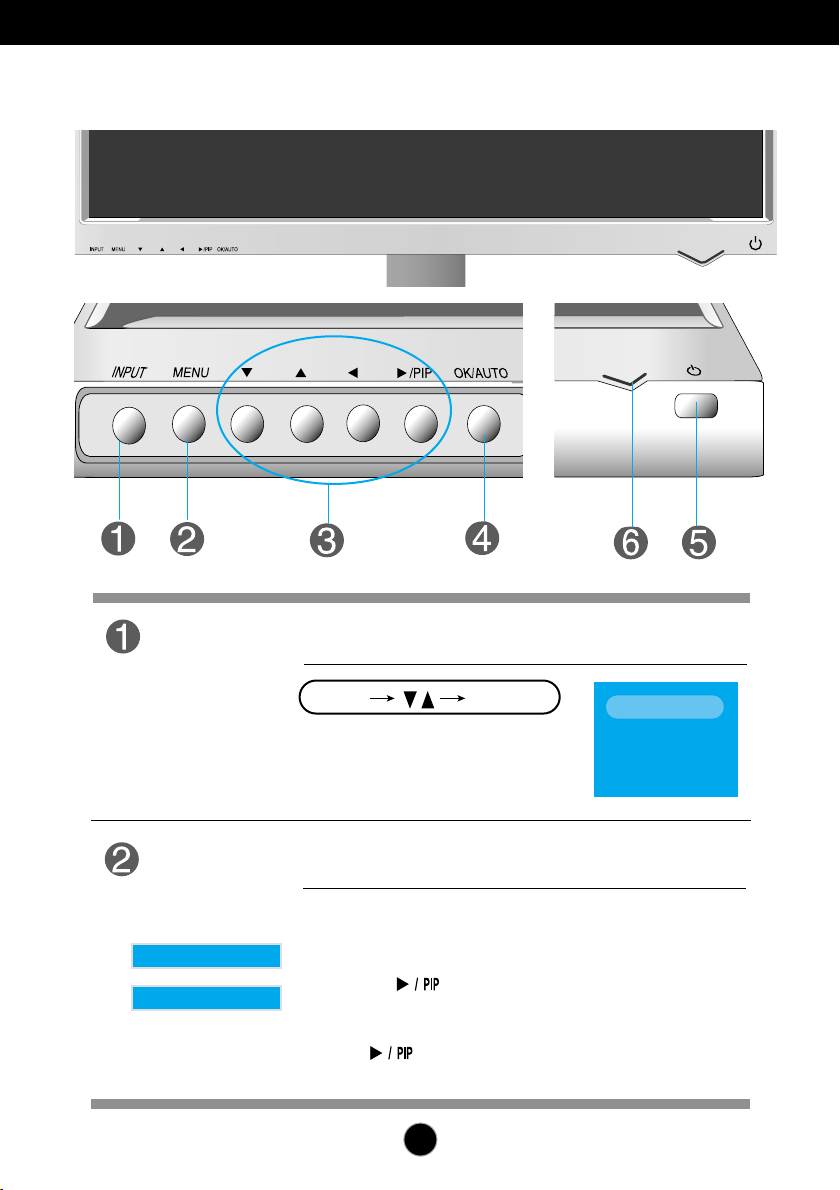
Connecting to External Devices
To arrange the cables
Connect the power cord and the signal cable as shown in the figure and then fix them
to the cable holders 1 and 2.
1. Please insert the cable holder1
into the hole.
2. Please put the power cord and
the signal cable in the cable holder 1.
DC-OUT HDMI/DVI
COMPONENT
AUDIO
OUT
D
-
S
U
B
Y
P
R
P
B
1 2
Press
Pull
3. Please put the power cord and the signal cable in the cable holder 2.
While pressing the bottom of cable holder 2 with one hand, pull the top of
it with the other hand as shown in the picture.
Cable holder 2
DC-OUT HDMI/DVI
COMPONENT
AUDIO
OUT
D-
SUB
Y
P
R
P
B
1 2
DC-OUT HDMI/DVI
C
Y
DC-OUT HDMI/DVI
COMPONENT
AUDIO
OUT
D-SUB
Y
P
R
P
B
1 2
Cable holder 1
A12
Control Panel Functions
Front Panel Controls
INPUT Button
Select the input signal.
: 15-pin D-SUB analogue signal
: HDMI/DVI digital signal
DTV SET-TOP BOX,Video,DVD
: DTV SET-TOP BOX,Video,DVD
RGB
HDMI
Component
MENU Button
Use this button to enter or exit the On Screen Display.
Controls locked/Controls unlocked
This function allows you to lock the current control settings,
so that they cannot be inadvertently changed. Press and hold
the MENU+ Button for several seconds. The
message "Controls locked" should appear.
You can unlock the OSD controls at any time by pushing the
MENU+ Button for several seconds. The message
"Controls unlocked" should appear.
Controls locked
Controls unlocked
INPUT
OK/AUTO
INPUT
RGB
HDMI
Component
A13
Control Panel Functions
This Indicator lights up blue when the display
operates normally(On Mode). If the display is in Sleep
Mode (Energy Saving), this indicator color changes
to amber.
Use this button to turn the display on or off.
Power Button
Power Indicator
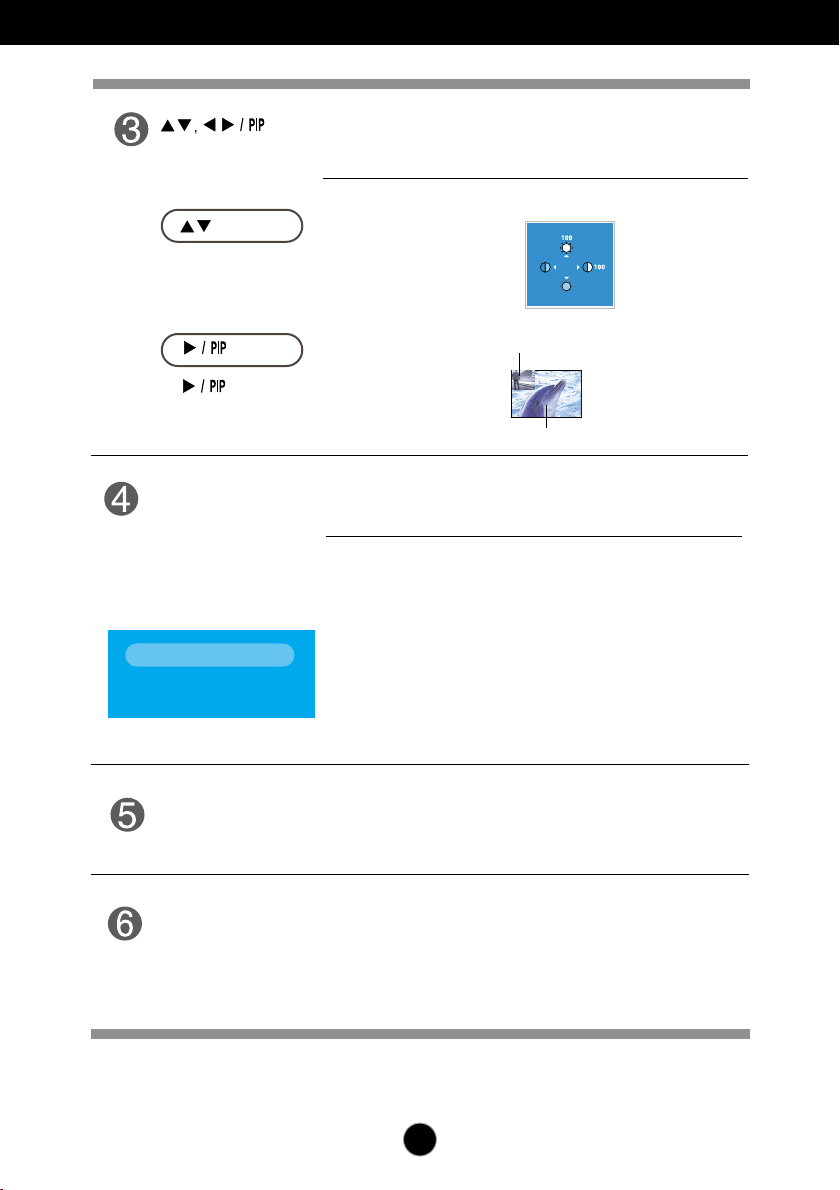
Use this button to enter a selection in the On Screen
Display.
AUTO IMAGE ADJUSTMENT
When adjusting your display settings, always press
the OK/AUTO button before entering the On Screen
Display(OSD). This will automatically adjust your
display image to the ideal settings for the current
screen resolution size (display mode).
The best display mode is
1920 x 1200@60Hz
Use
this
button to select an icon or adjust the
setting in the OSD screen.
Button
Button
Button
•
(Picture In Picture)
Button
The sub-screen is switched on and off
by pressing the button.
• Use this button to directly control brightness and
contrast of the PC signal (RGB, HDMI/DVI).
Main screen
Sub screen
OK/AUTO
Button
Auto in progress
For optimal display
change resolution to 1920x1200
A14
On Screen Display (OSD) Control Adjustment
Screen Adjustment
Making adjustments to the image size, position and operating parameters of
the display is quick and easy with the On Screen Display Control system. A
short example is given below to familiarize you with the use of the controls.
The following section is an outline of the available adjustments and selections
you can make using the OSD.
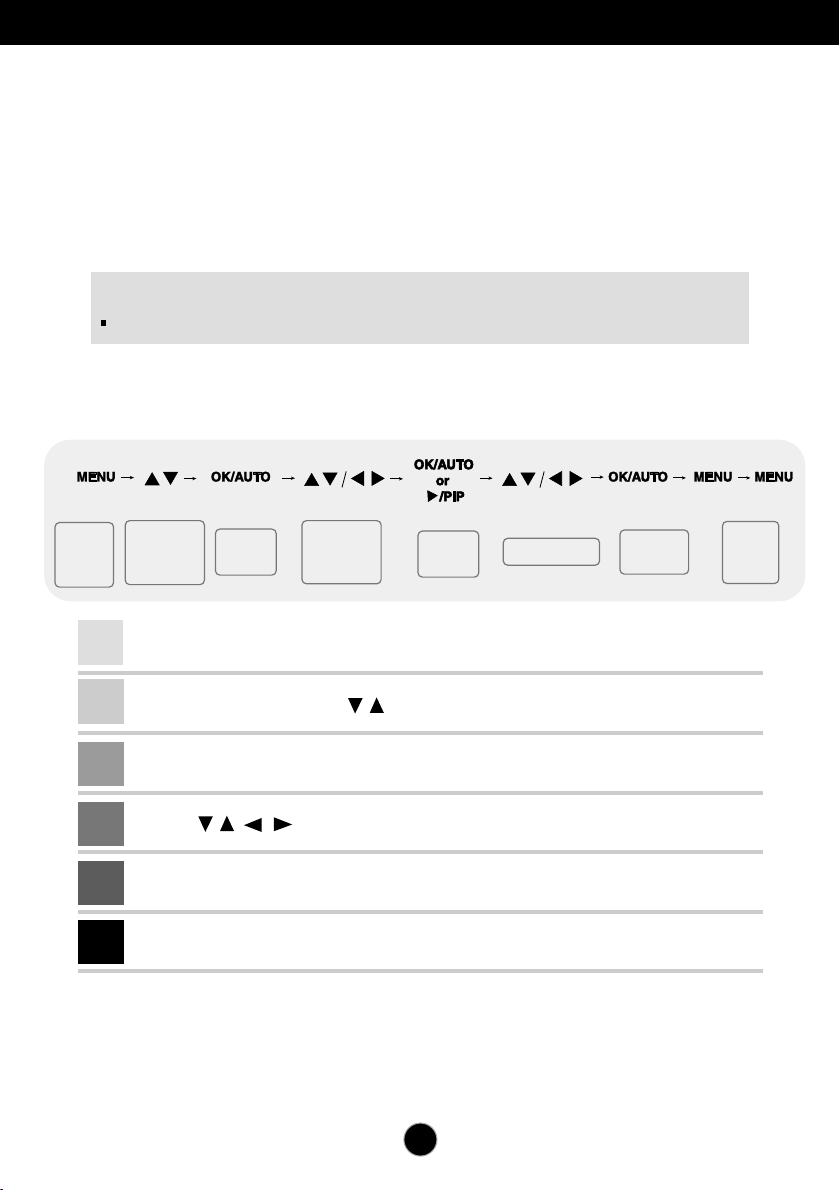
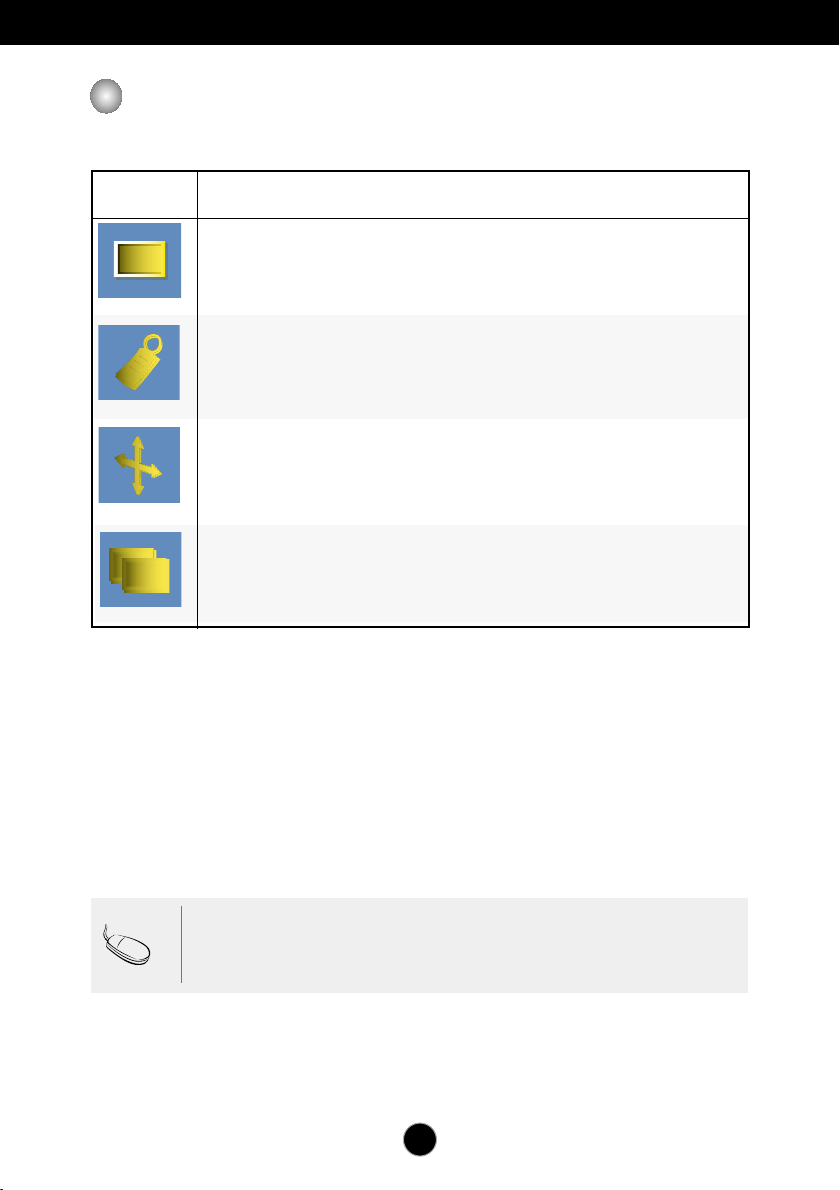
To make adjustments in the On Screen Display, follow these steps:
Note
Allow the display to stabilize for at least 30 minutes before making image adjustments.
Pops up
the menu
screen
Move where
you want to
adjust
Move where
you want to
adjust
Select a
menu icon
Select a
menu icon
Adjust the status
Save
adjustment
Exit from
the menu
screen.
Press the MENU Button, then the main menu of the OSD appears.
To access a control, use the Buttons.
When the icon you want becomes highlighted, press the OK/AUTO Button.
Use the Buttons to adjust the item to the desired level.
Accept the changes by pressing the OK/AUTO Button.
Exit the OSD by pressing the MENU Button.
1
2
3
4
5
6
A15
On Screen Display(OSD) Selection and Adjustment
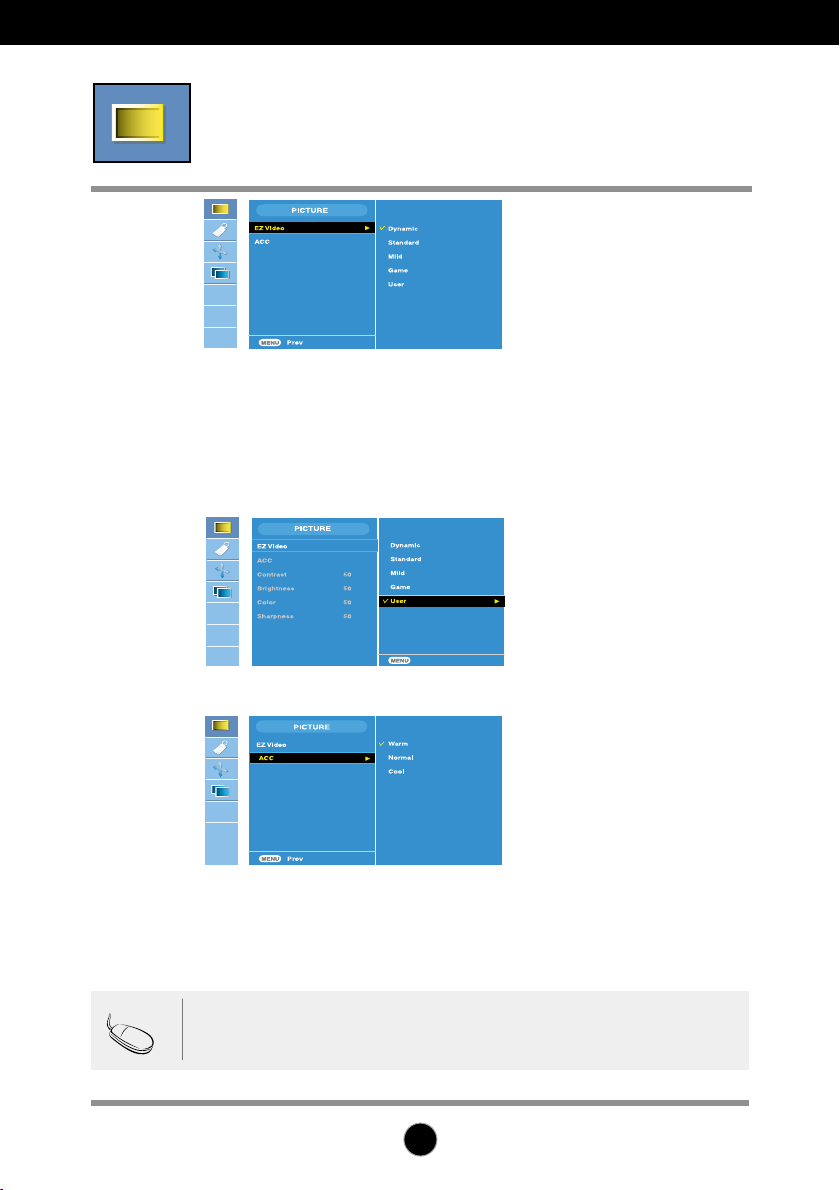
OSD (On Screen Display) menu
Icon Function Description
PICTURE
Adjusting PIP Mode (Multiple Screen) Functions.
Selecting the options.
Adjusting Screen Colour.
SPECIAL
Screen Adjustment.
SCREEN
Note
OSD(On Screen Display)
The OSD function enables you to adjust the screen status conveniently since it
provides graphical presentation.
PIP
A16
On Screen Display(OSD) Selection and Adjustment
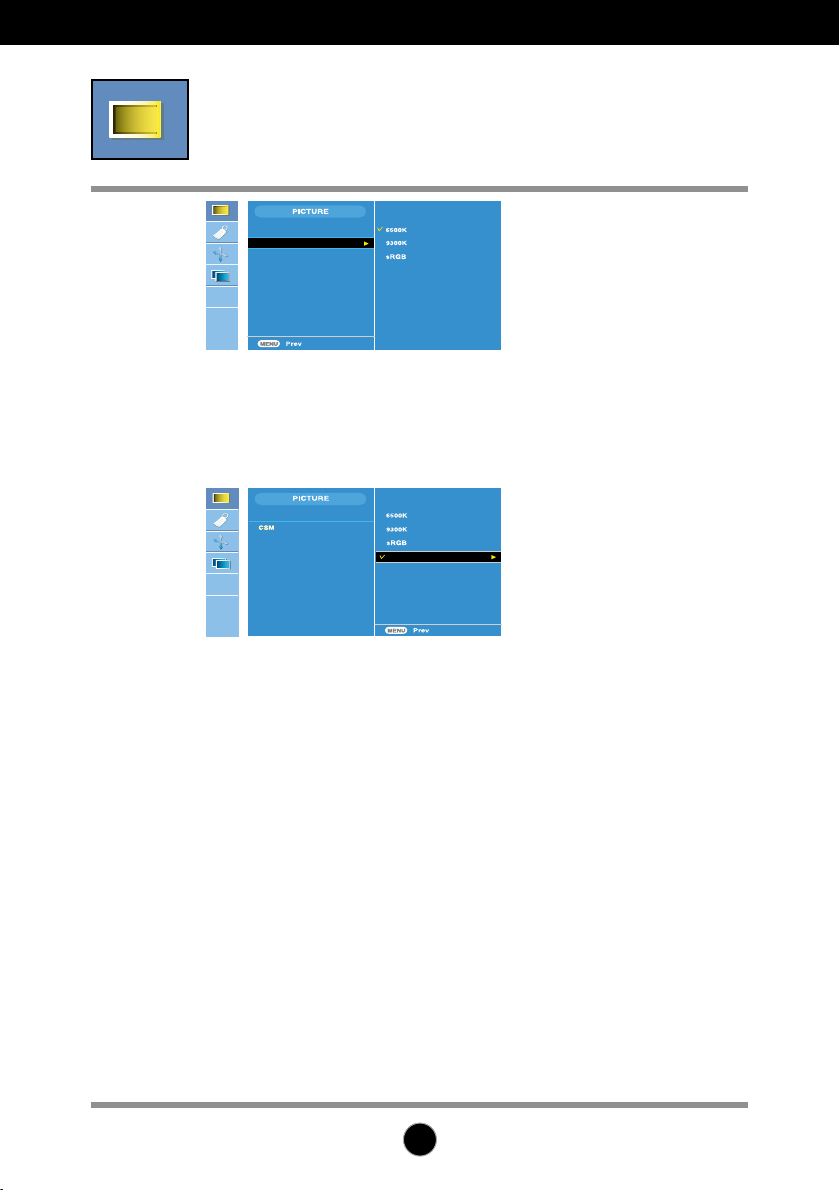
Adjusting Screen Colour
Contrast
To adjust the contrast of the screen.
Brightness
To adjust the brightness of the screen.
Color
To adjust the color to desired level.
Sharpness
To adjust the clearness of the screen.
HDMI(Video),
Component input
The
EZ Video
function automatically adjusts the screen image quality
depending on the
AV
usage environment.
• Dynamic : Select this option to display with a sharp image.
• Standard : The most general and natural screen display status.
• Mild : Select this option to display with a mild image.
• Game : Select this option to enjoy dynamic image when playing a game.
• User : Select this option to use the user-defined settings.
Selecting a factory setting colour set.
• Warm : Slightly reddish white.
• Normal : Slightly bluish white.
• Cool : Slightly purplish white.
EZ Video
ACC
Note
If the EZ video setting in the Picture menu is set to Dynamic, Standard, Mild
or Game the subsequent menus will be automatically set.
HDMI(Video),
Component input
A17
On Screen Display(OSD) Selection and Adjustment
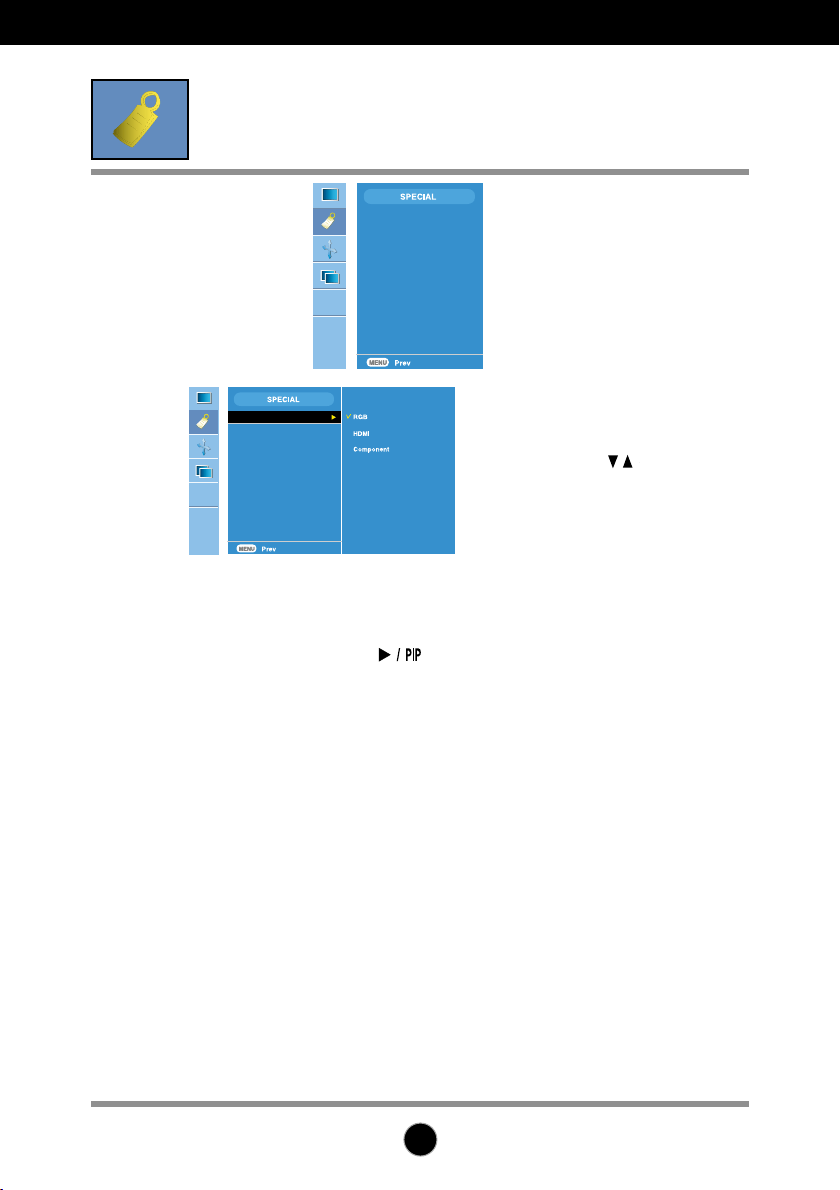
Contrast
To adjust the contrast of the screen.
Brightness
To adjust the brightness of the screen.
Red / Green / Blue
Set your own colour levels.
CSM
EZ Video
User
PC only
EZ Video
User
Contrast 50
Brightness 50
Red 50
Green 50
Blue 50
• 6500K/9300K/sRGB
Selecting a factory setting colour set.
6500K: Slightly reddish white.
9300K: Slightly bluish white.
sRGB : Set the screen color to fit the
SRGB standard color
• User : Select this option to use
the user-defined settings.
CSM
Adjusting Screen Colour
A18
On Screen Display(OSD) Selection and Adjustment
Input
Child lock
Language
Power indicator
Transparency
Reset
DDC-CI
Language
Power
indicator
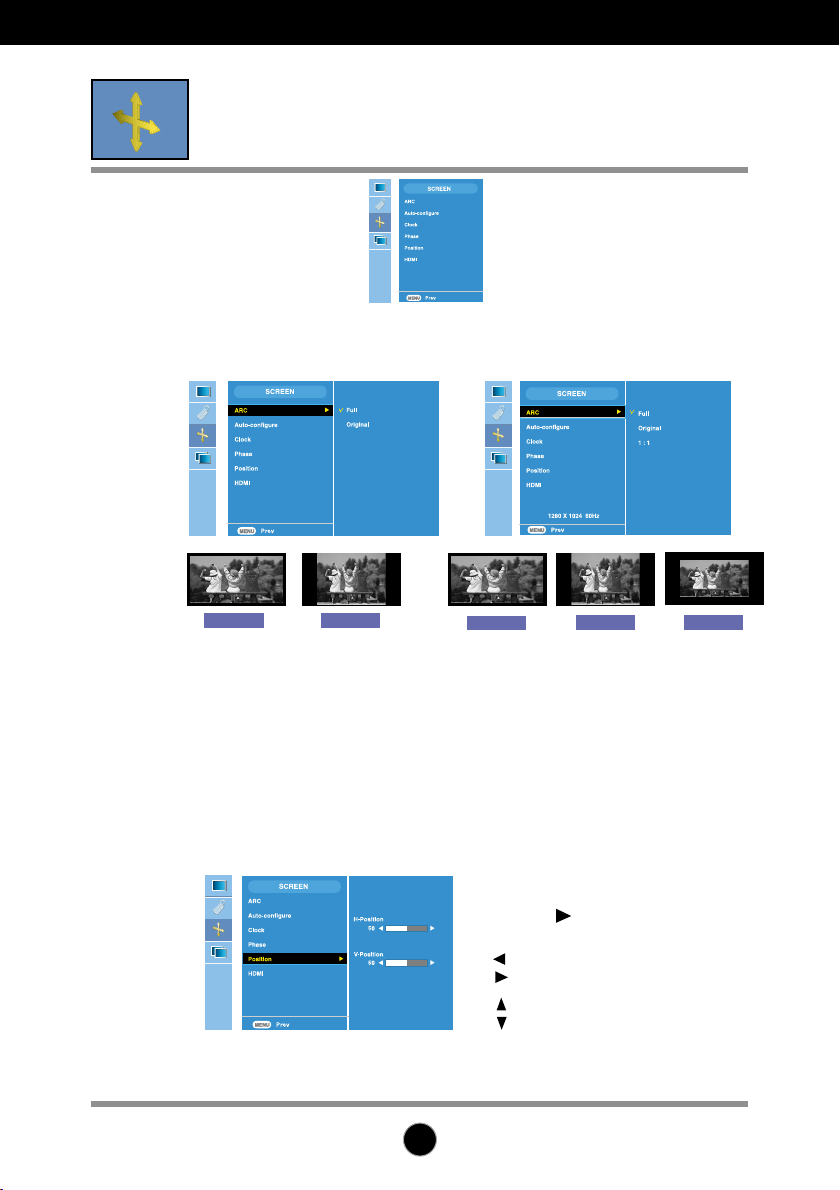
To choose the language in which the control names are displayed.
Use this function to set the power indicator on the front side of the product to
On or Off.
Transparency
Use this function to reset the product to the factory default. However, language
selection will not be initialized.
Reset
This feature can prevent unauthorized viewing.
In order to lock the OSD screen adjustment, set the Child lock tab to the 'On'
position. In order to unlock it, do the following :
*Press and hold the MENU+ Button for several seconds. The message
"Controls locked" should appear.
Child lock
If you press the button once, the
following Input Signal Window will
appear. Select the signal type
you want using the button.
Input
To adjust the transparency of the OSD menu screen.
Input
Child lock
Language
Power indicator
Transparency
Reset
DDC-CI
Selecting the options
DDC/CI(Display Data Channel Command Interface) is communication protocol for
communications between PC and monitor.
DDC/CI makes it possible to adjust and setup detailed functions on PC instead of the
monitor OSD.
Monitor can be adjusted with PC by connecting communication between PC and monitor
when DDC/CI is ON, and monitor cannot be adjusted with PC because communication
between PC and monitor is disconnected when DDC/CI is OFF.
DDC-CI
A19
On Screen Display(OSD) Selection and Adjustment
Screen Adjustment
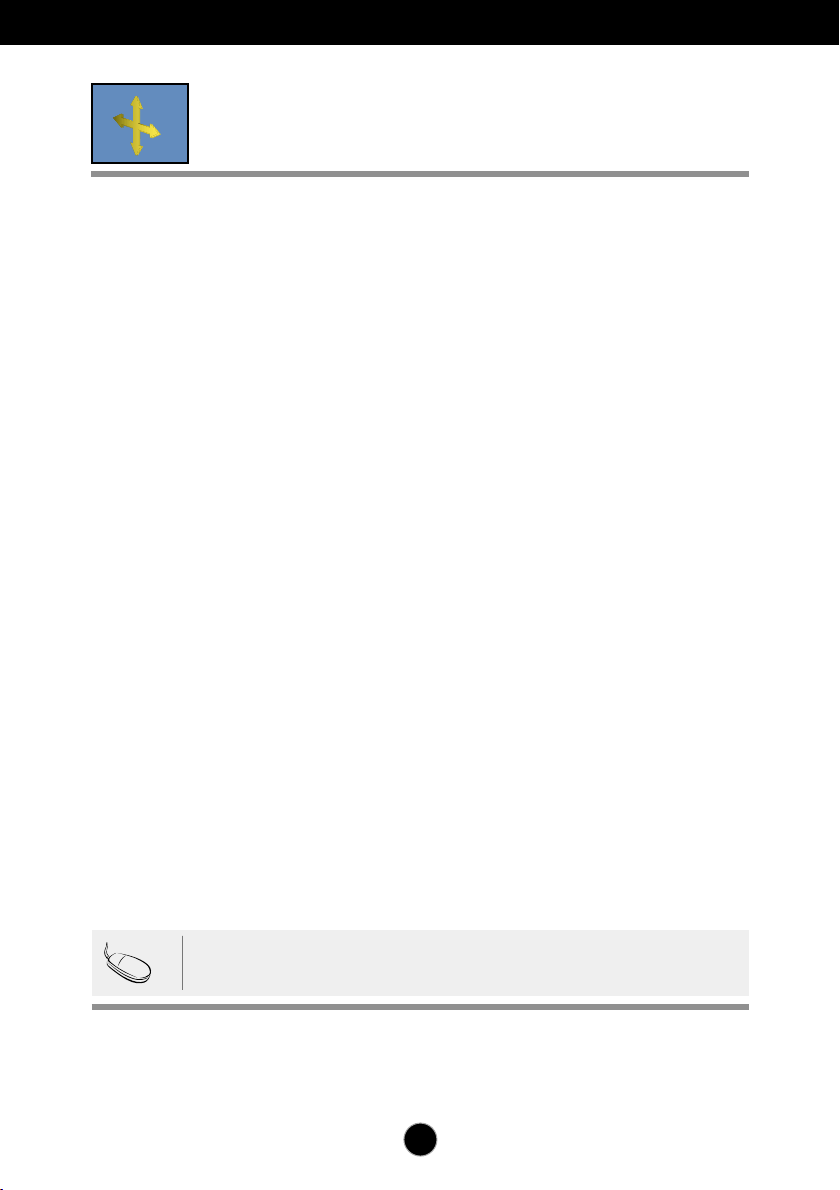
This function is suitable for analogue signal input only. This button is for the
automatic adjustment of the screen Position, Clock and Phase.
ARC
Auto-
configure
This function is suitable for analogue signal input only to minimize any vertical bars or
stripes visible on the screen background. The horizontal screen size will also change.
Clock
This function is suitable for analogue signal input only to adjust the focus of the
display. This item allows you to remove any horizontal noise and clear or
sharpen the image of characters.
Phase
To select the image size of the screen.
Position
This function is suitable for analogue signal
input only to adjust position of the screen.
Press the /PIP button to display the sub-
menu for position.
Left
Right
Moving the screen position horizontally.
Up
Down
Moving the screen position vertically.
<HDMI(PC), RGB input only>
<HDMI(Video), Component input only>
Full
Original
1:1
Full
Original
A20
On Screen Display(OSD) Selection and Adjustment
Screen Adjustment
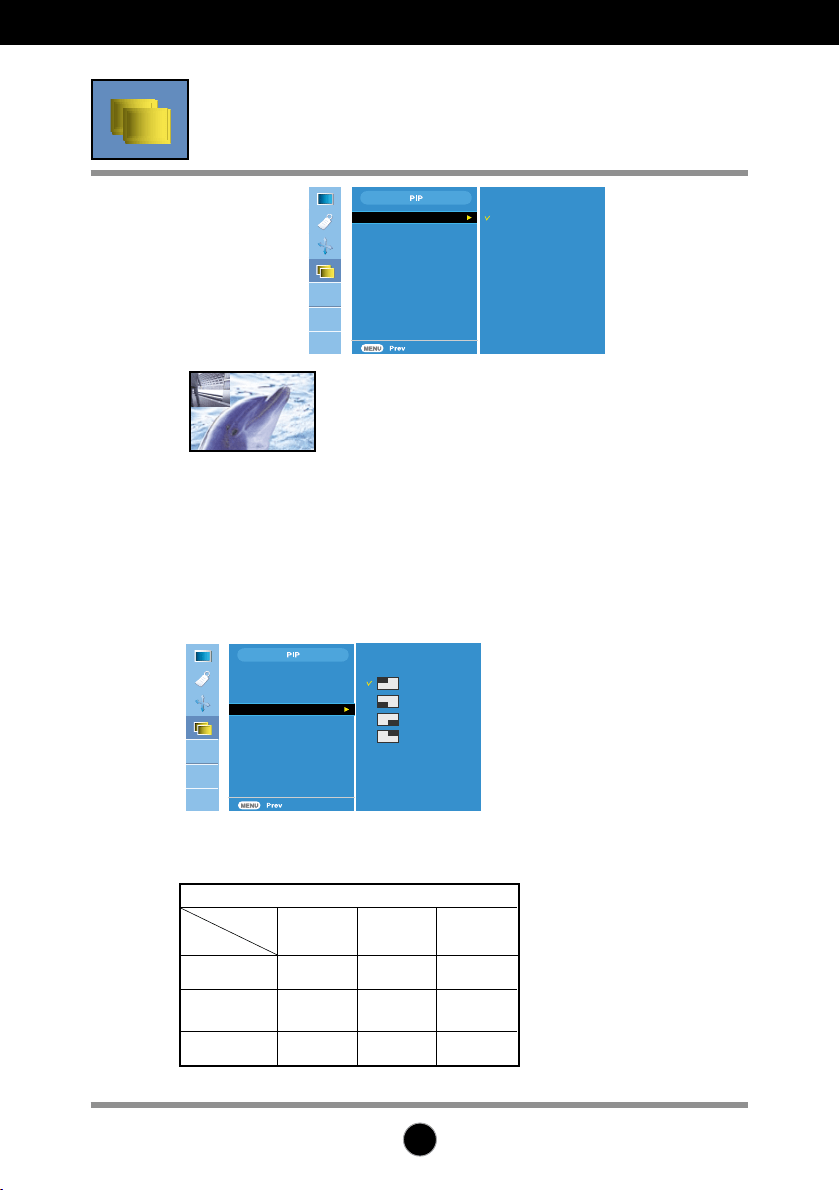
Video : Used when it is connected with DVD or SET-TOP BOX through HDMI.
If you want to connect VCR, select VIDEO in this menu.
Otherwise, you may see noise in the margin of the screen due to the
difference in the screen size .
PC : Used when it is connected with PC through HDMI.
If you want to connect PC, select PC in this menu.
Otherwise, the screen may be too large to support PC sub screen
HDMI
Note
When the Interlace Signal is inputted at the RGB source input level, the Auto-
Configure, Clock, Phaseand Positionmenu can't be used.
A21
On Screen Display(OSD) Selection and Adjustment
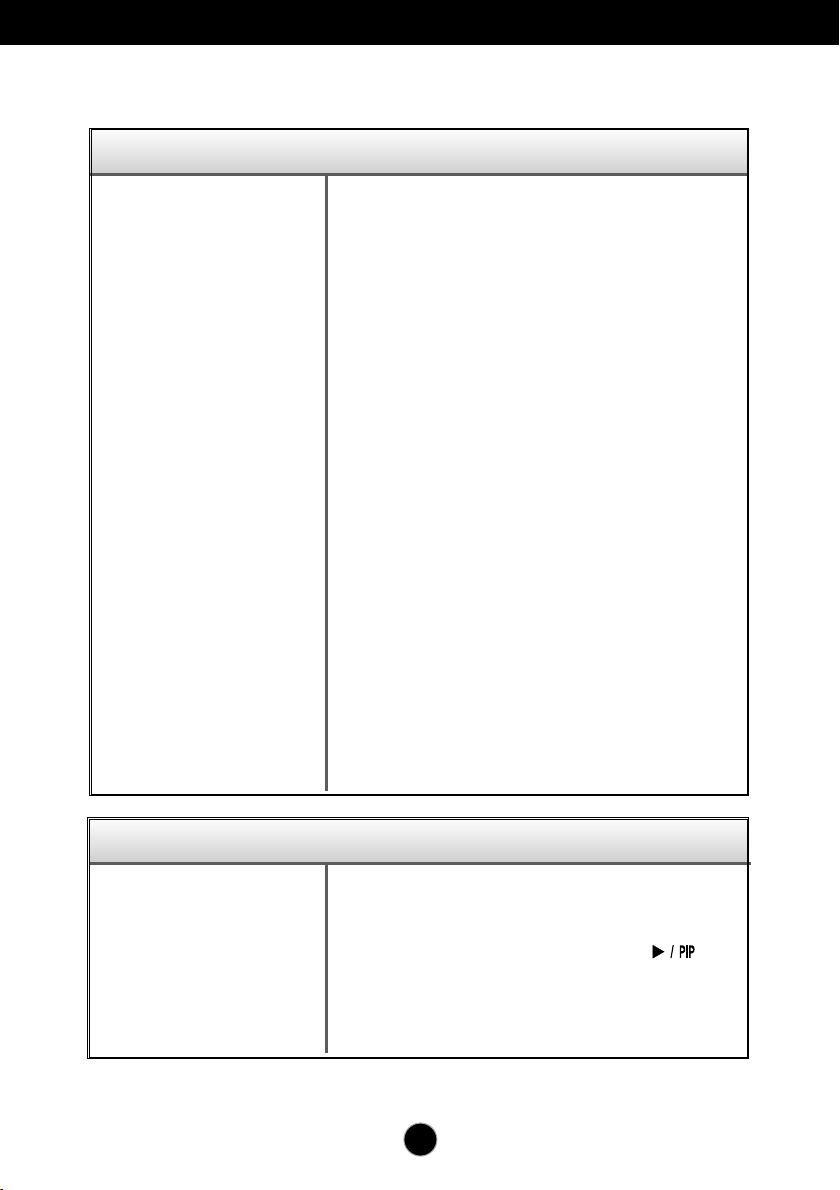
Adjusting PIP Mode (Multiple Screen) Functions
(To adjust the sub screen)
On/Off
PIP Input
Position
Off
PIP
After selecting PIP in the PIP
On/Off
menu,
the following menu items can be adjusted.
PIP
PIP Input
To select an input signal for PIP.
On/Off
To adjust the position of PIP screen.
Position
On/Off
PIP Input
PositionPosition
* The following table is the available option to match the main screen and PIP screen.
PIP
Main RGB HDMI Component
PIP (PC)
RGB X X X
HDMI
(Video)
Component O O X
O X X
A22
Troubleshooting
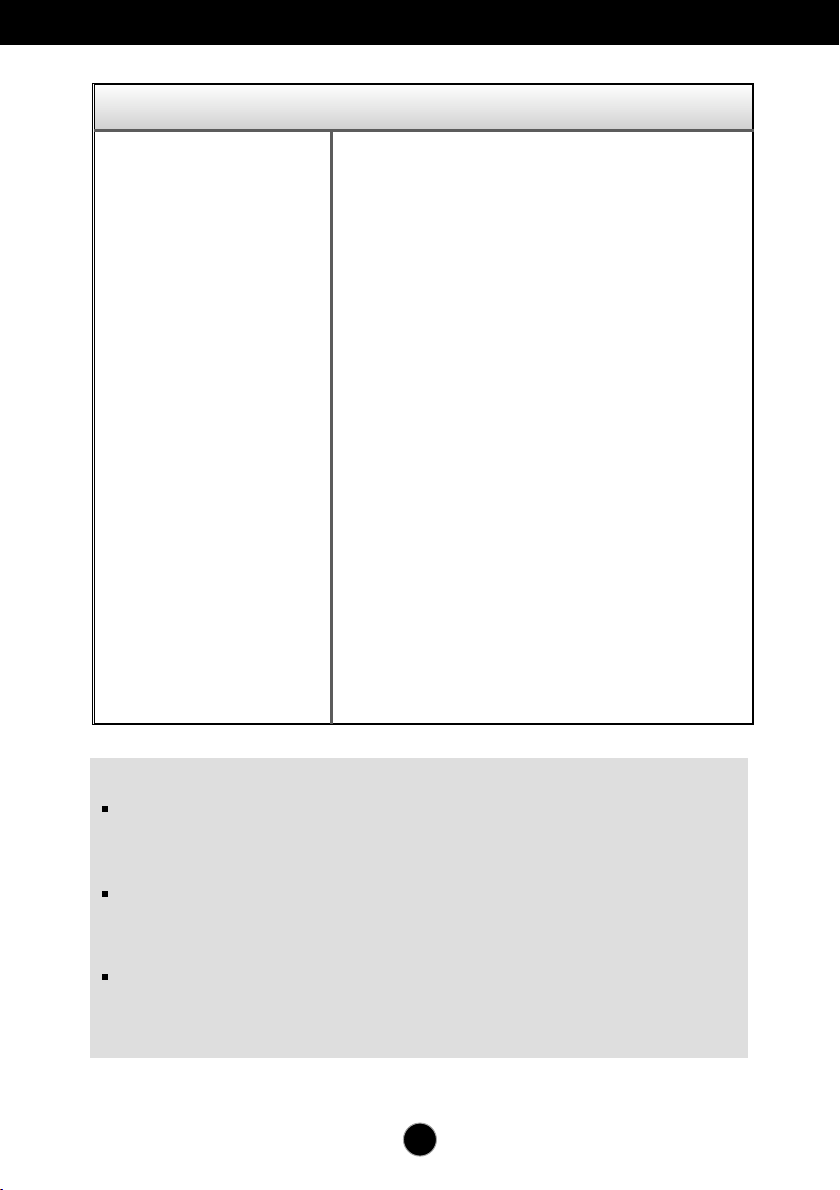
No image appears
Check the following before calling for service.
No image appears
● Is the power cord of the
display connected?
● Is the power on and the
power indicator blue or
green?
● Is the power indicator
amber?
● Do you see an "OUT
OF RANGE" message
on the screen?
● Do you see a "CHECK
SIGNAL CABLE"
message on the
screen?
Do you see a "
Controls locked
" message on the screen?
•
Check and see if the power cord is connected
properly to the power outlet.
•
Adjust the brightness and the contrast.
•
If the display is in power saving mode, move the
mouse or press any key on the keyboard to
activate the screen.
•
Turn on the PC
.
•
This message appear when the signal from the PC
(video card) is out of the diplay's horizontal or
vertical frequency range. See the 'Specifications'
section of this manual and configure the display
again.
•
This message appears when the signal cable
between your PC and the display is not connected.
Check the signal cable and try again.
• You can secure the current control settings,
so that they cannot be inadvertently
changed. You can unlock the OSD controls
at any time by pushing the MENU+
button for several seconds: the message
“Controls unlocked” will appear.
●
Do you see “Controls
locked” when you
push MENU button?
A23
Troubleshooting
Display image is incorrect
● Display Position is
incorrect.
● On the screen
background, vertical
bars or stripes are
visible.
● Any horizontal noise
appearing in any
image or characters is
not clearly portrayed.
•
Press the OK/AUTO button to automatically
adjust your display image to the ideal setting.
If the results are unsatisfactory, adjust the image
position using the H position and V position icon
in the on screen display.
•
Press the OK/AUTO button to automatically
adjust your display image to the ideal setting.
If the results are unsatisfactory, decrease the
vertical bars or stripes using the CLOCK icon in
the on screen display.
•
Press the OK/AUTO button to automatically
adjust your display image to the ideal setting.
If the results are unsatisfactory, decrease the
horizontal bars using the PHASE icon in the on
screen display.
•
Check Control Panel --> Display --> Settings
and adjust the display to the recommended
resolution or adjust the display image to the ideal
setting. Set the color setting higher than 24 bits
(true color).
Important
Check Control Panel --> Display --> Settings and see if the frequency or the
resolution were changed. If yes, readjust the video card to the recommended
resolution.
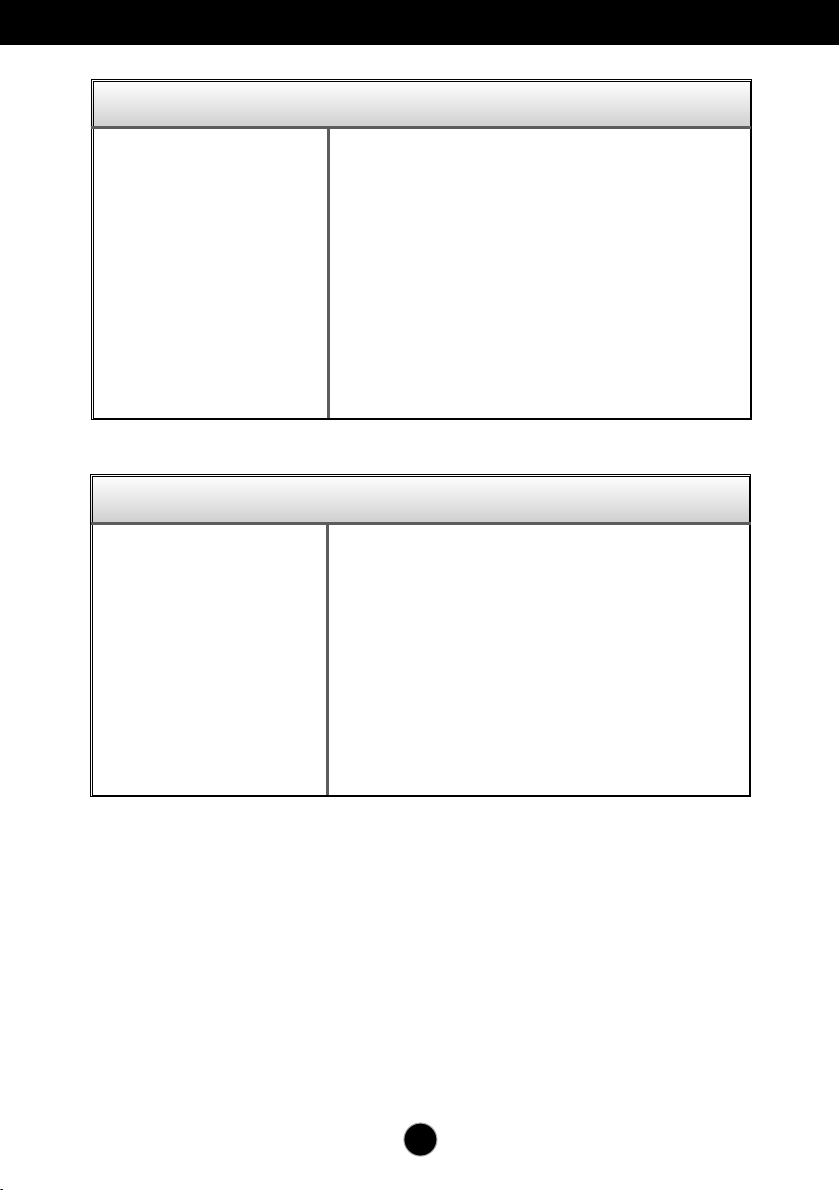
Reasons for Recommending Optimal Resolution : The aspect ratio is 16:10.
If the input resolution is not 16:10 (for instance, 16:9, 5:4, 4:3), you might encounter
problems such as blurred letters, blurry screen, cut-off screen display or tilted screen.
The setting method can differ by computer and O/S (Operation System),
and resolution mentioned above may not be supported by the video card.
In this case, please ask to the computer or the video card manufacturer.
A24
Troubleshooting
Have you installed the display driver?
●
Have you installed the
display driver?
●
Do you see an
"Unrecognized monitor,
Plug&Play (VESA DDC)
monitor found"
message?
•
Be sure to install the display driver from the display
driver CD (or diskette) that comes with your
display. Or, you can also download the driver from
our web site: http://www.lge.com.
•
Make sure to check if the video card supports
Plug&Play function.
Display image is incorrect
● The screen color is
mono or abnormal.
● The screen blinks.
•
Check if the signal cable is properly connected
and use a screwdriver to fasten if necessary.
•
Make sure the video card is properly inserted in
the slot.
•
Set the color setting higher than 24 bits (true color)
in Control Panel - Settings.
•
Check if the screen is set to interlace mode and if
yes, change it to the recommended resolution.
A25
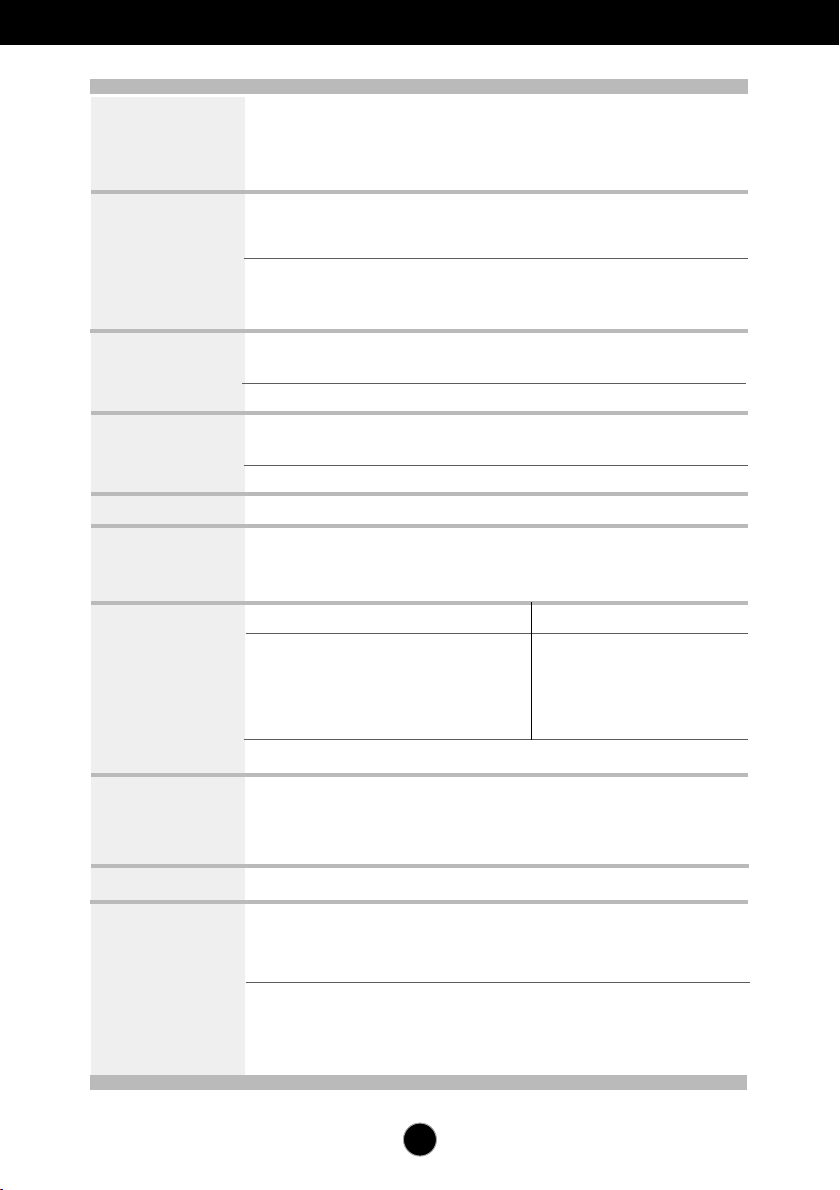
Specifications L246WH
Display
Sync Input
Video Input
Resolution
Plug&Play
Power Consumption
(without USB)
Dimensions
&Weight
Range
Power Input
Environmental
Conditions
24 inches (61.3 cm) Flat Panel Active matrix-TFT LCD
Anti-glare coating
Visible diagonal size : 61.3 cm
0.270 mm pixel pitch
Horizontal Freq. Analog : 30 - 83 kHz (Automatic)
Digital : 30 - 83 kHz (Automatic)
Vertical Freq. 56 - 75 Hz (Automatic)
Input Form Separate Sync., Composite
SOG (Sync On Green),
Digital(HDCP)
Signal Input 15 pin D-Sub Connector
HDMI/DVI connector(Digital), Component
Input Form RGB Analog (0.7 Vp-p/ 75 ohm), Digital
Max Analog : VESA 1920 x 1200 @60Hz
Digital : VESA 1920 x 1200 @60Hz
Recommend VESA 1920 x 1200 @60Hz
DDC 2B
On Mode
: 85 W(Typ.)
Sleep Mode ≤ 1 W
Off Mode ≤ 1 W
With Stand Without Stand
Width
56.00 cm / 22.05 inches 56.00 cm / 22.05 inches
Height
44.45 cm / 17.50 inches(Min) 37.70 cm / 14.65 inches
54.45 cm / 21.44 inches(Max)
Depth
27.02 cm / 10.64 inches 8.40 cm / 3.31 inches
Weight(excl. packing) 9.6 kg (21.16 lbs)
Tilt -5˚~20˚
Swivel 350˚
Height 100 mm / 3.94 inches
AC 100-240V~ 50/60Hz 1.2A
Operating Conditions
Temperature 10˚C to 35 ˚C
Humidity 10 % to 80 % non-Condensing
Storage Conditions
Temperature -20˚C to 60 ˚C
Humidity 5 % to 90 % non-Condensing
A26
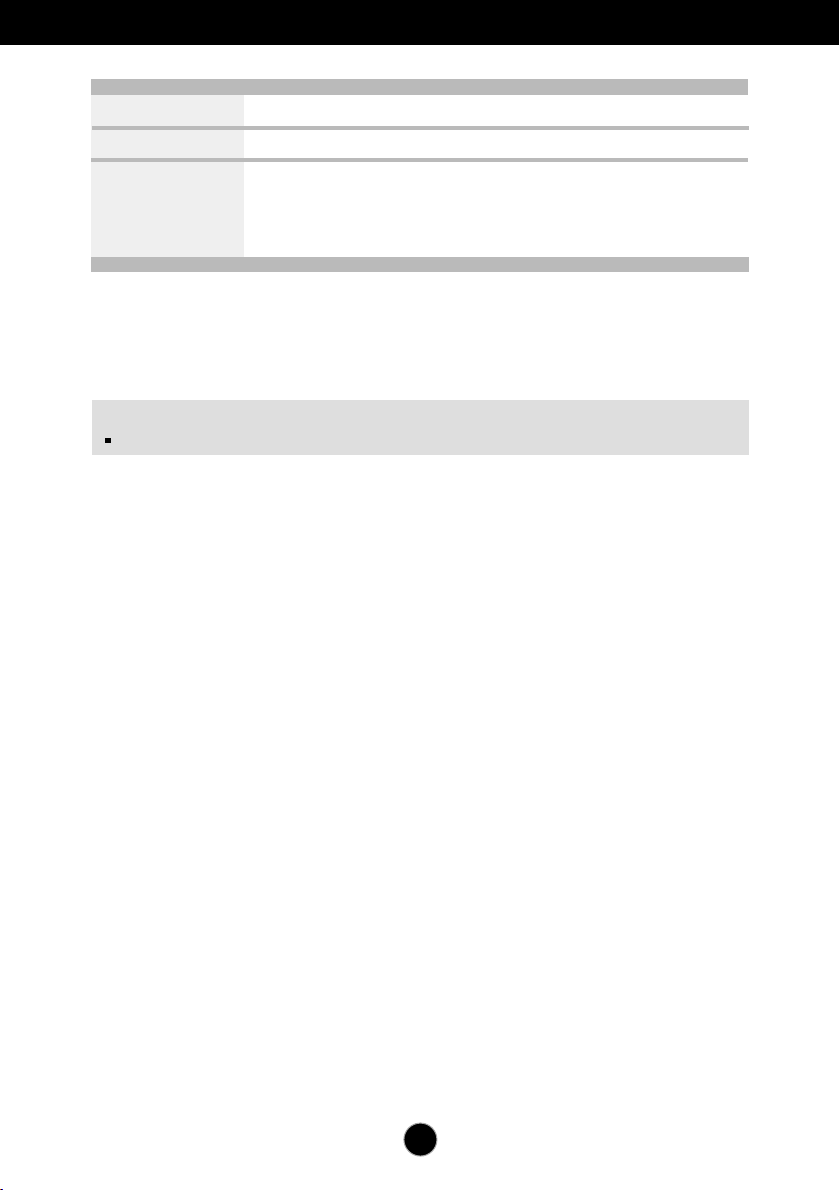
Specifications L246WH
Note
Information in this document is subject to change without notice.
Attached ( ), Detached ( O )
Wall-outlet type or PC-outlet type
Standard USB 2.0, Self-Power
Data Rate Max 480 Mbps
Power Consumption Max 2.5W x 2
Stand Base
Power cord
USB
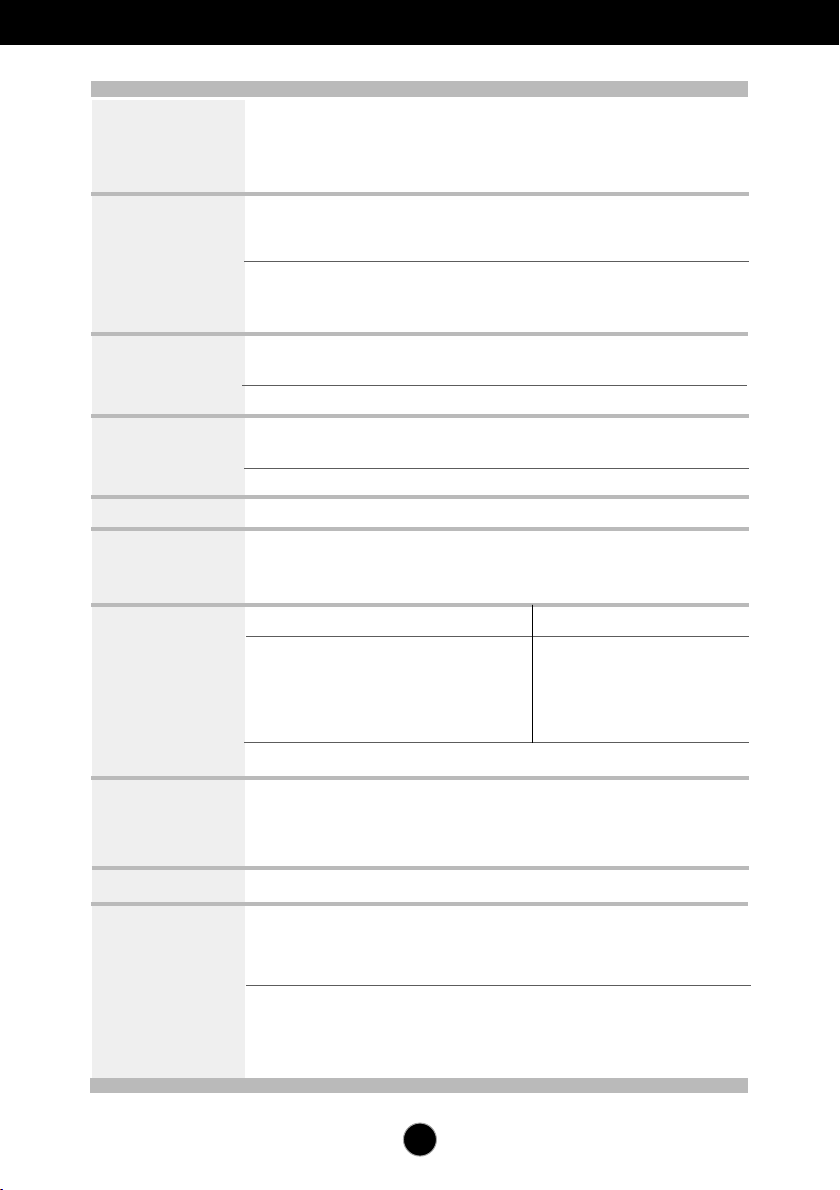
Specifications L246WHX
A27
Display
Sync Input
Video Input
Resolution
Plug&Play
Power Consumption
(without USB)
Dimensions
&Weight
Range
Power Input
Environmental
Conditions
24 inches (61.3 cm) Flat Panel Active matrix-TFT LCD
Anti-glare coating
Visible diagonal size : 61.3 cm
0.270 mm pixel pitch
Horizontal Freq. Analog : 30 - 83 kHz (Automatic)
Digital : 30 - 83 kHz (Automatic)
Vertical Freq. 56 - 75 Hz (Automatic)
Input Form Separate Sync., Composite
SOG (Sync On Green),
Digital(HDCP)
Signal Input 15 pin D-Sub Connector
HDMI/DVI connector(Digital), Component
Input Form RGB Analog (0.7 Vp-p/ 75 ohm), Digital
Max Analog : VESA 1920 x 1200 @60Hz
Digital : VESA 1920 x 1200 @60Hz
Recommend VESA 1920 x 1200 @60Hz
DDC 2B
On Mode
: 85 W(Typ.)
Sleep Mode ≤ 1 W
Off Mode ≤ 1 W
With Stand Without Stand
Width
56.00 cm / 22.05 inches 56.00 cm / 22.05 inches
Height
44.45 cm / 17.50 inches(Min) 37.70 cm / 14.65 inches
54.45 cm / 21.44 inches(Max)
Depth
27.02 cm / 10.64 inches 8.40 cm / 3.31 inches
Weight(excl. packing) 9.57 kg (21.10 lbs)
Tilt -5˚~20˚
Swivel 350˚
Height 100 mm / 3.94 inches
AC 100-240V~ 50/60Hz 1.2A
Operating Conditions
Temperature 10˚C to 35 ˚C
Humidity 10 % to 80 % non-Condensing
Storage Conditions
Temperature -20˚C to 60 ˚C
Humidity 5 % to 90 % non-Condensing
A28
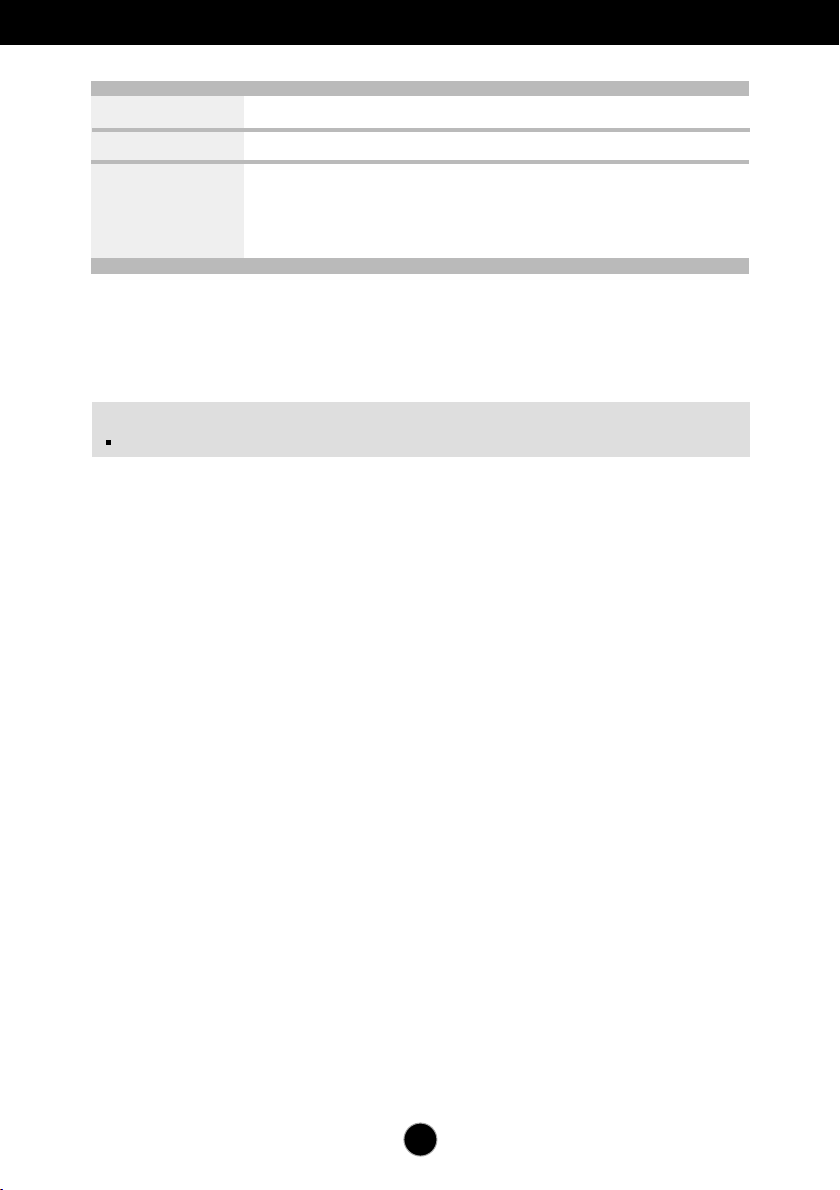
Specifications L246WHX
Note
Information in this document is subject to change without notice.
Attached ( ), Detached ( O )
Wall-outlet type or PC-outlet type
Standard USB 2.0, Self-Power
Data Rate Max 480 Mbps
Power Consumption Max 2.5W x 2
Stand Base
Power cord
USB
A29
Specifications
On Mode
Sleep Mode
Off Mode
Blue
Amber
Off
LED Color
MODE
PC INPUT Preset Modes (Resolution)
Indicator
HDMI Video INPUT
Display Modes
(Resolution)
Horizontal
Freq. (kHz)
Vertical
Freq. (Hz)
1
2
3
4
5
6
7
8
9
10
480i
576i
480p
576p
720p
720p
1080i
1080i
1080p
1080p
15.75
15.62
31.50
31.25
37.50
45.00
28.12
33.75
56.25
67.50
60.00
50.00
60.00
50.00
50.00
60.00
50.00
60.00
50.00
60.00
Display Modes
(Resolution)
Horizontal
Freq. (kHz)
Vertical
Freq. (Hz)
1
2
3
4
5
6
7
8
480i
576i
480p
576p
720p
720p
1080i
1080i
15.75
15.62
31.50
31.25
37.50
45.00
28.12
33.75
60.00
50.00
60.00
50.00
50.00
60.00
50.00
60.00
Component Video INPUT
*Recommend Mode
Display Modes (Resolution)
Horizontal Freq. (kHz) Vertical Freq. (Hz)
1
2
3
4
5
6
7
8
9
10
11
12
13
14
15
16
*17
640 x 480
640 x 480
720 x 480
720 x 400
800 x 600
800 x 600
1024 x 768
1024 x 768
1152 x 864
1280 x 768
1280 x 768
1280 x 1024
1280 x 1024
1600 x 1200
1680 x 1050
1680 x 1050
1920 x 1200
31.469
37.500
35.162
31.500
37.879
46.875
48.363
60.023
67.500
47.776
60.289
63.981
79.976
75.000
64.674
65.290
74.038
59.940
75.000
59.901
70.156
60.317
75.000
60.004
75.029
75.000
59.870
74.893
60.020
75.025
60.000
59.883
60.454
59.950
VGA
VESA
VESA
VGA
VESA
VESA
VESA
VESA
VESA
VESA
VESA
VESA
VESA
VESA
VESA
VESA
VESA
A30
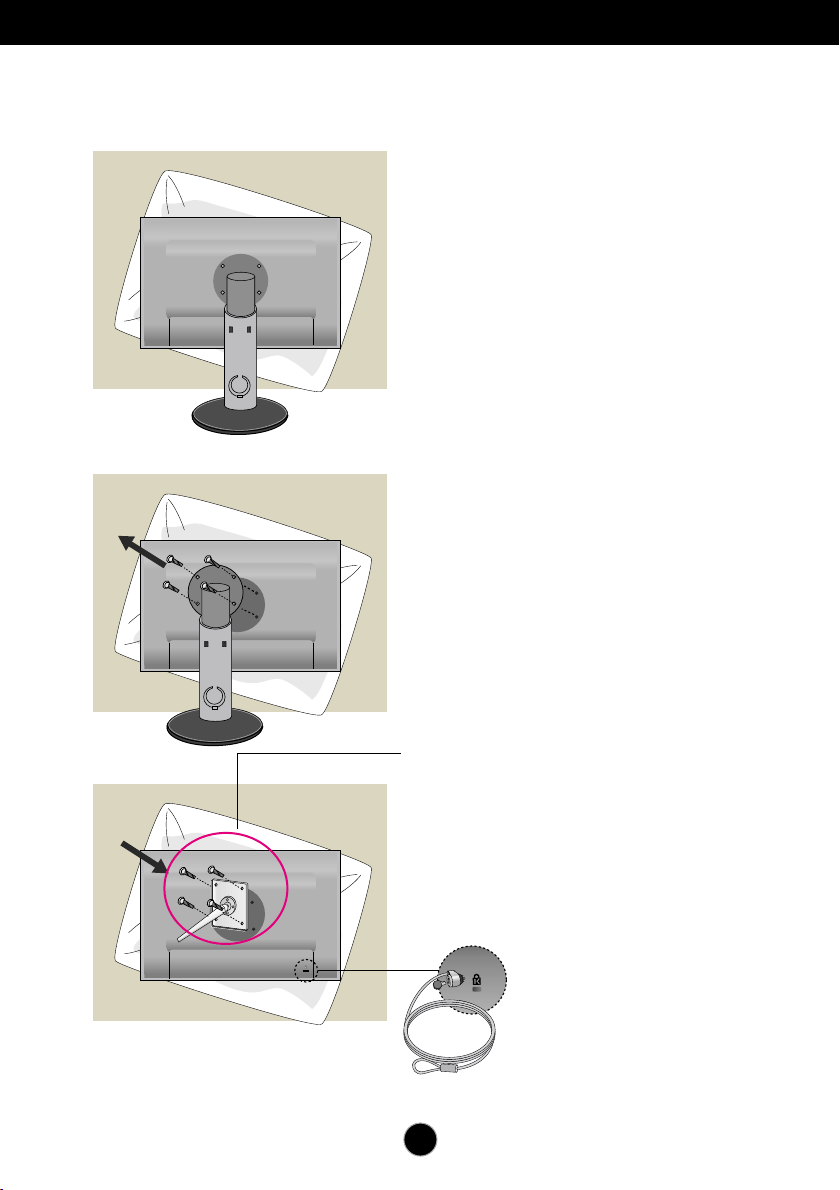
Installing the Wall mount plate
This monitor satisfies the specifications of the Wall mount plate or
the interchange device.
Wall mount plate(Separate purchase)
This is stand-type or wall mount type and is
connectable with Wall mount plate.
Please refer to the installation guide for more
details, which is provided when Wall mount plate
is purchased.
Kensington Security Slot
Connected to a locking
cable that can be purchased
separately at most
computer stores.
1.
After moving the product to face
downward, make sure to place it on
a soft cloth or a cushion to avoid
surface damage.
2.
Separate the head and the stand
with the use of a screwdriver.
3.
Install the Wall mount plate.
Digitally yours