
Please read this manual carefully before operating
your set.
Retain it for future reference.
Record model number and serial number of the set.
See the label attached on the back cover and quote
this information to your dealer
when you require service.
LCD TV
OWNER’S MANUAL
LCD TV MODELS
15LS1RA
20LS1RA
P/NO : MFL34797015 (0705-REV00)
Printed in Korea
www.lge.com

1
IMPORTANT SAFETY INSTRUCTIONS
WARNING
W
WARNING
Read these instructions.
Keep these instructions.
Heed all warnings.
Follow all instructions.
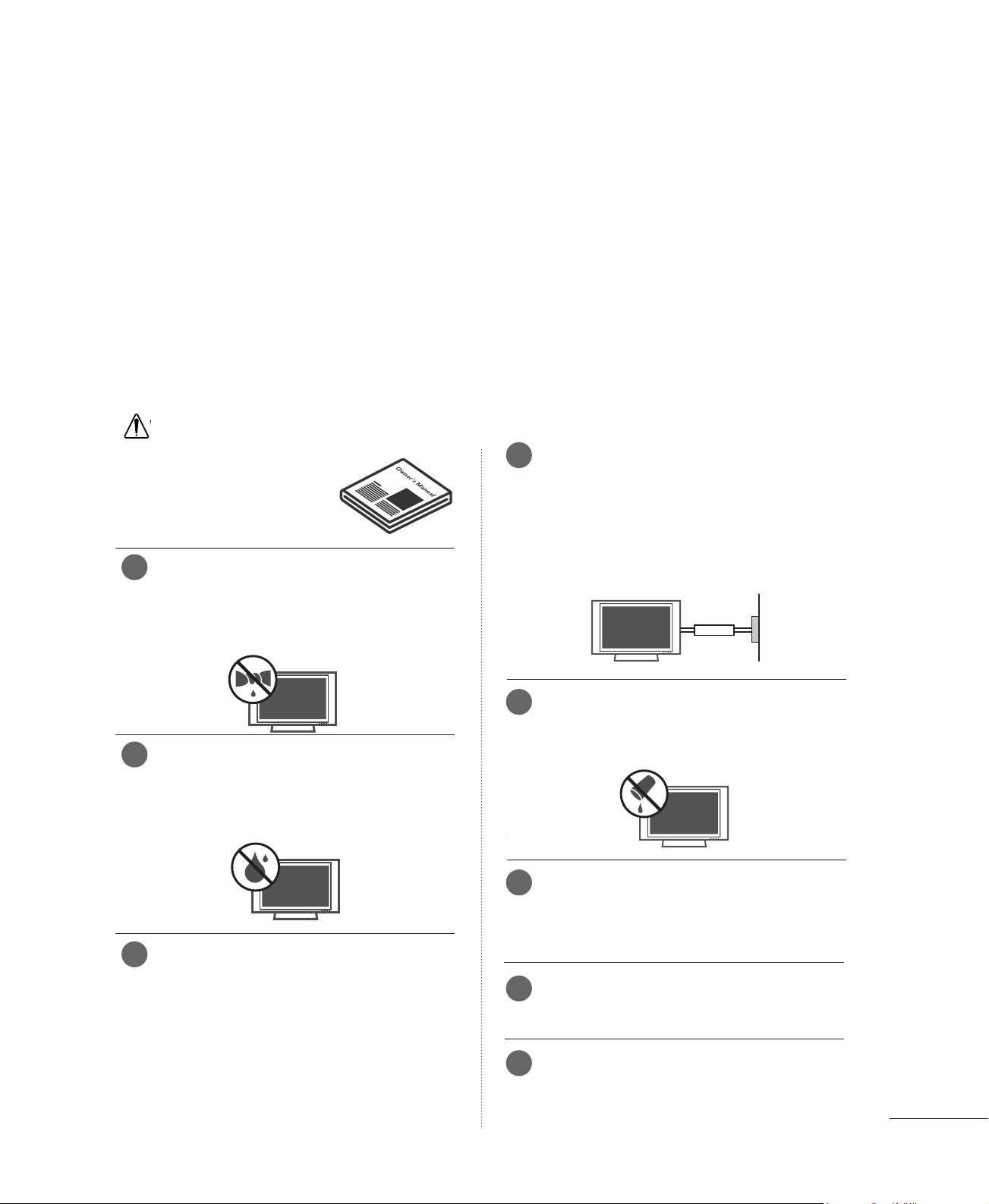
Do not place the product in direct sunlight or
near heat sources such as heat registers,
stove and so on.
This may cause a fire.
Do not use the product in damp place such
as a bathroom or any place where it is likely
to get wet.
This may cause a fire or could give an electric shock.
Bend antenna cable between inside and out-
side building to prevent rain from flowing in.
This may cause water damaged inside the product and could
give an electric shock.
Earth wire should be connected.
If the earth wire is not connected, there is possible a danger
of electric shock caused by the current leakage.
If grounding methods are not possible, a separate circuit
breaker should be employed and installed by a qualified
electrician.
Do not connect ground to telephone wires, lightning rods
or gas pipe.
Do not placing anything containing liquid on
top of the product.
This may cause a fire or could give an electric shock.
Wet Location Marking :
Apparatus shall not be exposed to dripping or splashing and
no objects filled with liquids, such as vases, shall be placed
on the apparatus.
Do not insert any object into the exhaust vent.
This may cause a fire or could give an electric shock.
Do not place heavy objects on the product.
This may cause serious injury to a child or adult.
Important safety instructions shall be provided with each apparatus. This information shall be given in a separate
booklet or sheet, or be located before any operating instructions in an instruction for installation for use and
supplied with the apparatus.
This information shall be given in a language acceptable to the country where the apparatus is intended to be
used.
The important safety instructions shall be entitled “Important Safety Instructions”. The following safety
instructions shall be included where applicable, and, when used, shall be verbatim as follows. Additional safety
information may be included by adding statements after the end of the following safety instruction list. At the
manufacturer’s option, a picture or drawing that illustrates the intent of a specific safety instruction may be
placed immediately adjacent to that safety instruction :
Owner Manual
Owner Manual
Owner Manual
Owner Manual
Owner Manual
Owner Manual
Owner Manual
Owner Manual
Power
supplier
Short-circuit
breaker
1
4
5
6
7
8
2
3
2
IMPORTANT SAFETY INSTRUCTIONS
WARNING
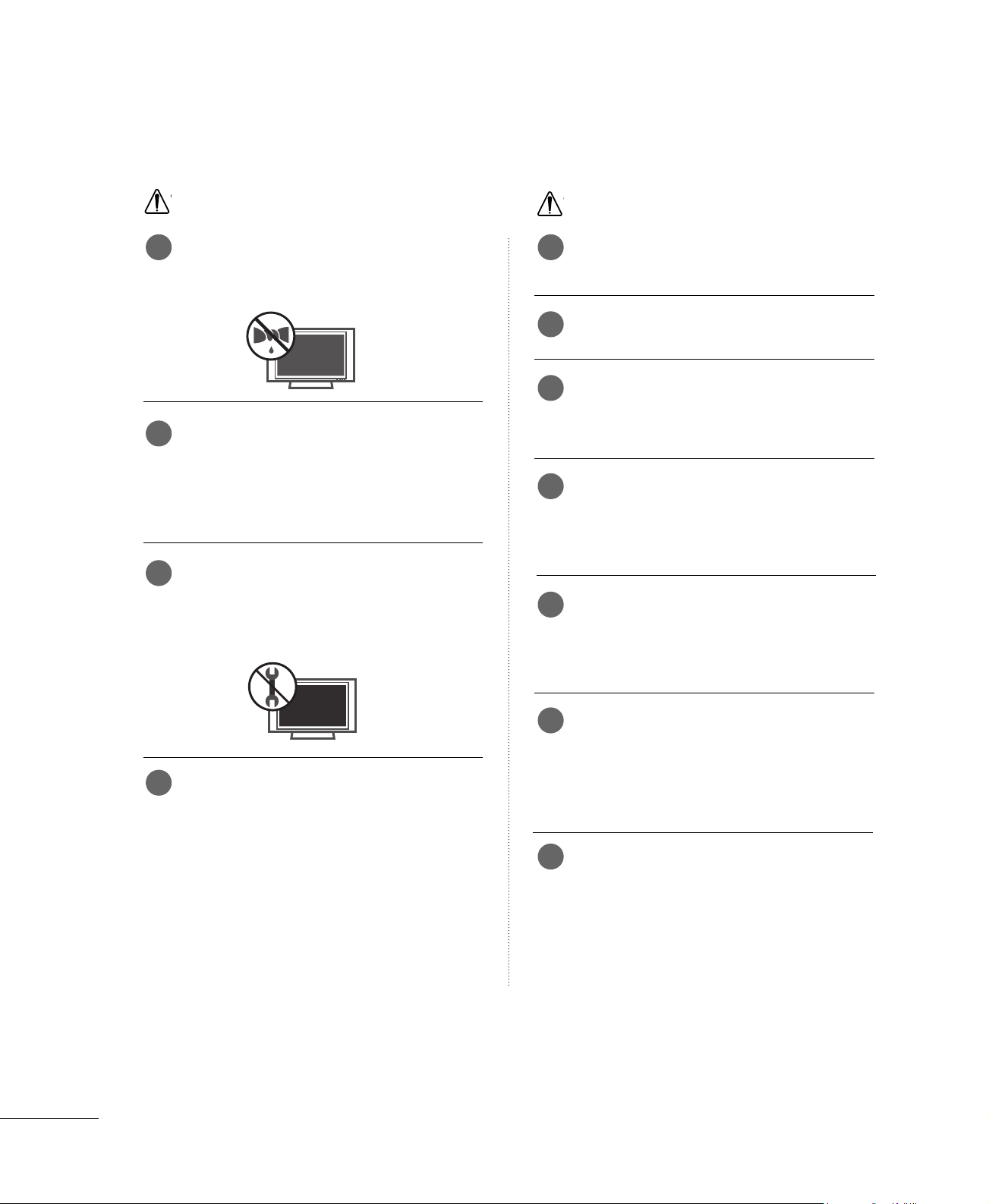
Do not use water the product while cleaning.
This may cause damaged the product or could give an elec-
tric shock.
In case of smoke or strange smell from the
product, switch it off ,unplug it from the wall
outlet and contact your dealer or service
center.
This may cause a fire or could give an electric shock.
Do not attempt to service the product your-
self. Contact your dealer or service center.
This may cause damaged the product or could give an electric
shock.
Never touch this apparatus or antenna during
a thunder or lighting storm.
This may cause an electric shock.
Never touch the power plug with a wet hand.
This may cause an electric shock.
Disconnect from the mains and remove all
connections before moving.
Do not place the product in a built-in
installation such as a bookcase or rack.
Ventilation required.
When installing the product on a table, be
careful not to place the edge of its stand.
This may cause the product to fall, causing serious injury to
a child or adult, and serious damage to the product.
Do not place an outside antenna in the vicinity
of overhead power lines or other electric light
or power circuits.
This may cause an electric shock.
There should be enough distance between an
outside antenna and power lines to keep the
former from touching the latter even when
the antenna falls.
This may cause an electric shock.
Do not pull the cord but the plug when
unplugging.
This may cause a fire.
Owner Manual
Owner Manual
W
WARNING
W
NOTE
Owner Manual
Owner Manual
9 1
2
3
4
5
6
7
10
11
12
3
Ensure the power cord doesn’t trail across
any hot objects like a heater.
This may cause a fire or an electric shock.
Do not plug when the power cord or the plug
is damaged or the connecting part of the
power outlet is loose.
This may cause a fire or an electric shock.
Dispose of used batteries carefully to protect
a child from eating them.
In case that it eats them, take it to see a doctor immediately.
When moving the product assembled with
speakers do not carry holding the speakers.
This may cause the product to fall, causing serious injury to
a child or adult, and serious damage to the product.
Unplug this product from the wall outlet
before cleaning. Do not use liquid cleaners or
aerosol cleaners.
This may cause damaged the product or could give an electric
shock.
Contact the service center once a year to
clean the internal part of the product.
Accumulated dust can cause mechanical failure.
The distance between eyes and the screen
should be about 5 - 7 times as long as diag-
onal length of the screen.
If not, eyes will strain.
Unplug the product from the wall outlet when
it is left unattended and unused for long periods
of time.
Accumulated dust may cause a fire or an electric shock from
deterioration or electric leakage.
Only use the specified batteries.
This make cause damaged the product or could give an
electric shock.
Do not allow a impact shock or any objects to
fall into the product, and do not drop onto the
screen with something.
You may be injured or the product can be damaged.
W
NOTE
8
9
10
11
12
13
14
15
16
17
NOTE
!
GG
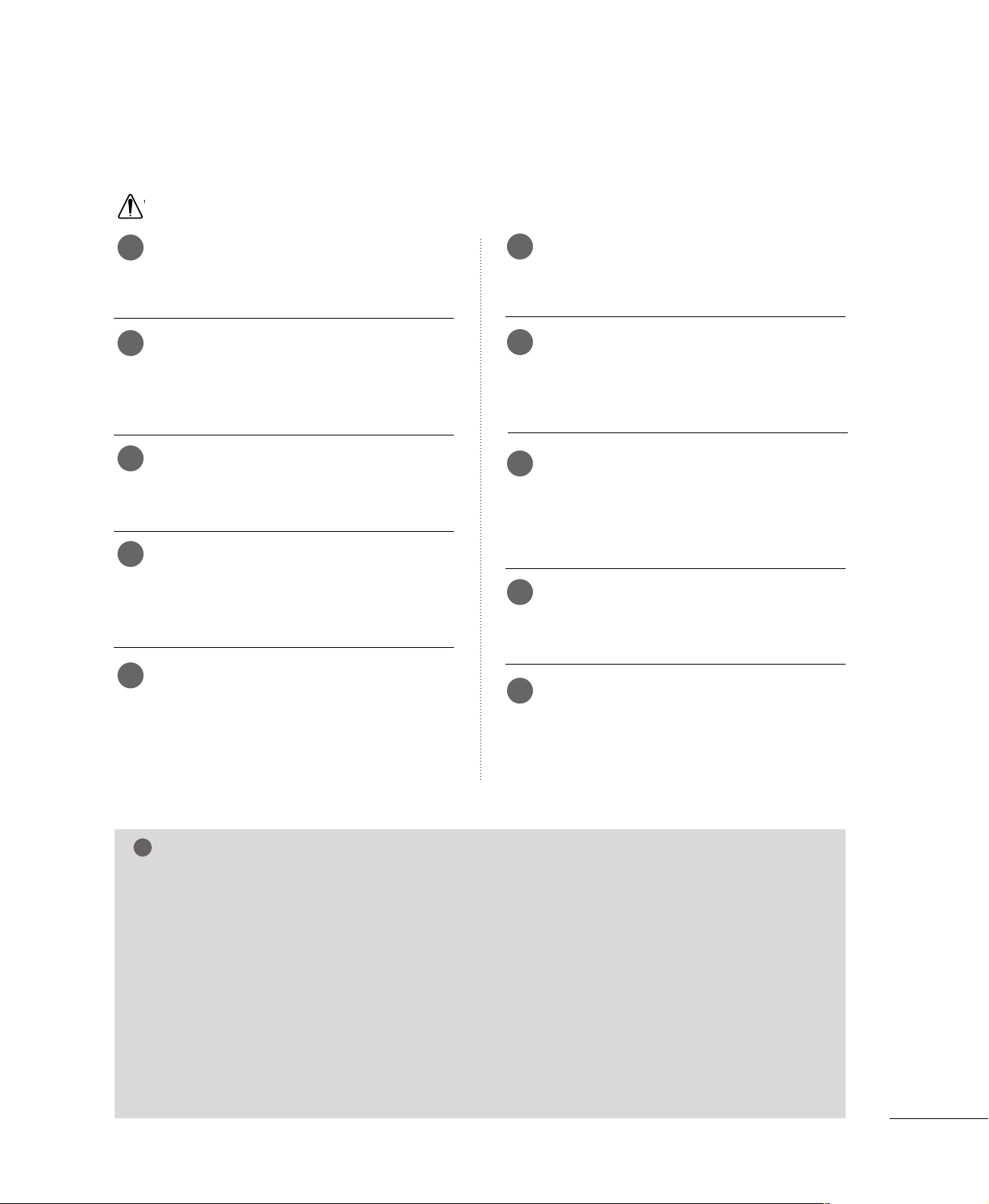
If the TV feels cold to the touch, there may be a small “flicker” when it is turned on. This is normal, there
is nothing wrong with TV.
Some minute dot defects may be visible on the screen, appearing as tiny red, green, or blue spots. However,
they have no adverse effect on the monitor's performance.
Avoid touching the LCD screen or holding your finger(s) against it for long periods of time. Doing so may pro-
duce some temporary distortion effects on the screen.
On Disposal
a. The fluorescent lamp used in this product contains a small amount of mercury.
b. Do not dispose of this product with general household waste.
c. Disposal of this product must be carried out in accordance to the regulations of your local authority.

4
CONTENTS
WARNING
. . . . . . . . . . . . . . . . . . . . . . . . . . . . . . . . . . . . . . . . . . . . . . . . . . . . 1
Important Safety Instructions
. . . . . . . . . . . . . . . . . . . . . . . . . . . . 1
PREPARATION
Accessories . . . . . . . . . . . . . . . . . . . . . . . . . . . . . . . . . . . . . . . . . . . . . . . . . . . . . .
5
Front Panel Information . . . . . . . . . . . . . . . . . . . . . . . . . . . . . . . . . . . . . 6
Back Panel Information
. . . . . . . . . . . . . . . . . . . . . . . . . . . . . . . . . . . . . . 7
Stand Installation . . . . . . . . . . . . . . . . . . . . . . . . . . . . . . . . . . . . . . . . . . . . . . 8
Detaching Stand . . . . . . . . . . . . . . . . . . . . . . . . . . . . . . . . . . . . . . . . . . . . . . . 9
Back Cover for Wire Arrangement
. . . . . . . . . . . . . . . . . . . . . 10
Positioning Your Display . . . . . . . . . . . . . . . . . . . . . . . . . . . . . . . . . . . 11
Desktop Pedestal Installation
. . . . . . . . . . . . . . . . . . . . . . . . . . . . 11
Kensington Security System
. . . . . . . . . . . . . . . . . . . . . . . . . . . . . 12
Antenna or Cable Connection
. . . . . . . . . . . . . . . . . . . . . . . . . . 13
EXTERNAL EQUIPMENT SETUP
HD Receiver Setup
. . . . . . . . . . . . . . . . . . . . . . . . . . . . . . . . . . . . . . . . .
14
DVD Setup
. . . . . . . . . . . . . . . . . . . . . . . . . . . . . . . . . . . . . . . . . . . . . . . . . . . . . . 16
Headphone Setup . . . . . . . . . . . . . . . . . . . . . . . . . . . . . . . . . . . . . . . . . . . 17
VCR Setup
. . . . . . . . . . . . . . . . . . . . . . . . . . . . . . . . . . . . . . . . . . . . . . . . . . . . . 18
PC Setup . . . . . . . . . . . . . . . . . . . . . . . . . . . . . . . . . . . . . . . . . . . . . . . . . . . . . . . . 20
Screen Setup
. . . . . . . . . . . . . . . . . . . . . . . . . . . . . . . . . . . . . . . . . . . . . . . . . . 21
- Auto Configure
. . . . . . . . . . . . . . . . . . . . . . . . . . . . . . . . . . . . . . . . . 21
- Manual Configure
. . . . . . . . . . . . . . . . . . . . . . . . . . . . . . . . . . . . . 22
- Initializing
. . . . . . . . . . . . . . . . . . . . . . . . . . . . . . . . . . . . . . . . . . . . . . . . . 23
WATCHING TV / CHANNEL CONTROL
Remote Control Functions
. . . . . . . . . . . . . . . . . . . . . . . . . . . . . . . 24
Turning On TV
. . . . . . . . . . . . . . . . . . . . . . . . . . . . . . . . . . . . . . . . . . . . . . . . 26
Channel Selection
. . . . . . . . . . . . . . . . . . . . . . . . . . . . . . . . . . . . . . . . . . . 26
Volume Adjustment . . . . . . . . . . . . . . . . . . . . . . . . . . . . . . . . . . . . . . . . . 26
On-Screen Menus Selection
. . . . . . . . . . . . . . . . . . . . . . . . . . . . . 27
Channel Search
. . . . . . . . . . . . . . . . . . . . . . . . . . . . . . . . . . . . . . . . . . . . . . . 28
- Auto Program: Channel Search . . . . . . . . . . . . . . . . . . 28
-
Manual Program: Adding/Deleting Channels
. . . . . 29
Fine Tuning Adjustment . . . . . . . . . . . . . . . . . . . . . . . . . . . . . . . . . . . 30
Favorite Channels Setup
. . . . . . . . . . . . . . . . . . . . . . . . . . . . . . . . . . . 31
Key Lock
. . . . . . . . . . . . . . . . . . . . . . . . . . . . . . . . . . . . . . . . . . . . . . . . . . . . . . . . . 32
PICTURE CONTROL
Preset Picture Settings . . . . . . . . . . . . . . . . . . . . . . . . . . . . . . . . . . . . . 33
- Auto Picture Control (APC) - Preset
. . . . . . . . . . 33
- Color Tone - Preset.
. . . . . . . . . . . . . . . . . . . . . . . . . . . . . . . . . . 34
Manual Picture Adjustment
. . . . . . . . . . . . . . . . . . . . . . . . . . . . . .
35
- Auto Picture Control (APC) - User Mode
. . . 35
- Color Tone - User Mode
. . . . . . . . . . . . . . . . . . . . . . . . . . .
36
Picture Reset
. . . . . . . . . . . . . . . . . . . . . . . . . . . . . . . . . . . . . . . . . . . . . . . . . 37
SOUND & LANGUAGE CONTROL
Digital Auto Sound Processing (DASP) . . . . . . . . . . . . . 38
Sound Setting Adjustment - User Mode
. . . . . . . . . . . 39
Auto Volume Leveler (AVL)
. . . . . . . . . . . . . . . . . . . . . . . . . . . . . . 40
Balance
. . . . . . . . . . . . . . . . . . . . . . . . . . . . . . . . . . . . . . . . . . . . . . . . . . . . . . . . . . . 41
Stereo/SAP Broadcasts Setup
. . . . . . . . . . . . . . . . . . . . . . . . . . 42
On-Screen Menus Language Selection
. . . . . . . . . . . . . .
43
Caption/Text
. . . . . . . . . . . . . . . . . . . . . . . . . . . . . . . . . . . . . . . . . . . . . . . . . .
44
TIME SETTING
Clock Setting . . . . . . . . . . . . . . . . . . . . . . . . . . . . . . . . . . . . . . . . . . . . . . . . . . 45
Auto On/Off Timer Setting
. . . . . . . . . . . . . . . . . . . . . . . . . . . . . . 46
Sleep Timer Setting
. . . . . . . . . . . . . . . . . . . . . . . . . . . . . . . . . . . . . . . . . 47
Auto Shut-off Setting
. . . . . . . . . . . . . . . . . . . . . . . . . . . . . . . . . . . . . . . 48
APPENDIX
Troubleshooting . . . . . . . . . . . . . . . . . . . . . . . . . . . . . . . . . . . . . . . . . . . . . . 49
Maintenance
. . . . . . . . . . . . . . . . . . . . . . . . . . . . . . . . . . . . . . . . . . . . . . . . . . . 51
Product Specifications
. . . . . . . . . . . . . . . . . . . . . . . . . . . . . . . . . . . . . 52
PREPARATION
5
PREPARATION
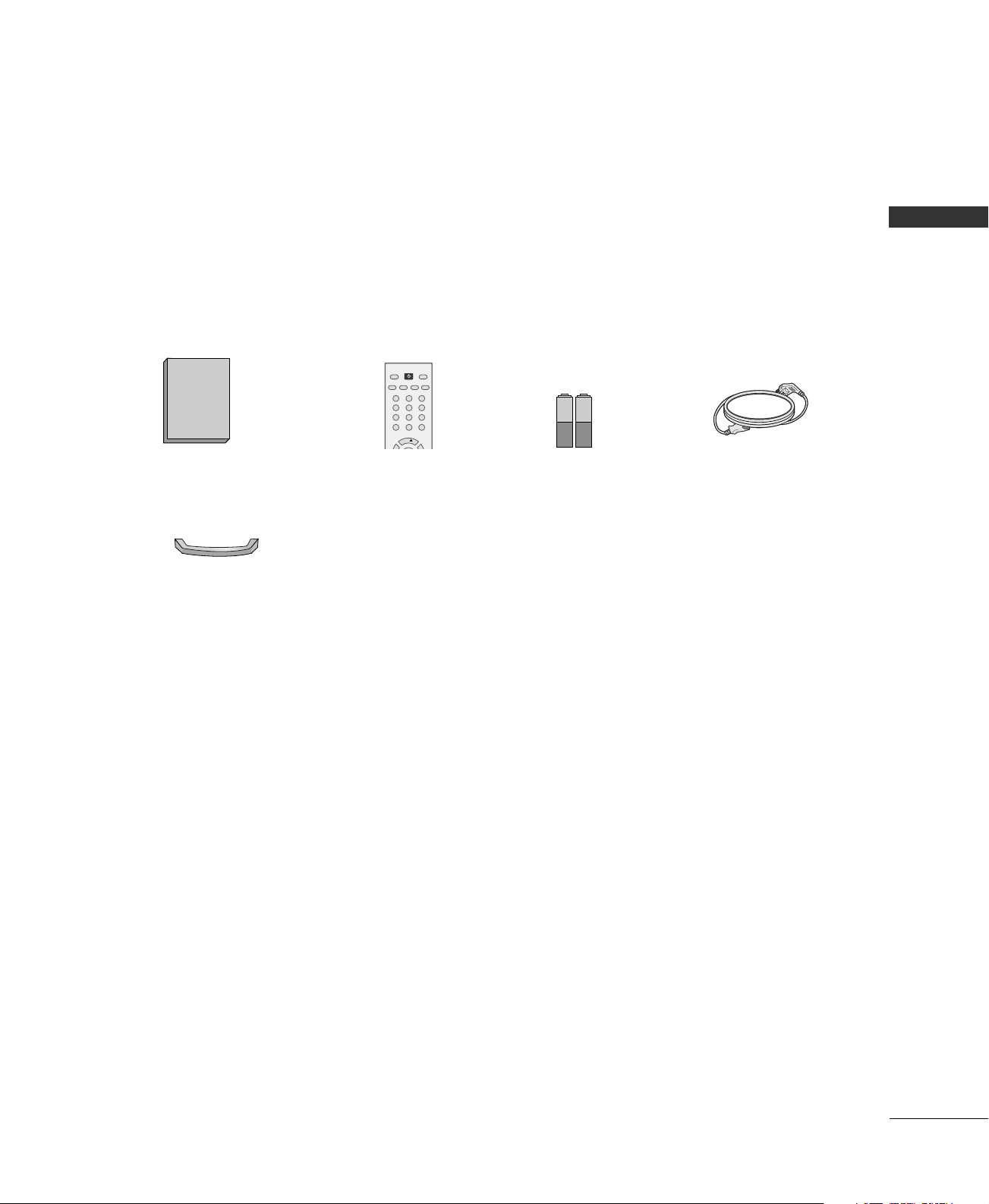
ACCESSORIES
Ensure that the following accessories are included with your product. If an accessory is missing, please contact
the dealer where you purchased the product.
Cable Management
Owner's Manual
1.5V 1.5V
Owner’s Manual
Remote Control
123
456
78
0
9
CH
POWER
MTS
FCRMUTE
A.PROG
CAPTION
TV INPUT
MEMORY/ERASE
Batteries
Power Cord
PREPARATION
6
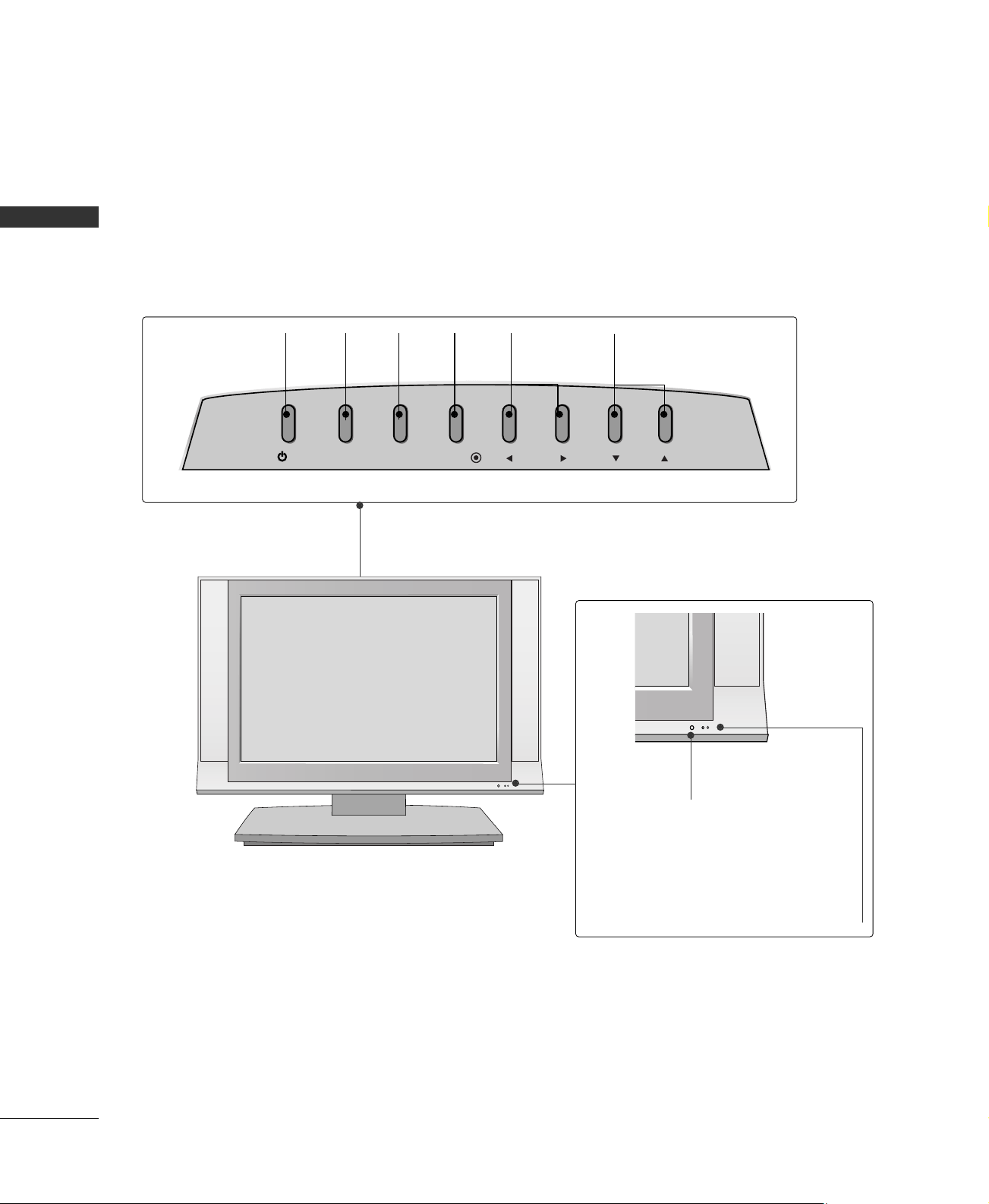
FRONT PANEL INFORMATION
PREPARATION
■
Here shown may be somewhat different from your TV.
Front Panel Controls
Remote Control Sensor
Power Standby Indicator
Illuminates red in standby mode.
When the TV is turned on, the indicator
blinks green and then illuminates green
before the picture is displayed.
INPUT
MENU
VOL CH
/I
ENTER
CHANNEL
(
EE
,
DD
)Buttons
VOLUME
(
FF
,
GG
)Buttons
MENU
Button
ENTER
Button
INPUT
Button
POWER
Button
PREPARATION
7
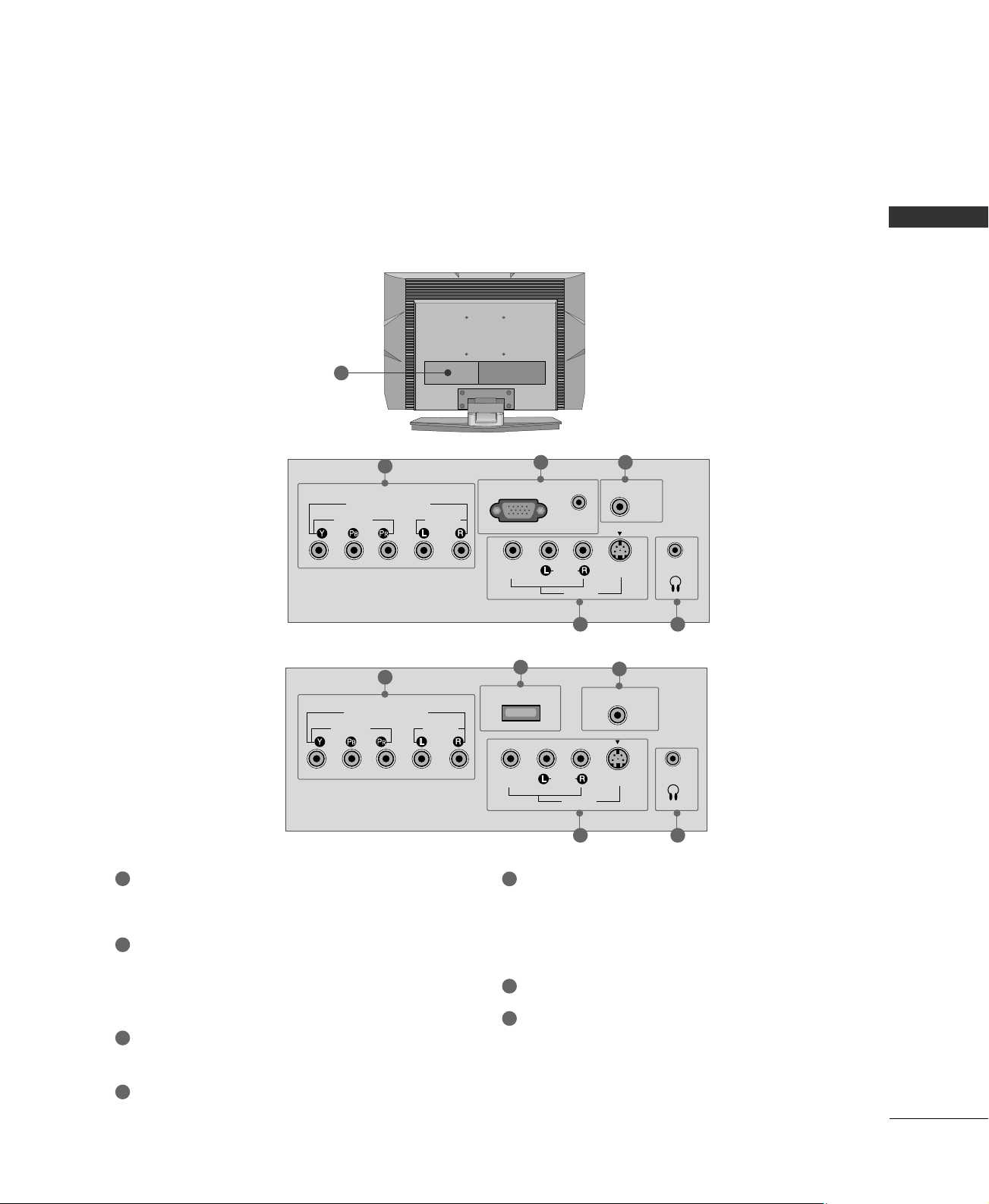
BACK PANEL INFORMATION
15 inches model
( )
VIDEO
AUDIO
MONO
( )
S-VIDEOVIDEO
ANTENNA IN
COMPONENT IN
(480i/480p/720p)
AUDIO
AV IN
H/P
RGB (PC/DTV) IN
AUDIO
(RGB) IN
1
2 3
20 inches model
( )
( )
Back Connection Panel
7
■
Here shown may be somewhat different from your TV.
5 4
SERVICE ONLY
VIDEO
AUDIO
MONO
( )
S-VIDEOVIDEO
ANTENNA IN
COMPONENT IN
(480i/480p)
AUDIO
AV IN
H/P
( )
1
6
3
5 4
COMPONENT IN
Connect a component video/audio device to these
jacks.
RGB (PC/DTV) IN
Connect the output from a PC or DTV.
AUDIO (RGB) IN
Connect the audio from a PC or DTV.
ANTENNA IN
Connect over-the air signals to this jack.
HEADPHONE INPUT
Plug the headphone into the headphone socket.
AV (Audio/Video) IN
Connect audio/video output from an external
device to these jacks.
S-VIDEO
Connect S-Video out from an S-VIDEO device.
SERVICE ONLY
Power Cord Socket
For operation with AC power.
Caution: Never attempt to operate the TV on DC
power.
1
5
6
7
2
3
4
PREPARATION
8
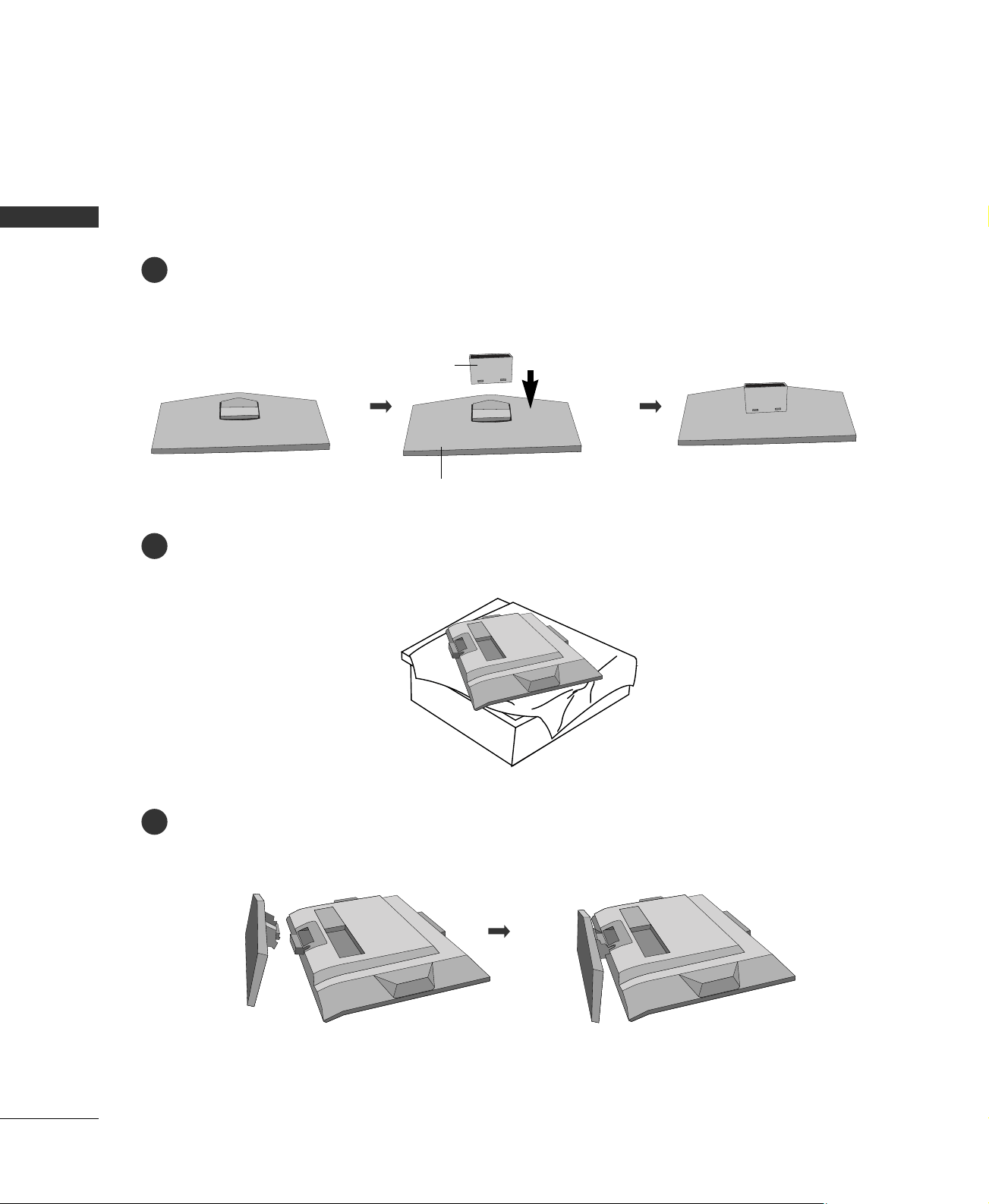
STAND INSTALLATION
PREPARATION
Assemble parts of the stand body with cover base of the stand. Insert the stand body into a cover base
until clicking sound.
Carefully place the product screen side down on a cushioned surface that will protect product and screen
from damage.
Place the product stand on the product as shown.
stand body
cover base
Make sure that the stand
body is bent upward.
■
Here shown may be somewhat different from your TV.
1
2
3
PREPARATION
9
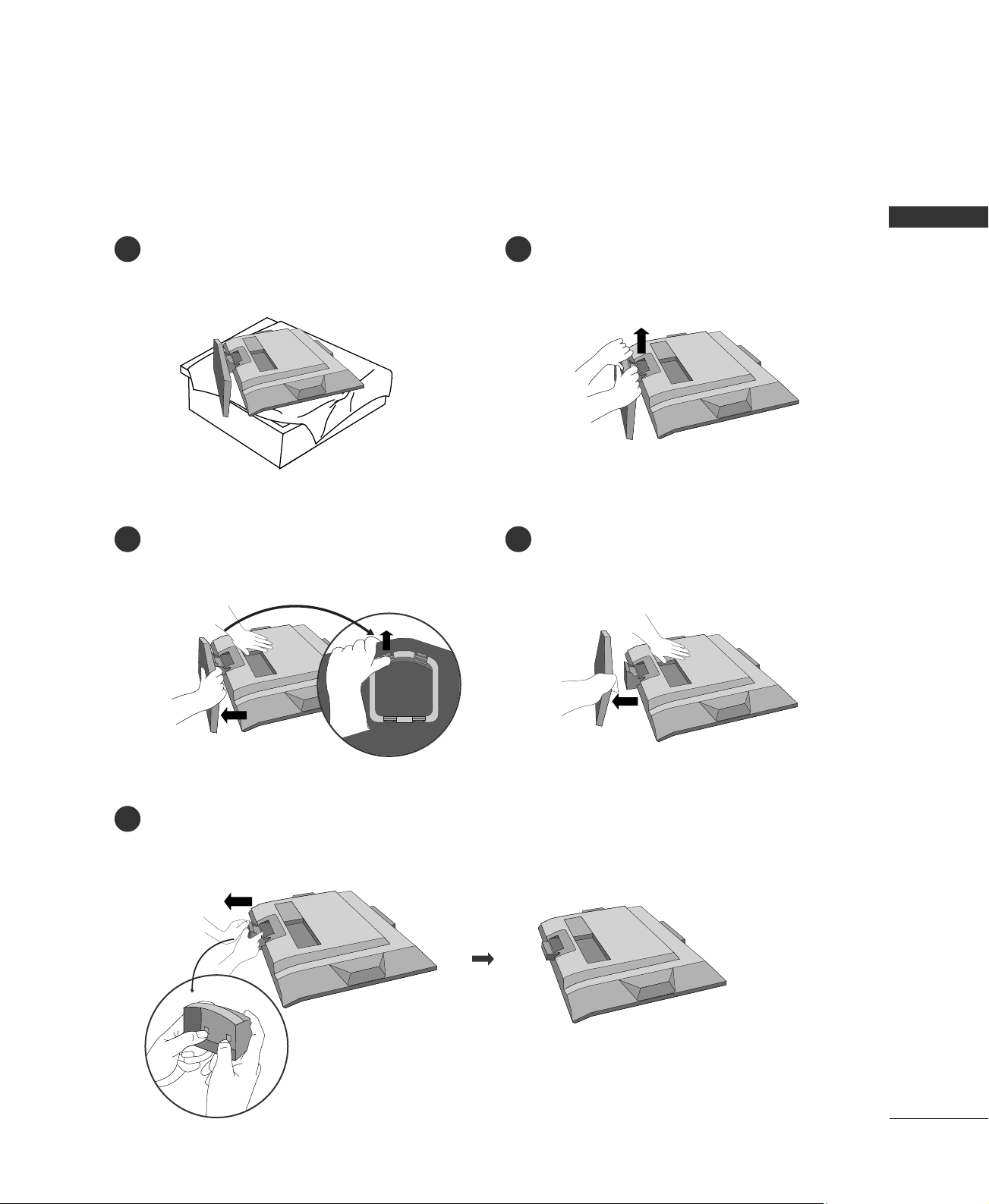
DETACHING STAND
Carefully place the product screen side down on
a cushioned surface that will protect product and
screen from damage.
Hold the stand with both hands and bend it
upward.
Pull each side of cover base backward during
pressing latch upward.
Hold cover base and pull with shake it backward
to separate from stand body.
Pull stand body to separate from set while press-
ing the 2 latches.
■
Here shown may be somewhat different from your TV.
1 2
3
5
4
PREPARATION
10
BACK COVER FOR WIRE ARRANGEMENT
PREPARATION
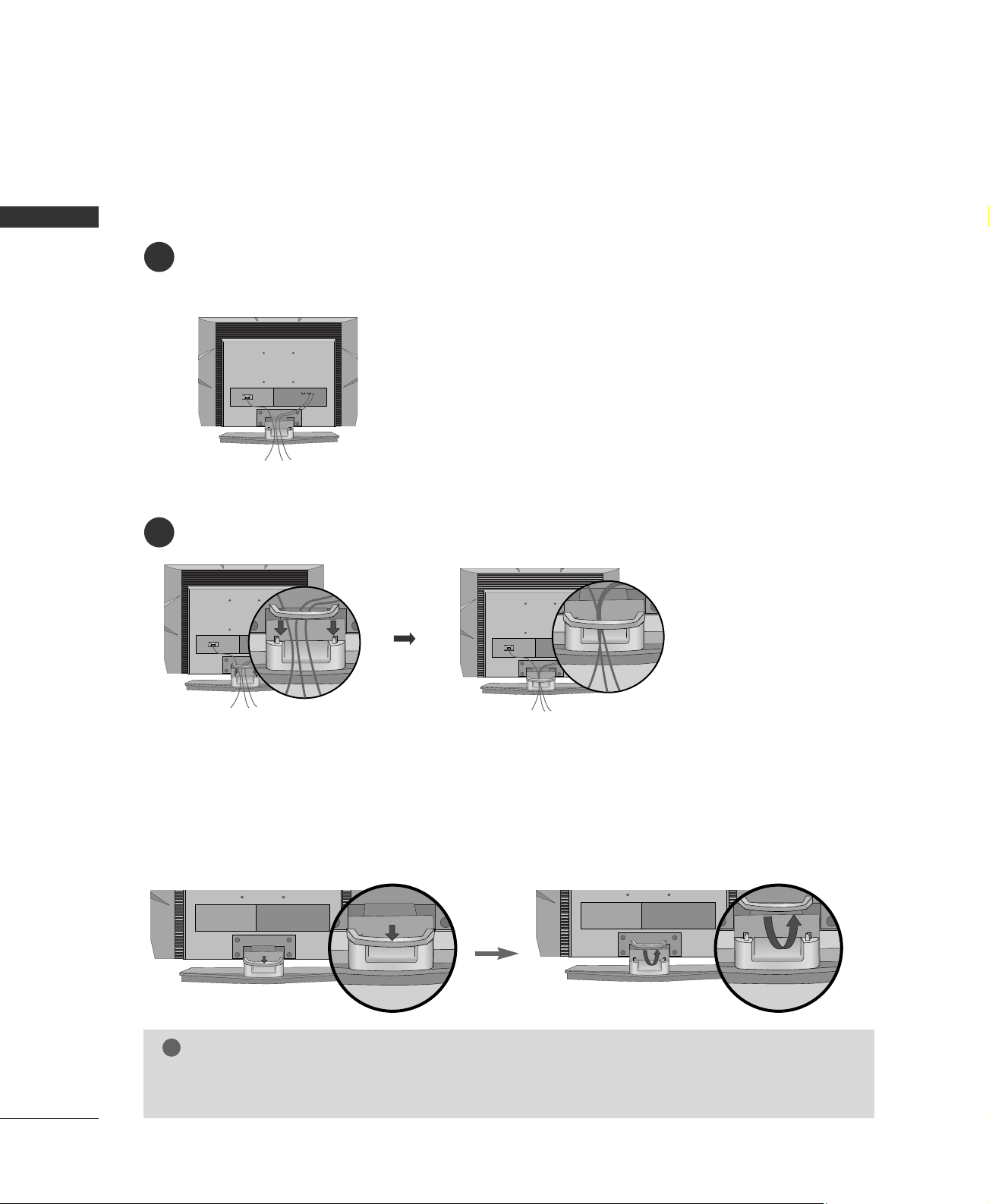
Connect the cables as necessary.
To connect an additional equipment, see the
EEXXTTEERRNNAALL EEQQUUIIPPMMEENNTT SSEETTUUPP
section.
1
Install the
CCAABBLLEE MMAANNAAGGEEMMEENNTT
as shown.
2
First, press the cable management. Hold the
CCAABBLLEE MMAANNAAGGEEMMEENNTT
with both hands and pull it upward.
NOTE
!
GG
Do not hold the
CCAABBLLEE MMAANNAAGGEEMMEENNTT
when moving the product.
- If the product is dropped, you may be injured or the product may be broken.
How to remove the CABLE MANAGEMENT
■
Here shown may be somewhat different from your TV.
PREPARATION
11
POSITIONING YOUR DISPLAY
■
Here shown may be somewhat different from your TV.
■
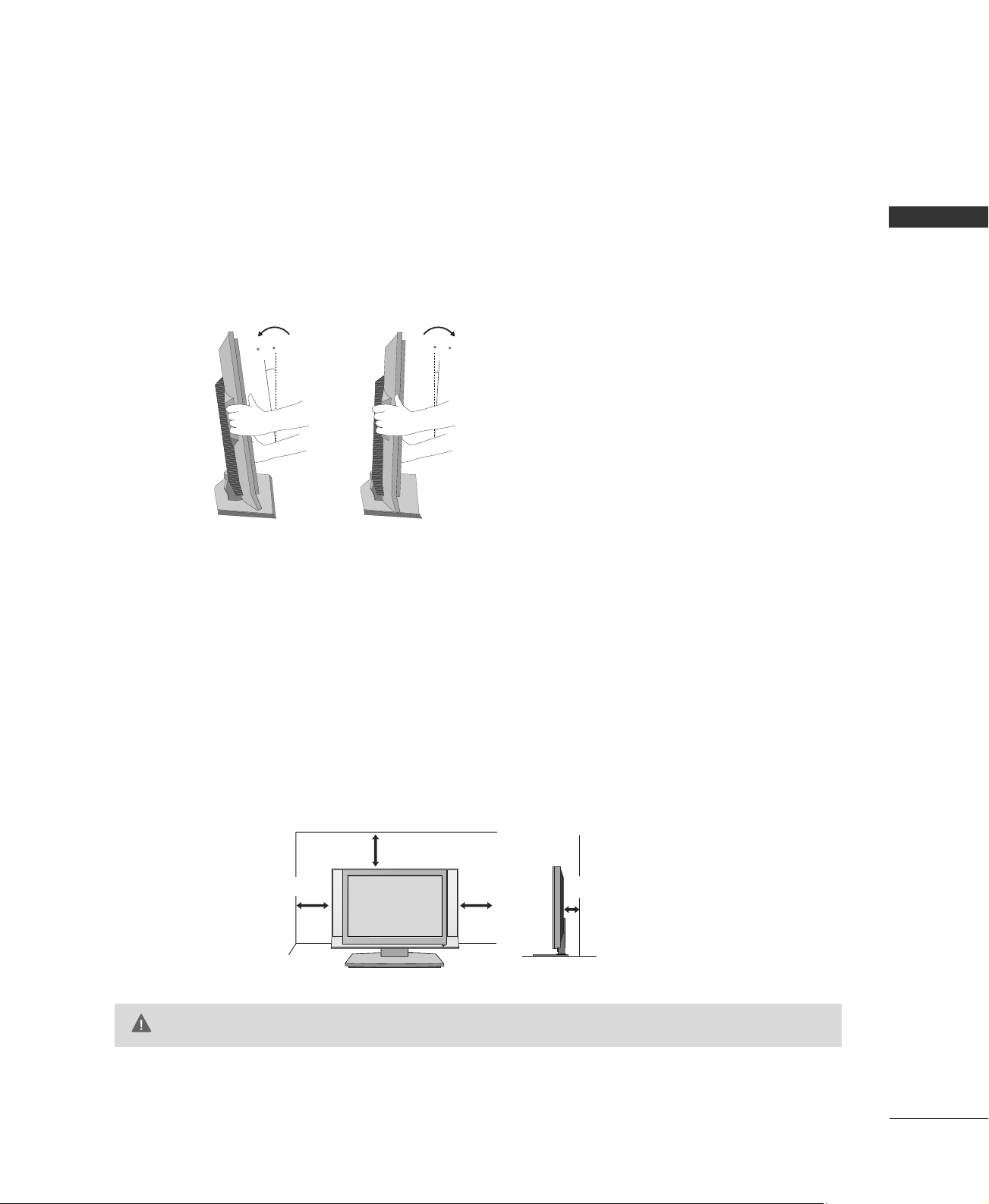
Adjust the position of the panel in various ways for maximum comfort.
•• TTiilltt rraannggee
12~10
3
0
For proper ventilation, allow a clearance of 4inches on all four sides from the wall.
GG
Ensure adequate ventilation by following the clearance recommendations.
CAUTION
DESKTOP PEDESTAL INSTALLATION
R
4 inches
4 inches
4 inches
4 inches
PREPARATION
12
KENSINGTON SECURITY SYSTEM
PREPARATION
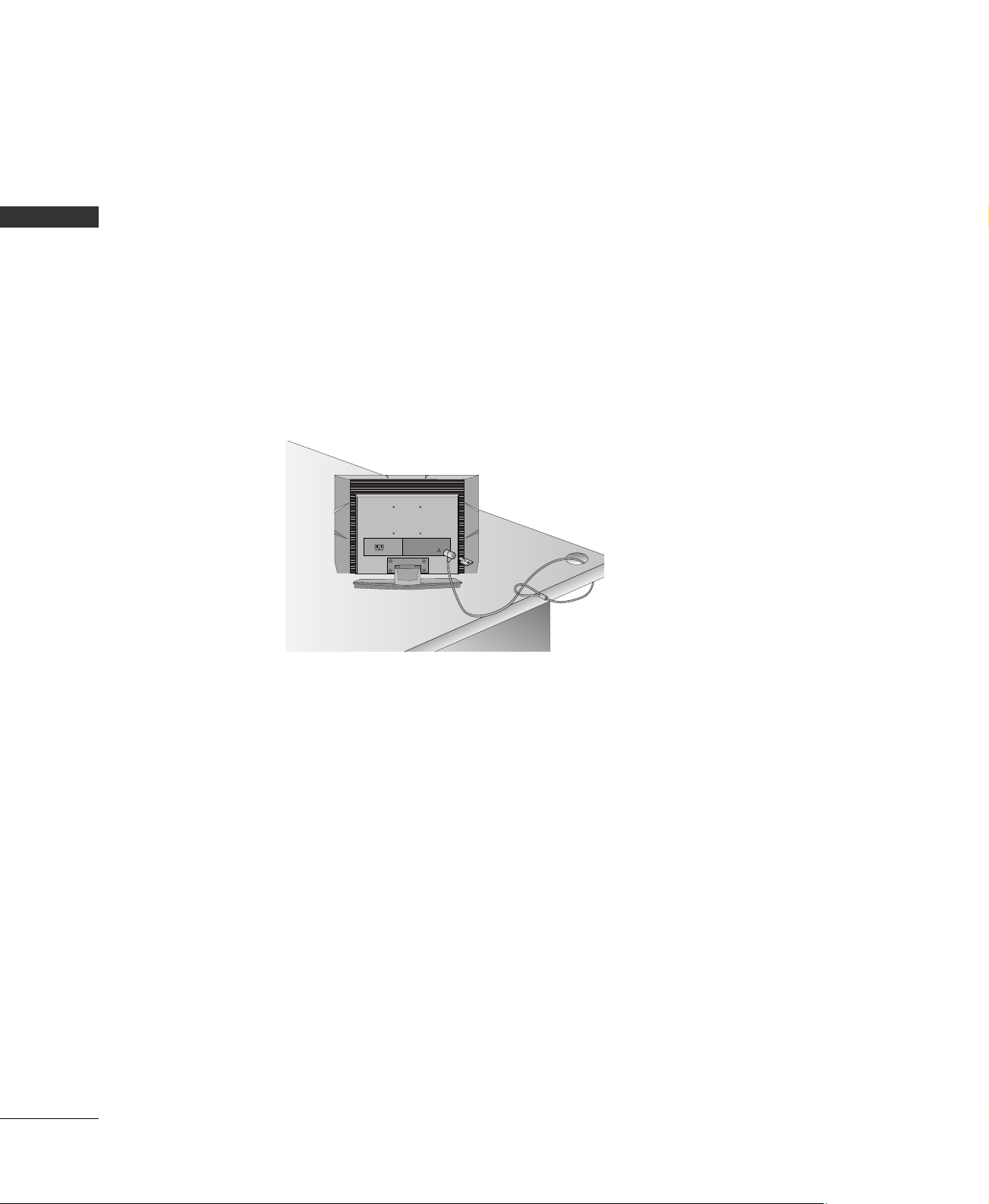
- The TV is equipped with a Kensington Security System connector on the back panel. Connect the
Kensington Security System cable as shown below.
- For the detailed installation and use of the Kensington Security System, refer to the user’s guide provided
with the Kensington Security System.
For further information, contact
hhttttpp::////wwwwww..kkeennssiinnggttoonn..ccoomm
, the internet homepage of the
Kensington company. Kensington sells security systems for expensive electronic equipment such as note-
book PCs and LCD projectors.
NOTE
- The Kensington Security System is an optional accessory.
PREPARATION
13
ANTENNA OR CABLE CONNECTION
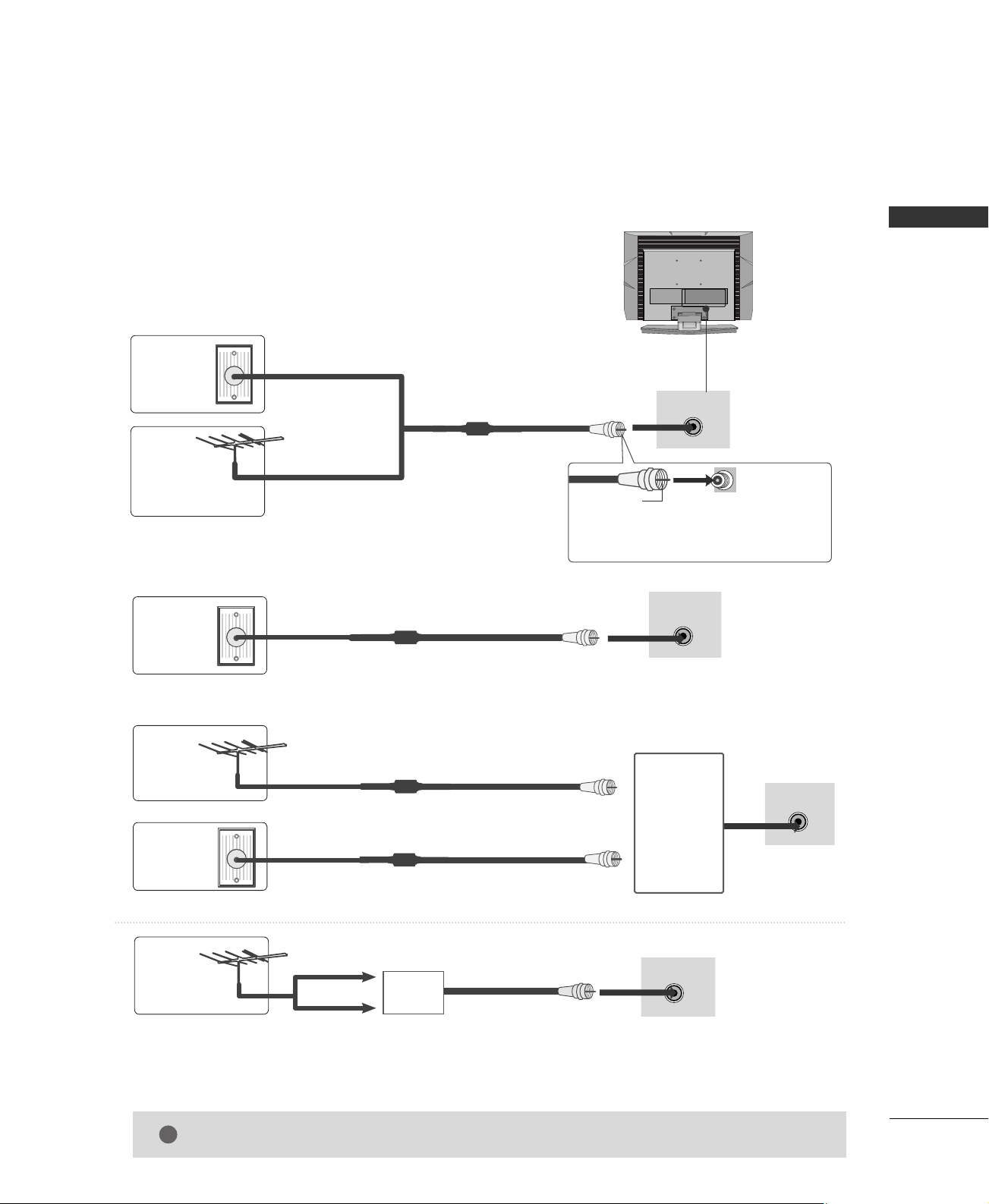
1. Antenna (Analog or Digital)
Wall Antenna Socket or Outdoor Antenna without a Cable Box
Connections.
For optimum picture quality, adjust antenna direction if needed.
2. Cable
Wall
Antenna
Socket
Outdoor
Antenna
(VHF, UHF)
Cable TV
Wall Jack
Multi-family Dwellings/Apartments
(Connect to wall antenna socket)
RF Coaxial Wire (75 ohm)
RF Coaxial Wire (75 ohm)
Single-family Dwellings /Houses
(Connect to wall jack for outdoor antenna)
Be careful not to bend the bronze wire
when connecting the antenna.
Copper Wire
( )
ANTENNA IN
( )
( )
ANTENNA IN
( )
( )
ANTENNA IN
( )
GG
The TV will let you know when the analog, cable, and digital channel scans are complete.
NOTE
!
■
To improve the picture quality in a poor signal area, please purchase a signal amplifier and install properly.
■
If the antenna needs to be split for two TV’s, install a 2-Way Signal Splitter.
■
If the antenna is not installed properly, contact your dealer for assistance.
Antenna
UHF
Signal
Amplifier
VHF
3. Using both cable and antenna
Cable TV
Wall Jack
Antenna
RF Coaxial Wire (75 ohm)
RF Coaxial Wire (75 ohm)
( )
ANTENNA IN
( )
Diplexer
(Signal
Combiner)
( )
( )
EXTERNAL EQUIPMENT SETUP
14
EXTERNAL EQUIPMENT SETUP
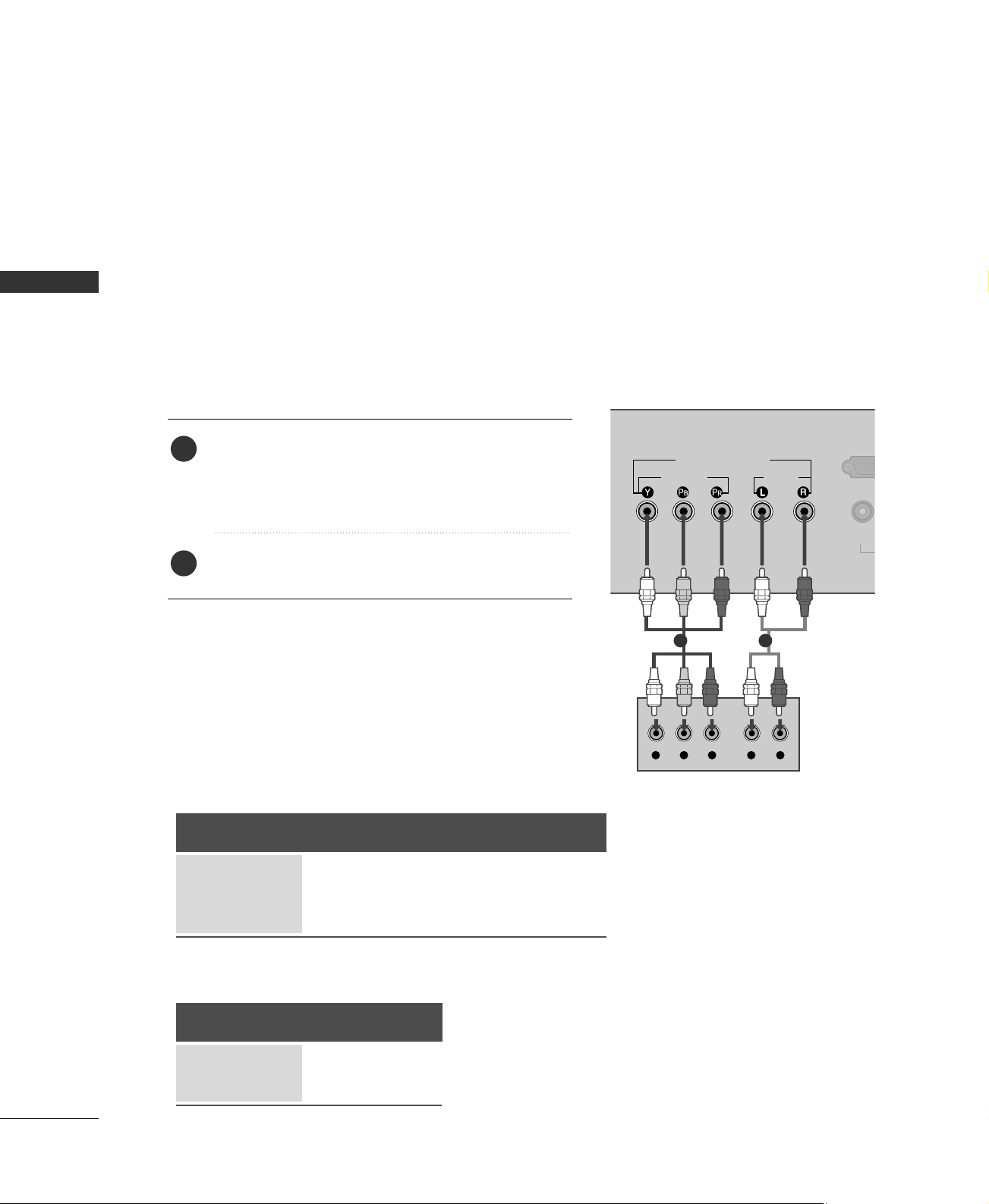
HD RECEIVER SETUP
To watch digitally broadcast programs, purchase and connect a digital set-top box.
Y L RPB PR
VIDEO
AUDIO
VIDEO
COMPONENT IN
(480i/480p/720p)
RGB (PC/D
When connecting Component cable
1 2
1. How to connect
Connect the video outputs
(
Y, P
B, P
R
)
of the digital set
top box to the
CCOOMMPPOONNEENNTT IINN VVIIDDEEOO
jacks on
the set. Match the jack colors
(Y = green, P
B = blue, and PR = red).
Connect the audio output of the digital set-top box to
the
CCOOMMPPOONNEENNTT IINN AAUUDDIIOO
jacks on the set.
2
1
2. How to use
■
Turn on the digital set-top box.
(
Refer to the owner’s manual for the digital set-top box. operation
)
■
Select
CCoommppoonneenntt
input source by using the
IINNPPUUTT
button on the remote control.
Signal
480i, 480p
576i, 576p
720p
Component
Yes
Yes
Yes
RGB-DTV
Yes
Yes
Yes
Signal
480i
480p
Component
Yes
Yes
■
To prevent the equipment damage, never plug in any power cords until you have finished connecting all equipment.
■
This part of EXTERNAL EQUIPMENT SETUP mainly use picture for the 15 inches model.
15 inches model
20 inches model
EXTERNAL EQUIPMENT SETUP
15
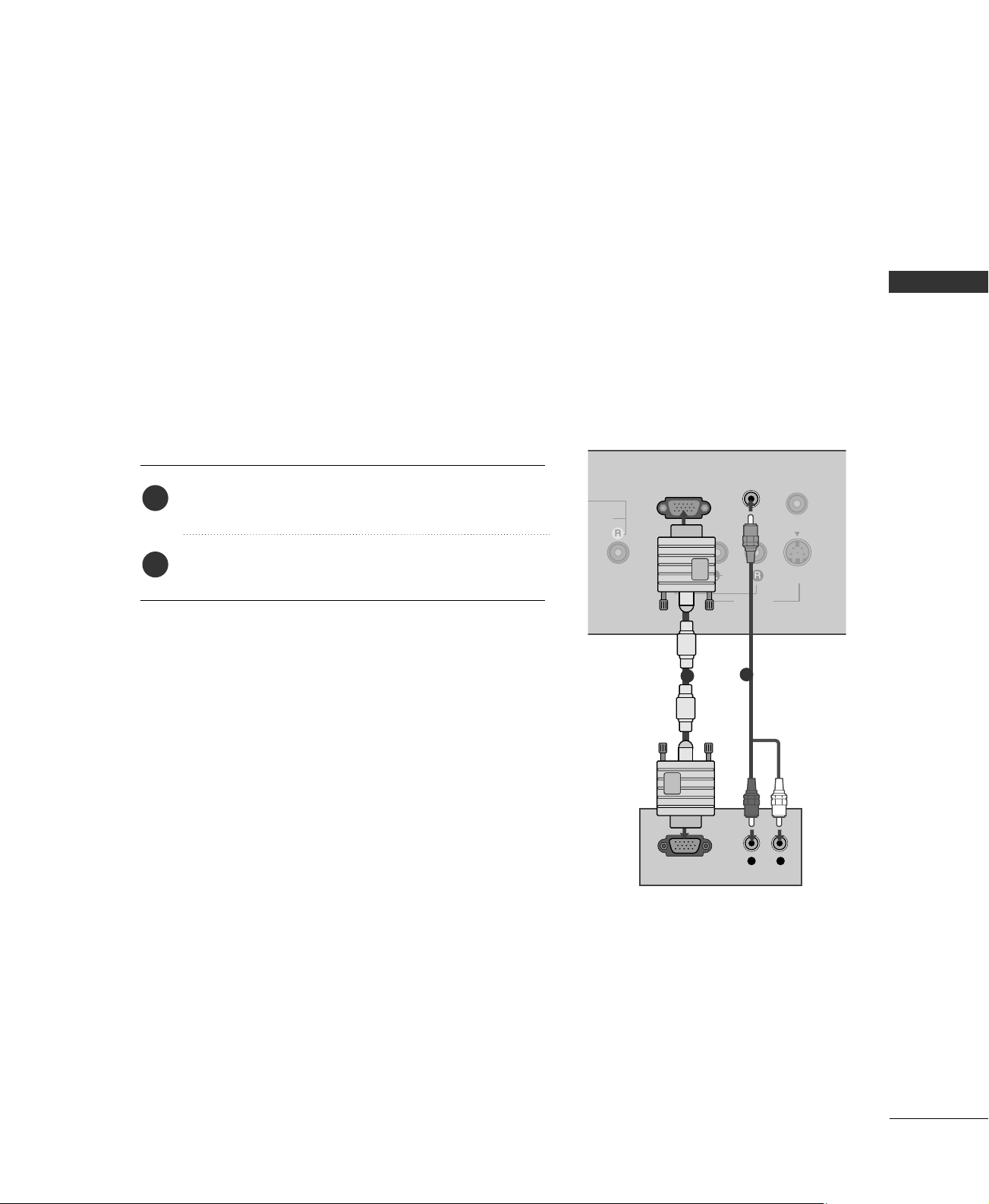
When connecting with a D-sub 15 pin cable
(15 inches only)
Connect the RGB output of the digital set-top box to
the
RRGGBB ((PPCC//DDTTVV)) IINN
jack on the set.
Connect the audio outputs of the set-top box to the
AAUUDDIIOO ((RRGGBB)) IINN
jack on the set.
1. How to connect
2. How to use
■
Turn on the digital set-top box.
(
Refer to the owner’s manual for the digital set-top box.
)
■
Select
RRGGBB
input source with using the
IINNPPUUTT
button
on the remote control.
2
1
UDIO
MONO
( )
S-VIDEOVIDEO
ANTENNA IN
AUDIO
AV IN
RGB (PC/DTV) IN
AUDIO
(RGB) IN
RGB OUTPUT
L R
1
2
EXTERNAL EQUIPMENT SETUP
16
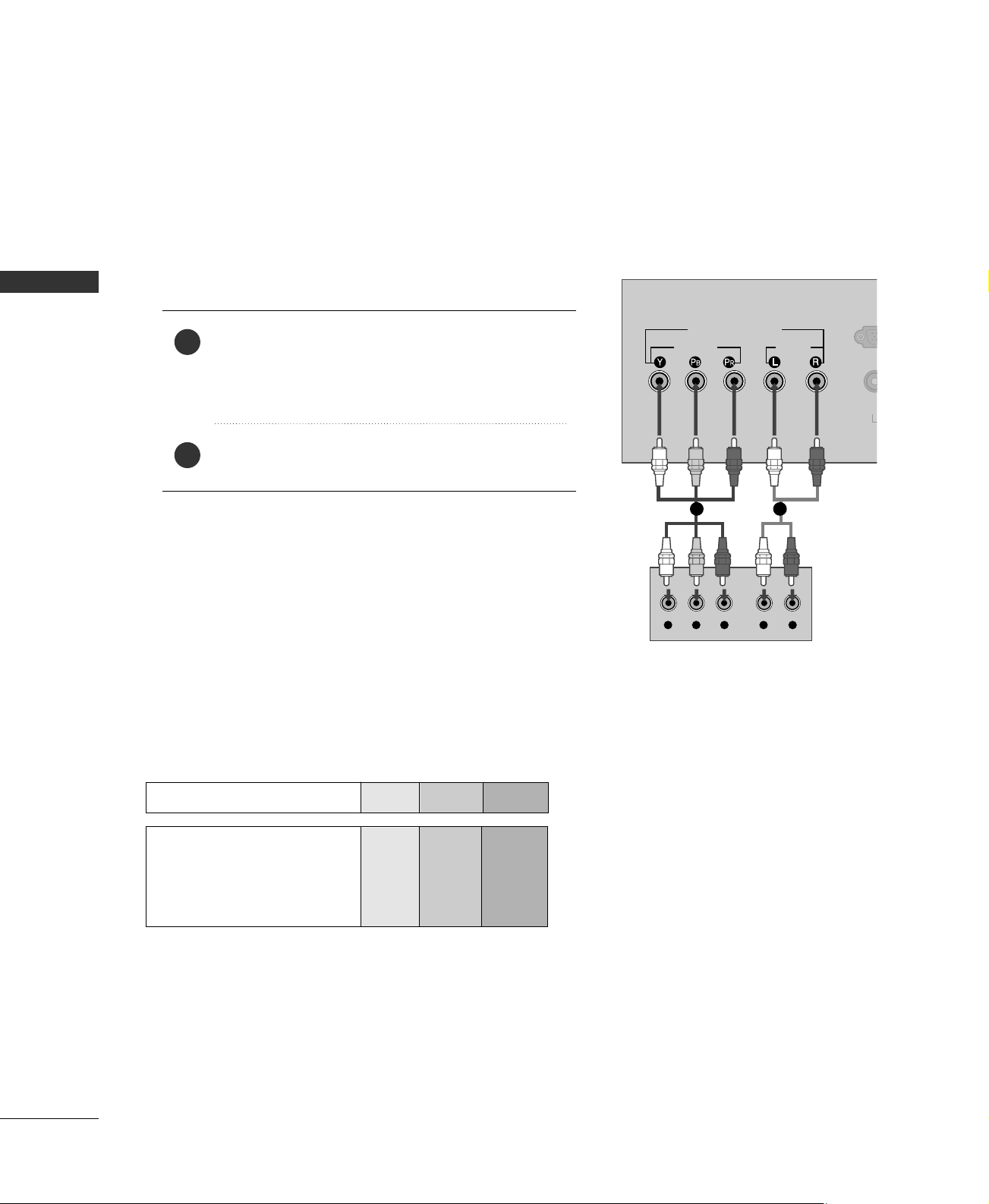
DVD SETUP
EXTERNAL EQUIPMENT SETUP
When connecting Component cable
Y L RPB PR
VIDEO
AUDIO
VID
COMPONENT IN
(480i/480p/720p)
RGB (PC
Component Input ports
To get better picture quality, connect a DVD player to the component input ports as shown below.
Component ports on the TV
YP
B
P
R
Video output ports
on DVD player
Y
Y
Y
Y
PB
B-Y
Cb
Pb
P
R
R-Y
Cr
Pr
Connect the video outputs
(
Y, P
B, PR
)
of the DVD to
the
CCOOMMPPOONNEENNTT IINN VVIIDDEEOO
jacks on the set.
Match the jack colors
(
Y = green, P
B = blue, and PR = red
)
.
Connect the audio outputs of the DVD to the
CCOOMMPPOONNEENNTT IINN AAUUDDIIOO
jacks on the set.
1. How to connect
2. How to use
■
Turn on the DVD player, insert a DVD.
■
Select
CCoommppoonneenntt
input source by using the
IINNPPUUTT
button on the remote control.
■
Refer to the DVD player's manual for operating instructions.
2
1
1 2
EXTERNAL EQUIPMENT SETUP
17
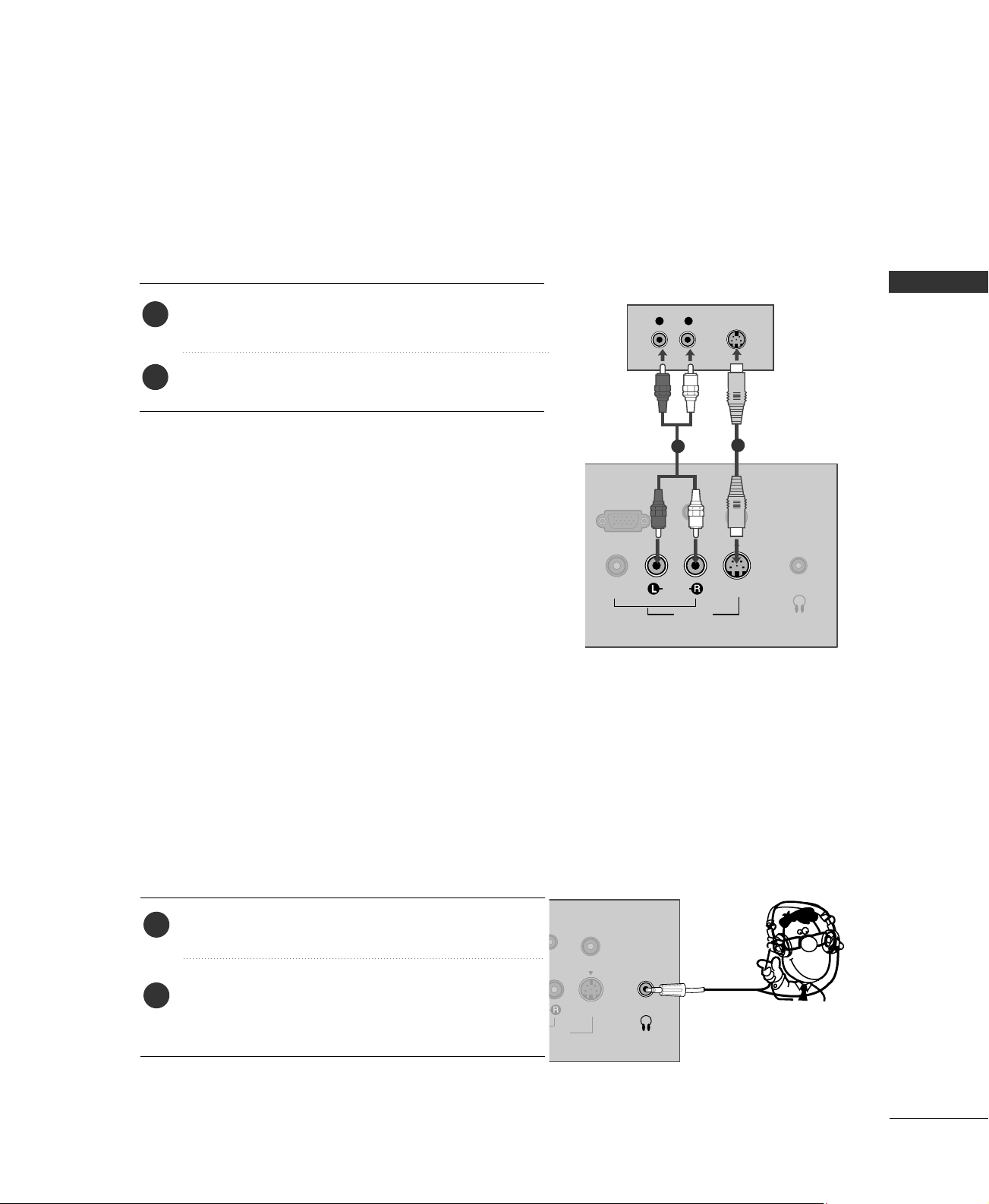
When connecting with an S-Video cable
MONO
( )
S-VIDEOVIDEO
ANTENNA IN
AUDIO
AV IN
H/P
RGB (PC/DTV) IN
AUDIO
(RGB) IN
L R
S-VIDEO
AUDIO
1
2
Connect the S-VIDEO output of the DVD to the
SS --VVIIDDEEOO
input on the set.
Connect the audio outputs of the DVD to the
AAUUDDIIOO
input jacks on the set.
1. How to connect
2. How to use
■
Turn on the DVD player, insert a DVD.
■
Select
AAVV
input source by using the
IINNPPUUTT
button on the
remote control.
■
Refer to the DVD player's manual for operating instructions.
2
1
You can listen to the sound through the headphone.
Plug the headphone into the headphone socket.
To adjust the headphone volume, press the
VVOOLL
FF
or
GG
button. If you press the
MMUUTTEE
button, the sound from
the headphone is switched off.
1. How to connect
2
1
S-VIDEO
ANTENNA IN
O
V IN
H/P
DIO
B) IN
HEADPHONE SETUP
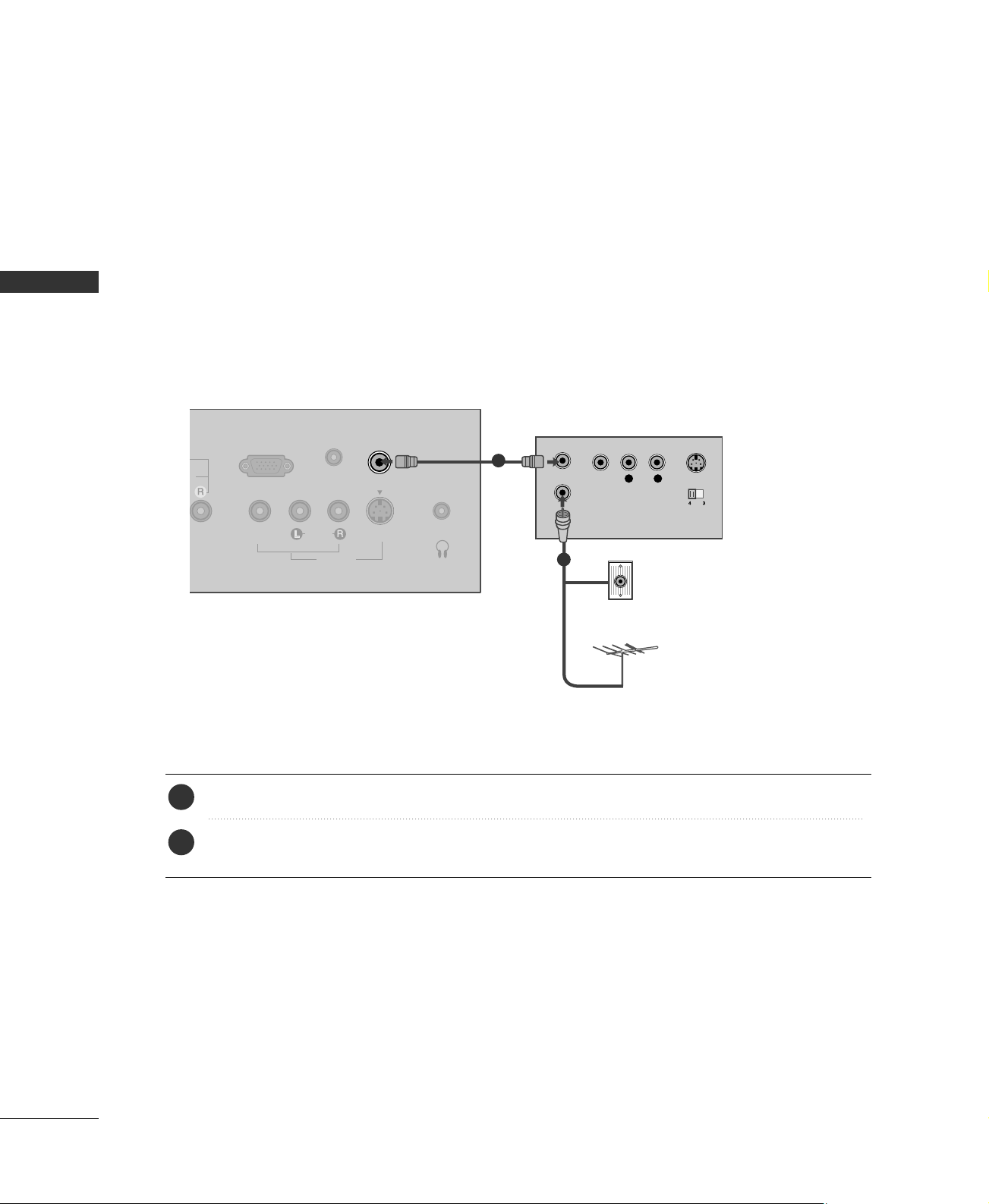
EXTERNAL EQUIPMENT SETUP
18
VCR SETUP
EXTERNAL EQUIPMENT SETUP
When connecting with an antenna
■
To avoid picture noise
(
interference
)
, leave an adequate distance between the VCR and TV.
■
If the 4:3 picture format is used; the fixed images on the sides of the screen may remain visible on the
screen. This phenomenon is common to all manufactures and in consequence the manufactures warranty
does not cover the product bearing this phenomenon.
L R
S-VIDEO
VIDEO
OUTPUT
SWITCH
ANT IN
ANT OUT
O
MONO
( )
S-VIDEOVIDEO
ANTENNA IN
AUDIO
AV IN
H/P
RGB (PC/DTV) IN
AUDIO
(RGB) IN
Wall Jack
Antenna
1
2
Connect the RF antenna out socket of the VCR to the
AANNTTEENNNNAA IINN
socket on the set.
Connect the antenna cable to the RF antenna in socket of the VCR.
1. How to connect
■
Set VCR output switch to 3 or 4 and then tune TV to the same channel number.
■
Insert a video tape into the VCR and press PLAY on the VCR.
(
Refer to the VCR owner’s manual.
)
2. How to use
2
1
EXTERNAL EQUIPMENT SETUP
19
GG
Do not connect to both Video
and S-Video at the same time. In
the event that you connect both
Video and the S-Video cables,
only the S-Video will work.
CAUTION
When connecting with a RCA cable
GG
The picture quality is improved: compared to normal
composite (RCA cable) input.
NOTE
!
AUDIO
MONO
( )
S-VIDEOVIDEO
ANTENNA IN
IN
p)
AUDIO
AV IN
RGB (PC/DTV) IN
AUDIO
(RGB) IN
L R
S-VIDEO VIDEO
OUTPUT
SWITCH
ANT IN
ANT OUT
L R
S-VIDEO
VIDEO
OUTPUT
SWITCH
ANT IN
ANT OUT
IO
MONO
( )
S-VIDEOVIDEO
ANTENNA IN
AUDIO
AV IN
H/
RGB (PC/DTV) IN
AUDIO
(RGB) IN
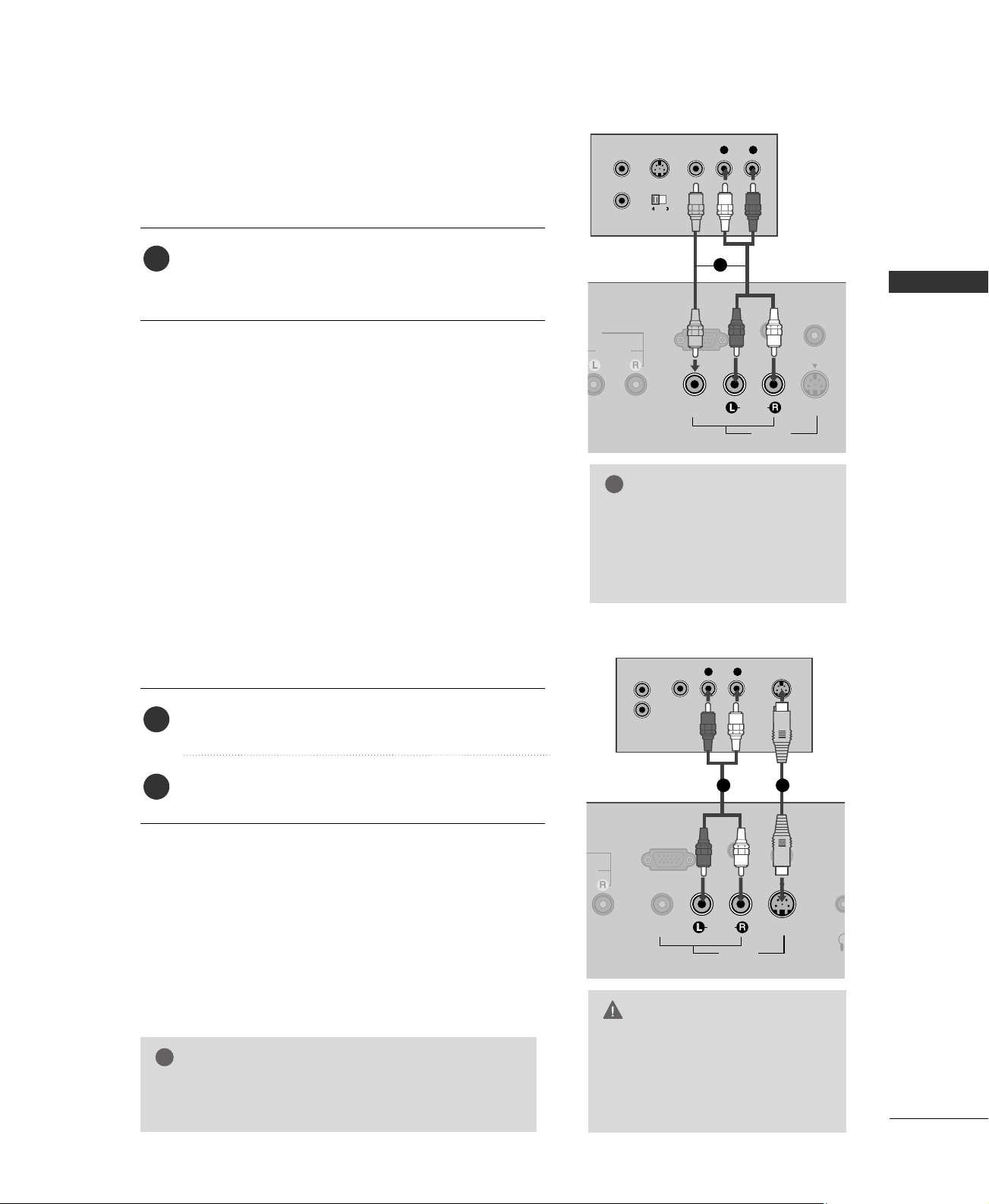
Connect the
AAUUDDIIOO
/
VVIIDDEEOO
jacks between TV and
VCR. Match the jack colors (Video = yellow, Audio Left
= white, and Audio Right = red)
1. How to connect
2. How to use
■
Insert a video tape into the VCR and press PLAY on the
VCR.
(
Refer to the VCR owner’s manual.
)
■
Select
AAVV
input source by using the
IINNPPUUTT
button on the
remote control.
When connecting with an S-Video cable
Connect the S-VIDEO output of the VCR to the
SS --VVIIDDEEOO
input on the set.
Connect the audio outputs of the VCR to the
AAUUDDIIOO
input jacks on the set.
1. How to connect
2. How to use
■
Insert a video tape into the VCR and press PLAY on the VCR.
(
Refer to the VCR owner’s manual.
)
■
Select
AAVV
input source by using the
IINNPPUUTT
button on the
remote control.
1
2
1
GG
If you have a mono VCR, con-
nect the audio cable from the
VCR to the
AAUUDDIIOO
LL//MMOONNOO
jack of the set.
NOTE
!
1
12
EXTERNAL EQUIPMENT SETUP
20
PC SETUP (15 inches only)
EXTERNAL EQUIPMENT SETUP
This TV provides Plug and Play capability, meaning that the PC adjusts automatically to the TV's settings.
When connecting D-sub 15pin cable
MONO
( )
S-VIDEOVIDEO
ANTENNA IN
AUDIO
AV IN
H/P
RGB (PC/DTV) IN
AUDIO
(RGB) IN
RGB OUTPUT
AUDIO
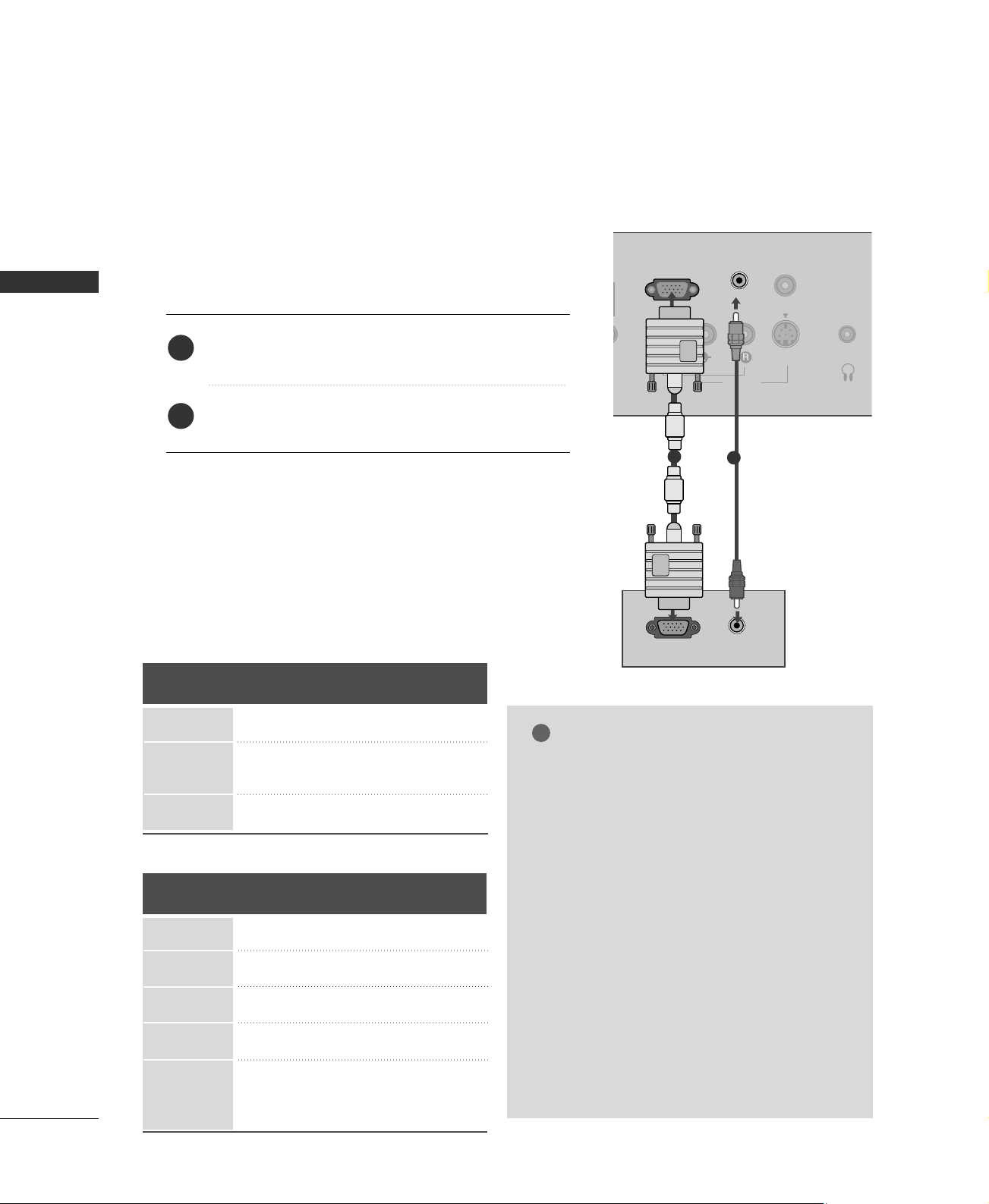
Connect the RGB output of the PC to the
RRGGBB
((
PPCC//DDTTVV
))
IINN
jack on the set.
Connect the PC audio output to the
AAUUDDIIOO
((
RRGGBB
))
IINN
jack on the set.
1. How to connect
2. How to use
■
Turn on the PC and the TV.
■
Select
RRGGBB
input source by using the
IINNPPUUTT
button on
the remote control.
2
1
1
2
Horizontal Vertical
Frequency
(
KHz
)
Frequency
(
Hz
)
31.469 59.94
37.879 60.31
35.156 56.25
48.363 60.00
Resolution
640x480
800x600
1024x768
Supported Display Specifications
GG
To get the the best picture quality, adjust the PC
graphics card to 1024x768, 60Hz.
GG
Using other formats (VGA, SVGA, etc.) or refresh
rates may result in reduced picture quality. (To
change the computer video output format, please
refer to the operating manual for the computer
you are using).
GG
Avoid keeping a fixed image on the screen for a
long period of time. The fixed image may become
permanently imprinted on the screen.
GG
If the message “No signal” appears on the screen,
adjust the PC output to a format listed in the
‘Supported Display Specifications'.
GG
The synchronization input form for Horizontal
and Vertical frequencies is separate.
NOTES
!
RGB-PC mode
RGB-DTV mode
Horizontal Vertical
Frequency
(
KHz
)
Frequency
(
Hz
)
15.734 59.939
31.469 59.94
15.625 50.00
31.25 50.00
37.50 50.00
44.955 59.94
45.00 60.00
Resolution
720x480i
720x480p
720x576i
720x576p
1280x720p
EXTERNAL EQUIPMENT SETUP
21
SCREEN SETUP (15 inches only)
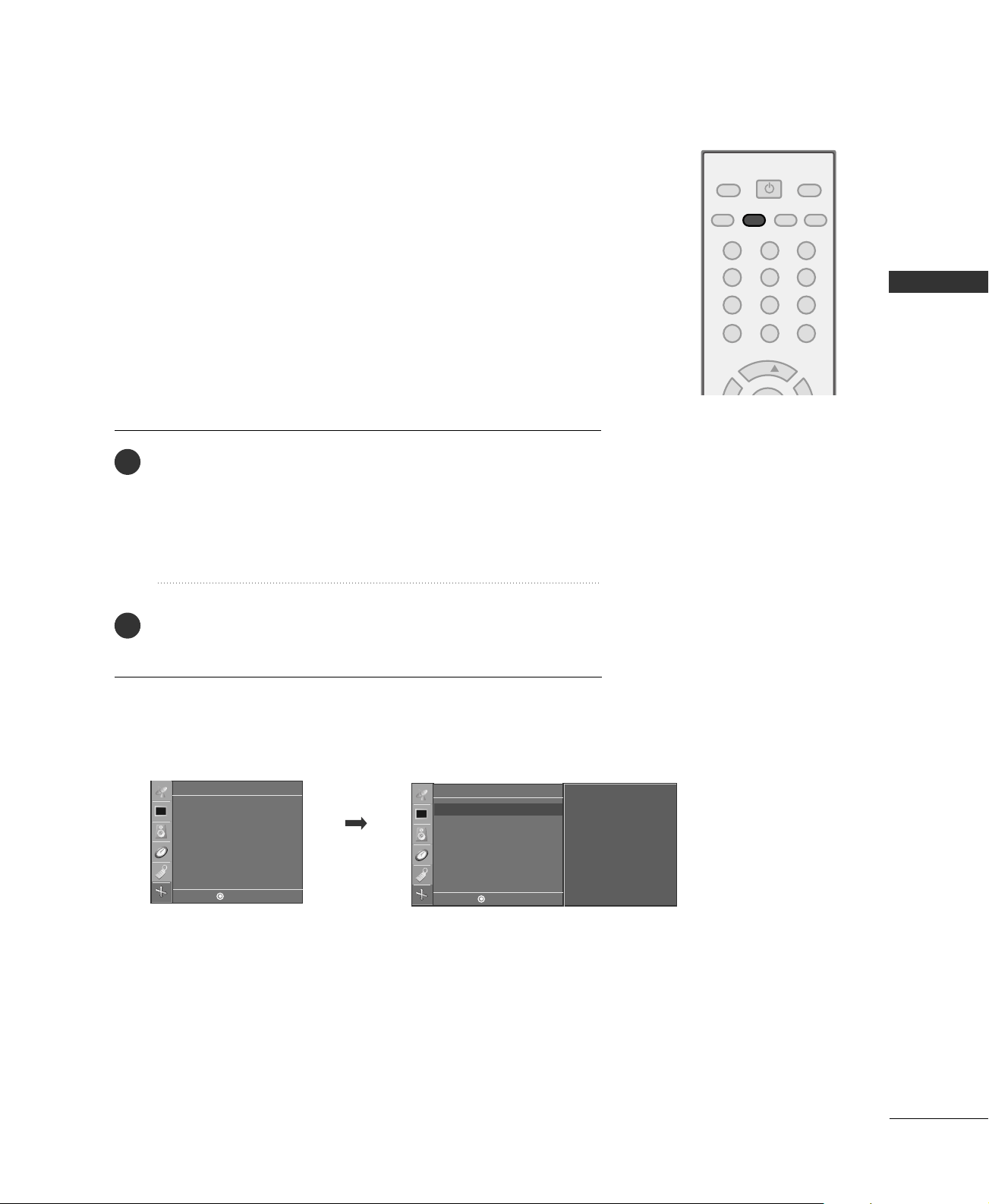
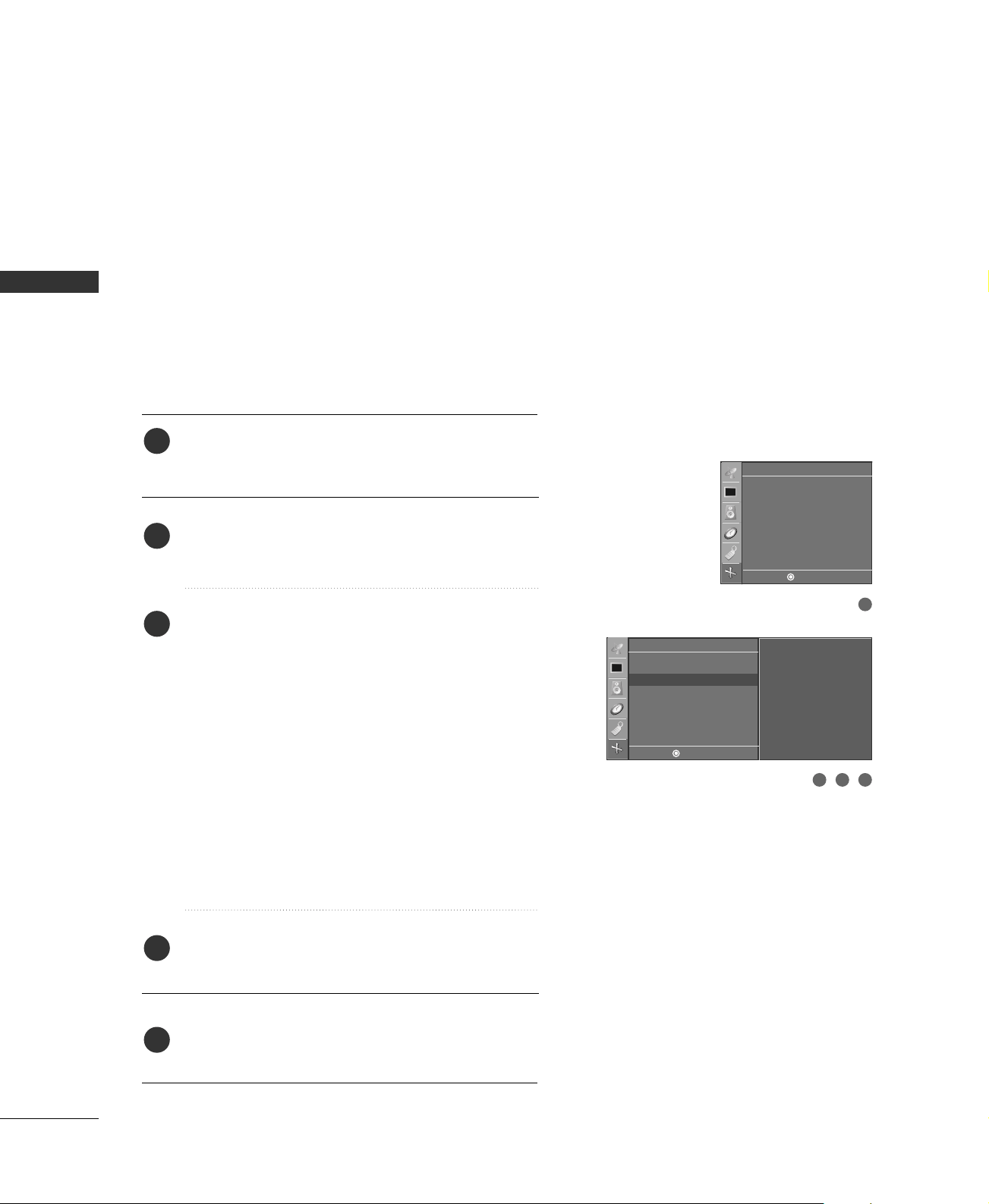
Automatically adjusts picture position and minimizes image shaking.
Although the image is still not correct, your set is functioning properly
but needs further adjustment.
This function works in the following mode: RGB-PC mode.
Auto Configure
Screen
Auto config.
Manual config.
Reset
Screen
Auto config. G
Manual config.
Reset
To start
POWER
MTS
FCRMUTE
A.PROG
TV INPUT
CH
123
456
78
0
9
MEMORY/ERASE
CAPTION
DE F G
MENU
DE F G
MENU
Press the
AA..PPRROOGG
button to start
AAuuttoo ccoonnffiigg..
.
■
When
AAuuttoo ccoonnffiigg..
has finished,
OOkk
will be shown on screen.
■
If the position of the image is still not correct, try Auto adjust-
ment again.
If the picture needs to be adjusted more after Auto adjustment,
you can adjust the
MMaannuuaall ccoonnffiigg..
.
1
2
■
You can also use the
SSccrreeeenn
menu to adjust
AAuuttoo ccoonnffiigg..
.
EXTERNAL EQUIPMENT SETUP
22
EXTERNAL EQUIPMENT SETUP
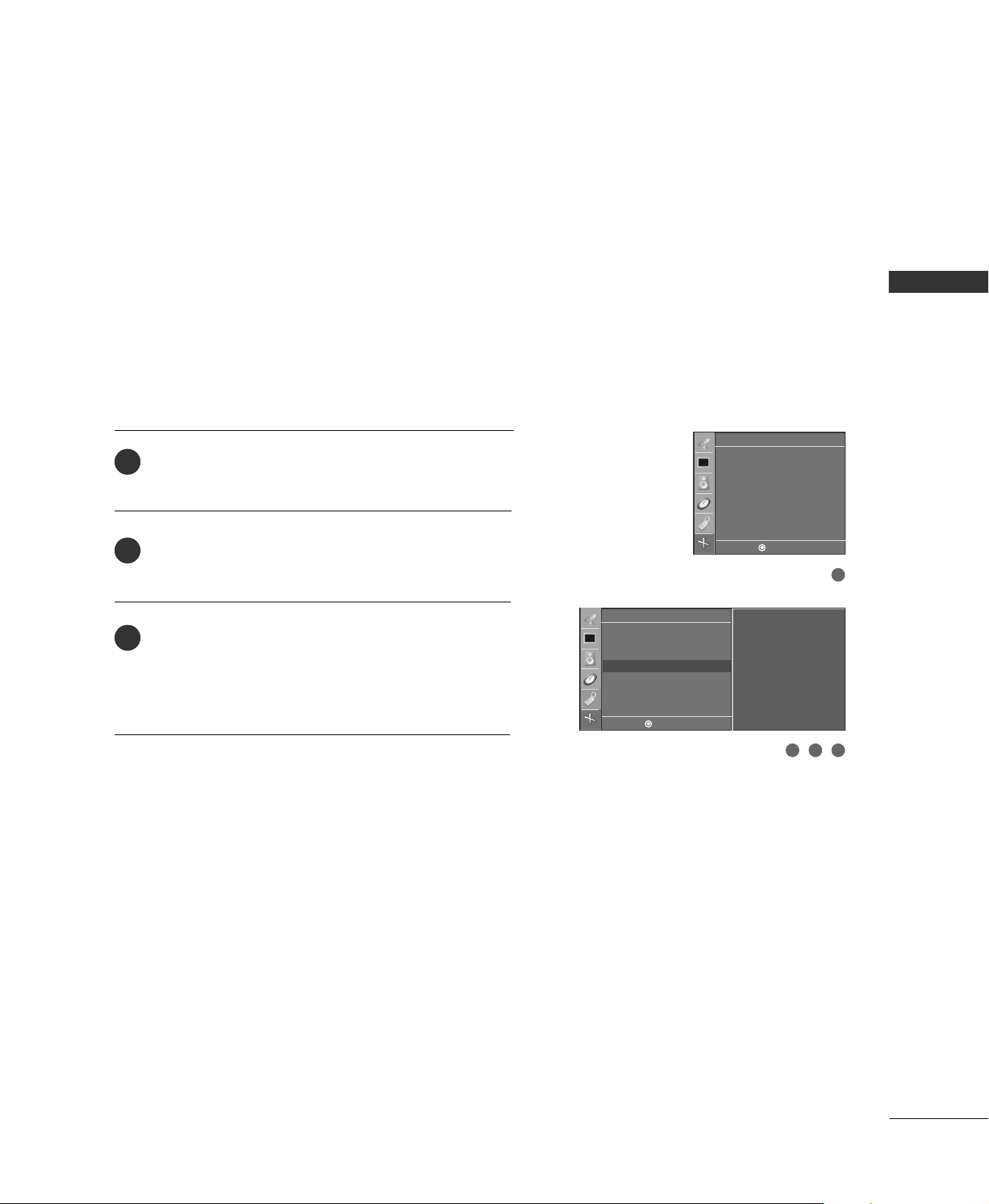
Manual Configure
If the picture isn’t clear after auto adjustment and especially
if characters are still trembling, adjust the picture phase
manually.
This function works in the following mode: RGB-PC mode.
Press the
MMEENNUU
button and then use
DD
or
EE
button
to select the
SSccrreeeenn
menu.
Press the
GG
button and then use
DD
or
EE
button to
select
MMaannuuaall ccoonnffiigg..
.
Press the
GG
button and then use
DD
or
EE
button to
select
HH--ppoossiittiioonn
,
VV--ppoossiittiioonn
,
PPhhaassee
, or
CClloocckk
.
■
PPhhaassee
This function allows you to remove any horizontal
noise and clear or sharpen the image of characters.
■
CClloocckk
This function is to minimize any vertical bars or
stripes visible on the screen background. And the
horizontal screen size will also change.
■
HH--ppoossiittiioonn
/
VV--ppoossiittiioonn
This function is to adjust picture to left/right and
up/down as you prefer.
Press the
FF
or
GG
button to make appropriate adjust-
ments.
Press the
EENNTTEERR
button to save.
1
2
3
4
5
Screen
Auto config.
Manual config.
Reset
Screen
Auto config.
Manual config.
G
Reset
H-Position 50
V-Position 50
Phase 30
Clock 50
1
3 42
DE F G
MENU
DE F G
MENU
EXTERNAL EQUIPMENT SETUP
23
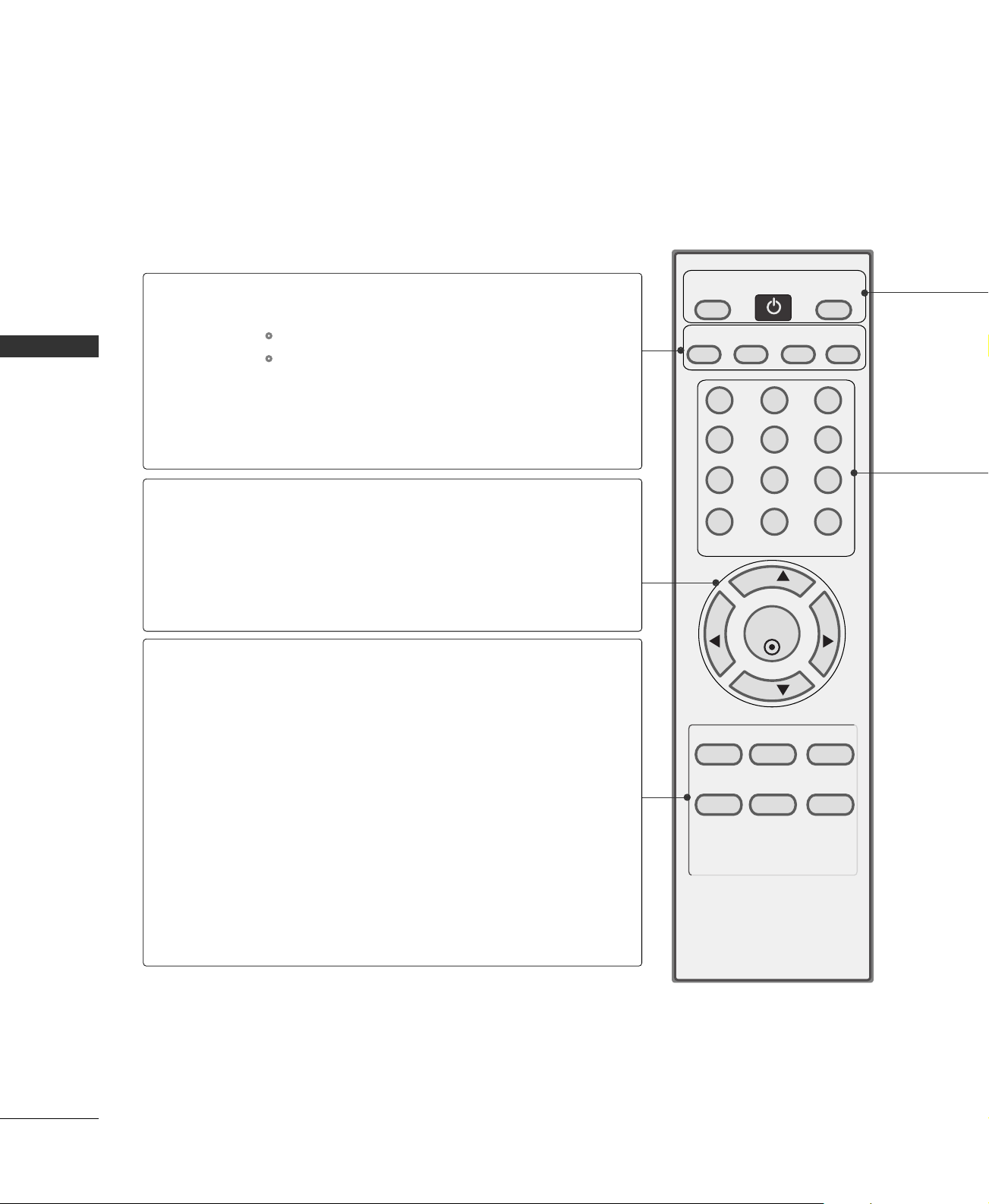
Initializing (Reset to original factory settings)
This function operates in current mode.
To initialize the adjusted value.
This function works in the following mode: RGB-PC mode.
Press the
MMEENNUU
button and then use
DD
or
EE
button
to select the
SSccrreeeenn
menu.
Press the
GG
button and then use
DD
or
EE
button to
select
RReesseett
.
Press the
GG
button.
• You can initialize H-Position, V-Position, Phase,
Clock.
1
2
3
Screen
Auto config.
Manual config.
Reset
Screen
Auto config.
Manual config.
Reset
G
To set
1
3 42
DE F G
MENU
DE F G
MENU
WATCHING TV / CHANNEL CONTROL
24
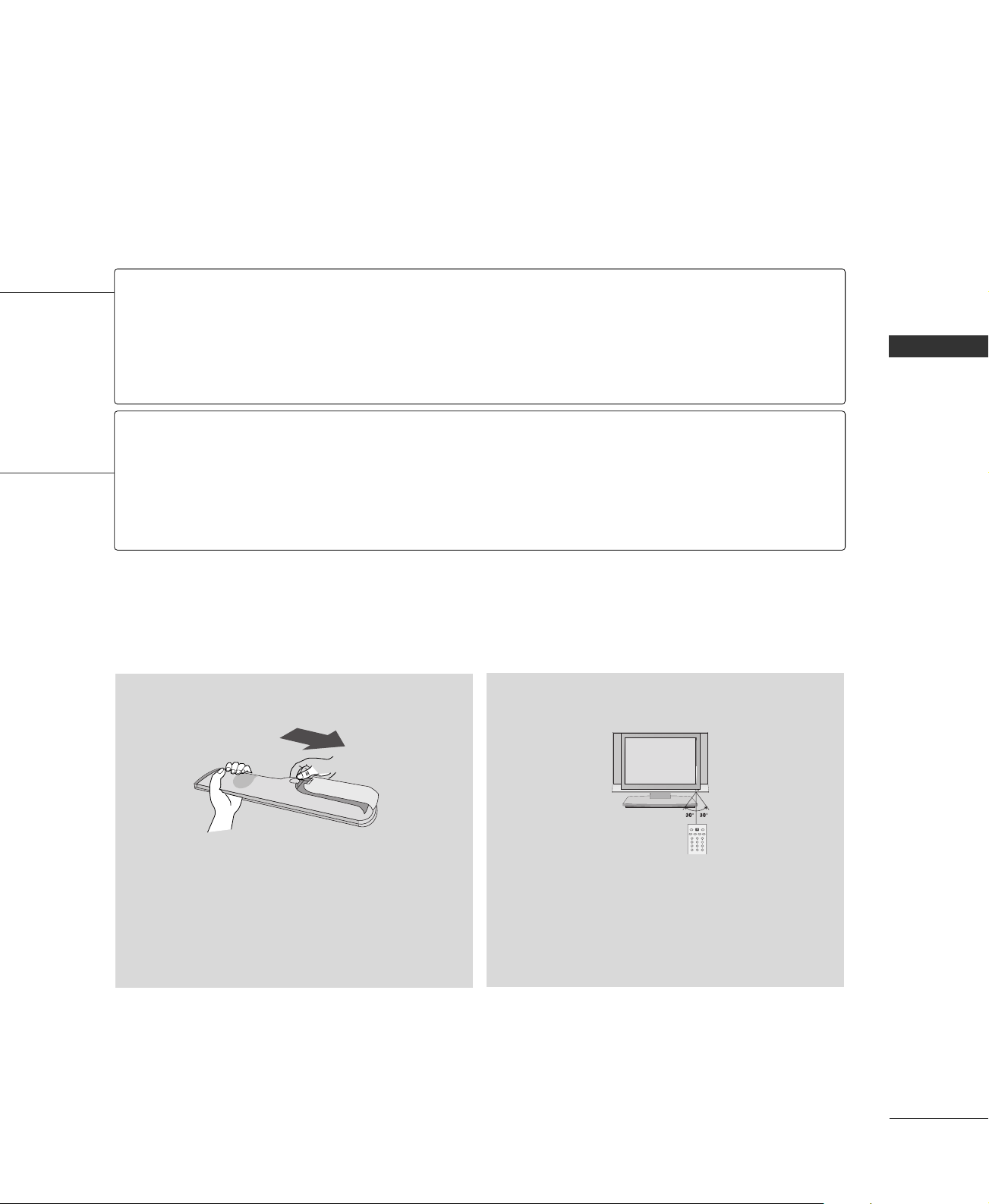
REMOTE CONTROL FUNCTIONS
WATCHING TV / CHANNEL CONTROL
123
456
78
0
9
VOL VOL
CH
CH
ENTER
POWER
MENU REVIEW SLEEP
APC DASP ARC/
*
MTS
FCRMUTE
A.PROG
MEMORY/ERASE
CAPTION
TV INPUT
MTS
A.PROG
(AUTO PROGRAM)
MEMORY/ERASE
CAPTION
CHANNEL
UP/DOWN
VOLUME UP
/DOWN
THUMBSTICK
(Up/Down/Left
Right/ENTER)
MENU
REVIEW
SLEEP
APC
DASP
ARC/
*
Selects the MTS sound: Mono, Stereo, or SAP.
GG
pp..4422
TV Mode: Searches for available channels.
GG
pp..2288
PC Mode: Adjust the screen automatically.
GG
pp..2211
Memorizes or erases selected channel.
GG
pp..2299
Selects CAPTION mode.
GG
pp..4444
Select available channels.
Increase/decrease the sound level.
Navigate the on-screen menus and adjust the system set-
tings to your preference.
Displays the main menu.
Tune to the last channel viewed.
Select the amount of time before your TV turns off auto-
matically.
GG
pp..4477
Selects the factory preset picture depend on the viewing
environment.
GG
pp..3333
Selects the factory preset sound for type of program.
GG
pp..3388
Not functional
When using the remote control, aim it at the remote control sensor on the TV.
WATCHING TV / CHANNEL CONTROL
25
■
Open the battery compartment cover on the back
side and install the batteries matching correct
polarity
(
+ with +, - with -
)
.
■
Install two 1.5V AAA batteries. Don’t mix old or
used batteries with new ones.
■
Close cover.
■
Use a remote control up to 7 meters distance
and 30 degree (left/right) within the receiving
unit scope.
■
Dispose of used batteries in a recycle bin to
preserve environment.
123
456
78
0
9
POWER
MTS
FCRMUTE
A.PROG
CAPTION
TV INPUT
MEMORY/ERASE
Installing Batteries
Remote control effective range
NUMBER button
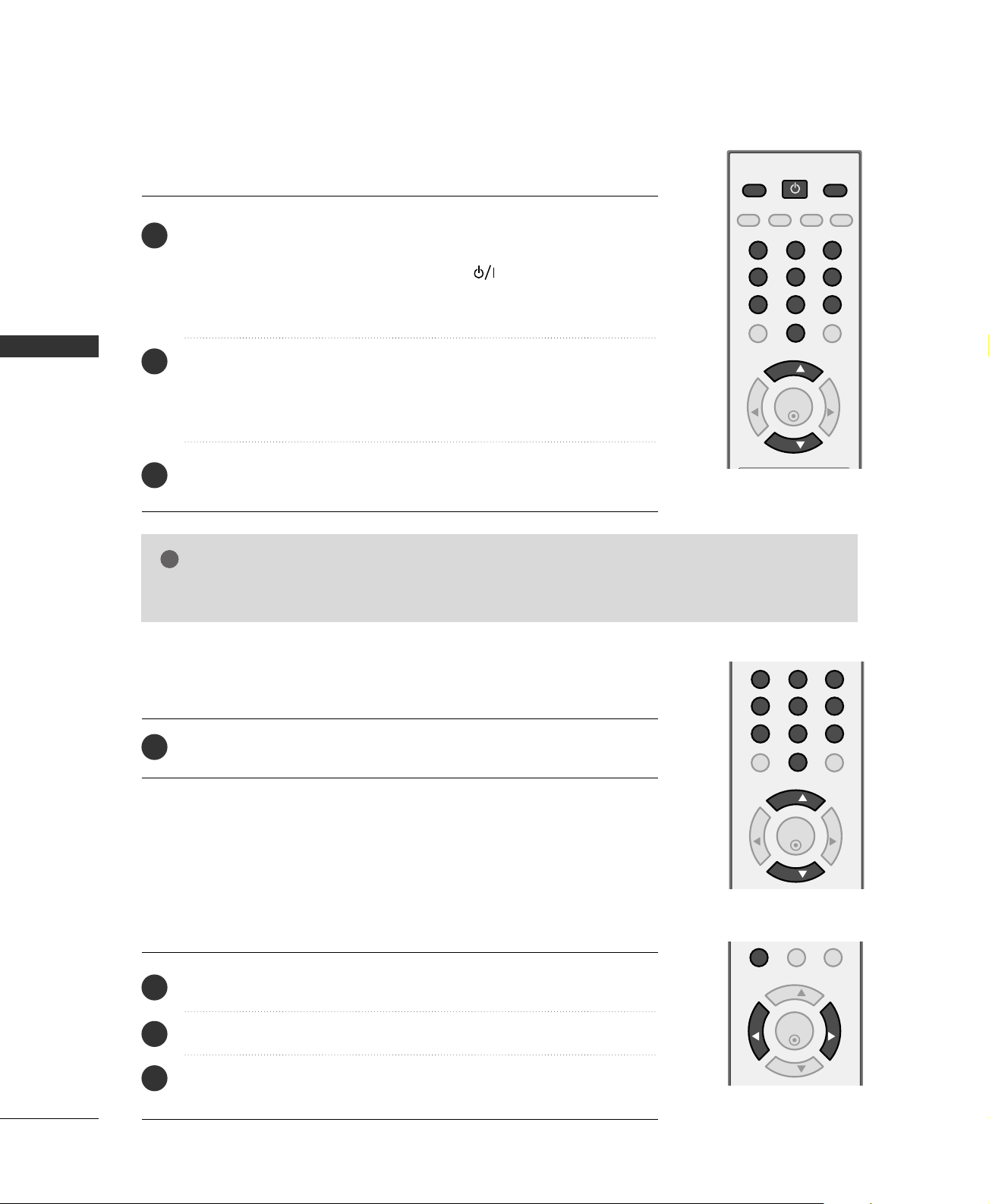
Turns your TV or any other programmed equipment on or off, depending on the mode.
In AV, Component, and RGB input sources, screen returns to the last TV channel.
Select the desired input source: TV, AV, Component, and RGB.
Switch the sound on or off.
GG
pp..2266
Scroll through the programmed Favorite channels.
GG
pp..3311
POWER
TV
INPUT
MUTE
FCR
WATCHING TV / CHANNEL CONTROL
26
TURNING ON TV
WATCHING TV / CHANNEL CONTROL
NOTE
!
GG
If you intend to be away on vacation, disconnect the power plug from the wall power outlet.
First, connect power cord correctly.
At this moment, the TV switches to standby mode.
■
In standby mode to turn TV on, press the ,
IINNPPUUTT
,
CCHH ((
DD
or
EE
))
button on the TV or press the
PPOOWWEERR
,
TTVV
,
IINNPPUUTT
,
CCHH ((
DD
or
EE
))
,
NNuummbbeerr ((00
~
99))
button on the remote control.
Select the viewing source by using the
TTVV
,
IINNPPUUTT
button on the remote
control.
■
This TV is programmed to remember which power state it was last set
to, even if the power cord is out.
When finished using the TV, press the
PPOOWWEERR
button on the remote
control. The TV reverts to standby mode.
POWER
MTS
FCRMUTE
A.PROG
MEMORY/ERASE
CAPTION
TV INPUT
ENTER
VOL VOL
CH
CH
123
456
78
0
9
1
2
3
FCRMUTE
ENTER
VOL VOL
CH
CH
123
456
78
0
9
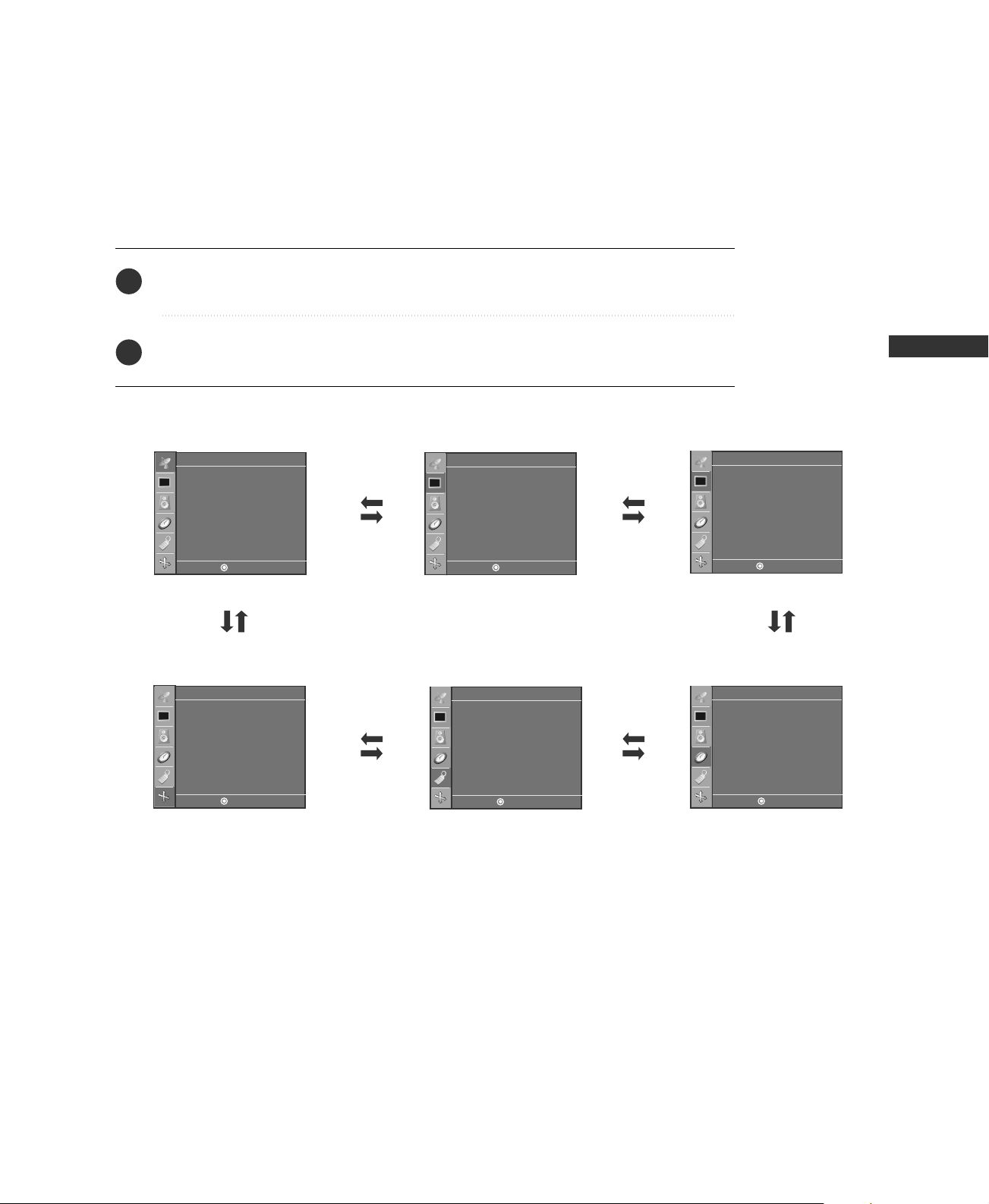
Press the
CCHH ((
DD
or
EE
))
or
NNUUMMBBEERR
buttons to select a channel number.
1
VOLUME ADJUSTMENT
CHANNEL SELECTION
Press the
VVOOLL ((
FF
or
GG
))
button to adjust the volume.
If you want to switch the sound off, press the
MMUUTTEE
button.
You can cancel the Mute function by pressing the
MMUUTTEE
or
VVOOLL ((
FF
or
GG
))
button.
FCRMUTE
ENTER
VOL VOL
CH
CH
0
Adjust the volume to suit your personal preference.
1
2
3
WATCHING TV / CHANNEL CONTROL
27
ON-SCREEN MENUS SELECTION
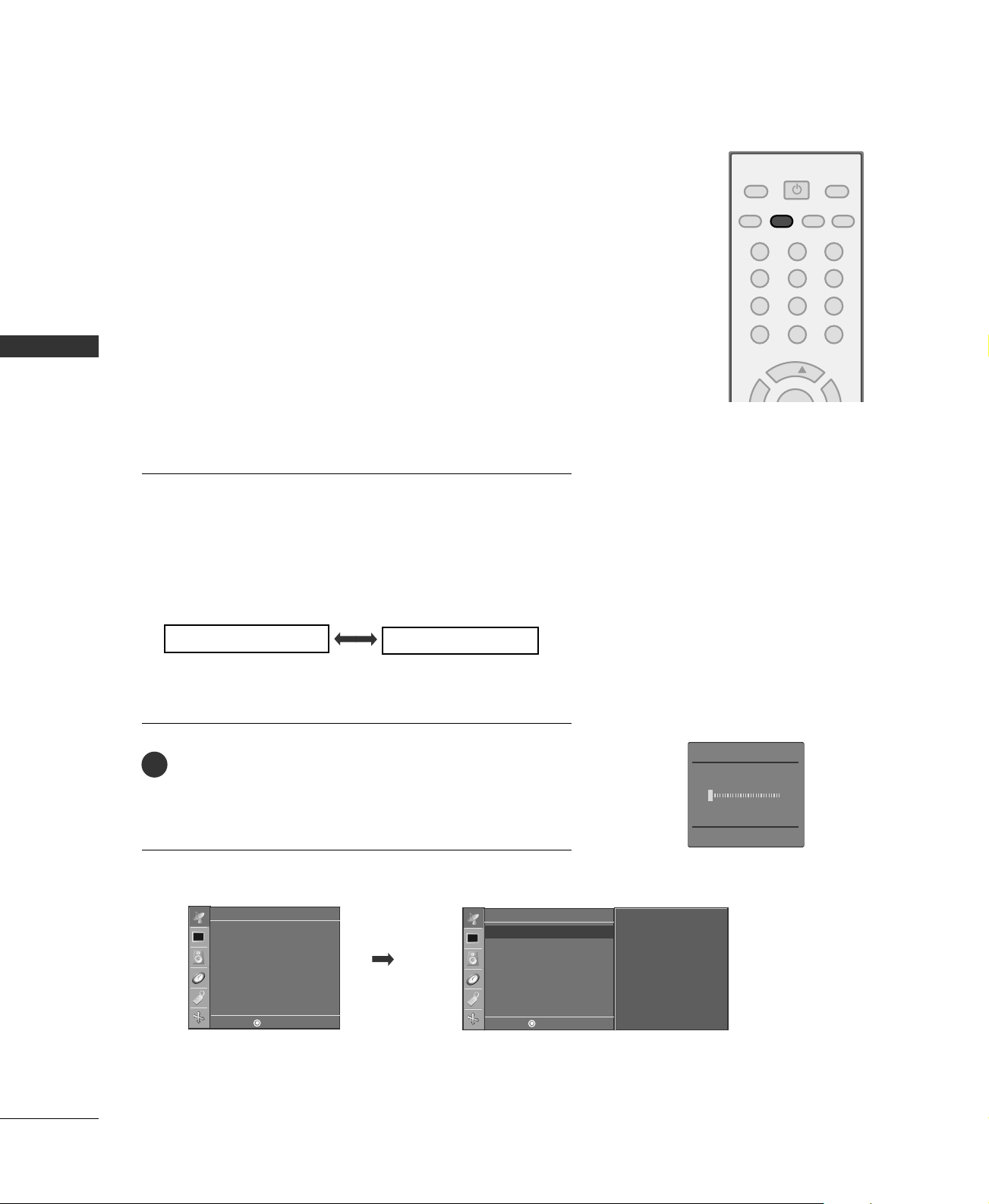
Press the
MMEENNUU
button and then use
DD
or
EE
button to select the each menu.
Press the
GG
button and then use
DD EE FF GG
button to display the available menus.
Your TV's OSD
(
On Screen Display
)
may differ slightly from what is shown in this manual.
Channel
Picture
Special
Screen (*15 inches only)
Timer
Sound
2
1
Channel
Auto program
Manual program
Favorite channel
Timer
Clock
Off timer
On timer
Auto off
Sound
DASP
AVL
Balance 0
Picture
APC
ACC
Reset
Special
Language
Key lock
Caption/Text
Screen
Auto config.
Manual config.
Reset
DE F G
MENU
DE F G
MENU
DE F G
MENU
DE F G
MENU
DE F G
MENU
DE F G
MENU
WATCHING TV / CHANNEL CONTROL
28
CHANNEL SEARCH
WATCHING TV / CHANNEL CONTROL
POWER
MTS
FCRMUTE
A.PROG
TV INPUT
VOL VOL
CH
123
456
78
0
9
MEMORY/ERASE
CAPTION
Auto Program: Channel Search
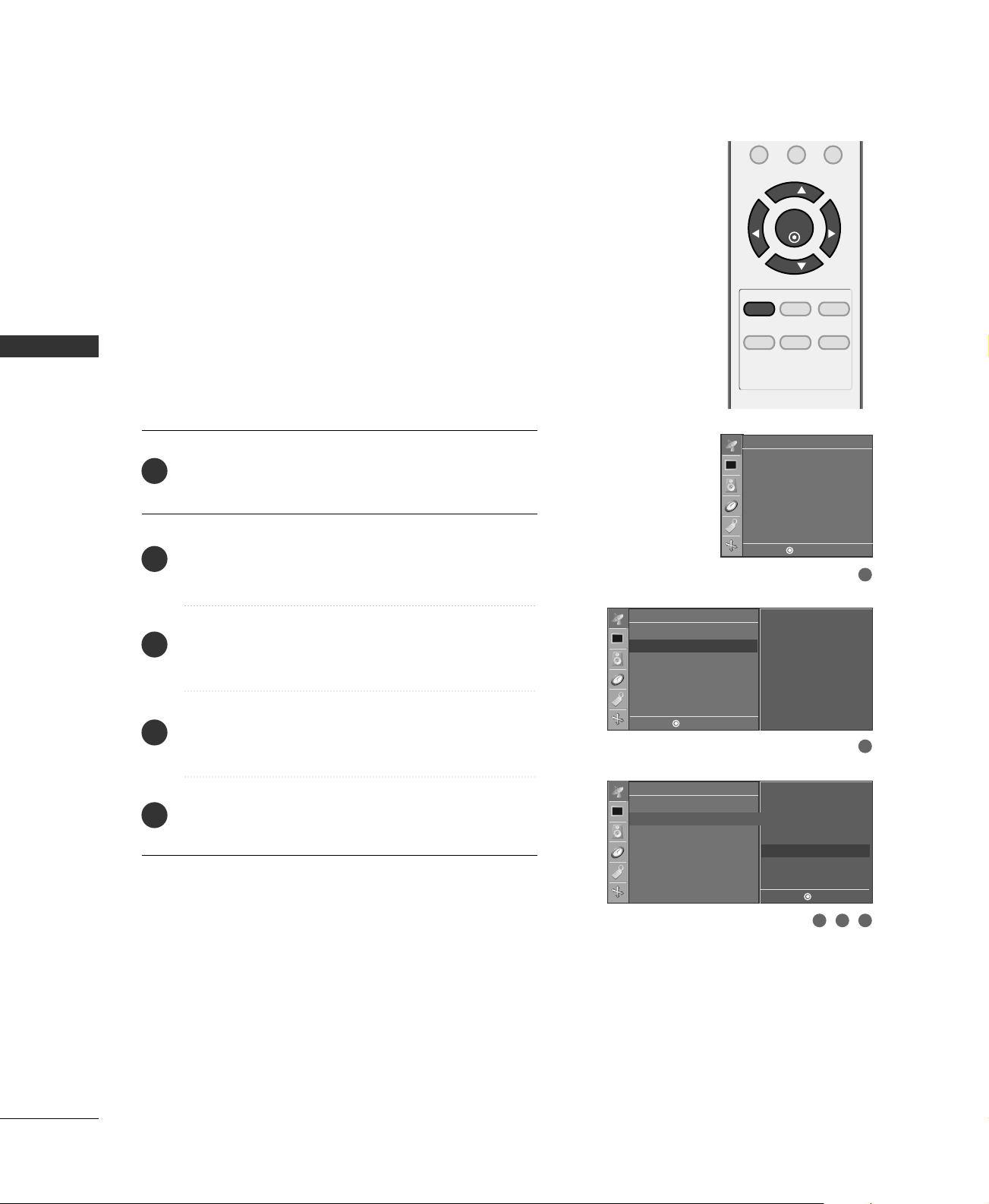
Auto Program should be used to memorize all the active channels
in your area before you are able to use the TV.
There are two ways of storing channels in the TV's memory. You
can use either.
One is called AUTO PROGRAM and the other is called MANUAL
PROGRAM.
In AUTO PROGRAM mode, the TV will memorize the channels in
ascending numerical order. If there are additional channels you
want to add or delete, you can manually add or delete those
channels with Manual Program.
- Redo Auto Program if the TV is ever moved to another location.
- Auto Program will search for channels only through the
Antenna jack.
- If channels numbers for broadcast over-the air TV and cable TV
are duplicated where different channels have the same number,
press the same number buttons again to toggle between:
(For example, press 17 to go to the channel, press 17 again to go
to the duplicated channel.)
Broadcast TV Channels
Cable TV Channels
Press the
AA..PPRROOGG
button. AUTO PROGRAM starts the
channel search. If you want to stop auto programming, press
the
MMEENNUU
button. Only the channels found up to at that
time are memorized.
■
You can also use the
CChhaannnneell
menu to adjust
AAuuttoo pprrooggrraamm
.
1
Auto Program
MENU Stop
3 %
TV 7
Channel
Auto program
Manual program
Favorite channel
Channel
To start
Auto program
G
Manual program
Favorite channel
DE F G
MENU
DE F G
MENU

WATCHING TV / CHANNEL CONTROL
29
You can add or delete channels from the channel scan manually.
POWER
MTS
FCRMUTE
A.PROG
TV INPUT
ENTER
VOL VOL
CH
123
456
78
0
9
MEMORY/ERASE
CAPTION
Manual Program: Adding/Deleting Channels
Use the
CCHH
DD EE
or NUMBER buttons to select the channel num-
ber you want to add or delete.
Press the
MMEEMMOORRYY//EERRAASSEE
button.
Press the
MMEEMMOORRYY//EERRAASSEE
button to select
MMeemmoorryy
or
EErraassee
.
Press the
EENNTTEERR
button.
1
2
3
4
■
You can also use the
CChhaannnneell
menu to adjust
MMaannuuaall pprrooggrraamm
.
Channel
Auto program
Manual program
Favorite channel
Channel
TV 30
Memory
Fine 0
Auto program
Manual program
G
Favorite channel
DE F G
MENU
DE F G
MENU
WATCHING TV / CHANNEL CONTROL
30
FINE TUNING ADJUSTMENT
WATCHING TV / CHANNEL CONTROL
Normally fine tuning is only necessary if reception is poor.
To remove fine tuning from a channel, reprogram the finely-
tuned channel with Auto program or Manual Program.
If a finely-tuned channel is memorized, the color of the
channel number changes to yellow.
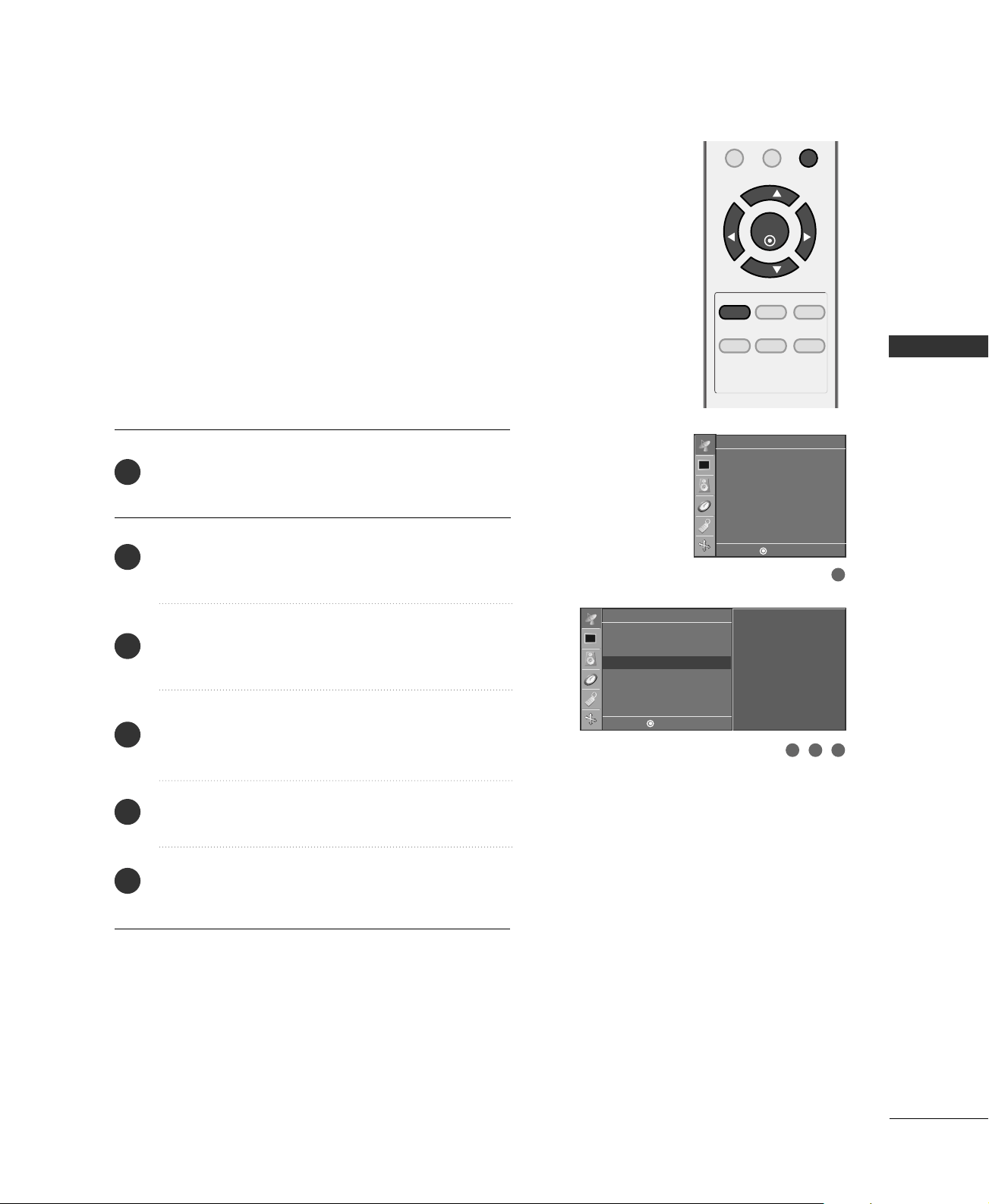
Press the
MMEENNUU
button and then
DD
or
EE
button to
select the
CChhaannnneell
menu.
Press the
GG
button and then
DD
or
EE
button to select
MMaannuuaall pprrooggrraamm
.
Press the
GG
button and then
DD
or
EE
button to select
FFiinnee
.
Press the
FF
or
GG
button to adjust the picture to your
preference.
Press the
EENNTTEERR
button to store it.
MENU REVIEW SLEEP
APC DASP ARC/
*
FCRMUTE
0
ENTER
VOL VOL
CH
CH
2
1
4
5
3
Channel
Auto program
Manual program
Favorite channel
1
2
Channel
TV 30
Memory
Fine 0
Auto program
Manual program
G
Favorite channel
Channel
Auto program
Manual program
Favorite channel
TV 30
Memory
Fine 0
4 53
DE F G
MENU
DE F G
MENU
DE F G
MENU
WATCHING TV / CHANNEL CONTROL
31
FAVORITE CHANNELS SETUP
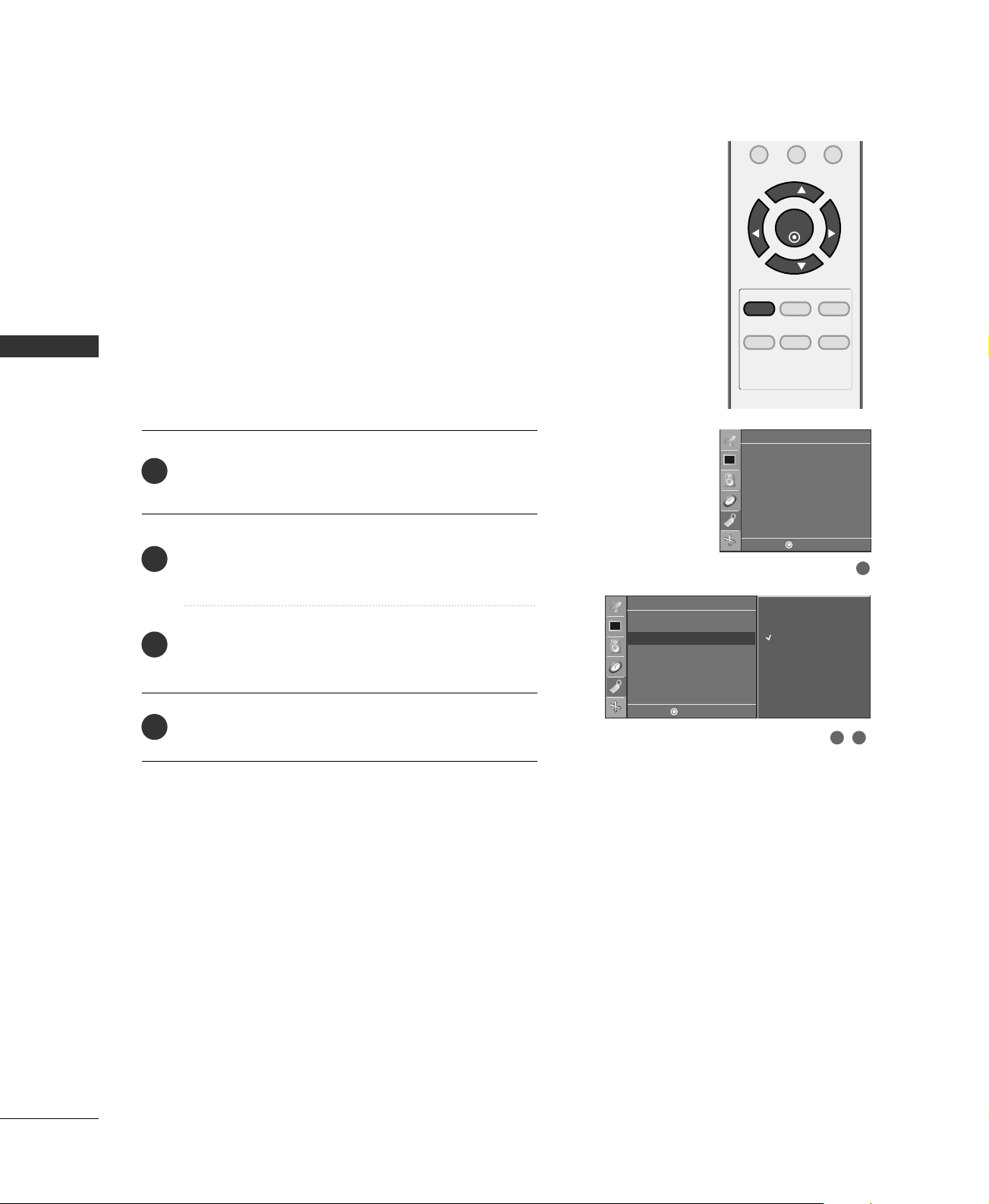
Favorite Channels is a convenient feature that lets you
quickly scan up to 8 channels of your choice without hav-
ing to wait for the TV to scan through all the in-between
channels.
To tune to a favorite channel, press the
FFCCRR
(Favorite
Channel Review) button repeatedly. The 8 favorite chan-
nels appear on the screen in numerical order.
Press the
MMEENNUU
button and then
DD
or
EE
button to
select the
CChhaannnneell
menu.
Press the
GG
button and then
DD
or
EE
button to select
FFaavvoorriittee CChhaannnneell
.
Press the
GG
button and then
DD
or
EE
button to select
the first favorite channel position.
Use the
FF
or
GG
button to set the desired channel
number for first favorite channel.
Press the
EENNTTEERR
button to save.
Repeat steps 3 to 5 to memorize other favorite channels.
MENU REVIEW SLEEP
APC DASP ARC/
*
FCRMUTE
0
ENTER
VOL VOL
CH
CH
2
3
4
5
6
1
Channel
Auto program
Manual program
Favorite channel
1
Channel
---- ---
---- ---
---- ---
---- ---
---- ---
---- ---
---- ---
---- ---
Auto program
Manual program
Favorite channel
G
3 42
DE F G
MENU
DE F G
MENU
WATCHING TV / CHANNEL CONTROL
32
KEY LOCK
WATCHING TV /CHANNEL CONTROL
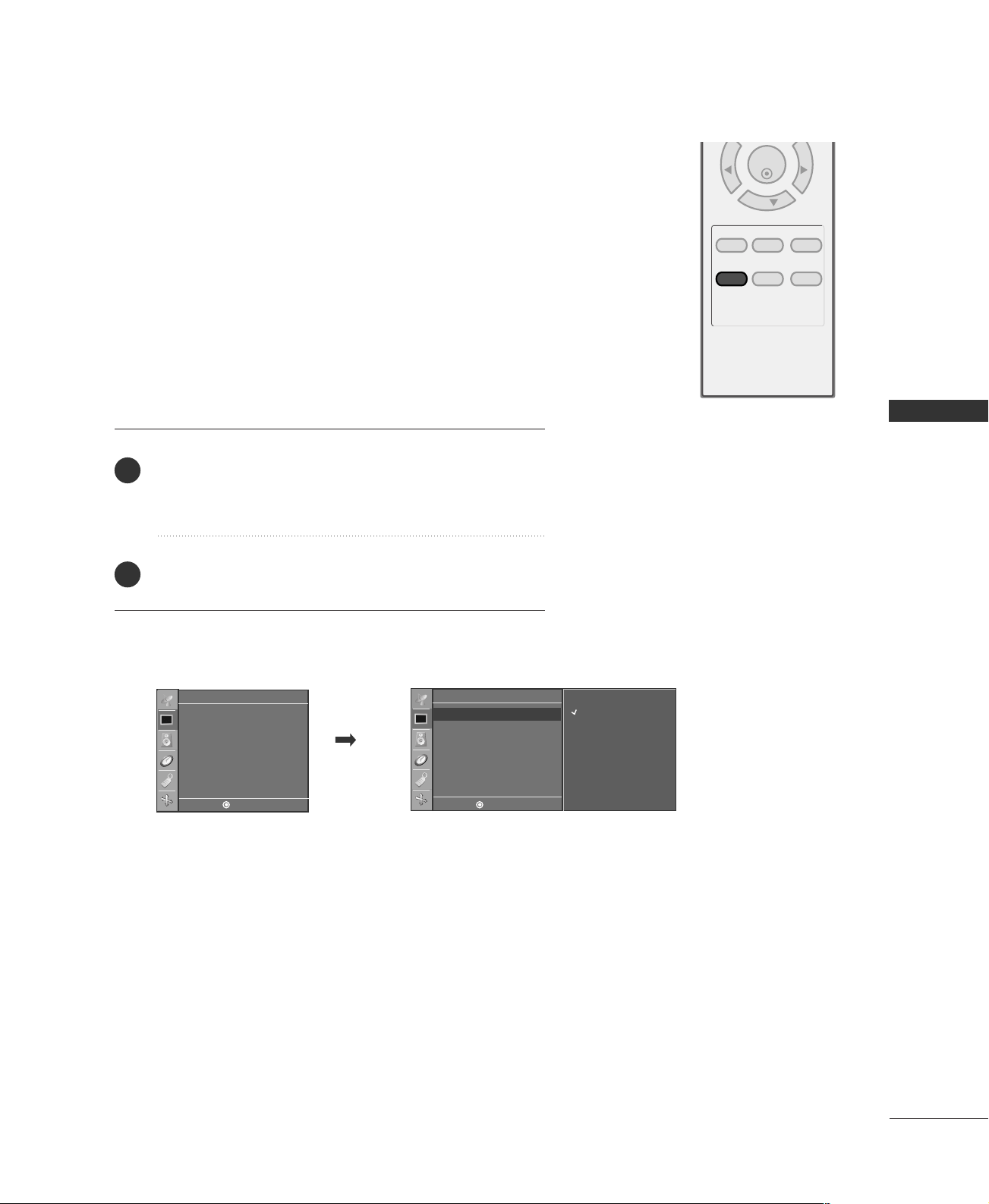
The TV can be set so that the remote control is needed to
control it.
This feature can be used to prevent unauthorized viewing
by locking out the front panel controls.
This TV is programmed to remember which option it was
last set to even if you turn the set off.
Press the
MMEENNUU
button and then use
DD
or
EE
button
to select the
SSppeecciiaall
menu.
Press the
GG
button and then use
DD
or
EE
button to
select
KKeeyy lloocckk
.
Press the
GG
button and then use
DD
or
EE
button to
select
OOnn
or
OOffff
.
Press the
EENNTTEERR
button to save.
2
1
4
3
2 3
1
Special
Language
Key lock
Caption/Text
Special
On
Off
Language
Key lock
G
Caption/Text
MENU REVIEW SLEEP
APC DASP ARC/
*
FCRMUTE
0
ENTER
VOL VOL
CH
CH
DE F G
MENU
DE F G
MENU
PICTURE CONTROL
33
PRESET PICTURE SETTINGS
PICTURE CONTROL
MENU REVIEW SLEEP
APC DASP ARC/
*
ENTER
VOL VOL
CH
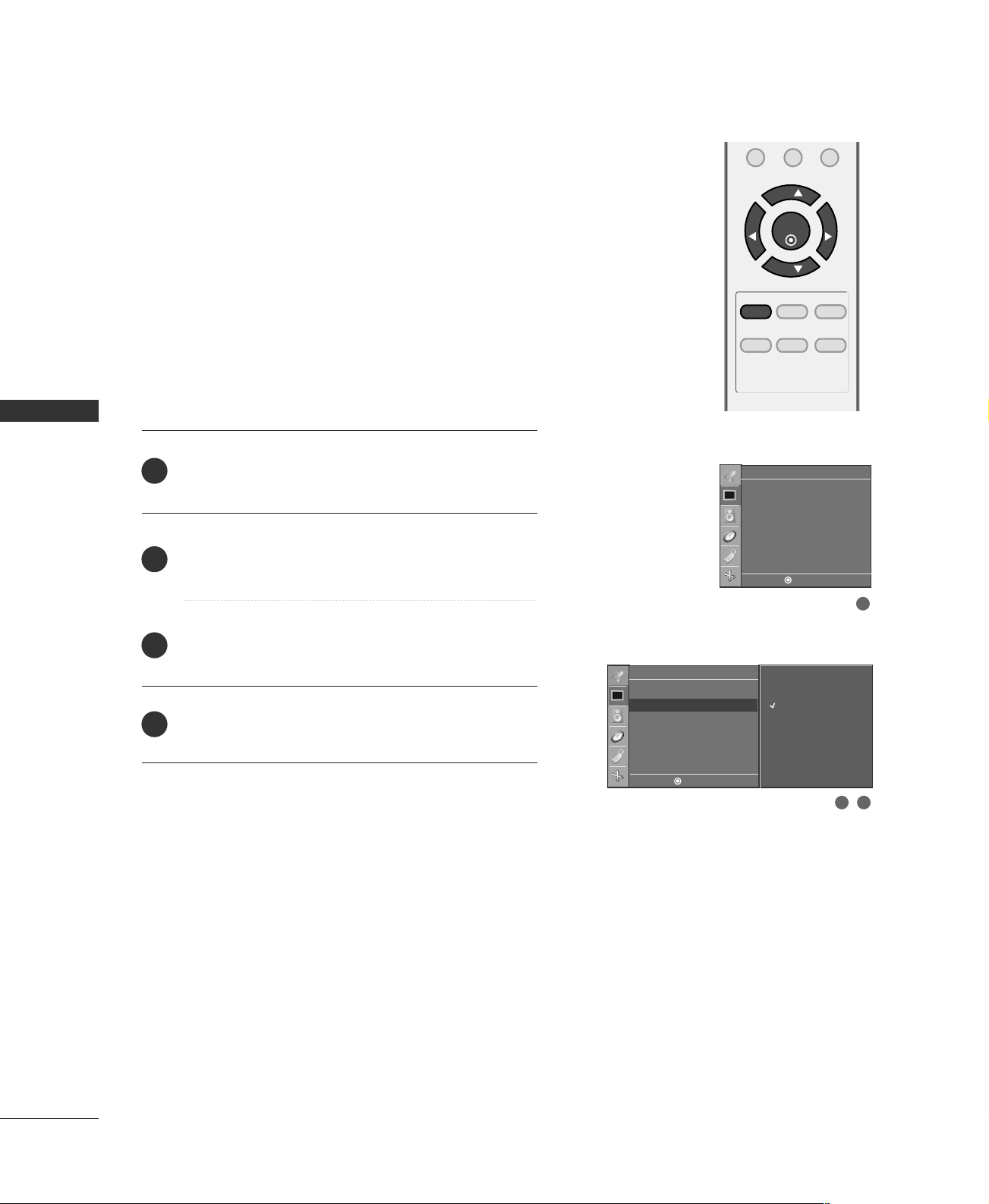
Auto Picture Control (APC) - Preset
Press the
AAPPCC
button repeatedly to select the picture
appearance setup option as below :
CClleeaarr
,
OOppttiimmuumm
,
SSoofftt
, and
UUsseerr
(your own settings).
Press the
EENNTTEERR
button to save.
APC adjusts the TV for the best picture appearance.
Select the preset value in the APC menu based on the program
category.
CClleeaarr
,
OOppttiimmuumm
,
SSoofftt
Settings are preset for optimum picture
quality at the factory and are not adjustable.
In the
UUsseerr
mode only, you can directly adjust the contrast,
brightness, color, sharpness, tint.
■
You can also use the
PPiiccttuurree
menu to adjust
AAPPCC
.
2
1
Picture
Clear
Optimum
Soft
User
APC
G
ACC
Reset
Picture
APC
ACC
Reset
DE F G
MENU
DE F G
MENU
PICTURE CONTROL
34
PICTURE CONTROL
MENU REVIEW SLEEP
APC DASP ARC/
*
FCRMUTE
0
ENTER
VOL VOL
CH
CH
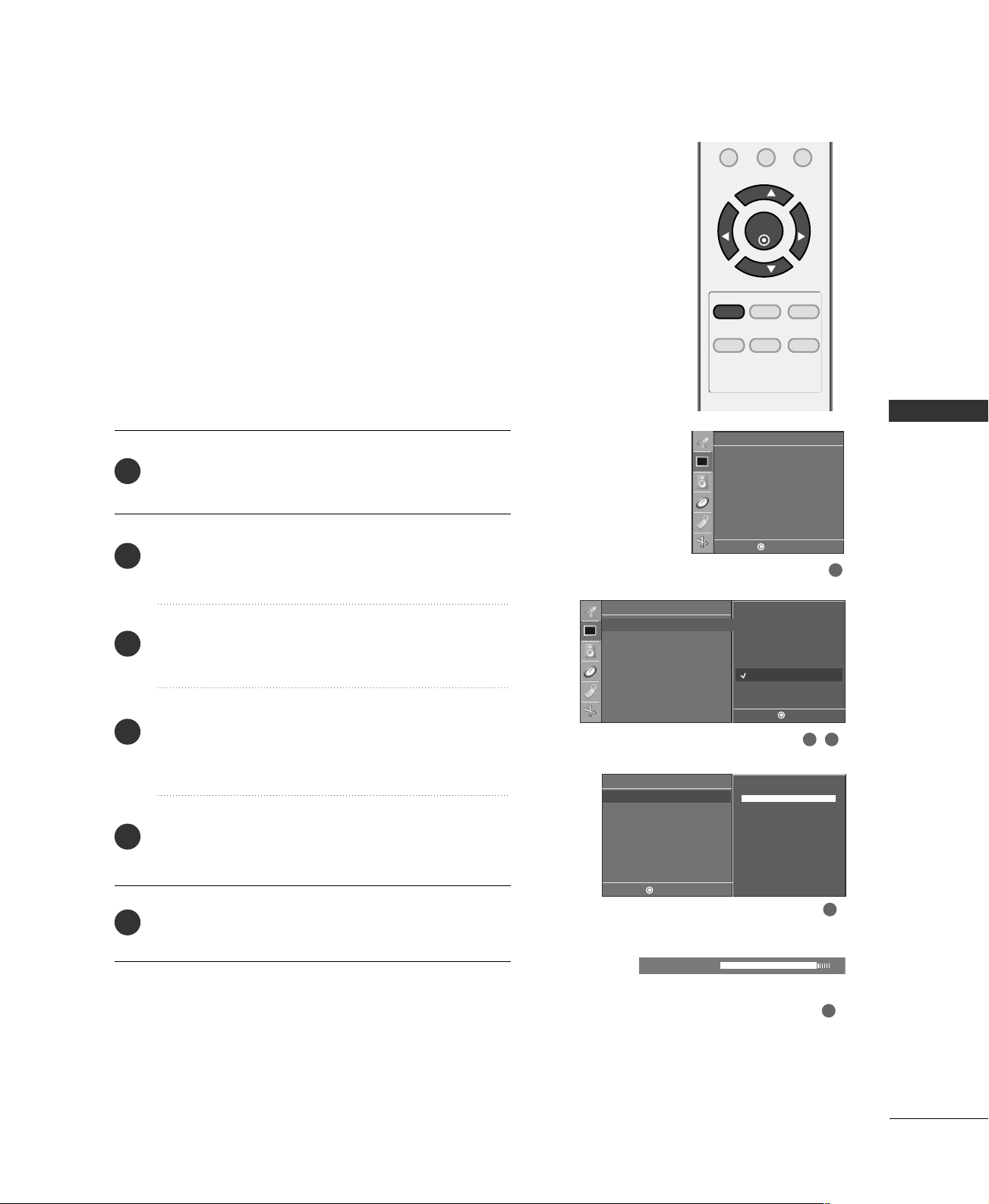
Color Tone - Preset
Choose one of three automatic color adjustments. Set to
warm to enhance hotter colors such as red, or set to cool
to see less intense colors with more blue.
Press the
MMEENNUU
button and then
DD
or
EE
button to
select the
PPiiccttuurree
menu.
Press the
GG
button and then
DD
or
EE
button to select
AACCCC
.
Press the
GG
button and then
DD
or
EE
button to select
either
CCooooll
,
NNoorrmmaall
,
WWaarrmm
, or
UUsseerr
.
Press the
EENNTTEERR
button to save.
2
3
4
1
1
2 3
Picture
APC
ACC
Reset
Picture
Cool
Normal
Warm
User
APC
ACC
G
Reset
DE F G
MENU
DE F G
MENU
PICTURE CONTROL
35
MANUAL PICTURE ADJUSTMENT
MENU REVIEW SLEEP
APC DASP ARC/
*
FCRMUTE
0
ENTER
VOL VOL
CH
CH
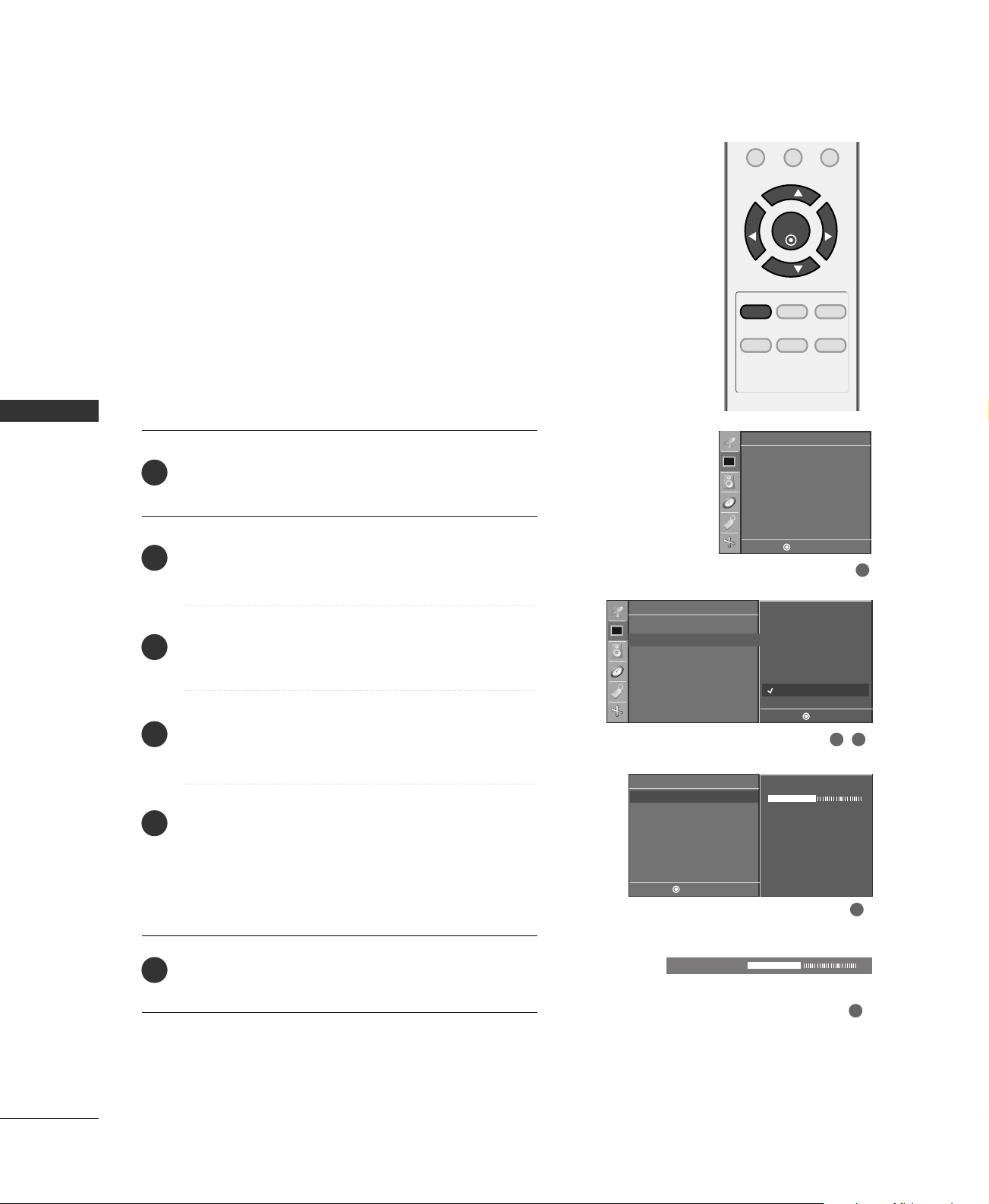
Auto Picture Control (APC) - User Mode
Adjust the picture appearance to suit your preference and
viewing situations.
Press the
MMEENNUU
button and then
DD
or
EE
button to
select the
PPiiccttuurree
menu.
Press the
GG
button and then
DD
or
EE
button to select
AAPPCC
.
Press the
GG
button and then
DD
or
EE
button to select
UUsseerr
.
Press the
GG
button and then
DD
or
EE
button to select
the desired picture option (
CCoonnttrraasstt
,
BBrriigghhttnneessss
,
CCoolloorr
,
SShhaarrppnneessss
, and
TTiinntt
).
Press the
GG
button and then
FF
or
GG
button to make
appropriate adjustments.
Press the
EENNTTEERR
button to save.
2
3
4
5
6
1
2 3
4
5
1
Picture
APC
ACC
Reset
Picture
APC
ACC
Reset
Clear
Optimum
Soft
User
G
User
Contrast 100 G
Brightness 50
Color 60
Sharpness 50
Tint 0
Contrast 85 F
G
E
DE F G
MENU
DE F G
MENU
DE F G
MENU
MENU REVIEW SLEEP
APC DASP ARC/
*
FCRMUTE
0
ENTER
VOL VOL
CH
CH
PICTURE CONTROL
36
PICTURE CONTROL
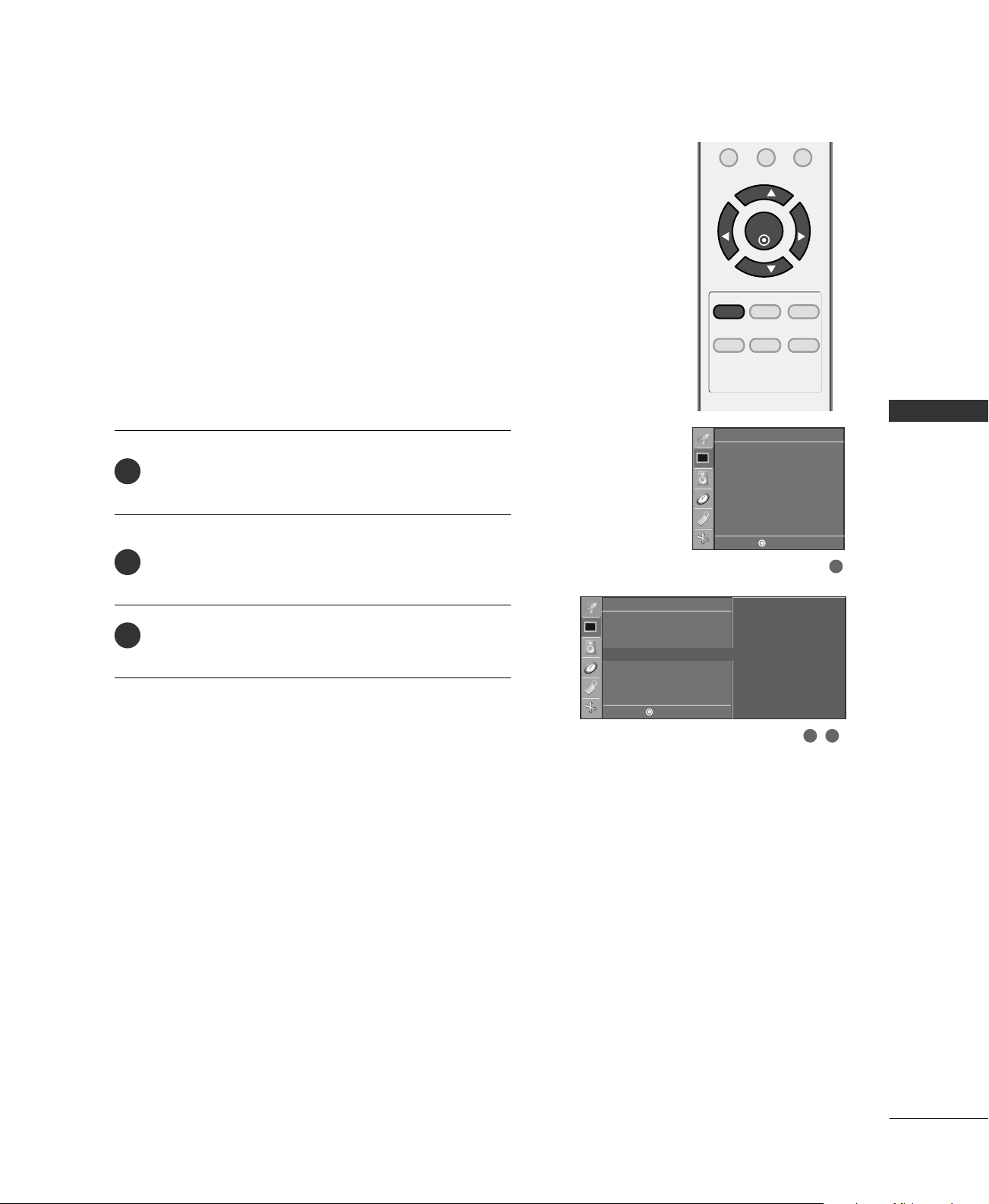
You can also adjust the detailed settings (Red, Green,
Blue) by selecting the
UUsseerr
menu.
Color Tone - User Mode
Press the
MMEENNUU
button and then
DD
or
EE
button to
select the
PPiiccttuurree
menu.
Press the
GG
button and then
DD
or
EE
button to select
AACCCC
.
Press the
GG
button and then
DD
or
EE
button to select
UUsseerr
.
Press the
GG
button and then
DD
or
EE
button to select
RReedd
,
GGrreeeenn
, or
BBlluuee
.
Press the
GG
button and then
FF
or
GG
button to make
appropriate adjustments.
■
The adjustment range of
RReedd
,
GGrreeeenn
, or
BBlluuee
is
-30 ~ +30.
Press the
EENNTTEERR
button to save.
2
3
4
5
6
1
2 3
4
5
1
Picture
APC
ACC
Reset
Picture
APC
ACC
Reset
Cool
Normal
Warm
User
G
User
Red 0 G
Green 0
Blue 0
Red 0 F
G
E
DE F G
MENU
DE F G
MENU
DE F G
MENU
PICTURE CONTROL
37
PICTURE RESET
MENU REVIEW SLEEP
APC DASP ARC/
*
FCRMUTE
0
ENTER
VOL VOL
CH
CH
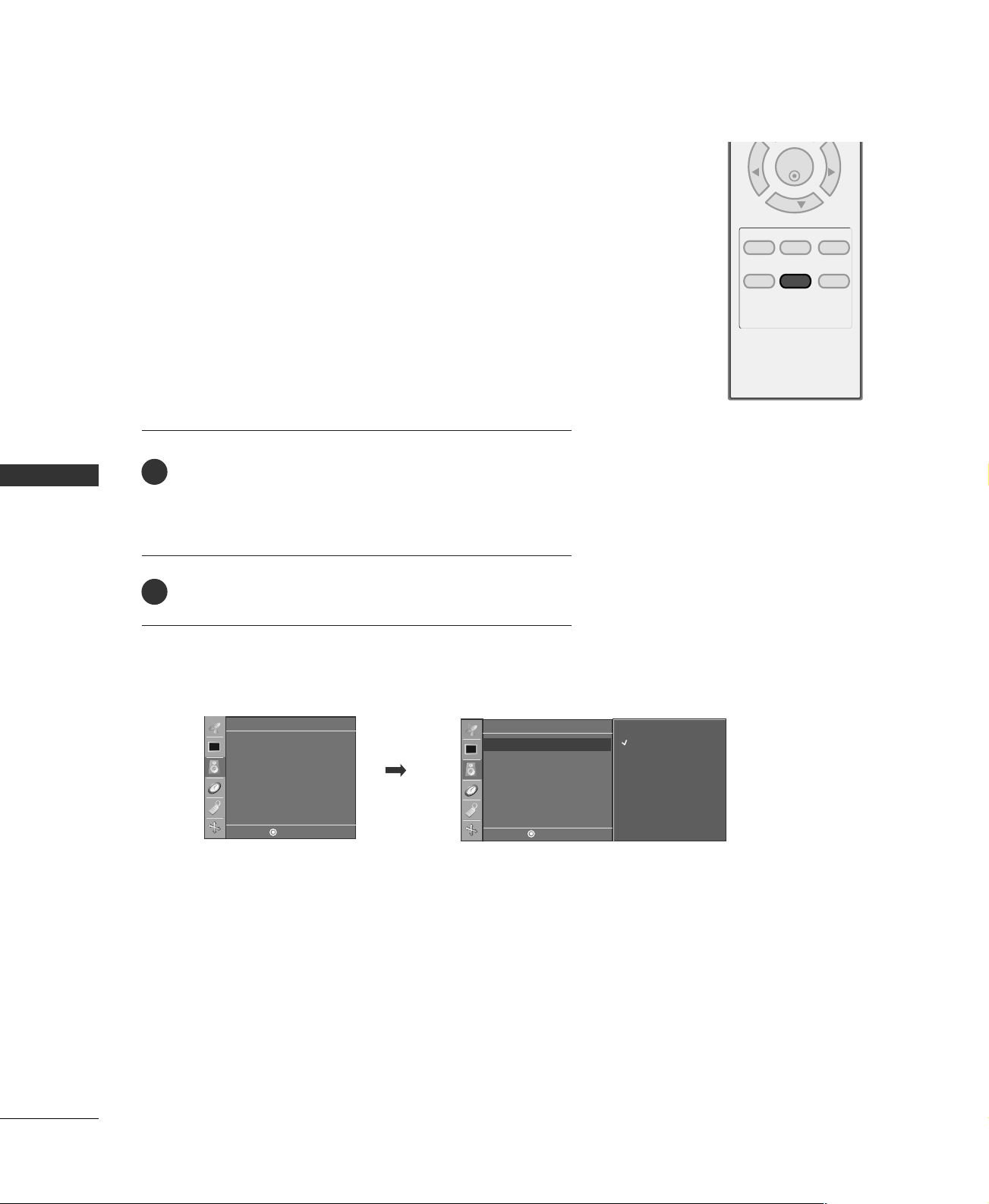
Press the
MMEENNUU
button and then
DD
or
EE
button to
select the
PPiiccttuurree
menu.
Press the
GG
button and then
DD
or
EE
button to select
RReesseett
.
Press the
GG
button to initialize the adjusted value.
Use to quickly reset all the Picture menu options to their
original factory preset values.
2
3
1
2 3
1
Picture
APC
ACC
Reset
Picture
APC
ACC
Reset
G
To set
DE F G
MENU
DE F G
MENU
SOUND & LANGUAGE CONTROL
38
DIGITAL AUTO SOUND PROCESSING (DASP)
SOUND & LANGUAGE CONTROL
MENU REVIEW SLEEP
APC DASP ARC/
*
ENTER
VOL VOL
CH
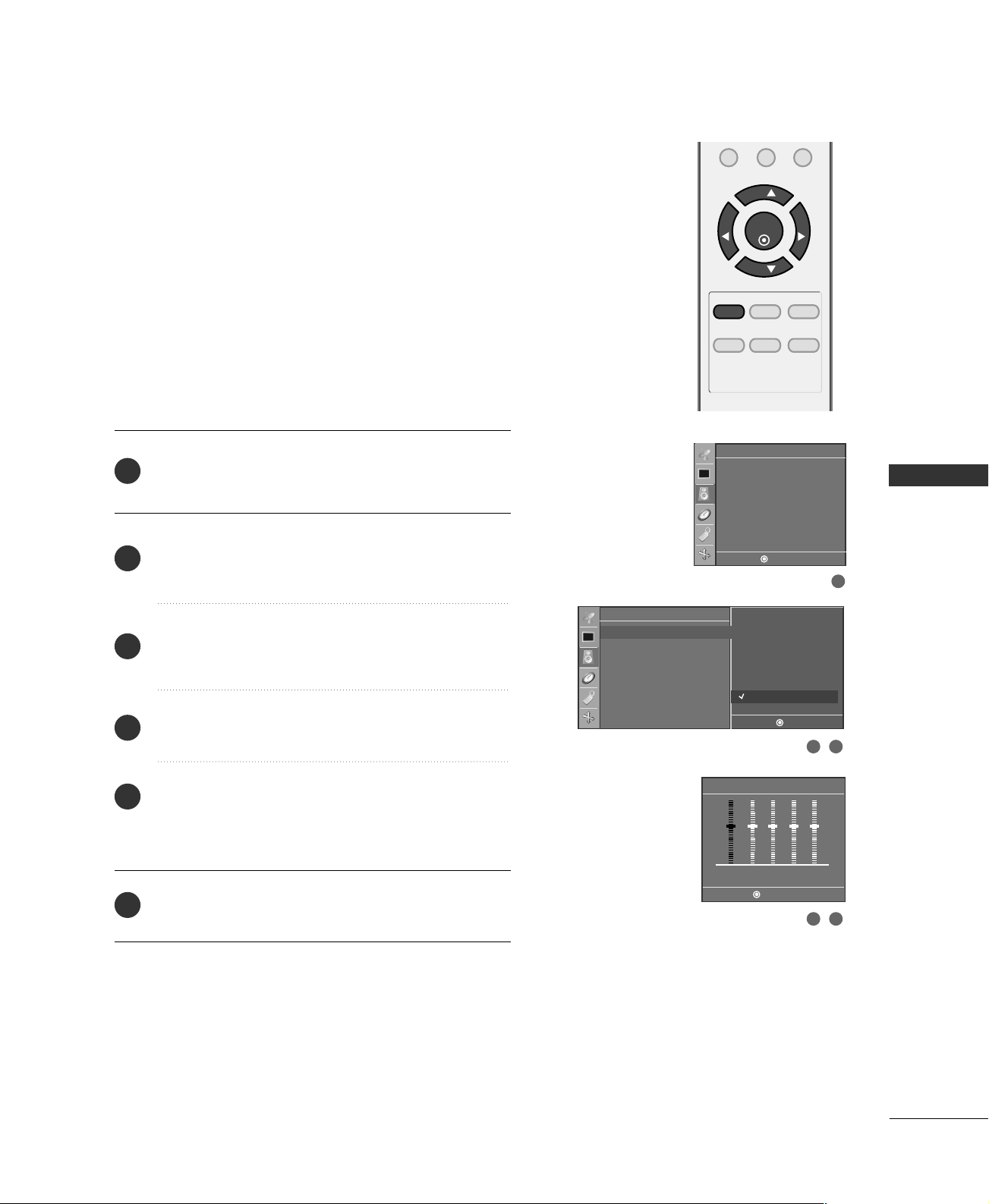
DASP lets you enjoy the best sound without any special adjust-
ment because the TV sets the appropriate sound options based
on the program content.
Flat, Music, Movie, and Sports are preset for good sound quality
at the factory and are not adjustable.
Press the
DDAASSPP
button repeatedly to select the appropriate
sound setup as below :
FFllaatt
,
MMuussiicc
,
MMoovviiee
,
SSppoorrttss
, and
UUsseerr
(
your own set-
tings
).
Press the
EENNTTEERR
button to save.
■
You can also adjust
DDAASSPP
in the
SSoouunndd
menu.
2
1
Sound
DASP
AVL
Balance 0
Sound
Flat
Music
Movie
Sports
User
DASP
G
AVL
Balance 0
DE F G
MENU
DE F G
MENU
SOUND & LANGUAGE CONTROL
39
SOUND SETTING ADJUSTMENT - USER MODE
MENU REVIEW SLEEP
APC DASP ARC/
*
FCRMUTE
0
ENTER
VOL VOL
CH
CH
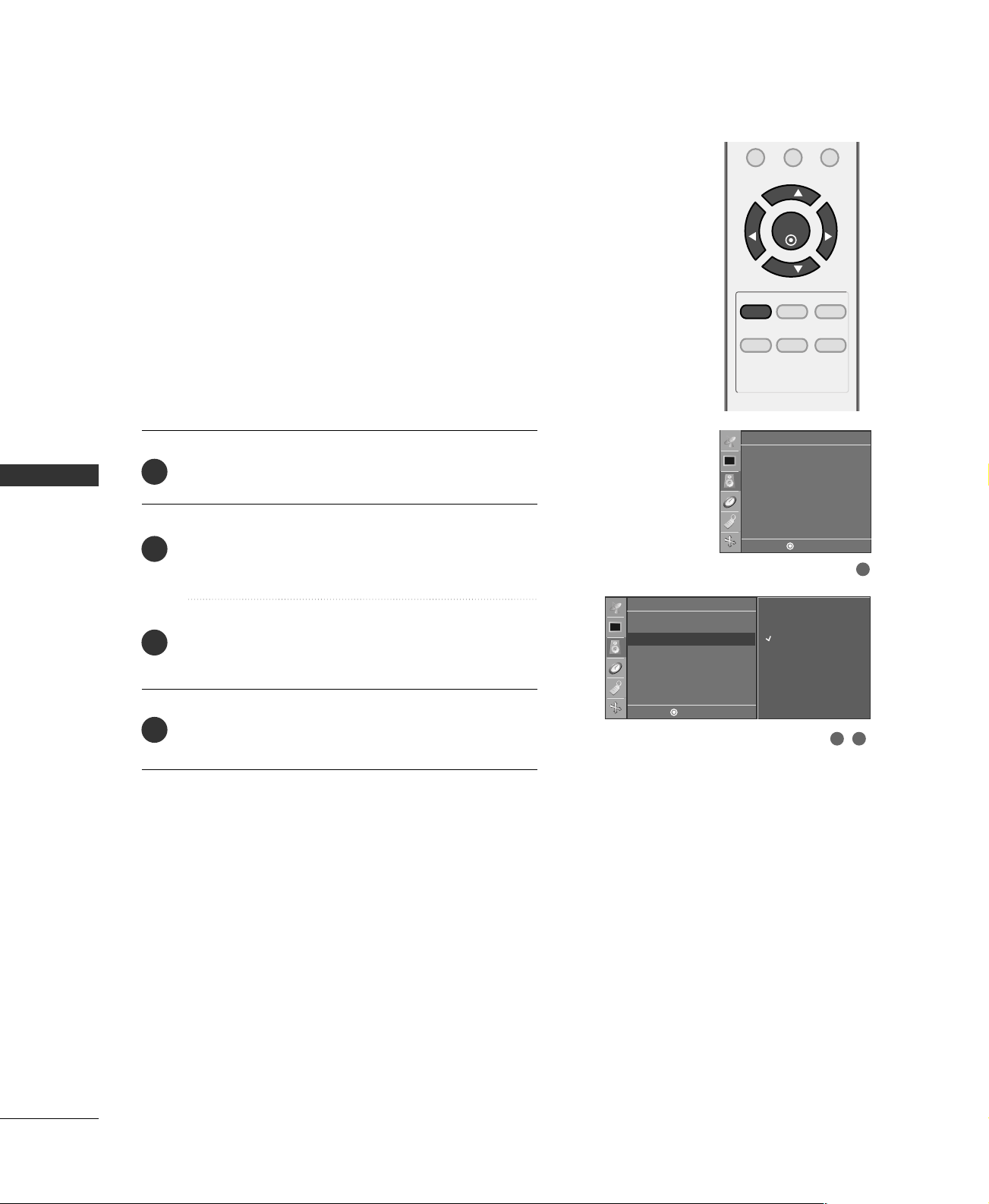
Press the
MMEENNUU
button and then use
DD
or
EE
button
to select the
SSoouunndd
menu.
Press the
GG
button and then use
DD
or
EE
button to
select
DDAASSPP
.
Press the
GG
button and then use
DD
or
EE
button to
select
UUsseerr
.
Press the
GG
button.
Press the
FF
or
GG
button to select the band you want
to adjust.
Press the
DD
or
EE
button to adjust the band level.
Press the
EENNTTEERR
button to save.
Adjust the sound equalizer.
2
3
4
5
6
1
1
2 3
4 5
Sound
DASP
AVL
Balance 0
Sound
DASP
AVL
Balance 0
Flat
Music
Movie
Sports
User G
User
0.1 0.5 1.2 5.0 10 KHz
DE F G
MENU
DE F G
MENU
DE F G
MENU
SOUND & LANGUAGE CONTROL
40
AUTO VOLUME LEVELER (AVL)
SOUND &LANGUAGE CONTROL
MENU REVIEW SLEEP
APC DASP ARC/
*
FCRMUTE
0
ENTER
VOL VOL
CH
CH
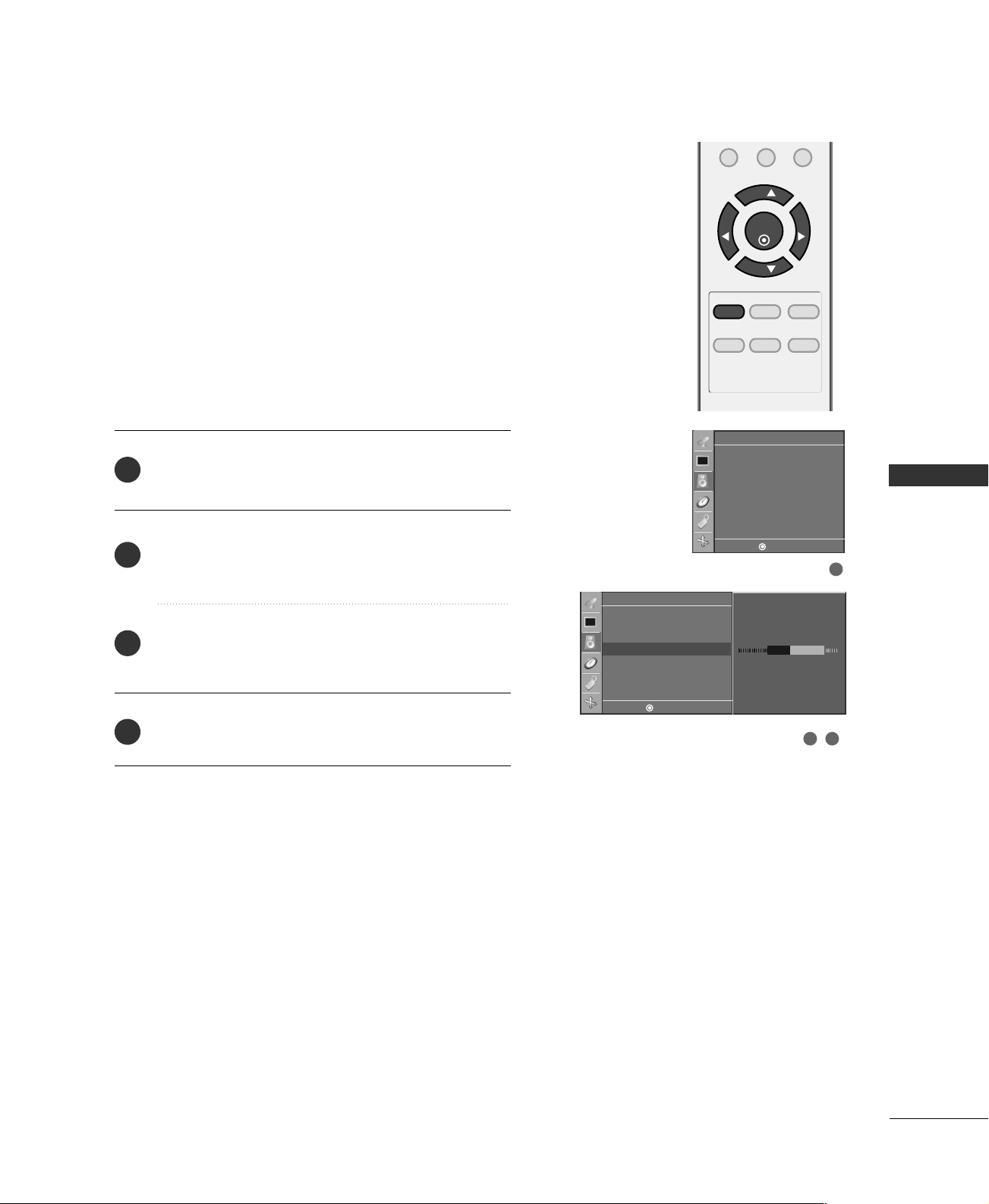
Press the
MMEENNUU
button and then use
DD
or
EE
button
to select the
SSoouunndd
menu.
Press the
GG
button and then use
DD
or
EE
button to
select
AAVVLL
.
Press the
GG
button and then use
DD
or
EE
button to
select
OOnn
or
OOffff
.
Press the
EENNTTEERR
button to save.
2
3
4
1
AVL automatically keeps on an equal volume level even if
you change program.
2 3
1
Sound
DASP
AVL
Balance 0
Sound
On
Off
DASP
AVL
G
Balance 0
DE F G
MENU
DE F G
MENU
SOUND & LANGUAGE CONTROL
41
BALANCE
MENU REVIEW SLEEP
APC DASP ARC/
*
FCRMUTE
0
ENTER
VOL VOL
CH
CH
Adjust the left/right sound of speaker to suit your taste and
room situations.
Press the
MMEENNUU
button and then use
DD
or
EE
button
to select the
SSoouunndd
menu.
Press the
GG
button and then use
DD
or
EE
button to
select
BBaallaannccee
.
Press the
GG
button and then use
FF
or
GG
button to
make appropriate adjustments.
Press the
EENNTTEERR
button to save.
2
3
4
1
2 3
1
Sound
DASP
AVL
Balance 0
Sound
DASP
AVL
Balance 0
G
DE F G
MENU
DE F G
MENU
SOUND & LANGUAGE CONTROL
42
STEREO/SAP BROADCASTS SETUP
SOUND &LANGUAGE CONTROL
POWER
MTS
FCRMUTE
A.PROG
TV INPUT
ENTER
VOL VOL
CH
123
456
78
0
9
MEMORY/ERASE
CAPTION
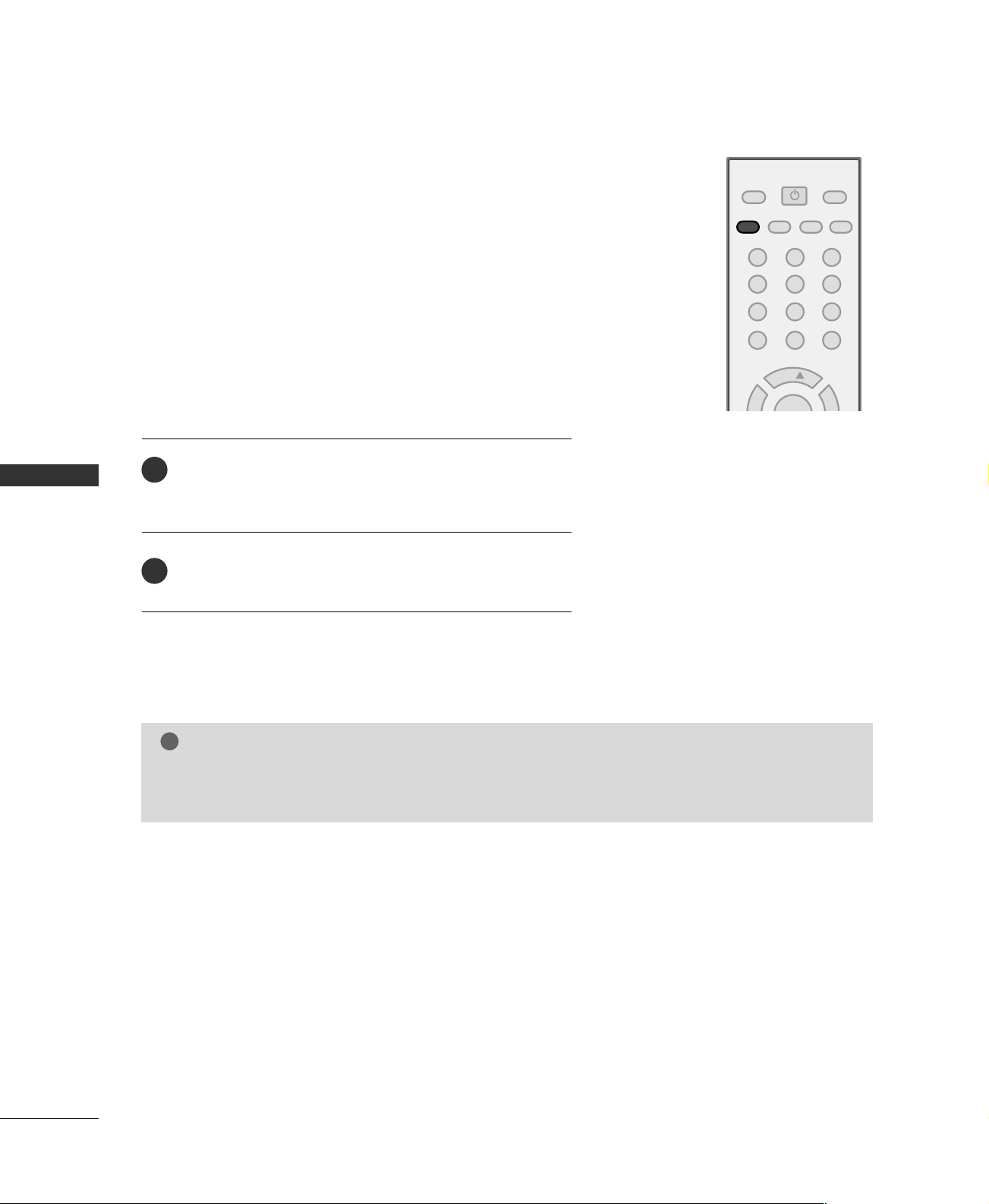
The TV can receive MTS stereo programs and any SAP
(Secondary Audio Program) that accompanies the stereo pro-
gram; if the broadcaster transmits one additional sound signal in
addition to the original one.
Mono: The primary language is heard from left and right speak-
ers. Signal mode is mono.
Stereo: The primary language is heard from left and right speak-
ers. Signal mode is stereo.
SAP: The secondary language is heard from left and right speak-
ers in mono sound.
Use the
MMTTSS
button to select your desired MTS mode in
analog signal. Each time you press the
MMTTSS
button,
MMoonnoo
,
SStteerreeoo
, or
SSAAPP
appear in turn.
Press the
EENNTTEERR
button to save.
2
1
NOTE
!
GG
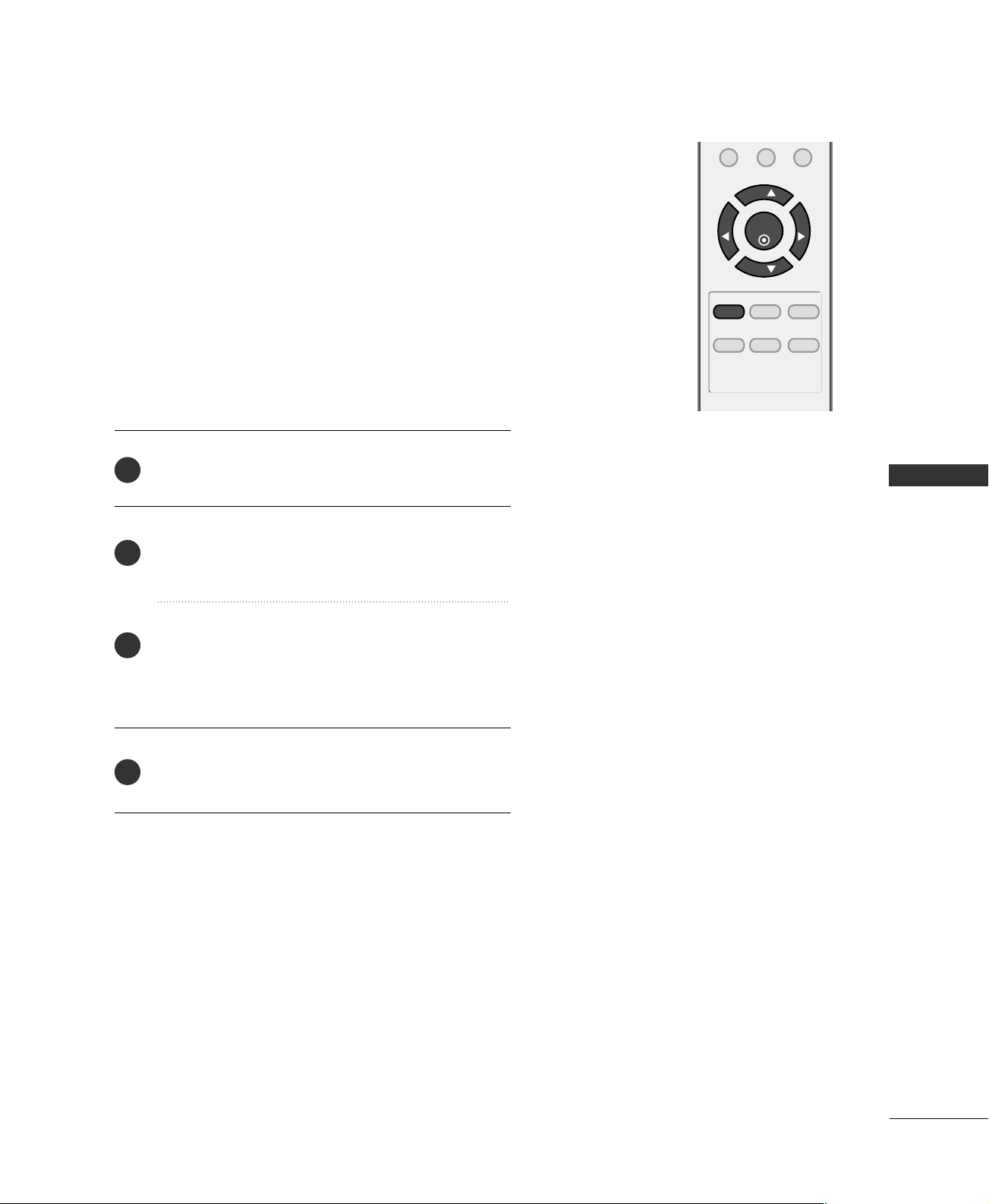
Select mono sound mode if the signal is not clear or in poor signal reception areas.
GG
SStteerreeoo
,
SSAAPP
modes are available only if included on the broadcast signal.
SOUND & LANGUAGE CONTROL
43
ON-SCREEN MENUS LANGUAGE SELECTION
MENU REVIEW SLEEP
APC DASP ARC/
*
FCRMUTE
0
ENTER
VOL VOL
CH
CH
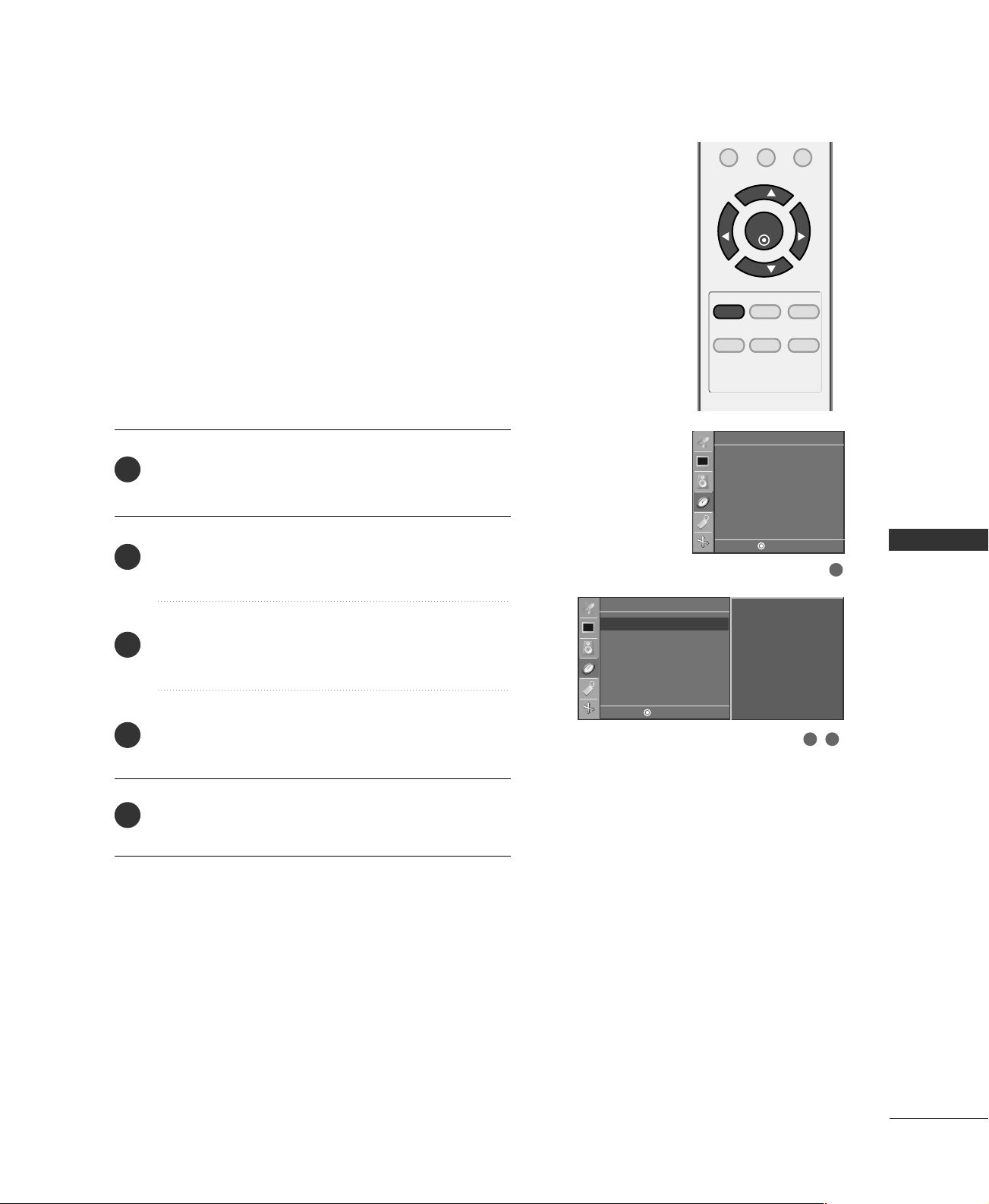
The menus can be shown on the screen in the selected
language. First select your language.
Press the
MMEENNUU
button and then use
DD
or
EE
button
to select the
SSppeecciiaall
menu.
Press the
GG
button and then use
DD
or
EE
button to
select
LLaanngguuaaggee..
Press the
GG
button and then use
DD
or
EE
button to
select your desired language.
From this point on, the on-screen menus will be shown
in the selected language.
Press the
EENNTTEERR
button to save.
1
2
3
4
SOUND & LANGUAGE CONTROL
44
CAPTION / TEXT
SOUND &LANGUAGE CONTROL
2. An old, bad, or illegally recorded tape is being played.
3. Strong, random signals from a car or airplane interfere
with the TV signal.
4. The signal from the antenna is weak.
5. The program wasn’t captioned when it was produced,
transmitted, or taped.
Closed captioning is a process which converts the audio
portion of a television program into written words which
then appear as subtitles on the television screen. Closed
captions allow viewers to read the dialogue and narration
of television programs.
UUssiinngg CClloosseedd CCaappttiioonnss
Captions are the subtitles of the dialogue and narration
of television programs. For prerecorded programs, pro-
gram dialogue can be arranged into captions in advance.
Its possible to caption a live program by using a process
called real-time captioning, which creates captions
instantly. Real-time captioning is normally done by pro-
fessional reporters using a machine shorthand system
and computer for transla-
tion into English.
Captioning is an effective
system for the hearing-
impaired, and it can also
aid in teaching language
skills.
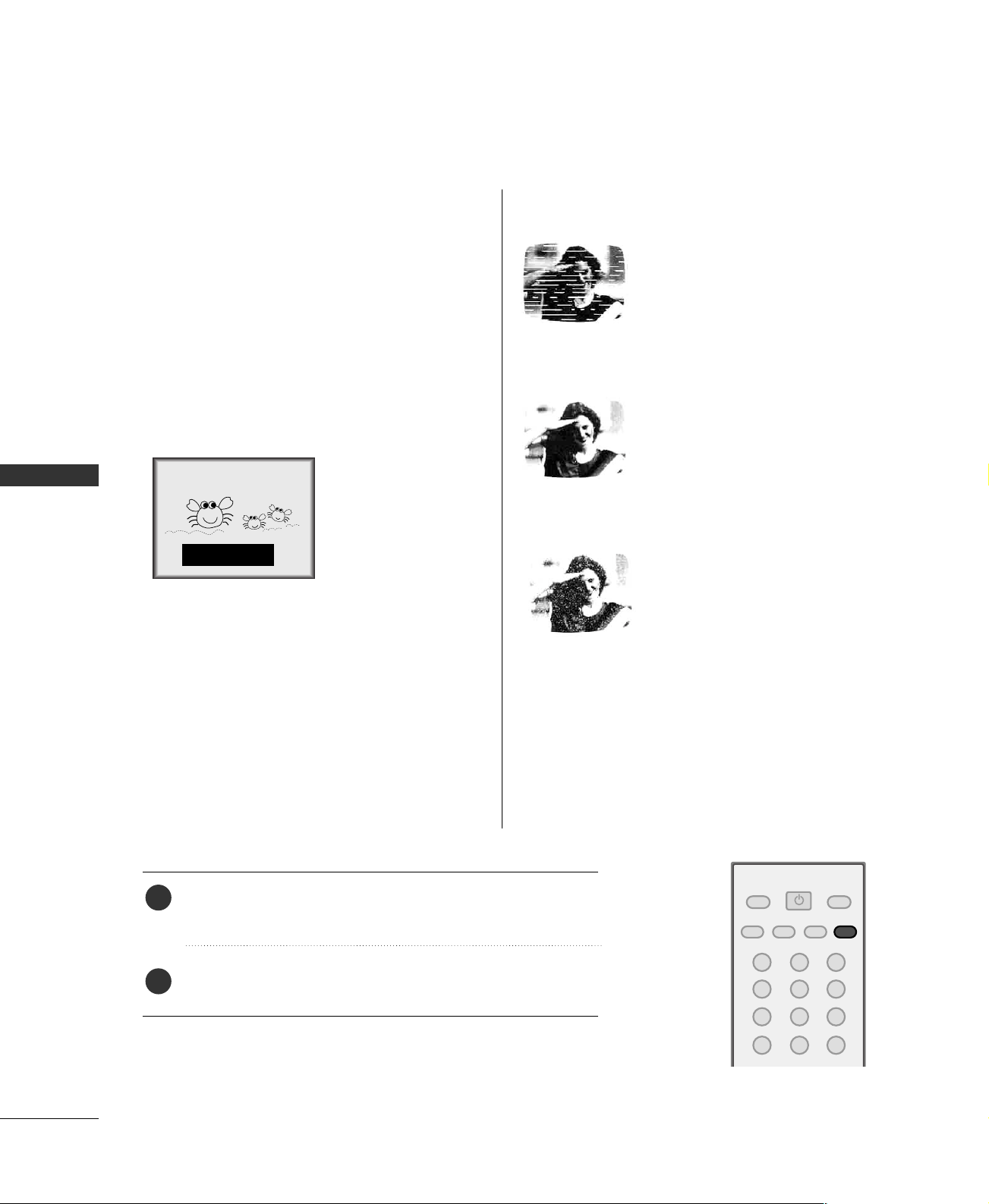
• The picture at left shows a typical caption.
CCaappttiioonn TTiippss
• Not all TV broadcasts include closed caption signals.
• Sometimes TV stations broadcast four different cap-
tion signals on the same channel. By selecting Mode1
to Mode2, you can choose which signal you view.
Mode1 is usually the signal with the captions, while
another mode might show demonstration or program-
ming information.
• Your TV might not receive caption signals normally in
the following situations.
•
IIGGNNIITTIIOONN::
Picture may flutter, drift, suffer from
black spots, or horizontal streaking.
Usually caused by interference from
automobile ignition systems, neon
lamps, electrical drills, and other
electrical appliances.
•
GGHHOOSSTTSS::
Ghosts are caused when the TV sig-
nal splits and follows two paths.
One is the direct path and the other
is reflected off tall buildings, hills or
other objects. Changing the direc-
tion or position of the antenna may
improve reception.
•
SSNNOOWW::
If your receiver is located at the
weak, fringe area of a TV signal, your
picture may be marred by small
dots. It may be necessary to install a
special antenna to improve the pic-
ture.
FOLLOW ME
1. Poor reception conditions are encountered:
■
You can also adjust
CCaappttiioonn//TTeexxtt
in the
SSppeecciiaall
menu.
Use the
CCAAPPTTIIOONN
button repeatedly to select your caption
Mode 1, Mode 2, Text1, Text2, or Off.
Press the
EENNTTEERR
button to save.
1
2
POWER
MTS
FCRMUTE
A.PROG
TV INPUT
123
456
78
0
9
MEMORY/ERASE
CAPTION
TIME SETTING
45
MENU REVIEW SLEEP
APC DASP ARC/
*
FCRMUTE
0
ENTER
VOL VOL
CH
CH
CLOCK SETTING
TIME SETTING
If the current time setting is wrong, reset the clock manually.
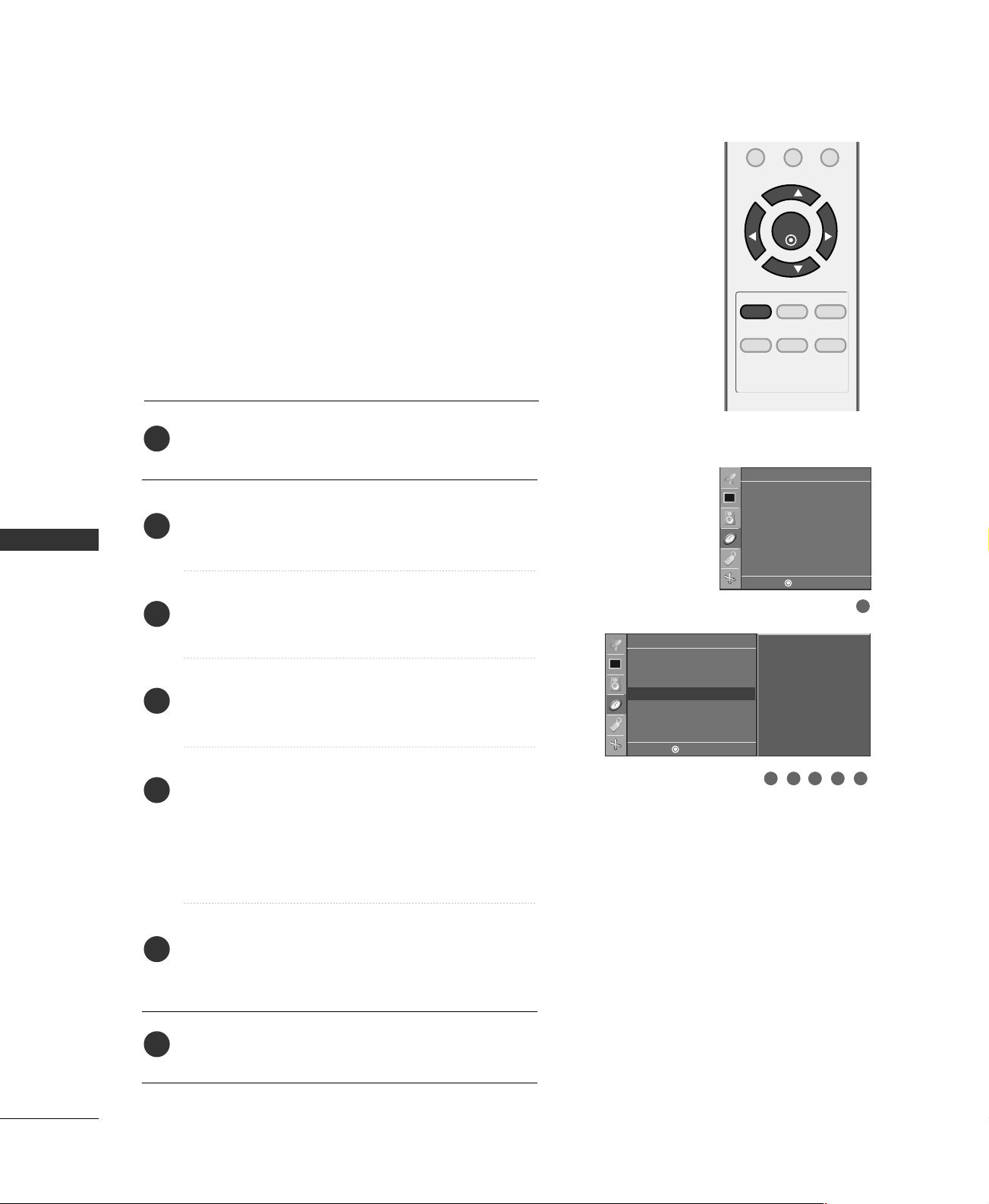
Press the
MMEENNUU
button and then
DD
or
EE
button to
select the
TTiimmeerr
menu.
Press the
GG
button and then
DD
or
EE
button to select
CClloocckk
.
Press the
GG
button and then use
DD
or
EE
button to
set the Hour.
Press the
GG
button and then use
DD
or
EE
button to
set the minutes.
Press the
EENNTTEERR
button to save.
2
3
4
5
1
2 3
1
Timer
Clock
Off timer
On timer
Auto off
Timer
--:-- AM
Clock
G
Off timer
On timer
Auto off
DE F G
MENU
DE F G
MENU
TIME SETTING
46
TIME SETTING
MENU REVIEW SLEEP
APC DASP ARC/
*
FCRMUTE
0
ENTER
VOL VOL
CH
CH
AUTO ON/OFF TIMER SETTING
Press the
MMEENNUU
button and then
DD
or
EE
button to
select the
TTiimmeerr
menu.
Press the
GG
button and then use
DD
or
EE
button to
select
OOffff ttiimmeerr
or
OOnn ttiimmeerr
.
Press the
GG
button and then use
DD
or
EE
button to
set the hour.
Press the
GG
button and then use
DD
or
EE
button to
set the minutes.
OOnnllyy OOnn ttiimmeerr
Press the
GG
button and then use
DD
or
EE
to select
the channel at turn-on.
Press the
GG
button and then use
DD
or
EE
to set the
sound level at turn-on.
Press the
GG
button and then use
DD
or
EE
button to
select
OOnn
.
■
To cancel the
OOnn//OOffff ttiimmeerr
function, select
OOffff
.
Press the
EENNTTEERR
button to save.
2
3
4
5
6
7
1
The timer function operates only if the current time has
been set.
The Off-Timer function overrides the On-Timer function if
they are both set to the same time.
The TV must be in standby mode for the On-Timer to work.
If you do not press any button within 2 hours after the TV
turns on with the On Timer function, the TV will automatically
revert to standby mode.
1
Timer
Clock
Off timer
On timer
Auto off
Timer
--:-- AM
Ch. TV 2
Vol. 30
Off
Clock
Off timer
On timer
G
Auto off
32 54 6
DE F G
MENU
DE F G
MENU
TIME SETTING
47
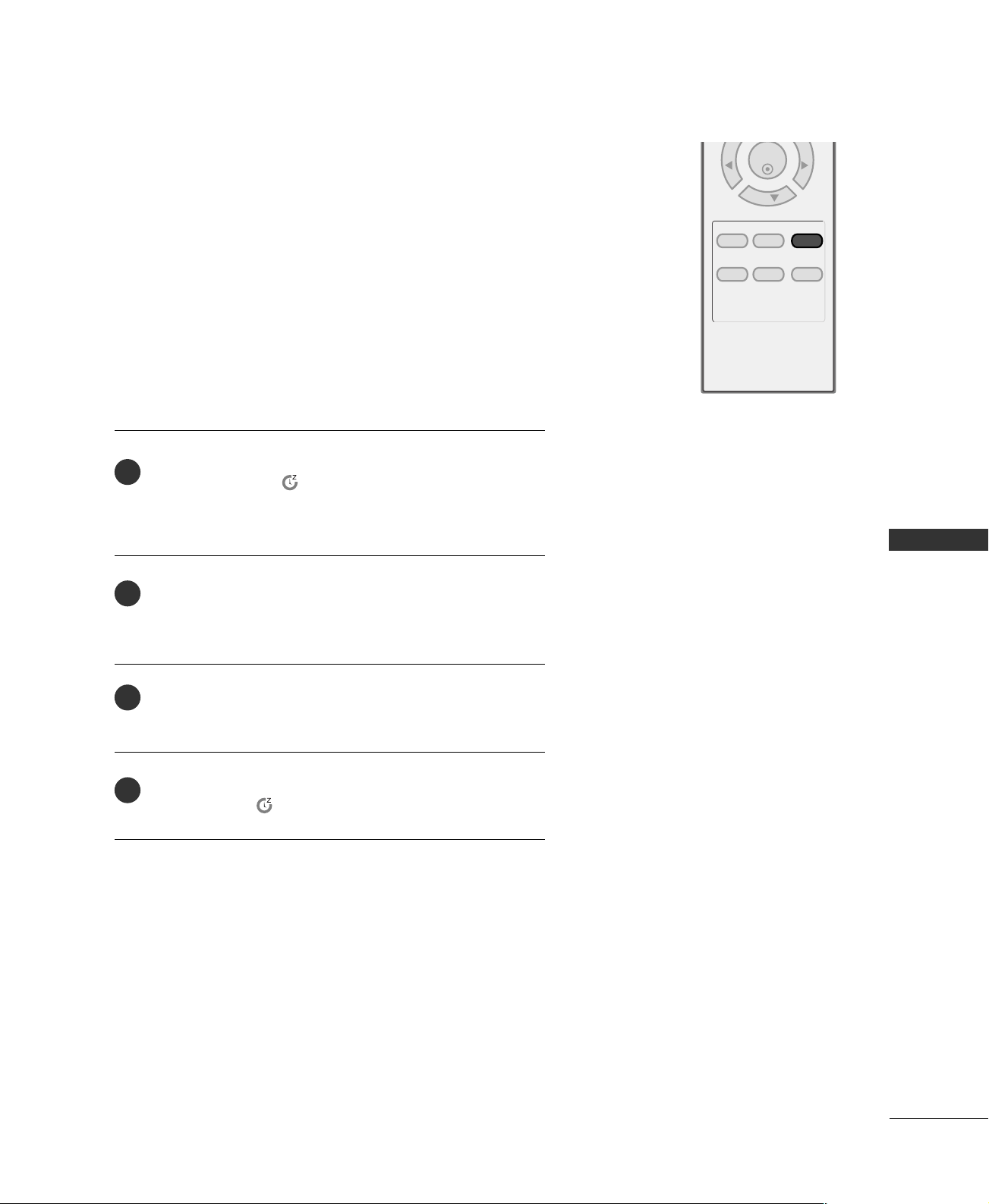
SLEEP TIMER SETTING
MENU REVIEW SLEEP
APC DASP ARC/
*
ENTER
VOL VOL
CH
Press the
SSLLEEEEPP
button repeatedly to select the number of
minutes. First the ‘ - - - ’ option appears on the screen,
followed by the following sleep timer options : 10, 20, 30,
60, 90, 120, 180, and 240 minutes.
When the number of minutes you want is displayed on the
screen, press the
EENNTTEERR
button. The timer begins to count
down from the number of minutes selected.
To check the remaining minutes before the TV turns off, press
the
SSLLEEEEPP
button once.
To cancel the Sleep Timer, press the
SSLLEEEEPP
button repeat-
edly to select ‘ - - - ’.
The Sleep Timer turns the TV off at the preset time.
Note that this setting is cleared when the TV is turned off.
2
3
4
1
TIME SETTING
48
AUTO SHUT-OFF SETTING
TIME SETTING
MENU REVIEW SLEEP
APC DASP ARC/
*
FCRMUTE
0
ENTER
VOL VOL
CH
CH
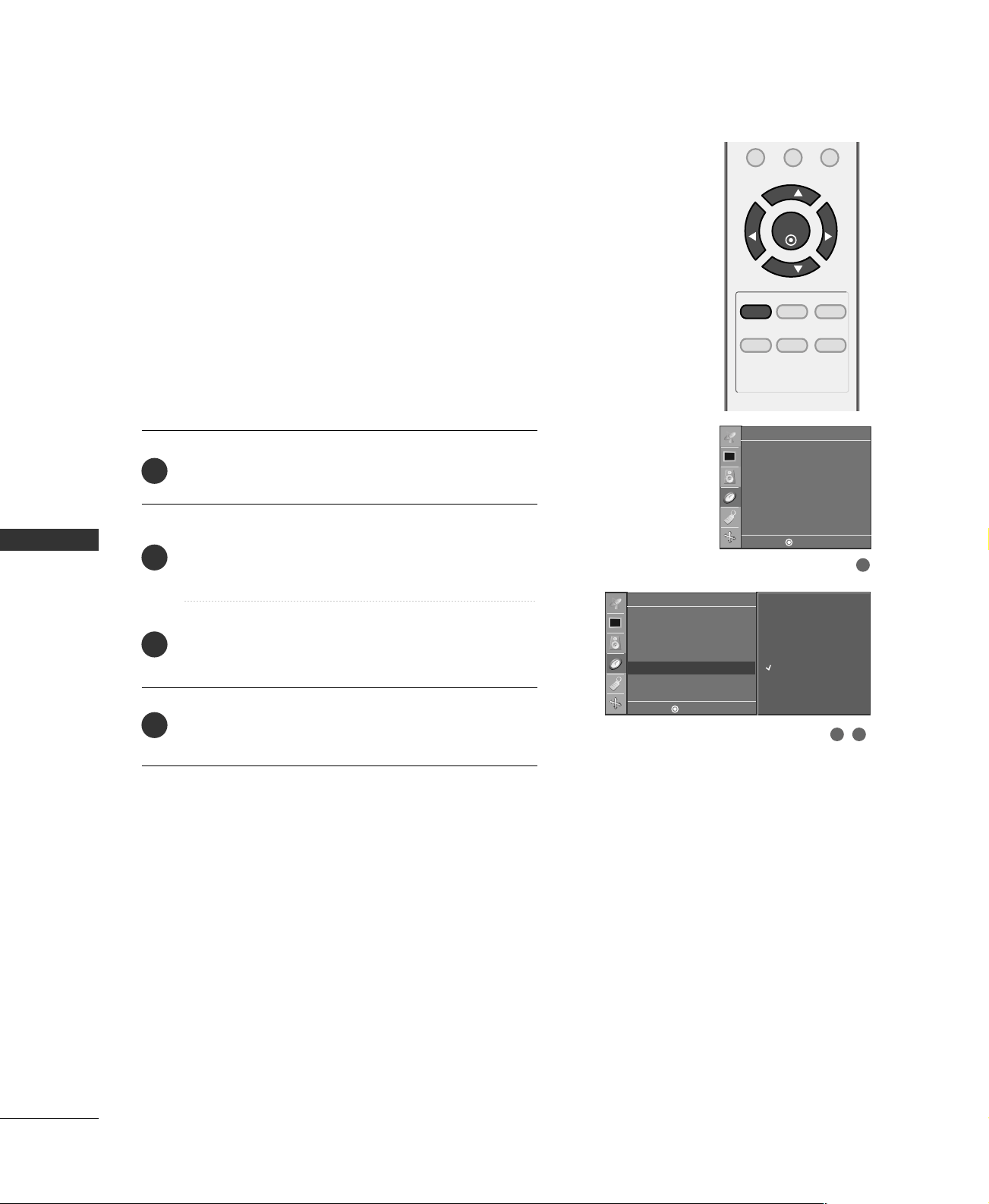
If set to on and there is no input signal, the TV turns off
automatically after 10 minutes.
Press the
MMEENNUU
button and then use
DD
or
EE
button
to select the
TTiimmeerr
menu.
Press the
GG
button and then use
DD
or
EE
button to
select
AAuuttoo ooffff
.
Press the
GG
button and then use
DD
or
EE
button to
select
OOnn
or
OOffff
.
Press the
EENNTTEERR
button to save.
2
3
4
1
2 3
1
Timer
Clock
Off timer
On timer
Auto off
Timer
On
Off
Clock
Off timer
On timer
Auto off
G
DE F G
MENU
DE F G
MENU
APPENDIX
49
TROUBLESHOOTING
APPENDIX
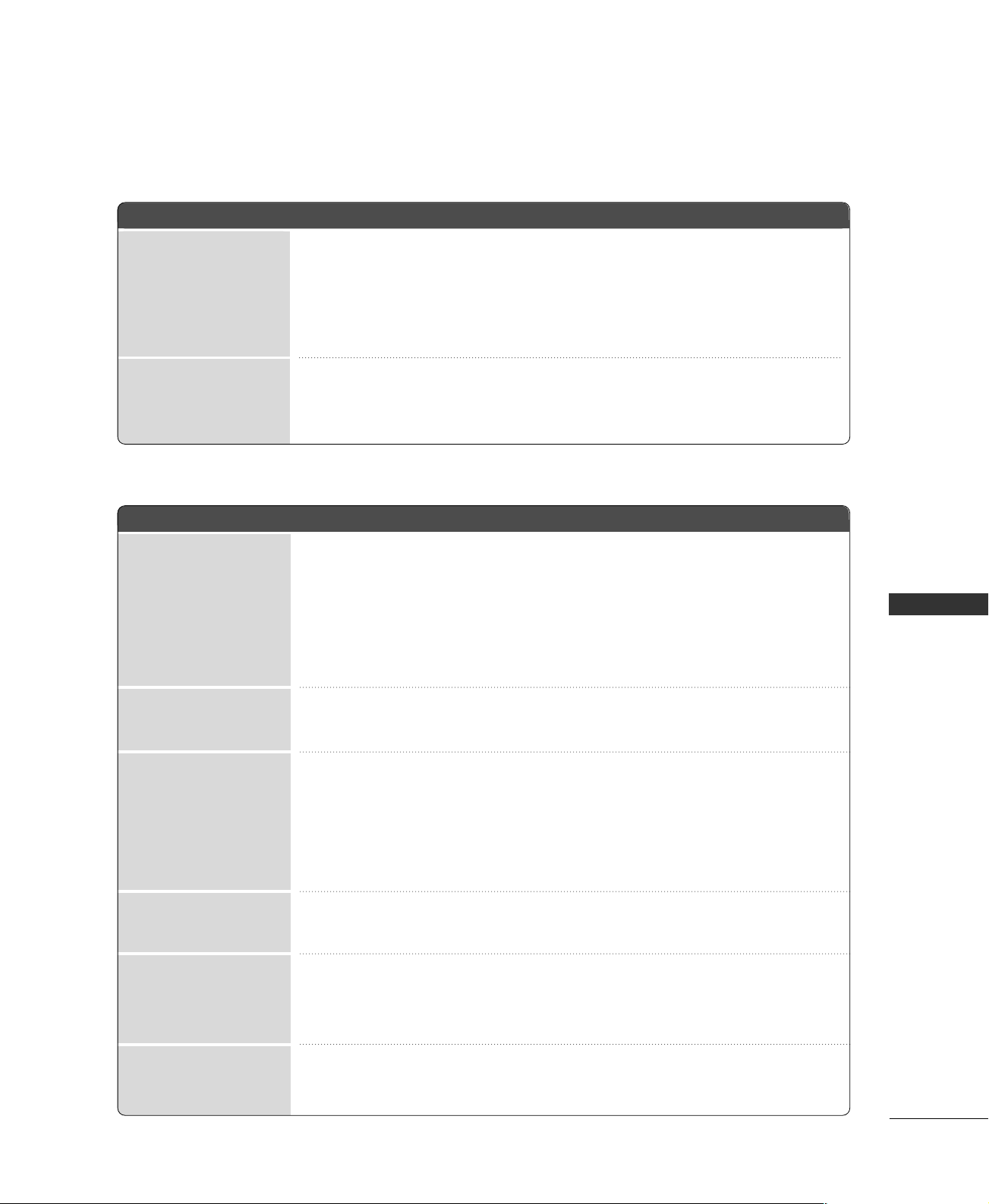
TThhee ooppeerraattiioonn ddooeess nnoott wwoorrkk nnoorrmmaallllyy..
TThhee vviiddeeoo ffuunnccttiioonn ddooeess nnoott wwoorrkk..
No picture &No sound
No or poor color
or poor picture
Poor reception on
some channels
Lines or streaks
in pictures
Horizontal/vertical bars
or picture shaking
Picture appears slowly
after switching on
The remote control
doesn’t work
Power is suddenly
turned off
■
Check to see if there is any object between the product and the remote control
causing obstruction. Ensure you are pointing the remote control directly at the TV.
■
Ensure that the batteries are installed with correct polarity (+ to +, - to -).
■
Ensure that the correct remote operating mode is set: TV, VCR etc.
■
Install new batteries.
■
Is the sleep timer set?
■
Check the power control settings. Power interrupted.
■
No broadcast on station tuned with Auto off activated.
■
Check whether the product is turned on.
■
Try another channel. The problem may be with the broadcast.
■
Is the power cord inserted into wall power outlet?
■
Check your antenna direction and/or location.
■
Test the wall power outlet, plug another product’s power cord into the outlet
where the product’s power cord was plugged in.
■
This is normal, the image is muted during the product startup process. Please
contact your service center, if the picture has not appeared after five minutes.
■
Adjust Color in menu option.
■
Keep a sufficient distance between the product and the VCR.
■
Try another channel. The problem may be with the broadcast.
■
Are the video cables installed properly?
■
Activate any function to restore the brightness of the picture.
■
Check for local interference such as an electrical appliance or power tool.
■
Station or cable product experiencing problems, tune to another station.
■
Station signal is weak, reorient antenna to receive weaker station.
■
Check for sources of possible interference.
■
Check antenna (Change the direction of the antenna).
APPENDIX
50
APPENDIX
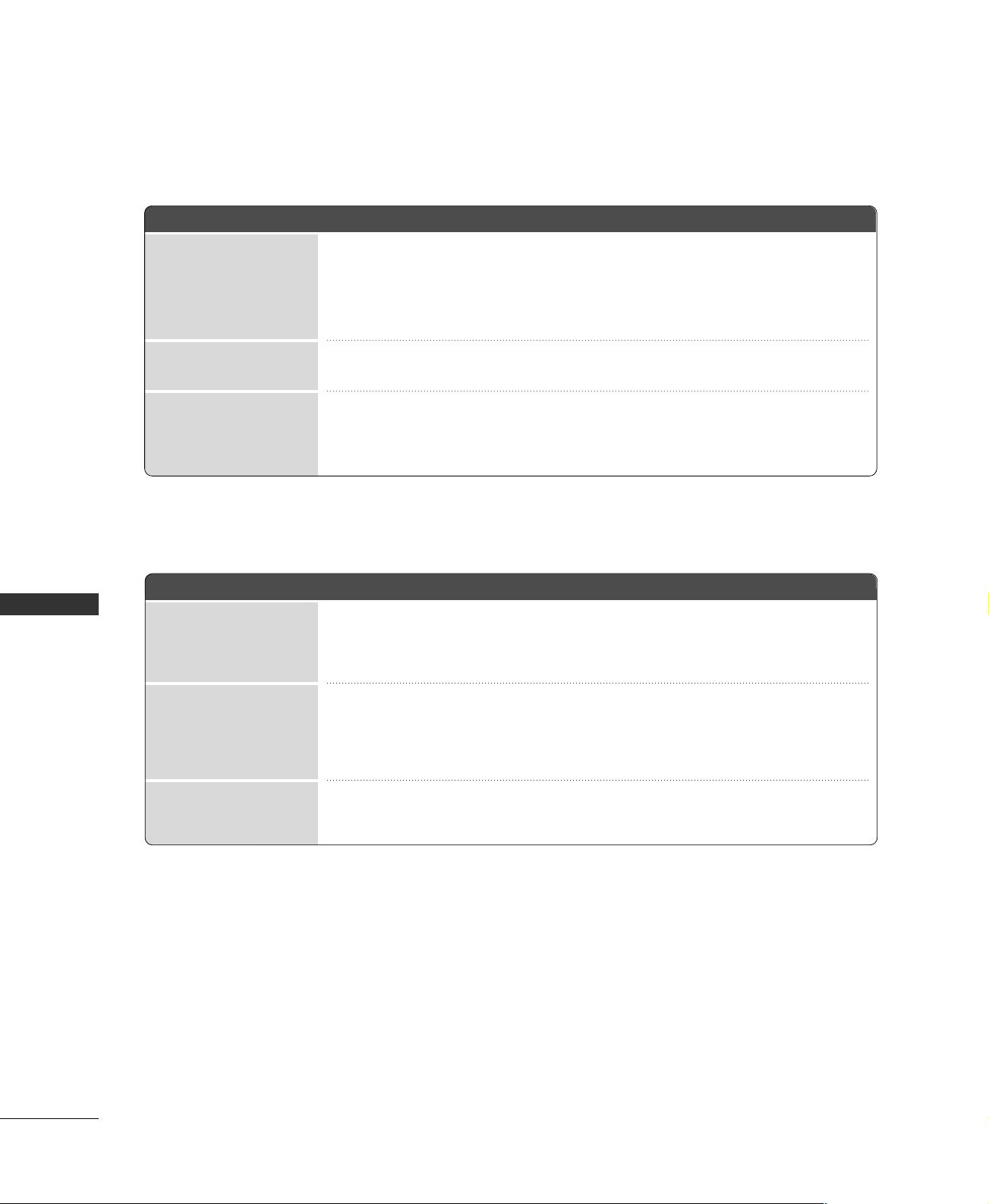
TThheerree iiss aa pprroobblleemm iinn PPCC mmooddee.. ((OOnnllyy PPCC mmooddee aapppplliieedd))
■
Adjust resolution, horizontal frequency, or vertical frequency.
■
Check the input source.
■
Work the Auto configure or adjust clock, phase, or H/V position. (Option)
■
Check the signal cable.
■
Reinstall the PC video card.
The signal is out of range
Screen color is unstable
or single color
Vertical bar or stripe on
background &
Horizontal Noise &
Incorrect position
■
Press the VOL or VOLUME button.
■
Sound muted? Press MUTE button.
■
Try another channel. The problem may be with the broadcast.
■
Are the audio cables installed properly?
■
Adjust Balance in menu option.
■
A change in ambient humidity or temperature may result in an unusual noise
when the product is turned on or off and does not indicate a fault with the
product.
Picture OK & No sound
Unusual sound from
inside
the product
No output from one
of the speakers
TThhee aauuddiioo ffuunnccttiioonn ddooeess nnoott wwoorrkk..
APPENDIX
51
MAINTENANCE
Early malfunctions can be prevented. Careful and regular cleaning can extend the amount of time you can
enjoy your new TV.
Caution: Be sure to turn the power off and unplug the power cord before you begin any cleaning.
Cleaning the Screen
Here’s a great way to keep the dust off your screen for a while. Wet a soft cloth in a mixture of lukewarm
water and a little fabric softener or dish washing detergent. Wring the cloth until it’s almost dry, and then
use it to wipe the screen.
Make sure the excess water is off the screen, and then let it air-dry before you turn on your TV.
Cleaning the Cabinet
■
To remove dirt or dust, wipe the cabinet with a soft, dry, lint-free cloth.
■
Please be sure not to use a wet cloth.
Extended Absence
GG
If you expect to leave your TV dormant for a long time (such as a vacation), it’s a good idea to unplug
the power cord to protect against possible damage from lightning or power surges.
CAUTION
2
1
APPENDIX
52
PRODUCT SPECIFICATIONS
APPENDIX
■
The specifications shown above may be changed without prior notice for quality improvement.
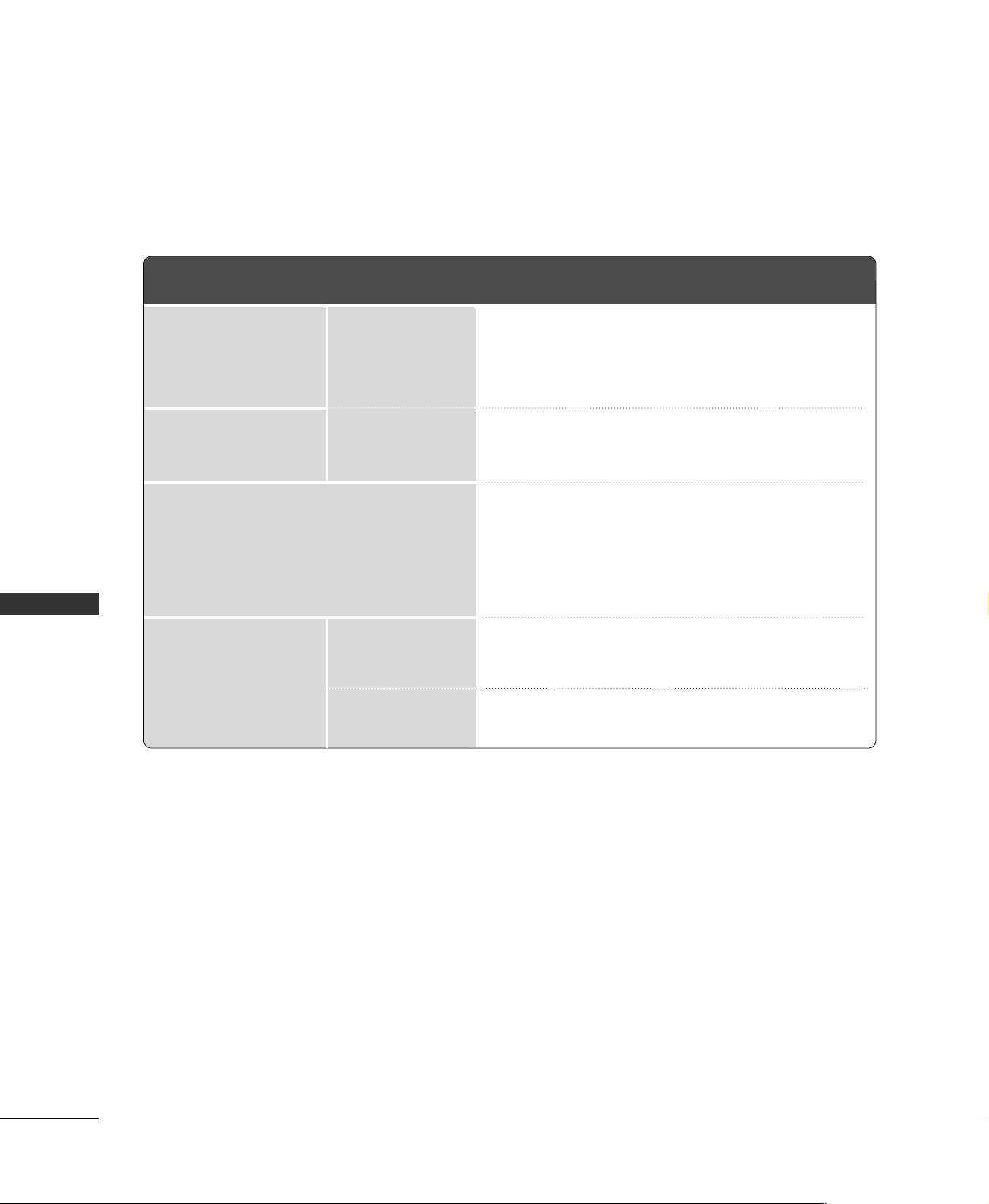
15LS1RA
(15LS1RA-MK)
20LS1RA
(20LS1RA-MK)
MODELS
18.2 x 13.9 x 6.5 inches
463.3 x 353.5 x 166.3mm
18.2 x 12.6 x 2.7 inches
463.3 x 320.6 x 69.3mm
8.7 pounds / 3.94 kg
7.9 pounds / 3.58 kg
40 W
22.6 x 17.1 x 7.5 inches
573.2 x 435.5 x 189.7 mm
22.6 x 16.1 x 2.9 inches
573.2 x 408.2 x 73.7 mm
15.2 pounds / 6.9 kg
14.3 pounds / 6.48 kg
60 W
AC100-240V ~ 50/60Hz
NTSC, PAL-M/N
VHF 2-13, UHF 14-69, CATV 1-125
75 ohm
32 ~ 104°F (0 ~ 40°C)
Less than 80%
-4 ~ 140°F (-20 ~ 60°C)
Less than 85%
Dimensions
(Width x Height x Depth)
Weight
Power Consumption
Power Requirement
Television System
Program Coverage
External Antenna Impedance
Environment condition
Including stand
Excluding stand
including stand
excluding stand
Operating Temperature
Operating Humidity
Storage Temperature
Storage Humidity