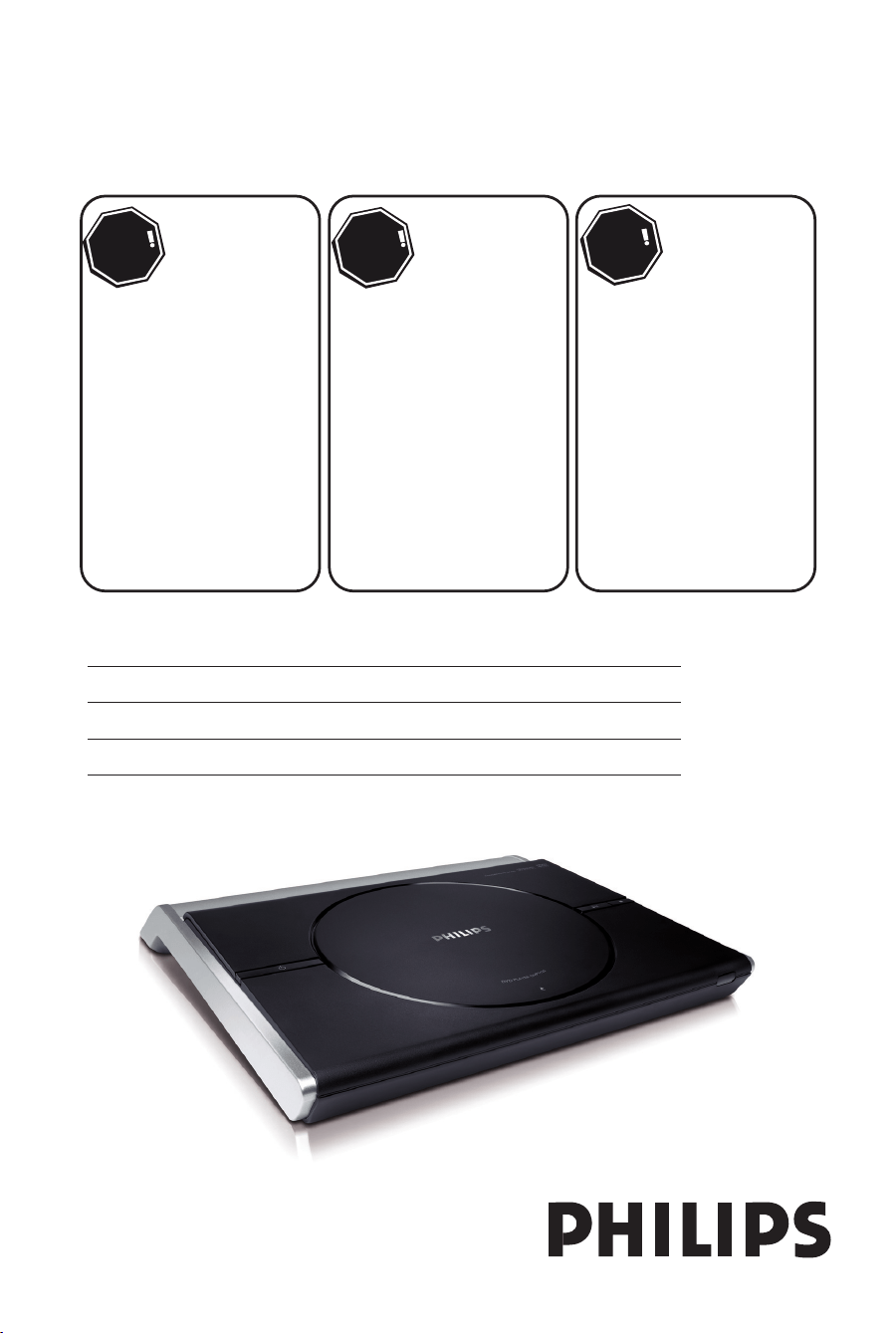
Thank you for choosing Philips.
Need help fast?
Read your Quick Start Guide and/or
User Manual first for quick tips
that make using your Philips product
more enjoyable.
Register your product and
get support at
www.philips.com/welcome
or call
1-888-PHILIPS (744-5477)
while with your product
(and Model / Serial number)
STOP
Philips vous remercie de
votre confiance.
Besoin d'une aide
rapide?
Le Guide rapide de début et
Manuel de l'utilisateur regorgent
d'astuces destinées à simplifier
l'utilisation de votre produit Philips.
ou formez le
1-800-661-6162 (Francophone)
1-888-PHILIPS (744-5477)
(English speaking)
Veillez à avoir votre produit à
portée de main
(et model / serial nombre)
ARRÊT
Gracias por escoger Philips
Necesita ayuda
inmediata?
Lea primero la Guía rápida del
comienzo o el Manual del usuario,
en donde encontrará consejos que
le ayudarán a disfrutar plenamente
de su producto Philips.
o llame al teléfono
1-888-PHILIPS (744-5477)
y tenga a mano el producto
(y número de model / serial)
ALTO
Enregistrez votre produit et
accédez à l'assistance sur
www.philips.com/welcome
Visite
www.philips.com/welcome
para registrar su producto y
obtener información de
contacto y asistencia.
Register your product and get support at
www.philips.com/welcome
DVP1120
EN DVD Video Player 6
FR CA Lecteur de DVD 44
ES LA Reproductor de video DVD 82
1_dvp1120_37_eng 8.indd 11_dvp1120_37_eng 8.indd 1 2008-01-21 9:44:24 AM2008-01-21 9:44:24 AM
2
Registering your model with PHILIPS makes you eligible for all of the valuable benefits listed below, so don't miss out.
Complete and return your Product Registration Card at once, or register online at www.philips.com/welcome to
ensure:
Return your Product Registration Card or register online at
www.philips.com/welcome today to get the very most from your purchase.
Visit our World Wide Web Site at http://www.philips.com/welcome
Congratulations on your purchase,
and welcome to the “family!”
Dear PHILIPS product owner:
Thank you for your confidence in PHILIPS.You’ve selected one of
the best-built, best-backed products available today.We’ll do every-
thing in our power to keep you happy with your purchase for many
years to come.
As a member of the PHILIPS “family,” you’re entitled to protection
by one of the most comprehensive warranties and outstanding
service networks in the industry.What’s more, your purchase guar-
antees you’ll receive all the information and special offers for which
you qualify, plus easy access to accessories from our convenient
home shopping network.
Most importantly, you can count on our uncompromising commit-
ment to your total satisfaction.
All of this is our way of saying welcome - and thanks for investing
in a PHILIPS product.
P.S. To get the most from your PHILIPS purchase, be
sure to complete and return your Product Registration
Card at once, or register online at:
www.philips.com/welcome
For Customer Use
Enter below the Serial No. which is locat-
ed on the rear of the cabinet. Retain this
information for future reference.
Model No.__________________________
Serial No. ________________________
Know these
safetysymbols
This “bolt of lightning” indicates unin-
sulated material within your unit may
cause an electrical shock. For the safety of
everyone in your household, please do not
remove product covering.
The “exclamation point” calls atten-
tion to features for which you should
read the enclosed literature closely to pre-
vent operating and maintenance problems.
WARNING: To reduce the risk of fire or
electric shock, this apparatus should not be
exposed to rain or moisture and objects
filled with liquids, such as vases, should not
be placed on this apparatus.
CAUTION: To prevent electric shock,
match wide blade of plug to wide slot, fully
insert.
ATTENTION: Pour éviter les choc élec-
triques, introduire la lame la plus large de la
fiche dans la borne correspondante de la
prise et pousser jusqu’au fond.
CAUTION
RISK OF ELECTRIC SHOCK
DO NOT OPEN
CAUTION: TO REDUCE THE RISK OF ELECTRIC SHOCK, DO NOT
REMOVE COVER (OR BACK). NO USER-SERVICEABLE PARTS
INSIDE. REFER SERVICING TO QUALIFIED SERVICE PERSONNEL.
*Proof of
Purchase
Returning the enclosed card guarantees
that your date of purchase will be on file,
so no additional paperwork will be
required from you to obtain warranty
service.
*Product Safety
Notification
By registering your product, you'll receive
notification - directly from the manufac-
turer - in the rare case of a product
recall or safety defect.
*Additional Benefits
Registering your product guarantees that
you'll receive all of the privileges to
which you're entitled, including special
money-saving offers.
1_dvp1120_37_eng 8.indd 21_dvp1120_37_eng 8.indd 2 2008-01-18 1:16:04 PM2008-01-18 1:16:04 PM
3
1. Read these instructions.
2. Keep these instructions.
3. Heed all warnings.
4. Follow all instructions.
5. Do not use this apparatus near
water.
6. Clean only with dry cloth.
7. Do not block any ventilation
openings. Install in accordance with
the manufacturer´s instructions.
8. Do not install near any heat sources
such as radiators, heat registers, stoves, or
other apparatus (including amplifiers) that
produce heat.
9. Do not defeat the
safety purpose of the
polarized or
grounding-type plug.
A polarized plug has two blades with one
wider than the other. A grounding type plug
has two blades and a third grounding prong.
The wide blade or the third prong are
provided for your safety. If the provided plug
does not fit into your outlet, consult an
electrician for replacement of the obsolete
outlet.
10.
Protect the power cord from being
walked on or pinched, particularly at plugs,
convenience receptacles, and the point
where they exit from the apparatus.
11.
Only use attachments/accessories
specified by the manufacturer.
12.
Use only with the cart, stand,
tripod, bracket, or table specified
by the manufacturer or sold with
the apparatus. When a cart is
used, use caution when moving
the cart/apparatus combination
to avoid injury from tip-over.
13 .
Unplug this apparatus during lightning
storms or when unused for long periods of
time.
14 .
Refer all servicing to qualified service
personnel. Servicing is required when the
apparatus has been damaged in any way,
such as power-supply cord or plug is
damaged, liquid has been spilled or objects
have fallen into the apparatus, the apparatus
has been exposed to rain or moisture, does
not operate normally, or has been dropped.
15.
Batter y usage CAUTION – To
prevent battery leakage which may result in
bodily injury, property damage, or damage
to the unit:
● Install all batteries correctly, + and - as
marked on the unit.
● Do not mix batteries (old and new or
carbon and alkaline, etc.).
● Remove batteries when the unit is not used
for a long time.
IMPORTANT SAFETY INSTRUCTIONS
AC Polarized
Plug
16. Appar atus shall not be exposed to
dripping or splashing.
17. Do not p lace any sources of danger
on the apparatus (e.g. liquid filled
objects, lighted candles).
18. This product may contain lead and mercury.
Disposal of these materials may be regulated
due to environmental considerations.
For disposal or recycling information,
please contact your local authorities
or the Electronic Industries Alliance :
www.eiae.org.
EL 6475-E005: 04/01
Class II equipment symbol
This symbol indicates that the unit has
a double insulation system
1_dvp1120_37_eng 8.indd 31_dvp1120_37_eng 8.indd 3 2008-01-18 1:16:05 PM2008-01-18 1:16:05 PM
4
Canada
English:
This digital apparatus does not exceed
the Class B limits for radio noise
emissions from digital apparatus as set
out in the Radio Interference
Regulations of the Canadian
Department of Communications.
This Class B digital apparatus complies
with Canadian ICES-003.
Français:
Cet appareil numérique n’emet pas de
bruits radioélectriques dépassant les
limites applicables aux appareils
numériques de Class B prescrites dans
le Règlement sur le Brouillage
Radioélectrique édicté par le Ministère
des Communications du Canada.
Cet appareil numérique de la classe B est
conforme à la norme NMB-003 du Canada.
This warning label is located on the rearside
and inside this laser product.
CAUTION
:
INVISIBLE
LASER RADIATION
WHEN OPEN. DO NOT STARE INTO BEAM.
DANGER
:
INVISIBLE LASER RADIATION WHEN OPEN.
AVOID DIRECT EXPOSURE TO BEAM.
VARO!
AVATTAESSA JA SUOJALUKITUS OHITETTAESSA OLET
ALTTIINANAKYMATTOMAALLE LASERSATEILYLLE. ALA
KATSO SATEESEEN.
VARNING!
OSYNLIG LASERSTRÅLNING NÄR DENNA DEL ÄR ÖPPNAD.
OCH SPARREN AR URKOPPLAD. BETRAKTA EJ STRÅLEN.
DANGER - Invisible laser radiation when open.
AVOID DIRECT EXPOSURE TO BEAM.
or
CAUTION
Use of controls or adjustments or
performance of procedures other than
herein may result in hazardous radiation
exposure or other unsafe operation.
ATTENTION
L’utilisation des commandes ou réglages
ou le non-respect des procédures ciincluses
peuvent se traduire par une
exposition dangereuse à l’irradiation.
ATENCIÓN
El uso de mando o ajustes o la ejecucción
de métodos que no sean los aquí descritos
puede ocasionar peligro de exposición a
radiación.
‘CONSUMERS SHOULD NOTE THAT NOT ALL HIGH
DEFINITION TELEVISION SETS ARE FULLY
COMPATIBLE WITH THIS PRODUCT AND MAY CAUSE
A
RTIFACTS TO BE DISPLAYED IN THE PICTURE. IN
CASE OF 525 OR 625 PROGRESSIVE SCAN PICTURE
PROBLEMS, IT IS RECOMMENDED THAT THE USER
SWITCH THE CONNECTION TO THE ‘STANDARD
DEFINITION’ OUTPUT. IF THERE ARE QUESTIONS
REGARDING OUR TV SET COMPATIBILITY WITH THIS
MODEL 525p AND 625p DVD PLAYER, PLEASE
CONTACT OUR CUSTOMER SERVICE CENTER.’
Declaration of Conformity
Model number: DVP1120
Trade Name: Philips
Responsible Party: Philips Consumer Electronics
A Division of Philips Electronics
North America Corp.
P. O. Box 671539
Marietta, GA 30006-0026
1-800-PHILIPS (744-5477)
LASER
Type Semiconductor laser
InGaAlP (DVD)
AIGaAs (CD)
Wave length 658 nm (DVD)
790 nm (CD)
Output Power 7.0 mW (DVD)
10.0 mW (VCD/CD)
Beam divergence 60 degrees
1_dvp1120_37_eng 8.indd 41_dvp1120_37_eng 8.indd 4 2008-01-18 1:16:06 PM2008-01-18 1:16:06 PM
5
English ------------------------------------ 6
Français ---------------------------------- 44
Español ---------------------------------- 82
Index
NOTE: This equipment has been tested and found to
comply with the limits for a Class B digital device, pursuant
to Part 15 of the FCC Rules. These limits are designed to
provide reasonable protection against harmful interference
in a residential installation. This equipment generates, uses
and can radiate radio frequency energy and, if not installed
and used in accordance with the instructions, may cause
harmful interference to radio communications. However,
there is no guarantee that interference will not occur in a
particular installation.
If this equipment does cause harmful interference to radio
or television reception, which can be determined by turning
the equipment off and on, the user is encouraged to try to
correct the interference by one or more of the following
measures:
- Reorient or relocate the receiving antenna.
- Increase the separation between the equipment and
receiver.
- Connect the equipment into an outlet on a circuit different
from that to which the receiver is connected.
- Consult the dealer or an experienced radio/TV technician
for help.
Manufactured under license from Dolby
Laboratories. Dolby and the double-D symbol are
trademarks of Dolby Laboratories.
Windows Media and the Windows logo are
trademarks, or registered trademarks of Microsoft
Corporation in the United States and/or other
countries.
EnglishFrançaisEspañol
This product incorporates copyright protection
technology that is protected by method claims of
certain U.S. patents and other intellectual property
rights owned by Macrovision Corporation and
other rights owners. Use of this copyright
protection technology must be authorized by
Macrovision Corporation, and is intended for
home and other limited viewing uses only unless
otherwise authorized by Macrovision Corporation.
Reserve engineering or disassembly is prohibited.
1_dvp1120_37_eng 8.indd 51_dvp1120_37_eng 8.indd 5 2008-01-18 1:16:13 PM2008-01-18 1:16:13 PM

English
6
Table of contents
General
General Information ........................................................................................................8
Setup precautions .................................................................................................................................................8
Accessories supplied ...........................................................................................................................................8
Cleaning discs ........................................................................................................................................................8
About recycling .....................................................................................................................................................8
Product Overview
Your DVD Player ............................................................................................................... 9
Remote Control .........................................................................................................10-12
Using the remote control ................................................................................................................................12
Connections
Basic Connections .....................................................................................................13-15
Step 1: Connecting to television ....................................................................................................................13
Option 1: Using Composite Video jacks (CVBS) ...............................................................................13
Option 2: Using Component Video jacks (Y Pb Pr) ..........................................................................13
Option 3: Using an accessory RF modulator ......................................................................................14
Step 2: Connecting the power cord ..............................................................................................................15
Optional Connections .................................................................................................... 16
Connecting to an Analog Stereo System .....................................................................................................16
Connecting to a Digital AV Ampli er/Receiver .........................................................................................16
Basic Setup
Getting Started .......................................................................................................... 17-19
Finding the correct viewing channel .............................................................................................................17
Setting language preferences .....................................................................................................................17-18
On-screen display (OSD) language ........................................................................................................17
Subtitle, Audio and Menu language for DVD playback .....................................................................18
Setting up Progressive Scan feature ..............................................................................................................19
Disc Playback
Disc Operations ........................................................................................................ 20-28
Playable discs ...................................................................................................................................................... 20
Region codes for DVD discs .......................................................................................................................... 20
Playing a disc ........................................................................................................................................................21
Basic playback controls .....................................................................................................................................21
Selecting various repeat functions .......................................................................................................... 22-23
Repeating a speci c segment (A-B) ........................................................................................................23
Other playback features for video discs .............................................................................................. 23-24
Using the Disc Menu ..................................................................................................................................23
Changing sound track language ...............................................................................................................24
Changing subtitle language .......................................................................................................................24
Zooming.........................................................................................................................................................24
Playback Control (VCD/SVCD) ..............................................................................................................24
1_dvp1120_37_eng 8.indd 61_dvp1120_37_eng 8.indd 6 2008-01-18 1:16:15 PM2008-01-18 1:16:15 PM

English
7
Table of contents
Using Display menu options .................................................................................................................... 25-26
Selecting title/chaper/track ..................................................................................................................... 25
Searching by time ....................................................................................................................................... 25
Switching camera angles ............................................................................................................................26
Playing a JPEG photo disc (slide show) .........................................................................................................27
Zoom picture ..............................................................................................................................................27
Rotating the picture ...................................................................................................................................27
Playing a MP3/ WMA disc ............................................................................................................................... 28
Setup Options
Setup Menu Options ................................................................................................. 29-35
Accessing the setup menu ................................................................................................................................29
Language Menu ........................................................................................................................................... 30
Video Menu .............................................................................................................................................31-32
Audio Menu ..................................................................................................................................................33
Rating Menu ................................................................................................................................................. 34
Misc Menu .....................................................................................................................................................35
Others
Other Features................................................................................................................36
Installing the latest software ...........................................................................................................................36
Troubleshooting .........................................................................................................37-39
Glossary...................................................................................................................... 40-41
Speci cations ..................................................................................................................42
1_dvp1120_37_eng 8.indd 71_dvp1120_37_eng 8.indd 7 2008-01-18 1:16:15 PM2008-01-18 1:16:15 PM
English
8
General Information
WARNING!
This unit does not contain any user-
serviceable parts. Please leave all
maintenance work to quali ed
personnel.
Setup precautions
Finding a suitable location
– Place this unit on a at, hard and
stable surface. Never place the unit on a
carpet.
– Never place this unit on top of other
equipment that might heat it up (e.g.,
receiver or ampli er).
– Never put anything under this unit
(e.g., CDs, magazines).
– Install this unit near the AC outlet
where the AC power plug can be easily
reached.
Space for ventilation
– Place this unit in a location with
adequate ventilation to prevent internal
heat build up. Allow at least 10 cm (4”)
clearance from the rear and the top of
this unit and 5 cm (2”) from the left and
right to prevent overheating.
Avoid high temperature, moisture,
water and dust
– This unit must not be exposed to
dripping or splashing.
– Never place any object or items that
can damage this unit (e.g., liquid lled
objects, lighted candles).
Accessories supplied
– 1 remote control with batteries
– 1 audio/video cables (yellow/white/
red)
Note:
The 3-in-1 audio/video cable is specially
designed for this unit. To purchase or
replace the cable, kindly quote part
number: 41-UH1500-0KKA6 at
Philips’s service hotline. Replacement of
cable is only applicable within the
warranty period.
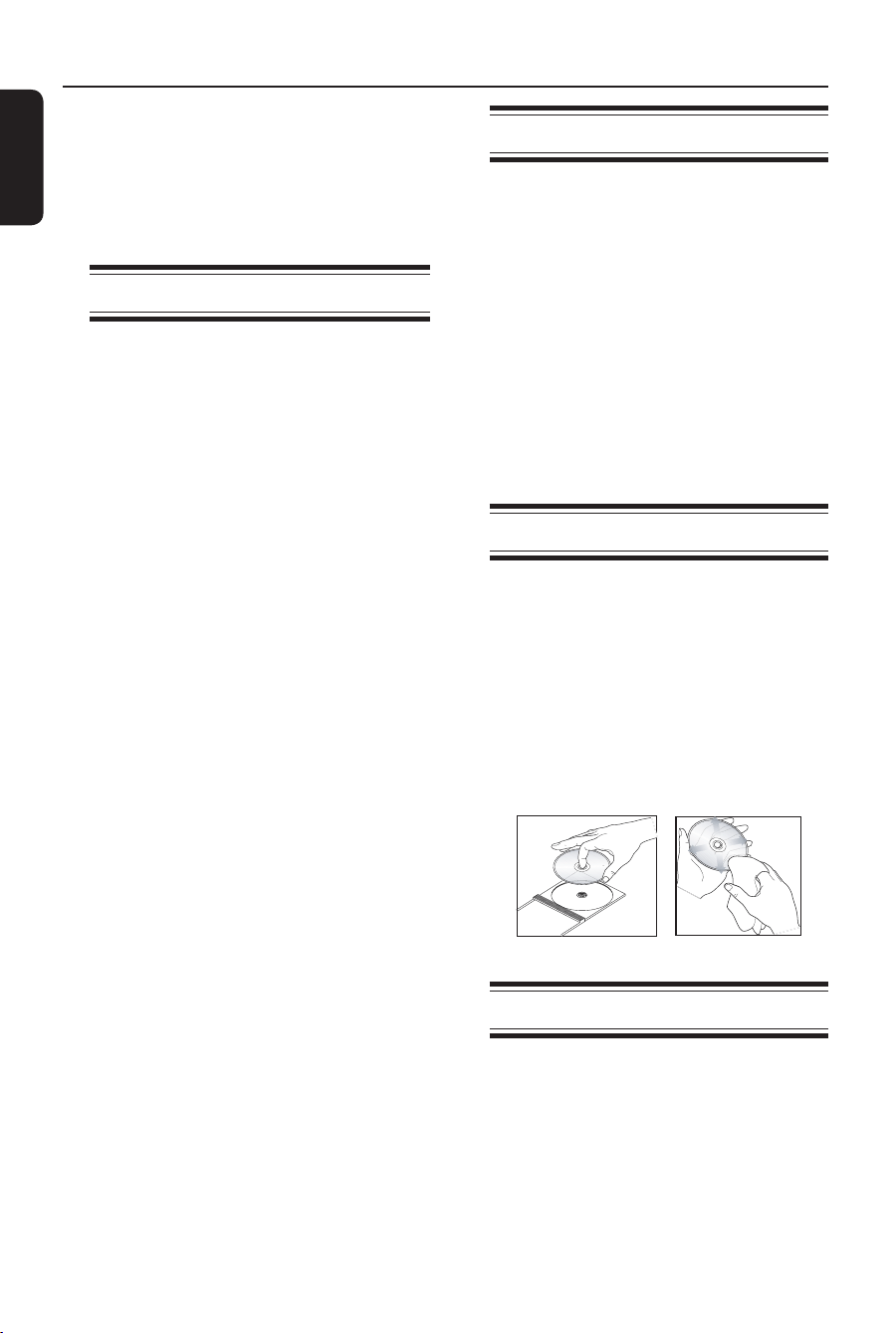
Cleaning discs
CAUTION!
Risk of damage to discs! Never use
solvents such as benzene, thinner,
cleaners available commercially, or anti-
static sprays intended for discs.
Wipe the disc with a micro bre cleaning
cloth from the centre to the edge in a
straight line movement.
About recycling
This user manual is printed on non-
polluting paper. This unit contains a large
number of materials that can be recycled.
If you are disposing an old equipment,
please take it to a recycling center.
Please observe the local regulations
regarding disposal of packaging materials,
exhausted batteries and old equipment.
1_dvp1120_37_eng 8.indd 81_dvp1120_37_eng 8.indd 8 2008-01-18 1:16:15 PM2008-01-18 1:16:15 PM
English
9
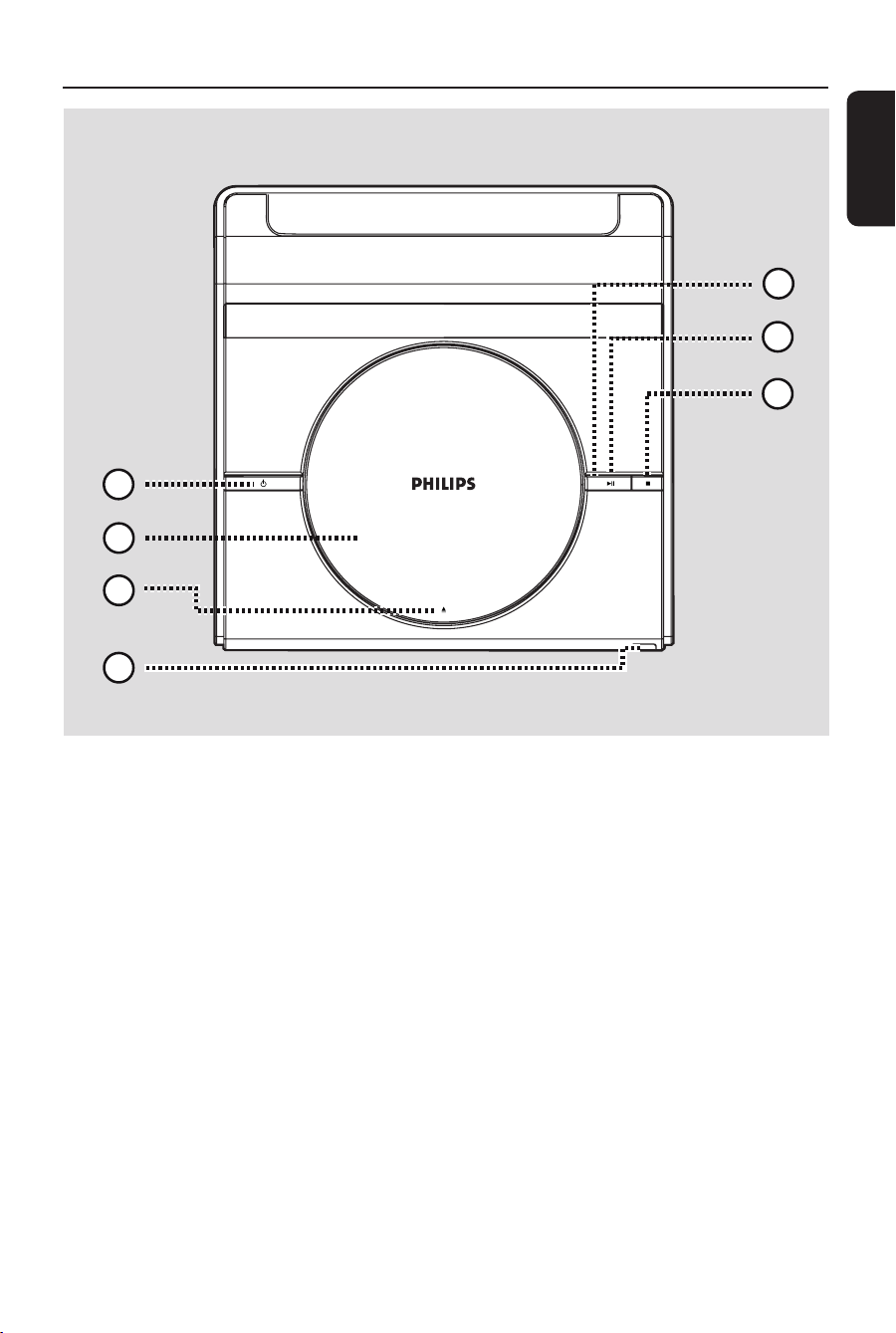
Your DVD Player
a 2 (STANDBY-ON)
– Turns on this unit or turns off to normal
standby mode.
b Disc compartment
c ç (OPEN/CLOSE)
– Opens/closes the disc compartment.
d IR Sensor
– Point the remote control towards this
sensor.
e LED light
– Lights up when disc is playing.
f u (PLAY/PAUSE)
– Starts/pauses playback.
g Ç (STOP)
– Disc: stops playback.
–
4
6
3
1
7
5
2
Top panel view
1_dvp1120_37_eng 8.indd 91_dvp1120_37_eng 8.indd 9 2008-01-18 1:16:15 PM2008-01-18 1:16:15 PM
English
10
Remote Control
SUBTITLE
ZOOM
AUDIO
REPEAT
REPEAT A-B
STOP
PLAY/PAUSE
MUTE
SETUP
TITLE
RETURN
MENU
DISC
DISPLAY
NEXT
PREV
4
3
5
6
7
8
1
2
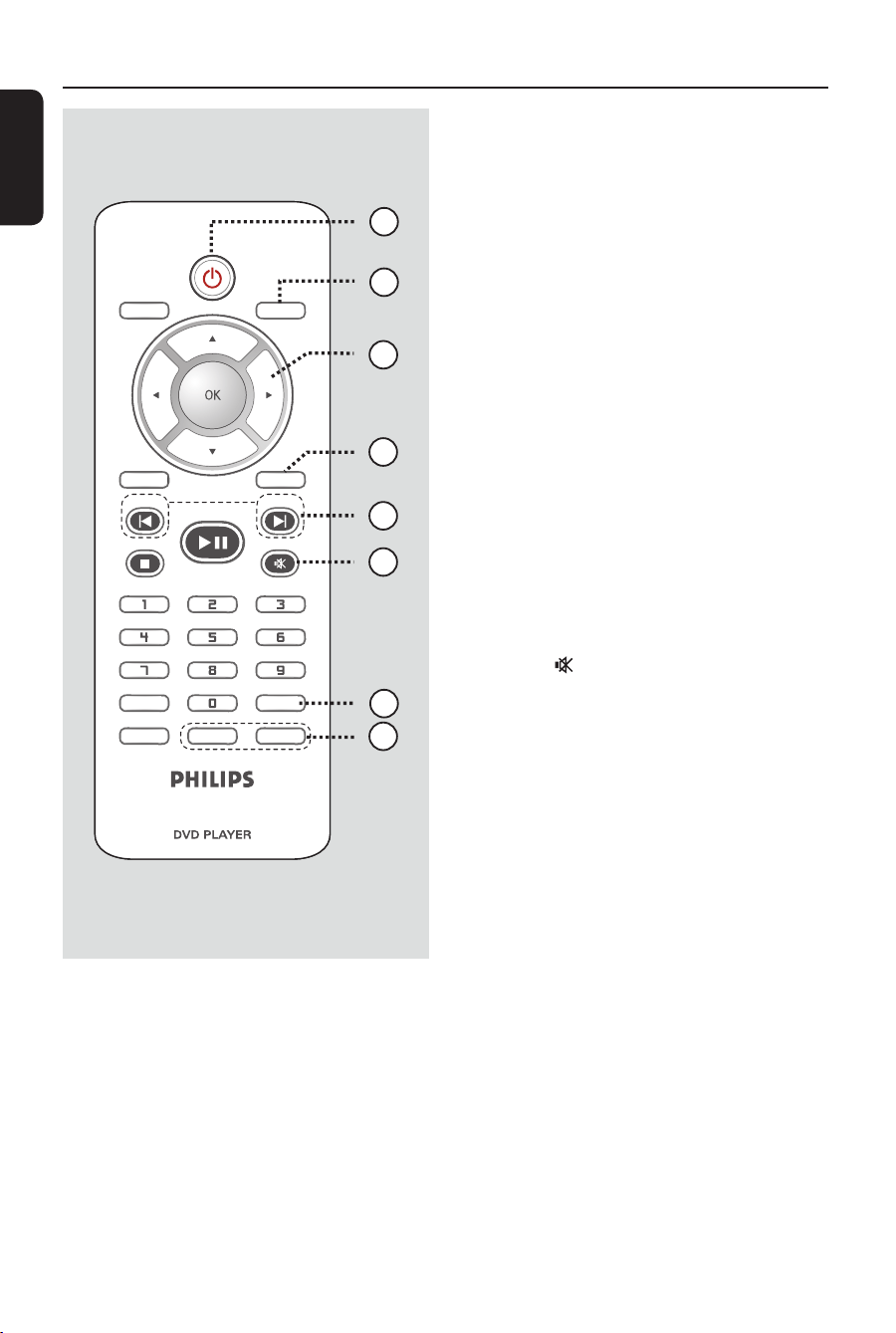
a 2
– Turns on this unit or turns off to normal
standby mode.
b DISPLAY
– Displays the current status or disc
information.
c
– : press up or down for a slow
forward or backward search.
– : press left or right for fast forward
or backward search.
d SETUP
– Enters or exits the disc setup menu.
e PREV í / NEXT ë
– Skips to the previous or next title/
chapter/track.
– Press and hold this button for fast
forward or backward search.
f MUTE
– Mutes or restores the volume.
g AUDIO
– Selects an audio language or channel.
h REPEAT
– Selects various repeat modes; turns off
repeat mode.
REPEAT A-B
– Repeat playback a speci c section on a
disc.
1_dvp1120_37_eng 8.indd 101_dvp1120_37_eng 8.indd 10 2008-01-18 1:16:15 PM2008-01-18 1:16:15 PM
English
11
SUBTITLE
ZOOM
AUDIO
REPEAT
REPEAT A-B
STOP
PLAY/PAUSE
MUTE
SETUP
TITLE
RETURN
MENU
DISC
DISPLAY
NEXT
PREV
9
16
11
12
15
13
14
10
Remote Control (continued)
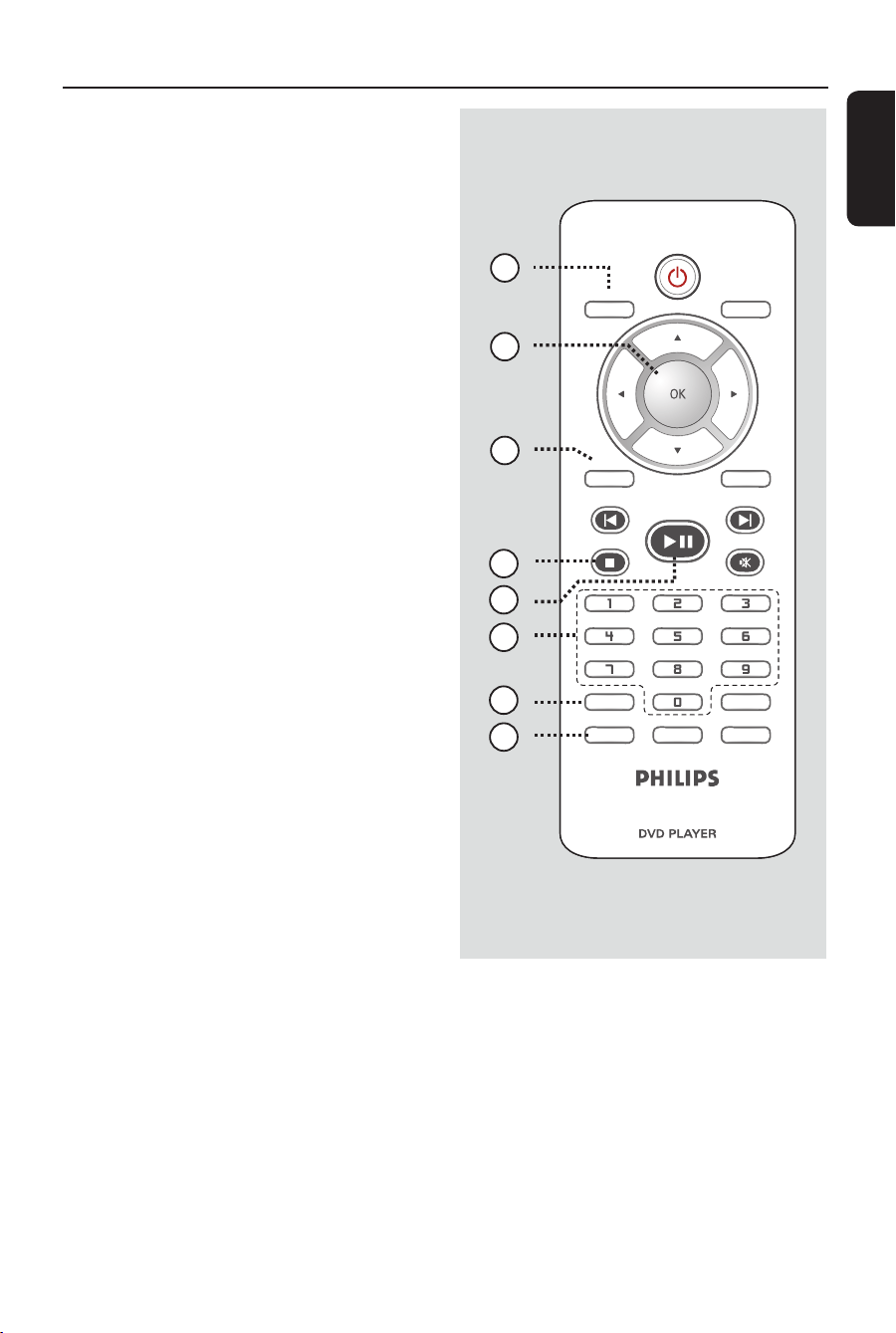
i
DISC MENU
– Enters or exits disc contents menu.
– For VCD 2.0 and SVCD, switches on or
off the playback control mode.
j OK
– Con rms an entry or selection.
k RETURN/TITLE
– Returns to the previous menu or shows
title menu
l STOP
Ç
– Stops playback.
m PLAY/PAUSE u
– Starts or pauses playback.
n Numeric keypad 0-9
– Selects a track or chapter number of the
disc.
o SUBTITLE
– Selects a DVD subtitle language.
p ZOOM
– Zoom the picture on the TV.
1_dvp1120_37_eng 8.indd 111_dvp1120_37_eng 8.indd 11 2008-01-18 1:16:16 PM2008-01-18 1:16:16 PM
English
12
Remote Control (continued)
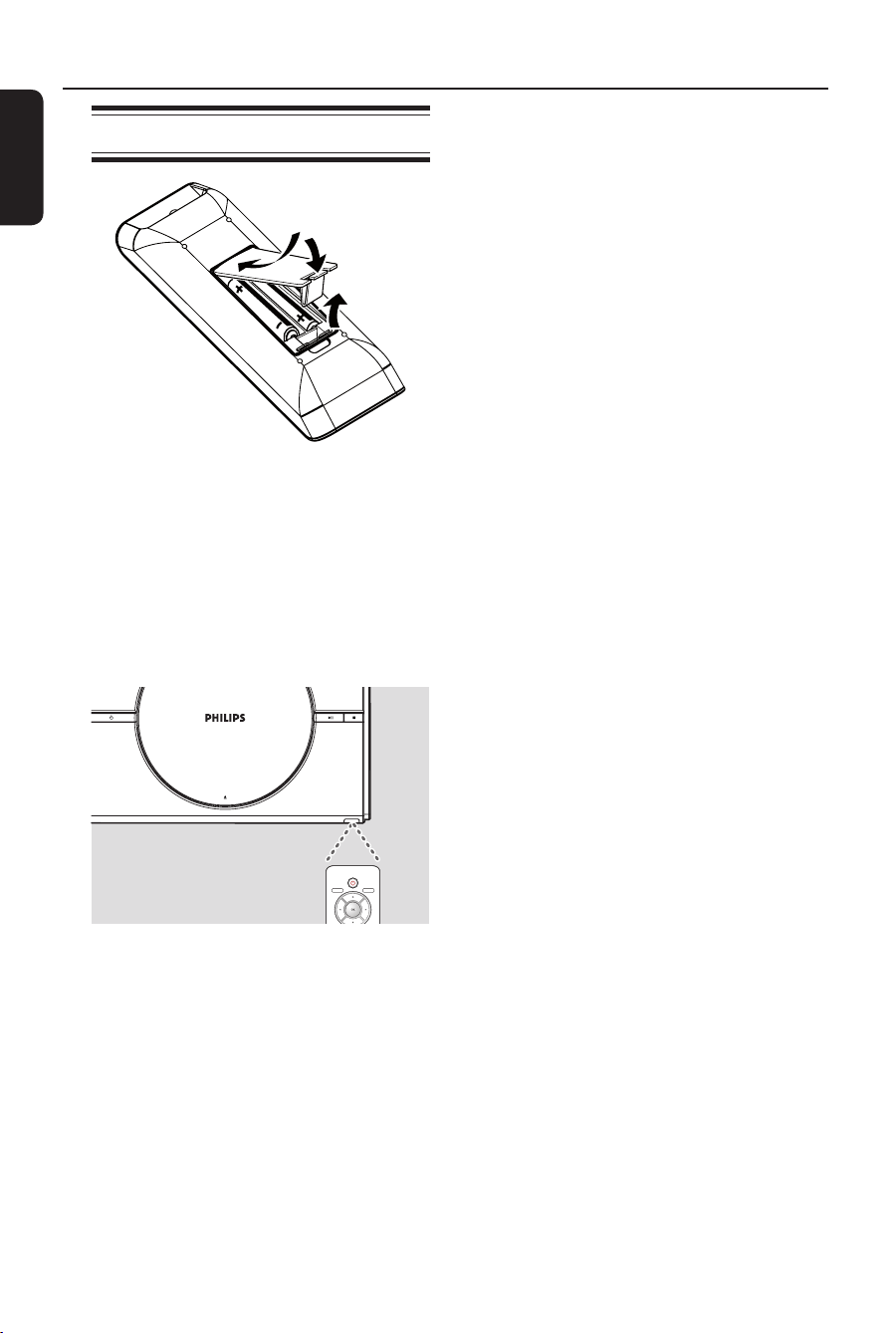
Using the remote control
A Open the battery compartment.
B Insert two batteries type R03 or AAA,
following the indications (+-) inside
the compartment.
C Close the cover.
D Point the remote control directly at the
remote sensor (IR) on the front panel.
MENU
DISC
DISPLAY
Note:
Never place any objects between the
remote control and this unit while
operating.
E Select the desired function (for example
u).
CAUTION!
– Remove batteries if they are
exhausted or if the remote control
is not to be used for a long time.
– Never mix batteries (old and new
or carbon and alkaline, etc.).
– Batteries contain chemical
substances; they should be disposed
of properly.
1_dvp1120_37_eng 8.indd 121_dvp1120_37_eng 8.indd 12 2008-01-18 1:16:17 PM2008-01-18 1:16:17 PM
English
13
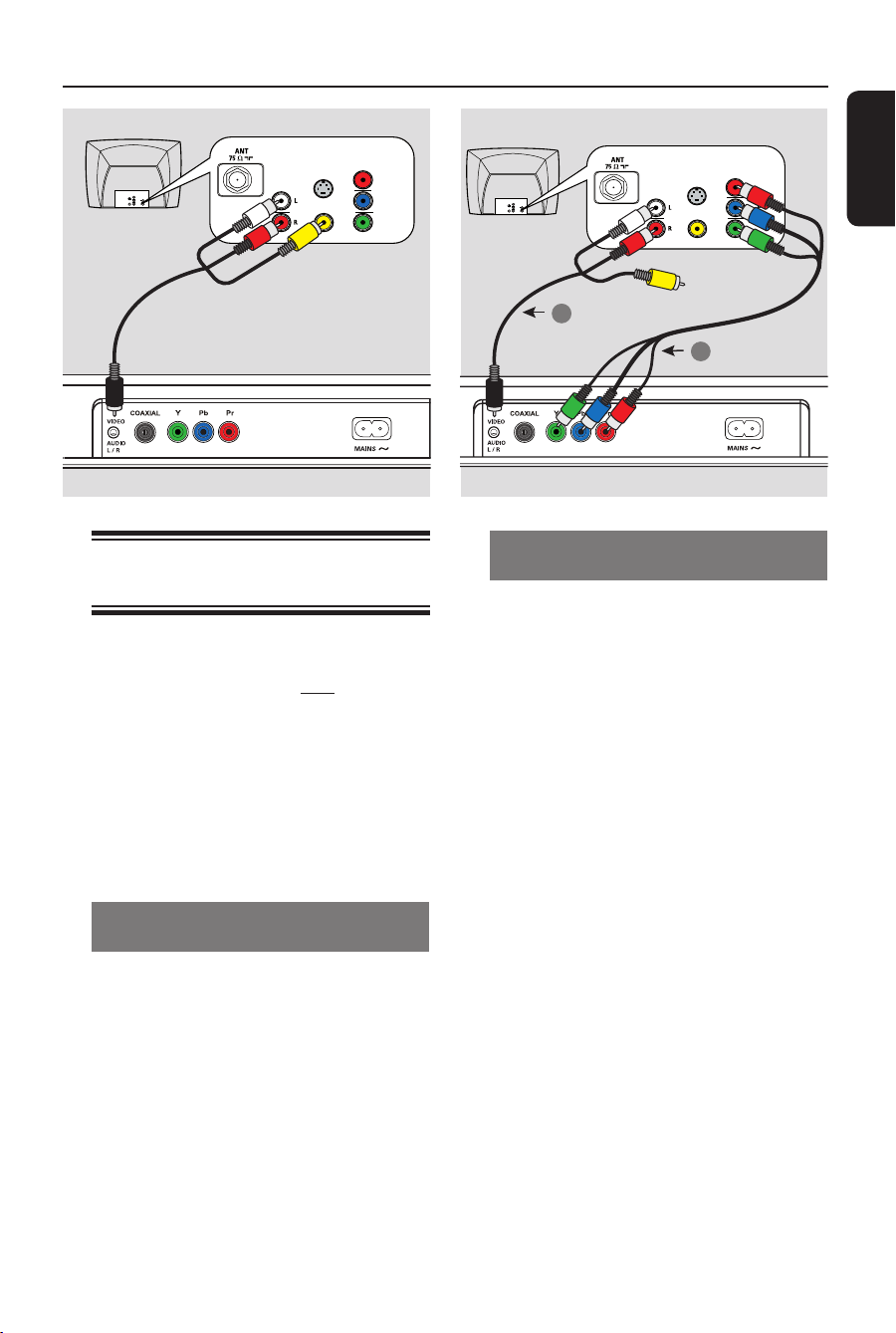
Option 2: Using Component Video
jacks (Y Pb Pr)
You can connect this unit to a TV
through the component video cables
which provides superior picture quality.
The progressive scan video quality is only
available when using Y Pb Pr connection
and a progressive scan TV is required.
A Connect the component video cables
(red/blue/green - not supplied) from the
Y Pb Pr jacks on this unit to the
corresponding component video input
jacks (or labeled as Y Pb/Cb Pr/Cr or
YUV) on your TV.
B Connect the audio/video cables (supplied)
from the VIDEO AUDIO L/R jack on
this unit to the Audio In jacks (red/white)
on your TV. Leave the yellow video plug
disconnected.
C Proceed to ‘Getting Started - Setting up
Progressive Scan feature’ for detailed
progressive feature setup.
Basic Connections
Step 1: Connecting to
television
This connection enables you to view the
video playback from this unit.
You only need to choose one of the
options below to make the video
connection.
– For a standard TV, follow option 1.
– For a progressive scan TV, follow
option 2.
– For TV with only a single antenna
input jack, follow option 3.
Option 1: Using Composite Video
jacks (CVBS)
You can connect this unit to a TV
through the composite video cable which
provides good picture quality.
Connect the audio/video cables (supplied)
from the VIDEO AUDIO L/R jack on
this unit to the video input jack (yellow)
and Audio In jacks (red/white) on your
TV.
AUDIO
IN
V (Pr/Cr)
U (Pb/Cb)
Y
S-VIDEO
IN
VIDEO IN
COMPONENT
VIDEO IN
AUDIO
OUT
V (Pr/Cr)
U (Pb/Cb)
Y
S-VIDEO
IN
VIDEO IN
TV
COMPONENT
VIDEO IN
2
1
Video
Audio
AUDIO
IN
V (Pr/Cr)
U (Pb/Cb)
Y
S-VIDEO
IN
VIDEO IN
COMPONENT
VIDEO IN
AUDIO
OUT
V (Pr/Cr)
U (Pb/Cb)
Y
S-VIDEO
IN
VIDEO IN
TV
COMPONENT
VIDEO IN
Video
(yellow plug)
Audio
(red/white plugs)
DVD Player (back)
1_dvp1120_37_eng 8.indd 131_dvp1120_37_eng 8.indd 13 2008-01-18 1:16:17 PM2008-01-18 1:16:17 PM
English
14
TV
Antenna
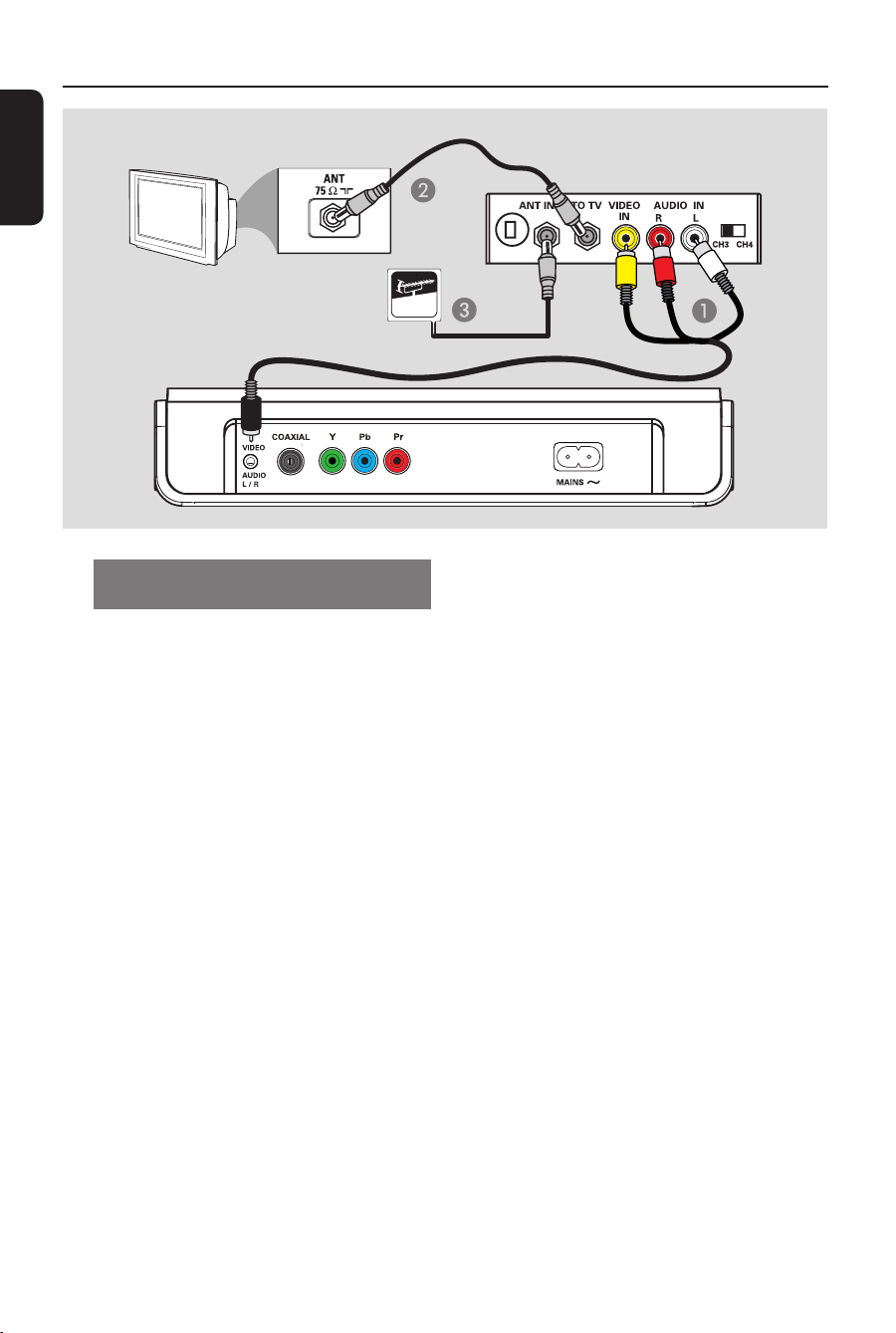
Option 3: Using an accessory
RF modulator
Use this connection if your TV has only a
single Antenna Input jack (labeled as
75 ohm or RF In).
A Connect the audio/video cables (supplied)
from the VIDEO AUDIO L/R jack on
this unit to the video input jack (yellow)
and Audio In jacks (red/white) on the RF
modulator.
B Connect a RF coaxial cable (not supplied)
from the ANTENNA OUT or TO TV
jack on the RF modulator to the
ANTENNA IN jack on your TV.
C Connect the Antenna or Cable TV
service signal (not supplied) to the
ANTENNA IN or RF IN jack on the RF
modulator. (It may have been connected
to your TV previously. Disconnect it
from the TV.)
Helpful Hint:
– See your electronics retailer for details
about RF modulator availability and
operations.
Basic Connections (continued)
Back of RF Modulator
(example only)
1_dvp1120_37_eng 8.indd 141_dvp1120_37_eng 8.indd 14 2008-01-18 1:16:17 PM2008-01-18 1:16:17 PM
English
15
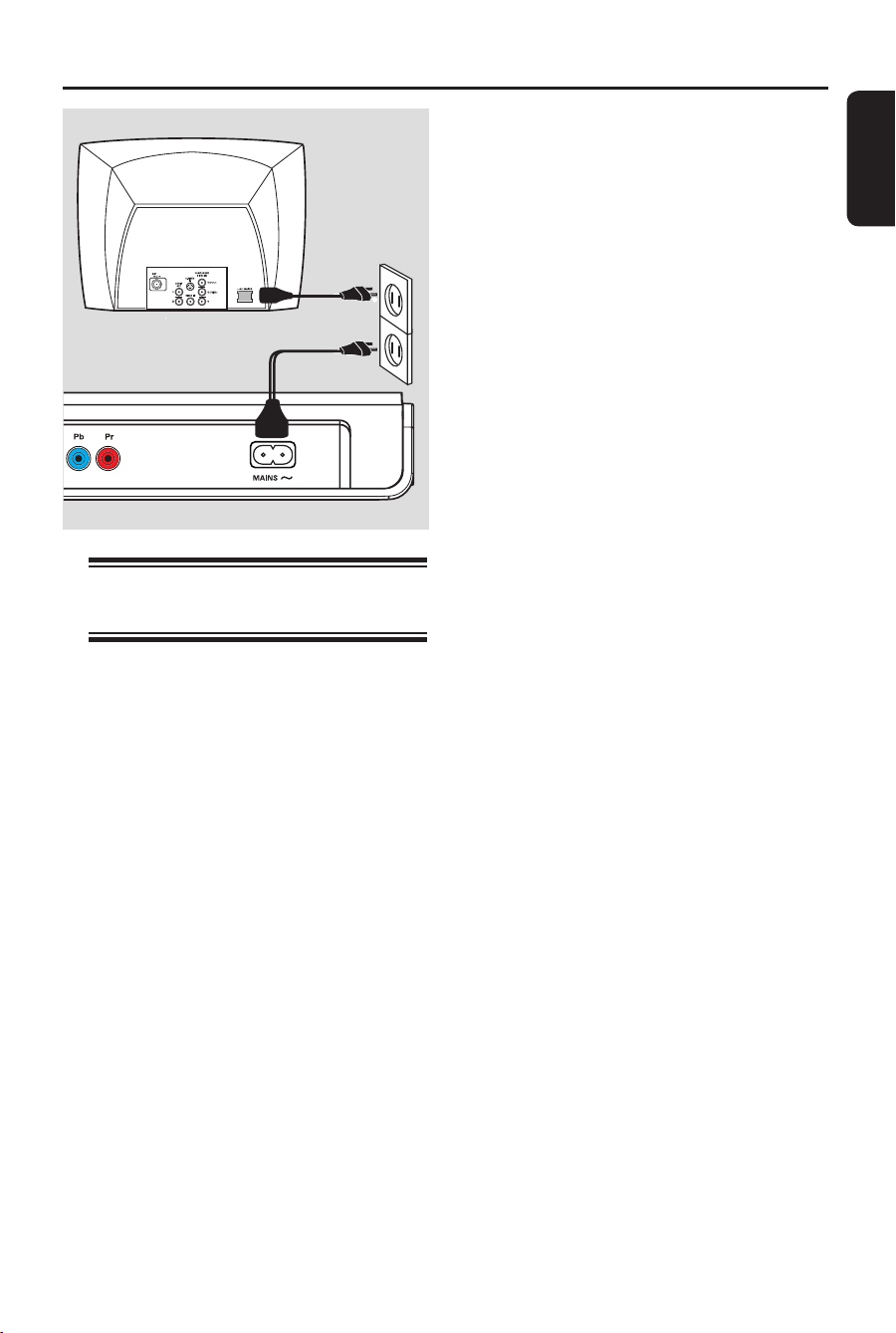
Step 2: Connecting the
power cord
After everything is connected
properly, plug the AC power cord
into the power outlet.
Never make or change any connections
with the power turned on.
Helpful Hint:
– Refer to the type plate at the rear or
bottom of the product for identi cation and
supply ratings.
Basic Connections (continued)
DVD Player (back)
1_dvp1120_37_eng 8.indd 151_dvp1120_37_eng 8.indd 15 2008-01-18 1:16:17 PM2008-01-18 1:16:17 PM
English
16
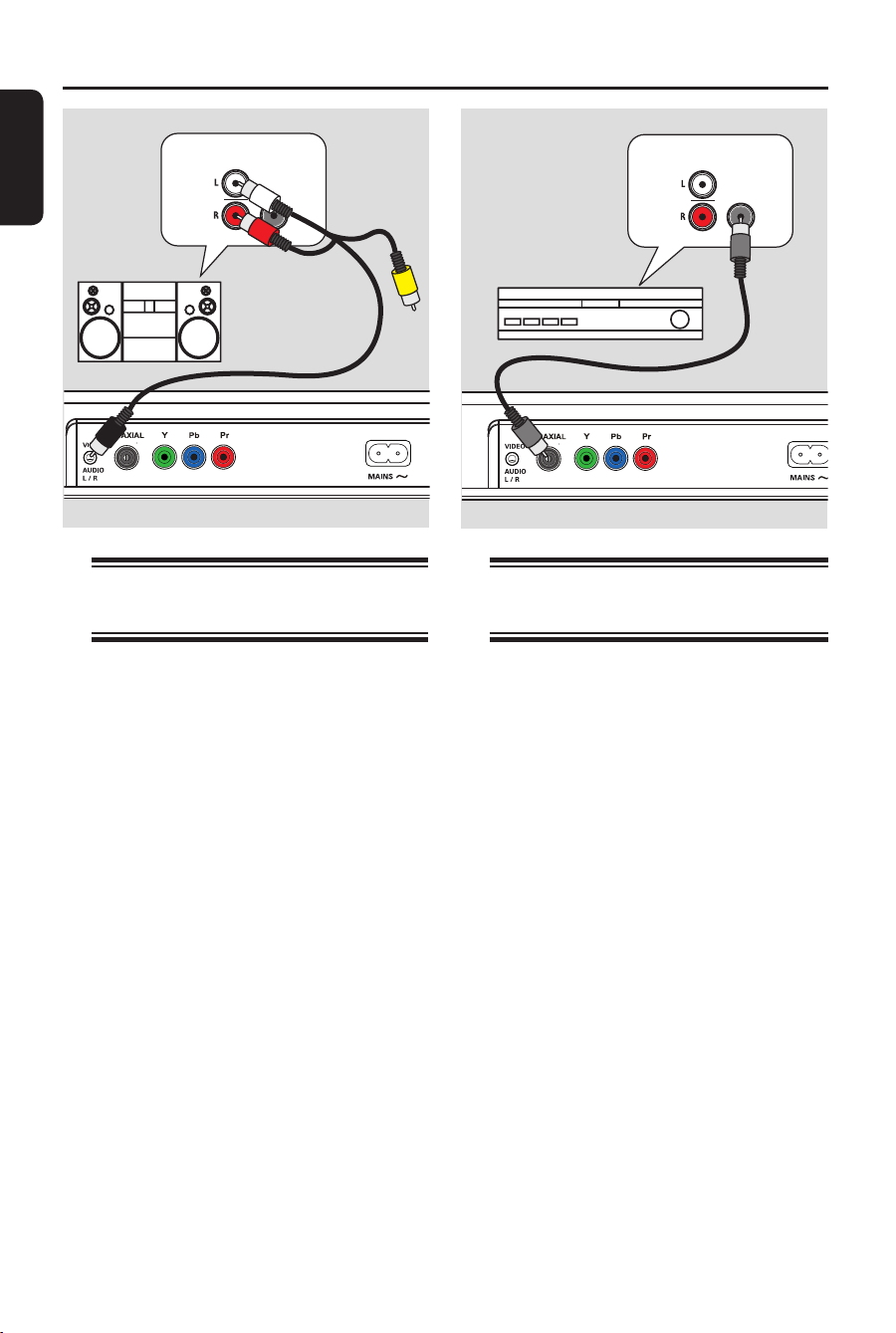
Connecting to an Analog
Stereo System
You can connect this unit to a two
channel stereo system (e.g. mini system,
analog receiver) in order to enjoy stereo
sound output.
A Connect the audio/video cables
(supplied) from the VIDEO AUDIO
L/R jack on this unit to the Audio In
jacks (red/white) on your connecting
device. Leave the yellow video plug
disconnected.
B
For video connection, see ‘Basic
Connections - Step 1: Connecting to
television’ for details.
Helpful Hint:
– See ‘Setup Menu Options - Audio Menu’
for optimum audio settings.
Optional Connections
Connecting to a Digital AV
Ampli er/Receiver
You can connect this unit to an AV
ampli er/receiver in order to enjoy
quality sound.
A Connect a coaxial cable (not supplied)
from the COAXIAL jack on this unit to
the digital coaxial input jack of the
connected device.
B
For video connection, see ‘Basic
Connections - Step 1: Connecting to
television’ for details.
Helpful Hint:
– You have to set the appropriate Digital
Audio Output setting. Otherwise, no sound or
interference may occur. See ‘Setup Menu
Options - Audio Menu - Digital Output’ for
details.
AV Receiver
AUDIO
IN
DIGITAL
STEREO
AUDIO
IN
DIGITAL
Audio
(red/white plugs)
1_dvp1120_37_eng 8.indd 161_dvp1120_37_eng 8.indd 16 2008-01-18 1:16:17 PM2008-01-18 1:16:17 PM
English
17
Finding the correct viewing
channel
A Press 2 to turn on this unit.
B Turn on the TV and switch it to the
correct video-in channel. You should see
the blue DVD background screen.
You may go to the lowest channel on
your TV, then press the Channel Down
button on your TV remote control until
you see the Video In channel.
You may press
°
button repeatedly
on your TV remote control.
Usually this channel is between the
lowest and highest channels and may be
called FRONT, A/V IN, VIDEO, etc..
If you are using a RF modulator, set
the TV to channel 3 or 4.
Refer to your TV user manual on how
to select the correct input on your TV.
C If you are using external device, (such as
audio system or receiver), turn it on and
select the appropriate input source for
this unit output. Refer to the device
user’s manual for detail.
Getting Started
Setting language preferences
The language options are different
depending on your country or region. It
may not correspond to the illustrations
shown on the user manual.
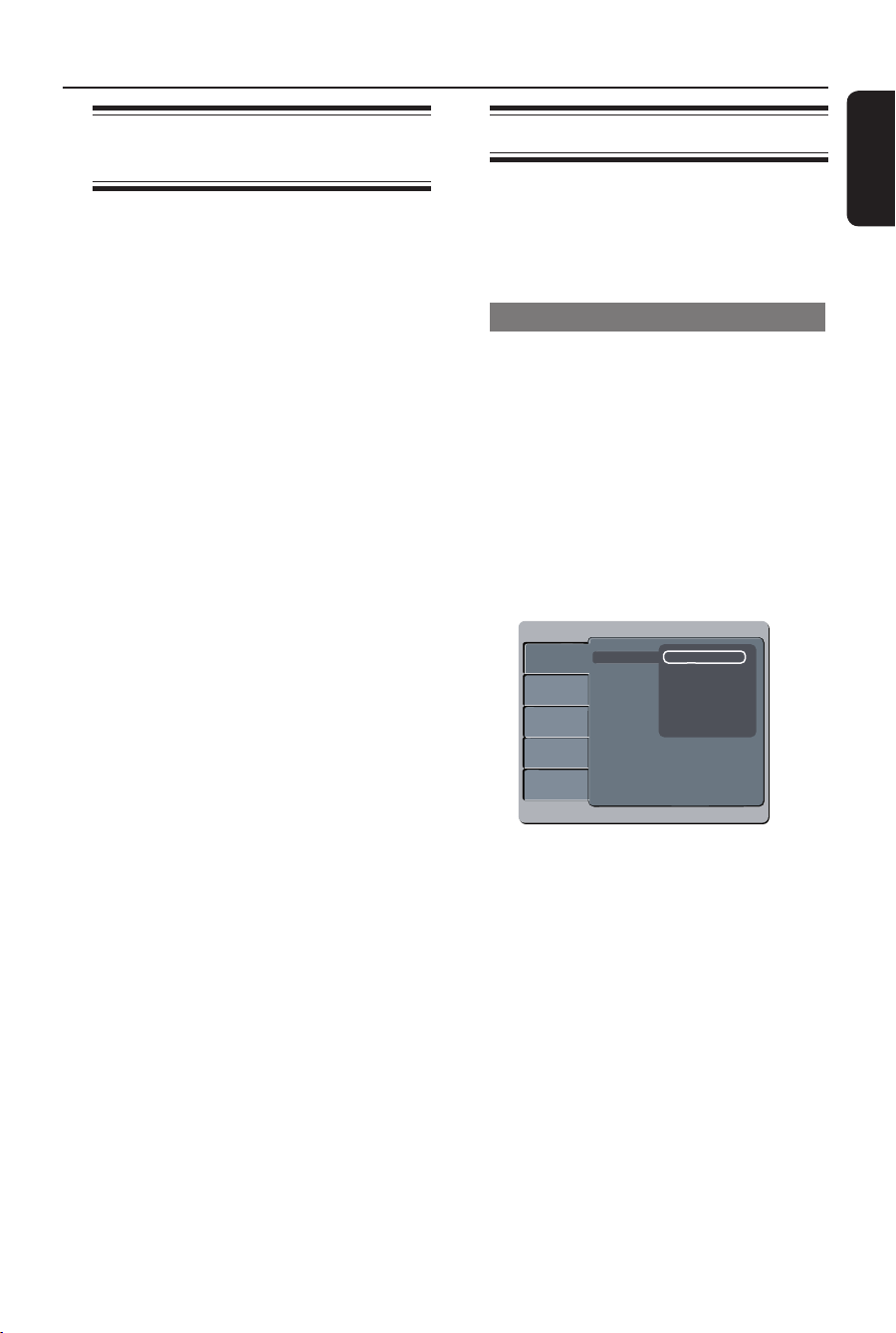
On-screen display (OSD) language
Select this to change the language of the
On screen display menu of this unit.
The menu language will remain once you
have set it.
A Press SETUP on the remote control.
B Move to { Language } in the menu and
press .
C Use keys to select { OSD
Language } in the menu and press .
Language
Video
Audio
Rating
Misc
Audio
DVD menu
OSD language English
Subtitle Français (Canada)
Español mexic.
D Select a language and press OK to
con rm.
1_dvp1120_37_eng 8.indd 171_dvp1120_37_eng 8.indd 17 2008-01-18 1:16:17 PM2008-01-18 1:16:17 PM
English
18
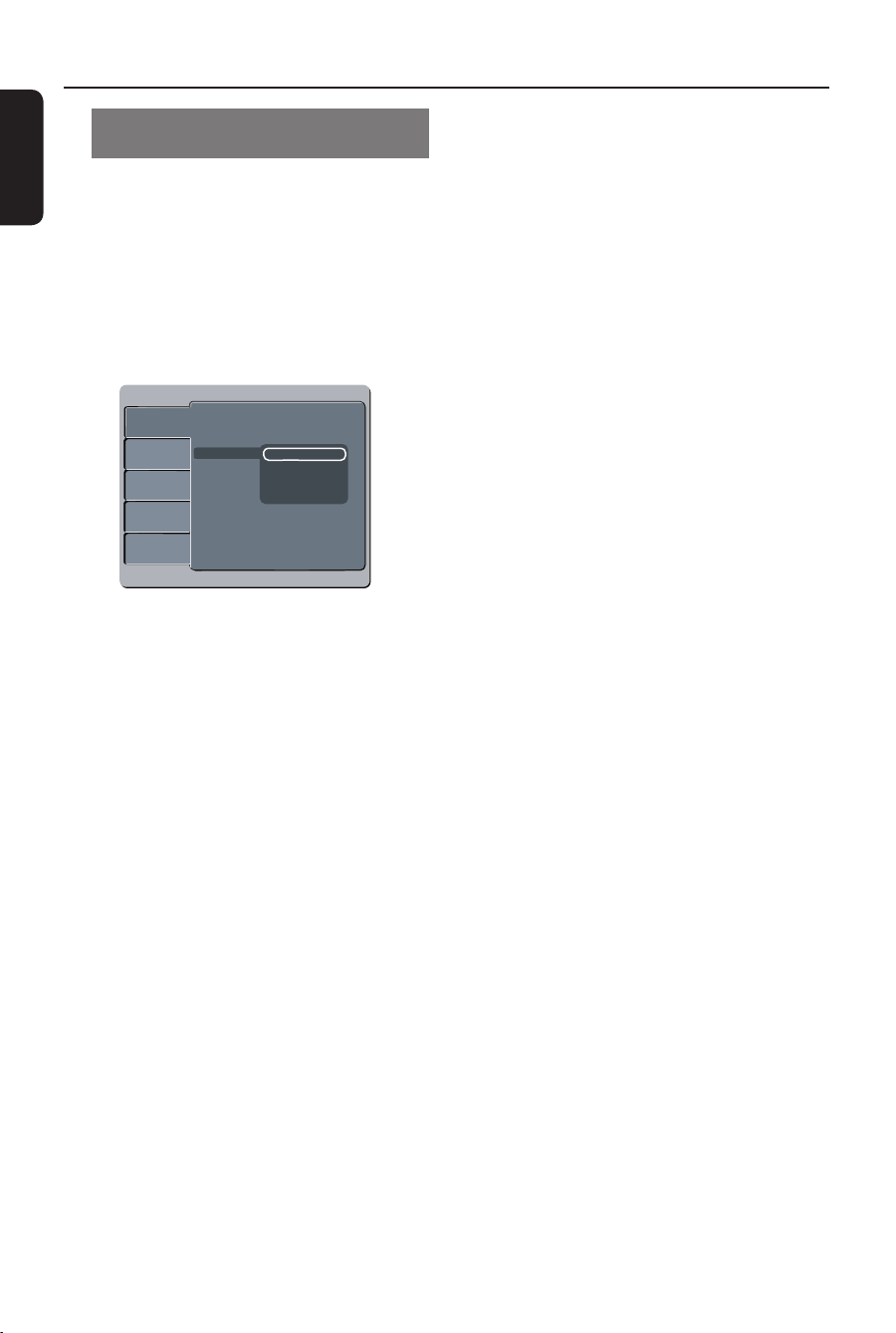
Subtitle, Audio and Menu language
for DVD playback
You can select your preferred language
settings for DVD playback. If the selected
language is not available on the disc, the
disc’s default language is used instead.
A Press SETUP on the remote control.
B Move to { Language } in the menu and
press .
Language
Video
Audio
Rating
Misc
OSD language
: English
Subtitle
: Auto
DVD menu
Audio
English
French
Spanish
C Use keys to select one of the
options below and press .
{ Subtitle }
Select this to change the subtitle
language.
{ Audio }
Select this to change disc sound track
language.
{ DVD menu }
Select this to change the language of the
disc menu.
Getting Started (continued)
D Use keys to select a language and
press OK to con rm.
E Repeat steps C - D for other language
settings.
1_dvp1120_37_eng 8.indd 181_dvp1120_37_eng 8.indd 18 2008-01-18 1:16:18 PM2008-01-18 1:16:18 PM
English
19
Getting Started (continued)
Setting up Progressive Scan
feature
(for Progressive Scan TV only)
The progressive scan displays twice the
number of frames per second than
interlaced scanning (ordinary normal TV
system). With nearly double the number
of lines, progressive scan offers higher
picture resolution and quality.
Before you start...
– Ensure that you have connected this
unit to a progressive scan TV using the
Y Pb Pr connection (see ‘Option 2: Using
Component Video jacks (Y Pb Pr)’ ).
A Turn on the TV to the correct viewing
channel for this unit.
Make sure that the TV progressive
scan mode is turned off (or set to
interlaced mode). Refer to your TV user
manual.
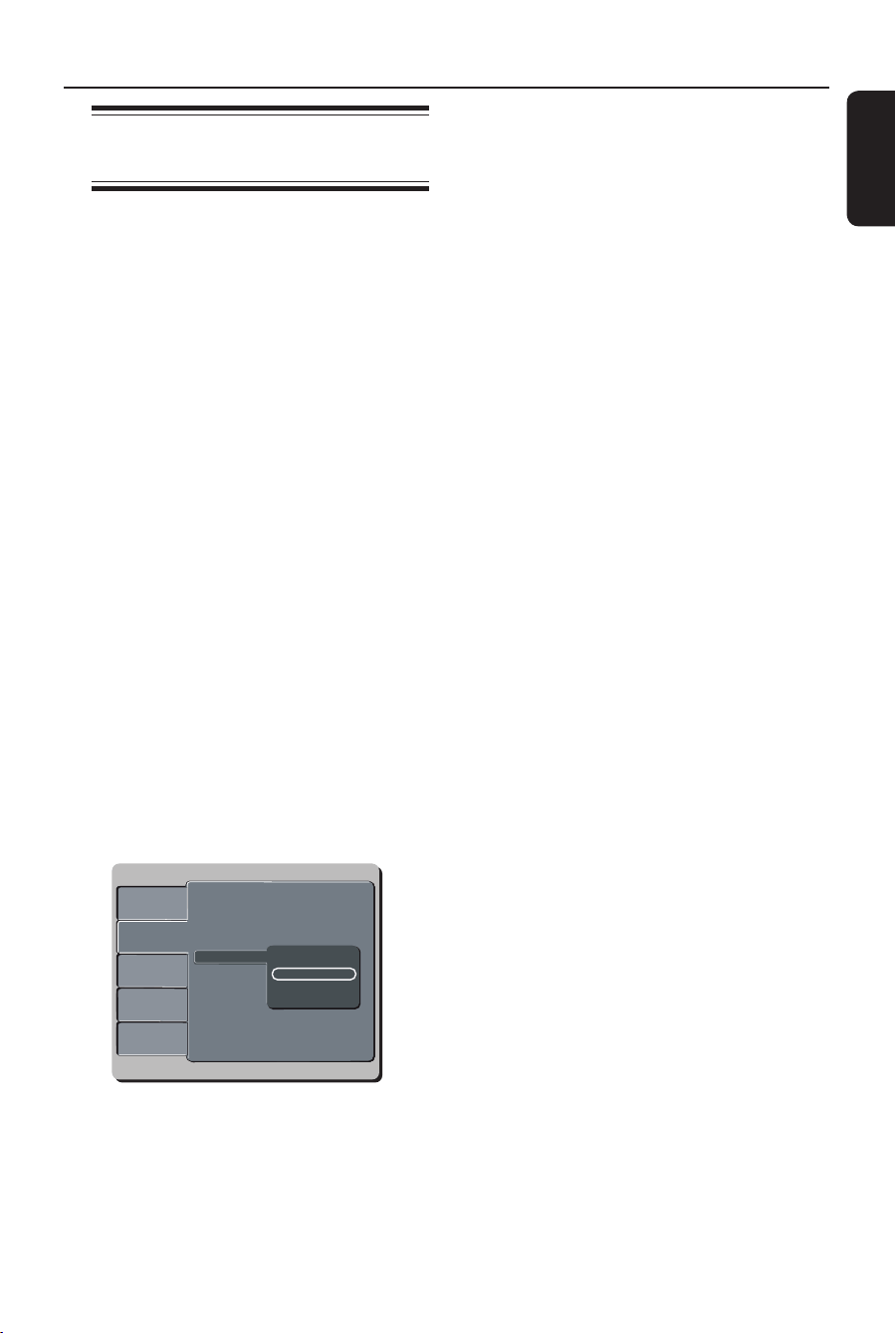
B Turn on this unit and press SETUP on
the remote control.
C Use keys to select { Video } menu
and press .
D Move to { Video Out } in the menu and
press .
Aspect Ratio : 4:3
View Mode : Auto Fit
TV System : NTSC
Smart Picture :
Language
Video
Audio
Misc
Rating
Video Out
Interlaced
P-Scan
E Select { P-Scan } and press OK to
con rm.
Read the noti cation message on the
TV.
F Use to select { Yes } in the menu
and press OK to con rm.
There will be no picture on your TV
at this state until you have turned
on the progressive scan mode on
your TV.
G Turn on your TV progressive scan mode.
(refer to your TV user manual.)
A message appears on the TV.
H Use to select { Yes } in the menu
and press OK to con rm.
The setup is now completed and you
can start to enjoy the high quality picture.
If no picture is displayed
A Press ç on this unit.
B Press numeric keypad ‘1’ on the
remote control.
Helpful Hints:
– If a blank/distorted screen appears, wait
for 15 seconds for the auto recovery.
– There are some progressive scan TV that
are not fully compatible with this unit,
resulting in an unnatural picture when
playing back a DVD VIDEO disc in the
progressive scan mode. In such a case, turn
off the progressive scan feature on this unit
and your TV.
1_dvp1120_37_eng 8.indd 191_dvp1120_37_eng 8.indd 19 2008-01-18 1:16:18 PM2008-01-18 1:16:18 PM
English
20
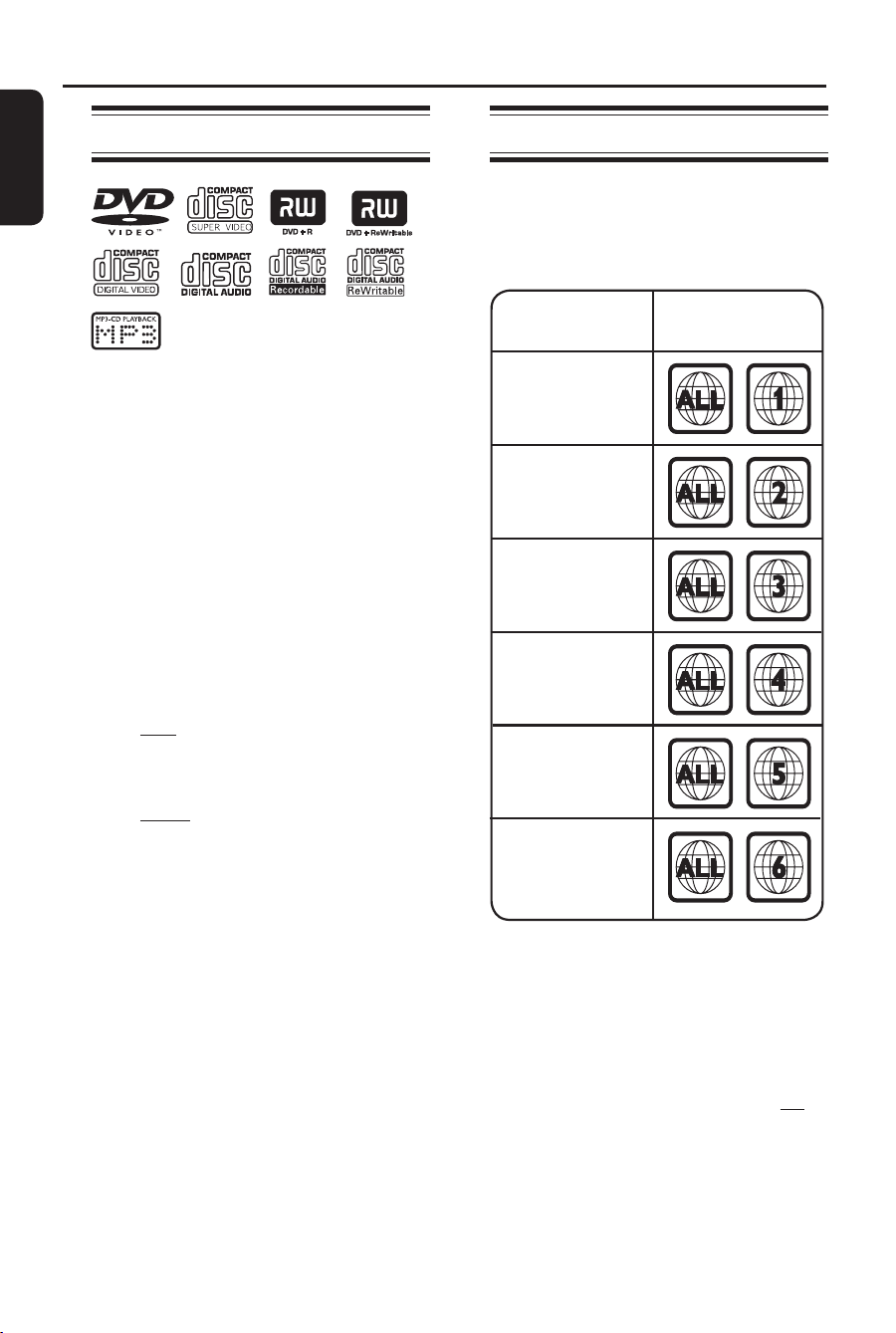
Playable discs
This unit plays:
– Digital Versatile Discs (DVDs)
– Video CDs (VCDs)
– Super Video CDs (SVCDs)
– Finalized DVD Recordable (DVD±R),
DVD Rewritable (DVD±RW)
– Audio Compact Discs (CDs)
– MP3/ WMA discs
– The le extension has to be ‘.mp3’,
‘.wma’
– JPEG/ISO format
– Maximum 15 characters display.
– Supported bit-rate;
MP3
32 kHz 64 – 320 kbps
44.1 kHz, 48 kHz 80 – 320 kbps
WMA
44 kHz 64 – 192 kbps
48 kHz 128 – 192 kbps
– Picture les (Kodak, JPEG) on
CD-R(W)
– The le extension has to be ‘.JPG’
and not ‘.JPEG.’
– JPEG/ISO format
– It can only display DCF-standard
still pictures or JPEG pictures such
as TIFF.
Region codes for DVD discs
DVD discs and players are designed with
regional restrictions. Before playing a disc,
make sure the disc is for the same region
as your player.
Region
U.S.A. and
Canada regions
U.K and
Europe regions
Asia Paci c,
Taiwan, Korea
Australia,
New Zealand,
Latin America
Russia and
India regions
China, Calcos
Islands,
Walls and Futuna
Islands
Discs that can
be played
Helpful Hints:
– Maximum 100 sessions for CD and 10
multi border for DVD are supported.
– For DVD-R and DVD-RW multi border,
only nalized disc are supported.
– For DVD+R and DVD+RW multi border
both nalized and un nalized disc are not
supported.
Disc Operations
1_dvp1120_37_eng 8.indd 201_dvp1120_37_eng 8.indd 20 2008-01-18 1:16:18 PM2008-01-18 1:16:18 PM

English
21
Notes:
– If the inhibit icon
appears on
the TV when a button is pressed, it
means the function is not available
on the current disc or at the current
time.
– Never put any objects other than
discs in the disc compartment.
Doing so may cause the disc player
to malfunction.
Playing a disc
A Press 2 to turn on this unit.
B Turn on the TV to the correct viewing
channel for this unit.
C Press ç to open the disc compartment.
D Insert a disc into the disc compartment
and press ç.
Make sure the disc label is facing
towards you.
E Playback starts automatically.
If not, press u.
See the following pages for more
playback options and features.
Helpful Hints:
– If you are having trouble playing a certain
disc, remove the disc and try a different one.
Improperly formatted discs cannot be played
on this unit.
– Some discs cannot be played on this
player due to the con guration and
characteristics of the disc, or due to the
condition of recording and authoring software
that was used.
Disc Operations (continued)
Basic playback controls
Pausing playback
During playback, press PLAY/PAUSE
u.
To resume playback, press
PLAY/PAUSE u.
Selecting another track/chapter/
title
Press PREVí / NEXT ë or use the
numeric keypad 0-9 to enter a track/
chapter/title number.
If the repeat track mode is active,
press PREVí again to replay the same
track/chapter/title.
Searching backward/forward
Press and hold PREVí / NEXT ë.
While searching, press /
repeatedly to select different search
speed (2X, 4X, 8X, 16X, 32X).
To resume normal playback, press
PLAY/PAUSE u.
Playing in slow motion mode
(not applicable for CD, WMA, MP3)
During playback, press / to start
slow motion play.
Sound will be muted. Press /
repeatedly to select different play speed
(1/2, 1/4, 1/8, 1/16).
To resume normal playback, press
PLAY/PAUSE u.
Stopping playback
Press STOP x.
1_dvp1120_37_eng 8.indd 211_dvp1120_37_eng 8.indd 21 2008-01-18 1:16:20 PM2008-01-18 1:16:20 PM

English
22
Disc Operations (continued)
Helpful Hints:
– This unit has resume playback ability (for
certain type of disc). In this case, if you want
to playback from the beginning, press
PREV
í
while the message ‘Play from start,
press [ PREV ]’ appears on the TV.
– This is a power-saving feature, this unit
automatically switches to low power standby
mode if you do not press any buttons within
15 minutes after a disc has stopped playing.
– Screen saver starts automatically if the
disc playback is stopped for about 5 minutes.
Selecting various repeat
functions
The repeat play options mode varies
depending on the disc type.
While playing a disc, press REPEAT on
the remote control repeatedly to choose
a repeat play mode.
DVD
Chapter (repeat current chapter)
Title (repeat current title)
Off (exit repeat mode)
VCD/SVCD/CD
Single (repeat current track)
All (repeat entire disc)
Off (exit repeat mode)
MP3/JPEG/WMA
Single (repeat current le)
All (repeat all les in the current
folder)
Off (exit repeat mode)
To cancel repeat play mode, press
REPEAT repeatedly until ‘Off’ appears
or press STOP x twice.
Helpful Hint:
– Repeat playback is not possible on VCDs
or SVCDs when the PBC mode is turned on.
1_dvp1120_37_eng 8.indd 221_dvp1120_37_eng 8.indd 22 2008-01-18 1:16:21 PM2008-01-18 1:16:21 PM
English
23
Repeating a speci c segment (A-B)
You can repeat the playback of a speci c
segment within a title/chapter/track. To
do this, you must mark the start and end
of the segment you want.
A During playback, press REPEAT A-B at
the point where you want the repeat
playback to begin.
B Press REPEAT A-B again at the point
where you want to end the repeat
playback.
Playback skips to the start of the
marked segment. The segment is
repeated until the repeat mode is
cancelled.
C To cancel repeat playback, press
REPEAT A-B again.
Other playback features for
video discs
SUBTITLE
ZOOM
AUDIO
REPEAT
REPEAT A-B
STOP
PLAY/PAUSE
MUTE
SETUP
TITLE
RETURN
MENU
DISC
DISPLAY
NEXT
PREV
REPEAT
SETUP
DISPLA
Y
AUDIO
ZOOM
SUBTITLE
RETURN/
TITLE
DISC MENU
Note:
The operating features described here
might not be possible for certain discs.
Always refer to the instructions supplied
with the discs.
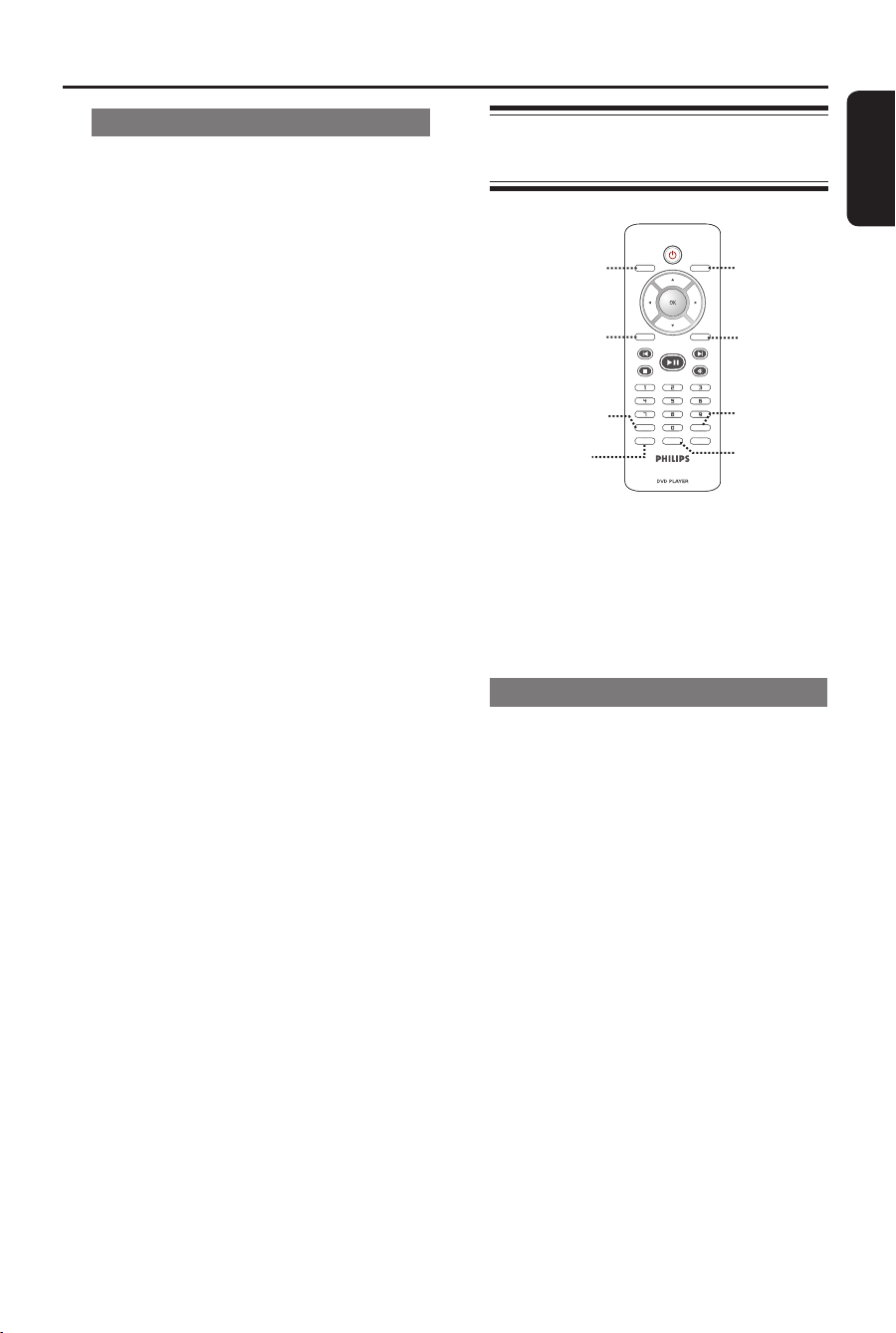
Using the Disc Menu
Depending on the disc, a menu may
appear on the TV once you load in the
disc.
To select a playback feature or item
Use keys or numeric keypad
0-9 on the remote control, then press
OK to start playback.
To access or remove the menu
Press DISC MENU on the remote
control.
Disc Operations (continued)
1_dvp1120_37_eng 8.indd 231_dvp1120_37_eng 8.indd 23 2008-01-18 1:16:21 PM2008-01-18 1:16:21 PM

English
24
Changing sound track language
This operation works only on DVDs with
multiple sound track languages, or SVCDs
with multiple audio channels.
For DVD
Press AUDIO repeatedly to select the
available audio languages.
For VCD (changing the audio
channel)
Press AUDIO repeatedly to select the
available audio channels provided by the
disc (LEFT, RIGHT, MIX, STEREO).
Changing subtitle language
This operation works only on DVDs with
multiple subtitle languages. You can
change to your desired language during
playback.
Press SUBTITLE repeatedly to select
different subtitle languages.
Zooming
This option allows you to zoom and to
pan through the picture on the TV.
A During playback, press ZOOM
repeatedly to select a different zoom
factor.
Playback continues.
B Use keys to pan through the
enlarged picture.
C Press ZOOM repeatedly to return to
the original size.
Playback Control (VCD/SVCD)
Playback Control (PBC) playback allows
you to play Video CDs interactively,
following the menu on the display.
For VCDs with PBC feature
(version 2.0 only) and SVCDs
Press DISC MENU to turn on or off
the PBC mode.
If the PBC mode is turned on, the disc
menu (if available) appears on the TV.
If the PBC mode is turned off, it skips
the disc menu and playback from the rst
track.
If the PBC mode is turned on, pressing
RETURN/TITLE during playback will
return to the disc title menu or main
menu.
Disc Operations (continued)
1_dvp1120_37_eng 8.indd 241_dvp1120_37_eng 8.indd 24 2008-01-18 1:16:21 PM2008-01-18 1:16:21 PM
English
25
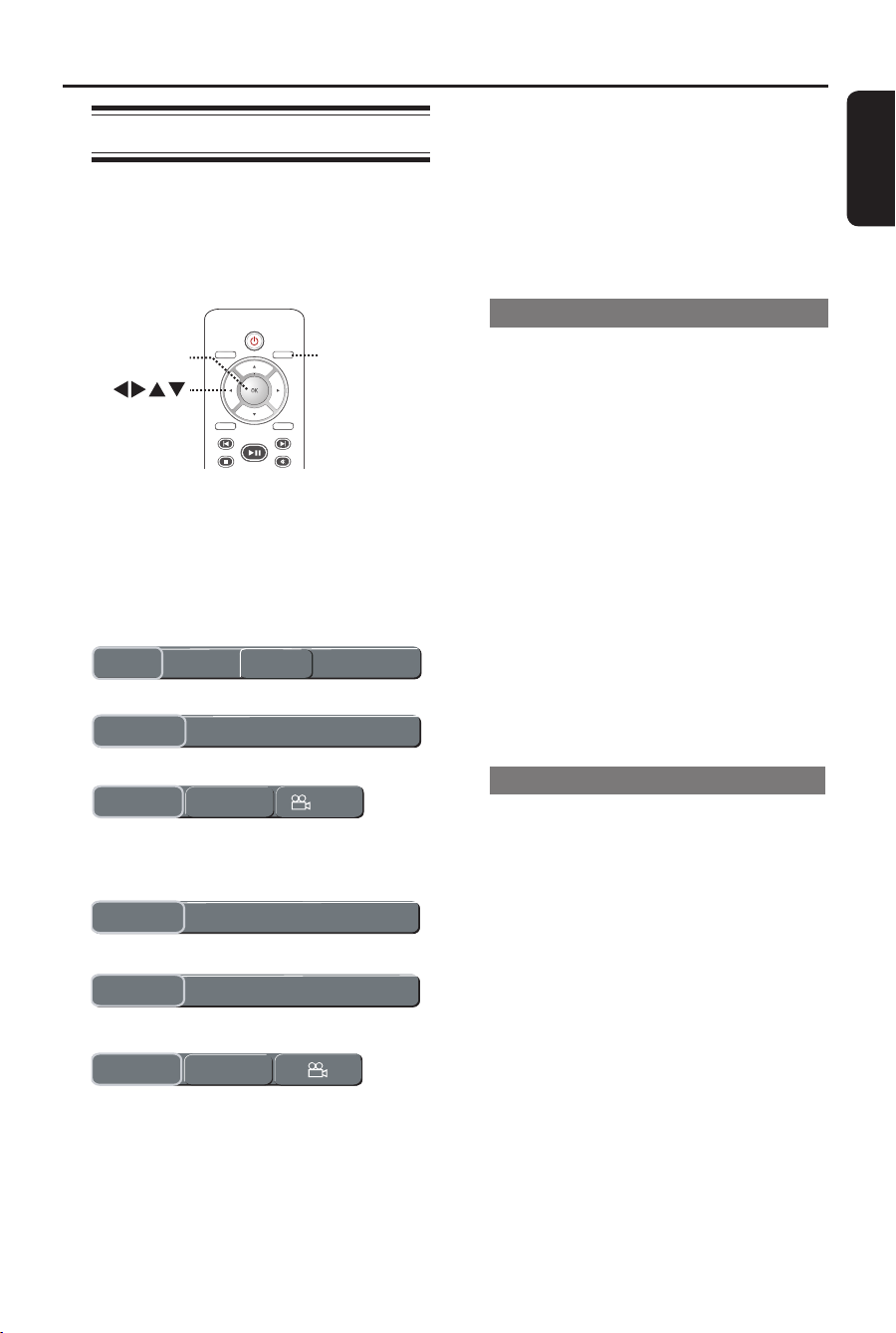
Using Display menu options
This unit can display the disc playback
information (for example, title or chapter
number, elapsed playing time), a number
of operations can be done without
interrupting disc playback.
STOP
PLAY/PAUSE
MUTE
SETUP
TITLE
RETURN
MENU
DISC
DISPLAY
NEXT
PREV
DISPLA
Y
OK
A During playback, press DISPLAY
repeatedly on the remote control.
The available disc information appears
on the TV.
(DVD)
Title
Title
1/1
6/16
Chapter
Time
Time
00:03:36/01:22:34
Repeat/Repeat A-B/Angle
Off
Rep Off 1/1
(VCD)
Track
Track
3/21
Time
Time
00:00:56/00:03:34
Repeat/Repeat A-B
Off
Rep Off
Disc Operations (continued)
B Use the numeric keypad 0-9 to input
the number/time or use keys to
make the selection.
C Press OK to con rm.
Playback changes to the chosen
operation.
Selecting title/chaper/track
This option allows you to skip to a
speci c title/chapter/track in the current
disc.
A Move to { Title } / { Chapter } or { Track }
option in the display menu.
Note: { Track } option can only be
selected if PBC is set to off. See ‘Disc
Operations - Playback Control (VCD/
SVCD)’ for details.
B Use the numeric keypad 0-9 to input
the a valid number.
C Press OK to con rm.
Playback skips to the chosen title/
chapter/track.
Searching by time
This option allows you to skip to a
speci c point in the current disc.
A Move to { Time } option.
B Use the numeric keypad 0-9 to enter
the time where playback should start (eg.
0:34:27).
C Press OK to con rm.
Playback skips to the selected time.
1_dvp1120_37_eng 8.indd 251_dvp1120_37_eng 8.indd 25 2008-01-18 1:16:22 PM2008-01-18 1:16:22 PM
English
26
Disc Operations (continued)
.
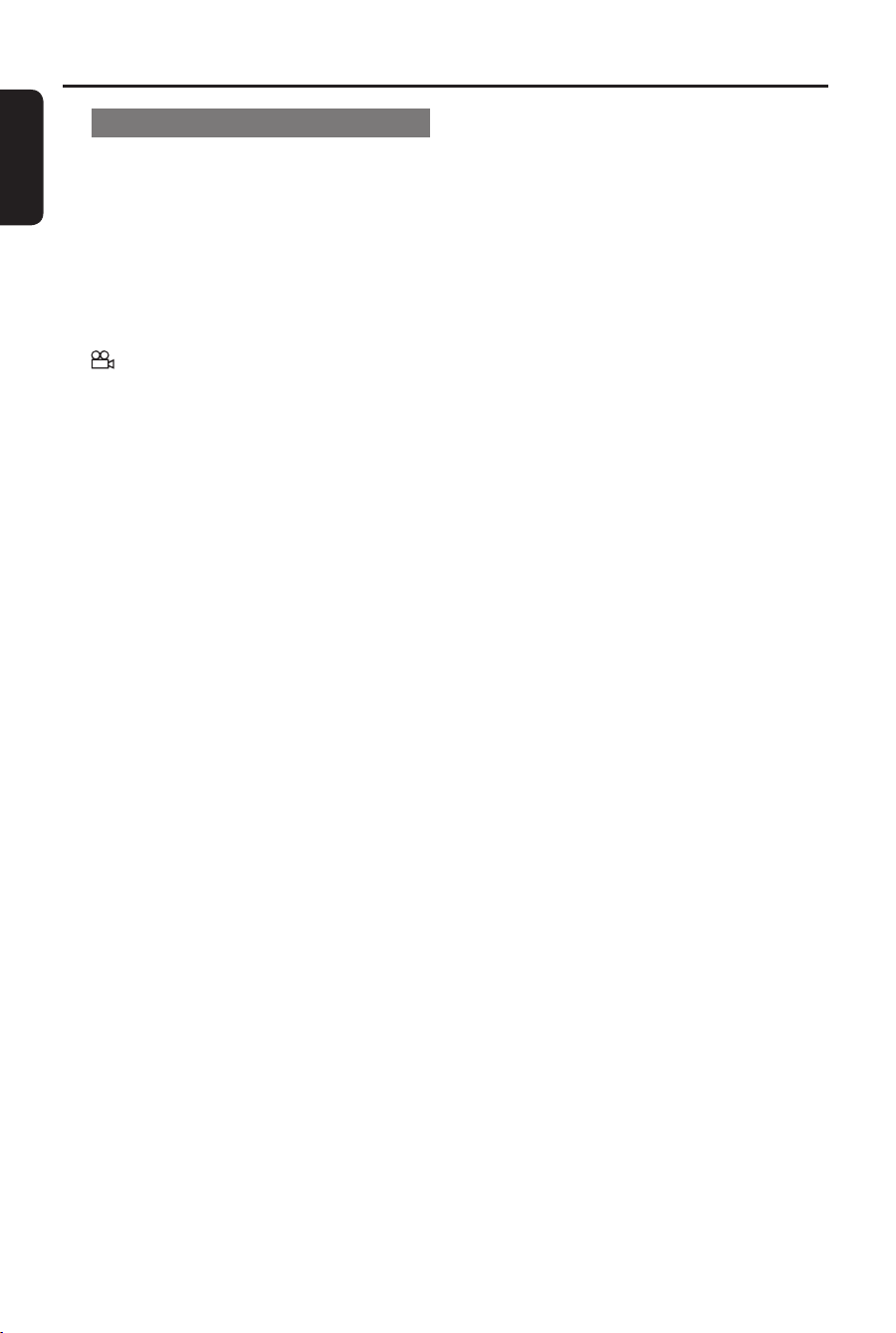
Switching camera angles
This option is only available on DVDs
that contain sequences recorded from
different camera angles. This allows you
to view the picture from different angles.
A Move to { Repeat/ Repeat A-B/ Angle }
option in the display menu.
B Use keys to select the angle symbol
.
C Press OK repeatedly to switch between
different angle.
Playback changes to the selected
angle.
1_dvp1120_37_eng 8.indd 261_dvp1120_37_eng 8.indd 26 2008-01-18 1:16:22 PM2008-01-18 1:16:22 PM

English
27
Playing a JPEG photo disc
(slide show)
Before you start ...
Turn on your TV to the correct Video In
channel. See ‘Finding the correct viewing
channel’ for details.
Load a JPEG photo CD (Kodak Picture
CD, JPEG).
The picture menu appears on the TV.
Press PLAY/PAUSE u to start the
slide-show playback.
Helpful Hints:
– It may require longer time for this unit to
display the disc content on the TV due to the
large number of songs/pictures compiled into
one disc.
Supported le format:
– The le extension has to be ‘*.JPG’
and not ‘*.JPEG’.
– This unit can only display digital
camera pictures according to the JPEG-
EXIF format, typically used by almost all
digital cameras. It cannot display Motion
JPEG, progressive JPEG and other JPEG
formats, or sound clips associated with
pictures.
Zoom picture
During playback,
A Press ZOOM repeatedly to select a
magni cation level.
B Use keys to pan through the
enlarged picture.
Rotating the picture
During playback, use keys to
rotate the picture on the TV.
– : rotate the picture vertically
-180°.
– : rotate the picture vertically
+180°.
– : rotate the picture counter-
clockwise.
– : rotate the picture clockwise.
Disc Operations (continued)
1_dvp1120_37_eng 8.indd 271_dvp1120_37_eng 8.indd 27 2008-01-18 1:16:22 PM2008-01-18 1:16:22 PM
English
28
Playing a MP3/ WMA disc
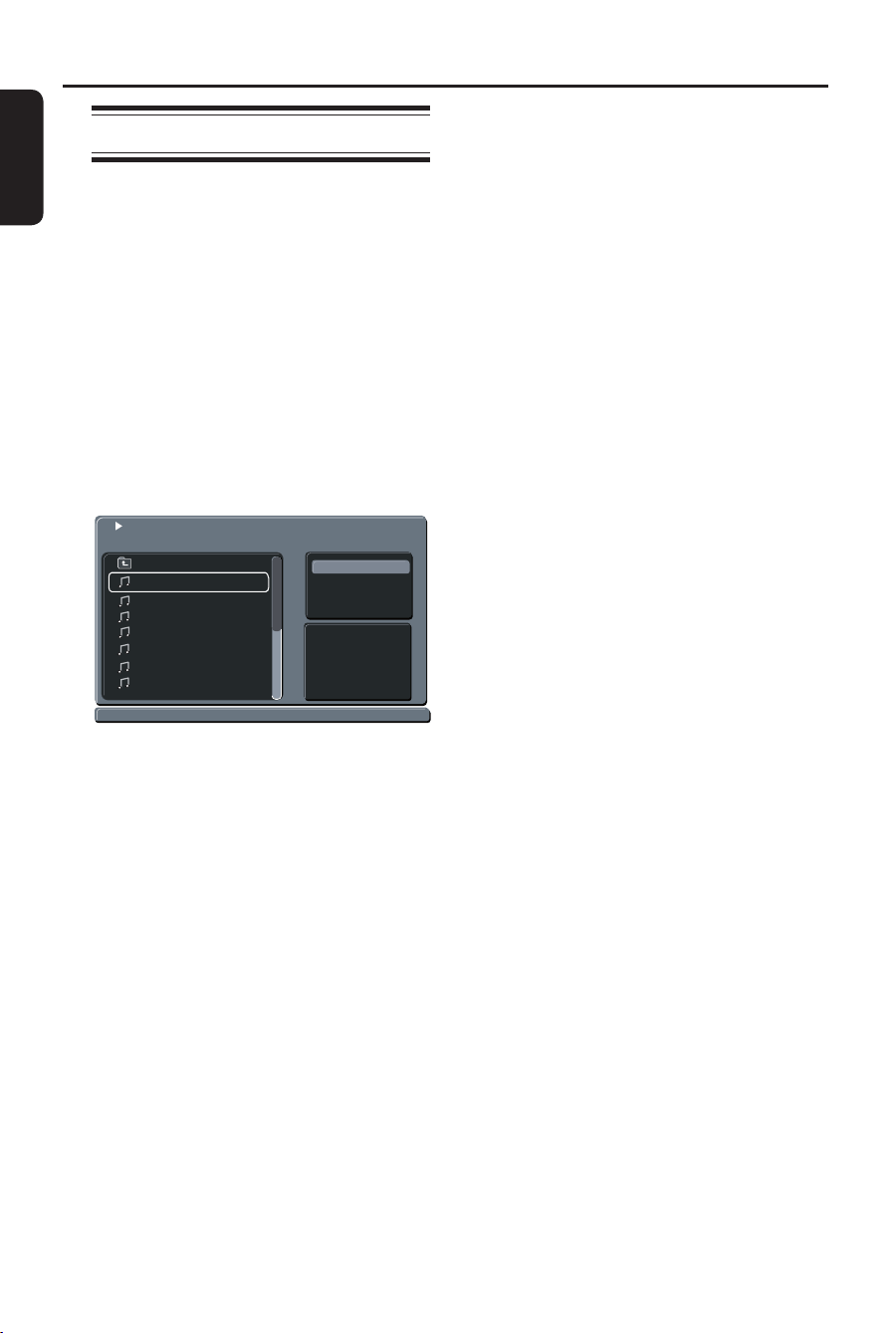
This unit can playback most of the MP3
and WMA les recorded on a recordable
disc or commercial CD.
Before you start ...
Turn on your TV to the correct Video In
channel. See ‘Finding the correct viewing
channel’ for details.
A Load a MP3/WMA disc.
The disc reading time may exceed 30
seconds due to the complexity of the
directory/ le con guration.
The disc menu appears on the TV.
Music Playing
Repeat
: Off
Title:-----
Singer:-----
Album Year:
Comment:
Filter
00:00:46
02/20 /MP3/07......MP3
Go Up
07.----
09.---
2002 .---
TAKE ME TO YOUR
----
---
----
B Use keys to select a desired folder
and press OK to open the folder.
C Use keys to select a track/ le and
press OK to start playback.
Playback starts from the selected le
and continues through to the end of the
folder.
During playback:
Use PREV í / NEXT ë to playback
another track/ le in the current folder.
Press and hold PREV í / NEXT ë to
fast forward/backward search on the
music track.
To select another folder from current
disc, use keys to navigate back
to the root menu.
D To stop playback, press STOP x.
Helpful Hints:
– Only the rst session of a multi-session
CD will be played back.
– It is normal to experience an occasional
‘skip’ while listening to your MP3/WMA disc
due to poor clarity of digital contents during
internet downloading.
– If any special characters are present in
the MP3/WMA track name (ID3) or album
name, it might not be displayed correctly on
the screen because this unit does not support
the characters.
Disc Operations (continued)
1_dvp1120_37_eng 8.indd 281_dvp1120_37_eng 8.indd 28 2008-01-18 1:16:22 PM2008-01-18 1:16:22 PM
English
29
Setup Menu Options
Accessing the setup menu
This unit setup is carried out via the TV,
enabling you to customize it to suit your
particular requirements.
STOP
PLAY/PAUSE
MUTE
SETUP
TITLE
RETURN
MENU
DISC
DISPLAY
NEXT
PREV
SETUP
OK
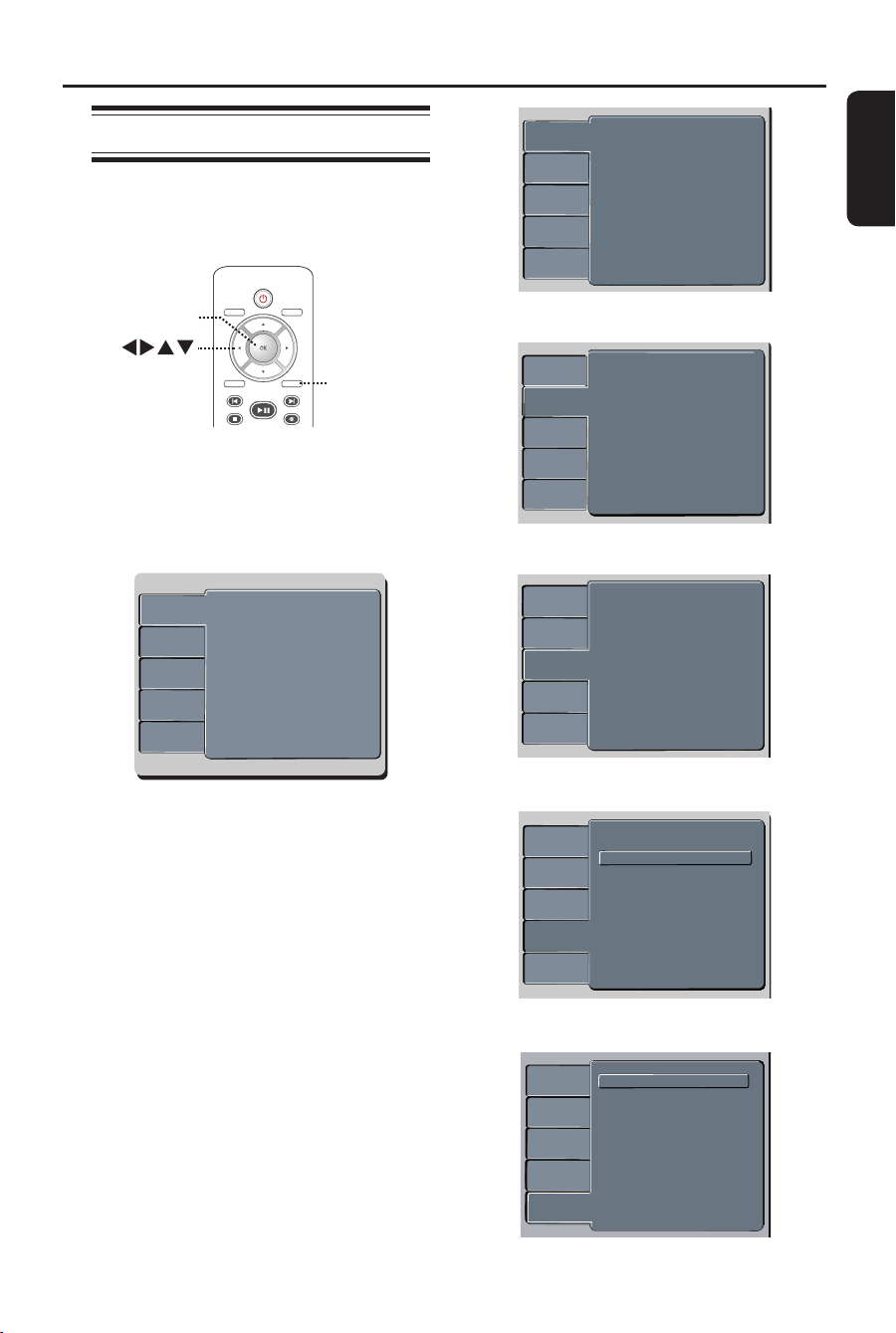
A Press SETUP on the remote control.
The setup menu appears.
B Use keys to select one of the setup
menu options and press to access.
Language
Video
Audio
Rating
Misc
C Use keys to select the option you
wish to change and press .
D Use keys to select the setting that
you wish to change and press OK to
con rm.
Instructions and explanations of the
options are provided in the following
pages.
If the option in the menu is grayed
out, that means the setting is not
available or cannot be changed in the
current state.
E To exit, press SETUP.
Language
Video
Audio
Rating
Misc
OSD Language :
Subtitle :
Audio :
DVD Menu :
English
Auto
English
English
See ‘Language Menu’ on this chapter.
Aspect Ratio
View Mode :
TV System :
Video Out
Smart Picture :
4:3
Auto Fit
NTSC
Component
Personal
Aspect Ratio
View Mode :
TV System :
Video Out
Smart Picture :
Auto Fit
NTSCC
Component
Personal
Language
Video
Audio
Rating
Misc
Aspect Ratio :
View Mode :
TV System :
Video Out :
Smart Picture
:
4:3
Auto Fit
NTSC
Interlaced
Standard
See ‘Video Menu’ on this chapter.
:
Language
Video
Audio
Misc
Rating
Digital Output
:
Night Mode
Down Sampling
All
: Off
: On
See ‘Audio Menu’ on this chapter.
Video
Language
Audio
Misc
Rating
Parental control : 8.Aduit
Set Password
See ‘Rating Menu’ on this chapter.
Misc
Rating
Video
Misc
Language
Audio
Misc
Rating
Use Default Settings
Closed Caption : off
See ‘Misc Menu’ on this chapter.
1_dvp1120_37_eng 8.indd 291_dvp1120_37_eng 8.indd 29 2008-01-18 1:16:23 PM2008-01-18 1:16:23 PM

English
30
Setup Menu Options (continued)
Language Menu (underlined options are the factory default settings)
Select the menu language for this unit’s on-screen display.
See ‘Getting Started – Setting language preferences’.
Select the preferred subtitle language for DVD playback.
Select the preferred audio language for DVD playback
.
Select the preferred disc menu language for DVD playback.
Note: If the selected audio/subtitle/disc menu language is not
available on the DVD, the disc’s default language will be used
instead.
OSD Language
Subtitle
Audio
DVD Menu
1_dvp1120_37_eng 8.indd 301_dvp1120_37_eng 8.indd 30 2008-01-18 1:16:23 PM2008-01-18 1:16:23 PM

English
31
Video Menu (underlined options are the factory default settings)
Setup Menu Options (continued)
The picture shape can be adjusted to t your TV.
{ 4:3 } – For a ‘wide-screen’ display
with black bars on the top and
bottom.
{ 16:9 } – For wide-screen TV
(frame ratio 16:9).
This setting allows you to scale the picture to t the TV width
and height.
{ Fill } – Scale the picture to ll the screen height
and width equally.
{ Original } – Scale the picture to t to the original screen
size (only for MPEG).
{ Height Fit } – Scale the picture to t the screen height.
{ Width Fit } – Scale the picture to t the screen width.
{ Auto Fit } – Scale the picture proportionally with
minimum screen ratio.
{ Pan Scan } – Scale the picture proportionally with
maximum screen ratio.
Select the color system that matches the connected TV. It
enables playback of a different type of disc (PAL or NTSC disc)
on this unit.
Aspect Ratio
View Mode
TV System
1_dvp1120_37_eng 8.indd 311_dvp1120_37_eng 8.indd 31 2008-01-18 1:16:23 PM2008-01-18 1:16:23 PM
English
32
Setup Menu Options (continued)
Video Menu (underlined options are the factory default settings)
Ensure that your TV can accept progressive signals (a progressive
scan TV is required) and that you have connected this unit to
your TV using the Y Pb Pr. See ‘Getting Started - Setting up the
progressive scan feature’ for details.
{ Interlaced } – Turn off progressive scan mode.
{ P-Scan } – Turn on progressive scan mode.
Con rm the setting by pressing to select { Yes } in the menu
and press OK on the remote control.
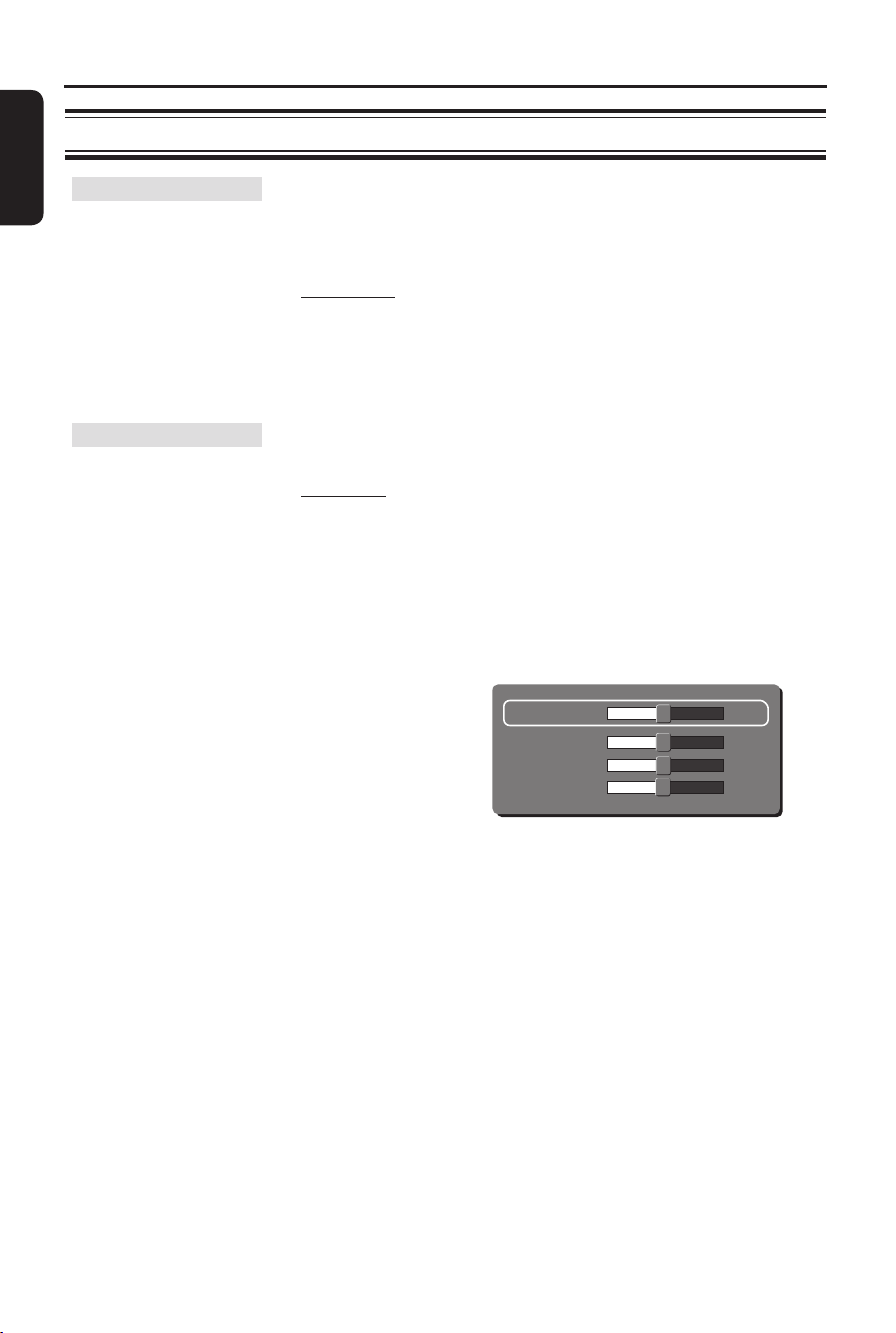
This unit provides three prede ned sets of picture color settings
and one personal setting which you can de ne yourself.
{ Standard } – Original color setting.
{ Vivid } – Vibrant color setting.
{ Cool } – Soft color setting.
{ Personal } – Select this to personalize the picture
color setting. Use the keys to
adjust to the setting that best suits your
personal preference. For an average
setting, select { 0 }.
Brightness 0
Contrast
0
Tint
0
Color
0
Video Out
Smart Picture
1_dvp1120_37_eng 8.indd 321_dvp1120_37_eng 8.indd 32 2008-01-18 1:16:23 PM2008-01-18 1:16:23 PM

English
33
Audio Menu (underlined options are the factory default settings)
Setup Menu Options (continued)
Digital Output
Night Mode
Down Sampling
This setting is only required if the COAXIAL/DIGITAL OUT
socket of this unit is connected to other audio/video device.
{ Off } – Deactivate the digital audio output. For
example, if you use the AUDIO OUT
sockets to connect this unit to a TV or
Stereo system.
{ PCM } – The connected device does not support
multi-channel formats. This unit
converts multi-channel to PCM (Pulse
Code Modulation) format.
{ ALL } – The connected device supports multi-
channel audio formats. The digital audio
format will be output as on disc.
Note: If the { Digital Output } is set to { All } during MPEG, MP3
or WMA playback, the audio output will be in PCM format.
This mode optimizes playback of sound at low volume. High
volume outputs will be softened and low volume outputs will be
enhanced to an audible level. This feature is only applicable for
DVD video discs with Dolby Digital mode.
{ Off } – Turn off night mode. Select this to enjoy
the surround sound with its full dynamic
range.
{ On } – Turn on night mode.
This feature enables you to disable digital signal processing for
better sound quality.
{ Off } – Play disc recorded at sampling rate of
96kHz. This rate can only be achieved in
Stereo-Classic (Flat) mode.
{ On } – Play disc recorded at sampling rate of
48kHz.
1_dvp1120_37_eng 8.indd 331_dvp1120_37_eng 8.indd 33 2008-01-18 1:16:23 PM2008-01-18 1:16:23 PM
English
34
Rating Menu (underlined options are the factory default settings)
Setup Menu Options (continued)
Parental Control
Set Password
This is to prohibit viewing of discs that had exceeded the limits
you set. It works only on the DVDs with parental level assigned
to the complete disc or to certain scenes on the disc.
1) Use the numeric keypad 0-9 on the remote control to
enter your 4-digit password and press OK.
2) Use keys to select a rating level from 1 to 8 and press
OK.
Notes:
– The ratings are country-dependent (‘1’ is considered material
that is least offensive and ‘8’ is most offensive). To disable
parental controls and allow all discs to play, select ‘8’.
– Some DVDs are not encoded with a rating though the movie
rating may be printed on the disc cover. The rating level
feature does not prohibit playback of such discs. VCD, SVCD
and CD have no level indication, so parental control has no
effect on these type of discs.
– DVDs that are rated higher than the level you selected will
not be played unless you enter the same 4-digit password.
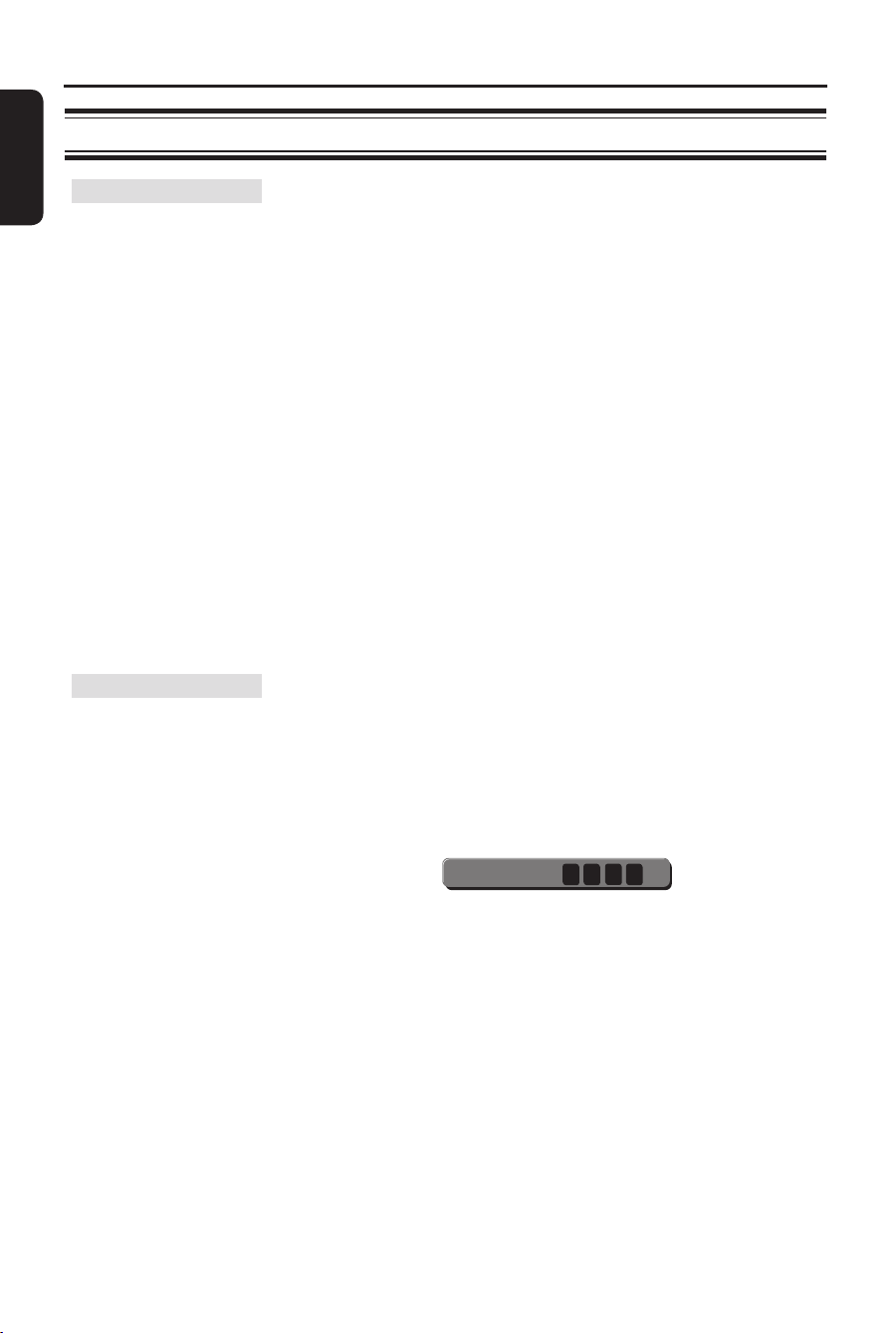
The password is used for Parental Control. The default password
is ‘0000’.
To change the password:
1) Use keys to select { Set Password } and press OK.
2) Use the numeric keypad 0-9 on the remote control to
enter your existing 4-digit password at { Password }.
Password
Note: When doing this for the rst time or if you forget your
existing password, enter ‘0000’.
3) Press OK to proceed.
4) Enter the new 4-digit password at { New Password }.
5) Press OK to con rm and press SETUP to exit the menu..
1_dvp1120_37_eng 8.indd 341_dvp1120_37_eng 8.indd 34 2008-01-18 1:16:23 PM2008-01-18 1:16:23 PM

English
35
This feature enables you to reset all the setup menu options and
your personal settings to the factory defaults, except your
password for the Parental Control.
{ Yes } – Select this to reset to factory default
settings.
{ No } – Select this to keep the existing setting.
Use keys to make a selection and press OK to con rm.
This feature is only available if the disc contains of special video
signal data. It shows sound effects on the screen if your TV
supports this feature, such as ‘phone ringing’ and ‘footsteps.’
{ On } – Turn on closed caption feature.
{ Off } – Turn off closed caption feature.
Use keys to make a selection and press OK to con rm.
Misc Menu (underlined options are the factory default settings)
Setup Menu Options (continued)
Use Default
Settings
Closed Caption
1_dvp1120_37_eng 8.indd 351_dvp1120_37_eng 8.indd 35 2008-01-18 1:16:24 PM2008-01-18 1:16:24 PM

English
36
Other Features
Installing the latest software
Periodically Philips issue software
upgrades to enhance the user experience.
A Get the software version of this unit by
pressing ç to open the disc
compartment
B Press numeric keypad ‘966’ on the
remote control.
Write down the le name of your
current software.
C Visit the Philips website ‘www.philips.
com/support’ to check the availability of
the latest software upgrade and
download the software to a CD-R.
Note:
Never unplug or turn off this unit
during upgrade.
D Insert the CD-R to the disc
compartment.
A message appears.
E Press OK to confirm.
Installation of software starts.
Once complete, this unit will power
off automatically.
1_dvp1120_37_eng 8.indd 361_dvp1120_37_eng 8.indd 36 2008-01-18 1:16:24 PM2008-01-18 1:16:24 PM

English
37
Troubleshooting
– Press 2 on the unit to turn on the power.
– Ensure that the AC outlet have power.
– Disconnect the power cord from the power outlet
for a few minutes. Reconnect the power cord and try
to operate again as usual.
– Refer to your TV manual for correct Video In channel
selection. Change the TV channel until you see the
DVD screen.
– If this happens when you turn on the progressive scan
feature, wait for 15 seconds for the auto recovery or
switch back to the default mode as below:
1) Press ç on this unit.
2) Press and hold numeric keypad ‘1’ on the remote
control.
– If this happens after you set the color system, wait for
15 seconds for the auto recovery or switch back to
the default TV color system:
1) Press ç on this unit.
2) Press and hold numeric keypad ‘3’ on the remote
control.
– Check the video connection.
– Ensure that the disc is compatible with this unit.
– Sometimes a small amount of picture distortion may
appear. This is not a malfunction.
– The disc is dirty. Clean the disc.
Problem Solution
No power.
No picture.
Completely distorted picture
or black/white picture.
WARNING
Under no circumstances should you try to repair this unit yourself, as this invalidate the
warranty. Do not open this unit as there is a risk of electric shock.
If a fault occurs, rst check the points listed below before taking this unit for repair. If you
are unable to remedy a problem by following these hints, consult your dealer or Philips for
help.
1_dvp1120_37_eng 8.indd 371_dvp1120_37_eng 8.indd 37 2008-01-18 1:16:24 PM2008-01-18 1:16:24 PM

English
38
Troubleshooting (continued)
No sound or distorted sound.
The remote control does not
function properly.
The unit does not start
playback.
The buttons on the unit do not
work.
– Check the audio connections to the connected audio
device.
– Make sure that the connected audio device is turned
on to the correct input source.
– Set the digital output setting correctly, based on the
device you connected to this unit. See “Audio Menu –
Digital Output” for details.
– Aim the remote control directly at the sensor on the
front of this unit (not towards the TV).
– Remove any obstacles between this unit and the
remote control.
– Batteries are weak, replace the batteries.
– Check the polarities of the batteries are as indicated
on the remote control (± signs).
– Insert a readable disc with the playback side facing
inwards. The DVD+R/CD-R must be nalized.
– Make sure the disc is not scratched or warped. Check
if the disc is defective by trying another disc.
– The disc is of a different region code.
– You may need to enter the password in order to
unlock the disc for playback.
– Moisture may have condensed inside this unit.
Remove the disc and leave this unit turned on for
about an hour.
– There is a technical problem. Disconnect this unit
from the power outlet for 10 seconds and reconnect
again.
Problem Solution
1_dvp1120_37_eng 8.indd 381_dvp1120_37_eng 8.indd 38 2008-01-18 1:16:24 PM2008-01-18 1:16:24 PM

English
39
Troubleshooting (continued)
The aspect ratio of the
screen cannot be changed
even though you have set the
TV display.
Not able to select some
items in the setup/system
menu.
Picture freezes momentarily
during playback.
Unable to select Progressive
Scan on/off.
– The aspect ratio is xed on the DVD disc.
– Depending on the TV, it may not be possible to
change the aspect ratio.
– Press STOP button twice before selecting the disc
setup menu.
– Depending on the disc availability, some menu items
cannot be selected.
– Check the disc for ngerprint/scratches and clean
with a soft cloth wiping from center to edge.
– Check that the video output of this unit is connected
using the Component Video (Y Pb Pr) jacks.
Problem Solution
1_dvp1120_37_eng 8.indd 391_dvp1120_37_eng 8.indd 39 2008-01-18 1:16:24 PM2008-01-18 1:16:24 PM
English
40
Glossary
Analog audio: Sound that has not been
turned into numbers. Analog sound is
available when you use the AUDIO LEFT/
RIGHT jacks. These red and white jacks send
audio through two channels, the left and
right.
Aspect ratio: Aspect ratio refers to the
length to height ratio of TV. The ratio of a
standard TV is 4:3, while the ratio of a high-
de nition or wide TV is 16:9. The letter box
allows you to enjoy a picture with a wider
perspective on a standard 4:3 screen.
Bit Rate: The amount of data used to hold
a given length of music; measured in kilobits
per second, or kbps. Or, the speed at which
you record. Generally, the higher the bit
rate, or the higher the recording speed, the
better the sound quality. However, higher bit
rates use more space on a disc.
Chapter: Sections of a picture or a music
piece on a DVD that are smaller than titles.
A title is composed of several chapters. Each
chapter is assigned a chapter number
enabling you to locate the chapter you want.
CVBS: Composite video (or Composite
Video Blanking and Sync). A single video
signal commonly used in most consumer
video products.
DVD menu: A screen display prepared for
allowing a selection of images, sounds,
subtitles, multi-angles, etc., recorded on a
DVD.
Dolby Digital: A surround sound system
developed by Dolby Laboratories containing
up to six channels of digital audio (front left
and right, surround left and right, center and
subwoofer).
JPEG: A very common digital still picture
format. A still-picture data compression
system proposed by the Joint Photographic
Expert Group, which features small decrease
in image quality in spite of its high
compression ratio. Files are recognized by
their le extension ‘JPG or JPEG’.
MP3: A le format with a sound data
compression system. ‘MP3’ is the
abbreviation of Motion Picture Experts
Group 1 (or MPEG-1) Audio Layer3. By
using the MP3 format, one CD-R or CD-RW
can contain about 10 times more data than a
regular CD.
Parental Control: A function of the DVD
to limit playback of the disc by the age of the
users according to the limitation level in each
country. The limitation varies from disc to
disc; when it is activated, playback will be
prohibited if the software’s level is higher
than the user-set level.
PBC: Playback Control. A system of
navigating a Video CD/Super VCD through
on-screen menus recorded onto the disc.
You can enjoy interactive playback and
searching.
PCM (Pulse Code Modulation): A
system for converting analog sound signal to
digital signal for later processing, with no
data compression used in conversion.
Progressive Scan: The progressive scan
displays twice the number of frames per
second than in an ordinary TV system. It
offers higher picture resolution and quality.
1_dvp1120_37_eng 8.indd 401_dvp1120_37_eng 8.indd 40 2008-01-18 1:16:25 PM2008-01-18 1:16:25 PM

English
41
Glossary (continued)
Region code: A system allowing discs to be
played only in the region designated. This
unit will only play discs that have compatible
region codes. You can nd the region code
of your unit by looking at the product label.
Some discs are compatible with more than
one region (or ALL regions).
Title: The longest section of a movie or
music feature on DVD. Each title is assigned
a title number, enabling you to locate the
title you want.
VIDEO AUDIO L/R jack: Jack on the back
of this unit that sends out audio and video
signals to the TV.
WMA: Windows Media™ Audio. Refers to
an audio compression technology developed
by Microsoft Corporation. WMA data can be
encoded by using Windows Media Player
version 9 or Windows Media Player for
Windows XP. Files are recognized by their
le extension ‘WMA’.
1_dvp1120_37_eng 8.indd 411_dvp1120_37_eng 8.indd 41 2008-01-18 1:16:25 PM2008-01-18 1:16:25 PM

English
42
Speci cations
TV STANDARD
(PAL/50Hz) (NTSC/60Hz)
Number of lines 625 525
Playback Multistandard (PAL/NTSC)
VIDEO PERFORMANCE
Video DAC 12 bit, 108 MHz
Y Pb Pr 0.7 Vpp ~ 75 ohm
Video Output 1 Vpp ~ 75 ohm
VIDEO FORMAT
Digital MPEG 2 for DVD, SVCD
Compression MPEG 1 for VCD
DVD 50 Hz 60 Hz
Horiz. resolution 720 pixels 720 pixels
Vertical resolution 576 lines 480 lines
VCD 50 Hz 60 Hz
Horiz. resolution 352 pixels 352 pixels
Vertical resolution 288 lines 240 lines
AUDIO FORMAT
Digital MPEG/ AC-3/ compressed
PCM Digital
16, 20, 24 bits
fs, 44.1, 48, 96 kHz
MP3 (ISO 9660) 96, 112, 128,
256 kbps &
variable bit rate
fs, 32, 44.1, 48 kHz
Analog Sound Stereo
Dolby Surround compatible downmix from Dolby
Digital multi-channel sound
AUDIO PERFORMANCE
DA Converter 24 bit, 192 kHz
DVD fs 96 kHz 4 Hz - 44 kHz
fs 48 kHz 4 Hz - 22 kHz
SVCD fs 48 kHz 4 Hz - 22 kHz
fs 44.1kHz 4 Hz - 20 kHz
CD/VCD fs 44.1kHz 4 Hz - 20 kHz
Signal-Noise (1kHz) > 90 dB
Dynamic range(1kHz) > 77 dB
Crosstalk (1kHz) > 65 dB
Distortion/noise (1kHz) > 65 dB
MPEG MP3 MPEG Audio L3
CONNECTIONS
Y Pb Pr Output Cinch 3x
Video Output cum
Audio Output*(L+R) 3.5mm jack (1x)
Digital Output 1 coaxial
IEC60958 for CDDA /
LPCM IEC61937 for
MPEG 1/2,
Dolby Digital
* Audio and Video output share one jack at the rear
panel of this unit.
CABINET
Dimensions (w x h x d) 250 x 52 x 250 mm
Weight Approximately
0.879 kg
POWER CONSUMPTION
Power Supply Rating 120 V; 60 Hz
Power consumption < 10 W
Power consumption in < 1 W
Standby mode
Speci cations are subject to change without prior
notice.
1_dvp1120_37_eng 8.indd 421_dvp1120_37_eng 8.indd 42 2008-01-18 1:16:25 PM2008-01-18 1:16:25 PM

43
Philips, P.O. Box 671539, Marietta, GA. 30006-0026
PHILIPS LIMITED WARRANTY
NINETY (90) DAY
WARRANTY COVERAGE:
PHILIPS warranty obligation is limited to the terms set forth
below.
WHO IS COVERED:
Philips warrants the product to the original purchaser or the per-
son receiving the product as a gift against defects in materials and
workmanship as based on the date of original purchase
(“Warranty Period”) from an Authorized Dealer. The original
sales receipt showing the product name and the purchase date
from an authorized retailer is considered such proof.
WHAT IS COVERED:
The Philips warranty covers new products if a defect in material
or workmanship occurs and a valid claim is received by Philips
within the Warranty Period. At its option, Philips will either (1)
repair the product at no charge, using new or refurbished
replacement parts, or (2) exchange the product with a product
that is new or which has been manufactured from new, or ser-
viceable used parts and is at least functionally equivalent or most
comparable to the original product in Philips current inventory,
or (3) refund the original purchase price of the product.
Philips warrants replacement products or parts provided under
this warranty against defects in materials and workmanship from
the date of the replacement or repair for ninety (90) days or for
the remaining portion of the original product’s warranty,
whichever provides longer coverage for you. When a product or
part is exchanged, any replacement item becomes your property
and the replaced item becomes Philips’ property. When a refund
is given, your product becomes Philips’ property.
Note: Any product sold and identified as refurbished or
renewed carries a ninety (90) day limited warranty.
Replacement product can only be sent if all warranty
requirements are met. Failure to follow all requirements
can result in delay.
WHAT IS NOT COVERED - EXCLUSIONS AND LIMI-
TATIONS:
This Limited Warranty applies only to the new products manu-
factured by or for Philips that can be identified by the trademark,
trade name, or logo affixed to it. This Limited Warranty does not
apply to any non-Philips hardware product or any software, even
if packaged or sold with the product. Non-Philips manufacturers,
suppliers, or publishers may provide a separate warranty for their
own products packaged with the bundled product.
Philips is not liable for any damage to or loss of any programs,
data, or other information stored on any media contained within
the product, or any non-Philips product or part not covered by
this warranty. Recovery or reinstallation of programs, data or
other information is not covered under this Limited Warranty.
This warranty does not apply (a) to damage caused by accident,
abuse, misuse, neglect, misapplication, or non-Philips product, (b)
to damage caused by service performed by anyone other than
Philips or Philips Authorized Service Location, (c) to a product or
a part that has been modified without the written permission of
Philips, or (d) if any Philips serial number has been removed or
defaced, or (e) product, accessories or consumables sold “AS IS”
without warranty of any kind by including refurbished Philips
product sold “AS IS” by some retailers.
This Limited Warranty does not cover:
• Shipping charges to return defective product to Philips.
• Labor charges for installation or setup of the product, adjust-
ment of customer controls on the product, and installation or
repair of antenna/signal source systems outside of the product.
• Product repair and/or part replacement because of improper
installation or maintenance, connections to improper voltage
supply, power line surge, lightning damage, retained images or
screen markings resulting from viewing fixed stationary con-
tent for extended periods, product cosmetic appearance items
due to normal wear and tear, unauthorized repair or other
cause not within the control of Philips.
• Damage or claims for products not being available for use, or
for lost data or lost software.
• Damage from mishandled shipments or transit accidents when
returning product to Philips.
• A product that requires modification or adaptation to enable
it to operate in any country other than the country for which
it was designed, manufactured, approved and/or authorized, or
repair of products damaged by these modifications.
• A product used for commercial or institutional purposes
(including but not limited to rental purposes).
• Product lost in shipment and no signature verification receipt
can be provided.
• Failure to operate per Owner’s Manual.
TO OBTAIN ASSISTANCE IN THE U.S.A., PUERTO
RICO, OR U.S. VIRGIN ISLANDS…
Contact Philips Customer Care Center at:
1-888-PHILIPS (1-888-744-5477)
TO OBTAIN ASSISTANCE IN CANADA…
1-800-661-6162 (French Speaking)
1-888-PHILIPS (1-888-744-5477) - (English or Spanish
Speaking)
REPAIR OR REPLACEMENT AS PROVIDED UNDER THIS
WARRANTY IS THE EXCLUSIVE REMEDY FOR THE CON-
SUMER. PHILIPS SHALL NOT BE LIABLE FOR ANY INCIDEN-
TAL OR CONSEQUENTIAL DAMAGES FOR BREACH OF
ANY EXPRESS OR IMPLIED WARRANTY ON THIS PROD-
UCT. EXCEPT TO THE EXTENT PROHIBITED BY APPLICABLE
LAW, ANY IMPLIED WARRANTY OF MERCHANTABILITY OR
FITNESS FOR A PARTICULAR PURPOSE ON THIS PRODUCT
IS LIMITED IN DURATION TO THE DURATION OF THIS
WARRANTY.
Some states do not allow the exclusions or limitation of inciden-
tal or consequential damages, or allow limitations on how long an
implied warranty lasts, so the above limitations or exclusions may
not apply to you.
This warranty gives you specific legal rights. You may have other rights which vary from state/province to state/province.
3121 233 48792
1_dvp1120_37_eng 8.indd 431_dvp1120_37_eng 8.indd 43 2008-01-18 1:16:26 PM2008-01-18 1:16:26 PM