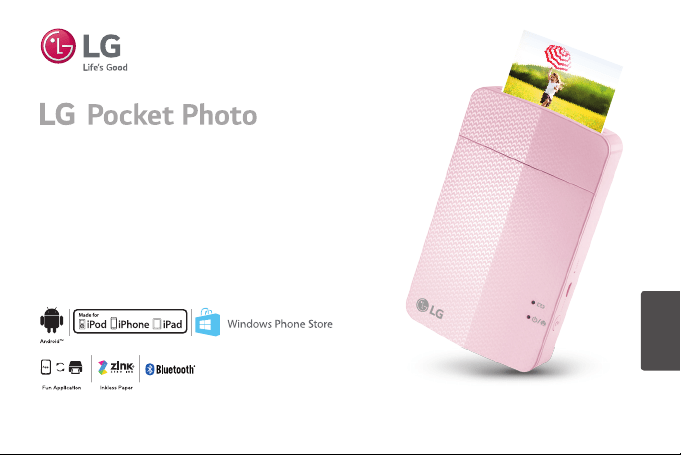
Owner’s manual
Please read this manual carefully before operating
your device.
MODEL :
PD251W/ PD251P/ PD251Y/ PD251TW
ENGLISH
The actual device may differ from the image.
Bluetooth®
2
Safety information
CAUTION: TO REDUCE THE RISK OF ELECTRIC SHOCK
DO NOT REMOVE COVER (OR BACK) NO USER-
SERVICEABLE PARTS INSIDE REFER SERVICING TO
QUALIFIED SERVICE PERSONNEL.
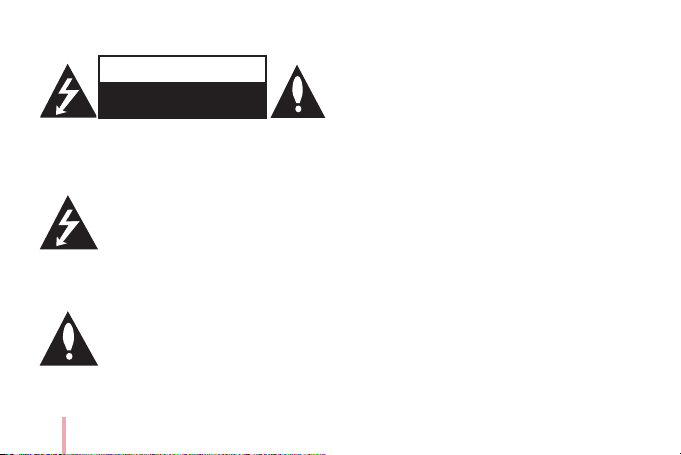
This lightning ash with arrowhead
symbol within an equilateral triangle is
intended to alert the user to the presence
of uninsulated dangerous voltage within
the product’s enclosure that may be of sucient
magnitude to constitute a risk of electric shock to
persons.
The exclamation point within an
equilateral triangle is intended to alert
the user to the presence of important
operating and maintenance (servicing)
instructions in the literature accompanying the
product.
WARNING: TO PREVENT FIRE OR ELECTRIC SHOCK
HAZARD, DO NOT EXPOSE THIS PRODUCT TO RAIN
OR MOISTURE.
WARNING: Do not install this equipment in a
conned space such as a book case or similar unit.
CAUTION: Do not use high voltage products around
this product (ex. Electrical swatter). This product may
malfunction due to electrical shock.
This product contains chemicals known to the
State of California to cause cancer and birth defects
or other reproductive harm. Wash hands after
handling.
CAUTION: Do not block any ventilation openings.
Install in accordance with the manufacturer’s
instructions.
Slots and openings in the cabinet are provided
for ventilation and to ensure reliable operation of
the product and to protect it from over heating.
The openings shall never be blocked by placing
the product on a bed, sofa, rug or other similar
surface. This product shall not be placed in a built-
in installation such as a bookcase or rack unless
CAUTION
RISK OF ELECTRIC SHOCK
DO NOT OPEN

3
proper ventilation is provided or the manufacturer’s
instruction has been adhered to.
CAUTION concerning the Power Cord
Most appliances recommend they be placed upon a
dedicated circuit;
That is, a single outlet circuit which powers only
that appliance and has no additional outlets or
branch circuits. Check the specication page of this
owner’s manual to be certain. Do not overload wall
outlets. Overloaded wall outlets, loose or damaged
wall outlets, extension cords, frayed power cords, or
damaged or cracked wire insulation are dangerous.
Any of these conditions could result in electric
shock or re. Periodically examine the cord of your
appliance, and if its appearance indicates damage
or deterioration, unplug it, discontinue use of the
appliance, and have the cord replaced with an exact
replacement part by an authorized service center.
Protect the power cord from physical or mechanical
abuse, such as being twisted, kinked, pinched, closed
in a door, or walked upon. Pay particular attention
to plugs, wall outlets, and the point where the cord
exits the appliance.
The Power Plug is the disconnecting device. In case
of an emergency, the Power Plug must remain readily
accessible.
This device is equipped with a portable battery or
accumulator.
Safety way to remove the battery or the battery
from the equipment: Remove the old battery
or battery pack, follow the steps in reverse order
than the assembly. To prevent contamination of
the environment and bring on possible threat
to human and animal health, the old battery or
the battery put it in the appropriate container
at designated collection points. Do not dispose
of batteries or battery together with other
waste. It is recommended that you use local,
free reimbursement systems for batteries and
accumulators. The battery shall not be exposed to
excessive heat such as sunshine, re or the like.
NOTICE: For safety marking information including
product identication and supply ratings, please
refer to the main label inside the apparatus.

4
CAUTION:
y
The apparatus should not be exposed to water
(dripping or splashing) and objects lled with
liquids, such as vases, shouldn’t be placed on the
apparatus.
y
Minimum distance around the apparatus for
sucient ventilation, no less than 5 cm.
y
The ventilation should not be impeded by
covering the ventilation openings with items, such
as newspapers, table-cloth, curtains etc.
y
No naked ame sources, such as lighted candles,
should be placed on the apparatus.
y
The unit’s internal lithium battery should only be
serviced by an authorised service centre.
Device operating temperature
When operating in cold weather, the device
shall not print. Bring it inside from the cold and
give about 10 min to adjust to the specied
operating temperature (5 °C - 40 °C). Then try
printing again. (For the appropriate use, it is
recommended not to operate it outdoors in
winter.)
,
Note
CAUTION when using this product in
environments of low humidity
y
It may cause static electricity in
environments of low humidity.
y
It is recommended to use this product after
touching any metal object which conducts
electricity.
>
Caution

5
IMPORTANT SAFETY
INSTRUCTIONS
1. Read these instructions.
2. Keep these instructions.
3. Heed all warnings.
4. Follow all instructions.
5. Do not use this apparatus near water.
6. Clean only with dry cloth.
7. Do not block any ventilation openings. Install in
accordance with the manufacturer’s instructions.
8.
Do not install near any heat sources such as
radiators, heat registers, stoves, or other apparatus
(including ampliers) that produce heat.
9. Do not defeat the safety purpose of the polarized
or grounding-type plug. A polarized plug has
two blades with one wider than the other.
A grounding type plug has two blades and a
third grounding prong. The wide blade or the
third prong are provided for your safety. If the
provided plug does not t into your outlet,
consult an electrician for replacement of the
obsolete outlet.
10. Protect the power cord from being walked on
or pinched particularly at plugs, convenience
receptacles, and the point where they exit from
the apparatus.
11. Only use attachments/accessories specied by
the manufacturer.
12. Use only with the cart, stand, tripod, bracket, or
table specied by the manufacturer, or sold with
the apparatus. When a cart is used, use caution
when moving the cart/apparatus combination to
avoid injury from tip-over.
13. Unplug this apparatus during lightning storms or
when unused for long periods of time.
14. Refer all servicing to qualied service personnel.
Servicing is required when the apparatus has
been damaged in any way, such as power-supply
cord or plug is damaged, liquid has been spilled
or objects have fallen into the apparatus, the
apparatus has been exposed to rain or moisture,
does not operate normally, or has been dropped.

6
FCC Compliance Statement
This device complies with part 15 of the FCC rules.
Operation is subject to the following two conditions:
(1)
This device may not cause harmful interference, and
(2)
This device must accept any interference received,
including interference that may cause undesired
operation.
NOTE: This equipment has been tested and found
to comply with the limits for a Class B digital device,
pursuant to Part 15 of the FCC Rules. These limits are
designed to provide reasonable protection against
harmful interference in a residential installation. This
equipment generates, uses, and can radiate radio
frequency energy and, if not installed and used in
accordance with the instructions, may cause harmful
interference to radio communications. However,
there is no guarantee that interference will not occur
in a particular installation.
If this equipment does cause harmful interference
to radio or television reception, which can be
determined by turning the equipment o and on, the
user is encouraged to try to correct the interference
by one or more of the following measures:
y
Reorient or relocate the receiving antenna.
y
Increase the separation between the equipment
and receiver.
y
Connect the equipment into an outlet on a
circuit dierent from that to which the receiver is
connected.
y
Consult the dealer or an experienced radio/TV
technician for help.
CAUTION: Any changes or modications not
expressly approved by the party responsible for
compliance could void the user’s authority to operate
this equipment.
FCC WARNING: This equipment may generate or use
radio frequency energy. Changes or modications
to this equipment may cause harmful interference
unless the modications are expressly approved in the
instruction manual. The user could lose the authority
to operate this equipment if an unauthorized change
or modication is made.
FCC RF Radiation Exposure Statement : This
equipment complies with FCC radiation exposure
limits set forth for an uncontrolled environment. This
transmitter must not be co-located or operating in

7
conjunction with any other antenna or transmitter.
This equipment should be installed and operated
with minimum distance 20 cm (7.8 inches) between
the antenna and your body. Users must follow the
specic operating instructions for satisfying RF
exposure compliance.
CAUTION: Regulations of the FCC and FAA prohibit
airborne operation of radio-frequency wireless
devices because their signals could interfere with
critical aircraft instruments.
Responsible Party:
LG Electronics USA, Inc.1000 Sylvan Avenue
Englewood Clis, NJ 07632
TEL. : +1-800-243-0000

8
Contents
Safety information ......................2
IMPORTANT SAFETY INSTRUCTIONS .....5
STEP 1 Getting Started ..................9
Supplied items............................9
Product Overview.........................9
Power On / O ...........................10
STEP 2 Charging Battery ............... 10
STEP 3 Inserting Photo Paper .......... 12
Cleaning printer head using Smart Sheet 13
About photo paper ......................14
Paper Jam Solution ......................15
STEP 4 Installing App ................. 15
Installing App for Android phone ........15
App Setting .............................16
Installing App for iPhone ................17
Setting Bluetooth of iPhone .............17
Installing App for Windows phone .......18
Setting Bluetooth of Windows phone ....18
STEP 5 Printing Photo ................. 19
Printing using Android phone ...........19
Printing using iPhone ....................22
Printing using Windows phone ..........24
Using the edit mode .....................26
Notes on the printing ....................26
Checking where to buy paper ...........27
Updating the device .....................28
Checking Label........................ 29
About LED Indicator ................... 30
Specications ......................... 32
Troubleshooting ...................... 33
9
STEP 1 Getting Started
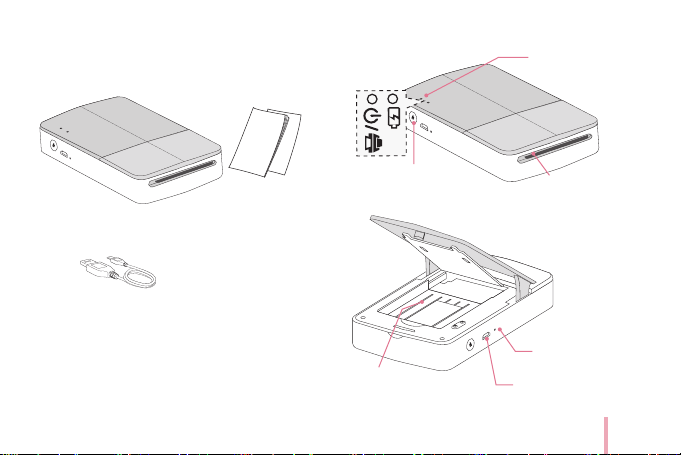
Supplied items
USB cable
y
Depending on the model or region, supplied
items may dier. (ex. USB cable etc.)
LG Pocket Photo Printer
Simple manual
Product Overview
Paper exit slot
(1) Power button
LED indicator
Paper tray
(CHARGE)Micro USB
port (for recharging)
(RESET)Reset hole
10
Power On / O
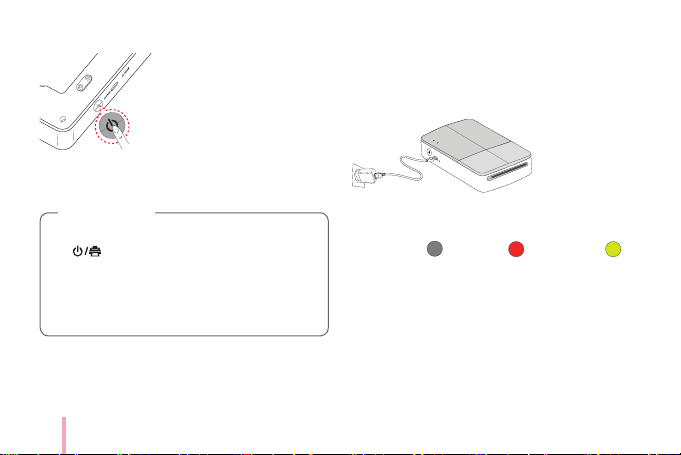
Press (1) power button for 2 sec. to turn on
or o.
y
When turning the device on, LED indicator
ashes for 3 sec. Then printing is
available.
y
For more information, see “About LED
indicator”.
,
Note
STEP 2 Charging Battery
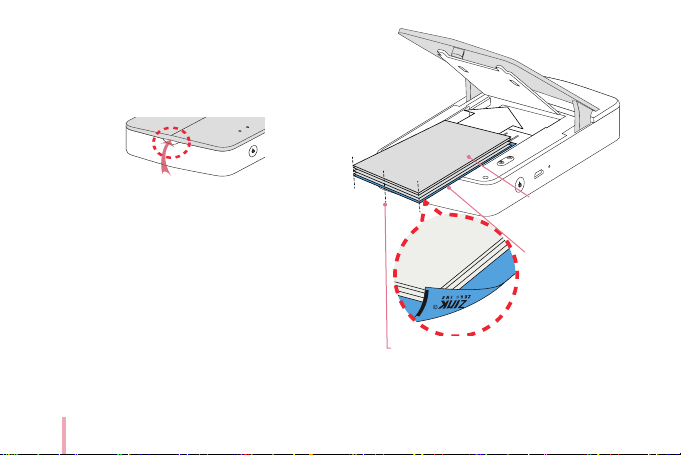
This device uses a built-in battery. Before using it,
fully charge the battery using a Smart phone USB
data cable (Micro 5 pin) or adapter. (Refer to below)
Battery charging time : 1.5 hours
Checking the charging status with LED indicators
y
Power-o
:
Charging : Full charge :
y
0 % : ashes for about 30 sec. and turns o.
y
LG Pocket Photo is always charged when
connected to the power supply except for being
printed.

11
y
To charge this product, you must always use a DC
5V, 1A or more. Certied/Listed Adapter which
complies with LPS.
y
Handle with care during charging to prevent
electric shock.
y
Do not place near heating appliance.
y
Do not disassemble or deform.
y
Do not give shock on.
y
Avoid too high or low temperature or
humidity.
>
Caution
y
You can connect the device to PC using a
Smart phone USB data cable, but charging
time can be longer.
y
The operating time on battery may vary
depending on the battery status, operational
status and environment conditions.
y
When the battery is discharged, printing is
available after charging it for more than 10
min. (Charge in full to print in a row.)
,
Note
12
STEP 3 Inserting Photo
Paper
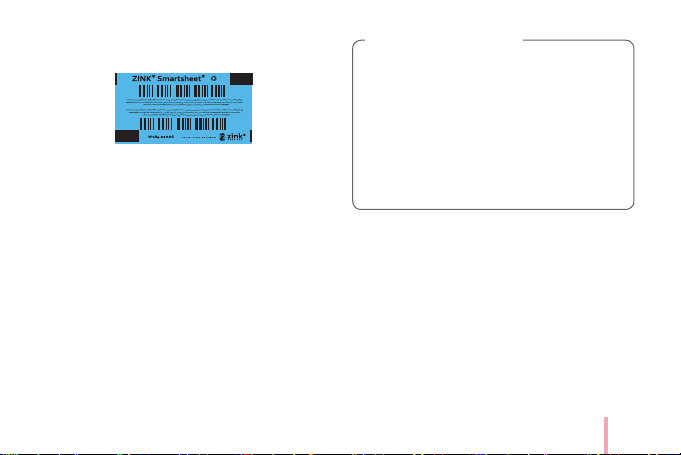
1. Open the upper cover.
2. Unpack the photo paper pouch you bought.
3. Slide smart sheet (blue) and photo papers
together into the paper slot, then close the upper
cover. Smart Sheet will be ejected automatically
before rst printing.
y
Do not insert more than 10 Photo papers and
1 Smart Sheet. Otherwise 2 papers may be
ejected at once or paper jam may occur.
y
Once the pack is unwrap, keep the remaining
papers after using in an airtight plastic bag.
y
Smart sheet and photo papers are not supplied.
Arrange all papers and smart sheet to end
of rear.
Smart Sheet
with Barcode
side down
Photo Paper
with White side up
13
Cleaning printer head using Smart
Sheet
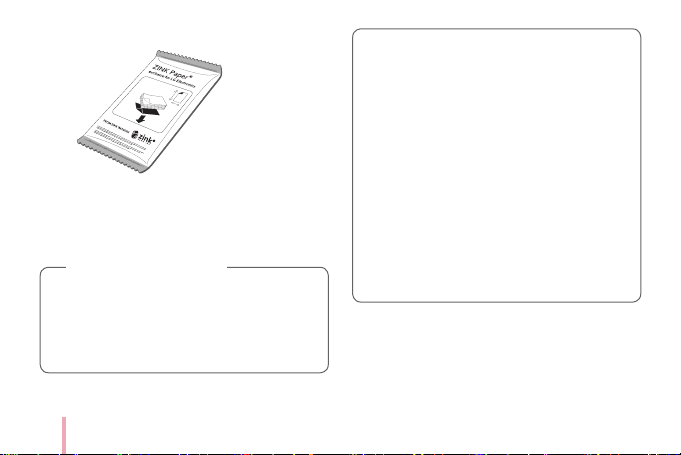
Smart sheet (Cleaner)
When you insert new smart sheet and photo papers,
this device scans the barcode of smart sheet to
maintain optimized photo paper. (It will be ejected
before the rst printing.)
To maintain the best quality, remove foreign material
of the head using cleaning feature.
When using Smart Sheet, it should be used
with photo papers in the same pouch.
y
Using smart sheet from other pouch may
result in low quality.
y
If print quality is abnormal or low, print
out the smart sheet 3-5 times repeatedly.
y
Reuse the smart sheet until use up the
photo papers from same pouch.
Note on Smart sheet
14
About photo paper
Photo paper pouch
Use exclusive photo paper for LG Pocket Photo.
Otherwise, the print quality cannot be guaranteed,
and it may cause damage of Pocket Photo.
y
Do not damage or bend the papers.
y
Using soiled paper may result in malfunction.
y
Ensure to use the papers within its valid
date.
Note on Photo paper
y
Handle with care not to get dirt on, when
you touch the paper.
y
Once unpacked, the papers may begin to
curl up or discolor after a period of time.
It is recommended to use them as soon as
possible.
y
Using photo papers from other company
may result in malfunction, paper jam or low
quality.
y
Do not place inside a car or, expose to direct
sunlight or moisture.
y
Do not leave in a place where the
temperature or humidity is too high or low. It
may reduce the quality of the printed photo.

15
Paper Jam Solution
Do not pull the paper out. Turn the device o and on
again, the paper will be ejected automatically.
y
If there are foreign material or dust on the roller, it
may not be ejected properly.
In that case, remove the foreign material of the
head with scotch tape rst. And then, clean using
smart sheet and try again.
y
If the photo paper has bent, paper jam may occur.
y
If this problem is not solved, please refer to
“Troubleshooting”.
STEP 4 Installing App
Installing App for Android phone
Bluetooth®
From Play Store (Android market)
Search for “LG Pocket Photo”.
Using QR code
Scan the QR code on the product box.
16
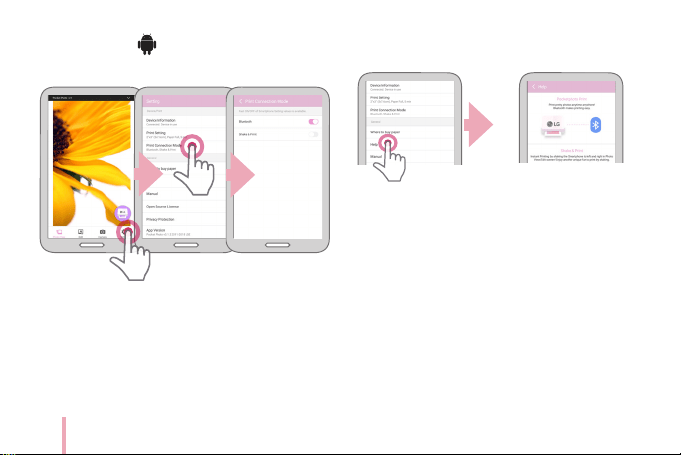
App Setting
Bluetooth®
Set the options in [
Setting
].
y
Bluetooth : Prints using Bluetooth
y
To optimize printing photo, activate all modes and
use pocket photo App.
See “Help” for details
For more information about the App, touch [Help].
17
Installing App for iPhone
From App Store
Search for “LG Pocket Photo”.
Using QR code
Scan the QR code on the product box.
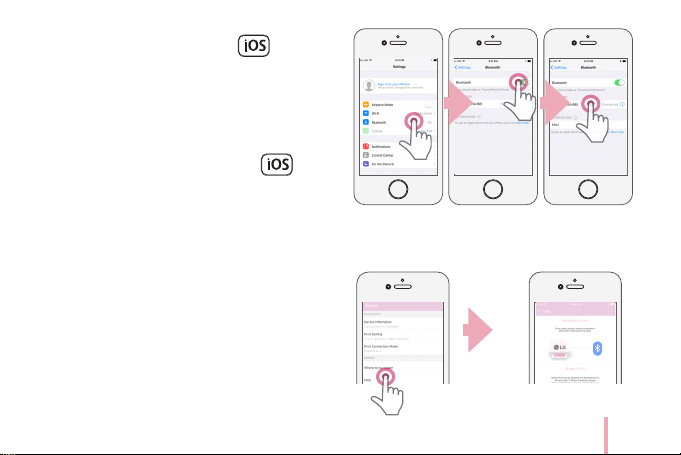
Setting Bluetooth of iPhone
1. On your iPhone’s home screen, touch [Settings].
2. Touch “Bluetooth” and touch the slider to turn
Bluetooth [On].
3. To connect your Pocket Photo device to the
iPhone, turn on your device and make sure it is
discoverable mode.
4. When you nd the device, touch the model name
of Pocket Photo on the screen.
See “Help” for details
For more information about the App, touch [Help].
18
Installing App for Windows phone
From Store
Search for “LG Pocket Photo”.
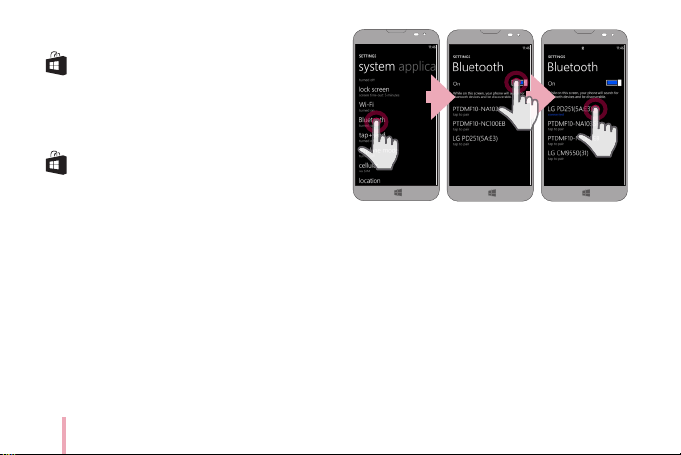
Setting Bluetooth of Windows phone
1. On your Windows phone home screen, touch
[Settings].
2. Select “Bluetooth” on the system and touch the
slider to turn Bluetooth [On].
3. To connect your Pocket Photo device to Windows
phone, turn on your device and make sure it is
discoverable mode.
4. When you nd the device, touch the model name
of Pocket Photo on the list.
5. After Checking [Connected], Run the App.
19
STEP 5 Printing Photo
Printing using Android phone
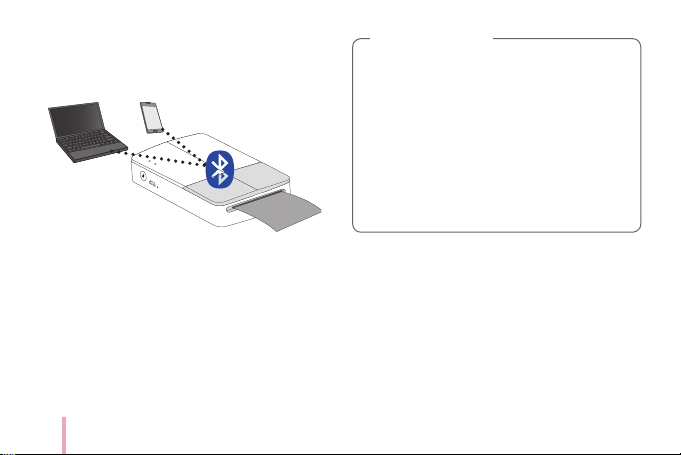
Bluetooth®
Printing using Bluetooth (
Bluetooth®
)
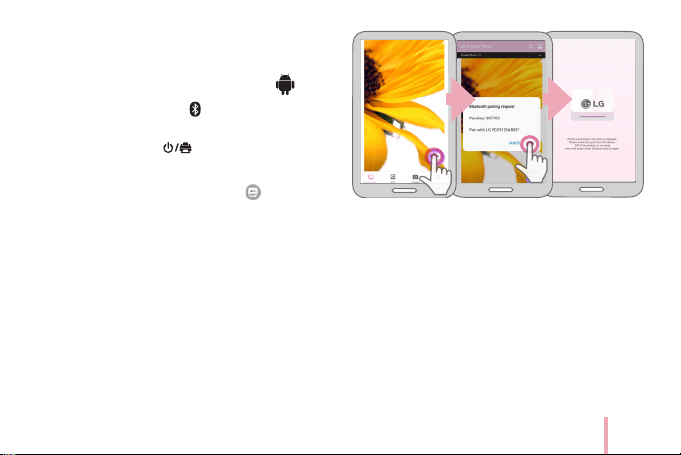
Preparation : Turn the device on, and start printing
with the LED indicator turning on.
1. Run LG Pocket Photo App on Android phone.
2. Select a photo to print, and touch [ ].
3. Touch [OK], then it will start searching for
Bluetooth devices.
y
To print, set print mode or the number of
photo on the preview screen.
4.
When LG Pocket Photo is paired for the rst time,
[Bluetooth pairing request] appears. To start
printing, touch [Pairing] or input the PIN code ‘0000’.
y
If Smart Sheet is in the device, it will be ejected
before the printing starts.
20
,
You can print photos directly from Android
phones or PC via Bluetooth without the App.
Choose a photo and select [Bluetooth] in [Share]
or [Menu].
y
Check the power of the Pocket Photo, when
your device can not search for Bluetooth
device.
y
The photo le less than 10 MB can be printed.
y
Setting screen may dier depending on the
phone manufacturer.
y
When connecting to the other company’s
smartphone, some functions may be limited
depending on conditions.
>
Caution
21
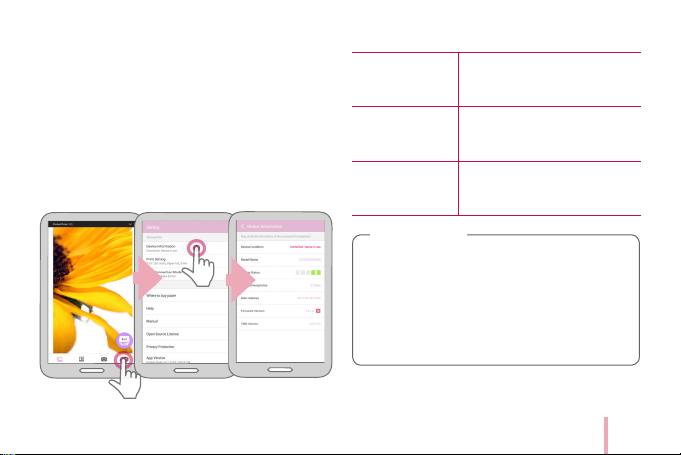
Setting Pocket Photo App of Android phone
You can check device/battery status, the number of
photos printed, MAC address and device version.
And you can change setting of print mode and Auto
power o.
1. Run LG Pocket Photo App on Android phone.
(To check [Device Information], set to [On] the
Bluetooth of smartphone.)
2. Go to
Setting
.
3. Touch [Device Information].
4. [Print setting]
Paper Full Prints without white space. (The
edge of the image can be cut
o.)
Image Full Prints an image as a whole.
(White space can occur at the
edge of the paper.)
Automatic Device
Power O
Set a time so that the device
turns itself o.
(Default is [5 min].)
y
The longer time you set [Automatic
Device Power O ] to, the more the battery
consumption is. The number of maximum
prints may dier.
y
It is recommended to keep default setting of
the device.
,
Note
22
Printing using iPhone
Printing using Bluetooth (
Bluetooth®
)
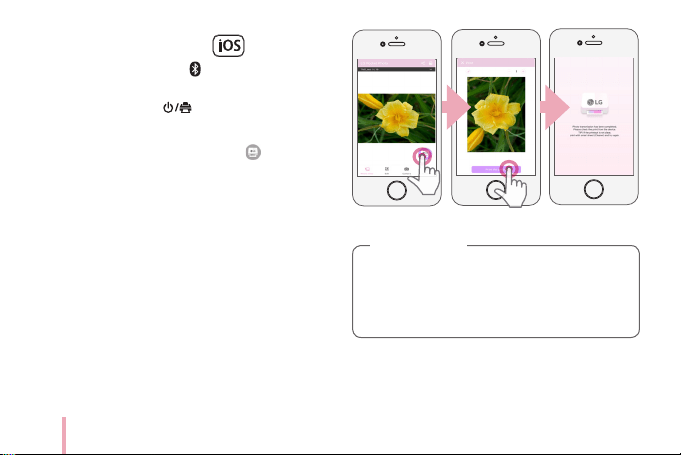
Preparation : Turn the device on, and start printing
with the LED indicator turning on.
1. Run LG Pocket Photo App on iPhone.
2. Select a photo to print, and touch [ ].
3. “Print” message appeares. Touch [Print the photo]
to start printing.
y
To print, set print mode or the number of
photo on the preview screen.
y
If Bluetooth is not connected, “ Paired device
not found” message is appeared. (refer to the
Bluetooth setting for iPhone.)
y
If Smart Sheet is in the device, it will be ejected
before starting printing.
In case of iPhone/iPad, the last paired iPhone/
iPad is paired to PocketPhoto automatically
when you turn on PocketPhoto if the Bluetooth
on your iPhone/iPad is on.
,
Note
23
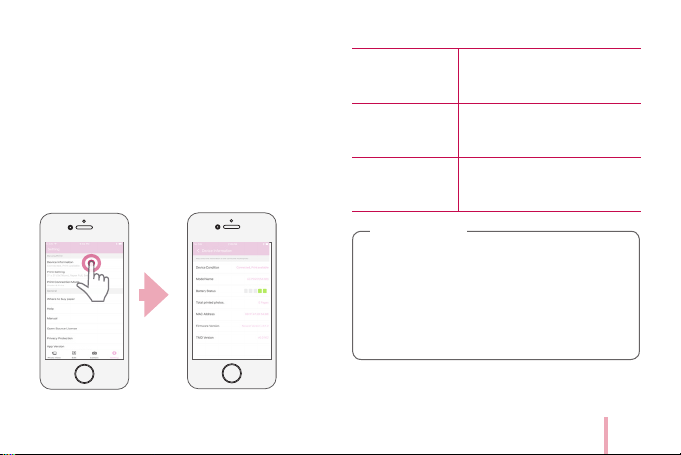
Setting iPhone Pocket Photo App
You can check device/battery status, the number of
photos printed, MAC address and device version.
And you can change setting of print mode and Auto
power o.
1. Run LG Pocket Photo App on iPhone.
(To check [Device information], set to [On] the
Bluetooth of iPhone.)
2. Go to
Setting
.
3. Touch
Setting
options to change.
4. [Print setting]
Paper Full Prints without white space. (The
edge of the image can be cut
o.)
Image Full Prints an image as a whole.
(White space can occur at the
edge of the paper.)
Automatic Device
Power O
Set a time so that the device
turns itself o.
(Default is [5 min].)
y
The longer time you set [Automatic
Device Power O ] to, the more the battery
consumption is. The number of maximum
prints may dier.
y
It is recommended to keep default setting of
the device.
,
Note
24
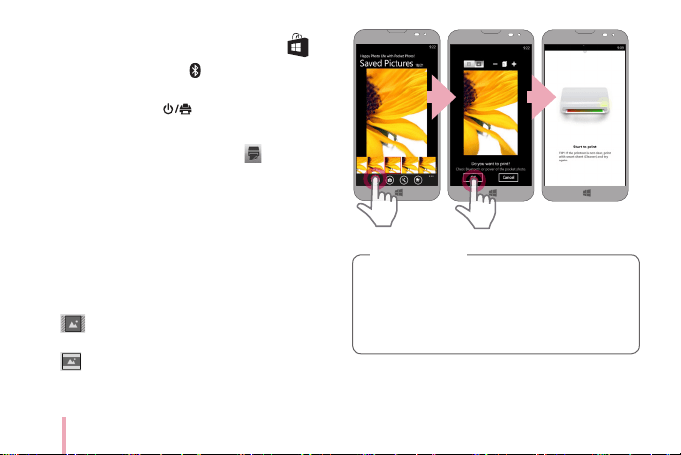
Printing using Windows phone
Printing using Bluetooth (
Bluetooth®
)
Preparation : Turn the device on, and start printing
with the LED indicator turning on.
1. Run LG Pocket Photo App on Windows phone.
2. Select a photo to print, and touch [ ].
3. “Do you want to print?” message appeares. Touch
[OK] to start printing.
y
If the printing is not started, check power of
the device.
y
If Bluetooth is not connected, select registered
Pocket photo device or reset Bluetooth by
selecting [Search].
Print mode
y
[ ] Paper Full:
Prints without white space. (The
edge of the image can be cut o.)
y
[ ] Image Full:
Prints an image as a whole.
(White space can occur at the edge of the paper.)
y
If Smart Sheet is in the device, it will be
ejected before starting printing.
y
To print, set print mode or the number of
photo on the preview screen.
,
Note
25
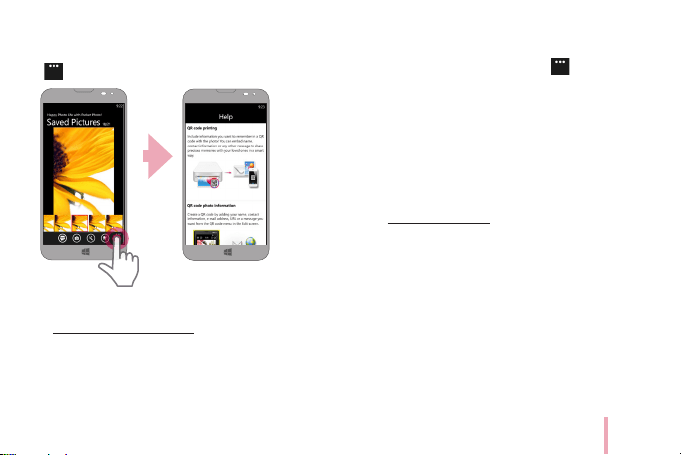
See “Help” for details
For more information about the App, touch
[ ] / [Help].
You can download the Owner’s manual
at http://popoguide.lge.com using PCs.
Note on Windows Phone
y
You can check Manual, Share, App version and
Where to buy paper by touching [ ].
y
In case of Windows phone, to print a photo in the
normal folder via bluetooth it is available only
when using the app.
y
The limitations of Windows Phone
-
Device information is not supported.
-
Windows phone does not support rmware /
TMD
*
update of Pocket Photo.
(At http://www.lg.com , under Downloadable, you
can download the Pocket Photo update tool for
Windows PCs.)
TMD
*
: TMD means colour correction data.
26
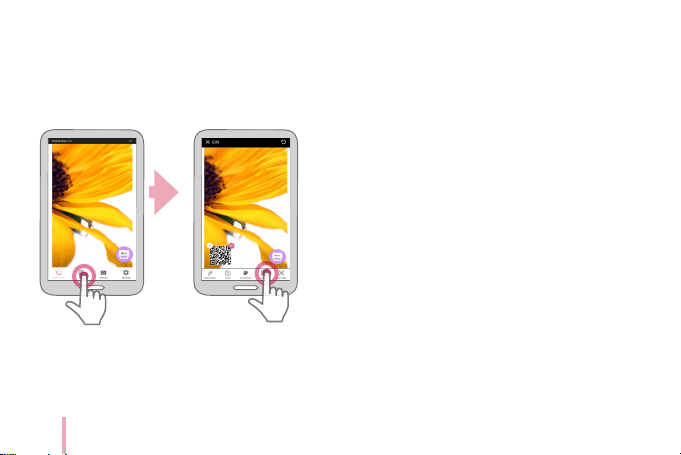
Using the edit mode
You can edit a photo quality, color or size using
edition tool on the menu.
Use the edit function with a variety of image
correction lter
Notes on the printing
y
The printed image may dier from the orginal
image due to the printing method (thermal
transfer printing).
y
Use the lastest App of LG Pocket Photo ( when
printing a photo, it makes optimized image.)
y
The higher resolution of the image, the printed
picture has the higher quality. (The proper
resolution is more than 1280 x 2448 pixel.)
y
Once the battery is fully charged, you can print up
to 20 papers in a row.
y
The maximum prints are based on ISO 24712
Colour image standard and the number of photos
printed may vary depending on user enviromental
conditions (time, temperture,humidity or printing
method).
y
If there are more than a LG Pocket Photo device,
check MAC address on the label to choose one
you want to use. (Refer to “Checking Label”.)

27
y
The Bluetooth searching and transferring may
fail depending on its environment. Check the
Bluetooth condition on your phone and try again.
y
If pairing multiple smartphone, re-pairing may
occur.
y
Do not pull paper out by force during
printing.
y
Do not open the upper cover during printing
or do not print the photo, when upper cover
is opened. It may cause damage of Pocket
Photo.
y
Do not place an object in front of the Paper
exit slot.
y
If the device is vibrated or given shock, the
quality of the printed photo may be reduced.
>
Caution
y
Printing for Passport / VISA image may be
unsuitable as the case may be. Printing the
image taken in studio is recommended.
y
The printing quality may dier depending
on the original image (When too dark or
dim). Use the image after correcting it using
Pocket photo App.
y
Pocket photo APP’s resolution is optimized
in 1440 x 2560 xel. (Android)
Checking where to buy paper
1. To check where to buy paper, go to setting or
menu screen.
2. After touching [Where to buy paper], select a
country.
28
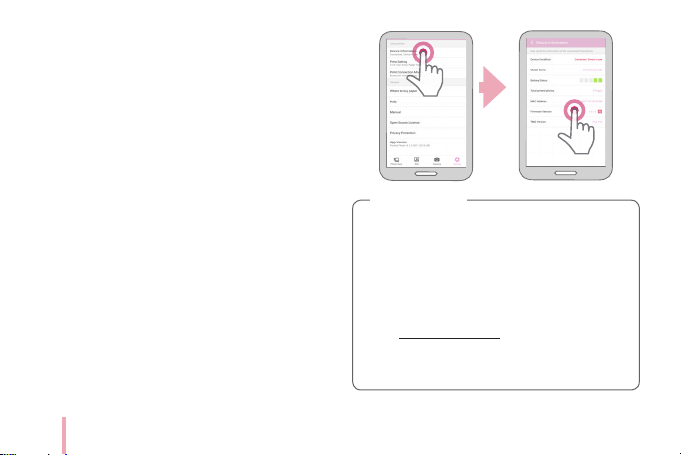
Updating the device
You can update the device by pairing smart phone
to the latest software to enhance the products
operation and /or add new features.
1. Connect the device and smart phone via
Bluetooth.
2. Run the Pocket Photo App and then, touch
[Setting] menu.
3. The current version and higher version are shown
if new version is existed.
4. Touch [Firmware Version] button to update the
device.
y
During the device update procedure, do not
turn o the power or press Reset button.
y
This device cannot be updated to previous
version.
y
If there is no higher version, the Message
[This is the lastest version.] appears.
y
At http://www.lg.com , under Downloadable,
you can download the Pocket Photo update
tool for Windows PCs.
,
Note
29
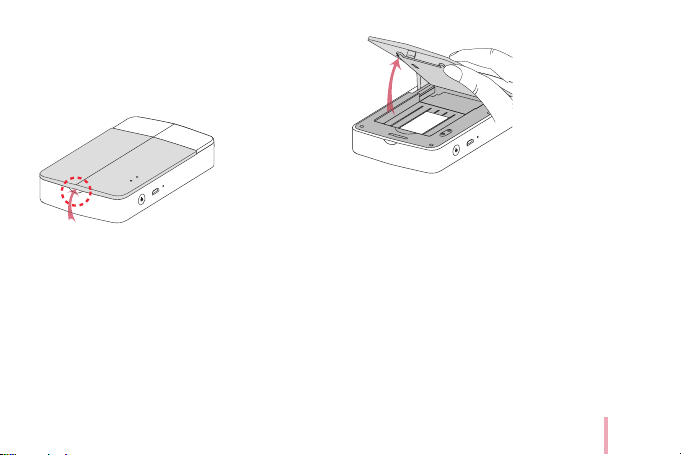
Checking Label
In case there are more than a LG Pocket Photo device,
check MAC address on the product label to choose
one you want to use.
1. Open the upper cover.
2. You can nd the product label.
30
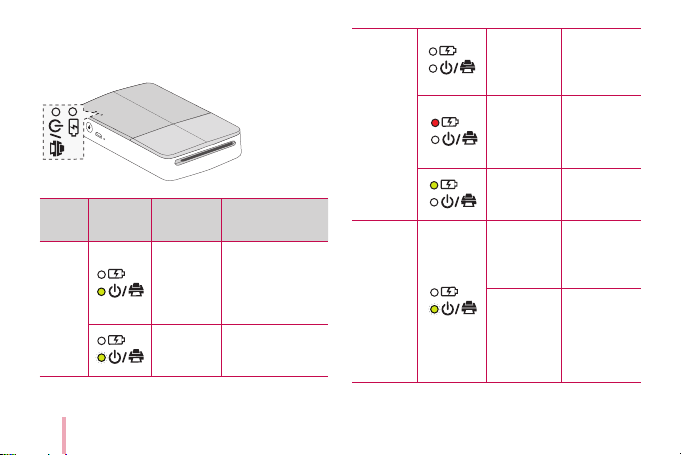
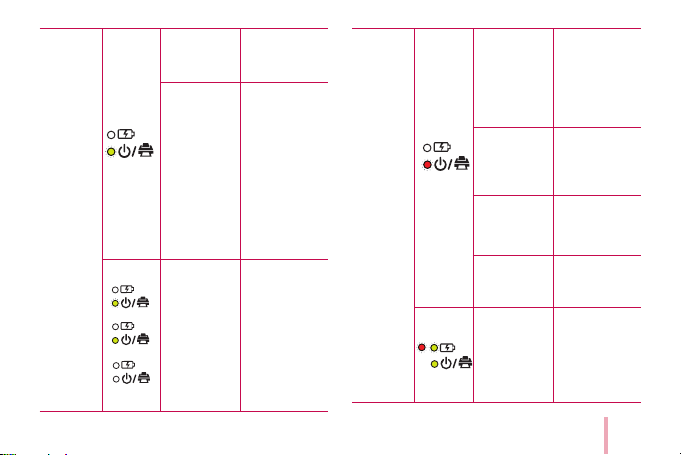
About LED Indicator
The LED indicators shows the device condition.
Section LED color
Condition/
Power
Description
Power
Waiting/
On
Waits for printing.
Device turns
itself o, if it is
left unused for a
while.
Turning on/
Blinks
Until ready after
turning on
Power
o
To print,
turn on the
device.
Charging
Battery is
charging
Full charge
Battery is
fully charged.
Normal
operation
Charge the
battery/
Blinks
Slowly
Remaining
battery is less
than 30%
Charge the
battery/
Blinks
quickly
(Remaining
battery is less
than 10%) To
print, charge
the device.
31
Normal
operation
Ready to turn
o/Blinks
quicky
Auto power o
is set.
Printing,
Cooling
mode/ Blinks
Transferring
data via
Bluetooth or
Printing (While
continuous
printing,
battery
temperature
is overheated.
Wait for a
while.)
.
.
Updating
/Blinks -
Turned on
- Turned o
Data is
downloaded
and installed.
When update
is complete,
LED is turned
o.
Error
Low
temperature/
Blinks
Raise the
Pocket photo
or ambient
temperature
then try again
in a while.
No paper,
Paper jam/
Blinks
Arrange the
papers then
insert them to
try again.
Unsupported
le format/
Blinks
Convert to
JPEG formats.
No data
reception/
Blinks
Try again in a
while.
Charging
error/Blinks
Unplug the
charging cable
and try again
in a while.

32
Specications
Photo size
50 mm x 76 mm (Dot size : 640
x 1224)
Image le type/
size
PNG (Max: 1350x1050), JPEG
(Baseline) / less than 10 MB
(Progressive JPEG is not
supported.)
Media paper
used
ZINK
TM
Photo Paper (exclusive
for LG)
Media paper
storage
environment
Temperature : 20 - 25 °C
Humidity : 40 - 55 % RH
Device
operation
environment
Temperature : 5 - 40 °C
Humidity : less than 70 % (35 °C)
(An temperature limitation
message appears on the App.)
Optimum print
environment
Temperature : 15 - 32 °C
Humidity : less than 70 % (32 °C)
LED indicator
Power / Waiting / Bluetooth
transmitting / Charged /
Discharged / Error / Condition of
printer/ Update
Communication
Bluetooth 4.0
External
connector
Micro USB port for charging
battery
Bus Power
Supply (USB)
(Adapter) DC 5 V 0 1.0 A
Battery life
470 mAh Li-Polymer
rechargeable battery
Image
resolution
More than 1280 x 2448 pixels
Dimensions (W
x D x H)
79 mm x 128 mm x 23.5 mm
Net Weight 183 g

33
Pocket Photo
App supporting
version
y
Android v4.4 or higher
y
iOS v9.0 or higher
y
Windows Phone 8.0 or higher
y
Your phone may be incompatible with the device
depending on its manufacturer, environment or
(Android or iOS) operating system.
y
Design and specications are subject to change
without prior notice.
y
All other product and brand names are trademarks
or registered trademarks of their respective
owners.
Troubleshooting
Symptom Cause / Solution
No power The battery is discharged.
Be sure the device is
connected to charger or PC
properly when charging.
Bluetooth paring
does not work well.
Switch Bluetooth o and on
again on your smartphone,
then pair with the device in
the smartphone’s settings.
Turn on the device and try
printing (pairing) again in
5 sec.
Be sure the device is on.

34
The paper is
jammed before
printing.
1. Turn the device o and on
again then paper is ejected
automatically.
2. If above solution does
not work, open the Upper
cover and arrange the
papers. Then insert them
with Smart Sheet (Blue) or
pull the paper out slowly
and gently.
The paper is
jammed during
printing.
The printed photo
has lines.
Open the Upper cover,
arrange the papers and
insert them with Smart Sheet
locating at the bottom. Then
try printing again. (To open
the Upper cover, refer to
“Checking Label”.
No or incomplete
image is printed.
The edge of the
image on the
photo is cut o.
Set Print mode to [Image Full]
in the App’s setting then the
image is printed as a whole.
White space
appears at the
edge of the paper.
When print mode is set to
[Image Full], white space may
appears if the aspect ratio of
the paper and your image is
not the same.
When print mode is set to
[Paper Full] , the edge of the
image can be cut o or white
space at the edge of the paper
may appear.

35
Quality of printed
photo is too low.
In case you magnify an image
using [ ] menu in the App,
the quality of the printed
photo may be reduced.
Turn o the device and insert
Smart Sheet locating at the
bottom of the papers. Then try
printing again.
Be sure the photo size is
bigger than the proper
resolution.(1280 x 2448 pixels)
When using Smart Sheet, it
should be used with photo
papers in the same pouch.
If you use other company’s
photo paper, it cannot be
guaranteed for print quality or
damage of pocket photo.
Device does not
print.
Preheating is needed. Wait for
about 2 min.
Be sure there are papers in
the device.
It may take time to print after
Smart Sheet is ejected.
Be sure the photo le is less
than 10 MB.
Only baseline JPEG, PNG
(Max: 1350x1050) format is
supported.
Device is turned o
automatically.
Check [Automatic Device
Power O ] time in the App’s
setting.
Above solutions do
not work.
Press Reset hole with a
pointed thing like mechanical
pencil to initialize.